AirVast Technology AB015WR2000 802.11b WLAN Router User Manual

AirVast Technology Inc. 802.11b WLAN Router Users Manual

Users Manual

12/23/2002                                       2503500600   802.11b WLAN Router     User’s Manual              Version 0.2 12/23/2002
12/23/2002                                     2503500600 1Copyright © 2002 by Airvast. All rights reserved. No part of this documentation may be reproduced in any form or by any means or used to make any derivative work (such as translation, transformation, or adaptation) without written permission from the copyright owner. All the other trademarks and registered trademarks are the property of their respective owners. Statement of Conditions We may make improvements or changes in the product described in this documentation at any time. The information regarding to the product in this manual are subject to change without notice. We assumes no responsibility for errors contained herein or for direct, indirect, special, incidental, or consequential damages with the furnishing, performance, or use of this manual or equipment supplied with it, even if the suppliers have been advised of the possibility of such damages. Electronic Emission Notices This device complies with Part 15 of the FCC Rules. Operation is subject to the following two conditions: a)  This device may not cause harmful interference. b)  This device must accept any interference received, including interference that may cause undesired operation. FCC INFORMATION The Federal Communication Commission Radio Frequency Interference Stateme- nt includes the following paragraph: The equipment has been tested and found to comply with the limits for a Class B Digital Device, pursuant to part 15 of the FCC Rules. These limits are designed to provide reasonable protection against harmful interference in a residential installation. This equipment generates, uses and can radiate radio frequency energy and, if not installed and used in accordance with the instruction, may cause harmful interference to radio communication. However, there is no grantee that interference will not occur in a particular installation. If this equipment dose cause harmful interference to radio or television reception, which can be determined by turning the equipment off and on, the user is encouraged to try to correct the interference by one or more of the following measures: a)  Reorient or relocate the receiving antenna. b)  Increase the separation between the equipment and receiver. c)  Connect the equipment into an outlet on a circuit different from that to which the receiver is connected. d)  Consult the dealer or an experienced radio/TV technician for help. The equipment is for home or office use.
12/23/2002                                     2503500600 2R&TTE Compliance Statement This equipment complies with all the requirements of the Directive 1999/5/EC of European parliament and council of 9 March 1999 on radio equipment and telecommunication terminal Equipment and the mutual recognition of their conformity(R&TTE). The R&TTE Directive repeals and replaces in the directive 98/13/EEC(Telecomm- unications Terminal Equipment and Satellite Earth Station Equipment)As of April 8,2000.  IMPORTANT NOTE:   FCC RF Radiation Exposure Statement: This equipment complies with FCC RF radiation exposure limits set forth for an uncontrolled environment. This equipment should be installed and operated with a minimum distance of 20cm between the antenna and your body and must not be co-located or operating in conjunction with any other antenna or transmitter. Caution:Changes or modifications not expressly approved by the party responsible for compliance could void the user's authority to operate the equipment.
12/23/2002                                     2503500600 3Table of Contents 1. Introduction .........................................................................................................8 1.1 Internet Access Features.................................................................................8 1.2 Advanced Internet Functions ...........................................................................8 1.3 Wireless Features............................................................................................9 1.4 LAN Features...................................................................................................9 1.5 Configuration & Management..........................................................................9 1.6 Security Features...........................................................................................10 1.7 Package Contents .........................................................................................10 1.8 Physical Details .............................................................................................10 1.8.1   Front-mounted LEDs ..........................................................................10 1.8.2 Rear Panel......................................................................................... 11 2. Installing Your Wireless Router ....................................................................... 11 2.1 System Requirements ................................................................................... 11 2.2 Installation Instructions ..................................................................................12 2.2.1 Choose an Installation Site................................................................12 2.2.2 Connect LAN Cables .........................................................................12 2.2.3 Connect WAN Cable..........................................................................12 2.2.4 Power Up...........................................................................................12 2.2.5 Check the LEDs.................................................................................12 3. PC Configuration...............................................................................................13 3.1 Windows Clients ............................................................................................13 3.1.1 TCP/IP Settings - Overview...............................................................13 3.1.2 Checking TCP/IP Settings - Windows 9x/Me ....................................13 3.1.3 Checking TCP/IP Settings - Windows NT4.0 ....................................15 3.1.4 Checking TCP/IP Settings - Windows 2000 ......................................18 3.1.5 Checking TCP/IP Settings - Windows XP .........................................20 3.1.6 Internet Access ..................................................................................22 3.2 Macintosh Clients ..........................................................................................23 3.3 Linux Clients ..................................................................................................24 3.4 Wireless Station Configuration ......................................................................24 4. Configuration Program .....................................................................................24 4.1 Collecting ISP Information .............................................................................25 4.2 Preparation ....................................................................................................25 4.3 Connecting to the Wireless Router................................................................25 4.3.1   Using UPnP ........................................................................................25 4.3.2 Using your Web Browser...................................................................25 4.3.3 If you can't connect............................................................................26 4.4 Open the Web-based Admin Tool..................................................................26
12/23/2002                                     2503500600 45. Configuring Your Wireless Router - Basic Functions ...................................27 5.1 Setup .............................................................................................................27 5.1.1   Configure Setup Parameters..............................................................27 5.2 Global Address ..............................................................................................28 5.2.1   Setup Global Addresses.....................................................................29 5.2.2   Remove Global Addresses.................................................................29 5.3 Wireless .........................................................................................................29 5.3.1   Configure the Basic Wireless Options................................................30 5.3.2   Set WEP Keys ....................................................................................30 5.3.3   Display Association Table ...................................................................31 5.3.4   Configure the Advanced Wireless Options.........................................32 5.4 Tools...............................................................................................................33 5.4.1   Change the Administrative Password.................................................33 5.4.2   Restore the Factory Default Settings: ................................................33 5.4.3   Upgrade the Wireless Router’s Firmware ..........................................34 5.5 Status.............................................................................................................34 5.5.1   DHCP Release and DHCP Renew.....................................................35 5.6 DHCP.............................................................................................................35 5.6.1   Setup the Wireless Router as a DHCP Server...................................36 5.6.2   Display DHCP Table ...........................................................................36 5.7 Log.................................................................................................................36 5.7.1   Setup Logging on Your Wireless Router ............................................37 5.7.2   Session Event Log..............................................................................37 5.7.3   Block Event Log..................................................................................37 5.7.4   Intrusion Event Log.............................................................................38 5.7.5   Wireless Event Log.............................................................................38 5.8 Statistics.........................................................................................................38 6. Configuring Your Wireless Router - Advanced Functions............................40 6.1 Toggle between Basic and Advanced Functions ...........................................40 6.2 Virtual Servers ...............................................................................................40 6.2.1   Setup a Computer on Your Network as a Virtual Server ....................41 6.2.2   Delete Virtual Servers.........................................................................41 6.3 Filters .............................................................................................................41 6.3.1   To set up a filter: .................................................................................42 6.3.2   Private MAC Filtering..........................................................................42 6.3.3   Additional Filtering Options ................................................................43 6.3.4   Deleting Filters....................................................................................44 6.4 Special Apps ..................................................................................................44 6.4.1   Configure Special Apps using the Popular Applications Feature .......45 6.4.2   Manually Configure Special Apps.......................................................45 6.4.3   To delete a special application: ..........................................................46 6.5 DMZ Host.......................................................................................................46 6.5.1   Setup a DMZ Host ..............................................................................47 6.5.2   To delete DMZ Hosts: .........................................................................47
12/23/2002                                     2503500600 56.6 MAC Clone ....................................................................................................47 6.6.1   Clone the MAC Address .....................................................................47 7. Troubleshooting ................................................................................................48 7.1 General Problems..........................................................................................48 7.2 Internet Access ..............................................................................................48 7.3 Wireless Access.............................................................................................49 8. About Wireless LANs........................................................................................50 8.1 Modes ............................................................................................................50 8.1.1   Ad-hoc Mode ......................................................................................50 8.1.2   Infrastructure Mode ............................................................................50 8.2 BSS/ESS .......................................................................................................51 8.2.1   BSS.....................................................................................................51 8.2.2   ESS.....................................................................................................51 8.3 Channels........................................................................................................51 8.4 WEP...............................................................................................................51 9. Specifications ....................................................................................................53
12/23/2002                                     2503500600 6 List of Figures Figure 1: Network Connection................................................................................... 8 Figure 2: Front Panel............................................................................................... 10 Figure 3: Rear Panel ............................................................................................... 11 Figure 4: Installation Diagram ................................................................................. 12 Figure 5: Network Configuration ............................................................................. 13 Figure 6: IP Address (Windows 95)......................................................................... 14 Figure 7: Gateway Tab (Windows 95/98) ................................................................ 14 Figure 8: DNS Tab (Windows 95/98)....................................................................... 15 Figure 9:TCP/IP (Windows NT4.0).......................................................................... 15 Figure 10: IP Address (Windows NT4.0)................................................................. 16 Figure 11: Add Gateway (Windows NT4.0) ............................................................. 17 Figure 12: Add DNS (Windows NT4.0) ................................................................... 18 Figure 13: Network Configuration (Windows 2000) ................................................ 19 Figure 14: TCP/IP Properties (Windows 2000) ....................................................... 20 Figure 15: Network Configuration (Windows XP) ................................................... 21 Figure 16: TCP/IP Properties (Windows XP) .......................................................... 22 Figure 17: Web Address for Admin Tool.................................................................. 26 Figure 18: Username/Password Dialog Box ........................................................... 26 Figure 19: Setup Screen ......................................................................................... 27 Figure 20: Global Address Screen .......................................................................... 29 Figure 21: Wireless Screen..................................................................................... 30 Figure 22: Set WEP Keys Window.......................................................................... 31 Figure 23: Wireless Association Table .................................................................... 31 Figure 24: Defaults for Advanced Wireless Settings ............................................... 32 Figure 25: Tool Screen ............................................................................................ 33 Figure 26: Warming Dialog Box for Restore Defaults ............................................. 33 Figure 27: Choose File Dialog Box for Firmware Upgrade ..................................... 34 Figure 28: Status Screen......................................................................................... 35 Figure 29: DHCP Screen......................................................................................... 35 Figure 30: DHCP Active IP Window ........................................................................ 36 Figure 31: Log Screen............................................................................................. 37 Figure 32: Session Event Log Table ....................................................................... 37 Figure 33: Block Event Log Table ........................................................................... 37 Figure 34: Intrusion Event Log Table ...................................................................... 38 Figure 35: Wireless Event Log Table ...................................................................... 38 Figure 36: Statistic................................................................................................... 39 Figure 37: Advanced Button.................................................................................... 40 Figure 38: Basic Button ........................................................................................... 40 Figure 39: Virtual Servers Screen ........................................................................... 40 Figure 40: Well-known Ports Table.......................................................................... 41 Figure 41: Filters Screen......................................................................................... 42 Figure 42: MAC Access Control Window ................................................................ 43 Figure 43: Special Apps Screen .............................................................................. 45
12/23/2002                                     2503500600 7Figure 44: Popular Applications Feature................................................................. 45 Figure 45: DMZ Host Screen .................................................................................. 47 Figure 46: MAC Clone Screen ................................................................................ 47
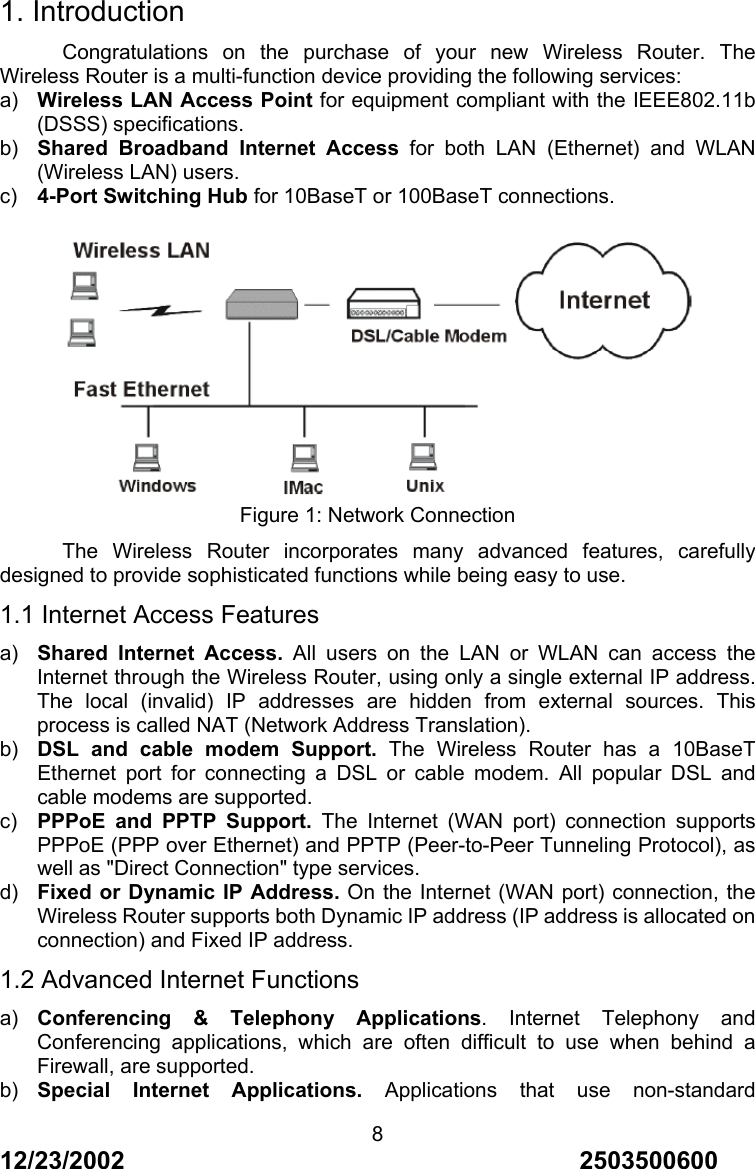
12/23/2002                                     2503500600 81. Introduction Congratulations on the purchase of your new Wireless Router. The Wireless Router is a multi-function device providing the following services: a)  Wireless LAN Access Point for equipment compliant with the IEEE802.11b (DSSS) specifications. b)  Shared Broadband Internet Access for both LAN (Ethernet) and WLAN (Wireless LAN) users. c)  4-Port Switching Hub for 10BaseT or 100BaseT connections.   Figure 1: Network Connection The Wireless Router incorporates many advanced features, carefully designed to provide sophisticated functions while being easy to use. 1.1 Internet Access Features a)  Shared Internet Access. All users on the LAN or WLAN can access the Internet through the Wireless Router, using only a single external IP address. The local (invalid) IP addresses are hidden from external sources. This process is called NAT (Network Address Translation). b)  DSL and cable modem Support. The Wireless Router has a 10BaseT Ethernet port for connecting a DSL or cable modem. All popular DSL and cable modems are supported. c)  PPPoE and PPTP Support. The Internet (WAN port) connection supports PPPoE (PPP over Ethernet) and PPTP (Peer-to-Peer Tunneling Protocol), as well as "Direct Connection" type services. d)  Fixed or Dynamic IP Address. On the Internet (WAN port) connection, the Wireless Router supports both Dynamic IP address (IP address is allocated on connection) and Fixed IP address. 1.2 Advanced Internet Functions a)  Conferencing & Telephony Applications. Internet Telephony and Conferencing applications, which are often difficult to use when behind a Firewall, are supported. b)  Special Internet Applications. Applications that use non-standard
12/23/2002                                     2503500600 9connections or port numbers are normally blocked by the Firewall. The ability to define and allow such applications is provided, to enable such applications to be used normally. c)  Virtual Servers. This feature allows Internet users to access Internet servers on your LAN. The required setup is quick and easy. d)  DMZ. One PC on your local LAN can be configured to allow unrestricted 2-way communication with Servers or individual users on the Internet. This provides the ability to run programs that are incompatible with Firewalls. e)  URL Filter. Use the URL Filter to block access to undesirable Web sites by LAN users, or Wireless LAN users. f)  Internet Access Log. See which Internet connections have been made. g)  VPN Support. VPN (Virtual Private Networking) connections using PPTP and IPSec are transparently supported - no configuration is required. 1.3 Wireless Features a)  Standards Compliant. The Wireless Router complies with the IEEE802.11b (DSSS) specifications for Wireless LAN. b)  WEP Support. Support for WEP (Wired Equivalent Privacy) is included. Both 64 Bit and 128 Bit keys can be used. c)  Access Control. The Access Control feature can ensure that only trusted Wireless Stations can access your LAN. d)  Simple Configuration. If the default settings are unsuitable, they can be changed quickly and easily. 1.4 LAN Features a)  4-Port Switching Hub. The Wireless Router incorporates a 4-port 10/100BaseT switching hub, making it easy to create or extend your LAN. b)  DHCP Server Support. Dynamic Host Configuration Protocol provides a dynamic IP address to PCs and other devices upon request. The Wireless Router can act as a DHCP Server for devices on your local LAN and WLAN. c)  Multi Segment LAN Support. LANs containing one or more segments are supported, via the Wireless Router's RIP (Routing Information Protocol) support and built-in static routing table. 1.5 Configuration & Management a)  Easy Setup. Use your WEB browser from anywhere on the LAN or WLAN for configuration. b)  Remote Management. The Wireless Router can be managed from any PC on your LAN. And, if the Internet connection exists, it can also (optionally) be configured via the Internet. c)  UPnP Support. UPnP (Universal Plug and Play) allows automatic discovery and configuration of the Wireless Router. UPnP is supported by Windows Me, XP, or later.
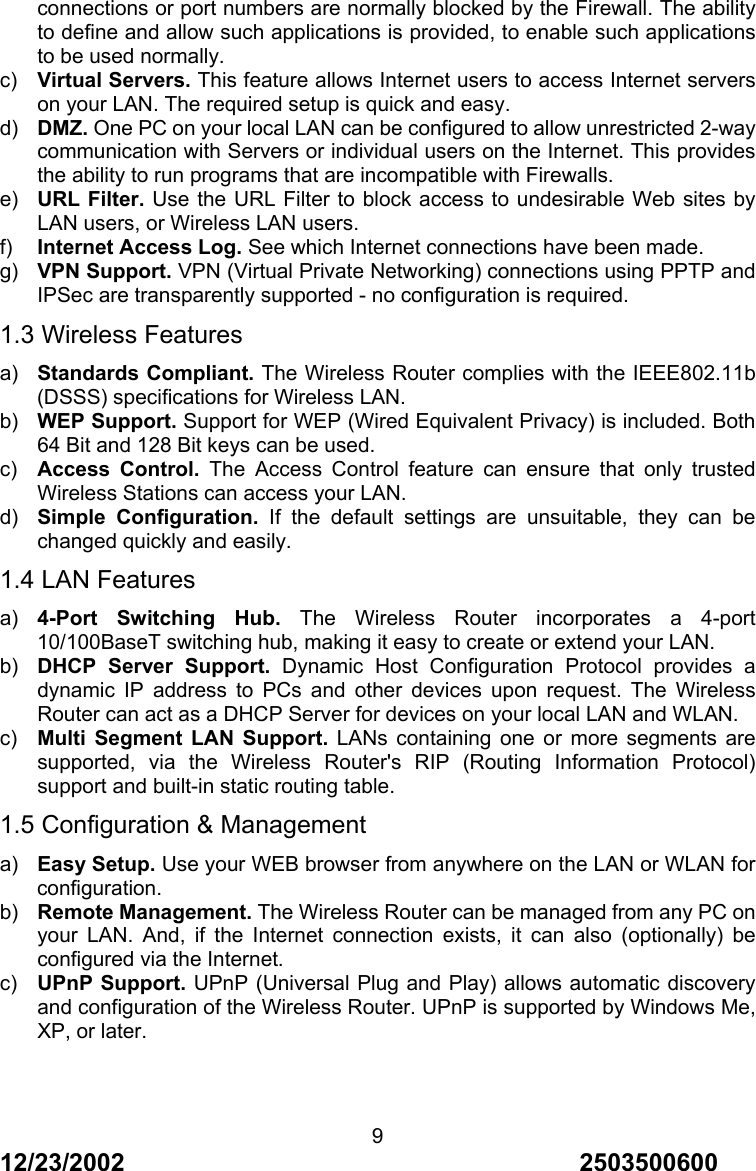
12/23/2002                                     2503500600 101.6 Security Features a)  Password Protected Configuration. Optional password protection is provided to prevent unauthorized users from modifying the configuration data and settings. b)  Wireless LAN Security. WEP (Wired Equivalent Privacy) is supported, as well as Wireless access control to prevent unknown wireless stations from accessing your LAN. c)  NAT Protection. An intrinsic side effect of NAT (Network Address Translation) technology is that by allowing all LAN users to share a single IP address, the location and even the existence of each PC is hidden. From the external viewpoint, there is no network, only a single device - the Wireless Router. d)  Stateful Inspection Firewall. All incoming data packets are monitored and all incoming server requests are filtered, i.e., protecting your network from malicious attacks from external sources. e)  Protection against DoS Attacks. DoS (Denial of Service) attacks can flood your Internet connection with invalid packets and connection requests; using so much bandwidth and so many resources that Internet access becomes unavailable. The Wireless Router incorporates protection against DoS attacks. 1.7 Package Contents The following items should be included: a)  One Wireless Router Unit (the device). b)  One Power adapter. c)  One User’s Manual d)  One Quick Installation Guide.  If any of the above items are damaged or missing, please contact your dealer immediately. 1.8 Physical Details 1.8.1   Front-mounted LEDs  Figure 2: Front Panel LED Status  Function On (Green)  Power on. Power Off No power. On (Red)  LAN (hub) port is using 10/100BaseT. Blinking (Yellow)  Data is being transmitted or received, using 10 /100BaseT connection. LAN (1, 2, 3, 4) Off  LAN (hub) port connection is not active.
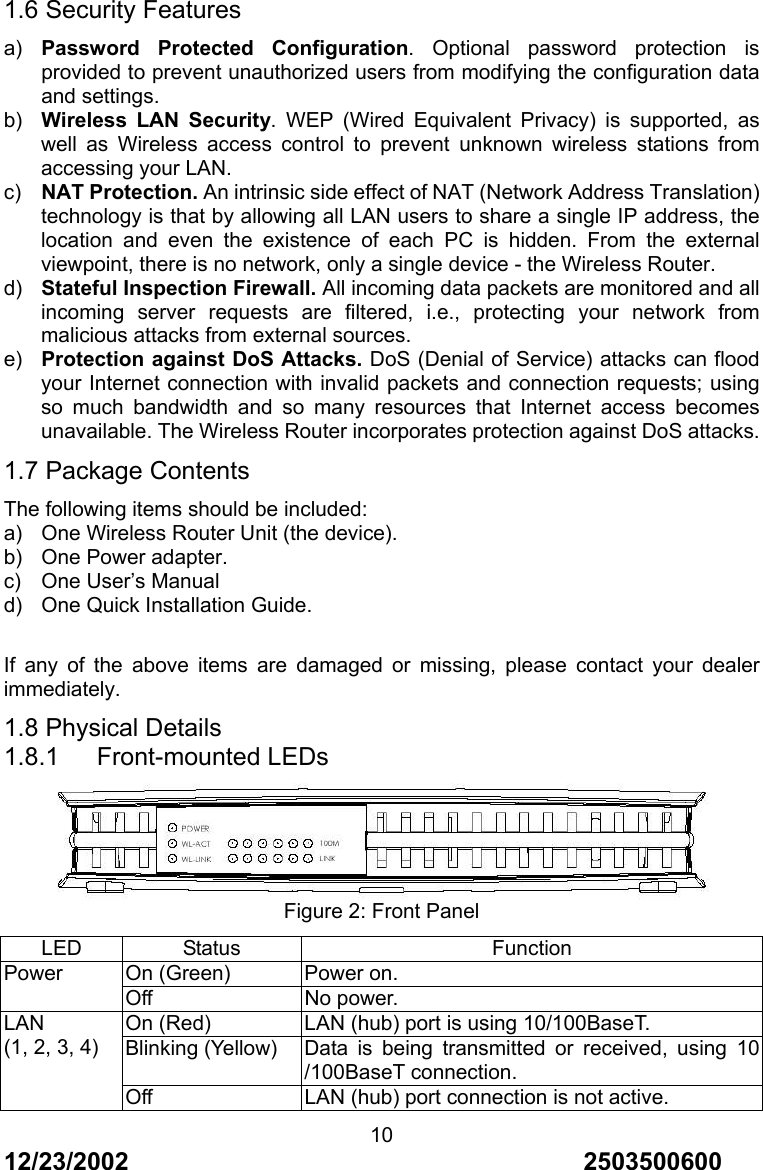
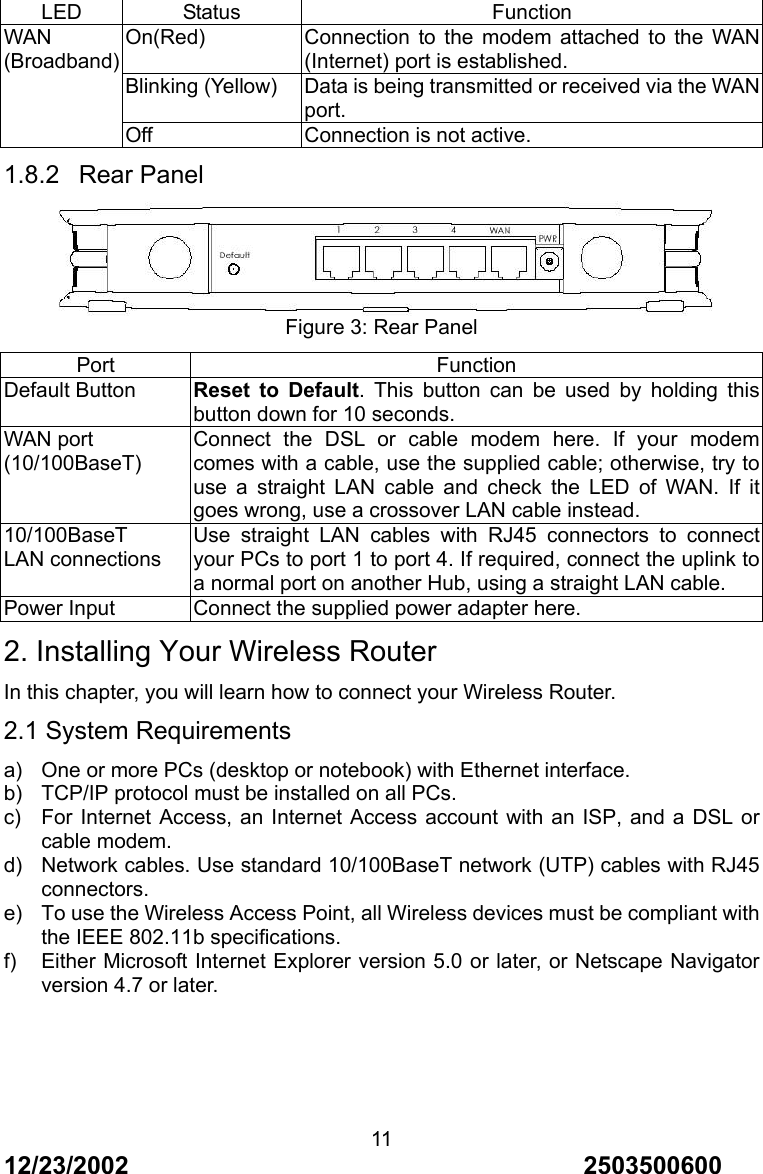
12/23/2002                                     2503500600 11LED Status  Function On(Red)  Connection to the modem attached to the WAN (Internet) port is established. Blinking (Yellow)  Data is being transmitted or received via the WAN port. WAN (Broadband) Off  Connection is not active. 1.8.2 Rear Panel  Figure 3: Rear Panel Port Function Default Button  Reset to Default. This button can be used by holding this button down for 10 seconds. WAN port   (10/100BaseT) Connect the DSL or cable modem here. If your modem comes with a cable, use the supplied cable; otherwise, try to use a straight LAN cable and check the LED of WAN. If it goes wrong, use a crossover LAN cable instead. 10/100BaseT LAN connections Use straight LAN cables with RJ45 connectors to connect your PCs to port 1 to port 4. If required, connect the uplink to a normal port on another Hub, using a straight LAN cable. Power Input  Connect the supplied power adapter here. 2. Installing Your Wireless Router In this chapter, you will learn how to connect your Wireless Router. 2.1 System Requirements a)  One or more PCs (desktop or notebook) with Ethernet interface. b)  TCP/IP protocol must be installed on all PCs. c)  For Internet Access, an Internet Access account with an ISP, and a DSL or cable modem. d)  Network cables. Use standard 10/100BaseT network (UTP) cables with RJ45 connectors. e)  To use the Wireless Access Point, all Wireless devices must be compliant with the IEEE 802.11b specifications. f)  Either Microsoft Internet Explorer version 5.0 or later, or Netscape Navigator version 4.7 or later.
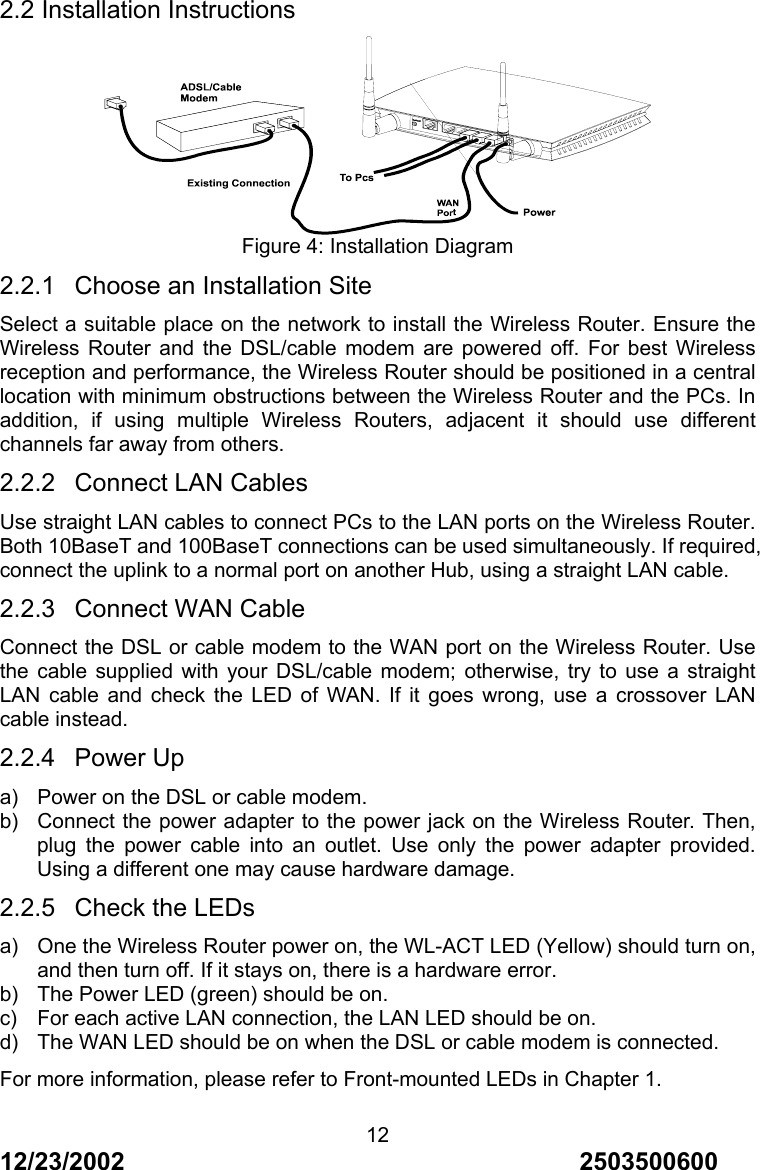
12/23/2002                                     2503500600 122.2 Installation Instructions  Figure 4: Installation Diagram 2.2.1  Choose an Installation Site Select a suitable place on the network to install the Wireless Router. Ensure the Wireless Router and the DSL/cable modem are powered off. For best Wireless reception and performance, the Wireless Router should be positioned in a central location with minimum obstructions between the Wireless Router and the PCs. In addition, if using multiple Wireless Routers, adjacent it should use different channels far away from others. 2.2.2  Connect LAN Cables Use straight LAN cables to connect PCs to the LAN ports on the Wireless Router. Both 10BaseT and 100BaseT connections can be used simultaneously. If required, connect the uplink to a normal port on another Hub, using a straight LAN cable. 2.2.3  Connect WAN Cable Connect the DSL or cable modem to the WAN port on the Wireless Router. Use the cable supplied with your DSL/cable modem; otherwise, try to use a straight LAN cable and check the LED of WAN. If it goes wrong, use a crossover LAN cable instead. 2.2.4 Power Up a)  Power on the DSL or cable modem. b)  Connect the power adapter to the power jack on the Wireless Router. Then, plug the power cable into an outlet. Use only the power adapter provided. Using a different one may cause hardware damage. 2.2.5  Check the LEDs a)  One the Wireless Router power on, the WL-ACT LED (Yellow) should turn on, and then turn off. If it stays on, there is a hardware error. b)  The Power LED (green) should be on. c)  For each active LAN connection, the LAN LED should be on. d)  The WAN LED should be on when the DSL or cable modem is connected. For more information, please refer to Front-mounted LEDs in Chapter 1.
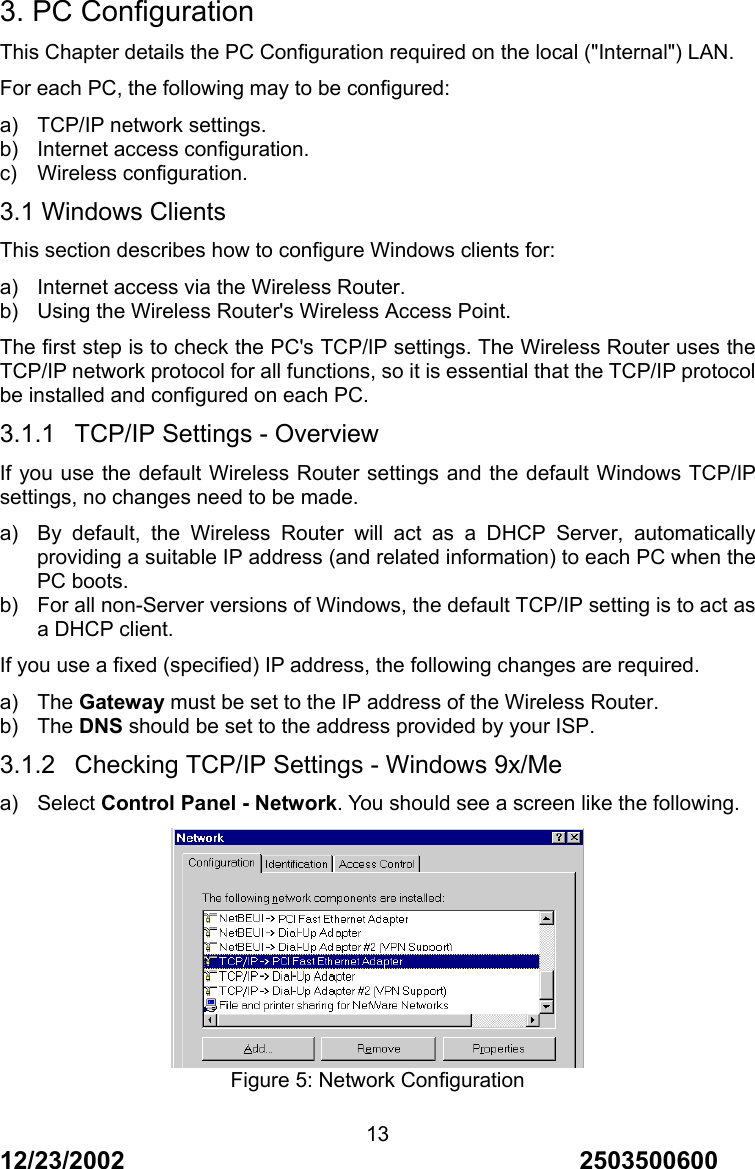
12/23/2002                                     2503500600 133. PC Configuration This Chapter details the PC Configuration required on the local ("Internal") LAN. For each PC, the following may to be configured: a) TCP/IP network settings. b) Internet access configuration. c) Wireless configuration. 3.1 Windows Clients This section describes how to configure Windows clients for: a)  Internet access via the Wireless Router. b)  Using the Wireless Router's Wireless Access Point. The first step is to check the PC's TCP/IP settings. The Wireless Router uses the TCP/IP network protocol for all functions, so it is essential that the TCP/IP protocol be installed and configured on each PC. 3.1.1  TCP/IP Settings - Overview If you use the default Wireless Router settings and the default Windows TCP/IP settings, no changes need to be made. a)  By default, the Wireless Router will act as a DHCP Server, automatically providing a suitable IP address (and related information) to each PC when the PC boots. b)  For all non-Server versions of Windows, the default TCP/IP setting is to act as a DHCP client. If you use a fixed (specified) IP address, the following changes are required. a) The Gateway must be set to the IP address of the Wireless Router. b) The DNS should be set to the address provided by your ISP. 3.1.2  Checking TCP/IP Settings - Windows 9x/Me a) Select Control Panel - Network. You should see a screen like the following.  Figure 5: Network Configuration
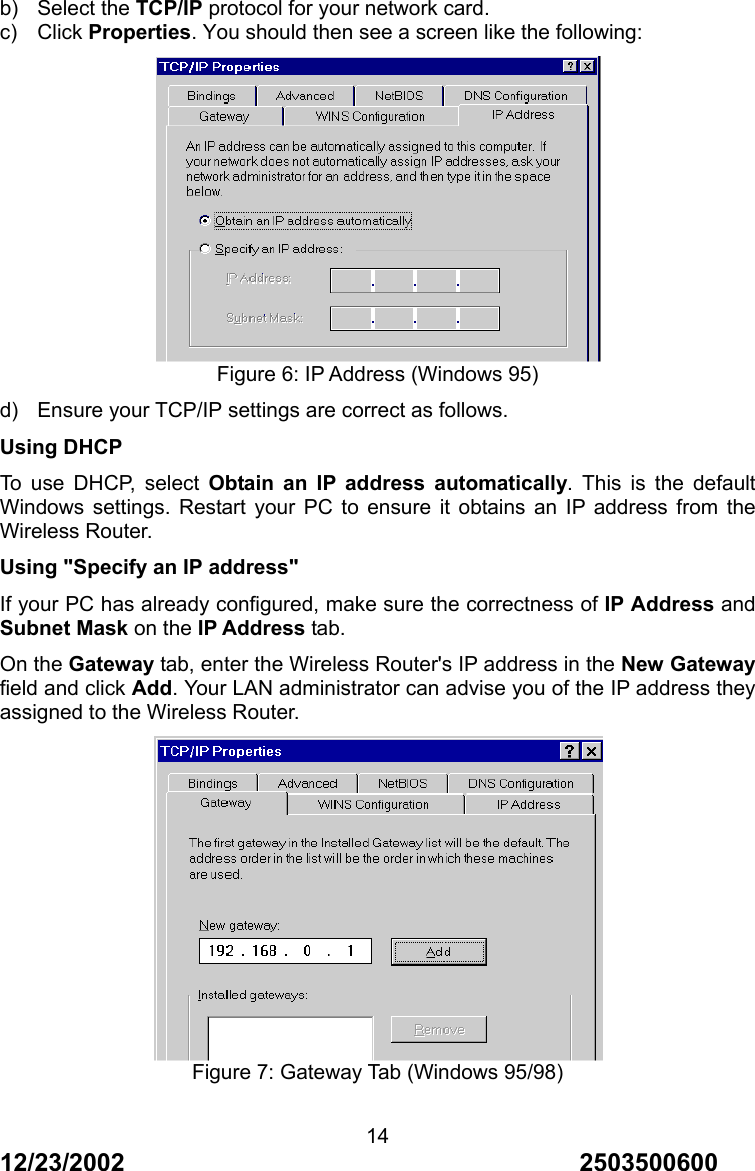
12/23/2002                                     2503500600 14b) Select the TCP/IP protocol for your network card. c) Click Properties. You should then see a screen like the following:  Figure 6: IP Address (Windows 95) d)  Ensure your TCP/IP settings are correct as follows. Using DHCP To use DHCP, select Obtain an IP address automatically. This is the default Windows settings. Restart your PC to ensure it obtains an IP address from the Wireless Router. Using "Specify an IP address" If your PC has already configured, make sure the correctness of IP Address and Subnet Mask on the IP Address tab. On the Gateway tab, enter the Wireless Router's IP address in the New Gateway field and click Add. Your LAN administrator can advise you of the IP address they assigned to the Wireless Router.  Figure 7: Gateway Tab (Windows 95/98)
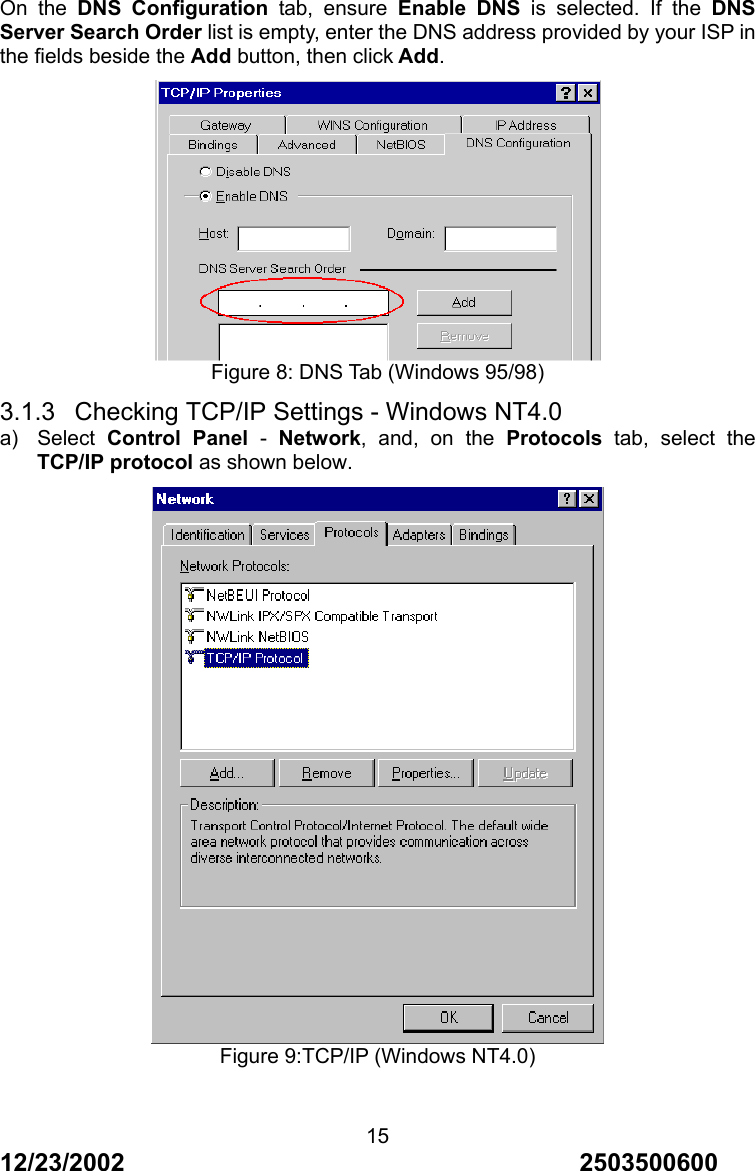
12/23/2002                                     2503500600 15On the DNS Configuration tab, ensure Enable DNS is selected. If the DNS Server Search Order list is empty, enter the DNS address provided by your ISP in the fields beside the Add button, then click Add.  Figure 8: DNS Tab (Windows 95/98) 3.1.3  Checking TCP/IP Settings - Windows NT4.0 a) Select Control Panel - Network, and, on the Protocols tab, select the TCP/IP protocol as shown below.  Figure 9:TCP/IP (Windows NT4.0)
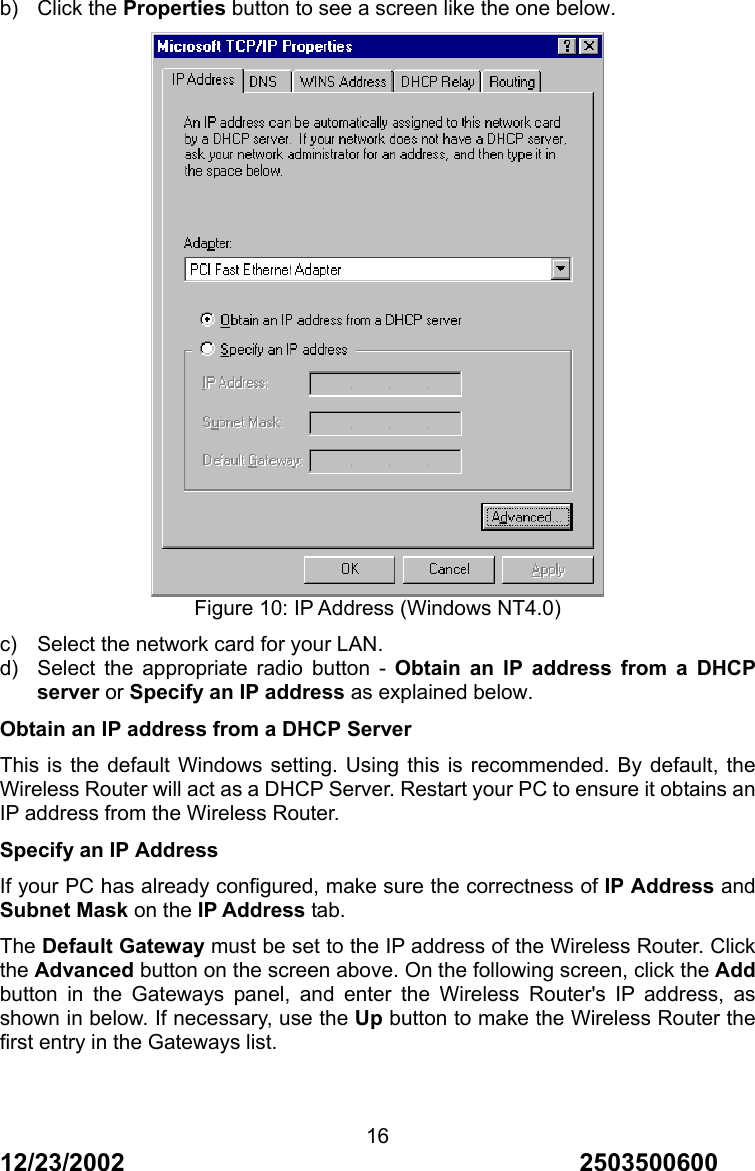
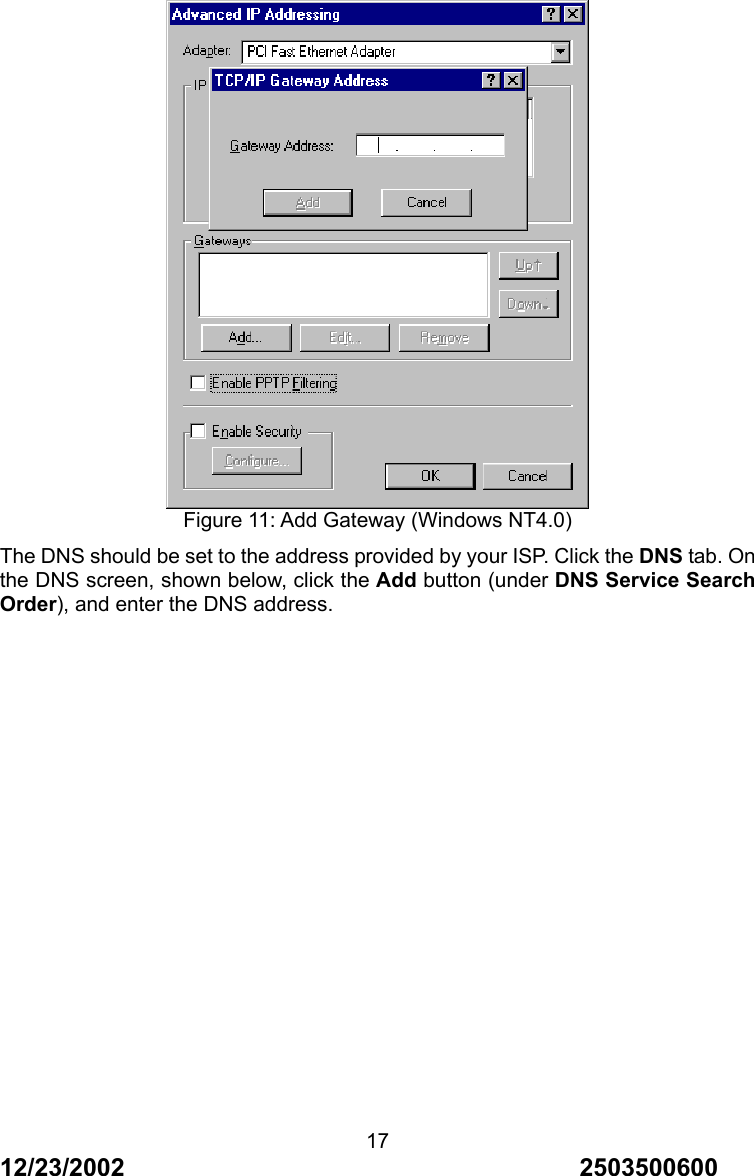
12/23/2002                                     2503500600 16b) Click the Properties button to see a screen like the one below.  Figure 10: IP Address (Windows NT4.0) c)  Select the network card for your LAN. d)  Select the appropriate radio button - Obtain an IP address from a DHCP server or Specify an IP address as explained below. Obtain an IP address from a DHCP Server This is the default Windows setting. Using this is recommended. By default, the Wireless Router will act as a DHCP Server. Restart your PC to ensure it obtains an IP address from the Wireless Router. Specify an IP Address If your PC has already configured, make sure the correctness of IP Address and Subnet Mask on the IP Address tab. The Default Gateway must be set to the IP address of the Wireless Router. Click the Advanced button on the screen above. On the following screen, click the Add button in the Gateways panel, and enter the Wireless Router's IP address, as shown in below. If necessary, use the Up button to make the Wireless Router the first entry in the Gateways list.
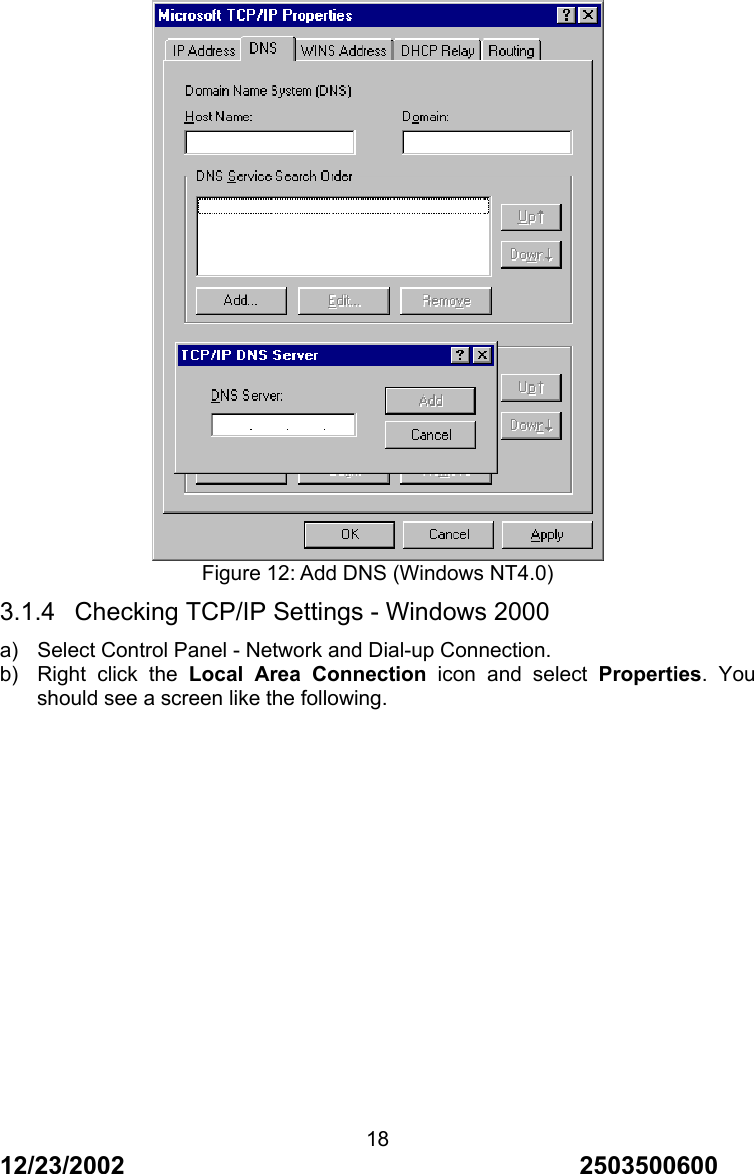
12/23/2002                                     2503500600 17 Figure 11: Add Gateway (Windows NT4.0) The DNS should be set to the address provided by your ISP. Click the DNS tab. On the DNS screen, shown below, click the Add button (under DNS Service Search Order), and enter the DNS address.
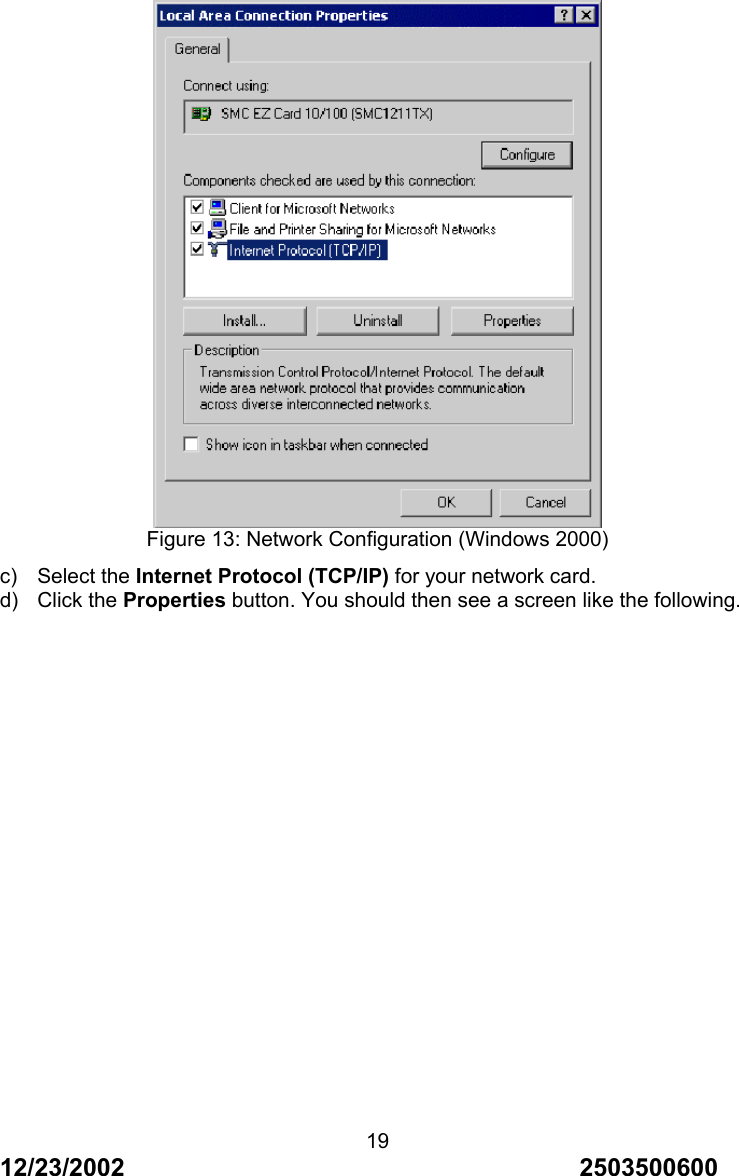
12/23/2002                                     2503500600 18 Figure 12: Add DNS (Windows NT4.0) 3.1.4  Checking TCP/IP Settings - Windows 2000 a)  Select Control Panel - Network and Dial-up Connection. b)  Right click the Local Area Connection icon and select Properties. You should see a screen like the following.
12/23/2002                                     2503500600 19 Figure 13: Network Configuration (Windows 2000) c) Select the Internet Protocol (TCP/IP) for your network card. d) Click the Properties button. You should then see a screen like the following.
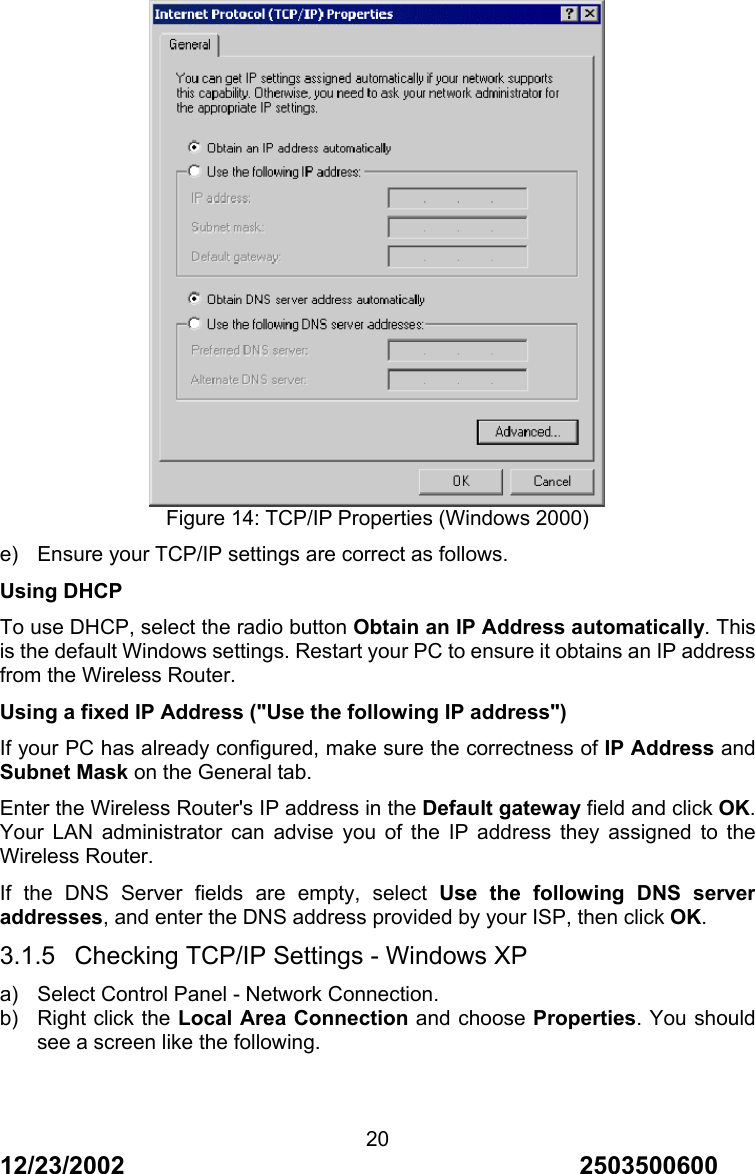
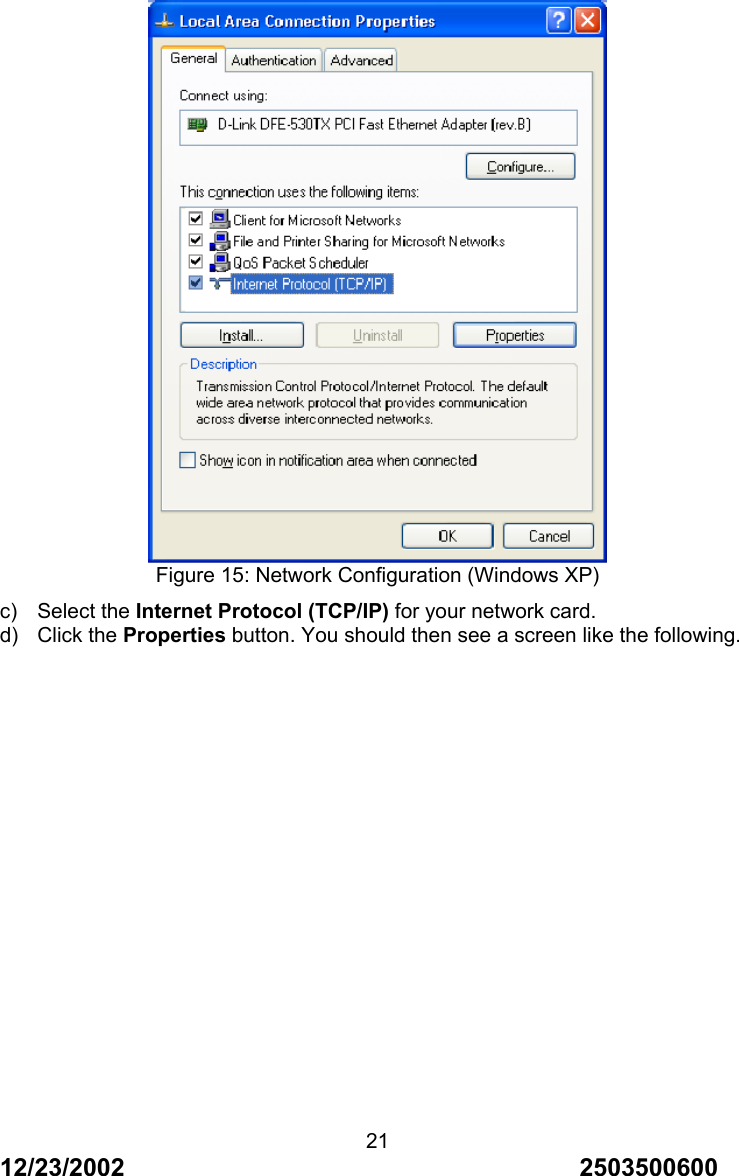
12/23/2002                                     2503500600 20 Figure 14: TCP/IP Properties (Windows 2000) e)  Ensure your TCP/IP settings are correct as follows. Using DHCP To use DHCP, select the radio button Obtain an IP Address automatically. This is the default Windows settings. Restart your PC to ensure it obtains an IP address from the Wireless Router. Using a fixed IP Address ("Use the following IP address") If your PC has already configured, make sure the correctness of IP Address and Subnet Mask on the General tab. Enter the Wireless Router's IP address in the Default gateway field and click OK. Your LAN administrator can advise you of the IP address they assigned to the Wireless Router. If the DNS Server fields are empty, select Use the following DNS server addresses, and enter the DNS address provided by your ISP, then click OK. 3.1.5  Checking TCP/IP Settings - Windows XP a)  Select Control Panel - Network Connection. b)  Right click the Local Area Connection and choose Properties. You should see a screen like the following.
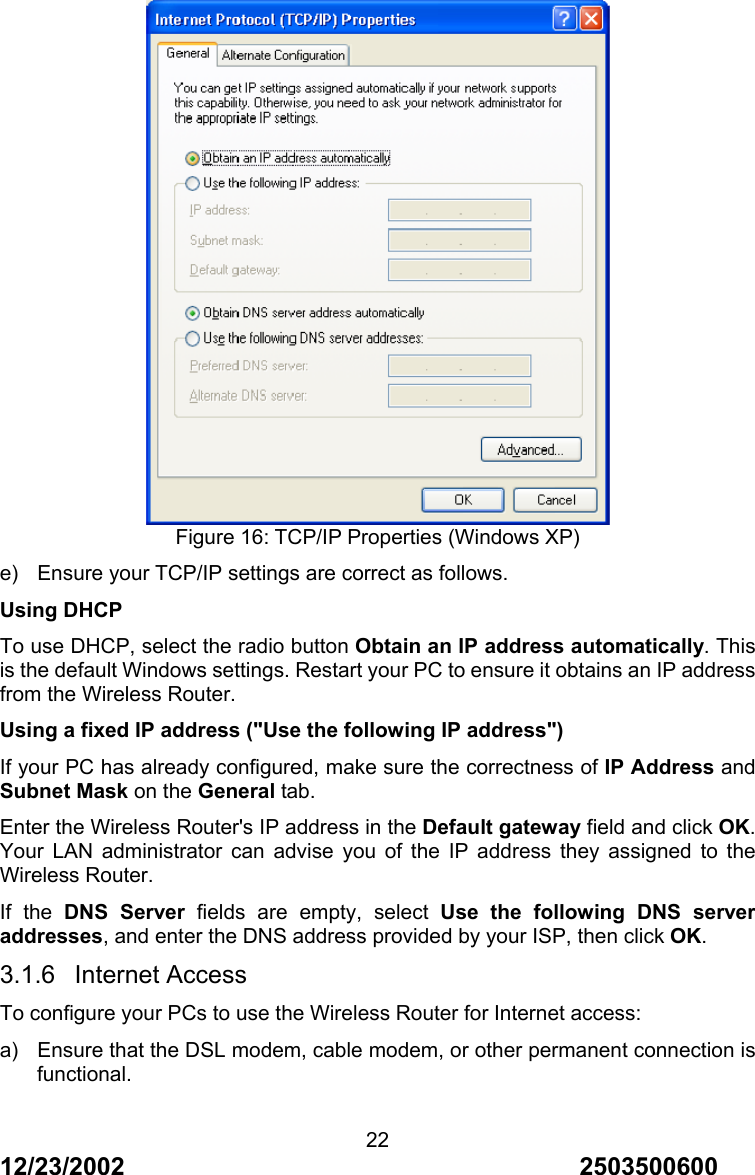
12/23/2002                                     2503500600 21 Figure 15: Network Configuration (Windows XP) c) Select the Internet Protocol (TCP/IP) for your network card. d) Click the Properties button. You should then see a screen like the following.
12/23/2002                                     2503500600 22 Figure 16: TCP/IP Properties (Windows XP) e)  Ensure your TCP/IP settings are correct as follows. Using DHCP To use DHCP, select the radio button Obtain an IP address automatically. This is the default Windows settings. Restart your PC to ensure it obtains an IP address from the Wireless Router. Using a fixed IP address ("Use the following IP address") If your PC has already configured, make sure the correctness of IP Address and Subnet Mask on the General tab. Enter the Wireless Router's IP address in the Default gateway field and click OK. Your LAN administrator can advise you of the IP address they assigned to the Wireless Router. If the DNS Server fields are empty, select Use the following DNS server addresses, and enter the DNS address provided by your ISP, then click OK. 3.1.6 Internet Access To configure your PCs to use the Wireless Router for Internet access: a)  Ensure that the DSL modem, cable modem, or other permanent connection is functional.
12/23/2002                                     2503500600 23 b)  Use the following procedure to configure your Browser to access the Internet via the LAN, rather than by a Dial-up connection. For Windows 9x/2000 a)  Select Start Menu - Settings - Control Panel - Internet Options. b) Select the Connection tab, and click the Setup button. c) Select "I want to set up my Internet connection manually, or I want to connect through a local area network (LAN)" and click Next. d) Select "I connect through a local area network (LAN)" and click Next. e)  Ensure all of the boxes on the following Local area network Internet Configuration screen are unchecked. f) Check the No option when prompted "Do you want to set up an Internet mail account now?" g) Click Finish to close the Internet Connection Wizard. h)  Setup is now completed. For Windows XP a)  Select Start Menu - Control Panel - Network and Internet Connections. b) Select Set up or change your Internet Connection. c) Select the Connection tab, and click the Setup button. d)  Cancel the pop-up "Location Information" screen. e) Click Next on the "New Connection Wizard" screen. f) Select Connect to the Internet and click Next. g) Select Set up my connection manually and click Next. h) Check Connect using a broadband connection that is always on and click Next. i) Click Finish to close the New Connection Wizard. j)  Setup is now completed. 3.2 Macintosh Clients From your Macintosh, you can access the Internet via the Wireless Router. The procedure is as follows. a)  Open the TCP/IP Control Panel. b) Select Ethernet from the Connect via pop-up menu. c) Select Using DHCP Server from the Configure pop-up menu. The DHCP Client ID field can be left blank. d)  Close the TCP/IP panel, saving your settings. If using manually assigned IP addresses instead of DHCP, the required changes are: a) Set the Router Address field to the Wireless Router's IP address. b)  Ensure your DNS settings are correct.
12/23/2002                                     2503500600 243.3 Linux Clients To access the Internet via the Wireless Router, it is only necessary to set the Wireless Router as the "Gateway". Ensure you are logged in as "root" before attempting any changes. Fixed IP Address By default, most Linux installations use a fixed IP address. If you wish to continue using a fixed IP address, make the following changes to your configuration. a)  Set your "Default Gateway" to the IP address of the Wireless Router. b)  Ensure your DNS (Name server) settings are correct. To act as a DHCP Client (recommended) The procedure below may vary according to your version of Linux and X-windows shell. a)  Start your X-Windows client. b) Select Control Panel – Network. c)  Select the "Interface" entry for your Network card. Normally, this will be called "eth0". d) Click the Edit button, set the "protocol" to "DHCP", and save this data. e)  To apply your changes, use the Deactivate and Activate buttons, if available, or restart your system. 3.4 Wireless Station Configuration This section applies to all wireless stations wishing to use the Wireless Router's Access Point, regardless of the operating system that is used on the client. To use the Wireless Access Point in the Wireless Router, each wireless station must have compatible settings, as follows. Mode  The mode must be set to “Infrastructure”. SSID (ESSID) This must match the value used on the Wireless Router. Note that the SSID is case sensitive. WEP  By default, WEP on the Wireless Router is disabled. If WEP remains disabled on the Wireless Router, all stations must have WEP disabled; otherwise, each station must use the same settings as the Wireless Router. 4. Configuration Program The Wireless Router comes with a web-based tool that you can use to set up and customize its settings. You can access this tool from any computer on your network. For best results, either use Microsoft Internet Explorer version 5.0 or later,
12/23/2002                                     2503500600 25or Netscape Navigator version 4.7 or later. 4.1 Collecting ISP Information You will need to find out some information from your ISP before you can configure your Wireless Router, such as: a)  Has your ISP assigned you a static IP address, or will they assign one to you dynamically? If they have given you a static IP, what is it? b)  Does your ISP use PPPoE? If so, what is your PPPoE username and password? Call your ISP if you’re not sure of the answers to these questions. 4.2 Preparation Before attempting to configure the Wireless Router, please ensure that: a)  Your PC can establish a physical connection to the Wireless Router. The PC and the Wireless Router must be directly connected and on the same LAN segment. b)  The Wireless Router must be installed and powered on. c)  If the Wireless Router's default IP address (192.168.62.1) has already used by another device, the other device must be turned off until the Wireless Router is allocated a new IP address during configuration. 4.3 Connecting to the Wireless Router 4.3.1   Using UPnP If your Windows system supports UPnP, an icon for the Wireless Router will appear in the system tray, notifying you that a new network device has been found, and offering to create a new desktop shortcut to the newly-discovered device. a)  Unless you intend to change the IP address of the Wireless Router, you can accept the desktop shortcut. b)  Whether you accept the desktop shortcut or not, you can always find UPnP devices in My Network Places (previously called Network Neighborhood). c)  Double - click the icon for the Wireless Router (either on the Desktop, or in My Network Places) to start the configuration. 4.3.2  Using your Web Browser To establish a connection from your PC to the Wireless Router: a)  After installing the Wireless Router in your LAN, start your PC. If your PC has already running, restart it. b)  Start your Web browser. c) In the Address box, enter "HTTP://" and the IP address of the Wireless Router, as in this example, which uses the Wireless Router's default IP address: HTTP://192.168.62.1.
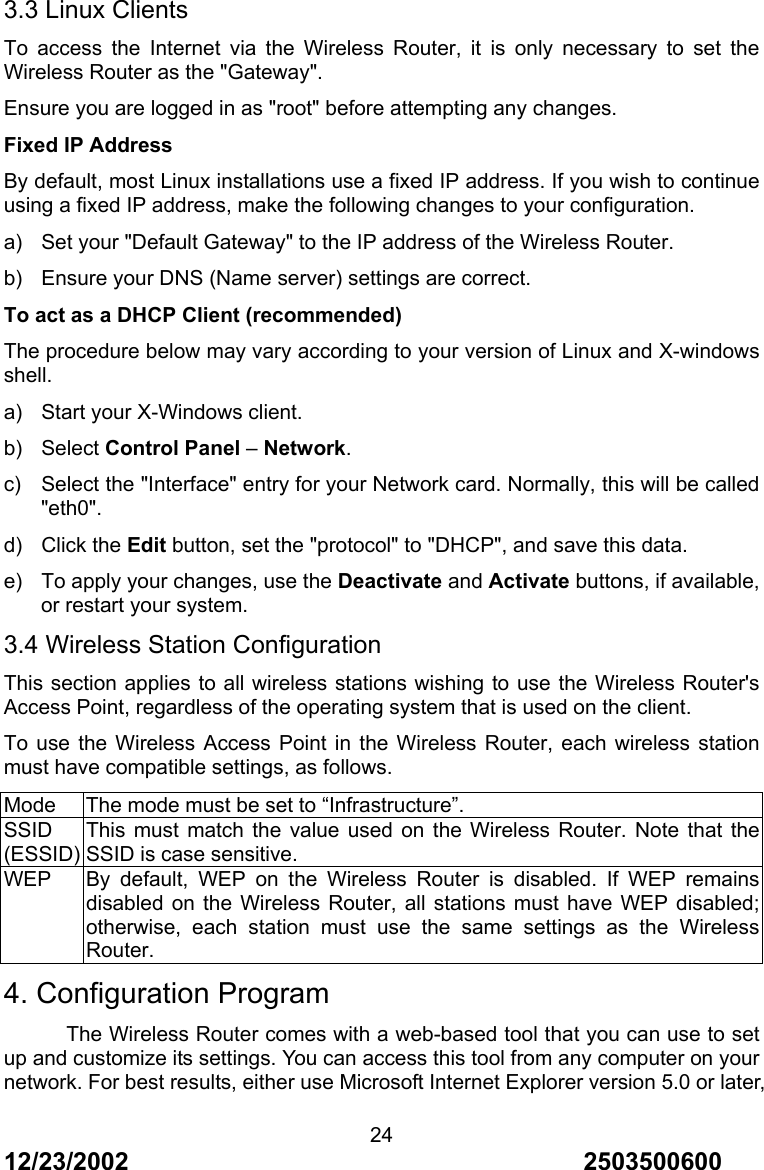
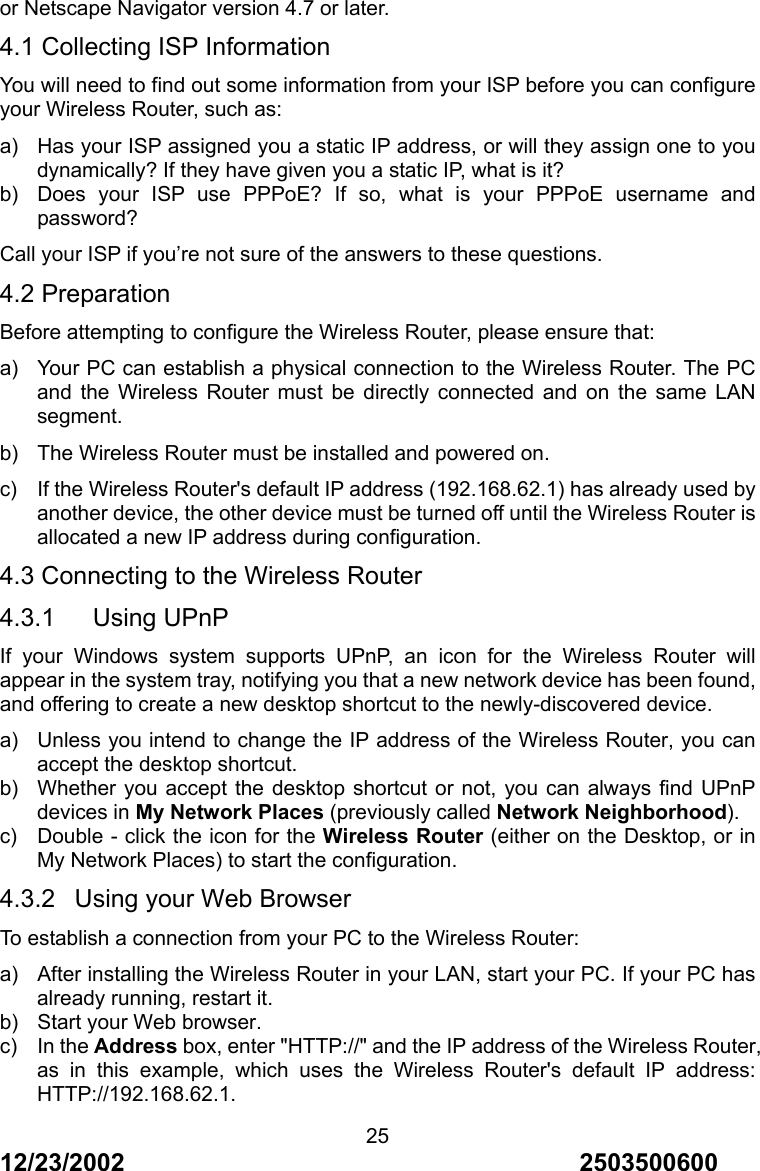
12/23/2002                                     2503500600 264.3.3    If you can't connect If the Wireless Router does not respond, check the following. a)  The Wireless Router is properly installed, LAN connection is OK, and it is powered on. You can test the connection by using the "Ping" command: Open the MS-DOS window or command prompt window. Enter the command: ping 192.168.62.1. If no response is received, either the connection is not working, or your PC's IP address is not compatible with the Wireless Router's IP address. See the next item. b)  If your PC is using a fixed IP address, its IP address must be within the range 192.168.62.2 to 192.168.62.254 to be compatible with the Wireless Router's default IP address of 192.168.62.1. Also, the Network Mask must be set to 255.255.255.0. See Chapter 3 - PC Configuration for details on checking your PC's TCP/IP settings. c)  Ensure that your PC and the Wireless Router are on the same network segment. If you don't have a router, this must be the case. 4.4 Open the Web-based Admin Tool The Wireless Router comes with a web-based tool that you can use to set up and customize its settings. You can access this tool from any computer on your network. a)  Open a browser on your PC. b)  Type http://192.168.62.1 in the Address field:  Figure 17: Web Address for Admin Tool A logon dialog box will appear:  Figure 18: Username/Password Dialog Box
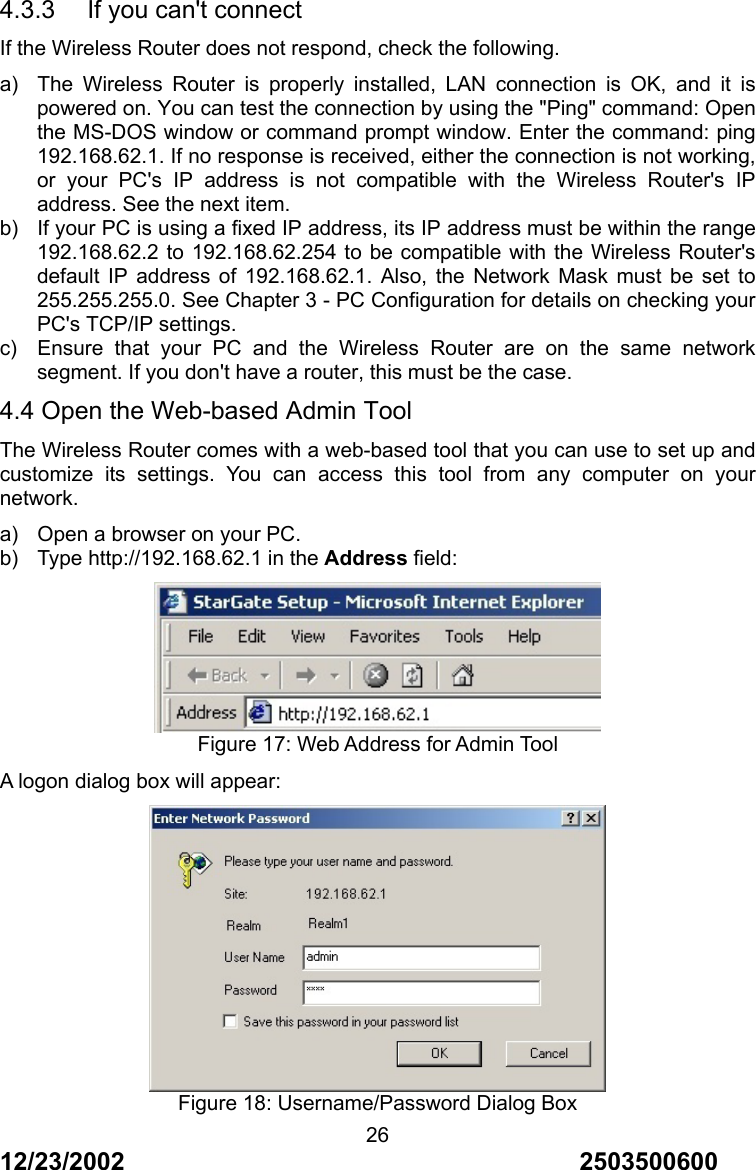
12/23/2002                                     2503500600 27Type “admin” in the User Name field. Then, type a password and click OK. The default password is 1234. c)  The Wireless Router Admin Tool will appear. Note that the web-based Admin Tool will log you out after a certain period of idle time. If this happens, you will need to re-enter your user name and password.  5. Configuring Your Wireless Router - Basic Functions Basic administrative functions include Setup, Global Address, Wireless, Tools, Status, DHCP, Log , and Statistics. 5.1 Setup The Setup screen shows the basic configuration parameters for your Wireless Router, such as Host Name, LAN IP address, and PPPoE Login. Although most users will be able to accept the default settings, every Internet Service Provider (ISP) is different. Check with your ISP if you are not sure which settings they require. The Setup screen is shown in the figure below.  Figure 19: Setup Screen Note that the graphics shown in this manual may differ slightly from your Wireless Router’s screens. The images that appear here are provided as examples only. 5.1.1   Configure Setup Parameters a) Type the Host Name (optional). This value is sometimes called System Name or Account Name. Check with your ISP if you are not sure whether to provide this information. b) Type the Domain Name of your ISP, such as xyz.isp.com (optional). Check with your ISP if you are not sure whether to provide this information. c) Review the Firmware Version. This value tells you the version number and date of the firmware you are currently using.
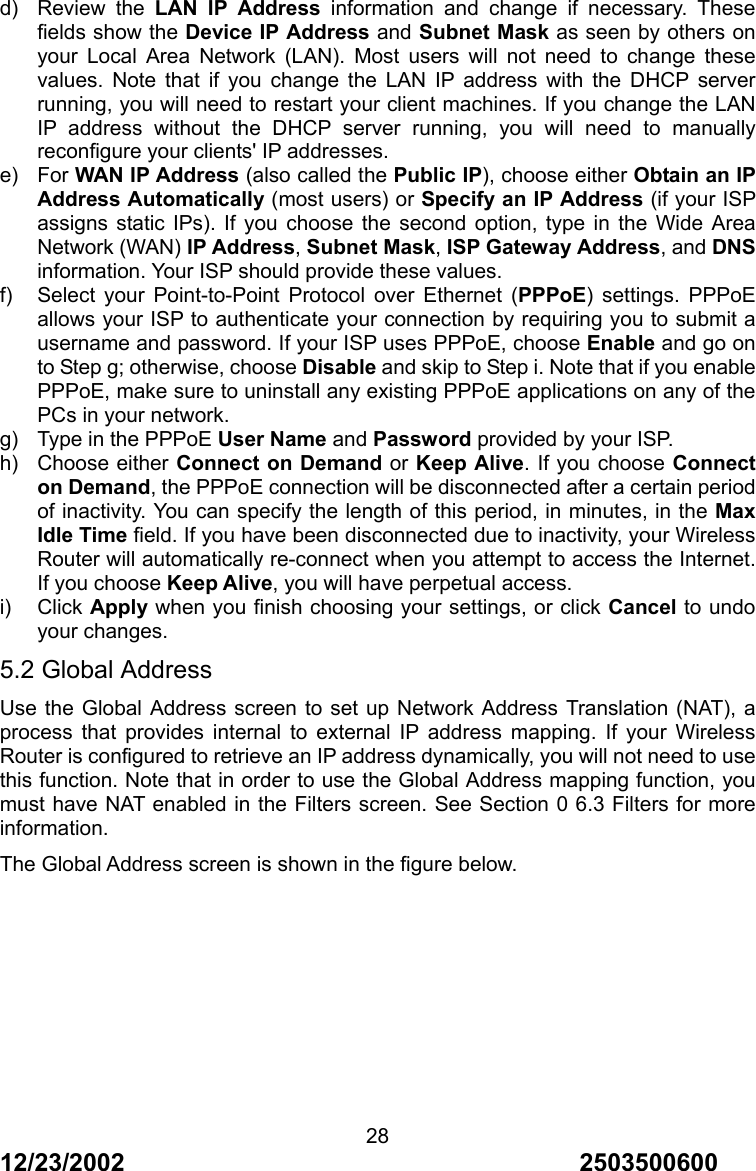
12/23/2002                                     2503500600 28d) Review the LAN IP Address information and change if necessary. These fields show the Device IP Address and Subnet Mask as seen by others on your Local Area Network (LAN). Most users will not need to change these values. Note that if you change the LAN IP address with the DHCP server running, you will need to restart your client machines. If you change the LAN IP address without the DHCP server running, you will need to manually reconfigure your clients' IP addresses. e) For WAN IP Address (also called the Public IP), choose either Obtain an IP Address Automatically (most users) or Specify an IP Address (if your ISP assigns static IPs). If you choose the second option, type in the Wide Area Network (WAN) IP Address, Subnet Mask, ISP Gateway Address, and DNS information. Your ISP should provide these values. f) Select your Point-to-Point Protocol over Ethernet (PPPoE) settings. PPPoE allows your ISP to authenticate your connection by requiring you to submit a username and password. If your ISP uses PPPoE, choose Enable and go on to Step g; otherwise, choose Disable and skip to Step i. Note that if you enable PPPoE, make sure to uninstall any existing PPPoE applications on any of the PCs in your network. g)  Type in the PPPoE User Name and Password provided by your ISP. h) Choose either Connect on Demand or Keep Alive. If you choose Connect on Demand, the PPPoE connection will be disconnected after a certain period of inactivity. You can specify the length of this period, in minutes, in the Max Idle Time field. If you have been disconnected due to inactivity, your Wireless Router will automatically re-connect when you attempt to access the Internet. If you choose Keep Alive, you will have perpetual access. i) Click Apply when you finish choosing your settings, or click Cancel to undo your changes. 5.2 Global Address Use the Global Address screen to set up Network Address Translation (NAT), a process that provides internal to external IP address mapping. If your Wireless Router is configured to retrieve an IP address dynamically, you will not need to use this function. Note that in order to use the Global Address mapping function, you must have NAT enabled in the Filters screen. See Section 0 6.3 Filters for more information. The Global Address screen is shown in the figure below.
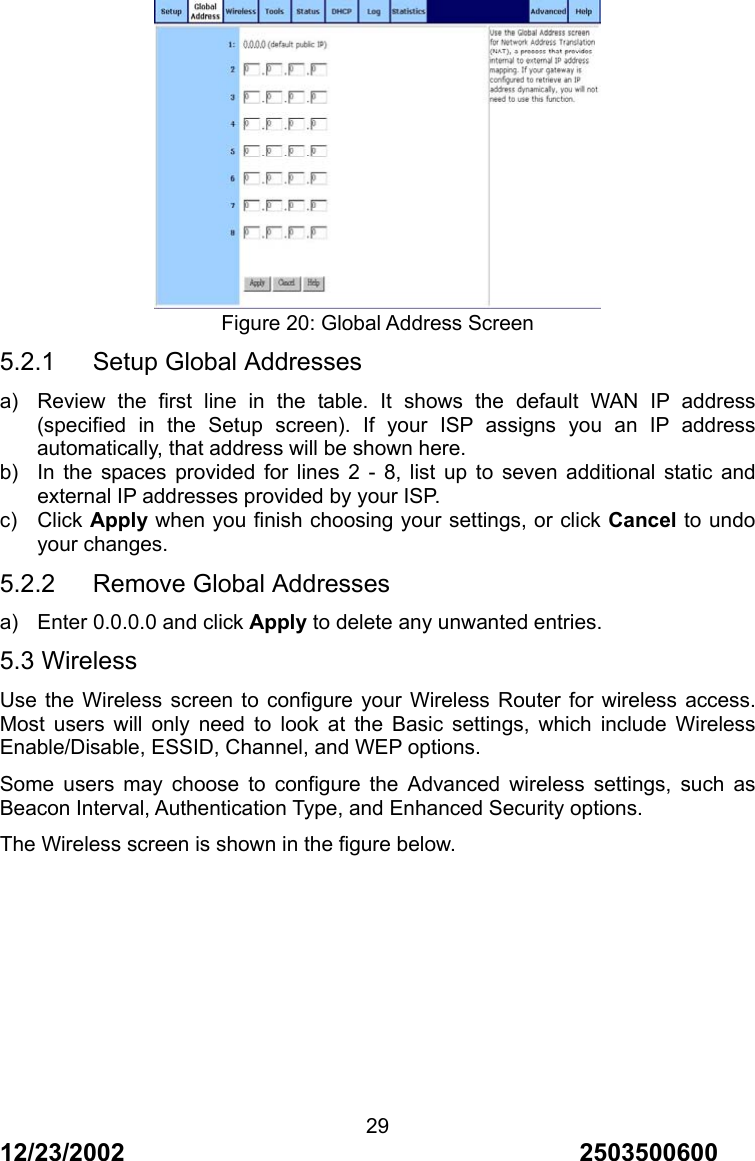
12/23/2002                                     2503500600 29 Figure 20: Global Address Screen 5.2.1   Setup Global Addresses a)  Review the first line in the table. It shows the default WAN IP address (specified in the Setup screen). If your ISP assigns you an IP address automatically, that address will be shown here. b)  In the spaces provided for lines 2 - 8, list up to seven additional static and external IP addresses provided by your ISP. c) Click Apply when you finish choosing your settings, or click Cancel to undo your changes. 5.2.2   Remove Global Addresses a)  Enter 0.0.0.0 and click Apply to delete any unwanted entries. 5.3 Wireless Use the Wireless screen to configure your Wireless Router for wireless access. Most users will only need to look at the Basic settings, which include Wireless Enable/Disable, ESSID, Channel, and WEP options. Some users may choose to configure the Advanced wireless settings, such as Beacon Interval, Authentication Type, and Enhanced Security options. The Wireless screen is shown in the figure below.
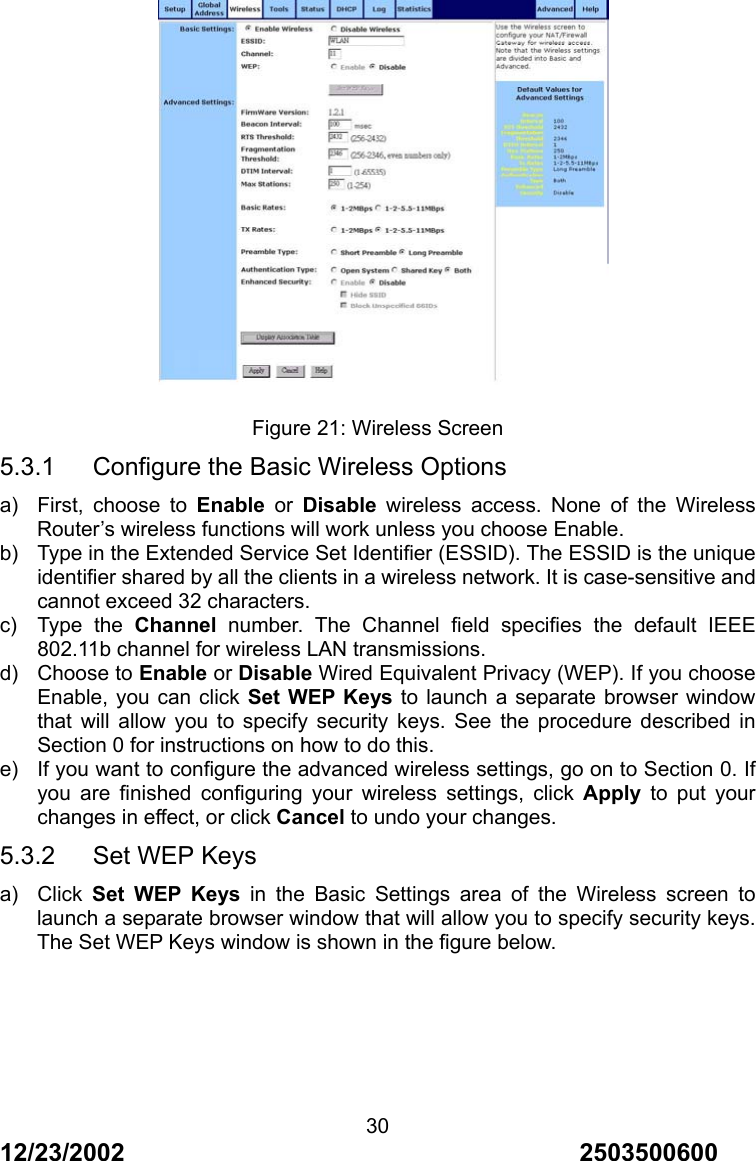
12/23/2002                                     2503500600 30   Figure 21: Wireless Screen 5.3.1      Configure the Basic Wireless Options a)  First, choose to Enable or Disable wireless access. None of the Wireless Router’s wireless functions will work unless you choose Enable. b)  Type in the Extended Service Set Identifier (ESSID). The ESSID is the unique identifier shared by all the clients in a wireless network. It is case-sensitive and cannot exceed 32 characters. c) Type the Channel number. The Channel field specifies the default IEEE 802.11b channel for wireless LAN transmissions. d) Choose to Enable or Disable Wired Equivalent Privacy (WEP). If you choose Enable, you can click Set WEP Keys to launch a separate browser window that will allow you to specify security keys. See the procedure described in Section 0 for instructions on how to do this. e)  If you want to configure the advanced wireless settings, go on to Section 0. If you are finished configuring your wireless settings, click Apply to put your changes in effect, or click Cancel to undo your changes. 5.3.2   Set WEP Keys a) Click Set WEP Keys in the Basic Settings area of the Wireless screen to launch a separate browser window that will allow you to specify security keys. The Set WEP Keys window is shown in the figure below.
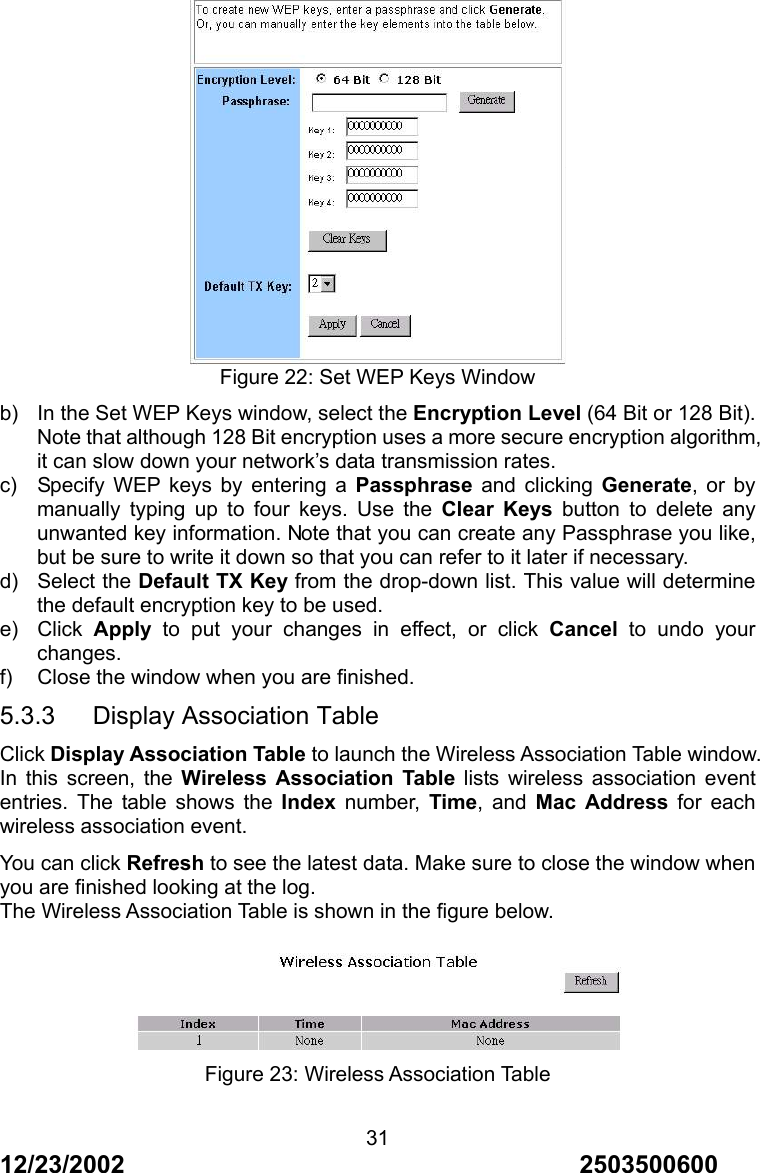
12/23/2002                                     2503500600 31 Figure 22: Set WEP Keys Window b)  In the Set WEP Keys window, select the Encryption Level (64 Bit or 128 Bit). Note that although 128 Bit encryption uses a more secure encryption algorithm, it can slow down your network’s data transmission rates. c)  Specify WEP keys by entering a Passphrase and clicking Generate, or by manually typing up to four keys. Use the Clear Keys button to delete any unwanted key information. Note that you can create any Passphrase you like, but be sure to write it down so that you can refer to it later if necessary. d) Select the Default TX Key from the drop-down list. This value will determine the default encryption key to be used. e) Click Apply to put your changes in effect, or click Cancel to undo your changes. f)  Close the window when you are finished. 5.3.3   Display Association Table Click Display Association Table to launch the Wireless Association Table window. In this screen, the Wireless Association Table lists wireless association event entries. The table shows the Index number, Time, and Mac Address for each wireless association event. You can click Refresh to see the latest data. Make sure to close the window when you are finished looking at the log. The Wireless Association Table is shown in the figure below.   Figure 23: Wireless Association Table
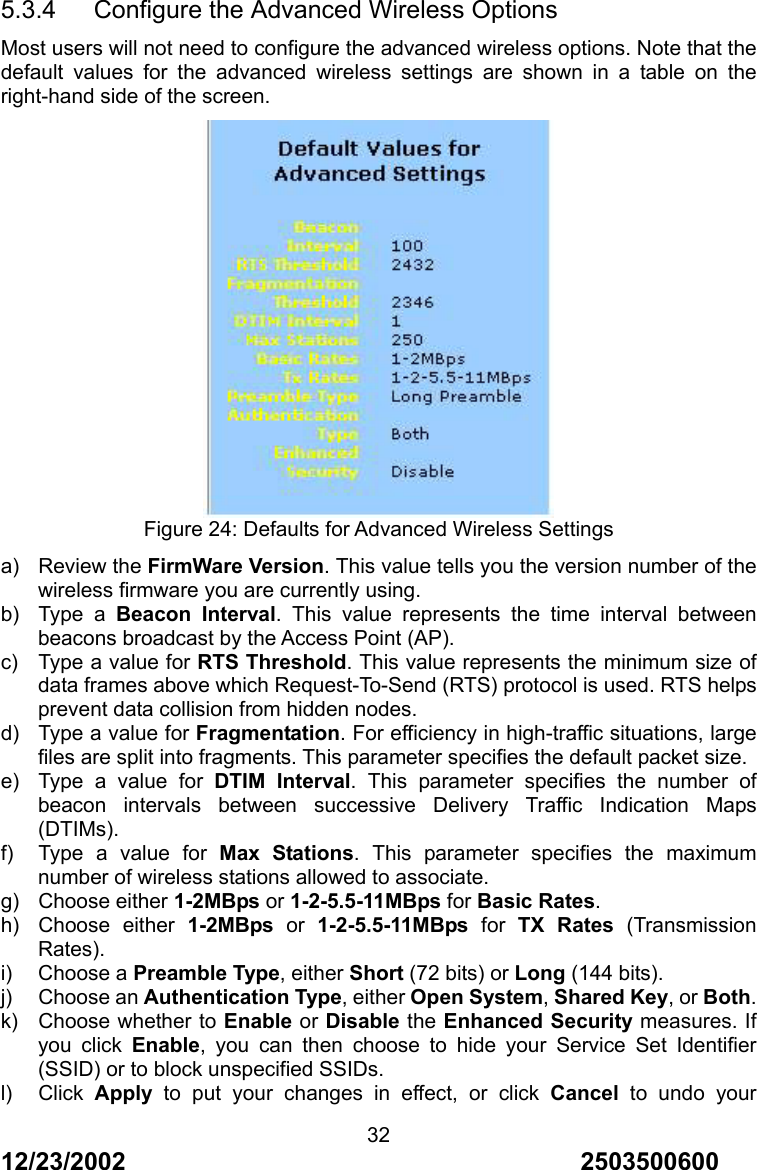
12/23/2002                                     2503500600 325.3.4      Configure the Advanced Wireless Options Most users will not need to configure the advanced wireless options. Note that the default values for the advanced wireless settings are shown in a table on the right-hand side of the screen.  Figure 24: Defaults for Advanced Wireless Settings a) Review the FirmWare Version. This value tells you the version number of the wireless firmware you are currently using. b) Type a Beacon Interval. This value represents the time interval between beacons broadcast by the Access Point (AP).   c)  Type a value for RTS Threshold. This value represents the minimum size of data frames above which Request-To-Send (RTS) protocol is used. RTS helps prevent data collision from hidden nodes. d)  Type a value for Fragmentation. For efficiency in high-traffic situations, large files are split into fragments. This parameter specifies the default packet size. e)  Type a value for DTIM Interval. This parameter specifies the number of beacon intervals between successive Delivery Traffic Indication Maps (DTIMs). f)  Type a value for Max Stations. This parameter specifies the maximum number of wireless stations allowed to associate. g) Choose either 1-2MBps or 1-2-5.5-11MBps for Basic Rates. h) Choose either 1-2MBps or 1-2-5.5-11MBps for TX Rates (Transmission Rates). i) Choose a Preamble Type, either Short (72 bits) or Long (144 bits). j) Choose an Authentication Type, either Open System, Shared Key, or Both. k)  Choose whether to Enable or Disable the Enhanced Security measures. If you click Enable, you can then choose to hide your Service Set Identifier (SSID) or to block unspecified SSIDs. l) Click Apply to put your changes in effect, or click Cancel to undo your
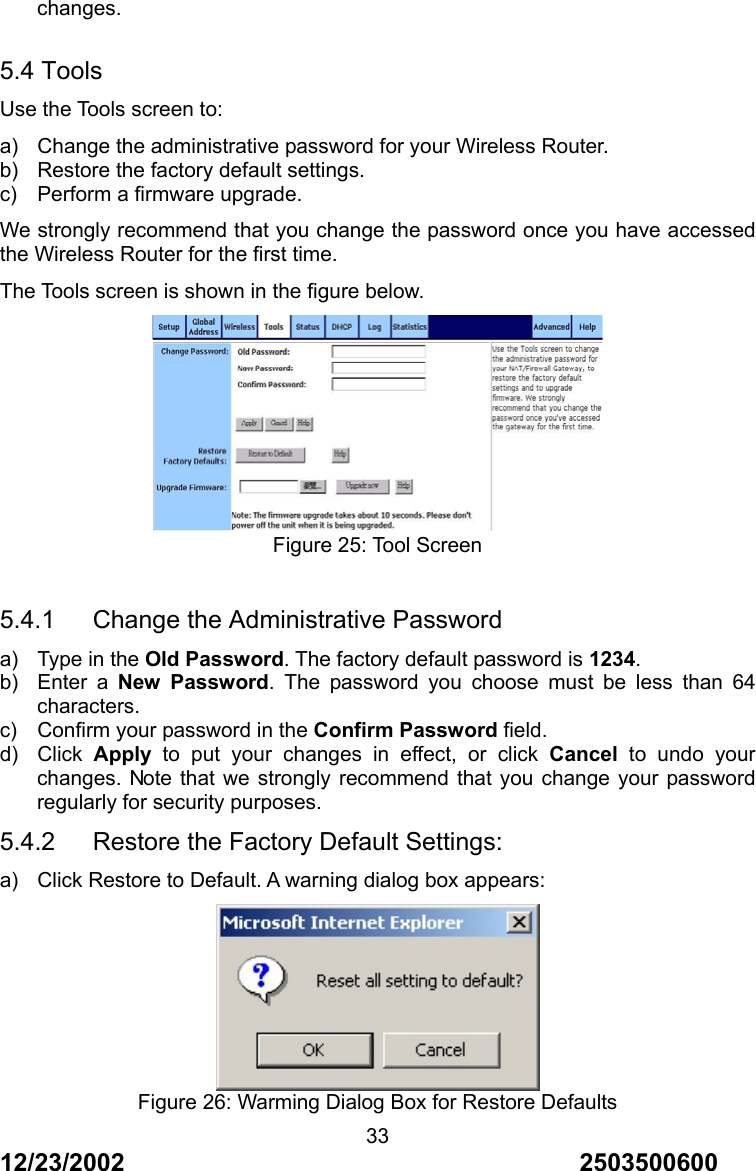
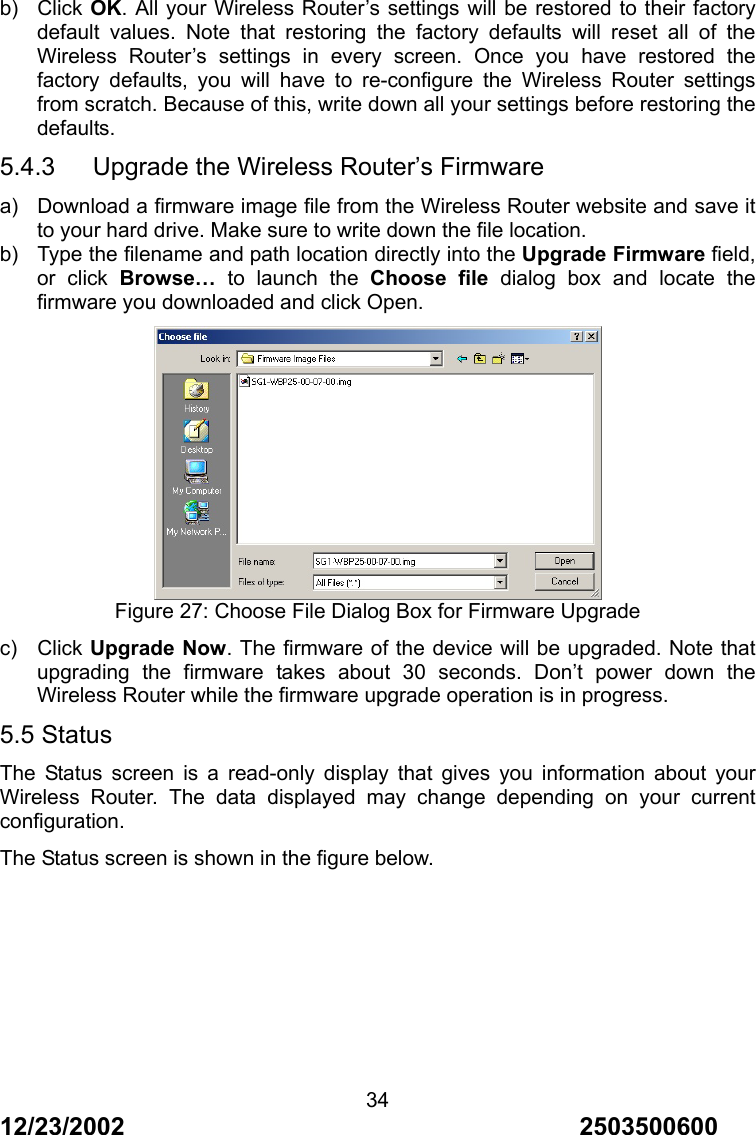
12/23/2002                                     2503500600 33changes.  5.4 Tools Use the Tools screen to: a)  Change the administrative password for your Wireless Router. b)  Restore the factory default settings. c)  Perform a firmware upgrade. We strongly recommend that you change the password once you have accessed the Wireless Router for the first time. The Tools screen is shown in the figure below.  Figure 25: Tool Screen  5.4.1   Change the Administrative Password a)  Type in the Old Password. The factory default password is 1234. b) Enter a New Password. The password you choose must be less than 64 characters. c)  Confirm your password in the Confirm Password field. d) Click Apply to put your changes in effect, or click Cancel to undo your changes. Note that we strongly recommend that you change your password regularly for security purposes. 5.4.2      Restore the Factory Default Settings: a)  Click Restore to Default. A warning dialog box appears:  Figure 26: Warming Dialog Box for Restore Defaults
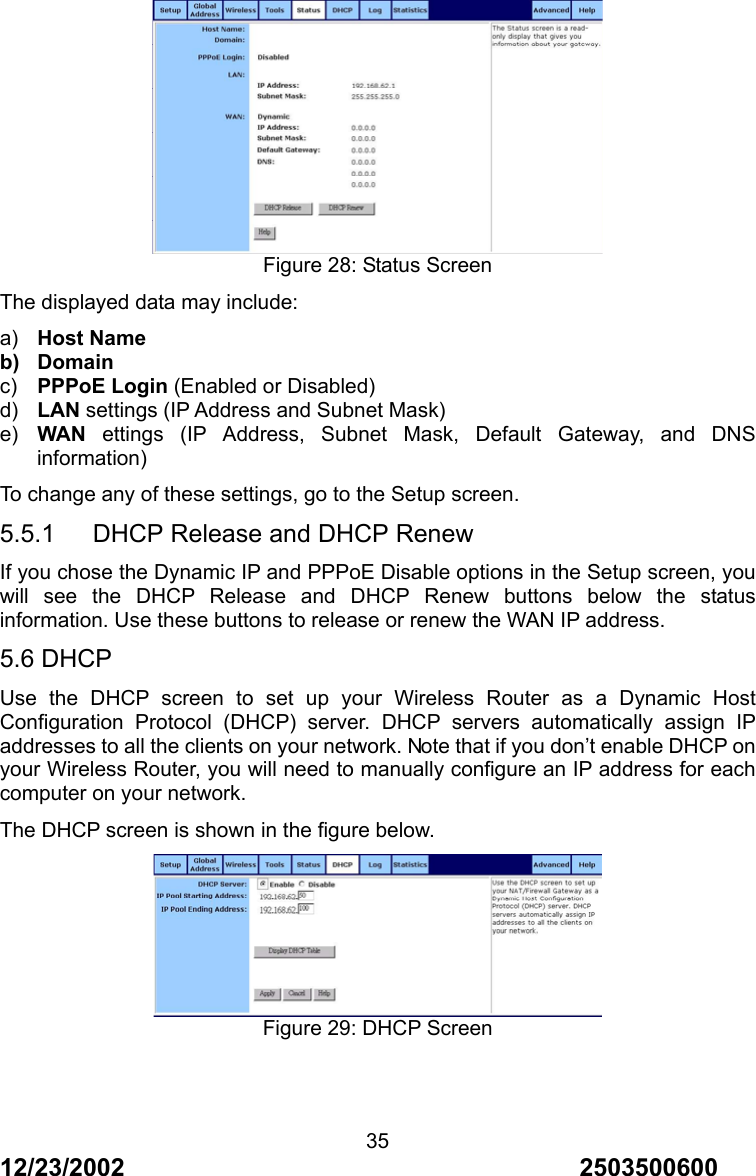
12/23/2002                                     2503500600 34 b) Click OK. All your Wireless Router’s settings will be restored to their factory default values. Note that restoring the factory defaults will reset all of the Wireless Router’s settings in every screen. Once you have restored the factory defaults, you will have to re-configure the Wireless Router settings from scratch. Because of this, write down all your settings before restoring the defaults. 5.4.3   Upgrade the Wireless Router’s Firmware a)  Download a firmware image file from the Wireless Router website and save it to your hard drive. Make sure to write down the file location. b)  Type the filename and path location directly into the Upgrade Firmware field, or click Browse… to launch the Choose file dialog box and locate the firmware you downloaded and click Open.  Figure 27: Choose File Dialog Box for Firmware Upgrade c) Click Upgrade Now. The firmware of the device will be upgraded. Note that upgrading the firmware takes about 30 seconds. Don’t power down the Wireless Router while the firmware upgrade operation is in progress. 5.5 Status The Status screen is a read-only display that gives you information about your Wireless Router. The data displayed may change depending on your current configuration. The Status screen is shown in the figure below.
12/23/2002                                     2503500600 35 Figure 28: Status Screen The displayed data may include: a)  Host Name b) Domain c)  PPPoE Login (Enabled or Disabled) d)  LAN settings (IP Address and Subnet Mask) e)  WAN ettings (IP Address, Subnet Mask, Default Gateway, and DNS information) To change any of these settings, go to the Setup screen. 5.5.1      DHCP Release and DHCP Renew If you chose the Dynamic IP and PPPoE Disable options in the Setup screen, you will see the DHCP Release and DHCP Renew buttons below the status information. Use these buttons to release or renew the WAN IP address. 5.6 DHCP Use the DHCP screen to set up your Wireless Router as a Dynamic Host Configuration Protocol (DHCP) server. DHCP servers automatically assign IP addresses to all the clients on your network. Note that if you don’t enable DHCP on your Wireless Router, you will need to manually configure an IP address for each computer on your network. The DHCP screen is shown in the figure below.  Figure 29: DHCP Screen
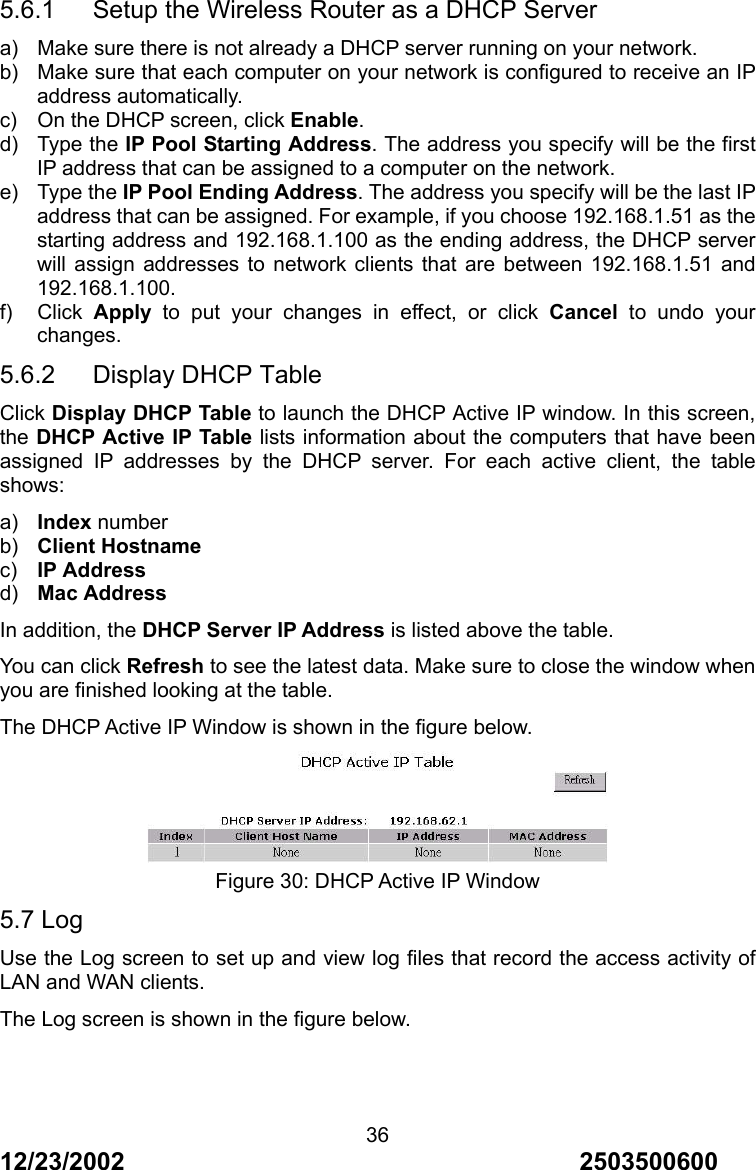
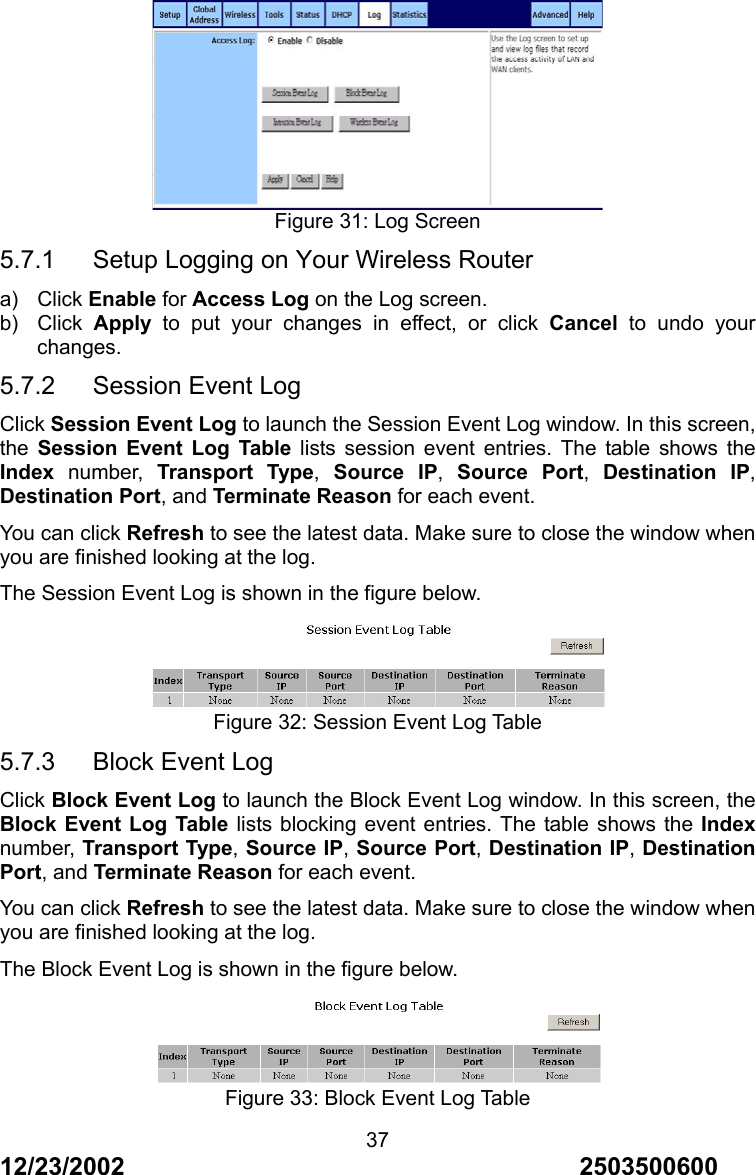
12/23/2002                                     2503500600 365.6.1      Setup the Wireless Router as a DHCP Server a)  Make sure there is not already a DHCP server running on your network. b)  Make sure that each computer on your network is configured to receive an IP address automatically. c)  On the DHCP screen, click Enable. d) Type the IP Pool Starting Address. The address you specify will be the first IP address that can be assigned to a computer on the network. e) Type the IP Pool Ending Address. The address you specify will be the last IP address that can be assigned. For example, if you choose 192.168.1.51 as the starting address and 192.168.1.100 as the ending address, the DHCP server will assign addresses to network clients that are between 192.168.1.51 and 192.168.1.100. f) Click Apply to put your changes in effect, or click Cancel to undo your changes. 5.6.2   Display DHCP Table Click Display DHCP Table to launch the DHCP Active IP window. In this screen, the DHCP Active IP Table lists information about the computers that have been assigned IP addresses by the DHCP server. For each active client, the table shows: a)  Index number b)  Client Hostname c)  IP Address d)  Mac Address In addition, the DHCP Server IP Address is listed above the table. You can click Refresh to see the latest data. Make sure to close the window when you are finished looking at the table. The DHCP Active IP Window is shown in the figure below.  Figure 30: DHCP Active IP Window 5.7 Log Use the Log screen to set up and view log files that record the access activity of LAN and WAN clients. The Log screen is shown in the figure below.
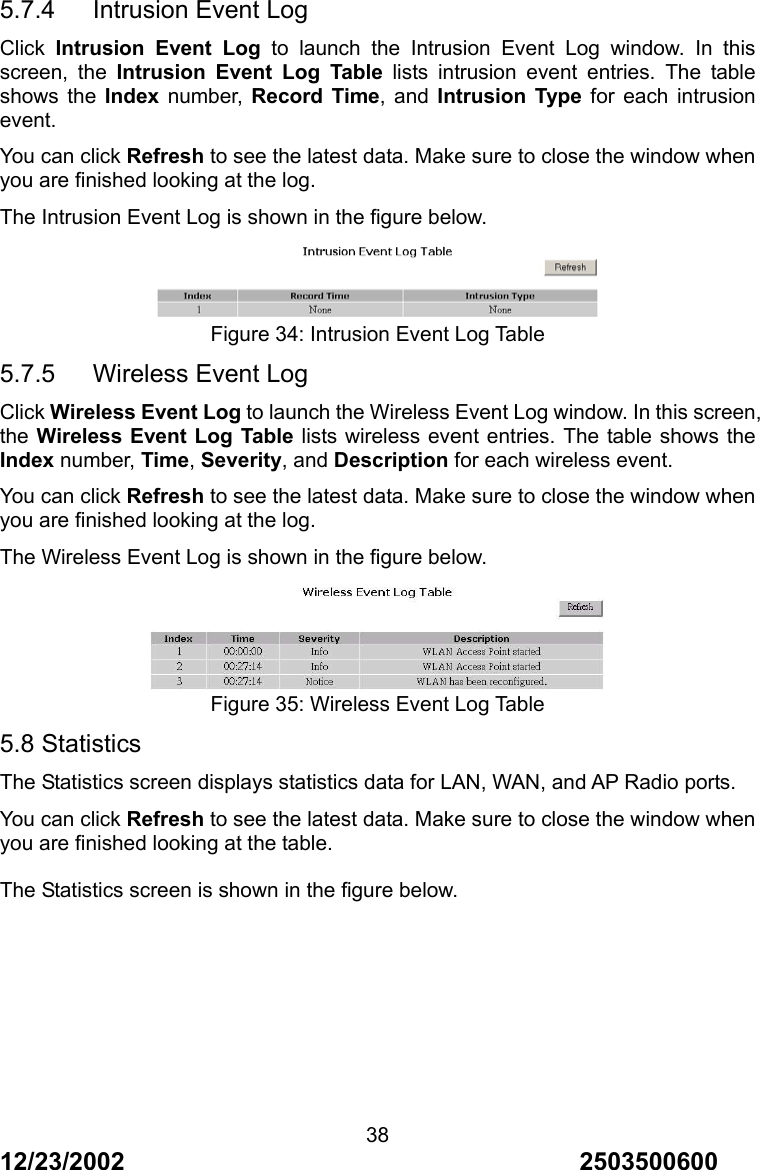
12/23/2002                                     2503500600 37 Figure 31: Log Screen 5.7.1      Setup Logging on Your Wireless Router a) Click Enable for Access Log on the Log screen. b) Click Apply to put your changes in effect, or click Cancel to undo your changes. 5.7.2   Session Event Log Click Session Event Log to launch the Session Event Log window. In this screen, the  Session Event Log Table lists session event entries. The table shows the Index number, Transport Type,  Source IP,  Source Port,  Destination IP, Destination Port, and Terminate Reason for each event. You can click Refresh to see the latest data. Make sure to close the window when you are finished looking at the log. The Session Event Log is shown in the figure below.  Figure 32: Session Event Log Table 5.7.3   Block Event Log Click Block Event Log to launch the Block Event Log window. In this screen, the Block Event Log Table lists blocking event entries. The table shows the Index number, Transport Type, Source IP, Source Port, Destination IP, Destination Port, and Terminate Reason for each event. You can click Refresh to see the latest data. Make sure to close the window when you are finished looking at the log. The Block Event Log is shown in the figure below.  Figure 33: Block Event Log Table
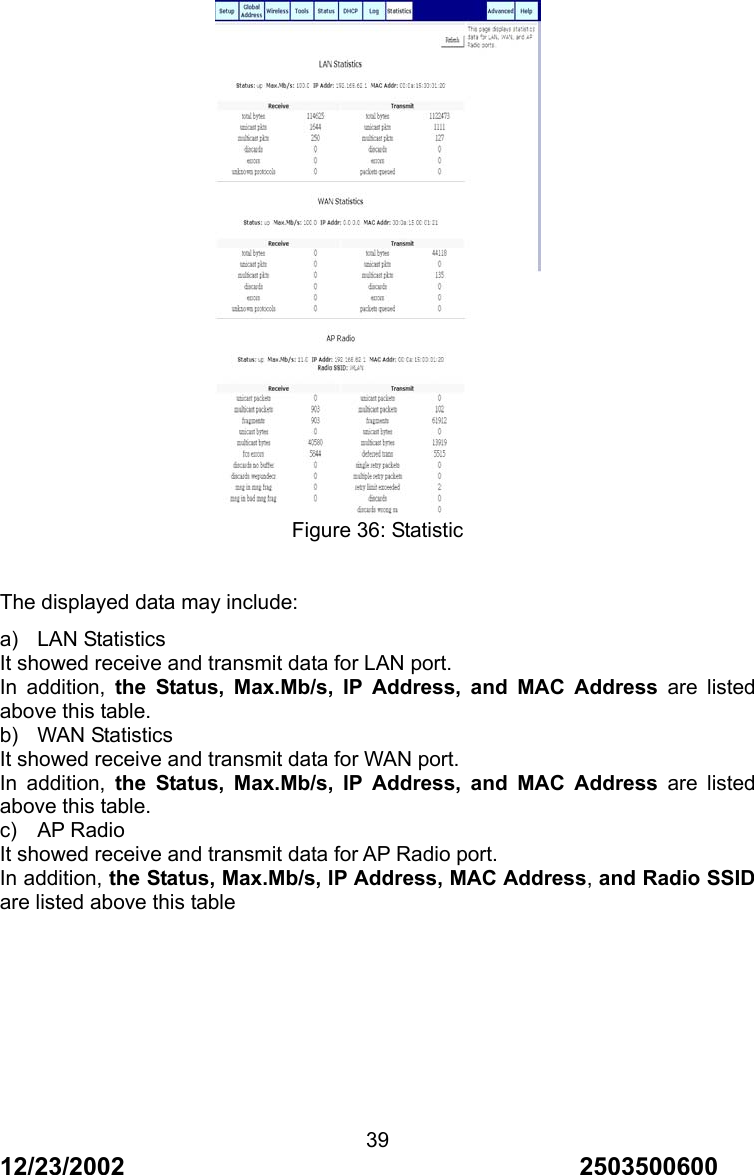
12/23/2002                                     2503500600 385.7.4   Intrusion Event Log Click  Intrusion Event Log to launch the Intrusion Event Log window. In this screen, the Intrusion Event Log Table lists intrusion event entries. The table shows the Index number, Record Time, and Intrusion Type for each intrusion event. You can click Refresh to see the latest data. Make sure to close the window when you are finished looking at the log. The Intrusion Event Log is shown in the figure below.  Figure 34: Intrusion Event Log Table 5.7.5   Wireless Event Log Click Wireless Event Log to launch the Wireless Event Log window. In this screen, the Wireless Event Log Table lists wireless event entries. The table shows the Index number, Time, Severity, and Description for each wireless event. You can click Refresh to see the latest data. Make sure to close the window when you are finished looking at the log. The Wireless Event Log is shown in the figure below.    Figure 35: Wireless Event Log Table 5.8 Statistics The Statistics screen displays statistics data for LAN, WAN, and AP Radio ports. You can click Refresh to see the latest data. Make sure to close the window when you are finished looking at the table.  The Statistics screen is shown in the figure below.
12/23/2002                                     2503500600 39 Figure 36: Statistic  The displayed data may include: a) LAN Statistics It showed receive and transmit data for LAN port. In addition, the Status, Max.Mb/s, IP Address, and MAC Address are listed above this table. b) WAN Statistics It showed receive and transmit data for WAN port. In addition, the Status, Max.Mb/s, IP Address, and MAC Address are listed above this table. c) AP Radio It showed receive and transmit data for AP Radio port. In addition, the Status, Max.Mb/s, IP Address, MAC Address, and Radio SSID are listed above this table
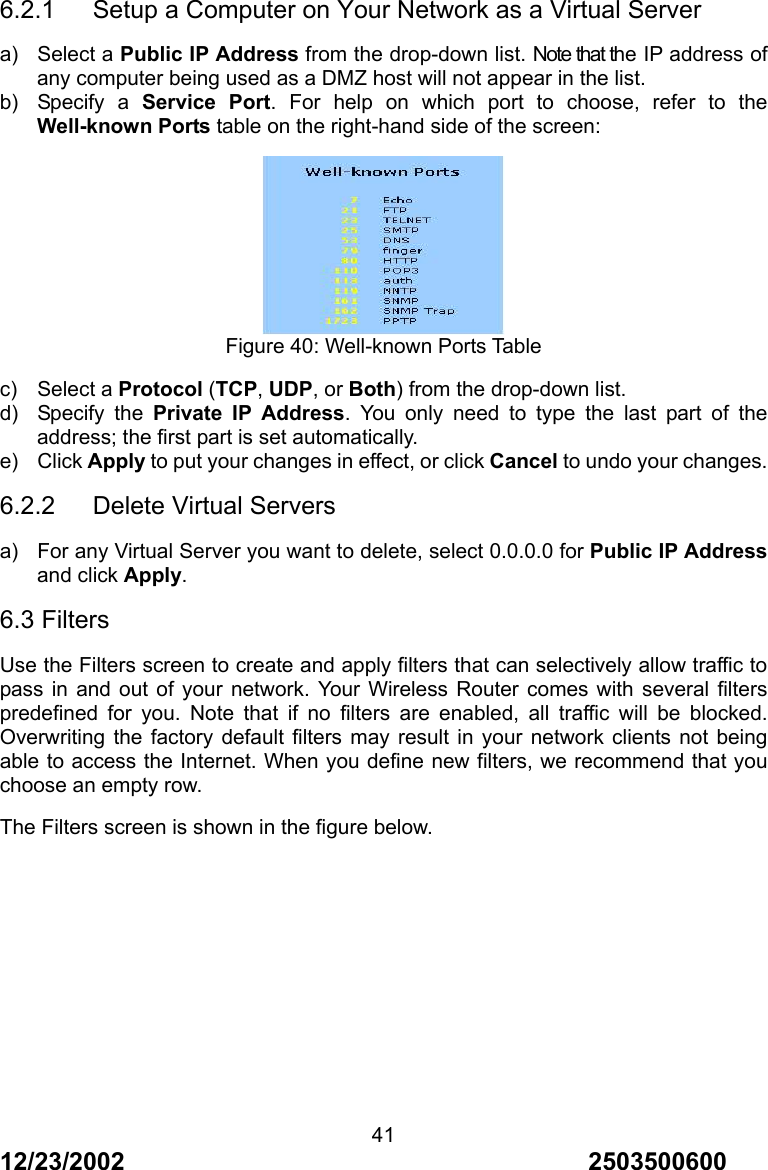
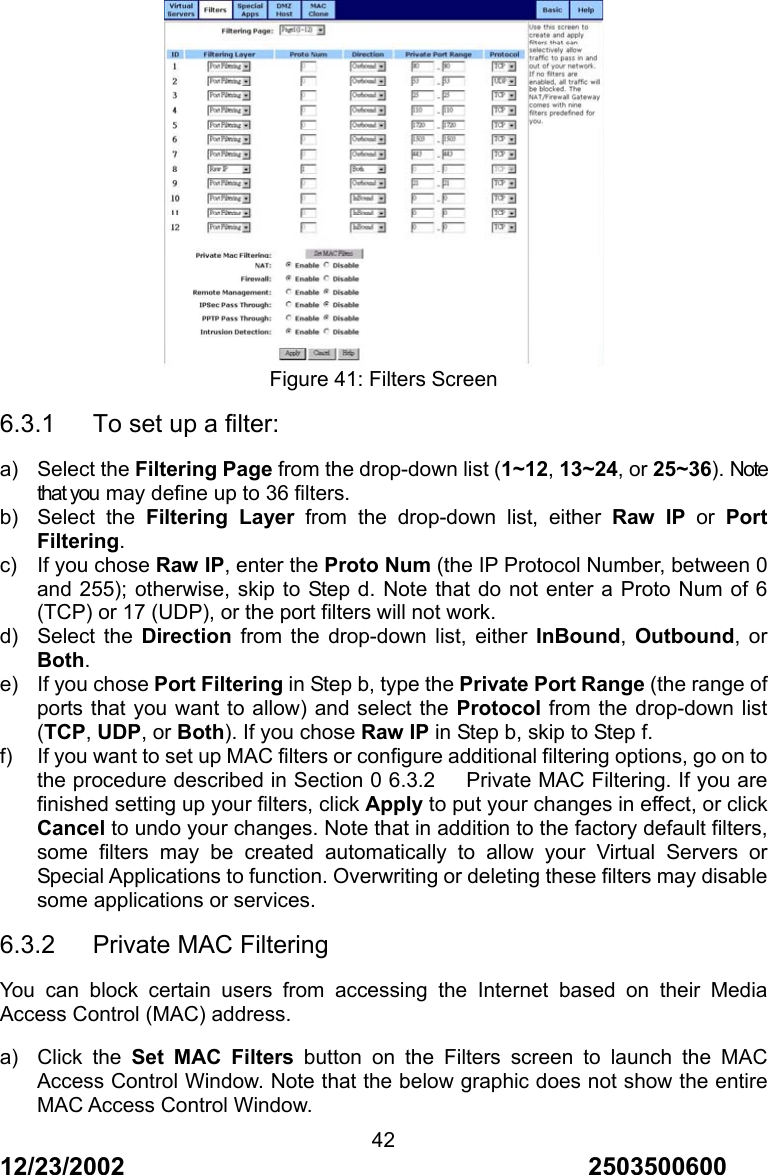
12/23/2002                                     2503500600 40 6. Configuring Your Wireless Router - Advanced Functions Advanced administrative functions include Virtual Servers, Filters, Special Apps, DMZ Host, and MAC Clone. The web-based Admin Tool allows you to set up advanced services and perform special functions, such as filtering or cloning your MAC address. Most users will not need to use these features. 6.1 Toggle between Basic and Advanced Functions a)  From the Basic functions screen set, click Advanced on the far right side of the menu bar to access the Advanced screens:  Figure 37: Advanced Button b)  Once you are in the Advanced screen set, click Basic on the far right side of the menu bar to return to the Basic screens:    Figure 38: Basic Button 6.2 Virtual Servers Use the Virtual Servers screen to provide remote services, such as FTP or Telnet, from computers in your network. Note that Configuring virtual servers may cause filters to be automatically created for you in the Filters screen. The Virtual Servers screen is shown in the figure below.  Figure 39: Virtual Servers Screen
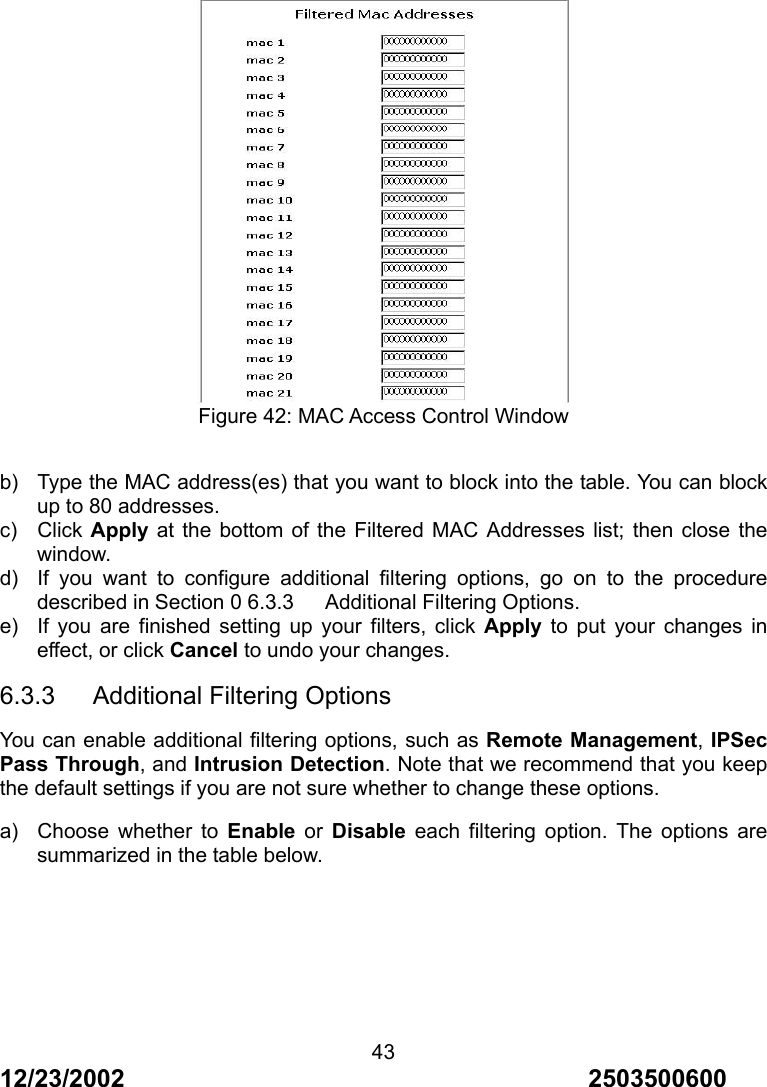
12/23/2002                                     2503500600 416.2.1      Setup a Computer on Your Network as a Virtual Server a) Select a Public IP Address from the drop-down list. Note that the IP address of any computer being used as a DMZ host will not appear in the list. b) Specify a Service Port. For help on which port to choose, refer to the Well-known Ports table on the right-hand side of the screen:  Figure 40: Well-known Ports Table c) Select a Protocol (TCP, UDP, or Both) from the drop-down list. d) Specify the Private IP Address. You only need to type the last part of the address; the first part is set automatically. e) Click Apply to put your changes in effect, or click Cancel to undo your changes. 6.2.2   Delete Virtual Servers a)  For any Virtual Server you want to delete, select 0.0.0.0 for Public IP Address and click Apply. 6.3 Filters Use the Filters screen to create and apply filters that can selectively allow traffic to pass in and out of your network. Your Wireless Router comes with several filters predefined for you. Note that if no filters are enabled, all traffic will be blocked. Overwriting the factory default filters may result in your network clients not being able to access the Internet. When you define new filters, we recommend that you choose an empty row. The Filters screen is shown in the figure below.
12/23/2002                                     2503500600 42 Figure 41: Filters Screen 6.3.1   To set up a filter: a) Select the Filtering Page from the drop-down list (1~12, 13~24, or 25~36). Note that you may define up to 36 filters. b) Select the Filtering Layer from the drop-down list, either Raw IP or Port Filtering. c) If you chose Raw IP, enter the Proto Num (the IP Protocol Number, between 0 and 255); otherwise, skip to Step d. Note that do not enter a Proto Num of 6 (TCP) or 17 (UDP), or the port filters will not work. d) Select the Direction from the drop-down list, either InBound,  Outbound, or Both. e)  If you chose Port Filtering in Step b, type the Private Port Range (the range of ports that you want to allow) and select the Protocol from the drop-down list (TCP, UDP, or Both). If you chose Raw IP in Step b, skip to Step f. f)  If you want to set up MAC filters or configure additional filtering options, go on to the procedure described in Section 0 6.3.2      Private MAC Filtering. If you are finished setting up your filters, click Apply to put your changes in effect, or click Cancel to undo your changes. Note that in addition to the factory default filters, some filters may be created automatically to allow your Virtual Servers or Special Applications to function. Overwriting or deleting these filters may disable some applications or services. 6.3.2   Private MAC Filtering You can block certain users from accessing the Internet based on their Media Access Control (MAC) address. a) Click the Set MAC Filters button on the Filters screen to launch the MAC Access Control Window. Note that the below graphic does not show the entire MAC Access Control Window.
12/23/2002                                     2503500600 43   Figure 42: MAC Access Control Window  b)  Type the MAC address(es) that you want to block into the table. You can block up to 80 addresses. c) Click Apply at the bottom of the Filtered MAC Addresses list; then close the window. d)  If you want to configure additional filtering options, go on to the procedure described in Section 0 6.3.3      Additional Filtering Options. e)  If you are finished setting up your filters, click Apply to put your changes in effect, or click Cancel to undo your changes. 6.3.3   Additional Filtering Options You can enable additional filtering options, such as Remote Management, IPSec Pass Through, and Intrusion Detection. Note that we recommend that you keep the default settings if you are not sure whether to change these options. a)  Choose whether to Enable or Disable each filtering option. The options are summarized in the table below.
12/23/2002                                     2503500600 44NAT Enabling this feature allows you to set up Network Address Translation (NAT). Firewall Enabling this feature allows you to protect your network with a firewall. Remote ManagementEnabling this feature lets you access your Wireless Router’s web-based admin tool through your WAN connection. IPSec Pass Through Enabling this feature lets you use IP Security Pass Through. PPTP Pass Through Enabling this feature lets you use Point-to-Point Tunneling Protocol (PPTP), used to enable VPN sessions. Intrusion Detection Enabling this feature allows you to detect and record intrusion attempts into your network. b) Click Apply to put your changes in effect, or click Cancel to undo your changes. 6.3.4   Deleting Filters You can delete existing filters from the filter list. Note that deleting factory default filters, or filters that are associated with your Virtual Servers or Special Applications, may disable key features or services. To delete a Raw IP filter: a)  Enter zero in the Proto Num field. b) Click Apply. To delete a Port Filtering filter: a)  Enter zero in both Private Port Range fields. b) Click Apply. 6.4 Special Apps Use the Special Applications screen to allow certain ports to communicate with computers outside your network. This feature may be necessary for multi-session applications like online gaming and video conferencing. Note that configuring special applications may cause filters to be automatically created for you in the Filters screen. The Special Apps screen is shown in the figure below. Note that the first two lines of the table are pre-configured for FTP and NetMeeting. If you overwrite these lines, those applications will not work.
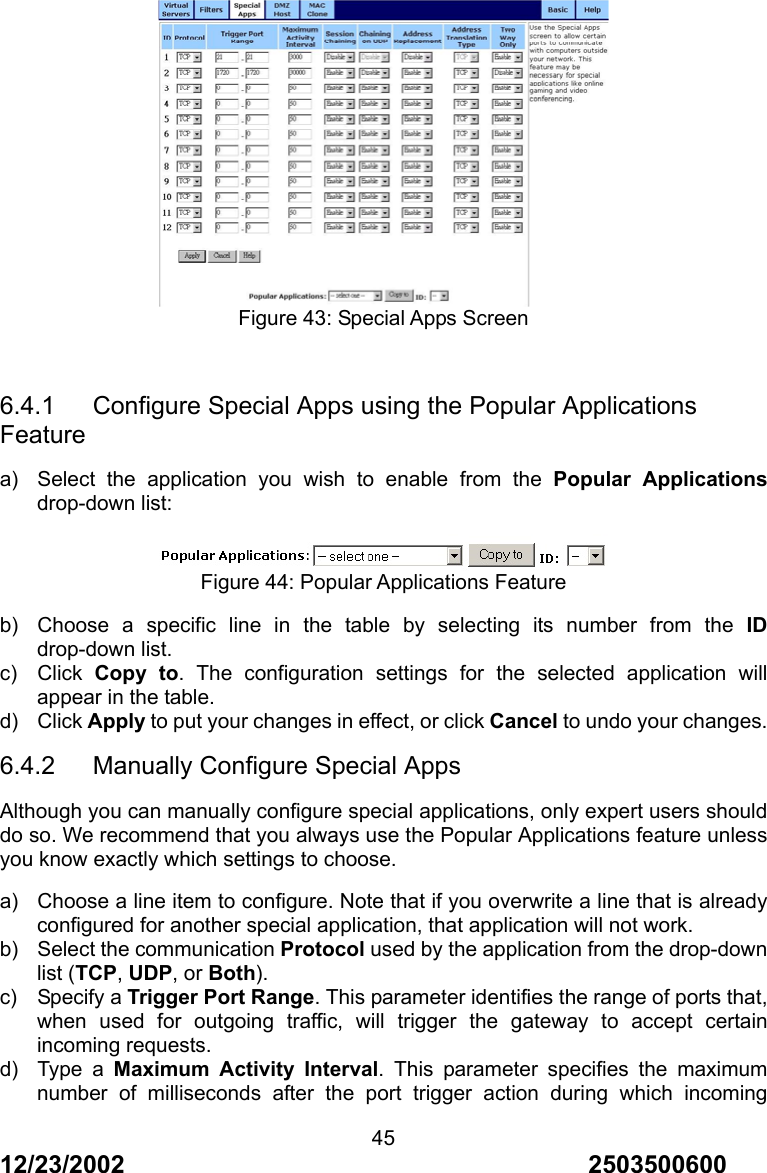
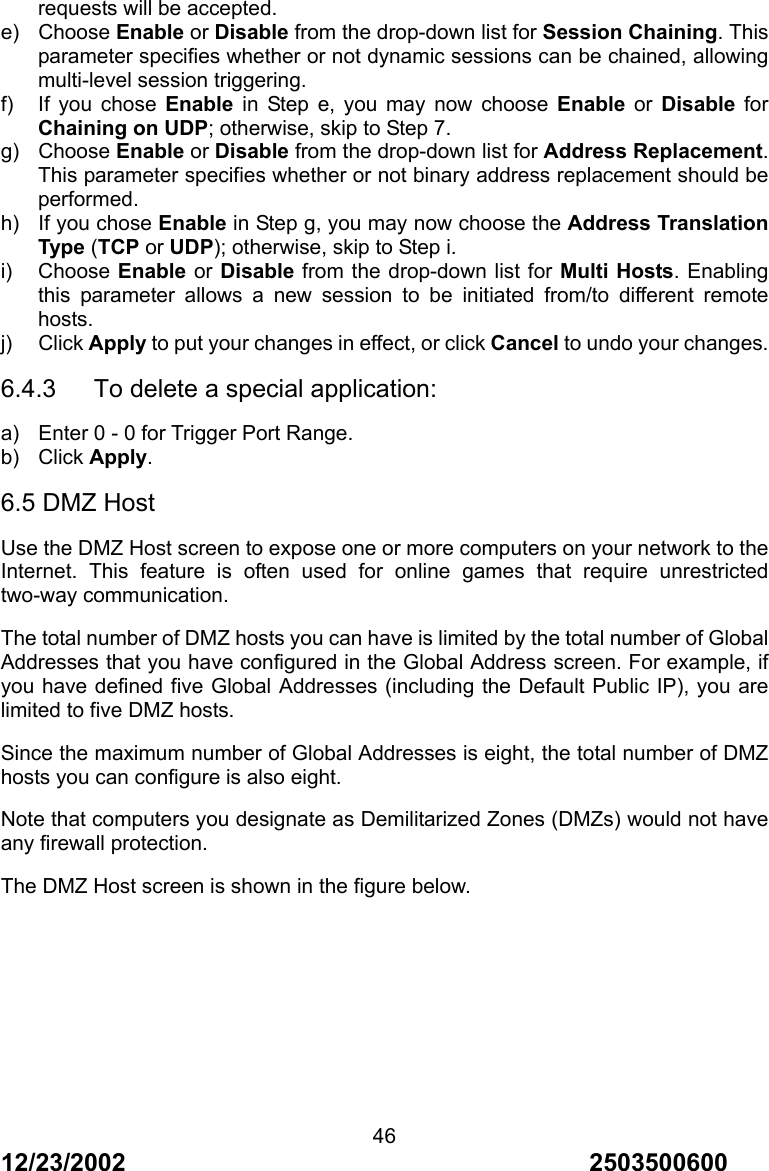
12/23/2002                                     2503500600 45 Figure 43: Special Apps Screen  6.4.1   Configure Special Apps using the Popular Applications Feature a)  Select the application you wish to enable from the Popular Applications drop-down list:  Figure 44: Popular Applications Feature b)  Choose a specific line in the table by selecting its number from the ID drop-down list. c) Click Copy to. The configuration settings for the selected application will appear in the table. d) Click Apply to put your changes in effect, or click Cancel to undo your changes. 6.4.2   Manually Configure Special Apps Although you can manually configure special applications, only expert users should do so. We recommend that you always use the Popular Applications feature unless you know exactly which settings to choose. a)  Choose a line item to configure. Note that if you overwrite a line that is already configured for another special application, that application will not work. b)  Select the communication Protocol used by the application from the drop-down list (TCP, UDP, or Both). c) Specify a Trigger Port Range. This parameter identifies the range of ports that, when used for outgoing traffic, will trigger the gateway to accept certain incoming requests. d) Type a Maximum Activity Interval. This parameter specifies the maximum number of milliseconds after the port trigger action during which incoming
12/23/2002                                     2503500600 46requests will be accepted. e) Choose Enable or Disable from the drop-down list for Session Chaining. This parameter specifies whether or not dynamic sessions can be chained, allowing multi-level session triggering. f)  If you chose Enable in Step e, you may now choose Enable or Disable for Chaining on UDP; otherwise, skip to Step 7. g) Choose Enable or Disable from the drop-down list for Address Replacement. This parameter specifies whether or not binary address replacement should be performed. h) If you chose Enable in Step g, you may now choose the Address Translation Type (TCP or UDP); otherwise, skip to Step i. i) Choose Enable or Disable from the drop-down list for Multi Hosts. Enabling this parameter allows a new session to be initiated from/to different remote hosts. j) Click Apply to put your changes in effect, or click Cancel to undo your changes. 6.4.3      To delete a special application: a)  Enter 0 - 0 for Trigger Port Range. b) Click Apply. 6.5 DMZ Host Use the DMZ Host screen to expose one or more computers on your network to the Internet. This feature is often used for online games that require unrestricted two-way communication. The total number of DMZ hosts you can have is limited by the total number of Global Addresses that you have configured in the Global Address screen. For example, if you have defined five Global Addresses (including the Default Public IP), you are limited to five DMZ hosts. Since the maximum number of Global Addresses is eight, the total number of DMZ hosts you can configure is also eight. Note that computers you designate as Demilitarized Zones (DMZs) would not have any firewall protection. The DMZ Host screen is shown in the figure below.
12/23/2002                                     2503500600 47 Figure 45: DMZ Host Screen 6.5.1   Setup a DMZ Host a) Select a Public IP Address from the drop-down list. Note that the IP address of any computer being used as a Virtual Server will not appear in the list. b) Specify the Private IP Address. You only need to type the last part of the address; the first part is set automatically. c) Click Apply to put your changes in effect, or click Cancel to undo your changes. 6.5.2   To delete DMZ Hosts: a)  For any DMZ Host you want to delete, select 0.0.0.0 for Public IP Address and click Apply. 6.6 MAC Clone If your ISP restricts service to PCs only, use the MAC Clone feature to copy a PC Media Access Control (MAC) address to your Wireless Router. This procedure will cause the Wireless Router to appear as a single PC, while allowing online access to multiple computers on your network. The MAC Clone screen is shown in the figure below.  Figure 46: MAC Clone Screen 6.6.1   Clone the MAC Address a)  Type a PC MAC Address in the WAN Port Mac Address field. You may need to use the Ethernet MAC Address of the Network Interface Card (NIC) from the PC that is registered with your ISP. Note that the Current WAN Port Mac Address and the Factory Default Mac Address are shown for your convenience.
12/23/2002                                     2503500600 48b) Click Mac Clone to put your changes in effect, or click Restore to undo your changes. 7. Troubleshooting This chapter covers some common problems that may be encountered while using the Wireless Router and some possible solutions to them. If you follow the suggested steps and the Wireless Router still does not function properly, contact your dealer for further advice. 7.1 General Problems Problem 1: Can't connect to the Wireless Router to configure it. Solution 1: Check the following: a)  The Wireless Router is properly installed, LAN connections are Ok, and it is powered on. b)  Ensure that your PC and the Wireless Router are on the same network segment. (If you don't have a router, this must be the case.) c)  If your PC is set to "Obtain an IP Address automatically" (DHCP client), restart it. d)  If your PC uses a Fixed (Static) IP address, ensure that it is using an IP Address within the range 192.168.62.2 to 192.168.62.254 and thus compatible with the Wireless Router's default IP Address of 192.168.62.1. Also, the Network Mask should be set to 255.255.255.0 to match the Wireless Router. In Windows, you can check these settings by using Control Panel - Network to check the Properties for the TCP/IP protocol. 7.2 Internet Access Problem 1: When I enter a URL or IP address I get a timed out error. Solution 1: A number of things could be causing this. Try the following troubleshooting steps. a)  Check if other PCs work. If they do, ensure that your PCs IP settings are correct. If using a fixed (static) IP address, check the Network Mask, Default gateway, and DNS as well as the IP Address. b)  If the PCs are configured correctly, but still not working, check the Wireless Router. Ensure that it is connected and on. Connect to it and check its settings. If you can't connect to it, check the LAN and power connections.
12/23/2002                                     2503500600 49c)  If the Wireless Router is configured correctly, check your Internet connection (DSL/cable modem etc) to see that it is working correctly. Problem 2: Some applications do not run properly when using the Wireless Router. Solution 2: The Wireless Router processes the data passing through it, so it is not transparent. Use the Special Applications feature to allow the use of Internet applications that do not function correctly. If this does solve the problem, you can use the DMZ function. This should work with almost every application, but: a)  It is a security risk, since the firewall is disabled. b)  Only one PC can use this feature. 7.3 Wireless Access Problem 1: My PC can't locate the Wireless Access Point. Solution 1: Check the following. a) Your PC is set to Infrastructure Mode. Access Points are always in Infrastructure Mode. b)  The SSID on your PC and the Wireless Access Point are the same. Remember that the SSID is case-sensitive. So, for example "Work-group" does NOT match "work-group". c)  Both your PC and the Wireless Access Point must have the same setting for WEP. The default setting for the Wireless Router is disabled, so your wireless station should also have WEP disabled. d)  If WEP is enabled on the Wireless Router, your PC must have WEP enabled, and the key tables (for 64 Bit encryption) or key (for 128 Bit encryption) must match. e)  If the Wireless Router's Wireless screen is set to Allow LAN access to selected Wireless Stations only, then each of your Wireless stations must have been selected, or access will be blocked. f)  To see if radio interference is causing a problem, see if connection is possible when close to the Wireless Access Point. Remember that the connection range can be as little as 100 feet in poor environments.
12/23/2002                                     2503500600 50Problem 2: Wireless connection speed is very slow. Solution 2: The wireless system will connect at the highest possible speed, depending on the distance and the environment. To obtain the highest possible connection speed, you can experiment with the following. a)  Access Point location. Try adjusting the location and orientation of the Access Point. b)  Wireless Channel. If interference is the problem, changing to another channel may show a marked improvement. c)  Radio Interference. Other devices may be causing interference. You can experiment by switching other devices off, and see if this helps. Any "noisy" devices should be shielded or relocated. d)  RF Shielding. Your environment may tend to block transmission between the wireless stations. This will mean high access speed is only possible when close to the Access Point. 8. About Wireless LANs This chapter provides some background information about using Wireless LANs (WLANs). 8.1 Modes Wireless LANs can work in either of two modes, Ad-hoc and Infrastructure. 8.1.1   Ad-hoc Mode Ad-hoc mode does not require an Access Point or a wired (Ethernet) LAN. Wireless Stations, e.g. notebook PCs with wireless cards, communicate directly with each other. 8.1.2   Infrastructure Mode In Infrastructure Mode, one or more Access Points are used to connect Wireless Stations, e.g. Notebook PCs with wireless cards, to a wired (Ethernet) LAN. The Wireless Stations can then access all LAN resources. Access Points can only function in "Infrastructure" mode, and can communicate only with Wireless Stations that are set to "Infrastructure" mode.
12/23/2002                                     2503500600 518.2 BSS/ESS 8.2.1   BSS A group of Wireless Stations and a single Access Point, all using the same ID (SSID), form a Basic Service Set (BSS). Using the same SSID is essential. Devices with different SSIDs are unable to communicate with each other. 8.2.2   ESS A group of Wireless Stations, and multiple Access Points, all using the same ID (ESSID), form an Extended Service Set (ESS). Different Access Points within an ESS can use different Channels. In fact, to reduce interference, it is recommended that adjacent Access Points should use different channels. As Wireless Stations are physically moved through the area covered by an ESS, they will automatically change to the Access Point that has the least interference or best performance. This capability is called Roaming. Access Points do not have or require Roaming capabilities. 8.3 Channels The Wireless Channel sets the radio frequency used for communication. a)  Access Points use a fixed Channel. You can select the Channel used. This allows you to choose a Channel which provides the least interference and best performance. In the USA and Canada, 11 channels are available. If using multiple Access Points, it is better if adjacent Access Points use different Channels to reduce interference. b)  In "Infrastructure" mode, Wireless Stations normally scan all Channels, looking for an Access Point. If more than one Access Point can be used, the one with the strongest signal is used. This can only happen within an ESS. c)  If using "Ad-hoc" mode, no Access Point, all Wireless stations should be set to use the same Channel. However, most Wireless stations will still scan all Channels to see if there is an existing "Ad-hoc" group they can join. 8.4 WEP WEP (Wired Equivalent Privacy) is a standard for encrypting data before it is transmitted. This is desirable because it is impossible to prevent snoopers from receiving any data that is transmitted by your Wireless Stations. But, if the data is encrypted, then it is meaningless unless the receiver can decrypt it.
12/23/2002                                     2503500600 52If WEP is used, the Wireless Stations and the Access Point must have the same settings for each of the following. WEP  Off, 64-bit, 128-bit. Key  For 64-bit encryption, the Key Table must match. For 128-bit encryption, the Key value must match. WEP Authentication  Open System, Shared Key, or both.
12/23/2002                                     2503500600 539. Specifications Standards  IEEE 802.3 (10BaseT) IEEE 802.3u (100BaseTX) IEEE 802.11b (Wireless) Protocol  CSMA/CD Ports  5 Ethernet: 4 * 10/100BaseT RJ-45 port for LAN (excluding 1 shared) 1* 10/100BaseT RJ45 port for WAN Cabling Type  10BaseT: UTP Category 3 or better 100Base-T: UTP Category 5 or better Speed (Mbps)  WAN: 100 LAN: 10/100 Wireless: up to 11 Wireless Operating Range Indoor: Up to 60M @11Mbps Up to 80M @5.5Mbps Up to 130M @2Mbps Up to 150M @1Mbps Outdoor: Up to 250M @11Mbps Up to 350M @5.5Mbps Up to 400M @2Mbps Up to 500M @1Mbps Memory  8MB SDRAM and 1MB Flash LEDs  Power, Diag. per unit Link/ACT, FDX /Col, 10/100 per port Dimensions  W x D x H (218mm x165mm x38.5mm) Management  Web-based configuration Unit Weight  810g Power Adapter  DC 5V/2A Operating Temperature  0℃ to 40℃  (32°F to 104°F) Storage Temperature  -20℃ to 70℃ (-4°F to 158°F) Operating Humidity  10% to 85% relative humidity, non-condensingStorage Humidity  5% to 90% relative humidity, non-condensingCertifications  FCC Part15 subpart C and FCC Class B, CE Mark Commercial

Navigation menu