AirVast Technology WN210 802.11b WLAN Mini-USB Adapter User Manual version 1 0

AirVast Technology Inc. 802.11b WLAN Mini-USB Adapter version 1 0

User Manual

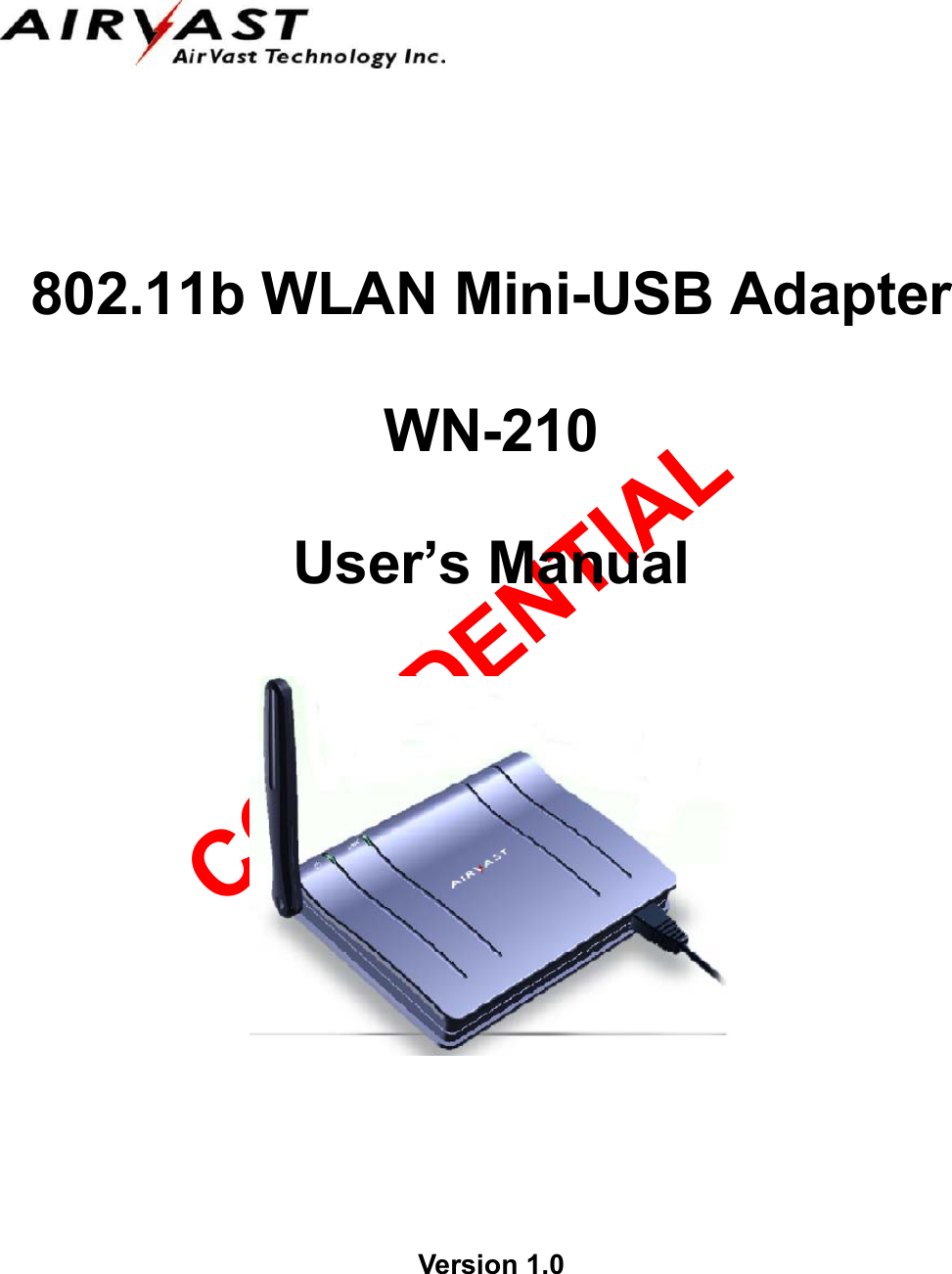
CONFIDENTIAL        802.11b WLAN Mini-USB Adapter  WN-210  User’s Manual                        Version 1.0
FEDERAL COMMUNICATIONS COMMISSION INTERFERENCE STATEMENT This equipment has been tested and found to comply with the limits for a Class B digital device, pursuant to Part 15 of the FCC Rules. These limits are designed to provide reasonable protection against harmful interference in a residential installation. This equipment generates, uses and can radiate radio frequency energy and, if not installed and used in accordance with the instructions, may cause harmful interference to radio communications. However, there is no guarantee that interference will not occur in a particular installation. If this equipment does cause harmful interference to radio or television reception, which can be determined by turning the equipment off and on, the user is encouraged to try to correct the interference by one or more of the following measures: -- Reorient or relocate the receiving antenna. -- Increase the separation between the equipment and receiver. -- Connect the equipment into an outlet on a circuit different from that to which the receiver is connected. -- Consult the dealer or an experienced radio/TV technician for help. CAUTION:  Any changes or modifications not expressly approved by the grantee of this device could void the user's authority to operate the equipment.  FCC RF Radiation Exposure Statement This equipment complies with FCC RF radiation exposure limits set forth for an uncontrolled environment. This equipment should be installed and operated with a minimum distance of 20cm between the radiator and your body.
CONFIDENTIAL 1 WN-210 11Mbps WLAN Mini-USB Adapter Copyright © 2002 by Airvast. All rights reserved. No part of this documentation may be reproduced in any form or by any means or used to make any derivative work (such as translation, transformation, or adaptation) without written permission from the copyright owner. All the other trademarks and registered trademarks are the property of their respective owners. Statement of Conditions We may make improvements or changes in the product described in this documentation at any time. The information regarding to the product in this manual are subject to change without notice. We assumes no responsibility for errors contained herein or for direct, indirect, special, incidental, or consequential damages with the furnishing, performance, or use of this manual or equipment supplied with it, even if the suppliers have been advised of the possibility of such damages. Electronic Emission Notices This device complies with Part 15 of the FCC Rules. Operation is subject to the following two conditions: (1)This device may not cause harmful interference. (2)This device must accept any interference received, including interference that may cause undesired operation. FCC INFORMATION The Federal Communication Commission Radio Frequency Interference Statement includes the following paragraph: The equipment has been tested and found to comply with the limits for a Class B Digital Device, pursuant to part 15 of the FCC Rules. These limits are designed to provide reasonable protection against harmful interference in a residential installation. This equipment generates, uses and can radiate radio frequency energy and, if not installed and used in accordance with the instruction, may cause harmful interference to radio communication. However, there is no grantee that interference will not occur in a particular installation. If this equipment dose cause harmful interference to radio or television reception, which can be determined by turning the equipment off and on, the user is encouraged to try to correct the interference by one or more of the following measures: --Reorient or relocate the receiving antenna. --Increase the separation between the equipment and receiver. --Connect the equipment into an outlet on a circuit different from that to which the receiver is connected. --Consult the dealer or an experienced radio/TV technician for help.  The equipment is for home or office use. R&TTE Compliance Statement This equipment complies with all the requirements of the DIRECTIVE 1999/5/EC OF THE EUROPEAN PARLIAMENT AND THE COUNCIL of 9 March 1999 on radio equipment and telecommunication terminal Equipment and the mutual recognition of their conformity(R&TTE). The R&TTE Directive repeals and replaces in the directive 98/13/EEC(Telecommunications Terminal Equipment and Satellite Earth Station Equipment) As of April 8, 2000. IMPORTANT NOTE To comply with the FCC RF exposure compliance requirements, a separation distance of at least 2.5cm must be maintained between the antenna of this device and all persons. No change to the antenna or the device is permitted. Any change to the antenna or the device could result in the device exceeding the RF exposure requirements and void user’s authority to operate this device.
CONFIDENTIAL 2 WN-210 11Mbps WLAN Mini-USB Adapter   Table of Contents   1.  INTRODUCTION........................................................................................................................... 4 1.1 PACKAGE CONTENTS ....................................................................................................................... 4 1.2 SYSTEM REQUIREMENTS ................................................................................................................. 4 2.    GETTING TO KNOW YOUR WLAN MINI-USB ADAPTER................................................. 4 2.1 THE WLAN MINI-USB ADAPTER’S USB PORT ............................................................................. 4 2.2 CONNECT USB CABLES .................................................................................................................. 5 2.3 CHECK THE LED INDICATORS......................................................................................................... 5 3.      INSTALLATION OF THE WLAN MINI-USB ADAPTER FOR WINDOWS 98SE, ME, 2000, AND XP. ........................................................................................................................................ 5 3.1 INSTALLATION PROCEDURE FOR WINDOWS 98SE USERS ................................................................ 5 3.2 INSTALLATION PROCEDURE FOR WINDOWS ME USERS ................................................................... 7 3.3 INSTALLATION PROCEDURE FOR WINDOWS 2000 USERS................................................................. 9 3.4 INSTALLATION PROCEDURE FOR WINDOWS XP USERS.................................................................. 11 APPENDIX A: SPECIFICATIONS ................................................................................................... 16
CONFIDENTIAL 3 WN-210 11Mbps WLAN Mini-USB Adapter  List of Figures    FIGURE 1: INFORMATION ........................................................................................................................... 5 FIGURE 2: WELCOME MESSAGE................................................................................................................. 6 FIGURE 3: CHOOSE DESTINATION LOCATION............................................................................................. 6 FIGURE 4 : SELECT PROGRAM FOLDER...................................................................................................... 6 FIGURE 5: COMPLETE SCREEN ................................................................................................................... 7 FIGURE 6: TASK BAR ................................................................................................................................. 7 FIGURE 7: WELCOME MESSAGE................................................................................................................. 8 FIGURE 8: CHOOSE DESTINATION LOCATION............................................................................................. 8 FIGURE 9: SELECT PROGRAM FOLDER ...................................................................................................... 8 FIGURE 10:COMPLETE SCREEN .................................................................................................................. 9 FIGURE 11: TASK BAR ................................................................................................................................9 FIGURE 12: INFORMATION ......................................................................................................................... 9 FIGURE 13: WELCOME MESSAGE............................................................................................................. 10 FIGURE 14: CHOOSE DESTINATION LOCATION......................................................................................... 10 FIGURE 15: SELECT PROGRAM FOLDER................................................................................................... 10 FIGURE 16: COMPLETE SCREEN ............................................................................................................... 11 FIGURE 17: DIGITAL SIGNATURE NOT FOUND ......................................................................................... 11 FIGURE 18: TASK BAR ............................................................................................................................. 11 FIGURE 19: INFORMATION ....................................................................................................................... 12 FIGURE 20: WELCOME MESSAGE............................................................................................................. 12 FIGURE 21: CHOOSE DESTINATION LOCATION......................................................................................... 12 FIGURE 22: SELECT PROGRAM FOLDER................................................................................................... 13 FIGURE 23: COMPLETE SCREEN ............................................................................................................... 13 FIGURE 24: FOUND NEW HARDWARE WIZARD........................................................................................ 13 FIGURE 25: WARNING MESSAGE ............................................................................................................. 14 FIGURE 26: COMPLETING THE FOUND NEW HARDWARE WIZARD........................................................... 14 FIGURE 27: TASK BAR ............................................................................................................................. 14 FIGURE 28: AVAILABLE WIRELESS NETWORKS ......................................................................................... 15 FIGURE 29: WIRELESS NETWORK CONNECTION...................................................................................... 15
CONFIDENTIAL 4 WN-210 11Mbps WLAN Mini-USB Adapter  1.  INTRODUCTION  This document describes how to install the WN-210, WLAN Mini-USB Adapter. WLAN is local area networking without wires, which uses radio frequencies to transmit and receive data between PC’s or other network devices. WLAN is able to configure independent networks and infrastructure networks. The former is suitable for small or temporary peer-to-peer configurations, and the later is offering fully distributed data connectivity via micro cells and roaming. 1.1 Package Contents Before starting installation, please make sure the package you purchased includes the following three items:   One WLAN Mini-USB Adapter    One Mini-USB cable     One setup CD-ROM with User’s Manual Please contact your vendor if anything is missing or damaged. 1.2 System Requirements To install the WN-210 successfully, your computer should meet the following minimum requirements:    Pentium-Class 200MHz or faster Processor   64MB RAM Recommended   Available USB port   CD-ROM Driver    Windows 98SE, Me, 2000, or XP operating system    Minimum 5 Mbytes free disk space for installing the driver and the utility program  2.    GETTING TO KNOW YOUR WLAN MINI-USB ADAPTER 2.1 The WLAN Mini-USB Adapter’s USB Port The WLAN Mini-USB Adapter’s Mini-USB Port is located on the lower side of front panel.  USB Port   The USB Port is a port installed in your PC, enabling you to connect to USB peripherals. To work with USB ports, your PC must be running Windows 98SE, Me, 2000, or XP.
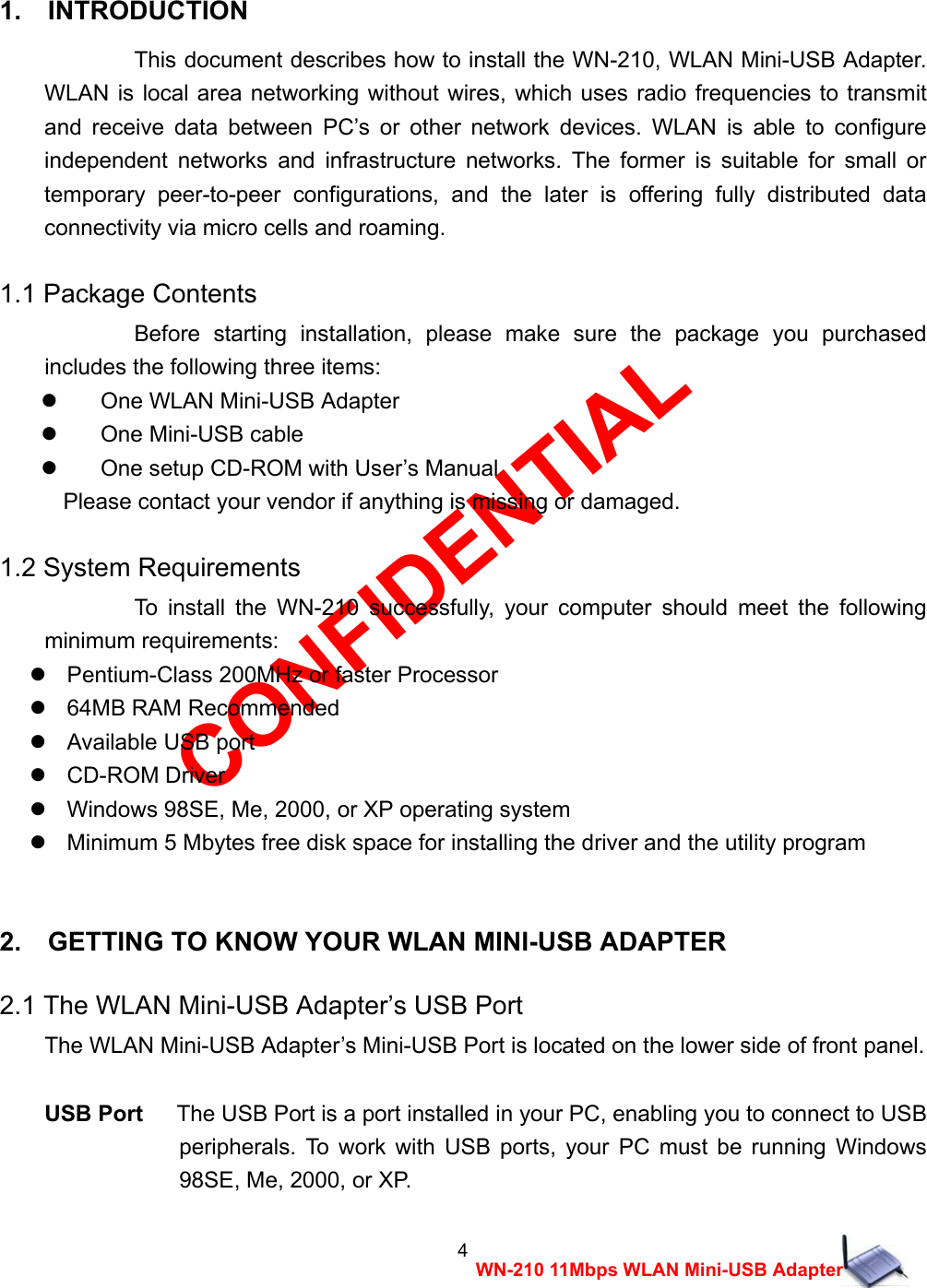
CONFIDENTIAL 5 WN-210 11Mbps WLAN Mini-USB Adapter 2.2 Connect USB Cables Note to users:    You must install setup driver before the WLAN Mini-USB Adapter has not been connected to the computer yet. Your WLAN Mini-USB Adapter comes with a Mini-USB cable. Insert the Mini-USB connector of the USB cable into WN-210 (Mini-USB port), and the other USB connector into your PC’s USB port. 2.3 Check The LED Indicators  LED Status  Function Power Red  The Power LED lights up when WLAN Mini-USB Adapter is powered on. Link Green The Link LED lights up when the Adapter has an active connection. If the LED is not on, the Adapter is not connecting with the Network.  3.   INSTALLATION OF THE WLAN MINI-USB ADAPTER FOR WINDOWS 98SE, ME, 2000, AND XP. Please refer to the proper section corresponding with operating system you are using to install the WN-210. 3.1 Installation Procedure for Windows 98SE Users a)   Turn on your computer. b)   Make sure that WN-210 has not been connected to the computer yet. c)   Place the supplied CD-ROM to the CD-ROM drive. Please run d:\setup.exe     manually, where d: is the letter of the CD-ROM drive. d)   A screen displays the important notice. Please read it and click the “Ok” button.   Figure 1: Information
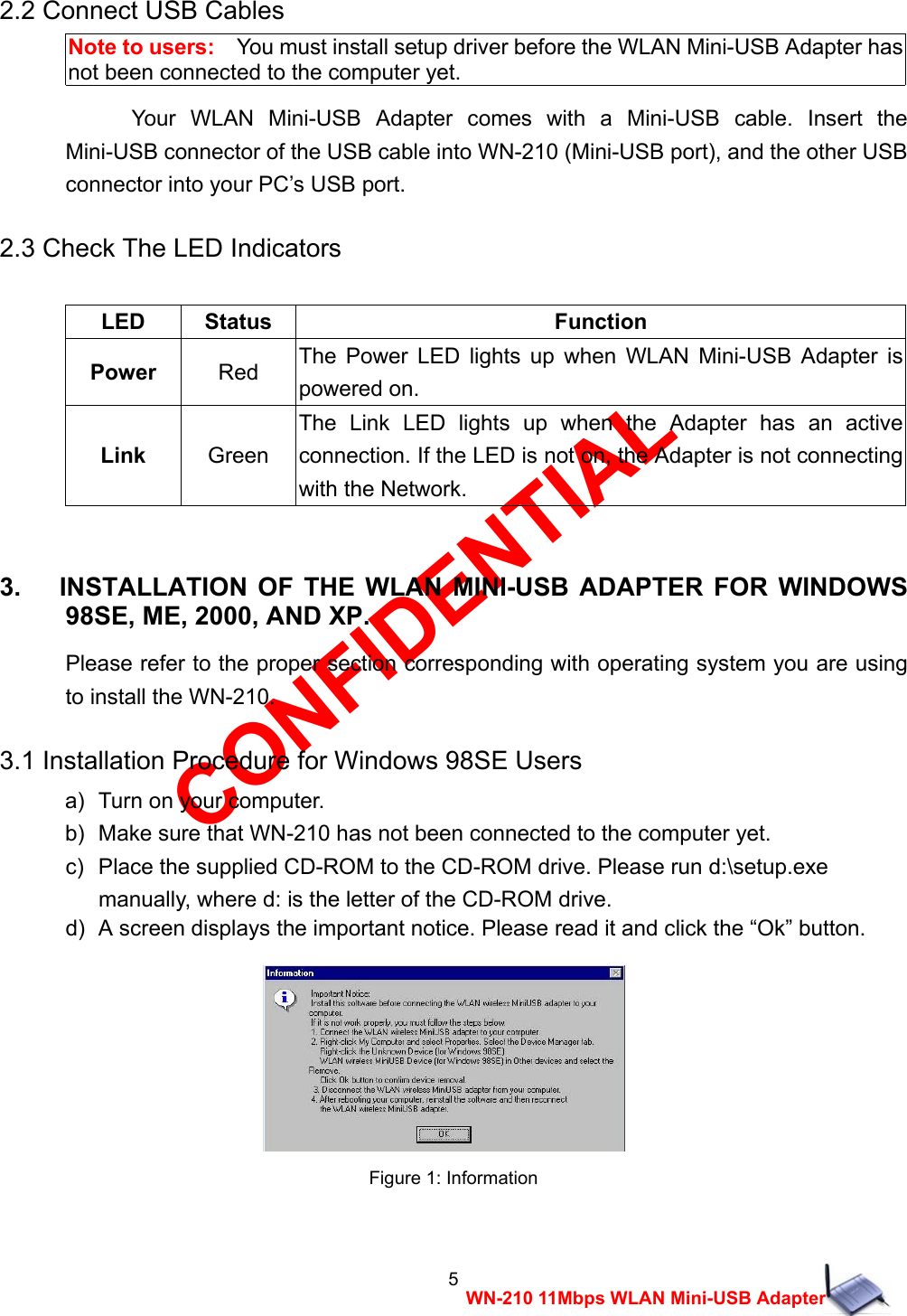
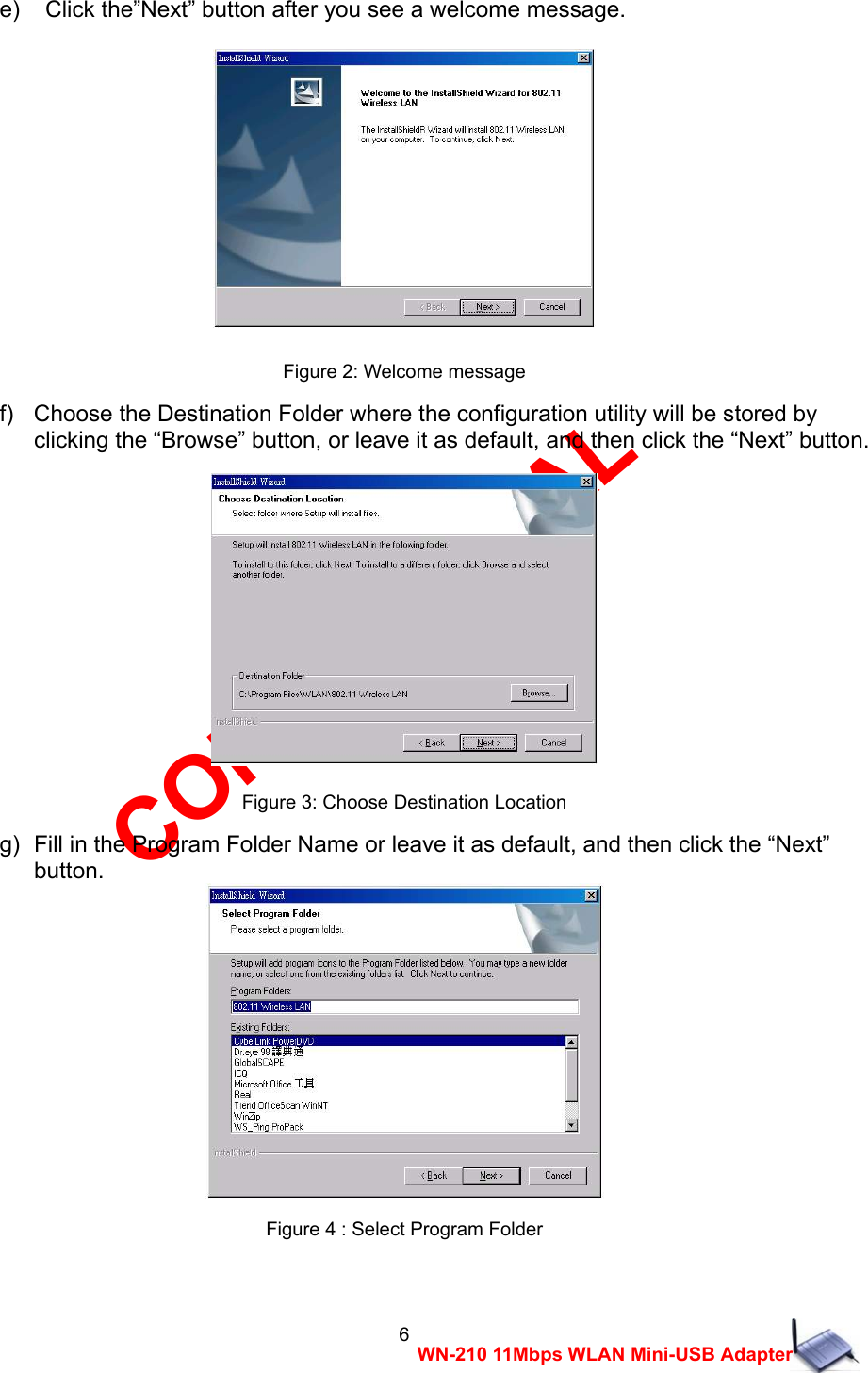
CONFIDENTIAL 6 WN-210 11Mbps WLAN Mini-USB Adapter e)    Click the”Next” button after you see a welcome message.  Figure 2: Welcome message f)   Choose the Destination Folder where the configuration utility will be stored by     clicking the “Browse” button, or leave it as default, and then click the “Next” button.  Figure 3: Choose Destination Location g)  Fill in the Program Folder Name or leave it as default, and then click the “Next”     button.  Figure 4 : Select Program Folder
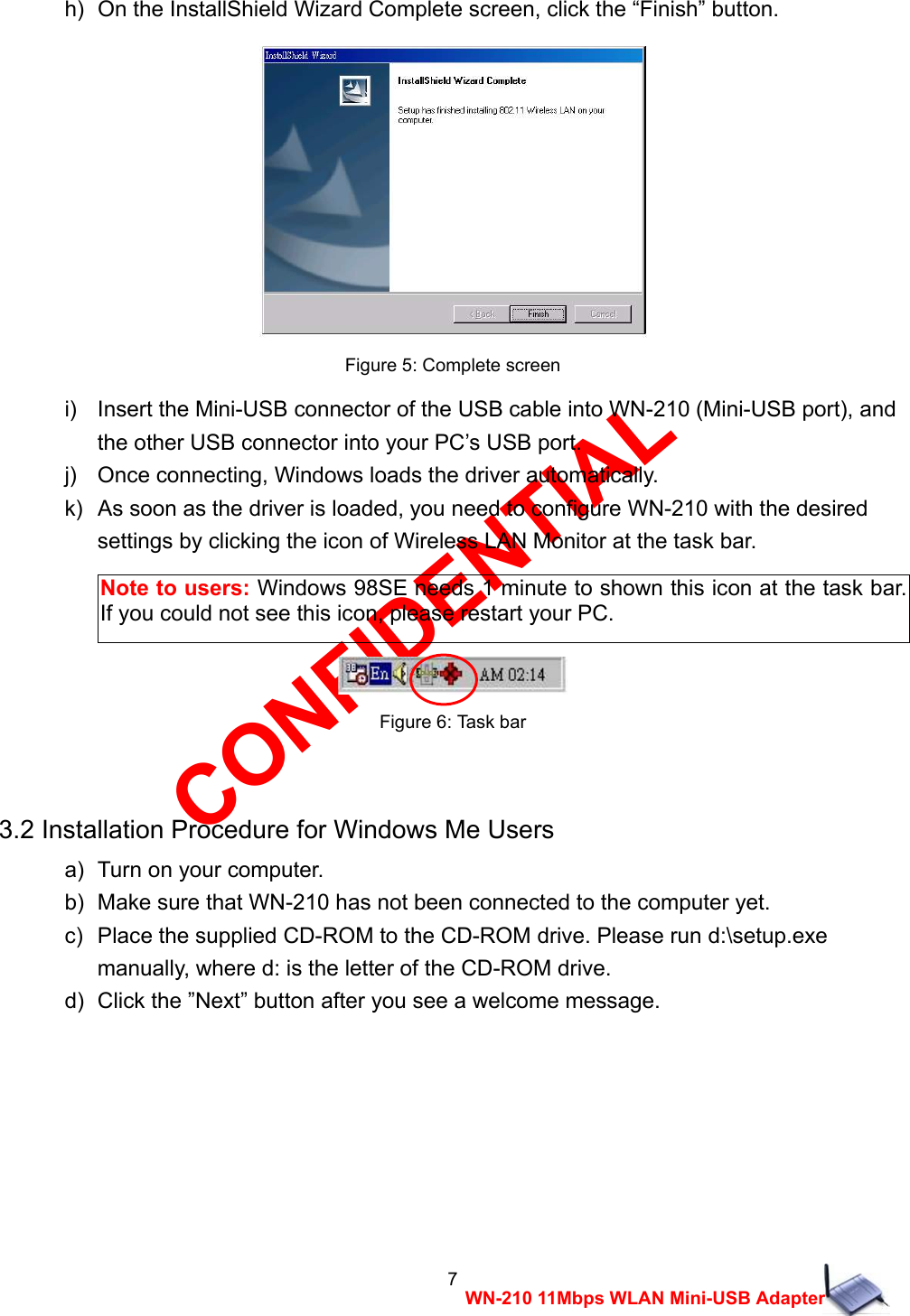
CONFIDENTIAL 7 WN-210 11Mbps WLAN Mini-USB Adapter h)  On the InstallShield Wizard Complete screen, click the “Finish” button.   Figure 5: Complete screen i)    Insert the Mini-USB connector of the USB cable into WN-210 (Mini-USB port), and   the other USB connector into your PC’s USB port. j)    Once connecting, Windows loads the driver automatically. k)   As soon as the driver is loaded, you need to configure WN-210 with the desired   settings by clicking the icon of Wireless LAN Monitor at the task bar.     Figure 6: Task bar  3.2 Installation Procedure for Windows Me Users a)   Turn on your computer. b)   Make sure that WN-210 has not been connected to the computer yet. c)   Place the supplied CD-ROM to the CD-ROM drive. Please run d:\setup.exe   manually, where d: is the letter of the CD-ROM drive. d)   Click the ”Next” button after you see a welcome message. Note to users: Windows 98SE needs 1 minute to shown this icon at the task bar. If you could not see this icon, please restart your PC.
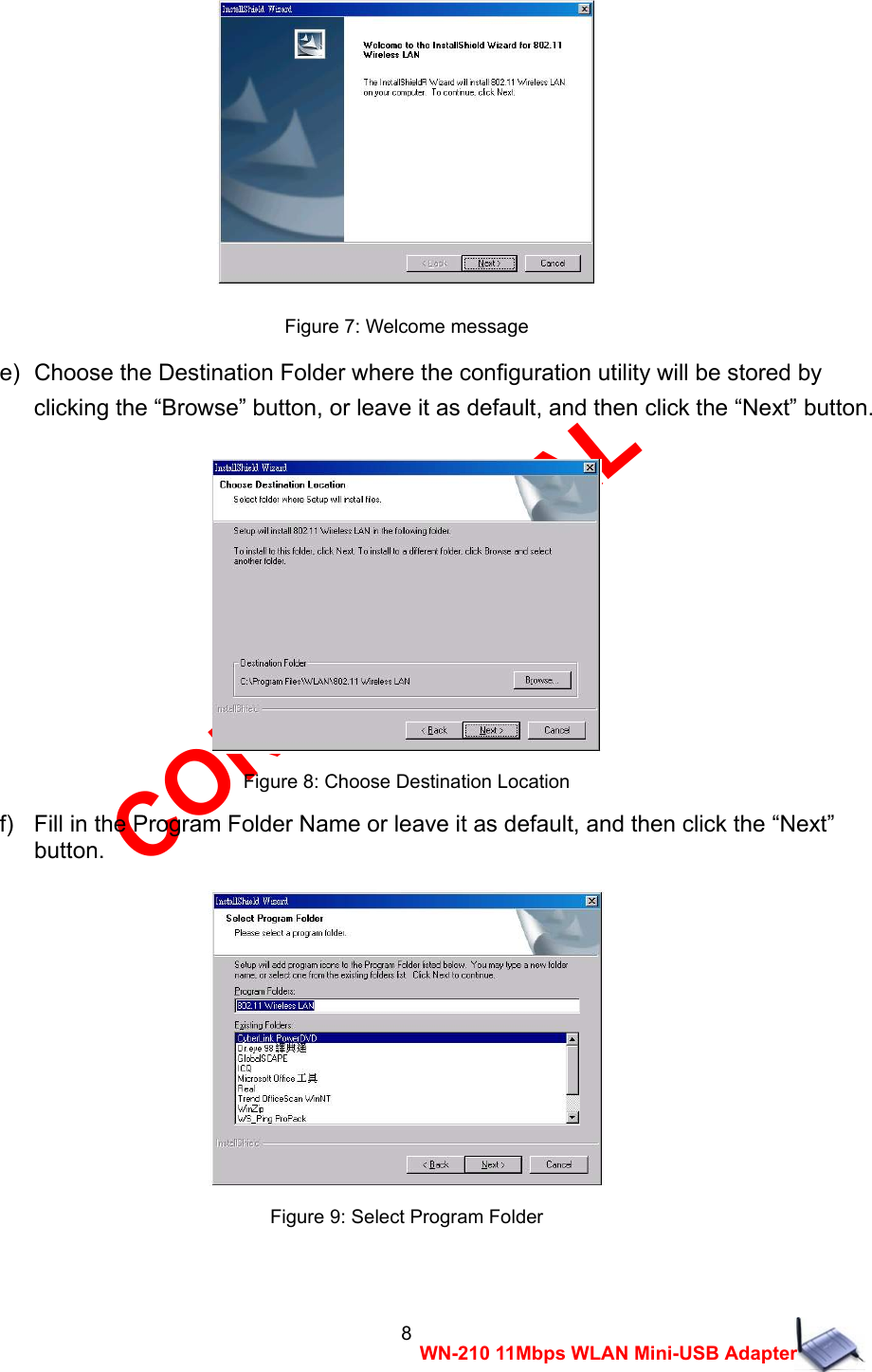
CONFIDENTIAL 8 WN-210 11Mbps WLAN Mini-USB Adapter   Figure 7: Welcome message e)  Choose the Destination Folder where the configuration utility will be stored by   clicking the “Browse” button, or leave it as default, and then click the “Next” button.   Figure 8: Choose Destination Location f)   Fill in the Program Folder Name or leave it as default, and then click the “Next”   button.   Figure 9: Select Program Folder
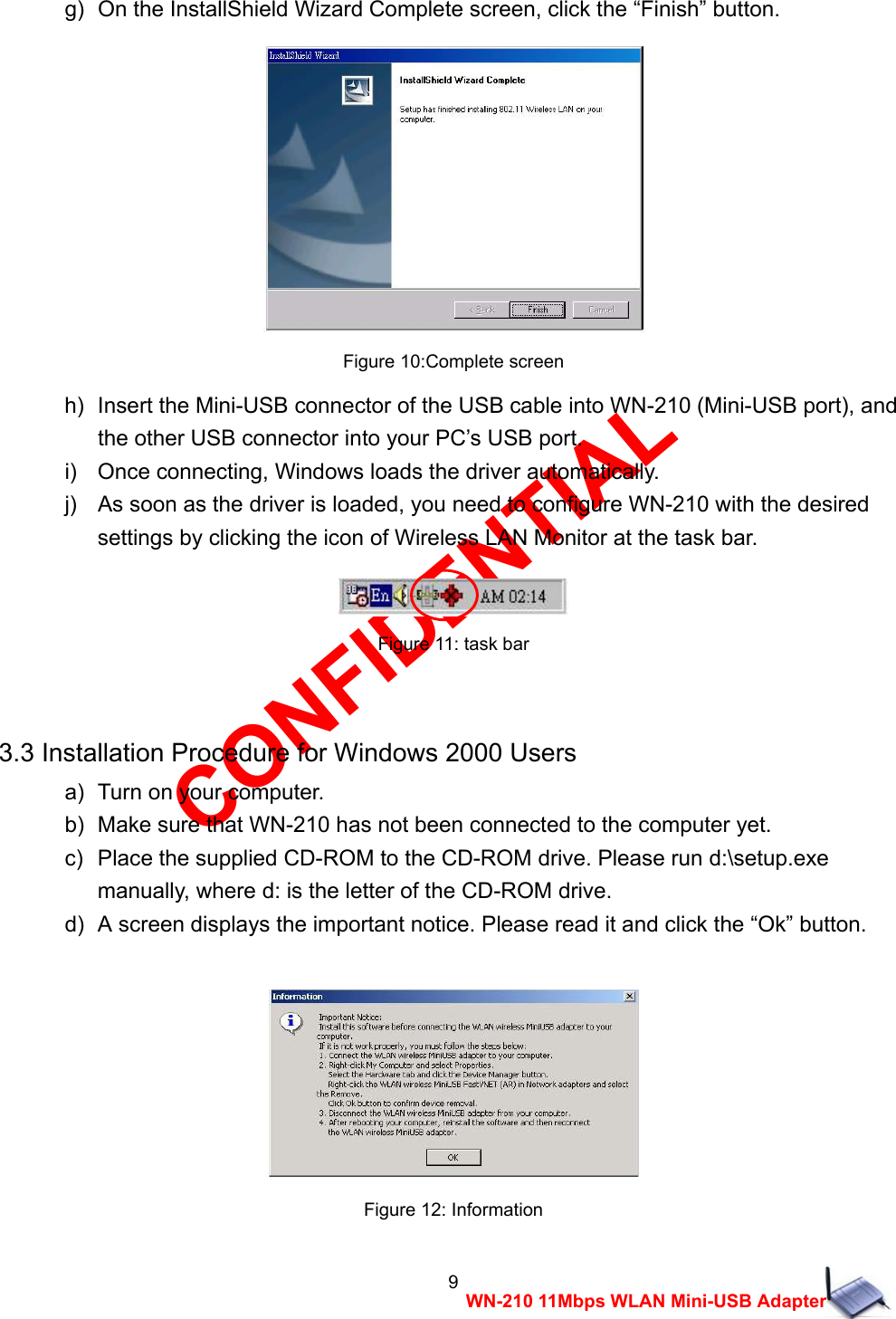
CONFIDENTIAL 9 WN-210 11Mbps WLAN Mini-USB Adapter g)  On the InstallShield Wizard Complete screen, click the “Finish” button.   Figure 10:Complete screen h)   Insert the Mini-USB connector of the USB cable into WN-210 (Mini-USB port), and   the other USB connector into your PC’s USB port. i)    Once connecting, Windows loads the driver automatically. j)    As soon as the driver is loaded, you need to configure WN-210 with the desired   settings by clicking the icon of Wireless LAN Monitor at the task bar.   Figure 11: task bar  3.3 Installation Procedure for Windows 2000 Users a)   Turn on your computer. b)   Make sure that WN-210 has not been connected to the computer yet. c)   Place the supplied CD-ROM to the CD-ROM drive. Please run d:\setup.exe   manually, where d: is the letter of the CD-ROM drive. d)   A screen displays the important notice. Please read it and click the “Ok” button.   Figure 12: Information
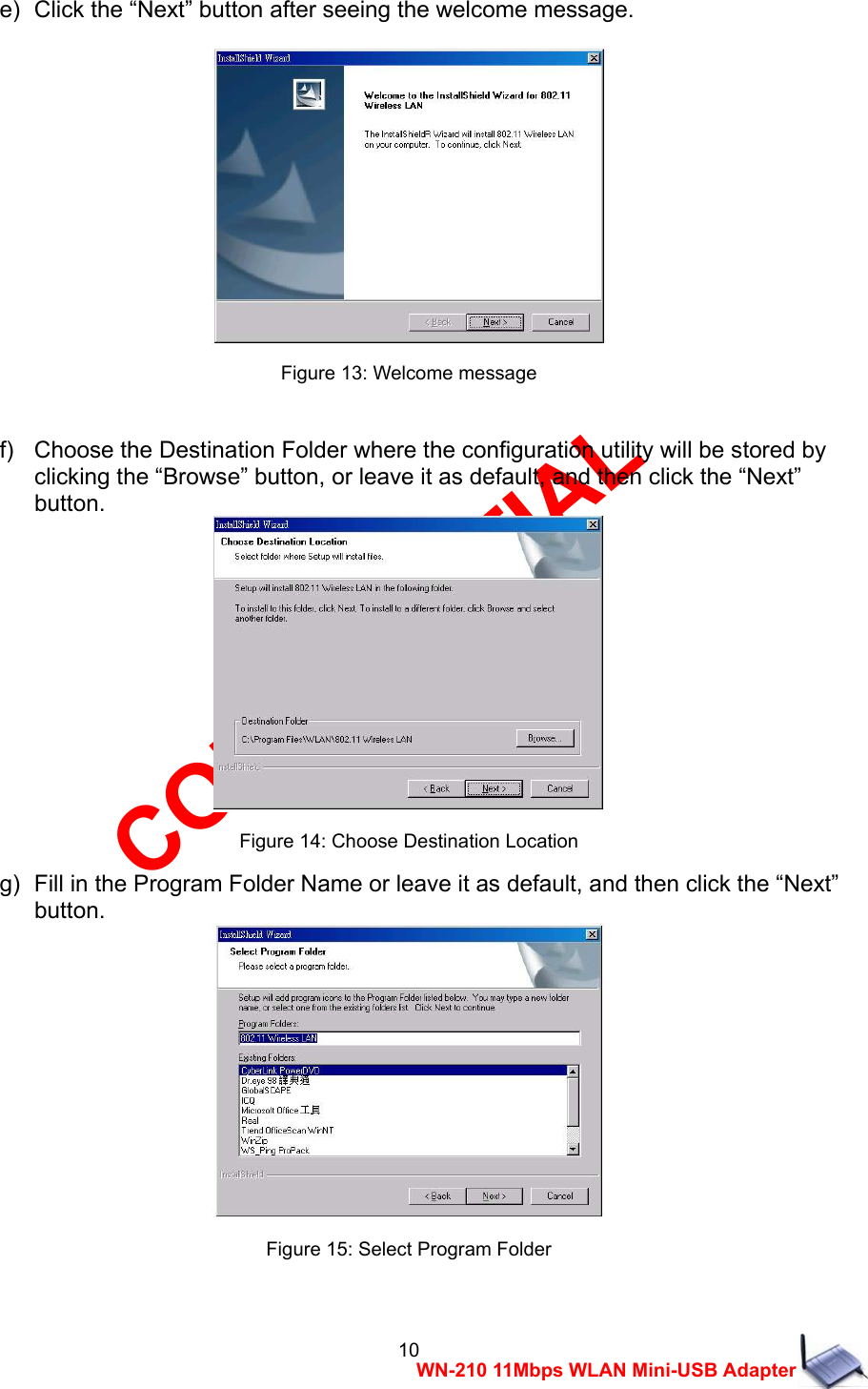
CONFIDENTIAL 10 WN-210 11Mbps WLAN Mini-USB Adapter e)   Click the “Next” button after seeing the welcome message.   Figure 13: Welcome message  f)   Choose the Destination Folder where the configuration utility will be stored by   clicking the “Browse” button, or leave it as default, and then click the “Next”   button.  Figure 14: Choose Destination Location g)   Fill in the Program Folder Name or leave it as default, and then click the “Next”   button.  Figure 15: Select Program Folder
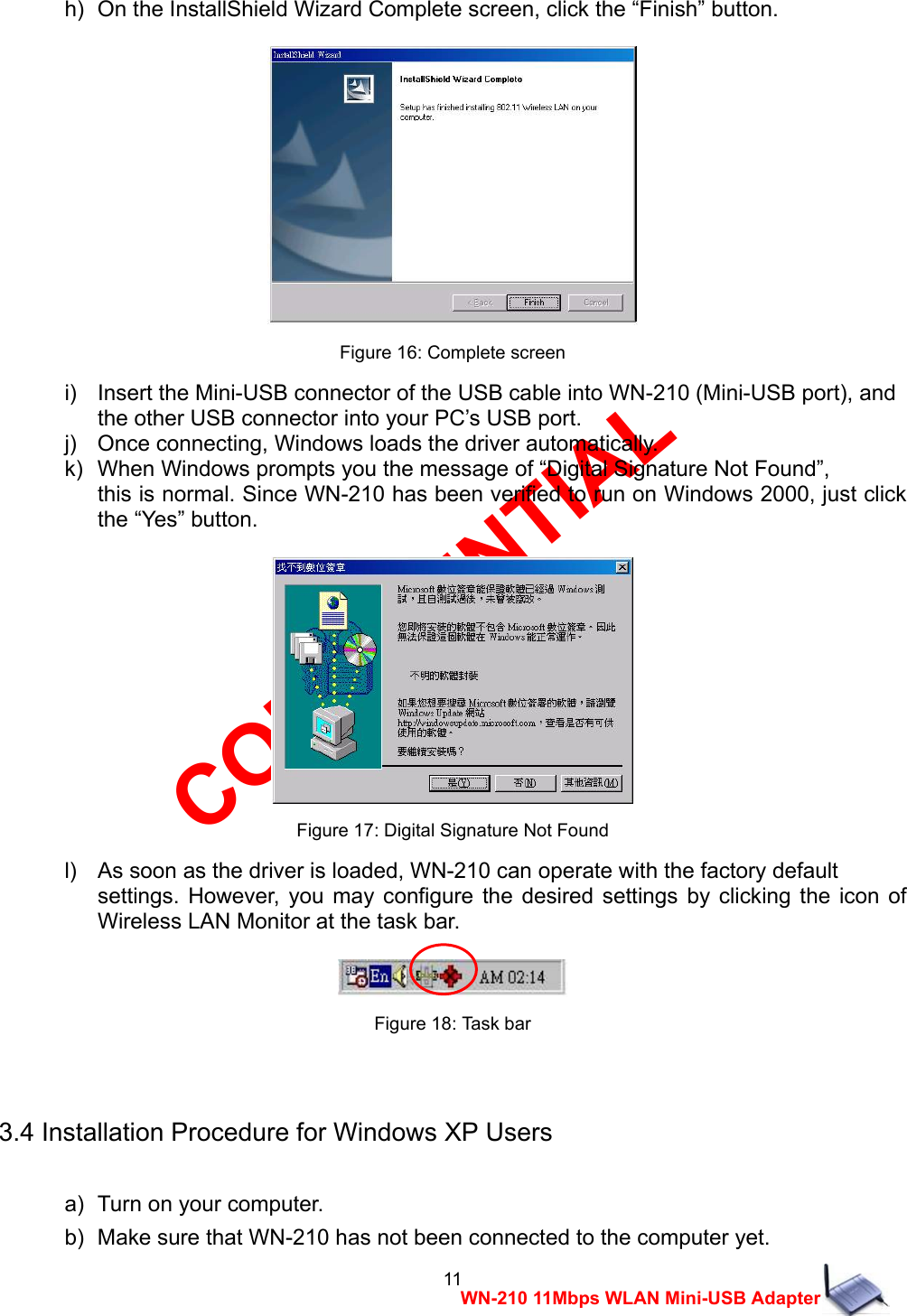
CONFIDENTIAL 11 WN-210 11Mbps WLAN Mini-USB Adapter h)   On the InstallShield Wizard Complete screen, click the “Finish” button.   Figure 16: Complete screen i)    Insert the Mini-USB connector of the USB cable into WN-210 (Mini-USB port), and   the other USB connector into your PC’s USB port. j)    Once connecting, Windows loads the driver automatically. k)   When Windows prompts you the message of “Digital Signature Not Found”,   this is normal. Since WN-210 has been verified to run on Windows 2000, just click the “Yes” button.   Figure 17: Digital Signature Not Found l)    As soon as the driver is loaded, WN-210 can operate with the factory default   settings. However, you may configure the desired settings by clicking the icon of Wireless LAN Monitor at the task bar.   Figure 18: Task bar  3.4 Installation Procedure for Windows XP Users  a)   Turn on your computer. b)   Make sure that WN-210 has not been connected to the computer yet.
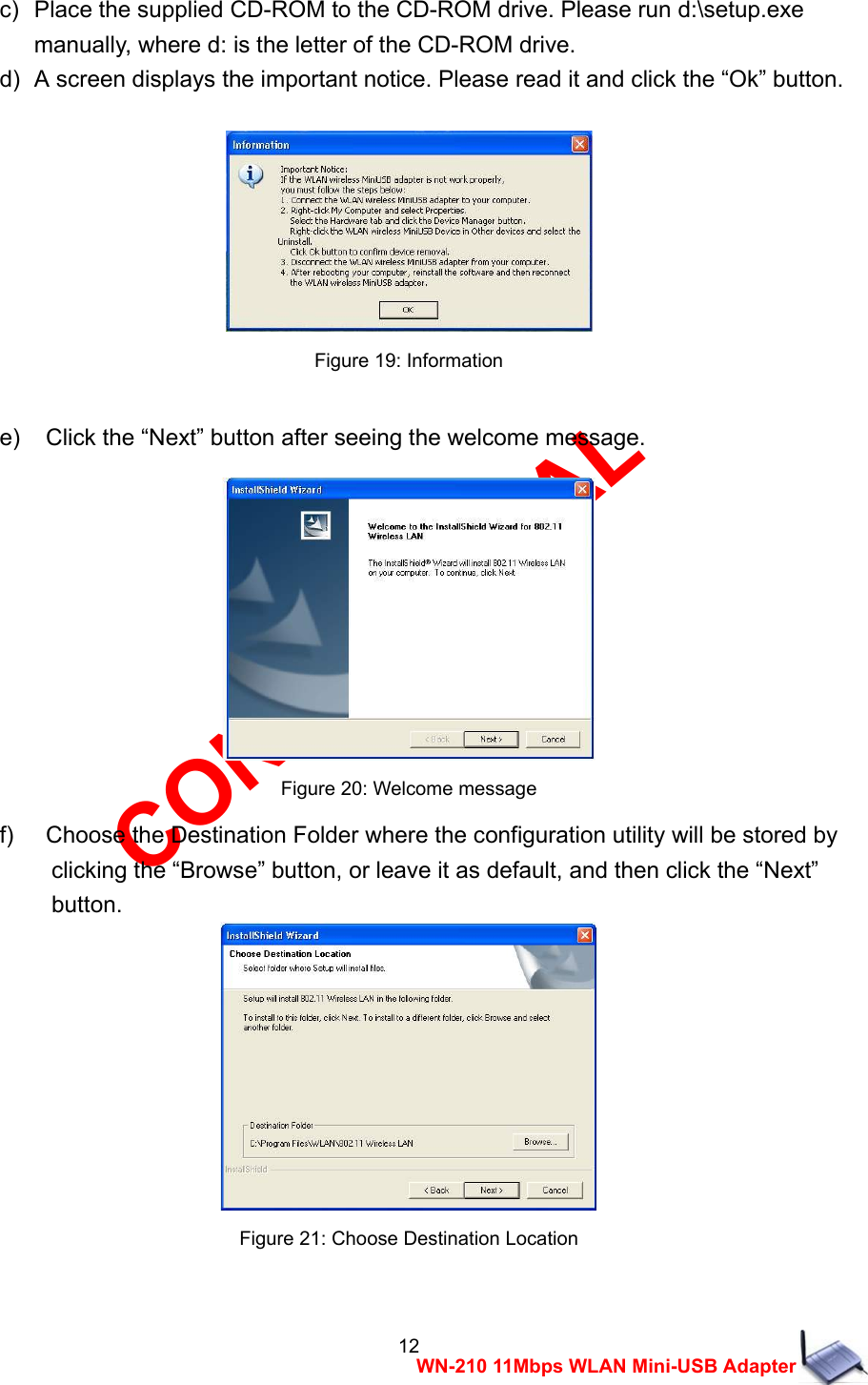
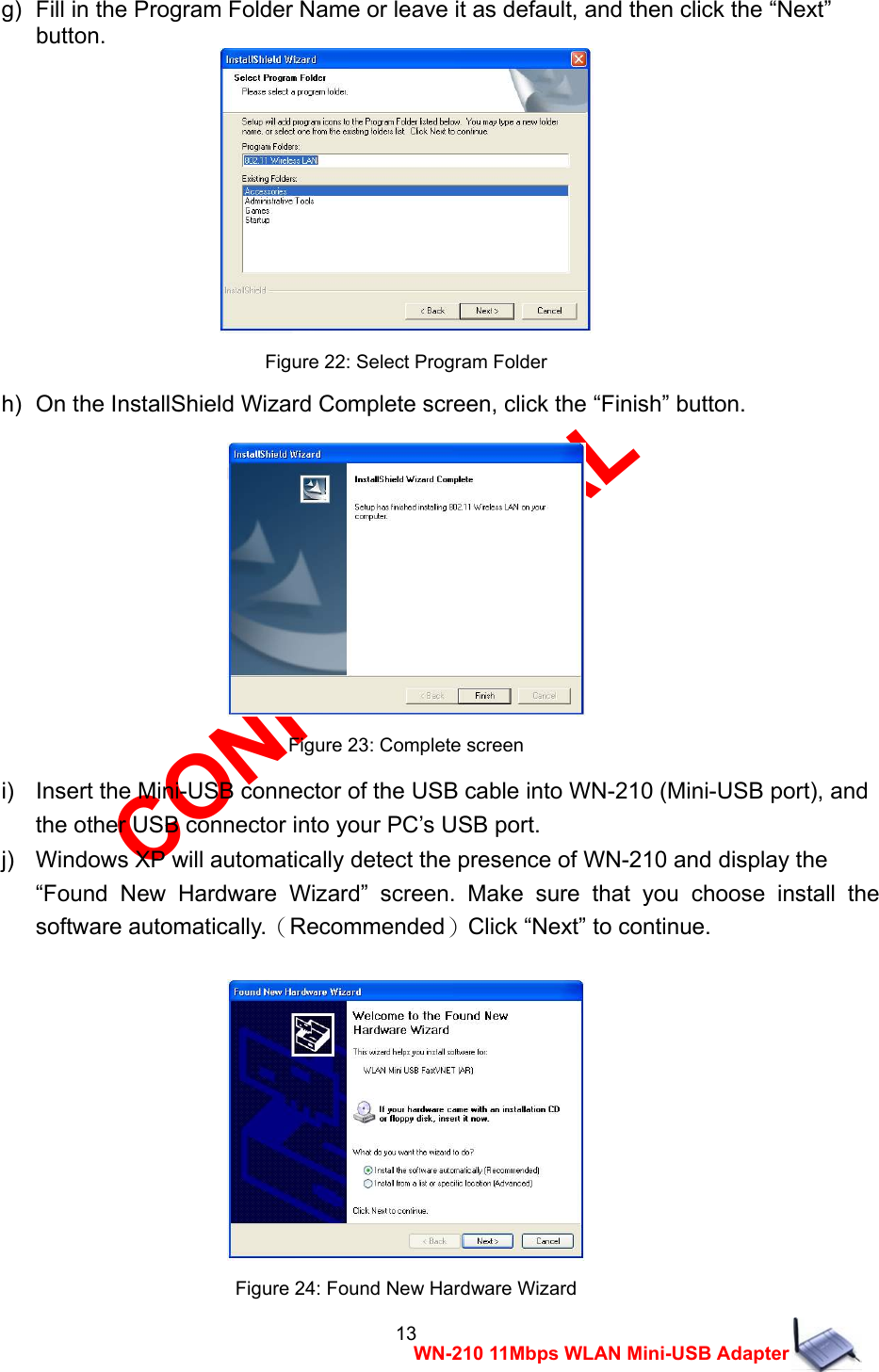
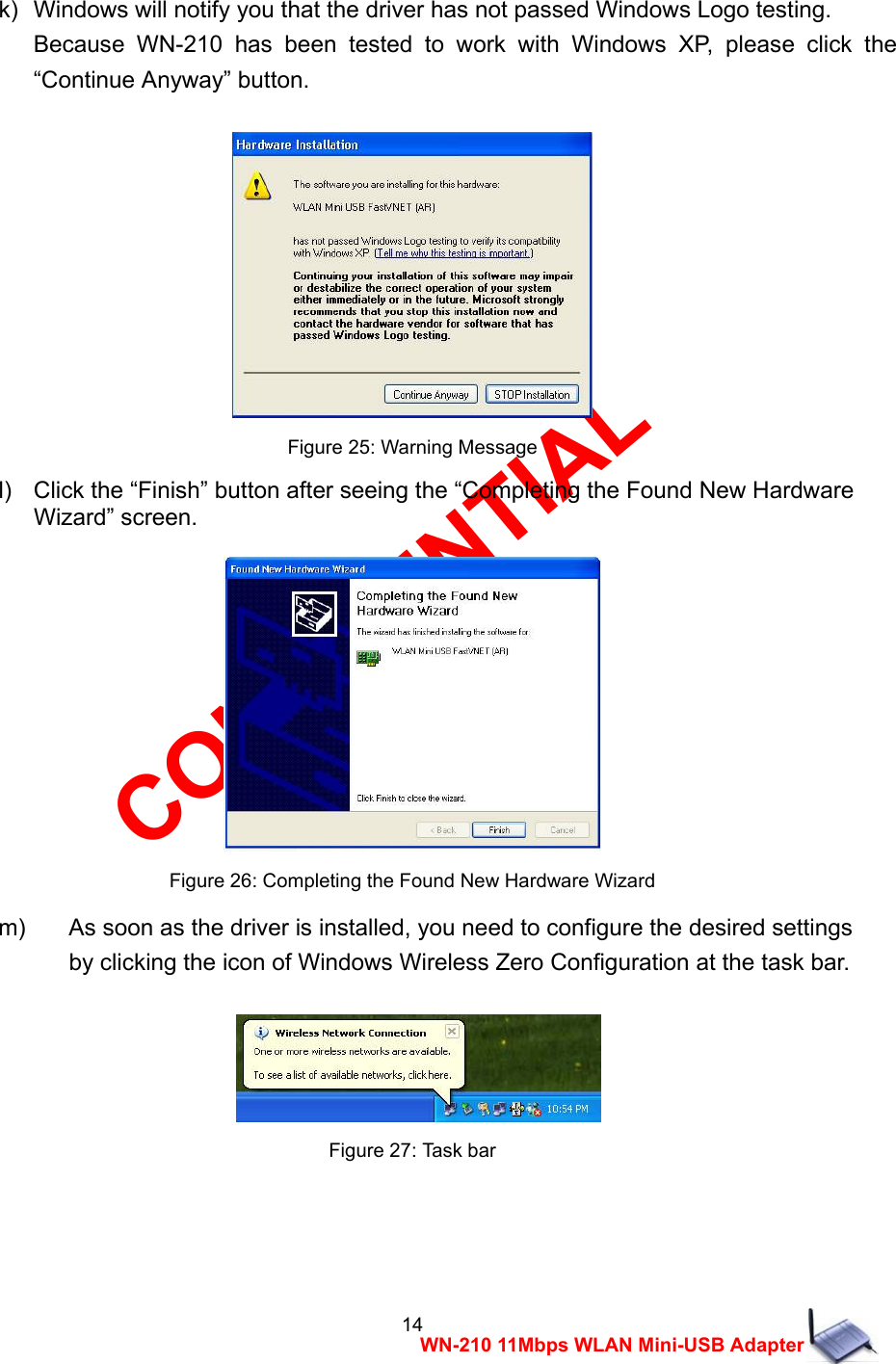
CONFIDENTIAL 12 WN-210 11Mbps WLAN Mini-USB Adapter c)   Place the supplied CD-ROM to the CD-ROM drive. Please run d:\setup.exe   manually, where d: is the letter of the CD-ROM drive. d)   A screen displays the important notice. Please read it and click the “Ok” button.   Figure 19: Information  e)    Click the “Next” button after seeing the welcome message.   Figure 20: Welcome message f)    Choose the Destination Folder where the configuration utility will be stored by     clicking the “Browse” button, or leave it as default, and then click the “Next”   button.  Figure 21: Choose Destination Location
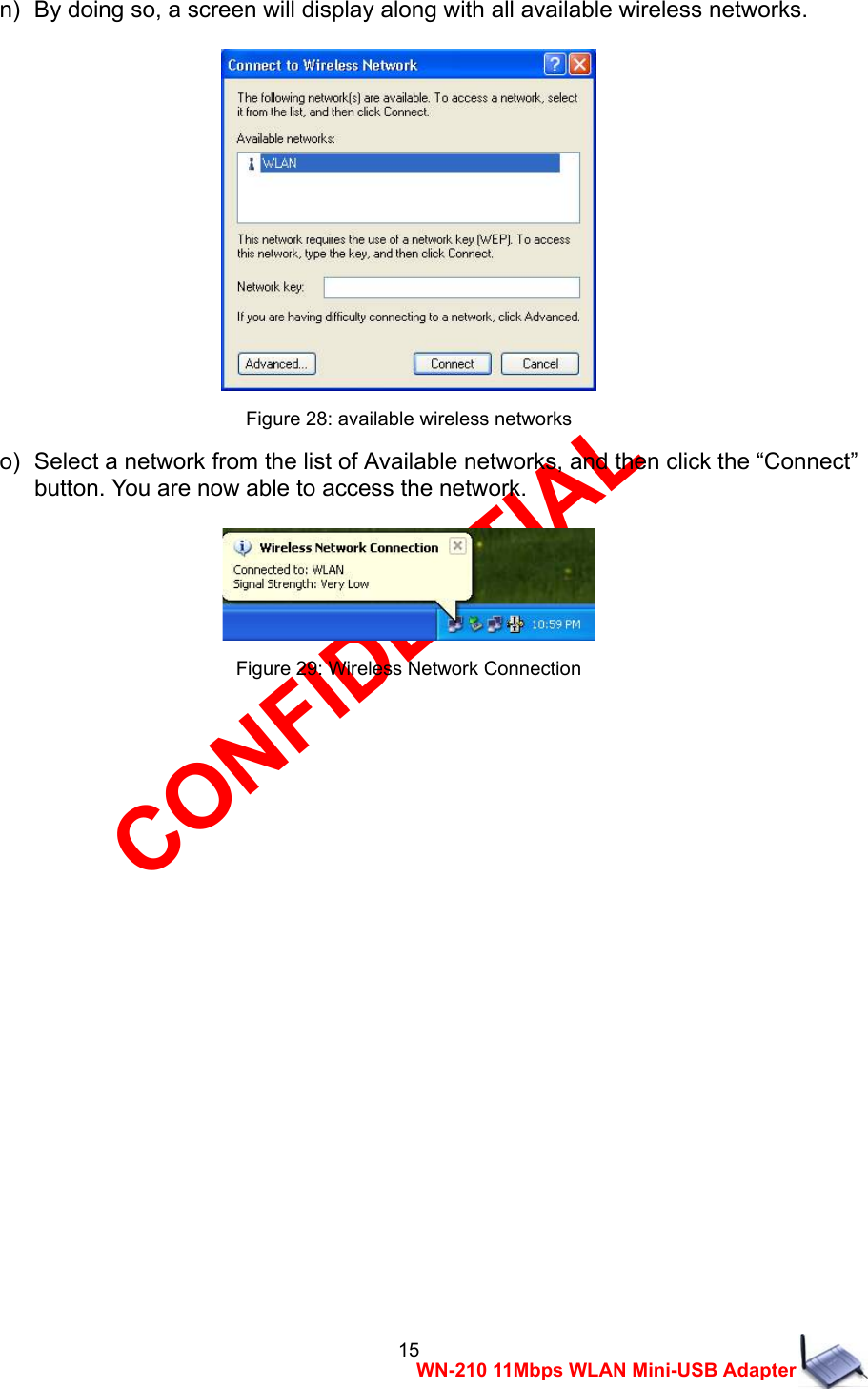
CONFIDENTIAL 13 WN-210 11Mbps WLAN Mini-USB Adapter g)   Fill in the Program Folder Name or leave it as default, and then click the “Next”   button.  Figure 22: Select Program Folder h)   On the InstallShield Wizard Complete screen, click the “Finish” button.   Figure 23: Complete screen i)    Insert the Mini-USB connector of the USB cable into WN-210 (Mini-USB port), and   the other USB connector into your PC’s USB port. j)    Windows XP will automatically detect the presence of WN-210 and display the     “Found New Hardware Wizard” screen. Make sure that you choose install the software automatically.(Recommended)Click “Next” to continue.   Figure 24: Found New Hardware Wizard
CONFIDENTIAL 14 WN-210 11Mbps WLAN Mini-USB Adapter  k)   Windows will notify you that the driver has not passed Windows Logo testing.     Because WN-210 has been tested to work with Windows XP, please click the “Continue Anyway” button.   Figure 25: Warning Message l)    Click the “Finish” button after seeing the “Completing the Found New Hardware   Wizard” screen.   Figure 26: Completing the Found New Hardware Wizard m)  As soon as the driver is installed, you need to configure the desired settings   by clicking the icon of Windows Wireless Zero Configuration at the task bar.    Figure 27: Task bar
CONFIDENTIAL 15 WN-210 11Mbps WLAN Mini-USB Adapter n)   By doing so, a screen will display along with all available wireless networks.     Figure 28: available wireless networks o)   Select a network from the list of Available networks, and then click the “Connect”   button. You are now able to access the network.   Figure 29: Wireless Network Connection
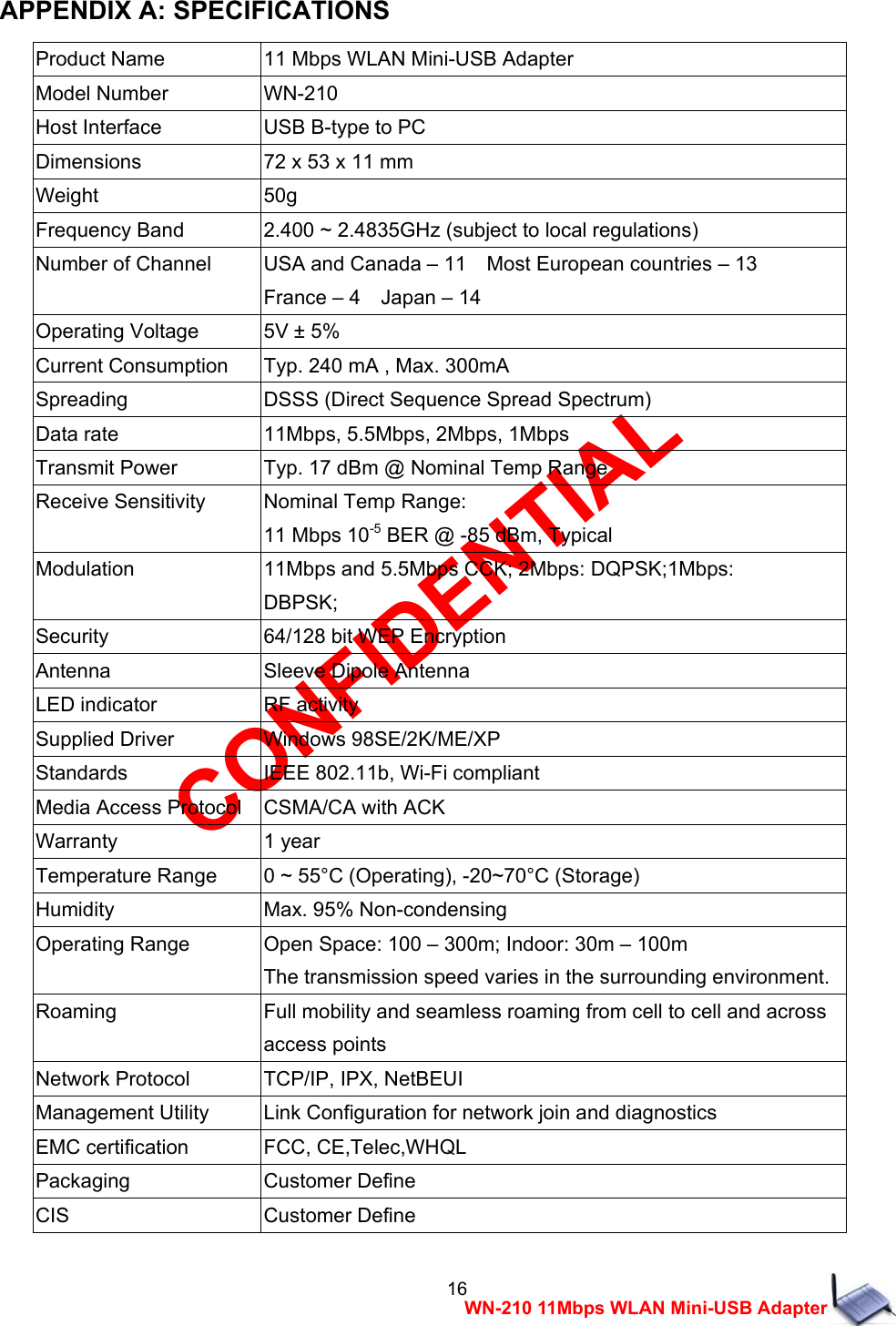
CONFIDENTIAL 16 WN-210 11Mbps WLAN Mini-USB Adapter APPENDIX A: SPECIFICATIONS Product Name   11 Mbps WLAN Mini-USB Adapter Model Number WN-210 Host Interface   USB B-type to PC Dimensions 72 x 53 x 11 mm Weight   50g Frequency Band   2.400 ~ 2.4835GHz (subject to local regulations) Number of Channel USA and Canada – 11    Most European countries – 13 France – 4    Japan – 14 Operating Voltage 5V ± 5% Current Consumption Typ. 240 mA , Max. 300mA Spreading   DSSS (Direct Sequence Spread Spectrum) Data rate 11Mbps, 5.5Mbps, 2Mbps, 1Mbps Transmit Power Typ. 17 dBm @ Nominal Temp Range Receive Sensitivity   Nominal Temp Range: 11 Mbps 10-5 BER @ -85 dBm, Typical Modulation   11Mbps and 5.5Mbps CCK; 2Mbps: DQPSK;1Mbps: DBPSK; Security   64/128 bit WEP Encryption Antenna Sleeve Dipole Antenna LED indicator RF activity Supplied Driver Windows 98SE/2K/ME/XP Standards IEEE 802.11b, Wi-Fi compliant Media Access Protocol CSMA/CA with ACK Warranty 1 year Temperature Range 0 ~ 55°C (Operating), -20~70°C (Storage) Humidity Max. 95% Non-condensing Operating Range Open Space: 100 – 300m; Indoor: 30m – 100m The transmission speed varies in the surrounding environment. Roaming Full mobility and seamless roaming from cell to cell and across access points Network Protocol TCP/IP, IPX, NetBEUI Management Utility Link Configuration for network join and diagnostics EMC certification FCC, CE,Telec,WHQL Packaging Customer Define CIS Customer Define

Navigation menu