AirVast Technology WN500 802.11b WLAN CF card User Manual WN 500 Quick Start Guide for FCC

AirVast Technology Inc. 802.11b WLAN CF card WN 500 Quick Start Guide for FCC

User Manual

  - 1 -       802.11b WLAN CF Card     WN-500   Quick Start Guide
  - 2 - 802.11b WLAN CF Card   For OEM Installation Guide STATEMENT FOR MODUAL APPROVAL  This product is sold to OEM integrators only. The manual for the OEM integrators must include some instructions to be followed by the end users in the user manual. For example:  - The OEM integrators must be instructed to ensure that the end user has no manual instructions to remove or install the device. - The OEM integrators must be instructed about the end product labeling ("Contains TX FCC ID: QDWWN500").  This device is intended only for OEM integrators under the following conditions: 1) The antenna must be installed such that 20 cm is maintained between the antenna and users, and 2) The transmitter module may not be co-located with any other transmitter or antenna.  As long as the 2 conditions above are met, further transmitter test will not be required. However, the OEM integrator is still responsible for testing their end product for any additional compliance requirements required with this module installed (for example, digital device emissions, PC peripheral requirements, etc.).  IMPORTANT NOTE: In the event that these conditions cannot be met (for example certain laptop configurations or co-location with another transmitter), then the FCC authorization is no longer considered valid and the FCC ID cannot be used on the final product. In these circumstances, the OEM integrator will be responsible for re-evaluating the end product (including the transmitter) and obtaining a separate FCC authorization.  End Product Labeling This transmitter module is authorized only for use in device where the antenna may be installed such that 20 cm may be maintained between the antenna and users (for example, access points, routers, wireless ADSL modems, and similar equipment). The final end product must be labeled in a visible area with the following: "Contains TX FCC ID: QDWWN500".  Manual Information for End Users The end user must not have manual instructions to remove or install the device. The user manual for end users must include the following information in a prominent location. This device cannot be used with handheld PDAs (personal digital assistants) or portable1 radio equipment.
  - 3 -  “IMPORTANT NOTE: To comply with FCC RF exposure compliance requirements, the antenna used for this transmitter must be installed to provide a separation distance of at least 20 cm from all persons and must not be co-located or operating in conjunction with any other antenna or transmitter."  1.Portable radios equipment are herein defined as radios that have their radiating elements normally operating 20 cm or less  from the body of the user or of nearby persons.
  - 4 - No part of this documentation may be reproduced in any form or by any means or used to make any derivative work (such as translation, transformation, or adaptation) without written permission from the copyright owner. All the other trademarks and registered trademarks are the property of their respective owners. Statement of Conditions We may make improvements or changes in the product described in this documentation at any time. The information regarding to the product in this manual are subject to change without notice. We assumes no responsibility for errors contained herein or for direct, indirect, special, incidental, or consequential damages with the furnishing, performance, or use of this manual or equipment supplied with it, even if the suppliers have been advised of the possibility of such damages. Electronic Emission Notices This device complies with Part 15 of the FCC Rules. Operation is subject to the following two conditions: (1)This device may not cause harmful interference. (2)This device must accept any interference received, including interference that may cause undesired operation. FCC INFORMATION The Federal Communication Commission Radio Frequency Interference Statement includes the following paragraph: The equipment has been tested and found to comply with the limits for a Class B Digital Device, pursuant to part 15 of the FCC Rules. These limits are designed to provide  reasonable protection against harmful interference in a residential installation. This equipment generates, uses and can radiate radio frequency energy and, if not installed and used in accordance with the instruction, may cause harmful interference to radio communication. However, there is no grantee that interference will not occur in a particular installation. If this equipment dose cause harmful interference to radio or television reception, which can be determined by turning the equipment off and on, the user is encouraged to try to correct the interference by one or more of the following measures: --Reorient or relocate the receiving antenna. --Increase the separation between the equipment and receiver. --Connect the equipment into an outlet on a circuit different from that to which the receiver is connected.
  - 5 - --Consult the dealer or an experienced radio/TV technician for help. The equipment is for home or office use. R&TTE Compliance Statement This equipment complies with all the requirements of the Directive 1999/5/EC of the European parliament and the council of 9 March 1999 on radio equipment and telecommunication terminal Equipment and the mutual recognition of their conformity(R&TTE). The R&TTE Directive repeals and replaces in the directive 98/13/EEC. As of April 8, 2000. IMPORTANT NOTE FCC RF Radiation Exposure Statement: This equipment complies with FCC RF radiation exposure limits set forth for an uncontrolled environment. This equipment should be installed and operated with a minimum distance of 20cm between the antenna and your body and must not be co-located or operating in conjunction with any other antenna or transmitter. Caution: Changes or modifications not expressly approved by the party responsible for compliance could void the user's authority to operate the equipment.
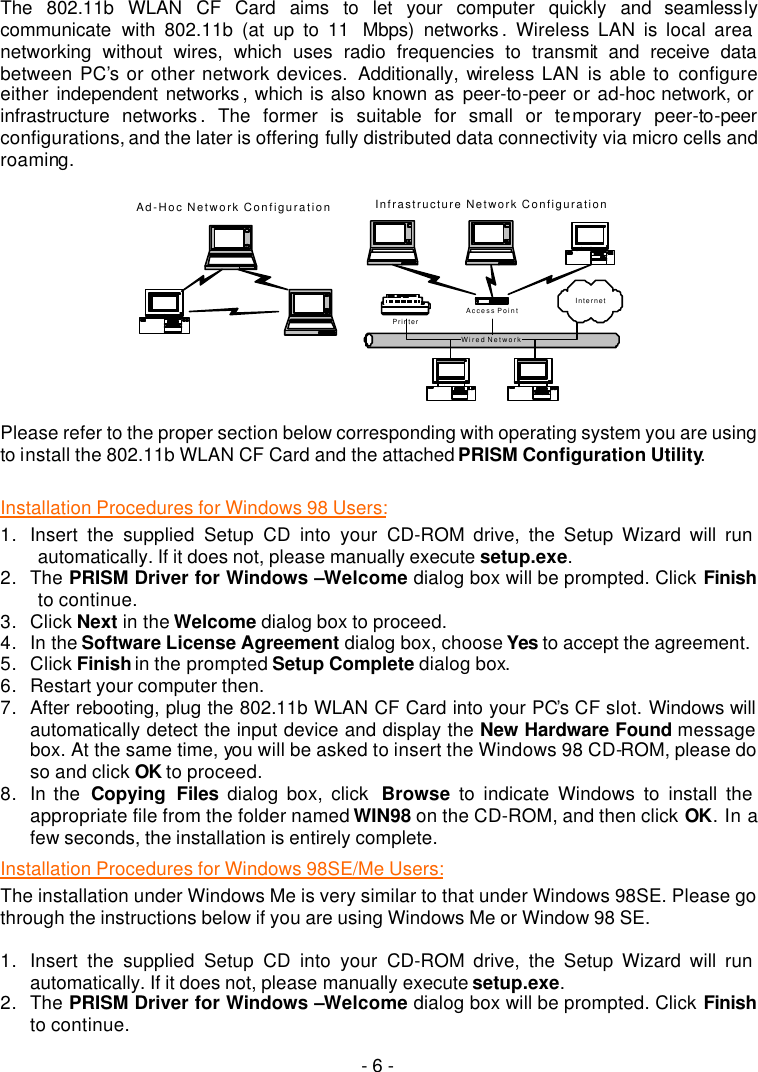
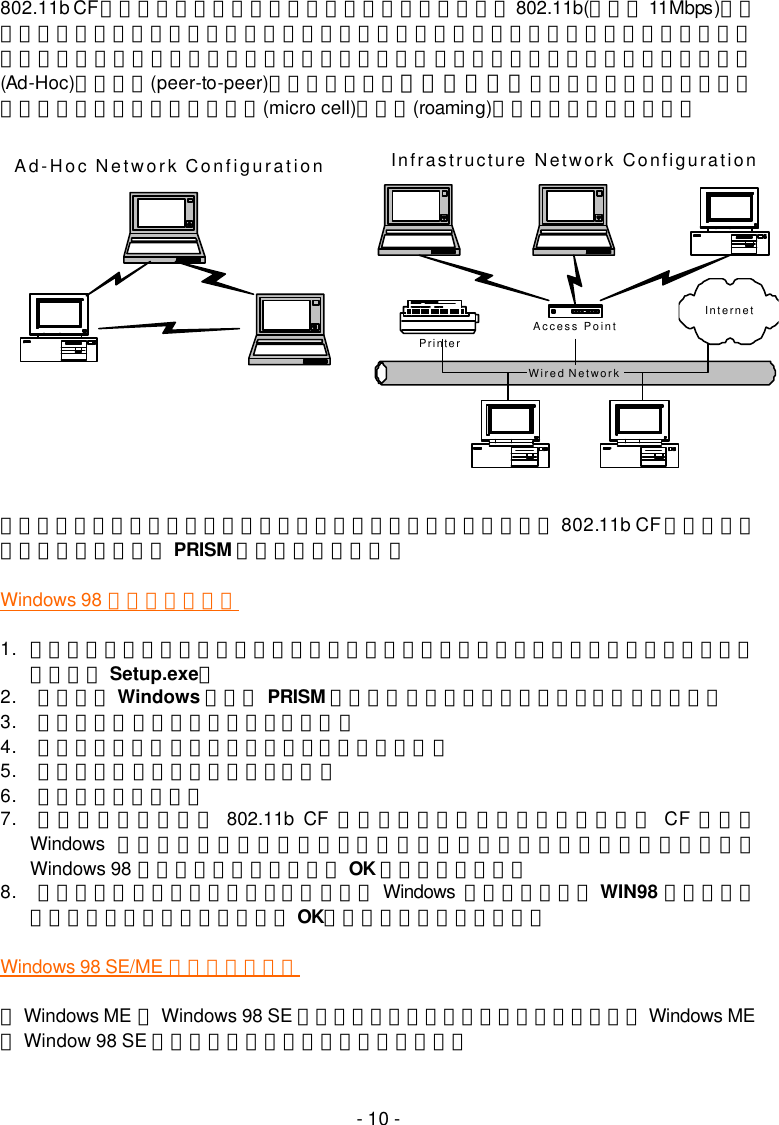
  - 6 -   The 802.11b WLAN CF Card aims to let your computer quickly and seamlessly communicate with 802.11b (at up to 11  Mbps) networks .  Wireless LAN is local area networking without wires, which uses radio frequencies to transmit and receive data between PC’s or other network devices.  Additionally, wireless LAN is able to configure either  independent networks , which is also known as peer-to-peer or ad-hoc network, or infrastructure networks . The former is suitable for small or temporary peer-to-peer configurations, and the later is offering fully distributed data connectivity via micro cells and roaming.    Wired NetworkAd-Hoc Network ConfigurationAccess PointInfrastructure Network ConfigurationPrinterInternet  Please refer to the proper section below corresponding with operating system you are using to install the 802.11b WLAN CF Card and the attached PRISM Configuration Utility.  Installation Procedures for Windows 98 Users: 1. Insert the supplied Setup CD into your CD-ROM drive, the Setup Wizard will run automatically. If it does not, please manually execute setup.exe. 2. The PRISM Driver for Windows –Welcome dialog box will be prompted. Click Finish to continue. 3. Click Next in the Welcome dialog box to proceed. 4. In the Software License Agreement dialog box, choose Yes to accept the agreement.   5. Click Finish in the prompted Setup Complete dialog box. 6. Restart your computer then. 7. After rebooting, plug the 802.11b WLAN CF Card into your PC’s CF slot. Windows will automatically detect the input device and display the New Hardware Found message box. At the same time, you will be asked to insert the Windows 98 CD-ROM, please do so and click OK to proceed. 8. In the  Copying Files dialog box, click  Browse to indicate Windows to install the appropriate file from the folder named WIN98 on the CD-ROM, and then click OK. In a few seconds, the installation is entirely complete. Installation Procedures for Windows 98SE/Me Users: The installation under Windows Me is very similar to that under Windows 98SE. Please go through the instructions below if you are using Windows Me or Window 98 SE.  1. Insert the supplied Setup CD into your CD-ROM drive, the Setup Wizard will run automatically. If it does not, please manually execute setup.exe. 2. The PRISM Driver for Windows –Welcome dialog box will be prompted. Click Finish to continue.
  - 7 - 3. In the Welcome dialog box, click Next to proceed. 4. In the Software License Agreement dialog box, choose Yes to accept the agreement.   5. When the Setup Complete dialog box is prompted, click Finish. 6. Restart your computer then. 7. After rebooting, plug the 802.11b WLAN CF Card into your PC’s CF slot. Windows will automatically detect the input device and display the New Hardware Found message box as below. Meanwhile, you will find the PRISM Configuration Utility icon appeared in the system tray.  Installation Procedures for Windows 2000 Users  1. Insert the supplied Setup CD into your CD-ROM drive, the Setup Wizard will run automatically. If it does not, please manually execute setup.exe. 2. The PRISM Driver for Windows –Welcome dialog box will pop up. Click  Finish to continue. 3. In the opened Welcome dialog box, click  Next. Choose  Cancel will stop off the installation. 4. Choose Yes in the Software License Agreement dialog box to accept the agreement.  5. Click Finish when the Setup Complete dialog box appears to complete installing the attached utility.  6. Plug the 802.11b WLAN CF Card into your PC’s PCMCIA slot, and Windows 2000 will automatically detect your 802.11b WLAN CF Card and start up the installation with the appearance of the Found New Hardware message box. 7. Later, Windows will notify you that the driver has not passed Windows Logo testing. Because the input device has been tested to work with Windows 2000, click the Yes button in the Digital Signature Not Found dialog box. 8. The installation is entirely finished afterwards. Installation Procedures for Windows XP Users  1. Insert the supplied Setup CD into your CD-ROM drive, the Setup Wizard will run automatically. If it does not, please manually execute setup.exe. 2. The PRISM Driver for Windows –Welcome dialog box will be shown. Click Finish to continue. 3. Click Next in the Welcome dialog box. Choose Cancel will stop off the installation. 4. Choose Yes in the Software License Agreement dialog box to agree to it.   5. In the Setup Complete dialog box, click Finish. 6. Insert the 802.11b WLAN CF Card into your PC’s CF slot. The Found New Hardware Wizard dialog box will appear and detect your 802.11b WLAN CF Card. 7. Choose Install the software automatically [Recommended], and then click Next. 8. It might take a couple of minutes for Windows XP to start copying the drivers found. 9. Later, you will be notified that the driver has not passed Windows Logo testing. Because the Card has been tested to work with Windows XP, please choose Continue Anyway. 10. Click the  Finish button after seeing the  Completing the Found New Hardware Wizard screen. 11. You will find the PRISM Configuration Utility icon appeared in the system tray. Double-click the icon to launch the application and open the PRISM Wireless Settings dialog box, in which two tabs are contained. However, normally, the dialog box should be consisted of four tabs. This is because Windows  XP has its built-in configuration tools – Windows XP Zero Configuration to assist you in networking activities. It is recommended to utilize the attached  PRISM Configuration Utility to enjoy more benefits it brings. Thus, to employ your PRISM Configuration Utility under Windows
  - 8 - XP, please proceed to the next step to change the default settings of Windows Zero Configuration to PRISM Configuration Utility. 12. Right-click the  Network Connections icon at the task bar to open the  Wireless Network Connection Status dialog box, and then select Properties. 13. Choose the Wireless Networks tab in the Wireless Network Connection Properties dialog box,  and remove the tick in the Use Windows to configure my wireless network settings checkbox. 14. Click OK. Now, you have successfully removed the Windows Zero Configuration.  Windows is registered trademark of Microsoft Corporation. All other trademarks and brand names are the property of their respective proprietors.
  - 9 -     DGT Statement: 依據交通部電信總局低功率電波輻射性電機管理辦法; 第十四條 經型式認證合格之低功率射頻電機,非經許可,公司、商號或使用者均不得擅自變更頻率、加大功率或變更原設計之特性及功能。 第十七條 低功率射頻電機之使用不得影響飛航安全及干擾合法通信;經發現有干擾現象時,應立即停用,並改善至無干擾時方得繼續使用。  前項合法通信,指依電信法規定作業之無線電通信。 低功率射頻電機須忍受合法通信或工業、科學及醫療用電波輻射性電機設備之干擾。
  - 10 - 802.11b CF介面無線網路卡可讓您的電腦快速而平穩的與符合802.11b(速度達11Mbps)規範之網路溝通。無線區域網路是一個以無線電頻率取代實體線路,在個人電腦與其他聯結上的元件間,傳輸資料的區域網路。此外,無線區域網路之組態包括獨立網絡,亦稱為對等共享(Ad-Hoc)的點對點(peer-to-peer)傳輸模式;以及基礎建設模式。前者適合小型或暫時性的點對點傳輸,後者則透過微細胞(micro cell)及漫遊(roaming)提供大範圍的資料流通。  Wired NetworkAd-Hoc Network ConfigurationAccess PointInfrastructure Network ConfigurationPrinterInternet  請依據您使用的作業系統版本,在下文中選擇對應的段落,安裝您的 802.11b CF 介面無線網路卡,及產品內附的 PRISM 組態設定工具程式。 Windows 98 使用者安裝步驟 1. 將產品內附之安裝光碟置入您的光碟機,安裝精靈會自行啟動。若未自行開始安裝,則請手動執行 Setup.exe。 2. 歡迎使用 Windows 適用的 PRISM 驅動程式對話方塊會出現。點選完成以便繼續。 3. 在歡迎使用對話方塊中,點選下一步。 4. 在軟體授權合約對話方塊中,選擇是,接受合約。 5. 在安裝完成對話方塊中,點選完成。 6. 重新啟動您的電腦。 7. 電腦重新啟動後,將 802.11b CF 介面無線網路卡插入您個人電腦上的 CF 插槽。 Windows 會自動偵測新裝置,並出現發現新硬體之訊息方塊。這時您會被要求置入Windows 98 系統光碟,請插入並點選 OK 以繼續下一步驟。 8. 在複製檔案對話方塊中,點選瀏覽並指示 Windows 從光碟中名稱為 WIN98 的檔案夾內選擇適當的檔案安裝,然後點選 OK。數秒後,安裝全部完成。 Windows 98 SE/ME 使用者安裝步驟 在Windows ME 與Windows 98 SE 版作業系統下的安裝步驟相當類似。若您是 Windows ME或Window 98 SE 的使用者,請依照下列步驟進行安裝。
  - 11 - 1. 將產品內附之安裝光碟置入您的光碟機,安裝精靈會自行啟動。若未自行開始安裝,則請手動執行 Setup.exe。 2. 歡迎使用 Windows 適用的 PRISM 驅動程式對話方塊會出現。點選完成以便繼續。 3. 在歡迎使用對話方塊中,點選下一步。 4. 在軟體授權合約對話方塊中,選擇是,接受合約。 5. 在安裝完成對話方塊中,點選完成。 6. 重新啟動您的電腦。 7. 電腦重新啟動後,將 802.11b CF 介面無線網路卡插入您個人電腦上的 CF 插槽。 Windows 會自動偵測新裝置,並出現發現新硬體之訊息方塊。這時,您將會發現 PRISM設定工具程式圖示已出現在系統列上。  Windows 2000 使用者安裝步驟 1. 將產品內附之安裝光碟置入您的光碟機,安裝精靈會自行啟動。若未自行開始安裝,則請手動執行 Setup.exe。 2. 歡迎使用 Windows 適用的 PRISM 驅動程式對話方塊將會出現。點選完成以繼續。 3. 在歡迎使用對話方塊中,點選下一步。選擇取消將中斷安裝程序。 4. 在軟體授權合約對話方塊中,選擇是,接受合約。 5. 當安裝完成的對話方塊顯示附加工具程式已安裝完成時,點選完成。 6. 將802.11b CF 介面無線網路卡插入您個人電腦上的 CF 插槽。 Windows 會自動偵測新裝置,出現發現新硬體之訊息方塊。並啟動安裝程序。 7. 接著 Windows 會通知您驅動程式未通過 Windows 標誌測試。因本產品已通過搭配 Windows 2000 使用之相關測試,請在未發現數位簽章對話方塊中,點選是。 8. 之後,安裝程序全部完成。 Windows XP  使用者安裝步驟 1. 將產品內附之安裝光碟置入您的光碟機,安裝精靈會自行啟動。若未自行開始安裝,則請手動執行 Setup.exe。 2. 歡迎使用 Windows 適用的 PRISM 驅動程式對話方塊將會出現。點選完成以繼續。 3. 在歡迎使用對話方塊中,點選下一步。選擇取消將中斷安裝程序。 4. 在軟體授權合約對話方塊中,選擇是,接受合約。 5. 在安裝完成對話方塊中,點選完成。 6. 將802.11b CF 介面無線網路卡插入您個人電腦上的 CF 插槽。 Windows 會自動偵測新裝置,出現發現新硬體之訊息方塊。 7. 選擇自動安裝軟體[建議採用],然後點選下一步。 8. Windows XP 開始複製光碟中的驅動程式,這約需數分鐘。 9. 隨後,您會被告知驅動程式未通過 Windows 標誌測試。因本產品已通過搭配 Windows 2000 使用之相關測試,在未發現數位簽章對話方塊中,請選擇繼續安裝。 10. 完成發現新硬體精靈螢幕出現後,點選完成按鈕。 11. PRISM 設定工具程式圖示將出現在系統列中。在圖示上點兩下啟動程式,開啟 PRISM無線設定對話方塊,上面有兩個選單標籤。不過,通常此對話方塊應包含四個標籤。這是因為 Windows  XP 內建之網路組態工具– Windows XP 無線零設定協助您網路設定相關動作。建議使用產品內附之 PRISM 設定工具程式享用其提供的優越功能。因此,欲在
  - 12 - Windows XP 系統上使用 PRISM 設定工具程式,請進行下一步驟,將預設之 Windows無線零設定,改為 PRISM 設定工具程式。 12. 在工具列的網路連線圖示上按滑鼠右鍵,開啟無線網路連線狀態對話方塊,選擇屬性。 13. 在無線網路連線屬性對話方塊中,選擇無線網路標籤,並取消使用 Windows 設定我的無線網路設定核取方塊內的勾選記號。 14. 點選 OK。現在您已經成功地停用 Windows 無線網路零管理。  Windows 為微軟公司所屬註冊商標。其他所有商標及品牌名稱皆為各所屬公司之財產。

Navigation menu