Airo Wireless A25TVVJ A25 Rugged Digital Assistant User Manual SP320 Book
Airo Wireless LLC A25 Rugged Digital Assistant SP320 Book
Users Manual Version 3
Quick Start
Guide
A25 Rugged Digital Assistant
1
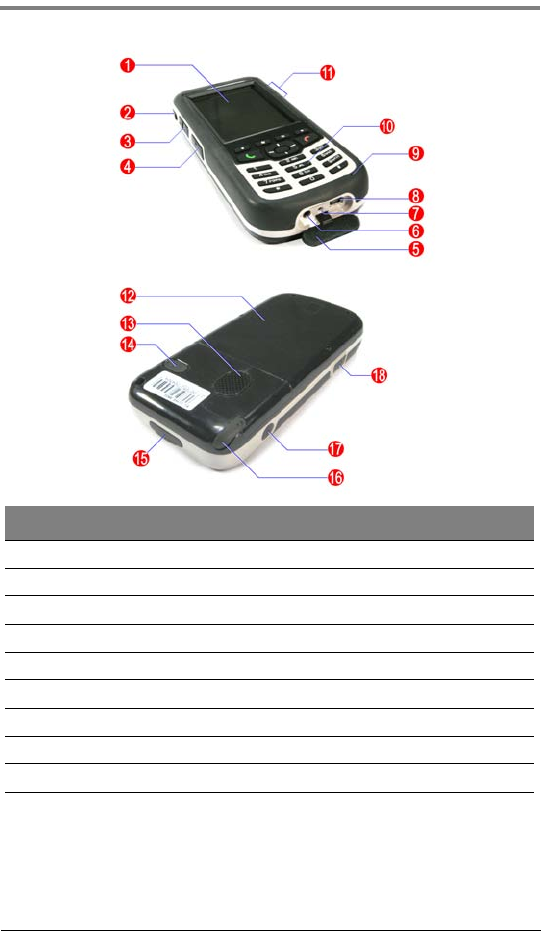
System Tour
No. Component No. Component
1 LCD touch screen 10 Keypad
2 External GPS antenna connector 11 LED indicators
3 Volume up/down button 12 Battery cover
4 Push to Talk button 13 Speaker
5 Connector cover
6 Earphone jack 15 miniSD card slot
7 Reset button 16 Stylus
8 Connector 17 Power button
9 Microphone 18 Emergency button
2
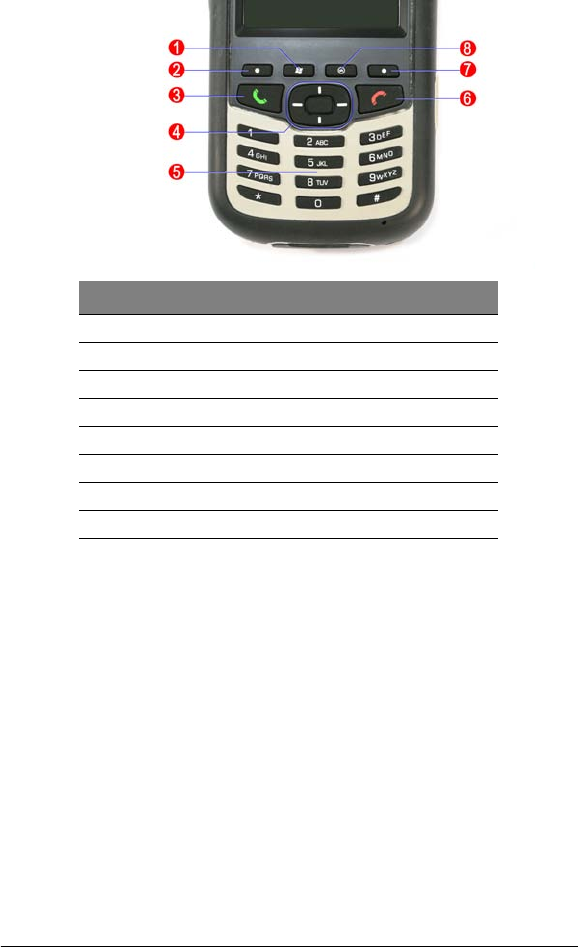
Keypad
No. Component
1 Start button
2 Left soft button
3 Send button
4 5-way navigation button
5 Numeric keypad
6 End button
7 Right soft button
8 OK button
3
Getting started
Caution: Ensure that you understand the safety and battery rating labels before you use or charge the device.
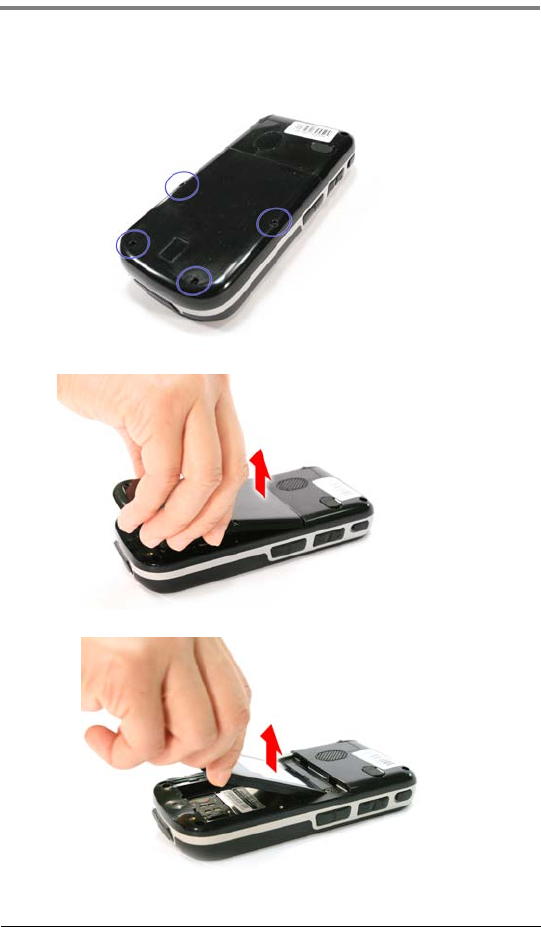
Locate the labels, by removing the battery cover. Follow steps one to three of the "Install the SIM Card" on page 5 to
locate the security and battery rating labels.
WARNING! DANGER OF EXPLOSION IF BATTERY IS INCORRECTLY REPLACED. REPLACE ONLY WITH THE
SAME OR EQUIVALENT TYPE RECOMMENDED BY THE MANUFACTURER. DISPOSE OF USED BATTERIES
ACCORDING TO THE MANUFACTURER’S INSTRUCTIONS.
Charge the Device
For initial use, you need to charge your device for four hours. After that, you can charge it everyday to
recharge the battery to full capacity.
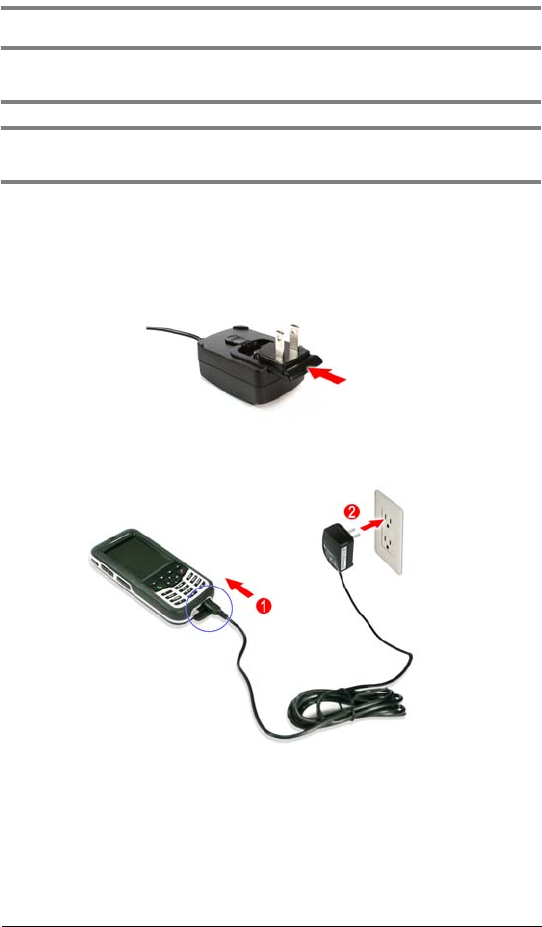
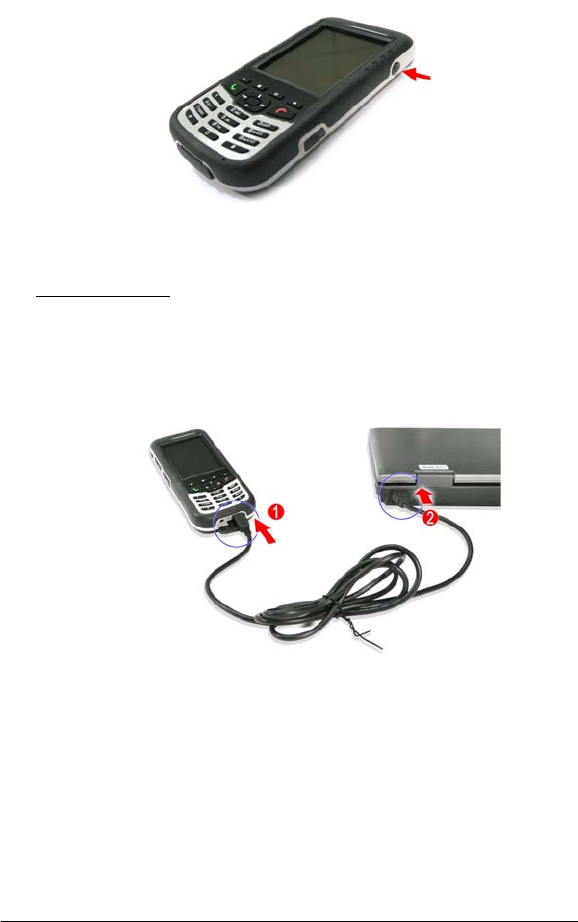
1. Install the replaceable clip plug to the adapter by sliding the clip plug into the clip plug
holder. The clip plug locks to the clip plug holder with an audible click.
2. Open the connector cover.
3. Connect the adapter cable into the connector on the bottom of the device (1).
4. Connect the AC adapter cable into an electrical outlet (2).
The fourth LED indicator on the right of the touch screen lights amber to signify that AC
connection is made. During charging, the LED flashes amber indicating the device is charging.
When the battery is fully charged, the LED indicator lights solid amber.
4
Start the Device
After you have initially charged your device for approximately four hours, the device is ready for use.
1. Press the Power button located on the right side of the touch screen.
2. Follow the on-screen Welcome Screen Wizard instructions.
Install ActiveSync
1. Download the ActiveSync setup software from the Microsoft ActiveSync Download page at
http://www.microsoft.com.
2. Browse to the location of the downloaded file and double-click the file.
3. Follow all on-screen instructions to complete installation.
Connect the Device to Your Computer
1. Connect the USB sync cable into the connector on the bottom of your device.
2. Plug the USB sync cable into a USB port on your computer.
Create an ActiveSync Partnership
After connecting your device, ActiveSync should start automatically and recognize your device. Follow the on-
screen instructions to establish a connection between the device and the computer.
6
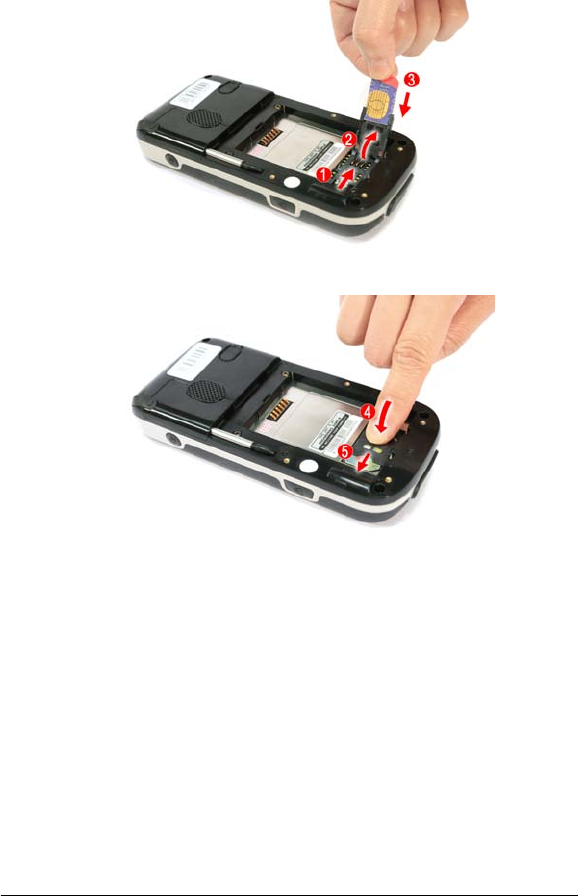
5. Slide the SIM card holder to the right (1).
6. Lift the holder halfway from the recess area (2).
7. Insert the SIM card into the SIM holder (3) while noting the proper position of the SIM card
connector, gold area should be facing downward with the beveled corner fitting the lower left
corner of the recess area.
8. Press the SIM card holder down (4).
9. Slide the card holder to the left to lock it into place (5).
10. Reinstall the battery pack.
11. Reinstall the battery cover using the screws previously removed.
Enter Your PIN
Your SIM card may be preset with a PIN (Personal Identity Number), provided by your service provider, which
you need to enter to establish mobile service connection.
1. Press the Power button to turn on the device.
2. Tap Start > Phone.
3. Enter the preset PIN from your service provider.
4. Tap Enter.
8
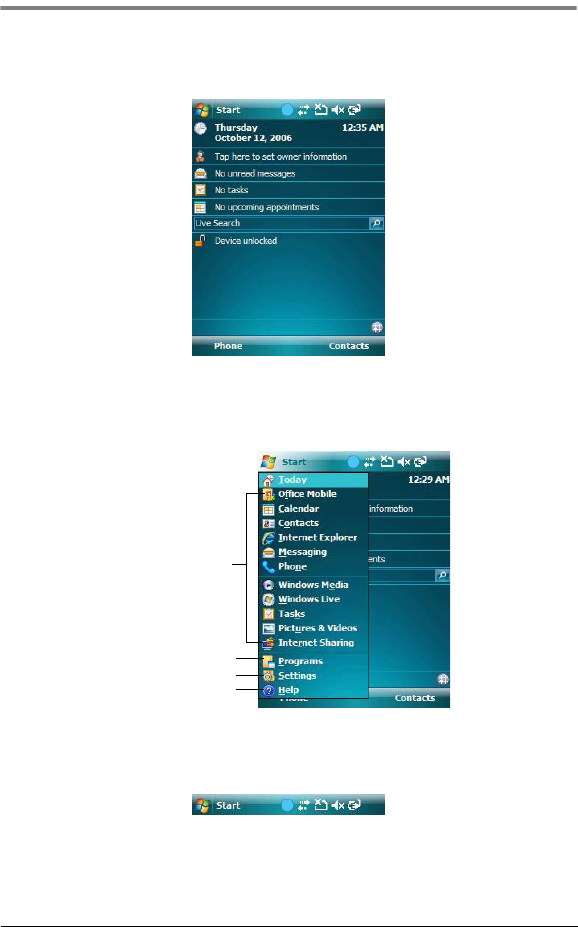
Windows Mobile 6.0
Today Screen
When you turn on your device for the first time each day (or after a preset period of inactivity), you'll see the
Today screen. This screen provides an at-a-glance view of the day’s important reminders and status.
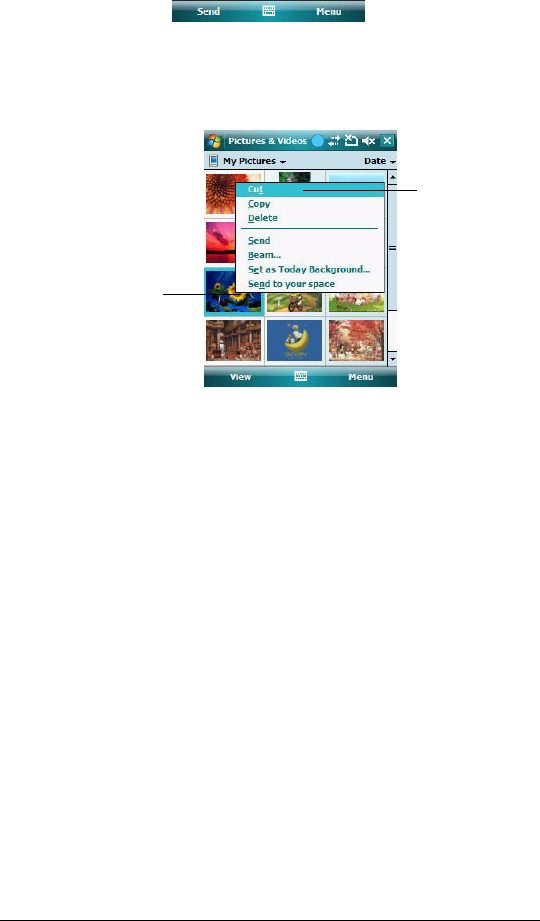
Start Menu
The Start menu displays a list of active programs, as well as options to view the Programs, Settings, and Help
screens.
Navigation Bar
The navigation bar is located on the top of the screen. It shows the status icons for the battery, volume, and
data connectivity. Notifications icons for system alarms and reminders are also displayed here.
Tap a program icon to open it.
Tap to see more programs.
Tap to customize your device.
Tap to launch the online Help.
9
Command Bar
Use the command bar at the bottom of the screen to perform tasks in programs. The command bar
includes menu names, buttons, and the Input Selector button.
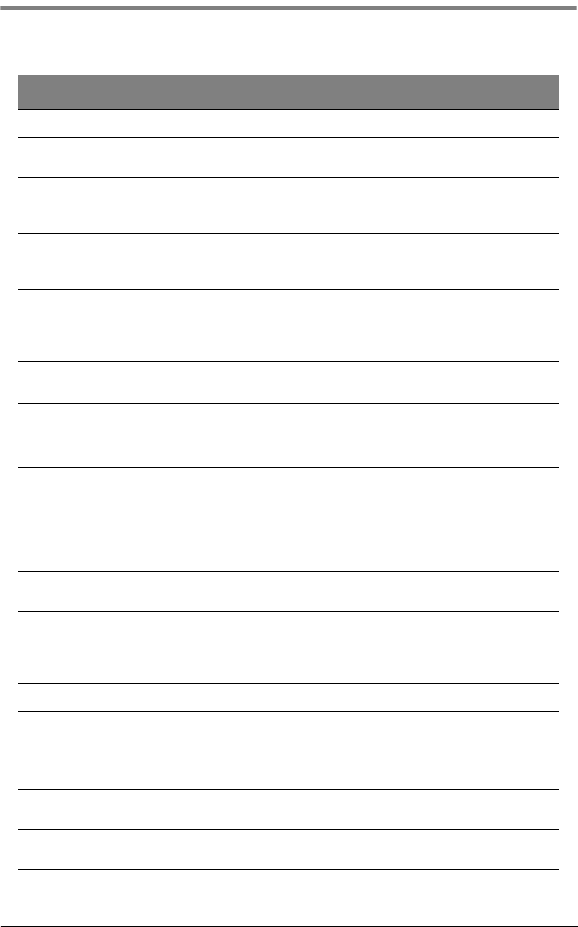
Pop-up Menus
With pop-up menus, you can quickly choose an action for an item. For example, you can use the pop-
up menu in the contact list to quickly delete a contact, make a copy of a contact, or send an e-mail
message to a contact. The actions in the pop-up menus vary from program to program.
Lift the stylus and tap
the option you want.
Tap and hold the selected item
to display a pop-up menu.
10
System Specifications
Component Specification
CPU Intel PXA270 416 MHz
Memory • SDRAM: 64 MB
• Flash ROM: 128 MB
Display • 2.8” Thin Film Transistor Liquid Crystal Display (TFT LCD)
• 240 x 320 Quarter Video Graphics Array (QVGA)
• 65536 color support
Audio • AC97 interface with WolfSon WM9713
• 0.4 W 15 mm Mono speaker
• Embedded mono microphone
Mobile connectivity • Quad-band GSM broadband function (850/900/1800/1900 MHz)
• GPRS class 12
• EDGE multi-slot class 10
• Bluetooth ver. 1.1~1.2
GPS Global Locate GPS/A-GPS receiver (-150 dBm)
Note: Require third party program
Hardware connectivity • Mini-USB connector/charger
• miniSD card slot
• 2.5 mm earphone jack
• External GPS antenna
connector
Special keys or buttons • Volume button
• PTT button
• Reset button
• Emergency button
• Power button
• Start button
• Left and right soft buttons
• Send button
• End button
• 5-way navigation button
• Numeric keypad
•OK button
LED indicators • Notification LED
•GSM LED
•GPS LED
• Charging LED
Dimensions • Length: 143.5 mm
• Width: 68.3 mm
• Height: 24.2 mm
• Weight: 235 g
Operating temperature 0° ~ 40°C
Battery Rechargeable Lithium polymer battery
• Vendor and model name: Tyco A25
• Operating temperature: 0~45 °C
• Rating: 3.7V, 1590 mAh
Power • 5V 2A AC adapter
• Detachable 2-wire AC power cord
Acessories • USB sync cradle
• 5V 2A AC adapter

11
Safety Information
Regulatory compliance statements
FCC (Federal Communication Commission) notice
This device has been tested and found to comply with the limits for a Class B digital device pursuant to
Part 15 of the FCC Rules. These limits are designed to provide reasonable protection against harmful
interference in a residential installation. This device generates, uses, and can radiate radio frequency
energy, and if not installed and used in accordance with the instructions, may cause harmful
interference to radio communications.
However, there is no guarantee that interference will not occur in a particular installation. If this device
does cause harmful interference to radio or television reception, which can be determined by turning
the device off and on, the user is encouraged to try to correct the interference by one or more of the
following measures:
•Reorient or relocate the receiving antenna
•Increase the separation between the device and receiver
•Connect the device into an outlet on a circuit different from that to which the receiver is
connected
•Consult the dealer or an experienced radio/television technician for help
Notice: Shielded cables
All connections to other computing devices must be made using shielded cables to maintain
compliance with FCC regulations.
Notice: Peripheral devices
Only peripherals (input/output devices, terminals, printers, etc.) certified to comply with the Class A or
Class B limits may be attached to this equipment. Operation with noncertified peripherals is likely to
result in interference to radio and TV reception.
CAUTION: Changes or modifications not expressly approved by the manufacturer could void the user’s authority,
which is granted by the Federal Communications Commission, to operate this server.
Use conditions
This part complies with Part 15 of the FCC Rules. Operation is subject to the following two conditions:
(1) this device may not cause harmful interference, and (2) this device must accept any interference
received, including interference that may cause undesired operation.
SAR statement
The FCC has granted an Equipment Authorization for this device with all reported SAR levels
evaluated as in compliance with the FCC RF exposure guidelines. SAR information on this device is on
file with the FCC and can be found under the Display Grant section of http://www.fcc.gov/oet/fccid after
searching for FCC ID: QDLA25TVVJ.
Body-worn operations are restricted to belt-clips, holsters or similar accessories that have no metallic
component in the assembly and must provide at least 1.5 cm separation between the device and the
user’s body.
Additional SAR information can be found on the Cellular Telecommunications & Internet Association
(CTIA) web site at http://www.phonefacts.net.
12
NCC statement
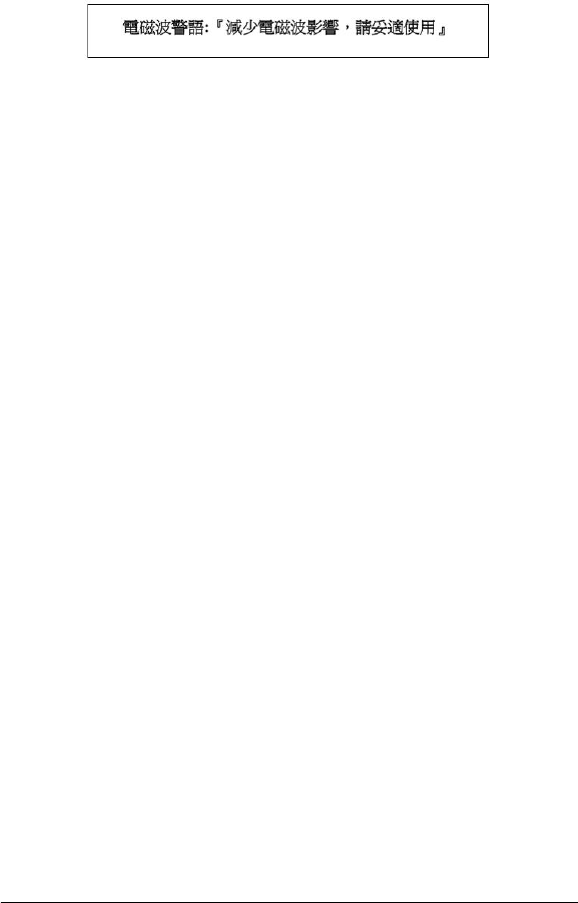
Warning! Use device properly to reduce electromagnetic interferences.
Taiwan NCC statement
Safety information
Radiofrequency (RF) Energy Emission
Your device is a low power radio transmitter and receiver. When it is ON, it receives and sends out RF signals.
In August 1996, the Federal Communications Commissions (FCC) adopted RF exposure guidelines with
safety levels for handheld wireless phones. Those guidelines are consistent with the safety standards
previously set by both U.S. and international standards bodies:
•ANSI C95.1 (1992)
•NCRP Report 86 (1986)
•ICNIRP (1996)
Those standards were based on comprehensive and periodic evaluations of the relevant scientific literature.
For example, over 120 scientists, engineers, and physicians from universities, government health agencies,
and industry reviewed the available body of research to develop the ANSI Standard (C951).
Your device has been equipped with internal shielding to minimize stray emissions of RF energy. However,
using your device can still be limited in the some instances.
When boarding aircraft
•Most airline regulations prohibit the on-board use of portable PCs (and all other portable
electronic devices that could potentially emit stray RF energy), particularly during take-offs and
landings, to prevent any possible interference with the reception of signals by airborne electronic
navigational devices.
•FCC regulations prohibit using your device while in the air. Turn your device OFF before boarding
an aircraft.
•Always request and obtain prior consent and approval of an authorized airline representative
before using your device aboard an aircraft.
•Always follow the instructions of the airline representative whenever using your device aboard an
aircraft, to prevent any possible interference with airborne electronic equipment.
When inside hospitals and other health care facilities
•Turn your device OFF in health care facilities when any regulations posted in these areas instruct
you to do so. Hospitals or health care facilities may be using equipment that could be sensitive to
external RF energy. “device OFF” means to turn the radio stand by switch “OFF”, then turn the
power off by pressing the Power button.
•Always comply with posted prohibitions of the use of RF-emitting devices in hospitals and other
medical facilities. Failure to follow such directives could result in the interference with medical
equipment and/or devices.
Posted facilities
Turn your device OFF in any facility where posted notices require so.
Blasting areas
To avoid interfering with blasting operations, turn your device OFF when in a “blasting area” or in areas posted
“Turn off two-way radio”. Obey all signs and instructions.
Within certain radius from some electronic equipment
Most modern electronic equipment is shielded from RF signals. However, certain electronic equipment may
not be shielded against the RF signals from your device including:
•Pacemakers
The Health Industry Manufacturers Association recommends that a minimum separation of six
(6") inches must be maintained between your device and a pacemaker to avoid potential

13
interference with the pacemaker. These recommendations are consistent with the
independent research and recommendations of Wireless Technology Research.
Never come closer than six (6) inches to a person with a heart pacemaker implant when
using this device. Failure to do so could result in interference with the function of the
pacemaker.
Persons with pacemakers
•You should ALWAYS keep the device more than six inches from their pacemaker
when the device is turned ON.
•You should not carry the device in a breast pocket.
•If you have any reason to suspect that interference is taking place, turn your device
OFF immediately.
•Hearing aids
Some digital wireless phones may interfere with some hearing aids. In the event of such
interference, you may want to consult your service provider (or call the customer service
line to discuss alternatives).
•Other medical devices
If you use any other personal medical device, consult the manufacturer of your device to
determine if they are adequately shielded from external RF energy.
Your physician may be able to assist you in obtaining this information.
•Motor vehicles
RF signals may affect improperly installed or inadequately shielded electronic systems in
motor vehicles. Check with the manufacturer or its representative regarding your
vehicle.You should also consult the manufacturer of any equipment that has been added
to your vehicle.
Usage precautions
Failure to follow the directions below could result in death or catastrophic bodily injury.
•Never use your device while driving an automobile or any other moving vehicle. Always
pull out of traffic and come to a stop in a legally permissible and safe location before using
your device. Failure to do so could result in serious bodily injury in a traffic accident.
Driving safety
When driving:
•Never place your device on the passenger seat or any place else in the car where it can
become a projectile during a collision or stop.
•An air bag inflates with great force. DO NOT place objects, including both installed or
portable wireless equipment, in the area over the air bag or in the air bag deployment
area. If in-vehicle wireless equipment is improperly installed and the air bag inflates,
serious injury could result.
Talking on your Pocket PC phone while driving is extremely dangerous and is illegal in
some states. Remember, safety comes first. Check the laws and regulations on the use of
phones in the areas where you drive. Always obey them. If you must use the phone
function while driving, please:
•Give full attention to driving. Driving safely is your first responsibility.
•Use hands-free features by attaching the single earbud headset and enabling the
speed dial and auto-pick up functions.
•Pull off the road and park before making answering a call, if driving conditions so
require.
•Never use your device while walking. Usage while walking could result in bodily injury
caused by inattention to automobile traffic or other pedestrian hazards.
•Never use your device in any area with a potentially explosive atmosphere and obey all
signs and instructions. Sparks in such areas could cause an explosion or fire resulting in
bodily injury or even death.
Usage instructions
•Always use AIRO authorized accessories and optional devices when operating this
device, as the use of incompatible auxiliary equipment could result in fire, electric shock or
other bodily injury. The use of unauthorized accessories will also void your warranty.
•Never attempt to disassemble, repair or make any modification to your device.
Disassembly, modification or any attempt at repair could cause bodily injury or property
damage, as well as damage to the device itself.

14
•Your device is not a toy. Never allow children to play with your device. Misuse, rough or improper
handling of your device by children could result in serious bodily injury related to any of the
enumerated safety warnings in this User’s Guide. In addition, always keep all accessories and
components out of the reach of small children as small parts might present a choking hazard.
Seek immediate medical attention if choking occurs or if any small part has been swallowed.
•Never raise the sound volume level too high when using your device with earphones. An
excessive sound volume level could cause damage to your hearing.
•Never touch the liquid that might leak from a broken liquid crystal display. Contact with this liquid
could cause a skin rash. If the crystal display liquid should come into contact with the skin or
clothing, wash it immediately with clean water.
Battery pack information
Caution: DANGER OF EXPLOSION IF BATTERY IS INCORRECTLY REPLACED. REPLACE ONLY WITH THE SAME OR
EQUIVALENT TYPE RECOMMENDED BY THE MANUFACTURER. DISPOSE OF USED BATTERIES ACCORDING TO
THE MANUFACTURER’S INSTRUCTIONS.
This device is equipped with a removable and rechargeable Lithium polymer battery. When a replacement is
needed, please request the dealer from whom your device was purchased to assist you. Use only
manufacturer approved batteries.
Battery pack reminders
•Use the battery only for its intended purpose.
•Replace only with equivalent type battery (Tyco battery model A25). Use of another battery may
present a risk of EXPLOSION, FIRE or high temperatures.
•Never expose the battery terminals to any other metal object. This can short circuit the battery.
•When not in use, store the battery uncharged in a cool, dark, dry place.
•The battery is a self-contained unit. Do not attempt to open its case.
•Battery operating time gradually decreases. You may need to buy a new battery.
•Never dispose of the battery with ordinary waste.
•Never dispose of a battery in a fire!
•Dispose of used batteries in accordance with local regulations.
•Recycle! Lithium polymer batteries are recyclable. When you replace your built-in battery, please
request the repair center to recycle the battery in accordance with RBRC standards.
AC adapter precautions
•Never attempt to disassemble or repair an AC adapter, and never alter the power cables or plugs
as exposure to electric shock hazards may result.
•Always contact an authorized AIRO service center, if repair or replacement is required.
•If the plug will not fit into the available outlet, have a proper outlet installed by a qualified
electrician. Improper connection can result in the risk of electric shock.
•Never allow the AC adapter to come into contact with water or any other liquid. Water or any
other liquid in contact with the AC adapter can create a risk of fire or electric shock.
•Always use an authorized AIRO AC adapter to avoid any risk of fire or damage to your device or
battery.
•Bodily injury or property damage may occur as a result of the use of an unauthorized and
incompatible AC adapter.
•Never use an AC adapter if it has a damaged or worn power cord or plug. The use of damaged or
worn power cords or plugs could result in electric shock, burns or fire. Contact an authorized
AIRO service center immediately to obtain a suitable replacement.
•Never attempt to connect or disconnect the power plug with damp or wet hands. Connecting or
disconnecting the power plug with damp or wet hands could result in an electric shock.
•Always unplug the AC adapter from the power source before attempting any cleaning in order to
avoid the risk of electric shock. Always use a soft dry cloth to clean the equipment, after it has
been unplugged.
•Never attempt to use an unauthorized AC adapter with your device in order to avoid any risk of
bodily injury or property damage. Since unauthorized accessories have different specifications,
they may be incompatible with your device.
•Always locate the power supply cable in an area where it will not be stepped on, tripped over, or
otherwise subjected to damage or stress.
•Never place heavy objects on the power supply cable, as this could result in damage to the cable.
15
•Never bend or twist a power supply cable, and never pull it in an attempt to remove the AC
adapter or accessory plug from a socket. Always grasp the AC adapter or the accessory
plug directly when unplugging the power supply cable in order to avoid damaging the
cable.
•Always ensure the power plug pins are clean and free of dust or other foreign material by
wiping the pins with a clean dry cloth. Dust or other foreign material accumulation on the
power plug pins could cause fire.
•Be certain to insert the power plug deeply into a socket. Failure to do so could cause a fire
and an electric shock.
•Always disconnect the AC adapter from the power source when it is not in use.
•Never place an AC adapter on a wooden surface (or any other surface that could be
marred by exposure to heat) while it is in use. Since the surface temperature of the AC
adapter increases during normal use, always rest it on a suitable heat-insulating material.
•Never cover the AC adapter with any object while it is in use, and never place it adjacent to
a heat source. An excessive temperature increase could detrimentally affect its
performance.
•Never place the power supply cable near a heat source, as damage to the cord or to its
insulation could result.
•Always use a surge protector when utilizing the AC adapter during an electrical storm.
Otherwise, a power surge could result in the loss of stored data.
•Always use a surge protector when utilizing the AC adapter near an electrical noise source
such as high voltage line or power source. Otherwise, a power surge could result in loss of
stored data.
•In order to avoid any possibility of a fire, always insert the power plug into household
electric outlet supplying 120V AC.
•When traveling abroad, never plug the AC adapter into a power source that does not
correspond to both the voltage and the frequency specified on the rating plate of the AC
adapter, as equipment damage and fire will result.When you connect to a power supply of
more than 125V AC, change the power supply cable with one that corresponds to the
power supply specification. Failure to do so could cause a fire.
•Never drop the AC adapter or subject it to severe shock. This may cause ignition or
electric shock, as well as damage to the adapter.
Phone operation
When speaking into the device microphone or the headset microphone, a minimum separation
distance of 1 inch (2.5 cm) must be maintained between the user's face and the device, including its
antenna, to comply with the FCC exposure limits.
NOTE: Do not touch the antenna unnecessarily when using the phone function. Contact with the antenna affects call
quality and may cause the device to operate at a higher power level than otherwise needed.
Phone usage regulations
Never violate any of the following FCC Rules and Regulations when using your device. The following
offenses are punishable by fine, imprisonment, or both:
•Using obscene, indecent, or profane language.
•Using the unit to give off false distress calls.
•Wiretapping or otherwise intercepting a telephone call, unless that person has first
obtained the consent of the parties participating in the call.
•Making anonymous calls to annoy, harass, or molest other people.
•Charging to an account without authorization to avoid payment for service.
•Refusing to yield a party line when informed that it is needed for an emergency call (It is
also unlawful to take over a party line by stating falsely that it is needed for an emergency).

16