Airsmart Technology R602BPWI ORIGINAL II AM/FM RADIO & BLUETOOTH SPEAKER User Manual

Shenzhen Airsmart Technology Co.,Ltd. ORIGINAL II AM/FM RADIO & BLUETOOTH SPEAKER

User Manual

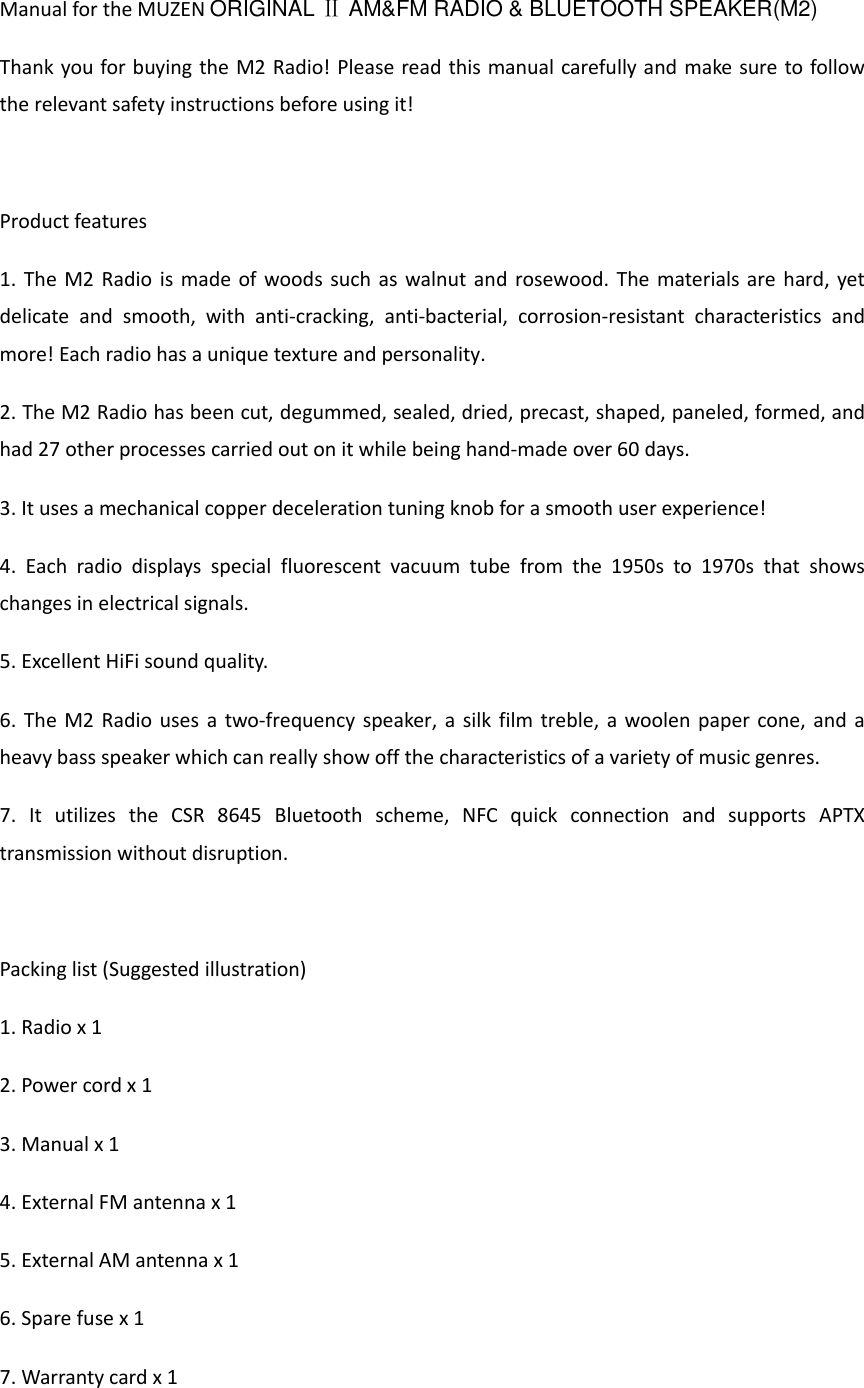
Manual for the MUZEN ORIGINAL Ⅱ AM&FM RADIO & BLUETOOTH SPEAKER(M2) Thank you for buying the M2 Radio! Please read this manual carefully and make sure to follow the relevant safety instructions before using it!  Product features 1. The M2 Radio is made of woods such as walnut and rosewood. The materials are hard, yet delicate  and  smooth,  with  anti-cracking,  anti-bacterial,  corrosion-resistant  characteristics  and more! Each radio has a unique texture and personality. 2. The M2 Radio has been cut, degummed, sealed, dried, precast, shaped, paneled, formed, and had 27 other processes carried out on it while being hand-made over 60 days. 3. It uses a mechanical copper deceleration tuning knob for a smooth user experience! 4.  Each  radio  displays  special  fluorescent  vacuum  tube  from  the  1950s  to  1970s  that  shows changes in electrical signals. 5. Excellent HiFi sound quality. 6. The M2 Radio uses a two-frequency speaker, a  silk film treble, a woolen paper cone, and a heavy bass speaker which can really show off the characteristics of a variety of music genres. 7.  It  utilizes  the  CSR  8645  Bluetooth  scheme,  NFC  quick  connection  and  supports  APTX transmission without disruption.  Packing list (Suggested illustration) 1. Radio x 1 2. Power cord x 1 3. Manual x 1 4. External FM antenna x 1 5. External AM antenna x 1 6. Spare fuse x 1   7. Warranty card x 1
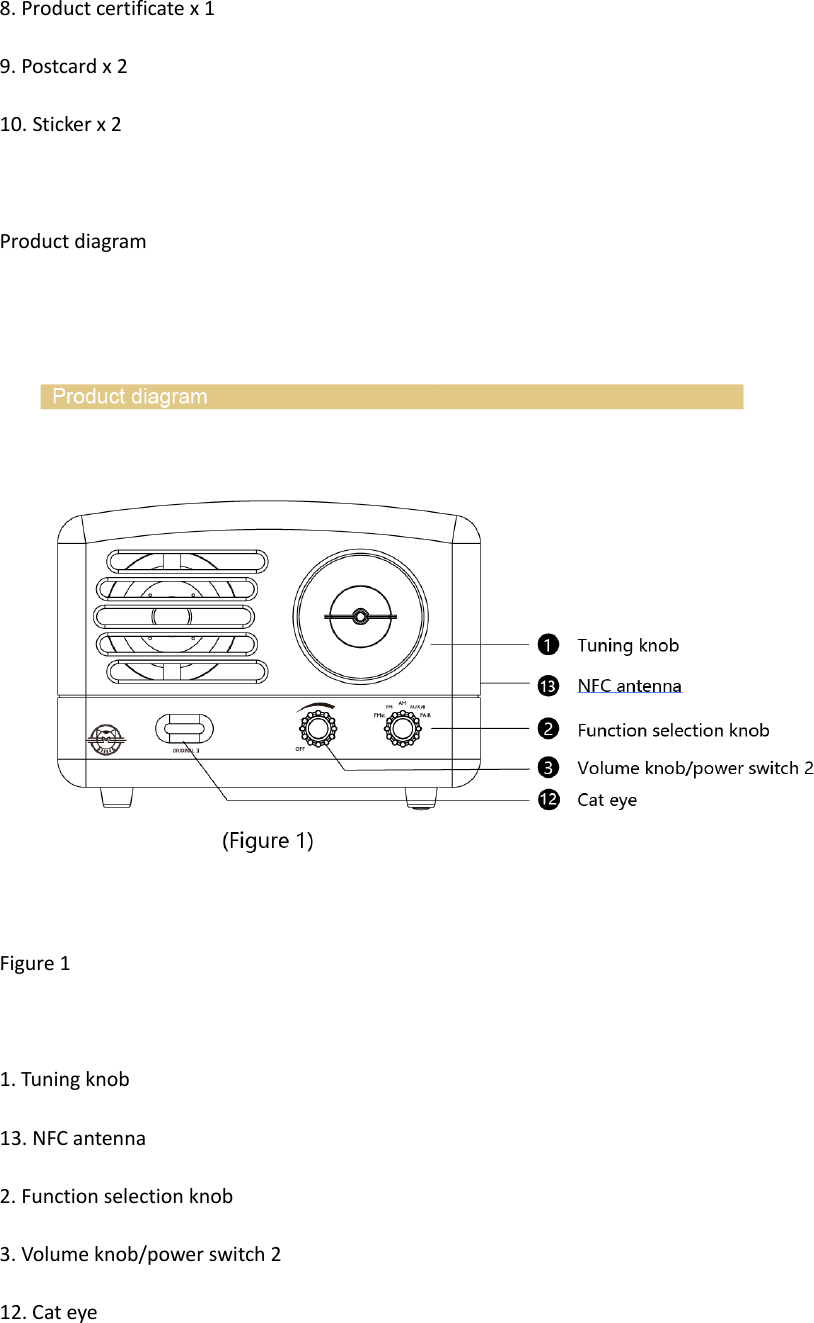
8. Product certificate x 1 9. Postcard x 2 10. Sticker x 2   Product diagram   Figure 1  1. Tuning knob 13. NFC antenna 2. Function selection knob 3. Volume knob/power switch 2 12. Cat eye
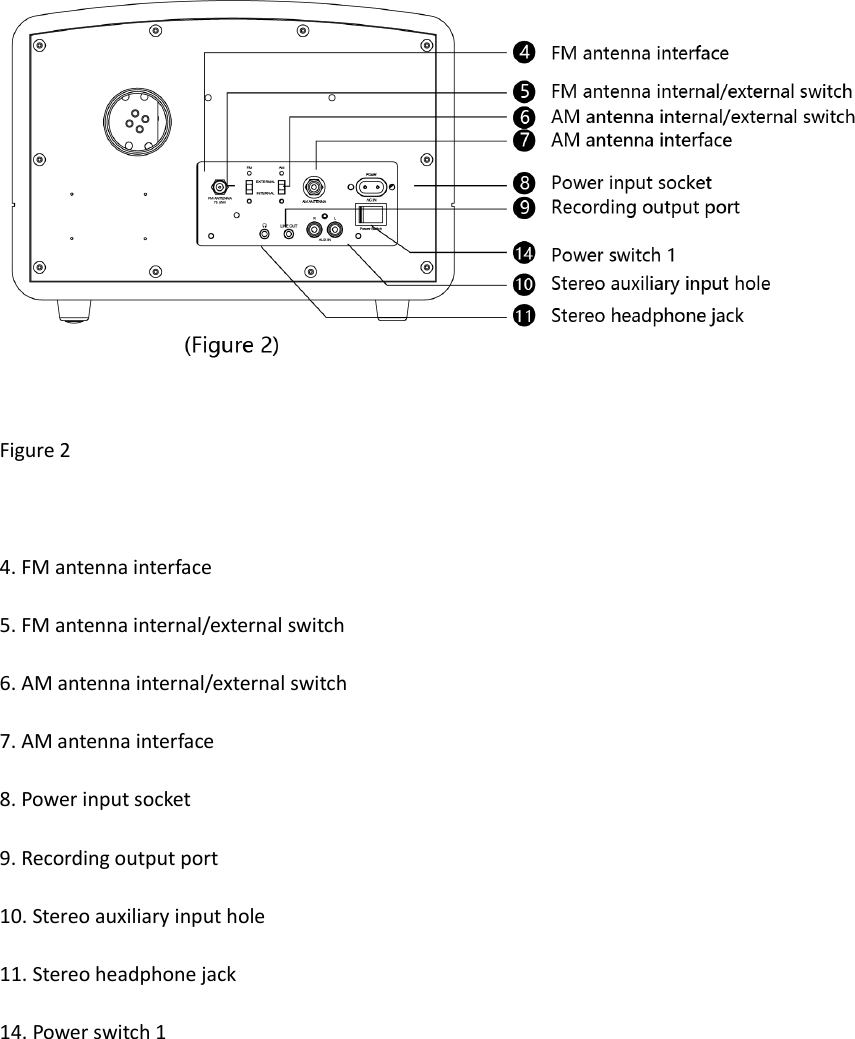
 Figure 2   4. FM antenna interface 5. FM antenna internal/external switch 6. AM antenna internal/external switch 7. AM antenna interface 8. Power input socket 9. Recording output port 10. Stereo auxiliary input hole 11. Stereo headphone jack 14. Power switch 1
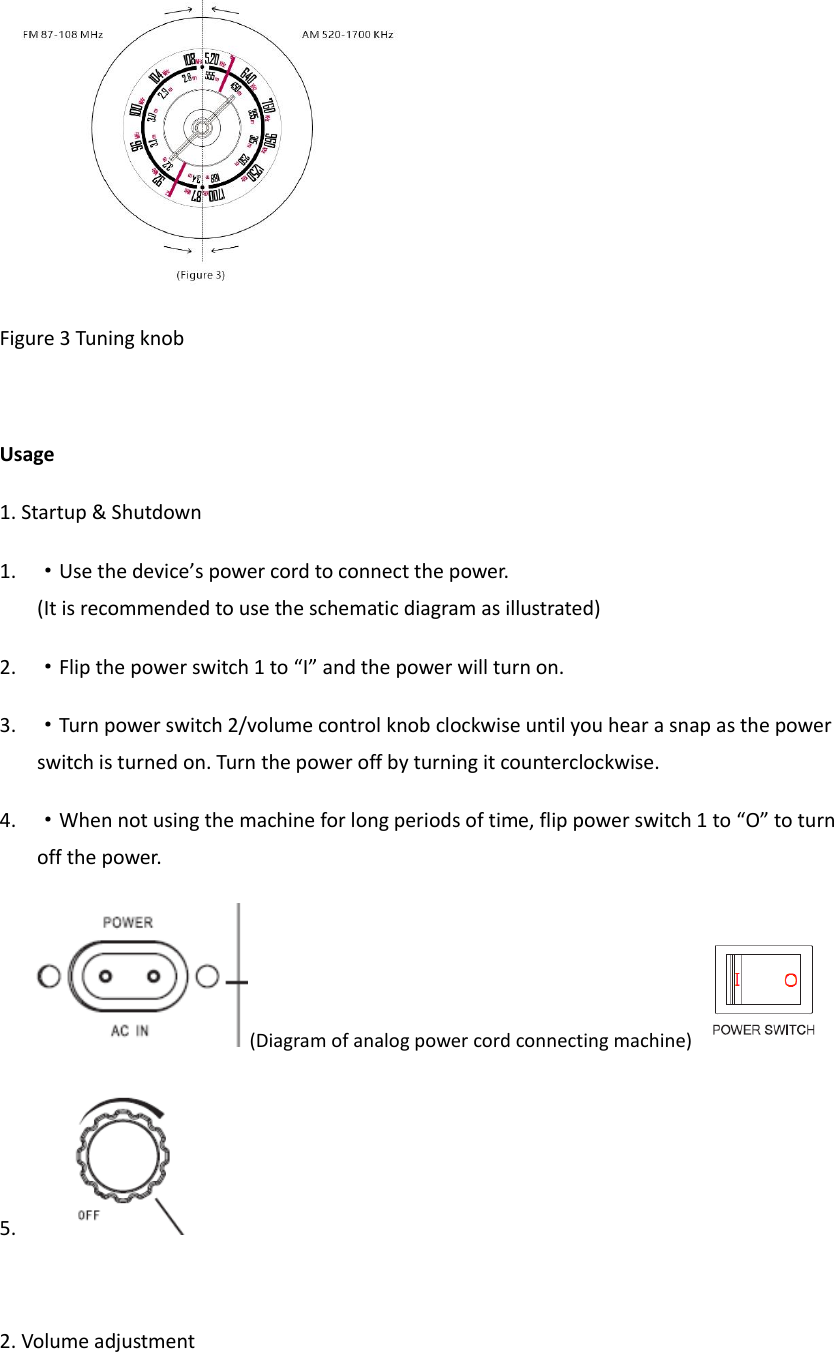
 Figure 3 Tuning knob  Usage 1. Startup & Shutdown 1. ·Use the device’s power cord to connect the power.  (It is recommended to use the schematic diagram as illustrated) 2. ·Flip the power switch 1 to “I” and the power will turn on. 3. ·Turn power switch 2/volume control knob clockwise until you hear a snap as the power switch is turned on. Turn the power off by turning it counterclockwise. 4. ·When not using the machine for long periods of time, flip power switch 1 to “O” to turn off the power. (Diagram of analog power cord connecting machine)  5.   2. Volume adjustment
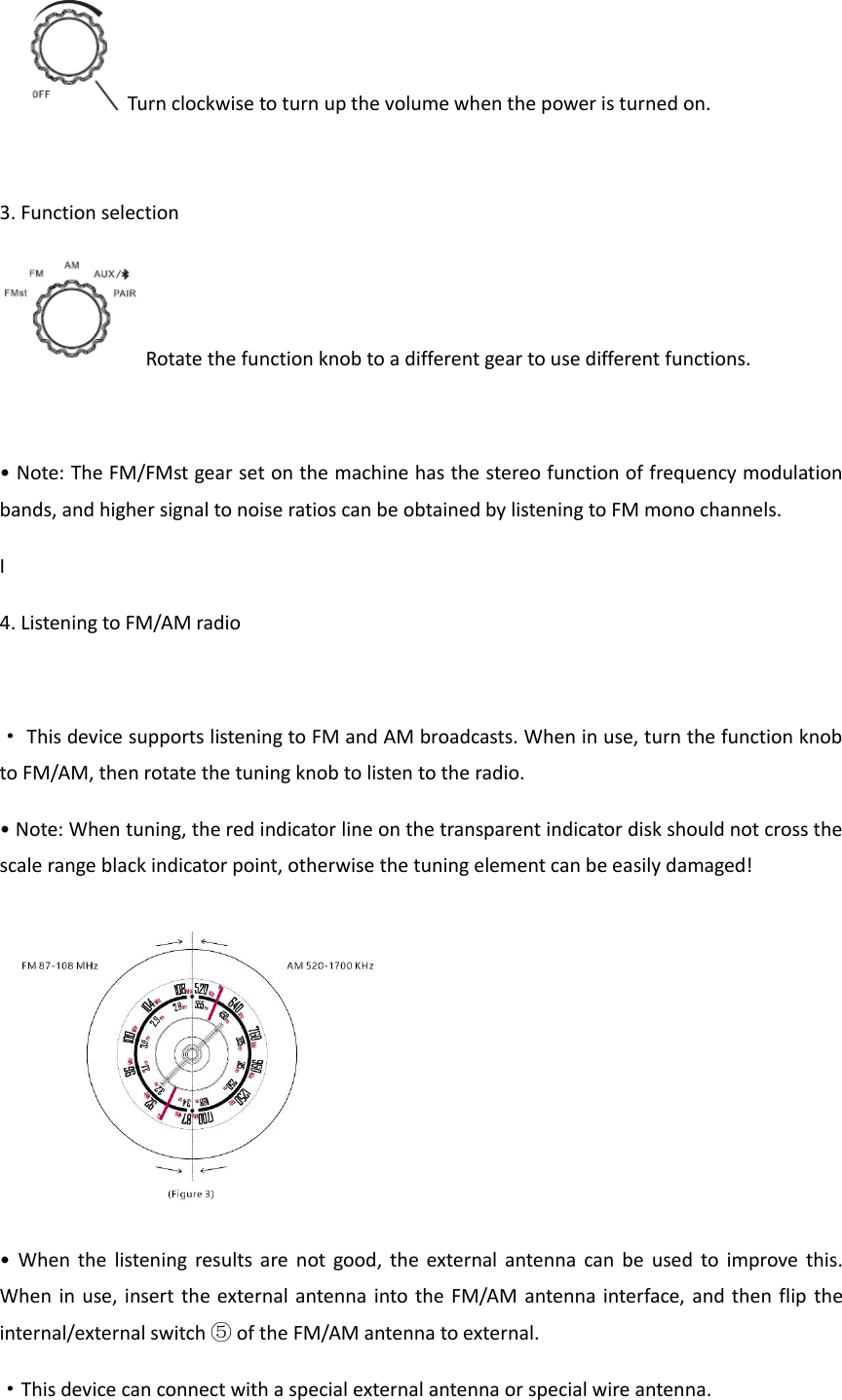
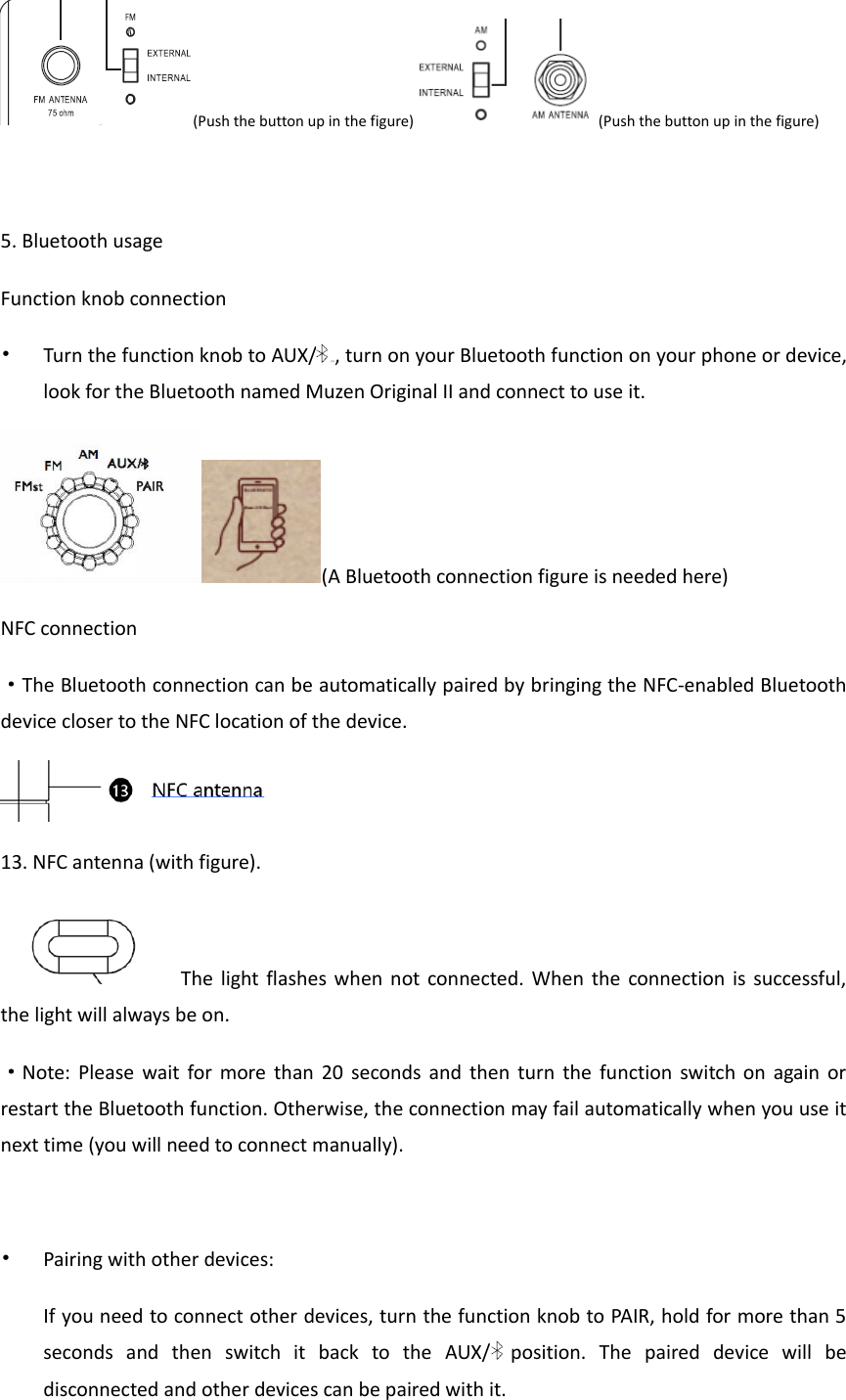
Turn clockwise to turn up the volume when the power is turned on.  3. Function selection Rotate the function knob to a different gear to use different functions.  • Note: The FM/FMst gear set on the machine has the stereo function of frequency modulation bands, and higher signal to noise ratios can be obtained by listening to FM mono channels. I            4. Listening to FM/AM radio  · This device supports listening to FM and AM broadcasts. When in use, turn the function knob to FM/AM, then rotate the tuning knob to listen to the radio. • Note: When tuning, the red indicator line on the transparent indicator disk should not cross the scale range black indicator point, otherwise the tuning element can be easily damaged!  •  When  the listening  results are  not  good, the external antenna  can be  used to improve  this. When in use, insert the external antenna into the FM/AM antenna interface, and then flip the internal/external switch ⑤ of the FM/AM antenna to external. ·This device can connect with a special external antenna or special wire antenna.
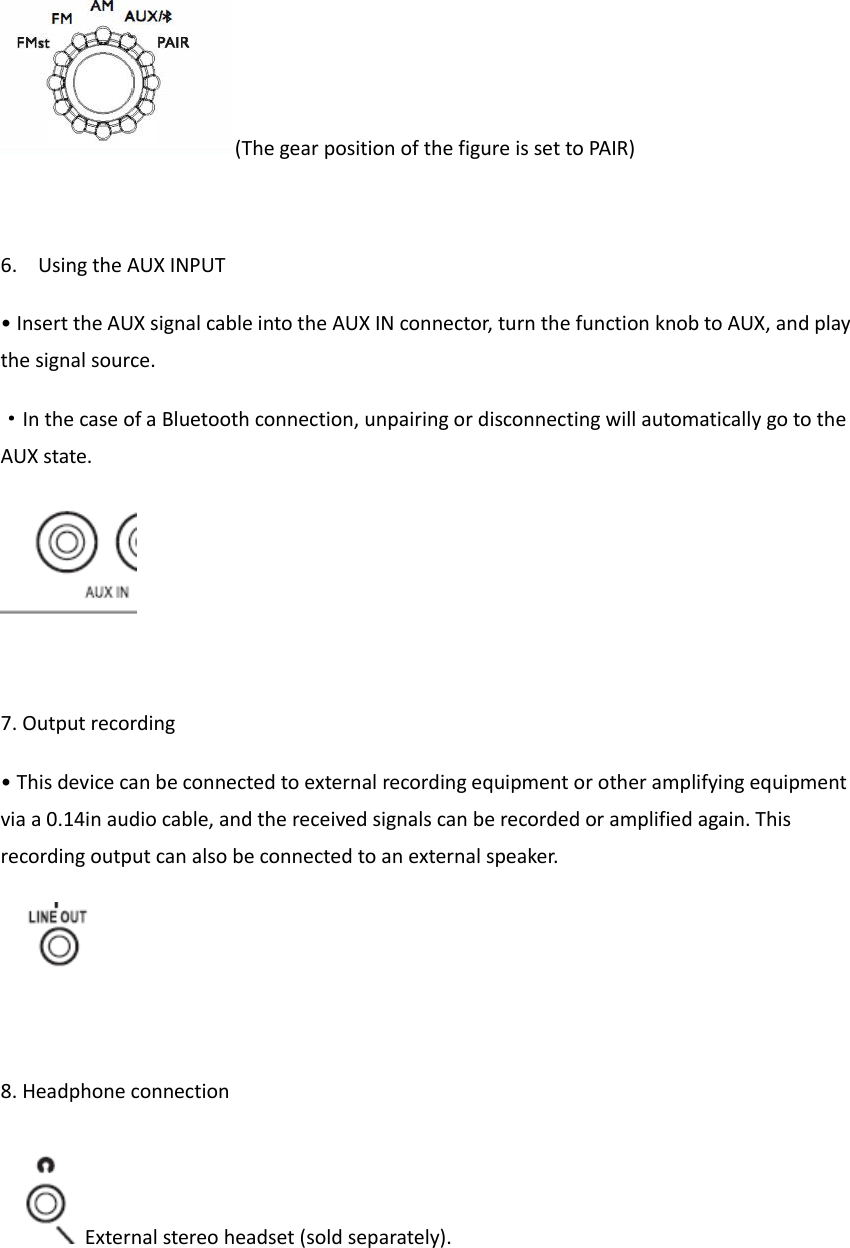
(Push the button up in the figure) (Push the button up in the figure)  5. Bluetooth usage Function knob connection • Turn the function knob to AUX/ ,打开, turn on your Bluetooth function on your phone or device, look for the Bluetooth named Muzen Original II and connect to use it. (A Bluetooth connection figure is needed here) NFC connection ·The Bluetooth connection can be automatically paired by bringing the NFC-enabled Bluetooth device closer to the NFC location of the device.  13. NFC antenna (with figure). The light flashes  when  not connected. When the connection is successful, the light will always be on. ·Note:  Please  wait  for  more than  20  seconds and  then turn  the  function  switch on  again or restart the Bluetooth function. Otherwise, the connection may fail automatically when you use it next time (you will need to connect manually).  • Pairing with other devices: If you need to connect other devices, turn the function knob to PAIR, hold for more than 5 seconds  and  then  switch  it  back  to  the  AUX/  position.  The  paired  device  will  be disconnected and other devices can be paired with it.
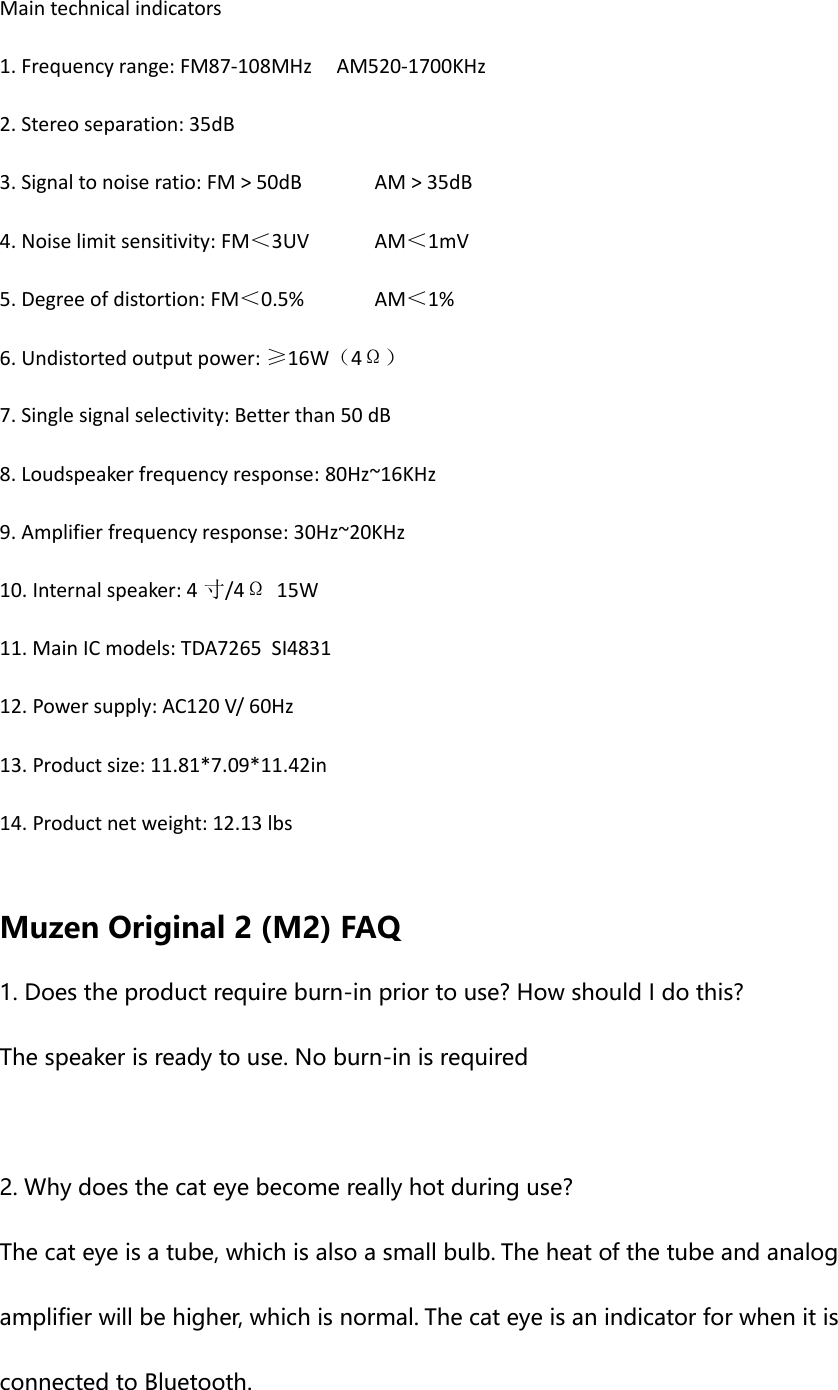
(The gear position of the figure is set to PAIR)  6. Using the AUX INPUT • Insert the AUX signal cable into the AUX IN connector, turn the function knob to AUX, and play the signal source. ·In the case of a Bluetooth connection, unpairing or disconnecting will automatically go to the AUX state.   7. Output recording • This device can be connected to external recording equipment or other amplifying equipment via a 0.14in audio cable, and the received signals can be recorded or amplified again. This recording output can also be connected to an external speaker.   8. Headphone connection External stereo headset (sold separately).
Main technical indicators 1. Frequency range: FM87-108MHz     AM520-1700KHz 2. Stereo separation: 35dB 3. Signal to noise ratio: FM > 50dB AM > 35dB 4. Noise limit sensitivity: FM<3UV AM<1mV 5. Degree of distortion: FM<0.5% AM<1% 6. Undistorted output power: ≥16W(4Ω) 7. Single signal selectivity: Better than 50 dB 8. Loudspeaker frequency response: 80Hz~16KHz 9. Amplifier frequency response: 30Hz~20KHz 10. Internal speaker: 4 寸/4Ω  15W 11. Main IC models: TDA7265  SI4831 12. Power supply: AC120 V/ 60Hz 13. Product size: 11.81*7.09*11.42in 14. Product net weight: 12.13 lbs  Muzen Original 2 (M2) FAQ 1. Does the product require burn-in prior to use? How should I do this? The speaker is ready to use. No burn-in is required  2. Why does the cat eye become really hot during use? The cat eye is a tube, which is also a small bulb. The heat of the tube and analog amplifier will be higher, which is normal. The cat eye is an indicator for when it is connected to Bluetooth.
 3. How large a room does M2 need to achieve the best results? Is there a recommended use of space? It works best in environments of under 50 square meters and performs particularly well in areas measuring 30 square meters.  4. What are the features of M2? M2 is handmade with logs, and it takes 27 processes over 90 days to finish its construction.  5. What's the difference between M2 and The OTR? M2 is a desktop speaker with a larger size, which needs to be connected to an external power supply for use. The OTR is portable, relatively small and has a lithium battery (which is rechargeable). M2 has intense sound quality with high collection value, while The OTR has better portability and higher cost performance. In terms of sound effects, M2 has a good bass sound, and The OTR has good sound quality even though it is small.  6. What's the difference between M2 and M3 ? M2 has a good bass sound and is made with a different exterior material. M3’s high pitched quality and bass sounds are better.
7. What do you need to be aware of when using M2 radio? When users listen to the radio using M2 and are searching for stations, they can turn the tuning knob and move around the station until the sound is at its loudest and clearest. The radio has a certain directivity when the listening effect is not so good, so you can rotate the body or change its position to obtain the best reception. If the results are still not ideal, you can use an external antenna. When the external speaker or headset is connected, attention should be paid to impedance matching, so as to not affect the listening effects and damage the radio. The radio should be cleaned regularly. Clean it gently with a dry cloth and do not wash it with water.  8. How do I use NFC? First, your phone or tablet must have the NFC function turned on: Turn on the NFC and Bluetooth function of the mobile phone, and then put the phone close to the NFC icon on the speaker; At this point, the speaker will automatically enter pairing mode; The phone will show a dialog about "do you want to connect your device", and you will choose "yes"; Once you've finished using it and need to disconnect it, simply move your phone closer to the speaker's NFC icon again.  9. How can I improve reception?
You can use an external antenna. The device comes with a special external antenna interface.  10. What happens when Bluetooth won’t connect?  If the device is connected with another device, you can switch the function knob to  "PAIR",  and  then  switch  back  to  “Bluetooth”  to  connect  again.  Optimum connection distance is within 10m  NOTE: This device complies with part 15 of the FCC rules. Operation is subject to the following two conditions: (1) this device may not cause harmful interference, and (2) this device must accept any interference received, including interference that may cause undesired operation.    The manufacturer is not responsible for any radio or TV interference caused by unauthorized modifications or changes to this equipment. Such modifications or changes could void the user’s authority to operate the equipment.   This equipment has been tested and found to comply with the limits for a Class B digital device, pursuant to part 15 of the FCC Rules. These limits are designed to provide reasonable protection against harmful interference in a residential installation. This equipment generates uses and can radiate radio frequency energy and, if not installed and used in accordance with the instructions, may cause harmful interference to radio communications. However, there is no guarantee that interference will not occur in a particular installation. If this equipment does cause harmful interference to radio or television reception, which can be determined by turning the equipment off and on, the user is encouraged to try to correct the interference by one or more of the following measures: ‐ Reorient or relocate the receiving antenna. ‐ Increase the separation between the equipment and receiver. ‐Connect the equipment into an outlet on a circuit different from that to which the receiver is connected. ‐Consult the dealer or an experienced radio/TV technician for help.
  This device complies with Part 15 of the FCC Rules and with RSS-247 of Industry Canada. Operation is subject to  the following two conditions: (1) This device may not cause harmful interference, and (2) this device must accept any  interference received, including interference that may cause undesired operation.     Le présent appareil est conforme aux CNR d'Industrie Canada applicables aux appareils radio exempts de licence.  L'exploitation est autorisée aux de. Le présent appareil est conforme aux CNR d'Industrie Canada applicables aux appareils radio exempts de licence.  L'exploitation est autorisée aux deux conditions suivantes : (1) l'appareil ne doit pas produire de brouillage, et  (2) l'utilisateur de l'appareil doit accepter tout brouillage radioélectrique subi, même si le brouillage est susceptible  d'en compromettre le fonctionnement.   This Class B digital apparatus complies with Canadian ICES-003.  Cet appareil numérique de la classe B est conforme à la norme NMB-003 du Canada.  After-sales service If there is a need for after-sale service such as maintenance, please contact us by email first, so as to be provided with registration information and related services. Please refer to the warranty card for the detailed after-sales processes. Refer to: info@muzenaudio.com  Limited warranty This product has a limited warranty of 1 year. Details are provided on the warranty card attached to the package. Please refer to the warranty card.  Shenzhen Airsmart Technology Co, Ltd reserves the right of interpretation.

Navigation menu