Alarm Lock DL6500_&_ETDLN_WI1836A.05_PROG DL6500, ETDLN Programming Instructions DL6500 WI1836A.05 PROG
User Manual: Alarm Lock DL6500, ETDLN Programming Instructions Programming Manuals
Open the PDF directly: View PDF  .
.
Page Count: 36

1
Wireless Trilogy®
DL6500 & ETDLN
Programming Instructions
WI1836A 09/11
345 Bayview Avenue
Amityville, New York 11701
For Sales and Repairs 1-800-ALA-LOCK
For Technical Service 1-800-645-9440
Publicly traded on NASDAQ Symbol: NSSC
© ALARM LOCK 2011
DL-WINDOWS PROGRAMMING
SOFTWARE
AL-IM SERIES
GATEWAY MODULE
AL-IM80211
AL-IME
AL-IMEPOE
DL6500 & ETDLN
2
Table of Contents
Lock Features .............................................................3
Supported Products ..................................................4
Lock Design Overview ..............................................5
Terminology Used in this Manual ............................6
Programming Levels .................................................8
Conventions Used in this Manual ............................9
LED and Sounder Indicators ....................................9
Wiring and Power Up .............................................. 10
Quick Start ................................................................ 11
Testing the Codes Entered .................................... 13
Programming Functions Overview ....................... 14
Programming Functions ...................................15-27
Groups and Scheduled Group 1 Examples ....28-29
Programming Record Sheet .................................. 30
User Code Record Sheet ........................................ 31
Schedule Record Sheet ..........................................33
Glossary ...............................................................35-36
Warranty .... ............. ................ ................ ................ ...36
THE ALARM LOCK TRILOGY SERIES STAND-ALONE AND NETWORK PROGRAMMABLE ACCESS CONTROL SYSTEM
IS A SERIES OF STATE-OF-THE-ART WIRELESS AND KEYPAD-ENTRY PROGRAMMABLE SECURITY LOCKS.
DL6500 & ETDLN
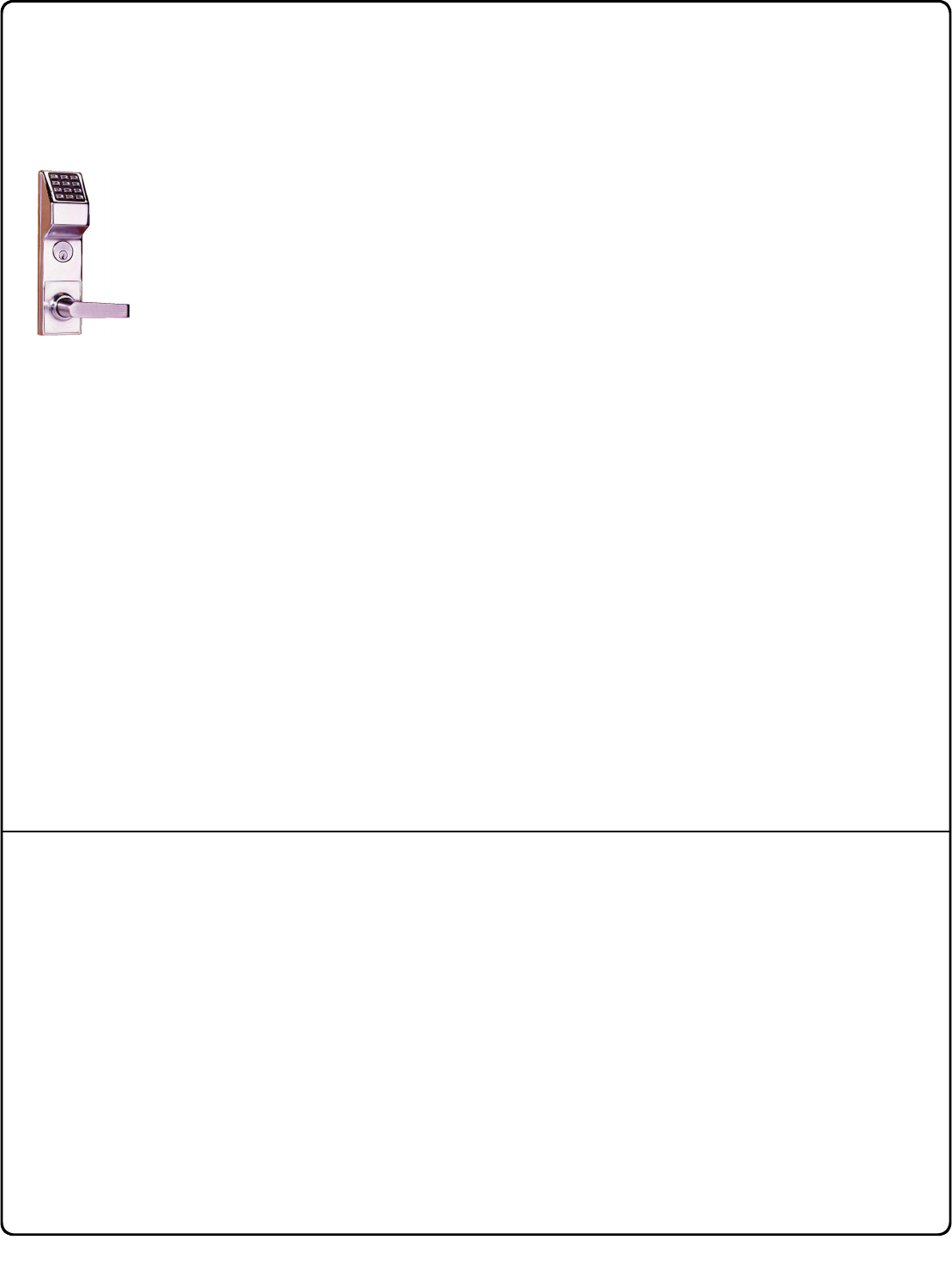
The DL6500 and ETDLN mortise locks are designed to allow all features to be pro-
grammed either at the keypad or through its radio link to a DL-Windows equipped
computer. In addition, Audit Log Data may be transmitted through the radio link
back to the DL-Windows computer.
These locks both feature a real-time clock/calendar that automatically adjusts for
Daylight Saving Time and allows for automated programming of events. Up to 5000
unique user codes can be added to the lock, from 3-6 digits in length.
The DL6500 Series mortise-based lock provides additional hardware security com-
pared with standard cylindrical door locks; the ETDLN Series is also a mortise-
based lock, but is used for exit door push bar applications. Keypad programming
is identical for both locks.
Wireless Network and DL-Windows
If your Networx wireless network is not yet set up, you can add Users and program
other features using the DL6500 / ETDLN keypad as a temporary convenience to
allow the lock to be put into use before installing the wireless network. Be aware
that all programming added using the keypad cannot be retrieved into DL-Windows,
so if you decide to start programming using the lock keypad, we recommend you
keep hardcopy records (in a secure location) of all user names and their User
Codes that have been programmed. Keeping these hardcopy records will save
time because after the wireless network is set up, all programming added via the
lock keypad can easily be re-added to DL-Windows and downloaded back to the
lock(s).
These instructions include manual keypad programming for the DL6500 and
ETDLN. For DL-Windows user instructions, see OI237; for configuring your wire-
less system, see OI352.
DL6500 & ETDLN LOCKS
DL6500
&
ETDLN
3
Trilogy® is a registered trademark of Alarm Lock. Microsoft® and Windows® are trademarks of their the Microsoft Corporation.
Audit Trail
•40,000 Event Capacity*
•Entries Logged with Time and Date
•Critical Programming Events Logged
•Uploadable using Alarm Lock's DL-Windows software
Lock Features
•Metal Key Override for all cylindrical locks
•Keypad Lockout (see page 22, Functions 60-61)
•Non-Volatile (Fixed) Memory
•Real-Time Clock (within one second accuracy)
(see page 20, Functions 43-44)
•Programmable Internal Relay (see page 23)
•Visual and Audible Keypad Feedback (see page 9)
•Battery Status Monitor (see page 9)
Scheduling
•500 Scheduled Events (see pages 24-27)
•Automated Unlock/Lock
•Enable/Disable Users (see page 16, Function 3)
•Enable/Disable Groups (see page 17)
•Four "Quick Schedules" (contains 4 most common schedules) (see page 25)
•Real-time clock and calendar (see page 19)
•Programmable Timeout Functions (see page 16-20)
User Access Methods
•Keypad Entered User Codes (see pages 11-12, 15)
User Features
•5000 Users (see pages 11-12, 15)
•5 Pre-defined Administration User Levels including Master, Installer, Manager, Supervisor and Basic User
Codes (see page 8)
•User Code Lengths from 3-6 digits
•Service Code ("One-Time-Only" Code) (see page 7)
•User Lockout Mode (see page 16, Function 6)
•Users Assignable to 4 Groups (see page 28)
•Ambush Function (see page 22, Function 66)
•Guard Tour Code (see page 7)
•Emergency Commands (see page 7)
Keypad and Computer Programming
•All programming may be performed manually from the keypad, or from a PC using Alarm Lock's DL-
Windows Software (see page 7)
Lock Features
4
Supported Products
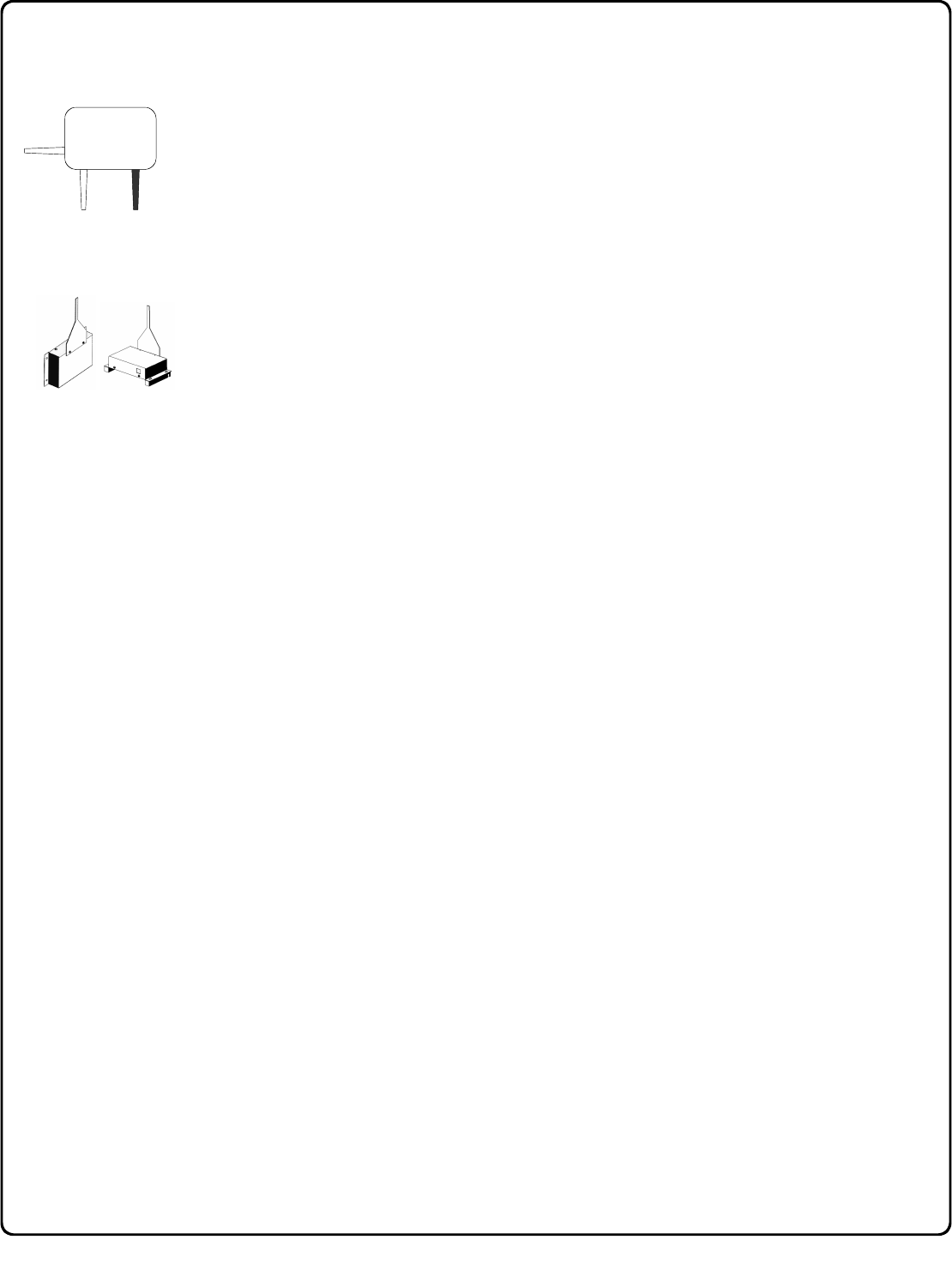
AL-IM80211
AL-IME
AL-IMEPOE
AL-IMEPOEP
AL-IM SERIES WI-FI Gateway Module
The DL6500 and ETDLN contains a radio that transmits and receives data--via a
private wireless signal--to an intermediate device called a Gateway module. In turn,
this Interface Module is connected (either wirelessly or wired) to a computer network
such as a LAN or corporate Intranet. A Windows PC connected to this network can
control and program all DL6500 / ETDLN locks by the use of the DL-Windows
software (see OI237 and OI352). With access rights to the software, one computer--
or several--can control the software and consequently can control the devices in the
system. Several Gateway device models are available:
•"Wireless/Wired" AL-IM80211 Hardwired/Wireless Gateway Interface Module.
Supplied with its own class 2 transformer to supply power and supports
connection to a network either using 802.11 or a standard Ethernet cable. This
"Wireless/Wired" Gateway module has two antennas, one for the proprietary radio
connection to the DL6500 / ETDLN and the other for 802.11 network
transmissions. Ensure adequate 802.11 coverage in the area where the
"Wireless/Wired" Gateway is mounted. Supports up to 63 Networx Locks.
Ceiling- or wall-mountable.
•"Wired" AL-IME Hardwired Gateway Interface Module, supports up to 63
Networx Locks, connects directly to a network using a standard RJ-45 Ethernet
cable. This model has one antenna used to transmit to the DL6500 / ETDLN via
an Alarm Lock proprietary radio connection.. Ceiling- or wall-mountable.
Powered with Class 2, 6VAC transformer (supplied).
•"Power over Ethernet" AL-IMEPOE Hardwired Gateway Interface Module +
POE (Power Over Ethernet), supports up to 63 Networx Locks, connects directly
to a network using a standard RJ-45 Ethernet cable and POE. This model has
one antenna used to transmit to the DL6500 / ETDLN via an Alarm Lock
proprietary radio connection. Ceiling- or wall-mountable.
•Gateway "Plenum Rated POE" AL-IMEPOEP - Same as above "AL-IMEPOE",
with added enclosure protections and installation hardware for mounting above
"drop-ceiling" tiles or other locations subject to air pressure changes (HVAC air-
filled spaces, etc.).
5
Lock Design Overview
Why use User Codes?
With ordinary door locks, the need to make physical copies of metal keys and distributing them can be a huge organizational and
financial task -- and what will you do if someone causes a security breach by accidentally losing their key?
The answer lies in the advantage of "firmware". The firmware inside the DL6500 / ETDLN can be programmed (and re-
programmed again and again) to suit your changing requirements. No more metal keys to distribute...instead, distribute User
Codes -- and delete them from the firmware when needed. A User Code is the firmware equivalent of a metal key--it is a series of
numeric button-presses at the DL6500 / ETDLN keypad to allow (for example) passage through a door.
Preparing to Program User Codes
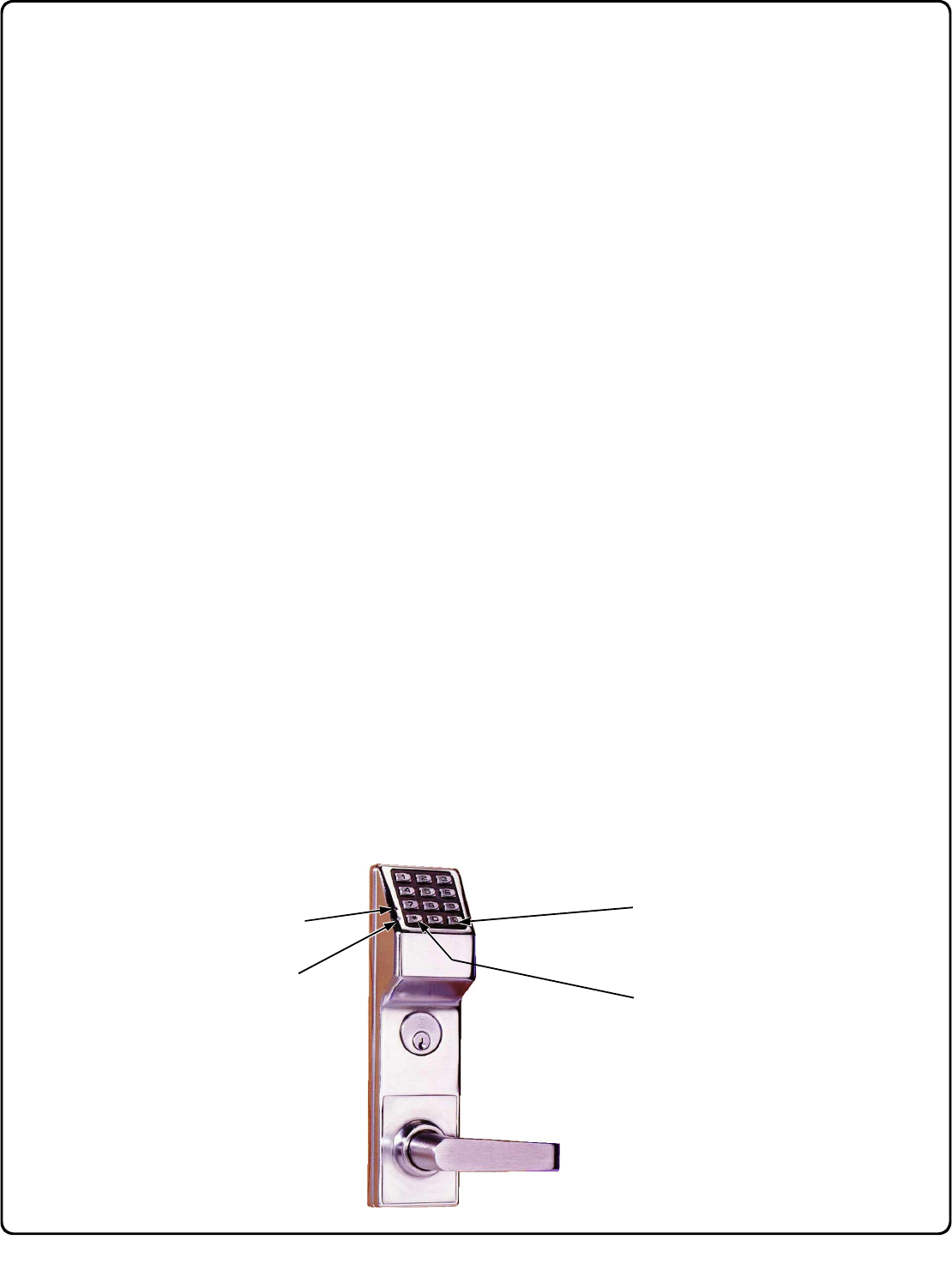
The DL6500 / ETDLN keypad contains 12 buttons, numbers 1 through 9 plus zero, a star button (:) and a special "AL" button
(;). You can use the DL6500 / ETDLN keypad to program your system, or you can use a computer program called DL-
Windows that can be configured to program your system wirelessly. This guide will show you how to program your DL6500 /
ETDLN using the keypad, without DL-Windows. (For more information about DL-Windows, see User Guides OI237; for informa-
tion about using DL-Windows within the Networx wireless system, see OI352).
Before you can program your DL6500 / ETDLN using the keypad, you must first enter something called "Program Mode".
What is Program Mode?
The software has only two "modes"--"Normal Mode" and "Program Mode". When you want to make changes to the lock program,
you enter "Program Mode". When you finish programming and wish to put the lock into use, you exit "Program Mode" to enter
"Normal Mode".
You can enter Program Mode using the keypad by pressing the Master Code of the lock that was set at the factory (then wait for
the green light and press ; until multiple beeps are heard). The Master Code is basically a secret 6-digit "passcode" that al-
lows you to enter Program Mode. But since all locks are identical and leave the factory with the same Master Code, this factory
Master Code is therefore not very secret--and should be changed to your own personal Master Code. This way, only YOU can
enter Program Mode and make changes to the lock programming.
Once the new Master Code is set , then you can continue with the Quick Start procedure and set the weekday, date and time. Af-
ter this, you can start entering User Codes for people to use. All changes to the lock are organized by their Function Number.
Want to change the date? Use Function Number 38. Want to add a User Code? Use Function Number 2. There are 99 Func-
tions in total, some that you will use often, and others that you may never need.
Notice that when you program your lock, programming tends to follow a consistent 5-step pattern: (1) Enter Program Mode
(2) Press ; followed by the Function # (3) Press ; and enter data (4) Press : to end (5) Exit Program Mode to
put the lock into use.
Turn the page and learn about the special terminology used with your lock. Once that is clear, use the Quick Start proce-
dure on page 11 to help you get up and running.
Red LED
"STAR" (:) Key
Green LED
Special "AL" (;) Key

6
Terminology Used in this Manual
What is a Lock Program?
A Lock Program contains the instructions that the lock uses to per-
form its various functions. You can also use DL-Windows (defined
below) to create a Lock Program on your computer, and then
transfer and store the Program in the circuitry contained inside the
lock itself. The Lock Program is essentially a computer database
file that maintains feature settings, schedules, audit trails, etc. Us-
ing DL-Windows, a Lock Program (called a "Lock Profile" in DL-
Windows) can be created with default information, edited on your
PC, and then sent to (and even received from) the lock. The Lock
Program consists of 4 areas: User Codes, Features, Time
Zones, and Schedules, all defined below:
What are User Codes?
Also called User Access Codes or PIN No. Codes, User Codes are
numbers the User enters into the lock keypad to unlock the lock.
The User Codes are part of the Lock Program, and the Lock Pro-
gram is stored in the lock circuitry awaiting the Users to key in their
User Codes.
What are Features?
Your lock is designed to support many options and functions. Us-
ing the keypad or DL-Windows software, you can select the fea-
tures you wish to activate, such as if the lock will automatically ad-
just for Daylight Saving Time in the spring and autumn, or if the lock
sounder should be disabled or enabled.
What is a TimeZone?
Events (recorded lock activities) can be programmed to occur at
certain times. It is these times (for example, “every Tuesday at
5PM”) that are referred to as TimeZones. TimeZones can be cre-
ated manually through the keypad. In DL-Windows, you can use
the Schedule-TimeZone screen to create these TimeZones, and
once created, you can link events to these TimeZones.
What is a Schedule?
Your lock can be programmed to maintain a schedule in which cer-
tain events can occur automatically. For example, you can pro-
gram the lock to allow Groups of Users (with their User Codes) ac-
cess ONLY during specific business hours. With another example,
you can program another lock to UNLOCK at 9AM, LOCK at noon
for lunch, UNLOCK at 1PM, and LOCK again at 5PM--every week-
day. As you can see, many different combinations of Schedules
can be created to suit the needs of the Users. First you create
TimeZones (see above). Next you create events and link them to
your TimeZones (also using the Schedule-TimeZone screen in
DL-Windows). When finished, you can view (in DL-Windows) your
schedule in the Schedule View screen.
What is a User?
A User is a person who is authorized to operate or make certain
programming changes to the lock. This User can be anyone--from
a one-time visitor (who will almost certainly have no authority to
make programming changes) to the owner of the building in which
the lock is installed (who may wish to have total authority to make
changes). The DL6500 / ETDLN Series locks can hold up to 5000
Users (each with their own User Code) in its programming memory,
and each User possesses a pre-defined level of authority--a Pro-
gramming Level--as to their ability to use or make changes to the
lock.
What is a Programming Level?
The Programming Level defines the range of programming tasks a
User is allowed to perform. The higher the Level, the more pro-
gramming tasks the User is allowed (with Master allowing ALL
tasks).
Note: Since the Programming Level is closely associated with the
type of User and their abilities, a User who holds a certain Program-
ming Level is sometimes referred to by their “User Type”.
For example, DL6500 / ETDLN Series locks can hold up to 5000
Users in its programming memory, and each User is associated
with a User Number (see definition of "User Number" below) and
therefore a specific Programming Level, as follows:
Master: Always associated with User Number 1. Is always en-
abled and can program all functions. (Abbreviated as
Programming Level = M).
Installer: Always associated with User Numbers 2 and 3. Can
program all functions except changing the Master Code.
(Abbreviated as Programming Level = 4).
Manager: Always associated with User Numbers 4, 5, and 6. Can
program all functions except functions relating to lock
configuration. (Abbreviated as Programming Level = 3).
Supervisor: Always associated with User Numbers 7, 8 and 9.
Can only program functions relating to day to day operation.
(Abbreviated as Programming Level = 2).
Print Only Users: In previous versions of the ALARM LOCK Tril-
ogy series locks, Print Only Users were always associated with
User Numbers 10 & 11 and were restricted to printing event
logs only, using a special AL-IR1 handheld printer. With the
DL6500 / ETDLN Series locks no longer requiring (or allowing)
the use of this AL-IR1 printer, Print Only Users are also no
longer required. Although the attributes of User Numbers 10
and 11 have been changed to replicate those of "Basic Users",
to ensure compatibility with previous lock models we do NOT
recommend the use of User Numbers 10 and 11.
Basic Users: Always associated with User Number 12 and higher
(except 297-300). No programming ability allowed. Most Users
are Basic Users, who are given their own personal User Codes
and are only allowed to simply unlock the lock when desired.
Programming Levels are hierarchical--higher levels are allowed to
do anything the levels below them can do. For example, if you are
a Manager, you are allowed to do anything that Supervisors and
Basic Users can do in addition to those tasks allowed for Managers
(Level 3).
What is the Minimum Required Program Level?
This Programming Level abbreviation is the minimum programming
level required to access the particular Function. (The higher the
level number, the more programming tasks the User is allowed,
with Master allowing all tasks).
In this manual, Programming Levels are abbreviated as follows: M
= Master, 4 = Installer, 3 = Manager, 2 = Supervisor.
All other Levels are hierarchical, with higher levels being allowed to
do anything the levels below them can do. Therefore Level 4 is
"higher" than level 3. See the chart on page 8.
What is a User Number?
(User Number = Location Number = User Location = Slot in Lock)
User Numbers are used and are significant within each individual
lock only. The User Number determines the Programming Level
for each User. For example, DL6500 / ETDLN Series locks can
hold up to 5000 Users in its programming memory. This memory
can be thought of as simply a numbered list from 1 through 5000.
Each entry in the list is represented by a User Number. Therefore,
where a User is located in this list--their User Location--is a com-

7
monly used description of their User Number. Because of their
similarities, a User Number, User Location and Location Number
can be used interchangeably. In some DL-Windows screens, the
word "Slot" is also used. They all mean the same thing.
Since User Numbers are fixed, knowing a User Number will spec-
ify the associated Programming Level, and will in turn indicate a
User’s programming abilities. For example, User Number 1 is al-
ways the Master, who can perform all programming tasks.
Programming Levels are hierarchical--higher levels are allowed to
do anything the levels below them can do. For example, if you are
User 2, you are allowed to do anything that Users 3 through 11
can do.
What is a Group?
With many lock applications, it is convenient for large numbers of
similar Users to be grouped together. Placing Users into Groups
(by assigning them specific User Numbers) allows large numbers
of Users to be controlled all at once rather than individually--saving
time and effort. Groups are controlled via schedules, and a typical
example involves enabling or disabling a Group at a certain time.
Default Group associations are specified in the table on page 8.
For example, if you wish to add a User to Group 1, assign this
User a User Number between 51 and 100. These default Group
associations can be changed if needed to allow Groups larger
than the default number of 50 (by using keypad Function 35).
(See page 17 for some Group function examples).
What is DL-Windows?
DL-Windows is a computer program that allows you to program
your ALARM LOCK Security Lock. You do not need DL-Windows
to program your lock, but it makes programming much faster and
easier. With DL-Windows, you can quickly create Lock Programs
(programs that make the lock perform its many functions) add mul-
tiple Users (who have access), retrieve event logs, and create
Schedules. The benefit of DL-Windows is that it allows you to set
up all lock programming in advance (on your computer), and then
later send the information to the locks at your convenience.
DL-Windows version 4.0.1 software (or later) allows you to upload
and download programming features wirelessly using the Trilogy
Networx™ series door locks and a computer network. See OI352
for more information.
How do the Emergency Commands work?
For use with all DL6500 / ETDLN Series locks enrolled into the
Trilogy Networx™ radio network, these wireless commands can
be sent to all locks in an Account during a crisis or other urgent
situation.
In addition to Installer, Manager and Supervisor Codes (User
Codes 2-9), any User Code can be programmed to allow the
use of these Emergency Commands by simply adding that User
Code to an "emergency function list" within DL-Windows. When
an enabled User Code is pressed at any wireless lock keypad,
first that physical lock unlocks, then the lock permits the use of
these emergency commands to be sent to all locks in the net-
work, as follows:
•...press 911 to issue "Global Lock Down", to
lock all doors in the Account;
•...press 000 to issue "Global Passage", to
unlock all doors in the Account;
•...press 123 to return all locks in the Ac-
count to "normal" (non-emergency) operation.
Note: 3 chirps sound after each emergency command entry.
See the DL-Windows user guide OI352, "Emergency Lock
Down" for more information. Note: DL-Windows does not need
to be running to allow these "Emergency" commands to be initi-
ated; any wireless lock keypad can be used to disseminate
these commands throughout the system.
Who are Users 297-300?
Users assigned to User Numbers 297, 298, 299 and 300 have
special abilities, as follows:
User 297: Quick Enable User 300
User 297 possesses the unique ability to enable the User Code
associated with User 300. User 297 does this by first entering
their own User 297 User Code into the lock keypad. When User
300 subsequently enters their User 300 User Code, the lock al-
lows access (for one time) and then the User 300 User Code be-
comes disabled.
For example, you wish to allow one-time access to a temporary
worker. Simply enter the User 297 User Code into the lock key-
pad. Later, when the temporary worker enters the User 300 User
Code into the lock keypad, the User 300 User Code allows ac-
cess (for one time only) and then becomes disabled. Later, if you
wish to grant the temporary worker re-access, simply re-enter the
User 297 User Code and the User 300 User Code will be re-
enabled (again for one time only). Note: From the factory, the
User 300 User Code is blank; when the User 300 User Code is
added, it is automatically enabled by default. In addition, each
time Features or Users are uploaded to the lock, the User 300
User Code is re-enabled in ALL the locks in the Account.
User 298: Reserved
In previous versions of the ALARM LOCK Trilogy series locks,
User Number 298 initiated the sending of data to or from the lock,
and a special "AL-PCI" cable was used to physically connect the
lock to a PC running DL-Windows. With the DL6500 / ETDLN
Series wireless locks no longer requiring a wired connection,
User Number 298 is also no longer required and has been re-
moved as an active code. Note that the User 298 code does pro-
vide a "Guard Tour" type function (logging the code entry with a
time and date stamp in the Event Log / Audit Trail), but to ensure
compatibility with previous lock model versions, the use of User
298 is not recommended. Note: User 298 is not an access code
(it is a "non-pass" code) and therefore does not allow passage
through the door. See "User 299: Guard Tour Code" below.
User 299: Guard Tour Code
A Guard Tour Code is used to log the movement of a security
guard as he or she makes rounds from one assigned guard tour
station to the next. Entering the User 299 code provides precise
verification and accountability of a guard's movement by logging
the location with a time and date stamp in the Event Log (Audit
Trail).
Note: User 299 is not an access code (it is a "non-pass" code)
and therefore does not allow the security guard to pass through
the door.
User 300: One-Time Only Service Code
This is a One-Time Only Service User Code enabled by User
297. For example, User Code 300 is sometimes used for guard
tour duties. See User 297: Quick Enable User 300 above.
Terminology Used in this Manual (cont'd)
8
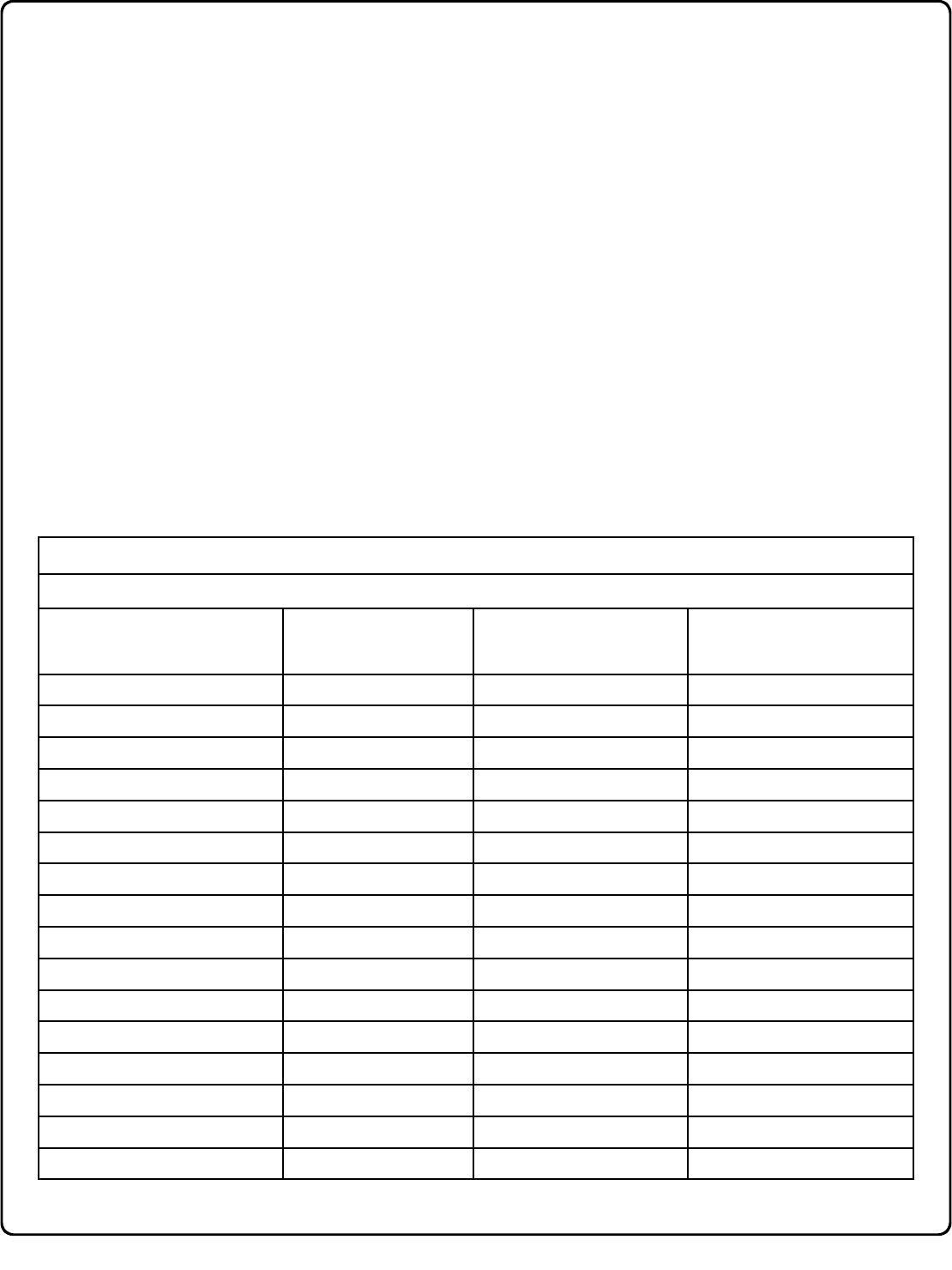
Lock Defaults for DL6500 / ETDLN Series locks
Users added will default to a Group Association and a Programming Level ability as follows:
USER TYPE USER NUMBER GROUP DEFAULT
ASSOCIATION
MINIMUM PROGRAM
LEVEL (See page 6)
Master Code 1 - M
Installer Codes 2 & 3 none 4
Manager Codes 4 - 6 none 3
Supervisor Codes 7 - 9 none 2
(Reserved--see above) 10 - 11 none --
Basic User Codes 12 - 50 none none
Basic User Codes Group 1 51 - 100 1 none
Basic User Codes Group 2 101 - 150 2 none
Basic User Codes Group 3 151 - 200 3 none
Basic User Codes Group 4 201 - 250 4 none
Basic User Codes 251 - 296 none none
Quick Enable User 300 Code 297 none none
(Reserved--see page 7) 298 none none
Guard Tour Code* 299 none none
Service Code 300 none none
Basic User Codes 301-5000 none none
*This code is a Non-Pass code and therefore does not allow passage through the door.
The Programming Level defines the range of programming
tasks a User is allowed to perform. The higher the Level, the
more programming tasks the User is allowed (with Master al-
lowing ALL tasks).
Note: Since the Programming Level is closely associated with
the type of User and their abilities, a User who holds a certain
Programming Level is sometimes referred to by their “User
Type”.
For example, DL6500 / ETDLN Series locks can hold up to 5000
Users in its programming memory, and each User is associ-
ated with a User Number (see definition of "User Number" in
the previous "Terminology" section) and therefore a specific
Programming Level, as follows:
Master: Always associated with User number 1. Is always
enabled and can program all functions. (Abbreviated as
Programming Level = M).
Installer: Always associated with Users 2 and 3. Can pro-
gram all functions except changing the Master Code.
(Abbreviated as Programming Level = 4).
Manager: Always associated with Users 4, 5, and 6. Can
program all functions except functions relating to lock
configuration. (Abbreviated as Programming Level = 3).
Supervisor: Always associated with Users 7, 8 and 9. Can
only program functions relating to day to day operation.
(Abbreviated as Programming Level = 2).
Print Only Users: In previous versions of the ALARM LOCK
Trilogy series locks, Print Only Users were always
associated with User Numbers 10 & 11 and were restricted
to printing event logs only, using a special AL-IR1
handheld printer. With the DL6500 / ETDLN Series locks no
longer requiring (or allowing) the use of this AL-IR1 printer,
Print Only Users are also no longer required. Although the
attributes of User Numbers 10 and 11 have been changed
to replicate those of "Basic Users", to ensure compatibility
with previous lock models we do NOT recommend the use
of User Numbers 10 and 11.
Basic Users: Always associated with User number 12 and
higher (except 297-300). No programming ability allowed.
Programming Levels are hierarchical--higher levels are al-
lowed to do anything the levels below them can do. For exam-
ple, if you are a Manager, you are allowed to do anything that
Supervisors and Basic Users can do in addition to those tasks
allowed for Managers (Level 3).
Programming Levels
9
Programming Key Sequence.
Programming
Information
General Program Mode Information
If a wrong key is pressed during code entry, press the ; key until the error sound is heard (7 short beeps), this will clear the entry. Re-enter the
key sequence again.
All program sequences are followed by the : key; 2 short beeps indicate a successful program sequence.
Enabling/Disabling Users (By User Number)
3. Disable User ; 3 ; [ _ _ _ ] :
4. Enable User ; 4 ; [ _ _ _ ] :
User Number must be between 2 and 5000.
NOTE: Will Enable/Disable users even if the user is associated with an enabled group.
2
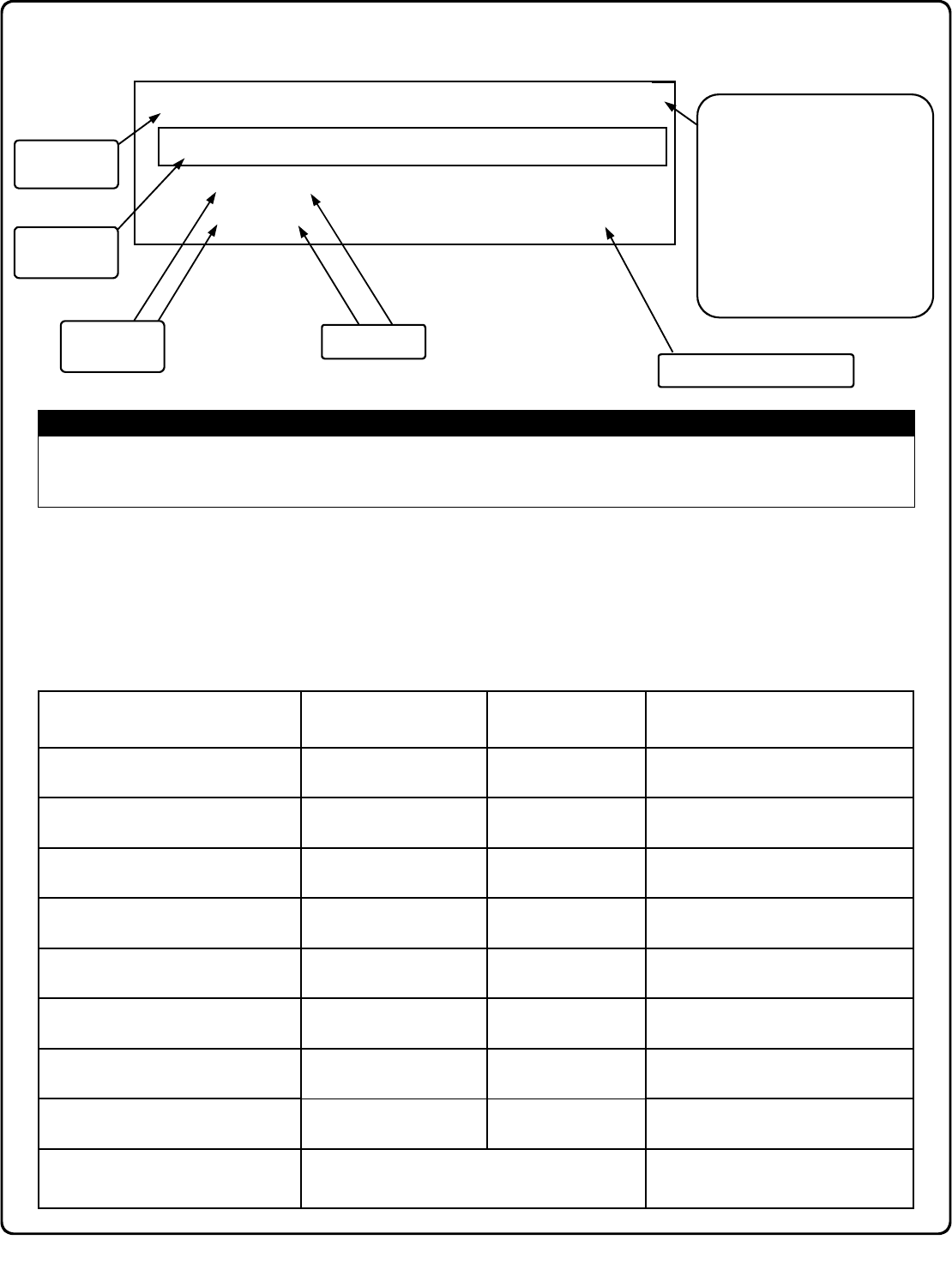
Conventions Used in this Manual
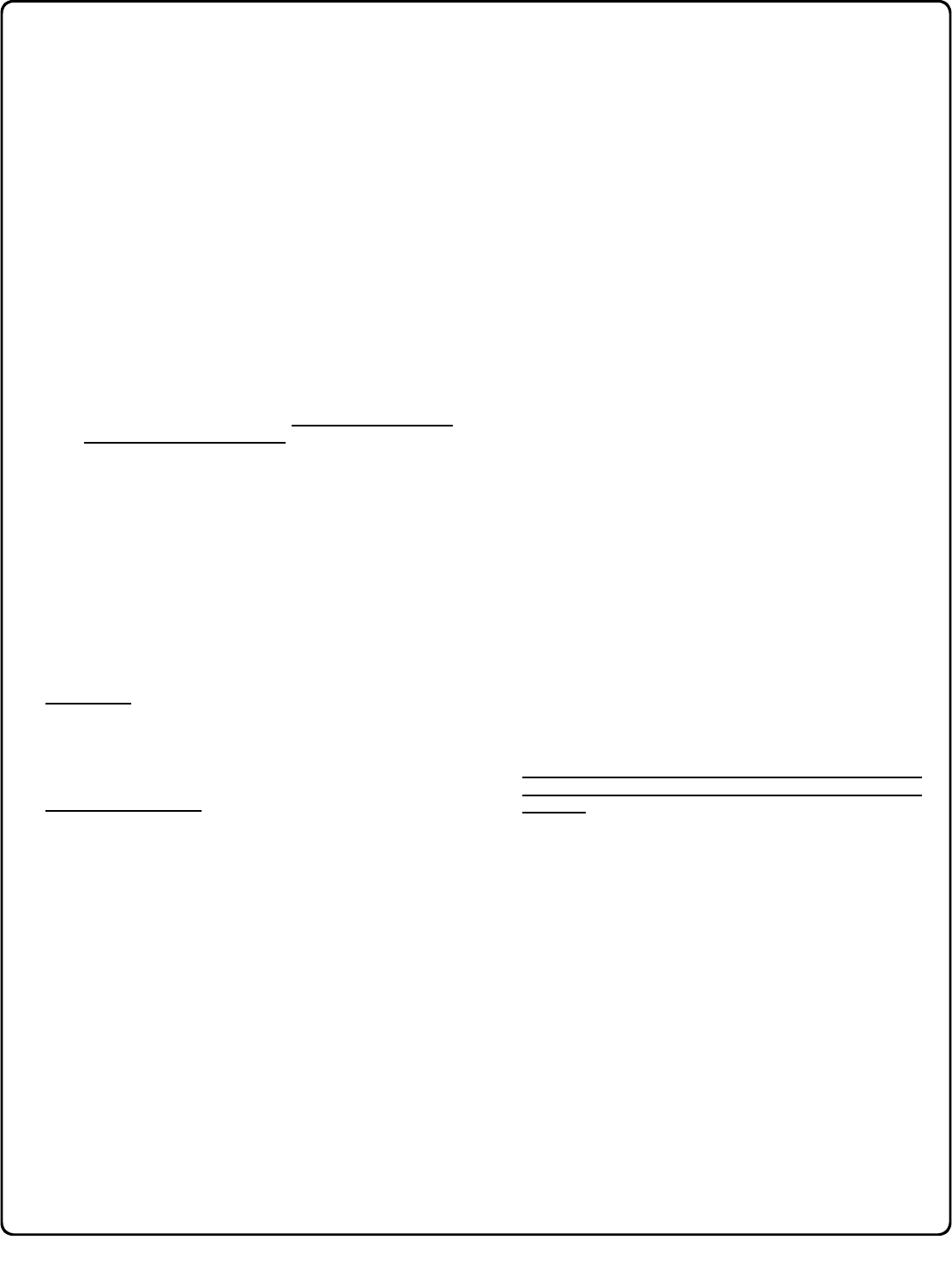
LED and Sounder Indicators
The DL6500 / ETDLN Series locks provide visual and audible keypad feedback. With a fully charged battery, the LED and
sounder feedback is as follows:
Minimum Required Program Level
Program Levels are abbreviated as follows:
M = Master
4 = Installer
3 = Manager
2 = Supervisor
This Program Level abbreviation is the
minimum program level required to
access the particular Function. (The
higher the level, the more programming
tasks the User is allowed, with Master
allowing all tasks).
Function
Description
Function
Number
Function Name
ACTIVITY LED SOUNDER COMMENTS
Keypress 1 Red Flash 1 Beep Normal Operation
Access Granted or Remote Release 2 Green Flashes 2 Beeps Remote release enabled through
activation of relay
Invalid Code 7 Red Flashes 7 Beeps Re-enter User Code
Successful Program Entry 2 Green Flashes 2 Beeps When in Program Mode
Unsuccessful Program Entry 7 Red Flashes 7 Beeps When in Program Mode
Exit Program Mode 1 Red , 2 Green Flashes 10 Beeps
Valid but Disabled Code 1 Green , 4 Red Flashes 1 long, 5 short beeps Code exists in memory, but disabled
Emergency Commands are in effect 1 Red Flash every
two seconds -- --
Low Battery Red LED and Sounder turn on steady for the duration
of the Pass Time
See page 10 before changing batteries.
See Functions 52-54 for the definition of
"Pass Time".
10
WIRING
See the Installation Manual for more information.
Batteries:
Use only four 1.5 volt Alkaline size-C batteries or an
Alarm Lock pre-wired battery pack assembly.
External Power:
Red / Black wires - External 7.5 VDC Power Source
must be used for operation without batteries.
Remote Input:
White / White wires - Wire a Normally Open Contact
to wires (white and white). Momentarily close to allow
person to pass through door. NOTE: Remote Input
is enabled from the factory. (See page 22)
Relay:
COM-Orange / NO-Green / NC-Yellow - See Function
67 for programming options for the Relay.
Wiring to Disarm a Burglary Control Panel
Burglary Control Panel wiring. See page 26.
POWER UP
FIRST TIME
•When applying power to the lock for the first time,
stop and follow the procedure outlined in "Quick Start,
First time Power Up" further in this manual.
POWER RE-APPLIED
•When power is re-applied to a lock that was already
operational, proceed as follows:
1. Disconnect battery pack connector.
2. With battery power disconnected, press and hold
down ; for 10 seconds to insure discharge of all
capacitors.
3. Re-connect battery pack (lock will sound 3 short
beeps). If beeps are not heard, then restart at step 1.
4. Do not press any keys for 15 seconds.
5. After 15 seconds, the LED will flash red 6 times and 6
beeps will sound.
The lock is now ready for use. The pre-existing program
is loaded from fixed memory. Set the clock using
functions 38, 39 and 40.
ERASE ALL PROGRAMMING
(The "out of box" factory default will be loaded)
1. Remove the battery pack.
2. With battery power disconnected, press and hold
down ; for 10 seconds to ensure discharge of all
capacitors.
3. Re-install the battery pack (lock will sound 3 short
beeps). If beeps are not heard, then restart at step 1.
4. Within 5 seconds after hearing the 3 short beeps,
press and hold ; until the lock begins to beep, then
release.
5. A series of 5 RED LED and 5 beeps will be heard
followed by 10 seconds of silence, then 3 GREEN
LEDs and 3 fast beeps.
All settings and programming have been erased and the
lock is now ready for use. Note: All lock programming
can also be erased (without need to disconnect the
batteries) by entering Function 99.
BATTERY REPLACEMENT
When a valid code is entered and the batteries are weak,
the red LED will light when the keys are pressed and the
sounder will sound steady for the duration of the Pass
Time. For models with a replacable battery pack, use four
(4) C-size 1.5 volt alkaline batteries. For models with a
sealed battery pack, contact your Alarm Lock dealer for a
replacement battery pack. Always replace weak batteries
as soon as possible.
CAUTION: Do not press any keys while batteries are
disconnected or you may erase the real-time clock
settings.
1. At the back of the lock, remove the screw at the
bottom of the lock housing and remove the cover.
2. Pull out the battery pack and quickly replace all 4
batteries - within 1 minute. For models with the sealed
battery pack, simply unplug the old battery pack and
plug in the new battery pack.
3. If you do not hear the 3 beeps when power is re-
applied, all programming and settings have been re-
tained, and the lock is ready for use. Go to step 5.
4. If you do hear 3 beeps when power is re-applied, do
not press any keys for 15 seconds. After the 15
second period, the LED will flash red 6 times and 6
beeps will sound. Reset the clock using functions 38,
39 and 40.
5. Replace the cover and tighten the screw.
Wiring and Power Up

11
Quick Start
First Time Start Up
1. Unpack the lock.
2. With the batteries disconnected, hold down the ; key for 10 seconds and release.
3. Connect the batteries and listen for 3 beeps. Within 5 seconds of hearing the 3 beeps, press and hold ; until beeping
starts. This will clear the lock of all programmed data. Important: If you do not hear these 3 beeps, you must start over at
step 2.
4. Listen for another series of beeps and LED flashes followed by 10 seconds of silence. The lock is now ready to program.
Failure to follow this exact procedure can result in erratic lock behavior. Important Note: When entering any key se-
quence below, do not pause more than 25 seconds between any key presses--otherwise you must start again.
Enter Program Mode and Change Factory Master Code
1. Press the default Master Code: 1 2 3 4 5 6.
2. Wait for the green light and press ; until multiple beeps are heard. You are now in Program Mode.
Note: The lock will beep every 6 seconds as a reminder that you are in Program Mode.
3. Enter a new personal 6-digit Master Code number by pressing the following keys:
; 1 ; [new Master Code] ; [new Master Code] : (the second set of digits must be exactly the same).
(For example, if you want your new Master Code to be "664433". Press:
; 1 ; 664433 ; 664433 :).
Now that the Master Code has been changed, there is no need to change it again (unless you want to). Since you are
still in Program Mode, you can now proceed directly below and program various functions. Note: Programming any
Function, such as setting the clock, follows a consistent 5-step pattern: (1) Enter Program Mode (2) Press ;
[Function #] (3) Press ; and enter data (4) Press : to end (5) Exit Program Mode.
Note: There is a 3 minute Program Mode timeout if no keys are pressed when in Program Mode. A steady tone will sound
for the final 15 seconds of the 3 minute timeout period as a warning. To remain in Program Mode, press any key.
Set the Weekday
1. Enter Program Mode (if not in already).
2. Press ; 40 ; [number of weekday] :. (Use 1= Sunday, 7 = Saturday).
(For example - Friday - press ; 40 ; 6 :).
Set the Date
1. Enter Program Mode (if not in already).
2. Press ; 38 ; [MMDDYY] :.
(For example - May 10, 2002 - press ; 38 ; 051002 :).
Set the Time
1. Enter Program Mode (if not in already. If you just finished the above procedure, you are still in Program Mode).
2. Press ; 39 ; [HHMM] :. (Use 24-hour military format, where PM adds 12 hours).
(For example - 2:30pm - press ; 39 ; 1430 :).
Enter User Codes
1. Enter Program Mode (if not in already).
2. Press ; 2 ; [User Number] ; [new User Code] :.
12
Quick Start (cont’d)
(For example, John Smith is designated as User 21. You want him to use the code of "232323" to unlock the door.
Program the lock by pressing: ; 2 ; 21 ; 232323 :).
3. Repeat step 2 for each new user.
Delete a User Code
1. Enter Program Mode (if not in already).
2. Press ; 2 ; [User Number] :.
The sounder beeps for 10 seconds with green (and then red) LED flashes. At this point the lock expects a new User Code en-
try; but do nothing -- simply wait for the beeping to time-out (10 seconds). When beeping stops, the existing User Code data
will be erased.
3. Repeat step 2 for each new User.
User Code Conflicts
Care should be taken not to program a new User Code which matches the first digits of any other User Code (only the User
Code with the least number of digits will be recognized). Example: If User Codes 123 and 123456 are both entered in the
system, only code 123 would be recognized, unless the ENTER Key has been enabled (see Function 69, see page 24). In ad-
dition, an error will sound if you try to program a new User Code that matches the first digits of the Master Code.
WARNING: When attempting to change an existing Master Code, it is HIGHLY recommended that you enable all
Groups (see Function 23 on page 17), exit Program Mode, and enter the new anticipated Master Code to verify that the
anticipated sequence does not currently open the lock. If the lock does not open, the anticipated Master Code can be
used as the new Master Code; if the lock opens, the anticipated Master Code already exists in the lock (as a User
Code), and the anticipated Mater Code should NOT be used. Always repeat this procedure with any new anticipated
Master Codes.
Exit Program Mode
Hold Down any key for 3 seconds. Program Mode exit is confirmed by several beeps. You are now in normal operation.
Re-enter Program Mode
If you wish to re-enter Program Mode, key-in your new 6-digit Master Code, and press ;.
You are now ready to mount and install your DL6500 / ETDLN Series locks and give out your User Codes. Before installation, it
is suggested you test and verify that all User Codes entered are active (see next page).

13
Verifying Basic Keypad User Codes
Test a valid User Code:
VALID CODE - The Green LED will flash momentarily and the sounder will beep a few times after a valid code is entered.
INVALID CODE - The RED LED will flash several times and the sounder will beep several times after an invalid code is entered.
Use Function 2 to re-program the code.
Testing the Codes Entered
NOTES
____________________________________________________________________________________________
____________________________________________________________________________________________
____________________________________________________________________________________________
____________________________________________________________________________________________
____________________________________________________________________________________________
____________________________________________________________________________________________
____________________________________________________________________________________________
____________________________________________________________________________________________
____________________________________________________________________________________________
____________________________________________________________________________________________
____________________________________________________________________________________________
____________________________________________________________________________________________
____________________________________________________________________________________________
____________________________________________________________________________________________
____________________________________________________________________________________________
____________________________________________________________________________________________
____________________________________________________________________________________________
____________________________________________________________________________________________
____________________________________________________________________________________________
____________________________________________________________________________________________
____________________________________________________________________________________________
____________________________________________________________________________________________
____________________________________________________________________________________________
____________________________________________________________________________________________
____________________________________________________________________________________________
____________________________________________________________________________________________
____________________________________________________________________________________________
14
Function 1 Change Master Code See page 15
Function 2 Add/Delete/Change User Codes See page 15
Function 3 User Disable (By User Number) See page 16
Function 4 User Enable (By User Number) See page 16
Function 5 User Enable with Timeout See page 16
Function 6 Enable Total User Lockout See page 16
Function 7 Disable Total User Lockout See page 16
Function 8 Reserved --
Function 9 Enable User 300 (Service Code) See page 16
Function 10 Erase All Users Except the
Master Code See page 16
Function 11 Reserved --
Function 12 Clear All Schedules and Timeout
Functions See page 17
Function 13 Clear All Timeout Functions See page 17
Function 14 - 17 Group 1-4 Disable See page 17
Function 18 Disable All Groups See page 17
Function 19 - 22 Group 1-4 Enable See page 17
Function 23 Enable All Groups See page 17
Function 24 Reserved --
Function 25 - 28 Group Disable with Timeout See page 18
Function 29 Disable All Groups with Timeout See page 18
Function 30 - 33 Group Enable with Timeout See page 18
Function 34 Disable All Groups with Timeout See page 18
Function 35 Group Add/Delete Association See page 18
Function 36 - 37 Reserved --
Function 38 Set Date See page 19
Function 39 Set Time See page 19
Function 40 Set Weekday See page 19
Function 41 Daylight Saving Time Start Date See page 19
Function 42 Daylight Saving Time End Date See page 19
Function 43 Speed Up Clock See page 20
Function 44 Slow Down Clock See page 20
Function 45 - 46 Passage Mode Enable/Disable See page 20
Function 47 Timed Passage Mode See page 20
Programming Functions--Overview
Function 48 Enable Passage Mode See page 21
Function 49 Disable Passage Mode See page 21
Function 50 Return Lock to Normal Passage
Mode Schedule See page 21
Function 51 Passage Mode Configuration See page 21
Function 52 - 54 Pass Time See page 21
Function 55 Reserved --
Function 56 Reserved --
Function 57 Reserved --
Function 58 Reserved --
Function 59 Reserved --
Function 60 Number of Attempt Before
Lockout See page 22
Function 61 Set the Attempts Lockout Time See page 22
Function 62 - 63 Reserved --
Function 64 - 65 Disable/Enable Remote Input See page 22
Function 66 Ambush Code See page 22
Function 67 Add Relay/System Features See page 23
Function 68
Delete All Relay Functions and
System Options added by
Function 67
See page 23
Function 69 - 70 Enable/Disable Enter Key See page 24
Function 71 Reserved --
Function 72 - 73 Scheduled Enable/Disable
Passage Mode See page 24
Function 74 - 77 Schedule Enable Group 1 - 4 See page 24
Function 78 Schedule Enable All Groups See page 24
Function 79 - 82 Schedule Disable Group 1 - 4 See page 24
Function 83 Schedule Disable All Groups See page 24
Function 84 - 87 Quick Schedules - Enable Group See page 25
Function 88 Passage Mode
(Open Time Window) See page 25
Function 89 Passage Mode
(Close Time Window) See page 25
Function 90 Relay Activation
(Open Time Window) See page 26
Function 91 Relay Activation
(Close Time Window) See page 26
Function 92 Enable Group 4
(Open Time Window) See page 27
Function 93 Enable Group 4
(Close Time Window) See page 27
Function 95 - 98 Reserved --
Function 99 Clear All Lock Programming See page 27
Function 94 Disable Radio See page 27
15
Lock Defaults for DL6500 / ETDLN Series locks
Users added will default to a Group Association and a Programming Level ability as follows:
USER TYPE USER NUMBER GROUP DEFAULT
ASSOCIATION
MINIMUM PROGRAM
LEVEL (See page 6)
Master Code 1 - M
Installer Codes 2 & 3 none 4
Manager Codes 4 - 6 none 3
Supervisor Codes 7 - 9 none 2
(Reserved) 10 - 11 none --
Basic User Codes 12 - 50 none none
Basic User Codes Group 1 51 - 100 1 none
Basic User Codes Group 2 101 - 150 2 none
Basic User Codes Group 3 151 - 200 3 none
Basic User Codes Group 4 201 - 250 4 none
Basic User Codes 251 - 296 none none
Quick Enable User 300 Code 297 none none
(Reserved--see page 7) 298 none none
Guard Tour Code* 299 none none
Service Code 300 none none
Basic User Codes 301-5000 none none
*This code is a Non-Pass code and therefore does not allow passage through the door.
1. New Master Code (User Number 1) ; 1 ; [ _ _ _ _ _ _ ] ; [ _ _ _ _ _ _ ] :
(New Master Code) (Confirm New Master Code)
2. Adding and Deleting User Codes
(for User Numbers 2-5000)
; 2 ; [ _ _ _ _ ] ; [ _ _ _ _ _ _ ] :
(User Number) (User Code)
•Master Code must be 6 digits-only.
•Master Code is Keypad Code Access only.
•Factory Default = 123456
•See "Lock Design Overview" on page 5 for more information about Master Codes.
M
USERS
Programming Functions
•User Number must be between 2 and 5000.
•User Code must be 3-6 digits.
•Each User Code can be thought of as a person. As long as each person possesses their own
unique User Code, you can control access to the lock by adding or deleting User Codes. See
"Terminology Used in this Manual" on page 6 for more information.
3
(Deleting Entire User) ; 2 ; [ _ _ _ _ ] : [Beep Beep ]
(User Number)
(Entering a "User Code" / "PIN No. Code" into the lock programming)
16
USERS (Continued)
; 6 :
6. Enable Total User Lockout Mode
(This Function enabled through keypad only)
7. Disable Total User Lockout Mode
(This Function enabled through keypad only)
; 7 :
User Lockout Mode
Prevents all User Codes (Except User 1 Code) from operating the lock. Note: No other programming
functions or schedules (including a DL-Windows data transfer) will re-enable Users. Users must be re-
enabled with Function 7. Note: Does not change the User enable/disable status. Note: If the lock is
currently in Passage Mode (door "unlocked") and Function 6 is programmed, the lock will remain in
Passage Mode.
M
5. User Enable with Timeout
(Enter Timeout, XXX Hours)
(This Function enabled through keypad only)
; 5 ; [ _ _ _ _ ] ; [ _ _ _ _ ] :
(User Number) (XXX Hours)
•With Function 5, User Numbers must be between 2-5000, hours must be between 001-999.
•Function 5 can temporarily override a disabled User (disabled using Function 3 above).
•Since this is a temporary feature, Function 5 can only be enabled using the keypad.
•Example: Brian, User Number 1157, rarely works at the office, but when he does, enable him for his 8 hour work day by entering
Program Mode and pressing: ; 5 ; 1157 ; 008 :.
•NOTE: Up to 4 Timeout Functions may be pending at any one time. An error beep will sound when attempting to program more
than 4 Timeout Functions.
2
Service Code is a One-Time-Only Code. Once it is used, it is disabled until enabled again.
NOTE: User Number 297 is used to reset Service Code Use. See "Terminology Used in
this Manual" on page 7 for more information and examples regarding special Users 297-300.
; 9 :
9. Enable User 300 (Service Code)
2 2
; 1 0 ; 0 0 0 :
10. Erase All Users Except the Master Code (User 1)
(This Function enabled through keypad only)
Erases all User Codes except the Master Code (User 1).
•Function 10 can only be performed using the keypad.
M
11. Reserved
3. Disable User ; 3 ; [ _ _ _ _ ] :
(User Number)
4. Enable User ; 4 ; [ _ _ _ _ ] :
(User Number)
User Enable/Disable (By User Number)
•User Number must be between 2 and 5000.
NOTE: Will Enable/Disable Users even if the User is associated with an enabled Group. Use Feature 3 to disable a specific User
Number and their associated User Code. If the disabled User Code is entered, the lock will flash 1 Green and 4 Red Flashes
(with 1 long and 5 short beeps) indicating that the User Code exists in memory, but is disabled. Function 4 will "undo" Function 3.
2
8. Reserved
Programming Functions (cont'd)
17
; 1 2 ; 0 0 0 :
12. Clear All Schedules and Timeout Functions
Function 12 clears all programmed Schedules and all Timeout Functions. (To clear All Timeout Functions only, see
Function 13 below). Function 12 will clear all of the following: All Schedule Functions 72 through 93, Timeout Functions
5, 25 through 34 and Function 47. Note: Function 12 also resets Passage Mode and any disabled Groups. After using
Function 12, your Scheduled/Timeout features must be manually re-programmed.
NOTE: Up to 4 Timeout Functions may be pending at any one time. An error beep will sound when attempting to
program more than 4 Timeout Functions. This Function only disables the timeout; the event associated with the timeout
will remain.
3
; 1 3 ; 0 0 0 :
Function 13 clears all Timeout Functions. (To clear All Schedules and Timeout Functions, see Function 12 above).
Function 13 will clear all of the following: All Timeout Functions 5, 25-34 and Function 47. After using Function 12, your
Scheduled/Timeout features must be manually re-programmed.
NOTE: Up to 4 Timeout Functions may be pending at any one time. An error beep will sound when attempting to
program more than 4 Timeout Functions. This Function only disables the timeout; the event associated with the timeout
will remain.
3
13. Clear All Timeout Functions
(This Function enabled through keypad only)
CLEAR FUNCTIONS
Group Enable/Disable
Enter the functions below to Enable/Disable Groups. Functions 14 - 23 will each override
existing scheduled events. Therefore, Functions 14 - 23 are temporary, take effect im-
mediately, and are always overridden by future scheduled events that already exist within
the lock programming.
2
GROUPS
24. Reserved
; 1 4 :
; 1 5 :
16. Disable Group 3 ; 1 6 :
17. Disable Group 4 ; 1 7 :
18. Disable All Groups ; 1 8 :
19. Enable Group 1 ; 1 9 :
20. Enable Group 2 ; 2 0 :
21. Enable Group 3 ; 2 1 :
22. Enable Group 4 ; 2 2 :
23. Enable All Groups ; 2 3 :
14. Disable Group 1
15. Disable Group 2
Programming Functions (cont'd)
Important: It is the responsibility of the lock programmer to verify the proper lock/unlock conditions and Group conditions
after programming the lock with Function 12 and 13.
PRIORITY ORDER
1. Disabled Users
2. Enabled Groups
3. Disabled Groups
4. Enabled Users
The Priority Order details which Function will
take effect before ("have priority over") others.
For example, as per the list above, Enabled
Users have the lowest priority, and other Func-
tions can affect the status of these Users. Dis-
abling a Group (Functions 14-18) will take pri-
ority over the enabled Users in that Group,
disabling them. Enabling Groups (Functions
19-23) will take priority over those tasks lower
in the list, and finally disabling a User (Function
3) takes priority over all other tasks listed.
18
GROUPS
Group Enable/Disable with Timeout (Enter Timeout, XXX Hours)
(Functions 25-34 are enabled through the keypad only)
•Hours must be between 001-999. Enter the functions below to Enable/Disable Groups for the amount of time entered in hours.
NOTE: Only 4 Timeout Functions are allowed at any one time. An error beep will sound when attempting to program more than
4 Timeout Functions. Functions 25 - 34 will each override existing scheduled events. Therefore, Functions 25 - 34 are tem-
porary, take effect immediately, and are always overridden by future scheduled events that already exist within the lock
programming. NOTE: Functions 25-34 are enabled through the keypad only.
•Example: All 15 members of the Accounting Department are members of Group 4, and a schedule programmed in the
department's door lock reflects their normal working hours of 9 AM through 5 PM, Monday through Friday. But one day a
special event occurs, and all Accounting Department members are requested to stay an extra hour until 6 PM. Therefore,
at 5 PM, the manager (wishing to temporarily enable Group 4 users for an extra hour) enters Program Mode and
presses: ; 33 ; 001 :. Likewise, if the manager wished to send his department home
early at 3 PM, the manager could enter ; 28 ; 002 :.
2
; 3 5 ; [ _ _ _ ] ; [ _ _ _ _ ] :
(User Number) (Groups)
35. Group Add/Delete Association
As per the chart on page 8, the lock's default programming from the factory associates certain User Numbers with certain
Groups. To override these default Group associations, Function 35 manually associates (or disassociates) a selected
User with a selected Group. During programming, Groups not selected are then disassociated from the User. Function
35 is helpful when the number of Users you wish to add to a Group outgrows the number of User Numbers defaulted to a
Group (50); or if an existing User joins a department and you wish to simply add them to a Group.
•User Number must be between 2 and 5000; Groups 1-4 (to associate with User) may be selected.
Add Example: To associate User 67 with Groups 1, 2 and 4;
Enter: ; 3 5 ; 6 7 ; 1 2 4 :
Delete Example: To remove all Group associations for User 67;
Enter: ; 3 5 ; 6 7 :
NOTE: If a User is associated with more than one Group, all associated Groups would have to be disabled before the User is disabled.
; 2 5 ; [ _ _ _ ] :
(XXX Hours)
25. Timed Disable Group 1
; 2 6 ; [ _ _ _ ] :
(XXX Hours)
26. Timed Disable Group 2
; 2 7 ; [ _ _ _ ] :
(XXX Hours)
27. Timed Disable Group 3
; 2 8 ; [ _ _ _ ] :
(XXX Hours)
28. Timed Disable Group 4
; 2 9 ; [ _ _ _ ] :
(XXX Hours)
29. Timed Disable All Groups
; 3 0 ; [ _ _ _ ] :
(XXX Hours)
30. Timed Enable Group 1
; 3 1 ; [ _ _ _ ] :
(XXX Hours)
31. Timed Enable Group 2
; 3 2 ; [ _ _ _ ] :
(XXX Hours)
32. Timed Enable Group 3
; 3 3 ; [ _ _ _ ] :
(XXX Hours)
33. Timed Enable Group 4
; 3 4 ; [ _ _ _ ] :
(XXX Hours)
34. Timed Enable All Groups
3
36 - 37. Reserved
Clear All Timeout Functions by entering Function 13.
NOTE:
Programming Functions (cont'd)
19
; 3 8 ; [ _ _ _ _ _ _ ] :
(Date)
38. Set Date
•Use Month Day Year format - MMDDYY - Single digit months and days are entered with a preceding zero.
•Enter ONLY the last two digits of the year.
For Example: March 8, 2016; Enter:
; 3 8 ; 0 3 0 8 1 6 :
3
39. Set Time ; 3 9 ; [ _ _ _ _ ] :
(Time)
•Time must be 4 digits
•Use 24 Hour Format (add 12 hours to program PM time)
For Example: To set time to 8:25PM;
Enter: ; 3 9 ; 2 0 2 5 :
For Example: To set time to 8:25AM;
Enter: ; 3 9 ; 0 8 2 5 :
3
; 4 0 ; [ _ ] :
(Day)
40. Set Weekday
•For day enter: 1 for Sunday, 2 for Monday, 3 for Tuesday, 4 for Wednesday, 5 for Thursday, 6 for Friday and 7 for Saturday.
For Example: To set day to Sunday;
Enter: ; 4 0 ; 1 :
3
41. Daylight Saving Time Start Date ; 4 1 ; [ M M W D ] :
(DST Starting Month, Month, Week, Day)
The manner in which Daylight Saving Time (DST) is observed varies with location, therefore the DST adjustment is fully flexible to
accommodate these regional differences. Function 41 allows the entry of a DST Start Date (month, day and week), and Function 42
allows the entry of a DST End Date (month, day and week). DST begins and ends at 2AM on the programmed date. Enter ;
4 1 ; 0 0 0 : to disable DST. All locks leave the factory with DST enabled and pre-programmed to the
following start and end dates (for the USA beginning 2007):
•Default DST Start Date: March, Week 2, Sunday ("Second Sunday in March")
•Default DST End Date: November, Week 1, Sunday ("First Sunday in November")
To program the DST start date using the keypad, press: ; 4 1 ; [ M M W D ] : where "M M W D" represents:
•"M M" = Two digits of the month (01 through 12 = January through December. Single digit months are entered with a
preceding zero).
•"W" = Single digit for "week of the month" (valid entries are 1-5 where "1" is the first week, "2" is the second week, "3" is the
third week, "4" is the fourth week and "5" is the last week of the month.
•"D" = Day of the week (valid entries are 1-7: 1 for Sunday, 2 for Monday, 3 for Tuesday, 4 for Wednesday, 5 for Thursday, 6
for Friday and 7 for Saturday).
Example: To set the default start date of "second Sunday in March", press:
; 4 1 ; [ 0 3 2 1 ] : (03 = "March", 2 = "2nd week", 1 = Sunday).
4
CLOCK SETTINGS
Programming Functions (cont'd)
42. Daylight Saving Time End Date ; 4 2 ; [ M M W D ] :
(DST Ending Month, Month, Week, Day)
End date of Daylight Saving Time (month, week, day). Enter ; 4 2 ; 0 0 0 : to disable DST.
See Function 41 for full explanation.
4
20
; 4 5 :
45. Enable Passage Mode
(This Function enabled through keypad only)
; 4 6 :
46. Disable Passage Mode
(This Function enabled through keypad only)
47. Timed Passage Mode
(This Function enabled through keypad only)
; 4 7 ; [ _ _ _ ] :
(XXX Hours)
•Function 45 allows passage through the door without the need for a User Code. Re-Lock using Function 46.
•Programmed Schedules will override the state of the lock when Functions 45 and 46 are used. If it is required that
programmed schedules do not override Passage Mode, enable/disable Passage Mode using Functions 48/49. Note: Be-
cause of the temporary nature of these features, Functions 45-47 can only be enabled using the keypad.
Passage Mode Enable/Disable - Schedule will Override
2
•Hours must be between 1 - 999.
Function 47 allows passage through the door without the need for a User Code for the programmed amount of time.
•For example, if you wish your office door lock to be unlocked (unlocked = "Passage Mode") for the next 3 hours,
enter Program Mode and press: ; 47 ; 003 :
2
PASSAGE MODE
CLOCK ADJUST
; 4 3 ; [ _ _ ] :
(seconds)
43. Speed Up Clock
(This Function enabled through keypad only)
; 4 4 ; [ _ _ ] :
(seconds)
44. Slow Down Clock
(This Function enabled through keypad only)
Number of seconds to adjust (speed up/slow down) the clock each day must be be-
tween 0-55 seconds.
Note: Repeated use of these Functions are not "cumulative" (this means, for exam-
ple, if the clock has already been set to speed up 10 seconds per day, and then is
found to need an additional 10 seconds, then program 20 seconds using Function 43).
Example 1: Clock is losing 13 seconds every day, enter:
; 4 3 ; 1 3 :.
This example assumes that the Clock Adjust setting was at the factory default of zero.
Example 2: Clock is gaining 13 seconds every day, enter:
; 4 4 ; 1 3 :.
This example assumes that the Clock Adjust setting was at the factory default of zero.
Example 3: To set the clock adjust setting back to the factory default of zero, enter:
; 4 3 : or ; 4 4 :
Clock Adjust
4
Programming Functions (cont'd)
Clock Accuracy
The internal oscillator is factory calibrated to an accu-
racy of ±5 minutes/year. Changes in ambient tem-
perature may affect accuracy. If necessary, the ac-
curacy of the internal clock may be adjusted by first up-
dating the correct time via Function 39. After an interval
of about 1 month, re-set the correct time via Function 39
and then view the Audit Log. Because the Audit Log
displays both the "New Clock Time" and the "Old Clock
Time", a daily accuracy (in seconds) can be determined
by taking the difference in seconds between the "Old"
and "New" times divided by the number of days between
the two Function 39 entries. Note: Because the mini-
mum available adjustment is 1 second per day, the inac-
curacy of the clock must exceed about 6 minutes per
year before adjustment is necessary.
21
49. Disable Permanent Passage Mode
(This Function enabled through keypad only)
50. Return Lock to Normal Passage
Mode Schedule
(This Function enabled through keypad only)
(Locks will lock or unlock depending on the current schedule). Use Function 50 to "undo" Functions 48 and/
or 49, and therefore return the lock to all pre-existing scheduled functions.
•Function 48 allows passage through the door without the need for a User Code. Re-Lock using Function 49.
•Programmed Schedules will not override the state of the lock using functions 48 and 49. If it is required that programmed
schedules override Passage Mode, Enable/Disable Passage Mode using Functions 45/46. Use Function 50 to "undo" Func-
tions 48 and/or 49, and therefore return the lock to all pre-existing scheduled functions. Note: Functions 48-50 can only be
enabled using the keypad. Warning: Function 49 will inhibit all scheduled Passage Mode events.
Passage Mode Enable/Disable - Schedule will not Override
2
PERMANENT PASSAGE MODE
; 4 9 :
48. Enable Permanent Passage Mode
(This Function enabled through keypad only)
; 4 8 :
; 5 0 :
; 5 2 :
52. Set Pass Time to 3 Sec.
; 5 3 :
; 5 4 :
The Pass Time is the length of time the lock stays unlocked after a valid User Code is
entered. When the Pass Time expires, the lock will re-lock automatically. Use the
functions below to change the Pass Time to 3, 10 or 15 seconds. The Pass Time is
defaulted to 3 seconds.
Pass Time
4
53. Set Pass Time to 10 Sec.
54. Set Pass Time to 15 Sec.
PASS TIME
See Scheduled functions 72 and 73 for Scheduled Passage Mode.
NOTE:
51. Passage Mode Configuration ; 5 1 ; [ _ ] :
(Mode)
•Mode 1 (Normal): Passage Mode must be enabled/disabled using Function 45 and 46. Mode 1 (Normal) is the factory de-
fault.
•Mode 2: Group 2 toggles Passage Mode.
•Mode 3: Group 2 enables, Group 3 disables Passage Mode. Disable Passage Mode has priority if User is a member of both
Groups 2 and 3.
With Mode 2, each time any member of Group 2 enters their User Code, they will toggle Passage Mode. For example, if Pas-
sage Mode is enabled, and a Group 2 User enters their User Code, Passage Mode will be disabled. If a few seconds later they
enter their User Code again, Passage Mode will be enabled. With Mode 3, Group 2 members will always enable Passage Mode,
and Group 3 members will always disable Passage Mode. For example, if Passage Mode is already enabled, and a Group 2
User enters their User Code, the Passage Mode status will not be changed due to the Function 51 Mode 3 configuration. If Pas-
sage Mode is already enabled, and a Group 3 User enters their User Code, Passage Mode will become disabled.
Programming Functions (cont'd)
4
22
60. Number of Attempts Before Lockout
61. Set the Attempts Lockout Time
•Number of attempts before lockout must be 1-9 attempts.
•The number of attempts is reduced by half every time the keypad is locked out without a
successful code entry (default is 6 attempts).
•The attempt count is reset each time a valid code is entered.
•Lockout Time must be 1-60 seconds.
How long the keypad is locked-out after a series of unsuccessful attempts
(default is 18 seconds).
4
4
LOCKOUT
; 6 4 :
64. Disable Remote Input
•Wire a Normally Open Contact to Wires (White & White). Momentarily close switch to unlock door
to allow person to pass through door.
•Enter the functions below to Disable/Enable the Remote Input.
NOTE: The Remote Input is enabled as part of the default program.
Remote Input
; 6 5 :
65. Enable Remote Input
; 6 6 ; [ _ _ ] :
(Ambush Code)
66. Ambush Code
•Ambush code must be 2 digits.
•An error will sound if the Ambush Code matches the 1st two digits of any User Code.
See Function 67 for more information about the Ambush Function.
2
3
REMOTE INPUT
AMBUSH
; 6 0 ; [ _ ] :
(Number of Attempts)
; 6 1 ; [ _ _ ] :
(Lockout Time)
62-63. Reserved
Programming Functions (cont'd)
55 - 59. Reserved
23
; 6 7 ; [ _ _ ] :
(Event Number)
67. Add System Features
SYSTEM FEATURES
68. Delete All Relay Features added by Function 67. ; 6 8 ; 0 0 0 :
•Internal Relay Features (12-23. Reserved)
Use Function 67 to program one or more lock events and the Relay will energize when the programmed event(s) listed below oc-
curs. For example, program ; 6 7 ; 3 : and when an attempted entry fails (such as a User who enters an
incorrect or un-programmed User Code), the Relay will energize for 2 seconds. Note: For more information about the Remote In-
put, see page 10 (Wiring, Remote Input) and page 22 (Function 65).
1. Remote Input switch closed and Function 65 Remote Input enabled.
Because the Remote Input is enabled by factory default, the Relay will
energize when the Remote Input switch is closed.
9. Lock Out. Relay energizes for 2 seconds when a Lock Out occurs (i.e.
number of attempts is exceeded, see Function 60).
2. Remote Input switch closed and Function 64 Remote Input dis-
abled. If the Remote Input is disabled with Function 64, the Relay will
energize when the Remote Input Switch is closed.
10. Ambush. Relay energizes for 2 seconds when Ambush is tripped. See
Function 66, page 22.
3. Failed attempted entry. Relay energizes for 2 seconds when an at-
tempted User Code entry fails.
11. First Key Press. Relay energizes for 2 seconds at the first key press of
any sequence.
4. Disabled User or Group. Relay energizes for 2 seconds when a dis-
abled User or disabled Group member enters a User Code.
5. Follow Access Granted. When a valid User Code is entered into the
keypad and the lock unlocks, the Relay energizes for 2 seconds. Com-
pare with Event 31.
6. Group 1 User Code. Relay energizes for 2 seconds when a scheduled
Group 1 User Code is entered. See Function 90, page 26.
7. Scheduled Lock Event. Relay energizes for 2 seconds when lock is
locked by a Schedule.
8. Scheduled Unlock Event. Relay energizes for 2 seconds when lock is
unlocked by a schedule
31. Follow Access Granted--No Time Limit.** When a valid User Code is
entered into the keypad and the lock unlocks, the Relay energizes for
the same amount of time as the programmed Pass Time. (The Pass
Time is the length of time the lock stays unlocked after a valid
User Code is entered. See functions 52-54). Use this feature for
remote monitoring or other activation as this feature works independ-
ently of all other relay options. Programming this feature will supersede
all other programmed relay features. Subsequent relay feature pro-
gramming will not take effect while this feature is active. Before pro-
gramming any other relay features, press ; 6 8 ; 0
0 0 : to delete this feature.
4
•System Options
24. One Time Access for Group 3 Users***
25. Disable Sounder
26. 5 sec. Delayed Entry *
27. 15 sec. Delayed Entry *
28. 45 sec. Delayed Entry *
•Remote Input Functions
29. Toggle Passage Mode. Remote Input toggles Passage Mode.
30. Forced Unlock Follows Remote Input.** When Remote Input switch
is closed, regardless of the current state of the lock, the lock unlocks for
the duration of the Remote Input switch closure.
32. Remote Input Disables Unit.** Regardless of the current state, that
state will remain unchanged (and keypad will be disabled) for the dura-
tion of Remote Input switch closure.
34. Forced Lock Follows Remote Input ** When Remote Input switch is
closed, regardless of the current state of the lock, the lock will lock for
the duration of the Remote Input switch closure.
* Features 26, 27 & 28 will delay User Codes 12 and higher only (except 297, 298 and 299, and any Emergency Command enabled User).
** Features 30, 31 & 32 should be used with External DC Power unless feature is used for short a duration and infrequently (sustained closure of remote input or Relay will
drain batteries, and scheduled events will not occur during sustained closure of remote input). Sustained closure of remote input may affect proper audit trail operation.
NOTE: Enter ; 6 7 ; 0 0 0 : to delete all Relay Features added by Function 67 (identical to Function 68).
*** Feature 24, "One Time Access for Group 3 Users", allows the creation of multiple 'one time only' User Codes. When activated, an entry by a Group 3 User allows
entry only once, then user becomes disabled. Note: When the User Code is entered for the first time and access is granted, the Event Log will read "Entry" followed
by "User Disabled". If the User Code is entered a second time, access will be denied, and the Event Log will read "User Denied Access".
To Enable the Feature: Enter Program Mode and enter the key sequence ; 6 7 ; 2 4 :. To assign the selected User Codes to
Group 3: For example, to assign User Number 15 to Group 3, press: ; 3 5 ; 1 5 ; 3 :.
† Emergency Commands are disabled until a download from DL-Windows is performed. If a Function 67 or 68 (Clear Relay) is performed, Emergency Commands are
turned off.
Enter ; 6 8 ; 0 0 0 : to delete all Relay Features added by Function 67. 4
Programming Functions (cont'd)
Ambush Function
1. Connect relay to a device able to properly monitor dry contacts for an Ambush condition.
2. Program the Relay for Ambush Tripped using Program Function 67(10) above.
3. Set the Ambush Code using Program Function 66.
4. When the Ambush Code is entered followed by a valid User Code, the relay will close for 2 seconds.
Notes: The Ambush Code defaults to 99. An error will sound if you try to program a new User Code starting with the Ambush Code.
•Enable Emergency Commands†
38. Emergency Commands Enable (default = ON)
39. User Lockout on Emergency (default = ON)
24
Scheduled Passage and Group
Use the functions below to enable Passage Mode and enable/disable Groups at the time programmed.
•For day enter: 1 for Sunday, 2 for Monday, 3 for Tuesday, 4 for Wednesday, 5 for Thursday, 6 for
Friday, 7 for Saturday, 8 for Monday to Friday, 9 for Saturday and Sunday, and 0 for all days of week.
SCHEDULES
74. Schedule Enable Group 1 ; 7 4 ; [ _ ] ; [ _ _ _ _ ] :
(Day) (Time)
75. Schedule Enable Group 2 ; 7 5 ; [ _ ] ; [ _ _ _ _ ] :
(Day) (Time)
76. Schedule Enable Group 3 ; 7 6 ; [ _ ] ; [ _ _ _ _ ] :
(Day) (Time)
77. Schedule Enable Group 4 ; 7 7 ; [ _ ] ; [ _ _ _ _ ] :
(Day) (Time)
78. Schedule Enable All Groups ; 7 8 ; [ _ ] ; [ _ _ _ _ ] :
(Day) (Time)
79. Schedule Disable Group 1 ; 7 9 ; [ _ ] ; [ _ _ _ _ ] :
(Day) (Time)
80. Schedule Disable Group 2 ; 8 0 ; [ _ ] ; [ _ _ _ _ ] :
(Day) (Time)
81. Schedule Disable Group 3 ; 8 1 ; [ _ ] ; [ _ _ _ _ ] :
(Day) (Time)
82. Schedule Disable Group 4 ; 8 2 ; [ _ ] ; [ _ _ _ _ ] :
(Day) (Time)
83. Schedule Disable All Groups ; 8 3 ; [ _ ] ; [ _ _ _ _ ] :
(Day) (Time)
3
Clear All Schedule and Timeout Functions by entering Function
12. To set the time, see Function 39.
NOTE:
72. Schedule Enable Passage
Mode ("Unlock")
; 7 2 ; [ _ ] ; [ _ _ _ _ ] :
(Day) (Time)
73. Schedule Disable Passage
Mode ("Lock")
; 7 3 ; [ _ ] ; [ _ _ _ _ ] :
(Day) (Time)
Groups
ENTER KEY
•When this function is enabled, the User must press : after any valid User Code entry. Therefore,
this Function allows User Codes to be subsets of other User Codes.
Examples:
1 2 3 : can be a valid user code;
1 2 3 4 : can be a valid user code within the same lock.
1 2 3 4 5 6 : (Hold ;) for Master User Code to enter Program Mode.
Enter Key
4
71. Reserved
Passage
Mode
69. Enable : as Enter Key
70. Disable : as Enter Key
Programming Functions (cont'd)
; 6 9 :
; 7 0 :
25
QUICK SCHEDULES
84. Business Quick Schedule
7AM-5PM, Monday - Friday
(This Function enabled through keypad only)
; 8 4 ; [ _ ] :
(Group)
85. Day Quick Schedule
7AM-5PM, All days, Sunday - Saturday
(This Function enabled through keypad only)
; 8 6 ; [ _ ] :
(Group)
86. Evening Quick Schedule
3PM-1AM, All days
(This Function enabled through keypad only)
; 8 7 ; [ _ ] :
(Group)
87. Night Quick Schedule
11PM-9AM, All days
(This Function enabled through keypad only)
88. Passage Mode
(Open Time Window)
(This Function enabled through keypad only)
; 8 8 ; [ _ ] ; [ _ _ _ _ ] :
(Day) (Time)
Functions 88 and 89 allow you to set up a window of time where if any Group 1 User Code is entered within this window,
Passage Mode will be activated, allowing anyone to enter. Note: This feature can only be programmed using the lock key-
pad. For additional information, see "Group 1 Activated Features" on page 28.
•For the day enter: 1 for Sunday, 2 for Monday, 3 for Tuesday, 4 for Wednesday, 5 for Thursday, 6 for Friday, 7 for
Saturday, 8 for Monday to Friday, 9 for Saturday and Sunday, and 0 for all days of week.
•Enter time of day in 24 hour format (for example, for 2:15 PM, enter 14:15).
Scheduled Passage Mode (Group 1 Activated)
89. Passage Mode
(Close Time Window)
(This Function enabled through keypad only)
; 8 9 ; [ _ ] ; [ _ _ _ _ ] :
(Day) (Time)
SCHEDULES GROUP 1 ACTIVATED
3
For your convenience, your lock comes pre-programmed with Quick Schedules, which, when programmed, enable Groups for
popular blocks of time. Group members will be enabled during the blocks of time defined below, but will still need to enter their
User Codes into the keypad to unlock the lock.
•Group number must be 1-4; enter the number of the Group that is to be enabled for the time specified by the Quick
Schedules below.
Note: These Quick Schedules can only be programmed through the keypad (not through DL-Windows), and existing Quick
Schedules will be over-written by schedules downloaded from DL-Windows. Therefore, after downloading any DL-Windows
schedules, be sure to re-program your Quick Schedules into your Lock Program.
3
Quick Schedules - Enable Group
Programming Functions (cont'd)
; 8 5 ; [ _ ] :
(Group)
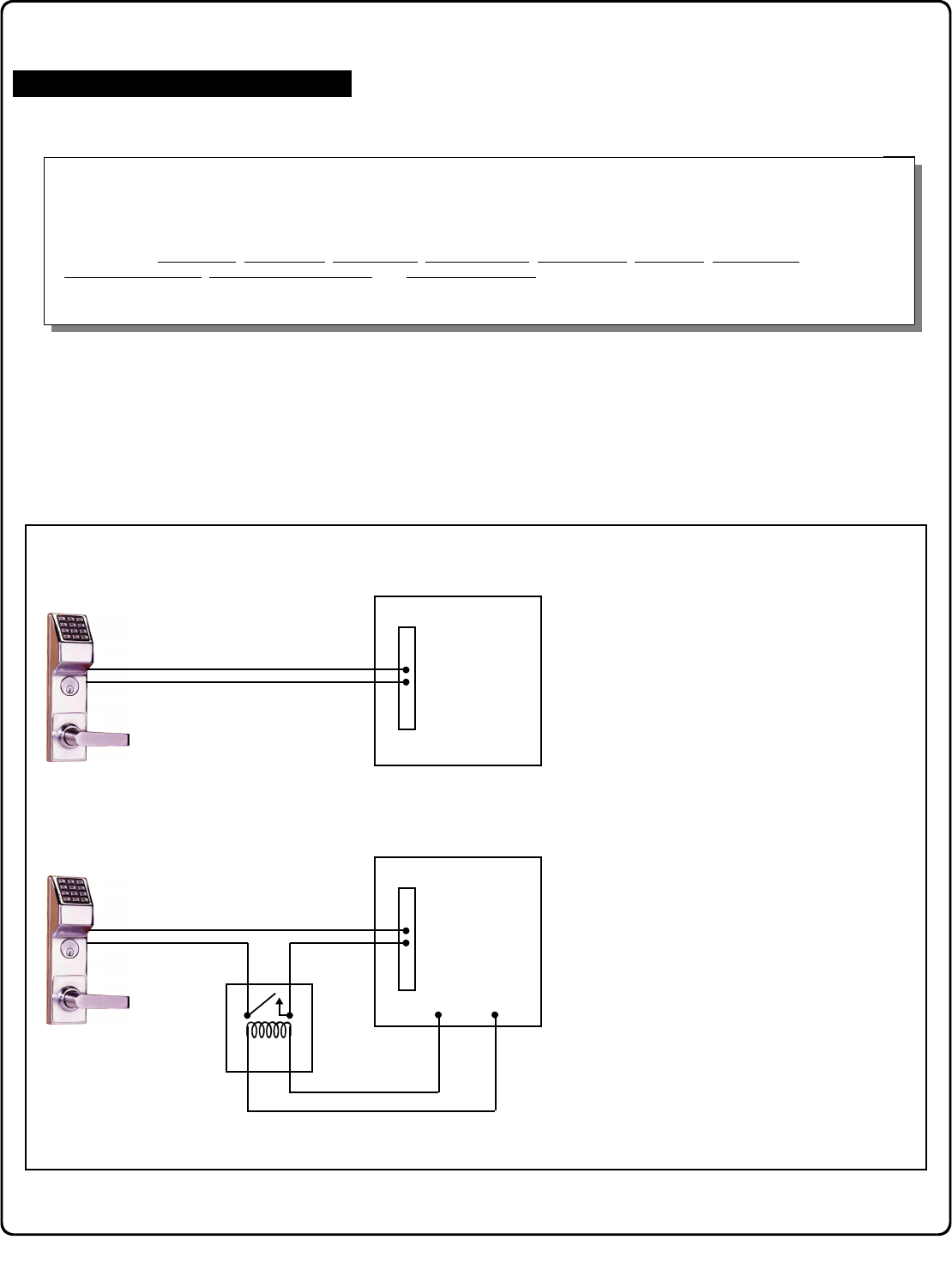
26
To Disarm a Burglary Control Panel
90. Relay Activation
(Open Time Window)
; 9 0 ; [ _ ] ; [ _ _ _ _ ] :
(Day) (Time)
Functions 90 and 91 allow you to set up a window of time where if any Group 1 User Code is entered within this window,
the relay will be activated for 2 seconds. This relay can be used with a Control Panel that has a key switch disarm option.
For additional information, see "Group 1 Activated Features" on page 28.
•Also program Relay Function 6 using Function 67 (; 6 7 ; 6 :).
•For day enter: 1 for Sunday, 2 for Monday, 3 for Tuesday, 4 for Wednesday, 5 for Thursday, 6 for Friday, 7 for Saturday,
8 for Monday to Friday, 9 for Saturday and Sunday, and 0 for all days of week.
•Enter time of day in 24 hour format (for example, for 2:15 PM, enter 14:15).
Scheduled Relay Activation (Group 1 Activated)
; 9 1 ; [ _ ] ; [ _ _ _ _ ] :
(Day) (Time)
91. Relay Activation
(Close Time Window)
SCHEDULES GROUP 1 ACTIVATED
3
NOTES
1. Group 1 Disarms a Burglary Control
Panel will always disarm an alarm
system. Arming should be performed
by other means (such as Alarm Panel
Keypad/Schedule).
2. Use a qualified electrical / alarm
specialist to review your current alarm
system and add additional components
as needed (such as a relay, wire,
resistors, connectors and/or diodes) and
re-program the operation of your alarm
system as needed.
Programming Functions (cont'd)
Alarm Panel with Switched Input for Disarming
Burglary
Control
Panel
Switch
Input
Relay
Output
Alarm Panel with Switched Input for Toggled Arm/Disarm
Burglary
Control
Panel
Switch
Input
Relay
Output
Armed
Lug Power
External
Relay
27
; 9 9 ; 0 0 0 :
99. Clear All Lock Programming
(This Function enabled through keypad only)
Clears all programming, and returns lock to factory default settings. Audit Trail contents
are maintained. M
CLEAR ALL PROGRAMMING
95 - 98. Reserved
92. Enable Group 4
(Open Time Window)
(This Function enabled through keypad only)
; 9 2 ; [ _ ] ; [ _ _ _ _ ] :
(Day) (Time)
Functions 92 and 93 allow you to set up a window of time where if any Group 1 User Code is entered within this window,
Group 4 members will be enabled. (Group 4 members will still need to enter their User Codes to enter). For additional in-
formation, see "Group 1 Activated Features" on page 28.
•For day enter: 1 for Sunday, 2 for Monday, 3 for Tuesday, 4 for Wednesday, 5 for Thursday, 6 for Friday, 7 for Saturday, 8
for Monday to Friday, 9 for Saturday and Sunday, and 0 for all days of week.
•Enter time of day in 24 hour format (for example, for 2:15 PM, enter 14:15).
3
Programming Functions (cont'd)
93. Enable Group 4
(Close Time Window)
(This Function enabled through keypad only)
; 9 3 ; [ _ ] ; [ _ _ _ _ ] :
(Day) (Time)
Scheduled Group 4 Enable (Group 1 Activated)
Disable Radio Signal
94. Disable Radio
(This Function enabled through keypad only)
; 9 4 ; 0 0 0 :
Disables the radio signal (RF) link inside the lock, rendering all wireless communication with the selected lock inoperative.
When using a lock without the DL-Windows RF link, it is highly recommended to enter this command to disable all radio access to the
lock. If enrollment in a wireless system should be desired later, simply restart the lock either through the power up "ERASE ALL
PROGRAMMING" procedure (see page 10) or through the use of the ;99; 000: command, then
enroll and reprogram the lock through the DL-Windows interface.
3

28
Groups and Scheduled Group 1 Examples
The following examples detail the more advanced features of the DL6500 / ETDLN Series locks. Although all features and device functions can be
programmed using the lock keypad, when programming becomes more complex you may find it easier to use DL-Windows software to program
your Alarm Lock security lock. For more information, contact your Alarm Lock security professional.
Assign a User to Two Groups
Create a User 101 (all Users 101-150 are members of Group 2 by default) and include User 101 in Group 3 (as well as the default Group 2).
1. Enter Program Mode (if not in already).
2. Using Function 2, create User 101 with a User Code of "789":
Press ; 2 ; 1 0 1 ; 7 8 9 :.
3. Using Function 35, make User 101 a member of Group 2 and 3:
Press ; 3 5 ; 1 0 1 ; 2 3 :.
4. Exit Program Mode.
Note: See step 3 above--although User 101 is by default a member of Group 2, you must include Group 2 when using Function 35 or the
Group 2 association will be removed.
The example to add Users to Group 2 and Group 3 has been selected due to the fact that Group 1 Activated Functions require that a member
of Group 1 enter their User Code to activate the Function, and it may become necessary to assign Users to Groups.
Group 1 Activated Features: Functions 88/89, 90/91 and 92/93
•Function 88 and 89 allow for a window of time to be created where if any Group 1 User Code is entered within the programmed window,
Passage Mode will be activated (the device physically unlocks, allowing passage for all). If a Group 1 User does not enter their User Code
during the specified window, Functions 88/89 remain inactive.
•Function 90 and 91 allow for a window of time to be created where if any Group 1 User Code is entered within the programmed window, an
internal Relay will be activated for 2 seconds. This Relay can be used with a burglar alarm control panel that has a key switch disarm option.
See To Disarm a Burglary Control Panel on page 26. If a Group 1 User does not enter their User Code during the specified window, Func-
tions 90/91 remain inactive.
•Function 92 and 93 allow for a window of time to be created where if any Group 1 User Code is entered within the programmed window, the
User Codes in Group 4 will be enabled. If a Group 1 User does not enter their User Code during the specified window, Functions 92/93 re-
main inactive. Companies typically use this feature to allow Group 1 Managers the ability to enable all Group 4 staff members during a cer-
tain window of time.
The following examples illustrate how Functions 88-93 can be programmed into your DL6500 / ETDLN Series locks via the keypad:
Functions 88/89: Use Function 88 to set an Open Time Window (during which the Group 1 User must enter their User Code), and then use
Function 89 to set the time to close the Window. Re-lock the door at night manually (Function 46).
1. Enter Program Mode (if not in already).
2. Using Function 2, create User 4 with a User Code of "456789":
Press ; 2 ; 4 ; 4 5 6 7 8 9 :.
3. Because User 4 does not have a default Group association, make User 4 a member of Group 1 using Function 35:
Press ; 3 5 ; 4 ; 1 :.
4. Use Function 88 and Function 89 (see page 25) to designate Passage Mode as being between the hours of 8:30 A.M. and 10 A.M. for all
days of the week:
Function 88 (Open Window Time) = 8:30 A.M.: Press ; 8 8 ; 0 ; 0 8 3 0 :
Function 89 (Close Window Time) = 10:00 A.M.: Press ; 8 9 ; 0 ; 1 0 0 0 :
5. Exit Program Mode (hold down any key for 3 seconds).
The lock will now be put in Passage Mode (device physically unlocked) if User 4 (or any Group 1 member) enters their User Code between
8:30 A.M. and 10 A.M. If a Group 1 User does not enter their User Code during the specified window, Functions 88/89 remain inactive
•The device will have to be manually locked each night by entering the following command using Function 46:
; 4 6 :
•The device can also be programmed to automatically lock (disable Passage Mode) each night at 5 P.M. by using Function 73:
; 7 3 ; 0 ; 1 7 0 0 :
•Remember to exit Function Mode when programming is complete.

29
Groups and Scheduled Group 1 Examples (cont'd.)
Functions 90/91: Use Function 90 and 91 (see page 26) to create a window of time where if any Group 1 User Code is entered within the
programmed window, a Relay will be activated for 2 seconds. The Relay can be configured to disarm a burglary control panel. See page 26.
1. Enter Program Mode (if not in already).
2. Connect Relay to a burglar control panel with switch input for disarming.
3. Using Function 2, create User 4 with a User Code of "456789":
Press ; 2 ; 4 ; 4 5 6 7 8 9 :.
4. Because User 4 does not have a default Group association, make User 4 a member of Group 1 using Function 35:
Press ; 3 5 ; 4 ; 1 :.
5. Use Function 90 to set the time to open the window (8:30 A.M. all days of the week) allowing any Group 1 member to close the Relay for 2
seconds. Note: Only 1 Relay closure will occur even if another member of Group 1 enters their User Code. Use Function 91 to set the
time to close the window (10 A.M. for all days of the week):
Function 90 (Open Window Time) = 8:30 A.M.: Press ; 9 0 ; 0 ; 0 8 3 0 :
Function 91 (Close Window Time) = 10:00 A.M.: Press ; 9 1 ; 0 ; 1 0 0 0 :
6. Exit Program Mode (hold down any key for 3 seconds).
The Relay will close, one time only, when a member of Group 1 enters their User Code between 8:30AM and 10:00AM. If a Group 1 User
does not enter their User Code during the specified window, Functions 90/91 remain inactive
•The alarm panel will have to be armed at night by the User or by an automatic schedule function of the alarm panel.
Functions 92/93: Use Function 92 and 93 (see page 27) to create a window of time where if any Group 1 User Code is entered within the
programmed window, Group 4 Users will be enabled.
1. Enter Program Mode (if not in already).
2. Using Function 2, create User 4 with a User Code of "456789":
Press ; 2 ; 4 ; 4 5 6 7 8 9 :.
3. Because User 4 does not have a default Group association, make User 4 a member of Group 1 using Function 35:
Press ; 3 5 ; 4 ; 1 :.
4. Using Function 17, disable Group 4. (Group 4 will need to be "disabled" before it can be "enabled" later).
Press ; 1 7 :.
5. Use Function 92 to set the time to open the window (8:30 A.M. all days of the week) allowing any Group 1 member to enable Group 4. Use
Function 93 to set the time to close the window (10:00 A.M. all days of the week).
Function 92 (Open Window Time) = 8:30 A.M.: Press ; 9 2 ; 0 ; 0 8 3 0 :
Function 93 (Close Window Time) = 10:00 A.M.: Press ; 9 3 ; 0 ; 1 0 0 0 :
6. Exit Program Mode (hold down any key for 3 seconds).
The lock will now enable Group 4 User Codes if User 4 (or any Group 1 member) enters their User Code between 8:30 A.M. and 10 A.M.
If no Group 1 member arrives to enter their User Code between 8:30 A.M. and 10 A.M., Group 4 User Codes will not be enabled and will
remain disabled all day.
•The device will have to be manually locked each night by entering the following command using Function 82:
; 4 6 :
•The device can also be programmed to automatically disable Group 4 members each night at 5 P.M. by using Function 82:
; 8 2 ; 0 ; 1 7 0 0 :
•Test the device by creating User 222 (with User Code 466466) and adding User 222 to Group 4:
; 2 ; 2 2 2 ; 4 6 6 4 6 6 :
; 3 5 ; 2 2 2 ; 4 :
•Remember to exit Function Mode when programming is complete.
30
Function
Number(s) Function Name Programming
43/44 Clock Adjust
52/53/54 Pass Time (3 sec) 10 sec 15 sec
60 Set Lockout Attempts
61 Set Lockout Time
64/65 Remote Input Momentary (Enable) Disable
66 Ambush Code
67 Add Relay/System Features
69/70 Enter Key Enable (Disable)
+/- 0-55
(0) (0) Seconds
1-9 Attempts
(6)
1-60 seconds
(1) (8)
Default Values are shown in parentheses.
00-99
(9) (9) Ambush Code
Check all that apply
1. Remote Input switch closed and Function 65 Remote Input
enabled
2. Remote Input switch closed and Function 64 Remote Input
disabled
3. Failed attempted entry
4. Disabled User or Group
5. Follow Access Granted
6. Group 1 User Code
7. Scheduled Lock Event
8. Scheduled Unlock Event
9. Lock Out
10. Ambush
11. First Key Press
24. One Time Access for Group 3 Users
25. Disable Sounder
26. 5 sec. Delayed Entry
27. 15 sec. Delayed Entry
28. 45 sec. Delayed Entry
29. Toggle Passage Mode
30. Forced Unlock Follows Remote Input
31. Follow Access Granted--No Time Limit
32. Remote Input Disables Unit
38. Emergency Commands Enable (default = ON)
39. User Lockout on Emergency (default = ON)
31
User Number
(1-5000)
User Code
(3-6 digits)
User Name
1 2 3 4
Group
Association
For a complete list of user codes, obtain a printout from the DL-WINDOWS software.
Note:
32
User Number
(1-5000)
User Code
(3-6 digits)
User Name
1 2 3 4
Group
Association
For a complete list of user codes, obtain a printout from the DL-WINDOWS software.
Note:
33
Day(s)
Function Number
Up to 500 scheduled functions can be programmed. For
Day Enter :
1 = Sunday, 2 = Monday, 3 = Tuesday, 4 = Wednesday
5 = Thursday, 6 = Friday, 7 = Saturday, 8 = Monday through
Friday, 9 = Saturday and Sunday, 0 = All days of the week
Enter time of day in 24-hour format (00:00- 23:59)
Time
Function Name
:
:
:
:
:
:
:
:
:
:
:
:
:
:
:
:
:
:
:
:
:
:
:
:
:
:
:
:
:
:
34
Day(s)
Function Number
Up to 500 scheduled functions can be programmed. For
Day Enter :
1 = Sunday, 2 = Monday, 3 = Tuesday, 4 = Wednesday
5 = Thursday, 6 = Friday, 7 = Saturday, 8 = Monday through
Friday, 9 = Saturday and Sunday, 0 = All days of the week
Enter time of day in 24-hour format (00:00- 23:59)
Time
Function Name
:
:
:
:
:
:
:
:
:
:
:
:
:
:
:
:
:
:
:
:
:
:
:
:
:
:
:
:
:
:

35
ACCESS = Entry into a restricted area.
AMBUSH = A special Code entered at the keypad when the
User is forced to unlock a security device. The device
unlocks but sends a silent alarm with no indication at the
keypad. Can be used to trip a relay, to alert security, or
trip a silent alarm on a burglary control panel.
AUDIT TRAIL = A date/time stamped log of previous lock
events.
BURGLARY CONTROL PANEL = Provides local alarm and
remote communication to request security for burglary/
break-in. The lock's internal relay output used for Ambush
can provide a silent alarm and call-for-help.
CLOCK
•REAL TIME CLOCK = An accurate built-in clock that
allows date/time stamping of events. The clock can be
slowed or speeded up to fine tune long term accuracy
to within three minutes per year (see Functions 43 and
44).
•CLOCK SPEED = The clock can be adjusted to allow
faster/slower speeds and therefore increasing clock
accuracy (see Functions 43 and 44).
CODE = Numeric sequence of numbers (such as: 1234) en-
tered at the keypad. If Star-Enter key is required, must be
followed by a : key.
•AMBUSH CODE = See Ambush.
•BASIC USER CODE = User Codes assigned to User
Numbers 12+ (except Users 297-300). (Does not
allow programming)
•INSTALLER CODE = User Codes assigned to User
Numbers 2 and 3. (Allows all programming except
Master functions).
•INVALID CODE = A numeric sequence of numbers en-
tered via the keypad buttons that have not been pro-
grammed in the lock.
•MANAGER CODE = User Codes assigned to User
Numbers 4 through 6. (Allows most of the
programming functions).
•MASTER CODE = User Code assigned to User Number
1. Default (factory) Master Code is 123456. The User
with the Master Code has complete control of the lock.
•QUICK ENABLE USER 300 CODE = Refers to the User
Code entered by User 297 which (when entered at the
keypad) enables the User Code assigned to User 300
for one time only.
•SERVICE CODE = User 300 User Code. Allows only
one entry, then needs to be re-enabled by the User
297 User Code to regain access.
•SUPERVISOR CODE = User Codes assigned to Users
7, 8 and 9. Can only program day-to-day operation.
•USER CODE = Code used by Users. Code is 3 to 6
numeric digits long, allowing controlled entry.
•VALID CODE = A numeric sequence of numbers en-
tered via the keypad buttons that have been pro-
grammed in the lock and identified by the lock as a
User Code.
DATE = Month, Day and Year entered as MMDDYY.
DAY OF WEEK = Sunday through Saturday (where 1 =
Sunday and 7 = Saturday).
DEFAULT = Default settings are the original settings that
were set at the factory; in other words, it is the lock's origi-
nal factory condition when the lock was first taken out of
its box. The default settings are permanently encoded
within the lock's fixed memory, and when the lock is first
started, or when power is removed and re-applied (see
Wiring and Power-Up, page 10), the original factory de-
fault settings are re-loaded and take effect.
DISABLE = Turn off.
DOWNLOAD = Send data to the lock.
EMERGENCY COMMANDS = For use with the Trilogy Net-
worx™ wireless network only. Wireless commands can
be sent to all wireless locking devices in an Account dur-
ing a crisis or other urgent situation. "Global Lock Down"
locks all doors in the Account; "Global Passage" unlocks
all doors in the Account; Return all devices in the Account
to "normal" discontinues all emergency commands, revert-
ing to "normal" non-emergency operation. Note: DL-
Windows does not need to be running to allow these
"Emergency" commands to be initiated; any wireless key-
pad can be used to disseminate these commands
throughout the wireless system.
ENABLE = Turn on.
EVENTS = Recorded lock activity.
FUNCTION (also called Programming Functions) = are the
numbers used to program lock features (enabling/
disabling Users, User Groups, Passage Mode, Schedules,
etc.).
GROUP
•USER GROUP = Defining a User to specific Groups,
allows User entry when the Group is allowed entry.
•GROUP 1 DISARMS BURGLAR CONTROL = A Group
1 USER CODE entry can disarm an alarm panel
during a predefined schedule. Should the Group 1
enter the lock outside of the scheduled time, the alarm
will not disarm. The alarm panel must be armed
through other means (such as an alarm control panel
keypad). The burglary alarm control panel must be
programmed to disarm from an armed state only and
the zone input must be programmed for input
disarming.
•GROUP 1 ENABLES GROUP 4 USERS = A Group 1
USER CODE entry during a predefined schedule will
allow access to Group 4 Users.
•GROUP 1 PUTS UNIT IN PASSAGE = A Group 1
USER CODE entry during a pre-defined schedule will
unlock unit.
GUARD TOUR = A Guard Tour Code is used to log the move-
ment of a security guard as he or she makes rounds from
one assigned guard tour station to the next. See "User 299:
Guard Tour Code" on page 7 for more information.
INSTALLER = See.... CODE, INSTALLER CODE.
KEYPAD = 10-numeric keys, : and special ; key.
•KEYPAD LOCKOUT = Keypad is programmed to
lockout Users, for a specified period of time, when a
specified number of invalid User Codes are entered.
•KEYPAD PROGRAMMING = Ability to program the lock
through the keypad.
KEYPRESS = Pressing a button on the Lock's Keypad.
LEVEL ABILITY = Predefined User types (such as Master,
Installer, Manager and Supervisor) have specific abilities
Glossary

36
to program and /or control the lock.
LOCKOUT ATTEMPTS = A specified number of invalid User
Code entries (1-9), that will disable the keypad for a
predefined period of time (1-60 seconds).
LOCKOUT TIME = A predefined time (1-60) seconds that the
lock will stop accepting User Codes, after a specified
number of invalid User Code entries (1-9).
LOG = See... AUDIT TRAIL.
MANAGER = See... CODE, MANAGER CODE.
MASTER = See... CODE, MASTER CODE.
PASSAGE = Allow anyone to pass through the door without
USER CODES (door is unlocked).
PROGRAM MODE = A mode allowing program / data to be
entered through the keypad. Only specific Users can
program a lock manually, by entering their USER CODE,
followed by the ; key. To exit program mode, hold any
key until repeated beeps are heard.
PROGRAMMABLE RELAY FUNCTIONS = The relay can be
programmed for one or more functions.
RELAY = Switched output allowing remote control of other
devices. For an explanation of all relay features, see Func-
tion 67 on page 23.
REMOTE INPUT = Entry into a restricted area, by pressing a
button connected to the REMOTE INPUT WIRES (white
and white) by someone on the other side of the door.
SCHEDULE = A programmed operation (enable/disable, lock/
unlock, etc.) on a specific day (Sunday through Saturday)
and time.
SCHEDULES, QUICK = Any one of four most common types
of schedules can be programmed.
TIME = Hours and Minutes in the HHMM format.
TIME/DATE STAMP = A recorded date and time that an event
occurred.
TIMEOUT = Immediate operation for a specified number of
hours.
UPLOAD = Receive data from the lock.
USER = A person who has been provided with a USER CODE
for access through the door.
USER LOCKOUT, TOTAL = All Users (except for Master
Code) have been locked out.
Glossary (cont'd)
ALARM LOCK SYSTEMS, INC. (ALARM LOCK) warrants its
products to be free from manufacturing defects in materials and
workmanship for 24 months following the date of manufacture.
ALARM LOCK will, within said period, at its option, repair or replace
any product failing to operate correctly without charge to the original
purchaser or user.
This warranty shall not apply to any equipment, or any part thereof,
which has been repaired by others, improperly installed, improperly
used, abused, altered, damaged, subjected to acts of God, or on
which any serial numbers have been altered, defaced or removed.
Seller will not be responsible for any dismantling or reinstallation
charges.
THERE ARE NO WARRANTIES, EXPRESS OR IMPLIED, WHICH
EXTEND BEYOND THE DESCRIPTION ON THE FACE HEREOF.
THERE IS NO EXPRESS OR IMPLIED WARRANTY OF
MERCHANTABILITY OR A WARRANTY OF FITNESS FOR A
PARTICULAR PURPOSE. ADDITIONALLY, THIS WARRANTY IS IN
LIEU OF ALL OTHER OBLIGATIONS OR LIABILITIES ON THE
PART OF ALARM LOCK.
Any action for breach of warranty, including but not limited to any
implied warranty of merchantability, must be brought within the six
months following the end of the warranty period. IN NO CASE SHALL
ALARM LOCK BE LIABLE TO ANYONE FOR ANY
CONSEQUENTIAL OR INCIDENTAL DAMAGES FOR BREACH OF
THIS OR ANY OTHER WARRANTY, EXPRESS OR IMPLIED, EVEN
IF THE LOSS OR DAMAGE IS CAUSED BY THE SELLER'S OWN
NEGLIGENCE OR FAULT.
In case of defect, contact the security professional who installed
and maintains your security system. In order to exercise the warranty,
the product must be returned by the security professional, shipping
costs prepaid and insured to ALARM LOCK. After repair or
replacement, ALARM LOCK assumes the cost of returning products
under warranty. ALARM LOCK shall have no obligation under this
warranty, or otherwise, if the product has been repaired by others,
improperly installed, improperly used, abused, altered, damaged,
subjected to accident, nuisance, flood, fire or acts of God, or on which
any serial numbers have been altered, defaced or removed. ALARM
LOCK will not be responsible for any dismantling, reassembly or
reinstallation charges.
This warranty contains the entire warranty. It is the sole warranty
and any prior agreements or representations, whether oral or written,
are either merged herein or are expressly canceled. ALARM LOCK
neither assumes, nor authorizes any other person purporting to act
on its behalf to modify, to change, or to assume for it, any other
warranty or liability concerning its products.
In no event shall ALARM LOCK be liable for an amount in excess
of ALARM LOCK's original selling price of the product, for any loss or
damage, whether direct, indirect, incidental, consequential, or
otherwise arising out of any failure of the product. Seller's warranty,
as hereinabove set forth, shall not be enlarged, diminished or
affected by and no obligation or liability shall arise or grow out of
Seller's rendering of technical advice or service in connection with
Buyer's order of the goods furnished hereunder.
ALARM LOCK RECOMMENDS THAT THE ENTIRE SYSTEM BE
COMPLETELY TESTED WEEKLY.
Warning: Despite frequent testing, and due to, but not limited to,
any or all of the following; criminal tampering, electrical or
communications disruption, it is possible for the system to fail to
perform as expected. ALARM LOCK does not represent that the
product/system may not be compromised or circumvented; or that the
product or system will prevent any personal injury or property loss by
burglary, robbery, fire or otherwise; nor that the product or system will
in all cases provide adequate warning or protection. A properly
installed and maintained alarm may only reduce risk of burglary,
robbery, fire or otherwise but it is not insurance or a guarantee that
these events will not occur. CONSEQUENTLY, SELLER SHALL
HAVE NO LIABILITY FOR ANY PERSONAL INJURY, PROPERTY
DAMAGE, OR OTHER LOSS BASED ON A CLAIM THE PRODUCT
FAILED TO GIVE WARNING. Therefore, the installer should in turn
advise the consumer to take any and all precautions for his or her
safety including, but not limited to, fleeing the premises and allege
police or fire department, in order to mitigate the possibilities of harm
and/or damage.
ALARM LOCK is not an insurer of either the property or safety of
the user's family or employees, and limits its liability for any loss or
damage including incidental or consequential damages to ALARM
LOCK's original selling price of the product regardless of the cause of
such loss or damage.
Some states do not allow limitations on how long an implied
warranty lasts or do not allow the exclusion or limitation of incidental
or consequential damages, or differentiate in their treatment of
limitations of liability for ordinary or gross negligence, so the above
limitations or exclusions may not apply to you. This Warranty gives
you specific legal rights and you may also have other rights which
vary from state to state.
ALARM LOCK LIMITED WARRANTY
