Aliph com JBF Jawbone User Manual

Aliph com Jawbone

User manual

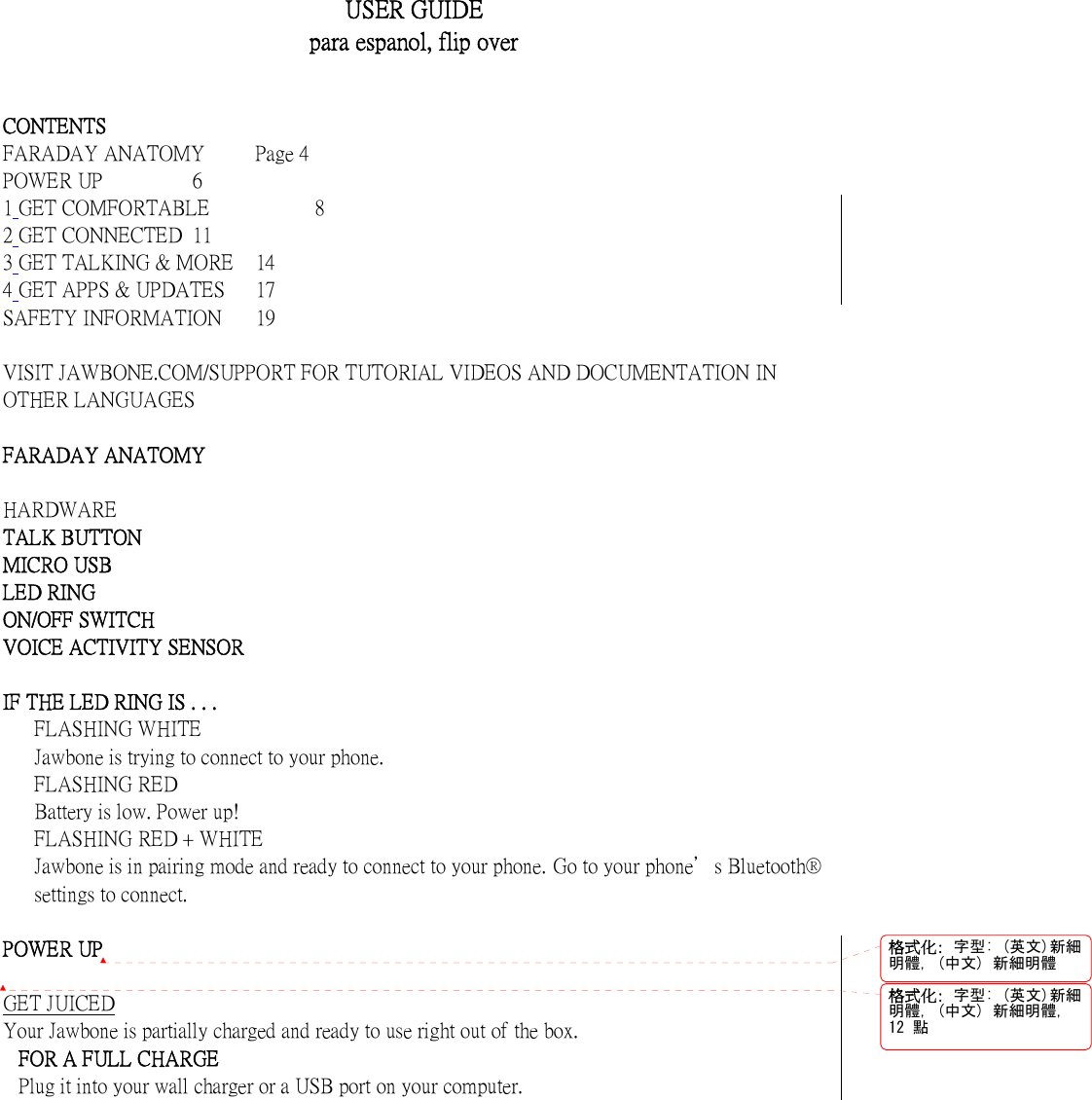
   USER GUIDE para espanol, flip over    CONTENTS FARADAY ANATOMY  Page 4 POWER UP    6 1 GET COMFORTABLE          8 2 GET CONNECTED  11 3 GET TALKING & MORE  14 4 GET APPS & UPDATES  17 SAFETY INFORMATION  19  VISIT JAWBONE.COM/SUPPORT FOR TUTORIAL VIDEOS AND DOCUMENTATION IN OTHER LANGUAGES  FARADAY ANATOMY    HARDWARE   TALK BUTTON   MICRO USB   LED RING   ON/OFF SWITCH   VOICE ACTIVITY SENSOR    IF THE LED RING IS . . .   FLASHING WHITE   Jawbone is trying to connect to your phone.   FLASHING RED   Battery is low. Power up!   FLASHING RED + WHITE   Jawbone is in pairing mode and ready to connect to your phone. Go to your phone's Bluetooth® settings to connect.  POWER UP  GET JUICED Your Jawbone is partially charged and ready to use right out of the box. FOR A FULL CHARGE Plug it into your wall charger or a USB port on your computer. 格式化: 字型: (英文)新細明體, (中文) 新細明體格式化: 字型: (英文)新細明體, (中文) 新細明體,12 點
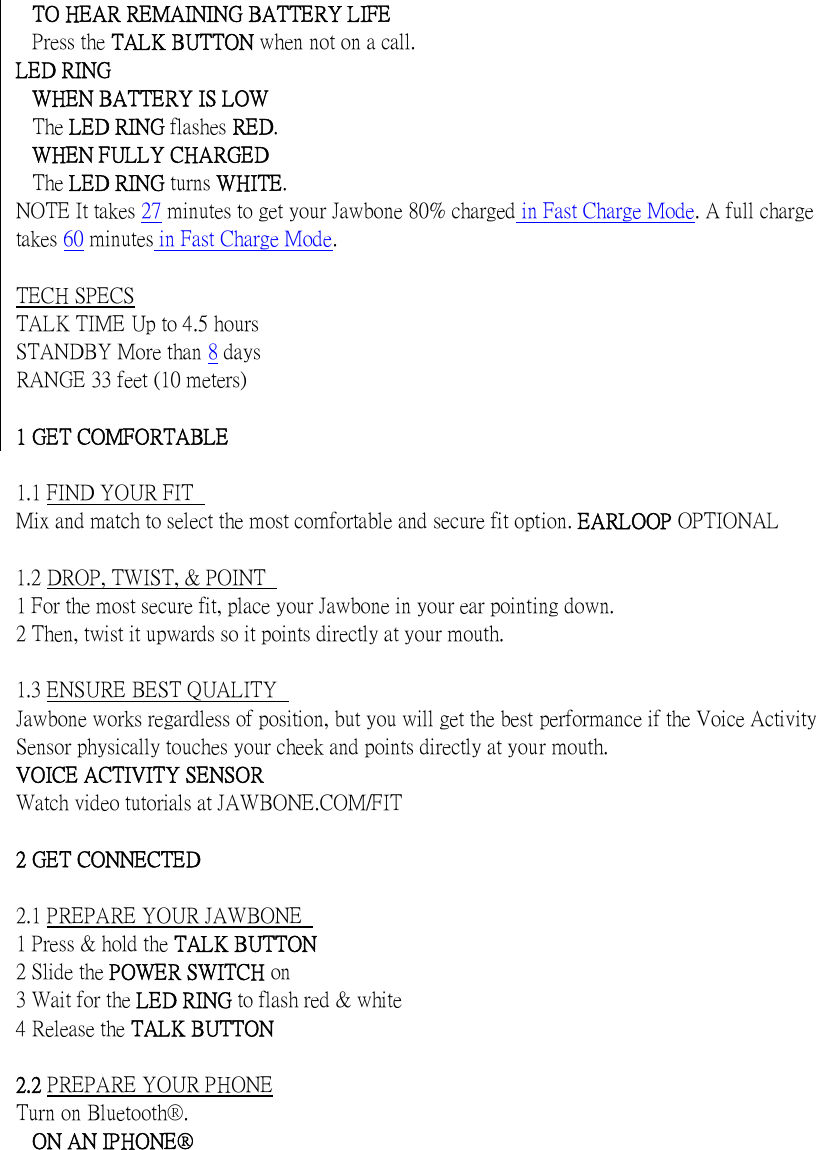
  TO HEAR REMAINING BATTERY LIFE Press the TALK BUTTON when not on a call. LED RING WHEN BATTERY IS LOW The LED RING flashes RED. WHEN FULLY CHARGED The LED RING turns WHITE. NOTE It takes 27 minutes to get your Jawbone 80% charged in Fast Charge Mode. A full charge takes 60 minutes in Fast Charge Mode.  TECH SPECS TALK TIME Up to 4.5 hours STANDBY More than 8 days RANGE 33 feet (10 meters)  1 GET COMFORTABLE    1.1 FIND YOUR FIT   Mix and match to select the most comfortable and secure fit option. EARLOOP OPTIONAL  1.2 DROP, TWIST, & POINT   1 For the most secure fit, place your Jawbone in your ear pointing down.   2 Then, twist it upwards so it points directly at your mouth.    1.3 ENSURE BEST QUALITY   Jawbone works regardless of position, but you will get the best performance if the Voice Activity Sensor physically touches your cheek and points directly at your mouth.   VOICE ACTIVITY SENSOR   Watch video tutorials at JAWBONE.COM/FIT  2 GET CONNECTED    2.1 PREPARE YOUR JAWBONE   1 Press & hold the TALK BUTTON   2 Slide the POWER SWITCH on   3 Wait for the LED RING to flash red & white   4 Release the TALK BUTTON    2.2 PREPARE YOUR PHONE Turn on Bluetooth®. ON AN IPHONE®
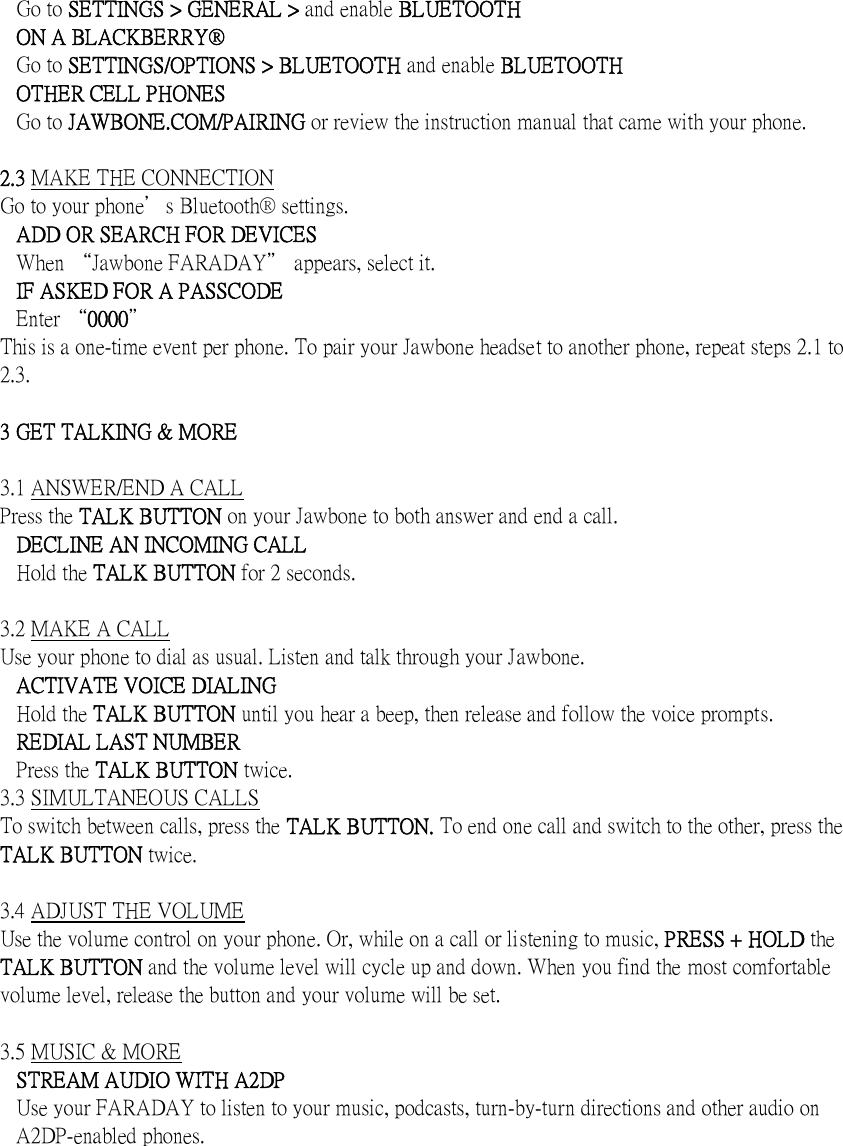
  Go to SETTINGS > GENERAL > and enable BLUETOOTH ON A BLACKBERRY® Go to SETTINGS/OPTIONS > BLUETOOTH and enable BLUETOOTH OTHER CELL PHONES Go to JAWBONE.COM/PAIRING or review the instruction manual that came with your phone.    2.3 MAKE THE CONNECTION Go to your phone's Bluetooth® settings. ADD OR SEARCH FOR DEVICES When “Jawbone FARADAY" appears, select it. IF ASKED FOR A PASSCODE Enter “0000" This is a one-time event per phone. To pair your Jawbone headset to another phone, repeat steps 2.1 to 2.3.  3 GET TALKING & MORE  3.1 ANSWER/END A CALL Press the TALK BUTTON on your Jawbone to both answer and end a call. DECLINE AN INCOMING CALL Hold the TALK BUTTON for 2 seconds.  3.2 MAKE A CALL Use your phone to dial as usual. Listen and talk through your Jawbone. ACTIVATE VOICE DIALING Hold the TALK BUTTON until you hear a beep, then release and follow the voice prompts. REDIAL LAST NUMBER Press the TALK BUTTON twice. 3.3 SIMULTANEOUS CALLS To switch between calls, press the TALK BUTTON. To end one call and switch to the other, press the TALK BUTTON twice.  3.4 ADJUST THE VOLUME Use the volume control on your phone. Or, while on a call or listening to music, PRESS + HOLD the TALK BUTTON and the volume level will cycle up and down. When you find the most comfortable volume level, release the button and your volume will be set.  3.5 MUSIC & MORE STREAM AUDIO WITH A2DP   Use your FARADAY to listen to your music, podcasts, turn-by-turn directions and other audio on A2DP-enabled phones.
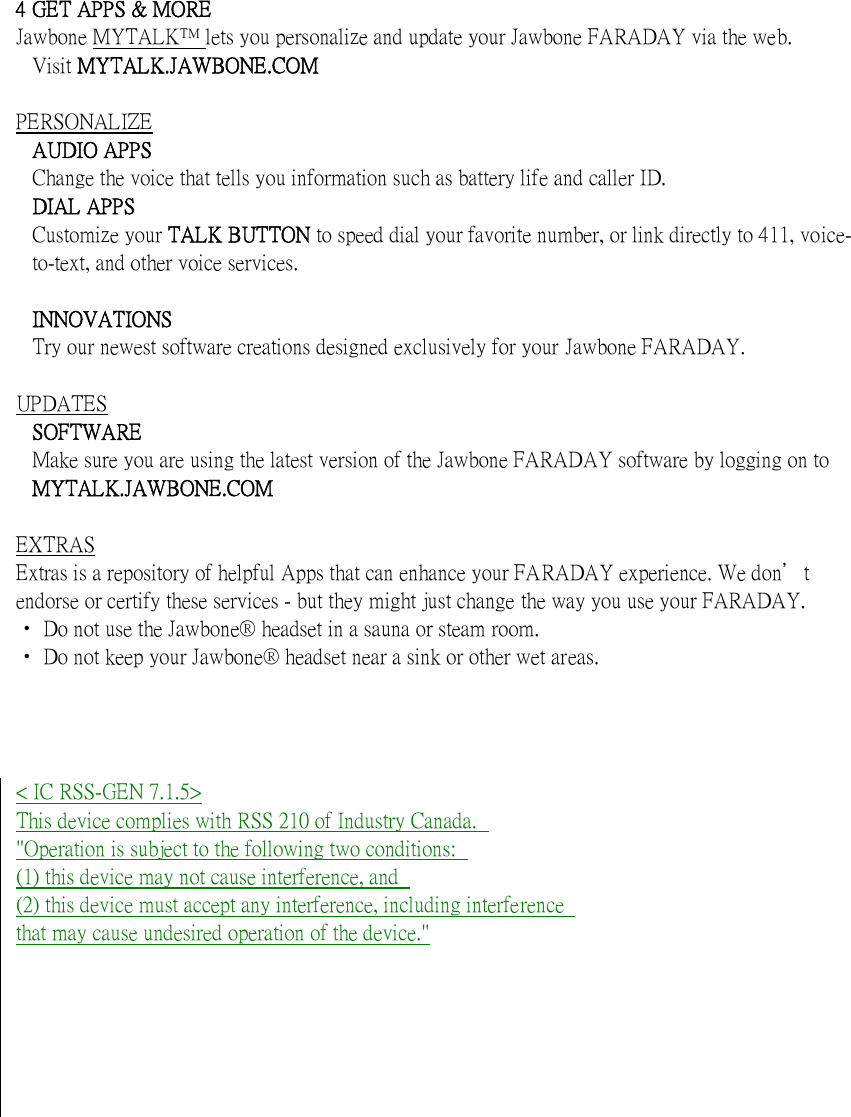
   4 GET APPS & MORE Jawbone MYTALK lets you personalize and update your Jawbone FARADAY via the web. Visit MYTALK.JAWBONE.COM  PERSONALIZE AUDIO APPS Change the voice that tells you information such as battery life and caller ID. DIAL APPS Customize your TALK BUTTON to speed dial your favorite number, or link directly to 411, voice-to-text, and other voice services.    INNOVATIONS Try our newest software creations designed exclusively for your Jawbone FARADAY.  UPDATES SOFTWARE Make sure you are using the latest version of the Jawbone FARADAY software by logging on to MYTALK.JAWBONE.COM  EXTRAS Extras is a repository of helpful Apps that can enhance your FARADAY experience. We don't endorse or certify these services - but they might just change the way you use your FARADAY. ‧ Do not use the Jawbone® headset in a sauna or steam room. ‧ Do not keep your Jawbone® headset near a sink or other wet areas.      < IC RSS-GEN 7.1.5> This device complies with RSS 210 of Industry Canada.   "Operation is subject to the following two conditions:   (1) this device may not cause interference, and   (2) this device must accept any interference, including interference   that may cause undesired operation of the device."
  < FCC 15.19, 15.21 and RF Exposure > FCC Notice   This device complies with Part 15 of the FCC Rules. Operation is subject to the following   two conditions:   (1) This device may not cause harmful interference, and   (2) This device must accept any interference received, including interference that may   cause undesired operation.   FCC / IC Caution   -Any changes or modifications not expressly approved by the party responsible for   compliance could void the user's authority to operate this equipment.   -This device and its antenna(s) must not be co-located or operating in conjunction with   any other antenna or transmitter.

Navigation menu