Amgoo Telecom AM509B Smartphone User Manual

Amgoo Telecom Co., Ltd. Smartphone Users Manual

Contents

Users Manual

1. Using this manualThank you for choosing this mobile device.This device will provide you with high-quality mobilecommunication and entertainment based on exceptionaltechnology and high standards.This manual has been specially designed to guide youthrough the functions and features of your device.1.1 Read me first●Before using your device,read the entire manual and allsafety instructions to ensure safe and proper use.●The descriptions in this manual are based on the defaultsettings of your device.●The images and screen shots used in this manual maydiffer from the actual product.●The contents of this manual may differ from the product,or from software provided by service providers or carriers,and are subject to change without prior notice.●Available features and additional services may vary bydevice, software, or service provider.●Formatting and delivery of this manual is based onAndroidTM 7.0 operating systems and may vary dependingon the user’s operating system Version.●Applications on this device may perform differently fromfunctions available in the computer version of the operatingsystem.
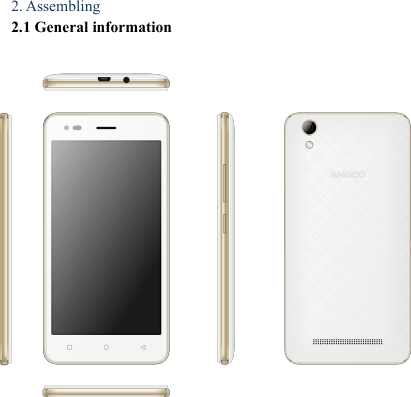
2. Assembling2.1 General information
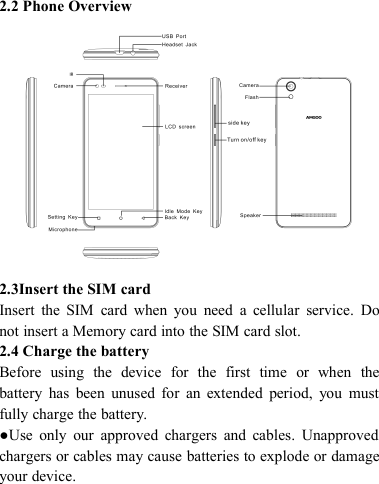
2.2 Phone Overview2.3Insert the SIM cardInsert the SIM card when you need a cellular service. Donot insert a Memory card into the SIM card slot.2.4 Charge the batteryBefore using the device for the first time or when thebattery has been unused for an extended period, you mustfully charge the battery.●Use only our approved chargers and cables. Unapprovedchargers or cables may cause batteries to explode or damageyour device.
2.5 Insert a Memory cardYour device accepts Memory cards. Memory cards withmaximum capacities of 32 GB,When you insert a Memorycard into your device, the Memory card’s file directory willappear in the Memory card folder.3. Getting started3.1 Turn on or off your devicePress and hold the Turn on/off key.3.2 Use the touch screenYour device’s touch screen lets you easily select items orperform functions. Learn basic actions for using the touchscreen.3.3 Lock or unlock the touch screen and the keysYour device will go in standby mode when you do not use itfor a specified period. To turn on the screen, press the Turnon/off key.●to set standby time, select Settings →Display →Sleep.3.4 Get to know the Home screenFrom the Home screen, you can view your device’s statusand access applications.The Home screen has multiple panels. Scroll left or right toview the panels on the Home screen.Move an item on the Home screen
Tap and hold an item, and then drag it to a new location.3.5 Access applicationsLaunch applications and take full advantage of features onyour device. You can reorganize the application list tomatch your preferences, or download applications from theInternet to enhance your device’s functionality.3.6 Launch multiple applicationsYour device allows you to multitask by running multipleapplications at the same time. To launch multipleapplications, select another application to launch from theHome screen.4. Communication4.1 CallingMake a call1 In the application list, select Phone →Keypad, and thenenter an area code and a phone number.2 Select to make a voice call.3 Select to end the call.Answer a call1 During an incoming call, Select drag your finger to
outside of the large circle then selectTo mute the ringtone, press the side key.2 Select to end the call.4.2 MessagesLearn to create and send text (SMS) or multimedia (MMS)messages, and view or manage messages that you have sentor received.Send a text message1 In the application list, select Messaging →2 Add recipients:●Enter phone numbers manually and separate them with asemicolon or a comma.●Select phone numbers from your contact lists by selecting3 Select the text field and enter your message text.4 To send the message, select
5. Entertainment5.1 CameraLearn how to take and view photos and videos. You cantake photos and record videos.Take a photo1 In the application list, select Camera.2 Aim the camera lens at the subject and make3 Select to take a photo.The photo is saved automatically.Record a video1 In the application list, select Camera.2 Aim the lens at the subject and make any necessaryadjustments.TapTap thisthis iconicon toto switchswitch totovideovideo recordrecordTapTap thisthis iconicon toto openopensettingsetting menumenuTapTap thisthis iconicon totoswitchswitch toto frontfront cameracamera
3 Select to start recording.5.2 Music playerLearn to listen to your favorite music while on the go.Add music files to your deviceStart by transferring files to your device or memory card:● Download from the internet.● Download from a computer with Media Player.● Receive via BT.● Copy to your Memory card.Play music1 In the application list, select Play Music.2 Select a music category → a music file.6. Tools6.1 CalculatorLearn to perform calculations with your device.Perform a calculation1 In the application list, select Calculator.2 Use the keys on the screen to perform basic calculations.6.2 ClockSet an alarm1 In the application list, select Clock →Alarm.2 Select add alarm.3 Set the details of the alarm.
4 When you are finished, select OK.Stop an alarmWhen the alarm sounds,●To stop the alarm, select Dismiss●To silence the alarm for the snooze period, select Snooze.6.3 CalendarYou can open Calendar to view and manage the events youhave created. Touch Menu icon do the following operations:New event, Refresh, Search, Calendars to display andSettings.7. SettingsAccess the setting options1 In the application list, select Settings.2 Select a setting category, and then select an option.8. E-waste disposable mechanism'E-waste' means waste electrical and electronic equipment(WEEE). In other words E-waste is a popular, informalname for electronic products nearing the end of their "usefullife".Do’s and Don’ts for disposal e-wasteDo’s:a. Ensure that an Authorized Person repairs your products
b. Call Our Local Authorized Collection Centers toDispose products.c. Always drop your used electronic products, batteries orany accessories thereof after the end of their life atnearest Authorized Collection Point or CollectionCenter.d. Separate the packaging material according toresponsible waste disposal options and sorting forrecycling.e. Always remove the battery from the product, when youdo not intend to use the product anymore it in future.Don’ts:a. Do not Dismantle your product on your own.b. Do not give your e-waste to Scrap Dealer/ RagPickers.c. Do not dispose-off the e-waste in landfills.d. Never dump E-waste in garbage bins.e. Do not dispose of your product at municipal wastebins or rooms.f. Do not throw used batteries into household waste.g. Consequences of improper handling and disposal ofE-Waste.
Any Changes or modifications not expresslyapproved by the party responsible for compliancecould void the user's authority to operate theequipment.This device complies with part 15 of the FCC Rules.Operation is subject to the following two conditions:(1) This device may not cause harmful interference,and (2) this device must accept any interferencereceived, including interference that may causeundesired operation.Specific Absorption Rate (SAR) informationSAR tests are conducted using standard operatingpositions accepted by the FCC with the phonetransmitting at its highest certified power level in alltested frequency bands, although the SAR isdetermined at the highest certified power level, theactual SAR level of the phone while operating can bewell below the maximum value, in general, the closeryou are to a wireless base station antenna, the lowerthe power output.Before a new model phone is a available for sale tothe public, it must be tested and certified to the FCCthat it does not exceed the exposure limit establishedby the FCC, Tests for each phone are performed inpositions and locations (e.g. at the ear and worn onthe body)as required by the FCC.
For body worn operation, this model phone has beentested and meets the FCC RF exposure guidelineswhen used with an accessory designated for thisproduct or when used with an accessory that Containsno metal and that positions the handset a minimum of1cm from the body.Non-compliance with the above restrictions mayresult in violation of RF exposure guidelines.Android is a trademark of Google Inc.

Navigation menu