Amgoo Telecom AM88 Mobile Phone User Manual 1 Ok updatedx

Amgoo Telecom Co., Ltd. Mobile Phone 1 Ok updatedx

Users Manual

AMGOO - AM88 User Manual Content 1.1 File manager .............................................................................. 4 1.2 Phonebook ................................................................................. 4 1.3 Call center ................................................................................. 4 1.3.1 Call history ...................................................................................... 4 1.3.2 Call settings ..................................................................................... 5 1.4 Messaging.................................................................................. 5 1.5 Multimedia ................................................................................ 5 1.5.1 Camera ............................................................................................ 5 1.5.2 Media player .................................................................................... 5 1.5.3 Sound recorder ................................................................................. 6 1.5.4 FM radio .......................................................................................... 6 1.6 Settings ..................................................................................... 6 1.6.1 Phone settings .................................................................................. 6 1.6.2 Network settings .............................................................................. 6 1.6.3 Security settings .............................................................................. 7 1.6.4 Connectivity .................................................................................... 7 1.6.5 User profiles .................................................................................... 7 1.7 Application ................................................................................ 7 1.7.1 Calculator ........................................................................................ 7 1.7.2 Calendar .......................................................................................... 8 1.7.3 Alarm ............................................................................................... 8 1.7.4 Torch ............................................................................................... 8 1.7.5 STK or SIM Menu ........................................................................... 8 1.8 Services ..................................................................................... 8
1.8.1 Internet services ............................................................................... 8
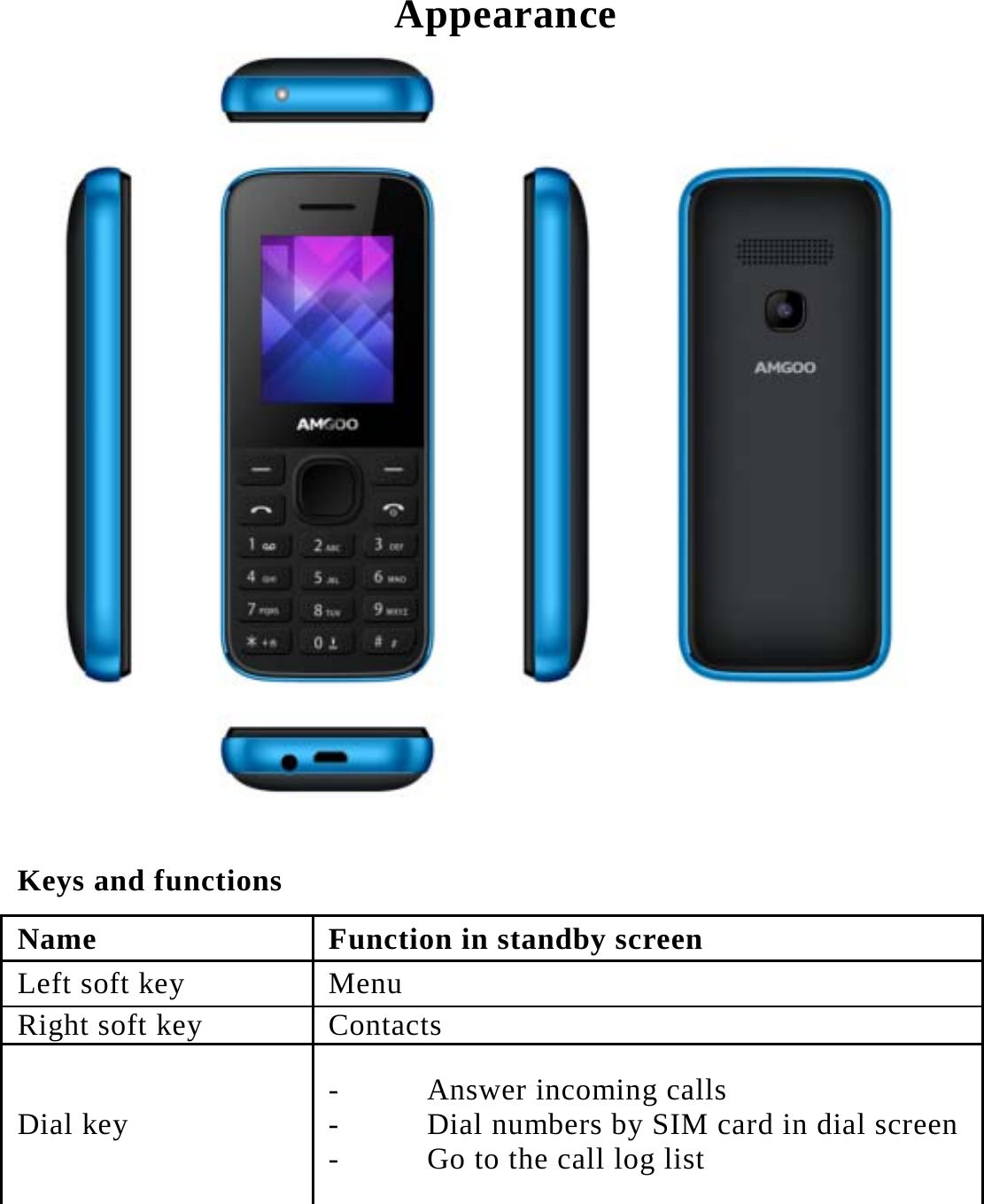
Appearance  Keys and functions Name  Function in standby screen Left soft key    Menu Right soft key  Contacts Dial key    - Answer incoming calls - Dial numbers by SIM card in dial screen- Go to the call log list
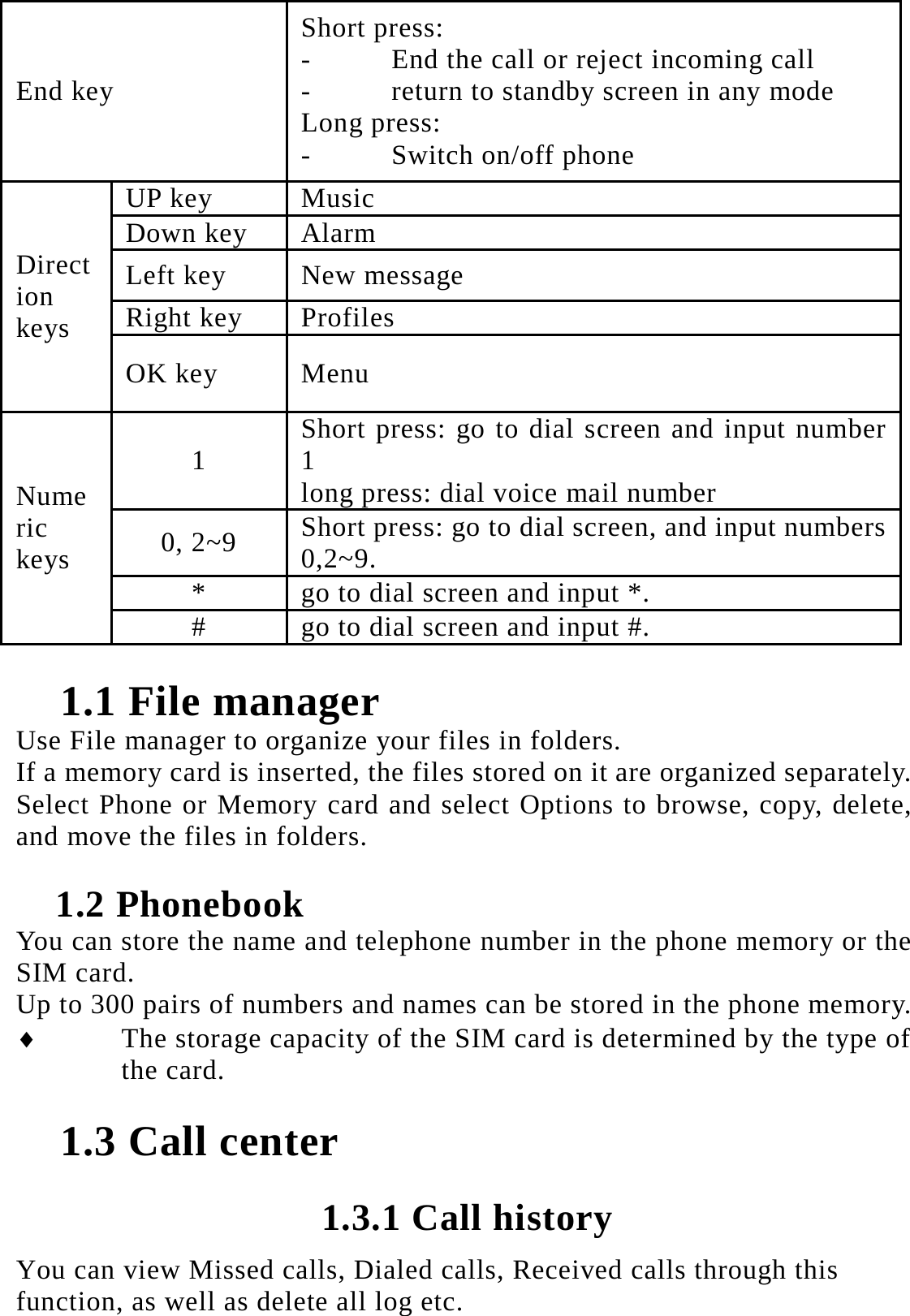
End key   Short press:   - End the call or reject incoming call - return to standby screen in any mode Long press:     - Switch on/off phone   Direction keys  UP key  Music Down key  Alarm   Left key  New message Right key  Profiles OK key  Menu Numeric keys  1  Short press: go to dial screen and input number 1 long press: dial voice mail number 0, 2~9  Short press: go to dial screen, and input numbers 0,2~9.  *  go to dial screen and input *.   #  go to dial screen and input #.   1.1 File manager Use File manager to organize your files in folders. If a memory card is inserted, the files stored on it are organized separately. Select Phone or Memory card and select Options to browse, copy, delete, and move the files in folders. 1.2 Phonebook You can store the name and telephone number in the phone memory or the SIM card.   Up to 300 pairs of numbers and names can be stored in the phone memory.    The storage capacity of the SIM card is determined by the type of the card. 1.3 Call center 1.3.1 Call history You can view Missed calls, Dialed calls, Received calls through this function, as well as delete all log etc.
1.3.2 Call settings  Call waiting: After you choose Activate, the mobile phone will contact the network. A moment later, the network will make a response and send a message to acknowledge your operation.    Call divert: this network function enables you to forward incoming calls to another number you have previously specified.    Call barring: The call barring function enables you to bar calls as needed. When setting this function, you need to use a network barring code, which can be obtained from the network operator.    Advanced settings  Black list: you can set many numbers. When this Black list is enabled, you won’t receive the calls from the numbers entered in the Black list.  Auto redial: Set it to On or Off to enable or disable auto redial. If you set Auto redial to On, the mobile phone will automatically redial the number a moment later if the called party does not reply.  Note: This function requires support from the network operator to which the SIM card is registered.  Call time reminder: To set single or circle tone in a call to make you know the time. 1.4 Messaging The phone supports Short Messaging Service (SMS) and Multimedia Message Service (MMS). You can send text messages and manage the messages that you sent and received.   1.5 Multimedia 1.51 Camera This function enables you to take picture, OK key to take picture. You can view the pictures or images through this function. You can switch DV mode through this function. 1.52 Media player Use this function to play audio and video files. By pressing the direction key can you control the playing process of video player: play/pause, fast forward and rewind. In video player interface, you can press * or # key to tune volume.
1.5.3 Sound recorder Access this option, you can make a recording.    Start to record:Press the ok direction key to begin and press the right soft key to stop. The file will be manuallysaved. Press the end key to quit without the recording file saved.   Note: The recording time depends on the memory capacity of the mobile phone. 1.5.4 FM radio Your phone is equipped with an FM radio. You can use theapplication as a traditional FM radio with automatic tuning and saved channels. You can listen to it while running other applications.  1.6 Settings 1.6.1 Phone settings  Time and date:the time/date formatand update with time zone.  Auto power on/off: The mobile phone provides 2 times for scheduled power on and off. You can set status and time for each scheduled time.  Language Settings: You can select language for menu operation.  Shortcut settings: You can assign the direction key as shortcuts to important functions. Press the corresponding direction key in standby mode to start the function.  Restore factory settings Use this feature to restore all the system data. The menu settings of the phone will be restored to their original values. All the user data stored in the phone will be deleted. Default password of the phone is 1122.  Note: Please use this feature with great care. Please backup the data store in your phone before using this feature 1.6.2 Network settings Contact the network operator to obtain the network services. Then you can set network selection, preferred networks, service selection, network information, GPRS connection, GPRS transfer through this function.
1.6.3 Security settings  SIM security You can active, off or modify PIN code. Correct PIN code shall be input when you unlock or off PIN code.    Phone security You can active or off phone password. When phone password is activated, you must enter password each time when you power on the phone. The default phone password is 1122.  Auto keypad lock Keypad lock prevents the inadvertent phone usage. However, you can still be called and you can make emergency calls. 1.6.4 Connectivity  BT: With BT, you can make a wireless connection to other compatible devices, such as mobile phones, computers, headsets and car kits. You can use the BT to send images, video clips, music, sound clips and notes, and transfer files from your compatible pc.  Connection management: You can use File manager to organize your files in folders.  Network account: Internet account. 1.6.5 User profiles The user can switch from one mode to another according to different occasions.  The phone offers: Normal Mode, Silent Mode, and Indoor Mode. The user can also reset individualized modes by pressing the left soft key to enter the option interface.   You can customize the following options for new profiles.  Normal:You can choose to Activate,Customize,Reset。  Silent:You can select silent mode  Indoor:You can select Outdoormode  My style:You can custom the mode 1.7 Application 1.7.1 Calculator  The calculator can add, subtract, multiply and divide.
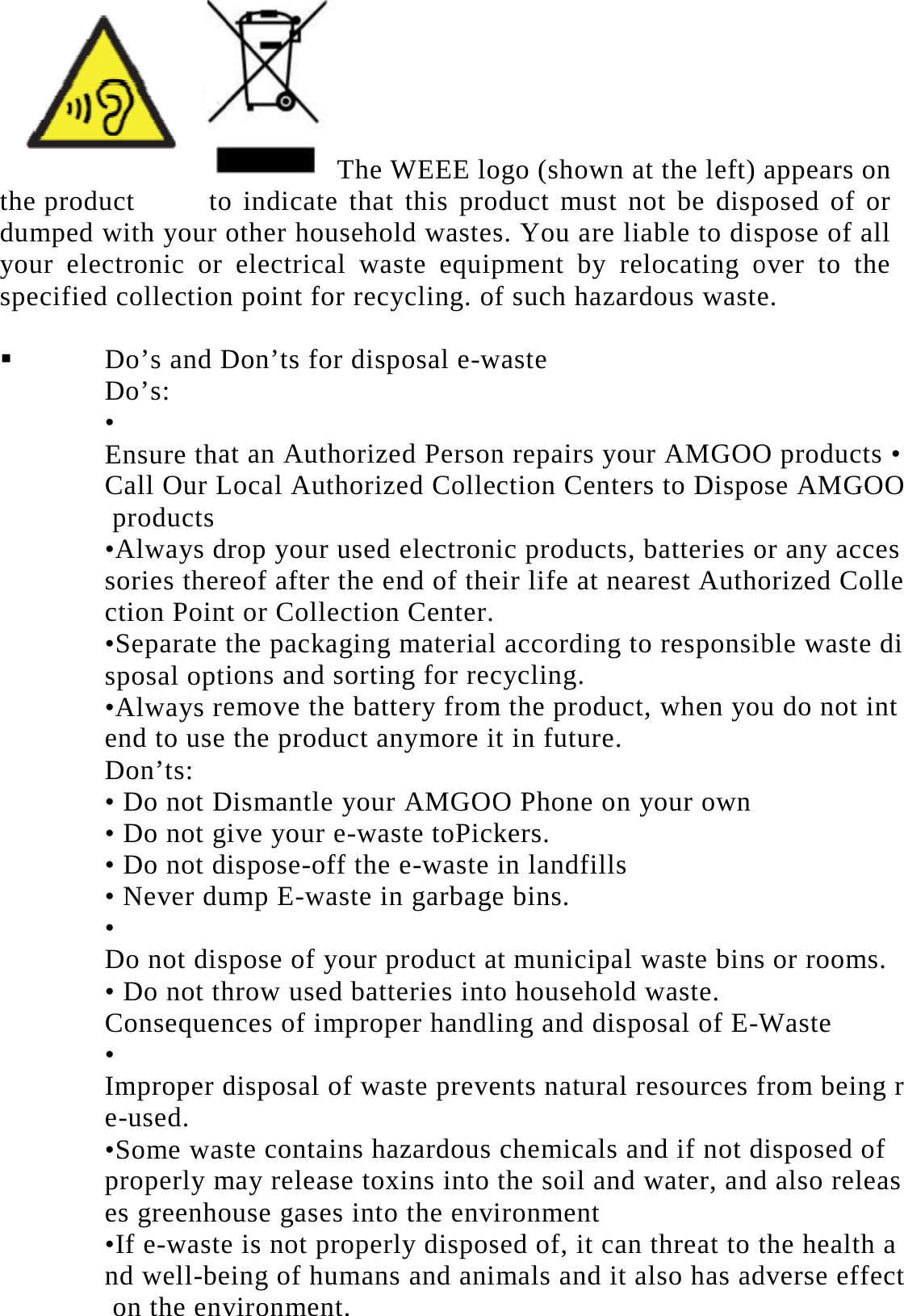
1.7.2 Calendar Once you enter this menu, there is a monthly-view calendar for you to keep track of important appointments, etc. Days with events entered will be marked. 1.7.3 Alarm Three alarm clocks are set but deactivated by default. You can activate one, multiple or all of them as needed. For each alarm clock, the ringing date and the ringing time can be set.   1.7.4 Torch Select on/off as per your need 1.7.5 STK or SIM Menu STK service is the tool kit of SIM card. This phone supports the service function .The specific items are depended by SIM card and network. Service menu will be auto added to the phone menu when supported by network and SIM card  1.8 Services 1.8.1 Internet services GPRS feature shall be activated first for wireless Internet access.  Home page: Set the home page.  Bookmarks: Set the bookmark to facilitate the browse of the web pages views last time.  Search or input URL: Manual input the URL.  Last web address: Store the URLs of previous web pages.    Recent pages: View the recent pages.  Store pages: The phone displays the offline pages you saved.  Settings: edit the archive, clear the cache or clear personal information of the SIM card.   Important Safety Instructions To prevent possible hearing damage, do not listen at high volume levels for long periods. Please use appointed battery in case of explosion risk; please dispose of lifeless battery under guidance. Recycle your phone.
the product  todumped with your your electronic or specified collection  Do’s and DDo’s:  • Ensure thaCall Our L products  •Always dsories therction Poin•Separate sposal opt•Always reend to useDon’ts: • Do not D• Do not g• Do not d• Never du• Do not dis• Do not thConsequen• Improper de-used.  •Some wasproperly mes greenho•If e-wastend well-be on the envThe WEEE loo indicate that this proother household wasteselectrical waste equipn point for recycling. oDon’ts for disposal e-wat an Authorized PersonLocal Authorized Colledrop your used electronreof after the end of thet or Collection Center.the packaging materialions and sorting for recemove the battery from the product anymore iDismantle your AMGOOive your e-waste toPickdispose-off the e-wasteump E-waste in garbagespose of your product ahrow used batteries intonces of improper handldisposal of waste preveste contains hazardousmay release toxins intoouse gases into the enve is not properly disposeing of humans and anivironment.  ogo (shown at the left) oduct must not be disps. You are liable to dispment by relocating of such hazardous wastewaste n repairs your AMGOOection Centers to Disponic products, batteries oeir life at nearest Autho  l according to responsibcycling.  m the product, when yout in future.  O Phone on your own kers.  in landfills  e bins.  at municipal waste binso household waste.  ling and disposal of E-Wents natural resources fchemicals and if not dthe soil and water, andironment  sed of, it can threat to tmals and it also has adappears on posed of or spose of all over to the e. O products • se AMGOOor any accesorized Colleble waste diu do not ints or rooms.  Waste from being rdisposed of d also releasthe health adverse effect
  FCC Warning: Any Changes or modifications not expressly approved by the party responsible for compliance could void the user's authority to operate the equipment.    This device complies with part 15 of the FCC Rules. Operation is subject to the following two conditions: (1) This device may not cause harmful interference, and (2) this device must accept any interference received, including interference that may cause undesired operation.  Specific Absorption Rate (SAR) information SAR tests are conducted using standard operating positions accepted by the FCC with the phone transmitting at its highest certified power level in all tested frequency bands, although the SAR is determined at the highest certified power level, the actual SAR level of the phone while operating can be well below the maximum value, in general, the closer you are to a wireless base station antenna, the lower the power output. Before a new model phone is a available for sale to the public, it must be tested and certified to the FCC that it does not exceed the exposure limit established by the FCC, Tests for each phone are performed in positions and locations (e.g. at the ear and worn on the body)as required by the FCC.For body worn operation, this model phone has been tested and meets the FCC RF exposure guidelines when used with an accessory designated for this product or when used with an accessory that Contains no metal and that positions the handset a minimum of 5.0 mm from the body. Non-compliance with the above restrictions may result in violation of RF exposure guidelines  Note: This equipment has been tested and found to comply with the limits for a Class B digital device, pursuant to part 15 of the FCC Rules. These limits are designed to provide reasonable protection against harmful interference in a residential installation. This equipment generates, uses and can radiate radio frequency energy and, if not installed and used in accordance with the instructions, may cause harmful interference to radio communications. However, there is no guarantee that interference will not occur in a particular installation. If this equipment does cause harmful interference to radio or television reception, which can be determined by turning the equipment off and on, the user is encouraged to try to correct the interference by one or more of the following measures:
   —Reorient or relocate the receiving antenna. —Increase the separation between the equipment and receiver. —Connect the equipment into an outlet on a circuit different from that to which the receiver is connected. —Consult the dealer or an experienced radio/TV technician for help.

Navigation menu