Amorvue Technology NVR7204W HD Video Recorder User Manual

Amorvue Technology Co., Limited HD Video Recorder

User manual

Statement Thank you for purchasing our product! This quick user guide will talk about main usages of the product.More information can be found on our website and the help center. This user guide may contain inaccurate content due to hardware and software upgrade.It is subject to change without previous notice. Safety caution 1.Please do not put any fluid container on the product. 2.Please use the product in ventilated environment and prevent blocking the vents. 3.Please use included power supply with the product to prevent damage to the product. 4.Please use the product under its standard working temperature and humidity.(advised in this manual or distributor’s website) 5.Dust on PCB may cause short circuit.It is suggested to clean the dust on PCB timely to make the product work properly. 6.Please obey the regulation and policy in your country and area during the installation of this. Out of box audit After  receiving  the  product,please check all  products  and  accessording to distributor’s  Package Includes information.If any is missed or damaged,please contact the distributor.  Packing list S/N Item Quantity 1 WIFI NVR   1pcs 2 Screw bag(4 screws for HDD) 1pcs 3 DC 12V2A power supply (for NVR) 1pcs 4 User manual 1pcs 5 WIFI IP Camera 4/8pcs 6 DC 12V1A power supply(for IPC) 4/8pcs 7 Screw bag (for IPC) 4/8pcs 8 Antenna Extension Cord 1/2(4CH/8CH)pcs  Before installation this product may require cabling , we suggest to test all products&parts before installation and cabling.  NVR
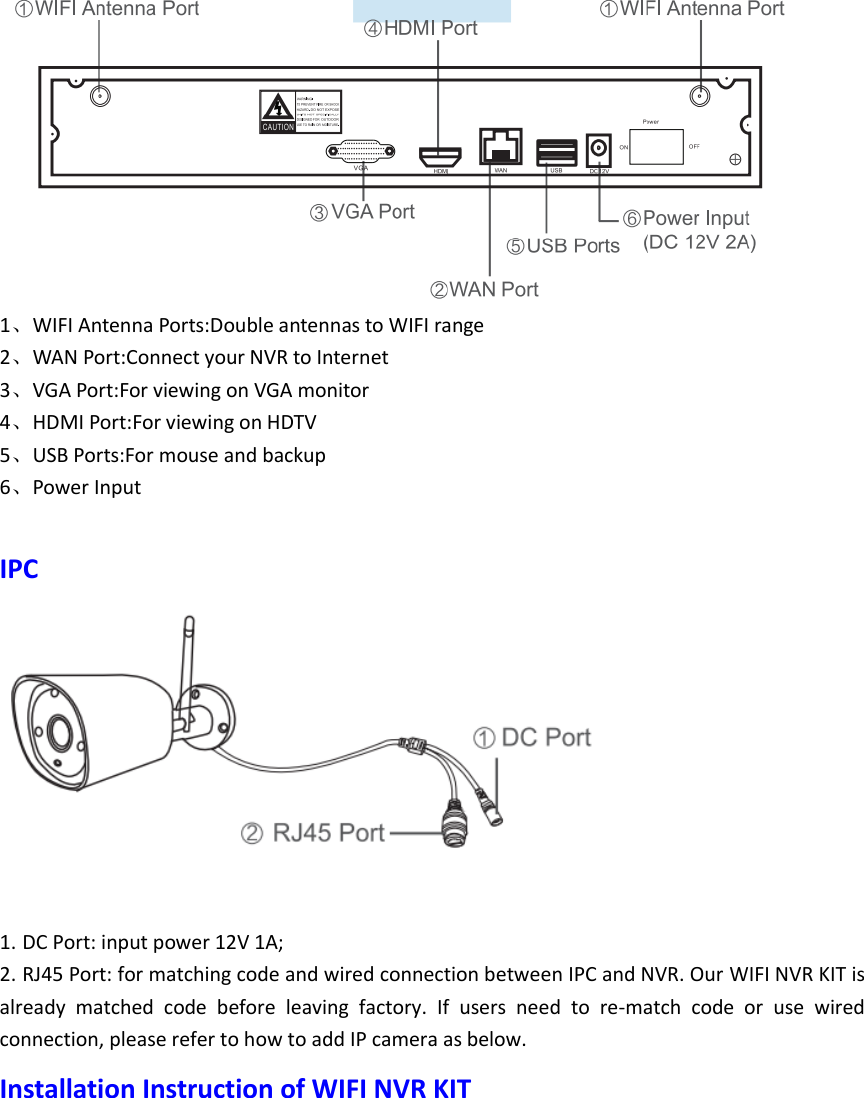
 1、WIFI Antenna Ports:Double antennas to WIFI range 2、WAN Port:Connect your NVR to Internet 3、VGA Port:For viewing on VGA monitor 4、HDMI Port:For viewing on HDTV 5、USB Ports:For mouse and backup 6、Power Input  IPC    1. DC Port: input power 12V 1A; 2. RJ45 Port: for matching code and wired connection between IPC and NVR. Our WIFI NVR KIT is already  matched  code  before  leaving  factory.  If  users  need  to  re-match  code  or  use  wired connection, please refer to how to add IP camera as below.   Installation Instruction of WIFI NVR KIT
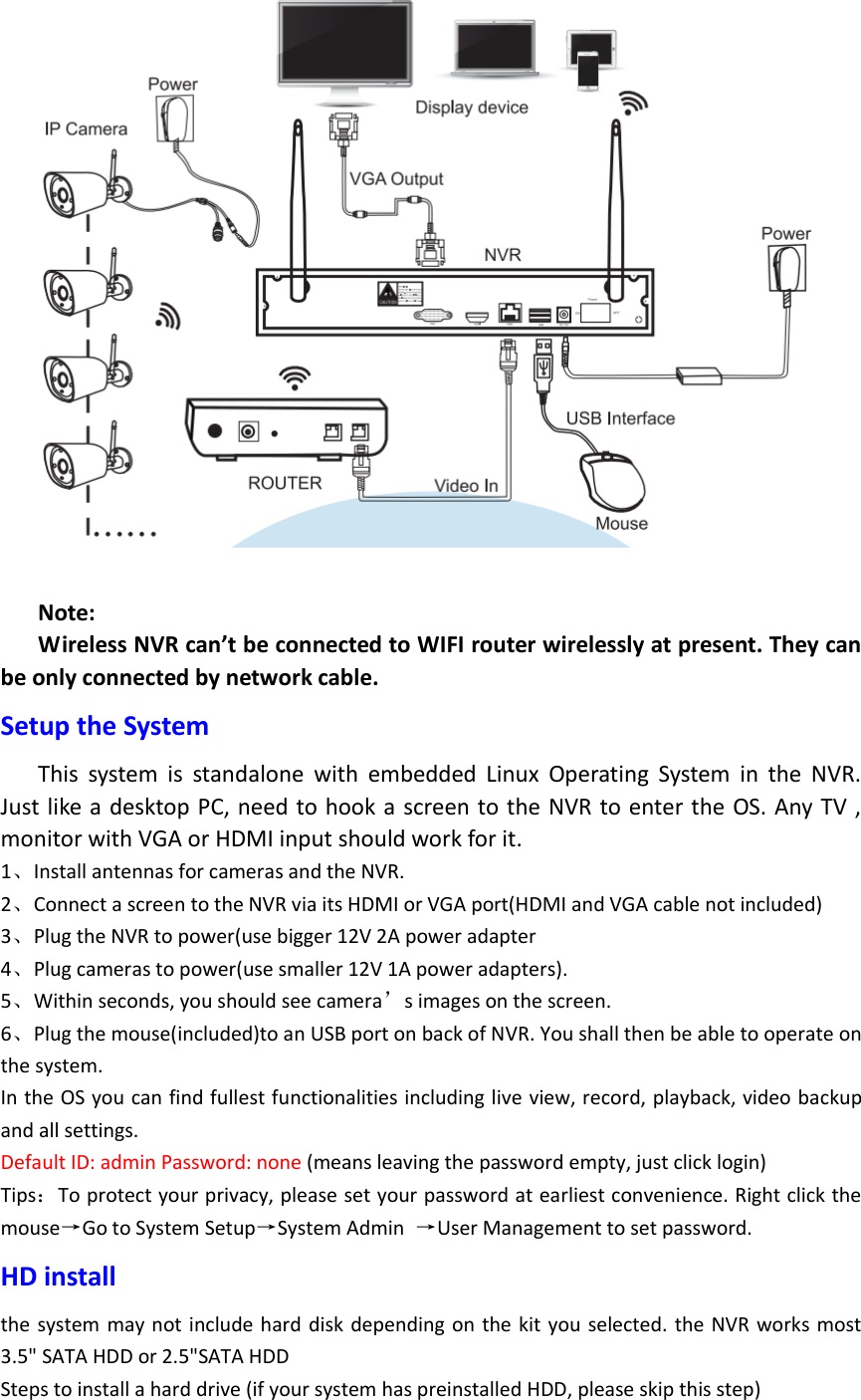
  Note: Wireless NVR can’t be connected to WIFI router wirelessly at present. They can be only connected by network cable.   Setup the System This  system  is  standalone  with  embedded  Linux  Operating  System  in  the  NVR. Just like a  desktop PC, need to hook a screen to the NVR to enter the OS. Any TV , monitor with VGA or HDMI input should work for it. 1、Install antennas for cameras and the NVR. 2、Connect a screen to the NVR via its HDMI or VGA port(HDMI and VGA cable not included) 3、Plug the NVR to power(use bigger 12V 2A power adapter 4、Plug cameras to power(use smaller 12V 1A power adapters). 5、Within seconds, you should see camera’s images on the screen. 6、Plug the mouse(included)to an USB port on back of NVR. You shall then be able to operate on the system. In the OS you can find fullest functionalities including live view, record, playback, video backup and all settings. Default ID: admin Password: none (means leaving the password empty, just click login) Tips:To protect your privacy, please set your password at earliest convenience. Right click the mouse→Go to System Setup→System Admin  →User Management to set password. HD install the system may not include hard disk depending on  the kit  you selected. the NVR works most 3.5" SATA HDD or 2.5"SATA HDD   Steps to install a hard drive (if your system has preinstalled HDD, please skip this step)
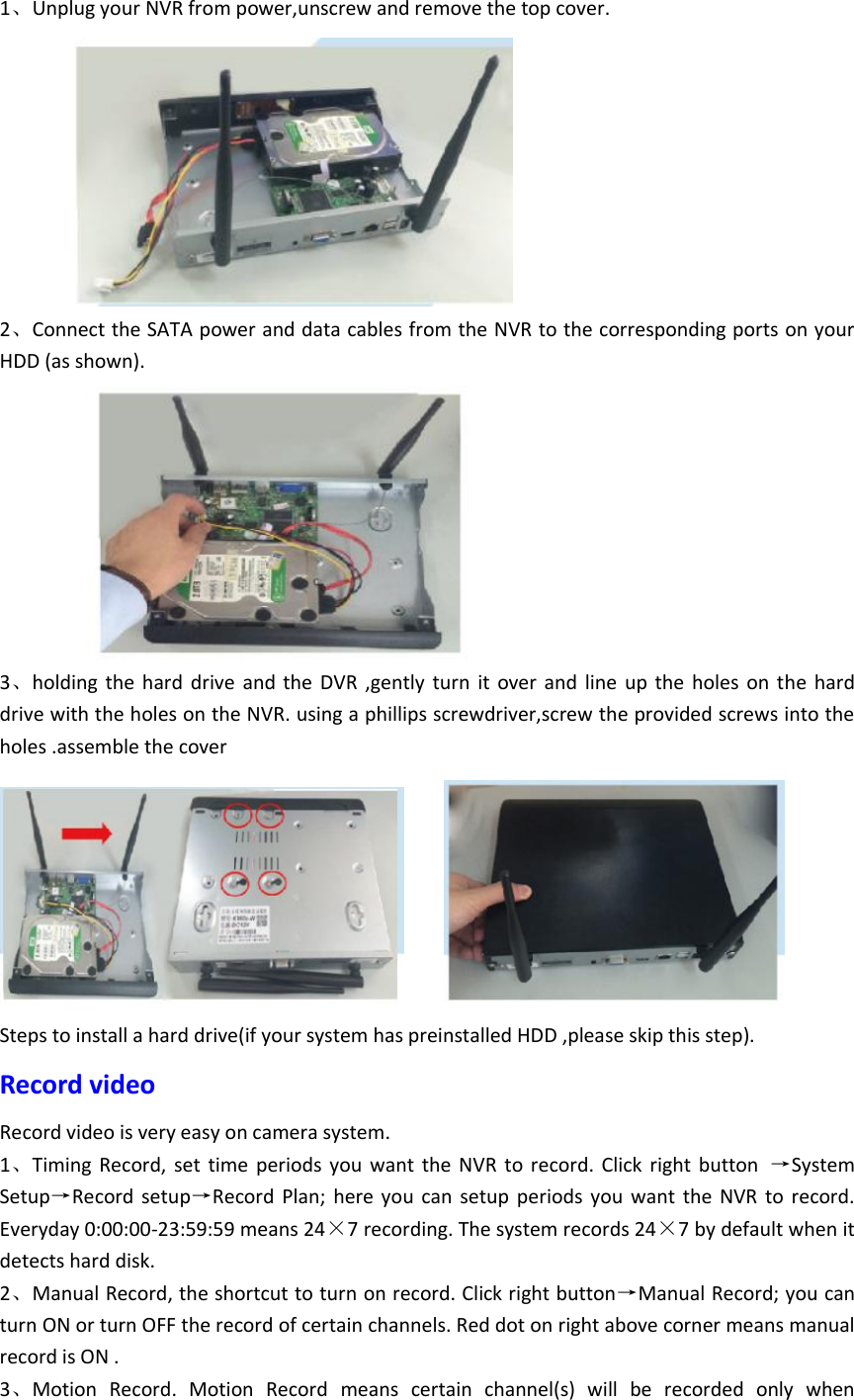
1、Unplug your NVR from power,unscrew and remove the top cover.          2、Connect the SATA power and data cables from the NVR to the corresponding ports on your HDD (as shown).            3、holding  the  hard  drive  and the  DVR  ,gently  turn  it  over and  line  up the  holes  on the hard drive with the holes on the NVR. using a phillips screwdriver,screw the provided screws into the holes .assemble the cover     Steps to install a hard drive(if your system has preinstalled HDD ,please skip this step). Record video Record video is very easy on camera system. 1、Timing  Record,  set  time  periods you  want  the  NVR  to  record.  Click  right  button  →System Setup→Record  setup→Record  Plan;  here  you  can  setup  periods  you  want  the  NVR  to  record. Everyday 0:00:00-23:59:59 means 24×7 recording. The system records 24×7 by default when it detects hard disk. 2、Manual Record, the shortcut to turn on record. Click right button→Manual Record; you can turn ON or turn OFF the record of certain channels. Red dot on right above corner means manual record is ON . 3、Motion  Record.  Motion  Record  means  certain  channel(s)  will  be  recorded  only  when
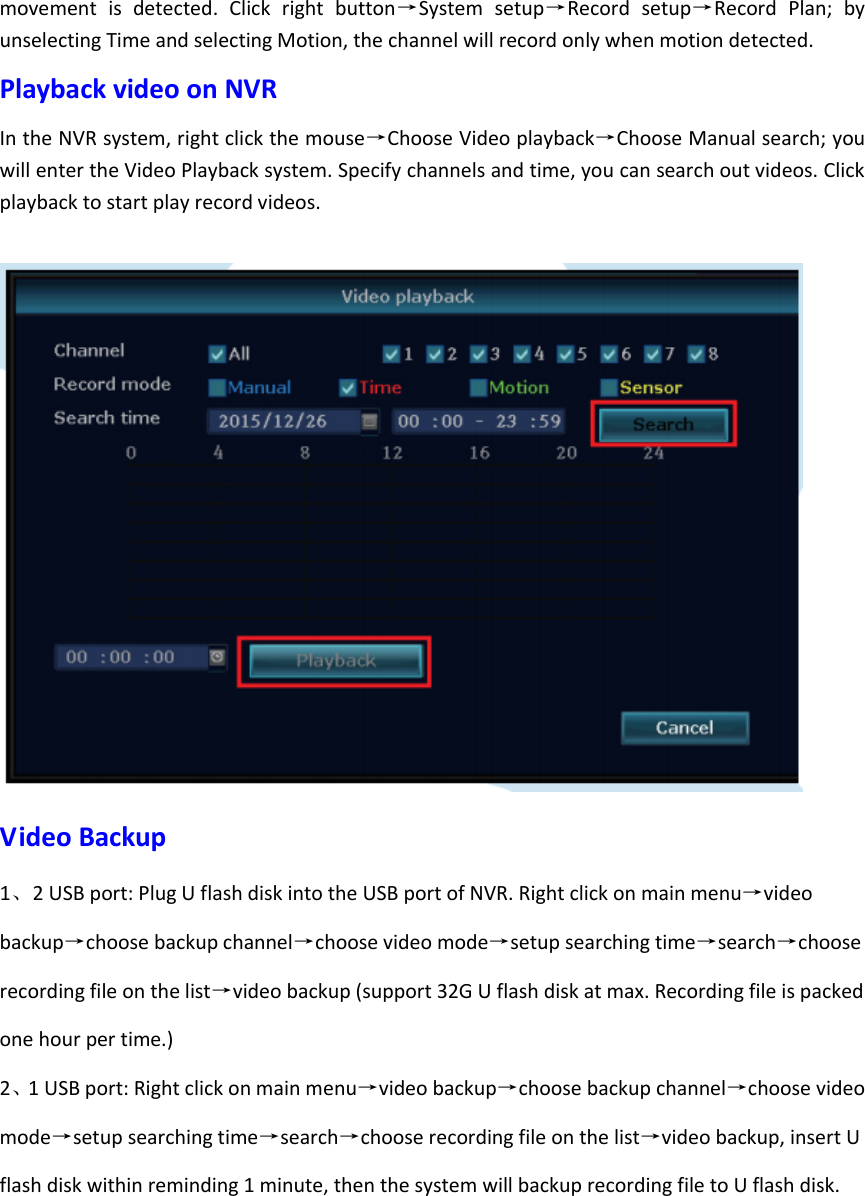
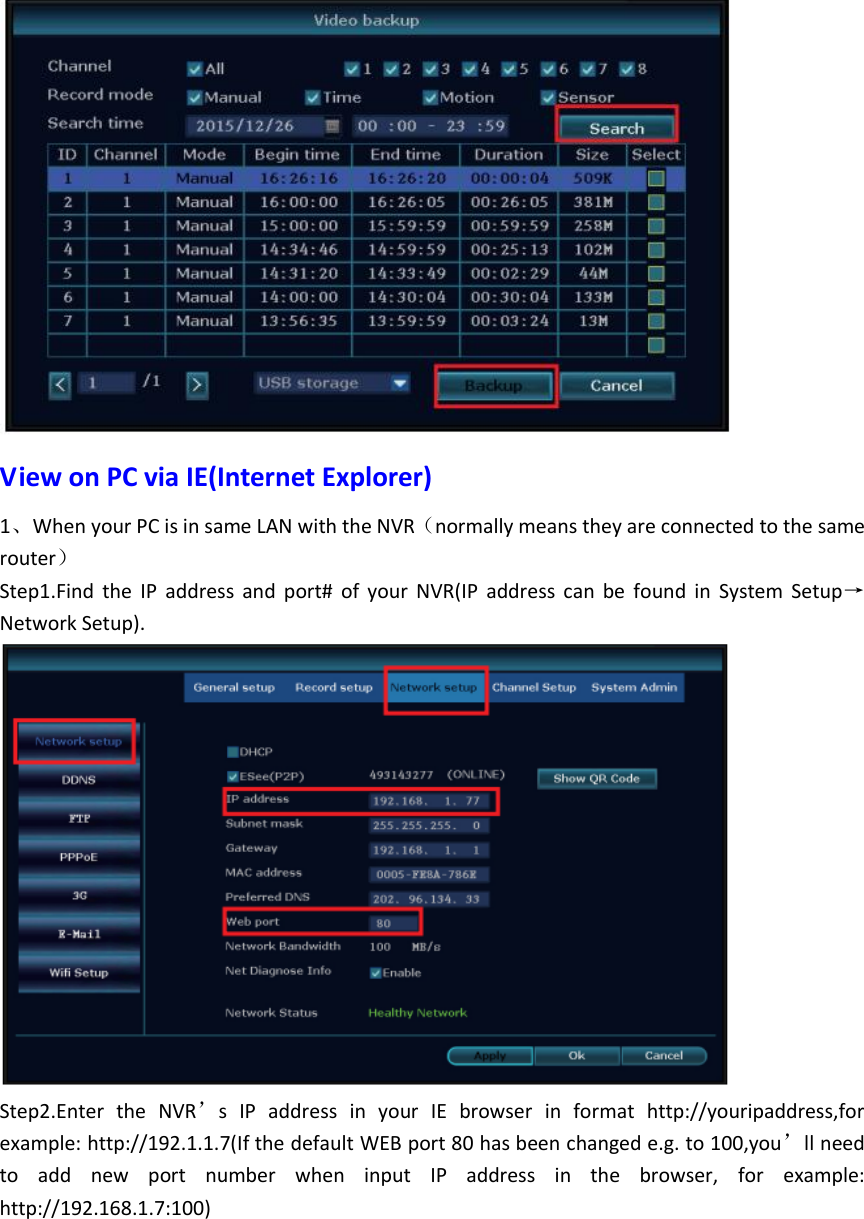
movement  is  detected.  Click  right  button→System  setup→Record  setup→Record  Plan;  by unselecting Time and selecting Motion, the channel will record only when motion detected. Playback video on NVR   In the NVR system, right click the mouse→Choose Video playback→Choose Manual search; you will enter the Video Playback system. Specify channels and time, you can search out videos. Click playback to start play record videos.   Video Backup   1、2 USB port: Plug U flash disk into the USB port of NVR. Right click on main menu→video backup→choose backup channel→choose video mode→setup searching time→search→choose recording file on the list→video backup (support 32G U flash disk at max. Recording file is packed one hour per time.) 2、1 USB port: Right click on main menu→video backup→choose backup channel→choose video mode→setup searching time→search→choose recording file on the list→video backup, insert U flash disk within reminding 1 minute, then the system will backup recording file to U flash disk.
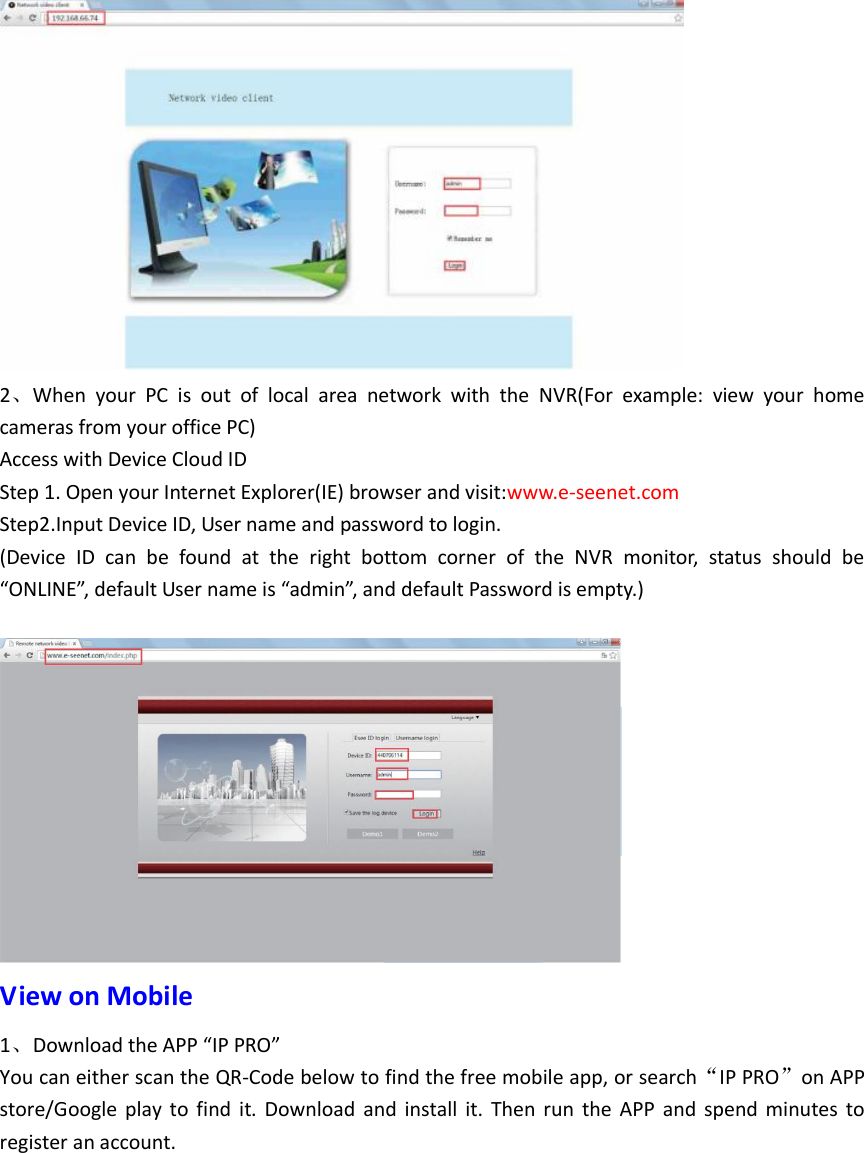
 View on PC via IE(Internet Explorer) 1、When your PC is in same LAN with the NVR(normally means they are connected to the same router) Step1.Find  the  IP  address  and  port#  of  your  NVR(IP  address  can  be  found  in  System  Setup→Network Setup).  Step2.Enter  the  NVR’s  IP  address  in  your  IE  browser  in  format  http://youripaddress,for example: http://192.1.1.7(If the default WEB port 80 has been changed e.g. to 100,you’ll need to  add  new  port  number  when  input  IP  address  in  the  browser,  for  example: http://192.168.1.7:100)
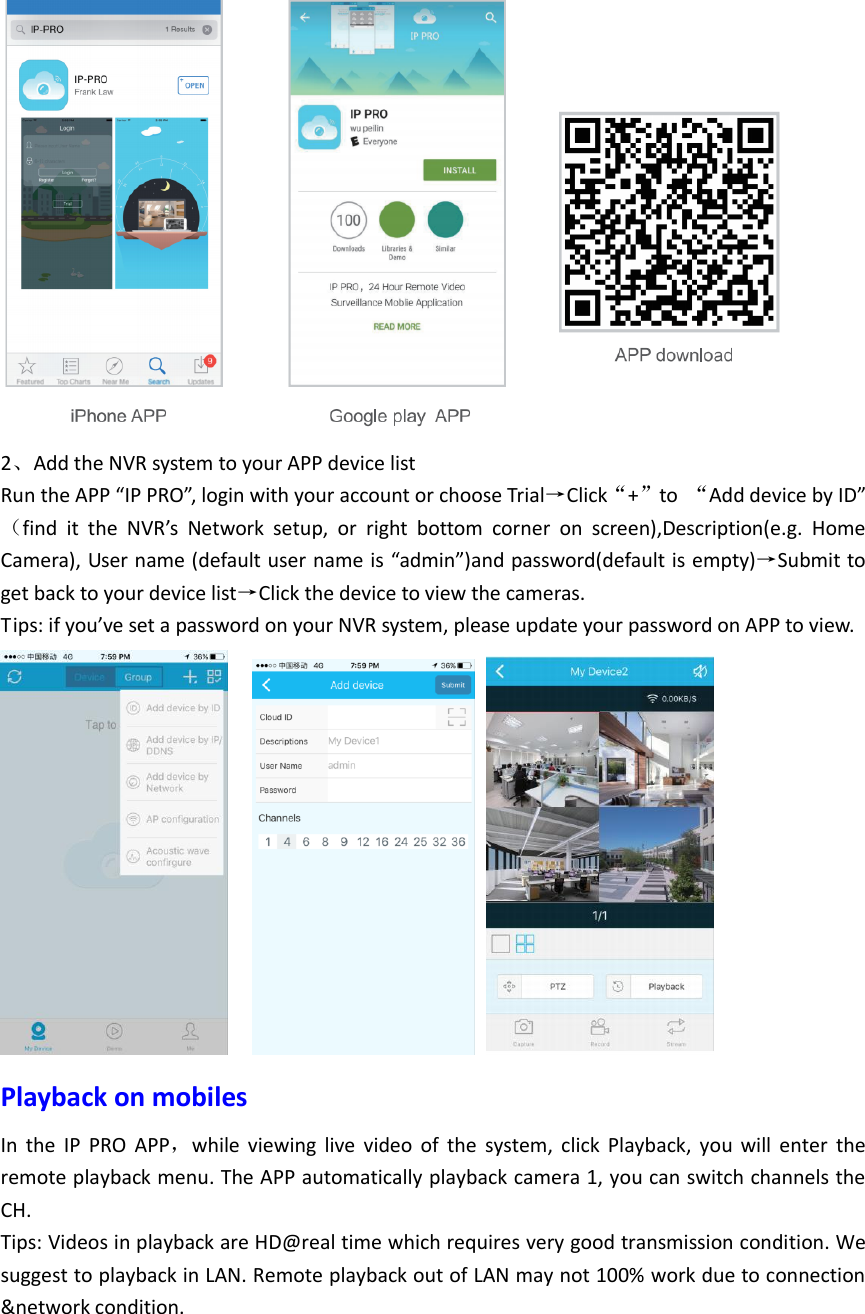
 2、When  your  PC  is  out  of  local  area  network  with  the  NVR(For  example:  view  your  home cameras from your office PC) Access with Device Cloud ID Step 1. Open your Internet Explorer(IE) browser and visit:www.e-seenet.com Step2.Input Device ID, User name and password to login. (Device  ID  can  be  found  at  the  right  bottom  corner  of  the  NVR  monitor,  status  should  be “ONLINE”, default User name is “admin”, and default Password is empty.)   View on Mobile 1、Download the APP “IP PRO” You can either scan the QR-Code below to find the free mobile app, or search“IP PRO”on APP store/Google  play  to  find  it.  Download  and  install  it.  Then  run  the  APP  and  spend  minutes  to register an account.
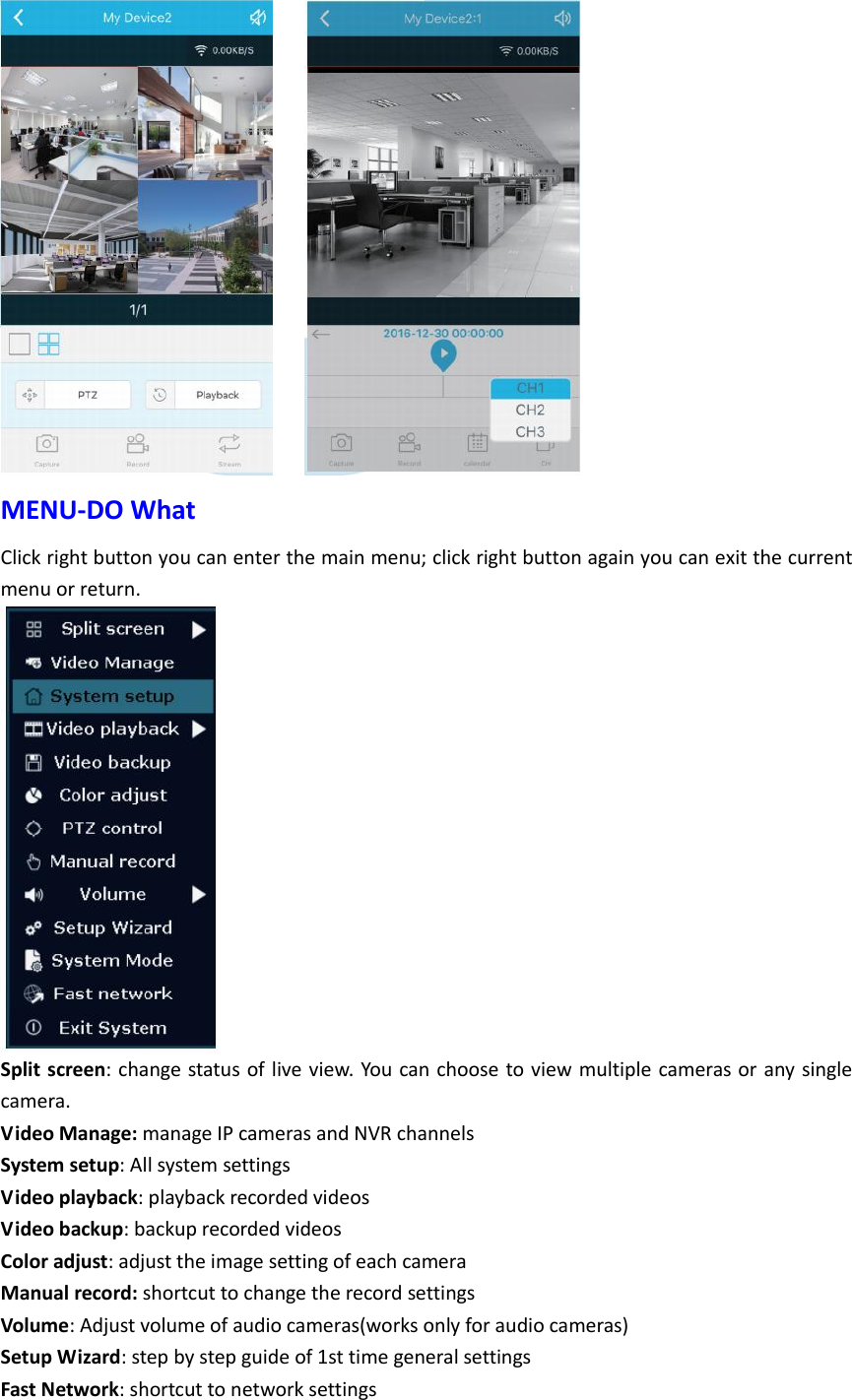
 2、Add the NVR system to your APP device list   Run the APP “IP PRO”, login with your account or choose Trial→Click“+”to  “Add device by ID”(find  it  the  NVR’s  Network  setup,  or  right  bottom  corner  on  screen),Description(e.g.  Home Camera), User name (default user name is “admin”)and password(default is empty)→Submit to get back to your device list→Click the device to view the cameras. Tips: if you’ve set a password on your NVR system, please update your password on APP to view.      Playback on mobiles In  the  IP  PRO  APP,while  viewing  live  video  of  the  system,  click  Playback,  you  will  enter  the remote playback menu. The APP automatically playback camera 1, you can switch channels the CH. Tips: Videos in playback are HD@real time which requires very good transmission condition. We suggest to playback in LAN. Remote playback out of LAN may not 100% work due to connection &network condition.
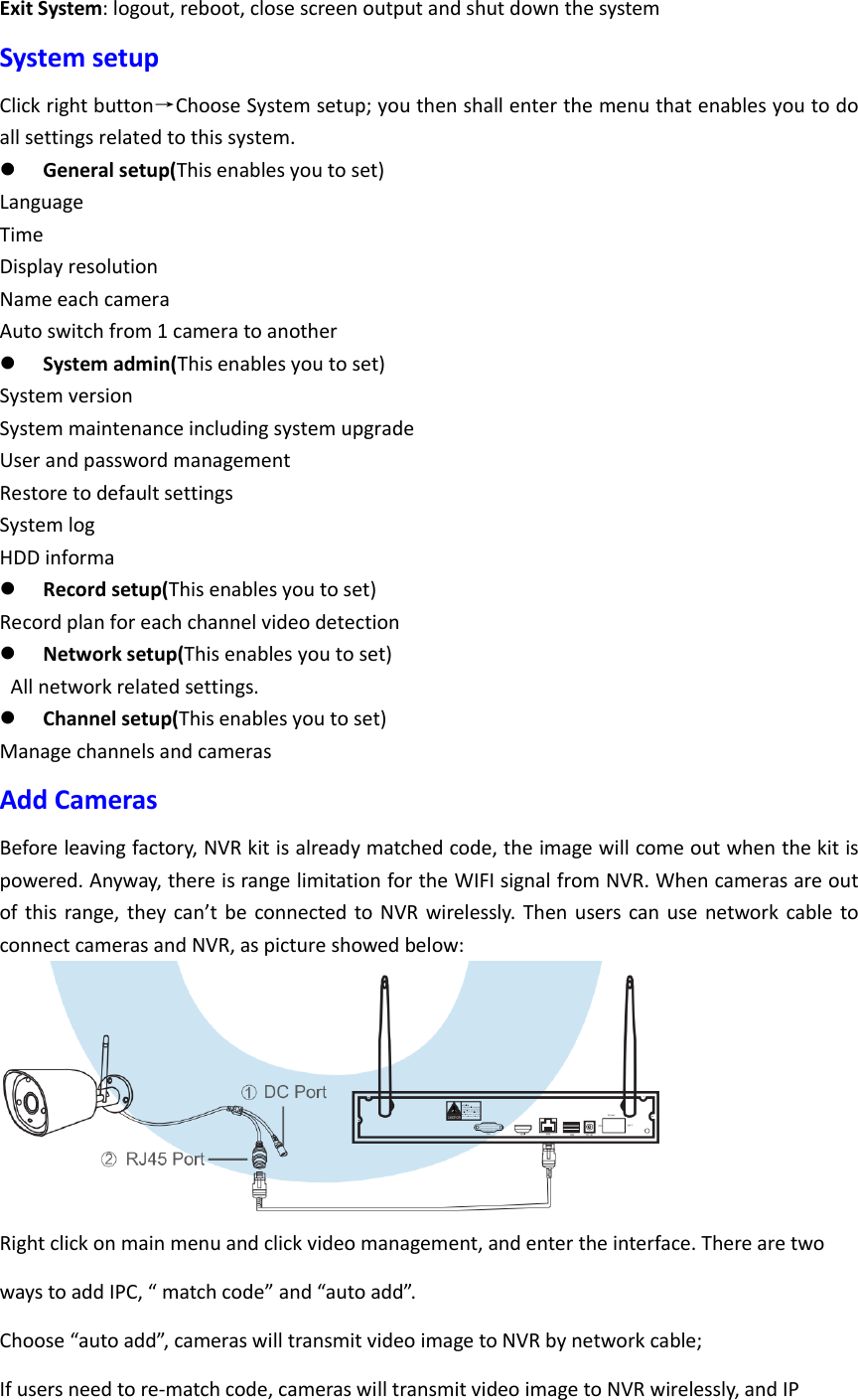
     MENU-DO What Click right button you can enter the main menu; click right button again you can exit the current menu or return.  Split screen: change status of live view. You can choose to view  multiple cameras or any single camera. Video Manage: manage IP cameras and NVR channels System setup: All system settings Video playback: playback recorded videos Video backup: backup recorded videos Color adjust: adjust the image setting of each camera Manual record: shortcut to change the record settings Volume: Adjust volume of audio cameras(works only for audio cameras) Setup Wizard: step by step guide of 1st time general settings Fast Network: shortcut to network settings
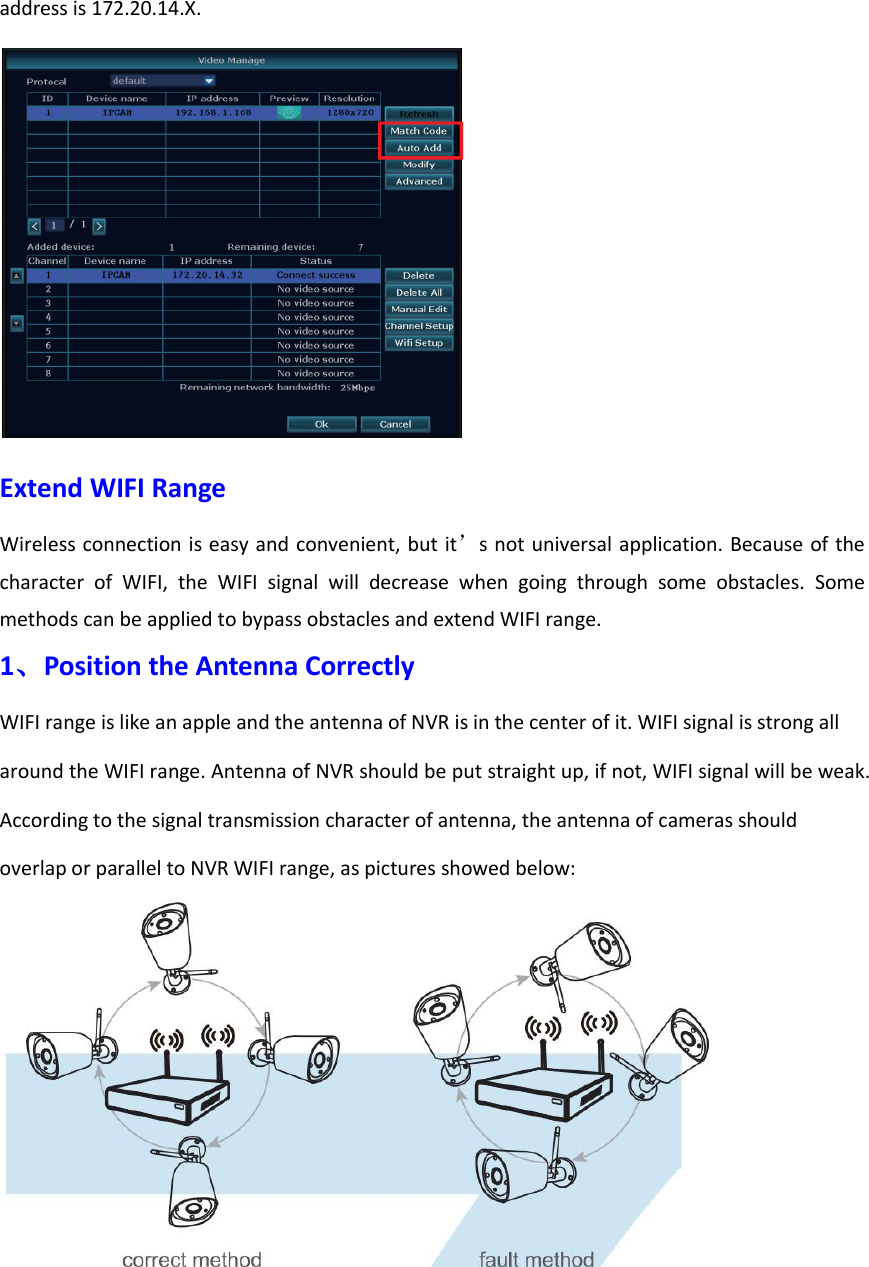
Exit System: logout, reboot, close screen output and shut down the system System setup Click right button→Choose System setup; you then shall enter the menu that enables you to do all settings related to this system.  General setup(This enables you to set) Language Time Display resolution Name each camera Auto switch from 1 camera to another  System admin(This enables you to set) System version System maintenance including system upgrade   User and password management Restore to default settings System log HDD informa  Record setup(This enables you to set) Record plan for each channel video detection  Network setup(This enables you to set)   All network related settings.  Channel setup(This enables you to set) Manage channels and cameras Add Cameras Before leaving factory, NVR kit is already matched code, the image will come out when the kit is powered. Anyway, there is range limitation for the WIFI signal from NVR. When cameras are out of this range, they  can’t be  connected to NVR wirelessly.  Then  users can  use  network  cable to connect cameras and NVR, as picture showed below:  Right click on main menu and click video management, and enter the interface. There are two ways to add IPC, “ match code” and “auto add”.   Choose “auto add”, cameras will transmit video image to NVR by network cable; If users need to re-match code, cameras will transmit video image to NVR wirelessly, and IP
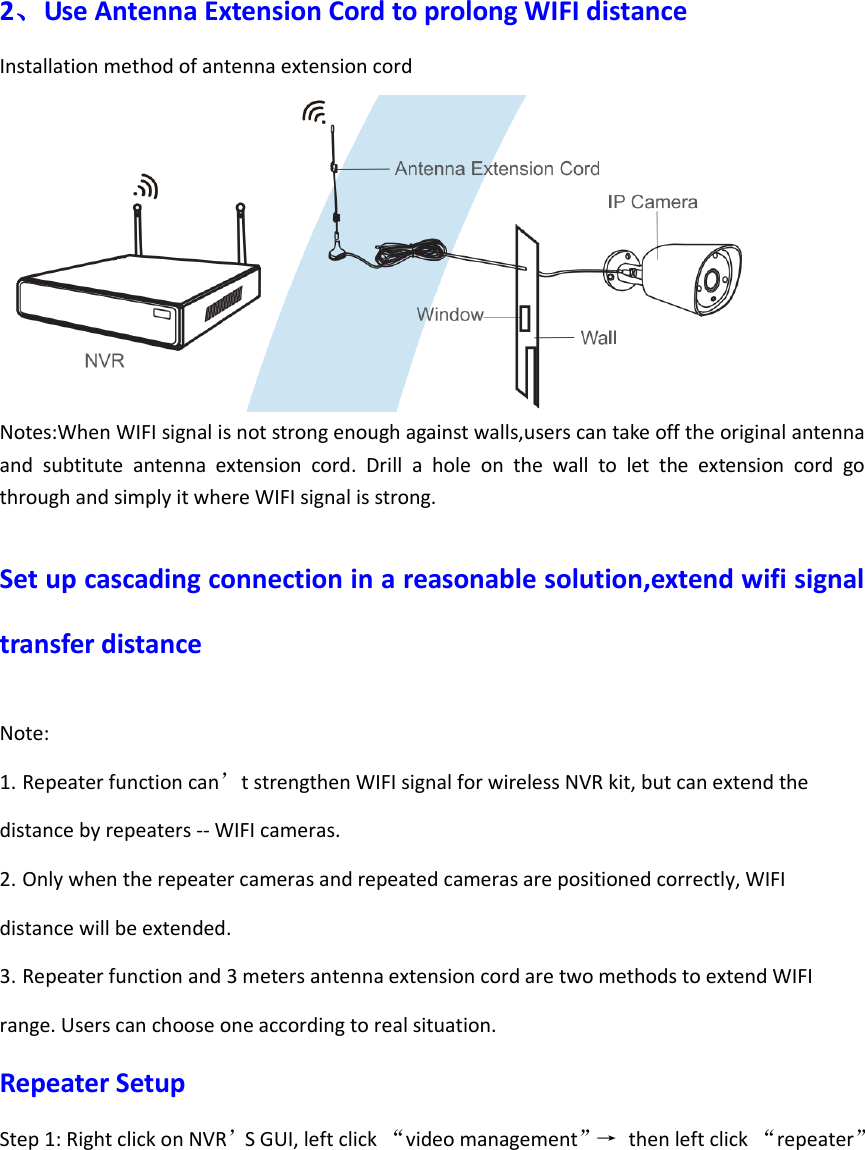
address is 172.20.14.X.  Extend WIFI Range Wireless connection is easy and convenient, but it’s not universal application. Because of the character  of  WIFI,  the  WIFI  signal  will  decrease  when  going  through  some  obstacles.  Some methods can be applied to bypass obstacles and extend WIFI range. 1、Position the Antenna Correctly WIFI range is like an apple and the antenna of NVR is in the center of it. WIFI signal is strong all around the WIFI range. Antenna of NVR should be put straight up, if not, WIFI signal will be weak. According to the signal transmission character of antenna, the antenna of cameras should overlap or parallel to NVR WIFI range, as pictures showed below:
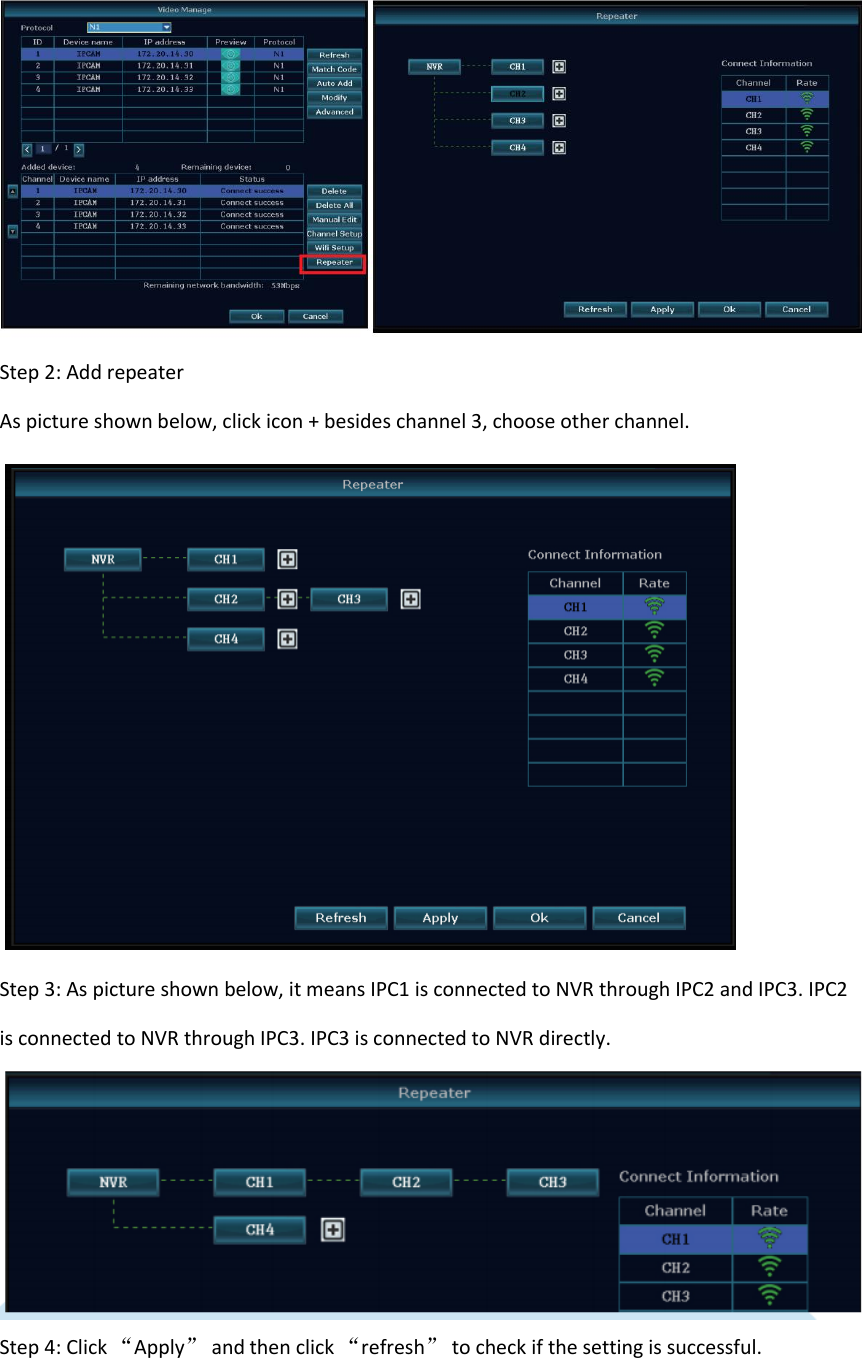
2、Use Antenna Extension Cord to prolong WIFI distance Installation method of antenna extension cord  Notes:When WIFI signal is not strong enough against walls,users can take off the original antenna and  subtitute  antenna  extension  cord.  Drill  a  hole  on  the  wall  to  let  the  extension  cord  go through and simply it where WIFI signal is strong.  Set up cascading connection in a reasonable solution,extend wifi signal transfer distance  Note: 1. Repeater function can’t strengthen WIFI signal for wireless NVR kit, but can extend the distance by repeaters -- WIFI cameras.   2. Only when the repeater cameras and repeated cameras are positioned correctly, WIFI distance will be extended.   3. Repeater function and 3 meters antenna extension cord are two methods to extend WIFI range. Users can choose one according to real situation. Repeater Setup Step 1: Right click on NVR’S GUI, left click “video management”→   then left click “repeater”
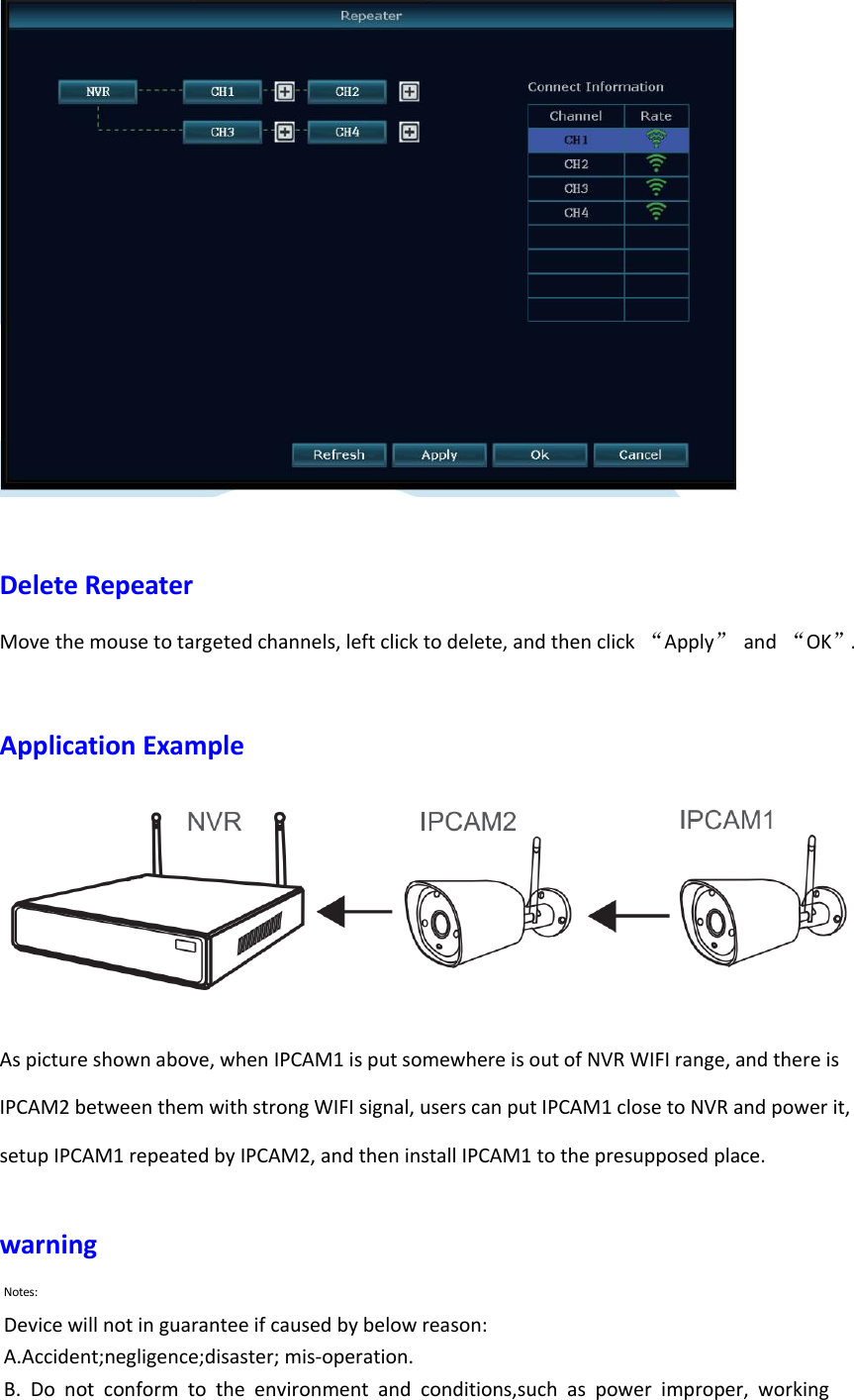
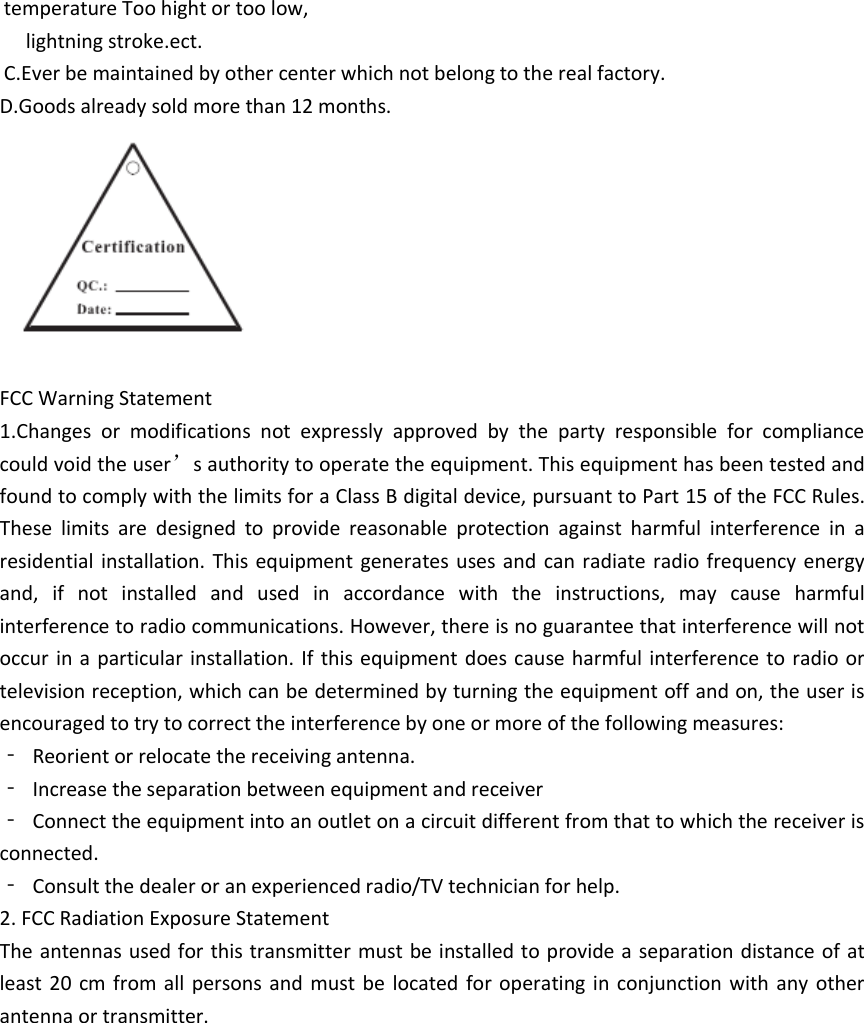
 Step 2: Add repeater   As picture shown below, click icon + besides channel 3, choose other channel.      Step 3: As picture shown below, it means IPC1 is connected to NVR through IPC2 and IPC3. IPC2 is connected to NVR through IPC3. IPC3 is connected to NVR directly.  Step 4: Click “Apply” and then click “refresh” to check if the setting is successful.
  Delete Repeater Move the mouse to targeted channels, left click to delete, and then click  “Apply”  and  “OK”.  Application Example   As picture shown above, when IPCAM1 is put somewhere is out of NVR WIFI range, and there is IPCAM2 between them with strong WIFI signal, users can put IPCAM1 close to NVR and power it, setup IPCAM1 repeated by IPCAM2, and then install IPCAM1 to the presupposed place.  warning Notes: Device will not in guarantee if caused by below reason: A.Accident;negligence;disaster; mis-operation. B.  Do  not  conform  to  the  environment  and  conditions,such  as  power  improper,  working
temperature Too hight or too low,   lightning stroke.ect. C.Ever be maintained by other center which not belong to the real factory. D.Goods already sold more than 12 months.  FCC Warning Statement 1.Changes  or  modifications  not  expressly  approved  by  the  party  responsible  for  compliance could void the user’s authority to operate the equipment. This equipment has been tested and found to comply with the limits for a Class B digital device, pursuant to Part 15 of the FCC Rules. These  limits  are  designed  to  provide  reasonable  protection  against  harmful  interference  in  a residential installation. This  equipment generates uses and  can  radiate radio frequency energy and,  if  not  installed  and  used  in  accordance  with  the  instructions,  may  cause  harmful interference to radio communications. However, there is no guarantee that interference will not occur in a particular installation. If this equipment does cause harmful interference to radio or television reception, which can be determined by turning the equipment off and on, the user is encouraged to try to correct the interference by one or more of the following measures: ‐  Reorient or relocate the receiving antenna. ‐  Increase the separation between equipment and receiver ‐  Connect the equipment into an outlet on a circuit different from that to which the receiver is connected. ‐  Consult the dealer or an experienced radio/TV technician for help. 2. FCC Radiation Exposure Statement The antennas used for this transmitter must be installed to provide a separation distance of at least 20  cm from all persons  and  must be  located for operating in  conjunction with any other antenna or transmitter.

Navigation menu