Apple AirPods Quick Start Guide 使用手册 Air Pods 快速入门指南 Quickstart Cn
AirPods AirPods-빠른시작설명서 airpods-quickstart_kr
使用手册: Apple AirPods AirPods-快速入门指南
Open the PDF directly: View PDF  .
.
Page Count: 10


To connect to iPhone with iOS 10 or later,
follow steps 1–3.
For all other devices see the back of this guide.
若要连接运行 iOS 10 或更高版本的 iPhone,
请按照步骤 1–3 操作。
所有其他设备的相关信息,请浏览背面说明。
若要連接安裝 iOS 10 或以上版本的 iPhone,
請依照步驟 1 到 3 操作。
針對其他裝置,請參閱本手冊背面。
iOS 10 이상이 설치된 iPhone에 연결하려면 1-3단계를 수행하십시오.
다른 기기의 경우 이 설명서의 뒷면을 참조하십시오.
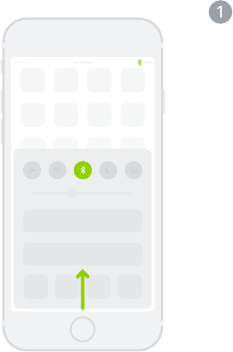
Turn on Bluetooth®.
Swipe up from the bottom of the
screen and tap the Bluetooth icon.
打开 Bluetooth®。
从屏幕底部向上轻扫,然后轻点蓝牙图标。
開啟 Bluetooth®。
從螢幕底部向上滑動並點一下「藍牙」圖像。
Bluetooth®를 켭니다.
화면 하단에서 위로 쓸어 올리고 Bluetooth
아이콘을 탭하십시오.
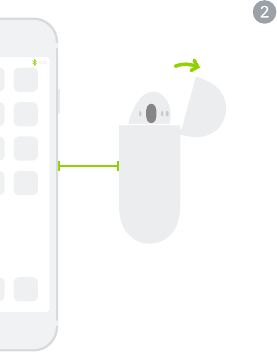
~ 5 cm
Connect AirPods.
Open case, hold near unlocked
iPhone, then follow onscreen
instructions.
连接 AirPods。
打开耳机盒,靠近已解锁的 iPhone,然后
按照屏幕说明操作。
連接 AirPods。
打開耳機盒,拿近解鎖的 iPhone,然後依
照螢幕指示操作。
AirPods를 연결합니다.
케이스를 열고 AirPods 근처에서 잠금 해제한
iPhone을 들고 화면 상의 지침을 따르십시오.

Start listening.
Place in ears and adjust until you
hear the tone. AirPods are ready
to play.
开始聆听。
塞入耳朵并调整,直到听见提示音。
AirPods 已准备好播放。
開始聆聽。
放入耳內並加以調整,直到您聽見提示音。
AirPods 已準備好播放。
듣기 시작합니다.
귀에 꽂은 다음 소리가 들릴 때까지 조절하십시오.
AirPods를 사용할 준비가 되었습니다.

watchOS 3
iOS 10
macOS Sierra
Use with your other Apple devices.
AirPods now work with your other
devices signed in to iCloud. Select
AirPods in Control Center (iOS) or
menu bar (macOS).
与其他 Apple 设备配合使用。
AirPods 现可与您登录了 iCloud 的其他
设备配合工作。在控制中心 (iOS) 或菜单栏
(macOS) 中选择 AirPods。
搭配其他 Apple 裝置使用。
AirPods 現在可搭配您其他已登入 iCloud
的裝置使用。請在「控制中心」(iOS)或「選
單列」(macOS)中選擇 AirPods。
다른 Apple 기기와 함께 사용하십시오.
이제 AirPods는 iCloud에 등록된 다른
기기와 호환됩니다. 제어 센터(iOS)나
메뉴 막대(macOS)에서 AirPods를
선택하십시오.

Connect to other devices.
With AirPods in case and lid open,
press button until light blinks.
Then go to Bluetooth settings and
choose AirPods.
连接其他设备。
AirPods 在耳机盒中并且盒盖已打开时,
按下按钮直到指示灯闪烁。然后前往“蓝牙”
设置并选取 AirPods。
連接其他裝置。
將 AirPods 裝在盒內,打開盒蓋,按下按鈕
直到指示燈開始閃爍。然後前往「藍牙」設定
並選擇 AirPods。
다른 기기에 연결합니다.
케이스 속 AirPods의 덮개를 연 상태에서 빛이
깜박일 때까지 버튼을 누르십시오. 그런 다음
Bluetooth 설정으로 이동해서 AirPods를
선택하십시오.

Double-tap for Siri.
On either AirPod, double-tap above
the stem to activate Siri or answer
a call.
轻点两下激活 Siri。
轻点两下任一 AirPod 套管的上方位置来
激活 Siri 或接听电话。
點兩下來使用 Siri。
在任一邊 AirPods 耳機上方點兩下來啟用
Siri 或接聽來電。
이중 탭하여 Siri를 사용합니다.
Siri를 활성화하거나 전화를 받으려면 한쪽
AirPods 윗부분을 이중 탭하십시오.

Check charge status.
Light shows charge status of
AirPods when they’re in the case.
Otherwise, light shows charge
status of the case.
检查充电状态。
AirPods 在耳机盒中时,指示灯显示
AirPods 的充电状态。若不在盒中,指示灯
显示耳机盒的充电状态。
查看充電狀態。
當 AirPods 位於耳機盒內時,指示燈會顯
示其充電狀態。若耳機不在盒內,指示燈會
顯示耳機盒的充電狀態。
충전 상태를 확인합니다.
AirPods가 케이스 안에 있을 때 조명등이
AirPods의 충전 상태를 표시합니다. 그렇지
않은 경우 조명등은 케이스의 충전 상태를
표시합니다.
Fully charged
已充满电
已充滿電
완전히 충전됨
Not fully charged
未充满电
尚未完全充滿電
완전히 충전되지 않음

Charge.
AirPods charge while in the case.
充电。
AirPods 在耳机盒中时会充电。
充電。
AirPods 位於耳機盒內時會進行充電。
충전을 시작합니다.
AirPods는 케이스 안에 있는 동안 충전됩니다.
TM and © 2016 Apple Inc. All rights reserved.
The Bluetooth® word mark and logos are registered
trademarks owned by Bluetooth SIG, Inc. and are
used under license. IOS is a trademark of Cisco and
is used under license. Designed by Apple in California.
Printed in XXXX. 2A034-01398-A
