Apple EarlierPowerMac 0340176APCCMPCDUM User Manual PCCompatibility Card User’s
User Manual: Apple EarlierPowerMac PCCompatibilityCard-User’sManual
Open the PDF directly: View PDF  .
.
Page Count: 338 [warning: Documents this large are best viewed by clicking the View PDF Link!]

This chapter describes how to install the PC Compatibility Card hardware in
a Power Macintosh 4400 computer—or a Power Macintosh 7220, available in
some countries.
IMPORTANT
If you will be installing a PC Serial and Parallel Card with your
PC Compatibility Card, it’s easiest to install both cards at the same time. The
PC Serial and Parallel Card has standard PC ports that allow you to use
several kinds of PC-compatible peripherals from the Windows or DOS
environment (not from the Mac OS environment). Instructions in this
chapter indicate when to see your PC Serial and Parallel Card manual for
installation information.
After you install the PC Compatibility hardware, go to Chapter 5,
“Connecting Monitors and Other Equipment.” If you want to install
additional memory in your card, go to Appendix B, “Adding Memory to Your
PC Compatibility Card.” Then turn to Chapters 6 through 9 to learn more
about installing and using PC software.
WARNING
Shipping your computer with a PC Compatibility Card
installed may cause damage to the card. Your PC Compatibility Card
should be shipped separately. (See Appendix A for instructions on how
to remove the card.)
1
1Installing the Card
in a Power Macintosh 4400 or 7220
2Chapter 1
What you need
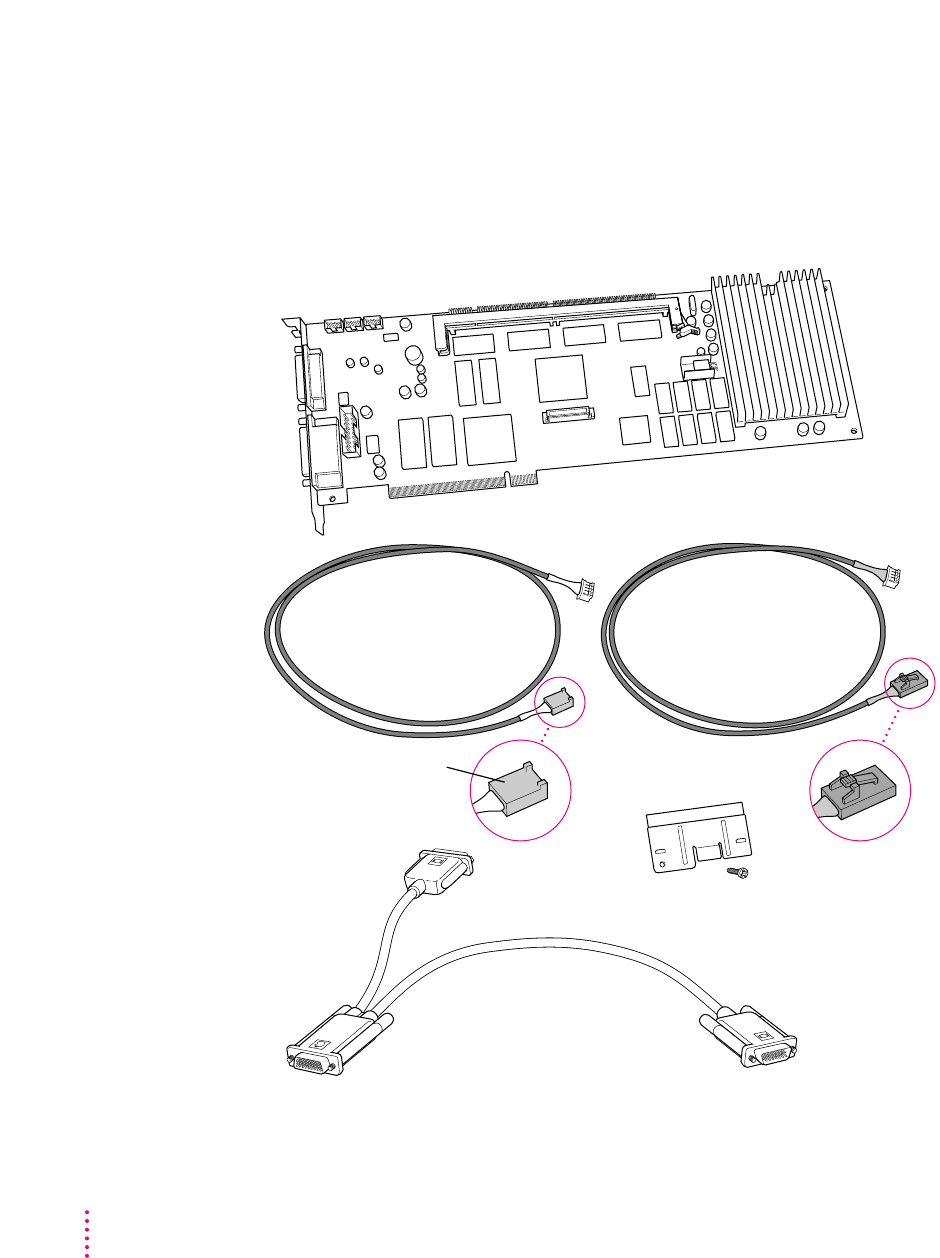
Before beginning the installation process, make sure you have all the
necessary parts: the PC Compatibility Card, the audio cables, the card
extension bracket and screw, and the loopback cable. You’ll also need a
Phillips screwdriver.
Loopback cable
PC Compatibility Card
Audio cable for
SCSI CD-ROM drives
You’ll only need one of
the cables with this plug.
Audio cable for
ATAPI CD-ROM drives
Card extension
bracket and screw
3
Installing the Card in a Power Macintosh 4400 or 7220
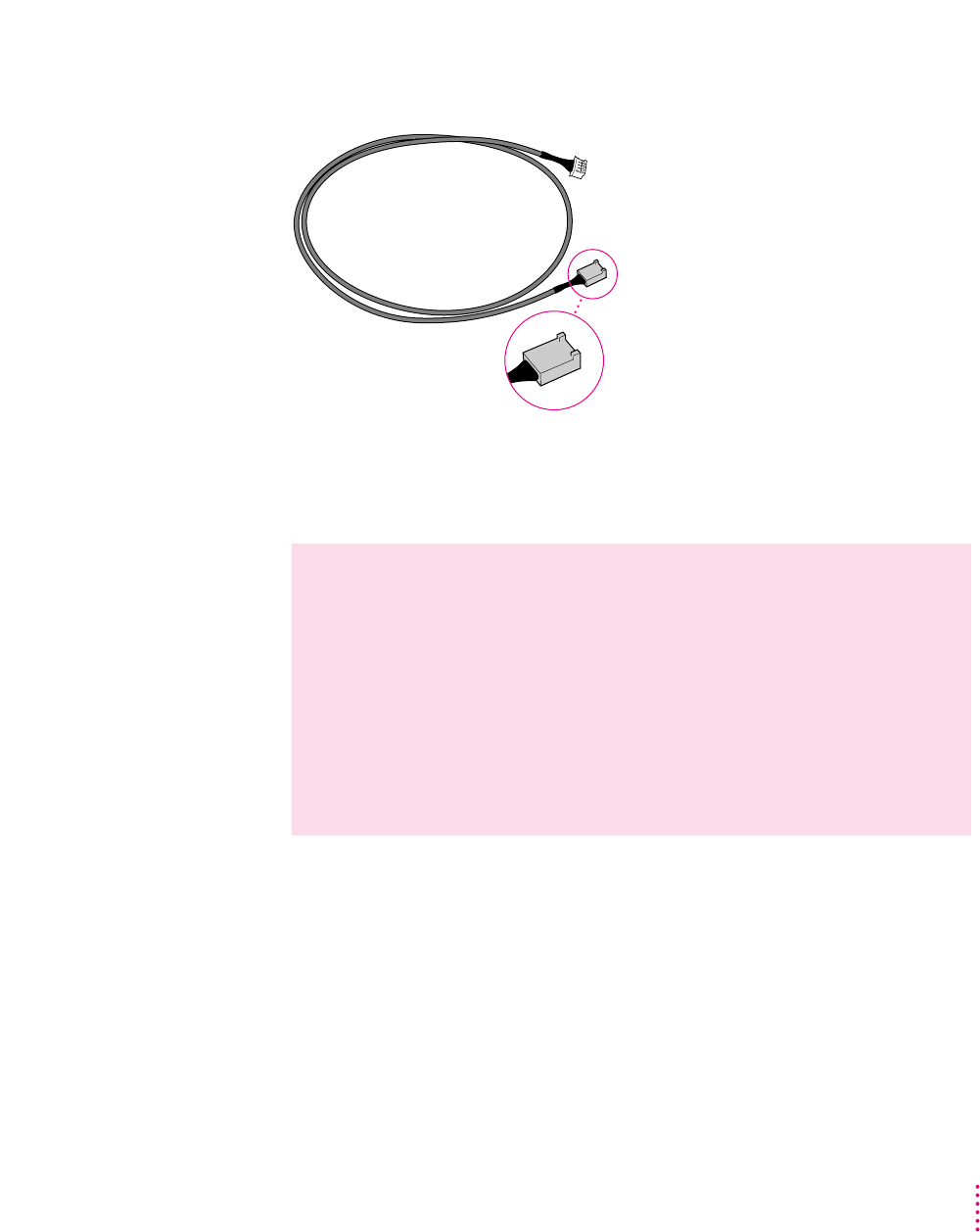
You won’t need the other audio cable with the thick plug shown below.
Installing the PC Compatibility Card hardware
There are several steps to installing your PC Compatibility Card hardware:
mopening the computer
minserting the PC Compatibility Card
mconnecting the CD In cable
mconnecting the Sound Out cable
mreplacing the computer cover
WARNING
The installation of the PC Compatibility Card is technically
complex. Unless you are comfortable installing components inside
computers, Apple recommends that you have the PC Compatibility
Card installed by your Apple-authorized dealer (who may charge a
fee). If you attempt to install the card yourself, any damage you may
cause to your equipment will not be covered by the limited warranty
on your computer.
Do not attempt to install the card, install memory, or connect the cables
without first reading this manual.
Audio cable for
SCSI CD-ROM drives
4Chapter 1
Opening the computer
1Shut down the computer and disconnect all cables from the computer, except for the
power cord.
Leave the computer plugged in for now, to ground it and protect its
components from static electricity damage.
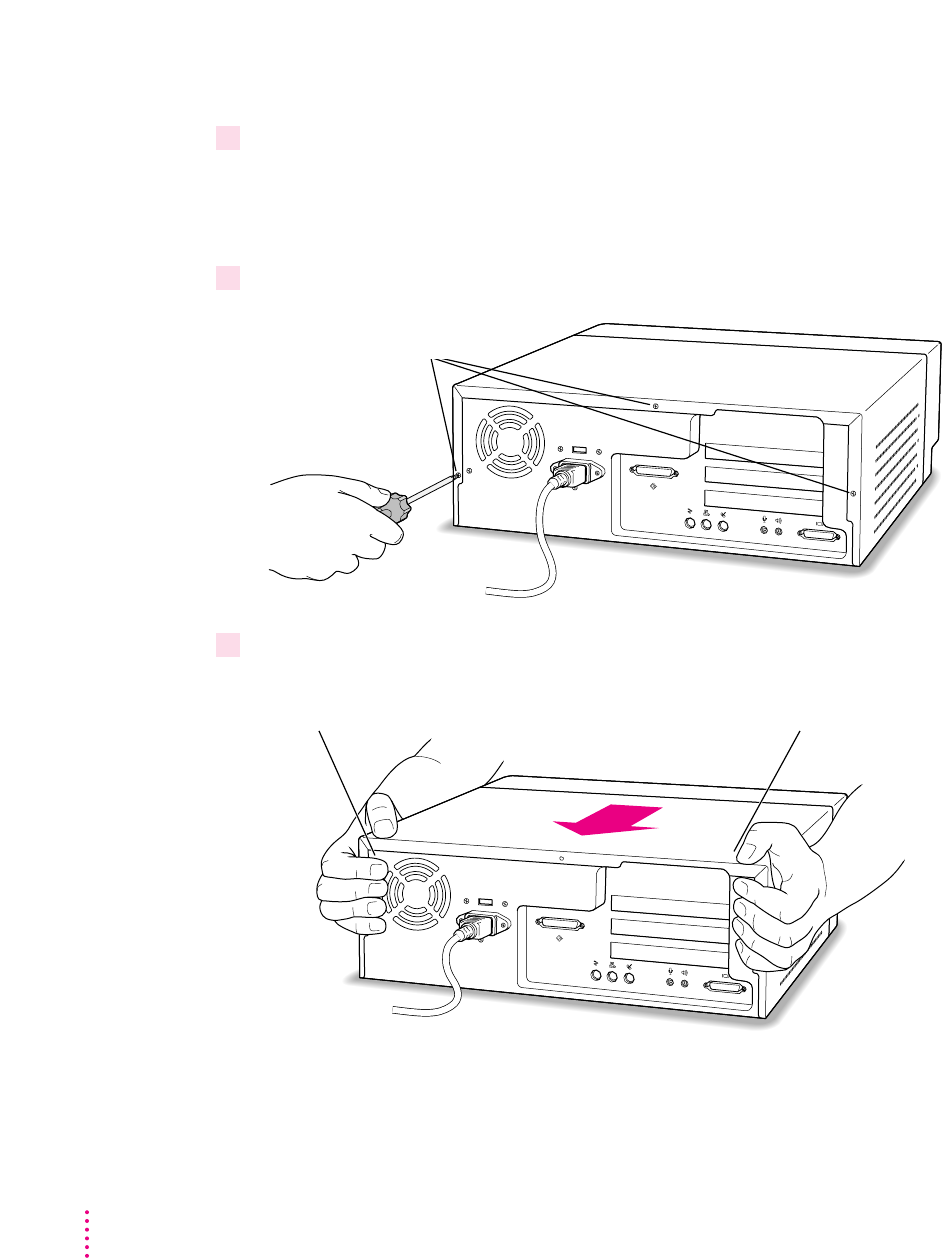
2 Remove the three screws as shown from the back of the cover.
3Position your hands on the unit as shown, and slide the cover back.
Firmly grasp the back of the computer and push in on the rear panel with your
fingertips while sliding the top cover back about a quarter of an inch with your thumbs.
Remove these three screws.
5
Installing the Card in a Power Macintosh 4400 or 7220
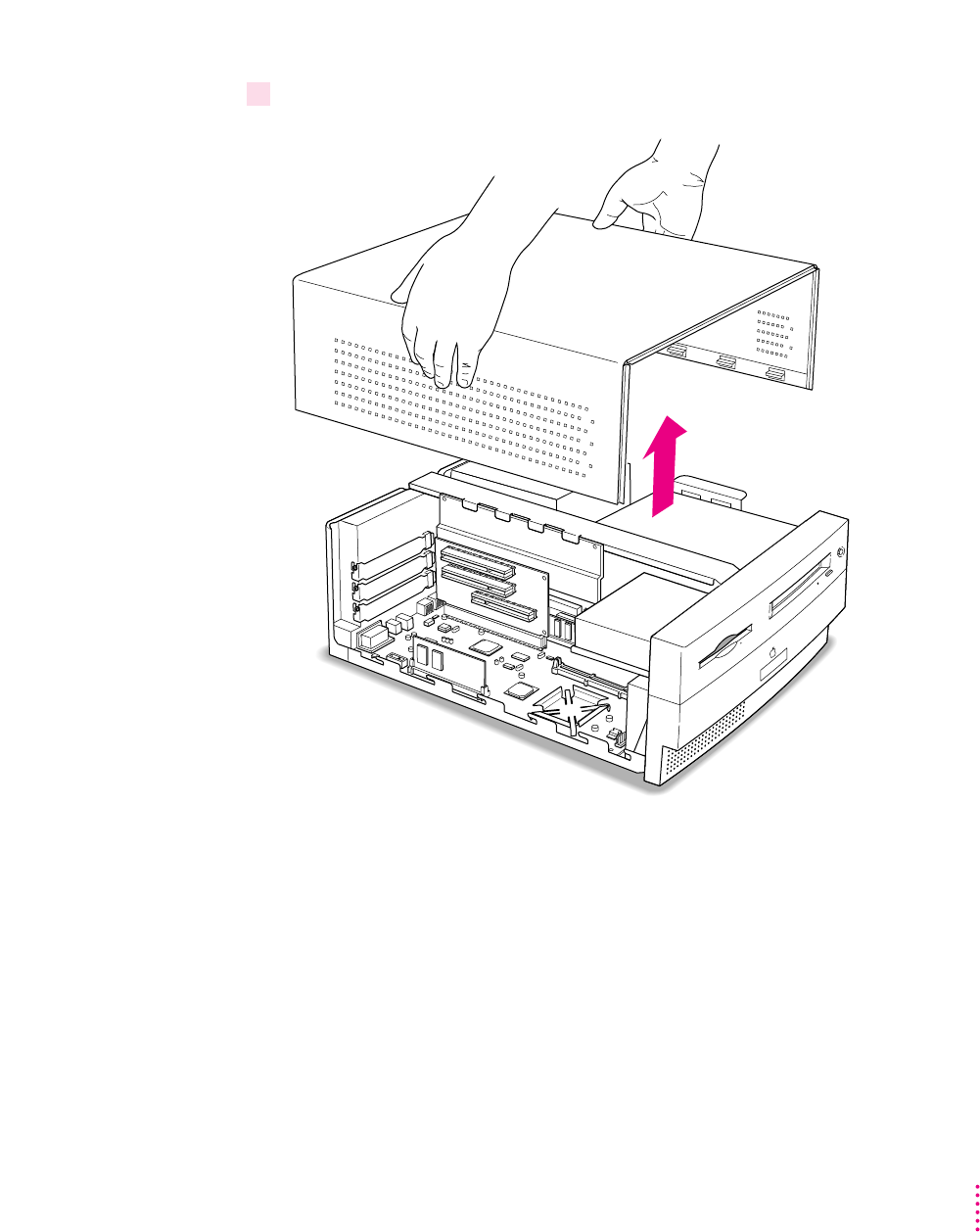
4 Lift the cover up and off of the computer.
6Chapter 1
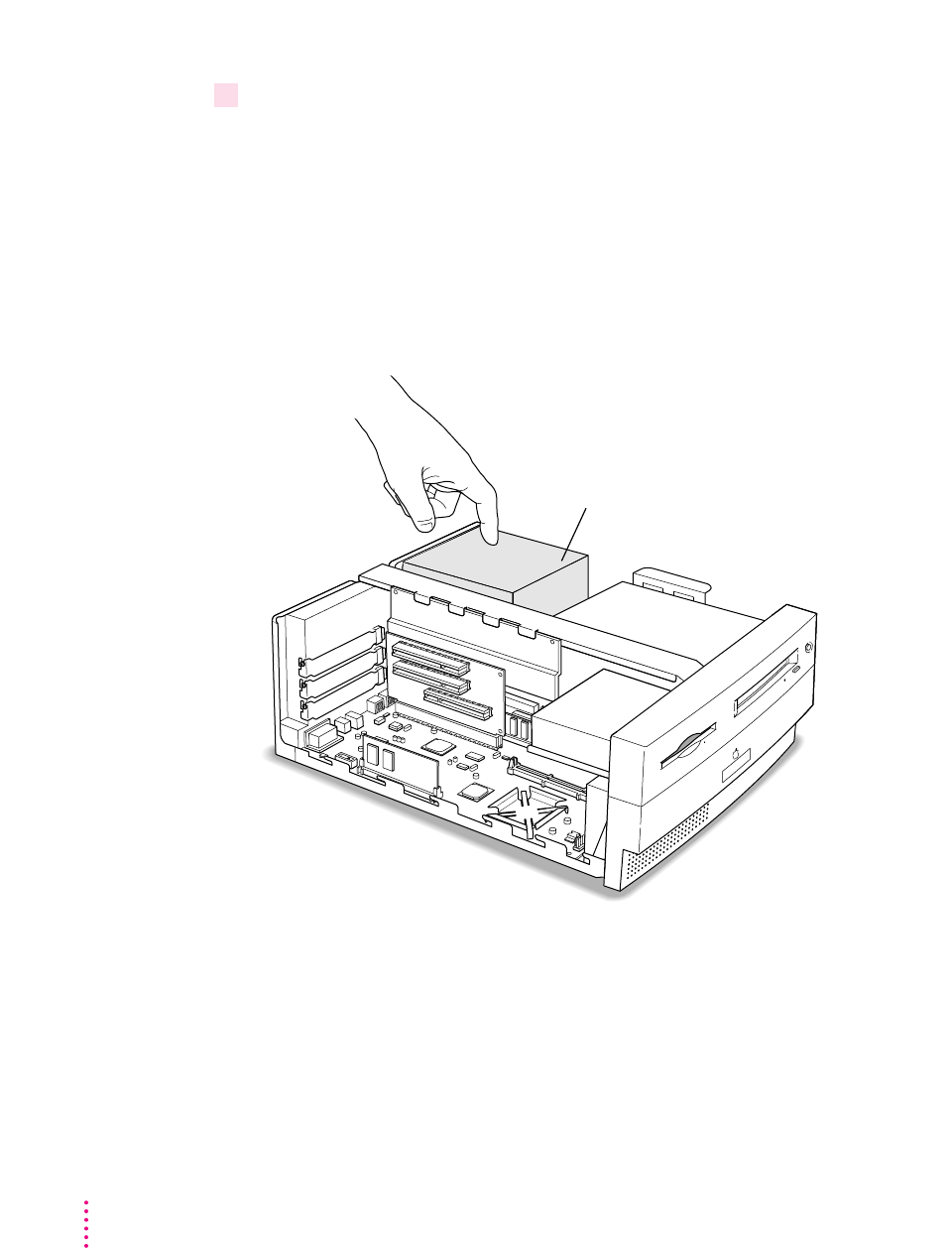
5 Touch the metal part of the power supply case inside the computer.
Always do this before you touch any parts, or install any components, inside
the computer. Touching the power supply case helps release static electricity
from your body and prevent possible damage to internal components.
IMPORTANT
You can collect static electricity just by walking away from and
then back to your computer. If you need to move away from your computer
during installation, remember to touch the metal part of the power supply
case again before you continue installing.
Power supply case
7
Installing the Card in a Power Macintosh 4400 or 7220
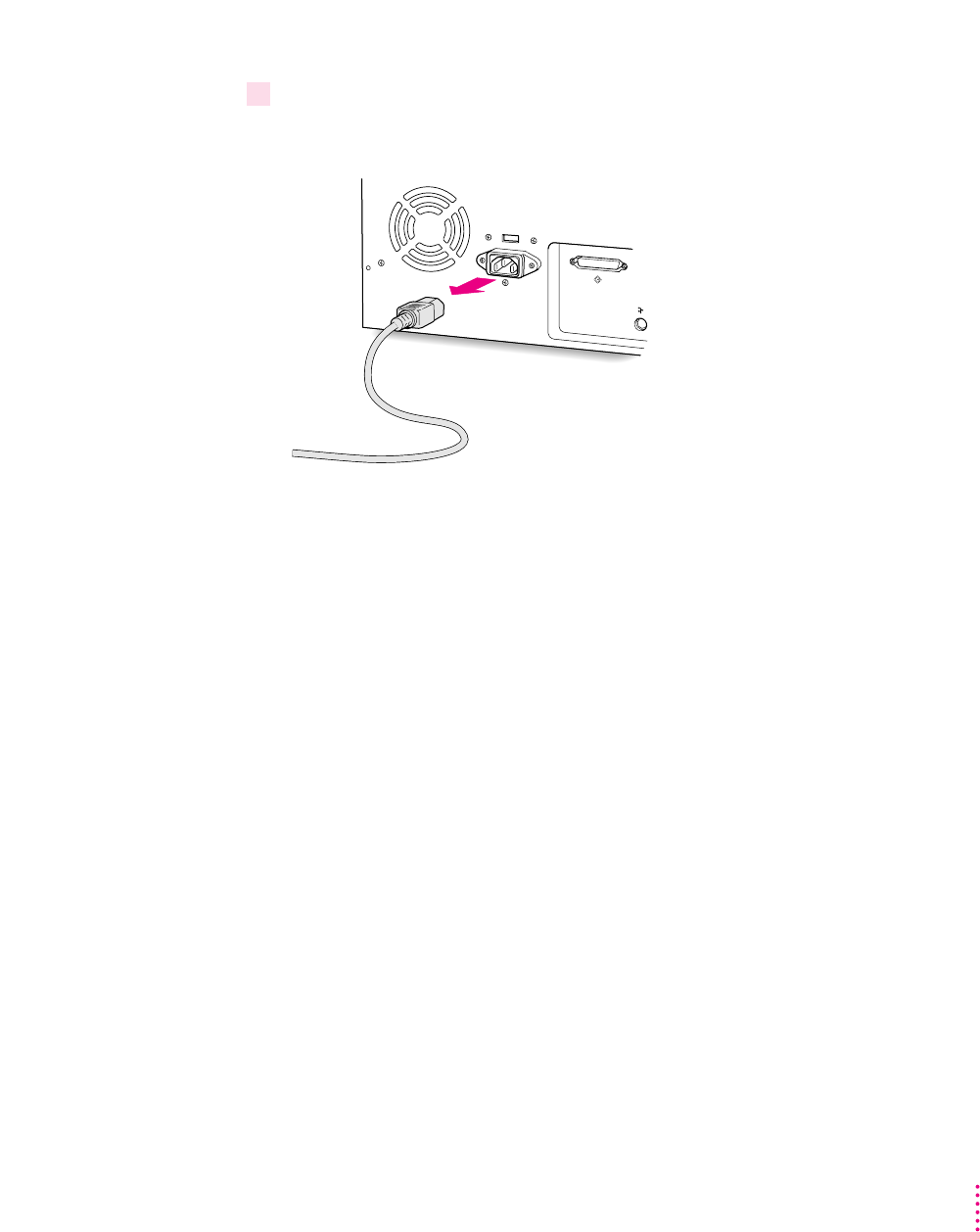
6 Disconnect the power cord.
Remove the power cord from the back of the computer.
8Chapter 1
Inserting the PC Compatibility Card
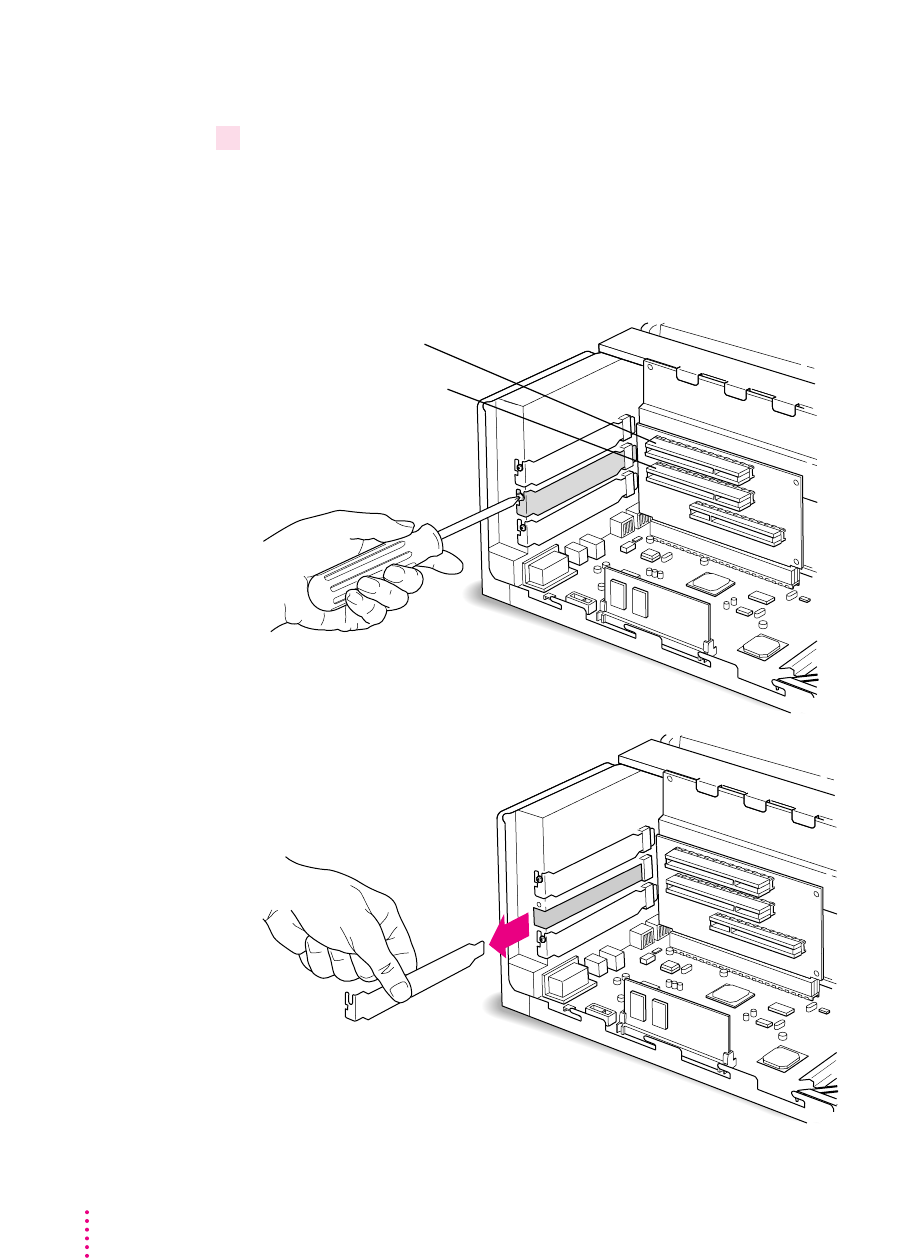
7Unscrew and remove the metal port access covers for the slots you need.
You need to install the PC Compatibility Card in the second PCI slot, just
under the top (first) slot. If you are installing a PC Serial and Parallel Port
Card, you’ll need to install it in the top (first) slot later.
Keep the screws; you will need to reinsert them again later on.
First PCI slot
Second PCI slot
9
Installing the Card in a Power Macintosh 4400 or 7220
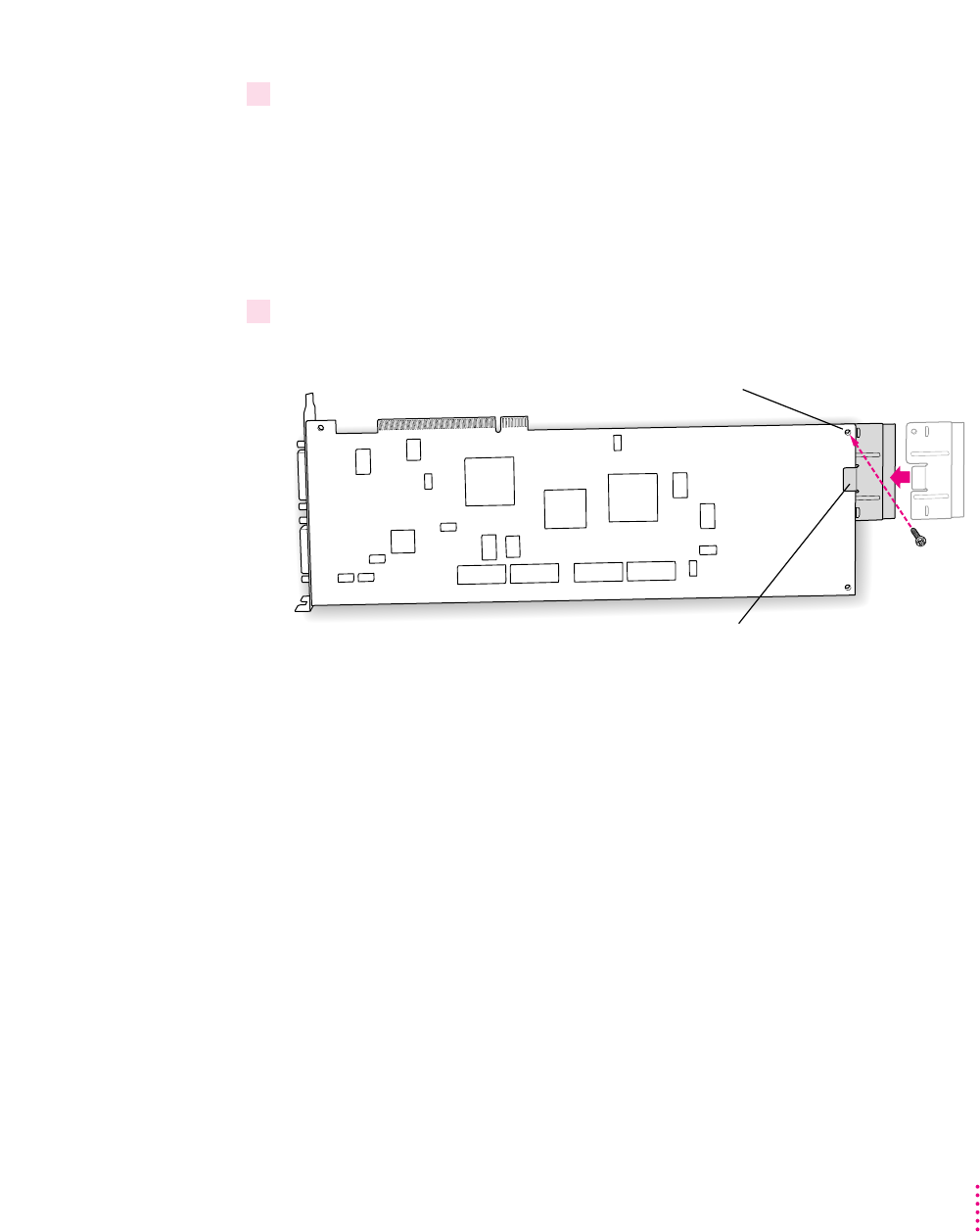
8With the PC Compatibility Card turned over, position the support bracket on the end of
the card (opposite the ports).
IMPORTANT
Always hold the card by its edges. Don’t touch any of the
components on the card.
The bracket’s middle tab should engage the card on the side facing you, and
the hole in the bracket should align with the hole in the card.
9 Insert the screw (packaged with the support bracket) and tighten.
What you do next depends on whether you are adding a DIMM (dual inline
memory module) to increase the memory available to your PC Compatibility
Card, and whether you are installing a PC Serial and Parallel Card.
mIf you want to add memory to your card, turn now to Appendix B, “Adding
Memory to Your PC Compatibility Card.” After you’ve completed the
instructions in Appendix B, go on to step 10 in this section.
mIf you want to install the PC Serial and Parallel Card, you need to connect
the peripheral flex cable to your PC Compatibility Card now. See the PC
Serial and Parallel Card manual for complete instructions. Then return to
this manual, and go on to the next section, “Connecting the CD In Cable.”
If you don’t want to add memory or install the PC Serial and Parallel Card,
continue with step 10 of this section.
Align the hole in the bracket with the hole in the
card, and secure the bracket with the screw.
Middle tab
10 Chapter 1
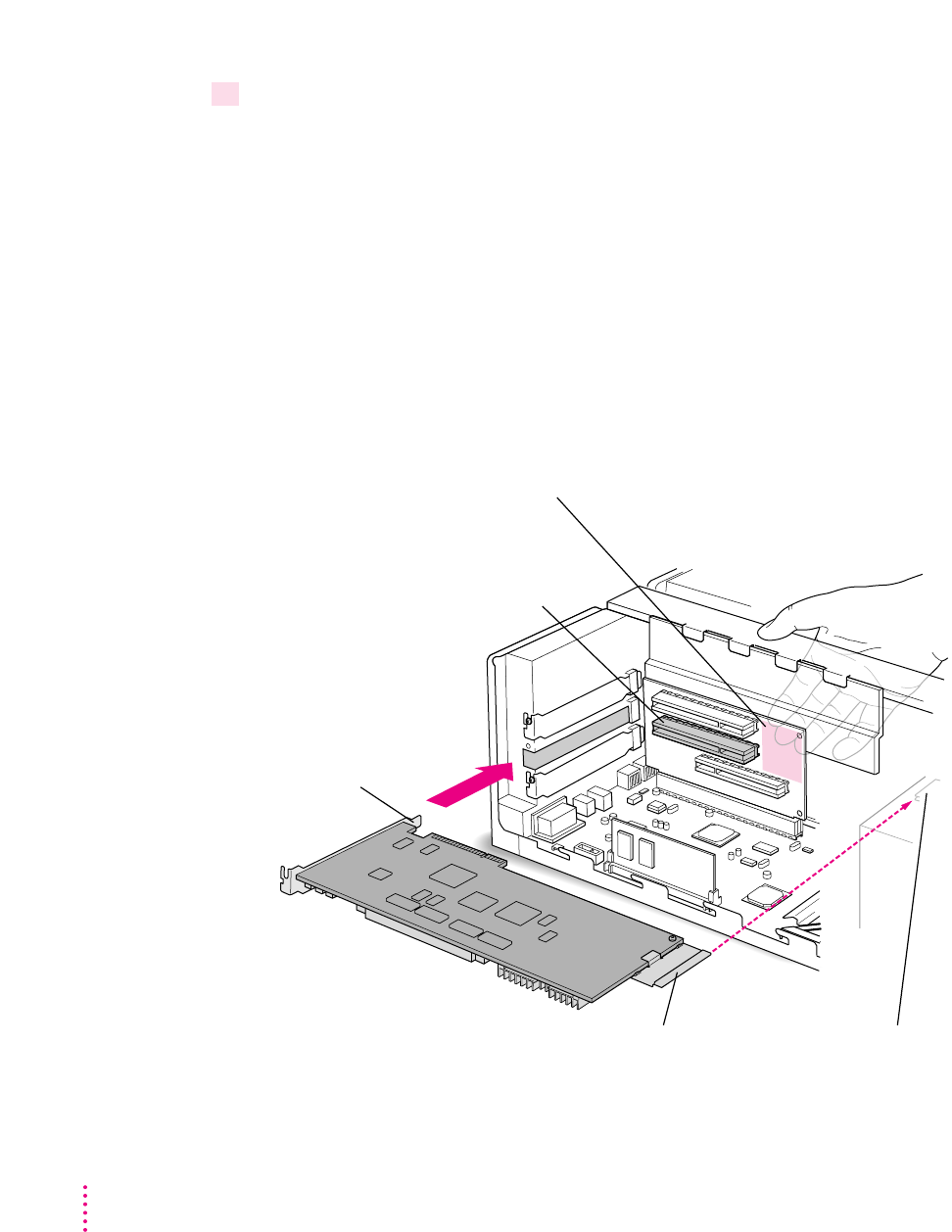
10 Insert the PC Compatibility Card into the second slot.
Place one hand behind the PCI slots in the area indicated below. With your
other hand, align the card’s connector end (gold in color) with the second PCI
expansion slot. The ports on the card should face the port access opening on
the computer’s back panel. The other end of the card (where the card extension
bracket is) should engage the card guide. Press in on the card. When the card is
fully inserted, you won’t be able to see the gold-colored connector any more.
mDon’t rock the card from side to side; press it straight into the slot. Rocking
the card can damage the PCI slot.
mDon’t force the card. If you meet a lot of resistance, pull the card out and try
again.
mTo see if the card is connected, pull it gently. If it resists, it is connected.
Second PCI slot
Support the slots with your hand in this
area only (shown tinted here) to avoid
pressing against the soldered pins on
the back of the PCI slots.
Card fence
Card guide
Make sure the card extension bracket engages the card guide located
on the speaker housing inside the front of the computer.
11
Installing the Card in a Power Macintosh 4400 or 7220
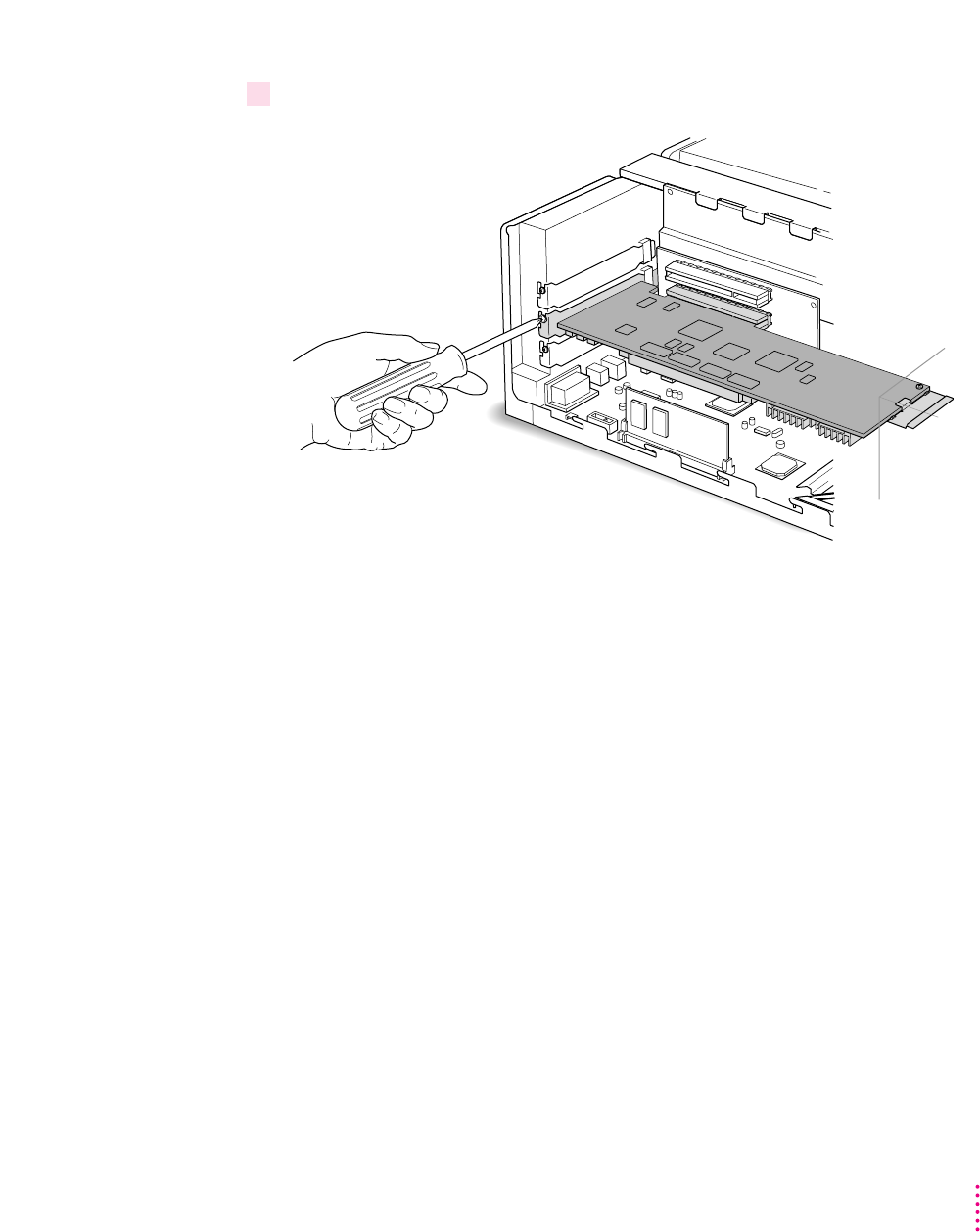
11 Reinsert the screw you removed earlier to secure the card.
12 Chapter 1
Connecting the CD In cable
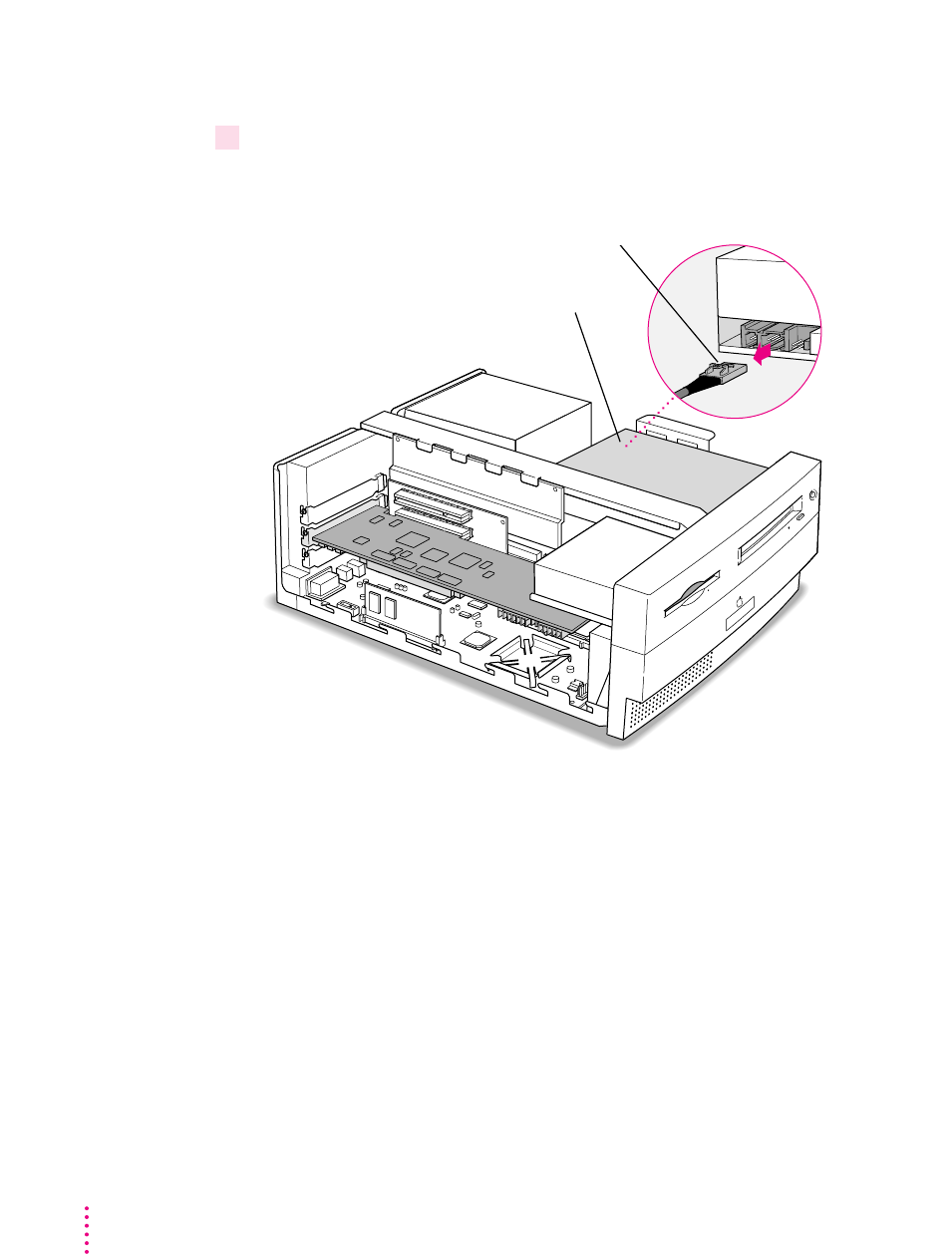
12 Disconnect the audio cable from the back of the CD-ROM drive.
Be sure to pull on the plug, not the cable.
Press the clip while pulling.
CD-ROM drive
13
Installing the Card in a Power Macintosh 4400 or 7220
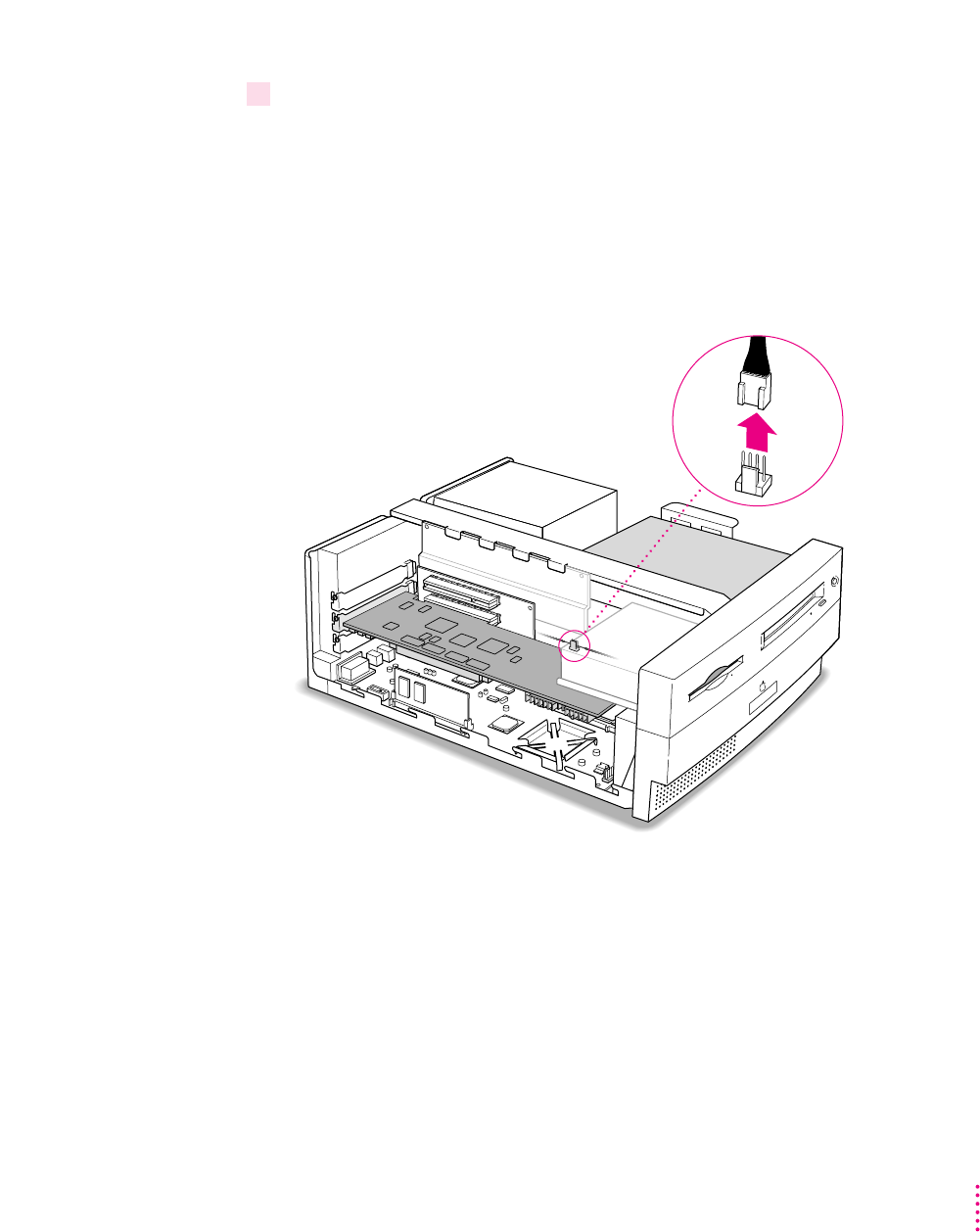
13 Disconnect the other end of the audio cable from the Macintosh logic board, and remove
it from the computer.
This cable is connected near the DRAM DIMM slots. The connector has four
pins and may be labeled “CD AUDIO” on the board.
Be sure to pull on the plug, not the cable. After you have disconnected the
cable, carefully remove it from the computer. (Keep this cable; you will need
to reinstall it if you ever remove your PC Compatibility Card.)

14 Chapter 1
14 Plug the ATAPI audio cable (with the plug shown below) into the back of the
CD-ROM drive.
IMPORTANT
Use only the cables that came with this PC Compatibility Card.
Do not use cables from other models of the card.
Your PC Compatibility Card came with three audio cables. They may have
different colors of tubing near the ends to help you tell them apart. You’ll
only be using two of these cables (the third one is for a different kind of
CD-ROM drive). Two of the cables have identical plugs on the ends, and work
the same way. The third cable, which is for ATAPI CD-ROM drives, has a
different plug on one end, as shown below.
Audio cable plug for
ATAPI CD-ROM drives
15
Installing the Card in a Power Macintosh 4400 or 7220
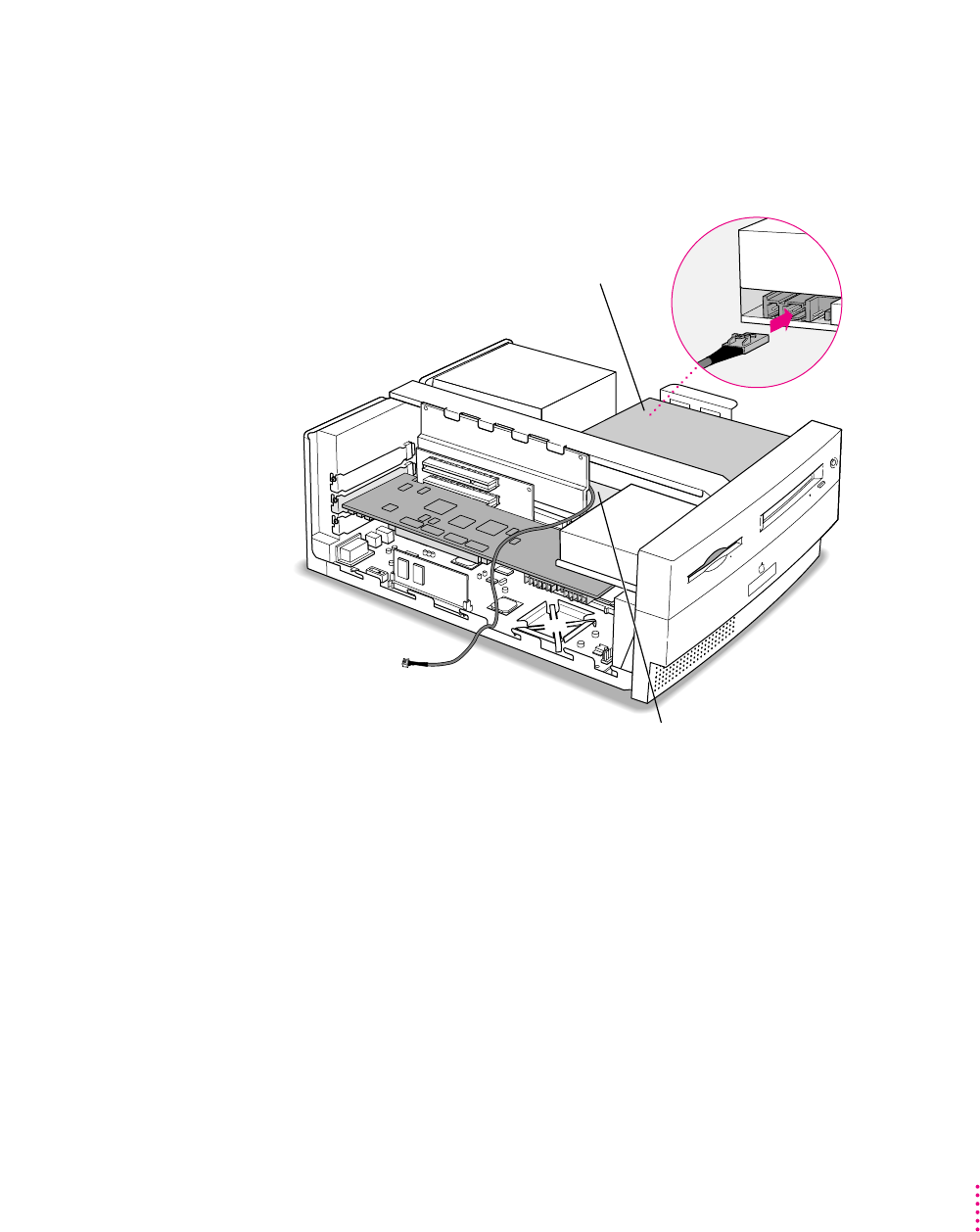
Insert this plug into the connector on the CD-ROM drive, where you
unplugged the previous audio cable. Then route the cable through the
opening, under the support bar in the center of the computer, and over
the top of the PC Compatibility Card.
Route the cable so that it passes under the support bar and through the opening.
CD-ROM drive
16 Chapter 1
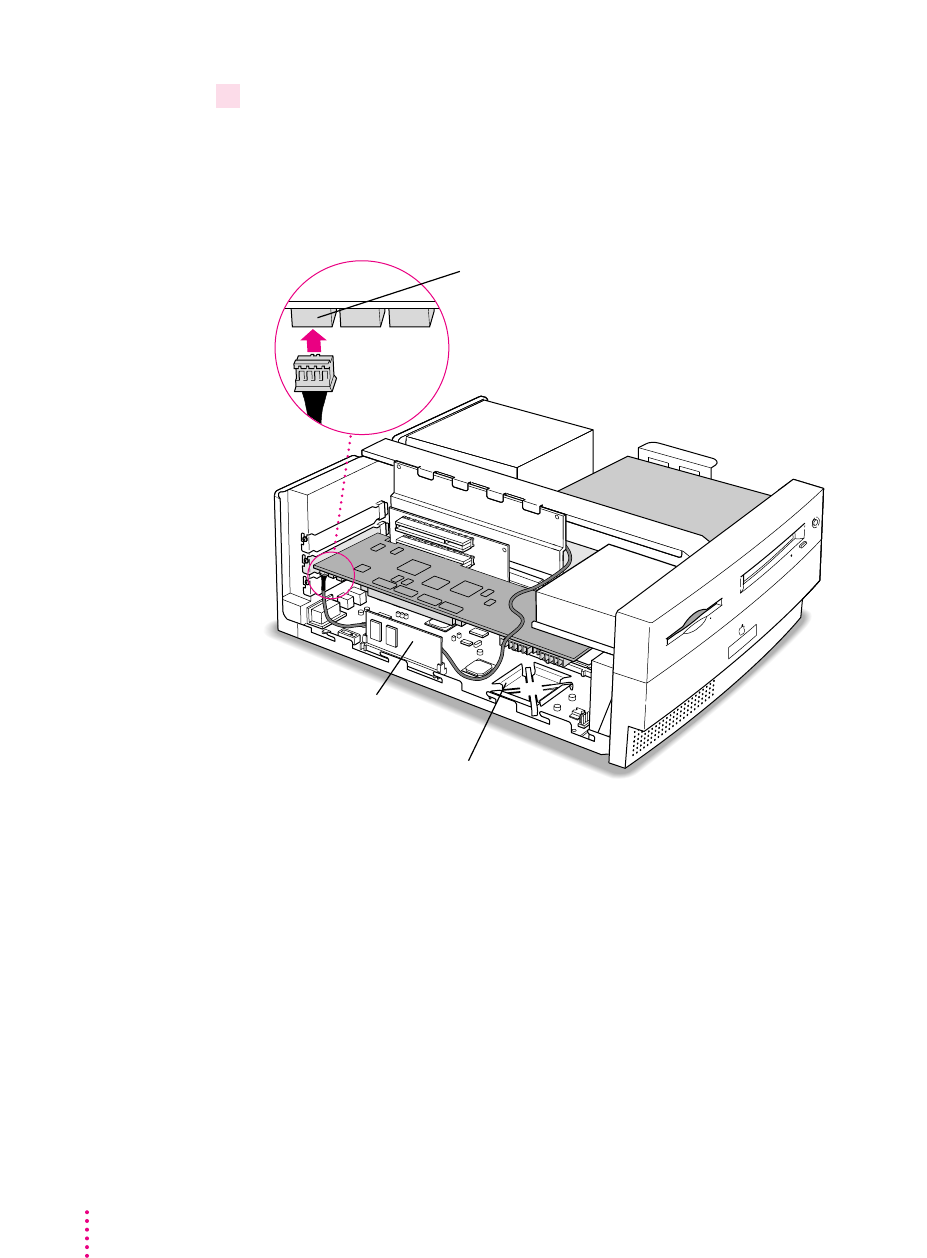
15 Plug the other end of the ATAPI audio cable into the CD In connector in the far upper-left
corner of the PC Compatibility card.
The CD In connector is labeled “CD IN” on the underside of the card.
Route the cable so it lies behind the video DIMM and away from the heat sink.
Route the cable
behind the video
DIMM. The cable
should not touch the heat sink.
Connector labeled “CD IN” on the PC Compatibility Card
17
Installing the Card in a Power Macintosh 4400 or 7220
Connecting the Sound Out cable
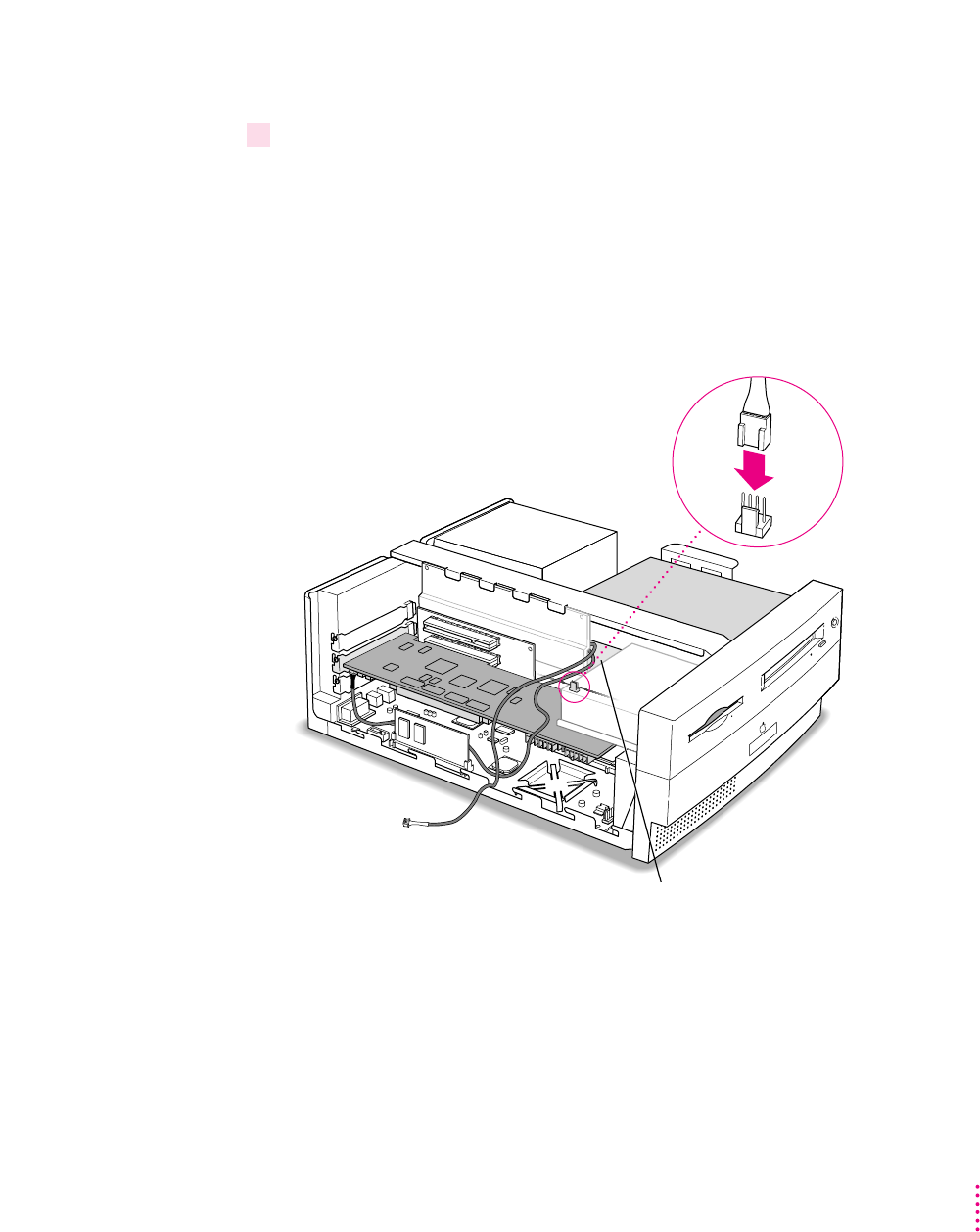
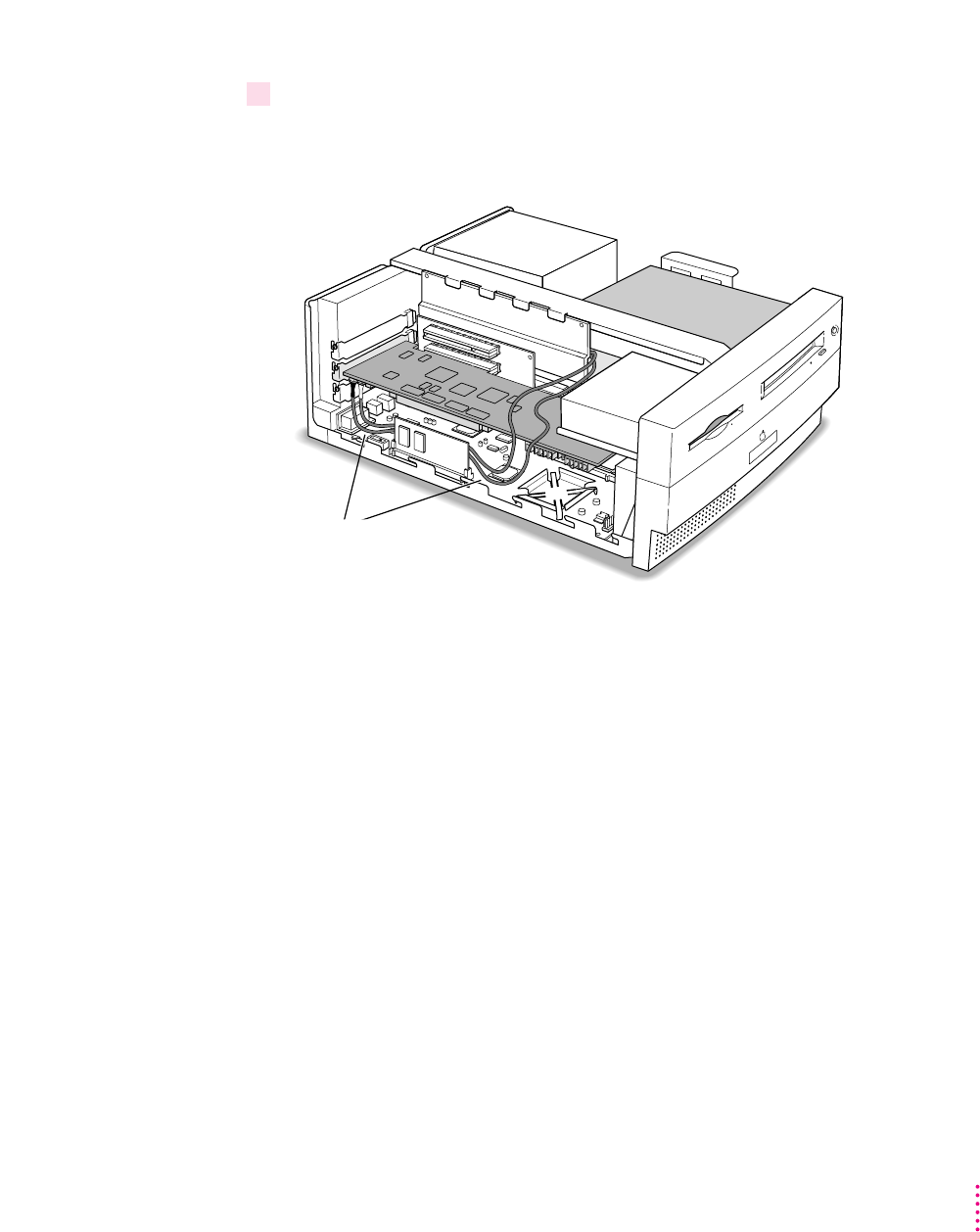
16 Plug one of the other audio cables into the connector near the DRAM DIMM slots on the
Macintosh logic board.
You unplugged the original audio cable from this connector in step 13 (the
connector may be labeled “CD AUDIO” on the logic board).
You can use either remaining audio cable. Insert the cable’s larger plug into
the connector, and route the cable through the opening, under the support bar,
and over the top of the PC Compatibility Card.
Route the cable so that it passes under the support bar and through the opening.
18 Chapter 1
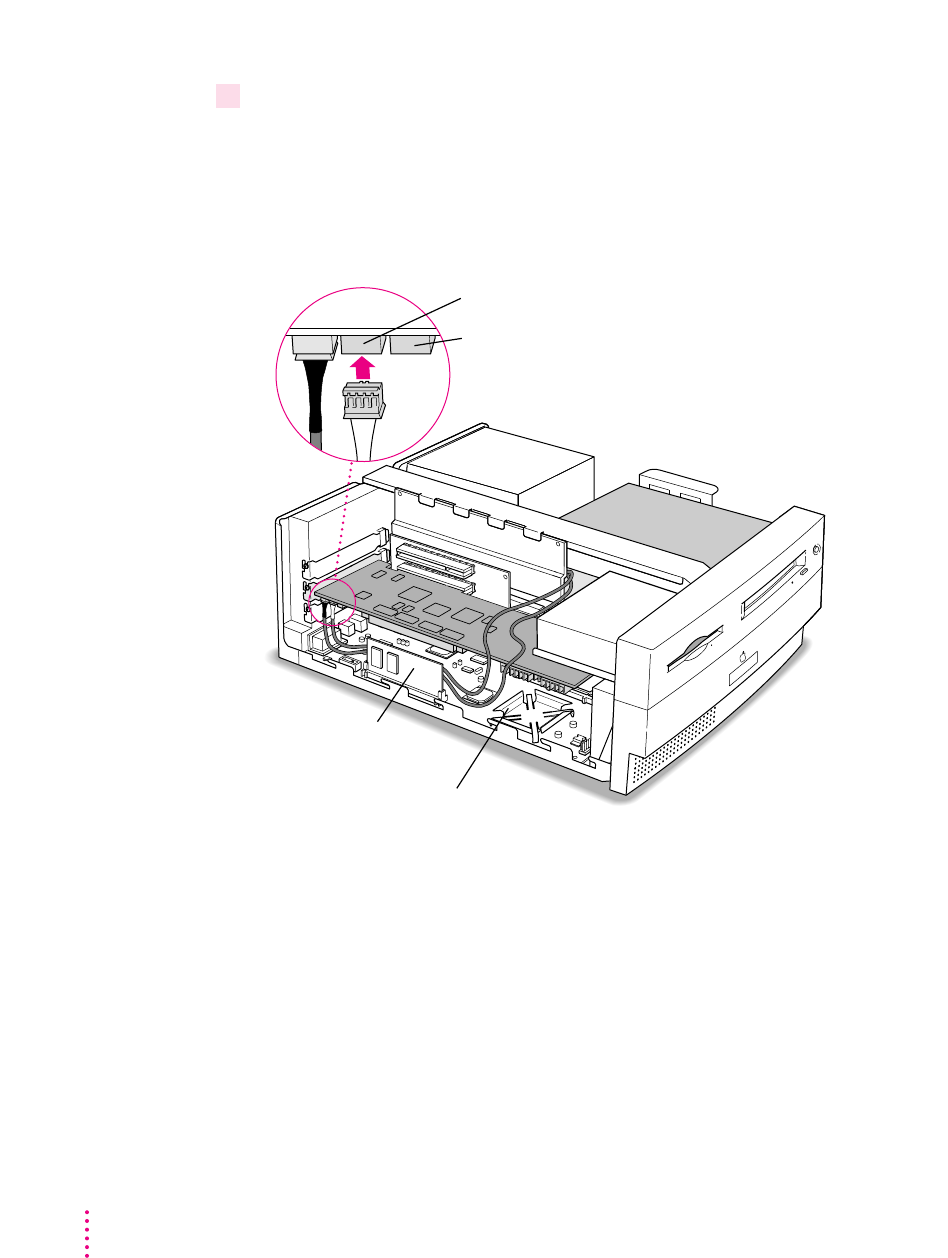
17 Plug the other end of the audio cable into the connector next to the CD In connector on
the PC Compatibility Card.
The Standard Sound Out connector, labeled “STD_SND_OUT,” is right next
to the CD In connector, in the upper-left corner of the card.
Route the cable so it lies behind the video DIMM and away from the heat sink.
Route the cable
behind the video
DIMM. The cable
should not touch the heat sink.
Connector labeled “STD_SND_OUT” on the PC Compatibility Card
Do not plug any cable into this connector for this computer model.
19
Installing the Card in a Power Macintosh 4400 or 7220
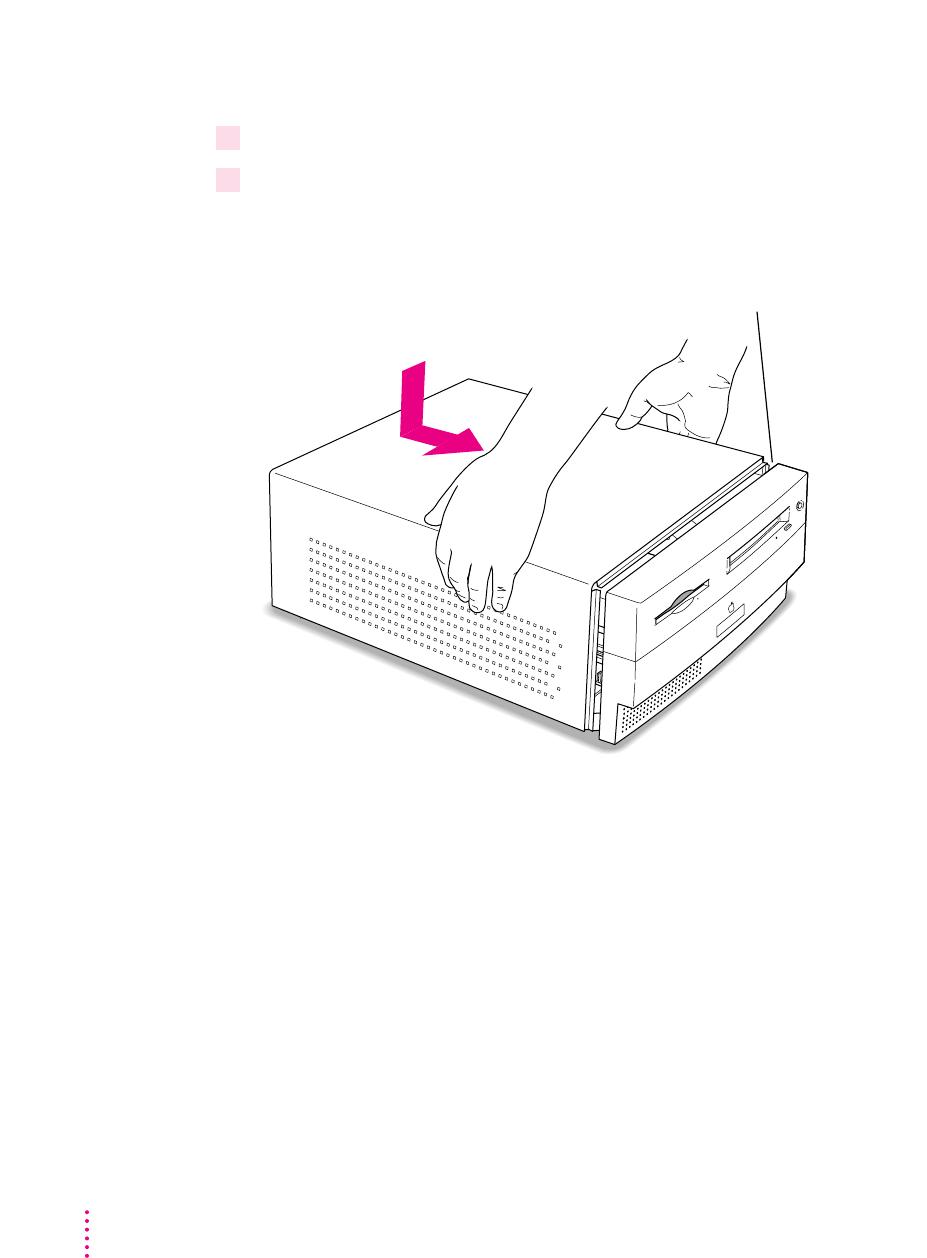
18 Arrange the audio cables as shown below.
The cables should lie in front of the video DRAM DIMM card, and away
from the edge of the computer and the heat sink.
IMPORTANT
If you are installing the PC Serial and Parallel Card, you should
insert it now. See the PC Serial and Parallel Card manual for instructions.
The audio cables
should not extend out over
the edge of the bottom chassis.
20 Chapter 1
Replacing the computer cover
19 Make sure all cables and cards are firmly connected.
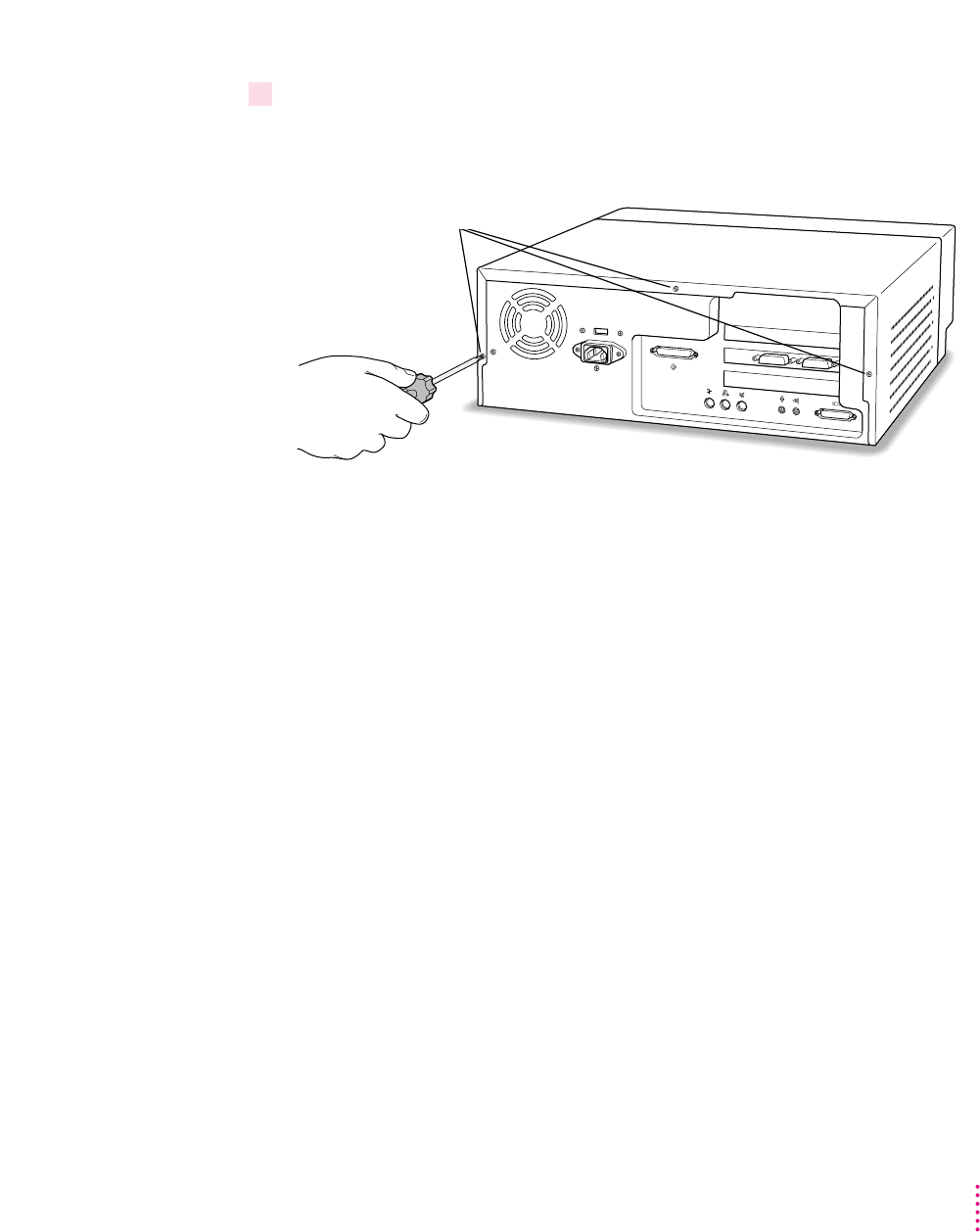
20 Replace the computer cover.
Lower the cover onto the computer vertically as shown. Then slide the cover
forward until it snaps into place.
Set the cover down so there’s about a quarter of an inch gap here.
Then slide the cover all the way forward.
21 Replace the screws and reconnect all equipment.
Reinsert the three screws you removed earlier into the back of the computer.
Then reinsert the power cable and all other equipment cables.
You are now finished installing your PC Compatibility Card.
What’s next?
Next, go to Chapter 5, “Connecting Monitors and Other Equipment.”
Then go to Chapters 6 through 9 for instructions on installing and using
your software.
Reinsert these three screws.
21
Installing the Card in a Power Macintosh 4400 or 7220

Except where noted, the illustrations in this chapter show the 7200 model. If
you have a 7300, 7500, or 7600 model, some of the illustrations may look
slightly different from your computer.
IMPORTANT
If you will be installing a PC Serial and Parallel Card with your PC
Compatibility Card, it’s easiest to install both cards at the same time. The PC
Serial and Parallel Card has standard PC ports that allow you to use several
kinds of PC-compatible peripherals from the Windows or DOS environment
(not from the Mac OS environment). Instructions in this chapter indicate when
to see your PC Serial and Parallel Card manual for installation information.
After you install the PC Compatibility hardware, go to Chapter 5,
“Connecting Monitors and Other Equipment.” If you want to install
additional memory in your card, go to Appendix B, “Adding Memory to Your
PC Compatibility Card.” Then turn to Chapters 6 through 9 to learn more
about installing and using PC software.
WARNING
Shipping your computer with a PC Compatibility Card
installed may cause damage to the card. Your PC Compatibility Card
should be shipped separately. (See Appendix A for instructions on how
to remove the card.)
23
2Installing the Card
in a Power Macintosh 7200, 7300, 7500, or 7600
24 Chapter 2
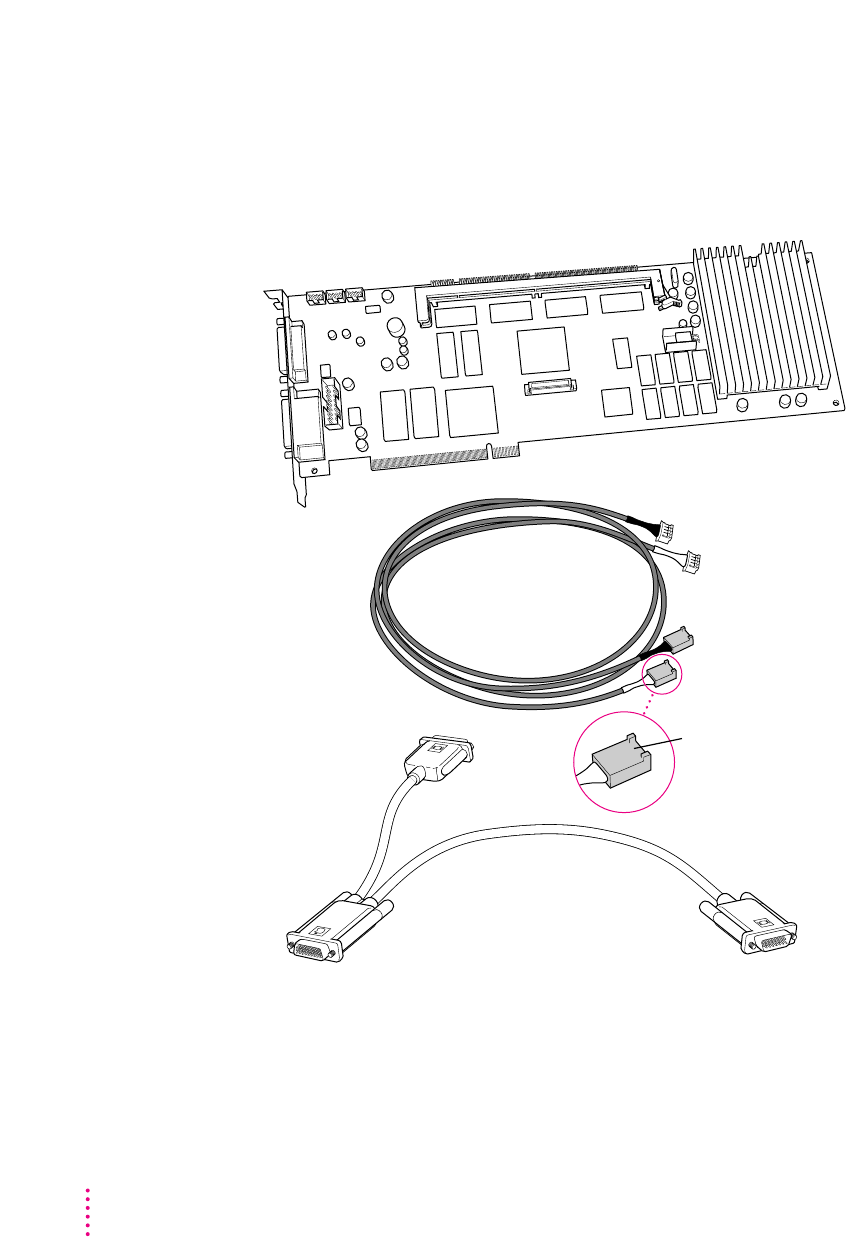
What you need
Before beginning the installation process, make sure you have all the
necessary parts: the PC Compatibility Card, the audio cables, and the
loopback cable.
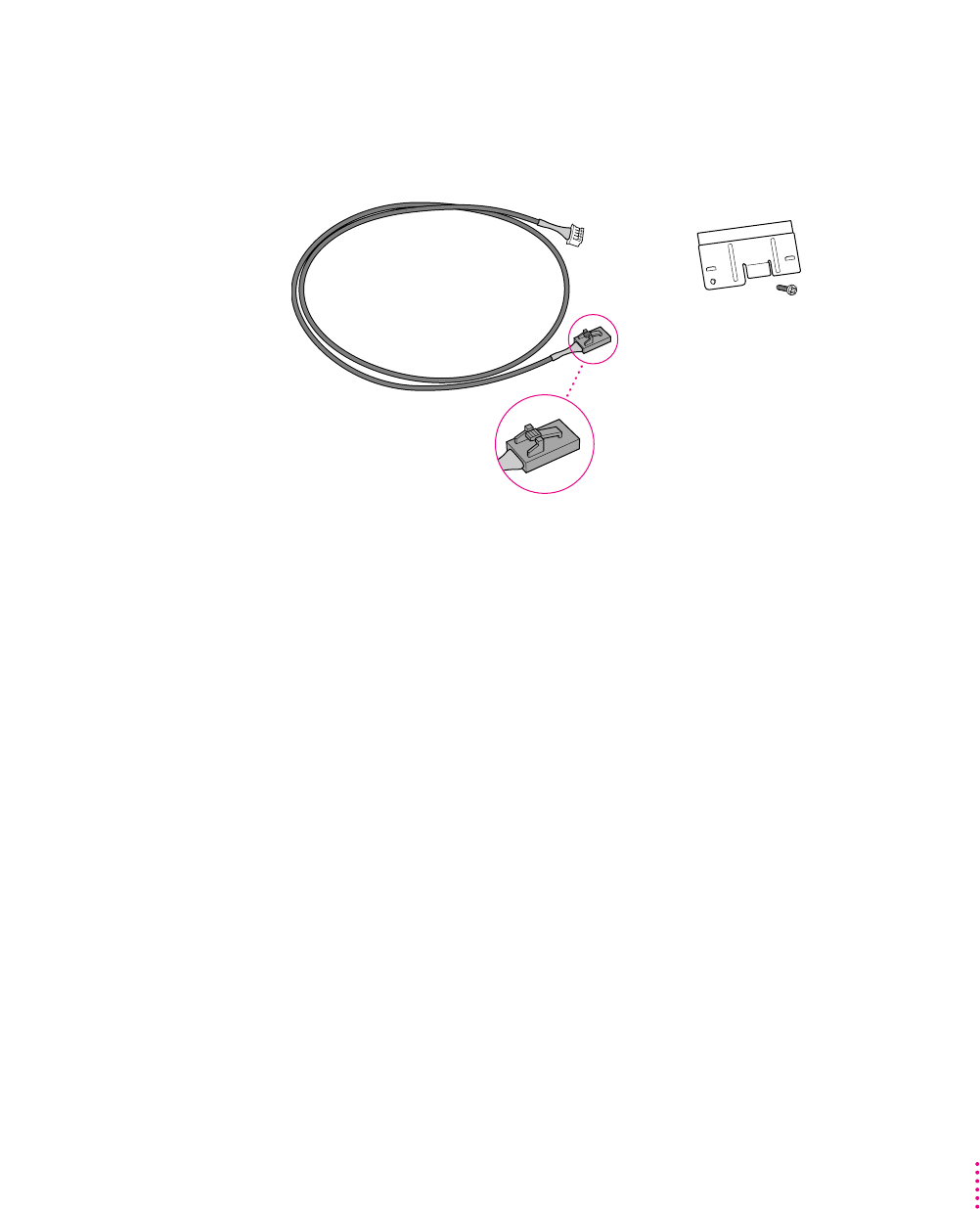
Loopback cable
PC Compatibility Card
Audio cables for
SCSI CD-ROM drives (2)
You’ll need the
two cables that
have this plug
25
Installing the Card in a Power Macintosh 7200, 7300, 7500, or 7600
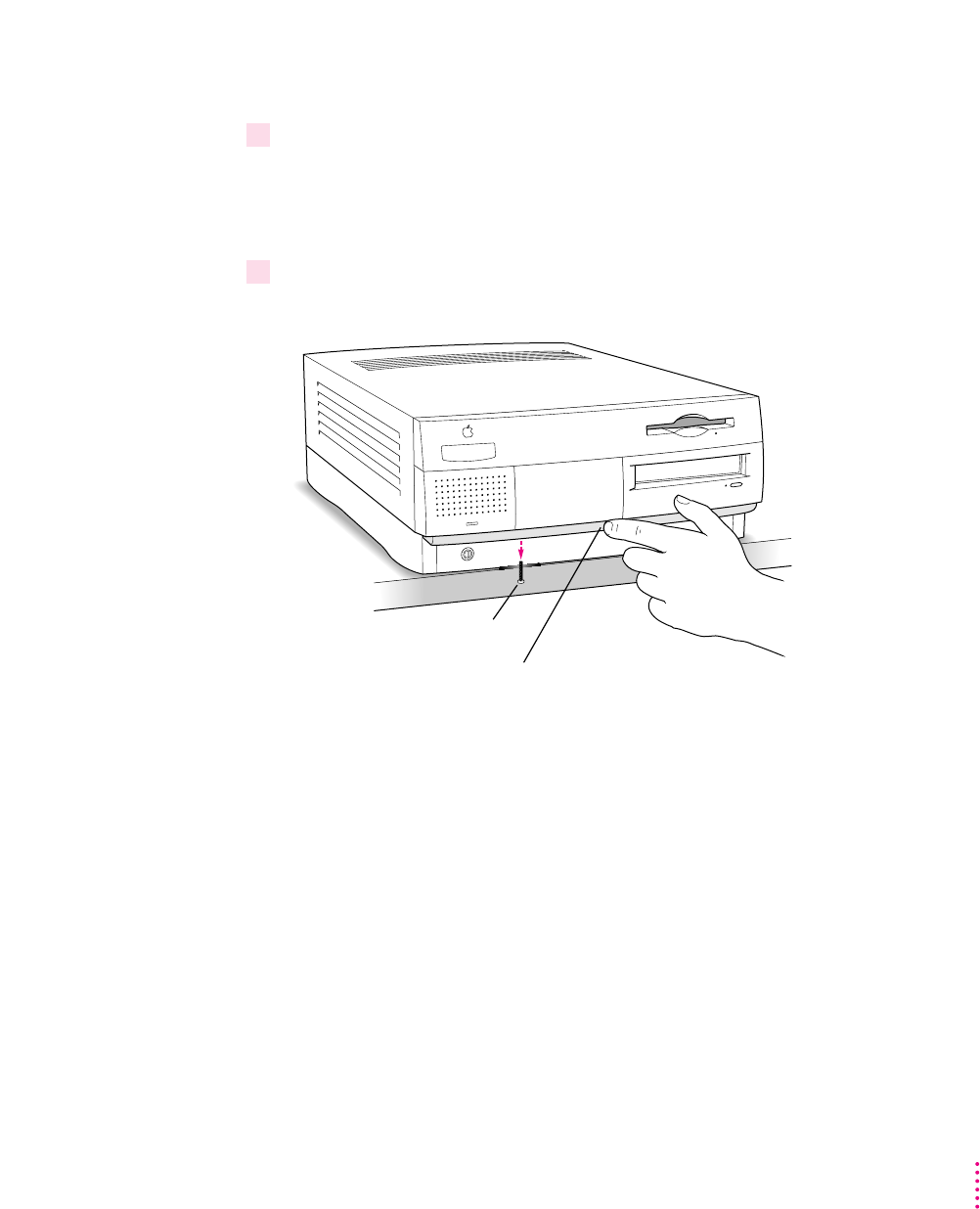
You won’t need the card extension bracket and screw.
Also, you won’t need the audio cable that has a different plug from the other
two cables (shown below).
Card extension
bracket and screw
Audio cable for
ATAPI CD-ROM drives

26 Chapter 2
Installing the PC Compatibility Card hardware
There are several steps to installing your PC Compatibility Card hardware:
mopening the computer
mdisconnecting the CD-ROM audio cable
mopening the expansion card cover and chassis
minserting the PC Compatibility Card
mconnecting the Sound Out cable
mconnecting the CD In cable to the card
mreplacing the chassis and expansion card cover
mconnecting the CD In cable to the CD-ROM drive
mreplacing the computer cover
WARNING
The installation of the PC Compatibility Card is technically
complex. Unless you are comfortable installing components inside
computers, Apple recommends that you have the PC Compatibility
Card installed by your Apple-authorized dealer (who may charge a
fee). If you attempt to install the card yourself, any damage you may
cause to your equipment will not be covered by the limited warranty
on your computer.
Do not attempt to install the card, install memory, or connect the cables
without first reading this manual.
27
Installing the Card in a Power Macintosh 7200, 7300, 7500, or 7600
Opening the computer
1Shut down the computer and disconnect all cables from the computer, except for the
power cord.
Leave the computer plugged in for now, to ground it and protect its
components from static electricity damage.
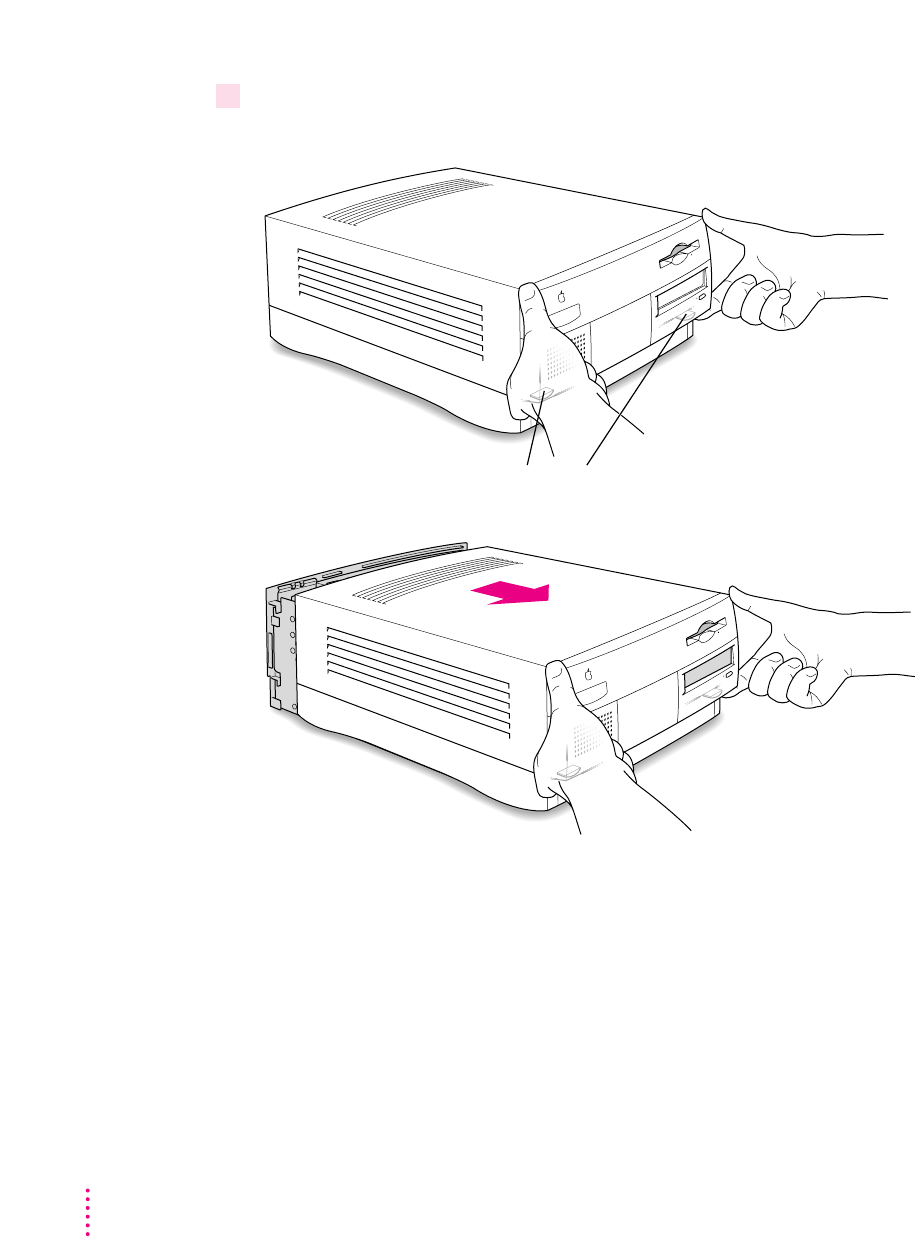
2If the security bar is installed, remove it by removing the screw under the front panel and
pressing the center of the bar.
First, remove the screw.
Then, press the security bar near
its center to release it from the computer.
28 Chapter 2
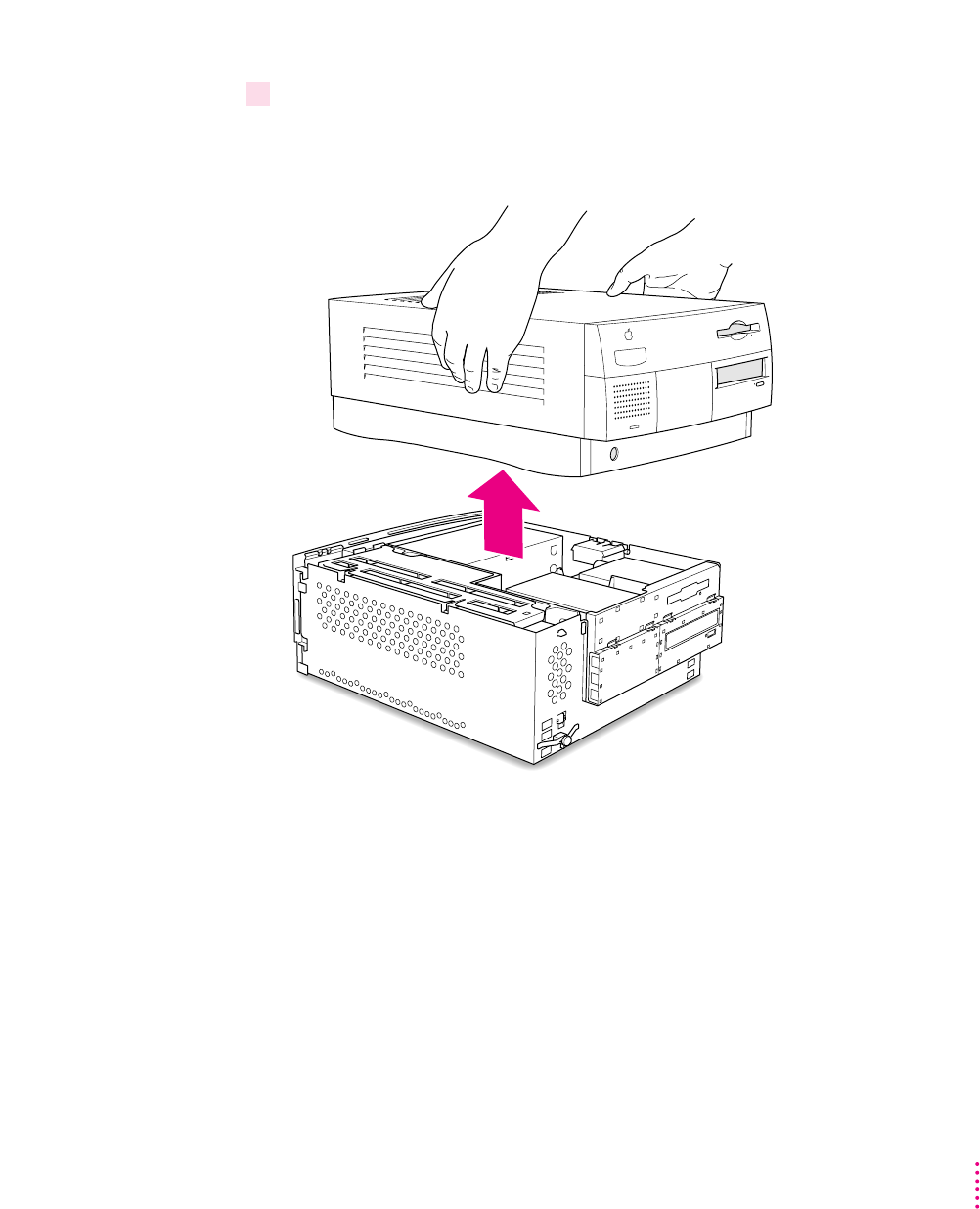
3Press the two release buttons under the front panel and slide the cover toward you
approximately two inches.
Release buttons
29
Installing the Card in a Power Macintosh 7200, 7300, 7500, or 7600
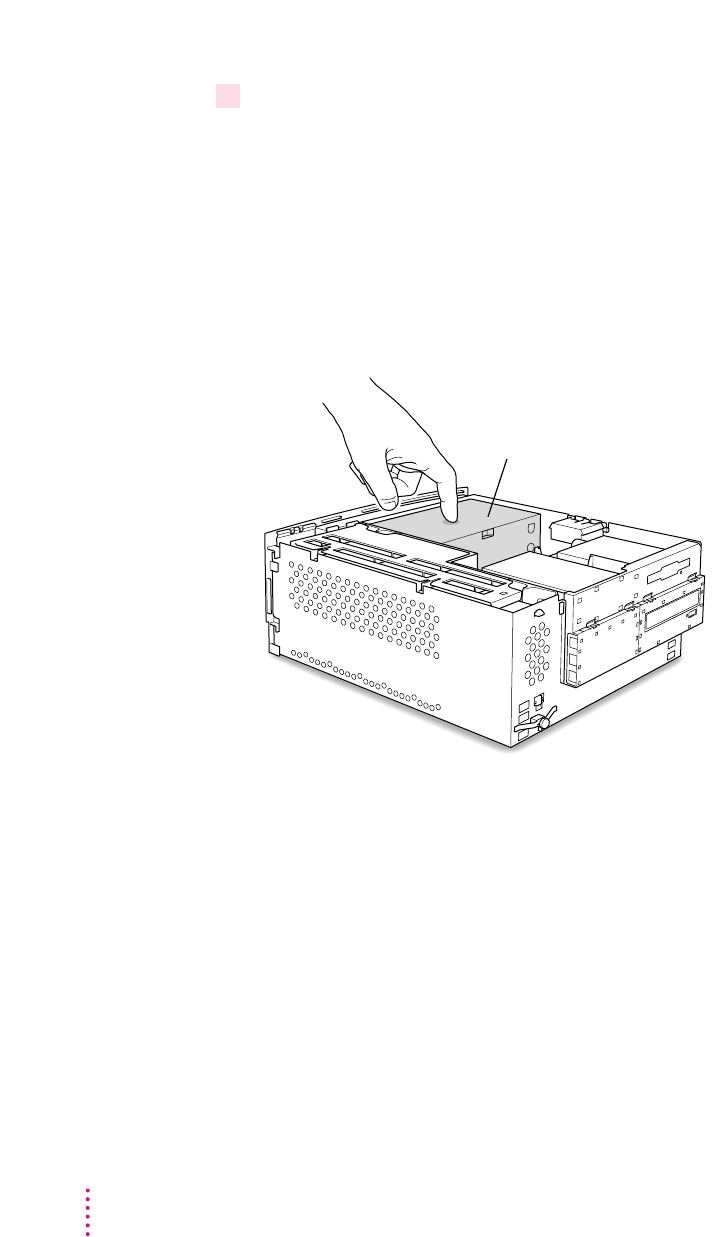
4 Remove the cover from the computer.
After you’ve slid the cover forward about two inches, lift it straight up and off
the computer.
30 Chapter 2
5 Touch the metal part of the power supply case inside the computer.
Always do this before you touch any parts, or install any components, inside
the computer. Touching the power supply case helps release static electricity
from your body and prevent possible damage to internal components.
IMPORTANT
You can collect static electricity just by walking away from and
then back to your computer. If you need to move away from your computer
during installation, remember to touch the metal part of the power supply
case again before you continue installing.
Power supply case
31
Installing the Card in a Power Macintosh 7200, 7300, 7500, or 7600
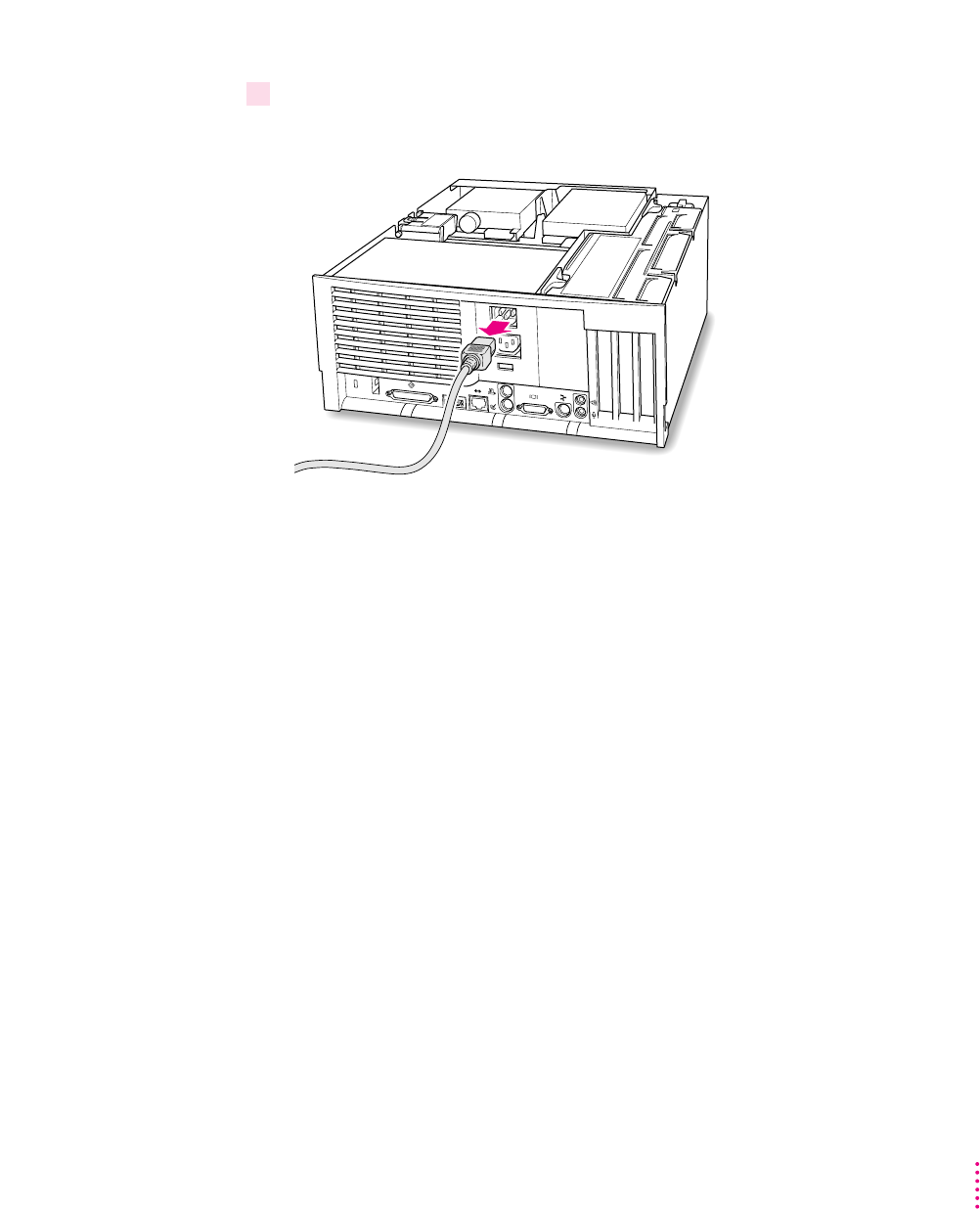
6 Disconnect the power cord.
Remove the power cord from the back of your computer.
32 Chapter 2
Disconnecting the CD-ROM audio cable
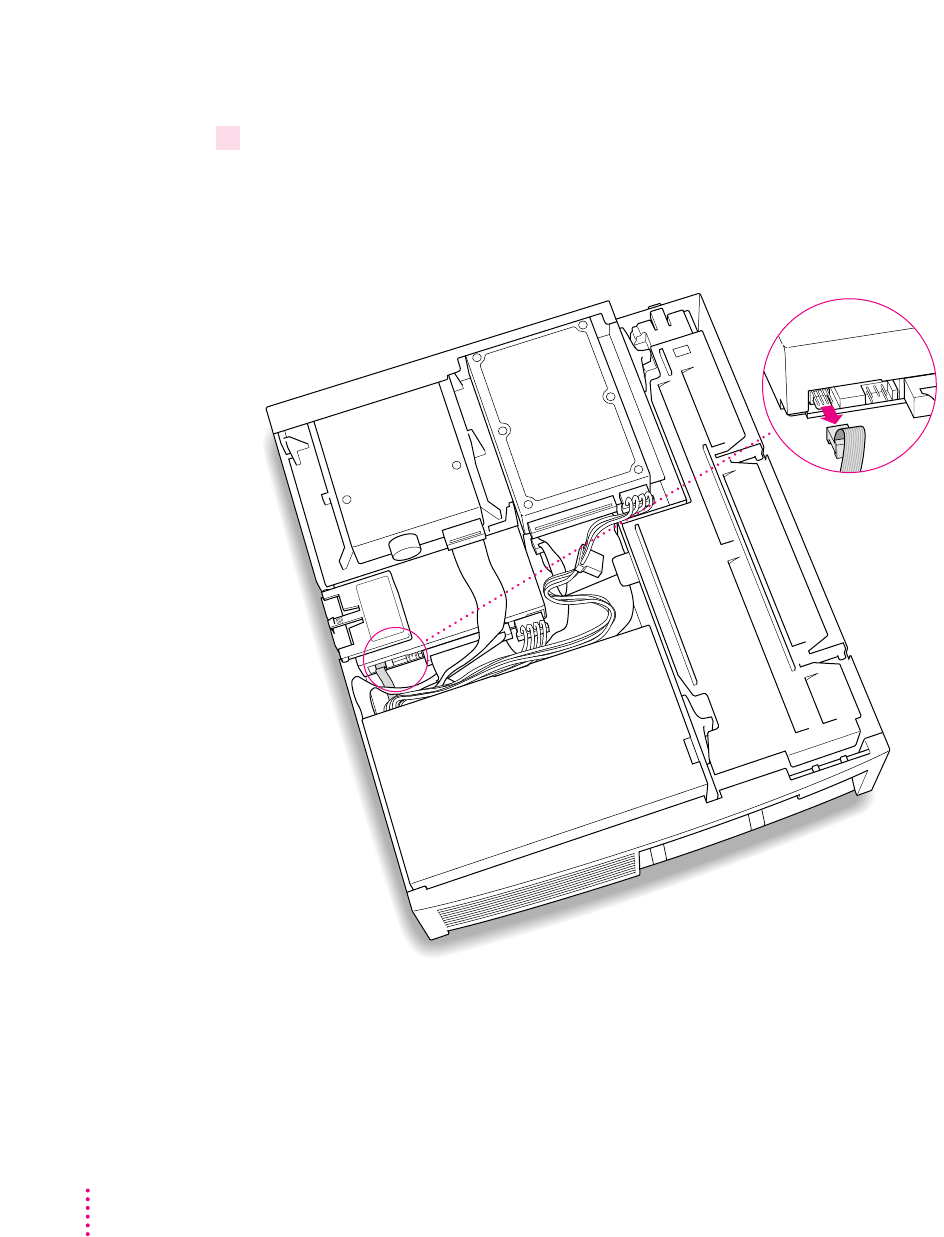
7Disconnect the audio ribbon cable from the CD-ROM drive.
Be sure to pull the plug, not the cable.
Just disconnect this end of the cable for right now. Later you will replace this
cable with the new cables that came with your PC Compatibility Card.
(top, back of computer)
33
Installing the Card in a Power Macintosh 7200, 7300, 7500, or 7600
Opening the expansion card cover and chassis
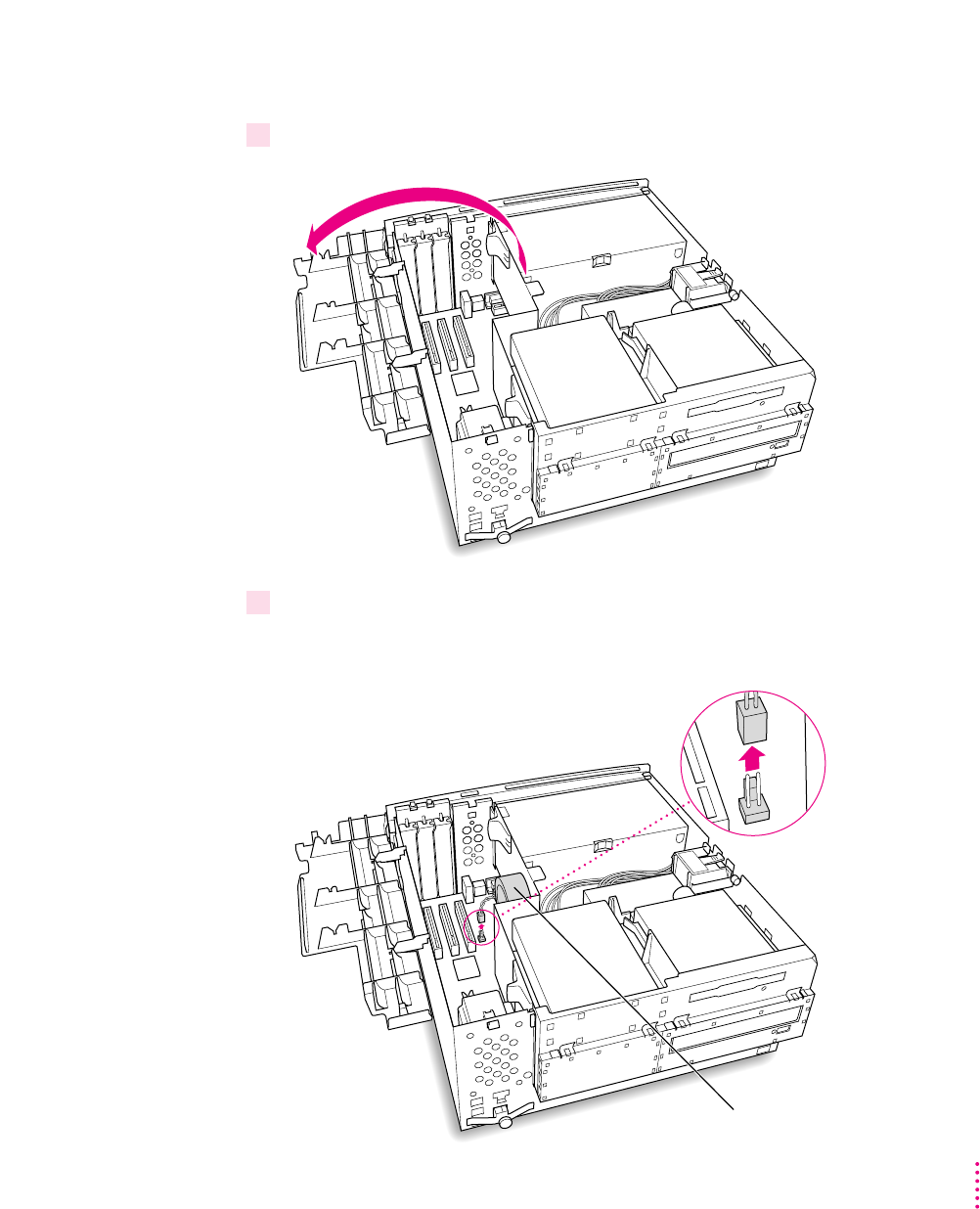
8 Flip open the expansion card cover.
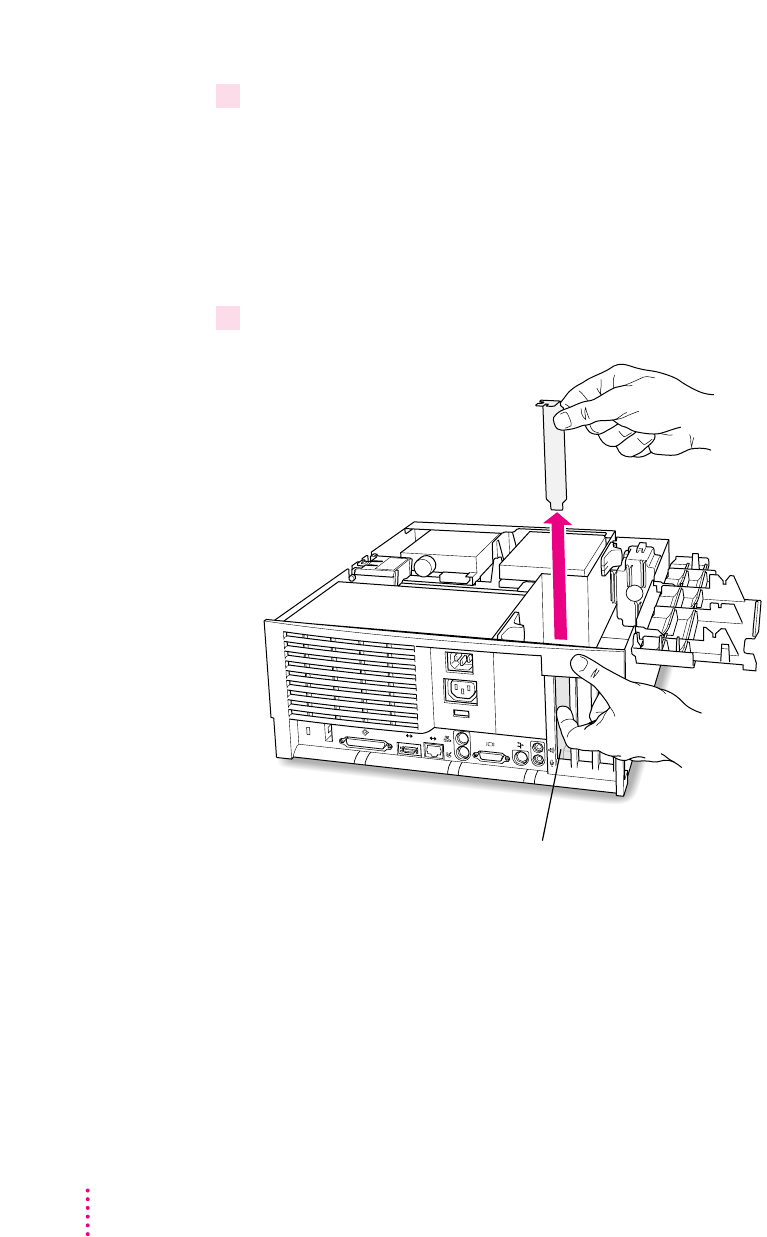
9If there is an auxiliary fan, disconnect the fan cable from the Macintosh logic board.
Some computer models do not have a fan.
Auxiliary fan
(front of computer)
34 Chapter 2
10 Prepare the first PCI expansion slot.
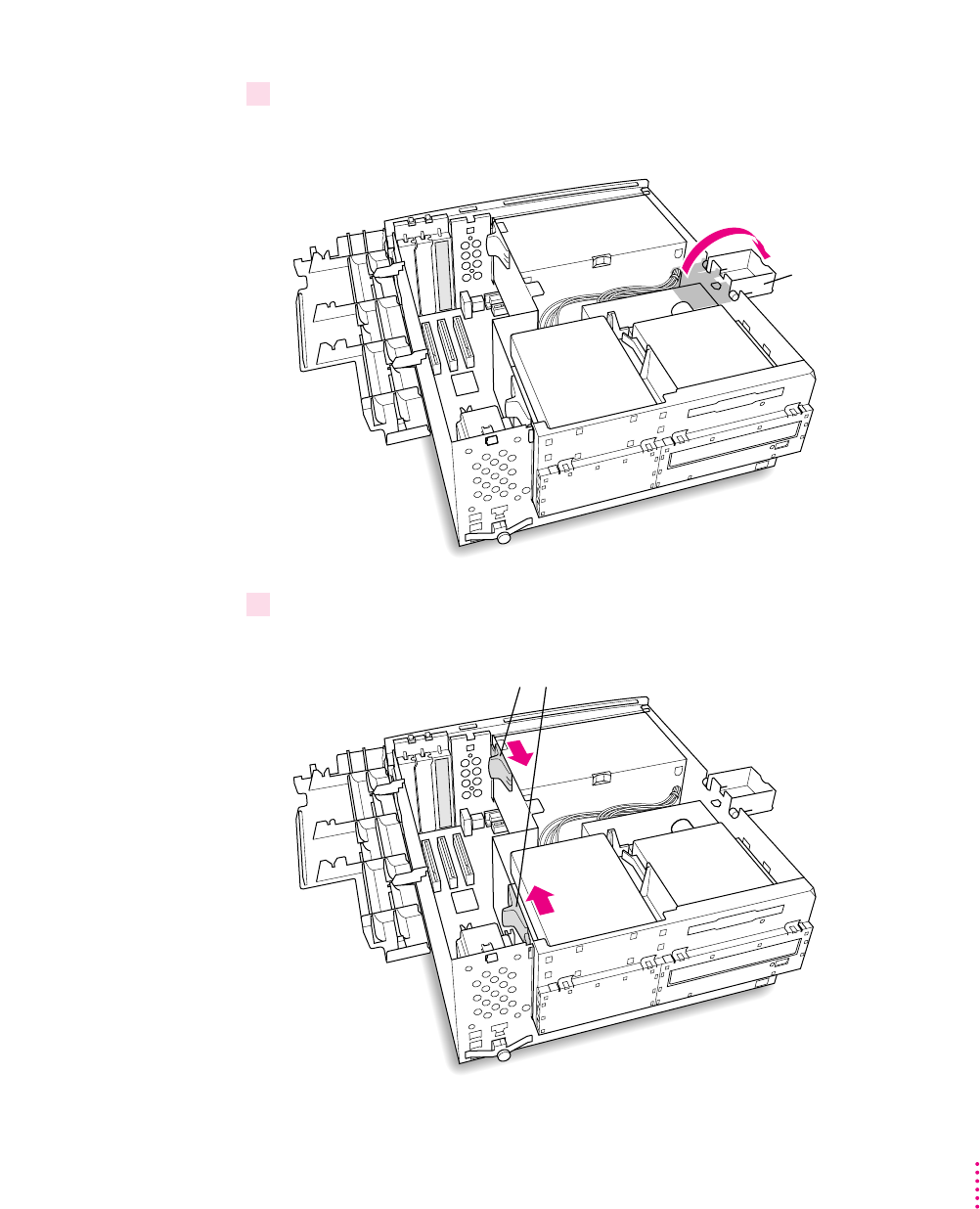
You need to install your PC Compatibility Card in the first PCI expansion
slot, the slot closest to the center of the computer. If there is already a card in
the first slot, move it to a different slot.
IMPORTANT
If you will be installing a PC Serial and Parallel Card, you should
also remove any card in the second slot (next to the first slot).
11 Remove the port access cover behind the first expansion slot.
Port access opening to first slot
(back of computer)
35
Installing the Card in a Power Macintosh 7200, 7300, 7500, or 7600
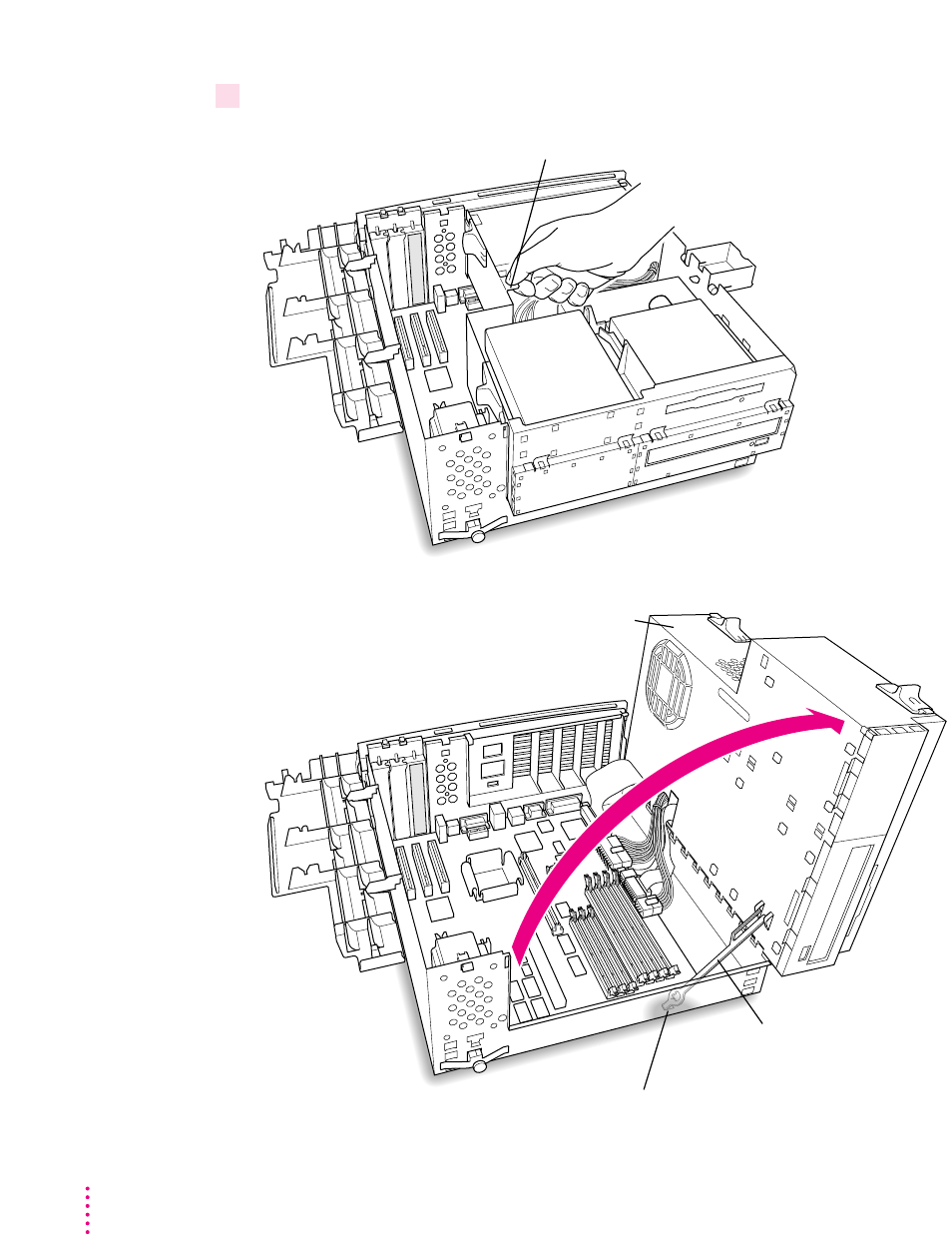
12 Position the support foot.
The support foot holds the computer’s chassis when you open it.
13 Unlock the chassis release switches.
Move the release switches toward the inside
of the computer to unlock the top chassis.
Support foot
(front of computer)
36 Chapter 2
14 Lift the chassis and rest it on the support foot. Make sure the support arm is engaged.
Gently swing the top part of the chassis
up so that it rests on the support foot.
Support arm
Be sure that the support arm engages this hole on the floor of
the bottom chassis so that the top chassis is locked in place.
You can use this tab to lift the top chassis.

37
Installing the Card in a Power Macintosh 7200, 7300, 7500, or 7600
What you do next depends on whether you are adding a DIMM (dual inline
memory module) to increase the memory available to your PC Compatibility
Card, and whether you are installing a PC Serial and Parallel Card.
mIf you want to add memory to your card, turn now to Appendix B, “Adding
Memory to Your PC Compatibility Card.” After you’ve completed the
instructions in Appendix B, go on to the next section, “Inserting the PC
Compatibility Card.”
mIf you want to install the PC Serial and Parallel Card, you’ll need to connect
the peripheral flex cable to your PC Compatibility Card now. See the PC
Serial and Parallel Card manual for instructions. Then return to this manual,
and go on to the next section, “Inserting the PC Compatibility Card.”
If you don’t want to add memory or install the PC Serial and Parallel Card, go
on to the next section.
Inserting the PC Compatibility Card
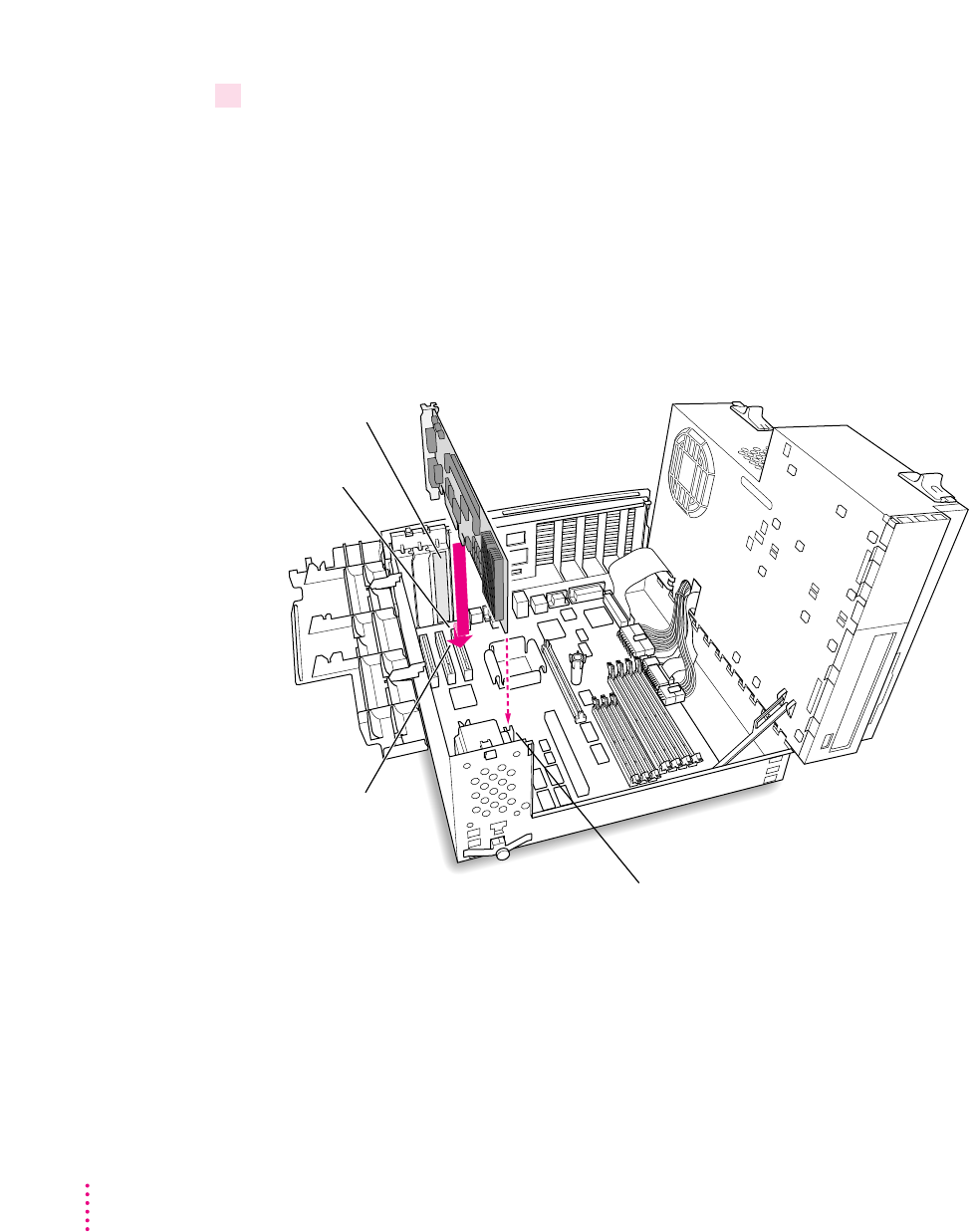
15 Align the card with the first expansion slot.
IMPORTANT
Always hold the card by its edges. Don’t touch any of the
components on the card.
Align the card’s connector end (gold in color) with the first PCI expansion
slot. The ports on the card should face the port access opening on the
computer’s back panel.
38 Chapter 2
16 Insert the card.
The end of the card should engage the card guide at the front of the computer.
Press down on the card. When the card is fully inserted, you won’t be able to
see the gold-colored connector any more.
mDon’t rock the card from side to side; press it straight into the slot. Rocking
the card can damage the PCI slot.
mDon’t force the card. If you meet a lot of resistance, pull the card out and
try again.
mTo see if the card is connected, pull it gently. If it resists, it is connected.
Port access
opening
As you lower the
card, you may find
it helpful to hold the
card slightly away
from the port access
opening until you actually
fit the card into its slot.
First PCI slot
Be sure that the card engages the card guide.
Connecting the Sound Out cable
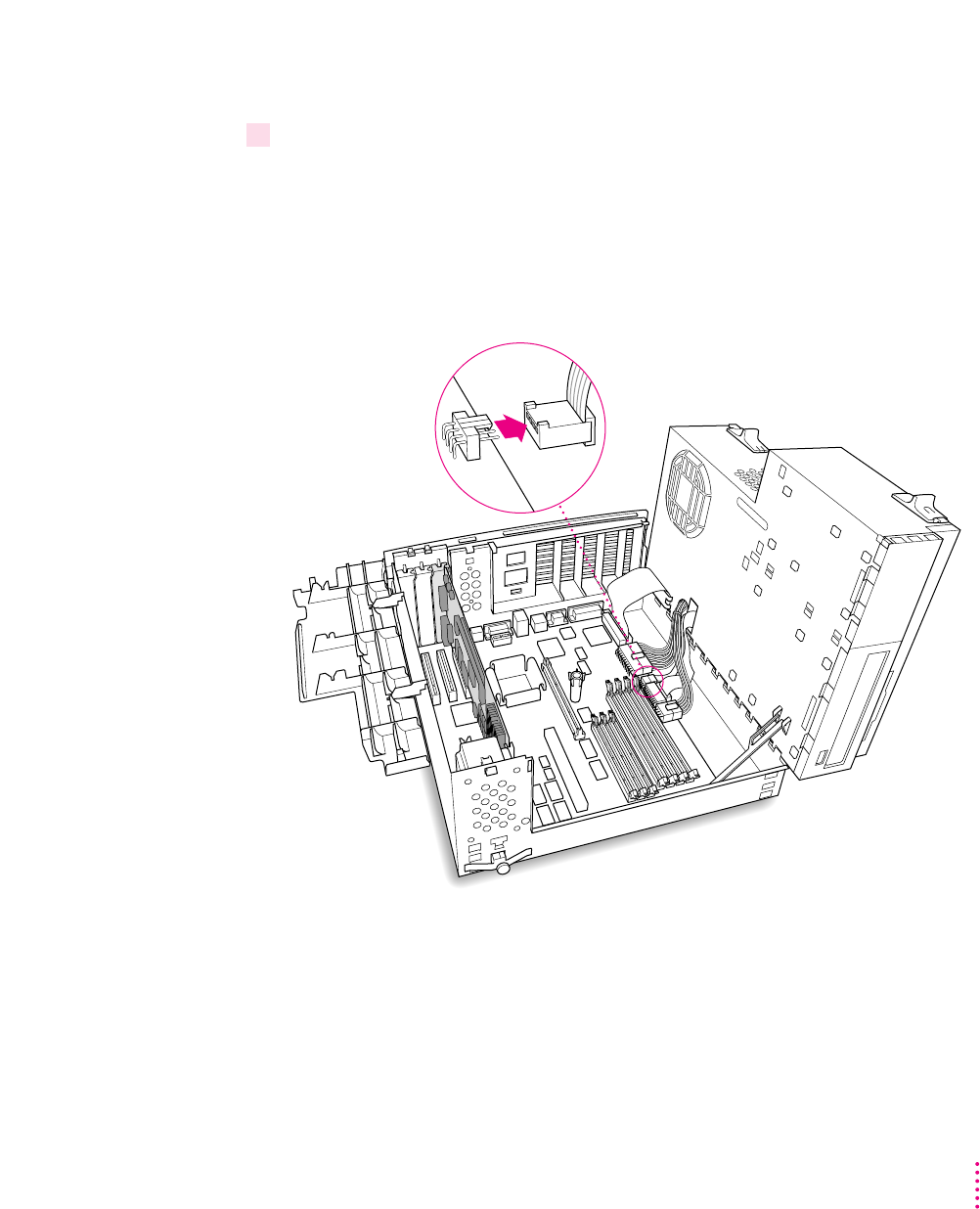
17 Disconnect the audio ribbon cable from the Macintosh logic board.
This cable is connected near the DRAM DIMM slots. The connector has four
pins and may be labeled “CD AUDIO” on the board.
This is the same cable you disconnected from the CD-ROM drive in
step 7. You will be replacing it with the cables that came with your PC
Compatibility Card.
39
Installing the Card in a Power Macintosh 7200, 7300, 7500, or 7600
40 Chapter 2
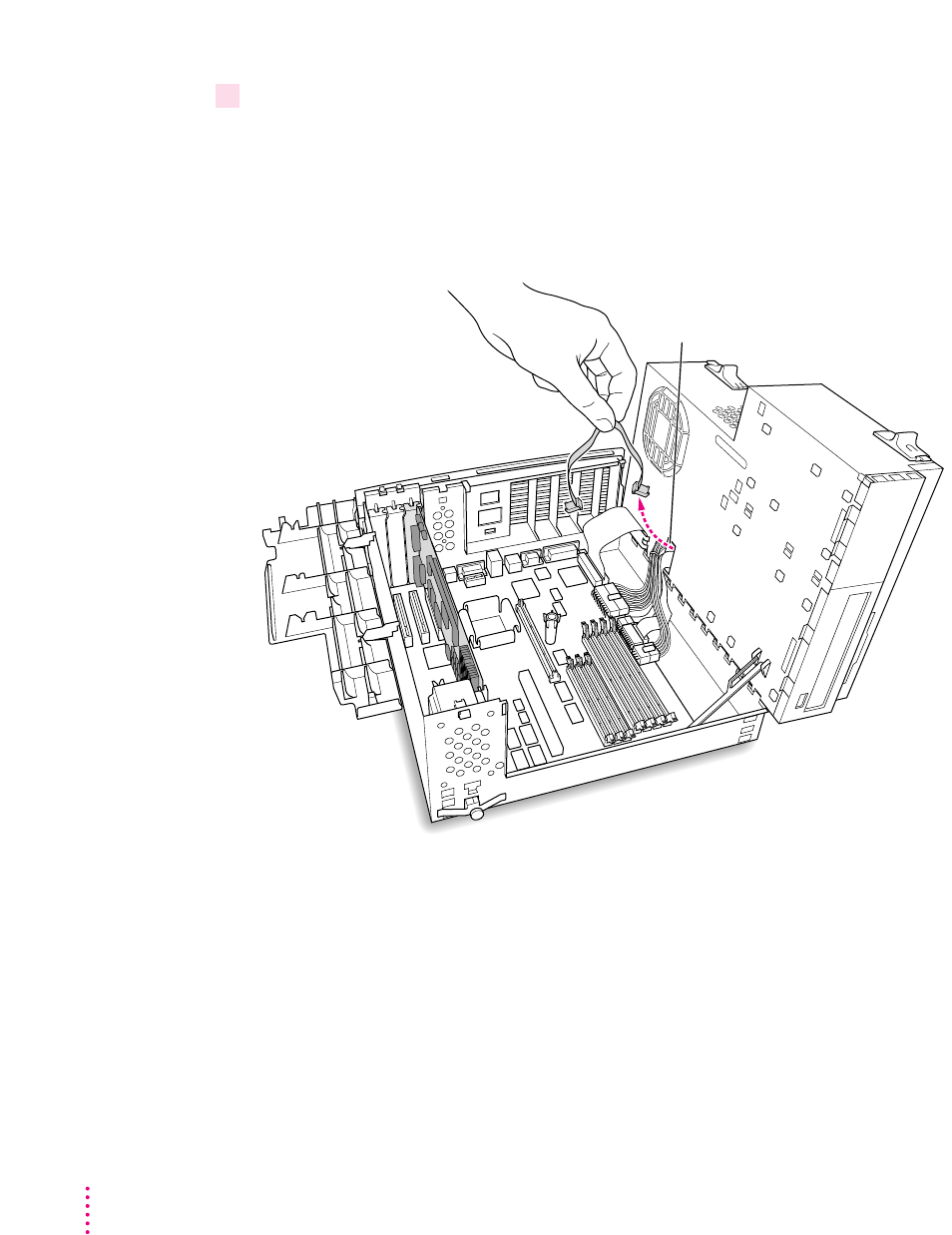
18 Pull the cable through the hole in the chassis and set it aside.
Don’t force the cable. If it resists, jiggle it or feed it back through the hole and
try pulling it loose again.
Keep this cable; you will need to reinstall it if you ever remove your PC
Compatibility Card.
Pull the disconnected CD cable through
this hole in the computer chassis.

41
Installing the Card in a Power Macintosh 7200, 7300, 7500, or 7600
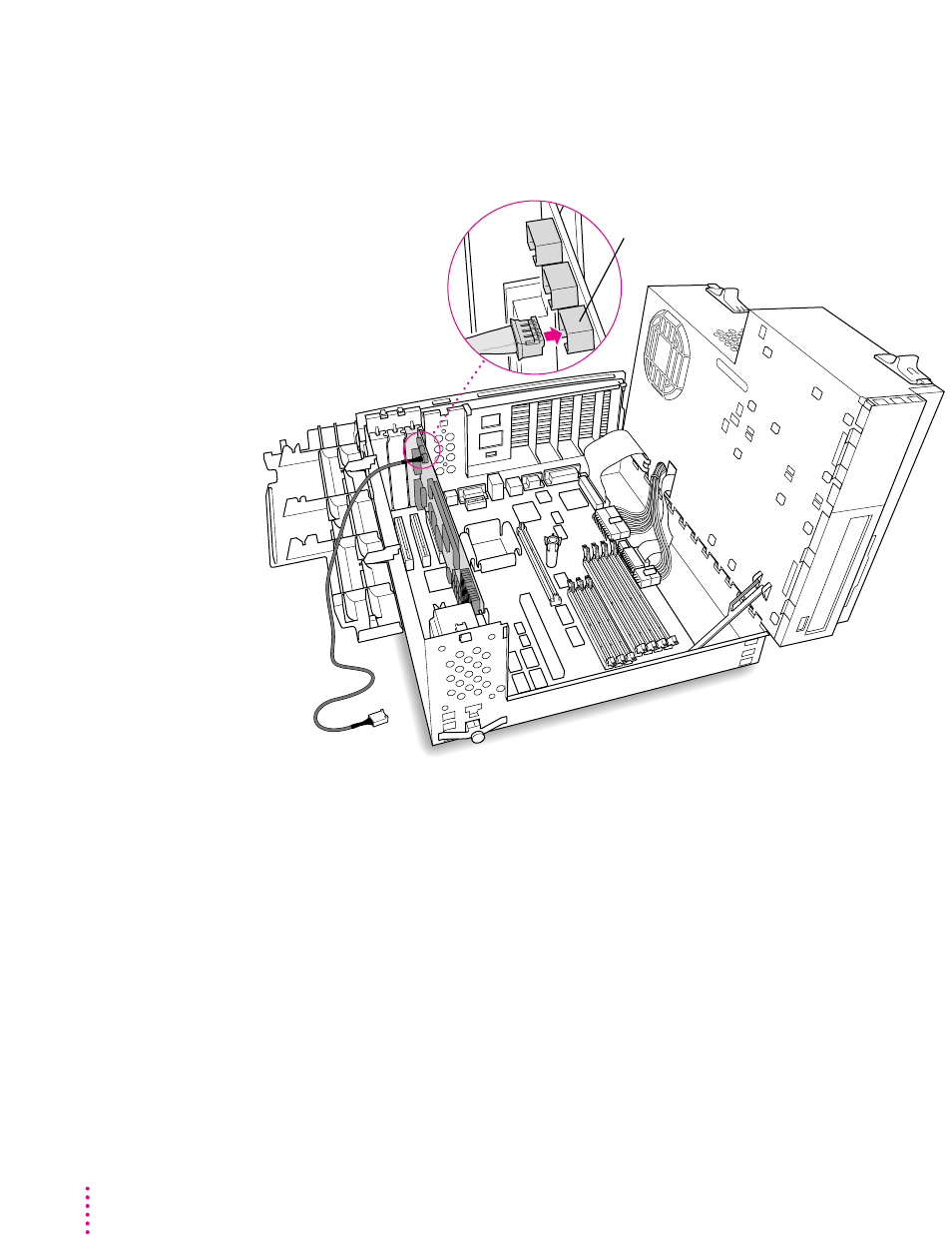
19 Plug one of the two identical SCSI audio cables into the connector labeled
“REV_SND_OUT” (Reversed Sound Out) on the PC Compatibility Card.
IMPORTANT
Use only the cables that came with this PC Compatibility Card.
Do not use cables from other models of the card.
Your PC Compatibility Card came with three audio cables. They may have
different colors of tubing near the ends to help you tell them apart. You’ll
only be using two of these cables (the third one is for a different kind of
CD-ROM drive). Two of the cables have identical plugs on the end, as shown
below. Use one of these two identical cables for this step.
Audio cable plug for
SCSI CD-ROM drives
42 Chapter 2
Insert the cable’s smaller plug into the Reversed Sound Out connector. This
connector is in the upper-left corner of the card, the third connector from
the end.
Connector labeled “REV_SND_OUT”
on the PC Compatibility Card
43
Installing the Card in a Power Macintosh 7200, 7300, 7500, or 7600
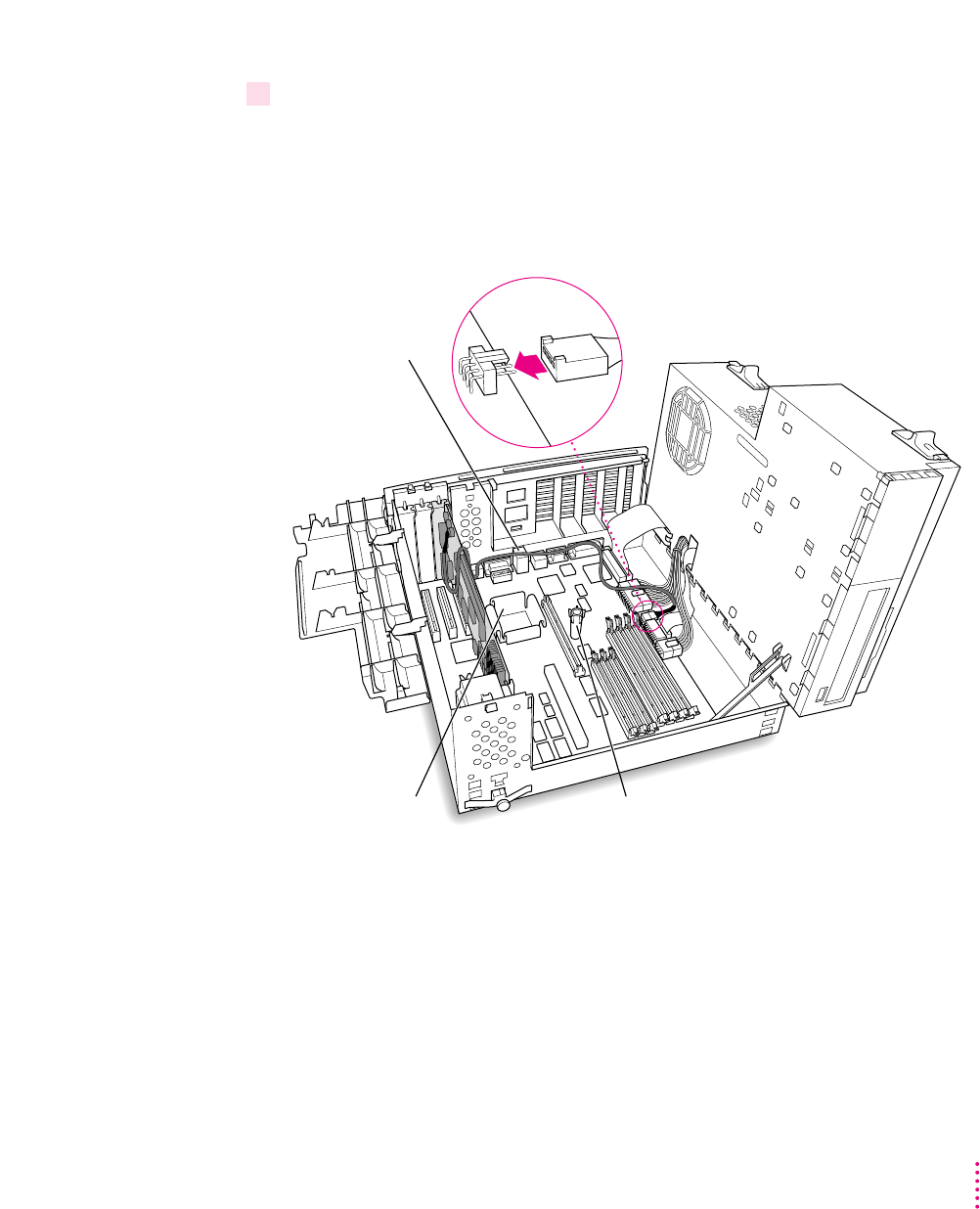
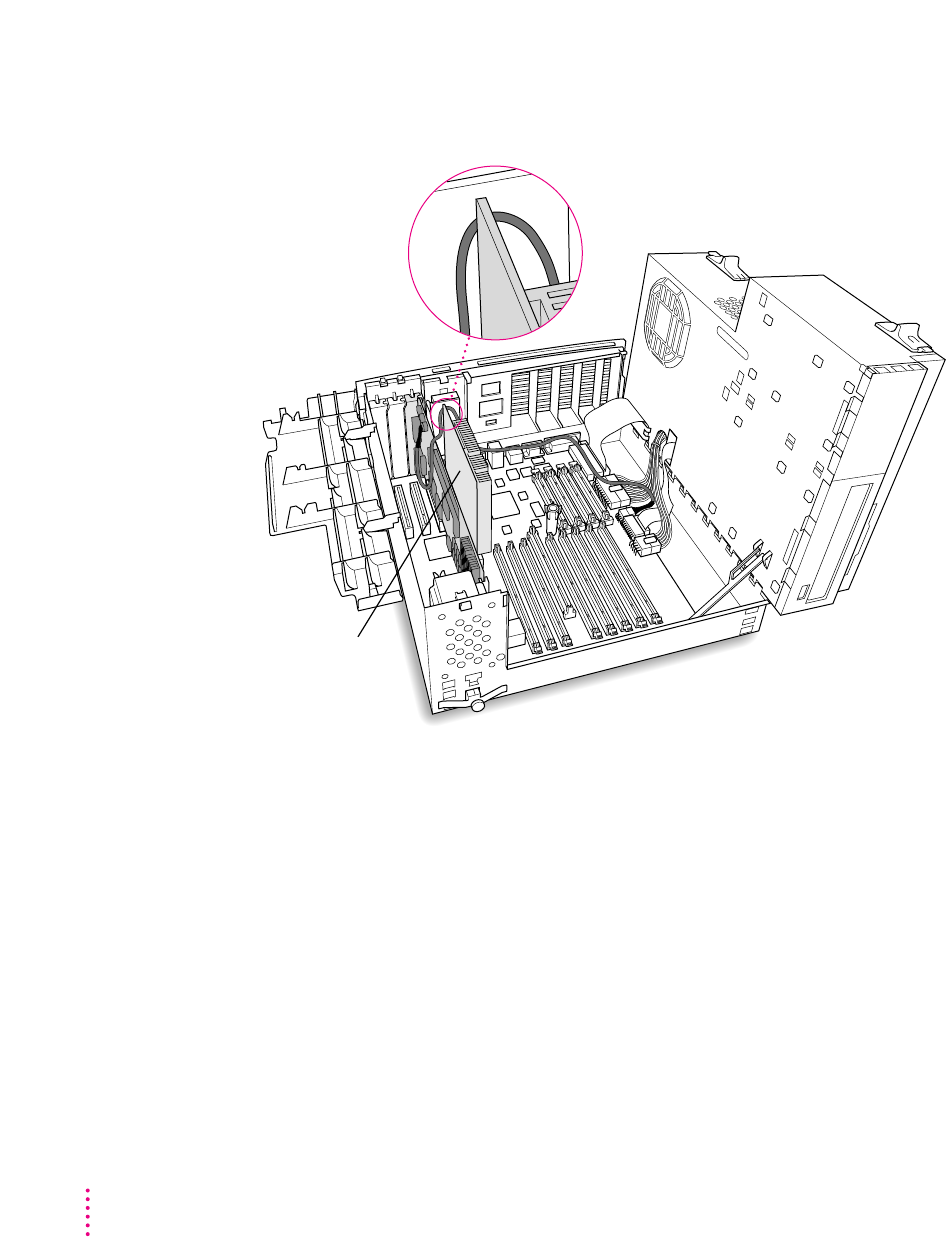
20 Route the cable over the top of the card and around the back of the Macintosh logic
board. Then plug the cable into the audio connector on the logic board.
Keep the cable away from the heat sink and center support post.
Insert the cable’s larger plug into the CD audio connector on the logic board,
where you unplugged the ribbon cable in step 17.
Route the cable
around the back
of the computer’s
interior as shown.
Heat sink Support post
44 Chapter 2
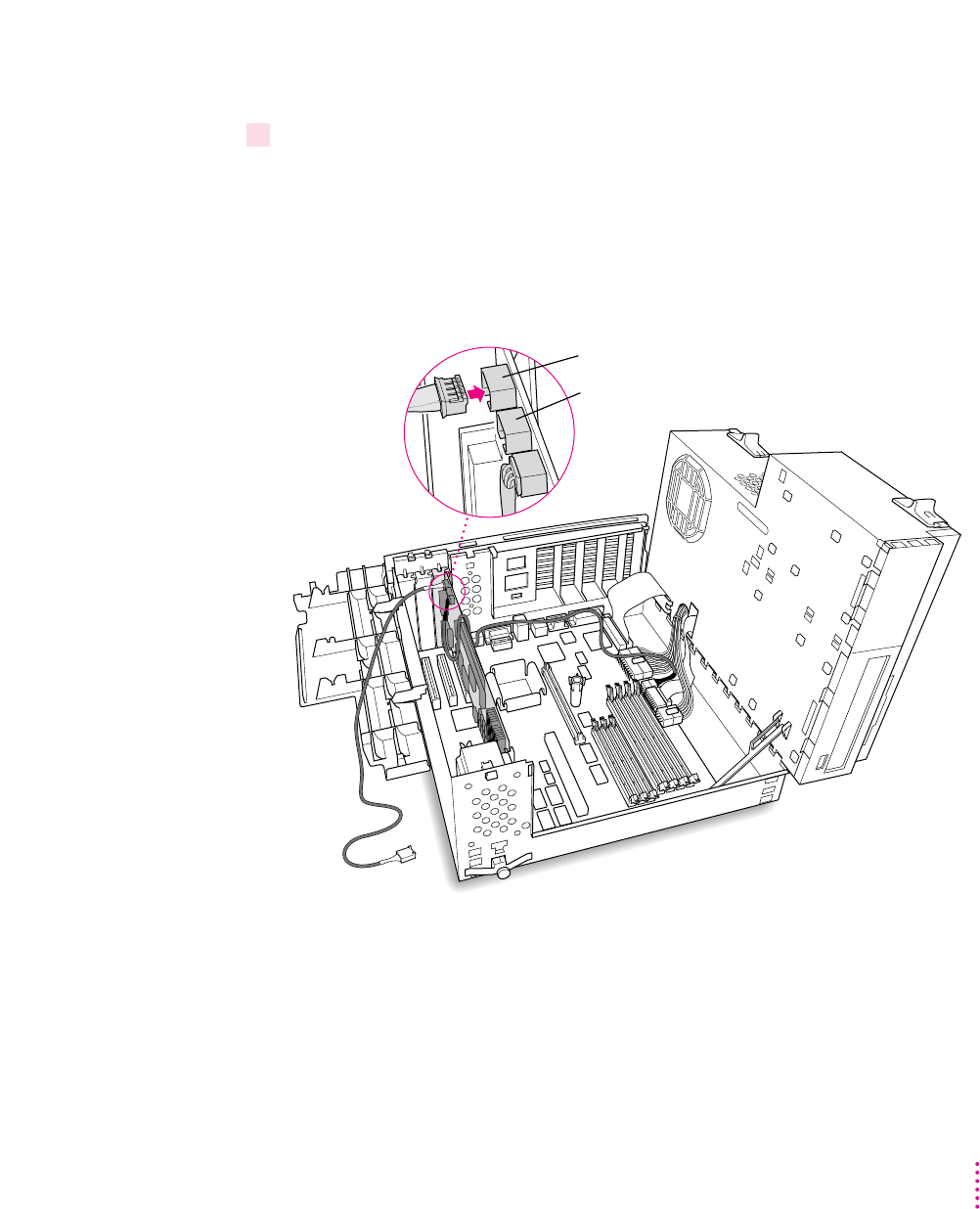
If there is a processor card in your computer, route the cable between the
processor card and the back panel (not over the top of the processor card).
Processor card
45
Installing the Card in a Power Macintosh 7200, 7300, 7500, or 7600
Connecting the CD In cable to the card
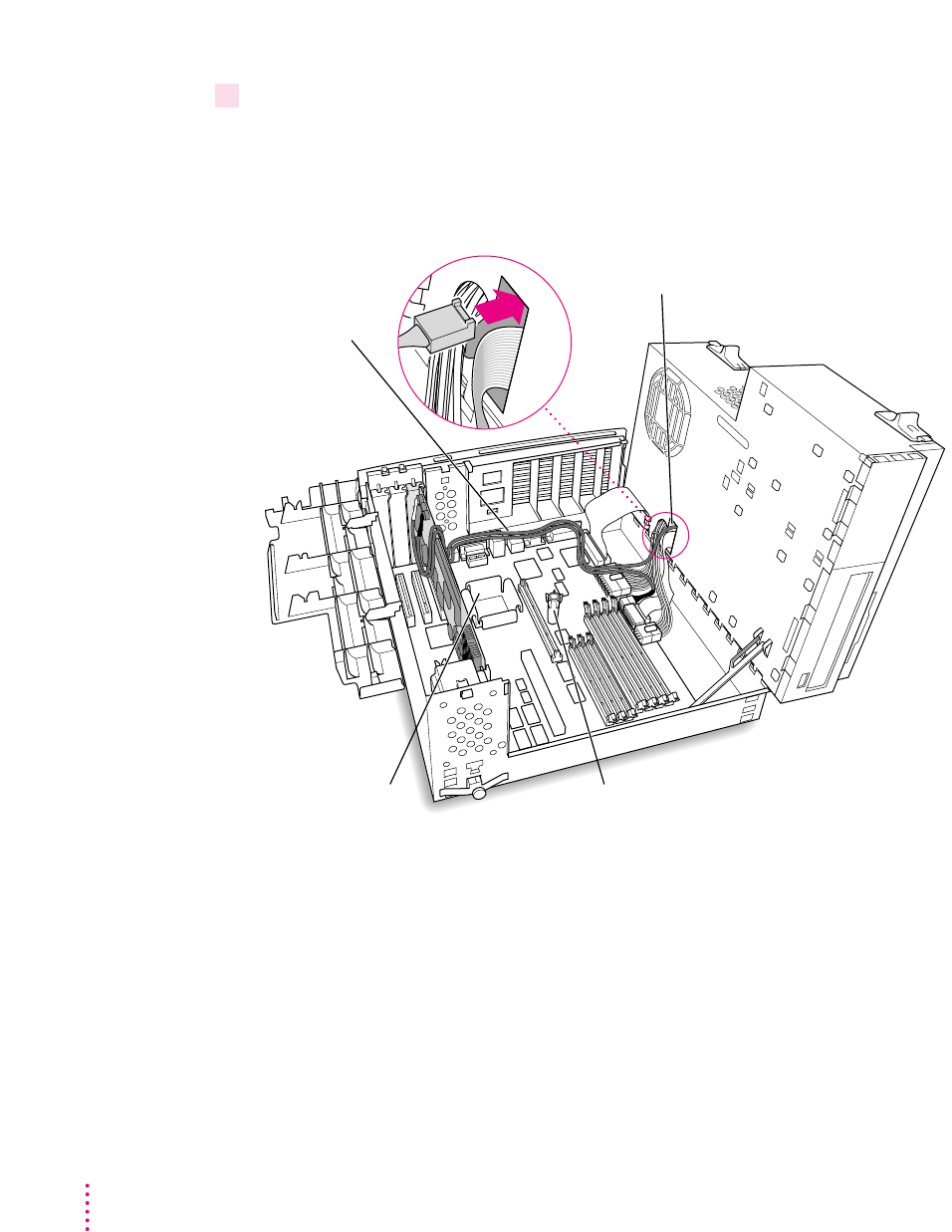
21 Plug the other SCSI audio cable into the connector labeled “CD IN” on the far upper-left
corner of the PC Compatibility Card.
Use the cable with the thick plug that looks identical to the cable you
connected to the logic board.
Insert the cable’s smaller plug into the connector labeled “CD IN” on the PC
Compatibility Card.
Connector labeled “CD IN” on the PC Compatibility Card
Do not plug any cable into this middle
connector for these computer models.
46 Chapter 2
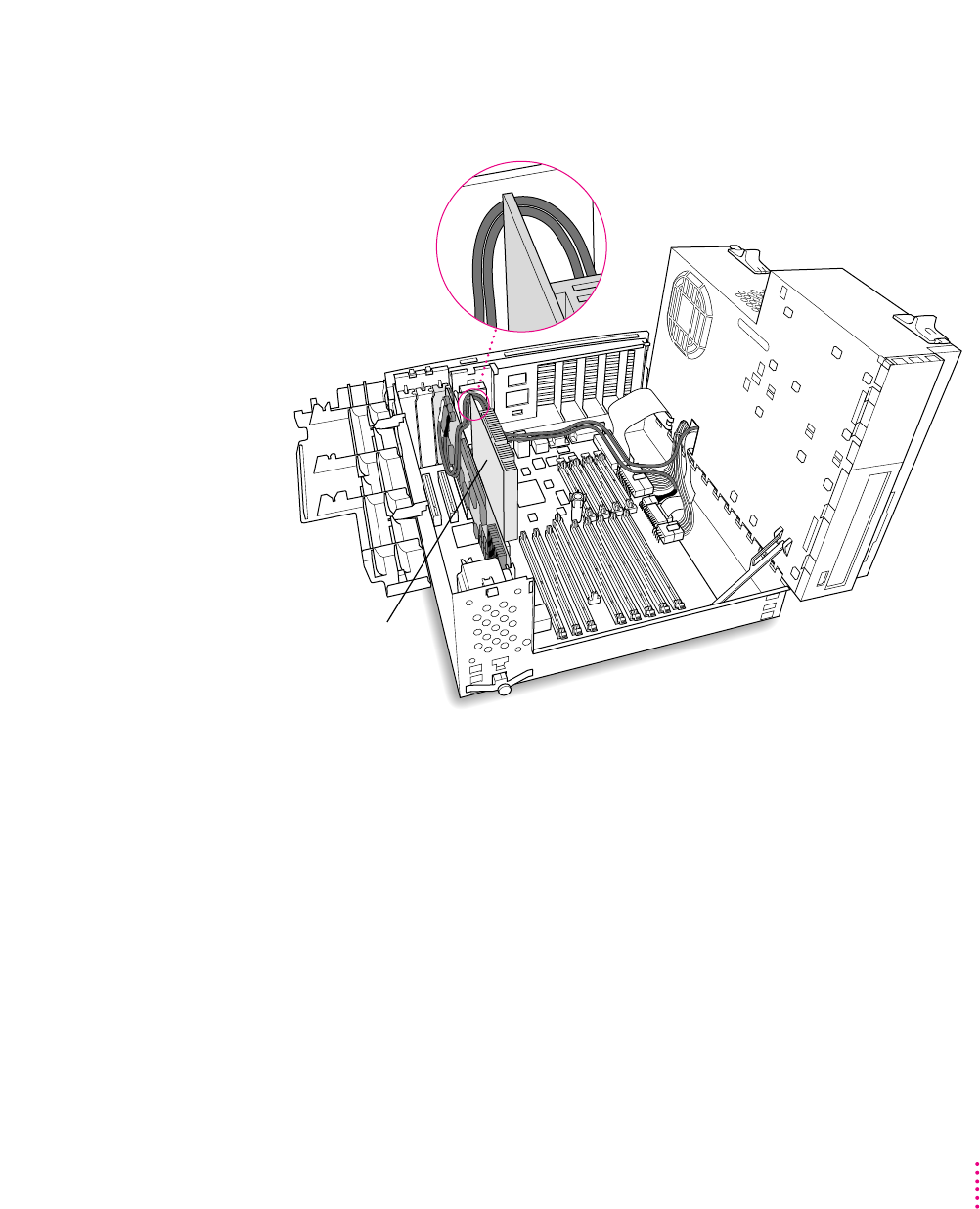
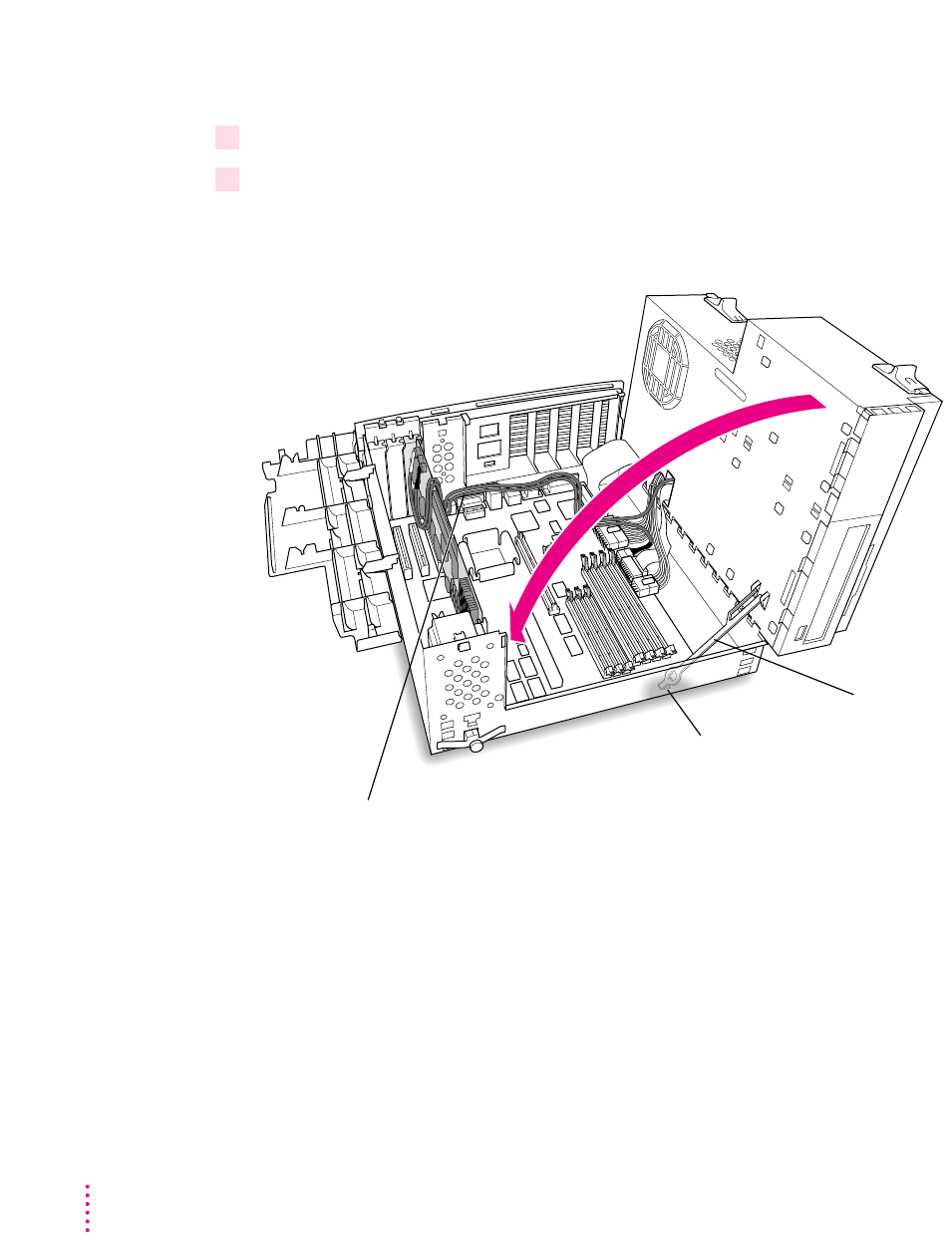
22 Route the second cable over the top of the card, around the back of the logic board, and
through the hole in the computer’s chassis.
Keep the cable away from the heat sink and the center support post.
You’ll connect this cable to the CD-ROM drive in step 29.
Route the cable
around the back
of the computer’s
interior as shown.
Heat sink Support post
Feed the other end of the cable a few
inches into this hole in the computer chassis.
47
Installing the Card in a Power Macintosh 7200, 7300, 7500, or 7600
If there is a processor card in your computer, route the cable between the
processor card and the back panel (not over the top of the processor card).
IMPORTANT
If you are installing the PC Serial and Parallel Card, you should
insert it now. See the PC Serial and Parallel Card manual for instructions.
Processor card
48 Chapter 2
Replacing the chassis and expansion card cover
23 Make sure all cards and cables are firmly connected.
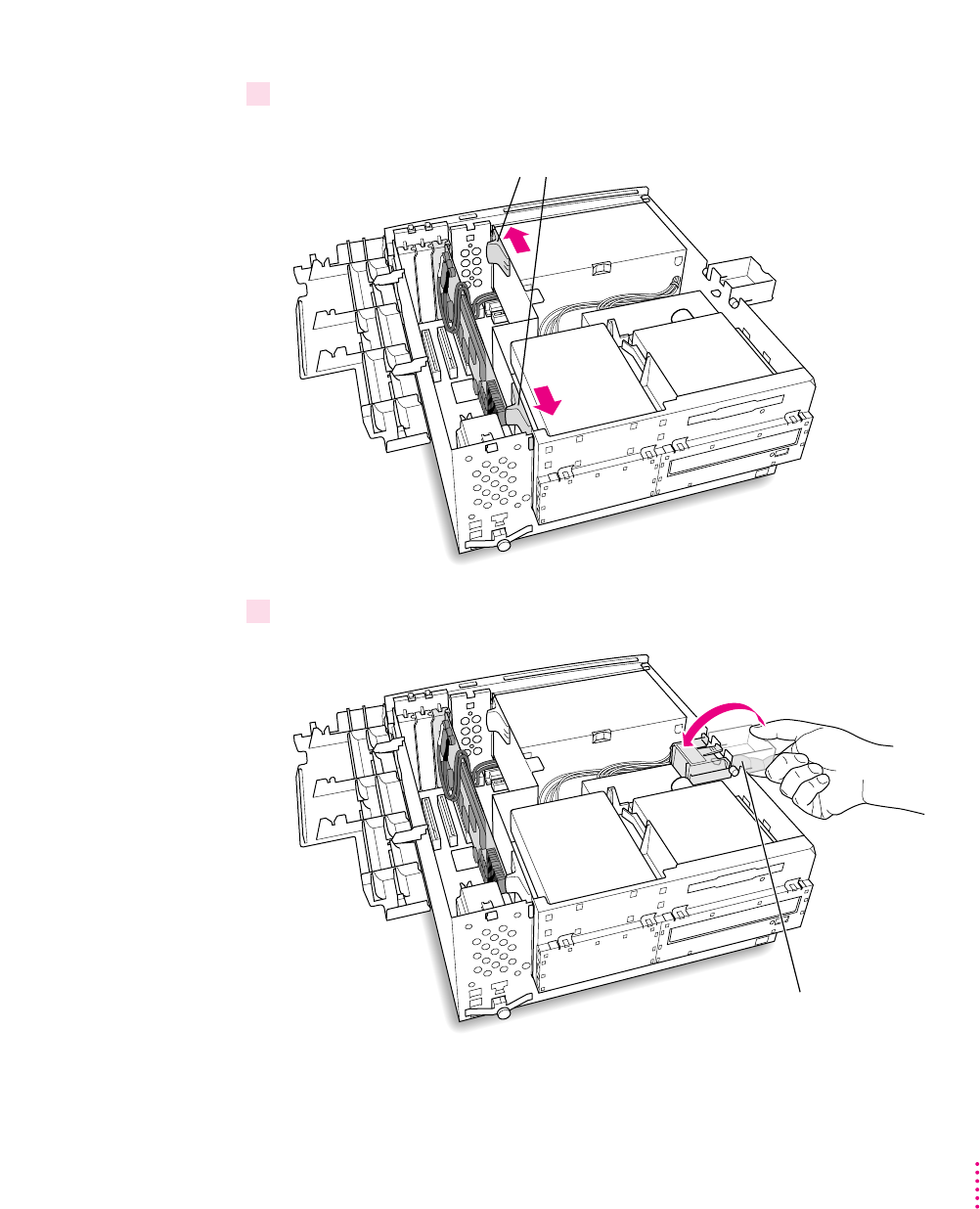
24 Disengage the support arm and swing the chassis down, without pinching any cables.
Make sure the cables you connected are away from the heat sink and center
support post.
Support arm
Disengage the support arm from the hole on the floor
of the bottom chassis by lifting up on the support arm.
Gently swing the top part of the chassis down until it rests securely on the bottom chassis.
Be sure that you don’t pinch any of the cables between the top and bottom parts of the chassis.
49
Installing the Card in a Power Macintosh 7200, 7300, 7500, or 7600
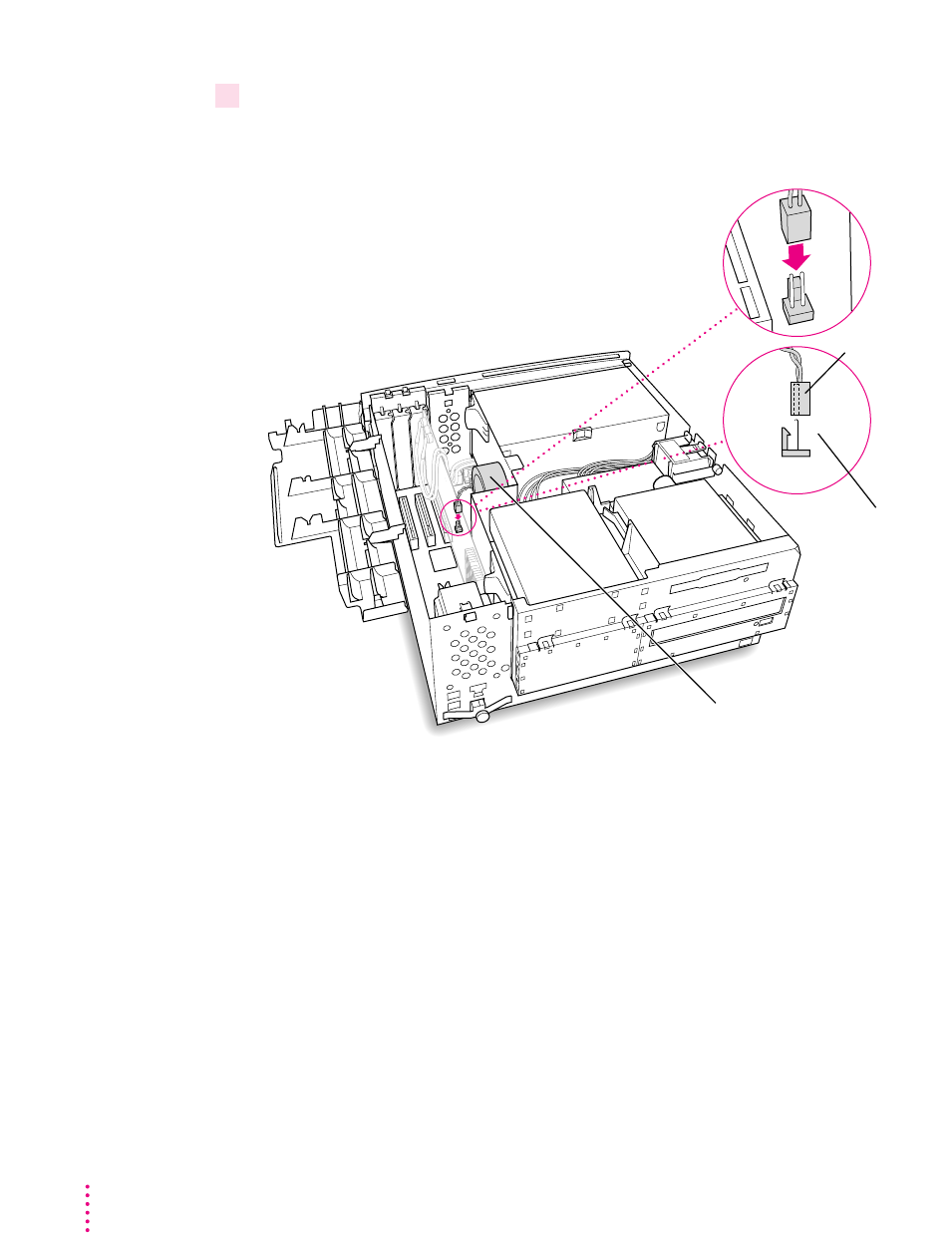
25 Lock the release switches.
26 Replace the support foot.
Release the support foot by unsnapping the
catch with your fingertip, and swing the support
foot back inside the chassis.
Move the release switches toward the outside
of the computer to lock the top chassis.
50 Chapter 2
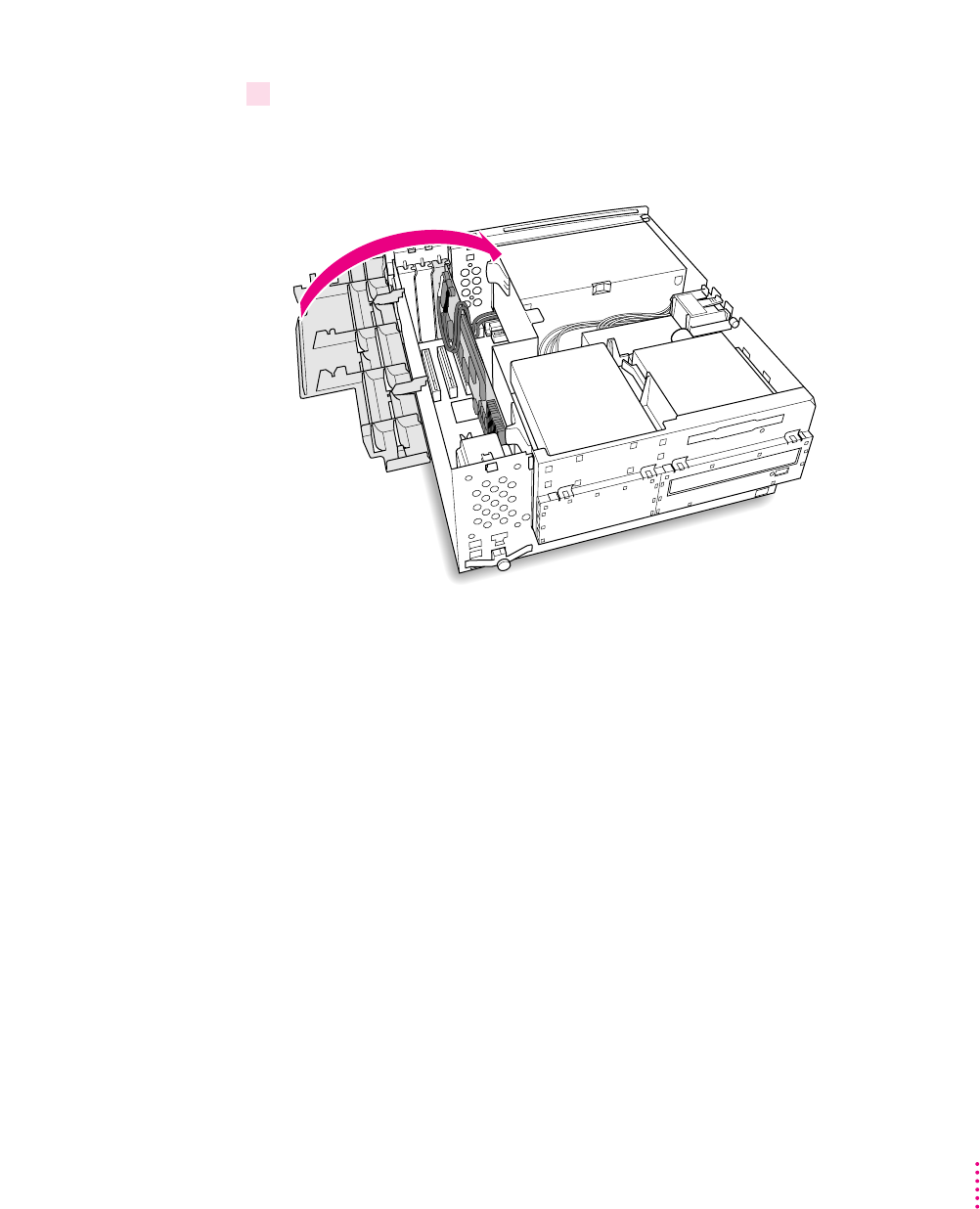
27 If you unplugged the auxiliary fan cable, reconnect it to the Macintosh logic board.
Not all computer models have an auxiliary fan.
Auxiliary fan
The connector on
the fan cable plugs
in only one way.
Be sure to align
the connector
as shown.
Connector
(side view)
51
Installing the Card in a Power Macintosh 7200, 7300, 7500, or 7600
28 Flip the expansion card cover up and snap it back into place. (Be sure to snap the cover
back down on both ends.)
If the cover doesn’t snap into place easily, make sure no cables are in the way.
52 Chapter 2
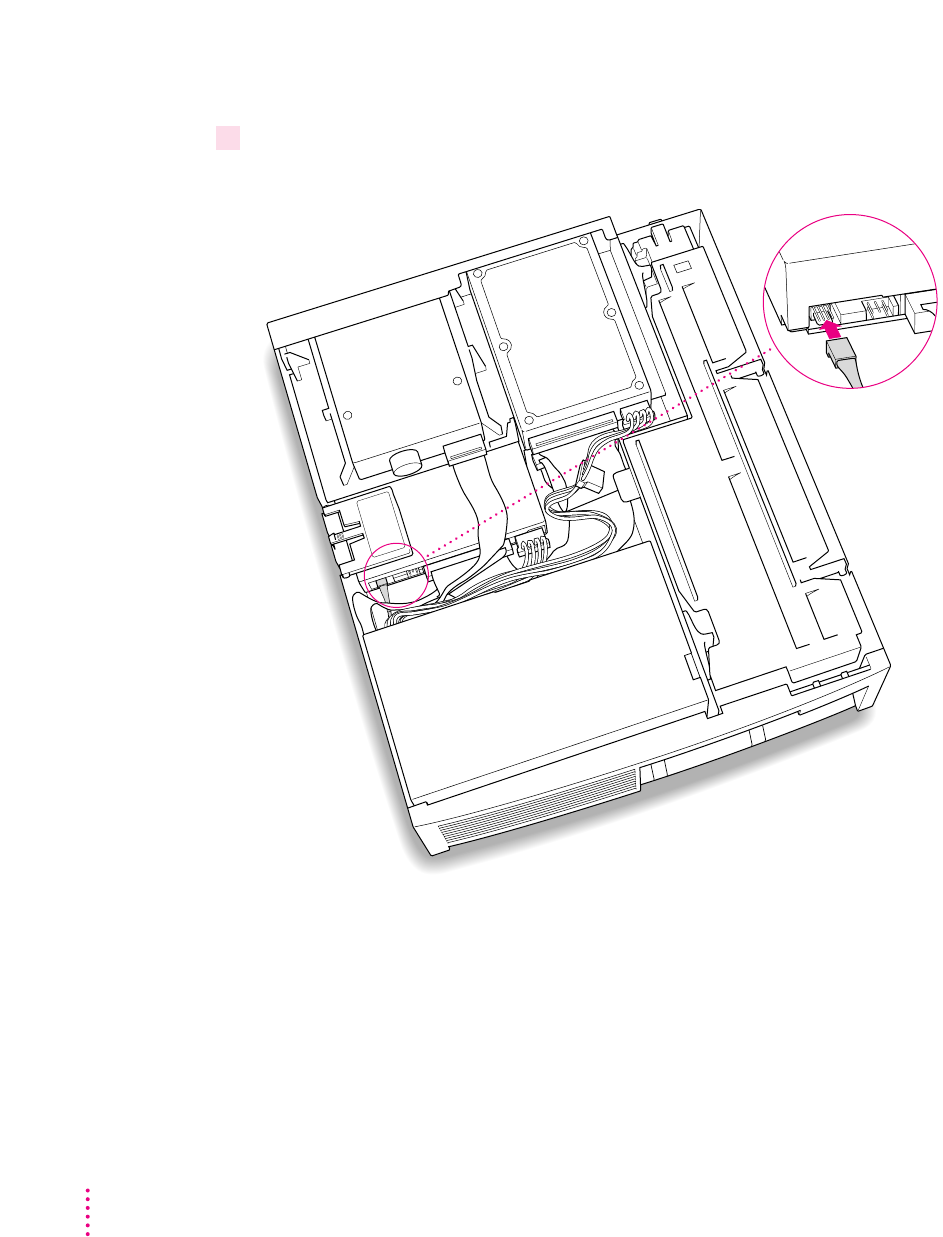
Connecting the CD In cable to the CD-ROM drive
29 Plug the audio cable you threaded through the computer’s chassis (in step 22) into the
back of the CD-ROM drive.
(top, back of computer)
53
Installing the Card in a Power Macintosh 7200, 7300, 7500, or 7600
Replacing the computer cover
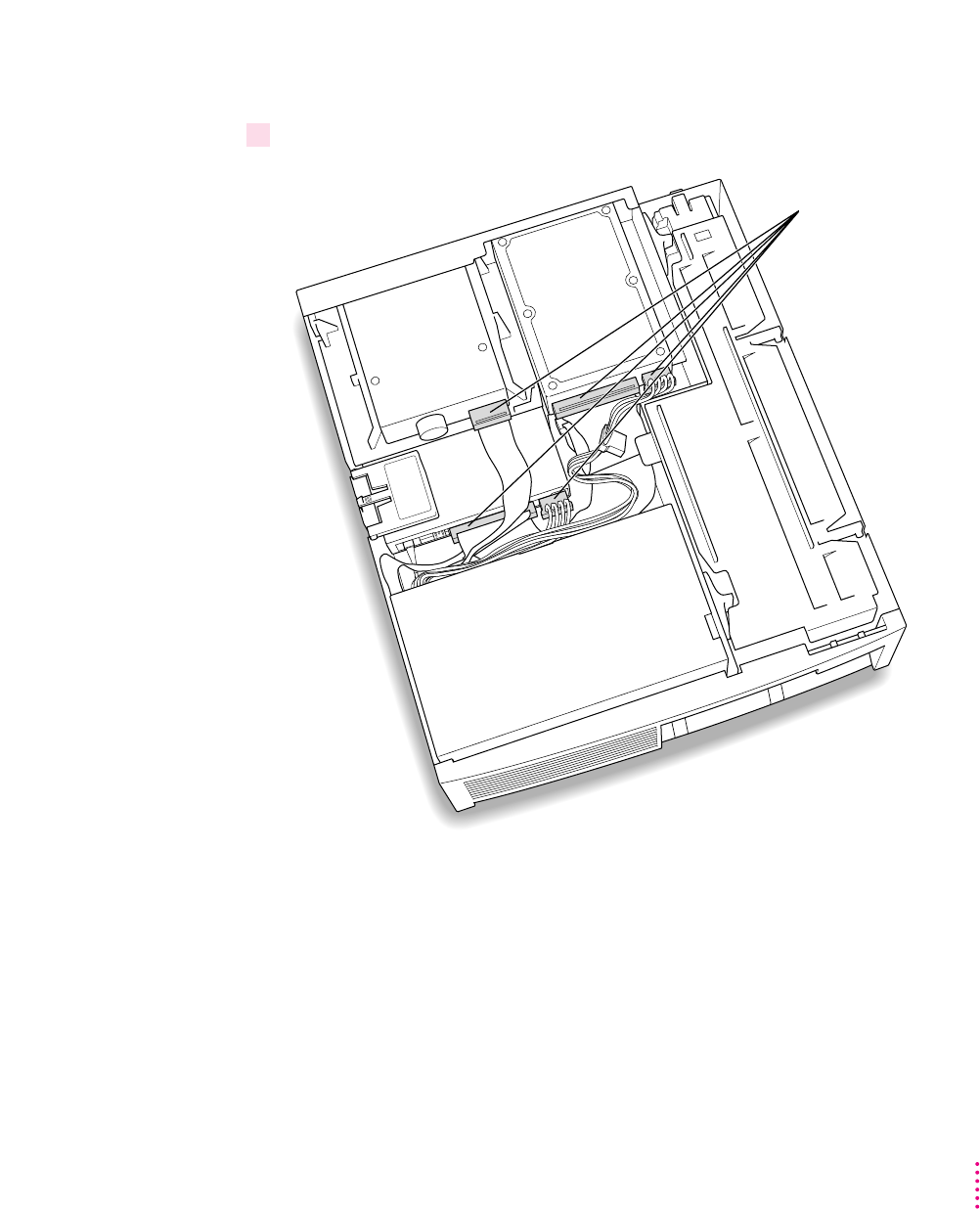
30 Make sure all connectors are firmly attached.
Make sure
these connectors
were not loosened
during the installation.
If they have come
loose, push them
firmly back into place.
54 Chapter 2
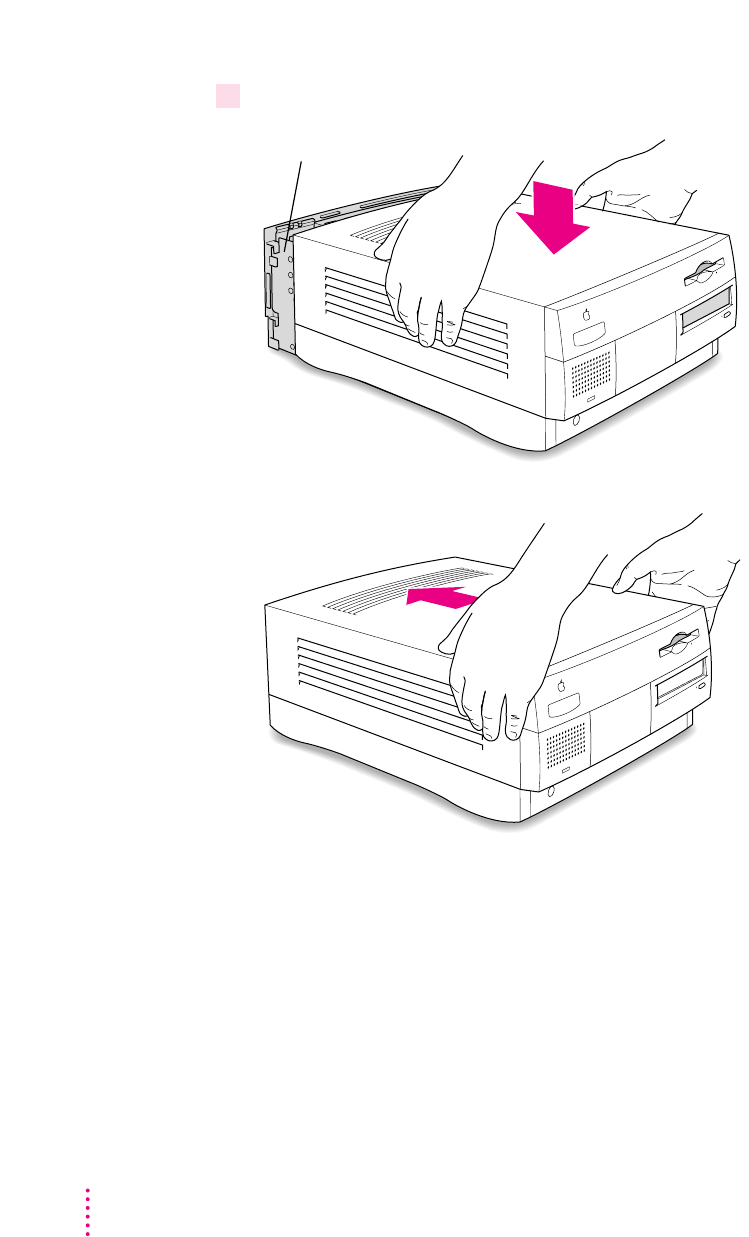
31 Lower the cover onto the case, leaving a two-inch gap, and then push the cover back.
Two-inch gap
(front of computer)
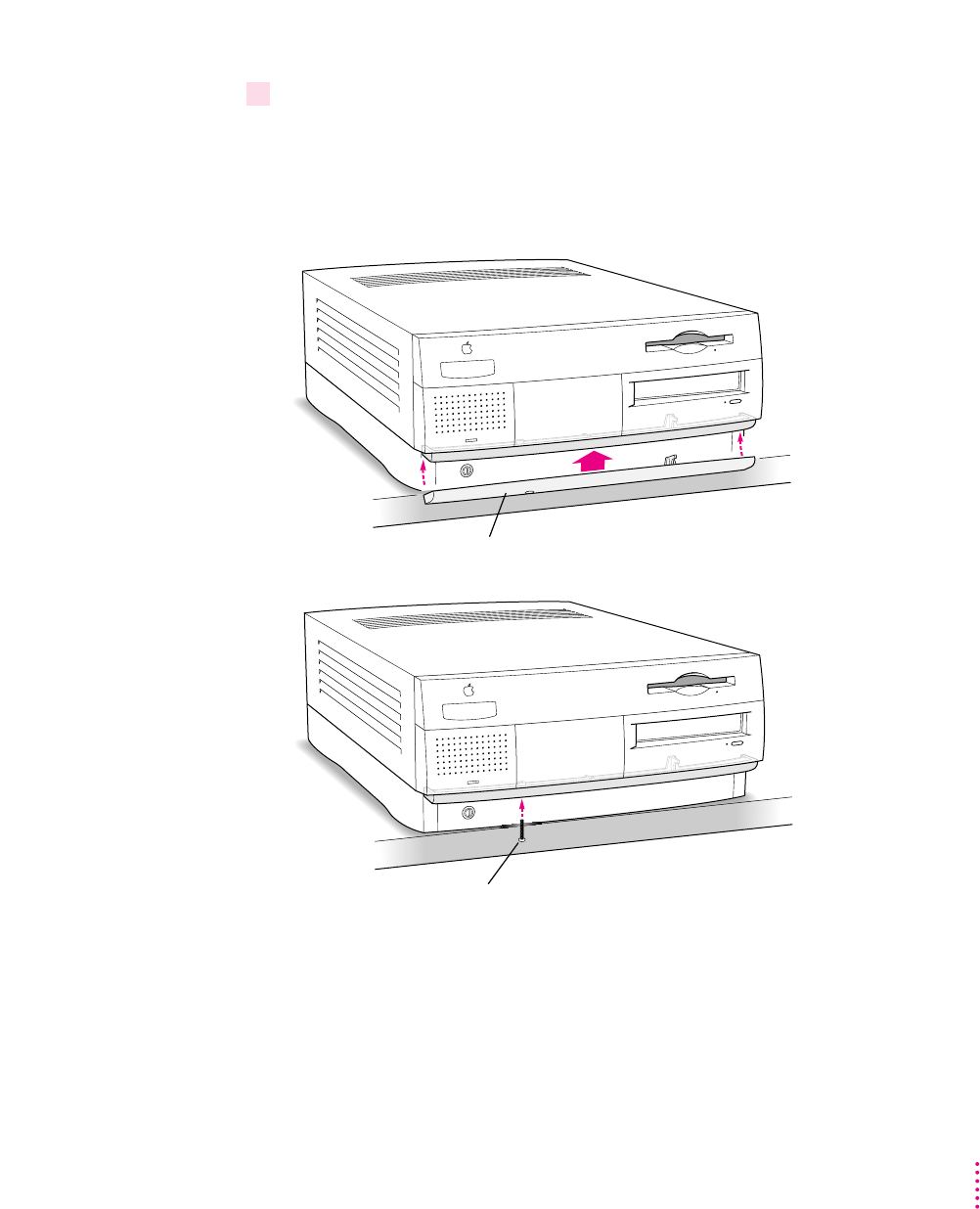
32 If you removed the security bar earlier, replace it now.
Place the security bar under the front panel and tilt the bar so that the hook
slides into the slot. Then reinsert the screw and tighten it into place.
IMPORTANT
Do not overtighten the screw.
Install the screw in the hole on the underside of the security bar.
Security bar
55
Installing the Card in a Power Macintosh 7200, 7300, 7500, or 7600
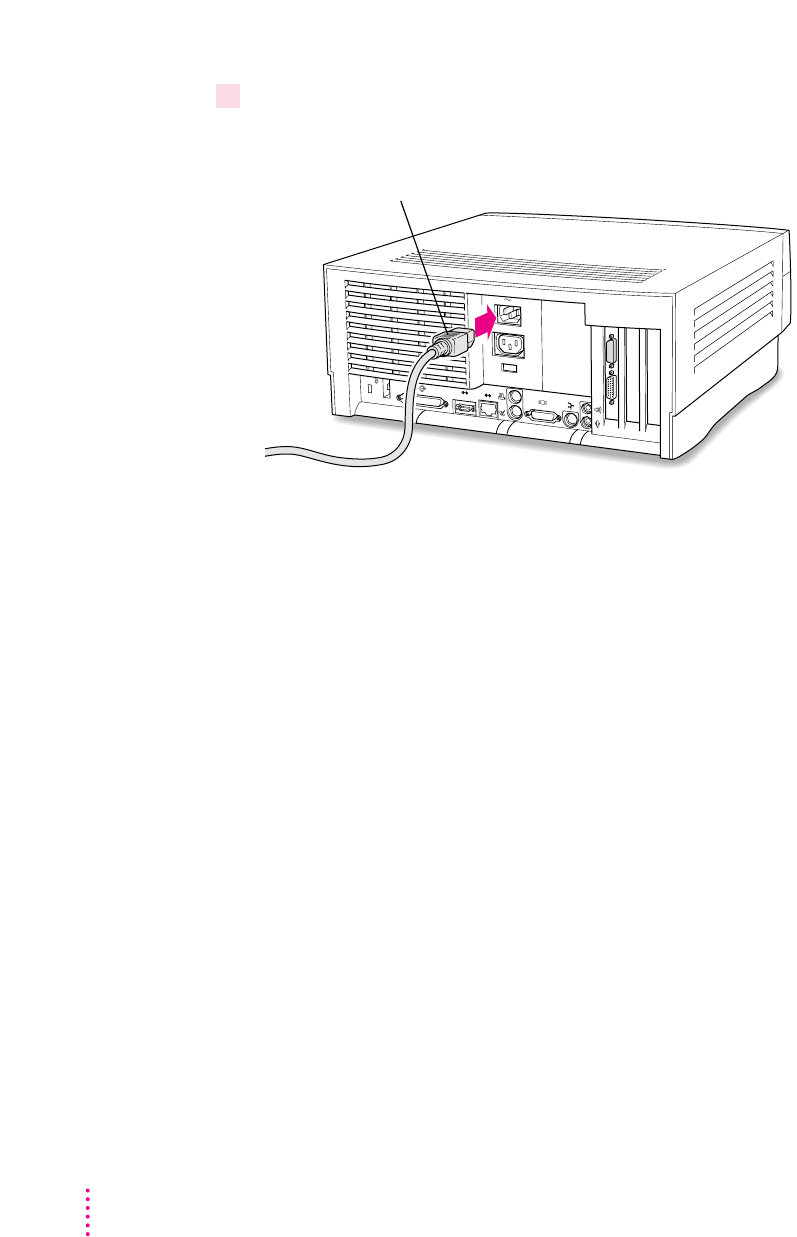
33 Reconnect all equipment.
Reinsert the power cable and all other equipment cables.
You are now finished installing the card.
What’s next?
Next, go to Chapter 5, “Connecting Monitors and Other Equipment.”
Then go to Chapters 6 through 9 for instructions on installing and using
your software.
Plug the power cord into the back of the computer.
56 Chapter 2

57
Except where noted, the illustrations in this chapter show the 8500 model. If
you have a 9500 model, some of the illustrations may look slightly different
from your computer.
IMPORTANT
If you will be installing a PC Serial and Parallel Card with your
PC Compatibility Card, it’s easiest to install both cards at the same time. The
PC Serial and Parallel Card has standard PC ports that allow you to use
several kinds of PC-compatible peripherals from the Windows or DOS
environment (not from the Mac OS environment). Instructions in this
chapter indicate when to see your PC Serial and Parallel Card manual for
installation information.
After you install the PC Compatibility hardware, go to Chapter 5,
“Connecting Monitors and Other Equipment.” If you want to install
additional memory in your card, go to Appendix B, “Adding Memory to Your
PC Compatibility Card.” Then turn to Chapters 6 through 9 to learn more
about installing and using PC software.
WARNING
Shipping your computer with a PC Compatibility Card
installed may cause damage to the card. Your PC Compatibility Card
should be shipped separately. (See Appendix A for instructions on how
to remove the card.)
3Installing the Card
in a Power Macintosh 8500 or 9500
58 Chapter 3
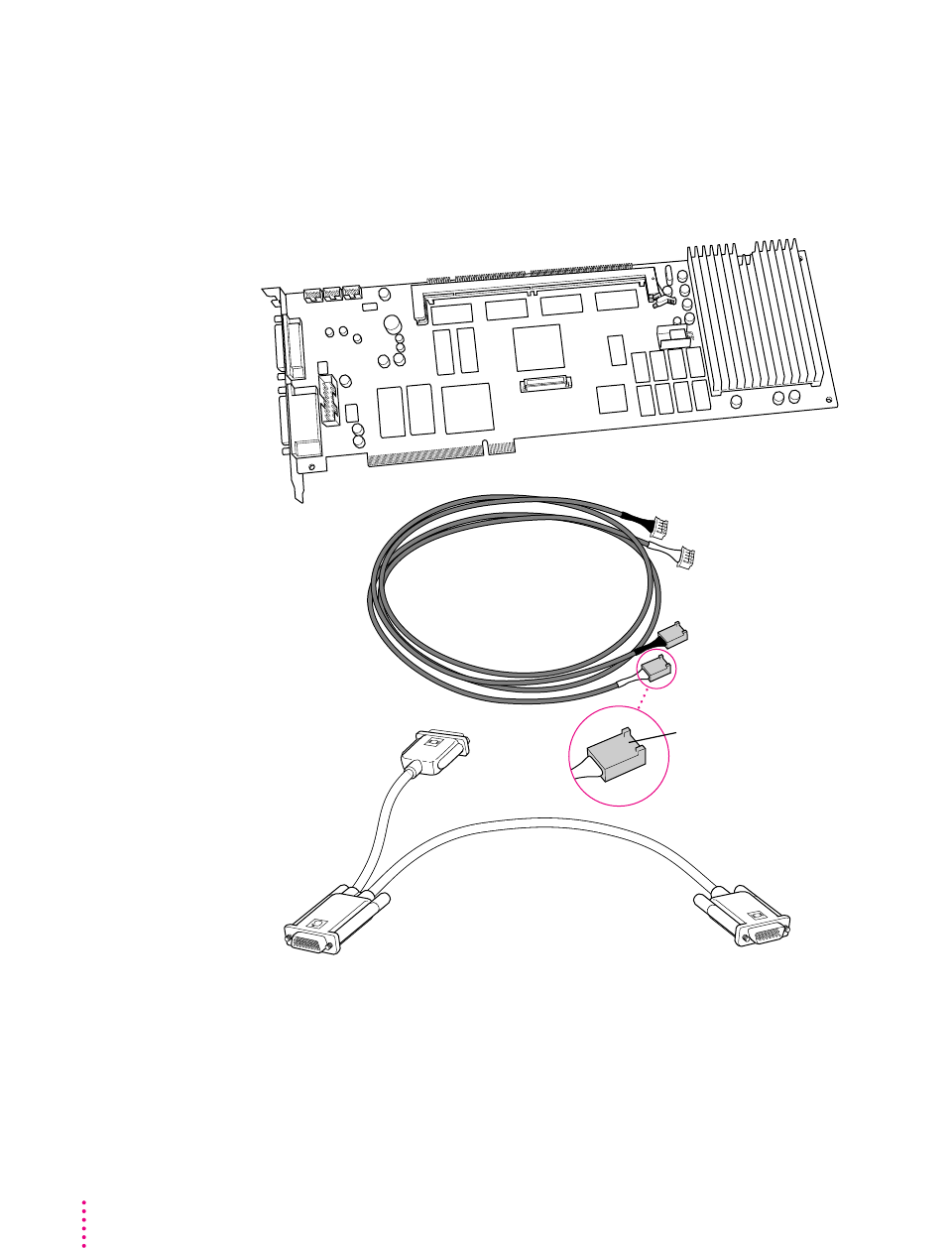
What you need
Before beginning the installation process, make sure you have all the
necessary parts: the PC Compatibility Card, the audio cables, and the
loopback cable. You’ll also need a flathead screwdriver.
Loopback cable
PC Compatibility Card
Audio cables for
SCSI CD-ROM drives (2)
You’ll need the
two cables that
have this plug
59
Installing the Card in a Power Macintosh 8500 or 9500
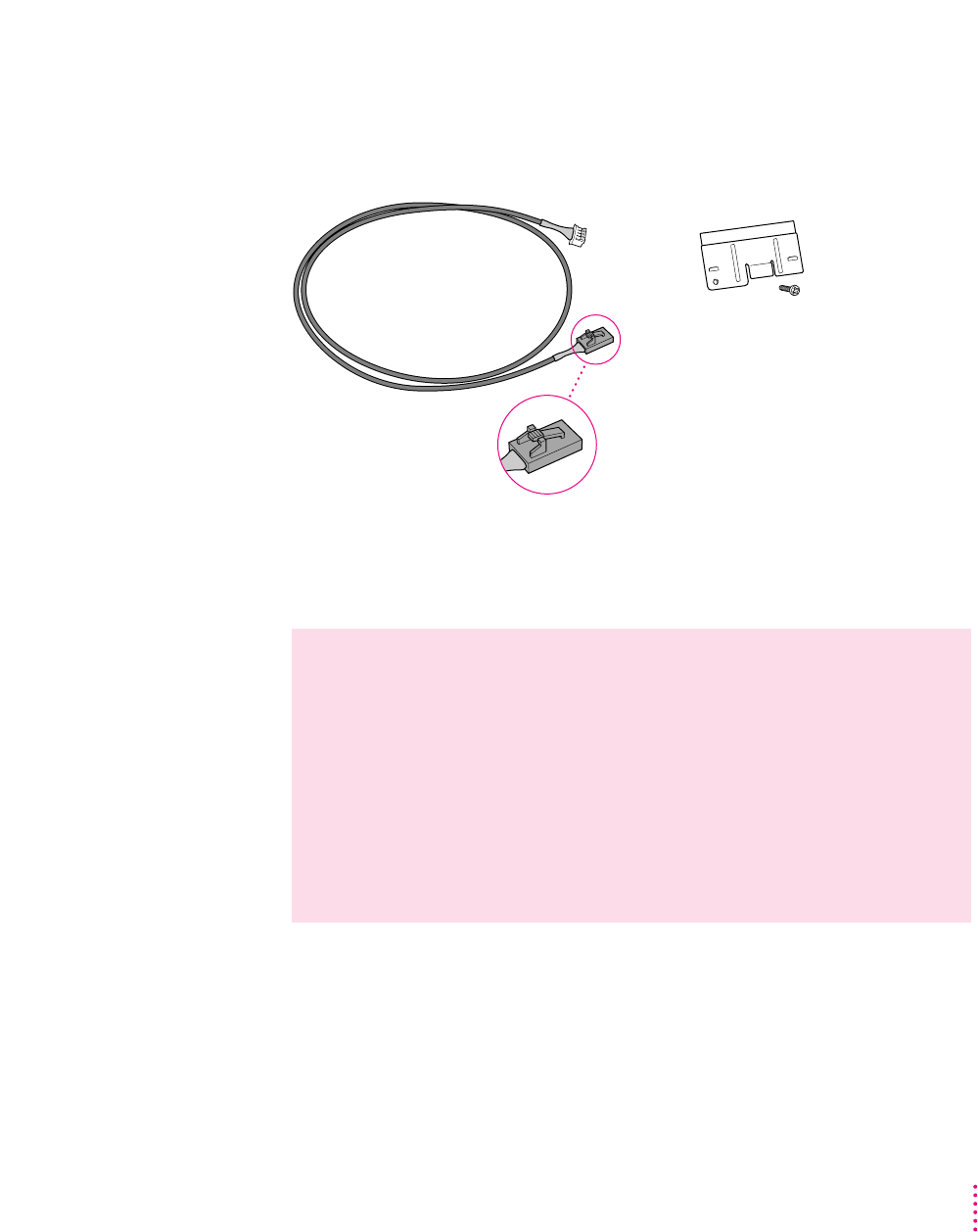
You won’t need the card extension bracket and screw.
Also, you won’t need the audio cable that has a different plug from the other
two cables (shown below).
Installing the PC Compatibility Card hardware
There are several steps to installing your PC Compatibility Card hardware:
mopening the computer
minserting the PC Compatibility Card
mconnecting the audio cables
mreplacing the computer cover
WARNING
The installation of the PC Compatibility Card is technically
complex. Unless you are comfortable installing components inside
computers, Apple recommends that you have the PC Compatibility
Card installed by your Apple-authorized dealer (who may charge a
fee). If you attempt to install the card yourself, any damage you may
cause to your equipment will not be covered by the limited warranty
on your computer.
Do not attempt to install the card, install memory, or connect the cables
without first reading this manual.
Card extension
bracket and screw
Audio cable for
ATAPI CD-ROM drives
Opening the computer
1Disconnect all the cables from the computer, except for the power cord.
Leave the computer plugged in for now, to ground it and protect its
components from static electricity damage.
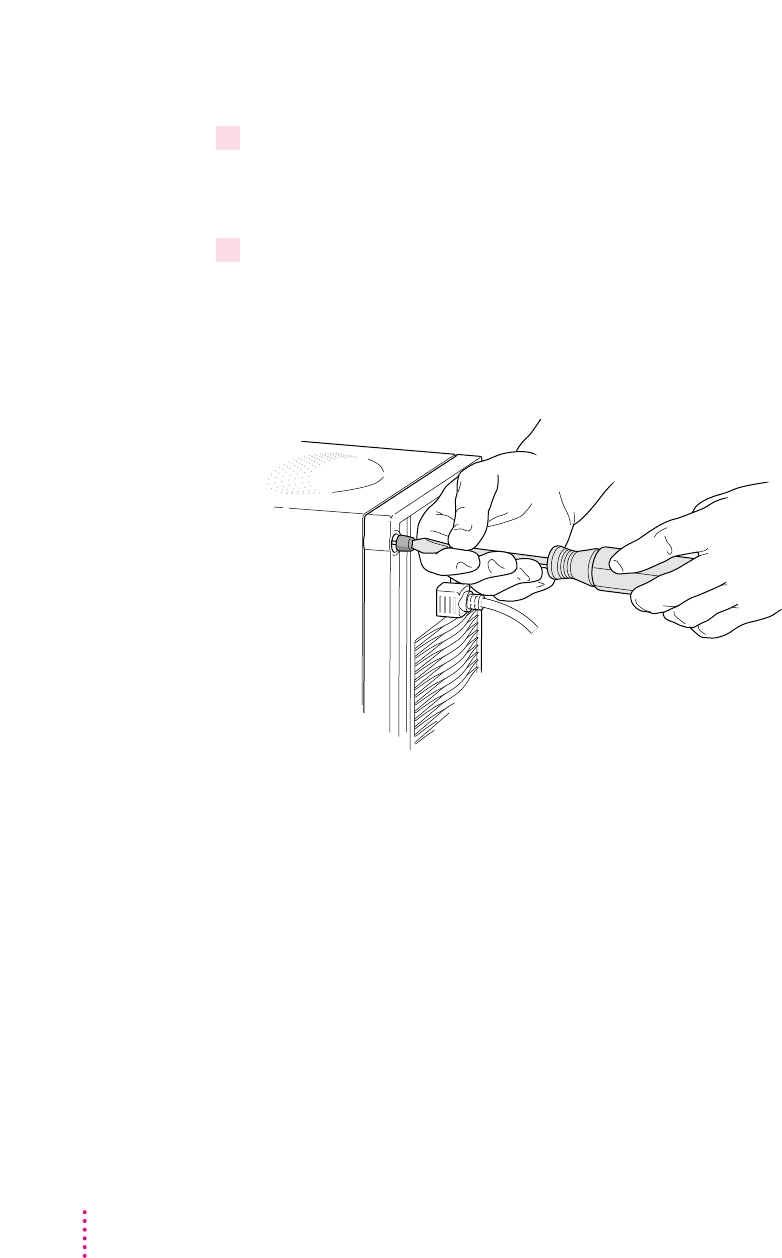
2 Loosen the large screws on the back panel.
If you have a Power Macintosh 8500, there are four screws, one at each
corner of the back panel. If you have a Power Macintosh 9500, there are six
screws (one at each corner and two on the sides of the back panel). Do not
completely remove the screws or the back panel.
60 Chapter 3
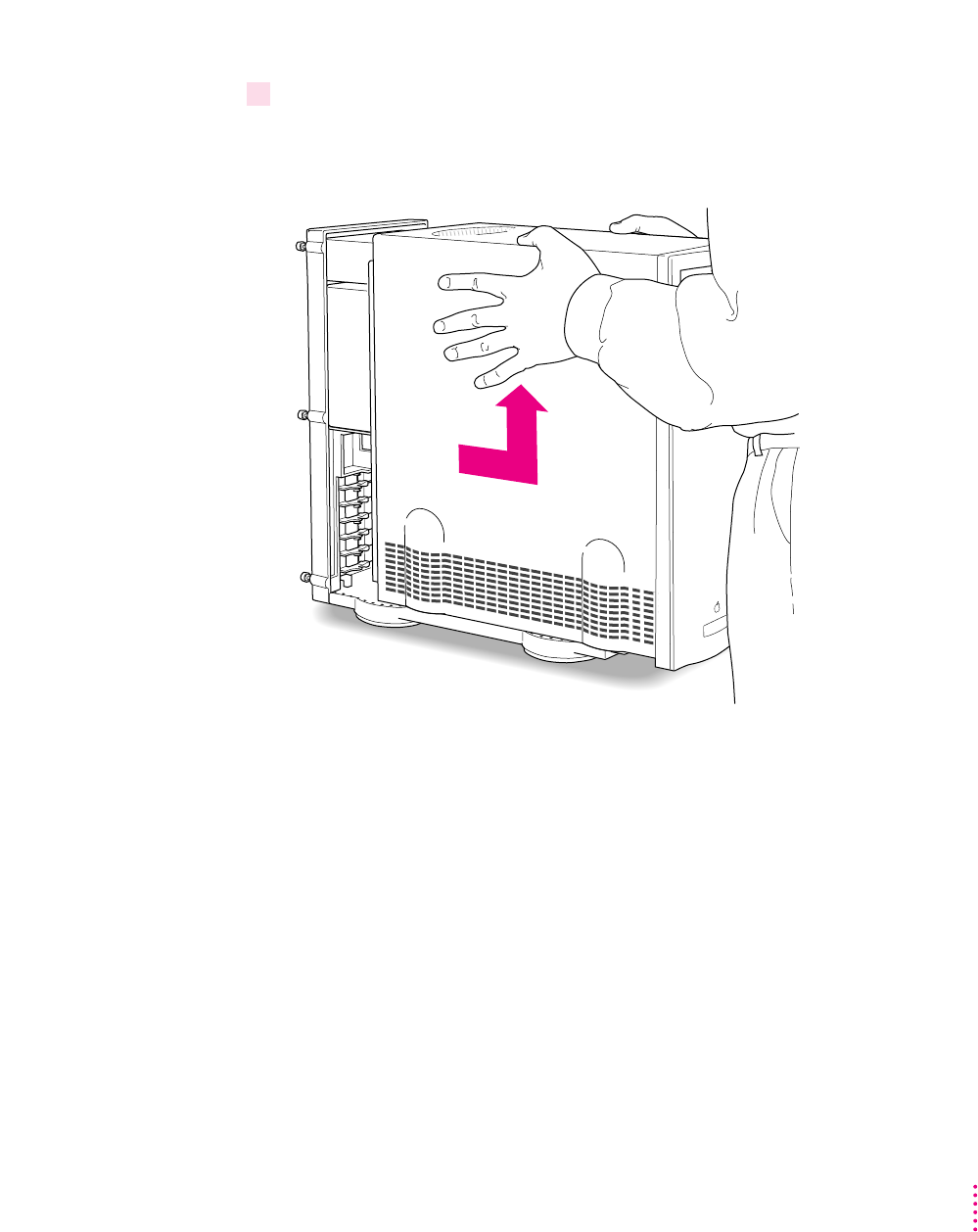
3 Remove the cover from the computer.
Slide the cover away from the back panel about two inches. Then raise the
cover straight up and off the computer.
61
Installing the Card in a Power Macintosh 8500 or 9500
62 Chapter 3
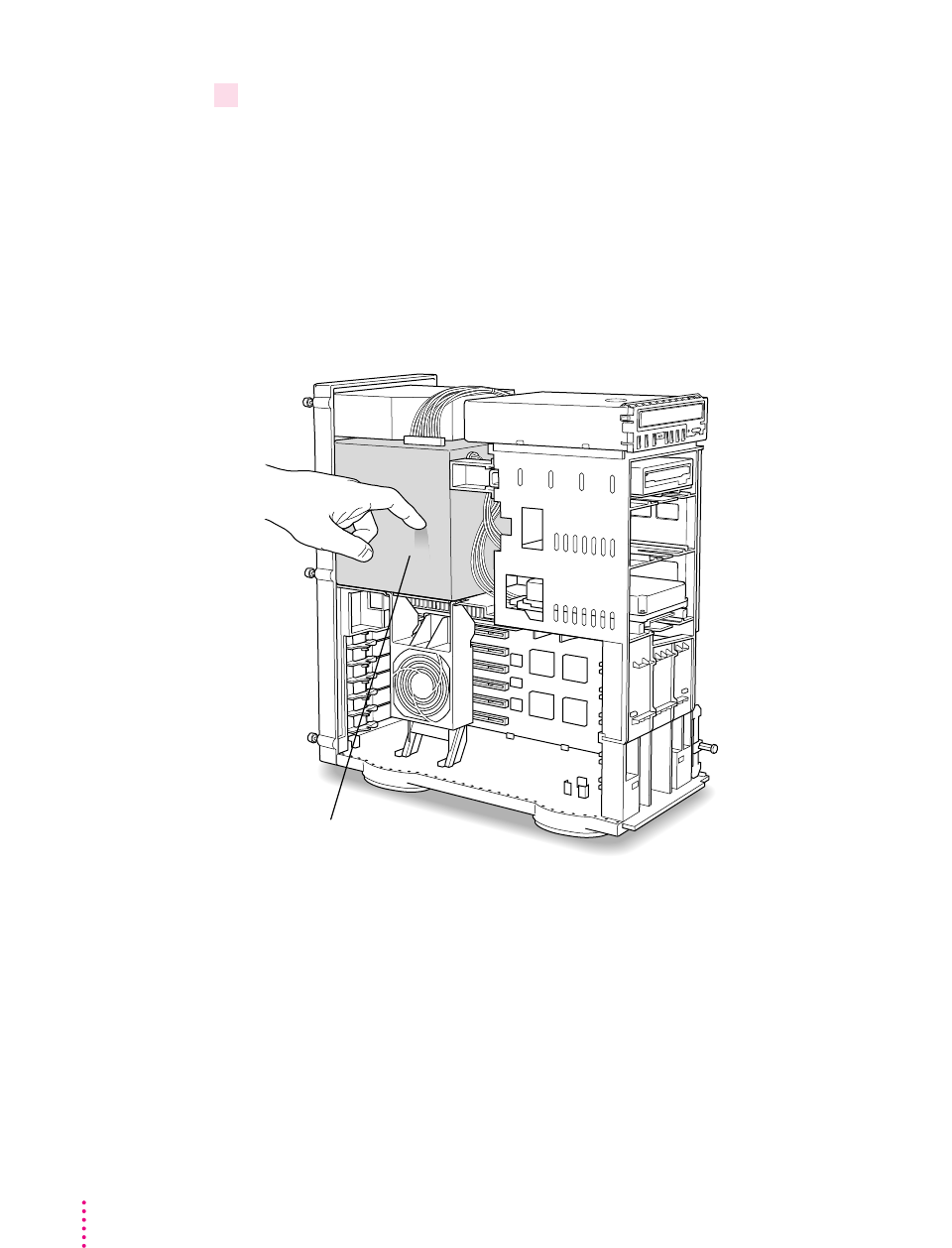
4 Touch the metal part of the power supply case inside the computer.
Always do this before you touch any parts, or install any components, inside
the computer. Touching the power supply case helps release static electricity
from your body and prevent possible damage to internal components.
IMPORTANT
You can collect static electricity just by walking away from and
then back to your computer. If you need to move away from your computer
during installation, remember to touch the metal part of the power supply
case again before you continue installing.
Power supply case
63
Installing the Card in a Power Macintosh 8500 or 9500
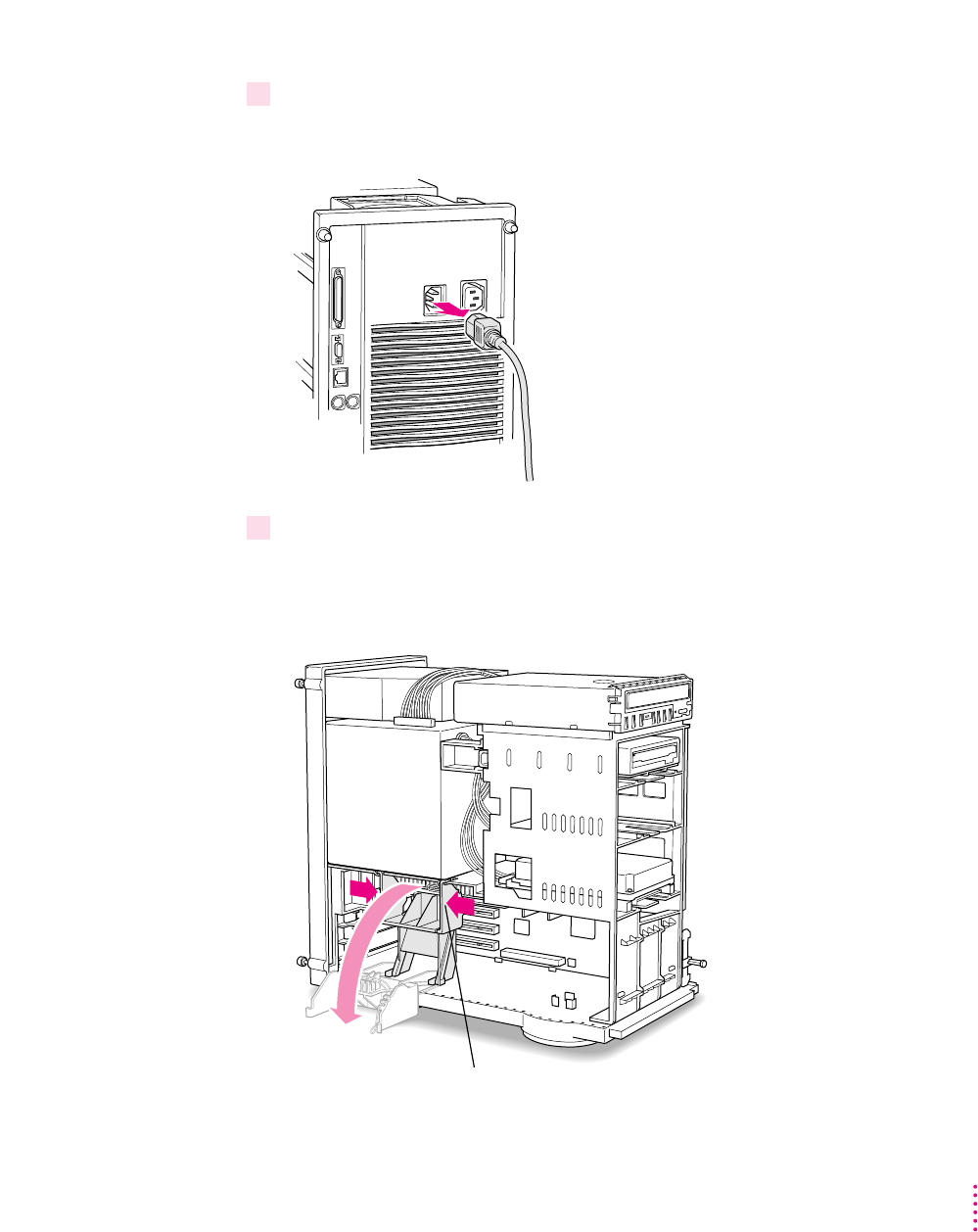
5 Disconnect the power cord.
Remove the power cord from the back of the computer.
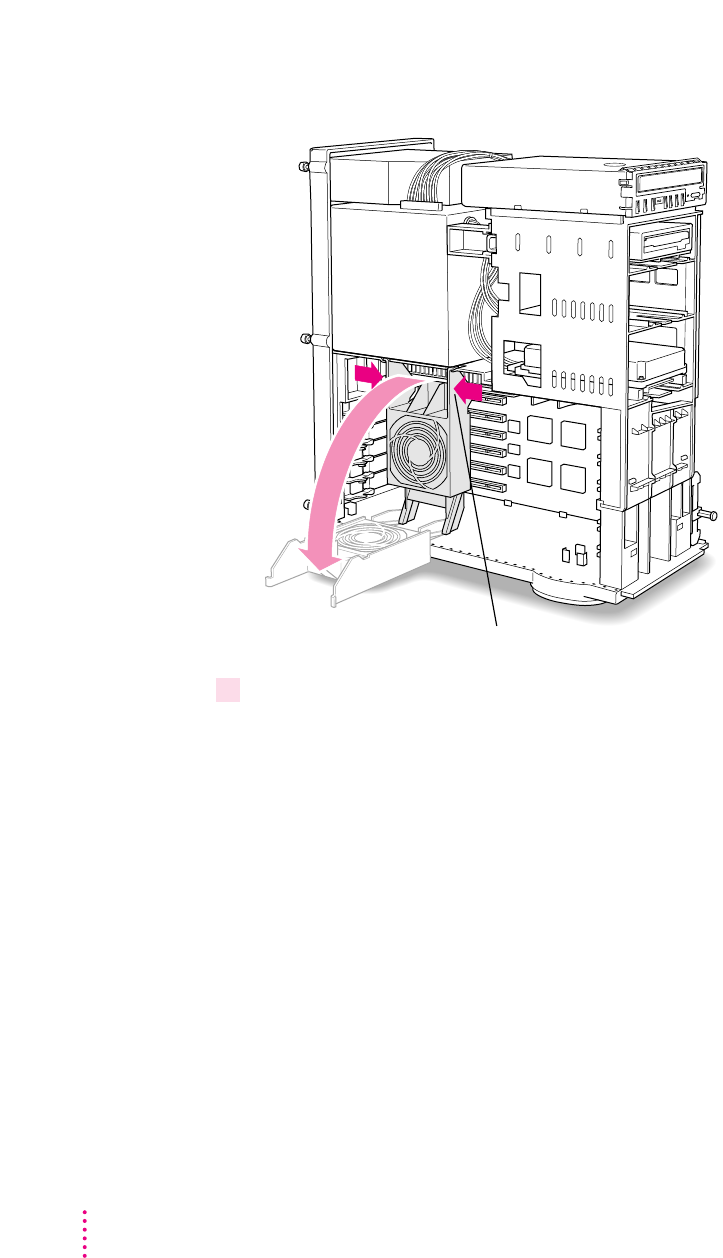
6 Lower the retainer or auxiliary fan.
Squeeze the sides of the retainer or fan and pull down.
If you have a Power Macintosh 8500, follow this illustration:
To lower the retainer, squeeze the sides to unlatch it.
If you have a Power Macintosh 9500, follow this illustration:
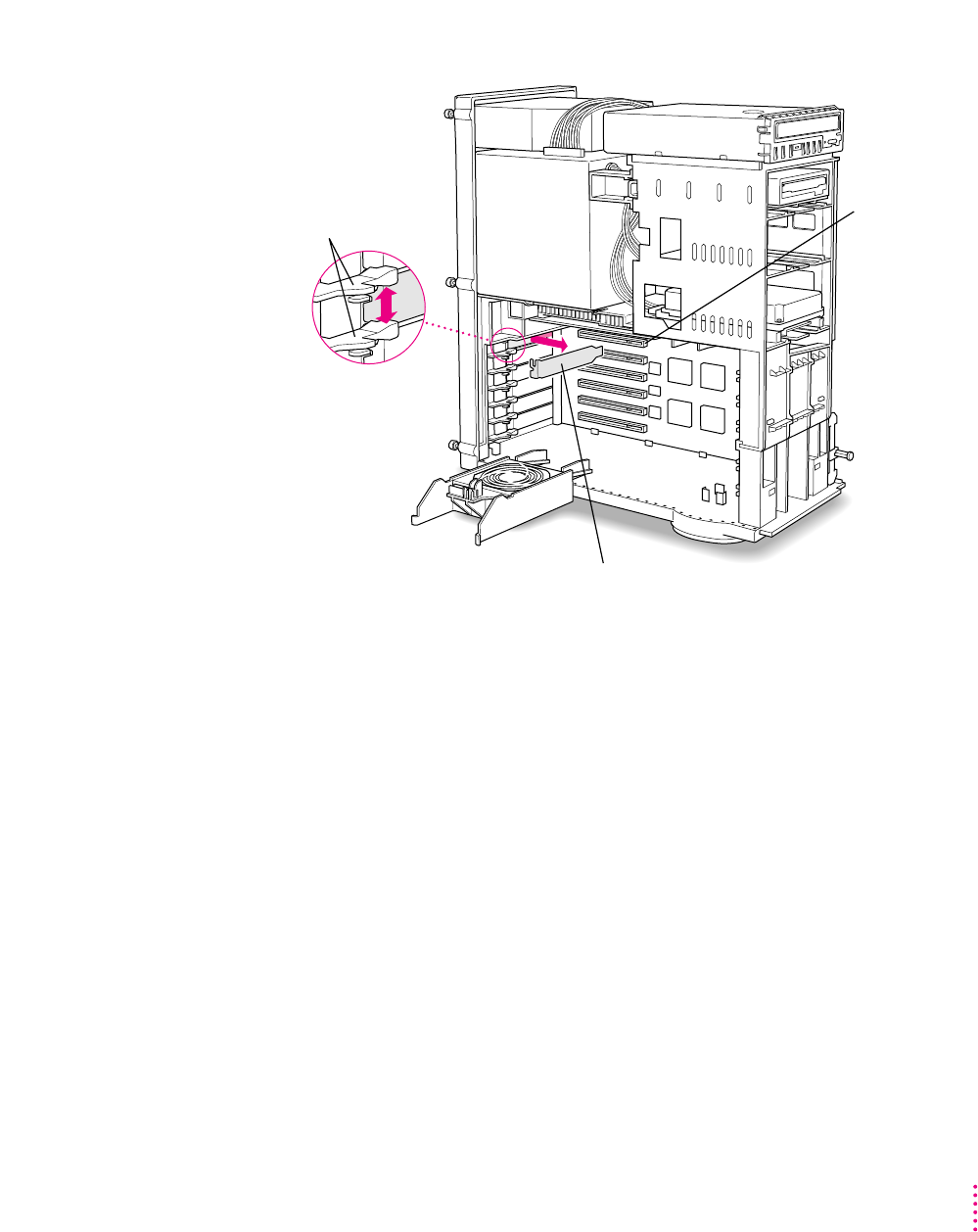
7Pull out the metal access port cover behind the expansion slot closest to the center of
the computer.
You need to install your PC Compatibility Card in the first (top) PCI
expansion slot, which is the slot closest to the processor card. If there is
already a card in the first slot, move it to a different slot.
IMPORTANT
If you will be installing a PC Serial and Parallel Card, you should
also remove any card in the second slot (below the first slot).
To lower the auxiliary fan, squeeze the sides to unlatch it.
64 Chapter 3
65
Installing the Card in a Power Macintosh 8500 or 9500
What you do next depends on whether you are adding a DIMM (dual inline
memory module) to increase the memory available to your PC Compatibility
Card, and whether you are installing a PC Serial and Parallel Card.
mIf you want to add memory to your card, turn now to Appendix B, “Adding
Memory to Your PC Compatibility Card.” After you’ve completed the
instructions in Appendix B, go on to the next section, “Inserting the PC
Compatibility Card.”
mIf you want to install the PC Serial and Parallel Card, you’ll need to connect
the peripheral flex cable to your PC Compatibility Card now. See the PC
Serial and Parallel Card manual for instructions. Then return to this manual,
and go on to the next section, “Inserting the PC Compatibility Card.”
If you don’t want to add memory or install the PC Serial and Parallel Card, go
on to the next section.
Press apart the two
levers next to the
card access port to
release the access
port cover.
First PCI slot
Slide the access port cover out and away from the access port.
Inserting the PC Compatibility Card
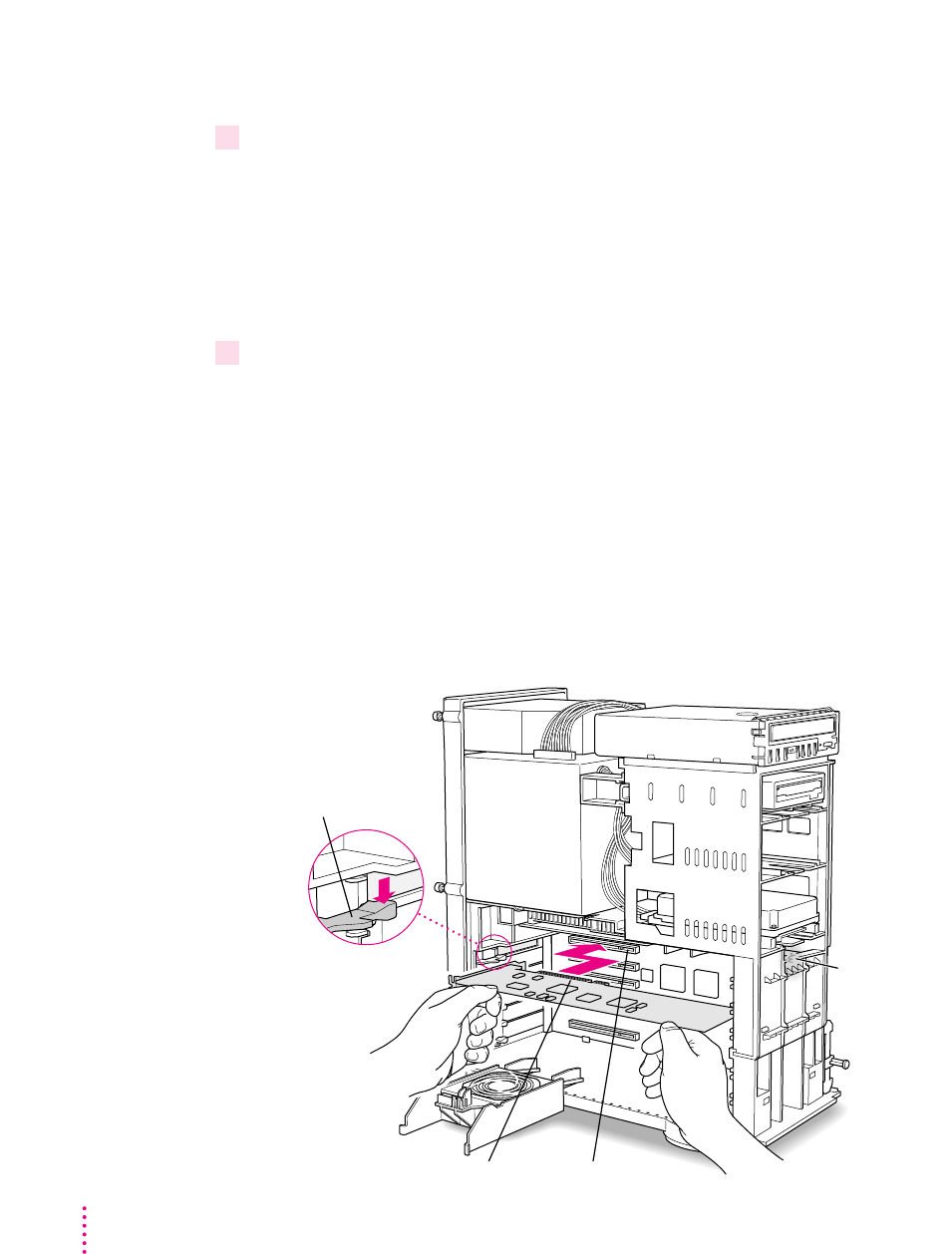
8Align the card with the expansion slot.
IMPORTANT
Always hold the card by its edges. Don’t touch any of the
components on the card.
Align the card’s connector end (gold in color) with the first PCI expansion
slot. The ports on the card should face the port access opening on the
computer’s back panel.
9 Insert the card.
Press the lever near the port access opening and press down on the card.
When the card is fully inserted, you won’t be able to see the gold-colored
connector any more. If you are installing the card in a 9500, the end of the
card should engage the card guide at the front of the computer.
mDon’t rock the card from side to side; instead, press the card straight into
the slot. Rocking the card can damage the PCI slot.
mDon’t force the card. If you meet a lot of resistance, pull the card out and
try again.
mTo see if the card is connected, pull it gently. If it resists, it is connected.
First PCI slotConnector
Card guide
in a Power
Macintosh 9500
Press the lever while
installing the card.
66 Chapter 3
Connecting the audio cables
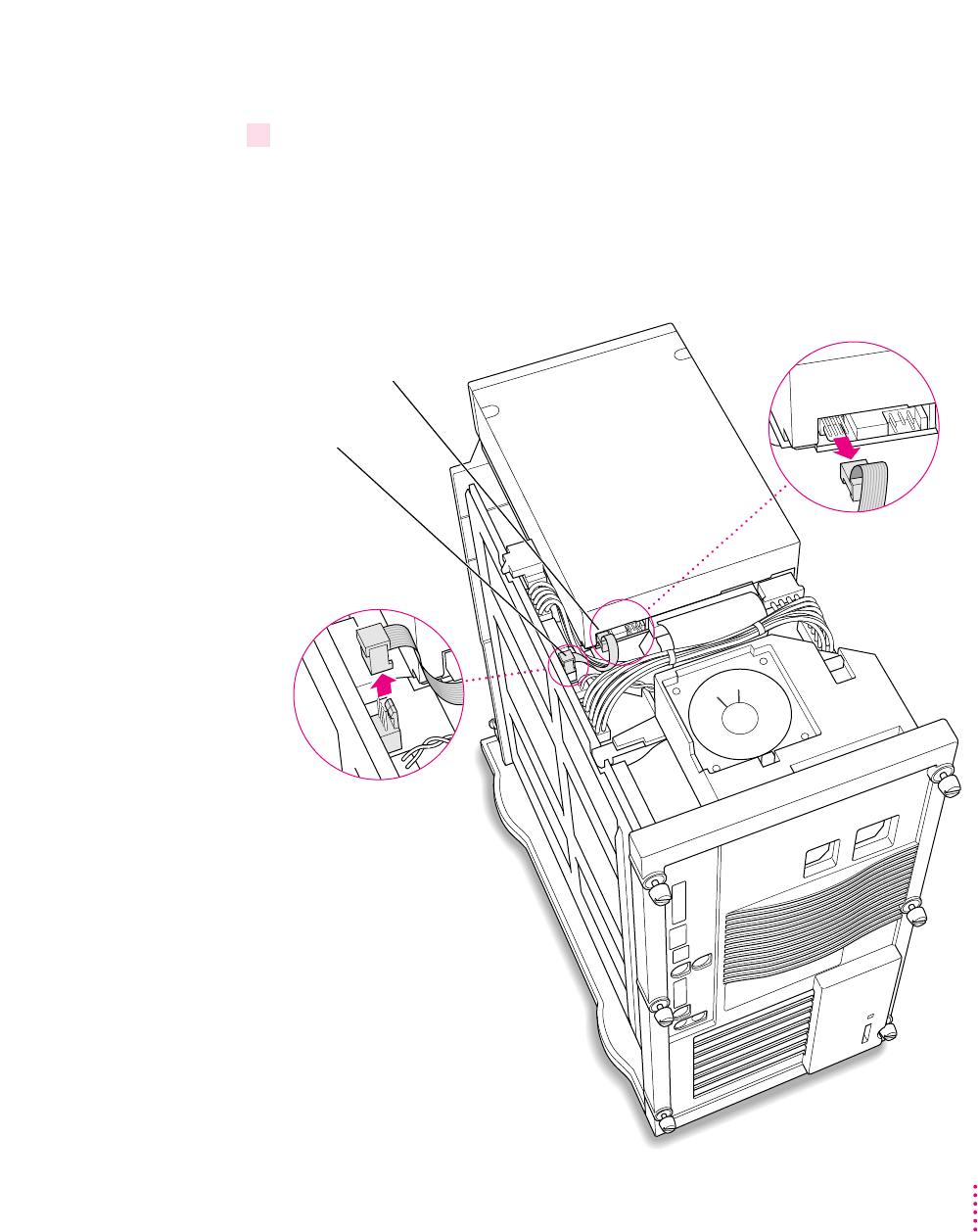
10 Unplug the audio ribbon cable from the computer’s CD-ROM drive and the Macintosh
logic board.
After unplugging this cable, carefully remove it from your computer (keep the
cable; you will need to reinstall it if you ever remove your PC Compatibility
Card). You will be replacing the ribbon cable with the audio cables that came
with your PC Compatibility Card.
Disconnect the CD cable
from the back of the
CD-ROM drive
and from the
computer’s main
logic board.
(back of computer)
67
Installing the Card in a Power Macintosh 8500 or 9500
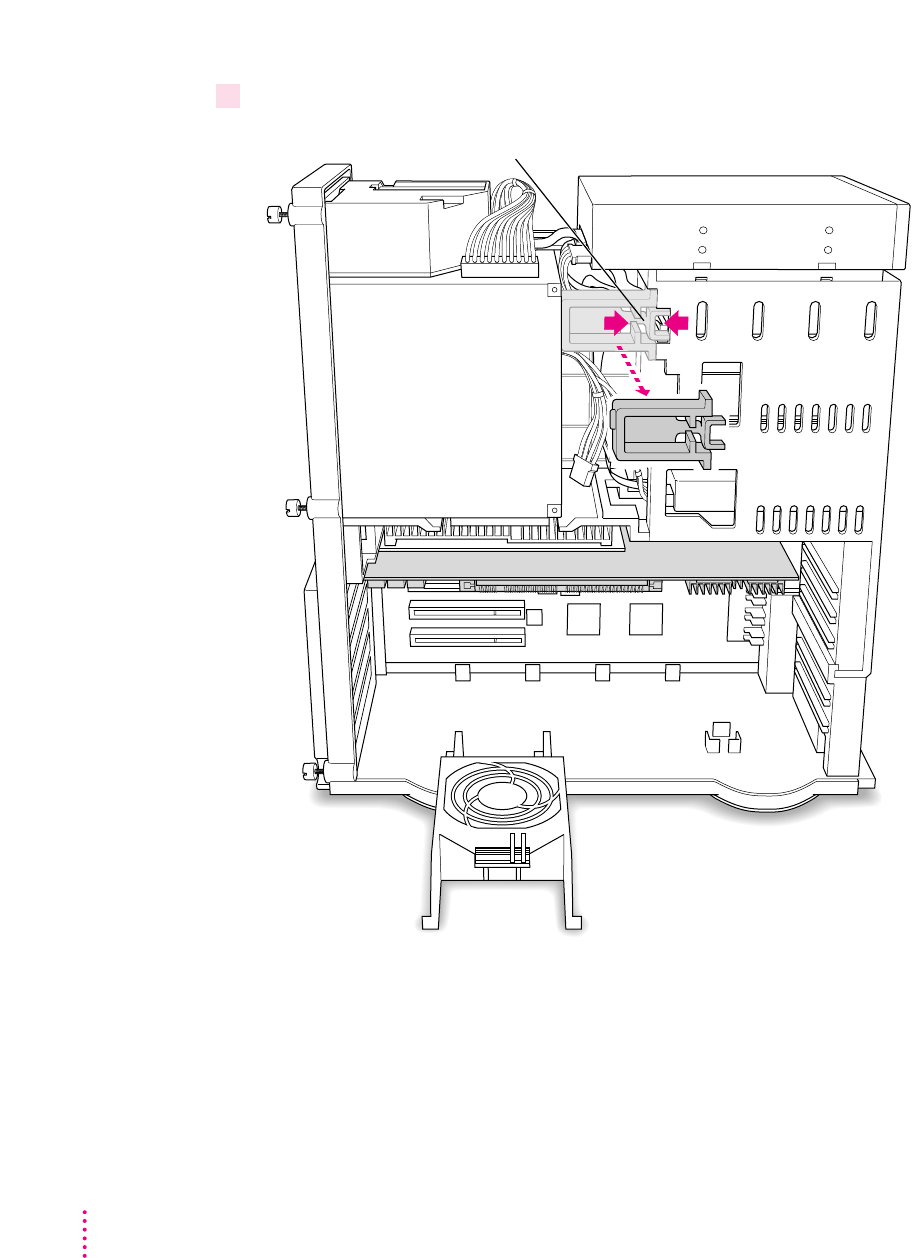
11 Remove the chassis brace by squeezing and pulling.
Squeeze here and remove the chassis brace. You will replace it later.
68 Chapter 3

12 Plug one of the two identical SCSI audio cables into the connector on the Macintosh
logic board.
IMPORTANT
Use only the cables that came with this PC Compatibility Card.
Do not use cables from other models of the card.
Your PC Compatibility Card came with three audio cables. They may have
different colors of tubing near the ends to help you tell them apart. You’ll
only be using two of these cables (the third one is for a different kind of
CD-ROM drive). Two of the cables have identical plugs on the end that look
like the one shown below. Use one of these two identical cables for this step.
Audio cable plug for
SCSI CD-ROM drives
69
Installing the Card in a Power Macintosh 8500 or 9500
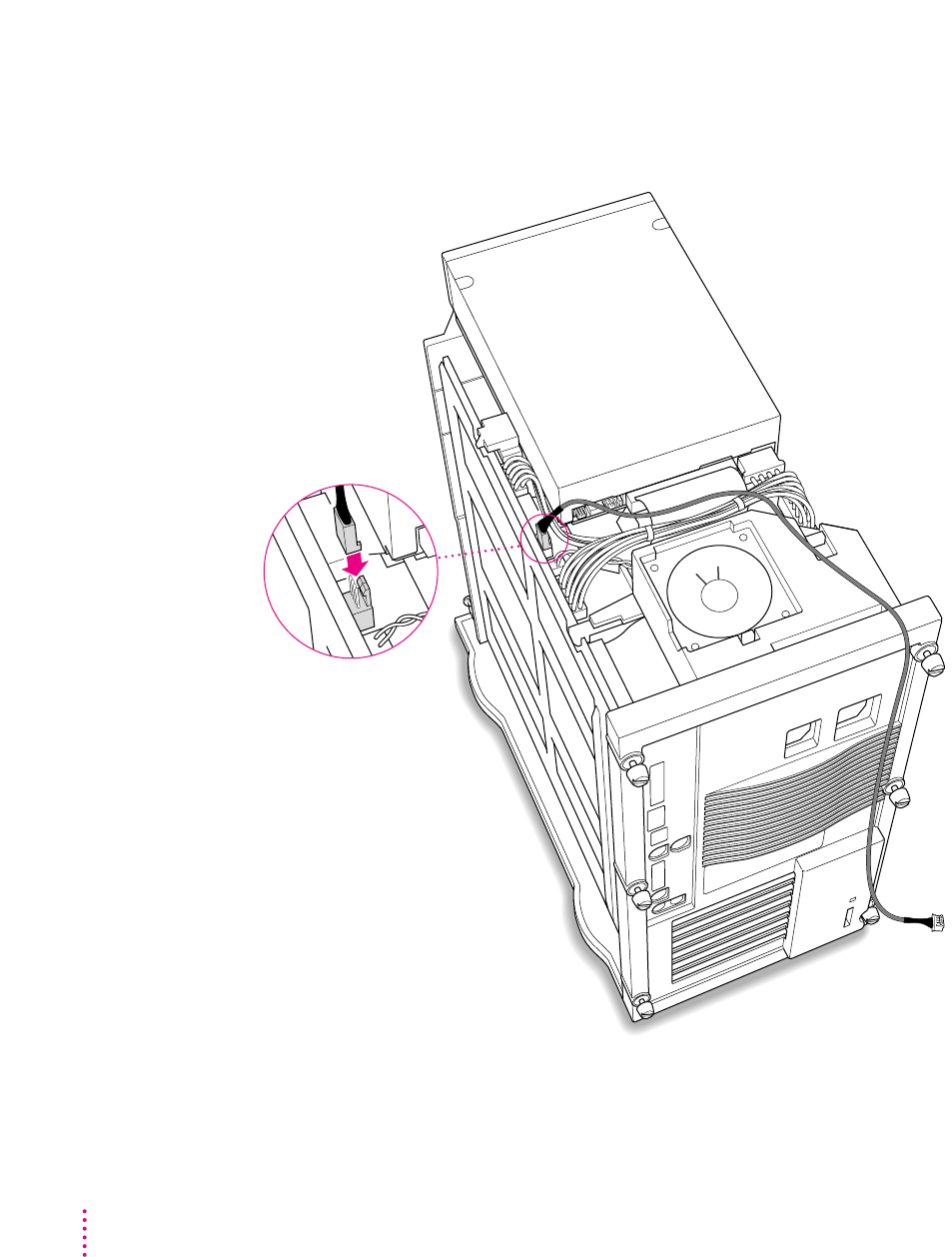
Insert the cable’s larger plug into the connector on the Macintosh logic board,
where you just unplugged the ribbon cable (the connector may be labeled
“CD AUDIO”).
70 Chapter 3
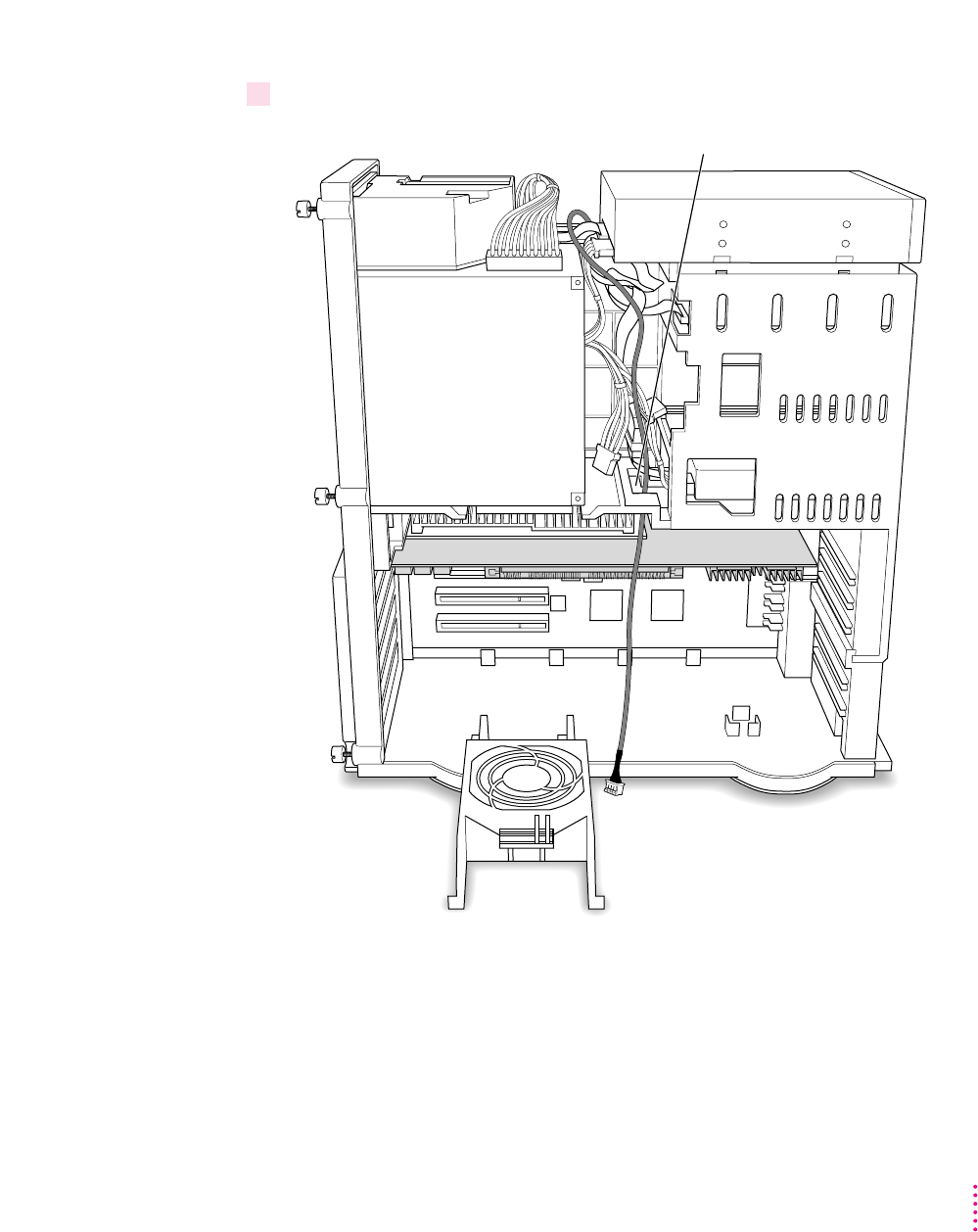
13 Route the cable through the interior of the computer.
Route the cable through this hole in the chassis.
71
Installing the Card in a Power Macintosh 8500 or 9500
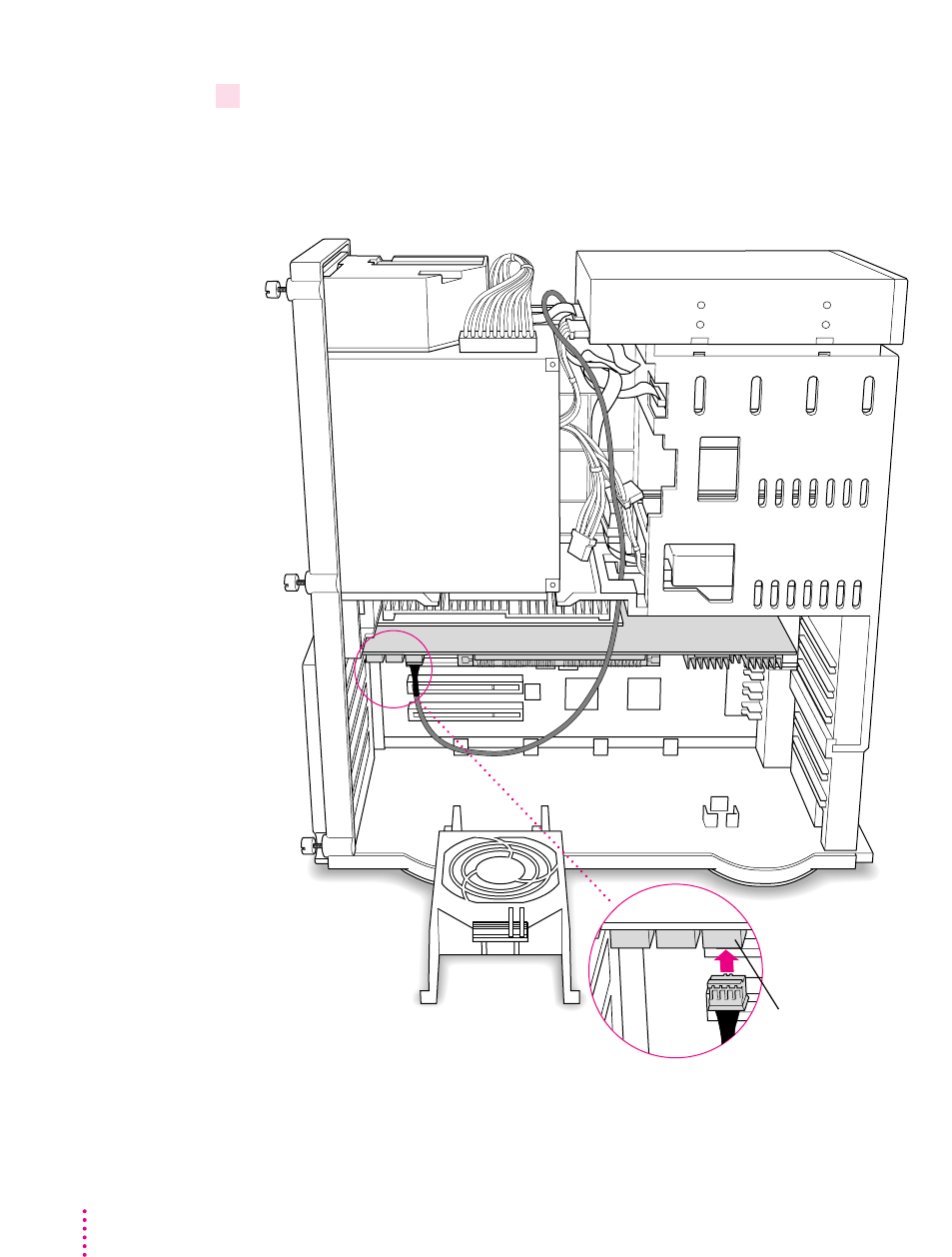
14 Plug the other end of the cable into the Reversed Sound Out connector in the upper-left
corner of the PC Compatibility Card.
The Reversed Sound Out connector is the third connector from the end,
labeled “REV_SND_OUT” on the underside of the card.
Connector labeled
“REV_SND_OUT” on
the PC Compatibility Card
72 Chapter 3
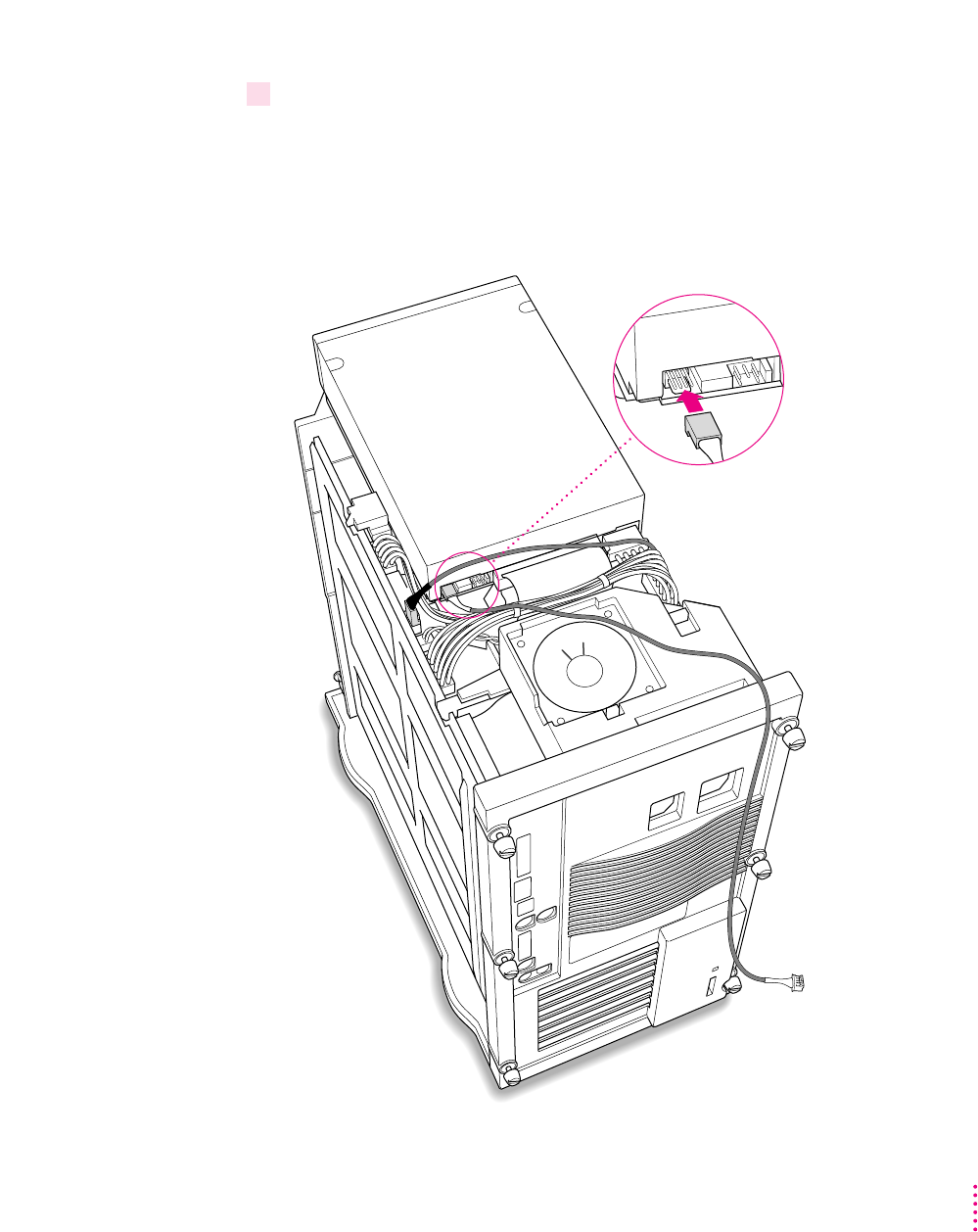
15 Plug the other SCSI audio cable into the back of the CD-ROM drive.
Use the cable with the thick plug that looks identical to the cable you
connected to the logic board.
Insert the cable’s larger plug into the back of the CD-ROM drive, where you
unplugged the ribbon cable in step 10.
73
Installing the Card in a Power Macintosh 8500 or 9500
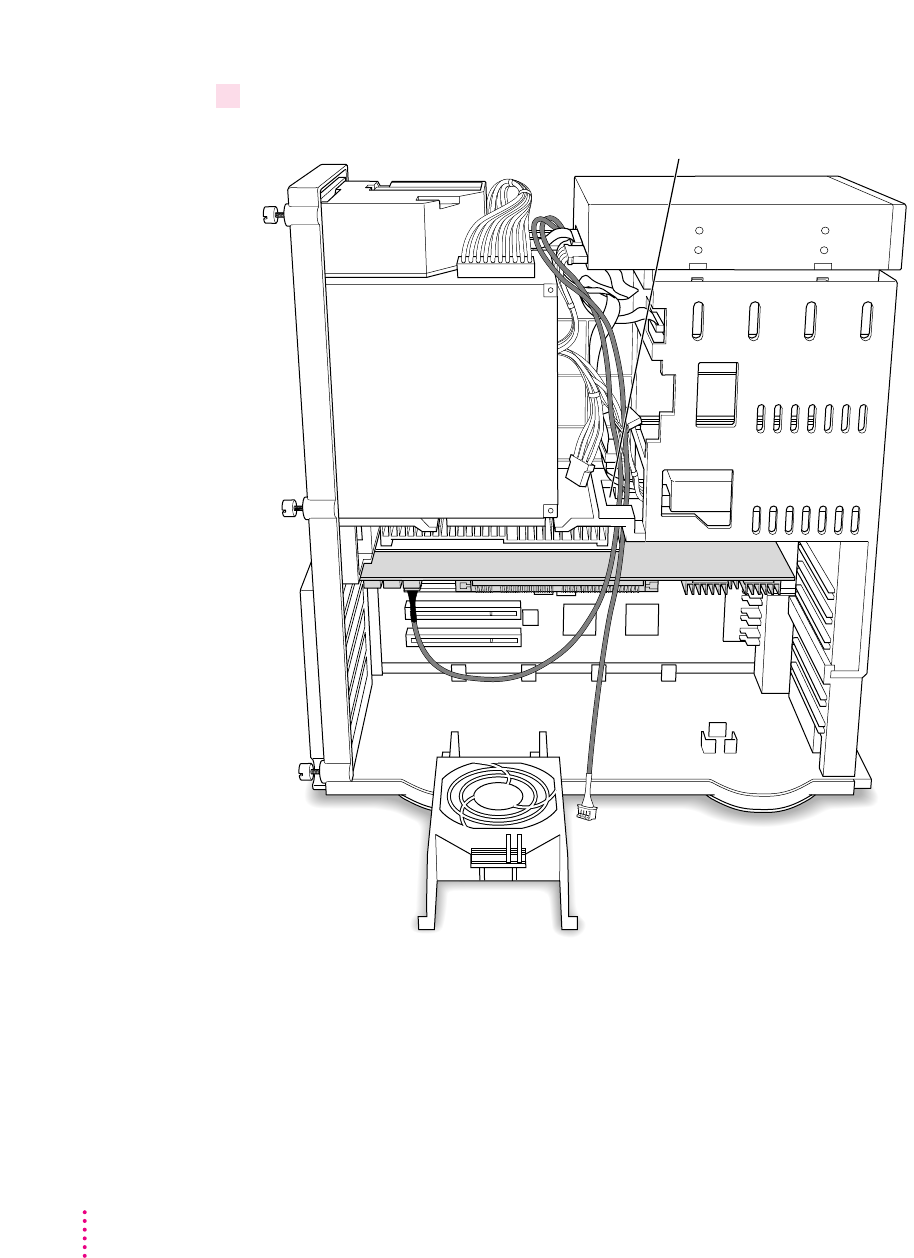
16 Route the cable through the interior of the computer.
Route the cable through this hole in the chassis.
74 Chapter 3
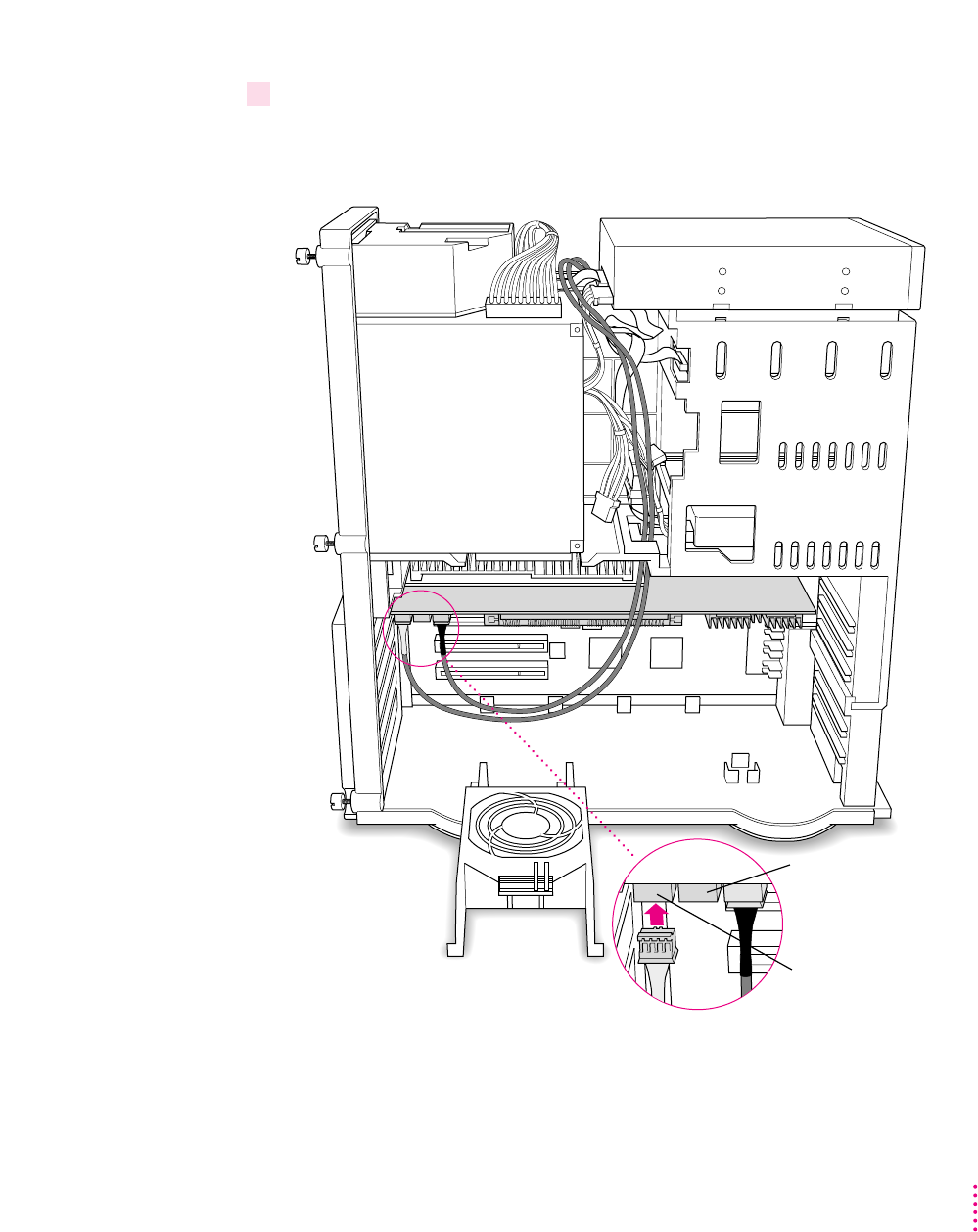
17 Plug the other end of the audio cable into the CD In connector in the far upper-left corner
of the PC Compatibility card.
The CD In connector is labeled “CD IN” on the underside of the card.
Do not plug any
cable into this middle
connector for these
computer models.
Connector labeled
“CD IN” on the
PC Compatibility Card
75
Installing the Card in a Power Macintosh 8500 or 9500
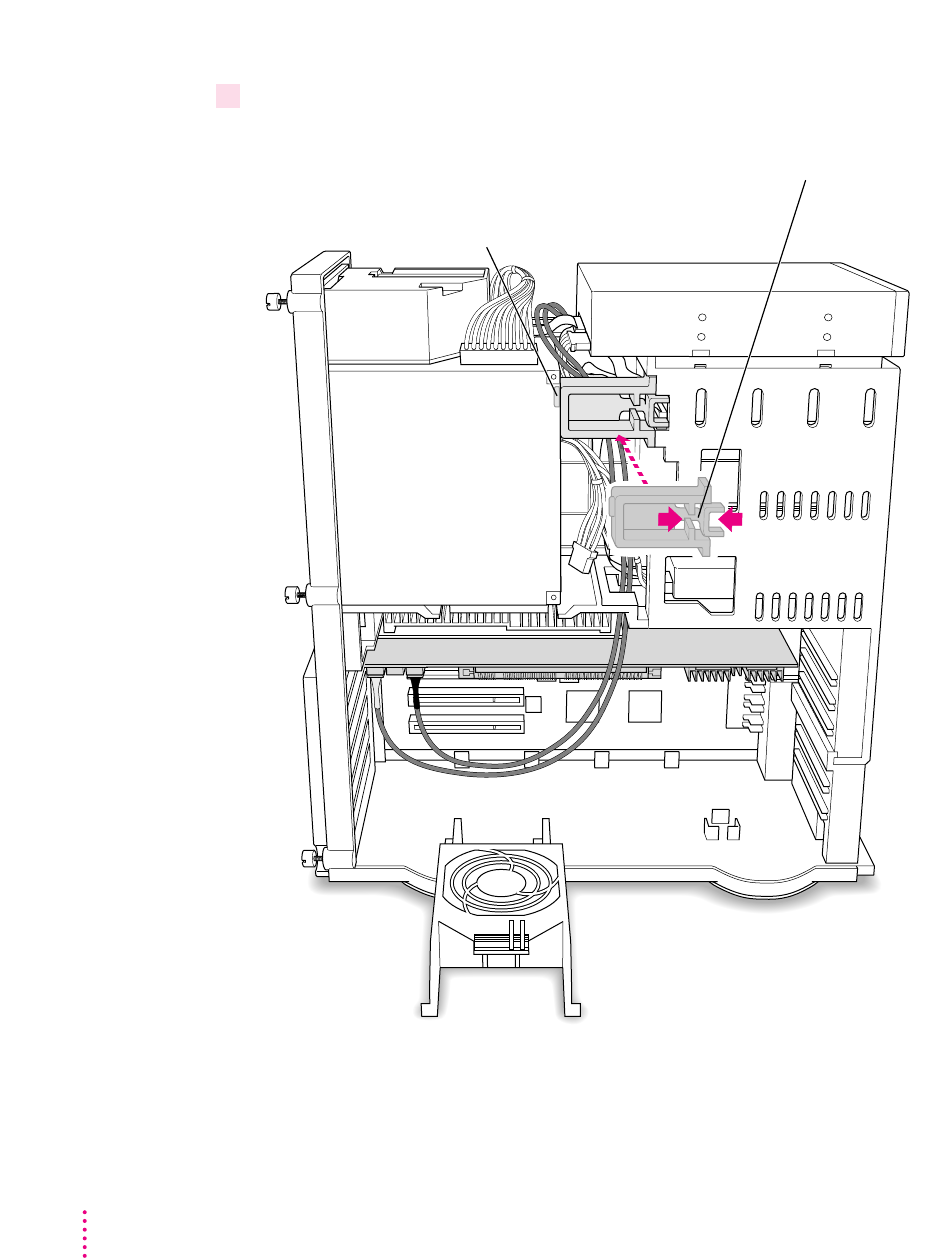
18 Replace the chassis brace.
Squeeze here and reinstall the chassis brace. Be sure not to pinch
any of the cables between the chassis brace and the power supply case.
The tab on the chassis brace fits into
a slot in the power supply case.
76 Chapter 3
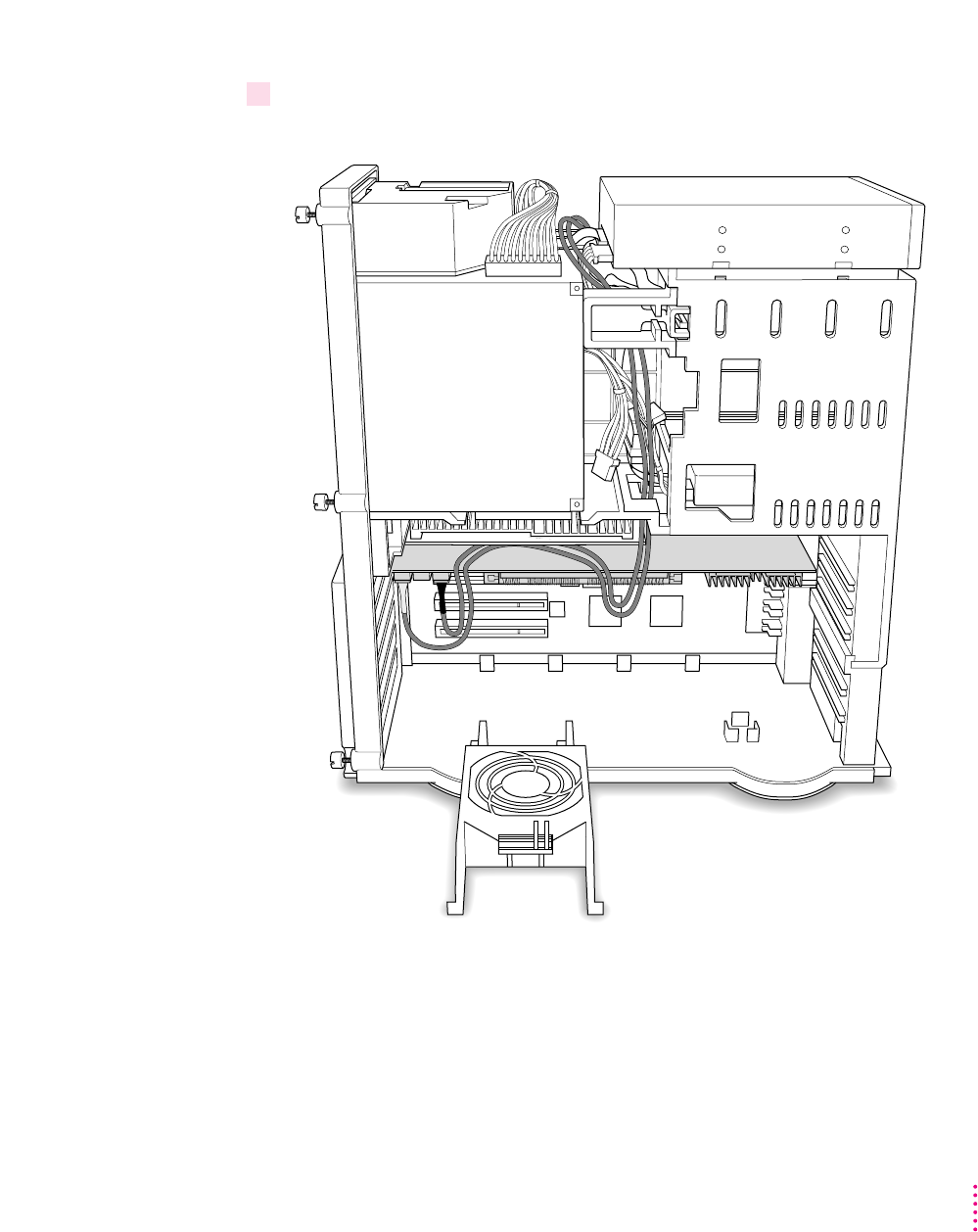
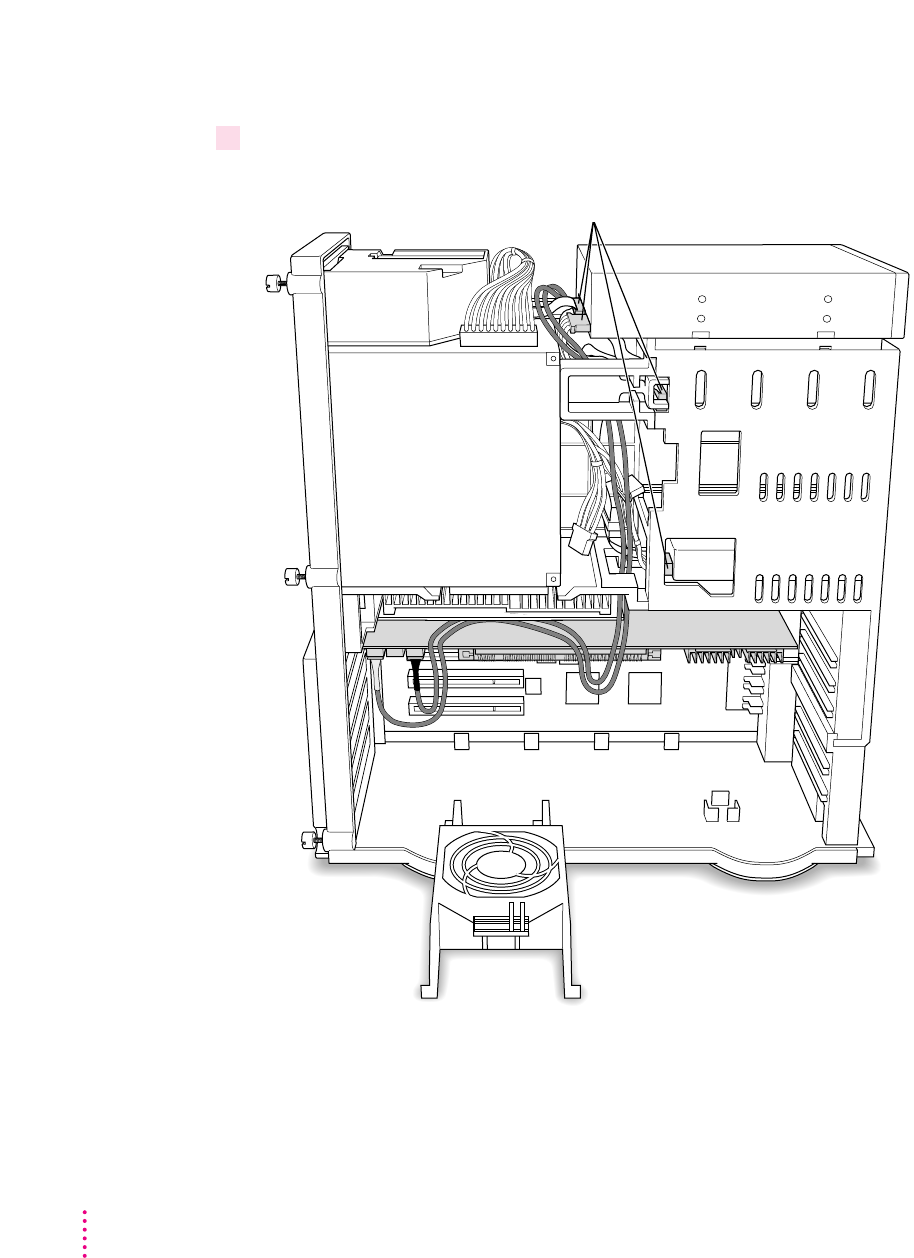
19 Tuck the audio cables in on top of the PC Compatibility Card, so that they’re out of the
way of the retainer or auxiliary fan.
IMPORTANT
If you are installing the PC Serial and Parallel Card, you should
insert it now. See the PC Serial and Parallel Card manual for instructions.
77
Installing the Card in a Power Macintosh 8500 or 9500
Replacing the computer cover
20 Make sure all cables and cards are firmly connected.
Make sure these connectors were not loosened during the installation.
If they have come loose, push them firmly back into place.
78 Chapter 3
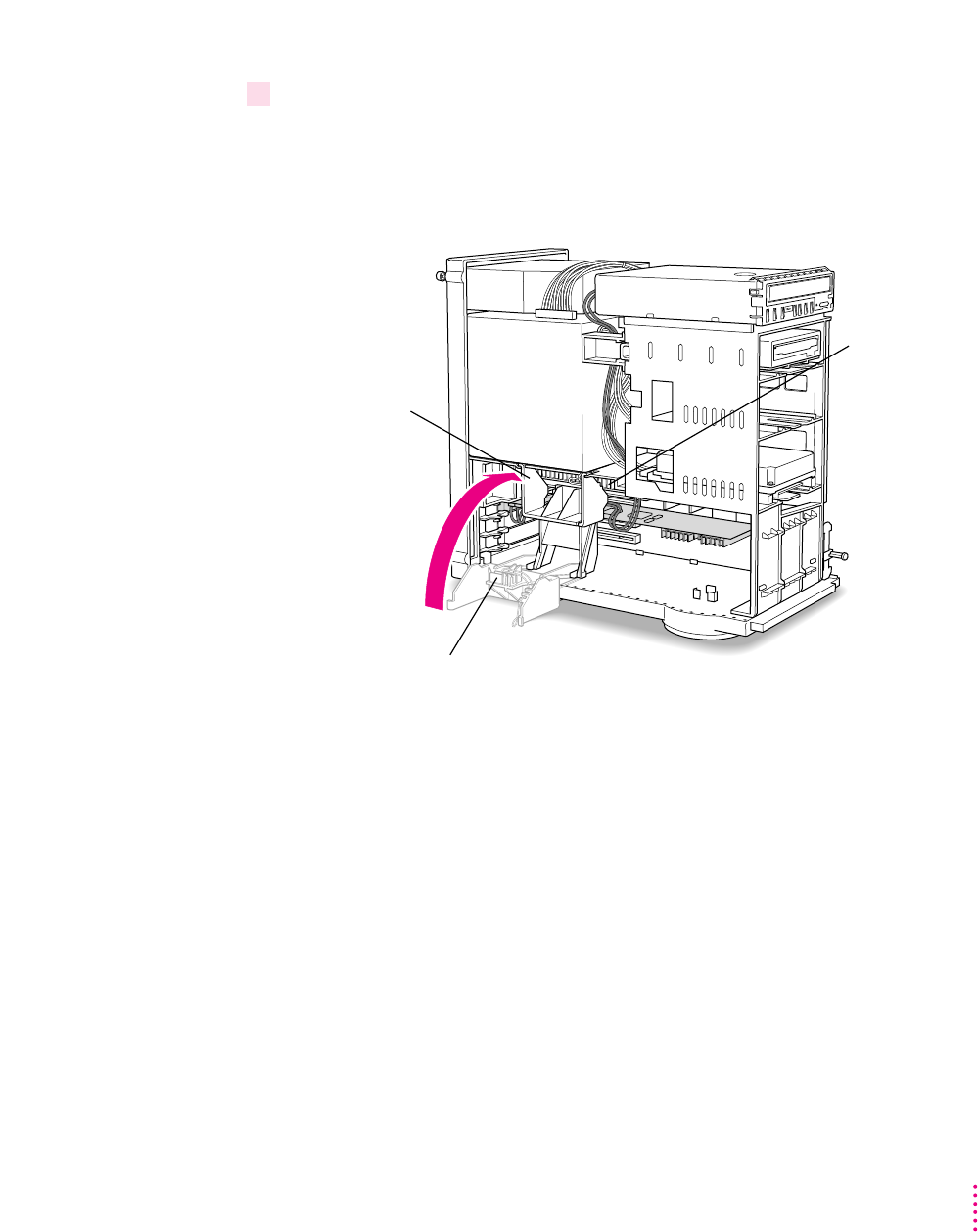
21 Replace the retainer or fan.
Make sure no cables are squeezed between the retainer or fan and the top of
the card.
If you have a Power Macintosh 8500, follow this illustration:
This guide on the retainer engages the processor card in the computer.
Snap the retainer
back into place. Be
sure not to pinch
the audio cables.
Processor card
79
Installing the Card in a Power Macintosh 8500 or 9500
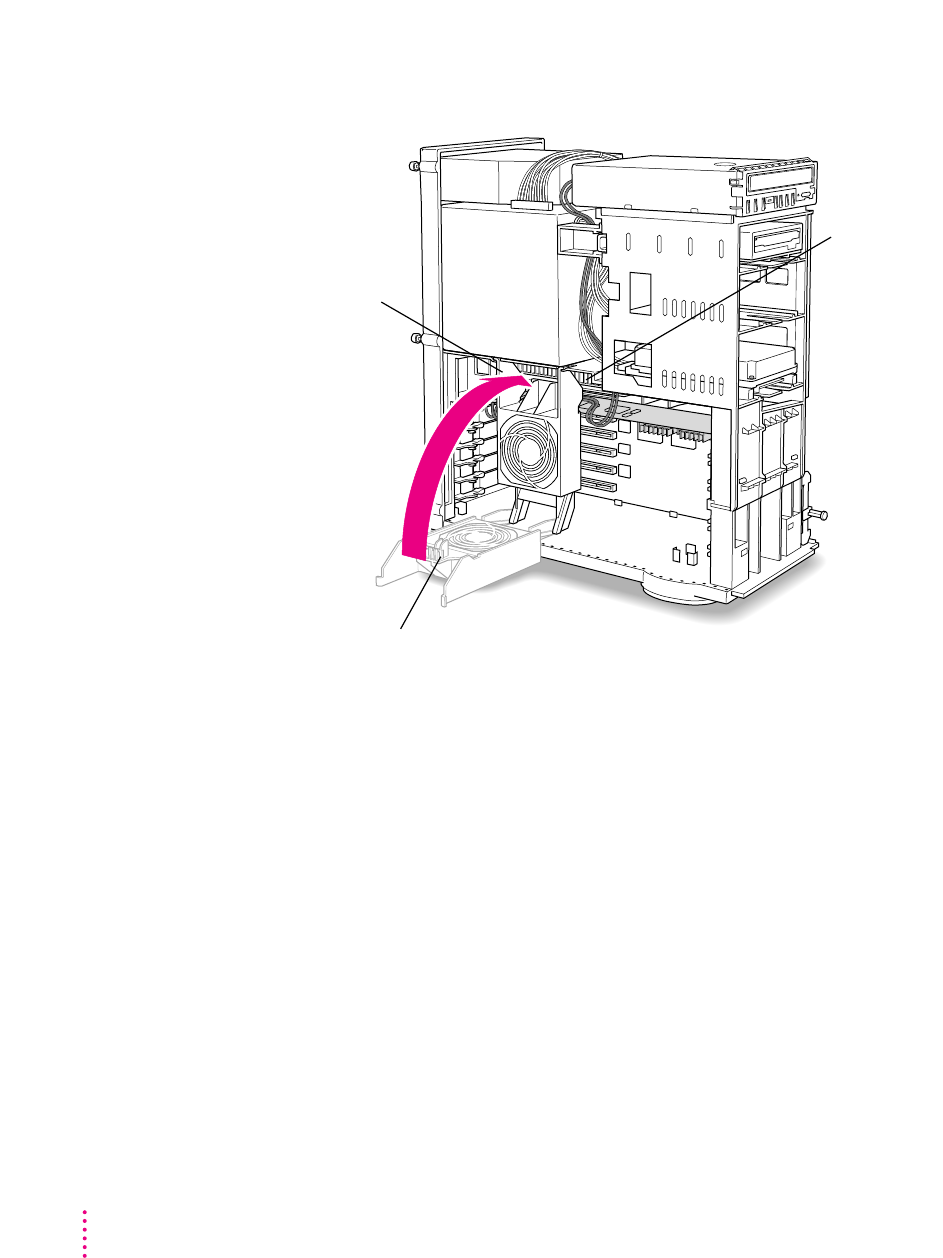
If you have a Power Macintosh 9500, follow this illustration:
Processor card
This guide on the auxiliary fan housing engages the processor card in the computer.
Snap the auxiliary
fan back into place.
Be sure not to pinch
the audio cables.
80 Chapter 3
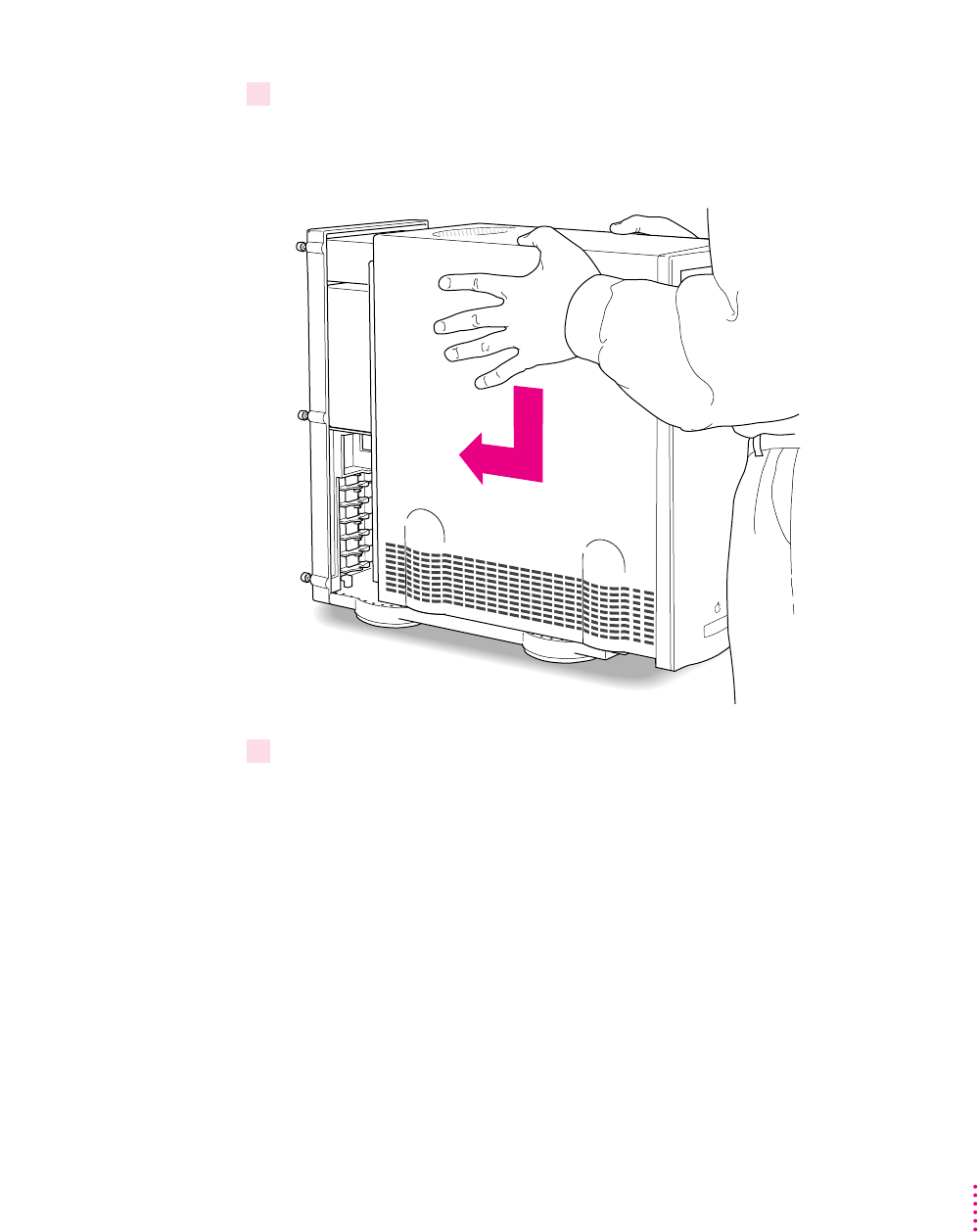
22 Replace the cover on the computer.
Lower the cover all the way down onto the case. Push the cover back until it
touches the back panel.
23 Tighten the screws on the back panel and reconnect the power cord and other
equipment cables.
You are now finished installing the card.
What’s next?
Next, go to Chapter 5, “Connecting Monitors and Other Equipment.”
Then go to Chapters 6 through 9 for instructions on installing and using
your software.
81
Installing the Card in a Power Macintosh 8500 or 9500

83
Installing the Card
in a Power Macintosh 8600 or 9600
The illustrations in this chapter show the 8600 model. If you have a 9600,
some of the illustrations may look slightly different from your computer.
IMPORTANT
If you will be installing a PC Serial and Parallel Card with your
PC Compatibility Card, it’s easiest to install both cards at the same time. The
PC Serial and Parallel Card has standard PC ports that allow you to use
several kinds of PC-compatible peripherals from the Windows or DOS
environment (not from the Mac OS environment). Instructions in this
chapter indicate when to see your PC Serial and Parallel Card manual for
installation information.
After you install the PC Compatibility hardware, go to Chapter 5,
“Connecting Monitors and Other Equipment.” If you want to install
additional memory in your card, go to Appendix B, “Adding Memory to Your
PC Compatibility Card.” Then turn to Chapters 6 through 9 to learn more
about installing and using PC software.
WARNING
Shipping your computer with a PC Compatibility Card
installed may cause damage to the card. Your PC Compatibility Card
should be shipped separately. (See Appendix A for instructions on how
to remove the card.)
4
What you need
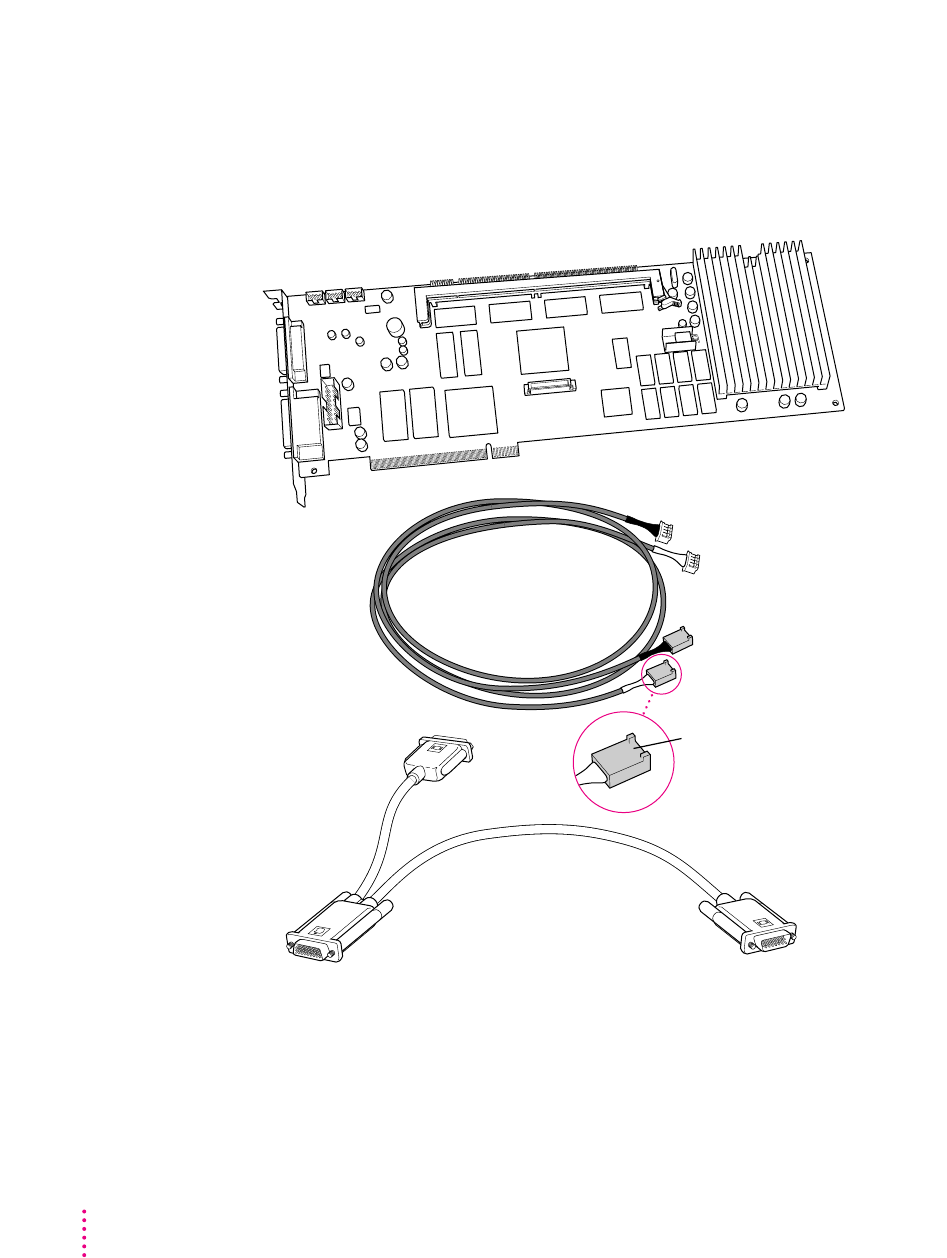
Before beginning the installation process, make sure you have all the
necessary parts: the PC Compatibility Card, the audio cables, and the
loopback cable. You’ll also need a Phillips screwdriver.
Loopback cable
PC Compatibility Card
Audio cables for
SCSI CD-ROM drives (2)
You’ll need the
two cables that
have this plug
84 Chapter 4
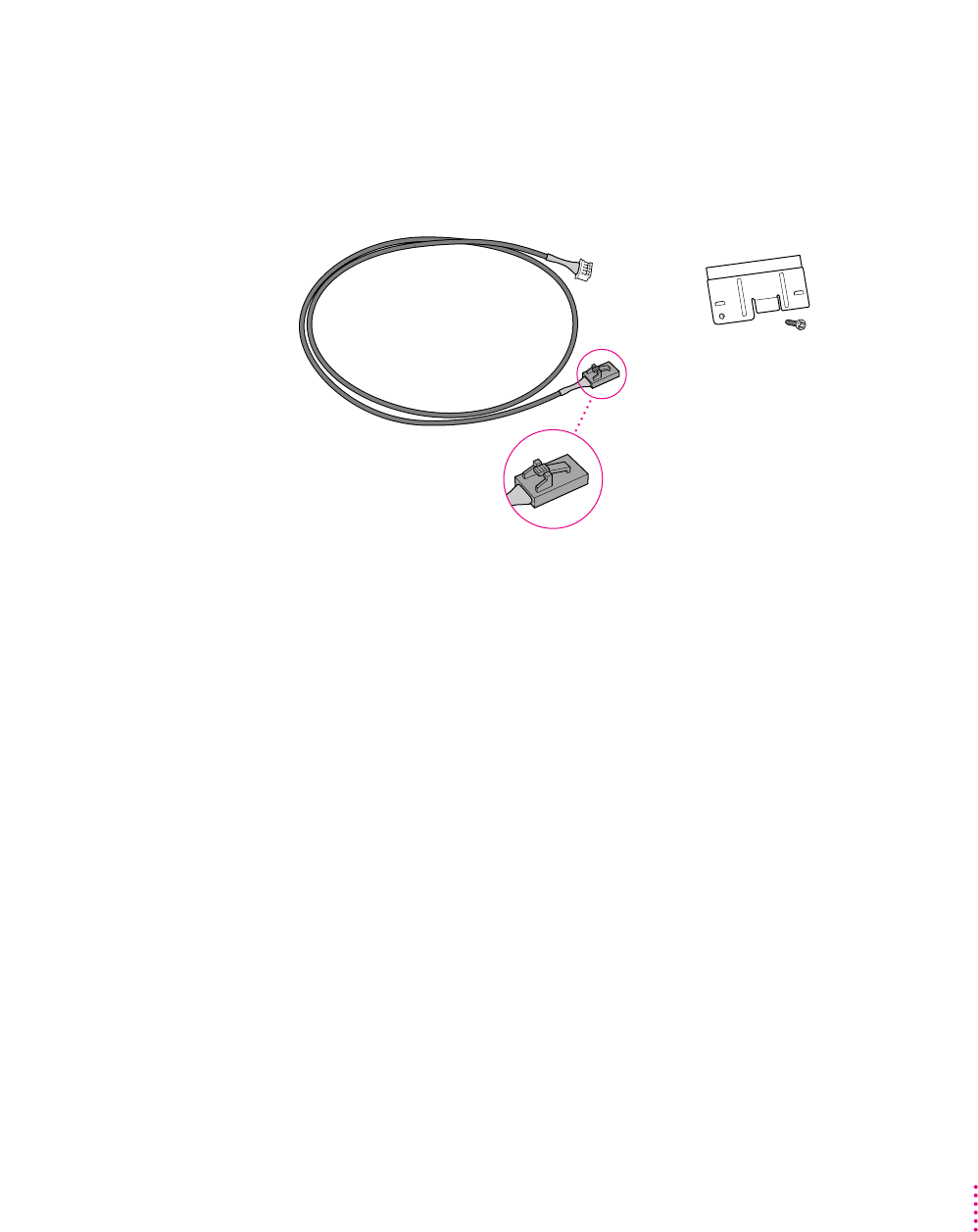
You won’t need the card extension bracket and screw.
Depending on what kind of CD-ROM drive your computer has, you may need
the audio cable that has a different plug from the other two cables (shown
below). Keep it nearby.
Card extension
bracket and screw
Audio cable for
ATAPI CD-ROM drives
85
Installing the Card in a Power Macintosh 8600 or 9600

Installing the PC Compatibility Card hardware
There are several steps to installing your PC Compatibility Card hardware:
mopening the computer
minserting the PC Compatibility Card
mopening the chassis
mconnecting the Sound Out cable
mreplacing the chassis
madjusting the position of the CD-ROM drive
mconnecting the CD In cable
mreplacing the CD-ROM drive
mreplacing the computer cover
WARNING
The installation of the PC Compatibility Card is technically
complex. Unless you are comfortable installing components inside
computers, Apple recommends that you have the PC Compatibility
Card installed by your Apple-authorized dealer (who may charge a
fee). If you attempt to install the card yourself, any damage you may
cause to your equipment will not be covered by the limited warranty
on your computer.
Do not attempt to install the card, install memory, or connect the cables
without first reading this manual.
86 Chapter 4
Opening the computer
1If your computer is turned on, shut it down and wait 20 minutes.
Before proceeding with these instructions, you need to allow the computer’s
internal components to cool.
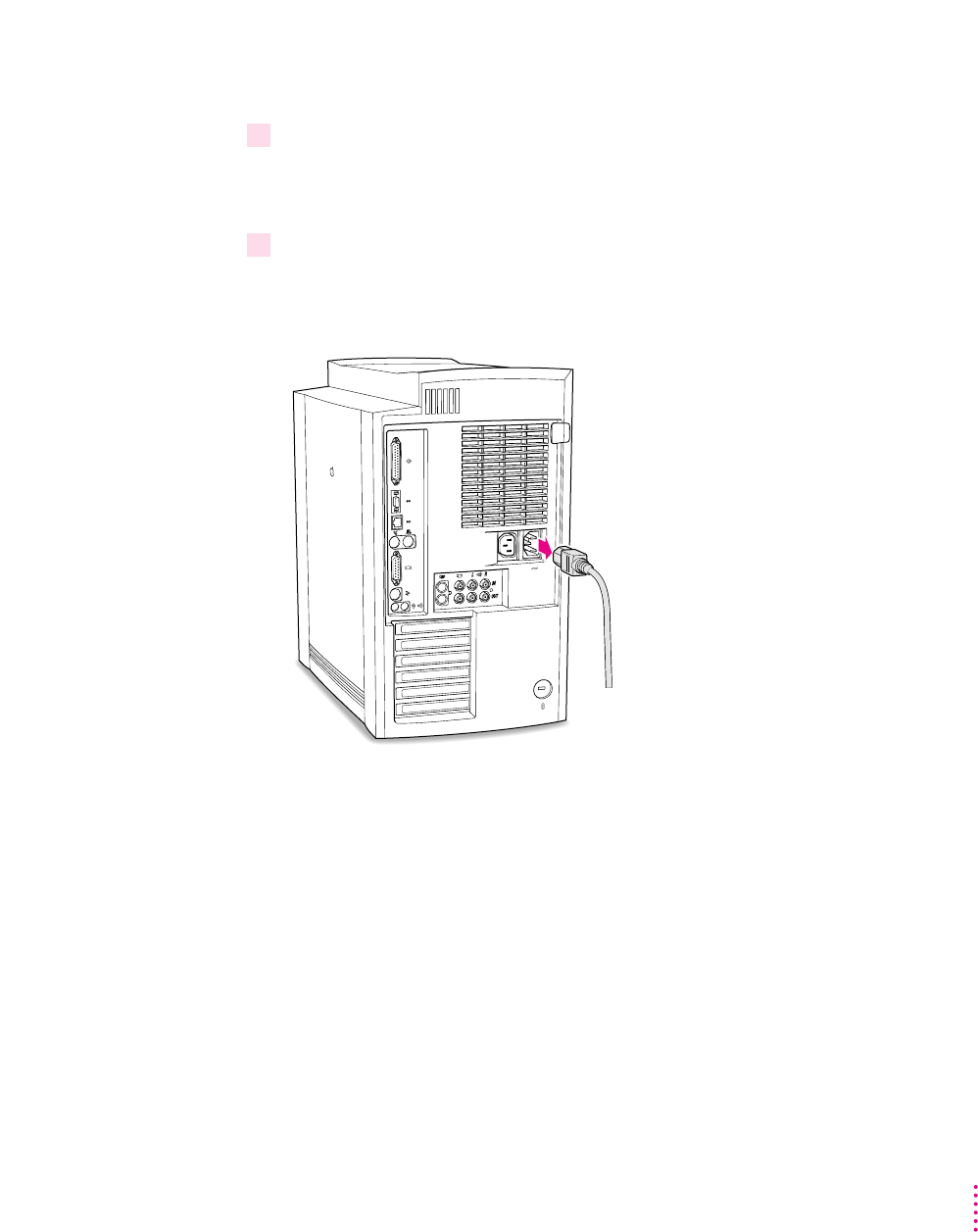
2Disconnect all the cables from the computer, including the power cord.
Remove the power cord now so you don’t pull it by accident as you turn the
computer on its side in the next step. You’ll reconnect the power cord in step 4.
87
Installing the Card in a Power Macintosh 8600 or 9600
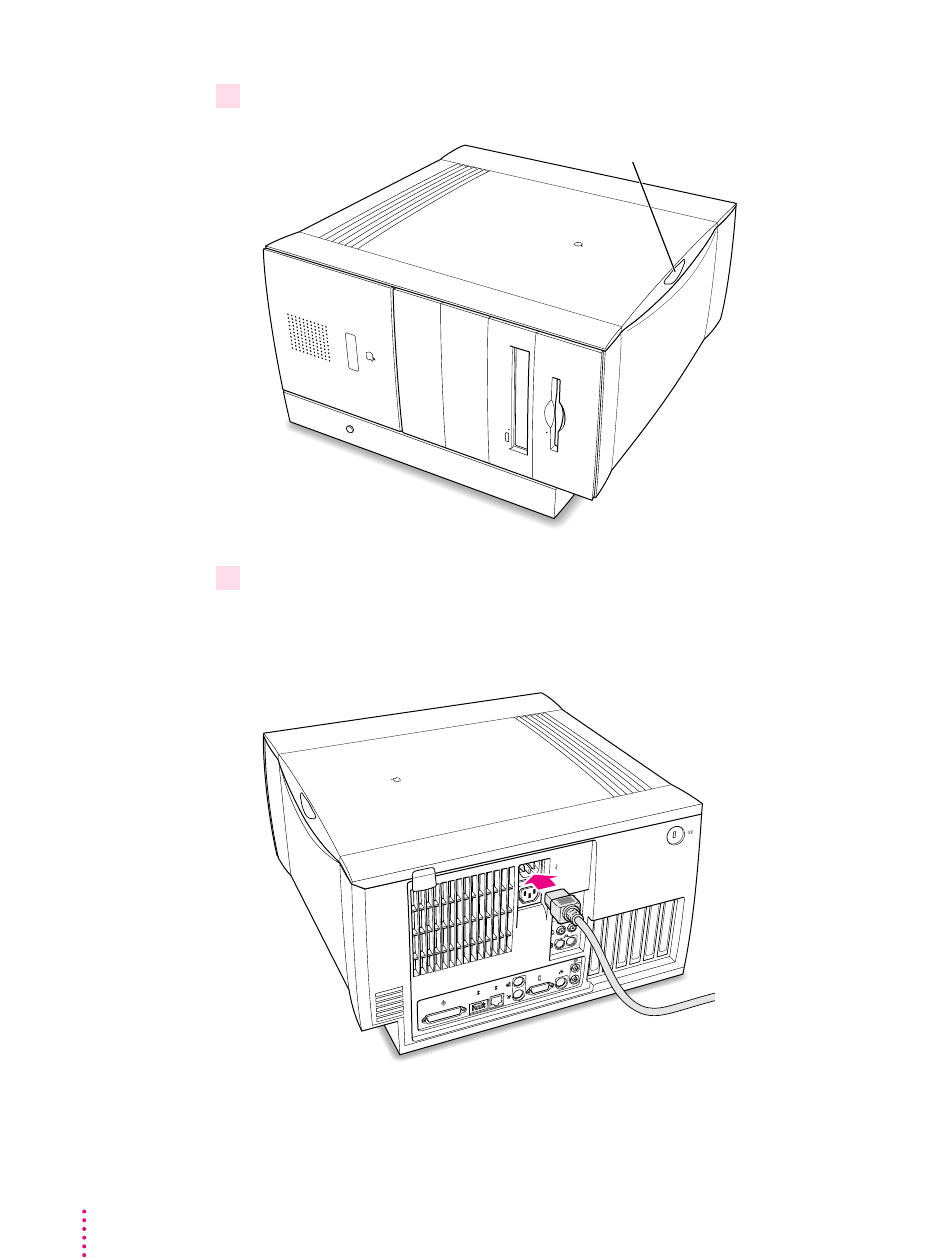
3 Carefully lay the computer on its side with the cover and release button facing up.
4 Reconnect the power cord.
Connect the power cord to your computer and to an AC outlet. This helps
protect the computer from damage caused by static electricity.
(back of computer)
Button
88 Chapter 4
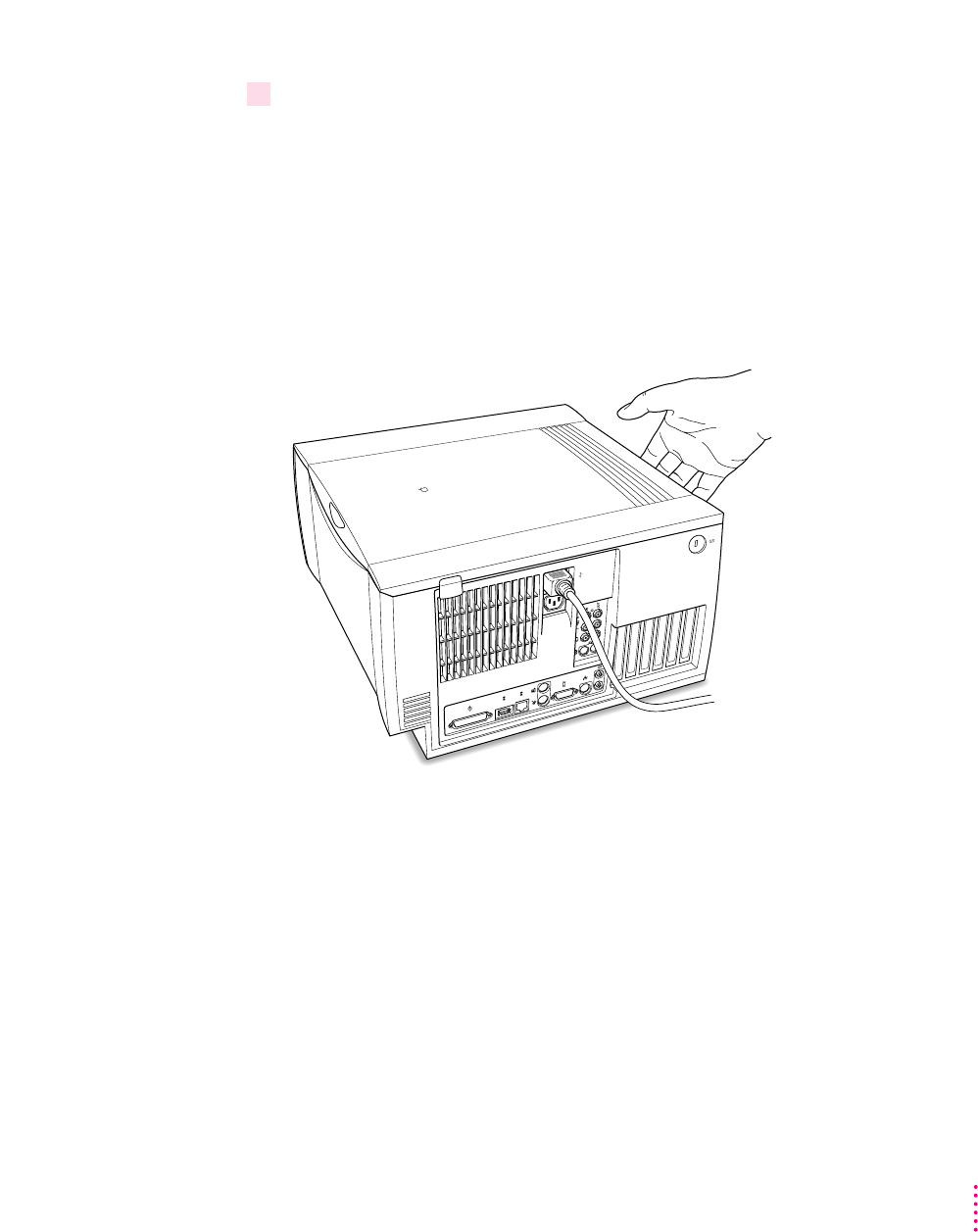
5 Touch the metal on the bottom of the computer.
Always do this before you touch any parts, or install any components, inside
the computer. Touching the metal helps release static electricity from your
body and prevent possible damage to internal components.
IMPORTANT
You can collect static electricity just by walking away from and
then back to your computer. If you need to move away from your computer
during installation, remember to touch the metal bottom again before you
continue installing.
89
Installing the Card in a Power Macintosh 8600 or 9600
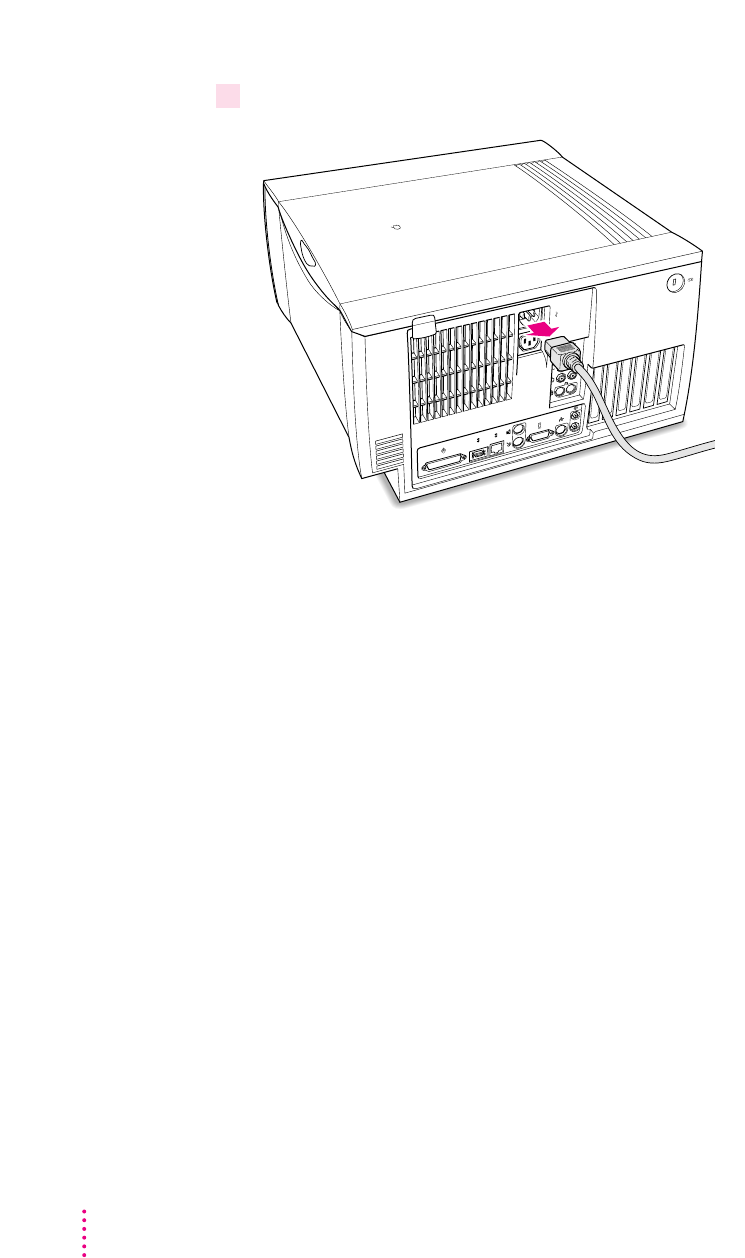
6 Disconnect the power cord again.
90 Chapter 4
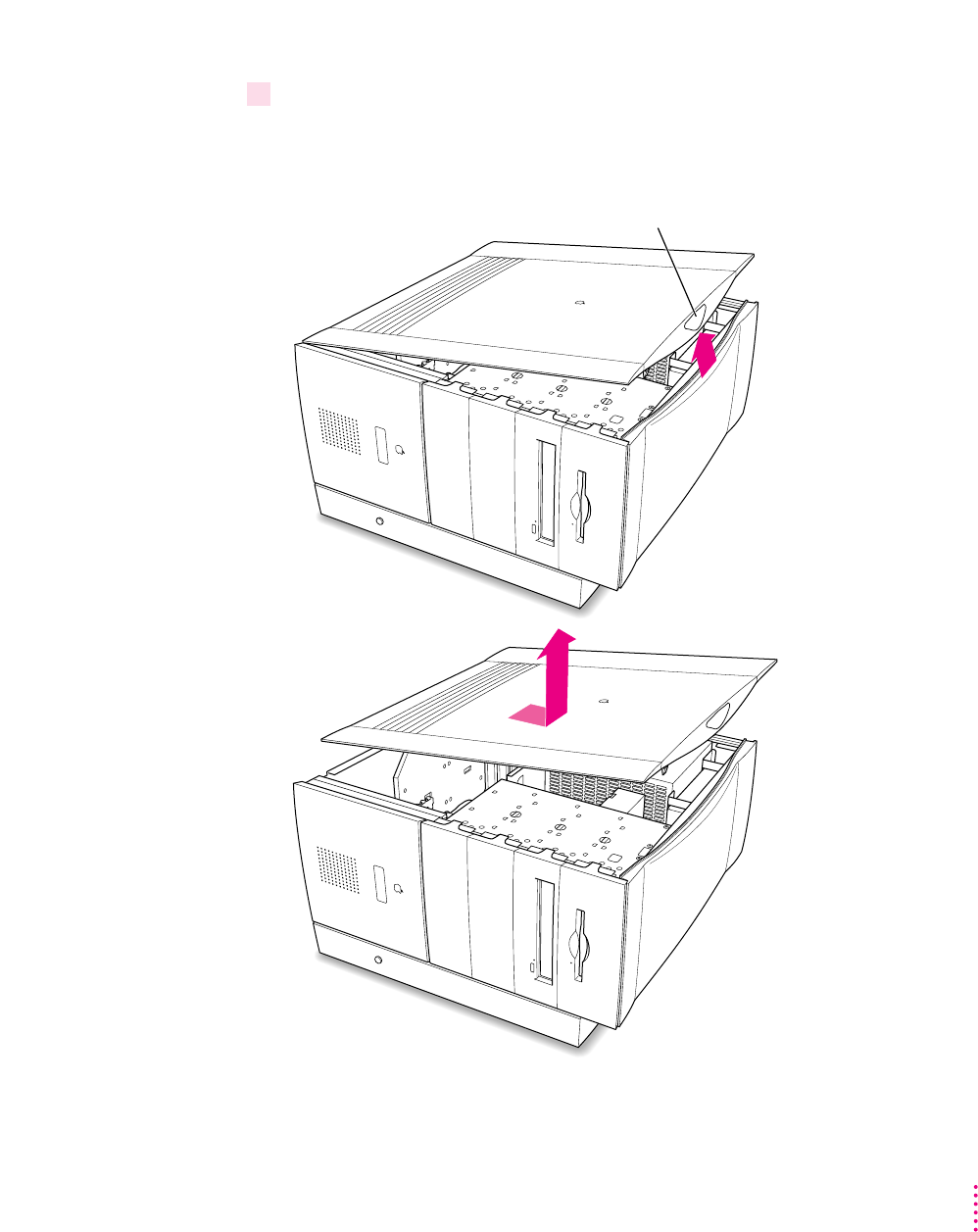
7 Remove the computer cover.
Press the release button and lift the cover a few inches. Then slide the cover
to the right and lift it off.
Button
91
Installing the Card in a Power Macintosh 8600 or 9600
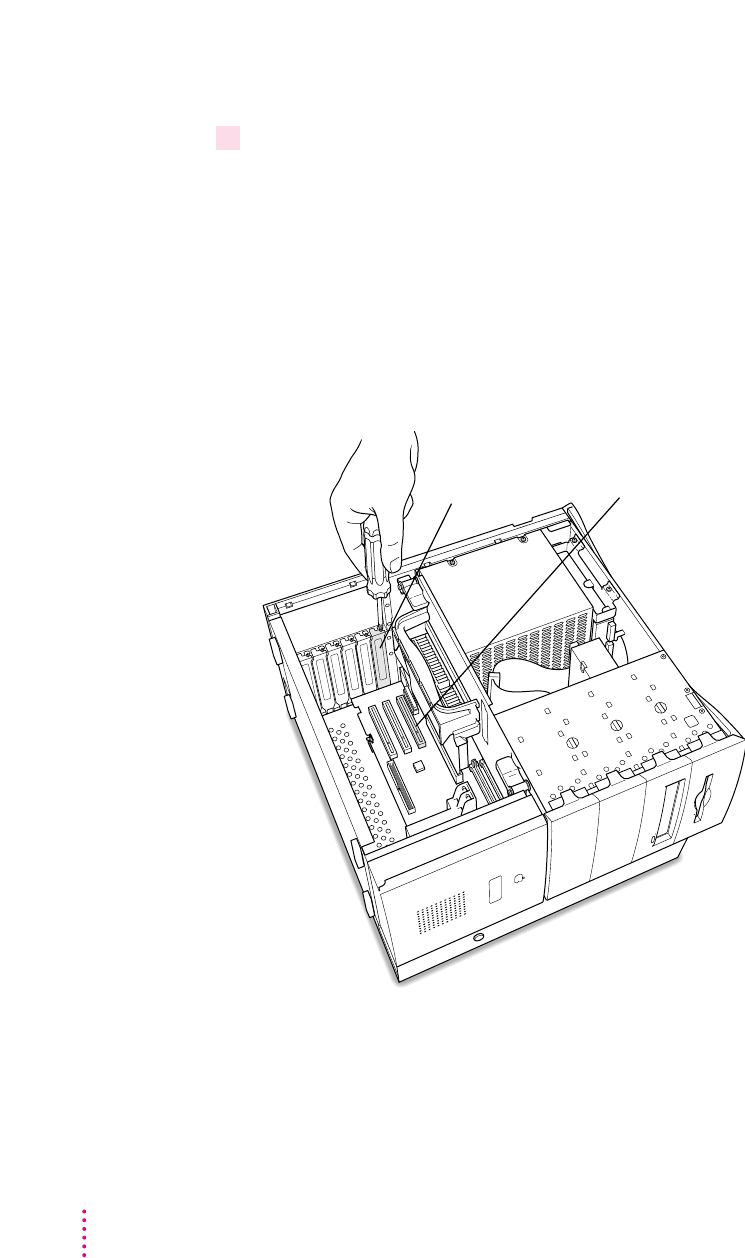
Inserting the PC Compatibility Card
8Unscrew the metal port access cover on the first slot.
You need to install your PC Compatibility Card in the first PCI expansion
slot, the slot closest to the processor card. If there is already a card in the first
slot, move it to a different slot. (To remove a card, first remove the screw near
the port access opening.)
IMPORTANT
If you will be installing a PC Serial and Parallel Card, you should
also remove any card in the second slot (next to the first slot).
Keep the screw; you’ll reinsert it later.
Port access cover First PCI slot
(front of computer)
92 Chapter 4
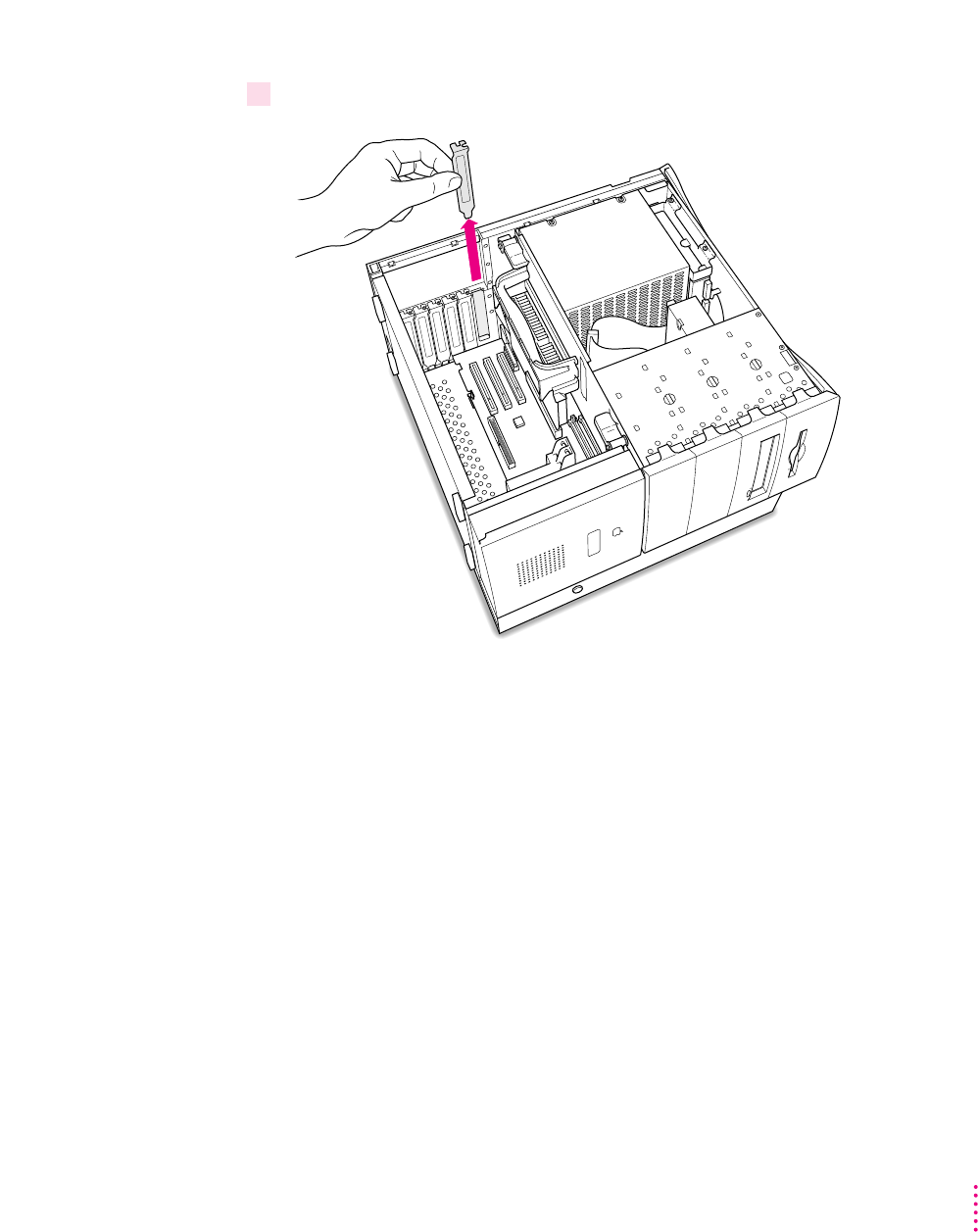
9 Remove the port access cover.
What you do next depends on whether you are adding a DIMM (dual inline
memory module) to increase the memory available to your PC Compatibility
Card, and whether you are installing a PC Serial and Parallel Card.
mIf you want to add memory to your card, turn now to Appendix B, “Adding
Memory to Your PC Compatibility Card.” After you’ve completed the
instructions in Appendix B, go on to step 10 in this section.
mIf you want to install the PC Serial and Parallel Card, you’ll need to
connect the peripheral flex cable to your PC Compatibility Card now. See
the PC Serial and Parallel Card manual for instructions. Then return to this
manual, and go on to step 10 in this section.
If you don’t want to add memory or install the PC Serial and Parallel Card, go
on to step 10.
93
Installing the Card in a Power Macintosh 8600 or 9600
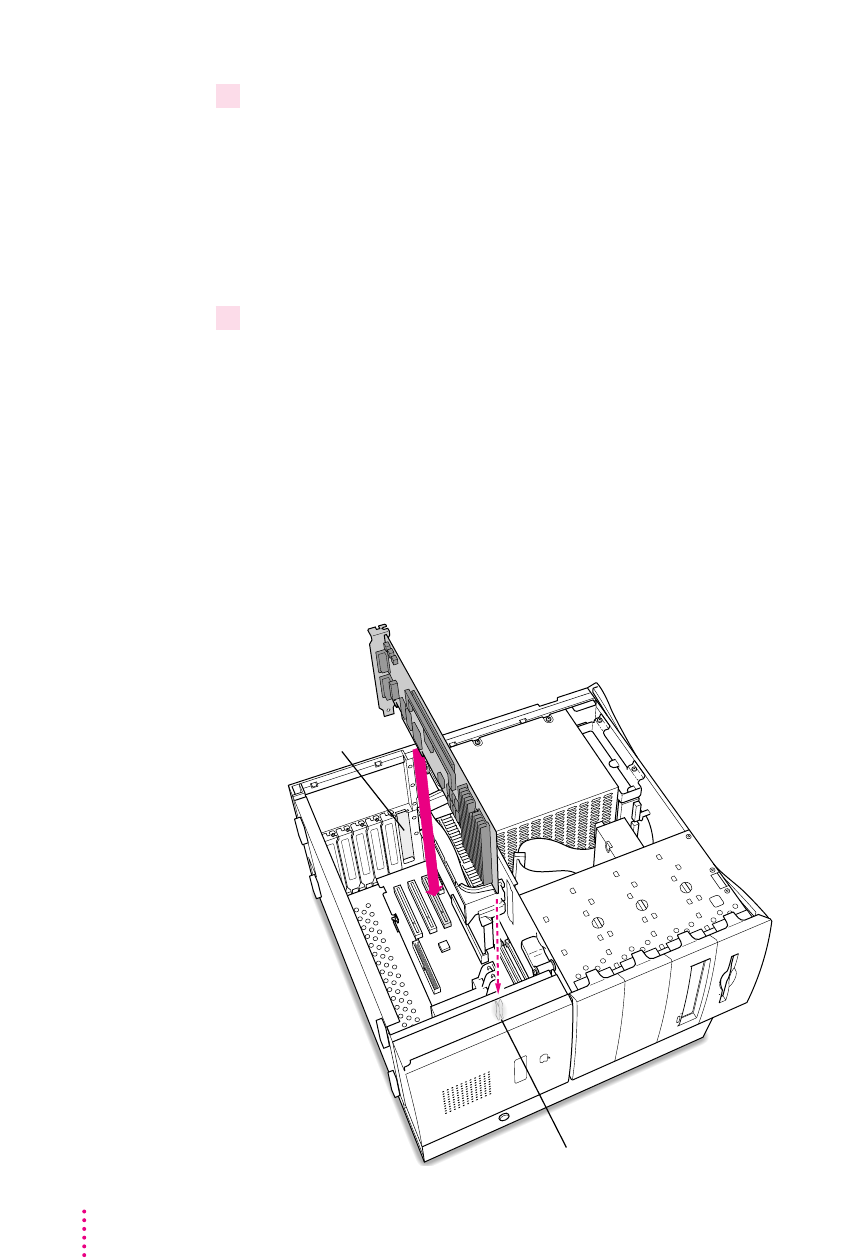
10 Align the card with the expansion slot.
IMPORTANT
Always hold the card by its edges. Don’t touch any of the
components on the card.
Align the card’s connector end (gold in color) with the first PCI expansion
slot. The ports on the card should face the port access opening on the
computer’s back panel.
11 Insert the card.
The end of the card should engage the card guide at the front of the computer.
Press down on the card. When the card is fully inserted, you won’t be able to
see the gold-colored connector any more.
mDon’t rock the card from side to side; press it straight into the slot. Rocking
the card can damage the PCI slot.
mDon’t force the card. If you meet a lot of resistance, pull the card out and
try again.
mTo see if the card is connected, pull it gently. If it resists, it is connected.
Port access
opening
Be sure that the card engages the card guide.
94 Chapter 4
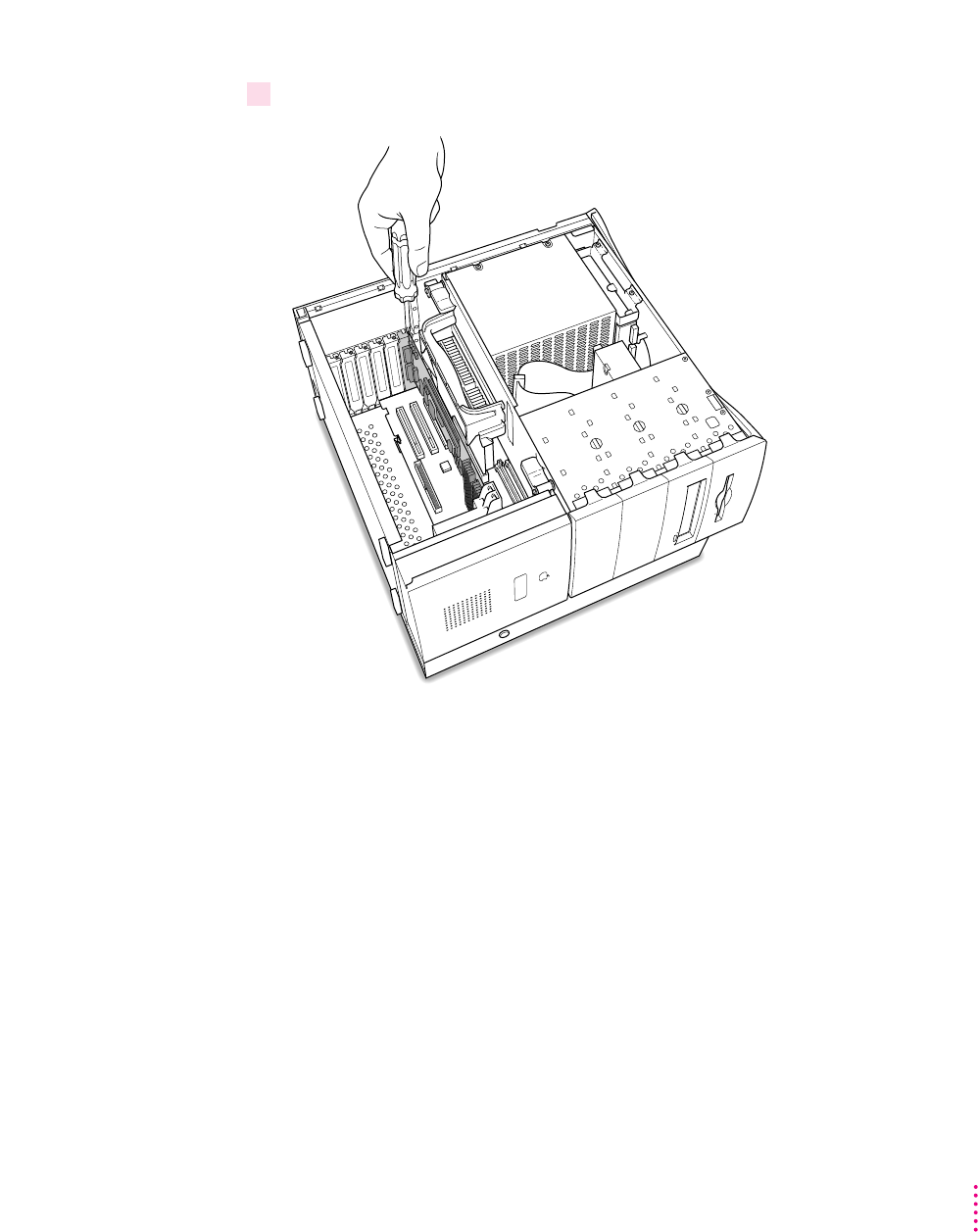
12 Reinsert the screw you removed from the port access cover earlier, and tighten it.
(front of computer)
95
Installing the Card in a Power Macintosh 8600 or 9600
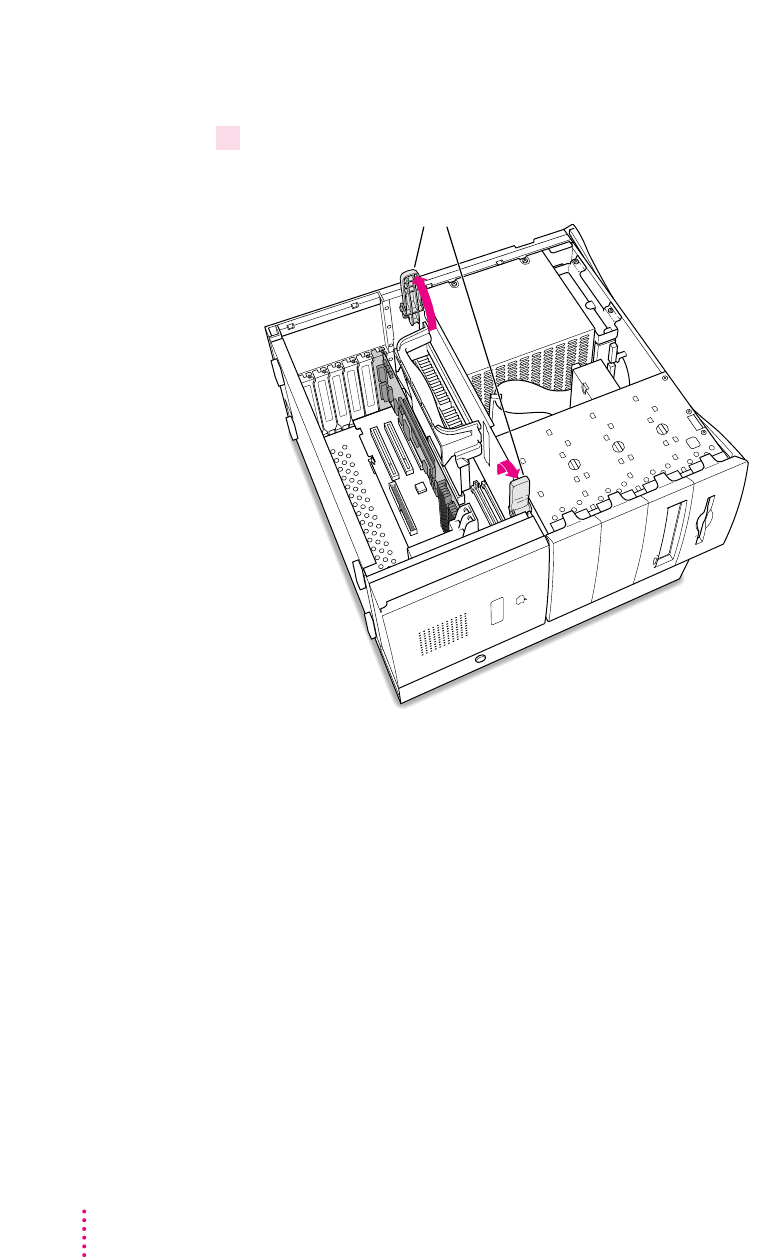
Opening the chassis
13 Unlock the top chassis by moving the levers as indicated below.
Unlock the top chassis by moving the
two levers upward and outward.
96 Chapter 4
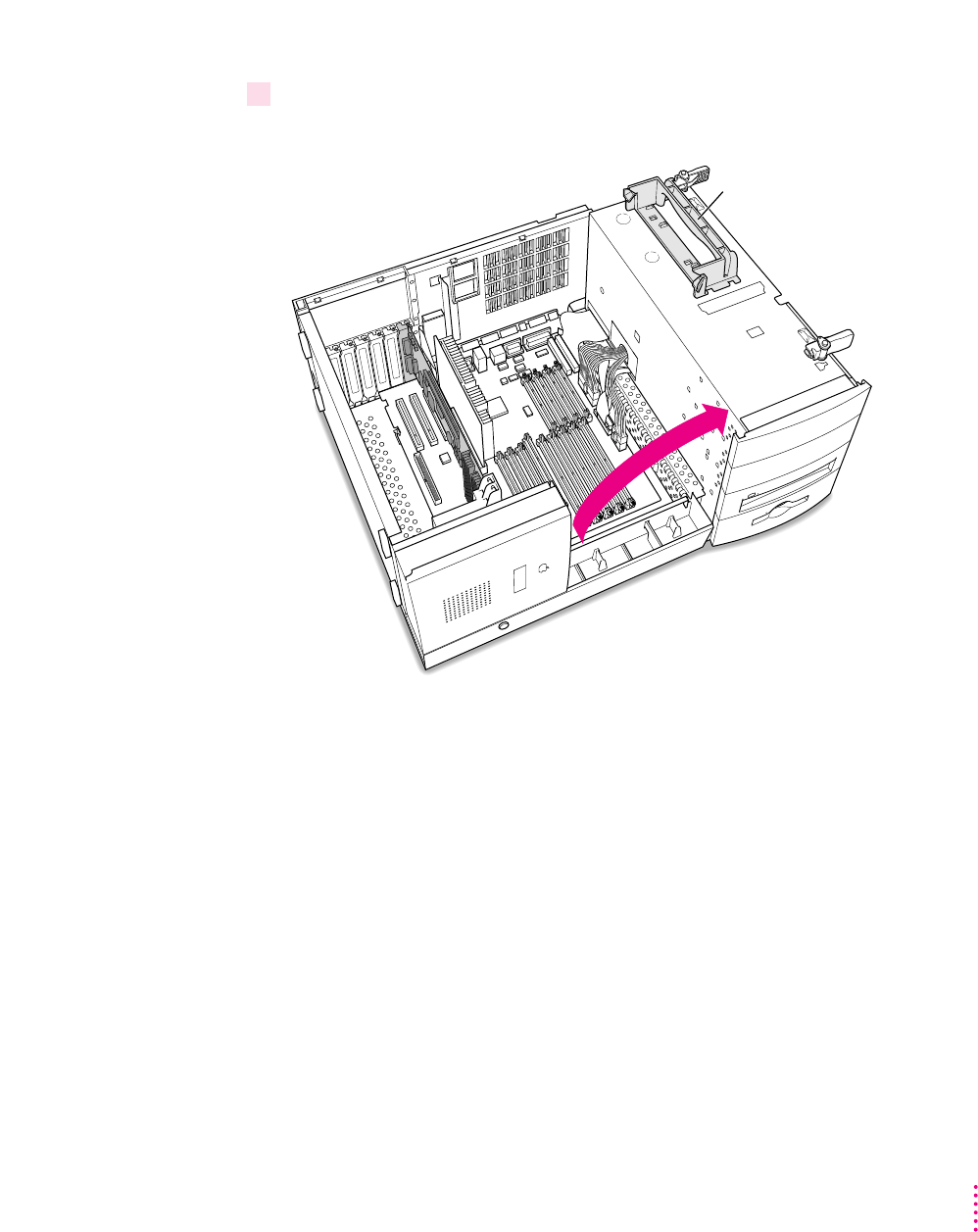
14 Using the plastic handle, lift the top chassis up and to the side until it rests on your
work surface.
Handle
97
Installing the Card in a Power Macintosh 8600 or 9600
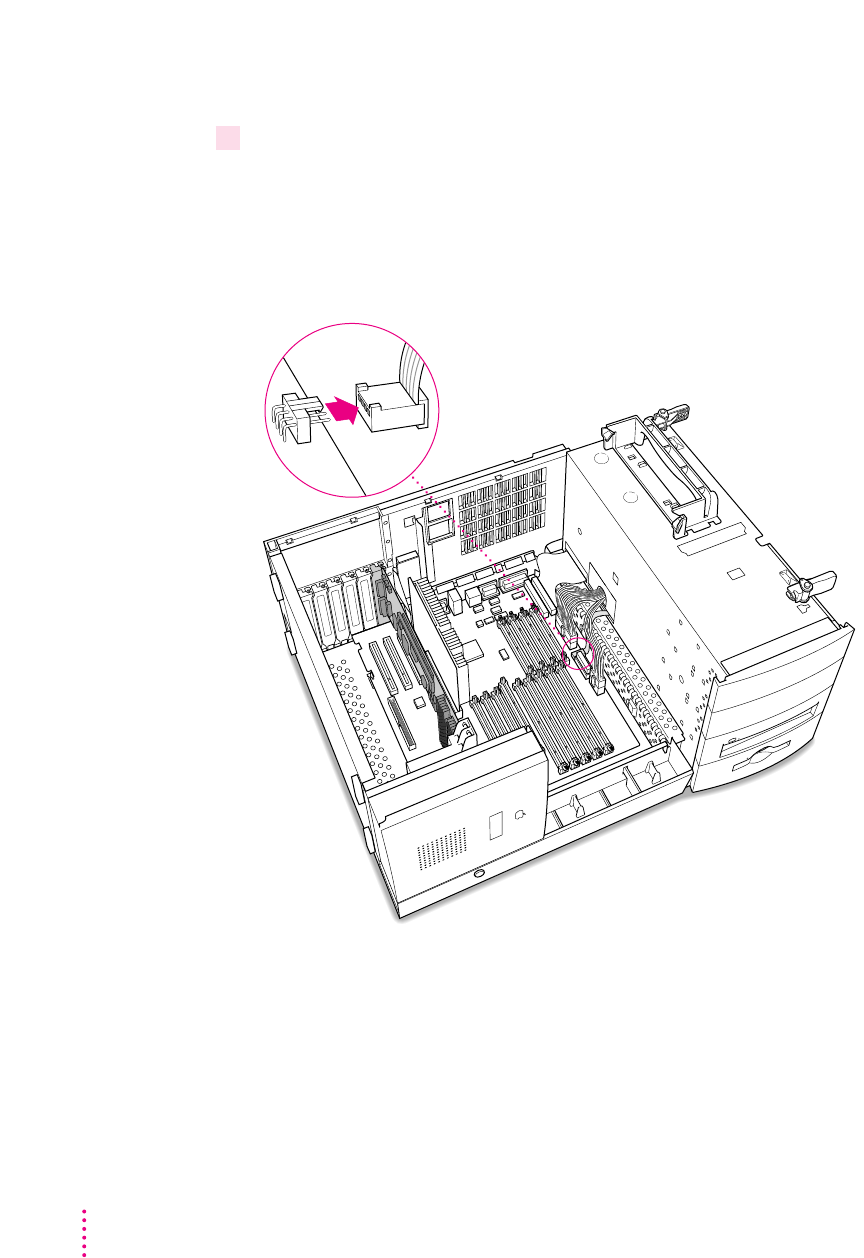
Connecting the Sound Out cable
15 Disconnect the audio ribbon cable from the Macintosh logic board.
This cable is connected near the DRAM DIMM slots. The connector has four
pins, and may be labeled “CD AUDIO” on the logic board.
Be sure to pull on the plug, not the cable. After you have disconnected the
cable, leave it in place for now.
98 Chapter 4

16 Plug one of the two identical SCSI audio cables (with the plug shown below) into the
connector on the logic board.
IMPORTANT
Use only the cables that came with this PC Compatibility Card.
Do not use cables from other models of the card.
Your PC Compatibility Card came with three audio cables. They may have
different colors of tubing near the ends to help you tell them apart. You’ll
only be using two of these cables (the third one is for a different kind of CD-
ROM drive). Two of the cables have identical plugs on the end, as shown
below. Use one of these two identical cables for this step.
Audio cable plug for
SCSI CD-ROM drives
99
Installing the Card in a Power Macintosh 8600 or 9600
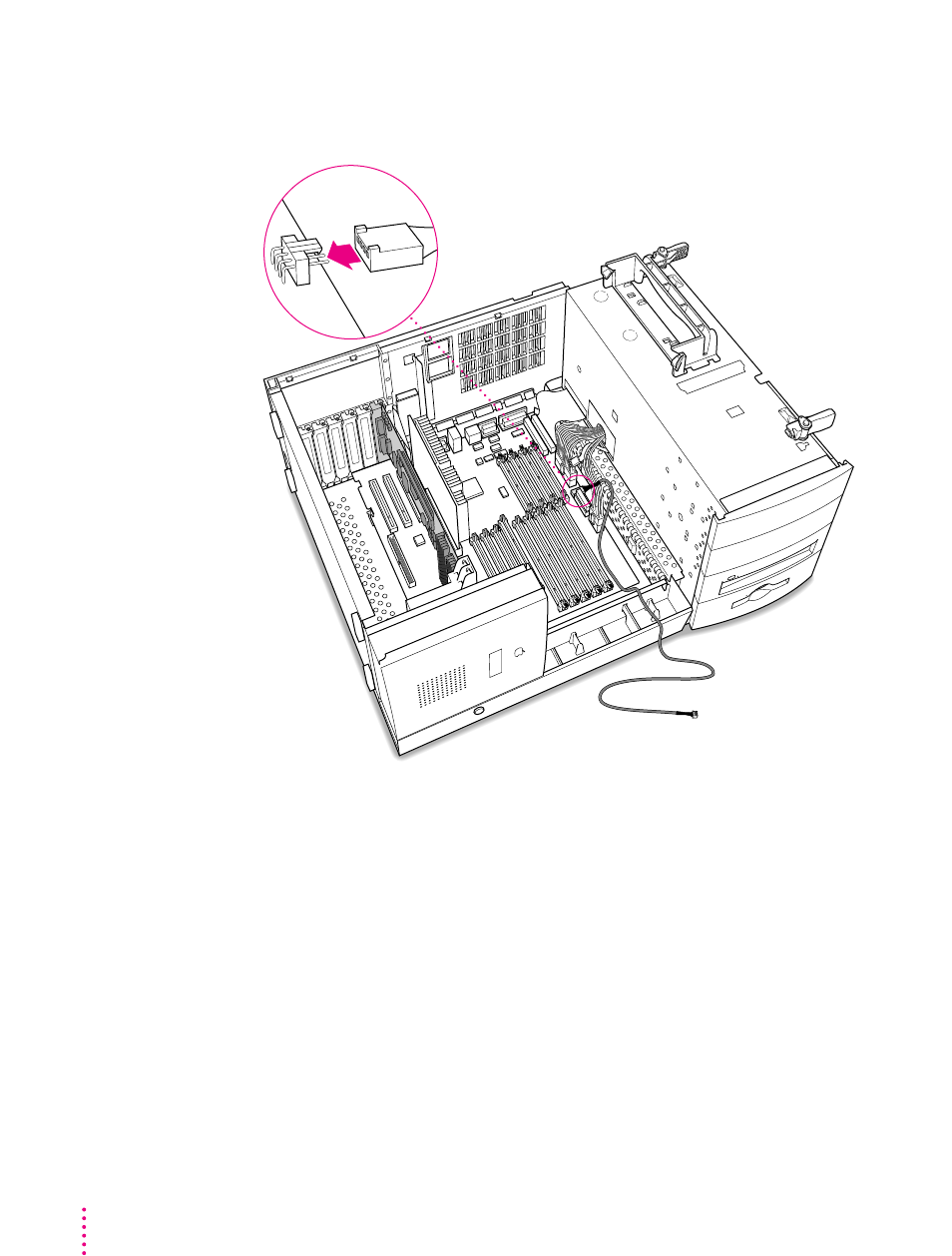
Insert the cable’s larger plug into the CD audio connector on the logic board,
where you just unplugged the ribbon cable.
100 Chapter 4
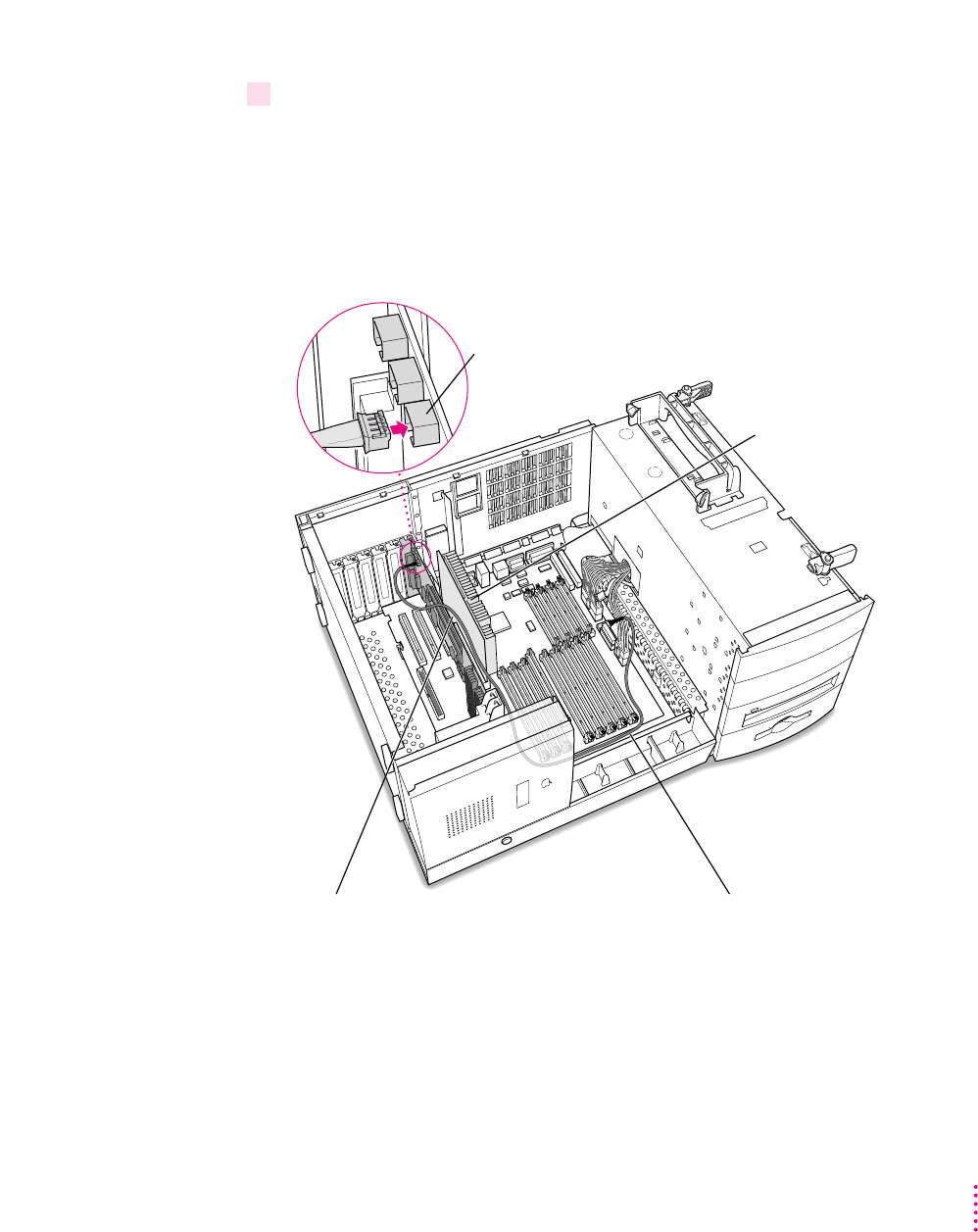
17 Plug the other end of the SCSI audio cable into the connector labeled “REV_SND_OUT”
(Reversed Sound Out) on the PC Compatibility Card.
The Reversed Sound Out connector is in the upper-left corner of the card, the
third connector from the end.
Route the cable between the PC Compatibility Card and the processor card,
and toward the front of the interior as shown.
Connector labeled “REV_SND_OUT” on the PC Compatibility Card
Route the cable so that it passes between the
processor card and the PC Compatibility Card.
Route the cable around the
front of the computer’s interior.
Processor card
101
Installing the Card in a Power Macintosh 8600 or 9600
Replacing the chassis
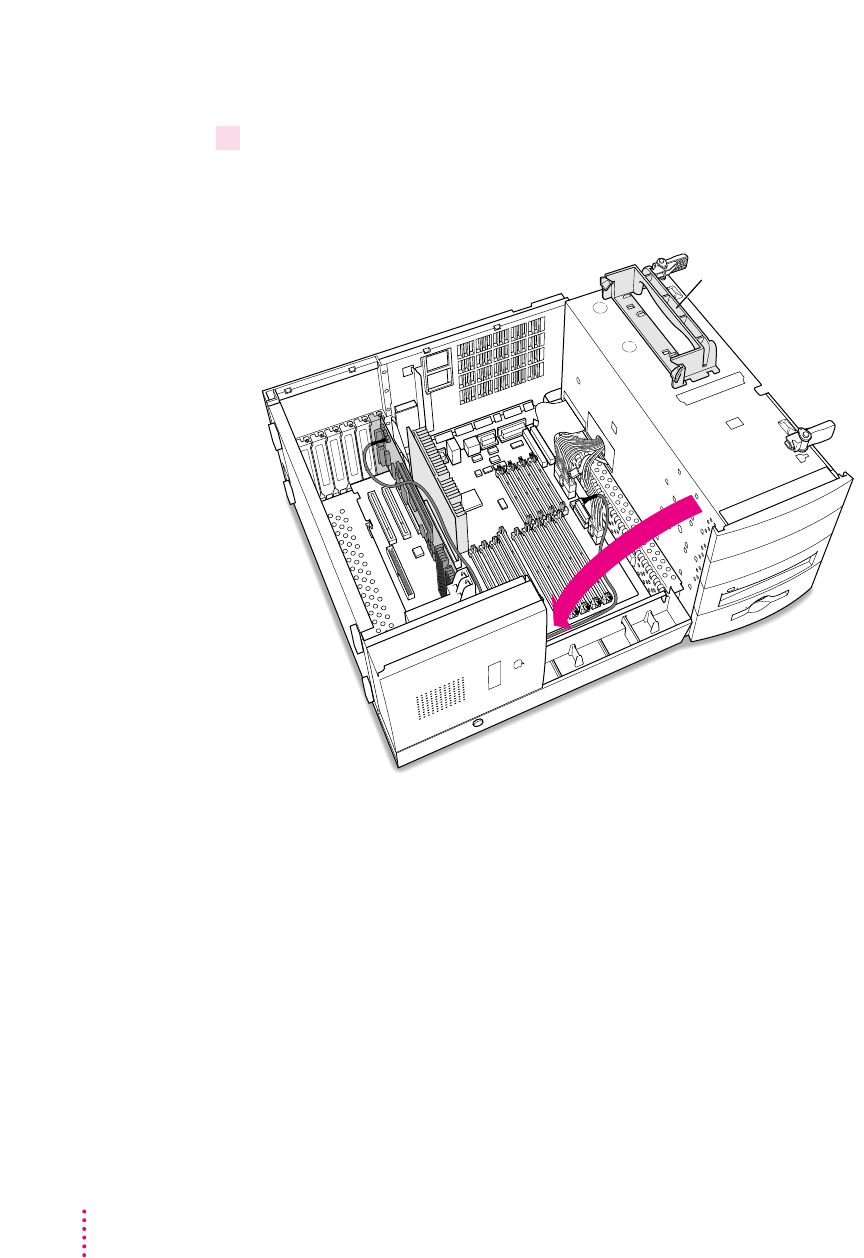
18 Grasping the handle, gently swing the chassis back into place.
Make sure the cable you just positioned stays in place and doesn’t get pinched
by the chassis.
Handle
102 Chapter 4
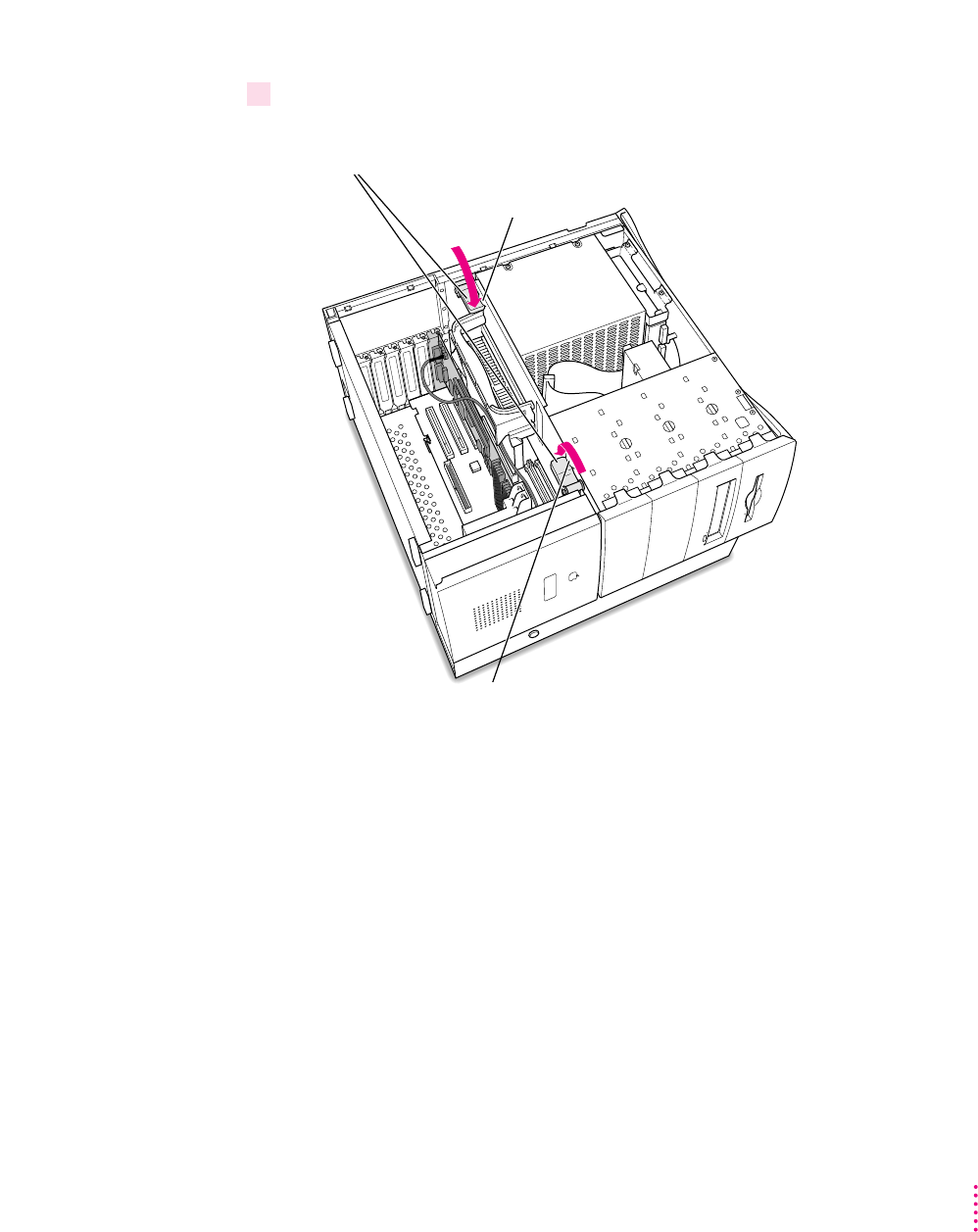
19 Lock the chassis by rotating the levers.
Lock the top chassis in place by moving the two levers inward and downward.
Be sure that they snap underneath the raised catches on the chassis.
Raised catch
Raised catch
103
Installing the Card in a Power Macintosh 8600 or 9600
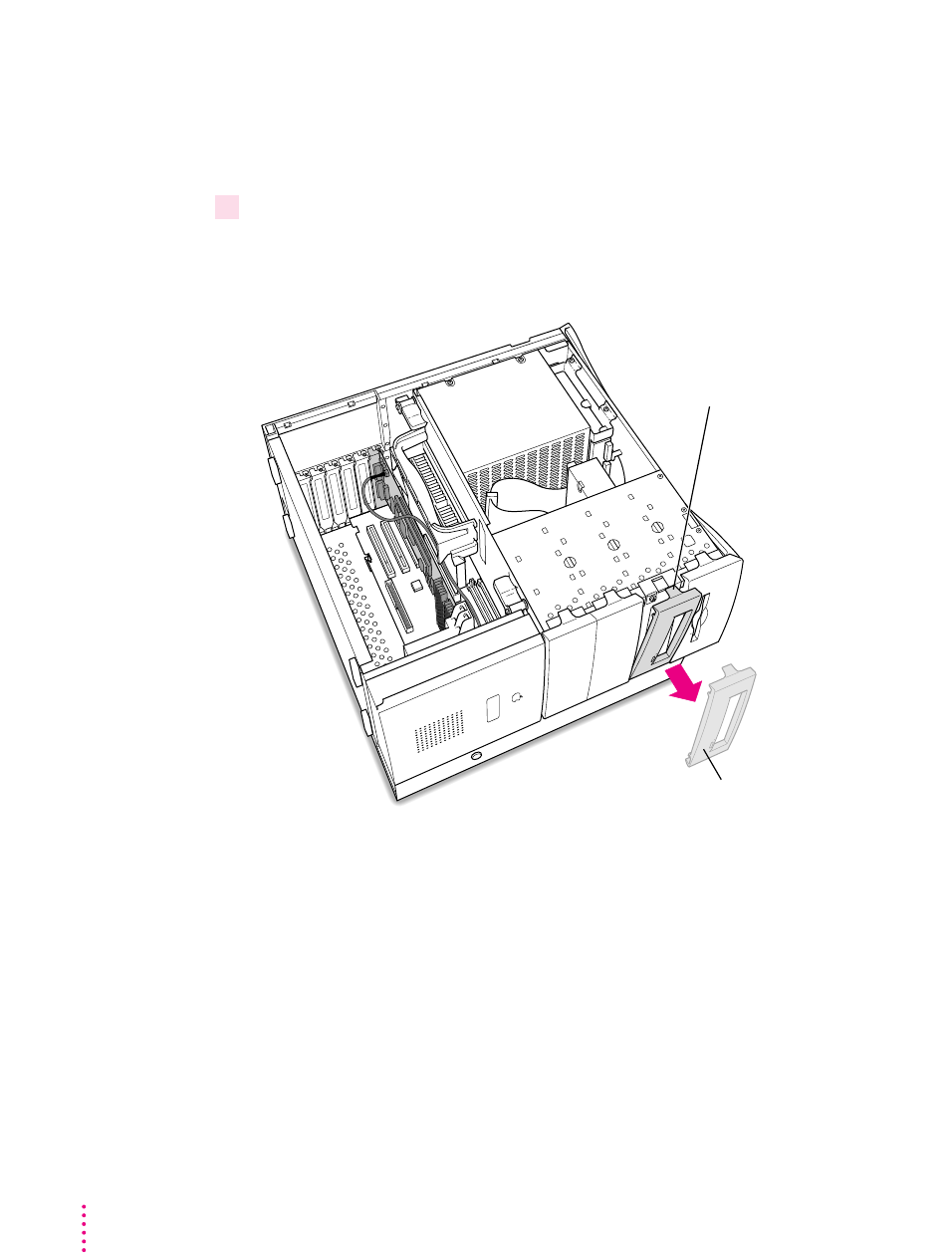
Adjusting the position of the CD-ROM drive
You need to adjust the position of the CD-ROM drive so you’ll have room to
insert the other audio cable into the back of the drive.
20 Remove the plastic faceplate in front of the CD-ROM drive.
Release the faceplate by lifting up on the tab in front of the CD-ROM drive at
the front of the computer.
Gently lift up on this tab to release
the plastic CD-ROM drive faceplate.
Plastic CD-ROM drive faceplate
104 Chapter 4
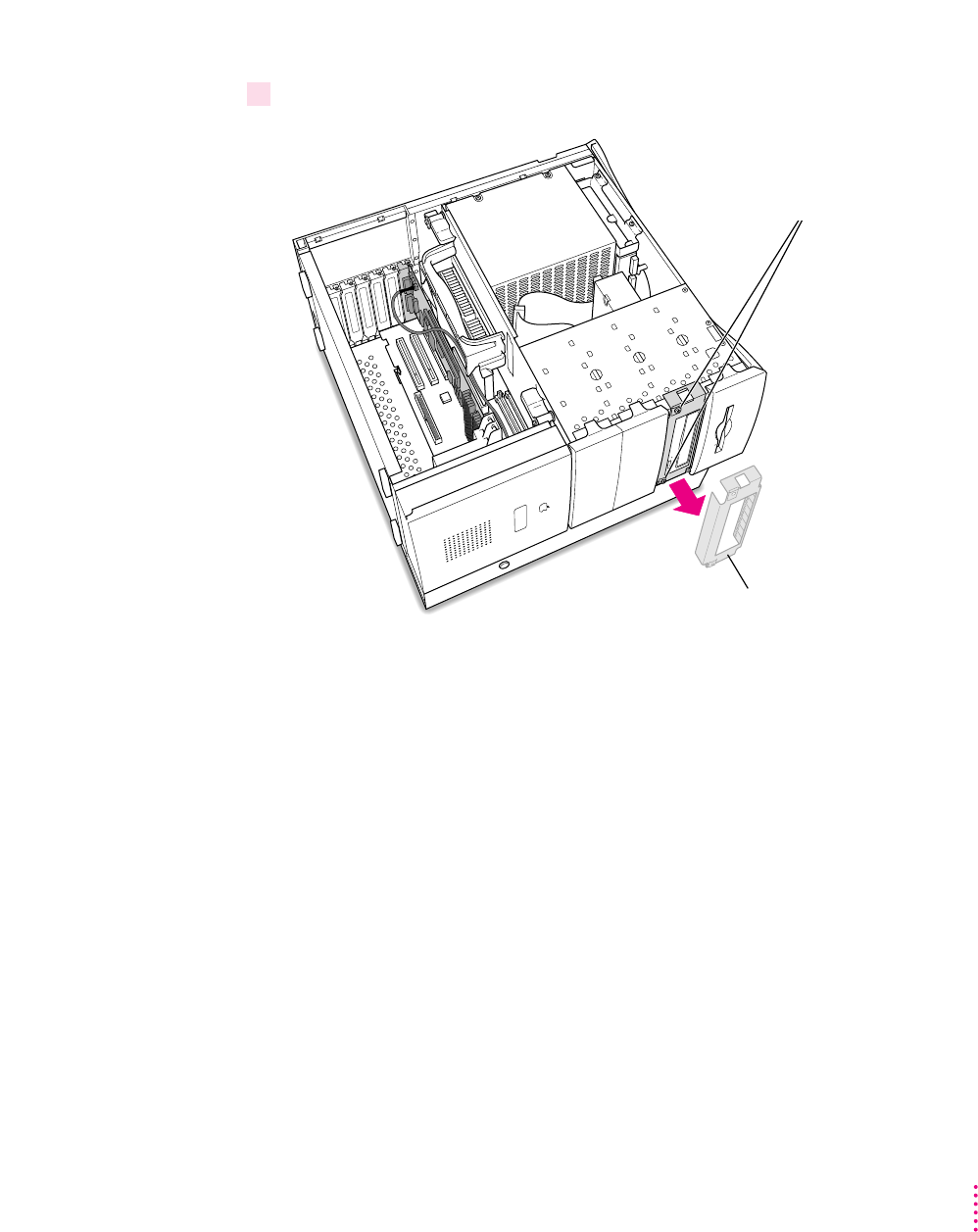
21 Remove the screws and metal shield in front of the CD-ROM drive.
Metal shield
Remove these two screws,
and remove the metal shield.
105
Installing the Card in a Power Macintosh 8600 or 9600
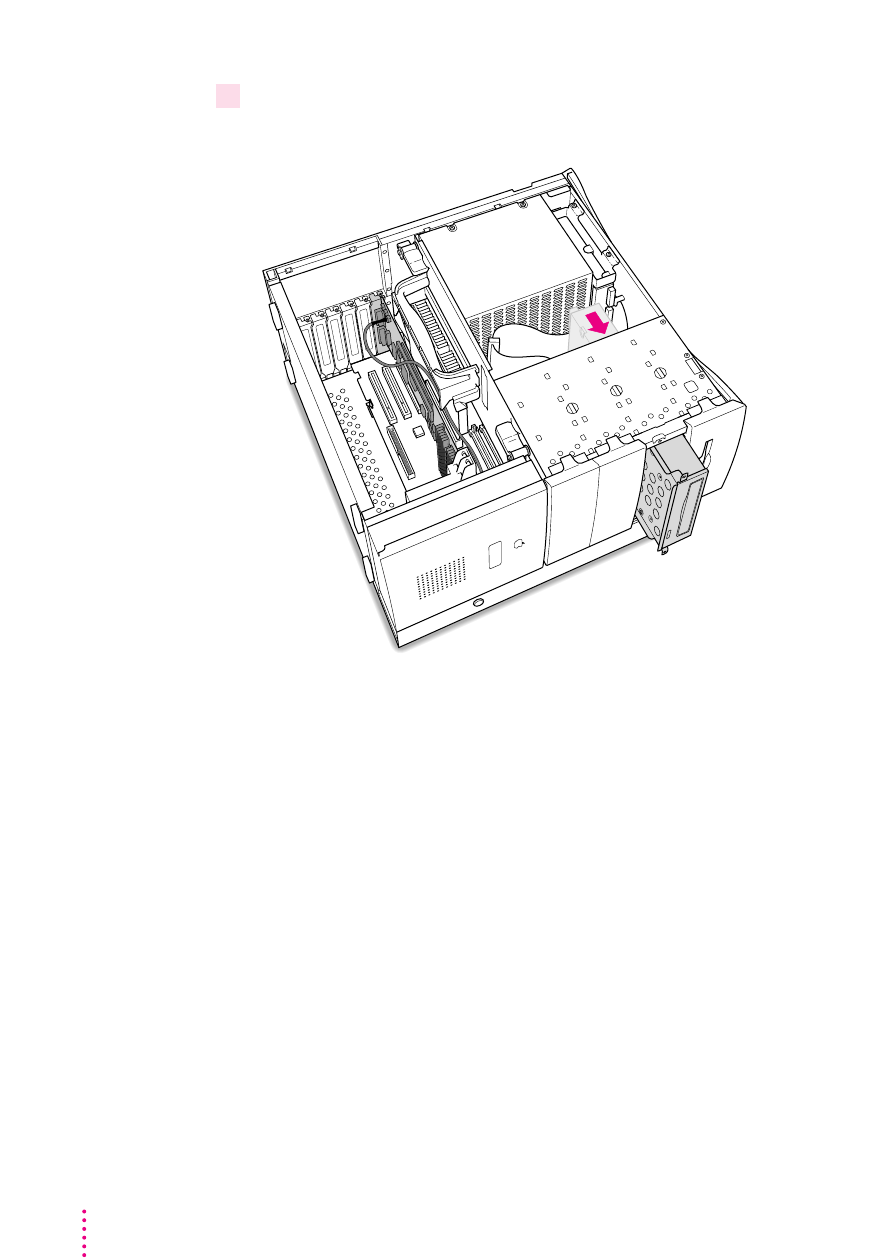
22 Push the CD-ROM drive forward until its back end is flush with the edge of the metal
plate above the drive.
106 Chapter 4
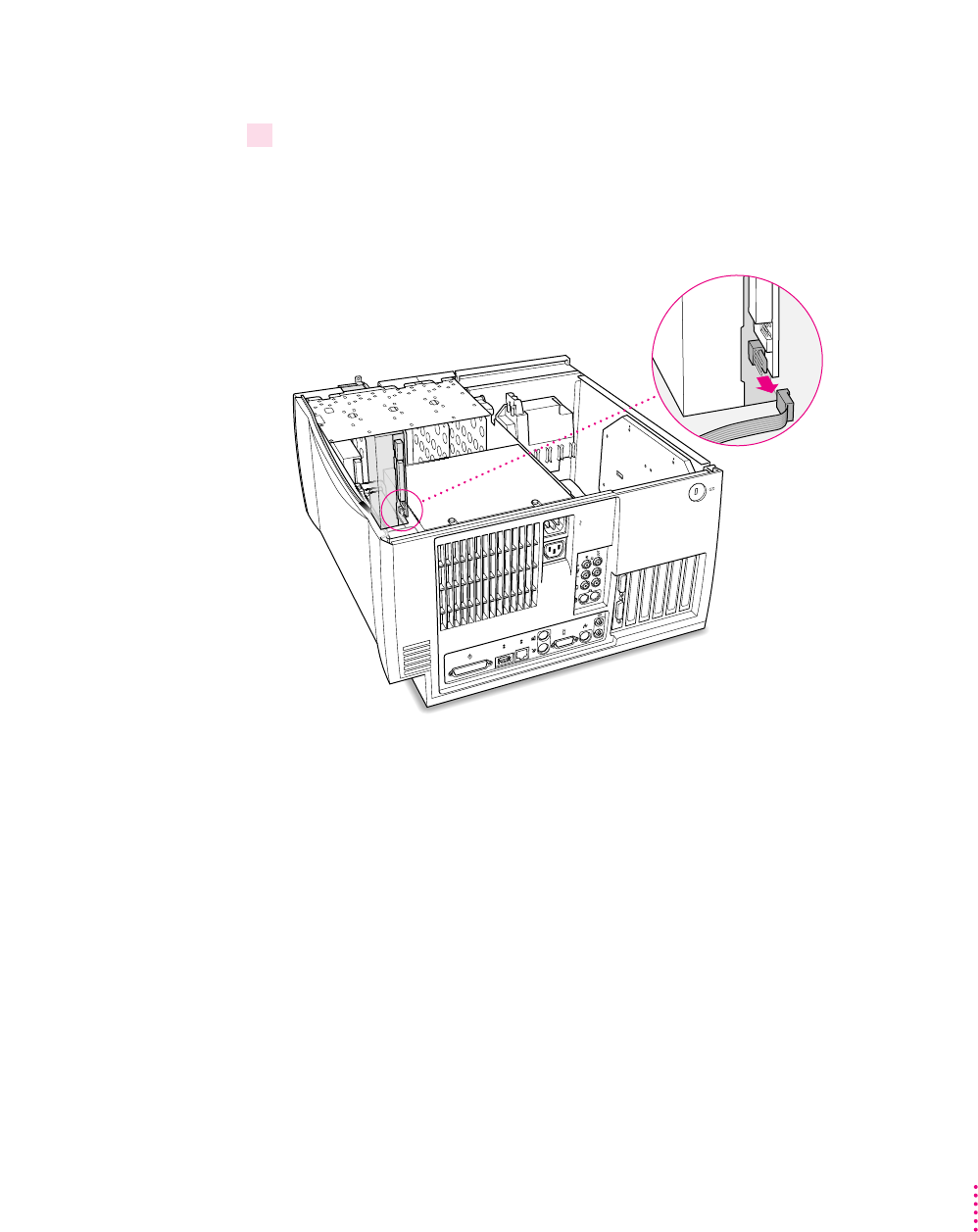
Connecting the CD In cable
23 Disconnect the audio ribbon cable from the back of the CD-ROM drive.
Be sure to pull on the plug, not the cable. Just leave the disconnected cable in
the computer; you will need to reinstall it if you ever remove your PC
Compatibility Card.
(back of computer)
107
Installing the Card in a Power Macintosh 8600 or 9600
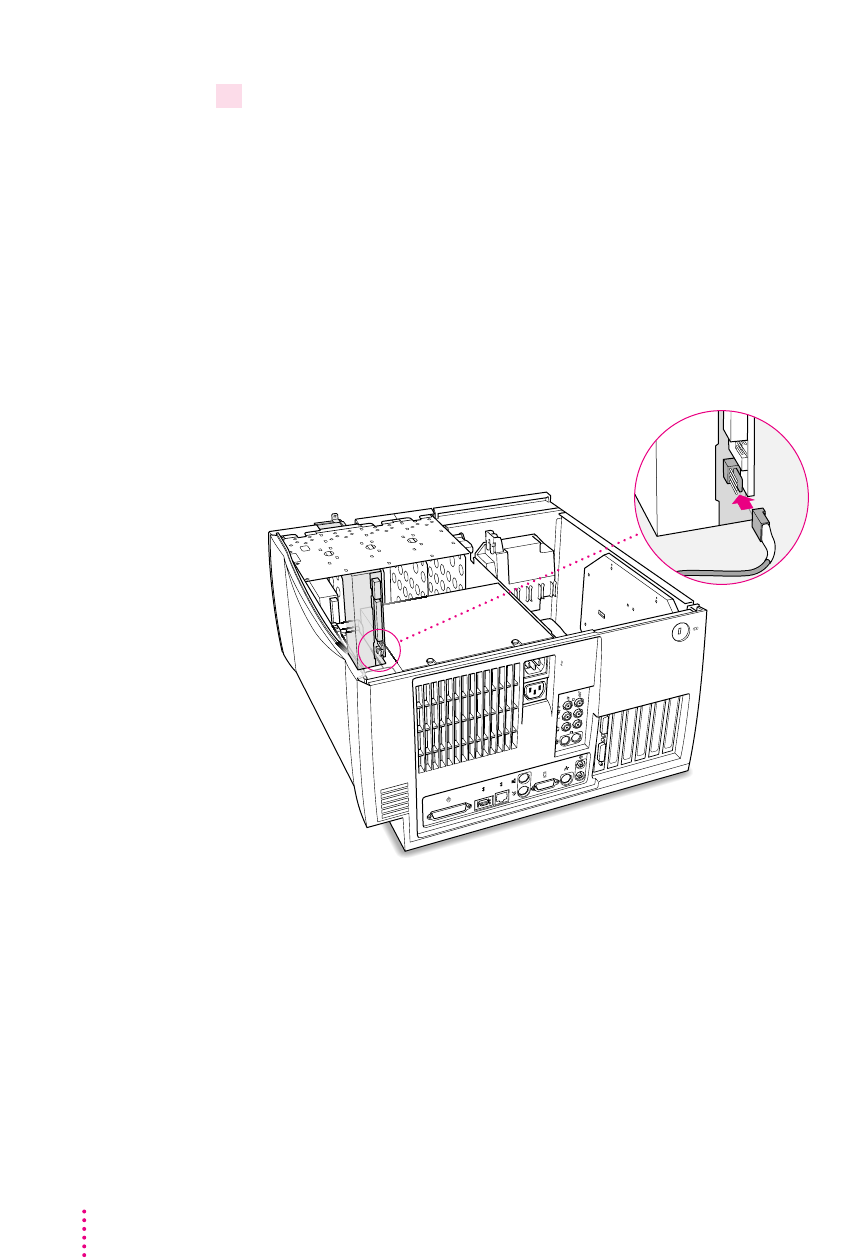
24 Insert the larger plug on the other SCSI audio cable into the back of the CD-ROM drive.
For most models of the 8600 and 9600, you can use the SCSI audio cable,
which has a thick plug and looks identical to the cable you connected to the
logic board.
Try inserting this plug into the back of the CD-ROM drive, where you just
unplugged the ribbon cable.
If the plug looks too thick and does not easily fit into the back of the
CD-ROM drive, your computer may have a different kind of drive. Try using
the ATAPI CD audio cable, with the thinner, slightly smaller plug.
108 Chapter 4
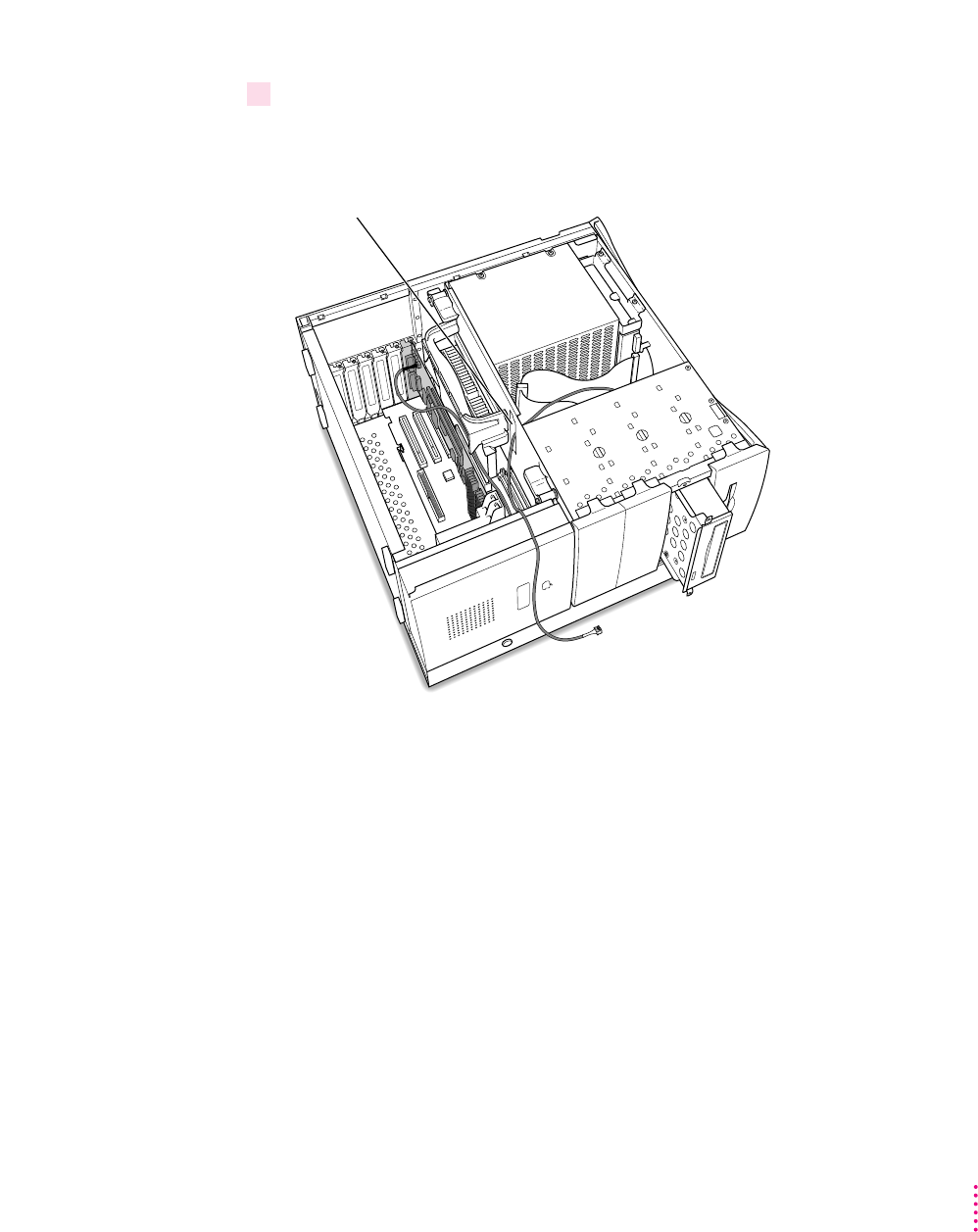
25 Route the cable through the interior of the computer.
Route the audio cable through the metal slot in the chassis.
Route the cable through
this hole in the chassis.
109
Installing the Card in a Power Macintosh 8600 or 9600
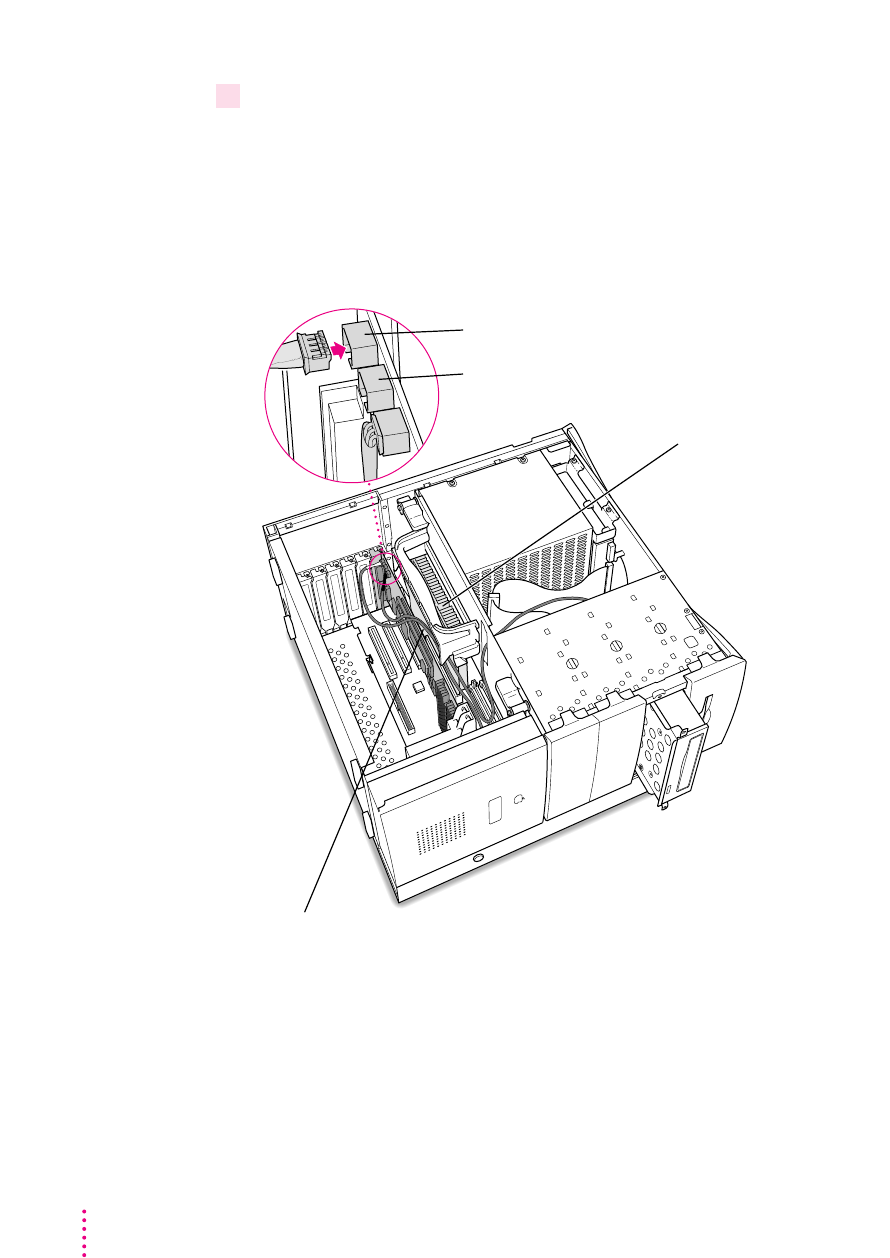
26 Plug the other end of the audio cable into the connector labeled “CD IN” on the PC
Compatibility Card.
The CD In connector is in the far upper-left corner of the card, next to the
Sound Out Connectors.
Position the CD In cable so that it lies next to the Sound Out cable, between
the PC Compatibility Card and the processor card.
IMPORTANT
If you are installing the PC Serial and Parallel Card, you should
insert it now. See the PC Serial and Parallel Card manual for instructions.
Route the cable so that it passes between the
processor card and the PC Compatibility Card.
Processor card
Connector labeled “CD IN” on the PC Compatibility Card
Do not plug any cable into this middle
connector for these computer models.
110 Chapter 4
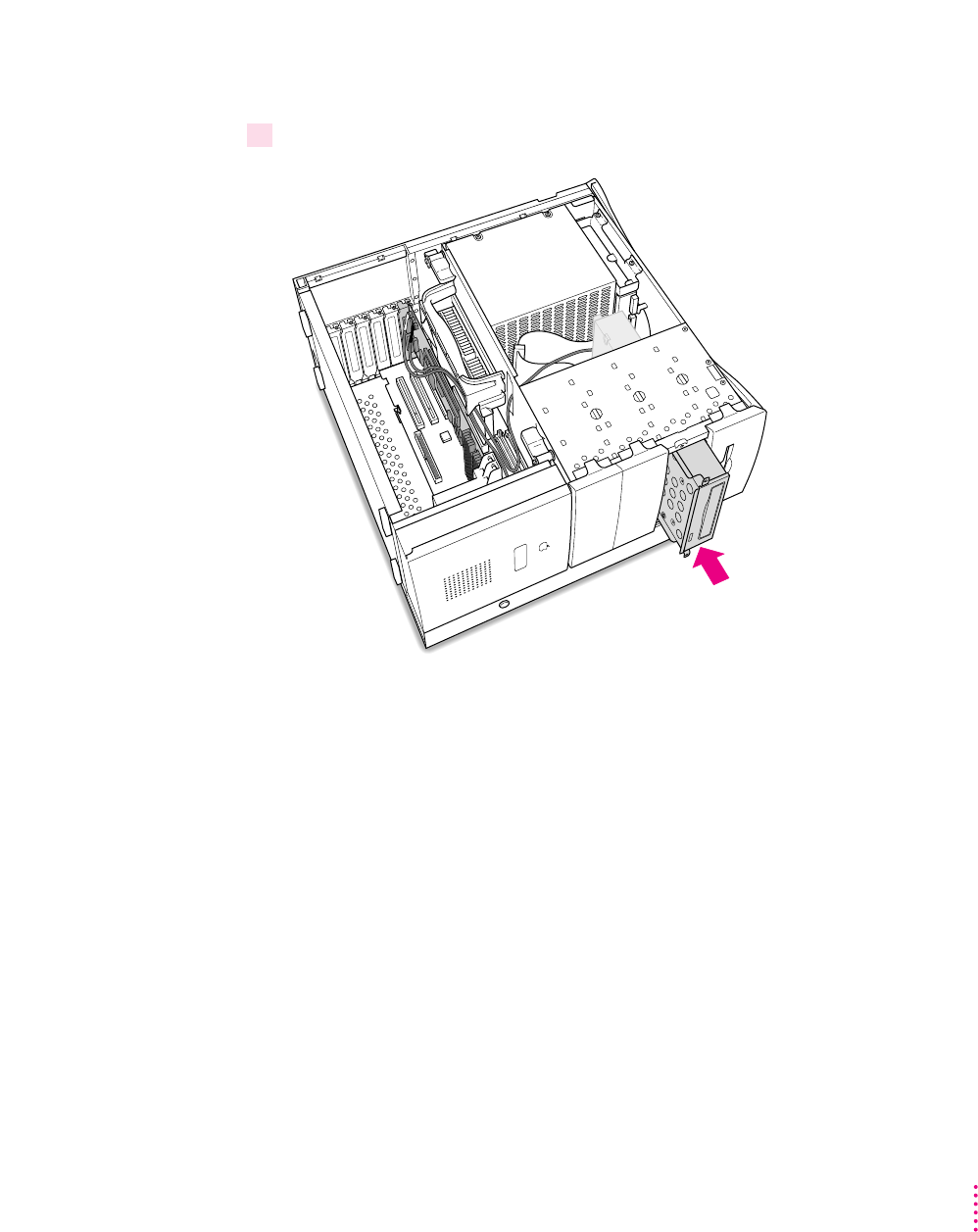
Replacing the CD-ROM drive
27 Slide the CD-ROM drive back into its original position.
111
Installing the Card in a Power Macintosh 8600 or 9600
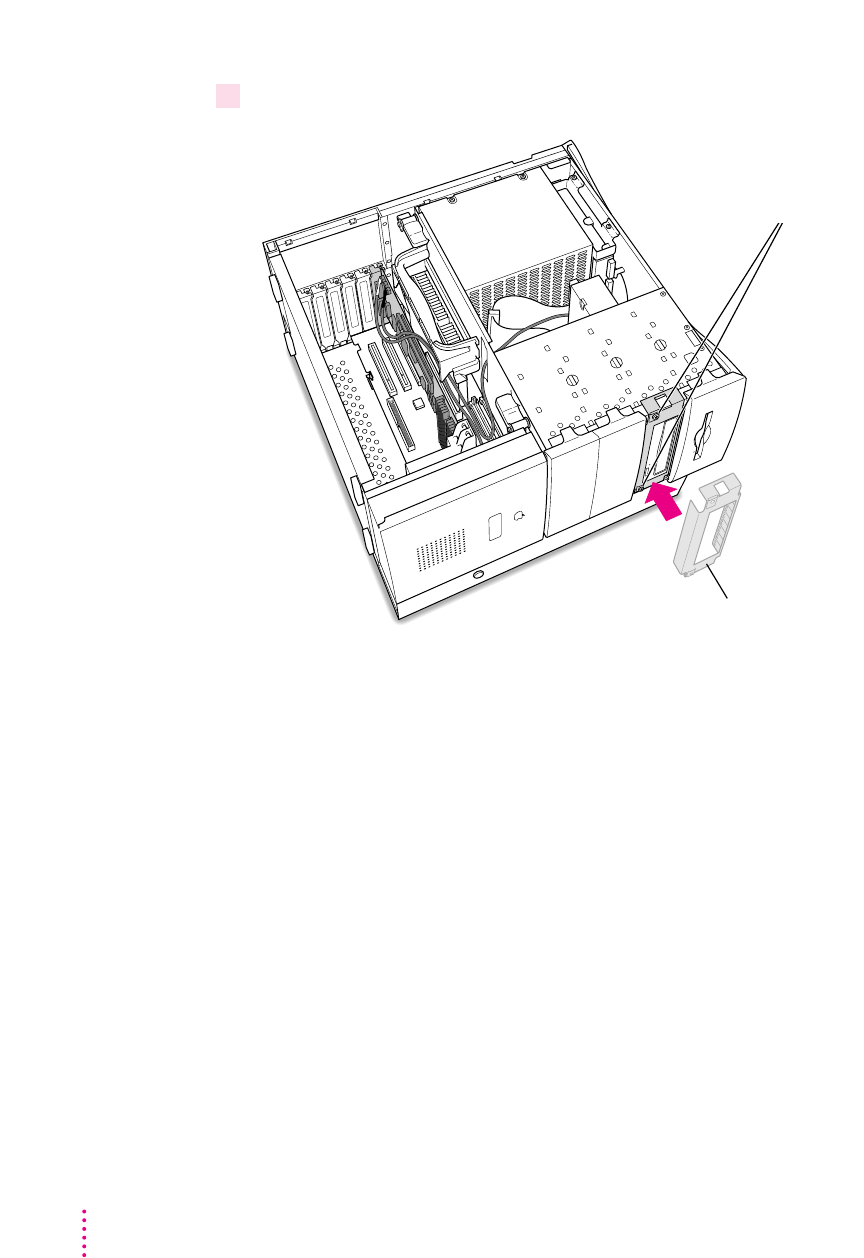
28 Replace the metal shield in front of the CD-ROM drive, and reinsert the screws.
Metal shield
Reinstall the metal shield
and reinsert the two screws
you removed earlier.
112 Chapter 4
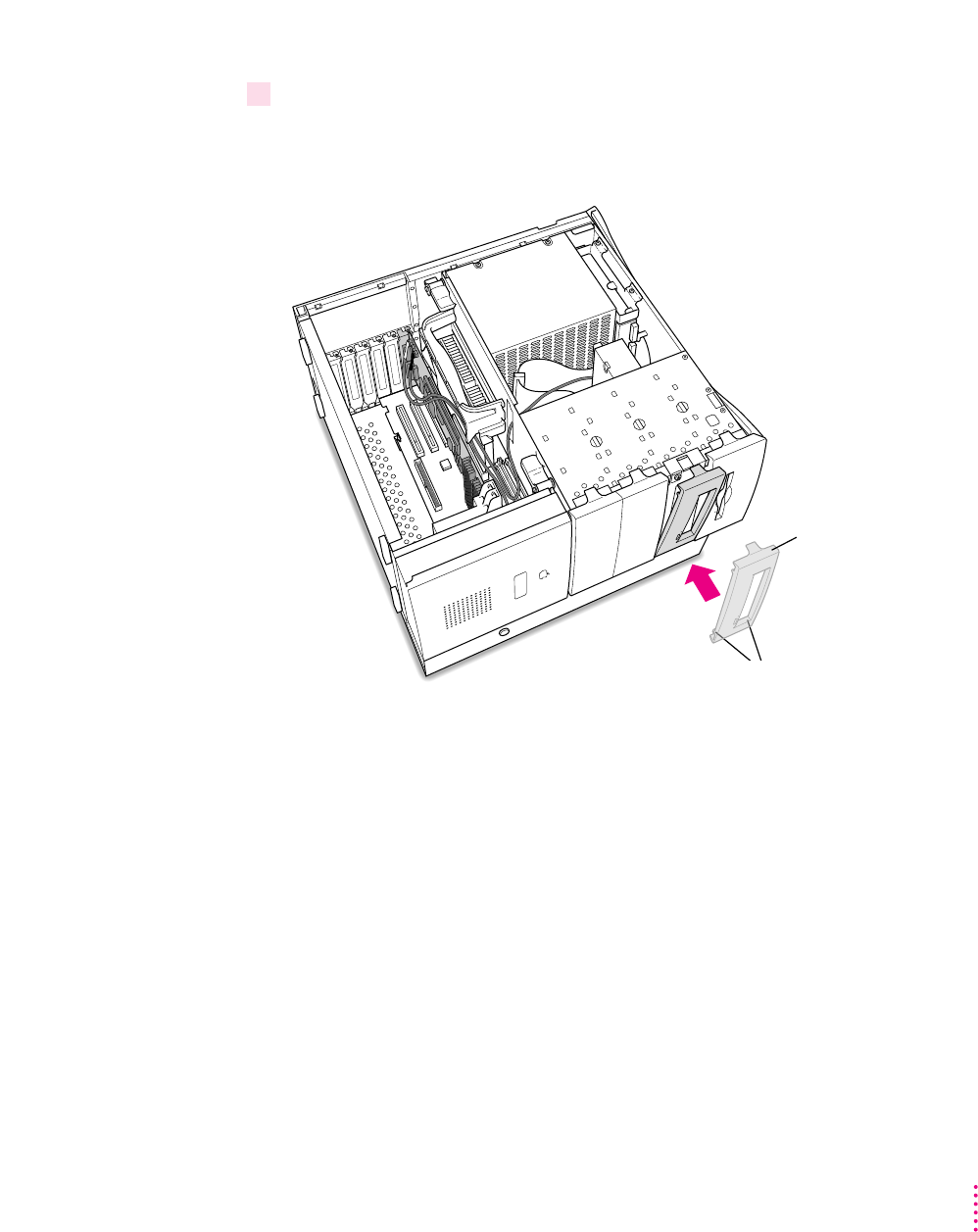
29 Replace the faceplate in front of the metal shield.
Position the faceplate by hooking the tabs into the open slots, and snap the
faceplate into place.
CD-ROM
drive faceplate
Two hooks on the inside
engage the chassis.
113
Installing the Card in a Power Macintosh 8600 or 9600
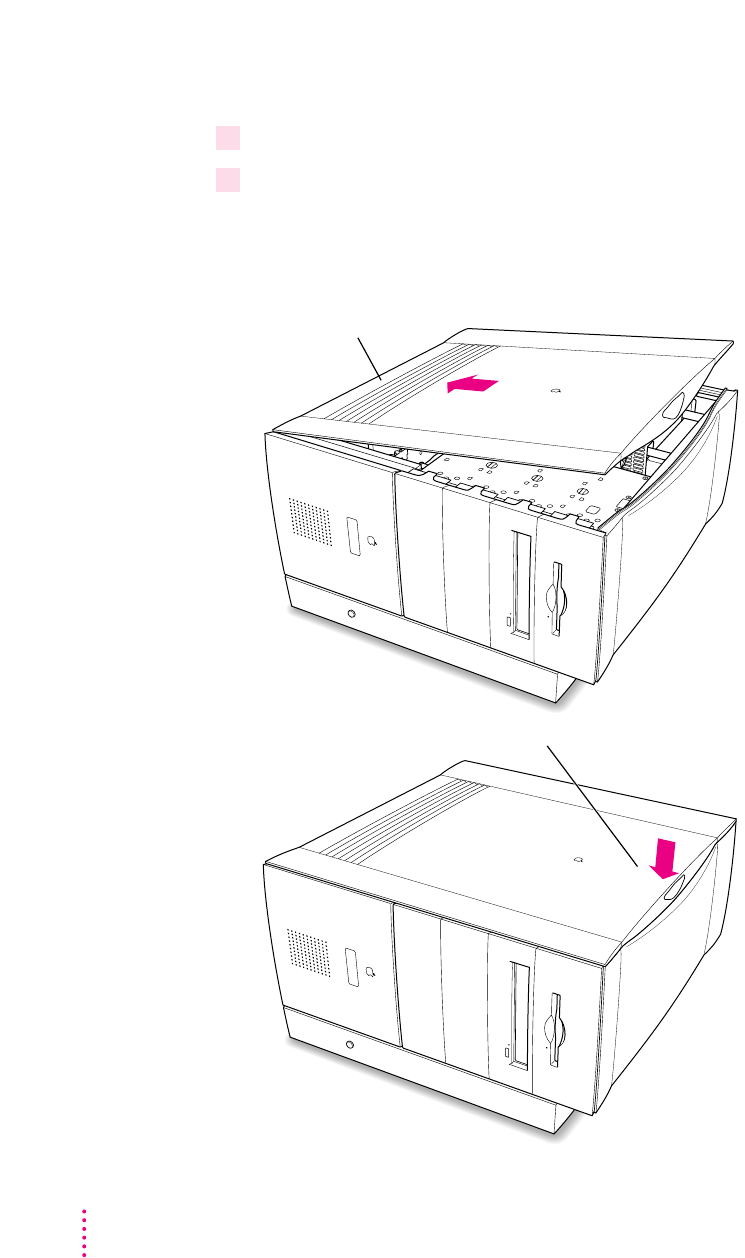
Replacing the computer cover
30 Make sure all cables and cards are firmly connected.
31 Replace the computer cover.
Align the bottom edge of the cover panel with the computer as shown below.
Then press down on the cover panel until it snaps into place.
Press down on the top edge of the cover panel until it
snaps firmly into place.
Fit the bottom edge of the cover panel into the
floor of the computer.
114 Chapter 4

32 Lift up the computer so that it sits upright.
33 Reconnect the power cord and any other equipment cables.
You are now finished installing your PC Compatibility Card.
What’s next?
Next, go to Chapter 5, “Connecting Monitors and Other Equipment.”
Then go to Chapters 6 through 9 for instructions on installing and using
your software.
115
Installing the Card in a Power Macintosh 8600 or 9600

117
You can use a single monitor to switch between the PC environment and the
Mac OS environment. Or you can simultaneously display both environments
on two monitors.
To learn how to connect your monitors, first read about using the loopback
cable on the next page. Then turn to the section on connecting a single monitor
or the section on connecting two monitors. Follow the instructions for your
model of Macintosh computer. If you have an AudioVision or AppleVision
monitor, turn to the section with additional instructions for these monitors.
After you’ve connected your monitor, read the end of this chapter to find out
how to connect other equipment.
Connecting Monitors and Other Equipment
5
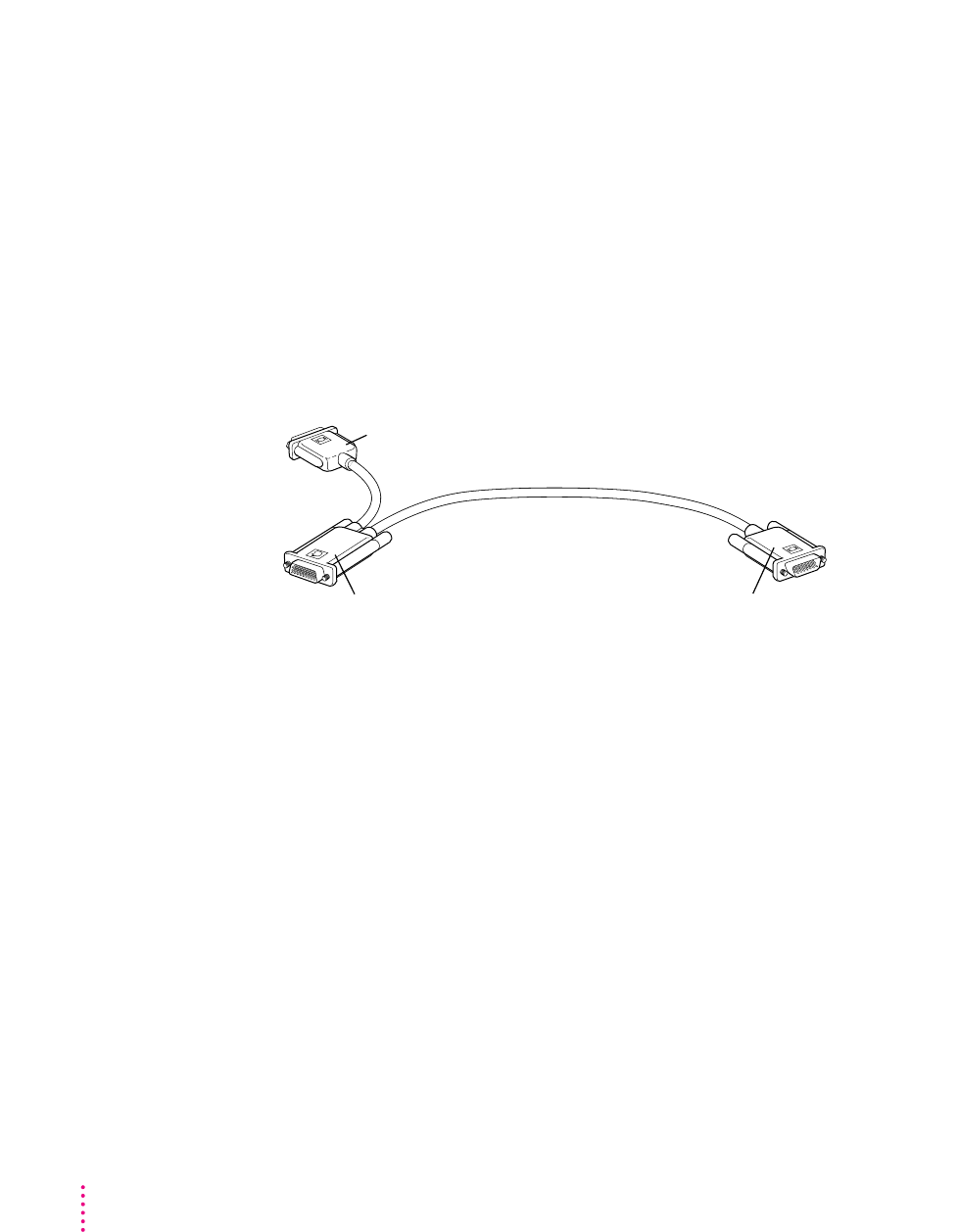
Using the loopback cable
Your PC Compatibility Card came with a loopback cable. It has three
connectors: middle, long, and short. No matter how you connect your
monitor(s), these connectors always attach to the same ports:
mThe middle connector attaches to the port on your PC Compatibility Card;
this is the port that lets you see the PC environment.
mThe long connector attaches to either your computer’s built-in monitor
port, or to a video card (you may leave this end disconnected if you are
using two monitors).
mThe short connector attaches to your monitor cable.
IMPORTANT
A previous product, the DOS Compatibility Card, came with a
different loopback cable that has four connectors on it instead of three. That
cable does not work with your PC Compatibility Card.
This connector
(“middle connector”)
attaches to the
PC Compatibility Card.
This connector (“long connector”)
attaches to either your computer’s built-in
monitor port or video card. It is usually left
disconnected if you are using two monitors.
This connector (“short connector”)
attaches to your monitor cable.
118 Chapter 5
119
Connecting Monitors and Other Equipment
Connecting a single monitor
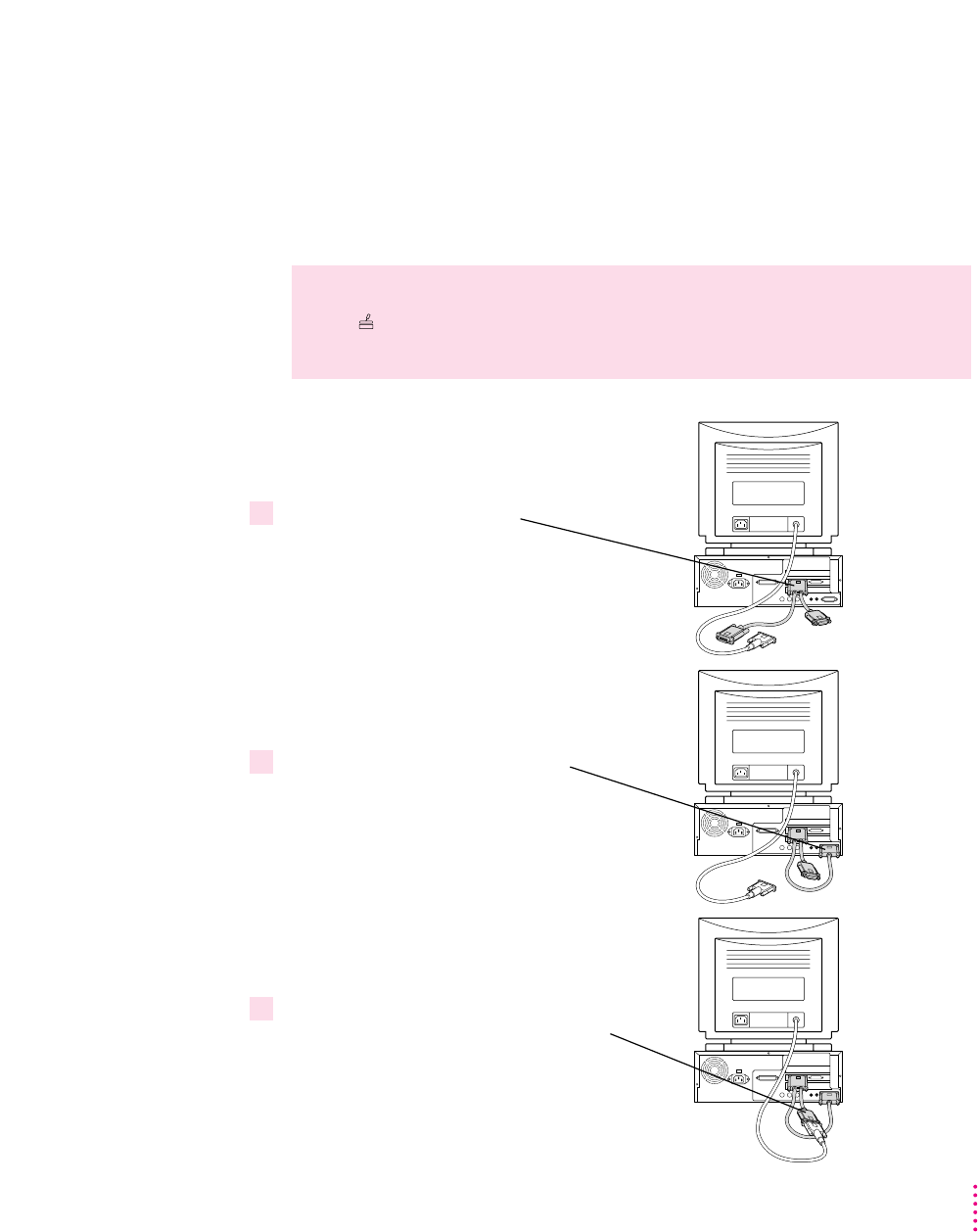
Connecting a monitor to your Power Macintosh 4400 or 7220
Before you begin, shut down your computer, turn off your monitor, and
unplug all equipment. Then follow these steps using the loopback cable:
Plug the middle connector on the
loopback cable into the left port
on your PC Compatibility Card. This
connector has a triple row of pins and
an Apple (
K
) icon on either side.
Plug the long connector on the loopback
cable into the built-in monitor port
(or video card if one is installed).
Plug the short connector on the loopback
cable into your monitor’s cable. This connector
has an Apple (
K
) icon on one side and
a monitor (
™
) icon on the other.
1
2
3
WARNING
Do not plug a monitor into the joystick port (marked with the
icon ), and do not plug a joystick into a monitor port (marked with the
icon ™). Serious damage can result to your equipment.
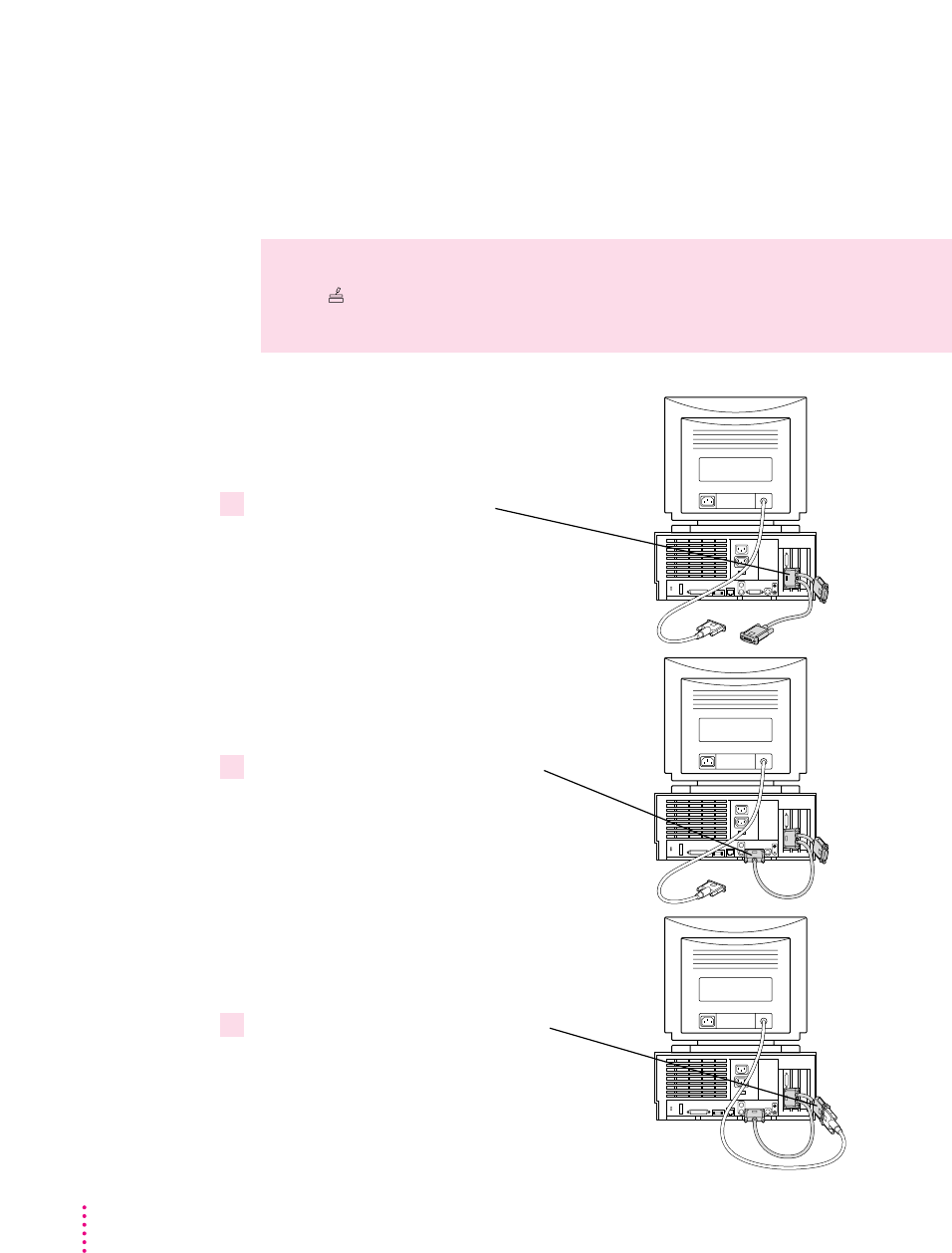
Connecting a monitor to your
Power Macintosh 7200, 7300, 7500, or 7600
Before you begin, shut down your computer, turn off your monitor, and
unplug all equipment. Then follow these steps using the loopback cable:
Plug the middle connector on the
loopback cable into the bottom port
on your PC Compatibility Card. This
connector has a triple row of pins and
an Apple (
K
) icon on either side.
Plug the long connector on the loopback
cable into the built-in monitor port
(or video card if one is installed).
Plug the short connector on the loopback
cable into your monitor’s cable. This connector
has an Apple (
K
) icon on one side and a
monitor (
™
) icon on the other.
1
2
3
WARNING
Do not plug a monitor into the joystick port (marked with the
icon ), and do not plug a joystick into a monitor port (marked with the
icon ™). Serious damage can result to your equipment.
120 Chapter 5
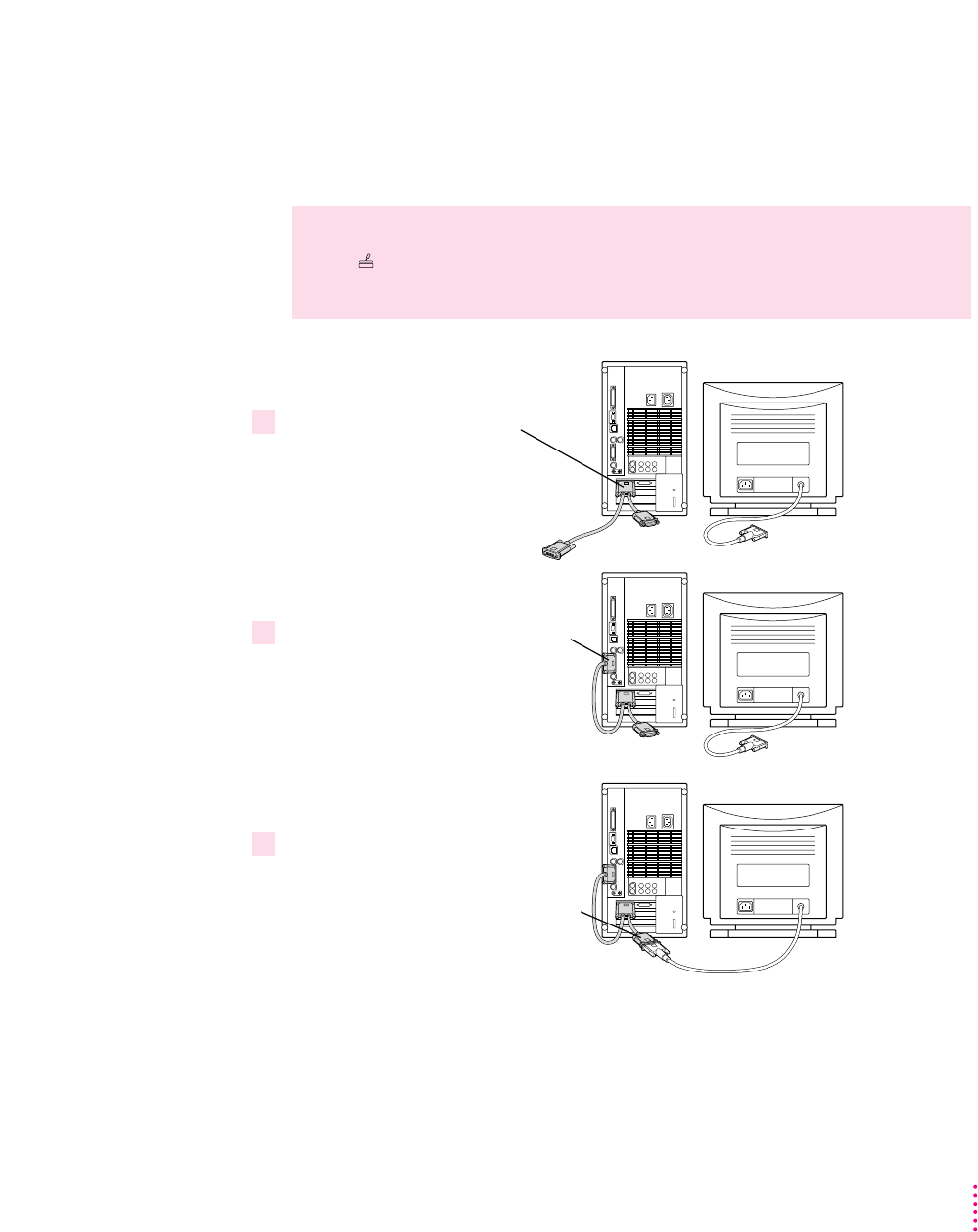
Connecting a monitor to your Power Macintosh 8500
Before you begin, shut down your computer, turn off your monitor, and
unplug all equipment. Then follow these steps using the loopback cable:
Plug the middle connector on the
loopback cable into the left port
on your PC Compatibility Card. This
connector has a triple row of pins and
an Apple (
K
) icon on either side.
Plug the long connector on the loopback
cable into the built-in monitor port
(or video card if one is installed).
Plug the short connector on the loopback
cable into your monitor’s cable. This
connector has an Apple (
K
) icon on one
side and a monitor (
™
) icon on the other.
1
2
3
WARNING
Do not plug a monitor into the joystick port (marked with the
icon ), and do not plug a joystick into a monitor port (marked with the
icon ™). Serious damage can result to your equipment.
121
Connecting Monitors and Other Equipment
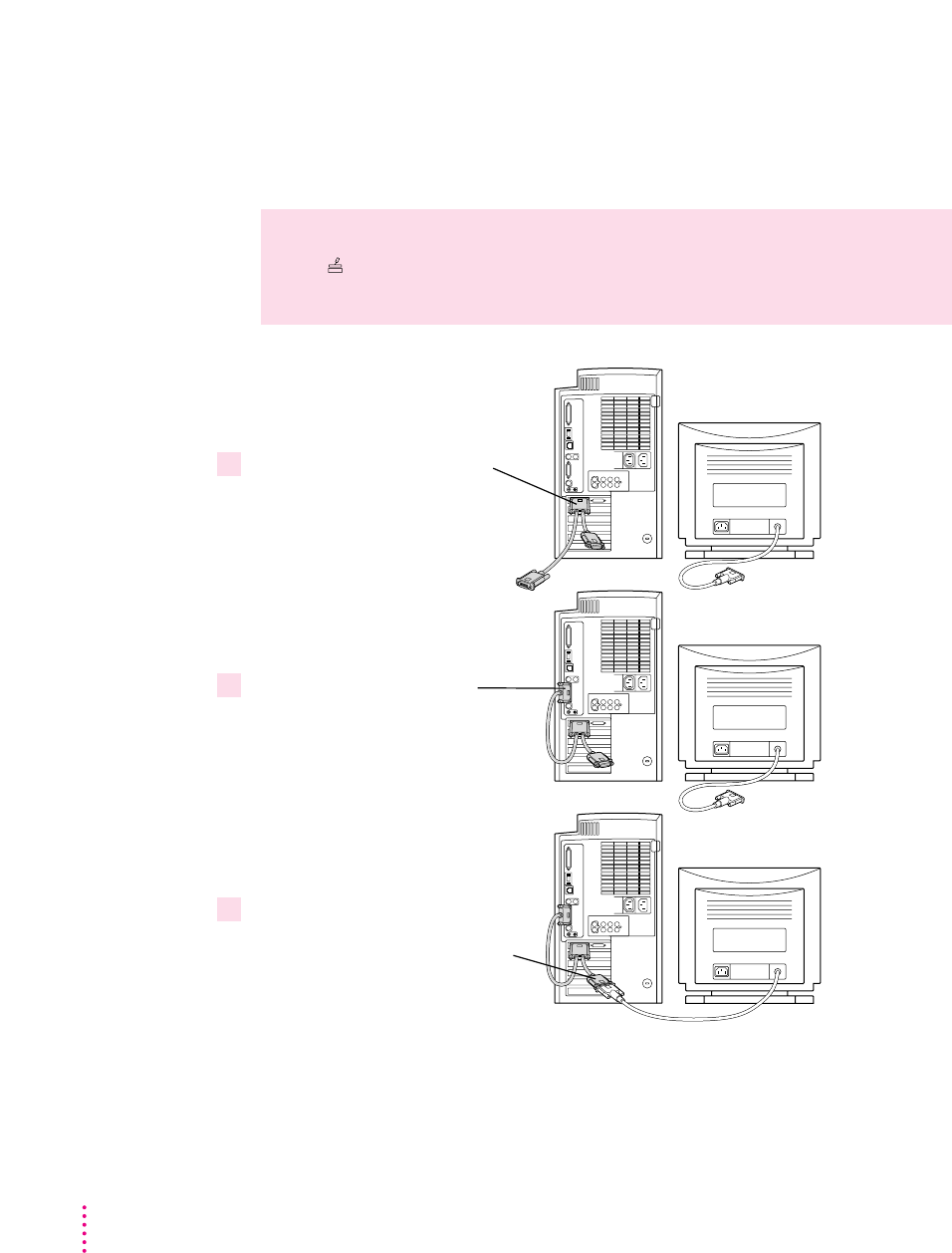
Connecting a monitor to your Power Macintosh 8600
Before you begin, shut down your computer, turn off your monitor, and
unplug all equipment. Then follow these steps using the loopback cable:
Plug the middle connector on the
loopback cable into the left port
on your PC Compatibility Card. This
connector has a triple row of pins and
an Apple (
K
) icon on either side.
Plug the long connector on the
loopback cable into the built-in monitor
port (or video card if one is installed).
Plug the short connector on the loopback
cable into your monitor’s cable. This
connector has an Apple (
K
) icon on
one side and a monitor (
™
) icon
on the other.
1
2
3
WARNING
Do not plug a monitor into the joystick port (marked with the
icon ), and do not plug a joystick into a monitor port (marked with the
icon ™). Serious damage can result to your equipment.
122 Chapter 5
123
Connecting Monitors and Other Equipment
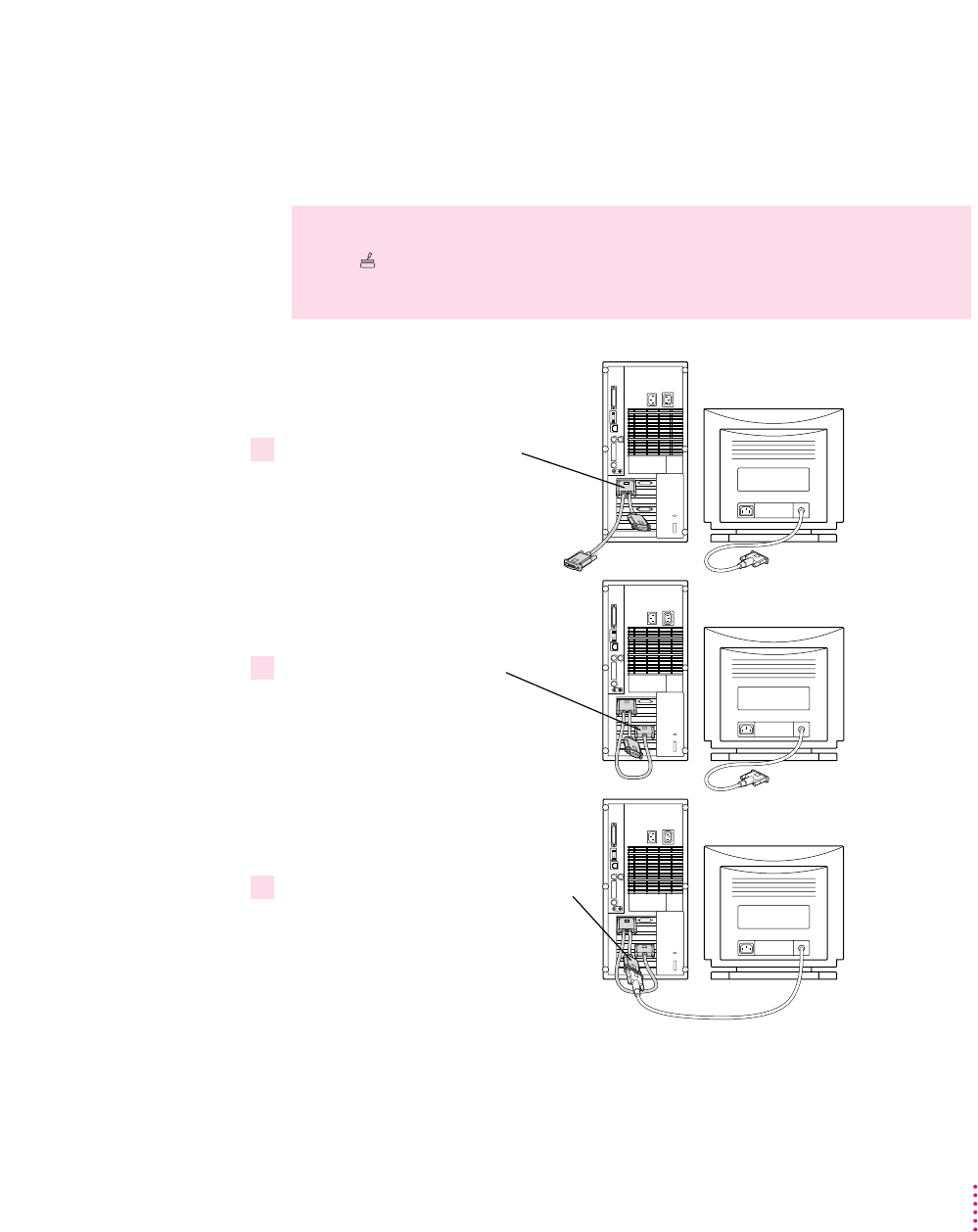
Connecting a monitor to your Power Macintosh 9500
Before you begin, shut down your computer, turn off your monitor, and
unplug all equipment. Then follow these steps using the loopback cable:
Plug the middle connector on the
loopback cable into the left port
on your PC Compatibility Card. This
connector has a triple row of pins and
an Apple (
K
) icon on either side.
Plug the long connector on the
loopback cable into the port on
your video card.
Plug the short connector on the loopback
cable into your monitor’s cable. This
connector has an Apple (
K
) icon on one
side and a monitor (
™
) icon on the other.
1
2
3
WARNING
Do not plug a monitor into the joystick port (marked with the
icon ), and do not plug a joystick into a monitor port (marked with the
icon ™). Serious damage can result to your equipment.
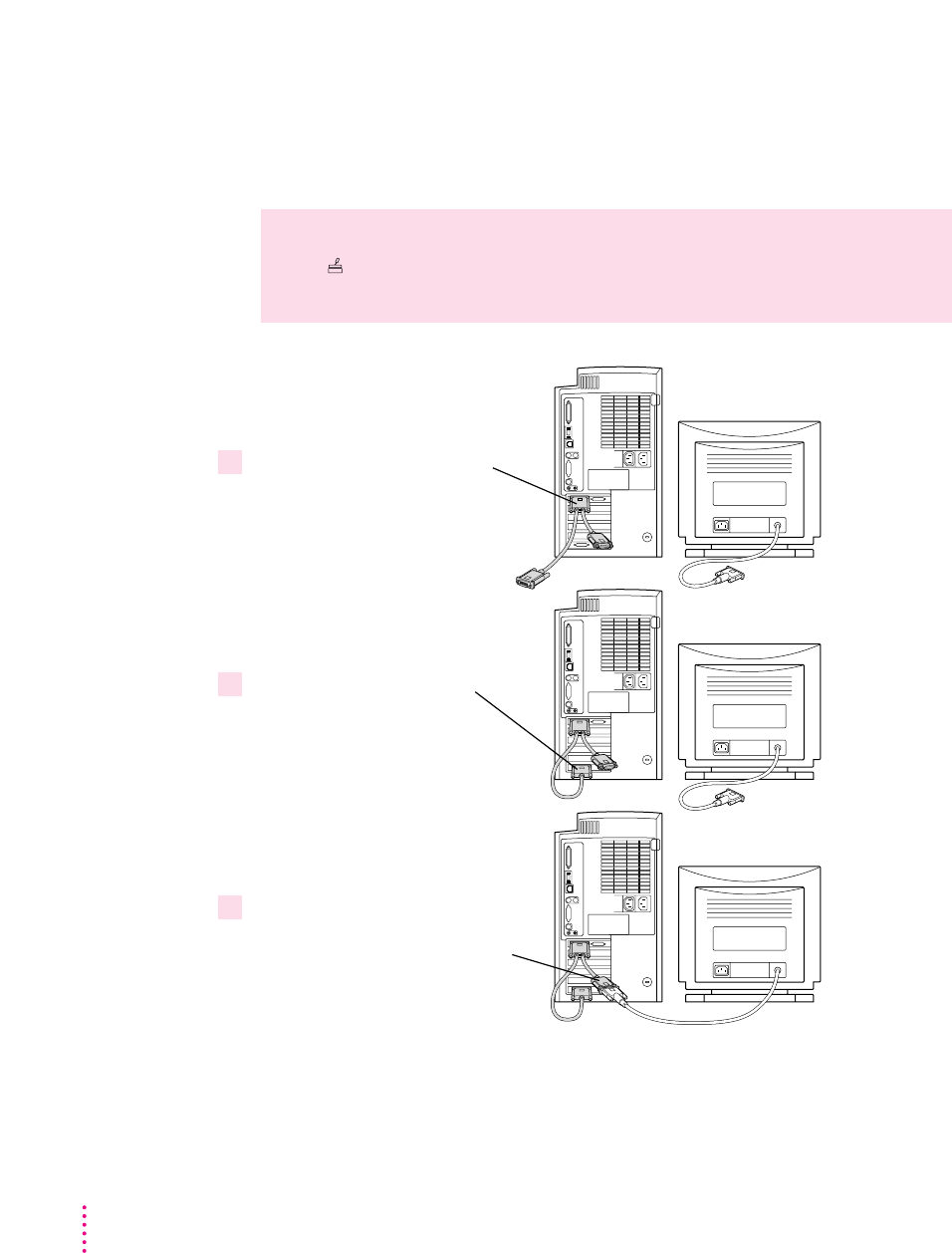
Connecting a monitor to your Power Macintosh 9600
Before you begin, shut down your computer, turn off your monitor, and
unplug all equipment. Then follow these steps using the loopback cable:
Plug the middle connector on the
loopback cable into the left port
on your PC Compatibility Card. This
connector has a triple row of pins and
an Apple (
K
) icon on either side.
Plug the long connector on the
loopback cable into the port on
your video card.
Plug the short connector on the loopback
cable into your monitor’s cable. This
connector has an Apple (
K
) icon on
one side and a monitor (
™
) icon
on the other.
1
2
3
WARNING
Do not plug a monitor into the joystick port (marked with the
icon ), and do not plug a joystick into a monitor port (marked with the
icon ™). Serious damage can result to your equipment.
124 Chapter 5

Connecting two monitors
If you connect two monitors, you see the Mac OS environment on one and
the PC environment on the other. The monitor connected to the PC
Compatibility Card shows the PC environment. You can also switch between
Mac OS and PC environments on this monitor if you have a video card.
You can use any combination of Mac OS–compatible and PC-compatible
monitors (with the proper cable adapters, available from your monitor vendor
or Apple-authorized dealer).
Multiple-scan monitor: If you want to use a multiple-scan monitor from a
manufacturer other than Apple to display the PC environment, you also need
to use a VGA-to-Macintosh adapter (available from your computer vendor).
You connect this adapter between the monitor’s cable and the loopback cable.
IMPORTANT
Before you begin, shut down your computer, turn off your
monitor, and unplug all equipment. Then follow the steps in the section for
your Macintosh computer.
WARNING
Do not plug a monitor into the joystick port (marked with the
icon ), and do not plug a joystick into a monitor port (marked with the
icon ™). Serious damage can result to your equipment.
125
Connecting Monitors and Other Equipment
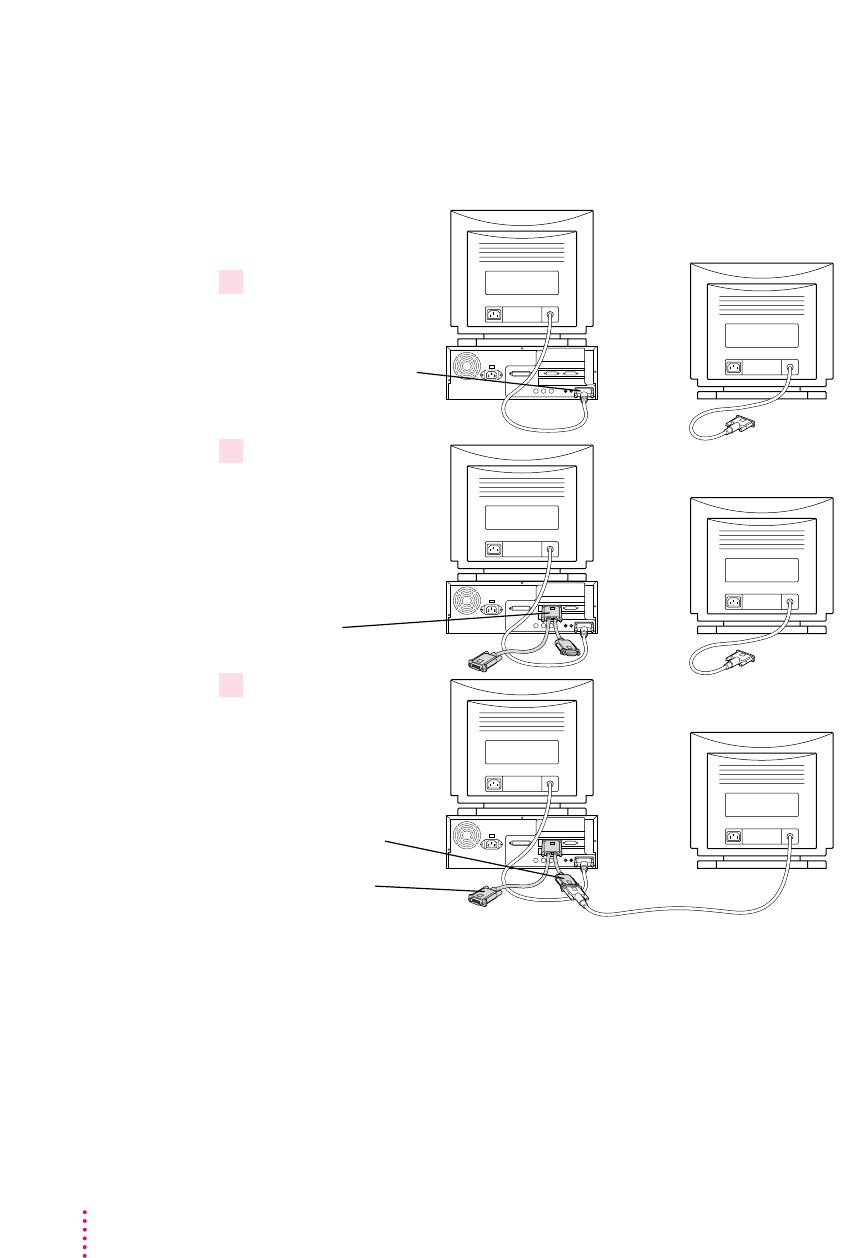
Connecting two monitors to your Power Macintosh 4400 or 7220
To connect two monitors to your Power Macintosh 4400 or 7220, follow these
steps using your loopback cable:
You can leave the long connector unplugged. Or, if you have a video card and
want one monitor to switch between the Mac OS and PC environments, you
can plug the long connector into the video card port.
Plug the monitor you
want to use for the
Mac OS environment
into the built-in monitor
port (
™
) on the back
of your computer.
Mac OS PC
Mac OS PC
Plug the middle
connector on the
loopback cable into
the left port on the
PC Compatibility Card.
This connector has a
triple row of pins and
an Apple (
K
) icon on
either side.
Plug the short
connector on the
loopback cable into the
second monitor’s cable.
This connector has an
Apple (
K
) icon on one
side and a monitor (
™
)
icon on the other.
Long connector
Mac OS PC
1
2
3
126 Chapter 5
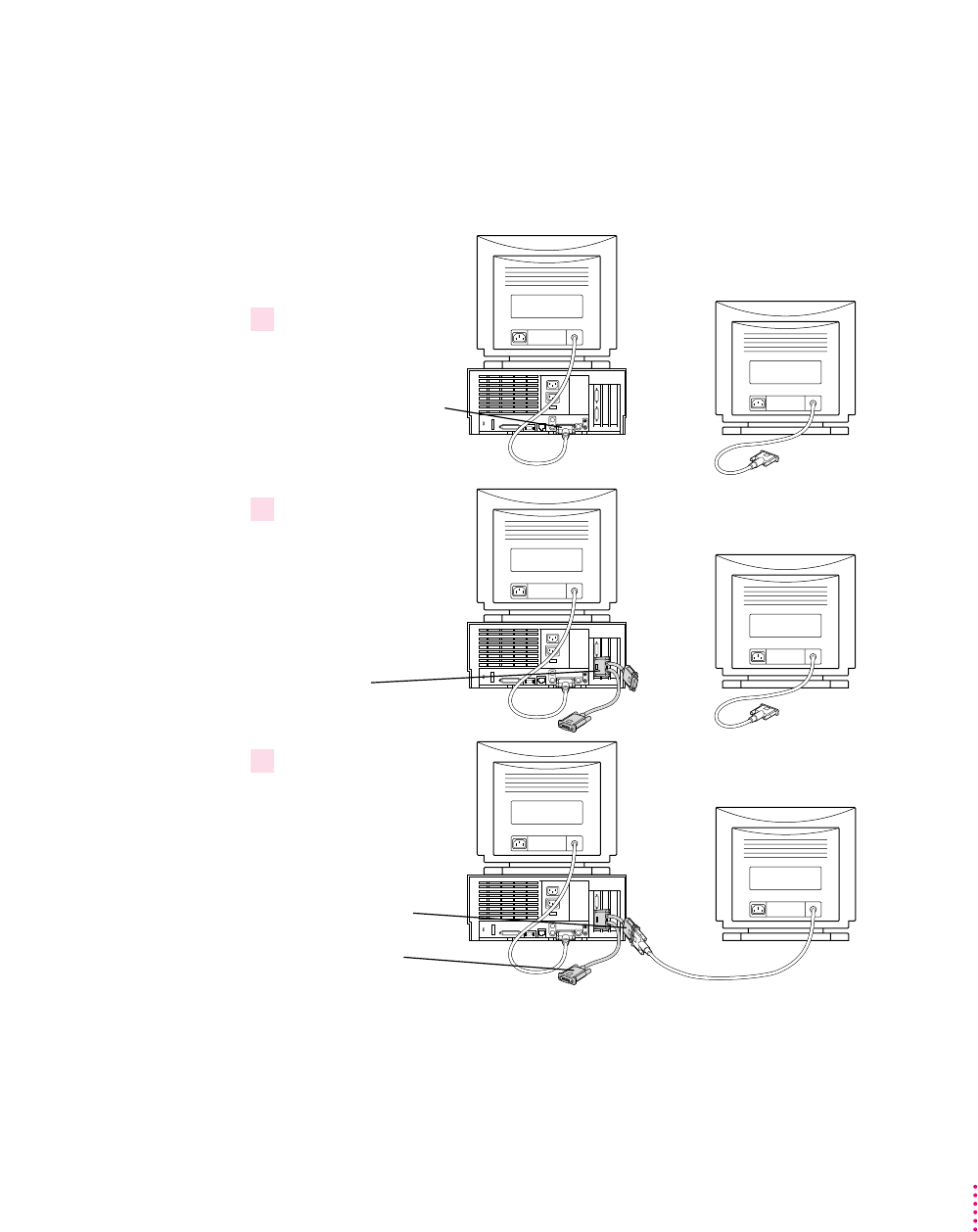
Connecting two monitors to your
Power Macintosh 7200, 7300, 7500, or 7600
To connect two monitors to your Power Macintosh 7200, 7300, 7500, or 7600,
follow these steps using your loopback cable:
You can leave the long connector unplugged. Or, if you have a video card and
want one monitor to switch between the Mac OS and PC environments, you
can plug the long connector into the video card port.
Plug the monitor you
want to use for the
Mac OS environment
into the built-in monitor
port (
™
) on the back
of your computer.
Mac OS PC
Mac OS PC
Mac OS PC
Plug the middle
connector on the
loopback cable into
the bottom port on the
PC Compatibility Card.
This connector has a
triple row of pins and
an Apple (
K
) icon on
either side.
Plug the short
connector on the
loopback cable into the
second monitor’s cable.
This connector has an
Apple (
K
) icon on one
side and a monitor (
™
)
icon on the other.
Long connector
1
2
3
127
Connecting Monitors and Other Equipment
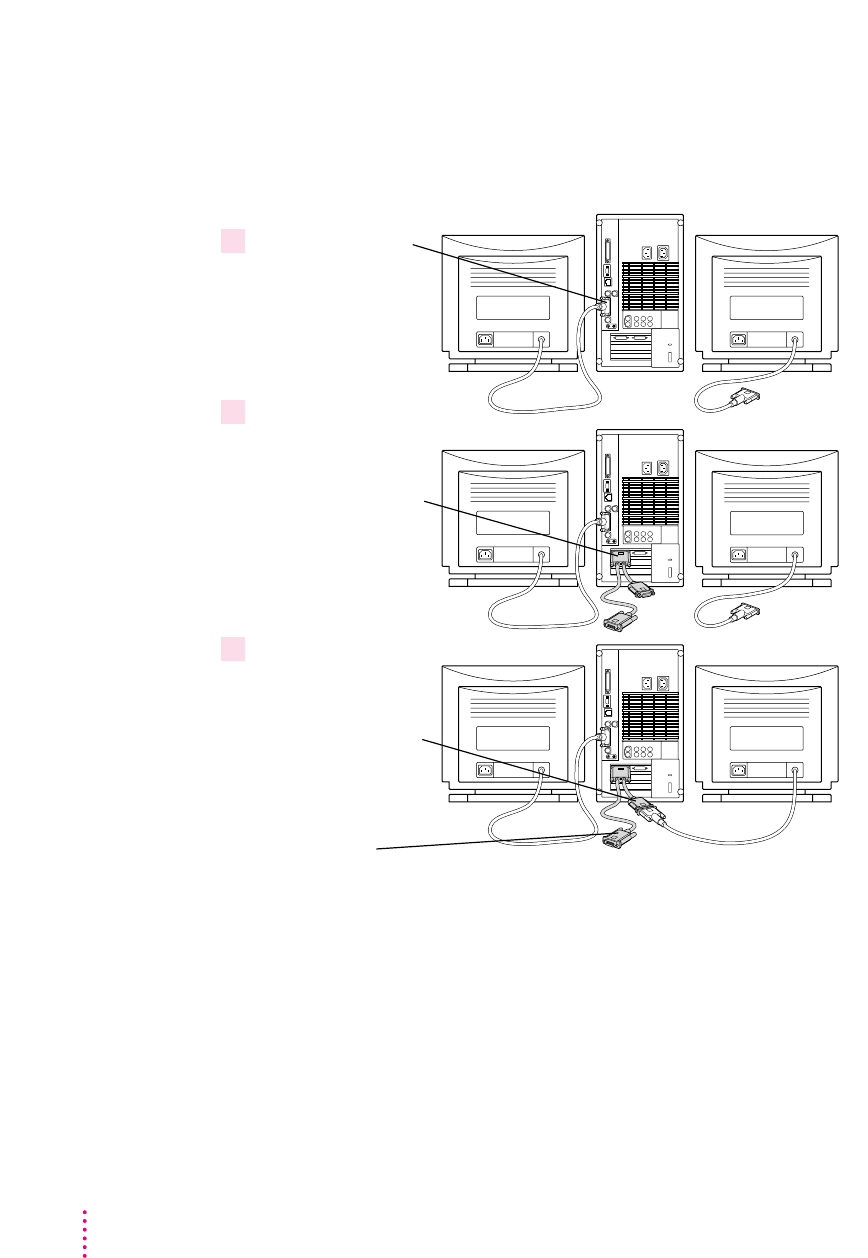
Connecting two monitors to your Power Macintosh 8500
To connect two monitors to your Power Macintosh 8500, follow these steps
using your loopback cable:
You can leave the long connector unplugged. Or, if you have a video card and
want one monitor to switch between the Mac OS and PC environments, you
can plug the long connector into the video card port.
Plug the middle
connector on the
loopback cable into
the left port on the
PC Compatibility Card.
This connector has a
triple row of pins and
an Apple (
K
) icon on
either side.
Plug the monitor you
want to use for the
Mac OS environment
into the built-in monitor
port (
™
) on the back
of your computer.
Plug the short
connector on the
loopback cable into the
second monitor’s cable.
This connector has an
Apple (
K
) icon on one
side and a monitor (
™
)
icon on the other.
Long connector
Mac OS PC
Mac OS PC
Mac OS PC
1
2
3
128 Chapter 5
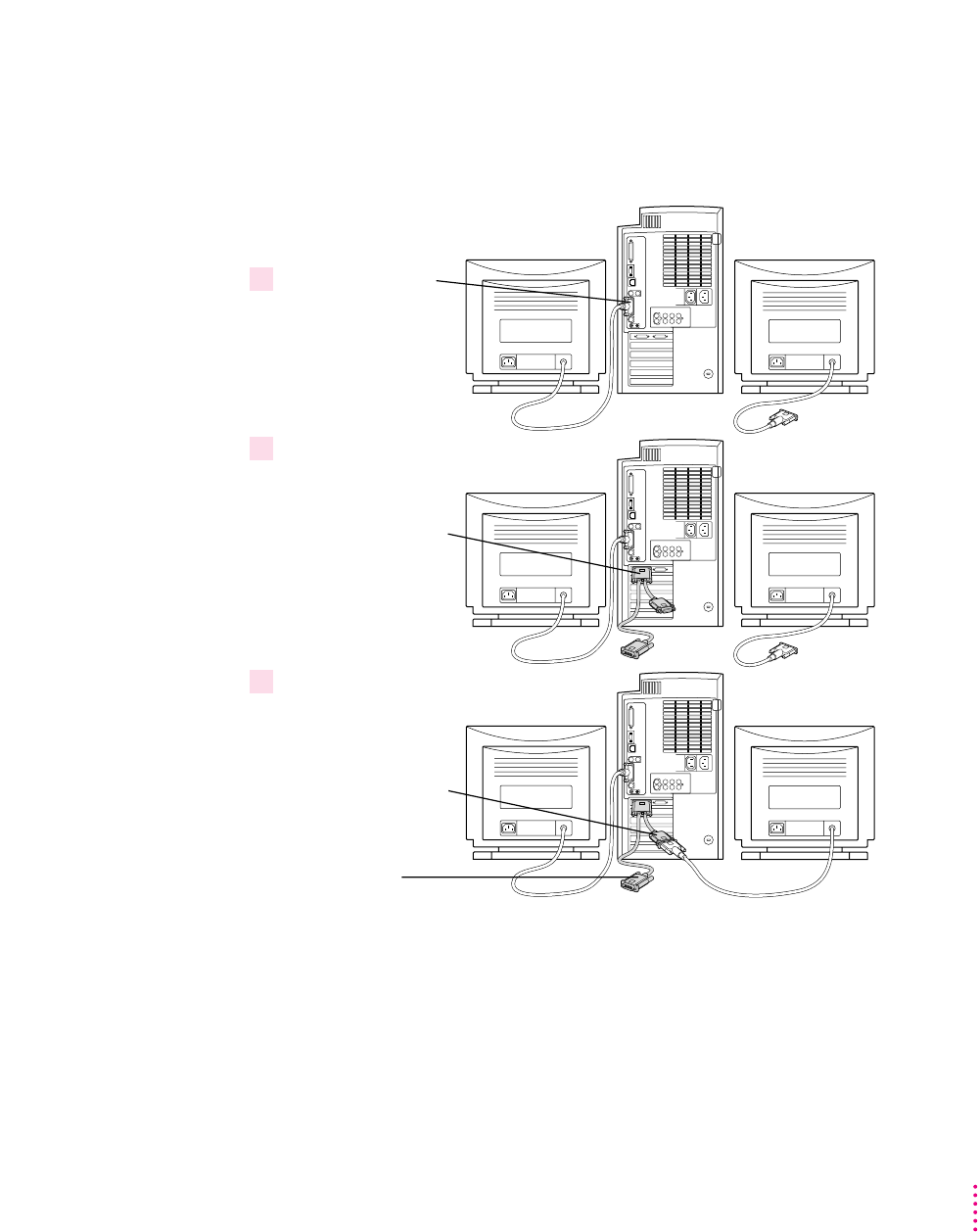
Connecting two monitors to your Power Macintosh 8600
To connect two monitors to your Power Macintosh 8600, follow these steps
using your loopback cable:
You can leave the long connector unplugged. Or, if you have a video card and
want one monitor to switch between the Mac OS and PC environments, you
can plug the long connector into the video card port.
PC
Plug the monitor you
want to use for the
Mac OS environment
into the built-in monitor
port (
™
) on the back
of your computer.
Plug the middle
connector on the
loopback cable into
the left port on the
PC Compatibility Card.
This connector has a
triple row of pins and
an Apple (
K
) icon on
either side.
Plug the short
connector on the
loopback cable into the
second monitor’s cable.
This connector has an
Apple (
K
) icon on one
side and a monitor (
™
)
icon on the other.
Long connector
Mac OS PC
Mac OS
Mac OS PC
1
2
3
129
Connecting Monitors and Other Equipment
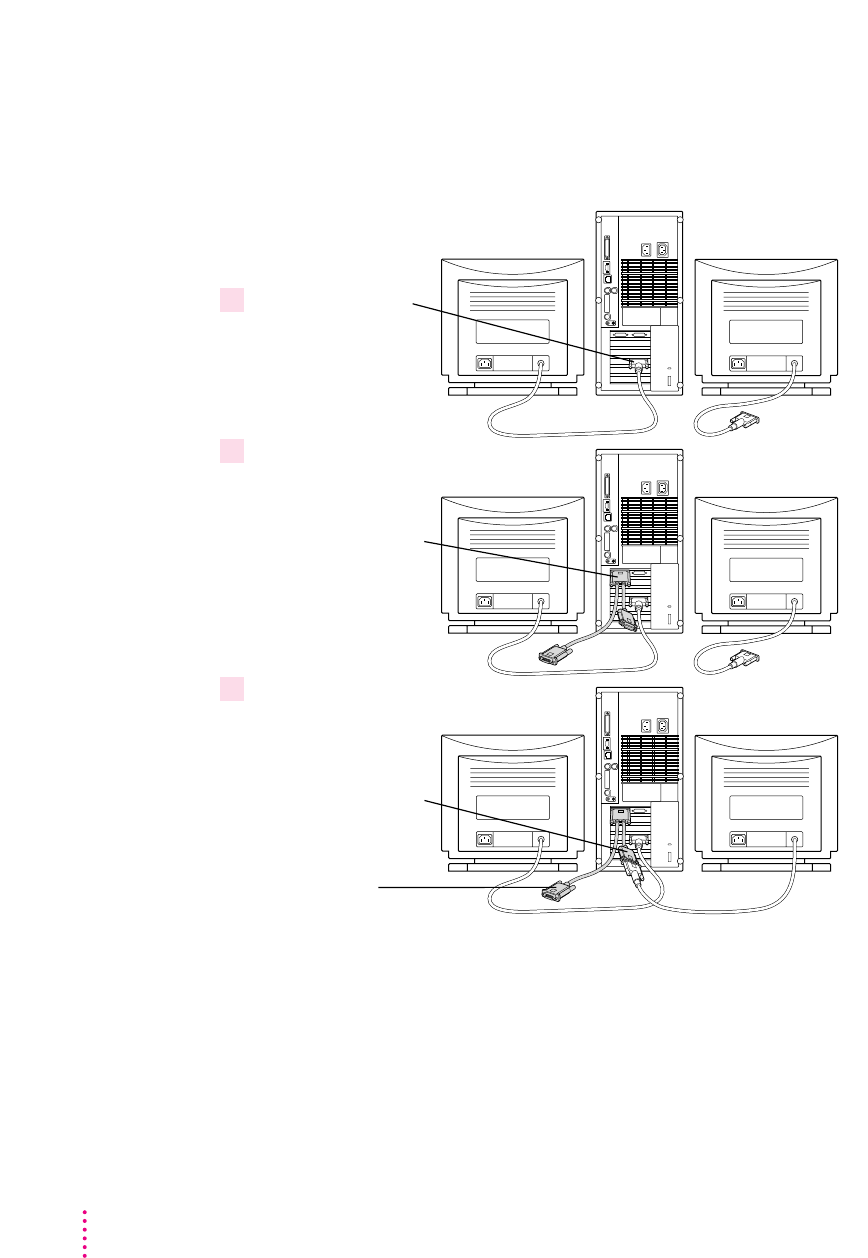
Connecting two monitors to your Power Macintosh 9500
To connect two monitors to your Power Macintosh 9500, follow these steps
using your loopback cable:
You can leave the long connector unplugged. Or, if you have an extra video
card and want one monitor to switch between the Mac OS and PC
environments, you can plug the long connector into the video card port.
Plug the monitor you
want to use for the
Mac OS environment
into the port on your
video card.
Plug the middle
connector on the
loopback cable into
the left port on the
PC Compatibility Card.
This connector has a
triple row of pins and
an Apple (
K
) icon on
either side.
Plug the short
connector on the
loopback cable into the
second monitor’s cable.
This connector has an
Apple (
K
) icon on one
side and a monitor (
™
)
icon on the other.
Long connector
Mac OS PC
Mac OS PC
Mac OS PC
1
2
3
130 Chapter 5
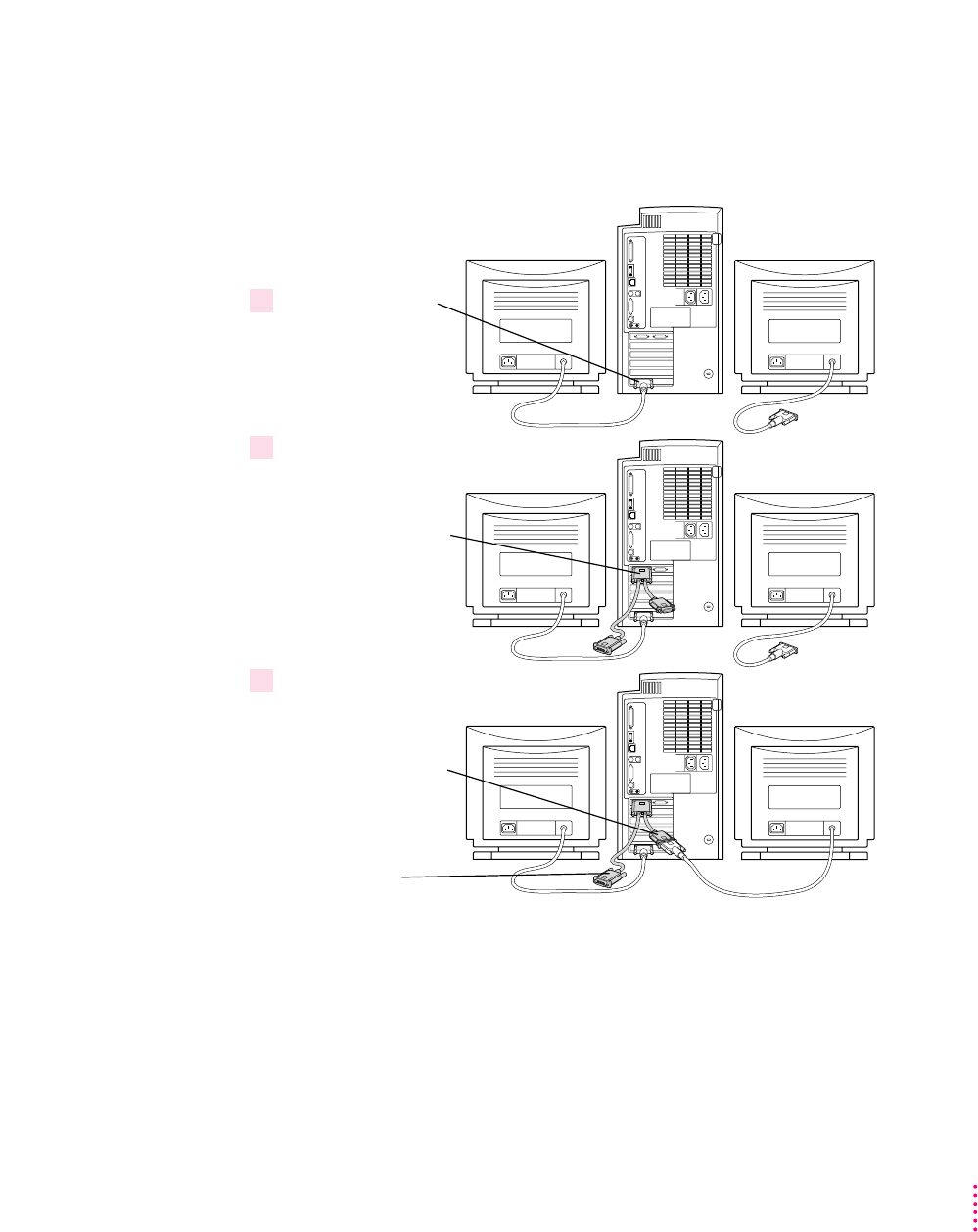
Connecting two monitors to your Power Macintosh 9600
To connect two monitors to your Power Macintosh 9600, follow these steps
using your loopback cable:
You can leave the long connector unplugged. Or, if you have an extra video
card and want one monitor to switch between the Mac OS and PC
environments, you can plug the long connector into the video card port.
PC
Plug the monitor you
want to use for the
Mac OS environment
into the port on your
video card.
Plug the middle
connector on the
loopback cable into
the left port on the
PC Compatibility Card.
This connector has a
triple row of pins and
an Apple (
K
) icon on
either side.
Plug the short
connector on the
loopback cable into the
second monitor’s cable.
This connector has an
Apple (
K
) icon on one
side and a monitor (
™
)
icon on the other.
Long connector
Mac OS PC
Mac OS
Mac OS PC
1
2
3
131
Connecting Monitors and Other Equipment
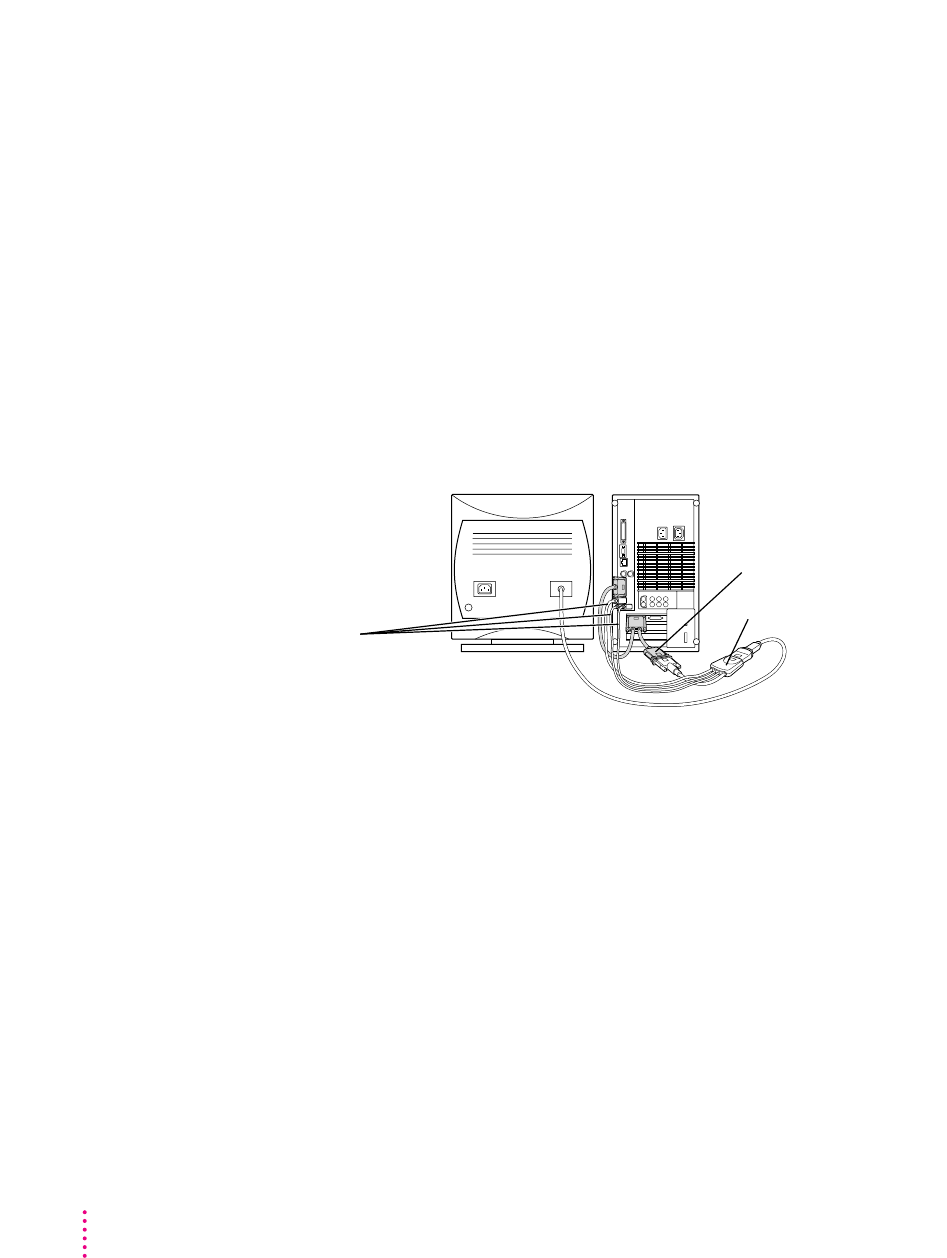
Connecting an AudioVision monitor
To connect an AudioVision monitor to your Macintosh computer, first
connect the loopback cable to the appropriate ports on your computer as you
would with any other monitor:
mPlug the middle connector on the loopback cable into the PC Compatibility
Card port with the triple row of pins and Apple (K) icon on either side.
mPlug the long connector on the loopback cable into the computer’s built-in
monitor port or video card.
Then plug the short end of the loopback cable into the AudioVision adapter
cable. Plug the remaining cables into the corresponding ADB, sound input,
and sound output ports on the back of your computer. (For more information,
see the manual that came with your AudioVision monitor.)
Connecting an AppleVision monitor
You connect your AppleVision monitor like any other monitor, except you
also have to connect an extra cable—the ADB cable, which is thinner than the
others. Plug this cable into the ADB port (marked with V) on the back of your
computer. (For more information, see the manual that came with your
AppleVision monitor.)
If you are using an AppleVision monitor to display the PC environment
only, you will need to adjust the video manually, by pressing the buttons on
the monitor.
Plug the ADB (
V
),
sound output (
-
), and
sound input (
≈
) cables
into the corresponding
ports on the back of
the computer.
Plug the short connector on
the loopback cable into the
AudioVision adapter cable.
AudioVision adapter cable
132 Chapter 5

Connecting a pointing device
If you have a standard ADB (Apple Desktop Bus) one-button mouse or other
pointing device, you can simulate the behavior of a two-button PC mouse
using keys on your keyboard. For more information, see the section “Using a
Pointing Device” in Chapter 8.
You can also use an ADB multi-button mouse or other pointing device and
configure it to work as a PC mouse. To use a multi-button pointing device in
the PC environment, you will need to install the appropriate software. See the
manual that came with your computer and pointing device for more
information.
You can connect a pointing device to any available ADB port (marked with V)
on your Macintosh computer.
Pointing devices designed specifically for a PC are not recommended for use
with your Macintosh computer.
Connecting a MIDI device
You can connect a MIDI (musical instrument digital interface) device to the
game controller port that comes on some models of the PC Compatibility
Card. To connect a MIDI device, you need a Sound Blaster–compatible
MIDI-to-joystick adapter (available from your computer dealer). For
instructions on connecting devices to the joystick port, see the next section,
“Connecting a PC Game Controller.”
133
Connecting Monitors and Other Equipment
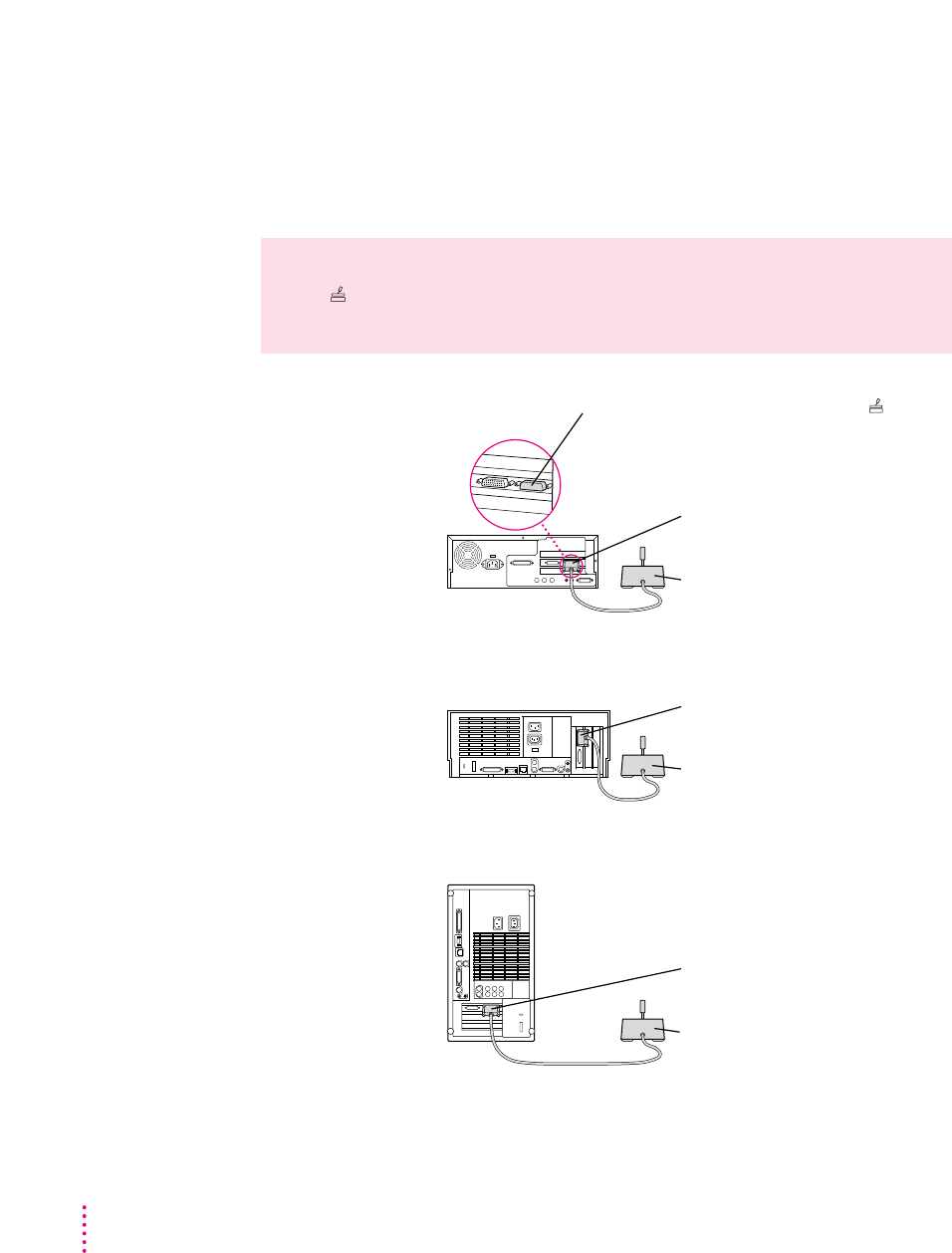
Connecting a PC game controller
Your PC Compatibility Card comes with a game controller port. To connect a
PC game controller, such as a joystick, remove the plastic cover on the game
controller port, then plug your game controller into the port.
Game controller
Plug the game controller
into the joystick port.
Game controller
Plug the game controller
into the joystick port.
Power Macintosh 4400
or 7220
Power Macintosh 8500
The joystick port is marked with this icon: .
Remove the port cover before plugging a game
controller into the joystick port. Leave the port
cover on when a game controller is not attached.
Game controller
Plug the game controller
into the joystick port.
Power Macintosh 7200
Power Macintosh 7300
Power Macintosh 7500
Power Macintosh 7600
WARNING
Do not plug a monitor into the joystick port (marked with the
icon ), and do not plug a joystick into a monitor port (marked with the
icon ™). Serious damage can result to your equipment.
134 Chapter 5
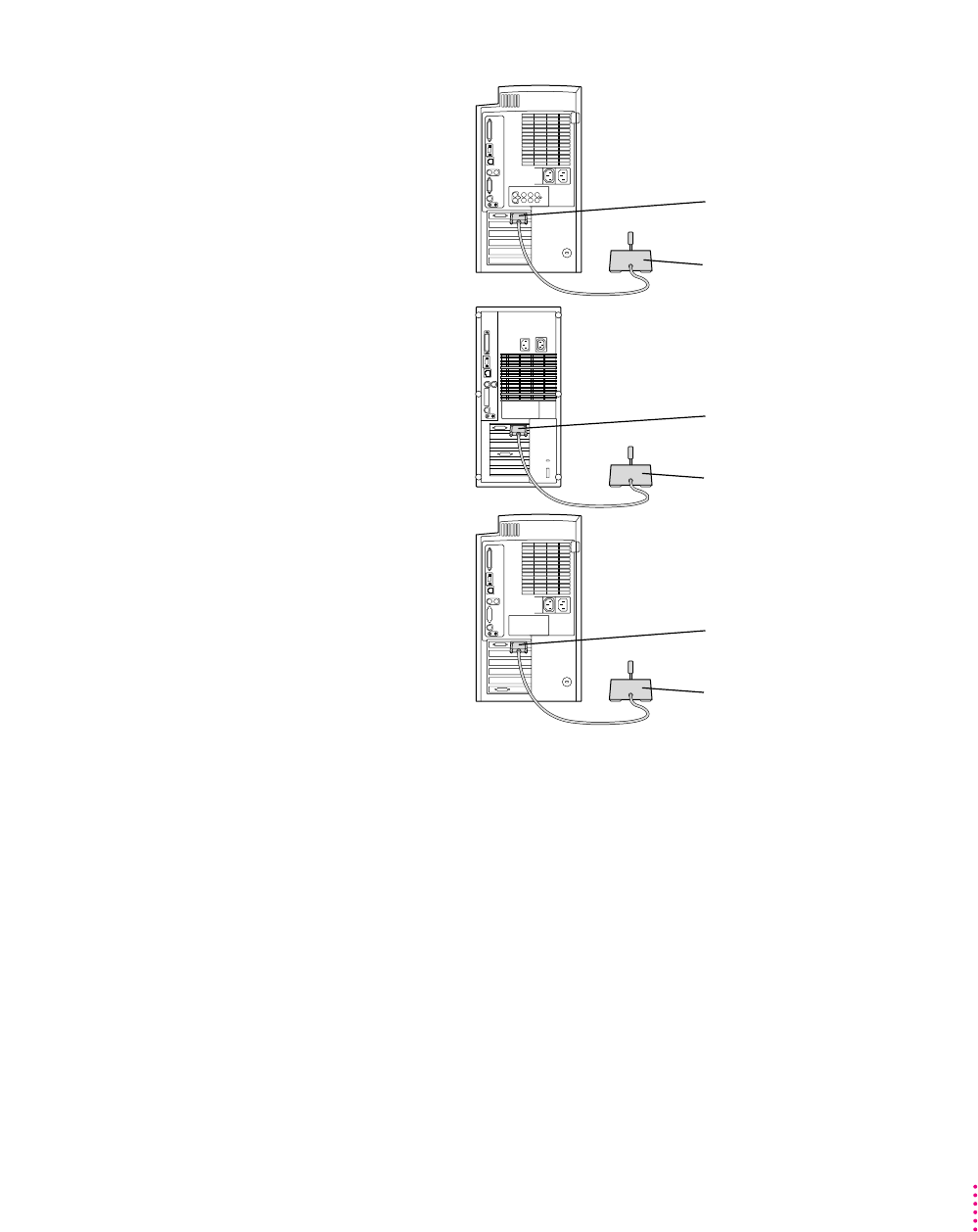
Connecting a printer
You can print from the PC environment to any printer connected to your
Macintosh computer.
You can also purchase a PC Serial and Parallel Card (available from your
Apple-authorized dealer), which allows you to connect a PC-compatible
printer. A printer connected to this card can print only from the PC
environment. You can also purchase a package such as GDT’s PowerPrint.
For more information, see “Setting Printer Options” in Chapter 7.
Game controller
Plug the game controller
into the joystick port.
Power Macintosh 8600
Game controller
Plug the game controller
into the joystick port.
Power Macintosh 9500
Game controller
Plug the game controller
into the joystick port.
Power Macintosh 9600
135
Connecting Monitors and Other Equipment

Connecting to a network
You can connect to shared disks on an AppleTalk or other Mac OS–compatible
network, using the Mac OS file-sharing feature.
By installing the appropriate networking software, you can also connect your
computer to a PC-compatible network, such as a Novell NetWare network.
For more information, see the section “Setting Up Your PC on a Network” in
Chapter 7, and also Appendix C, “Installing Network Client Software.”
Connecting a modem or other serial device
Even in the PC environment, you can use a modem or other serial device
connected to the Macintosh serial port. Macintosh computers do not have the
same serial interface that PCs have, so your modem or communications
software may require adjustment when connected to this port.
You can also connect your modem to a PC Serial and Parallel Card (available
from your Apple-authorized dealer), which has a true RS-232 PC serial
interface. A modem or other serial device connected to this card can only be
accessed from the PC environment.
For more information, see Chapter 7, “Setting Up the PC Environment.”
Connecting a security dongle
If your PC software requires a security dongle, you can connect it by
purchasing a PC Serial and Parallel Card (available from your Apple-
authorized dealer).
136 Chapter 5

137
This chapter describes how to install software for your PC Compatibility Card.
The PC floppy disk and CDs that came with your PC Compatibility Card
contain the necessary software for using the card in both the Macintosh and
PC environments. In addition, DOS installation disks are provided so that you
can install a basic operating system for the PC environment. Additional
operating systems described in this manual, such as Windows 3.1 and
Windows 95, must be purchased separately.
In preparation for installation, you will need the following items that came
with your PC Compatibility Card:
mPC Compatibility Card–Mac OS Software CD
mDOS Installation floppy disks
mPC Compatibility Card–PC Software floppy disk
mPC Compatibility Card–PC Utilities CD
If you are planning on installing Windows or Windows 95, you will also need
one of the following items (not included):
mWindows installation floppy disks
mWindows 95 installation CD or floppy disks
6Installing the PC Compatibility Card Software

138 Chapter 6
IMPORTANT
The Windows 95 upgrade CD will not install Windows 95 on
your drive container unless you have a previous version of Windows available
(either on the drive container or on a Microsoft installation disk). If you have
not previously installed a version of Windows on your drive container, or you
don’t have a Microsoft Windows installation disk, then you will need the “full
install” version of Windows 95 (not the upgrade CD).
There are several steps to installing your PC Compatibility Card software:
minstalling the Mac OS software
mcreating a storage area (called a drive container) for your PC software
minstalling DOS
minstalling support software for DOS
minstalling Microsoft Windows and support software for Windows (optional)
minstalling PC utilities (optional)
minstalling your own PC software
To learn how to set up and use the software once you have installed it, refer to
Chapter 7, “Setting Up the PC Environment” and Chapter 8, “Working in the
PC Environment.”

139
Installing the PC Compatibility Card Software
Installing Mac OS software
The Mac OS software for operating your PC Compatibility Card is on the
PC Compatibility Card–Mac OS Software CD that came with your card.
Installing System 7.5.3
If your computer does not have system software version 7.5.3 or greater, you
must install System 7.5.3 from the PC Compatibility Card–Mac OS Software CD.
To install System 7.5.3, follow these steps:
1Insert the
PC Compatibility Card
–
Mac OS Software
CD into the CD-ROM drive.
If necessary, double-click the CD icon to open it.
2Double-click the System Software Installs folder to open it.
3Double-click the System 7.5 Version 7.5.3 folder to open it.
4Double-click the System Software folder to open it.
5Double
-
click the Installer icon.
A message may appear describing the Installer software. Click OK.
The Installer window appears.
6Make sure the disk named in the box is the one on which you want to install software.
If not, click Switch Disk until the correct disk name appears.
Note: If you want to install only specific components, choose Custom Install
from the Easy Install menu. In the Custom Install window, click to place an X
in the boxes next to the components you want to install. Click the information
symbol for more information about a component.
7 Click Install.

140 Chapter 6
Installing Open Transport
If your computer does not have Open Transport 1.1.1 or greater, you must
install it from the PC Compatibility Card–Mac OS Software CD.
1Insert the
PC Compatibility Card
–
Mac OS Software
CD into the CD-ROM drive.
If necessary, double-click the CD icon to open it.
2Double-click the System Software Installs folder to open it.
3Double-click the Open Transport 1.1.1 folder to open it.
4Double-click the Install 1 folder to open it.
5Double-click the Installer icon.
A message may appear describing the Installer software. Click OK.
The Installer window appears.
6Make sure the disk named in the box is the one on which you want to install software.
If not, click Switch Disk until the correct disk name appears.
7 Click Install.
Installing the Mac OS PC Compatibility software
To install the Mac OS software for operating your PC Compatibility Card,
follow these steps:
1Insert the
PC Compatibility Card
–
Mac OS Software
CD into the CD-ROM drive.
If necessary, double-click the CD icon to open it.
2Double-click the PC Compatibility Software folder to open it.
3Double-click the Installer icon in the PC Compatibility folder.
A message may appear describing the Installer software. Click OK.
The Installer window appears.

4Make sure the disk named in the box is the one on which you want to install software.
If not, click Switch Disk until the correct disk name appears.
Note: If you want to install only specific components, choose Custom Install
from the Easy Install menu. In the Custom Install window, click to place an X
in the boxes next to the components you want to install. Click the information
symbol for more information about a component.
5 Click Install.
The software is automatically installed on your hard disk.
6When the installation is complete, follow the instructions on the screen to quit the
Installer and restart your computer.
The following Mac OS software is now installed for use with your PC
Compatibility Card:
Name Location
PC Setup Control Panels folder
Ethernet (built-in) Extensions folder
PC Compatibility Guide Extensions folder
PC Clipboard Extensions folder
PC Net Exchange Extensions folder
PC Network Extension Extensions folder
PC Print Spooler Extensions folder
PC Setup Switch Control Strip Modules
Installing mouse software
If you have a multibutton Mac OS–compatible mouse you may be able to use
the right mouse button in the PC environment. Refer to the instructions that
came with your mouse. For more information about using your mouse in the
PC environment, see “Using a Pointing Device” in Chapter 8, “Working in the
PC Environment.”
141
Installing the PC Compatibility Card Software
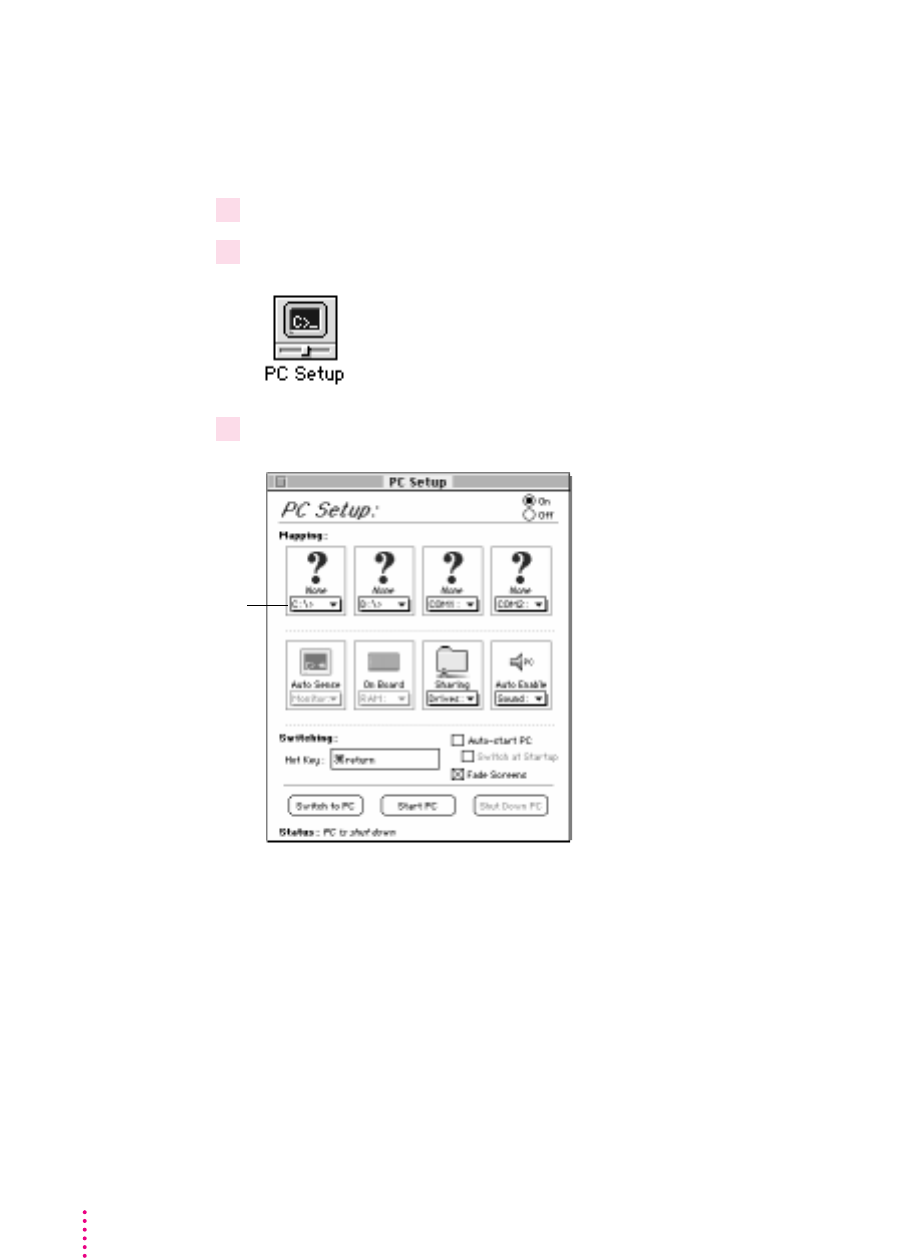
Creating a drive container
A drive container is a file on your computer’s hard disk that acts as a hard drive
for the PC. You create a drive container using the PC Setup control panel.
1Choose Control Panels from the Apple (
K
) menu.
2Double-click the PC Setup icon to open the PC Setup control panel.
3 Click Start PC.
Note: If you want the PC to start automatically when the Mac OS starts up,
click the box labeled “Auto-start PC” to place an X in it.
142 Chapter 6
C-drive pop-up menu
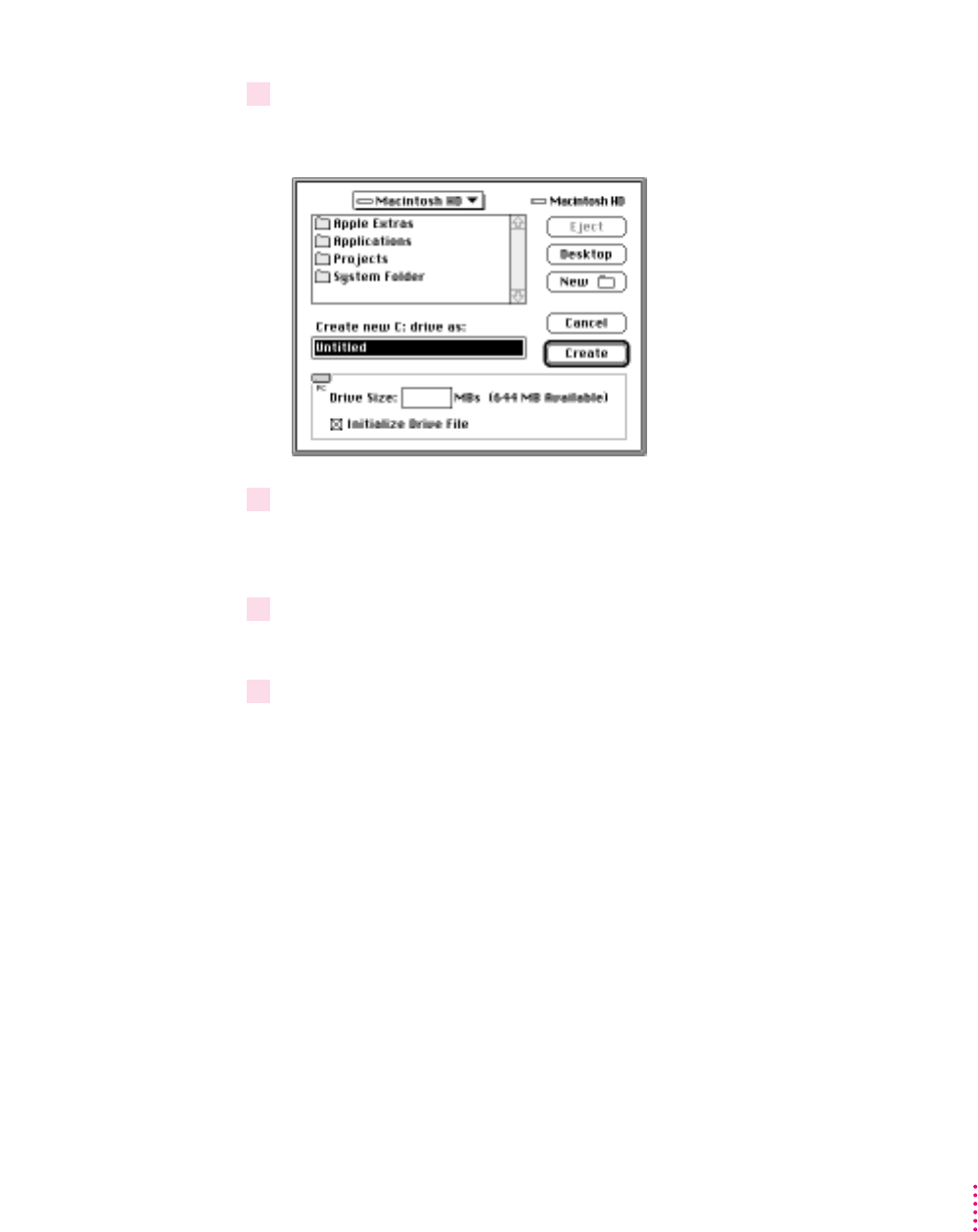
143
Installing the PC Compatibility Card Software
4Choose New Drive File from the C drive pop-up menu.
A dialog box appears.
5Choose a location for the drive container.
The drive container can be on any hard disk attached to the computer that has
sufficient free space.
6Type a name for the drive container, then press the Tab key.
You can type up to 31 characters.
7 Type a size (in MB) for the drive container.
You can make the container as small as 2 MB or as large as 1023 MB. The
amount of space you need depends on the software you want to install. If you
are installing DOS and a few small applications, you’ll need about 100 MB. If
you are installing Microsoft Windows, you’ll need at least 150 MB. If you are
installing Microsoft Windows 95, you’ll need at least 200 MB.
IMPORTANT
Once a drive container is created, its size cannot be changed.
Before choosing a size for your drive container, decide which PC operating
system and applications you want to run. Check the documentation that came
with the software to estimate how much space you’ll need; then allow some
extra room for applications. If you still run out of space on the drive
container, you can create another drive container and assign it to drive D.

8Make sure Initialize Drive File is checked.
The Initialize Drive File option is used to create a drive container with a
single partition. A single partition drive container is recommended for most
standard installations. However, you can create a drive container with
multiple partitions. See “Creating a Multiple Partition/Bootable Drive
Container” in Chapter 7, “Setting Up the PC Environment,” if you need a
drive container with multiple partitions.
9Click Create.
Installing DOS
Once the drive container is created, the next step is to install DOS software in
it. You can think of a new drive container as a formatted hard drive that needs
an operating system in order to make it a startup disk. You need to install
DOS before you can install any applications (including Windows). Find the
DOS installation disks that came with your PC Compatibility Card and follow
these steps:
1 Open the PC Setup control panel and click “Switch to PC.”
The Mac OS desktop disappears. (If you set up a dedicated monitor for the
PC environment, the image on the Mac OS monitor dims.) In the PC
environment you’ll see a message about a missing operating system or disk
error. This message indicates that the PC has started up and not found any
operating system.
2Insert the first DOS installation floppy disk and press the Space bar to continue.
3 Follow the instructions that appear on the screen.
Press x-E to eject a disk when necessary.
4When installation is complete, restart the PC environment.
Restart the PC environment by simultaneously pressing Control-Alt-….
144 Chapter 6
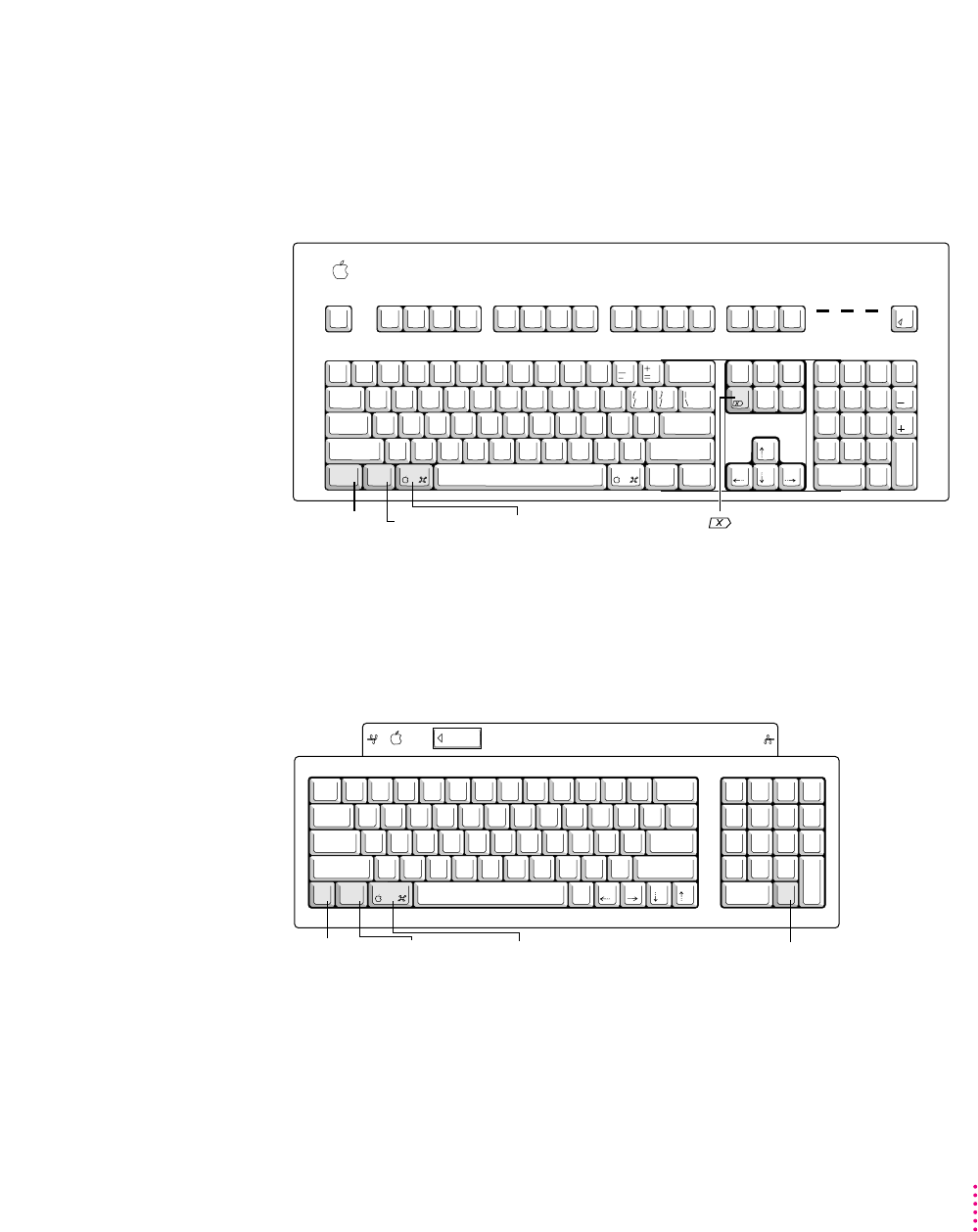
Note: The instructions in this manual often tell you to restart the PC by
pressing the Control-Alt-…keys at the same time. The …key is sometimes
called the Delete key. However, on a Mac OS–compatible keyboard there is an
additional Delete key. Make sure you press the … (Del) key (not the Delete
key) when you restart the PC.
If you are using a keyboard that does not have the … (Del) key, you can restart
the PC by pressing Control-Alt-. (the period on the numeric keypad). On
some keyboards the Option key is not labeled Alt, but it still works as an Alt
key in the PC environment.
You should now see the DOS prompt.
234567891
!
@
#
$
%
^
&
*
(
-
_
delete
=
+
)
0
return
esc
NM
,
<.
>
/
?
Q W E R T
S D F GA
ctrl option
caps
lock
shift
tab
`
~
Z X C V B
U I O P
J K L
shift
Y
H
:
;
}
]
"
'
{
[
|
\
789
456
123
.
0
clear
*
=
/
enter
+
–
Control key Option
(Alt) key
Command key Numeric keypad
period key
esc
F1 F2 F3 F4 F5 F6 F7 F8 F9 F10 F11 F12 F13 F14 F15
print
screen
scroll
lock
pause
num
lock
caps
lock
scroll
lock
num
lock
clear
=/*
7
4
0
8
5
2
9
6
3
enter
1
.
homehelp
end
ins
page
up
page
down
delete
return
shift
controloption
alt
'
"
/
?
;
:
.
>
,
<
MNBVCXZ
JHGFDSA LK
UYTREWQ OIP
7654321 980
&^%$#
@
! (*)
`
~
tab
caps
lock
shift
Control key Option
(Alt) key
Command key (Del) key
control option
alt
del
145
Installing the PC Compatibility Card Software

Installing support software for DOS
The software on the PC Compatibility Card–PC Software floppy disk that came
with your PC Compatibility Card allows the card to work with the Mac OS
and Mac OS–compatible CD-ROM drives, networks, and other equipment.
To install the software, follow these steps:
1 In the PC environment, insert the
PC Compatibility Card
–
PC Software
floppy disk.
To switch to the PC environment from the Mac OS, press x
-
Return, or open
the PC Setup control panel and click “Switch to PC.”
2Type the following:
A:\SETUP <return>
Note: DOS and Windows commands documented in this manual are
formatted showing the command followed by <return>. When you see this
format type the text and then press Return to execute the command.
3When you are asked to select an option, choose “I” for Install.
To choose an option, use the arrow keys to highlight it, then press Return.
4When you are asked to choose a target drive for installation, choose “C” to install on
the C:\ drive. (This is the drive set up as the default for installation in the PC Setup
control panel.)
5When you are asked to select a target directory for installation, type the following:
\APPLE <return>
6When you are asked to select the DOS directory, type the following:
\DOS <return>
7Choose Yes to continue installation.
8Choose groups for installation.
By default all groups are selected. Follow the instructions that appear on the
screen for selecting or deselecting groups.
146 Chapter 6

The installation groups are
mMac/PC Folder Sharing (which allows you to use a Mac OS folder as a
shared drive with the PC)
mCD-ROM support (which allows you to use CD-ROM discs in the PC
environment)
9Press F10 to continue.
If your keyboard does not have function keys press x-0. For a list of function
key equivalents, see Chapter 8, “Working in the PC Environment.”
10 If you’re asked whether you want to overwrite files, choose either “Yes” or “Always.”
Choosing “Yes” will overwrite only the specified file and will prompt you
again to overwrite the next file. Choosing “Always” will overwrite the
specified file and all subsequent files without prompting you again.
11 You are asked whether you want the program to modify your system files. Choose
“Apply changes directly to system files.”
If you choose to apply the changes to copies of the system files, the copies
have the same name as the originals followed by a number. The higher the
number, the more recent the copy.
12 When installation is complete, press Return to continue. The PC environment will restart
automatically.
Installing mouse software for DOS
If you wish to use your Mac OS–compatible mouse in the DOS environment,
you need to install the mouse driver provided on the PC Compatibility
Card–PC Utilities CD. To install the mouse drivers, run SETUP.EXE in the
MOUSE directory. This step is not required if you only plan on using the
mouse in the Windows environment.
Note: When you install the DOS mouse driver, the Installer may display an
error message indicating that it could not find a mouse attached to the
computer. You can ignore the message if your mouse is properly connected to
an ADB port on your computer or keyboard.
147
Installing the PC Compatibility Card Software

148 Chapter 6
Installing Microsoft Windows
The PC Compatibility Card works with Microsoft Windows 3.1, Windows 3.11,
Windows for Workgroups 3.11, and Windows 95.
You must install DOS and the support software on the PC Compatibility
Card–PC Software floppy disk before installing Windows.
1In the PC environment, insert the Windows CD-ROM disc or first installation floppy disk.
2 Start the Windows setup program.
If you are installing from floppy disks, type the following:
A:\SETUP <return>
Note: DOS and Windows commands documented in this manual are
formatted showing the command followed by <return>. When you see this
format type the text and then press Return to execute the command.
If you are installing from a CD-ROM disc, type the following:
E:\SETUP <return>
Note: In this case E represents the letter assigned to your CD-ROM drive.
IMPORTANT
If you are installing Windows 95, note the following guidelines
for the installation process:
mIf you are installing from floppy disks, make sure to lock your
installation disks.
mSelect Continue instead of Retry at the end of disk 2.
mIf you choose to make a startup disk, make sure the disk is already
formatted for the PC environment. An unformatted or Macintosh
formatted disk will not be recognized.
mDo not print the test page when you are prompted to do so.
mDo not install any networking software during the Windows 95 installation
process. To install networking software, see Appendix C, “Installing
Network Client Software,” after you have completed the Windows 95
installation process.

3 Follow the instructions that appear on the screen.
Press x-E to eject a floppy disk or x-Y to eject a CD when necessary.
4When installation is complete, restart the PC environment.
To restart the PC environment, switch to the Mac OS (by pressing x-Return),
open the PC Setup control panel, and click Restart PC. You can also restart
the PC by pressing Control-Alt-….
Installing support software for Windows
Next, you need to install the Windows support software. Follow these steps:
1If necessary, switch to the PC environment.
To switch to the PC environment from the Mac OS, press x-Return, or open
the PC Setup control panel and click “Switch to PC.”
2 Insert the
PC Compatibility Card–PC Software
floppy disk.
3 In Windows, choose Run from the File menu. In Windows 95, click the Start button; then
choose Run from the menu that appears.
4 In the dialog box that appears, type the following:
A:\SETUP <return>
5 Follow the instructions that appear on the screen.
The recommended directory to install files is C:\APPLE.
By default all options will be installed. However, you may choose not to
install specific options. These are the installation options:
mInstall Macintosh/Windows Copy and Paste: allows you to transfer Clipboard
information between the Mac OS and PC environments
mInstall Macintosh/PC Folder Sharing: allows you to use a Mac OS folder
with the PC as a shared PC drive
mInstall CD-ROM Support: allows you to use CD-ROM discs in the PC
environment
mInstall PC Compatibility Help: helps you set up your Windows or Windows
95 environment to properly work with the PC Compatibility Card
149
Installing the PC Compatibility Card Software
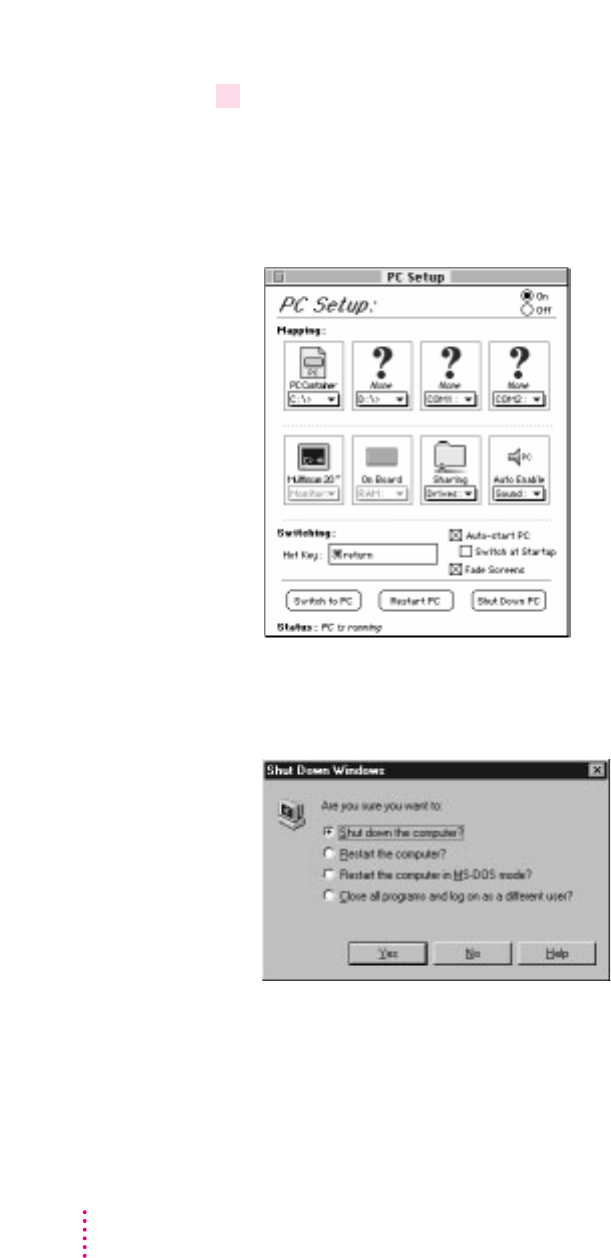
6When installation is complete, restart the PC.
In Windows, restart the PC by first exiting Windows and then pressing
Control-Alt-…at the DOS prompt. You can also restart the PC by exiting
Windows, switching to the Mac OS environment by pressing x-Return, and
then clicking Restart PC in the PC Setup control panel.
In Windows 95 restart the PC by clicking the Start button and selecting
Shutdown. In the Shutdown dialog box, choose one of the restart options.
Configuring network support in Windows
To configure network support in Windows, see Appendix C, “Installing
Network Client Software.”
150 Chapter 6

151
Installing the PC Compatibility Card Software
Installing PC utilities
Your PC Compatibility Card comes with a CD-ROM disc labeled PC
Compatibility Card–PC Utilities, which contains the following programs
and utilities:
mKeyboard files let you use keyboard layouts for a variety of languages.
mQuickTime for Windows lets you view and manipulate video on the PC.
mSound Blaster software lets you play music and manipulate sound files.
mVideo drivers let you configure and use a variety of monitors.
You should install Sound Blaster and the video drivers. QuickTime and the
keyboard files are optional.
Installing keyboard files
Keyboard files allow you to use keyboard layouts for other languages and
keyboards.
IMPORTANT
If you are using an international keyboard, be sure to install and
use the keyboard files on the PC Compatibility Card–PC Utilities CD. (The
supported languages vary from country to country.) The keyboard files that
come with Windows and Windows 95 may not work with your keyboard.
Installing keyboard files in Windows 3.1
1 Start Windows.
2 Insert the
PC Compatibility Card–PC Utilities
CD into the CD-ROM drive.
3 Open the International control panel.
4Select the language you want in the Keyboard Layout area, then click OK.
5 In the Install Driver dialog box, click Browse.
6Select the E drive, then locate the folder for the language you want.
For example E:\KEYBOARD\WIN31\GERMAN\
7Select the file you want, then close the control panel and restart Windows.

Installing keyboard files in Windows 95
1 Start Windows 95.
.2Insert the
PC Compatibility Card–PC Utilities
CD into the CD-ROM drive.
3Click the Start button. Choose Settings from the menu that appears, then choose
Control Panel.
4Double-click the Keyboard icon.
5Click the Language tab.
6 Click Add.
7In the list that appears, select the language you want, then click OK.
8Select the name of the language whose keyboard layout you want to use. Click “Set as
Default,” then click OK.
9When requested to insert the Windows 95 CD, leave the
PC Compatibility Card–PC
Utilities
CD in the CD-ROM drive and click OK.
You can only use the keyboard drivers provided on the PC Compatibility
Card–PC Utilities CD.
10 If an error message appears, click OK.
11 Click Browse, then select the E drive in the Drives window.
12 In the Folders window, locate the folder and file you want, then click OK.
For example E:\KEYBOARD\WIN95\GERMAN
152 Chapter 6

Installing QuickTime for Windows
Follow these steps to install the QuickTime for Windows software:
1 In the PC environment, insert the
PC Compatibility Card–PC Utilities
CD into the
CD-ROM drive.
2 In Windows, choose Run from the File menu.
3In the dialog box that appears, type the following:
E:\QUICKTME\QTINSTAL <return>
4 Follow the instructions that appear on your screen to complete the installation.
Installing QuickTime for Windows 95
Follow these steps to install the QuickTime for Windows 95 software:
1 In the PC environment, insert the
PC Compatibility Card–PC Utilities
CD into the
CD-ROM drive.
2 In Windows 95, click the Start button, then choose Run from the menu that appears.
3In the dialog box that appears, type the following:
E:\QUICKTME\QT32INST <return>
4 Follow the instructions that appear on your screen to complete the installation.
Installing Sound Blaster software for DOS or Windows
1 In the DOS environment, insert the
PC Compatibility Card–PC Utilities
CD into the
CD-ROM drive.
If you are in Windows, exit Windows to return to DOS. Do not attempt this
installation from a DOS window in Windows.
2Type the following to start the install program:
E: <return>
CD \SOUND <return>
W31SETUP <return>
3A message appears. Press F2 to view the Read Me file. When you’re finished viewing the
file, press ESC to return to the main install screen.
153
Installing the PC Compatibility Card Software

4 Follow the onscreen instructions.
When asked for the Creative Configuration Manager Installation disk, leave
the PC Compatibility Card–PC Utilities CD in the CD-ROM drive, and enter
the following path:
E:\SOUND\CMG
5Press Return to allow the Install program to modify your files.
6Press Return to select full installation.
7Press Return to select the recommended paths.
8Press Return to select the recommended settings.
If you are asked to insert your Audio software installation disk, leave the PC
Compatibility Card–PC Utilities CD in the CD-ROM drive, and enter the
following path:
E:\SOUND\WIN31
9Press Return to allow the Install program to modify your files.
10 Choose to back up your existing file.
11 Press Return to return to a DOS prompt
.
12 Manually restart the PC by pressing Control-Alt-
…
.
Installing Sound Blaster software for Windows 95
1 In the PC environment, insert the
PC Compatibility Card–PC Utilities
CD into the
CD-ROM drive.
2In Windows 95, click the Start button. Choose Run from the menu that appears.
3In the dialog box that appears, type the following:
E:\SOUND\W95SETUP.BAT <return>
If a message asks you to insert a disk, click OK.
Let the setup program modify your .INI file.
4When the Installer asks if you want to reboot the PC, choose No.
154 Chapter 6

5When the installation is complete, quit and restart Windows 95.
To use the Sound Blaster programs in Windows 95, click Start, choose
Programs, and select the Sound Blaster 16 directory.
Installing and configuring video software for Windows 3.1
This section describes basic installation and configuration. For more
information about the video software, including installing and configuring
video for DOS, see Appendix D, “Configuring Video Software.”
1 In the PC environment, insert the
PC Compatibility Card–PC Utilities
CD into the
CD-ROM drive.
If you are in Windows, exit Windows to return to the DOS prompt. Do not
attempt this installation from a DOS window in Windows.
2Type the following:
E:<return>
CD \VIDEO\UTILITY\ <return>
INSTALL <return>
The main menu of the Installer program appears.
3Choose Drivers Installation from the menu.
4 Select Microsoft Windows.
5Select Install Windows driver.
6Select to install Display Drivers Only.
7Verify the path for the drivers and press Return.
8When installation is finished, press ESC as many times as necessary to get back to the
main menu.
9Choose Utilities Installation from the menu.
10 Verify the path for the utilities and press Return.
11 You see a message asking whether the program can modify your AUTOEXEC.BAT file.
Choose Yes.
12 Exit the INSTALL program and start Windows.
155
Installing the PC Compatibility Card Software

13 Open the ATI DeskTop program.
To learn more about the program, use the help feature or turn to Appendix D,
“Configuring Video Software.”
14 Click Screen Adjustment.
15 Select a monitor type and resolution.
16 If you have a multiple-scan monitor, customize the display using the Screen Adjustment
program.
17 Restart Windows.
18 Open the Flex Desk+ program (if not already open).
19 Select a resolution and color depth.
Installing video software for Windows 95
The Windows 95 display driver that comes with the PC Compatibility Card
offers better performance than the standard driver. To install the driver, follow
these steps:
1Insert the
PC Compatibility Card–PC Utilities
CD into the CD-ROM drive.
2In Windows 95, click the Start button, then choose Run from the menu that appears.
3In the dialog box that appears, type the following:
E: \VIDEO\ATISETUP <return>
4Select a Display Driver.
5 Follow the onscreen instructions to complete the installation.
IMPORTANT
The ATI setup program will ask you to type E: \WIN95 to
specify the video driver location. Because you will be using the PC
Compatibility Card–PC Utilities CD instead of the Windows 95 CD, the correct
directory will be E: \VIDEO\WIN95.
You may need to move windows to see the information presented. To move a
window, drag the window’s top bar.
156 Chapter 6
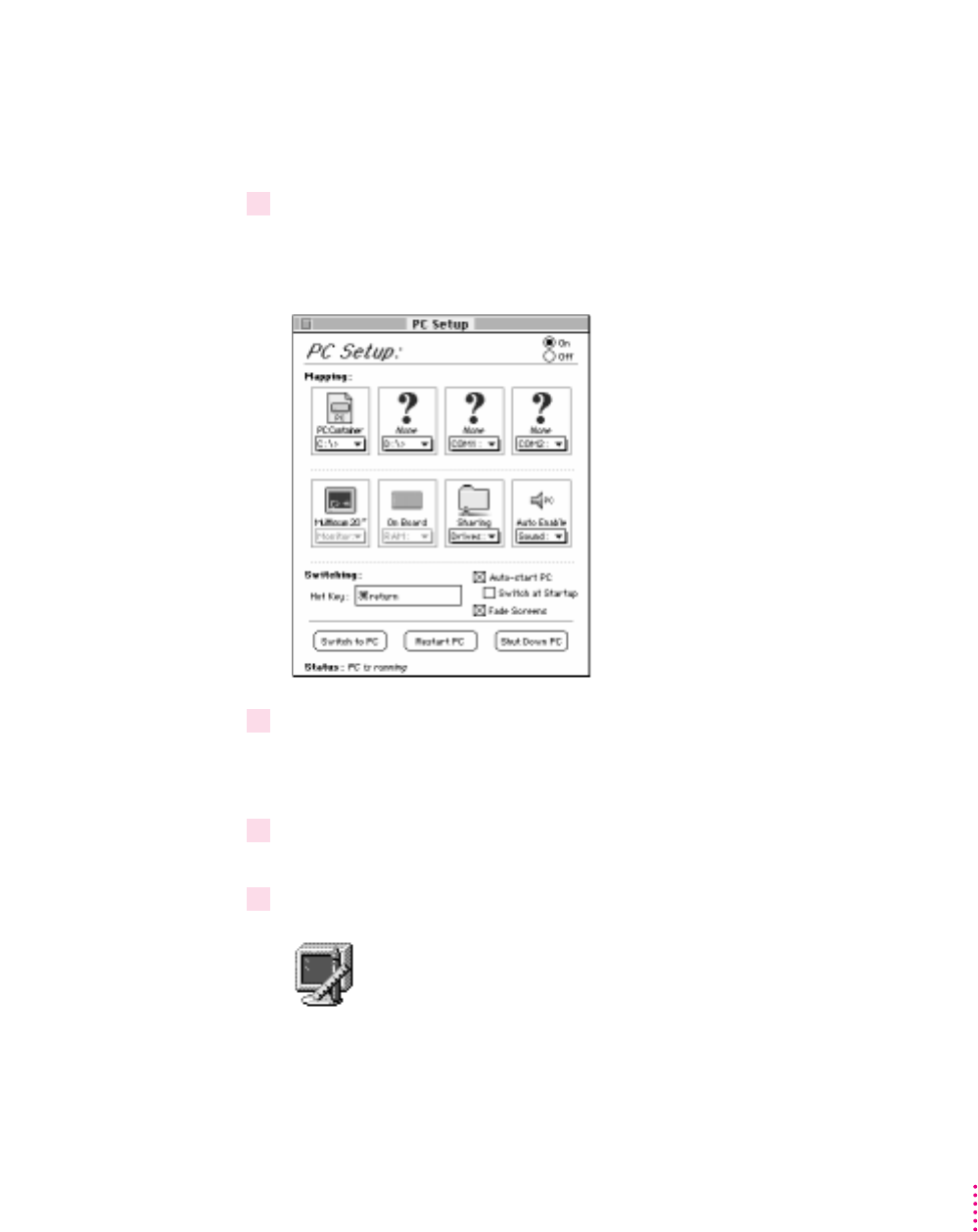
Selecting and configuring monitors in Windows 95
Before performing this procedure, you need to install the video software as
described in the previous section.
1Switch to the Mac OS, open the PC Setup control panel, and make a note of the monitor
type that appears in the Monitor section of the control panel.
You can switch to the Mac OS by typing x-Return.
2Switch to the PC environment and make sure Windows 95 is running.
You can switch to the PC environment by clicking “Switch to PC” in the PC
Setup control panel, or by pressing x-Return.
3 In Windows 95 click the Start button. Choose Settings from the menu that appears, then
choose Control Panel.
4Double-click the Display icon to open the Display control panel.
157
Installing the PC Compatibility Card Software

5Click the Settings tab in the Display control panel.
Note: If you have a DDC-compliant monitor (such as an AppleVision display)
connected directly to the video port on the PC Compatibility Card, you do not
need to select a monitor type. Windows 95 will make the appropriate settings
for you. In addition, Windows 95 will configure the Display control panel so
that only the settings that work with your monitor appear.
6 Click Change Display Type.
7In the Monitor Type area, click Change.
8If your monitor is listed in the dialog box that appears, click its name, click OK, and
restart Windows. If not, click “Have Disk” and go on to steps 9–11.
9Insert the
PC Compatibility Card–PC Utilities
CD. Make sure the path in the text box is
E: \ APPLE, then click OK.
10 Click Show All Devices.
11 In the Models box, choose a model corresponding to the monitor type listed in the PC
Setup control panel, then click OK.
158 Chapter 6

If this type is listed in PC Setup... ...choose this type in the Models box
Apple 14" (this type appears if you’ve “(all other Apple monitors)”
connected a 12-, 13-, or 14-inch
fixed-frequency monitor)
Apple 16" “(all other Apple monitors)”
Multiscan (this type appears if you’ve Plug and Play Monitor (VESA DDC) if this type is
connected an AppleVision or other automatically selected in the list. Otherwise,
DDC-compliant monitor) AppleVision 1710
AV
, AppleVision 1710,
AppleVision 1705, Multiple Scan 1705, or
Multiple Scan 20.
Multiscan 14" Apple Multiple Scan 14" or Apple Multiple Scan 15"
Multiscan 17" Apple Multiple Scan 17"
Multiscan 20" Apple Multiple Scan 20"
19" Color Your monitor model (if listed), or SuperVGA 1024 x 768
Portrait “(all other Apple monitors)”
21" Color “(all other Apple monitors)”
21" Monochrome “(all other Apple monitors)”
VGA Standard VGA 640 x 480
To customize a multiple-scan monitor, click the Adjustments tab in the
Display control panel.
12 Restart Windows.
A help window will appear with information on the video software. When
you’re finished with the help window, click to remove the X from the box at
the bottom of the window, so it won’t appear each time you start up.
159
Installing the PC Compatibility Card Software

Installing your own PC software
You can now install your own PC programs in the drive container you’ve
created. Follow the instructions that came with the programs.
You may need to eject disks during installation. Press x-E to eject a floppy
disk. Press x-Y to eject a CD. For more information on working with disks,
see “Using Floppy Disk Drives and Floppy Disks” and “Using CD-ROM
Discs and Drives” in Chapter 8, “Working in the PC Environment.”
For further information on installing network client software, see
Appendix C, “Installing Network Client Software.”
What’s next?
Yo u’ve finished installing your PC software. Now turn to Chapter 7, “Setting
Up the PC Environment,” to learn how to configure your PC software.
160 Chapter 6

This chapter contains information on the following aspects of your PC
environment:
mthe PC Setup control panel and Control Strip module
mmonitors and video software
mRAM
mprinter settings
msound options
mPC drives
mshared volumes
mnetwork settings
mserial port settings
mmodem settings
mjoystick and MIDI devices
mDOS configuration files
161
7Setting Up the PC Environment

162 Chapter 7
About the PC Setup control panel
You can control the following PC options in the PC Setup control panel:
mturning the PC Compatibility Card on and off
massigning PC drives to drive containers or volumes
massigning PC COM1 and COM2 ports to Mac serial ports or text files
msetting up shared folders and volumes
mturning PC sound on and off
mchanging the command (hot key) that switches between environments
msetting the PC to start automatically when you start up your computer
mswitching to the PC automatically when you start up your computer
msetting the fade screen option when switching environments
mswitching to, starting, and shutting down the PC
These options are described in this chapter and in Chapter 8, “Working in the
PC Environment.”
To use the PC Setup control panel, follow these steps:
1Choose Control Panels from the Apple (
K
) menu.
2 Double-click the PC Setup icon to open the PC Setup control panel.
3When you have specified the settings you want, close the control panel.
Onscreen help: To see brief explanations of items in the control panel, choose
Show Balloons from the Guide (h) menu. For detailed step-by-step help, see
the PC Compatibility Guide, available in the Guide (h) menu.
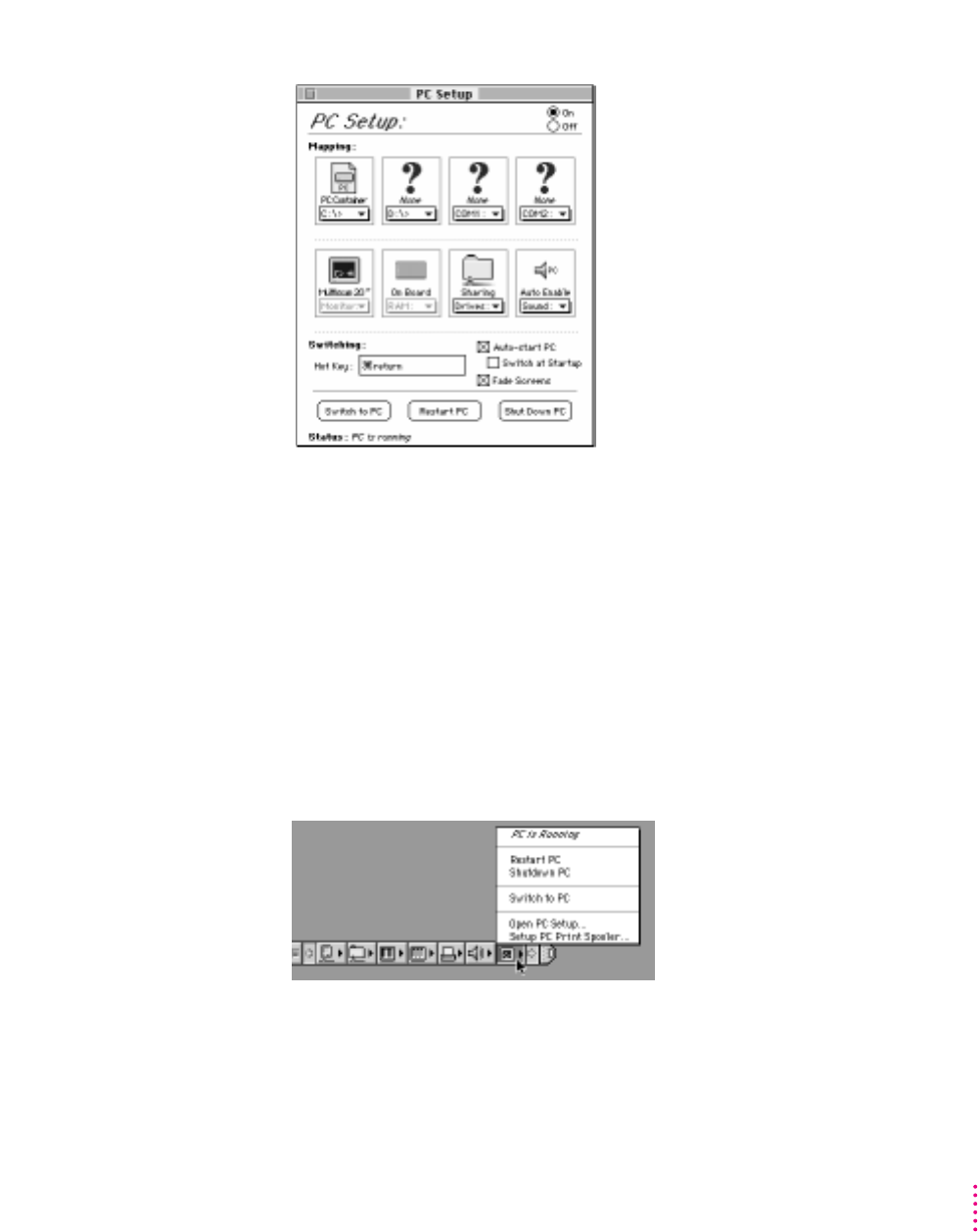
163
Setting Up the PC Environment
Using the PC Setup Control Strip module
As part of the installation process, a PC Setup module is added to your
Control Strip. From this Control Strip module you can do the following:
mstart up the PC or restart the PC
mshut down the PC
mswitch to the PC
mopen the PC Setup control panel
mset up the PC Print Spooler
For more information on using the Control Strip, see “How do I use the
Control Strip?” in the “Customizing Your Computer” topic area of Macintosh
Guide (Mac OS Guide), available in the Guide (h) menu.
Setting Up the PC Environment
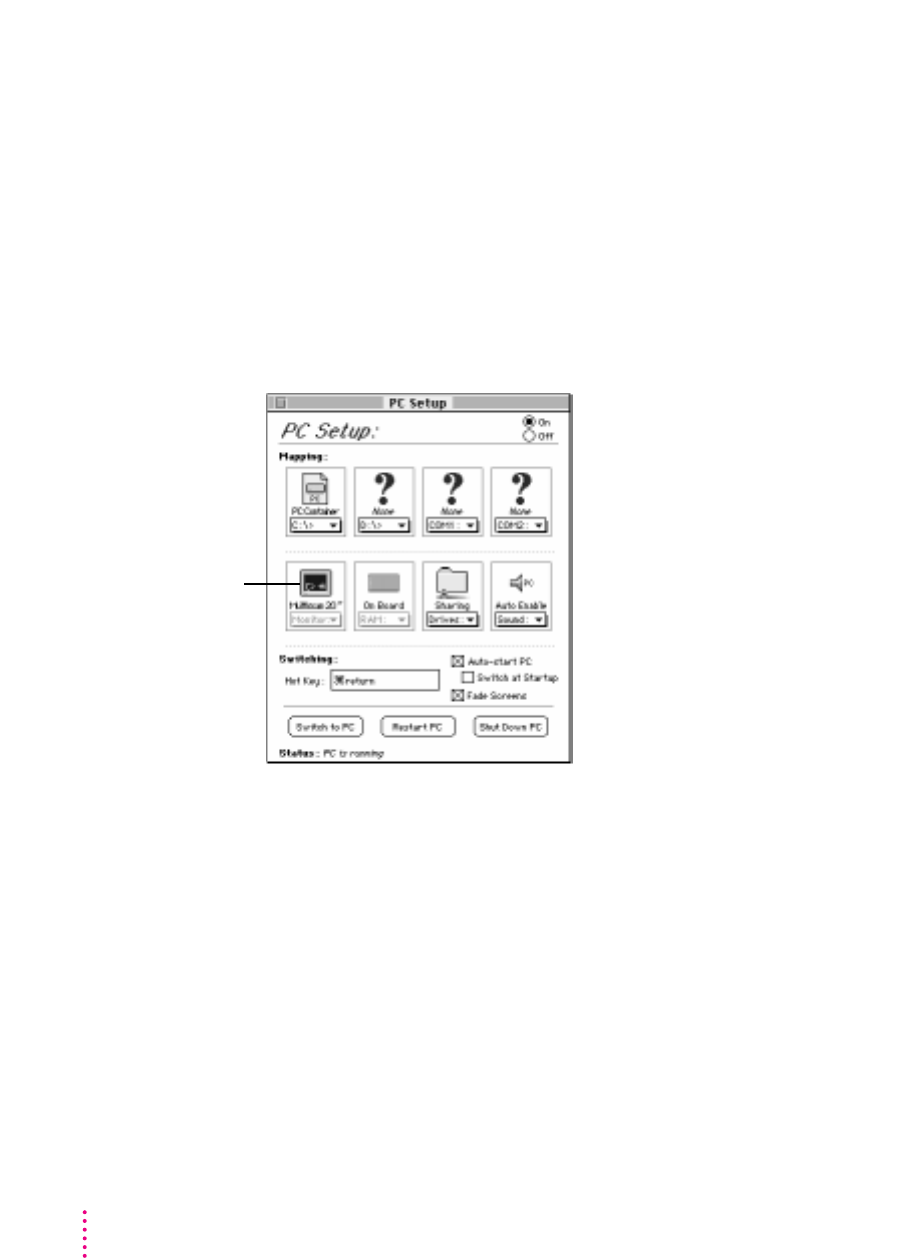
Configuring monitors
To connect a monitor, see Chapter 5, “Connecting Monitors and Other
Equipment.”
In most cases, the Mac OS recognizes the monitor you’re using to display the
PC environment. The monitor type appears in the Monitor section of the PC
Setup control panel. If you want special video features such as multiple colors
and resolutions, you need to install and configure the video software that
came with your card, as described in Chapter 6, “Installing the PC
Compatibility Card Software.”
If the monitor you’re using to display the PC environment is not working
correctly, make sure you have connected the monitor according to the
instructions in Chapter 5, “Connecting Monitors and Other Equipment,” and
make sure you have installed and configured the video software as described
in Chapter 6, “Installing the PC Compatibility Card Software.” For further
information on configuring video, see Appendix D, “Configuring Video
Software,” and Chapter 9, “Troubleshooting.”
If a VGA monitor is not working correctly, also check whether your
VGA-to-Macintosh adapter is configurable and verify the correct settings.
164 Chapter 7
Type of monitor
recognized by the PC
Setup control panel
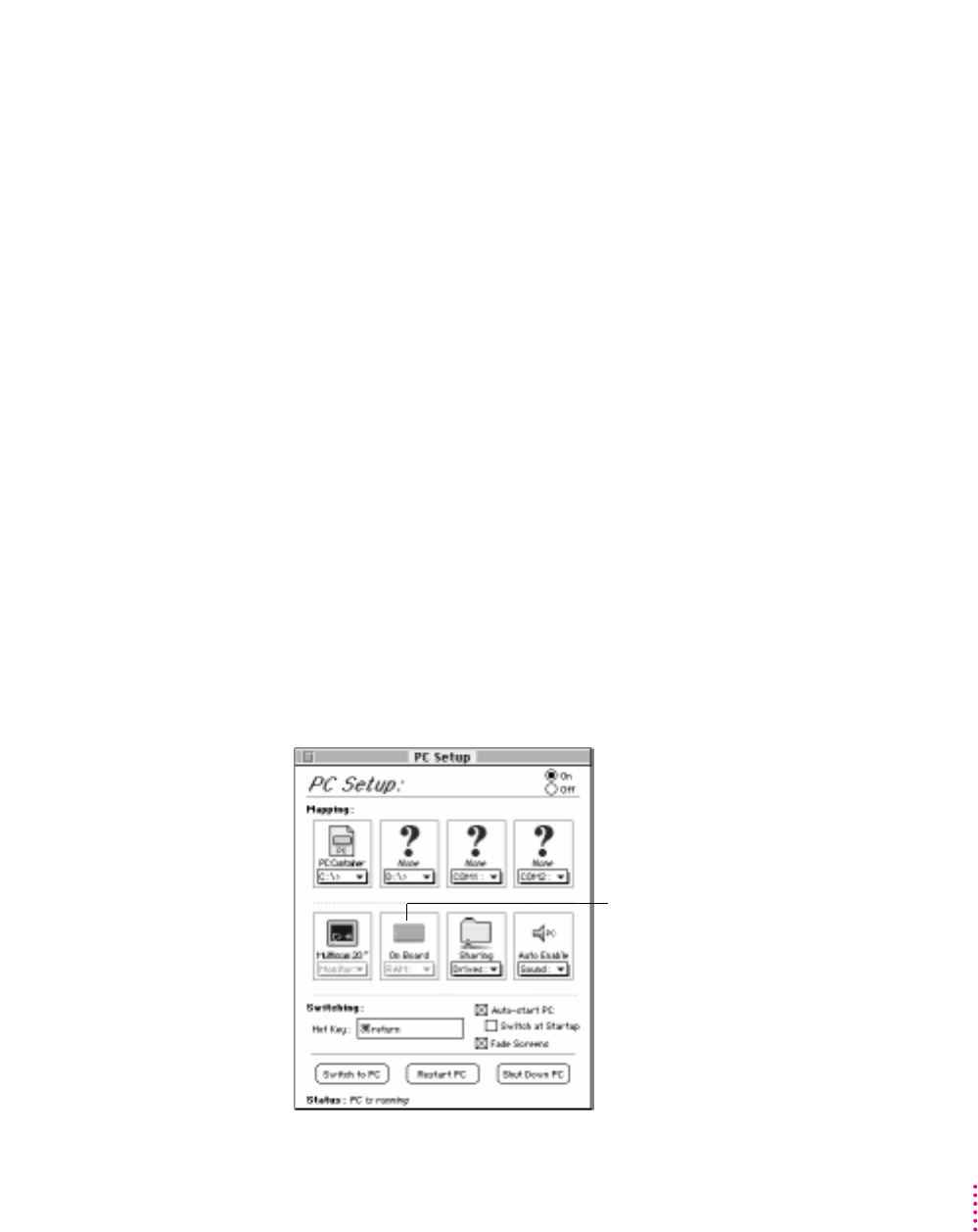
165
Setting Up the PC Environment
Configuring monitors in the DOS environment
To configure monitors in the DOS environment, you use the ATI Install
program. For more information, see Appendix D, “Configuring Video
Software.”
Configuring monitors in the Windows environment
To configure monitors in the Windows environment, use the ATI DeskTop
program. For more information, see ATI DeskTop’s onscreen help feature and
Appendix D, “Configuring Video Software.”
Configuring monitors in Windows 95
To configure monitors in Windows 95, you use the Display control panel. For
more information, see Chapter 6, “Installing the PC Compatibility Card
Software,” and Appendix D, “Configuring Video Software.”
RAM information
The RAM portion of the PC Setup control panel shows where RAM is
installed on your PC Compatibility Card. If a DIMM (dual inline memory
module) is installed, the word “DIMM” appears in the box. If no DIMM is
installed, the words “On Board” appear in the box.
Setting Up the PC Environment
PC RAM status displayed by
the PC Setup control panel

166 Chapter 7
For more information on adding memory to your PC Compatibility Card, see
Appendix B, “Adding Memory to Your PC Compatibility Card.”
Setting printer options
From the PC environment, you can print to most printers connected to the
Mac OS–compatible serial port or network connection, using the PC Print
Spooler software.
Note: The PowerPrint package by GDT Softworks lets you use a
PC-compatible parallel-port printer with your computer. For more
information, you can phone GDT at (800) 663-6222 or (604) 473-3600, or
visit their World Wide Web site at http://www.gdt.com.
Setting up printing in the Mac OS
To print from the PC environment to a printer connected to the computer’s
printer port or other network connection, you need to select a printer in the
Mac OS Chooser and set up the PC Print Spooler software. Follow these steps,
then go to “Setting Up Printing in the PC Environment,” later in this section.
Note: If you are printing from the PC environment using the optional PC
Serial and Parallel Card, see the manual that came with that card for
instructions on how to print from the PC environment.
1 In the Mac OS environment, open the Chooser in the Apple (
K
) menu and make sure a
printer is selected.
If you are using a PostScript™printer, be sure to select the LaserWriter 8
driver. For more information on selecting a printer, see the documentation or
onscreen help that came with your computer.
2 Open the Extensions folder inside the System Folder.
Note: You can also open the PC Print Spooler from the PC Setup Control
Strip module, then skip ahead to step 5.
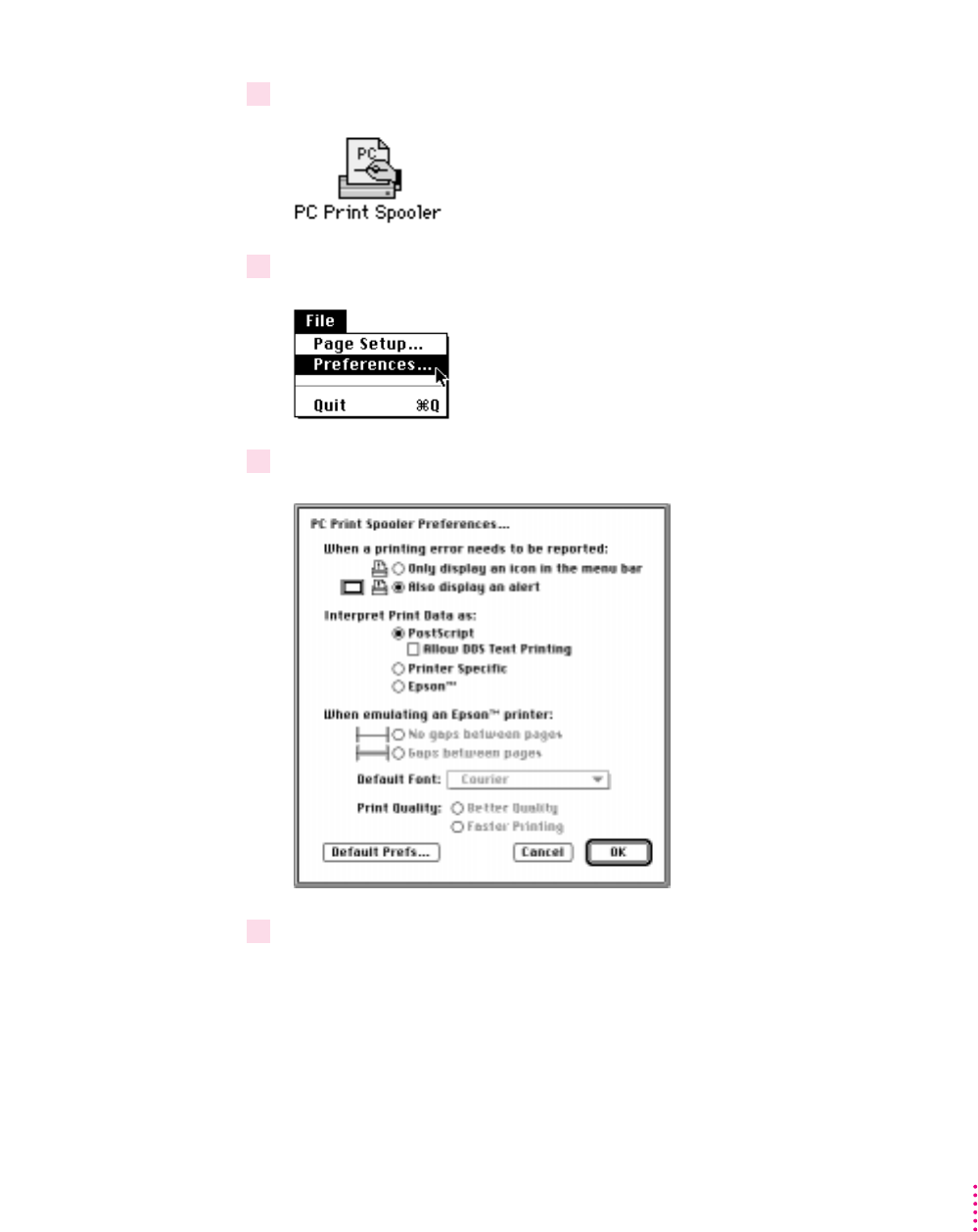
167
Setting Up the PC Environment
3 Open the PC Print Spooler icon.
4Choose Preferences from the File menu.
5Select how you want to be notified of printing errors.
6Choose an option under “Interpret Print Data as.”
Printing data sent from the PC environment has to be interpreted by the Mac
OS before it can be sent to the printer. The PC Print Spooler provides three
possible ways to interpret printing information from the PC environment.
Note: If you are unsure what printing option to use, select Epson. Epson
emulation is a generic option that works with most printers.
Setting Up the PC Environment

168 Chapter 7
mSelect PostScript if your printer supports PostScript. If you plan to print
non-PostScript files on a PostScript printer (such as printing files from the
DOS prompt), make sure the checkbox labeled “Allow DOS Text Printing”
has an X in it.
mIf you have a PC parallel port printer and you are using the PowerPrint
package by GDT Softworks, then select Printer Specific. You will only be
allowed to select this option if you have selected a PowerPrint printer in
the Chooser.
mChoose Epson if you are using a non-PostScript printer (such as the Apple
StyleWriter, Apple LaserWriter 300, and certain HP DeskJet models).
For more information about the Epson options, see the next section,
“Epson Emulation and Page Setup Options.”
7 Click OK.
8Choose Quit from the File menu to exit the Print Spooler application.
Epson emulation and page setup options
If you chose Epson in the Print Spooler Preferences dialog box, you can make
the following settings:
mSelect “Gaps between pages” if the application you are printing from does
not allow a 1/2-inch margin at the top and bottom of the page (such as the
DOS prompt or Windows 95 Notepad). Selecting “Gaps between pages”
will add a 1/2-inch margin to the top and bottom of the document. This
extra margin will be in addition to whatever margin is currently set.
Choose “No gaps between pages” if the application you are printing from
can format the page to have at least a 1/2-inch margin at the top and
bottom of the page.
mThe font in the Default Font box is used when you’re printing ASCII text
from DOS and when the Faster Printing option is selected. For best results,
use a fixed-space font such as Courier or Monaco. Using a proportional
font such as Times®may change your document’s formatting.
mSelect Faster Printing when you want to quickly print text from a DOS
application. When this option is selected, printers that use less than 300-
dpi resolution (such as ImageWriter dot-matrix printers) will print in 72-
dpi resolution.
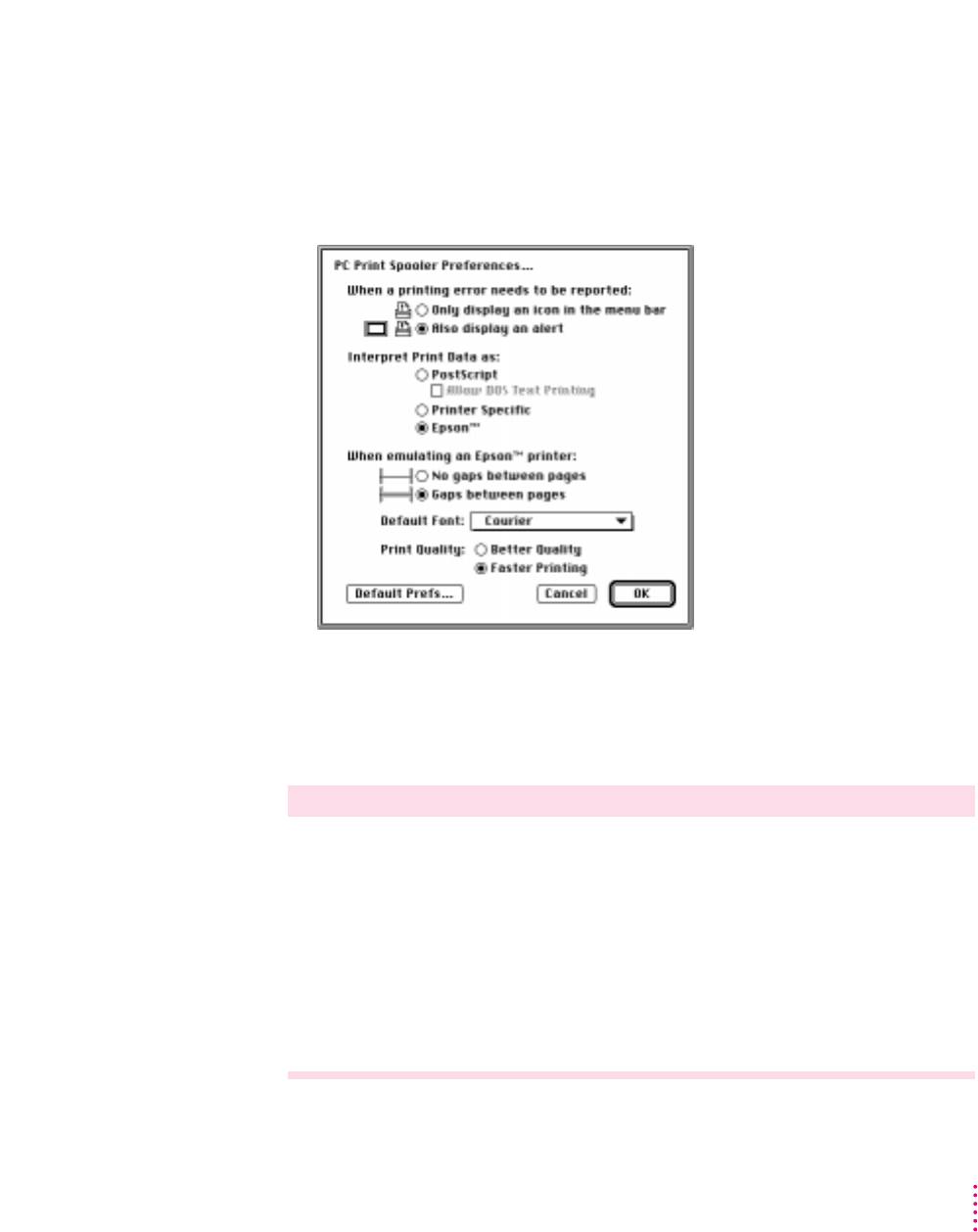
169
Setting Up the PC Environment
mSelect Better Quality if you want Epson printer fonts in your document to
be translated to corresponding Macintosh TrueType fonts. Because Epson
printer fonts are fixed-space fonts, the TrueType font will be scaled to
behave like a fixed-space font. Printers that use less than 300-dpi
resolution will print in 144-dpi resolution.
For best results, use Epson printer fonts that map to a fixed-space TrueType
font, or use graphical fonts supplied by your DOS application. The following
table lists some Epson printer fonts and the TrueType fonts they are translated
to if Better Quality is selected:
Epson font TrueType font
Roman Times (proportional)
SanSerif Helvetica
®
(proportional)
Prestige Palatino
®
(proportional)
Courier Courier (fixed)
OCR-A, OCR-B Monaco (fixed)
Script, Script C, Monaco (fixed)
Orator, Orator S Monaco (fixed)
Setting Up the PC Environment
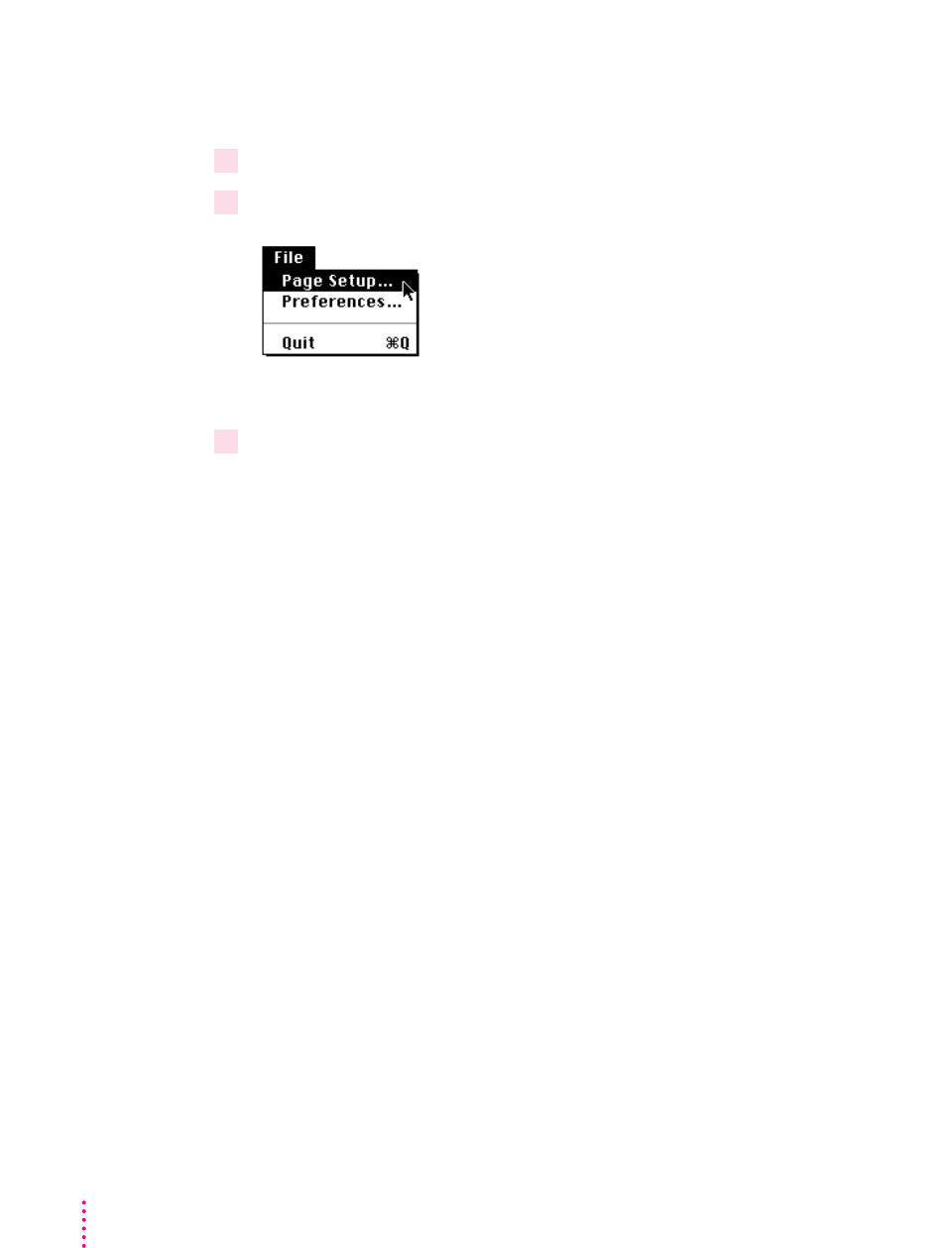
170 Chapter 7
To print legal (and other sized) paper from the PC with Epson emulation,
follow these steps:
1 Open the PC Print Spooler.
2Choose Page Setup from the File menu.
The Page Setup dialog box for the printer currently selected appears.
3 Select the desired page size and click OK.
Any attributes you set in the Page Setup dialog box within the PC Print
Spooler will remain in effect until you reset them or select the Default Prefs
button in the Preferences dialog box.
IMPORTANT
You must set the page size in the DOS or Windows application
you are printing from to the same size you selected in the Page Setup dialog
box in PC Print Spooler. If you do not do this, your documents may not
print properly.
Note: This feature is only available for Epson emulation printing. For
PostScript and printer-specific printing, set the page attributes within the
DOS or Windows application you are printing from. If “Allow DOS Text
Printing” is selected for PostScript printers, you can adjust the page attributes
for a PostScript printer, but these settings will only take effect when you are
printing from the DOS prompt or a DOS application that does not send
PostScript to the printer.

Resetting the default printing preferences
1 Open the PC Print Spooler.
2Choose Preferences from the File menu.
3Click Default Prefs to restore the default settings in the Preferences dialog box.
This will set the printing option to PostScript, set the default font to Courier,
and reset the page setup attributes to their default state (as defined by the
printer driver selected in the Chooser).
Printing problems
If there is a printing problem, the file you’re trying to print will be moved to
the Spooler Rejected folder (in the Preferences folder inside the System
Folder). This might happen if, for example, you try to print a PostScript file
with Epson selected in the PC Print Spooler Preferences.
After setting your preferences correctly, you can print the file automatically by
moving the PC Spooler file from the Spooler Rejected folder to the Spooler
folder. Or you can try switching to the PC environment and printing again.
Setting up printing in the PC environment
This section includes basic information you’ll need to know to set up your
printer drivers in the PC environment. For more detailed information, refer to
the documentation that came with your software and printer.
Note: If you are printing from the PC environment using the optional PC
Serial and Parallel Card, see the manual that came with that card for
instructions on how to print from the PC environment.
IMPORTANT
Some printer models support more than one printer language and
may provide separate printer drivers for each language. If you are using the
PostScript printing option, be sure to choose the printer driver that supports
PostScript; otherwise, printing may not work properly.
171
Setting Up the PC EnvironmentSetting Up the PC Environment

172 Chapter 7
Setting up printing in the DOS environment
To print from DOS using a printer connected to the computer printer port or
network connection, you need to select a printer driver for each application
from which you want to print. The driver you select must correspond to the
option you selected in the PC Print Spooler Preferences dialog box. If you
have not set up the PC Print Spooler, see “Setting Up Printing in the Mac OS,”
earlier in the chapter.
mIf you have a PostScript printer (and have selected the PostScript option in
the PC Print Spooler Preferences dialog box), choose the PostScript
version of the printer driver for the printer connected to the Mac OS. If a
driver is not available for that printer, you can use any PostScript Level 1
printer driver, such as Apple LaserWriter II NTX.
mIf you have a PC parallel port printer and you are using the PowerPrint
package by GDT Softworks (and have selected the Printer Specific option
in the PC Print Spooler Preferences dialog box), choose the driver for the
printer connected to the computer using the PowerPrint cable.
mIf you are using a non-PostScript printer (and have selected the Epson
option in the PC Print Spooler Preferences dialog box), select one of the
following drivers in each application from which you want to print:
mEpson AP-3260 for 360-dpi color printing (preferred driver)
mEpson AP-3250 for 360-dpi black-and-white printing
mEpson Color Stylus for 360-dpi color printing
mEpson LQ-2500 for 180-dpi color printing
If none of the drivers listed above is available, try one of the following:
mEpson LQ-2550/LQ-1050/LQ-1010
mEpson Action Printer 4500/ActionPrinter 4000
Note: The Epson Color Stylus printer is capable of 720 x 360-dpi printing.
However, the PC Compatibility Card software currently supports a maximum
resolution of 360 x 360 dpi. Please verify the maximum resolution in the
application you are printing from, or improper printing may occur.
When printing from DOS or DOS applications, use a fixed-space font such as
Courier or use your application’s graphical fonts in your documents. See
“Epson Emulation and Page Setup Options,” earlier in this chapter.

173
Setting Up the PC Environment
Setting up printing in Windows 3.1 or Windows for Workgroups
To print from Windows using a printer connected to the computer printer port
or network connection, you need to select a printer driver in Windows that
corresponds to the option you selected in the PC Print Spooler Preferences
dialog box. If you have not set up the PC Print Spooler, see “Setting Up
Printing in the Mac OS,” earlier in this chapter.
mIf you have a PostScript printer (and have selected the PostScript option in
the PC Print Spooler Preferences dialog box), install and select the
PostScript version of the Windows driver that came with your printer. If
you don’t have a Windows driver specifically for your printer, you can
select another PostScript printer driver, such as one of the following:
mLaserWriter Pro 630, if you have a PostScript Level 2 printer (preferred)
mApple LaserWriter II NTX, if you have a PostScript Level 1 printer
If you are not sure whether you have a PostScript Level 1 or Level 2
printer, choose a PostScript Level 1 printer driver. If you select a driver for
a PostScript Level 1 printer, you can print to any PostScript printer. If you
select a driver for a PostScript Level 2 printer, you can print only to
printers that support PostScript Level 2.
mIf you have a PC parallel port printer and you are using the PowerPrint
package by GDT Softworks (and have selected the Printer Specific option
in the PC Print Spooler Preferences dialog box), select the driver for the
printer connected to the computer using the PowerPrint cable.
mIf you are using a non-PostScript printer (and have selected the Epson
option in the PC Print Spooler Preferences dialog box), select one of the
following drivers:
mEpson AP-3260 for 360-dpi color printing (preferred driver)
mEpson AP-3250 for 360-dpi black-and-white printing
mEpson Color Stylus for 360-dpi color printing
mEpson LQ-2500 for 180-dpi color printing
If none of the drivers listed above is available, try one of the following:
mEpson LQ-2550/LQ-1050/LQ-1010
mEpson Action Printer 4500/ActionPrinter 4000
Setting Up the PC Environment

174 Chapter 7
Note: The Epson Color Stylus printer is capable of 720 x 360-dpi printing.
However, the PC Compatibility Card software currently supports a maximum
resolution of 360 x 360 dpi. Please verify the maximum resolution in the
application you are printing from, or improper printing may occur.
Note: The Epson AP-3260 may not be available with Windows 3.11 or
Windows for Workgroups. You can get the Windows 3.11 version of the driver
from Epson’s World Wide Web site located at the following address:
http://www.epson.com.
Setting up printing in Windows 95
Before you print from Windows 95 for the first time (and any time you
change printer drivers), follow these steps:
1 In Windows 95, click the Start button. Choose Settings from the menu that appears, and
then choose Printers.
If no printers are installed, see your Windows 95 documentation for
instructions on how to add a printer.
2Select the printer that you are printing to.
3Choose Properties from the File menu.
The properties window for the printer you have selected appears.
4 Click the Details tab.
The Details page appears.
5Click the Spool Settings button.
The Spool Settings dialog box appears.
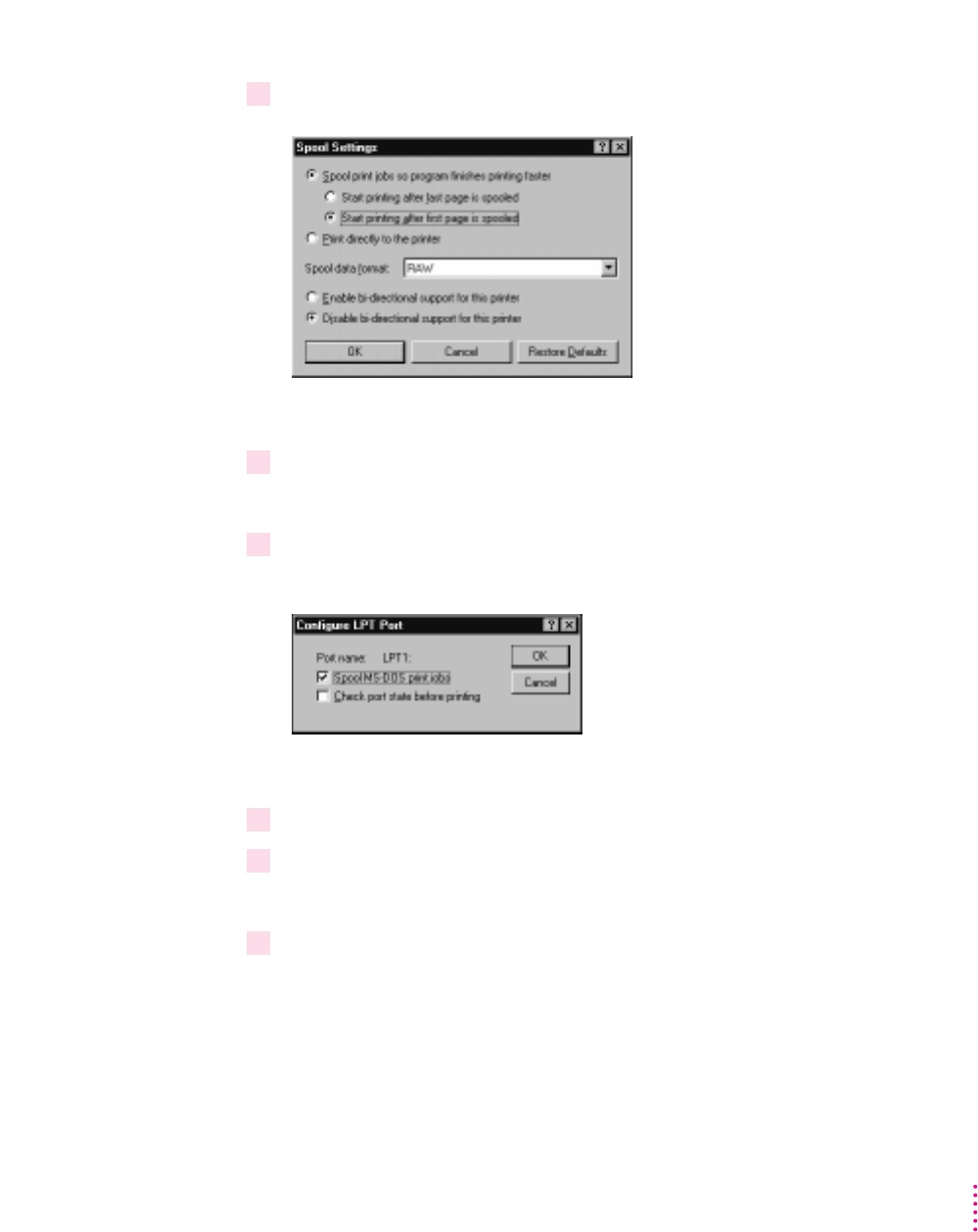
6Click the button labeled “Disable bi-directional support for this printer.” Then click OK.
If this button is not available, click OK; then go on to the next step.
7 In the Properties window, click Port Settings.
The Configure LPT Port dialog box appears.
8Make sure the checkbox labeled “Check port state before printing” is unchecked. Then
click OK.
If you are using a PostScript printer, you must also follow these steps:
9 In the Properties window, click PostScript.
10 Click Advanced.
The Advanced PostScript Options dialog box appears.
11 Make sure the checkboxes labeled “Send CTRL+D before Job” and “Send CTRL+D after
Job” are unchecked. Then click OK.
175
Setting Up the PC Environment

12 Close the Properties window.
IMPORTANT
When printing to a PostScript printer from the PC environment,
be sure to print one file at a time. Printing multiple files may cause a
PostScript error. To verify that the file has finished printing, check the
Windows 95 Printer queue.
Printing from Windows 95
To print from Windows 95 using a printer connected to the computer printer
port or network connection, you need to select a printer driver in Windows 95
that corresponds to the option you selected in the PC Print Spooler
Preferences dialog box. If you have not set up the PC Print Spooler, see
“Setting Up Printing in the Mac OS,” earlier in this chapter.
mIf you have a PostScript printer (and have selected the PostScript option in
the PC Print Spooler Preferences dialog box), install and select the
PostScript version of the Windows 95 driver that came with your printer. If
you don’t have a Windows driver specifically for your printer, you can
select another PostScript printer driver, such as one of the following:
mLaserWriter Pro 630, if you have a PostScript Level 2 printer (preferred)
mApple LaserWriter II NTX, if you have a PostScript Level 1 printer
If you are not sure whether you have a PostScript Level 1 or Level 2
printer, choose a PostScript Level 1 printer driver. If you select a driver for
a PostScript Level 1 printer, you can print to any PostScript printer. If you
select a driver for a PostScript Level 2 printer, you can print only to
printers that support PostScript Level 2.
mIf you have a PC parallel port printer and you are using the PowerPrint
package by GDT Softworks (and have selected the Printer Specific option
in the PC Print Spooler Preferences dialog box), select the driver for the
printer connected to the computer using the PowerPrint cable.
mIf you are using a non-PostScript printer (and have selected the Epson
option in the PC Print Spooler Preferences dialog box), select one of the
following drivers:
mEpson AP-3260 for 360-dpi color printing (preferred driver)
mEpson AP-3250 for 360-dpi, black-and-white printing
176 Chapter 7

mEpson Color Stylus for 360-dpi color printing
mEpson LQ-2500 for 180-dpi color printing
If none of the drivers listed above is available, try one of the following:
mEpson LQ-2550/LQ-1050/LQ-1010
mEpson Action Printer 4500/ActionPrinter 4000
Note: The Epson Color Stylus printer is capable of 720 x 360-dpi printing.
However, the PC Compatibility Card software currently supports a maximum
resolution of 360 x 360 dpi. Please verify the maximum resolution in the
application you are printing from, or improper printing may occur.
Note: The Epson AP-3260 may not be available with Windows 3.11 or
Windows for Workgroups. You can get the Windows 3.11 version of the driver
from Epson’s World Wide Web site located at the following address:
http://www.epson.com.
Saving a printer file
To save a printer file such as a PostScript file in the PC environment, use the
option in your Windows printer driver to print to a file. Do not assign a PC
COM port to a text file in the PC Setup control panel, then print to that port
in the PC environment.
Configuring PC sound
You can use three kinds of sound in the PC environment:
m
PC beep sounds
m
CD sound
You can play and control audio CDs in the PC environment.
m
Sound Blaster sound
You can hear Sound Blaster sound in games and other
programs, and you can use Sound Blaster–compatible utilities to
manipulate sound files. You can also record sound from audio CDs in the
PC environment. For more information about Sound Blaster capabilities,
see the PC Sound manual that came with your PC Compatibility Card.
You can hear sound from the PC environment through the computer speaker,
headphones, or through speakers built into your monitor.
177
Setting Up the PC Environment
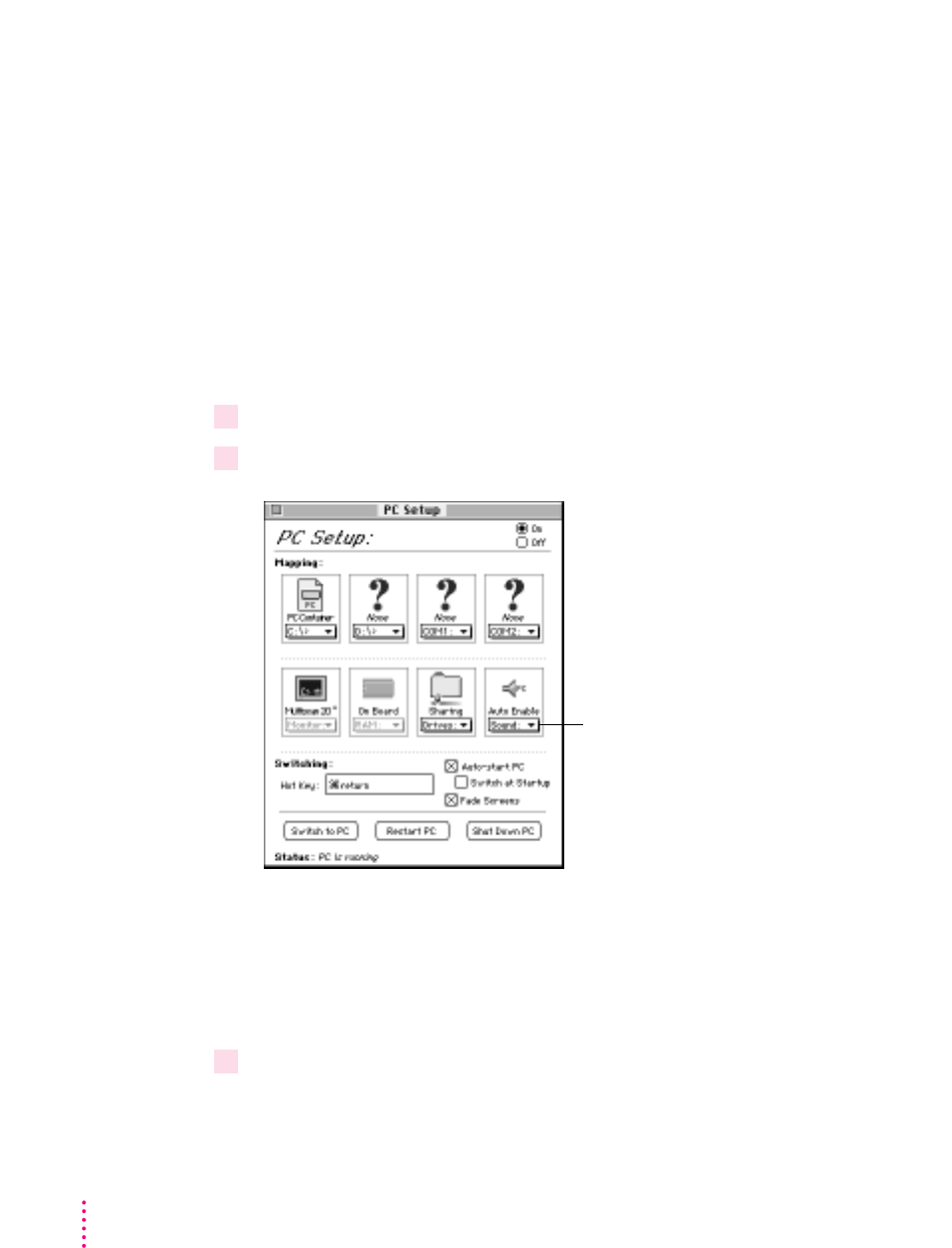
178 Chapter 7
The Mac OS treats all PC sound as if it were coming from the internal
CD-ROM drive. You can still use the internal CD-ROM drive to play CDs and
CD-ROM discs in the Mac OS.
Note: Microphone and line-in are not supported by the PC Compatibility Card.
Turning PC sound on and off
To hear PC sound, you need to turn on sound for the PC by following
these steps.
Note: Before you begin, make sure that sound is turned on (not muted) in the
Mac OS.
1 Open the PC Setup control panel.
2Choose an option from the Sound pop-up menu.
You can choose the following options:
mTo hear PC sounds in both environments, choose Enabled.
mTo hear PC sounds only in the PC environment, choose Auto Enable.
mTo shut off PC sounds, choose Disabled.
3 Close the PC Setup control panel.
Open pop-up menu to see the different
PC sound options.

Configuring PC drives
To work in the PC environment, you need to tell the PC where PC software
and files are stored. You do this by assigning PC drive letters to storage areas
using the PC Setup control panel. You can assign drive C or D to a
PC-formatted SCSI hard drive attached to your Macintosh, or to a drive
container—a file you create on a Macintosh hard drive that acts as a virtual
PC drive. You can also use a drive container created by SoftPC or
SoftWindows
™
; however, that drive container cannot be bootable.
Note: A hard drive or drive container only boots when assigned to drive C in
the PC Setup control panel.
Creating a single partition/bootable drive container
To create a single partition/bootable drive container for drive C or D, follow
these steps:
1 Open the PC Setup control panel.
2Choose New Drive File from the C: or D: pop-up menu.
3 In the dialog box that appears, choose a location for the drive container.
4Type a name and a size for the container.
You can make the container as small as 2 MB or as large as 1023 MB. The
amount of space you need depends on the software you want to install. If you
are installing DOS and a few small applications, you’ll need about 100 MB. If
you are installing Microsoft Windows, you’ll need at least 150 MB. If you are
installing Microsoft Windows 95, you’ll need at least 200 MB.
IMPORTANT
Once a drive container is created, its size cannot be changed.
Before choosing a size for your drive container, decide which PC operating
system and applications you want to run. Check the documentation that came
with the software to estimate how much space you’ll need; then allow some
extra room for applications. If you still run out of space on the drive
container, you can create another drive container and assign it to drive D.
179
Setting Up the PC Environment
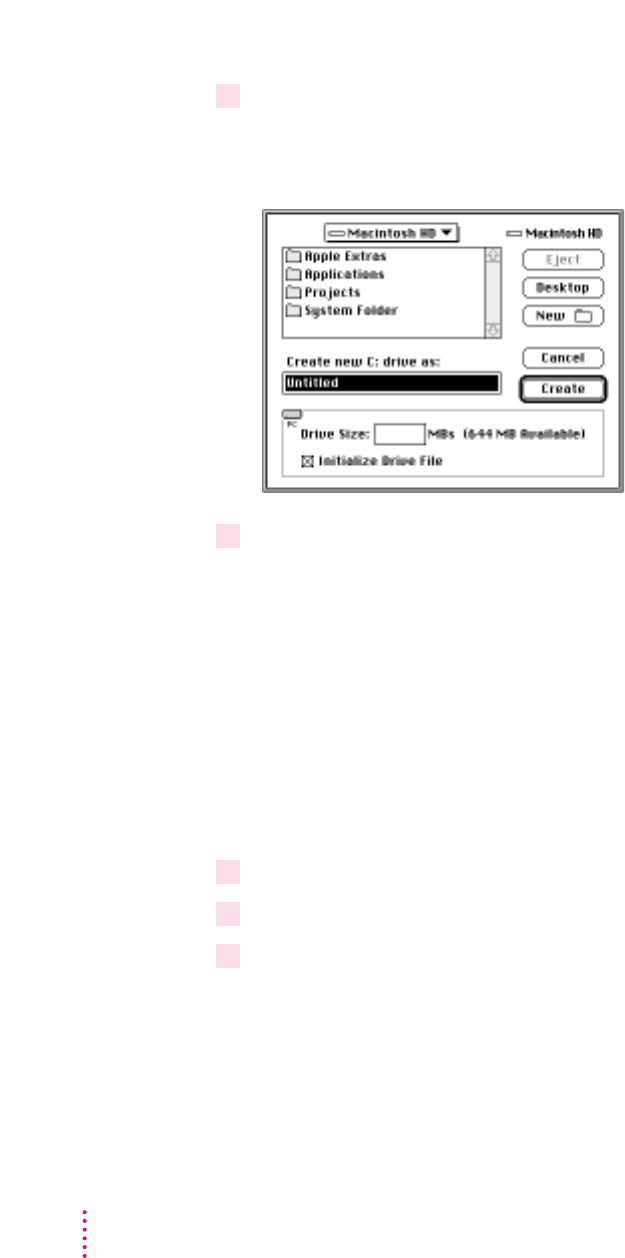
5 To format the drive container with a single partition, make sure the Initialize Drive File
box is checked.
When this box is checked, PC Setup will initialize the container for you.
6Click Create.
The time that it takes to create a drive container depends on the size of the
container.
Creating a multiple partition/bootable drive container
IMPORTANT
Apple does not recommend the use of multiple partition/non-
bootable drive containers with the PC Compatibility Card.
To create a multiple partition/bootable drive container for drive C or D, follow
these steps:
1 Open the PC Setup control panel.
2Choose New Drive File from the C: or D: pop-up menu.
3 In the dialog box that appears, choose a location for the drive container.
180 Chapter 7
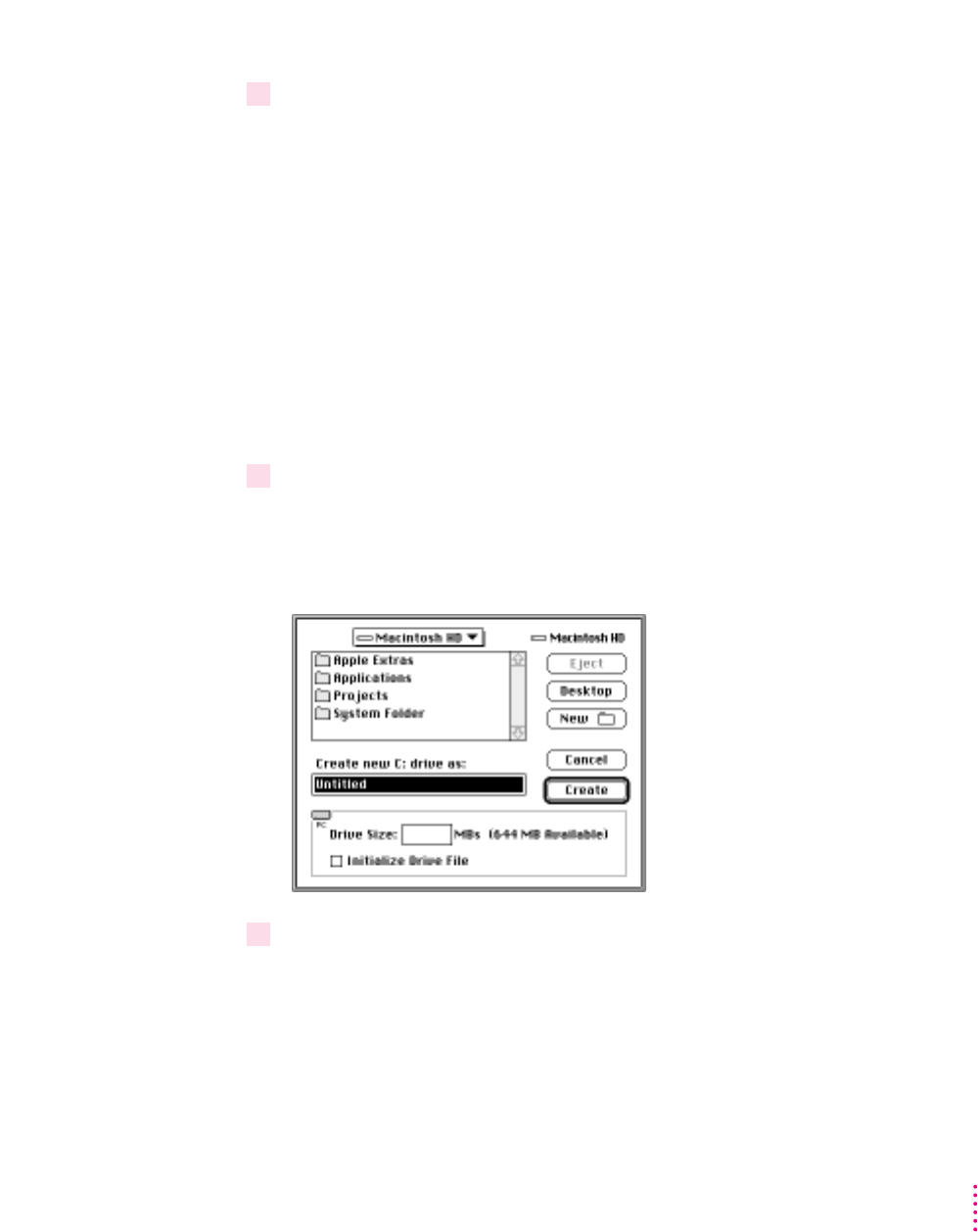
4Type a name and a size for the container.
You can make the container as small as 2 MB or as large as 1023 MB. The
amount of space you need depends on the software you want to install. If you
are installing DOS and a few small applications, you’ll need about 100 MB. If
you are installing Microsoft Windows, you’ll need at least 150 MB. If you are
installing Microsoft Windows 95, you’ll need at least 200 MB.
IMPORTANT
Once a drive container is created, its size cannot be changed.
Before choosing a size for your drive container, decide which PC operating
system and applications you want to run. Check the documentation that came
with the software to estimate how much space you’ll need; then allow some
extra room for additional applications. If you still run out of space on the drive
container, you can create another drive container and assign it to drive D.
5 To format the drive container with multiple partitions, make sure the Initialize Drive File
box is not checked.
When this box is unchecked, PC Setup does not initialize the container for
you. You have to do it manually in DOS, as described in step 7.
6Click Create.
The time that it takes to create a drive container depends on the size of the
container.
181
Setting Up the PC Environment

7 To format the container with multiple partitions, switch to DOS and prepare the drive
using the FDISK and FORMAT commands.
To make the container bootable, use the /S parameter of the FORMAT
command. For example, if you want to format the D drive as a bootable
container type:
FORMAT D: /S <return>
Use the DOS HELP command for more information.
Assigning a drive to a PC-formatted hard disk
To assign a drive to a PC-formatted hard disk connected to your Macintosh
SCSI port or SCSI chain, first assign the drive letter to the hard disk, then
make sure the hard disk driver is not being loaded by PC Exchange. To do so,
follow the steps below.
IMPORTANT
If you use a dedicated PC-formatted partition or SCSI device
instead of a drive container, you may experience some disk read/write errors.
Apple recommends using drive containers on Macintosh-formatted partitions
or SCSI devices as your primary method of data storage.
1 Open the PC Setup control panel.
2Choose Drive Partition from the C: or D: pop-up menu.
3 In the dialog box that appears, select the hard disk drive you want to assign.
4 Open the PC Exchange control panel.
5Click the Options button.
6Make sure the SCSI driver for the PC drive is not checked. Then click OK.
To make the drive bootable, switch to DOS and use the FORMAT command
with the /S parameter. See the DOS HELP command for more information.
IMPORTANT
You cannot boot from a locked PC container, a PC container that
is open on your desktop, or a PC container that is on a write-protected file
server. Also, you may not be able to mount a locked PC container if file
sharing is turned on. You can correct the problem by either unlocking the PC
container or turning off file sharing.
182 Chapter 7

Changing a drive assignment
To change the container or partition assigned to the C or D drive, follow
these steps:
1 Open the PC Setup control panel.
2 To assign a new drive container, choose Other Drive File from the C: or D: pop-up menu.
To assign a PC-formatted hard disk (or partition), choose Drive Partition.
3 In the dialog box that appears, locate the container or partition you want to assign.
4Make sure the item is not being used as a disk drive in the Mac OS environment.
If a mounted PC drive container icon appears on the desktop, drag it to the
Tr ash to unmount it.
5Click Restart PC.
IMPORTANT
If you want to make your PC drive available to the Mac OS, do not
use a PC compression program. The Mac OS cannot mount compressed drives.
Using shared volumes
You can set up a Mac OS folder, hard disk, or network volume to act as a
PC drive.
Sharing a folder is a convenient way to transfer files between the Mac OS and
the PC environment. Sharing is also useful for network volumes and other
volumes that otherwise would not be readily available to the PC environment.
Note: Do not set up a floppy disk as a shared folder. This can cause
unpredictable results.
Note: DOS treats all shared volumes as if they were on a network. Some
DOS commands, such as FORMAT, CHKDSK, UNDELETE, and SUBST, do
not work on these shared volumes.
183
Setting Up the PC Environment
Mounted drive container
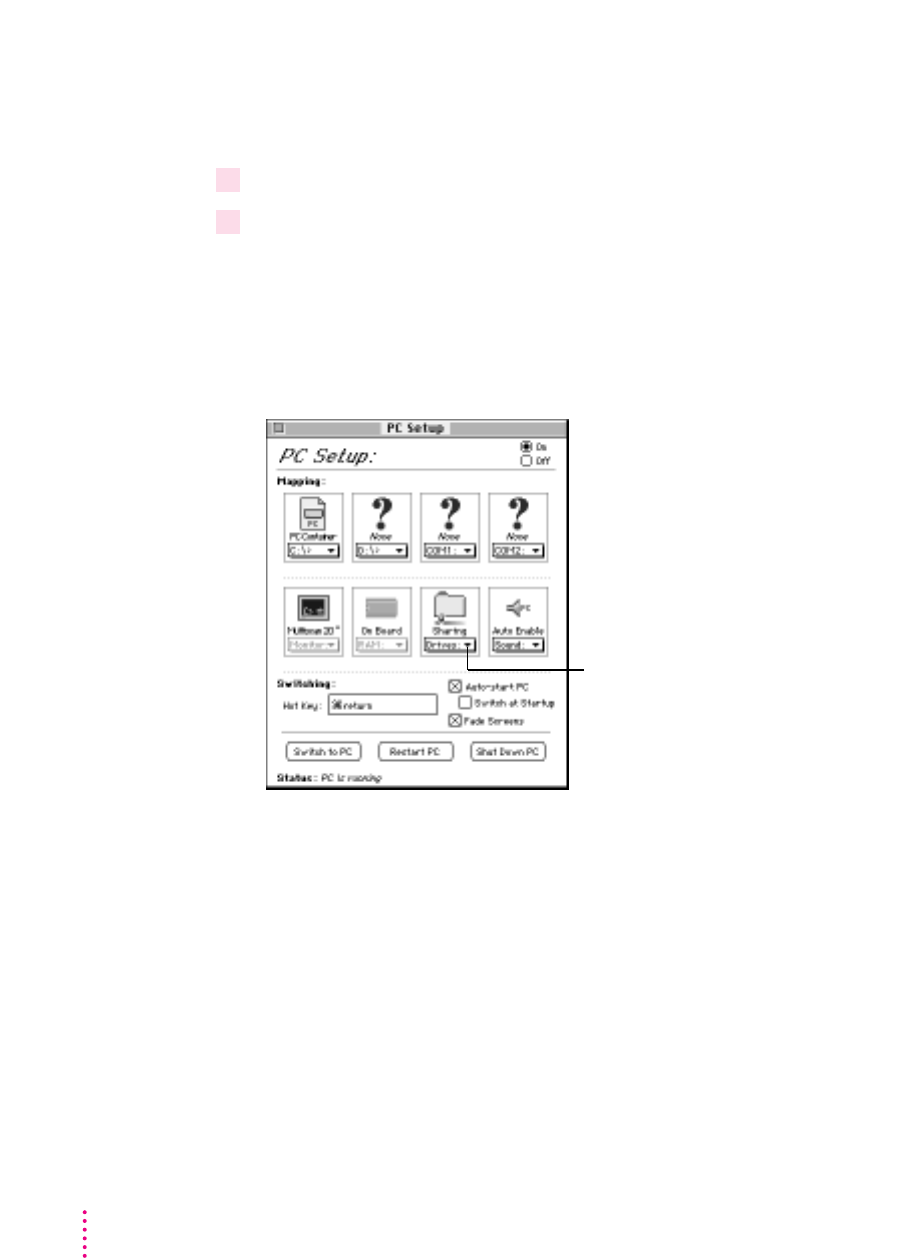
Sharing files between the Mac OS and the PC
To set up a shared volume, follow these steps:
1If the PC is not already running, open the PC Setup control panel and click Start PC.
2 In the PC Setup control panel, open the Sharing pop-up menu and choose an available
drive letter.
If no drive letters appear, switch to the PC, open the CONFIG.SYS file, and
make sure that both a LASTDRIVE statement appears and sufficient available
drive letters are assigned. See “Setting Up Your DOS Configuration Files,”
later in this chapter.
184 Chapter 7
Open this pop-up menu to see the
available drive letters.
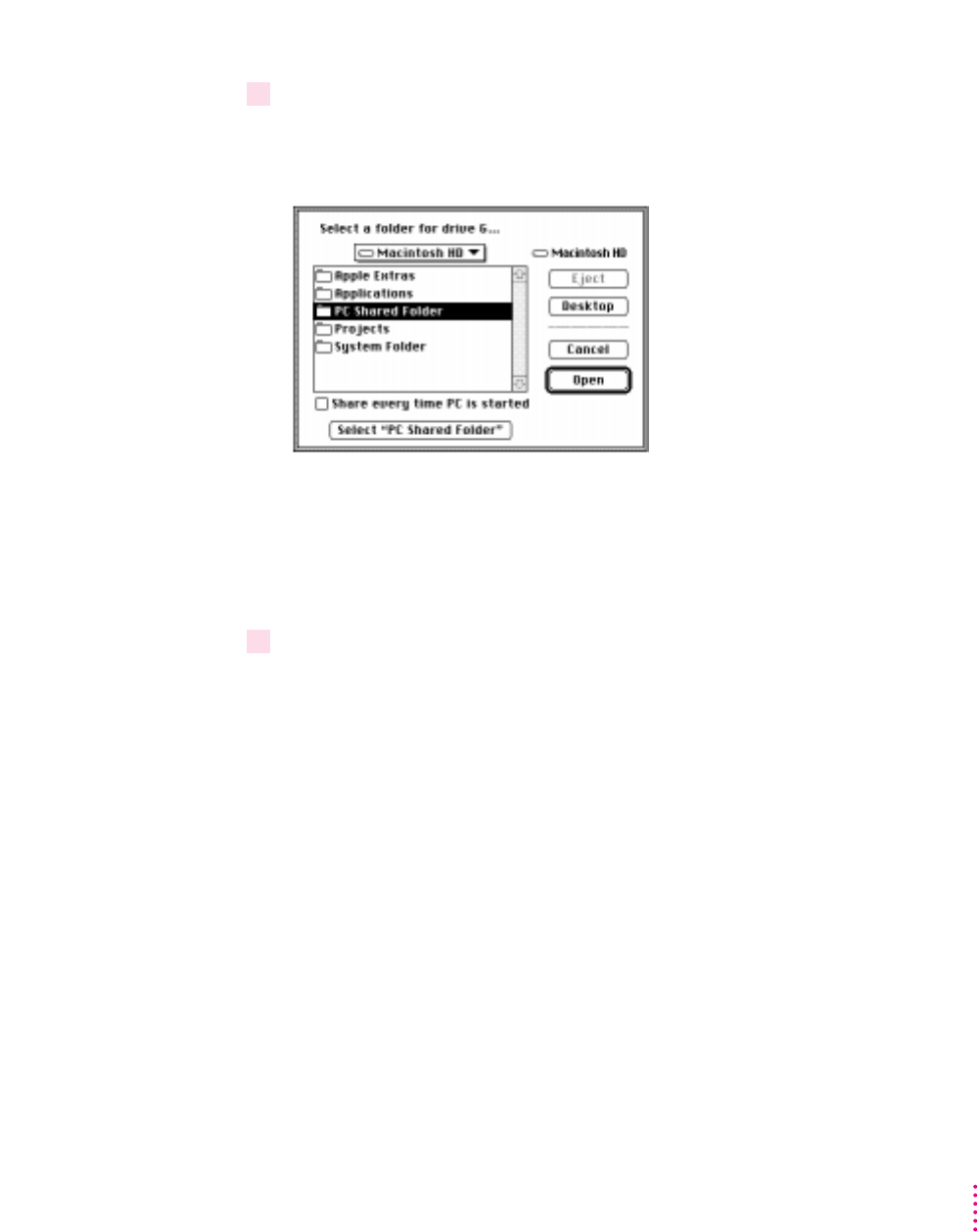
3 In the dialog box that appears, select a folder or disk you want to share.
You can share a Mac OS folder, hard disk, CD-ROM discs, or shared disk. You
cannot share floppy disks.
Note: When you name a folder in the Mac OS environment that you intend to
share with the PC environment, you may want the name to be compatible
with DOS 8.3 filename guidelines. Otherwise, the sharing software will
truncate and translate the name to fit the guidelines. For more information
about naming files, see your DOS manual.
4 To automatically share this item whenever you start up the PC, click the box labeled
“Share every time PC is started.”
Automatically shared items are underlined in the Sharing pop-up menu.
For more information on transferring files between the PC environment and
the Mac OS, see “Using Floppy Disk Drives and Floppy Disks,” “Copying and
Pasting Information Between the Mac OS and Windows Environments,” and
“Using Shared Folders and Volumes” in Chapter 8. Also see the PC
Compatibility Guide, available in the Guide (h) menu.
Note: When you add or remove a shared folder in Windows 95, the view in
the “My Computer” section does not immediately change. You need to refresh
the view once to correctly update the Shared Folder status.
185
Setting Up the PC Environment

Turning off volume sharing
If you no longer want to share a volume, follow these steps:
1 In the Mac OS environment, open the PC Setup control panel.
2 Open the Sharing pop-up menu and choose the name of the volume you want to
stop sharing.
A warning message appears telling you that the item will no longer be
available. Click OK.
Turning off automatic sharing
1 In the Mac OS environment, open the PC Setup control panel.
2 Open the Sharing pop-up menu and choose the name of the volume you no longer want
to share automatically.
Automatically shared items are underlined in the Sharing pop-up menu.
Setting up your PC on a network
Your PC Compatibility Card supports most networking protocols, operating
systems, and application programs that are compatible with the following
network drivers: Novell’s Open Data-Link Interface specification (ODI) or
Microsoft’s Network Driver Interface Specification (NDIS) version 2.0.
To set up networking, you need to acquire and install networking client
software in the PC environment. For more information, see Appendix C,
“Installing Network Client Software.”
WARNING
You must run SETNET every time you add or remove a
network protocol, install or upgrade network software, or change
anything in the network control panel. If you do not run SETNET, you
will experience network problems.
186 Chapter 7
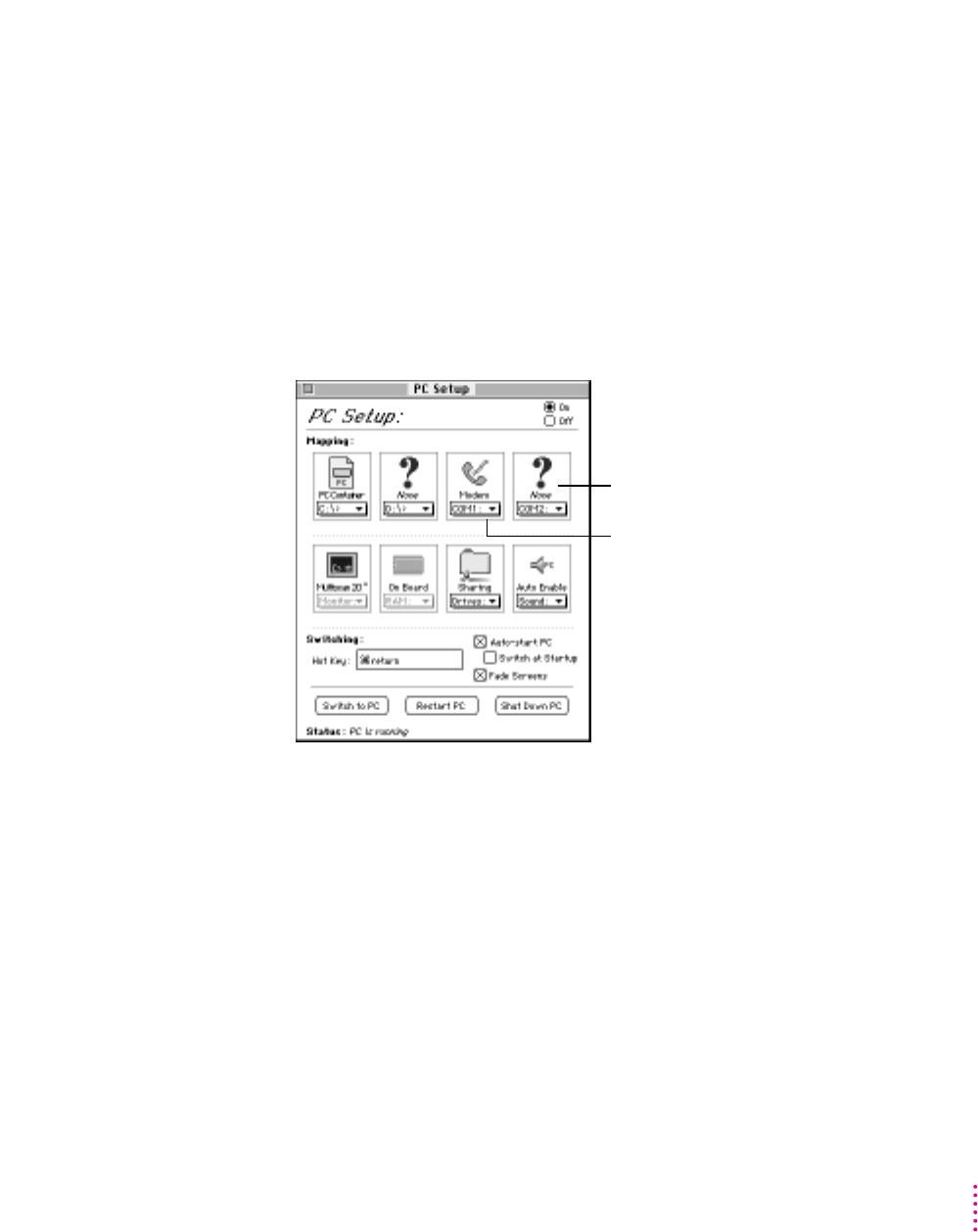
Configuring the PC serial ports
Your PC Compatibility Card supports two serial ports, COM1 and COM2.
You can assign these ports to Macintosh serial ports (such as the printer or
modem port) or to a text file for later processing. Or you can leave the
ports unassigned.
Note: If you are using the optional PC Serial and Parallel Card to connect a
printer, modem, or other device to the PC environment, you do not need to
configure the Macintosh serial ports. See the manual that came with the PC
Serial and Parallel Port card for additional information.
187
Setting Up the PC Environment
Unassigned Macintosh serial port
Macintosh modem port assigned
to COM1 in the PC environment
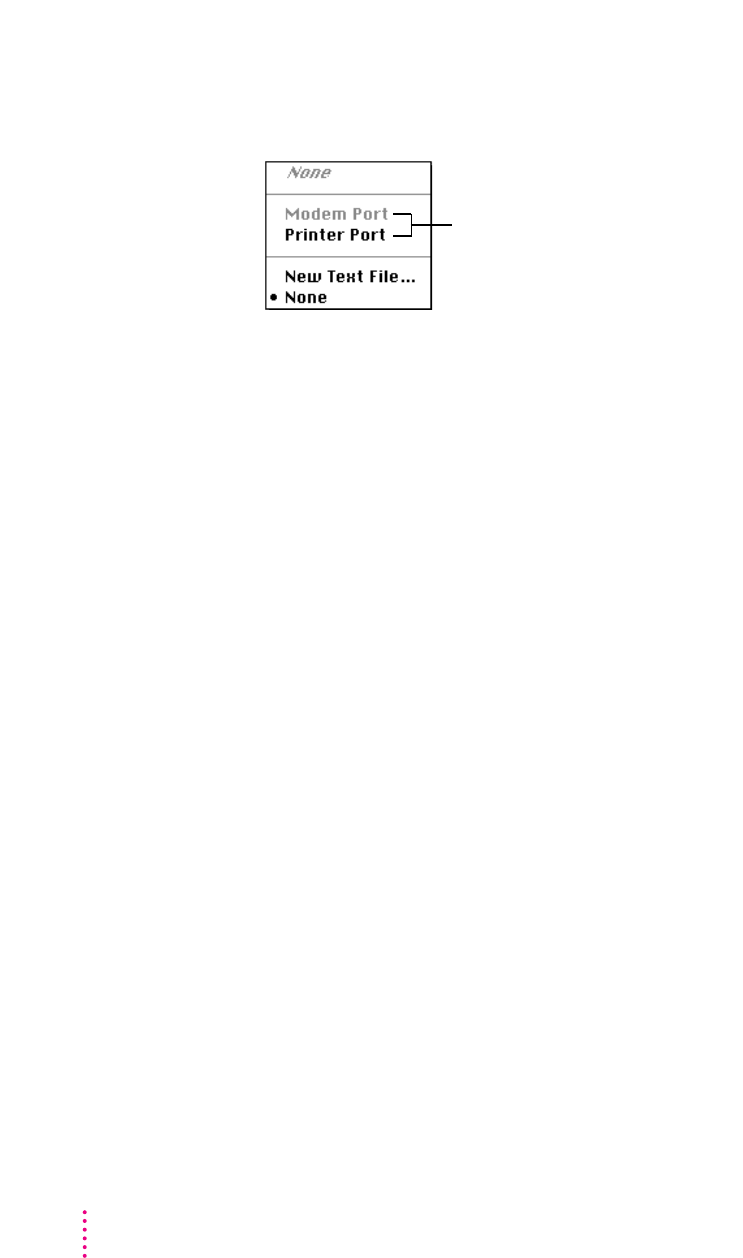
To assign a PC COM port, open the PC Setup control panel and choose a setting in the
COM1 or COM2 pop-up menu.
IMPORTANT
Mac OS programs cannot access a port that you’ve assigned to the
PC environment. If you’re trying to print, fax, or use your modem in the Mac
OS environment, and you get a warning message that the port requested is
busy or in use, then you need to unassign a PC COM port in the PC Setup
control panel.
Setting up a modem or other serial device
From the PC environment, you can use a modem or other serial device
connected to the Macintosh serial port.
Because the Macintosh uses the RS-422 protocol, the RS-232 Ring Indicator
(RI), Request to Send (RTS), and Data Set Ready (DSR) signals are not
available through a Macintosh serial port.You can attempt to configure your
application to use the carrier string or ignore carrier detect.
Note: The serial port on the optional PC Serial and Parallel Port card (not
included) supports the RS-232 interface directly without having to use a
special cable or configure your software.
Note: For more information on setting up a modem in Windows 95 to use
TCP/IP for PPP (point-to-point protocol) connections, see Appendix C,
“Installing Network Client Software.”
188 Chapter 7
These are the Macintosh serial ports that can be assigned to
COM1 or COM2 in the PC environment. Serial ports already in
use (either by the Macintosh or PC) appear dimmed in the menu.

Building a custom cable
The following chart lists the signals present on the Macintosh Mini DIN-8
serial connector, and the pins that carry these signals on PC-style DB-9 and
DB-25 connectors. You may be able to use this information to build a
custom cable to connect your PC-compatible serial device to a Macintosh
serial port. Refer to the manual for the serial device you want to connect for
more information.
Macintosh signal Macintosh Mini DIN-8 DB-9 DB-25 RS-232 name
HSKo 1 4 20 DTR
HSKi 2 8 5 CTS
TXD- 3 3 2 TXD
GND 4 5 7 GND
RXD- 5 2 3 RXD
TXD+ 6 N/C N/C
GPi 7 1 8 DCD
RXD+ 8 5 7 GND
Connecting a joystick
You can connect a game controller to the joystick port on your PC
Compatibility Card. For more information, see Chapter 5, “Connecting
Monitors and Other Equipment,” and the documentation that came with
your joystick.
Connecting a MIDI device
With an optional adapter, you can connect a MIDI device to the joystick port
on your PC Compatibility Card. For more information, see Chapter 5,
“Connecting Monitors and Other Equipment,” and see the documentation that
came with your MIDI device and MIDI adapter.
189
Setting Up the PC Environment

Setting up your DOS configuration files
When you install the PC Compatibility Card software, it makes all the
necessary modifications to your DOS CONFIG.SYS and AUTOEXEC.BAT
files. However, there may be times when you want to modify these files.
Follow these guidelines:
Editing the CONFIG.SYS file
Your CONFIG.SYS files should include the following statements:
DOS=HIGH,UMB
STACKS=9,256
DEVICE=C:\DOS\HIMEM.SYS /TESTMEM:OFF
DEVICE=C:\DOS\EMM386.EXE NOEMS
LASTDRIVE=M
DEVICEHIGH=C:\APPLE\CDROM.SYS /D:CDDRVR
INSTALLHIGH=C:\APPLE\MACSHARE.COM
The first line loads DOS into high memory.
If you’re using the DOS utility EMM386 and you don’t require expanded
memory, use all the statements shown above. If you are using EMM386 and
you do require expanded memory, remove the following line:
DEVICE=C:\DOS\EMM386.EXE NOEMS
And replace it with this line:
DEVICE=C:\DOS\EMM386.EXE
For more information on making the best use of memory, see the
information on memory management in the documentation for DOS or for
your memory manager.
The last two lines load the CD-ROM drive software and file-sharing software
into high memory.
190 Chapter 7

Setting the number of drive letters
You can share folders and volumes with the PC by assigning them to PC drive
letters. When you install your PC software, the statement LASTDRIVE=M is
included in the CONFIG.SYS file. This allows you to view up to nine folders
or volumes at once.
To change the number of drive letters, change your CONFIG.SYS file to
include the following statement:
LASTDRIVE=x
where xis a letter between F and Z. (The PC reserves drive letters A
through E.)
Each drive letter uses 100 bytes of PC memory.
Editing the AUTOEXEC.BAT file
Your AUTOEXEC.BAT file should include the following statements:
SET TEMP=C:\TMP
SET TMP=C:\TMP
PATH=C:\DOS
LOADHIGH C:\DOS\MSCDEX.EXE /D:CDDRVR /L:E
LOADHIGH C:\APPLE\APPLEPC
C:\DOS\SMARTDRV.EXE /X
The first two lines determine the location for temporary files used by DOS
applications.
The LOADHIGH lines load Windows support and CD-ROM software into
high memory. The letter “E” at the end of the MSCDEX.EXE line assigns the
letter “E” to the CD-ROM drive. You can change it to any unused letter up to
the limit specified in the LASTDRIVE line in your CONFIG.SYS file.
The SMARTDRV line creates a disk cache to speed up DOS disk operations.
The /X option disables the write cache, which is the slower but safer option.
For best CD-ROM performance, the line containing MSCDEX.EXE must
come before the line containing SMARTDRV.EXE.
191
Setting Up the PC Environment

This chapter describes the software that you use to work in the PC
environment, to switch between the Mac OS and PC environments, and to
share information between both environments.
This chapter describes the following:
mswitching between the Mac OS and PC environments
mturning the PC on and off
musing floppy disk drives and floppy disks
musing CD-ROM discs and drives
musing a pointing device
musing keyboards
mcopying and pasting information between Mac OS and Windows
environments
musing onscreen help in the PC environment
musing shared folders and volumes
musing PC files in the Mac OS environment
193
8Working in the PC Environment
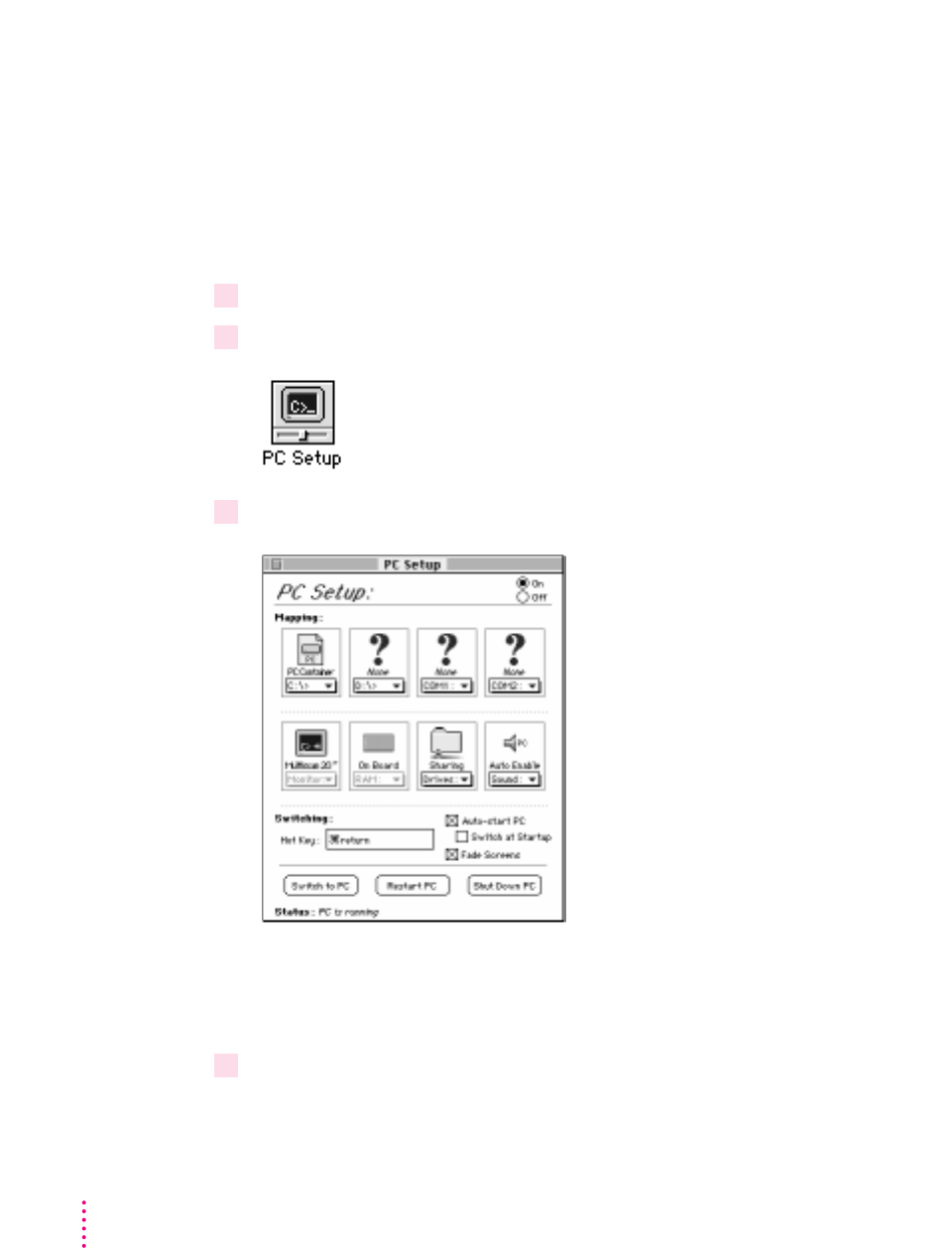
194 Chapter 8
Switching between the Mac OS and PC environments
Even though the Mac OS and PC environments are running simultaneously,
you can only use one environment at a time. There are three different
methods you can use to switch between the Mac OS and the PC.
Switching with the PC Setup control panel
1Choose Control Panels from the Apple (
K
) menu.
2 Double-click the PC Setup icon to open the control panel.
3 Click “Switch to PC” to switch to the PC environment.
If you are using a single monitor to display both environments, you can set
the screen to fade briefly before switching environments by making sure Fade
Screens is checked.
4 To switch back to the Mac OS, press
x
-Return.
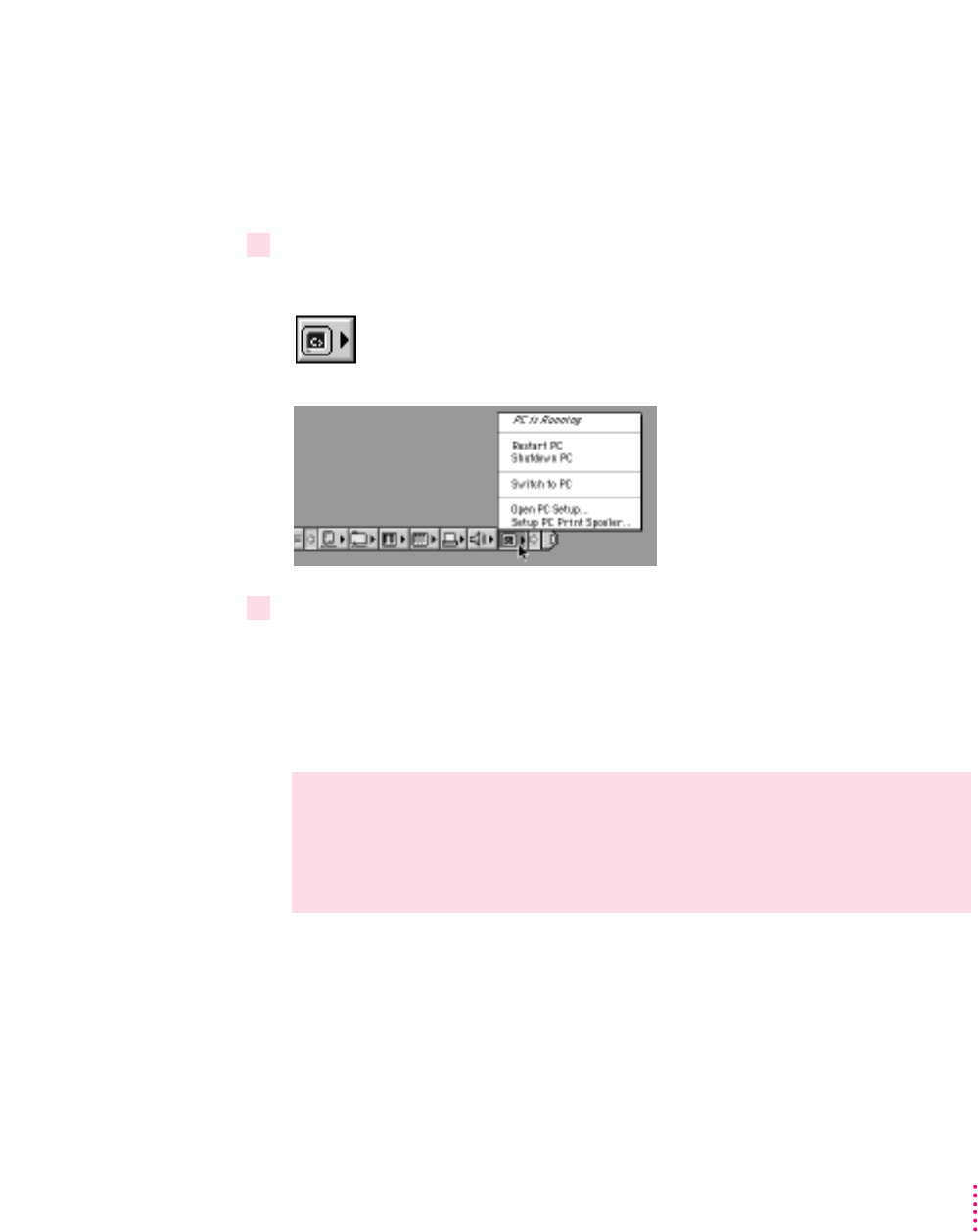
195
Working in the PC Environment
Switching with the Control Strip
If you have the Control Strip open in the Mac OS, you can use the PC Setup
module to switch to the PC.
With the Control Strip visible, follow these steps:
1 Open the pop-up menu in the PC Setup module of the Control Strip, and choose
“Switch to PC.”
2 To switch back to the Mac OS, press
x
-Return.
Switching with a keyboard command
You can set a keyboard command, or hot key, to switch between the Mac OS
and PC environments. The default hot key is x-Return.
Note: If you set a new hot key, it will work in both environments, and
x-Return will still work to switch from the PC to the Mac OS. But x-Return
will not work to switch from the Mac OS to the PC.
WARNING
If you are rebuilding the desktop in the Mac OS environment,
make sure rebuilding is complete before you attempt to switch to the PC
environment. If you switch during the rebuilding of the desktop, your
system could “freeze.”
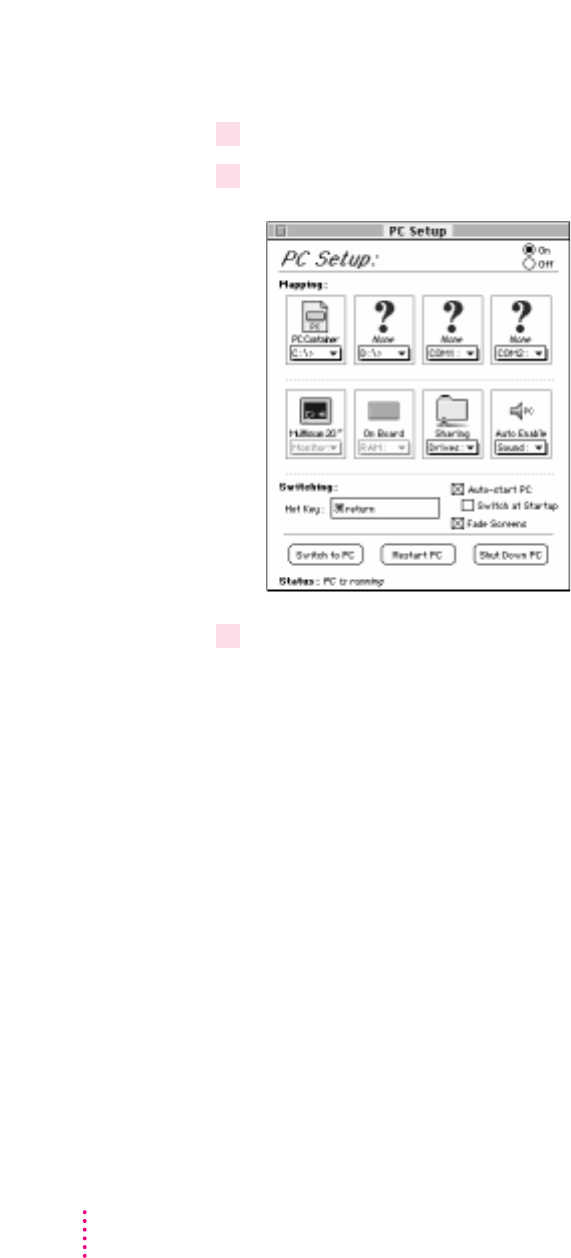
To set a new hot key, follow these steps:
1 In the Mac OS environment, open the PC Setup control panel.
2Click the Hot Key text box.
3 Type the command you want to use to switch environments.
The xkey is automatically included; you type the additional characters you
want. For example, you might type Option-Tab, setting the switch command
to x-Option-Tab.
Some character combinations cannot be used. The PC Setup control panel
will alert you if you select a reserved key combination.
196 Chapter 8
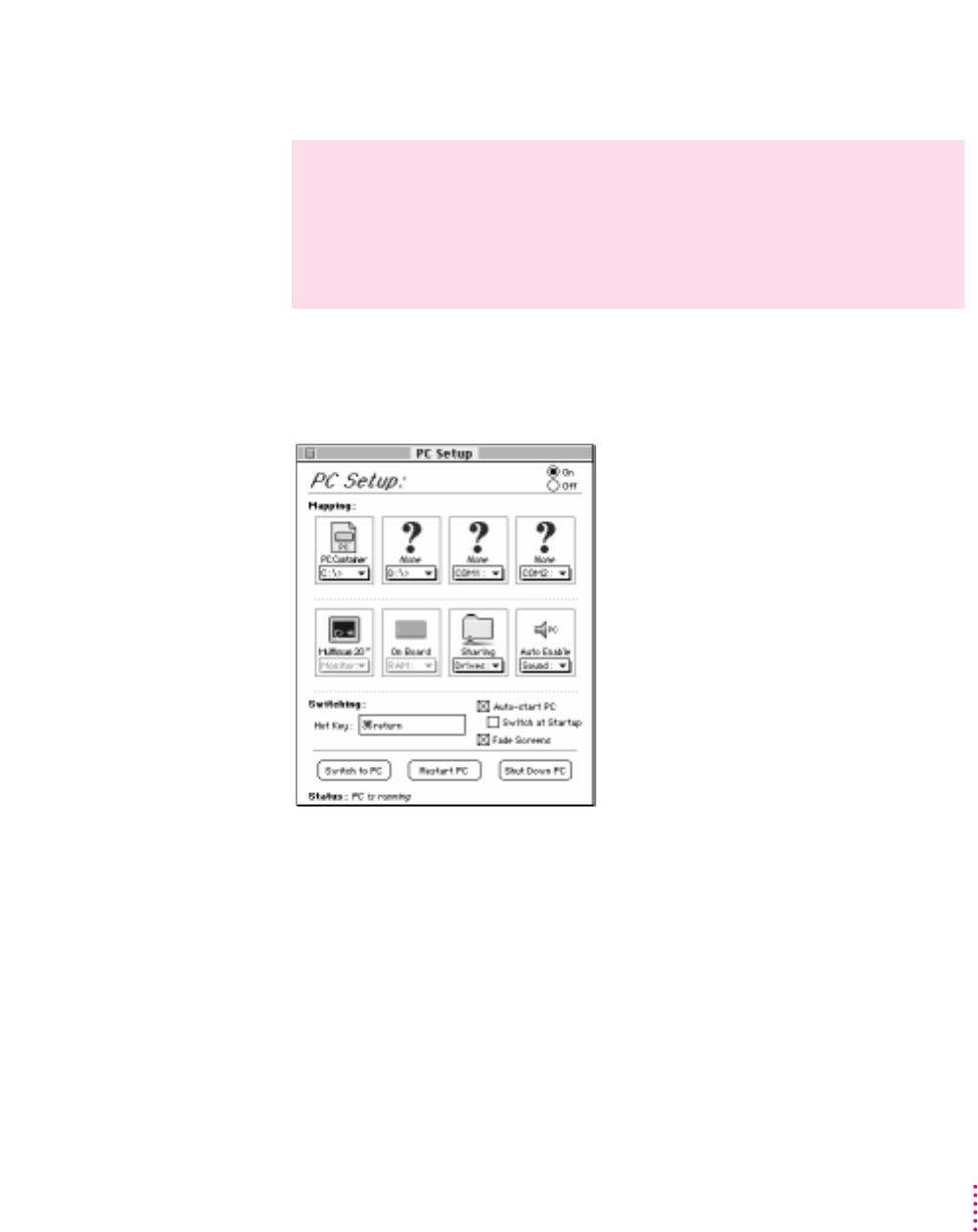
Turning the PC on and off in the Mac OS environment
Turning the PC on and off with the PC Setup control panel
With the PC Setup control panel open, do one of the following:
mTo start the PC if it’s shut down, click Start PC in the PC Setup control
panel.
If the PC is already running, the button is labeled Restart PC.
mTo restart the PC, click Restart PC in the PC Setup control panel.
mTo shut down the PC, click Shut Down PC in the PC Setup control panel.
This option turns off the PC until you click Start PC.
WARNING
Be sure to properly exit Windows (shut down Windows 95)
before shutting down the PC or Mac OS using either the PC Setup
control panel or the Control Strip. If you shut down the PC without
exiting Windows, you could lose information or damage your drive
container.
197
Working in the PC Environment
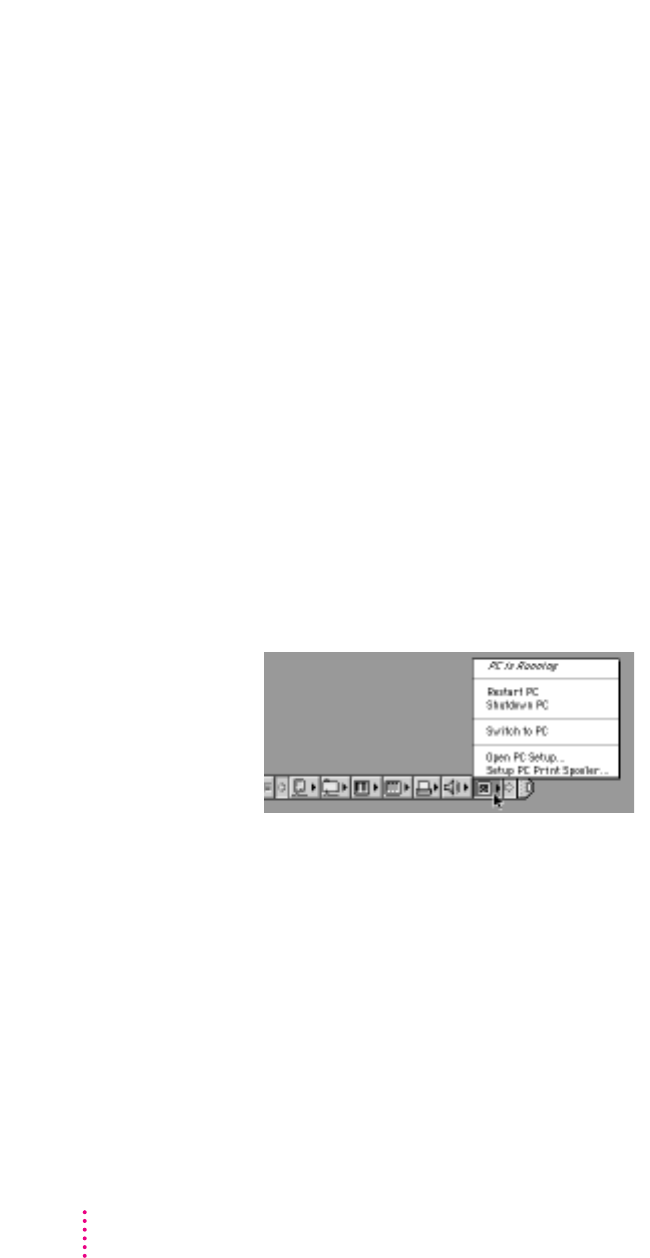
mTo turn off the PC Compatibility Card entirely, click Off at the top of the
PC Setup control panel; then restart the Mac OS.
If you turn off the PC Compatibility Card, you will not be able to switch to
the PC environment.
mTo turn the PC Compatibility Card on, click On in the PC Setup control
panel and restart the Mac OS.
Turning the PC on and off with the Control Strip
With the Control Strip visible, do one of the following:
mTo start the PC if it’s shut down, choose Start PC from the pop-up menu in
the PC Setup module of the Control Strip.
If the PC is already running, the menu will display Restart PC.
mTo restart the PC, choose Restart PC from the pop-up menu in the PC
Setup module of the Control Strip.
mTo shut down the PC, make sure you have exited Windows, then choose
Shutdown PC from the pop-up menu in the PC Setup module of the
Control Strip.
198 Chapter 8
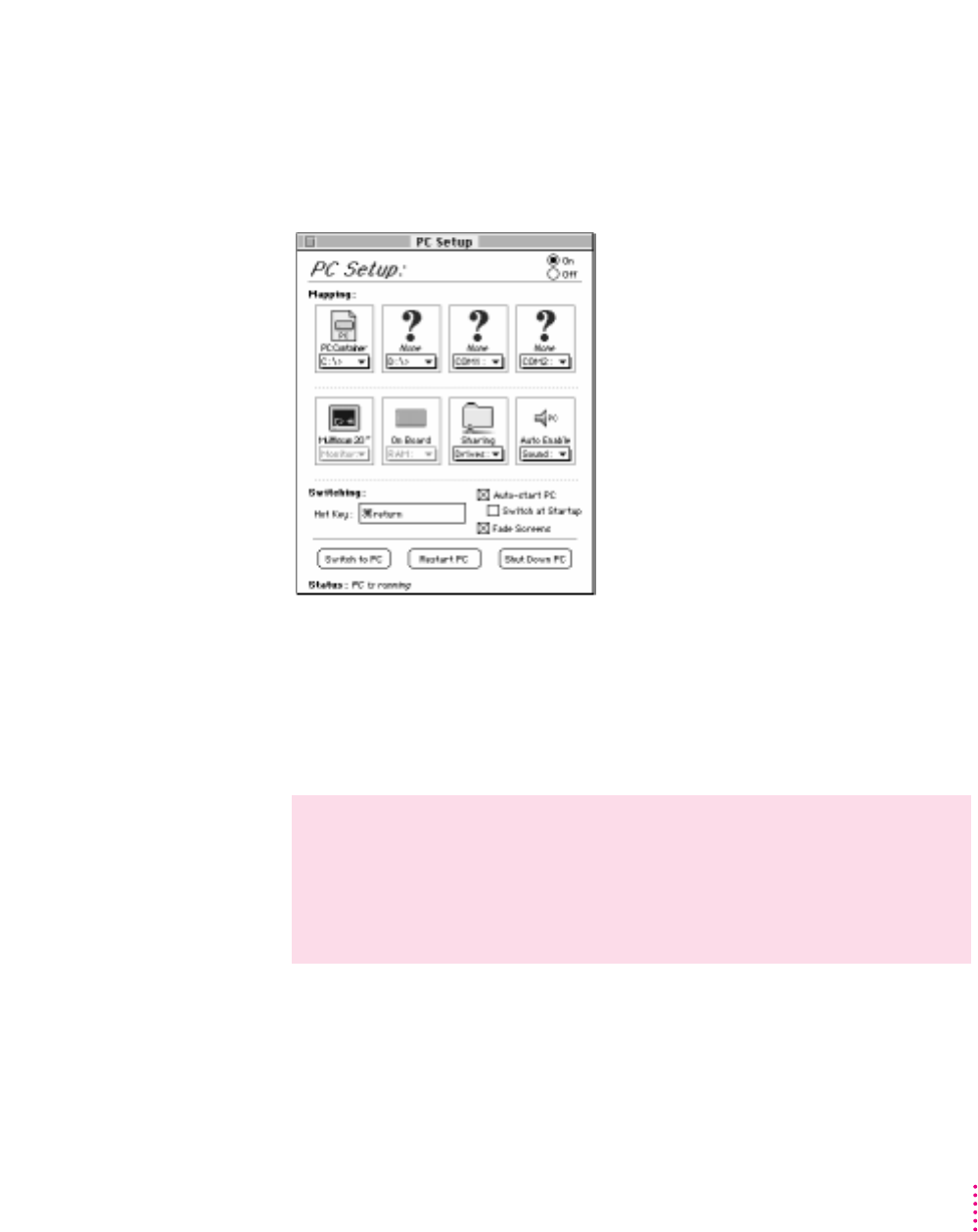
Starting the PC automatically
You can set the PC to start automatically when you start your computer, and
you can set your computer to switch to the PC environment automatically
after startup. To do this, you use the PC Setup control panel.
mTo start the PC automatically whenever you start up the Mac OS
environment, click the box next to “Auto-start PC” to place an X in it.
mTo automatically switch to the PC environment whenever you start up
the Mac OS environment, click the box next to “Switch at Startup” to
place an X in it.
WARNING
If you want to switch to the PC whenever you start up, make
sure that the Shut Down Warning option is turned off in the Mac OS
General Controls panel. If the warning is on, you may not be able to
switch back to the Mac OS environment for a few minutes after
switching to the PC.
199
Working in the PC Environment
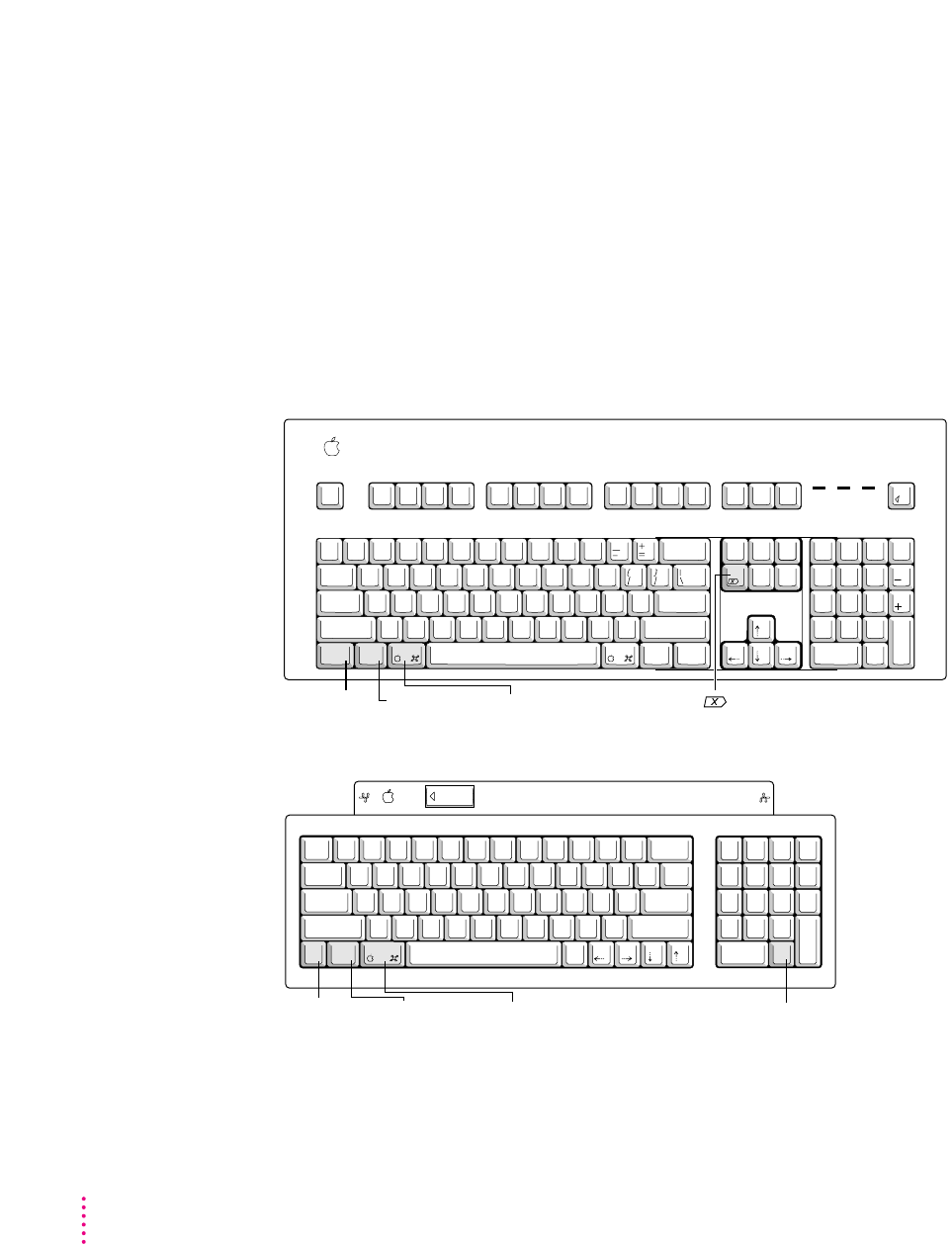
200 Chapter 8
Restarting the PC in the PC environment
To restart (“warm boot”) the PC in the PC environment, use one of the following
keyboard combinations:
mControl-Alt-… (using the Del key, not the Delete key)
mControl-Alt-. (using the period key on the numeric keypad)
To reset (“cold boot”) the PC in the PC environment, use one of the following
keyboard combinations:
mx-Control-Alt-…(using the Del key, not the Delete key)
mx-Control-Alt-. (using the period key on the numeric keypad)
234567891
!
@
#
$
%
^
&
*
(
-
_
delete
=
+
)
0
return
esc
NM
,
<.
>
/
?
Q W E R T
S D F GA
ctrl option
caps
lock
shift
tab
`
~
Z X C V B
U I O P
J K L
shift
Y
H
:
;
}
]
"
'
{
[
|
\
789
456
123
.
0
clear
*
=
/
enter
+
–
Control key Option
(Alt) key
Command key Numeric keypad
period key
esc
F1 F2 F3 F4 F5 F6 F7 F8 F9 F10 F11 F12 F13 F14 F15
print
screen
scroll
lock
pause
num
lock
caps
lock
scroll
lock
num
lock
clear
=/*
7
4
0
8
5
2
9
6
3
enter
1
.
homehelp
end
ins
page
up
page
down
delete
return
shift
controloption
alt
'
"
/
?
;
:
.
>
,
<
MNBVCXZ
JHGFDSA LK
UYTREWQ OIP
7654321 980
&^%$#
@
! (*)
`
~
tab
caps
lock
shift
Control key Option
(Alt) key
Command key (Del) key
control option
alt
del

Using floppy disk drives and floppy disks
Keep the following in mind when you use floppy disks:
mTo eject a floppy disk in the PC environment, press x-E.
mIn the PC environment, the floppy disk drives are A and B.
mIn the PC environment, you cannot use a Mac OS–formatted floppy disk. If
you insert one, it will be ejected.
mYou can use a locked PC disk in both the PC and Mac OS environments.
mYou can access an unlocked floppy disk in the environment that was active
when you inserted the floppy disk, but not in the other environment.
mIn the PC environment, blank disks are formatted for the PC. In the
Mac OS, you can format disks for either environment.
mSome blank disks are preformatted. If you insert a new, blank disk in the
PC environment and it is ejected, it may have been preformatted in Mac OS
format. To use the disk in the PC environment, you can switch to the Mac
OS and format the disk for the PC. For instructions, see the documentation
that came with your computer or Mac OS software upgrade kit.
Note: Removable media drives such as Zip or Syquest are not directly
accessible from the PC environment in the same way that your CD-ROM and
floppy disk drives are. However, you can set up a shared folder in the Mac OS
environment and then transfer information to and from the removable media.
For more information see “Using Shared Volumes” in Chapter 7, “Setting Up
the PC Environment.”
Restarting the PC from a floppy disk
To restart (reboot) the PC using a floppy disk, insert a floppy disk containing
operating system software into the disk drive. Press Control-Alt-…to restart
the PC.
201
Working in the PC Environment

Using CD-ROM discs and drives
Keep the following in mind when using CD audio discs and CD-ROM discs
and drives:
mIn the PC environment, press x-Y to eject a CD. If the disc cannot be
ejected (because a file is in use or the disc is being shared), you will hear
a beep.
mYou can start an audio CD in either environment and continue to listen
when you switch environments. (If you start up and switch to the PC while
listening to an audio CD, the CD sound may pause for several seconds
while the PC starts up.)
mIf you have more than one CD-ROM drive, the PC environment can use
only the one with the lowest SCSI ID number.
mYou can record sound from an audio CD in the PC environment. For more
information, see the PC Sound manual that came with your PC
Compatibility Card.
Using a pointing device
The standard mouse or other pointing device for Macintosh computers has
one button; most PC devices have two buttons that perform different
functions. If you do not have a two-button pointing device, you can purchase
one from your Apple-authorized dealer. Be sure to ask for an ADB (Apple
Desktop Bus) device—input devices designed for a PC will not work with the
Macintosh ADB port.
If you have a multibutton Mac OS–compatible pointing device, you may be
able to configure it to use the right button in the PC environment. Refer to the
instructions that came with your device.
You can use keyboard commands to simulate the actions of the second button.
If you are using a one-button device, you can control it as follows:
mThe button behaves like the left button on a two-button device.
mThere are two ways to simulate pressing the right button:
mSelect an item and then press the = (equal) key on the numeric keypad.
mHold down the Command key (x) while you click the button.
mTo simulate pressing the left and right buttons at the same time, press the
button and the = (equal) key simultaneously.
202 Chapter 8

Note: If the software for your two-button device does not automatically
configure your device for the PC or does not include a “Windows Right
Mouse Button” option, you may be able to assign the = (equal) key to the
right button.
Using keyboards
You can use all Apple keyboards with your PC Compatibility Card.
The Option key on an Apple keyboard is the same as the Alt key in the PC
environment.
On the Apple Extended Keyboard II, use the following equivalents for keys on
a PC keyboard. (These equivalents also apply to the Apple Adjustable
Keyboard if the function keyboard isn’t plugged in.)
PC key Macintosh keyboard equivalent
Alt Option
F1 through F9
x
-1 through 9
F10
x
-0
F11
x
-(minus)
F12
x
-(equal)
F13
x
-[
F14
x
-]
F15
x
-\
Home
x
-[keypad] 7
PageUp
x
-[keypad] 9
End
x
-[keypad] 1
PageDown
x
-[keypad] 3
Insert
x
-[keypad] 0
Del
x
-[keypad] (period)
Backspace Delete
Eject a floppy disk
x
-E
Eject a CD
x
-Y
203
Working in the PC Environment

Copying and pasting information between the Mac OS and Windows environments
You can exchange certain kinds of information between the Mac OS and
Windows environments using the Copy and Paste commands in the Edit menu
in both environments. To do this, the PC Clipboard extension and Macintosh
Easy Open (Mac OS Easy Open) control panel must be installed in the
Mac OS and the WINCLIP utility must be installed in Windows.
The PC Clipboard translates the following information formats:
mWindows CF_TEXT to/from Mac OS TEXT
mWindows RTF to/from Mac OS RTF
mWindows DIB to/from Mac OS PICT
To determine the format of information in the Mac OS, you can paste the
material into the Scrapbook. In Windows, the View menu in Clipbook Viewer
lists the formats that information may be converted to.
Note: Copying and pasting between DOS and Mac OS is not supported.
However, you can paste information into the MS-DOS prompt in Windows
95 by using the paste button. If you want to translate information between
the DOS and Mac OS environments, you can exchange files via a file
translation program.
When transferring information between the Mac OS and Windows, keep the
following in mind:
mIf you have the PC Clipboard extension installed, the Mac OS and
Windows share a clipboard. That means if you copy an item to the Mac OS
Clipboard, switch to Windows, and then copy an item to the Windows
Clipboard, the original Mac OS Clipboard contents will be deleted.
To prevent this, you can turn off Automatic Document Translation in the
Macintosh Easy Open (Mac OS Easy Open) control panel, or you can
remove the PC Clipboard extension from the Extensions folder (inside the
System Folder in the Mac OS). Removing the extension turns off clipboard
translation between Mac OS and Windows.
Note: If you remove the PC Clipboard extension, you will see an alert
message every time you switch from the PC to the Mac OS.
204 Chapter 8

mIf you want to transfer information from the Mac OS Clipboard to
Windows, make sure that Windows is running before you switch
environments.
mSounds cannot be transferred on the Clipboard between the Mac OS and
Windows. You must use a sound translation program to transfer sound files.
mWhen you’re in the PC environment, all Mac OS programs are put in the
background and the PC Clipboard runs in the foreground. You can prevent
this by removing the PC Clipboard extension from the Extensions folder
(inside the System Folder in the Mac OS). Removing the extension turns
off clipboard translation between the Mac OS and Windows.
Note: If you remove the extension, you will see an alert message every
time you switch from the PC to the Mac OS.
If you are having trouble pasting information between Windows and the
Mac OS, try the following:
mAssign more memory to the PC Clipboard utility and to the Mac OS
application into which you are pasting information.
mMake sure that Macintosh Easy Open (Mac OS Easy Open) is installed.
mIn the Macintosh Easy Open (Mac OS Easy Open) control panel, make
sure the Automatic Document Translation option is turned on.
mSave the document you’re copying from in a different format. Then reopen
the document and copy the material you want to move.
mUse the Paste Special command that is available in some Windows
applications. This command lets you specify the format of material
you’re pasting.
mIf you’re pasting an image to the Win95 WordPad, try using the command
Insert Object as Paintbrush Picture.
mImages that are compressed in the Mac OS (such as Kodak Photo CD
thumbnails) may display only in gray when you paste them into Windows.
If this happens, try expanding the image before copying it.
mIf you are using the Windows PaintBrush in Windows 3.1 or Windows for
Workgroups, prior to switching to the Mac OS environment, make sure that
a menu is not pulled down. When you switch back to the PC environment,
the portion of a menu that overlaps your painting may be incorporated into
the painting.
205
Working in the PC Environment

Transferring large bitmap images
If you are transferring large bitmap images from the PC to the Mac OS
environment, you may have to increase the memory allocated to the PC
Clipboard application. To increase the memory allocation, follow these steps:
1 Open the System Folder, then open the Extensions folder.
2Select the PC Clipboard icon, open the File menu, and choose Get Info.
3 In the Preferred Size text box, enter a larger memory allocation, such as 1000K.
4Close the PC Clipboard Info window.
Using onscreen help in the PC environment
You can install onscreen help for the PC environment when you install the
support software. If you install help, it will be available in the PC
environment in the HELP directory, in the directory where the Apple
software is installed.
To start help in Windows 95, follow these steps:
1 Open “My Computer.”
2 Open the C drive.
3 Open the Apple software folder. (The default folder name is “Apple.”)
4 Open the Help folder.
5Double-click the SETUPHLP application.
206 Chapter 8

To start Help in Windows 3.1, follow these steps:
1 In the Program Manager, choose Run from the File menu.
2 Type
C:\APPLE\HELP\SETUPHLP.EXE
and then click OK.
Using shared folders and volumes
You can share Mac OS folders and volumes with the PC by assigning them
drive letters. The MACSHARE utility (installed with the PC support
software) makes this possible.
Note: When you name a folder in the Macintosh environment that you intend
to share with the PC environment, use a name that conforms to DOS 8.3
filename guidelines. Otherwise, the sharing software will truncate and
translate the name to fit the guidelines. For more information about naming
files, see your DOS manual.
Note: PC applications and their files work more quickly in a drive container
or on a hard disk than in a shared folder. The performance of Mac OS
programs is not affected by placing them in shared folders.
IMPORTANT
Information in the “resource fork” of a Mac OS file (such as an
original icon) is lost when the file is copied in the PC environment. This may
damage some files. To copy a QuickTime file, for example, you must open it
in the Mac OS using the MoviePlayer program and save it in “non-Apple
computer format” before copying or using it in the PC environment.
Using PC files in the Mac OS environment
There are three ways to access PC files in the Mac OS:
mYou can access PC files on a floppy disk. For more information, see “Using
Floppy Disk Drives and Floppy Disks,” earlier in this chapter.
mYou can access PC files in a shared folder or volume. For information on
setting up a shared area, see “Using Shared Volumes” in Chapter 7.
mYou can access PC files in a PC drive container or a PC-formatted SCSI
hard drive attached to your Macintosh.
207
Working in the PC Environment
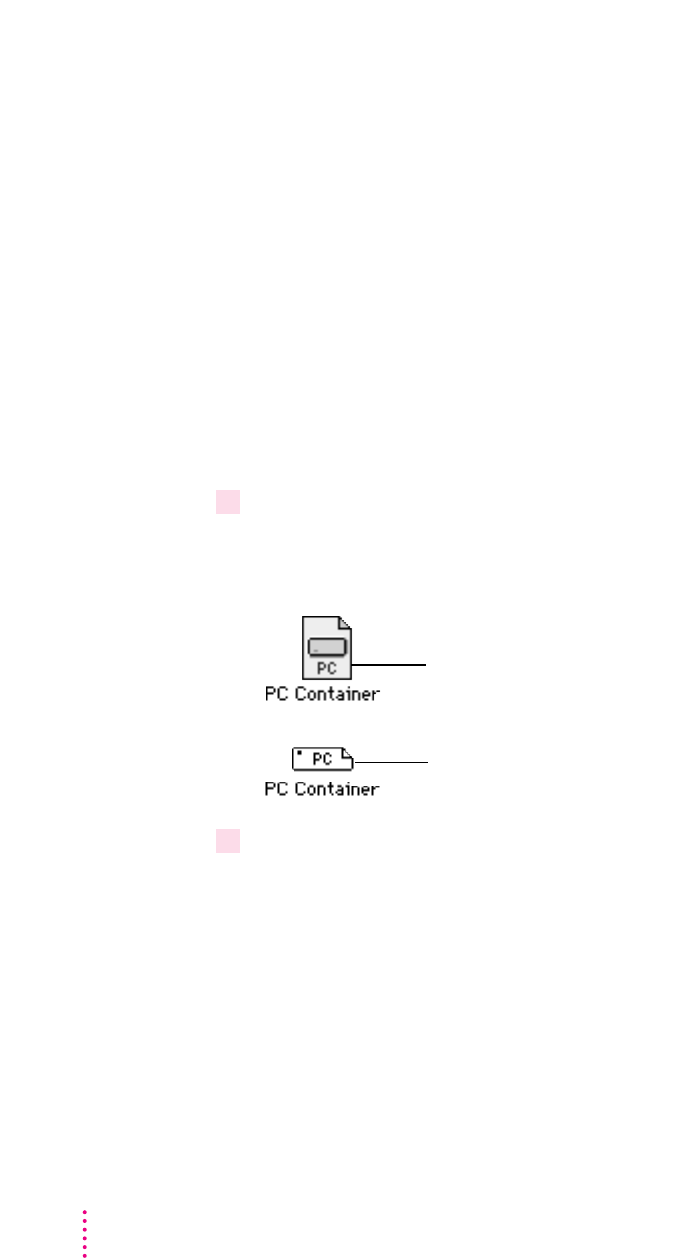
With Macintosh PC Exchange, you can see, move, and copy PC documents as
icons in the Mac OS. However, you may not be able to open every kind of PC
file in the Mac OS. If you can’t open a file or if the file is not displayed
properly, try one of the following:
mTry opening the file using a different application program.
mTranslate the document into a different file format using a file translation
utility.
mIf your PC program has an Export feature, use it to save the document in a
different file format.
mUse a PC–Mac OS translation utility.
To gain access to files in a PC drive container from the Mac OS, follow
these steps:
1 In the Finder, double-click the drive container to open it.
The drive container appears on the Mac OS desktop as one of the following
disk icons:
2 Double-click the container’s disk icon.
The icon opens and you have access to the files inside it.
Note: If the PC is running, you can copy files from the drive container to the
Mac OS, but you can’t add anything to the drive container or change any files
in it. If you want to add or change files from the Mac OS environment, you
must shut down the PC.
208 Chapter 8
Drive container file
Mounted drive container

Consult this chapter when you have questions about using the PC
environment on your Macintosh.
If you have questions about using DOS, Windows, or PC application programs,
see the manuals that came with your operating system software or programs.
Apple will provide technical support for Apple-branded software and for DOS
because it is included with the PC Compatibility Card. If you are having a
problem with Windows, Windows for Workgroups, or Windows 95, contact
Microsoft Product Support. See the support information that came with your
Windows package for more information.
WARNING
If you have a problem with your PC compatibility hardware or
software and nothing presented in this guide solves it, consult the service
and support information that came with your computer for instructions
on how to contact an Apple-authorized service provider or Apple for
assistance. If you attempt to repair the PC compatibility hardware
yourself, any damage you may cause will not be covered by the limited
warranty. Contact an Apple-authorized dealer or service provider for
additional information about this or any other warranty question.
209
9Tr oubleshooting

210 Chapter 9
Starting up
The Macintosh “freezes” during startup.
Restart the computer while holding down the Shift key. This turns off
extensions. After the computer starts up, restart the computer again. If the
computer still doesn’t start up, consult the troubleshooting information that
came in its user manual.
The PC Setup icon has a red slash through it at startup.
The PC setup extension did not load.
You may have started up the computer holding down the Shift key, which
turns off extensions. Restart the computer without holding down the Shift key.
A RAM disk or RAM cache in the Mac OS may be using too much memory.
Reduce the size of the RAM disk or RAM cache, and restart the computer.
There may be a problem with the PC Setup Prefs file (in the Preferences
folder within the System Folder). Remove the file and restart the Macintosh.
Then use the PC Setup control panel to recreate your settings. If this doesn’t
work, try reinstalling the PC software (see Chapter 6, “Installing the PC
Compatibility Card Software”).
The Mac OS software for the PC Compatibility Card doesn’t seem to be installed.
See Chapter 6, “Installing the PC Compatibility Card Software,” for a list of
the Mac OS software that is required for the PC Compatibility Card. If any
of these items is missing, and you are having trouble using the PC
Compatibility Card, try reinstalling the software, following the instructions
in Chapter 6.
The PC didn’t start up.
Open the PC Setup control panel. If drive C is not assigned to a drive
container or hard disk drive, you will see a question mark icon in the C drive
box. In this case, either assign drive C to an existing drive container or create
a new drive container (see “Creating a Drive Container” in Chapter 6).

In the PC Setup control panel, make sure the On button is selected. If it is,
click Start PC at the bottom of the control panel. If it’s not selected, click it;
then restart your Macintosh. Open the PC Setup control panel again and click
Start PC.
If the On button is selected and you have restarted the Macintosh, but the
“Switch to PC,” Start PC, and Shut Down PC buttons are not available, there
may be a problem with your PC Compatibility Card. Consult your Apple-
authorized service provider.
There may be a problem with an additional DIMM installed on your PC
Compatibility Card. Open the PC Setup control panel and check the RAM
portion of the control panel. If no DIMM is indicated and you have installed
an additional DIMM, remove it and restart the computer. If a DIMM is
detected by the PC Setup control panel, you can still remove it and restart the
computer. For more information on adding and removing DIMMs, see
Appendix B, “Adding Memory to Your PC Compatibility Card.”
When I start up the computer it goes directly into the PC environment.
If you don’t want the PC environment to start automatically, return to the Mac
OS environment by pressing x-Return. Open the PC Setup control panel and
make sure the “Switch at Startup” box is not checked.
DOS begins to start up but then the screen freezes. The cursor blinks, but I cannot
type anything.
Press x-Control-Alt-…to restart the PC. (If you do not have the … key on
your keyboard you can substitute the period key on the numeric keypad.)
When you see the message “Starting MS-DOS” or “Starting Windows 95,”
follow this step to bypass your CONFIG.SYS and AUTOEXEC.BAT files:
DOS or Windows: Press and hold the Shift key.
Windows 95: Press and hold the F5 key.
After the PC has started up, check the CONFIG.SYS and AUTOEXEC.BAT
files, change any incorrect lines, and then restart the PC.
211
Troubleshooting

212 Chapter 9
Switching to and from the PC
I can’t remember the command I set to switch back from the PC environment to the
Mac OS.
In the PC environment, you can always use x-Return to switch back to the
Mac OS environment. To change the switch command, see “Switching
Between the Mac OS and PC Environments” in Chapter 8.
There is a delay when switching between environments.
There is a delay when you switch to the PC immediately after starting it or
when you use the x-Control-Alt-…command to perform a hard restart. The
PC is performing some system configuration tasks.
When switching would interfere with a Mac OS system task, there is a slight
delay until the task is completed.
There also may be a delay while a large amount of Clipboard information
is transferred.
If you are switching to the PC immediately after starting up the computer,
make sure the Shut Down Warning is turned off in the General Controls
panel in the Mac OS. If it is on, you may not be able to switch back to the
Mac OS for several minutes after switching to the PC.
When I switch to the Mac OS from the PC environment, a message appears:
“PC Clipboard requires additional system services in order to function. Please ensure
that the PC Compatibility Card is successfully installed.”
Macintosh Easy Open (Mac OS Easy Open) software may be turned off or
may not be installed. Restart the computer, open the Macintosh Easy Open
(Mac OS Easy Open) control panel, and make sure the software is turned on.
If you can’t find the control panel, you need to reinstall it.
In the PC environment, I see the message “Non-system disk or disk error. Replace and
strike any key when ready.”
The PC Compatibility Card can’t find operating system software such as DOS
or Windows.
A nonbootable floppy disk may be in the floppy disk drive. Press x-E to eject
the disk; then press any key to continue or try restarting the PC again.

Also, make sure drive C is assigned to a drive container or hard disk drive that
contains DOS or Windows software.
If you can’t find a drive container, it may have been installed on an external
drive that is not turned on, or on removable media that is not available. Or, the
drive may have been thrown away or never created. (See Chapter 6,
“Installing the PC Compatibility Card Software,” for more information on
drive containers.)
My monitor flashes oddly when I switch environments.
When you are using a single monitor for both environments, there is a flash
when you switch from one environment to the other. If you prefer not to see
the flash, select the Fade Screens option in the PC Setup control panel.
Monitor problems
See also the troubleshooting section in Appendix D, “Configuring Video
Software.”
When I try to switch to the PC environment, my screen is blank or garbled.
Open the PC Setup control panel and check the Monitor portion of the
control panel.
If you see the message “Not Supported,” your monitor may not be compatible
with the PC Compatibility Card. Refer to Appendix D, “Configuring Video
Software,” for monitor specifications and video modes, and check with your
monitor vendor to see if your monitor conforms to these specifications.
If you see the message “No Monitor,” your monitor may not be connected
properly. Make sure your monitor is connected according to the instructions
in the chapter for installing the card in your computer model and Chapter 5,
“Connecting Monitors and Other Equipment.”
If you’re using a VGA monitor connected to a VGA-to-Macintosh adapter,
you may be able to reconfigure the adapter to identify itself to the PC
Compatibility Card and Macintosh. Check the documentation that came with
your monitor and adapter.
213
Troubleshooting

Make sure that you’ve configured your video software correctly. The PC
Compatibility Card does not support resolutions greater than 1280 x 1024. For
more information, see Chapter 6, “Installing the PC Compatibility Card
Software,” and Appendix D, “Configuring Video Software.”
The PC Setup Prefs file may be damaged. Locate the file (in the Preferences
folder inside the System Folder) and drag it to the Trash; then restart the
Macintosh. When the Mac OS starts up, open the PC Setup control panel
and reconfigure your settings.
I tried configuring my display and now it won’t work properly.
In Windows 95, if you choose a configuration that doesn’t display properly,
follow these steps to correct the problem:
1. Switch to the Mac OS by typing x-Return.
2. In the PC Setup control panel, click Restart PC.
3. Switch to the PC.
4. When you see the message “Starting Windows 95,” press F8 to enter
Safe Mode.
5. When Windows 95 starts up, click Start, choose the Settings menu item,
and click Control Panel.
6. Double-click the Display icon.
7. Click the Settings tab, and select a correct monitor setting in the list that
appears (such as 640 x 480). Then restart Windows.
My monitor flashes oddly when I switch environments.
When you are using a single monitor for both environments, there is a flash
when you switch from one environment to the other. If you prefer not to see
the flash, select the Fade Screens option in the PC Setup control panel.
When I start up certain software in the PC environment, my monitor shows a jumbled or
rolling image.
You may have selected the wrong monitor type when configuring your video
software. For more information, see Chapter 6, “Installing the PC
Compatibility Card Software.”
214 Chapter 9

Some application programs that write directly to the hardware (especially
games) may not work with some monitors. Contact the software company and
ask if the software has a switch to force it to make BIOS calls.
The PC Setup control panel does not report the correct monitor type.
Hold down the Option key and open the Monitor pop-up menu. Choose
“Sense Display Type.” If that does not solve the problem, hold down the
Option key and open the Monitor pop-up menu. Choose the monitor that
most closely matches your monitor.
You may have a VGA-to-Macintosh adapter that is set incorrectly.
If you are using the AppleVision 1710 or 1710AV display, make sure that the
AppleVision software is installed in the Mac OS environment and that the
monitor’s ADB cable is connected to the Macintosh ADB port. For more
information, see Chapter 5, “Connecting Monitors and Other Equipment.”
If you are using a non-Apple monitor, it may report the incorrect monitor
type. If you are using a multiscan monitor you may want to turn off
autosensing in the PC Setup control panel. Hold down the Option key, open
the Display pop-up menu, and choose the monitor that most closely matches
your monitor.
PC Setup seems to detect my monitor correctly, but when I switch to the PC environment
the image is jumbled or rolling.
If you are using a VGA-to-Macintosh adapter, check whether you can control
the “sync” pulse on one or more signals going to the display. If so, try
changing the “sync” pulse and see if this solves the problem.
My non-Apple display does not seem to work correctly in the PC environment.
mUse the Windows 95 Display control panel to select your monitor name. If
your monitor name is not available, select the SuperVGA monitor option
that matches the maximum resolution supported by your monitor.
mUse the ATI FlexDesk or the Windows 95 control panel to set the refresh
rate to 60 Hz. For more information, see Appendix D, “Configuring
Video Software.”
mIf the monitor still does not display properly, reduce the resolution.
215
Troubleshooting

216 Chapter 9
Problems using a modem
My modem is not working correctly in Windows 95.
Try disabling the “Use flow control” or “Use error control” options for the
modem. To do so, follow these steps:
1. In Windows 95, click the Start button, choose the Settings menu item, and
then choose Control Panel.
2. Double-click the Modem icon.
3. Click the Properties button.
4. Click the Connection tab in the dialog box that appears.
5. Click the Advanced button.
6. Deselect the “Use flow control” or “Use error control” options, and
click OK.
If you are having trouble connecting at higher baud rates, try setting the
modem speed to 19200 baud or less.
When I try to use my Mac OS communications software, I get an error that says the
selected port is in use.
Your Mac OS communications software may be trying to use a port that is
assigned to the PC Compatibility Card. Open the PC Setup control panel and
unassign the selected port by setting it to none.
After I assigned a PC COM port to a Macintosh serial port, my computer did not start up
properly.
This problem can occur if you are using Apple Remote Access (ARA) 2.0 or
2.0.1. To correct the problem, restart while holding down the Shift key to
temporarily turn off all system extensions. Then remove the Serial Port
Arbitrator from the Extensions folder inside your System Folder, and restart
your computer. (Prior to using ARA, unassign the PC COM port and restart
the Mac OS environment.) You can also correct this problem by upgrading to
ARA 2.1.

Problems with files and disks
I can’t eject my floppy disk or CD when I am in the PC environment.
To eject a floppy disk in the PC environment, press x-E. To eject a CD in the
PC environment, press x-Y.
If you are unable to eject the disk using the keyboard combination, the disk
may be in use. Close all open applications in both environments and then try
to eject the disk from the Mac OS environment.
I want to assign a drive container to the C or D drive, but I can’t find the drive container
in the dialog box.
The drive container may be assigned to another drive letter. Check the C: and
D: pop-up menus.
The drive container may be on an external hard drive. Make sure that the
drive is connected correctly and the power is on. If it is not connected, shut
down the computer, reconnect it, and then restart.
I want my drive container to have more than one partition.
Create a new drive container following the instructions in “Creating a
Multiple Partition/Bootable Drive Container” in Chapter 7. Initialize the drive
container in DOS using the FDISK and FORMAT commands.
I can’t share all the folders I want.
Make sure that you have sufficient drive letters assigned in your
CONFIG.SYS file’s LASTDRIVE statement. The PC reserves the letters A–E;
other letters are available to be assigned to shared folders or volumes.
Novell NetWare may reassign drive letters even if you have assigned them to
shared folders. Try reserving additional drive letters and reassigning your
shared folders.
I inserted a floppy disk in the PC environment and it was ejected.
The disk may have been formatted for the Mac OS. Switch to the Mac OS and
try inserting the disk again.
217
Troubleshooting

I want to change the size of my drive container.
Once a drive container is created, its size cannot be changed. If you need to
increase the size of your drive container in order to install more applications
or files, you can create another drive container and assign it to drive D.
I inserted a PC-formatted disk in the Mac OS and an initialization message appeared.
PC Exchange may not be installed in the Control Panels folder. If you don’t
find it, you can reinstall it using your system software CD-ROM disc.
The disk may be damaged. Try inserting another disk. If that works, test the
original disk in the PC environment using a disk repair utility.
I can access a floppy disk from one environment but not the other.
Only a locked floppy disk can be accessed in both environments
simultaneously. Eject, lock, and reinsert the disk, or eject the disk, switch to
the environment you want to use it in, and reinsert the disk. The disk must be
formatted for the PC if you want to use it in the PC environment.
I switched to the Mac OS, and I don’t see the floppy disk I was using.
The floppy disk may not have been locked. To use an unlocked PC-formatted
floppy disk in the Mac OS, you must switch to the Mac OS before inserting
the disk. To use a disk in both environments, lock the disk.
Shared folders don’t get updated in Windows 95.
Sometimes you need to refresh shared folders manually in Windows 95. Click
“My Computer,” click View, then click Refresh.
In some Microsoft applications, a shared drive icon looks like a floppy disk or CD icon.
The shared drive is still usable.
I can’t access my Zip or Syquest drive while in the PC environment.
While in the PC environment, you can’t access removable media directly the
same way you access the floppy disk drive. However, you can set up a shared
folder in the Mac OS environment and then transfer information to and from
the removable media. For more information see “Using Shared Volumes” in
Chapter 7, “Setting Up the PC Environment.”
218 Chapter 9

I am unable to use Microsoft Backup.
In Windows 95, you cannot use Microsoft Backup because it needs a PC
floppy drive controller that does not exist in your Macintosh. You can use a
Mac OS backup program to back up your PC container file.
You can use Microsoft Backup in Windows 3.1 or Windows for Workgroups.
To do so, configure the backup manually by following these steps:
1. Add the following line to the [386enh] section of your SYSTEM.INI file:
device=vfintd.386
Your SYSTEM.INI file is in the WINDOWS directory.
2. Start the Microsoft Backup program.
3. Click No in the Auto-configure dialog box.
4. In the Configuration window, select “1.44 Mb 3.5” in the Drive A list box.
You may also click Configure from the standard toolbar at the top. Do not
click the Compatibility Test button because it may cause a system “freeze.”
5. Click Backup on the standard toolbar.
6. If you are backing up to floppy disks, choose MS-DOS Path from the
Backup To list box. Type “A:\” in the second list box that appears.
You can type a different path to back up to a network device.
7. Continue with your backup.
When you use the Compare or Restore options, you must choose MS-DOS
Path in the Compare From and Restore From list boxes.
I can’t start up the PC from a drive container created in Insignia SoftWindows or SoftPC.
You can use drive containers created with SoftWindows or SoftPC, but you
will not be able to start up from them. When you select a container created
with SoftWindows or SoftPC, be sure to choose a drive letter other than C.
If SoftWindows or SoftPC is running, you cannot access the drive containers.
In the PC environment, the CD-ROM drive doesn’t recognize some CDs.
The PC Compatibility Card only recognizes the following types of CDs: PC
format (ISO 9660), dual format (disks formatted for both the Macintosh and
PCs), and audio. Some specialized formats are not supported.
219
Troubleshooting

Problems with information transfer
Copying and pasting between environments isn’t working.
Only certain kinds of information can be copied and pasted. See “Copying
and Pasting Information Between the Mac OS and Windows Environments”
in Chapter 8 for more information.
Copying and pasting between Mac OS and Windows works only if the PC
Clipboard extension is installed in the Extensions folder inside the System
Folder (in the Mac OS) and WINCLIP is installed in the Windows
environment.
Check the Control Panels folder in your System Folder to make sure that the
Macintosh Easy Open (Mac OS Easy Open) control panel is installed. Make
sure the Automatic Document Translation option is turned on.
If Macintosh Easy Open (Mac OS Easy Open) is not available, you can install
it from your system software CD.
Windows must be running before you begin to copy and paste.
You cannot copy and paste between the Mac OS and DOS.
The PC Setup Prefs file may be damaged. Locate the file (in the Preferences
folder inside the System Folder) and throw it away; then restart the
Macintosh. When the computer starts up, open the PC Setup control panel
and reconfigure your settings.
Tips for copying and pasting images
If you are having trouble copying and pasting text or images between the
Mac OS and PC environments, try the following tips:
mInstead of using the Paste command, use the Paste Special command if it
is available in the application you are pasting into.
mIf you cannot paste an image into a word-processing program in the PC
environment, try pasting the image into a graphics program, such as
PaintBrush. Then, copy the image to the Clipboard from the graphics
program and try pasting it into your word-processing program.
220 Chapter 9

mInstead of copying and pasting, use a shared folder to transfer an entire
file from one environment to another. Some Macintosh and Windows
programs can open files created on other platforms. For example,
ClarisWorks®for Windows can open ClarisWorks files created in the Mac
OS environment, and vice versa. Even if you are using two different
programs, you may be able to save a file in a file format that both
programs understand, such as RTF for text, and EPS or TIFF for graphics.
(Check the manuals that came with your programs to see if they support
common file formats.)
mIf you must use the Clipboard to transfer a lot of data or a large graphic,
try transferring the data in smaller pieces or making more memory
available to the application. For more information on increasing a
program’s memory, see the “Memory” topic area of Macintosh Guide
(Mac OS Guide), available in the Guide (h) menu.
mIf you are copying and pasting a PhotoCD image, make sure you are
copying an expanded version of the image.
I can’t copy graphics from a Microsoft Word 6.0 document in the Mac OS environment.
Try this method instead:
1. Select the graphic in Word 6.0 and choose Cut from the Edit menu.
2. Open the Edit menu and choose Paste Special.
3. In the Paste Special dialog box, select Picture format and click OK.
4. Select the graphic you just pasted, and choose either Cut or Copy from the
Edit menu.
5. Switch to the PC environment, and try pasting the graphic.
I can’t copy files from the Mac OS environment to a drive container.
To copy files to a drive container, the drive container file has to be mounted
on the desktop and the PC must be shut down.
I cannot open or save my files in a shared folder.
With some Windows 95 programs, you may not be able to open or save files
in a shared folder. You may have to move a file out of the shared folder before
you can open it, or save a file to a different location and then move it into the
shared folder.
221
Troubleshooting

Communication and network problems
I can’t connect to a network in the PC environment.
Make sure that your networking software is properly installed and configured
(see the section on installing network support for Windows or Windows 95 in
Chapter 6, “Installing the PC Compatibility Card Software,” and see
Appendix C, “Installing Network Client Software”).
Make sure the network is up and running (check the Chooser and check with
your network administrator).
My PC communications software doesn’t work.
The Macintosh serial port does not have the same interface as the PC does
and some commands do not work. See “Setting Up a Modem or Other Serial
Device” in Chapter 7.
I get an error message associated with my Windows 95 PROTOCOL.INI file.
If an error message appears stating that there are illegal decimal characters in
the PROTOCOL.INI file, the Windows 95 Network control panel may have
modified some of the lines. To correct this problem, run the SETNET utility.
For more information, see Appendix C, “Installing Network Client Software.”
My system “freezes” when I am using ODI with Windows 95.
You may experience system “freezes” if you are using NetBEUI or TCP/IP
with ODI in Windows 95. To correct this problem, delete the following line
from the STARTNET.BAT file in the NWCLIENT directory:
C:\WINDOWS\ODIHLP.EXE
After deleting the line, you should then add it to the end of your
AUTOEXEC.BAT file.
When I start up in the PC environment I get a message that a shared volume no
longer exists.
Reassign the drive letter to a new drive. If you cannot remember the drive
letter, drag the PC Setup Preferences file to the Trash, open the PC Setup
control panel, and reconfigure your settings.
222 Chapter 9

Configuration problems
I can’t assign a COM port to a Macintosh serial port.
COM ports cannot be assigned to Macintosh serial ports that are in use by an
application or network software.
If you assign a COM port to a Macintosh serial port, the serial port cannot be
used by the Mac OS until you unassign the COM port.
When I try to use my Mac OS communications software, I get an error that says the
selected port is in use.
Your Mac OS communications software may be trying to use a port that is
assigned to the PC Compatibility Card. Open the PC Setup control panel and
unassign the selected port by setting it to none.
Sound problems
I can’t hear PC sounds.
PC sound may be turned off in the PC Setup control panel.
If you can’t hear sound from a CD, make sure that the internal audio cables
are installed according to the instructions in the chapter on installing the PC
Compatibility Card in your computer model.
The PC Compatibility Card can play sound only from the CD-ROM drive
with the lowest SCSI ID number. If you’re using another CD-ROM drive, you
won’t hear sound when you switch to the PC environment.
If you are using DOS or Windows, increase the speaker volume with the
Sound Blaster Mixerset application. To run the Mixerset application from
DOS, change to the VIBRA16 directory, type mixerset, and press Return.
223
Troubleshooting

Check that the AUTOEXEC.BAT and CONFIG.SYS files contain the
following lines:
AUTOEXEC.BAT (for Windows 95)
SET SOUND=C:\PROGRA~1\CREATIVE\CTSND
SET BLASTER=A220 I5 D1 H5 P330 T6
SET MIDI=SYNTH:1 MAP:E
AUTOEXEC.BAT (for Windows)
SET SOUND=C:\VIBRA16
SET BLASTER=A220 I5 D1 H5 P330 T6
SET MIDI=SYNTH:1 MAP:E
C:\VIBRA16\DIAGNOSE /S
C:\VIBRA16\MIXERSET.EXE /P /Q
CONFIG.SYS (for Windows 95 or Windows)
DEVICE=C:\VIBRA16\DRV\VIBRA16.SYS /UNIT=0 /BLASTER=A:220
I:5 D:1 H:5
DEVICE=C:\VIBRA16\DRV\CTMMSYS.SYS
CD sound went away when I switched environments.
If you are playing an audio CD when you start the PC and switch
environments, there is a delay in the sound while the PC completes some
system configuration tasks.
Check that the CONFIG.SYS file contains this line:
DEVICEHIGH=C:\APPLE\CDROM.SYS/D:CDDRVR
Check that the AUTOEXEC.BAT file contains this line:
For Windows 95:
LOADHIGH C:\WINDOWS\COMMAND\MSCDEX.EXE /D:CDDRVR /L:E
For Windows:
LOADHIGH C:\DOS\MSCDEX.EXE /D:CDDRVR /L:E
224 Chapter 9

I’m using Windows or Windows for Workgroups, and I can’t play audio CDs with the
Media Player or CD utilities.
Reinstall the MCI CD Audio driver from your original Windows installation
disks. To install this driver, open the Control Panel icon in the Main
program group. Double-click the Drivers icon, select [MCI] sound driver
and click the Add button in the window that appears. Select [MCI CD
Audio] from the scroll list and click OK. Insert the specific Windows
installation disk if necessary.
Printing problems
Printing doesn’t work.
Make sure that you’ve selected the correct preferences in PC Print Spooler (in
the Extensions folder inside the System Folder). If your printer does not
support PostScript, choose Epson.
Make sure that you have chosen appropriate printer drivers in your DOS
applications and your Windows environment. If you have a PostScript Level 1
printer, you must choose a PostScript Level 1 printer driver in Windows—a
driver for a Level 2 printer will not work.
Make sure a printer is selected in the Macintosh Chooser.
If you’re using Windows, make sure that bidirectional printing and the
“Check port before printing” options are turned off. If you’re printing to a
PostScript printer, make sure that the “Send Ctrl+D” feature is turned off.
For more information, see “Setting Printer Options” in Chapter 7.
When I try to print from the DOS prompt, I get an error message.
If you’re using a PostScript printer driver, open PC Print Spooler in the
Extensions folder (inside the System Folder). Choose Preferences from the
File menu. Make sure the checkbox labeled “Allow DOS Text Printing” has an
X in it. Switch to DOS and try printing again (or move the spool file from the
Spooler Rejected folder to the Spooler folder).
225
Troubleshooting

When I print a document in the PC environment, the top and bottom get clipped.
If you’re using Epson emulation, open PC Print Spooler in the Extensions
folder, choose Preferences from the File menu, and select “Gaps between
pages.” In the PC environment, configure your applications to print to a 60-
line page.
When I print a document from a DOS application, the fonts don’t look right.
Try choosing different fonts. If you’re using Epson fonts instead of bitmap
fonts, use monospace fonts for best formatting results.
If you’re using Epson emulation, you may have chosen Faster Printing in the
Preferences dialog box of the PC Print Spooler, which prints the whole
document using a single font. Choose Better Quality and try printing again.
You may have selected a proportional space font as your default font in the
PC Print Spooler. If you select a proportional space font, the formatting of
your files may change. Try selecting a monospace font such as Courier or
Monaco or using the graphical fonts available in your DOS application.
When I print a document in the PC environment, text doesn’t print or is cut off, or text
that should print at the bottom of one page prints on the next page.
Try selecting “No gaps between pages” in the PC Print Spooler Preferences
dialog box, and try printing again. (When you print after choosing this option,
the PC Print Spooler software will print 66 lines per page instead of 60 lines
per page.) For more information, see “Setting Printer Options” in Chapter 7,
“Setting Up the PC Environment.”
I selected “No gaps between pages” in the PC Print Spooler Preferences dialog box, but
text near the top and bottom of each page still doesn’t print or is cut off.
Most laser and ink jet printers cannot print close to the edges of a page. Find
out the minimum margins for your printer in the specifications section of the
manual that came with your printer. Then reset the top and bottom margins in
the application from which you are printing.
When printing multiple files in Windows 95, I keep getting PostScript errors.
Print one file at a time. Printing multiple files may cause a PostScript error. To
verify that the file has finished printing, check the Windows 95 printer queue.
226 Chapter 9

I can’t print a test page in Windows 95.
When you use Add Printer Wizard to set up a printer, do not print a test page
until the printer is configured according to the instructions in “Setting Up
Printing in Windows 95” in Chapter 7, “Setting Up the PC Environment.”
Then you can print a test sheet by doing the following:
1. In the Printers window, click the icon of the printer you just added.
2. Choose Properties from the Printer menu.
3. In the dialog box that appears, click Print Test Page.
When I print from Windows 95 to my Hewlett Packard PostScript printer, I get several
pages of strange text.
This occurs with some Hewlett Packard printers that support both PCL and
PostScript, including the following printers:
mLaserJet 6 Series w/ PostScript
mLaserJet 5 Series w/ PostScript
mLaserJet 4 Series w/ PostScript
mDeskJet 1600C/CM
mDeskJet 1200C/PS
The Windows 95 printer drivers for these printers include non-PostScript
information called a PJL (Printer Job Language) header that causes the PC
Compatibility Card to incorrectly print the PostScript code.
If the first line of every print job contains the letters PJL, you are experiencing
this problem. Configure the printer driver not to send a PJL header by setting
the printer driver to “archive format.” To do so, follow these steps:
1. Open the Properties window for the HP printer driver.
2. Select the PostScript tab.
3. Change the “PostScript output format” option to “Archive format.”
4. Click OK.
227
Troubleshooting

Other problems
I’m running applications in both environments and they seem sluggish.
Significant drive access in one environment (including file sharing) can cause
a slowdown in the other.
The PC environment is frozen, and pressing Control-Alt-
…
doesn’t reset the system.
Try restarting by pressing x-Control-Alt-period (the decimal point on the
numeric keypad) or x-Control-Alt-…. If you can, switch to the Mac OS and
click Restart PC in the PC Setup control panel. If these options don’t work,
restart the Macintosh using the Reset key or keyboard command.
I can’t configure my pointing device.
You don’t need to configure some pointing devices.
If you have a two-button ADB pointing device, you may be able to use its
software to map the = (equal) key on the numeric keypad to the right button.
This lets the device behave like a standard PC device.
228 Chapter 9

IMPORTANT
For detailed instructions on opening your computer, including
important precautions, see the chapter earlier in this manual on installing the
PC Compatibility Card in your computer model.
Disconnecting the cables
1Unplug the audio cables from the PC Compatibility Card, the logic board, and the
CD-ROM drive.
Be sure to pull the plugs, not the cables.
229
Appendix A
Removing Your PC Compatibility Card
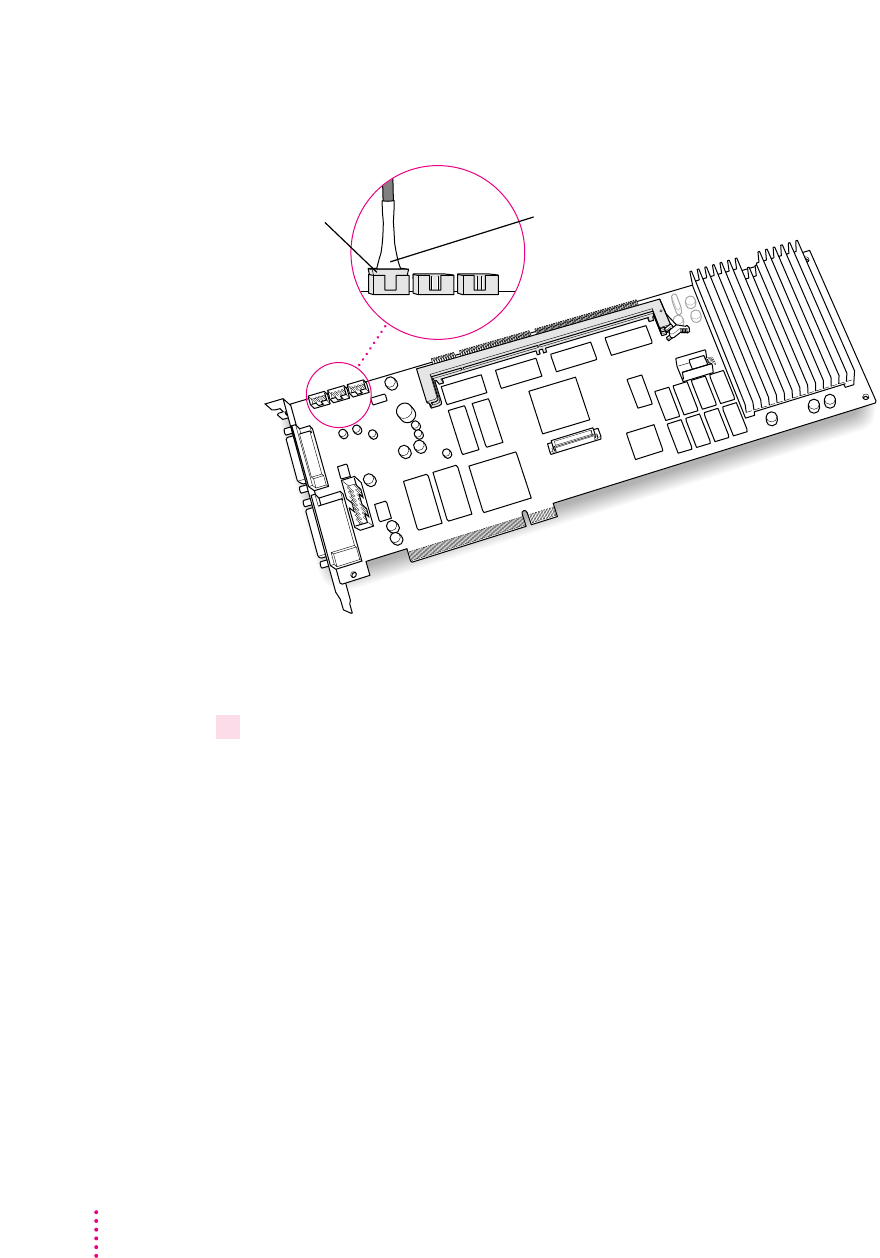
230 Appendix A
To remove a small plug attached to the card, grasp the sides of the plug and
pull firmly. It may help to gently rock the plug from side to side as you pull.
Do not attempt to use pliers to remove any plugs; you may damage the plugs,
the card, or your computer.
2 Remove any other cables from the PC Compatibility Card.
If you have not already done so, remove the loopback cable and the PC game
controller cable (if one is attached) from the ports on the back of the PC
Compatibility Card.
You may also need to remove the cables described below:
mIf you are removing a previous PC Compabitility Card from a Power
Macintosh 7200, you may see a ribbon cable, called the internal
audio/video assembly, not described in this book. This cable was installed
on cards in previous models of the 7200, and is described in the manual
that came with your computer or previous PC Compatibility Card. You’ll
need to detach and remove this cable (you won’t use it with your new PC
Compatibility Card).
mIf you are removing your PC Serial and Parallel Card also, detach the
peripheral flex cable from the PC Compatibility Card.
Gently rock
the plug.
Don’t pull on
the cable.

Removing the card
1Check to see if there is a screw installed on the port fence (where the port access cover
used to be). If there is, remove it.
2Check to see if there are levers near the port fence. If there are, press them away from
the port access opening.
3Grasp the card by its sides and pull it straight out of the slot.
IMPORTANT
Do not rock the card side to side as you remove it. Doing so may
break the card or damage the slot.
231
Removing Your PC Compatibility Card

Your PC Compatibility Card comes with RAM (random-access memory)
already installed. You can increase the memory available to the card by
installing a DIMM (dual inline memory module) in the DIMM socket.
Memory you add to the card is for the exclusive use of your PC operating
system and may improve the performance of your PC software.
The DIMM socket accepts an 8, 16, 32, or 64 MB 60 ns, 5-volt DIMM. You
may use either EDO or Fast Page Mode memory.
If your PC Compatibility Card is already installed, installing memory on the
card involves the following steps:
mremoving the card
mremoving the existing DIMM, if one is installed
minstalling the new DIMM
mreplacing the card
If the card is not installed yet, you only need to install the new DIMM, install
the card, and close the computer.
233
Appendix B
Adding Memory to Your PC Compatibility Card

Removing the card
1 Open the computer.
IMPORTANT
For detailed instructions on opening your computer, including
safety precautions, see the chapter earlier in this manual on installing the PC
Compatibility Card in your model of computer.
2 Remove any cables from the PC Compatibility Card ports.
If you have not already done so, remove the loopback cable, and the PC game
controller cable (if one is attached), from the ports on the back of the PC
Compatibility Card.
3If there is an internal audio/video assembly installed, detach it from the PC
Compatibility Card.
If you are removing a previous PC Compatibility Card from a Power
Macintosh 7200, you may see a ribbon cable, called the internal audio/video
assembly, not described in this book. This cable was installed on cards in
previous models of the 7200, and is described in the manual that came with
your computer or previous PC Compatibility Card. You’ll need to detach this
cable also (you won’t use it with your new PC Compatibility Card).
WARNING
Your PC Compatibility Card may contain sockets for
additional video RAM. To avoid damage to your computer, Apple
recommends that you have your Apple-authorized dealer install
additional video RAM (for a fee). If you attempt to install additional
video RAM yourself, any damage you may cause to your equipment will
not be covered by the limited warranty on your computer. See an
Apple-authorized dealer or service provider for additional information
about this or any other warranty question.
234 Appendix B
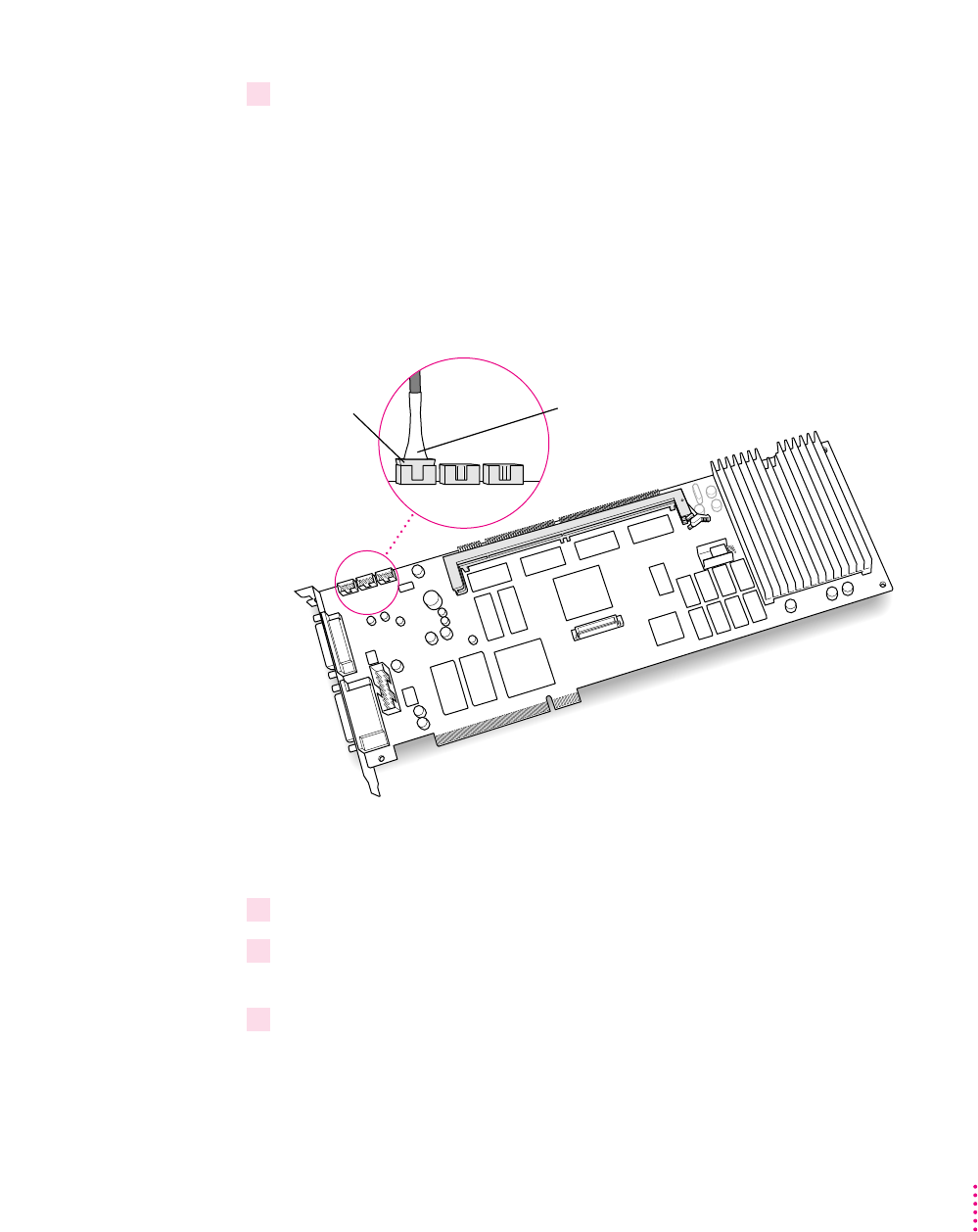
235
Adding Memory to Your PC Compatibility Card
4If necessary, disconnect the audio cables from the PC Compatibility Card.
Because the audio cables can be difficult to remove, it’s best to leave them
connected if possible. If you feel you can pull the card out and access the
DIMM slot without disconnecting the audio cables, leave the cables in place.
Otherwise, make a note of where the audio cables are connected so you’ll
know where to reconnect them later. Then grasp the side of each plug and pull
firmly. Be sure to pull the plug, not the cable. It may help to gently rock the
plug from side to side as you pull.
Do not attempt to use pliers to remove these plugs; you may damage the plugs
or your card.
5Check to see if there is a screw installed on the port fence. If there is, remove it.
6Check to see if there are levers near the port fence. If there are, press them away from
the port access opening.
7Grasp the card by its sides and pull it straight out of the slot.
IMPORTANT
Do not rock the card side to side as you remove it. Doing so may
break the card or damage the slot.
Gently rock
the plug.
Don’t pull on
the cable.
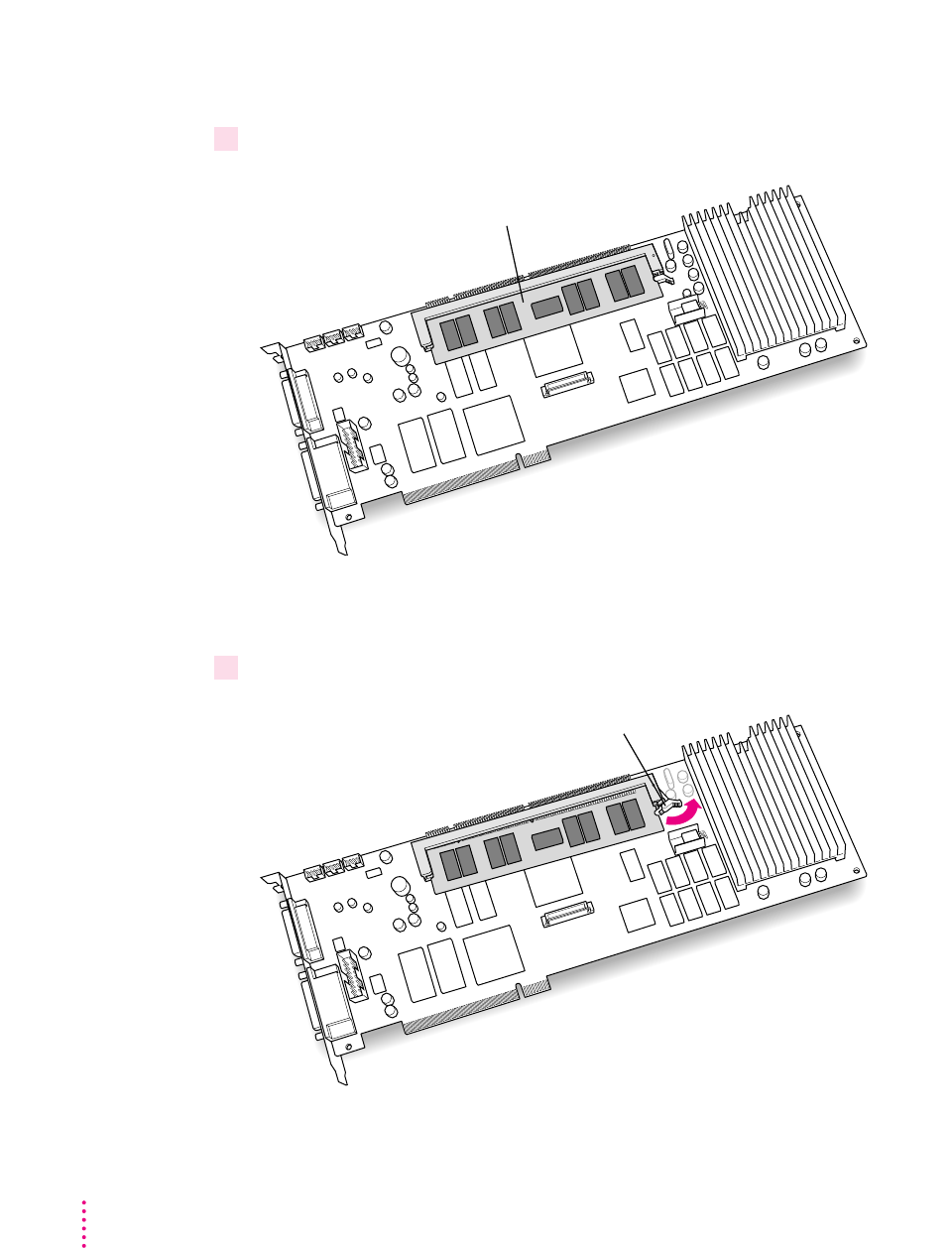
236 Appendix B
Removing the old DIMM
1 Determine if there is a DIMM in the DIMM slot.
If there is no DIMM in the slot, skip the next step and go to the next section,
“Installing the New DIMM.”
2Gently push the DIMM lever until it snaps open.
Move the ejector lever to the “open” position as shown.
The DIMM will partially pop out of the DIMM socket.
RAM DIMM (The number of components and
their arrangement on your DIMM may vary.)
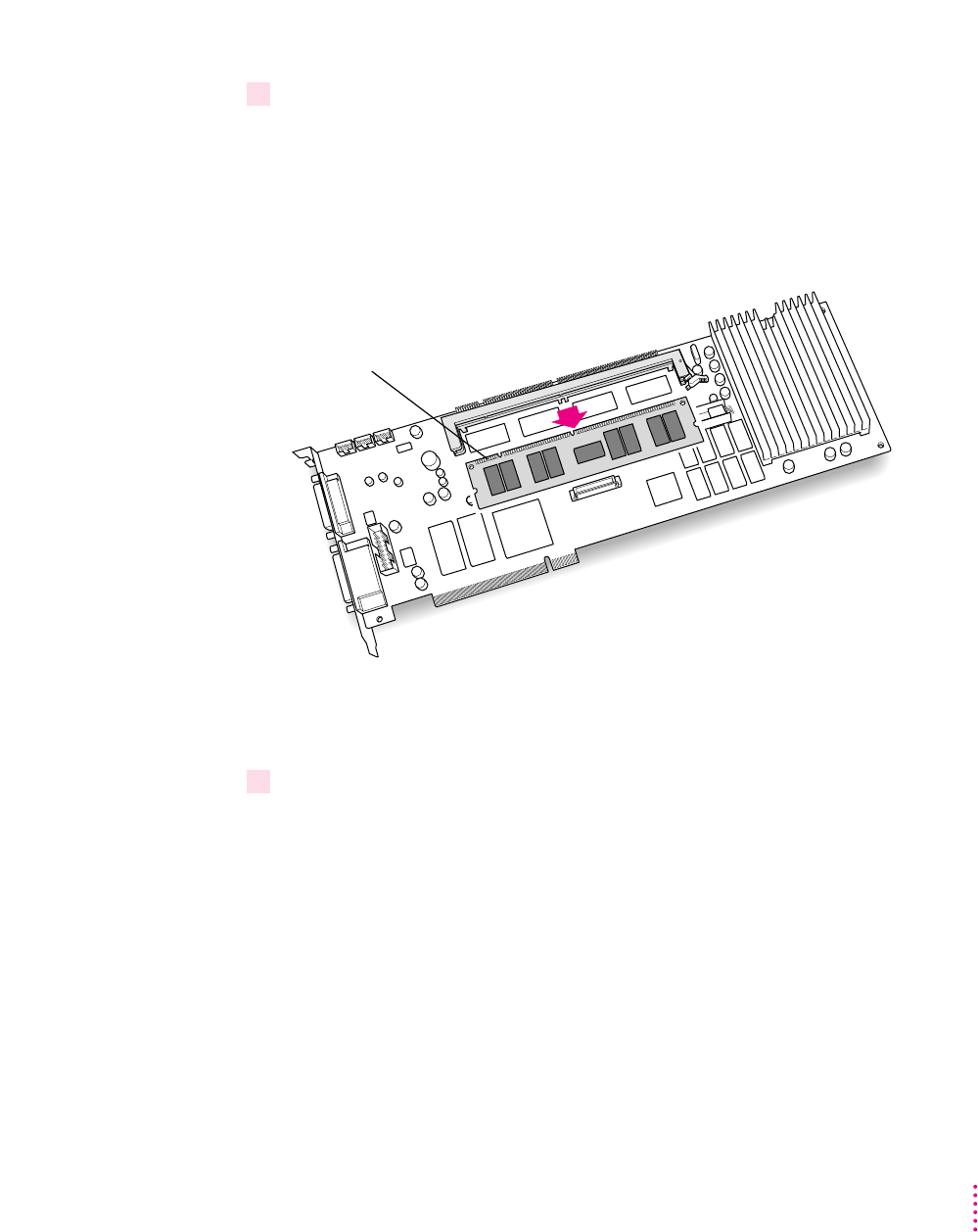
3Pull the DIMM straight out of the socket to remove it.
If the DIMM sticks, pull gently, but don’t force it.
Be careful not to touch the connectors.
Set the DIMM aside. (If you wish, you may be able to install it in your
computer later. It’s compatible with most Macintosh models.)
Installing the new DIMM
1 Remove the DIMM from its static-proof bag.
Handle the DIMM by its edges. Avoid touching the connectors.
Pull the DIMM straight out of the socket. Handle the DIMM
by its edges only, and avoid touching the connectors.
Connectors
237
Adding Memory to Your PC Compatibility Card
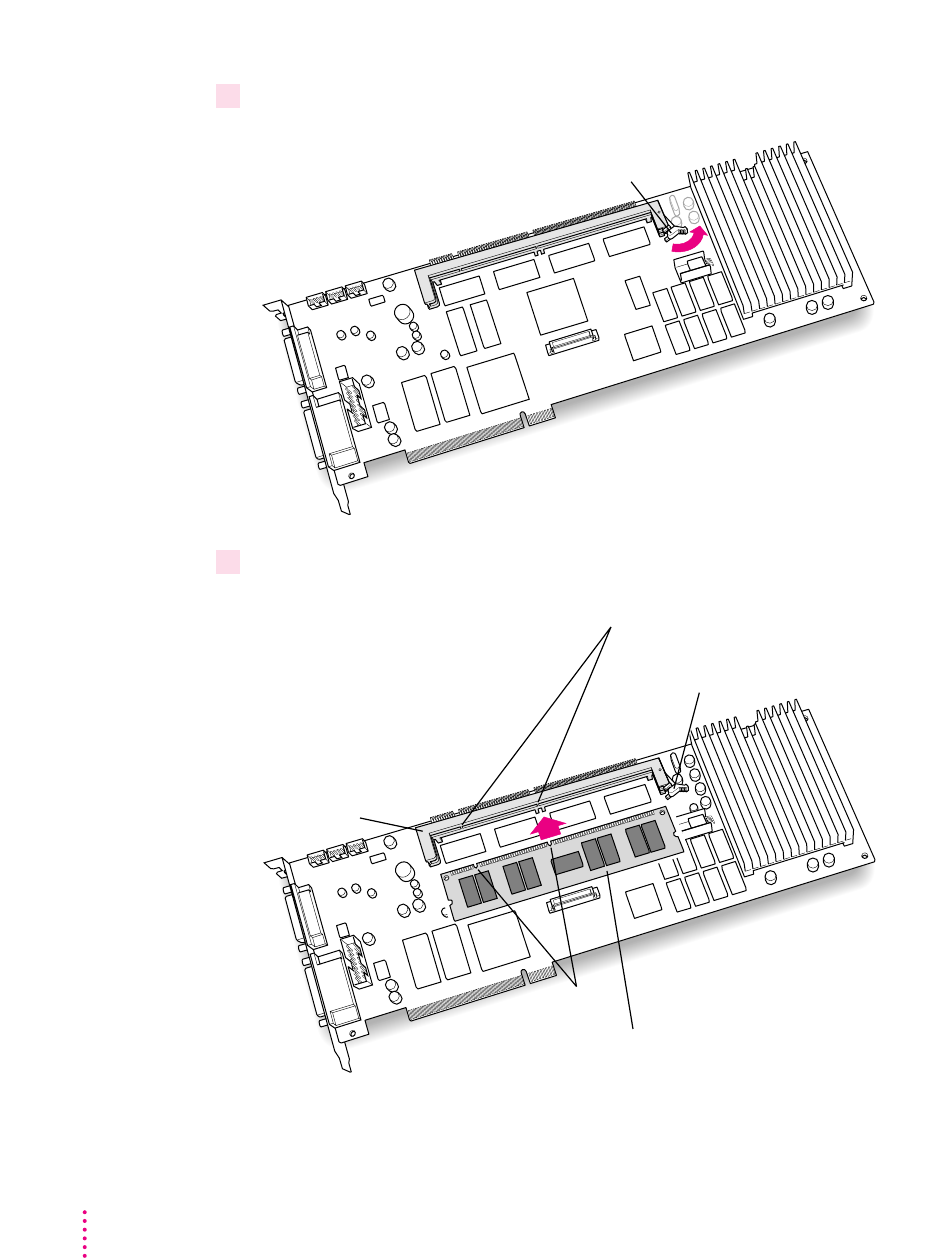
2Make sure the DIMM lever is in the open position.
3Push the DIMM into the DIMM slot until the lever snaps into the closed position.
Ribs (inside socket)The RAM DIMM is designed to fit into the
socket only one way. Be sure to align the
notches in the DIMM with the small ribs
inside the socket. With the ejector in the
“open” position (as shown), push
the DIMM into the socket until it
snaps into place. The ejector
will automatically “close.”
DIMM socket
Notches
Ejector (The ejector should be pushed outward
to be in the “open” position, as shown.)
RAM DIMM (The number of components and
their arrangement on your DIMM may vary.)
Move the ejector lever to the “open” position as shown.
238 Appendix B
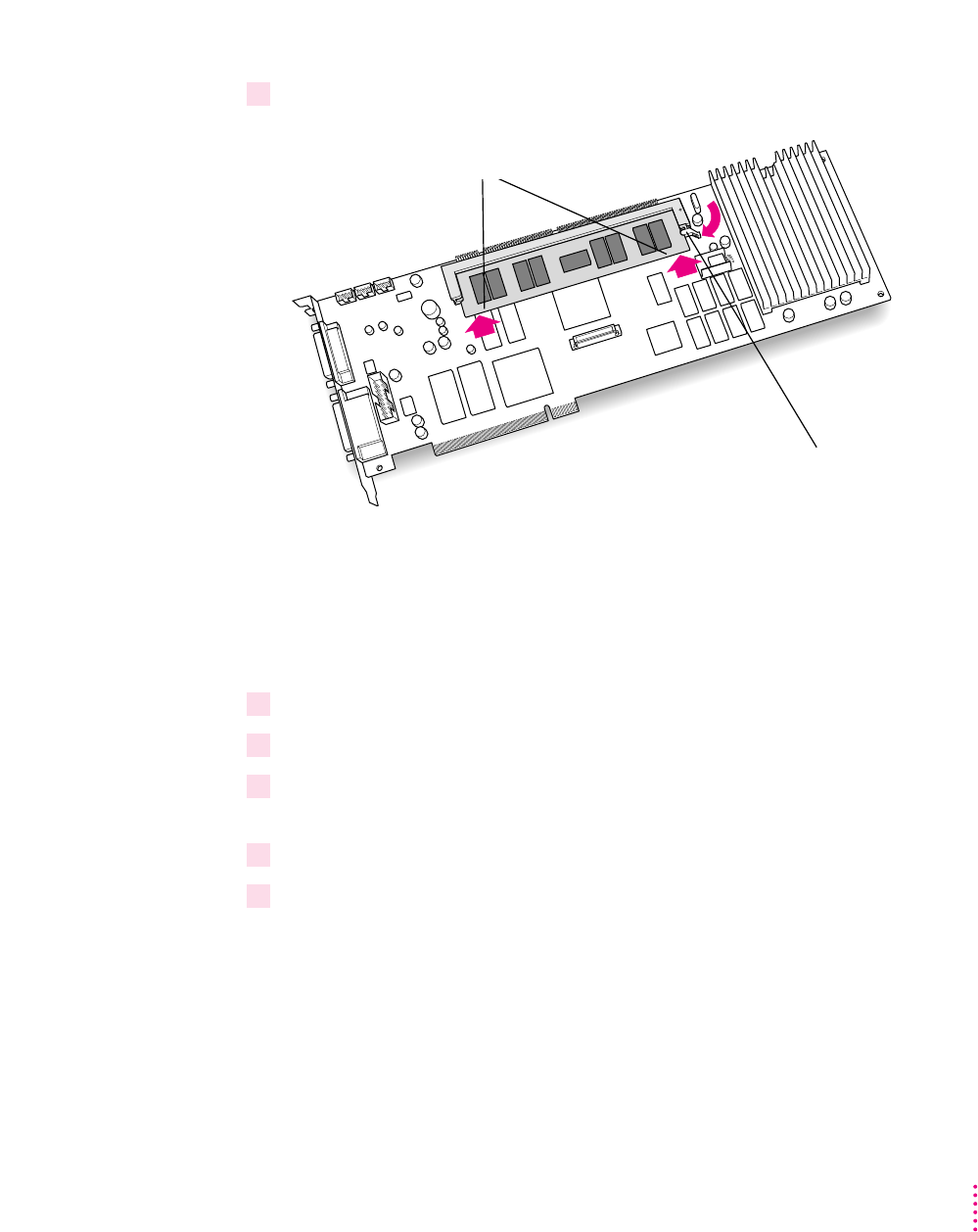
4Make sure the DIMM is snapped into place on both ends.
Reinstalling the card
For more detailed instructions, see the section earlier in this manual that
describes installing the card in your model of computer.
1 Insert the card into the slot you removed it from.
2 Reconnect the cables to the card as they were before you began this process.
3Make sure the cables are routed as shown in the chapter for your computer model earlier
in this manual.
4 Replace the computer cover.
5 Reconnect the equipment cables.
IMPORTANT
Make sure you connect your monitor and PC game controller to
the correct ports on the PC Compatibility Card. See Chapter 5 for more
information.
Your PC Compatibility Card is now fully installed with extra memory, and is
ready to use.
When in the “closed” position, the ejector
should engage the small semiround
indentation on the side of the DIMM.
Make sure the DIMM is properly seated
by pressing firmly on both ends.
239
Adding Memory to Your PC Compatibility Card

The PC Compatibility Card supports network drivers that conform to Novell’s
Open Data-Link Interface (ODI) and Microsoft’s Network Driver Interface
Specification (NDIS) version 2.0. This appendix describes how to install and
configure a variety of network protocol software and client software.
Use this chapter as a supplement to the documentation that came with your
network software. If your configuration still doesn’t work after following the
instructions in this appendix, contact the manufacturer of your network
software.
Throughout the process of installing network software it is important to
remember the four following items:
mYou must run SETNET every time you add or remove a network protocol,
install or upgrade network software, or change anything in the network
control panel. If you do not run SETNET, you will experience network
problems.
mWhen you install a NetWare Client, make sure to install it under the
NWCLIENT directory. Otherwise, the SETNET program will not work
with ODI and your networking software will not work correctly.
mMake sure to use the MACODI.COM and MACNDIS.DOS driver found on
the PC Compatibility Card–PC Utilities CD when installing network
protocols for the PC Compatibility Card. Do not use any of the drivers that
ship with Windows 95 or Windows for Workgroups.
mWhen using the MACODI.COM driver use the latest LSL driver (2.21 or
later), available from the Novell Web site at http://www.novell.com.
241
Appendix C
Installing Network Client Software

This chapter contains instructions for installing and setting up the following
network software combinations:
ODI driver with the following protocols
mNetBEUI and IPX/SPX in Windows 95
mTCP/IP in Windows 95
mNetBEUI in Windows for Workgroups
mIPX/SPX in Windows for Workgroups
mMicrosoft’s TCP/IP-32 IP in Windows for Workgroups
mTr umpet WinSock in Windows for Workgroups (packet driver)
mSpry’s Air Series TCP/IP in Windows for Workgroups
mAppleShare for Windows in Windows for Workgroups
mNovell’s LAN WorkPlace for DOS TCP/IP software
NDIS 2.0 driver with the following protocols
mNetBEUI and IPX/SPX in Windows 95
mMicrosoft’s TCP/IP and IPX/SPX in Windows 95
mNetBEUI and IPX/SPX in Windows for Workgroups
mMicrosoft’s TCP/IP in Windows for Workgroups
mClient software for an OS/2 LAN Server in DOS, Windows, or Windows
for Workgroups
mBanyan Vines in DOS
Either the ODI or NDIS 2.0 driver with the following protocol
mNetManage’s Chameleon TCP/IP in Windows for Workgroups
Configuring the built-in TCP/IP Stack for PPP (modem) in Windows 95
If you are installing a protocol for use with an ODI driver, see “Installing
Protocols for Use With Open Data-Link Interface (ODI),” next. If you are
installing a protocol for use with an NDIS 2.0 driver, see “Installing
Protocols for Use With Network Driver Interface Specification (NDIS) 2.0,”
later in this appendix.
242 Appendix C

243
Installing Network Client Software
Installing protocols for use with Open Data-Link Interface (ODI)
Before you install a protocol for use with ODI, follow the instructions in this
section to install the appropriate NetWare client software. Then refer to the
instructions later in this section that describe installing and setting up the
network protocol you want to use.
Note: If you are installing Windows for Workgroups, the Novell NetWare
client, and TCP/IP support, it is easiest if you install the NetWare client first,
Windows for Workgroups second, and TCP/IP support third.
You need to know the Ethernet frame type in use on your network segment.
Your network administrator can give you this information.
Installing NetWare client software version 1.02 for
DOS/Windows for Workgroups
Note: These examples use NetWare client version 1.02 for DOS. If you intend
to use other NetWare client versions, then certain changes need to be made
for proper installation. LSL version 2.21 or later must be used with the latest
MACODI driver supplied with the PC Compatibility Card software.
1 In the PC environment, start from a DOS prompt.
If you are in Windows, close all windows and exit to a DOS prompt.
2 Insert the NetWare disk into the disk drive.
3Run the NetWare Client Install program.
A: \INSTALL <return>
4 Follow the instructions on screen for steps 1–3. Then select step 4 and press Return.
A list of network interface controller (NIC) drivers appears.
5Eject the NetWare floppy disk by pressing
x
-E.
6 Insert the
PC Compatibility Card–PC Software
floppy disk and press Return.
The PC Compatibility Card–PC Software floppy disk has the
MACODI.COM driver.
7From the list of choices, select “PC Compatibility Ethernet Adapter” and press Return.

8 Follow the instructions to select the proper frame type and to finish the installation.
Make sure your configuration files include the following:
CONFIG.SYS
FILES=40
STACKS=9,256
LASTDRIVE=Z
DEVICE=C:\Apple\CDROM.SYS /D:CDDRVR
AUTOEXEC.BAT
@CALL C:\NWCLIENT\STARTNET
PROMPT $P$G
PATH C:\WINDOWS;C:\DOS
PATH=C:\NWCLIENT\;%PATH%
STARTNET.BAT
@ECHO OFF
C:
CD \NWCLIENT
SET NWLANGUAGE=ENGLISH
LSL
MACODI.COM
IPXODI
VLM
CD \
NET.CFG
Link Driver MACODI
FRAME Ethernet_802.2
Conserving memory
The line CALL C:\NWCLIENT\STARTNET.BAT in the AUTOEXEC.BAT
file loads four programs into DOS memory—LSL.COM, MACODI.COM,
IPXODI.COM, and VLM.EXE (in this order). To conserve memory in the
lower DOS region, you may wish to edit the STARTNET.BAT file to load
these four programs with the LOADHIGH (LH) command. See your DOS
documentation for more details on manually optimizing DOS memory.
244 Appendix C

245
Installing Network Client Software
Installing NetWare client software version 1.02 for Windows 95
The NetWare client software that’s installed under Windows 95 can use either
the NDIS or ODI driver (unlike Windows for Workgroups and DOS, where
only the ODI driver can be used). The following steps describe how to install a
NetWare client under Windows 95 using the ODI driver.
1Switch to the PC environment and start Windows 95.
2In Windows 95, click Start and then select Shutdown from the menu that appears.
3 In the window that appears, select “Restart the computer in MS-DOS mode.”
4Insert the NetWare Client Kit Disk 1 into the disk drive.
5 To switch to the disk, type the following:
A: <return>
6To start the installation process, type the following:
INSTALL <return>
7Follow steps 4–7 in the section “Installing NetWare Client Software Version 1.02 for
DOS/Windows for Workgroups,” earlier in this appendix.
8When installation is complete, return to Windows 95 by typing the following:
EXIT <return>
9When Windows 95 restarts, you see an error message. Press Return.
The error message is
C:\windows\system\vmm32\vnetbios.VXD does not exist
10 Click Start, choose Settings from the menu that appears, and then select Control Panel.
11 Double-click the Network icon to open it.
12 Select Add in the Network control panel.
13 Select the Adapter Component in the Network Component list, then click Add.
14 Under Manufacturers, select (detected net drivers).

15 Under Network Adapters, select Existing ODI Driver, and then click OK.
Configuration takes about 30 seconds. When it’s finished, the Network
Configuration will list the following:
Client for Microsoft Networks
Client for Novell Networks
Existing ODI Driver
IPX/SPX-Compatible Protocol
NetBEUI
16 To share your printers or files with other users on the network, select “File and
Print Sharing.”
Click the checkboxes to turn on file or printer sharing, then click OK.
17 If file or printer sharing has been selected, the following line is added to the Network
Configuration Box:
File and printer sharing for Microsoft Networks
18 Select the Identification tab.
The computer must have a unique identity to access the network.
19 In the window that appears, type the following information, then click OK.
ma unique name for the computer
ma workgroup for the computer (typically WORKGROUPS)
ma description to identify the computer (optional)
20 Click the OK button at the bottom of the configuration box when finished.
21 When prompted, insert the Windows 95 CD or floppy disk into the appropriate drive.
22 You are asked if you want to restart your computer. Select No.
23 Insert the
PC Compatibility Card–PC Software
floppy disk into the disk drive.
24 Click Start, and choose Run from the menu that appears.
246 Appendix C

25 In the dialog box that appears, type
A: \SETNET <return>
26 Select the following items, then click OK.
mODI radio button
mIPX/SPX checkbox
mEthernet_802.2 radio button
mNETBEUI checkbox
27 Close the control panel and remove the
PC Compatibility Card–PC Software
floppy disk
from the disk drive.
28 Click Start, then choose Shutdown from the menu that appears.
29 Restart the PC.
30 You see a message warning of an invalid NetWare command. Select Yes.
31 In the Login dialog box, enter your user ID.
32 Press Tab, enter your password, then click OK.
A dialog box appears asking to save your password. To save the password,
reenter the password and then click OK. If you don’t want to save the
password, select Cancel.
33 To view other servers on the network, double-click the Neighborhood Network icon on
the Windows 95 desktop.
Your computer will scan for other machines on the network.
247
Installing Network Client Software

Installing NetWare Client 32 for DOS and Windows for Workgroups
To install NetWare client software version 2.01, follow these steps.
IMPORTANT
For SETNET to work, the Client 32 software must be installed
under the NWCLIENT directory, not under the NOVELL\Clients32 directory.
1 In the PC environment, start from a DOS prompt.
If you are in Windows, close all windows and exit to a DOS prompt.
2 Insert the NetWare disk into the disk drive.
3 To run the NetWare Client Install program, type
A: \install <return>
Follow the instructions that appear on the screen.
4When prompted, press F10 to continue.
5When prompted to select a LAN driver type, select the 16-bit LAN drivers, and press
Return.
A list of available 16-bit drivers will be displayed. Scroll down to the end of
the list and select “User Specified 16 Bit Driver.”
6 Insert the
PC Compatibility Card–PC Software
floppy disk.
The MacODI and MacNDIS drivers are located in the root directory on the
PC Compatibility Card–PC Software floppy disk.
7Select “PC Compatibility Ethernet Adapter,” and press F10 .
8Press Return, select the frame, then press Return.
9Press F10 to continue.
10 Confirm the Installation Configuration Summary, then press F10.
11 Follow the instructions on the screen to complete the installation process.
Note: Installing the NetWare client software for the PC Compatibility Card is
similar to installing it on a PC. The only major difference is that the PC
Compatibility Card provides its own ODI drivers.
248 Appendix C

249
Installing Network Client Software
Installing NetBEUI and IPX/SPX in Windows 95
NetBEUI and IPX/SPX are automatically installed as part of the standard
NetWare client software version 1.02 installation. Refer to the section
“Installing NetWare Client Software Version 1.02 for Windows 95,” earlier in
this appendix.
Installing Client 32 for Windows 95
This section describes how to install Client 32 for Windows 95. Client 32 is
installed on top of the existing NetWare version 1.02.
1 Install NetWare Client version 1.02 for Windows 95.
To install NetWare version 1.02 for Windows 95, follow the steps in the
section “Installing NetWare Client Software Version 1.02 for Windows 95,”
earlier in this appendix.
2 Follow the onscreen instructions.
3When prompted for a driver, select “Existing ODI Driver.”
4When installation is complete, restart Windows 95.
Installing TCP/IP in Windows 95
This section describes how to install the TCP/IP protocol for use with an ODI
driver in Windows 95. If you are using NDIS 2.0, refer to this topic in
“Installing Protocols for Use With Network Driver Interface Specification
(NDIS) 2.0,” later in this appendix.
1 Install the NetWare client software.
For more information, see the appropriate section on installing NetWare
client software earlier in this appendix.
2 In Windows 95, click the Start button, choose Settings, and then choose Control Panel.
3Double-click the Network icon in the Control Panel.
4Click Add in the Network Configuration dialog box.
5 Select Adapter Component from the Network Component list, and then click Add.

6 In the Manufacturers list, select Detected Net Drivers.
7 In the Network Adapters list, select Existing ODI Driver, and then click OK.
The Network Configuration dialog box appears.
8 Click Add.
9 Double-click the Protocol icon.
10 In the Manufacturers area, select Microsoft. In the Network Protocols area, select TCP/IP.
11 To share files or your printer with other users on the network, click the “File and Print
Sharing” button.
12 Select the checkboxes in the dialog box to enable file or printer sharing, and then
click OK.
If file or printer sharing has been selected, “File and printer sharing for
Microsoft Networks” appears in the Network Configuration dialog box.
13 Select the Identification tab at the top of the Network Configuration dialog box.
14 Type a unique name, workgroup name, and any description you would like for the
computer.
The computer must have a unique name to access the network. The
workgroup name is usually “WORKGROUPS.”
15 Click OK.
16 Insert the Windows 95 installation CD or disk when prompted to do so.
17 When the System Settings Change dialog box prompts you to restart your computer,
click No.
18 Refer to “Running the Network Protocol Setup (SETNET) Utility,” near the end of this
appendix, and follow the instructions there.
WARNING
You must run SETNET every time you add or remove a
network protocol, install or upgrade network software, or change
anything in the network control panel. If you do not run SETNET, you
will experience network problems.
250 Appendix C

Installing NetBEUI in Windows for Workgroups
This section describes the settings necessary to install the NetBEUI protocol
for use with an ODI driver in Windows for Workgroups. If you are using
NDIS 2.0, refer to this topic in “Installing Protocols for Use With Network
Driver Interface Specification (NDIS) 2.0,” later in this appendix.
1 Install the NetWare client software.
For more information, see the appropriate section on installing NetWare
client software earlier in this appendix.
2 In Windows, open the Network Setup control panel, click Drivers, and click Add Adapter.
3Select “IPX ODI support driver (Ethernet)” and click OK.
Both NetBEUI and IPX/SPX protocols are installed. You can remove
IPX/SPX if it is not needed.
4 Refer to “Running the Network Protocol Setup (SETNET) Utility” near the end of this
appendix and follow the instructions there.
5Make sure your configuration files contain the following:
NET.CFG
LINK DRIVER MACODI
FRAME ETHERNET_802.3
FRAME ETHERNET_II
FRAME ETHERNET_802.2
FRAME ETHERNET_SNAP
PROTOCOL NETBEUI F0 ETHERNET_802.2
NETWARE DOS REQUESTER
FIRST NETWORK DRIVER = F
WARNING
You must run SETNET every time you add or remove a
network protocol, install or upgrade network software, or change
anything in the network control panel. If you do not run SETNET, you
will experience network problems.
251
Installing Network Client Software

252 Appendix C
AUTOEXEC.BAT (must begin with the following lines in this order)
C:\WINDOWS\NET START
@CALL C:\NWCLIENT\STARTNET
C:\WINDOWS\ODIHLP.EXE
PROTOCOL.INI
[NETWORK.SETUP]
VERSION=0X3110
NETCARD=MS$ODIMAC,1,MS$ODIMAC,4
TRANSPORT=MS$NETBEUI,NETBEUI
LANA0=MS$ODIMAC,1,MS$NETBEUI
[LINK DRIVER MACODI]
DATA=FRAME ETHERNET_SNAP
DATA=FRAME ETHERNET_802.2
DATA=FRAME ETHERNET_II
DATA=FRAME ETHERNET_802.3
[NET.CFG]
PATH=C:\NWCLIENT\NET.CFG
[MS$ODIMAC]
PROTOCOLDOT2=F0
[NETBEUI]
BINDINGS=MACODI
LANABASE=0
SESSIONS=10
NCBS=12
Installing IPX/SPX in Windows for Workgroups
This section describes the settings necessary to install the IPX/SPX protocol
for use with an ODI driver in Windows for Workgroups.
Installing ODI drivers in Windows for Workgroups adds two commands to
the AUTOEXEC.BAT file:
mNET START initializes the Windows network functions
mODIHLP.EXE calls Microsoft’s ODI to NDIS translation file

IMPORTANT
The Windows for Workgroups Network Browser requires more
than 540K of conventional memory. You should maximize conventional
memory by removing unnecessary device drivers and TSRs and by loading
the remaining device drivers and TSRs into high memory, if possible.
1 Install the NetWare client software.
For more information, see the appropriate section on installing NetWare
client software earlier in this appendix.
2 In the Network Setup control panel, select Drivers, select Add Adapter, and select
“IPXODI Support Driver (Ethernet).”
3Select “IPX/SPX Compatible Transport With NetBIOS.”
4Select your frame type.
5 Set the default protocol.
6If you installed NetWare, you’re asked you if you want to replace the Novell NetWare
drivers. Select No.
7 Refer to “Running the Network Protocol Setup (SETNET) Utility” near the end of this
appendix and follow the instructions there.
8Verify that your configuration files contain the following information.
After following the above instructions, your configuration files should contain
the information shown here, assuming a frame type of ETHERNET_802.2
and assuming that NetBEUI is not installed.
WARNING
You must run SETNET every time you add or remove a
network protocol, install or upgrade network software, or change
anything in the network control panel. If you do not run SETNET, you
will experience network problems.
253
Installing Network Client Software

NET.CFG
LINK DRIVER MACODI
FRAME ETHERNET_802.2
FRAME ETHERNET_802.3
FRAME ETHERNET_SNAP
FRAME ETHERNET_II
PROTOCOL IPX EO ETHERNET_802.2
AUTOEXEC.BAT
C:\WINDOWS\NET START
@CALL C:\NWCLIENT\STARTNET
C:\WINDOWS\ODIHLP.EXE
@ECHO OFF
LH C:\DOS\SMARTDRV.EXE /X
PROMPT $P$G
PATH C:\WINDOWS;C:\DOS
PATH=C:\NWCLIENT\;%PATH%
LH C:\APPLE\APPLEPC
LH C:\APPLE\MACSHARE
LH C:\DOS\MSCDEX /D:CDDRVR /L:E
SET TMP=C:\TEMP
PROTOCOL.INI
[NETWORK.SETUP]
VERSION=0X3110
NETCARD=MS$ODIMAC,1,MS$ODIMAC,4
TRANSPORT=MS$NWLINKNB,NWLINK
LANA0=MS$ODIMAC,1,MS$NWLINKNB
[NET.CFG]
PATH=C:\NWCLIENT\NET.CFG
[MS$ODIMAC]
[LINK DRIVER MACODI]
DATA=FRAME ETHERNET_SNAP
DATA=FRAME ETHERNET_802.2
DATA=FRAME ETHERNET_II
DATA=FRAME ETHERNET_802.3
DATA=LINK DRIVER MACODI
254 Appendix C

[NWLINK]
BINDINGS=MACODI
FRAME=ETHERNET_802.2
Installing Microsoft’s TCP/IP-32 IP protocol stack
in Windows for Workgroups
Follow these steps to set up Microsoft’s TCP/IP-32 IP protocol stack for use
with an ODI driver in Windows for Workgroups.
1 Install the NetWare client software.
For more information, see the appropriate section on installing NetWare
client software earlier in this appendix.
2 Install the protocol stack following the instructions that came with it.
3 Refer to “Running the Network Protocol Setup (SETNET) Utility” near the end of this
appendix and follow the instructions there.
4After running SETNET, make sure the NET.CFG and PROTOCOL.INI files contain the
sections shown below.
The following entries assume that IPX/SPX support is loaded.
NET.CFG
LINK DRIVER MACODI
FRAME ETHERNET_802.2
FRAME ETHERNET_802.3
FRAME ETHERNET_II
FRAME ETHERNET_SNAP
PROTOCOL IPX E0 ETHERNET_802.2
PROTOCOL IP 800 ETHERNET_II
PROTOCOL ARP 806 ETHERNET_II
PROTOCOL RARP 8035 ETHERNET_II
continued
.
WARNING
You must run SETNET every time you add or remove a
network protocol, install or upgrade network software, or change
anything in the network control panel. If you do not run SETNET, you
will experience network problems.
255
Installing Network Client Software

LINK SUPPORT
Max Boards 4
Buffers 4 1500
MemPool 4095
PROTOCOL.INI
[NETWORK.SETUP]
VERSION=0X3110
NETCARD=MS$ODIMAC,1,MS$ODIMAC,4
TRANSPORT=MS$NWLINKNB,NWLINK
TRANSPORT=TCPIP-32N,MSTCP32
LANA0=MS$ODIMAC,1,MS$NWLINKNB
LANA1=MS$ODIMAC,1,TCPIP-32N
[NET.CFG]
PATH=C:\NWCLIENT\NET.CFG
[MS$ODIMAC]
[LINK DRIVER MACODI]
DATA=FRAME ETHERNET_SNAP
DATA=FRAME ETHERNET_802.2
DATA=FRAME ETHERNET_II
DATA=FRAME ETHERNET_802.3
DATA=LINK DRIVER MACODI
[NWLINK]
BINDINGS=MACODI
FRAME=ETHERNET_802.2
[MSTCP32]
BINDINGS=MACODI
LANABASE=1
256 Appendix C

257
Installing Network Client Software
Installing Trumpet WinSock in Windows for Workgroups
This section describes how to set up the Trumpet WinSock protocol for use
with an ODI driver in Windows for Workgroups.
1 Install the NetWare client software.
For more information, see the appropriate section on installing NetWare
client software earlier in this appendix.
2Gather all the files necessary for installing Trumpet WinSock, including
mTCPMAN.EXE
mTRUMPWSK.INI
mWINSOCK.DLL
mWINPKT.COM
mODIPKT.COM
3Make sure that all the Trumpet WinSock files are in the directory C:\TRUMPET.
4 Refer to “Running the Network Protocol Setup (SETNET) Utility” near the end of this
appendix and follow the instructions there.
WARNING
You must run SETNET every time you add or remove a
network protocol, install or upgrade network software, or change
anything in the network control panel. If you do not run SETNET, you
will experience network problems.

5After running SETNET, make sure your NET.CFG file and the batch file you use to call the
networking software contain the following entries:
NET.CFG
LINK DRIVER MACODI
FRAME ETHERNET_802.2
FRAME ETHERNET_802.3
FRAME ETHERNET_SNAP
FRAME ETHERNET_II
PROTOCOL IPX E0 ETHERNET_802.2
PROTOCOL IP 800 ETHERNET_II
PROTOCOL ARP 806 ETHERNET_II
PROTOCOL RARP 8035 ETHERNET_II
LINK SUPPORT
BUFFERS 8 1600
MEMPOOL 4095
AUTOEXEC.BAT
C:\NWCLIENT\LSL.COM
C:\NWCLIENT\MACODI.COM
C:\NWCLIENT\IPXODI.COM
C:\TRUMPET\ODIPKT.COM 3 107
C:\TRUMPET\WINPKT.COM 107
You may also include the AUTOEXEC.BAT lines in STARTNET.BAT. If you
do so, be sure to include the following pointer to STARTNET.BAT from your
AUTOEXEC.BAT file:
@CALL [
PATH
]\STARTNET
Note: LSL.COM is the link support layer driver supplied by Novell client
software. MACODI.COM is the network interface driver supplied by Apple.
IPXODI.COM is the IPX/SPX protocol stack layer supplied by Novell client
software. ODIPKT.COM is the ODI packet driver supplied by InterCon
software. The first number represents the frame type, as listed in the
NET.CFG file. Ethernet_II is the last of four frame types (the first is number
0). The second number is the “line number” and should always be set to 107
for Ethernet. WINPKT.COM is the Windows virtual packet driver. It takes as
an argument the line number for the packet driver.
258 Appendix C

Installing Spry Air Series TCP/IP in Windows for Workgroups
This section describes how to install the Spry Air Series TCP/IP protocol for
use with an ODI driver in Windows for Workgroups.
IMPORTANT
If you have not already installed TCP/IP client software such as
Microsoft TCP/IP-32 or Trumpet Winsock, install it before you install the Air
Series software.
If you are using a VGA driver and Air Series software version 2.0, you need to
make the following change:
1Make sure the Air Series Setup disk is not locked.
2Place the disk in drive A.
3Type the following at the DOS prompt:
A: <return>
MOVE SETUP.BMP SETUP.OLD <return>
COPY C:\WINDOWS\RIVETS.BMP A:SETUP.BMP <return>
To install Air Series from Windows, follow these steps:
1 Install the NetWare client software.
For more information, see the appropriate section on installing NetWare
client software earlier in this appendix.
2Run the Air Series installation program.
During installation, select the option to install “Air Series applications (using
existing TCP/IP transport).” If you are not using this option, make sure that
MACODI.COM is in your \AIR\BIN directory and that your
AUTOEXEC.BAT file contains the following:
C:\AIR\BIN\MACODI
259
Installing Network Client Software

3 Refer to “Running the Network Protocol Setup (SETNET) Utility” near the end of this
appendix and follow the instructions there.
mIf you are on a NetWare local area network and you’re using the Novell
VLM redirector, these lines should appear in this order:
REM CALL C:\NWCLIENT\STARTNET.BAT
C:\AIR\BIN\TCPIP
C:\NWCLIENT\VLM
mIf you are using NETx, these lines should appear in this order:
C:\NWCLIENT\VLM
C:\AIR\BIN\TCPIP
Installing AppleShare for Windows in Windows for Workgroups
This section describes how to install and set up the AppleShare for Windows
protocol for use with an ODI driver in Windows for Workgroups.
1 Install the NetWare client software.
For more information, see the appropriate section on installing NetWare
client software earlier in this appendix.
2 Install AppleShare for Windows according to the instructions that came with it.
3 Refer to “Running the Network Protocol Setup (SETNET) Utility” near the end of this
appendix and follow the instructions there.
WARNING
You must run SETNET every time you add or remove a
network protocol, install or upgrade network software, or change
anything in the network control panel. If you do not run SETNET, you
will experience network problems.
WARNING
You must run SETNET every time you add or remove a
network protocol, install or upgrade network software, or change
anything in the network control panel. If you do not run SETNET, you
will experience network problems.
260 Appendix C

4After running SETNET, make sure your configuration files contain the following sections.
These sections assume no other network software is installed.
NET.CFG (with ODI support installed)
LINK SUPPORT
BUFFERS 10 628
MEMPOOL 16K
PROTOCOL APPLETALK
DEFAULT MACODI #1
AARP MACODI #1 H(0001) L(6) B(090007FFFFFF)
LINK DRIVER MACODI
INT #1 10
PORT #1 300 0
FRAME ETHERNET_SNAP
FRAME ETHERNET_802.3
PROTOCOL IPX 0 ETHERNET_802.3
PROTOCOL APPLETALK 80007809B ETHERNET_SNAP
PROTOCOL AARP 80F3 ETHERNET_SNAP
ATDRIVER.BAT (with ODI support installed)
C:\APPLE\A_SHARE\LSL.COM
C:\APPLE\A_SHARE\MACODI.COM
C:\APPLE\A_SHARE\ODI.EXE
If you install a NetWare client after the AppleShare client, make sure that
IPXODI and VLM are loaded after ATDRIVER.BAT in the NET.CFG file.
261
Installing Network Client Software

262 Appendix C
Installing Novell’s LAN WorkPlace for DOS TCP/IP software
This section describes how to set up the LAN WorkPlace for DOS TCP/IP
protocol for use with an ODI driver.
Follow these steps to install LAN WorkPlace for DOS:
1 Install the NetWare client software.
For more information, see the appropriate section on installing NetWare
client software earlier in this appendix.
2Run the installer for LAN WorkPlace for DOS and follow the instructions on the screen.
Let it modify your files.
3Make sure your NET.CFG file contains the following.
Enter the appropriate addresses for your network configuration. Here are
samples for both DOS/Windows and Windows for Workgroups.
NET.CFG (for DOS/Windows)
LINK DRIVER MACODI
FRAME ETHERNET_802.2
FRAME ETHERNET_II
PROTOCOL IPX E0 ETHERNET_802.2
PROTOCOL IP 800 ETHERNET_II
PROTOCOL ARP 806 ETHERNET_II
LINK SUPPORT
BUFFERS 8 1500
MEMPOOL 4096
PROTOCOL TCPIP
PATH SCRIPT C:\NET\SCRIPT
PATH PROFILE C:\NET\PROFILE
PATH LWP_CFG C:\NET\HSTACC
PATH TCP_CFG C:\NET\TCP
IP_ROUTER
X.X.X.X
IP_NETMASK
X.X.X.X
IP_ADDRESS
X.X.X.X
Your network administrator can provide the correct numbers to enter for
IP_ROUTER, IP_NETMASK, and IP_ADDRESS.

NET.CFG (Windows for Workgroups)
LINK DRIVER MACODI
FRAME ETHERNET_II
FRAME ETHERNET_802.2
FRAME ETHERNET_802.3
FRAME ETHERNET_SNAP
PROTOCOL IPX E0 ETHERNET_802.2
PROTOCOL IP 800 ETHERNET_II
PROTOCOL ARP 806 ETHERNET_II
LINK SUPPORT
BUFFERS 8 1500
MEMPOOL 4096
PROTOCOL TCPIP
PATH SCRIPT C:\NET\SCRIPT
PATH PROFILE C:\NET\PROFILE
PATH LWP_CFG C:\NET\HSTACC
PATH TCP_CFG C:\NET\TCP
IP_ROUTER
X.X.X.X
IP_NETMASK
X.X.X.X
IP_ADDRESS
X.X.X.X
Your network administrator can provide the correct numbers to enter for
IP_ROUTER, IP_NETMASK, and IP_ADDRESS.
LAN WorkPlace for DOS adds the following line to the AUTOEXEC.BAT
file:
CALL C:\LANWP.BAT
This command asks if you want to load the TCP/IP transport file, then loads
it if you answer yes. The transport file is is called TCPIP.EXE and is located
in the directory C:\NET\BIN.
Edit the \NET\BIN\LANWP.BAT file so that the following line appears after
LSL.COM and before TCPIP.EXE:
C:\APPLE\MACODI.COM
263
Installing Network Client Software

264 Appendix C
Installing protocols for use with Network Driver Interface Specification (NDIS) 2.0
Installing NetBEUI and IPX/SPX in Windows 95
This section describes how to set up the NetBEUI and IPX/SPX protocols for
use with an NDIS driver in Windows 95. If you are using ODI, refer to this
topic in “Installing Protocols for Use With Open Data-Link Interface (ODI)”
earlier in this appendix.
1 In Windows 95, click Start, choose Settings, and then choose Control Panel.
2 Double-click the Network icon to open it.
3 Select Add; then select Adapter.
4Select Have Disk.
5 Insert the floppy disk containing the NDIS 2.0 driver. Verify the drive; then click OK.
6You see the message “PC Card Network Driver (NDIS2).” Click OK.
The following network items will be automatically installed:
mClient for Microsoft Networks
mClient for NetWare Networks
mPC Card Network Driver (NDIS2)
mIPX/SPX-compatible Protocol
mNetBEUI
7Perform any custom setting that you need (for example, enable file sharing).
8Select Identification. Fill in the boxes labeled “Computer Name,” “Workgroups,” and
“Computer Description.” Then click OK.
9 Insert the Windows 95 CD or floppy disks as instructed.
Windows 95 will install all the necessary network components.
10 Refer to “Running the Network Protocol Setup (SETNET) Utility” near the end of this
appendix and follow the instructions there.

11 After running SETNET, make sure your PROTOCOL.INI file contains the following:
PROTOCOL.INI
[NDISHLP$]
DRIVERNAME=NDISHLP$
BINDINGS=MACNDIS$
[PROTMAN$]
DRIVERNAME=PROTMAN$
PRIORITY=NDISHLP$
[DATA]
VERSION=V4.00.950
NETCARDS=MACNDIS$,MACNDIS
[NETBEUI$]
DRIVERNAME=NETBEUI$
LANABASE=0
SESSIONS=10
NCBS=12
BINDINGS=MACNDIS$
[NWLINK$]
DRIVERNAME=NWLINK$
FRAME_TYPE=4
CACHESIZE=0
BINDINGS=MACNDIS$
[MACNDIS$]
DRIVERNAME=MACNDIS$
PROTOCOLDOT2="F0,E0,FF"
12 Shut down Windows 95.
13 Switch to the Mac OS by typing
x
-Return.
14 Click Restart PC in the PC Setup control panel.
WARNING
You must run SETNET every time you add or remove a
network protocol, install or upgrade network software, or change
anything in the network control panel. If you do not run SETNET, you
will experience network problems.
265
Installing Network Client Software

Installing Microsoft TCP/IP-32 IP protocol stack in Windows 95
This section describes how to set up the Microsoft TCP/IP-32 IP protocol for
use with an NDIS driver in Windows 95.
This section assumes that you are installing only the Microsoft TCP/IP
protocol. If you want to install additional protocols, you must modify the
PROTOCOL.INI file accordingly. The SETNET utility can add this
information for you.
1 Start Windows 95.
2 In Windows 95, click Start, choose Settings, and then choose Control Panel.
3 Double-click the Network icon to open it.
4 Select Add; then select Adapter.
5Select Have Disk.
6 Insert the floppy disk containing the NDIS 2.0 driver. Verify the drive; then click OK.
7You will see the message “PC Card Network Driver (NDIS2).” Click OK.
The following network items will be automatically installed:
mClient for Microsoft Networks
mClient for NetWare Networks
mPC Card Network Driver (NDIS 2.0)
mIPX/SPX-compatible Protocol
mNetBEUI
8Perform any custom setting that you need (for example, enable file sharing).
If you want to install the TCP/IP protocol only, then remove the other
protocols after you have installed the TCP/IP protocol stack first.
9Click Add, then click Protocol, then click Add. Under Manufacturers, select Microsoft.
Under the Network Protocols, double-click TCP/IP.
10 Enter all the necessary information to configure the TCP/IP stack. Double-click the
TCP/IP protocol under the “PC Card Network Driver (NDIS2)” and enter the necessary
information.
266 Appendix C

11 Refer to “Running the Network Protocol Setup (SETNET) Utility” near the end of this
appendix and follow the instructions there.
12 After running SETNET, make sure your PROTOCOL.INI file contains the following
(assuming TCP/IP is the only loaded protocol):
PROTOCOL.INI
[ndishlp$]
DriverName=ndishlp$
Bindings=MacNDIS$
[protman$]
DriverName=protman$
priority=ndishlp$
[data]
version=v4.00.950
netcards=MacNDIS$,MacNDIS
[MacNDIS$]
DriverName=MacNDIS$
ProtocolDIX=”800,806,8035”
13 Shut down Windows 95.
14 Switch to the Mac OS by typing
x
-Return.
15 Click Restart PC in the PC Setup control panel.
WARNING
You must run SETNET every time you add or remove a
network protocol, install or upgrade network software, or change
anything in the network control panel. If you do not run SETNET, you
will experience network problems.
267
Installing Network Client Software

Installing NetBEUI and IPX/SPX in Windows for Workgroups
This section describes how to set up the NetBEUI and IPX/SPX protocols
for use with an NDIS driver in Windows for Workgroups. If you are using
ODI, refer to this topic in “Installing Protocols for Use With Open Data-
Link Interface (ODI)” earlier in this appendix.
If you want to install additional protocols, you must modify the
PROTOCOL.INI file accordingly. The SETNET utility can add this
information for you.
1 In Windows, open the Network group and select Network Setup.
2Select Networks, then select “Install Microsoft Windows Network,” then click OK.
3Click Drivers, then click Add Adapters.
4Select “Unlisted or Updated Network Adapter.”
5 Insert the floppy disk containing the NDIS 2.0 driver. Verify the drive, then click OK.
6You’ll see the message “PC Card Network Driver (NDIS2).” Click OK.
7 Click Close; then click OK.
8Fill in the boxes labeled “User Name,” “Workgroups,” and “Computer Name.” Then
click OK.
9 Refer to “Running the Network Protocol Setup (SETNET) Utility” near the end of this
appendix and follow the instructions there.
WARNING
You must run SETNET every time you add or remove a
network protocol, install or upgrade network software, or change
anything in the network control panel. If you do not run SETNET, you
will experience network problems.
268 Appendix C

10 After running SETNET, make sure your PROTOCOL.INI file contains the following lines:
[NETWORK.SETUP]
VERSION=0X3110
NETCARD=MACNDIS,1,MACNDIS,1
TRANSPORT=MS$NDISHLP,MS$NDISHLP
TRANSPORT=MS$NETBEUI,NETBEUI
LANA0=MACNDIS,1,MS$NETBEUI
LANA1=MACNDIS,1,MS$NDISHLP
[PROTMAN]
DRIVERNAME=PROTMAN$
PRIORITY=MS$NDISHLP
[MACNDIS]
DRIVERNAME=MACNDIS$
[MS$NDISHLP]
DRIVERNAME=NDISHLP$
BINDINGS=MACNDIS
11 Exit Windows.
12 Switch to the Mac OS by typing
x
-Return.
13 Click Restart PC in the PC Setup control panel.
Note: If you are having problems with file transfer using NetBEUI with
NDIS in Windows for Workgroups, increase the Stack Size in the
CONFIG.SYS file to 64,512.
STACKS = 64,512
269
Installing Network Client Software

Installing Microsoft’s TCP/IP in Windows for Workgroups
This section describes how to set up the Microsoft TCP/IP protocol for use
with an NDIS driver in Windows for Workgroups. If you are using ODI, refer
to this topic in “Installing Protocols for Use With Open Data-Link Interface
(ODI)” earlier in this appendix.
1 In Windows, open the Network group and double-click the Network Setup icon.
2Select Networks, select Install Microsoft Windows Network, and then click OK.
3Click Drivers; then click Add Adapters.
4Select Unlisted or Updated Network Adapter, then click OK.
5 Insert the floppy disk containing the NDIS 2.0 driver. Verify the drive, then click OK.
You see the message “PC Card Network Driver (NDIS2).”
6 Click OK.
7 Click Add Protocol.
8Double-click Unlisted or Updated Protocol.
9Enter the path of the MS TCP/IP stack, then click OK.
10 Click Close, then click OK.
11 Fill in the boxes labeled “User Name,” “Workgroups,” and “Computer Name.” Then
click OK.
12 Follow the onscreen instructions to complete the installation.
13 Refer to “Running the Network Protocol Setup (SETNET) Utility” near the end of this
appendix and follow the instructions there.
WARNING
You must run SETNET every time you add or remove a
network protocol, install or upgrade network software, or change
anything in the network control panel. If you do not run SETNET, you
will experience network problems.
270 Appendix C

271
Installing Network Client Software
14 After running SETNET, make sure the PROTOCOL.INI file contains the following lines:
PROTOCOL.INI
[network.setup]
version=0x3110
netcard=MacNDIS,1,MACNDIS,1
transport=ms$ndishlp,MS$NDISHLP
transport=tcpip-32r,MSTCP32
lana0=MacNDIS,1,ms$ndishlp
lana1=MacNDIS,1,tcpip-32r
[protman]
DriverName=PROTMAN$
PRIORITY=MS$NDISHLP
[MACNDIS]
DriverName=MacNDIS$
ProtocolDot2="FF,F0,E0"
ProtocolDIX="800,806,8035"
[MS$NDISHLP]
DriverName=ndishlp$
BINDINGS=MACNDIS
[MSTCP32]
BINDINGS=MACNDIS
LANABASE=0

Using an OS/2 LAN Server with Windows for Workgroups
To set up Windows for Workgroups on an OS/2 LAN Server, follow
these steps:
1Make sure you have an account on the OS/2 LAN server. Make sure that NETBEUI is
loaded and functioning.
If you are not sure, ask your system administrator.
2 Open the Main group, double-click the Control Panel icon, and then double-click the
Network icon.
3 In the box labeled Workgroups, assign your computer to the same workgroup that
contains the OS/2 LAN Server.
If you wish, add your user name on the LAN Server in the box labeled
Default Logon.
4 Restart the PC.
Next time you start Windows, you can log on using the user name assigned to
you in the OS/2 LAN Server group.
Installing client software for an OS/2 LAN server in DOS or Windows
Follow these steps to install the OS/2 LAN Server protocol for use with an
NDIS driver in DOS or Windows.
IMPORTANT
Do not use these instructions for installing the OS/2 client in
Windows for Workgroups. Doing so may create problems with your network.
For more information, see the previous section, “Using an OS/2 LAN Server
With Windows for Workgroups.”
1 Create three installation floppies from the OS/2 LAN Server CD.
2 Insert the first floppy disk in the disk drive. Type the following:
A:\INSTALL <return>
3Verify the path name for the installation and press Return.
The default path is C:\NET.
272 Appendix C

4 In the list of network cards that appears, select “Network card not shown in list below,”
then press Return.
5Eject the disk and insert the floppy disk containing the NDIS2 driver. Press Return twice.
6 Insert the first disk again; then press Return.
7Enter a machine name, user name, and domain name.
8 Follow the onscreen instructions to finish the installation.
9 Restart the PC.
10 Make sure your files contain the following lines:
PROTOCOL.INI
[network.setup]
version=0x3100
netcard=MacNDIS,1,MACNDIS
transport=ibm$netbeui,IBM$NETBEUI
lana0=MacNDIS,1,ibm$netbeui
[protman]
DriverName=PROTMAN$
PRIORITY=ibm$NETBEUI
[MACNDIS]
DriverName=MacNDIS$
ProtocolDot2=F0
[IBM$NETBEUI]
DriverName=netbeui$
SESSIONS=20
NCBS=20
BINDINGS=MACNDIS
LANABASE=0
CONFIG.SYS (the lines must be in this order)
DEVICE=C:\NET\PROTMAN.DOS /I:C:\NET
DEVICE=C:\NET\MACNDIS.DOS
DEVICE=C:\NET\DLSHELP.SYS
273
Installing Network Client Software

AUTOEXEC.BAT (the lines must be at the end of the file)
SHARE
C:\NET\NET START
NETWORK.INI
[NETWORK]
COMPUTERNAME=<name you specified>
LANROOT=C:\NET
AUTOSTART=FULL
GUICONFIG=0,0,1
USERNAME=<name you specified>
DOMAIN=<name you specified>
LSLOGON=YES
RECONNECT=YES
PASSWORDCACHING=YES
[PASSWORD LISTS]
username=C:\NET\username.PWL
Note: You can use the NETGUI command for Graphical DOS Network
management work. You can also use Windows if you have installed the
necessary Windows files.
If you have problems with OS/2 networking, please contact IBM.
Installing Banyan Vines in DOS
This section describes the settings you must make when using Banyan Vines
with an NDIS driver in DOS. Refer to the documentation that came with
Windows for Workgroups for other installation instructions.
1 Install the Banyan Vines client software.
2Make sure your configuration files contain the following:
CONFIG.SYS
REM *** BANYAN ***
DEVICE=C:\BANYAN\PROTMAN.DOS /I:C:\BANYAN
DEVICE=C:\BANYAN\MACNDIS.DOS
274 Appendix C

PROTOCOL.INI (in the directory where the Banyan software is installed)
[VINES_NIF]
DRIVERNAME=NDISBAN$
BINDINGS=MACNDIS
[MACNDIS]
DRIVERNAME=MACNDIS$
PROTOCOLDIX=BAD
Installing NetManage Chameleon TCP/IP software
in Windows for Workgroups
This section describes the steps necessary to install the NetManage
Chameleon TCP/IP protocol for use with the either an ODI or NDIS driver in
Windows for Workgroups.
If you are using an ODI-compatible protocol, be sure to install the Novell
NetWare client software first. See the appropriate section on installing
NetWare client software earlier in this appendix.
1Run the Chameleon/NFS Installer and follow the instructions in the NetManage manual
and on screen.
2 Refer to “Running the Network Protocol Setup (SETNET) Utility” near the end of this
appendix and follow the instructions there.
3After running SETNET, make sure your files include the following entries:
AUTOEXEC.BAT
C:\NETMANAG\NMODI
WARNING
You must run SETNET every time you add or remove a
network protocol, install or upgrade network software, or change
anything in the network control panel. If you do not run SETNET, you
will experience network problems.
275
Installing Network Client Software

NET.CFG
LINK DRIVER MACODI
FRAME ETHERNET_802.2
FRAME ETHERNET_II
PROTOCOL IP 800 ETHERNET_II
PROTOCOL ARP 806 ETHERNET_II
PROTOCOL RARP 8035 ETHERNET_II
Using a dial-up service
If you are using a dial-up service, you may need to edit the configuration file
to include your service’s setup options. Click the Custom icon in Windows,
open the appropriate .CFG file, and edit the file.
Running the Network Protocol Setup (SETNET) utility
A PC-compatible Macintosh allows you to connect to more than one network
at a time, one in the PC environment and one in the Mac OS environment.
The Network Protocol Setup (SETNET) utility helps configure your PC
networking setup files (such as NET.CFG and PROTOCOL.INI) to
distinguish between information sent to the network selected in the Mac OS
environment and information sent to the network in the PC environment.
Before running SETNET, you must have installed network driver and protocol
software according to the instructions earlier in this appendix.
1 In Windows 95, click Start, and choose Run from the menu that appears. In Windows,
choose Run from the File menu.
A dialog box appears.
2 Insert the
PC Compatibility–PC Software
floppy disk.
WARNING
You must run SETNET every time you add or remove a
network protocol, install or upgrade network software, or change
anything in the network control panel. If you do not run SETNET, you
will experience network problems.
276 Appendix C
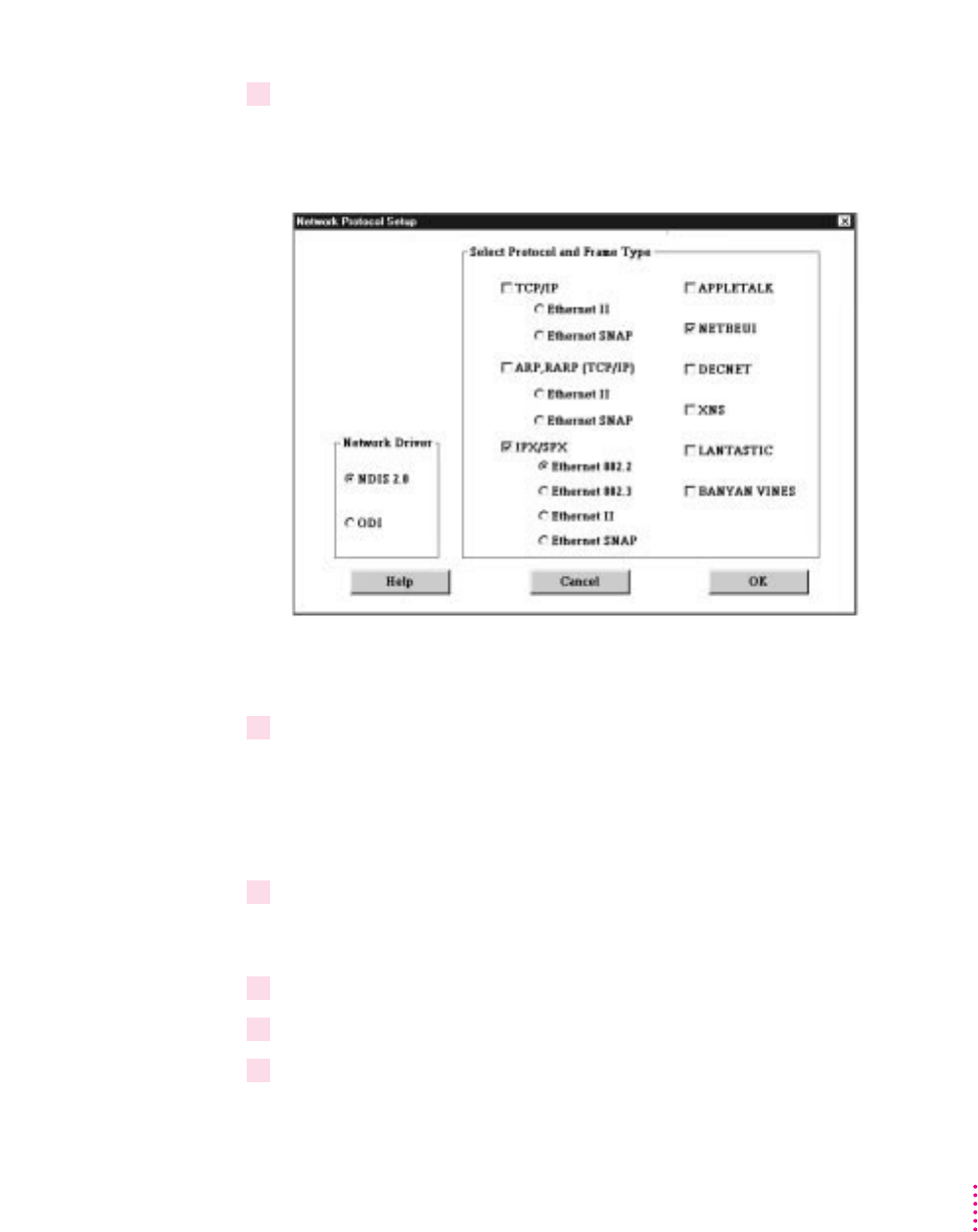
3Type the following:
A:\SETNET.EXE <return>
The Network Protocol Setup dialog box appears.
You should not need to select an option in the Network Driver area. The
SETNET utility automatically detects the network driver you installed.
4Select one or more network protocols that you installed by clicking checkboxes in the
“Select Protocol and Frame Type” area.
You can select more than one protocol if you have installed more than one. If
you are only using one protocol, be sure to select its checkbox and leave the
other checkboxes unselected.
5If you are using TCP/IP, ARP, RARP (TCP/IP), or IPX/SPX, select the appropriate frame
type for each selected protocol by clicking radio buttons in the Select Protocol and
Frame Type area.
6 Click OK.
7Shut down or exit Windows.
8Switch to the Mac OS by typing
x
-Return.
277
Installing Network Client Software

9Shut down the PC by clicking Shut Down PC in the PC Setup control panel.
10 Shut down the Macintosh, wait ten seconds, and start up the Macintosh again.
You need to shut down the Macintosh and start it up again to make sure that
the network software is installed properly.
IMPORTANT
If you are using ODI with Windows 95, you may need to
manually add the following two lines to your PROTOCOL.INI file before
running the SETNET utility.
[NET.CFG]
PATH=C:\NWCLIENT\NET.CFG
Configuring the built-in TCP/IP stack for PPP (modem) in Windows 95
The following instructions assume that this is the first time you are installing
the Point-to-Point (PPP) software and no previous networking software has
been installed.
Using a modem connected to the Macintosh serial port
Note: The following example describes connecting a Macintosh modem to the
Macintosh modem port and then configuring it to be COM1 in the PC
environment. A modem can be connected to either the Macintosh modem or
printer port and can be configured to COM1 or COM2 in the PC environment.
1With your computer turned off, connect a modem to the modem port on the back of
your computer.
2 Start up the Mac OS.
3 Open the PC Setup control panel.
278 Appendix C
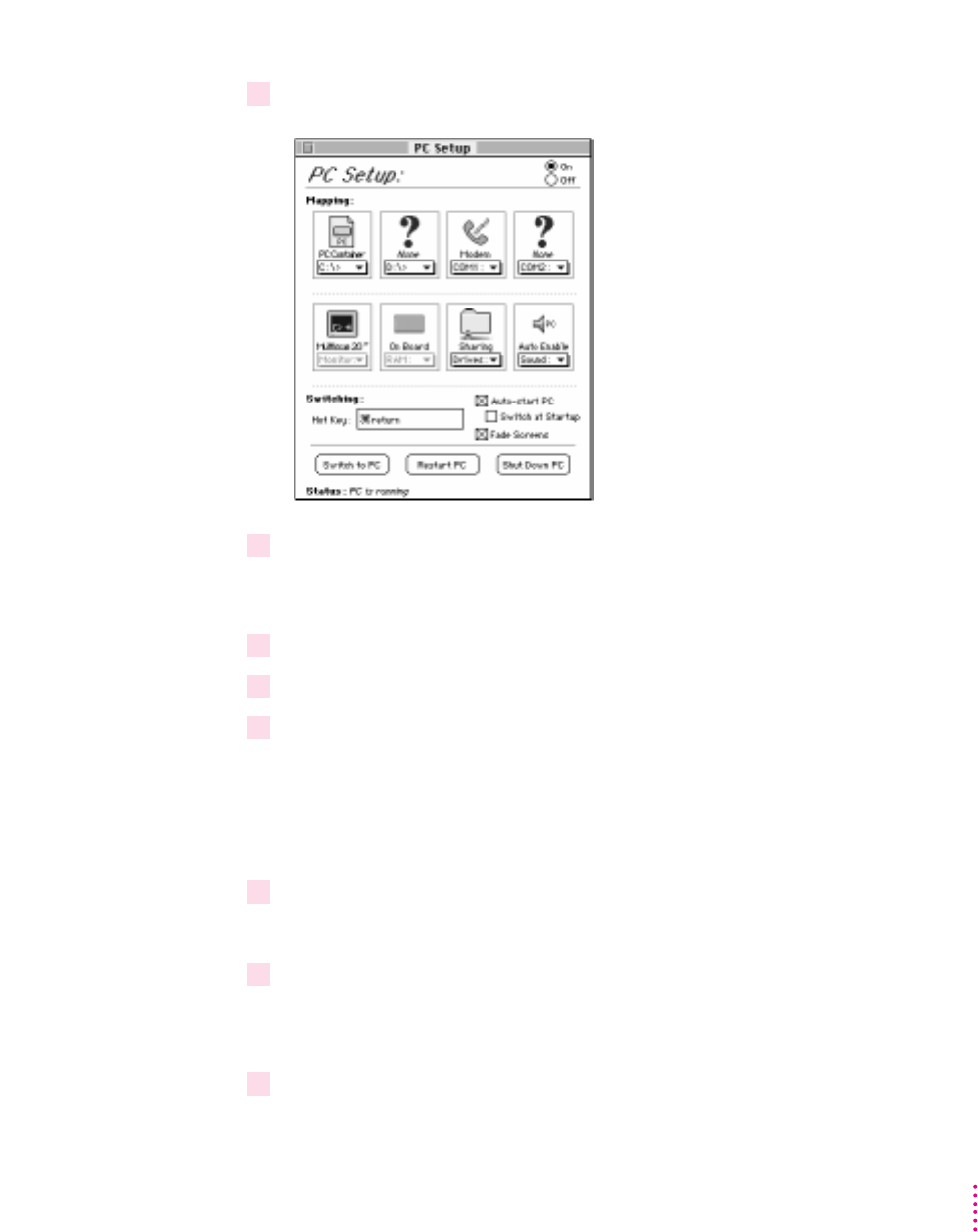
4 Open the COM1 menu and choose Modem Port.
5Switch to the PC environment.
Installing a modem in Windows 95
1 In Windows 95, click Start, choose Settings, and then choose Control Panel.
2Double-click the Modem icon.
3Click Next to allow Windows 95 to autodetect the modem. If you are not using a PC
modem, click “Don’t detect my modem; I will select it from a list”; then click Next. In the
next window, choose the modem that is similar to your own.
If Windows 95 does not autodetect your PC modem, check with your
modem's manufacturer for driver information.
4From the list of available ports, choose Communications Port (COM1), then click Next.
This step is needed only if Windows 95 did not autodetect your modem.
5Enter modem information and then click Next.
At this point Windows 95 will install the appropriate modem driver. The
Modem Properties window appears.
6Click Finish.
279
Installing Network Client Software

7Click Diagnostics, then select the COM port that the modem is attached to. In this case it
should be COM1.
8Click More Info to show the characteristics of your modem, then click OK.
9 Click General, then click Properties to display the properties for your modem.
10 Click Connection, then click Advanced.
11 Make sure that the flow control and hardware handshaking options are checked. Click
OK until you get back to the Modem Properties window.
12 Click Close to complete the setup process.
Dial-up networking installation
1 In Windows 95, click Start, choose Settings, and then choose Control Panel.
2Double-click the Add/Remove Programs icon.
3Click the Windows Setup tab.
4Double-click Communications.
5 In the window that appears, place a check next to Dial-Up Networking and then click OK.
6Click OK again to start the installation process.
If the Windows 95 disc is not in the CD-ROM drive you will be asked to
insert it at this time.
7After the installation process is complete, restart Windows 95.
8 In Windows 95, click Start, choose Settings, and then choose Control Panel from the
menu that appears.
9 Double-click the Network icon.
At this point the TCP/IP protocol needs to be installed in order to access the
Internet and other TCP/IP networks.
10 In the Network window, click Add.
11 From the list of available components, select Protocol, then click Add.
280 Appendix C

12 In the window that appears, choose Microsoft from the list of manufacturers, then
choose TCP/IP from the list of network protocols.
13 Click OK to return to the Network window.
14 Double-click TCP/IP in the list of installed network components.
15 In the window that appears, configure the TCP/IP stack by filling in the appropriate
information. When you are finished, click OK.
16 Follow the instructions on the screen to finish the installation, and then restart
Windows 95.
Making a PPP connection
1 In Windows 95, click Start, choose Programs, choose Accessories, and then choose
Dial-Up Networking from the menu that appears.
2Double-click Make New Connection.
3 Follow the instructions on screen to finish the procedure.
Consult your Windows 95 manual for more information about establishing a
PPP connection.
281
Installing Network Client Software

This appendix describes special configuration options for the ATI video
circuitry and ATI video drivers that came with your PC Compatibility Card.
About video capabilities
The PC Compatibility Card comes with ATI video circuitry and ATI mach64
graphics accelerator, providing high performance 64-bit graphics, accelerating
up to 16.7 million colors (at a resolution of 800 x 600) and up to 1280 x 1024
resolution (with 256 colors). Availability of colors and resolutions depends on
the monitor connected, the type of chip, and the amount of video memory
installed. This appendix also describes the use of WINBOOST, which provides
64-bit graphics acceleration in multiple environments.
The video circuitry is initially configured to display basic VGA at a resolution
of 640 x 480. If you have a multiple-scan monitor, you can configure the
circuitry to provide the full range of resolutions and refresh rates that your
monitor can support.
Your operating system may also provide utilities for installing and configuring
enhanced drivers. Please refer to the documentation that came with your
operating system for information.
283
Appendix D
Configuring Video Software

284 Appendix D
Installing and configuring video software for DOS and Windows
For instructions on installing basic video software and selecting monitor types
in Windows and Windows 95, see Chapter 6, “Installing the PC Compatibility
Card Software.” This section provides information about ATI DeskTop (the
configuration program for Windows), configuring video in DOS, installing
special display drivers and utilities for DOS, and installing MPEG video
software in Windows and Windows 95.
Note: Not all of the features described in the ATI onscreen instructions are
supported by the PC Compatibility Card.
Configuring video software in DOS
To install and configure DOS video software for a multiscan monitor, follow
these steps:
1 In the DOS environment, insert the
PC Compatibility Card–PC Utilities
CD into the
CD-ROM drive.
Note: If you have already installed the MACH64 directory on your C drive,
you can skip ahead to step 5.
2Type the following:
E: <return>
CD\VIDEO\UTILITY <return>
INSTALL <return>
The Installer program’s main menu appears.
3Choose Utilities Installation from the menu.
Follow the onscreen instructions to install the MACH64 directory on your
C drive.
4When the installation is complete, press Esc until you exit the program.
5Type the following:
C: <return>
CD\MACH64 <return>
INSTALL <return>
The Installer program’s main menu appears.

6Choose Quick Setup from the menu.
The Quick Setup option appears only if you have a multiscan monitor.
7Select your monitor in the list that appears.
When you select a monitor in the list, specifications for that monitor are
displayed in the info box. If your monitor is not listed, you have several
options:
mSelect VGA 640 x 480. This setting works for all monitors, but you will
not be able to use multiple resolutions or refresh rates.
mIf you have a VDIF file for your monitor, insert the disk containing the file,
select READ VDIF in the menu, and type the pathname of the file.
mIf your monitor’s specifications are the same as those of a listed monitor,
choose that monitor in the list.
mIf no listed monitor is similar to your monitor, select Custom to configure
the circuitry manually. (Custom configuration works only with multiple-
scan monitors.) For more information, see the next section, “Making
Custom Monitor Settings in DOS.”
8Exit and save your settings.
Making custom monitor settings in DOS
If you have a multiscan monitor, you can follow these steps to select custom
monitor settings for DOS.
1 In the DOS environment, insert the
PC Compatibility Card–PC Utilities
CD into the
CD-ROM drive.
Note: If you have already installed the MACH64 directory on your C drive,
you can skip ahead to step 5.
2Type the following:
E: <return>
CD\VIDEO\UTILITY <return>
INSTALL <return>
The Installer program’s main menu appears.
285
Configuring Video Software

3Choose Utilities Installation from the menu.
Follow the onscreen instructions to install the MACH64 directory on your
C drive.
4When the installation is complete, press Esc until you exit the program.
5Type the following:
C: <return>
CD\MACH64 <return>
INSTALL <return>
The Installer program’s main menu appears.
6Choose Quick Setup from the menu.
The Quick Setup option only appears if you have a multiscan monitor.
7 Select Custom in the list that appears.
8Choose a resolution, then a refresh rate.
A box appears.
If the monitor produces a scrambled display, press the Esc key to exit and
choose a lower refresh rate. If there is no lower rate to choose, set that
resolution to “Not Supported.”
9 Repeat step 8 for other resolutions your monitor supports.
10 To adjust screen centering for the selected resolution, change the size and position of
the box; then press Return.
WARNING
Do not choose a refresh rate that is higher than your monitor
supports. You might damage your monitor. Consult your monitor manual
for specifications.
286 Appendix D

11 Repeat step 10 until you are satisfied with the screen centering for all the resolutions
supported by your monitor.
12 Exit and save your settings.
If you want to cancel your settings, press the Esc key and confirm as
prompted.
Installing MPEG video support in Windows
Your video software includes the ATI Video Player—an MPEG player for
Windows and Windows 95 that provides full-motion, full-screen color MPEG
video playback. You must install the enhanced video drivers before
installing the ATI Video Player.
Installing MPEG video support in Windows 95
To install the MPEG player, follow these steps:
1 Insert the
PC Compatibility Card–PC Utilities
CD into the CD-ROM drive.
2Click Start, then choose Run from the menu that appears.
3Type the following:
E: \VIDEO\ATISETUP <return>
The ATI Setup Window appears.
4Click ATI Video Player.
5 Follow the setup instructions to complete the installation.
Note: The ATI Installer will look for MPEG support software during the
installation process. If the necessary software is not found it will install it and
then restart Windows 95. You will then need to repeat steps 1–5 in order to
install the MPEG video support.
287
Configuring Video Software

Installing MPEG video support in Windows
The ATI Video Player uses Microsoft’s Video for Windows. If Video for
Windows is not installed on your system, refer to the README in the
VIDEO\ATI\CD directory for more information.
1 In the DOS environment, insert the
PC Compatibility Card–PC Utilities
CD into the
CD-ROM drive.
Note: If you have already installed the MACH64 directory on your C drive
you can skip ahead to step 5.
2Type the following:
E: <return>
CD\VIDEO\UTILITY <return>
INSTALL <return>
The Installer program’s main menu appears.
3Choose Utilities Installation from the menu.
Follow the onscreen instructions to install the MACH64 directory on your
C drive.
4When the installation is complete, press Esc until you exit the program.
5Type the following:
C: <return>
CD\MACH64 <return>
INSTALL <return>
The Installer program’s main menu appears.
6Choose Drivers Installation from the menu.
7Select Microsoft Windows.
8Select Display Drivers + Software MPEG.
9 Follow the onscreen instructions.
288 Appendix D

Optimizing MPEG playback in Windows 95
You have three ways to optimize MPEG file playback performance in
Windows 95: you can adjust virtual memory, CD-ROM caching, and ATI
MPEG Player settings. There is no single best way to configure the system.
The instructions here show you where to find the configuration files you can
use to optimize playback for your system.
To adjust virtual memory settings, follow these steps:
1 Click Start, choose Settings, and choose Control Panel.
2Double-click the System icon to open it.
3Click the Performance tab, and click the Virtual Memory button.
There are a variety of options in the Virtual Memory window. These options
allow you to let Windows automatically manage your virtual memory, or
allow you to set up virtual memory yourself.
4Click OK when done and close all the open windows.
5Shut down Windows and restart the PC for your changes to take effect.
To adjust CD-ROM caching settings, follow these steps:
1 Click Start, choose Settings, and choose Control Panel.
2Double-click the System icon to open it.
3Click the Performance tab, and click the File System button.
4 Click the CD-ROM tab.
5Decrease or increase the size of the Supplemental Cache to optimize performance.
Choose the speed of your CD-ROM drive from the “Optimize access pattern for”
pop-up menu.
6 Click OK.
289
Configuring Video Software

To set ATI MPEG Player properties, follow these steps:
1Click Start, choose Programs, and then choose ATI Multimedia.
2Double-click ATI Player.
3 Follow the onscreen instructions.
ATI DeskTop video configuration software for Windows
ATI DeskTop is installed automatically with the enhanced driver for
Windows. The ATI DeskTop provides the following features:
mThe Flexdesk+ control panel allows you to change color depth, screen size,
and desktop size within Windows. (Some features are available for
multiscan monitors only.)
mDeskScape lets you scroll across an offscreen work space of up to
1600 x 1200 (depending on how much video DRAM is installed) and
allows zooming.
mWinSwitch switches display modes instantly.
mScreen Adjustment lets you adjust the screen size, centering, and monitor
configuration (multiscan monitors only).
mContext-sensitive help explains how to customize your accelerator card
configurations.
Note: The PC Compatibility Card does not support the DPMS energy-
saving feature.
290 Appendix D

Using DOS video utilities
For instructions on installing utilities, see “Configuring Video Software in
DOS,” earlier in this appendix.
VESA BIOS Extension
The VESA BIOS Extension (VBE) utility is a DOS TSR program called
M64VBE.COM. This program supports software running on VESA modes
using mach64 features. If your software and/or games conform to the VBE
standard, you should load M64VBE.COM before using your software.
To change to the MACH64 directory and load the utility, type the following:
C: \ <return>
CD \MACH64
M64VBE <return>
Note: You may want to add the M64VBE line to your AUTOEXEC.BAT file.
To display help, type:
M64VBE ? <return>
To unload the utility, type:
M64VBE U <return>
Refer to your DOS documentation for more information about TSR programs.
DPMS for DOS
DPMS—the Display Power Management Signaling system—is not supported
by the PC Compatibility Card.
291
Configuring Video Software

292 Appendix D
Tr oubleshooting
Using the diagnostics utility
You can view and test any installed graphics mode at any supported
resolution and color depth by running the Installer program from the DOS
prompt or by running a diagnostics program called M64DIAG.EXE.
Note: Do not run M64DIAG.EXE in a windowed or full-screen DOS box.
Any time you suspect there is a problem, especially during installation,
you should run the above tests. The information provided in the next
section, “Solutions and Explanations for Problems,” will enable you to
solve most problems.
To run the diagnostics utility, follow these steps:
1 In the DOS environment, insert the
PC Compatibility Card–PC Utilities
CD into the
CD-ROM drive.
Note: If you have already installed the MACH64 directory on your C drive
you can skip ahead to step 5.
2Type the following:
E: <return>
CD\VIDEO\UTILITY <return>
INSTALL <return>
The Installer program’s main menu appears.
3Choose Utilities Installation from the menu.
Follow the onscreen instructions to install the MACH64 directory on your
C drive.
4When the installation is complete, press Esc until you exit the program.
5Type the following:
C: <return>
CD\MACH64 <return>
INSTALL <return>
The Installer program’s main menu appears.

6Choose Diagnostics from the menu.
7 Select Test Graphics Adapter.
8 Select the test you wish to run.
You can select either VGA Tests or Accelerator Tests. Problems and solutions
for some common errors found by the test program are provided in the next
section, “Solutions and Explanations for Problems.”
Solutions and explanations for problems
This section describes several checks and tests you can perform to help
diagnose problems with your video circuitry. In some cases you can fix the
problem yourself; in other cases you may need to consult a specialist.
System is locked up.
If your system is not responding, try the following:
mMake sure the software is installed properly.
mReset the video configuration to factory defaults using the Install program.
If this works, the problem is likely due to incorrect configuration.
Test patterns are OK but applications do not sync.
You may have selected the wrong monitor type. Change the settings in the
Install program.
Windows driver is not installing properly.
Make sure Windows is running in 386 Enhanced Mode. Incompatible
memory managers may prevent Windows from starting in enhanced mode. If
this occurs, remove the memory manager.
AutoCAD driver is not installing properly.
If using a 386 processor, ensure that AutoCAD has been configured for the
appropriate ADI driver. The protected mode driver requires extended memory.
293
Configuring Video Software

294 Appendix D
Memory aperture test fails, diagnostics program locks, or the computer restarts during
aperture test.
If you see a message that the memory aperture location is conflicting with
your system memory, restart the Installer program as follows:
C: <return>
CD\MACH64 <return>
INSTALL <return>
Enable Memory Aperture, selecting a location above but not overlapping
System Memory (S), BIOS (B), or Reserved (R) locations.
The resolution I want is not available (dimmed).
The BIOS has been instructed that the mode is not available. If you’re sure
your monitor supports the resolution, run the Installer program again and use
the custom configuration option.
A menu item is not available (dimmed).
The mode or test is not available for the current configuration. For example,
aperture tests are not available if the aperture is turned off. CRT mode and
pixel depth are determined by the current installation, DAC type, memory
size, and memory type.
A FIFO test error occurred.
The effects of a bad command FIFO should be visible (for example, the
display may be blank or there may be “garbage” on the screen).
A quick memory test error occurred.
Run the Detailed RAM Test to confirm the error and identify the address of
the error.
A detailed memory test error occurred.
Run the Detailed RAM Test several times to confirm the error. Take note of
any messages and error codes that are displayed.

The DAC LUT test failed.
An error occurred while testing the DAC LookUp Table. The problem should
be visible on the top color bar of any 8 bpp mode.
A ROM checksum error occurred.
An error was detected in the ROM.
The draw sequence failed.
An error occurred in the draw engine. If the error is intermittent, there may
be a marginal RAM failure. The effects of this failure may not be
immediately apparent.
Video mode tables
This section describes the video mode specifications for ATI video drivers
using DRAM.
When discussing color depth, 8 bits per pixel (8 bpp) is the same as 256
colors. Therefore, the relation between bpp and colors is as follows:
Bits per pixel Number of colors
8 256
16 65,000
24 16,700,000
32* 16,700,000
*32 is 24 bpp color data processed using a 32 bpp data format.
The ATI video drivers also support 15 bpp (32,000 colors). Any resolution and
refresh settings that support 16 bpp will support 15 bpp.
295
Configuring Video Software

296 Appendix D
DRAM accelerator mode (WINBOOST)
The following table lists color depths and other features supported at various
monitor resolutions in graphics mode. The settings listed in this table can be
applied to multiscan monitors only.
Refresh Horizontal Pixel clock Maximum color
Resolution rate (Hz) frequency (kHz) (MHz) depth (bpp)*
640 x 480 60 31.4 25.2 24, 32†
72 37.7 31.2 24, 32
75 37.5 31.5 24, 32
90 47.9 39.9 16, 32
100 52.9 44.9 16, 16
120 63.7 55.0 —, 16
800 x 600 48 interlaced 33.8 36.0 16, 24
56 35.1 36.0 16, 24
60 37.8 40.0 16, 24
70 44.5 44.9 16, 32
72 48.0 50.0 16, 16
75 46.8 49.5 16, 16
90 57.0 56.6 8, 8
100 62.5 67.5 8, 8
120 76 81 —, 8
*In the “Maximum color depth” column, the first number is the bits per pixel supported at 1 MB DRAM, the second
number is the bits per pixel supported at 2 MB DRAM. A dash (—) means the color depth is not supported in that
DRAM configuration.
†32 is 24 bpp color data processed using a 32 bpp data format.
continued
.

Refresh Horizontal Pixel clock Maximum color
Resolution rate (Hz) frequency (kHz) (MHz) depth (bpp)*
1024 x 768 43 interlaced 35.5 44.9 8, 16
60 48.3 65.0 8, 16
70 56.4 75.0 8, 16
72 58.2 75.0 8, 16
75 60.0 78.8 8, 16
90 76.2 100 —, 8
100 79.0 110 —, 8
120 96.7 130 —, 8
1152 x 864 43 interlaced 45.9 65.0 8, 16
47 interlaced 44.8 65.0 8, 8
60 54.9 80.0 8, 8
70 66.1 100 —, 8
75 75.1 110 —, 8
80 75.1 110 —, 8
85 77.1 121.5 —, 8
1280 x 1024 43 interlaced 50.0 80.0 4, 8
47 interlaced 50.0 80.0 4, 8
60 63.9 110 —, 8
70 74.6 126 —, 8
74 78.8 135 —, 8
75 79.9 135 —, 8
*In the “Maximum color depth” column, the first number is the bits per pixel supported at 1 MB DRAM, the second
number is the bits per pixel supported at 2 MB DRAM. A dash (—) means the color depth is not supported in that
DRAM configuration.
297
Configuring Video Software

298 Appendix D
VESA BIOS Extension modes
The VESA BIOS Extension supports the following modes in multiscan
monitors. To determine which modes you can use with your monitor, run the
VESATEST utility.
Maximum color
Resolution depth (bpp) Graphics mode Minimum DRAM
640 x 480 8110h, 101h 1 MB
15 (5:5:5) 110h 1 MB
16 (5:6:5) 111h 1 MB
24 (8:8:8) 112h 1 MB
800 x 600 4 102h, 6Ah 1 MB
8 103h 1 MB
15 (5:5:5) 113h 1 MB
16 (5:6:5) 114h 1 MB
1024 x 768 4 104h 1 MB
8 105h 1 MB
15 (5:5:5) 116h 2 MB
16 (5:6:5) 117h 2 MB

Fixed-frequency monitors
The following tables list the resolutions supported on fixed-frequency (non-
multiscan) monitors. The color depths for 1 MB and 2 MB of DRAM are also
listed. You cannot change refresh rate and other timing items for fixed-
frequency monitors.
Macintosh 21-Inch Color Display
Refresh rate: 68.7 kHz (horizontal), 75.08 Hz (vertical)
Color depth
Resolution 1 MB 2 MB
640 x 400 16 bpp 16 bpp
640 x 480 16 bpp 16 bpp
800 x 600 8 bpp 8 bpp
1024 x 768 not supported 8 bpp
Macintosh 21-Inch Monochrome Display
Refresh rate: 68.7 kHz (horizontal), 75.08 Hz (vertical)
Color depth
Resolution 1 MB 2 MB
640 x 400 16 bpp 16 bpp
640 x 480 16 bpp 16 bpp
800 x 600 8 bpp 8 bpp
1024 x 768 not supported 8 bpp
299
Configuring Video Software

19-Inch Color Display
Refresh rate: 60.2 kHz (horizontal), 74.9 Hz (vertical)
Color depth
Resolution 1 MB 2 MB
640 x 400 16 bpp 16 bpp
640 x 480 16 bpp 16 bpp
800 x 600 8 bpp 8 bpp
1024 x 768 8 bpp 16 bpp
Macintosh 16-Inch Color Display
Refresh rate: 49.7 kHz (horizontal), 74.55 Hz (vertical)
Color depth
Resolution 1 MB 2 MB
640 x 400 16 bpp 16 bpp
640 x 480 16 bpp 16 bpp
800 x 600 8 bpp 8 bpp
Macintosh Portrait Display (monochrome)
Refresh rate: 68.7 kHz (horizontal), 75.08 Hz (vertical)
Color depth
Resolution 1 MB 2 MB
640 x 400 16 bpp 16 bpp
640 x 480 16 bpp 16 bpp
300 Appendix D

Macintosh 12-Inch Monochrome Display, 13-Inch Color Display, 14-Inch Color
Display, and AudioVision Display
Refresh rate: 35 kHz (horizontal), 66.67 Hz (vertical)
Color depth
Resolution 1 MB 2 MB
640 x 400 16 bpp 16 bpp
640 x 400 24 bpp 32 bpp†
640 x 480 24 bpp 32 bpp†
†32 is 24 bpp color data processed using a 32 bpp data format.
User-adjustable monitors
The following monitor types accept additional modes and display
customization. You can customize monitors using the Install program, the ATI
DeskTop program, or the Windows 95 Display control panel. You can add
modes either by selecting a predefined monitor type or by manually selecting
a set of modes. Consult the specifications for your monitor to ensure that it
supports the mode you want.
mVGA/SVGA
mApple Multiple Scan 15 Display
mApple Multiple Scan 17 Display
mApple Multiple Scan 1705 Display
mApple Multiple Scan 20 Display
mAppleVision 1710 Display
mAppleVision 1710AV Display
mDDC 1 /2B monitor
301
Configuring Video Software

General specifications
Description
12-inch PC-compatible PCI card.
System
mPentium or Pentium-compatible microprocessor
m256K L2 cache
mPlug-n-Play BIOS
Power
m+5 volts (V), ±12 V and +3.3 V
m25 watts maximum
Memory
m16 MB non-removable random-access memory (RAM)
mone empty socket available for an additional 168-pin DIMM 70 ns or less,
up to 64 MB; use 64-bit wide DIMM
Networking
msupports ODI and NDIS v. 2.0 network drivers
msupports IPX/SPX, NetBEUI, Novell LAN Workplace, AppleShare,
TCP/IP, Trumpet WinSock, and OS/2 LAN Server client protocols in the
PC environment
303
Appendix E
Technical Information

Sound
16-bit Sound Blaster sound system allows
mPC sound played through Macintosh speaker or headphones
mCD-ROM sound recording capability
menhanced FM-synthesized sound-out capabilities
m8- and 16-bit digital sound
Sound Blaster microphone and line input are not supported.
Keyboard
Macintosh ADB keyboard and mouse emulate PC AT-compatible keyboard
and PS/2-compatible mouse.
Joystick
Standard PC-style joysticks supported through DB-15 connector included on
the card (PC applications only).
MIDI
MIDI devices supported through a Sound Blaster–compatible joystick-to-
MIDI adapter cable (available separately).
Serial ports
Tw o PC compatible serial interfaces that can be routed, under software
control, either to a text file or through the two Macintosh RS-422 serial ports
(RS-422 ports do not support all RS-232 signals).
Parallel port
Macintosh printer port can emulate PC XT/AT-compatible parallel port
(LPT1).
304 Appendix E

Video specifications
Video modes
mVGA modes 0-7 and D-13h
mSVGA modes for 640 x 480, 800 x 600, 1024 x 768, and 1280 x 1024 (79h,
6Ah, 70h)
mVESA 2.0 support in BIOS
msupports 13-, 14-, 16-, and 20-inch Macintosh-compatible monitors;
Macintosh Portrait Display monitors; Macintosh Two-Page Display
monitors; and 15-, 17,- and 20-inch Macintosh multiple scan monitors
msupports all VGA monitors
mEGA, CGA, MDA also supported
Video DRAM expansion
May have two sockets to accommodate 5 V, 256K x 16, 60 ns, standard fast-
page mode SOJ package DRAM devices (40 pin), such as Micron
#MT4C16257DJ-6, NEC #UPD424260LE60R, Samsung #KM416C256BJ-6,
or Hyundai #HY514260BJ-60.
Sync signals
Separate horizontal, vertical, and composite sync at TTL levels.
Power
m+5 V ± 5%, @ 3A typical
m+3.3 V ± 5%, @ 4A typical
305
Technical Information

Environment
Temperature
mOperating: 10° C to 35° C (50° F to 95° F)
mNon-operating: –40° C to 65° C (–40° F to 149° F) for 72 hours
Relative humidity
mOperating: 10% RH to 90% non-condensing
mNon-operating: 5% RH to 95% non-condensing
Altitude
mOperating: –1,000 to 10,000 feet (–304.8 m to 3,048 m)
mNon-operating: –1,000 to 40,000 feet (–304.8 m to 12,192 m)
306 Appendix E

A
ADB (Apple Desktop Bus) port
connecting AppleVision monitor to 132
connecting AudioVision monitor to 132
connecting pointing devices to 133
ADB mouse 133
adding memory to PC Compatibility
Card 233–239
Alt key (PC keyboard), Macintosh
equivalent 145, 200, 203
Apple-authorized service provider. See
also troubleshooting
contacting for assistance 209
installing PC Compatibility Card
xvi, 3, 26, 59, 86
installing video RAM 234
Apple Guide. See Guide menu
Apple keyboards supported 203
Apple Remote Access (ARA), startup
problems and 216
AppleShare for Windows protocol
260–261
AppleTalk network, connecting to shared
disks on 136
AppleVision monitor 132
application programs. See also installing
software; names of specific
programs
on PC Compatibility Card–PC
Utilities CD 151–159
PC software, installing 160
performance of 207
ATI DeskTop software 290, 301
audio cables, removing from PC
Compatibility Card 235
audio CDs
ejecting 202, 203, 217
playing in PC environment
177–178, 202
troubleshooting 219, 223–225
AudioVision monitor 132
AUTOEXEC.BAT file (DOS) 191
Automatic Document Translation,
turning off 204
automatic sharing
turning off 186
turning on 185
Auto-start PC button 199
307
Index

B
Backspace key (PC keyboard), Macintosh
equivalent 203
Balloon Help (Mac OS) 162
Banyan Vines, installing for NDIS 2.0
driver 274–275
bitmap images, transferring 206
blank screen problem 213–214
bootable drive container, creating
179–182
booting the computer. See starting
the computer
C
cables. See also CD audio cables; CD In
cable; CD Out cable; Sound Out
cable
custom 189
disconnecting from card assembly
234, 235
loopback cable 118
ribbon cable (Power Macintosh 7200
computer) 234
CD audio cables
Power Macintosh 4400 computer
12–19
Power Macintosh 7200, 7300, 7500,
or 7600 computer 32, 39–47, 52
Power Macintosh 8500 or 9500
computer 67–77
Power Macintosh 8600 or 9600
computer 98–101, 107–110
CD In cable, connecting
Power Macintosh 4400 computer
12–16
Power Macintosh 7200, 7300, 7500,
or 7600 computer 45–47, 52
Power Macintosh 8600 or 9600
computer 107–110
CD Out cable, connecting
Power Macintosh 4400 computer
17–19
Power Macintosh 7200, 7300, 7500,
or 7600 computer 39–44
CD-ROM discs. See also audio CDs
ejecting 202, 203, 217
troubleshooting 219, 223–225
using in PC environment 202
CD-ROM drives
adjusting position of (Power
Macintosh 8600 or 9600
computer) 104–106
performance of 191
replacing (Power Macintosh 8600 or
9600 computer) 111–113
sharing and unsharing 183–186
troubleshooting 219, 223–225
using in PC environment 202
CD-ROM Support software 149
CDs. See audio CDs; CD-ROM discs
CF_TEXT files (Windows) 204
CHKDSK command (DOS) 183
Client 32 for Windows 95, installing 249
Clipboards 204–205, 212
Clipboard Viewer (Windows) 204
closing the computer
Power Macintosh 4400 computer
20–21
Power Macintosh 7200, 7300, 7500,
or 7600 computer 53–55
Power Macintosh 8500 or 9500
computer 78–81
Power Macintosh 8600 or 9600
computer 114–115
cold boot. See resetting the computer in
the PC environment
Command key (Macintosh keyboard)
145, 200, 203
commands. See also keyboard commands
CHKDSK command (DOS) 183
FDISK command (DOS) 182
FORMAT command (DOS) 182, 183
Insert Object as Paintbrush Picture
command 205
SUBST command (DOS) 183
UNDELETE command (DOS) 183
308 Index

309
Index
computer. See also names of specific
Power Macintosh computers
avoiding damage to xvi, 3, 26, 59, 86
closing
Power Macintosh 4400 computer
20–21
Power Macintosh 7200, 7300,
7500, or 7600 computer 53–55
Power Macintosh 8500 or 9500
computer 78–81
Power Macintosh 8600 or 9600
computer 114–115
connecting a game controller to
134–135, 189
connecting a MIDI device to 133, 189
connecting a modem to 136
connecting a monitor to 119–132
connecting a mouse to 133
connecting a pointing device to 133
connecting a printer to 135
connecting a security dongle to 136
connecting a serial device to 136
opening
Power Macintosh 4400 computer
4–7
Power Macintosh 7200, 7300,
7500, or 7600 computer 27–37
Power Macintosh 8500 or 9500
computer 60–65
Power Macintosh 8600 or 9600
computer 87–91
resetting (PC environment) 200, 228
restarting 145, 197, 198, 200
restarting from a floppy disk 201
turning on and off (Mac OS
environment) 197–200
CONFIG.SYS file (DOS) 184, 190–191
configuration problems 223
configuring
built-in TCP/IP stack for PPP
(Windows 95) 278–281
monitors 155–159, 164, 283–301
PC drives 179–183
PC serial ports 187–188
sounds 177–178
video software 155–159, 283–301
connecting
game controller 134–135, 189
MIDI device 133, 189
modem 136
monitor 119–132
mouse 133
to a network 136
pointing device 133
printer 135
security dongle 136
serial device 136
containers. See drive containers
Control key (Macintosh keyboard) 145,
200
Control Panels folder (System Folder)
141
Control Strip 163, 195, 198
copying
between DOS and Mac OS not
supported 204
between environments 204–206,
220–221
QuickTime files 207
cover, removing
Power Macintosh 4400 computer 4–5
Power Macintosh 7200, 7300, 7500,
or 7600 computer 27–29
Power Macintosh 8500 or 9500
computer 60–61
Power Macintosh 8600 or 9600
computer 91
cover, replacing
Power Macintosh 4400 computer
20–21
Power Macintosh 7200, 7300, 7500,
or 7600 computer 53–55
Power Macintosh 8500 or 9500
computer 78–81
Power Macintosh 8600 or 9600
computer 114–115

custom cables, pins for 189
customizing monitors 301
custom monitor settings (DOS) 285–287
D
delete key (Macintosh keyboard), PC
equivalent 145, 200, 203
Del key (PC keyboard), Macintosh
equivalent 145, 200, 203
desktop, rebuilding (Mac OS) 195
diagnostics utility 292–293
dial-up networking installation 280–281
DIB files 204
DIMM (Dual Inline Memory Module).
See also memory
adding to PC Compatibility Card
233–239
information in PC Setup control panel
165
specifications for 303
disk drives. See floppy disk drives; hard
disk drives; SCSI hard drives
display. See monitors; video
DOS. See also environments; PC
environment; Windows;
Windows 95
configuration files, setting up
190–191
configuring monitors in 165
configuring video software in
284–287
copying to and from Mac OS not
supported 204
DPMS for DOS not supported 291
drive container, recommended size of
143
FDISK command 182
FORMAT command 182, 183
freezes 211
installing in new driver container
144–147
keyboard command for switching to
Mac OS 195–196
pasting to and from Mac OS not
supported 204
PC software, installing 144–147
printing in 172
problems finding 212
Sound Blaster software, installing
153–154
starting 194–196
video utilities for 291
DOS Compatibility Card, cable for 118
DOS installation floppy disk 144
DOS TSR program 291
DPMS for DOS not supported 291
DRAM accelerator mode 296–297
drive assignment, changing 183
drive containers
accessing files in 207–208
application performance and 207
assigning drives 182
changing drive assignments 183
creating a drive container 142–144
creating a multiple partition/bootable
drive container 180–182
creating a single partition/bootable
drive container 179–180
installing DOS in 144–147
installing Windows and Windows 95
in 148–150
mounting 182–183
multiple partitions 180–182
partitioning 179–182
size of 143, 179, 218
SoftPC drive container 179
SoftWindows drive container 179
troubleshooting 213, 217–219, 221
unmounting 182–183
using hard disk as 142–144
drive letters. See PC drives
drivers
audio driver 225
MACNDIS.DOS driver 241
MACODI.COM driver 241
mouse driver 147
NDIS driver 186, 264–276
310 Index

ODI driver 186, 243–263
printer driver 172, 173, 225
troubleshooting 293
video driver 155–156
E
ejecting
CD-ROM discs 202, 203, 217
floppy disks 201, 203, 217
EMM386 utility 190
End key (PC keyboard), Macintosh
equivalent 203
environmental specifications 305
environments. See also Mac OS
environment; PC environment
Clipboards, using between 204–205
continuing to listen to audio CD when
switching 202
copying and pasting between
204–206
delay when switching 212
hearing sounds in both 178
keyboard command for switching
between 195–196
networking in 186
problems switching to Mac OS
212–213
problems with information transfer
220–221
switching between 194–196
transferring files between 183–186
transferring sound between 205
Epson fonts 169
Epson printer drivers 172
Epson printers 167, 168–171
equipment supplied
Power Macintosh 4400 computer 2–3
Power Macintosh 7200, 7300, 7500,
or 7600 computer 24–25
Power Macintosh 8500 or 9500
computer 58–59
Power Macintosh 8600 or 9600
computer 84–85
error messages. See also messages;
troubleshooting
associated with PROTOCOL.INI file
222
No Monitor 213
Non-system disk or disk error 212
Not Supported 213
PC Clipboard requires additional
system services 212
selected port in use 223
shared volume no longer exists 222
Ethernet software, installing 141
expansion card cover, opening (Power
Macintosh 7200, 7300, 7500, or
7600 computer) 33–37
expansion RAM specifications 303
Extensions folder (System Folder) 141
F
FDISK command (DOS) 182, 217
files
AUTOEXEC.BAT file (DOS) 191
CF_TEXT files (Windows) 204
CONFIG.SYS file (DOS) 184,
190–191
copying and pasting in 204–205
DIB files 204
in drive containers 207–208
opening with PC Exchange software
208
PICT files 204
PROTOCOL.INI file (Windows 95)
222
QuickTime files 207
RTF files 204
sharing between Mac OS and PC
environment 184–185
transferring between environments
207–208
troubleshooting 208, 217–219, 221
VDIF files 285
fixed-frequency monitors 299–301
311
Index

floppy disk drives, PC environment and
201
floppy disks
ejecting 201, 203, 217
formatting 201
inserting 201
problems with 217–218
restarting computer from 201
shared folders and 183
folders
naming conventions for 207
sharing with PC 183–186, 191, 207
fonts, printing and 169
FORMAT command (DOS) 182, 183,
217
formatting floppy disks 201
frozen system 211, 222, 228
function keys (Macintosh keyboard), PC
equivalent 203
G
game controller (joystick)
connecting 134–135, 189
specifications for 304
Guide menu (Mac OS) 162
H
hard disk drives
PC-formatted SCSI 207–208
sharing 183–186, 191, 207
sharing folders on 183–186, 207
troubleshooting 217–219
using as drive container for PC
142–144
headphones 177–178
help, onscreen
Mac OS environment 162
PC environment 206–207
Home key (PC keyboard), Macintosh
equivalent 203
hot key 195
I
images, bitmap 206
Insert key (PC keyboard), Macintosh
equivalent 203
Insert Object as Paintbrush Picture
command 205
Installer icon 139, 140
installing PC Compatibility Card
Apple-authorized service provider and
xvi, 3, 26, 59, 86
in Power Macintosh 4400 computer
1–21
in Power Macintosh 7200, 7300, 7500,
or 7600 computer 23–56
in Power Macintosh 8500 or 9500
computer 57–81
in Power Macintosh 8600 or 9600
computer 83–115
software for 137–160
warning about cards in Power
Macintosh 4400 and 7300
models 1, 23, 57, 83
warranty and xvi, 3, 26, 59, 86
installing software. See also application
programs; names of specific
programs
ATI DeskTop 290
DOS 144–147
keyboard files 151–152
Mac OS 139
for mouse 141, 147
MPEG video support 288
network 241–281
Open Transport 140
PC application programs 160
for PC Compatibility Card 137–160
PC Net Exchange extension 141
PC Setup control panel 141
PC utilities 151–159
QuickTime for Windows 95 software
153
312 Index

QuickTime for Windows software
153
Sound Blaster software 153–154
System 7.5.3 software 139
video software 155–156
video software for DOS 284–287
Windows 148–150
IPX/SPX protocol
installing for NDIS 2.0 driver
264–265, 268–269
installing for ODI driver 249,
252–255
J
joystick. See game controller
joystick port, warning about 119, 125,
134
K
keyboard commands
ejecting a CD 203
ejecting a floppy disk 203
resetting computer in PC environment
200
restarting computer in PC
environment 145, 200
simulating second mouse button
202–203
switching environments 195–196
keyboard files 151–152
keyboards
equivalent keys 145, 203
specifications for 304
using in PC environment 203
keys, Macintosh/PC equivalents 145,
203
Kodak Photo CD thumbnails 205
L
LAN Workplace for DOS TCP/IP
262–263
LASTDRIVE statement 184
legal-size paper, printing 170
loopback cable, using 118
M
Macintosh Easy Open (Mac OS Easy
Open) control panel
copying and pasting information
between environments 204,
205, 220
problems switching to and from the
PC 212
Macintosh Mini DIN-8 connector 189
Macintosh monitors supported 305
Macintosh/PC Folder Sharing software
149
Macintosh/Windows Copy and Paste
software 149
MACNDIS.DOS driver 241
MACODI.COM driver 241
Mac OS environment. See also
environments; PC environment
accessing PC files 207–208
configuring to play PC sounds 178
copying to and from DOS not
supported 204
copying to and from Windows
204–205
file formats 204
installing included software in 139
keyboard command for switching to
PC environment 195–196
pasting to and from DOS not
supported 204
pasting to and from Windows
204–205
PC Clipboard extension 141,
204–205, 220
313
Index

Mac OS environment (continued)
PC compression programs, not
compatible with 183
PC Print Spooler software 141,
166–171
printing in 166–171
rebuilding desktop in, warning about
195
Scrapbook 204
sharing folders and volumes with PC
183–186, 191, 207
switching to PC environment
194–196
System Folder, software in 141
transferring sound files to and from
Windows 205
updating system software 139
MACSHARE utility 207
memory. See also DIMM
adding to PC Compatibility Card
233–239
expanded memory 190
expansion specifications 303
increasing for PC Clipboard
application 206
information in PC Setup control panel
165–166
troubleshooting 210, 211, 294
messages. See also troubleshooting
associated with PROTOCOL.INI file
222
No Monitor 213
Non-system disk or disk error 212
Not Supported 213
PC Clipboard requires additional
system services 212
selected port in use 223
shared volume no longer exists 222
Starting MS-DOS 211
Starting Windows 211
Microsoft Backup program 219
MIDI device
connecting 133, 189
specifications for 304
modem
connecting 136, 278–279
installing (Windows 95) 279–280
setting up 188–189
troubleshooting 216
monitors. See also video
avoiding damage to 286
configuring 155–159, 164, 283–301
connecting an AppleVision monitor to
your computer 132
connecting an AudioVision monitor to
your computer 132
connecting a single monitor to your
computer 119–124
connecting two monitors to your
computer 125–131
customizing 285–287, 301
displaying type in PC Setup control
panel 164
fixed-frequency monitors 299–301
multiple-scan monitors 125, 156, 159,
296–297
non-multiple-scan monitors 299–301
refresh rate, setting too high 286
selecting and configuring (Windows
95) 156, 157–159
specifications for 296–301, 305
supported by Macintosh 305
troubleshooting 164, 213–215,
292–295
user-adjustable monitors 301
VGA monitors 164
video modes 296–301
video software, installing 155–156
mounting drives or containers 182–183
mouse
connecting to ADB port 133
installing software for 141, 147
troubleshooting 228
using in PC environment 202–203
MoviePlayer program, opening
QuickTime files with 207
314 Index

MPEG video support
installing (Windows) 288
installing (Windows 95) 287
optimizing playback (Windows 95)
289–290
MS-DOS. See DOS
M64DIAG.EXE program 292–293
M64VBE.COM program 291
multiple partition/bootable drive
container, creating 180–182
multiple-scan monitors 125, 156, 159,
296–297
N
NDIS 2.0 driver 186, 264–276
NetBEUI protocol
installing for NDIS 2.0 driver
264–265, 268–269
installing for ODI driver 249,
251–252
NetManage Chameleon TCP/IP software,
installing 275–276
NetWare client software 243–248
Network Driver Interface Specification
v.2.0. See NDIS 2.0 driver
Network Protocol Setup utility. See
SETNET utility
networks
connecting to 136
dial-up networking installation
280–281
installing software for 241–281
problems connecting 222
protocols for 186, 303
SETNET utility and 186, 241,
276–278
non-multiple-scan monitors,
specifications for 299–301
non-PostScript printers 168
non-system disk or disk error 212
O
ODI driver 186, 243–263
onscreen help
Mac OS environment 162
PC environment 206–207
Open Data-Link Interface. See ODI
driver
opening the computer
Power Macintosh 4400 computer 4–7
Power Macintosh 7200, 7300, 7500,
or 7600 computer 27–37
Power Macintosh 8500 or 9500
computer 60–65
Power Macintosh 8600 or 9600
computer 87–91
Open Transport, installing 140
Option key (Macintosh keyboard), PC
equivalent 145, 203
OS/2 LAN Server, using with Windows
for Workgroups 272
OS/2 LAN Server protocol, installing for
NDIS 2.0 driver 272–274
P
PageDown key (PC keyboard),
Macintosh equivalent 203
PageUp key (PC keyboard), Macintosh
equivalent 203
parallel port specifications 304
partitioning a drive container 179–182
pasting
between DOS and Mac OS not
supported 204
between environments 204–206
problems with 220–221
PC. See also computer; names of specific
Power Macintosh computers
resetting 200, 228
restarting 145, 197, 198, 200
restarting from a floppy disk 201
turning on and off 197–200
315
Index

PC Clipboard extension (Mac OS)
copying and pasting information
between environments 204–205
increasing memory for 206
installing 141
PC Compatibility Card
adding memory to 233–239
installing, warranty and xvi, 3, 26, 59,
86
installing in Power Macintosh 4400
computer 1–21
installing in Power Macintosh 7200,
7300, 7500, or 7600 computer
23–56
installing in Power Macintosh 8500 or
9500 computer 57–81
installing in Power Macintosh 8600 or
9600 computer 83–115
installing software for 137–160
removing 229–231, 234–235
uses for xv–xvi
warning about, Power Macintosh 4400
and 7300 models 1, 23, 57, 83
PC Compatibility Card–Mac OS
Software CD 139, 140
PC Compatibility Card–PC Software
floppy disk 146, 148, 149
PC Compatibility Card–PC Utilities CD
151–159
PC Compatibility Guide software 141
PC compression programs, not
compatible with Mac OS 183
PC drives
configuring 179–183
drive letters for 179, 184, 191
SCSI 207–208
sharing folders and volumes 183–186,
191
using CD-ROM disc on network as
183–186
using Macintosh hard disk as
183–186, 207
using Mac OS folder as 183–186, 207
virtual PC drive 179
PC environment. See also DOS;
environments; Windows;
Windows 95
Apple keyboards, using 203
audio CDs, playing in 177–178, 202
CD-ROM discs and drives, using 202
Clipboard, using 204–205
configuring monitors in 164–165
configuring sound in 177–178
floppy disk drives and disks, using
201
keyboard command for switching to
Mac OS 195–196
keyboards, using 203
mouse, using 202–203
network software for 136, 241–281
onscreen help in 206–207
pointing device, using 202–203
printing in 135, 166–177, 225–227
problems starting 210–211
restarting computer in 200, 228
setting preferences in PC Print Spooler
166–168
setting up environment 161–191
setting up modem 188–189
setting up printing in 171–177
setting up serial device 188–189
sharing CD-ROM disc on network
183–186
sharing files with Mac OS 184–185
sharing folders and volumes with Mac
OS 183–186, 191, 207
starting automatically 199
switching to Mac OS 194–196
transferring files between
environments 207–208
troubleshooting 209–228, 293
turning PC on and off 197–198
turning sound on and off 178
working in 193–208
PC Exchange software (Mac OS) 141,
208, 218
PC files, accessing in Mac OS 207–208
316 Index

PC-formatted disks
assigning a drive to 182
problems with 217–218
SCSI 207–208
PC Net Exchange software, installing
141
PC Network extension 141
PC Print Spooler icon 167
PC Print Spooler Mac OS software 141,
163, 166–171
PC Serial and Parallel Card 1, 23, 57,
135, 136
PC serial ports, configuring 187–188
PC Setup control panel
assigning drives 182
assigning PC serial ports 187–188
changing drive assignments 183
configuring PC sounds 178
creating a drive container with
142–144, 179–181
DIMM information in 165
displaying monitor type in 164
installing 141
keyboard command for switching
environments 195–196
monitor problems and 214, 215
not loaded 210
opening 162–163
overview of 162
problems starting up and 210–211
RAM information in 165
restarting computer with 197
sharing and unsharing volumes with
184–186
switching environments with 194
turning computer on and off with
197–198
turning sound on and off with 178
using the Control Strip module 163,
195
PC Setup Control Strip module 163, 195,
198
PC Setup icon 210
PC Setup Switch 141
PC utilities, installing 151–159
performance
applications in drive containers 207
applications in shared folders 207
CD-ROM drives 191
DOS disk operations 191
MPEG file playback 289
PICT files 204
pointing devices
connecting to ADB port 133
troubleshooting 228
using in PC environment 202–203
Point-to-Point (PPP) software
built-in TCP/IP stack for 278–281
making a PPP connection 281
PostScript errors 226
PostScript printer drivers 166, 172, 173
Power Macintosh 4400 computer
connecting a single monitor to 119
connecting two monitors to 126
installing PC Compatibility Card in
1–21
warning about PC Compatibility Card
installed in 1, 23, 57, 83
Power Macintosh 7200, 7300, 7500, or
7600 computer
connecting a single monitor to 120
connecting two monitors to 127
installing PC Compatibility Card in
23–56
warning about installing wrong PC
Compatibility Card in 23
Power Macintosh 7200 computer,
removing ribbon cable from
234
Power Macintosh 7300 computer
removing security bar on 27
replacing security bar on 55
warning about PC Compatibility Card
installed in 1, 23, 57, 83
317
Index

Power Macintosh 8500 or 9500 computer
connecting a single monitor to 121,
123
connecting two monitors to 128, 130
installing PC Compatibility Card in
57–81
warning about installing wrong PC
Compatibility Card in 57
Power Macintosh 8600 or 9600 computer
connecting a single monitor to 122,
124
connecting two monitors to 129, 131
installing PC Compatibility Card in
83–115
warning about installing wrong PC
Compatibility Card in 83
PowerPrint package 135, 166, 176
power specifications 303
PPP (Point-to-Point) software
built-in TCP/IP stack for 278–281
making a PPP connection 281
printer fonts, Epson 169
printers
connecting 135
drivers 166, 172, 173, 225
non-PostScript 168
PostScript 166, 168, 171, 172, 173
setting up 166–177
using legal-size paper in 170
Printer Specific feature 172
printing
in DOS environment 172
troubleshooting 171, 225–227
in Windows environment 173–174
in Windows 95 environment 174–177
problems. See troubleshooting
programs. See application programs;
installing software; names of
specific programs
PROTOCOL.INI file, error message
associated with 222
protocols, network 136, 241–281, 303.
See also networks
Q
QuickTime files, copying 207
QuickTime for Windows 95 software
153
QuickTime for Windows software 153
R
RAM (random-access memory). See also
DIMM
adding to PC Compatibility Card
233–239
expanded memory 190
expansion specifications 303
increasing for PC Clipboard
application 206
information in PC Setup control panel
165–166
troubleshooting 210, 211, 294
rebooting the computer. See restarting the
computer
rebuilding desktop, warning about 195
refresh rate, monitor damage from 286
removable media drives 201, 218
resetting the computer in the PC
environment 200, 228
resource forks, file damage and 207
restarting the computer
with Control Strip 163, 198
from a floppy disk 201
with a keyboard command 145, 200
in PC environment 200
with PC Setup control panel 197
troubleshooting 228
Restart/Start PC button 197, 198
RS-232 signals not available 188
RTF files 204
318 Index

S
Scrapbook (Mac OS) 204
SCSI hard drives, PC-formatted 207–208
security bar (Power Macintosh 7300
computer only)
removing 27
replacing 55
security dongle, connecting 136
serial device
connecting 136
setting up 187–188
serial ports
assigning 187–188
connecting modem to 188, 278–279
connecting serial device to 188
specifications for 304
troubleshooting 223
SETNET utility 186, 241, 276–278
setting up
DOS configuration files 190–191
modem 188–189
network 186, 241–281
PC environment 161–191
printing in Mac OS 166–171
printing in PC environment 135,
171–177
serial device 187–188
shared volume 184–185
shared folders
CONFIG.SYS file and 191
floppy disk as 183
MACSHARE utility and 207
problems opening and saving files to
221
using 183–186
shared volumes 183–186
sharing files between Mac OS and PC
environment 184–185
Shut Down PC button 199
Shut Down Warning option 199
shutting down the computer
with the Control Strip 198
with the PC Setup control panel 197
single partition/bootable drive container,
creating 179–180
SoftPC drive container 179, 219
software. See application programs;
installing software; names of
specific programs
SoftWindows drive container 179, 219
sound
configuring in PC environment
177–178
specifications for 304
transferring between Mac OS and
Windows 205
troubleshooting 223–225
turning on and off 178
Sound Blaster Mixerset software 223
Sound Blaster software 153–154, 177
Sound Out cable
Power Macintosh 7200, 7300, 7500,
or 7600 computer 39–44
Power Macintosh 8600 or 9600
computer 98–101
sound translation programs 205
speakers 177, 178, 223
specifications
environment 305
general 303–305
video 296–301, 305
Spry Air Series TCP/IP protocol
259–260
starting PC environment automatically
199
starting the computer
with the Control Strip 198
with the PC Setup control panel 197
troubleshooting 210–211, 216, 219
Start/Restart PC button 197, 198
static electricity 6, 30, 62, 89
SUBST command (DOS) 183
support software for DOS, installing
146–147
support software for Windows, installing
149–150
Switch at Startup button 199
319
Index

switching environments
audio CDs and 202
with Control Strip 163, 195
with keyboard command 195–196
with PC Setup control panel 194
troubleshooting 212–213
Switch to PC button 194
Syquest drives 201, 218
System Folder, Mac OS software in 141
System 7.5.3 software, installing 139
system specifications 303
T
TCP/IP protocol 249–250
TCP/IP stack for PPP (Windows 95)
278–281
TCP/IP-32 IP protocol
installing for NDIS 2.0 driver
266–267, 270–271
installing for ODI driver 255–256
technical information
environment 305
specifications 296–301, 303–305
technical support. See Apple-authorized
service provider
test page, problems printing (Windows
95) 227
troubleshooting. See also Apple-
authorized service provider;
error messages; onscreen help
applications are sluggish 228
audio CD problems 219, 223–225
blank screen 213–214
can’t find DOS or Windows 212
CD-ROM disc problems 219,
223–225
configuration problems 223
disk problems 201, 217–219
display problems 164, 213–215,
293–295
DOS freezes 211
drive container problems 213,
217–219, 221
driver problems 293
ejecting disks 217
file problems 208, 217–219, 221
frozen system 211, 222, 228
information transfer problems
220–221
modem problems 216
monitor problems 164, 213–215,
292–295
mouse problems 228
Non-system disk or disk error 212
pasting between Mac OS and
Windows 205
PC Clipboard requires additional
system services 212
PC didn’t start up 210–211
PC environment 209–228, 293
PC Setup icon has a red slash 210
pointing device problems 228
PostScript errors 226
printing problems 171, 225–227
RAM problems 210, 211, 294
rebuilding desktop, warning about
195
software might not be installed 210
sound problems 223–225
startup problems 210–211, 216, 219
switching problems 212–213
system freezes at startup 210
video problems 164, 213–215,
292–295
TrueType fonts 169
Trumpet WinSock protocol 257–258
turning off volume sharing (Mac OS
environment) 186
turning on and off automatic sharing
(Mac OS environment) 185,
186
turning on and off computer (Mac OS
environment) 197–200
320 Index

U
UNDELETE command (DOS) 183
unmounting drives or containers
182–183
updating system software (Mac OS) 139
V
VDIF file 285
VESA BIOS Extension 291, 298
VESATEST utility 298
VGA monitors 164
video. See also monitors
drivers for 155–156
modes for 296–301
MPEG support for 288
software for 155–156, 164, 283–301
specifications for 296–301, 305
troubleshooting 164, 213–215,
292–295
utilities for (DOS) 291
video RAM, installing 234
View menu (Windows) 204
virtual PC drive 179
volumes
naming conventions for 207
sharing with PC 183–186, 207
W, X, Y
warm boot. See restarting the computer
warranty xvi, 3, 26, 59, 86
WINBOOST 283, 296–297
Windows. See also DOS; environments;
PC environment; Windows 95
ATI DeskTop, installing 290
configuring monitors in 165
copying to and from Mac OS
204–205
file formats 204
installing in new drive container
148–150
keyboard command for switching to
Mac OS 195–196
keyboard files, installing 151–152
MPEG video support in 288
onscreen help in 206–207
pasting to and from Mac OS 204–205
PC software, installing 148–150
PC utilities, installing 151–159
printing in 173–174
problems finding 212
Sound Blaster software, installing
153–154
starting 194–196
video software, installing and
configuring 155–156, 284
Windows 95. See also DOS;
environments; PC environment;
Windows
ATI DeskTop, installing 290
configuring monitors in 165
configuring TCP/IP stack for PPP in
278–281
copying to and from Mac OS
204–205
drive container, recommended size for
143
installing a modem in 279–280
installing in new drive container
148–150
keyboard command for switching to
Mac OS 195–196
keyboard files, installing 152
modem problems in 216
MPEG video support in 287, 289–290
onscreen help in 206
pasting to and from Mac OS 204–205
PC software, installing 148–150
PC utilities, installing 151–159
printing in 174–177
problems finding 212
selecting and configuring monitors in
157–159
Sound Blaster software, installing 154
321
Index

Windows 95 (continued)
starting 194–196
video software, installing and
configuring 156, 284
Windows PaintBrush 205
Win95 WordPad 205
Z
Zip drives 201, 218
322 Index

PCCompatibility Card
U
ser’s Manual

K Apple Co
m
puter, Inc.
©1997 Apple Computer, Inc. All rights reserved.
Under the copyright laws, this manual may not be copied, in whole or in part, without the
written consent of Apple. Your rights to the software are governed by the accompanying
software license agreement.
The Apple logo is a trademark of Apple Computer, Inc., registered in the U.S. and other
countries. Use of the “keyboard” Apple logo (Option-Shift-K) for commercial purposes without
the prior written consent of Apple may constitute trademark infringement and unfair
competition in violation of federal and state laws.
Every effort has been made to ensure that the information in this manual is accurate. Apple is
not responsible for printing or clerical errors.
Apple Computer, Inc.
1 Infinite Loop
Cupertino, CA 95014-2084
408-996-1010
http://www.apple.com
Apple, the Apple logo, AppleShare, AppleTalk, AppleVision, ImageWriter, LaserWriter, Mac,
Macintosh, Power Macintosh, QuickDraw, QuickTime, StyleWriter, and TrueType are
trademarks of Apple Computer, Inc., registered in the U.S. and other countries.
AudioVision, Finder, Macintosh PC Exchange, and Monaco are trademarks of Apple
Computer, Inc.
Adobe and PostScript are trademarks of Adobe Systems Incorporated or its subsidiaries and
may be registered in certain jurisdictions.
ClarisWorks is a registered trademark of Claris Corporation.
Helvetica, Palatino, and Times are registered trademarks of Linotype-Hell AG and/or its
subsidiaries.
Windows is a registered trademark of Microsoft Corporation, and SoftWindows is a trademark
used under license by Insignia from Microsoft Corporation.
Other company and product names mentioned herein are trademarks of their respective
companies. Mention of third-party products is for informational purposes only and constitutes
neither an endorsement nor a recommendation. Apple assumes no responsibility with regard to
the performance or use of these products.
Simultaneously published in the United States and Canada.

iii
Communications regulation information xii
Preface xv
1 Installing the Card in a Power Macintosh 4400 or 7220 1
What you need 2
Installing the PC Compatibility Card hardware 3
Opening the computer 4
Inserting the PC Compatibility Card 8
Connecting the CD In cable 12
Connecting the Sound Out cable 17
Replacing the computer cover 20
What’s next? 21
Contents

iv Contents
2 Installing the Card in a Power Macintosh 7200, 7300, 7500, or 7600 23
What you need 24
Installing the PC Compatibility Card hardware 26
Opening the computer 27
Disconnecting the CD-ROM audio cable 32
Opening the expansion card cover and chassis 33
Inserting the PC Compatibility Card 37
Connecting the Sound Out cable 39
Connecting the CD In cable to the card 45
Replacing the chassis and expansion card cover 48
Connecting the CD In cable to the CD-ROM drive 52
Replacing the computer cover 53
What’s next? 56
3Installing the Card in a Power Macintosh 8500 or 9500 57
What you need 58
Installing the PC Compatibility Card hardware 59
Opening the computer 60
Inserting the PC Compatibility Card 66
Connecting the audio cables 67
Replacing the computer cover 78
What’s next? 81
4Installing the Card in a Power Macintosh 8600 or 9600 83
What you need 84
Installing the PC Compatibility Card hardware 86
Opening the computer 87
Inserting the PC Compatibility Card 92
Opening the chassis 96
Connecting the Sound Out cable 98

v
Contents
Replacing the chassis 102
Adjusting the position of the CD-ROM drive 104
Connecting the CD In cable 107
Replacing the CD-ROM drive 111
Replacing the computer cover 114
What’s next? 115
5 Connecting Monitors and Other Equipment 117
Using the loopback cable 118
Connecting a single monitor 119
Connecting a monitor to your Power Macintosh 4400 119
Connecting a monitor to your Power Macintosh 7200,
7300, 7500, or 7600 120
Connecting a monitor to your Power Macintosh 8500 121
Connecting a monitor to your Power Macintosh 8600 122
Connecting a monitor to your Power Macintosh 9500 123
Connecting a monitor to your Power Macintosh 9600 124
Connecting two monitors 125
Connecting two monitors to your Power Macintosh 4400 126
Connecting two monitors to your Power Macintosh 7200,
7300, 7500, or 7600 127
Connecting two monitors to your Power Macintosh 8500 128
Connecting two monitors to your Power Macintosh 8600 129
Connecting two monitors to your Power Macintosh 9500 130
Connecting two monitors to your Power Macintosh 9600 131
Connecting an AudioVision monitor 132
Connecting an AppleVision monitor 132
Connecting a pointing device 133
Connecting a MIDI device 133
Connecting a PC game controller 134

Connecting a printer 135
Connecting to a network 136
Connecting a modem or other serial device 136
Connecting a security dongle 136
6 Installing the PC Compatibility Card Software 137
Installing Mac OS software 139
Installing System 7.5.3 139
Installing Open Transport 140
Installing the Mac OS PC Compatibility software 140
Installing mouse software 141
Creating a drive container 142
Installing DOS 144
Installing support software for DOS 146
Installing mouse software for DOS 147
Installing Microsoft Windows 148
Installing support software for Windows 149
Configuring network support in Windows 150
Installing PC utilities 151
Installing keyboard files 151
Installing QuickTime for Windows 153
Installing QuickTime for Windows 95 153
Installing Sound Blaster software for DOS or Windows 153
Installing Sound Blaster software for Windows 95 154
Installing and configuring video software for Windows 3.1 155
Installing video software for Windows 95 156
Selecting and configuring monitors in Windows 95 157
Installing your own PC software 160
What’s next? 160
vi Contents

7 Setting Up the PC Environment 161
About the PC Setup control panel 162
Using the PC Setup Control Strip module 163
Configuring monitors 164
Configuring monitors in the DOS environment 165
Configuring monitors in the Windows environment 165
Configuring monitors in Windows 95 165
RAM information 165
Setting printer options 166
Setting up printing in the Mac OS 166
Setting up printing in the PC environment 171
Saving a printer file 177
Configuring PC sound 177
Tu rning PC sound on and off 178
Configuring PC drives 179
Creating a single partition/bootable drive container 179
Creating a multiple partition/bootable drive container 180
Assigning a drive to a PC-formatted hard disk 182
Changing a drive assignment 183
Using shared volumes 183
Sharing files between the Mac OS and the PC 184
Turning off volume sharing 186
Turning off automatic sharing 186
Setting up your PC on a network 186
Configuring the PC serial ports 187
Setting up a modem or other serial device 188
Building a custom cable 189
Connecting a joystick 189
Connecting a MIDI device 189
vii
Contents

Setting up your DOS configuration files 190
Editing the CONFIG.SYS file 190
Editing the AUTOEXEC.BAT file 191
8 Working in the PC Environment 193
Switching between the Mac OS and PC environments 194
Switching with the PC Setup control panel 194
Switching with the Control Strip 195
Switching with a keyboard command 195
Turning the PC on and off in the Mac OS environment 197
Turning the PC on and off with the PC Setup control panel 197
Turning the PC on and off with the Control Strip 198
Starting the PC automatically 199
Restarting the PC in the PC environment 200
Using floppy disk drives and floppy disks 201
Restarting the PC from a floppy disk 201
Using CD-ROM discs and drives 202
Using a pointing device 202
Using keyboards 203
Copying and pasting information between the Mac OS and Windows
environments 204
Transferring large bitmap images 206
Using onscreen help in the PC environment 206
Using shared folders and volumes 207
Using PC files in the Mac OS environment 207
viii Contents

9 Troubleshooting 209
Starting up 210
Switching to and from the PC 212
Monitor problems 213
Problems using a modem 216
Problems with files and disks 217
Problems with information transfer 220
Communication and network problems 222
Configuration problems 223
Sound problems 223
Printing problems 225
Other problems 228
Appendix A Removing Your PC Compatibility Card 229
Disconnecting the cables 229
Removing the card 231
Appendix B Adding Memory to Your PC Compatibility Card 233
Removing the card 234
Removing the old DIMM 236
Installing the new DIMM 237
Reinstalling the card 239
Appendix C Installing Network Client Software 241
Installing protocols for use with Open Data-Link Interface (ODI) 243
Installing NetWare client software version 1.02 for DOS/Windows for
Workgroups 243
Installing NetWare client software version 1.02 for Windows 95 245
Installing NetWare Client 32 for DOS and Windows for
Workgroups 248
Installing NetBEUI and IPX/SPX in Windows 95 249
ix
Contents

Installing Client 32 for Windows 95 249
Installing TCP/IP in Windows 95 249
Installing NetBEUI in Windows for Workgroups 251
Installing IPX/SPX in Windows for Workgroups 252
Installing Microsoft’s TCP/IP-32 IP protocol stack in Windows for
Workgroups 255
Installing Trumpet WinSock in Windows for Workgroups 257
Installing Spry Air Series TCP/IP in Windows for Workgroups 259
Installing AppleShare for Windows in Windows for Workgroups 260
Installing Novell’s LAN WorkPlace for DOS TCP/IP software 262
Installing protocols for use with Network Driver Interface Specification
(NDIS) 2.0 264
Installing NetBEUI and IPX/SPX in Windows 95 264
Installing Microsoft TCP/IP-32 IP protocol stack in Windows 95 266
Installing NetBEUI and IPX/SPX in Windows for Workgroups 268
Installing Microsoft’s TCP/IP in Windows for Workgroups 270
Using an OS/2 LAN Server with Windows for Workgroups 272
Installing client software for an OS/2 LAN server in DOS or
Windows 272
Installing Banyan Vines in DOS 274
Installing NetManage Chameleon TCP/IP software in Windows for
Workgroups 275
Using a dial-up service 276
Running the Network Protocol Setup (SETNET) utility 276
Configuring the built-in TCP/IP stack for PPP (modem) in
Windows 95 278
Using a modem connected to the Macintosh serial port 278
Installing a modem in Windows 95 279
Dial-up networking installation 280
Making a PPP connection 281
xContents

Appendix D Configuring Video Software 283
About video capabilities 283
Installing and configuring video software for DOS and Windows 284
Configuring video software in DOS 284
Making custom monitor settings in DOS 285
Installing MPEG video support in Windows 287
Installing MPEG video support in Windows 95 287
Installing MPEG video support in Windows 288
Optimizing MPEG playback in Windows 95 289
ATI DeskTop video configuration software for Windows 290
Using DOS video utilities 291
VESA BIOS Extension 291
DPMS for DOS 291
Troubleshooting 292
Using the diagnostics utility 292
Solutions and explanations for problems 293
Video mode tables 295
DRAM accelerator mode (WINBOOST) 296
VESA BIOS Extension modes 298
Fixed-frequency monitors 299
User-adjustable monitors 301
Appendix E Technical Information 303
General specifications 303
Video specifications 304
Environment 306
Index 307
xi
Contents

Communications regulation information
FCC declaration of conformity
This device complies with part 15 of the FCC rules. Operation is subject to the following two
conditions: (1) This device may not cause harmful interference, and (2) this device must accept
any interference received, including interference that may cause undesired operation. See
instructions if interference to radio or television reception is suspected.
Radio and television interference
The equipment described in this manual generates, uses, and can radiate radio-frequency
energy. If it is not installed and used properly—that is, in strict accordance with Apple’s
instructions—it may cause interference with radio and television reception.
This equipment has been tested and found to comply with the limits for a Class B digital device
in accordance with the specifications in Part 15 of FCC rules. These specifications are designed
to provide reasonable protection against such interference in a residential installation. However,
there is no guarantee that interference will not occur in a particular installation.
You can determine whether your computer system is causing interference by turning it off. If
the interference stops, it was probably caused by the computer or one of the peripheral devices.
If your computer system does cause interference to radio or television reception, try to correct
the interference by using one or more of the following measures:
mTurn the television or radio antenna until the interference stops.
mMove the computer to one side or the other of the television or radio.
mMove the computer farther away from the television or radio.
mPlug the computer into an outlet that is on a different circuit from the television or radio.
(That is, make certain the computer and the television or radio are on circuits controlled by
different circuit breakers or fuses.)
If necessary, consult an Apple-authorized service provider or Apple. See the service and support
information that came with your Apple product. Or, consult an experienced radio/television
technician for additional suggestions.
IMPORTANT
Changes or modifications to this product not authorized by Apple Computer, Inc.,
could void the FCC Certification and negate your authority to operate the product.
This product was tested for FCC compliance under conditions that included the use of Apple
peripheral devices and Apple shielded cables and connectors between system components. It is
important that you use Apple peripheral devices and shielded cables and connectors between
system components to reduce the possibility of causing interference to radios, television sets,
and other electronic devices. You can obtain Apple peripheral devices and the proper shielded
cables and connectors through an Apple-authorized dealer. For non-Apple peripheral devices,
contact the manufacturer or dealer for assistance.
Responsible party: Robert Steinfeld, Apple Computer, Inc., 1 Infinite Loop, Cupertino, CA
95014-2084, 408-974-2618.
xii Communications Regulation Information
Industry Canada statement
This Class B device meets all requirements of the Canadian interference-causing equipment
regulations.
Cet appareil numérique de la Class B respecte toutes les exigences du Règlement sur le matériel
brouilleur du Canada.
VCCI Class 2 statement
xiii
Communications Regulation Information

The PC Compatibility Card lets you use DOS, Windows 3.1, Windows 3.11,
Windows for Workgroups, and Windows 95 applications directly on your
Macintosh computer.
Also available for use with this card is a PC Serial and Parallel Card, with a
standard PC RS-232 serial interface and PC-enhanced parallel interface, that
allows you to use PC-compatible printers, modems, and security dongles
from the PC environment. (This card is available from your Apple-
authorized dealer.)
With a PC Compatibility Card, you can
msimultaneously run Mac OS and PC applications
mswitch between the Mac OS and PC environments at any time without
quitting the applications you’re using
mview both environments simultaneously on two monitors
muse the same hard disk for both Mac OS and PC software and files
muse your Macintosh-compatible keyboard and one-button or multibutton
Apple Desktop Bus (ADB) mouse with PC software
muse your Macintosh-compatible modem, monitor, and printer with PC
software, or connect some kinds of PC-compatible equipment
muse a joystick or other game controller with PC applications
mconnect MIDI equipment (with an appropriate adapter)
madd random-access memory (RAM) to the PC Compatibility Card
xv
Preface

madd 1 MB video DRAM (on some models)
muse the built-in serial ports with PC software
mplay and record from PC-compatible CD-ROM discs
mcopy and paste information between Mac OS and PC documents
mplay Sound Blaster–compatible sounds and use Sound Blaster sound
processing utilities (Sound Blaster microphone and line input are not
supported.)
mcommunicate with network servers and other computers running
PC software
About this manual
This manual describes how to install your PC Compatibility Card, how to
connect additional equipment, how to install the software that came with
your PC Compatibility Card, and how to work with the PC and Mac OS
environments.
IMPORTANT
To avoid damage to your computer, Apple recommends that you
have your card installed by an Apple-authorized dealer. If you attempt to
install the card yourself, any damage you may cause to your equipment will
not be covered by the limited warranty on your computer.
If you want to install the card yourself, follow these steps:
mTo install your card, turn to the chapter for the kind of computer you have.
mTo connect additional equipment, turn to Chapter 5, “Connecting Monitors
and Other Equipment.”
To install and begin using your software, follow these steps:
mTo install your software, turn to Chapter 6, “Installing the PC
Compatibility Card Software.”
mTo learn how to configure your software, turn to Chapter 7, “Setting Up the
PC Environment.”
mTo learn how to work with the PC and Mac OS environments, turn to
Chapter 8, “Working in the PC Environment.”
mTo solve problems that may occur while you’re using your PC-compatible
Macintosh computer, turn to Chapter 9, “Troubleshooting.”
xvi Preface
