Apple Mac OS 0307163ASYS75UPG User Manual Macintosh System 7.5 Upgrade Guide
1994-09-10
User Manual: Apple Mac OS Macintosh System 7.5 - Upgrade Guide
Open the PDF directly: View PDF  .
.
Page Count: 114 [warning: Documents this large are best viewed by clicking the View PDF Link!]

Macintosh
System7.5
Upgrade Guide

K Apple Computer, Inc.
©1994 Apple Computer, Inc. All rights reserved.
Under the copyright laws, this manual may not be copied, in whole or in part, without the
written consent of Apple. Your rights to the software are governed by the accompanying
software license agreement.
The Apple logo is a trademark of Apple Computer, Inc., registered in the U.S. and other
countries. Use of the “keyboard” Apple logo (Option-Shift-K) for commercial purposes without
the prior written consent of Apple may constitute trademark infringement and unfair
competition in violation of federal and state laws.
Every effort has been made to ensure that the information in this manual is accurate. Apple is
not responsible for printing or clerical errors.
Apple Computer, Inc.
1 Infinite Loop
Cupertino, CA 95014-2084
(408) 996-1010
Apple, the Apple logo, AppleTalk, LaserWriter, Macintosh, and PowerBook are trademarks of
Apple Computer, Inc., registered in the U.S. and other countries.
AppleMail, AppleScript, At Ease, Balloon Help, ColorSync, Finder, PlainTalk, PowerShare,
PowerTalk, QuickDraw, QuickTime, and TrueType are trademarks of Apple Computer, Inc.
Adobe, Adobe Illustrator, Adobe Photoshop, Adobe Type Manager, and PostScript are
trademarks of Adobe Systems Incorporated, which may be registered in certain jurisdictions.
Exposure is a registered trademark of Preferred Publishers, Inc.
Helvetica and Times are registered trademarks of Linotype Company.
QMS is a registered trademark of QMS, Inc.
QuarkXPress is a registered trademark of Quark, Inc.
SuperPaint is a registered trademark of Aldus Corporation.
Tektronix is a registered trademark of Tektronix, Inc.
Simultaneously published in the United States and Canada.
Mention of third-party products is for informational purposes only and constitutes neither an
endorsement nor a recommendation. Apple assumes no responsibility with regard to the
performance or use of these products.

iii
1 Before You Install System 7.5 1
Step 1: Decide what to install 1
Macintosh system software version 7.5 2
QuickDraw GX publishing software 3
PowerTalk electronic mail and collaboration software 4
Step 2: Check your computer’s built-in memory 5
Step 3: When you are ready to install 5
2 Installing System Software Version 7.5 7
Step 1: Use the Safe Install Utility 7
Step 2: Use the Installer 10
New icon on your screen 12
3 Installing QuickDraw GX 13
Step 1: Install QuickDraw GX software 13
New icon on your screen 15
Step 2: Create a desktop icon for the PDD Maker 16
Using QuickDraw GX utilities 17
Using Type 1 fonts with QuickDraw GX 17
Enabling Type 1 PostScript fonts 18
Contents

4 Installing PowerTalk 19
Step 1: Install PowerTalk software 19
New icons on your screen 21
Step 2: Set up your system 22
Setting up without a PowerShare server account 22
Setting up with a PowerShare server account 25
Step 3: Name your computer on the network 28
Turning off PowerTalk 29
5 Getting Help 31
Getting answers to your questions 32
Getting answers with the Topics button 33
Getting answers with the Index button 35
Getting answers with the Look For button 37
Tips for using Macintosh Guide 39
Identifying objects on the screen 40
Learning useful shortcuts 41
6 What’s New 43
Macintosh system software version 7.5 44
Compatibility with DOS and Windows files 44
Easy file opening 45
Macintosh Drag and Drop 46
Find File 47
Windowshade 48
Submenus for the Apple menu 49
Date and time display 50
Stickies 51
Automating system tasks 52
SimpleText word processor 53
iv Contents

Mobile Computing 54
Simplifying basic tasks 57
Extensions Manager 62
Automatic power off 63
Support for TCP/IP networking 64
High-quality audio 64
Audio CD player 65
More colorful desktop patterns 66
Shut Down 66
QuickTime extension 67
New Scrapbook 67
New Note Pad 68
Support for Roman-language keyboards 68
Button Disabler 69
Te lephone Manager 69
Multitasking support 69
Universal enabler 70
Support for large volumes 70
QuickDraw GX printing and publishing 70
Easier printing 70
More powerful printing dialog boxes 71
Printer sharing 72
Portable documents 73
Typography 74
Consistent color 75
QuickDraw GX support for international text formats 75
v
Contents

PowerTalk collaboration services 76
Your universal desktop mailbox 77
Catalogs 77
Key chain security 78
AppleMail 79
Your digital signature 79
7 Troubleshooting 81
Problems during installation 81
Problems using System 7.5 84
Problems using QuickDraw GX 86
Problems using PowerTalk 88
Appendix A Using the Custom Install Option 89
Appendix B Performing a Clean Installation 93
Appendix C Testing for Compatibility 97
Index 101
vi Contents

Step 1: Decide what to install
The System 7.5 upgrade package consists of three major components:
msoftware to upgrade your computer to Macintosh system software
version 7.5
mQuickDraw GX for more powerful printing, typography, and color
publishing capabilities
mPowerTalk electronic mail and collaboration software
The next pages briefly describe the features of each component. After you
install Macintosh system software version 7.5, you may also want to install
QuickDraw GX and PowerTalk.
For more detailed information on new features, see Chapters 5 and 6
of this book.
1
1Before You Install System 7.5
Macintosh system software version 7.5
Before you can install QuickDraw GX or PowerTalk, you need to upgrade
your Macintosh system software to version 7.5.
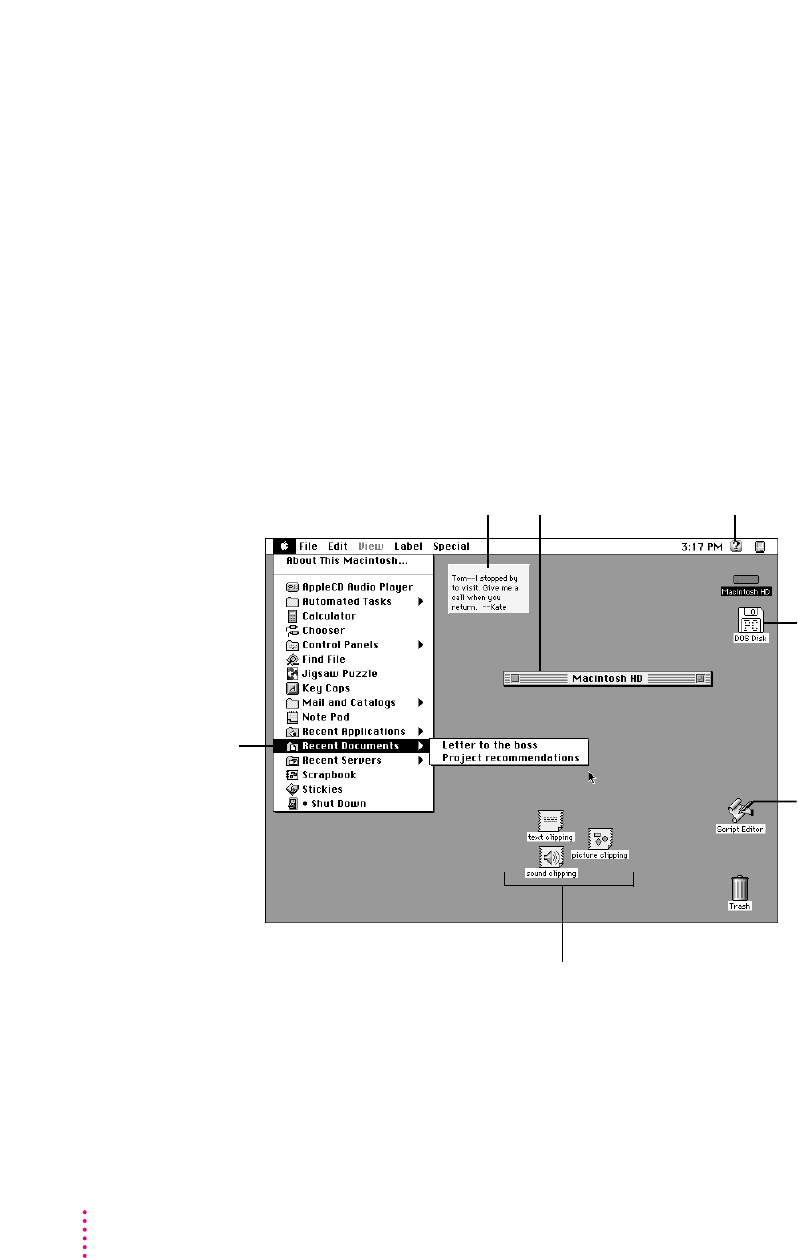
System 7.5 includes new features that enhance productivity and make it easier
to work with other users. Features include enhanced compatibility with DOS
and Windows files and disks, the ability to move information by dragging and
dropping, step-by-step guidance for learning and completing tasks, and the
ability to automate tasks. You also get Finder enhancements, such as
submenus for the Apple menu, a menu-bar clock, more colorful screen
patterns, an improved Find File command, automatic tracking of recently
used items, and on-screen notes.
2Chapter 1
You can open and
work with DOS disks
and files.
The Apple menu
provides improved
access to recently
used documents,
applications, and
servers.
Stickies let you create
on-screen reminder
messages.
The Guide Menu
provides interactive,
step-by-step guidance
for tasks.
WindowShade
reduces screen clutter
by letting you collapse
windows.
You can move information between
documents or onto the desktop by
dragging and dropping it. The Scrapbook,
Note Pad, and SimpleText support the
drag-and-drop feature.
Script Editor lets
you automate tasks
by recording your
actions.
QuickDraw GX publishing software
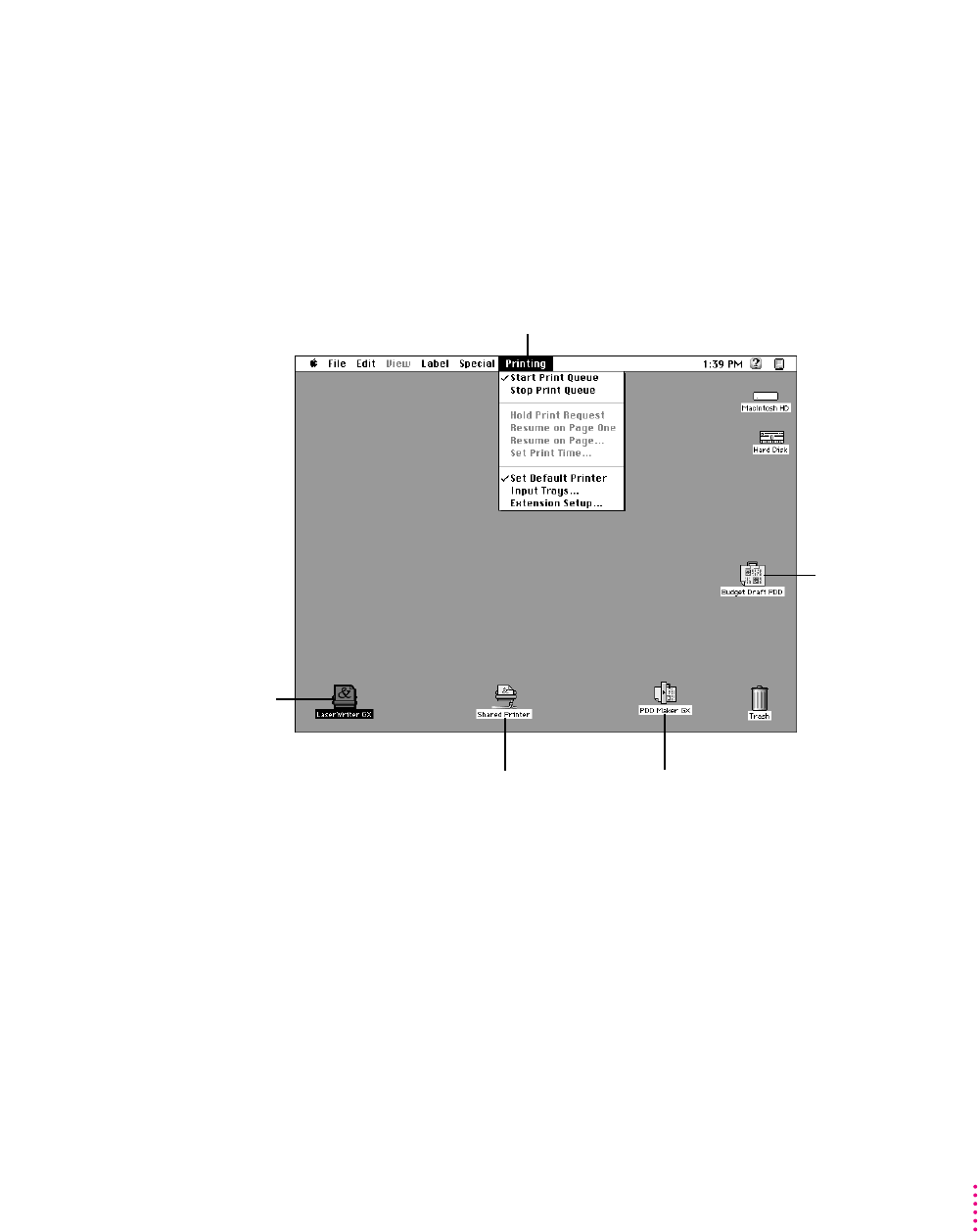
QuickDraw GX software provides simpler, more powerful printing and font
handling and improves your computer’s color publishing capabilities. You can
also create documents that other QuickDraw GX users can view and print,
even when they don’t have the application program or fonts used to create
the document.
3
Before You Install System 7.5
The Printing menu provides
easy access to additional print
capabilities.
Portable Digital
Documents (PDDs)
can be viewed and
printed by other
QuickDraw GX
users–even if they
don’t have the program
or fonts used to create
the document.
You create portable
documents with the PDD
Maker on your desktop.
You can use the
desktop printing
feature to print by
dragging documents
to the printer icon.
You can share printers over a
network and use passwords
to restrict access.
PowerTalk electronic mail and collaboration software
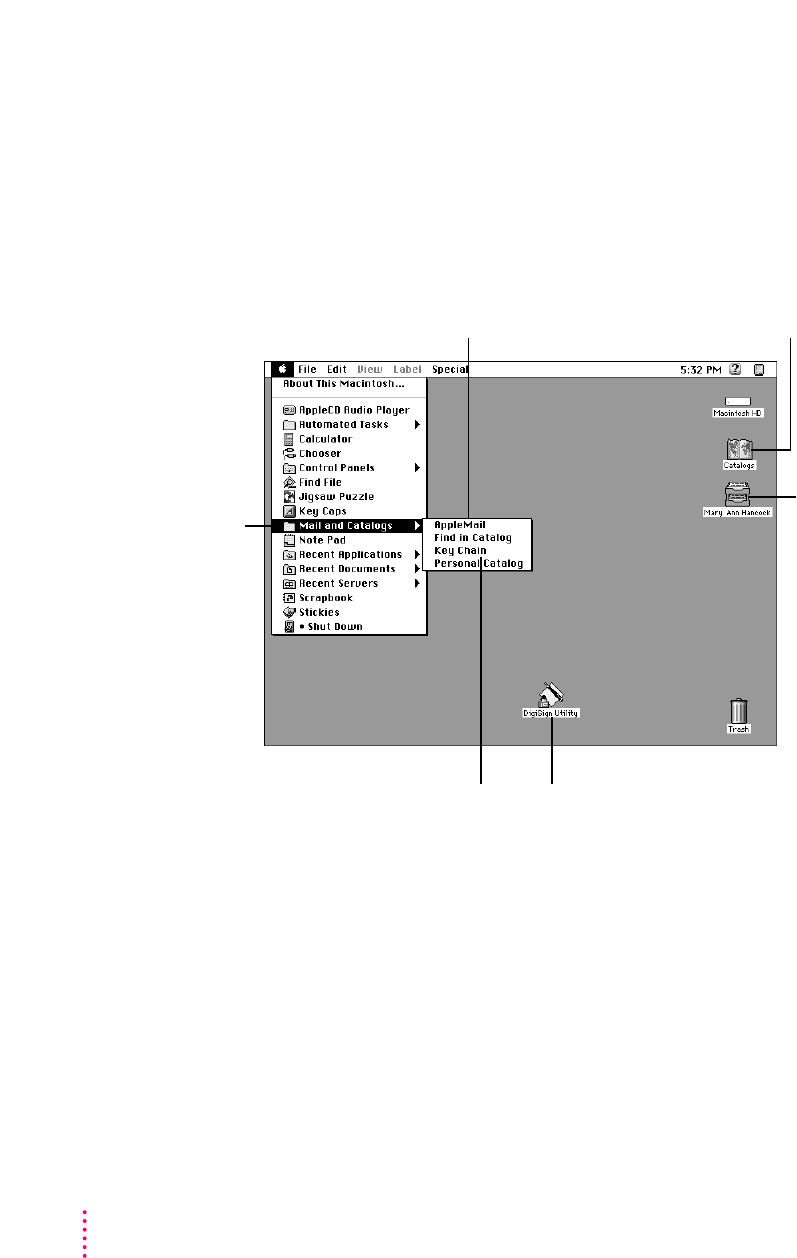
PowerTalk electronic mail and collaboration software allows you to exchange
electronic mail with other PowerTalk users either without a server or through
a PowerShare server. You can route mail from various electronic mail services
to a single, personalized mailbox. Using mail gateways, PowerTalk accepts
communications from additional online services.
4Chapter 1
You can use AppleMail to
send and reply to mail.
Catalogs provides access to information
you need when collaborating with
individuals and groups.
Your Mailbox contains
all of your incoming
and outgoing mail.
Use the DigiSign Utility program
to request approval of a Signer
file so you can sign your
documents electronically.
The Key Chain provides
access to all network servers
and other services through
a single access code.
Mail and Catalogs
(in the Apple menu)
provides quick
access to PowerTalk
capabilities.

Step 2: Check your computer’s built-in memory
System software version 7.5 requires that your Macintosh have at least
4 MB (4,096K) of built-in memory. If your computer has more memory,
you can install QuickDraw GX and PowerTalk.
To find out how much memory your computer has, follow the instructions
below.
1 Open the Apple (
K
) menu and choose About This Macintosh.
2 Look at the number next to “Total Memory."
3 To decide what to install, follow the guidelines in the table below.
If memory equals You can install
At least 8,192K (16,384K on a Power Macintosh) System 7.5 with QuickDraw GX and PowerTalk
4,096K (8,192K on a Power Macintosh) System 7.5 only (You can install QuickDraw GX
and PowerTalk only after purchasing more
memory.)
Step 3: When you are ready to install
To ensure a smooth upgrade to the new system software, it’s important that
you check your hard drive for problems and update the driver.
1Shut down your computer.
2 Insert the
Disk Tools
disk into the floppy disk drive.
If you’re installing software from a CD: Insert the Disk Tools disk that came
with your CD.
If you’re installing software over a network: Make a Disk Tools disk from the
disk image on your file server. If you need more information, ask your
network administrator.
5
Before You Install System 7.5

3 Turn on your computer.
The Disk Tools icon appears on your screen.
4Double-click the Disk Tools icon to open it.
5Double-click the Disk First Aid icon and follow the instructions on the screen.
Disk First Aid checks your hard drive for any problems.
6When you are finished, choose Quit from the File menu.
7Double-click the Apple HD SC Setup icon.
Apple HD SC Setup allows you to update the disk driver.
IMPORTANT
If you are installing system software on the internal hard disk of a
Quadra 630, LC 630, Performa 630 series, or PowerBook 150, you do not need
to update the disk driver. Turn to Chapter 2 of this manual to continue with
the installation.
If you are installing system software on a non-Apple hard disk, you cannot
use HD SC Setup to update the disk driver. For a non-Apple hard disk,
contact the dealer or manufacturer to update the disk driver.
8Select the hard disk you want to update, then click Update.
9When you are finished, click Quit.
10 Restart your computer.
11 To continue with the installation, go to Chapter 2 (“Installing System Software
Version 7.5”) in this book.
6Chapter 1

Follow the instructions in this section to install the latest version of
Macintosh system software on your computer’s hard disk.
Step 1: Use the Safe Install Utility
To ensure a smooth upgrade to the new system software, it’s important that
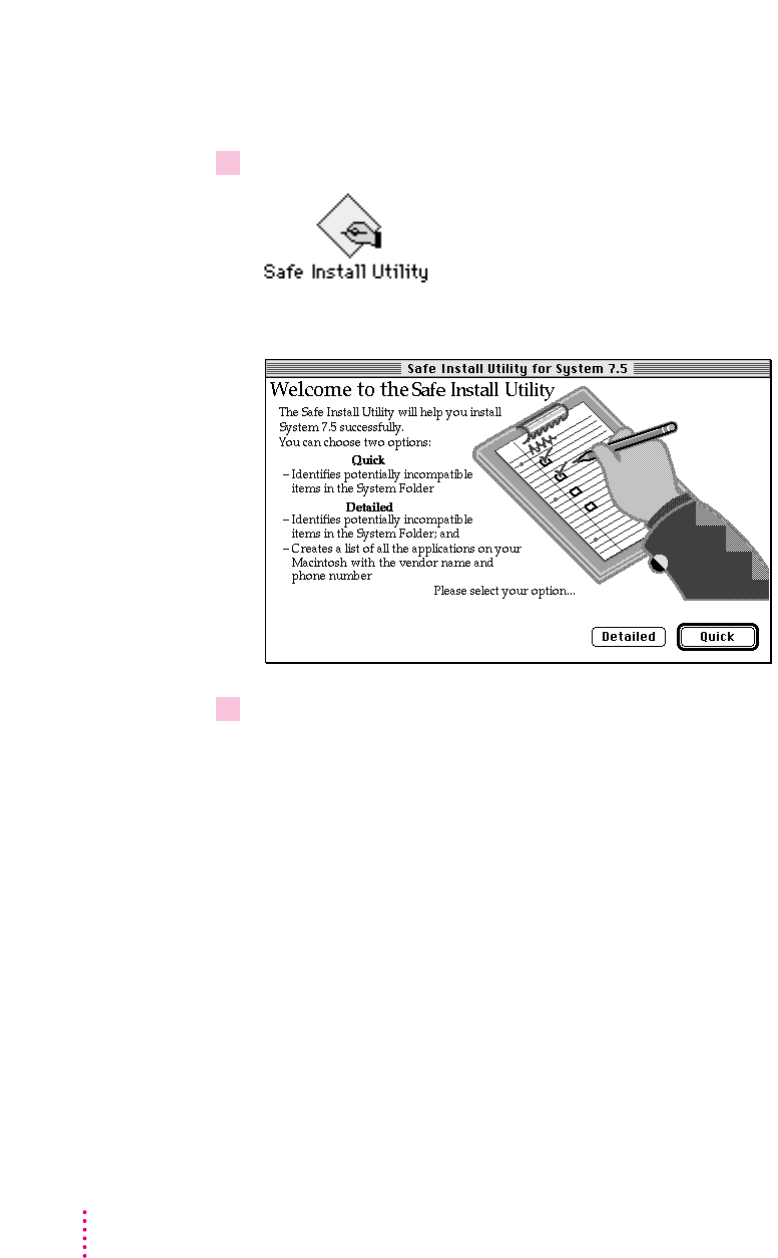
you use the Safe Install Utility on the disk labeled Before You Install.
The Safe Install Utility scans the System Folder on your computer’s hard disk
and identifies items that might be incompatible with System 7.5. Safe Install
checks startup programs (also known as extensions or control panels) for
compatibility. It does not check the compatibility of your application
programs.
With your computer turned on, follow these steps:
IMPORTANT
If At Ease software is installed on your computer, you must turn
it off before you use Safe Install. For instructions, see the manual that came
with your At Ease software.
1 Insert the disk called
Before You Install
into a floppy disk drive. Then double-click the
disk’s icon to open it.
If you’re installing software from a CD: Open the Before You Install folder
(inside the Installation folder) on the CD.
7
2Installing System Software Version 7.5
If you’re installing software over a network: Find the Safe Install Utility on
your file server. If you’re not sure where it is, ask your network administrator.
2 Open the Safe Install Utility by double-clicking its icon.
The Safe Install Utility’s welcome screen appears.
3Click Quick or Detailed to continue.
If you clicked Detailed and you have more than one disk drive connected to
your computer, a dialog box appears in which you can select the disks you
want the Safe Install Utility to scan. An X appears next to the selected disks.
Make sure that your startup disk is selected, then click OK to begin scanning
the selected disks.
The Safe Install Utility begins to scan your system. Messages report the
progress of the scan.
8Chapter 2
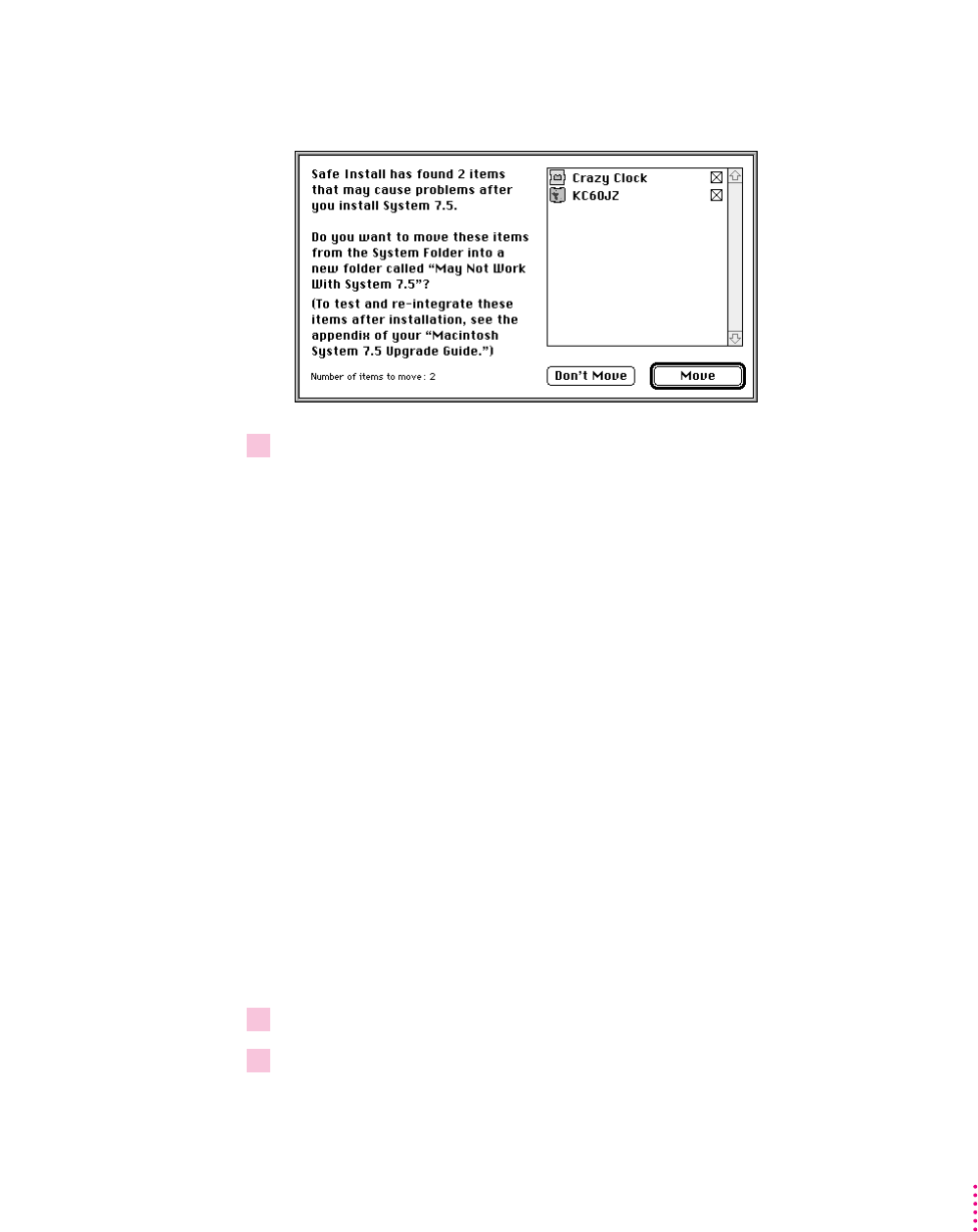
If the Safe Install Utility finds incompatible or unknown items in the System
Folder of your startup disk, you’ll see a message like the following:
4Click Move to move potentially incompatible items out of the System Folder.
The Safe Install Utility creates a new folder on the hard disk named May Not
Work With System 7.5 and automatically moves all potentially incompatible
items from the System Folder into the May Not Work With System 7.5 folder.
After installation, you may want to re-activate individual items in the May
Not Work With System 7.5 folder and test them for compatibility. For
instructions, see Appendix C (“Testing for Compatibility”) later in this book.
When the Safe Install Utility has finished examining your system, you’ll see
a report on your screen. If you chose the Detailed option, the report includes
information about your application programs. The information is provided
by the companies who created the programs, who are responsible for its
accuracy.
IMPORTANT
Before you install System 7.5, be sure to follow the instructions in
your report. Most importantly, make sure that all security software and virus-
protection software has been turned off and that all potentially incompatible
items have been removed from the System Folder. It’s also a good idea to back
up the information on your computer’s hard disk before you install new
system software.
5 To print the report, click Print.
6When you’re finished using the Safe Install Utility, click Quit.
9
Installing System Software Version 7.5

Step 2: Use the Installer
If you have used the Safe Install Utility and followed the instructions in your
report, you’re ready to install the system software.
To install the new system software, follow these steps:
IMPORTANT
If you are installing from a CD onto a Macintosh with a
non-Apple CD-ROM drive, make a backup copy of the System 7.5 software
before you begin installation. If you encounter problems during installation,
you can install System 7.5 from the backup disks. (You won’t be able to use
your CD-ROM drive again until the System 7.5 software is installed on your
computer. The startup disk that comes with your CD recognizes only Apple
CD-ROM drives.) For instructions and disk images, see the Back-up CD
folder on your CD.
If you are installing on a PowerBook, make sure your PowerBook is plugged
in and set not to go to sleep. For instructions, see the manual that came with
your computer.
1 Quit any open application programs or desk accessories.
2Insert the
Install Disk 1
disk into a floppy disk drive and open the disk by double-clicking
its icon.
All system software files are compressed. The Installer program will expand
them during installation. Do not drag them to your hard disk.
If you’re installing software from a CD: Open the System Install folder (inside
the Installation folder) on the CD.
If you’re installing software over a network: Find the Installer on your file
server. If you’re not sure where it is, ask your network administrator.
3 Open the Installer by double-clicking its icon.
10 Chapter 2
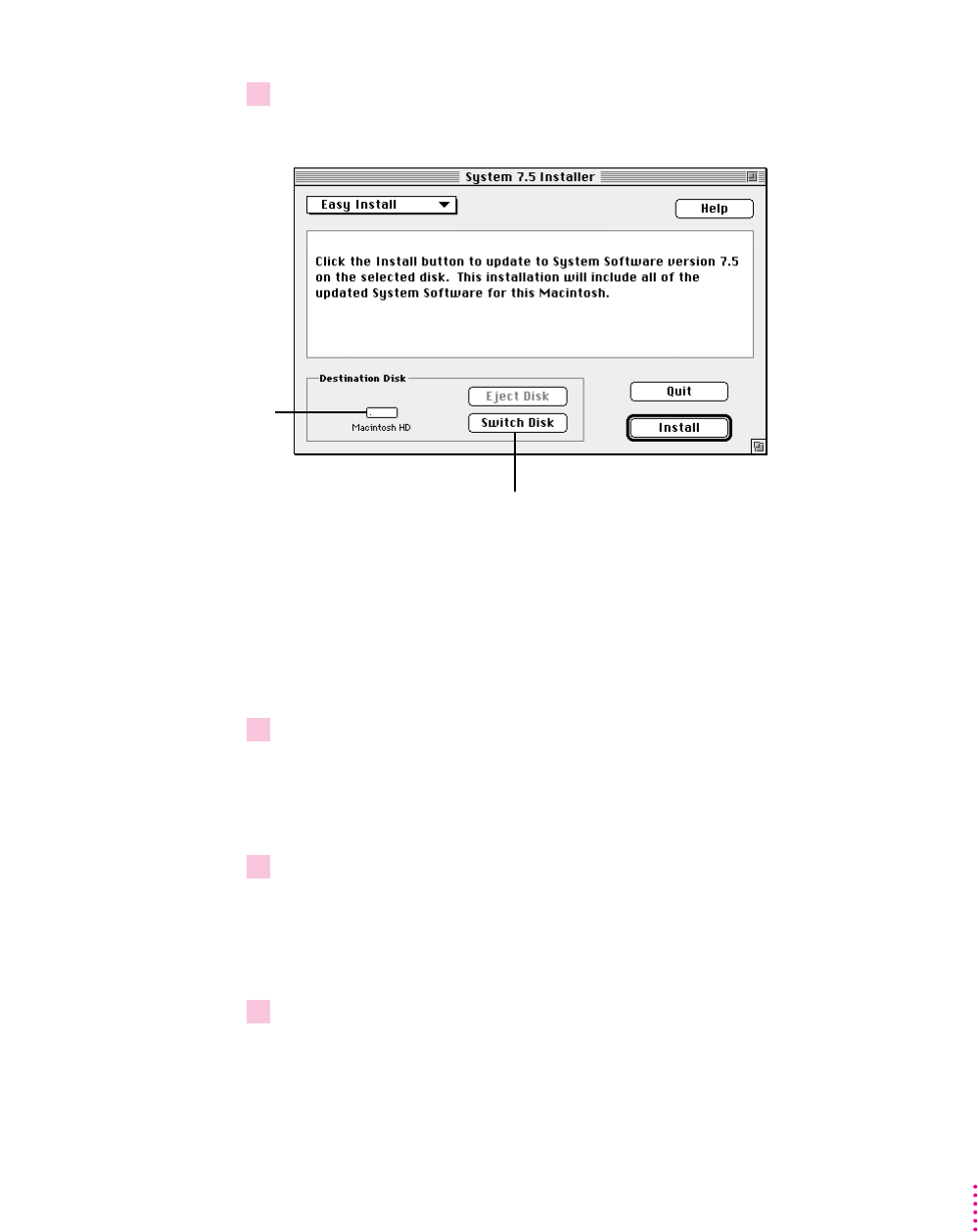
4When you see the Installer’s welcome screen, click Continue.
The Easy Install dialog box appears.
Installing a customized system: These instructions cover the Easy Install
process, which is suitable for most Macintosh users. Easy Install installs the
files that your particular model of Macintosh needs. If you want to create a
system that works on all Macintosh computers or add specific components
after installation, see Appendix A (“Using the Custom Install Option”) in this
book.
5Make sure that the destination disk indicated on the screen is the one on which you want
to install system software.
If the wrong disk name appears, click the Switch Disk button until the correct
disk name appears.
6 Click Install.
The Installer updates the software in the System Folder on your hard disk.
If you have any problems while installing: See Chapter 7 (“Troubleshooting”)
later in this book.
7 Follow the instructions on the screen.
On-screen messages tell you when you need to insert other disks. It takes
several minutes to complete the installation.
11
Installing System Software Version 7.5
Disk on which system
software will be
installed
Button to switch to a different disk
for installation

8When the installation is complete, restart your computer.
If for some reason the installation was not successful, try the installation
again.
If you can’t restart the computer: See Chapter 7 (“Troubleshooting”) later in
this book.
New icon on your screen
Once your new system is installed and you have restarted your computer, you
will see a new icon on your screen.
The Guide icon is located in the upper-right corner (on the menu bar) and
looks like a question mark in a light bulb.
The Guide menu contains items that provide on-screen help for using your
Macintosh. For example, you can use Macintosh Guide (instead of a printed
manual) to get step-by-step instructions for doing tasks on your Macintosh.
For more information on using the Guide menu, see Chapter 5 of this book.
12 Chapter 2

If you have already installed system software version 7.5 and your Macintosh
has enough memory, you can install QuickDraw GX. (For memory guidelines,
see Chapter 1 of this book.) For more information on QuickDraw GX
features, see Chapter 6 (“What’s New”) later in this book.
Step 1: Install QuickDraw GX software
IMPORTANT
If At Ease software is installed on your computer, you must turn
it off before you install QuickDraw GX. For instructions, see the manual that
came with your At Ease software.
IMPORTANT
QuickDraw GX installs GX printer drivers for Apple printers. If
you use a non-Apple printer, you may need to get the appropriate printer
driver from the vendor.
1 Quit any open application programs or desk accessories.
2 Insert the
Install
disk into a floppy disk drive, and open the disk by double-clicking
its icon.
All system software files are compressed. The Installer program will expand
them during installation. Do not drag them to your hard disk.
If you’re installing software from a CD: Open the QuickDraw GX Install folder
(inside the Installation folder) on the CD.
If you’re installing software over a network: Find the Installer on your file
server. If you’re not sure where it is, ask your network administrator.
13
3Installing QuickDraw GX
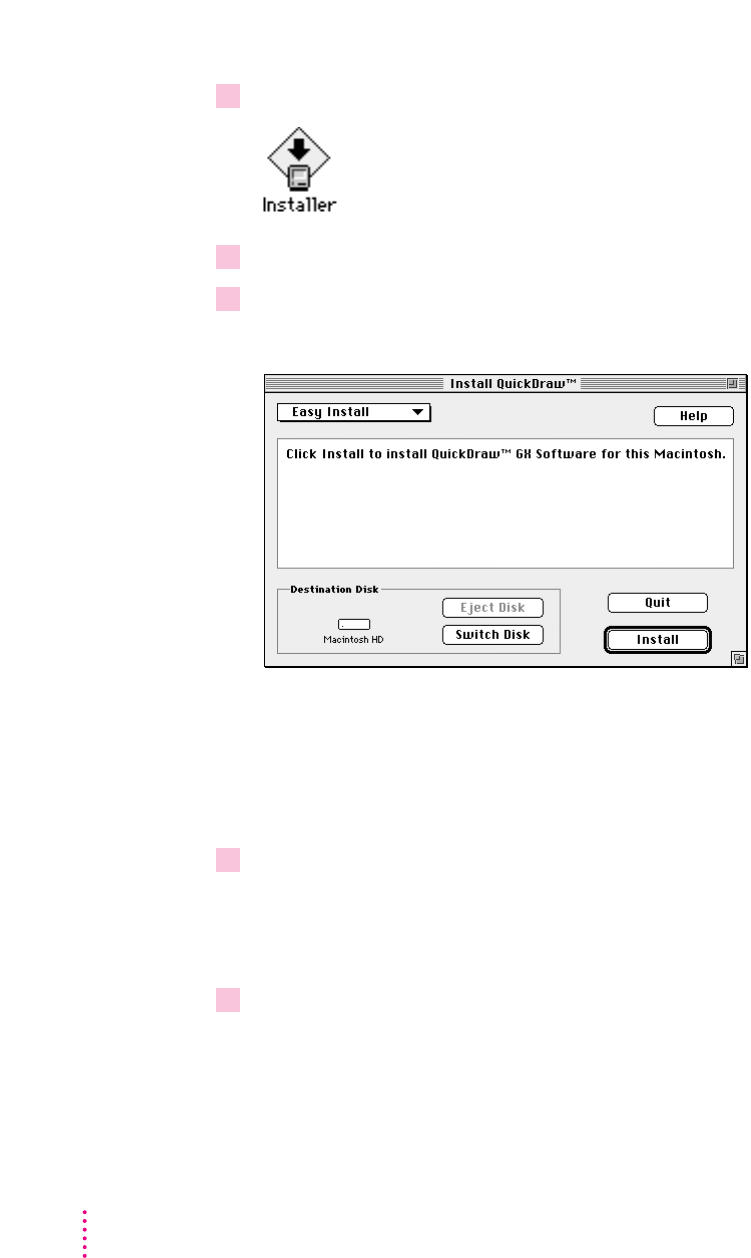
3Double-click the Installer icon.
4If you see a dialog asking what you want to install, click QuickDraw GX.
5When you see the QuickDraw Installer’s welcome screen, click Continue.
The Easy Install dialog box appears.
Using the Custom Install option: These instructions cover the Easy Install
process, which is suitable for most Macintosh users. Easy Install installs the
files that your particular model of Macintosh needs. If you want to add
specific components after installation, see Appendix A (“Using the Custom
Install Option”) in this book.
6Make sure that the destination disk indicated on the screen is the one on which you want
to install QuickDraw GX.
If the wrong disk name appears, click the Switch Disk button until the correct
disk name appears.
7 Click Install.
The Installer begins to install QuickDraw GX software on your Macintosh.
If you have any problems while installing: See Chapter 7 (“Troubleshooting”)
later in this book.
14 Chapter 3

8 Follow the instructions on the screen.
On-screen messages tell you when you need to insert other disks. It takes a
few minutes to complete the installation.
9When the installation is complete, restart your computer.
If for some reason the installation was not successful, try again.
If you can’t restart the computer: See Chapter 7 (“Troubleshooting”) later in
this book.
IMPORTANT
When you install QuickDraw GX, any Type 1 PostScript fonts in
your System Folder are automatically enabled to work with QuickDraw GX.
Your original Type 1 fonts are moved to a folder called •Archived Type 1
Fonts• inside the System Folder on your hard disk. If you install Type 1 fonts
after installing QuickDraw GX, you must enable the fonts to use them. For
instructions, see “Using Type 1 Fonts with QuickDraw GX” later in this
chapter.
New icon on your screen
Once you have installed QuickDraw GX and restarted your computer, you
will notice that a printer icon has appeared on your screen. QuickDraw GX
automatically creates a desktop printer icon for your default printer.
If the printer icon doesn’t appear on your desktop, you’ll need to create one.
To create a desktop printer, choose Macintosh Guide from the Guide menu (in
the upper-right corner of your screen, with the hicon). When the Macintosh
Guide window appears, click the Topics button. Select the topic “Printing and
Fonts.” Then choose “How do I create a desktop printer?” Macintosh Guide
will walk you through the steps to create a desktop printer icon.
15
Installing QuickDraw GX
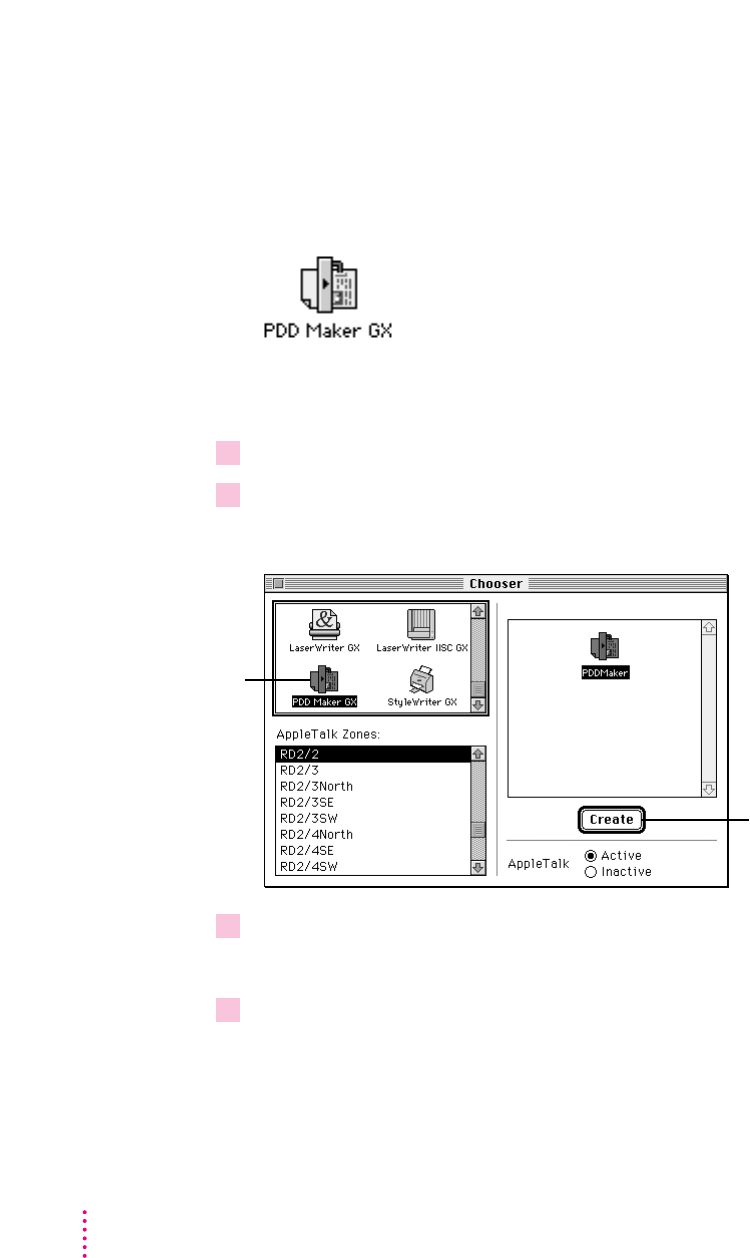
Step 2: Create a desktop icon for the PDD Maker
You use the PDD Maker to create Portable Digital Documents (PDDs). A
PDD is a read-only document that other QuickDraw GX users can view and
print. Users who receive your document do not have to have the original
program or fonts that created the document.
Once QuickDraw GX is installed, follow the steps below to create a desktop
icon for the PDD Maker.
1 Open the Apple (
K
) menu and select the Chooser.
2Click PDD Maker GX.
You may need to scroll to find the PDD Maker GX icon.
3Click Create.
The icon for the PDD Maker appears on your desktop.
4Close the Chooser.
16 Chapter 3
When you click the Create
button, the PDD Maker
appears on your desktop.
The PDD Maker
allows you to create
Portable Digital
Documents.

Using QuickDraw GX utilities
The QuickDraw GX utilities provide additional capabilities for working with
printers and fonts.
To install the utilities, see Appendix A (“Using the Custom Install Option”)
later in this book.
m
LaserWriter Utility
is an updated version of a utility that comes with Apple
LaserWriters.
m
Paper Type Editor
allows you to create and edit the paper type for Apple
printers.
m
QuickDraw GX Helper
(when it is installed in your Extensions Folder) allows
you to temporarily turn off QuickDraw GX printing for an application
program.
To turn off QuickDraw GX printing, launch the application program. Then
open the Apple (K) menu and choose “Turn desktop printing off.” You can
still use the desktop printer icons to print, but documents print using a
non-GX printer driver. To turn QuickDraw GX printing back on, choose
“Turn desktop printing on.”
m
Type 1 Enabler
makes your Type 1 fonts work with QuickDraw GX. For
instructions, see the following section (“Using Type 1 Fonts with
QuickDraw GX”).
Using Type 1 fonts with QuickDraw GX
Ty pe 1 PostScript fonts must be enabled in order to work with QuickDraw
GX. “Enabling” makes your fonts work with QuickDraw GX. It does not
affect the font outlines, design, or metrics.
Any Type 1 fonts already installed in your System Folder are automatically
enabled when you install QuickDraw GX. If you install additional Type 1
fonts, you need to enable them by using special utility software located on the
QuickDraw GX disks.
To install the software you use to enable Type 1 fonts, use the Installer to
install the QuickDraw GX utilities. For instructions, see Appendix A (“Using
the Custom Install Option”) later in this book.
17
Installing QuickDraw GX

Enabling Type 1 PostScript Fonts
To enable Type 1 PostScript fonts for use with QuickDraw GX, follow the
steps below.
1 Open the Type 1 Enabler utility by double-clicking its icon.
A window appears in which you locate the fonts you want to modify.
2Choose a font or folder containing fonts to enable, then click Select.
A window appears reporting the results of the process.
3When you are finished, choose Quit from the File menu.
You can now use your Type 1 fonts with QuickDraw GX.
Your original Type 1 fonts are moved to the folder called •Archived Type 1
Fonts• inside the System Folder on your hard disk.
18 Chapter 3

If you have already installed System 7.5 and your Macintosh has enough
memory, you can install PowerTalk. (For memory guidelines, see Chapter 1
of this book.) For more information on PowerTalk features, see Chapter 6
(“What’s New”) later in this book.
Step 1: Install PowerTalk software
IMPORTANT
If At Ease software is installed on your computer, you must turn
it off before you install PowerTalk. For instructions, see the manual that came
with your At Ease software.
1 Quit any open application programs or desk accessories.
2 Insert the
Install
disk into a floppy disk drive, and open the disk by double-clicking
its icon.
All PowerTalk files are compressed. The Installer program will expand them
during installation. Do not drag them to your hard disk.
If you’re installing software from a CD: Open the PowerTalk Install folder
(which is inside the Installation folder) on the CD.
If you’re installing software over a network: Find the Installer on your file
server. If you’re not sure where it is, ask your network administrator.
19
4Installing PowerTalk
3 Open the PowerTalk Installer by double-clicking its icon.
4If you see a dialog box asking what you want to install, click PowerTalk.
5When you see the PowerTalk Installer’s welcome screen, click Continue.
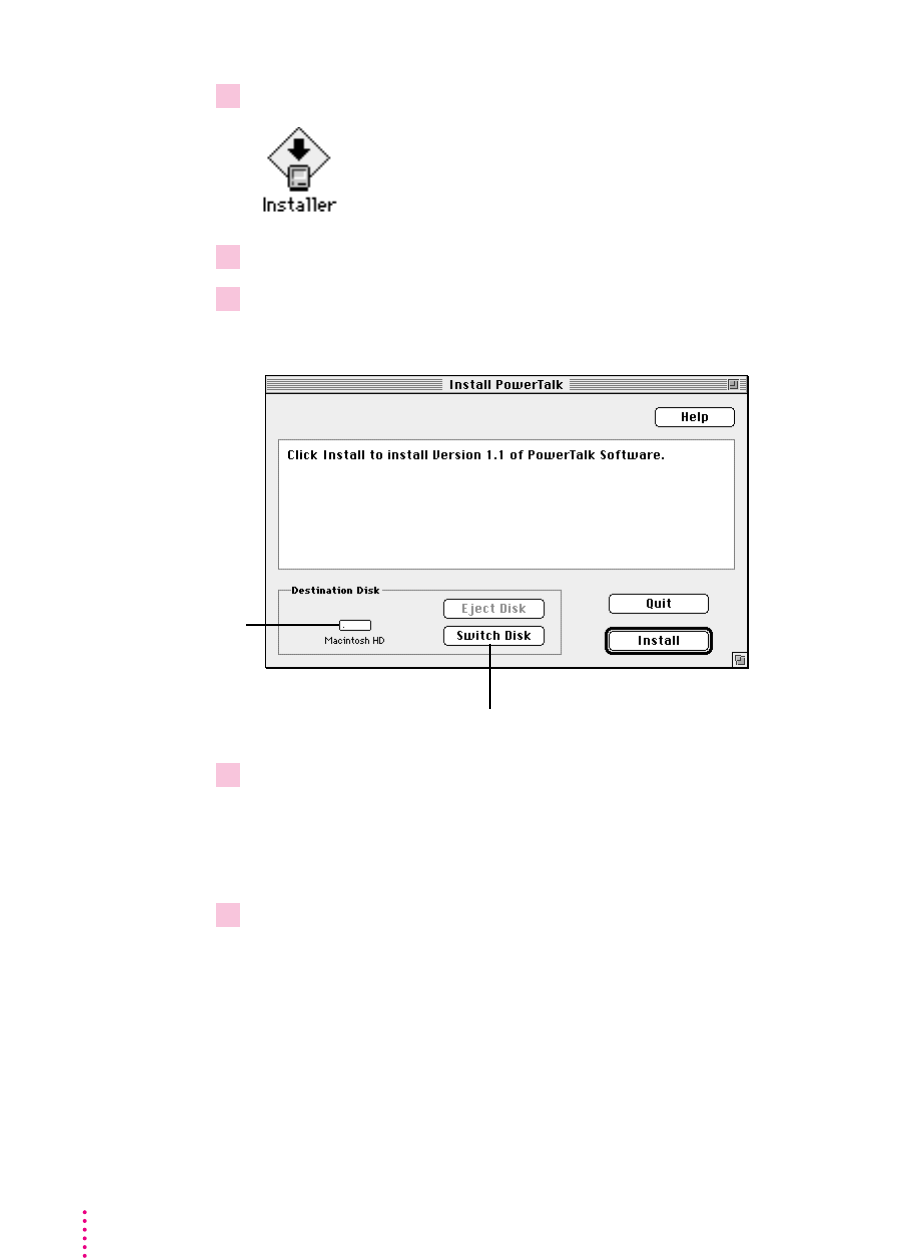
The Install PowerTalk dialog box appears.
6Make sure that the destination disk indicated on the screen is the one on which you want
to install PowerTalk.
If the wrong disk name appears, click the Switch Disk button until the correct
disk name appears.
7 Click Install.
The Installer places PowerTalk software on your hard disk. PowerTalk
software includes system software (installed in your System Folder) and
application programs (installed in the PowerTalk folder, inside the Apple
Extras folder on the hard disk).
If you have any problems while installing: See Chapter 7 (“Troubleshooting”)
later in this book.
20 Chapter 4
Button to switch to a different
disk for installation
Disk on which
PowerTalk system
software will be
installed
8 Follow the instructions on the screen.
On-screen messages tell you when you need to insert other disks. It takes a
few minutes to complete the installation.
9When the installation is complete, restart your computer.
If for some reason the installation was not successful, try again.
If you can’t restart the computer: See Chapter 7 (“Troubleshooting”) later in
this book.
New icons on your screen
Once your PowerTalk software is installed and you have restarted your
computer, two new icons appear on your screen. See Chapter 6 (“What’s
New”) in this book for more information.
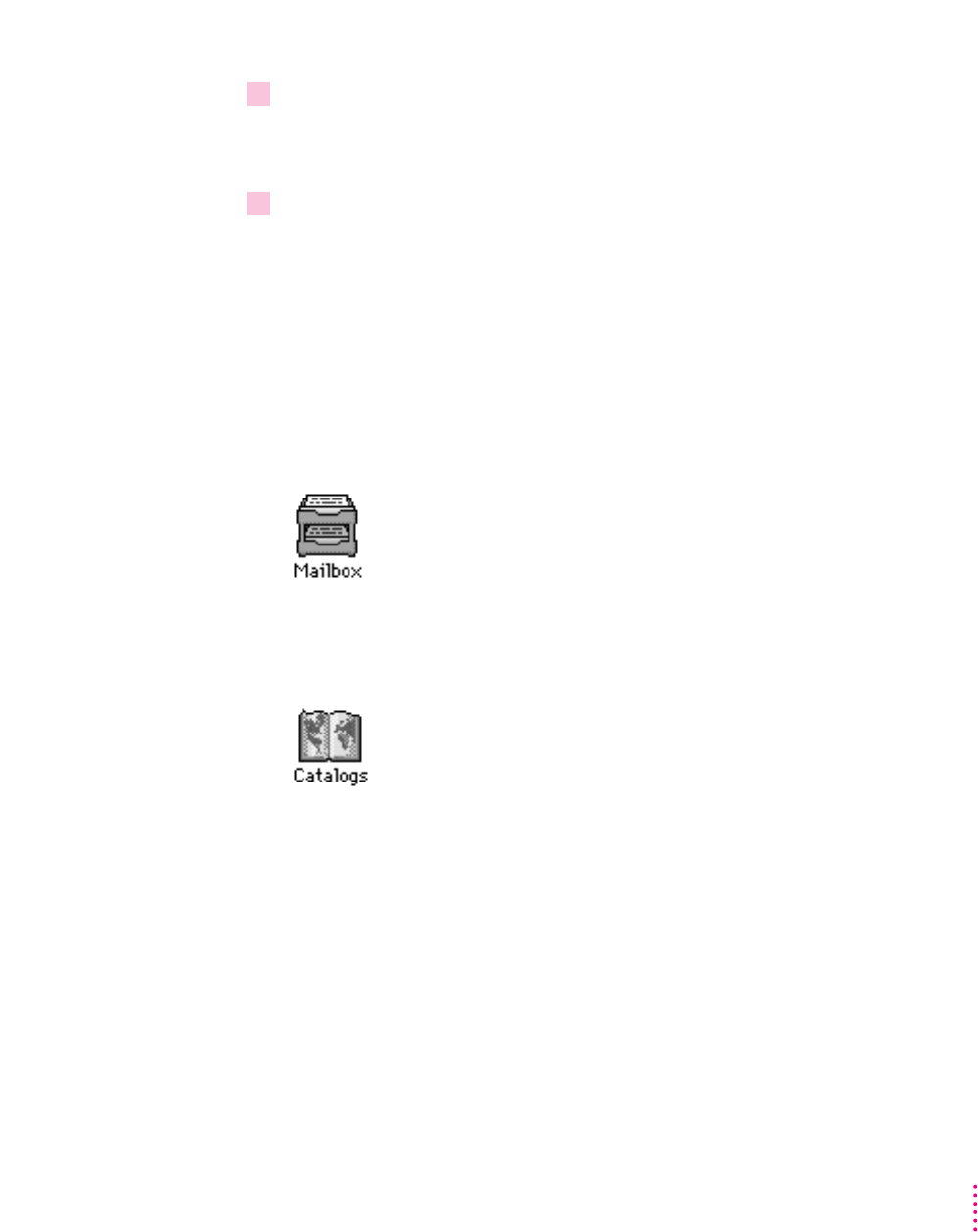
The Mailbox is the place where all correspondence resides. To look at your
In Box or Out Box, you open the Mailbox. (After you set up your system, the
word Mailbox changes to your name.)
The Catalogs icon opens to show all the catalogs to which you have access—
AppleTalk, PowerShare servers, and any other services on your network.
21
Installing PowerTalk

Step 2: Set up your system
PowerTalk system software provides different levels of access security.
The most basic safeguard is the key chain access code. Your access code
provides access to all your network servers and services with a single
password. Until you set up and use your access code, your catalog and mail
services are locked (inaccessible).
IMPORTANT
How you set up your system depends on whether you have access
to a server (called the PowerShare server) that manages network
communications. If you are not sure whether or not you have a PowerShare
server account, assume that you do not.
Setting up without a PowerShare server account
PowerTalk does not require the use of a network server. When you set up
without a server account, you can communicate using AppleMail or mail-
capable applications.
If you don’t have a PowerShare server account, follow these steps:
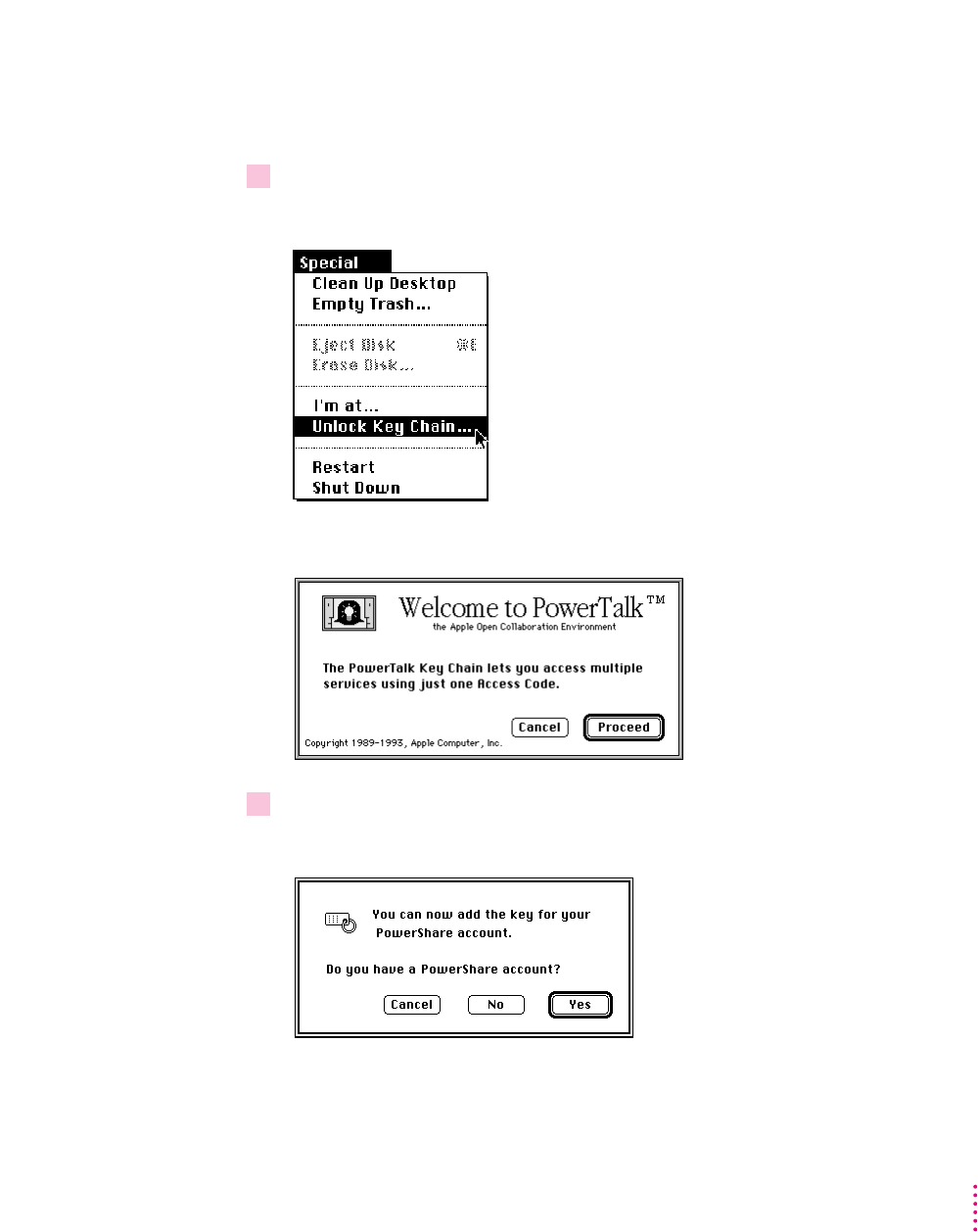
1Choose Unlock Key Chain from the Special menu in the Finder.
If you wish, you can also open the Mailbox.
22 Chapter 4
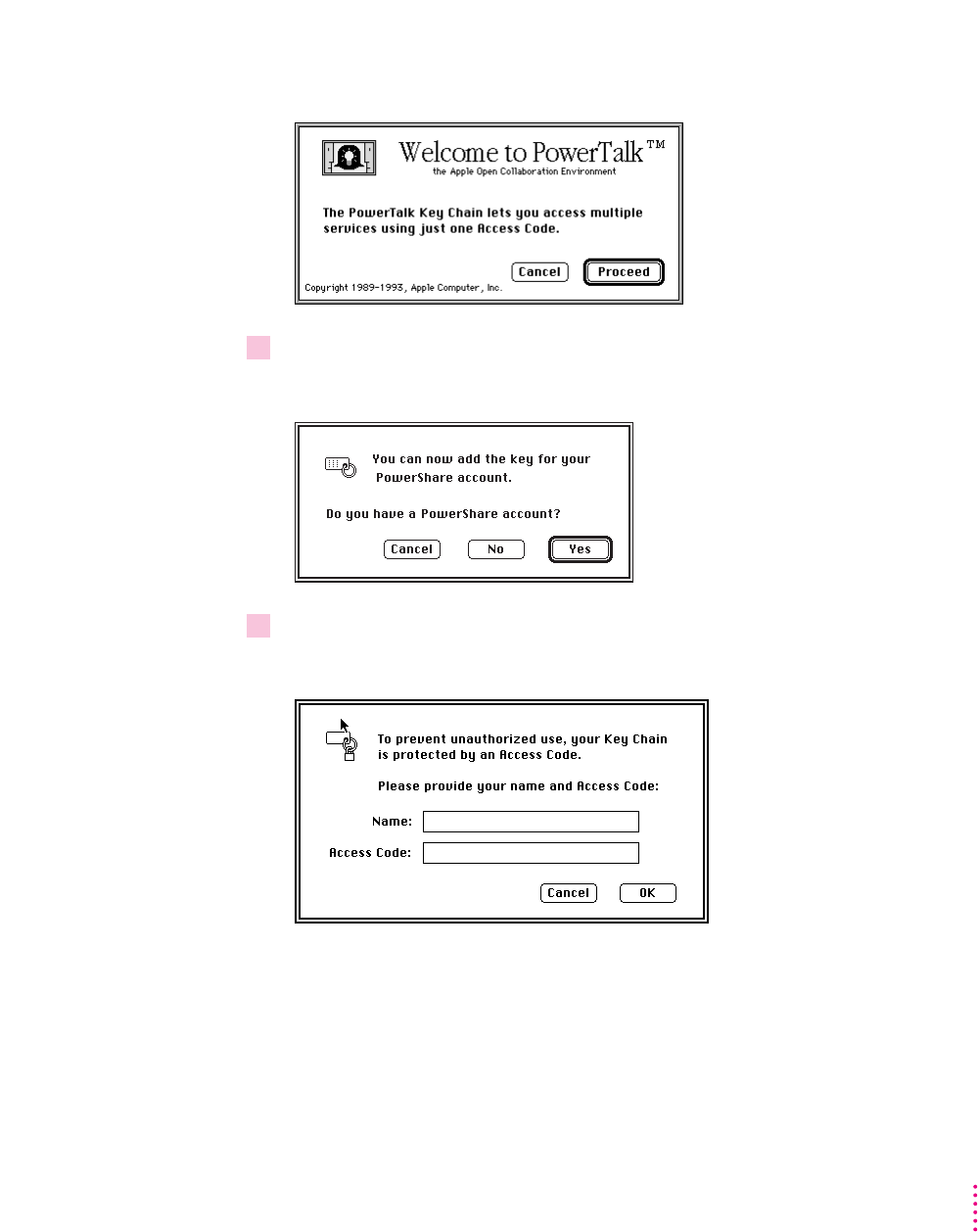
The welcome screen appears.
2 Read the screen and click Proceed.
A dialog box appears, asking if you have a PowerShare account.
3 Click No.
A dialog box appears, asking you to set your key chain access code.
23
Installing PowerTalk
4Type your name and the access code you want to use.
IMPORTANT
Once your access code is set, you enter it each time your
computer starts up. You can leave the access code blank, if you do not want to
use a password.
Here are some tips for choosing an access code:
mIt should not be your name.
mIt must be at least six characters long. (The longer it is, the harder it will
be to guess.)
mMix upper- and lowercase letters and use numbers, as in “4Me!Only.”
mMake it easy to remember and don’t write it down.
mKeep track of which letters are uppercase—the access code is case-
sensitive.
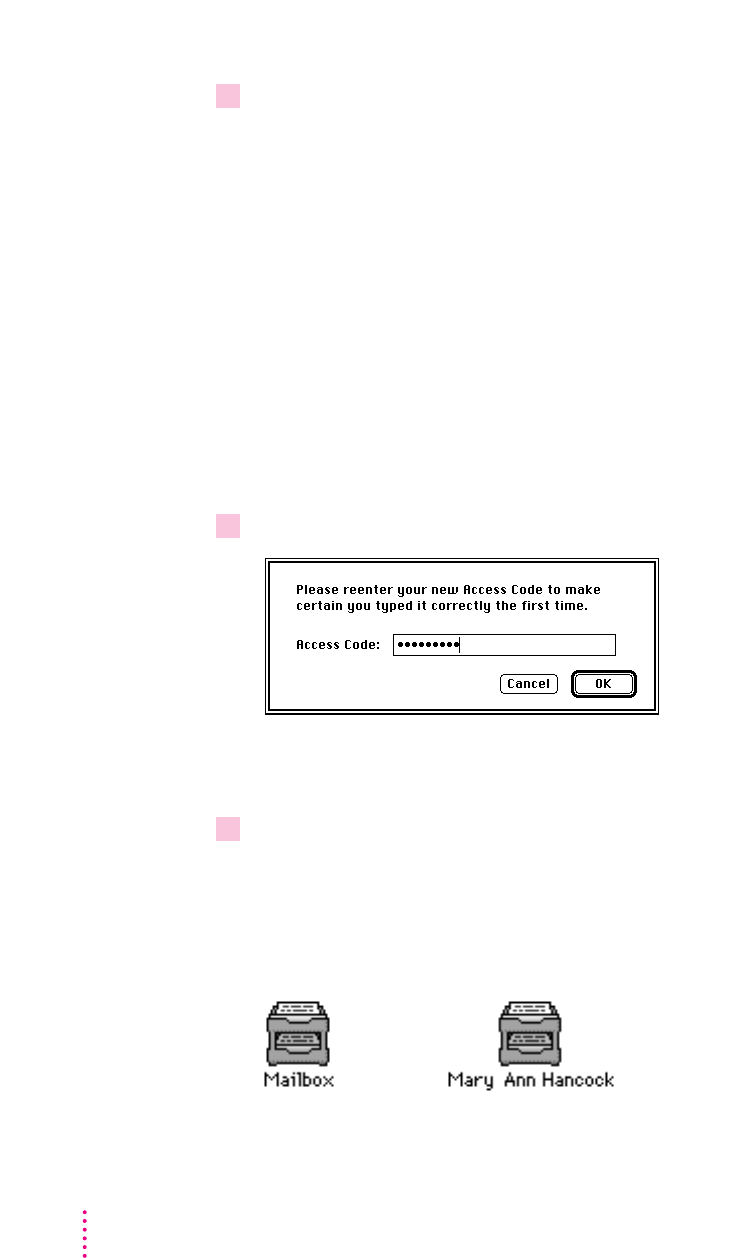
5When a confirmation dialog box appears, type your access code again and click OK.
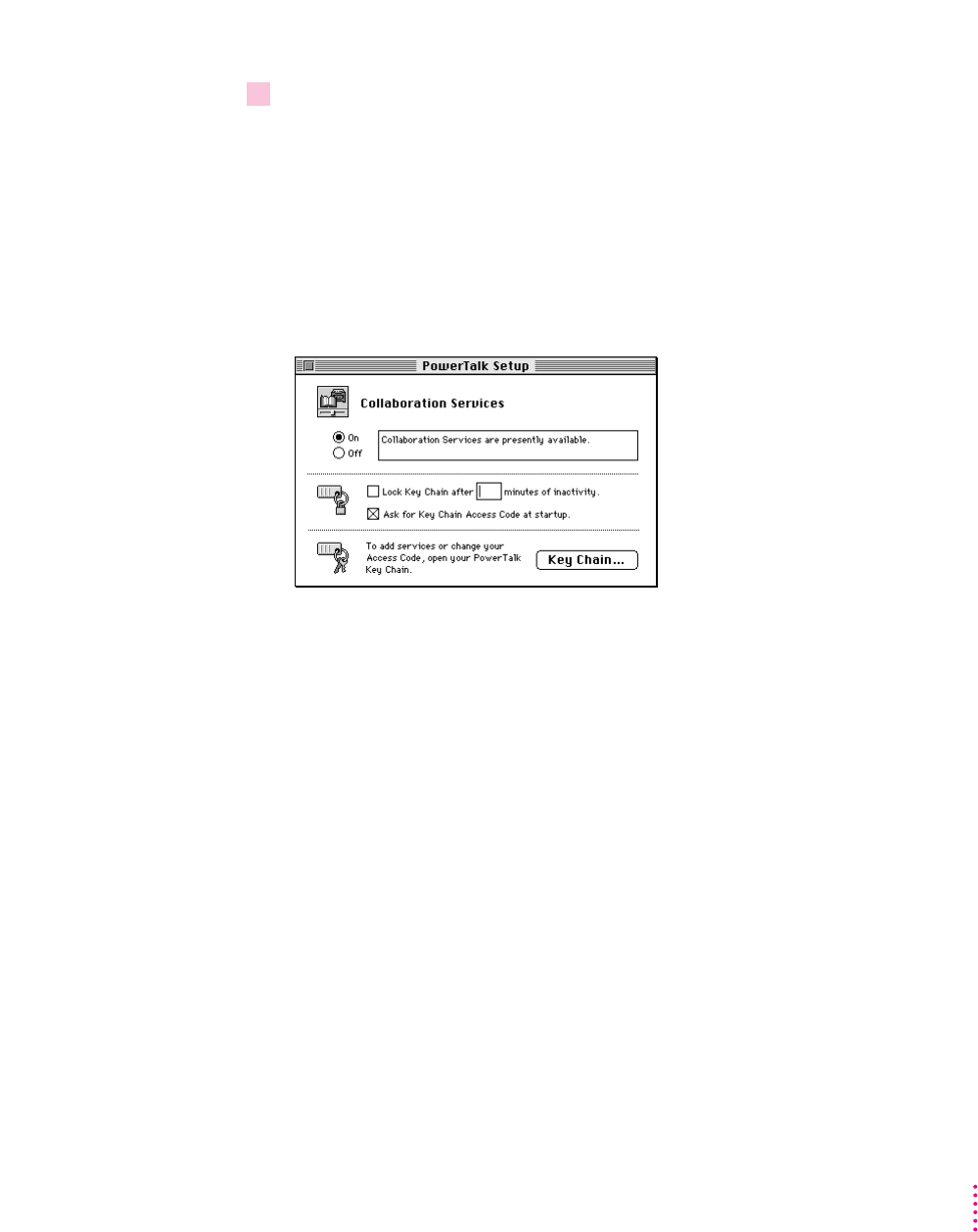
You can change your access code at any time in the PowerTalk Setup control
panel.
6When you see the next confirmation box, click OK.
As soon as the confirmation box closes, open your Date and Time control
panel and make sure that the date, time, and time zone are all set correctly.
You now have access to PowerTalk services. The name of your Mailbox
changes to show that you are its owner.
24 Chapter 4
Setting up with a PowerShare server account
If you have access to a PowerShare server, follow these steps:
1Choose Unlock Key Chain from the Special menu in the Finder.
If you wish, you can also open the Mailbox.
The welcome screen appears.
2 Read the screen and click Proceed.
A dialog box appears, asking if you have a PowerShare account.
25
Installing PowerTalk
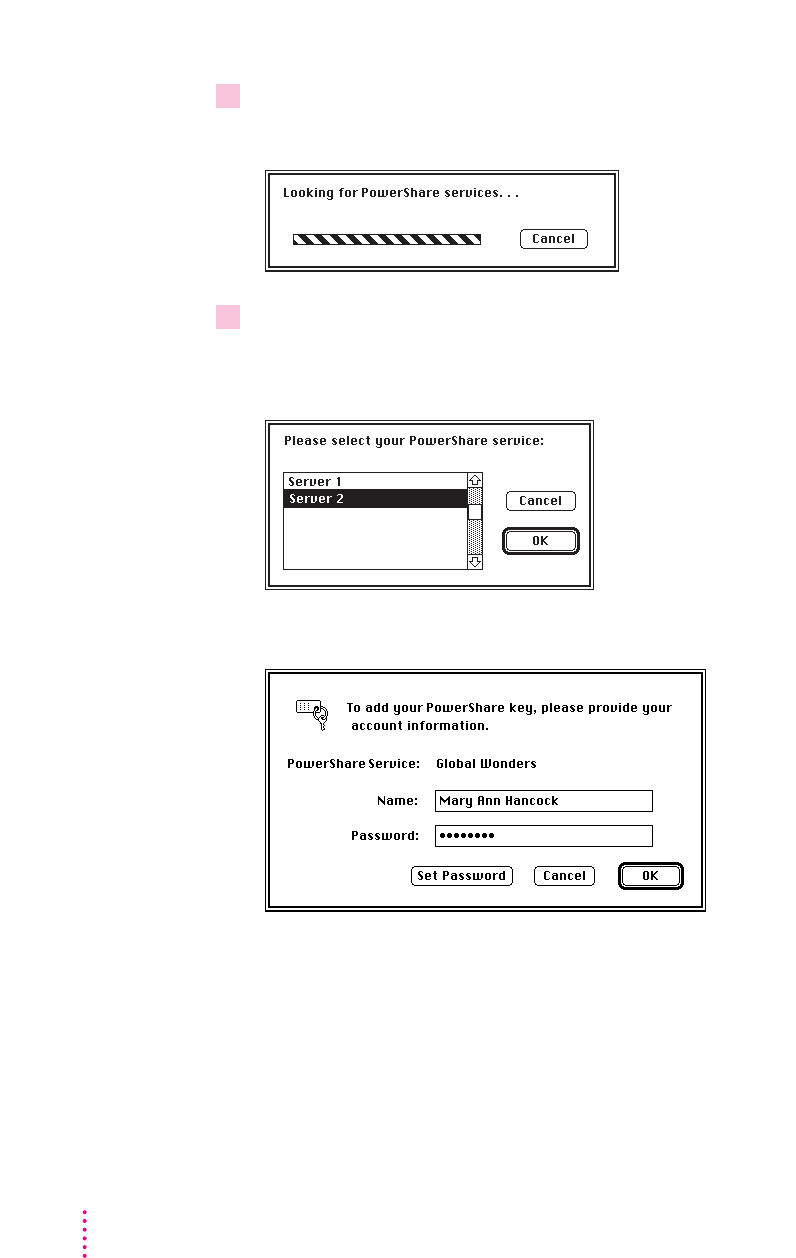
3 Click Yes.
The computer searches for the PowerShare services available to you.
4When the navigation dialog box appears, select the PowerShare service you want to
access and click OK.
You can also double-click the PowerShare service’s name.
A dialog box appears, asking for account information.
26 Chapter 4
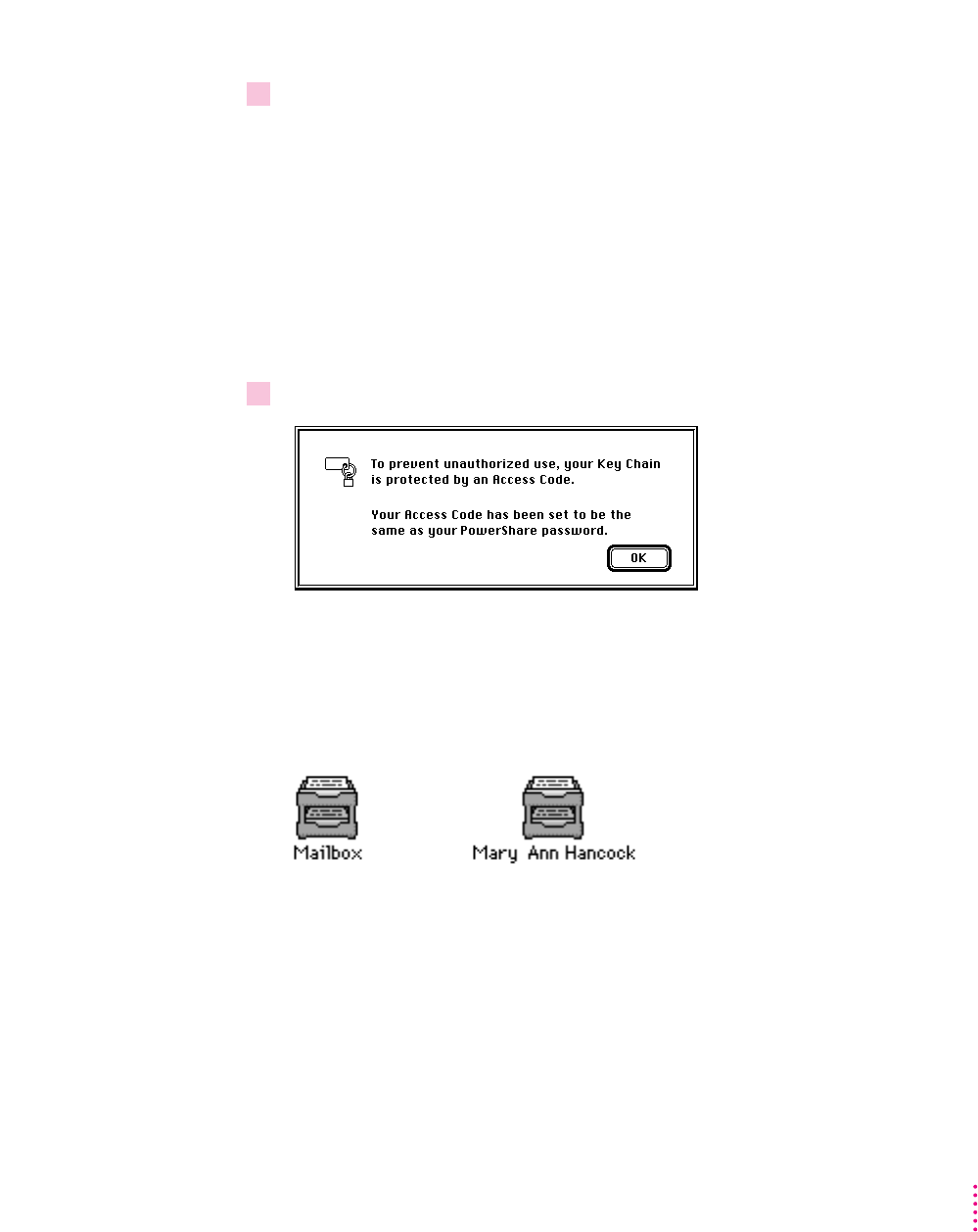
5Type your name and the password of your PowerShare account as set up by your
system administrator.
As a convenience to you, PowerTalk software initially sets your key chain
access code to be the same as your PowerShare password. (You use your
access code to open all services.) You can change your key chain access code
in the PowerTalk Setup control panel.
IMPORTANT
Changing your key chain access code does not change your
PowerShare password. You’ll need to use your PowerShare password when
you check your mail from a computer other than your own.
6When you see the confirmation box, click OK.
After a moment another confirmation box appears with additional
information. Click OK.
You now have access to PowerTalk services. The name of your Mailbox
changes to show that you are its owner.
27
Installing PowerTalk
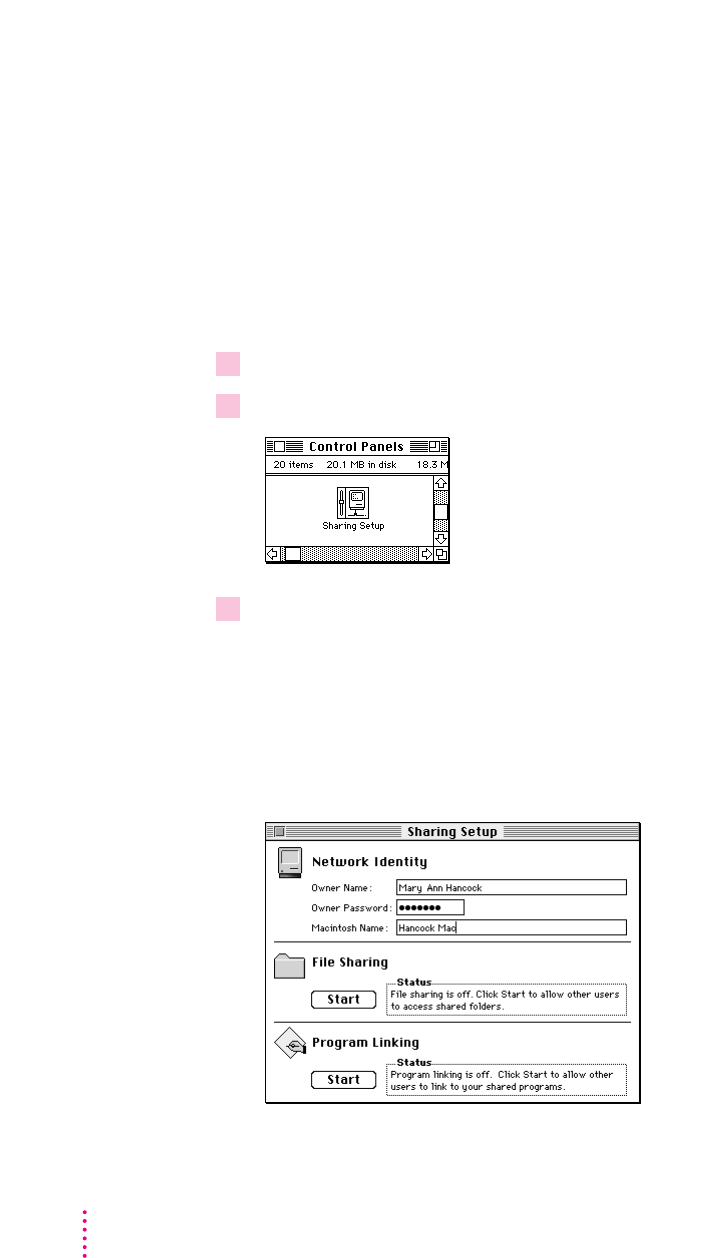
Step 3: Name your computer on the network
If you are on an AppleTalk network, the name of your computer appears in
the AppleTalk catalog, and people can send you mail at that “address” without
the need for a PowerShare server. If you name your computer clearly in the
Sharing Setup control panel, people can find your address more easily. Many
people use their own names in naming their computers (for example,
“Sarabeth Herman’s Macintosh”).
To check the name of your computer, follow these steps:
1Choose Control Panels from the Apple (
K
) menu.
2 Open Sharing Setup.
3Add any missing information, or change the current information by selecting and
retyping.
Make sure that the name in the Macintosh Name text field is accurate; this
information defines your network identity.
IMPORTANT
If you have more than one computer on the same network, be
certain that the computer names are different.
28 Chapter 4
4Close the Sharing Setup control panel by clicking its close box.
IMPORTANT
If you want to use your AppleTalk catalog and the network, be
sure that AppleTalk is turned on in the Chooser.
Turning off PowerTalk
To turn off collaboration services for an extended period, click the Off button
in the PowerTalk Setup control panel and restart your computer.
When you choose this option, collaboration services won’t be available at all
when you restart the computer. (Your Mailbox and Catalogs will not appear
on the desktop.) You’ll use this option when you know that you won’t be
needing PowerTalk services and accounts on a particular personal computer
for a while. You may also use it to save memory, since PowerTalk uses no
memory when it is turned off.
To turn PowerTalk back on, open the PowerTalk Setup control panel, and
click the On button. Then restart your computer.
29
Installing PowerTalk
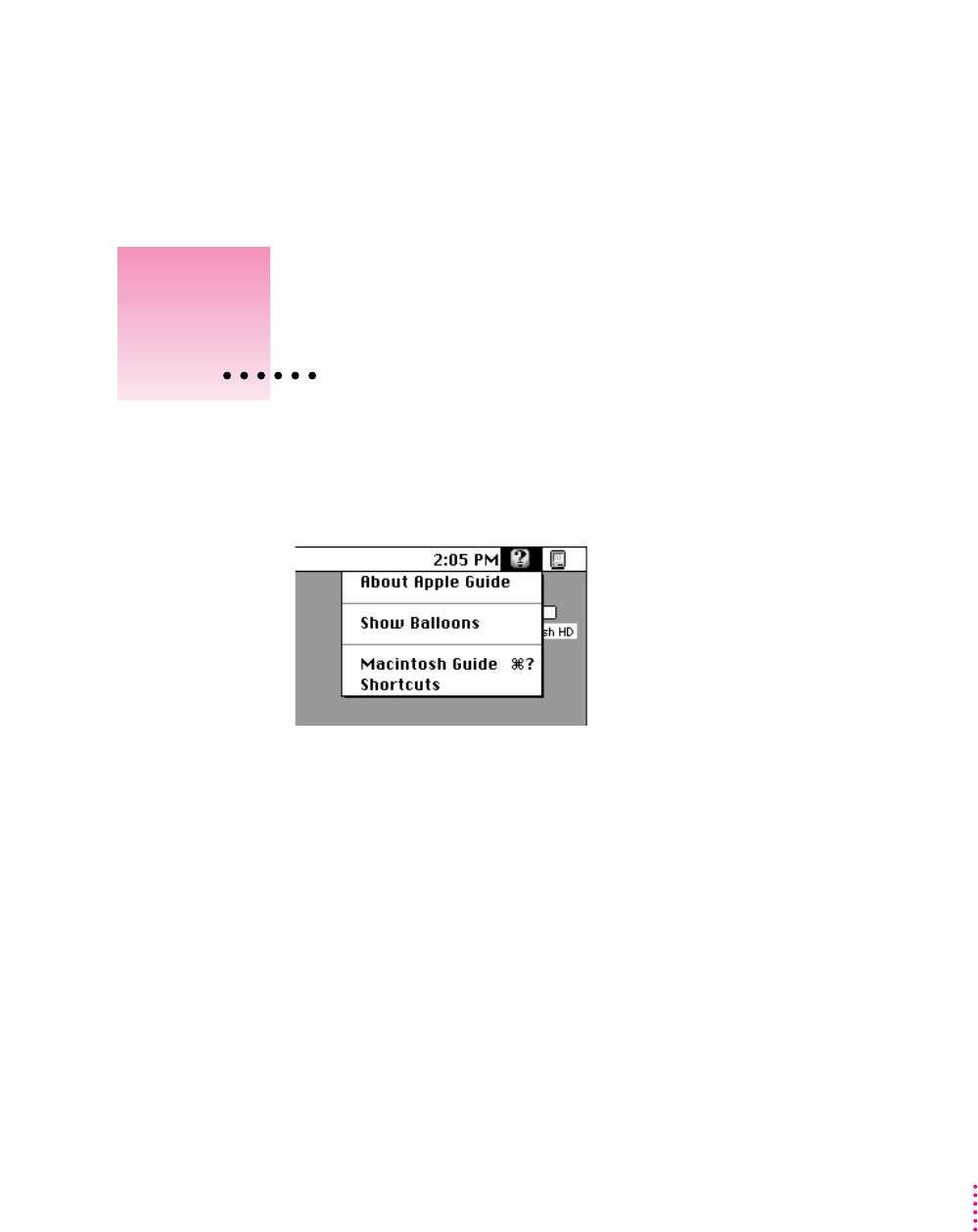
TheGuide menu is your main source of information when you’re working
with your computer. The menu is identified by a question mark (h) in the
upper-right corner of the screen.
Macintosh Guide provides step-by-step guidance for new or complex tasks.
When you request help from Macintosh Guide, it displays instructions on
your screen and walks you through a task one step at a time.
To use Macintosh Guide to get help, see instructions on the following pages.
31
5Getting Help
Getting answers to your questions
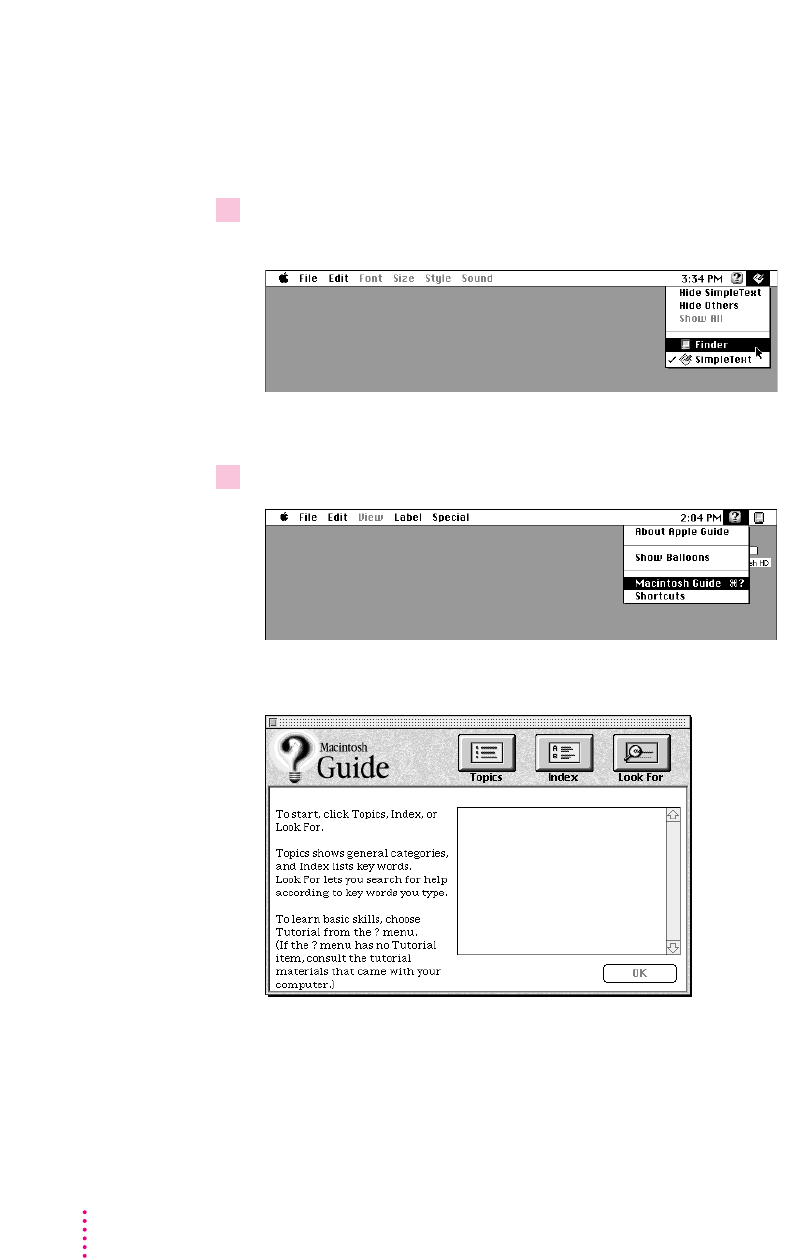
When you have a question while working with your computer, you can get the
answer by choosing Macintosh Guide from the Guide menu.
1Pull down the Application menu (in the upper-right corner of the screen) and choose
Finder to make it the active application program.
A checkmark in the menu indicates that the Finder is the active program.
2Pull down the Guide menu (marked with the
h
icon) and choose Macintosh Guide.
The Macintosh Guide window appears.
Whenever you use Macintosh Guide, its window remains in front of other
windows. If the window gets in your way, you can move it by dragging its
title bar (the gray bar across the top of the window).
32 Chapter 5
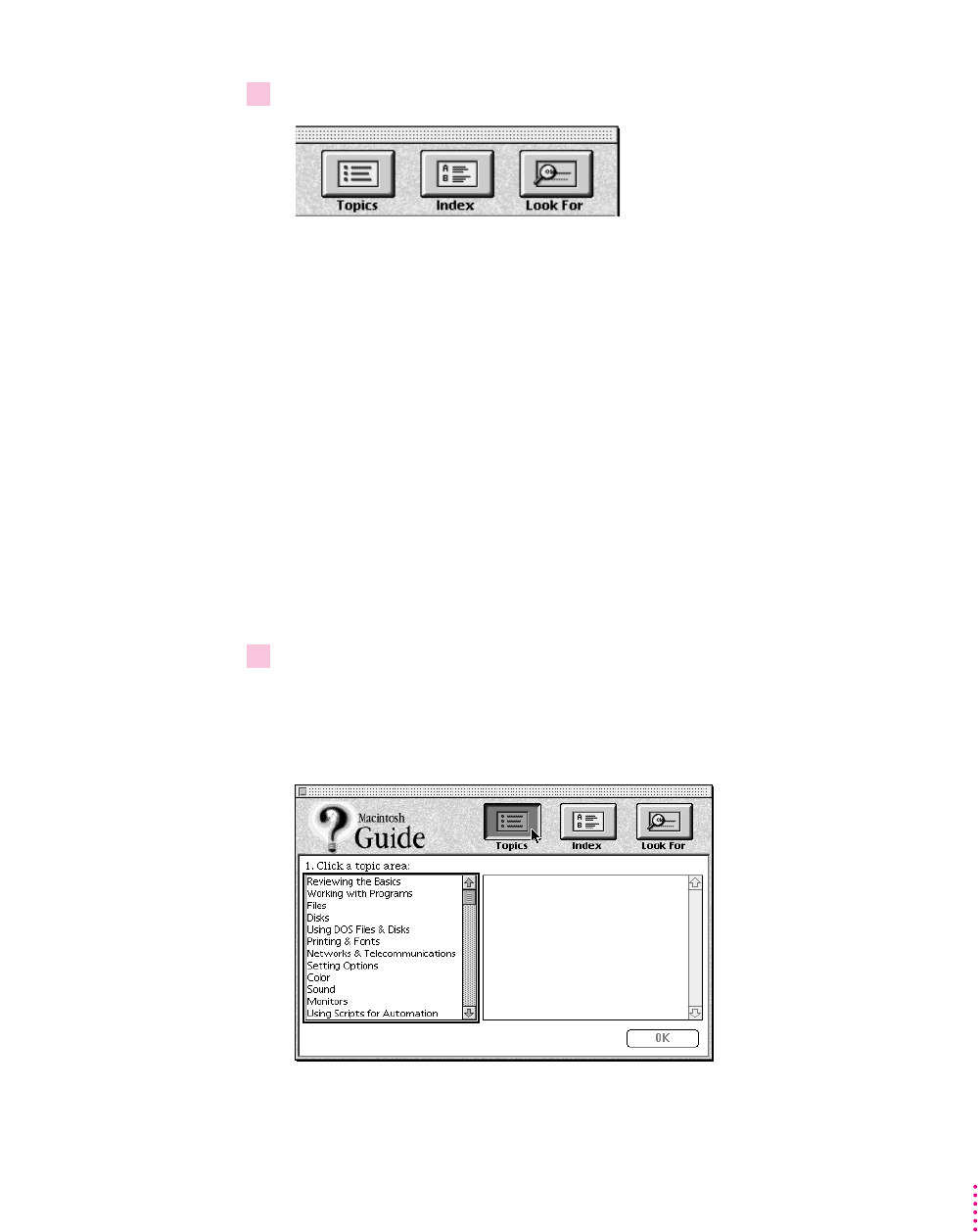
3Notice the three buttons at the top of the window: Topics, Index, and Look For.
Macintosh Guide gives you three ways to find information:
m
Topics
lets you choose from a list of general subjects; it is like the table of
contents in a book.
m
Index
lets you choose from an alphabetical list of more specific subjects; it
is like the index in a book.
m
Look For
lets you search for information related to a specific word or phrase
that you type.
In the following sections you will practice using each method.
If you have problems while using Macintosh Guide, see “Tips for Using
Macintosh Guide” later in this chapter.
Getting answers with the Topics button
1 In the Macintosh Guide window, click the Topics button.
A list of general topics appears on the left side of the Macintosh Guide
window. (Depending on what hardware and software you have, the list of
topics may look different.)
33
Getting Help
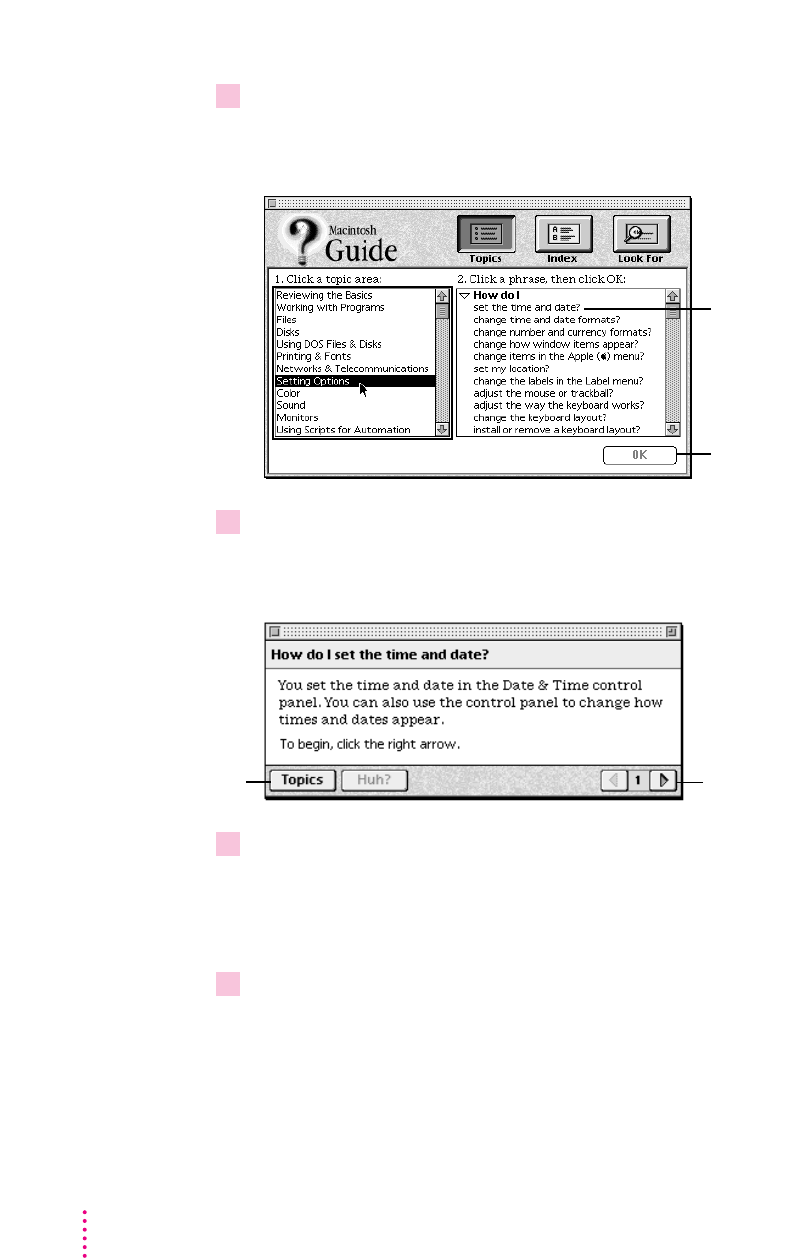
2Click “Setting Options” in the list of topics.
When you click any topic area, a list of related questions appears on the right
side of the Macintosh Guide window.
3Click the question “How do I set the time and date?” and then click OK. Or double-click
the question.
A small window appears with instructions for you to follow.
4 Read and follow the instructions in this window.
Macintosh Guide provides step-by-step instructions to answer the question
you selected. When you have completed each step, click the right arrow in the
lower-right corner to see the next step.
5When you have completed all the steps, click the Topics button in the lower-left corner to
return to the main Macintosh Guide window.
Now continue with the next section.
34 Chapter 5
Click here to see the next
step (if there is one).
To get instructions,
click a question…
…and then click OK.
If you want to
return to the main
Macintosh Guide
window, click here.
Getting answers with the Index button
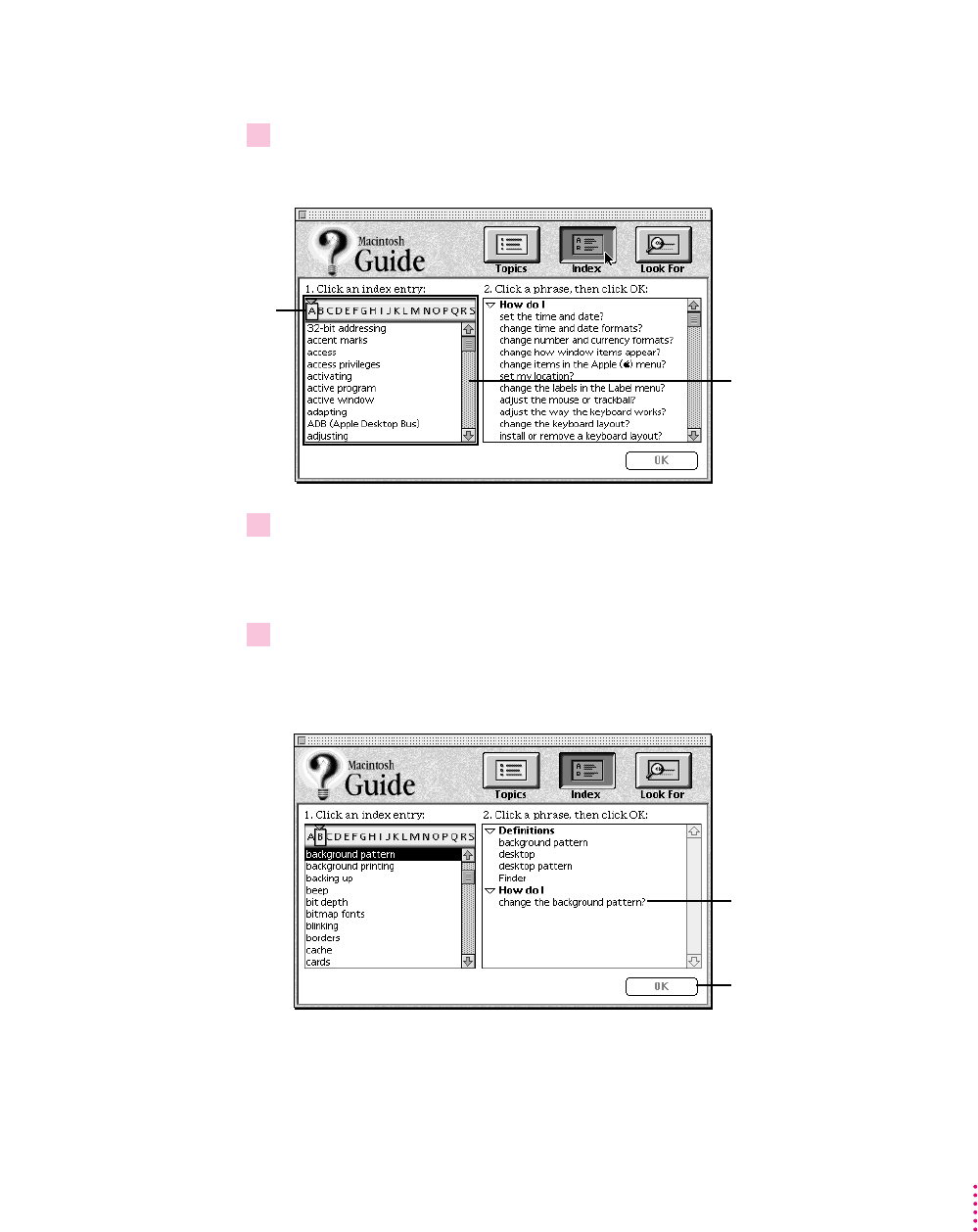
1 In the Macintosh Guide window, click the Index button.
An alphabetical list of subjects appears on the left side of the window.
2Scroll through the alphabetical list until the phrase “background pattern” is visible.
You can scroll through the list either by dragging the slider to the letter Bor
by using the scroll bar at the right of the list.
3Click the phrase “background pattern” in the alphabetical list.
When you click any index entry, a list of related questions appears on the
right side of the Macintosh Guide window.
35
Getting Help
Scroll bar
Slider
To get instructions,
click a question…
…and then click OK.

4Click the question “How do I change the background pattern?” and then click OK. Or
double-click the question.
A small window appears with instructions for you to follow.
5 Read and follow the instructions in the window.
Macintosh Guide provides step-by-step instructions to answer the question
you selected. When you have completed each step, click the right arrow in the
lower-right corner to see the next step.
6When you have completed all the steps, click the Topics button in the lower-left corner to
return to the main Macintosh Guide window.
Now continue with the next section.
36 Chapter 5
Click here to see the next
step (if there is one).
If you want to
return to the main
Macintosh Guide
window, click here.
Getting answers with the Look For button
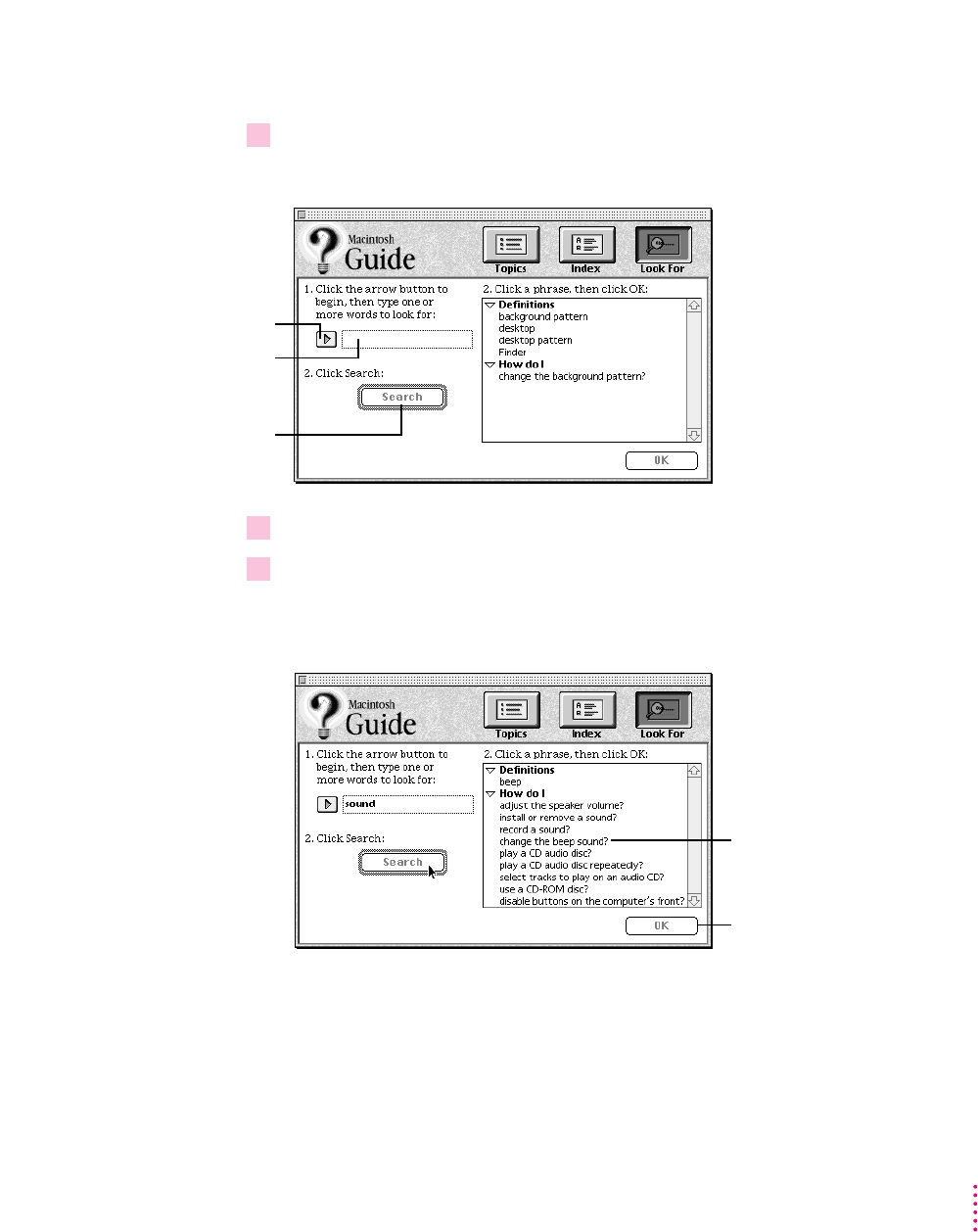
1 In the Macintosh Guide window, click the Look For button.
A small box appears on the left side of the window, where you can type text.
2 Click the arrow button to activate the text box.
3Type “sound” in the text box and then click Search.
When you click Search, a list of questions related to the word or phrase you
typed appears on the right side of the Macintosh Guide window.
37
Getting Help
To activate the text
box, click here.
Type a word or phrase
in the text box…
…and then click here.
To get instructions,
click a question…
…and then click OK.

4Click the question “How do I change the beep sound?” and then click OK. Or double-
click the question.
A small window appears with instructions for you to follow.
5 Read and follow the instructions in the window.
Macintosh Guide provides step-by-step instructions to answer the question
you selected. When you have completed each step, click the right arrow in the
lower-right corner to display the next step.
6When you have completed all the steps, click the close box in the upper-left corner to
close Macintosh Guide.
38 Chapter 5
If you want to close
Macintosh Guide,
click here.
Click here to see the next
step (if there is one).
Tips for using Macintosh Guide
Here are a few tips for using Macintosh Guide effectively:
mMacintosh Guide is available only when you are in the Finder—the
desktop area where you can see the icons of disks, folders, and files.
(Other programs may have their own on-screen “guides” available in
the Guide menu, however.) If you don’t see Macintosh Guide in the
Guide menu, pull down the Application menu (to the right of the
Guide menu) and choose Finder.
mFollow the steps when you’re instructed to; don’t skip ahead or read
ahead. That way the computer can check to make sure you’ve done
each step correctly.
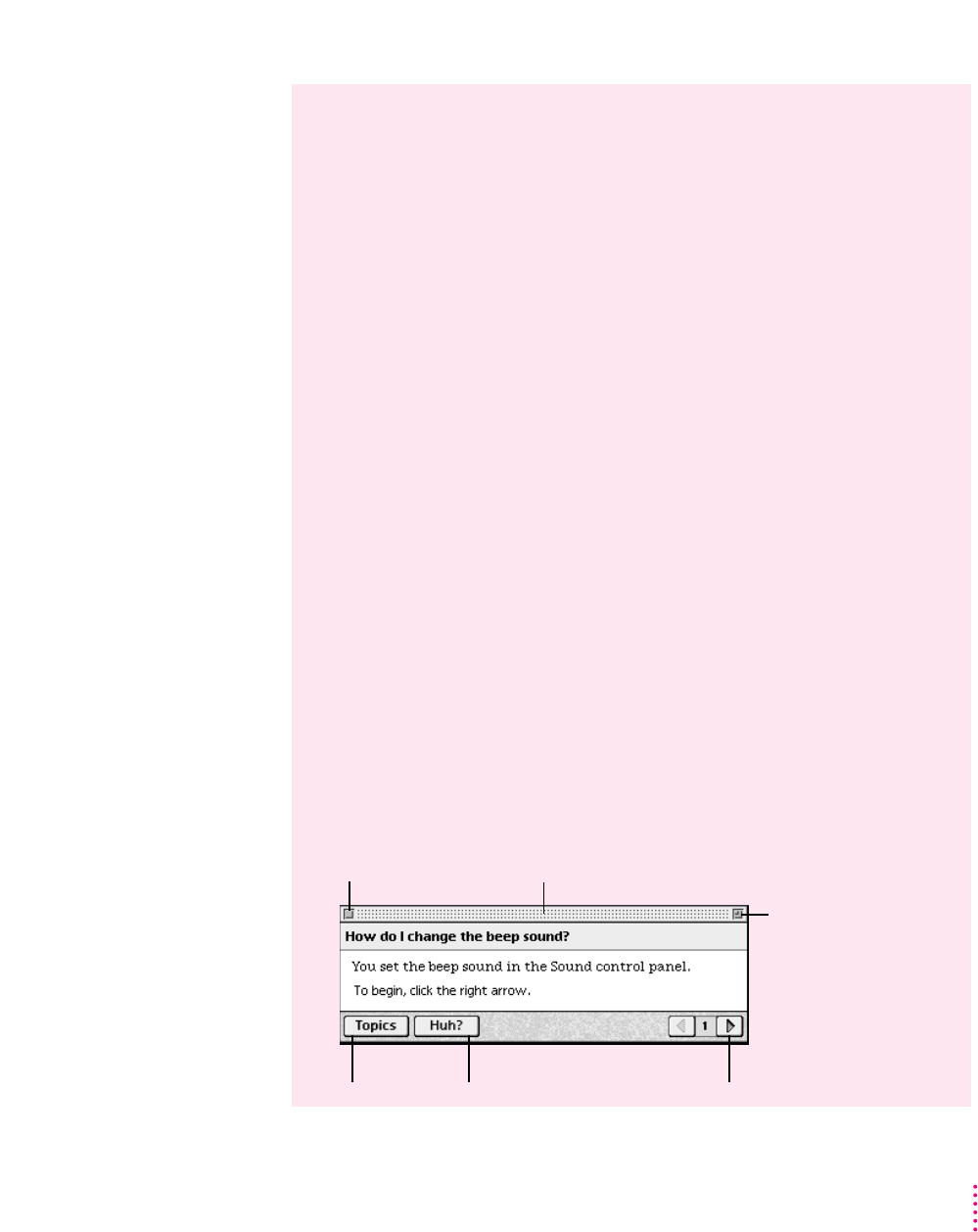
mUnlike most windows, the Macintosh Guide window stays in front of
other windows on the screen so that your instructions are never
covered. If you need to move the Guide window out of the way, drag
it by the title bar at the top of the window.
You can also move the window out of the way by clicking the zoom
box. Click the box once to shrink the window; click it a second time
to expand the window to its original size.
mIf you need more information about an instruction or a term, click
the button labeled “Huh?” to get further explanation. (The “Huh?”
button is dimmed when no additional information is available.)
mIf you want to return to the main Macintosh Guide window, click the
Topics button in the lower-left corner of the Guide window.
mWhen you’re finished using Macintosh Guide, click the close box in
the upper-left corner of the window.
39
Getting Help
Zoom box
Title bar
Close box
“Huh?” button
Topics button Right arrow
Identifying objects on the screen
Sometimes you’ll see an unfamiliar item on the screen and ask yourself,
“What’s that?” You can get an answer by using a Macintosh feature known as
Balloon Help.
Balloon Help explains the functions of icons, menus, commands, and other
items on the Macintosh screen in balloons like those you see in comic strips.
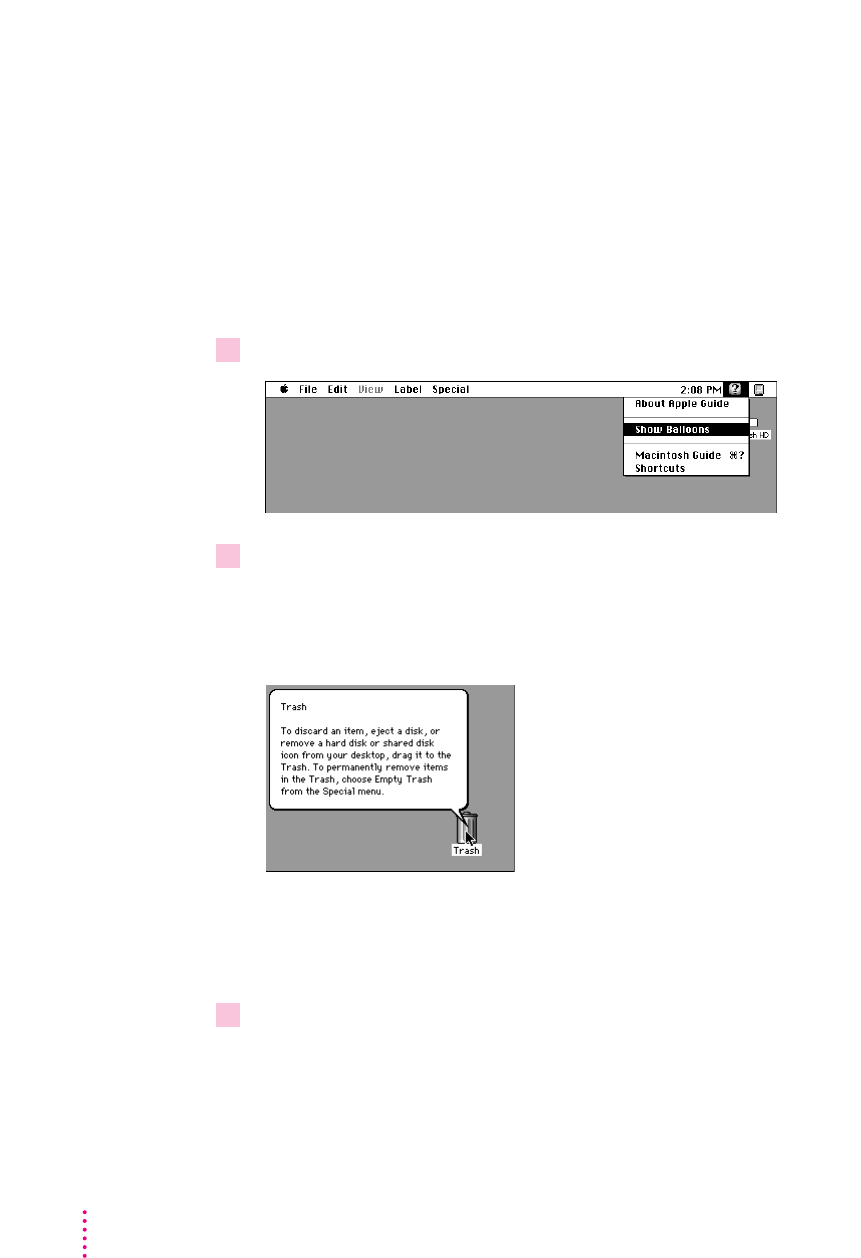
Follow these steps to use Balloon Help:
1Pull down the Guide menu (marked with the
h
icon) and choose Show Balloons.
2Point to any object on the screen that you want to identify.
A balloon appears next to the object. In the following illustration, for
example, pointing to the Trash displays a balloon that explains how to use the
Trash to throw items away.
Although balloons appear next to items when you point to them, the way
you work does not change; you can still select icons, choose commands, and
so on.
3When you’re finished using Balloon Help, choose Hide Balloons from the Guide menu.
40 Chapter 5
Learning useful shortcuts
You can perform many tasks in the Finder more quickly if you use keyboard
or mouse shortcuts. For example, instead of clicking an icon and choosing
Open from the File menu, you can simply double-click the icon to open it.
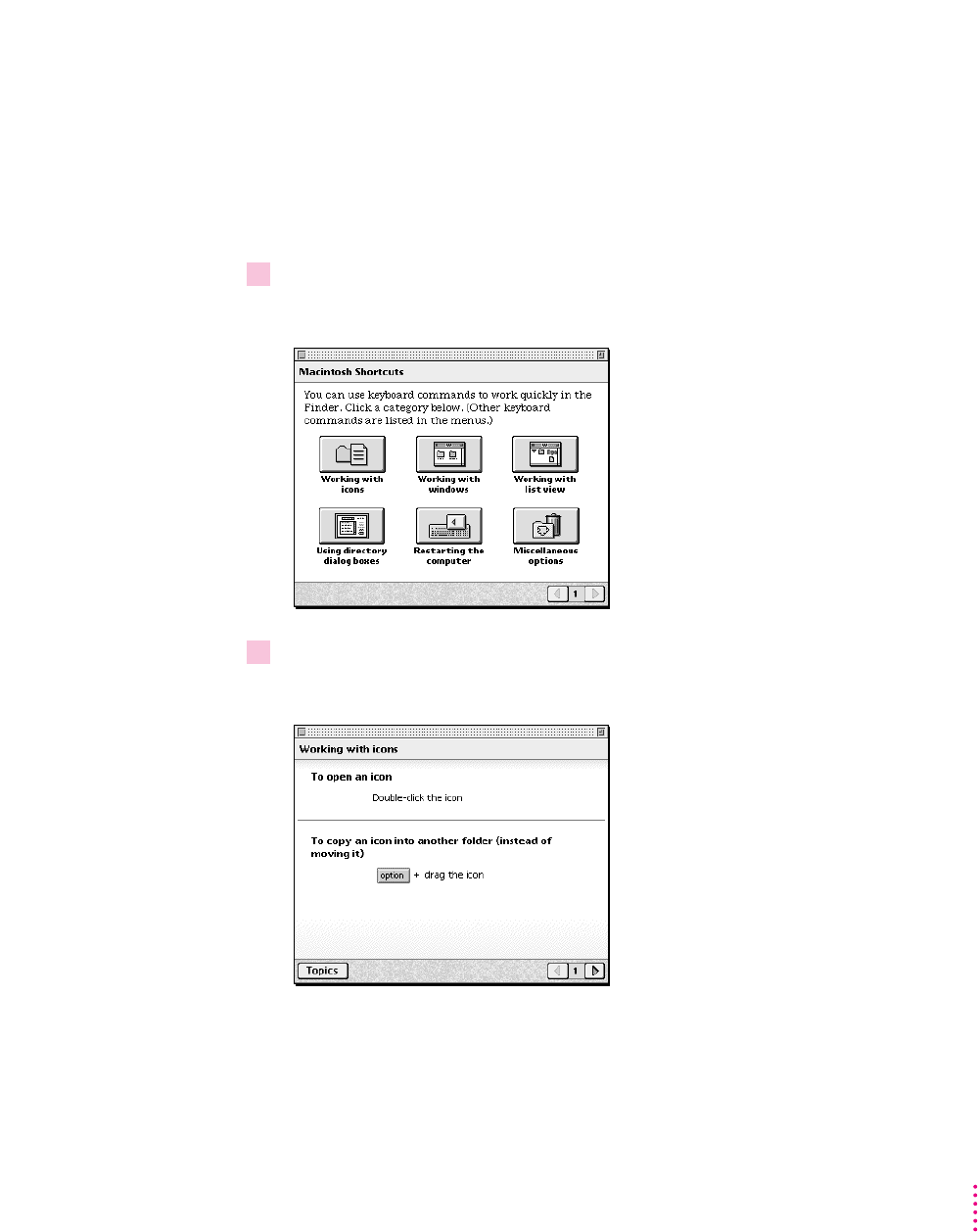
Follow these steps to learn keyboard and mouse shortcuts:
1Pull down the Guide menu (marked with the
h
icon) and choose Shortcuts.
The main Macintosh Shortcuts window appears.
2 Click one of the category buttons.
Another window appears, describing shortcuts for that category.
41
Getting Help

3 Read about the shortcuts available for the category you selected.
Click the right arrow in the lower-right corner of the window to display the
next window (if there is one).
4When you finish, click the Topics button in the lower-left corner to return to the main
Macintosh Shortcuts window.
Or click the close box in the upper-left corner to close the window.
42 Chapter 5

In addition to Macintosh Guide (described in Chapter 5), the Macintosh
System Software version 7.5 upgrade includes more than fifty new features
that enhance productivity and make it easier to work with others:
mbuilt-in compatibility with MS-DOS and Windows files and disks
mFinder enhancements, such as an improved Find File command, submenus
for the Apple menu, date and time display on the menu bar, electronic
stick-on notes, and more colorful screen patterns
mthe ability to automate tasks
menhancements that optimize PowerBook battery life and make mobile
computing easier
menhancements that make doing basic tasks easier
mother new features that provide energy savings, audio CD controls, and
TCP/IP networking support
mQuickDraw GX advanced printing and graphics architecture
mPowerTalk built-in mail and collaboration services
The following pages describe the new features.
43
6What’s New
Macintosh system software version 7.5
Compatibility with DOS and Windows files
Your Macintosh can open disks and files that are formatted for IBM-
compatible personal computers. You can exchange disks and documents with
DOS and Windows computers. Your computer can also initialize disks for
either the Macintosh or DOS computers.
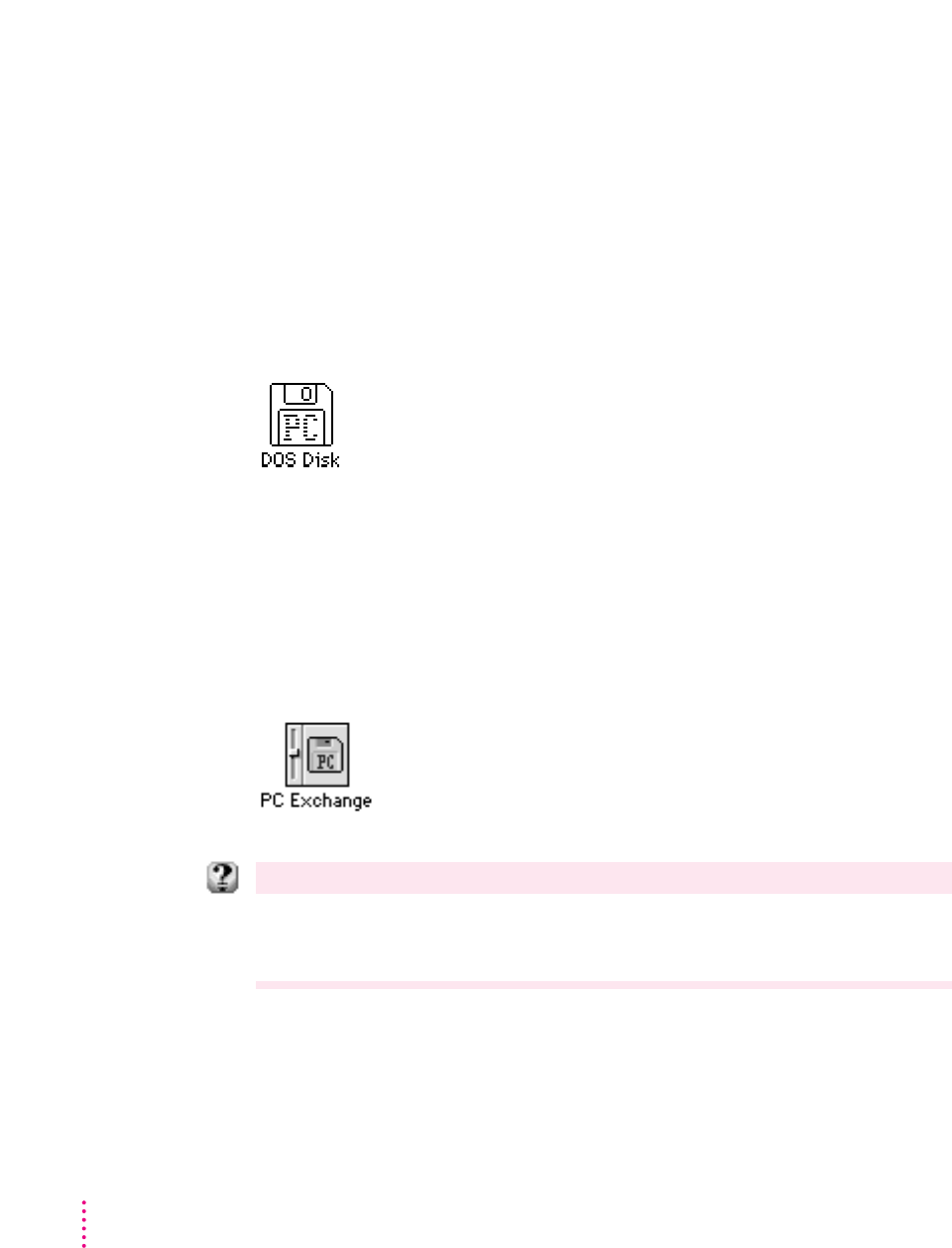
When you put a floppy disk formatted for an IBM-compatible personal
computer into your Macintosh, the disk’s icon on your screen says “PC.”
You can open the DOS disk just as you would open a Macintosh disk and
open files on the disk just as you open Macintosh files. Your computer uses
“translators” and your application programs to open documents created in
DOS applications.
To assign a Macintosh program to open each type of DOS file, open the
Apple (K) menu and choose Control Panels. Then open the PC Exchange
control panel.
For step-by-step help
Choose Macintosh Guide from the Guide menu (marked with the
h
icon) and see the items in the
“DOS files and disks” topic. For more information on control panel items, choose Show Balloons from
the Guide menu.
44 Chapter 6
Easy file opening
With Macintosh Easy Open, you can open most Macintosh, DOS, or
Windows files even if you don’t have the program that created the document.
Your computer uses “translators” and your programs to open documents
created in programs you do not have. For example, your computer uses a
translator and your word processor to open a document created in a word-
processing program that you do not have.
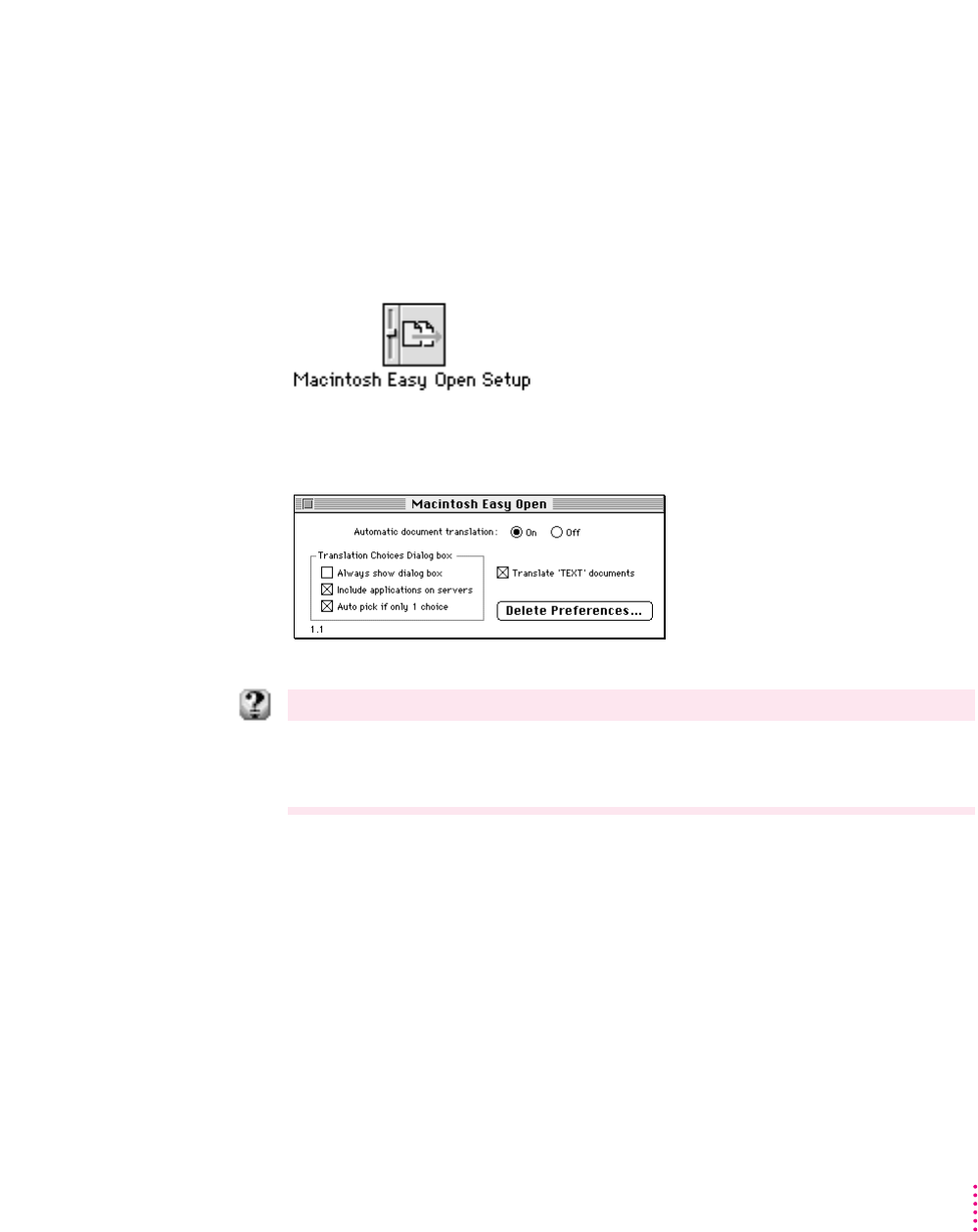
To set Easy Open options, open the Apple (K) menu and choose Control
Panels. Then open the Macintosh Easy Open Setup control panel.
For step-by-step help
Choose Macintosh Guide from the Guide menu (marked with the
h
icon) and click the Topics
button. Select the “Working with Programs” topic and see “How do I open an unknown item?” For
more information on control panel items, choose Show Balloons from the Guide menu.
45
What’s New
Macintosh Drag and Drop
You can move text, graphics, sounds, and QuickTime movies without using
copy and paste. With programs that support Macintosh drag and drop, you
can drag an item within a document or between two open documents.
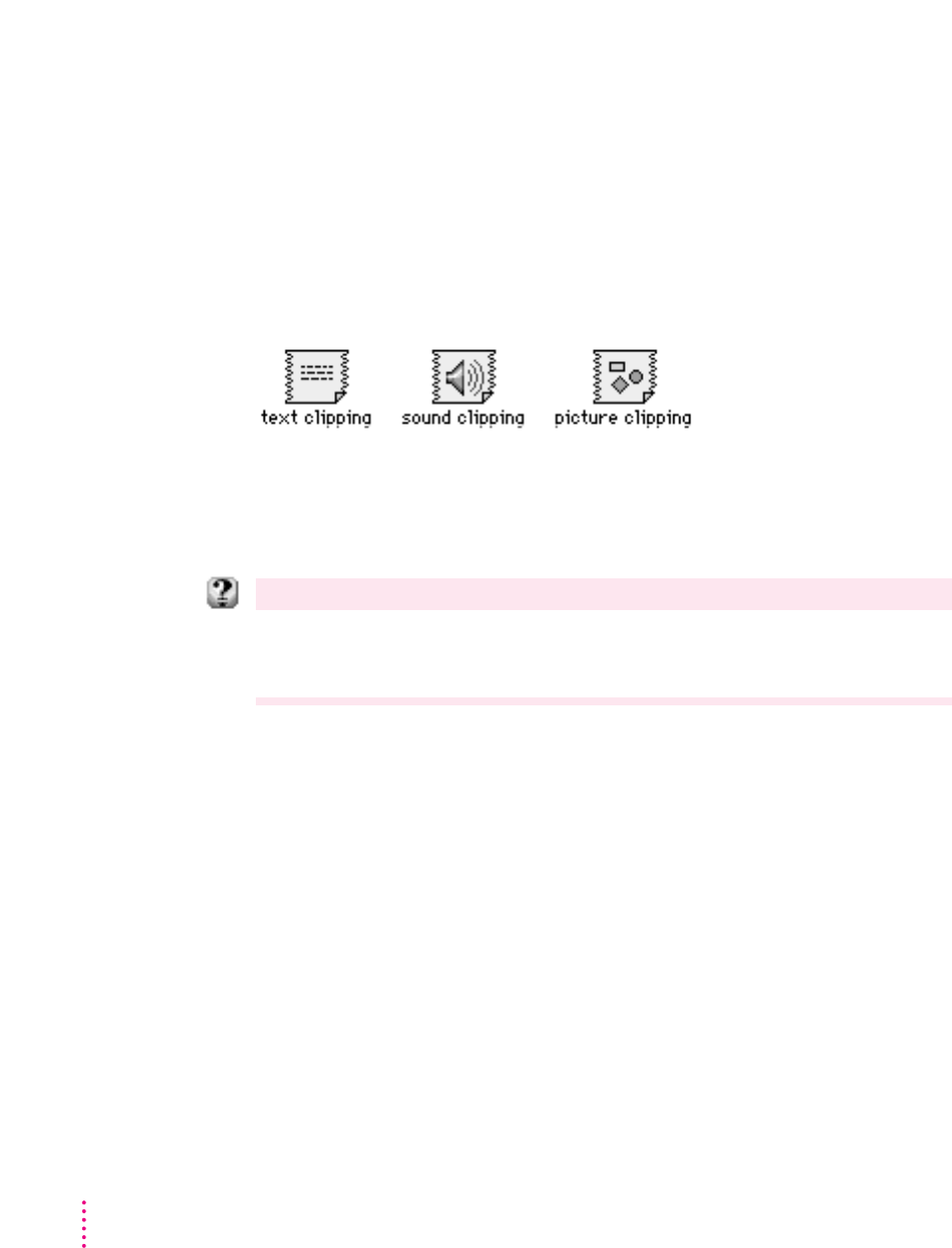
You can also drag an item from a document onto your screen to create a
“clipping.” A clipping is a file that can be dragged into another document
later. For example, you may save your business address as a clipping and drop
it into letters and other documents.
To use the drag-and-drop feature, select the item, then drag it to a new
location. You can practice using this feature with Note Pad, SimpleText,
Scrapbook, and Stickies.
For step-by-step help
Choose Macintosh Guide from the Guide menu (marked with the
h
icon) and click the Topics
button. Select the “Files and Disks” topic and see “How do I copy an item between programs?,” “How
do I copy an item?,” and “How do I use a clipping file?”
46 Chapter 6
Find File
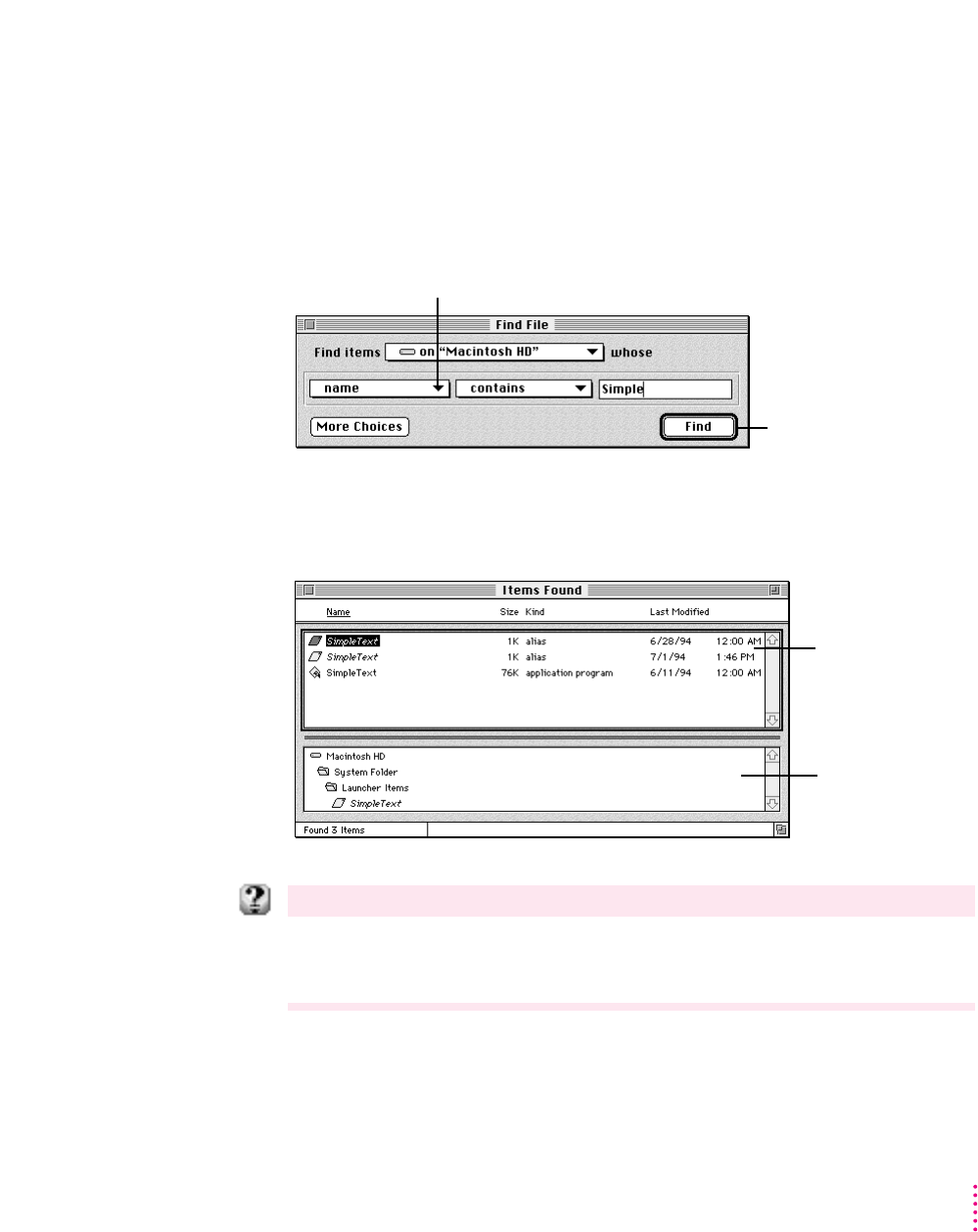
Find File lets you enter a list of specific search information to find a file. You
can look for the file based on information such as location, name, size, date
created or modified, and version.
To find an item, open the Apple (K) menu and choose Find File.
The list of the matching items appears in the Find File Results window. You
can work with items directly in this window. For example, you can move or
copy a file, open a folder, or get information on an item.
For step-by-step help
Choose Macintosh Guide from the Guide menu (marked with the
h
icon) and click the Topics
button. Select the “Files and Disks” topic and see “How do I find a file or folder?” For more
information on items in the Find File window, choose Show Balloons from the Guide menu.
47
What’s New
To begin the search,
click Find.
To choose search criteria, click the triangle and
choose from the pop-up menu.
The top of the window
shows the items
found.
The bottom of the
window shows where
to locate the item
selected at the top.
WindowShade
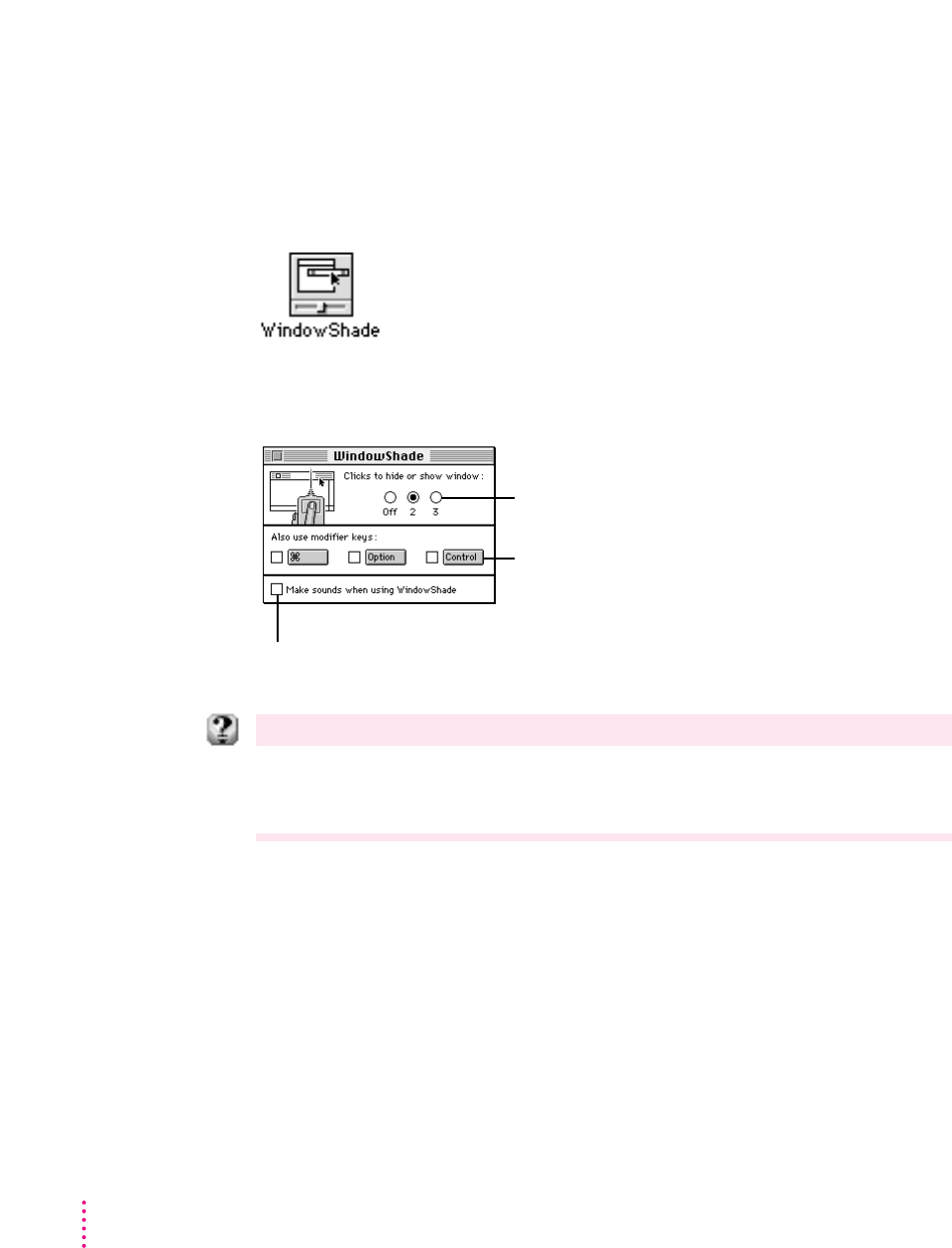
The WindowShade control panel lets you reduce screen clutter by shrinking
windows. You can shrink a window by clicking the title bar (you set the
number of clicks it takes to roll the window up). To show the full-size
window, you click the title bar again.
To turn WindowShade on and set options, open the Apple (K) menu and
choose Control Panels. Then open the WindowShade control panel.
For step-by-step help
Choose Macintosh Guide from the Guide menu (marked with the
h
icon) and click the Topics
button. Select the “Setting Options” topic and see “How do I adjust window shrinking?” For more
information on control panel items, choose Show Balloons from the Guide menu.
48 Chapter 6
To hear a sound when the window shrinks
and expands, click here to put an X in the box.
To require a modifier key (along with
mouse clicks) to close and open windows,
click to put an X in one of these boxes.
Click one of these buttons to turn the
WindowShade feature on or set the
number of clicks to shrink and expand windows.
Submenus for the Apple menu
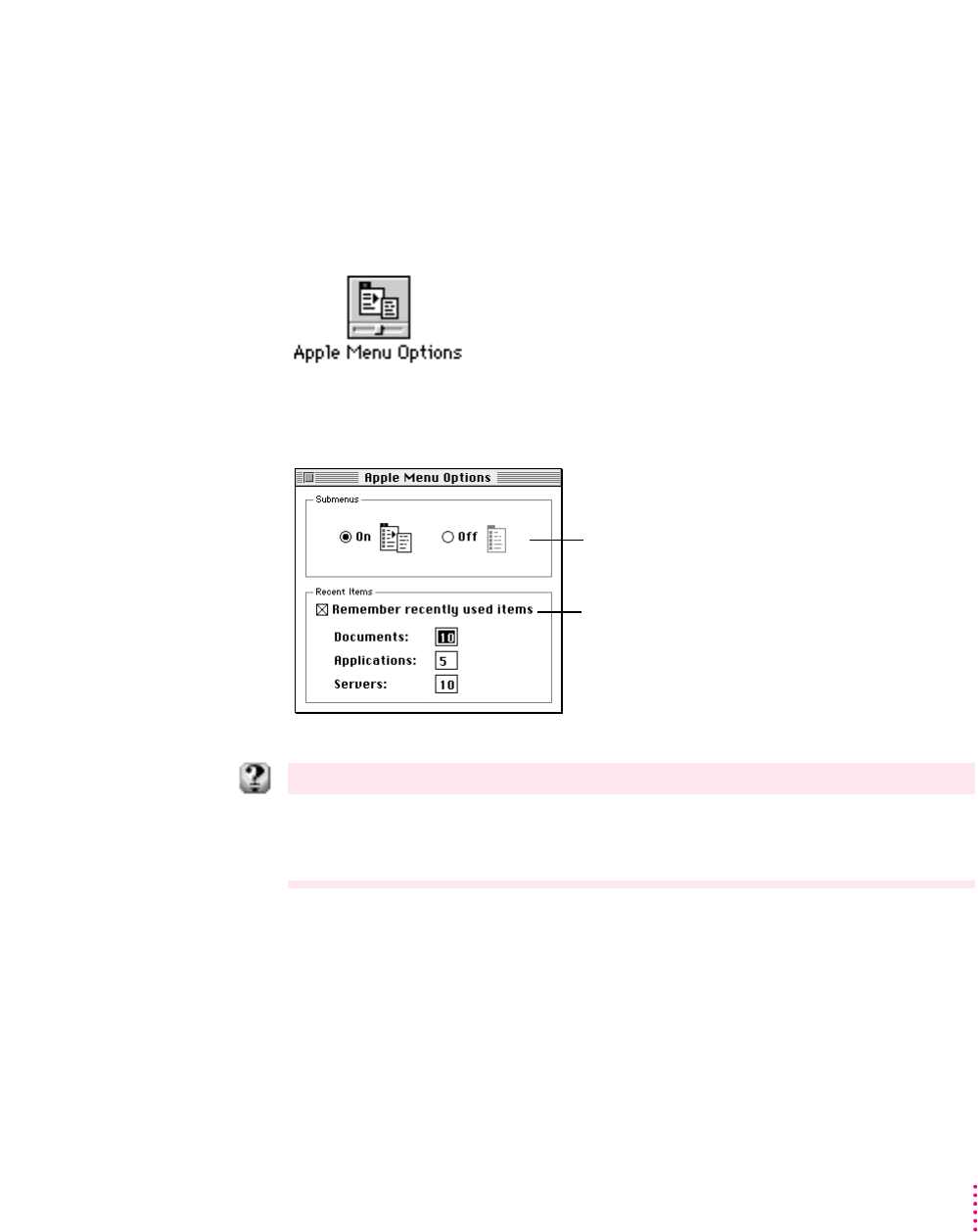
Apple Menu Options lets you quickly get to items you use frequently by
showing them in submenus in the Apple (K) menu. For example, if you put a
folder into the Apple menu, items inside the folder appear in a submenu. The
Apple menu also shows you the most recently used programs, documents, and
servers.
To set submenu options, open the Apple (K) menu and choose Control
Panels. Then open the Apple Menu Options control panel.
For step-by-step help
Choose Macintosh Guide from the Guide menu (marked with the
h
icon) and click the Topics
button. Select the “Setting Options” topic and see “How do I change items in the Apple (
K
) menu?”
For more information on control panel items, choose Show Balloons from the Guide menu.
49
What’s New
To turn the submenus off or on, click a button.
If you do not want to see recently used items
on the Apple menu, click the box to remove the X.
To change the number of documents, programs,
or servers that display on the Apple menu, type
the new number.
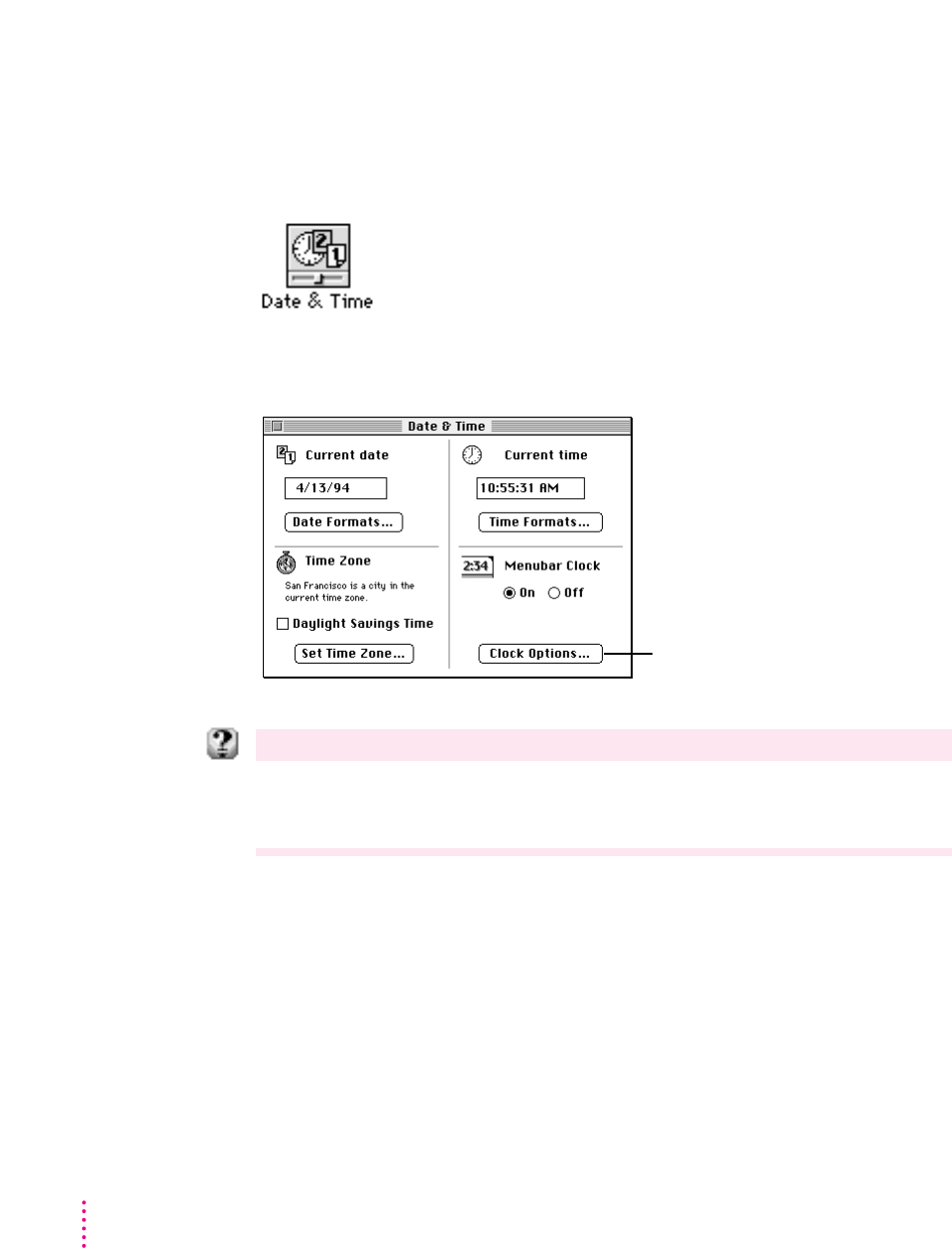
Date and time display
The time and date can be displayed on your menu bar. You use the Date and
Time control panel to change the way your clock looks, see the day of the
week, and turn on a chime.
To set clock options, open the Apple (K) menu and choose Control Panels.
Then open the Date and Time control panel and click Clock Options.
For step-by-step help
Choose Macintosh Guide from the Guide menu (marked with the
h
icon) and click the Topics
button. Select the “Setting Options” topic and see “How do I change time and date formats?” For
more information on control panel items, choose Show Balloons from the Guide menu.
50 Chapter 6
Click here to set options for
the clock on the menu bar.
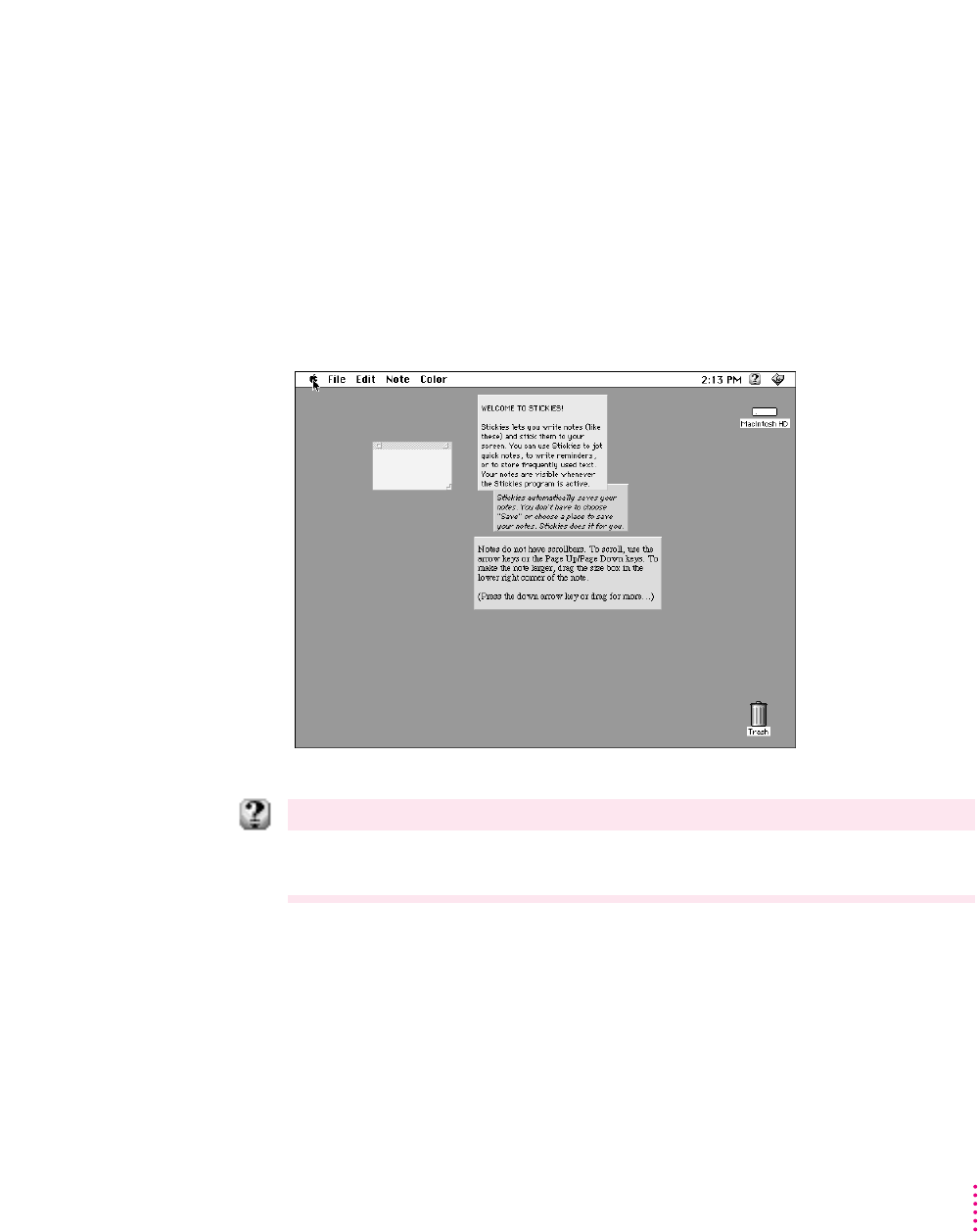
Stickies
You can create notes and “stick” them onto your screen. You can choose
colors for your notes, and use fonts and styled text.
To see your notes or to put a note on the screen, open the Apple (K) menu
and choose Stickies. To create a note, open the File menu and choose New
Note. Then type your note or drag in text from a document or clipping.
IMPORTANT
Stickies behave like windows, but do not have scroll bars. To
scroll, use the arrow keys on the keyboard.
For help
For information on menu items and items in the Stickies window, choose Show Balloons from the
Guide menu (marked with the
h
icon).
51
What’s New

Automating system tasks
The ability to automate routine or complex tasks is built into your Macintosh.
You can use the built-in Script Editor application program to automate tasks
in the Finder and in application programs that support AppleScript.
Using the Script Editor
The Script Editor is a program that lets you write “scripts” (or programs) that
automate a series of actions. Using the Script Editor’s “Watch Me” feature,
you can record actions to create a script.
To create your own scripts, use the Script Editor located in the AppleScript
folder (inside the Apple Extras folder) on your hard disk. For instructions, see
the user’s guide located in the AppleScript folder.
The Scriptable Finder and Automated Tasks
You can use AppleScript to automate system tasks in the Finder. Your system
includes sample scripts that automate Finder tasks, such as raising and
lowering the speaker volume. You can find the sample scripts in the Apple
Extras folder on your hard disk.
To try out one of the scripts, open the Apple (K) menu and choose
Automated Tasks.
For step-by-step help
Choose Macintosh Guide from the Guide menu (marked with the
h
icon) and see the items in the
“Using Scripts for Automation” topic. For more information about items on your screen, choose Show
Balloons from the Guide menu.
52 Chapter 6

SimpleText word processor
SimpleText is a built-in word processor that supports new Macintosh features
such as Macintosh drag and drop, fonts, text styling, and QuickDraw GX
printing. SimpleText reads TeachText documents and works much the same as
TeachText, but provides additional capabilities. For example, you can open
several SimpleText documents at once. You can also play QuickTime movies.
SimpleText has three new menus from which you can choose fonts, set
type size, and style text. If your computer supports sound recording, the
SimpleText Sound menu lets you record a sound and add it to a document.
If PlainTalk is installed on your Macintosh, SimpleText can speak the text
you type.
For help
For information about SimpleText menu items, choose Show Balloons from the Guide menu (marked
with the
h
icon).
53
What’s New
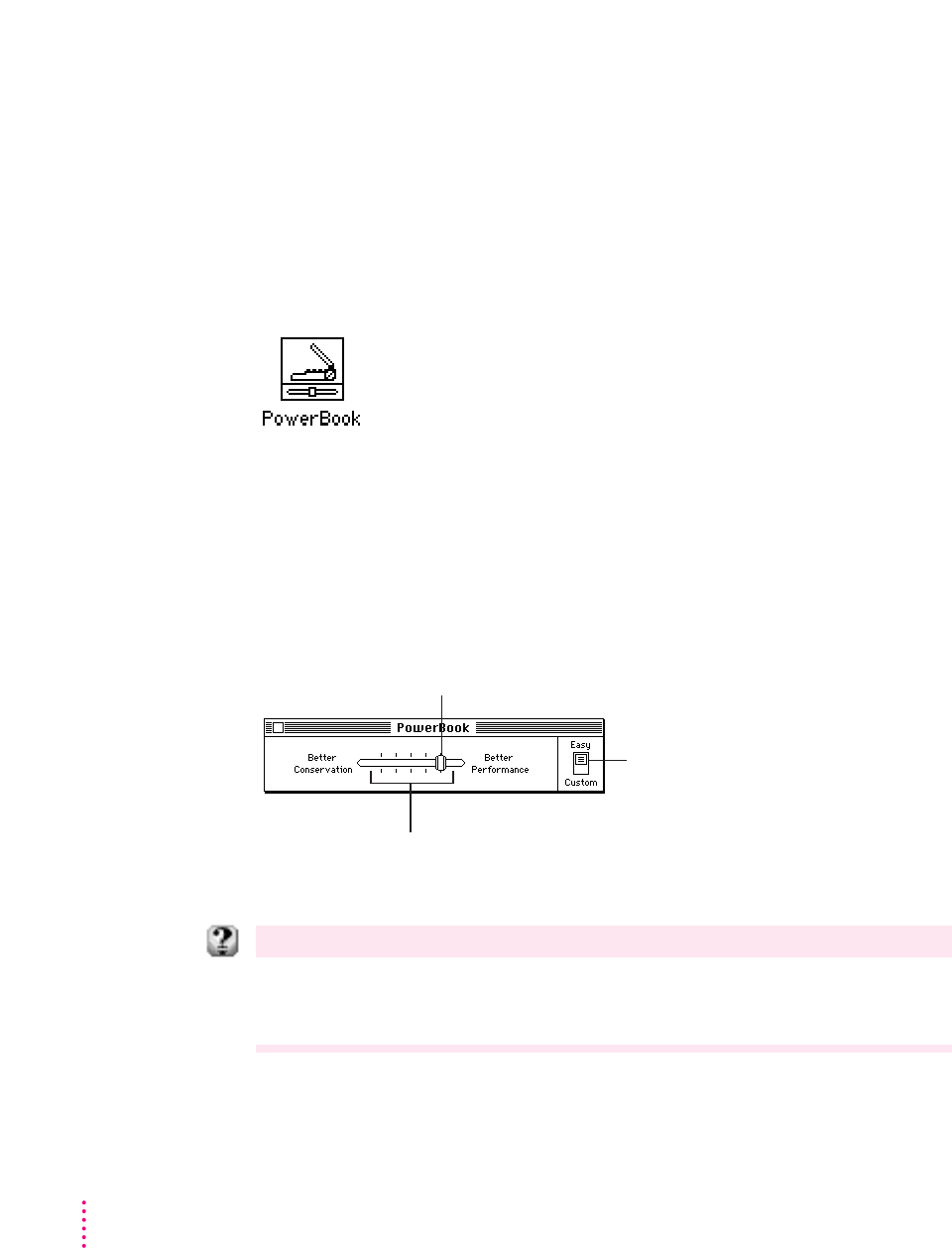
Mobile computing
PowerBook battery management
The PowerBook control panel combines all battery management settings into
one control panel. You can control power consumption with a single control
using Easy view, or you can set individual options using Custom view.
To set battery options, open the Apple (K) menu and choose Control Panels.
Then open the PowerBook control panel.
In Easy view, you use the battery conservation slider to control your
computer’s power consumption in one step. If you can’t plug in the computer,
Better Conservation gives you longer work time. Better Performance allows
you to work with the fewest interruptions.
Your computer automatically uses the Better Conservation setting when it is
unplugged. When you plug the computer in, the slider moves to the Better
Performance setting.
For step-by-step help
Choose Macintosh Guide from the Guide menu (marked with the
h
icon) and see the items in the
“Batteries and Power” topic. For more information about items on your screen, choose Show
Balloons from the Guide menu.
54 Chapter 6
The settings in the Battery Conservation slider indicate
the time it takes for your computer to go to sleep, the
screen to dim, and the hard disk to spin down.
Battery conservation slider
To set individual options, slide this switch
to Custom view.

55
What’s New
PowerBook Control Strip
When you first turn on your PowerBook, a line of small pictures appears in
the lower left of the screen. This is called the Control Strip.
The Control Strip may look slightly different depending on the options on
your PowerBook.
The Control Strip gives you an easy way to access the features you use most
often. You can still use the control panels anytime to fine-tune your settings.
For example, you can use the Control Strip to monitor the battery charge level
and the amount of work time left on your battery. You can also turn off
AppleTalk, File Sharing, and Sound Volume to conserve battery life.
For step-by-step help
Choose Macintosh Guide from the Guide menu (marked with the
h
icon) and see the items in the
“Control Strip” topic. For more information about each module in the Control Strip, choose Show
Balloons from the Guide menu. Then point to the modules one at a time.
PowerBook file synchronizer
The PowerBook File Assistant automatically synchronizes files between
PowerBook computers and other Macintosh systems. The File Assistant keeps
any two files, folders, or disks synchronized—locally, over a network, or using
a floppy disk.
For step-by-step help
Choose Macintosh Guide from the Guide menu (marked with the
h
icon) and click the Topics
button. Select the “Files” topic and see “How do I synchronize a file on two computers?” For more
information about items on your screen, choose Show Balloons from the Guide menu.
Scroll arrows let you view
Control Strip modules
that are not visible.
File Sharing
on/off switch
Power
Settings
Sound
Volume
Video
Mirroring
Tab
Sleep
Now
Battery Monitor
and time left
HD Spin
Down
Scroll
Arrow
Close box
AppleTalk
on/off switch

Other PowerBook features
Your Macintosh has other features to make mobile computing with your
PowerBook easier and faster:
mSend documents to print automatically the next time you connect your
PowerBook to a printer.
mSend replies to electronic mail automatically the next time you connect
your PowerBook to a network.
mPut your PowerBook to sleep by holding down the Shift, x(Command),
and 0 (zero) keys at the same time.
mSpin down the hard disk by holding down the Shift, Control, x
(Command), and 0 (zero) keys at the same time.
mAutomatically reconnect to hard disks and servers when your computer
wakes from sleep mode.
mSave battery power by using the persistent RAM disk instead of the hard
disk. Files in the RAM disk are saved to the System Folder on the hard disk
when you shut down your PowerBook. The next time you start up, the files
are automatically copied back to the RAM disk.
For step-by-step help
Choose Macintosh Guide from the Guide menu (marked with the
h
icon) and see the items in the
“Batteries and Power” topic. For more information about items on your screen, choose Show
Balloons from the Guide menu.
56 Chapter 6
Simplifying basic tasks
You can customize your Macintosh for novice users (such as less experienced
users and children) or those who use the Macintosh for only a few specific
tasks:
mProvide a way to find and launch application programs easily.
mMake it easier to keep track of documents by saving them in a Documents
folder on the desktop.
mHide the desktop (Finder) items while you work in an application program.
mProtect the programs that operate the computer from being removed or
renamed.
One-step program launching
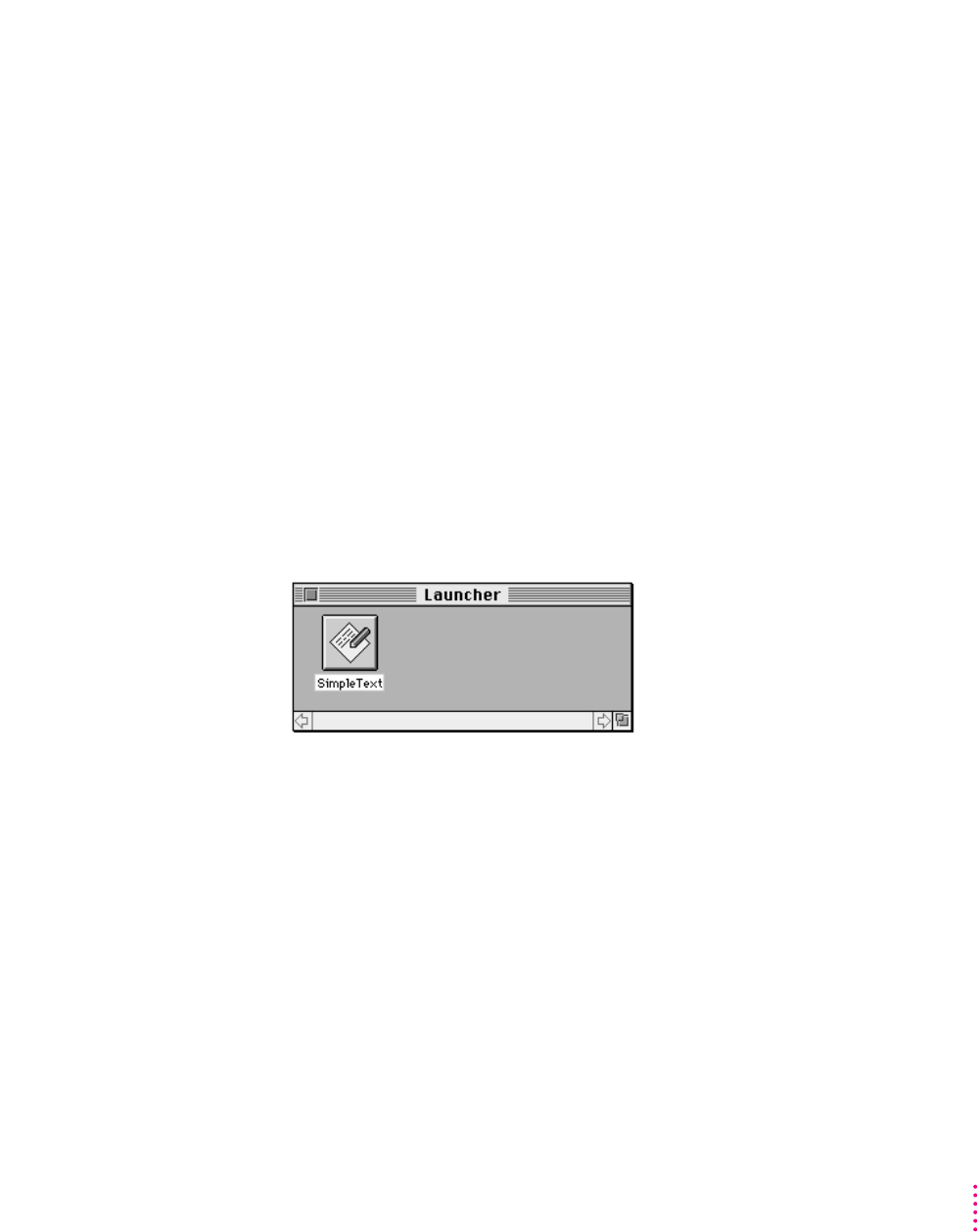
You can use the “Launcher” to provide easy access to application programs.
The Launcher is a special window that contains “buttons” that open programs
with one click. When the Launcher window is open, it appears in the lower-
left corner of your desktop.
To open the Launcher window, open the Apple (K) menu and choose Control
Panels. Then choose Launcher.
57
What’s New
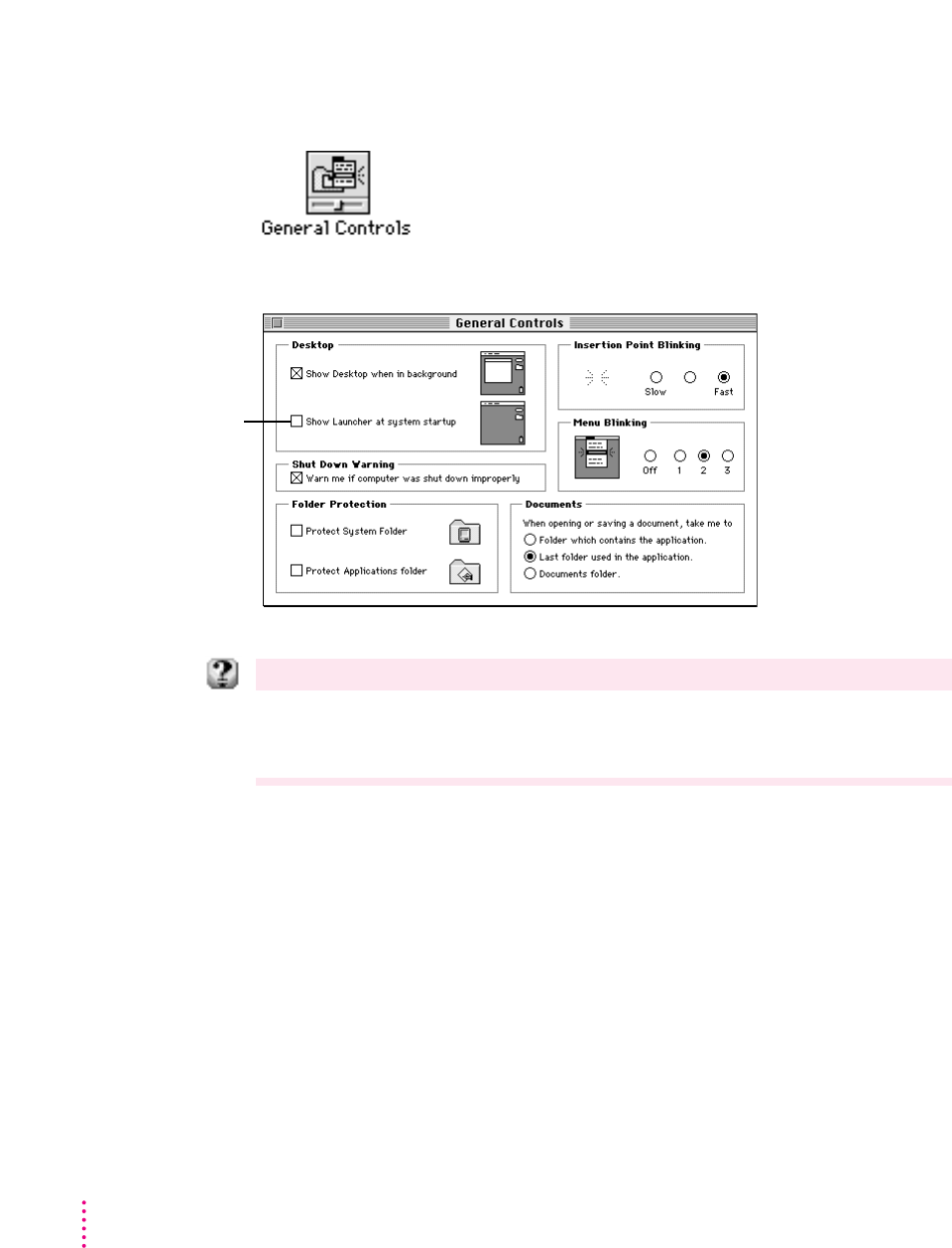
To automatically open the Launcher when the computer starts up, open the
Apple (K) menu and choose Control Panels. Then choose General Controls.
Opening the Launcher at startup is one of the Desktop options.
For step-by-step help
Choose Macintosh Guide from the Guide menu (marked with the
h
icon) and click the Index button.
See the items for the index term “Launcher.” For information about items in the control panel, choose
Show Balloons from the Guide menu.
58 Chapter 6
To automatically
show the Launcher
when your computer
starts up, click here to
put an X in the box.
The picture on the
right shows what your
desktop looks like
based on your choice.
Documents folder
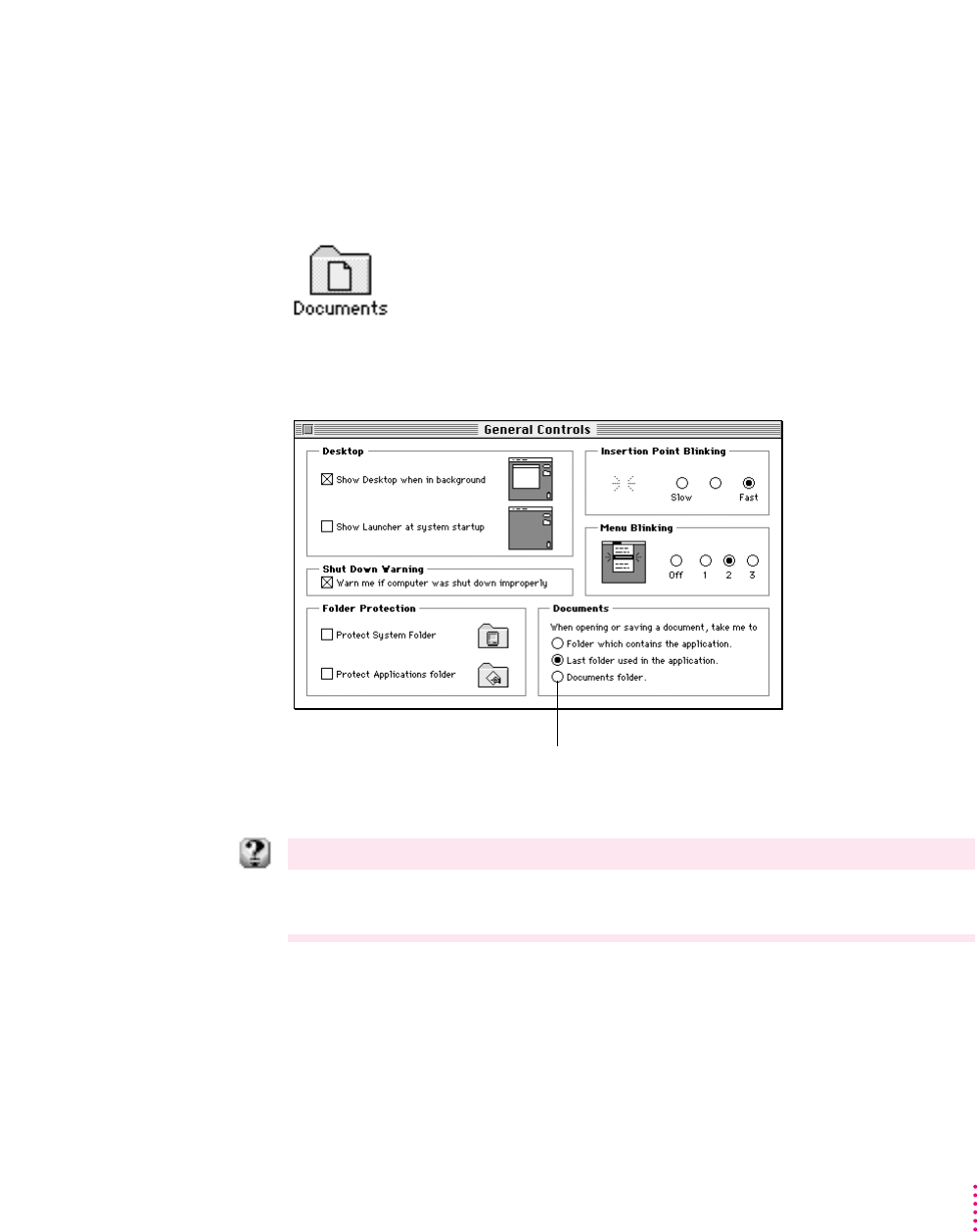
You can make documents easy to find by automatically saving them in a
Documents folder on the desktop. When the option is set, the Documents
folder is the default location for saving and opening all files, no matter what
programs created the files.
To set up the Documents folder, open the Apple (K) menu and choose
Control Panels. Then choose General Controls.
For help
For information about items in the control panel, choose Show Balloons from the Guide menu
(marked with the
h
icon).
59
What’s New
To create a Documents folder on your desktop
and use it as the default location for saving and
opening documents, click this button.
Finder hiding
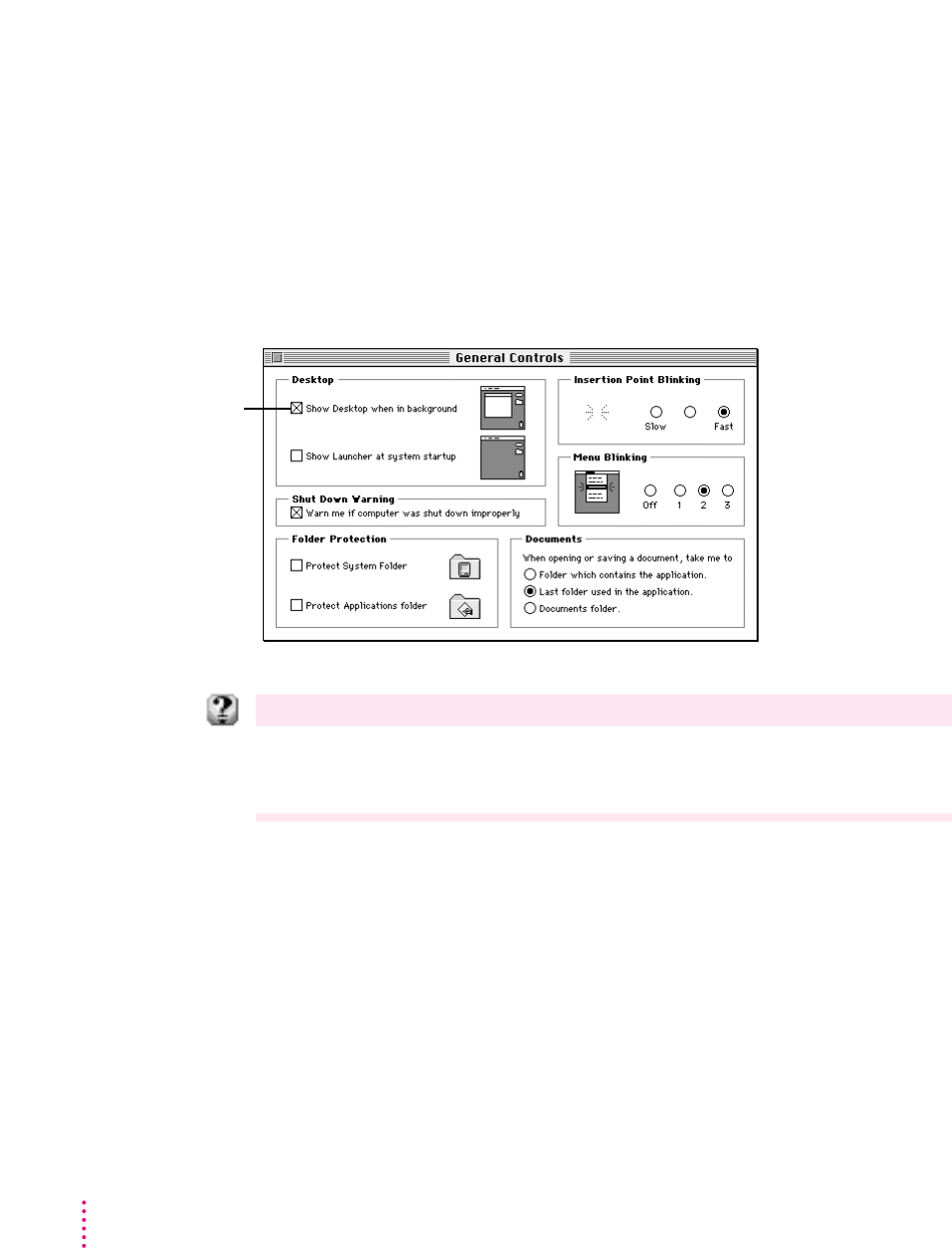
You can hide the Finder whenever a program is open. Hiding the Finder
prevents you from accidentally leaving a program in which you are working
(and going to the Finder) by clicking outside the program window. Finder
items on your screen—such as the hard disk, Trash, and folders—are hidden
until you close the program.
To set the Finder-hiding option, open the Apple (K) menu and choose Control
Panels. Then choose General Controls.
For step-by-step help
Choose Macintosh Guide from the Guide menu (marked with the
h
icon) and click the Index button.
Select the index term “Finder” and see “How do I avoid switching out of a program?” For information
about items in the control panel, choose Show Balloons from the Guide menu.
60 Chapter 6
To hide the Finder
when it is in the
background, click
here to remove the X.
The picture on the
right shows what your
desktop looks like
based on your choice.
Software protection
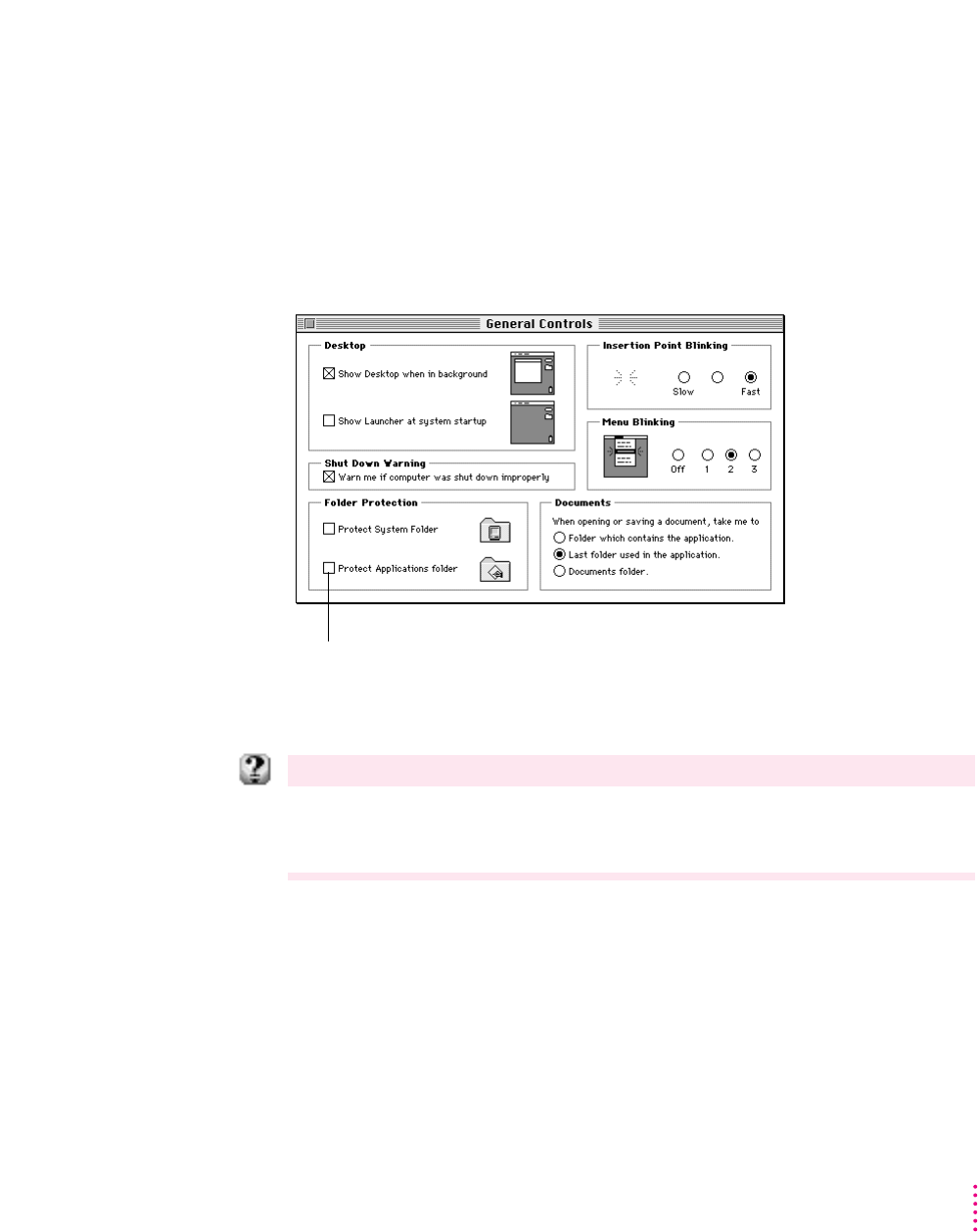
You can protect the software programs that make your computer operate.
The General Controls control panel lets you lock your System Folder and
Applications folder. When the folders are protected, items inside cannot be
removed or renamed. You can still add items to these folders.
To protect the items in your System Folder and Applications folder, open the
Apple (K) menu and choose Control Panels. Then choose General Controls.
For step-by-step help
Choose Macintosh Guide from the Guide menu (marked with the
h
icon) and click the Index button.
Select the index term “protecting files” and see “How do I protect a file or disk?” For information
about items in the control panel, choose Show Balloons from the Guide menu.
61
What’s New
To keep items in your System Folder from being renamed or
removed, click to put an X in the box. To automatically create an
Applications folder and keep items in it from being renamed or
removed, click to put an X in the box.
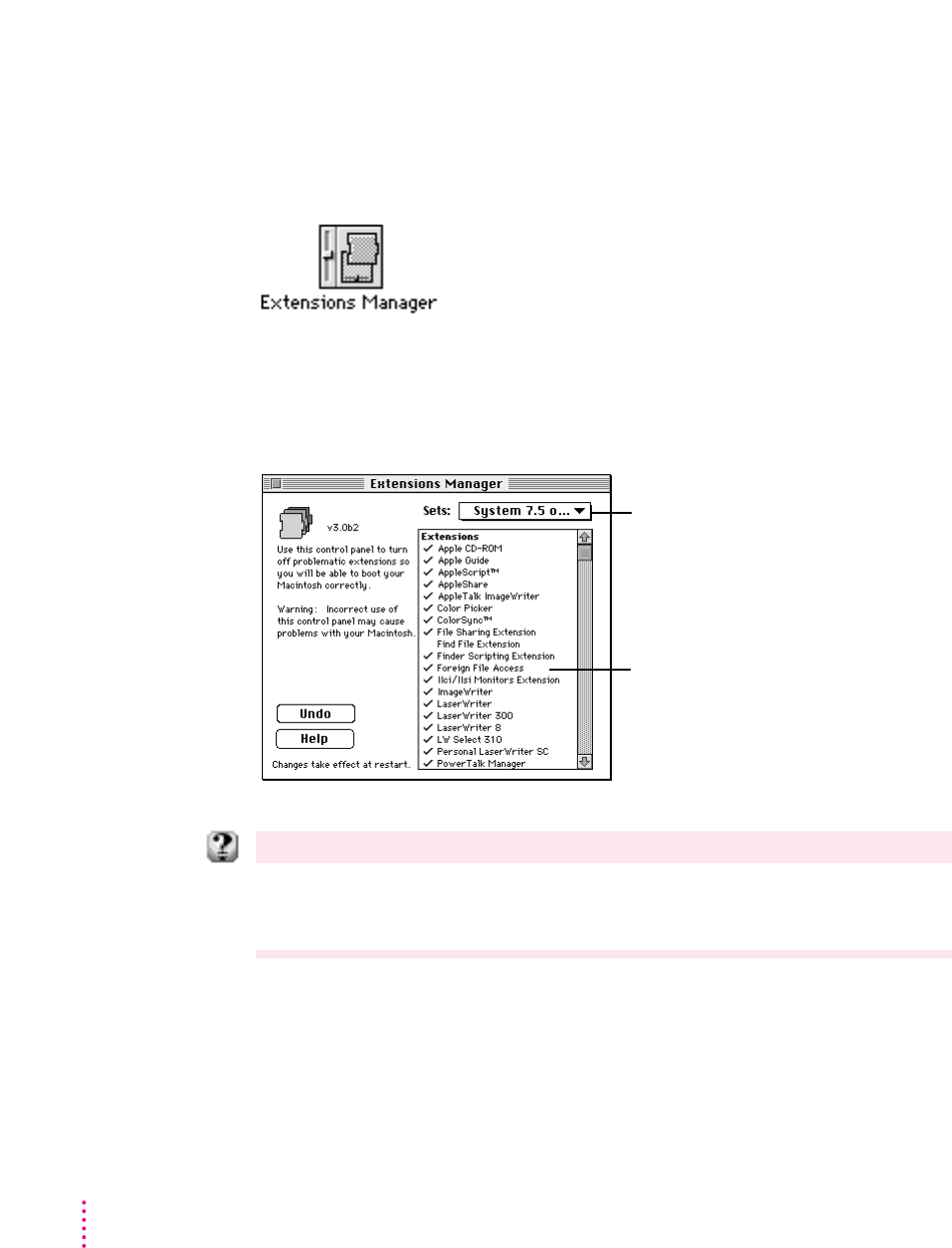
Extensions Manager
The Extensions Manager control panel lets you turn on or off startup
programs (also known as system extensions and control panels). You can also
use the Extensions Manager to switch between sets of extensions.
To use the Extensions Manager during startup, hold down the Space bar as
you start up the computer. The control panel opens during startup to allow
you to turn extensions on or off. When you close the Extensions Manager,
your computer resumes starting up and loads the extensions you selected.
For step-by-step help
Choose Macintosh Guide from the Guide menu (marked with the
h
icon) and click the Topics
button. Select the topic “Setting Options” and see “How do I manage System Folder extensions?”
For information about items in the control panel, choose Show Balloons from the Guide menu.
62 Chapter 6
To turn off an extension (prevent it
from loading), click it to remove the
check. To allow the extension to load,
click it again to put a check beside it.
Grouping extensions into sets allows
you to turn them on or off as a group.
If you think you have a problem with
incompatible items, open this menu
and choose “System 7.5 only.”
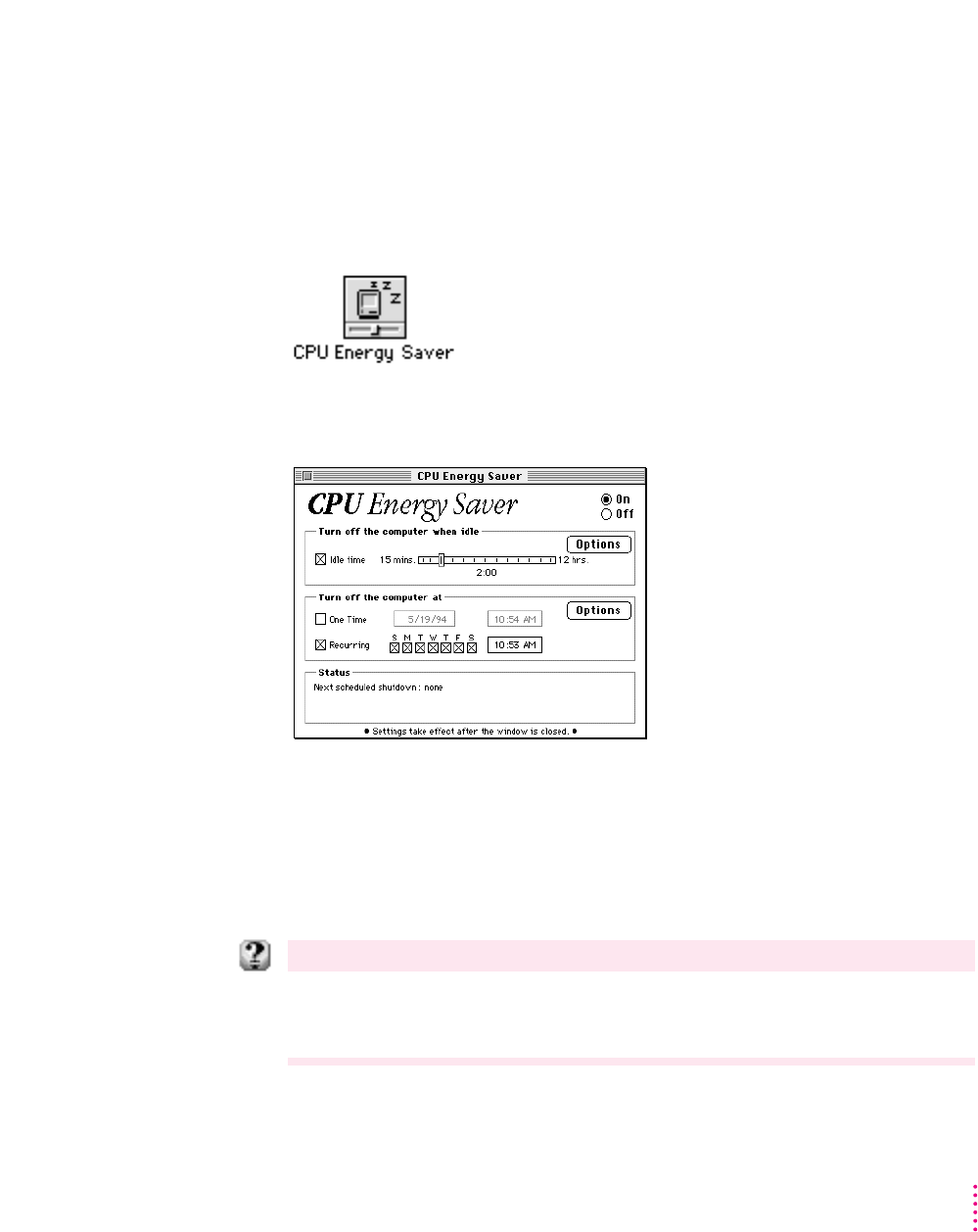
Automatic power off
If your Macintosh allows you to turn the power on and off with the keyboard
(Centris, Quadra, and later models), you can use the CPU Energy Saver to
shut down the computer automatically. You can set the computer to shut down
when it is idle for a specified amount of time or at a specific time of day on
one or more days of the week.
To set options, open the Apple (K) menu and choose Control Panels. Then
choose the CPU Energy Saver control panel.
You can also specify conditions that stop the computer from automatically
shutting down. The options prevent shutdown if you’re connected to a
shared disk on the network, if a serial port is being used by a printer or
telecommunications program, if a “busy” pointer (that is, a watch) is on the
screen, or if a sound is playing.
For step-by-step help
Choose Macintosh Guide from the Guide menu (marked with the
h
icon) and click the Topics
button. Select the topic “Setting Options” and see “How do I turn off the computer automatically?” For
information about items in the control panel, choose Show Balloons from the Guide menu.
63
What’s New
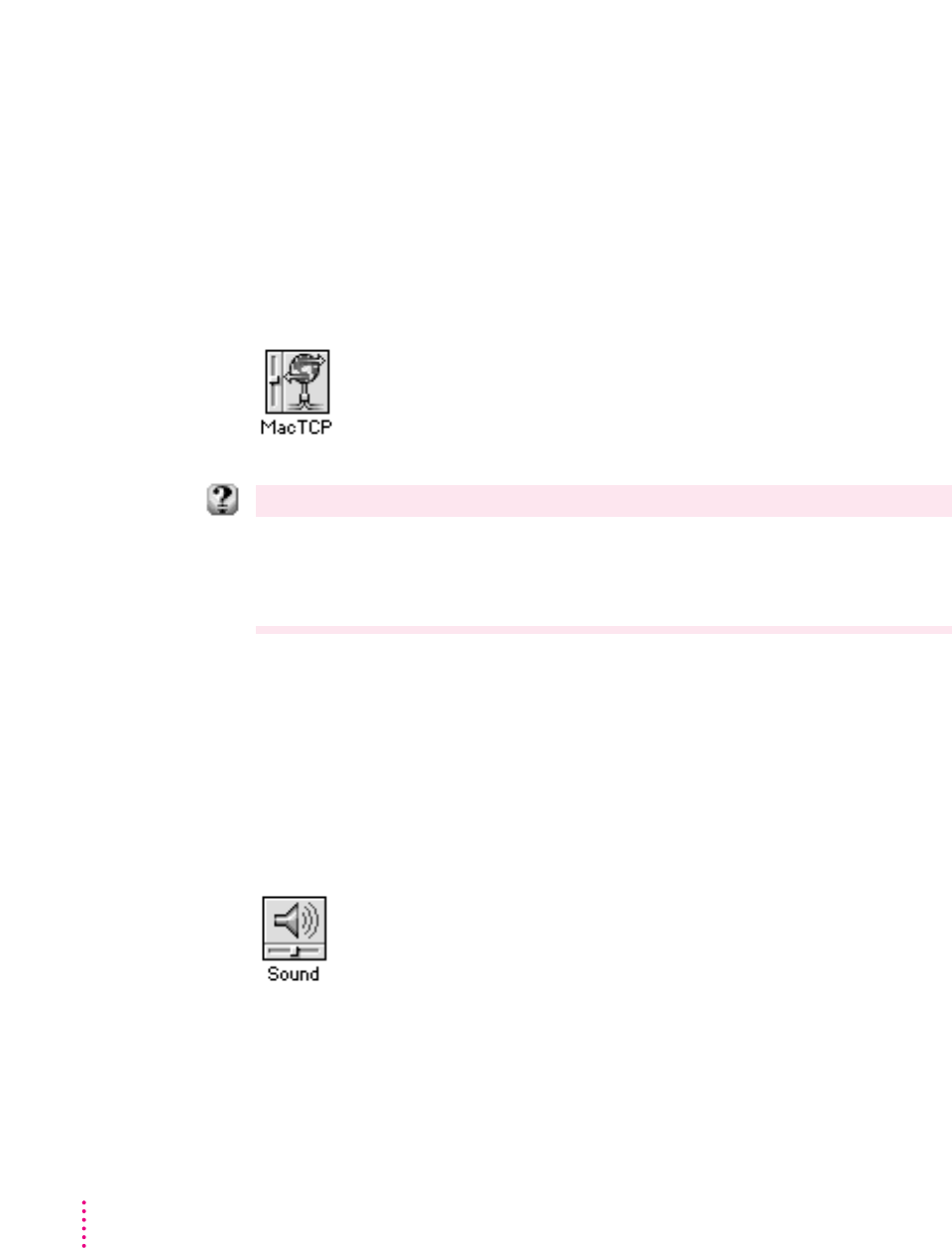
Support for TCP/IP networking
Your Macintosh provides built-in support for TCP/IP (Transmission Control
Protocol/Internet Protocol), an industry-standard communications protocol
for UNIX networking. TCP/IP provides the capability to access information
on Cray supercomputers, UNIX and Sun workstations, VAX systems, and a
variety of other systems.
To install MacTCP, see Appendix A (“Using the Custom Install Option”) later
in this book.
For step-by-step help
Choose Macintosh Guide from the Guide menu (marked with the
h
icon) and click the Topics
button. Select the topic “Networks and Telecommunications” and see “How do I make a TCP
connection?” For information about items in the control panel, choose Show Balloons from the
Guide menu.
High-quality audio
The new Sound control panel provides high-quality stereo sound. It allows
you to select sound input and output devices and adjust the volume of each
device connected to your Macintosh computer.
To set options, open the Apple (K) menu and choose Control Panels. Then
open the Sound control panel.
64 Chapter 6
For step-by-step help
Choose Macintosh Guide from the Guide menu (marked with the
h
icon) and see items in the
“Sound” topic. For information about items in the control panel, choose Show Balloons from the
Guide menu.
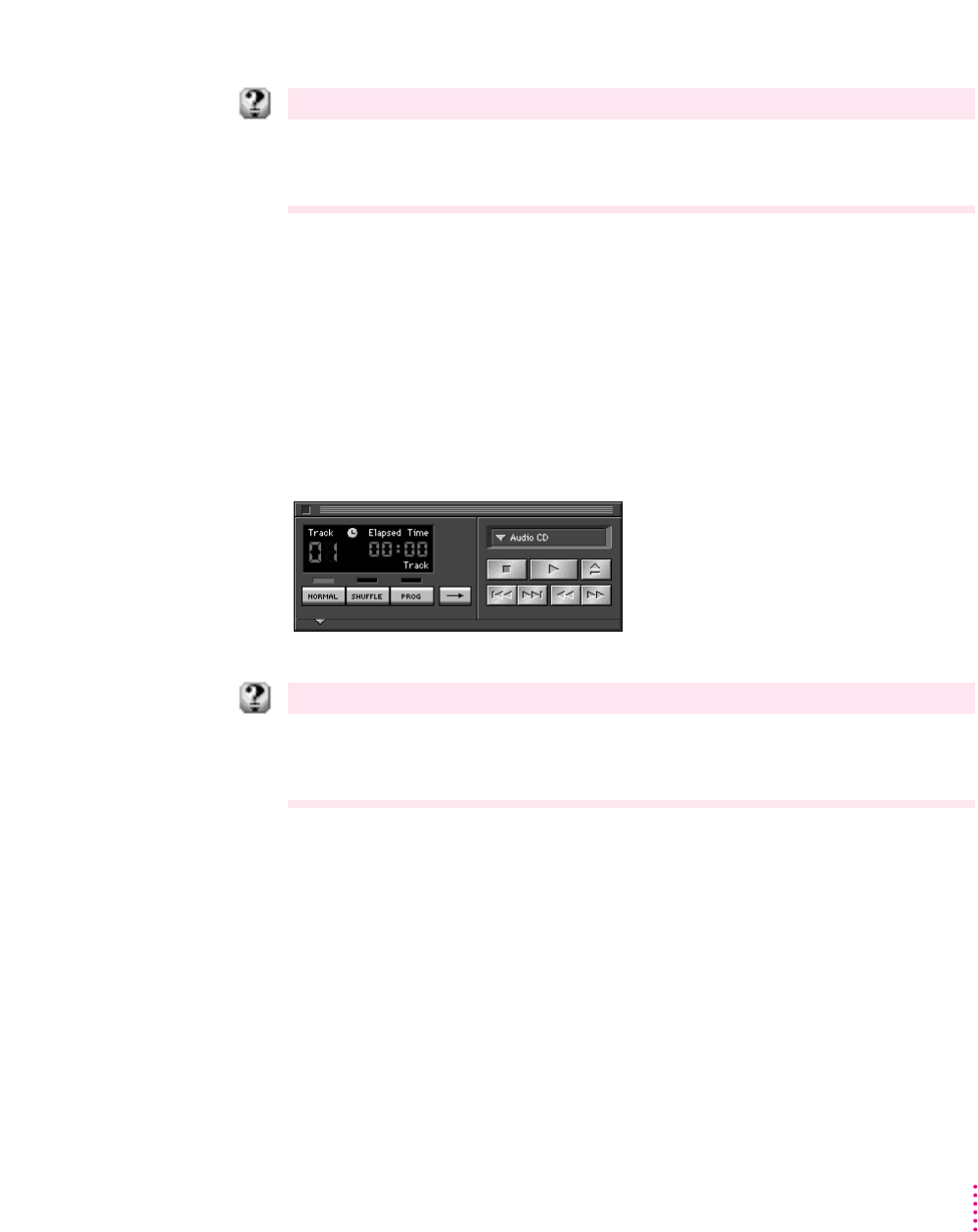
Audio CD player
Your system software provides built-in support for playing and programming
audio compact discs. To use the player, your computer must have a CD-ROM
drive attached.
To play an audio compact disc, insert a disc into the CD-ROM drive. Then
open the Apple (K) menu and select AppleCD Audio Player. The player
controls appear.
For step-by-step help
Choose Macintosh Guide from the Guide menu (marked with the
h
icon) and click the Index button.
See items for the index term “CD-ROM.” For information about items in the CD player window,
choose Show Balloons from the Guide menu.
65
What’s New
More colorful desktop patterns
The Desktop Patterns control panel provides more colorful and texture-rich
desktop patterns. You can add your own designs by copying and pasting
graphics or photographs (stored as PICTs) into the control panel. Or you can
drag and drop the PICT into the control panel.
To select or add a pattern, open the Apple (K) menu and choose Control
Panels. Then open the Desktop Patterns control panel.
For step-by-step help
Choose Macintosh Guide from the Guide menu (marked with the
h
icon) and click the Topics
button. Select the topic “Setting Options” and see “How do I change the background pattern?” For
information about items in the control panel, choose Show Balloons from the Guide menu.
Shut Down
The Shut Down command is now available in the Apple (K) menu. You can
choose Shut Down from within a program, without returning to the Finder.
For step-by-step help
Choose Macintosh Guide from the Guide menu (marked with the
h
icon) click the Topics button.
Select the “Reviewing the Basics” topic and see “How do I turn off the computer?”
66 Chapter 6

67
What’s New
QuickTime extension
The QuickTime extension adds capabilities that let your application programs
integrate graphics, sound, video, and animation into documents. QuickTime is
designed to take advantage of the speed of the Power Macintosh.
You do not work directly with the QuickTime extension. It works behind the
scenes as part of your system software, providing new features to the
application programs you work with. The specific features of QuickTime that
you use and how they are presented depend on the programs you use.
For step-by-step help
Choose Macintosh Guide from the Guide menu (marked with the
h
icon) and see the index term
“QuickTime.”
New Scrapbook
The new Scrapbook supports Macintosh drag and drop. When you work in a
program that supports drag and drop, you can drag an item out of the
Scrapbook into another document, drag it onto the desktop (to create a
clipping), or drag it into the Scrapbook.
You can also change the size of the new Scrapbook by dragging the size box
in the lower-left corner of the Scrapbook window.
For step-by-step help
Choose Macintosh Guide from the Guide menu (marked with the
h
icon) and see the index term
“Scrapbook.” For information about items on the screen, choose Show Balloons from the Guide
menu.
New Note Pad
The Note Pad supports Macintosh drag and drop. When you work in a
program that supports drag and drop, you can drag an item to a new location
on the Note Pad, drag an item onto the Note Pad, drag it from the Note Pad
into another document, or drag the item onto the desktop (to create a
clipping).
You can create larger notes, print Note Pad contents, and search for
information by typing a keyword or phrase.
For step-by-step help
Choose Macintosh Guide from the Guide menu (marked with the
h
icon) and see the index term
“Note Pad.” For information about items in the Note Pad window or menus, choose Show Balloons
from the Guide menu.
Support for Roman-language keyboards
The Keyboard, Text, and Numbers control panels provide built-in support for
languages that use Roman script, such as English, French, and German.
To select language options, open the Apple (K) menu and choose Control
Panels. Then open the Keyboard, Text, or Numbers control panel.
For step-by-step help
Choose Macintosh Guide from the Guide menu (marked with the
h
icon) and click the Index button.
See items for the index term “keyboard layout.” For information about items in the control panel,
choose Show Balloons from the Guide menu.
68 Chapter 6
Button Disabler
You can prevent other people from using the sound and screen contrast
buttons on the front of your computer by using the Button Disabler control
panel.
To disable the buttons, open the Apple (K) menu and choose Control Panels.
Then open the Button Disabler control panel.
Click the Disable Buttons box to put an X in it. The buttons remain off until
you turn them on again by clicking the box to remove the X.
For help
For information about items in the control panel, choose Show Balloons from the Guide menu
(marked with the
h
icon).
Telephone Manager
Your Macintosh has built-in capabilities that let you take advantage of
computer-telephone integration. Programs that support the Telephone
Manager can link software to telephone functions.
Multitasking support
The Thread Manager allows programs to integrate preemptive and
cooperative multitasking.
69
What’s New

Universal enabler
The separate enablers for different Macintosh computers are now
consolidated into a single, universal enabler that is built into the system
software.
Support for large volumes
Your Macintosh can now access volumes up to 4 gigabytes (GB).
QuickDraw GX printing and publishing
QuickDraw GX system software gives you more powerful, convenient
printing and font handling and improves your computer’s color-publishing
capabilities. QuickDraw GX lets you create documents that other QuickDraw
GX users can view and print, even when they don’t have the application
program or font used to create the document.
To get the full benefit of some features described in this section, you’ll need
an application program that takes advantage of QuickDraw GX.
Easier printing
You can work with several printers using printer icons on your desktop. To set
the default printer, choose Set Default Printer from the new Print menu. To
print a document, simply drag the file to the printer icon.
70 Chapter 6
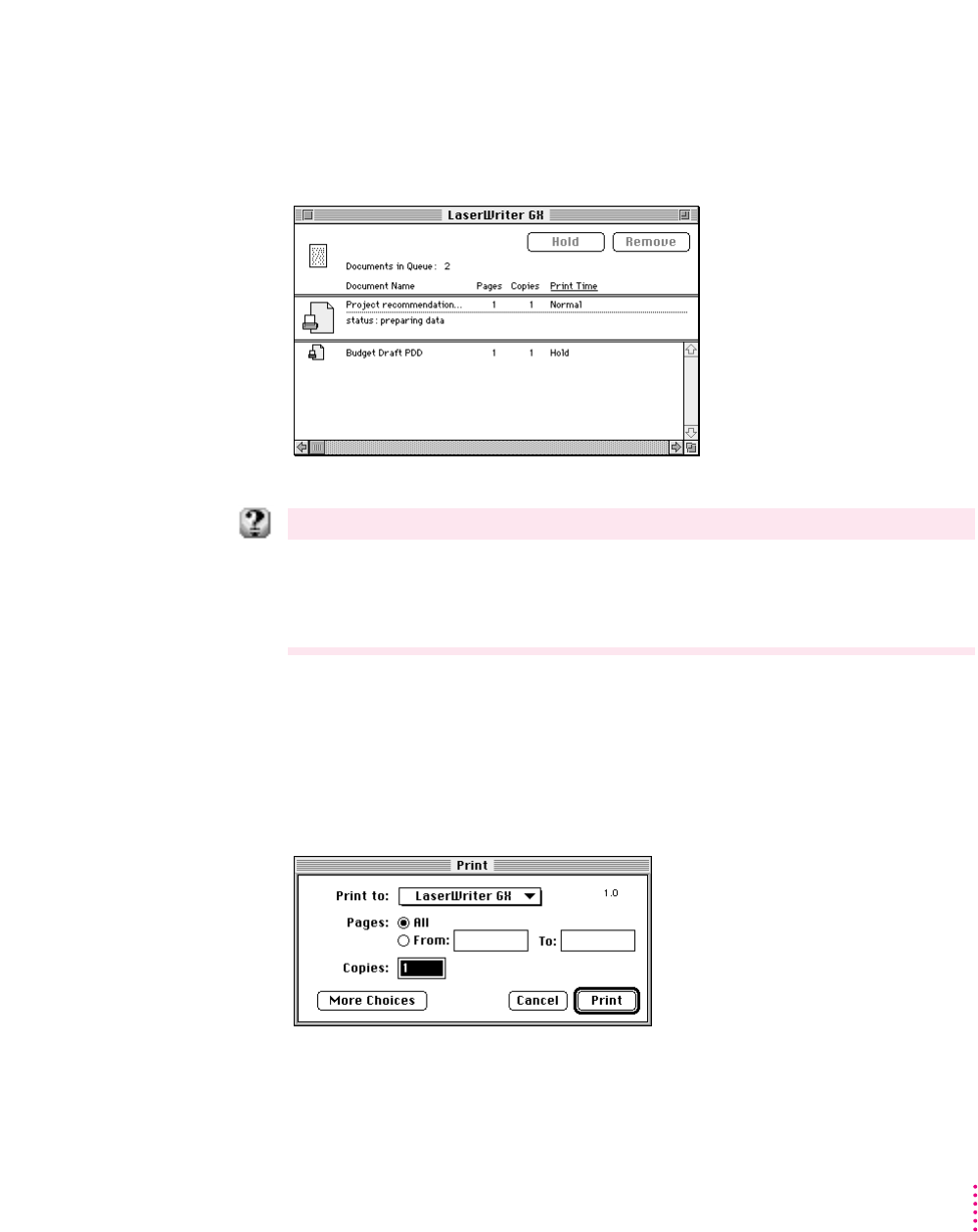
To see the list of documents sent to a printer (the print queue), simply double-
click the printer’s icon. In the print queue window, you can put a document on
hold or remove it from the queue. You can also drag a document directly from
the print queue window to another printer.
For step-by-step help
Choose Macintosh Guide from the Guide menu (marked with the
h
icon) and click the Topics
button. Select the “Printing and Fonts” topic and see “How do I create a desktop printer?,” “How do I
print?,” and “How do I manage printing jobs?” For more information about items on your screen,
choose Show Balloons from the Guide menu.
More powerful printing dialog boxes
When you choose Print in a program that supports QuickDraw GX (such as
SimpleText), you use the QuickDraw GX printing dialog boxes. The dialogs
provide additional printing capabilities, such as the ability to collate multiple
copies and use printing extensions.
71
What’s New
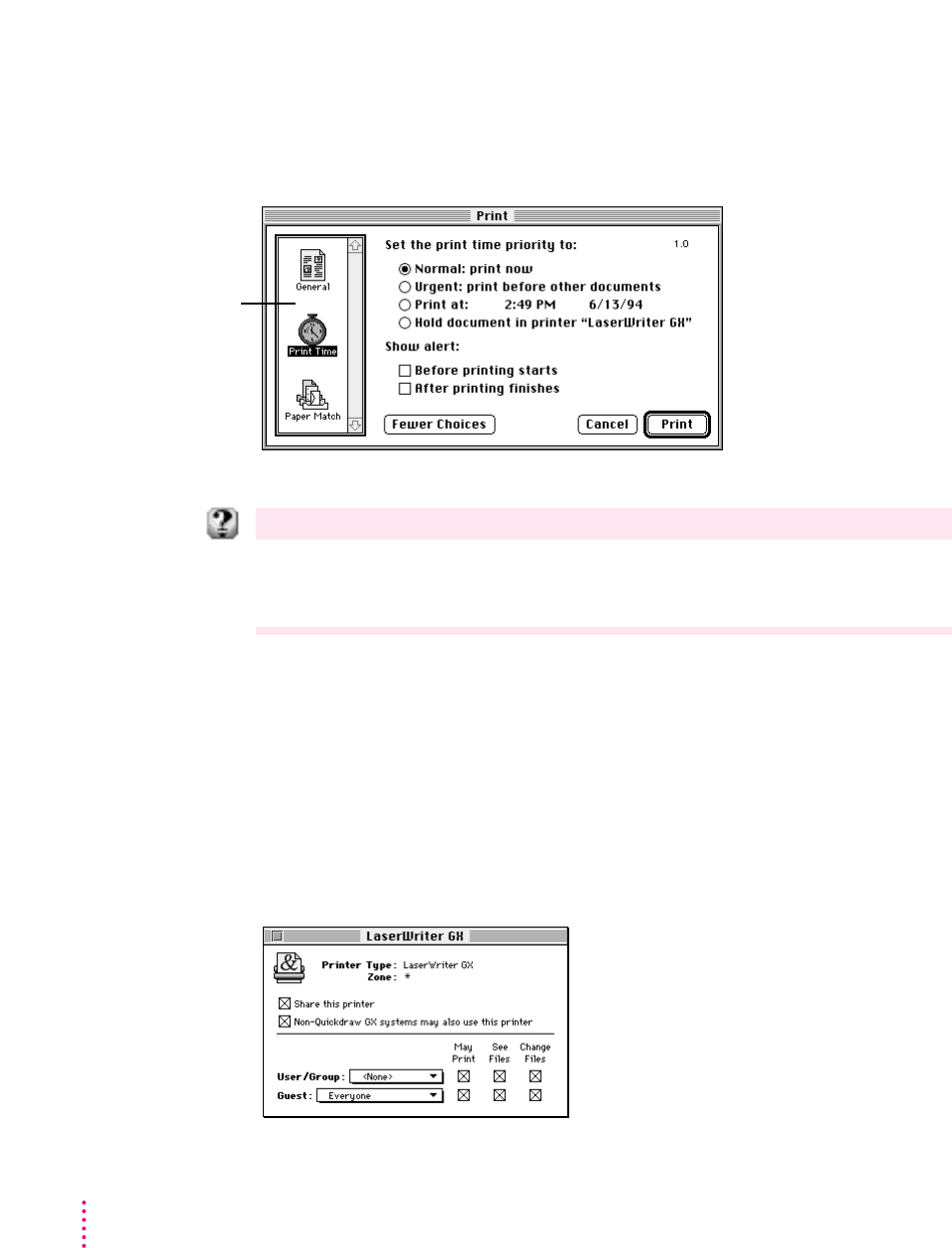
You can install and use printing extensions to customize your printing
capabilities. To use your installed printing extensions, click the More Choices
button in the dialog box you see when you choose Print. For example, the
extension shown below allows you to specify when a document will print.
For step-by-step help
Choose Macintosh Guide from the Guide menu (marked with the
h
icon) and click the Topics
button. Select the “Printing and Fonts” topic and see “How do I change printing options?” For more
information about items on your screen, choose Show Balloons from the Guide menu.
Printer sharing
You can share printers in much the same way as you share files. If your
printer is directly connected to your Macintosh, and your Macintosh is
connected to a network, you can make your printer available on the network
and limit its use with a password.
To share a printer, select the printer icon on your desktop, and then choose
Sharing from the File menu.
72 Chapter 6
Installed printing
extensions appear in
this area of the
printing dialog box.
To use an extension,
click on its icon.
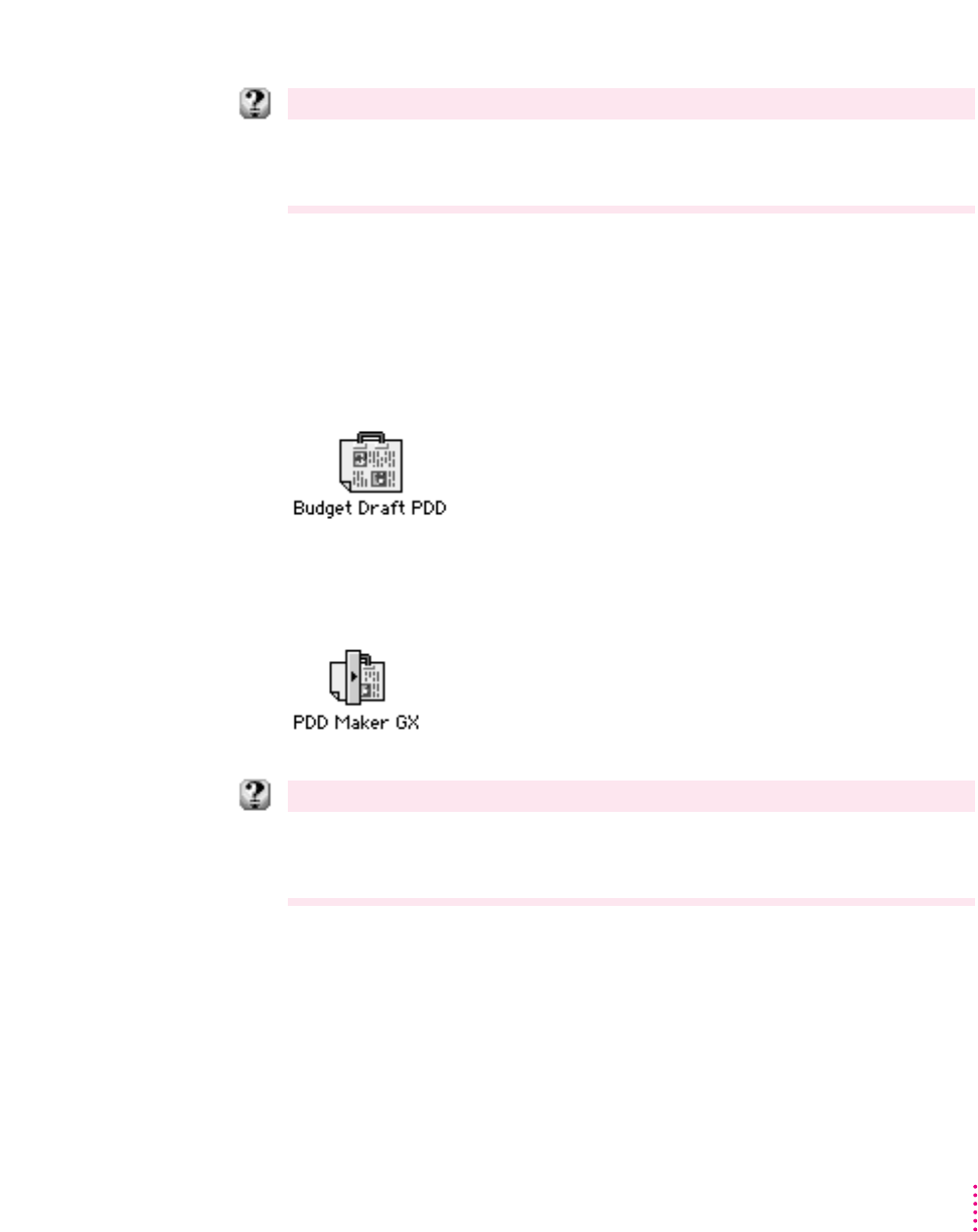
For step-by-step help
Choose Macintosh Guide from the Guide menu (marked with the
h
icon) and click the Topics
button. Select the “Printing and Fonts” topic and see “How do I share a printer with other users?” For
more information about items on your screen, choose Show Balloons from the Guide menu.
Portable documents
A Portable Digital Document (PDD) is a read-only document that other users
can view and print on any other Macintosh with QuickDraw GX installed.
The user who receives your document can view and print the document, even
without the original application program or fonts that created the document.
You use the PDD Maker on your desktop to create Portable Digital
Documents. The installation instructions in Chapter 3 of this book tell you
how to create the PDD Maker icon.
For step-by-step help
Choose Macintosh Guide from the Guide menu (marked with the
h
icon) and click the Topics
button. Select the “Printing and Fonts” topic and see “How do I create a portable digital document?”
For more information about items on your screen, choose Show Balloons from the Guide menu.
73
What’s New
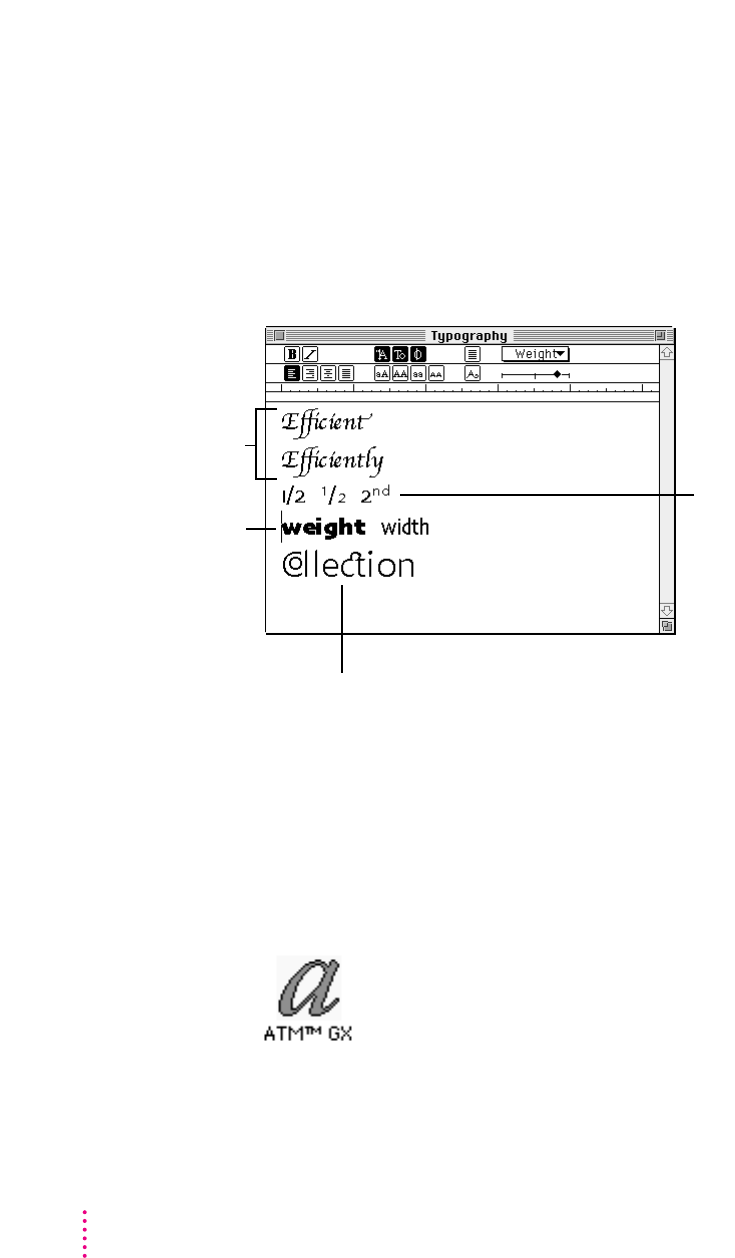
Typography
QuickDraw GX automates much of the typographic process. QuickDraw
GX-aware application programs allow you to create professional-looking
typography by simply typing.
Settings for kerning, justification, and special characters (such as ligatures)
are built into QuickDraw GX fonts and are handled automatically within
application programs that support QuickDraw GX.
With QuickDraw GX, all your fonts are stored in the Fonts folder inside your
System Folder. This includes bitmapped, TrueType, and PostScript fonts.
Support for Apple’s TrueType fonts is built into QuickDraw GX. QuickDraw
GX also supports Adobe’s Type 1 font standard using a new version of Adobe
Type Manager (ATM GX).
To set options for working with Type 1 fonts, open the Apple (K) menu and
choose Control Panels. Then open the ATM GX control panel.
74 Chapter 6
QuickDraw GX fonts can automate
complex typesetting tasks, such
as the formation of fractions
and ordinals.
QuickDraw GX fonts
can have the ability to
morph in certain ways.
QuickDraw GX fonts
can use alternate
forms of a character
(for example, the
swash and standard
forms of the
lowercase ‘t’).
QuickDraw GX fonts can contain alternate character
combinations (for example, the ‘co’ and ‘ct’ combinations).
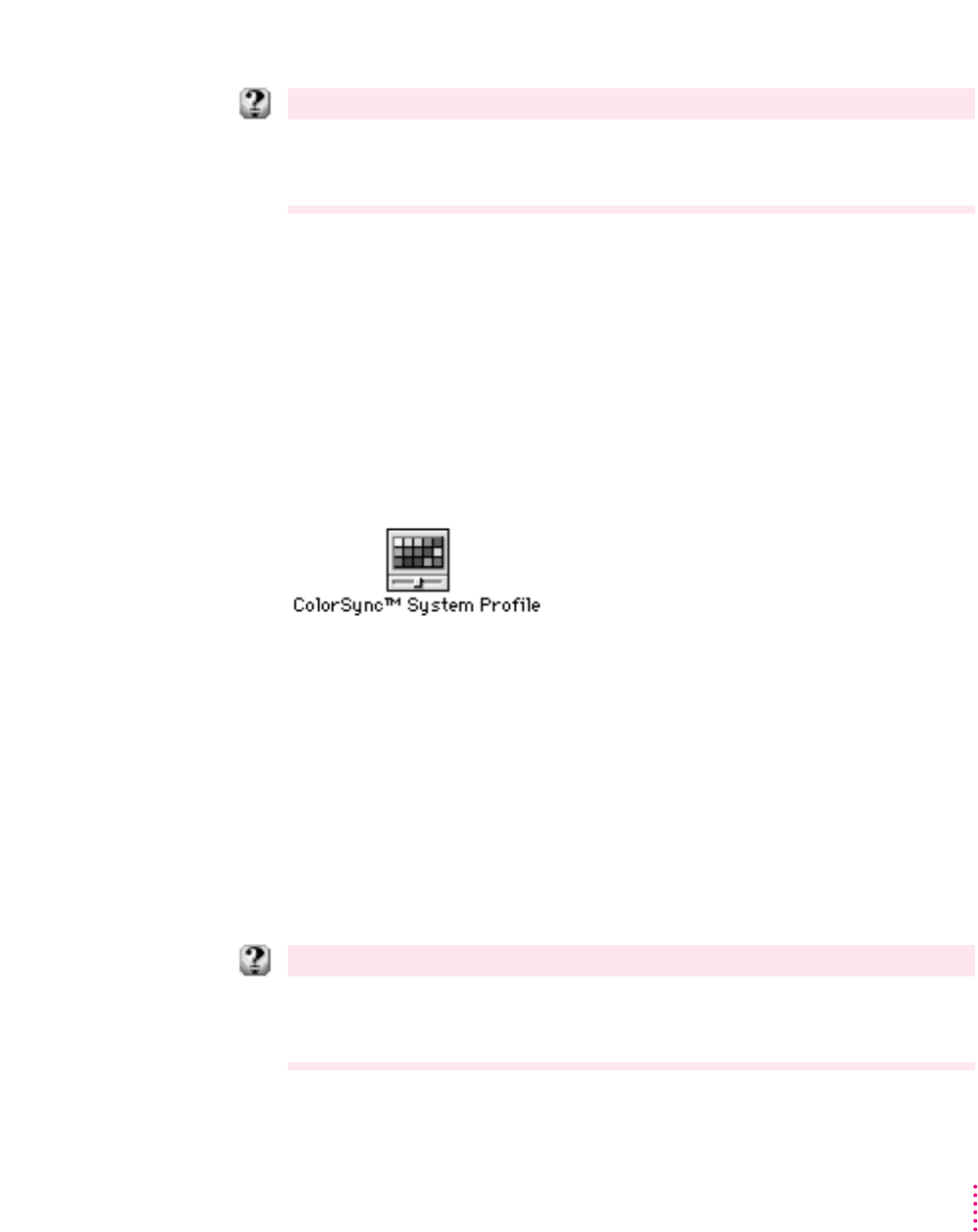
For step-by-step help
Choose Macintosh Guide from the Guide menu (marked with the
h
icon) and click the Index button.
See the items for the Index term “fonts.” For more information about items on your screen, choose
Show Balloons from the Guide menu.
Consistent color
QuickDraw GX uses ColorSync to ensure that the colors in a document
remain consistent across a wide variety of color monitors, scanners, and color
printers. In order to reproduce colors accurately, your Macintosh must know
the type of monitor you use to view documents.
To make sure your Macintosh knows the type of monitor you are using, open
the Apple (K) menu and choose Control Panels. Then open the ColorSync
control panel.
If the monitor shown is incorrect, open the pop-up menu and choose Set
System Profile. Then choose the correct monitor from the list.
QuickDraw GX support for international text formats
Used with QuickDraw GX-aware international programs, QuickDraw GX
supports the display and printing of any international text system, such as
Arabic or Kanji. It doesn’t matter whether the text reads right to left, left to
right, vertically, or some combination of the three. QuickDraw GX can even
display text that combines different reading directions within the same line.
For step-by-step help
Choose Macintosh Guide from the Guide menu (marked with the
h
icon) and click the Index button.
Choose the Index term “text” and see “How do I change the way text is displayed?” For more
information about items on your screen, choose Show Balloons from the Guide menu.
75
What’s New
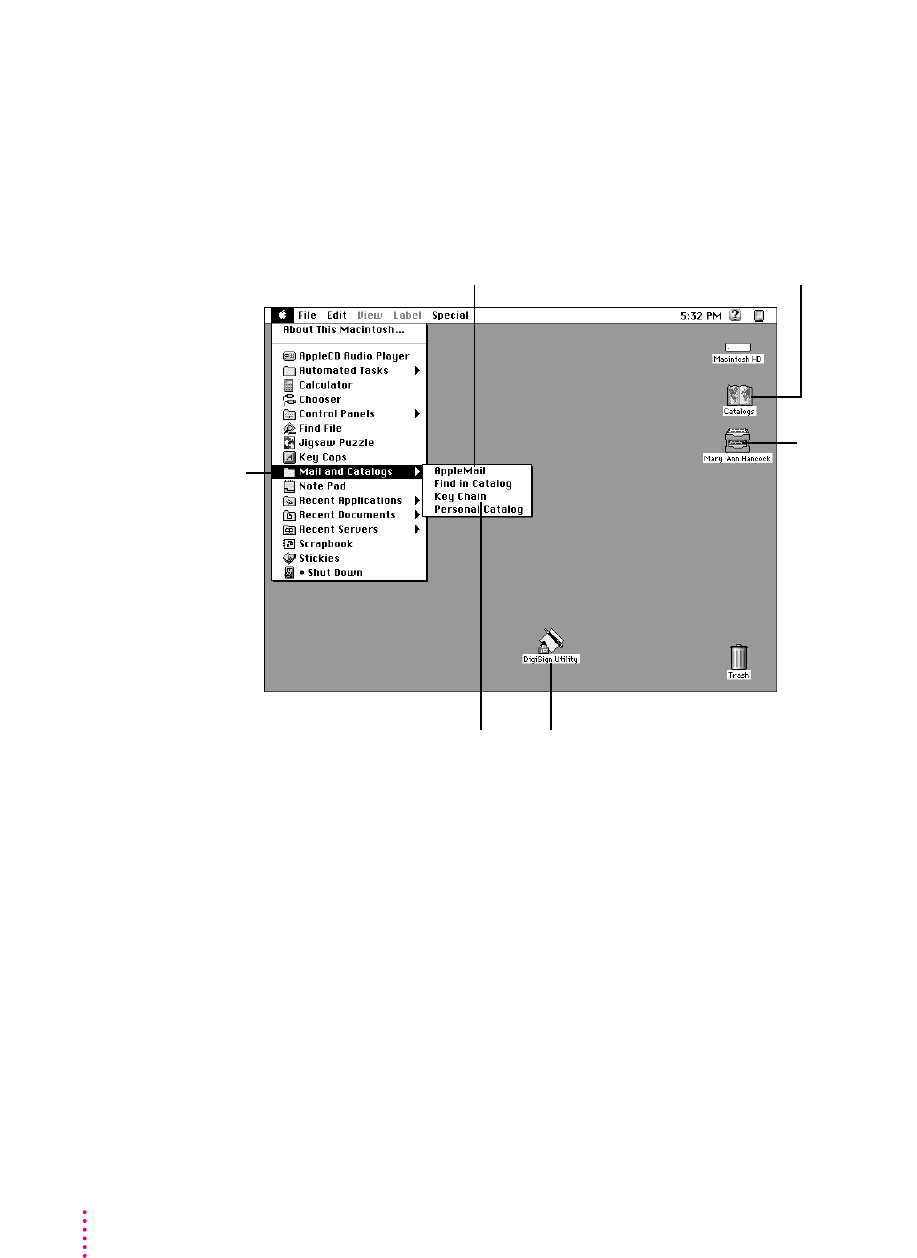
PowerTalk collaboration services
PowerTalk system software helps people work together more effectively.
PowerTalk provides many new capabilities on your desktop and in your
Apple (K) menu.
76 Chapter 6
Catalogs provides access to information
you need when collaborating with
individuals and groups.
The Mailbox contains
all your incoming and
outgoing mail.
Use the DigiSign Utility program
to request approval of a Signer
file so you can sign your
documents electronically.
The Key Chain provides
access to all network servers
and other services through
a single access code.
Mail and Catalogs
(in the Apple menu)
provides quick
access to PowerTalk
capabilities.
You can use AppleMail to
send and reply to mail.
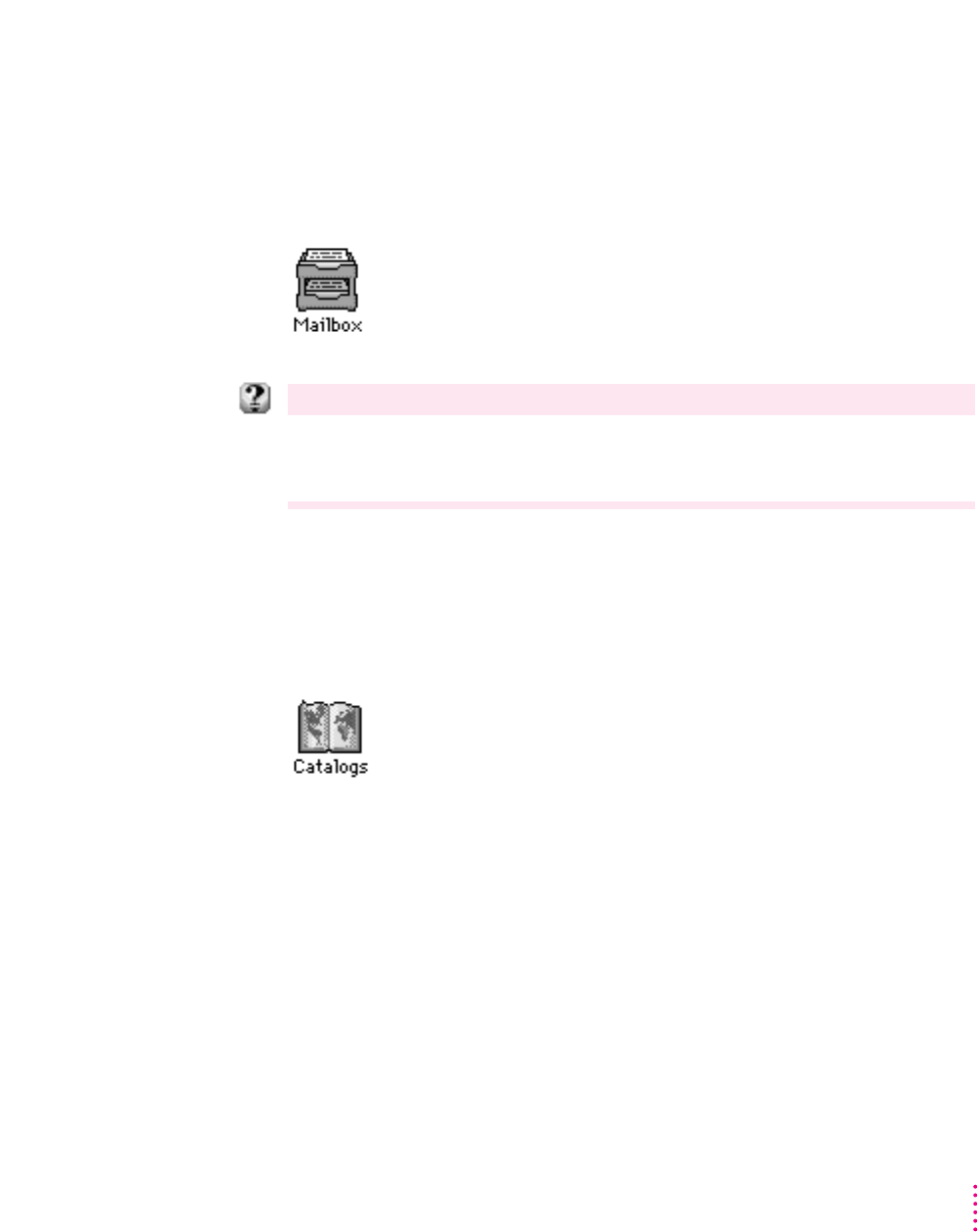
Your universal desktop mailbox
PowerTalk gives you a single mailbox icon for all incoming and outgoing
mail—including fax, voice, electronic mail, and documents. Communication
from on-line services and electronic mail from various sources are routed to
your desktop mailbox when you install mail gateways supplied by the vendor.
For step-by-step help
Choose PowerTalk Guide from the Guide menu (marked with the
h
icon) and see the items in the
“Sending and Receiving” topic. For more information about items on the screen, choose Show
Balloons from the Guide menu.
Catalogs
PowerTalk catalogs store information about users and groups that you need
for effective communication. The Catalogs icon gives you access to the shared
catalogs that are available on your network.
To see a sample catalog, double-click the Catalogs icon to open it. Then
locate and open the AppleTalk catalog. When the AppleTalk catalog is open,
you can access your entire AppleTalk network, including servers and
individuals.
77
What’s New

You can create information cards to store information about individuals or
groups with whom you communicate often. The cards make it easier to
exchange information. For example, you can send someone a document by
dragging the document’s icon onto the person’s information card icon.
For step-by-step help
Choose PowerTalk Guide from the Guide menu (marked with the
h
icon) and see the items in the
“Catalogs and Information” topic. For more information about items on the screen, choose Show
Balloons from the Guide menu.
Key Chain security
PowerTalk lets you set up a single password (the key chain access code) that
replaces individual passwords on individual application programs or servers.
You can access all network servers with a single password which you enter
only once—each time you start up your computer.
For step-by-step help
Choose Macintosh Guide from the Guide menu (marked with the
h
icon) and click the Index button.
See the items for the Index term “key chain.” For more information about items on your screen,
choose Show Balloons from the Guide menu.
78 Chapter 6
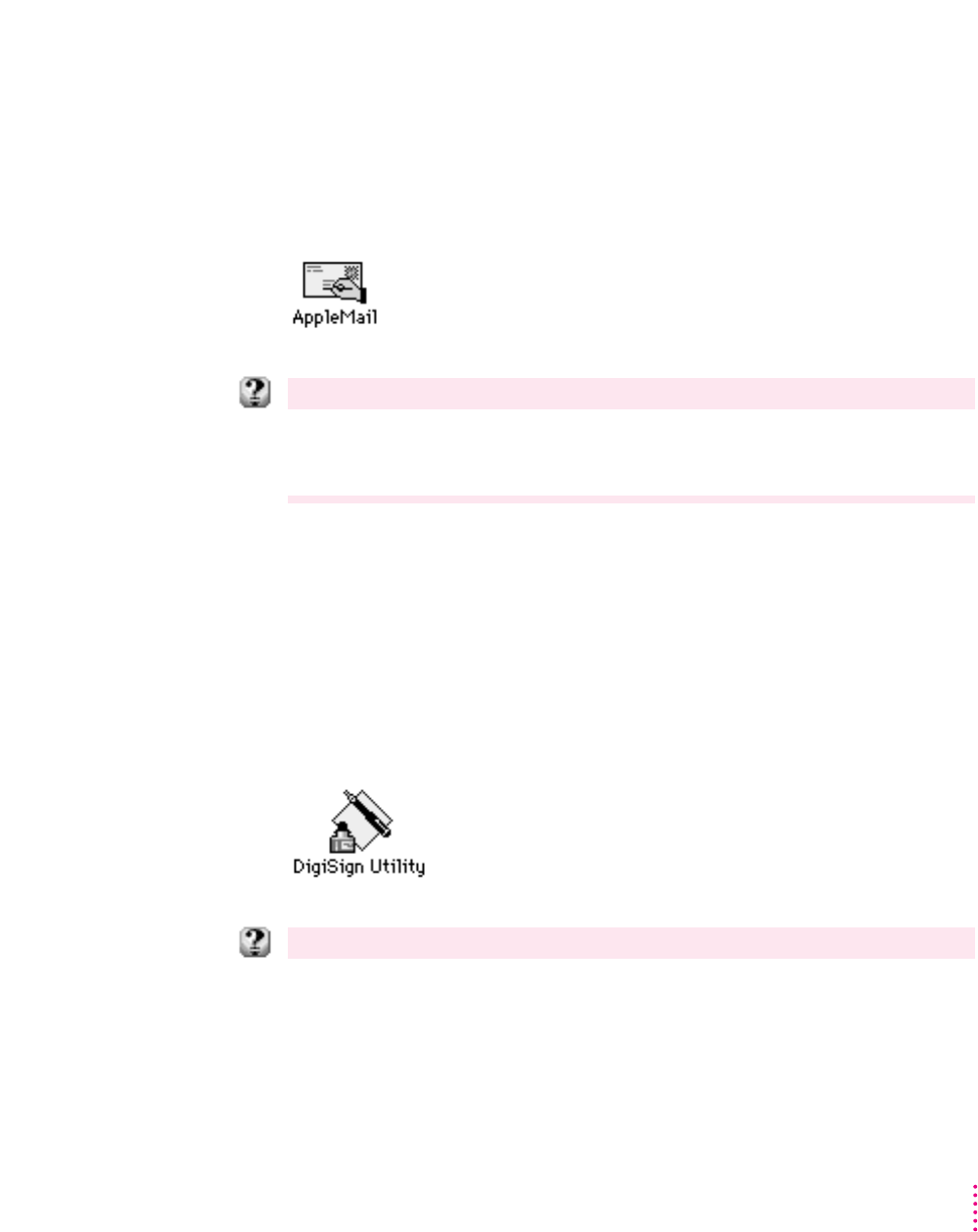
AppleMail
PowerTalk provides a built-in application program—AppleMail—that lets you
write messages that contain styled text, images, and video.
To use AppleMail, open the Apple (K) menu and choose Mail and Catalogs.
Then choose AppleMail from the submenu.
For step-by-step help
While you are using AppleMail, choose AppleMail Guide from the Guide menu (marked with the
h
icon) and click the Topics button. For more information about items on the screen, choose Show
Balloons from the Guide menu.
Your digital signature
PowerTalk’s DigiSign digital signatures technology lets you electronically
approve and verify data. The DigiSign Utility lets you create receive, sign,
and forward documents without the time-consuming process of printing and
circulating them.
The DigiSign Utility is located in the PowerTalk folder (inside the Apple
Extras folder) on your hard disk.
For step-by-step help
Choose PowerTalk Guide from the Guide menu (marked with the
h
icon) and see the items in the
“Digital Signatures” topic. For more information about items on the screen, choose Show Balloons
from the Guide menu.
79
What’s New

This chapter helps you solve some of the common problems you may
encounter when upgrading to System 7.5.
Problems during installation
This section helps you solve problems you might encounter during
installation.
Disk First Aid cannot repair your hard disk.
Problem: You started up the computer using the Disk Tools disk and used Disk
First Aid to test the hard disk, but Disk First Aid cannot repair the hard disk.
Cause: You need to reformat the hard disk.
Solution: First, back up your hard disk because reformatting erases everything
on the disk. Then, use HD SC Setup to reformat the disk. If you have a
Macintosh with an IDE drive (Quadra 630, Performa 630 series, LC 630, or
PowerBook 150), use Internal HD Format to reformat.
Not enough memory to use the Installer
Problem: When you try to use the Installer, you see a message that the
Installer is out of memory.
Cause: There’s not enough memory available to open the Installer. Usually
this means that your disk cache or RAM Disk is set too high.
81
7Tr oubleshooting

Solution: Quit all open application programs. Also, open the Memory control
panel, set your disk cache to the lowest possible setting and turn on Virtual
Memory.
Not enough memory
Problem: When you try to use the Installer, you see a message that your
computer doesn’t have enough memory.
Cause: Your Macintosh has less random-access memory than is required to
use System 7.5, QuickDraw GX, PowerTalk, or a combination.
Solution: For memory guidelines, see “Check Your Computer’s Built-in
Memory” in Chapter 1 of this book. If necessary, contact your Apple-
authorized reseller for information about how to purchase additional memory.
Not enough disk space
Problem: When you try to use the Installer, you see a message that there is
not enough disk space available.
Cause: Your computer’s hard disk has less than the minimum amount of
space required to install the software.
Solution: Make more space available on your hard disk by removing some
files from the disk. Make backup copies of the files, if necessary, and then
drag them to the Trash.
If you are installing from floppy disks, you can also try starting up your
Macintosh using the Install Disk 1 disk. Using the Installer this way requires
less available disk space.
82 Chapter 7

Difficulty modifying the System file
Problem: When you try to use the Installer, you see a message that the
System file cannot be modified (or repeated messages asking if it’s okay to
modify the System file).
Cause 1: You have installed virus-protection software that guards against
modification of the System file.
Solution 1: Tu rn off your virus-protection software by dragging it out of the
System Folder and restarting your computer. You can turn the virus-protection
software back on after installation.
If you are installing from floppy disks or a CD, you can also try disabling
your extensions by holding down the Shift key while you restart the computer.
(If you are installing over a network, you must leave the extensions on in
order to connect to the network server.)
Cause 2: Your System Folder may be protected. Or the System and Finder
files may be locked.
Solution 2: To turn off System Folder Protection, go to the Performa or the
General Controls control panel (depending on your version of system
software). To see if your System file or Finder file is locked, select the file’s
icon, then open the File menu and choose Get Info. To unlock the file, check
the Locked checkbox to remove the X.
The floppy drive on your Macintosh Plus, Mac SE, or Mac II doesn’t recognize the
installation disks.
Problem: When you try to begin installation, your Macintosh does not
recognize the installation disks.
Cause: The floppy disks are 1.4 MB disks. System 7.5 components are not
available on 800K floppy disks.
Solution: Install System 7.5 components using a CD or install over a network.
83
Troubleshooting

Problems using System 7.5
This section helps with problems you might encounter using the computer
after you have installed System 7.5.
You can’t start up the computer
Problem: When you turn on your computer, you see a “bomb” message.
Cause 1: You probably have an incompatible item in the System Folder.
Solution 1: To turn off potentially incompatible items in the System Folder,
hold down the Space bar while you restart your computer. When the
Extensions Manager opens, choose “System 7.5 Only” from the Sets pop-up
menu. Close the Extensions Manager to resume startup. All extensions are
turned off, except those for System 7.5. Once you have started up the
computer, you need to determine which startup program is causing the
problem. For instructions, see Appendix C (“Testing for Compatibility”)
later in this book.
Cause 2: You may have damaged your system software.
Solution 2: Start up the computer using the Disk Tools disk. When you have
restarted the computer, follow the instructions in Appendix B (“Performing
a Clean Installation”) to reinstall system software.
84 Chapter 7

You often encounter problems that require you to restart the computer
Problem: As you work in an application program, you often encounter
problems that require you to restart the computer.
Cause: You may have an incompatible item in the System Folder. It’s also
possible that your application program is somehow incompatible with
System 7.5.
Solution: To turn off potentially incompatible items in the System Folder,
hold down the Space bar while you restart your computer. When the
Extensions Manager opens, choose “System 7.5 Only” from the Sets pop-up
menu. Close the Extensions Manager to resume startup. All extensions are
turned off, except those for System 7.5.
For compatibility information on application programs, contact the vendor.
You may have a version of the program that doesn’t work with System 7.5.
Speech recognition doesn’t work
Problem: After you install System 7.5 software, speech recognition doesn’t
work.
Cause: System 7.5 does not work with PlainTalk 1.0.
Solution: Contact Apple for a PlainTalk software upgrade.
For step-by-step help
Choose Macintosh Guide from the Guide menu (marked with the
h
icon) and click the Topics
button. See items for the “Troubleshooting” topic for help in solving problems.
85
Troubleshooting

Problems using QuickDraw GX
This section helps with problems you might encounter using the computer
after you have installed QuickDraw GX.
Your non-Apple printer is no longer available in the Chooser.
Problem: You can’t select your non-Apple printer after installing QuickDraw
GX.
Cause: To print on a non-Apple printer with QuickDraw GX installed, you
need a QuickDraw GX driver for that printer. QuickDraw GX installation
provides drivers for Apple printers only.
Solution: If you are using a non-Apple Postscript printer, try using the Apple
LaserWriter GX driver. To install the LaserWriter GX printer software, see
Appendix A (“Using the Custom Install Option”).
Contact the printer vendor to obtain a QuickDraw GX printer driver for your
non-Apple printer.
You can temporarily turn off QuickDraw GX and print using your previous
printer driver. To turn off QuickDraw GX, hold down the Space bar while you
restart your computer. When the Extensions Manager opens, click the
QuickDraw GX extension to remove the check beside it. This prevents the
QuickDraw GX software from loading. Close the Extensions Manager to
resume startup. You should be able to print normally. You won’t be able to use
any QuickDraw GX features until you turn the extension back on again.
86 Chapter 7

Your fax modem is no longer available in the Chooser.
Problem: You can’t select your fax modem after installing QuickDraw GX.
Cause: To use a fax modem, you need a QuickDraw GX driver for that fax
modem.
Solution: If you have an Apple fax modem, contact Apple for a QuickDraw
GX fax modem driver. If you have a non-Apple fax modem, contact the
vendor to obtain a QuickDraw GX driver.
You can temporarily turn off QuickDraw GX and use your previous fax
modem driver. To turn off QuickDraw GX, hold down the Space bar while
you restart your computer. When the Extensions Manager opens, click the
QuickDraw GX extension to remove the check beside it. This prevents the
QuickDraw GX software from loading. Close the Extensions Manager to
resume startup. Your fax modem should work normally. You won’t be able to
use any QuickDraw GX features until you turn the extension back on again.
You have trouble printing in a particular application program
Problem: You are not able to print documents in a particular application
program after you install QuickDraw GX.
Cause: The program may be incompatible with the QuickDraw GX printer
driver.
Solution: Install the QuickDraw GX utilities, and use the QuickDraw GX
Helper utility to turn off QuickDraw GX printing capabilities for the
program. For instructions to install the QuickDraw GX utilities, see Appendix
A (“Using the Custom Install Option”) in this book. After you install, launch
the program, then open the Apple menu. You will see a menu item that says
“Turn Desktop Printing Off.” Select the item so that it changes to “Turn
Desktop Printing On.” The program uses the non-GX printer driver until you
change the menu item again.
For step-by-step help
Choose Macintosh Guide from the Guide menu (marked with the
h
icon) and click the Topics
button. See items for the “Troubleshooting” topic for help in solving problems.
87
Troubleshooting

Problems using PowerTalk
Some of your electronic mail and faxes do not go to your mailbox.
Problem: Communication through third-party on-line services or electronic
mail programs does not go to your mailbox.
Cause: Third-party on-line services and electronic mail programs require
mail gateways that route communications to your mailbox.
Solution: Contact the vendor of the service or program to obtain a personal
gateway.
For step-by-step help
Choose PowerTalk Guide from the Guide menu (marked with the
h
icon) and click the Topics
button. See items for the “Troubleshooting” topic for help in solving problems.
88 Chapter 7

Most Macintosh users install system software using the Easy Install option
(shown in Chapter 2 of this book). The Easy Install option installs the
software for your model of Macintosh. For example, Easy Install updates the
printer drivers you already have, but does not add new printer drivers.
The Custom Install option allows you to select the combination of system
files, drivers, and other files you want for your own specific needs. You can
install or update a single system software component.
You may want to use the Custom Install option to add additional software or
to install a system that starts up on any Macintosh model.
mAfter using Easy Install, you can use Custom Install to add software. For
example, you can install utilities, additional printer drivers, or MacTCP.
mYou can create a “universal” system, with software that works on all
Macintosh computers, including both 68000-family and PowerPC models.
(In this case, use Custom Install instead of Easy Install.)
To use the Custom Install option for System 7.5 or QuickDraw GX, follow the
steps on the next pages.
89
Appendix A
Using the Custom Install Option
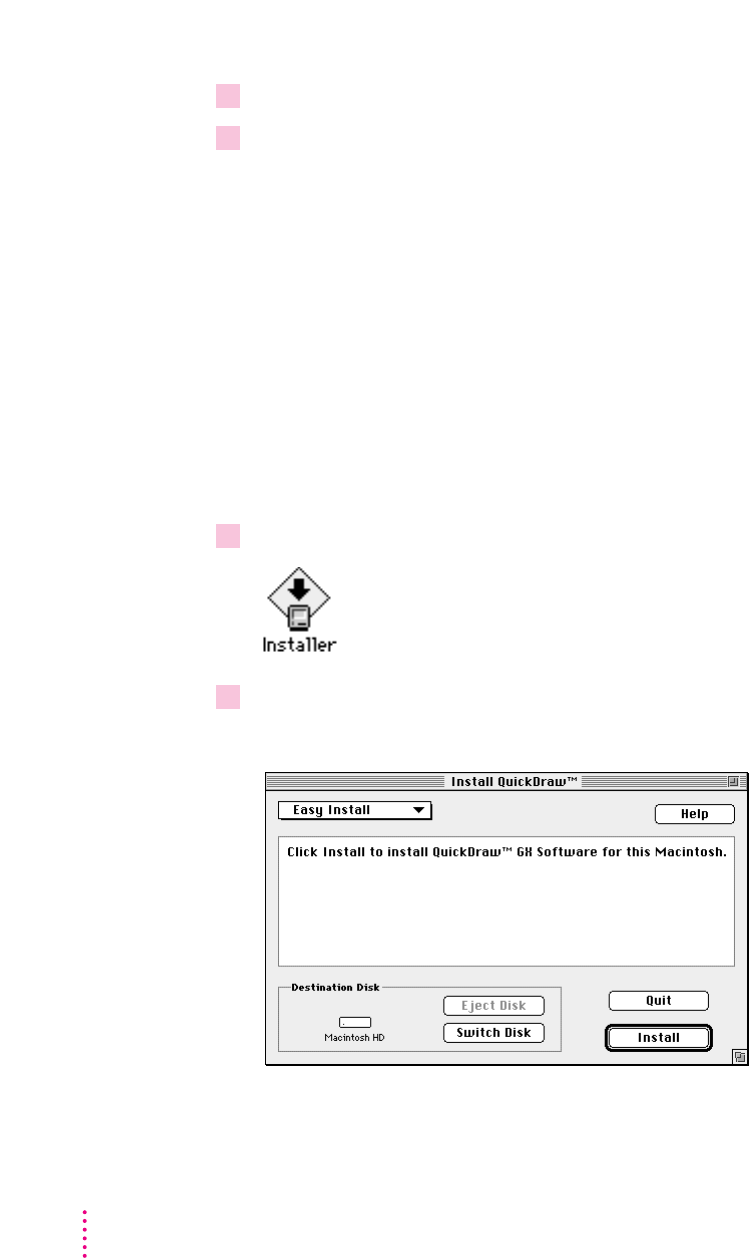
1 Quit any open application programs or desk accessories.
2 Locate the Installer for the software you want to customize.
The Installer for System 7.5 is located on the Install Disk 1 disk. If you are
installing from a CD, it is located in the System Install folder (inside the
Installation folder).
The Installer for QuickDraw GX is located on the Install disk. If you are
installing from a CD, it is located in the QuickDraw GX Install folder (inside
the Installation folder).
PowerTalk does not have a Custom Install option.
All system software files are compressed. The Installer program will expand
them during installation. Do not drag them to your system.
3 Open the Installer by double-clicking its icon.
4When you see the Installer’s welcome screen, click Continue.
The Easy Install dialog box appears. (This example shows QuickDraw GX.)
90 Appendix A
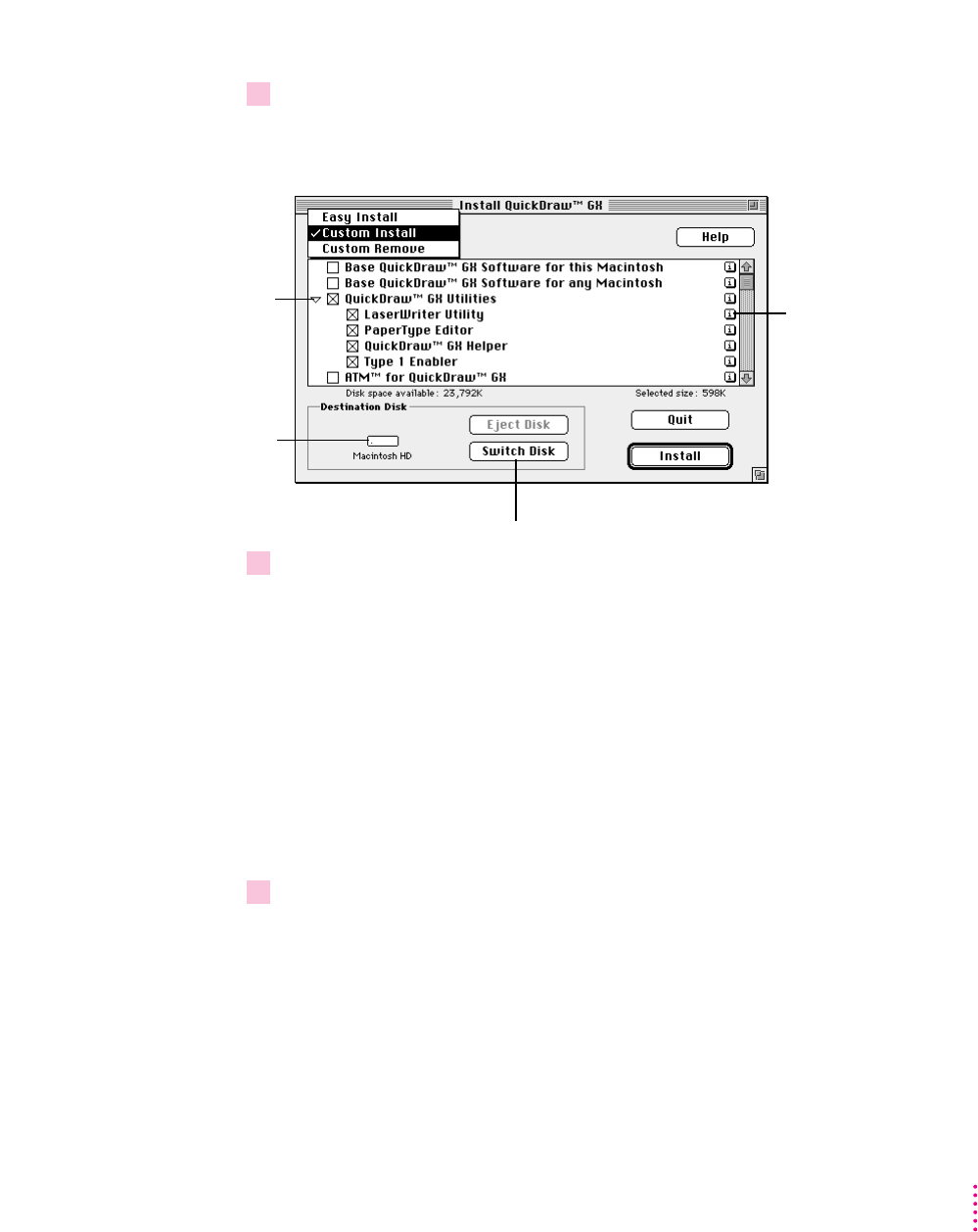
5 Open the pop-up menu and choose Custom Install.
The Custom Install dialog box appears. (This example shows QuickDraw
GX.)
6Select the software to install.
To install software, click the checkbox to put an X in the box. For example,
put an X in the QuickDraw GX Utilities box to install the Type 1 font
enabler, GX Helper, and other utilities.
To see a detailed list of the software included in an item, click the triangle
(next to the item) so it points down. For example, when the triangle next
to QuickDraw GX Utilities points down, you can select specific utilities
to install.
To see information about an item, click the information box (marked with
the letter i) across from it.
7Make sure that the destination disk indicated on the screen is the one on which you want
to install software.
If the wrong disk name appears, click the Switch Disk button until the correct
disk name appears.
91
Using the Custom Install Option
Click to install on a different disk.
When the triangle
points down, you
see a detailed list
of the software.
Disk on which
system software
will be installed.
Click the information box
(marked with the letter
i
)
to see information about
each item.

8 Click Install.
The Installer begins to install the software you have selected.
If you have any problems while installing: See Chapter 7 (“Troubleshooting”)
in this book.
9 Follow the instructions on the screen.
On-screen messages tell you when you need to insert other disks. It takes a
few minutes to complete the installation.
10 After the installation is complete, restart your computer.
If for some reason the installation was not successful, try again.
If you can’t restart the computer: See Chapter 7 (“Troubleshooting”) in this
book.
92 Appendix A

This appendix provides instructions for a troubleshooting procedure that is
commonly called a “clean” installation of system software. Do a clean
installation if you can’t determine what is damaged in your System Folder
(especially if you think any special software, such as control panels, system
extensions, or custom utilities may be causing the problems you’re
experiencing).
You should also do a clean installation if you’re still having problems with
your computer after you’ve reinstalled system software by doing a normal
installation.
1Shut down your computer.
2 Insert the
Disk Tools
disk into the floppy disk drive.
If you’re installing software from a CD: Insert the Disk Tools disk that came
with your CD.
If you’re installing software over a network: Make a Disk Tools disk from the
disk image on your file server. If you need more information, ask your
network administrator.
3 Turn on your computer.
The Disk Tools icon appears on your screen.
4Double-click the Disk Tools disk icon to open it.
93
Appendix B
Performing a Clean Installation
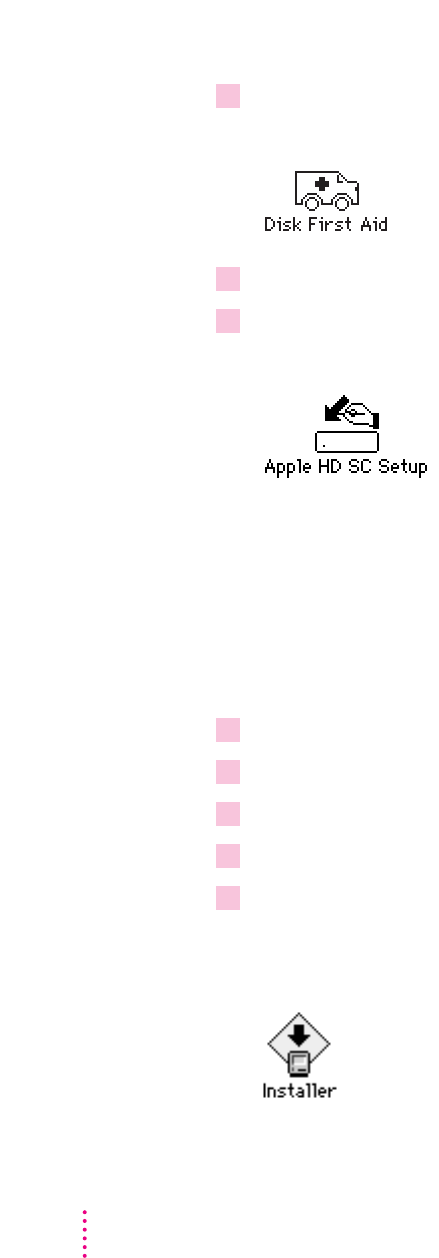
5Double-click the Disk First Aid icon and follow the instructions on the screen.
Disk First Aid checks your hard drive for any problems.
6When you are finished, choose Quit from the File menu.
7Double-click the Apple HD SC Setup icon.
Apple HD SC Setup allows you to update the disk driver.
IMPORTANT
If you are installing system software on the internal hard disk of a
Quadra 630, Performa 630 series, LC 630, or PowerBook 150, you do not need
to update the disk driver. Skip to step 11 to continue with the installation.
If you are installing system software on a non-Apple hard disk, you cannot
use HD SC Setup to update the disk driver. For a non-Apple hard disk,
contact the dealer or manufacturer to update the disk driver.
8Select the hard disk you want to update, then click Update.
9When you are finished, click Quit.
10 Shut down your computer.
11 Insert the
Install Disk 1
disk into a floppy disk drive, and turn on your computer.
12 Open the Installer by double-clicking its icon.
All system software files are compressed. The Installer program will expand
them during installation. Do not drag them to your hard disk.
94 Appendix B
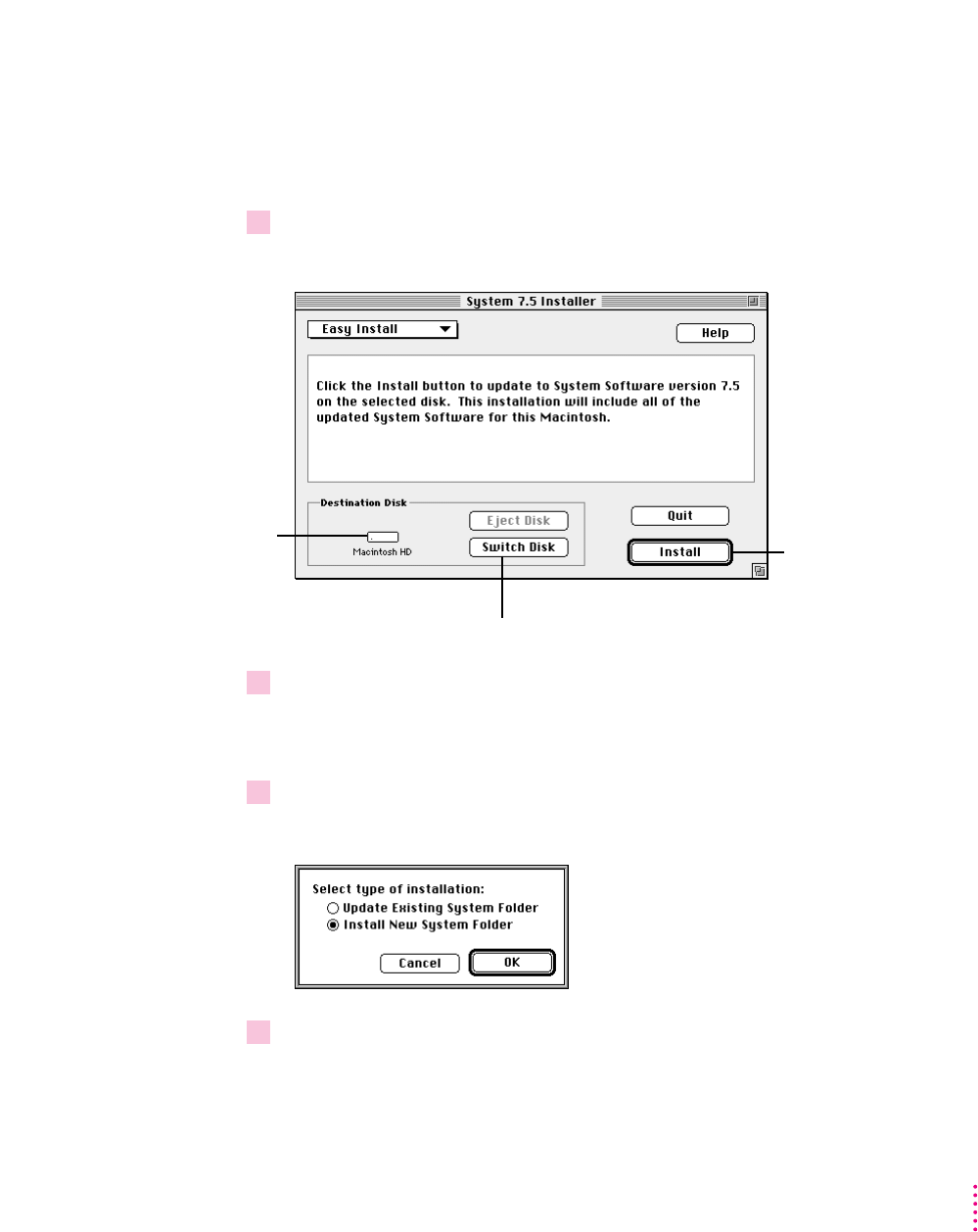
If you’re installing software from a CD: Find the Installer in the System Install
folder (inside the Installation folder) on the CD.
If you’re installing software over a network: Find the Installer on your file
server. If you’re not sure where it is, ask your network administrator.
13 When you see the Installer’s welcome screen, click Continue.
The Easy Install dialog box appears.
14 Make sure that the Destination Disk indicated on the screen is the one on which you
want to install system software.
You can click the Switch Disk button until the correct disk name appears.
15 Hold down Shift–
x
–K to start the clean installation.
The following dialog box appears.
16 Click the Install New System Folder button and click OK.
The dialog box closes. In the Easy Install dialog box, the Install button
changes to Clean Install.
95
Performing a Clean Installation
Disk on which
system software
will be installed
Button to switch to a different disk
for installation
For a clean installation,
DO NOT click the Install
button. Press and hold
down Shift–
x
–K.

17 Click Clean Install and follow the instructions on the screen.
18 When the installation is complete, restart your computer.
Replacing special software
Special software consists of items that you may have added to your previous
System Folder. After a clean installation, you should replace your special
software by reinstalling it.
IMPORTANT
A clean installation renames your old System Folder “Previous
System Folder” and leaves it on the hard disk. To avoid keeping software that
may be damaged, you should reinstall special software from the original disks
rather than copying it from the Previous System Folder.
1 Use the original disks to reinstall any special software that was in your old System
Folder. This software may include such items as
mnon-Apple fonts, printer drivers, control panels, and extensions
mnetworking and communications programs
msoftware that enables hardware, such as camera, scanner, and
monitor software
mApple software that enhances the basic system software, such as QuickDraw
GX and PowerTalk
2You may need to copy some application-related items from the Previous System Folder.
Look in the Previous System Folder for files or folders with the same name as
your application programs. These files or folders may include preferences,
help files, or other information used by your application programs. If you
need to use any items from the Previous System Folder, drag them one at a
time to your new System Folder, restarting the computer after you copy each
item. Check after each restart to make sure your computer is not having any
software problems. Be very careful not to copy over any of the files already in
the new System Folder with files from the Previous System Folder.
3After you replace your special software and your computer is working normally, throw
away the Previous System Folder by dragging it to the Trash.
96 Appendix B

If your Macintosh does not start up properly or behaves erratically, you
probably have an incompatible startup program (also known as a system
extension or control panel).
This appendix tells you how to remove startup programs that are
incompatible with System 7.5. It also tells you how to turn on startup
programs that were placed in the “May Not Work With System 7.5” folder
during installation and test them for compatibility.
Remove incompatible startup programs
To verify that you have a compatibility problem and test individual programs,
follow the steps below.
Verify the problem
1 Start up your computer, holding down the Space bar.
Holding down the Space bar opens the Extensions Manager control panel
during startup.
97
Appendix C
Testing for Compatibility
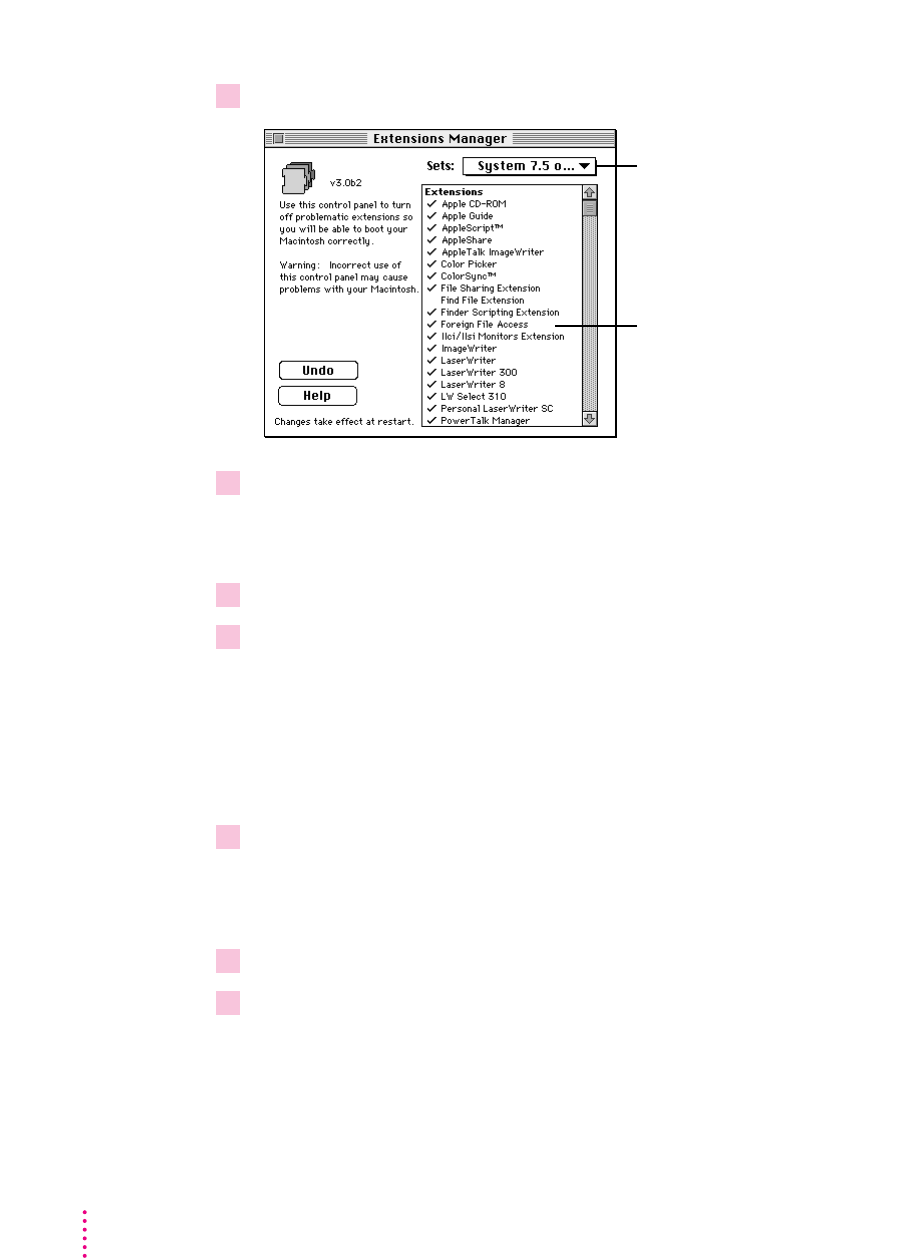
2 Release the Space bar when the Extensions Manager control panel opens.
3 Open the Sets menu and choose “System 7.5 only.”
This turns off all extensions and control panels, except those installed with
System 7.5.
4Close the Extensions Manager to continue startup.
5When the computer is ready, try the same actions that caused the problem.
If the problem no longer occurs, you probably have an extension or control
panel that doesn’t work with System 7.5. Continue with the steps in the next
section.
Test individual extensions and control panels
1 Start up your computer, holding down the Space bar.
Holding down the Space bar opens the Extensions Manager control panel
during startup.
2 Release the Space bar when the Extensions Manager control panel opens.
3 To turn on one of the extensions or control panels, click its name to put a check
beside it.
98 Appendix C
To prevent an extension from
loading, click it to remove the
check. To allow the extension
to load, click it again to put a
check beside it.
If you think you have a
problem with incompatible
items, open this menu and
choose “System 7.5 only.”

4Close the Extensions Manager to continue startup.
5When the computer is ready, try the same actions that caused the problem.
If the problem does not occur again, then the item is probably compatible
with System 7.5.
If the problem occurs again, the program is probably incompatible. Open the
Extensions Manager and click the program’s name to remove the check.
6 Repeat steps 1 through 5 for each item you want to test.
Test individual programs in the “May Not Work with System 7.5” folder
When you used the Safe Install Utility, you moved potentially incompatible
startup programs into a folder called “May Not Work With System 7.5.” After
installation, you may want to turn on and test some of these programs.
To turn on and test programs identified by the Safe Install utility as
potentially incompatible, follow the steps below.
1 Drag one program from the “May Not Work with System 7.5” folder to the System Folder
icon.
When you drag a program to the System Folder icon (rather than into the
open System Folder) the system automatically puts the item where it belongs.
For example, system extensions automatically go into the Extensions folder.
2At the dialog box that asks if it’s okay to put the program where it belongs, click OK.
3 Restart the computer.
If your computer starts up, continue with step 4 below.
If the computer does not start up properly, the program is probably
incompatible with System 7.5. To turn off the program, hold down the Space
bar while you restart your computer. When the Extensions Manager opens,
find the program and click its name to remove the check. Close the
Extensions Manager to resume startup. Go back to step 1 to turn on and test
another program.
99
Testing for Compatibility

4 Use the computer for a while and see if any problems occur.
If nothing goes wrong, then the extension or control panel is probably
compatible with System 7.5.
If your computer behaves erratically, then the program is probably
incompatible with System 7.5. Open the Extensions Manager and click the
program’s name to remove the check.
5 Repeat steps 1 through 5 for each item in the “May Not Work with System 7.5” folder that
you want to test.
100 Appendix C

A
access code. See key chain access code
AppleCD Audio Player 65
Apple Extras folder 52
Apple HD SC Setup 94
AppleMail 79
Apple menu
Automated Tasks 52
Find File 47
Shut Down 66
Stickies 51
submenus in 49
Apple Menu Options control panel 49
AppleScript folder 52
AppleTalk catalog 77
AppleTalk network 28, 77
Applications folder, locking 61
Archived Type 1 Fonts folder 15, 18
At Ease software 7, 13, 19
audio support 64–65
Automated Tasks (Apple menu) 52
automatic power off 63
B
backing up
hard disk 9
System 7.5 CD-ROM 5
Backup CD folder 5
Balloon Help 40
battery and power management on the
PowerBook 54–56
Before You Install disk 7
Before You Install folder (on CD) 7
bitmapped fonts 74
“bomb” message on the screen 84
Button Disabler control panel 69
C
can’t start up the computer 84
Catalogs 21, 29, 77–78
CD
installing QuickDraw GX from 13
installing System 7.5 from 7, 10
performing a clean installation from
93, 94
using the Custom Install
option from 90
CD player support 65
101
Index
If you can’t find what you’re looking for
in this index, look in Macintosh Guide—
available in the Guide (
h
) menu
on your computer.

Chooser 16
clean installation 93–96
clipping files, drag and drop and 46
clock options, displaying in menu bar 50
collaboration services, turning off/on 29
colors, ensuring consistency across
monitors, scanners,
and printers 75
ColorSync 75
compact disc. See CD
compatibility testing 98–100
computer-telephone integration 69
contrast button, disabling 69
control panels. See also startup programs
Apple Menu Options 49
Button Disabler 69
ColorSync 75
CPU Energy Saver 63
Date and Time 24, 50
Desktop Patterns 66
Extensions Manager 62, 83, 85,
97–100
General Controls 58–61
grouping or turning off/on 62, 97–99
Keyboard 68
Macintosh Easy Open Setup 45
Numbers 68
PC Exchange 44
PowerBook 54
PowerTalk Setup 24, 27, 29
Sharing Setup 28–29
Sound 64
testing for compatibility with System
7.5 98–100
Text 68
WindowShade 48
Control Strip on the PowerBook 55
CPU Energy Saver control panel 63
Custom Install dialog box 91
Custom Install option 89–92
customizing the Macintosh for novice
users 57–61
D
date and time, displaying on
menu bar 50
Date and Time control panel 24, 50
desktop patterns, selecting or adding 66
dialog boxes
Custom Install 91
Easy Install 11, 14, 90, 95
Install PowerTalk 20
QuickDraw GX printing
dialog boxes 72
DigiSign utility 79
digital signature 79
disabling sound and screen contrast
buttons 69
disk cache 81
Disk First Aid 5, 94
disks, opening IBM-formatted disks on
the Macintosh 44, 45
disk space, “not enough disk space
message” 82
Disk Tools disk 5, 83, 84, 93
Documents folder 59
DOS files, opening on the
Macintosh 44, 45
drag and drop
Note Pad and 68
overview 46
PICTs and 66
Scrapbook and 67
102 Index

E
Easy Install dialog box 11, 14, 90, 95
Easy Open 45
electronic mail. See also PowerTalk
troubleshooting 88
extensions. See also startup programs
grouping 62
QuickDraw GX printing
extensions 72
QuickTime 67
testing for compatibility with System
7.5 97–100
turning off/on 62, 84, 85, 97–99
Extensions Manager 62, 84, 85, 97–100
F
fax modem, using with QuickDraw GX
installed 87
fax problems, troubleshooting 87
File menu, New Note 51
files
clippings 46
opening DOS/Windows files on the
Macintosh 44, 45
opening files when you don’t have the
program that created them 45
synchronizing between the
PowerBook and other Macintosh
systems 55
Finder
automating tasks with AppleScript 52
enhancements in System 7.5 2,
47–51, 66
hiding 60
making active 32, 39
Find File (Apple menu) 47
floppy disks 83
folders
Apple Extras 52
AppleScript 52
Applications 61
Archived Type 1 Fonts 15, 18
Backup CD (on CD) 5
Before You Install (on CD) 7
Documents 59
Fonts 74
May Not Work With System 7.5 9,
99–100
PowerTalk 79
PowerTalk Install (on CD) 19
QuickDraw GX Install (on CD) 13
System Folder 9, 61
fonts 15, 17–18, 74
Fonts folder 74
G
General Controls control panel 58–61
Guide menu
Macintosh Guide 15, 31–39
overview 12, 31
Shortcuts 41–42
Show/Hide Balloons 40
H
Help. See Balloon Help; Guide menu
Hide Balloons (Guide menu) 40
high-quality stereo support 64–65
“Huh?” button in Macintosh Guide
window 39
I, J
IBM-compatible disks and files, opening
on the Macintosh 44, 45
icons
Apple HD SC Setup 94
AppleMail 79
Apple Menu Options 49
Button Disabler 69
Catalogs 21, 77
ColorSync System Profile 75
103
Index

CPU Energy Saver 63
Date & Time 50
Desktop Patterns 66
DigiSign Utility 79
Disk First Aid 94
Documents 59
DOS Disk 44
Extensions Manager 62
General Controls 58
Guide 12, 31, 40, 41
Installer 14, 20, 90, 94
Keyboard 68
Key Chain 78
LaserWriter GX 15, 70
Macintosh Easy Open Setup 45
MacTCP 64
Mailbox 21, 24, 27, 77
PC Exchange 44
PDD Maker 16, 73
PowerBook 54
printer 15, 70
QuickTime 67
Safe Install Utility 8
Script Editor 52
SimpleText 53
Sound 64
WindowShade 48
Index button in Macintosh Guide window
33, 35–36
installation disks not recognized,
troubleshooting 83
Install disk 13, 19, 90
Installer program
Custom Install option 89–92
Easy Install option 10–12, 13–15,
19–21, 94–96
performing a clean installation 94–96
troubleshooting 81–83
installing
PowerTalk 19–21
QuickDraw GX 13–15
Custom Install option 89–92
System 7.5
before you install 1–5
Custom Install option 89–92
performing a clean installation
93–96
troubleshooting 81–83
using the Installer program 10–12
using the Safe Install Utility 7–9
Install PowerTalk dialog box 20
Install System disk 10, 90, 94
international text format support 75
K
Keyboard control panel 68
keyboard shortcuts 41–42
key chain access code. See also
PowerShare password
changing 24, 27
overview 22
setting up 23–24, 78
L
language options, selecting 68
LaserWriter Utility 17
Launcher 57–58
Look For button in Macintosh Guide
window 33, 37–38
M
Macintosh Drag and Drop. See drag
and drop
Macintosh Easy Open Setup control
panel 45
Macintosh Guide (Guide menu)
creating a desktop printer icon 15
Index button 33, 35–36
Look For button 33, 37–38
moving the window 32, 39
overview 31–33
tips for using 39
104 Index

Topics button 15, 33–34, 39
MacTCP 64, 89
Mailbox 21, 24, 27, 29, 77
May Not Work With System 7.5 folder
9, 99–100
memory
checking amount of 5
“not enough memory” messages
81–82
saving 29
memory requirements 5
menu bar, displaying date and time on
50
mouse shortcuts 41–42
moving items with drag and drop 46
multitasking support 69
N
networks. See also PowerTalk
AppleTalk 28, 77
installing PowerTalk on 19
installing QuickDraw GX on 13
installing System 7.5 on 8, 10
naming your computer on 28–29
performing a clean installation
on 93, 94
printer sharing using QuickDraw GX
72–73
support for TCP/IP 64
new features of System 7.5
audio support 64–65
Button Disabler 69
CPU Energy Saver 63
customizing the Macintosh for novice
users 57–61
date and time, displaying on
menu bar 50
desktop patterns, more colorful 66
Documents folder as default for
saving files 59
DOS/Windows file compatibility 44
drag and drop 46
Easy Open 45
Extensions Manager 62
Finder, hiding 60
Find File 47
Guide menu 31–42
large volume support 70
Launcher enhancements 57–58
Macintosh Guide 31–39
mobile computing 54–56
Multitasking support 69
new Note Pad 68
new Scrapbook 67
overview 2
PowerBook features 54–56
PowerTalk collaboration services
76–79
QuickDraw GX printing and
publishing 70–75
QuickTime extension 67
Roman-language keyboard support 68
Script Editor 52
Shut Down available in the Apple
menu 66
SimpleText enhancements 53
software protection 61
Stickies 51
submenus for the Apple menu 49
TCP/IP networking support 64
Telephone Manager 69
Thread Manager 69
universal enabler 70
WindowShade 48
New Note (File menu) 51
“not enough disk space” message 82
“not enough memory” messages 81–82
Note Pad 68
notes, creating and sticking on
the screen 51
Numbers control panel 68
105
Index

O
on-screen help. See Balloon Help;
Guide menu
P
Paper Type Editor 17
password. See PowerShare password
PC Exchange control panel 44
PDD Maker 16
PICTs 66
Portable Digital Documents
(PDDs) 16, 73
PostScript fonts 15, 17–18, 74
PowerBook, battery and power
management 54–56
PowerBook control panel 54
PowerBook Control Strip 55
PowerBook File assistant 55
PowerShare password 27. See also key
chain access code
PowerShare server, setting up
with a PowerShare server account
25–27
without a PowerShare server
account 22–25
PowerTalk
AppleMail 79
Catalogs 21, 29, 77–78
DigiSign digital signature 79
installing 19–21
key chain access code 22, 23–24,
27, 78
Mailbox 21, 24, 27, 29, 77
memory requirements for 5
overview 4, 76
turning off/on 29
PowerTalk folder 79
PowerTalk Installer 20
PowerTalk Install folder (on CD) 19
PowerTalk Setup control panel 24,
27, 29
preventing computer shutdown 63
printer drivers, GX drivers for
non-Apple printers 13
printer icon, creating 15
printer sharing 72–73
printing
in an application program with
QuickDraw GX installed 87
on a non-Apple printer with
QuickDraw GX installed 13, 86
turning QuickDraw GX printing
off/on 17, 85, 87
using QuickDraw GX 70–73
print queue window 71
protecting software programs 61
publishing software. See QuickDraw GX
Q
QuickDraw GX
ColorSync and 75
font support 74–75
installing 13–15
international text format support 75
memory requirements for 5
overview 3
Portable Digital Documents (PDDs)
and 16, 73
printing 70–73
on a non-Apple printer 13, 86
turning printing off/on 17, 85, 87
QuickDraw GX Helper 17
QuickDraw GX Install folder 13
QuickDraw GX utilities, overview 17
QuickTime extension 67
106 Index

R
RAM disk 82
random-access memory (RAM).
See memory
Roman-language keyboard support 68
S
Safe Install Utility 7–9
saving files in Documents folder 59
Scrapbook 67
screen contrast button, disabling 69
Script Editor 52
scripts, creating 52
searching for a file 47
security software, installing System 7.5
and 9
Sharing Setup control panel 28–29
Shortcuts (Guide menu) 41–42
Show Balloons (Guide menu) 40
shrinking windows 48
Shut Down (Apple menu) 66
shutting down with CPU Energy
Saver 63
SimpleText word processor 53
software protection 61
sound button, disabling 69
Sound control panel 64
Special menu (Finder), Unlock Key
Chain 22, 25
speech recognition, troubleshooting 85
starting the computer, troubleshooting 84
startup programs
checking for compatibility with the
Safe Install Utility 7–9
removing incompatible startup
programs 97–99
testing for compatibility 98–100
turning on or off 62, 84, 85, 97–99
stereo sound support 64–65
Stickies (Apple menu) 51
System file, difficulty modifying during
installation 83
System Folder
locking 61
moving incompatible or unknown
items 9
turning off incompatible items 84, 85
T
TCP/IP (Transmission Control
Protocol/Internet Protocol)
networking support 64
Telephone Manager 69
Text control panel 68
Thread Manager 69
time and date, displaying on
menu bar 50
Topics button in Macintosh Guide
window 15, 33–34, 39
troubleshooting
“bomb” message on the screen 84
can’t start up the computer 84
damaged system software 84
difficulty modifying the System file
during installation 83
electronic mail and faxes do not go to
your mailbox 88
incompatible items in System Folder
84, 85
installation disks not recognized 83
Installer problems 81–83
“not enough disk space” message 82
“not enough memory” messages
81–82
PowerTalk problems 88
printing in an application program
with QuickDraw GX
installed 87
printing on a non-Apple printer with
QuickDraw GX installed 86
107
Index

problems using System 7.5 84–85
QuickDraw GX problems 86–87
speech recognition doesn’t work 85
using a fax modem with QuickDraw
GX installed 87
TrueType fonts 74
turning off/on
PowerTalk 29
QuickDraw GX printing 17, 86, 87
startup programs 62, 84, 85, 97–99
Type 1 Enabler 17, 18
Type 1 PostScript fonts 15, 17–18, 74
typography 74–75
U
universal enabler 70
Unlock Key Chain (Special menu/Finder)
22, 25
V
virus-protection software, installing
System 7.5 and 9, 83
volumes, large volume support 70
W, X, Y, Z
windows, shrinking 48
Windows files, opening on the Macintosh
44, 45
WindowShade control panel 48
108 Index


The Apple Publishing System
This Apple manual was written, edited, and produced on a desktop publishing system using
Apple Macintosh computers and QuarkXPress. Technical illustrations were drawn in Adobe™
Illustrator; screen shots were created and modified with system software, Exposure Pro, Aldus
SuperPaint, and Adobe Photoshop. Proof pages were created on Apple LaserWriter printers and
on QMS and Tektronix color printers. Final pages were output directly to separated film on a
PostScript™-driven imagesetter.
Text type is Times®, display type is Helvetica®Narrow, and cover type is Apple Garamond,
Apple’s corporate font. Ornaments are custom symbols designed for Apple Computer. Some
elements, such as computer voice, are set in Apple Courier, a fixed-width font.
PostScript, the LaserWriter page-description language, was developed by Adobe Systems
Incorporated.
