Apple MacPro(Early2009) User Manual Mac Pro(Early2009and Mid2010) Bluetooth Cable Replacement Instructions Pro Early2009 DIY
Apple-Mac-Pro-Bluetooth-Cable-Users-Manual-418279 apple-mac-pro-bluetooth-cable-users-manual-418279
Mac Pro Bluetooth Cable Mac_Pro_Early2009_Bluetooth_Cable_DIY
Bluetooth Cable to the manual 80520c18-7bef-455b-9641-e13153ea9403
User Manual: Apple MacPro(Early2009) MacPro(Early2009andMid2010)-BluetoothCableReplacementInstructions
Open the PDF directly: View PDF  .
.
Page Count: 5
073-1256 Rev. A 1
© 2009 Apple Inc. All rights reserved.
Mac Pro
First Steps
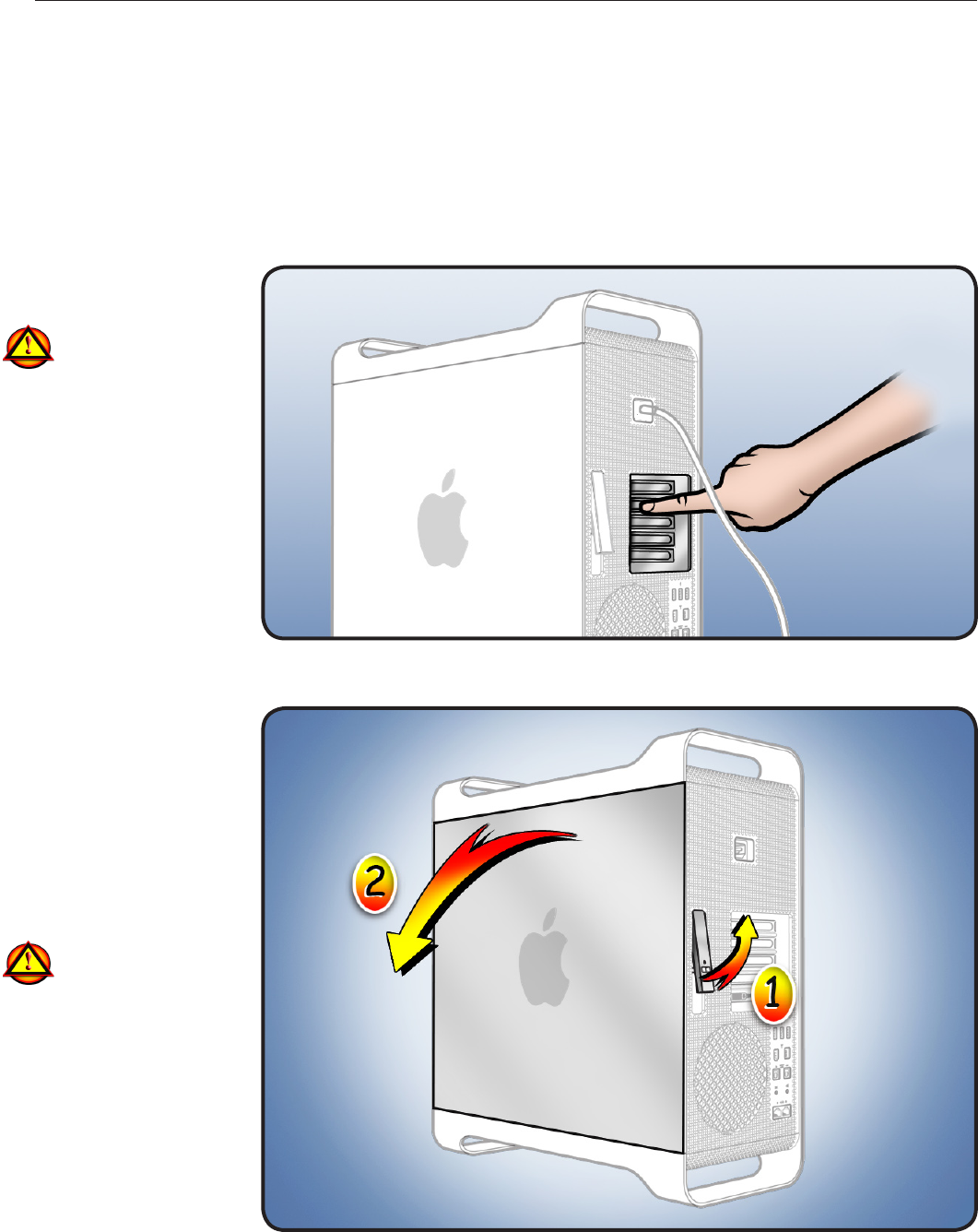
Shut down computer.1
2 Wait 10 minutes.
Warning: Parts inside
computer can be very
hot. Allow computer
to cool down before
continuing.
Unplug all external 3
cables except power
cord.
Touch metal PCI cover 4
on back of computer.
Unplug power cord.5
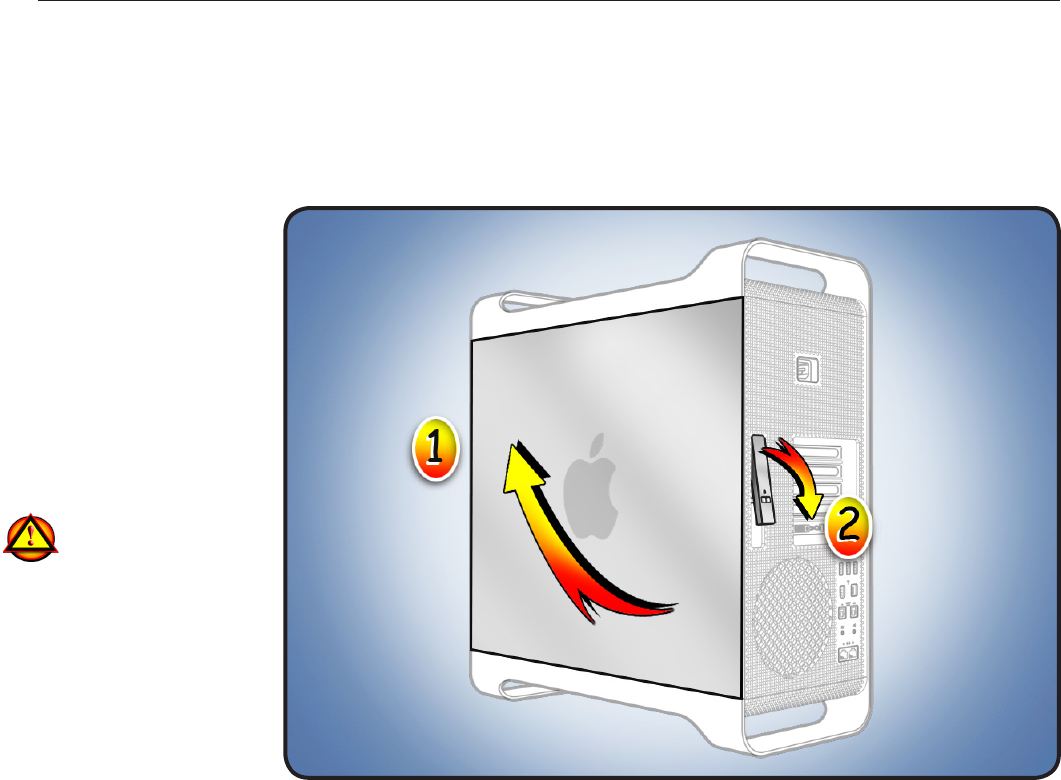
Opening the
Computer
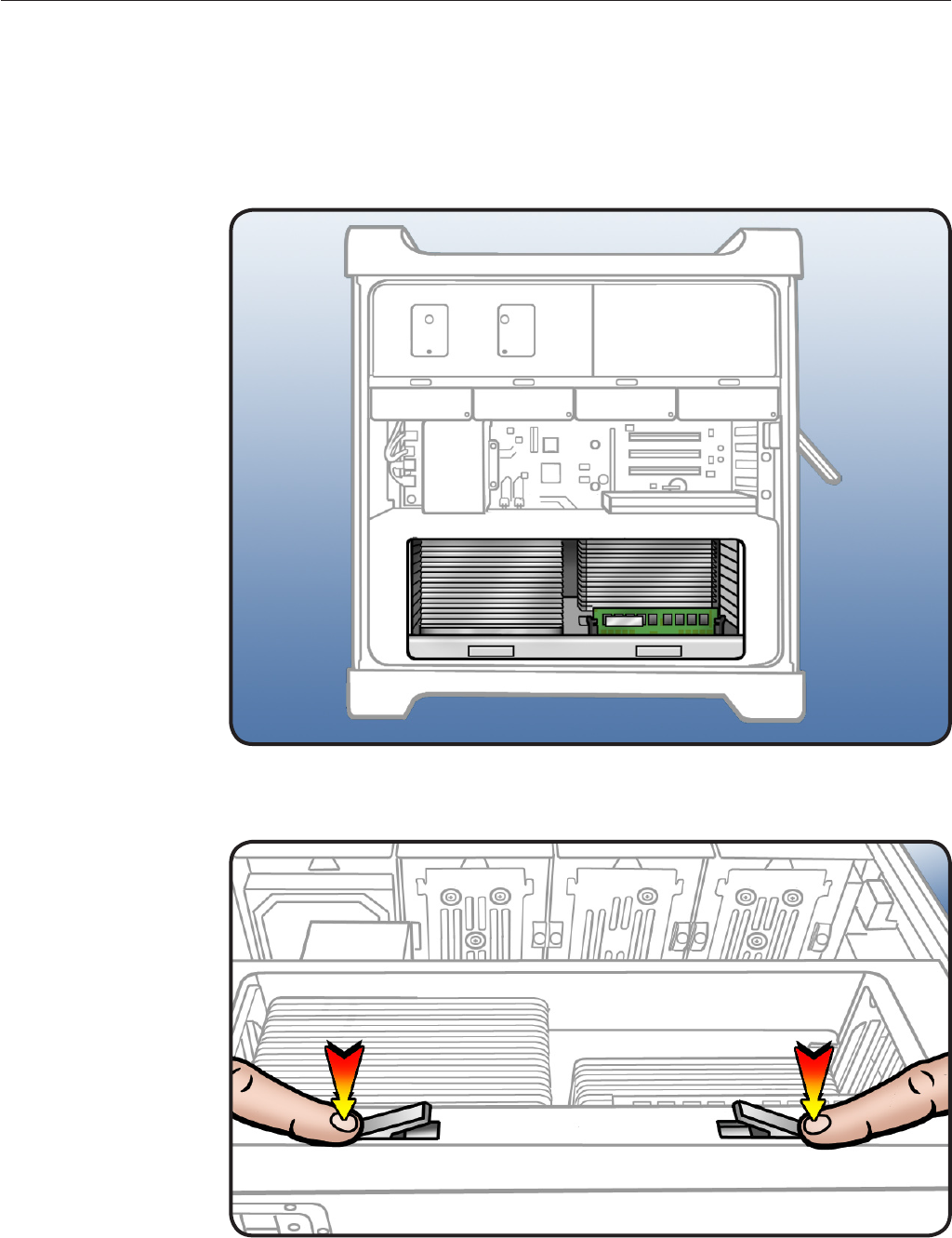
Hold side access 1
panel and lift latch on
back of computer.
Warning: Edges of
access panel and
enclosure can be
sharp. Be careful
when handling.
Remove access panel 2
and place it on at
surface covered by
soft, clean cloth.
Bluetooth Cable
Replacement Instructions
Note: Follow these instructions carefully. Failure to do so could damage your equipment and
void its warranty.
073-1256 Rev. A 2
© 2009 Apple Inc. All rights reserved.
Removing
the Installed
Bluetooth Cable
Before you can remove
the Bluetooth cable, you
must remove the
processor tray.
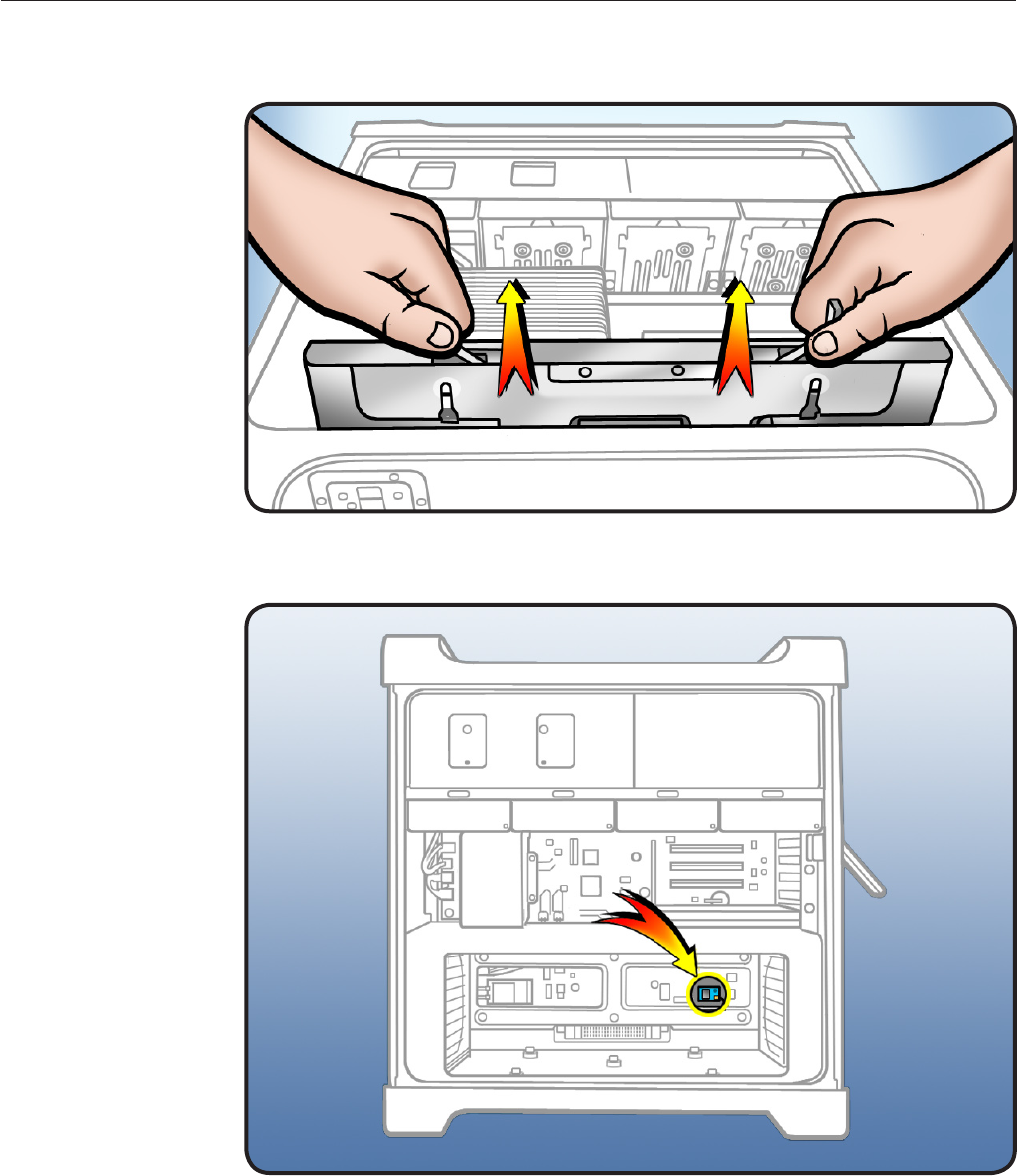
Locate processor tray.1
2 Press down and
release 2 latches on
front of processor tray.
073-1256 Rev. A 3
© 2009 Apple Inc. All rights reserved.
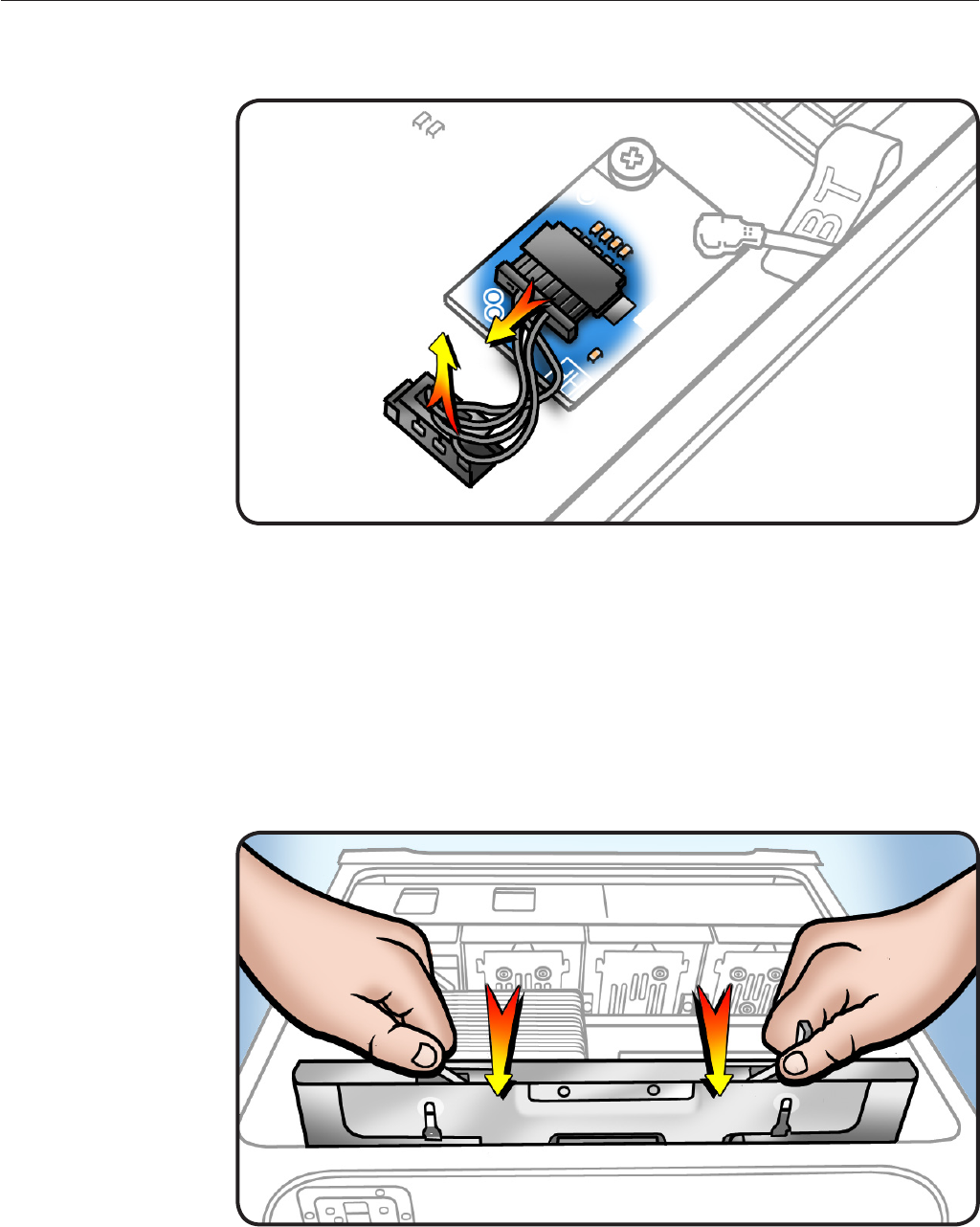
3 Holding tray by
latches, lift it out of
computer.
Place tray DIMM side 4
up on soft, clean
cloth.
5 Locate Bluetooth
cable.
073-1256 Rev. A 4
© 2009 Apple Inc. All rights reserved.
6 Disconnect cable
from Bluetooth card
and backplane board.
Remove cable from 7
computer.
Installing the
Replacement
Bluetooth Cable
Connect cable to 1
Bluetooth card and
backplane board.
2 Holding processor
tray by latches, lower
it back into computer.
Make sure latches are
3
closed ush with front
of processor tray.
073-1256 Rev. A 5
© 2009 Apple Inc. All rights reserved.
Closing the
Computer
1 Replace access panel.
Note: Make sure
latch is up before you
replace panel. If latch
is down, panel will
not seat correctly.
Push latch down 2
to close and secure
access panel.
Warning: Never turn
on computer unless
all its internal and
external parts are in
place and it is closed.
Operating computer
when open or missing
parts can cause
damage or injury.
Apple Inc.
© 2009 Apple Inc. All rights reserved.
This document is protected under U.S. Copyright Law and International Treaties, and no part of this
document may be reproduced in any form without written permission from Apple.
Apple is not responsible for typographical, printing, or inadvertent errors.
Apple Inc.
1 Innite Loop
Cupertino, CA 95014-2084 USA
+ 1 408 996 1010
www.apple.com
Apple, the Apple logo, and Mac are trademarks of Apple Inc., registered in the U.S. and other countries.
