Apple Macmini(Late2014) Mac Mini Quick Start Guide User Manual Late2014 Qs
User Manual: Apple Macmini(Late2014) Macmini(Late2014)-QuickStartGuide
Open the PDF directly: View PDF  .
.
Page Count: 6

Quick Start Guide
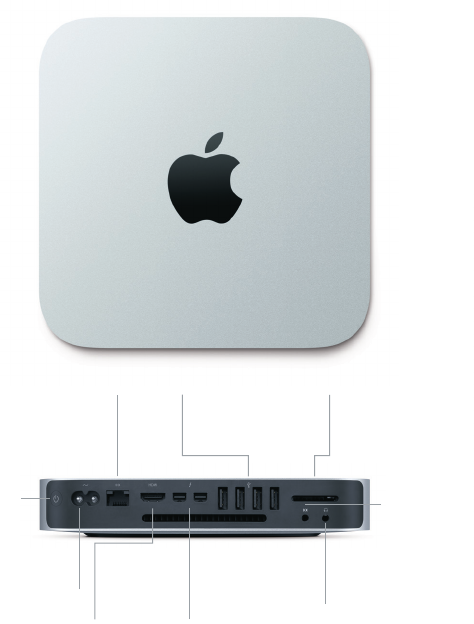
Welcome to your Mac mini. Let us show you around.
SDXC
Transfer photos
from your camera’s
memory card
Thunderbolt
Connect external
displays and high-
performance devices
USB 3
Charge devices,
connect external
storage, and more
Built-in
power supply
HDMI
Connect to
your HDTV
or display
Gigabit Ethernet
Connect to the
Internet or a
local network
Power
button
Headphone
Plug in headphones
or external speakers
Audio in
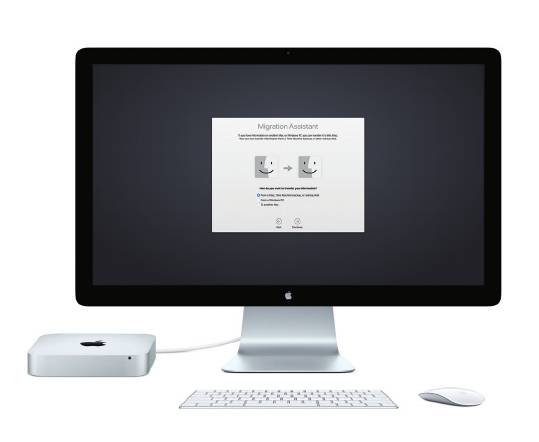
Let’s get started
Press the power button to start up your Mac mini, and Setup Assistant
guides you through a few simple steps to get you up and running. It walks
you through connecting to your Wi-Fi network and creating a user account.
And it can even transfer your documents, email, photos, music, and movies
to your new Mac from another Mac or PC.
You can sign in with your Apple ID in Setup Assistant. This sets up your
account in the Mac App Store and the iTunes Store, and in apps like
Messages and FaceTime, so they’re ready the rst time you open them.
It also sets up iCloud, so apps such as Mail, Contacts, Calendar, and Safari
have all your latest information. If you don’t have an Apple ID, you can
create one in Setup Assistant.
To learn more about transferring les to your new Mac, go to support.apple.com.
*Siri requires a microphone, available separately.
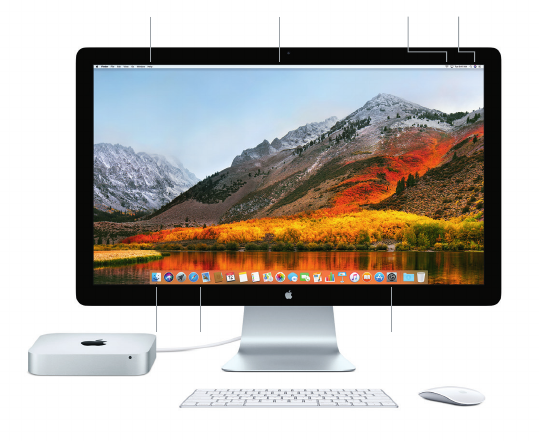
Get to know your desktop
The desktop is where you can nd everything and do anything on your
Mac. The Dock at the bottom of the screen is a place to keep the apps
you use most. It’s also where you can open System Preferences, which
lets you customize your desktop and other settings. Click the Finder icon
to get to all your les and folders.
The menu bar at the top has useful information about your Mac. To check
the status of your wireless Internet connection, click the Wi-Fi icon. Your Mac
automatically connects to the network you chose during setup. Siri is always
ready to help you nd information, locate les, and accomplish a variety of
tasks on your Mac just by using your voice.*
Help
menu
Menu
bar
SiriWi-Fi
System
PreferencesDock
Finder
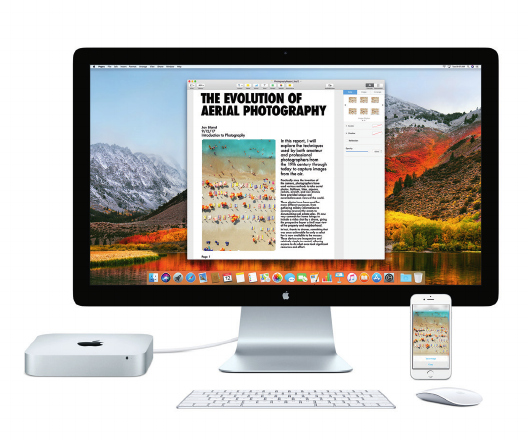
Use your Mac and iOS devices together
When you sign in to iCloud on your Mac and iOS devices* they recognize
when they’re near each other, enabling amazing features. SMS messages
sent to your iPhone appear in Messages on your Mac, so you can keep track
of all your conversations. With Instant Hotspot, your Mac can automatically
use the personal hotspot on your iPhone. And with Hando, you can start
an activity on your Mac and pick it up right where you left o on your
iOS device—and vice versa.
*Requires a device running iOS 8 or later. Your Mac and iOS device must be signed in to the same iCloud account.
Universal Clipboard
Copy and paste content to and from
nearby Apple devices signed in with
the same Apple ID.
Featured input devices sold separately. Siri may not be available in all languages or in all areas,
and features may vary by area.
TM and © 2017 Apple Inc. All rights reserved. Designed by Apple in California. Printed in XXXX.
034-02272-A
An important note
Please read this document and the safety information in the Mac mini Info
guide carefully before you rst use your computer.
Back up your data
You can back up your Mac mini using Time Machine, a built-in backup
tool in macOS that works with an external storage device, such as
AirPortTimeCapsule (sold separately). Open System Preferences and
click the Time Machine icon to get started.
Learn more
For guidance on setting up and using your Mac mini, please refer to the
Mac mini Essentials guide. To view the Mac mini Essentials guide in iBooks,
open iBooks, click “iBooks Store,” then search for “Mac mini Essentials.”
You can also nd answers to your questions, as well as instructions and
troubleshooting information, in Mac Help. Click the Finder icon, click Help
in the menu bar, then choose Mac Help.
Support
For detailed support information, go to www.apple.com/support/macmini.
Or to contact Apple directly, go to support.apple.com/contact.
Restoring your software
If you have a problem with your Mac mini, macOS Utilities can help you
restore your software and data from a Time Machine backup or reinstall
macOS and Apple apps. To access macOS Utilities, restart your computer
while holding down the Command and R keys.
