Apple Magic Keyboard 使用手册 使用指南 Userguide Ta
Magic Keyboard Magic Keyboard - 사용 설명서 magic-keyboard-userguide_kh
MagicKeyboard MagicKeyboard-使用手册 magic-keyboard-userguide_ch
使用手册: Apple Magic Keyboard Magic Keyboard - 使用指南
Open the PDF directly: View PDF  .
.
Page Count: 28
English 1
Welcome to your Apple Magic
Keyboard
Your Apple Magic Keyboard has a rechargeable
battery and uses Bluetooth® technology to
connect wirelessly to your Mac.
This guide shows you how to use your Magic
Keyboard, including pairing, customization,
recharging the battery, and updating OS X.
Update your software
To use your Magic Keyboard and its full range
of features, update your Mac to OS X v10.11
or later.
To update to the latest version of OS X, choose
Apple menu > App Store to see if there are
updates. Follow the onscreen instructions to
update OS X.
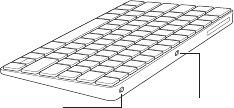
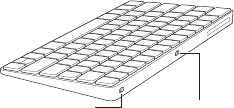
Set up your Magic Keyboard
Lightning portOn/off switch
Use the Lightning to USB cable that came with
your keyboard. Plug the Lightning end into
the Lightning port on your keyboard, and the
USB end into a USB port on your Mac. Slide the
keyboard on/o switch to on (so you see green
on the switch).

2 English
Your keyboard will pair automatically with
your Mac.
After the keyboard is paired, you can
disconnect the cable and use your keyboard
wirelessly.
Remove a pairing
After you pair your Magic Keyboard with a
Mac, you can pair it again with a dierent Mac.
To do this, remove the existing pairing and
then pair the keyboard again using the setup
instructions in the previous section.
To remove a pairing, select the keyboard in
Bluetooth preferences, then click the Delete
button next to the keyboard name.
Customize your Magic Keyboard
Change the modier keys, assign keyboard
shortcuts to menu commands in OS X
applications and the Finder, and more.
To customize your Magic Keyboard:
1 Choose Apple menu > System Preferences,
then click Keyboard.
2 Click Keyboard, Text, Shortcuts, or Input
Sources to customize the keyboard.
English 3
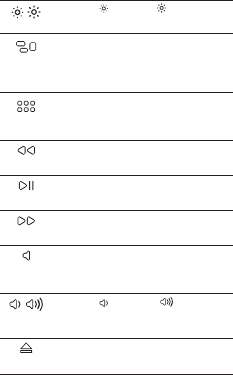
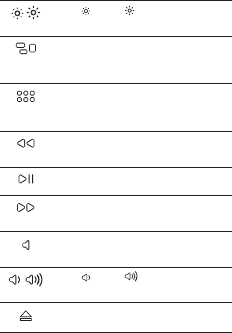
Use the function keys
Use the function keys at the top of the
keyboard to adjust the brightness of display,
open Mission Control, access applications with
Launchpad, control the volume, and more.
Decrease or increase the
brightness of the Mac display.
Open Mission Control for a
comprehensive view of what’s running
on your Mac, including Dashboard, all
your spaces, and all open windows.
Open Launchpad to instantly see all of
the applications on your Mac. Click an
application to open it.
Rewind or go to the previous song,
movie, or slideshow.
Play or pause songs, movies, or
slideshows.
Fast-forward or go to the next song,
movie, or slideshow.
Mute the sound coming from the
speakers or headphone port on
your Mac.
Decrease or increase the volume
of sound coming from the speakers or
headphone port on your Mac.
Press and hold the Media Eject key to
eject a disc.
4 English
Rename your Magic Keyboard
Your Mac automatically gives your Magic
Keyboard a unique name the rst time you pair
it. You can rename it in Bluetooth preferences.
To rename your keyboard:
1 Choose Apple menu > System Preferences,
then click Bluetooth.
2 Control-click the keyboard, then choose
Rename.
3 Enter a name and click OK.
Recharge the battery
Use the Lightning to USB cable that came with
your keyboard. Plug the Lightning end into
the Lightning port on your keyboard, and the
USB end into a USB port on your Mac or a USB
power adapter.
To check the battery status, choose Apple
menu > System Preferences, then click
Keyboard. The battery level is shown in the
lower-left corner.
Note: When you aren’t using the Magic
Keyboard, it goes to sleep to conserve battery
power. If you won’t be using your keyboard for
an extended period, turn it o to conserve even
more power.
Clean your Magic Keyboard
To clean the outside of your keyboard, use
a lint-free cloth. Don’t get moisture in any
openings or use aerosol sprays, solvents, or
abrasives.
English 5
Ergonomics
When using your Magic Keyboard, it’s
important to nd a comfortable posture,
change your position often, and take frequent
breaks.
For information about ergonomics, health, and
safety, visit the ergonomics website at
www.apple.com/about/ergonomics.
More information
For more information about using your
keyboard, open Mac Help and search for
“keyboard.”
For support and troubleshooting information,
user discussion boards, and the latest Apple
software downloads, go to www.apple.com/
support.
6 简体中文
欢迎使用 Apple Magic Keyboard
键盘
Apple Magic Keyboard 键盘配备可充电电池,
并使用 Bluetooth® 技术以无线方式连接到您的
Mac。
本手册介绍了 Magic Keyboard 键盘的使用方式,
包括配对、自定义、给电池充电以及更新 OS X。
更新软件
若要使用 Magic Keyboard 键盘及其完整的功
能,请将 Mac 更新至 OS X v10.11 或更高版本。
若要更新至最新版本的 OS X,请选取苹果菜单 >
“App Store”来查看是否有更新。按照屏幕指
示更新 OS X。
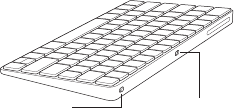
设置 Magic Keyboard 键盘
Lightning 端口打开/
关闭开关
使用键盘随附的 Lightning 转 USB 连接线。
将 Lightning 端插入键盘的 Lightning 端口,
同时将 USB 端插入 Mac 上的 USB 端口。然后
将键盘的打开/关闭开关滑动至打开(开关处会
显示绿灯)。

简体中文 7
键盘将自动与 Mac 配对。
键盘配对后,您可以断开连接线并以无线方式使用
键盘。
移除配对
Magic Keyboard 键盘与 Mac 配对后可重新与
其他 Mac 配对。若要重新配对,请移除现有的配
对并按照上一部分的设置指示再次配对键盘。
若要移除配对,请在“蓝牙”偏好设置中选择键
盘,然后点按该键盘名称旁边的“删除”按钮 。
自定 Magic Keyboard 键盘
更改修饰键、给 OS X 应用程序和 Finder 中的
菜单命令分配键盘快捷键,以及进行其他更多
设置。
若要自定 Magic Keyboard 键盘:
1 选取苹果菜单 >“系统偏好设置”,然后点按
“键盘”。
2 点按“键盘”、“文本”、“快捷键”或“输入
源”来自定键盘。
8 简体中文
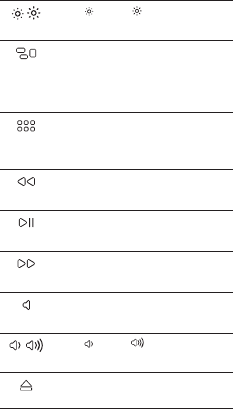
使用功能键
使用键盘顶部的功能键来调整显示器亮度、打开
Mission Control、通过 Launchpad 访问应用程
序、控制音量等。
降低 或提高 Mac 显示器
亮度。
打开 Mission Control 以全面了解
Mac 上正在运行的内容,包括
Dashboard、所有 Spaces 和所有
打开的窗口。
打开 Launchpad 可立即看到 Mac
上的所有应用程序。点按一个应用
程序以打开它。
倒回或跳到上一首歌曲、上一部影
片或上一个幻灯片放映。
播放或暂停播放歌曲、影片或幻
灯片放映。
快进或跳到下一首歌曲、下一部影
片或下一个幻灯片放映。
将来自 Mac 上扬声器或耳机插孔的
声音静音。
减小 或增大 来自 Mac 上扬
声器或耳机插孔的声音音量。
按住光盘推出键以推出光盘。
简体中文 9
重新命名 Magic Keyboard 键盘
首次配对 Magic Keyboard 键盘时,Mac 会自
动给它指定一个唯一的名称。您可以在“蓝牙”
偏好设置中给它重新命名。
若要重新命名键盘:
1 选取苹果菜单 >“系统偏好设置”,然后点
按“蓝牙”。
2 按住 Control 键点按该键盘,然后选取
“重新命名”。
3 输入名称并点按“好”。
给电池充电
使用键盘随附的 Lightning 转 USB 连接线。
将 Lightning 端插入键盘的 Lightning 端口,
同时将 USB 端插入 Mac 上的 USB 端口或 USB
电源适配器。
若要查看电池电量状态,请选取苹果菜单 >“系
统偏好设置”,然后点按“键盘”。电池电量显
示于左下角。
【注】 Magic Keyboard 键盘不在使用中时,
它将进入睡眠状态以节省电池电量。如果打算
长时间不使用键盘,请将其关闭以节省更多的
电量。
清洁 Magic Keyboard 键盘
请使用不起绒的布来清洁键盘的外部。请勿使
任何一个开口处受潮或使用气雾喷剂、溶剂或
研磨剂。
繁體中文 11
歡迎使用 Apple Magic Keyboard
鍵盤
您的「Apple Magic Keyboard 鍵盤」隨附可
充電電池,並使用 Bluetooth®(藍牙)技術
以無線方式連接 Mac 電腦。
這本手冊會指導您如何使用「Magic Keyboard
鍵盤」,其中包含如何配對、自定功能、
為電池充電和更新 OS X。
更新軟體
若要使用「Magic Keyboard 鍵盤」及其完整
功能,請將您的 Mac 更新至 OS X v10.11 或
以上版本。
若要更新至最新版本的 OS X,請選擇「蘋
果」選單 > App Store 來查看是否有可用的
更新項目。依照螢幕上的指示來更新 OS X。
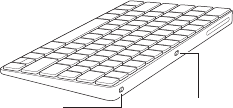
設定「Magic Keyboard 鍵盤」
Lightning 埠「開啟/關閉」開關
使用鍵盤隨附的 Lightning 轉 USB 接線。
將 Lightning 接頭插入鍵盤的 Lightning 埠,
並將 USB 接頭插入 Mac 的 USB 埠。將鍵盤
上的「開啟/關閉」開關切換至開啟的位置
(此時您會看到開關上顯示綠色燈號)。

12 繁體中文
您的鍵盤會自動與 Mac 配對。
鍵盤配對完成後,您可以拔掉接線,並以無
線方式使用鍵盤。
移除配對
當您將「Magic Keyboard 鍵盤」與 Mac 配對之
後,您可以讓鍵盤再次與不同的 Mac 配對。
若要與不同的 Mac 配對,請先移除現有的
配對,然後依照先前章節的設定指示再次
配對鍵盤。
若要移除配對,請在「藍牙」偏好設定中
選取鍵盤,然後按一下鍵盤名稱旁的「刪
除」按鈕 。
自定「Magic Keyboard 鍵盤」
您可以更改變更鍵、在 OS X 應用程式和
Finder 中為選單指令指定鍵盤快速鍵,以及
自定其他功能。
若要自定「Magic Keyboard 鍵盤」:
1 請選擇「蘋果」選單 >「系統偏好
設定⋯」,然後按一下「鍵盤」。
2 按一下「鍵盤」、「文字」、「快速鍵」
或「輸入方式」來自定您的鍵盤。
繁體中文 13
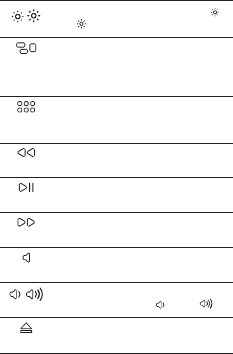
使用功能鍵
您可以使用鍵盤上方的功能鍵來調整顯
示器的亮度、打開 Mission Control、透過
Launchpad 取用應用程式、控制音量和執行
其他操作。
調低 或調高 Mac 顯示器的
亮度。
打開 Mission Control 來總覽 Mac 正在
執行的項目,包含 Dashboard、所有
的 Space 和所有已開啟的視窗。
打開 Launchpad 來快速查看 Mac 上的
所有應用程式。按一下應用程式來
將其開啟。
倒轉或前往上一首歌曲、影片或幻燈
片秀。
播放或暫停歌曲、影片或幻燈片秀。
快轉或前往下一首歌曲、影片或幻燈
片秀。
讓來自揚聲器或 Mac 耳機埠的聲音
靜音。
調低 或調高 來自揚聲器或 Mac
耳機埠的聲音音量。
按住媒體退出鍵來退出光碟。
14 繁體中文
重新命名「Magic Keyboard 鍵盤」
當您第一次配對時,您的 Mac 會自動為
「Magic Keyboard 鍵盤」指定一個獨有的
名稱。您可以在「藍牙」偏好設定中更改
此名稱。
若要重新命名鍵盤:
1 請選擇「蘋果」選單 >「系統偏好
設定⋯」,然後按一下「藍牙」。
2 按住 Control 鍵並點按鍵盤,然後選擇
「重新命名」。
3 輸入新的名稱,然後按一下「好」。
為電池充電
使用鍵盤隨附的 Lightning 轉 USB 接線。
將 Lightning 接頭插入鍵盤的 Lightning 埠,
並將 USB 接頭插入 Mac 或 USB 電源轉換器
的 USB 埠。
若要查看電池狀態,請選擇「蘋果」選單 >
「系統偏好設定⋯」,然後按一下「鍵
盤」。電池電量會顯示在左下角。
注意事項:當您不使用「Magic Keyboard 鍵
盤」時,它會進入睡眠以節省電池的電力。
若您會有一段時間不使用鍵盤,請將其關閉
以節省更多電力。
清潔「Magic Keyboard 鍵盤」
若要清潔鍵盤的外部,請使用不會產生棉絮
的布料。請不要讓任何開口處受潮,也不要
使用噴霧劑、溶劑或研磨劑來清潔鍵盤。
16
한국어
Apple Magic Keyboard
를
구입해주셔서
감사합니다
.
Apple Magic Keyboard
는
충전
가능한
배터리가
내장되어
있으며
Bluetooth®
기술을
사용하여
무선으로
Mac
에
연결됩니다
.
이
설명서에는
쌍으로
연결하기
,
사용자화하기
,
배터리
충전하기
및
OS X
업데이트하기를
포함하여
Magic Keyboard
사용에
관한
설명이
포함되어
있습니다
.
소프트웨어
업데이트하기
Magic Keyboard
의
모든
기능을
사용하려면
사용자의
Mac
을
OS X v10.11
이상으로
업데이트하십시오
.
최신
버전의
OS X
으로
업데이트하려면
Apple
메뉴
>
App Store
를
선택한
다음
업데이트가
있는지
확인
하십시오
.
화면상의
지침을
따라
OS X
을
업데이트
하십시오
.
Magic Keyboard
설정하기
Lightning
포트켬
/
끔
스위치
키보드와
함께
제공된
Lightning-USB
케이블을
사용하십시오
. Lightning
단자를
키보드의
Lightning
포트에
연결하고
USB
단자를
Mac
의
USB
포트에
연결하십시오
.
켬
/
끔
스위치를
밀어서
키보드를
켜십시오
(
스위치에
녹색
불이
들어옴
).

한국어
17
키보드가
Mac
과
자동으로
연결됩니다
.
키보드가
쌍으로
연결된
후
케이블을
제거하고
키보드를
무선으로
사용할
수
있습니다
.
연결
해제하기
Magic Keyboard
를
Mac
과
연결한
후
다른
Mac
과
연결할
수도
있습니다
.
다른
Mac
과
연결하려면
기존
연결을
해제하고
이전
섹션의
설정
지침을
사용하여
키보드를
다시
쌍으로
연결하십시오
.
연결을
해제하려면
Bluetooth
환경설정에서
키보드를
선택한
다음
키보드
이름
옆에
있는
삭제
버튼 을
클릭하십시오
.
Magic Keyboard
사용자화하기
보조
키를
변경하고
OS X
응용
프로그램
및
Finder
등의
메뉴
명령에
키보드
단축키를
할당할
수
있습니다
.
Magic Keyboard
사용자화하기
:
1 Apple
메뉴
>
시스템
환경설정으로
이동한
다음
키보드를
클릭하십시오
.
2
키보드
,
텍스트
,
단축키
또는
입력
소스를
클릭하여
키보드를
사용자화하십시오
.
18
한국어
기능
키
사용하기
키보드
상단에
있는
기능
키를
사용하여
디스플레이의
밝기를
조절하고
Mission Control
을
열며
,
Launchpad
로
응용
프로그램에
접근하고
,
음량을
조절하는
등의
작업을
할
수
있습니다
.
Mac
디스플레이의
밝기를
어둡게
하거나
밝게
합니다
.
Dashboard,
모든
작업공간
및
열려있는
모든
윈도우를
포함하여
Mac
에서
실행
중인
전체적인
모든
작업을
볼
수
있는
Mission Control
을
엽니다
.
Mac
의
모든
응용
프로그램을
직관적으로
보기
위해
Launchpad
를
엽니다
.
원하는
응용
프로그램을
클릭하여
여십시오
.
되감거나
이전
노래
,
동영상
또는
슬라이드쇼로
이동합니다
.
노래
,
동영상
또는
슬라이드쇼를
재생하거나
일시
정지합니다
.
앞으로
빨리
감거나
다음
노래
,
동영상
또는
슬라이드쇼로
이동합니다
.
Mac
의
스피커
또는
헤드폰
포트에서
나오는
사운드를
끕니다
.
Mac
의
스피커
또는
헤드폰
포트에서
나오는
사운드의
음량을
줄이거나
높입니다
.
디스크를
꺼내려면
미디어
추출
키를
길게
누르십시오
.
한국어
19
Magic Keyboard
이름
변경하기
Magic Keyboard
를
처음으로
연결하면
Mac
에서
Magic Keyboard
에
고유한
이름을
제공합니다
.
Bluetooth
환경설정에서
이름을
변경할
수
있습니다
.
키보드
이름
변경하기
:
1 Apple
메뉴
>
시스템
환경설정으로
이동한
다음
Bluetooth
를
클릭하십시오
.
2
키보드를
Control-
클릭한
다음
이름
변경을
선택
하십시오
.
3
이름을
입력한
다음
승인을
클릭하십시오
.
배터리
충전하기
키보드와
함께
제공된
Lightning-USB
케이블을
사용하십시오
. Lightning
단자를
키보드의
Lightning
포트에
연결하고
USB
단자를
Mac
의
USB
포트
또는
USB
전원
어댑터에
연결하십시오
.
배터리
상태를
확인하려면
Apple
메뉴
>
시스템
환경설정을
선택한
다음
키보드를
클릭하십시오
.
배터리
잔량이
왼쪽
하단에
표시됩니다
.
참고
: Magic Keyboard
를
사용하지
않는
경우
배터리
전원을
절약하기
위해
잠자기
모드로
전환됩니다
.
오랜
시간동안
키보드를
사용하지
않는
경우
전원을
더
절약하기
위해
전원을
끄십시오
.
Magic Keyboard
청소하기
키보드의
외부를
청소하려면
보푸라기가
없는
천을
사용하십시오
.
개구부에
물이
닿지
않도록
조심하고
에어로졸
스프레이
,
솔벤트나
연마제를
사용하지
마십시오
.
21
Regulatory Compliance Information
FCC Compliance Statement
This device complies with part 15 of the FCC rules. Operation
is subject to the following two conditions: (1) This device may
not cause harmful interference, and (2) this device must accept
any interference received, including interference that may cause
undesired operation. See instructions if interference to radio or
television reception is suspected.
Radio and Television Interference
This computer equipment generates, uses, and can radiate radio-
frequency energy. If it is not installed and used properly—that
is, in strict accordance with Apple’s instructions—it may cause
interference with radio and television reception.
This equipment has been tested and found to comply with
the limits for a Class B digital device in accordance with the
specications in Part 15 of FCC rules. These specications
are designed to provide reasonable protection against such
interference in a residential installation. However, there is
no guarantee that interference will not occur in a particular
installation.
You can determine whether your computer system is causing
interference by turning it o. If the interference stops, it was
probably caused by the computer or one of the peripheral devices.
If your computer system does cause interference to radio or
television reception, try to correct the interference by using one or
more of the following measures:
• Turn the television or radio antenna until the interference stops.
• Move the computer to one side or the other of the television
or radio.
• Move the computer farther away from the television or radio.
• Plug the computer into an outlet that is on a dierent circuit
from the television or radio. (That is, make certain the computer
and the television or radio are on circuits controlled by dierent
circuit breakers or fuses.)
If necessary, consult an Apple Authorized Service Provider or
Apple. See the service and support information that came with
your Apple product. Or, consult an experienced radio/television
technician for additional suggestions.
Important: Changes or modications to this product not
authorized by Apple Inc. could void the EMC compliance and
negate your authority to operate the product.
This product has demonstrated EMC compliance under conditions
that included the use of compliant peripheral devices and shielded
cables between system components. It is important that you
use compliant peripheral devices and shielded cables (including
Ethernet network cables) between system components to reduce
the possibility of causing interference to radios, television sets, and
other electronic devices.

22
Responsible party (contact for FCC matters only):
Apple Inc. Corporate Compliance
1 Innite Loop, MS 91-1EMC
Cupertino, CA 95014
Canadian Compliance Statement
This device complies with Industry Canada license-exempt RSS
standard(s). Operation is subject to the following two conditions:
(1) this device may not cause interference, and (2) this device must
accept any interference, including interference that may cause
undesired operation of the device.
Le présent appareil est conforme aux CNR d’Industrie Canada
applicables aux appareils radio exempts de licence. L’exploitation
est autorisée aux deux conditions suivantes : (1) l’appareil ne doit
pas produire de brouillage, et (2) l’utilisateur de l’appareil doit
accepter tout brouillage radioélectrique subi, même si le brouillage
est susceptible d’en compromettre le fonctionnement.
Industry Canada Statement
Complies with the Canadian ICES-003 Class B specications.
Cet appareil numérique de la classe B est conforme à la norme
NMB-003 du Canada. This device complies with RSS 210 of
Industry Canada.
EU Compliance Statement
Apple Inc. hereby declares that this wireless device is in compliance
with the essential requirements and other relevant provisions of
the R&TTE Directive.
A copy of the EU Declaration of Conformity is available at
www.apple.com/euro/compliance.
Apple’s EU representative is Apple Distribution International,
Hollyhill Industrial Estate, Cork, Ireland.
Russia, Kazakhstan, Belarus
Singapore Wireless Certication
23
Korea Statements
대한민국 규정 및 준수
미래창조과학부고시에 따른 고지사항
해당 무선설비는 운용 중 전파혼신 가능성이 있으므로,
인명안전과 관련된 서비스에 사용할 수 없습니다.
B급 기기(가정용 방송통신기자재)
이 기기는 가정용(B급) 전자파적합기기로서 주로
가정에서 사용하는 것을 목적으로 하며,
모든 지역에서 사용할 수 있습니다.
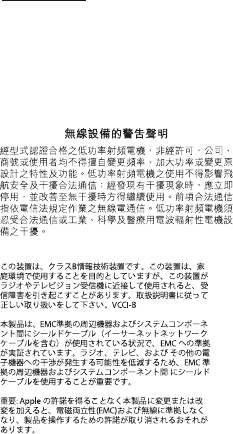
Taiwan Wireless Statement
Japan VCCI Class B Statement
25
Battery
Your Magic Keyboard contains no user-serviceable parts. Don’t
attempt to open or disassemble your Magic Keyboard or remove,
crush, or puncture the battery in your Magic Keyboard, or expose
it to high temperatures or liquids. Disassembling your Magic
Keyboard may damage it or may cause injury to you.
The lithium-ion battery in your Magic Keyboard should be serviced
or recycled by Apple or an authorized service provider, and
disposed of separately from household waste. For information
about Apple lithium-ion batteries, go to www.apple.com/batteries.
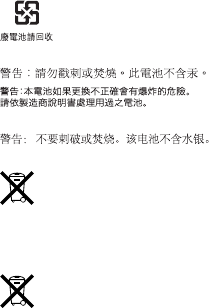
Taiwan
Taiwan battery statements
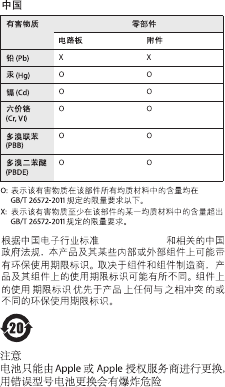
China battery statement
Disposal and Recycling Information
When this product reaches its end of life, please dispose of it
according to your local environmental laws and guidelines.
For information about Apple’s recycling program, go to
www.apple.com/environment/recycling.
European Union—Disposal Information
The symbol above means that according to local laws and
regulations your product and/or its battery shall be disposed of
separately from household waste. When this product reaches
its end of life, take it to a collection point designated by local
authorities. The separate collection and recycling of your product
and/or its battery at the time of disposal will help conserve natural
resources and ensure that it is recycled in a manner that protects
human health and the environment.

26
Türkiye
Türkiye Cumhuriyeti: AEEE Yönetmeliğine Uygundur.
Brasil—Informações sobre descarte e reciclagem
O símbolo indica que este produto e/ou sua bateria não devem
ser descartadas no lixo doméstico. Quando decidir descartar este
produto e/ou sua bateria, faça-o de acordo com as leis e diretrizes
ambientais locais. Para informações sobre substâncias de uso
restrito, o programa de reciclagem da Apple, pontos de coleta e
telefone de informações, visite www.apple.com/br/environment.
Información sobre eliminación de residuos y reciclaje
El símbolo indica que este producto y/o su batería no debe
desecharse con los residuos domésticos. Cuando decida desechar
este producto y/o su batería, hágalo de conformidad con las leyes
y directrices ambientales locales. Para obtener información sobre
el programa de reciclaje de Apple, puntos de recolección para
reciclaje, sustancias restringidas y otras iniciativas ambientales,
visite www.apple.com/la/environment.
Informations sur l’élimination
Le symbole ci-dessus signie que vous devez vous débarasser
de votre produit sans le mélanger avec les ordures ménagères,
selon les normes et la législation de votre pays. Lorsque ce produit
n’est plus utilisable, portez-le dans un centre de traitement des
déchets agréé par les autorités locales. Certains centres acceptent
les produits gratuitement. Le traitement et le recyclage séparé
de votre produit lors de son élimination aideront à préserver les
ressources naturelles et à protéger l’environnement et la santé
des êtres humains.

27
28
© 2015 Apple Inc. All rights reserved.
Apple, the Apple logo, Finder, Launchpad, Mac, Mission Control,
and OS X are trademarks of Apple Inc., registered in the U.S.
and other countries. Lightning and Magic Keyboard are
trademarks of Apple Inc.
The Bluetooth® word mark and logos are registered trademarks
owned by Bluetooth SIG, Inc. and any use of such marks by
Apple is under license.
