Apple Magic Trackpad User Manual ユーザーズガイド UG J
User Manual: Apple Magic Trackpad Magic Trackpad - ユーザーズガイド
Open the PDF directly: View PDF  .
.
Page Count: 20

Magic Trackpad
2English
Quick Start
Your wireless Apple Magic Trackpad uses Bluetooth® technology to connect to your
Mac and comes with two AA batteries installed.
Read these instructions to update your software, learn about the indicator light, pair
and use your trackpad, and replace the batteries.
Updating Your Software
To use your Apple Magic Trackpad and all its features, update your Mac to Mac OS X
version 10.6.4 or later, and then install the latest trackpad software.
To update to the latest version of Mac OS X, choose Apple (K) > Software Update from
the menu bar and follow the onscreen instructions.
When installation is complete and you restart your Mac, use Software Update again to
make sure all available updates are installed.
3
English
About the Indicator Light
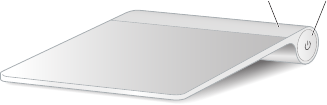
The indicator light displays the status of your Apple Magic Trackpad and the batteries.
ÂWhen you rst turn on your trackpad, the indicator light glows steadily for 2 to 3
seconds, indicating the batteries are good.
ÂIf your trackpad isn’t paired with a Mac, the light blinks to indicate your trackpad is in
discovery mode and ready to pair (pairing means connecting your trackpad and Mac
to each other wirelessly).
ÂIf you don’t pair your trackpad with your Mac within 3 minutes, the light and the
trackpad turn o to conserve battery life. Press the On/o button on your trackpad to
turn it on again, allowing you to pair it with your Mac.
ÂWhen your trackpad is on and connected, the indicator light turns o.
On/off button
Indicator light
Turning on Your Trackpad
To turn on your trackpad, press and hold the on/o button until the indicator light
comes on.
4English
Pairing Your Apple Magic Trackpad
To use your Apple Magic Trackpad with your Mac, you rst pair them so they can
comunicate wirelessly.
To pair your trackpad:
1 Choose Apple (K) > System Preferences, and then click Trackpad.
2 Click “Set Up Bluetooth Trackpad …” in the lower-right corner.
3 Press the On/o button on your trackpad to turn it on.
4 Click Continue when your trackpad is detected.
Once your trackpad is paired with your Mac, use Software Update again to make sure
you have the latest software installed.
Removing a Pairing
After you pair your Apple Magic Trackpad with a Mac, you can pair it again with
a dierent Mac. To do this, you rst remove the existing pairing and then pair the
trackpad again.
To pair with a dierent Mac:
1 Choose Apple (K) > System Preferences, and then click Bluetooth.
2 Select your trackpad in the Bluetooth preferences pane.
3 Click the Delete (–) button in the lower-left corner.
To pair your trackpad again, see “Pairing Your Apple Magic Trackpad.”
5
English
Using Your Apple Magic Trackpad
Your Apple Magic Trackpad has a Multi-Touch surface for moving the pointer and
performing gestures. To set up gestures and set other options, choose Apple (K) >
System Preferences, and then click Trackpad.
Position your Apple Magic Trackpad on a rm level surface. When you move the
pointer or perform gestures, you can rest your hand comfortably on the Apple Magic
Trackpad and slide your ngers lightly on the surface.
When you perform trackpad gestures, slide your ngers lightly on the trackpad surface.
Trackpad gestures work in many applications.
Here are some ways to use your Apple Magic Trackpad:
ÂDrag two ngers up, down, or sideways to scroll in an active window.
ÂSecondary-click (right-click) to access shortcut menu commands.
ÂUse two-nger pinching to zoom in or out on PDFs, images, photos, and more.
ÂUse two-nger rotating to rotate photos, pages, and more.
ÂSwipe three ngers to rapidly page through documents, move to the previous or
next photo, and more.
ÂSwipe four ngers left or right to activate Application Switcher so you can cycle
through open applications. Four-nger swiping works in the Finder and all
applications.
ÂSwipe four ngers up or down to show the desktop or display all open windows in
Exposé.
For more information, see Trackpad preferences or choose Help > Mac Help and search
for “trackpad.”
6English
Renaming Your Apple Magic Trackpad
Your Mac automatically gives your Apple Magic Trackpad a unique name the rst time
you pair it. You can rename it in Bluetooth preferences.
To rename your trackpad:
1 Choose Apple (K) > System Preferences, and then click Bluetooth.
2 Select your trackpad in the Bluetooth pane of System Preferences.
3 Choose Rename from the Action ( ) pop-up menu in the lower-left corner.
4 Enter a name and click OK.
Changing the Batteries
Your Apple Magic Trackpad comes with two AA batteries installed. You can replace
them with alkaline, lithium, or rechargeable AA batteries.
Important: Dispose of batteries according to your local environmental laws and
guidelines.
To change the batteries:
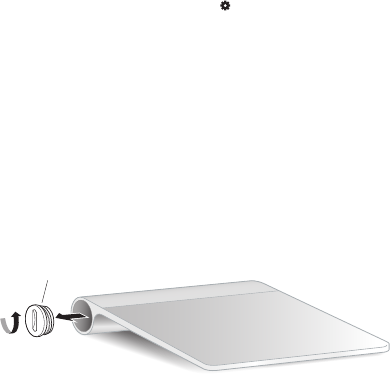
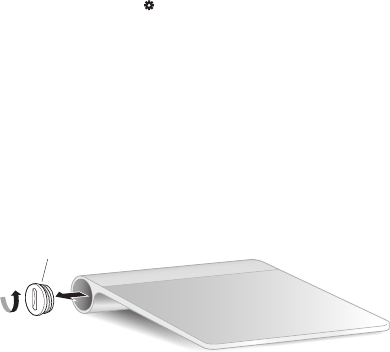
1 Use a coin to remove the battery compartment cover.
Battery compartment cover
7
English
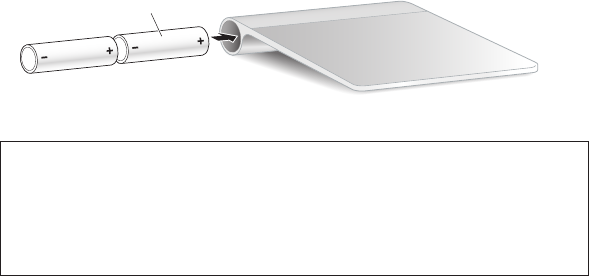
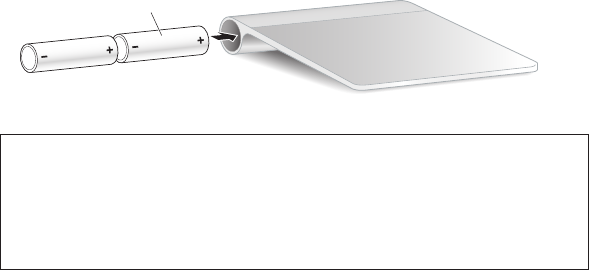
2 Insert the batteries into the battery compartment as shown here.
Insert batteries
3 Replace the battery compartment cover.
WARNING: Replace or recharge both batteries at the same time. Don’t mix old
batteries with new batteries and don’t mix battery types (for example, alkaline and
lithium batteries). Don’t open or puncture the batteries, install them backwards, or
expose them to re, high temperatures, or water. Don’t charge nonrechargeable AA
batteries. Keep batteries out of the reach of children.
Battery Level Indicator
To check the battery level, choose Apple (K) > System Preferences, and then click
Trackpad. The battery level indicator is in the lower-left corner.
Note: When you aren’t using the Apple Magic Trackpad, it goes to sleep to conserve
battery power.
If you won’t be using your trackpad for an extended period, turn it o.
8English
Cleaning
To clean the outside of your trackpad, use a lint-free cloth. Don’t get moisture in any
openings or use aerosol sprays, solvents, or abrasives.
Ergonomics
When using your Apple Magic Trackpad, it’s important to nd a comfortable posture,
change your position often, and take frequent breaks.
For information about ergonomics, health, and safety, visit the Ergonomics website at
www.apple.com/about/ergonomics.
More Information
For more information about using your Apple Magic Trackpad, open Mac Help and
search for “trackpad.”
For support and troubleshooting information, user discussion boards, and the latest
Apple software downloads, go to www.apple.com/support.
9
日本語
クイックスタート
お求めのワイヤレス Apple Magic Trackpad は、2本の単三電池があらかじめ入っており、
Bluetooth®テクノロジーを使用して Mac に接続します。
ソフトウェアをアップデートしたり、インジケータランプについて調べたり、トラックパッドを登録して使
用したり、電池を交換したりするときは、以下の手順をお読みください。
ソフトウェアをアップデートする
Apple Magic Trackpadとそのすべての機能を使用するには、お使いの Mac をMac OS X バージョ
ン10.6.4 以降にアップデートして、最新のトラックパッドソフトウェアをインストールしてください。
Mac OS X を最新バージョンにアップデートするには、メニューバーからアップル(K)メニュー>「ソ
フトウェア・アップデート」と選択し、画面に表示される指示に従います。
インストールが完了し、Mac を再起動したら、もう一度「ソフトウェア・アップデート」を実行して、
利用可能なアップデートがすべてインストールされているかどうかを確認します。
10 日本語
インジケータランプについて
インジケータランプには、Apple Magic Trackpad と電池の状態が示されます。
• トラックパッドの電源をはじめて入れると、インジケータランプが 2、3秒間点灯します。これは電池
の状態が良好であることを示します。
• トラックパッドが Mac に登録されていない場合は、ランプが点滅します。これは、トラックパッドが検
出モードにあり、登録する準備ができていることを示します(登録とは、トラックパッドと Mac を相互
にワイヤレスで接続する作業を言います)。
• 3分以内にトラックパッドを Mac に登録しないと、ランプが消え、電池を節約するためにトラックパッ
ドの電源が切れます。トラックパッドのオン/オフボタンを押して電源を入れ直すと、Mac に登録で
きる状態になります。
• トラックパッドの電源が入って接続されると、インジケータランプが消えます。
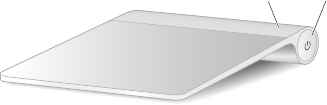
オン/オフボタン
インジケータランプ
トラックパッドの電源を入れる
トラックパッドの電源を入れるには、インジケータランプが点灯するまで、オン/オフボタンを押し続け
ます。
11
日本語
Apple Magic Trackpad を登録する
Apple Magic Trackpad をMac で使用するには、Mac に登録して相互にワイヤレスで通信できる状
態にします。
トラックパッドを登録するには:
1 アップル(K)メニュー>「システム環境設定」と選択してから、「トラックパッド」をクリックします。
2 右下隅にある「Bluetoothトラックパッドを設定」をクリックします。
3 トラックパッドのオン/オフボタンを押して電源を入れます。
4 トラックパッドが検出されたら、「続ける」をクリックします。
Mac にトラックパッドが登録されたら、もう一度「ソフトウェア・アップデート」を使用して、最新のソ
フトウェアがインストールされていることを確認します。
登録を解除する
Apple Magic Trackpad をMac に登録した後で、別のMac に登録し直すことができます。そのた
めには、既存の登録を解除してから、トラックパッドを登録し直します。
別のMac に登録するには:
1 アップル(K)メニュー>「システム環境設定」と選択して、「Bluetooth」をクリックします。
2 「Bluetooth」環境設定パネルでトラックパッドを選択します。
3 左下隅にある削除(−)ボタンをクリックします。
トラックパッドを登録し直すには、「Apple Magic Trackpad を登録する」を参照してください。
12 日本語
Apple Magic Trackpad を使用する
Apple Magic Trackpad にはマルチタッチサーフェスが搭載されているので、ポインタを動かした
りジェスチャを使用したりできます。ジェスチャなどのオプションを設定するには、アップル(K)メ
ニュー>「システム環境設定」と選択してから、「トラックパッド」をクリックします。
Apple Magic Trackpad は、平らな安定した場所に置いてください。ポインタを動かしたりジェスチャ
を使用したりするには、Apple Magic Trackpad の上に手を軽く
置き、表面を軽く
指でなぞります。
トラックパッドジェスチャを使用するときは、トラックパッドの表面を軽く
指でなぞります。トラックパッド
ジェスチャはさまざまなアプリケーションで使用できます。
Apple Magic Trackpad の使いかたの例を以下に示します:
• 2本の指を上下左右に動かすと、一番手前のウインドウがスクロールします。
• 副ボタンをクリック(右クリック)すると、ショートカットメニューのコマンドが表示されます。
• 2本の指でピンチすると、PDF、イメージ、写真などが拡大/縮小します。
• 2本の指を回転させると、写真やページなどが回転します。
• 3本の指でスワイプすると、書類のページをすばやくめくったり、前後の写真に移動したりできます。
• 4本の指で左右にスワイプすると、アプリケーションスイッチャーが表示されて、
開いているアプリケー
ションを順番に切り替えることができます。4本指のスワイプは、Finder やすべてのアプリケーショ
ンで利用できます。
• 4本の指で上下にスワイプすると、Exposé が起動して、デスクトップまたは開いているすべてのウイ
ンドウが表示されます。
詳しくは、「トラックパッド」環境設定パネルを参照するか、「ヘルプ」>「Mac ヘルプ」と選択して「ト
ラックパッド」を検索してください。
13
日本語
Apple Magic Trackpad の名前を変更する
Mac にApple Magic Trackpad をはじめて登録すると、トラックパッドに専用の名前が自動的に付き
ます。トラックパッドの名前は「Bluetooth」環境設定で変更できます。
トラックパッドの名前を変更するには:
1 アップル(K)メニュー>「システム環境設定」と選択して、「Bluetooth」をクリックします。
2 「Bluetooth」環境設定パネルでトラックパッドを選択します。
3 左下隅にあるアクション( )ポップアップメニューから「名称変更」をクリックします。
4 名前を入力し、「OK」をクリックします。
電池を交換する
Apple Magic Trackpad には、あらかじめ 2本の単三電池が入っています。電池を交換するときは、
単三のアルカリ電池、リチウム電池、または充電式電池に交換できます。
重要:
電池を廃棄する際は、お住まいの地域の条例および規則に従ってください。
電池を充電するには:
1 硬貨などで電池ケースカバーを取り外します。
電池ケースカバー
14 日本語
2 次のように、電池ケースに単三電池を2本入れます。
電池を入れる
3 電池ケースカバーを元に戻します。
警告:
2本の電池を同時に交換または充電してください。
古い電池と新しい電池を組み合わせたり、
異なる種類の電池
(たとえばアルカリ電池とリチウム電池など)を組み合わせたりしないでください。
電池を解体したり、穴を開けたり、逆向きに入れたりせず、火気、高温、水気を避けてください。
充電式ではない単三電池を充電しないでください。電池は子供の手の届かないところに保管してく
ださい。
電池の残量表示
電池の残量を確認するには、アップル(K)メニュー>「システム環境設定」と選択して、「トラックパッ
ド」をクリックします。左下隅に電池の残量が表示されます。
参考:
Apple Magic Trackpad を使っていないときは、電池を節約するためにスリープ状態になり
ます。
トラックパッドを長期間使わない場合は、電源を切ってください。
15
日本語
清掃する
トラックパッドの外面を清掃するときは、柔らかくけば立たない布を使用してください。開口部に水が入
り込まないように注意してください。スプレー式の液体クリーナー、溶剤、研磨剤などは使わないでく
ださい。
作業環境が身体に与える影響について
Apple Magic Trackpad を使用するときは、楽に操作できる姿勢を見つけ、頻繁に位置を変えたり休
憩を取ったりしてください。
本製品を使用する環境の安全性と身体に与える影響については、作業環境に関する Web サイトを参照
してください:www.apple.com/jp/about/ergonomics
さらに詳しく
知りたいときは
Apple Magic Trackpad のさらに詳しい使いかたについては、「Mac ヘルプ」で「トラックパッド」
を検索してください。
サポート情報やトラブルの解決方法、ユーザ同士の情報交換、最新のアップル製ソフトウェアのダウン
ロードなどについては、www.apple.com/jp/support を参照してください。

16
法規制の順守に関する情報
FCC Compliance Statement
This device complies with part 15 of the FCC rules. Operation is
subject to the following two conditions:
(1) This device may not cause harmful interference, and
(2) this device must accept any interference received, including
interference that may cause undesired operation. See instructions if
interference to radio or television reception is suspected.
L‘utilisation de ce dispositif est autorisée seulement aux
conditions suivantes: (1) il ne doit pas produire de brouillage et (2)
l’utilisateur du dispositif doit étre prêt à accepter tout brouillage
radioélectrique reçu, même si ce brouillage est susceptible de
compromettre le fonctionnement du dispositif.
Radio and Television Interference
This computer equipment generates, uses, and can radiate radio-
frequency energy. If it is not installed and used properly—that
is, in strict accordance with Apple’s instructions—it may cause
interference with radio and television reception.
This equipment has been tested and found to comply with
the limits for a Class B digital device in accordance with the
specications in Part 15 of FCC rules. These specications
are designed to provide reasonable protection against such
interference in a residential installation. However, there is
no guarantee that interference will not occur in a particular
installation.
You can determine whether your computer system is causing
interference by turning it o. If the interference stops, it was
probably caused by the computer or one of the peripheral devices.
If your computer system does cause interference to radio or
television reception, try to correct the interference by using one or
more of the following measures:
• Turn the television or radio antenna until the interference stops.
• Move the computer to one side or the other of the television
or radio.
• Move the computer farther away from the television or radio.
• Plug the computer into an outlet that is on a dierent circuit
from the television or radio. (That is, make certain the computer
and the television or radio are on circuits controlled by dierent
circuit breakers or fuses.)
If necessary, consult an Apple Authorized Service Provider or Apple.
See the service and support information that came with your Apple
product. Or, consult an experienced radio/television technician for
additional suggestions.
Important: Changes or modications to this product not
authorized by Apple Inc. could void the EMC compliance and
negate your authority to operate the product.
This product was tested for EMC compliance under conditions that
included the use of Apple peripheral devices and Apple shielded
cables and connectors between system components.
It is important that you use Apple peripheral devices and shielded
cables and connectors between system components to reduce
the possibility of causing interference to radios, television sets, and
other electronic devices.
Responsible party (contact for FCC matters only):
Apple Inc. Corporate Compliance
1 Innite Loop, MS 26-A
Cupertino, CA 95014
Industry Canada Statements
Complies with the Canadian ICES-003 Class B specications.
Cet appareil numérique de la classe B est conforme à la norme
NMB-003 du Canada. This device complies with RSS 210 of Industry
Canada.
This Class B device meets all requirements of the Canadian
interference-causing equipment regulations. Cet appareil
numérique de la Class B respecte toutes les exigences du
Règlement sur le matériel brouilleur du Canada.
Europe— EU Declaration of Conformity
For more information, see www.apple.com/euro/compliance.
環境向上への取り組み
Apple Inc. では、事業活動および製品が環境に与える影響をできる限り
小さくするよう取り組んでいます。詳しくは、次のWeb サイトを参照して
ください:www.apple.com/jp/environment
17
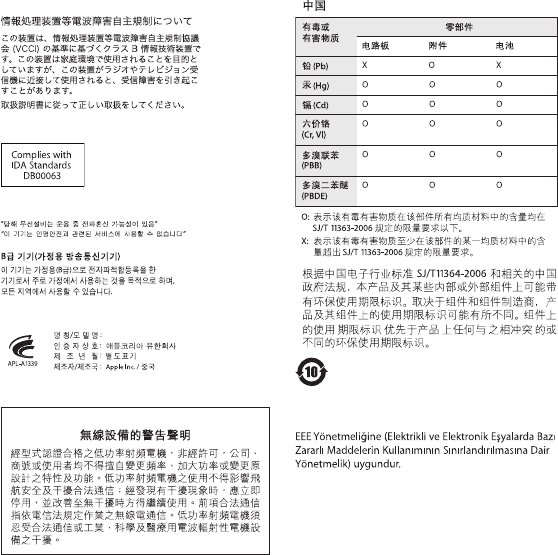
VCCI クラス B基準について
Singapore Wireless Certication
Korea Statements
Korea KCC Statements
Apple Magic Trackpad / A1339
Taiwan Wireless Statement 2010
Turkey
廃棄とリサイクルに関する情報
バッテリーを廃棄する際は、お住まいの地域の条令および廃棄基準に従ってく
ださい。
アップルのリサイクルプログラムについては、次のWeb サイトを参照してくださ
い:www.apple.com/jp/environment/recycling
18
バッテリーの廃棄に関する情報
バッテリーを廃棄する際は、お住まいの地域の条令および廃棄基準に従ってく
ださい。
Deutschland: Das Gerät enthält Batterien. Diese gehören nicht in
den Hausmüll. Sie können verbrauchte Batterien beim Handel oder
bei den Kommunen unentgeltlich abgeben. Um Kurzschlüsse zu
vermeiden, kleben Sie die Pole der Batterien vorsorglich mit einem
Klebestreifen ab.
Nederlands: Gebruikte batterijen kunnen worden ingeleverd bij de
chemokar of in een speciale batterijcontainer voor klein chemisch
afval (kca) worden gedeponeerd.
Taiwan:
Brasil: Informações sobre descarte e reciclagem.
O símbolo indica que este produto e/ou sua bateria não devem
ser descartadas no lixo doméstico. Quando decidir descartar
este produto e/ou sua bateria, faça-o de acordo com as leis e
diretrizes ambientais locais. Para informações sobre o programa de
reciclagem da Apple, pontos de coleta e telefone de informações,
visite www.apple.com/br/environment.
European Union—Disposal Information:
The symbol above means that according to local laws and
regulations your product should be disposed of separately from
household waste. When this product reaches its end of life, take
it to a collection point designated by local authorities. Some
collection points accept products for free. The separate collection
and recycling of your product at the time of disposal will help
conserve natural resources and ensure that it is recycled in a
manner that protects human health and the environment.
Union Européenne—informations sur l’élimination
Le symbole ci-dessus signie que vous devez vous débarasser
de
votre produit sans le mélanger avec les ordures ménagères, selon
les normes et la législation de votre pays. Lorsque ce produit
n’est plus utilisable, portez-le dans un centre de traitement des
déchets agréé par les autorités locales. Certains centres acceptent
les produits gratuitement. Le traitement et le recyclage séparé
de votre produit lors de son élimination aideront à préserver les
ressources naturelles et à protéger l’environnement et la santé des
êtres humains.
Europäische Union—Informationen zur Entsorgung
Das Symbol oben bedeutet, dass dieses Produkt entsprechend den
geltenden gesetzlichen Vorschriften und getrennt vom Hausmüll
entsorgt werden muss. Geben Sie dieses Produkt zur Entsorgung
bei einer oziellen Sammelstelle ab. Bei einigen Sammelstellen
können Produkte zur Entsorgung unentgeltlich abgegeben
werden. Durch das separate Sammeln und Recycling werden die
natürlichen Ressourcen geschont und es ist sichergestellt, dass
beim Recycling des Produkts alle Bestimmungen zum Schutz von
Gesundheit und Umwelt beachtet werden.
Unione Europea—informazioni per l’eliminazione
Questo simbolo signica che, in base alle leggi e alle norme locali,
il prodotto dovrebbe essere eliminato separatamente dai riuti
casalinghi. Quando il prodotto diventa inutilizzabile, portarlo nel
punto di raccolta stabilito dalle autorità locali. Alcuni punti di
raccolta accettano i prodotti gratuitamente. La raccolta separata
e il riciclaggio del prodotto al momento dell’eliminazione aiutano
a conservare le risorse naturali e assicurano che venga riciclato in
maniera tale da salvaguardare la salute umana e l’ambiente.
Europeiska unionen—uttjänta produkter
Symbolen ovan betyder att produkten enligt lokala lagar och
bestämmelser inte får kastas tillsammans med hushållsavfallet. När
produkten har tjänat ut måste den tas till en återvinningsstation
som utsetts av lokala myndigheter. Vissa återvinningsstationer
tar kostnadsfritt hand om uttjänta produkter. Genom att låta den
uttjänta produkten tas om hand för återvinning hjälper du till att
spara naturresurser och skydda hälsa och miljö.
© 2010 Apple Inc. All rights reserved.
Apple、Apple ロゴ、Exposé、Mac、および Mac OS は米国その他の国で
登録された Apple Inc. の商標です。
Multi-TouchはApple Inc. の商標です。
Bluetooth® のワードマークとロゴは Bluetooth SIG, Inc. が所有している登
録商標です。また、Apple Inc. のワードマークやロゴの使用は実施権に基づ
いています。
Printed in XXXX
*J034-5124-A*
