Apple IBook User Manual I Book (Original, Special Edition, Firewire) Memory (SO DIMM RAM) Installation Instructions Cip
2000-09-13
User Manual: Apple iBook iBook (Original, Special Edition, Firewire) - Memory (SO-DIMM RAM) - Installation Instructions
Open the PDF directly: View PDF  .
.
Page Count: 6

K
iBook
Memory (SO-DIMM RAM)
Installation Instructions
Be sure to follow the instructions in this sheet carefully. Failure to follow
these instructions could result in damage to your equipment and may void
your warranty.
Replacing memory in your computer requires five basic steps:
• Turn off the computer.
• Remove the battery, keyboard, AirPort Card, and RAM shield.
• Remove the SO-DIMM (if you are replacing it).
• Install the new SO-DIMM in its slot.
• Replace the RAM shield, AirPort Card, keyboard, and battery.
Note:
A video version of the installation instructions is available at
http://www.info.apple.com/installparts
Tools Required
• Jeweler’s flat-blade screwdriver
• Phillips screwdriver
Electrostatic Discharge (ESD)
Static electricity, a normal and natural phenomenon, builds up on your body
as you walk around. You experience an electrostatic discharge (ESD) when
you touch an object and feel a spark. ESD can cause damage to the
internal components of your computer.
To avoid ESD damage, read and follow all instructions. If a grounding wrist
strap is included with your replacement memory, refer to the instructions
included for how to ground and use the strap.
2
- iBook Memory
About Memory
A memory card called a Small Outline Dual Inline Memory Module (SO-
DIMM) provides memory to your computer. Your computer has one
expansion slot that accepts a 1.25-inch (or shorter), 144-pin SO-DIMM
RAM. You can add an additional 32, 64, or 128 MB of memory. For more
information on installing memory, look in Mac Help, available in the Help
menu.
Installing the SO-DIMM RAM
1 Place your computer on a clean, flat surface. Shut down your computer,
then disconnect all cables.
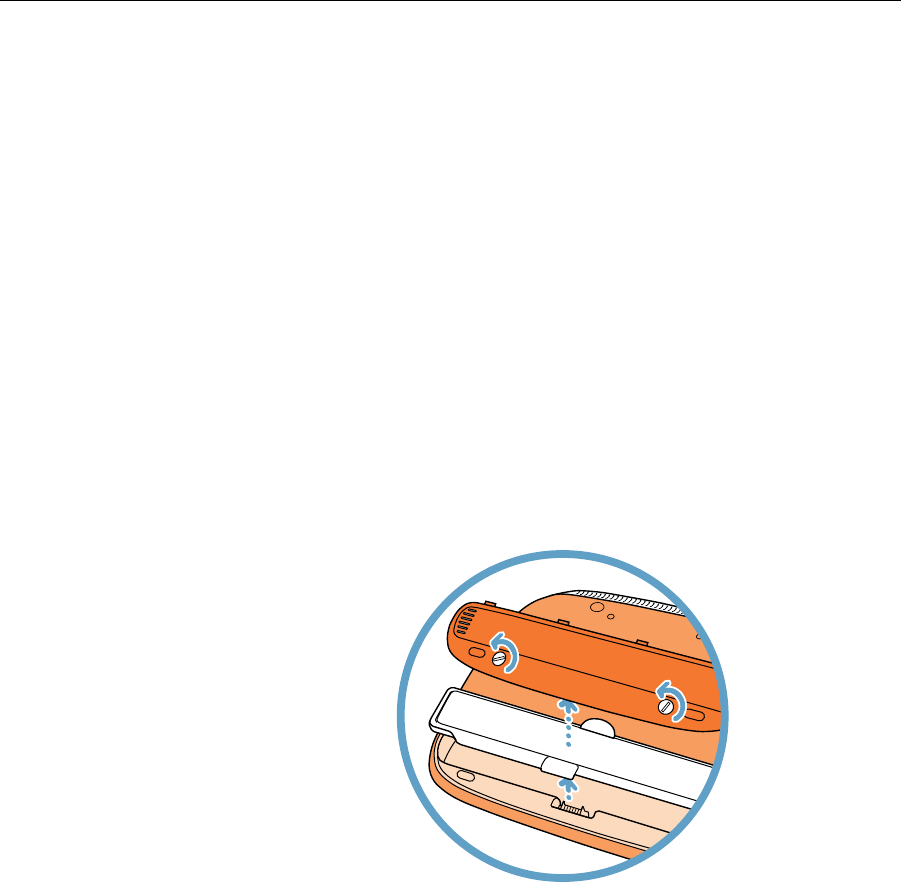
2 Turn over the computer and with a flat-blade screwdriver or a coin, turn
the battery screws counterclockwise to release the battery door. Pull
the battery pull tab to remove the battery.
iBook Memory -
3
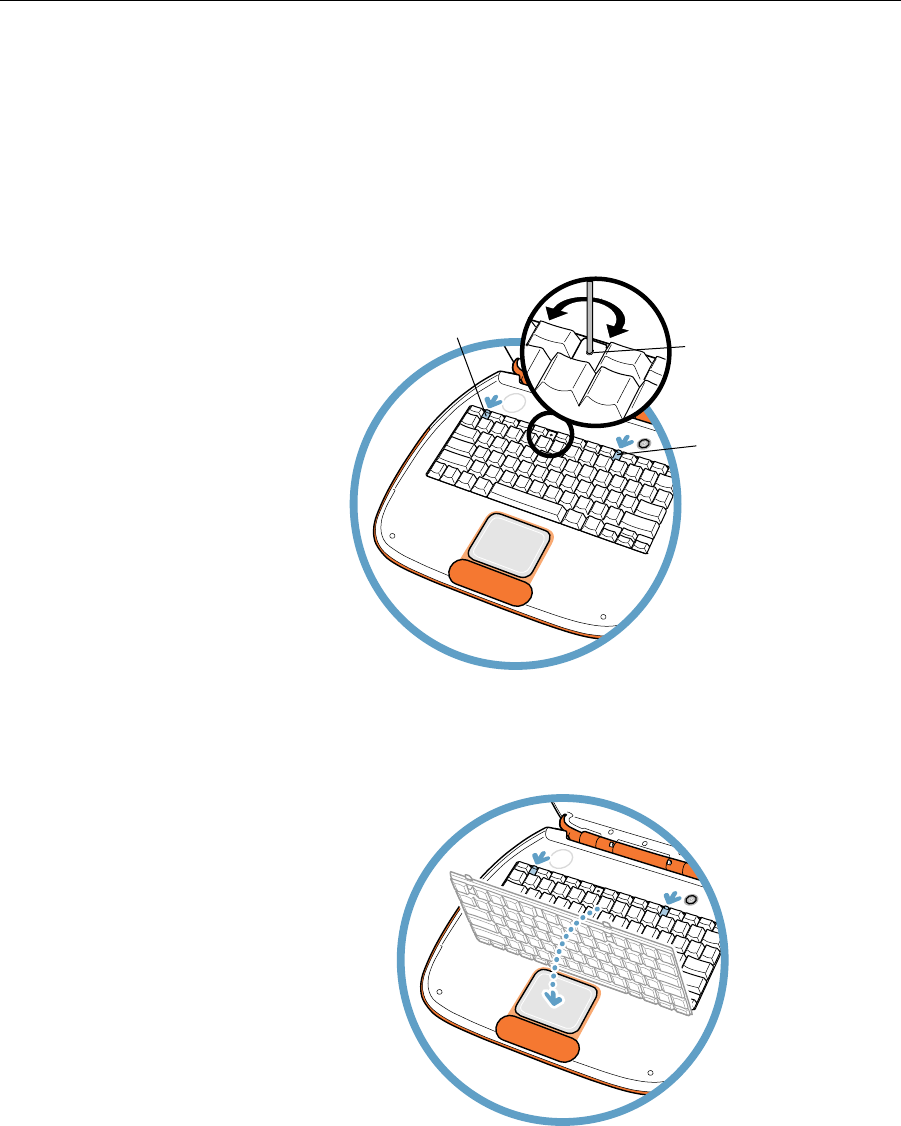
3 Release the keyboard by sliding the two plastic tabs away from the
display.
Note:
If the keyboard does not pop up, it may be locked. Locate the
keyboard lock next to the num lock key. Turn the lock a half turn in
either direction until you can slide the plastic tabs away from the
display.
4 Lift up the keyboard, flip it over, and lay it on the palm rests and
trackpad. Touch a metal surface inside the computer.
Tab
Tab
Keyboard
Lock
4
- iBook Memory
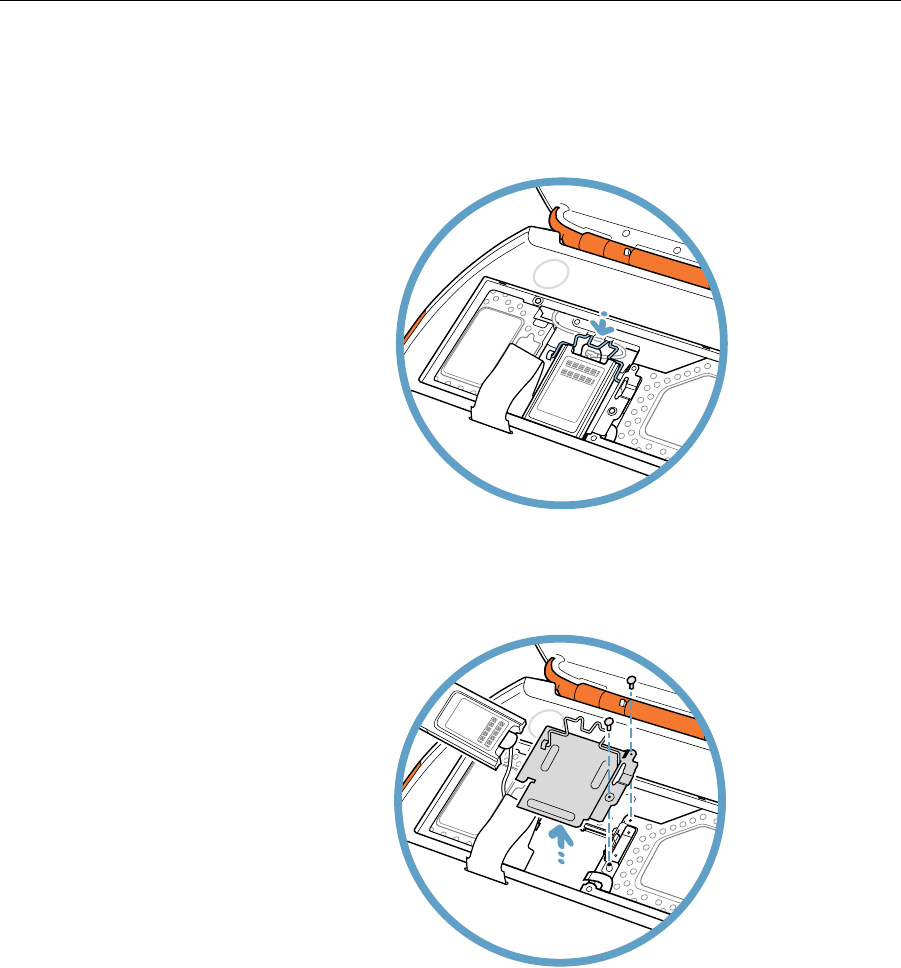
5 If necessary, flip up the wire bracket, and remove the AirPort Card from
its connector. (It is not necessary to disconnect the AirPort antenna
cable.)
6 Remove the two screws that secure the RAM shield, then carefully lift it
out.
iBook Memory -
5
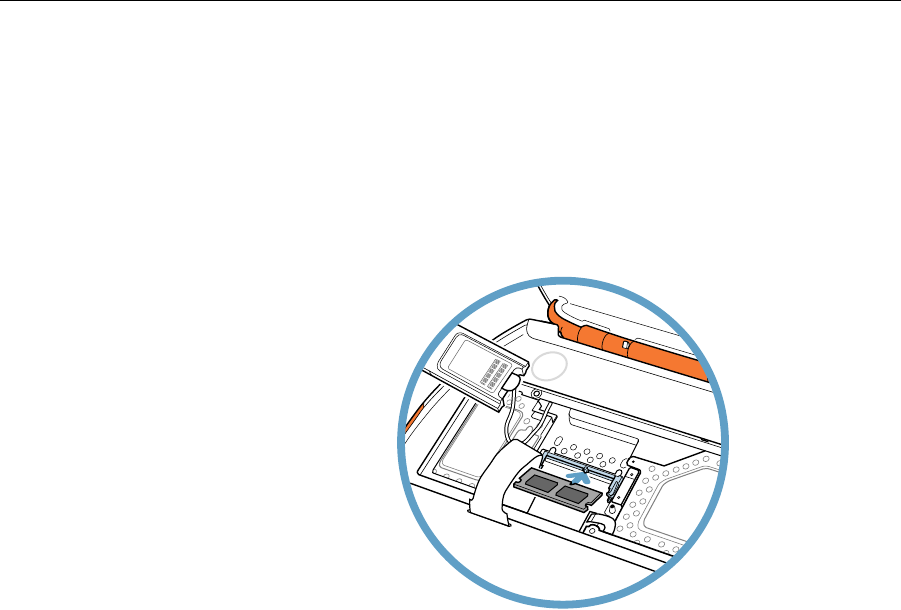
7 Remove the RAM from its static-proof bag, taking care not to touch the
connectors or chips. Insert the RAM into the slot at an angle and press
down to lock it in place.
Note:
If you are replacing an existing memory card, remove the RAM
by flexing the metal clips outward until the RAM pops up at an angle.
Then hold the RAM by the edges and remove it from the computer.
Closing the Computer
Refer to the illustrations on the previous pages to complete these steps.
1 Replace the RAM shield and secure it with the two screws.
2 Reinstall the AirPort Card into its connector, and secure it with the wire
bracket. Ensure the antenna cable is tucked out of the way.
3 Flip the keyboard right side up, and secure it with the two plastic tabs.
4 Turn over the computer and reinstall the battery. Secure the battery
door. Turn your computer upright and reconnect all cables.
5 Restart your computer.
Warning: Never turn on your computer unless all of its internal
and external parts are in place and it is closed. Operating the
computer when it is open or missing parts can damage your
computer or cause injury.

6
- iBook Memory
Repackaging the RAM
If you are replacing memory as part of the Customer Installable Parts
program (rather than upgrading memory), repackage the RAM you
removed from the computer in the static-proof bag and box that you
received with the replacement RAM. Seal the box with the tape included,
and affix the return label.
K
Apple Computer, Inc.
© 2000 Apple Computer, Inc. All rights reserved.
Under the copyright laws, this document may not be copied, in whole or in
part, without the written consent of Apple.
The Apple logo is a trademark of Apple Computer, Inc., registered in the
U.S. and other countries. Use of the “keyboard” Apple logo (Option-Shift-K)
for commercial purposes without the prior written consent of Apple may
constitute trademark infringement and unfair competition in violation of
federal and state laws.
Every effort has been made to ensure that the information in this document
is accurate. Apple is not responsible for printing or clerical errors.
Apple Computer, Inc.
1 Infinite Loop
Cupertino, CA 95014-2084
408-996-1010
http://www.apple.com
Apple, the Apple logo, AirPort, and iBook are trademarks of Apple
Computer, Inc., registered in the U.S. and other countries.
