Arcade Virtua Striker 4 Manual User
2013-11-28
User Manual: Arcade Virtua Striker 4 Manual
Open the PDF directly: View PDF  .
.
Page Count: 49
STOP
IMPORTANT
●Before using this product, read this MANUAL carefully to
understand the contents herein stated.
●After reading this manual, be sure to keep it available nearby
the product or elsewhere convenient for referring to it anytime
when necessary.
SERVICE MANUAL
1ST PRINTING - JN
1ST PRINTING - FB
1ST PRINTING - JU
1ST PRINTING - MR
1ST PRINTING - AR
1ST PRINTING - MY
1ST PRINTING - JL
1ST PRINTING - AG
1ST PRINTING - SP
1ST PRINTING - OT
1ST PRINTING - NV
1ST PRINTING - DC
C SEGA
2ND PRINTING - FB
3RD PRINTING - FB
4TH PRINTING - FB
MANUAL NO. 420-6843-01VIRTUA STRIKER 4 SERVICE MANUAL
SEGA CORPORATION
SEGA CORPORATION
Nissay Aroma Building 14th Floor, 5-37-1, Kamata, Ohta-ku, Tokyo 144-8721, Japan
Phone: +81-3-5480-6582 Facsimile: +81-3-5480-6584
MANUAL NO. 420-6843-01
1ST PRINTING
© SEGA CORPORATION, 2004
The use of real player names and images is authorised by FIFPro Foundation and its member associations.
The typefaces included herein are solely developed by DynaComware.
TRIFORCE is a trademark of NINTENDO.

−i−
TABLE OF CONTENTS
BEFORE USING THE PRODUCT, BE SURE TO READ THE FOLLOWING:
TABLE OF CONTENTS
INTRODUCTION
1.HANDLING PRECAUTIONS ......................................................................... 1
2.SPECIFICATIONS ......................................................................................... 3
3.TURNING THE POWER ON ......................................................................... 4
4.GAME DESCRIPTION ................................................................................... 7
4−1 GAME OVERVIEW.......................................................................... 7
4−2 DESCRIPTION OF EACH OF THE ICONS
ON THE GAME SCREEN ............................................................... 8
4−3 GAME FLOW................................................................................... 9
4−4 VS4 PLAYER'S CARD (VS4 IC CARD) .......................................... 23
5.TEST MODE .................................................................................................. 25
A. SYSTEM MENU ........................................................................................ 25
B. GAME TEST MODE .................................................................................. 27
a. INPUT TEST ......................................................................................... 28
b. GAME ASSIGNMENTS......................................................................... 29
c. CALIBRATION....................................................................................... 32
d. CARD TEST ..........................................................................................33
e. CLOSE SETTING.................................................................................. 34
f. SYSTEM UPDATE ................................................................................. 36
g. BOOKKEEPING .....................................................................................37
h. BACKUP DATA CLEAR ......................................................................... 43
420-6843-01
E0-0412
−ii−
Use of this product is unlikely to cause physical injuries or damage to property.
However, points that require special attention are indicated by thick underlining, the
word "IMPORTANT" and the symbol below.
Indicates important information that, if ignored, may result in the
mishandling of the product and cause faulty operation or damage to the
product.
● When the power is turned on for the first time, make sure to enter
TEST Mode and check whether the input mechanisms are functioning
correctly using the INPUT TEST.
● This game is available only with the TRIFORCE GD-ROM system. It is
not available with other hardware.
−1−
● Be sure to disconnect the cabinet power when assembling or removing
the IC board as there is a risk of an electrical shock and of damaging
the IC board.
● If any foreign matter gets onto the IC board or any dust builds up on
the IC board, there is a risk that this will short the circuit causing the IC
board to heat up and catch fire. Keep the top of the IC board clean at
all times.
● Use the TRIFORCE in a cabinet that supports JVS. If the TRIFORCE
is used in a cabinet that does not support JVS, there is a risk of
overheating and fire.
● Ensure that the connection between board and connectors is
complete. The IC board may be damaged if it is not fully inserted.
● Use a logic tester to inspect the IC board circuit. Do not use a standard
tester as there is a risk of damaging the IC board.
● When installing the IC board inside the cabinet or connecting the wire
harness connector to board, take care not to shock the IC board with
static electricity.
● When soldering buttons, etc. to the wire harness, remove the wire
harness from the IC board to avoid heating the IC board.
● If the TRIFORCE is used without the shield case, electrical
interference may be produced. Use the TRIFORCE with the shield
case provided.
● The monitor frequencies compatible with the TRIFORCE are 15 kHz
and 31 kHz. Cabinets using monitors and projectors not compatible
with 15/31 kHz cannot be used.
● The IC board's electronic components can be damaged by static
charges transferred by human contact. Before performing operations
involving the IC board, be sure to take adequate measures to
discharge any static buildup in your body, such as touching a properly-
grounded metal surface.
The JAMMA VIDEO STANDARD described in this manual:
The JAMMA VIDEO STANDARD adopted by TRIFORCE is described as JVS in this manual.
In contrast, conventional JAMMA standards involving the use of 56P edge connectors adopted
in ST-V etc. are referred to as old JAMMA standards.
Note that in the manuals supplied with various games, JVS may be described as JV standards,
new JAMMA standards, JAMMA2 standards and so on, while the old JAMMA standards may
be described as JAMMA standards, JS etc.
Note: The contents herein described are subject to change without notice.
1. HANDLING PRECAUTIONS

−2−
DURING OPERATION (PAYING ATTENTION TO CUSTOMERS)
"Virtua Striker 4" can be played using the "VS4 PLAYER's CARD" (hereafter called the card).
For this reason, bear in mind the following points when operating this game with card use
enabled.
Card use
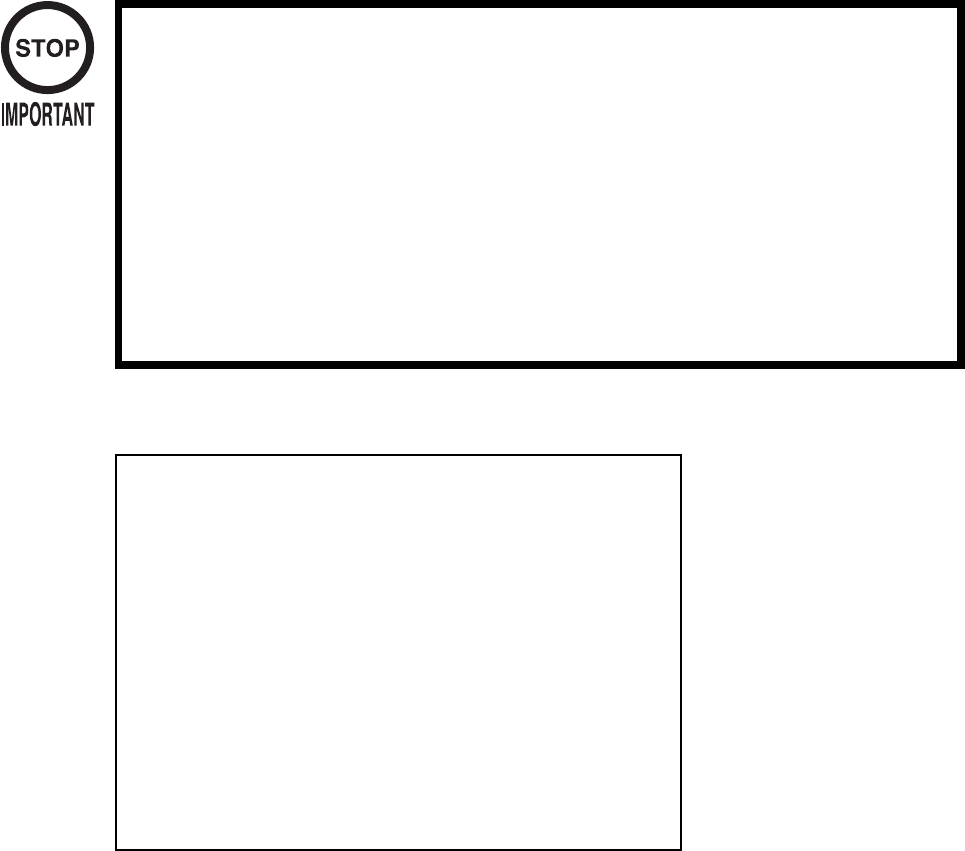
To play using the card, insert the card as indicated below into the card reader/writer insertion
slot. Saving to the card will not be possible and other problems may result if the procedure is
incorrect. Make sure that individuals involved in operation are familiar with how to use the
card, so that they are able to guide players so as not to make mistakes, and are able to cope with
any problems that may occur.
- Put in the coins and press the Start Button before inserting the card into the card insertion
slot.
- The card has "IN" and a triangular mark on one end. Insert the card with that end forward
into the insertion slot.
- Insert the card firmly.
- Do not insert more than two cards simultaneously.
- Do not use cards with seals or other items affixed.
- Do not use cards other than the "VS4 PLAYER's CARD".
Cautions during card lock
During use, the card is locked by the card reader/writer.
Even while the card is locked, it is possible to remove the card by force. However, if it removed
during saving the data may be damaged, and the card may become unusable. For this reason,
never remove the card when it is locked. Instruct the players likewise.
−3−
①ON-SCREEN DISPLAY
Monitor Position: Horizontal Synchronous Frequency:
15/31 kHz
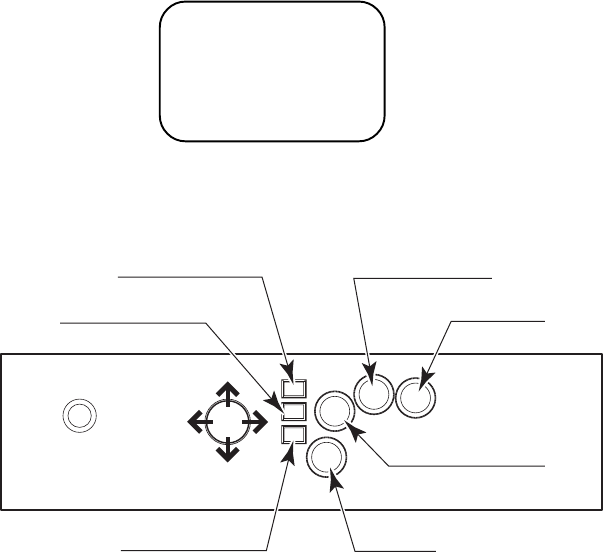
②CONTROL PANEL
HORIZONTAL
2. SPECIFICATIONS
③REQUIRED OPERATING ENVIRONMENT
・TRIFORCE Firmware:
MAIN BOOT Ver. 2.17 or higher
・DIMM Memory Capacity:
512MB or more
You can find the current TRIFORCE operating environment using SYSTEM INFORMATION
in TEST Mode.
This game checks the firmware (MAIN BOOT) when starting up, and if the version is
unsupported a warning message is displayed and there is an option to upgrade to the required
firmware.
START
ANALOG
LEVER
LONG PASS
SHOOT
SHORT PASS
DASH
TACTICS (U)
TACTICS (M)
TACTICS (D)
−4−
3. TURNING THE POWER ON
Do not disconnect the power during the firmware upgrade. If the power is
cut, the TRIFORCE may be damaged.
WARNING
BOOT/FIRMVERSIONDOESNOTFULFILL
THEGAMESPEC.
PLEASEENTERGAMETESTANDUPDATE.
VIRTUASTRIKER4TESTMENU
INPUTTEST
GAMEASSIGNMENTS
CALIBRATION
CARDTEST
CLOSESETTING
SYSTEMUPDATE
BOOKKEEPING
BACKUPDATACLEAR
->EXIT
SELECTWITHSERVICEBUTTON
ANDPRESSTESTBUTTON
①Turn the power on.
If the firmware needs to be upgraded, proceed to step (2) below, and if the upgrade is not
needed, proceed to step (7).
②If the TRIFORCE firmware needs to be upgraded, the following warning message is displayed.
③Enter GAME TEST Mode. (Select ENTER GAME TEST on the SYSTEM MENU.)

−5−
SYSTEMUPDATEMENU
UPDATEBOOTPROGRAM
CURRENTVERSION:1.03
LATESTVERSION:2.17
PRESSTESTBUTTONTOSTART
SYSTEMUPDATEMENU
UPDATEBOOTPROGRAM...
CURRENTVERSION:1.03
LATESTVERSION:2.17
PROGRESS:68%
DONOTTURNOFFTHEPOWER
④Select SYSTEM UPDATE, and the MAIN BOOT upgrade screen is displayed.
⑤Press the TEST Button and the MAIN BOOT upgrade begins.
Do not turn the power off during the upgrade under any circumstances. Doing so may damage
the TRIFORCE.
⑥Once the following screen appears, turn the cabinet power off momentarily then turn the power
back on.
If the upgrade could not be finished correctly, "FAILED" is displayed. Turn the power off
momentarily, then try the upgrade again starting from turning the power on for the first time.
SYSTEMUPDATEMENU
COMPLETE
PLEASEREBOOT

−6−
⑦If the analog lever needs to be calibrated, the following settings screen appears.
If calibration is not needed, the ADVERTISE screen is displayed.
Move both the P1 and P2 analog levers on the control panel as far as they can move around 360
degrees through the up, down, left and right directions.
Be sure to perform the P2 side calibration the same way as the P1 side.
Take care because if the calibration adjustment is not performed correctly, the levers will not
function correctly.
Press the START Button when the configuration is finished and the ADVERTISE screen is
displayed.
CALIBRATION
P1P2
UP8790
DOWN8891
LEFT837F
RIGHT8380
Pleasecarryoutadjustmentoflevers.
MakesurethatyousetupCALIBRATIONon
aleverforboth"PLAYER2"and"PLAYER1".
PleasepressStartButton,ifadjustment
finishes.
−7−
4. GAME DESCRIPTION
4−1 GAME OVERVIEW
This product is a soccer game. This game can be broadly divided into 2 modes.
(1) 1 Player Play (Single Play) (COM Matches)
The player's goal is to win the INTERNATIONAL CUP.
The player advances through the following matches each time they win a match.
・1st Match: Final Regional Qualifying Match
・2nd Match: 1st Round in the Competition
・3rd Match: 2nd Round in the Competition
・4th Match: Competition Semi-Final
・5th Match: Competition Final
The game ending appears when the player wins all of the above 5 matches.
(2) 2 Player Versus Play
This is 2-player competitive play where the players play against each other.
The winning player remains in the competition and advances to the next round.
The game is over for the losing player.
If the match is a draw, it is game over for both players.
* If the EVENT MODE setting in Test Mode is set to ON, both players get GAME OVER at the
end of the first match regardless of who wins and loses.
After inserting a credit, press the Start button to join the game and switch to versus mode.
It is not possible to join a game while "PLEASE WAIT" is displayed in the credit display at the
bottom of the screen.
Press the Start button when "PRESS START BUTTON" is displayed.
The player whose game you are joining cannot refuse competitive play.
When using a "VS4 PLAYER's CARD" to play, a special match is generated depending on the
given conditions.
・DIVISION MATCH [PROMOTION MATCH/RELEGATION MATCH]
Plays matches where the team's standing can be promoted or relegated within the league.
If the player wins a promotion match, the team is promoted to the next highest DIVISION.
If the player loses a relegation match, the team is relegated to the next lowest DIVISION.
*The promotion match/relegation match mark is shown on the right side of "NAME (User
Name)" that is displayed on the VERSUS screen. The mark is also shown during the match.
・SPECIAL MATCH [CUP MATCH]
When two card players play in competition, and the DIVISIONS that the two players are
associated with are of a similar level, there is a fixed probability that the match will be a cup-
winning match.
The player that wins the competition match is awarded with a cup.
*The competition match mark is displayed below the [Stadium Introduction Map] on the
VERSUS screen before the match.
−8−
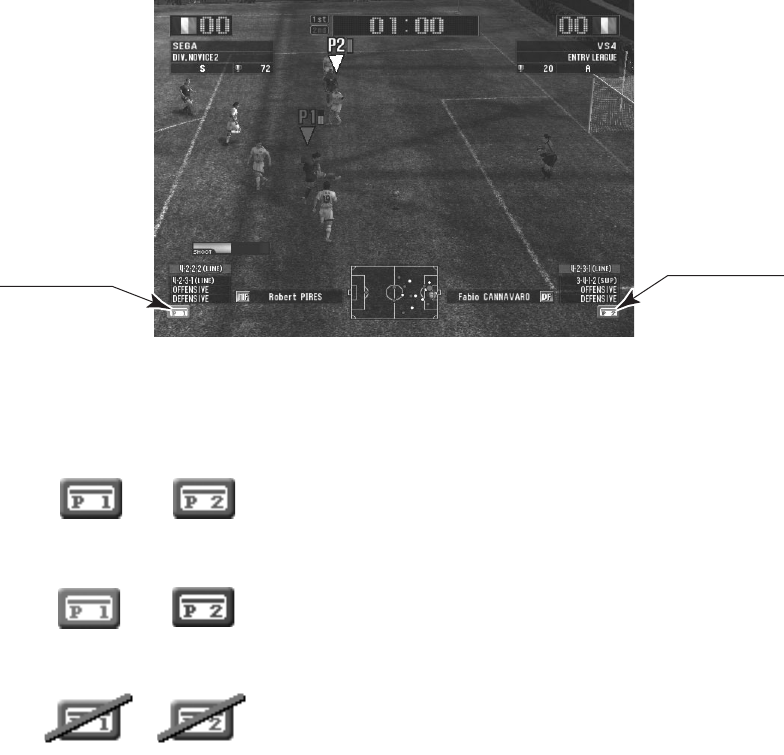
<Card Icons>
a. The state where cards can be inserted. (This is displayed in gray.)
b. The state once a card is inserted and locked. (This is displayed in red for P1 and blue for P2.)
c. The state where cards cannot be used.
A diagonal line is drawn through the card icon in the following situations:
・The card reader/writer has been set to OUT OF SERVICE using Test Mode.
・The finishing time for accepting cards has passed.
・Cards are not accepted if the card reader/writer cannot be initialized.
・The cabinet has not been configured for the card reader/writer itself.
*If the card usage setting is set to OFF using Test Mode, the card icons are not displayed at
all. In this case, cards cannot be used.
4−2 DESCRIPTION OF EACH OF THE ICONS ON THE GAME SCREEN
You can check the status of the card reader/writer in the cabinet using the icons.
P2 Card Icon
P1 Card Icon
−9−
4−3 GAME FLOW
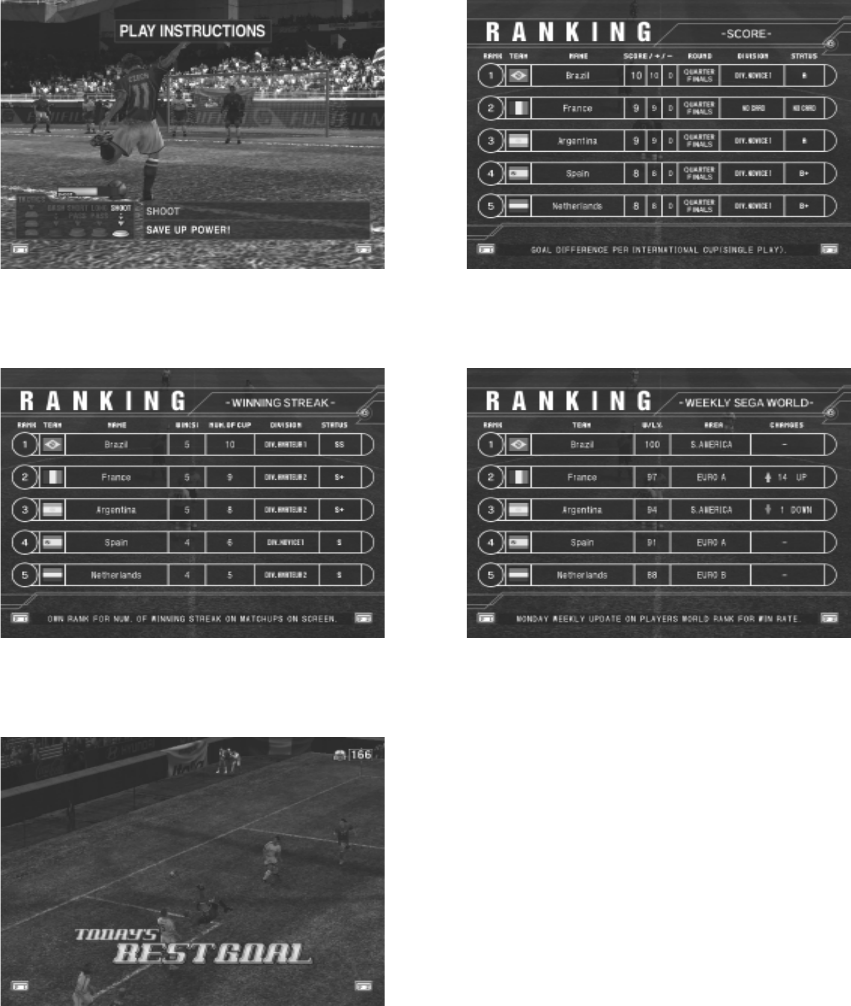
(1) ADVERTISE Screen
When neither P1 nor P2 are playing a game, various information is displayed on the screen.
・PLAY INSTRUCTIONS: Explains the controls for the game.
・SCORE RANKING: Rankings based on goals fore and against.
・WINNING STREAK RANKING: Rankings based on the number of continuous wins.
・WEEKLY SEGA WORLD RANKING: The win percentage rankings for each country.
Rankings are updated on Monday each week.
・TODAY'S BEST GOAL: Plays a replay of the best goal recorded that day on
that cabinet.
[PLAY INSTRUCTIONS] [SCORE RANKING]
[WININNG STREAK RANKING] [WEEKLY SEGA WORLD RANKING]
[TODAY'S BEST GOAL]
−10−
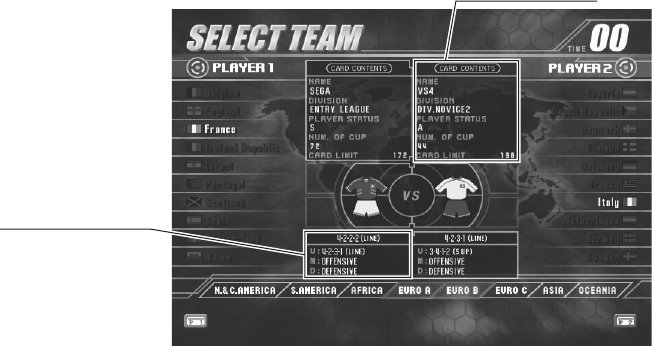
Card Information
Team Information
(2) SELECT TEAM Screen
This screen selects the team (country) to control. If the player is using a card, the "VS4
PLAYER's CARD" needs to be inserted before selecting a country. When a card is inserted, the
team registered on the card is automatically selected.
・Card Information
- NO CARD: Play without using a card.
- CARD CONTENTS: Play using a card.
- NAME: Displays the user name that was entered when the card was first
created.
- DIVISION: The DIVISION that the team is associated with.
- PLAYER STATUS: This is an evaluation of how the team is playing. The evaluation goes
up and down.
- NUM. OF CUP: Displays the number of championship cups won.
- CARD LIMIT: The remaining number of times the card can be used. The card cannot
be used when this drops to "0".
・Team Information (FORMATION, TACTICS)
- MAIN FORMATION: The team's MAIN FORMATION.
- TACTICS (U): Defaults to the SUB FORMATION of the team.
- TACTICS (M): Defaults to OFFENSIVE.
- TACTICS (D): Defaults to DEFENSIVE.
*The FORMATION and TACTICS that have been assigned to a TACTICS BUTTON can be
used during a match.
−11−
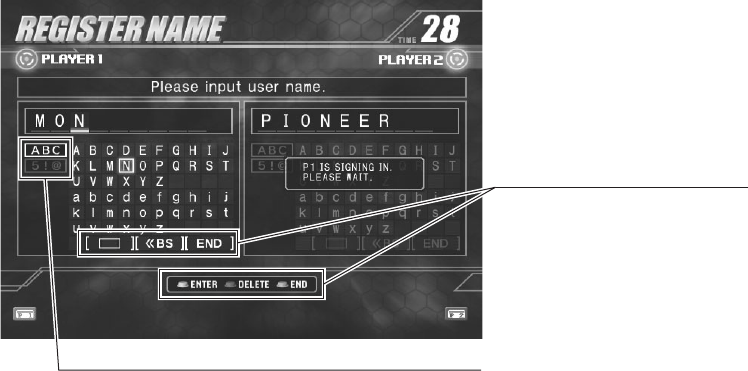
(3) REGISTER NAME Screen
This screen is used to register the user's name when a card is created for the first time.
The user name entered is saved on the card.
* Other players cannot join the game while entering the user name.
OPERATING INSTRUCTIONS
SWITCHING BETWEEN LETTERS AND SYMBOLS
<Method for Entering the User Name>
a. Entering letters:
a-1) Move the lever up, down, left or right to move the cursor.
a-2) Press any one of the three white buttons to select the letters.
The maximum number of letters that can be entered is 9 letters.
b. Switching between entering letters and symbols:
b-1) Move the lever up, down, left or right to move the cursor.
b-2) Select the characters to enter, from the categories on the left side of the entry frame.
b-3) Press any one of the three white buttons to select the type of characters.
c. Entering a space:
c-1) Select "□" at the bottom of the entry frame to enter a space.
d. Erasing letters and symbols that you have already entered:
d-1) Either press the red DASH BUTTON or select "<<BS" at the bottom of the entry frame,
to backspace and erase one character at a time.
e. Finishing the name entry:
Either press the START BUTTON or select "END" at the bottom of the entry frame to finish
entering the user name. The user name is then saved onto the card.
* If the player finishes without entering a single character or after entering forbidden
characters, the pre-defined default user name will be entered automatically.
−12−
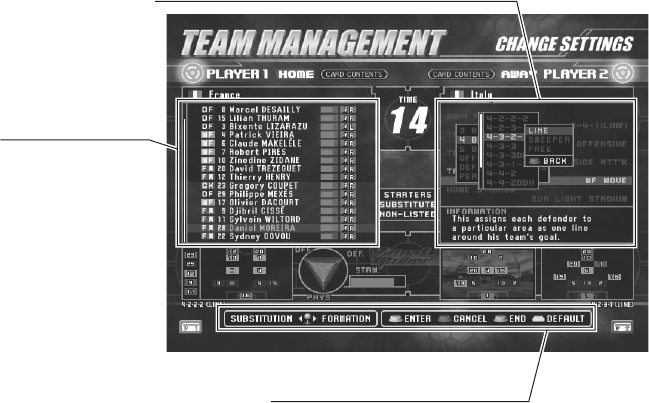
(4) TEAM MANAGEMENT Screen
If the player is playing using a card, the team settings can be changed using the TEAM
MANAGEMENT screen. The settings that are changed using this screen are saved onto the
card, and are then automatically loaded when the player plays a game.
If the player is not using a card, the team settings cannot be changed using this screen.
When the player is using a card, the TEAM MANAGEMENT screen appears once just before
the first game in single play mode, and before every match in versus play mode.
*Other players cannot join the game while a player is changing settings on the TEAM
MANAGEMENT screen.
SUBSTITUTION
FORMATION (TACTICS/HOME STADIUM)
OPERATING INSTRUCTIONS
<Two Types of Setting Modes>
The TEAM MANAGEMENT settings can be broadly divided into two types.
(A) SUBSTITUTION
・The player can select the team's STARTERS (11 players) and SUBSTITUTES (5 players).
(B) FORMATION (TACTICS/HOME STADIUM)
・The player can change the team's MAIN FORMATION setting.
・The player can change the team's TACTICS BUTTON (U)/(M)/(D) settings.
・The player can select the team's HOME STADIUM.
<Switching Between Setting Modes>
Move the lever right to change from (A) SUBSTITUTION→(B) FORMATION (TACTICS/
HOME STADIUM) mode or move the lever left to change from (B) FORMATION
(TACTICS/HOME STADIUM)→(A) SUBSTITUTION mode.
−13−
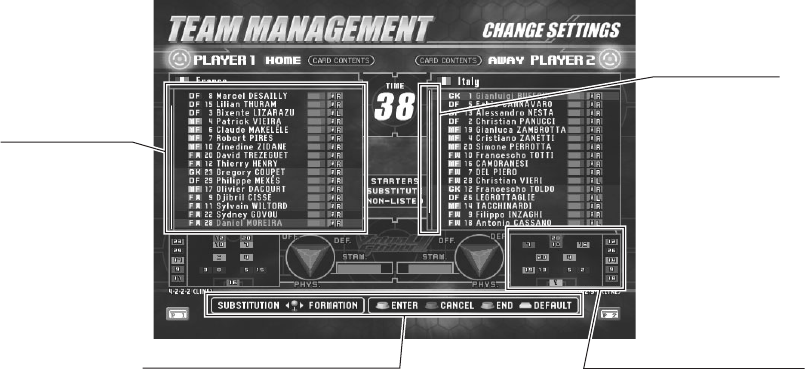
(4)-(A) TEAM MANAGEMENT - SUBSTITUTION
In SUBSTITUTION mode, the player can change the STARTERS and SUBSTITUTES, and
select player positions. Players can be freely substituted.
PLAYER LIST
SCROLL BAR
OPERATING INSTRUCTIONS FORMATION DIAGRAM
<Player List>
・STARTERS (BLUE in the player list): 11 players
・SUBSTITUTE (YELLOW in the player list): 5 players (* Put on the bench during a match.)
・NON-LISTED (RED in the player list): Cannot appear in the match.
Players that are not registered as either STARTERS (11 players) or SUBSTITUTES (5 players)
become NON-LISTED and cannot play in a match.
If a player that you want to put in a match is in the NON-LISTED group, switch that player with
one of the players in the STARTERS or SUBSTITUTES group.
<Hidden Players>
If you use the card to play and a set of fixed conditions are met, a hidden player appears in
addition to the 16 initial players. The hidden player is added to the NON-LISTED frame, so you
can check for a hidden player by scrolling to the bottom of the player list. The "NEW" icon is
displayed next to the newly acquired player.
<Operating Method>
a. To exchange players:
a-1) Move the lever up or down to move the cursor.
a-2) Press any one of the three white buttons to select the player.
*You can cancel the player selected using the red DASH BUTTON.
*You can also register suspended players as members of the STARTERS group. However, the
player is temporarily substituted on the SUSPENSION screen before the match.
b. Switching to FORMATION (TACTICS/HOME STADIUM) mode:
Move the lever right to switch to FORMATION mode.
You can return to SUBSTITUTION mode again by moving the lever left after changing to
FORMATION mode.
−14−
c. Returning the team settings to the default values:
You can restore the player positions, MAIN FORMATION settings, TACTICS settings and
HOME STADIUM setting of the team to the default values by pressing any one of the three
TACTICS BUTTONS. A confirmation window is displayed, and the process of restoring the
default will be completed if you select "YES". If you select "NO", the operation is cancelled.
*Note that even if you restore the default values, this will not erase the players, tactics and
stadiums that you have acquired up to now.
d. Exiting TEAM MANAGEMENT:
Use the Start Button to exit from TEAM MANAGEMENT.
−15−
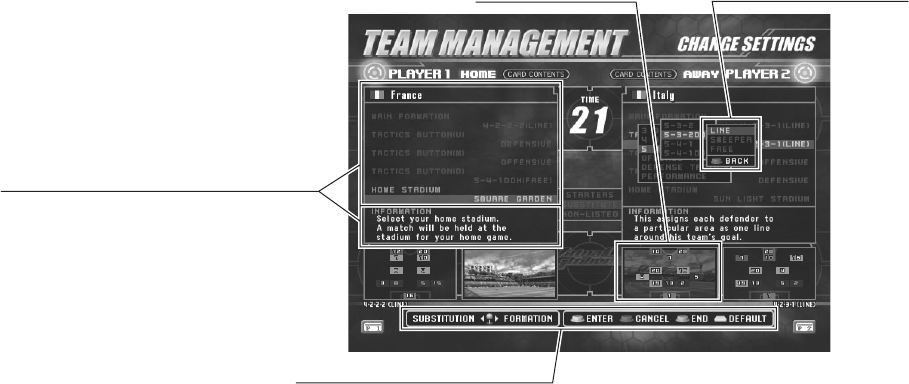
(4)-(B) TEAM MANAGEMENT - FORMATION (TACTICS/HOME STADIUM)
This mode lets you change the team's MAIN FORMATION, TACTICS BUTTON (U)/(M)/(D)
and HOME STADIUM settings.
You can switch to FORMATION (TACTICS/HOME STADIUM) mode by moving the lever
right while in SUBSTITUTION mode.
SETTING CATEGORY/DESCRIPTION
SELECTION WINDOWHOME STADIUM
OPERATING INSTRUCTIONS
<Operating Method>
a. Selecting the setting category:
Move the lever up or down to move the cursor over one of the five setting categories of
MAIN FORMATION, TACTICS BUTTON (U)/(M)/(D) or HOME STADIUM, then press
any one of the three white buttons to select the category.
b. Selecting items within the window:
A window opens when you select the category in step (a) above, and you can then move the
lever up or down to move the cursor and then press any one of the three white buttons to
select the item.
*The windows are divided into several tiers, and the setting won't be changed unless the items
are selected all the way to the deepest window.
(Example) MAIN FORMATION
→
4BACKS
→
4-3-2-1
→
LINE (Changes the setting.)
c. Switching to SUBSTITUTION mode:
Move the lever left to switch to SUBSTITUTION mode.
You can return to FORMATION (TACTICS/HOME STADIUM) mode again by moving the
lever left after changing to SUBSTITUTION mode.
d. Returning the team settings to the default values:
You can restore the player positions, MAIN FORMATION settings, TACTICS settings and
HOME STADIUM setting of the team to the default values by pressing any one of the three
TACTICS BUTTONS. A confirmation window is displayed, and the process of restoring the
default will be completed if you select "YES". If you select "NO", the operation is cancelled.
*Note that even if you restore the default values, this will not erase the players, tactics and
stadiums that you have acquired up to now.
d. Exiting TEAM MANAGEMENT:
Use the Start Button to exit from TEAM MANAGEMENT.
−16−
<Changing the MAIN FORMATION>
①Select MAIN FORMATION from the setting categories.
(When you do this, a new window opens and you will then select items from within the
window.)
②Select the number of defenders. [3BACKS/4BACKS/5BACKS]
③Select one of the FORMATIONS that have the number of defenders selected in step (2)
above.
④Finally, select the DEFENCE TYPE. [LINE/SWEEPER/FREE]
The formation is not changed until you select the DEFENCE TYPE in the deepest window.
You can return to the previous window level by pressing the red DASH BUTTON.
You can check the details of the SUB FORMATION and DF TYPE in the stadium information
map and description frames.
<Changing TACTICS BUTTONS>
①Select the TACTICS BUTTON to change from the settings categories.
[TACTICS BUTTON (U)/ TACTICS BUTTON (M)/ TACTICS BUTTON (D)]
(When you do this, a new window opens and you will then select items from within the
window.)
②Select the type of setting to assign to the TACTICS BUTTON:
・3BACKS/4BACKS/5BACKS: SUB FORMATION
・OFENSIVE TACTICS/DEFENSIVE TACTICS: TACTICS
③ Select the item to actually assign to the TACTICS BUTTON.
The TACTICS BUTTON setting is not changed until you select the item in the deepest window.
You can return to the previous window level by pressing the red DASH BUTTON.
The SUB FORMATION that is allocated to a TACTICS BUTTON can be used to change
formations during a match.
Once a set of predetermined conditions are met, additional categories are added to the items you
can select. The "NEW" icon is attached to the newly added TACTICS.
You can assign the same TACTICS or SUB FORMATION to the TACTICS BUTTONS (U)/
(M)/(D).
You can check the details of the FORMATION and DF TYPE in the stadium information map
and description frames.
<Changing the HOME STADIUM>
The HOME STADIUM is the stadium that forms the team's base.
When you are playing MATCH UPS (2-Player Versus) and your team is the HOME side, this is
selected as the place where the match is held.
①Select HOME STADIUM from the settings categories.
(When you do this, a new window opens and you will then select items from within the
window.)
②Select the stadium from within the window.
The HOME STADIUM is not changed until you select an item from within the window.
You can check the stadium information in the stadium information map and description frames.
−17−
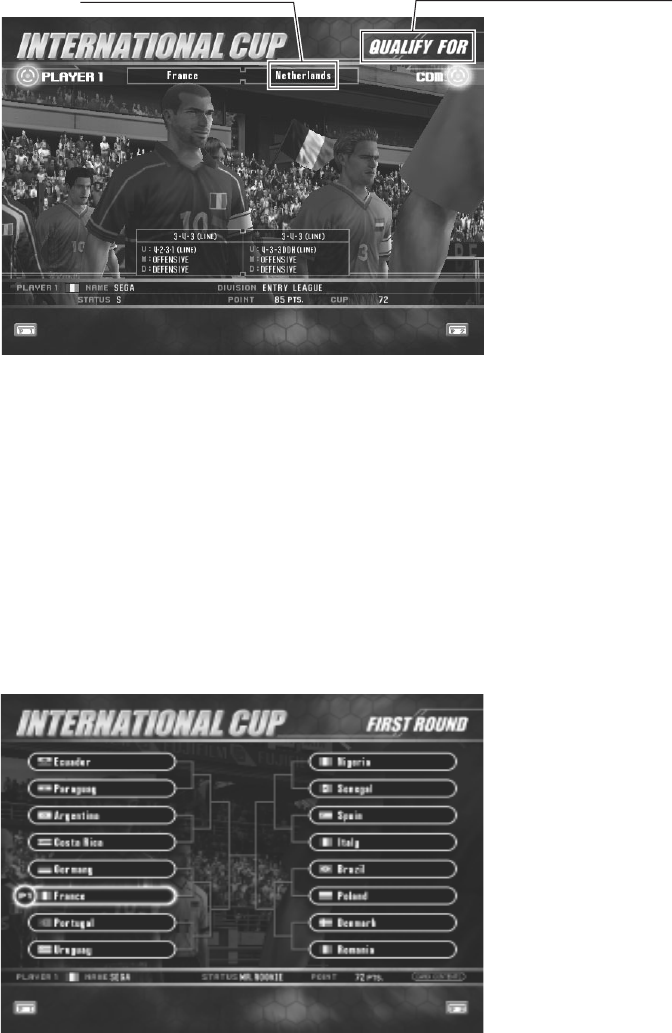
(5) QUALIFYING DECIDER Screen
This is the first match against the COM.
The first round of the tournament from previous versions has been replaced with the regional
final qualifying match. You can advance to the actual tournament (second match against the
COM) by winning this game.
OPPOSITION COUNTRY QUALIFYING MATCH NAME
・This is the other country playing for qualification.
・The qualifying match name (The final regional qualifier = QUALIFY FOR or a playoff =
PLAY OFF).
* Although the final regional qualifiers are matches that determine which country will represent
each continent, depending on the conditions this may be a playoff between teams from
different continents.
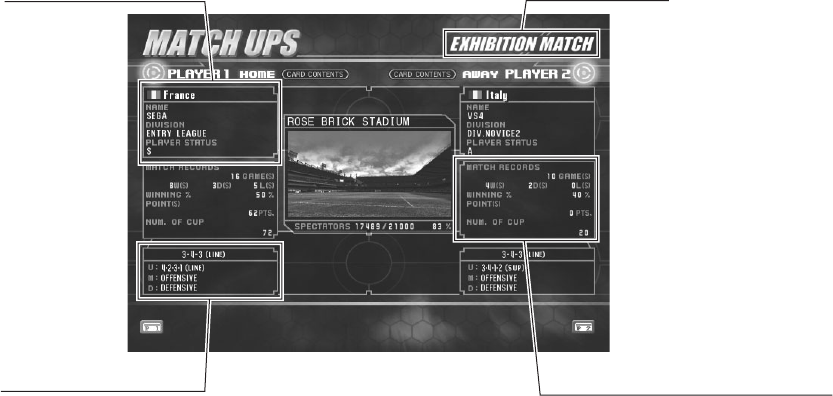
(6) TOURNAMENT Screen
Starting from the second match against the COM, this shows the tournament draw for the
International Cup Championship.
−18−
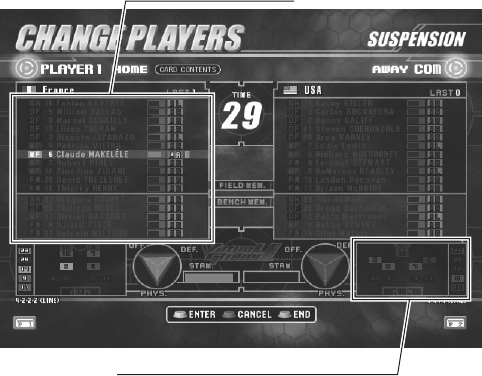
(7) VERSUS Screen
This is the screen when playing a versus game. If the other player is also a card player, you can
see the opponent's information.
CARD INFORMATION
TEAM INFORMATION
MATCH NAME
MATCH RECORD INFORMATION
・Match Name Display
- Match Name: Title of the match (DIVISION MATCH, SPECIAL MATCH, etc.)
・Card Information
- NAME: For card players, this shows the user name.
- DIVISION: The DIVISION the team is associated with.
- PLAYER STATUS: This is an evaluation of how the team is playing. The evaluation
goes up and down.
- NUM. OF CUP: Displays the number of championship cups won.
・Match History Information Display
- MATCH RECORDS: Total number of matches GAME(S) / number of wins W(S) /
number of draws D(S) / number of losses L(S)
- WINNING %: Win ratio
- POINT(S): Number of WINNING POINTS accumulated (goals)
・Team Information (FORMATION, TACTICS)
- MAIN FORMATION: The team's MAIN FORMATION
- TACTICS (U): Defaults to the SUB FORMATION of the team.
- TACTICS (M): Defaults to OFFENSIVE
- TACTICS (D): Defaults to DEFENSIVE
*FORMATIONS and TACTICS that have been assigned to TACTICS BUTTONS can be used
during the game.
−19−
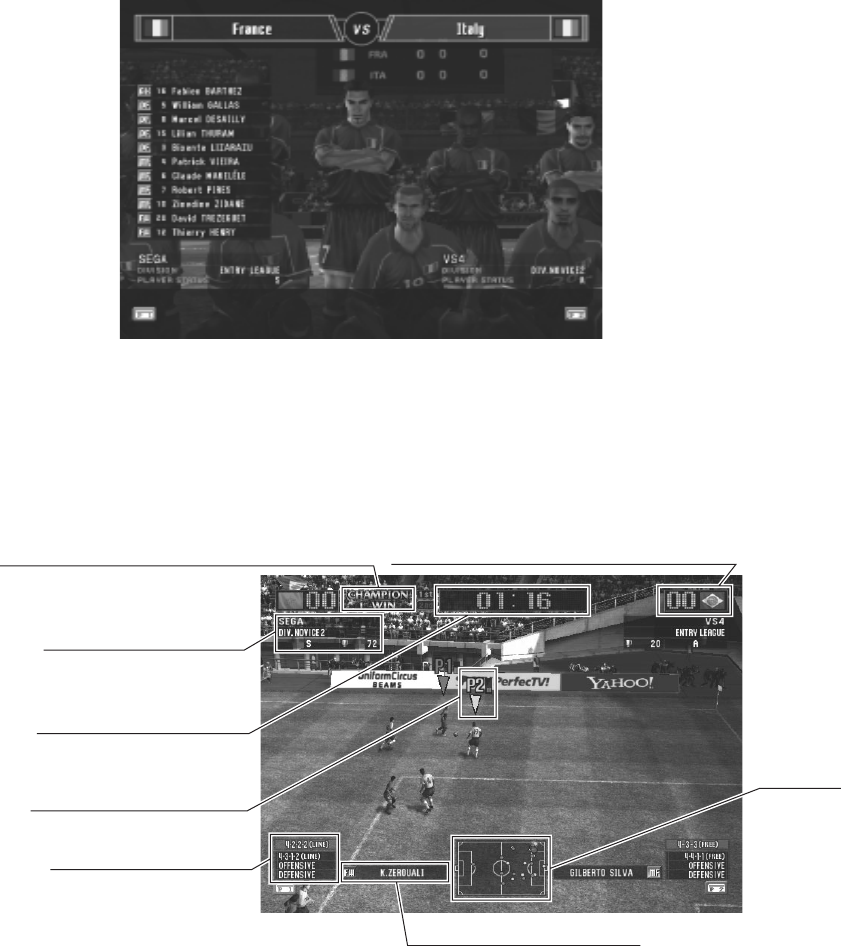
(8) SUSPENSION Screen for Suspended Players
If any of the players in the STARTERS group are unable to play because they have accumulated
too many yellow cars or red cards, the players are forced into the SUSPENSION screen before
the match.
LIST OF PLAYERS
TEAM FORMATION DIAGRAM
<Method for Switching Players>
①Select a suspended player:
①-1 Use the lever to move the cursor up and down.
①-2 Press any one of the three white buttons to select the player.
②Decide which player will appear as a substitute:
②-1 Use the lever to move the cursor up and down.
②-2 Press any one of the three white buttons to select the player.
③Exit using the Start Button.
You can cancel a selection using the red button. If you do not finish selecting players before the
time runs out, the players will be selected automatically.
・Player List Display
- Position / Jersey Number / Player Name
- Player Skill Level / Stamina Bar / Strong Foot
- Accumulated Warning Card Information
* Any warning cards received during a game are accumulated at the end of the match. Any
players who have accumulated more than a fixed number of warning cards will be subject to
suspension for 1 or 2 matches. Once the number of matches that the suspension corresponds
to is over, the accumulated cards are cleared and the player can play in the next match.
*A match against the COM where another player joins midway through does not count as one
match.
・Team FORMATION Diagram
This is a formation diagram of the team's main formation.
The five names listed vertically outside the frame are the players on the bench.
−20−
(9) PLAYER INFORMATION Screen
This displays the STARTERS lists from both of the teams that will appear in the match.
(10) MATCH Screen
This is the game screen that appears during the match.
CARD INFORMATION
NUMBER OF CONTINUOUS WINS DISPLAY
MATCH TIME DISPLAY
NATIONAL FLAG AND SCORE DISPLAY
CURSOR/STAMINA BAR
TEAM INFORMATION
POSITION/PLAYER NAME
RADAR
・National Flag/Score Display
・Card Information Display: User Name/DIVISION/PLAYER STATUS/Number
of Cups (P2 is displayed on the left side)
・Match Time Display: The actual time (in seconds).
・Number of Continuous Wins Display: Displays the number of consecutive matches won in
versus mode.
・FORMATION/TACTICS Display
・Position/Player Name
・Controlling Character Cursor/Player Stamina Gauge/State of Warning Cards
・Radar
−21−
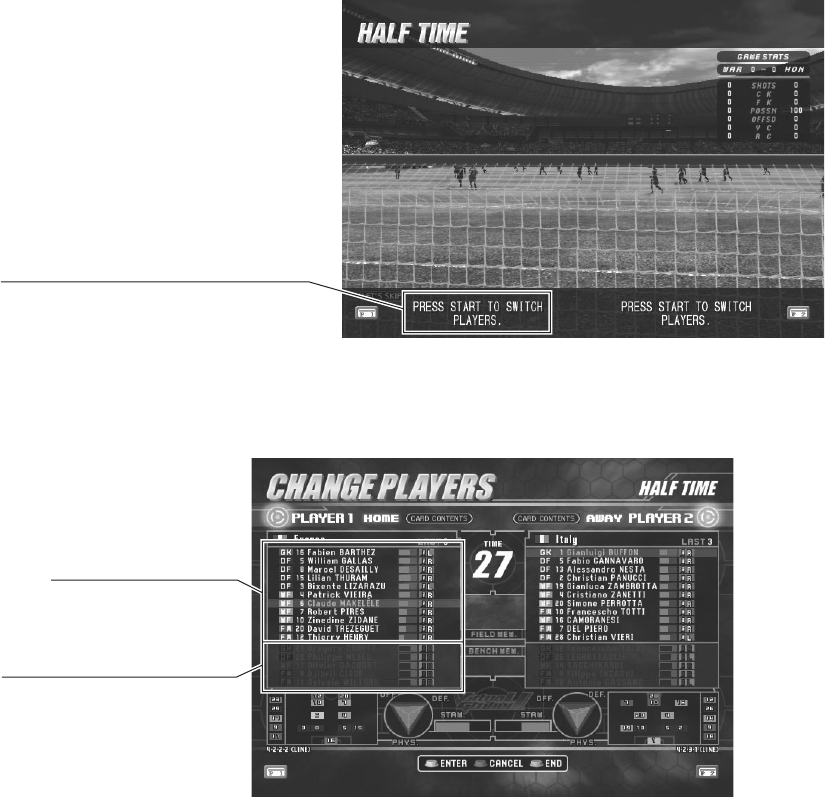
(11) HALFTIME Screen
After the first half is over, you can press the Start Button while the member change instructions
are displayed on the HALFTIME screen to substitute players in and out.
During versus play, the display switches to the SUBSTITUTION screen if P1 or P2 presses the
Start Button.
*You can skip to the start of the second half by pressing any button other than the Start Button.
MEMBER CHANGE INSTRUCTIONS
(12) SUBSTITUTION Screen
PLAYERS ON THE BENCH
ON-FIELD PLAYERS
<Substitution Method> (You can substitute a maximum of 3 players per team)
①Select the player to substitute off (select from the on-field players)
①-1 Use the lever to move the cursor up and down
①-2 Press any one of the three white buttons to select the player
②Select the player to appear as the substitute (select from the player on the bench)
②-1 Use the lever to move the cursor up and down
②-2 Press any one of the three white buttons to select the player
③ Exit using the Start Button.
* You can cancel a selection using the red button.
* You cannot select players that were sent off during the first half or players that are under
suspension.
−22−
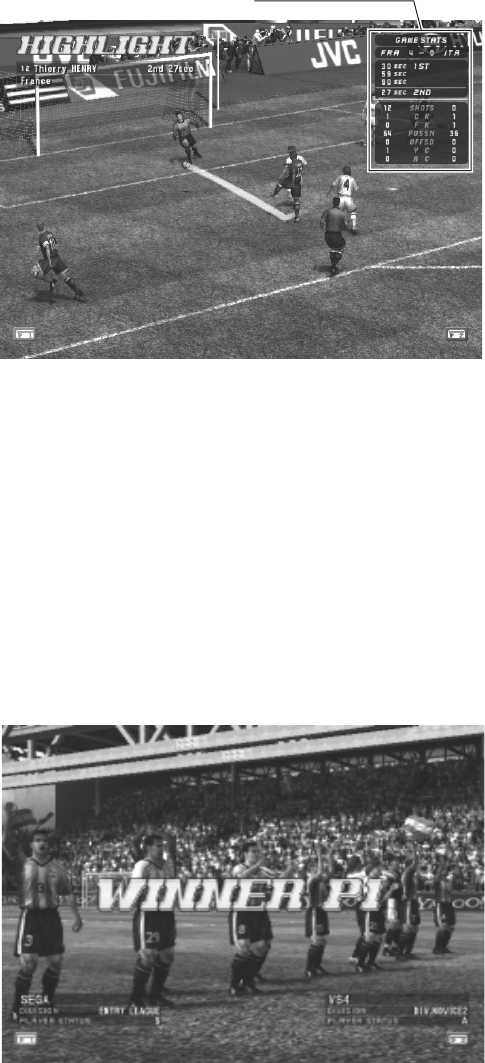
(13) HIGHLIGHTS Screen
This screen shows replays of the match highlights.
MATCH RESULT
・Match Result Display
・Versus Record/WINNING POINT Display
・Information about acquired TACTICS, STADIUMS and HIDDEN PLAYERS
(14) MATCH RESULT Screen
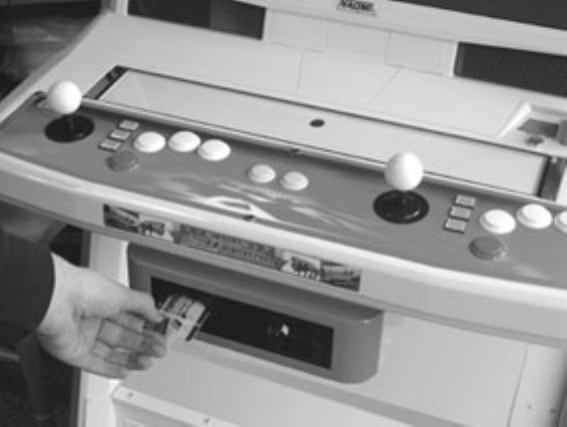
This screen displays the results of who won and lost the match.
This screen also displays DIVISION promotion and relegation information and changes to
PLAYER STATUS.
・DIVISION promotion/relegation ceremony (When promoted or relegated from a DIVISION)
・SPECIAL MATCH cup award ceremony (There is no ceremony when the SPECIAL
MATCH is a draw)
・PLAYER STATUS increase/decrease display
・Information about the Ranking Awarded
−23−
4−4 VS4 PLAYER'S CARD (VS4 IC CARD)
This product can be played using a "VS4 PLAYER's CARD". (Of course, it is also possible to
play without a card.)
"Game Play Data" and "Team Customization Data" are accumulated and saved on the card. This
data can then be checked on the game screens.
<Description of Data>
・Team Customization Data
(Information such as player positions, formation, TACTICS, HOME STADIUM, etc.)
・Game Play Data
(Information such as match record, DIVISION, PLAYER STATUS, WINNING POINT,
NUM. OF CUP, etc.)
<Procedure for Creating a New Card>
①Purchase a "VS4 PLAYER's CARD".
②Insert enough coins for one credit into the cabinet, then press the Start Button to begin.
③On the SELECT TEAM screen, insert the new card into the card reader/writer.
The card will automatically lock, so make sure that you push the card firmly all the way into
the card reader/writer.
* If the card is only half-inserted into the card reader/writer, the machine won't detect the card
and the game will continue as if a card is not being used.
④Choose your country (team) after the card has been detected.
*If you insert the card on the SELECT TEAM screen on the second or subsequent time you
play, the team will be selected automatically.
⑤After selecting the team, register your user name.

−24−
●The country that you select and the user name that you enter when
creating a new card cannot be changed.
● WHEN USING A "VS4 PLAYER's CARD", THE JAPAN NATIONAL
TEAM IS NOT AVAILABLE.
<Limit on the Number of Times a Card can be Used>
The card has a limit on the number of times it can be used. The card cannot be used after the
number of usages has run out.
When this happens, it is possible to transfer the data onto a new card by performing a card
renewal.
When the renewal is finished, the card that was the source of the renewal can no longer be used.
A detailed procedure is described in the following <Card Renewal Procedure>.
<Card Renewal Procedure>
①Insert enough coins for one credit, then press the Start Button to start the game.
②When the SELECT TEAM screen is displayed, insert both, the card that has been used up (or
a card that you are still using) and the new card on top at the same time.
③The game then detects that there are two cards, and automatically performs the renewal
procedure.
*Card renewal can be performed even for cards that have not been fully used up.
<About Card Accept Times>
Cards stop being accepted 15 minutes before the shop closing time that is configured in Test
Mode (Close Setting).
Even if a player is continually winning, the card will be forcefully ejected when the match
finishes once the time has reached 15 minutes before the shop closing time setting. After this,
cards cannot be inserted during the SELECT TEAM screen.
In addition, 30 minutes before the shop closing time setting, a message to the effect of "Card
registration is closing for today." is displayed on the ADVERTISE screen.
<Precautions when using the Card>
●If you pull the card out without any instructions on the screen, your card may be
damaged and become unusable.
●The IC Card is a precision measuring equipment. The card can be damaged by
a strong impact, bending or magnetic fields.
●Do not leave the card in high temperature, or humid areas.
−25−
5. TEST MODE
A. SYSTEM MENU
● The details of changes to Test Mode settings are saved when you exit
from Test Mode by selecting EXIT from the SYSTEM MENU. Be
careful because if the power is turned off before that point, changes to
the settings will be lost.
● If you make changes to NETWORK SETTING settings, turn the power
off and on after you exit from Test Mode. Be careful because if you do
not turn the power off and on, the changes to the settings will not be
applied.
● You may not enter Game Test Mode while the unit is reading from or
checking the GD-ROM. If error messages are displayed when exiting
Test Mode, you should power the unit off and on again.
Change the following setting items as specified to use this product.
a) C.R.T. TEST
The recommended color adjustment settings for this product are as follows:
●Set the BRIGHTNESS to a value between 15 and 20.
●Set the CONTRAST to a value between 27 and 33.
●Set the red/green/blue color densities to the following values:
CONTRAST_R 255
CONTRAST_G 255
CONTRAST_B 255
If you get a newer version of the ROM, the color settings will be reset, so it is recommended
that you reconfigure the settings each time.
SYSTEMMENU
RAMTEST
MEDIABOARDTEST
SYSTEMINFORMATION
JVSTEST
SOUNDTEST
C.R.T.TEST ............................ a)
COINASSIGNMENTS ....................... b)
CLOCKSETTING .......................... c)
NETWORKSETTING ........................ d)
ENTERGAMETEST
[*******************]
→EXIT
SELECTWITHSERVICEBUTTON
ANDPRESSTESTBUTTON
−26−
b) COIN ASSIGNMENTS
●COIN CHUTE TYPE
Set this to match the cabinet as appropriate.
●COIN TO CREDIT RATE
Set this as you see fit.
●GAME COST SETTING
You can configure the number of credits needed to start/continue the game.
Set this as you see fit.
c) CLOCK SETTING
Set this correctly to the current time.
d) NETWORK SETTING
●NETWORK TYPE
Set this to NONE.
Use the SERVICE Button to move the cursor to the desired test item. Press the TEST Button to
enter the selected item.
Press the TEST Button when ENTER GAME TEST is selected to change to the Test Menu
specific to this game.
Refer to the next and subsequent pages.
After the test is complete, move the cursor to EXIT and press the TEST Button to return to the
Game Advertisement Screen.
Refer to the service manual supplied with the TRIFORCE for details on System Test Mode.

−27−
B. GAME TEST MODE
On the SYSTEM TEST MENU screen, move the cursor over ENTER GAME TEST and press
the TEST Button to display the Test Menu specific to this game.
Use the SERVICE Button to move the cursor to the desired test item. Press the TEST Button to
enter the selected item.
After selecting an item, read the explanations below regarding operation.
After the test is complete, move the cursor to EXIT and press the TEST Button to return to the
System Menu Screen.
VIRTUASTRIKER4TESTMENU
INPUTTEST
GAMEASSIGNMENTS
CALIBRATION
CARDTEST
CLOSESETTING
SYSTEMUPDATE
BOOKKEEPING
BACKUPDATACLEAR
->EXIT
SELECTWITHSERVICEBUTTON
ANDPRESSTESTBUTTON

−28−
a. INPUT TEST
Select INPUT TEST to display the following screen and check the status of input devices.
This test should be used periodically to check that each input device is functioning correctly.
As you tile the analog levers, the numerical values change through the range of 00 to FF
(hexadecimal).
If the other input devices switch from "OFF" to "ON" when operated, they are functioning
normally.
Press the SERVICE and TEST Buttons simultaneously to return to the Game Test Menu Screen.
INPUTTEST
P1P2
ANALOGX8080
ANALOGY8080
DASHOFFOFF
SHORTPASSOFFOFF
LONGPASSOFFOFF
SHOOTOFFOFF
TACTICS(U)OFFOFF
TACTICS(M)OFFOFF
TACTICS(D)OFFOFF
STARTOFFOFF
SERVICE OFF
TESTOFF
PRESSTESTANDSERVICEBUTTONTOEXIT

−29−
b. GAME ASSIGNMENTS
Select GAME ASSIGNMENTS to display the current game settings and make changes.
★ VOICE
It is possible to switch the language setting of the voice used during the game between
ENGLISH and ITALIAN.
(The default setting is ENGLISH.)
Press the SERVICE Button and move the cursor to the setting you wish to change.
Press the TEST Button to cycle the parameters on the left of the item through its various
settings.
Move the cursor to NEXT then press the TEST Button to advance to page 2.
●ADVERTISE SOUND
You can switch the sound ON/OFF during advertising. (The default setting is ON.)
●EVENT MODE
Set this to ON when there is a competition or other event.
Setting this to ON switches the game to "ONE MATCH MODE", where GAME OVER
appears after each match. (The default setting is OFF.)
●CARD R/W P1 (P2) USE
This sets the operating mode (whether it can be used) of the P1 (P2) card reader/writer. (The
default setting is ON.)
- ON: The card reader can be used.
- OUT OF SERVICE: The card reader cannot be used (use this setting when the reader is
malfunctioning, etc.).
A "/" is drawn through the card icon at the bottom part of the
screen to inform the user that the card reader cannot be used.
- OFF: This setting means that the card reader cannot be used at all.
The card icons themselves are not displayed.
If both P1 and P2 are set to OFF, the card explanation is not
displayed during the advertising loop.
* Be aware that on cabinets that are not fitted with a card R/W, changing the CARD R/W P1
(P2) USE setting has no effect.
GAMEASSIGNMENTS(1/2)
ADVERTISESOUNDON
EVENTMODEOFF
★VOICEENGLISH
CARDR/WP1USEON
CARDR/WP2USEON
->NEXT
Pleasedisregardoptionscreenfor“CARDR/WUSE”
setupiftheMachinehasNOCARDR/Wdevice.
SELECTWITHSERVICEBUTTON
ANDPRESSTESTBUTTON

−30−
GAMEASSIGNMENTS(2/2)
GAMEDIFFICULTYNORMAL
VIRTUALTIMEREAL
TIMESET(COM)1'30"
TIMESET(VS)1'30"
G-GOALTIME(COM)OFF
G-GOALTIME(VS)OFF
PKSYSTEM(COM)OFF
PKSYSTEM(VS)OFF
SETDEFAULT
->EXIT
SELECTWITHSERVICEBUTTON
ANDPRESSTESTBUTTON
Press the SERVICE Button and move the cursor to the setting you wish to change.
Press the TEST Button to cycle the parameters on the left of the item through its various
settings.
After changing the settings, select EXIT and press the TEST Button to return to the Game Test
Menu Screen.
Changes to settings are not enabled until Test Mode is exited. After changing settings, be sure to
exit Test Mode.
●GAME DIFFICULTY
The difficulty level of the game can be set to one of the 5 levels of VERY EASY / EASY /
NORMAL / HARD / HARDEST.
(The default setting is NORMAL.)
●VIRTUAL TIME
This sets the cycle of time (day, evening, night) in the game. (The default setting is REAL.)
- REAL : Time passes through the real 24-hour cycle (day → evening → night) using the
TRIFORCE internal clock.
- 2HOUR: Time passes through a 2-hour cycle (day → evening → night) using the
TRIFORCE internal clock.
- 4HOUR: Time passes through a 4-hour cycle (day → evening → night) using the
TRIFORCE internal clock.
●TIME SET (COM)
This sets the first half (second half) playing time when playing against the COM (1-Player
Play). (The default is 1'30".)
- 1'30"→1'45"→2'00"→2'15"→2'30"→3'00"→4'00"→5'00": The first half (second
half) playing time setting.
−31−
●TIME SET (VS)
This sets the first half (second half) playing time when playing a versus game (2-Player Play).
(The default is 1'30".)
- 1'30"→1'45"→2'00"→2'15"→2'30"→3'00"→4'00"→5'00": The first half (second
half) playing time setting.
●G-GOAL TIME (COM)
This sets the G-GOAL (extended play) time for when the time runs out (second half finishes),
when the scores are tied when playing against the COM (1-Player Play).
(The default value is OFF.)
- 0'15"→0'30"→0'45"→1'00"→1'30"→2'00"→3'00": The specified extension time.
- OFF: No G-GOAL (extended play).
●G-GOAL TIME (VS)
This sets the G-GOAL (extended play) time for when the time runs out (second half finishes),
when the scores are tied when playing a versus game (2-Player Play).
(The default value is OFF.)
- 0'15"→0'30"→0'45"→1'00"→1'30"→2'00"→3'00": The specified extension time.
- OFF: No G-GOAL (extended play).
●PK SYSTEM (COM)
This selects whether to run a penalty kick competition if the scores are tied when the match
finishes when playing against the COM (1-Player Play). (The default value is OFF.)
- ON [MEMBER 3]→ON [MEMBER 4]→ON [MEMBER 5]: Only the specified number
of players can play in the penalty kick. The result is a DRAW if this doesn't determine a
winner.
- ON [REAL PK]: A penalty kick competition is held with the first 5 players, and if this fails
to determine a winner the penalty kick competition continues one player at a time until a
winner is determined.
- OFF: There is no penalty kick competition.
*The number of PK setting (ON [REAL PK] continues until a winner is determined. However,
"MAX99" is displayed).
●PK SYSTEM (VS)
This selects whether to run a penalty kick competition if the scores are tied when the match
finishes when playing a versus mode game (2-Player Play). (The default value is OFF.)
- ON [MEMBER 3]→ON [MEMBER 4]→ON [MEMBER 5]: Only the specified number
of players can play in the penalty kick. The result is a DRAW if this doesn't determine a
winner.
- ON [REAL PK]: A penalty kick competition is held with the first 5 players, and if this fails
to determine a winner the penalty kick competition continues one player at a time until a
winner is determined.
- OFF: There is no penalty kick competition.
*The number of PK setting (ON [REAL PK] continues until a winner is determined. However,
"MAX99" is displayed).
●SET DEFAULT
Return all of the settings to their default values.
* Be careful because the CLOSE SETTING also returns to the default value if you execute SET
DEFAULT.

−32−
c. CALIBRATION
Calibration is a program that corrects the differences between the lever input assemblies of
different cabinets.
Make sure that you run calibration from this screen whenever the control panel or game board
(TRIFORCE) is replaced.
Move the P1/P2 lever as far as it will move through 360 degrees around the up, down, left and
right directions.
The values entered will be corrected and adjusted by the program, which will have an effect on
lever operation.
● UP: The maximum input value in the up direction
● DOWN: The maximum input value in the down direction
● LEFT: The maximum input value in the left direction
● RIGHT: The maximum input value in the right direction
Press the TEST Button to return to the Game Test Menu Screen.
CALIBRATION
P1P2
UP4040
DOWN C0C0
LEFT40 40
RIGHTC0C0
MakesurethatyousetupCALIBRATIONon
aleverforboth"PLAYER2"and"PLAYER1".
PRESSTESTBUTTONTOEXIT

−33−
d. CARD TEST
This performs an operating check on the card reader/writer.
*If the CARD R/W 1P (2P) USE setting on the GAME ASSIGNMENTS screen is set to "OUT
OF SERVICE" or "OFF", the operation of the card reader/writer cannot be tested.
Use the SERVICE Button to move the cursor to READ/WRITE TEST and insert the dedicated
card in the reader/writer, and the READ/WRITE test will begin.
The display changes to "NOW ACCESS", and if there is a normal VS4 PLAYER's CARD, this
changes to "READ SUCCESS", and if there is an error, this changes to "READ ERROR".
If the READ TEST is successful, the machine changes to the WRITE TEST.
If the WRITE TEST is successful "WRITE SUCCESS" is displayed, and if it fails "WRITE
ERROR" is displayed.
Press the TEST Button on LOCK ON/OFF and the LOCK and SW items at the top of the screen
will change between "ON" and "OFF".
Move the cursor to EXIT and press the TEST Button to return to the Game Test Menu Screen.
*If a card R/W has not been installed on one of the P1 or P2 sides, or an initialization error
occurred in one of the card R/W, the CARD TEST display for that side will be cleared.
*If a card R/W has not been installed on both of the P1 and P2 sides, or an initialization error
occurred in both of the card R/Ws, the message "CARD R/W NOT FOUND." is displayed. You
cannot run the card test, so you should select EXIT and skip this screen.
CARDTEST
CARDP1:SWOFF:LOCKOFF
:INSERTCARD
READ/WRITETEST
LOCKON/OFF
CARDP2:SWOFF:LOCKOFF
:INSERTCARD
READ/WRITETEST
LOCKON/OFF
->EXIT
SELECTWITHSERVICEBUTTON
ANDPRESSTESTBUTTON
−34−
e. CLOSE SETTING
Select CLOSE SETTING to display the following screen.
Change the setting for the time when the store closes.
If you set the store closing time, cards will not be accepted 15 minutes before the specified time.
After that, cards cannot be inserted from the SELECT TEAM screen.
In addition, the message "Card registration is closing for today." is displayed on the
ADVERTISE screen starting 30 minutes before the CLOSE SETTING.
Even if a player is continually winning, the card will be forcefully ejected
when the match finishes once the time has reached 15 minutes before the
shop closing time setting.
You can set SCHEDULE TYPE to OFF, EVERY DAY or WEEK. Press the TEST Button to
select the item. (The unit is shipped with SCHEDULE TYPE set to OFF.)
●SCHEDULE TYPE: OFF
Do not set any store closing times.
CLOSESETTING
SCHEDULETYPEOFF
->EXIT
SELECTWITHSERVICEBUTTON
ANDPRESSTESTBUTTON

−35−
●SCHEDULE TYPE: EVERY DAY
Set the daily store closing time.
Use the SERVICE Button to select the time and the TEST Button to change the time.
The time changes in units of 15 minutes, and can be set in the range of 19:00 to 29:00.
CLOSESETTING
SCHEDULETYPEWEEK
CLOSE
SUN24:45
MON23:45
TUE23:45
WED23:45
THU23:45
FRI24:45
SAT24:45
->EXIT
SELECTWITHSERVICEBUTTON
ANDPRESSTESTBUTTON
●SCHEDULE TYPE: WEEK
Set a different store close time for each day of the week.
Use the SERVICE Button to select the day of the week and the TEST Button to change the
time.
The time changes in units of 15 minutes, and can be set in the range of 19:00 to 29:00.
CLOSESETTING
SCHEDULETYPEEVERYDAY
CLOSE
23:45
->EXIT
SELECTWITHSERVICEBUTTON
ANDPRESSTESTBUTTON
Move the cursor to EXIT and press the TEST Button to return to the Game Test Menu Screen.

−36−
f. SYSTEM UPDATE
Performs an update on the TRIFORCE firmware.
If the TRIFORCE firmware version is not sufficient to run this product correctly, you can
upgrade the firmware using this option.
Refer to Section 3, "Turning the Power ON" for details.
If the firmware version does not need to be upgraded, the following screen is displayed.
SYSTEMUPDATEMENU
ALLPROGRAMSAREUPTODATE
PRESSTESTBUTTONTOEXIT
Press the TEST Button to return to the Game Test Menu Screen.

−37−
g. BOOKKEEPING
Select BOOKKEEPING to display the following five operating data screens.
●COIN 1/COIN 2/COIN 3/COIN 4
Each of these count the number of coins that have been inserted into each of the slots.
●TOTAL COIN
Counts the total number of coins for COIN 1 to COIN 4.
●COIN CREDIT
Counts the number of credits from inserting coins.
●SERVICE CREDIT
Counts the number of credits from the SERVICE Button.
●TOTAL CREDIT
Counts the total number of COIN CREDIT/SERVICE CREDIT.
Pressing the TEST Button will bring up the following screen.
BOOKKEEPING(1/5)
[CREDITDATA]
COIN10
COIN20
COIN30
COIN4 0
TOTALCOIN0
COINCREDIT0
SERVICECREDIT0
TOTAL CREDIT0
PRESSTESTBUTTONTOCONTINUE

−38−
●NUMBER OF GAMES
Counts the total number of times the game has been played.
●P1 ALL CARD PLAY
Counts the number of games that have been played using a card on the P1 side.
●P2 ALL CARD PLAY
Counts the number of games that have been played using a card on the P2 side.
●NEW CARD PLAY
Counts the number of times a new card has been created.
●PULLING CARD OUT
Counts the number of times a card has been pulled out during the middle of a game, making
the game switch to GAME OVER.
●CARD PLAYER
The percentage of all games that have been played using a card (card player ratio).
●TOTAL TIME
Counts the total time that the power has been turned on.
●TOTAL PLAY TIME
Counts the total playing time.
●1P PLAY TIME
Counts the total time playing against the COM (1-Player Play).
●VS PLAY TIME
Counts the total time playing in versus mode (2-Player Play).
●PLAY TIME RATE
The percentage of total playing time.
BOOKKEEPING(2/5)
[GLOBALDATA]
NUMBEROFGAMES0
P1ALLCARDPLAY0
P2ALLCARDPLAY0
NEWCARDPLAY0
PULLINGCARDOUT0
CARD PLAYER 0.0%
TOTALTIME0d0h0m0s
TOTALPLAYTIME0d0h0m0s
1PPLAYTIME0d0h0m0s
VSPLAYTIME0d0h0m0s
PLAYTIMERATE0.0%
1PPLAYRATE0.0%
VSPLAYRATE0.0%
AVERAGEPLAYTIME0d0h0m0s
LONGESTPLAYTIME0d0h0m0s
SHORTESTPLAYTIME0d0h0m0s
PRESSTESTBUTTONTOCONTINUE

−39−
BOOKKEEPING(3/5)
[TIMEHISTOGRAM]
〜3'59"0
4'00"〜4'59"0
5'00"〜5'59"0
6'00"〜6'59"0
7'00"〜7'59"0
8'00"〜8'59"0
9'00"〜9'59"0
10'00"〜10'59"0
11'00"〜11'59"0
12'00"〜12'59"0
13'00"〜13'59"0
14'00"〜14'59"0
15'00"〜15'59"0
16'00"〜16'59"0
17'00"〜17'59"0
18'00"〜18'59"0
19'00"〜19'59"0
20'00"〜 0
PRESSTESTBUTTONTOCONTINUE
●TIME HISTOGRAM
Counts the number of plays when each play is categorized by playing time.
Pressing the TEST Button will bring up the following screen.
●1P PLAY RATE
The percentage of playing against the COM (1-Player Play).
●VS PLAY RATE
The percentage of versus play mode (2-Player Play).
●AVERAGE PLAY TIME
Counts the average play length.
●LONGEST PLAY TIME
Counts the longest play length.
●SHORTEST PLAY TIME
Counts the shortest play length.
Pressing the TEST Button will bring up the following screen.

−40−
●TOTAL GAME COUNT
Counts the total number of plays.
●PLAYER1 GAME COUNT
Counts the number of games that have been played on the P1 side.
●PLAYER2 GAME COUNT
Counts the number of games that have been played on the P2 side.
●COM GAME COUNT
The total number of COM matches.
●WIN
The number of wins against the COM.
●DRAW
The number of draws against the COM.
●LOSE
The number of losses against the COM.
●CONTINUE
The number of continues.
●QUALIFY FOR (PLAY-OFF)
Counts the number of plays of the first match (qualifying round or play off) against the COM
(1-Player Play).
●FIRST ROUND
Counts the number of plays of the second match (tournament first round) against the COM
(1-Player Play).
BOOKKEEPING(4/5)
[TOTALGAMEDATA]
TOTALGAMECOUNT0
PLAYER1GAMECOUNT0
PLAYER2GAMECOUNT0
[COMGAMEDATA]
COMGAMECOUNT0
WIN0
DRAW0
LOSE0
CONTINUE0
[TOURNAMENTREPORT]
QUALIFYFOR(PLAY-OFF)0
FIRSTROUND0
QUARTERFINALS0
SEMIFINALS0
FINAL0
FINALWINNER0
PRESSTESTBUTTONTOCONTINUE

−41−
●VS GAME COUNT
Total number of versus plays.
●WIN
Number of versus wins.
●DRAW
Number of versus draws.
●VS WINNING STREAK
Counts the maximum number of consecutive wins.
●VS SPECIAL COUNT
Counts the number of competition matches between card players in similar divisions.
●SPECIAL MATCH COUNT
Counts the number of SPECIAL MATCHES generated.
●SEMI FINALS
Counts the number of plays of the third match (tournament semi-finals) against the COM (1-
Player Play).
●FINAL
Counts the number of plays of the fourth match (tournament finals) against the COM (1-
Player Play).
●FINAL WINNER
Counts the number of tournament wins against the COM (1-Player Play).
Pressing the TEST Button will bring up the following screen.
BOOKKEEPING(5/5)
[VSGAMEDATA]
VSGAMECOUNT0
WIN0
DRAW0
VSWINNINGSTREAK0
VSSPECIALCOUNT0
SPECIALMATCHCOUNT0
AVERAGE0.0%
[VSWINNINGHISTOGRAM]
WINSCOUNTWINSCOUNT
1010-140
2015-190
3020-240
4025-290
5030-390
6040-490
7050-0
80
90
PRESSTESTBUTTONTOEXIT
−42−
●AVERAGE
The percentage of SPECIAL MATCHES generated.
●VS WINNING HISTOGRAM
Counts the number of winning streaks when each winning streak is categorized by the
number of consecutive wins.
Press the TEST Button to return to the Game Test Menu Screen.

−43−
h. BACKUP DATA CLEAR
Select BACKUP DATA CLEAR to clear the contents of BOOKKEEPING Data.
BACKUPDATACLEAR
YES(CLEAR)
->NO(CANCEL)
SELECTWITHSERVICEBUTTON
ANDPRESSTESTBUTTON
To clear data, use the SERVICE Button to move the cursor to YES (CLEAR) and then press the
TEST Button.
When the data has been cleared, the message "COMPLETED" will be displayed.
Press the TEST Button again to return to the Game Test Menu Screen.
Move the cursor to NO (CANCEL) and press the TEST Button to return to the Game Test Menu
Screen without clearing the data.
STOP
IMPORTANT
●Before using this product, read this MANUAL carefully to
understand the contents herein stated.
●After reading this manual, be sure to keep it available nearby
the product or elsewhere convenient for referring to it anytime
when necessary.
SERVICE MANUAL
1ST PRINTING - JN
1ST PRINTING - FB
1ST PRINTING - JU
1ST PRINTING - MR
1ST PRINTING - AR
1ST PRINTING - MY
1ST PRINTING - JL
1ST PRINTING - AG
1ST PRINTING - SP
1ST PRINTING - OT
1ST PRINTING - NV
1ST PRINTING - DC
C SEGA
2ND PRINTING - FB
3RD PRINTING - FB
4TH PRINTING - FB
MANUAL NO. 420-6843-01VIRTUA STRIKER 4 SERVICE MANUAL
SEGA CORPORATION
SEGA CORPORATION
Nissay Aroma Building 14th Floor, 5-37-1, Kamata, Ohta-ku, Tokyo 144-8721, Japan
Phone: +81-3-5480-6582 Facsimile: +81-3-5480-6584
MANUAL NO. 420-6843-01
1ST PRINTING
© SEGA CORPORATION, 2004
The use of real player names and images is authorised by FIFPro Foundation and its member associations.
The typefaces included herein are solely developed by DynaComware.
TRIFORCE is a trademark of NINTENDO.
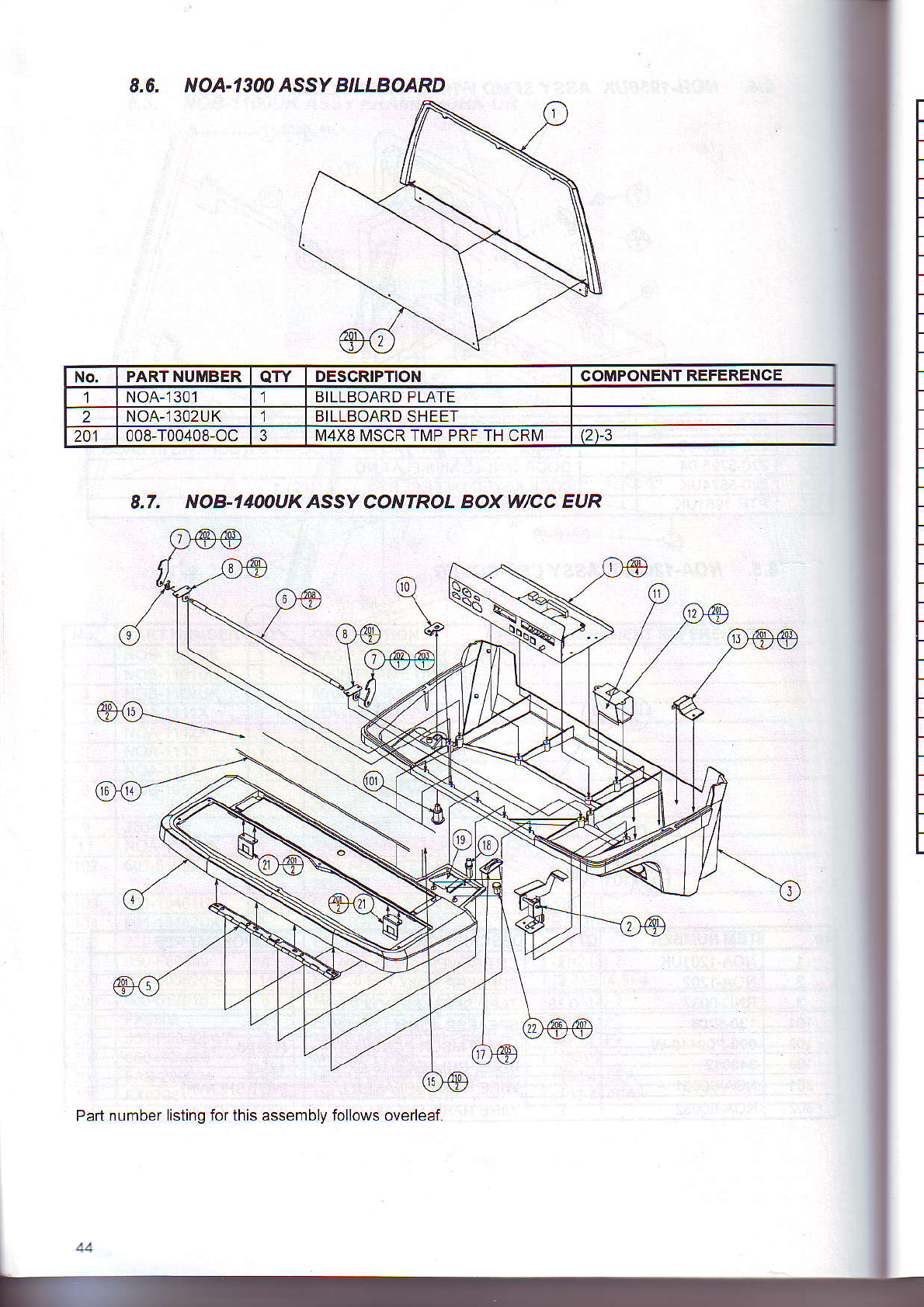
8.6. NOA-1300 ASSY BILLBOARD
8.7. NOB-1&oUK ASSy COTVTROL
BOX WCC EUR
No, PART NUMBER QTY DESCRIPTION COMPONENT REFERENCE
NOA-1301 1BILLBOARD PLATE
2NOA-13O2UK 1BILLBOARD
SHEET
201 008-T00408-oc3I\,14X8 MSCR TI\4P PRF TH CRI\,1 (2)-3
Part
numbef listing for this assembly follows overleaf.
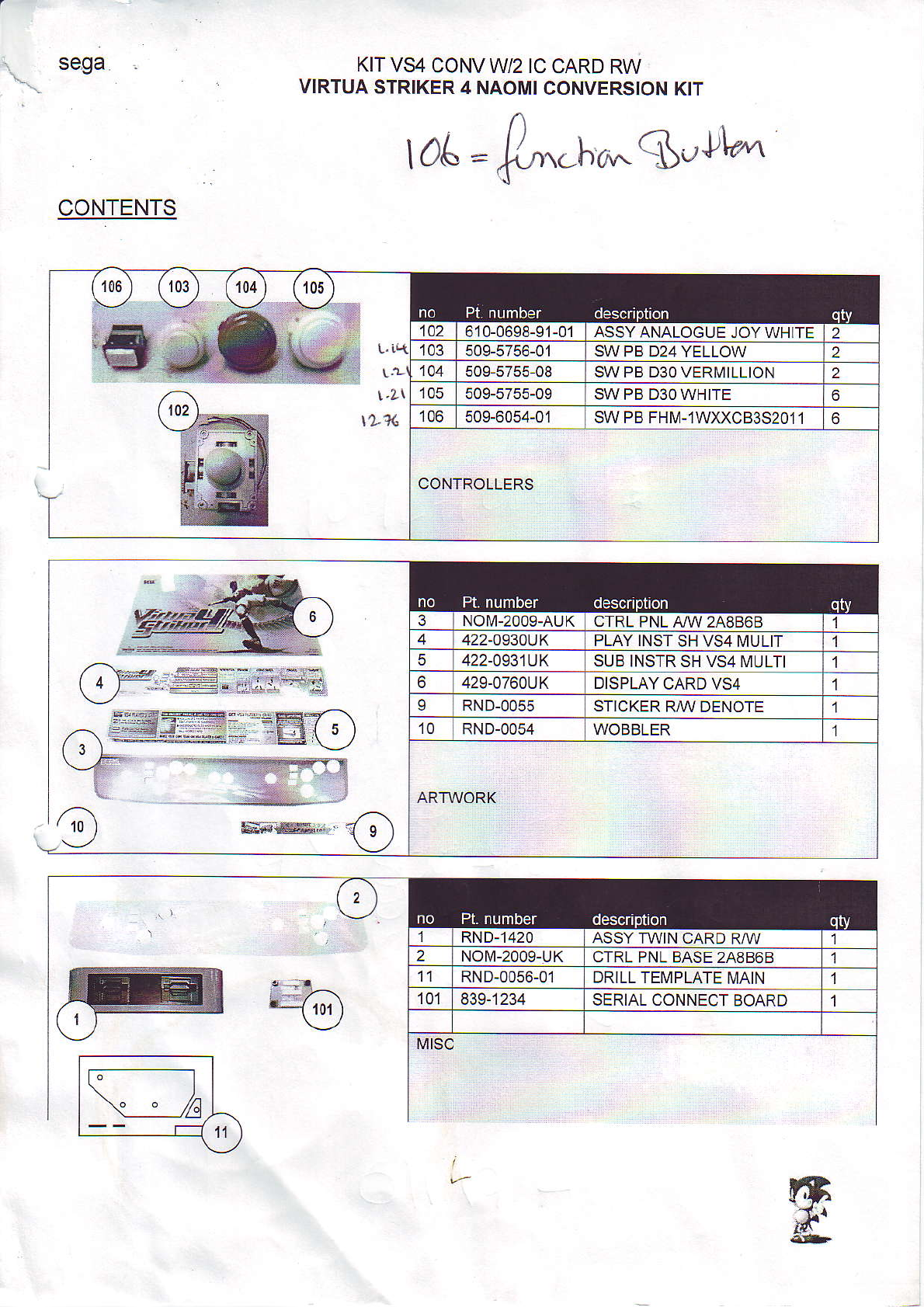
KIT
VS4 CONV
W/2 IC CARD
RW
VIRTUA
STRIKER
4 NAOMI
CONVERSION
KIT
l0a
=..ho*'$t'lknr
CONTENTS
610-0698-91-01ASSY
ANALOGUE JOY WHITE
SW PB D24
YELLOW
SW PB D3O VERI\,IILLION
SW PB D3O WHITE
SW PB FHI\4-1WXXCB3S2O1
1
CONTROLLERS
-:i-
@::€;;irs{*
.;.ffi;K=-'iffi
'f.-
-xw:
O *"***,,
@
3NOM-2009-AUK
CTRL
PNL ANV 248868 1
4422-093AUK PLAY INST
SH VS4 MULIT 1
5422-0931UK SUB
INSTR SH VS4I!'IULTI 1
6429-0760UK DISPLAY
CARD VS4 1
IRND-0055 STJCKER
RAV DENOTE 1
10 RND-0054 WOBBLER l
ARTWORK
re
(..t,
_.1
| '{---'744
T!
RND-1420 ASSY
TWIN CARD
R/VV
NOM-2009-UKCTRL
PNL
BASE
2A8868
RND-0056-01 DRILL TEMPLATE
MAIN
SERIAL CONNECT
BOARD
