Ardi Technology BL-16XX Smart Door Lock User Manual

Ardi Technology Corp. Smart Door Lock Users Manual

Users Manual

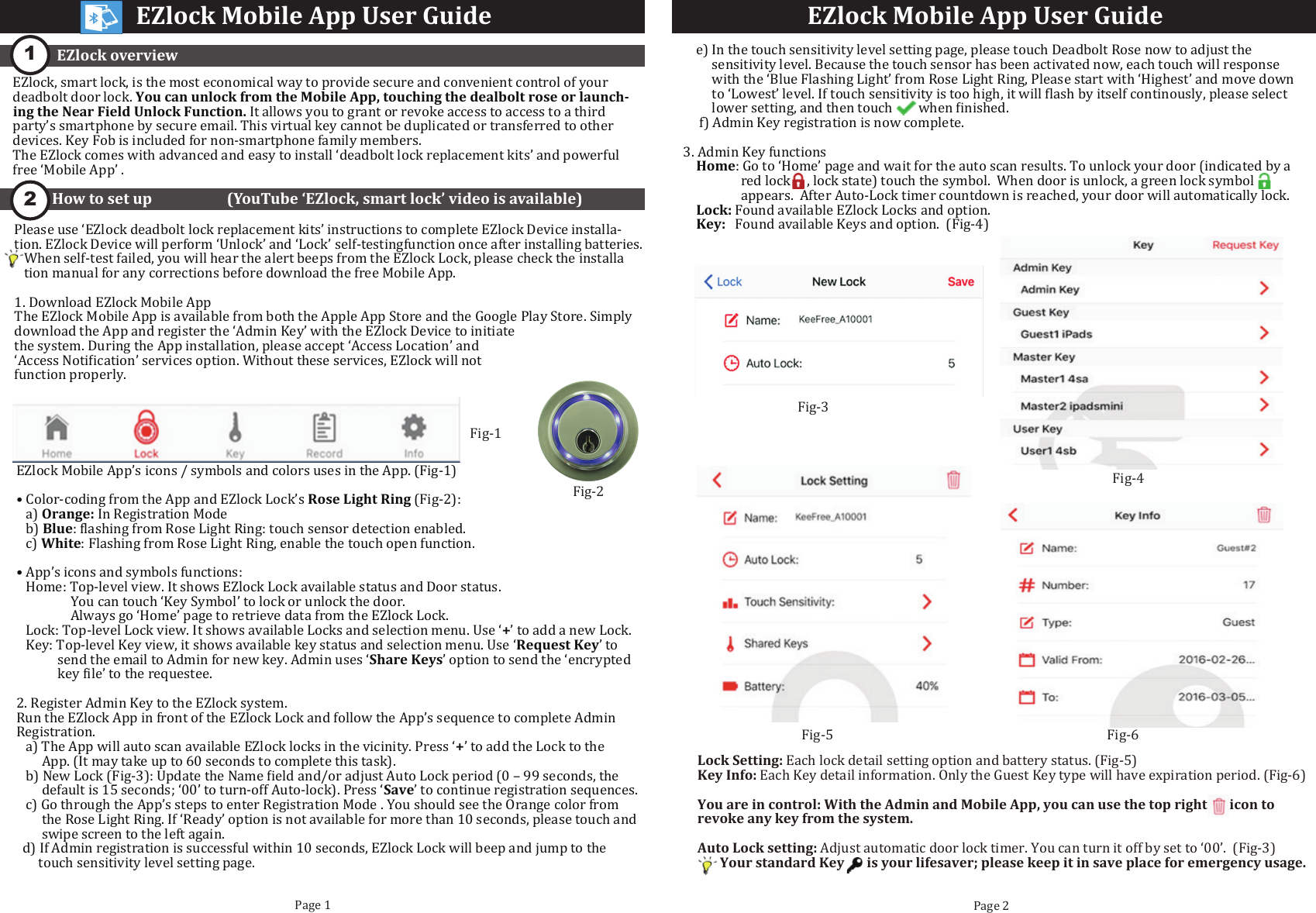
EZlock overviewPage 1 Page 21How to set up                     (YouTube ‘EZlock, smart lock’ video is available)2EZlock, smart lock, is the most economical way to provide secure and convenient control of your deadbolt door lock. You can unlock from the Mobile App, touching the dealbolt rose or launch-ing the Near Field Unlock Function. It allows you to grant or revoke access to access to a third party’s smartphone by secure email. This virtual key cannot be duplicated or transferred to other devices. Key Fob is included for non-smartphone family members.The EZlock comes with advanced and easy to install ‘deadbolt lock replacement kits’ and powerful free ‘Mobile App’ .EZlock Mobile App User Guide EZlock Mobile App User GuidePlease use ‘EZlock deadbolt lock replacement kits’ instructions to complete EZlock Device installa-tion. EZlock Device will perform ‘Unlock’ and ‘Lock’ self-testingfunction once after installing batteries.    When self-test failed, you will hear the alert beeps from the EZlock Lock, please check the installa   tion manual for any corrections before download the free Mobile App.1. Download EZlock Mobile AppThe EZlock Mobile App is available from both the Apple App Store and the Google Play Store. Simply download the App and register the ‘Admin Key’ with the EZlock Device to initiatethe system. During the App installation, please accept ‘Access Location’ and‘Access Noti�ication’ services option. Without these services, EZlock will not function properly.EZlock Mobile App’s icons / symbols and colors uses in the App. (Fig-1)• Color-coding from the App and EZlock Lock’s Rose Light Ring (Fig-2):   a) Orange: In Registration Mode             b) Blue: �lashing from Rose Light Ring: touch sensor detection enabled.                c) White: Flashing from Rose Light Ring, enable the touch open function.• App’s icons and symbols functions:    Home: Top-level view. It shows EZlock Lock available status and Door status.                  You can touch ‘Key Symbol’ to lock or unlock the door.                  Always go ‘Home’ page to retrieve data from the EZlock Lock.    Lock: Top-level Lock view. It shows available Locks and selection menu. Use ‘+’ to add a new Lock.    Key: Top-level Key view, it shows available key status and selection menu. Use ‘Request Key’ to             send the email to Admin for new key. Admin uses ‘Share Keys’ option to send the ‘encrypted             key �ile’ to the requestee. 2. Register Admin Key to the EZlock system.Run the EZlock App in front of the EZlock Lock and follow the App’s sequence to complete Admin Registration.    a) The App will auto scan available EZlock locks in the vicinity. Press ‘+’ to add the Lock to the        App. (It may take up to 60 seconds to complete this task).   b) New Lock (Fig-3): Update the Name �ield and/or adjust Auto Lock period (0 – 99 seconds, the        default is 15 seconds; ‘00’ to turn-off Auto-lock). Press ‘Save’ to continue registration sequences.   c) Go through the App’s steps to enter Registration Mode . You should see the Orange color from        the Rose Light Ring. If ‘Ready’ option is not available for more than 10 seconds, please touch and        swipe screen to the left again.  d) If Admin registration is successful within 10 seconds, EZlock Lock will beep and jump to the        touch sensitivity level setting page.    e) In the touch sensitivity level setting page, please touch Deadbolt Rose now to adjust the          sensitivity level. Because the touch sensor has been activated now, each touch will response          with the ‘Blue Flashing Light’ from Rose Light Ring, Please start with ‘Highest’ and move down          to ‘Lowest’ level. If touch sensitivity is too high, it will �lash by itself continously, please select          lower setting, and then touch        when �inished.     f) Admin Key registration is now complete.3. Admin Key functions    Home: Go to ‘Home’ page and wait for the auto scan results. To unlock your door (indicated by a                     red lock     , lock state) touch the symbol.  When door is unlock, a green lock symbol                          appears.  After Auto-Lock timer countdown is reached, your door will automatically lock.    Lock: Found available EZlock Locks and option.     Key:   Found available Keys and option.  (Fig-4)Lock Setting: Each lock detail setting option and battery status. (Fig-5)Key Info: Each Key detail information. Only the Guest Key type will have expiration period. (Fig-6)You are in control: With the Admin and Mobile App, you can use the top right       icon to revoke any key from the system.Auto Lock setting: Adjust automatic door lock timer. You can turn it off by set to ‘00’.  (Fig-3)       Your standard Key       is your lifesaver; please keep it in save place for emergency usage.Fig-3Fig-5 Fig-6EZlock Mobile App User GuideFig-1Fig-2 Fig-4
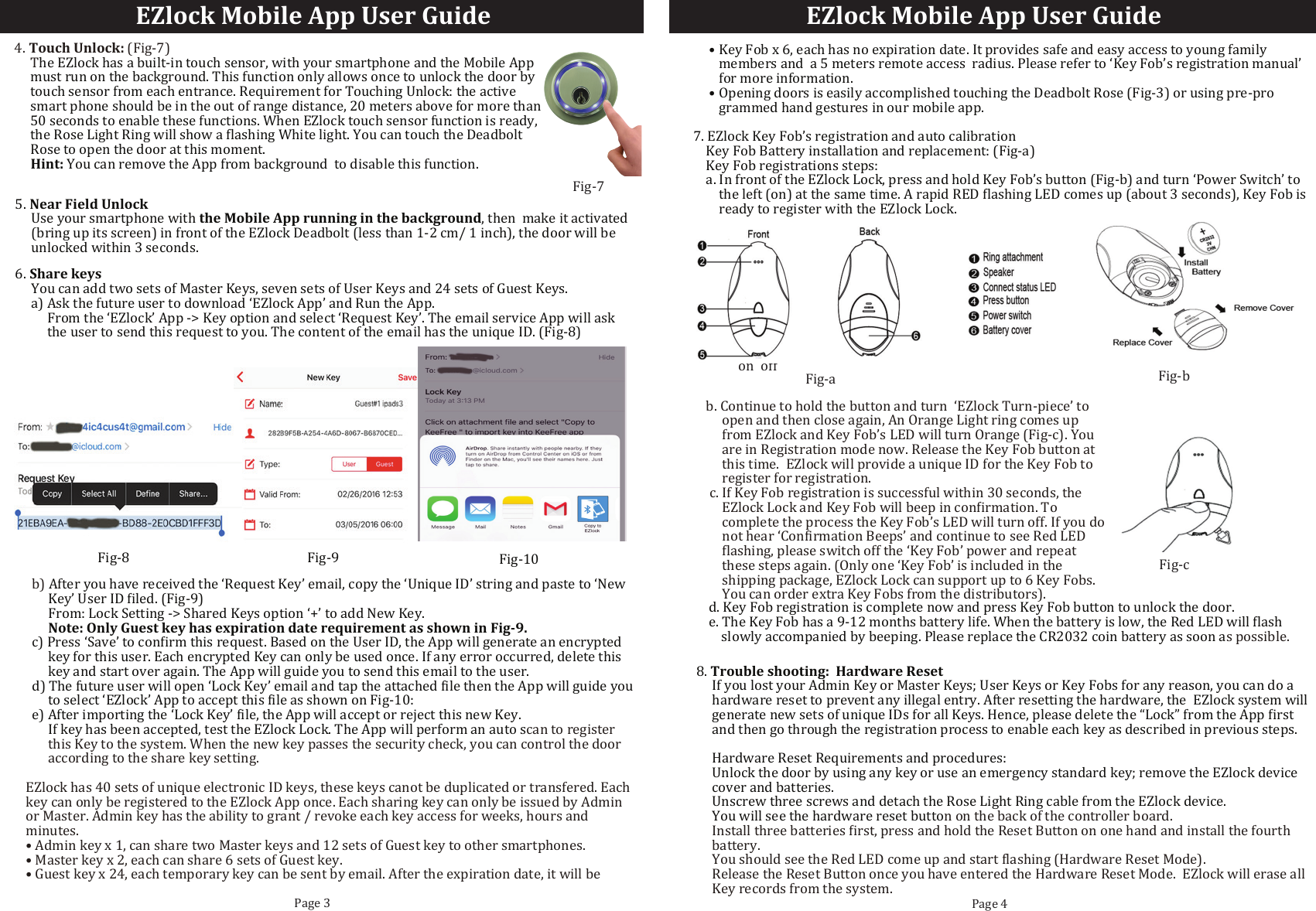
Page 3 Page 4How to set upEZlock Mobile App User Guide EZlock Mobile App User Guide6. Share keys      You can add two sets of Master Keys, seven sets of User Keys and 24 sets of Guest Keys.     a) Ask the future user to download ‘EZlock App’ and Run the App.           From the ‘EZlock’ App -> Key option and select ‘Request Key’. The email service App will ask           the user to send this request to you. The content of the email has the unique ID. (Fig-8) Fig-7     b) After you have received the ‘Request Key’ email, copy the ‘Unique ID’ string and paste to ‘New           Key’ User ID �iled. (Fig-9)          From: Lock Setting -> Shared Keys option ‘+’ to add New Key.            Note: Only Guest key has expiration date requirement as shown in Fig-9.     c) Press ‘Save’ to con�irm this request. Based on the User ID, the App will generate an encrypted            key for this user. Each encrypted Key can only be used once. If any error occurred, delete this           key and start over again. The App will guide you to send this email to the user.     d) The future user will open ‘Lock Key’ email and tap the attached �ile then the App will guide you           to select ‘EZlock’ App to accept this �ile as shown on Fig-10:     e) After importing the ‘Lock Key’ �ile, the App will accept or reject this new Key.           If key has been accepted, test the EZlock Lock. The App will perform an auto scan to register           this Key to the system. When the new key passes the security check, you can control the door           according to the share key setting.   EZlock has 40 sets of unique electronic ID keys, these keys canot be duplicated or transfered. Each    key can only be registered to the EZlock App once. Each sharing key can only be issued by Admin    or Master. Admin key has the ability to grant / revoke each key access for weeks, hours and    minutes.   • Admin key x 1, can share two Master keys and 12 sets of Guest key to other smartphones.             • Master key x 2, each can share 6 sets of Guest key.   • Guest key x 24, each temporary key can be sent by email. After the expiration date, it will be      • Key Fob x 6, each has no expiration date. It provides safe and easy access to young family         members and  a 5 meters remote access  radius. Please refer to ‘Key Fob’s registration manual’         for more information.     • Opening doors is easily accomplished touching the Deadbolt Rose (Fig-3) or using pre-pro         grammed hand gestures in our mobile app. 7. EZlock Key Fob’s registration and auto calibration      Key Fob Battery installation and replacement: (Fig-a)    Key Fob registrations steps:    a. In front of the EZlock Lock, press and hold Key Fob’s button (Fig-b) and turn ‘Power Switch’ to         the left (on) at the same time. A rapid RED �lashing LED comes up (about 3 seconds), Key Fob is         ready to register with the EZlock Lock.Fig-8 Fig-9 Fig-10    b. Continue to hold the button and turn  ‘EZlock Turn-piece’ to          open and then close again, An Orange Light ring comes up          from EZlock and Key Fob’s LED will turn Orange (Fig-c). You          are in Registration mode now. Release the Key Fob button at          this time.  EZlock will provide a unique ID for the Key Fob to          register for registration.     c. If Key Fob registration is successful within 30 seconds, the          EZlock Lock and Key Fob will beep in con�irmation. To          complete the process the Key Fob’s LED will turn off. If you do          not hear ‘Con�irmation Beeps’ and continue to see Red LED          �lashing, please switch off the ‘Key Fob’ power and repeat          these steps again. (Only one ‘Key Fob’ is included in the          shipping package, EZlock Lock can support up to 6 Key Fobs.          You can order extra Key Fobs from the distributors).4. Touch Unlock: (Fig-7)     The EZlock has a built-in touch sensor, with your smartphone and the Mobile App      must run on the background. This function only allows once to unlock the door by      touch sensor from each entrance. Requirement for Touching Unlock: the active     smart phone should be in the out of range distance, 20 meters above for more than      50 seconds to enable these functions. When EZlock touch sensor function is ready,      the Rose Light Ring will show a �lashing White light. You can touch the Deadbolt      Rose to open the door at this moment.      Hint: You can remove the App from background  to disable this function.Fig-cFig-aon  off Fig-b5. Near Field Unlock     Use your smartphone with the Mobile App running in the background, then  make it activated      (bring up its screen) in front of the EZlock Deadbolt (less than 1-2 cm/ 1 inch), the door will be      unlocked within 3 seconds. 8. Trouble shooting:  Hardware Reset       If you lost your Admin Key or Master Keys; User Keys or Key Fobs for any reason, you can do a        hardware reset to prevent any illegal entry. After resetting the hardware, the  EZlock system will       generate new sets of unique IDs for all Keys. Hence, please delete the “Lock” from the App �irst       and then go through the registration process to enable each key as described in previous steps.      Hardware Reset Requirements and procedures:      Unlock the door by using any key or use an emergency standard key; remove the EZlock device       cover and batteries.      Unscrew three screws and detach the Rose Light Ring cable from the EZlock device.       You will see the hardware reset button on the back of the controller board.      Install three batteries �irst, press and hold the Reset Button on one hand and install the fourth       battery.      You should see the Red LED come up and start �lashing (Hardware Reset Mode).       Release the Reset Button once you have entered the Hardware Reset Mode.  EZlock will erase all          Key records from the system. d. Key Fob registration is complete now and press Key Fob button to unlock the door. e. The Key Fob has a 9-12 months battery life. When the battery is low, the Red LED will �lash      slowly accompanied by beeping. Please replace the CR2032 coin battery as soon as possible.
EZlock Mobile App User GuideFederal Communication Commission Interference StatementThis equipment has been tested and found to comply with the limits for a Class B digital device, pursuant to Part 15 of the FCC Rules. These limits are designed to provide reasonable protection against harmful interference in a residential installation.This equipment generates, uses and can radiate radio frequency energy and, if not installed and used in accordance with the instructions, may cause harmful interference to radio communications. However, there is no guarantee that interference will not occur in a particular installation. If this equipment does cause harmful interference to radio or television reception, which can be determined by turning the equipment off and on, the user is encouraged to try to correct the interference by one of the following measures:. Reorient or relocate the receiving antenna.. Increase the separation between the equipment and receiver.. Connect the equipment into an outlet on a circuit different from that to which the receiver is connected.. Consult the dealer or an experienced radio/TV technician for help.FCC Caution: To assure continued compliance, any changes or modi�ications not expressly approved by the party responsible for compliance could void the user's authority to operate this equipment. (Example - use only shielded interface cables when connecting to computer or peripheral devices).FCC Radiation Exposure StatementThis equipment complies with FCC RF radiation exposure limits set forth for an uncontrolled environ-ment. This equipment should be installed and operated with a minimum distance of 0.5 centimeters between the radiator and your body.This transmitter must not be co-located or operating in conjunction with any other antenna or transmit-ter.The antennas used for this transmitter must be installed to provide a separation distance of at least 0.5 cm from all persons and must not be co-located or operating in conjunction with any other antenna or transmitter.This device complies with Part 15 of the FCC Rules. Operation is subject to the following two conditions:(1) This device may not cause harmful interference, and (2) This device must accept any interference received, including interference that may cause undesired operation.Page 5

Navigation menu