Ardi Technology XX21XX Wallet Reminder / Wallet Tag / Slim Remote Tag User Manual Wallet Reminder SB21 20131202 ai

Ardi Technology Corp. Wallet Reminder / Wallet Tag / Slim Remote Tag Wallet Reminder SB21 20131202 ai

Users Manual

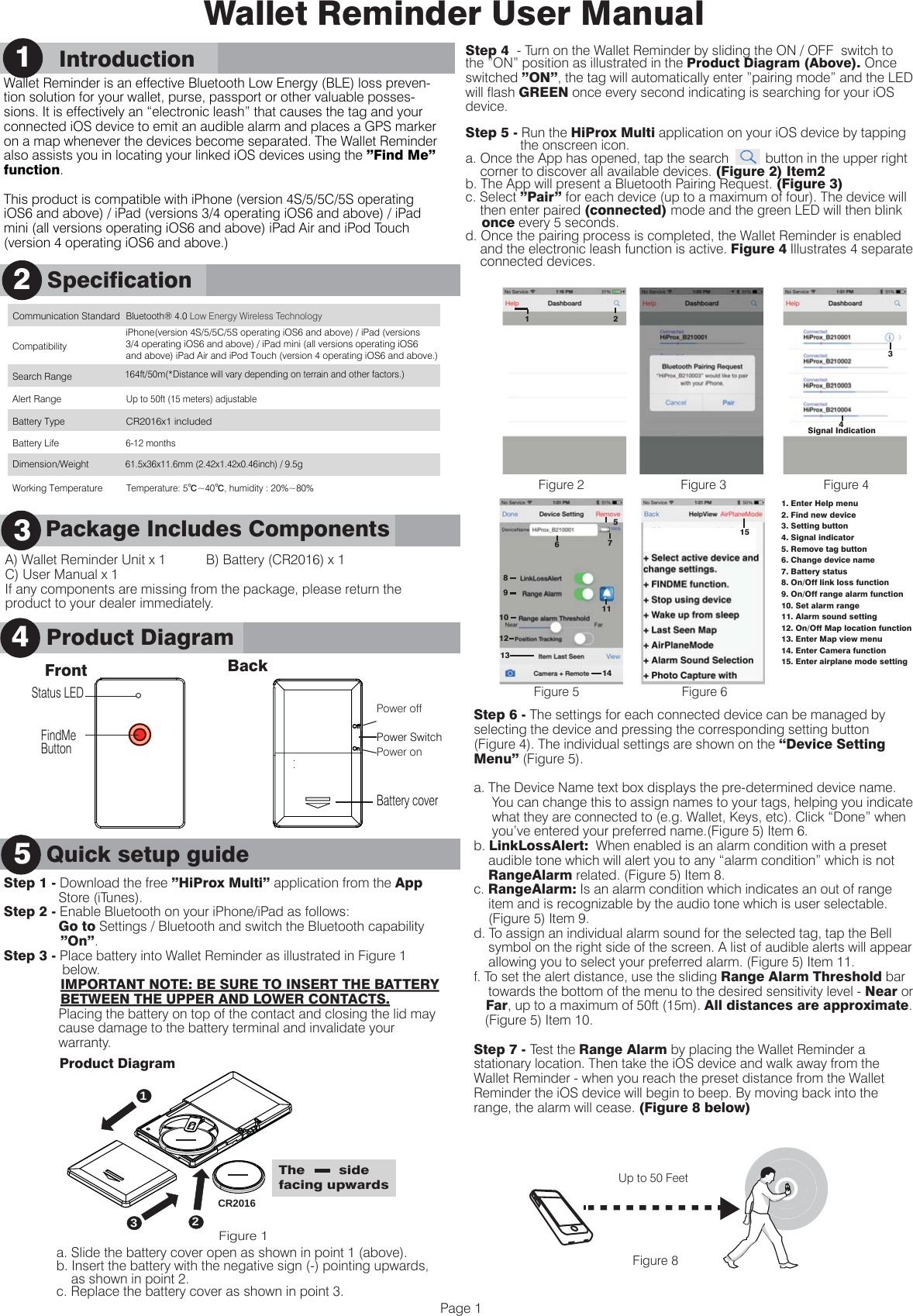
A) Wallet Reminder Unit x 1           B) Battery (CR2016) x 1C) User Manual x 1If any components are missing from the package, please return the product to your dealer immediately.      Product Description3Wallet Reminder User ManualWallet Reminder is an effective Bluetooth Low Energy (BLE) loss preven-tion solution for your wallet, purse, passport or other valuable posses-sions. It is effectively an “electronic leash” that causes the tag and your connected iOS device to emit an audible alarm and places a GPS marker on a map whenever the devices become separated. The Wallet Reminder also assists you in locating your linked iOS devices using the ”Find Me” function.This product is compatible with iPhone (version 4S/5/5C/5S operating iOS6 and above) / iPad (versions 3/4 operating iOS6 and above) / iPad mini (all versions operating iOS6 and above) iPad Air and iPod Touch (version 4 operating iOS6 and above.)Quick Setup GuideStep 1 - Download the free ”HiProx Multi” application from the App                Store (iTunes). Step 2 - Enable Bluetooth on your iPhone/iPad as follows:               Go to Settings / Bluetooth and switch the Bluetooth capability               ”On”.Step 3 - Place battery into Wallet Reminder as illustrated in Figure 1                 below.                            IMPORTANT NOTE: BE SURE TO INSERT THE BATTERY               BETWEEN THE UPPER AND LOWER CONTACTS.                Placing the battery on top of the contact and closing the lid may                cause damage to the battery terminal and invalidate your                warranty.                     SpecificationProduct Diagram245Quick setup guidePage 1      Package Includes Components3Communication Standard Bluetooth® 4.0 Low Energy Wireless Technology    Compatibility Search Range 164ft/50m(*Distance will vary depending on terrain and other factors.)  Alert Range Up to 50ft (15 meters) adjustable Battery Type CR2016x1 included Battery Life 6-12 months    Working TemperatureTemperature: 5℃~40℃, humidity : 20%~80%  Dimension/Weight 61.5x36x11.6mm (2.42x1.42x0.46inch) / 9.5gStep 6 - The settings for each connected device can be managed by selecting the device and pressing the corresponding setting button (Figure 4). The individual settings are shown on the “Device Setting Menu” (Figure 5).a. The Device Name text box displays the pre-determined device name.      You can change this to assign names to your tags, helping you indicate      what they are connected to (e.g. Wallet, Keys, etc). Click “Done” when      you’ve entered your preferred name.(Figure 5) Item 6.b. LinkLossAlert:  When enabled is an alarm condition with a preset     audible tone which will alert you to any “alarm condition” which is not     RangeAlarm related. (Figure 5) Item 8.c. RangeAlarm: Is an alarm condition which indicates an out of range     item and is recognizable by the audio tone which is user selectable.     (Figure 5) Item 9.d. To assign an individual alarm sound for the selected tag, tap the Bell     symbol on the right side of the screen. A list of audible alerts will appear     allowing you to select your preferred alarm. (Figure 5) Item 11.f. To set the alert distance, use the sliding Range Alarm Threshold bar     towards the bottom of the menu to the desired sensitivity level - Near or    Far, up to a maximum of 50ft (15m). All distances are approximate.    (Figure 5) Item 10.Step 7 - Test the Range Alarm by placing the Wallet Reminder a stationary location. Then take the iOS device and walk away from the Wallet Reminder - when you reach the preset distance from the Wallet Reminder the iOS device will begin to beep. By moving back into the range, the alarm will cease. (Figure 8 below) Figure 8Up to 50 FeetiPhone(version 4S/5/5C/5S operating iOS6 and above) / iPad (versions 3/4 operating iOS6 and above) / iPad mini (all versions operating iOS6 and above) iPad Air and iPod Touch (version 4 operating iOS6 and above.) Front BackStatus LEDPower SwitchBattery coverFindMeButtonPower offPower ona. Slide the battery cover open as shown in point 1 (above).b. Insert the battery with the negative sign (-) pointing upwards,     as shown in point 2.c. Replace the battery cover as shown in point 3.Step 4  - Turn on the Wallet Reminder by sliding the ON / OFF  switch to the ”ON” position as illustrated in the Product Diagram (Above). Once switched ”ON”, the tag will automatically enter ”pairing mode” and the LED will flash GREEN once every second indicating is searching for your iOS device.Step 5 - Run the HiProx Multi application on your iOS device by tapping                the onscreen icon.a. Once the App has opened, tap the search          button in the upper right     corner to discover all available devices. (Figure 2) Item2b. The App will present a Bluetooth Pairing Request. (Figure 3)c. Select ”Pair” for each device (up to a maximum of four). The device will     then enter paired (connected) mode and the green LED will then blink     once every 5 seconds.d. Once the pairing process is completed, the Wallet Reminder is enabled     and the electronic leash function is active. Figure 4 Illustrates 4 separate        connected devices.1. Enter Help menu2. Find new device3. Setting button4. Signal indicator5. Remove tag button6. Change device name 7. Battery status8. On/Off link loss function9. On/Off range alarm function10. Set alarm range11. Alarm sound setting12. On/Off Map location function13. Enter Map view menu14. Enter Camera function15. Enter airplane mode settingFigure 2 Figure 3Figure 5Figure 4Figure 62151Signal Indication34671189101213145      Introduction11The        side facing upwards12CR20163Product DiagramFigure 1
Item Last Seen      Warning12■ Do not disassemble, repair, modify or replace the Wallet Reminder or      any of its components.■ Please comply with the national and international flight safety     regulations when using this device. ■ When storing rechargeable batteries for collection, keep in a vented,      non-metal container.■ Operating temperatures for this product is between 40˚F~103˚F      (5˚C~40˚C). Storage for this product is between      -4F˚~185˚F(-20˚C~85˚C).■ Do NOT dispose of the battery in any public trash / rubbish container; it     is unlawful under state and federal environmental laws and     regulations. ■ Please dispose of the battery appropriately at your local battery recycling      center.      Troubleshooting11■ If you try to discover a device, but cannot find it, this usually indicates      there is or has been an existing bond. Go to section 10 above and      remove the tag as described. It may be necessary to restart your iOS      device and to ”forget” any Bluetooth retained / holding information      completely.■ What can cause a false Out-of-Range alarm?     a.) Low battery power.      b.) The human body is also a source of interference; when utilizing           Wallet Reminder we advise where possible you locate and carry both           iOS  device and tag on the same side of your body.      c.) Interference/block by metal objects or high power signals used by 2.4           GHz band devices (i.e. Wi-Fi networks or Microwave ovens…).■ Please change batteries if audible alarm becomes weak.7Page 2a. To temporarily stop using one or more devices, you can place each     Wallet Reminder in a sleep mode. Hold the Wallet Reminder button for     over 3 seconds until you hear the first beep and see a RED flashing LED.     The Wallet Reminder will then stop blinking while it is in sleep mode.b. Once in sleep mode to reawaken simply press and hold the FindMe     button for an additional 3 seconds.c. Please note: Once pressed it may take up to 100 seconds     before the Wallet Reminder reconnects to you IOS device.d. You can remove device permanently by tapping the red REMOVE     button from the Device Setting Menu Screen (Figure 14).The message     ”Are you sure you want to delete the paired tag?” will appear. e. To delete this device select YES. The screen will revert back to the main     Device Setting Menu at which point you will be prompted by the red     DELETE button (Figure 15). By tapping DELETE you will be informed     ”This tag has been removed from paired device list. Please go     to Bluetooth setting on your iOS device to forget this tag”     (Figure 16).f. To complete the deletion. Please go to your iOS Device Settings menu and    select “Bluetooth”. Select the name of the device you want to remove and    choose "Forget this device".       To Stop using or remove Wallet       Reminder  10Additional function of ”FindMe” button, Go To the device setting page ( Figure 5): Remote control Photo CaptureTo use the ”Photo” remote control function, go to the Device Setting  page and tap the Camera Icon located at the bottom of the screen (Figure 5). Once selected, capture count allows a series of consecutive photos to be taken (at a rate of one photo per second), and can be increased or decreased by tapping the ”+” or ”-” Capture Count indicator up to a maximum of 100 images (Figure 17). Press the Wallet Reminder ”FindMe” button to start the photo image capture. Figure 17AirPlane ModeAirPlaneMode for all connected devices.a. From the Dashboard screen Tap  Help (Figure 2) Item 1. From the     HelpView screen tap AirPlaneMode button (Figure 6) Item 15. You     will be prompted ”Do you want to disconnect all tags for airplane     mode?” (Figure 12)b. Selecting ”YES” disconnects all devices; Selecting ”NO” causes the         options list to re-appear, allowing you to select the individual tags you     wish to disconnect.c. Once disabled, you can reconnect all tags by selecting the      RECONNECT button.d. After Airplane Mode has been switched ”ON” each disconnected     tag will display the message in the Dashboard screen ”Disconnected    by Airplane Mode”(Figure 13).    9FindMe Function6Figure 8 Figure 9 Figure 10Figure 11 Figure 12 Figure 13Figure 14 Figure 15 Figure 16Forget deviceRemove device Delete devicea. To manually set the Item Last Seen function go to the Device Setting     Menu (Figure 8)and tap the View button next to Item Last Seen     Record. This will change the screen taking you to the MapView.(Figure     9). This is useful when visiting an unfamiliar town or city where, for     example you park your car. Setting map view manually at the time you     park will give you a location point for your return. b. To manually select a Location mark, tap the Mark button and choose     [YES](Figure 9). A red marker pin will appear at the current location     (Figure 10). The pin can be removed by tapping the pin again and     selecting ”Remove”.c. To automatically set the Item Last Seen function ensure the Position     Tracking switch is set to the ON position (Figure 8). d. A red “P” will be highlighted in the Dashboard Connected Device     button when a Item Last Seen alarm condition is detected, regardless     of whether this function was set to auto or manual. (Figure 11) When your iOS device detects a LinkLoss or Out of Range alert the iOS device will automatically mark the Location where the connection was lost with a pin marker (Figure 10 below).Please note that the map location function is dependent upon GPS functionality. This requires access to your WiFi or mobile network. GPS does not function accurately indoors, and as such, if there is no continuous WiFi connection, the Wallet Reminder will display the last know GPS signal position.Press and immediately release the Wallet Reminder ”FindMe” button (below the LED). This will cause the connected iOS device to issue an Alert sound (assuming it is within the given threshold distance).Briefly press and release the ”FindMe” button on the Wallet Reminder a second time to stop the ”FindMe” function.PLEASE NOTE: Holding the Wallet Reminder button for over 3 seconds will force the device to enter SLEEP mode and generate a LinkLoss Alert from the iOS device. To awaken the Wallet Reminder and re-connect to the iOS device, press and release the ”FindMe” button.
Federal Communication Commission Interference Statement This equipment has been tested and found to comply with the limits for a Class B digital device, pursuant to Part 15 of the FCC Rules. These limits are designed to provide reasonable protection against harmful interference in a residential installation. This equipment generates, uses and can radiate radio frequency energy and, if not installed and used in accordance with the instructions, may cause harmful interference to radio communications. However, there is no guarantee that interference will not occur in a particular installation. If this equipment does cause harmful interference to radio or television reception, which can be determined by turning the equipment off and on, the user is encouraged to try to correct the interference by one of the following measures: . Reorient or relocate the receiving antenna. . Increase the separation between the equipment and receiver. . Connect the equipment into an outlet on a circuit different from that to which the receiver is connected. . Consult the dealer or an experienced radio/TV technician for help. FCC Caution: To assure continued compliance, any changes or modifications not expressly approved by the party responsible for compliance could void the user's authority to operate this equipment. (Example - use only shielded interface cables when connecting to computer or peripheral devices). FCC Radiation Exposure Statement This transmitter must not be co-located or operating in conjunction with any other antenna or transmitter. This device complies with Part 15 of the FCC Rules. Operation is subject to the following two conditions: (1) This device may not cause harmful interference, and   (2) This device must accept any interference received, including interference that may cause undesired operation.

Navigation menu