Areca Arc 1120 Users Manual
ARC-1130 to the manual b0faf85a-b977-4678-8921-06a0b155993a
2015-02-05
: Areca Areca-Arc-1120-Users-Manual-510712 areca-arc-1120-users-manual-510712 areca pdf
Open the PDF directly: View PDF  .
.
Page Count: 180 [warning: Documents this large are best viewed by clicking the View PDF Link!]

ARC-1110/1120/1130/1160/1170
( 4/8/12/16/24-port PCI-X SATA RAID Controllers )
ARC-1110ML/1120ML/1130ML/1160ML
( 4/8-port Innband connector and 12/16-port Multi-lane
connector PCI-X SATA RAID Controllers )
ARC-1210/1220/1230/1260/1280
( 4/8/12/16/24-port PCI-Express SATA RAID Controllers )
ARC-1231ML/1261ML/1280ML
(12/16/24-port PCI-Express SATA RAID Controllers)
SATA RAID Cards
USER Manual
Version: 3.3
Issue Date: November, 2006
Microsoft WHQL Windows Hardware Compatibility
Test
ARECA is committed to submitting products to the Microsoft Windows
Hardware Quality Labs (WHQL), which is required for participation in the
Windows Logo Program. Successful passage of the WHQL tests results
in both the “Designed for Windows” logo for qualifying ARECA PCI-X and
PCI-Express SATA RAID controllers and a listing on the Microsoft Hard-
ware Compatibility List (HCL).
Copyright and Trademarks
The information of the products in this manual is subject to change
without prior notice and does not represent a commitment on the part
of the vendor, who assumes no liability or responsibility for any errors
that may appear in this manual. All brands and trademarks are the
properties of their respective owners. This manual contains materials
protected under International Copyright Conventions. All rights
reserved. No part of this manual may be reproduced in any form or by
any means, electronic or mechanical, including photocopying, without
the written permission of the manufacturer and the author. All inquiries
should be addressed to ARECA Technology Corp.
FCC STATEMENT
This equipment has been tested and found to comply with the limits for
a Class B digital device, pursuant to part 15 of the FCC Rules. These
limits are designed to provide reasonable protection against interfer-
ence in a residential installation. This equipment generates, uses, and
can radiate radio frequency energy and, if not installed and used in ac-
cordance with the instructions, may cause harmful interference to radio
communications. However, there is no guarantee that interference will
not occur in a particular installation.
Contents
1. Introduction .............................................................. 10
1.1 Overview ....................................................................... 10
1.2 Features ........................................................................ 12
1.3 RAID Concept ................................................................. 15
1.3.1 RAID Set ................................................................... 15
1.3.2 Volume Set ................................................................ 15
1.3.3 Ease of Use Features ................................................. 16
1.3.3.1 Foreground Availability/Background Initialization ....... 16
1.3.3.2 Array Roaming ..................................................... 16
1.3.3.3 Online Capacity Expansion ..................................... 17
1.3.3.4 Online RAID Level and Stripe Size Migration ............. 19
1.3.3.5 Online Volume Expansion ........................................ 19
1.4 High availability .............................................................. 20
1.4.1 Global Hot Spares ...................................................... 20
1.4.2 Hot-Swap Disk Drive Support ....................................... 21
1.4.3 Auto Declare Hot-Spare .............................................. 21
1.4.4 Auto Rebuilding ......................................................... 21
1.4.5 Adjustable Rebuild Priority ........................................... 22
1.5.1 Hard Drive Failure Prediction ........................................ 23
1.5.2 Auto Reassign Sector .................................................. 23
1.5.3 Consistency Check ...................................................... 24
1.6 Data Protection ............................................................... 24
1.6.1 BATTERY BACKUP ...................................................... 24
1.6.2 RECOVERY ROM ......................................................... 25
1.7 Understanding RAID ........................................................ 25
1.7.1 RAID 0 ...................................................................... 25
1.7.2 RAID 1 ...................................................................... 26
1.7.3 RAID 1E .................................................................... 27
1.7.4 RAID 3 ...................................................................... 27
1.7.5 RAID 5 ...................................................................... 28
1.7.6 RAID 6 ...................................................................... 29
2. Hardware Installation ............................................... 32
2.1 Before Your begin Installation ........................................... 32
2.2 Board Layout .................................................................. 33
2.3 Installation ..................................................................... 39
3. McBIOS RAID Manager .............................................. 56
3.1 Starting the McBIOS RAID Manager ................................... 56
3.2 McBIOS Conguration manager ......................................... 57
3.3 Conguring Raid Sets and Volume Sets .............................. 58
3.4 Designating Drives as Hot Spares ...................................... 58
3.5 Using Quick Volume /Raid Setup Conguration .................... 59
3.6 Using RAID Set/Volume Set Function Method ...................... 60
3.7 Main Menu .................................................................... 62
3.7.1 Quick Volume/RAID Setup ........................................... 63
3.7.2 Raid Set Function ....................................................... 66
3.7.2.1 Create Raid Set .................................................... 67
3.7.2.2 Delete Raid Set ..................................................... 68
3.7.2.3 Expand Raid Set .................................................... 68
• Migrating ...................................................................... 69
3.7.2.4 Activate Incomplete Raid Set ................................... 70
3.7.2.5 Create Hot Spare ................................................... 71
3.7.2.6 Delete Hot Spare ................................................... 71
3.7.2.7 Raid Set Information .............................................. 72
3.7.3 Volume Set Function ................................................... 72
3.7.3.1 Create Volume Set ................................................. 73
• Volume Name ................................................................ 75
• Raid Level ..................................................................... 75
• Capacity ....................................................................... 76
• Strip Size ...................................................................... 77
• SCSI Channel ................................................................ 78
• SCSI ID ........................................................................ 78
• SCSI LUN ...................................................................... 79
• Cache Mode .................................................................. 79
3.7.3.2 Delete Volume Set ................................................. 80
• Tag Queuing .................................................................. 80
3.7.3.3 Modify Volume Set ................................................. 81
• Volume Growth .............................................................. 82
• Volume Set Migration ...................................................... 83
3.7.3.4 Check Volume Set .................................................. 83
3.7.3.5 Stop Volume Set Check .......................................... 83
3.7.3.6 Display Volume Set Info. ........................................ 84
3.7.4 Physical Drives ........................................................... 85
3.7.4.1 View Drive Information .......................................... 85
3.7.4.2 Create Pass-Through Disk ....................................... 86
3.7.4.3 Modify a Pass-Through Disk ..................................... 86
3.7.4.4 Delete Pass-Through Disk ....................................... 87
3.7.4.5 Identify Selected Drive ........................................... 87
3.7.5 Raid System Function ................................................. 88
3.7.5.1 Mute The Alert Beeper ........................................... 88
3.7.5.2 Alert Beeper Setting ............................................... 89
3.7.5.3 Change Password .................................................. 89
3.7.5.4 JBOD/RAID Function .............................................. 90
3.7.5.5 Background Task Priority ........................................ 91
3.7.5.6 Maximum SATA Mode ............................................. 91
3.7.5.7 HDD Read Ahead Cache ......................................... 92
3.7.5.8 Stagger Power On .................................................. 92
3.7.5.9 Empty HDD slot HDD ............................................. 93
3.7.5.10 HDD SMART Status Polling .................................... 94
3.7.5.11 Controller Fan Detection ....................................... 94
3.7.5.12 Disk Write Cache Mode ......................................... 95
3.7.5.13 Capacity Truncation .............................................. 95
3.7.6 Ethernet Conguration (12/16/24-port) ......................... 96
3.7.6.1 DHCP Function ...................................................... 97
3.7.6.2 Local IP address .................................................... 98
3.7.6.3 Ethernet Address ................................................... 99
3.7.7 View System Events ................................................... 99
3.7.8 Clear Events Buffer ................................................... 100
3.7.9 Hardware Monitor ..................................................... 100
3.7.10 System Information ................................................ 100
4. Driver Installation ................................................... 102
4.1 Creating the Driver Diskettes .......................................... 102
4.2 Driver Installation for Windows ....................................... 103
4.2.1 New Storage Device Drivers in Windows Server 2003 .... 103
4.2.2 Install Windows 2000/XP/2003 on a SATA RAID Volume 104
4.2.2.1 Installation procedures ......................................... 104
4.2.2.2 Making Volume Sets Available to Windows System ... 105
4.2.3 Installing controller into an existing Windows 2000/XP/2003
Installation ...................................................................... 106
4.2.3.1 Making Volume Sets Available to Windows System ... 107
4.2.4 Uninstall controller from Windows 2000/XP/2003 .......... 108
4.3 Driver Installation for Linux ............................................ 109
4.4 Driver Installation for FreeBSD ........................................ 109
4.5 Driver Installation for Solaris 10 ...................................... 110
4.6 Driver Installation for Mac 10.x ....................................... 110
4.7 Driver Installation for UnixWare 7.1.4 .............................. 111
4.8 Driver Installation for NetWare 6.5 .................................. 111
5. ArcHttp Proxy Server Installation ........................... 112
5.1 For Windows................................................................. 113
5.2 For Linux ..................................................................... 114
5.3 For FreeBSD ................................................................. 115
5.4 For Solaris 10 x86 ......................................................... 116
5.5 For Mac OS 10.x ........................................................... 116
5.6 ArcHttp Conguration .................................................... 117
6. Web Browser-based Conguration ......................... 121
6.1 Start-up McRAID Storage Manager ................................. 121
• Another method to start-up McRAID Storage Manager from
Windows Local Administration .......................................... 122
6.1.1 Through Ethernet port (Out-of-Band) ......................... 123
6.2 SATA RAID controller McRAID Storage Manager ................. 124
6.3 Main Menu .................................................................. 125
6.4 Quick Function .............................................................. 125
6.5 RaidSet Functions ......................................................... 126
6.5.1 Create Raid Set ....................................................... 126
6.5.2 Delete Raid Set ........................................................ 127
6.5.3 Expand Raid Set ....................................................... 128
6.5.4 Activate Incomplete Raid Set ..................................... 128
6.5.5 Create Hot Spare ..................................................... 129
6.5.6 Delete Hot Spare ...................................................... 129
6.5.7 Rescue Raid Set ....................................................... 129
6.6 Volume Set Functions .................................................... 130
6.6.1 Create Volume Set ................................................... 130
• Volume Name .............................................................. 131
• Raid Level .................................................................. 131
• Capacity ..................................................................... 131
• Greater Two TB Volume Support ..................................... 131
• Initialization Mode ........................................................ 132
• Strip Size .................................................................... 132
• Cache Mode ................................................................ 132
• SCSI Channel/SCSI ID/SCSI Lun .................................... 132
• Tag Queuing ................................................................ 132
6.6.2 Delete Volume Set .................................................... 133
6.6.3 Modify Volume Set .................................................... 133
6.6.3.1 Volume Set Migration ........................................... 134
6.6.4 Check Volume Set .................................................... 135
6.6.5 Stop VolumeSet Check .............................................. 135
6.7 Physical Drive .............................................................. 135
6.7.1 Create Pass-Through Disk .......................................... 136
6.7.2 Modify Pass-Through Disk .......................................... 136
6.7.3 Delete Pass-Through Disk .......................................... 137
6.8 System Controls ........................................................... 138
6.8.1 System Cong ......................................................... 138
• System Beeper Setting ................................................. 138
• Background Task Priority ............................................... 138
• JBOD/RAID Conguration .............................................. 138
• Maximun SATA Supported ............................................. 138
• HDD Read Ahead Cache ................................................ 138
• Stagger Power on ........................................................ 139
• Empty HDD Slot LED .................................................... 140
• HDD SMART Status Polling............................................. 140
• Disk Write Cache Mode ................................................. 141
• Disk Capacity Truncation Mode ....................................... 141
6.8.2 Ethernet Conguration (12/16/24-port) ....................... 142
6.8.3 Alert by Mail Conguration (12/16/24-port) ................ 143
6.8.4 SNMP Conguration (12/16/24-port) ........................... 144
• SNMP Trap Congurations ............................................. 145
• SNMP System Congurations ......................................... 145
• SNMP Trap Notication Congurations ............................. 145
6.8.5 NTP Conguration (12/16/24-port) ............................. 145
• NTP Sever Address ....................................................... 145
• Time Zone ................................................................... 146
• Automatic Daylight Saving............................................. 146
6.8.6 View Events/Mute Beeper .......................................... 146
6.8.7 Generate Test Event ................................................. 146
6.8.8 Clear Events Buffer ................................................... 147
6.8.9 Modify Password ...................................................... 147
6.8.10 Update Firmware ................................................... 148
6.9 Information .................................................................. 148
6.9.1 RaidSet Hierarchy ..................................................... 148
6.9.2 System Information .................................................. 148
Appendix A ................................................................. 151
Upgrading Flash ROM Update Process .................................... 151
Upgrading Firmware Through McRAID Storage Manager ........... 151
Upgrading Entire Flash ROM ImageThrough Arcash DOS Utility 153
Appendix B .................................................................. 156
Battery Backup Module (ARC-6120-BAT) ................................ 156
BBM Components ........................................................... 156
BBM Specications .......................................................... 156
Installation .................................................................... 157
Battery Backup Capacity .................................................. 157
Operation ...................................................................... 158
Changing the Battery Backup Module ................................ 158
Status of BBM ................................................................ 158
Appendix C .................................................................. 159
SNMP Operation & Denition ................................................ 159
Appendix D .................................................................. 166
Event Notication Congurations ........................................ 166
A. Device Event .............................................................. 166
B. Volume Event ............................................................. 167
C. RAID Set Event .......................................................... 167
D. Hardware Event .......................................................... 168
Appendix E .................................................................. 169
General Troubleshooting Tips ............................................... 169
Appendix F .................................................................. 173
Technical Support ............................................................... 173
Glossary ...................................................................... 174
2TB .............................................................................. 174
Array ............................................................................ 174
ATA .............................................................................. 174
Auto Reassign Sector ..................................................... 174
Battery Backup Module .................................................... 175
BIOS ............................................................................ 175
Cache ........................................................................... 175
Consistency Check .......................................................... 175
Driver ........................................................................... 175
Hot Spare ...................................................................... 176
Hardware RAID versus Software RAID .............................. 176
Hot Swap ...................................................................... 176
NVRAM .......................................................................... 176
Parity ............................................................................ 176
PCI Express .................................................................. 176
PCI-X ........................................................................... 177
RAID ............................................................................ 177
Rebuild ......................................................................... 177
SATA (Serial ATA) ........................................................... 177
SMART .......................................................................... 178
SNMP ............................................................................ 178
Volume Set .................................................................... 178
Write-back ..................................................................... 178
Write-through ................................................................ 178
XOR-Engine ................................................................... 179

INTRODUCTION
10
1. Introduction
This section presents a brief overview of the SATA RAID Series
controller, ARC-1110/1110ML/1120/1120ML/1130/1130ML/1160/
1160ML/1170 (4/8/12/16/24-port PCI-X SATA RAID Controllers) and
ARC-1210/1220/1230/1230/1231ML/1260/1261ML/1280/1280ML
(4/8/12/16/24-port PCI-Express SATA RAID Controllers).
1.1 Overview
The ARC-11xx and ARC-12xx Series of high-performance Serial ATA
RAID controllers support a maximum of 4, 8, 12, 16, or 24 SATA
II peripheral devices (depending on model) on a single controller.
The ARC-11xx series for the PCI-X bus and the ARC-12xx Series
for the PCI-Express bus. When properly congured, these SATA
controllers provide non-stop service with a high degree of fault
tolerance through the use of RAID technology and can also provide
advanced array management features.
The 4 and 8 port SATA RAID controllers are low-prole PCI cards,
ideal for 1U and 2U rack-mount systems. These controllers utilize
the same RAID kernel that has been eld-proven in Areca existing
external RAID controllers, allowing Areca to quickly bring stable
and reliable RAID controllers to the market.
Unparalleled Performance
The SATA RAID controllers provide reliable data protection for
desktops, workstations, and servers. These cards set the stan-
dard with enhancements that include a high-performance Intel I/O
Processor, a new memory architecture, and a high performance PCI
bus interconnection. The 8/12/16/24-port controllers with the RAID
6 engine built-in can offer extreme-availability RAID 6 functionality.
This engine can concurrently compute two parity blocks with per-
formance very similar to RAID 5. The controllers by default support
256MB of ECC SDRAM memory. The 12/16/24 port controllers sup-
port one DDR333 SODIMM socket that allows for upgrading up to
1GB of memory. The 12/16/24 port controllers support one DDR2-
533 DIMM socket that allows for upgrading up to 2GB of memory.
The controllers use Marvell 4/8 channel SATA PCI-X controller

INTRODUCTION
11
chips, which can simultaneously communicate with the I/O proces-
sor and read or write data on multiple drives.
Unsurpassed Data Availability
As storage capacity requirements continue to rapidly increase, us-
ers require greater levels of disk drive fault tolerance, which can be
implemented without doubling the investment in disk drives. RAID
1 (mirroring) provides high fault tolerance. However, half of the
drive capacity of the array is lost to mirroring, making it too costly
for most users to implement on large volume sets due to dobuling
the number of drives required. Users want the protection of RAID 1
or better with an implementation cost comparable to RAID 5. RAID
6 can offer fault tolerance greater than RAID 1 or RAID 5 but only
consumes the capacity of 2 disk drives for distributed parity data.
The 8/12/16/24-port RAID controllers provide RAID 6 functionality
to meet these demanding requirements.
The SATA RAID controllers also provide RAID levels 0, 1, 1E, 3, 5
or JBOD congurations. Its high data availability and protection is
derived from the following capabilities: Online RAID Capacity Ex-
pansion, Array Roaming, Online RAID Level / Stripe Size Migration,
Dynamic Volume Set Expansion, Global Online Spare, Automatic
Drive Failure Detection, Automatic Failed Drive Rebuilding, Disk
Hot-Swap, Online Background Rebuilding and Instant Availabil-
ity/Background Initialization. During the controller rmware ash
upgrade process, it is possible that an error results in corruption of
the controller rmware. This could result in the device becoming
non-functional. However, with our Redundant Flash image feature,
the controller will revert back to the last known version of rmware
and continue operating. This reduces the risk of system failure due
to rmware crashes.
Easy RAID Management
The SATA RAID controller utilizes built-in rmware with an embed-
ded terminal emulation that can access via hot key at BIOS boot-
up screen. This pre-boot manager utility can be used to simplify
the setup and management of the RAID controller. The controller
rmware also contains a ArcHttp browser-based program that can
be accessed through the ArcHttp proxy server function in Windows,
INTRODUCTION
12
Linux, FreeBSD and more environments. This Web browser-based
RAID management utility allows both local and remote creation and
modication RAID sets, volume sets, and monitoring of RAID status
from standard web browsers.
1.2 Features
Adapter Architecture
• Intel IOP 331 I/O processor (ARC-11xx series)
• Intel IOP 332/IOP 333 I/O processor (ARC-12xx series)
• Intel IOP341 I/O processor (ARC-12x1ML/ARC-1280ML/1280)
• 64-bit/133MHz PCI-X Bus compatible
• PCI Express X8 compatible
• 256MB on-board DDR333 SDRAM with ECC protection (4/8-port)
• One SODIMM Socket with default 256 MB of DDR333 SDRAM
with ECC protection, upgrade to 1GB (12, 16 and 24-port cards
only)
• One DIMM Socket with default 256 MB of DDR2-533 SDRAM
with ECC protection, upgrade to 2GB(ARC-12xxML, ARC-1280)
• An ECC or non-ECC SDRAM module using X8 or X16 devices
• Support up to 4/8/12/16/24 SATA ll drives
• Write-through or write-back cache support
• Multi-adapter support for large storage requirements
• BIOS boot support for greater fault tolerance
• BIOS PnP (plug and play) and BBS (BIOS boot specication)
support
• Supports extreme performance Intel RAID 6 functionality
• NVRAM for RAID event & transaction log
• Battery backup module (BBM) ready (Depend on mother
board)
RAID Features
• RAID level 0, 1, 1E, 3, 5, 6 (R6 engine inside) and JBOD
• Multiple RAID selection
• Array roaming
• Online RAID level/stripe size migration
• Online capacity expansion & RAID level migration simultaneously
• Online volume set growth
• Instant availability and background initialization
• Automatic drive insertion / removal detection and rebuilding
• Greater than 2TB per volume set for 64-bit LBA

INTRODUCTION
13
• Redundant ash image for adapter availability
• Support S.M.A.R.T, NCQ and OOB staggered spin-up capable
drives
Monitors/Notication
• System status indication through LED/LCD connector, HDD
activity/fault connector, and alarm buzzer
• SMTP support for email notication
• SNMP agent supports for remote SNMP Manager
• I2C Enclosure Management Ready (IOP331/332/333)
• I2C & SGPIO Enclosure Management Ready (IOP341)
RAID Management
• Field-upgradeable rmware in ash ROM
• Ethernet port support on 12/16/24-port
In-Band Manager
• Hot key boot-up McBIOS RAID manager via BIOS
• Support controller’s API library, allowing customer to write its
own AP
• Support Command Line Interface (CLI)
• Browser-based management utility via ArcHttp proxy server
• Single Admin Portal (SAP) monitor utility
• Disk Stress Test (DST) utility for production in Windows
Out-of-Band Manager
• Firmware-embedded browser-based RAID manager, SMTP
manager, SNMP agent and Telnet function via Ethernet port
(for 12/16/24-port Adapter)
• Support controller’s API library for customer to write its own
AP (for 12/16/24-port Adapter)
• Push Button and LCD display panel (option)
Operating System
• Windows 2000/XP/Server 2003
• Red Hat Linux
• SuSE Linux
• FreeBSD
• Novell Netware 6.5
• Solaris 10 X86/X86_64
• SCO Unixware 7.1.4
• Mac OS 10.X (no_bootable)
(For latest supported OS listing visit http://www.areca.com.tw)
INTRODUCTION
14
PCI-X RAID Card Comparison (ARC-11XXML)
1110ML 1120ML 1130ML 1160ML
RAID processor IOP331
Host Bus Type PCI-X 133MHz
RAID 6 support N/A YES YES YES
Cache Memory 256MB 256MB One SODIMM One SODIMM
Drive Support 4 * SATA ll 8 * SATA ll 12 * SATA ll 16 * SATA ll
Disk Connector Innband Innband Multi-lane Multi-lane
Internal PCI-Express RAID Card Comparison (ARC-12XX)
1210 1220 1230 1260
RAID processor IOP333
Host Bus Type PCI-Express X8
RAID 6 support N/A YES YES YES
Cache Memory 256MB 256MB One SODIMM One SODIMM
Drive Support 4 * SATA ll 8 * SATA ll 12 * SATA ll 16 * SATA ll
Disk Connector SATA SATA SATA SATA
IOP332
Internal PCI-X RAID Card Comparison (ARC-11XX)
1110 1120 1130 1160 1170
RAID processor IOP331
Host Bus Type PCI-X 133MHz
RAID 6 support N/A YES YES YES YES
Cache Memory 256MB 256MB One SO-
DIMM
One SO-
DIMM
One SO-
DIMM
Drive Support 4 * SATA ll 8 * SATA ll 12 * SATA ll 16 * SATA ll 24 * SATA ll
Disk Connector SATA SATA SATA SATA SATA

INTRODUCTION
15
1.3 RAID Concept
1.3.1 RAID Set
A RAID set is a group of disks connected to a RAID controller. A
RAID set contains one or more volume sets. The RAID set itself
does not dene the RAID level (0, 1, 1E, 3, 5, 6, etc); the RAID
level is dened within each volume set. Therefore, volume sets are
contained within RAID sets and RAID Level is dened within the
volume set. If physical disks of different capacities are grouped
together in a RAID set, then the capacity of the smallest disk will
become the effective capacity of all the disks in the RAID set.
1.3.2 Volume Set
Each volume set is seen by the host system as a single logical de-
vice (in other words, a single large virtual hard disk). A volume set
will use a specic RAID level, which will require one or more physi-
cal disks (depending on the RAID level used). RAID level refers to
the level of performance and data protection of a volume set. The
capacity of a volume set can consume all or a portion of the avail-
able disk capacity in a RAID set. Multiple volume sets can exist in a
RAID set.
For the SATA RAID controller, a volume set must be created either
on an existing RAID set or on a group of available individual disks
(disks that are about to become part of a RAID set). If there are
pre-existing RAID sets with available capacity and enough disks for
the desired RAID level, then the volume set can be created in the
existing RAID set of the user’s choice.
Internal PCI-Express RAID Card Comparison (ARC-12XX)
1231ML 1261ML 1280ML 1280
RAID processor IOP341
Host Bus Type PCI-Express X8
RAID 6 support YES YES YES YES
Cache Memory One DDR2 DIMM (Default 256MB, Upgrade to 2GB)
Drive Support 12 * SATA ll 16 * SATA ll 24 * SATA ll 24 * SATA ll
Disk Connector 3*Min SAS 4i 4*Min SAS 4i 6*Min SAS 4i 24*SATA
INTRODUCTION
16
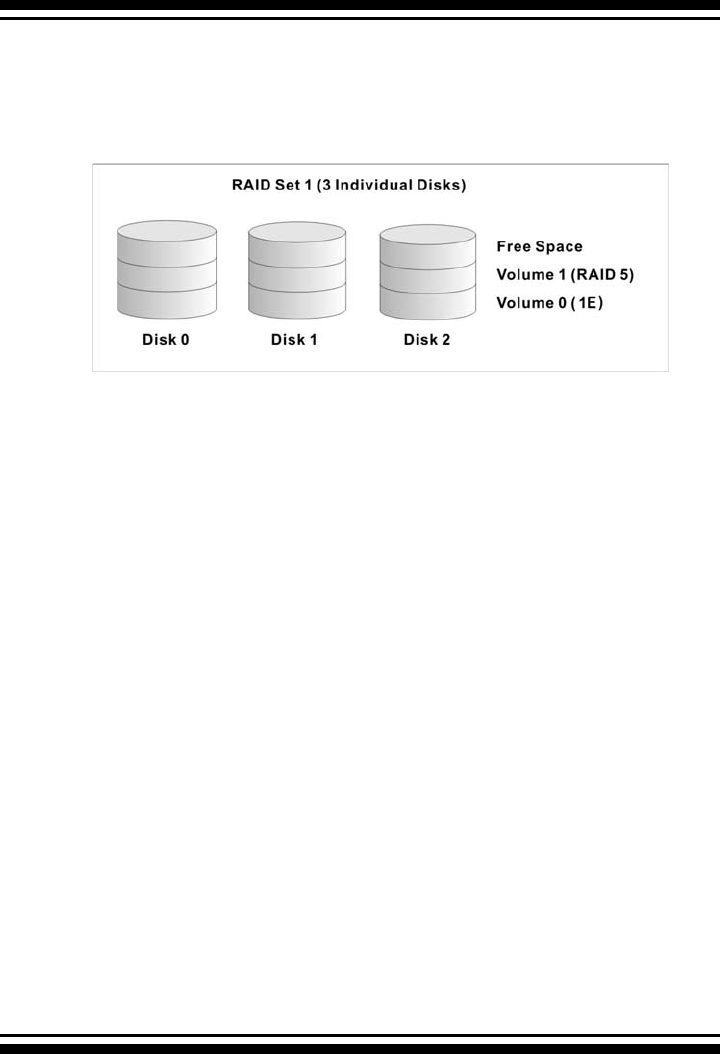
In the illustration, volume 1 can be assigned a RAID level 5 of
operation while volume 0 might be assigned a RAID level 1E of
operation. Alterantively, the free space can be used to create vol-
ume 2, which could then be set to use RAID level 5.
1.3.3 Ease of Use Features
1.3.3.1 Foreground Availability/Background Initial-
ization
RAID 0 and RAID 1 volume sets can be used immediately af-
ter creation because they do not create parity data. However,
RAID 3, 5 and 6 volume sets must be initialized to generate
parity information. In Backgorund Initialization, the initializa-
tion proceeds as a background task, and the volume set is fully
accessible for system reads and writes. The operating system
can instantly access the newly created arrays without requir-
ing a reboot and without waiting for initialization to complete.
Furthermore, the volume set is protected against disk failures
while initialing. If using Foreground Initialization, the initializa-
tion process must be completed before the volume set is ready
for system accesses.
1.3.3.2 Array Roaming
The SATA RAID controllers store RAID conguration information
on the disk drives. The controller therefore protect the congu-
ration settings in the event of controller failure. Array roaming
allows the administrators the ability to move a completele RAID
set to another system without losing RAID conguration infor-

INTRODUCTION
17
mation or data on that RAID set. Therefore, if a server fails, the
RAID set disk drives can be moved to another server with an
Areca RAID controller and the disks can be inserted in any order.
1.3.3.3 Online Capacity Expansion
Online Capacity Expansion makes it possible to add one or more
physical drives to a volume set without interrupting server op-
eration, eliminating the need to backup and restore after recon-
guration of the RAID set. When disks are added to a RAID set,
unused capacity is added to the end of the RAID set. Then, data
on the existing volume sets (residing on the newly expanded
RAID set) is redistributed evenly across all the disks. A contigu-
ous block of unused capacity is made available on the RAID set.
The unused capacity can be used to create additional volume
sets.
A disk, to be added to a RAID set, must be in normal mode (not
failed), free (not spare, in a RAID set, or passed through to
host) and must have at least the same capacity as the smallest
disk capacity already in the RAID set.
Capacity expansion is only permitted to proceed if all volumes
on the RAID set are in the normal status. During the expansion
process, the volume sets being expanded can be accessed by
the host system. In addition, the volume sets with RAID level 1,
1E, 3, 5 or 6 are protected against data loss in the event of disk
failure(s). In the case of disk failure, the volume set transitions
from “migrating” state to “migrating+degraded“ state. When the
expansion is completed, the volume set would then transition to
“degraded” mode. If a global hot spare is present, then it further
transitions to the “rebuilding” state.
INTRODUCTION
18
The SATA RAID controller redistributes the original volume set
over the original and newly added disks, using the same fault-
tolerance conguration. The unused capacity on the expand
RAID set can then be used to create an additional volume set,
with a different fault tolerance setting (if required by the user.)
The SATA RAID controller redistributes the original volume set
over the original and newly added disks, using the same fault-
tolerance conguration. The unused capacity on the expand raid
set can then be used to create an additional volume sets, with a
different fault tolerance setting if user need to change.
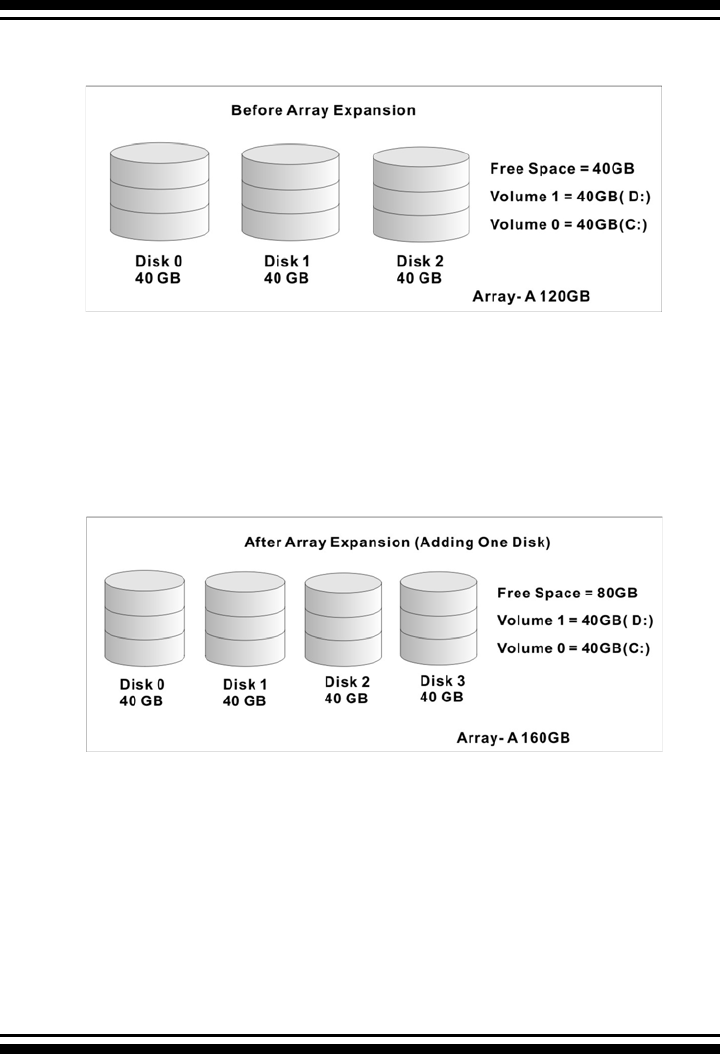
The expansion process is illustrated as following gure.

INTRODUCTION
19
1.3.3.4 Online RAID Level and Stripe Size Migration
For those who wish to later upgrade to any RAID capabilities, a
system with Areca online RAID level/stripe size migration allows
a simplied upgrade to any supported RAID level without having
to reinstall the operating system.
The SATA RAID controllers can migrate both the RAID level and
stripe size of an existing volume set, while the server is on-
line and the volume set is in use. Online RAID level/stripe size
migration can prove helpful during performance tuning activities
as well as when additional physical disks are added to the SATA
RAID controller. For example, in a system using two drives in
RAID level 1, it is possible to add a single drive and add capac-
ity and retain fault tolerance. (Normally, expanding a RAID level
1 array would require the addition of two disks). A third disk
can be added to the existing RAID logical drive and the volume
set can then be migrated from RAID level 1 to 5. The result
would be parity fault tolerance and double the available capacity
without taking the system down. A forth disk could be added to
migrate to RAID level 6. It is only possible to migrate to a higher
RAID level by adding a disk; disks in an existing array can’t be
recongured for a higher RAID level without adding a disk.
Online migration is only permitted to begin, It all volumes to be
migrated are in the normal mode. During the migration process,
the volume sets being migrated are accessed by the host sys-
tem. In addition, the volume sets with RAID level 1, 1E, 3, 5 or
6 are protected against data loss in the event of disk failure(s).
In the case of disk failure, the volume set transitions from mi-
grating state to (migrating+degraded) state. When the migra-
tion is completed, the volume set transitions to degraded mode.
If a global hot spare is present, then it further transitions to
rebuilding state.
1.3.3.5 Online Volume Expansion
Performing a volume expansion on the controller is the process
of growing only the size of the lastest volume. A more exible
option is for the array to concatenate an additional drive into the
RAID set and then expand the volumes on the y. This happens

INTRODUCTION
20
transparently while the volumes are online, but, at the end of
the process, the operating system will detect free space at after
the existing volume.
Windows, NetWare and other advanced operating systems sup-
port volume expansion, which enables you to incorporate the
additional free space within the volume into the operating sys-
tem partition. The operating system partition is extended to
incorporate the free space so it can be used by the operating
system without creating a new operating system partition.
You can use the Diskpart.exe command line utility, included with
Windows Server 2003 or the Windows 2000 Resource Kit, to ex-
tend an existing partition into free space in the dynamic disk.
Third-party software vendors have created utilities that can be
used to repartition disks without data loss. Most of these utilities
work ofine. Partition Magic is one such utility.
1.4 High availability
1.4.1 Global Hot Spares
A Global Hot Spare is an unused online available drive, which is
ready for replacing the failure disk. The Global Hot Spare is one
of the most important features that SATA RAID controllers provide
to deliver a high degree of fault-tolerance. A Global Hot Spare
is a spare physical drive that has been marked as a global hot
spare and therefore is not a member of any RAID set. If a disk
drive used in a volume set fails, then the Global Hot Spare will
automatically take its place and he data previously located on the
failed drive is reconstructed on the Global Hot Spare.
For this feature to work properly, the global hot spare must have
at least the same capacity as the drive it replaces. Global Hot
Spares only work with RAID level 1, 1E, 3, 5, or 6 volume set.
You can congure up to three global hot spares with ARC-11xx/
12xx.
The Create Hot Spare option gives you the ability to dene a
INTRODUCTION
21
global hot spare disk drive. To effectively use the global hot
spare feature, you must always maintain at least one drive that
is marked as a global spare.
Important:
The hot spare must have at least the same capacity as the
drive it replaces.
1.4.2 Hot-Swap Disk Drive Support
The SATA controller chip includes a protection circuit that supports
the replacement of SATA hard disk drives without having to shut
down or reboot the system. A removable hard drive tray can de-
liver “hot swappable” fault-tolerant RAID solutions at prices much
less than the cost of conventional SCSI hard disk RAID control-
lers. This feature provides advanced fault tolerant RAID protection
and “online” drive replacement.
1.4.3 Auto Declare Hot-Spare
If a disk drive is brought online into a system operating in de-
graded mode, The SATA RAID controllers will automatically de-
clare the new disk as a spare and begin rebuilding the degraded
volume. The Auto Declare Hot-Spare function requires that the
smallest drive contained within the volume set in which the failure
occurred.
In the normal status, the newly installed drive will be recongured
an online free disk. But, the newly-installed drive is automatically
assigned as a hot spare if any hot spare disk was used to rebuild
and without new installed drive replaced it. In this condition, the
Auto Declare Hot-Spare status will disappeared if the RAID sub-
system has since powered off/on.
The Hot-Swap function can be used to rebuild disk drives in arrays
with data redundancy such as RAID level 1, 1E, 3, 5, and 6.

INTRODUCTION
22
1.4.4 Auto Rebuilding
If a hot spare is available, the rebuild starts automatically when
a drive fails. The SATA RAID controllers automatically and trans-
parently rebuild failed drives in the background at user-denable
rebuild rates.
If a hot spare is not available, the failed disk drive must be re-
placed with a new disk drive so that the data on the failed drive
can be automatically rebuilt and so that fault tolerance can be
maintained.
The SATA RAID controllers will automatically restart the system
and the rebuild process if the system is shut down or powered off
abnormally during a reconstruction procedure condition.
When a disk is hot swapped, although the system is functionally
operational, the system may no longer be fault tolerant. Fault
tolerance will be lost until the removed drive is replaced and the
rebuild operation is completed.
During the automatic rebuild process, system activity will contin-
ue as normal, however, the system performance and fault toler-
ance will be affected.
1.4.5 Adjustable Rebuild Priority
Rebuilding a degraded volume incurs a load on the RAID sub-
system. The SATA RAID controllers allow the user to select the
rebuild priority to balance volume access and rebuild tasks ap-
propriately. The Background Task Priority is a relative indication of
how much time the controller devotes to a background operation,
such as rebuilding or migrating.
The SATA RAID controller allows user to choose the task priority
(Ultra Low (5%), Low (20%), Medium (50%), High (80%)) to bal-
ance volume set access and background tasks appropriately. For
high array performance, specify an Ultra Low value. Like volume
initialization, after a volume rebuilds, it does not require a system
reboot.

INTRODUCTION
23
1.5 High Reliability
1.5.1 Hard Drive Failure Prediction
In an effort to help users avoid data loss, disk manufacturers are
now incorporating logic into their drives that acts as an "early
warning system" for pending drive problems. This system is called
S.M.A.R.T. The disk integrated controller works with multiple
sensors to monitor various aspects of the drive's performance,
determines from this information if the drive is behaving normally
or not, and makes available status information to RAID controller
rmware that probes the drive and look at it.
The SMART can often predict a problem before failure occurs.
The controllers will recognize a SMART error code and notify the
administer of an impending hard drive failure.
1.5.2 Auto Reassign Sector
Under normal operation, even initially defect-free drive media can
develop defects. This is a common phenomenon. The bit density
and rotational speed of disks is increasing every year, and so is
the potential of problems. Usually a drive can internally remap
bad sectors without external help using cyclic redundancy check
(CRC) checksums stored at the end of each sector.
SATA drives perform automatic defect re-assignment for both
read and write errors. Writes are always completed - if a location
to be written is found to be defective, the drive will automatically
relocate that write command to a new location and map out the
defective location. If there is a recoverable read error, the cor-
rect data will be transferred to the host and that location will be
tested by the drive to be certain the location is not defective. If
it is found to have a defect, data will be automatically relocated,
and the defective location is mapped out to prevent future write
attempts.
In the event of an unrecoverable read error, the error will be
reported to the host and the location agged as potentially defec-
tive. A subsequent write to that location will initiate a sector test
and relocation should that location have a defect. Auto Reassign
Sector does not affect disk subsystem performance because it

INTRODUCTION
24
runs as a background task. Auto Reassign Sector discontinues
when the operating system makes a request.
1.5.3 Consistency Check
A consistency check is a process that veries the integrity of
redundant data. For example, performing a consistency check
of a mirrored drive assures that the data on both drives of the
mirrored pair is exactly the same. To verify RAID 3, 5 or 6 redun-
dancy, a consistency check reads all associated data blocks, com-
putes parity, reads parity, and veries that the computed parity
matches the read parity.
Consistency checks are very important because they detect and
correct parity errors or bad disk blocks in the drive. A consistency
check forces every block on a volume to be read, and any bad
blocks are marked; those blocks are not used again. This is criti-
cal and important because a bad disk block can prevent a disk
rebuild from completing. We strongly recommend that you run
consistency checks on a regular basis—at least once per week.
Note that consistency checks degrade performance, so you should
run them when the system load can tolerate it.
1.6 Data Protection
1.6.1 BATTERY BACKUP
The SATA RAID controllers are armed with a Battery Backup Mod-
ule (BBM). While a Uninterruptible Power Supply (UPS) protects
most servers from power uctuations or failures, a BBM provides
an additional level of protection. In the event of a power failure, a
BBM supplies power to retain data in the RAID controller’s cache,
thereby permitting any potentially dirty data in the cache to be
ushed out to secondary storage when power is restored.
The batteries in the BBM are recharged continuously through a
trickle-charging process whenever the system power is on. The
batteries protect data in a failed server for up to three or four
days, depending on the size of the memory module. Under nor-
mal operating conditions, the batteries last for three years before
replacement is necessary.

INTRODUCTION
25
1.6.2 RECOVERY ROM
The SATA RAID controller rmware is stored on the ash ROM and
is executed by the I/O processor. The rmware can also be updat-
ed through the PCI-X/PCIe bus port or Ethernet port (if equipped)
without the need to replace any hardware chips. During the con-
troller rmware upgrade ash process, it is possible for a problem
to occur resulting in corruption of the controller rmware. With
our Redundant Flash Image feature, the controller will revert back
to the last known version of rmware and continue operating.
This reduces the risk of system failure due to rmware crash.
1.7 Understanding RAID
RAID is an acronym for Redundant Array of Independent Disks. It
is an array of multiple independent hard disk drives that provides
high performance and fault tolerance. The SATA RAID control-
ler implements several levels of the Berkeley RAID technology.
An appropriate RAID level is selected when the volume sets are
dened or created. This decision should be based on the desired
disk capacity, data availability (fault tolerance or redundancy),
and disk performance. The following section discusses the RAID
levels supported by the SATA RAID controller.
The SATA RAID controller makes the RAID implementation and
the disks’ physical conguration transparent to the host operating
system. This means that the host operating system drivers and
software utilities are not affected, regardless of the RAID level
selected. Correct installation of the disk array and the control-
ler requires a proper understanding of RAID technology and the
concepts.
1.7.1 RAID 0
RAID 0, also referred to as striping, writes stripes of data across
multiple disk drives instead of just one disk drive. RAID 0 does
not provide any data redundancy, but does offer the best high-
speed data throughput. RAID 0 breaks up data into smaller blocks
and then writes a block to each drive in the array. Disk strip-
ing enhances performance because multiple drives are accessed
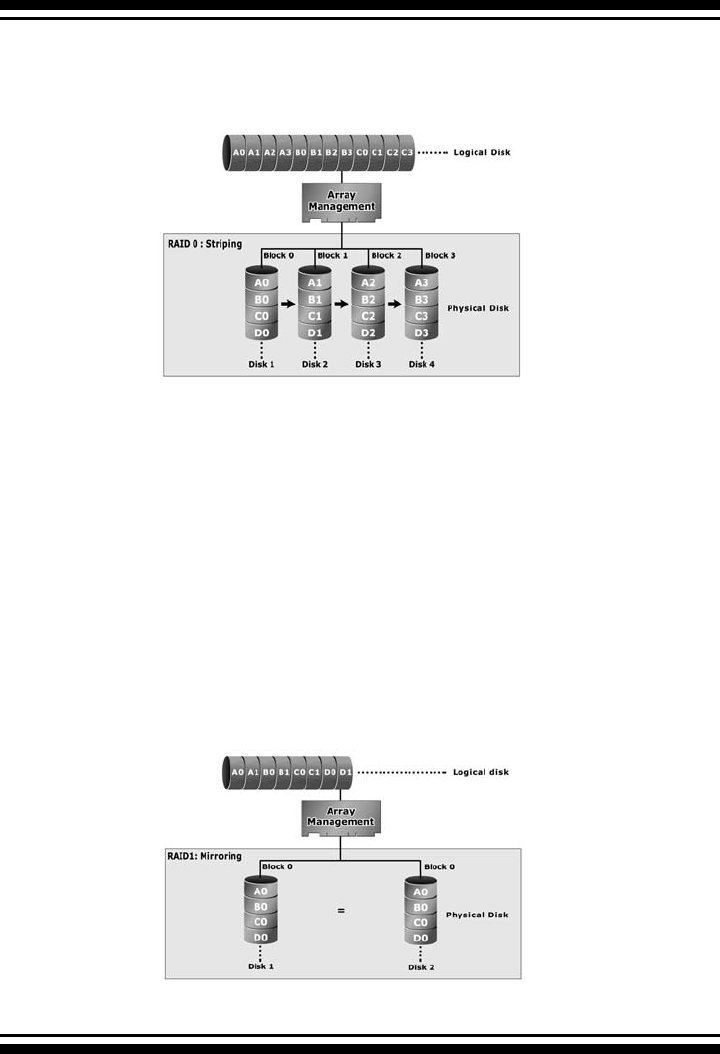
INTRODUCTION
26
simultaneously; the reliability of RAID Level 0 is less because the
entire array will fail if any one disk drive fails, due to a lack of
redundancy.
1.7.2 RAID 1
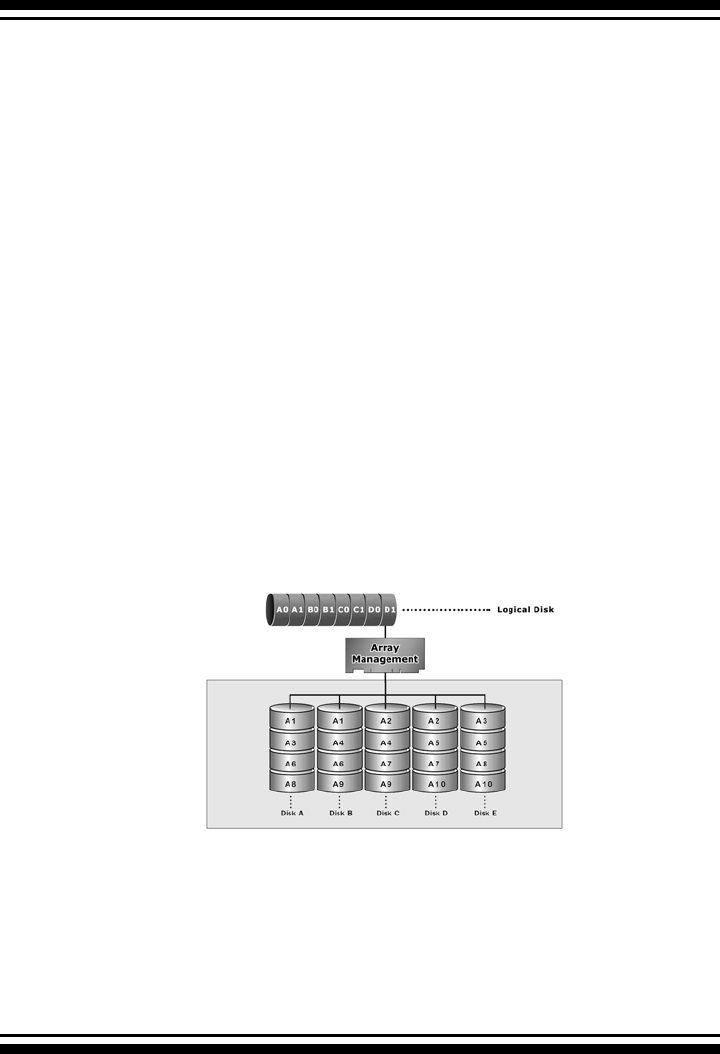
RAID 1 is also known as “disk mirroring”; data written to one disk
drive is simultaneously written to another disk drive. Read per-
formance may be enhanced if the array controller can, in parallel,
accesses both members of a mirrored pair. During writes, there
will be a minor performance penalty when compared to writing
to a single disk. If one drive fails, all data (and software applica-
tions) are preserved on the other drive. RAID 1 offers extremely
high data reliability, but at the cost of doubling the required data
storage capacity.
INTRODUCTION
27
1.7.3 RAID 1E
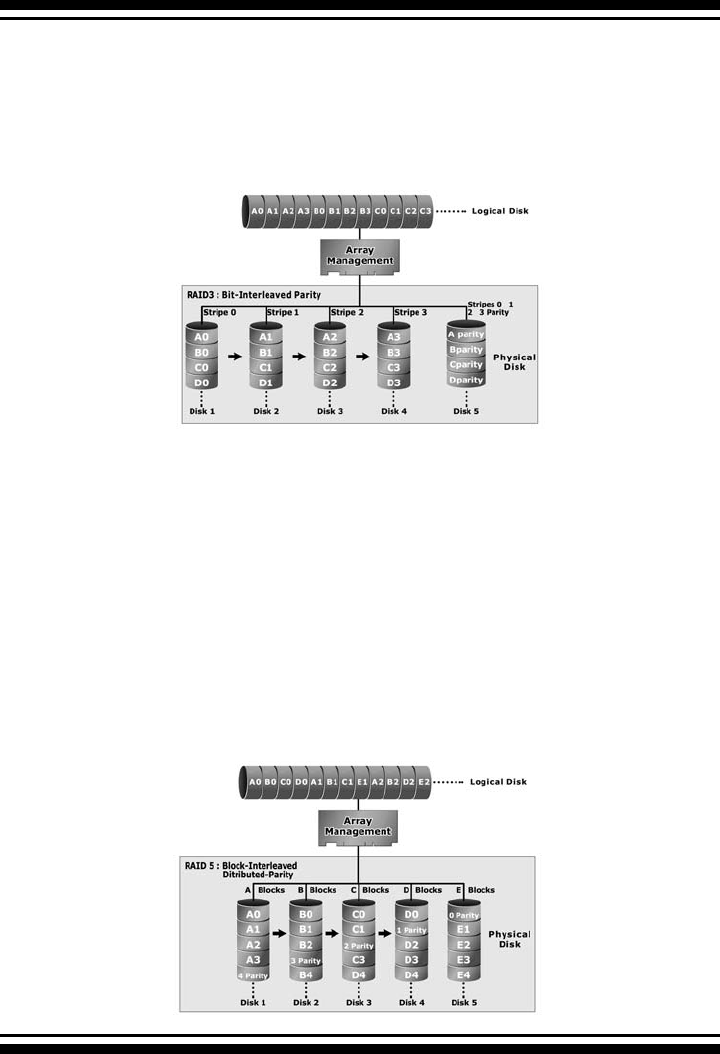
RAID 1E is a combination of RAID 0 and RAID 1, combing strip-
ping with disk mirroring. RAID Level 1E combines the fast per-
formance of Level 0 with the data redundancy of Leve1 1. In
this conguration, data is distributed across several disk drives,
similar to Level 0, which are then duplicated to another set of
drive for data protection. RAID 1E has been traditionally imple-
mented using an even number of disks, some hybrids can use an
odd number of disks as well. Illustration is an example of a hy-
brid RAID 1E array comprised of ve disks; A, B, C, D and E. In
this conguration, each strip is mirrored on an adjacent disk with
wrap-around. In fact this scheme - or a slightly modied version
of it - is often referred to as RAID 1E and was originally proposed
by IBM. When the number of disks comprising a RAID 1E is even,
the striping pattern is identical to that of a traditional RAID 1E,
with each disk being mirrored by exactly one other unique disk.
Therefore, all the characteristics for a traditional RAID 1E apply
to a RAID 1E when the latter has an even number of disks. Areca
RAID 1E offers a little more exibility in choosing the number of
disks that can be used to constitute an array. The number can be
even or odd.
1.7.4 RAID 3
RAID 3 provides disk striping and complete data redundancy
though a dedicated parity drive. RAID 3 breaks up data into
smaller blocks, calculates parity by performing an exclusive-or
on the blocks, and then writes the blocks to all but one drive in
INTRODUCTION
28
1.7.5 RAID 5
RAID 5 is sometimes called striping with parity at byte level. In
RAID 5, the parity information is written to all of the drives in the
controllers rather than being concentrated on a dedicated parity
disk. If one drive in the system fails, the parity information can
be used to reconstruct the data from that drive. All drives in the
array system can be used for seek operations at the same time,
greatly increasing the performance of the RAID system. This
relieves the write bottleneck that characterizes RAID 4, and is the
primary reason that RAID 5 is more often implemented in RAID
arrays.
the array. The parity data created during the exclusive-or is then
written to the last drive in the array. If a single drive fails, data is
still available by computing the exclusive-or of the contents cor-
responding strips of the surviving member disk. RAID 3 is best
for applications that require very fast data- transfer rates or long
data blocks.
INTRODUCTION
29
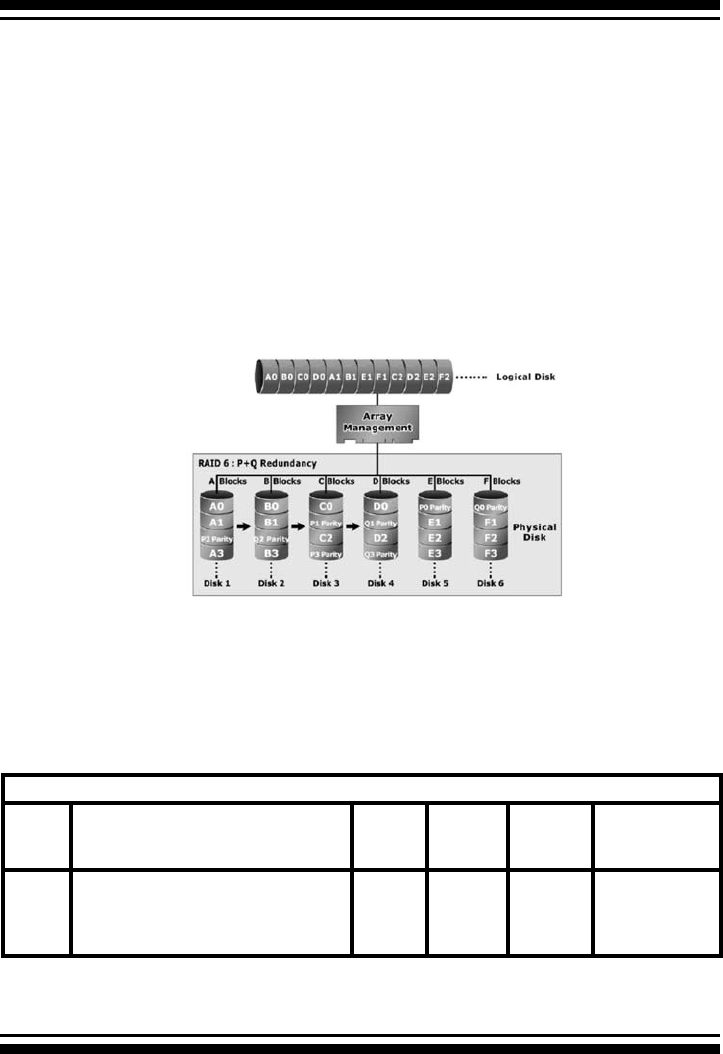
1.7.6 RAID 6
RAID 6 provides the highest reliability, but is not yet widely used.
It is similar to RAID 5, but it performs two different parity com-
putations or the same computation on overlapping subsets of
the data. RAID 6 can offer fault tolerance greater than RAID 1 or
RAID 5 but only consumes the capacity of 2 disk drives for dis-
tributed parity data. RAID 6 is an extension of RAID 5 but uses a
second, independent distributed parity scheme. Data is striped on
a block level across a set of drives, and then a second set of par-
ity is calculated and written across all of the drives.
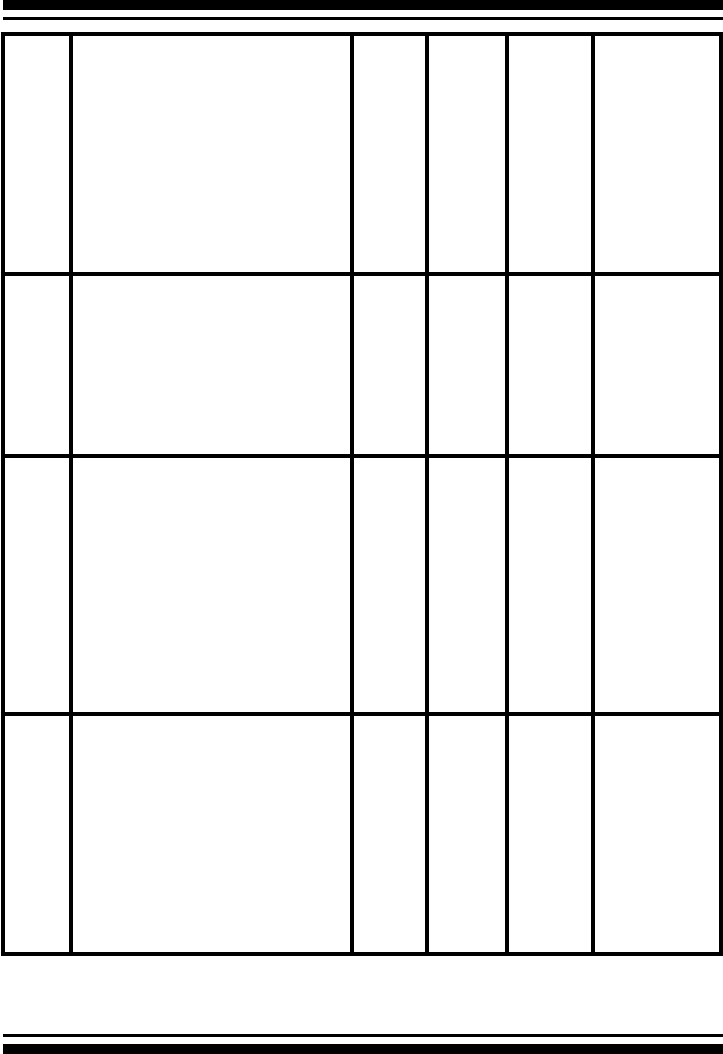
Summary of RAID Levels
The SATA RAID controller supports RAID Level 0, 1, 1E, 3, 5 and 6.
The table below provides a summary of RAID levels.
Features and Performance
RAID
Level
Description Min.
Drives
Data
Reli-
ability
Data
Transfer
Rate
I/O Request
Rates
0 Also known as stripping
Data distributed across multiple
drives in the array. There is no
data protection.
1No data
Protec-
tion
Very
High
Very High for
Both Reads
and Writes
INTRODUCTION
30
1Also known as mirroring
All data replicated on N sepa-
rated disks.
N is almost always 2.
This is a high availability solu-
tion, but due to the 100%
duplication, it is also a costly
solution. Half of drive capacity in
array devoted to mirroring.
2Lower
than
RAID 6;
Higher
than
RAID
3, 5
Reads
are
higher
than a
single
disk;
Writes
similar
to a
single
disk
Reads are
twice as fast
as a single
disk;
Write are
similar to a
single disk.
1E Also known Block-Interleaved
Parity.
Data and parity information
is subdivided and distributed
across all disks. Parity must be
the equal to the smallest disk
capacity in the array. Parity
information normally stored on a
dedicated parity disk.
3 Lower
than
RAID 6;
Higher
than
RAID
3, 5
Transfer
rates
more
similar
to RAID
1 than
RAID 0
Reads are
twice as fast
as a single
disk;
Writes are
similar to a
single disk.
3 Also known Bit-Interleaved Par-
ity.
Data and parity information
is subdivided and distributed
across all disks. Parity data
consumes the capacity of 1
disk drive. Parity information
normally stored on a dedicated
parity disk.
3 Lower
than
RAID 1,
1E, 6;
Higher
than a
single
drive
Reads
are
similar
to
RAID
0;
Writes
are
slower
than a
single
disk
Reads are
close to being
twice as fast
as a single
disk;
Writes are
similar to a
single disk.
5 Also known Block-Interleaved
Distributed Parity.
Data and parity information
is subdivided and distributed
across all disk. Parity data con-
sumes the capacity of 2 disk
drive.
3 Lower
than
RAID 1,
1E, 6;
Higher
than a
single
drive
Reads
are
similar
to
RAID 0;
Writes
are
slower
than a
single
disk
Reads are
similar to
RAID 0;
Writes are
slower than a
single disk.

INTRODUCTION
31
6RAID 6 provides the highest
reliability. Similar to RAID 5, but
does two different parity com-
putations. RAID 6 offers fault
tolerance greater that RAID 1 or
RAID 5. Parity data consumes
the capacity of 2 disk drives.
4highest
reliabil-
ity
Reads
are
similar
to
RAID 0;
Writes
are
slower
than a
single
disk
Reads are
similar to
RAID 0;
Writes are
slower than a
single disk.

HARDWARE INSTALLATION
32
2. Hardware Installation
This section describes the procedures for installing the SATA RAID con-
trollers.
2.1 Before Your begin Installation
Thanks for purchasing the SATA RAID Controller as your RAID data
storage and management system. This user guide gives simple
step-by-step instructions for installing and conguring the SATA
RAID Controller. To ensure personal safety and to protect your
equipment and data, carefully read the information following the
package content list before you begin installing.
Package Contents
If your package is missing any of the items listed below, contact
your local dealer before proceeding with installation (disk drives
and disk mounting brackets are not included):
ARC-11xx Series SATA RAID Controller
• 1 x PCI-X SATA RAID Controller in an ESD-protective bag
• 4/8/12/16/24 x SATA interface cables (one per port)
• 1 x Installation CD
• 1 x User Manual
ARC-11xxML/12xxML Series SATA RAID Controller
• 1 x PCI-X SATA RAID Controller in an ESD-protective bag
• 1 x Installation CD
• 1 x User Manual
ARC-12xx Series SATA RAID Controller
• 1 x PCI-Express SATA RAID Controller in an ESD-protective bag
• 4/8/12/16/24 x SATA interface cables (one per port)
• 1 x Installation CD
• 1 x User Manual
HARDWARE INSTALLATION
33
2.2 Board Layout
Follow the instructions below to install a PCI RAID Card into your
PC / Server.
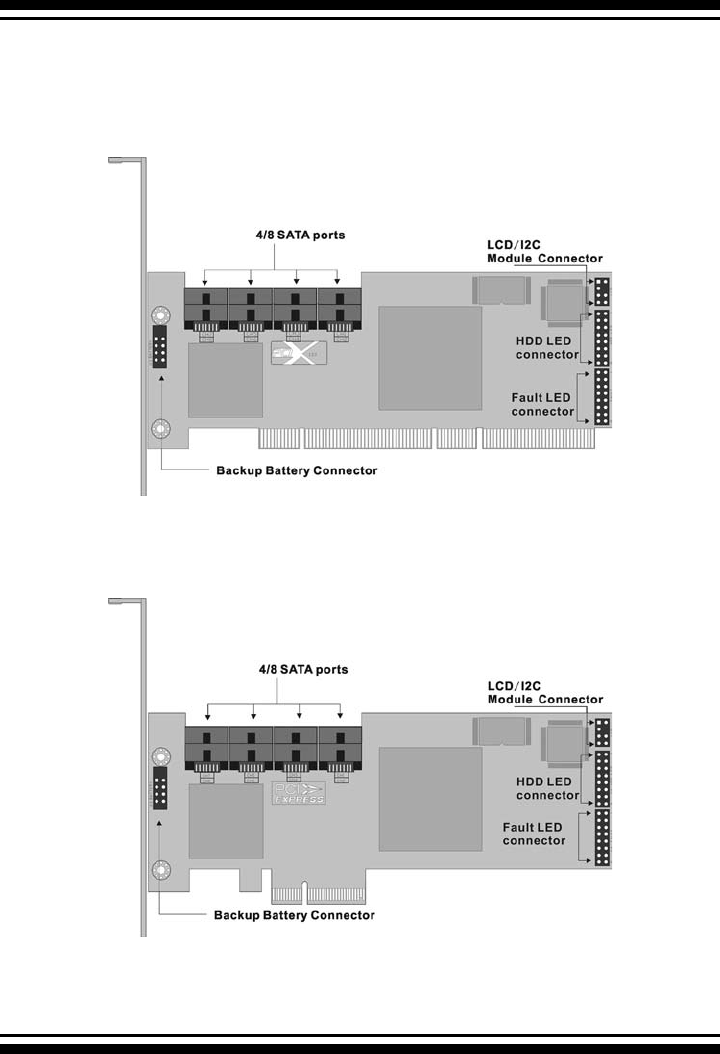
Figure 2-1, ARC-1110/1120 (4/8-port PCI-X SATA RAID Controller)
Figure 2-2, ARC-1210/1220 (4/8-port PCI-Express SATA RAID Con-
troller)
HARDWARE INSTALLATION
34
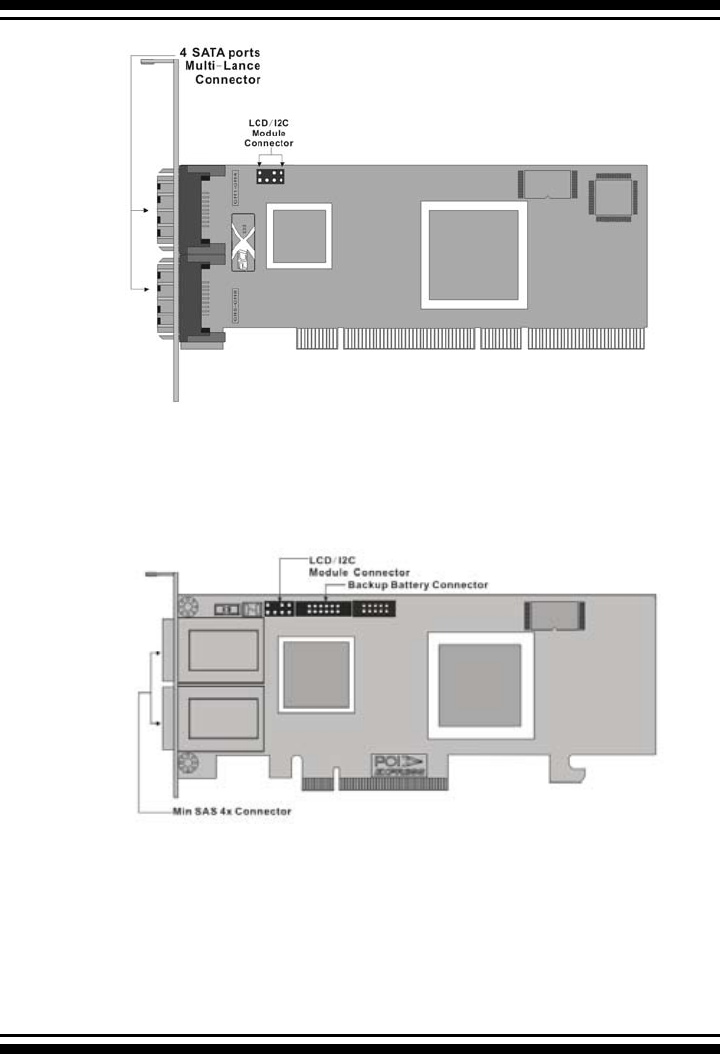
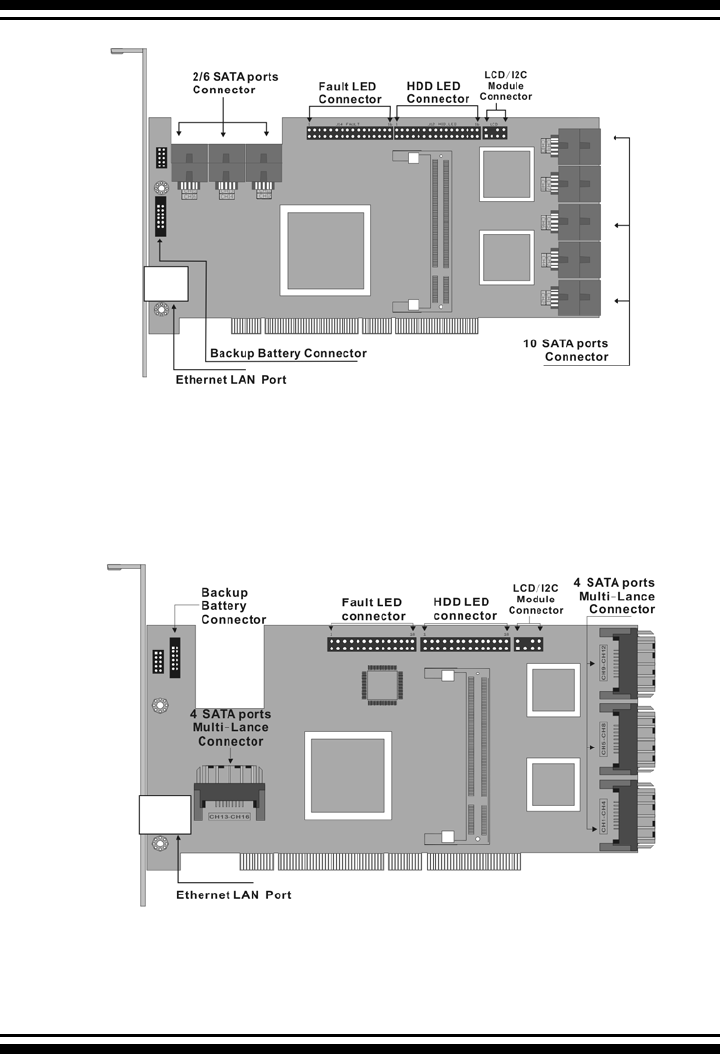
Figure 2-3, ARC-1110ML/1120ML (4/8-port PCI-X SATA RAID Con-
troller)
Figure 2-4, ARC-1210ML/1220ML (4-port PCI Express SAS RAID
Controller)
HARDWARE INSTALLATION
35
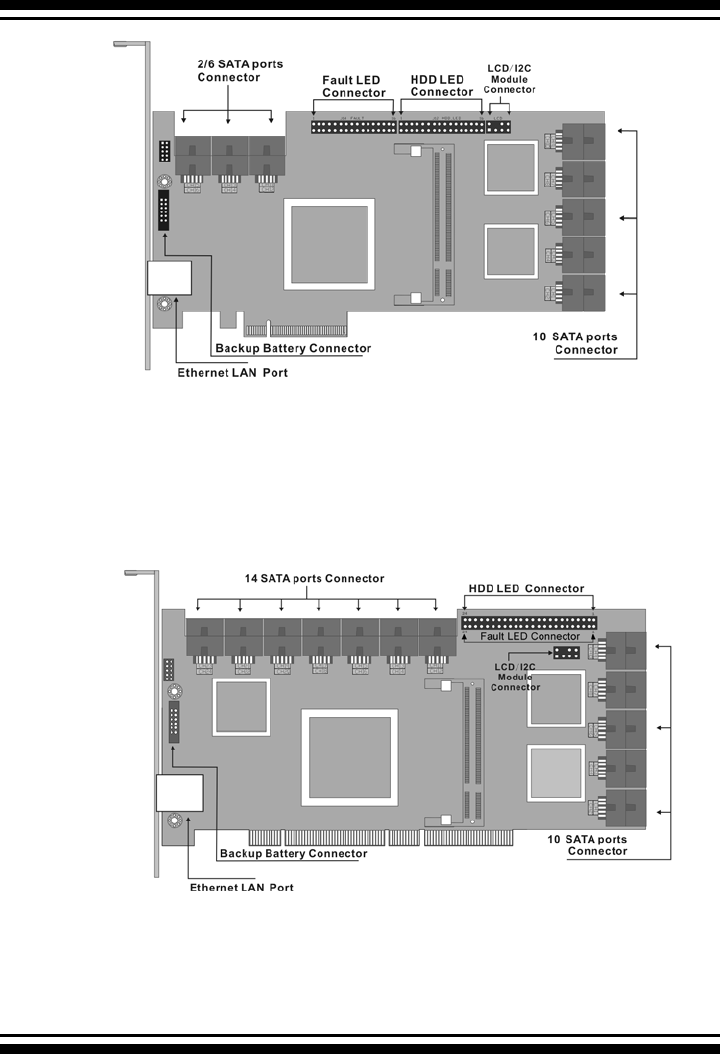
Figure 2-6, ARC-1130ML/1160ML (12/16-port PCI-X SATA RAID
Controller)
Figure 2-5, ARC-1130/1160 (12/16-port PCI-X SATA RAID Control-
ler)
HARDWARE INSTALLATION
36
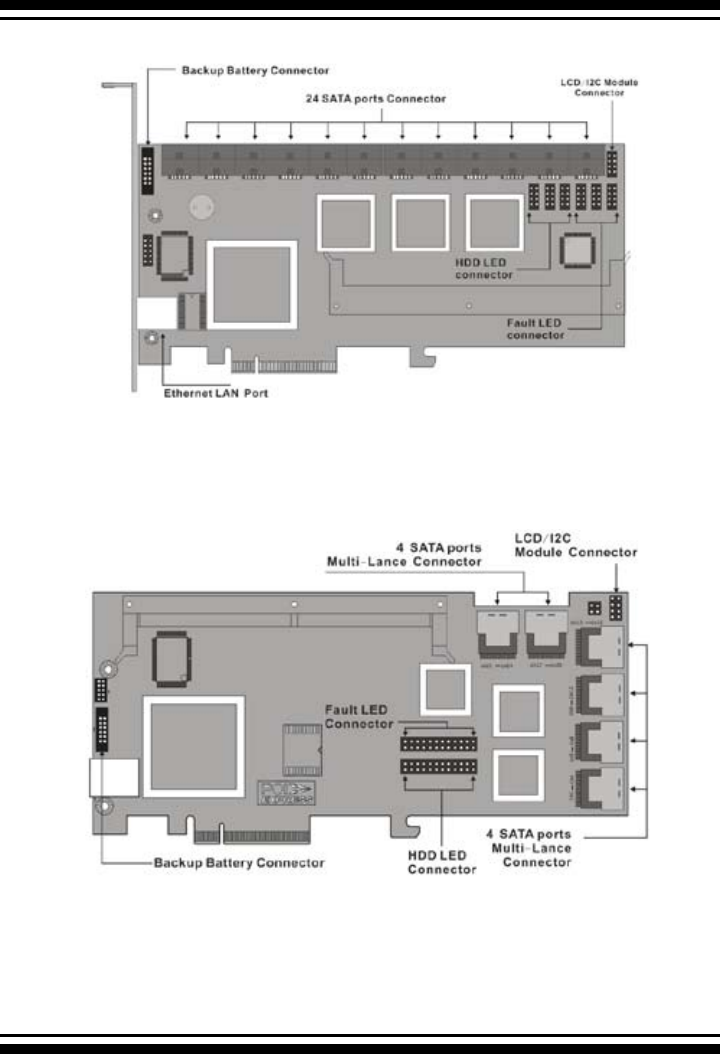
Figure 2-7, ARC-1230/1260 (12/16-port PCI-EXpress SATA RAID
Controller)
Figure 2-8, ARC-1170 (24-port PCI-X SATA RAID Controller)
HARDWARE INSTALLATION
37
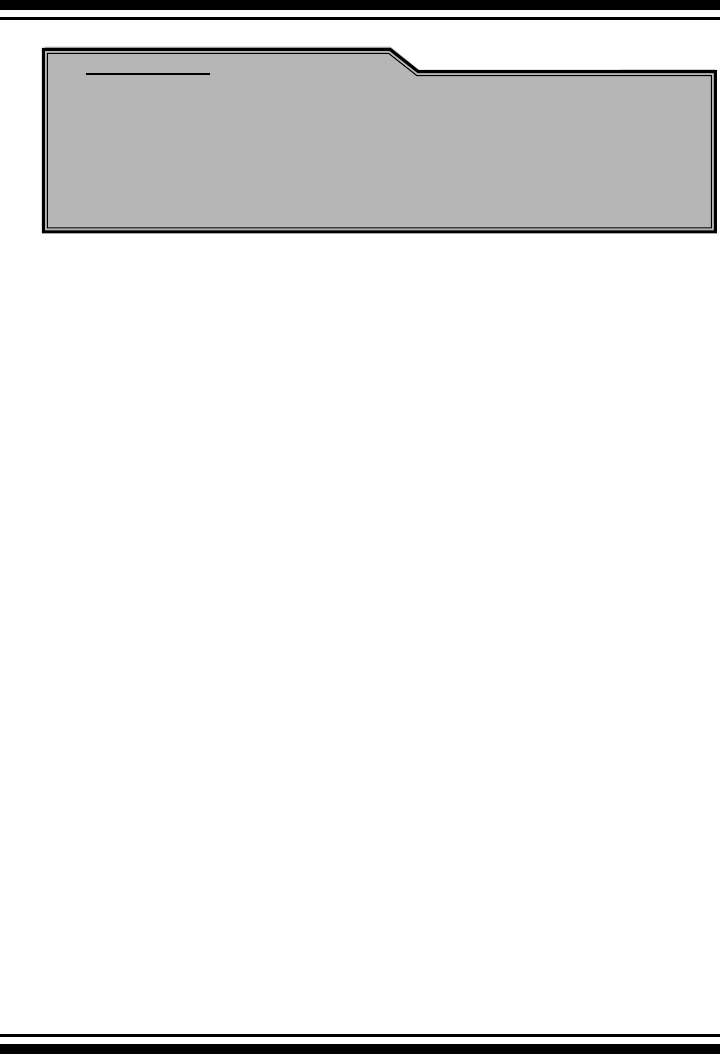
Figure 2-9, ARC-1280 (24-port PCI-Express SATA RAID Controller)
Figure 2-10, ARC-1231ML/1261ML/1280ML (12/16/24-port PCI-Ex-
press SATA RAID Controller)

HARDWARE INSTALLATION
38
Tools Required
An ESD grounding strap or mat is required. Also required are stan-
dard hand tools to open your system’s case.
System Requirement
The controller can be installed in a universal PCI slot and requires
a motherboard that:
ARC-11xx series required one of the following:
• Complies with the PCI Revision 2.3 32/64-bit 33/66MHz, 3.3V.
• Complies with the PCI-X 32/64-bit 66/100/133 MHz, 3.3V.
ARC-12xx series requires:
• Complies with the PCI-Express X8
The SATA RAID controller may be connected to up to 4, 8, 12, 16,
or 24 SATA ll hard drives using the supplied cables.
Optional cables are required to connect any drive activity LEDs and
fault LEDs on the enclosure to the SATA RAID controller.
Installation Tools
The following items may be needed to assist with installing the
SATA RAID controller into an available PCI expansion slot.
• Small screwdriver
• Host system hardware manuals and manuals for the disk or
enclosure being installed.
Personal Safety Information
To ensure personal safety as well as the safety of the equipment:
• Always wear a grounding strap or work on an ESD-protective
mat.
• Before opening the system cabinet, turn off power switches and
unplug the power cords. Do not reconnect the power cords until
you have replaced the covers.
HARDWARE INSTALLATION
39
Warning:
High voltages may be found inside computer equipment. Be-
fore installing any of the hardware in this package or remov-
ing the protective covers of any computer equipment, turn
off power switches and disconnect power cords. Do not re-
connect the power cords until you have replaced the covers.
electricity.
2.3 Installation
Follow the instructions below to install a SATA RAID controller into
your PC / Server.
Step 1. Unpack
Unpack and remove the SATA RAID controller from the package.
Inspect it carefully, if anything is missing or damaged, contact your
local dealer.
Step 2. Power PC/Server Off
Turn off computer and remove the AC power cord. Remove the
system’s cover. See the computer system documentation for in-
struction.
Electrostatic Discharge
Static electricity can cause serious damage to the electronic com-
ponents on this SATA RAID controller. To avoid damage caused by
electrostatic discharge, observe the following precautions:
• Don’t remove the SATA RAID controller from its anti-static pack-
aging until you are ready to install it into a computer case.
• Handle the SATA RAID Controller by its edges or by the metal
mounting brackets at its each end.
• Before you handle the SATA RAID controller in any way, touch a
grounded, anti-static surface, such as an unpainted portion of the
system chassis, for a few seconds to discharge any built-up static
HARDWARE INSTALLATION
40
Step 3. Install the PCI RAID Cards
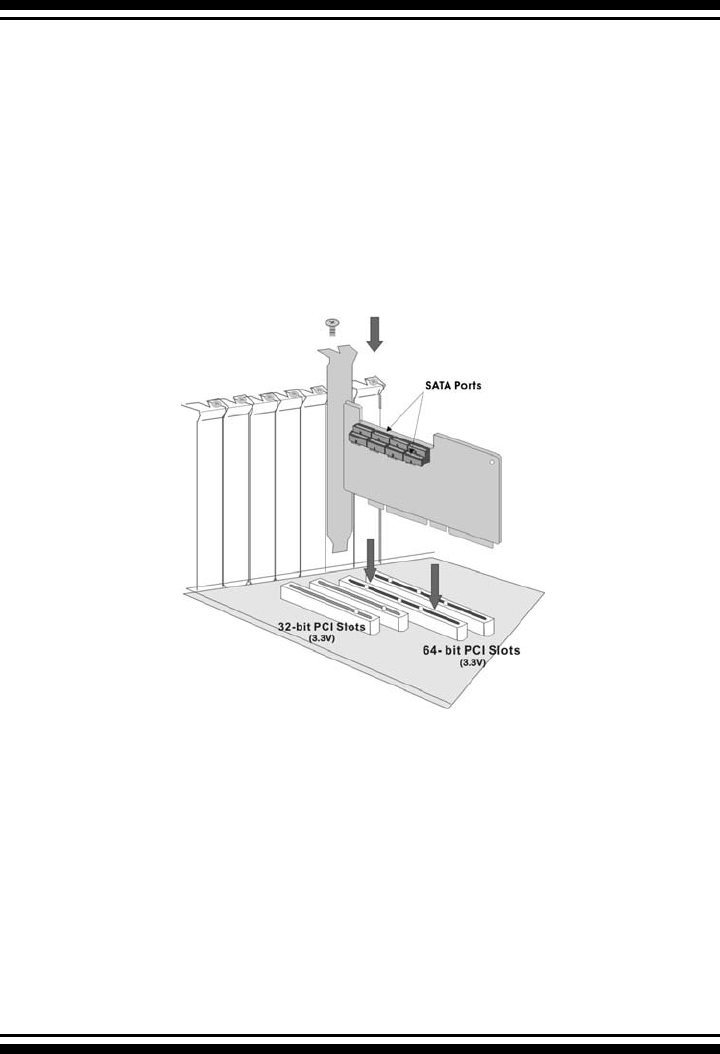
To install the SATA RAID controller remove the mounting screw
and existing bracket from the rear panel behind the selected PCI
slot. Align the gold-ngered edge on the card with the selected
PCI expansion slot. Press down gently but rmly to ensure that the
card is properly seated in the slot, as shown in Figure 2-11. Next,
screw the bracket into the computer chassis. ARC-11xx controllers
can t in both PCI (32-bit/3.3V) and PCI-X slots. It can get the best
performance installed in a 64-bit/133MHz PCI-X slot. ARC-12xx
controllers require a PCI-Express 8X slot.
Figure 2-11, Insert SATA RAID controller into a PCI-X slot
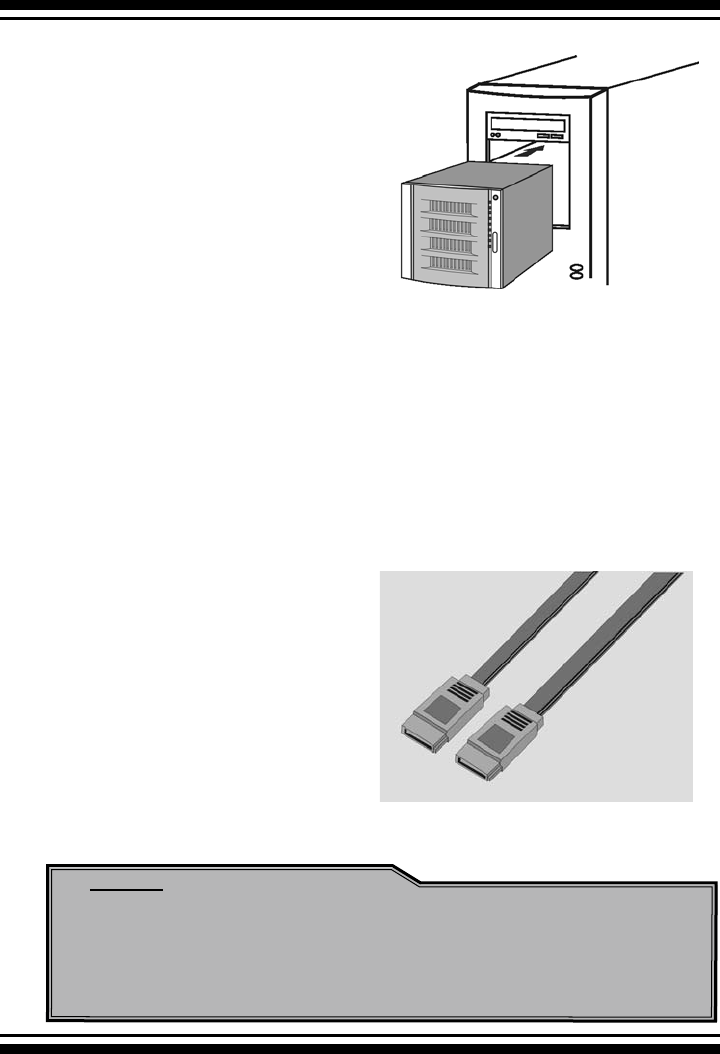
Step 4. Mount the Cages or Drives
Remove the front bezel from the computer chassis and install the
Cages or SATA Drives in the computer chassis. Loading drives to
the drive tray if cages are installed. Be sure that the power is con-
nected to either the Cage backplane or the individual drives.
HARDWARE INSTALLATION
41
Step 5 Connect the SATA cable
Model ARC-11XX and ARC-12XX controllers have dual-layer SATA
internal connectors. If you have not already connected your SATA
cables, use the cables included with your kit to connect the control-
ler to the SATA hard drives.
The cable connectors are all identical, so it does not matter which
end you connect to your controller, SATA hard drive, or cage back-
plane SATA connector.
Figure 2-13, SATA Cable
Figure 2-12, Mount Cages & Drives
Note:
The SATA cable connectors must match your HDD cage.
For example: Channel 1 of RAID Card connects to channel 1
of HDD cage, channel 2 of RAID Card connects to channel 2
of HDD cage, and follow this rule.
HARDWARE INSTALLATION
42
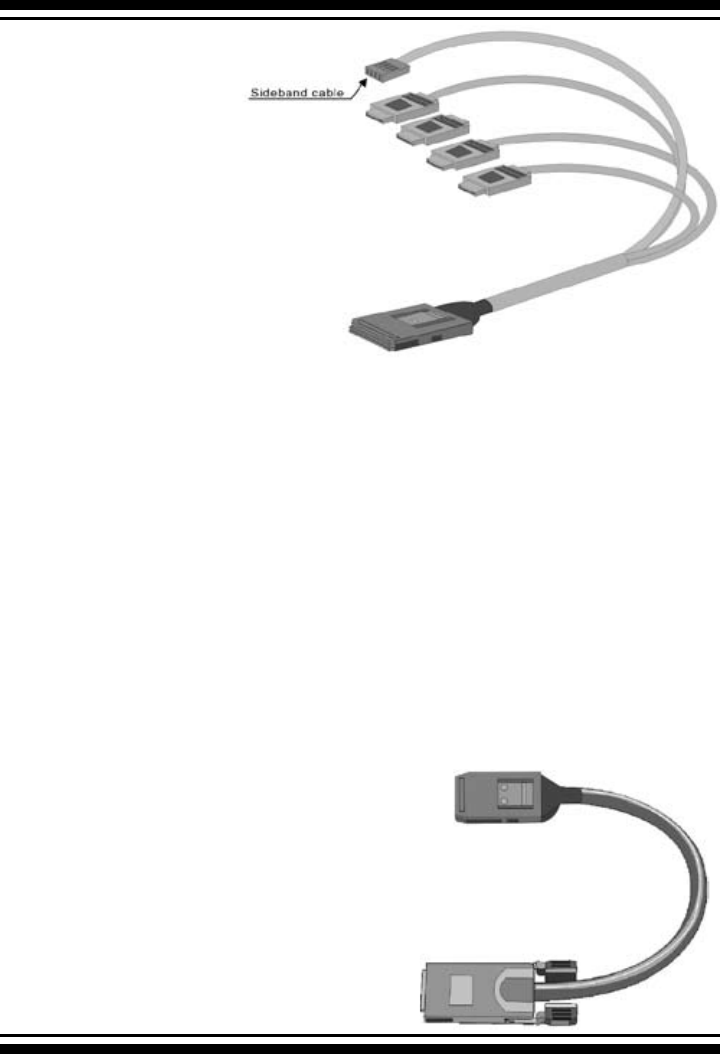
Step 5-3. Connect the Min SAS 4i to 4*SATA cable
Model ARC-1231ML/1261ML/1280ML have Min SAS 4i (SFF-8087)
internal connectors, each of them can support up to four SATA
drives. These adapters can be installed in a server RAID enclosure
with a standard SATA connector backplane. Min SAS 4i to SATA
cables are included in the ARC-1231ML/1261ML/1280ML package.
The following diagram shows the picture of MinSAS 4i to 4*SATA
cables.
Unpack and remove the PCI RAID cards. Inspect it carefully. If
anything is missing or damaged, contact your local dealer.
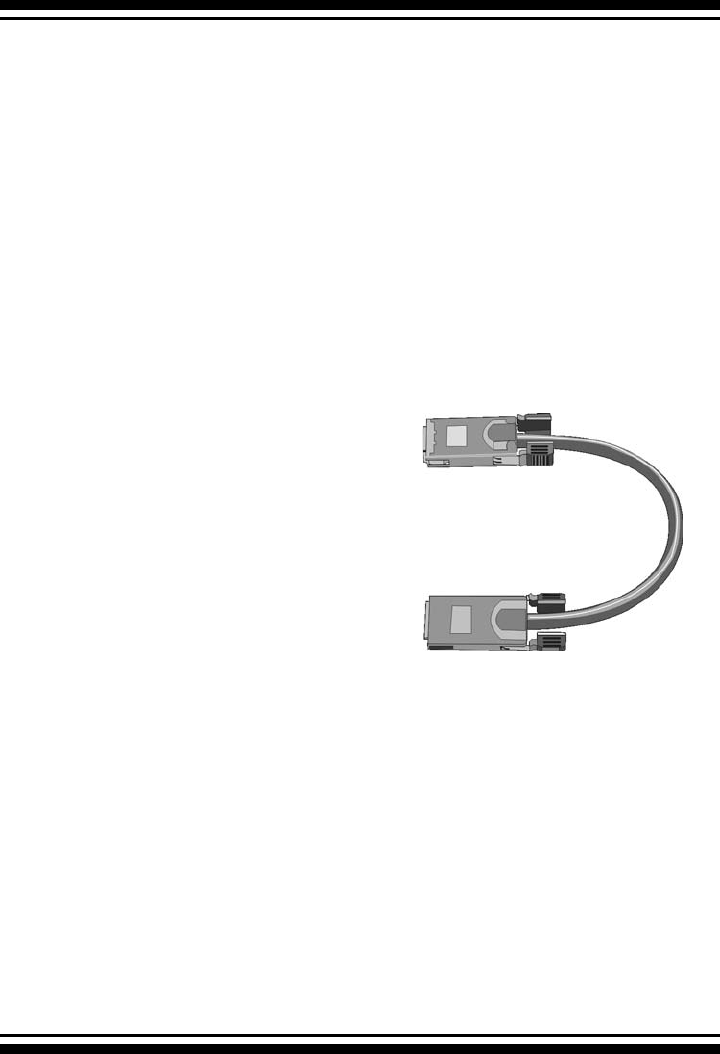
Figure 2-14, Multi-Lance Cable
Step 5-2. Connect the Multi-lance cable
Model ARC-11XXML has multi-lance internal connectors, each of
them can support up to four SATA drives. These adapters can be
installed in a server RAID enclosure with a Multi-lance connector
(SFF-8470) backplane. Multi-lance cables are not included in the
ARC-11XXML package.
If you have not already connected your Multi-lance cables, use the
cables included with your enclosure to connect your controller to
the Multi-lance connector backplane. The type of cable will depend
on what enclosure you have. The following diagram shows one ex-
ample picture of Multi-lane cable.
Unpack and remove the PCI RAID cards. Inspect it carefully. If any-
thing is missing or damaged, contact your local dealer.
HARDWARE INSTALLATION
43
For Sideband cable signal Please refer to page 51 for SGPIO bus.
Step 5-4. Connect the Min SAS 4i to Multi-lance cable
Model ARC-1231ML/1261ML/1280ML have Min SAS 4i internal
connectors, each of them can support up to four SATA drives. These
controllers can be installed in a server RAID enclosure with a Multi-
lance connector (SFF-8470) backplane. Multi-lance cables are not
included in the ARC-12XXML package.
If you have not already connected your Min SAS 4i to Multi-
lance cables, buy the Min SAS 4i to Multi-lance cables to t your
enclosure. And connect your controller to the Multi-lance connector
backplane. The type of cable will depend on what enclosure you
have. The following diagram shows one example picture of Min SAS
4i to Multi-lance cable.
Unpack and remove the PCI RAID cards. Inspect it carefully. If
anything is missing or damaged, contact your local dealer.
Figure 2-16, Min SAS 4i to Multi-lance
Figure 2-15, Min SAS 4i to 4*SATA

HARDWARE INSTALLATION
44
Step 5-5. Connect the Min SAS 4i to Min SAS 4i cable
Model ARC-1230ML/1260ML/1280ML have Min SAS 4i internal
connectors, each of them can support up to four SATA drives.
These adapters can be installed in a server RAID enclosure with a
Min SAS 4i internal connector backplane. Min SAS 4i cables are not
included in the ARC-12XXML package.
This Min SAS 4i cable has eight signal pins to support four SATA
drives and six pins for the SGPIO (Serial General Purpose Input/
Output) side-band signals. The SGPIO bus is used for efcient LED
management and for sensing drive Locate status. Please see page
51 for the details of the SGPIO bus.
Unpack and remove the PCI RAID cards. Inspect it carefully. If
anything is missing or damaged, contact your local dealer.
Step 6 Install the LED cable (optional)
ARC-1XXX Series Fault/Activity Header Intelligent Electronics
Schematic.
Figure 2-17, Min SAS 4i to Min SAS 4i
HARDWARE INSTALLATION
45
The intelligent LED controller outputs a low-level pulse to deter-
mine if status LEDs are attached to pin sets 1 and 2. This allows
automatic controller conguration of the LED output. If the logi-
cal level is different between the st 2 sets of the HDD LED header
(LED attached to Set 1 but not Set 2), the controller will assign the
rst HDD LED header as the global indicator connector. Otherwise,
each LED output will show only individual drive status.
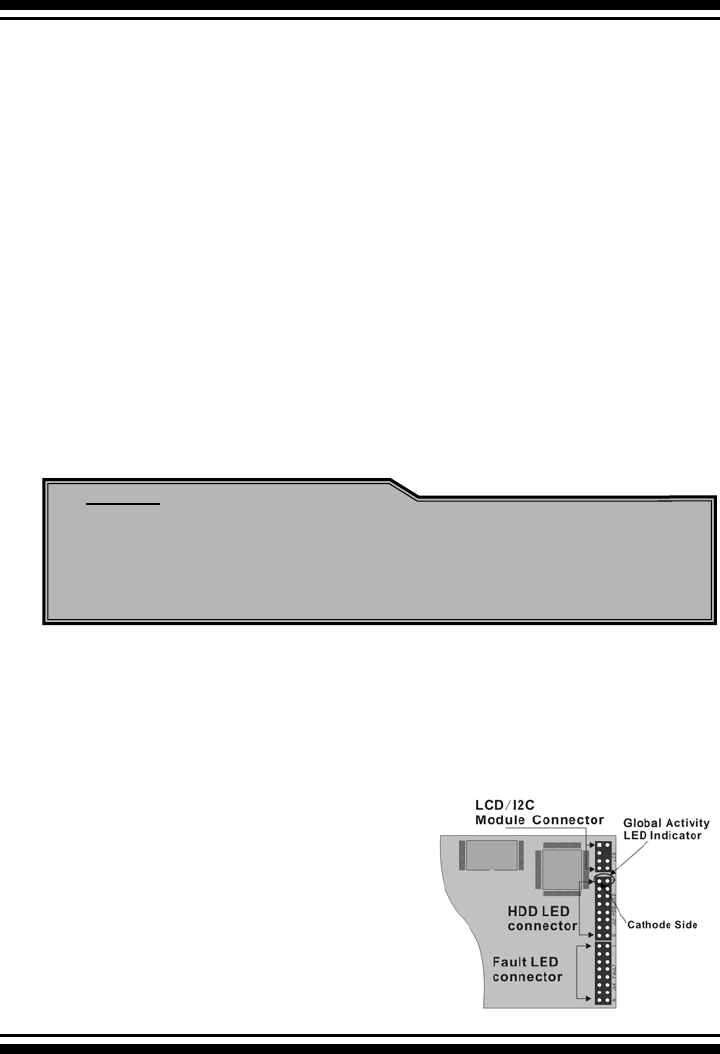
The SATA RAID controller provides four kinds of LED status connec-
tors.
A: Global indicator connector, which lights when any drive is active.
B: Individual LED indicator connector, for each drive channel.
C: I2C connector, for SATA proprietary backplane enclosure.
D: SGPIO connector for SAS Backplane enclosure
The following diagrams and description describes each type of con-
nector.
Note:
A cable for the global indicator comes with your computer
system. Cables for the individual drive LEDs may come with
a drive cage, or you may need to purchase them.
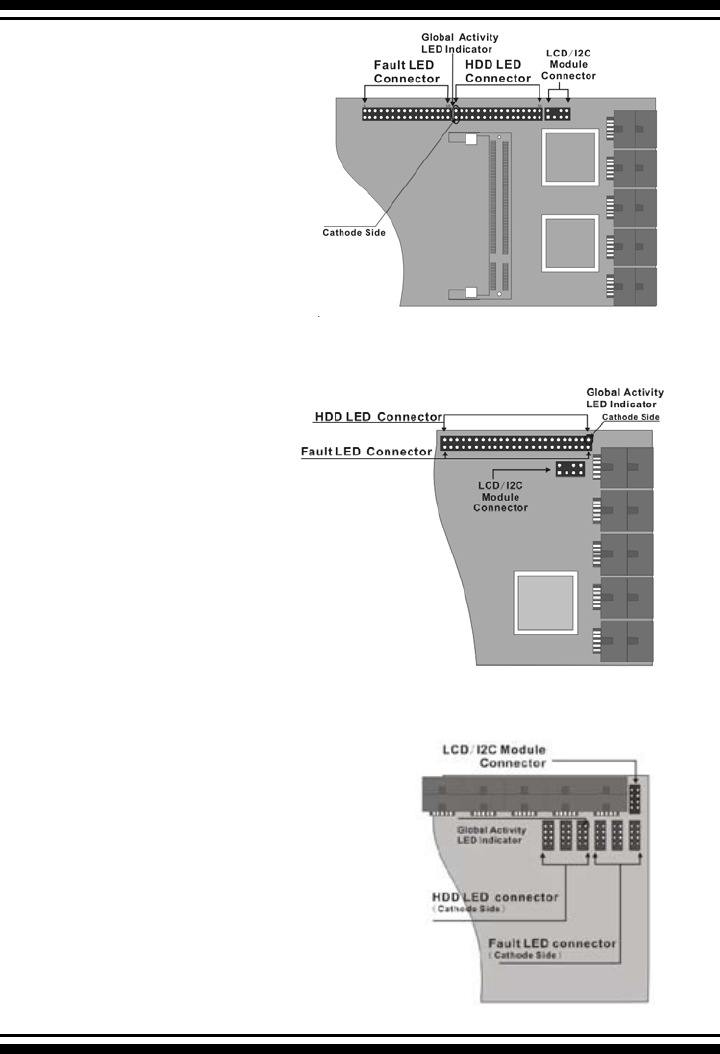
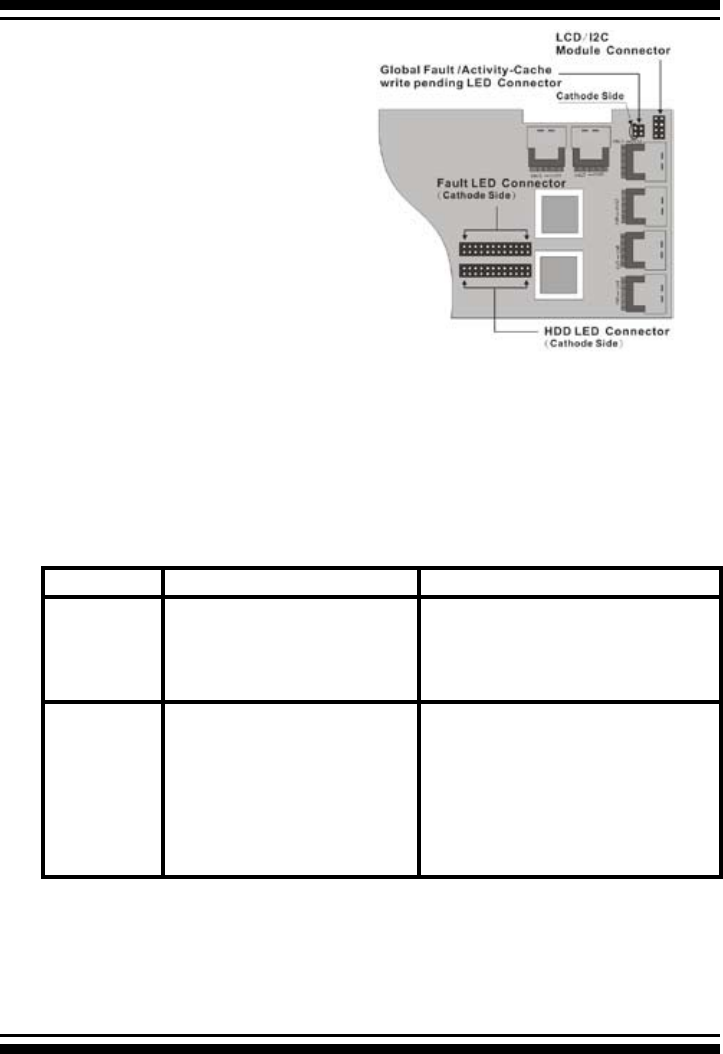
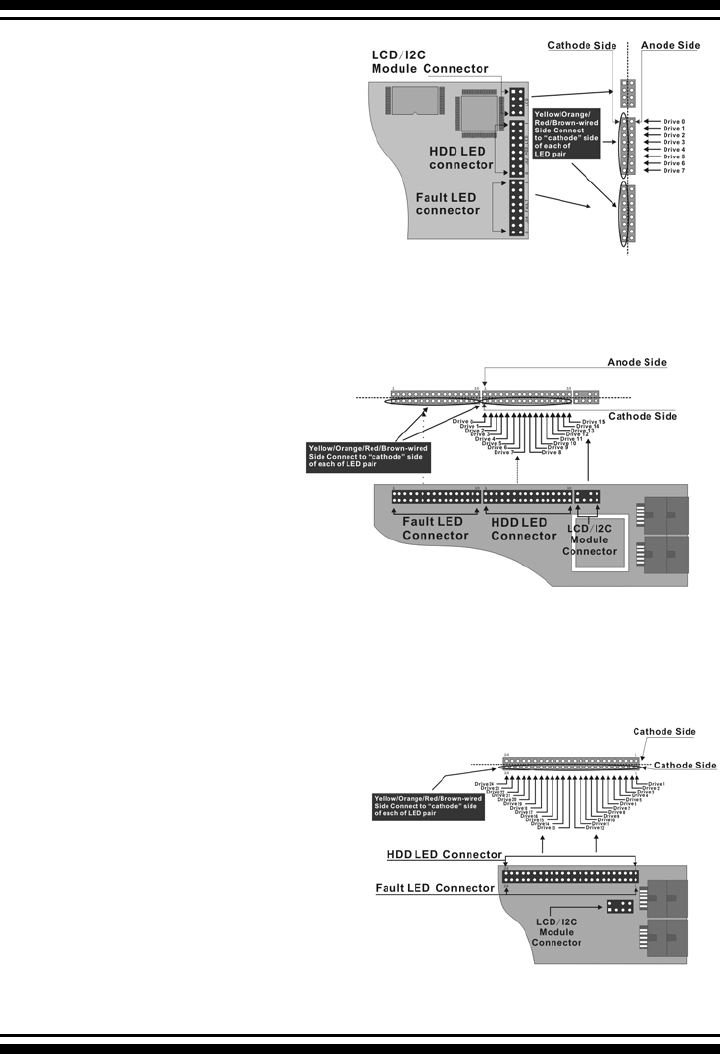
A: Global Indicator Connector
If the system will use only a single global indicator, attach the
global indicator cable to the two pins HDD LED connector. The fol-
lowing diagrams show the connector and pin locations.
Figure 2-18, ARC-
1110/1120/1210/1220
global LED connection
for Computer Case.
HARDWARE INSTALLATION
46
Figure 2-19, ARC-
1130/1160/1230/1260
global LED connection
for Computer Case.
Figure 2-21, ARC-1280
global LED connection for
Computer Case.
Figure 2-20, ARC-1170
global LED connection
for Computer Case.
HARDWARE INSTALLATION
47
Figure 2-22, ARC-1231ML/
1261ML/1280ML global LED
connection for Computer
Case.
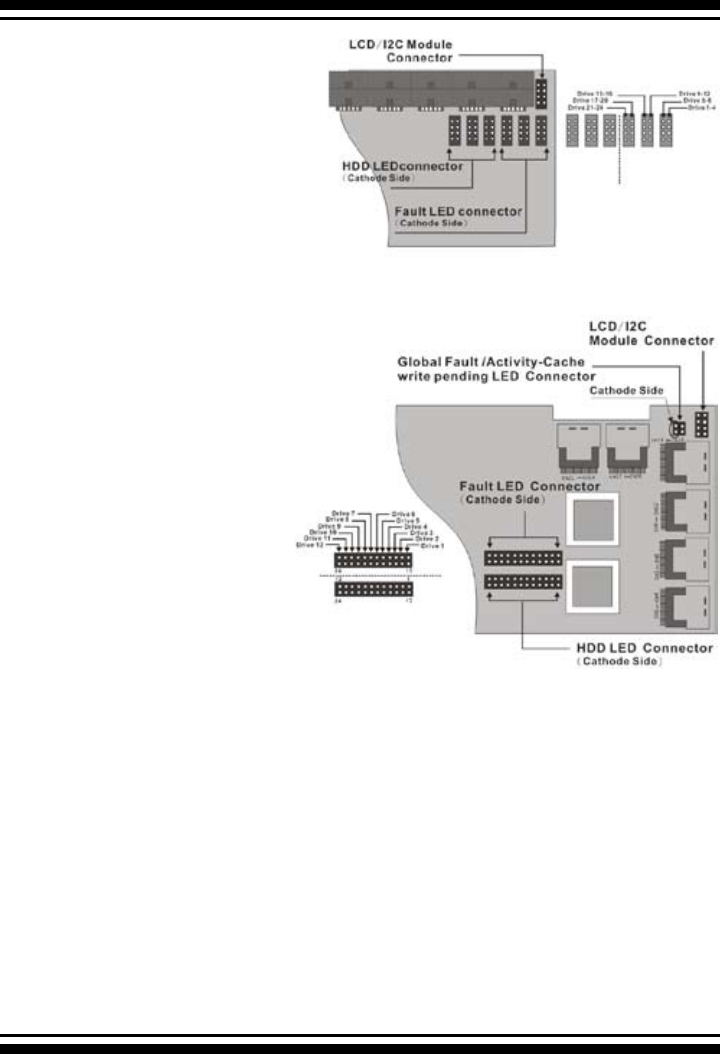
B: Individual LED indicator connector
Connect the cables for the drive activity LEDs and fault LEDs be-
tween the backplane of the cage and the respective connector on
the SATA RAID controller. The following describes the fault/activ-
ity LED.
LED Normal Status Problem Indication
Activity LED When the activity LED is illu-
minated, there is I/O activity
on that disk drive. When the
LED is dark, there is no activ-
ity on that disk drive.
N/A
Fault LED When the fault LED is solid
illuminated, there is no disk
present.
When the fault LED is off,
that disk is present and sta-
tus is normal.
When the Red LED is slow blinking
(2 times/sec), that disk drive has
failed and should be hot-swapped
immediately. When the activity
LED is illuminated and Red LED is
fast blinking (10 times/sec) there
is rebuilding activity on that disk
drive.
HARDWARE INSTALLATION
48
Figure 2-23, ARC-
1110/1120/1210/1220
Individual LED indica-
tors connector, for each
channel drive.
Figure 2-24, ARC-
1130/1160/1230/1260
Individual LED indica-
tors connector, for each
channel drive.
Figure 2-25, ARC-1170
Individual LED indicators
connector, for each chan-
nel drive.
HARDWARE INSTALLATION
49
Figure 2-26, ARC-1280
Individual LED indicators
connector, for each chan-
nel drive.
Figure 2-27, ARC-1231ML/
1261ML/1280ML Individual
LED indicators connector, for
each channel drive.
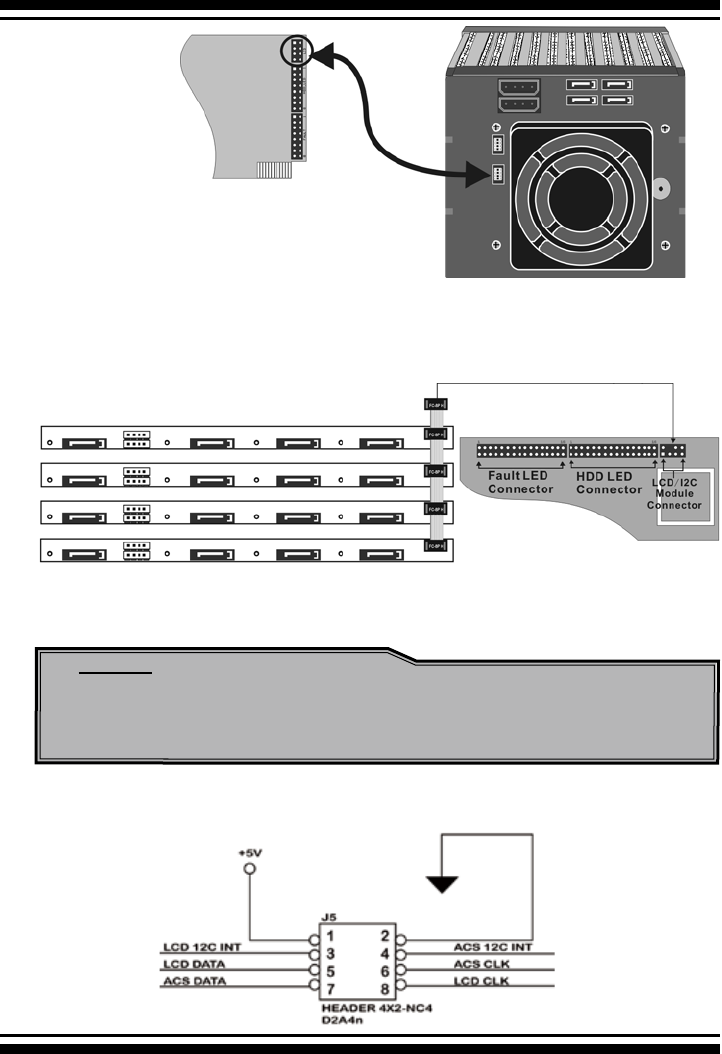
C: I2C Connector
You can also connect the I2C interface to a proprietary SATA
backplane enclosure. This can reduce the number of activity LED
and/or fault LED cables. The I2C interface can also cascade to an-
other SATA backplane enclosure for the additional channel status
display.
HARDWARE INSTALLATION
50
Figure 2-28, Activity/Fault LED I2C connector connected between
SATA RAID Controller & SATA HDD Cage backplane.
Figure 2-29, Activity/Fault LED I2C connector connected between
SATA RAID Controller & 4 SATA HDD backplane.
Note:
Ci-Design has supported this feature in its 4-port 12-6336-
05A SATA ll backplane.
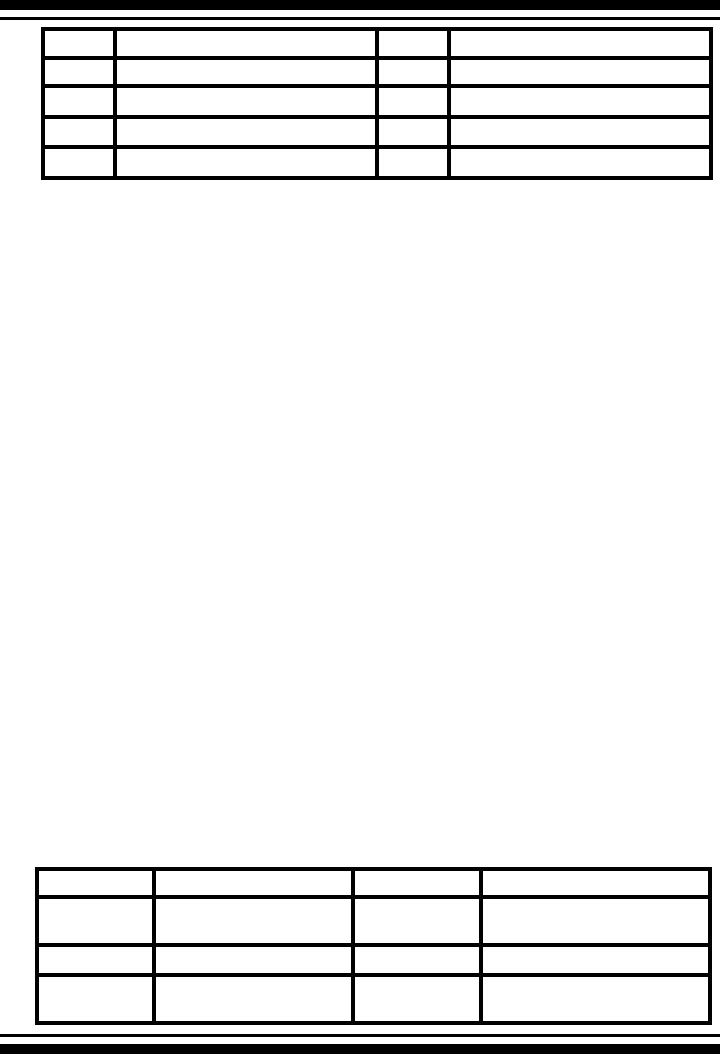
The following is the I2C signal name description for LCD & Fault/Ac-
tivity LED.
HARDWARE INSTALLATION
51
PIN Description PIN Description
1power (+5V) 2 GND
3 LCD Module Interrupt 4 Fault/Activity Interrupt
5 LCD Module Serial Data 6 Fault/Activity clock
7Fault/Activity Serial Data 8 LCD Module clock
D: SGPIO bus
The preferred I/O connector for server backplanes is the Min SAS
4i internal serial-attachment connector. This connector has eight
signal pins to support four SATA drives and six pins for the SGPIO
(Serial General Purpose Input/Output) side-band signals. The
SGPIO bus is used for efcient LED management and for sens-
ing drive Locate status. See SFF 8485 for the specication of the
SGPIO bus.
The number of drives supported can be increased, by a factor of
four, by adding similar backplane to maximum of 24 drives (6
backplanes)
LED Management: The backplane may contain LEDs to indicate
drive status. Light from the LEDs could be transmitted to the out-
side of the server by using light pipes mounted on the SAS drive
tray. A small EPLP microcontroller on the backplane, connected via
the SGPIO bus to a ARC-1231ML/1261ML/1280ML SATA RAID con-
troller, could control the LEDs. Activity: blinking 5 Times/Second
Fault: solid illuminated
Drive Locate Circuitry: The locate of a drive may be detected by
sensing the voltage level of one of the pre-charge pins before and
after a drive is installed. Fault (red) blinking 2 Times/Second.
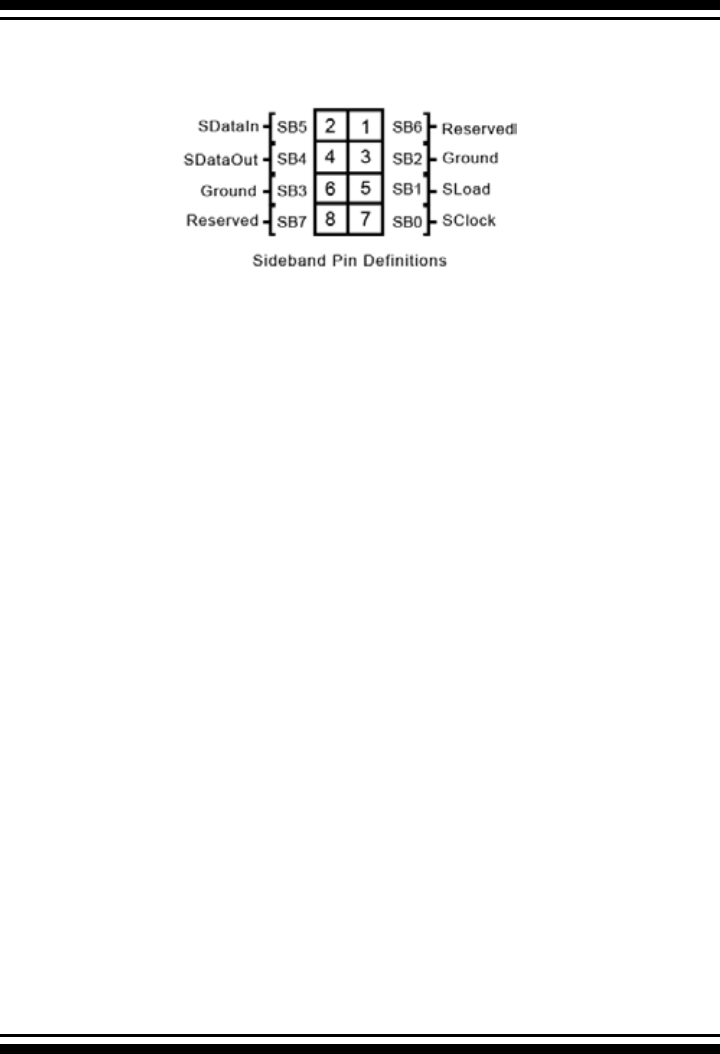
The following signal denes the SGPIO assignments for the Min
SAS 4i connector in ARC-1231ML/1261ML/1280ML.
PIN Description PIN Description
SideBand0 SClock (Clock Signal) SideBand1 SLoad (Last clock of a bit
stream)
SideBand2 Ground SideBand3 Ground
SideBand4 SDataOut (Serial data
output bit stream)
SideBand5 SDataIn (Serial data input bit
stream)
HARDWARE INSTALLATION
52
The following signal denes the sideband connector which can
work with Areca sideband cable.
The sideband header is located at backplane. For SGPIO to
work properly, please connect Areca 8-pin sideband cable to the
sideband header as shown above. See the table for pin denitions.
Step 7. Re-check the SATA HDD LED and Fault LED Cable
connections
Be sure that the proper failed drive channel information is displayed
by the Fault and HDD Activity LEDs. An improper connection will
tell the user to ‘‘Hot Swap’’ the wrong drive. This will remove the
wrong disk (one that is functioning properly) from the controller.
This can result in failure and loss of system data.
Step 8. Power up the System
Thoroughly check the installation, reinstall the computer cover, and
reconnect the power cord cables. Turn on the power switch at the
rear of the computer (if equipped) and then press the power button
at the front of the host computer.
Step 9. Congure volume set
The SATA RAID controller congures RAID functionality through the
McBIOS RAID manager. Please refer to Chapter 3, McBIOS RAID
manager, for the detail regarding conguration. The RAID controller
can also be congured through the McRAID storage manager soft-
ware utility with ArcHttp proxy server installed through on-board
Lan port or LCD module. For this option, please reference Chapter
6, Web Browser-Based Conguration or LCD conguration menu.
HARDWARE INSTALLATION
53
Step 10. Install the controller driver
For a new system:
• Driver installation usually takes places as part of operating sys-
tem installation. Please reference the Chapter 4 Diver Installation
for the detail installation procedure.
In an existing system:
• Install the controller driver into the existing operating system.
Please reference the Chapter 4, Driver Installation, for the detailed
installation procedure.
Note:
Look for newest release versions of drivers please download
from http://www.areca.com.tw
Step 11. Install ArcHttp proxy Server
The SATA RAID controller rmware has embedded the web-browser
RAID manager. ArcHttp proxy driver will enable it. The browser-
based RAID manager provides all of the creation, management,
and monitor SATA RAID controller status. Please refer to the
Chapter 5 for the detail ArcHttp proxy server installation. For SNMP
agent function, please refer to Appendix C.
Step 12. Determining the Boot sequences
The SATA RAID controller is a bootable controller. If your system
already contains a bootable device with an installed operating sys-
tem, you can set up your system to boot a second operating sys-
tem from the new controller. To add a second bootable controller,
you may need to enter setup and change the device boot sequence
so that the SATA RAID controller heads the list. If the system BIOS
setup does not allow this change, your system may not be con-
gurable to allow the SATA RAID controller to act as a second boot
device.

HARDWARE INSTALLATION
54
Summary of the installation
The ow chart below describes the installation procedures for
SATA RAID controller. These procedures include hardware installa-
tion, the creation and conguration of a RAID volume through the
McBIOS, OS installation and installation of SATA RAID controller
software.
The software components congure and monitor the SATA RAID
controller via ArcHttp Proxy Server.
Conguration Utility Operating System supported
McBIOS RAID Manager OS-Independent
McRAID Storage Manager
(Via Archttp proxy server)
Windows 2000/XP/2003, Linux, Free-
BSD, NetWare, UnixWare, Solaris and
Mac
SAP Monitor (Single Admin portal to
scan for multiple RAID units in the net-
work, Via ArcHttp proxy server)
Windows 2000/XP/2003
SNMP Manager Console Integration Windows 2000/XP/2003, Linux and
FreeBSD
McRAID Storage Manager
Before launching the rmware-embedded web server, McRAID stor-
age manager, you can to install the ArcHttp proxy server on your
server system or through on-board Lan-port (if equipped). If you
need additional information about installation and start-up of this
function, see the McRAID Storage Manager section in Chapter 6.

HARDWARE INSTALLATION
55
SNMP Manager Console Integration
• Out of Band-Using Ethernet port (12/16/24-port Control-
ler)
Before launching the rmware-embedded SNMP agent in the
sever, you need rst to enable the reware-embedded SNMP
agent function on your SATA RAID controller. If you need
additional information about installation and start-up this
function, see the section 6.8.4 SNMP Conguration (12/16/24-
port)
• In-Band-Using PCI-X/PCIe Bus (4/8/12/16/24-port
Controller)
Before launching the SNMP agent in the sever, you need rst to
enable the reware-embedded SNMP community conguration
and install Areca SNMP extension agent in your server system.
If you need additional information about installation and start-up
the function, see the SNMP Operation & Installation section in the
Appendix C
Single Admin Portal (SAP) Monitor
This utility can scan for multiple RAID units on the network and
monitor the controller set status. It also includes a disk stress test
utility to identify marginal spec disks before the RAID unit is put
into a production environment.
For additional information, see the utility manual in the packaged
CD-ROM or download it from the web site http://www.arec.com.tw
BIOS CONFIGURATION
56
3. McBIOS RAID Manager
The system mainboard BIOS automatically congures the following
SATA RAID controller parameters at power-up:
• I/O Port Address
• Interrupt channel (IRQ)
• Adapter ROM Base Address
Use McBIOS to further congure the SATA RAID controller to suit your
server hardware and operating system.
3.1 Starting the McBIOS RAID Manager
This section explains how to use the McBIOS Setup Utility to con-
gure your RAID system. The BIOS Setup Utility is designed to be
user-friendly. It is a menu-driven program, residing in the rm-
ware, which allows you to scroll through various menus and sub-
menus and select among the predetermined conguration options.
When starting a system with an SATA RAID controller installed, it
will display the following message on the monitor during the start-
up sequence (after the system bios startup screen but before the
operating system boots):
The McBIOS conguration manager message remains on your
screen for about nine seconds, giving you time to start the cong-
ure menu by pressing Tab or F6. If you do not wish to enter con-
guration menu, press <ESC> to skip conguration immediately.
When activated, the McBIOS window appears showing a selection
dialog box listing the SATA RAID controllers that are installed in the
system.
The legend at the bottom of the screen shows you what keys are
enabled for the windows.
I/O-Port=F3000000h, IRQ=11, BIOS ROM mapped at D000:0h
No BIOS disk Found, RAID Controller BIOS not installed!
Press <Tab/F6> to enter SETUP menu. 9 second(s) left <ESC to Skip>..
ARC-1xxx RAID Ctrl - DRAM: 128(MB) / #Channels: 8
BIOS: V1.00 / Date: 2004-5-13 - F/W: V1.31 / Date: 2004-5-31
BIOS CONFIGURATION
57
Areca Technology Corporation RAID Controller Setup <V1.0, 2004/05/20>
ArrowKey Or AZ:Move Cursor, Enter: Select, ** Select & Press F10 to Reboot**
Select An Adapter To Congure
( 3/14/ 0)I/O=DD200000h, IRQ = 9
Use the Up and Down arrow keys to select the adapter you want
to congure. While the desired adapter is highlighted, press the
<Enter> key to enter the Main Menu of the McBIOS Conguration
Utility.
3.2 McBIOS Conguration manager
The McBIOS conguration utility is rmware-based and is used to
congure raid sets and volume sets. Because the utility resides in
the SATA RAID controller rmware, operation is independent of any
operating systems on your computer. This utility can be used to:
• Create RAID sets,
• Expand RAID sets,
Controller I/O Port:F3000000h, F2: Select Controller, F10: Reboot System
ArrowKey Or AZ:Move Cursor, Enter: Select, ESC: Escape, L:Line Draw, X: Redraw
Areca Technology Corporation RAID Controller
Main Menu
Raid Set Function
Volume Set Function
Physical Drives
Raid System Function
Ethernet Conguration
View System Events
Clear Event Buffer
Hardware Monitor
System information
Quick Volume/Raid Setup
Verify Password
Note:
The manufacture
default password is
set to 0000; this
password can be
modied by selecting
Change Password
in the Raid System
Function section.

BIOS CONFIGURATION
58
3.4 Designating Drives as Hot Spares
Any unused disk drive that is not part of a RAID set can be desig-
nated as a Hot Spare. The “Quick Volume/Raid Setup” conguration
will add the spare disk drive and automatically display the appro-
priate raid level from which the user can select. For the “Raid Set
Function conguration” option, the user can use the “Create Hot
Spare” option to dene the hot spare disk drive.
When a Hot Spare disk drive is being created using the “Create Hot
Spare” option (in the Raid Set Function), all unused physical de-
vices connected to the current controller appear:
Choose the target disk by selecting the appropriate check box.
Press the Enter key to select a disk drive, and press Yes in the
Create Hot Spare to designate it as a hot spare.
• Add physical drives,
• Dene volume sets,
• Modify volume sets,
• Modify RAID level/stripe size,
• Dene pass-through disk drives,
• Modify system functions, and
• Designate drives as hot spares.
3.3 Conguring Raid Sets and Volume Sets
You can congure RAID sets and volume sets with McBIOS RAID
manager automatically using Quick Volume/Raid Setup or manually
using Raid Set/Volume Set Function. Each conguration method re-
quires a different level of user input. The general ow of operations
for RAID set and volume set conguration is:
Step Action
1Designate hot spares/pass-through drives (optional).
2Choose a conguration method.
3 Create RAID sets using the available physical drives.
4Dene volume sets using the space available in the RAID Set.
5 Initialize the volume sets and use volume sets (as logical drives) in the
host OS.
BIOS CONFIGURATION
59
3.5 Using Quick Volume /Raid Setup Con-
guration
Quick Volume / Raid Setup Conguration collects all available
drives and includes them in a RAID set. The RAID set you create
is associated with exactly one volume set. You will only be able
to modify the default RAID level, the stripe size, and the capacity
of the new volume set. Designating drives as Hot Spares is also
possible in the raid level selection option. The volume set default
settings will be:
Parameter Setting
Volume Name Volume Set # 00
SCSI Channel/SCSI ID/SCSI LUN 0/0/0
Cache Mode Write Back
Tag Queuing Yes
The default setting values can be changed after conguration is
complete. Follow the steps below to create arrays using the RAID
Set / Volume Set method:
Step Action
1Choose Quick Volume /Raid Setup from the main menu. The available
RAID levels with hot spare for the current volume set drive are displayed.
2It is recommend that you drives of the same capacity in a specic array.
If you use drives with different capacities in an array, all drives in the
raid set will be set to the capacity of the smallest drive in the raid set.
The numbers of physical drives in a specic array determines which RAID
levels that can be implemented in the array.
RAID 0 requires 1 or more physical drives.
RAID 1 requires at least 2 physical drives.
RAID 1+Spare requires at least 3 physical drives.
RAID 1E requires at least 4 physical drives.
RAID 3 requires at least 3 physical drives.
RAID 5 requires at least 3 physical drives.
RAID 3 +Spare requires at least 4 physical drives.
RAID 5 + Spare requires at least 4 physical drives.
RAID 6 requires at least 4 physical drives.
RAID 6 + Spare requires at least 5 physical drives.
Highlight the desired RAID level for the volume set and press the Enter
key to conrm.
BIOS CONFIGURATION
60
3.6 Using RAID Set/Volume Set Function
Method
In “Raid Set Function”, you can use the “Create Raid Set Function”
to generate a new RAID set. In “Volume Set Function”, you can
use the “Create Volume Set function” to generate an associated
volume set and and conguration parameters.
If the current controller has unused physical devices connected,
you can choose the “Create Hot Spare” option in the “Raid Set
Function” to dene a global hot spare. Select this method to con-
gure new raid sets and volume sets. The “Raid Set/Volume Set
Function” conguration option allows you to associate volume sets
with partial and full RAID sets.
3 The capacity for the current volume set is entered after highlighting the
desired RAID level and pressing the Enter key.
The capacity for the current volume set is displayed. Use the UP and
DOWN arrow keys to set the capacity of the volume set and press the
Enter key to conrm. The available stripe sizes for the current volume
set are then displayed.
4Use the UP and DOWN arrow keys to select the current volume set
stripe size and press the Enter key to conrm. This parameter species
the size of the stripes written to each disk in a RAID 0, 1, 5 or 6 Volume
Set. You can set the stripe size to 4 KB, 8 KB, 16 KB, 32 KB, 64 KB, or
128 KB. A larger stripe size provides better read performance, especially
when the computer preforms mostly sequential reads. However, if the
computer preforms random read requests more often, choose a smaller
stripe size.
5 When you are nished dening the volume set, press the Enter key to
conrm the Quick Volume And Raid Set Setup function.
6Foreground (Fast Completion) Press Enter key to dene fast initialization
or Selected the Background (Instant Available). In the background Ini-
tialization, the initialization proceeds as a background task, the volume
set is fully accessible for system reads and writes. The operating system
can instantly access to the newly created arrays without requiring a
reboot and waiting the initialization complete. In Fast Initialization, the
initialization proceeds must be completed before the volume set ready
for system accesses.
7Initialize the volume set you have just congured.
8If you need to add additional volume set, using main menu Create Vol-
ume Set function.
BIOS CONFIGURATION
61
Step Action
1To setup the Hot Spare (option), choose RAID Set Function from the
main menu. Select the Create Hot Spare and press the Enter key to
dene the Hot Spare.
2Choose RAID Set Function from the main menu. Select Create RAID Set
and press the Enter key.
3 The “Select a Drive For Raid Set” window is displayed showing the SATA
drives connected to the SATA RAID controller.
4Press the UP and DOWN arrow keys to select specic physical drives.
Press the Enter key to associate the selected physical drive with the cur-
rent RAID set.
It is recommend that you drives of the same capacity in a specic array.
If you use drives with different capacities in an array, all drives in the
raid set will be set to the capacity of the smallest drive in the raid set.
The numbers of physical drives in a specic array determines which RAID
levels that can be implemented in the array.
RAID 0 requires 1 or more physical drives.
RAID 1 requires at least 2 physical drives.
RAID (1+0) requires at least 4 physical drives.
RAID 3 requires at least 3 physical drives.
RAID 5 requires at least 3 physical drives.
RAID 6 requires at least 4 physical drives.
5 After adding the desired physical drives to the current RAID set, press
Yes to conrm the “Create Raid Set” function.
6An “Edit The Raid Set Name” dialog box appears. Enter 1 to 15 alphanu-
meric characters to dene a unique identier for this new raid set. The
default raid set name will always appear as Raid Set. #. Press Enter to
nish the name editing.
7Press the Enter key when you are nished creating the current RAID
Set. To continue dening another RAID set, repeat step 3. To begin vol-
ume set conguration, go to step 8.
8Choose the Volume Set Function from the Main menu. Select Create
Volume Set and press the Enter key.
9Choose a RAID set from the “Create Volume From Raid Set” window.
Press the Enter key to conrm the selection.
10 Choosing Foreground (Fast Completion) or Background (Instant Avail-
ability) initiation: during Background Initialization, the initialization
proceeds as a background task and the volume set is fully accessible for
system reads and writes. The operating system can instantly access the
newly created arrays without requiring a reboot and waiting for initializa-
tion complete. In Fast Initialization, the initialization must be completed
before the volume set is ready for system accesses. In Fast Initialization,
initiation is completed more quickly but volume access by the operating
system is delayed.
11 If space remains in the raid set, the next volume set can be congured.
Repeat steps 8 to 10 to congure another volume set.
BIOS CONFIGURATION
62
3.7 Main Menu
The main menu shows all functions that are available for executing
actions, which is accomplished by clicking on the appropriate link.
Note:
A user can use this method to examine the existing congura-
tion. The “modify volume set conguration” method provides
the same functions as the “create volume set conguration”
method. In the volume set function, you can use “modify
volume set” to change all volume set parameters except for
capacity (size).
Controller I/O Port:F3000000h, F2: Select Controller, F10: Reboot System
ArrowKey Or AZ:Move Cursor, Enter: Select, ESC: Escape, L:Line Draw, X: Redraw
Areca Technology Corporation RAID Controller
Main Menu
Raid Set Function
Volume Set Function
Physical Drives
Raid System Function
Ethernet Conguration
View System Events
Clear Event Buffer
Hardware Monitor
System information
Quick Volume/Raid Setup
Verify Password
Note:
The manufacture
default password is
set to 0000; this
password can be
modied by selecting
Change Password
in the Raid System
Function section.
Option Description
Quick Volume/Raid Setup Create a default conguration based on the number
of physical disk installed
Raid Set Function Create a customized RAID set
Volume Set Function Create a customized volume set
Physical Drives View individual disk information
Raid System Function Setup the RAID system conguration
Ethernet Conguration Ethernet LAN setting (ARC-1x30/1x60/1x70 only)
View System Events Record all system events in the buffer
Clear Event Buffer Clear all information in the event buffer
Hardware Monitor Show the hardware system environment status
System Information View the controller system information

BIOS CONFIGURATION
63
This password option allows user to set or clear the raid controller’s
password protection feature. Once the password has been set, the
user can only monitor and congure the raid controller by providing
the correct password. The password is used to protect the internal
RAID controller from unauthorized entry. The controller will prompt
for the password only when entering the Main menu from the initial
screen. The SATA RAID controller will automatically return to the
initial screen when it does not receive any command in twenty
seconds.
3.7.1 Quick Volume/RAID Setup
“Quick Volume/RAID Setup” is the fastest way to prepare a RAID
set and volume set. It requires only a few keystrokes to com-
plete. Although disk drives of different capacity may be used in
the RAID set, it will use the capacity of the smallest disk drive as
the capacity of all disk drives in the RAID set. The “Quick Vol-
ume/RAID Setup” option creates a RAID set with the following
properties:
1. All of the physical drives are contained in one RAID set.
2. The RAID level, hot spare, capacity, and stripe size options
are selected during the conguration process.
3. When a single volume set is created, it can consume all or a
portion of the available disk capacity in this RAID set.
4. If you need to add an additional volume set, use the main
menu “Create Volume Set” function.
The total number of physical drives in a specic RAID set deter-
mine the RAID levels that can be implemented within the RAID
Controller I/O Port:F3000000h, F2: Select Controller, F10: Reboot System
ArrowKey Or AZ:Move Cursor, Enter: Select, ESC: Escape, L:Line Draw, X: Redraw
Areca Technology Corporation RAID Controller
Main Menu
Raid Set Function
Volume Set Function
Physical Drives
Raid System Function
Ethernet Conguration
View System Events
Clear Event Buffer
Hardware Monitor
System information
Quick Volume/Raid Setup
Total 4 Drives
Raid 0
Raid 1 + 0
Raid 1 + 0 + Spare
Raid 3
Raid 5
Raid 3 + Spare
Raid 5 + Spare
Raid 6
BIOS CONFIGURATION
64
Set. Select “Quick Volume/RAID Setup” from the main menu;
all possible RAID level will be displayed on the screen.
If volume capacity will exceed 2TB, controller will show the
“Greater 2 TB volume Support” sub-menu.
Controller I/O Port:F3000000h, F2: Select Controller, F10: Reboot System
ArrowKey Or AZ:Move Cursor, Enter: Select, ESC: Escape, L:Line Draw, X: Redraw
Areca Technology Corporation RAID Controller
Main Menu
Raid Set Function
Volume Set Function
Physical Drives
Raid System Function
Ethernet Conguration
View System Events
Clear Event Buffer
Hardware Monitor
System information
Quick Volume/Raid Setup
Total 4 Drives
Raid 0
Raid 1 + 0
Raid 1 + 0 + Spare
Raid 3
Raid 5
Raid 3 + Spare
Raid 5 + Spare
Raid 6
Greater Two TB Volume Support
No
Use 64bit LBA
For Windows
For Windows
• No
It keeps the volume size with max. 2TB limitation.
• LBA 64
This option use 16 bytes CDB instead of 10 bytes. The maximum
volume capacity up to 512TB.
This option works on different OS which supports 16 bytes CDB.
such as :
Windows 2003 with SP1
Linux kernel 2.6.x or latter
• For Windows
It change the sector size from default 512 Bytes to 4k Bytes. the
maximum volume capacity up to 16TB.
This option works under Windows platform only. And it CAN NOT
be converted to Dynamic Disk, because 4k sector size is not a
standard format.
For more details please download PDF le from ftp://ftp.areca.
com.tw/RaidCards/Documents/Manual_Spec/Over2TB_
050721.zip

BIOS CONFIGURATION
65
Stripe size This parameter sets the size of the stripe written to
each disk in a RAID 0, 1, 5, or 6 logical drive. You can set the
stripe size to 4 KB, 8 KB, 16 KB, 32 KB, 64 KB, or 128 KB.
A larger stripe size produces better-read performance, especially
if your computer does mostly sequential reads. However, if you
A single volume set is created and consumes all or a portion of
the disk capacity available in this raid set. Dene the capacity
of volume set in the Available Capacity popup. The default value
for the volume set, which is 100% of the available capacity, is
displayed in the selected capacity. To enter a value less than the
available capacity, type the new value and press the Enter key
to accept this value. If the volume set uses only part of the RAID
Set capacity, you can use the “Create Volume Set” option in the
main menu to dene additional volume sets.
Controller I/O Port:F3000000h, F2: Select Controller, F10: Reboot System
ArrowKey Or AZ:Move Cursor, Enter: Select, ESC: Escape, L:Line Draw, X: Redraw
Areca Technology Corporation RAID Controller
Main Menu
Raid Set Function
Volume Set Function
Physical Drives
Raid System Function
Ethernet Conguration
View System Events
Clear Event Buffer
Hardware Monitor
System information
Quick Volume/Raid Setup
Total 4 Drives
Raid 0
Raid 1 + 0
Raid 1 + 0 + Spare
Raid 3
Raid 5
Raid 3 + Spare
Raid 5 + Spare
Raid 6
Available Capacity : 160.1GB
Selected Capacity : 160.1GB
Select Strip Size
4K
8K
16K
32K
128K
64K
Controller I/O Port:F3000000h, F2: Select Controller, F10: Reboot System
ArrowKey Or AZ:Move Cursor, Enter: Select, ESC: Escape, L:Line Draw, X: Redraw
Areca Technology Corporation RAID Controller
Main Menu
Raid Set Function
Volume Set Function
Physical Drives
Raid System Function
Ethernet Conguration
View System Events
Clear Event Buffer
Hardware Monitor
System information
Quick Volume/Raid Setup
Total 4 Drives
Raid 0
Raid 1 + 0
Raid 1 + 0 + Spare
Raid 3
Raid 5
Raid 3 + Spare
Raid 5 + Spare
Raid 6
Available Capacity : 160.1GB
Selected Capacity : 160.1GB
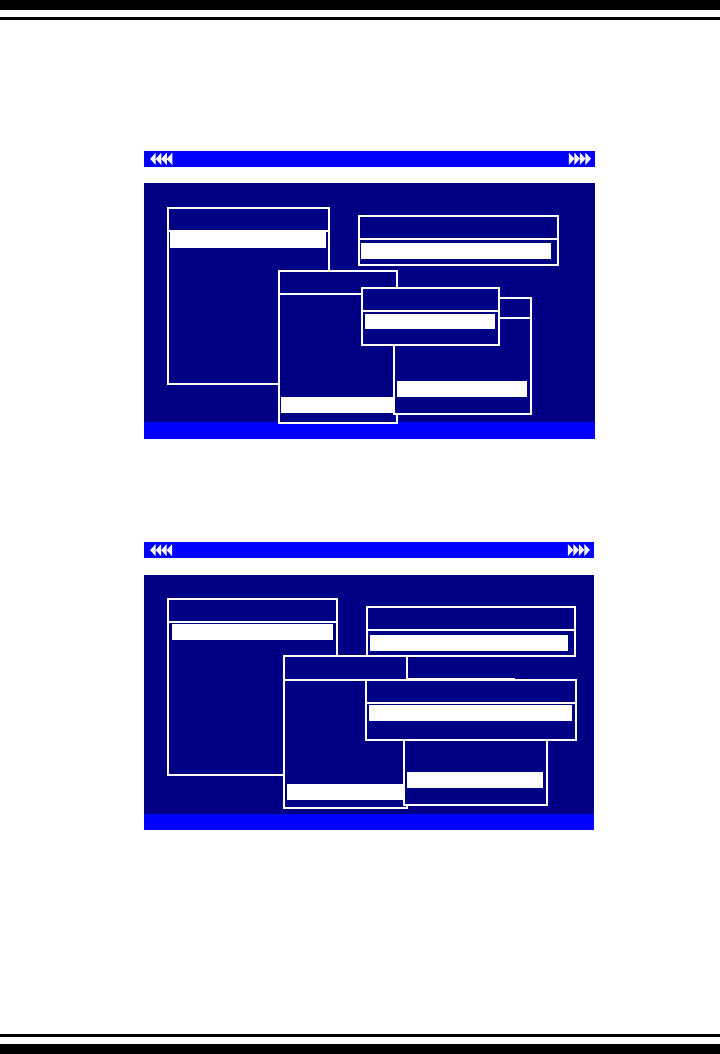
BIOS CONFIGURATION
66
3.7.2 Raid Set Function
Manual Conguration gives complete control of the RAID set set-
ting, but it will take longer to congure than “Quick Volume/Raid
Setup” conguration. Select “Raid Set Function” to manually con-
gure the raid set for the rst time or delete existing RAID sets
and recongure the RAID set.
Controller I/O Port:F3000000h, F2: Select Controller, F10: Reboot System
ArrowKey Or AZ:Move Cursor, Enter: Select, ESC: Escape, L:Line Draw, X: Redraw
Areca Technology Corporation RAID Controller
Main Menu
Raid Set Function
Volume Set Function
Physical Drives
Raid System Function
Ethernet Conguration
View System Events
Clear Event Buffer
Hardware Monitor
System information
Quick Volume/Raid Setup
Total 4 Drives
Raid 0
Raid 1 + 0
Raid 1 + 0 +
Spare
Raid 3
Raid 5
Raid 3 + Spare
Raid 5 + Spare
Raid 6
Available Capacity : 160.1GB
Selected Capacity : 160.1GB
Select Strip Size
4K
8K
16K
32K
128K
64K
Create Vol/Raid Set
No
Yes
Controller I/O Port:F3000000h, F2: Select Controller, F10: Reboot System
ArrowKey Or AZ:Move Cursor, Enter: Select, ESC: Escape, L:Line Draw, X: Redraw
Areca Technology Corporation RAID Controller
Create Vol/Raid Set
No
Yes
Main Menu
Raid Set Function
Volume Set Function
Physical Drives
Raid System Function
Ethernet Conguration
View System Events
Clear Event Buffer
Hardware Monitor
System information
Quick Volume/Raid Setup
Total 4 Drives
Raid 0
Raid 1 + 0
Raid 1 + 0 + Spare
Raid 3
Raid 5
Raid 3 + Spare
Raid 5 + Spare
Raid 6
Available Capacity : 160.1GB
Selected Capacity : 160.1GB
Select Strip Size
4K
8K
16K
32K
128K
64K
Initialization Mode
Background (Instant Available)
Foreground (Faster Completeion)
are sure that your computer performs random reads more often,
select a smaller stripe size.
Press the Yes key in the “Create Vol/Raid” Set dialog box, the
RAID set and volume set will start to initialize it.
Select “Foreground (Faster Completion)” or “Background (Instant
Available)” for initialization.
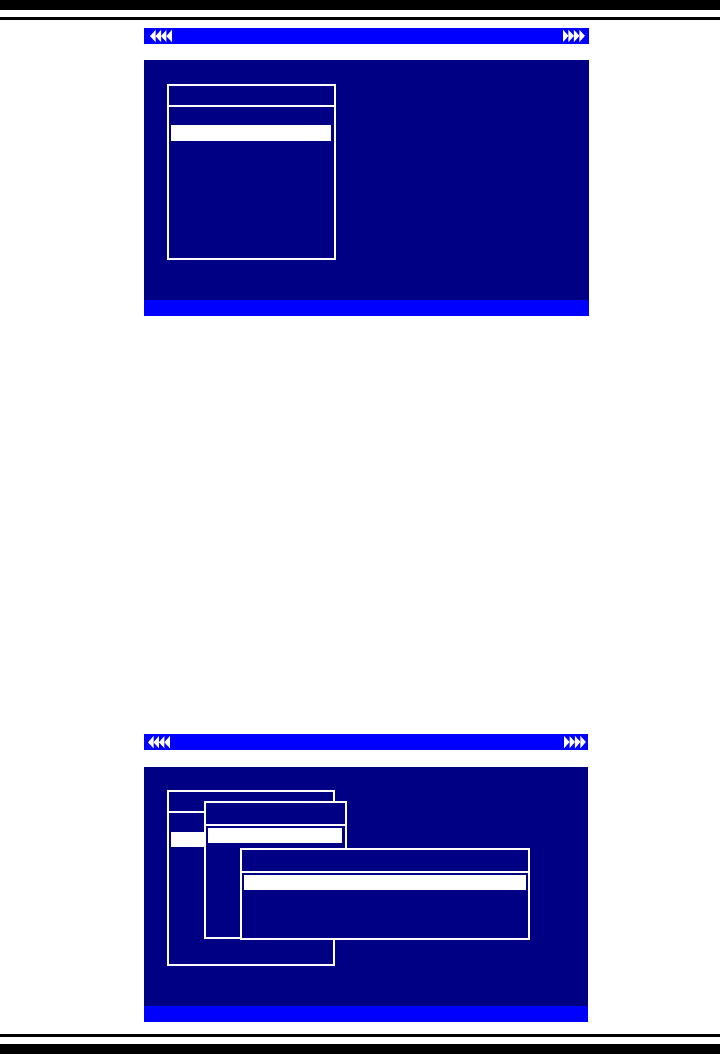
BIOS CONFIGURATION
67
Controller I/O Port:F3000000h, F2: Select Controller, F10: Reboot System
ArrowKey Or AZ:Move Cursor, Enter: Select, ESC: Escape, L:Line Draw, X: Redraw
Areca Technology Corporation RAID Controller
Main Menu
Quick Volume/Raid Setup
Volume Set Function
Physical Drives
Raid System Function
Ethernet Conguration
View System Events
Clear Event Buffer
Hardware Monitor
System information
Raid Set Function
3.7.2.1 Create Raid Set
To dene a RAID set, follow the procedure below:
1. Select “Raid Set Function” from the main menu.
2. Select “Create Raid Set “ from the “Raid Set Function” dialog
box.
3. A “Select SATA Drive For Raid set” window is displayed
showing the SATA drives connected to the current controller.
Press the UP and DOWN arrow keys to select specic physical
drives. Press the Enter key to associate the selected physical
drive with the current RAID Set. Repeat this step; the user can
add as many disk drives as are available to a single RAID set.
When nished selecting SATA drives for RAID set, press the Esc
key. A Create Raid Set conrmation screen appears, select the
Yes option to conrm it.
Controller I/O Port:F3000000h, F2: Select Controller, F10: Reboot System
ArrowKey Or AZ:Move Cursor, Enter: Select, ESC: Escape, L:Line Draw, X: Redraw
Areca Technology Corporation RAID Controller
Main Menu
Quick Volume/Raid Setup
Volume Set Function
Physical Drives
Raid System Function
Ethernet Conguration
View System Events
Clear Event Buffer
Hardware Monitor
System information
Raid Set Function
Raid Set Function
Delete Raid Set
Expand Raid Set
Activate Raid Set
Create Hot Spare
Delete Hot Spare
Raid Set Information
Create Raid Set
Select IDE Drives For Raid Set
[ ]Ch04| 80.0GBST380013AS
[ ]Ch05| 80.0GBST380013AS
[ ]Ch08| 80.0GBST380013AS
[*]Ch01| 80.0GBST380013AS
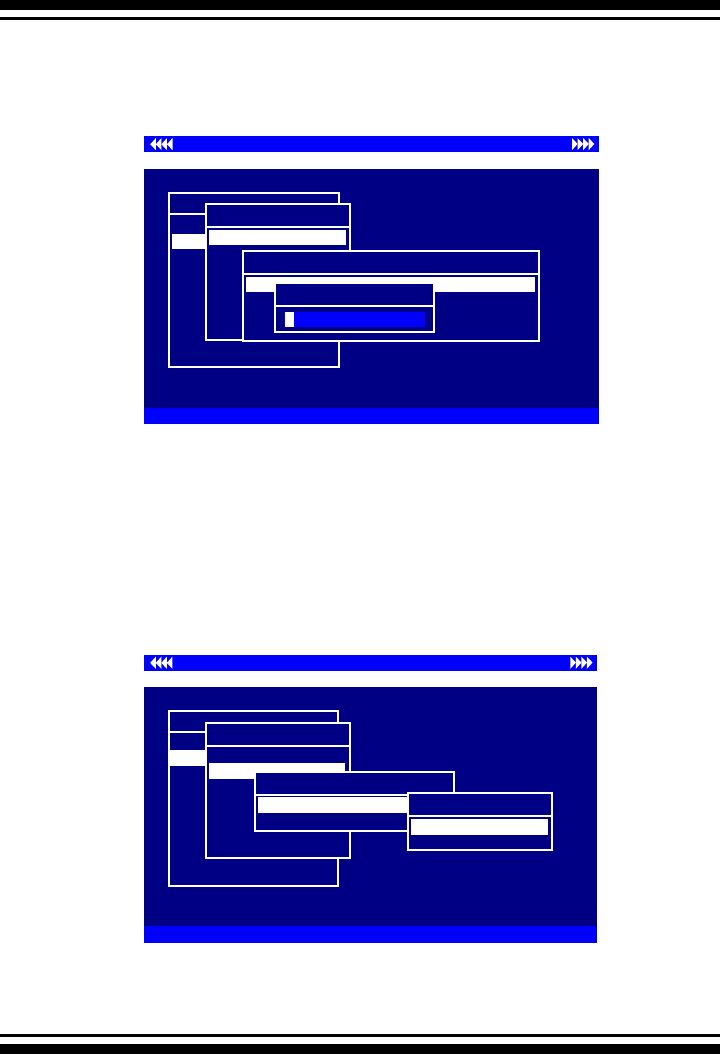
BIOS CONFIGURATION
68
4. An “Edit The Raid Set Name” dialog box appears. Enter 1 to
15 alphanumeric characters to dene a unique identier for the
RAID Set. The default RAID set name will always appear as Raid
Set. #.
3.7.2.2 Delete Raid Set
To completely erase and recongure a RAID set, you must rst
delete it and re-create the raid set. To delete a raid set, select
the raid set number that user want to delete in the “Select Raid
Set to Delete” screen. The “Delete Raid Set” dialog box appears,
then press Yes key to delete it. Warning, data on RAID set will
be lost if this option is used.
3.7.2.3 Expand Raid Set
Instead of deleting a RAID set and recreating it with additional
Controller I/O Port:F3000000h, F2: Select Controller, F10: Reboot System
ArrowKey Or AZ:Move Cursor, Enter: Select, ESC: Escape, L:Line Draw, X: Redraw
Areca Technology Corporation RAID Controller
Main Menu
Quick Volume/Raid Setup
Volume Set Function
Physical Drives
Raid System Function
Ethernet Conguration
View System Events
Clear Event Buffer
Hardware Monitor
System information
Raid Set Function
Raid Set Function
Delete Raid Set
Expand Raid Set
Activate Raid Set
Create Hot Spare
Delete Hot Spare
Raid Set Information
Create Raid Set
Select IDE Drives For Raid Set
[ ]Ch04| 80.0GBST380013AS
[ ]Ch05| 80.0GBST380013AS
[ ]Ch08| 80.0GBST380013AS
[*]Ch01| 80.0GBST380013AS
Edit The Raid Set Name
aid Set # 00
R
Controller I/O Port:F3000000h, F2: Select Controller, F10: Reboot System
ArrowKey Or AZ:Move Cursor, Enter: Select, ESC: Escape, L:Line Draw, X: Redraw
Areca Technology Corporation RAID Controller
Main Menu
Quick Volume/Raid Setup
Volume Set Function
Physical Drives
Raid System Function
Ethernet Conguration
View System Events
Clear Event Buffer
Hardware Monitor
System information
Raid Set Function
Raid Set Function
Create Raid Set
Expand Raid Set
Activate Raid Set
Create Hot Spare
Delete Hot Spare
Raid Set Information
Delete Raid Set
Select Raid Set To Delete
Raid Set # 01
Raid Set # 00 Are you Sure?
No
Yes
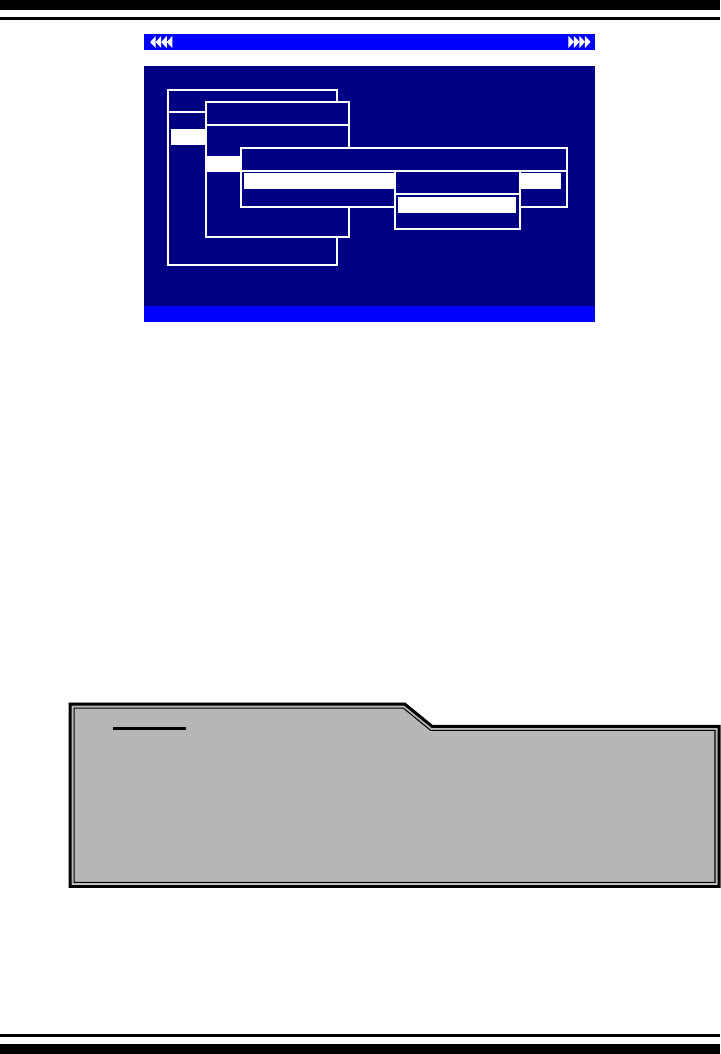
BIOS CONFIGURATION
69
disk drives, the “Expand Raid Set” function allows the users to
add disk drives to the RAID set that have already been created.
To expand a raid set:
Select the “Expand Raid Set” option. If there is an available
disk, then the “Select SATA Drives For Raid Set Expansion”
screen appears.
Select the target RAID set by clicking on the appropriate radio
button. Select the target disk by clicking on the appropriate
check box.
Press the Yes key to start expansion of the RAID set.
The new additional capacity can be utilized by one or more
volume sets. Follow the instruction presented in the volume set
Function to modify the volume sets; operation system specic
utilities may be required to expand operating system partitions.
Note:
1. Once the Expand Raid Set process has started, user
cannot stop it. The process must be completed.
2. If a disk drive fails during raid set expansion and a hot
spare is available, an auto rebuild operation will occur after
the RAID set expansion completes.
• Migrating
Controller I/O Port:F3000000h, F2: Select Controller, F10: Reboot System
ArrowKey Or AZ:Move Cursor, Enter: Select, ESC: Escape, L:Line Draw, X: Redraw
Areca Technology Corporation RAID Controller
Expand Raid Set
Main Menu
Quick Volume/Raid Setup
Volume Set Function
Physical Drives
Raid System Function
Ethernet Conguration
View System Events
Clear Event Buffer
Hardware Monitor
System information
Raid Set Function
Raid Set Function
Create Raid Set
Delete Raid Set
Expand Raid Set
Activate Raid Set
Create Hot Spare
Delete Hot Spare
Raid Set Information
Exp Select Drives For Raid Set Expansion
[ ]Ch08| 80.0GBST380013AS
[*]Ch05| 80.0GBST380013AS
Are you Sure?
No
Yes
BIOS CONFIGURATION
70
Migration occurs when a disk is added to a RAID set. Migration
status is displayed in the raid status area of the Raid set infor-
mation screen when a disk is being added to a Raid set. Migrat-
ing status is also displayed in the associated volume status area
of the Volume Set Information when a disk is added to a RAID
set.
3.7.2.4 Activate Incomplete Raid Set
The following screen is shows “Raid Set Information” after one
of its disk drive was removed in the power off state.
When one of the disk drives is removed in power off state, the
Raid set state will change to Incomplete State. If a user wants
to continue to work while the SATA RAID controller is powered
on, the user can use the “Activate Raid Set” option to active the
RAID set. After user selects this function, the Raid State will
change to Degraded Mode.
Controller I/O Port:F3000000h, F2: Select Controller, F10: Reboot System
ArrowKey Or AZ:Move Cursor, Enter: Select, ESC: Escape, L:Line Draw, X: Redraw
Areca Technology Corporation RAID Controller
Main Menu
Quick Volume/Raid Setup
Volume Set Function
Physical Drives
Raid System Function
Ethernet Conguration
View System Events
Clear Event Buffer
Hardware Monitor
System information
Raid Set Function
Raid Set Function
Create Raid Set
Delete Raid Set
Expand Raid Set
Activate Raid Set
Create Hot Spare
Delete Hot Spare
Raid Set Information
The Raid Set Information
Raid Set Name : Raid Set # 00
Member Disks : 4
Raid State : Migrating
Total Capacity : 160.1GB
Free Capacity : 144.1GB
Min Member Disk Size : 40.0GB
Member Disk Channels : 1234
Controller I/O Port:F3000000h, F2: Select Controller, F10: Reboot System
ArrowKey Or AZ:Move Cursor, Enter: Select, ESC: Escape, L:Line Draw, X: Redraw
Areca Technology Corporation RAID Controller
Main Menu
Quick Volume/Raid Setup
Volume Set Function
Physical Drives
Raid System Function
Ethernet Conguration
View System Events
Clear Event Buffer
Hardware Monitor
System information
Raid Set Function
Raid Set Function
Create Raid Set
Delete Raid Set
Expand Raid Set
Activate Raid Set
Create Hot Spare
Delete Hot Spare
Raid Set Information
Active Raid Set
The Raid Set Information
Raid Set Name : Raid Set # 00
Member Disks : 4
Raid State : Migrating
Total Capacity : 160.1GB
Free Capacity : 144.1GB
Min Member Disk Size : 40.0GB
Member Disk Channels : 1234

BIOS CONFIGURATION
71
3.7.2.5 Create Hot Spare
When you choose the “Create Hot Spare” option in the Raid Set
Function, all unused physical devices connected to the current
controller will result in the following:
Select the target disk by clicking on the appropriate check box.
Press the Enter key to select a disk drive and press Yes in the
“Create Hot Spare” to designate it as a hot spare.
The create Hot Spare option gives you the ability to dene a
global hot spare.
3.7.2.6 Delete Hot Spare
Select the target Hot Spare disk to delete by clicking on the ap-
propriate check box.
Press the Enter keys to select a disk drive, and press Yes in the
“Delete Hot Spare” window to delete the hot spare.
Controller I/O Port:F3000000h, F2: Select Controller, F10: Reboot System
ArrowKey Or AZ:Move Cursor, Enter: Select, ESC: Escape, L:Line Draw, X: Redraw
Areca Technology Corporation RAID Controller
Main Menu
Quick Volume/Raid Setup
Volume Set Function
Physical Drives
Raid System Function
Ethernet Conguration
View System Events
Clear Event Buffer
Hardware Monitor
System information
Raid Set Function
Raid Set Function
Create Raid Set
Delete Raid Set
Expand Raid Set
Activate Raid Set
Create Hot Spare
Delete Hot Spare
Raid Set Information
Create Hot Spare
Select Drives For HotSpare, Max 3 HotSpare Supported
[ ]Ch08| 80.0GBST380013AS
[*]Ch05| 80.0GBST380013ASAre you Sure?
No
Yes
Controller I/O Port:F3000000h, F2: Select Controller, F10: Reboot System
ArrowKey Or AZ:Move Cursor, Enter: Select, ESC: Escape, L:Line Draw, X: Redraw
Areca Technology Corporation RAID Controller
Delete Raid Set
Main Menu
Quick Volume/Raid Setup
Volume Set Function
Physical Drives
Raid System Function
Ethernet Conguration
View System Events
Clear Event Buffer
Hardware Monitor
System information
Raid Set Function
Raid Set Function
Create Raid Set
Delete Raid Set
Expand Raid Set
Activate Raid Set
Create Hot Spare
Delete Hot Spare
Raid Set Information
Delete Hot Spare
Select The HotSpare Device To be Deleted
[ ]Ch08| 80.0GBST380013AS
[*]Ch05| 80.0GBST380013ASAre you Sure?
No
Yes
BIOS CONFIGURATION
72
3.7.2.7 Raid Set Information
To display Raid Set information, move the cursor bar to the de-
sired RAID set number, then press the Enter key. The “Raid Set
Information” will display.
You can only view information for the RAID set in this screen.
3.7.3 Volume Set Function
Controller I/O Port:F3000000h, F2: Select Controller, F10: Reboot System
ArrowKey Or AZ:Move Cursor, Enter: Select, ESC: Escape, L:Line Draw, X: Redraw
Areca Technology Corporation RAID Controller
Main Menu
Quick Volume/Raid Setup
Raid Set Function
Volume Set Function
Physical Drives
Raid System Function
Ethernet Conguration
View System Events
Clear Event Buffer
Hardware Monitor
System information
Volume Set Function
Volume Set Function
Delete Volume Set
Modify Volume Set
Check Volume Set
StopVolume Check
Display Volume Info.
Create Volume Set
A volume set is seen by the host system as a single logical de-
vice; it is organized in a RAID level within the controller utiliz-
ing one or more physical disks. RAID level refers to the level of
data performance and protection of a volume set. A volume set
can consume all of the capacity or a portion of the available disk
capacity of a RAID set. Multiple volume sets can exist on a RAID
set. If multiple volume sets reside on a specied RAID set, all
Controller I/O Port:F3000000h, F2: Select Controller, F10: Reboot System
ArrowKey Or AZ:Move Cursor, Enter: Select, ESC: Escape, L:Line Draw, X: Redraw
Areca Technology Corporation RAID Controller
Main Menu
Quick Volume/Raid Setup
Volume Set Function
Physical Drives
Raid System Function
Ethernet Conguration
View System Events
Clear Event Buffer
Hardware Monitor
System information
Raid Set Function
Raid Set Function
Create Raid Set
Delete Raid Set
Expand Raid Set
Activate Raid Set
Create Hot Spare
Delete Hot Spare
Raid Set Information
The Raid Set Information
Raid Set Name : Raid Set # 00
Member Disks : 4
Raid State : Normal
Total Capacity : 320.1GB
Free Capacity : 320.1GB
Min Member Disk Size : 80.0GB
Member Disk Channels : 1458
BIOS CONFIGURATION
73
volume sets will reside on all physical disks in the RAID set. Thus
each volume set on the RAID set will have its data spread evenly
across all the disks in the RAID set rather than one volume set
using some of the available disks and another volume set using
other disks.
3.7.3.1 Create Volume Set
1. Volume sets of different RAID levels may coexist on the same
raid set.
2. Up to 16 volume sets in a RAID set can be created by the
SATA RAID controller.
3. The maximum addressable size of a single volume set is not
limited to 2 TB as with other cards that support only 32-bit
mode.
To create a volume set, follow the following steps:
1. Select the “Volume Set Function” from the Main menu.
2. Choose the “Create Volume Set” from “Volume Set Functions”
dialog box screen.
3. The “Create Volume From RAID Set” dialog box appears. This
screen displays the existing arranged RAID sets. Select the RAID
set number and press the Enter key. The “Volume Creation”
dialogue is displayed in the screen.
4. A window with a summary of the current volume set’s set-
tings. The “Volume Creation” option allows user to select the
volume name, capacity, RAID level, strip size, Disk Info, Cache
mode and tag queuing. The user can modify the default val-
ues in this screen; the modication procedures are in section
3.5.3.3.
Controller I/O Port:F3000000h, F2: Select Controller, F10: Reboot System
ArrowKey Or AZ:Move Cursor, Enter: Select, ESC: Escape, L:Line Draw, X: Redraw
Areca Technology Corporation RAID Controller
Main Menu
Quick Volume/Raid Setup
Raid Set Function
Volume Set Function
Physical Drives
Raid System Function
Ethernet Conguration
View System Events
Clear Event Buffer
Hardware Monitor
System information
Volume Set Function
Volume Set Function
Delete Volume Set
Modify Volume Set
Check Volume Set
StopVolume Check
Display Volume Info.
Create Volume Set
Create Volume From Raid Set
Raid Set # 01
Raid Set # 00
BIOS CONFIGURATION
74
5. After completing the modication of the volume set, press the
Esc key to conrm it. An “Initialization” screen is presented.
• Select Foreground (Faster Completion) for Faster Initializa-
tion of the selected volume set.
• Select Background (Instant Available) for Normal Initializa-
tion of the selected volume set.
6. Repeat steps 3 to 5 to create additional volume sets.
7. The initialization percentage of volume set will be displayed at
the button line.
Controller I/O Port:F3000000h, F2: Select Controller, F10: Reboot System
ArrowKey Or AZ:Move Cursor, Enter: Select, ESC: Escape, L:Line Draw, X: Redraw
Areca Technology Corporation RAID Controller
Create Volume From Raid Set
Raid Set # 01
Raid Set # 00
Main Menu
Quick Volume/Raid Setup
Raid Set Function
Volume Set Function
Physical Drives
Raid System Function
Ethernet Conguration
View System Events
Clear Event Buffer
Hardware Monitor
System information
Volume Set Function
Volume Set Function
Delete Volume Set
Modify Volume Set
Check Volume Set
StopVolume Check
Display Volume Info.
Create Volume Set
Volume Creation
Raid Level : 5
Capacity : 160.1GB
Stripe Size : 64K
SCSI Channel : 0
SCSI ID : 0
SCSI LUN : 0
Cache Mode : Write Back
Tag Queuing : Enabled
Volume Name : Volume Set # 00
Controller I/O Port:F3000000h, F2: Select Controller, F10: Reboot System
ArrowKey Or AZ:Move Cursor, Enter: Select, ESC: Escape, L:Line Draw, X: Redraw
Areca Technology Corporation RAID Controller
Create Volume From Raid Set
Raid Set # 01
Raid Set # 00
Main Menu
Quick Volume/Raid Setup
Raid Set Function
Volume Set Function
Physical Drives
Raid System Function
Ethernet Conguration
View System Events
Clear Event Buffer
Hardware Monitor
System information
Volume Set Function
Volume Set Function
Delete Volume Set
Modify Volume Set
Check Volume Set
StopVolume Check
Display Volume Info.
Create Volume Set
Volume Creation
Raid Level : 5
Capacity : 160.1GB
Stripe Size : 64K
SCSI Channel : 0
SCSI ID : 0
SCSI LUN : 0
Cache Mode : Write Back
Tag Queuing : Enabled
Volume Name : Volume Set # 00
Initialization Mode
Background (Instant Available)
Foreground (Faster Completion)
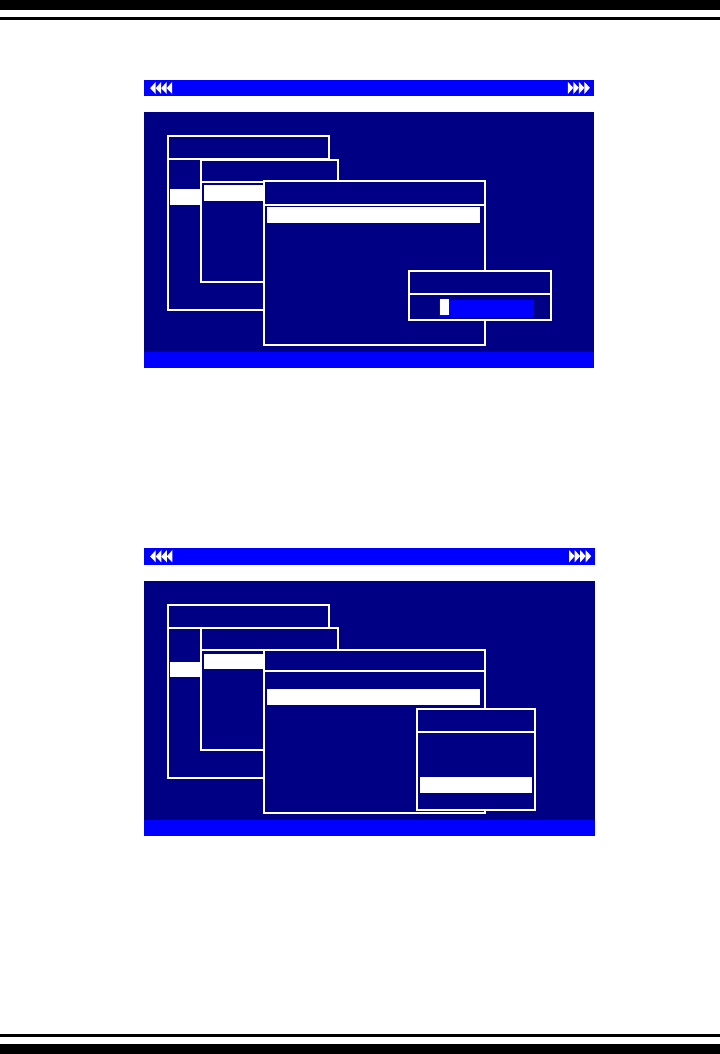
BIOS CONFIGURATION
75
The default volume name will always appear as Volume Set #.
You can rename the volume set providing it does not exceed
the 15 characters limit.
• Raid Level
• Volume Name
Set the RAID level for the volume set. Highlight Raid Level and
press <Enter>.
The available RAID levels for the current volume set are dis-
played. Select a RAID level and press the Enter key to conrm.
Controller I/O Port:F3000000h, F2: Select Controller, F10: Reboot System
ArrowKey Or AZ:Move Cursor, Enter: Select, ESC: Escape, L:Line Draw, X: Redraw
Areca Technology Corporation RAID Controller
Create Volume From Raid Set
Raid Set # 01
Raid Set # 00
Main Menu
Quick Volume/Raid Setup
Raid Set Function
Volume Set Function
Physical Drives
Raid System Function
Ethernet Conguration
View System Events
Clear Event Buffer
Hardware Monitor
System information
Volume Set Function
Volume Set Function
Delete Volume Set
Modify Volume Set
Check Volume Set
StopVolume Check
Display Volume Info.
Create Volume Set
Volume Creation
Raid Level : 5
Capacity : 160.1GB
Stripe Size : 64K
SCSI Channel : 0
SCSI ID : 0
SCSI LUN : 0
Cache Mode : Write Back
Tag Queuing : Enabled
Volume Name : Volume Set # 00
Edit The Volume Name
olume Set # 00
V
Controller I/O Port:F3000000h, F2: Select Controller, F10: Reboot System
ArrowKey Or AZ:Move Cursor, Enter: Select, ESC: Escape, L:Line Draw, X: Redraw
Areca Technology Corporation RAID Controller
Create Volume From Raid Set
Raid Set # 01
Raid Set # 00
Main Menu
Quick Volume/Raid Setup
Raid Set Function
Volume Set Function
Physical Drives
Raid System Function
Ethernet Conguration
View System Events
Clear Event Buffer
Hardware Monitor
System information
Volume Set Function
Volume Set Function
Delete Volume Set
Modify Volume Set
Check Volume Set
StopVolume Check
Display Volume Info.
Create Volume Set
Volume Creation
Volume Name : Volume Set # 00
Raid Level : 5
Capacity : 160.1GB
Stripe Size : 64K
SCSI Channel : 0
SCSI ID : 0
SCSI LUN : 0
Cache Mode : Write Back
Tag Queuing : Enabled
Raid Level : 5
Select Raid Level
0
0 + 1
3
6
5
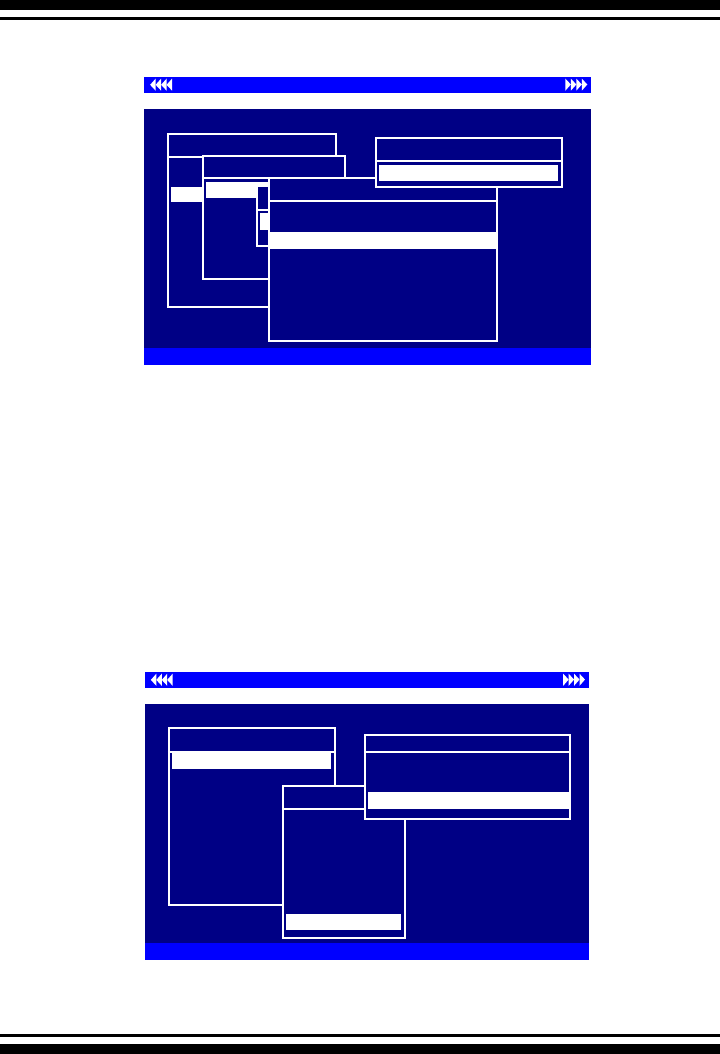
BIOS CONFIGURATION
76
The maximum available volume size is the default value for the
rst setting. Enter the appropriate volume size to t your ap-
plication. The capacity value can be increased or decreased by
the UP and DOWN arrow keys. The capacity of each volume
set must be less than or equal to the total capacity of the RAID
set on which it resides.
If volume capacity will exceed 2TB, controller will show the
Greater 2 TB volume Support sub-menu.
Controller I/O Port:F3000000h, F2: Select Controller, F10: Reboot System
ArrowKey Or AZ:Move Cursor, Enter: Select, ESC: Escape, L:Line Draw, X: Redraw
Areca Technology Corporation RAID Controller
Main Menu
Quick Volume/Raid Setup
Raid Set Function
Volume Set Function
Physical Drives
Raid System Function
Ethernet Conguration
View System Events
Clear Event Buffer
Hardware Monitor
System information
Volume Set Function
Volume Set Function
Delete Volume Set
Modify Volume Set
Check Volume Set
StopVolume Check
Display Volume Info.
Create Volume Set
Create Volume From Raid Set
Raid Set # 01
Raid Set # 00
Volume Creation
Volume Name : Volume Set # 00
Raid Level : 5
Capacity : 160.1GB
Stripe Size : 64K
SCSI Channel : 0
SCSI ID : 0
SCSI LUN : 0
Cache Mode : Write Back
Tag Queuing : Enabled
Capacity : 160.1GB
Available Capacity : 160.1GB
Selected Capacity : 160.1GB
• Capacity
Controller I/O Port:F3000000h, F2: Select Controller, F10: Reboot System
ArrowKey Or AZ:Move Cursor, Enter: Select, ESC: Escape, L:Line Draw, X: Redraw
Areca Technology Corporation RAID Controller
Main Menu
Raid Set Function
Volume Set Function
Physical Drives
Raid System Function
Ethernet Conguration
View System Events
Clear Event Buffer
Hardware Monitor
System information
Quick Volume/Raid Setup
Total 4 Drives
Raid 0
Raid 1 + 0
Raid 1 + 0 + Spare
Raid 3
Raid 5
Raid 3 + Spare
Raid 5 + Spare
Raid 6
Greater Two TB Volume Support
No
Use 64bit LBA
For Windows
For Windows

BIOS CONFIGURATION
77
• Strip Size
This parameter sets the size of the segment written to each
disk in a RAID 0, 1, 5, or 6 logical drive. You can set the stripe
size to 4 KB, 8 KB, 16 KB, 32 KB, 64 KB, or 128 KB.
Controller I/O Port:F3000000h, F2: Select Controller, F10: Reboot System
ArrowKey Or AZ:Move Cursor, Enter: Select, ESC: Escape, L:Line Draw, X: Redraw
Areca Technology Corporation RAID Controller
Main Menu
Quick Volume/Raid Setup
Raid Set Function
Volume Set Function
Physical Drives
Raid System Function
Ethernet Conguration
View System Events
Clear Event Buffer
Hardware Monitor
System information
Volume Set Function
Volume Set Function
Delete Volume Set
Modify Volume Set
Check Volume Set
StopVolume Check
Display Volume Info.
Create Volume Set
Create Volume From Raid Set
Raid Set # 01
Raid Set # 00
Volume Creation
Volume Name : Volume Set # 00
Raid Level : 5
Capacity : 160.1GB
Stripe Size : 64K
SCSI Channel : 0
SCSI ID : 0
SCSI LUN : 0
Cache Mode : Write Back
Tag Queuing : Enabled
Stripe Size : 64K
• No
It keeps the volume size with max. 2TB limitation.
• LBA 64
This option use 16 bytes CDB instead of 10 bytes. The maximum
volume capacity up to 512TB.
This option works on different OS which supports 16 bytes CDB.
such as :
Windows 2003 with SP1
Linux kernel 2.6.x or latter
• For Windows
It change the sector size from default 512 Bytes to 4k Byetes. the
maximum volume capacity up to 16TB.
This option works under Windows platform only. And it CAN NOT
be converted to Dynamic Disk, because 4k sector size is not a
standard format.
For more details please download PDF file from ftp://ftp.
areca.com.tw/RaidCards/Documents/Manual_Spec/
Over2TB_050721.zip
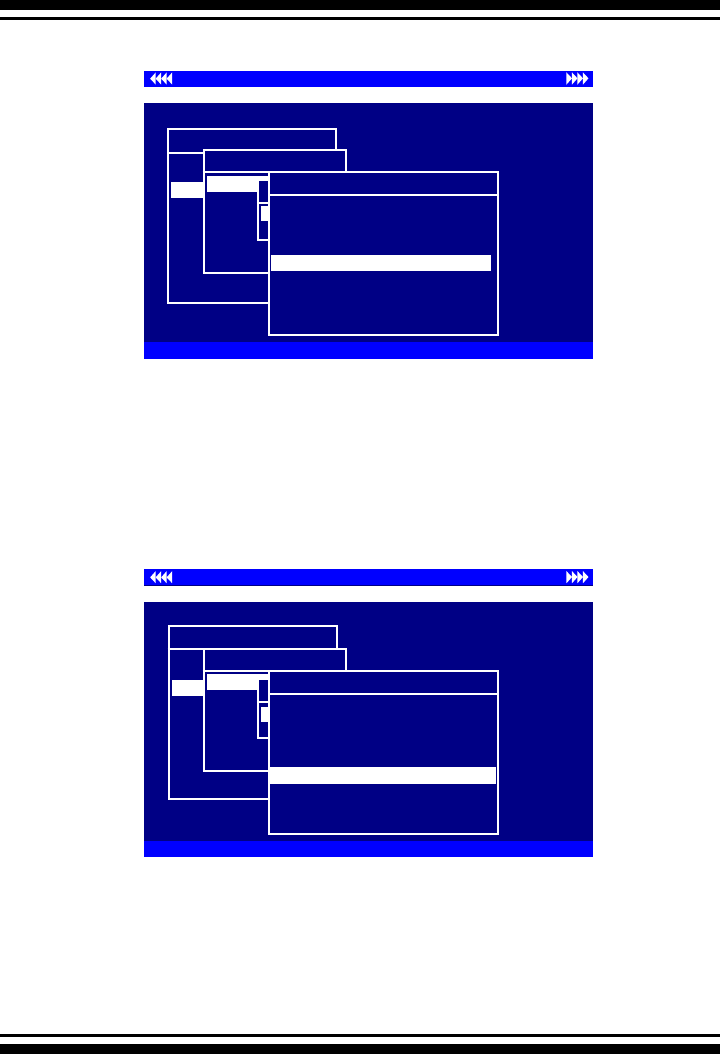
BIOS CONFIGURATION
78
Controller I/O Port:F3000000h, F2: Select Controller, F10: Reboot System
ArrowKey Or AZ:Move Cursor, Enter: Select, ESC: Escape, L:Line Draw, X: Redraw
Areca Technology Corporation RAID Controller
Main Menu
Quick Volume/Raid Setup
Raid Set Function
Volume Set Function
Physical Drives
Raid System Function
Ethernet Conguration
View System Events
Clear Event Buffer
Hardware Monitor
System information
Volume Set Function
Volume Set Function
Delete Volume Set
Modify Volume Set
Check Volume Set
StopVolume Check
Display Volume Info.
Create Volume Set
Create Volume From Raid Set
Raid Set # 01
Raid Set # 00
Volume Creation
Volume Name : Volume Set # 00
Raid Level : 5
Capacity : 160.1GB
Stripe Size : 64K
SCSI Channel : 0
SCSI ID : 0
SCSI LUN : 0
Cache Mode : Write Back
Tag Queuing : Enabled
SCSI Channel : 0
Controller I/O Port:F3000000h, F2: Select Controller, F10: Reboot System
ArrowKey Or AZ:Move Cursor, Enter: Select, ESC: Escape, L:Line Draw, X: Redraw
Areca Technology Corporation RAID Controller
Main Menu
Quick Volume/Raid Setup
Raid Set Function
Volume Set Function
Physical Drives
Raid System Function
Ethernet Conguration
View System Events
Clear Event Buffer
Hardware Monitor
System information
Volume Set Function
Volume Set Function
Delete Volume Set
Modify Volume Set
Check Volume Set
StopVolume Check
Display Volume Info.
Create Volume Set
Create Volume From Raid Set
Raid Set # 01
Raid Set # 00
Volume Creation
Volume Name : Volume Set # 00
Raid Level : 5
Capacity : 160.1GB
Stripe Size : 64K
SCSI Channel : 0
SCSI ID : 0
SCSI LUN : 0
Cache Mode : Write Back
Tag Queuing : Enabled
SCSI ID : 0
• SCSI Channel
The SATA RAID controller function simulates a SCSI RAID con-
troller. The host bus represents the SCSI channel. Choose the
SCSI Channel. A “Select SCSI Channel” dialog box appears; se-
lect the channel number and press the Enter key to conrm it.
• SCSI ID
Each device attached to the SATA card, as well as the card
itself, must be assigned a unique SCSI ID number. A SCSI
channel can connect up to 15 devices. It is necessar to assign a
SCSI ID to each device from a list of available SCSI IDs.
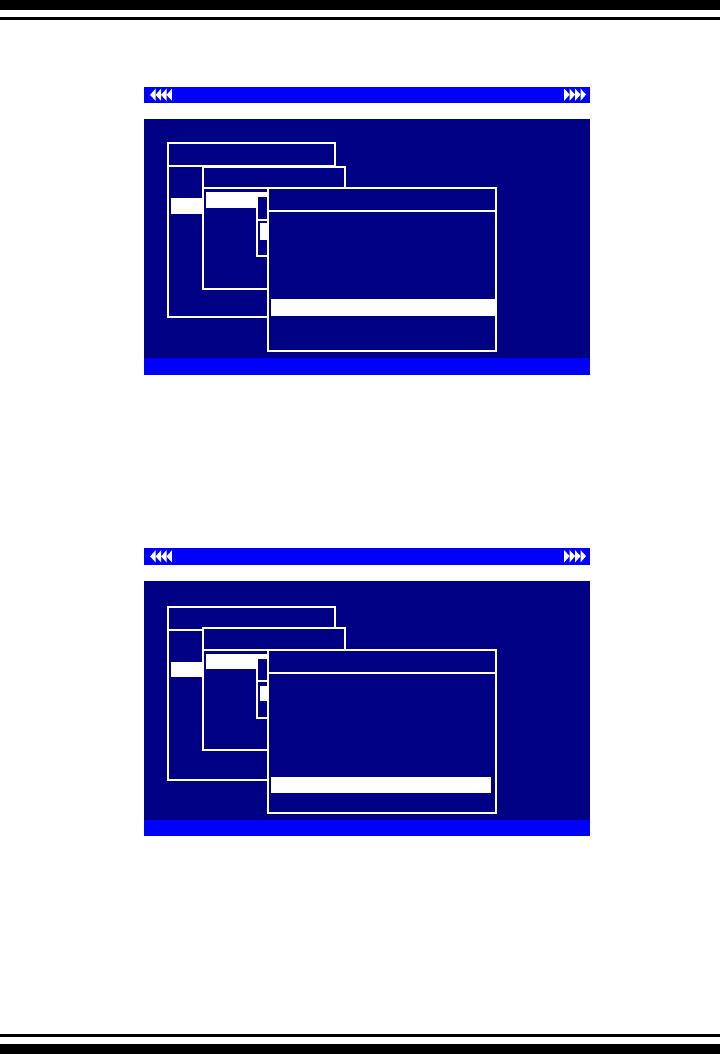
BIOS CONFIGURATION
79
Controller I/O Port:F3000000h, F2: Select Controller, F10: Reboot System
ArrowKey Or AZ:Move Cursor, Enter: Select, ESC: Escape, L:Line Draw, X: Redraw
Areca Technology Corporation RAID Controller
Main Menu
Quick Volume/Raid Setup
Raid Set Function
Volume Set Function
Physical Drives
Raid System Function
Ethernet Conguration
View System Events
Clear Event Buffer
Hardware Monitor
System information
Volume Set Function
Volume Set Function
Delete Volume Set
Modify Volume Set
Check Volume Set
StopVolume Check
Display Volume Info.
Create Volume Set
Create Volume From Raid Set
Raid Set # 01
Raid Set # 00
Volume Creation
Volume Name : Volume Set # 00
Raid Level : 5
Capacity : 160.1GB
Stripe Size : 64K
SCSI Channel : 0
SCSI ID : 0
SCSI LUN : 0
Cache Mode : Write Back
Tag Queuing : Enabled
SCSI LUN : 0
• SCSI LUN
Controller I/O Port:F3000000h, F2: Select Controller, F10: Reboot System
ArrowKey Or AZ:Move Cursor, Enter: Select, ESC: Escape, L:Line Draw, X: Redraw
Areca Technology Corporation RAID Controller
Main Menu
Quick Volume/Raid Setup
Raid Set Function
Volume Set Function
Physical Drives
Raid System Function
Ethernet Conguration
View System Events
Clear Event Buffer
Hardware Monitor
System information
Volume Set Function
Volume Set Function
Delete Volume Set
Modify Volume Set
Check Volume Set
StopVolume Check
Display Volume Info.
Create Volume Set
Create Volume From Raid Set
Raid Set # 01
Raid Set # 00
Volume Creation
Volume Name : Volume Set # 00
Raid Level : 5
Capacity : 160.1GB
Stripe Size : 64K
SCSI Channel : 0
SCSI ID : 0
SCSI LUN : 0
Cache Mode : Write Back
Tag Queuing : Enabled
Cache Mode : Write Back
Each SCSI ID can support up to 8 LUNs. Most SCSI controllers
treat each LUN as if it were a SCSI disk.
• Cache Mode
User can set the cache mode to either “Write-Through Cache”
or “Write-Back Cache”.
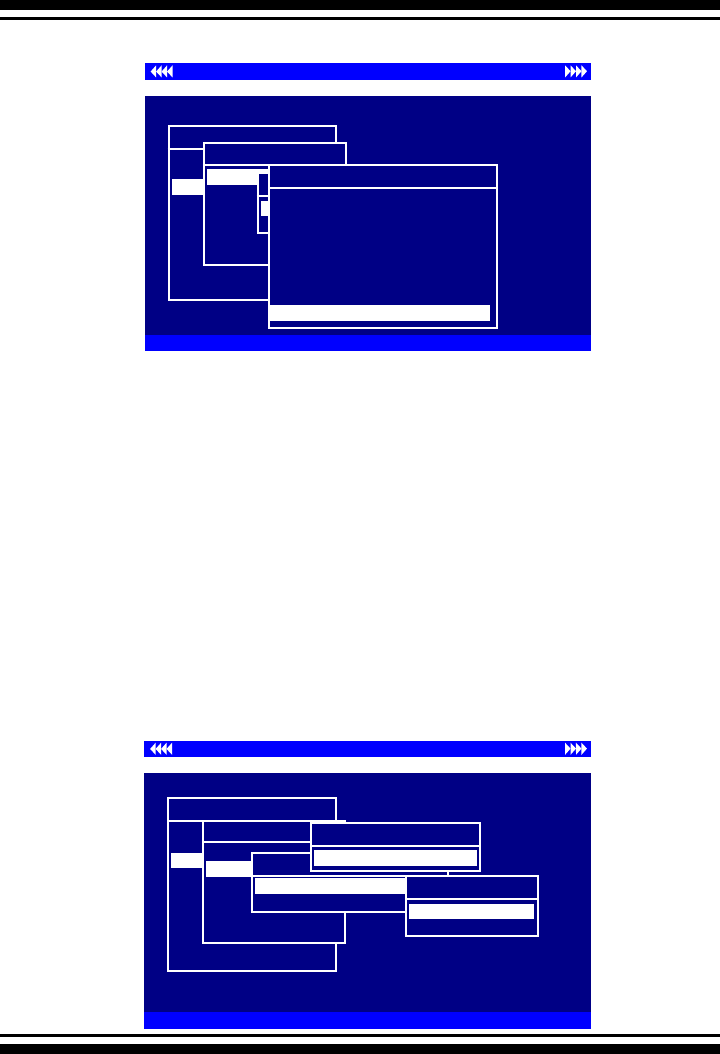
BIOS CONFIGURATION
80
Controller I/O Port:F3000000h, F2: Select Controller, F10: Reboot System
ArrowKey Or AZ:Move Cursor, Enter: Select, ESC: Escape, L:Line Draw, X: Redraw
Areca Technology Corporation RAID Controller
Main Menu
Quick Volume/Raid Setup
Raid Set Function
Volume Set Function
Physical Drives
Raid System Function
Ethernet Conguration
View System Events
Clear Event Buffer
Hardware Monitor
System information
Volume Set Function
Volume Set Function
Delete Volume Set
Modify Volume Set
Check Volume Set
StopVolume Check
Display Volume Info.
Create Volume Set
Create Volume From Raid Set
Raid Set # 01
Raid Set # 00
Volume Creation
Volume Name : Volume Set # 00
Raid Level : 5
Capacity : 160.1GB
Stripe Size : 64K
SCSI Channel : 0
SCSI ID : 0
SCSI LUN : 0
Cache Mode : Write Back
Tag Queuing : Enabled
Tag Queuing : Enabled
3.7.3.2 Delete Volume Set
To delete volume set from a RAID set, move the cursor bar to
the “Volume Set Functions” menu and select the “Delete Volume
Set” item, then press the Enter key. The “Volume Set Func-
tions” menu will show all Raid Set # items. Move the cursor
bar to a RAID set number, then press the Enter key to show all
volume sets within that Raid Set. Move the cursor to the volume
set number that is to be deleted and press Enter to delete it.
Controller I/O Port:F3000000h, F2: Select Controller, F10: Reboot System
ArrowKey Or AZ:Move Cursor, Enter: Select, ESC: Escape, L:Line Draw, X: Redraw
Areca Technology Corporation RAID Controller
Main Menu
Quick Volume/Raid Setup
Raid Set Function
Volume Set Function
Physical Drives
Raid System Function
Ethernet Conguration
View System Events
Clear Event Buffer
Hardware Monitor
System information
Volume Set Function
Volume Set Function
Create Volume Set
Modify Volume Set
Check Volume Set
StopVolume Check
Display Volume Info.
Delete Volume Set
Delete Volume From Raid Set
Raid Set # 01
Raid Set # 00
Select Volume To Delete
Volume Set # 00
Delete Volume Set
No
Yes
• Tag Queuing
This option, when enabled, can enhance overall system perfor-
mance under multi-tasking operating systems. The Command
Tag (Drive Channel) function controls the SCSI command tag
queuing support for each drive channel. This function should
normally remain enabled. Disable this function only when using
older drives that do not support command tag queuing.
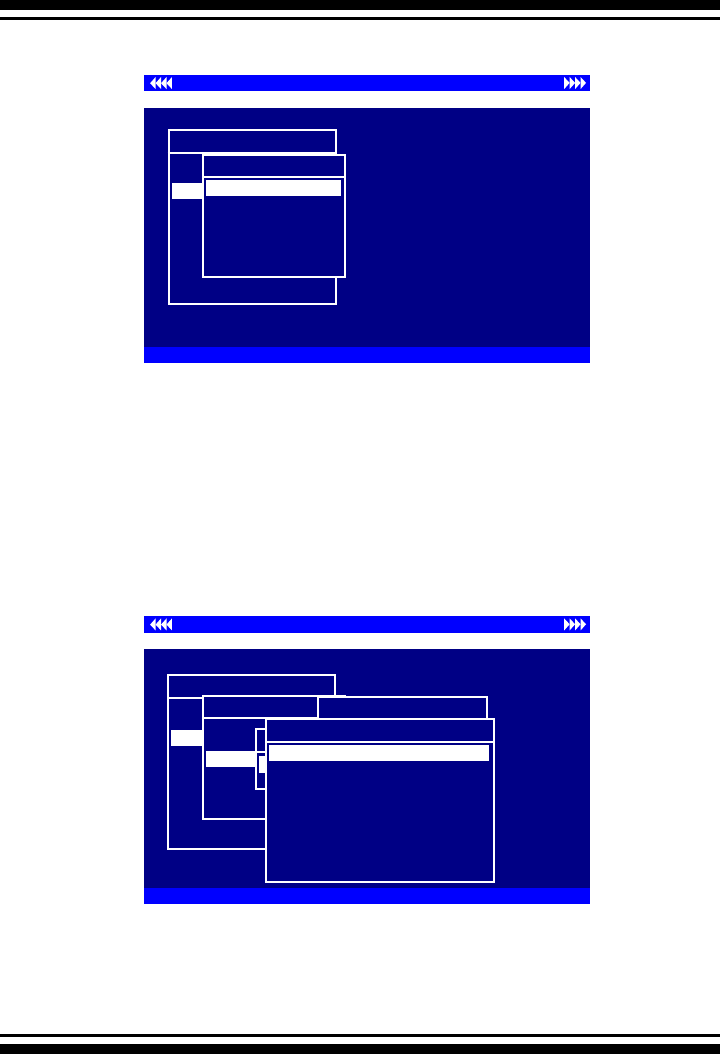
BIOS CONFIGURATION
81
3.7.3.3 Modify Volume Set
Controller I/O Port:F3000000h, F2: Select Controller, F10: Reboot System
ArrowKey Or AZ:Move Cursor, Enter: Select, ESC: Escape, L:Line Draw, X: Redraw
Areca Technology Corporation RAID Controller
Main Menu
Quick Volume/Raid Setup
Raid Set Function
Volume Set Function
Physical Drives
Raid System Function
Ethernet Conguration
View System Events
Clear Event Buffer
Hardware Monitor
System information
Volume Set Function
Volume Set Function
Delete Volume Set
Modify Volume Set
Check Volume Set
StopVolume Check
Display Volume Info.
Create Volume Set
Use this option to modify volume set conguration. To modify
volume set values from RAID set system function, move the
cursor bar to the “Volume Set Functions” menu and select the
“Modify Volume Set” item, then press the Enter key. The “Vol-
ume Set Functions” menu will show all RAID set items. Move the
cursor bar to a RAID set number item, then press the Enter key
to show all volume set items. Select the volume set from the
list to be changed, press the Enter key to modify it.
As shown, volume information can be modied at this screen.
Choose this option to display the properties of the selected vol-
ume set; all values can be modied except the capacity.
Controller I/O Port:F3000000h, F2: Select Controller, F10: Reboot System
ArrowKey Or AZ:Move Cursor, Enter: Select, ESC: Escape, L:Line Draw, X: Redraw
Areca Technology Corporation RAID Controller
Main Menu
Quick Volume/Raid Setup
Raid Set Function
Volume Set Function
Physical Drives
Raid System Function
Ethernet Conguration
View System Events
Clear Event Buffer
Hardware Monitor
System information
Volume Set Function
Volume Set Function
Create Volume Set
Delete Volume Set
t
Check Volume Set
StopVolume Check
Display Volume Info.
Modify Volume Set
Modify Volume From Raid Set
Raid Set # 01
Raid Set # 00
Select Volume To Modify
Volume Set # 00
Volume Modication
Raid Level : 6
Capacity : 160.1GB
Stripe Size : 64K
SCSI Channel : 0
SCSI ID : 0
SCSI LUN : 0
Cache Mode : Write Back
Tag Queuing : Enabled
Volume Name : Volume Set # 00
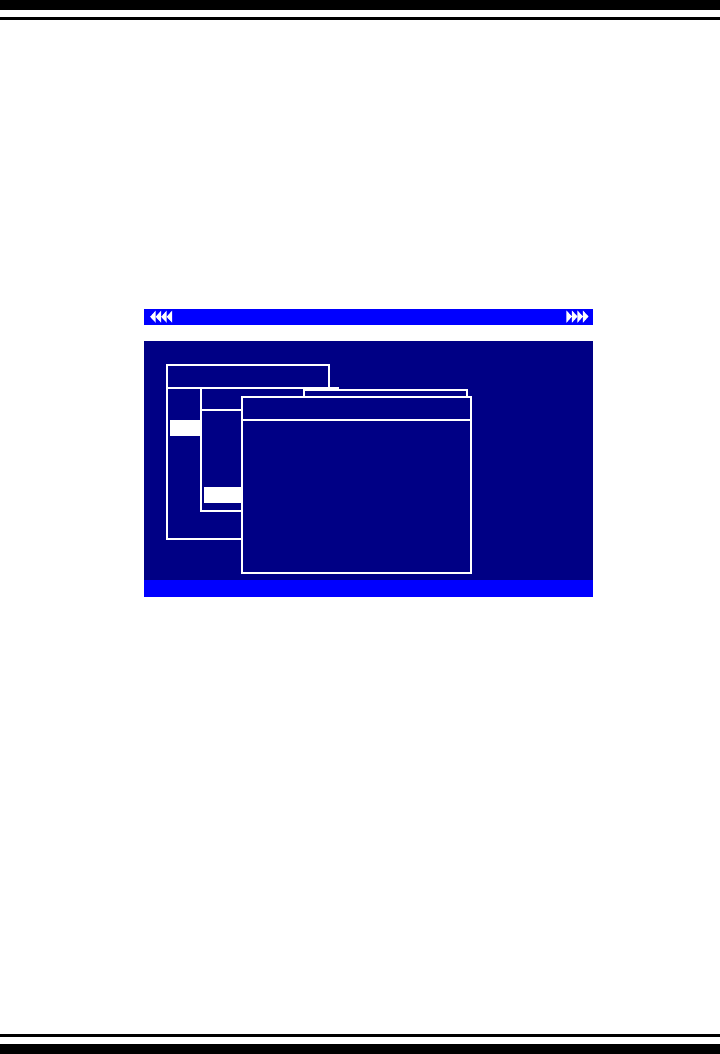
BIOS CONFIGURATION
82
Controller I/O Port:F3000000h, F2: Select Controller, F10: Reboot System
ArrowKey Or AZ:Move Cursor, Enter: Select, ESC: Escape, L:Line Draw, X: Redraw
Areca Technology Corporation RAID Controller
Main Menu
Quick Volume/Raid Setup
Raid Set Function
Volume Set Function
Physical Drives
Raid System Function
Ethernet Conguration
View System Events
Clear Event Buffer
Hardware Monitor
System information
Volume Set Function
Volume Set Function
Create Volume Set
Delete Volume Set
Modify Volume Set
Check Volume Set
StopVolume Check
Display Volume Info.
Display Volume Info in Raid
Raid Set # 01
Raid Set # 00
Select Volume To Display
Volume Set # 00
The Volume Set Information
Volume Set Name : Volume Set # 00
Raid Set Name : Raid Set # 00
Volume Capacity : 160.1GB
Volume State : Migration
SCSI CH/Id/Lun : 0/0/0
RAID Level : 6
Stripe Size : 64K
Member Disk : 4
Cache Attribute : Write-Back
Tag Queuing : Enabled
• Volume Growth
Use this option to expand a raid set when a disk is added to
the system. The additional capacity can be used to enlarge the
volume set size or to create another volume set. The “Modify
Volume Set Function” can support the “volume set expansion”
function. To expand the volume set capacity from the “Raid Set
System Function”, move the cursor bar to the “Volume Set Vol-
ume Capacity” item and entry the capacity size. Select “Conrm
The Operation” and select on the “Submit” button to complete
the action. The volume set starts to expand.
To Expand an existing volume noticed:
• Only the last volume can expand capacity.
• When expand volume capacity, you can’t modify stripe size or
modify raid revel simultaneously.
• You can expand volume capacity, but can’t reduce volume
capacity size.
For Greater 2TB expansion:
• If your system installed in the volume, don't expanded the
volume capacity greater 2TB, currently OS can’t support boot
up from a greater 2TB capacity device.
• Expanded over 2TB used LBA64 mode. Please make sure your
OS supports LBA 64 before expand it.
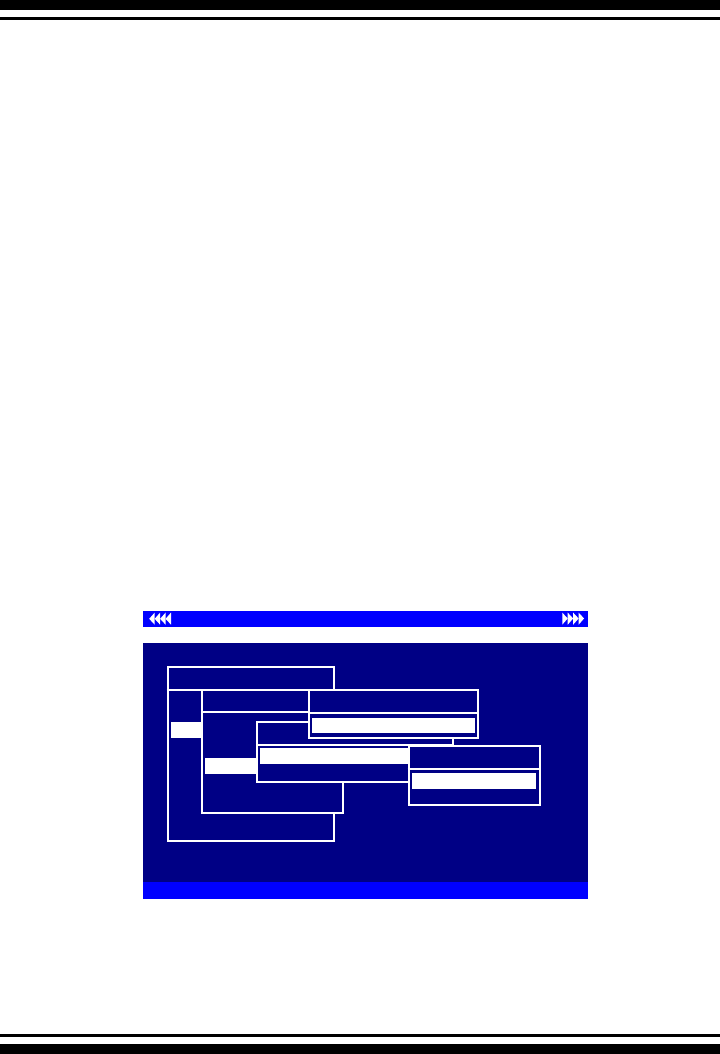
BIOS CONFIGURATION
83
• Volume Set Migration
Migrating occurs when a volume set is migrating from one RAID
level to another, when a volume set strip size changes, or when
a disk is added to a RAID set. Migration status is displayed in
the volume status area of the “Volume Set Information” screen
when moving from one RAID level to another, when a volume
set strip size changes, or when a disk is added to a RAID set.
3.7.3.4 Check Volume Set
Use this option to verify the correctness of the redundant data in
a volume set. For example, in a system with a dedicated parity
disk drive, a volume set check entails computing the parity of
the data disk drives and comparing those results to the contents
of the dedicated parity disk drive. To check volume set from
“Raid Set System Function”, move the cursor bar to the “Volume
Set Functions” menu and select the “Check Volume Set” item,
then press the Enter key. The “Volume Set Functions” menu
will show all Raid Set number items. Move the cursor bar to an
Raid Set number item and then press the Enter key to show all
Volume Set items. Select the volume set to be checked from the
list and press Enter to select it. After completing the selection,
the conrmation screen appears, presses Yes to start the check.
Controller I/O Port:F3000000h, F2: Select Controller, F10: Reboot System
ArrowKey Or AZ:Move Cursor, Enter: Select, ESC: Escape, L:Line Draw, X: Redraw
Areca Technology Corporation RAID Controller
Main Menu
Quick Volume/Raid Setup
Raid Set Function
Volume Set Function
Physical Drives
Raid System Function
Ethernet Conguration
View System Events
Clear Event Buffer
Hardware Monitor
System information
Volume Set Function
Volume Set Function
Create Volume Set
Delete Volume Set
Modify Volume Set
StopVolume Check
Display Volume Info.
Check Volume Set
Check Volume From Raid Set
Raid Set # 01
Raid Set # 00
Select Volume To Check
Volume Set # 00
Check The Volume ?
No
Yes
3.7.3.5 Stop Volume Set Check
Use this option to stop all of the “Check Volume Set” operations.
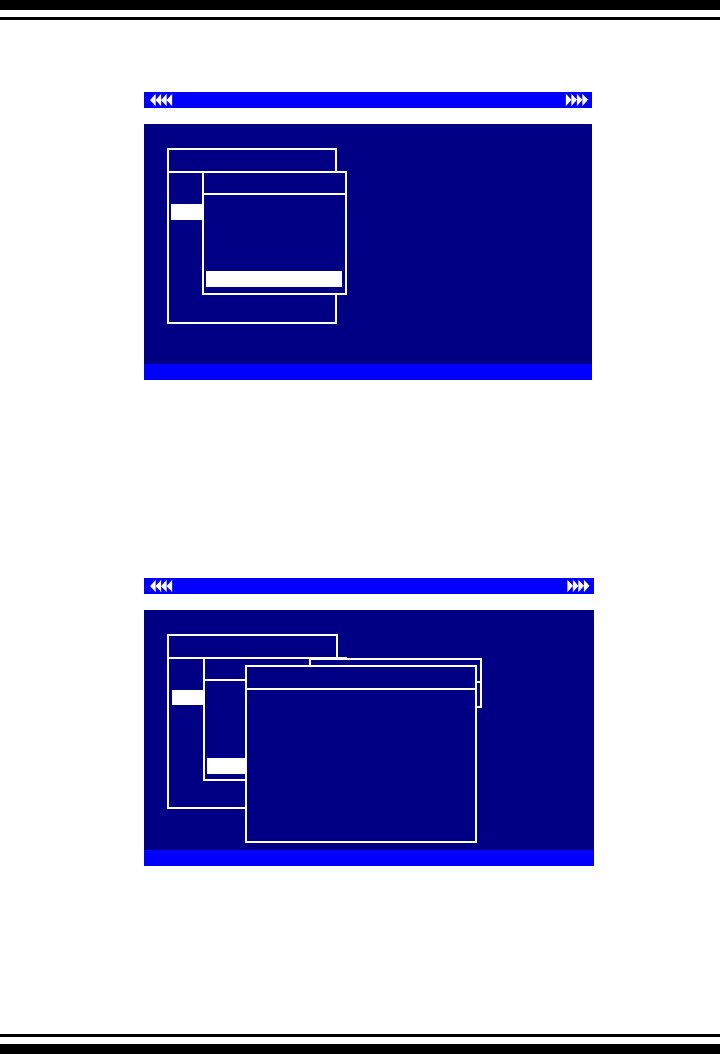
BIOS CONFIGURATION
84
3.7.3.6 Display Volume Set Info.
To display volume set information, move the cursor bar to the
desired volume set number and then press the Enter key. The
“Volume Set Information” will be shown. You can only view the
information of this volume set in this screen, not modify it.
Controller I/O Port:F3000000h, F2: Select Controller, F10: Reboot System
ArrowKey Or AZ:Move Cursor, Enter: Select, ESC: Escape, L:Line Draw, X: Redraw
Areca Technology Corporation RAID Controller
Main Menu
Quick Volume/Raid Setup
Raid Set Function
Volume Set Function
Physical Drives
Raid System Function
Ethernet Conguration
View System Events
Clear Event Buffer
Hardware Monitor
System information
Volume Set Function
Volume Set Function
Create Volume Set
Delete Volume Set
Modify Volume Set
Check Volume Set
StopVolume Check
Display Volume Info.
Controller I/O Port:F3000000h, F2: Select Controller, F10: Reboot System
ArrowKey Or AZ:Move Cursor, Enter: Select, ESC: Escape, L:Line Draw, X: Redraw
Areca Technology Corporation RAID Controller
Main Menu
Quick Volume/Raid Setup
Raid Set Function
Volume Set Function
Physical Drives
Raid System Function
Ethernet Conguration
View System Events
Clear Event Buffer
Hardware Monitor
System information
Volume Set Function
Volume Set Function
Create Volume Set
Delete Volume Set
Modify Volume Set
Check Volume Set
StopVolume Check
Display Volume Info.
Display Volume Info in Raid
Raid Set # 01
Raid Set # 00
Select Volume To Display
Volume Set # 00
The Volume Set Information
Volume Set Name : Volume Set # 00
Raid Set Name : Raid Set # 00
Volume Capacity : 160.1GB
Volume State : Normal
SCSI CH/Id/Lun : 0/0/0
RAID Level : 6
Stripe Size : 64K
Member Disk : 4
Cache Attribute : Write-Back
Tag Queuing : Enabled
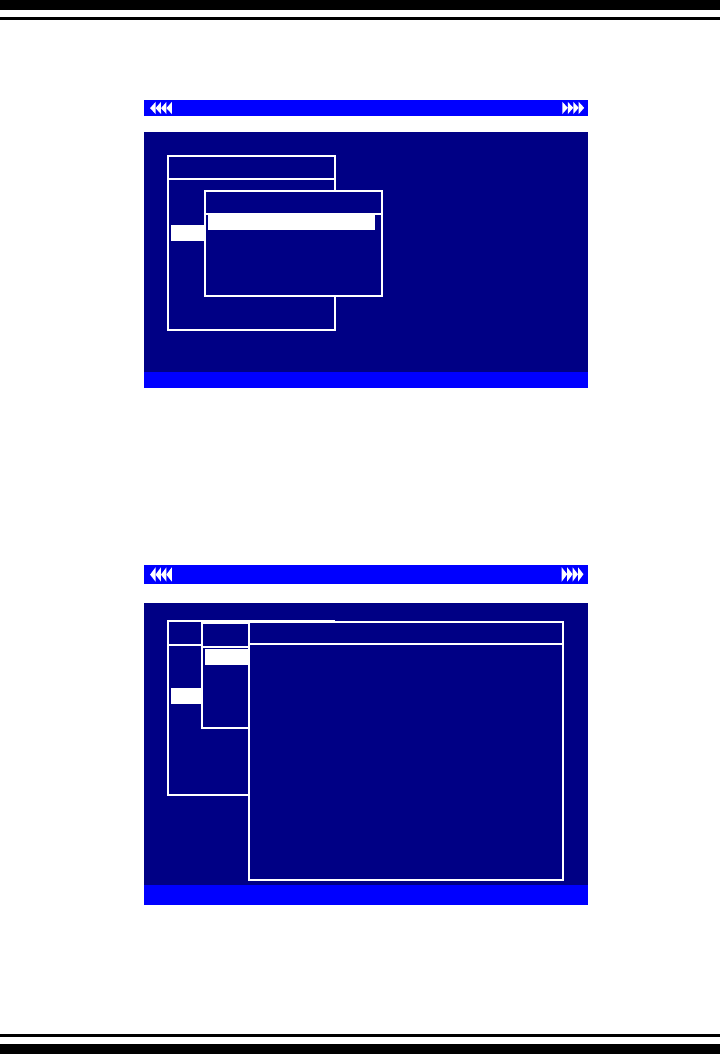
BIOS CONFIGURATION
85
3.7.4 Physical Drives
Choose this option from the Main Menu to select a physical disk
and perform the operations listed above.
3.7.4.1 View Drive Information
Controller I/O Port:F3000000h, F2: Select Controller, F10: Reboot System
ArrowKey Or AZ:Move Cursor, Enter: Select, ESC: Escape, L:Line Draw, X: Redraw
Areca Technology Corporation RAID Controller
Main Menu
Quick Volume/Raid Setup
Raid Set Function
Volume Set Function
Physical Drives
Raid System Function
Ethernet Conguration
View System Events
Clear Event Buffer
Hardware Monitor
System information
Physical Drive Information
Physical Drive Information
Create Pass-Through Disk
Modify Pass-Through Disk
Delete Pass-Through Disk
Identify Selected Drive
View Drive Information
Controller I/O Port:F3000000h, F2: Select Controller, F10: Reboot System
ArrowKey Or AZ:Move Cursor, Enter: Select, ESC: Escape, L:Line Draw, X: Redraw
Areca Technology Corporation RAID Controller
Main Menu
Quick Volume/Raid Setup
Raid Set Function
Volume Set Function
Physical Drives
Raid System Function
Ethernet Conguration
View System Events
Clear Event Buffer
Hardware Monitor
System information
Physical Drive Information
Physical Drive Information
Create Pass-Through Disk
Modify Pass-Through Disk
Delete Pass-Through Disk
Identify Selected Drive
View Drive Information
Select IDE Drives For Raid Set
Ch04| 80.0GB|RaidSet Member|ST380013AS
Ch05| 80.0GB|RaidSet Member|ST380013AS
Ch08| 80.0GB|RaidSet Member|ST380013AS
Ch01| 80.0GB|RaidSet Member|ST380013AS
Ch01
Model Name : ST380013AS
Serial Number : 5JV944ZF
Firmware Rev. : 3.18
Disk Capacity : 80.0 GB
PIO Mode : Mode 4
Current UDMA : SATA150(6)
Supported UDMA : SATA150(6)
Device State : RaidSet Member
Timeout Count : 0
Media Errors : 0
SMART Read Error Rate : 200 (51)
SMART Spinup Time : 173 (21)
SMART Reallocation Count : 200 (140)
SMART Seek Error Rate : 200 (51)
SMART Spinup Retries : 100 (51)
SMART Calibration Retries : 100 (51)

BIOS CONFIGURATION
86
When you choose this option, the physical disks connected to
the SATA RAID controller are listed. Move the cursor to the de-
sired drive and press Enter to view drive information.
3.7.4.2 Create Pass-Through Disk
A Pass-Through Disk is not controlled by the SATA RAID con-
troller rmware and thus cannot be a part of a volume set. The
disk is available directly to the operating system as an individual
disk. It is typically used on a system where the operating sys-
tem is on a disk not controlled by the SATA RAID controller rm-
ware. The SCSI Channel, SCSI ID, SCSI LUN, Cache Mode, and
Tag Queuing must be specied to create a pass-through disk.
3.7.4.3 Modify a Pass-Through Disk
Use this option to modify Pass-Through Disk Attributes. To select
and modify a Pass-Through Disk from the pool of Pass-Through
Disks, move the cursor bar to the “Physical Drive Function”
menu and select the “Modify Pass-Through Drive” option and
then press the Enter key. The “Physical Drive Function” menu
will show all Raid Pass-Through Drive number options. Move the
cursor bar to the desired item and then press the Enter key
to show all Pass-Through Disk Attributes. Select the parameter
from the list to be changed and them press the Enter key to
modify it.
Controller I/O Port:F3000000h, F2: Select Controller, F10: Reboot System
ArrowKey Or AZ:Move Cursor, Enter: Select, ESC: Escape, L:Line Draw, X: Redraw
Areca Technology Corporation RAID Controller
Main Menu
Quick Volume/Raid Setup
Raid Set Function
Volume Set Function
Physical Drives
Raid System Function
Ethernet Conguration
View System Events
Clear Event Buffer
Hardware Monitor
System information
Physical Drive Information
Physical Drive Information
View Drive Information
Modify Pass-Through Disk
Delete Pass-Through Disk
Identify Selected Drive
Create Pass-Throught
Select The Drive
Ch04| 80.0GB| Free |ST380013AS
Ch01| 80.0GB| Free |ST380013AS
Pass-Through Disk Attribute
SCSI ID : 0
SCSI LUN : 0
Cache Mode : Write Back
Tag Queuing : Enabled
SCSI Channel : 0
Create Pass-Through
No
Yes
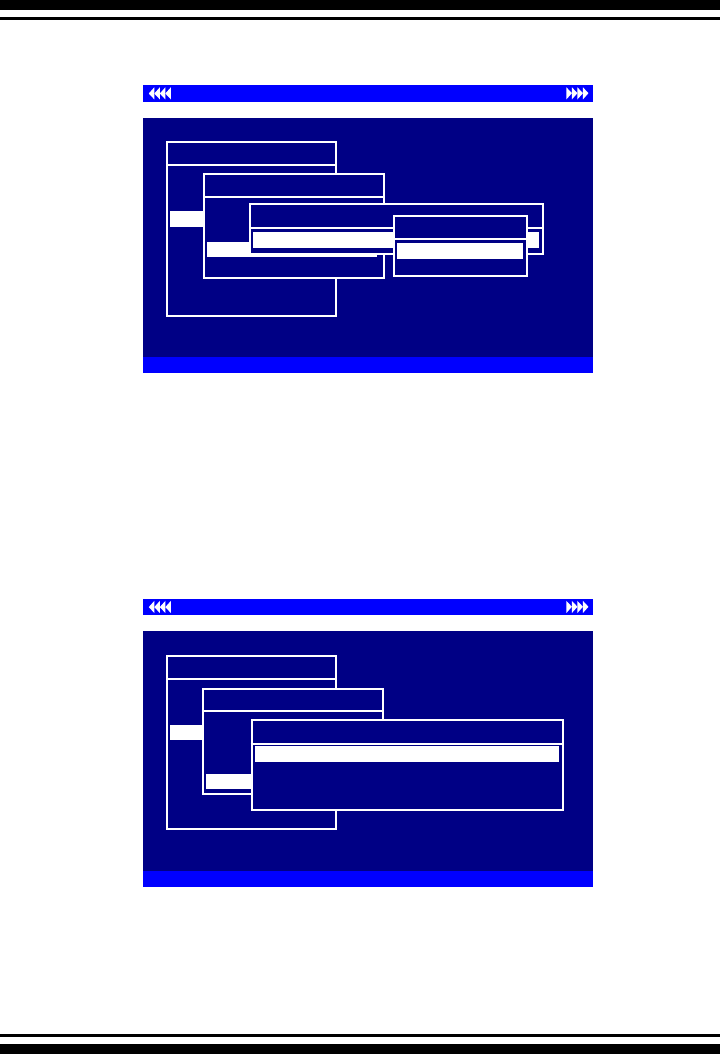
BIOS CONFIGURATION
87
3.7.4.4 Delete Pass-Through Disk
To delete a Pass-through drive from the Pass-through drive pool,
move the cursor bar to the “Physical Drive Function” menu and
select the “Delete Pass-Through Drive” item, then press the
Enter key. The “Delete Pass-Through conrmation” screen will
appear; select Yes to delete it.
3.7.4.5 Identify Selected Drive
To prevent removing the wrong drive, the selected disk HDD
LED Indicator will light for physically locating the selected disk
when the “Identify Selected Device” is selected.
Controller I/O Port:F3000000h, F2: Select Controller, F10: Reboot System
ArrowKey Or AZ:Move Cursor, Enter: Select, ESC: Escape, L:Line Draw, X: Redraw
Areca Technology Corporation RAID Controller
Main Menu
Quick Volume/Raid Setup
Raid Set Function
Volume Set Function
Physical Drives
Raid System Function
Ethernet Conguration
View System Events
Clear Event Buffer
Hardware Monitor
System information
Physical Drive Information
Physical Drive Information
View Drive Information
Create Pass-Through Disk
Modify Pass-Through Disk
Identify Selected Drive
Delete Pass-Through
Select The Drive
Ch01| 80.0GB| Pass Through |ST380013AS
Delete Pass-Through
No
Yes
Controller I/O Port:F3000000h, F2: Select Controller, F10: Reboot System
ArrowKey Or AZ:Move Cursor, Enter: Select, ESC: Escape, L:Line Draw, X: Redraw
Areca Technology Corporation RAID Controller
Main Menu
Quick Volume/Raid Setup
Raid Set Function
Volume Set Function
Physical Drives
Raid System Function
Ethernet Conguration
View System Events
Clear Event Buffer
Hardware Monitor
System information
Physical Drive Information
Physical Drive Information
View Drive Information
Create Pass-Through Disk
Modify Pass-Through Disk
Delete Pass-Through Disk
Identify Selected Drive
Select The Drive
Ch04| 80.0GB|RaidSet Member|ST380013AS
Ch05| 80.0GB|RaidSet Member|ST380013AS
Ch08| 80.0GB| Pass Throught |ST380013AS
Ch01| 80.0GB|RaidSet Member|ST380013AS
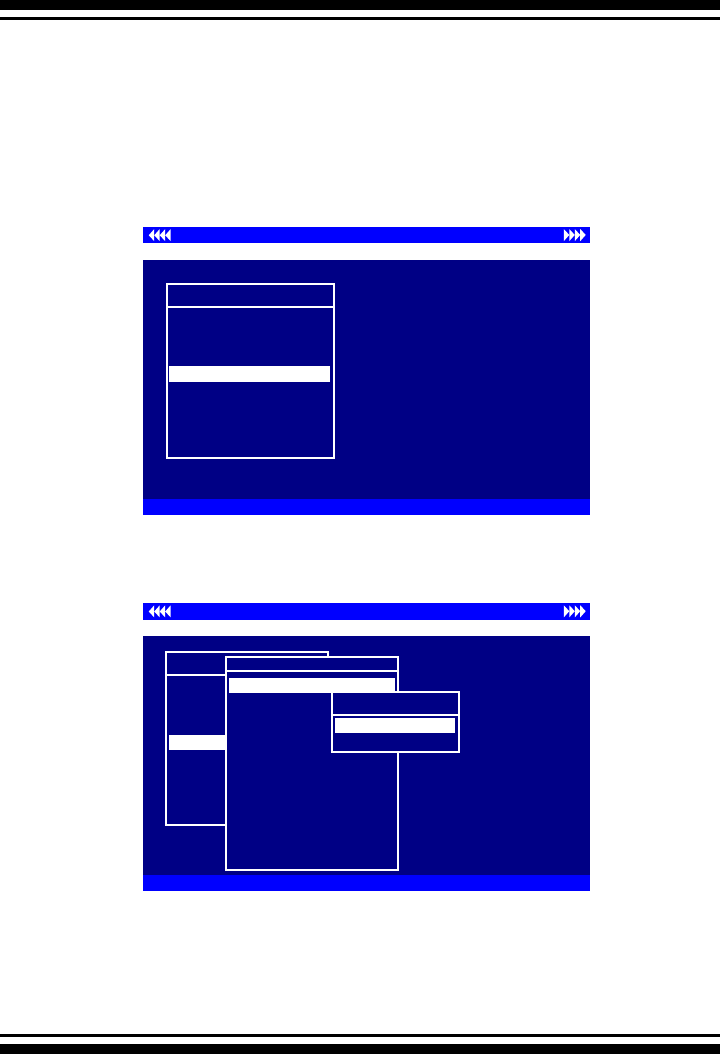
BIOS CONFIGURATION
88
3.7.5 Raid System Function
To set the raid system function, move the cursor bar to the main
menu and select the “Raid System Function” item and then press
Enter key. The “Raid System Function” menu will show multiple
items. Move the cursor bar to an item, then press Enter key to
select the desired function.
3.7.5.1 Mute The Alert Beeper
The “Mute The Alert Beeper” function item is used to control the
SATA RAID controller Beeper. Select yes and press the Enter
key in the dialog box to turn the beeper off temporarily. The
beeper will still activate on the next event.
Controller I/O Port:F3000000h, F2: Select Controller, F10: Reboot System
ArrowKey Or AZ:Move Cursor, Enter: Select, ESC: Escape, L:Line Draw, X: Redraw
Areca Technology Corporation RAID Controller
Main Menu
Quick Volume/Raid Setup
Raid Set Function
Volume Set Function
Physical Drives
Raid System Function
Ethernet Conguration
View System Events
Clear Event Buffer
Hardware Monitor
System information
Raid System Function
Raid System Function
Alert Beeper Setting
Change Password
JBOD/RAID Function
Background Task Priority
Maximum SATA Mode
HDD Read Ahead Cache
Stagger Power on
Empty HDD slot LED
HDD SMART Status Polling
Controller Fan Detection
Disk Write Cache Mode
Capacity Truncation
Mute The Alert Beeper
Mute Alert Beeper
No
Yes
Controller I/O Port:F3000000h, F2: Select Controller, F10: Reboot System
ArrowKey Or AZ:Move Cursor, Enter: Select, ESC: Escape, L:Line Draw, X: Redraw
Areca Technology Corporation RAID Controller
Main Menu
Quick Volume/Raid Setup
Raid Set Function
Volume Set Function
Physical Drives
Raid System Function
Ethernet Conguration
View System Events
Clear Event Buffer
Hardware Monitor
System information
Raid System Function
BIOS CONFIGURATION
89
3.7.5.2 Alert Beeper Setting
The “Alert Beeper Setting” item is used to Disabled or Enable the
SATA RAID controller alarm tone generator. Select “Disabled”
and press the Enter key in the dialog box to turn the beeper off.
3.7.5.3 Change Password
The manufacture default password is set to 0000. The
password option allows user to set or clear the password pro-
tection feature. Once the password has been set, the user can
monitor and congure the controller only by providing the cor-
Controller I/O Port:F3000000h, F2: Select Controller, F10: Reboot System
ArrowKey Or AZ:Move Cursor, Enter: Select, ESC: Escape, L:Line Draw, X: Redraw
Areca Technology Corporation RAID Controller
Main Menu
Quick Volume/Raid Setup
Raid Set Function
Volume Set Function
Physical Drives
Raid System Function
Ethernet Conguration
View System Events
Clear Event Buffer
Hardware Monitor
System information
Raid System Function
Raid System Function
Mute The Alert Beeper
Alert Beeper Setting
Change Password
JBOD/RAID Function
Background Task Priority
Maximum SATA Mode
HDD Read Ahead Cache
Stagger Power on
Empty HDD slot LED
HDD SMART Status Polling
Controller Fan Detection
Disk Write Cache Mode
Capacity Truncation
Alert Beeper Setting
Alert Beeper Setting
Enabled
Disabled
Controller I/O Port:F3000000h, F2: Select Controller, F10: Reboot System
ArrowKey Or AZ:Move Cursor, Enter: Select, ESC: Escape, L:Line Draw, X: Redraw
Areca Technology Corporation RAID Controller
Main Menu
Quick Volume/Raid Setup
Raid Set Function
Volume Set Function
Physical Drives
Raid System Function
Ethernet Conguration
View System Events
Clear Event Buffer
Hardware Monitor
System information
Raid System Function
Raid System Function
Mute The Alert Beeper
Alert Beeper Setting
Change Password
JBOD/RAID Function
Background Task Priority
Maximum SATA Mode
HDD Read Ahead Cache
Stagger Power on
Empty HDD slot LED
HDD SMART Status Polling
Controller Fan Detection
Disk Write Cache Mode
Capacity Truncation
Change Password
Enter New Password

BIOS CONFIGURATION
90
rect password. This feature is used to protect the internal RAID
system from unauthorized access. The controller will check the
password only when entering the Main menu from the initial
screen. The system will automatically go back to the initial
screen if it does not receive any command in 20 seconds.
To set or change the password, move the cursor to “Raid System
Function” screen, press the “Change Password” item. The “Enter
New Password” screen will appear.
To disable the password, only press Enter in both the “Enter
New Password” and “Re-Enter New Password” column. The ex-
isting password will be cleared. No password checking will occur
when entering the main menu.
3.7.5.4 JBOD/RAID Function
JBOD is an acronym for “just a Bunch Of Disks”. It represents
a volume set that is created by the concatenation of partitions
on the disk. The operating system can see all disks when the
JBOD option is selected. It is necessary to delete any RAID
set(s) on any disk(s) if switching from a RAID to a JBOD con-
guration.
Controller I/O Port:F3000000h, F2: Select Controller, F10: Reboot System
ArrowKey Or AZ:Move Cursor, Enter: Select, ESC: Escape, L:Line Draw, X: Redraw
Areca Technology Corporation RAID Controller
Main Menu
Quick Volume/Raid Setup
Raid Set Function
Volume Set Function
Physical Drives
Raid System Function
Ethernet Conguration
View System Events
Clear Event Buffer
Hardware Monitor
System information
Raid System Function
Raid System Function
Mute The Alert Beeper
Alert Beeper Setting
Change Password
JBOD/RAID Function
Background Task Priority
Maximum SATA Mode
HDD Read Ahead Cache
STagger Power on
Empty HDD slot LED
HDD SMART Status Polling
Controller Fan Detection
Disk Write Cache Mode
Capacity Truncation
JBOD/RAID Function
JBOD/RAID Function
JBOD
RAID
BIOS CONFIGURATION
91
3.7.5.5 Background Task Priority
The “Background Task Priority” is a relative indication of how
much time the controller devotes to a rebuild operation. The
SATA RAID controller allows the user to choose the rebuild prior-
ity (ultralow, low, normal, high) to balance volume set access
and rebuild tasks appropriately.
3.7.5.6 Maximum SATA Mode
The SATA RAID controller can support up to SATA ll, which runs
up to 300MB/s, twice as fast as SATA150. NCQ is a command
protocol in Serial ATA that can only be implemented on na-
tive Serial ATA hard drives. It allows multiple commands to be
outstanding within a drive at the same time. Drives that support
NCQ have an internal queue where outstanding commands can
Controller I/O Port:F3000000h, F2: Select Controller, F10: Reboot System
ArrowKey Or AZ:Move Cursor, Enter: Select, ESC: Escape, L:Line Draw, X: Redraw
Areca Technology Corporation RAID Controller
Main Menu
Quick Volume/Raid Setup
Raid Set Function
Volume Set Function
Physical Drives
Raid System Function
Ethernet Conguration
View System Events
Clear Event Buffer
Hardware Monitor
System information
Raid System Function
Raid System Function
Mute The Alert Beeper
Alert Beeper Setting
Change Password
JBOD/RAID Function
Background Task Priority
Maximum SATA Mode
HDD Read Ahead Cache
Stagger Power on
Empty HDD slot LED
HDD SMART Status Polling
Controller Fan Detection
Disk Write Cache Mode
Capacity Truncation
Background Task Priority
Raid Rebuild Priority
UltraLow(5%)
Medium(50%)
High(80%)
Low(20%)
Controller I/O Port:F3000000h, F2: Select Controller, F10: Reboot System
ArrowKey Or AZ:Move Cursor, Enter: Select, ESC: Escape, L:Line Draw, X: Redraw
Areca Technology Corporation RAID Controller
Main Menu
Quick Volume/Raid Setup
Raid Set Function
Volume Set Function
Physical Drives
Raid System Function
Ethernet Conguration
View System Events
Clear Event Buffer
Hardware Monitor
System information
Raid System Function
Raid System Function
Mute The Alert Beeper
Alert Beeper Setting
Change Password
JBOD/RAID Function
Background Task Priority
Maximum SATA Mode
HDD Read Ahead Cache
Stagger Power on
Empty HDD slot LED
HDD SMART Status Polling
Controller Fan Detection
Disk Write Cache Mode
Capacity Truncation
Maximum SATA Mode
Maximum SATA Mode
SATA150
SATA150+NCQ
SATA300
SATA300+NCQ
SATA150+NCQ
BIOS CONFIGURATION
92
be dynamically rescheduled or re-ordered, along with the neces-
sary tracking mechanisms for outstanding and completed por-
tions of the workload. The SATA RAID controller allows the user
to choose the SATA Mode: SATA150, SATA150+NCQ, SATA300,
SATA300+NCQ.
3.7.5.7 HDD Read Ahead Cache
Allow Read Ahead (Default: Enabled)—When Enabled, the drive’
s read ahead cache algorithm is used, providing maximum
performance under most circumstances.
3.7.5.8 Stagger Power On
In a PC system with only one or two drives, the power can sup-
ply enough power to spin up both drives simultaneously. But in
systems with more than two drives, the startup current from
spinning up the drives all at once can overload the power sup-
ply, causing damage to the power supply, disk drives and other
system components. This damage can be avoided by allowing
the host to stagger the spin-up of the drives. New SATA drives
have support staggered spin-up capabilities to boost reliability.
Staggered spin-up is a very useful feature for managing multiple
disk drives in a storage subsystem. It gives the host the abil-
ity to spin up the disk drives sequentially or in groups, allowing
the drives to come ready at the optimum time without straining
the system power supply. Staggering drive spin-up in a multiple
drive environment also avoids the extra cost of a power supply
designed to meet short-term startup power demand as well as
steady state conditions.
Controller I/O Port:F3000000h, F2: Select Controller, F10: Reboot System
ArrowKey Or AZ:Move Cursor, Enter: Select, ESC: Escape, L:Line Draw, X: Redraw
Areca Technology Corporation RAID Controller
Main Menu
Quick Volume/Raid Setup
Raid Set Function
Volume Set Function
Physical Drives
Raid System Function
Ethernet Conguration
View System Events
Clear Event Buffer
Hardware Monitor
System information
Raid System Function
Raid System Function
Mute The Alert Beeper
Alert Beeper Setting
Change Password
JBOD/RAID Function
Background Task Priority
Maximum SATA Mode
HDD Read Aead Cache
Stagger Power on
Empty HDD slot LED
HDD SMART Status Polling
Controller Fan Detection
Disk Write Cache Mode
Capacity Truncation
HDD Read Ahead Cache
HDD Read Ahead Cache
Enabled
Disable Maxtor
Disabled
Enabled
BIOS CONFIGURATION
93
3.7.5.9 Empty HDD slot HDD
From firmware version 1.39 date: 04/01/2006 and later, the
rmware has added the "Empty HDD Slot LED" option to setup
the Failed LED light "ON "or "OFF". When each slot has a power
LED for the HDD installed identify, user can set this option to
"OFF". Choose this option "ON", the failed LED light will ash
red light; if no HDD installed.
Areca has supported the xed value staggered power up func-
tion in its previous version rmware. But from rmware version
1.39 and later, SATA RAID controller has included the option for
customer to select the disk drives sequentially stagger power up
value. The values can be selected from 0.4ms to 6ms per step
which powers up one drive.
Controller I/O Port:F3000000h, F2: Select Controller, F10: Reboot System
ArrowKey Or AZ:Move Cursor, Enter: Select, ESC: Escape, L:Line Draw, X: Redraw
Areca Technology Corporation RAID Controller
Main Menu
Quick Volume/Raid Setup
Raid Set Function
Volume Set Function
Physical Drives
Raid System Function
Ethernet Conguration
View System Events
Clear Event Buffer
Hardware Monitor
System information
Raid System Function
Raid System Function
Mute The Alert Beeper
Alert Beeper Setting
Change Password
JBOD/RAID Function
Background Task Priority
Maximum SATA Mode
HDD Read Aead Cache
STagger Power on
Empty HDD slot LED
HDD SMART Status Polling
Controller Fan Detection
Disk Write Cache Mode
Capacity Truncation
Stagger Power On
Stagger Power On
0.4
0.7
1.0
1.5
.
.
6.0
Controller I/O Port:F3000000h, F2: Select Controller, F10: Reboot System
ArrowKey Or AZ:Move Cursor, Enter: Select, ESC: Escape, L:Line Draw, X: Redraw
Areca Technology Corporation RAID Controller
Main Menu
Quick Volume/Raid Setup
Raid Set Function
Volume Set Function
Physical Drives
Raid System Function
Ethernet Conguration
View System Events
Clear Event Buffer
Hardware Monitor
System information
Raid System Function
Raid System Function
Mute The Alert Beeper
Alert Beeper Setting
Change Password
JBOD/RAID Function
Background Task Priority
Maximum SATA Mode
HDD Read Aead Cache
STagger Power on
Empty HDD slot LED
HDD SMART Status Polling
Controller Fan Detection
Disk Write Cache Mode
Capacity Truncation
Empty HDD slot HDD
Empty HDD slot LED
On
OFF
ON
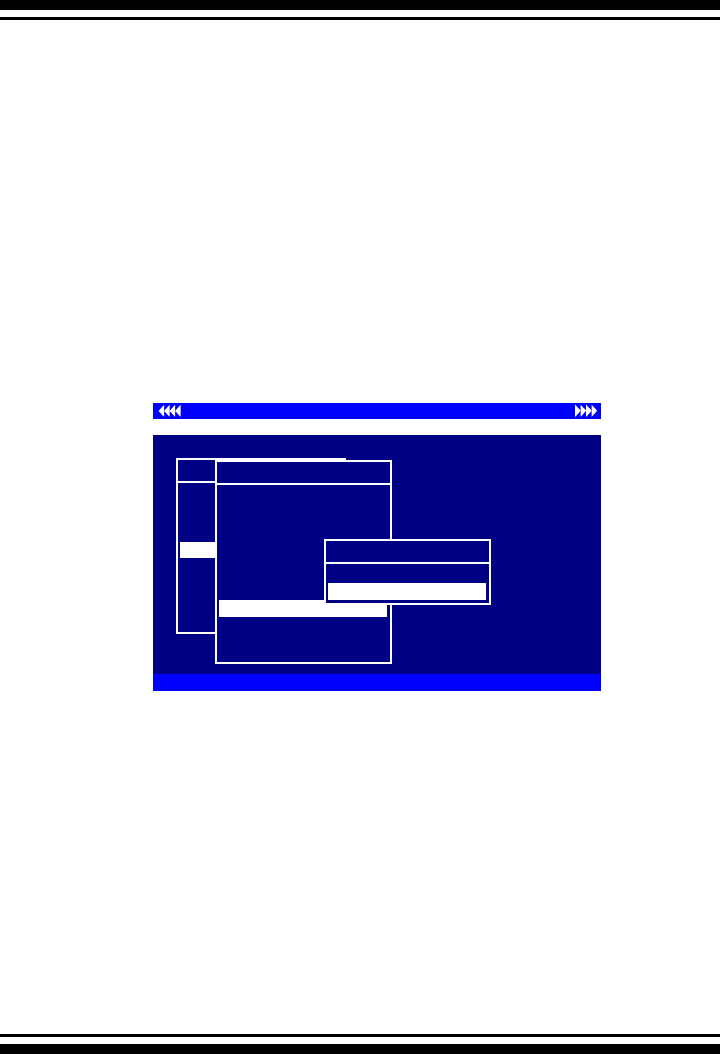
BIOS CONFIGURATION
94
Controller I/O Port:F3000000h, F2: Select Controller, F10: Reboot System
ArrowKey Or AZ:Move Cursor, Enter: Select, ESC: Escape, L:Line Draw, X: Redraw
Areca Technology Corporation RAID Controller
Main Menu
Quick Volume/Raid Setup
Raid Set Function
Volume Set Function
Physical Drives
Raid System Function
Ethernet Conguration
View System Events
Clear Event Buffer
Hardware Monitor
System information
Raid System Function
Raid System Function
Mute The Alert Beeper
Alert Beeper Setting
Change Password
JBOD/RAID Function
Background Task Priority
Maximum SATA Mode
HDD Read Ahead Cache
Stagger Power on
HDD SMART Status Polling
Controller Fan Detection
Disk Write Cache Mode
Capacity Truncation
HDD SMART Status Polling
HDD SMART Status Polling
Disabled
Enabled
3.7.5.10 HDD SMART Status Polling
An external RAID enclosure has the hardware monitor in the
dedicated backplane that can report HDD temperature status
to the controller. However, PCI cards do not use backplanes if
the drives are internal to the main server chassis. The type of
enclosure cannot report the HDD temperature to the controller.
For this reason, HDD SMART Status Polling was added to enable
scanning of the HDD temperature function in the version 1.36
date: 2005-05-19 (and later). It is necessary to enable “HDD
SMART Status Polling” function before SMART information is
accessible. This function is disabled by default.
The following screen shot shows how to change the BIOS setting
to enable the Polling function.
3.7.5.11 Controller Fan Detection
Included in the product box is a field replaceable passive
heatsink to be used only if there is enough airow to adequately
cool the passive heat sink.
The “Controller Fan Detection” function is available in the
version 1.36 date: 2005-05-19 and later for preventing the
Buzzer warning. When using the passive heatsink, disable the
“Controller Fan Detection” function through this BIOS setting.
The following screen shot shows how to change the BIOS setting
to disable the beeper function. (This function is not available
in the Web Browser setting.)
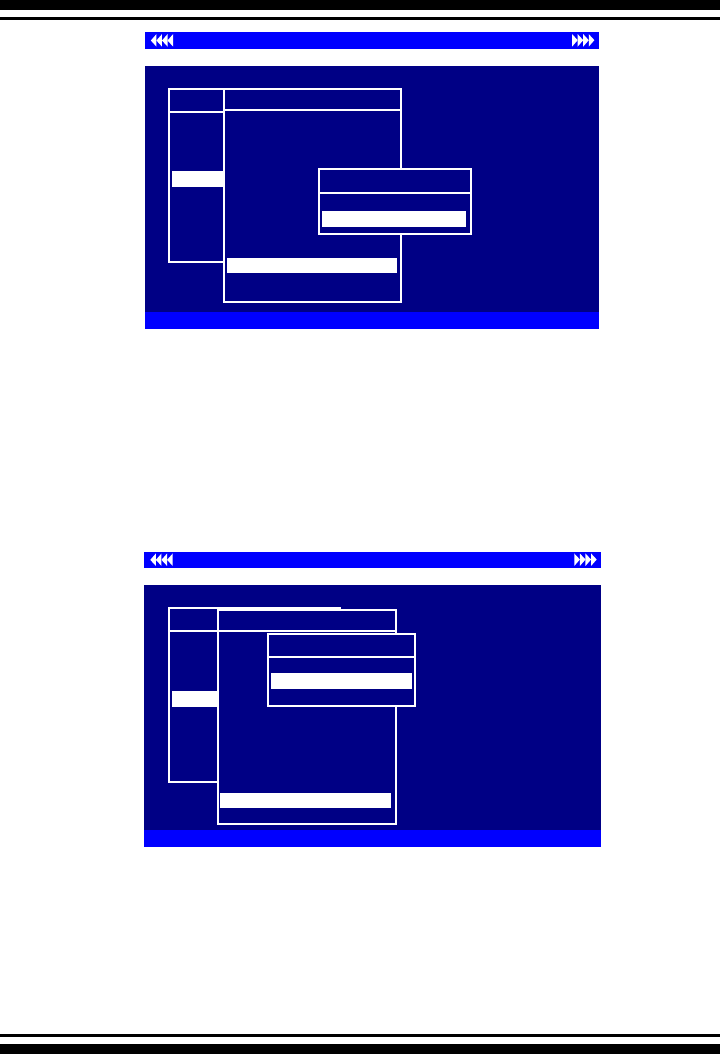
BIOS CONFIGURATION
95
Controller I/O Port:F3000000h, F2: Select Controller, F10: Reboot System
ArrowKey Or AZ:Move Cursor, Enter: Select, ESC: Escape, L:Line Draw, X: Redraw
Areca Technology Corporation RAID Controller
Main Menu
Quick Volume/Raid Setup
Raid Set Function
Volume Set Function
Physical Drives
Raid System Function
Ethernet Conguration
View System Events
Clear Event Buffer
Hardware Monitor
System information
Raid System Function
Raid System Function
Mute The Alert Beeper
Alert Beeper Setting
Change Password
JBOD/RAID Function
Background Task Priority
Maximum SATA Mode
HDD Read Ahead Cache
Stagger Power on
Empty HDD slot LED
HDD SMART Status Polling
Controller Fan Detection
Disk Write Cache Mode
Capacity Truncation
Controller Fan Detection
Controller Fan Detection
Disabled
Enabled
3.7.5.12 Disk Write Cache Mode
User can set the “Disk Write Cache Mode” to Auto, Enabled, or
Disabled. Enabled increases speed, Disabled increases reliabil-
ity.
3.7.5.13 Capacity Truncation
SATA RAID controllers use drive truncation so that drives from
different vendors are more likely to be usable as spares for one
another. Drive truncation slightly decreases the usable capac-
Controller I/O Port:F3000000h, F2: Select Controller, F10: Reboot System
ArrowKey Or AZ:Move Cursor, Enter: Select, ESC: Escape, L:Line Draw, X: Redraw
Areca Technology Corporation RAID Controller
Main Menu
Quick Volume/Raid Setup
Raid Set Function
Volume Set Function
Physical Drives
Raid System Function
Ethernet Conguration
View System Events
Clear Event Buffer
Hardware Monitor
System information
Raid System Function
Raid System Function
Mute The Alert Beeper
Alert Beeper Setting
Change Password
JBOD/RAID Function
Background Task Priority
Maximum SATA Mode
HDD Read Ahead Cache
Stagger Power on
Empty HDD slot LED
HDD SMART Status Polling
Controller Fan Detection
Disk Write Cache Mode
Capacity Truncation
Disk Write Cache Mode
Disk Write Cache Mode
Auto
Enabled
Disabled
Enabled

BIOS CONFIGURATION
96
ity of a drive that is used in redundant units. The controller
provides three truncation modes in the system conguration:
Multiples Of 10G, Multiples Of 1G, and No Truncation.
Multiples Of 10G: If you have 120 GB drives from different
vendors; chances are that the capacity varies slightly. For exam-
ple, one drive might be 123.5 GB, and the other 120 GB. Areca
drive Truncation mode Multiples Of 10G uses the same capac-
ity for both of these drives so that one could replace the other.
Multiples Of 1G: If you have 123 GB drives from different ven-
dors; chances are that the capacity varies slightly. For example,
one drive might be 123.5 GB, and the other 123.4 GB. Areca
drive Truncation mode Multiples Of 1G uses the same capacity
for both of these drives so that one could replace the other.
No Truncation: It does not truncate the capacity.
3.7.6 Ethernet Conguration (12/16/24-port)
Use this feature to set the controller Ethernet port conguration.
It is not necessary to create reserved disk space on any hard disk
for the Ethernet port and HTTP service to function; these func-
tions are built into the controller rmware.
Main Menu
Quick Volume/Raid Setup
Raid Set Function
Volume Set Function
Physical Drives
Raid System Function
Ethernet Conguration
View System Events
Clear Event Buffer
Hardware Monitor
System information
Raid System Function
Controller I/O Port:F3000000h, F2: Select Controller, F10: Reboot System
ArrowKey Or AZ:Move Cursor, Enter: Select, ESC: Escape, L:Line Draw, X: Redraw
Areca Technology Corporation RAID Controller
Raid System Function
Mute The Alert Beeper
Alert Beeper Setting
Change Password
JBOD/RAID Function
Background Task Priority
Maximum SATA Mode
HDD Read Ahead Cache
Stagger Power on
Empty HDD slot LED
HDD SMART Status Polling
Controller Fan Detection
Disk Write Cache Mode
Capacity Truncation
Capacity Truncation
Truncate Disk Capacity
To Multiples of 10G
To Multiples of 1G
Disabled
To Multiples of 1G
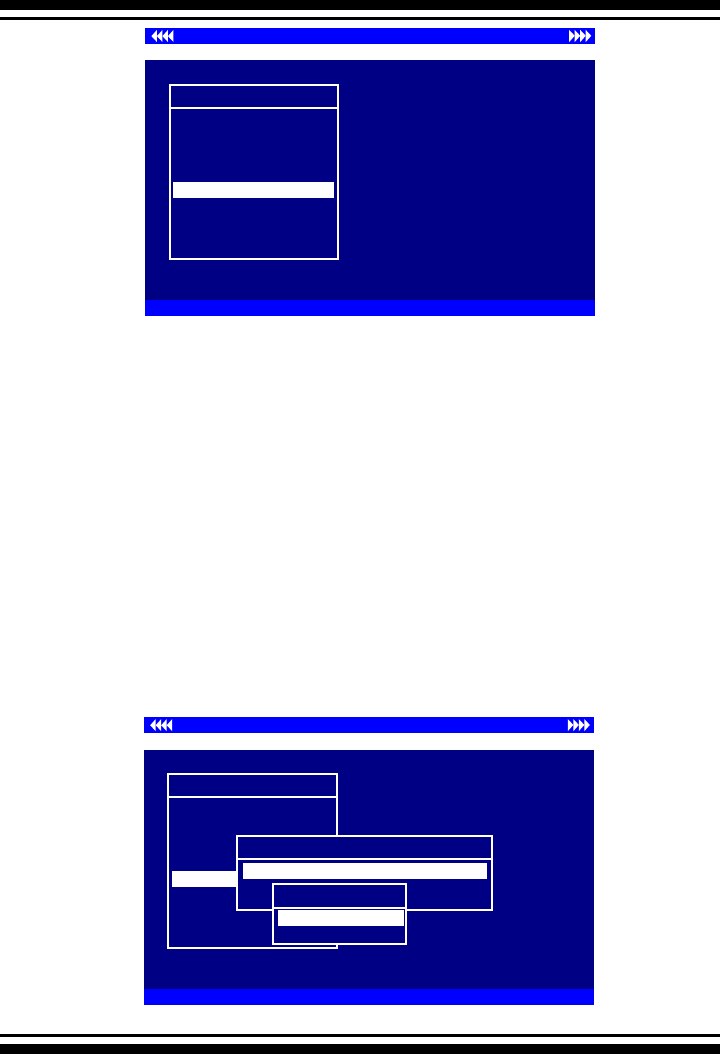
BIOS CONFIGURATION
97
Controller I/O Port:F3000000h, F2: Select Controller, F10: Reboot System
ArrowKey Or AZ:Move Cursor, Enter: Select, ESC: Escape, L:Line Draw, X: Redraw
Areca Technology Corporation RAID Controller
Main Menu
Quick Volume/Raid Setup
Raid Set Function
Volume Set Function
Physical Drives
Raid System Function
Ethernet Conguration
View System Events
Clear Event Buffer
Hardware Monitor
System information
Ethernet Conguration
3.7.6.1 DHCP Function
DHCP (Dynamic Host Conguration Protocol) allows network ad-
ministrators centrally manage and automate the assignment of
IP (Internet Protocol) addresses on a computer network. When
using the TCP/IP protocol (Internet protocol), it is necessary for
a computer to have a unique IP address in order to communi-
cate to other computer systems. Without DHCP, the IP address
must be entered manually at each computer system. DHCP lets
a network administrator supervise and distribute IP addresses
from a central point. The purpose of DHCP is to provide the
automatic (dynamic) allocation of IP client congurations for a
specic time period (called a lease period) and to minimize the
work necessary to administer a large IP network. To manually
Controller I/O Port:F3000000h, F2: Select Controller, F10: Reboot System
ArrowKey Or AZ:Move Cursor, Enter: Select, ESC: Escape, L:Line Draw, X: Redraw
Areca Technology Corporation RAID Controller
Main Menu
Quick Volume/Raid Setup
Raid Set Function
Volume Set Function
Physical Drives
Raid System Function
Ethernet Conguration
View System Events
Clear Event Buffer
Hardware Monitor
System information
Ethernet Conguration
Ethernet Conguration
DHCP Function : Enable
Local IP Address : 192.168.001.100
Ethernet Address : 00.04.D9.7F.FF.FF
DHCP Function : Enable
Select DHCP Setting
Enabled
Disabled
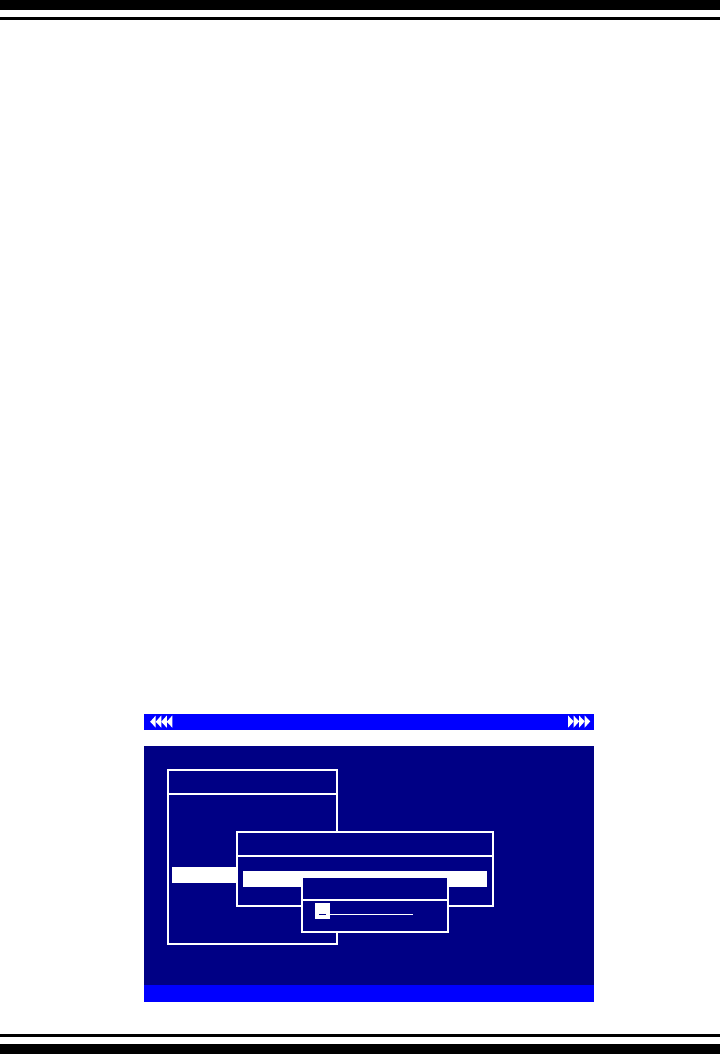
BIOS CONFIGURATION
98
congure the IP address of the controller, move the cursor bar
to the Main menu “Ethernet Conguration Function” item and
then press the Enter key. The “Ethernet Conguration” menu
appears on the screen. Move the cursor bar to DHCP Function
item, then press Enter key to show the DHCP setting. Select
the “Disabled’ or ‘Enabled” option to enable or disable the DHCP
function. If DHCP is disabled, it will be necessary to manually
enter a static IP address that does not conict with other de-
vices on the network.
3.7.6.2 Local IP address
If you intend to set up your client computers manually (no
DHCP), make sure that the assigned IP address is in the same
range as the default router address and that it is unique to your
private network. However, it is highly recommend to use DHCP
if that option is available on your network. An IP address alloca-
tion scheme will reduce the time it takes to set-up client com-
puters and eliminate the possibilities of administrative errors
and duplicate addresses. To manually congure the IP address
of the controller, move the cursor bar to the Main menu Ethernet
Conguration Function item and then press the Enter key. The
Ethernet Conguration menu appears on the screen. Move the
cursor bar to Local IP Address item, then press the Enter key
to show the default address setting in the SATA RAID controller.
You can then reassign the static IP address of the controller.
Controller I/O Port:F3000000h, F2: Select Controller, F10: Reboot System
ArrowKey Or AZ:Move Cursor, Enter: Select, ESC: Escape, L:Line Draw, X: Redraw
Areca Technology Corporation RAID Controller
Main Menu
Quick Volume/Raid Setup
Raid Set Function
Volume Set Function
Physical Drives
Raid System Function
Ethernet Conguration
View System Events
Clear Event Buffer
Hardware Monitor
System information
Ethernet Conguration
Ethernet Conguration
DHCP Function : Enable
Local IP Address : 192.168.001.100
Ethernet Address : 00.04.D9.7F.FF.FF
Local IP Address : 192.168.001.100
Edit The local IP Address
92.168.001.100
1
BIOS CONFIGURATION
99
Controller I/O Port:F3000000h, F2: Select Controller, F10: Reboot System
ArrowKey Or AZ:Move Cursor, Enter: Select, ESC: Escape, L:Line Draw, X: Redraw
Areca Technology Corporation RAID Controller
Main Menu
Quick Volume/Raid Setup
Raid Set Function
Volume Set Function
Physical Drives
Raid System Function
Ethernet Conguration
View System Events
Clear Event Buffer
Hardware Monitor
System information
Ethernet Conguration
Ethernet Conguration
DHCP Function : Enable
Local IP Address : 192.168.001.100
Ethernet Address : 00.04.D9.7F.FF.FF
Ethernet Address : 00.04.D9.7F.FF.FF
3.7.6.3 Ethernet Address
A MAC address stands for “Media Access Control” address and is
unique to every single ethernet device. On an Ethernet LAN, it’s
the same as your Ethernet address. When you’re connected to
a local network from the SATA RAID controller Ethernet port, a
correspondence table relates your IP address to the SATA RAID
controller’s physical (MAC) address on the LAN.
3.7.7 View System Events
To view the SATA RAID controller’s information, move the cur-
sor bar to the main menu and select the “View Events” link, then
press the Enter key. The SATA RAID controller’s events screen
appear.
Controller I/O Port:F3000000h, F2: Select Controller, F10: Reboot System
ArrowKey Or AZ:Move Cursor, Enter: Select, ESC: Escape, L:Line Draw, X: Redraw
Areca Technology Corporation RAID Controller
Main Menu
Quick Volume/Raid Setup
Raid Set Function
Volume Set Function
Physical Drives
Raid System Function
Ethernet Conguration
View System Events
Clear Event Buffer
Hardware Monitor
System information
Raid System Function
Time Device Event Type ElapseTime Errors
2004-1-1 12:00:00 H/W Monitor Raid Powered On
2004-1-1 12:00:00 H/W Monitor Raid Powered On
2004-1-1 12:00:00 H/W Monitor Raid Powered On
BIOS CONFIGURATION
100
Choose this option to view the system events information: Timer,
Device, Event type, Elapsed Time, and Errors. The RAID system
does not have a real time clock. The Time information is the rela-
tive time from the SATA RAID controller powered on.
3.7.8 Clear Events Buffer
Use this feature to clear the entire events buffer.
3.7.9 Hardware Monitor
To view the RAID controller’s hardware monitor information, move
the mouse cursor to the main menu and click the “Hardware
Monitor” link. The Hardware Information screen appears.
The Hardware Monitor Information provides the temperature and
fan speed (I/O Processor fan) of the SATA RAID controller.
3.7.10 System Information
Choose this option to display Main processor, CPU Instruction
cache and data cache size, rmware version, serial number,
controller model name, and the cache memory size. To check the
system information, move the cursor bar to “System Information”
Controller I/O Port:F3000000h, F2: Select Controller, F10: Reboot System
ArrowKey Or AZ:Move Cursor, Enter: Select, ESC: Escape, L:Line Draw, X: Redraw
Areca Technology Corporation RAID Controller
Main Menu
Quick Volume/Raid Setup
Raid Set Function
Volume Set Function
Physical Drives
Raid System Function
Ethernet Conguration
View System Events
Clear Event Buffer
Hardware Monitor
System information
System Information
The Hardware Monitor
Fan Speed (RPM) : 2178
Battery Status : Not Installed
HDD #1 Temp. : --
HDD #2 Temp. : --
HDD #3 Temp. : 48
HDD #4 Temp. : --
HDD #5 Temp. : --
HDD #6 Temp. : 49
HDD #7 Temp. : --
HDD #8 Temp. : --
BIOS CONFIGURATION
101
Controller I/O Port:F3000000h, F2: Select Controller, F10: Reboot System
ArrowKey Or AZ:Move Cursor, Enter: Select, ESC: Escape, L:Line Draw, X: Redraw
Areca Technology Corporation RAID Controller
Main Menu
Quick Volume/Raid Setup
Raid Set Function
Volume Set Function
Physical Drives
Raid System Function
Ethernet Conguration
View System Events
Clear Event Buffer
Hardware Monitor
System information
System Information
The System Information
Main Processor : 500MHz IOP331
CPU ICache Size : 32KB
CPU DCache Size : 32KB/Write Back
System Memory : 128MB/333MHz
Firmware Version : V1.31 2004-5-31
BOOT ROM Version : V1.34 2004-9-29
Serial Number : 1100-2116-6633
Controller Name : ARC-1120
item, then press Enter key. All relevant controller information
will be displayed.

DRIVER INSTALLATION
102
4. Driver Installation
This chapter describes how to install the SATA RAID controller driver to
your operating system. The installation procedures use the following
terminology:
Installing operating system on the SATA Volume
If you have a new drive conguration without an operating system
and want to install operating system on a disk drive managed by the
SATA RAID Controller. The driver installation is a part of the operat-
ing system installation.
Installing SATA RAID controller into an existing operating
system
The computer has an existing operating system installed and the
SATA RAID controller is being installed as a secondary controller.
Have all required system hardware and software components on
hand before proceeding with the setup and installation.
Materials required:
• Microsoft Windows 2000/XP/2003, Linux, FreeBSD or more installa-
tion
CD-ROM
• SATA RAID Controller Diver CD-ROM
• SATA RAID controller
4.1 Creating the Driver Diskettes
The CD-ROM disc shipped with the SATA RAID controller is a self-
booting CD. In order to created driver diskettes for Windows,
Linux, FreeBSD or more installation drivers, your system is re-
quired to support booting from the CD-ROM.
If you do not have the CD-ROM disc with the package, contact your
local dealer or you can also download the latest version drivers for
Windows 2000/XP/2003, Linux, freeBSD and more from the ARECA
web site at http://www.areca.com.tw

DRIVER INSTALLATION
103
The following steps are required to create the driver diskettes:
1. The computer system BIOS must be set to boot-up from the CD-
ROM.
2. Insert the SATA Controller Driver CD disc into the CD-ROM drive.
3. The system will boot-up from CD-ROM Drive; to create the driv-
er diskettes, select the “SATA RAID controller Driver Diskette
Make Utility”, and a screen with several choices will be displayed.
4. Move the highlight bar to the “Create Driver Disk” entry and
press Enter.
5. The screen queries the SATA RAID controller support driver
database and displays a list of available drivers. Move the highlight
bar to the correct driver entry and press Enter to select.
6. The next screen will show “Please insert a formatted dis-
kette into drive A:!! Press any key to continue”. Insert the
formatted diskette in drive “A” and press any key to continue.
7. The window will display the driver building message: ”Now is
writing to Cylinder…” as it copies the image le from the CD-
ROM to Driver Diskette.
8. The “Write Complete !!” message will display when the driver
diskette ready.
The driver diskette is now made. Proceed to the following instruc-
tion for installation procedures.
4.2 Driver Installation for Windows
The SATA RAID controller can be used with Microsoft Windows
2000, Windows XP, and Windows Server 2003. Windows 2003 64-
bit for AMD Opteron is also supported. The SATA RAID controllers
support SCSI Miniport and StorPort Drivers for Windows Server
2003.
4.2.1 New Storage Device Drivers in Windows
Server 2003

DRIVER INSTALLATION
104
The Storport driver is new to Windows Server 2003. Storport im-
plements a new architecture designed for better performance with
RAID systems and in Storage Area Network (SAN) environments.
Storport delivers higher I/O throughput, enhanced manageability,
and an improved miniport interface. Storport better utilizes faster
adapters through the use of reduced Delay Procedure Call (DPC)
and improved queue management.
4.2.2 Install Windows 2000/XP/2003 on a SATA
RAID Volume
The following instructions explain how to install the SATA RAID
controller Driver. For completed details on installing Windows, see
the Windows User’s Manual.
4.2.2.1 Installation procedures
The following procedures detail installing the SATA RAID control-
ler driver while installing Windows 2000/XP/2003. Have your
bootable Microsoft Windows 2000/XP/2003 CD-ROM and follow
the required procedure below to install SATA RAID controller:
1. Make sure you follow the instructions in Chapter 2 “Hard-
ware Installation” to install the controller and connect the disk
drives or enclosure.
2. Start the system and then press Tab+F6 to access the McBI-
OS RAID manager. Use the McBIOS manager to create the RAID
set and volume set to which you will install Windows. For de-
tails, see Chapter 3 “McBIOS RAID manager”. Once a volume
set is created and congured, continue with next step to install
the operating system.
3. Insert the Windows setup CD and reboot the system to begin
the Windows installation.
Note:
The computer system BIOS must support bootable from
CD-ROM.

DRIVER INSTALLATION
105
4. Press F6 as soon as the Windows screen shows ”Setup is
inspecting your Computer’s hardware Conguration”. A
message stating “Press F6 to specify thrid-party RAID con-
troller” will display during this time. This must be done or else
the Windows installer will not prompt for the driver for from the
SATA RAID controller and the driver diskette will not be recog-
nized.
5. The next screen will show: “Setup could not determine the
type of one or more mass storage device installed in your
system. ”Selected “specify additional SCSI adapter” by pressing
S.
6. Window will prompt to place the “Manufacturer-supplied
hardware support disk” into oppy drive A: Insert the SATA
RAID series driver diskette in drive “A:” and press Enter.
7. Window will check the oppy; select the correct card and
CPU type for your hardware from the listing and press Enter to
install it.
8. After Windows scans the hardware and nds the controller, it
will display:
“Setup will load support for the following Mass Storage
devices:”
“Windows 2K, XP,2K3 (ARC1XX0) SATA PCI-X (or PCI-
Express) RAID Controller”. Press Enter to continue and copy
the driver les. From this point on, simply follow the Microsoft
Windows installation procedure. Follow the on-screen instruc-
tions, responding as needed, to complete the installation.
9. After the installation is completed, reboot the system to load
the new drivers / operating system.
10. See Chapter 5 in this manual to customize your RAID vol-
ume sets using Storage manager.
4.2.2.2 Making Volume Sets Available to Windows
System
When you reboot the system, log in as a system administrator.

DRIVER INSTALLATION
106
Continue with the following steps to make any additional volume
sets or pass-through disks accessible to Windows. This proce-
dure assumes that the SATA RAID controller hardware, driver,
and Windows are installed and operational in your system.
1. Partition and format the new volume set or disks using Disk
Administrator:
a. Choose Administrative Tools from the Start menu.
b. Choose Computer Management from the Administrative Tools
menu.
c. Select Storage.
d. Select Disk Management.
2. Follow the on-screen prompts to write a signature to the
drive.
3. Right click on the disk drive and select “Create Volume” from
the menu.
4. Follow the on-screen prompts to create a volume set and to
give a disk drive letter.
4.2.3 Installing controller into an existing Win-
dows 2000/XP/2003 Installation
In this scenario, you are installing the controller in an existing
Windows system. To install the driver:
1. Follow the instructions in Chapter 2, the Hardware Installa-
tion Chapter, to install the controller and connect the disk drives
or enclosure.
2. Start the system and then press Tab+F6 to enter the Mc-
BIOS-based conguration utility. Use the conguration utility
to create the raid set and volume set. For details, see Chapter
3, McBIOS RAID Manager. Once a volume set is created and
congured, continue with installation of the driver.
3. Re-Boot Windows and the OS will recognize the SATA RAID
Controller and launche the “Found New Hardware Wizard”,

DRIVER INSTALLATION
107
which guides you in installing the SATA RAID driver.
4. The “Upgrade Device Driver Wizard” will pop-up and
provide a choice of how to proceed. Choose “Display a list of
known drivers for this device, so that you can choose a
specic driver.” and click on Next.
5. When the next screen queries the user about utilizing the cur-
rently installed driver, click on the Have Disk button.
6. When the “Install From Disk” dialog appears, insert the
SATA RAID controller driver diskette or the shipping CD-ROM
and type-in or browse to the correct path for the “Copy manu-
facturer’s les from:” dialog box.
7. After specifying the driver location, the previous dialog box
will appear showing the selected driver to be installed. Click the
Next button.
8. The “Digital Signature Not Found” screen will appear. Click
on Yes to continue the installation.
9. Windows automatically copies the appropriate driver les and
rebuilds its driver database.
10. The “Found New Hardware Wizard” summary screen ap-
pears; click the Finish button.
11. The “System Settings Change” dialog box appears. Re-
move the diskette from the drive and click Yes to restart the
computer to load the new drivers.
12. See Chapter 5 in this manual for information on customizing
your RAID volumes using Storage manager.
4.2.3.1 Making Volume Sets Available to Windows
System
When you reboot the system, log in as a system administrator.
The following steps show how to make any new disk arrays or
independent disks accessible to Windows 2000/XP/2003. This

DRIVER INSTALLATION
108
procedure assumes that the SATA RAID controller hardware,
driver, and Windows are installed and operational in your sys-
tem.
1. Partition and format the new arrays or disks using Disk Ad-
ministrator:
a. Choose Administrative Tools from the Start menu.
b. Choose Computer Management from the Administrative Tools
menu.
c. Select Storage.
d. Select Disk Management.
2. Follow the on-screen prompts to write a signature to the
drive.
3. Right click on the drive and select Create Volume from the
menu.
4. Follow the on-screen prompts to create a volume set and to
assign a disk drive letter.
4.2.4 Uninstall controller from Windows 2000/
XP/2003
To remove the SATA RAID controller driver from the Windows sys-
tem, follow the instructions below.
1. Ensure that you have closed all applications and are logged in
with administrative rights.
2. Open Control Panel and start the Add/Remove Program
icon and uninstall and software for the SATA RAID controller.
3. Go to Control Panel and select System. Select the Hardware
tab and then click the Device Manager Button. In Device Man-
ager, expand the “SCSI and RAID Controllers” section. Right
click on the ARECA SATA RAID Adapter and select “uninstall”.
4. Click Yes to conrm removing the SATA RAID driver. The
prompt to restart the system will then be displayed.

DRIVER INSTALLATION
109
4.3 Driver Installation for Linux
This chapter describes how to install the SATA RAID controller
driver to Red Hat Linux, and SuSE Linux. Before installing the SATA
RAID driver to the Linux, complete the following actions:
1. Install and congure the controller and hard disk drives accord-
ing to the instructions in Chapter 2 Hardware Installation.
2. Start the system and then press Tab+F6 to enter the McBIOS
RAID manager conguration utility. Use the BIOS conguration
utility to create the RAID set and volume set. For details, see
Chapter 3, McBIOS RAID Manager.
If you are using a Linux distribution for which there is not a com-
piled driver available from ARECA, you can copy the source from
the SATA software CD or download the source from the ARECA
website and compile a new driver.
Compiled and tested drivers for Red Hat and SuSE Linux are in-
cluded on the shipped CD. You can download updated versions of
compiled and tested drivers for Red Hat or SuSE Linux from the
ARECA web site at http://www.areca.com.tw. Included in these
downloads is the Linux driver source, which can be used to compile
the updated version driver for RedHat, SuSE and other versions of
Linux.
Please refer to the “readme.txt” le on the included ARECA CD-
ROM or website to make driver diskette and to install driver to the
system.
4.4 Driver Installation for FreeBSD
This chapter describes how to install the SATA RAID controller
driver to FreeBSD. Before installing the SATA RAID driver to Free-
BSD, complete following actions:
1. Install and congure the controller and hard disk drives accord-
ing to the instructions in Chapter 2, Hardware Installation.
2. Start the system and then press Tab+F6 to enter the McBIOS
RAID Manager conguration utility. Use the BIOS conguration
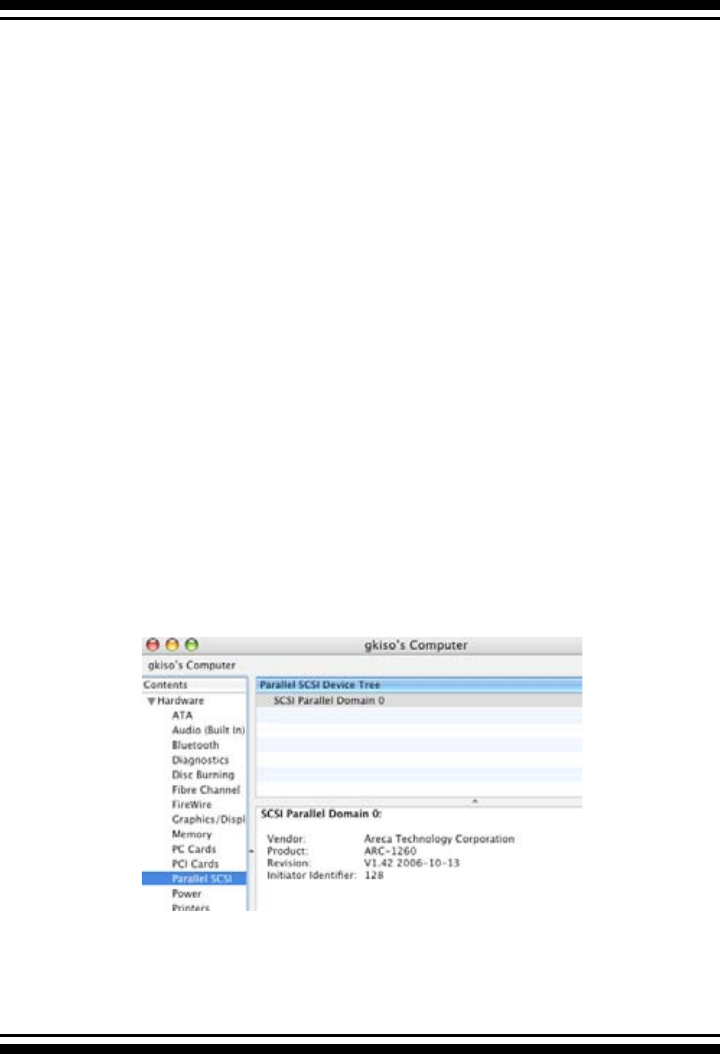
DRIVER INSTALLATION
110
utility to create the raid set and volume set. For details, see Chap-
ter 3, McBIOS RAID Manager.
The supplied CD-ROM that came with the SATA RAID controller
includes compiled and tested drivers for FreeBSD 4.x (4.2 and on-
wards) and 5.x (5.2 and onwards). To check if a more current ver-
sion driver is available, please see the ARECA web site at http://
www.areca.com.tw.
Please refer to the “readme.txt” le on the SATA RAID controller
software CD-ROM or website to make driver diskette and to install
driver to the system.
4.5 Driver Installation for Solaris 10
Please refer to the “readme.txt” le on the software CD-ROM or a
manual from website: http://www.areca.com.tw
4.6 Driver Installation for Mac 10.x
The Mac driver was installed by running (double-click on ArcMSR-
1.3.1.pkg icon) ArcMSR-1.3.1.pkg from the Desktop. Installation
successful and card recognized in system proler.

DRIVER INSTALLATION
111
4.7 Driver Installation for UnixWare 7.1.4
Please refer to the “readme.txt” le on the software CD-ROM or a
manual from website: http://www.areca.com.tw
4.8 Driver Installation for NetWare 6.5
Please refer to the “readme.txt” le on the software CD-ROM or a
manual from website: http://www.areca.com.tw

ARCHTTP PROXY SERVER INSTALLATION
112
5. ArcHttp Proxy Server Installation
Overview
After hardware installation, the SATA disk drives connected to the SATA
RAID controller must be congured and the volume set units initialized
before they are ready to use.
The user interface for these tasks can be accessed through the built-in
conguration and administration utility that resides in the controller’s
rmware. It provides complete control and management of the con-
troller and disk arrays, eliminating the need for additional hardware or
software.
In addition, a software utility to congure the SATA RAID is provided
on the CD-ROM delivered with SATA controller. This CD-ROM contains
the software utility that can monitor, test, and support the SATA RAID
controller. The software utility and McRAID storage manager can con-
gure and monitor the SATA RAID controller via ArcHttp Proxy Server.
The following table outlines their functions:
From version 1.6 and later, the HTTP management software (ArcHttp)
runs as a service or daemon, and have it automatically start the proxy
for all controllers found. This way the controller can be managed re-
motely without having to sign in the server. The HTTP management
software (ArcHttp) also has integrated the General Conguration, Mail
Conguration and SNMP Conguration. Those can be congured in lo-
cal or remote standard web browser.
Conguration Utility Operating System supported
McBIOS RAID Manager OS-Independent
McRAID Storage Manager
(Via Archttp proxy server)
Windows 2000/XP/2003, Linux, FreeBSD
NetWare, UnixwWare, Solaris and Mac
SAP Monitor (Single Admin portal to
scan for multiple RAID units in the net-
work, Via ArcHttp Proxy Server)
Windows 2000/XP/2003
Note:
If your controller have onboard LAN port, you don't need to install
ArcHttp proxy Server, you can use McRAID Storage Manager
directly.
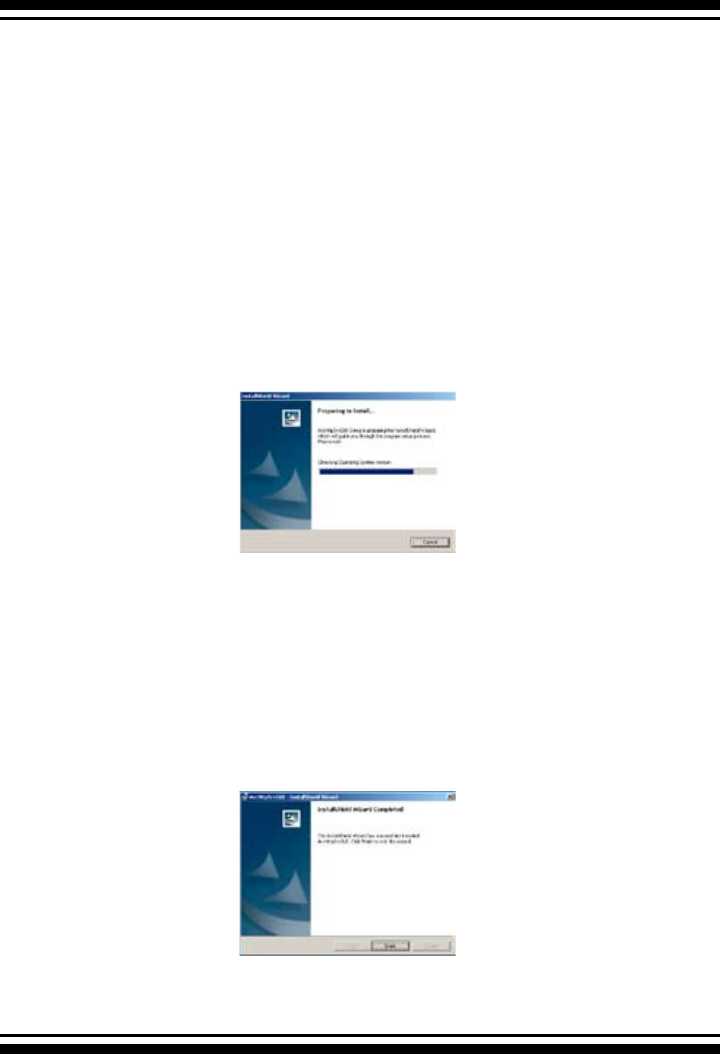
113
ARCHTTP PROXY SERVER INSTALLATION
5.1 For Windows
You must have administrative level permissions to install SATA
RAID software. This procedure assumes that the SATA RAID hard-
ware and Windows are installed and operational in your system.
Screen captures in this section are taken from a Windows XP instal-
lation. If you are running another version of Windows, your instala-
tion screen may look different, but the ArcHttp proxy server instal-
lation is essentially the same.
1. Insert the RAID subsystem CD in the CD-ROM drive.
2. Run the setup.exe le that resides at: <CD-ROM>\PACKAGES\
Windows\http\setup.exe on the CD-ROM.
3. The screen shows Preparing to install.
Follow the on-screen prompts to complete ArcHttp Proxy Server
software installation.
A program bar appears that measures the progress of the
ArcHttp setup. When this screen complete, you have completed
the ArcHttp Proxy Server software setup.
4. After a successful installation, the Setup Complete dialog box
is displayed.
Click the Finish button to complete the installation.

ARCHTTP PROXY SERVER INSTALLATION
114
5.2 For Linux
You must have administrative level permissions to install SATA
RAID software. This procedure assumes that the SATA RAID hard-
ware and Linux are installed and operational in your system.
The following details the Linux installation procedure of the SATA
RAID controller software.
1. Insert the SATA RAID controller CD in the CD-ROM drive.
2. Copy <CD-ROM>\PACKAGES\Linux\http directory to local
(Ex:/usr/local/sbin)
3. Setting up the "archttpsrv.conf" of ArcHttp conguration.
For example: General Conguration, Mail Conguration, SNMP
Conguration.
Click on the start button in the Windows 2000/XP task bar and
then click Program, select the McRAID and run “ ArcHttp proxy
server”. The ArcHttp dialog box appears.
1. When you select “Controller#01(PCI)” then click “Start”
button. Then web broswer appears.
2. If you select “Cfg Assistant” then click “Start” button.
The ArcHttp Conguration apperas. (please refer to section 5.6
ArcHttp Conguration)
115
ARCHTTP PROXY SERVER INSTALLATION
Usage: ./archttp32 (TCP_PORT) or ./archttp64 (TCP_PORT). It
depends on your OS version.
Parameters: TCP_PORT value= 1~65535 (If TCP_PORT assigned,
Archttp will start from this port. Otherwise, it will use the setting
in archttpsrv.conf )
4. Runing the ArcHttp le then ArcHttp screen appears.
Copyright (c) 2004 Areca, Inc. All Rights Reserved.
Areca HTTP proxy server V1.80.240 for Areca RAID controllers.
Controller(s) list
--------------------------------------------
Controller[1](PCI) : Listen to port[81].
Cfg Assistant : Listen to port[82].
--------------------------------------------
##############################
Press CTRL-C to exit program!!
##############################
3. See the next chapter detailing the McRAID Storage Manager to
customize your RAID volume set.
For Mozilla user:
Because our management need Java support, so user may
need upgrade to version 1.6 or later.
5.3 For FreeBSD
You must have administrative level permissions to install SATA RAID
software. This procedure assumes that the SATA RAID hardware
and FreeBSD are installed and operational in your system.
The following details FreeBSD installation procedure of the SATA
RAID controller software.
1. Insert the RAID subsystem CD in the CD-ROM drive.
2. Copy <CD-ROM>\PACKAGES\FreeBSD\http directory to local
The next following step is the same with Linux. Please see section
5.2 For Linux.

ARCHTTP PROXY SERVER INSTALLATION
116
5.4 For Solaris 10 x86
You must have administrative level permissions to install SATA
RAID software. This procedure assumes that the SATA RAID
hardware and FreeBSD are installed and operational in your
system.
The following details Solaris installation procedure of the SATA
RAID controller software.
1. Insert the RAID subsystem CD in the CD-ROM drive.
2. Copy <CD-ROM>\PACKAGES\Solaris\http directory to local
The next following step is the same with Linux. Please see section
5.2 For Linux.
5.5 For Mac OS 10.x
The McRAID manager interface can be accessed through the built-
in conguration and administration utility that resides in the con-
troller’s rmware. It provides complete control and management of
the controller and disk arrays, eliminating the need for additional
hardware or software.
The ArcHttp proxy server is provided on the CD-ROM delivered
with SATA card or download from the www.areca.com.tw. The
rmware embedded McRAID storage manager can congure and
monitor the SATA RAID controller via ArcHttp Proxy Server.
1. Login as root. Copy the ArcHttp le to a local directory.
(1). Insert the SATA RAID controller CD in the CD-ROM drive.
(2). Copy <CD-ROM>\PACKAGES\Mac\http directory to local.
Or
(1). Download from the www.areca.com.tw or from the email
attachment.
2. You must have administrative level permissions to install SATA
RAID controller ArcHttp software. This procedure assumes that the
SATA RAID hardware and Mac driver are installed and operational
in your system.
The following details are the installation procedure of the SATA
RAID controller for Mac ArcHttp software.

117
ARCHTTP PROXY SERVER INSTALLATION
(1).Run the archttp64 using Terminal.app by using the following
command:
Usage: sudo ./archttp64 (TCP_PORT).
Parameters: TCP_PORT value= 1~65535 (If TCP_PORT assigned,
Archttp will start from this port. Otherwise, it will use the setting
in the archttpsrv.conf or default 81). This is the port address
assigning for the rst adapter.
Such as: sudo ./archttp64 1553
(2). Archttp server console started, Controller card detected then
ArcHttp proxy server screen appears.
Copyright (c) 2004 Areca, Inc. All Rights Reserved.
Areca HTTP proxy server V1.80.240 for Areca RAID controllers.
Controller(s) list
--------------------------------------------
Controller[1](PCI) : Listen to port[1553].
Cfg Assistant : Listen to port[1554].
Binding IP:[0.0.0.0]
Note: IP[0.0.0.0] stands for any ip bound to this host.
--------------------------------------------
##############################
Press CTRL-C to exit program!!
##############################
Controller [1] Http: New client [9] accepted
Controller [1] Http: New Recv 243 bytes
Controller [1] Http: Send [174] bytes back to the client
5.6 ArcHttp Conguration
The ArcHttp proxy server will automatically assign one additional
port for setup its conguration. If you want to change the "archttp-
srv.conf" setting up of ArcHttp conguration, For example: General
conguration, Mail Conguration, and SNMP Conguration, please
start Web Browser by entering http://[Computer IP Address]:[cfg
port number]

ARCHTTP PROXY SERVER INSTALLATION
118
The ArcHttp conguration starts.
• General Conguration
Binding IP 0.0.0.0: You can choose either local adminstration or
remote adminstration to connect web browser.
Binding IP 127.0.0.1: Using local adminstration to connect web
browser.
Binding IP 192.166.0.44: Using remote adminstration to connect
web browser.
HTTP Port#: Value 1~65535
Display HTTP Connection Information To Console: Select “Yes’ to
show Http send bytes and receive bytes information in the console.
Scanning PCI Device: Select “Yes” for ARC-1XXX series adapter
Scanning RS-232 Device: No
Scanning Inband Device: No
• Mail Conguration
When you open the mail conguration page, you will see following
settings:
SMTP server IP Address: enter the SMTP server IP address which is
not MCRAID manager IP. Ex: 192.168.0.2
Sender Name: enter the sender name that will be shown in the out-
going mail. Ex: RaidController_1
Mail address: enter the sender email that will be shown in the out-
going mail, but don’t type IP to replace domain name.
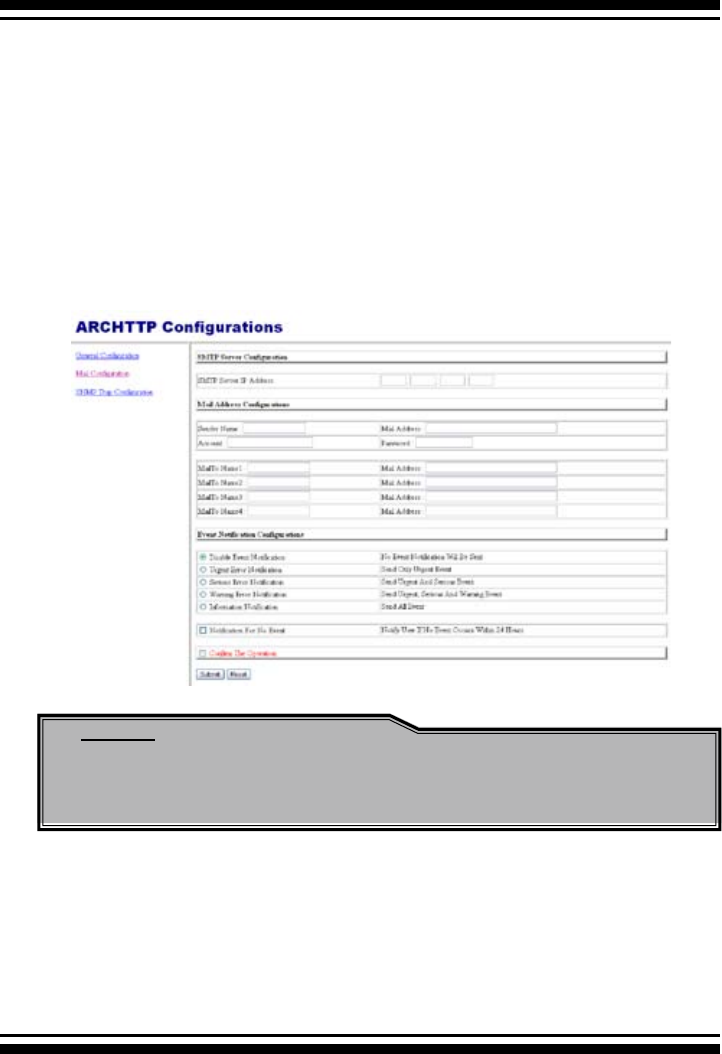
119
ARCHTTP PROXY SERVER INSTALLATION
Ex: RaidController_1@areca.com.tw
Account: enter the valid account if your SMTP mail server need au-
thentication.
Password: enter the valid password if your SMTP mail server need
authentication.
MailTo Name: enter the alert receiver name that will be shown in
the outgoing mail.
Mail Address: enter the alert receiver mail address.
Ex: admin@areca.com.tw
• SNMP Trap Conguration
Please refer to 6.8.4 SNMP conguration(12/16/24-port) section.
Note:
Please make sure you have completed mail address before
you submit mail congurations.
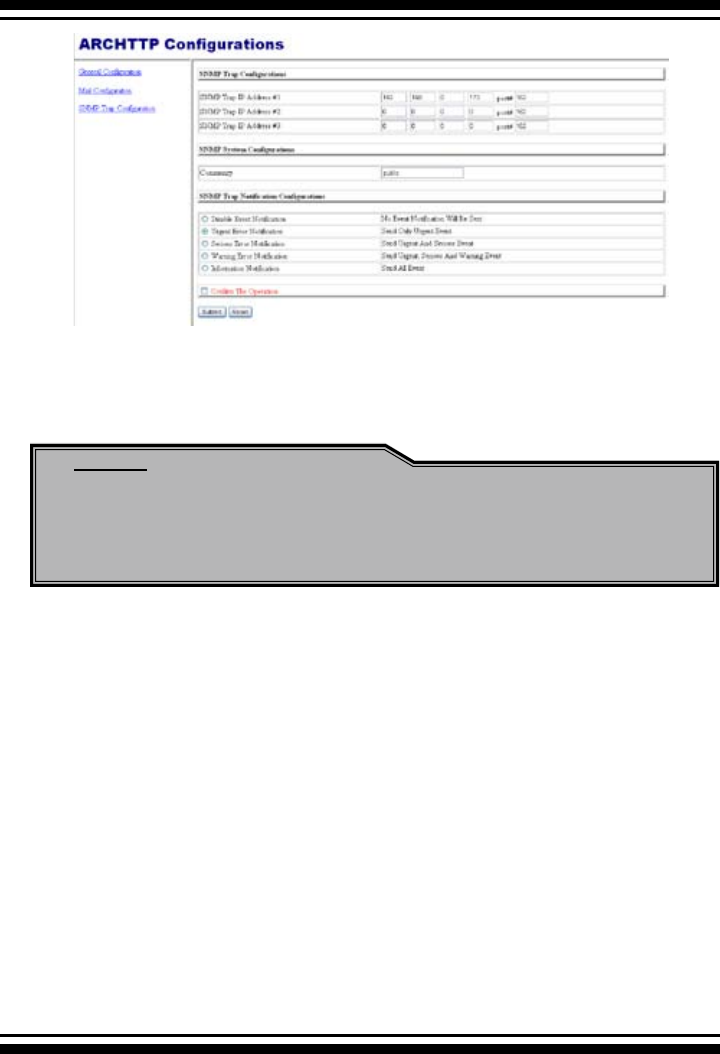
ARCHTTP PROXY SERVER INSTALLATION
120
Note:
Event Notication Table refer to Appendix D.
After you conrm and submit congurations, you can use
Generate Test Event feature to make sure these settings are
correct.
Congure Conguration and submit. After ArcHttp congurations
have successfully submitted, the Archttp console restarts again.

121
WEB BROWSER-BASED CONFIGURATION
6. Web Browser-based Conguration
Before using the McRAID rmware-based browser utility, do the ini-
tial setup and installation of this product. If you need to boot up the
operating system from a RAID volume set, you must rst create a
RAID volume by using McBIOS RAID Storage Manager. Please refer
to section 3.3 Using Quick Volume /Raid Setup Conguration for
information on creating this initial volume set.
The McRAID storage manager is rmware-based utility, which is ac-
cessible via the browser installed on your operating system.The Web
Browser-based McRAID Storage Manager is a HTML-based application,
which utilizes the browser (IE, Netscape and Mozilla etc) installed on
your monitor station.
It can be accessed through the In-Band PCI-X/PCIe bus or Out-of-Band
ethernet port. The In-Band method via archttp proxy server to launch
the Web Browser-based McRAID Storage Manager. The rmware-em-
bedded Web Browser-based McRAID storage manager allows local
or remote to access it from any standard internet browser via a LAN
or WAN with no software or patches required. The rmware contains
SMTP manager monitors all system events and user can select either
single or multiple user notications to be sent via LAN with “Plain Eng-
lish” e-mails. The rmware-embedded SNMP agent allows remote to
monitor events via LAN with no SNMP agent required.
• Create RAID set,
• Expand RAID set,
• Dene volume set,
• Add physical drive ,
• Modify volume set,
• Modify RAID level/stripe size,
• Dene pass-through disk drives,
• Modify system function,
• Update rmware, and
• Designate drives as hot spares.
6.1 Start-up McRAID Storage Manager
With the McRAID Storage Manager, you can locally manage a sys-
tem containing a SATA RAID controller that has Windows or Linux
WEB BROWSER-BASED CONFIGURATION
122
and a supported browser. A locally managed system requires all
of the following components:
• A supported Web browser, which should already be installed on
the system.
• Install ArcHttp proxy server on the SATA RAID system. (Refer to
Chapter 5, Archttp Proxy Server Installation)
• Remote and managed systems must have a TCP/IP connection.
Note:
For windows, if there is no volume set created by the MC-
BIOS manager, Archttp program can not nd raid card. It
will show "0 controllers found". From the version 1.71 of the
Archttp and the version 1.20.00.13 of the driver, users no
longer need to have a "valid raid volume" created in order to
managed controller.
To congure the internal SATA RAID controller. You need to know
its IP Address.
(1). Launch your McRAID Storage Manager by entering http://
[Computer IP Address]:[port number] in the web browser.
(2). When connection is established, the System Login screen
appears. The SATA RAID controller default User Name is “admin”
and the Password is “0000”
• Another method to start-up McRAID Storage Man-
ager from Windows Local Administration
Screen captures in this section are taken from a Windows XP
installation. If you are running another version of Windows, your
screens may look different, but the ArcHttp proxy server installa-
tion is essentially the same.
1. To start the McRAID Storage Manager for browser-based
management, selecting Controller#01(PCI) and then click the
Start Button.
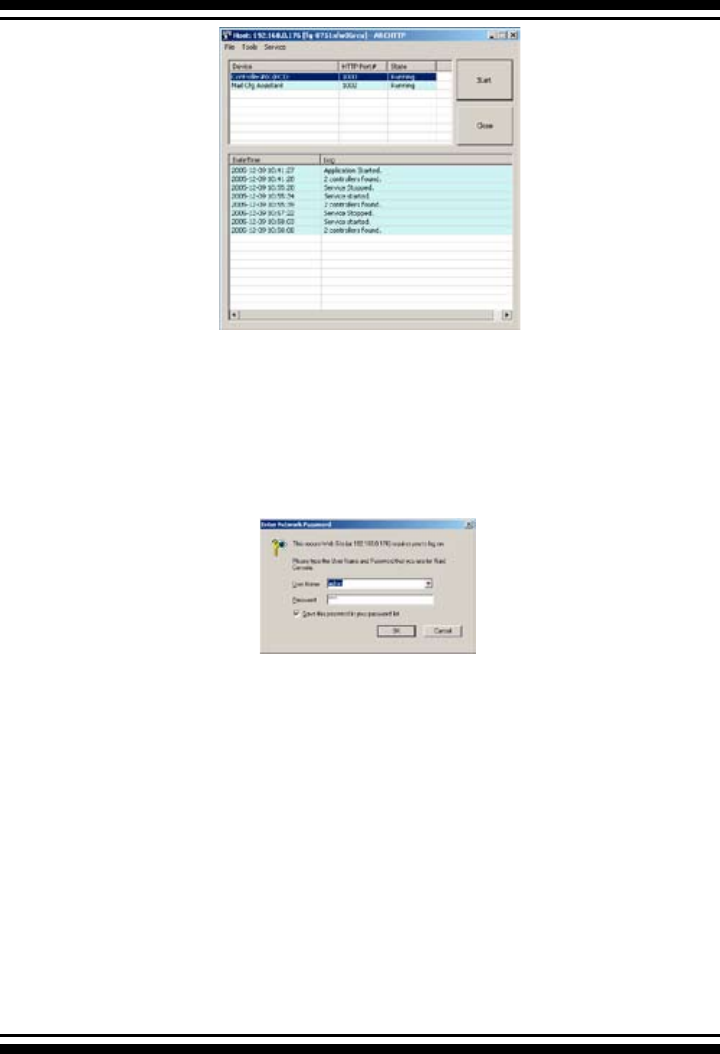
123
WEB BROWSER-BASED CONFIGURATION
The “Enter Network Password” dialog screen appears, type the
User Name and Password. The RAID subsystem controller de-
fault User Name is “admin” and the Password is “0000”. After
entering the user name and password, press Enter to access the
McRAID Storage Manager.
Areca now offers an alternative means of communication for the
PCI-X/PCIe RAID Adapter – McRAID Web Browser-based RAID
Management program. User can access the built-in conguration
without needing system starting up running the ArcHttp proxy.
The Web Browser-based RAID Management program is an HTML-
based application, which utilizes the browser installed on your
remote system.
To ensure proper communications between the PCI-X/PCIe RAID
controller and Web browser-based RAID management, Please
connect the RAID controller Ethernet LAN port to any LAN switch
port.
6.1.1 Through Ethernet port (Out-of-Band)
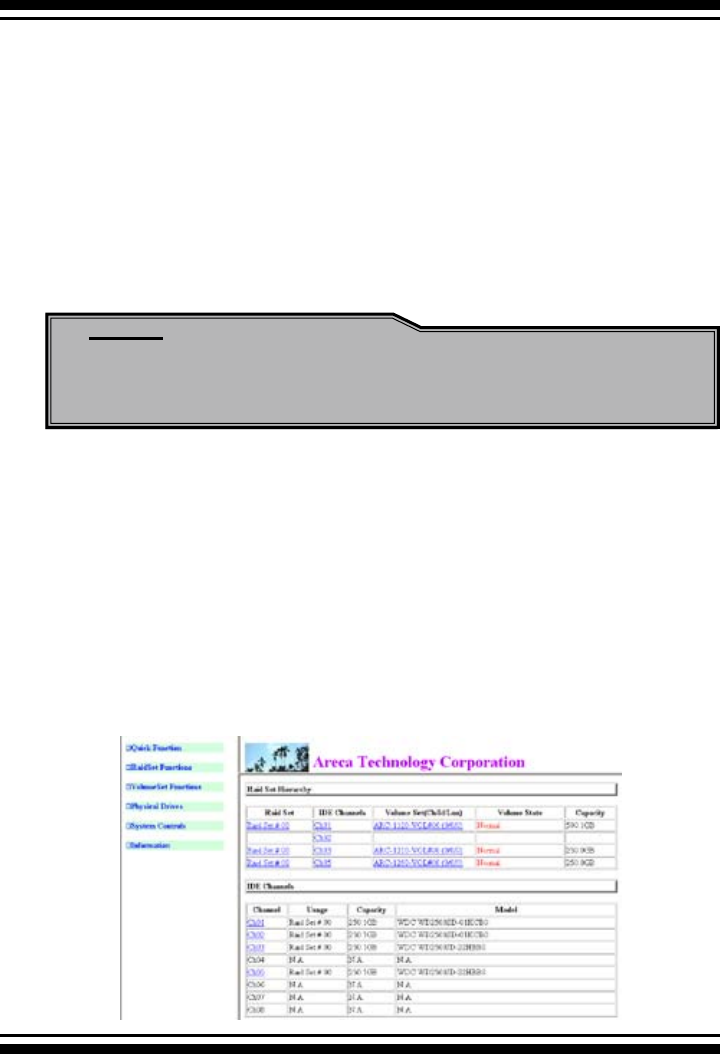
WEB BROWSER-BASED CONFIGURATION
124
6.2 SATA RAID controller McRAID Storage
Manager
The McRAID Storage Manager current conguration screen displays
the current conguration of your SATA RAID controller. It displays
the Raid Set List, Volume Set List, and Physical Disk List. The raid
set information, volume set information, and drive information can
also be viewed by clicking on the “Raid Set Hierarchy” screen. The
current conguration can also be viewed by clicking on “Raid Set
Hierarchy” in the menu.
Note:
You can nd controller Ethernet port IP address in System
Information.
The controller has embedded the TCP/IP & Web Browser-based
RAID manager in the rmware. User can remote manage the
RAID controller without adding any user specic software (plat-
form independent) via standard web browsers directly connected
to the 10/100 Ethernet RJ45 LAN port.
To congure External RAID subsystem on a remote machine, you
need to know its IP Address. The IP address will default show in
BIOS conguration of Ethernet conguration option. Launch your
rmware-embedded TCP/IP & Web Browser-based RAID manager
by entering http://[IP Address] in the web browser.

125
WEB BROWSER-BASED CONFIGURATION
To display raid set information, move the mouse cursor to the
desired raid set number, then click it. The raid set Information will
display. To display volume set information, move the mouse cur-
sor to the desired Volume Set number, then click it. The volume
set Information will display. To display drive information, move the
mouse cursor to the desired physical drive number, then click it.
The drive Information will display.
6.3 Main Menu
The Main Menu shows all available functions, accessible by clicking
on the appropriate link.
Individual Category Description
Quick Function Create a default conguration, which is based
on the number of physical disks installed; it can
modify the volume set Capacity, Raid Level, and
Stripe Size.
RaidSet Functions Create a customized raid set.
VolumeSet Functions Create customized volume sets and modify the
existed volume sets parameter.
Physical Drives Create pass through disks and modify the existing
pass through drives parameters. Also provides the
function to identify disk drives (blinking LED).
System Controls Setting the raid system conguration.
Information Viewing the controller information. The Raid Set
Hierarchy can be viewed through the RaidSet
Hierarchy item.
6.4 Quick Function

WEB BROWSER-BASED CONFIGURATION
126
The number of physical drives in the SATA RAID controller deter-
mines the RAID levels that can be implemented with the RAID set.
You can create a raid set associated with exactly one volume set.
The user can change the RAID level, stripe size, and capacity. A hot
spare option is also created depending upon the existing congura-
tion.
Click the “Conrm The Operation” check box and click on the Sub-
mit button in the Quick Create screen, the RAID set and volume set
will start to initialize.
Note:
In Quick Create, your volume set is automatically congured
based on the number of disks in your system. Use the Raid
Set Function and Volume Set Function if you prefer to cus-
tomize your system.
Note:
If volume capacity will exceed 2TB, controller will show the
Greater 2 TB volume Support sub-menu. Greater Two TB
Volume Support No, 64bit LBA and For Windows.
For more details please download PDF le from ftp://ftp.
areca.com.tw/RaidCards/Documents/Manual_Spec/
Over2TB_050721.zip
6.5 RaidSet Functions
Use the “Raid Set Function” and “Volume Set Function” if you
prefer to customize your system. Manual conguration can provide
full control of the RAID set settings, but it will take longer to com-
plete than the “Quick Volume/Raid Setup” conguration. Select the
“Raid Set Function” to manually congure the RAID set for the rst
time or delete and recongure existing RAID sets. (A RAID set is a
group of disks containing one or more volume sets.)
6.5.1 Create Raid Set
To create a raid set, click on the “Delete Raid Set” link. A “Select
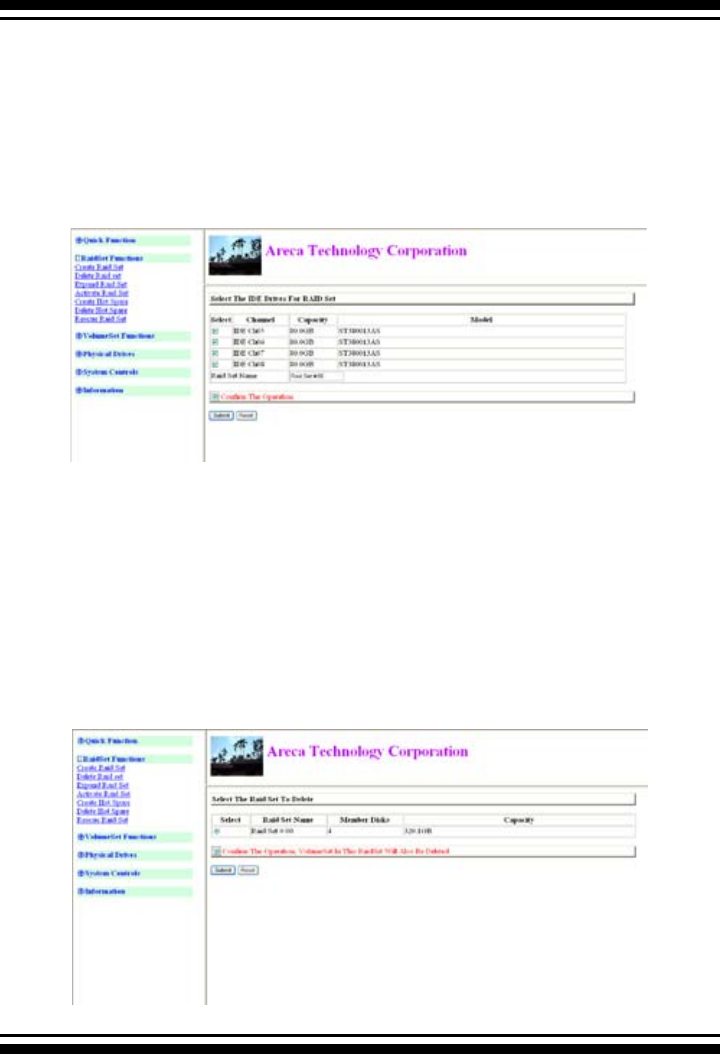
127
WEB BROWSER-BASED CONFIGURATION
The Drive For RAID Set” screen is displayed showing the drive(s)
connected to the current controller. Click on the selected physi-
cal drives within the current raid set. Enter 1 to 15 alphanumeric
characters to dene a unique identier for a raid set. The default
raid set name will always appear as “Raid Set. #”.
Click the “Conrm The Operation” check box and click on the
“Submit” button on the screen; the RAID set will start to initialize.
6.5.2 Delete Raid Set
To delete a RAID set, click on the “Deleted Raid Set” link. The
“Select The RAID SET To Delete” screen is displayed showing
all existing RAID sets in the current controller. Click the RAID set
number you which to delete in the select column on the delete
screen.
Click the “Conrm The Operation” check box and click on the
“Submit” button in the screen to delete it.
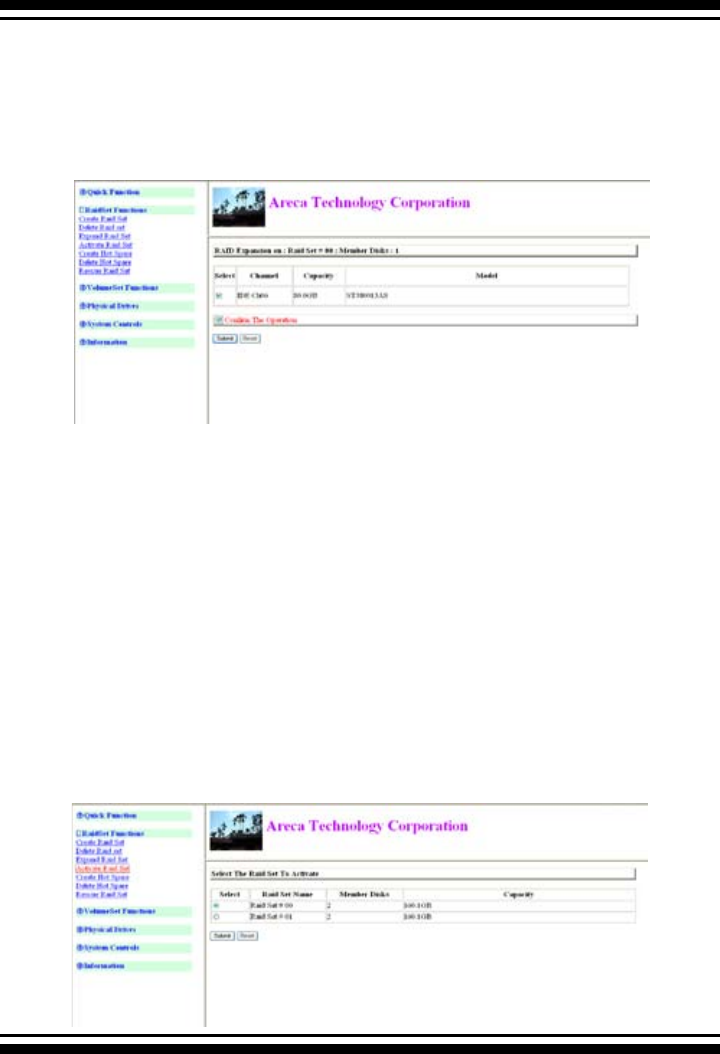
WEB BROWSER-BASED CONFIGURATION
128
6.5.3 Expand Raid Set
Use this option to expand a RAID set when a disk is added to your
system. This function becomes active when at least one drive is
available.
To expand a raid set, click on the “Expand Raid Set” link. Select
the target RAID set to be expanded. Click the available disk and
the “Conrm The Operation” check box and then click on the
“Submit” button on the screen to add disks to the RAID set.
6.5.4 Activate Incomplete Raid Set
If one of the disk drives is removed in power off state, the raid
set state will change to “Incomplete State” If the user wants to
continue to power-on the SATA RAID controller, the user can use
the “Activate Raid Set” option to active the RAID set. After the
user completes this function, the Raid State will change to De-
graded Mode.
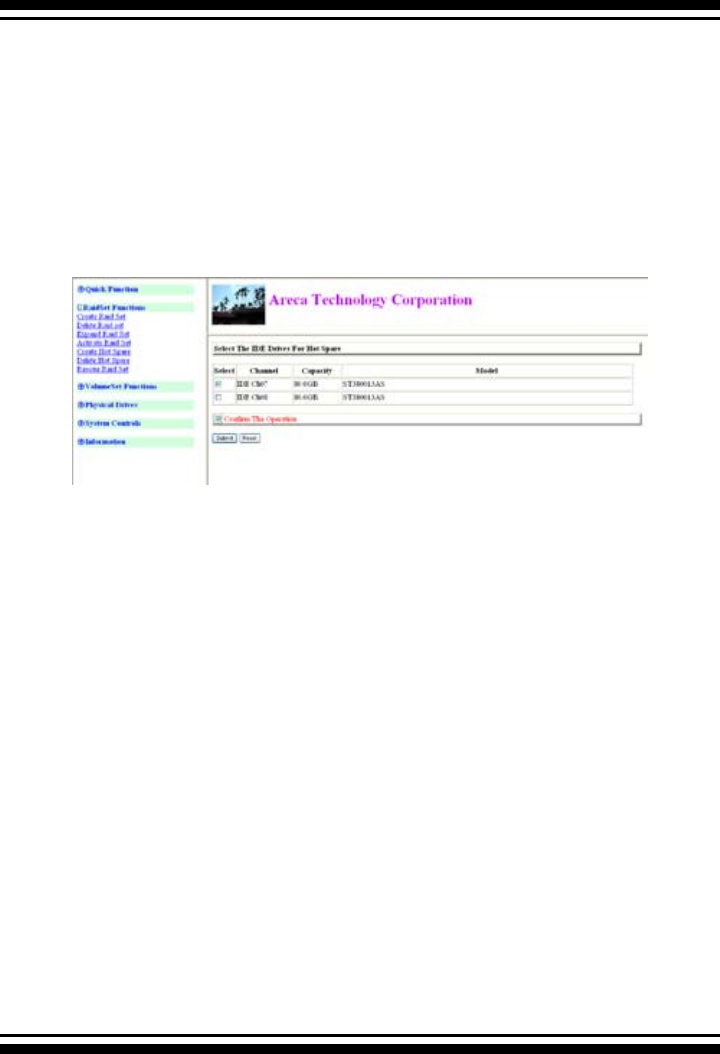
129
WEB BROWSER-BASED CONFIGURATION
To activate the incomplete the RAID set, click on the “Activate
Raid Set” link. A “Select The RAID SET To Activate” screen is
displayed showing all raid sets existing on the current controller.
Click the RAID set number to activate in the select column.
Click on the “Submit” button on the screen to activate the raid
set that had a disk removed (or failed) in the power off state. The
SATA RAID controller will continue to work in degraded mode.
6.5.5 Create Hot Spare
When you choose the “Create Hot Spare” option in the “Raid Set
Function”, all unused physical devices connected to the current
controller appear. Select the target disk by clicking on the ap-
propriate check box. Click the “Conrm The Operation” check
box and click the “Submit” button in the screen to create the hot
spares.
The “Create Hot Spare” option gives you the ability to dene a
global hot spare.
6.5.6 Delete Hot Spare
Select the target Hot Spare disk to delete by clicking on the ap-
propriate check box.
Click the “Conrm The Operation” check box and click the “Sub-
mit” button on the screen to delete the hot spares.
6.5.7 Rescue Raid Set
When the system is powered off in the RAID set update/creation
period, it possibly could disappear due to this abnormal condition.
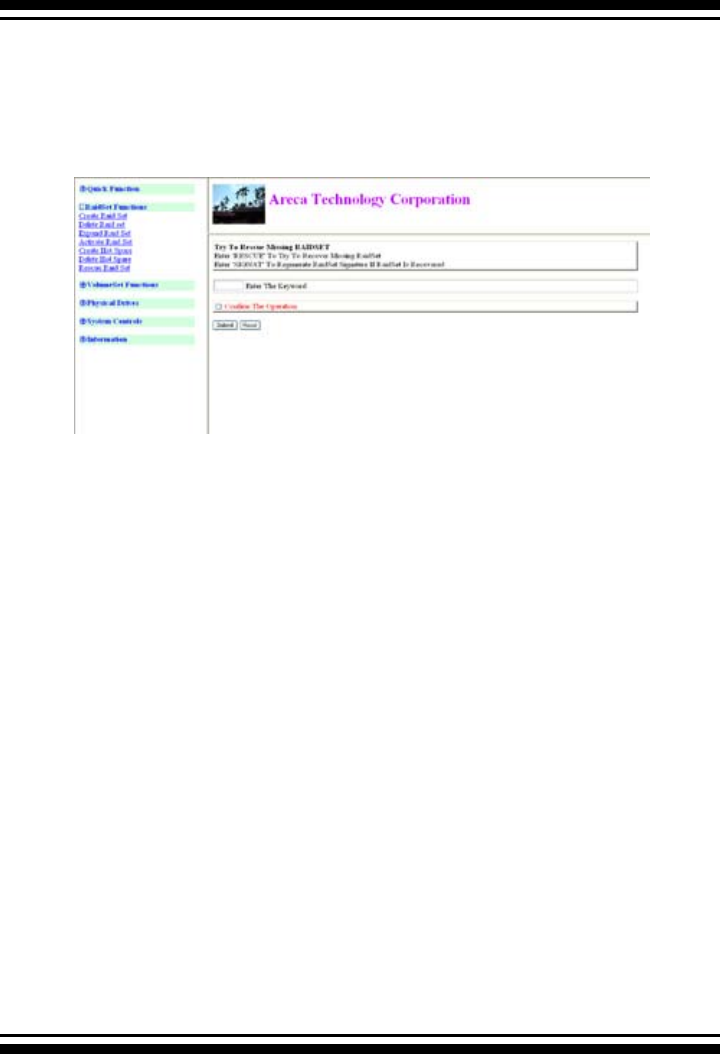
WEB BROWSER-BASED CONFIGURATION
130
The “RESCUE” function can recover the missing RAID set infor-
mation. The RAID controller uses the time as the RAID set signa-
ture. The RAID set may have different time after the RAID set is
recovered. The “SIGANT” function can regenerate the signature
for the RAID set.
6.6 Volume Set Functions
A volume set is seen by the host system as a single logical device.
It is organized in a RAID level with one or more physical disks.
RAID level refers to the level of data performance and protection of
a volume set. A volume set capacity can consume all or a portion
of the disk capacity available in a RAID set. Multiple volume sets
can exist on a group of disks in a RAID set. Additional volume sets
created in a specied RAID set will reside on all the physical disks
in the raid set. Thus each volume set on the RAID set will have its
data spread evenly across all the disks in the RAID set.
6.6.1 Create Volume Set
1. Volume sets of different RAID levels may coexist on the same
raid set.
2. Up to 16 volume sets can be created by the SATA RAID control-
ler.
3. The maximum addressable size of a single volume set is not
limited to 2 TB because the controller is capable of 64-bit mode.
However, the operating system itself may not be capable of ad-
dressing more than 2 TB. See the Areaca website for details.
To create a volume set on a raid set, move the cursor bar to the
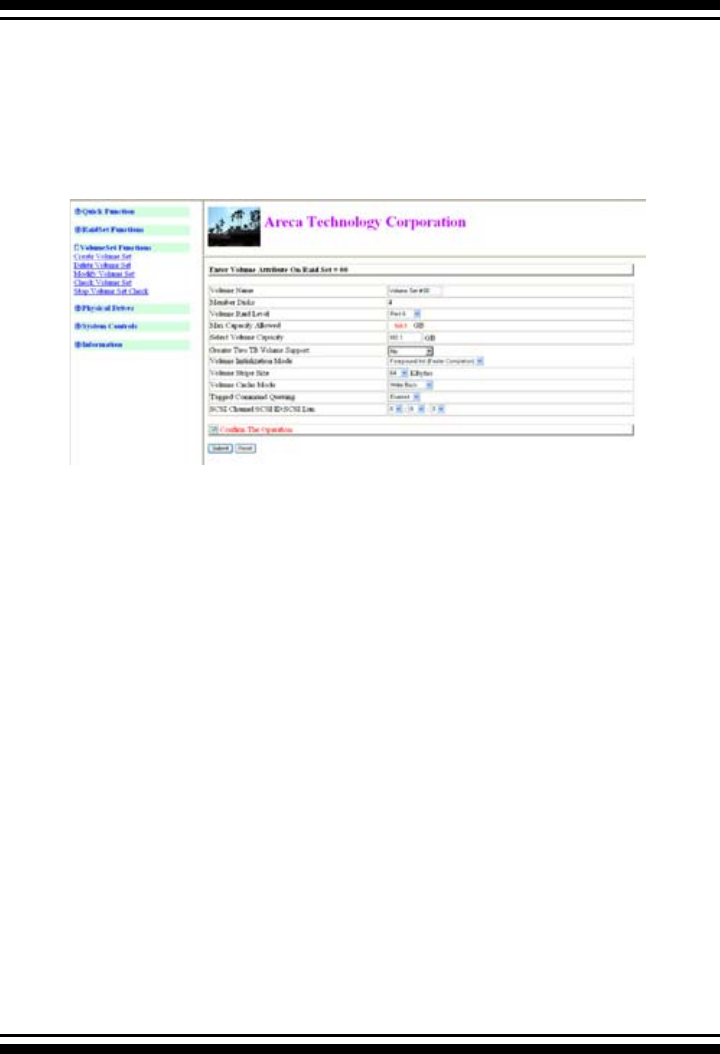
131
WEB BROWSER-BASED CONFIGURATION
main menu and click on the “Create Volume Set” link. The “Select
The Raid Set To Create On It” screen will show all RAID set num-
bers. Click the RAID set number that to be used and then click
the “Submit” button.
The “create new volume set” option allows users to select the Vol-
ume name, capacity, RAID level, strip size, SCSI ID/LUN, Cache
mode, and tag queuing.
• Volume Name
The default volume name will always appear as “Volume Set.
#”. You can rename the volume set providing it does not exceed
the 15 characters limit.
• Raid Level
Set the RAID level for the volume set. Highlight the desired
Raid Level and press Enter.
The available RAID levels for the current volume set are
displayed. Select a RAID level and press "Enter" to conrm.
• Capacity
The maximum volume size is the default initial setting. Enter
the appropriate volume size to t your application.
• Greater Two TB Volume Support
If volume capacity will exceed 2TB, controller will show the
"Greater 2 TB volume Support" sub-menu. Greater Two TB
Volume Support No, 64bit LBA and For Windows options.
For more details please download PDF le from ftp://ftp.
areca.com.tw/RaidCards/Documents/Manual_Spec/
Over2TB_050721.zip

WEB BROWSER-BASED CONFIGURATION
132
• Initialization Mode
Press “Enter” key to dene fast initialization or Selected the
Background (Instant Available). When background Initialization,
the initialization proceeds as a background task, the volume set
is fully accessible for system reads and writes. The operating
system can instantly access to the newly created arrays without
requiring a reboot and waiting the initialization complete. when
Fast Initialization, the initialization proceeds must be completed
before the volume set ready for system accesses.
• Strip Size
This parameter sets the size of the stripe written to each disk in
a RAID level 0, 1, 1E, 5 or 6 logical drive. You can set the stripe
size to 4 KB, 8 KB, 16 KB, 32 KB, 64 KB, or 128 KB.
A larger stripe size produces better read performance, espe-
cially if your computer does mostly sequential reads. However,
if you are sure that your computer does random reads more
often, select a smaller stripe size.
Note: RAID level 3 can’t modify strip size.
• Cache Mode
The SATA RAID controller supports Write-Through Cache and
Write-Back Cache.
• SCSI Channel/SCSI ID/SCSI Lun
SCSI Channel: The SATA RAID controller function is simulated
as a SCSI RAID controller. The host bus is represented as a
SCSI channel. Choose the SCSI Channel.
SCSI ID: Each SCSI device attached to the SCSI card, as well
as the card itself, must be assigned a unique SCSI ID number.
A SCSI channel can connect up to 15 devices. The SATA RAID
controller is a large SCSI device. Assign an ID from a list of
SCSI IDs.
SCSI LUN: Each SCSI ID can support up to 8 LUNs. Most SCSI
controllers treat each LUN like a SCSI disk.
• Tag Queuing
The Enabled option is useful for enhancing overall system
performance under multi-tasking operating systems. The Com-
mand Tag (Drive Channel) function controls the SCSI com-
mand tag queuing support for each drive channel. This func-
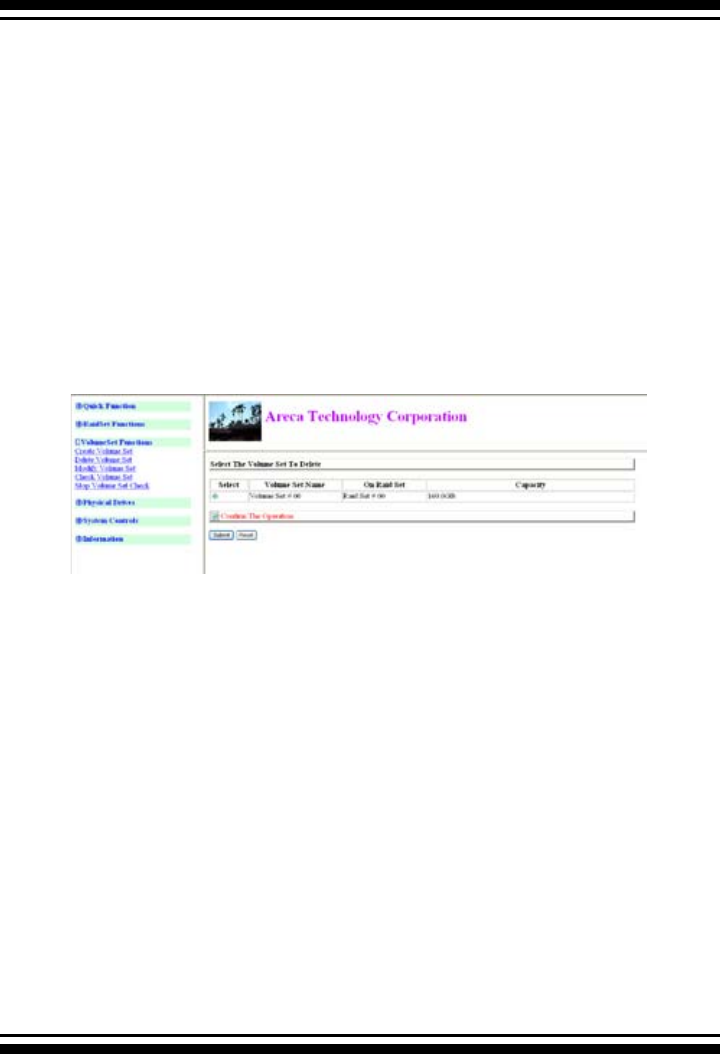
133
WEB BROWSER-BASED CONFIGURATION
tion should normally remain enabled. Disable this function only
when using older SCSI drives that do not support command tag
queuing
6.6.2 Delete Volume Set
To delete a volume set from RAID set, move the cursor bar to the
main menu and click on the “Delete Volume Set” link. The “Select
The Raid Set To Delete” screen will show all RAID set numbers.
Click a raid set number and the “Conrm The Operation” check
box and then click the “Submit” button to show all volume set
items in the selected raid set. Click a volume set number and the
“Conrm The Operation” check box and then click the “Submit”
button to delete the volume set.
6.6.3 Modify Volume Set
To modify a volume set from a raid set:
(1). Click on the “Modify Volume Set” link.
(2). Click the volume set check box from the list that you wish to
modify. Click the “Submit” button. The following screen appears.
Use this option to modify the volume set conguration. To modify
volume set attributes from “Raid Set System” function, move
the cursor bar to the volume set attribute menu and click it. The
“modify value” screen appears. Move the cursor to an attribute
item and then click the attribute to modify the value. After you
complete the modication, click the “Conrm The Operation”
check box and click the “Submit” button to complete the action.
The user can modify all values except capacity.
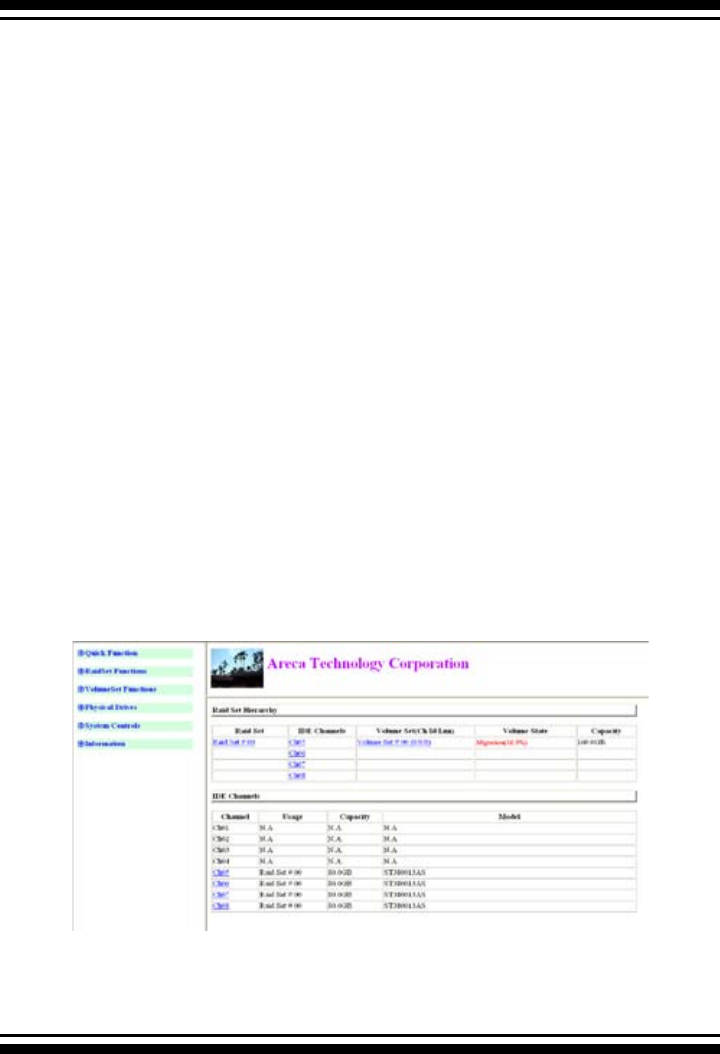
WEB BROWSER-BASED CONFIGURATION
134
To Expand an existing volume noticed:
• Only the last volume can expand capacity.
• When expand volume capacity, you can’t modify stripe size or
modify raid revel simultaneously.
• You can expand volume capacity, but can’t reduce volume
capacity size.
For Greater 2TB expansion:
• If your system installed in the volume, don't expanded the
volume capacity greater 2TB, currently OS can’t support boot
up from a greater 2TB capacity device.
• Expanded over 2TB used LBA64 mode. Please make sure your
OS supports LBA 64 before expand it.
6.6.3.1 Volume Set Migration
Migrating occurs when a volume set is migrating from one RAID
level to another, a volume set strip size changes, or when a disk
is added to a raid set. Migration status is displayed in the vol-
ume status area of the RaidSet Hierarchy screen when one RAID
level to another, a volume set strip size changes or when a disk
is added to a RAID set.

135
WEB BROWSER-BASED CONFIGURATION
6.6.5 Stop VolumeSet Check
Use this option to stop the “Check Volume Set function”.
6.7 Physical Drive
Choose this option to select a physical disk from the Main Menu
and then perform the operations listed below.
6.6.4 Check Volume Set
To check a volume set from a raid set:
(1). Click on the “Check Volume Set” link.
(2). Click on the volume set from the list that you wish to check.
Tick on “Conrm The Operation” and click on the “Submit” button.
Use this option to verify the correctness of the redundant data in
a volume set. For example, in a system with dedicated parity, vol-
ume set check means computing the parity of the data disk drives
and comparing the results to the contents of the dedicated parity
disk drive. The checking percentage can also be viewed by click-
ing on RaidSet Hierarchy in the main menu.
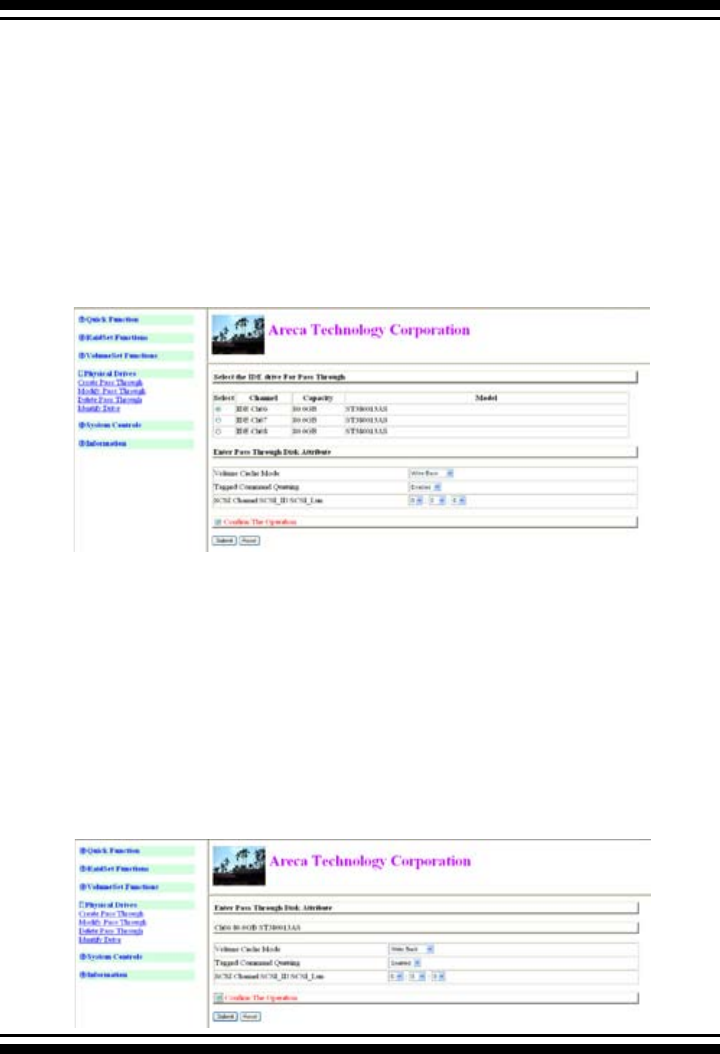
WEB BROWSER-BASED CONFIGURATION
136
6.7.1 Create Pass-Through Disk
To create pass-through disk, move the mouse cursor to the main
menu and click on the “Create Pass-Through” link. The “rela-
tive setting function” screen appears. A pass-through disk is not
controlled by the SATA RAID controller rmware, it cannot be a
part of a volume set. The disk is available to the operating system
as an individual disk. It is typically used on a system where the
operating system is on a disk not controlled by the RAID rm-
ware. The user can also select the cache mode, Tagged Command
Queuing, SCSI channel/SCSI_ID/SCSI_LUN for this volume.
6.7.2 Modify Pass-Through Disk
Use this option to modify the “Pass-Through Disk Attribute”. The
user can modify the cache mode, Tagged Command Queuing,
and SCSI channel/ID/LUN on an existing pass through disk.
To modify the pass-through drive attribute from the pass-through
drive pool, move the mouse cursor bar and click on the “Modify
Pass-Through” link. The “Select The Pass Through Disk For Modi-
cation” screen appears mark the checkbox for the Pass-Through
Disk from the pass-through drive pool and click on the “Submit”
button to select drive.
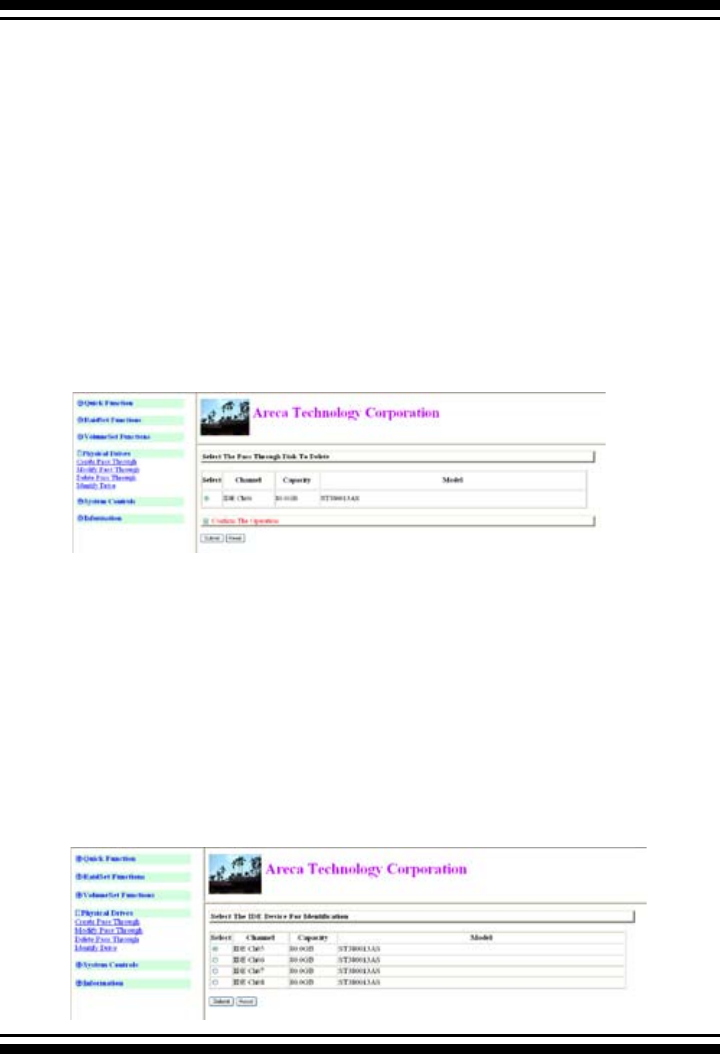
137
WEB BROWSER-BASED CONFIGURATION
When the “Enter Pass-Through Disk Attribute” screen appears,
modify the drive attribute values, as you want.
After you complete the selection, mark the checkbox for “Conrm
The Operation” and click on the “Submit” button to complete the
selection action.
6.7.3 Delete Pass-Through Disk
To delete a pass-through drive from the pass-through drive pool,
move the mouse cursor bar to the main menus and click the “De-
lete Pass Through” link.
After you complete the selection, mark the checkbox for “Conrm
The Operation” and click the “Submit” button to complete the
delete action.
6.7.4 Identify Selected Drive
To prevent removal of the wrong drive, the selected disk LED will
light so as to physically locate the intended disk when “Identify
Selected Drive” is selected.
To identify the selected drive from the drives pool, click “Identify
Selected Drive”. The “Select The IDE Device For Identication”
screen appears mark the checkbox for the IDE device from the
drive pool and select the Flash method. After completing the se-
lection, click on the “Submit” button to identify selected drive.

WEB BROWSER-BASED CONFIGURATION
138
6.8 System Controls
6.8.1 System Cong
To set the raid system function, move the cursor to the main
menu and click the “Raid System Function” link. The “Raid System
Function” menu will show all items, then select the desired func-
tion.
• System Beeper Setting
The Alert Beeper function item is used to Disabled or Enable the
SATA RAID controller alarm tone generator.
• Background Task Priority
The Raid Rebuild Priority is a relative indication of how much
time the controller devotes to a rebuild operation. The SATA
RAID controller allows the user to choose the rebuild priority
(ultraLow, Low, Normal, High) to balance volume set access
and rebuild tasks appropriately. For high array performance,
specify a Low value.
• JBOD/RAID Conguration
JBOD is an acronym for “Just a Bunch Of Disks”. It repre-
sents a volume set that is created by the concatenation of par-
titions on the disk. The OS can see all disks when this option is
selected. It is necessary to delete a RAID set if the disks in that
set are to be convereted to JBOD mode.
• Maximun SATA Supported
The SATA RAID controller can support up to SATA ll, which runs
up to 300MB/s. NCQ is a command protocol in Serial ATA that
can only be implemented on native Serial ATA hard drives. It
allows multiple commands to be outstanding within a drive at
the same time. Drives that support NCQ have an internal queue
where outstanding commands can be dynamically rescheduled
or re-ordered, along with the necessary tracking mechanisms
for outstanding and completed portions of the workload. The
RAID subsystem allows user to choose the SATA Mode (slowest
to fastest): SATA150, SATA150+NCQ, SATA300, SATA300+NCQ.
• HDD Read Ahead Cache
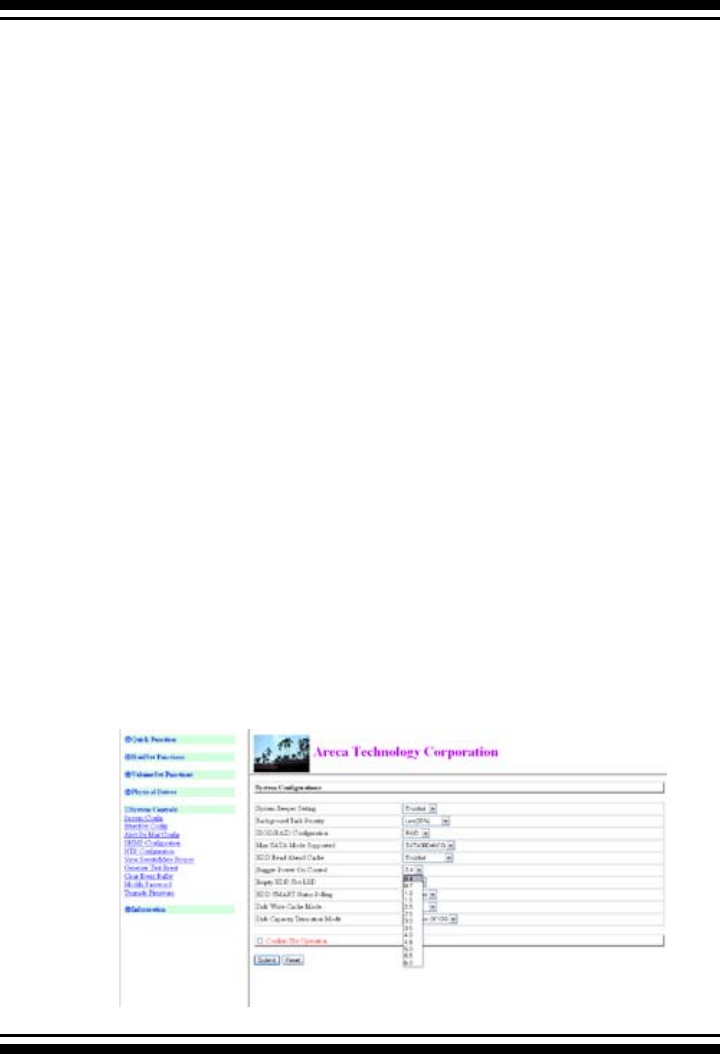
139
WEB BROWSER-BASED CONFIGURATION
Allow Read Ahead (Default: Enabled)—When Enabled, the drive’
s read ahead cache algorithm is used, providing maximum
performance under most circumstances.
• Stagger Power on
In a PC system with only one or two drives, the power can
supply enough power to spin up both drives simultaneously. But
in systems with more than two drives, the startup current from
spinning up the drives all at once can overload the power supply,
causing damage to the power supply, disk drives and other
system components. This damage can be avoided by allowing
the host to stagger the spin-up of the drives. New SATA drives
have support staggered spin-up capabilities to boost reliability.
Staggered spin-up is a very useful feature for managing multiple
disk drives in a storage subsystem. It gives the host the ability
to spin up the disk drives sequentially or in groups, allowing
the drives to come ready at the optimum time without straining
the system power supply. Staggering drive spin-up in a multiple
drive environment also avoids the extra cost of a power supply
designed to meet short-term startup power demand as well as
steady state conditions.
Areca has supported the xed value staggered power up function
in its previous version firmware. But from firmware version
1.39 and later, SATA RAID controller has included the option for
customer to select the disk drives sequentially stagger power up
value. The values can be selected from 0.4ms to 6ms per step
which powers up one drive.
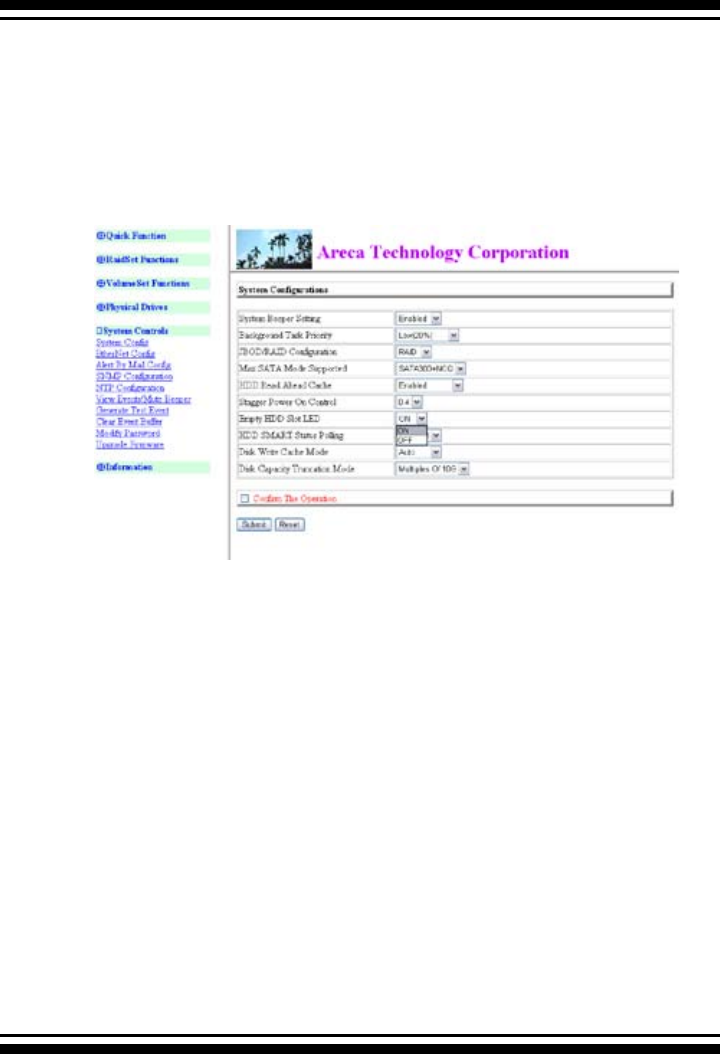
WEB BROWSER-BASED CONFIGURATION
140
• Empty HDD Slot LED
From rmware version 1.39 date: 04/01/2006 and later, the
rmware has added the "Empty HDD Slot LED" option to setup
the Failed LED light "ON "or "OFF". When each slot has a power
LED for the HDD installed identify, user can set this option to
"OFF". Choose this option "ON", the failed LED light will ash
red light; if no HDD installed.
• HDD SMART Status Polling
An external RAID enclosure has the hardware monitor in the
dedicated backplane that can report HDD temperature status
to the controller. However, PCI type controllers do not use
backplanes if the drives are internal to the main server chassis.
The type of enclosure cannot report the HDD temperature to
the controller. For this reason, HDD SMART Status Polling was
added to enable scanning of the HDD temperature function in
the version 1.36 date: 2005-05-19 (and later). It is necessary
to enable “HDD SMART Status Polling” function before SMART
information is accessible. This function is disabled by default.
The following screen shot shows how to change the BIOS setting
to enable the Polling function.

141
WEB BROWSER-BASED CONFIGURATION
• Disk Write Cache Mode
A user can set the “Disk Write Cache Mode” to: Auto, Enabled,
or Disabled.
• Disk Capacity Truncation Mode
SATA RAID controllers use drive truncation so that drives from
differing vendors are more likely to be able to be used as spares
for each other. Drive truncation slightly decreases the usable
capacity of a drive that is used in redundant units.
The controller provides three truncation modes in the system
conguration: Multiples Of 10G, Multiples Of 1G, and No
Truncation.
Multiples Of 10G: If you have 120 GB drives from different
vendors; chances are that the capacity varies slightly. For exam-
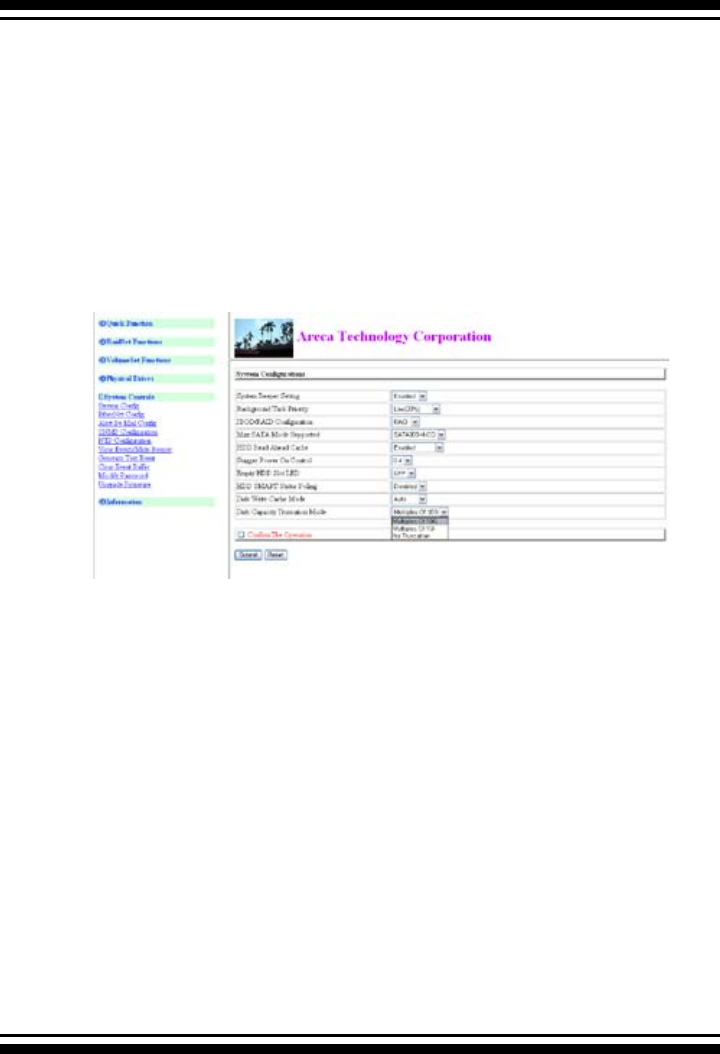
WEB BROWSER-BASED CONFIGURATION
142
ple, one drive might be 123.5 GB, and the other 120 GB. Areca
drive Truncation mode Multiples Of 10G uses the same capac-
ity for both of these drives so that one could replace the other.
Multiples Of 1G: If you have 123 GB drives from different ven-
dors; chances are that the capacity varies slightly. For example,
one drive might be 123.5 GB, and the other 123.4 GB. Areca
drive Truncation mode Multiples Of 1G uses the same capacity
for both of these drives so that one could replace the other.
No Truncation: It does not truncate the capacity.
6.8.2 Ethernet Conguration (12/16/24-port)
Use this feature to set the controller Ethernet port conguration.
A customer doesn’t need to create a reserved space on the arrays
before the Ethernet port and HTTP service are working. The rm-
ware-embedded Web Browser-based RAID manager can access
it from any standard internet browser or from any host computer
either directly connected or via a LAN or WAN with no software or
patches required.
DHCP (Dynamic Host Conguration Protocol) is a protocol that
lets network administrators manage centrally and automate the
assignment of IP (Internet Protocol) congurations on a computer
network. When using the Internet’s set of protocols (TCP/IP), in
order for a computer system to communicate to another com-
puter system, it needs a unique IP address. Without DHCP, the
IP address must be entered manually at each computer system.
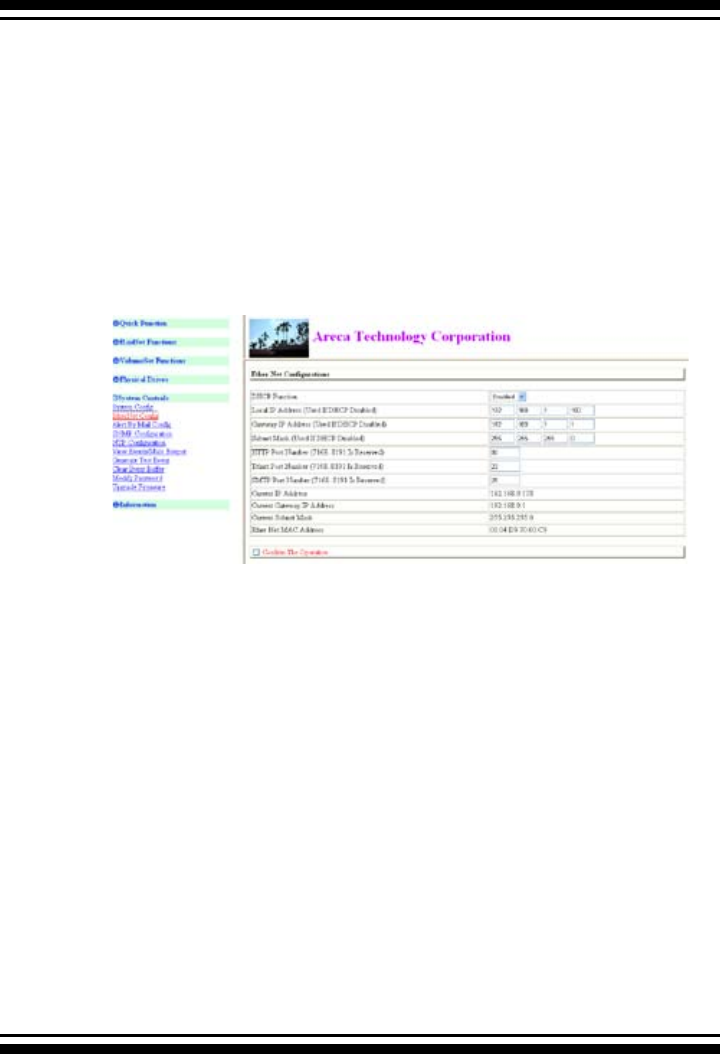
143
WEB BROWSER-BASED CONFIGURATION
DHCP lets a network administrator supervise and distribute IP
addresses from a central point. The purpose of DHCP is to provide
the automatic (dynamic) allocation of IP client congurations for
a specic time period (called a lease period) and to eliminate the
work necessary to administer a large IP network.
To congure the raid controller Ethernet port, move the cursor bar
to the main menu and click on the System Controls link. The Sys-
tem Controls menu will show all items. Move the cursor bar to the
EtherNet Cong item, then press Enter key to select the desired
function.
6.8.3 Alert by Mail Conguration (12/16/24-
port)
To congure the SATA RAID controller e-mail function, move the
cursor bar to the main menu and click on the “System Controls”
link. The System Controls menu will show all items. Move the cur-
sor bar to the “Alert By Mail Cong” item, then select the desired
function. This function can only be set via web-based congura-
tion.
The rmware contains a SMTP manager monitoring all system
events. Single or multiple user notications to be sent via “Plain
English” e-mails with no software required.

WEB BROWSER-BASED CONFIGURATION
144
6.8.4 SNMP Conguration (12/16/24-port)
To congure the raid controller SNMP function, click on the “Sys-
tem Controls” link. The System Controls menu will show available
items. Select the “SNMP Conguration” item. This function can
only set via web-based conguration.
The rmware SNMP Agent Manager monitors all system events
and the SNMP function becomes functional with no Agent soft-
ware required.
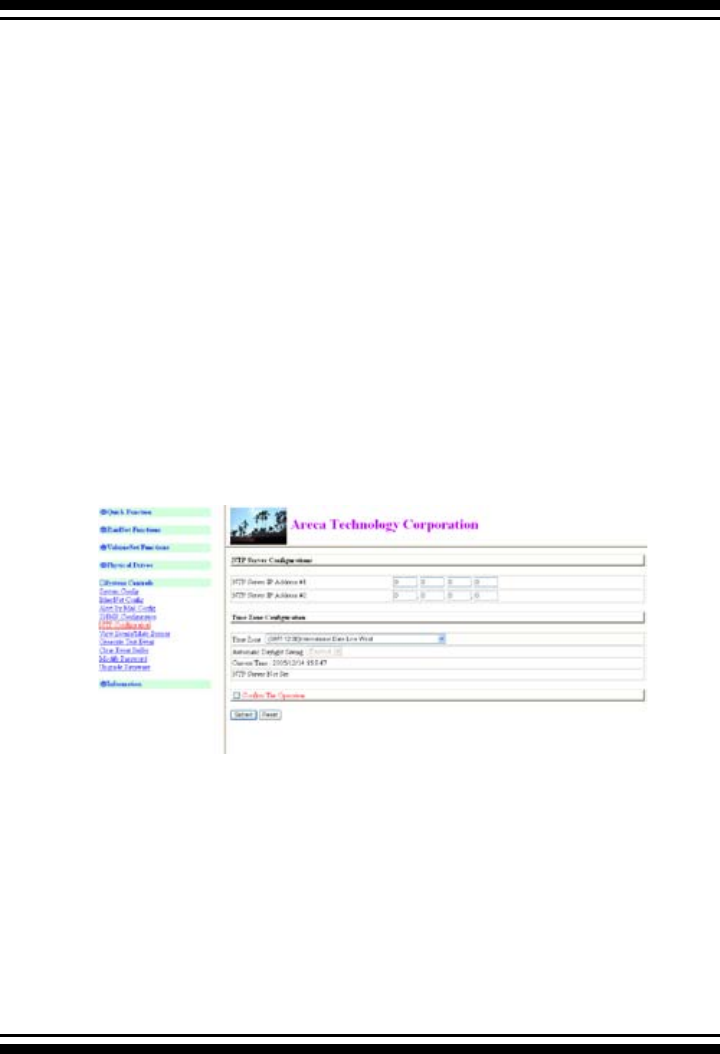
145
WEB BROWSER-BASED CONFIGURATION
• SNMP Trap Congurations
Enter the SNMP Trap IP Address.
• SNMP System Congurations
About community, please refer to page 161 of SNMP commu-
nity name. The system Contact, Name and Location that will
be shown in the outgoing SNMP Trap.
• SNMP Trap Notication Congurations
Please refer to Appendix D of Event Notication table.
6.8.5 NTP Conguration (12/16/24-port)
The Network Time Protocol (NTP) is used to synchronize the time
of a computer client or server to another server or reference time
source, such as a radio or satellite receiver or modem. It provides
accuracies typically within a millisecond on LANs and up to a few
tens of milliseconds on WANs relative to Coordinated Universal
Time (UTC) via a Global Positioning Service (GPS) receiver, for
example:
• NTP Sever Address
The most important factor in providing accurate, reliable time is
the selection of NTP servers to be used in the conguration le.
Typical NTP congurations utilize multiple redundant servers and
diverse network paths in order to achieve high accuracy and re-
liability. Our NTP conguration supports two existing public NTP
synchronization subnets.
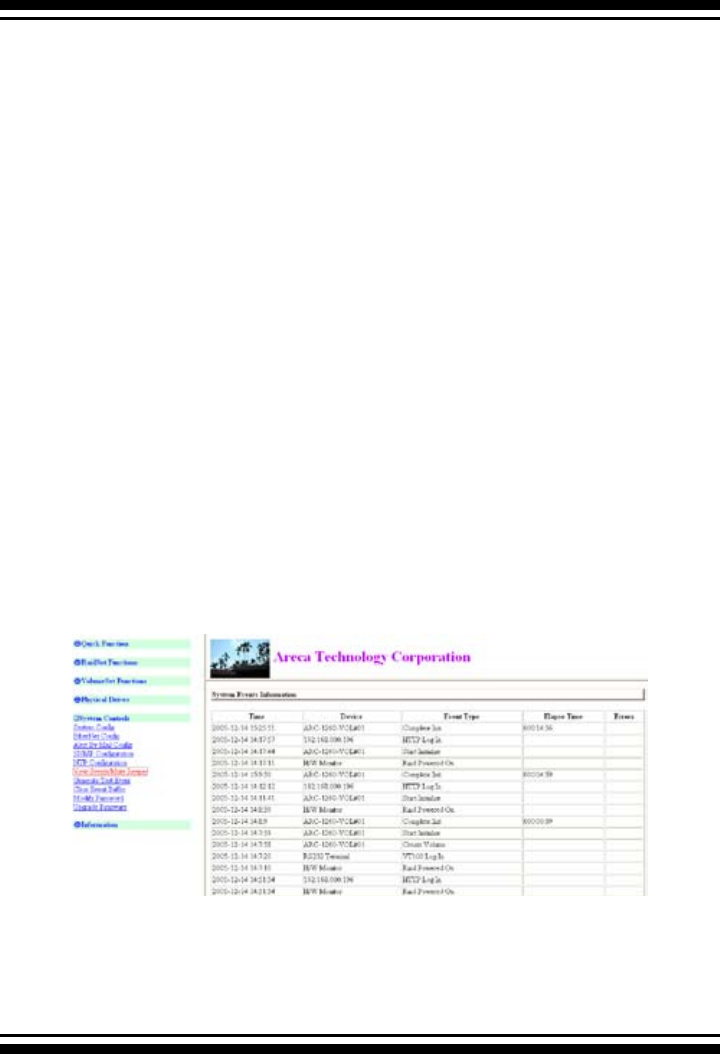
WEB BROWSER-BASED CONFIGURATION
146
• Time Zone
Time Zone conveniently runs in the system tray and allows you
to easily view the date and time in various locations around the
world. You can also quickly and easily add your own personal
locations to customize Time Zone the way you want.
• Automatic Daylight Saving
Automatic Daylight Saving will normally attempt to automati-
cally adjust the system clock for daylight saving changes based
on the computer time zone. This tweak allows you to disable the
automatic adjustment.
6.8.6 View Events/Mute Beeper
To view the SATA RAID controller’s information, click on the “Sys-
tem Information” link. The SATA Raid controller events Informa-
tion screen appears.
Choose this option to view the system events information: Timer,
Device, Event type, Elapse Time and Errors. The RAID system
does not have a built-in real time clock. The Time information is
the relative time from the SATA RAID controller power on.
6.8.7 Generate Test Event
Use this feature is to generate events for testing purposes.

147
WEB BROWSER-BASED CONFIGURATION
6.8.8 Clear Events Buffer
Use this feature to clear the entire events buffer information.
6.8.9 Modify Password
To set or change the SATA RAID controller password, select “Raid
System Function” from the menu and click on the “Change Pass-
word” link. The Modify System Password screen appears.
The manufacture default password is set to 0000. The pass-
word option allows user to set or clear the SATA RAID controller’s
password protection feature. Once the password has been set,
the user can only monitor and congure the SATA RAID controller
by providing the correct password.
The password is used to protect the SATA RAID controller from
unauthorized entry. The controller will check the password only
when entering the Main menu from the initial screen. The SATA
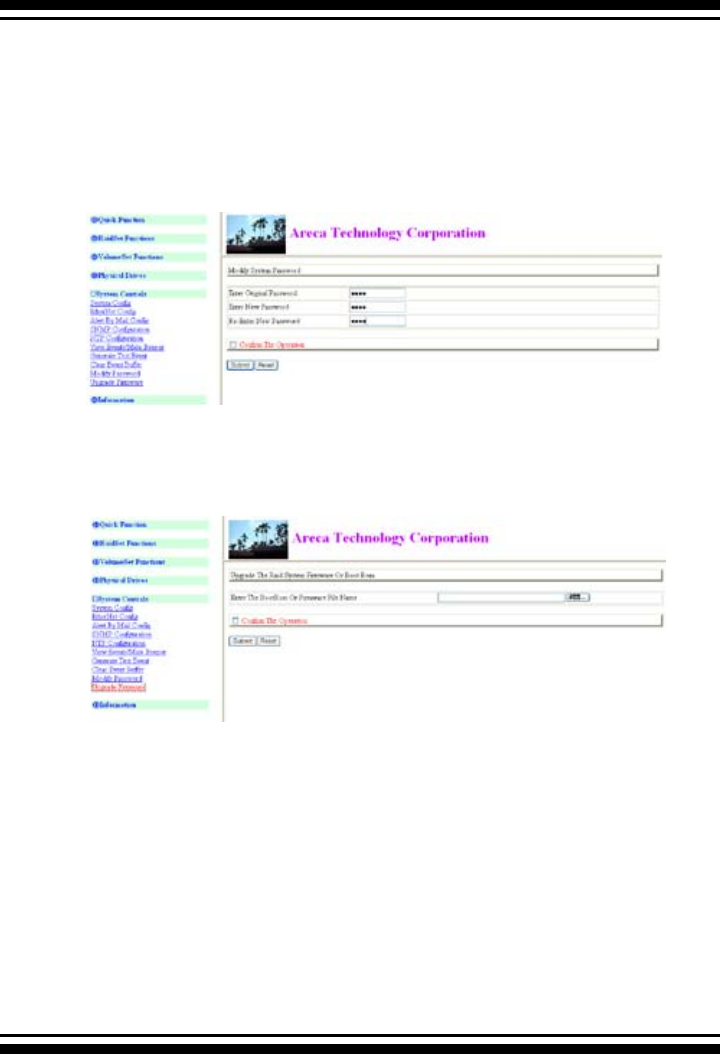
WEB BROWSER-BASED CONFIGURATION
148
6.9 Information
6.9.1 RaidSet Hierarchy
Use this feature to view the SATA RAID controller current raid
set, current volume set and physical disk conguration. Please
reference the this chapter “Conguring Raid Sets and Volume
Sets”
RAID controller will automatically go back to the initial screen
when it does not receive any command in ten seconds.
To disable the password, leave the elds blank. Once the user
conrms the operation and clicks the Submit button, the existing
password will be cleared. Then, no password checking will occur
when entering the main menu from the starting screen.
6.8.10 Update Firmware
Please reference the appendix A rmware utility.
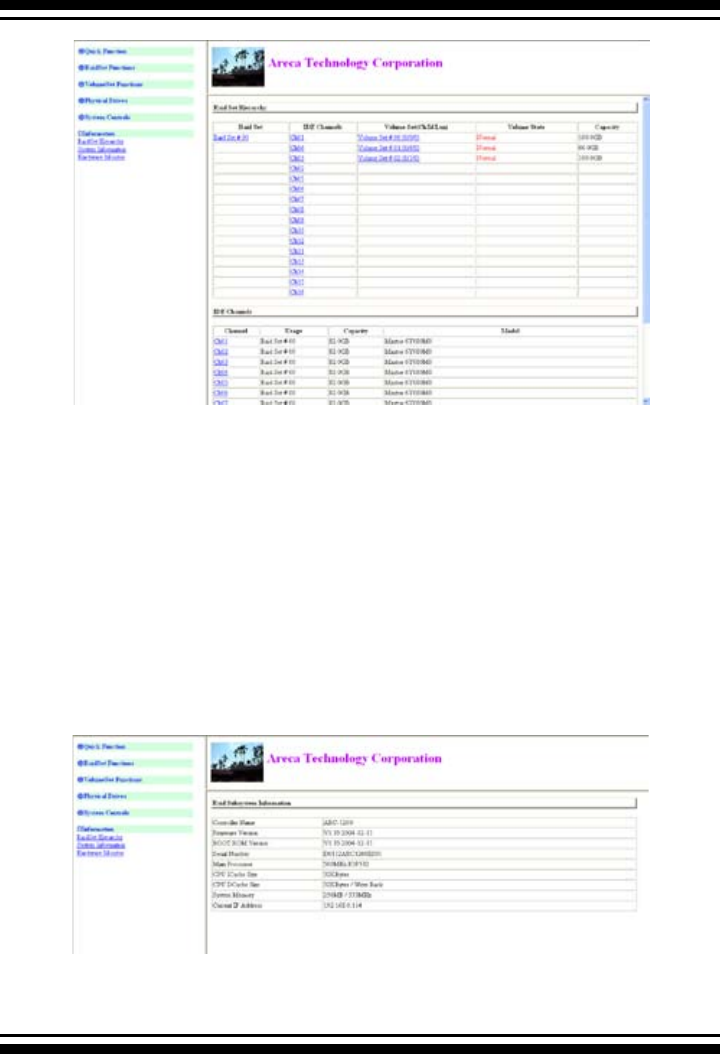
149
WEB BROWSER-BASED CONFIGURATION
6.9.2 System Information
To view the SATA RAID controller’s information, move the mouse
cursor to the main menu and click on the “System Information”
link. The “SATA RAID controller Information” screen appears.
Use this feature to view the SATA RAID controller’s information.
The controller name, rmware version, serial number, main pro-
cessor, CPU data/Instruction cache size and system memory size/
speed appear in this screen.

WEB BROWSER-BASED CONFIGURATION
150
6.9.3 Hardware Monitor
To view the RAID controller’s hardware monitor information, move
the mouse cursor to the main menu and click the “Hardware
Monitor” link. The “Hardware Information” screen appears.
The “Hardware Monitor Information” provides the temperature,
and fan speed (I/O Processor fan) of the SATA RAID controller.
151
APPENDIX
Appendix A
Upgrading Flash ROM Update Process
Since the SATA RAID controller features ash rmware, it is not
necessary to change the hardware ash chip in order to upgrade
the RAID rmware. The user can simply re-program the old rm-
ware through the In-Band PCI-X/PCIe bus or Out-of-Band Enther-
net port McRAID Storage manager. New releases of the rmware
are available in the form of a DOS le on the shipped CD or Areca’s
web site. The les available at the FTP site for each model contain
the following les in each version:
ARCXXXNNN.BIN Software Binary Code (where “XXXX” refers to
the model name and “NNNN” refers to the software code type)
ARCXXXBIOS.BIN :→ PCI card BIOS for system board using
ARCXXXBOOT.BIN :→ RAID controller hardware initialization
ARCXXXFIRM.BIN :→ RAID kernel program
ARCXXXMBR0.BIN:→ Master Boot Record for supporting Dual Flash
Image in the SATA ll RAID controller
README.TXT contains the history information of the software code
change in the main directory. Read this le rst to make sure you
are upgrading to the proper binary le. Select the right le for the
upgrade. Normally, user upgrades the ARCXXXBIOS.BIN for system
M/B compatibility and ARCXXXFIRM.BIN for RAID function up-
grades.
Note:
Please update all Binary Code (BIOS, BOOT and FIRM) before
you reboot system. Otherwise, a mixed rmware package
may hang the controller.
Upgrading Firmware Through McRAID
Storage Manager
Get the new version rmware for your SAS RAID controller. For
example, download the bin le from your OEM’s web site onto the C:
drive
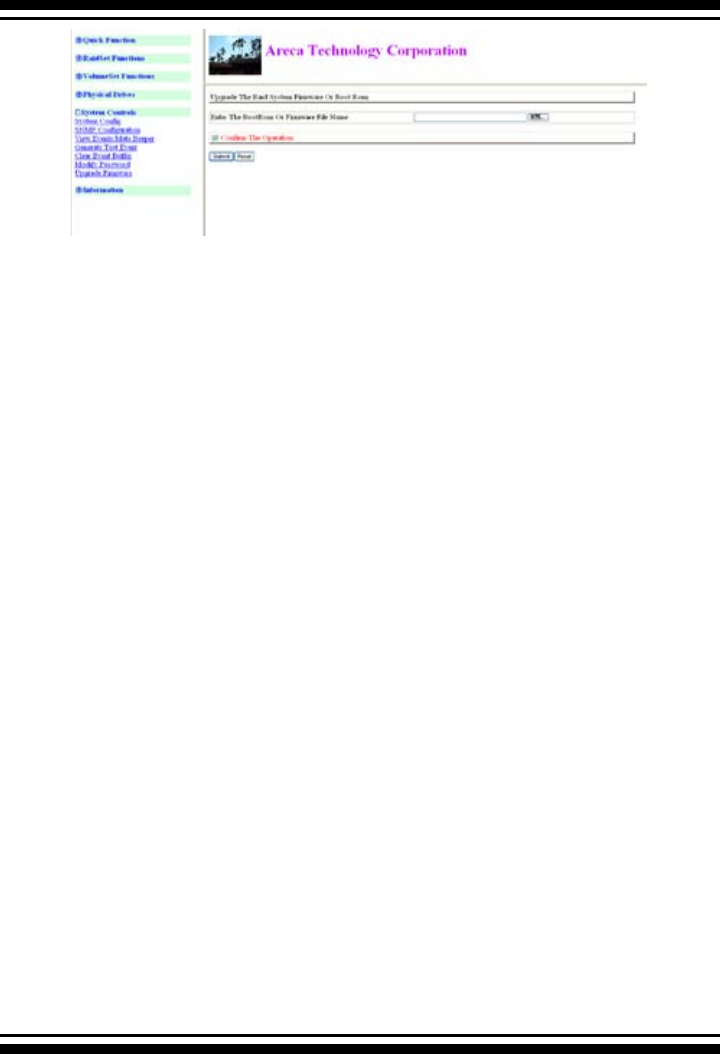
APPENDIX
152
1. To upgrade the SAS RAID controller rmware, move the mouse
cursor to “Upgrade Firmware” link. The “Upgrade The Raid System
Firmware” screen appears.
2. Click Browse. Look in the location to which the Firmware upgrade
software was downloaded. Select the File name and click “Open”.
3. Click “Conrm The Operation” and press the “Submit” button.
4. The Web Browser begins to download the rmware binary to the
controller and start to update the ash ROM.
5. After the rmware upgrade is complete, a bar indicator will show
“Firmware Has Been Updated Successfully”
6. After the new rmware completes downloading, nd a chance to
restart the controller/computer for the new rmware to take effect.
The Web Browser-based McRAID Storage Manager can be accessed
through the In-Band PCI-X/PCIe bus or Out-of-Band Lan port.
The In-Band method uses the ArcHttp proxy server to launch the
McRAID Storage Manager. The Out-of-Band method allows local or
remote to access the McRAID Storage Manager from any standard
internet browser via a LAN or WAN with no software or patches
required.
Controller with onboard Lan port, you can directly plug an
Ethernet cable to the controller Lan port, then enter the McBIOS
management to congure the network setting. After network
setting congured and saved, you can nd the current IP address
in the System Information page.

153
APPENDIX
From a remote pc, you can directly open a web browser and enter
the IP address. Then enter user name and password to login and
start your management. You can nd the rmware update feature
in the browser console, System Controls.
Upgrading Entire Flash ROM ImageThrough
Arcash DOS Utility
Areca now offers an alternative means of communication for the
PCI-X/PCIe SATA RAID controller – Upgrade the entire Flash ROM
image. User can upgrade the entire Flash ROM image without
needing system starting up running the ArcHttp proxy. The
Arcash utility program is a DOS application, which runs in the
DOS operating system. To ensure proper communications between
the PCI-X/PCIe SATA RAID controller and upgrade DOS utility,
Please make a bootable DOS oppy diskette from other Windows
operating system and boot up the system from this bootable DOS
oppy diskette.
New releases Flash ROM image is available in the form of a DOS
le. The le available for each model contains the following format
in each version:
ARCXXXROM.BIN:→ Flash ROM Image Binary Code (where “XXXX”
refers to the model name)
Normally, Areca strongly recommends customer uses the McRAID
manager to upgrade the rmware. ARCXXXROM.BIN doesn't
include in the shipped CD and Areca’s web site. It is for customer’s
emergency recover purpose only.
• Hardware Setup
To ensure proper communications between the RAID adapter
and the DOS arcash utility program, Short the Mode 0 Flash
jumper cap in the manufacture port to enter the upgrading entire
ash ROM function. Please be sure of removing the cap after you
completed the ash ROM image. This way let the Adapter work in
the normal mode.
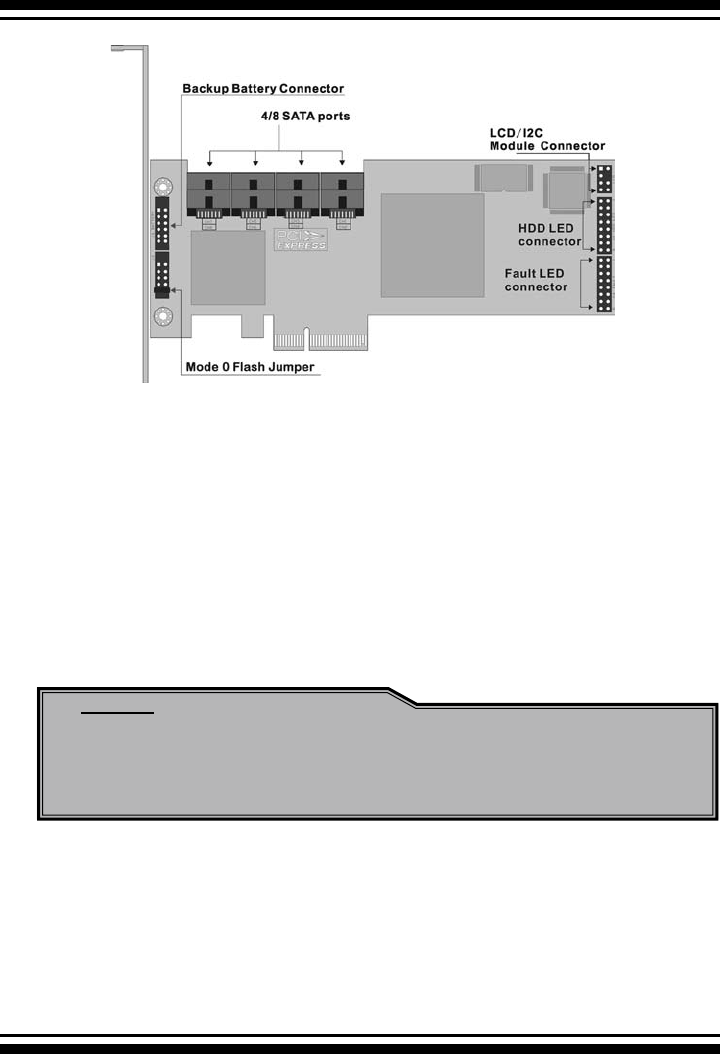
APPENDIX
154
• Mode 0 Flash Jumper function:
Short: Causes cpu core to be held in rest (mode 0). Arcash utility
can upgrade the entire Flash ROM image.
Open: This is the normal default board operation.
The jumper name for each adapter to upgrade entire ash ROM im-
age as following:
ARC-1110/1120/1210/1220/1170 for 4/8/24 ports → J3
ARC-1130(ML)/1160(ML)/1230/1260 for 12/16 ports → J7
ARC-1230ML/1260ML/1280ML/1280 for 12/16/24 ports → J2
• Starting the Arcash Utility
Arcash utility provides an on-line table of contents, providing brief
descriptions of the help sub-commands. You can use the <arcash>
/? to get detail information about the command. Typical output
looks as below:
Note:
The Mode 0 Flash jumper is a 2x5 connector without housing,
located on the left of card near bracket. The header size is
0.65mm and pitch size is 2.54mm.
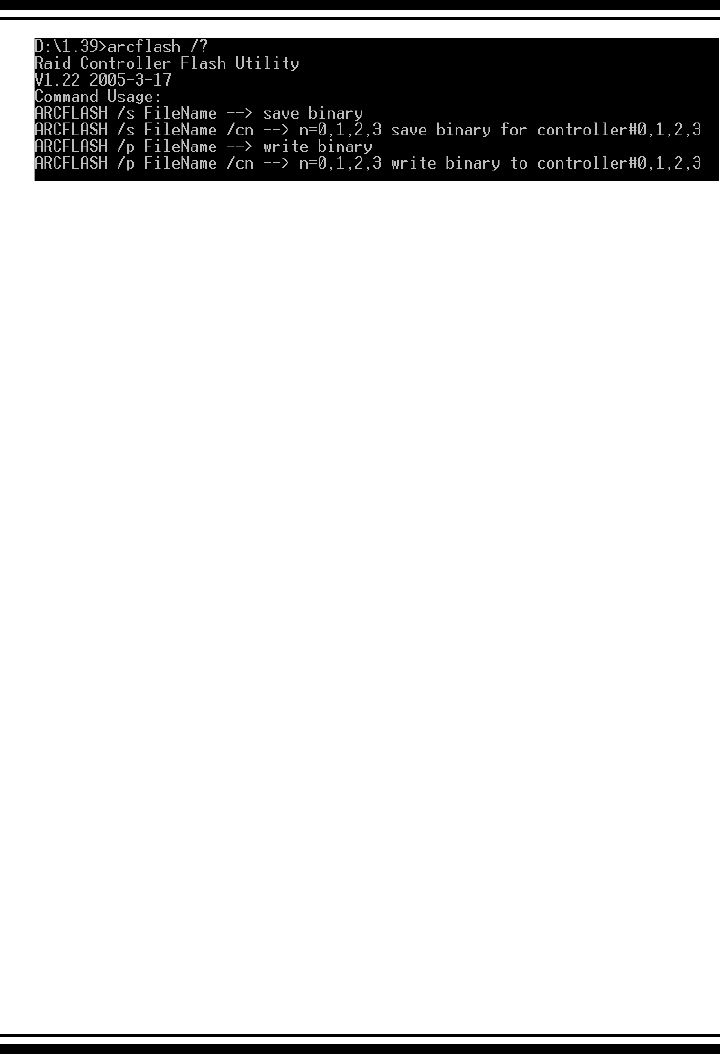
155
APPENDIX
• Flash Procedure
1. Power off system and remove power cable.
2. Take RAID controller out.
3. Set a Close Cap on the J3/J7 2x5 connector.
4. Plug RAID controller back to M/B.
5. Reconnect power cable and boot up from DOS.
6. Flash controller.
7. After ash procedure compeleted, then power off system.
8. Remove power cable then take Raid controller out and remove
the close cap.
9. Plug Raid controller back to M/B, connect power cable, and
power on your system.
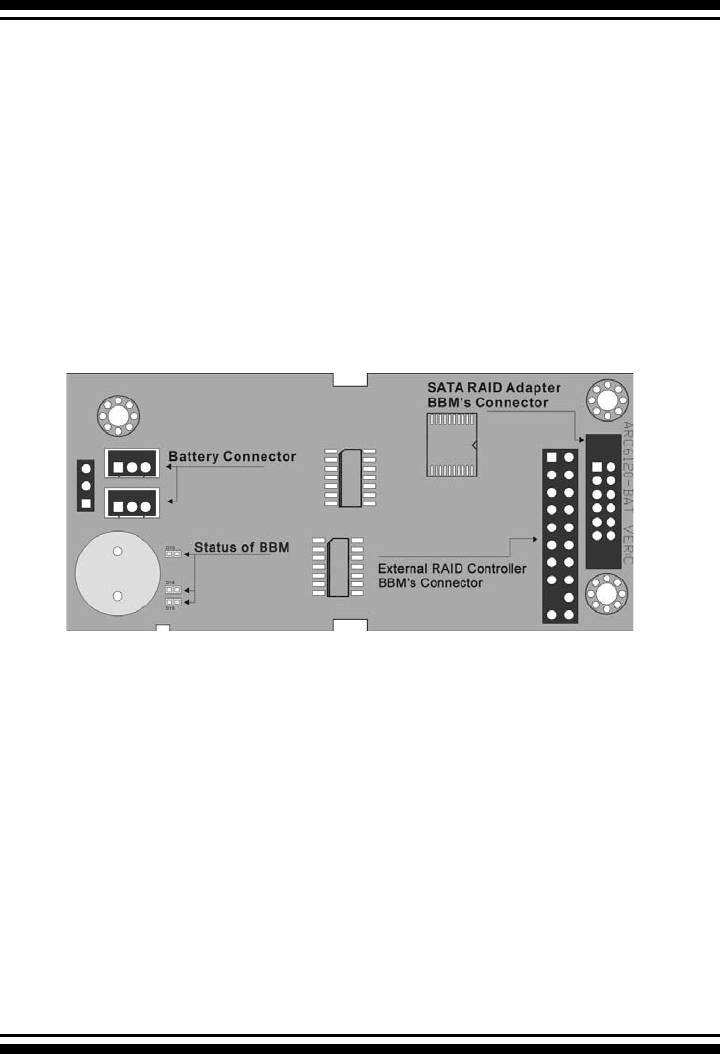
APPENDIX
156
Appendix B
Battery Backup Module (ARC-6120-BAT)
The SATA RAID controller operates using cache memory. The bat-
tery Backup Module is an add-on module that provides power to
the SATA RAID controller cache memory in the event of a power
failure. The Battery Backup Module monitors the write back cache
on the SATA RAID controller, and provides power to the cache
memory if it contains data not yet written to the hard drives when
power failure occurs.
BBM Components
BBM Specications
Mechanical
• Module Dimension (W x H x D)
37.3 x 13 x 81.6 mm
• BBM Connector
2 * 6 box header
Environmental
• Operating Temperature
Temperature: -25O C to +60O C
• Humidity: 45-85%, non-condensing
• Storage Temperature
Temperature: -40O C to 85O C
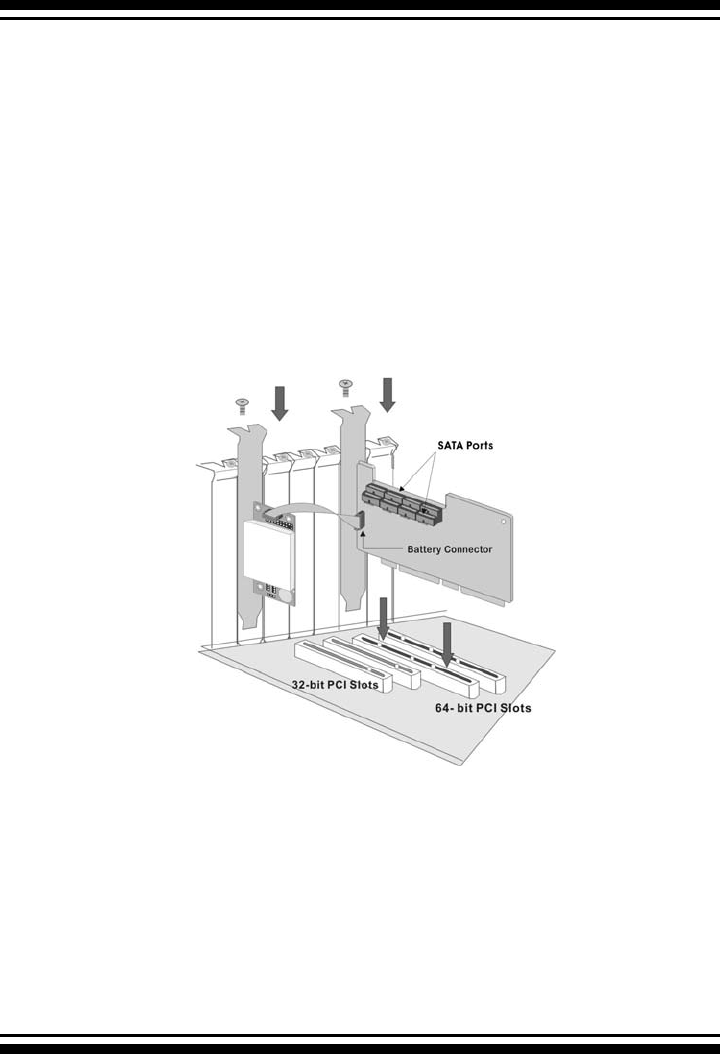
157
APPENDIX
• Humidity: 45-85%, non-condensing
Electrical
• Input Voltage
+3.6VDC
• On Board Battery Capacity
1000mAH (1*1000mAH)
Installation
1. Make sure all power to the system is disconnected.
2. Connector J1 is available for the optional battery backup
module. Connect the BBM cable to the 12-pin battery connector
on the controller.
3. Integrators may provide pre-drilled holes in their cabinet for
securing the BBM using its three mounting positions.
Battery Backup Capacity
Battery backup capacity is dened as the maximum duration
of a power failure for which data in the cache memory can be
maintained by the battery. The BBM’s backup capacity varied
with the memory chips that installed on the SATA RAID control-
ler.
APPENDIX
158
Operation
1. Battery conditioning is automatic. There are no manual pro-
cedures for battery conditioning or preconditioning to be per-
formed by the user.
2. In order to make sure of all the capacity is available for your
battery cells, allow the battery cell to be fully charged when
installed for the rst time. The rst time charge of a battery cell
takes about 24 hours to complete.
Changing the Battery Backup Module
At some point, the LI-ION battery will no longer accept a charge
properly. LI-ION battery life expectancy is anywhere from ap-
proximately 1 to 5 years.
1. Shutdown the operating system properly. Make sure that
cache memory has been ushed.
2. Disconnect the battery backup module cable from J2 on the
SATA RAID controller.
3. Disconnect the battery pack cable from JP2 on the Battery
Backup Module.
4. Install a new battery pack and connect the new battery pack
to JP2.
5. Connect the Battery Backup Module to J2 on the SATA RAID
controller.
6. Disable the write-back function from the BIOS or Utility.
Status of BBM
• D13 (Green) : lights when BBM activated
• D14 (Green) : lights when BBM charging
• D15 (Green) : lights when BBM normal
Capacity Memory Type Battery Backup duration (Hours)
128MB DDR Low Power (18mA) 56

159
APPENDIX
Appendix C
SNMP Operation & Denition
Overview
The McRAID manager includes a rmware-embedded Simple Net-
work Management Protocol (SNMP) agent and SNMP Extension
Agent for the SATA RAID controller. An SNMP-based management
application (also known as an SNMP manager) can monitor the disk
array. An example of An SNMP management application is Hewlett-
Packard’s Open View. The SNMP Extension Agent can be used to
augment the SATA RAID controller if you are already running an
SNMP management application at your site.
SNMP Denition
SNMP, an IP-based protocol, has a set of commands for getting the
status of target devices. The SNMP management platform is called
the SNMP manager, and the managed devices have the SNMP
agent loaded. Management data is organized in a hierarchical data
structure called the management Information Base (MIB). These
MIBs are dened and sanctioned by various industry associa-
tions. The objective is for all vendors to create products in compli-
ance with these MIBs so that inter-vendor interoperability can be
achieved. If a vendor wishes to include additional device informa-
tion that is not specied in a standard MIB, then that is usually
done through MIB extensions.
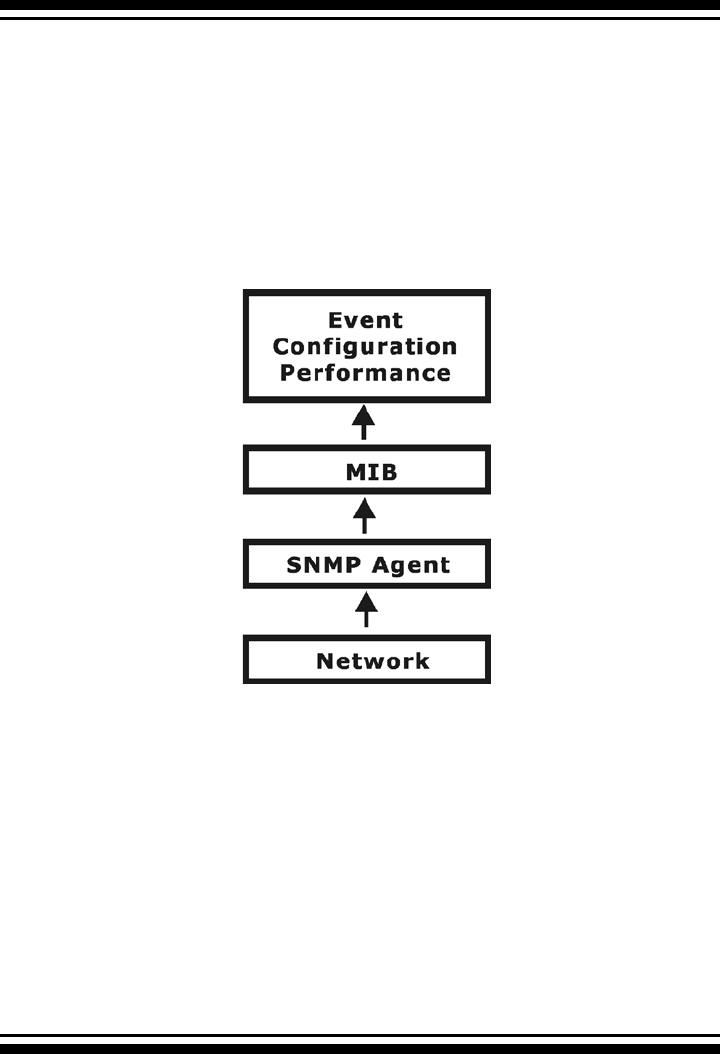
APPENDIX
160
MIB Compilation and Denition File creation
Before the manager application accesses the SATA RAID controller,
it is necessary to integrate the MIB into the management applica-
tion’s database of events and status indicator codes. This process
is known as compiling the MIB into the application. This process
is highly vendor-specic and should be well-covered in the User’s
Guide of your SNMP application. Ensure the compilation process
successfully integrates the contents of the ARECARAID.MIB le into
the traps database.
SNMP Installation
The installation of the SNMP manager is accomplished in several
phases:
• Starting the Firmware-embedded SNMP community congura-
tion.
• Installing the SNMP Extension Agent on the server
• Installing the SNMP Manager software on the client
• Placing a copy of the management information base (MIB) in a
directory which is accessible to the management application
• Compiling the MIB description le with the management appli
cation
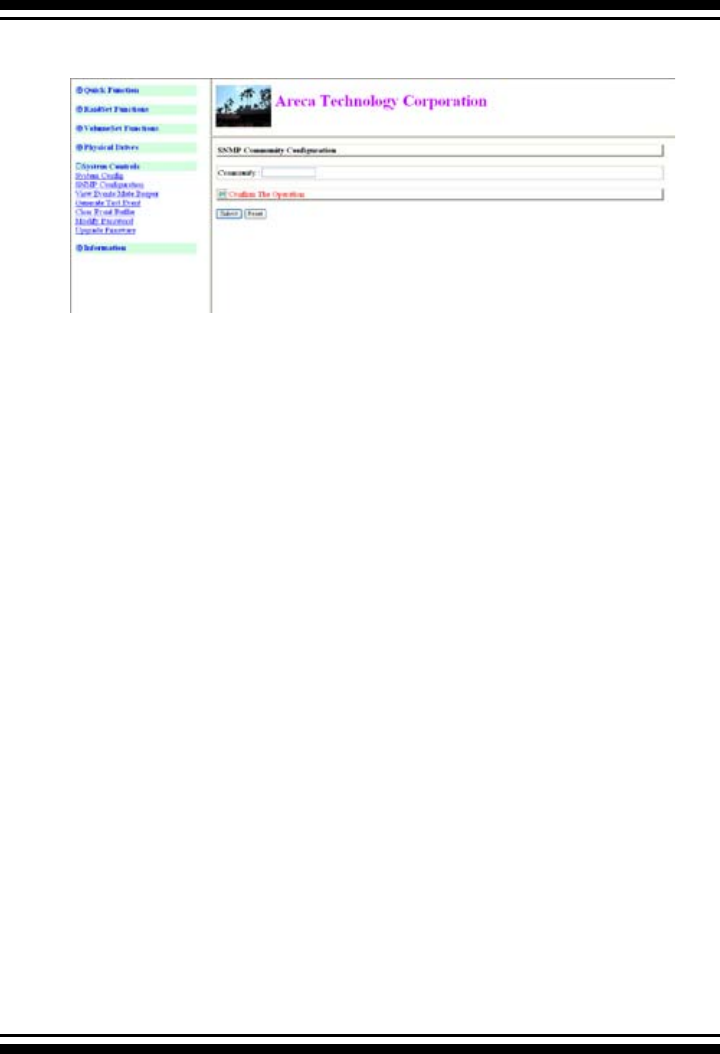
161
APPENDIX
Starting the SNMP function setting
• Community Name
Community name acts as a password to screen accesses to the
SNMP agent of a particular network device. Type in the community
names of the SNMP agent. Before access is granted to a request
station, this station must incorporate a valid community name into
its request; otherwise, the SNMP agent will deny access to the
system.
Most network devices use “public” as default of their community
names. This value is case-sensitive.
SNMP Extension Agent Installation for Windows
You must have administrative level permission to install SATA RAID
software. This procedure assumes that the SATA RAID hardware
and Windows are both installed and operational in your system.
To enable the SNMP agent for Windows, congure Windows for
TCP/IP and SNMP services. The ARECA SNMP Extension Agent le
is ARCSNMP.DLL.
Screen captures in this section are taken from a Windows XP instal-
lation. If you are running another version of Windows, your screens
may look different, but the ARECA SNMP Extension Agent installa-
tion is essentially the same.
1. Insert the SATA RAID controller CD in the CD-ROM drive.
2. Run the setup.exe le that resides at: <CD-ROM>\packages\
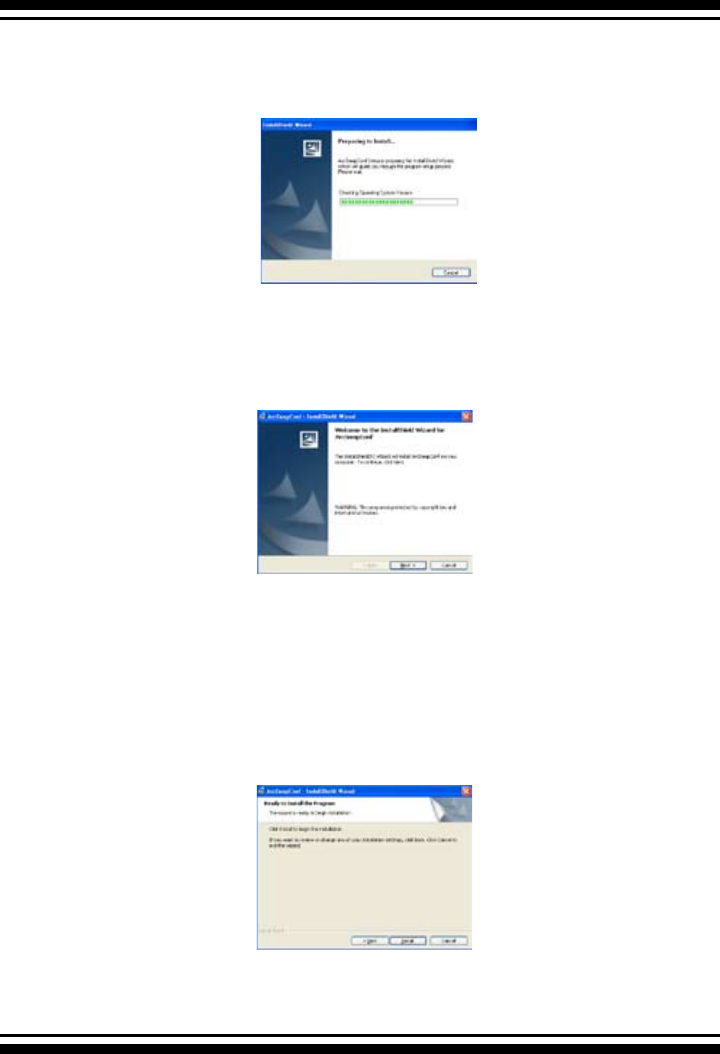
APPENDIX
162
windows\http\setup.exe on the CD-ROM. (If SNMP service was
not installed, please install SNMP service rst.)
3. Click on the Setup le then the Welcome screen appears.
4. Click the Setup le and then the “install the program” screen
appears. Follow the on-screen prompts to complete ARECA SNMP
Extension Agent installation.
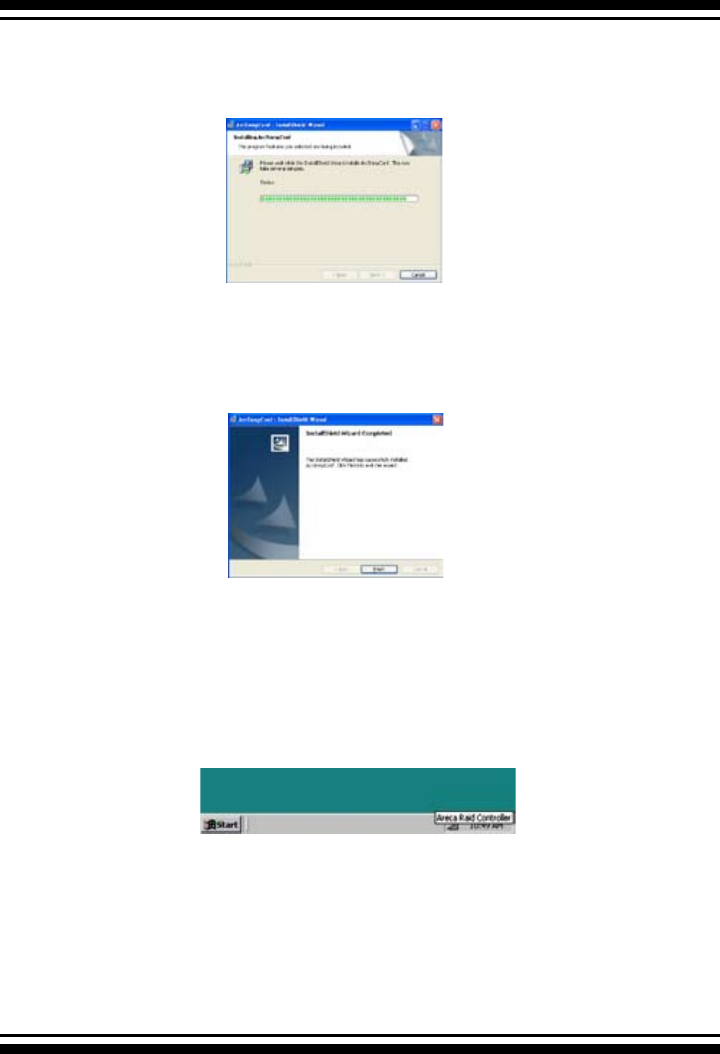
163
APPENDIX
5. A Progress bar appears that measures the progress of the
ARECA SNMP Extension Agent setup. When this screen complete,
you have completed the ARECA SNMP Extension Agent setup.
6. After a successful installation, the “Setup Complete” dialog box
of the installation program is displayed. Click the Finish button
to complete the installation.
Starting SNMP Trap Notication Congruations
To start SNMP Trap Notication Congruations, There have two
methods. First, double-click on the Areca Raid Controller.
Second, you may also use the Taskbar Start/programs/Areca
Technology Corp/ArcSnmpConf menus shown below.

APPENDIX
164
SNMP community Congurations
Please refer to the community name in this appendix.
SNMP Trap Notication Congruations
The Community Name should be the same as rmware-
embedded SNMP Community. The SNMP Trap Notication
Congruations include level 1: serious, level 2: error, level 3:
Warning and level 4: Information. The level 4 covers notication
events such as initialization of the controller and initiation of the
rebuilding process; Level 3 includes events which require the
issuance of warning messages; Level 2 covers notication events
which once have happen; Level 1 is the highest level, and covers
events the need immediate attention (and action) from the
administrator.
SNMP Extension Agent Installation for Linux
You must have administrative level permission to install SATA
RAID software. This procedure assumes that the SATA RAID

165
APPENDIX
hardware and Linux are installed and operational in your system.
For the SNMP Extension Agent Installation for Linux procedure,
please refer to <CD-ROM>\packages\Linux\SNMP\Readme
or download from areca.com.tw
SNMP Extension Agent Installation for FreeBSD
You must have administrative level permission to install SATA
RAID software. This procedure assumes that the SATA RAID
hardware and FreeBSD are installed and operational in your
system. For the SNMP Extension Agent Installation for FreeBSD
procedure please refer to <CD-ROM>\packages\FreeBSD\
SNMP\Readme or download from areca.com.tw
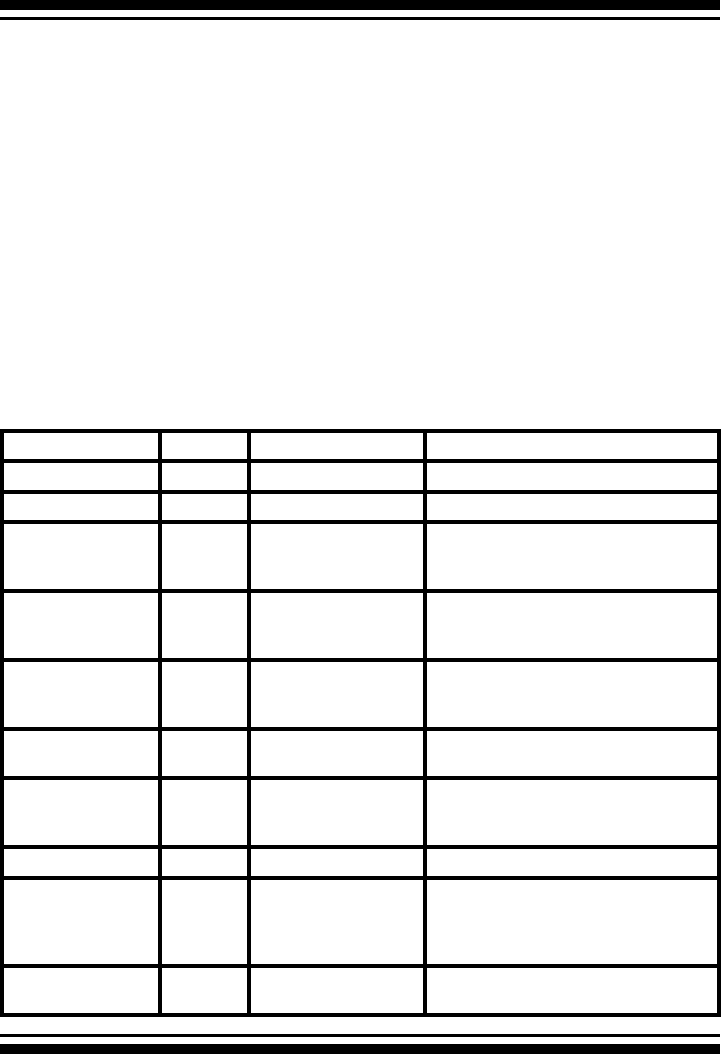
APPENDIX
166
Appendix D
Event Notication Congurations
The controller classies disk array events into four levels depending
on their severity. These include level 1: Urgent, level 2: serious, level
3: Warning and level 4: Information. The level 4 covers noticational
events such as initialization of the controller and initiation of the
rebuilding process; Level 2 covers notication events which once have
happen; Level 3 includes events which require the issuance of warning
messages; Level 1 is the highest level, and covers events the need
immediate attention (and action) from the administrator. The following
lists sample events for each level:
Event Level Meaning Action
Device Inserted Warning HDD inserted
Device Removed Warning HDD removed
Reading Error Warning HDD reading error Keep Watching HDD status,
maybe it is caused by noise or
HDD unstable.
Writing Error Warning HDD writing error Keep Watching HDD status,
maybe it is caused by noise or
HDD unstable.
ATA Ecc Error Warning HDD ECC error Keep Watching HDD status,
maybe it is caused by noise or
HDD unstable.
Change ATA
Mode
Warning HDD change ATA
mode
Check HDD connection.
Time Out Error Warning HDD Time out Keep Watching HDD status,
maybe it is caused by noise or
HDD unstable.
Device Failed Urgent HDD failure Replace HDD
PCI Parity Error Serious PCI Parity error If only happen once, it maybe
caused by noise. If always
happen, please check power
supply or contact to us.
Device
Failed(SMART)
Urgent HDD SMART failure Replace HDD
A. Device Event
167
APPENDIX
Event Level Meaning Action
Start Initialize Warning Volume initialization has started
Start Rebuilding Warning Volume rebuilding has started
Start Migrating Warning Volume migration has started
Start Checking Warning Volume parity checking has started
Complete Init Warning Volume initialization completed
Complete Rebuild Warning Volume rebuilding completed
Complete Migrate Warning Volume migration completed
Complete Check Warning Volume parity checking completed
Create Volume Warning New Volume Created
Delete Volume Warning Volume deleted
Modify Volume Warning Volume Modied
Volume Degraded Urgent Volume degraded Replace HDD
Volume Failed Urgent Volume failure
Failed Volume
Revived
Urgent Failed Volume revived
B. Volume Event
C. RAID Set Event
Event Level Meaning Action
Create RaidSet Warning New Raidset created
Delete RaidSet Warning Raidset deleted
Expand RaidSet Warning Raidset expanded
Rebuild RaidSet Warning Raidset rebuilding
RaidSet
Degraded
Urgent Raidset degraded Replace HDD
PassThrough Disk
Created
Inform Pass Through Disk
Created
PassThrough Disk
Modied
Inform Pass Through Disk
Modied
PassThrough Disk
Deleted
Inform Pass Through Disk
Deleted
APPENDIX
168
D. Hardware Event
Event Level Meaning Action
DRAM 1-Bit ECC Urgent DRAM 1-Bit ECC
error.
Check DRAM
DRAM Fatal Error Urgent DRAM fatal error
encountered.
Check the DRAM module and
replace with new one if required.
Raid Powered On Warning Raid Power On
Test Event Urgent Test Event
Note:
It depends on models, not every model will encounter all events.

169
APPENDIX
Appendix E
General Troubleshooting Tips
Most of controller errors are traceable to external factors, such as
conicts with other installed cards, motherboard incompatibility,
bad or incorrectly congured drives, loose cables, improper control-
ler installation, or other installation errors.
To troubleshoot SATA RAID controller problems, try simplifying your
hardware conguration by removing some other devices from the
system and then adding them back one at a time.
Look for the latest information on SATA RAID Controllers as well
as the newest drivers on the ARECA web site at http://www.areca.
com.tw. The following general guidelines are for some specic er-
ror conditions:
Q1: The BIOS Message of the SATA RAID controller never
appears on the screen
Answer:
(1). Ensure the controller is inserted correctly into the PCI slot.
(2). Ensure 3.3 volts are being supplied to the PCI slot.
(3). Check the cabling between the SATA drives or enclosure the
SATA RAID controller.
Q2: How many SATA RAID controllers can be installed into a
computer system?
Answer:
Up to 4 RAID controllers in a system are supported.
Q3: The boot device cannot found
Answer:
Enter the system BIOS setup utility Per manufacture directions and
congure it so that the RAID card volume set is once again select-
ed as the primary boot device (or rst in the boot device list)

APPENDIX
170
Q4: What PCI slots are supported by the SATA RAID
controllers?
Answer:
For all PCI-X SATA RAID controllers, install card in a 64-bit/133MHz
PCI-X for the best performance. It also can be used in 64-bit / 66
MHz slots, 32-bit/66MHz PCI slots as well as 32-bit/33MHz slots.
All PCI-X SATA RAID controllers can not work with 5V PCI slot.
PCI-Express SATA RAID controllers require an x8 or x16 slots. The
card can function in x4 or x1 signal slots if those slots are open at
the end to accept larger x8 cards, but performance will be reduced
in these slower slots.
Check the Areca FAQ website for motherboard a compatibility list.
Q5: What is the difference between RAID 6 and RAID 5?
Answer:
RAID 6 allows two drives to fail simultaneously without downtime
or data loss. However, RAID 5 only allows one drive to fail. RAID 6
thus provides a much higher level of fault tolerance than RAID 5. It
is a perfect solution when data is mission-critical.
Due to this higher level of protection, users can set up larger RAID
volumes, spanning up to 56 physical drives. With the ARECA RAID
6 engine, RAID 6 and RAID 5 have similar performance in the SATA
RAID controller.
Q6: What products support RAID 6?
Answer:
RAID 6 is available on controller models with the RAID 6 engine
installed.
Q7: What operating systems are supported?
Answer:
The SATA RAID controllers support Microsoft® Windows® Server
2003, Windows XP, Windows 2000, Red Hat Linux, SuSE Linux, and
FreeBSD. For specic OS versions, see http://www.areca.com.
tw for more information.

171
APPENDIX
Q8: Will ARECA submit the Linux code to kernel.org?
Answer:
Yes. ARECA Serial ATA ll RAID the lastest driver has been integrated
directly into the Linux kernel 2.6.17-rc3-mm1 (and later), allowing
future versions of Linux operating systems to support Areca’s entire
fam-ily PCI-X and PCI-Express series of high performance SATA ll
RAID controllers.
Q9: What is the warranty period?
Answer:
Like all ARECA External RAID controllers, the PCI-X or PCI-Express
SATA RAID controller is backed by a 3-year warranty.
Q10: Which O/S (Operating System) will support X86 64-bit
processors?
Answer:
The following O/S vendors have announced product support for
AMD64 and Intel EM64T. Contact each vendor for more details. The
following is our currently supported OS and version for 64-bit pro-
cessor. We will support others shortly after other versions release.
Microsoft:
Production support will be available in:
• Windows XP Professional x64 Edition
• Windows Server 2003 64-Bit Edition
Red Hat:
Production support will be available in:
• Red Hat Enterprise Linux 3 update 2
SuSE:
Production support will be available in:
• SLES9
FreeBSD:
Production support will be available in:
• FreeBSD 5.3

APPENDIX
172
Q11: Is it possible to write software that will run on Intel’s
processors with Intel® EM64T, and AMD’s 64-bit capable
processors?
Answer:
Yes, in most cases. Even though the hardware microarchitecture
for each company’s processor is different, the operating system
and software ported to one processor will likely run on the other
processor due to the close similarity of the instruction set architec-
tures. However, Intel processors support additional features, like
the SSE3 instructions and Hyper-Threading Technology, which are
not supported on non-Intel platforms. As such, we believe devel-
opers will achieve maximum performance and stability by design-
ing specically for Intel architectures and by taking advantage of
Intel’s breadth of software tools and enabling services.
Q12: How will Intel® EM64T work and what software is
there to take advantage of 64-bit extensions?
Answer:
Platforms with Intel® EM64T/AMD64 can be run in three basic
ways (note: a 64-bit capable BIOS is required for all three scenari-
os):
1. 32-bit O/S and 32-bit applications (Legacy Mode): No software
changes are required, however the user gets no benet from
Intel® EM64T or AMD64.
2. 64-bit O/S and 32-bit applications (Compatibility Mode): This
usage requires all 64-bit device drivers. In this mode, the O/S
will see the 64-bit extensions, but the 32-bit application will
not. Existing 32-bit applications do not need to be recompiled,
and may or may not benet from the 64-bit extensions. The
application will likely need to be recertied by the vendor to
run on the new 64-bit extended O/S.
3. 64-bit O/S and 64-bit applications (64-bit Mode): This usage
requires 64-bit device drivers. It also requires applications to
be modied for 64-bit operation and then recompiled and vali-
dated.
• For more FAQs, please visit knowledgebase of Areca
website at: http://faq.areca.com.tw/modules/smartfaq/

173
APPENDIX
Appendix F
Technical Support
Areca Technical Support provides several options for Areca users
to access information and updates. We encourage you to use one
of our electric services, which provide product information updates
for the most efcient service and support. If you decide to contact
us, please have the information such as Product model and serial
number, BIOS and driver version, and a description of the problem
at http://www.areca.com.tw/support/index/question.htm.
All technical support questions will receive a response from our
support team.

GLOSSARY
174
Glossary
2TB
The 32-bit le systems have a maximum limitation of 2 TB per volume
set. 64-bit versions remove this limitation. so, if you are building large
warehouses, you should consider 64-bit versions.
Array
An array is a logical disk comprised of multiple physical hard disks.
The number of hard disks in an array is dictated by the type of the
array and the number of spares that may be assigned to it. (Arrays
are also sometimes referred to as containers). Furthermore, whether
an array can be built using part of the space on a disk (as opposed to
being forced to use the whole disk) depends upon the implementation.
Arrays are typically used to provide data redundancy and/or enhanced
I/O performance.
ATA
Acronym for “AT Bus Attachment” - a standard interface to IDE hard
disks. Western Digital’s IDE disk interface was standardized by ANSI to
form the ATA specication using a 16-bit ISA bus.
Auto Reassign Sector
SATA drives perform automatic defect re-assignment for both read and
write errors. Writes are always completed - if a location to be writ-
ten is found to be defective, the drive will automatically relocate that
write command to a new location and map out the defective location.
If there is a recoverable read error, the correct data will be transferred
to the host and that location will be tested by the drive to be certain
the location is not defective - if it is found to have a defect, it will be
automatically relocated to a new location and the defective location
mapped out. In the event of an unrecoverable read error, the error will
be reported to the host and the location agged as potentially defec-
tive. A subsequent write to that location will initiate a sector test and
relocation should that location have a defect.

175
GLOSSARY
Battery Backup Module
Many modern RAID controllers are armed with a battery backup Mod-
ule (BBM). While an UPS protects most servers from power uctua-
tions or failures, a BBM provides an additional level of protection. In
the event of a power failure, a BBM supplies power to retain data in
the RAID controller’s cache, thereby permitting any potentially dirty
data in the cache to be ushed out to secondary storage when power
is restored.
BIOS
(Basic Input/Output System) software is stored on a chip and provides
an interface between the operating system and the hardware. Usually
the BIOS is built into a ROM chip installed on the motherboard so that
the BIOS will always available and not affected by disk failure.
Cache
Controller memory used to speed up data transfer to and from a disk.
Consistency Check
In RAID, check consistency veries the correctness of redundant data
in an array. For example, in a system with dedicated parity, checking
consistency means computing the parity of the data drives and com-
paring the results to the contents of the dedicated parity drive.
Driver
It is a piece of software – that is often executed in kernel mode – that
controls a hardware device. Typically drivers provide an interface by
which applications can use the device in a uniform and hardware-inde-
pendent manner.
Hot Spare
An extra physical disk drive in a RAID conguration that controller can
use to automatically rebuild a system drive when another drive fails.
The hot spare drive must have at least as mush capacity as the largest
disk drive in the array or the rebuild may not start.

GLOSSARY
176
Hot Spare
An extra physical disk drive in a RAID conguration that a controller
can use to automatically rebuild a system drive when another drive
fails. The hot spare drive must have at least as mush capacity as the
largest disk drive in the array or the rebuild will not start.
Hardware RAID versus Software RAID
Beyond the different types of RAID, there are two implementation
forms: hardware-based and software-based. Hardware-based RAID
is obviously implemented at a physical level, whereas software-based
RAID is done using the operating system. It is always optimal to have
RAID done at a physical (hardware) level.
Hot Swap
To pull out a component from a system and plug in a new one while
the power is still on and the unit is still operating.
NVRAM
(Non-Volatile Random Access Memory) A memory unit is equipped with
a battery so that the data remain even after the main power had been
switched off. Actually an EEPROM used to store conguration informa-
tion.
Parity
A technique used to protect a system from data loss due to faults.
When parity is implemented (RAID3 and RAID5), data written is logi-
cally XOR’d together to calculate parity, which is stored on the drives
along with the data. In a system with three drives, the data is written
to two drives and the calculated parity is stored on a third drive. If one
drive fails, data on the failed drive is reconstructed from other data
and parity.
PCI Express
An advanced version of the PCI bus introduced in 2002. Rather than
the shared, parallel bus structure of PCI, PCI Express provides a high-

177
GLOSSARY
speed, switched architecture. Each PCI Express link is a serial commu-
nications channel made up of two differential wire pairs that provide
2.5 Gbits/sec in each direction. Up to 32 channels may be combined,
creating a parallel interface of independently controlled serial links.
PCI-X
(PCI extended) an enhanced PCI bus technology is backward compat-
ible with existing PCI cards. PCI and PCI-X slots are physically the
same. PCI cards run in PCI-X slots, and PCI-X cards run in PCI slots at
the slower PCI rates. First introduced in 1999, PCI-X offered increased
speed over PCI and has steadily increased to more than 30 times that
of the original PCI bus.
RAID
(Redundant Array of Independent Disks) a disk subsystem that is used
to increase performance or provide fault tolerance. RAID can also be
set up to provide both functions at the same time. RAID is a set of
two or more ordinary hard disks and a specialized disk controller that
contains the RAID functionality. RAID has been developed initially for
servers and stand-alone disk storage systems. RAID is important espe-
cially when rebuilding data after a disk failure.
Rebuild
When a RAID array enters into a degraded mode, it is advisable to
rebuild the array and return it to its original conguration (in terms of
the number and state of working disks) to ensure against operation in
degraded mode.
SATA (Serial ATA)
The evolution of the ATA (IDE) interface that changes the physical
architecture from parallel to serial and from master-slave to point-
to-point. Unlike parallel ATA interfaces that connect two drives; one
congured as master, the other as slave, each Serial ATA drive is con-
nected to its own interface. At initial introduction, Serial ATA (SATA)
increases the transfer rate to 150 MB/sec (1.5Gb/s) and SATA2 to 300
MB/sec.

GLOSSARY
178
SMART
This technology provides users with advanced warning of Disk Drive
failures, thus enabling the Operating System to warn Users of potential
failure. S.M.A.R.T. was included in EIDE drives with the ATA-3 and later
specication.
SNMP
Since it was developed in 1988, the Simple Network Management
Protocol has become the de facto standard for inter-network manage-
ment. Because it is a simple solution, requiring little code to imple-
ment, vendors can easily build SNMP agents into their products. SNMP
is extensible, allowing vendors to easily add network management
functions to their existing products. SNMP also separates the man-
agement architecture from the architecture of the hardware devices,
which broadens the base of multi-vendor support.
Volume Set
A volume set is a concatenation of storage elements that may be RAID
arrays, JBODs, or simply areas of disks that are not part of RAID ar-
rays.
Write-back
When a cache is operating in write-back mode, data written into the
cache is not immediately written out to its destination in second-
ary storage unless the heuristics governing the ushing of dirty data
demands otherwise. This methodology can improve the efciency of
write operations under favorable circumstances. However, its use can
potentially lead to incoherences in a system that is not protected from
power uctuations or other failures.
Write-through
When a cache is operating in write-through mode, data written into
the cache is also written to the destination secondary storage devices.
Essentially write completion does not occur until the data is written to
secondary storage. Thus the contents of the cache and the secondary
storage are always consistent. The advantage is that the possibility

179
GLOSSARY
of data corruption is greatly reduced. The disadvantage is that write-
through operations are more time consuming.
XOR-Engine
All RAID arrays (with the exception of RAID 0, RAID 1 and RAID 1E)
require parity to be calculated and written to the array in conjunction
with data. Typically the parity is a simple XOR on the bytes compris-
ing a stripe. This is a computationally intensive operation that many
modern RAID controllers perform using a dedicated ASIC (instead of
calculating them in rmware on the main embedded processor’s core).
This dedicated ASIC is often referred to as a XOR-engine.
History
180
Revision Page Description
3.2 P117-120 Added ArcHttp Conguration
3.2 P116 Added Mac OS 10.x information
3.2 P82,134 Added expand an existing vol-
ume noticed
3.2 p34 Added illustration of ARC-
1210ML/1220ML
3.2 p37, p46, p47 Revised illustration of ARC-
1231ML/1261ML/1280ML/1280
3.2 p43, p44 Revised gure 2-15, added
gure 2-17
Version History
