Arima Communication 3617 3.5G Pocket PC Phone User Manual ZINC II 20080403 pd

Arima Communication Corporation 3.5G Pocket PC Phone ZINC II 20080403 pd

User manual

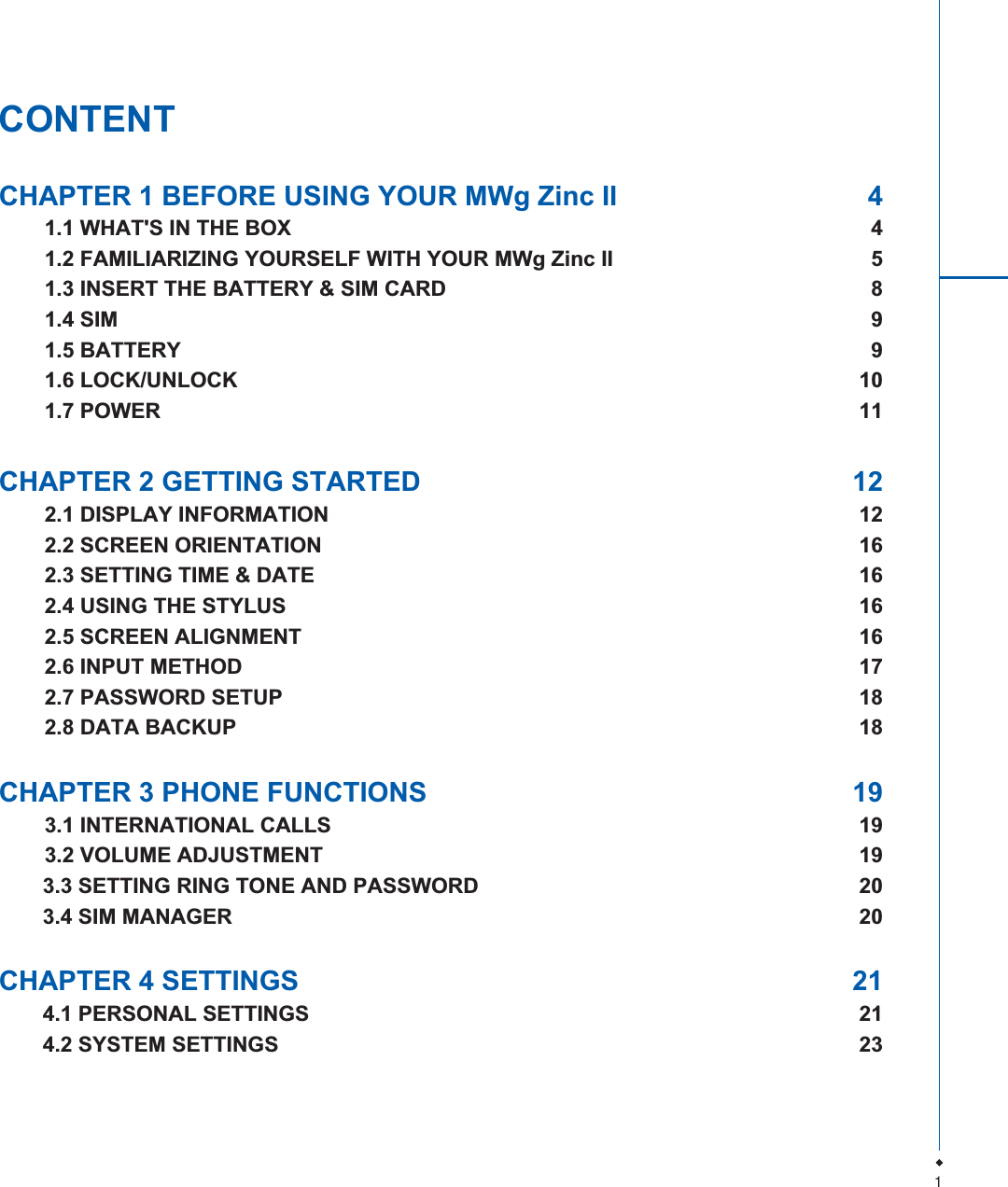
1CONTENTCHAPTER 1 BEFORE USING YOUR MWg Zinc II  41.1 WHAT'S IN THE BOX  41.2 FAMILIARIZING YOURSELF WITH YOUR MWg Zinc II  51.3 INSERT THE BATTERY & SIM CARD  81.4 SIM  91.5 BATTERY  91.6 LOCK/UNLOCK  101.7 POWER  11CHAPTER 2 GETTING STARTED  122.1 DISPLAY INFORMATION  122.2 SCREEN ORIENTATION  162.3 SETTING TIME & DATE  162.4 USING THE STYLUS  162.5 SCREEN ALIGNMENT  162.6 INPUT METHOD  172.7 PASSWORD SETUP  182.8 DATA BACKUP  18CHAPTER 3 PHONE FUNCTIONS  193.1 INTERNATIONAL CALLS  193.2 VOLUME ADJUSTMENT  193.3 SETTING RING TONE AND PASSWORD  203.4 SIM MANAGER  20CHAPTER 4 SETTINGS  214.1 PERSONAL SETTINGS  214.2 SYSTEM SETTINGS  23
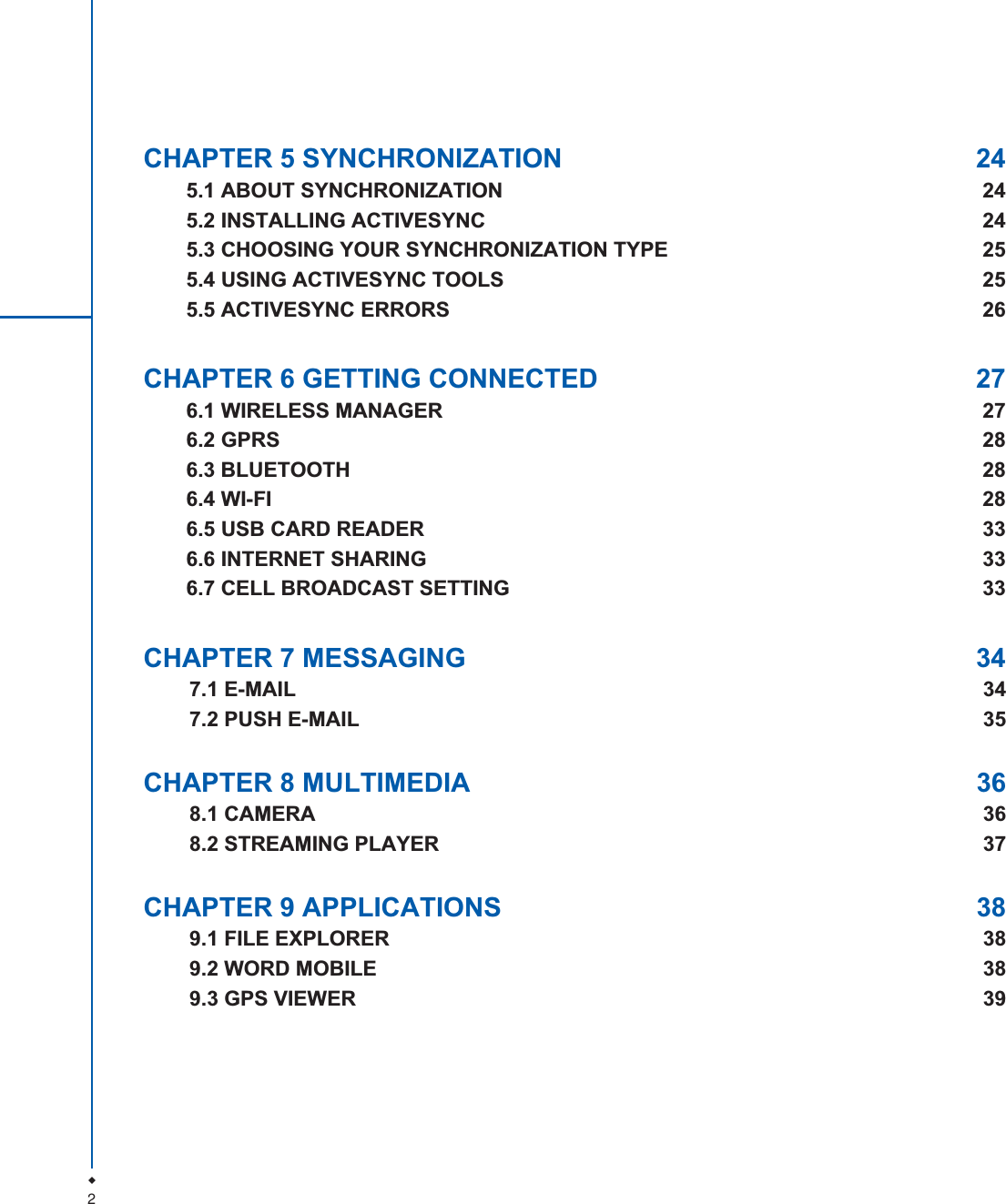
2CHAPTER 5 SYNCHRONIZATION  245.1 ABOUT SYNCHRONIZATION  245.2 INSTALLING ACTIVESYNC  245.3 CHOOSING YOUR SYNCHRONIZATION TYPE  255.4 USING ACTIVESYNC TOOLS  255.5 ACTIVESYNC ERRORS  26CHAPTER 6 GETTING CONNECTED  276.1 WIRELESS MANAGER  276.2 GPRS  286.3 BLUETOOTH  286.4 WI-FI  286.5 USB CARD READER  336.6 INTERNET SHARING  336.7 CELL BROADCAST SETTING  33CHAPTER 7 MESSAGING  347.1 E-MAIL  347.2 PUSH E-MAIL  35CHAPTER 8 MULTIMEDIA  368.1 CAMERA  368.2 STREAMING PLAYER  37CHAPTER 9 APPLICATIONS  389.1 FILE EXPLORER  389.2 WORD MOBILE  389.3 GPS VIEWER 39
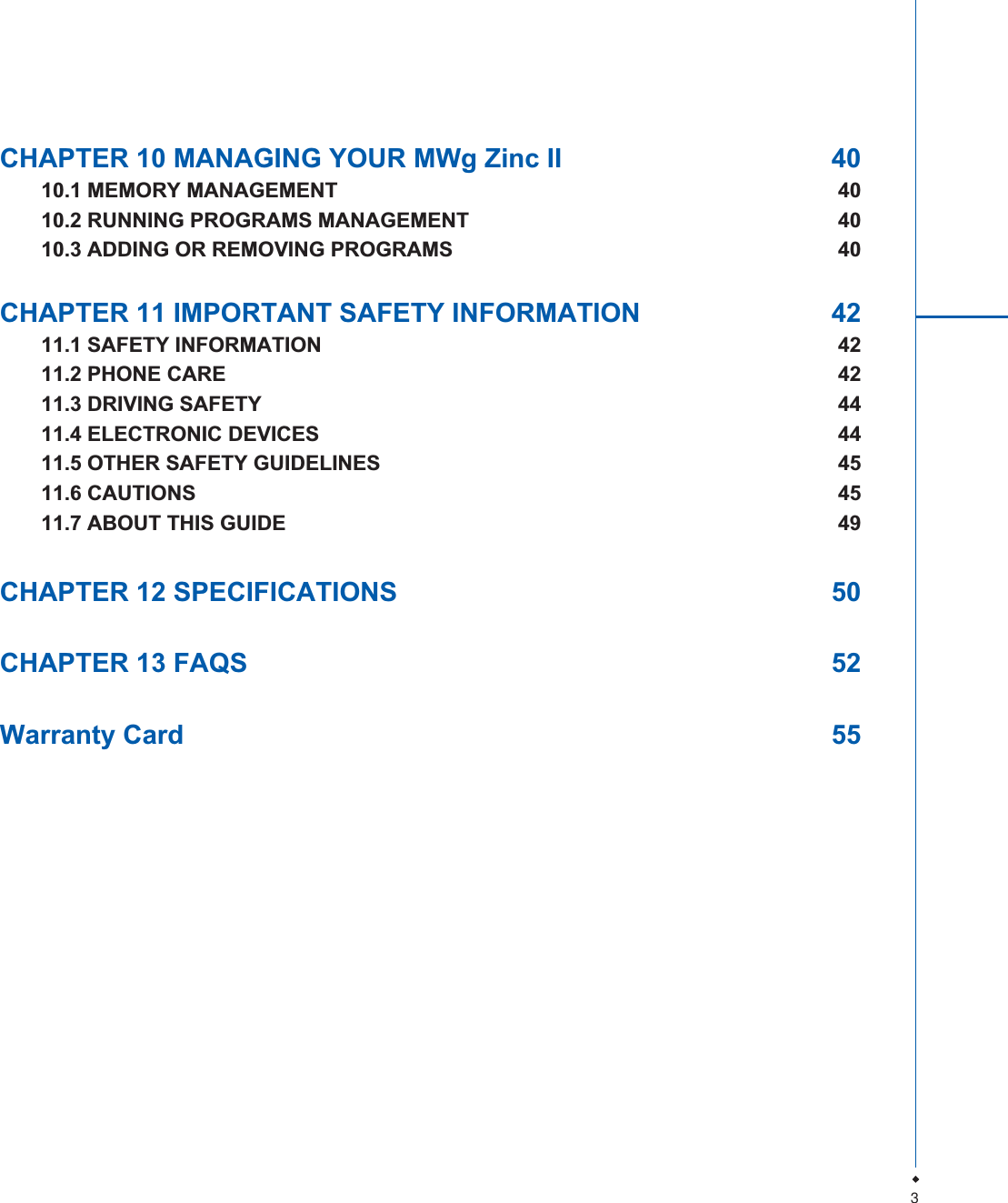
3CHAPTER 10 MANAGING YOUR MWg Zinc II  4010.1 MEMORY MANAGEMENT  4010.2 RUNNING PROGRAMS MANAGEMENT  4010.3 ADDING OR REMOVING PROGRAMS  40CHAPTER 11 IMPORTANT SAFETY INFORMATION  4211.1 SAFETY INFORMATION  4211.2 PHONE CARE  4211.3 DRIVING SAFETY  4411.4 ELECTRONIC DEVICES  4411.5 OTHER SAFETY GUIDELINES  4511.6 CAUTIONS  4511.7 ABOUT THIS GUIDE  49CHAPTER 12 SPECIFICATIONS  50CHAPTER 13 FAQS  52Warranty Card  55
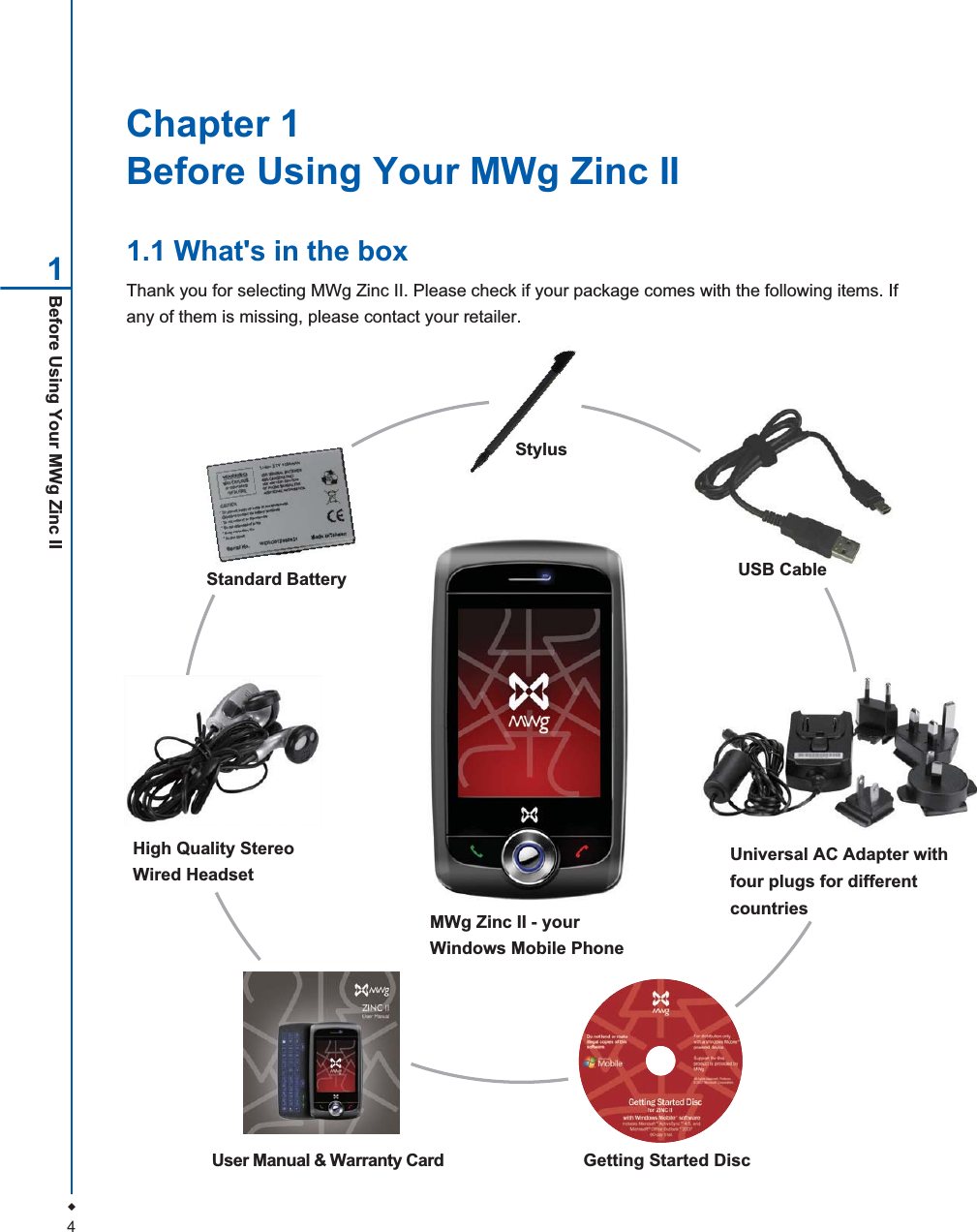
4Chapter 1Before Using Your MWg Zinc II1.1 What's in the boxThank you for selecting MWg Zinc II. Please check if your package comes with the following items. Ifany of them is missing, please contact your retailer.Before Using Your MWg Zinc II1MWg Zinc II - yourWindows Mobile PhoneStylusGetting Started DiscUser Manual & Warranty CardUSB CableHigh Quality StereoWired HeadsetUniversal AC Adapter withfour plugs for differentcountriesStandard Battery
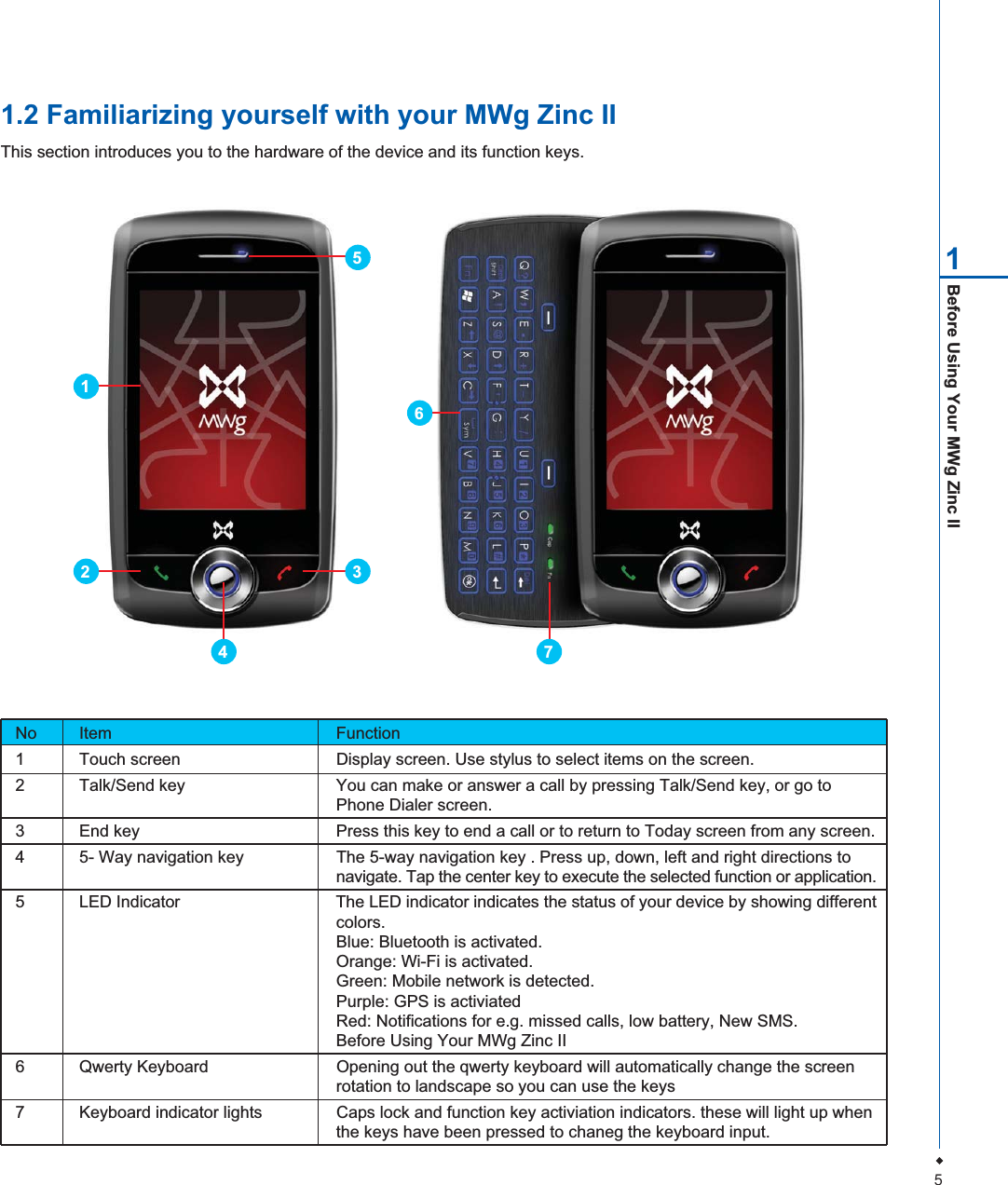
5Before Using Your MWg Zinc II11.2 Familiarizing yourself with your MWg Zinc IIThis section introduces you to the hardware of the device and its function keys.No Item Function1 Touch screen  Display screen. Use stylus to select items on the screen.2 Talk/Send key  You can make or answer a call by pressing Talk/Send key, or go to Phone Dialer screen.3 End key  Press this key to end a call or to return to Today screen from any screen.4 5- Way navigation key The 5-way navigation key . Press up, down, left and right directions tonavigate. Tap the center key to execute the selected function or application.5 LED Indicator The LED indicator indicates the status of your device by showing differentcolors.Blue: Bluetooth is activated.Orange: Wi-Fi is activated.Green: Mobile network is detected.Purple: GPS is activiatedRed: Notifications for e.g. missed calls, low battery, New SMS.Before Using Your MWg Zinc II6 Qwerty Keyboard Opening out the qwerty keyboard will automatically change the screenrotation to landscape so you can use the keys7 Keyboard indicator lights Caps lock and function key activiation indicators. these will light up whenthe keys have been pressed to chaneg the keyboard input.321564 7
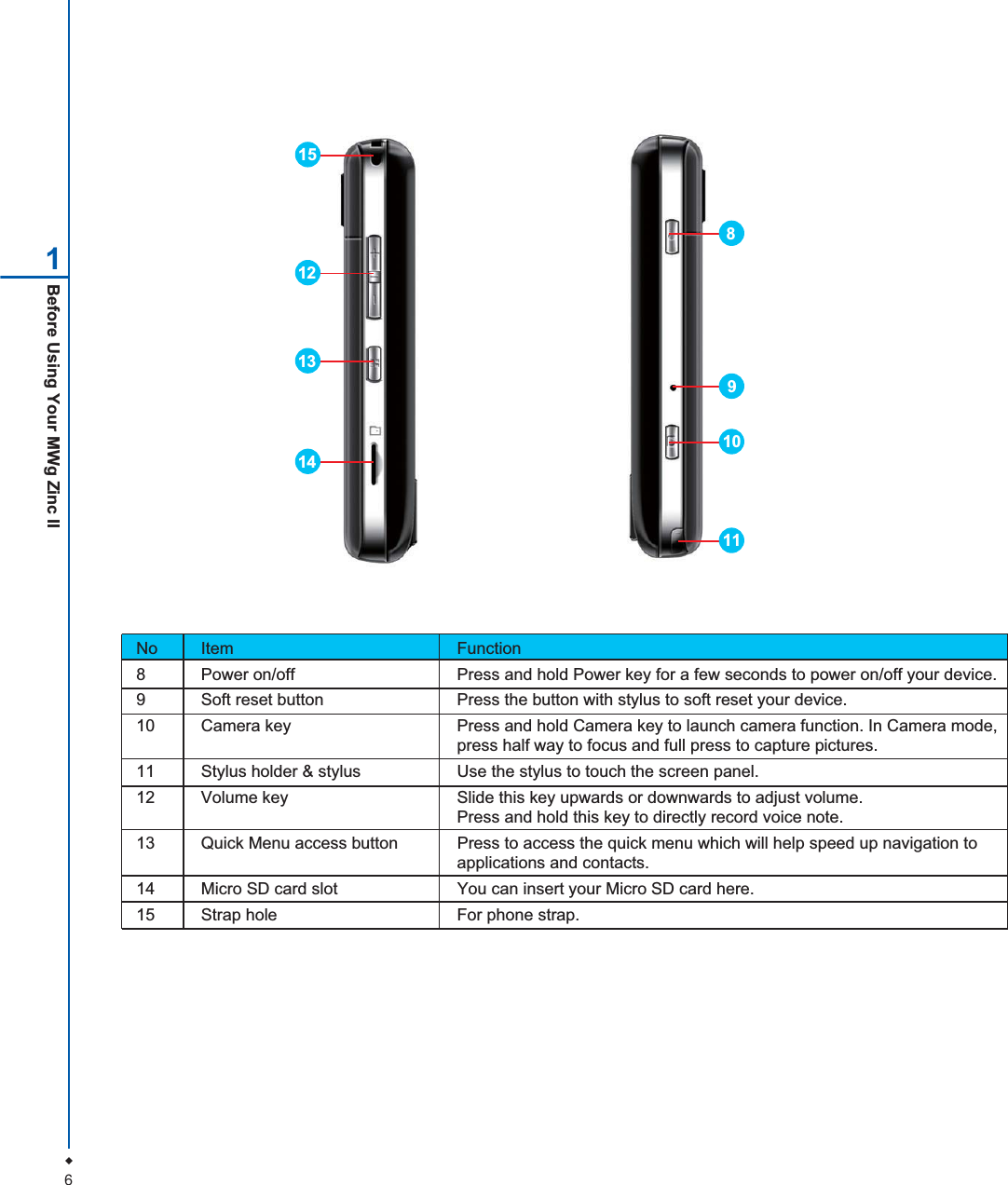
6Before Using Your MWg Zinc II1No Item Function8 Power on/off  Press and hold Power key for a few seconds to power on/off your device.9 Soft reset button  Press the button with stylus to soft reset your device.10 Camera key  Press and hold Camera key to launch camera function. In Camera mode,press half way to focus and full press to capture pictures.11 Stylus holder & stylus  Use the stylus to touch the screen panel.12 Volume key  Slide this key upwards or downwards to adjust volume.Press and hold this key to directly record voice note.13 Quick Menu access button Press to access the quick menu which will help speed up navigation toapplications and contacts.14 Micro SD card slot  You can insert your Micro SD card here.15 Strap hole For phone strap.13121514981011
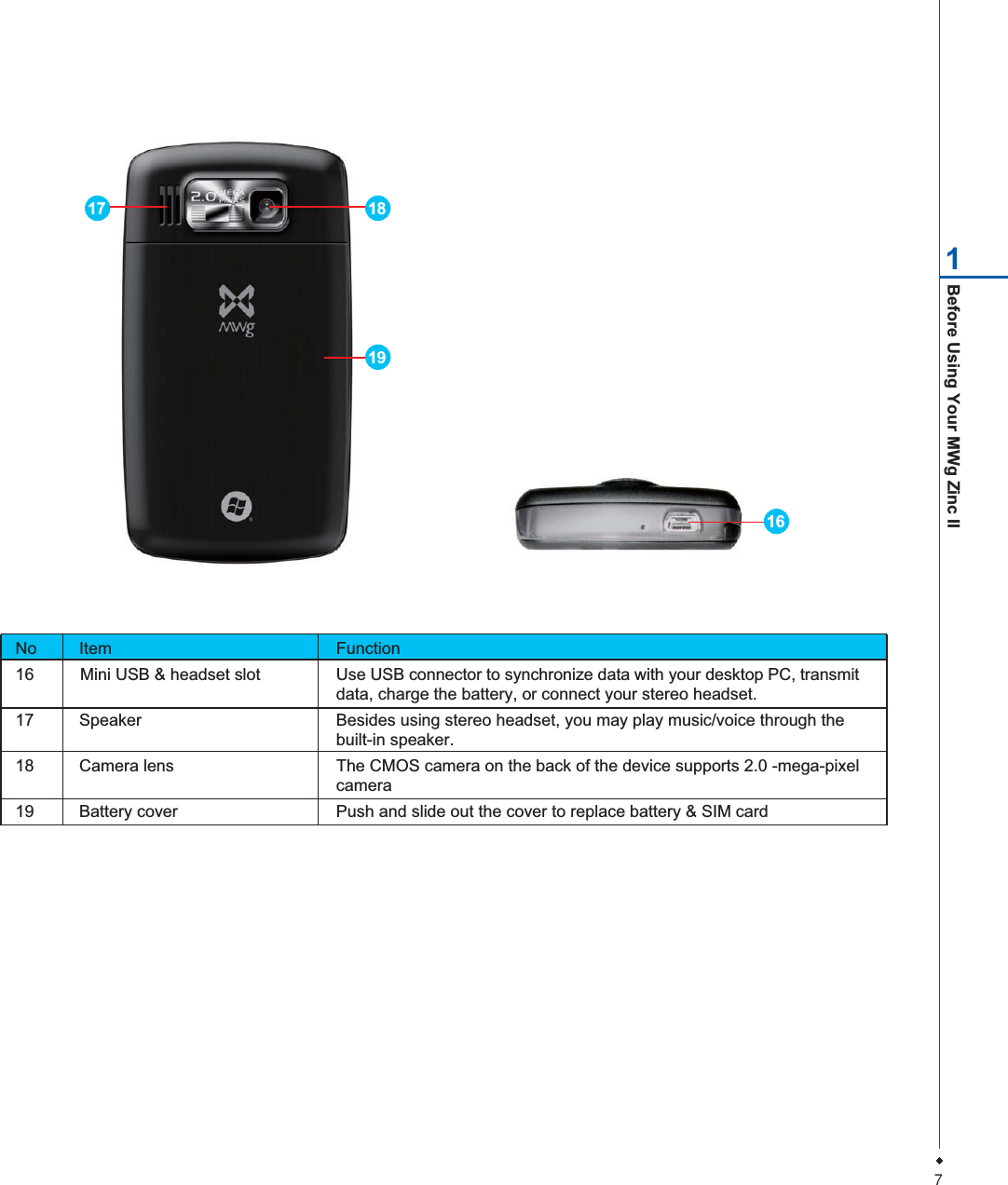
7Before Using Your MWg Zinc II1No Item Function16 Mini USB & headset slot Use USB connector to synchronize data with your desktop PC, transmitdata, charge the battery, or connect your stereo headset.17 Speaker Besides using stereo headset, you may play music/voice through thebuilt-in speaker.18 Camera lens  The CMOS camera on the back of the device supports 2.0 -mega-pixelcamera19 Battery cover  Push and slide out the cover to replace battery & SIM card19181716
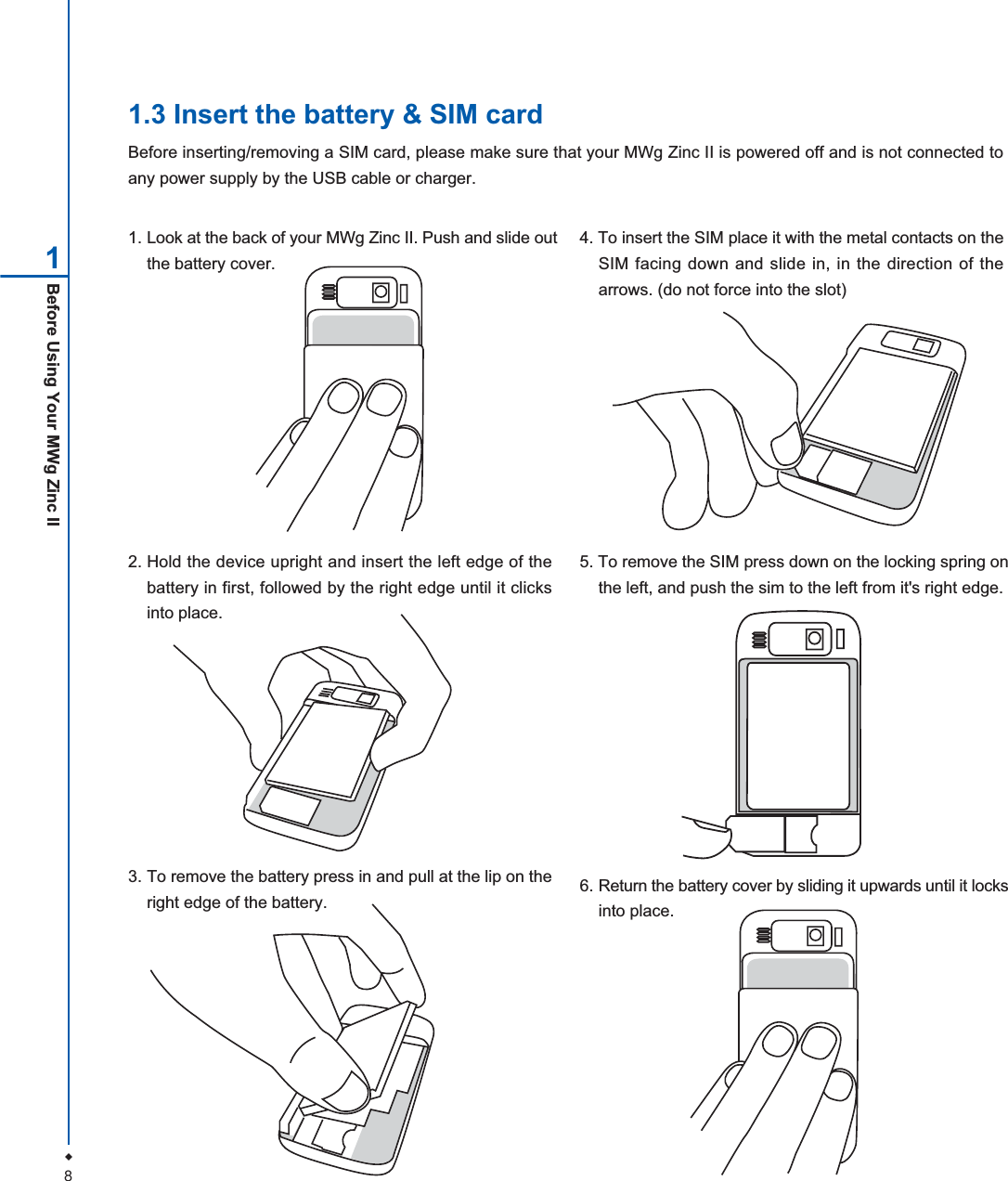
8Before Using Your MWg Zinc II11.3 Insert the battery & SIM cardBefore inserting/removing a SIM card, please make sure that your MWg Zinc II is powered off and is not connected toany power supply by the USB cable or charger.1. Look at the back of your MWg Zinc II. Push and slide outthe battery cover.2. Hold the device upright and insert the left edge of thebattery in first, followed by the right edge until it clicksinto place.5. To remove the SIM press down on the locking spring onthe left, and push the sim to the left from it's right edge.3. To remove the battery press in and pull at the lip on theright edge of the battery.4. To insert the SIM place it with the metal contacts on theSIM facing down and slide in, in the direction of thearrows. (do not force into the slot)6. Return the battery cover by sliding it upwards until it locksinto place.
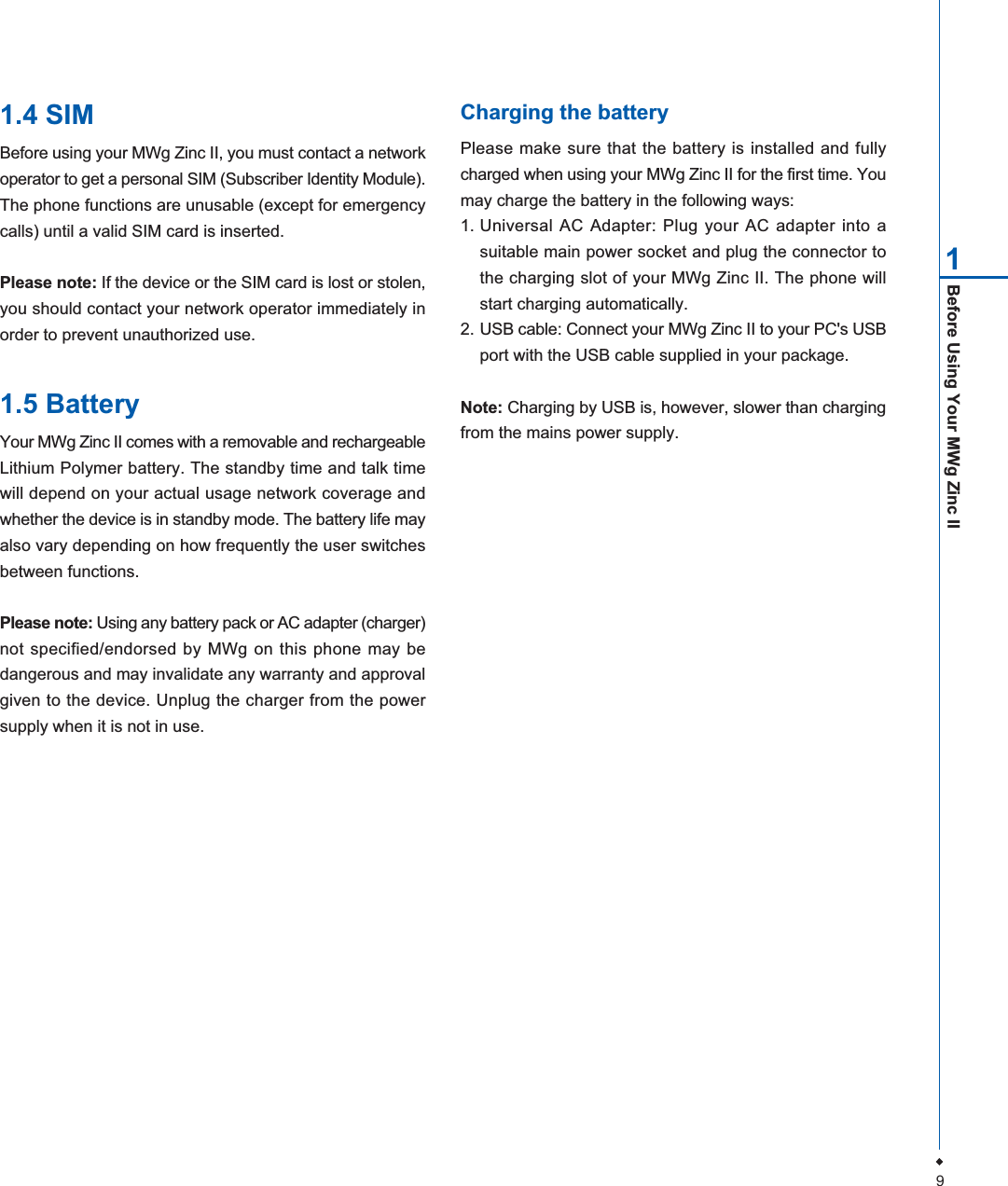
9Before Using Your MWg Zinc II11.4 SIMBefore using your MWg Zinc II, you must contact a networkoperator to get a personal SIM (Subscriber Identity Module).The phone functions are unusable (except for emergencycalls) until a valid SIM card is inserted.Please note: If the device or the SIM card is lost or stolen,you should contact your network operator immediately inorder to prevent unauthorized use.1.5 BatteryYour MWg Zinc II comes with a removable and rechargeableLithium Polymer battery. The standby time and talk timewill depend on your actual usage network coverage andwhether the device is in standby mode. The battery life mayalso vary depending on how frequently the user switchesbetween functions.Please note: Using any battery pack or AC adapter (charger)not specified/endorsed by MWg on this phone may bedangerous and may invalidate any warranty and approvalgiven to the device. Unplug the charger from the powersupply when it is not in use.Charging the batteryPlease make sure that the battery is installed and fullycharged when using your MWg Zinc II for the first time. Youmay charge the battery in the following ways:1. Universal AC Adapter: Plug your AC adapter into asuitable main power socket and plug the connector tothe charging slot of your MWg Zinc II. The phone willstart charging automatically.2. USB cable: Connect your MWg Zinc II to your PC's USBport with the USB cable supplied in your package.Note: Charging by USB is, however, slower than chargingfrom the mains power supply.
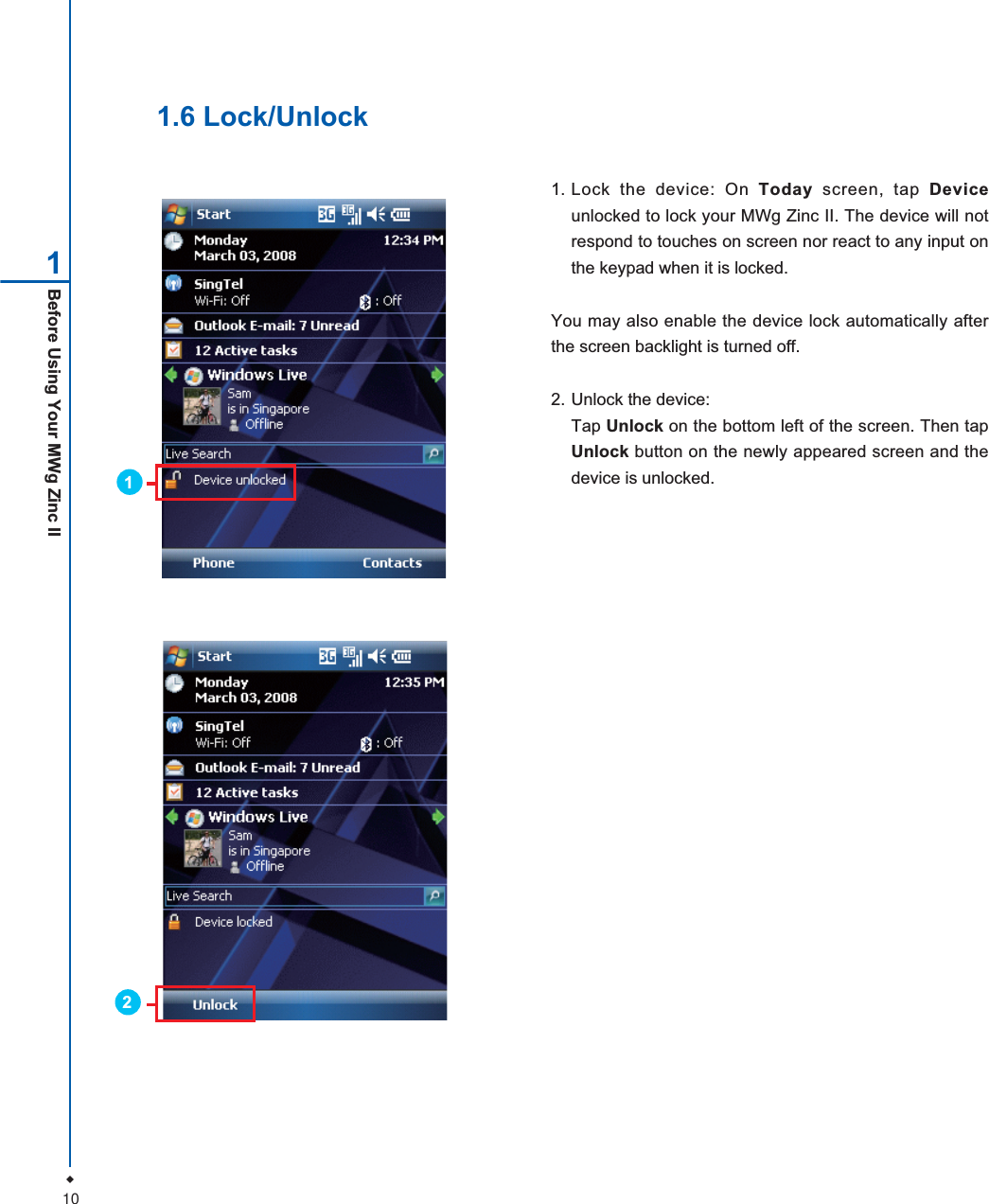
10Before Using Your MWg Zinc II11. Lock the device: On Today screen, tap Deviceunlocked to lock your MWg Zinc II. The device will notrespond to touches on screen nor react to any input onthe keypad when it is locked.You may also enable the device lock automatically afterthe screen backlight is turned off.2. Unlock the device:Tap Unlock on the bottom left of the screen. Then tapUnlock button on the newly appeared screen and thedevice is unlocked.1.6 Lock/Unlock12
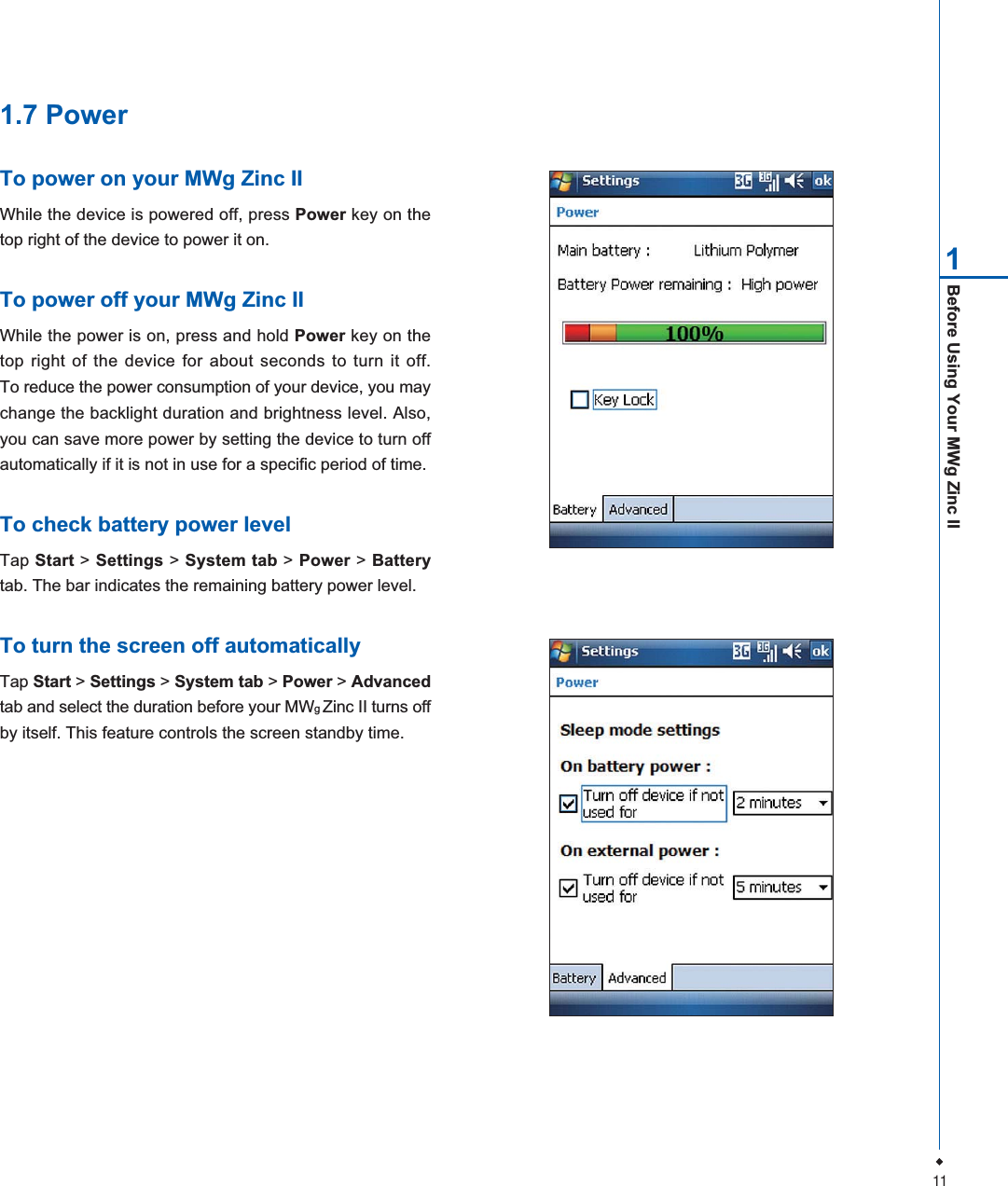
11Before Using Your MWg Zinc II11.7 PowerTo power on your MWg Zinc IIWhile the device is powered off, press Power key on thetop right of the device to power it on.To power off your MWg Zinc IIWhile the power is on, press and hold Power key on thetop right of the device for about seconds to turn it off.To reduce the power consumption of your device, you maychange the backlight duration and brightness level. Also,you can save more power by setting the device to turn offautomatically if it is not in use for a specific period of time.To check battery power levelTap Start > Settings > System tab > Power > Batterytab. The bar indicates the remaining battery power level.To turn the screen off automaticallyTap Start > Settings > System tab > Power > Advancedtab and select the duration before your MWgZinc II turns offby itself. This feature controls the screen standby time.
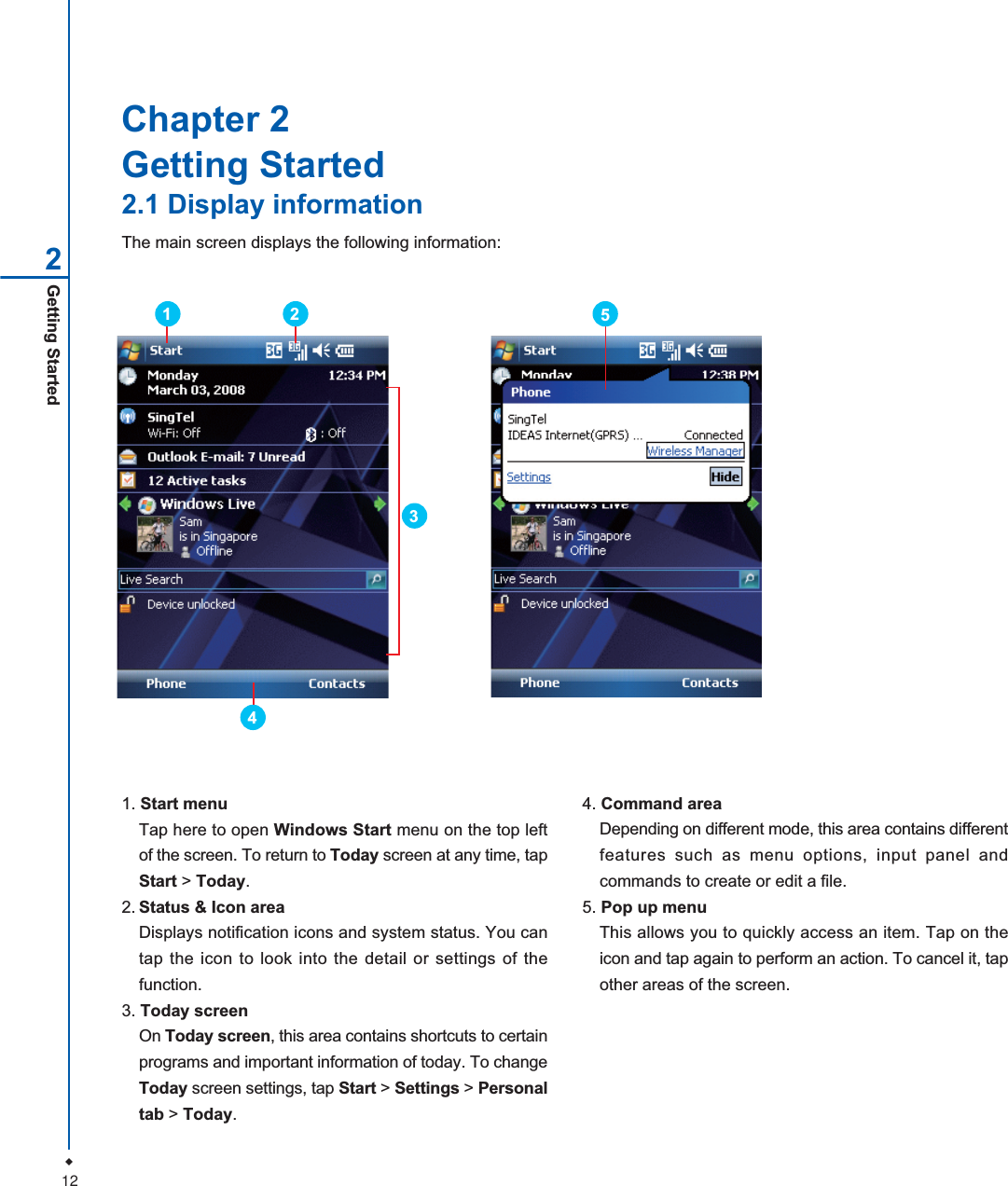
12Getting Started2Chapter 2Getting Started2.1 Display informationThe main screen displays the following information:1. Start menuTap here to open Windows Start menu on the top leftof the screen. To return to Today screen at any time, tapStart > Today.2. Status & Icon areaDisplays notification icons and system status. You cantap the icon to look into the detail or settings of thefunction.3. Today screenOn Today screen, this area contains shortcuts to certainprograms and important information of today. To changeToday screen settings, tap Start > Settings > Personaltab > Today.4. Command areaDepending on different mode, this area contains differentfeatures such as menu options, input panel andcommands to create or edit a file.5. Pop up menuThis allows you to quickly access an item. Tap on theicon and tap again to perform an action. To cancel it, tapother areas of the screen.35214
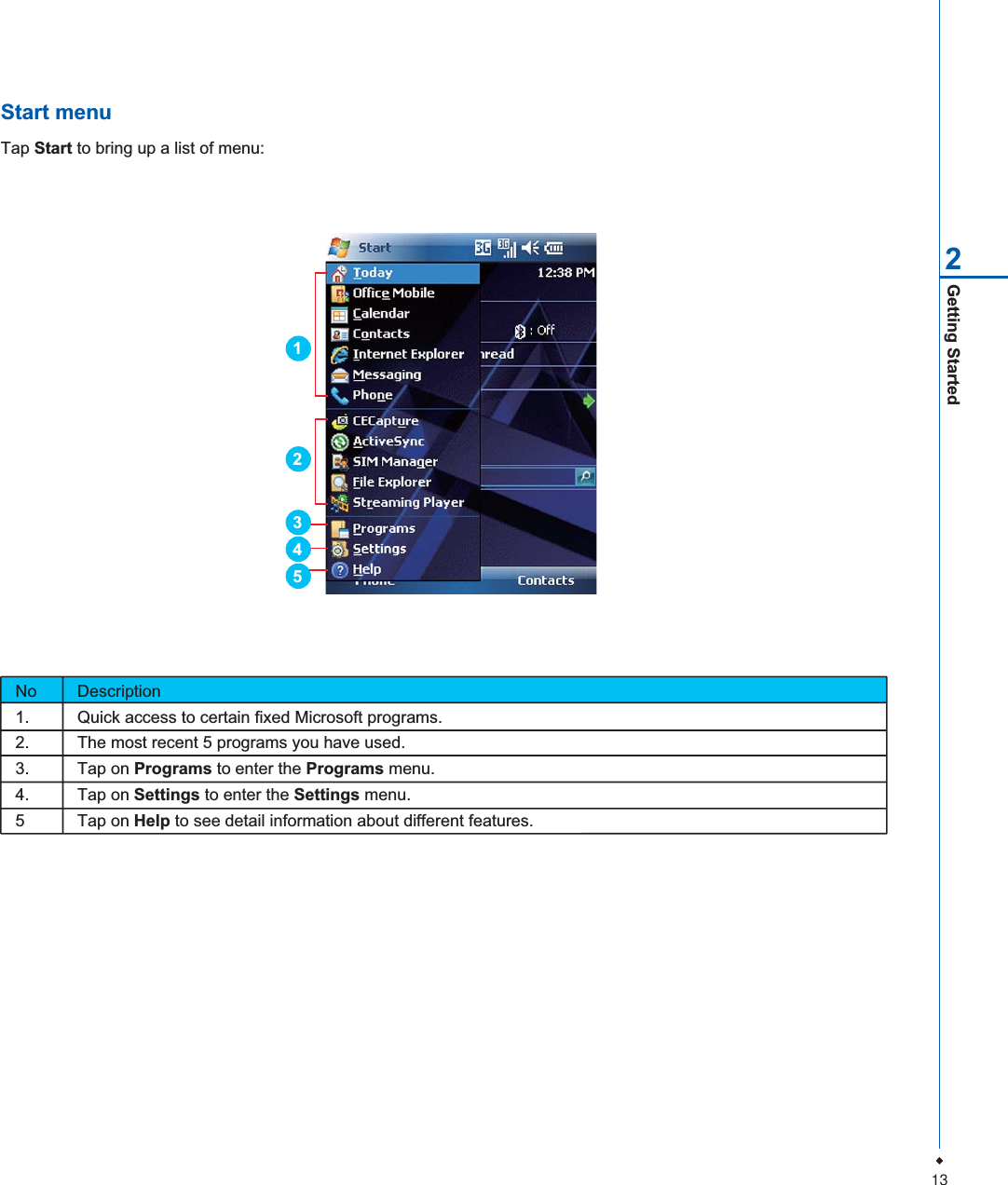
13Getting Started2Start menuTap Start to bring up a list of menu:No Description1. Quick access to certain fixed Microsoft programs.2. The most recent 5 programs you have used.3. Tap on Programs to enter the Programs menu.4. Tap on Settings to enter the Settings menu.5 Tap on Help to see detail information about different features.12354
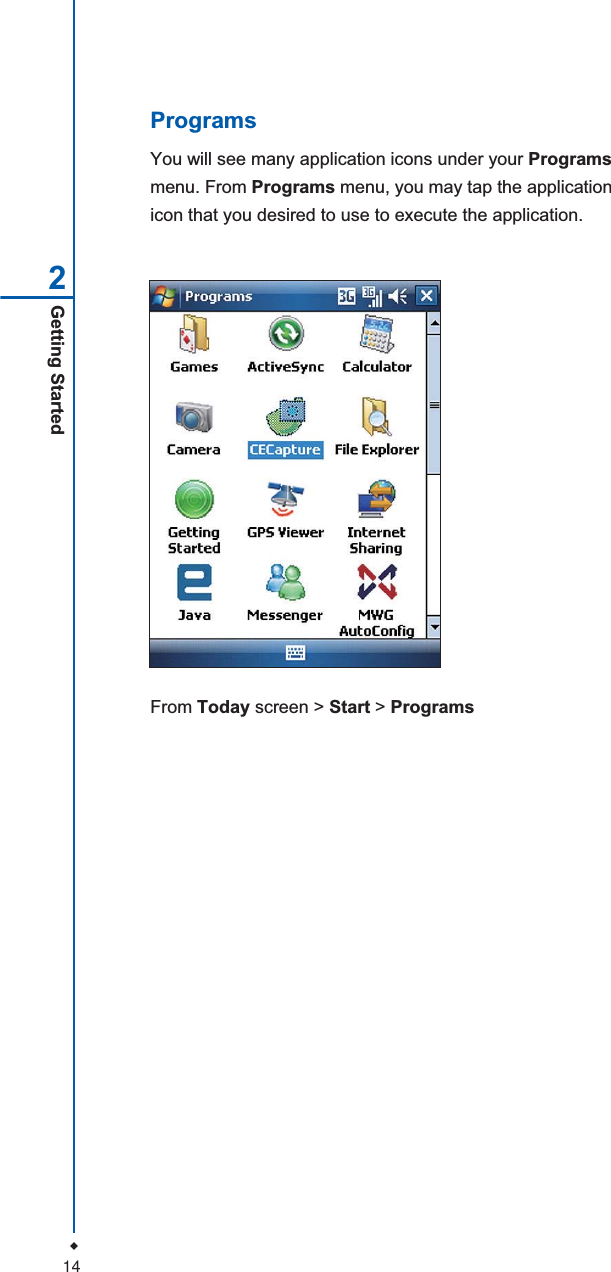
14Getting Started2ProgramsYou will see many application icons under your Programsmenu. From Programs menu, you may tap the applicationicon that you desired to use to execute the application.From Today screen > Start > Programs
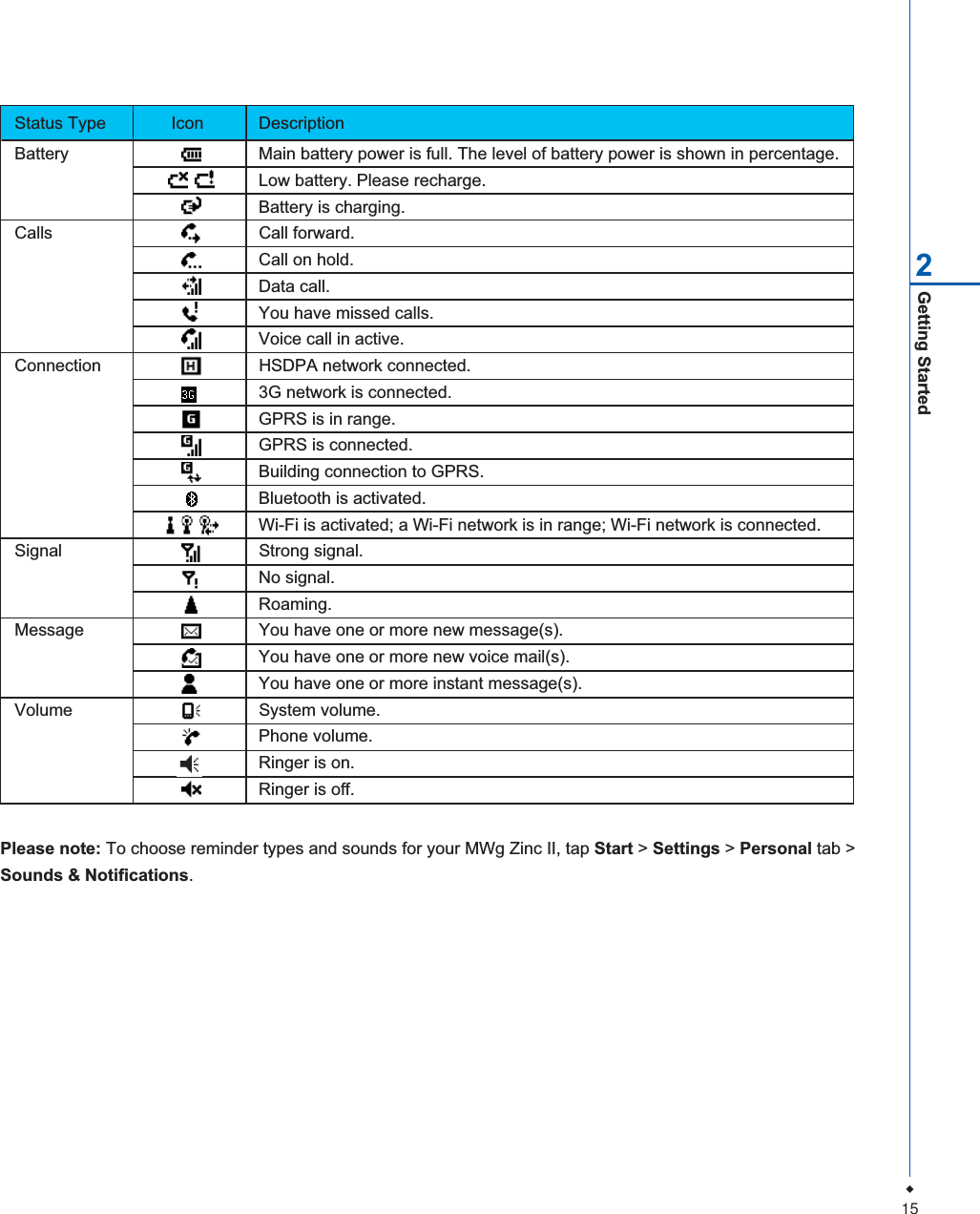
15Getting Started2Please note: To choose reminder types and sounds for your MWg Zinc II, tap Start > Settings > Personal tab >Sounds & Notifications.Status Type  Icon DescriptionBattery Main battery power is full. The level of battery power is shown in percentage.Low battery. Please recharge.Battery is charging.Calls Call forward.Call on hold.Data call.You have missed calls.Voice call in active.Connection HSDPA network connected.3G network is connected.GPRS is in range.GPRS is connected.Building connection to GPRS.Bluetooth is activated.Wi-Fi is activated; a Wi-Fi network is in range; Wi-Fi network is connected.Signal Strong signal.No signal.Roaming.Message You have one or more new message(s).You have one or more new voice mail(s).You have one or more instant message(s).Volume System volume.Phone volume.Ringer is on.Ringer is off.
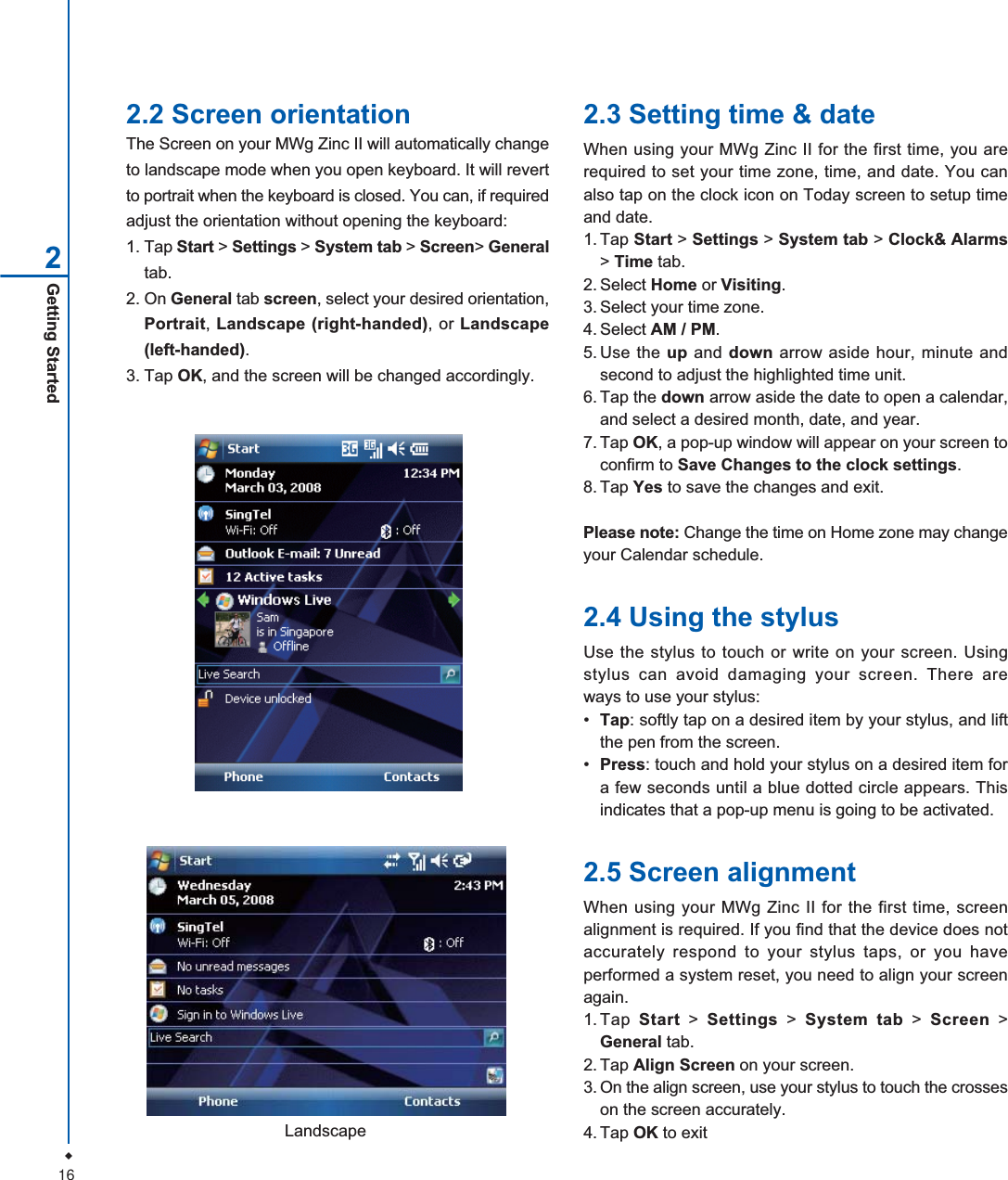
16Getting Started22.2 Screen orientationThe Screen on your MWg Zinc II will automatically changeto landscape mode when you open keyboard. It will revertto portrait when the keyboard is closed. You can, if requiredadjust the orientation without opening the keyboard:1. Tap Start > Settings > System tab > Screen>Generaltab.2. On General tab screen, select your desired orientation,Portrait,Landscape (right-handed), or Landscape(left-handed).3. Tap OK, and the screen will be changed accordingly.2.3 Setting time & dateWhen using your MWg Zinc II for the first time, you arerequired to set your time zone, time, and date. You canalso tap on the clock icon on Today screen to setup timeand date.1. Tap Start > Settings > System tab > Clock& Alarms>Time tab.2. Select Home or Visiting.3. Select your time zone.4. Select AM / PM.5. Use the up and down arrow aside hour, minute andsecond to adjust the highlighted time unit.6. Tap the down arrow aside the date to open a calendar,and select a desired month, date, and year.7. Tap OK, a pop-up window will appear on your screen toconfirm to Save Changes to the clock settings.8. Tap Yes to save the changes and exit.Please note: Change the time on Home zone may changeyour Calendar schedule.2.4 Using the stylusUse the stylus to touch or write on your screen. Usingstylus can avoid damaging your screen. There areways to use your stylus:•Tap: softly tap on a desired item by your stylus, and liftthe pen from the screen.•Press: touch and hold your stylus on a desired item fora few seconds until a blue dotted circle appears. Thisindicates that a pop-up menu is going to be activated.2.5 Screen alignmentWhen using your MWg Zinc II for the first time, screenalignment is required. If you find that the device does notaccurately respond to your stylus taps, or you haveperformed a system reset, you need to align your screenagain.1. Tap Start > Settings > System tab > Screen >General tab.2. Tap Align Screen on your screen.3. On the align screen, use your stylus to touch the crosseson the screen accurately.4. Tap OK to exitLandscape
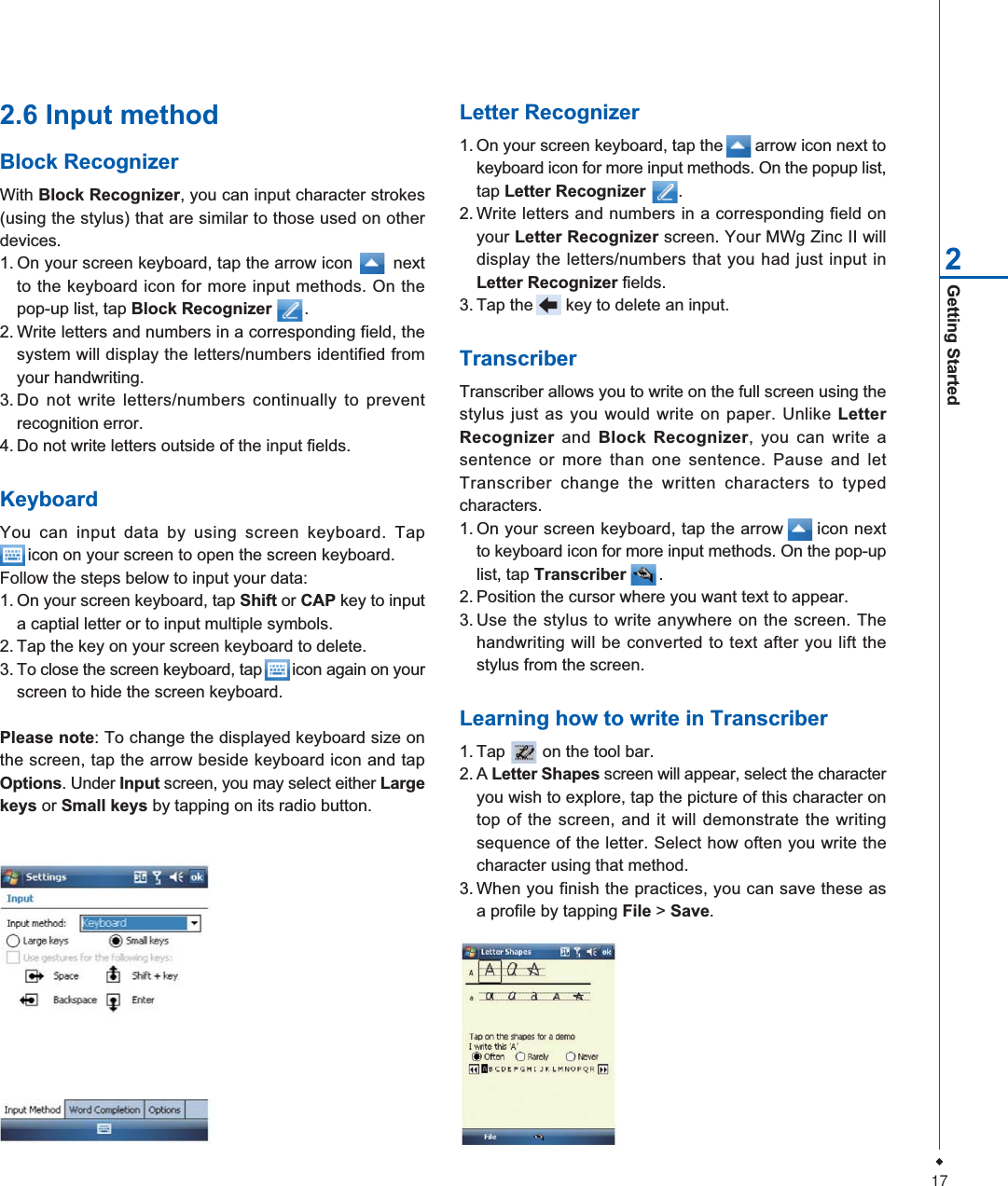
17Getting Started22.6 Input methodBlock RecognizerWith Block Recognizer, you can input character strokes(using the stylus) that are similar to those used on otherdevices.1. On your screen keyboard, tap the arrow icon        nextto the keyboard icon for more input methods. On thepop-up list, tap Block Recognizer .2. Write letters and numbers in a corresponding field, thesystem will display the letters/numbers identified fromyour handwriting.3. Do not write letters/numbers continually to preventrecognition error.4. Do not write letters outside of the input fields.KeyboardYou can input data by using screen keyboard. Tap      icon on your screen to open the screen keyboard.Follow the steps below to input your data:1. On your screen keyboard, tap Shift or CAP key to inputa captial letter or to input multiple symbols.2. Tap the key on your screen keyboard to delete.3. To close the screen keyboard, tap       icon again on yourscreen to hide the screen keyboard.Please note: To change the displayed keyboard size onthe screen, tap the arrow beside keyboard icon and tapOptions. Under Input screen, you may select either Largekeys or Small keys by tapping on its radio button.Letter Recognizer1. On your screen keyboard, tap the       arrow icon next tokeyboard icon for more input methods. On the popup list,tap Letter Recognizer       .2. Write letters and numbers in a corresponding field onyour Letter Recognizer screen. Your MWg Zinc II willdisplay the letters/numbers that you had just input inLetter Recognizer fields.3. Tap the       key to delete an input.TranscriberTranscriber allows you to write on the full screen using thestylus just as you would write on paper. Unlike LetterRecognizer and Block Recognizer, you can write asentence or more than one sentence. Pause and letTranscriber change the written characters to typedcharacters.1. On your screen keyboard, tap the arrow      icon nextto keyboard icon for more input methods. On the pop-uplist, tap Transcriber .2. Position the cursor where you want text to appear.3. Use the stylus to write anywhere on the screen. Thehandwriting will be converted to text after you lift thestylus from the screen.Learning how to write in Transcriber1. Tap        on the tool bar.2. A Letter Shapes screen will appear, select the characteryou wish to explore, tap the picture of this character ontop of the screen, and it will demonstrate the writingsequence of the letter. Select how often you write thecharacter using that method.3. When you finish the practices, you can save these asa profile by tapping File > Save.
18Getting Started22.7 Password setup1. Tap Start > Settings > Personal tab > Lock>Passwordtab.2. On Password tab screen, check Prompt if deviceunused for.3. Select an appropriate time.4. Select a password type in Password type field.5. Input your password in Password field and reconfirmthe password in Confirm field.6. Tap OK, a pop-up window will appear to confirm, " Doyou want to save password settings changes?".7. Tap Yes to finish settings and save the changes; Noto cancel.8. You may also input password hint message under Hinttab screen.9. Tap OK to save your inputs.Please note: If you forget your password, you need toperform system default, which will lose all your data andsettings.2.8 Data backupYour MWg Zinc II supports 256MB RAM memory capacity;however, you may need to back up data and any newprograms that you install in the RAM to guard against dataloss. To back up your Contact,Calendar, etc., please setup the synchronization partnership with your PC andconnect the phone with PC. ActiveSync will startautomatically.
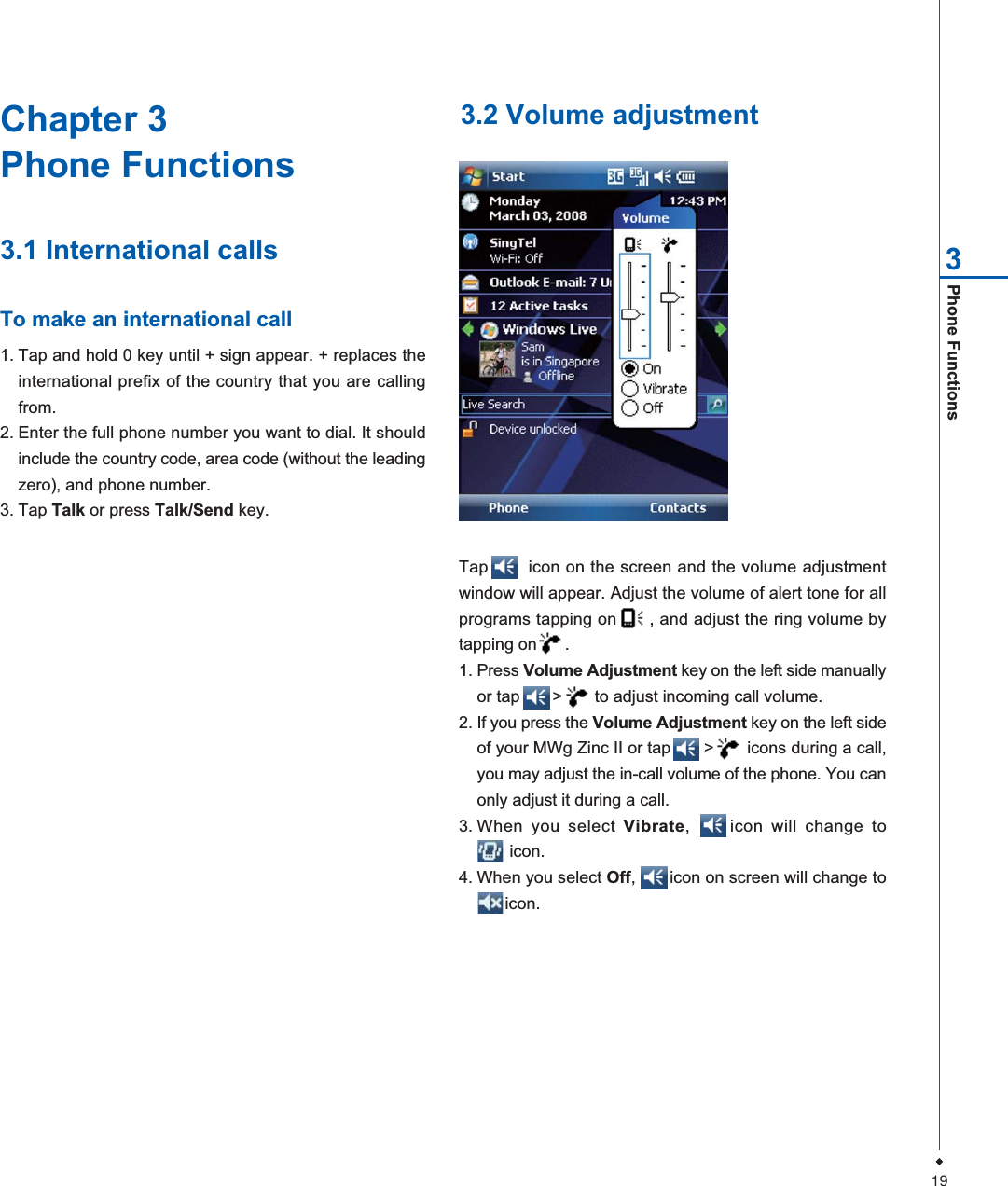
19Phone Functions3Chapter 3Phone Functions3.1 International callsTo make an international call1. Tap and hold 0 key until + sign appear. + replaces theinternational prefix of the country that you are callingfrom.2. Enter the full phone number you want to dial. It shouldinclude the country code, area code (without the leadingzero), and phone number.3. Tap Talk or press Talk/Send key.3.2 Volume adjustmentTap       icon on the screen and the volume adjustmentwindow will appear. Adjust the volume of alert tone for allprograms tapping on      , and adjust the ring volume bytapping on      .1. Press Volume Adjustment key on the left side manuallyor tap       >       to adjust incoming call volume.2. If you press the Volume Adjustment key on the left sideof your MWg Zinc II or tap       >       icons during a call,you may adjust the in-call volume of the phone. You canonly adjust it during a call.3. When you select Vibrate,     icon will change to       icon.4. When you select Off,       icon on screen will change to      icon.
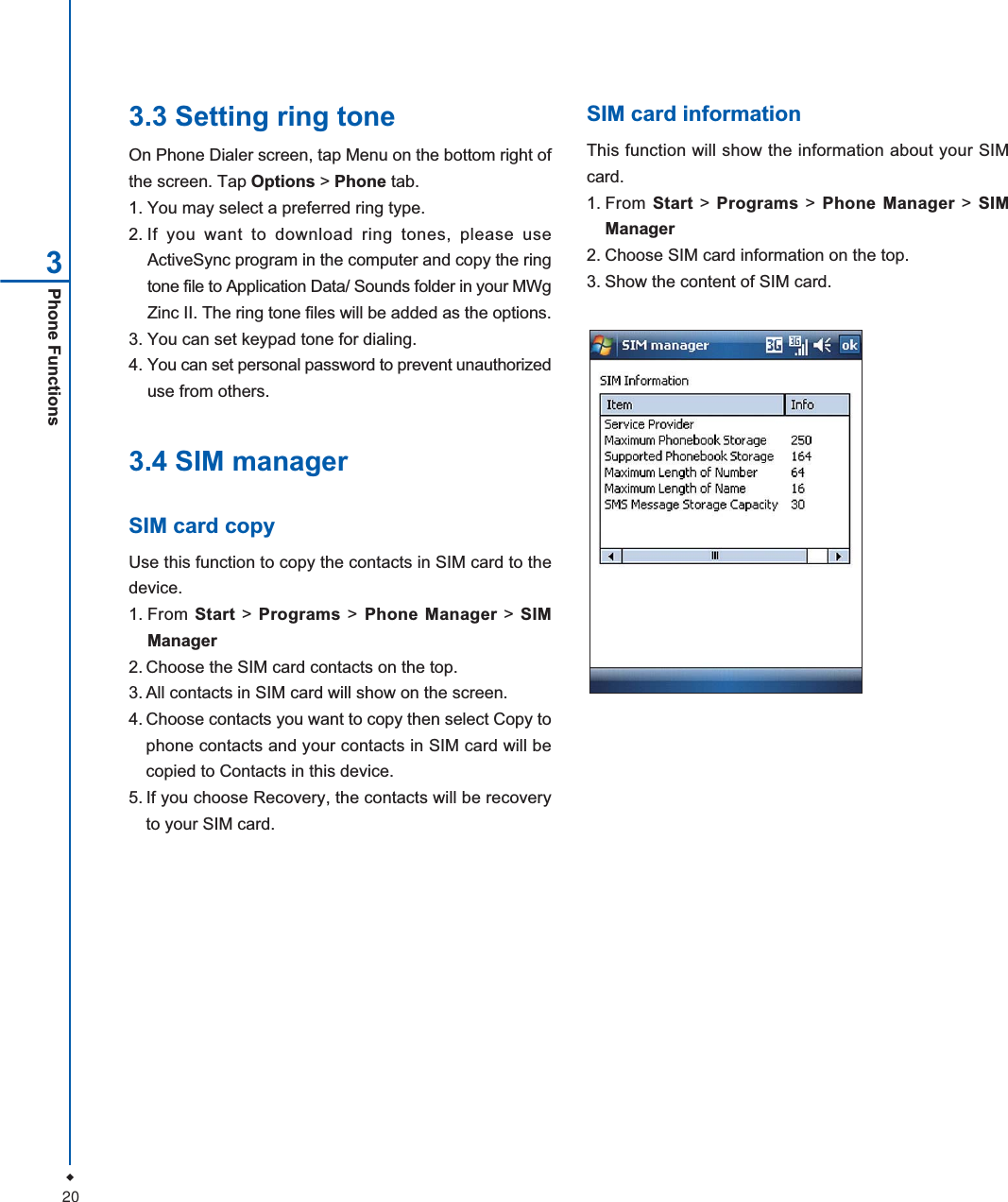
20Phone Functions33.3 Setting ring toneOn Phone Dialer screen, tap Menu on the bottom right ofthe screen. Tap Options > Phone tab.1. You may select a preferred ring type.2. If you want to download ring tones, please useActiveSync program in the computer and copy the ringtone file to Application Data/ Sounds folder in your MWgZinc II. The ring tone files will be added as the options.3. You can set keypad tone for dialing.4. You can set personal password to prevent unauthorizeduse from others.3.4 SIM managerSIM card copyUse this function to copy the contacts in SIM card to thedevice.1. From Start > Programs > Phone Manager > SIMManager2. Choose the SIM card contacts on the top.3. All contacts in SIM card will show on the screen.4. Choose contacts you want to copy then select Copy tophone contacts and your contacts in SIM card will becopied to Contacts in this device.5. If you choose Recovery, the contacts will be recoveryto your SIM card.SIM card informationThis function will show the information about your SIMcard.1. From Start > Programs > Phone Manager > SIMManager2. Choose SIM card information on the top.3. Show the content of SIM card.
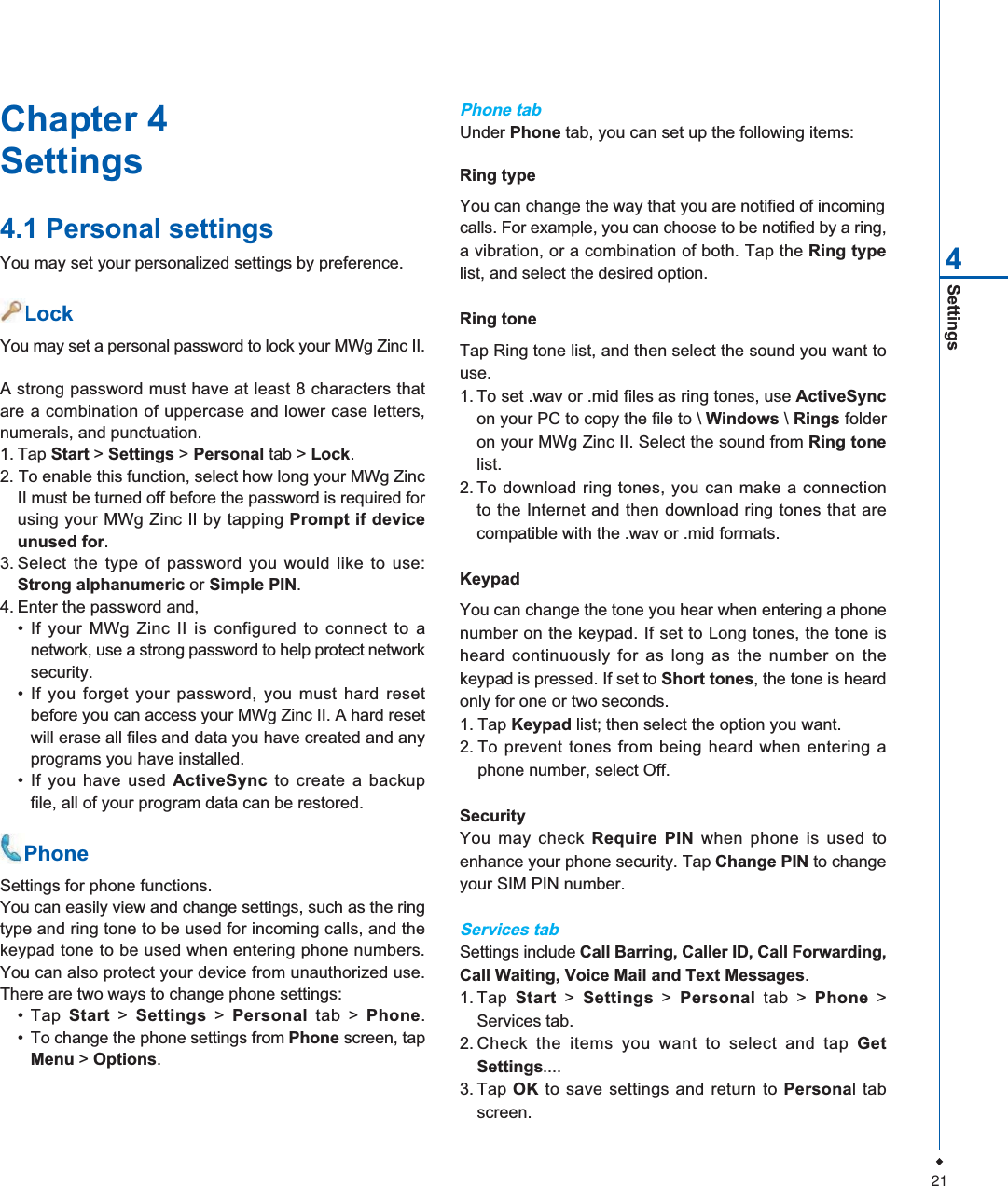
21Settings4Chapter 4Settings4.1 Personal settingsYou may set your personalized settings by preference.    LockYou may set a personal password to lock your MWg Zinc II.A strong password must have at least 8 characters thatare a combination of uppercase and lower case letters,numerals, and punctuation.1. Tap Start > Settings > Personal tab > Lock.2. To enable this function, select how long your MWg ZincII must be turned off before the password is required forusing your MWg Zinc II by tapping Prompt if deviceunused for.3. Select the type of password you would like to use:Strong alphanumeric or Simple PIN.4. Enter the password and,• If your MWg Zinc II is configured to connect to anetwork, use a strong password to help protect networksecurity.• If you forget your password, you must hard resetbefore you can access your MWg Zinc II. A hard resetwill erase all files and data you have created and anyprograms you have installed.• If you have used ActiveSync to create a backupfile, all of your program data can be restored.    PhoneSettings for phone functions.You can easily view and change settings, such as the ringtype and ring tone to be used for incoming calls, and thekeypad tone to be used when entering phone numbers.You can also protect your device from unauthorized use.There are two ways to change phone settings:• Tap Start >Settings > Personal tab > Phone.• To change the phone settings from Phone screen, tapMenu > Options.Phone tabUnder Phone tab, you can set up the following items:Ring typeYou can change the way that you are notified of incomingcalls. For example, you can choose to be notified by a ring,a vibration, or a combination of both. Tap the Ring typelist, and select the desired option.Ring toneTap Ring tone list, and then select the sound you want touse.1. To set .wav or .mid files as ring tones, use ActiveSyncon your PC to copy the file to \ Windows \Rings folderon your MWg Zinc II. Select the sound from Ring tonelist.2. To download ring tones, you can make a connectionto the Internet and then download ring tones that arecompatible with the .wav or .mid formats.KeypadYou can change the tone you hear when entering a phonenumber on the keypad. If set to Long tones, the tone isheard continuously for as long as the number on thekeypad is pressed. If set to Short tones, the tone is heardonly for one or two seconds.1. Tap Keypad list; then select the option you want.2. To prevent tones from being heard when entering aphone number, select Off.SecurityYou may check Require PIN when phone is used toenhance your phone security. Tap Change PIN to changeyour SIM PIN number.Services tabSettings include Call Barring, Caller ID, Call Forwarding,Call Waiting, Voice Mail and Text Messages.1. Tap Start > Settings > Personal tab > Phone >Services tab.2. Check the items you want to select and tap GetSettings....3. Tap OK to save settings and return to Personal tabscreen.
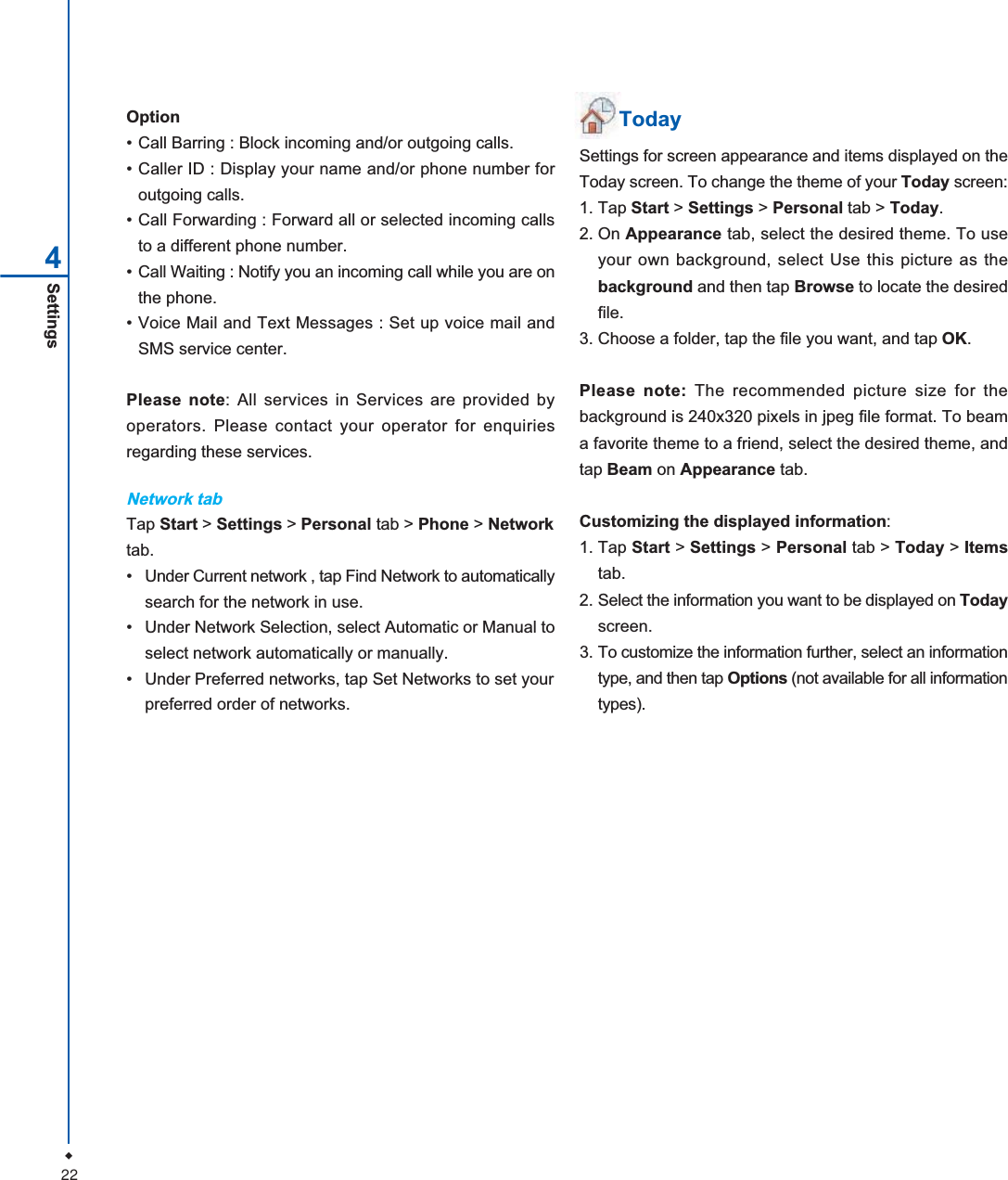
22Settings4Option• Call Barring : Block incoming and/or outgoing calls.• Caller ID : Display your name and/or phone number foroutgoing calls.• Call Forwarding : Forward all or selected incoming callsto a different phone number.• Call Waiting : Notify you an incoming call while you are onthe phone.• Voice Mail and Text Messages : Set up voice mail andSMS service center.Please note: All services in Services are provided byoperators. Please contact your operator for enquiriesregarding these services.Network tabTap Start > Settings > Personal tab > Phone > Networktab.• Under Current network , tap Find Network to automaticallysearch for the network in use.• Under Network Selection, select Automatic or Manual toselect network automatically or manually.• Under Preferred networks, tap Set Networks to set yourpreferred order of networks.TodaySettings for screen appearance and items displayed on theToday screen. To change the theme of your Today screen:1. Tap Start > Settings > Personal tab > Today.2. On Appearance tab, select the desired theme. To useyour own background, select Use this picture as thebackground and then tap Browse to locate the desiredfile.3. Choose a folder, tap the file you want, and tap OK.Please note: The recommended picture size for thebackground is 240x320 pixels in jpeg file format. To beama favorite theme to a friend, select the desired theme, andtap Beam on Appearance tab.Customizing the displayed information:1. Tap Start > Settings > Personal tab > Today > Itemstab.2. Select the information you want to be displayed on Todayscreen.3. To customize the information further, select an informationtype, and then tap Options (not available for all informationtypes).
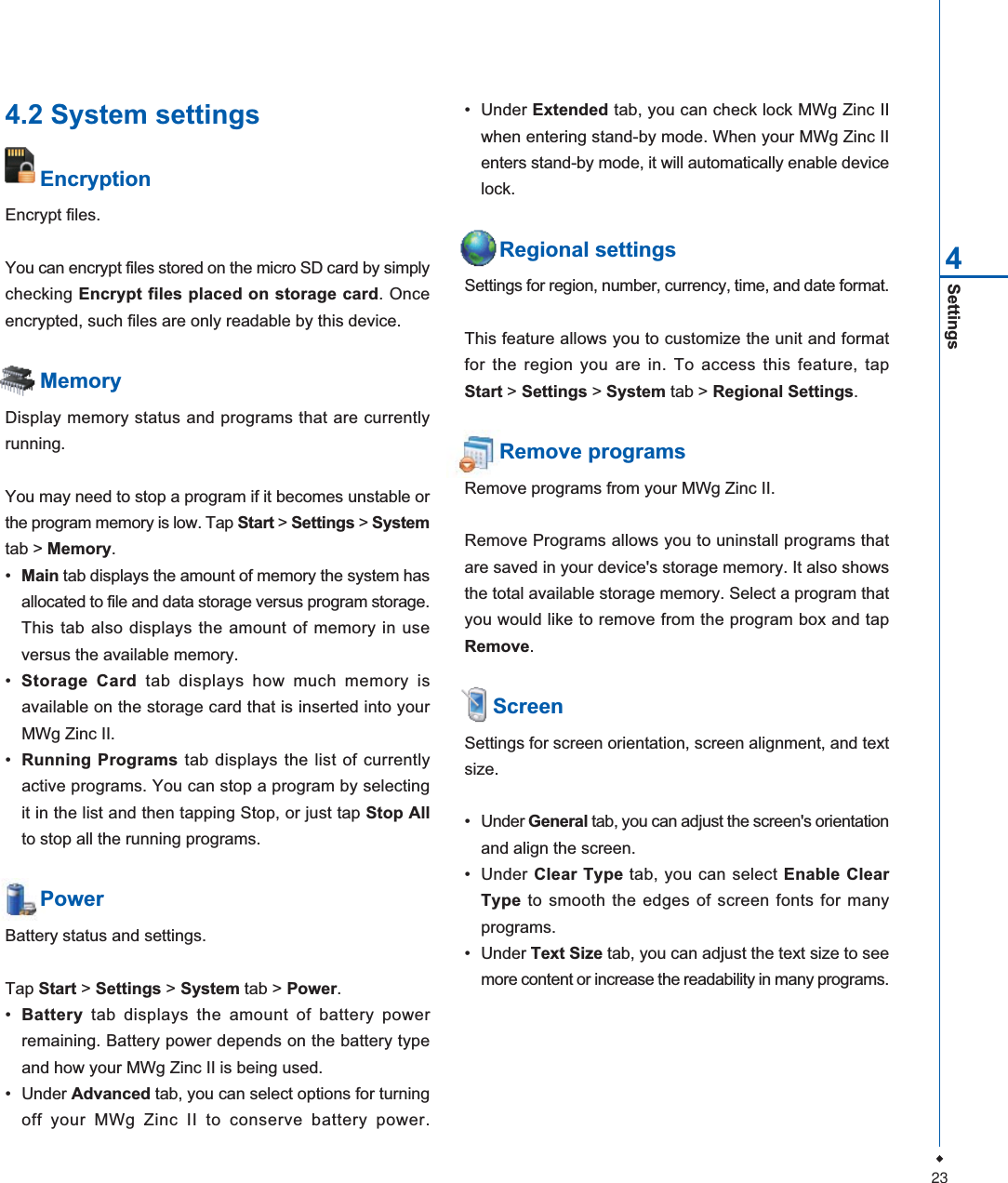
23Settings44.2 System settingsEncryptionEncrypt files.You can encrypt files stored on the micro SD card by simplychecking Encrypt files placed on storage card. Onceencrypted, such files are only readable by this device.MemoryDisplay memory status and programs that are currentlyrunning.You may need to stop a program if it becomes unstable orthe program memory is low. Tap Start >Settings > Systemtab > Memory.•Main tab displays the amount of memory the system hasallocated to file and data storage versus program storage.This tab also displays the amount of memory in useversus the available memory.•Storage Card tab displays how much memory isavailable on the storage card that is inserted into yourMWg Zinc II.•Running Programs tab displays the list of currentlyactive programs. You can stop a program by selectingit in the list and then tapping Stop, or just tap Stop Allto stop all the running programs.PowerBattery status and settings.Tap Start > Settings > System tab > Power.•Battery tab displays the amount of battery powerremaining. Battery power depends on the battery typeand how your MWg Zinc II is being used.• Under Advanced tab, you can select options for turningoff your MWg Zinc II to conserve battery power.• Under Extended tab, you can check lock MWg Zinc IIwhen entering stand-by mode. When your MWg Zinc IIenters stand-by mode, it will automatically enable devicelock.Regional settingsSettings for region, number, currency, time, and date format.This feature allows you to customize the unit and formatfor the region you are in. To access this feature, tapStart > Settings > System tab > Regional Settings.Remove programsRemove programs from your MWg Zinc II.Remove Programs allows you to uninstall programs thatare saved in your device's storage memory. It also showsthe total available storage memory. Select a program thatyou would like to remove from the program box and tapRemove.  ScreenSettings for screen orientation, screen alignment, and textsize.• Under General tab, you can adjust the screen's orientationand align the screen.• Under Clear Type tab, you can select Enable ClearType to smooth the edges of screen fonts for manyprograms.• Under Text Size tab, you can adjust the text size to seemore content or increase the readability in many programs.
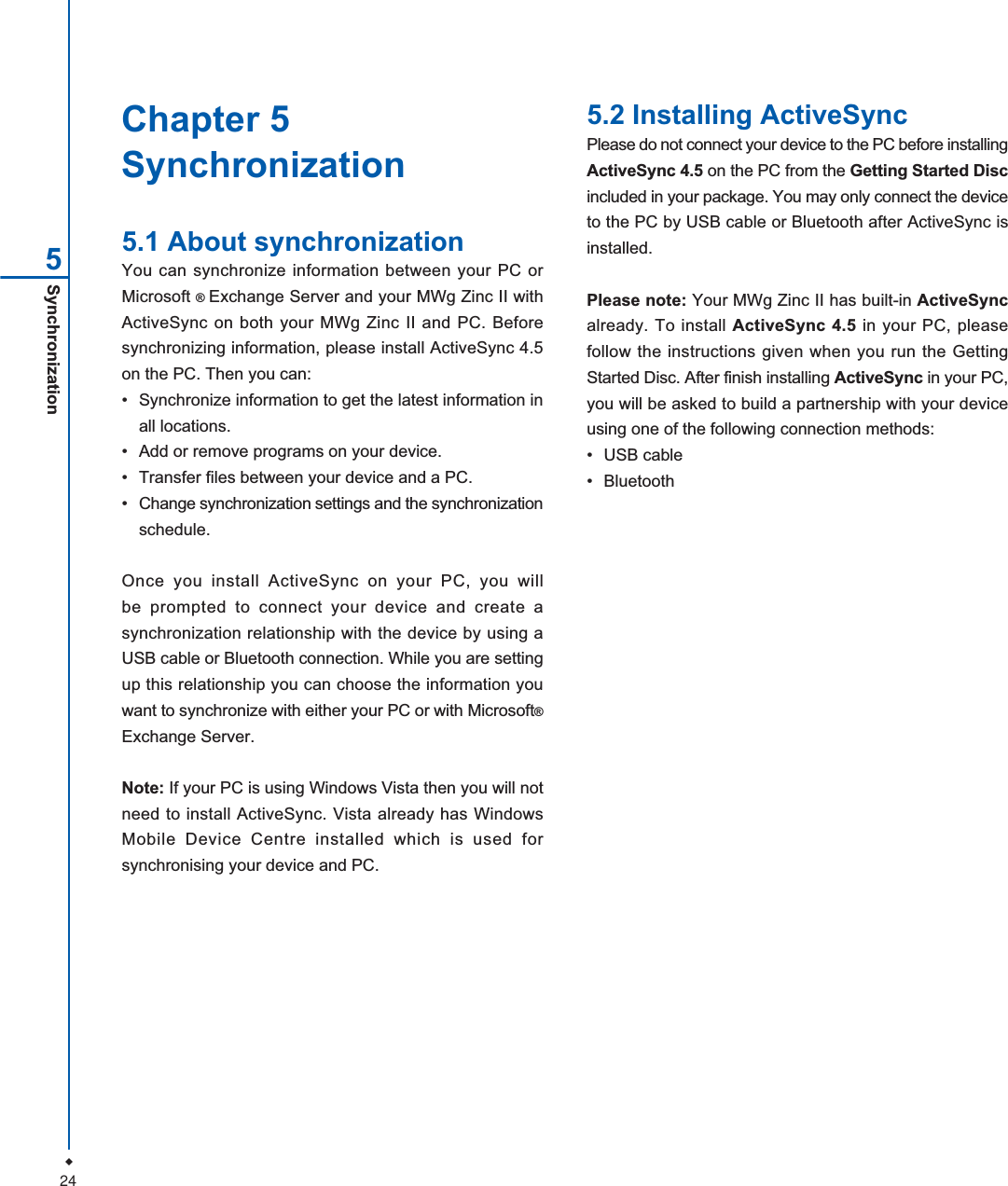
24Chapter 5Synchronization5.1 About synchronizationYou can synchronize information between your PC orMicrosoft ®Exchange Server and your MWg Zinc II withActiveSync on both your MWg Zinc II and PC. Beforesynchronizing information, please install ActiveSync 4.5on the PC. Then you can:• Synchronize information to get the latest information inall locations.• Add or remove programs on your device.• Transfer files between your device and a PC.• Change synchronization settings and the synchronizationschedule.Once you install ActiveSync on your PC, you willbe prompted to connect your device and create asynchronization relationship with the device by using aUSB cable or Bluetooth connection. While you are settingup this relationship you can choose the information youwant to synchronize with either your PC or with Microsoft®Exchange Server.Note: If your PC is using Windows Vista then you will notneed to install ActiveSync. Vista already has WindowsMobile Device Centre installed which is used forsynchronising your device and PC.5.2 Installing ActiveSyncPlease do not connect your device to the PC before installingActiveSync 4.5 on the PC from the Getting Started Discincluded in your package. You may only connect the deviceto the PC by USB cable or Bluetooth after ActiveSync isinstalled.Please note: Your MWg Zinc II has built-in ActiveSyncalready. To install ActiveSync 4.5 in your PC, pleasefollow the instructions given when you run the GettingStarted Disc. After finish installing ActiveSync in your PC,you will be asked to build a partnership with your deviceusing one of the following connection methods:• USB cable• BluetoothSynchronization5
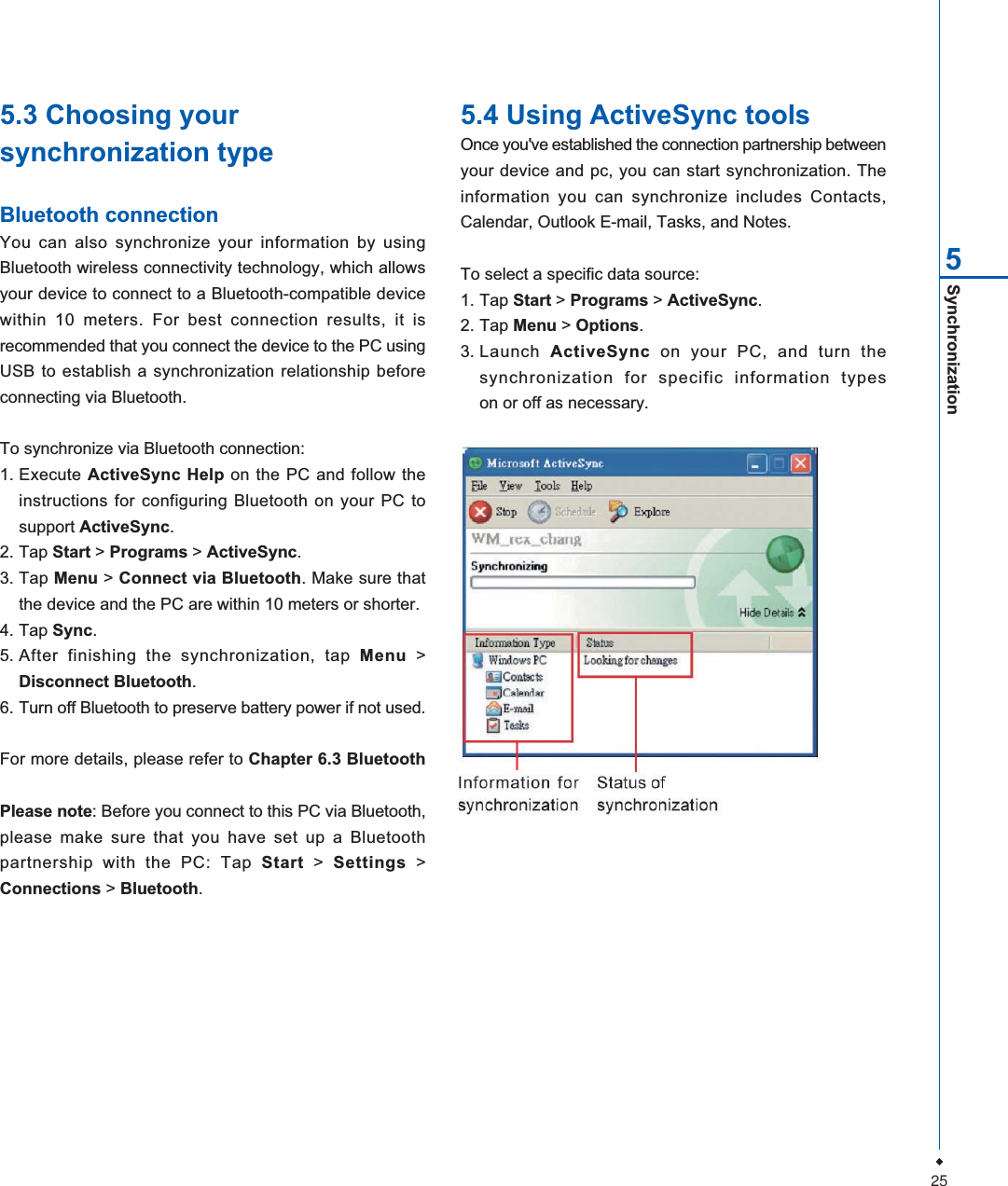
25Synchronization55.3 Choosing yoursynchronization typeBluetooth connectionYou can also synchronize your information by usingBluetooth wireless connectivity technology, which allowsyour device to connect to a Bluetooth-compatible devicewithin 10 meters. For best connection results, it isrecommended that you connect the device to the PC usingUSB to establish a synchronization relationship beforeconnecting via Bluetooth.To synchronize via Bluetooth connection:1. Execute ActiveSync Help on the PC and follow theinstructions for configuring Bluetooth on your PC tosupport ActiveSync.2. Tap Start > Programs > ActiveSync.3. Tap Menu > Connect via Bluetooth. Make sure thatthe device and the PC are within 10 meters or shorter.4. Tap Sync.5. After finishing the synchronization, tap Menu >Disconnect Bluetooth.6. Turn off Bluetooth to preserve battery power if not used.For more details, please refer to Chapter 6.3 BluetoothPlease note: Before you connect to this PC via Bluetooth,please make sure that you have set up a Bluetoothpartnership with the PC: Tap Start > Settings >Connections > Bluetooth.5.4 Using ActiveSync toolsOnce you've established the connection partnership betweenyour device and pc, you can start synchronization. Theinformation you can synchronize includes Contacts,Calendar, Outlook E-mail, Tasks, and Notes.To select a specific data source:1. Tap Start > Programs > ActiveSync.2. Tap Menu > Options.3. Launch ActiveSync on your PC, and turn thesynchronization for specific information typeson or off as necessary.
26Synchronization5Outlook E-mailAfter you have selected Inbox for synchronization inActiveSync, Microsoft®Outlook E-mail messages aresynchronized as part of the general synchronization process.During synchronization:• Messages are updated from the Inbox folder on yourPC or the Microsoft®Exchange server to the Inbox foldera of the Outlook E-mail account on your device. You canonly synchronize information directly with an Microsoft®Exchange Server if you are running Microsoft®Outlook®2003 or later. By default, you'll receive messages fromthe last three days only, the first 100 lines of each newmessage, and file attachments of less than 100KB insize.• Messages in the Outbox folder on your device aretransferred to Exchange or Outlook and then sent fromthose programs.• Messages on the two computers are linked. When youdelete a message on your device, the message will alsobe deleted from your PC the next time you synchronize.• Messages in subfolders in other E-mail folders in Outlookare synchronized only if they have been selected forsynchronization in ActiveSync. For information oninitiating Outlook E-mail synchronization or changingsynchronization settings, see ActiveSync Help on thePC or Connections Help.Please note: Text messages (SMS) and Multimediamessages (MMS) are not received through synchronization.Instead, they are sent to your device via your networkservice provider.Please note: When you delete or change an item on eitheryour PC or device, the item is changed or deleted in theother location the next time you synchronize. If yousynchronize your notes using file synchronization and thenlater decide to use notes synchronization, all of your noteswill be synchronized with Outlook on your PC and will nolonger be stored in My Documents folder.5.5 ActiveSync errorsWhenever ActiveSync cannot successfully synchronizeyour information, it displays an error on your device andyour PC.Viewing error informationPress Action button when the error text is displayed.ActiveSync will then display more information about theerror that has occurred. Some types of errors can interferewith automatic synchronization. If you suspect that ascheduled automatic synchronization has not occurred, youshould attempt to manually synchronize your information.Successfully completing manual synchronization will resetautomatic synchronization. For more information, seeSynchronizing Information section of ActiveSync Helpon your PC.Please note: Most firewall applications are intended toblock network traffic and secure the PC from incomingnetwork connections. Since ActiveSync uses TCP portsfor data transfer with devices, to avoid this potentialexperience, you will need to manually allow this traffic tobe un-blocked by Firewall applications for the Device usingActiveSync. You will need to add ActiveSync applicationprocesses into Firewall Programs Exception List.
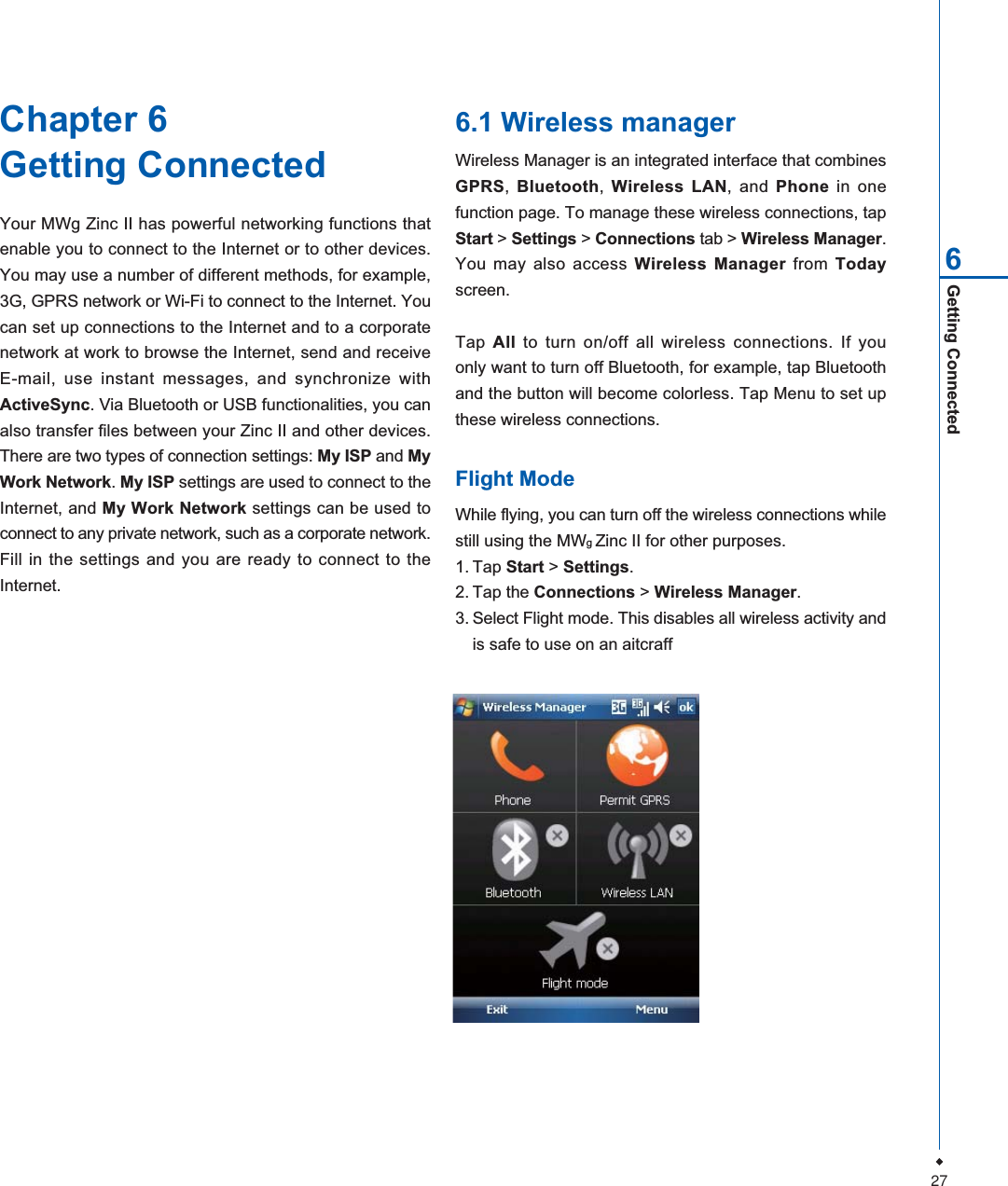
27Getting Connected6Chapter 6Getting ConnectedYour MWg Zinc II has powerful networking functions thatenable you to connect to the Internet or to other devices.You may use a number of different methods, for example,3G, GPRS network or Wi-Fi to connect to the Internet. Youcan set up connections to the Internet and to a corporatenetwork at work to browse the Internet, send and receiveE-mail, use instant messages, and synchronize withActiveSync. Via Bluetooth or USB functionalities, you canalso transfer files between your Zinc II and other devices.There are two types of connection settings: My ISP and MyWork Network.My ISP settings are used to connect to theInternet, and My Work Network settings can be used toconnect to any private network, such as a corporate network.Fill in the settings and you are ready to connect to theInternet.6.1 Wireless managerWireless Manager is an integrated interface that combinesGPRS,Bluetooth,Wireless LAN, and Phone in onefunction page. To manage these wireless connections, tapStart > Settings > Connections tab > Wireless Manager.You may also access Wireless Manager from Todayscreen.Tap All to turn on/off all wireless connections. If youonly want to turn off Bluetooth, for example, tap Bluetoothand the button will become colorless. Tap Menu to set upthese wireless connections.Flight ModeWhile flying, you can turn off the wireless connections whilestill using the MWgZinc II for other purposes.1. Tap Start > Settings.2. Tap the Connections > Wireless Manager.3. Select Flight mode. This disables all wireless activity andis safe to use on an aitcraff
28Getting Connected66.2 GPRSBefore using GPRS to connect to the Internet, please contactyour network operator to confirm that the service is enabledand supported on your SIM card. Using GPRS is convenientfor you while traveling or working at home. You can use thisdevice to browse web pages, read or send E-mail or MMSmessages, and sign in Windows Live Messenger throughwireless network.GPRS connection settingsYour device comes installed with a configuration wizard toinstall the operator/ carrier settings relevant to your SIMcard.This application should start and attempt to configure thedevice when you first turn it on. If your device needs to havethe application run manually please follow the process below:1. Tap > Start > Programs > Auto Config2. Select your Country and Operator and select OK If yourOperator is not listed you will need to contact them directlywith the number on your bill to help acquire and insertthe relevant setting.If your operator is not present in the drop down menu foryour respective country, then the settings will need to beadded manually. In this instance please obtain the relevantsettings from your operator.6.3 BluetoothBluetooth is a short-range wireless communicationstechnology. With Bluetooth, you don't need to line up thedevices to beam information. The two devices only need tobe within a range of about 10 meters. You may use Bluetoothin the following ways:1. Exchange information, such as files, appointments, tasks,and contact cards, between devices that have Bluetoothcapabilities. For example, if you and a co-worker eachhave a device with Bluetooth, you can beam items betweenyour devices; these items could include files, contactcards, appointments, tasks, etc.2. Create a dial-up modem connection between your deviceand a Bluetooth phone. You can then use the Bluetoothphone as a modem.Bluetooth settingsTo access the Bluetooth settings screen, tap Start >Settings > Connections tab > Bluetooth. To turn onBluetooth, check Turn on Bluetooth option; uncheck theoption to turn off. If Bluetooth is turned off, you cannot useBluetooth to either send or receive information. In order toconserve the battery power or where radio use is prohibited,you might want to turn Bluetooth off.By default, Bluetooth is turned off. If you turn it on, and thenturn off your device, the Bluetooth radio also turns off. Whenyou turn on your device again, the Bluetooth radioautomatically turns on the radio. If you wish to turn on theradio, turn off Bluetooth first, and then turn on the radio. Tomake your device visible to other Bluetooth devices, checkMake this device visible to other devices option.
29Getting Connected65. Enter the same pass code on the other device.6. In Display Name, edit the name of the other device if youwant.7. Tap Finish.Please note: Make sure that the two devices are within 10meters of one another and that Bluetooth is in visiblemode on both devices.To accept a bond:1. Please make sure that Bluetooth is activated and visibleto other devices.2. When prompted to bond with the other device, tap Yes.3. Enter a pass code of between and characters , and tapNext. You must enter the same pass code that wasentered on the device requesting the bond.4. In Display Name, edit the name of the device requestingthe bond if you want.5. Tap Finish.The bond is created. You can now exchange informationwith the other device.To rename a bond:1. Tap Start > Settings > Connections tab.2. Tap Bluetooth > Devices tab.3. Tap the bond to rename.4. In Display Name, enter a new name for the bond andthen tap Save.To delete a bond:5. Tap Start > Settings >Connections tab.6. Tap Bluetooth > Devices tab.7. Tap and hold the bond and then tap Delete.Beaming information with Bluetooth1. Tap and hold an item to beam, such as an appointmentin Calendar, a task in Tasks, a contact card in Contacts,or a file in File Explorer.2. Tap Beam type of item.If Bluetooth radio is turned on, then all of the other Bluetoothdevices within range (about 10 meters) can detect yourdevice and attempt to beam information to it, establish abond, or use a Bluetooth service. In this mode, other devicescan detect your device whether or not a bond has beencreated; however, in order to receive a beam from anotherdevice, you must accept it on your device. Other Bluetoothdevices can now detect your device and attempt to beaminformation to it, establish a bond, or use a Bluetooth service.Note that, to receive beamed information, you must acceptit on your device by selecting Make this device visible toother devices; this also turns on your Bluetooth radio. Ifyou no longer want your device to be visible, uncheck Turnon Bluetooth option or uncheck Make this device visibleto other devices option to leave the radio on, but not allowdetection by other devices.BondsTo exchange information in a secure manner, you may usea bond to create a relationship between your MWg Zinc IIand another Bluetooth device. To create a bond, you needto enter the same pass code on the two devices that youwant to bond. You need only create a bond once betweentwo devices. Once a bond is created, the devices recognizethe bond and are able to exchange information without yourneeding to enter PIN again.To create a bond:You can create a bond between your device and anotherdevice that has Bluetooth. Once you do this, Bluetoothdoesn't need to be in visible mode in order for you to beaminformation between the two devices; you only need to havethe Bluetooth radio turned on.1. Tap Start > Settings > Connections tab2. Tap Bluetooth > Devices tab > New Partnership. Yourdevice searches for other Bluetooth devices and displaysthem in the list.3. Tap the name of the other device in the list, and thenNext.4. Enter a pass code of between and characters and tapNext.
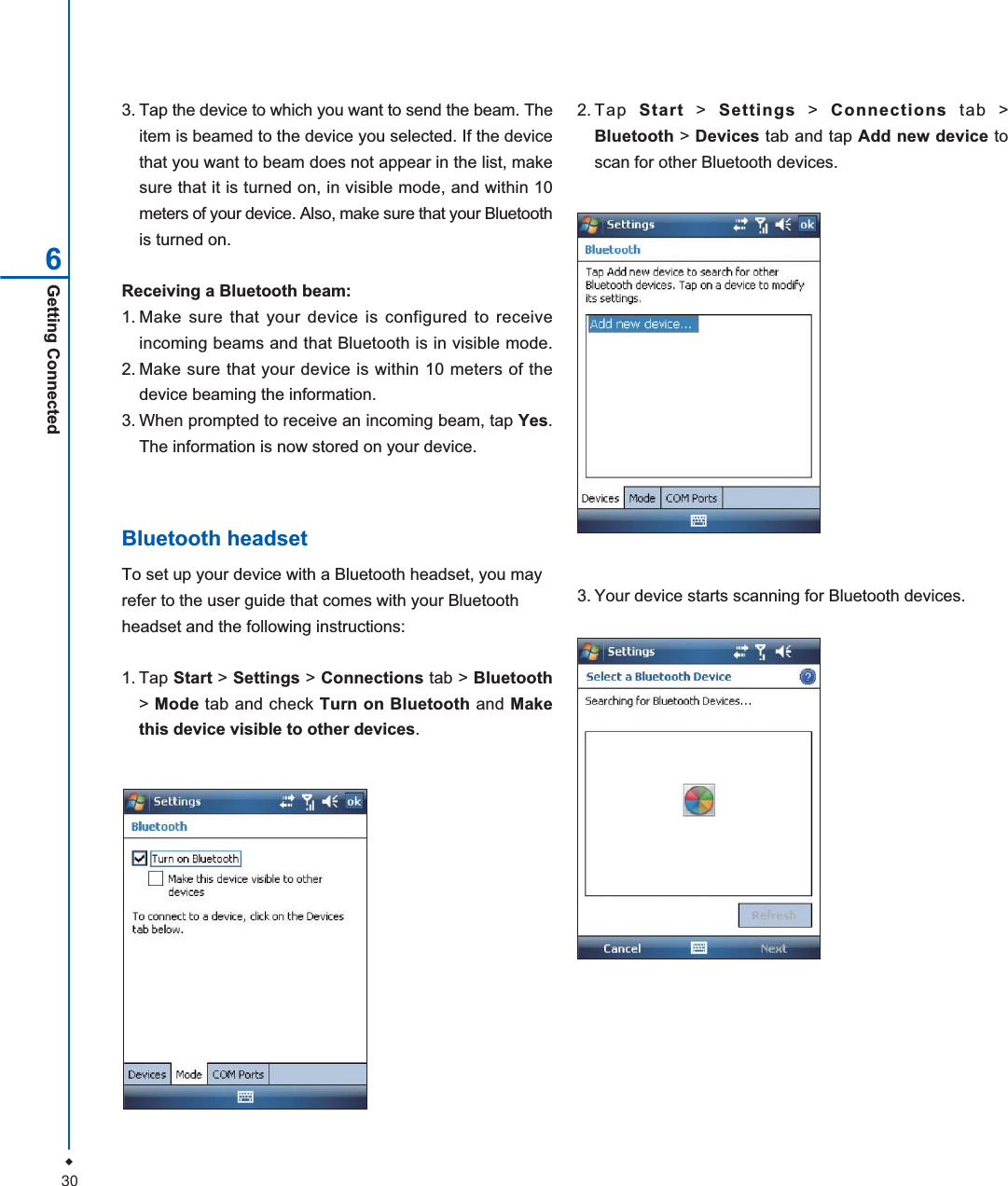
30Getting Connected63. Tap the device to which you want to send the beam. Theitem is beamed to the device you selected. If the devicethat you want to beam does not appear in the list, makesure that it is turned on, in visible mode, and within 10meters of your device. Also, make sure that your Bluetoothis turned on.Receiving a Bluetooth beam:1. Make sure that your device is configured to receiveincoming beams and that Bluetooth is in visible mode.2. Make sure that your device is within 10 meters of thedevice beaming the information.3. When prompted to receive an incoming beam, tap Yes.The information is now stored on your device.Bluetooth headsetTo set up your device with a Bluetooth headset, you mayrefer to the user guide that comes with your Bluetoothheadset and the following instructions:1. Tap Start > Settings > Connections tab > Bluetooth>Mode tab and check Turn on Bluetooth and Makethis device visible to other devices.3. Your device starts scanning for Bluetooth devices.2.Tap Start > Settings > Connections tab >Bluetooth > Devices tab and tap Add new device toscan for other Bluetooth devices.
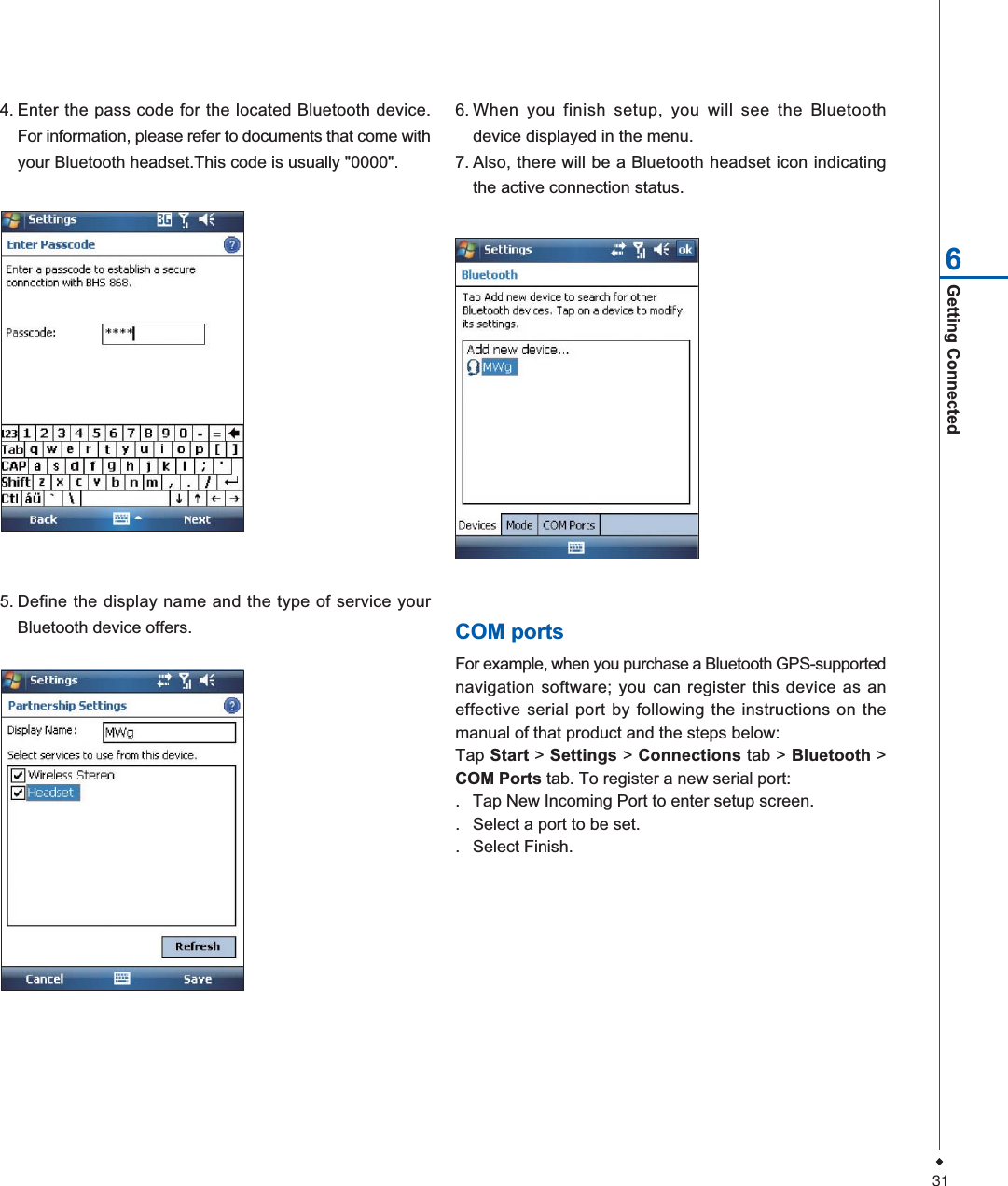
31Getting Connected64. Enter the pass code for the located Bluetooth device.For information, please refer to documents that come withyour Bluetooth headset.This code is usually "0000".5. Define the display name and the type of service yourBluetooth device offers.6. When you finish setup, you will see the Bluetoothdevice displayed in the menu.7. Also, there will be a Bluetooth headset icon indicatingthe active connection status.COM portsFor example, when you purchase a Bluetooth GPS-supportednavigation software; you can register this device as aneffective serial port by following the instructions on themanual of that product and the steps below:Tap Start > Settings > Connections tab > Bluetooth >COM Ports tab. To register a new serial port:. Tap New Incoming Port to enter setup screen.. Select a port to be set.. Select Finish.
32Getting Connected66.4 Wi-FiWi-Fi is a type of wireless local area network thatcommunicates between two devices by high frequencyradio waves. Your MWg Zinc II supports Wireless LAN,which is IEEE 80 2.11. b/g compliant. It allows your deviceto connect to the Internet with detected wireless network.To activate Wi-Fi and connect to a localnetwork1. Tap Start > Settings > Connections tab > WirelessManager.2. Tap Wi-Fi to activate wireless network.3. Once activated the device will immeduiately look for alocal Wi-Fi network, and list those available.4. Select the appropriate network and you will be promtedfor a work or internet connection. Usually connect forThe Internet.5. You wil then be promted to enter the network key whichis uniuqe for each Wi-Fi network. Enter this code, followthe prompts and the device will connect to the Wi-Finetwork.To check your Wi-Fi statusTap Start > Settings > Connections tab > WiFi Utility>Wi-Fi Status tab and you may see the details of yourphone's wireless LAN connection, including Status, ESSID,BSSID, BSS Mode, Channel, Data Rate, IP Address, andSignal Strength.To configure Wi-Fi settingsTap Start > Settings > Connections tab > WiFi Utility>Setting tab and scroll to set the desired value /modefor the following setting items: Adhoc Channel, Preamble,Data Rate, Power Save, Power strength, and Auto Poweroff. Tab Set button to confirm your setting.To update IP infoTap Start > Settings > Connections tab > WiFi Utility>IP Info tab > Renew or Ping button to update IPinformation or locate the IP address of the other device.To search IP addressTap Start > Settings > Connections tab > Wi-FiUtility > Site Survey tab > Re-scan button to search theESSID, Channel, RSSI, and BSSID of the Wireless LAN.To change IP address1.Tap Start >Settings > Connections tab > Wi-Fi >Network Adapters tab.2. In My network card connects to drop-down list, tapeither The Internet or Work. If you are connecting toyour ISP at home, tap The Internet. If you areconnecting to a private network such as a corporatenetwork at work, tap Work.3.Tap the appropriate adapter in Tap an adapter tomodify settings box. The IP address will now appearin IP Address box on IP Address tab.4. To change TCP/IP settings if your ISP or private networkdoes not use dynamically assigned IP addresses, tapUse specific IP address and enter the requestedinformation. Contact your ISP or network administratorto get the IP address,Subnet mask, and/or Defaultgateway (if needed).5.To change DNS and WINS settings if your ISP orprivate network does not use dynamically assigned IPaddresses, tap Name Servers tab and enter therequested information. Servers that require an assignedIP address may also require a way to map computernames to IP address. DNS and WINS are the resolutionoptions supported on your MWg Zinc II.Please note: After activating Wi-Fi, a new window, NewNetwork Detected, will appear if any is detected. SelectConnect and enter your password to the local network.Tap Connect to connect this device with local network.
33Getting Connected66.5 USB card readerYou may use the device as a mass storage device or amicro SD card reader.1.Tap Start > Settings > Connections tab > USB.2. On USB Connection Mode screen, tap SD-Card Reader,and then tap Change.3. Connect the phone to the computer with USB cable.4. Your PC will automatically detect the new hardware. Nowyou can view or transfer files to and from your micro SDcard.6.6 Internet sharingBy using utility, you can set your MWg Zinc II as a wirelessmodem. Internet Sharing allows your PC/Notebook beconnected to a wireless network.1. Tap Start > Programs > Internet Sharing.2.Select a USB or Bluetooth PAN as PC Connectiontype.3.Connect your device via USB cable or Bluetooth to aPC/Notebook, and then tap Connect.Please note: Before you tap Connect, please make surethat your have installed a GPRS SIM card, and that youhave connected this phone to your PC/Notebook by USBcable or Bluetooth and disabled ActiveSync.6.7 Cell broadcast settingYou can receive broadcast channel information andnews from your service provider (please check you're yourservice provider for this service). Tap Start >Settings >Connections tab > Cell Broadcast Setting.
34Messaging77.1 E-mailSynchronously processing E-mailWith synchronization, messages are synchronized betweenyour MWg Zinc II and the PC by using ActiveSync andMicrosoft Exchange or Outlook. If you want to synchronouslyprocess E-mail, you must activate the Inbox synchronizationfunction in ActiveSync beforehand. For more information onInbox synchronization, please refer to Chapter 5Synchronization.Please be aware of the following Inbox Synchronizationprocess rules:• Please select a desired cooperation relationship onNew Cooperation Relationship screen in computer tosynchronously transmit information. If you select not toperform synchronization, you may manually copy ormove E-mail messages between your MWg Zinc II andthe computer.• Only the mails in Inbox of your computer will besynchronized.• Only the mails in Exchange or Outlook can besynchronized.• The mail from Outbox folder in your MWg Zinc II will besent to your computer first, and then it will be deliveredthrough Microsoft Exchange Server or Microsoft Outlook.• If a specific letter is deleted in your MWg Zinc II, then itwill also be deleted in your computer when you reconnectyour device with computer.• SMS in your device will not be synchronized.Establishing E-mail servicesIf you have E-mail accounts from ISP or company network,you may use Messaging to receive or send e-mails.Please refer to the following instructions to set up a newEmail account in Messaging.1. Please acquire the following information from ISP orcompany network administrator:• E-mail address, user name and password.• POP or IMAP server name of Intranet E-mail.• SMTP server name for outgoing E-mail.2. Establish E-mail services:Tap Start > Messaging > Menu > Tools > New Account,and then follow the instructions on the screen to set upa new E-mail account.3. See Section 6.1 Wireless Manager to connect yourMWg Zinc II to a network and start receiving and sendinge-mails and messages.4. Connect with E-mail Server:• Tap Messaging > Menu > Send and Receive.• Tap Messaging > Menu > Tools > Options >Accounts tab to change E-mail account settings. Whenyou finish, your new E-mail account will be displayedunder this menu. You can start connecting to yourE-mail server at this point. You can set up severalE-mail accounts, including your Outlook E-mail account.Chapter 7MicroSoft Email
35Messaging7Connecting to the serverYou may directly receive new e-mails from E-mail serverwithout connecting to a computer. You may select to useit online or offline; if it is online, you may directly read andreply mail when your MWg Zinc II is connected to E-mailserver. You can reply a mail directly by simply tappingSend.You may select to disconnect to the internet afterdownloading only the subjects of new messages or partialmessages and decide whether to download the fullmessage later. When you reconnect next time, Inbox willdownload in accordance to appointed methods, and sendout unsent e-mails in Outbox.You may choose to read just the e-mails within the last fewdays, mail subjects only, or complete mail. You can alsochoose to receive only the attachments less than specificfile size. To make these settings, tap Start >Messaging>Menu > Tools >Options, and change E-mail accountsetup by requirement.7.2 Push e-mailWith Push E-mail, you can access e-mails in real time.This Direct Push Technology can be enabled by theExchange Server 2003 administrator, bringing the latestinformation to you. To use Push E-mail, please turn onWi-Fi or GPRS to connect to the Exchange Server.Enabling Direct Push on your MWg Zinc II1.On your MWg Zinc II, tap Start > Programs >ActiveSync > Menu > Add Server Source.2. Input the address of your server in Server Address.3. Input your network User name,Password, andDomain, and then tap NEXT.4. In ActiveSync on your MWg Zinc II, tap Menu >Schedule.5. Set Peak times to As items arrive and Off-peaktimes to As items arrive. Tap OK.Now you have established a cooperative relationship foryour MWg Zinc II and the Exchange Server. The next timewhen you tap Start > Programs > ActiveSync > Sync,you may synchronize with Exchange Server using Wi-Fi orGPRS.Please note: To be able to use direct push, you need tohave an exchange server. Microsoft Exchange Server2003 also supports useful functions such as remotedevice wipe. To find out more on the benefit and usage ofMicrosoft Exchange server, please consult your companyadministrator or visit Microsoft's website: http://www.microsoft.com
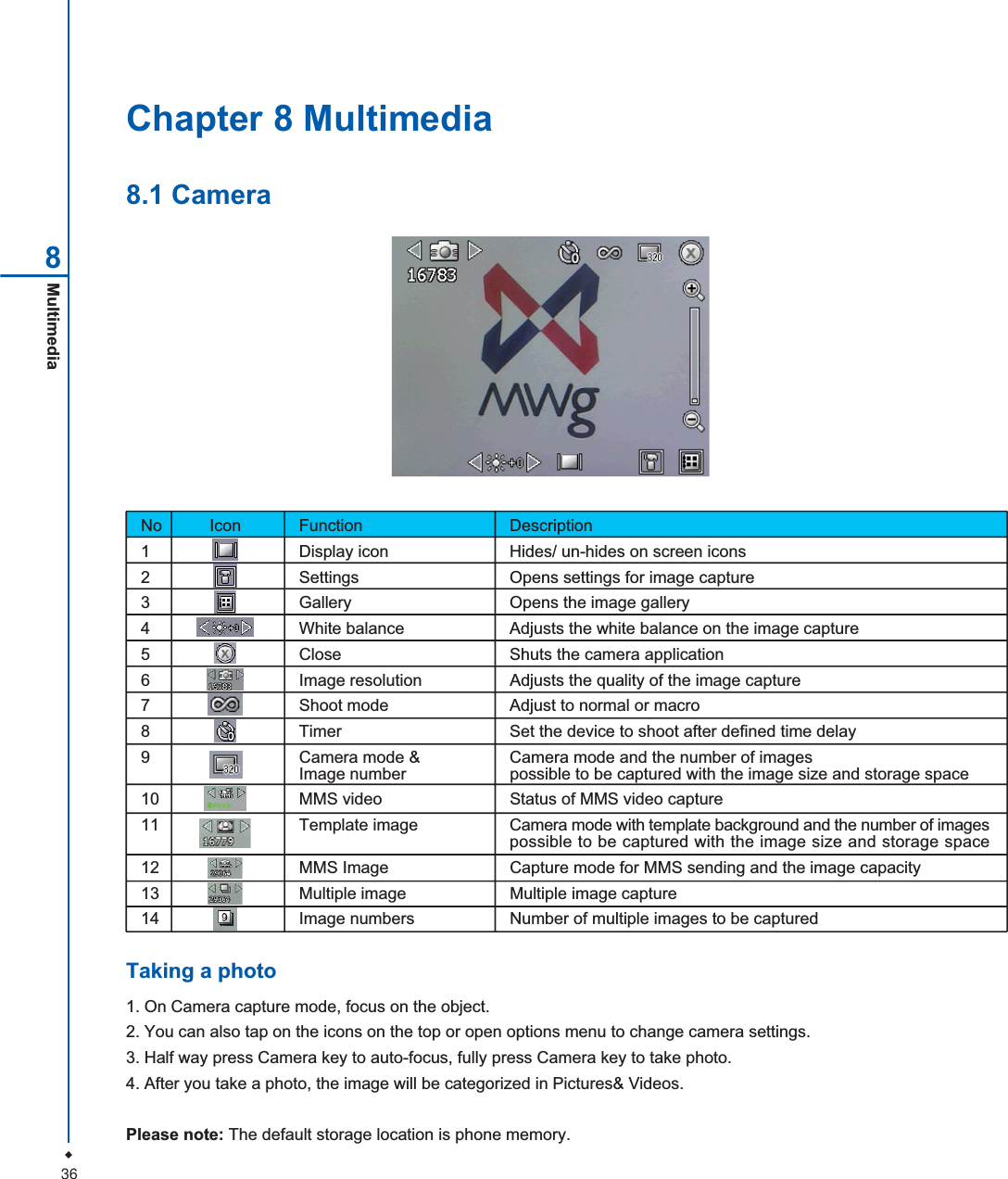
36Multimedia8Chapter 8 Multimedia8.1 CameraTaking a photo1. On Camera capture mode, focus on the object.2. You can also tap on the icons on the top or open options menu to change camera settings.3. Half way press Camera key to auto-focus, fully press Camera key to take photo.4. After you take a photo, the image will be categorized in Pictures& Videos.Please note: The default storage location is phone memory.No Icon Function Description1 Display icon Hides/ un-hides on screen icons2 Settings Opens settings for image capture3 Gallery Opens the image gallery4 White balance Adjusts the white balance on the image capture5 Close Shuts the camera application6 Image resolution Adjusts the quality of the image capture7 Shoot mode Adjust to normal or macro8 Timer Set the device to shoot after defined time delay9 Camera mode & Camera mode and the number of imagesImage number possible to be captured with the image size and storage space10 MMS video Status of MMS video capture11 Template image Camera mode with template background and the number of imagespossible to be captured with the image size and storage space12 MMS Image Capture mode for MMS sending and the image capacity13 Multiple image Multiple image capture14 Image numbers Number of multiple images to be captured
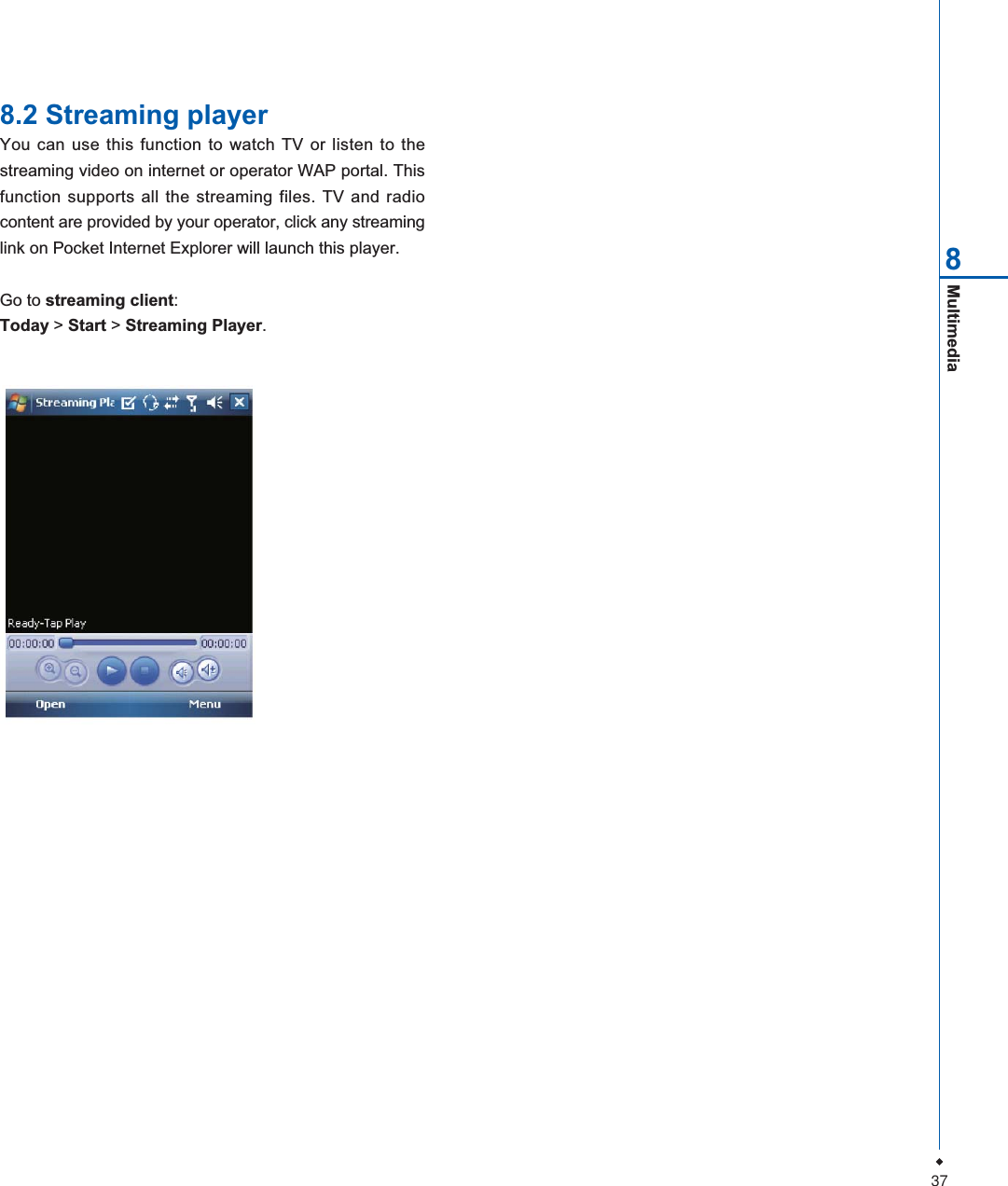
37Multimedia88.2 Streaming playerYou can use this function to watch TV or listen to thestreaming video on internet or operator WAP portal. Thisfunction supports all the streaming files. TV and radiocontent are provided by your operator, click any streaminglink on Pocket Internet Explorer will launch this player.Go to streaming client:Today > Start > Streaming Player.
38Applications9Chapter 9Applications9.1 File explorerThis feature allows you to view and manage all the filessaved in your MWg Zinc II or theme memory card. Toaccess File Explorer, tap Start > Programs > File Explorer.Select the source of where the files are saved.To sort files by its types, tap Sort By and select a sortingmethod: Name,Date, Size, and Type. Tap Up to go upa level on the file hierarchy.Excel Mobile workbooks are converted to Excel workbookswhen they are synchronized or copied back to the PC.Tips:When working with Excel Mobile, the following tips willhelp simplify your tasks:1. Tap View > Full Screen to view in full screen. To exitfull screen view, tap View > Full Screen to return togeneral view.2. You can freeze panes: select a cell, then tap View >Freeze Panes. You may freeze the top and most leftwindow cell on worksheet. Once you freeze the panes,you can see the frozen window cell no matter where thescreen is scrolled.3. You can split the worksheet to view different areas ofthis worksheet on the same screen. Tap View > Split,and then drag the split line to the desired location. Toremove the split, select View > Remove Split.4. Display or hide full horizontal and vertical lines. To hidea row or a column, select any cell on the row or columnyou wish to hide, then tap Menu > Format > Row orColumn > Hide. To unhide a column or row, Menu >Format > Row or Column > and select Unhide.Please note: When you are synchronizing or copying filesfrom your MWg Zinc II to PC, Excel Mobile files will betransformed into Excel files. While most of the settings willbe kept during this transformation, some of the format andproperties may be lost.9.2 Word mobilePlease note: When you are synchronizing or copying filesfrom your MWg Zinc II to PC, Word Mobile files will betransformed into Word files. While most of the text andparagraphing will be kept during this transformation, someof the format and properties may be lost.
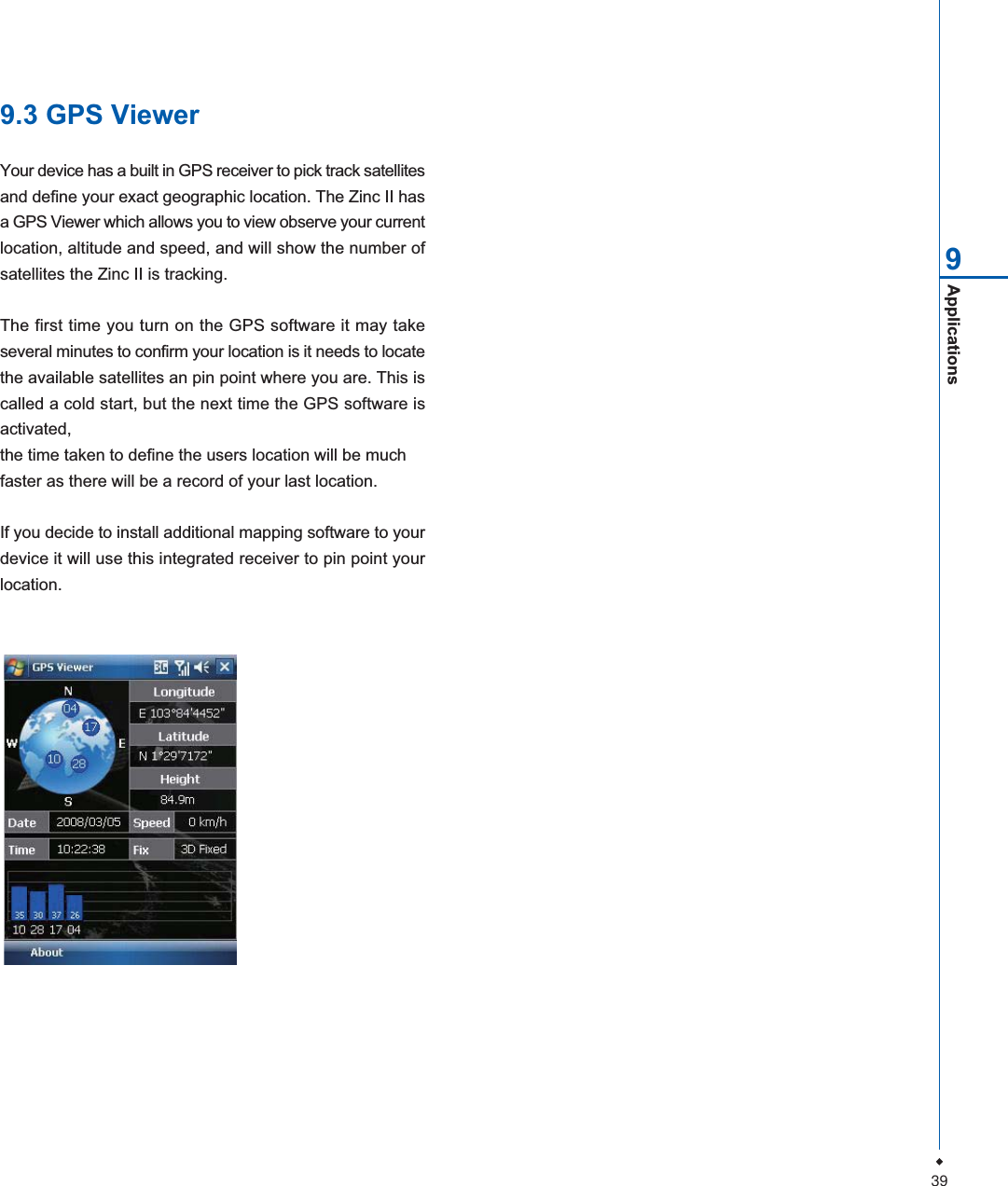
39Applications99.3 GPS ViewerYour device has a built in GPS receiver to pick track satellitesand define your exact geographic location. The Zinc II hasa GPS Viewer which allows you to view observe your currentlocation, altitude and speed, and will show the number ofsatellites the Zinc II is tracking.The first time you turn on the GPS software it may takeseveral minutes to confirm your location is it needs to locatethe available satellites an pin point where you are. This iscalled a cold start, but the next time the GPS software isactivated,the time taken to define the users location will be muchfaster as there will be a record of your last location.If you decide to install additional mapping software to yourdevice it will use this integrated receiver to pin point yourlocation.
40Managing Your MWg Zinc IIChapter 10Managing Your MWgZinc II10.1 Memory managementWhen the memory is insufficient, this device cannotautomatically allocate memory, you may follow the stepsbelow to free up more memory:Moving some files to micro SD card1. Tap Start >Programs > File Explorer.2. Tap and hold selected items.3. Tap Cut on the pop-up menu.4. Switch to Storage Card category.5. Tap and hold and then tap Paste.Deleting the unwanted files1. Tap Start > Programs > File Explorer.2. Tap and hold selected items.3. Select Delete.Saving attachments to micro SD card1. Tap Start > Messaging > Menu > Tools > Options >Storage tab.2. If you have inserted a memory card, check Storeattachments on storage card.3. E-mail attachments will automatically be saved to memorycard.Clearing histories and deleting files fromInternet Explorer1. Tap Start > Internet Explorer > Menu > Tools > Options>Memory tab.2. Tap Clear History and Delete Files to delete browsedweb page related record.10.2 Running programsmanagement1. Tap Start > Settings > System tab > Memory >Main tab:Display current memory status of this device.2. Tap Start > Settings > System tab > Memory > StorageCard tab:Display the memory status of storage card in this device.3. Tap Start > Settings > System tab > Memory > RunningPrograms tab: Display all current running programs inthis device. Select any program from Running ProgramsList, you may select to Activate or Stop.Activate: run the highlighted programs.Stop: stop running highlighted programs.Stop All: stop running all programs on Running ProgramsList.10.3 Adding or removingprogramsAll programs pre-installed in the device will be saved inROM (Read Only Memory) and are not removable. Datasaved in ROM will not be lost by accident. All programsthat you installed will be saved in RAM (Random AccessMemory). As long as there is sufficient space in this device,you may install suitable programs by preference.Adding programs through ActiveSync1. Before installing the program, please make sure thatyour MWg Zinc II processor is suitable for the software.Tap Start >Settings >System tab > About >Versiontab to check for information of this device.2. Download the desired software to your computer (Pleaseselect software that is designed for Pocket PC and thisdevice).10
41Managing Your MWg Zinc II103. Read installation instructions, readme file, or accompaniedprograms provided to you.4. Connect your computer with this device.5. Install executive file to your computer.If this file contains installation program, the installationwizard will automatically activate. Please follow theinstructions on screen. Once the installation on yourcomputer is completed, the program will automatically beinstalled to this device. If this file does not contain anyinstallation program, an error message will show on thescreen and tell you this program is invalid, which is notsuitable for your computer. You must move this programto this device manually. If you cannot find any installationinstructions for this program, please use "Browse" functionof ActiveSync to copy program file to Program Files folderin this device. After completing installation, tap Start >Programs, and then select the program icon to launch thatprogram.Adding programs through InternetYou may download software suitable for this device fromInternet.1. Before installing the program, please make sure thatyour MWg Zinc II processor is suitable for the software.Tap Start >Settings > System tab > About > Versiontab to check information in this device.2. Directly download programs to this device by usingInternet Explorer in this device. (Please select programsdesigned for Pocket PC and this device).3. Read installation instructions, readme file, or accompaniedprograms provided to you.4. Run installation executive file in your computer.Adding programs to Start menuTap Start > Settings > Personal tab > Menu.1. Check the programs to be displayed on Start menu.2. Tap OK to save settings and return to Personal tabscreen.Removing programsTap Start > Settings > System tab > Remove Programs.Select the programs you would like to delete from Programsin storage memory list, and then select Remove to deletehighlighted programs. If the installed programs list does notcontain the program you intend to remove, you may useFile Explorer in this device to find the program and deleteit by selecting and holding the program's name and thenselect Delete from the pop-up menu.
Important Safety Information 11Chapter 11Important Safety Information11.1 Safety informationRead this information11.2 Phone careThe batteryWCDMA 1.200/ 1.090/ 0.568 (BAND II/ BAND V/ CE)
431.At the beginning of the battery's life, fully charge and discharge (let it go flat) three times.2. Do not overcharge the Li-lon battery, as this can result in a reduction in battery performance and lifespan. Therecommended maximum charge time is 4 hrs.3. Avoid repeated short charging. It is preferable to let the battery o flat and then recharge it completely.4. Avoid charging in strong heat of extreme cold. Ambient room temperature is preferable. The battery has its optimumperformance in an ambient temperature of + 5 ºC to + 50 ºC.5. Don't store a battery near a fire or heat source.6. Use only the battery approved by the manufacturer.7. Never replace the battery with a non-approved battery.8. Never soak the battery in water or any other fluid.9. Never try to open the battery as it contains substances that might be harmful if swallowed or allowed to come intocontact with unprotected skin.10.Never short-circuit the battery, as it may overheat and cause a fire. Keep it away from jewellery and other metal objects.11.Never dispose of the battery in a fire. It could explode and release harmful substance into the environment.12.Never dispose of the battery with your regular household waste. Take it to a hazardous material collection point.13.Do not touch the battery terminals.The charger1. Use only the charger supplied with your phone.2. Never pull the charger cord to release it from the mains- pull the charger itself.Memory card1. Do not remove or insert a memory card or turn off the handset while data on the card is being edited.2. Do not touch the metal terminals with your hands or metal objects.3. Don not bend the memory card or subject it to violent impacts. Keep it away from water and high temperatures.4. Keep all memory cards out of the reach of small children.5. Do not short circuit the contact points or expose it to liquids or moisture. When not in use, keep in the antistaticcontainer it came in.6. Do not use force when inserting or Handling the card, and do not expose it to excessive hear or strong magnetic fields.Cleaning and storing1. Your phone should always be handled with care and protected from dirt, dust and dampness. To avoid scratches,never place your phone face down.2. If cleaning is necessary, switch the phone off and wipe carefully with a soft, slightly damp (not wet) cloth. Use a cottonswab to clean the camera lens. Allow the phone to dry completely before switching it on. Never use solvents for cleaning.3. If you are not going to use your phone for some time, fully charge the battery and store the phone in a dry place awayfrom direct sunlight. Your phone should be switched off during storage. Recharge every to months.4. Never expose your phone to hear or strong sunlight.5. Never expose your phone to moisture or liquids of any kind.6. Do not paint your phone or otherwise block the keypad, microphone or earpiece function, i.e. with stickers.Important Safety Information 11
44Important Safety Information 1111.3 Driving safetyNever use th handheld phones while driving. Ti's an offence while driving to hold a phone or cradle it in your neck, at anypoint during the setup, making or taking of a phone call, text message or any other data related mobile communication.Use of fully installed car kits are still permitted, as are the use of alternate handsfree accessories.In the interest of safety, we would recommend use of a cradle while using any form of handsfree accessory.While driving, we recommend that you use voicemail wherever possible, and that you listen to your messages when youare not in the car. If you must make a handsfree call when driving, keep it brief. An airbag inflates with great force. Donot place objects, including both installed or portable wireless equipment, in the area over the airbag or in the airbagdeployment area. If in-vehicle wireless equipment is improperly installed and the air bag inflates, serious injury couldresult.11.4 Electronic devicesMost modern electronic equipment is shielded from RF energy. However, certain electronic equipment may not beshielded against the RF signals from your Pocket PC phone.PacemakersThe Health Industry Manufacturers' Association recommends that a minimum separation of six inches be maintainedbetween a phone and a pacemaker to avoid potential interference with the pacemaker. These recommendations areconsistent with the independent research by and recommendations of Wireless Technology Research.If you have a pacemaker:1. Always keep your phone more than six inches from your pacemaker when turned on.2. Do not carry your phone in a breast pocket.3. Use the ear opposite the pacemaker to minimize the potential for interference.4. If you have any reason to suspect that interference is taking place, turn your phone off immediately.Hearing aidsSome digital phones may interfere with some hearing aids. In the event of such interference, call MWg Customer Serviceto discuss alternatives.Other medical devicesIf you use any other personal medical device, consult the manufacturer of your device to determine if it is adequatelyshielded from external RF energy. Turn your phone off in healthcare facilities when any regulations posted in these areasinstruct you to do so. Hospitals or healthcare facilities may be using equipment that could be sensitive to external RFenergy.VehiclesRF signals may affect improperly installed of inadequately shielded electronic systems in motor vehicles. Check with themanufacturer or its representative regarding your vehicle. You should also consult the manufacturer of any equipmentadded to your vehicle.
45Important Safety Information 11Posted facilitiesTurn you phone off when posted notices so require.Magnetic mediaMagnetic fields generated by PC Phone phones may damage data on magnetic storage media, such as credit cards,computer discs or tapes. Do not place your phone next to such media.11.5 Other safety guidelinesAircraftRegulations prohibit using your phone while in the air. Switch off your phone before boarding an aircraft or turn off thewireless connections.Blasting areasTo avoid interfering with blasting operations, turn you phone off when in a blasting area or in areas posted: turn off twowayradio. Obey all sighs and instructions.Potentially explosive environmentsTurn you phone off when in any area with a potentially explosive environment and obey all signs and instructions Sparksin such areas could cause an explosion or fire resulting in bodily injury or even death. Areas with a potentially explosiveenvironment are often, but not always, clearly marked. They include fuelling areas such as gas stations, below decks onboats, fuel or chemical transfer or storage facilities, vehicles using liquefied petroleum gas (such as propane or butane),area where the air contains chemicals or articles, such as grain, dust, or metal powders, and any other area where youwould normally be advised to turn off you vehicle's engine.ChokingKeep your phone away from children as the SIM card and other small parts present a choking hazard.11.6 CautionsYour Pocket PC Phone is a high quality piece of equipment. Before operation, read all instructions and cautionarymarkings on (1) AC Adaptor (2) Battery and (3) Product Using Battery.1. Do not use this equipment in an extreme environment where high temperature or high humidity exists.2. Do not abuse the equipment. Avoid striking, shaking or giving it a shock. When not using the unit, lay it down to avoidpossible damage due to instability.3. Do not expose this equipment to rain or spilled beverages.4. Do not use unauthorized accessories.5. Do not disassemble the phone or its accessories. If service or repair is required, return the unit to an authorized servicecenter. If the unit is disassembled, a risk of electric shock or fire may result.6. Do not short-circuit the batter terminals with metal items.
46Important Safety Information 11,
47Important Safety Information 11For body worn operation, this device has been tested and meets the FCC RF exposure guidelines for use with anaccessory that contains no metal and the positions the handset a minimum of 1.5 cm from the body. Use of otherenhancements may not ensure compliance with FCC RF exposure guidelines. If you do not use a body-worn accessoryand are not holding the device at the ear, position the handset a minimum of 1.5 cm from your body whenthe device is switched on.European Union NoticeProducts with CE marking comply with the R&TTE Directive (99/5/ EC), the EMC Directive (89/336/EEC), and theLow Voltage Directive (73/23/EEC) issued by the Commission of the European Community. Compliance with thesedirectives implies conformity to the following European Norms (in parentheses are the equivalent international standards).o EN 600950-1 (IEC 600950-1)o Safety of Information Technology Equipment.o ETSI EN 301 511o Global system for mobile communications (GSM); Harmonized EN for mobile stations in the GSM 900 and GSM1800 bands, covering essential requirements of article 3.2 of the R&TTE directive (1995/5/EC).o ETSI EN 301 489-1o Electromagnetic compatibility and Radio spectrum Matters (ERM); Electromagnetic Compatibility (EMC) standard forradio equipment and services; Part 1: Common technical requirements.o ETSI EN 301 489-7o Electromagnetic compatibility and Radio spectrum Matters (ERM); Electromagnetic Compatibility (EMC) standard forradio equipment and services; Part 7: Speci fic conditions for mobile and portable radio and ancillary equipmentof digital cellular radio telecommunications systems (GSM and DCS).o ETSI EN 301 489-17o Electromagnetic compatibility and Radio spectrum Matters (ERM); Electromagnetic Compatibility (EMC) standard forradio equipment and services; Part 17: Speci fic conditions for 2.4 GHz wideband transmission systems and 5GHz high performance RLAN equipment. Accessories Model NumberCradlePH15x.o ETSI EN 300 328o Electromagnetic compatibility and Radio spectrum Matters (ERM); Wideband Transmission systems; datatransmission equipment operating in the 2.4 GHz ISM band and using spread spectrum modulation techniques.o EN 50360:2001o Product standard to demonstrate the compliance of mobile phones with the basic restrictions related to human exposureto electromagnetic fields (300 MHz - 3 GHz).o EN 50371:2002o Generic standard to demonstrate the compliance of low power electronic and electrical apparatus with the basicrestrictions related to human exposure to electromagnetic fields (10 MHz -300 GHz) - General public.
48Important Safety Information 11Warning! DANGER OF EXPLOSION IF BATTERY IS INCORRECTLY REPLACED. TO REDUCE RISK OF FIRE ORBURNS, DO NOT DISASSEMBLE, CRUSH, PUNCTURE, SHORT EXTERNAL CONTACTS, EXPOSE TO TEMPERATUREABOVE 60ºC (140ºF), OR DISPOSE OF IN FIRE OR WATER. REPLACE ONLY WITH SPECIFIED BATTERIES.RECYCLE OR DISPOSE OF USED BATTERIES ACCORDING TO THE LOCAL REGULATIONS OR REFERENCEGUIDE SUPPLIED WITH YOUR PRODUCT.WEEE NoticeThe Directive on Waste Electrical and Electronic Equipment (WEEE), which entered into force as European law on13th February 2003, resulted in a major change in the treatment of electrical equipment at end-of-life.The purpose of this Directive is, as a first priority, the prevention of WEEE, and in addition, to promote the reuse, recyclingand other forms of recovery. The WEEE logo ( ) on the product or on its box indicates that this product must not bedisposed of or dumped with your other household waste. You are liable to dispose of all your electronic or electricalwaste equipment by relocating over to the speci fied collection point for recycling of such hazardous waste.Isolated collection and proper recovery of your electronic and electrical waste equipment at the time of disposal will allowus to help conserving natural resources. Moreover, proper recycling of the electronic and electrical waste equipment willensure safety of human health and environment. For more information about electronic and electrical waste equipmentdisposal, recovery, and collection points, please contact your local city centre, household waste disposal service, shopfrom where you purchased the equipment, or manufacturer of the equipment.PC Requirement to Run ActiveSync4.5To connect your device to the PC, you have to installed Microsoft® ActiveSync® program on your PC. ActiveSync 4.5is included in the Installation CD, which is compatible with the following operating systems and applications:o Microsoft® Windows® 2000 Service Pack 4o Microsoft® Windows® Server 2003 Service Pack 1o Microsoft® Windows® Server 2003 IA64 Edition Service Pack 1o Microsoft® Windows® Server 2003 x 64 Edition Service Pack 1o Microsoft® Windows® XP Professional Service Packs 1 and 2o Microsoft® Windows® XP Home Service Packs 1 and 2o Microsoft® Windows® XP Tablet PC Edition 2005o Microsoft® Windows® XP Media Center Edition 2005o Microsoft® Windows® XP Professional x64 Editiono Microsoft® Outlook® 98, Microsoft® Outlook® 2000 and Microsoft® Outlook® XP, and Microsoft® Outlook®
49Important Safety Information 112003 messaging and collaboration clientsMicrosoft® Office 97, excluding OutlookMicrosoft® Office 2000Microsoft® Office XPMicrosoft® Office 2003Microsoft® Internet Explorer 4.01 or later (required)Microsoft® Systems Management Server 2.011.7 About this guideThis document is provided as a user guide to the MWg Zinc II Pocket PC Phone and to this system only. MWg Zinc II isa trademark of the MWg group of companies.The latest version of the user guide can be found on our website: www.MWg.comYear of Manufacturing:2008
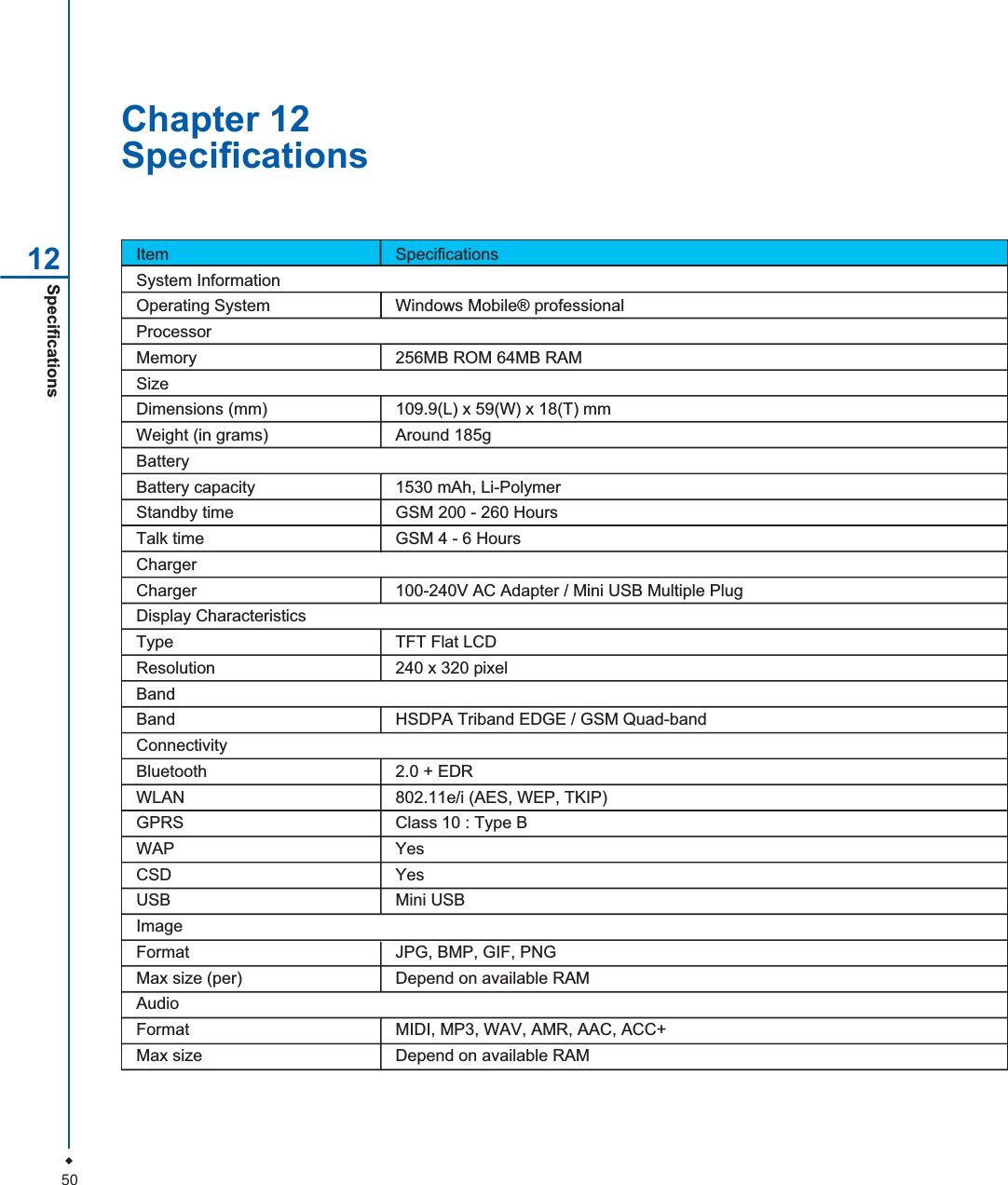
50Specifications12 Item SpecificationsSystem InformationOperating System  Windows Mobile® professionalProcessorMemory 256MB ROM 64MB RAMSizeDimensions (mm) 109.9(L) x 59(W) x 18(T) mmWeight (in grams) Around 185gBatteryBattery capacity 1530 mAh, Li-PolymerStandby time GSM 200 - 260 HoursTalk time GSM 4 - 6 HoursChargerCharger 100-240V AC Adapter / Mini USB Multiple PlugDisplay CharacteristicsType TFT Flat LCDResolution 240 x 320 pixelBandBand HSDPA Triband EDGE / GSM Quad-bandConnectivityBluetooth 2.0 + EDRWLAN 802.11e/i (AES, WEP, TKIP)GPRS Class 10 : Type BWAP YesCSD YesUSB Mini USBImageFormat JPG, BMP, GIF, PNGMax size (per) Depend on available RAMAudioFormat MIDI, MP3, WAV, AMR, AAC, ACC+Max size Depend on available RAMChapter 12Specifications
51Specifications12Item SpecificationsVideoFormat 3GPP, MP4, RTSPMax size Depend on available RAMPhonebookSize Depend on available RAMRing toneType MIDI, MP3, WMADigital cameraType CMOSCamera 2 mega pixelsAuto focus YesVideo recording YesMessagingPush E-mail MS Push MailSMS YesMMS YesE-mail YesWindows Live Messenger YesExternal memoryType Micro SD Card
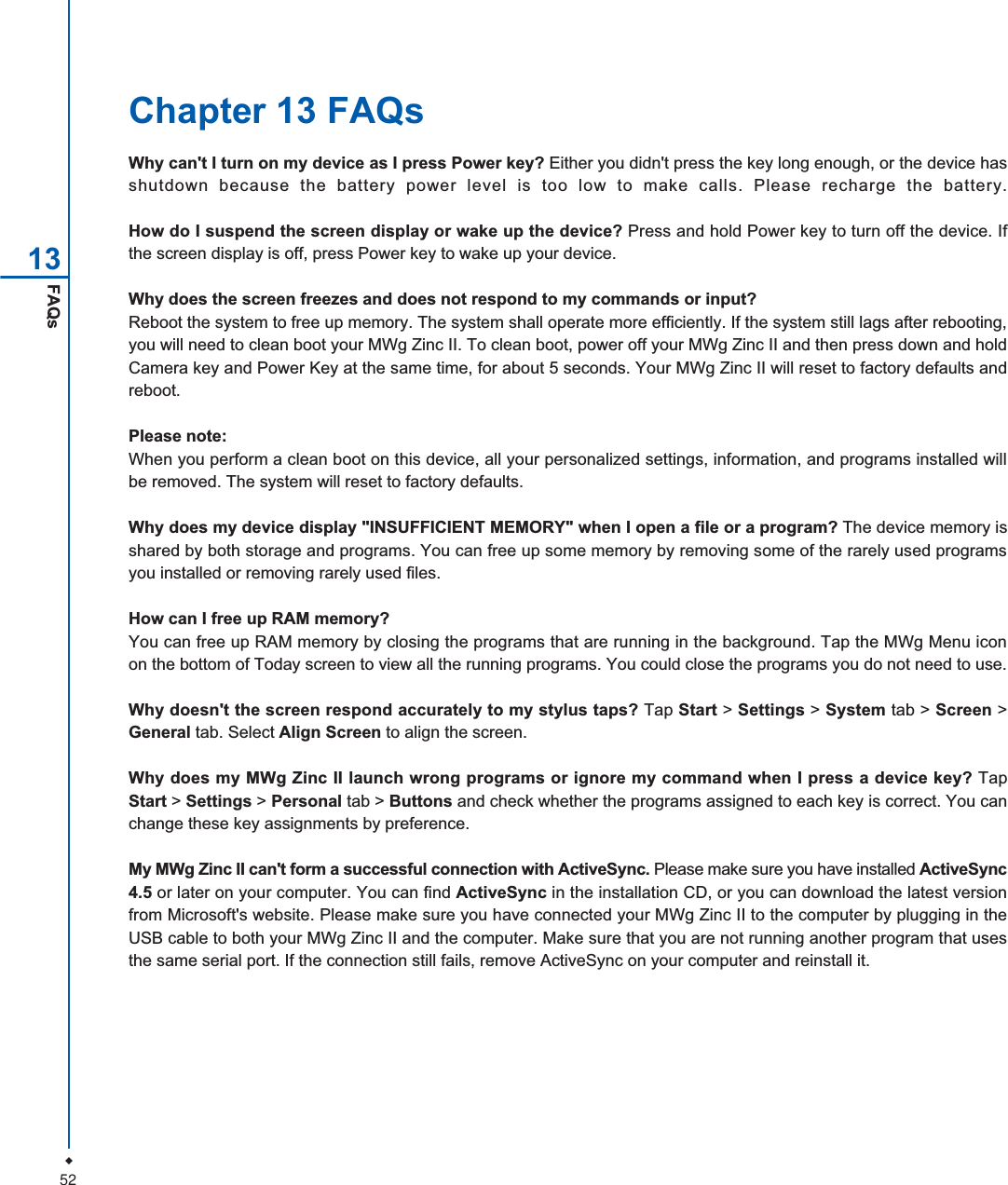
52FAQs13Chapter 13 FAQsWhy can't I turn on my device as I press Power key? Either you didn't press the key long enough, or the device hasshutdown because the battery power level is too low to make calls. Please recharge the battery.How do I suspend the screen display or wake up the device? Press and hold Power key to turn off the device. Ifthe screen display is off, press Power key to wake up your device.Why does the screen freezes and does not respond to my commands or input?Reboot the system to free up memory. The system shall operate more efficiently. If the system still lags after rebooting,you will need to clean boot your MWg Zinc II. To clean boot, power off your MWg Zinc II and then press down and holdCamera key and Power Key at the same time, for about 5 seconds. Your MWg Zinc II will reset to factory defaults andreboot.Please note:When you perform a clean boot on this device, all your personalized settings, information, and programs installed willbe removed. The system will reset to factory defaults.Why does my device display "INSUFFICIENT MEMORY" when I open a file or a program? The device memory isshared by both storage and programs. You can free up some memory by removing some of the rarely used programsyou installed or removing rarely used files.How can I free up RAM memory?You can free up RAM memory by closing the programs that are running in the background. Tap the MWg Menu iconon the bottom of Today screen to view all the running programs. You could close the programs you do not need to use.Why doesn't the screen respond accurately to my stylus taps? Tap Start > Settings > System tab > Screen >General tab. Select Align Screen to align the screen.Why does my MWg Zinc II launch wrong programs or ignore my command when I press a device key? TapStart > Settings > Personal tab > Buttons and check whether the programs assigned to each key is correct. You canchange these key assignments by preference.My MWg Zinc II can't form a successful connection with ActiveSync. Please make sure you have installed ActiveSync4.5 or later on your computer. You can find ActiveSync in the installation CD, or you can download the latest versionfrom Microsoft's website. Please make sure you have connected your MWg Zinc II to the computer by plugging in theUSB cable to both your MWg Zinc II and the computer. Make sure that you are not running another program that usesthe same serial port. If the connection still fails, remove ActiveSync on your computer and reinstall it.
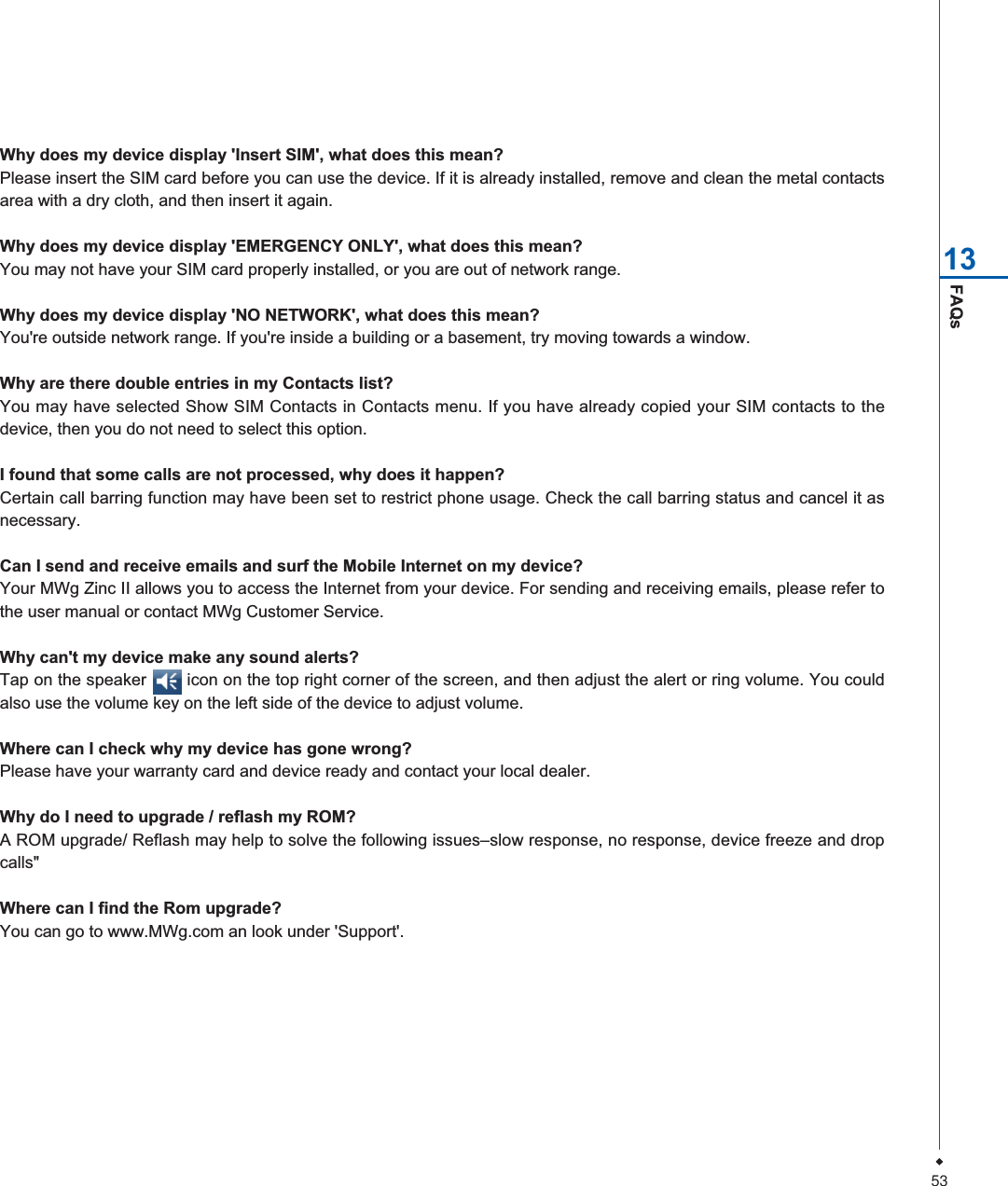
53FAQs13Why does my device display 'Insert SIM', what does this mean?Please insert the SIM card before you can use the device. If it is already installed, remove and clean the metal contactsarea with a dry cloth, and then insert it again.Why does my device display 'EMERGENCY ONLY', what does this mean?You may not have your SIM card properly installed, or you are out of network range.Why does my device display 'NO NETWORK', what does this mean?You're outside network range. If you're inside a building or a basement, try moving towards a window.Why are there double entries in my Contacts list?You may have selected Show SIM Contacts in Contacts menu. If you have already copied your SIM contacts to thedevice, then you do not need to select this option.I found that some calls are not processed, why does it happen?Certain call barring function may have been set to restrict phone usage. Check the call barring status and cancel it asnecessary.Can I send and receive emails and surf the Mobile Internet on my device?Your MWg Zinc II allows you to access the Internet from your device. For sending and receiving emails, please refer tothe user manual or contact MWg Customer Service.Why can't my device make any sound alerts?Tap on the speaker        icon on the top right corner of the screen, and then adjust the alert or ring volume. You couldalso use the volume key on the left side of the device to adjust volume.Where can I check why my device has gone wrong?Please have your warranty card and device ready and contact your local dealer.Why do I need to upgrade / reflash my ROM?A ROM upgrade/ Reflash may help to solve the following issues–slow response, no response, device freeze and dropcalls"Where can I find the Rom upgrade?You can go to www.MWg.com an look under 'Support'.
54
55Warranty cardMWG WARRANTY CARDCONGRATULATIONS ON THE PURCHASE OF THIS MWg PRODUCT.ON-LINE HELPIf you have any questions about your MWg device, please visit our website at www.mwg.comand click Tutorials  User tips. You can also contact our Helpdesk by completing the formSupport  Contact Us  Helpdesk.WARRANTYWe warrant that your MWg device is at the time of its original purchase free of defects in materialsand workmanship. For Limited Warranty Statement, please go to www.mwg.com and selectyour device within the "Support". To claim warranty service, please go to www.mwg.com andselect Support  Contact Us  Collection Points.PLEASE DO NOT REMOVE THIS PAGE. COMPLETE THE SALES RECORDON THE NEXT PAGE. YOU WILL NEED TO PRESENT THIS BOOKLET ANDPROOF OF PURCHASE AT THE COLLECTION POINT, IF YOU REQUIREWARRANTY SERVICE.
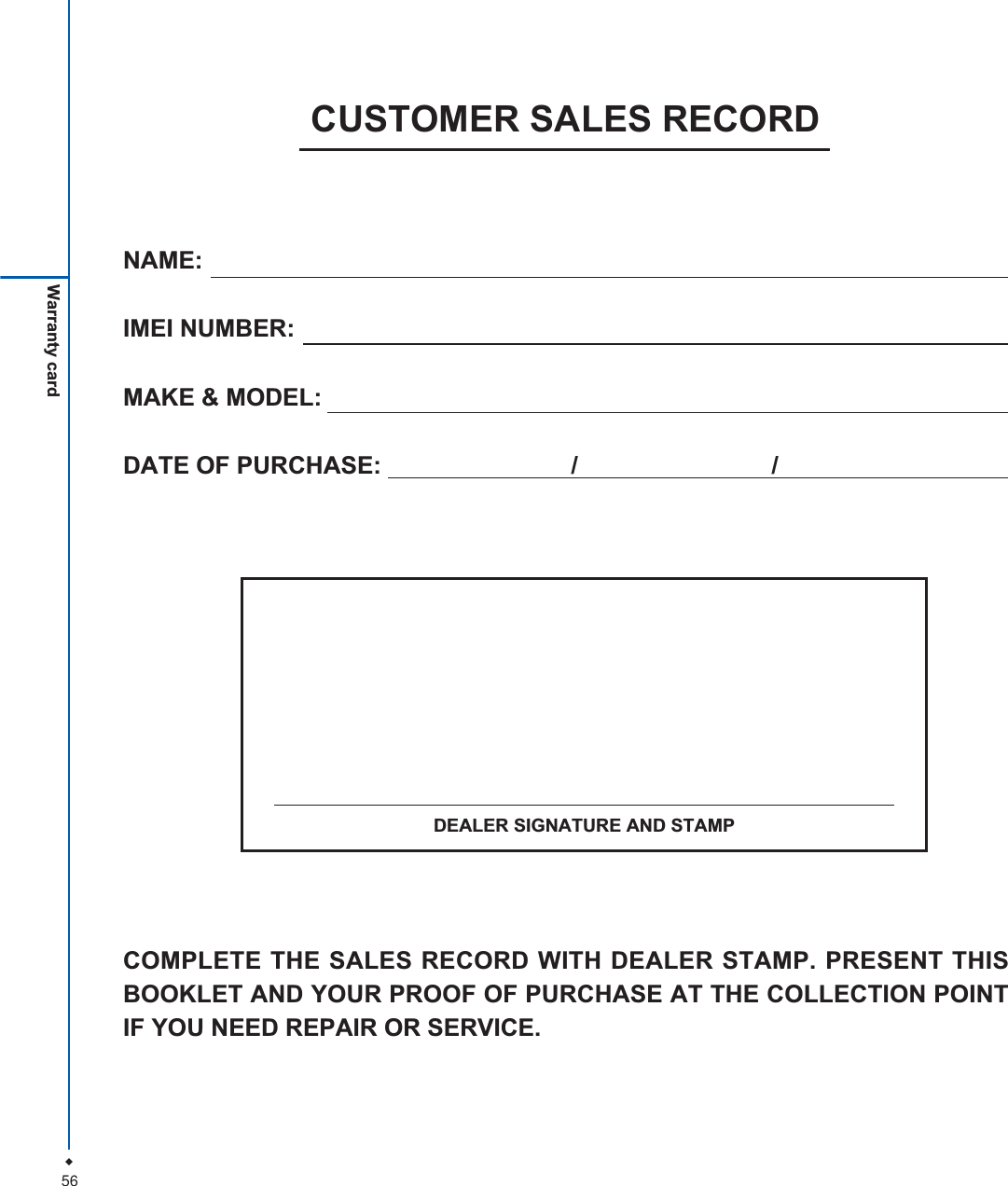
56Warranty cardNAME:IMEI NUMBER:MAKE & MODEL:DATE OF PURCHASE:  / /CUSTOMER SALES RECORDCOMPLETE THE SALES RECORD WITH DEALER STAMP. PRESENT THISBOOKLET AND YOUR PROOF OF PURCHASE AT THE COLLECTION POINTIF YOU NEED REPAIR OR SERVICE.DEALER SIGNATURE AND STAMP
475-361700-001 R01

Navigation menu