Arima Communication 9002 3.5G PDA Phone User Manual
Arima Communication Corporation 3.5G PDA Phone
Contents
- 1. Users Manual
- 2. users manual
- 3. revised users manual
- 4. rev users manual
Users Manual
Chapter 1
1.1 Views of the Device
1.2 Get Started
1.3 Status Indicators
1.4 Enter Information
Chapter 2
2.1 Today Screen
2.2 Start Menu
2.3 Ring tones and Notifications
2.4 General Settings
2.5 Security
Chapter 3
3.1 Make a Call
3.2 Receive a Call
3.3 Video Telephony
3.4 In-Call Options
3.5 Special Dialling Requirements
3.6 Additional Settings
Chapter 4
4.1 Automatic Setup of Your Data Connections
4.2 Manual Setup of Your Data Connections
4.3 Bluetooth
4.4 Beams
4.5 Connect to a Wireless LAN
Chapter 5
5.1 Text Messaging
5.2 MMS
5.3 E-mail
5.4 Windows Live Messenger
Chapter 6
6.1 Introduction to ActiveSync
6.2 Install and Configure ActiveSync
Chapter 7
7.1 Contacts
7.2 Calendar
7.3 Tasks
7.4 Camera and Video Recorder
7.5 Pictures and Videos
7.6 Windows Media Player
7.7 Internet Explorer Mobile
7.8 Java
7.9 Wireless Manager
7.10 Notes
7.11 Office Mobile
7.12 Internet Sharing
7.13 File Explorer
7.14 Windows Live
7.15 Remote Desktop Mobile
7.16 ClearVue PDF
7.17 Voice Speed Dial
7.18 FM Radio
7.19 Monitor and Projector Connection
7.20 Nyditot Virtual display
7.21 Add More Programs to your device
Chapter 8
8.1 Maintain Your Phone
8.2 Reset Your Phone
8.3 Manage Your Program Memory
Appendix
A.1 Battery Information
A.2 PC Requirement to Run ActiveSync 4.5
A.3 Regulatory Notices
A.4 Specifications
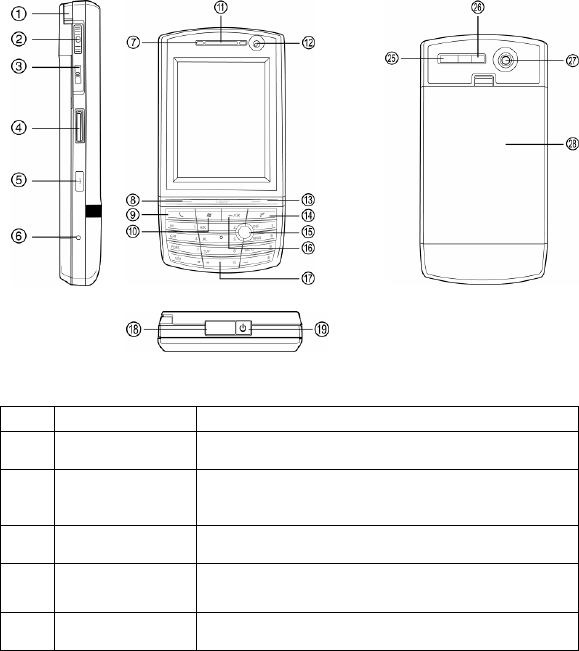
1.1 Views of the Device
No. Item Function
1 Stylus Use the stylus to write, draw or select items on the
touch screen.
2 Jog Wheel Scroll up or down to move through menus and
program instructions. Press for 3 seconds then
scroll up or down to adjust the volume.
3 OK Button Press to confirm your data entries or to exit the
program in use.
4 Micro SD Card
Slot
Insert micro SD memory card with metal contacts
facing downwards.
5 Wi-Fi Button Press to access the Wireless Manager
application.

6 Reset Use the stylus to soft reset the device.
7 LED Displays the status of the phone.
8 Left Soft Key Open the Calendar from the Today screen and
perform the command shown in the label above
the button.
9 Call / Send Key Press this key to answer an incoming phone call or
dial a number.
10 Windows Start
Menu Button
Press to bring up the Start menu.
11 Earpiece For use during phone calls.
12 Video Camera For making video telephone calls with another
party who has a 3G phone with this feature.
13 Right Soft Key Open the Contacts list from the Today screen and
perform the command shown in the label above
the button.
14 End Key Press to end a phone call.
15 Action Button/
Navigation
Controller
Action button - confirm the selection from the
Navigation controller by pressing the centre button.
Navigation controller - press this multi-directional
control up, down, left, or right to move through
menus or programs.
16 OK Key Short Press – Backspace when typing.
Long Press – Confirm your data entries or exit the
program in use.
17 Keypad Use for typing and dialling
18 Infrared Port Enable you to exchange files or data with other
devices without cables or wires or use the device
as a remote control.
19 Power Button Press and hold for 2 seconds and then release to
put the device in Standby mode. Press and hold
for 5 seconds to shut down and turn off the device.

20 Wi-Fi Plug External Wi-Fi antenna plug.
21 Mini-USB
Connector
Connect the USB data cable to a PC for
synchronization of information, data transmission
and battery charging or use the device as an
earphone jack or use the hands-free kit.
22 Multimedia
Connector
To send image and sound to a projector or
monitor.
23. Camera & Video
Button
Press to launch the camera function and take a
picture or record high quality video.
24 GSM/UMTS
Plug
External GSM/UMTS antenna plug.
25 Video
Microphone
Microphone for recording sound whilst recording a
video.
26 Flash White LED strobe flash.
27 Camera Lens The CMOS camera supports a 2 mega-pixel
resolution with auto-focus function for high quality
colour photos or high quality video recording.
28 Battery Cover To remove or replace the battery, push and slide
out the battery cover.
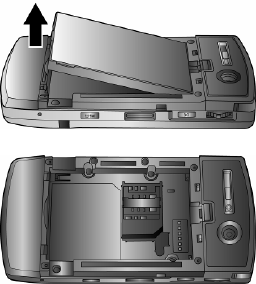
1.2 Get Started
Install the SIM/USIM Card
Follow these steps to install the SIM/USIM card provided by your local network
service provider. The SIM/USIM card contains your phone number, service
details and phonebook/message memory.
Your device supports both 3V and 1.8V SIM/USIM cards. Some legacy
SIM/USIM cards will not function within this device. Consult with your service
provider for a replacement SIM card. There might be a fee for this service.
1. Make sure your device is turned off.
2. Pull the battery cover catch up (away from the battery cover) and lift the
battery cover up to remove it.
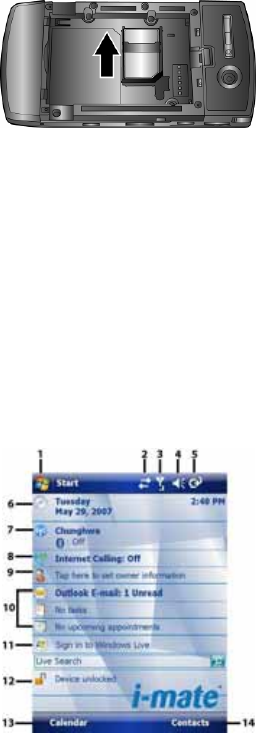
3. Lift the battery to remove it. Then, insert the SIM/USIM card into the SIM card
slot with its gold contacts facing down (the cut-off corner of the SIM/USIM
card should match the cut-off corner in the slot).
4. Replace the battery and gently push down to fit it into place.
5. Replace the battery cover.
Turn on the device
To turn ON the device, press and hold the Power button for 4 seconds. When
you turn on the device for the first time, you will be asked to complete the
screen calibration process. Calibrating the device screen involves tapping the
centre of a cross with the stylus as the cross moves around the screen. This
process ensures that when you tap the screen with your stylus, the tapped item
is activated.
The Today screen displays important information, such as upcoming
appointments and status indicators. You can tap a section on the screen to open
the associated program. If at any point you need to access the Today screen,
just tap Start > Today.
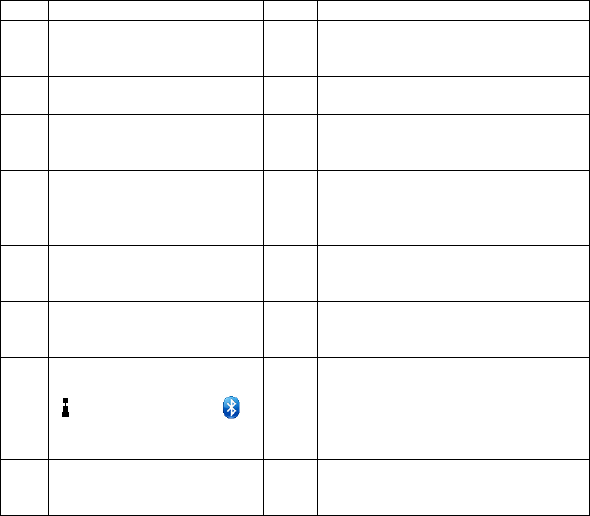
No. Description No. Description
1 Tap to open the Start
menu. 9 Displays the current owner
information. Tap to change the
details.
2 Tap to view the
connectivity status. 10 Tap to open the related messages,
tasks and appointments.
3 Indicates the radio signal
strength. Tap to configure
the phone settings.
11 Tap to sign into Windows Live.*
4 Tap to control device/ringer
volume level. 12 Enter the word to search for and
your device will connect to the
internet and search using Microsoft
Live Search.
5 Indicates the battery
status. Tap to open the
Power Settings screen.
13 Tap to lock or unlock the device.
6 Displays the current date
and time. Tap to set up
date, time, alarm, etc.
14 Shows the current function of the
left soft key. Tap to open the
Calendar screen.
7 Tap to open the Wireless
Manager. If the Wi-Fi
(left) and Bluetooth
(right) icons are displayed,
they are available.
15 Shows the current function of the
right soft key. Tap to open the
Contacts screen.
8 Indicates the status of
internet calling. Tap to
change the status.
Note: Not supported on all language versions of Windows Mobile Operating System.*
To power OFF the device completely, press and hold the POWER button for 2
seconds and the system will prompt you to power off the device. In this state,
the device cannot receive calls or text messages. To save battery power, your
device will automatically go into standby mode if not used for a period of time.
1.3 Status Indicators
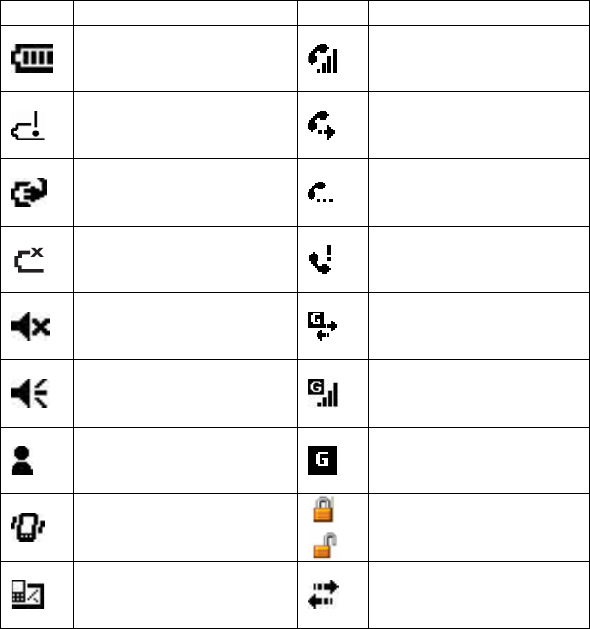
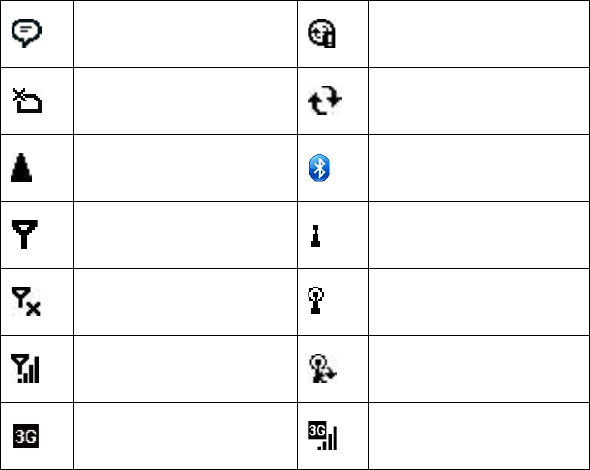
Status indicators appear at the top of the screen and on the Today screen.
The following table lists common status indicators and their meanings.
Icon Description Icon Description
Battery level. Voice call in progress.
Battery is very low / Charge
battery soon. Calls are forwarded.
Battery charging. Call on hold.
Battery fault. Missed call.
Ringer off. GPRS Connection in
progress.
Ringer on. GPRS Connected.
New instant message. GPRS available.
Ringer in vibration mode.
Indicates if the device is
locked / unlocked.
New e-mail or text
message. Connected to the PC.
There are more
notifications. Tap the icon to
view all. Connected to the PC.
Synchronization error.
No SIM card installed. Synchronization in progress
Roaming. Bluetooth
No signal Indicates Wi-Fi is turned on.
Reception is turned off. Wi-Fi network in range
GSM signal strength. The
number of bars indicates the
signal strength. Wi-Fi is connected
3G in range 3G connected
1.4 Enter Information
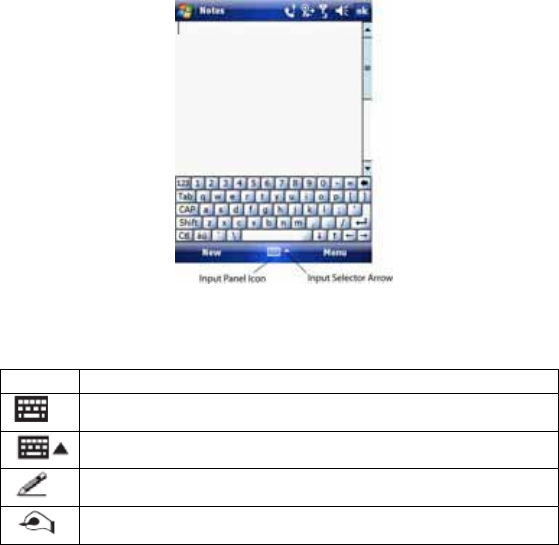
Input Panel
Input Panel provides access to the various available input methods for your
device, including Block Recognizer, Keyboard, Letter Recognizer and
Transcriber. By default, the Input Panel icon appears on the menu bar to
indicate which input method is currently selected. The Input Selector arrow
(shown at the right side of the Input Panel icon) opens a list of available input
methods.
Note: Not supported on all language versions of Windows Mobile Operating System.
The following input methods are available when text entry is possible.
Icon Input Method
Press to switch the keyboard input on or off.
Input Panel Icon / Press the Input Selector Arrow to change
input methods.
Letter Recognizer or Block Recognizer.
Transcriber.
Draw and Write on the Screen
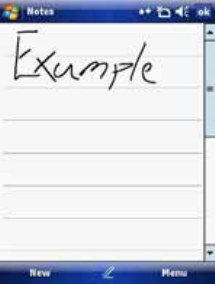
With your device, you can draw directly on the screen or write on the screen
and save notes (Start > Programs > Notes) in your own handwriting. If you
prefer to use handwriting or frequently add drawings to your notes, you may find
it helpful to set Writing as the default input mode. If you prefer typed text, set
Typing as the default input mode.
To change the default input mode in Notes, tap Menu > Options in the notes
list and then, in the Default mode box, tap either Writing or Typing, depending
on your personal preferences. Tap OK.

Voice Recording
You can create a standalone voice recording or you can add a recording to a
note.
Create a voice note
1. Tap Start > Programs > Notes.
2. If you do not see the Recording Toolbar, tap Menu > View Recording
Toolbar.
3. Tap the record icon to begin recording.
4. Hold your device’s microphone near your mouth or other audio source.
5. Tap the stop icon when finished recording.
Change recording formats
1. Tap Start > Settings > Personal tab > Input.
2. Tap the Options tab and in the voice recording format list, tap the format you
want.
3. Tap OK.
Chapter 2
2.1 Today Screen
2.2 Start Menu
2.3 Ring tones and Notifications
2.4 General Settings
2.5 Security
2.1 Today Screen
The Today screen shows your upcoming appointments, active tasks, and
information about e-mail messages.
Customise background items on the Today Screen
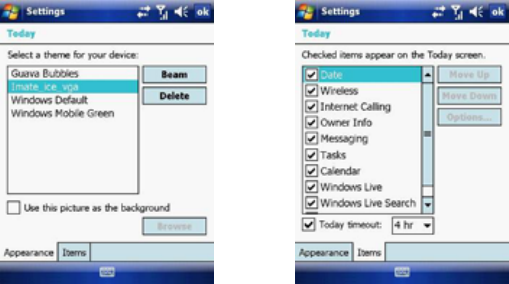
1. Tap Start > Settings > Personal tab > Today.
2. On the Appearance tab, select the desired theme for the background of the
Today screen. You can use one of your own pictures as the background
image on the Today screen by selecting the Use this picture as the
background check box and tap Browse to view a list of your picture files.
3. On the Items tab, select the items you want to appear on the Today screen.
To change the order of items displayed on the Today screen, tap the item
and then tap Move Up or Move Down.
4. Tap OK.
Enter Owner Information
Entering and displaying Owner Information on the Today Screen is
recommended and allows someone to return the device if lost.
1. Tap Start > Settings > Personal tab > Owner Information.
2. In the Identification tab, enter your personal information.
If owner information is displayed on the Today screen, you can open and edit
the information directly from it. Just tap that section of the screen.
2.2 Start Menu
The Start menu, located at the top left corner of the Today screen, displays a
list of programs. It lets you close a screen and switch from one program to
another. You can start a program by scrolling through the programs list and
then pressing Enter or by tapping a program with the stylus.
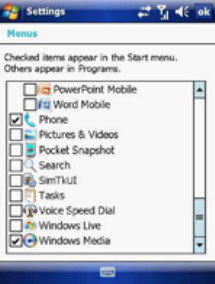
You can choose which items appear in the Start menu:
1. Tap Start > Settings > Personal tab > Menus.
2. Select the check boxes of the items you want to appear in the Start menu.
You can select up to seven items.
Create folders and shortcuts
You can also create folders and shortcuts that appear on the Start menu.
Open ActiveSync on your PC, click Explore. In the Mobile Device window,
double click Mobile Device > Windows > Start Menu, then create the folders
and shortcuts that you want. You will see the added items after you synchronize.
2.3 Ring tones and Notifications
Change ring tones
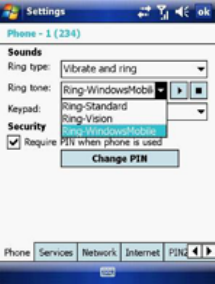
1. From the Phone screen, tap Menu > Options > Phone tab.
2. In the Ring tone list, tap the sound you want to use.
Note: To use custom *.wav, *.mid, *.mp3, or *.wma files as ring tones, use ActiveSync on
your PC to copy the file to the Windows/Rings folder on your device. Then, select the
sound from the ring tone list. For more information about copying files to your device, see
ActiveSync Help on your PC.
Assign ring tones to Contacts
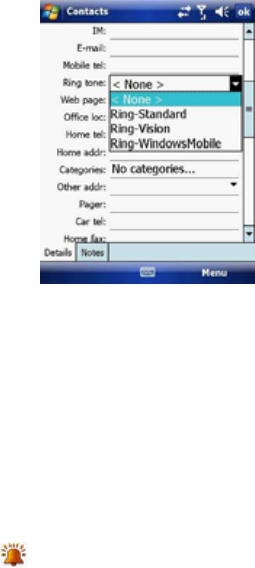
It is also possible to assign a specific ring tone to a Contact:
1. Go to Start > Contacts and tap on the desired Contact.
2. Select Menu > Edit.
3. In the Ring tone field, select your desired ring tone.
Change the ring type
You can change the way that you are notified of incoming calls. For example,
you can choose to be notified by a ring, vibration or a combination of both.
1. From the Phone keypad, tap Menu > Options > Phone tab.
2. In the Ring type list, tap the desired option.
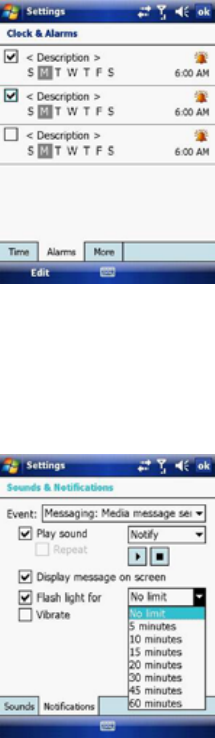
Set an alarm
1. Tap Start > Settings > System tab > Clock & Alarms > Alarms tab.
2. Tap <Description> and enter a name for the alarm.
3. Tap the day of the week for the alarm. You can select multiple days by
tapping each desired day.
4. Tap the time to open a clock and set the time for the alarm.
5. Tap the alarm icon to specify the type of alarm you want. You can
choose a flashing light, a single sound, a repeating sound or vibration.
6. If you choose to play a sound, tap the list next to the Play sound check box
and tap the sound you want.
Choose how to be notified about events or actions
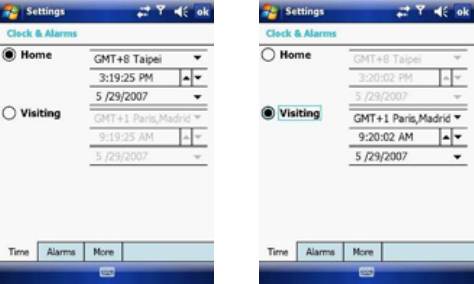
1. Tap Start > Settings > Personal tab > Sounds & Notifications.
2. On the Sounds tab, choose how you want to be notified by selecting the
appropriate check boxes.
3. On the Notifications tab, tap an event name and choose how you want to be
notified by selecting the appropriate check boxes. You can choose from
several options, such as a special sound, a message, or a flashing light.
2.4 General Settings
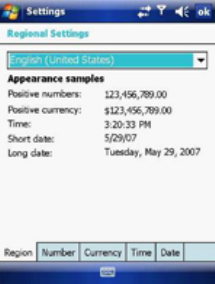
Set the time and date:
1. Tap Start > Settings > System tab > Clock & Alarms.
2. Select the correct time zone and change the date or time.
Set the time and date for a different location
If you visit or communicate with someone in a particular time zone often, you
can select it as your visiting time zone.
1. Tap Start > Settings > System tab > Clock & Alarms.
2. Tap Visiting.
3. Select the correct time zone and change the time or date.
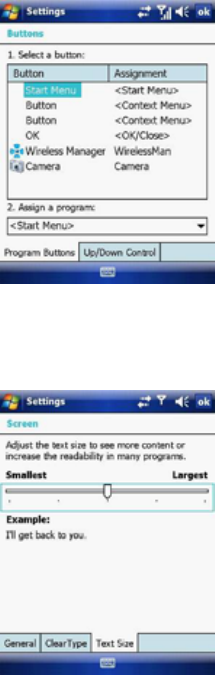
Change language and regional settings
The style in which numbers, currency, dates, and times are displayed is
specified in regional settings.
1. Tap Start > Settings > System tab > Regional Settings.
2. On the Region tab, select your region and language.
3. The region you select determines which options will be available on the other
tabs.
4. To customise settings further, tap the appropriate tabs and select desired
options.
Reassign programs or shortcuts to program buttons
1. Tap Start > Settings > Personal tab > Buttons.
2. A list of buttons and their current assignments is displayed on the Program
Buttons tab.
3. Tap the button you want to reassign. To help you identify the buttons, there
are numbers and icons representing their original functions.
4. In the Assign a program box, tap the program or shortcut to assign.
5. Tap OK.
Increase or decrease screen text size
1. Tap Start > Settings > System tab > Screen > Text Size tab.
2. Move the slider to increase or decrease the text size.
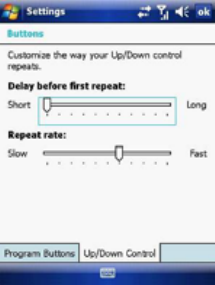
Adjust the speed for scrolling
1. Tap Start > Settings > Personal tab > Buttons > Up/Down Control tab.
2. Do one of the following:
z Under Delay before first repeat, move the slider to shorten or lengthen
the time that elapses before scrolling begins.
z To change the time it takes to scroll from one item to the next, under
Repeat rate, move the slider to adjust the speed.
Change the device name
1. Tap Start > Settings > System tab > About.
2. Tap the Device ID tab.
3. Enter a name.
The device name is used to identify the device in the following situations:
z Synchronizing with a PC.
z Connecting to a network.
z Restoring information from a backup.
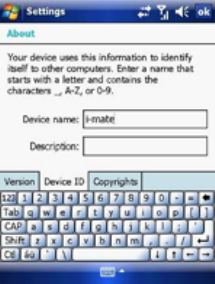
Note: The device name must begin with a letter, consisting of letters from A to Z, numbers
from 0 to 9, and cannot contain spaces. Use the underscore character to separate words. If
you synchronize multiple devices with the same PC, each device must have a unique name.
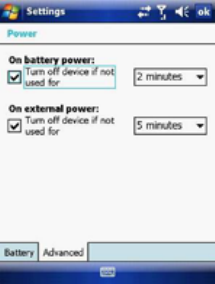
Make the battery last longer
1. Tap Start > Settings > System tab > Power. On the Advanced tab, you can
specify when your device turns off, to conserve battery power. For optimum
conservation, specify 3 minutes or less.
2. Use the AC adapter to plug your device into external power whenever
possible, especially when using a microSD card, a modem or other peripheral.
3. Adjust the backlight settings.
Adjust backlight brightness
1. Tap Start > Settings > System tab > Backlight > Brightness tab.
2. Move the sliders right to increase the brightness or left to decrease it.
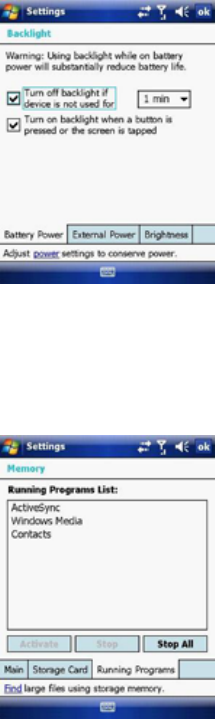
Set the backlight to dim after a time delay
1. Tap Start > Settings > System tab > Backlight.
2. Tap the Battery power tab or the External power tab.
3. Select the Turn off backlight if device is not used for check box and
specify the time delay.
Close a program
In most cases, programs automatically close to free needed memory. However,
you can close programs manually.
1. Tap Start > Settings > System > Memory tab > Running Programs.
2. In the Running Programs list, tap the program you want to close and tap
Stop.
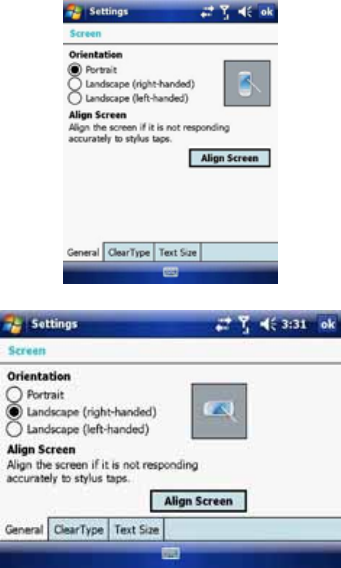
Change the orientation of the screen
You can use your Pocket PC in landscape or portrait modes, depending on how
you wish to use the device.
1. Tap Start > Settings > System tab > Screen > General tab.
2. Choose whether you wish to use the device in Portrait or Landscape modes.
Landscape can be right or left-handed. Tap OK to make the changes.
2.5 Security
SIM Security
To protect your phone with a PIN:
1. From the Phone screen, tap Menu > Options > Phone tab.
2. Tap Require PIN when the phone is used.
3. To change the PIN at any time, tap Change PIN.
Note: Emergency calls can be placed at any time, without a PIN.
Protect your device with a password
You can help keep your data more secure by requiring a password every time
the device is turned on.
1. Tap Start > Settings > Personal tab > Lock.
2. Select the Prompt if device unused for check box. In the box to the right,
select how long your device must be turned off before a password is needed.
In the Password type box, select the type of password you want to use.
Enter the password and, if necessary, confirm it. If the device is configured
for network connection, use a strong password for better network security.
3. On the Hint tab, enter a phrase that will help you remember your password
but does not allow others to guess it. The hint will be displayed after the
wrong password is entered four times.
4. Tap OK. The next time the device is turned on you will be prompted to enter
your password.
Note: Each time a wrong password is entered, the time the device takes to respond will get
longer and longer until the device appears to be not responding. If you forget your
password, you must follow the instructions in your owner’s manual to clear memory before
you can access your device.
Change your password
1. Tap Start > Settings > Personal tab > Lock. You will be prompted to enter
your current password.
2. In the Password box, enter your new password.
3. On the Hint tab, enter a phrase that will help you remember your new
password but does not allow others to guess your password. The hint will be
displayed after the wrong password is entered four times.
4. Tap OK.
Encrypt your files
1. Tap Start > Settings > System tab > Encryption.
2. Select Encrypt files placed on storage cards to encrypt files as they are
placed on a storage card.
Chapter 3
3.1 Make a Call
3.2 Receive a Call
3.3 Video Telephony
3.4 In-Call Options
3.5 Special Dialling Requirements
3.6 Additional Settings
3.1 Make a Call
Like a standard mobile phone, you can use your i-mate™ Windows Mobile®
Pocket PC Phone to make, receive and keep track of calls. You can also take
notes while talking, dial directly from Contacts and easily copy SIM/USIM
contacts to Contacts on the device.
In order to make calls, you will need to insert your SIM/USIM card into the
device as described in Chapter 1. Most SIM/USIM cards are preset with a PIN
(personal identification number), provided by your wireless service provider. If
this option is enabled in your SIM/USIM card, you will be prompted to enter the
PIN when the unit is switched on.
Note: If your PIN is entered incorrectly three times, the SIM/USIM card will be blocked. If
this happens, you can unblock it with the PUK (PIN Unblocking Key) obtained from your
wireless service provider.
You can make a call from Phone, Contacts, Speed Dial, Call History and
SIM/USIM Manager.
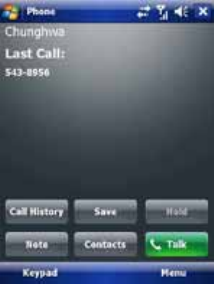
Make a call from the Phone screen
On the Phone screen:
1. Tap the desired phone number and then tap the SEND button.
2. To open the Phone screen, either use the stylus to tap Start > Phone or
press the SEND button.
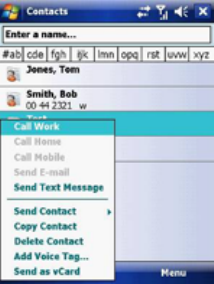
Make a call from the Contacts screen
1. Tap Start > Contacts.
2. To search for a contact, enter the desired name and number in the search
field, or tap the letter corresponding to the name in the alphabet bar.
3. Tap the desired contact and tap Call or press the SEND button.
You can also tap the desired contact in the Contacts list and tap the phone
number that you want to call. Or, tap and hold the desired contact. On the
shortcut menu, tap Call Work, Call Home, or Call Mobile.
By default, the mobile telephone number (m) of a contact is dialled when you
make a call from Contacts. However, you can specify that a different phone
number is used instead.
1. Tap Start > Contacts.
2. Press the Navigation Controller up or down to select the contact.
3. Press the Navigation Controller left or right. The letters representing the
number will change as you scroll through them.
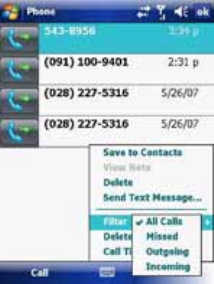
Make a call from Call History
1. On the Phone screen, tap Call History.
2. Tap Menu > Filter and tap a category.
3. Scroll to the desired contact or phone number and tap Call or press the
SEND button.
Make a call from Speed Dial
Use Speed Dial to call frequently-used numbers with a single tap. For example,
if you assign a contact to Location 2 in Speed Dial, you can tap and hold it on
the Phone screen to dial the contact’s number. Before you can create a Speed
Dial entry, the number must be in Contacts. To create a Speed Dial entry:
1. On the Phone screen, tap Speed Dial.
2. Tap Menu > New.
3. Tap a contact. Tap the phone number for which you want to create a Speed
Dial entry.
4. In the Location box, select an available location for the new Speed Dial
entry.
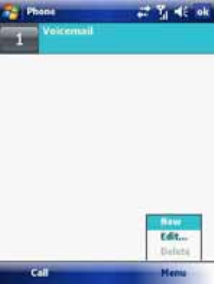
Note: To create a Speed Dial entry from Contacts, tap and hold the contact name, tap
Menu > Add to Speed Dial and select an available location for the new Speed Dial
entry. To delete a Speed Dial entry, in the Speed Dial list, tap and hold the desired
entry and tap Delete.
Make an emergency call
To make an emergency call, just enter the emergency phone number for your
location and press SEND.
Note: You can make calls to emergency services under any circumstances, even if you
have enabled the SIM PIN or locked the device. The ability to make emergency calls
depends on network availability.
3.2 Receive a Call
When you receive a phone call, a message will appear, giving you the option to
either answer or ignore the incoming call.
1. To answer the call, tap Answer or press the SEND button.
2. To reject the call, tap Ignore or press the END button.
End a call
Once an incoming or outgoing call is in progress, you can tap End or press
END on the device to hang up.
3.3 Video Telephony
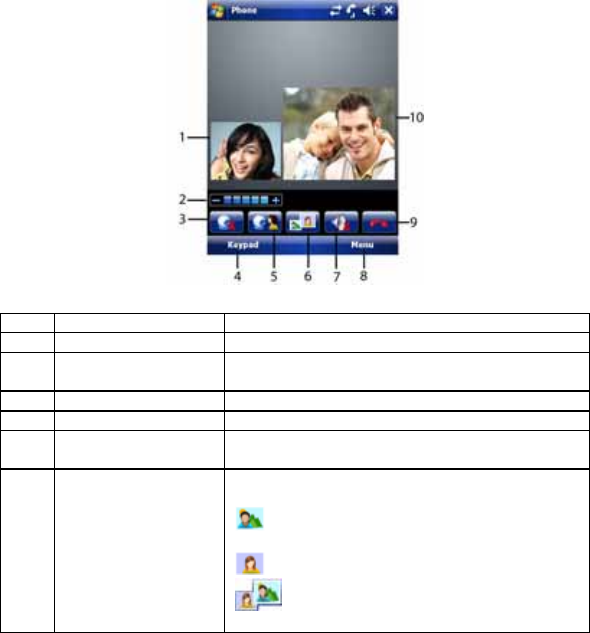
Tapping the Video Call button allows you to make a VT (video telephone) call.
No Item Description
1 Caller Image Displays the caller image.
2 Brightness Use + and - to increase or decrease the screen
brightness.
3 Camera Turn on or off the caller image.
4 Keypad Tap to return to the keypad.
5 Internal / External
Camera Switches between the camera facing you and
the camera pointing away from you.
6 View Mode There are 4 view modes available, tap this
button to switch between them:
Only Receiver - Displays only the person
you are calling.
Only Sender - Displays your image only.
Standard Mode - Displays both the caller
and the receiver (the sender is smaller).
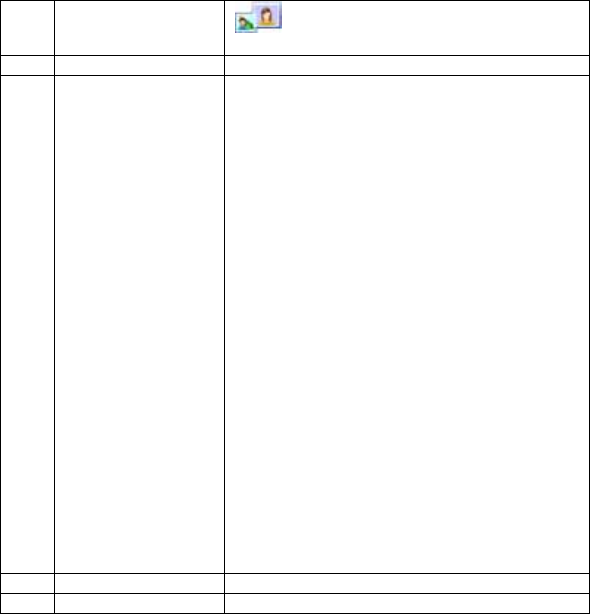
Sender is large - The sender image is
large and the receiver image is small.
7 Speaker Turn the speaker on/off.
8 Menu Contains:
Hold - Place the current call on hold
Mute - Mute the speaker
Turn Speakerphone On – Turn the speaker
phone on or off.
Turn Handsfree On - Turn handsfree on or off.
Conference – Begin a call with more than one
person.
Paste
Save to contacts – Save the current caller to
the contacts.
Create note - Add a note to the call.
Call history -Display the call history.
Speed dial – Tap to see speed dial numbers.
See Chapter 3.5 for details.
Options
Video call options – Contain 3 tabs: General,
Services and About.
- General – Select the default
video image setting, File when selecting a
user defined video image and video call
ringtone.
- Services – Select the
available services and tap Getting settings
to change the settings.
- About – Displays
information about the application.
9 End End the call.
10 Receiver Image See the person who receives your call.

3.4 In-Call Options
Put a call on hold
If this option is enabled, your device notifies you when you have another
incoming call and gives you the choice of rejecting or accepting the call.
If you are already on a call and accept the new call, you can choose to switch
between the two callers or set up a conference call between all three parties.
• Tap Answer to take the second call, which will put the first call on hold.
• To end the second call and return to the first call, tap End or press the END
button on your device.
To switch between calls, tap Swap or press the SEND button.
Set up a conference call
1. Either put a call on hold and dial a second number or accept a second
incoming call when you already have one in progress.
2. Tap Conference.
Note: Not all service providers support conference calling. Contact your service provider for
details.
Turn on and off the speakerphone
The built-in speakerphone on your device allows handsfree operation or lets
other people listen to the conversation. To activate the speakerphone mode,
press and hold the SEND button or tap Speaker On on the screen. The
speakerphone icon will appear in the title bar. To turn off the speakerphone,
tap Speaker Off.
Mute a call
You can turn off the microphone during a call so that you can hear the caller but
the caller cannot hear you. During a call, tap Mute.
• When the microphone is turned off, the mute icon will appear on the screen.
• Tap Unmute to turn on the microphone again.
3.5 Special Dialling Requirements
Insert a pause in a dialling sequence
Calls to certain networks may require a pause in between the dialled digits:
1. Tap Start > Contacts.
2. Click the contact whose phone you want to insert a pause.
3. Select the phone number and add a ‘p’ character where you want to insert a
3 second pause.
4. Select the phone number and add a ‘w’ character where you want to insert a
manual pause.
5. To resume dialling after reaching a manual pause, press SEND.
Insert an International Country Code
To make an international call, you must insert a country code at the beginning
of the dialling sequence for the phone number. Tap and Hold ‘0’ on the Phone
screen until a (+) sign appears and then insert the rest of the number.
3.6 Additional Settings
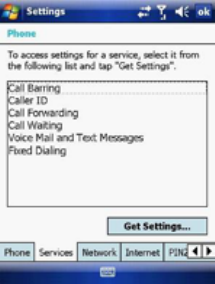
Phone services
Phone Services, such as Call Waiting, enable you to choose how to handle all
incoming calls on your device.
Choose services
1. Tap Start > Settings > Personal tab > Phone > Services tab.
2. Tap the service you want to use and tap Get Settings.
Networks
You can view available wireless networks, determine the order in which your
device accesses another network if the current one is unavailable, and specify
whether you want to change networks manually or automatically.
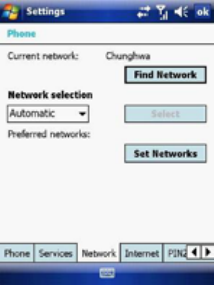
Change phone network settings
1. Tap Start > Settings > Phone > Network tab.
2. By default, your device displays the current network as offered by your
service provider. You can customise this to your preferred network.
Set preferred networks
1. Tap Start > Settings > Phone > Network tab. By default, network selection
field is set to Automatic. However, you can set it to Manual to choose your
own network at any point of time.
2. Tap Set Networks.
3. Select the networks in Preferred networks and sort them according to your
preference.
4. Tap OK.
Change the keypad tone
You can change the tone you hear when entering a phone number on the
keypad. If set to Long tones, the tone is heard continuously for as long as the
number on the keypad is tapped. Use this setting if you are having trouble
accomplishing tasks that rely on tones from your phone such as accessing
messages from an answering machine. If set to Short tones, the tone is heard
only for one or two seconds. If set to Off, no tone will be heard.
1. From the Phone screen, tap Menu > Options > Phone tab.
2. In the Keypad list, tap the option you want.
Automatic answering
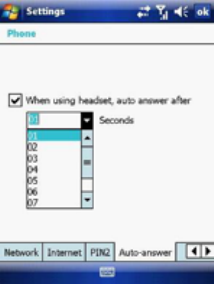
You can set the phone to automatically answer calls when using the headset. To
do this:
1. From the Today screen, tap Start > Settings > Personal tab > Phone >
Auto-answer tab.
2. Tap the When using headset, auto answer after check box.
3. Select the number of seconds from the drop down menu.
Chapter 4
4.1 Automatic Setup of Your Data Connections
4.2 Manual Setup of Your Data Connections
4.3 Bluetooth
4.4 Beams
4.5 Connect to a Wireless LAN
4.1 Automatic Setup of Your Data Connections
Your device is equipped with powerful networking functions that enable you to
connect to the Internet through a General Packet Radio Service (GPRS)
network.
GPRS is a service that allows information to be sent and received across a
mobile telephone network.
Your device is able to configure itself for data services from many of the major
GSM/GPRS operators across the world. Simply insert your SIM/USIM card and
switch on your device. When the device powers on it will prompt for the
configuration steps and configure itself for Web, MMS, and WAP services. If the
settings are not known for your operator, the device will notify you and you will
need to enter them manually.
Note: The use of Web, WAP and Multimedia Messaging Services is subject to your Mobile
Service Provider. You must ensure that your subscription has Web, WAP and MMS before
using those services.
4.2 Manual Setup of Your Data Connections
You can set up connections to the Internet or to a corporate network and
exchange e-mail or instant messages.
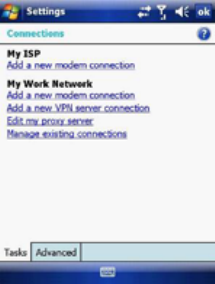
Your device has two connection setting categories: My ISP (Internet Service
Provider) and My Work Network. The My ISP settings are used to connect to
the Internet, and the My Work Network settings can be used to connect to any
private corporate network.
To ensure that both My ISP and My Work Network connections are displayed:
• Tap Start > Settings > Connections tab > Connections > Advanced tab >
tap the Select Networks button.
• From Programs that automatically connect to the Internet, select My ISP.
• From Programs that automatically connect to a private network, select
My Work Network.
Connect to the Internet via ISP
Obtain the following information from your ISP:
• Access point name or server phone number.
• User name (if required).
• Password (if required).
• Domain (if provided by an ISP or a network administrator).
• Proxy settings (if required).
1. Tap Start > Settings > Connections tab > Connections.
2. Tap Add a new modem connection.
3. Enter a name for the connection.
4. Select a modem from the list. For example, if you want to use the mobile
phone network, select Cellular Line or Cellular Line (GPRS).
5. Tap Next.
6. Complete the Connection Wizard by entering the required information and
tapping Finish.
Connect to a private network
Obtain the following information from your ISP:
• Access Point name or server phone number.
• User name (if required).
• Password (if required).
• Domain (If provided by an ISP or a network administrator).
• Proxy settings (if required).
1. Tap Start > Settings > Connections tab > Connections.
2. In My Work Network, follow the instructions for each type of connection.
3. Once finished, tap Edit my proxy server and enter the Proxy Information,
including any WAP Proxy required by the operator if you are setting up a
connection to their WAP site.
4. Complete the Connection Wizard and tap Finish.
Connect to a VPN using the Internet
Please ensure that you have setup a successful GPRS / Wi-Fi connection. The
VPN connection uses existing Internet connections to connect to your work
network. Refer to the next section, Connect to an Intranet URL, for more
information.
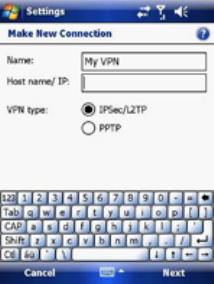
1. If the Work Connection is not being used for any other connection, tap on
Add a new VPN server connection and skip to step 4.
2. Tap Start > Settings > Connections > Connections > Advanced tab > tap
Select Networks.
3. Create a new connection to a private network by tapping New… under the
Programs that automatically connect to a private network list. This new
network connection must be selected from this menu when necessary to
connect to a VPN. Assign a name for your choice and tap the VPN tab > New.
4. Complete the VPN setup wizard using the settings provided by your network
administrator, which should include Host Name/IP, VPN Type, User Name,
Password and Domain.
5. If you selected IPSec VPN type, tap Next to select the type of authentication
required. If Pre-Shared key is selected, enter the key.
6. Check the advanced settings and complete the settings according to the
instructions from your network administrator.
Connect to an Intranet URL
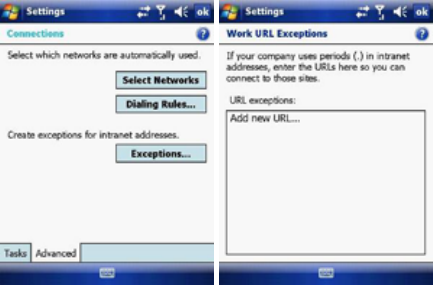
A work URL exception tells Internet Explorer Mobile and/or ActiveSync to look
on the work network to find that URL instead of searching the Internet. This also
has to be setup if you wish to browse intranet websites through your VPN
connection:
1. On the Today screen, tap Start > Settings > Connections > Advanced >
Exceptions.
2. In Work URL Exceptions, tap Add new URL and enter the URL. Tap OK.
Note: Separate multiple URLs with a semicolon.
You should not create URL exceptions for URLs on the Internet. An Intranet URL
can be either an IP address or FQDN (Fully Qualified Domain Name).
4.3 Bluetooth
Bluetooth is a short-range wireless communications technology. Devices with
Bluetooth capabilities can exchange information over a distance of about 10
meters without a physical connection. You can even beam information to a
device in a different room as long as it is within the Bluetooth signal coverage
range.
The software included with your device allows you to use Bluetooth in the
following ways:
1. Beam information such as files, appointments, tasks and contact cards
between devices that have Bluetooth capabilities.
2. Use a Bluetooth headset.
Turn Bluetooth on or off
1. On your device, tap Start > Settings > Connections tab > Wireless
Manager.
2. Select Turn on Bluetooth.
3. Tap Bluetooth Settings > Mode tab. Check the Make this device visible to
other devices box if you want your device to be visible to other Bluetooth
users within a range of approximately 10 meters.
4. Tap OK.
Create a Bluetooth partnership
A Bluetooth partnership is a relationship that you create between your device
and another Bluetooth enabled device in order to exchange information in a
secure manner. Creating a partnership between two devices involves entering
the same personal identification number (PIN) or Passkey on both devices.
Creating a partnership between two devices is a one-time process. Once a
partnership is created, the devices can recognize the partnership and exchange
information without requiring a PIN. Make sure the two devices are within a
range of 10 meters from one another and that Bluetooth is on and discoverable.
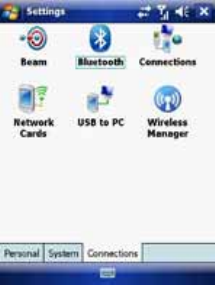
1. On the Today screen, tap Start > Settings > Connections tab > Bluetooth.
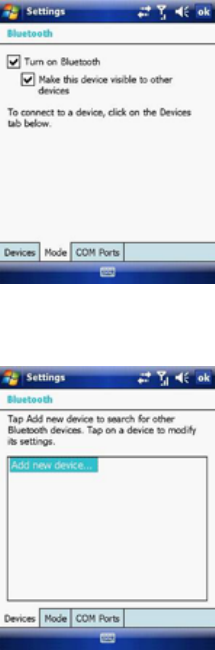
2. On the Devices tab, tap Add new device. Your device searches for other
Bluetooth devices and displays them in the box.
3. Tap the desired device name in the box and tap Next.
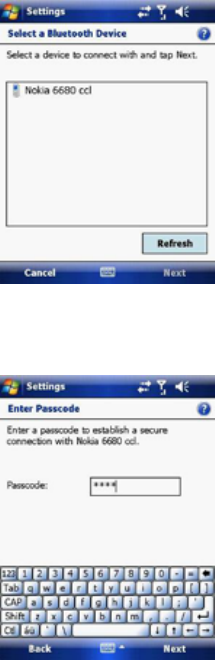
4. Enter a passkey to establish a secure connection. The passkey must be
between 1 and 16 characters.
5. Tap Next.
6. Enter the same passkey that is entered on the other device. You can,
however, edit and enter a new name for the other device.
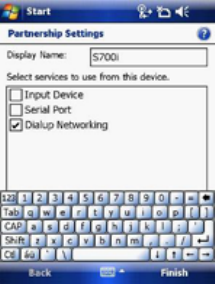
7. Tap Finish after checking the services offered by the other Bluetooth device.
Accept a Bluetooth partnership
1. Ensure that Bluetooth is turned on and discoverable.
2. Tap Yes when prompted to establish a partnership with the other device.
3. Enter a passkey (the same passkey that is entered on the device requesting
the partnership) to establish a secure connection. The passkey must be
between 1 and 16 characters.
4. Tap Next.
5. Tap Finish. You can now exchange information with the other device.
Rename a Bluetooth partnership
1. On the Today screen, tap Start > Settings > Connections tab > Bluetooth.
2. Tap and hold the partnership on the Devices tab.
3. On the shortcut menu, tap Edit.
4. Enter a new name for the partnership.
5. Tap Save.
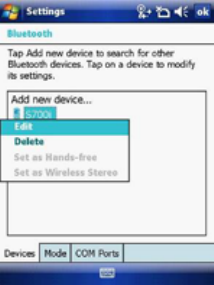
Delete a Bluetooth partnership
1. On the Today screen, tap Start > Settings > Connections tab > Bluetooth.
2. Tap and hold the partnership on the Devices tab.
3. Tap Delete from the shortcut menu.
4.4 Beams
The term Beam is used to describe the short range transferring of information
between two units via Bluetooth. An example of beaming could be sending the
details of a contact to another Windows Mobile device.
By default, the option to receive incoming beams is disabled for security and
battery conservation. Make sure that Receive All Incoming beams is enabled
in Start > Settings > Connections > Beam.
Beam an item
In the Calendar, Contacts, Notes, Tasks and Pictures programs, you can
beam files and information to other devices using Bluetooth.
1. From the program, select the item you want to beam, such as an
appointment in Calendar, a task in Tasks, a contact card in Contacts, or a
picture in Pictures. In Calendar, first open the appointment in Agenda view.
2. Different applications have different ways of beaming:
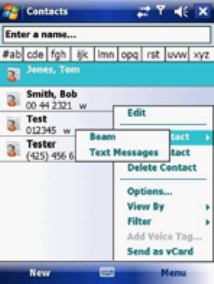
z In Calendar, tap Menu > Beam.
z In Contacts, tap Menu > Send Contact > Beam.
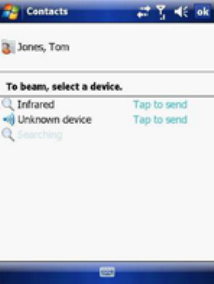
3. Via Bluetooth, select the device to which you want to send the item.
4. Tap on Tap to Send.
4.5 Connect to a Wireless LAN
Connect to a Wi-Fi network
1. On the Today screen, tap Start > Settings > Connections tab > Wireless
Manager. You may also access Wireless Manager from the Today screen
or by pressing the Wi-Fi button on the left side of the device.
2. Press the Wi-Fi button to turn the wireless function on and off.
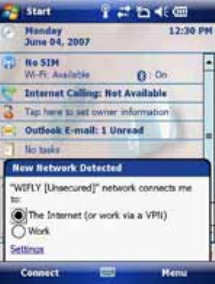
3. When the Wi-Fi function is turned on, the device will start scanning for
available networks and will prompt the user to select one. Select whether this
network is used to connect to The Internet or as a Work connection and
enter the password for this access point, if requested.
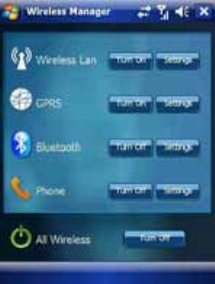
4. To configure the required settings on the Wireless Manager screen, tap
Settings next to each of the wireless functions. When the configuration is
completed, you can connect to a Wi-Fi network using your device.
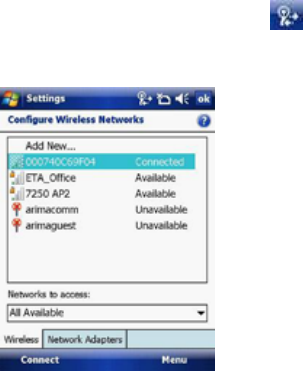
Check Wireless LAN status
You can check the current wireless connection status from the following the
screens of your device:
z Tap Start > Settings > Connections > Wi-Fi or tapping the icon on the
title bar provides information about the connection status and signal quality
for the current connection.
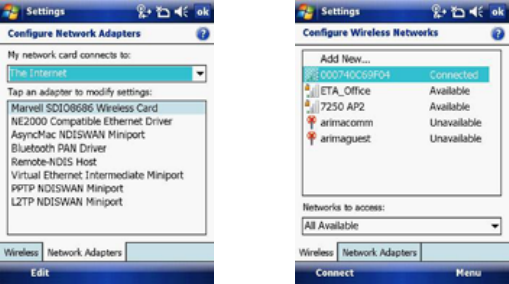
z To manually configure your connection, tap Start > Settings > Connections
tab > Network Cards. This screen displays the wireless networks currently
available and allows you to change the connection settings and create new
connections to other access points not broadcasting their SSIDs.
On http://www.clubimate.com you can find step-by-step guidelines for
connecting your device to public and private Wi-Fi access points. Those
guidelines are also available in the CD that came with your device.
Chapter 5
5.1 Text Messaging
5.2 MMS
5.3 E-mail
5.4 Windows Live Messenger
This chapter describes how you can create or delete, send or receive, and
organize or store your messages in the phone. The following types of messages
are all stored under the Messaging Application:
z Text message (SMS - Short Message Service)
z E-mail messages
z Multimedia messages (MMS)
Real-time messaging is also possible on your device by signing into the MSN
Messenger application, as explained in this chapter.
5.1 Text Messaging
Text Messaging is a popular way of sending short messages to other mobile
phone users and, in some countries, to land lines as well. Each text message is
a maximum of 160 characters long. In some countries the maximum size is 70
characters if accents or other special characters are used. Your device will
automatically join multiple texts together.
Create a text message
1. On the Today screen, tap Start > Messaging.
2. Select an account from the list. You are automatically taken to the Inbox of
the chosen account.
3. From the bottom of the screen, press Menu > New.
4. In the To: field, enter the mobile phone number of the recipient. Insert a
semicolon (;) between multiple recipients. You may also choose a contact by
pressing Menu > Add Recipient.
5. Tap Send. Text messages are sent immediately.
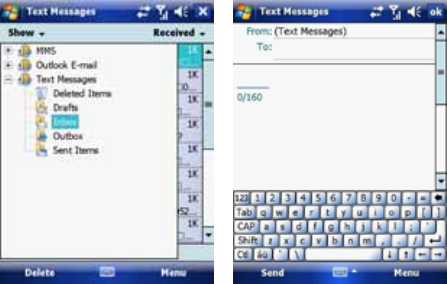
Note: In the To: field, you can enter phone numbers from your contact cards quickly. Press
the Action button when the cursor is in this field. A new screen displays the contact list for
your selection. Press the Action button again for the selection and the phone returns to the
SMS text message screen. Repeat this for all contacts you wish to send the SMS to.
Cancel a text message
To cancel a message, tap Menu > Cancel Message. If you require Delivery
notification, in the message creation screen tap Menu > Message Options…
and check the Request message delivery notification box.
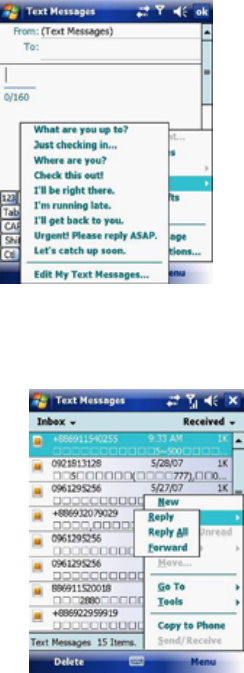
Insert predefined text into a message
To save time when entering text, you can insert predefined text into messages.
1. Tap Menu > My Text.
2. Select the text you want to insert by tapping the phrase you wish to insert.
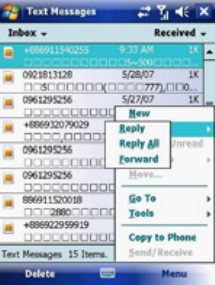
Reply to and Forward a message
1. From the text message inbox tap Menu > Reply > Reply All or from an open
message, tap Reply (bottom left corner).
2. Enter a message in the message area.
3. Tap Send.
Forward a message
1. From an open message, tap Menu > Reply > Forward.
2. Enter a message in the message area.
3. Choose a recipient to send the message to. Type in the name or tap Menu >
Add recipient.
4. Tap Send.
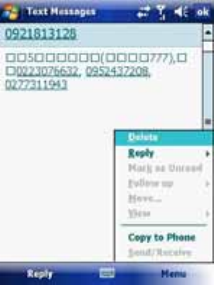
Delete a message
1. On the Today screen, tap Start > Messaging and select an account.
2. Select the message to delete.
3. Tap Delete or press the Left Soft Key.
5.2 MMS
Creating and sharing MMS messages with your friends and family is easy with
your device. You can even use the device’s camera to capture photos while
composing a new MMS message, and send them along it.
Set up an MMS account
Before you can use MMS, you have to configure the required settings on your
device. If your mobile operator settings are recognised by the device when it
first boots-up, MMS settings should be set up automatically.
Manually set up an MMS account
To set up your default MMS Messaging account, tap Start > Messaging >
MMS.
1. Tap Menu > Options > Accounts tab > MMS.
2. Tap the Servers tab > New.
3. Enter the details of your mobile operator’s MMSC.
Manage MMS messages
After configuring the required settings, you can start to compose and manage
your MMS messages.
Compose MMS messages
You can compose MMS messages in a combination of various slides, where
each slide can consist of a photo, audio or video clip and/or text.
1. Tap Start > Messaging > MMS.
2. Tap Menu > New. Select either a custom message from your collection or a
predefined message.
3. In the To: field, enter the recipient’s phone number or e-mail address directly,
or tap To, Cc, or Bcc to choose a phone number or e-mail address from
Contacts.
4. Enter a subject for your message.
5. Tap the Insert icon to select and send a photo or video clip. By default, it will
open the My Pictures folder. To navigate to any other folder containing
pictures or videos, tap Show.
6. Tap the image to insert it. Once selected you may remove the image by
pressing and holding the image.
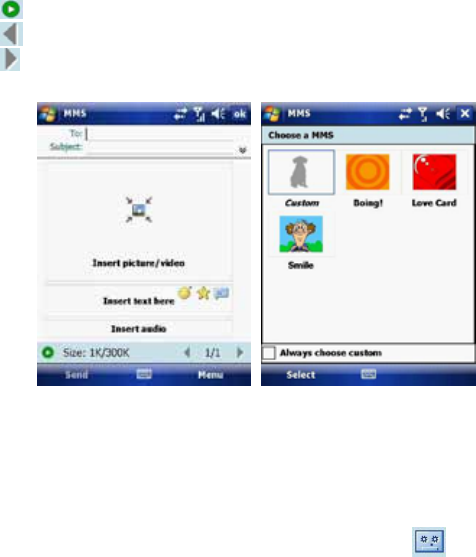
7. Enter text and insert audio clips by tapping the respective areas.
8. Tap Send to send the message.
The following icons act as shortcuts to some of the operations on the MMS
message screen:
Tap to preview your message.
Tap to go to the previous slide.
Tap to go to the next slide.
Add an audio clip to an MMS message
You can add audio clips to your MMS message. However, you can add only
one audio clip per slide.
1. Tap Insert audio. By default, it will open the My Sounds folder. To navigate
to any other folder containing pictures or videos, tap Show.
2. Select an audio file.
Note: To record a new audio clip and add it to your MMS message, tap . This
activates the recording control mode for a new audio clip. Tap Record to start recording
and Stop to stop recording. The new audio clip is automatically inserted into your MMS
message.

Reply to an MMS message
Tap Menu > Reply > Reply or Reply All to reply to the sender of the message,
or to all persons listed in To, Cc, and Bcc of the message.
View an MMS message
You can view MMS messages in several ways.
• Use the playback controls , and .
• Tap Objects to see a list of files included in the message. To save a file,
select it and tap Tools > Save.
• View the slides manually by scrolling through the message using the
Navigation control.
Set advanced options for an MMS message
From the selected message you can change the following:
• Tap Menu > Options > Background to choose a background colour from
the list.
• Tap Menu > Options > Text Layout to align the included text to appear
above, below, left or right of the message.
• Tap Menu > Options > Text Size to choose the size of the text.
• Tap Menu > Options > Text Color to choose the text colour from the list.
• Tap Menu > Options > Text background to choose the text background
colour from the list.
• Tap Menu > Options > Send Options to set the Delivery Time (1-72 hours
or Now), Expiration (1-72 hours or Maximum) and Priority (Low, Normal
or High). Check the Delivery report and Read report check boxes to
activate them.
Change MMS settings
You can set options to keep track of your messages, retrieve messages
immediately, accept or reject messages, and request a delivery or read receipt.
You can also specify resolution for the images you send and message delivery
attempts, and set up a server to access messages.
Configure MMS settings
1. Tap Start > Messaging.
2. Tap Menu > Options > MMS.
3. Select any of the following:
• Retrieve messages immediately: Select this check box to download new
messages automatically without being notified. (Typically, when you are
connected to a network, you receive a notification whenever you receive a
new message.) You can also choose to download messages when you are
on your home network only.
• Confirm to receive messages while roaming: Receive messages when
moving between wireless network sites.
• Save sent messages: Select this check box to save a copy of messages
that you send.
• Allow read report: Select this check box to send and receive read reports.
• Disconnect network connection after MMS: Once an MMS message
has been sent, disconnect from the network.
• Attempts before giving up: Select a value from this list to limit the
number of times the program attempts to send your message.
• Photo resolution: Select a value from this list to choose the resolution for
images that you send. Decreasing the original resolution helps speed up
the sending and receiving of messages.
• Servers: On this tab, you can create a new server or select an existing
one from the list to store and manage your messages. You can also set a
server as default by tapping Set As Default.
5.3 E-mail
Before you can send or receive e-mails, you will need to setup an e-mail
account. There are different types of e-mail accounts supported by the device.
This is described in the next few pages.
• Internet e-mail account (POP3/IMAP4).
• Microsoft Exchange Server (Microsoft Outlook).
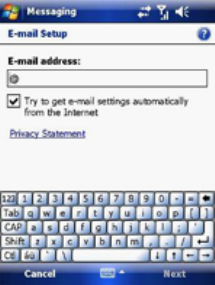
Set up an Internet e-mail account automatically
1. On the Today screen, tap Start > Messaging > New E-mail Account.
2. Enter the e-mail address.
3. Check the Try to get e-mail settings… checkbox.
4. Tap Next to begin searching.
5. If the e-mail address cannot be found, you will be asked to set up the account
manually.
Note: If the account is set up successfully, you will be prompted to send and receive e-mail.
If not, you must tap Next and set up the account manually, which is described in the
following pages. You will need to enter your user name and password for your e-mail
account.
View the Inbox message list
On the Today screen, tap Start > Messaging, and select an account. The
Inbox message list displays your received messages.
Note: To view new messages when they arrive, tap the notification on the Today screen.
Create an e-mail message
1. On the Today screen, tap Start > Messaging.
2. Select an e-mail account from the list.
3. Tap Menu > New.
4. In To, Cc, and/or Bcc, enter the recipient’s e-mail address. Insert a
semicolon (;) between multiple addresses.
5. In Subject, enter a subject for the message.
6. Enter a message.
7. Tap Send. E-mail messages are stored in the Outbox and are sent to
recipients the next time you synchronize or connect to your e-mail server and
send and receive mail.
Note: You can quickly enter e-mail addresses from your contact cards. In the To: field,
press ENTER and select a recipient from the list. Then, select the recipient’s e-mail
address. The semicolon separator is automatically inserted if you enter multiple recipients.
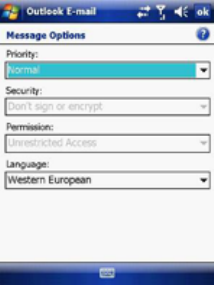
• To set the priority of the message (i.e. to make it appear as Low, Normal or
High priority in the recipient’s inbox), tap Menu > Message Options.
• To cancel a message, tap Menu > Cancel Message.
Insert predefined text into a message
Please refer to Section 5.1 Text Messaging for details on how to use this
feature. You can use it when creating a new message or replying to an e-mail.
When the message screen appears, tap Menu > My Text.
Create and add a signature to message
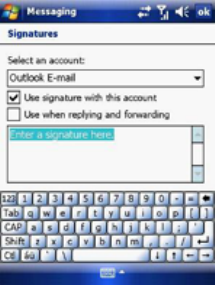
For each account in Messaging, you can specify a signature to be
automatically inserted into messages that you send.
1. On the Today screen, tap Start > Messaging.
2. Select an e-mail account from the list.
3. Tap Menu > Options > Signatures….
4. Scroll to the account for which you are creating the signature.
5. Select Use Signature with this account.
6. To insert a signature into every message you send, select Include when
replying and forwarding. Otherwise, a signature is inserted only into new
messages.
7. Tap OK.
Reply to a message
1. From an open message, tap either the soft-key Reply or tap Menu > Reply >
Reply or Reply All.
2. Enter a message in the message area.
3. Tap Send.
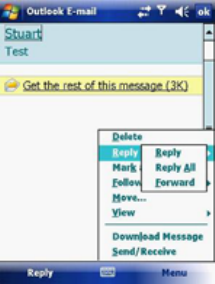
If you are replying to an e-mail in the Outlook E-mail account, you will send less
data if you do not edit the original message. This may reduce data transfer
costs, depending on your rate plan.
Send and receive Internet e-mail messages
1. On the Today screen, tap Start > Messaging
2. Select an e-mail account from the list.
3. Tap Menu > Send/Receive. The phone should then connect to your e-mail
server via the Internet and send/receive your messages.
4. To manage your folders for ActiveSync, tap on Menu > Tools > Manage
Folders.
Note: To stop this process, tap Menu > Stop Send/Receive.
Download a complete e-mail message
1. On the Today screen, tap Start > Messaging
2. Select an e-mail account from the list.
3. Select the message to download.
4. Tap Menu > Download Message. The complete message is retrieved the
next time you synchronize or connect to your e-mail server to send and
receive e-mail.
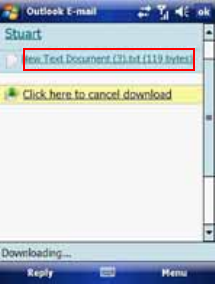
Note: Alternatively, you can scroll down to the bottom of the message and tap Get the rest
of this message. The message will be downloaded the next time your phone connects to
the e-mail server to send/receive e-mail. The frequency of this is determined by the
schedule setup in your ActiveSync configuration, described in Chapter 6.
After you scroll down to the file name shown, tap it and the attached file will be
downloaded when your phone connects to your e-mail server to send/ receive
e-mails again.
View an attachment
In an open message containing a downloaded attachment, tap the attachment.
Note: You can view attachments only for file formats supported by the device.
Digitally sign a message
Digitally signing a message applies your public-key certificate to the message.
This proves to the recipient that the message is from you and not from an
impostor, and that the message has not been altered.
1. On the Today screen, tap Start > Messaging.
2. Select an e-mail account from the list.
3. Click Menu > New.
4. Click Menu > Message Options.
5. From the Security list, choose from the drop down menu.
6. Tap OK.
Note: S/MIME encryption and digital signatures for Windows Mobile®-based devices are
available only with Exchange Server 2003 Service Pack 2 or later versions that support
S/MIME. If you are not using one of these products, or have not yet synchronized, these
options are unavailable.
Change e-mail folders and accounts
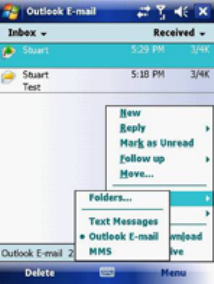
1. On the Today screen, tap Start > Messaging
2. Select an e-mail account from the list.
3. Tap Go To > Folders.
4. You can select the new folder you wish to view.
5. To manage your folders for ActiveSync, tap Menu > Tools > Manage
Folders.

5.4 Windows Live Messenger
Before you can use Windows Live Messenger you must be connected to the
Internet.
Pocket MSN Messenger overview
With MSN Messenger you can send instant messages to your contacts’ mobile
devices or computers. For instructions, select a task below.
Get started with MSN Messenger
To use MSN Messenger, you need Microsoft Passport Network credentials.
After obtaining credentials, complete the following tasks:
1. Setup a connection with your phone: refer to Chapter 4 Getting Connected.
This enables you to connect to the Internet.
2. Setup an MSN Messenger account. For more information, see Set Up an
Account.
3. Sign in to MSN Messenger. For more information, see Sign In and Out.
To obtain a Passport, go to http://www.passport.com.
To create a Hotmail account, go to http://www.hotmail.com.
Setup an account
Before you can use MSN Messenger, you must set up an instant messaging
account. For MSN Messenger service, you must have Microsoft Passport
Network credentials or a Hotmail account. To use MSN Messenger, you need to
create a connection to the Internet.
1. On the Today screen, tap Start > Messaging > New E-mail Account.
2. Enter the e-mail address.
3. Check the Try to get e-mail settings automatically from the Internet
check box.
4. Tap Next to begin searching.
5. Once found, you will be taken to Windows Live.
Sign In and Out
1. On the Today screen, tap Start > Programs > Messenger or go to Windows
Live, tap Start > Programs > Windows Live.
2. Tap Sign in.
3. Enter the e-mail address and password for your Microsoft® Passport Network
credentials or Hotmail account, and tap Sign in.
Note: The phone will only prompt for your Sign in account and password the first time you
sign in for that account. After successful sign in, you will not be prompted for your Sign in
details the next time. To switch to a different account, tap Menu > Switch User.
Signing in to an account may take several minutes, depending on your
connection speed and how busy your mobile network is.
Add and delete Contacts
After you have signed into Messenger, you will be able to perform the functions
below.
• To add a contact, tap Menu > Add New Contact and then follow the
directions on the screen.
1. To delete a contact, select the contact and tap Menu > Contact options >
Remove contact. Check the boxes to Block this contact and/or Remove
this contact from my Windows Live contact list.
2. Tap OK to permanently delete the contact.
Manage Contacts
• To block a contact from viewing your status and sending you messages,
select the contact and tap Menu > Contact options > Block contact.
• To unblock a contact, select the blocked contact from the list and tap Menu >
Contact options > Unblock Contact.
Change your display name and personal message
1. In MSN Messenger, tap Menu > Change Appearance.
2. In My display name and Personal message, enter the name and phrase
that you want to display in MSN Messenger. Tap Done.
Check your Messenger Status
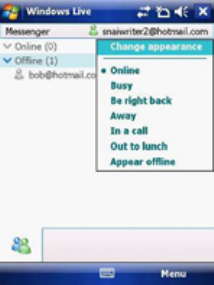
• Tap the messenger title bar. Your current status is indicated in the list by a
bullet point. You can change your status by selecting another description.
Let Contacts know you are not available
Select your own name at the top of the page and then tap the desired status
description. For example, tap Away.
Send a message
1. Tap the contact you want to send a message to.
2. Enter your message in the text entry area at the bottom of the screen and tap
Send.
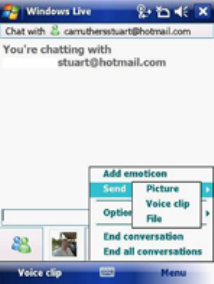
3. Emoticons, Pictures, Voice Clips and Files can also be sent to the contact.
Tap Menu > Add emoticon or Menu > Send > Picture, Voice Clip or File.
Add Participants
Extra participants can be added to the current conversation.
1. Tap Menu > Options > Add participant.
2. Select the contact.
3. Tap Add.
End a conversation
• Tap Menu > End Conversation.
Chapter 6
6.1 Introduction to ActiveSync
6.2 Install and Configure ActiveSync
6.1 Introduction to ActiveSync
Your device contains ActiveSync software that allows you to create a
synchronisation relationship between your mobile device and your PC. This
means that when your device is connected to your PC, data is shared between
them, according to your preferences. If you make a change in one place, the
next time you connect your PC and device, the change is automatically made to
the other machine.
You may connect to your PC using a cable or a Bluetooth connection.
Accessing files from your PC remotely on your device is also possible using the
1-View component of the i-mate™ Suite. Go to http://www.imatesuite.com for
more information.
To allow the connection to be made, the ActiveSync software provided on the
getting started CD must also be installed on your PC.
Note that upon connecting the device, Windows Vista™ users will be prompted
to download Windows Mobile Device Center software and do not require
ActiveSync on their PC.
To access e-mails or other Outlook information whilst away from your PC, you
may also connect your device to your Microsoft Exchange E-mail server.
This connection may be performed over GPRS, 3G, Wi-Fi or through your PC’s
connection to the Internet. If your Exchange Server is running Exchange 2003
SP2 or later, you may also be able to receive Push e-mails. Any new e-mails
will be sent directly to your device.
6.2 Install and Configure ActiveSync
You can either install ActiveSync from your Windows Mobile Getting started CD
or download it from http://www.microsoft.com. After the software has been
installed and the USB cable is connected between your PC and phone, the
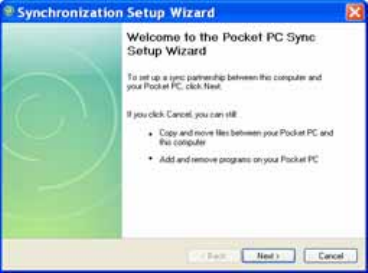
ActiveSync setup wizard starts up. Click Next to continue.
If you only intend to synchronize directly with your Microsoft Exchange Server
and not your PC, select the option below. The alternative is to synchronize your
phone with your PC. Note that you cannot do both at the same time while
connected to your PC.
Synchronize with Exchange Server
The next few steps explain how to synchronize directly with Exchange Server. If
you plan to synchronize with your PC, go to the Synchronize with your PC
section below.
If you have a PC which is already fully synchronized with your Exchange
Server, then synchronize your device to your PC the very first time instead of
synchronising to the Exchange Server. This will allow faster synchronisation.
First, check the box Synchronize directly with a server running Microsoft
Exchange Server and click Next.
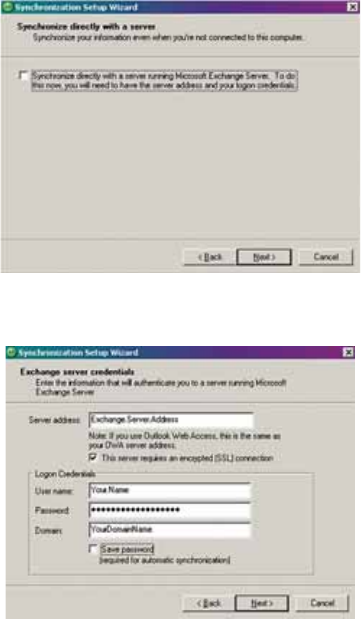
Complete the details below. Contact your network administrator if you do not
know this information.
Ensure that your PC has a connection which is accessible to the Server as the
setup will check the connection and your User name and Password setting
validity.
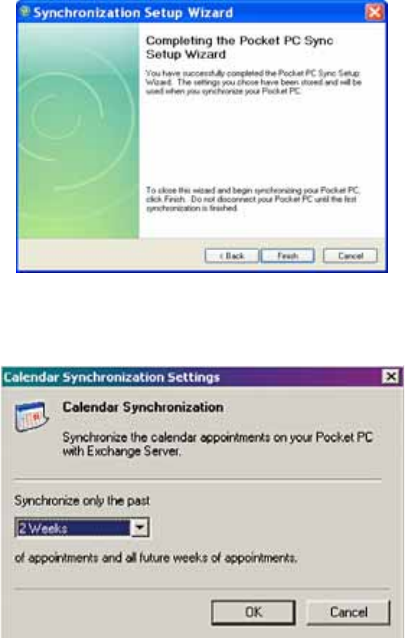
To synchronize directly through to your Exchange Server instead of your PC,
click the box above and enter the Exchange Server details, as shown below:
You can view additional setting information by selecting an item and clicking
Settings below. For example, you may choose to synchronize details of your
Calendar for the past two weeks only.
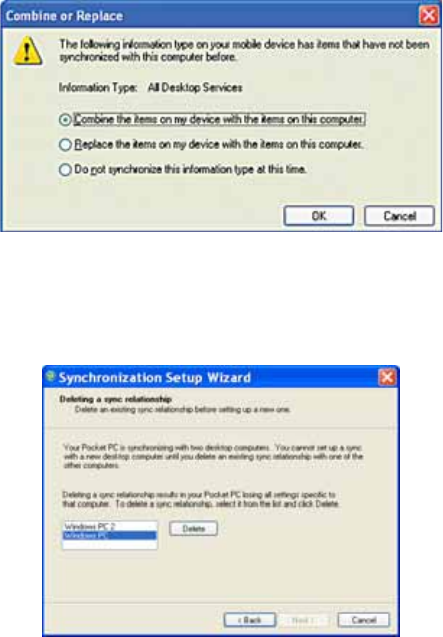
After you click Finish, you should get a screen prompt as below. This needs to
be selected as appropriate to your own requirements, depending on the state of
your PC. The time required for synchronisation depends on how much data is to
be transferred.
Note: Files can only be synchronized with Microsoft Exchange SP 2 or later.
Synchronize with your PC
First you must choose a name for your PC. If you have more than two
synchronisations already established, one must be erased in order to proceed.
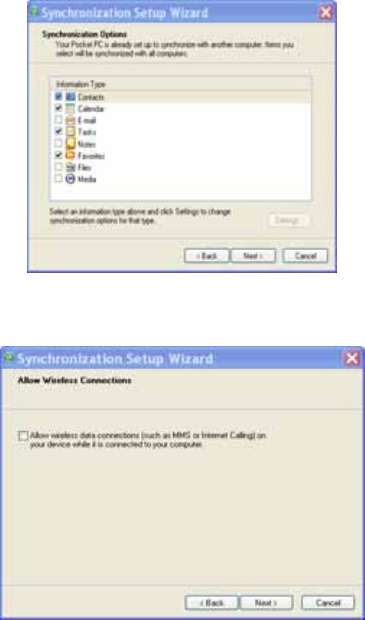
After choosing a name, click Next.
This window allows you to choose which information to synchronize and which
will remain private.
Check the box to maintain wireless connection while the device is plugged into
your PC.
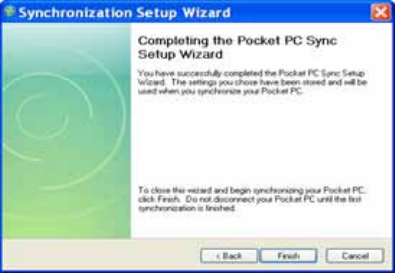
To begin the PC Sync, click Finish but leave the device plugged in.
Change ActiveSync settings
After setting up synchronisation using the Sync Setup wizard on the PC, the
synchronisation settings can subsequently be changed:
• If you want to change ActiveSync settings when synchronising with your PC,
use the Changing the amount of information synchronized section in the
Help files on your PC.
• If you want to change ActiveSync settings for synchronising through to your
Exchange Server, use the ActiveSync settings on your device, as described
in Change settings for an information type below.
Change settings for an information type
Before changing synchronisation settings on the device, first disconnect it from
your PC.
1. On the Today screen, tap Start > Programs > ActiveSync > Menu >
Options.
2. Select one of the information types.
• To view or change settings for an information type (when available), tap
Settings.
• To view or change settings for a computer or Exchange Server, tap Menu
> Settings.
3. Change the amount of information to be synchronized or other settings.
4. Click Done (or Finish in the Exchange Server settings wizard).
Connect to a PC using Bluetooth
1. Follow the instructions in ActiveSync Help on the PC for configuring
Bluetooth on your PC to support ActiveSync. Make sure that your PC’s
Bluetooth is set to Visible (Discoverable) and that ActiveSync on the PC
has the Bluetooth COM port enabled – see below.
2. From the device’s Today screen, tap Start > Programs > ActiveSync.
3. Tap Menu > Connect via Bluetooth. Ensure that the phone and PC are
within close range.
4. If this is the first time you have connected to this PC via Bluetooth, you must
complete the Bluetooth wizard on the phone and setup a Bluetooth
partnership with the PC before synchronising.
5. Tap Sync.
6. When finished, tap Menu > Disconnect Bluetooth.
7. To preserve battery power, turn off Bluetooth.
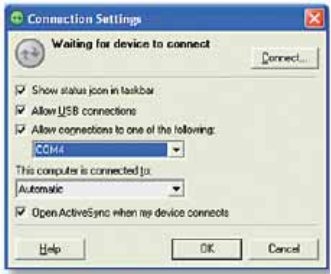
Ensure that the PC ActiveSync Serial port corresponds to the PC’s Bluetooth
Serial port configuration. In the example below, the Bluetooth Serial Port has
already been set up as COM4 by the computer. Because COM4 is allocated to
Bluetooth, the Allow connections to one of the following field has been set
to COM4 to match this.
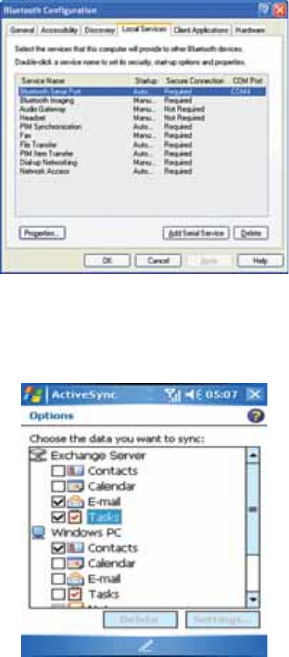
In the sample screenshot below, the PC Bluetooth Manager indicates that the
Bluetooth Serial Port is set to COM4.
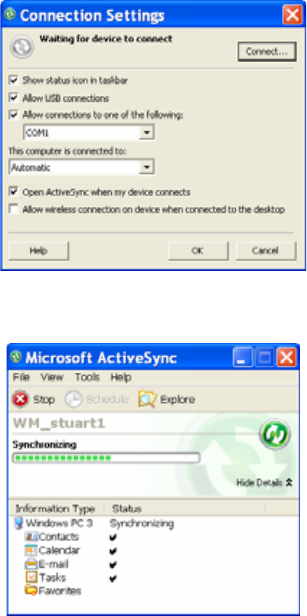
If, for example, you wish to synchronize your phone to the Exchange Server for
E-mail and Tasks, and to your PC for Contacts and Calendar, tap Start >
Programs > ActiveSync > Menu > Options from your device and select from
the list as shown.
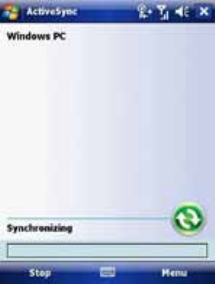
Before connecting your device to your PC, you may first need to check your
ActiveSync Connection Settings by double clicking on the ActiveSync icons at
the bottom right of your PC screen.
When complete, connect your device and synchronisation should take place as
below.
Set up an Exchange Server connection
You can synchronize your E-mail, Calendar Appointments and Contacts
directly with your Exchange server. Tasks may also be synchronized if your
company is running Exchange Server 2003 SP 2 or later.
To complete this configuration, you will need to get the name of the server and
the server domain name from your service provider or system administrator.
You must also know your Exchange user name and password.
Note: Before changing synchronisation settings on the phone, disconnect it from your PC.
You can also refer to some of the screenshots in the previous section of Install and Setup
ActiveSync (with Exchange Server).
1. On the Today Screen, tap Start > Programs > ActiveSync> Menu >
Configure Server. If you have not yet set up ActiveSync with Exchange
Server, it will say Add Server Source.
2. In Server Address, enter the name of the server running Exchange Server
and click Next.
3. Enter your user name, password and domain name and click Next. If you
want the phone to save your password so that you will not need to enter it
again when connecting, select the Save password checkbox.
4. Select the check boxes for the types of information items that you want to
synchronize with Exchange Server.
5. To change available synchronisation settings, select the type of information
and tap Menu > Settings.
6. To change the rules for resolving synchronisation conflicts, tap Menu>
Advanced.
7. Tap Finish.
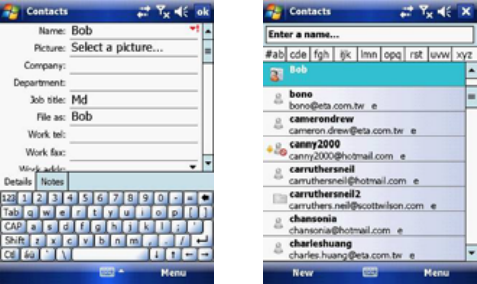
Start and stop synchronisation
1. On the Today screen, tap Start > Programs > ActiveSync.
2. To start synchronisation, tap Sync.
3. To stop synchronising, tap Stop.
Note: This menu only appears during synchronisation.
Synchronize your Music and Video files
Your device is able to synchronize music and video files from your PC. This is
described in detail in Chapter 7.
Chapter 7
7.1 Contacts
7.2 Calendar
7.3 Tasks
7.4 Camera and Video Recorder
7.5 Pictures and Videos
7.6 Windows Media Player
7.7 Internet Explorer Mobile
7.8 Java
7.9 Wireless Manager
7.10 Notes
7.11 Office Mobile
7.12 Internet Sharing
7.13 File Explorer
7.14 Windows Live
7.15 Remote Desktop Mobile
7.16 ClearVue PDF
7.17 Voice Speed Dial
7.18 FM Radio
7.19 Monitor and Projector Connection
7.20 Nyditot Virtual display
7.21 Add More Programs to your device
Introduction
Your Windows Mobile Pocket PC Edition device contains several applications to
make you more productive at home, in the office or on the move.
Your device comes with mobile versions of Microsoft Office Word Mobile,
Excel Mobile, Outlook Mobile and PowerPoint Mobile, as well as Windows Media
Player Mobile.
You can also take pictures, shoot video, record notes and use Java applications
using the built-in programs.
This chapter will guide you through use of these applications and let you know
how to add more.
7.1 Contacts
Contacts is your address book and information storage for the people and
businesses you communicate with. Store home numbers and addresses, e-mail
addresses and any other information that relates to a contact, such as a
birthday or anniversary date. You can also add a picture or assign a ringtone to
a contact.
From the contact list, you can quickly communicate with people. Tap a contact
in the list for a summary of contact information. From there, you can call or send
a message to that contact.
If you use Outlook on your PC, you can synchronize contacts between your
device and PC. If you have synchronized your contacts with an Exchange
Server, then your contacts will be updated there too. In the list of contact
information, you’ll see where you can add a picture or assign a ringtone to a
contact.
Create a contact
1. Tap Start > Contacts.
2. Tap New.
3. Enter contact information. When finished, tap OK.
Note: If someone not in your list of contacts calls or sends you a message, you can create
a contact from Call History or from the message by tapping Menu > Save to Contacts.
Change contact information
1. Tap Start > Contacts.
2. Tap the contact.
3. Tap Menu > Edit and enter the changes.
4. When finished, tap OK.
Work with the contact list
There are several ways to use and customise the contact list. Here are a few:
1. Tap Start > Contacts.
2. In the contact list, do any of the following:
• In name view, you can search for a contact by entering a name or number, or
by using the alphabetical index. To switch to name view, tap Menu > View
By > Name.
• To see a list of available actions for a contact, tap and hold the contact.
• To see a list of contacts employed by a specific company, tap Menu > View
By > Company. Then, tap the company name.
Find a contact
There are several ways to find a contact:
1. Tap Start > Contacts.
2. If you are not in name view, tap Menu > View By > Name.
3. Do one of the following:
• Begin entering a name or phone number in the provided textbox until the
contact you want is displayed. To show all contacts again, tap the textbox
and clear the text, or tap the arrow to the right of the textbox.
• Use the alphabetical index displayed at the top of the contact list.
• Filter the list by categories. In the contact list, tap Menu > Filter. Then tap a
category you’ve assigned to a contact. To show all contacts again, select All
Contacts.
7.2 Calendar
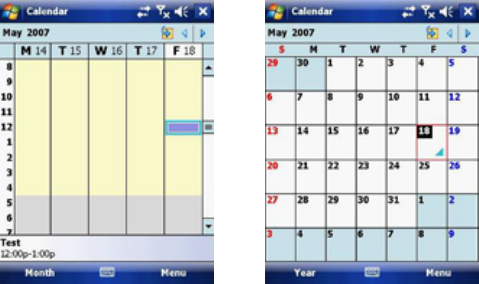
Use Calendar to schedule appointments such as meetings and other events.
Your appointments for the day can be displayed on the Today screen. If you
use Microsoft Outlook on your PC, you can synchronize appointments between
your device and PC. If you synchronize your calendar over your cellular
connection to your e-mail account, it will also be kept up to date.
You can also set Calendar to remind you of appointments through methods
such as a sound or flashing light. You can look at your appointments in several
different views (Day, Week, Month, Year, and Agenda).
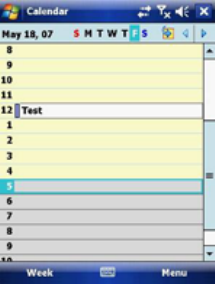
To see detailed appointment information in any view, tap the appointment.
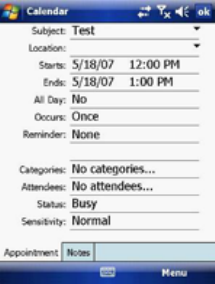
To schedule an appointment
1. Tap Start > Calendar.
2. Tap Menu > New Appointment.
3. Enter a name for the appointment, and enter information such as start and
end times.
4. To schedule an all-day event, in the All Day box, tap Yes.
5. When finished, tap OK to return to the calendar.
Note: All-day events do not occupy blocks of time in Calendar. Instead, they appear in
banners at the top of the calendar. To cancel an appointment, tap the appointment and
then tap Menu > Delete Appointment. To have the time entered automatically in Day view,
tap the time slot for the new appointment, and tap Menu > New Appointment.
Send a meeting request
Use Calendar to schedule meetings via e-mail with contacts who use Microsoft
Outlook or Outlook Mobile.
1. Tap Start > Calendar.
2. Schedule a new appointment or open an existing one and tap Edit.
3. Tap Attendees.
4. Tap Required Attendees and/or Optional Attendees.
5. Tap the name of the contact you want to invite.
6. To invite each additional attendee, tap Add and tap the name.
7. Tap OK.
8. The meeting request will be sent to the attendees the next time you
synchronize your device with your PC.
Note: When attendees accept your meeting request, the meeting is automatically added to
their schedules. When their response is sent back to you, your calendar is updated as well.
Set a default reminder for all new appointments
You can have an automatic reminder for all new appointments.
1. Tap Start > Calendar.
2. Tap Menu > Tools > Options > Appointments tab.
3. Select the Set reminders for new items check box.
4. Set the time when you want the reminder to alert you.
5. Tap OK to return to the calendar.
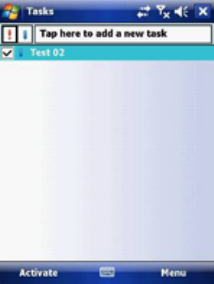
7.3 Tasks
Use Tasks to keep track of things you need to do. A task can occur once or
repeatedly (recurring). You can set reminders for your tasks and you can
organise them using categories. Your tasks are displayed in a task list. Overdue
tasks are displayed in red.
Create a task
1. Tap Start > Programs > Tasks.
2. Tap Menu > New Task or the Tap here to add new task field at the top of
the screen. Enter a subject for the task and fill in information such as its start,
due date, priority, etc.
3. When finished, tap OK.
Note: You can easily create a short to-do type of task. Simply tap the Tap here to add a
new task box, enter a subject and press Enter. If the task entry box is not available, tap
Menu > Options and select the Show Tasks entry bar checkbox.
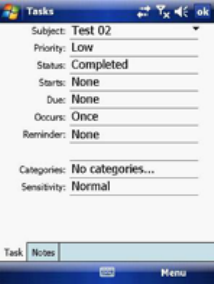
Change the priority of a task
Before you can sort tasks by priority, you need to specify their priority levels.
1. Tap Start > Programs > Tasks.
2. Tap the task you want to change the priority for.
3. Tap Edit and in the Priority box, tap a priority level.
4. Tap OK to return to the task list.
Note: All new tasks are assigned a Normal priority by default.
You can have a reminder automatically turned on for all new tasks you create.
1. Tap Start > Programs > Tasks.
2. Tap Menu > Options.
3. Select the Set reminders for new items check box.
4. Tap OK to return to the task list.
Note: The new tasks must have due dates set in order for the reminder to take effect.
Show start and due dates in the task list
1. Tap Start > Programs > Tasks.
2. Tap Menu > Options.
3. Select the Show start and due dates check box.
4. Tap OK.
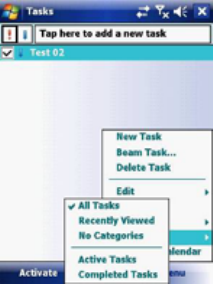
Filter a task
When your list of tasks is long, you can display a subset of the tasks or sort the
list to quickly find a specific task.
1. Tap Start > Programs > Tasks.
2. Tap Menu > Filter > All Tasks, Recently Viewed, No Categories, Active
Tasks or Completed Tasks.
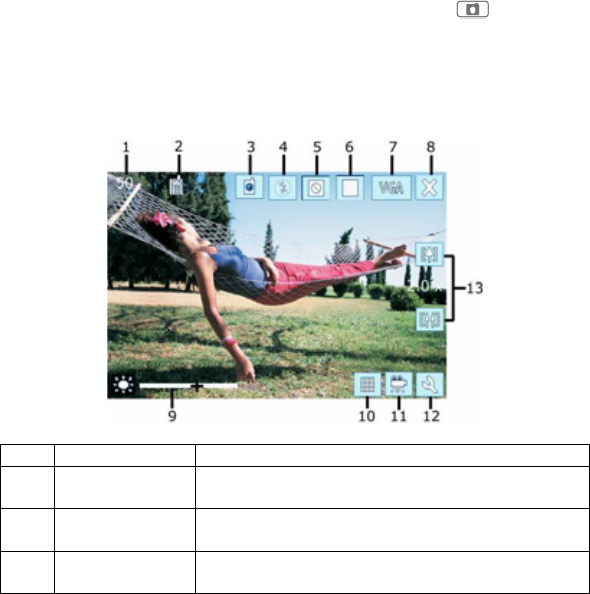
7.4 Camera and Video Recorder
Taking photos and recording video clips with audio is easy with your device’s
built-in camera.
Start the camera
Tap Start > Programs > Camera or press the Camera button on your
device.
Camera
By using either the Navigation controller keys or tapping the screen you can
adjust the various options.
No: Name Description
1 Number of
photos Show the number of photos that can be
captured.
2 Storage
Location Display the current storage location (Micro SD
card or device memory).
3 Switch
Camera Switch between the front or rear cameras.
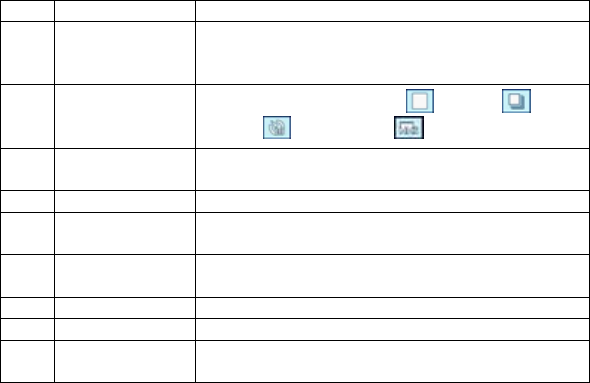
4 Flash Switch the flash on or off.
5 Effects Switch between None (default), Monochrome
(M), Negative (N), Sepia (S) and Posterization
(an artistic effect) (P)
6 Capture Mode
Switch between Normal ( ), Burst ( ),
Timer ( ), and MMS ( ) modes.
7 Photo
Resolution Switch between VGA, 1.3M, 2M, S and
QVGA.
8 Close Close the application.
9 Brightness Push the controller left and right to adjust the
brightness.
10 Pictures &
Videos Launch the Pictures and Videos application.
See section 7.5 Pictures & Videos.
11 Video Mode Switch between camera and video modes.
12 Options View the camera options.
13 Zoom Push the controller up and down to adjust the
zoom level.
Taking pictures
Press the Camera button on the device to take a picture.
Adjusting Brightness and Zoom
• Press the Navigation controller up or down to change the zoom level.
• Press the Navigation controller left or right to alter the brightness.
Capture modes
While using Still Image capture modes, such as Photo, Burst or Timer, you
can capture still image(s) by pressing the Camera or Action buttons on the
device, or tapping Capture on the screen. Still Image capture modes support
JPEG.
• Normal: Captures standard still images.
• Burst: Captures a sequence of still images (5 max.) as long as the Camera
button or Enter on the Navigation controller is kept pressed.
• Timer: After 10 seconds the picture is taken automatically.
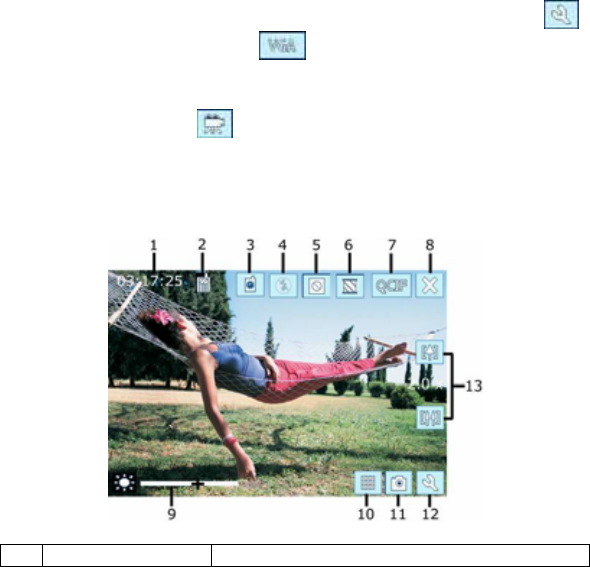
Picture Resolution
Your device is equipped with a 2.0 Megapixel Digital-Effect camera. The larger
the number of megapixels, the more detailed the picture will be. However a
larger picture means that more data has to be stored, resulting in available
memory for other pictures.
To set the resolution of the pictures to be captured, tap the camera options
icon or the Photo resolution switch .
Switching to video mode
Tap the video mode icon to switch to the video mode.
Video
By using either the Navigation controller keys or tapping the screen you can
adjust the various options.
1 Recording Time Display the amount of time the video has
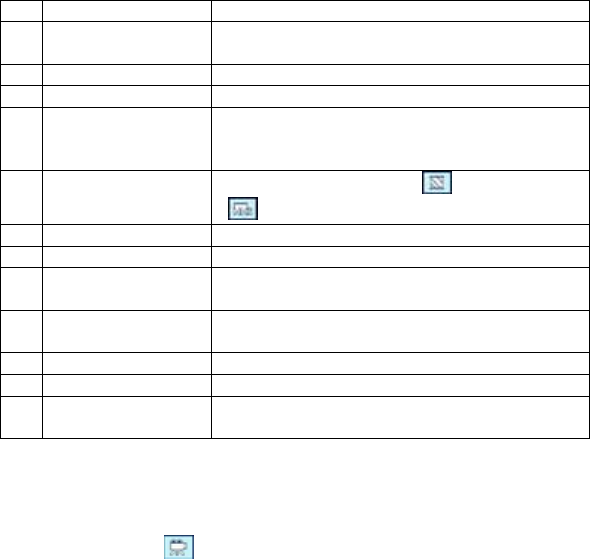
been recording for.
2 Storage Location Display the current storage location (Micro
SD card or device memory).
3 Switch Camera Switch between the front or rear cameras.
4 Flash Switch the flash on or off.
5 Effects Switch between None (default),
Monochrome (M), Negative (N), Sepia (S)
and Posterization (an artistic effect) (P)
6 Recording Mode Switch between Normal ( ),and MMS
()modes.
7 Video Resolution Switch between QVGA, and QCIF.
8 Close Close the application.
9 Brightness Push the controller left and right to adjust
the brightness.
10 Pictures & Videos Launch the Pictures and Videos application.
See section 7.5 Pictures & Videos.
11 Camera Mode Switch between camera and video modes.
12 Options View the camera options.
13 Zoom Push the controller up and down to adjust
the zoom level.
Capturing Video
Your device is capable of recording moving pictures and sound. To enter Video
recording mode:
1. Press the Camera button or then tap Start > Programs > Camera.
2. Tap the video icon .
While using the Video capture mode, you can press the Camera button to start
recording a video clip (with audio if desired). To stop recording, press the
Camera button again.
Your device displays the first frame of the captured video clip by default on the
Review screen. From this screen you will be able to:
• Send the video by e-mail or MMS.
• Delete the video.

• Play the video in Windows Media Player.
Adjusting Brightness and Zoom
• Press the Navigation controller up or down to change the zoom level.
• Press the Navigation controller left or right to alter the brightness.
Before you capture a video clip, you can specify the recording limit in terms of
time and file size on the Camera Settings screen so that the recording stops
automatically when the clip size reaches that limit.
Set the limit on the maximum video recorded:
Video is captured by default as a WMV (Windows Media Video) file. This can be
played back on your Pocket PC or on a desktop PC.
1. Tap Menu > Options > Video.
2. Select from the Time limits for videos: 15 seconds, 30 seconds or No limit.
Video resolution
You can change the video resolution size between the two below. But as with
the photo resolution, the larger the resolution the larger the file size.
• QVGA – The larger of the 2 formats provides you with images at 320 x 240
pixels.
• QCIF – Smaller than QVGA at 176 x 144 pixels.
Options
From either camera or video modes tap the icon.
The Options screen contains four tabs:
Basic • Enable shutter sound – Check this box to play a shutter sound
when you take a picture.
• Photo file prefix – Begin a photo file name with the name
displayed here.
• Video file prefix - Begin a video file name with the name
displayed here.
• Photo quality – From the drop down list choose between Low,
Normal or High.
• White balance – Change the options depending on the light
conditions choose between Auto, Clear Sky, Cloudy,

Incandescent or Fluorescent.
• Effect – Choose an effect to apply to the image between Normal,
Monochrome, Sepia, Negative or Posterization. Or tap the icons
in the main screen.
• Flicker – Choose the flicker rate or the screen between Auto,
50Hz or 60Hz.
• Save file to – Choose to save the recorded image to either the
phone or the Micro SD card (if inserted).
Photo • Capture mode – Choose between Normal, Timer, Burst or MMS.
Or tap the icons in the main screen.
• Resolution – Choose the resolution if the photos to be taken.
Choose between S(160*120), QVGA(320x240), VGA (640x480),
1.3M(1280x1024 or 2M (1600 x 1200). Or tap the icons in the
main screen. Note: the higher the resolution the larger the file
size.
• Date Imprint – Check the box to insert the date into the photo.
Video • Video format – Choose the video format to record video files in,
either MPEG4 or H263.
• Resolution – Choose the resolution to record in between QCIF
(176x144) or QVGA(320x240). Note: the higher the resolution
the larger the file size.
• Time format – Choose the time format to be displayed either
Hours, Minutes and Seconds or Minutes and Seconds.
• Record voice – Check the box to activate the microphone when
recording video.
About Displays information about the camera application.

7.5 Pictures & Videos
The Pictures & Videos program collects, organises and sorts images and
video clips in the following formats on your device.
File Type File Extensions
Image *.jpg, *.gif, *.bmp
Video *.wmv, *.3gp, *.mpeg4
You can view the pictures as a slide show, beam them to another nearby device,
e-mail them, edit them or set them as the background on the Today screen.
Copy a picture or video clip to your device
You can copy pictures from your PC and view them on your device.
• Connect your device to your PC using ActiveSync. You can find out more
about how to do this in Chapter 6. Then drag the images from your PC and
place them in the My Pictures folder on your Pocket PC.
For more information about copying files from your PC to your device, see
ActiveSync Help on your PC.
Note: You can also copy pictures from your PC to your device using a memory card. Insert
the memory card into the memory card slot on your device and then copy the pictures from
your PC to the folder you created on the memory card.
View pictures
1. Tap Start > Programs > Pictures & Videos. The images in the My Pictures
folder appear as thumbnails by default.
2. Select a picture and tap View. If you cannot find a picture in the default My
Pictures folder, go to another folder by tapping the icon. A list
of other folders will be displayed. Click on a folder name to navigate to
access it. This folder will become the default folder the next time you access
the Pictures icon.
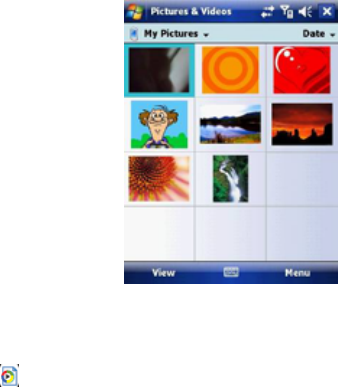
Play videos with audio
1. Tap Start > Programs > Pictures & Videos. The video files in the My
Pictures folder appear as thumbnails by default, which appear with a media
icon ( ).
2. Select a video and tap the thumbnail to play it with the built-in Windows
Media Player.
View slide shows
You can view your pictures as a slide show on your device. Pictures are shown
in full screen view with 5-second intervals between slides.
1. Tap Start > Programs > Pictures & Videos.
2. Tap Menu > Play Slide Show.
• Tap anywhere on the screen to display the Slide Show toolbar, which you
can use to stop or pause the slide show, rotate the view and more.
• Press the Navigation controller right or left to move forward or backward
through the slides.
Note: You can specify how pictures are scaled to optimize their display in a slide show. Tap
Menu > Options > Portrait Pictures or Landscape Pictures on the Slide Show tab.
Sort pictures and video clips
If you store a large number of pictures or video clips on your device, you may
find it helpful to sort them to quickly find a specific picture or clip. You can sort
by Name, Date and Size.
1. Tap Start > Programs > Pictures & Videos.
2. Tap the sort list (upper right hand corner) which is labeled Date by default
and select the item that you want to sort by.
Delete a picture or video clip
Do any of the following to remove a picture or a video clip:
1. Highlight a picture or video clip on the Pictures & Videos screen and tap
Menu > Delete. Or Tap and hold the thumbnail of the picture you want to
delete, then tap Delete.
2. Tap Yes to confirm the deletion.
Edit a picture or video clip
You can rotate, crop and adjust the brightness and colour contrast of your
pictures.
1. Tap Start > Programs > Pictures & Videos.
2. Tap the picture you want to edit.
3. Tap Menu > Edit, and do any of the following:
• To rotate a picture 90 degrees anticlockwise, tap Rotate.
• To crop a picture, tap Menu > Crop. Then, tap and drag to select the area
to crop. Tap outside the box to stop cropping.
• To adjust the brightness and contrast levels of a picture, tap Menu >
AutoCorrect.
• To undo an edit, tap Menu > Undo. To cancel all unsaved edits you made
to the picture, tap Revert to Saved.
Set a picture as the Today screen background
You can use a picture as the background on the Today screen.
1. Tap Start > Programs > Pictures & Videos.
2. Select the picture you want to set as the background.
3. Tap Menu > Set as Today Background.
4. In Transparency Level, select a higher percentage for a more transparent
picture or a lower percentage for a more opacity.
5. Tap OK.
Send pictures and video clips via e-mail
You can send pictures and video clips to other devices via e-mail.
1. First, set up messaging to send and receive messages.
2. From Pictures & Videos, select the item you want to send.
3. Tap Send and select one account (such as Outlook E-mail or MMS) to send
the attached item.
4. A new message is created with the item attached.
5. Enter the recipient name, subject and tap Send. The message will be sent
the next time you synchronize your device.
Note: Pictures and video clips are saved automatically before they are sent.
Assign pictures to contacts
You can assign a picture to a contact. This picture will be shown alongside the
contact’s name when it is used, such as when you receive a telephone call from
the contact or write an e-mail to him/her.
1. Tap Start > Programs > Pictures & Videos.
2. Highlight the picture you want to assign to a contact.
3. Tap Menu > Save to Contact.
4. Tap the contact or navigate and tap Select to choose the contact from your
Contacts list.
Use advanced options of the Pictures & Videos program
1. Tap Start > Programs > Pictures & Videos.
2. Select the picture for which you want to configure further settings.
3. Tap Menu > Options. The Options screen appears, allowing you to:
• Resize a picture so that you can send it faster to someone through e-mail.
• Configure the view settings during slide shows and activate screensaver
options.
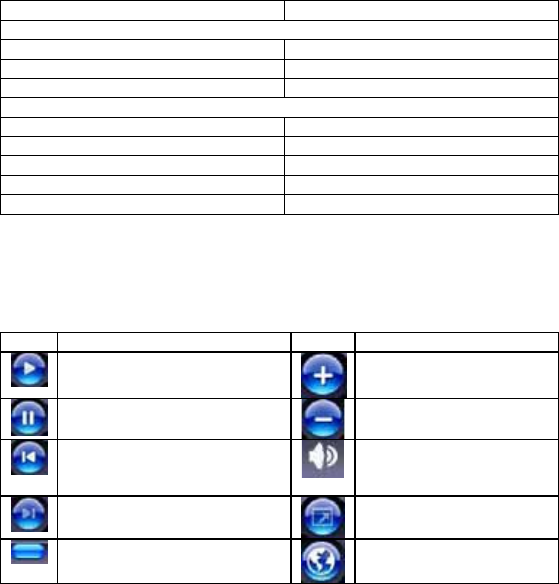
7.6 Windows Media Player
You can use Microsoft Windows Media Player Mobile for Pocket PC to play
digital audio and video files that are stored on your device or on a network.
Using Windows Media Player, you can play both audio and video files. These
are the file formats that are supported by this version of Windows Media Player.
Supported File Formats File Extensions
Video
• Windows Media Video *.wmv
• H.263 *.3gp
• MPEG4 *.mp4
Audio
• Windows Media Audio *.wma
• MP3 *.mp3
• MIDI *.mid, *.mid
• AMR Narrow Band *.amr
• AAC *.m4a
About the controls
The following are available controls on the Windows Media Player. From the
Window Media Player application, for convenience, many of these functions are
also available from the Media Control panel on the Today screen.
Icon Description Icon Description
Plays a file. Increases the volume.
Pauses a file. Decreases the volume.
Skips to the start of the
current file or to the previous
file.
Turns the sound off.
Skips to the next file. Displays a video by using
the entire screen.
Adjusts the playback
progress of a selected file. Displays a website where
you can find music and
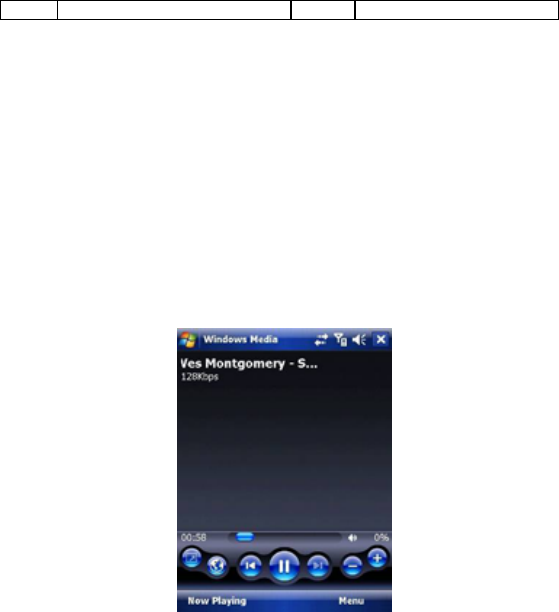
videos to play.
Note: You can rewind and fast-forward files by pressing the Navigation controller left or
right.
About the screens and menus
Windows Media Player has three primary screens: the Playback Screen, the
Library Screen and the Now Playing screen. At the bottom of each screen is
an option called Menu. The commands on this menu change depending upon
which screen you are viewing.
Playback screen
The default screen that displays the playback controls (such as Play, Pause,
Next, Previous and Volume). If the playback is of an audio file, any album art
will be shown in this screen. If the file is a video, it will be shown here. You can
change the appearance of this screen by choosing a different skin.
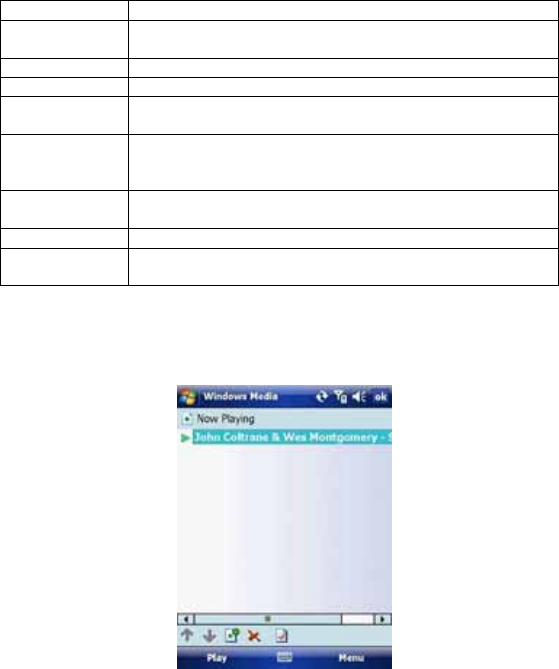
When viewing the Playback screen, the following commands appear in Menu.
Command Description
Library Displays the library screen so that you can choose a file
to play.
Play/Pause Starts or pauses the playback.
Stop Stops playback.
Shuffle/Repeat Plays the items in the Now Playing playlist randomly /
repeatedly.
Full Screen When a video is playing, tapping this will make the
playback fill the entire screen. Touch the screen to return
to the Playback screen.
Options Lets you adjust various Windows Media Player options
including: network, skin and hardware options.
Properties Displays information about the file currently playing.
About Displays information about Windows Media Player such
as the version number.
Now Playing screen menu
The screen that displays the Now Playing playlist. This special playlist
indicates the currently playing file and any files that are queued to play next.
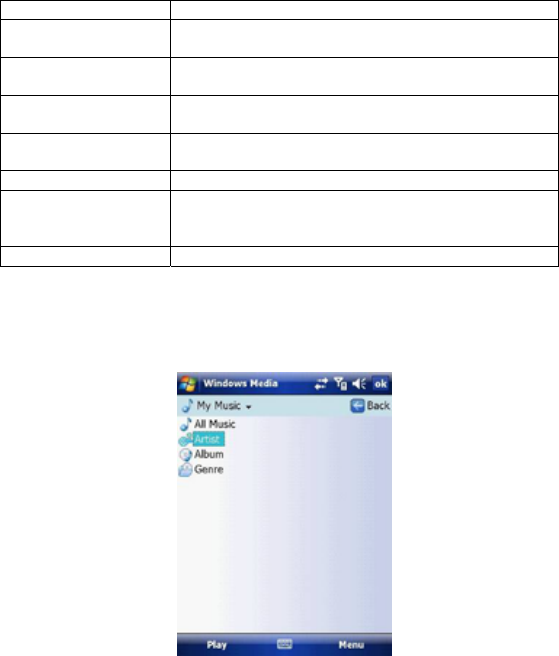
When you are viewing the Now Playing screen, the following commands
appear in Menu.
Command Description
Library Displays the Library screen so that you can
choose a file to play.
Move Up/Down Moves the selected item up/down in the playlist
order.
Remove from
Playlist Deletes the selected item from the playlist.
Shuffle/Repeat Plays the items in the Now Playing playlist
randomly/repeatedly.
Clear Now Playing Deletes all items from the Now Playing playlist.
Error Details Displays error information about the selected item
(an exclamation mark appears before the item
name if error details are available).
Properties Displays information about the selected file.
Library screen
The screen that lets you quickly find your audio files, video files, and play lists. It
contains categories such as My Music, My Video, My TV and My Playlists.

When viewing the Library screen, the following commands appear in Menu.
Command Description
Queue Up Adds the selected item to the end
of the current (Now Playing)
playlist.
Delete from Library Deletes the selected item from the
library.
Now Playing Displays the Now Playing screen.
Library Displays the Library screen so you
can choose a file to play.
Update Library Adds new items to the library by
searching your device or storage
card.
Open File Lets you find and play files that are
stored on your device or storage
card but that are not in the library.
Open URL Lets you play a file on a network,
such as the internet.
Properties Displays information about the
selected file.
About licenses and protected files
Some content (such as digital media files downloaded from the internet, CD
tracks, and videos) have associated licenses that protect them from being
unlawfully distributed or shared. Licenses are created and managed by using
digital rights management (DRM), which is the technology for securing content
and managing its access rights. Some licenses may prevent you from playing
files that have been copied to your device. Files that have licenses associated
with them are called “protected files.”
If you want to copy a protected file from your PC to your device, use the
desktop Player to synchronize the file to your device (instead of dragging the file
from a folder on your PC to a folder on your device, for example). This will
ensure that the license is copied along with the protected file. For more
information about synchronizing files to your device and other mobile devices,
see desktop Player Help.
Note: You can view the protection status of a file by checking its file properties. Highlight
the file and tap Menu > Properties.
Play items on your device
Use the library to find and play songs, videos, and playlists that are stored on
your device or removable storage card.
1. If you are not on the Library screen, tap Menu > Library.
2. On the Library screen, tap the Library arrow (near the top of the screen),
then tap the library you want to use (such as My Device or Storage Card).
3. Tap a category (such as My Music or My Playlists). Tap and hold the item
that you want to play (such as a song, album, or artist name) and tap Play.
Note: To play a file that is stored on your device but is not in a library, tap Menu > Open
File on the Library screen. Tap and hold the item that you want to play (such as a file or a
folder) and then tap Play.
Play an item on a network
Use the Open URL command to play a song or video that is stored on the
internet or on a network server.
1. If you are not on the Playback screen, tap OK to close the current screen
and display the Playback screen.
2. Tap Menu > Open URL.
3. Do one of the following:
• In the URL box, enter a network address.
• In the History box, tap a URL that you have previously used.
Note: To play an item on a network, you must be connected to one. For more information
about creating a remote connection between your device and a network, see the Getting
Connected chapter in this manual and Connections help on the device.
Copy files to your device
Use the latest version of the desktop Player (Windows Media Player 10 or later)
to synchronize digital media files to your device (instead of dragging a file from
a folder on your PC to a folder on your device). Using the desktop Player
ensures that licenses are copied with protected files.
When synchronizing files, always synchronize them to a storage card that is
inserted into your device. Do not synchronize to a storage card that is inserted
into a storage card reader. In addition, do not synchronize to the internal

storage location in your device. For more information about synchronizing files
to mobile devices, see desktop Player Help on the PC.
Note: Audio files copy faster if the desktop Player is configured to automatically set the
quality level for audio files copied to your device. For more information, see desktop Player
Help on the PC.
Troubleshooting
If you encounter a problem while using the Windows Media Player, a number of
resources are available to help you troubleshoot the issue.
For more information, see the Troubleshooting Windows Media Player Mobile
page at the Microsoft website
http://www.microsoft.com/windows/windowsmedia/player/windowsmobile/troubl
eshooting.aspx.
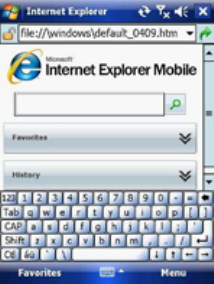
7.7 Internet Explorer Mobile
Internet Explorer Mobile is a full-featured internet browser, optimised for use on
your mobile device.
Start Internet Explorer Mobile:
From the Today Screen, tap Start > Internet Explorer.
Use Internet Explorer
To go to a website, tap in the address bar and enter the address of the site.
Tap the green arrow to the right of the address bar to go there, or tap Go on the
bottom left menu option when you have typed in the new address.
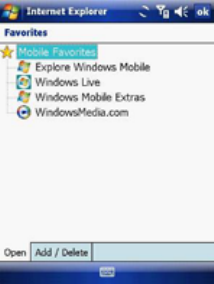
Go to a website using the Favorites list
You can store the websites you want to visit most frequently in the Favorites
list.
This list can also be synchronized with your PC so that Favorites in your PC
are also carried with you on your Pocket PC.
Open the Favorites list
In Internet Explorer Mobile, tap Menu > Favorites.
Go to a webpage on the Favorites list
Tap on the name of the link to go to that webpage.
Edit the Favorites list
With the Favorites list open, click on the Add/Delete tab at the bottom of the
screen. You may select links, edit their names, delete them or add new links.
Add the current webpage to the Favorites list
1. Navigate to a page you wish to appear on the Favorites list.
2. Tap Menu > Add to Favorites.
Transfer favorites from your PC
You can transfer the favourites you have stored on your PC to your device by
synchronizing the Internet Explorer favourites on your PC with your device.
1. In ActiveSync on your PC, on the Tools menu, click Options, and select
Favorites.
2. In Internet Explorer on your PC, save or move favourite links to the Mobile
Favorites subfolder in the Favorites list.
3. Connect your mobile device to your PC. If synchronization does not start
automatically, click Sync.
Choose a Homepage
1. In Internet Explorer Mobile, tap Menu > Tools > Options > General tab.
2. Do one of the following:
• To use the displayed page as your Homepage, tap Use Current.
• To use the default Homepage, tap Use Default.
Note: To open your Homepage, tap Menu > Home.
Change the size of text on web pages
In Internet Explorer Mobile, tap Menu > View > Text Size and tap the size you
want.
Show or hide pictures on web pages
In Internet Explorer Mobile, tap Menu > View > Show Pictures. A check mark
next to Show Pictures indicates that pictures will be displayed on Web pages.
Change how web pages fill the screen
1. In Internet Explorer Mobile, tap Menu > View.
2. Tap one of the following:
• One Column: Arranges the content into one column that is as wide as the
screen. This means that you will rarely have to scroll horizontally.
• Fit to Screen: Maintains a layout similar to what you see on a desktop
computer, but it makes items smaller and arranges the content so that you
can see most of it without having to scroll horizontally.
• Desktop: Keeps the same layout and size as on a desktop computer,
which requires both horizontal and vertical scrolling.
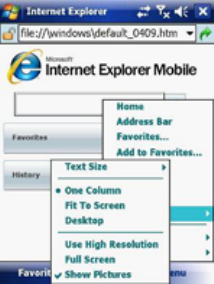
Clear the History list
1. In Internet Explorer Mobile, tap Menu > Tools > Options >Memory tab.
2. Tap Clear History.
Save a picture from a web page
1. In Internet Explorer Mobile, tap and hold the picture, and tap Save Image.
2. Do one of the following:
• To save the picture in My Pictures on your device, tap Yes.
• To save the picture in another location, such as a storage card, tap Save
As.
Change cookies and security settings
Internet Explorer Mobile supports the protocols used by Secure Sockets Layer
(SSL). A connection that uses SSL helps send personal information more safely.
Cookies are small files containing information about your identity and
preferences so that a page is tailored with information to suit your needs.
The page sends the file and it is stored on your mobile device.
1. In Internet Explorer® Mobile, tap Menu > Tools > Options > Security tab.
2. Select the checkboxes for the options you want, and tap OK.
Note: To prevent Internet Explorer Mobile from accepting any cookies, clear the Allow
cookies checkbox.
Delete temporary internet files
Some Web content is stored as you view it to speed up the display of pages you
frequently visit or have already seen. You may want to delete these files to free
storage space.
1. In Internet Explorer Mobile, tap Menu > Tools > Options > Memory tab.
2. Tap Delete Files. All pages stored on your device, including offline
favourite’s content, will be deleted.
Note: To end a GPRS session go to: Start > Settings > Connections tab > Wireless
Manager > GPRS Turn Off.
7.8 Java
MIDlets are Java applications that can run on mobile devices. Your device
supports Java 2 Micro Edition, J2ME. The Java software allows you to
download Java applications, such as games and tools that are specifically
designed for mobile devices. This gives you the flexibility of installing and
managing additional J2ME applications from the internet.
Install MIDlets from the internet
1. Locate the MIDlet / MIDlet suite while connected to the internet.
2. Select the MIDlet / MIDlet suite to download.
3. Confirm to start downloading.
4. Run the file(s) to install.
Note: You can cancel the installation at any time.
Install MIDlets from a PC
You can install the MIDlets / MIDlet suites on your device from a PC using the
USB cable or Bluetooth. MIDlets copied to your device using Bluetooth or e-mail
attachments are automatically saved in the My Documents folder.
However, you can copy the MIDlet file(s) from a PC to any of the following
temporary folders on your device from where MIDlet Manager can install them.
1. Device memory: /My device/My Documents/My MIDlets.
2. Storage card: /My device/Storage Card.
Note: If the My MIDlets folder does not exist in My Documents, you can create one with
the same folder name. However, a folder named Storage Card automatically appears after
you insert a storage card into your device.
Install a MIDlet / MIDlet suite
1. Tap Start > Programs > MIDlet Manager > Menu > Install > Local to install
the MIDlets currently saved on your phone, or Browse to search the internet
for midlets.
2. Select the MIDlet / MIDlet suite from the list by using the Navigation
controller.
3. Tap Install.
4. Tap OK to install.
5. Tap Continue to confirm the installation.
Note: To remove MIDlet files from the temporary folder, tap Delete from the shortcut menu.
Run MIDlets on your device
1. Tap Start > Programs > MIDlet Manager.
2. Select a MIDlet from the list by using the Navigation controller.
3. Press the Action button to run the MIDlet.
Manage MIDlets
You can organise MIDlets into folders in order to find them easily:
1. Click All on the top left.
2. Arrange by All, Recent or Running.
Change the display name of a MIDlet
1. Tap Start > Programs > MIDlet Manager.
2. Select a MIDlet by using the Navigation controller.
3. Tap and hold to open the secondary menu.
4. Select Rename.
5. Enter the new name.
6. Tap OK.
Note: You cannot change the name of a MIDlet suite.
Uninstall a MIDlet
1. On the MIDlet Manager screen, tap and hold on a MIDlet in order to open
the secondary Menu.
2. Tap Uninstall > OK.
Note: You cannot uninstall a single MIDlet from a MIDlet suite; you must uninstall the
complete MIDlet suite.
Configure MIDlet security
You can adjust security settings for each MIDlet / MIDlet suite.
1. Tap and hold on a MIDlet in order to open the secondary menu.
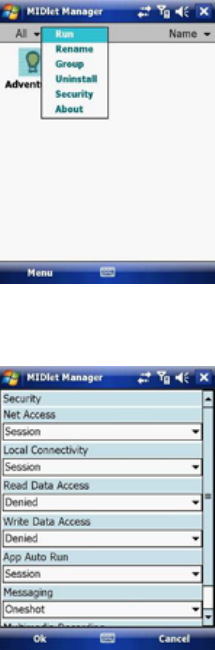
2. Configure security options such as Local Connectivity, Net Access and
App Auto Run.
Below are security options that you can set for a running MIDlet / MIDlet suite.
Security Option Description
Net Access Determines whether a MIDlet / MIDlet suite can
access the internet.
Local Connectivity Enables a MIDlet / MIDlet suite to access services
such as Bluetooth.
App Auto Run Enables a MIDlet / MIDlet suite to run at specified
times or anytime.
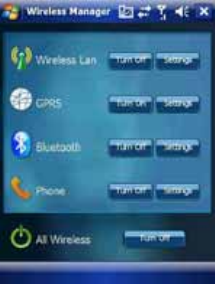
7.9 Wireless Manager
Wireless Manager is an integrated interface that combines Bluetooth, Wi-Fi,
and Phone functions into one page. To manage these wireless connections, tap
Start > Settings > Connections tab > Wireless Manager. You may also
access Wireless Manager from the Today screen.
Note: Tap All Wireless Turn On/All Wireless Turn Off to turn on/off all wireless
connections. If you only want to turn one connection, such as Bluetooth, tap Bluetooth
Turn Off. Tap Settings to set up the individual wireless connections.
7.10 Notes
Notes help you quickly capture thoughts, questions, reminders, to-do lists, and
meeting notes. You can create handwritten and typed notes, record voice notes,
convert handwritten notes to text for easy readability and send notes to others.
Enter information in Notes
There are several ways to enter information in a note. You can enter text using
the onscreen keyboard or handwriting recognition software. You can also use
the stylus to write or draw on the screen. On devices that support recording, you
can create a standalone recording or embed a recording in a note.
Set the default input mode for Notes
If you frequently add drawings to your notes, you may find it helpful to set
Writing as the default input mode. If you prefer typed text, select Typing.
1. Tap Start > Programs > Notes.
2. In the note list, tap Menu > Options.
3. In the Default mode box, tap one of the following:
• Writing if you want to draw or enter handwritten text in a note.
• Typing if you want to create a typed note.
4. Tap OK.
Create a note
1. Tap Start > Programs > Notes > New.
2. Tap the Input Selection arrow next to the Input Method icon on the menu
bar, tap the input method you want, and enter your text.
3. If the Input Selection arrow is not displayed, tap the Input Method icon.
4. When finished, tap OK to return to the note list.
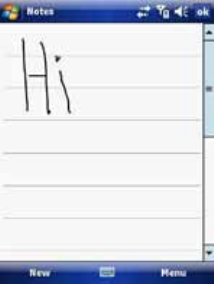
7.11 Office Mobile
Office mobile is a suite of mobile Microsoft applications. These applications
(Excel Mobile, PowerPoint Mobile and Word Mobile) are cut down versions of
the full package available for PCs. Access Office Mobile by tapping Start >
Office Mobile.
Microsoft Word Mobile
Microsoft Word Mobile is a pocket version of Microsoft Word. Word documents
created on your PC can be opened and edited on your device. You can also
create and edit documents and templates in Microsoft Word Mobile and save
them as *.doc, *.rtf, *.txt, and *.dot files.
You can have only one document open at a time. When you open a second
document, the first one is saved and closed automatically.
When you close a newly created document, it is automatically named after the
first several words in the document and placed in the Word Mobile document list.
You can easily rename the document with a more meaningful name and move it
to another folder or a storage card.
Run Microsoft Word Mobile
• Tap Start > Office Mobile > Word Mobile.
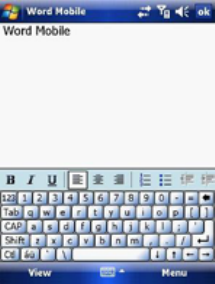
Create a new document
Tap Menu > File > New.
Send a document
To send to another device nearby, you may use Bluetooth beaming.
1. Tap the file you would like to send to another device.
2. Go to Menu > File > Beam…
3. Select the device to which you want to beam the file.
Send via a messaging account
You may send the file via e-mail or MMS to another user.
1. Tap the file you would like to send out.
2. Tap Menu > File > Send via E-mail.
3. Choose the account from which you wish to send the file (e.g. Outlook,
Hotmail, MMS, etc).
4. Type in the recipient address into the e-mail. The file is already attached.
5. Tap Send.
Note: Work in full-screen mode to see as much of your workbook as possible. Tap View >
Zoom and select a percentage so that you can easily read the worksheet.
Unsupported features in Word Mobile
Word Mobile does not fully support some features of Microsoft Word such as
revision marks and password protection. Some data and formatting may be lost
when you save the document on your device.
The following features are not supported in Word Mobile:
• Backgrounds.
• Shapes and text boxes.
• Artistic page borders.
• Smart tags.
• Metafiles.
• Bidirectional text. While Word Mobile will open documents containing
bidirectional text, the indentations and alignment may be displayed and
saved incorrectly.
• Password-protected files. Word Mobile cannot open password-protected
documents. You must first remove the password protection in Microsoft Word
Mobile on the PC if you want to view the document on the device.
• Document protection. Microsoft Word Mobile does not support displaying files
that have been protected in Microsoft Word on the PC.
The following features are partially supported by Microsoft Word Mobile:
• Picture bullets.
• Revision marks.
• Table styles.
• Underlining styles. Underlining styles not supported by Microsoft Word Mobile
become one of these four supported styles: regular, dotted, wavy or
thick/bold/wide.
• Legacy Pocket Word files. You can open *.psw files in Microsoft Word Mobile.
However, if you edit a file, you will need to save it in *.doc, *.rtf, *.txt, or *.dot
formats.
The following features are not supported on the device. However, they are
retained so that when a file is opened on the PC again, they appear as before.
• Footnotes, endnotes, headers, footers.
• Page breaks.
• Lists.
• Fonts and font sizes. Fonts not supported by the device are mapped to the
closest font available, although the original font will be listed on the device.
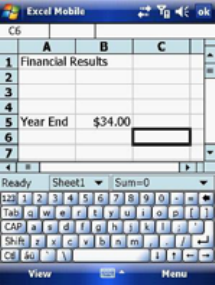
Microsoft Excel Mobile
Microsoft Excel Mobile makes it easy for you to open and edit Excel workbooks
and templates created on your PC. You can also create new workbooks and
templates on your device.
Run Microsoft Excel Mobile
Tap Start > Office Mobile > Excel Mobile.
The program operates much as the desktop PC version, allowing entry of
numbers, formulas, text, sorting and auto filtering.
Create a new Workbook
Tap Menu > File > New.
Send a Workbook
To send a workbook to a device nearby, you may use Bluetooth beaming.
1. Tap the file you would like to send to another device.
2. Go to Menu > File > Beam…
3. Select the device to which you want to beam the file.
Send via a messaging account
You may send a file via e-mail or MMS to another user.
1. Tap the file you would like to send.
2. Tap Menu > File > Send via E-mail.
3. Choose the account from which you wish to send the file (e.g. Outlook,
Hotmail, MMS, etc).
4. Type the recipient address into the e-mail. The file is already attached.
5. Tap Send.
Note: Work in full-screen mode to see as much of your workbook as possible. Tap View >
Zoom and select a percentage so that you can easily read the worksheet.
Unsupported features in Excel Mobile
• Alignment: Horizontal, Vertical, and Wrap-Text attributes remain the same,
but vertical text appears horizontal.
• Borders appear as a single line.
• Cell patterns: Patterns applied to cells are removed.
• Fonts and font sizes: Fonts not supported by your device are mapped to the
closest font available. The original font is listed on your device. When the
workbook is opened on your PC again, data is displayed in the original font.
• Number formats: Numbers formatted using the Microsoft Excel 97 conditional
formatting feature are displayed in Number format.
• Formulas and functions: If an Excel file contains a function that is not
supported by Excel Mobile, the function is removed. Only the returned value
of the function appears. The following formulas are also converted to values:
formulas entered as an array or containing an array argument
(=SUM({1;2;3;4}), formulas containing external link references or an
intersection range reference and formulas containing references past row
16384 are replaced with #REF!
• Protection settings: Most worksheet and workbook protection features are
disabled but not removed. However, support for password protection is
removed. Workbooks that are password-protected or workbooks in which one
or more worksheets are password-protected cannot be opened. You must
remove the password protection in Excel on the PC and then synchronize to
open the file on the device.
• Zoom settings are not retained. Excel supports a per worksheet zoom setting,
while the Excel Mobile zoom setting is applied to the entire workbook.
• Worksheet names: Names that reference worksheets within the same
workbook are displayed accurately, but names that refer to other workbooks,
arrays (={1;2;3;4}), array formulas, or intersection ranges are removed from
the name list. If a name is removed from the list, it is left in formulas and
functions, causing those formulas to be resolved as “#NAME?” All hidden
names are not hidden.
• AutoFilter settings are removed. However, you can use the AutoFilter
command in Excel Mobile to perform similar functions. If you have an
AutoFilter applied to a worksheet that causes rows to be hidden, the rows
remain hidden when the file is opened in Excel Mobile. Use the Unhide
command to display the hidden rows.
• Chart formatting. All charts will be saved the way they are shown in Excel
Mobile. Unsupported chart types are changed to one of these supported
types: Column, Bar, Line, Pie, Scatter, and Area. Background colours,
gridlines, data labels, trend lines, shadows, 3D effects, secondary axes, and
logarithmic scales are turned off.
• Worksheet features. The following features are not supported in Excel Mobile
and are removed or modified when a workbook is opened on the device:
hidden sheets are not hidden; VBA modules, macro sheets and dialog sheets
are removed and replaced with a place holder sheet; text boxes, drawing
objects, pictures, lists, conditional formats, and controls are removed; pivot
table data is converted to values.
Microsoft PowerPoint Mobile
With PowerPoint Mobile, you can open and view slideshows created on your
PC in *.ppt and *.pps format with PowerPoint ‘97 and later. Many presentation
elements built into the slideshows such as slide transitions and animations will
play back on the device. If the presentation is set up as a timed slideshow, one
slide will advance to the next automatically. Links to URLs are also supported.
PowerPoint features not supported on the device include:
• Notes. Notes written for slides will not be visible.
• Rearranging or editing slides. PowerPoint Mobile is a viewer only.
• File formats. Files created in *.ppt format before PowerPoint 97 and HTML
files in *.htm and *.mht formats are not supported.
Start a slideshow presentation
1. Tap Start > Office Mobile > PowerPoint Mobile.
2. In the presentation list, tap the slideshow you want to view.
3. Tap the current slide to advance to the next slide.
If the presentation is set up as a timed slide show, slides advance automatically.
Stop a slide show
In a PowerPoint Mobile presentation, tap and hold a slide and tap End Show.
Navigate between slides
You can advance to the next slide (if the presentation is not set as a timed
slideshow), return to the previous slide or go to any slide out of sequence.
1. Tap Start > Office Mobile > PowerPoint Mobile.
2. Open the presentation you want to view.
3. Tap Next or Previous, or tap Go to Slide and tap the slide you want to view.
Tap the current slide to go to the next one.
If you have zoomed in to see a slide in more detail, you cannot navigate to
another slide until you zoom out. Tapping Next or Previous may play an
animation on a slide rather than navigate to another slide.
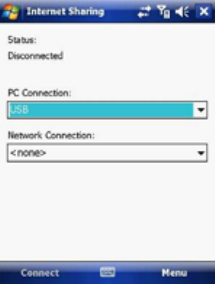
7.12 Internet Sharing
Internet sharing is a way to use your Pocket PC as a cellular modem for your
laptop or desktop PC. Here, we provide a brief overview of the subject. You can
find step-by-step guidelines for configuring your device for use as a Wireless
Modem on http://www.clubimate.com and on the Getting Started CD that came
with your device.
Note: Your cellular account must already be enabled with a data plan.
Start Internet Sharing
From the Today Screen, tap Start > Programs > Internet Sharing.
You should choose how you wish to connect your desktop/laptop PC to your
Pocket PC.
In the PC connection field, choose USB (for a wired connection) or Bluetooth
PAN.
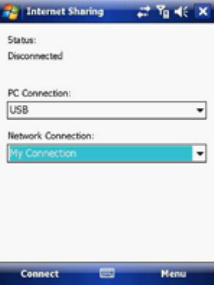
Next, you must choose the data connection that you will use to connect to the
internet. You can choose this from a drop-down list of all connections that have
been configured. If you have not already set up a connection for accessing the
internet, please refer to Chapter 4, Get Connected.
If you have chosen to connect over USB
1. Tap Connect at the bottom of the screen.
2. Now connect your Pocket PC to your computer using the USB cable supplied.
3. Pocket PC Status will show Connected. Your PC is now connected to the
Internet.
Note: You must run ActiveSync 4.5 or later to use this feature. If you are running an earlier
version, upgrade to this using the companion CD that came with your device.
If you have chosen to connect using Bluetooth PAN:
1. You will be prompted about your wish to make your device visible to other
users. Click Yes if this is the first time that you are setting up the connection.
2. On your PC, perform a Bluetooth Search for the Pocket PC.
3. Follow the process shown on your PC screen to bond it to the Pocket PC.
4. On your PC, go to Start > Connect to > Show All connections.
5. Double click the Icon in the Bluetooth Personal Area Network area.
6. Choose to connect the PC to the Pocket PC.
7. Your PC will now be connected to the Internet.
Full further detailed instructions for performing this procedure through Windows
XP, running the standard Microsoft Bluetooth stack, can be found at
http://www.clubimate.com or on the Companion CD that came with your device.
7.13 File Explorer
Your pocket PC has a File Explorer application, just like your PC, that allows
you to manage files.
Run File Explorer
On the Today Screen go to Start > Programs > File Explorer.
You are presented with a list of files and folders inside the current folder. To
move up a level, tap Up. To go into a folder, click on a folder name.
Copy a file
1. Tap and hold a file name. A menu will then appear.
2. Choose Copy.
3. Move to another folder. When you reach the folder where you want the file to
be, tap and hold it with the stylus and tap Paste. To move the file rather than
copy it, select Cut in step 2.
E-mail a file
1. Tap and hold on the name of a file.
2. Select the Send… option from the menu that appears.
3. Choose an account from which you will send this file.
4. Enter an file addressee and tap Send. The file is sent as an attachment.
Delete a file
1. Tap and hold on the name of a file.
2. Select Delete.
Create a new folder on the device
1. Move to the directory where you want to create a new directory.
2. Tap Menu > New Folder.
View a Web Folder from your device
You can access folders on your corporate intranet.
To do this tap Menu > Open Path > New Path and type in the path of the folder
on the network. Your device will connect to the Work Connection in order to find
the web folder.
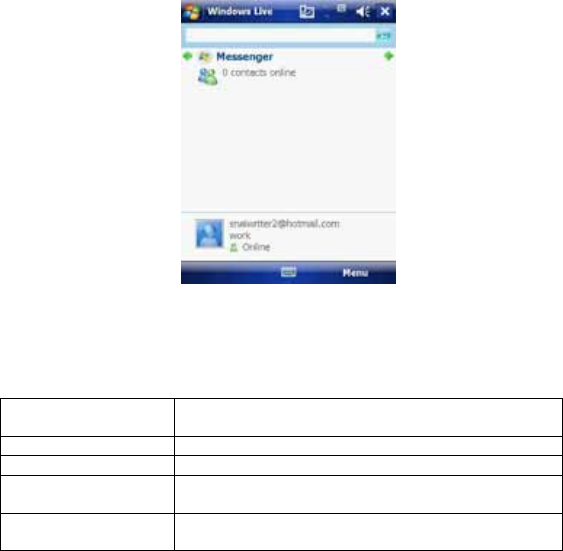
7.14 Windows Live
Windows Live enables you to send instant messages and e-mail, search for
information, directions, maps and images, and have access to your own space.
Start Windows Live
1. Tap Start > Programs > Windows Live
2. Tap Sign in to Windows Live. Follow the onscreen instructions.
Use the arrows at the top to cycle between Sync, Mail and Messenger.
Options
Tap Menu > Options. To see the options below:
1. Today screen
options Check the boxes to show the Live Search bar and
Windows Live services.
2. Sync Options Selects which options to sync.
3. Sync Schedule Chooses when to synchronize.
4. Sync Status Displays when Windows Live was last
synchronized.
5. E-mail Chooses the preview size and check whether or
not to send messages immediately.
6. Messenger Sets the notification types and font and check the
box to automatically play voice clips.
Account Options
Tap Menu > Account options. To see the options below:
1. Clear password Tap Yes to clear the password.
2. Switch Account Tap to switch e-mail accounts.
3. Terms of use Displays the terms of use for Windows Live.
4. Privacy Statement Displays the Windows Live privacy statement.
Messenger
See Chapter 5.4 for details on using messenger services.
Mail
• Tap anywhere on the Mail screen to go to the Mail Inbox.
• Tap Menu to send new e-mails, reply and set the options.
Sync
Display the last sync time and date.
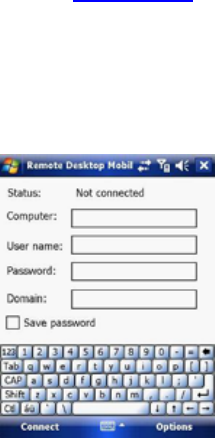
7.15 Remote Desktop Mobile
The remote desktop mobile application is a client that allows you to access your
Windows XP Professional desktop from your mobile phone.
Before starting
You need the following things:
1. Install the Windows XP Remote Desktop on the PC you want to remotely
access. Click Start > Settings > Control Panel > System > Remote tab.
Check the Allow users to connect… box in Remote Desktop. Click Apply
and OK.
Note: See your system administrator or www.Microsoft.com for further help.
2. Connect to the internet through a VPN or use the host computer IP address.
Start Remote Connection
1. Tap Start > Programs > Remote Desktop Mobile.
2. Insert the Computer name or IP address, User name, Password and
Domain.
3. Tap Connect.

Options
Tab Description
Display Selects the number of colours: 256 or High Color (16 bit).
Check either Full screen or Fit remote desktop to screen.
Sound Choose: Mute, Play on remote computer or Play on this
device.
7.16 ClearVue PDF
ClearVue PDF is a standalone Adobe Acrobat file viewer for your Pocket PC.
Use ClearVue PDF to open and view Adobe Acrobat PDF files on your device.
Open a PDF file
1. Launch ClearVue PDF by tapping Start > Programs > ClearVue PDF.
2. Tap File > Open.
3. Select the folder to browse.
4. View a list of .pdf files, and then tap the file you want to view.
To open a recently opened file, tap File > Recent Files.
Move around in a document
When a PDF document is larger than a single screen, you can navigate in the
following ways:
• Use scroll bars to move up/down and right/left.
• Use the navigation pad to move one line in the desired direction.
The Zoom feature
• The Zoom feature allows you to enlarge or reduce the document content on
display. Zoom is available on the bottom left corner of the screen. Any
percentage in the range from 25-200% is valid.
• Select Page Width to display the entire width of the page.
• Select Whole Page to display the entire page.
• Tap Zoom > Custom… to choose your desired percentage of magnification.
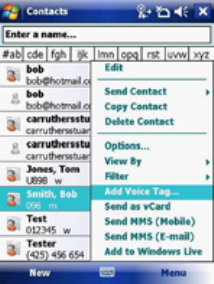
7.17 Voice Speed Dial
Voice Speed Dial enables you to record voice tags for contacts or launch
programs simply by speaking a single word.
Create a voice tag for a phone number from
contacts
1. On the Today screen, tap Contacts.
2. Tap and hold the contact listing to add a voice tag. Select the contact > tap
Menu > Add Voice Tag or open the contact and select the phone number
and tap Menu > Add Voice Tag.
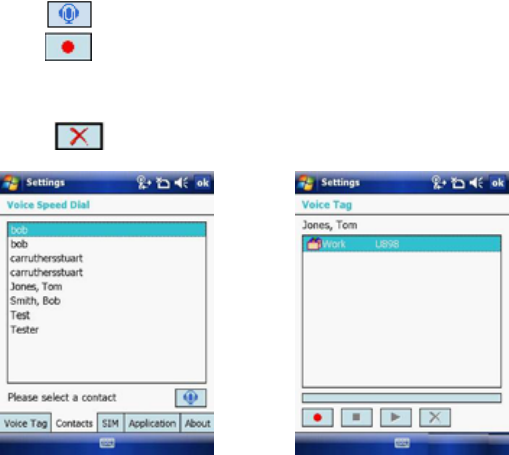
Create a voice tag for a phone number or application from
Voice Speed Dial
1. Tap Start > Settings > Personal tab > Voice Speed Dial.
2. Select the contact from either the Contact tab, SIM tab or Application tab.
3. If adding a tag to a phone number select the phone number.
4. Tap the icon.
5. Tap the icon and after the beep record your tag.
6. Once done, a voice tag icon will appear to the right of the number.
• To re-record the tag, repeat steps 2-4.
• To delete the tag select the contact on the Voice Tag tab and tap the
delete icon,
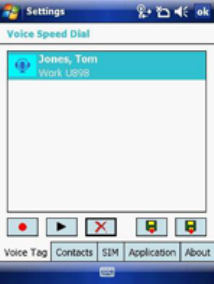
Make a call or launch an application using voice tags
1. Tap Start > Programs > Voice Speed Dial.
2. After the beep, say the word that you have assigned to the contact or
application.
3. The voice tag will be played back and either dial or launch the application.
Note 1: If no voice tags have been recorded, the device will beep twice and a warning
message will be displayed.
Note 2: If the command is not recognised, the device will beep twice and a warning
message will be displayed. Reduce the background noise and speak clearly again.
View created voice tags
1. Tap Start > Settings > Personal tab > Voice Speed Dial > Voice tag tab.
2. All listed voice tags are displayed.
3. Users can play, record and delete the voice tag. Settings can also be
imported and exported by clicking the icons on the right.
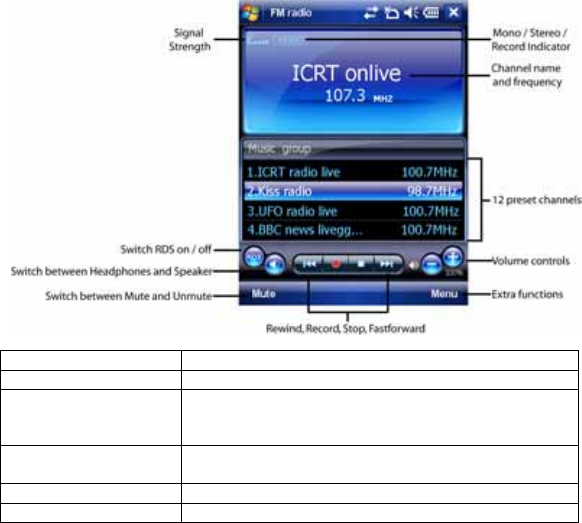
7.18 FM Radio
You can listen to FM Radio through your device. You can search channels by
tapping and holding the rewind and fastfoward keys or by tapping Menu >
Channels > Auto search. This application also allows 100 user-defined favorite
groups (each contains up to 18 preset channels), volume control, record button
to record audio files and fine-tuned channels.
Note: The FM Radio can be used only when the headset is plugged in (as an external
antenna).
Item Description
Signal Strength Displays the strength of the radio reception.
RDS If switched on, the Radio Data System identifies the
station name, auto retunes and goes to traffic
broadcasts.
Headphones and
speakers Headphones must be plugged in, but you can listen
through headphones or the device speaker.
Mute and Unmute Switch the sound on or off.
Volume Decrease/Increase volume.

Rewind /
Fastforward Use for manual scanning of frequencies.
Record Tap to start recording.
Stop Tap to stop recording or to stop playing an audio file.
Mono/Stereo/Record Tells the user if the radio is in mono, stereo or record
modes.
Channel name and
frequency The channel name is displayed if RDS is active. The
frequency is permanently displayed.
Preset Channels The radio contains 12 preset channels. These can
be changed using the auto search function or the
rewind and fast forward buttons.
Volume controls Increase and decrease the volume.
Menu Extra functions such as changing channels and
audio file play. See below for further details.
Tap Menu to access the following features:
• Channels – Automatically search for, save and delete channels.
• Set frequency – Manually set the frequency by typing the frequency number.
• Group – Create a group of radio channels to listen to.
• Playback – Play .wav and .gsm files.
• Setting – Use the General tab to select the country where you are using the
radio (Europe, USA or Australia) and to automatically exit the radio after a set
period of time. Use the Record tab to choose where to record audio files to
and their format (Wav or GSM 610).
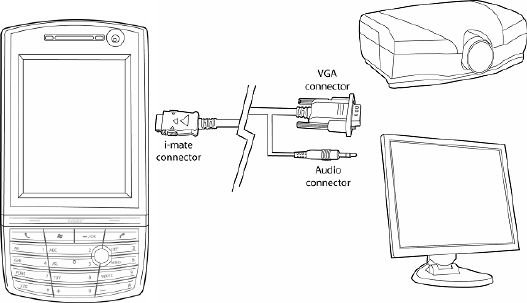
7.19 Monitor and Projector Connection
You can connect your phone to monitor or projector to view and present
documents. See the image below for an explanation on how to connect the
phone to an external device.
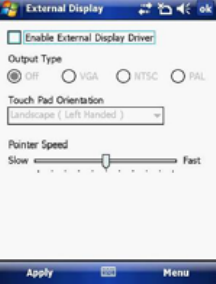
7.20 Nyditot Virtual display
NVD creates a customisable virtual display that can be much larger than the
physical display. The physical display becomes a view window into this larger
virtual display. The dimensions of the virtual display are limited only by the
amount of available memory on your device.
External display
1. Tap Start > Programs > External Display.
2. Check/uncheck the Enable External Display Driver checkbox to
enable/disable the software that controls the External Display.
3. Select the Output Type (VGA, NTSC, or PAL) for the External Display or
select Off to turn off the External Display.
4. In the Touch Pad Orientation list, tap the orientation type you want.
5. To change the speed of the mouse pointer when using the internal display as
a touch pad or when using an external mouse. Under Pointer Speed, move
the slider to adjust the speed.
6. Press Apply to apply any changes or OK to apply changes and exit.
7.21 Add More Programs to your device
Your can add more programs to your device by Internet purchase or through a
local retailer. Programs may be added using ActiveSync or by installing the
memory card that may come with your new purchase.
Chapter 8
8.1 Maintain Your Phone
8.2 Reset Your Phone
8.3 Manage Your Program Memory
8.1 Maintain Your Phone
Your phone is a well-designed and engineered product and the following tips
and suggestions will enable you to make the best use of it.
• Keep the phone in a dry environment. If the phone or battery were to get wet
due to misuse, this could invalidate the manufacturer’s warranty.
• Do not use the phone with wet hands to avoid shocks and risks of water
entering in the device, which increases the risks of damage to internal circuits.
This also applies if you have to replace the SIM/USIM or micro SD card
inside the phone, for whatever reason.
• Keep the phone and its accessories out of reach of young children and pets.
They may accidentally damage the phone or run the risk of the smaller
components being swallowed.
• Avoid storing the phone in hot environments as high temperatures can
shorten the life of electronic components. There is the risk that the plastic
casing can warp or melt if the temperature is high enough.
• Also avoid storing the phone in cold environments. When the phone is
switched on and warms to its normal operating temperature, moisture can
form inside the device, which may damage the circuit boards.
• Avoid dropping or any hard knocks to the phone as they can damage the
internal circuit boards.
• If you need to clean the phone, wipe it with a soft clean cloth – avoid the use
of cleaning solvents or detergents. DO NOT use water to clean the LCD
screen.
• Do not attempt to re-spray or paint the phone.
• Do not keep the phone in or near heat sources such as radiators or
microwave ovens – this can cause the battery inside the phone to overheat
and explode.
• Ensure the volume is turned down if you are using headphones.
• If the phone does not work, carry out some basic troubleshooting checks and
try the reset procedures described in the following section. If the problem
persists, do not attempt to service or repair the device yourself as this may
invalidate the terms of the warranty with the device provider. Repairs should
be carried out by an authorised service provider.
8.2 Reset Your Phone
Occasionally, you may need to reset your Pocket PC Phone. A normal (or soft)
reset of your device clears all active program memory and shuts down all active
programs. This can be useful when the device is running slower than normal or
a program is not performing properly. A soft reset is also necessary after the
installation of some programs. If a soft reset is performed when programs are
running, unsaved work will be lost.
You can also perform a hard reset (also known as a Cold Boot). A hard reset
should be performed only if a normal reset does not solve a system problem.
After a hard reset, the device is restored to its default settings (the way it was
when you first purchased it and turned it on). Any programs you installed, data
you entered and settings you customised on the device will be lost. Only
Windows Mobile software and other pre-installed programs will remain.
To perform a soft reset
Locate the small hole on the left of the device known as the soft reset button
and, using the tip of your stylus, gently push the button inwards. This type of
reset will NOT affect your data. Otherwise simply remove the battery, wait a few
seconds and insert the battery again.
To perform a hard reset
Hard reset by accessing the Master Clear Application:
1. Tap Start > Settings > System tab > Factory Setting
2. Proceed to enter the confirmation code: 1234. Confirm by tapping Yes. The
system will reboot to complete the operation.
Alternatively, a hard reset may be performed using the following process:
1. Simultaneously hold the Power button and push the soft reset button inwards.
2. Release the buttons and the device will hard reset.
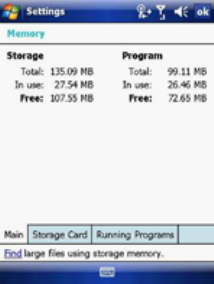
8.3 Manage Your Program Memory
You may need to stop a program if the program memory is low or if the
application stops responding.
To see how much memory is available
1. Tap Start > Settings > System tab > Memory.
2. On the Main tab, the amount of memory allocated to file and data storage
versus program storage is displayed, as well as the amount of memory in use
versus the available memory.
To see available storage card memory
You can see how much memory is available on a storage card that is inserted in
your device.
1. Tap Start > Settings > System tab > Memory.
2. Tap the Storage Card tab.
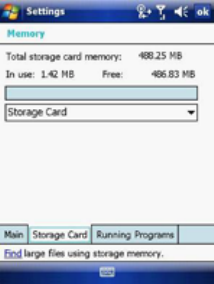
To free up memory
Try the following to free memory on your device:
• Close programs you are not currently using.
• Move e-mail attachments to a storage card.
• Move files to a storage card. Tap Start > Programs > File Explorer. Tap
and hold the file and tap Cut. Browse to the storage card folder and tap Edit
> Paste.
• Delete unnecessary files. Tap Start > Programs > File Explorer. Tap and
hold the file and tap Delete.
• Delete large files. To find your largest files, tap Start > Programs > Search.
In the Type list, tap Larger than 64 KB and Search.
• In Internet Explorer Mobile, delete temporary Internet files and clear history
information. For more information, see Internet Explorer Mobile in Chapter 7.
• Remove programs you no longer use.
• Reset your device.
Appendix
A.1 Battery Information
A.2 PC Requirement to Run ActiveSync 4.5
A.3 Regulatory Notices
A.4 Specifications
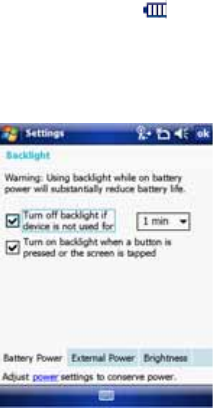
A.1 Battery Information
Battery performance depends on many factors, including your wireless service
provider’s network configuration, signal strength, the temperature of the
environment in which you operate your phone, the features and/or settings you
select and use, items attached to your device’s connecting ports, and your voice,
data, and other program usage patterns. The original mains A.C. charger
included in the box must be used to charge your device from flat.
Battery life estimates (approximations):
• Talk time: 4 hours/ Standby time: 150 hours.
To check the battery power
• Tap Start > Settings > System Tab > Power.
• On the Today screen, tap the battery icon.
To optimize the power performance
• Tap Start > Settings > System Tab > Backlight, and adjust the automatic
turn-off feature.

To change a flat battery
• Always use the AC charger supplied in the box
To manage a low battery
1. Immediately save your current date.
2. Plug the AC charger into the device.
3. Synchronize with your PC to charge the device.
4. Turn off your phone.
WARNING! Danger of explosion if battery is incorrectly replaced. To reduce risk of
fire or burns, do not disassemble, crush, puncture, short external contacts, expose
to temperature above 60℃(140℉), or dispose of in fire or water. Replace only with
specified batteries. Recycle or dispose of used batteries according to the local
regulations or reference guide supplied with your product.
A.2 PC Requirement to Run ActiveSync 4.5
At the time of writing this manual, the requirements for this were published from
Microsoft’s website for ActiveSync 4.5.
(http://www.microsoft.com/windowsmobile/activesync/activesync45.mspx)
Supported Operating Systems
• Windows 2000 Service Pack 4;
• Windows Server 2003 Service Pack 1;
• Windows Server 2003 Service Pack 1 for Itanium-based Systems;
• Windows Server 2003, Standard x64 Edition.
For 64-Bit Itanium-Based System
• Windows XP Media Center Edition;
• Windows XP Professional x64 Edition;
• Windows XP Service Pack 1;;
• Windows XP Service Pack 2;
• Windows XP Tablet PC Edition
• Microsoft Outlook XP, Microsoft Outlook 2003 or Microsoft Outlook 2007
messaging and collaboration clients required for synchronization to the
desktop or portable computer of e-mail, Calendar, Contacts, Tasks, and
Notes. (Outlook 2007 is recommended)
• Microsoft Office XP, Microsoft Office 2003, or Microsoft Office 2007.
• Microsoft Internet Explorer 6. or later. (required)
• Microsoft Systems Management Server 2.0.
The following mobile device operating systems are supported by ActiveSync 4.5:
• Microsoft Windows Mobile 6.0.
• Microsoft Windows Mobile 5.0.
• Messaging and Security Feature Pack for Microsoft Windows Mobile 5.0.
• Microsoft Windows Mobile 2003 Second Edition.
• Microsoft Windows Mobile 2003.
• Microsoft Pocket PC 2002, Microsoft.
• Microsoft Smartphone 2002, Microsoft.

A.3 Regulatory Notices
Agency identification numbers
For regulatory identification purposes, your product (i-mateTM Ultimate) is
assigned a model number of 6150.
To ensure continued reliable and safe operation of your Pocket PC, use only
the accessories listed in this document.
This product is intended to be used only with an i-mateTM Ultimate approved
charger (rated 5V, 1Ah).
European Union Notice
Products with CE marking comply with the R&TTE Directive (995//EC), the EMC
Directive (89336//EEC) and the Low Voltage Directive (73213//EEC) issued by
the Commission of the European Community.
Compliance with these directives implies conformity to the following European
Norms:
• EN 60950-1 (IEC 60950) – Safety of Information Technology Equipment.
• ETSI EN 301 511 V9.0.2 (2003-03) for Mobile communications (GSM);
Harmonized standard for mobile stations in the GSM 900 and DCS 1800
bands covering essential requirements under article 3.2 of the R&TTE
directive (19995//EC)
• ETSI TS 51 010 – 1V7.0.1 (2006-02) Digital cellular telecommunications
system (Phase 2+) Mobile Station (MS) conformance specification; Part 1:
Conformance specifications.
• EN 50360-2001 – Product standard to demonstrate the compliance of mobile
phones with the basic restrictions related to human exposure to
electromagnetic fields (300MHz ~ 3GHz).
• EN 50361-2001 – Basic standard to demonstrate the compliance of mobile
phones with the basic restrictions related to human exposure to
electromagnetic fields (300MHz ~ 3GHz).
• SAR value: mW/g@10g (CE)
• ETSI EN 301 489-1 Electromagnetic compatibility and Radio
spectrum Matters (ERM); ElectroMagnetic Compatibility (EMC) standard for
radio equipment and services; Part 1: Common technical requirements.

• ETSI EN 301 489-7 – Electromagnetic compatibility and Radio spectrum
Matters (ERM); ElectroMagnetic Compatibility (EMC) for radio equipment and
services; Part 7: Specific conditions for mobile and portable radio and
ancillary equipment of digital cellular radio telecommunications systems
(GSM and DCS).
• ETSI EN 301 489-17 – Electromagnetic compatibility and Radio spectrum
Matters (ERM); ElectroMagnetic Compatibility (EMC) for radio equipment and
services; Part 17: Specific conditions for 2.4GHz wideband transmission
systems.
• ETSI EN 300 208 – Electromagnetic compatibility and Radio spectrum
Matters (ERM); Wideband Transmission systems; data transmission
equipment operating in the 2.4GHz ISM band and using spread spectrum.
Federal Communications Commission (FCC) Statement
You are cautioned that changes or modifications not expressly approved by the
part responsible for compliance could void the user’s authority to operate the
equipment.
This equipment has been tested and found to comply with the limits for a Class
B digital device, pursuant to part 15 of the FCC rules. These limits are designed
to provide reasonable protection against harmful interference in a residential
installation. This equipment generates, uses and can radiate radio frequency
energy and, if not installed and used in accordance with the instructions, may
cause harmful interference to radio communications. However, there is no
guarantee that interference will not occur in a particular installation. If this
equipment does cause harmful interference to radio or television reception,
which can be determined by turning the equipment off and on, the user is
encouraged to try to correct the interference by one or more of the following
measures:
• Reorient or relocate the receiving antenna.
• Increase the separation between the equipment and receiver.
• Connect the equipment into an outlet on a circuit different from that to which
the receiver is connected.
• Consult the dealer or an experienced radio/TV technician for help.
Operation is subject to the following two conditions:
o Device may not cause interference.
o Device must accept any interference, including interference that may cause
undesired operation of the device.
FCC RF radiation exposure statement:
For body worn operation, this phone has been tested and meets FCC RF
exposure guidelines when used with an accessory that contains no metal and
that positions the handset a minimum of 1.5 cm from the body. Use of other
accessories may not ensure compliance with FCC RF exposure guidelines."
Important health and safety information
Retain and follow all product safety and operating instructions. Observe all
warnings on the product and in the operating instructions.
To reduce the risk of bodily injury, electric shock, fire and damage to the
equipment, observe the following precautions.
General precautions
Safety precautions for RF exposure:
Use only original manufacture-approved accessories, or accessories that do not
contain any metal.
Use of non-original manufacturer-approved accessories may violate your local
RF exposure guidelines and should be avoided.
Safety precautions
• SAFETY IN AIRCRAFT: This product can cause interference to an aircraft’s
navigation system and network. In most countries it is against the low to use
this product on board an airplane.
• ENVIRONMENTAL SAFETY: Do not use this product in gas stations, fuel
stores, chemical plants and locations containing explosives.
• ROAD SAFETY: Vehicle drivers in motion are not permitted to use handheld
telephony services, except in emergency. In some countries, using hands-
free devices as an alternative is allowed.
• MEDICAL EQUIPMENT SAFETY: This product may cause medical
equipment malfunction. In most hospitals or medical centers use of this
product is forbidden.
Heed service markings
Except as explained elsewhere in the Operating or Service documentation, do
not service any product yourself. Service needed on components inside these
compartments should be done by an authorized service technician or provider.
Damage requiring service
Unplug the product from the electrical outlet and refer servicing to an authorized
service technician or provider under the following conditions:
• Liquid has been spilled or an object has fallen into the product.
• The product has been exposed to rain or water.
• The product has been dropped or damaged.
• There are noticeable signs of overheating.
• The product does not operate normally when you follow the operating
instructions.
Avoid hot areas
The product should be placed away from heat sources such as radiators, heat
registers, stoves, or other products (including amplifiers) that produce heat.
Avoid wet areas
Never use the product n a wet location.
Avoid pushing objects into product
Never push objects of any kind into cabinet slots in the product.
Use product with approved equipment
This product should be used only with personal computer and options identified
as suitable for use with your equipment.
Cleaning
Unplug the product from the wall outlet before cleaning. Do not use liquid
cleaners or aerosol cleaners. Use a damp cloth for cleaning, but NEVER use
water to clean the LCD screen
SAR information
SAR value: mW/g @ 10g (CE
Use of non i-mateTM approved accessories may violate RF exposure guidelines
and should be avoided.
WEEE Notice
The Directive on Waste Electrical and Electronic Equipment (WEEE), which
entered into force as European law on 13th February 2003, resulted in a major
change in the treatment of electrical equipment at end-of-life.
The purpose of this Directive is, as a first priority, the prevention of WEEE, and
in addition, to promote the reuse, recycling and other forms of recovery of such
wastes of as to reduce disposal.
The WEEE logo (shown on the top) on the product or on its box indicates that
this product must not be disposed of or dumped with your other household
waste. You are liable to dispose of all your electronic or electrical waste
equipment by relocating over to the specified collection point of recycling of
such hazardous waste. Isolated collection and proper recovery of your
electronic and electrical wastes equipment at the time of disposal will allow us
to help conserving natural resources. Moreover, proper recycling of the
electronic and electrical waste equipment will ensure safety of human health
and environment. For more information about electronic and electrical waste
equipment disposal, recovery, and collection points, please contact your local
city center, household waste disposal service, shop from where you purchased
the equipment, or manufacturer of the equipment.
A.4 Specifications
System Information
Processor Intel PXA 270 520MHz
Memory ROM: 256MB
RAM: 128MB
Operating system Microsoft Windows Mobile 6.0 for Packet PC
Display
LCD type 2.6” transmissive TFT-LCD with back-light LEDs,
touch-sensitive screen
Resolution 480 x 640 with 262k colour
Alignment support Landscape and Portrait
Radio Frequency
GSM/EDGE Quad band (850/900/1800/1900)
GPRS Class 10
UMTS Tri band (850/19002100)
Camera
Rear camera 2M pixels camera with flash light, Auto Focus, Digital
Zoom
Front camera VGA
Resolution Rear camera:
- photo capture: 1600x1200, 1280x960, 640x480,
320x240, 160x120
- video record: 320x240, 176x144
Front camera:
- photo capture: 640x480, 320x240
video record: 320x240, 176x144
Physical
Dimension 118.5X60.5X15.5
Weight 152g (with battery)
Controls and Lights
Control buttons - 5-way Navigation pad
- Three customisable program buttons: Camera,
Wireless Manager, and Start Menu
- Two phone functions: Call and End
- Start and OK keys
- Two soft keys
- Jog wheel
- Power On/Off button
LEDs Tri-color LED: Red, Green & Blue for GSM standby,
Battery charging status, Wi-Fi and Bluetooth status,
Notifications,
Connections
I/O port Mini USB 1.1
Wi-Fi 802.11 b/g/e/i
Bluetooth - 2.0 + EDR
- Class 2 transmit power
- Supported profiles
- Generic Access profile
- Serial Port profile
- Headset profile
- Object Push profile
- DUN (Dial-Up Networking profile)
- Hands-free profile
- PAN (Personal Area Network profile)
- Generic Object Exchange profile

- A2DP (Advanced Audio Distribution profile)
- AVRCP (Audio/Video Remote Control profile)
- HID (Human Interface Deice profile)
- ActiveSync profile
Audio 10pin mini USB slot for Stereo headset
Expansion Slot
MicroSD card Yes