Arima Communication KMP6J1CB Tri-Band GSM Mobile Phone User Manual Amendment Record
Arima Communication Corporation Tri-Band GSM Mobile Phone Amendment Record
Revised Manual

- 1 -
Your phone .................................................................................................................................................6
Keys and connectors..........................................................................................................................6
Standby mode......................................................................................................................................7
Getting started...........................................................................................................................................8
Installing the SIM card and the battery............................................................................................8
Charging the battery...........................................................................................................................9
Switching the phone on and off ......................................................................................................10
Call functions...........................................................................................................................................11
Making a call......................................................................................................................................11
Answering or rejecting an incoming call........................................................................................11
Call waiting.........................................................................................................................................12
Handling more than one call............................................................................................................12
Input method......................................................................................................................................13
Menu Structure........................................................................................................................................16
Phone book ......................................................................................................................................16
Modify..................................................................................................................................................16
Add ......................................................................................................................................................16
Groups ................................................................................................................................................17
Speed dial...........................................................................................................................................18
Memory status...................................................................................................................................18
Copy all...............................................................................................................................................18
Delete..................................................................................................................................................18
CLI (Calling Line Identification).......................................................................................................19
Message ............................................................................................................................................20
SMS.....................................................................................................................................................20
MMS (Multimedia message)............................................................................................................23
Template .............................................................................................................................................26
Voice mail...........................................................................................................................................26
Call Record .......................................................................................................................................27
Missed calls /Received calls/Outgoing calls.................................................................................27
Call duration.......................................................................................................................................27
Call cost..............................................................................................................................................28
Data counter ......................................................................................................................................28
Setting................................................................................................................................................29
Time & Date .......................................................................................................................................29
Melody ................................................................................................................................................29
Display setting ...................................................................................................................................30
Language............................................................................................................................................32
Network selection..............................................................................................................................32

- 2 -
Call setting..........................................................................................................................................32
Security...............................................................................................................................................34
Reset all..............................................................................................................................................36
Camera...............................................................................................................................................43
Photo...................................................................................................................................................43
Video ...................................................................................................................................................45
Profile.................................................................................................................................................43
Accessories......................................................................................................................................44
Calendar.............................................................................................................................................44
Calculator ...........................................................................................................................................44
Stopwatch...........................................................................................................................................45
Time count down...............................................................................................................................46
Alarm...................................................................................................................................................46
Games ................................................................................................................................................46
My data...............................................................................................................................................47
Picture gallery....................................................................................................................................47
Video gallery ......................................................................................................................................48
Melody gallery....................................................................................................................................48
Memory Status...................................................................................................................................49
WAP service .....................................................................................................................................49
WAP setting........................................................................................................................................49
Homepage..........................................................................................................................................50
Bookmark ...........................................................................................................................................50
Go to....................................................................................................................................................51
Edit bookmark....................................................................................................................................51
Push inbox..........................................................................................................................................51
Clear cache........................................................................................................................................52
STK .....................................................................................................................................................52
SIM toolkit...........................................................................................................................................52
GPRS..........................................................................................................................................................53
Battery care........................................................................................................................................54
Access codes.....................................................................................................................................54
Care and Maintenance...........................................................................................................................55
Emergency calls......................................................................................................................................58
FCC Statement.........................................................................................................................................59
Licenses ................................................................................................................ 錯誤! 尚未定義書籤。

- 3 -
Contents
Your phone
• Keys and connectors
• Standby mode
Getting started
• Installing the SIM card and the battery
• Charging the battery
• Switching the phone on and off
Call functions
• Making a call
• Answering or rejecting an incoming call
• Call waiting
• Handling more than one call
Menu functions
1. Phone book
• Detail
• Search
• Add
• Groups
• Speed dial
• Memory status
• Copy all
• Delete
2. Messages
• SMS
• MMS
• Template
• Voice mail
3. Call record
• Missed
• Received

- 4 -
• Outgoing
• Clear Call
• Call duration
• Call cost
• Data Counter
4. Setting
• Time & Date
• Melody
• Display
• Language
• Network
• Call setting
• Security
• Reset all
5. Profile
• Normal
• Meeting
• Outdoor
• My profile
6. Camera/ Video
• Camera indications
• Photo
• Multi-shot
• Frame effect
• Video
7. My data
• Picture gallery
• Video gallery
• Melody gallery
• CLI picture

- 5 -
• Memory status
8. Accessories
• Calendar
• Calculator
• Stopwatch
• Time countdown
• Alarm
• Games
9. WAP
• Homepage
• Bookmarks
• Go to
• Edit Bookmark
• Push inbox
• Clear cache
• WAP profile
10. STK
General information
Care and Maintenance
- 6 -
Your phone
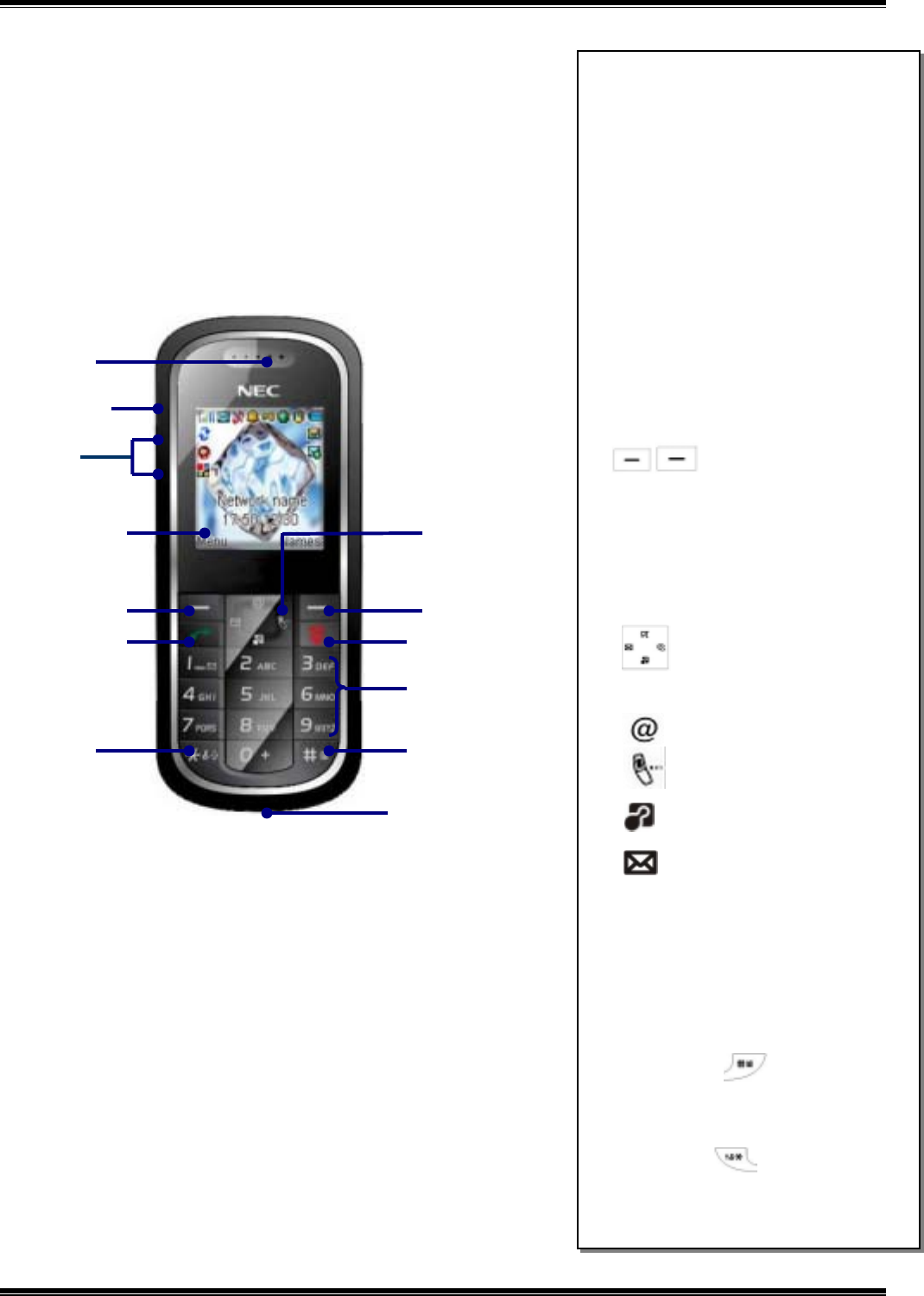
Keys and connectors
Earpiece
Side ke
y
Main
d
is
p
la
y
Power on/End call
Left soft Ri
g
ht soft
N
umeric key
# ke
y
¼ ke
y
Micro
p
ho
Side key
• During a call, adjusts the earpiece
volume.
• In standby mode, long press the
up side key to turn on flash light
last for 8 seconds. ( long press
again to turn off during the 8
seconds).
• In standby mode, the keys adjust
the ring volume.
• To reject an incoming call, press
the side key twice.
Soft key
• The current functions are
displayed in the bottom line of
LCD. The soft key display as
shortcut to access the sub menu.
• In standby mode, quick access to
WAP
Profile
My data
Message
• In sub menu, use navigation key
to scroll up and down to select an
item to view
• Long press to activate
Silent mode.
• Long press to activate
Keypad lock.
Talk key/ Yes key
Camera ke
y
N
avi
g
ation

- 7 -
Standby mode
In the main display
: The signal strength of the cellular network at your current location.
: The battery charge level.
: Received one or several messages.
: All your calls are diverted to another number.
: Vibrate indicator is turned on.
: The alarm clock is to set on.
: Activate silent mode.
: Ring volume is zero.
: When GPRS dial-up connection is switched on.
: When reject list is switched on.
: Keypad lock.
: When setting profile.

- 8 -
Getting started
Installing the SIM card and the battery
You need to insert the SIM card and charge the battery before using the
phone.
• Keep all miniature SIM cards out of the reach of small children.
• Be careful to handle, insert or remove the SIM card since the SIM card
and its contacts can easily be damaged by scratched or bending.
• Before installing/removing the SIM card, always make sure that the phone
is switched off.
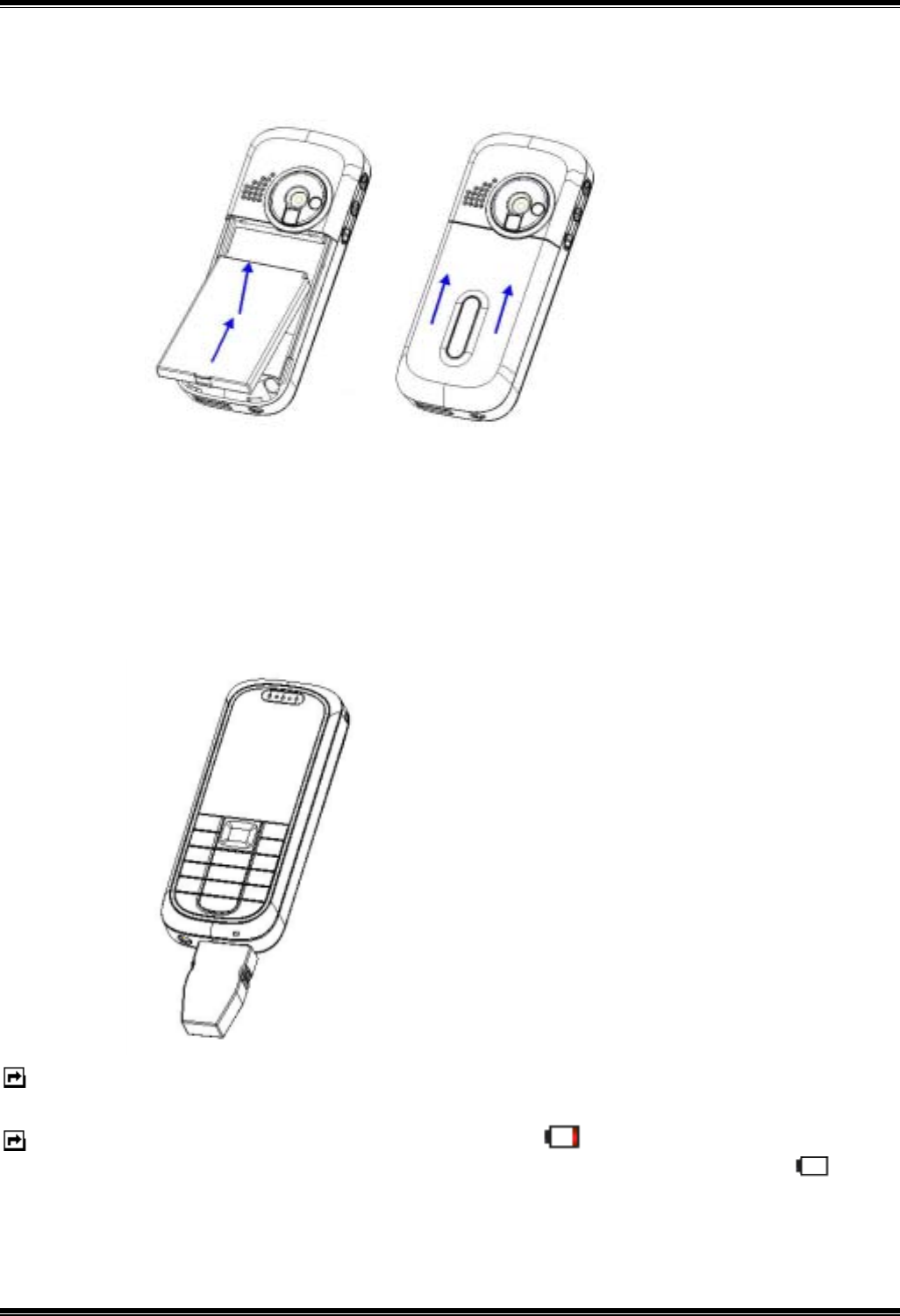
1. Push back cover off the phone (1) and lift the battery away. (2).
2. Insert and slide the SIM card (3).
(1) (2)
(3)
- 9 -
2. Install the battery (4) and back cover (5) on the back of the phone until you
hear a click.
Charging the battery
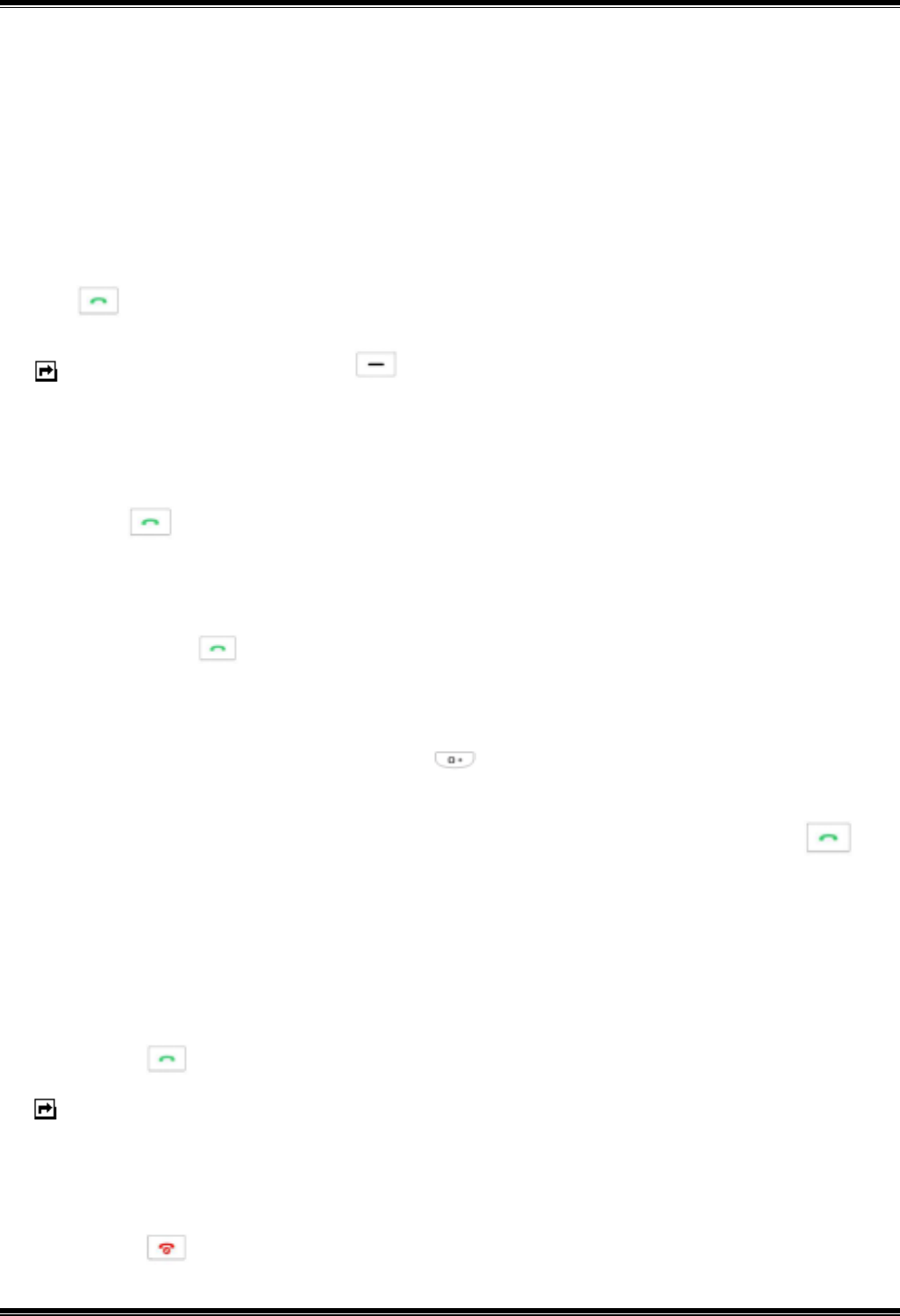
You must fully charge the battery before using your phone for the first time.
1. Connect the lead from the travel adapter to the socket on the bottom of
your phone (A).
2. Connect the charger to an AC wall outlet.
3. It can take 5-15 minutes before a charging icon is shown in the display.
Note: You can use the phone while the charger is connected but charging is
suspended during that time.
Note: When the battery is weak indicated by “ ”on the display, you will hear
a warning sound. When the battery becomes too weak indicated by “ ” on
the display, it switched off automatically.
(A)
(4)
(5)

- 10 -
Switching the phone on and off
• Long press the .
• Note: If the phone shows “Insert SIM” when SIM card is properly inserted,
contact your network operator or service provider.
• If the phone asks PIN code, key in the PIN code, and press OK.
Note: Do not switch the phone on when wireless phone use is prohibited
or when it may cause interference or danger.
- 11 -
Call functions
This gives you information about the calling service that support in your
phone.
Making a call
• In standby mode, key in the number, including the area code, press
.
Note: Use Right Soft key to delete the character.
Making a call from the phone book
1. In standby mode, Press Names, choose the one you want to make a call,
press to call.
2. Or you could press Select in Phone book list, and choose Search. Enter
the name and press Option then Search to search, choose the one you
want, press to call.
Making an international call
1. For international calls, long press for the international prefix
(character +).
2. Key in the country code, area code and the phone number, press to
call.
Answering or rejecting an incoming call
To answer the incoming call
• Press to answer the call.
Note: This phone also provides you other answer modes for your option;
please refer to” Answer mode setting”.
To reject the incoming call
• Short press side key twice to reject the call or
• Press or Reject to reject the call.
- 12 -
Call waiting
You can answer another incoming call while you have a call in progress.
1. During a call, press to answer the waiting call and the first call is put
on hold.
2. Press to end the ongoing call.
Handling more than one call
You can handle up to two lines simultaneously.
Making a second call
1. During a call, press Hold.
2. Press Option, choose Phonebook and choose a name you want, then
press to make a second call.
3. Or key in the number then press to make a second call.
Note: You can only put one call on hold.
Note: Please refer to “Making a call from phonebook”.
Two calls on line
To swap between the two calls
• Press Swap. The first call is put on hold.
• To end the ongoing call and return the call on hold, press .
Making a Conference call
1. During a call, press to receive the second call.
2. Or press Hold , key in the number, then press .
3. Choose Join calls, Press Select.
- 13 -
Input method
You can key in text by using the traditional method, or another method called
predictive input.
To select input method
1. When key in text, press Option and select Input Select.
2. Choose an input method, and press Select.
Quick way to change input method
• Long press to change the input method (T9Ab, ABC, abc, 123)
To Changing case
• In “ABC” or “abc” input mode, short press to change capital or
lower-case letters.
To insert a space
• Press key to insert a space.
• In T9Ab, you could also use to insert a space.
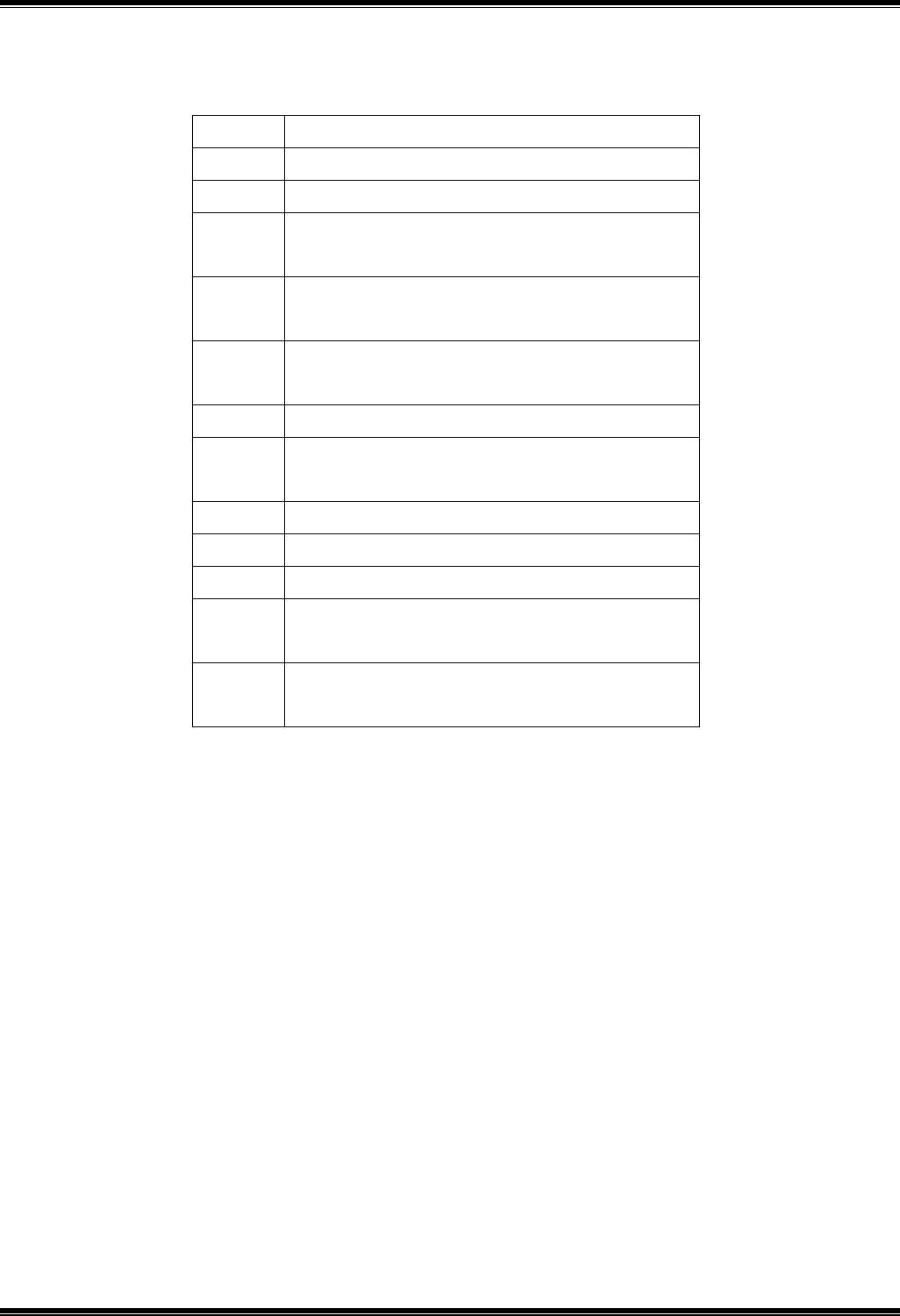
Traditional English input
• Press to and select the desired character.
Note: Your phone provides Multi-tap function. For example, press twice
to display the letter B, and press three times to display the letter C.
- 14 -
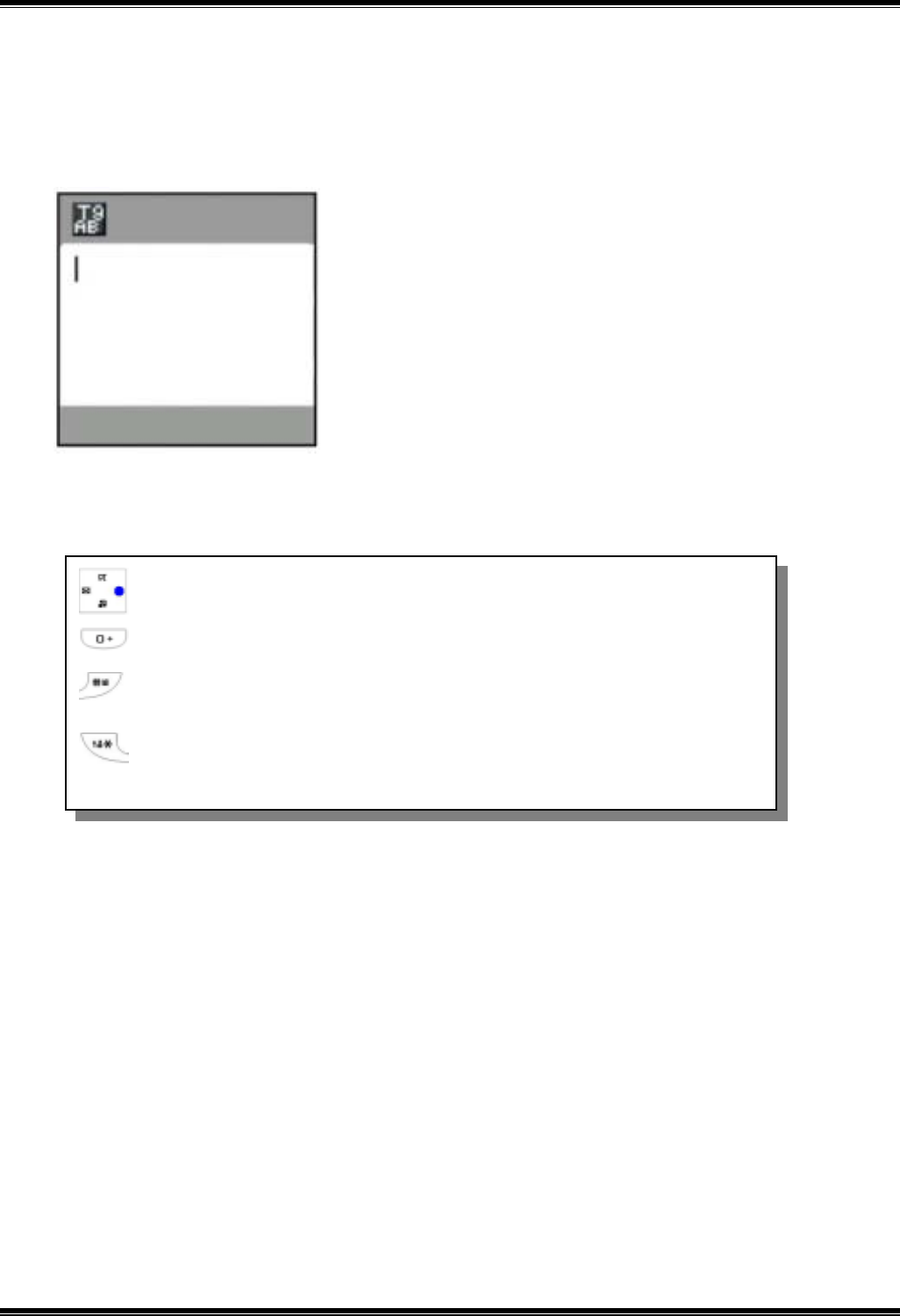
Characters table
Key Character
1 -? ! , . : ; = 1
2 A B C Å Ä Æ à Ç 2
3 D E F è É 3ΔΦ
4 G H I ì 4Γ
5 J K L 5 Λ
6 M N O Ñ Ö Ø Ò 6
7 P Q R S β 7ΠΣ
8 T U V Ü Ù 8
9 W X Y Z 9
0 Space + & @ / % $ \ 0
* To shift the case to lower-case
and initial case.
# To activate Silent mode.
To change text input.
- 15 -
Text entry with “T9”
“T9” uses a built-in dictionary to recognize the most commonly used word for
every sequence of key presses.
Shift the cursor.
To switch alternative words
Long press to change input method.
Short press to switch upper case between lower case.
Keypad information

- 16 -
Menu Structure
Phone book
You can save numbers and names in your phone or in SIM card. In addition,
this phone allows you to store up to 300 numbers and names in phone
memory. Names and numbers saved in the SIM card’s memory and Phone’s
memory are indicated by and .
To save a phone number and a name
1. In standby mode, key in a number, press Option.
2. Choose Save then choose Save in SIM or Save in phone, press
Select.
3. Key in the name and press Option, choose OK to save number.
Modify
Allow you edit a number and name saved in the phone book.
To edit a number and a name
1. Use to find a name in the phone book, and then press Select.
2. Press Detail and choose Select.
3. Choose an item you want to modify, press Select and choose Edit to
start edit.
4. Press OK to save edited name or number.
Add
Allow you add new name and number in the phone book.
To add a phone number and a name in phone book
In Phone Book menu, press Select, choose Add.
Choose Save in SIM or Save in phone, press Select.
Key in the name, press Option, choose OK, key in the number, press Select,
choose Save to save number.
- 17 -
Groups
You can send a message to all members of a group at the same time by this
setting. Before using this function, you need to edit name list in Group list of
Phone Book.
To add a name in a Group
1. In Phone book menu, choose Groups, press Select.
2. Choose a group, press Select.
3. Choose Add member, press Select.
4. Enter a name or press Option and choose Names and select a
member from phone book, press OK.
Note: For input method operation, please refer to Input method.
Group edits
1. In Phone book menu, choose Groups, press Select.
2. Use
to choose a group, press Select to enter the option menu.
Your phone provides the following selections for your option:
• List members:
Allow you to view the members specified in the group.
• Add member:
Allow you to add a member in the specified group.
• Rename:
Allow you to change the group name.
• Ring type:
Allow you to set a ring type for a group.
• Pictures:
Allow you to set a picture for a group.
- 18 -
Speed dial
If you assign the number to one of the speed dialing keys (from to
) saved in the phone book, you can call the phone number by long
pressing the key in standby mode.
1. In Phone book menu, choose Speed dial, press Select.
2. Choose a speed key number, press Select.
3. Key in the name, press Option, then press Search to confirm the name in
the phonebook.
4. Or choose an entry from the phone book, press Select to save.
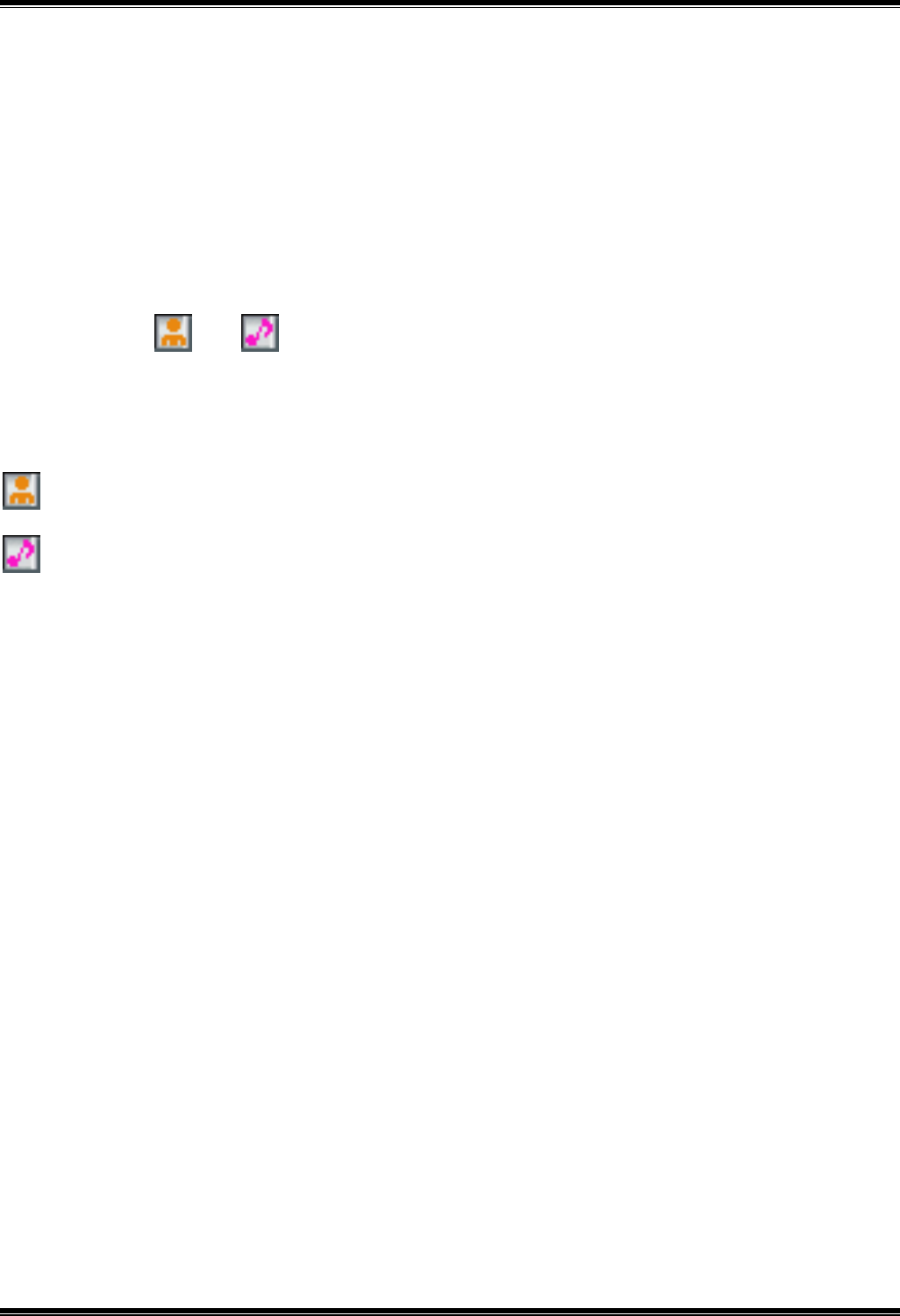
Memory status
This phone allows you to view the phone book data in SIM and Phone.
In Phone book menu, choose Memory status, press Select.
Copy all
You can copy and transfer your phone data from SIM to your phone (or from
phone to SIM).
1. In Phone book menu, choose Copy all, press Select.
2. Choose Copy to Phone or Copy to SIM, press Select.
Delete
Your phone allows you to delete all numbers and names stored in the
phonebook.
1. In Phone book menu, choose Delete, press Select.
2. Choose Delete this record or Delete all in Phone.
3. Key in passwords in Delete all screen, at the prompt “Are you sure?”
press OK.
SIM (40/200)
Phone (60/300)
Memory status
Back
- 19 -
CLI (Calling Line Identification)
Your phone allows you to recognize the incoming call by the specified ring
signals, pictures for personal calls saved and specified in the phone book.
1. In Phone book menu, choose Search, press Select.
2. Enter a name or press Option, choose a name in phonebook, press
Detail.
3. Choose or , press Select.
4. Choose Assign, press Select.
5. Choose a Default pictures/Melodies or Saved pictures/Melodies,
press OK.
: Personal picture
: Personal melody

- 20 -
Message
SMS
Your phone services voice mail notification messages and text messages.
Voice mail and short message service (SMS) are network service. Your
phone also allows you to send and receive text messages contain pictures
or melodies. A message with pictures was made up of several text
messages. Therefore, sending message with pictures may cost more than
sending one text message.
Read messages
When you have received a message, the indicator will appear on the
display. The blinking indicates that the message memory is full. And
before you can receive or send new messages, you need to delete some of
your old messages.
1. In Standby mode, press Menu, choose Message, press Select.
2. In Message menu, choose Inbox, press Select.
3. Choose a message, press Read to view the content.
Note: To quick access Message function, you can press in
standby mode.
Note: To scroll through the content of messages, use .
When read the message, your phone provides following selections for your
options.
• Reply: Allow you to reply by sending a text message.
• Forward: Allow you to forward a text message.
• Add number: Allow you to save the number in your phone book.
• Call: Allow you to call the number that show in the message.
• Delete: Allow you to delete the message in progress.
- 21 -
: The message in phone that has not been read.
: The message in phone that has been read.
: The message in SIM that has not been read.
: The message in SIM that has been read.
To write a message
1. In Standby mode, press Menu, choose Message, press Select.
2. In Message menu, choose SMS, press Select.
3. In SMS menu, choose Compose, press Select.
4. Key in the content, press Option, choose a selection, press Select.
Note: To quick access Message function, you can press in
standby mode.
Note: To key in the content, please refer to “Input method “.
Note: To use picture message function, your network operator or
service provider support is necessary. Only phones that
contain this function can receive and display picture
messages.
Your phone provides the following selections for your option:
• Add symbol: Allow you to add one more symbols in edit screen.
• Insert object: Allow you to add pictures or melodies in your message.
• Input select: Allow you to change input method and suit your need.
• Use templates: Allow you to insert templates specified in “Templates”
in message menu.
• Clear all: Allow you to erase the text composed in edit screen.

- 22 -
Keypad information
To send a message
1. After you complete the message compose,
2. Press Option, choose Send single or Send group.
3. Enter the recipient’s phone number or search for it in the phone book,
press Search.
4. Select a phone number, press Select , then press Send.
Your phone provides the following selections for your option:
• Send single: Allow you send a text message immediately.
• Send group: Allow you to send to a group that specified in your phone
book.
• Save: Allow you to save a message and send it later.
Unsent and Outbox Message
After sending out the message, the message is saved in the outbox folder.
You can also save the message in the Unsent box to send it later.
Message setting
Your phone allows you to set up default setting on the SMS feature.
1. In Standby mode, press Menu, choose Message, press Select.
2. In Message menu, choose SMS, press Select.
3. Choose Setting, press Select.
Your phone provides the following setting selections for your option:
• SMS center: This is the service center that allows you to save or
change the number of your SMS center required when sending text
: Shift the cursor.
:Short press to insert character *, #, column
Long press to change input method.
:Short press to switch upper case and lower case.
Long press to insert symbol.
- 23 -
messages.
• Valid time: Allow you to set the length of time for which your text
messages will be stored at the SMS center.
• Format: Allow you to send different types of messages if your
network operator’s service center can offer the function.
• Delivery report: Allow you to get the report whether your message
has been delivered or not.
• Reply path: Allow the recipient of your SMS message to send you a
reply through your message center.
• Broadcast: This is the network service that allows you to receive text
messages on various topics, such as the weather or traffic.
Note: To active Broadcast, you need your operator’s service.
MMS (Multimedia message)
The feature allows you to send the message that contain text, sound and a
picture. Depending on the network, you may receive a text message that
includes an Internet address where you can view the multimedia message.
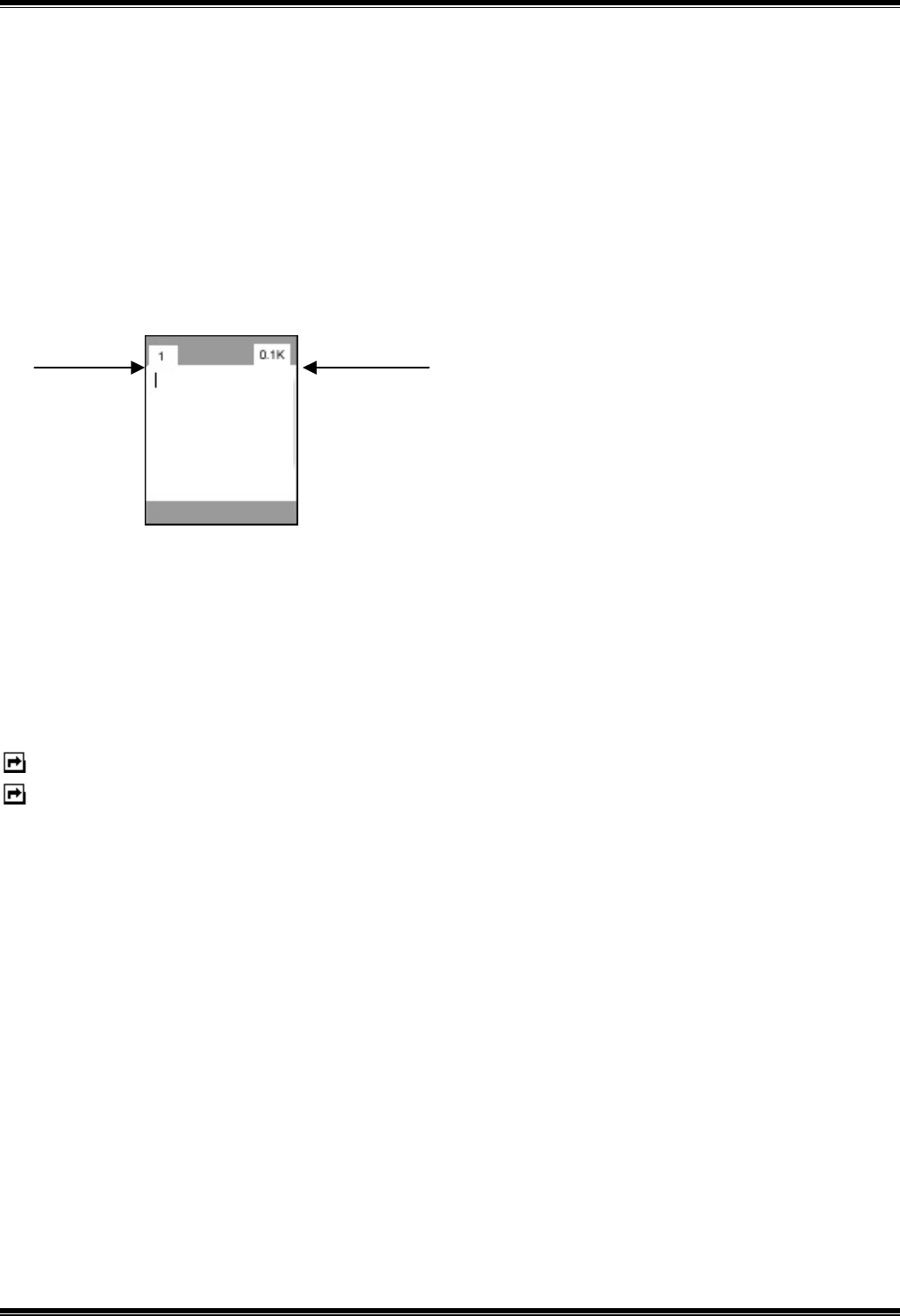
Your phone supports the following formats in MMS function.
Picture: JPG (indicate by icon ), GIF(indicate by icon ), and
BMP(indicate by icon ).
Sound: monophonic ringing tones (indicate by icon ) and polyphonic
Midi (indicate by icon )
Motion JPEG (indicate by icon )
Note: You are not able to receive multimedia messages during a call, a
game, or any active WAP connection over GPRS data. Do not rely
upon only multimedia messages for essential communications
since delivery of multimedia message can fail for a variety of
reasons.
- 24 -
To write a MMS
For availability to the multimedia messaging service, contact your network
operator or service provider.
1. In Standby mode, press Menu, choose Message, press Select.
2. In Message menu, choose MMS, press Select.
3. Choose Compose, press Select.
4.In edit mode, press Option, choose Add text, press Select.
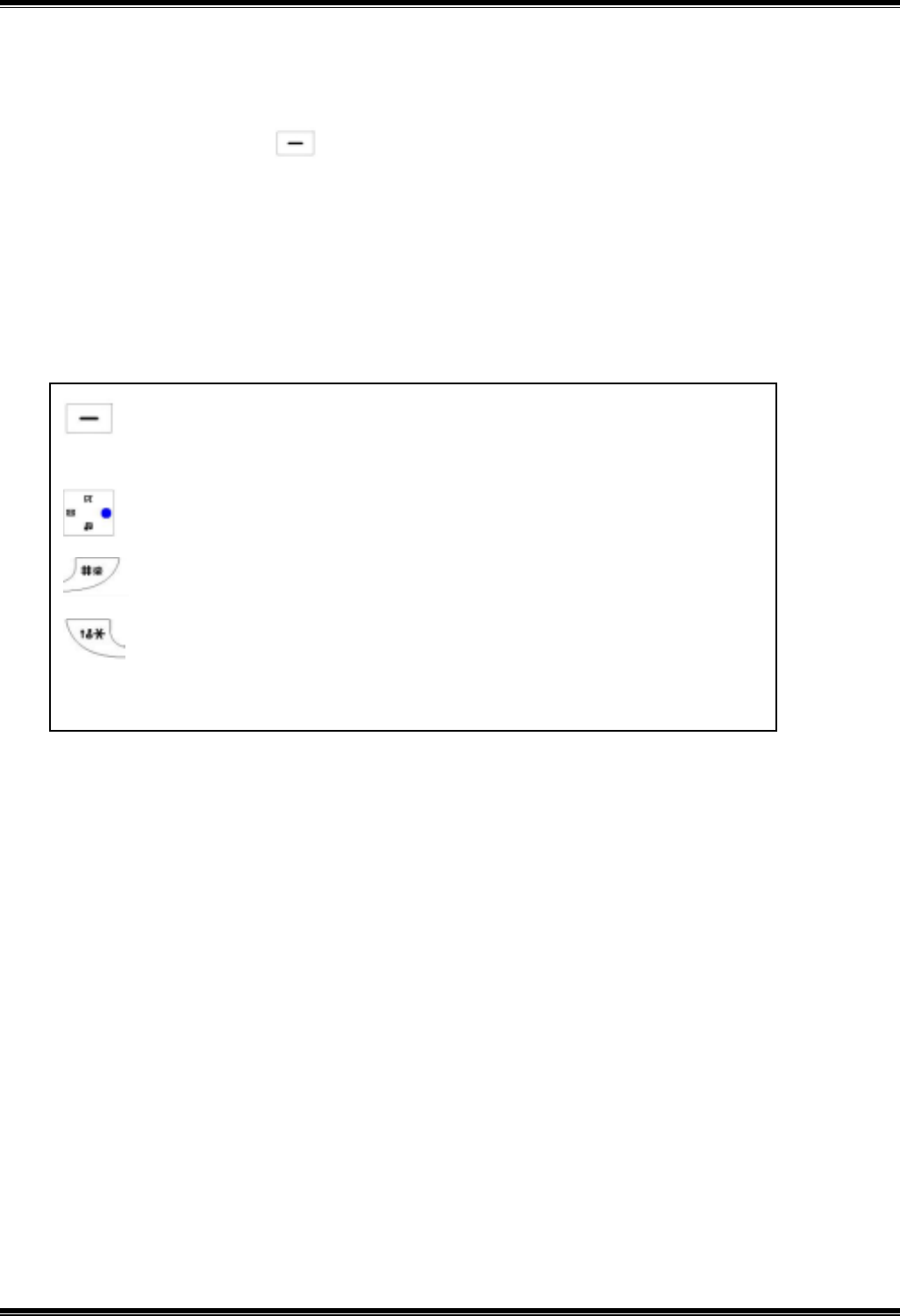
You can insert one picture or a sound in multimedia message. To insert a
picture, press soft key Option, choose Add Picture. This list of available
folders in the Gallery is shown.
Note: To key in the content, you can refer to “Input method “.
Note: To use picture message function, your network operator or service
provider support is necessary. Only phones that contain this
function can receive and display picture messages.
Your phone provides the following selections for your option:
Option menu:
Add text: Allow you to edit the text content.
Add image: Allow you to add a picture in your message.
Add audio: Allow you to add a melody in your message.
Add video: Allow you to add a video in your message.
Add page: Allow you to add a page in multimedia messages.
Page time: Allow you to set a page scroll time when you view the
content.
Save: Allow you to save a message and send it later.
Option Back
MMS size
1st MMS
- 25 -
To send a multimedia messages
1. Press Option key and choose Send, press Select.
2. Choose Phone number or E-mail, press Select.
3. Enter the recipient’s phone number (or e-mail address) or search for it
in the phone book, press Detail.
4. Select a phone number, press OK.
Keypad information
Unsent and Outbox multimedia messages
Your phone saves the multimedia messages that have been received in the
Inbox folder of the Multimedia messages menu.
Multimedia messages that have not been sent will save in Unsent folder of
the Multimedia messages menu. The multimedia messages that have been
sent are saved in Out box folder of the Multimedia messages menu.
Multimedia messages memory full
If the memory of the message is full, you will see a dialogue showed on
display and not be allowed to compose or receive any message if you want
to. And you need to delete old messages in Multimedia messages menu
before you want to save new ones.
MMS setting
Your phone allows you to set up default setting on the MMS feature.
: Complete the MMS edit.
Sub menu for sending MMS.
: Shift the cursor in text edit mode.
: Long press to change input method.
: Short press to switch upper case and lower case.
Long press to insert symbol.

- 26 -
1. In Standby mode, press Menu, choose Message, press Select.
2. In Message menu, choose MMS, press Select.
3. Choose Setting, press Select.
Your phone provides the following setting selections for your option:
• Valid time: Allow you to set the length of time for which your text
messages will be stored at the SMS center.
• Delivery report: Allow you to get the report after your message has
been received.
• Reply path: Allow the recipient of your SMS message to send you a
reply through your message center.
• Auto reception : Allow you to set whether complete or partial
message could be downloaded.
• WAP profile : Select or create WAP settings specifically for MMS,
please refer to WAP section for detail information.
• MMS server : Allow you to set up the MMS server address (please
get information from your operator)
Template
If you use one or more messages that you send often, you can save these
messages as templates in your phone.
1. In Standby mode, press Menu, choose Message, press Select.
2.Choose Template, press Select, select a template, press Select.
3.Key in the content, press Option, choose Save to save the template.
Voice mail
Your phone allows you to access your voice mailbox with a quick way if
your operator provides this function.
• In standby mode, long press to access your voice mail server directly.
To use this function, you may need to enter the voice server number
obtained from your service provider.

- 27 -
Call Record
Your phone can save information for missed, received and dialed calls, and
the length and cost of your calls.
Note: Once the call list exceeds the memory limitation, the oldest one is
deleted.
Missed calls /Received calls/Outgoing calls
Your phone allows you to view the last ten unanswered calls. You can also
edit the number or delete the number from the call list.
1. In Standby mode, press Menu, choose Call record, press Select.
2. In Call record menu, choose an item, press Select to view the content.
3. Press Options and choose an item, press Select.
Your phone provides the following selections for your option:
• Call: Allow you to call the number that show in the screen.
• Delete: Allow you to erase the number from the list.
• Save: Allow you to save the number in phone book.
Call duration
Your phone allows you to view the timers for calls made and received.
1. In Standby mode, press Menu, choose Call record, press Select.
2. In Call record menu, choose Call duration, press Select.
3. Choose an item, press Select.
Your phone provides the following selections for your option:
• Total
• Last
• Received
• Dialed
• Clear

- 28 -
Call cost
This function allows you to view the cost of calls.
To view the call cost
1. In Call record menu, choose Call cost, press Select.
2. Choose a selection, press Select.
Your phone provides the following selections for your option:
• Total: Total timers of all calls you have made. If the total cost exceeds
the maximum cost set through Call cost limit, you will not be able to
make any calls. (Does not affect calls to the emergency services)
• Last: Last call cost you have made.
• Balance: To show the limitation cost for the calls.
• Reset: Reset cost counter, and PIN2 code is needed in this function.
To set the Call cost
1. In Call record menu, choose Call cost, press Select.
2. Choose Call cost limit, press Option to active / Cancel this function.
3. In Call cost menu, choose Call cost setting, choose a selection,
press select.
This phone provides you the following selections for your option.
• Unit: To set the cost of one unit.
• Currency: Set the currency type for the cost of your calls.
Note: To activate the function, you may need the PIN2 code to set up.
Note: The function needs your service provider support.
Data counter
This function allows you to check the data size while browsing Internet
content through GPRS.
Your phone provides the following selections for your option:
• Last data
• All data
• Clear

- 29 -
Setting
Time & Date
This function allows you to view and change the time and date setting.
To set the Time
1. In Standby mode, press Menu, choose Setting, press Select.
2. In Setting menu, choose Time & Date.
3. Choose Set time, press Select. Choose Set time then press Select.
4. Enter the time, press OK.
To set the Time format
1. In Setting menu, choose Time & Date.
2. Choose Set Time, press Select, choose Set time format, press
Select.
3. Choose 12 hours or 24 hours and then press OK.
To set the Date
1. In Setting menu, choose Time & Date.
2. Choose Set Date, press Select, choose Set Date then press Select.
3. Enter the date, press OK.
Melody
This function allows you to select ring signal volume, choose among
different ring signals or compose your own ring signals.
Ring setting
1. In Setting menu, choose Melody, press Select.
2. Choose Ring setting, press Select, and choose a selection, press
Select.
3. Please choose a melody, press OK.
You can set the following features in different melodies:

- 30 -
• Incoming call
• Message
• Alarm
• Calendar
Ring volume
This function let you adjust the ringing volume to one of six levels.
1. In Setting menu, choose Melody, press Select.
2. Choose Ring volume, press Select.
3. Use to adjust the ring volume, press OK.
Ring or Vibrate
This feature allows you to set the phone to ring or vibrate during an incoming
call.
1. In Setting menu, choose Melody, press Select.
2. Choose Ring or Vibrate, press Select.
3. Please choose an item, press OK.
Your phone provides the following ring type selections for your option:
1. Ring only: The phone rings using the rinsing tone set in Melody Ring
setting menu.
2. Vibrate only: The phone vibrates but doesn’t ring.
3. Ring & vibrate: The phone rings and vibrates both.
4. Vibrate first: The phone vibrates a few seconds then rings.
Key tone
This function allows you to select the keypad tone type when you press a
key.
1. In Setting menu, choose Melody, press Select.
2. Please choose Key tone, press Select, and then choose Key sound,
press Select.
3. Please choose a key tone, press Select.
Display setting
Your phone allows you to set the display value to suit your preference.

- 31 -
Wallpaper
This feature allows you to set one wallpaper in LCD display in standby
mode.
1. In Setting menu, choose Display, press Select.
2. Please choose Wallpaper, press Select.
3. Choose a wallpaper in Default picture or Saved picture, press Select
and choose OK to confirm.
Greeting
This phone allows you to set a greeting animation or a message to be
displayed briefly when the phone is switched on.
1. In Setting menu, choose Display, press Select.
2. Choose Greeting, press Select, then choose Animation, Text or Off,
press OK.
Backlight time
This function indicates the screen backlight duration.
1. In Setting menu, choose Backlight time press Select.
2. Please choose Short, Medium or Long, press Select.
Note: The function impacts the battery consumption.
Contrast
This function indicates the color contrast in main display.
1. In Setting menu, choose Main display, press Select.
2. Please choose Contrast, press Select.
3. Use to adjust the contrast rate, press OK.
Brightness
This function allows you to adjust the contrast of the LCD screen.
1. In Setting menu, choose Brightness, press Select.
2. Please choose brightness level to adjust the contrast.

- 32 -
Language
This phone allows you to set a language for the display in this phone.
1. In Standby mode, press Menu, choose Setting, press Select.
2. In Phone setting menu, press Select.
3. Choose a Language, press Select, and then choose a selection, press
OK.
Network selection
This Network selection feature allows you to indicate whether the network
used when roaming is selected automatically or manually.
1. In Phone setting menu, press Select.
2. Choose Network select press Select.
3. Choose Auto or Manual, press Select.
Note: You can select a network other than your home network only if it has a
valid roaming agreement with your home network.
Call setting
Reject list
This function allows you to reject calls only from certain numbers. To activate
the function, you need to save the numbers that you want to reject in the
Reject list. The numbers must first be saved in your phone book.
To activate Reject calls
1. In Standby mode, press Menu, choose Setting, press Select.
2. In Setting menu, please choose Call setting, press Select.
3. Choose Reject list, press Select, choose Activate, press Select.
To add numbers to the Reject list
1. In Setting menu, choose Call setting, press Select.
2. Choose Reject list, press Select, choose Edit, and choose an empty to
add member, then press Select.
3. Choose Assign single or Assign group, press Names and choose an
entry, press Select to save.
- 33 -
Time alert
This function allows you to set a time reminder during a call.
1. In Setting menu, choose Call setting, press Select.
2. Choose Time alert, press Select.
3. Choose an item, and press Select.
Your phone provide the following time alert selections for your option:
• Off
• Each minute
• User setting
Note: The minimum time for User setting is 30 seconds at least.
Speed dial
You can set digit keys to as speed dialing numbers for fast
shortcut access.
To activate speed dial
1. In Setting menu, choose Call setting, press Select.
2. Choose Speed dial, press Select, and choose On, press OK.
Note: Digit key is used as shortcut for voice mailbox.
Call waiting
This network service enables you to be informed when someone is trying to
reach you during another call.
1. In Setting menu, choose call setting, press Select.
2. Choose Call waiting, press Select.
3. Choose Activate ,Cancel or Status, press Select.
Call divert
You can set the call condition by which calls are diverted to another
numbers.
To Set call divert
1. In Setting menu, choose Call setting, press Select.
2. Choose Call divert, press Select.

- 34 -
3. Choose a condition, press Select, and choose Activate, press Select.
4. Enter the number to which your calls to be diverted, press OK.
Your phone provides the following divert selections for your option:
• Any time:
All calls are diverted.
• When busy:
Calls are diverted when your phone is engaged on other calls.
• No reply:
Calls are diverted when the call is not answered.
• Unreachable:
Calls are diverted when you not in a location covered by your service
provider.
• Cancel all:
Cancels all the call divert function.
Security
Phone and SIM card are protected against misuse by several security
codes.
PIN (4 to 8 digits)
The PIN (Personal Identification Number) code protects your SIM card
against unauthorized use. The PIN code is usually supplied with the SIM
card.
To activate or cancel PIN code
1. In Setting mode, choose Security, press Select.
2. Choose PIN, press Select.
3. Key in PIN number, choose On or Off, press Select.
Note: Your may need to obtain the password from your service provider.
Phone code
This function protects the phone against unauthorized use
1. In Setting menu, choose Security, press Select.
2. Choose Phone code, press Select.

- 35 -
3. Choose On or Off, press Select.
Auto key lock
This function will activate key lock automatically in idle mode.
1. In Setting menu, choose Security, press Select.
2. Choose Auto key lock, press Select.
3. Choose On or Off, press Select.
Call barring
This network service allows you to restrict your calls.
To activate the call barring
1. In Setting menu, choose Security, press Select.
2. Choose Call barring, press Select.
3. Choose a selection, press Select.
Your phone provides the following call barring selections for your option:
• Outgoing: All outgoing calls are not allowed to make.
• Int’l calls (international calls): International calls are not allowed to
make.
• ICEH (Internal Call Except Home): When abroad, calls can be made
within the current the current country and to your home country, where
your home network provider is located.
• Incoming: All incoming calls are not allowed to receive.
• Incoming(Roaming): Incoming calls are not allowed to receive while
using the phone outside your country.
• Code Change: Change call barring code.
Note: Call barring is a network service, and need password for the
settings.
FDN (Fixed Dial Number)
This function allows you to restrict your outgoing calls to a limited set of
phone numbers.
To set FDN
1. In Setting menu, choose Security, press Select.
2. Choose FDN, press Select, enter PIN2 code, press OK.
3. Choose a selection, press Select.

- 36 -
Your phone provides the following selections for your option:
• Activate
• Member list
• Add member
• Delete all
Note: To active the function, you may need to enter the PIN2 code.
Change codes
This feature allows you to change your current code to a new one. To
change the code, you need to enter the current code before you can specify
a new one.
To change the codes
1. In Setting menu, choose Security, press Select.
2. Choose Change codes, press Select.
3. Choose a selection, press Select.
Your phone provides the following code selections for your option:
• Change PIN
• Change PIN2
• Phone code
Note: Please refer to Security.
Reset all
This feature allows you to reset your phone to its default configuration.
Before start reset, you may need to enter the phones code.
1. In Setting menu, choose Security, press Select.
2. Choose Reset all, press Select.
3. Key in phone code, press OK.
- 43 -
Camera
You can use this phone in taking photos with the phone’s built-in camera and
adjust its settings. The camera lens is on the back of the phone, and the
display of the phone works as a viewfinder. If there’s not enough memory for
camera, you need to delete old photos to free some spaces for new photos.
Note: Do not use this feature when it violates local laws.
Camera indications
: Save the photo and the video
: Shutter the photo and take video
: Back
: Default zoom size
: Zoom in
: Flash light
: Option menu
: Photo mode
: Multi-shot mode
: In video mode
: Video play
: Video record
: Stop taking video
: Pause
: Self timer
Photo
To take a photo
- 44 -
1. In the standby mode, press camera key to enter camera feature, choose
Photo and press Select.
2. To take a photo, press camera key or key.
3. To save the photo, press key. When taking a photo, a shutter sound
is heard. The photo is saved in Picture folder in Fun menu.
4. Select right softkey to take another photo or press left softkey
to enter Option menu.
Note: When you are in photo mode, the screen will show icon.
Multi-shot
To take multi-shot
1. In the standby mode, press camera key to enter camera feature, choose
Photo and press Select.
2. Press left soft key , and choose Multi-shot.
3. Select On or Off.
Note: When you are in multi-shot mode, the screen will show icon.
Your phone provides the following items for camera settings.
• Self-timer: Allow you to set the camera self time, after time out, the
camera takes the photo and saves it in the Gallery menu. While the
self-timer is running, a beeping sound is heard.
• Date: Allow you to set the time in photos.
• Digital Effect: Allow you set your favorite effect in your photos. This
phone provides Monochrome, Negative, Sepia, Solarize and Binary mode
for your options.
• Quality: Allow you set the photo quality. This phone provide Excellent,
Fine and Basic quality for your options. Excellent provides the best quality
but takes more memory.
• Picture size: This phone provides Large (640x480) and Normal
(128x160) for your options. Large photo takes more memory. You can set
the frame effect when taking a photo.
• Flash light: Allow you turn On or Off the flash light.
- 45 -
Video
To take Video
1. In the standby mode, press camera key to enter camera feature, choose
Video and press Select.
2. To take video, please press to start taking. Press to stop taking.
3. You could press to see the video you just take, if you want to save it,
please press key.
4. When taking the video, a shutter sound is heard. The video is saved in
Video Folder in Fun menu.
5. Select right soft key to take another video or press left soft key to
enter Option menu.
Note: When you are in video mode, the screen will show icon.

- 43 -
Profile
Your phone has the following profiles to customize the alert to meet a certain
environments.
• Normal:
Your phone is set in standard profile, which is the factory setting.
• Meeting:
Your phone ring volume is set to be low and key tone is switched off in
meeting profile.
• Outdoor:
Your phone ring and key tone volume is set to be loud.
• My profile:
Your phone sets to be a casual profile specified in Profile.
Note: To quick access Profile function, you can press in standby
mode.
To activate the Profile
1. In the standby mode, press soft key Menu, choose Profile, press Select.
2. In Profile menu, choose a profile, press Select.
3. Choose Personalize, press Select.
To edit the Profile
You can personalize the profile settings to meet your preference.
1. In Profile menu, choose a profile, press Select.
2. Choose Personalize, press Select.
Your phone provides the following selections for your personalize option:
• Ring or vibrate
• Incoming
• Message
• Ring volume
• Key tone
Note: You can change the profile to Silent or General quickly by long press
key.

- 44 -
Accessories
Calendar
In the calendar you can add tasks for things such as reminders, meetings,
birthdays that you need to make. The phone sounds an alarm tone when the
set date expires.
1. To make a note and reminder in Calendar
2. In the standby mode, press soft key Menu, choose Accessories, press
Select.
3. In Accessories menu, choose Calendar, press Select.
4. Choose a day, press Select, choose Make a note, press Select.
5. Key in the note, press OK and confirm the date and time.
6. Please choose Alarm On or Off, press Select to save the note.
Your phone provides the following selections for your option:
• View today:
To view the task in specified day.
• View all:
To view all tasks made in the calendar.
• Make a note:
To add a note in specified day.
• Delete:
To delete a task or all tasks in made in calendar.
To delete a note
1. In Calendar menu, choose Delete, press Select.
2. Choose Of chosen day, One by one or All, press Select.
Calculator
The calculator in this phone adds, subtracts, multiplies, divides, and
converts currency values.
- 45 -
To use the calculator
• In Accessories menu, choose Calculator, press Select.
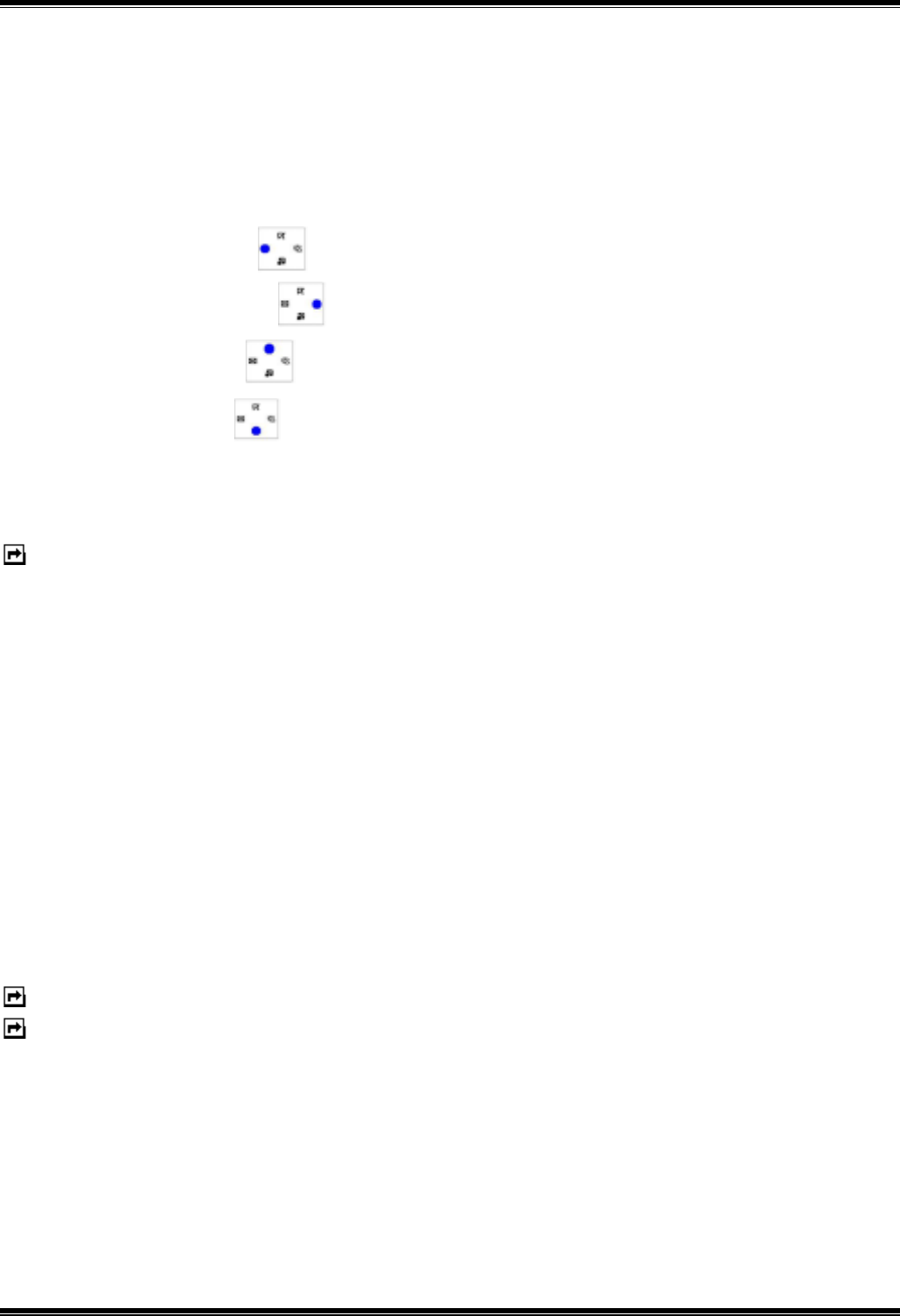
Your phone provides the following compose mapping s for your option:
• Four way key Left : ÷ (divide)
• Four way key Right : * (Multiply)
• Four way key Up : + (Add)
• Four way Down : - (Subtract)
• Left Soft key (OK ) key : To get the result.
Note: This calculator has a limited accuracy rounding errors may occur,
especially in long divisions.
Stopwatch
This feature allows you time an event or record splits in this phone.
To use the stopwatch
1. In Accessories menu, choose Stopwatch, press Select.
2. Choose Start, press Select and press Start.
3. Press the Split when you want to take an intermediate time and
intermediate timers are listed below the display.
4. Press Stop to stop the time observation.
5. Press Menu to choose Save or Reset the stopwatch.
Note: You can use two soft keys to control the stopwatch.
Note: Using the stopwatch consumes the battery and the phone’s operating
time will be reduced.

- 46 -
Time count down
A set period elapses set in your phone, the last three seconds are indicated
by a beep. At the end, a special beep sounds.
To use the Time count down
1. In Accessories menu, choose Time count down, press Select.
2. Enter the period, press Start.
Alarm
This function allows you to set the alarm to ring at the time specified. The
alarm clock works even when the phone is switched off.
1. In Standby mode, press Menu, choose Setting, press Select.
2. In Setting menu, choose Alarm, press Select, enter time, press OK.
3. Please choose Once alarm or Repeat alarm, press Select.
Games
New game options
• Play:
Allow you to start a new game.
• Music:
Allow you to enable or disable music.
• High scores:
Show the highest scores.
• Help:
Show the play rule for the game.
- 47 -
My data
Picture gallery
This folder saves all videos that have been saved from MMS, WAP
download or camera. The videos are automatically saved in the Video
gallery. The camera produces Motion JPEG video format.
To edit the images
1. In the standby mode, press soft key Menu, choose My data, press
Select.
2. In My data menu, choose Picture Folder, press Select.
3. Choose a picture, press Select.
4. Choose an item, press Select to start edit.
Your phone provides the following selections for your option:
• View: You can view the pictures saved in the gallery.
• Send MMS: You can select a picture and use the MMS function to send
to your friends.
• Rename: You can rename a picture name.
• Save to my picture: You can forward the picture to my picture with the
password.
• Delete: You can delete the picture that you don’t like.
• Information: To view the memory capacity and feasibility for user
application.
• Delete All: You can delete all the pictures.
Note: Sending picture via MMS, the size can n t be larger than 100KB
Your phone provides the following picture format for your application:
: BMP format picture
: EMS format picture
: GIF format picture
: GPG format picture
: WBMP format picture
Note: If you download any document were forbad forwarding by MMS or
data cable, the Icon will be showed by red mark (e.q. , , , , ).

- 48 -
Video gallery
This folder saves all videos that have been saved. The videos are
automatically saved in the Video Folder. The camera produces Motion JPEG
video format.
Note: Only Motion JPEG format could be played or saved.
To edit the images
1. In the standby mode, press soft key Menu, choose My data, press
Select.
2. In My data menu, choose Video Folder, press Select.
3. Choose a picture, press Select.
4. Choose an item, press Select to start edit.
Your phone provides the following selections for your option:
• View: You can view the videos saved in the gallery.
• Send MMS: You can select a video and use the MMS function to send to
your friends.
• Rename: You can rename a video name.
• Save to my video: You can forward the video to my video with the
password.
• Delete: You can delete the video that you don’t like.
• Information: To view the memory capacity and feasibility for user
application.
• Delete All: You can delete all the videos.
Your phone provides the following video format for your application:
: Motion JPEG format video
Melody gallery
This folder saves all melodies that have been saved. The melodies are
automatically saved in the Melody gallery. You can also send these melodies
to your friends in a multimedia message, as an e-mail attachment.
To edit the melody
1. In the standby mode, press soft key Menu, choose My data, press

- 49 -
Select.
2. In My data menu choose Melody gallery, press Select.
3. Choose one song to listen.
Your phone provides the following selections for your option:
• Rename: You can rename a melody name.
• Send MMS: You can select a melody and use the MMS function to send
to your friends.
• Delete: You can delete the melody that you don’t like.
• Information: To view the memory capacity and feasibility for user
application.
Note: Sending picture via MMS, the size can n t be larger than 30KB
Memory Status
This function allows you to realize how much memory you used. The total
user memory is 2713KB.
WAP service
Your phones support Web Browser. You can obtain various services such as
up-to date news, weather, sport, and other information as well as use e-mail
and other Internet services. These services are designed and maintained by
WAP service providers.
The WAP service use Wireless Markup Language (WML) on their WAP
pages. You may not view the Internet web pages on your phone.
Note: To activate WAP service, you may need to contact your service provider.
Note: Do not switch the phone on when wireless phone use is prohibited or
when it may cause interference or danger.
WAP setting
• If the settings have already been made by the Service Provider, you may
begin immediately.
• If access profiles have already been assigned by your Service Provider,
select a profile and activate it.

- 50 -
• Otherwise you may key in setting manually. For appropriate settings,
contact your network operator or service provider.
Key in the service settings manually
1. In WAP menu, choose Settings, press Select.
2. Choose a profile, press Select, choose Edit, press Select to start the
settings.
You need to key in the information in Homepage, User ID, Password and IP
address in your phone. To get the information, you may need to contact your
operator.
Dial type
You can access WAP via GSM or GPRS.
1. In WAP menu, choose Settings, press Select.
2. Choose a profile, press Select, choose Edit, press Select.
3. Choose Dial type, press Select, choose GPRS, press Select.
To get the access point of GPRS, you may need to contact your operator for
the service.
Activate WAP settings
After you complete all WAP settings(see WAP settings function), in Profile
mode, please choose Activate, press select.
Homepage
To launch the browser from the standby mode, press the up key. Once
connected, the homepage is displayed. The content depends on the service
provider.
To exit the browser, press key.
Bookmark
You can save the addresses of up to five Internet sites for easy access using
Bookmark feature.

- 51 -
Go to
You can open any WWW page by entering its URL address.
Edit bookmark
You can create or edit a local bookmark.
1. Choose a bookmark, press Select.
2. Choose Edit, press Select.
3. Enter the URL address
4. Press OK.
Your phone also provides you the following selections for your option.
• Delete: Allows you to delete the selected bookmark.
• Send address: Allows you to open the selected page.
Push inbox
Your phone is able to receive service message sent by your service provider.
Service messages are notifications of headlines or content, and they may
contain address of a WAP service.
To access the Push inbox in standby mode, when you received a service
message, press Read. And the message is moved to the Push inbox when
you exit the message.
To Set the Push inbox
4. In WAP menu, choose Setting, press Select.
5. Choose a profile, press Select.
6. Choose Edit and press OK.
7. Choose Push access and press OK.
8. Choose On and press OK.
Note: If you select Off, the phone will not receive service message.
To access the Push inbox in menu
• In WAP menu, choose Push inbox, press Select.

- 52 -
To access the Push inbox in browsing
1.Press Option, and choose Push inbox, then press Select.
2.Choose a message, press Select.
Your phone provides the following selections for your option:
• View: to view detailed information on the service notification.
• Delete: to delete the selected service notification.
• Load: to download the displayed content.
Certificates
In the Certificate management list, you can see a list of authority certificates
that have been stored in your phone. Use o see a list of user certificates,
if available.
Clear cache
The services you have accessed are saved in the cache of your phone. A
cache is a buffer memory, which is used to save data temporarily.
To clear the cache
browsing, press Option and choose Clear the cache, press Select, or
In standby mode, press Menu, choose WAP, press Select, choose Clear
cache, press Select.
STK
SIM toolkit
In addition to the functions available in the phone, your service provider may
offer additional applications such as weather or stock market information via
the SIM card.
To set the STK service
• Choose STK in main manu, press Select.
Note: For availability, you need to register for the services from your service
provider.
Note: Accessing these services may involve sending an SMS for which you
may be charged.

- 53 -
GPRS
GPRS (General Packet Radio Service) is a technology that use for sending
and receiving data over the mobile network. The applications that use GPRS
are WAP services, MMS and SMS messaging, Java application
downloading and GPRS dial-up (such as Internet and e-mail). You can set
the phone to automatically register to a GPRS network when you switch the
phone on.
Note: To use GPRS function, you may need to register for the service from
your service provider.
To get the GPRS service
1. In WAP menu, choose Settings, press Select.
2. Choose a profile, press Select, choose Edit, press Select.
3. Choose Dial type, press Select, choose GPRS, press Select.

- 54 -
General information
Battery care
Your phone is powered by a rechargeable battery.
• The battery can be charged and discharged hundreds of times but it will
eventually wear out. When the operating time (talk-time and standby time)
is noticeably shorter than normal, you should buy a new battery at the
time.
• Unplug the charger when not in use, and don’t leave the battery
connected to a charger for longer than a week, since overcharging may
shorten its lifetime.
• Overcharging may shorten its lifetime, and if left unused a fully charged
battery may discharge itself over time.
• Temperature extremes can affect the ability of your battery to charge.
• Do not use any charger or battery that is damaged in any way.
• Use the battery only for its intended purpose.
• Extreme temperatures will affect the charging capacity of your battery.
• Do not leave the battery in hot or cold places, such as in a car in summer
or winter condition.
• Do not short-circuit the battery. Short-circuiting the terminals may damage
the battery or the connecting object.
• Dispose of batteries according to local regulations. Always recycle. Do
not dispose of batteries in a fire.
• This equipment is fitted with an internal battery that can only be replaced
by a qualified service engineer. There is a risk of explosion if the battery is
replaced by an incorrect type. Dispose of the used battery in accordance
with the manufacturer's instructions.
Disposing of the battery
Used phone batteries must be disposed of in compliance with
current environment protection regulations. You should return
your batteries to your reseller or dispose of them in an
approved recycling center.
Access codes
PIN code (4 to 8 digits):
The PIN (Personal Identification Number) code protects your SIM card

- 55 -
against unauthorized. Your SIM card usually supplies the PIN code.
PIN2 code (4 to 8 digits)
The PIN2 code may be supplied with the SIM card. Some functions will
require PIN2 support, such Set tariff.
PUK and PUK2 (8 digits)
The PUN (Personal Unblocking Key) code is required to change a blocked
PIN code. The PUK2 code is required to change a blocked PIN2 code.
Phone code (4 to 8 digits)
Phone code protects the phone against unauthorized use. It is not on when
you buy the phone. You can change the phone code (0000) to any four to
eight-digit personal codes.
Care and Maintenance
Read this information before using your mobile phone.
Your mobile phone is a highly sophisticated electronic device. When using
your phone, battery, charger or any accessory, please read this first.
Product care
• Warning: Please check the volume level of your phone before listening
your phone. High volume level will damage your hearing.
• Keep your mobile phone and all its parts out of young children’s reach.
• Keep your mobile phone dry.
• Avoid exposing your mobile phone to extreme hot or cold temperatures.
• Avoid placing your mobile phone close to lit cigarettes, naked flames or
any heat source.
• If you set the Vibrator setting to anything other than OFF, be careful that
the phone is not near a source of heat (e.g. a heater) and that it does not
fall from a desk due to the vibration.
• Do not attempt to disassemble it. Non-expert handling of the device may
damage it.
• Do not drop, knock or shake it. Rough handling can break internal circuit
boards.
• Do not paint your mobile phone as the paint could obstruct the earphone,
- 56 -
microphone or any moveable parts and prevent normal use.
• Treat your mobile phone with care, keep it in a clean and dust free
place.
• Do not store or carry flammable or explosive materials in the same
compartment where a mobile phone is placed.
• The operation of some medical electronic devices, such as hearing aids
and pacemakers, may be affected if a mobile hone is used next to them.
Observe any warning signs and manufacturer's recommendations.
• If you have a weak heart, you should take extra precautions when
setting functions such as the Vibrator and Ringer volume functions for
incoming calls.
Disposing of the product
Your Mobile phone should not be placed in municipal waste.
Please check local regulations for disposal of electronic
products.
Important Safety Information
Radio frequency (RF) and SAR certification information
Your phone meets the government’s requirements for exposure to radio
waves.
It is a radio transmitter and receiver. When the phone is turned on, it
receives and transmits radio frequency (RF) energy. Depending on the type
of mobile phone you posses, it operates on different frequency ranges and
employs commonly used modulation techniques.
The exposure standard for mobile phones employs a unit of measurement
known as Specific Absorption Rate (SAR). The SAR value is determined at
the highest certified power level in laboratory conditions, but the actual SAR
level of the mobile phone while operating can be well below this value. This is
because the mobile phone is designed to use the minimum power required to
reach the network.
This phone is designed and manufactured not to exceed the emission limits
for exposure to radio frequency (RF) energy set by the Federal
Communications Commission (FCC) of the U.S. Government and CE
certification (CE marking) of European Union (EU) requirements.
The SAR limit recommended by the EU Council is 2.0W/kg. The highest SAR
value for this model phone was 0.944 W/kg.(10g). And for FCC certificate,

- 57 -
the highest SAR value for the phone as reported to the FCC is 1.39
W/kg.(1g).
Electronic devices
Most modern electronic equipment is shielded from RF energy. However,
certain electronic equipment may not be shielded against the RF signals
from your wireless phone, therefore:
• Don not use your mobile phone near medical equipment without
requesting permission.
Pacemaker
Mobile phones may affect the operation of some implanted cardiac
pacemakers and other medically implanted equipment. Pacemaker
manufacturers recommend that a minimum separation of 20 cm (6 inches)
be maintained between a hand-held wireless phone and a pacemaker to
avoid potential interference with the pacemaker. These recommendations
are consistent with the independent research by and recommendations of
Wireless Technology Research.
Persons with pacemakers:
• Should always keep the phone more than 20 cm (6 inches) from their
pacemaker when the phone is switched on;
• Should not carry the phone in a breast pocket;
• Should use the ear opposite the pacemaker to minimize the potential for
interference.
• If you have any reason to suspect that interference is taking place,
switch off your phone immediately.
Hearing aids
Some hearing aids might be disturbed by mobile phones. In the event of
such disturbance, you may want to consult your service provider, or call the
customer services line to discuss alternatives.
Aircraft
• Turn off your mobile phone before boarding any aircraft.
• Do not use it on the ground without crew permission

- 58 -
To prevent interference with communication systems, you must not use your
mobile phone while the plane is in the air.
Potentially explosive atmospheres
Switch off your phone when in any area with a potentially explosive
atmosphere and obey all signs and instructions. It is rare, but your phone or
its accessories could generate sparks. Sparks in such areas could cause an
explosion or fire resulting in bodily injury or even death. Areas with a
potentially explosive atmosphere are often, but not always, clearly marked.
They include fuelling areas, such as petrol station, below deck on boats, fuel
or chemical transfer or storage facilities, and areas where the air contains
chemicals or particles, such as grain, dust, or metal powders.; and any
other area where you would normally be advised to turn off your vehicle
engine.
Driving
Check the laws and regulations on the use of mobile phones in the areas
where you drive. If you are going to use your phone while driving, please:
• Give full attention to driving
• Use handsfree. Law in many countries requires vehicle handsfree.
Pull off the road and park before making or answering a call if driving
conditions so require.
RF energy may affect some electronic systems in motor vehicles such as
car stereo, safety equipment etc. in addition, some vehicle manufacturers do
not allow use of mobile phones, unless the installation is supported by a
handsfree kit with an external antenna, in their vehicles. Check with your
vehicle manufacturer’s representative to be sure that your mobile phone will
not affect the electronic systems in your vehicle.
Emergency calls
Important:
This phone, like any wireless phone, operates using radio signals, wireless
and landline networks as well as user programmed functions. Because of
this, connections in all conditions cannot be guaranteed. Therefore, you
should never rely solely upon any wireless phone for essential
communications (e.g. medical emergencies)

- 59 -
Emergency calls may not be possible on all wireless phone networks or
when certain network services and/or phone features are in use. Check with
local service provider.
FCC Statement
This device complies with Part 15 of the FCC Rules. Operation is
subject to the following two conditions:(1) this device may not
cause harmful interference, and (2) this device must accept any
interference received, including interference that may cause
undesired operation.
Communication.
T9® Text Input is licensed under one or more of the following:
U.S. Pat. Nos. 5,187,480, 5,818,437, 5,945,928, 5,953,541, 6,011,554 6,286,064,
6,307,548, 6,307,549, and 6,636,162, 6,646,573; Australian Pat. Nos. 727539, 746674,
and 747901; Canadian Pat. Nos. 1,331,057, 2,302,595, and 2,227,904; Japan Pat. No.
3532780, 3492981; United Kingdom Pat. No. 2238414B; HongKong Standard Pat. No.
HK1010924; Republic of Singapore Pat. No. 51383, 66959, and 71979; European. Pat.
Nos. 0 842 463 (96927260.8), 1 010 057 (98903671.0), 1 018 069 (98950708.2);
Repubilc of Korea Pat. Nos. KR201211B1 and KR226206B1. People’s Republic of
China Pat. Application Nos. 98802801.8, 98809472.X and 96196739.0; Mexico Pat. No.
208141; Russian Federation Pat. No. 2206118; and additional Parents are pending
worldwide.