Ascalade Technologies DT19R35H US DECT HANDSET UNIT User Manual

Ascalade Technologies, Inc. US DECT HANDSET UNIT

Contents

USERS MANUAL 1

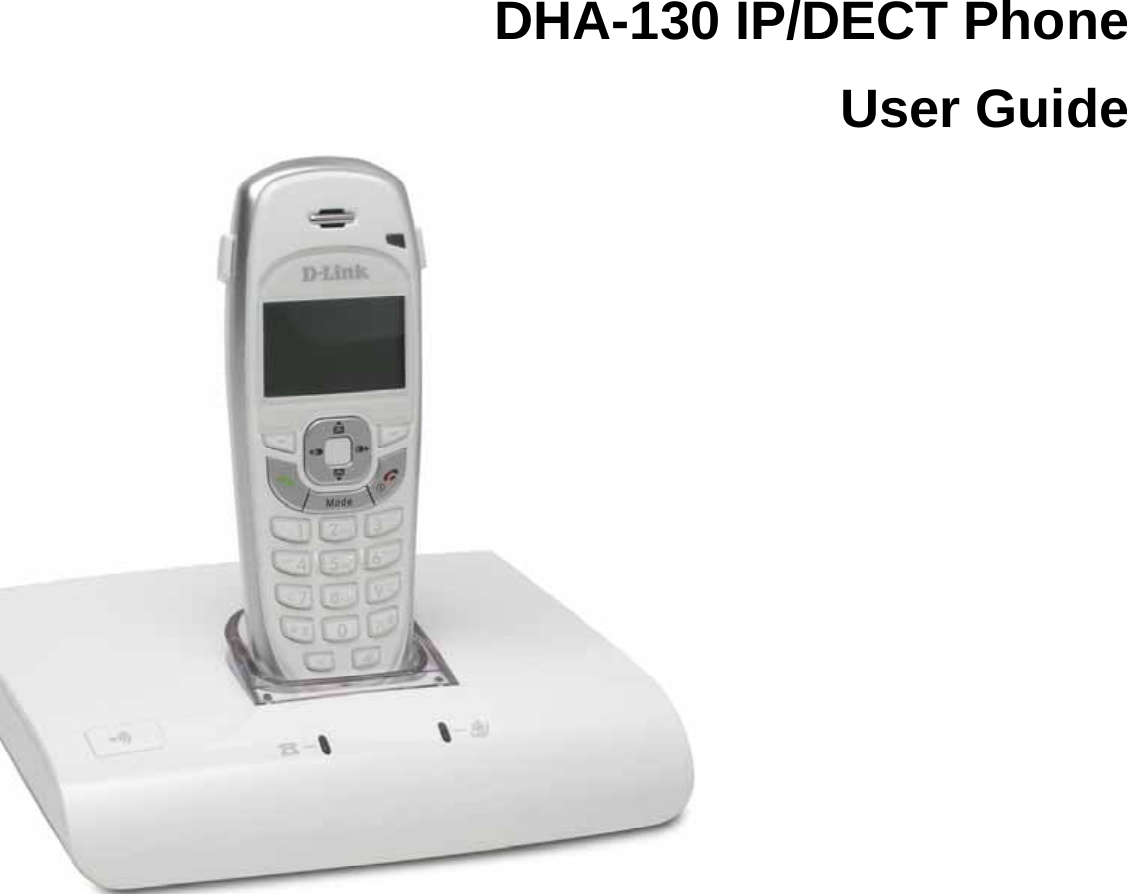
 DHA-130 IP/DECT Phone User Guide
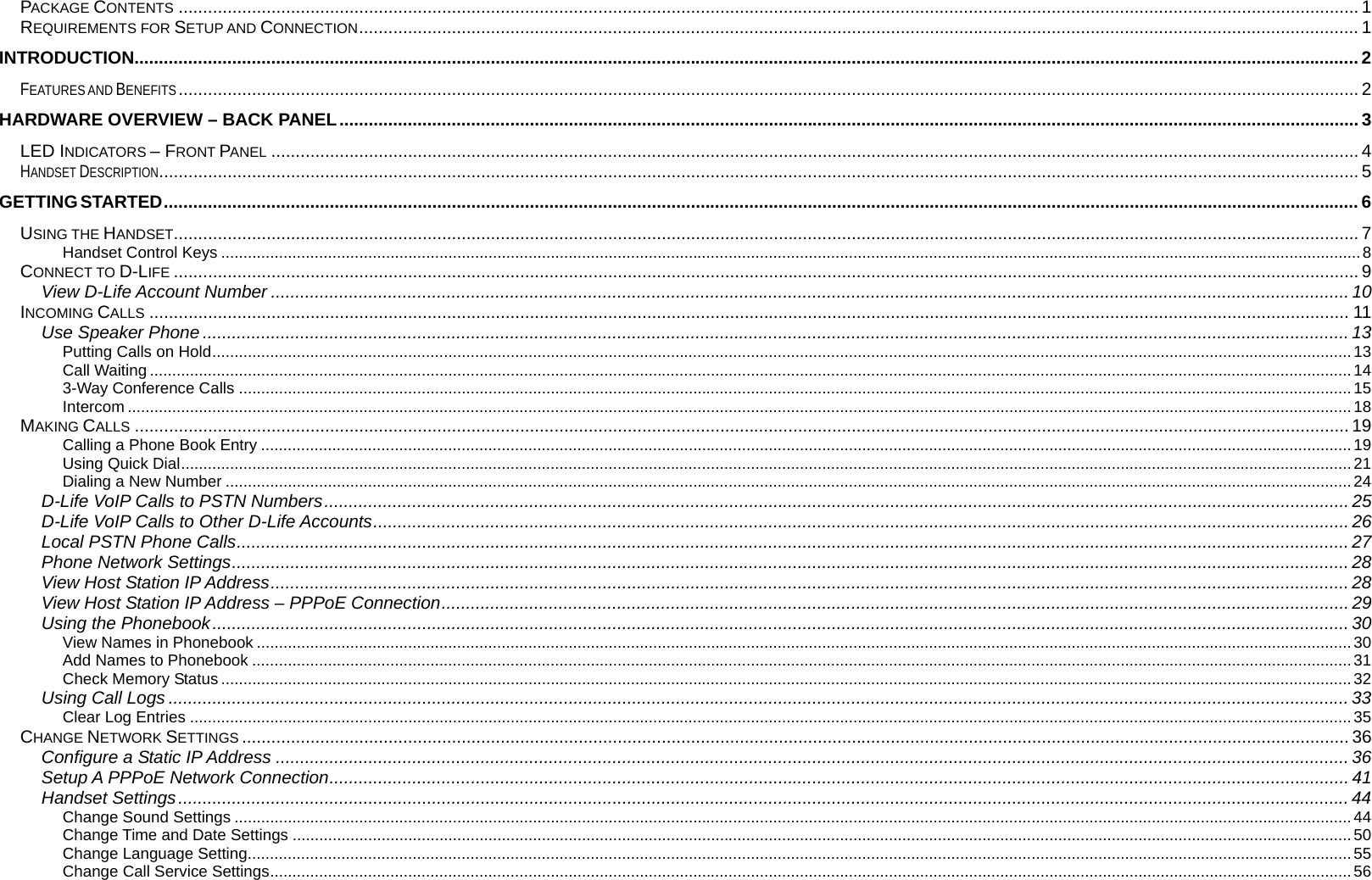
 PACKAGE CONTENTS .................................................................................................................................................................................................................................................. 1 REQUIREMENTS FOR SETUP AND CONNECTION............................................................................................................................................................................................................. 1 INTRODUCTION........................................................................................................................................................................................................................................................... 2 FEATURES AND BENEFITS.................................................................................................................................................................................................................................................. 2 HARDWARE OVERVIEW – BACK PANEL................................................................................................................................................................................................................. 3 LED INDICATORS – FRONT PANEL ............................................................................................................................................................................................................................... 4 HANDSET DESCRIPTION...................................................................................................................................................................................................................................................... 5 GETTING STARTED..................................................................................................................................................................................................................................................... 6 USING THE HANDSET................................................................................................................................................................................................................................................... 7 Handset Control Keys ................................................................................................................................................................................................................................................................8 CONNECT TO D-LIFE ................................................................................................................................................................................................................................................... 9 View D-Life Account Number ............................................................................................................................................................................................................................. 10 INCOMING CALLS ...................................................................................................................................................................................................................................................... 11 Use Speaker Phone ........................................................................................................................................................................................................................................... 13 Putting Calls on Hold................................................................................................................................................................................................................................................................13 Call Waiting ..............................................................................................................................................................................................................................................................................14 3-Way Conference Calls ..........................................................................................................................................................................................................................................................15 Intercom ...................................................................................................................................................................................................................................................................................18 MAKING CALLS ......................................................................................................................................................................................................................................................... 19 Calling a Phone Book Entry .....................................................................................................................................................................................................................................................19 Using Quick Dial.......................................................................................................................................................................................................................................................................21 Dialing a New Number .............................................................................................................................................................................................................................................................24 D-Life VoIP Calls to PSTN Numbers.................................................................................................................................................................................................................. 25 D-Life VoIP Calls to Other D-Life Accounts........................................................................................................................................................................................................ 26 Local PSTN Phone Calls.................................................................................................................................................................................................................................... 27 Phone Network Settings..................................................................................................................................................................................................................................... 28 View Host Station IP Address............................................................................................................................................................................................................................. 28 View Host Station IP Address – PPPoE Connection.......................................................................................................................................................................................... 29 Using the Phonebook......................................................................................................................................................................................................................................... 30 View Names in Phonebook ......................................................................................................................................................................................................................................................30 Add Names to Phonebook .......................................................................................................................................................................................................................................................31 Check Memory Status ..............................................................................................................................................................................................................................................................32 Using Call Logs .................................................................................................................................................................................................................................................. 33 Clear Log Entries .....................................................................................................................................................................................................................................................................35 CHANGE NETWORK SETTINGS ................................................................................................................................................................................................................................... 36 Configure a Static IP Address ............................................................................................................................................................................................................................ 36 Setup A PPPoE Network Connection................................................................................................................................................................................................................. 41 Handset Settings................................................................................................................................................................................................................................................ 44 Change Sound Settings ...........................................................................................................................................................................................................................................................44 Change Time and Date Settings ..............................................................................................................................................................................................................................................50 Change Language Setting........................................................................................................................................................................................................................................................55 Change Call Service Settings...................................................................................................................................................................................................................................................56
 Change Contrast Setting..........................................................................................................................................................................................................................................................57 Handset Extras................................................................................................................................................................................................................................................... 58 Base Station Settings .........................................................................................................................................................................................................................................60 Adding New Handsets..............................................................................................................................................................................................................................................................60 Change Base Station ...............................................................................................................................................................................................................................................................64 Delete Handset ........................................................................................................................................................................................................................................................................66 Reset Base Station...................................................................................................................................................................................................................................................................67 Change PIN..............................................................................................................................................................................................................................................................................68 USING THE WEB UTILITY ........................................................................................................................................................................................................................................... 69 Maintenance.............................................................................................................................................................................................................................................................................72 Status .......................................................................................................................................................................................................................................................................................73 TECHNICAL SPECIFICATIONS ................................................................................................................................................................................................................................ 75 ROUTER PORT CONFIGURATION.................................................................................................................................................................................................................................... 78 Opening Ports on Routers and Gateways.......................................................................................................................................................................................................... 78 How to Manually Open Ports on a Router......................................................................................................................................................................................................... 79 TROUBLESHOOTING...................................................................................................................................................................................................................................................... 80 LCD DISPLAY ICONS................................................................................................................................................................................................................................................81
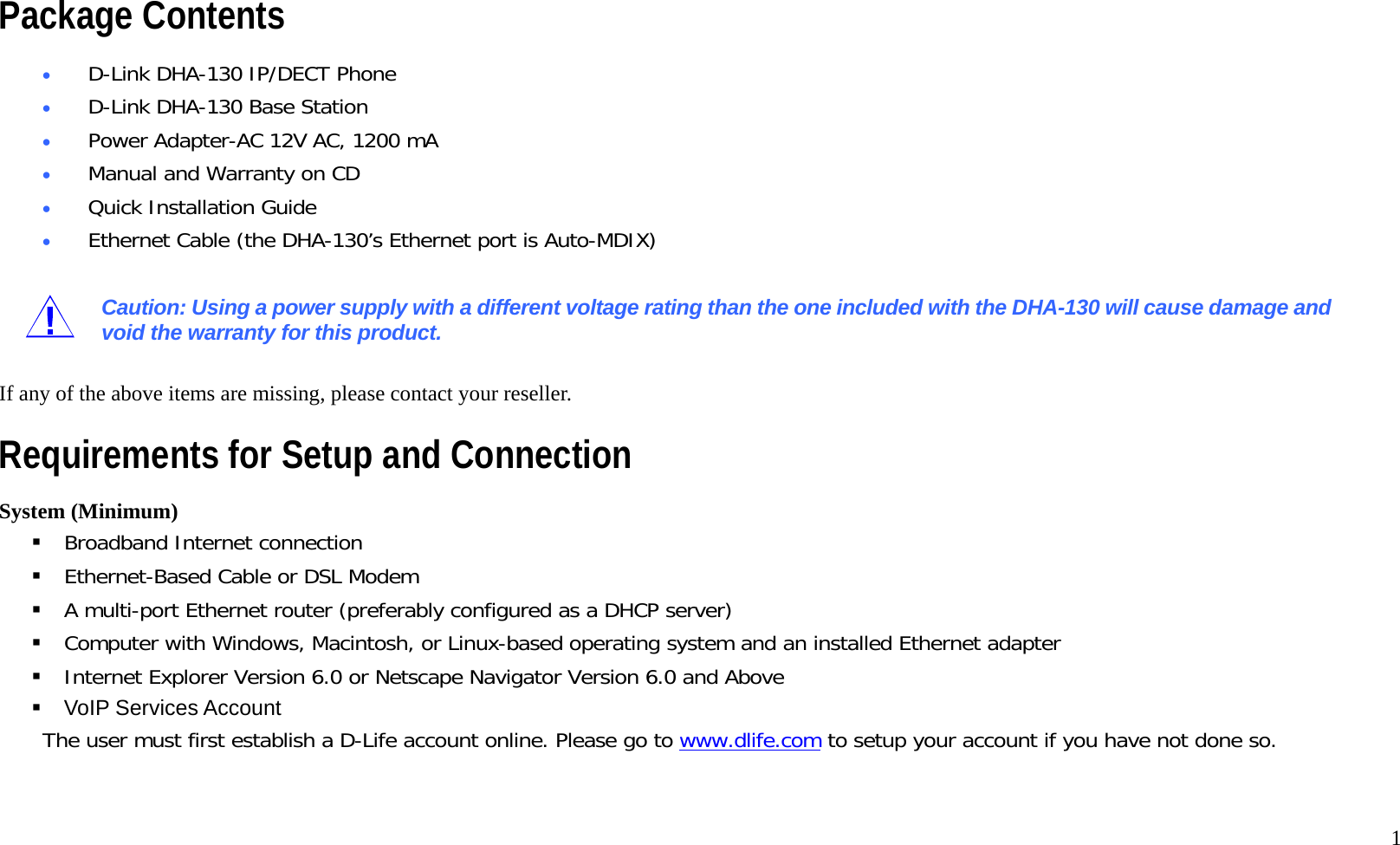
  1 Package Contents •  D-Link DHA-130 IP/DECT Phone •  D-Link DHA-130 Base Station •  Power Adapter-AC 12V AC, 1200 mA •  Manual and Warranty on CD •  Quick Installation Guide •  Ethernet Cable (the DHA-130’s Ethernet port is Auto-MDIX)  Caution: Using a power supply with a different voltage rating than the one included with the DHA-130 will cause damage and void the warranty for this product.  If any of the above items are missing, please contact your reseller. Requirements for Setup and Connection System (Minimum)  Broadband Internet connection  Ethernet-Based Cable or DSL Modem  A multi-port Ethernet router (preferably configured as a DHCP server)  Computer with Windows, Macintosh, or Linux-based operating system and an installed Ethernet adapter  Internet Explorer Version 6.0 or Netscape Navigator Version 6.0 and Above  VoIP Services Account The user must first establish a D-Life account online. Please go to www.dlife.com to setup your account if you have not done so.
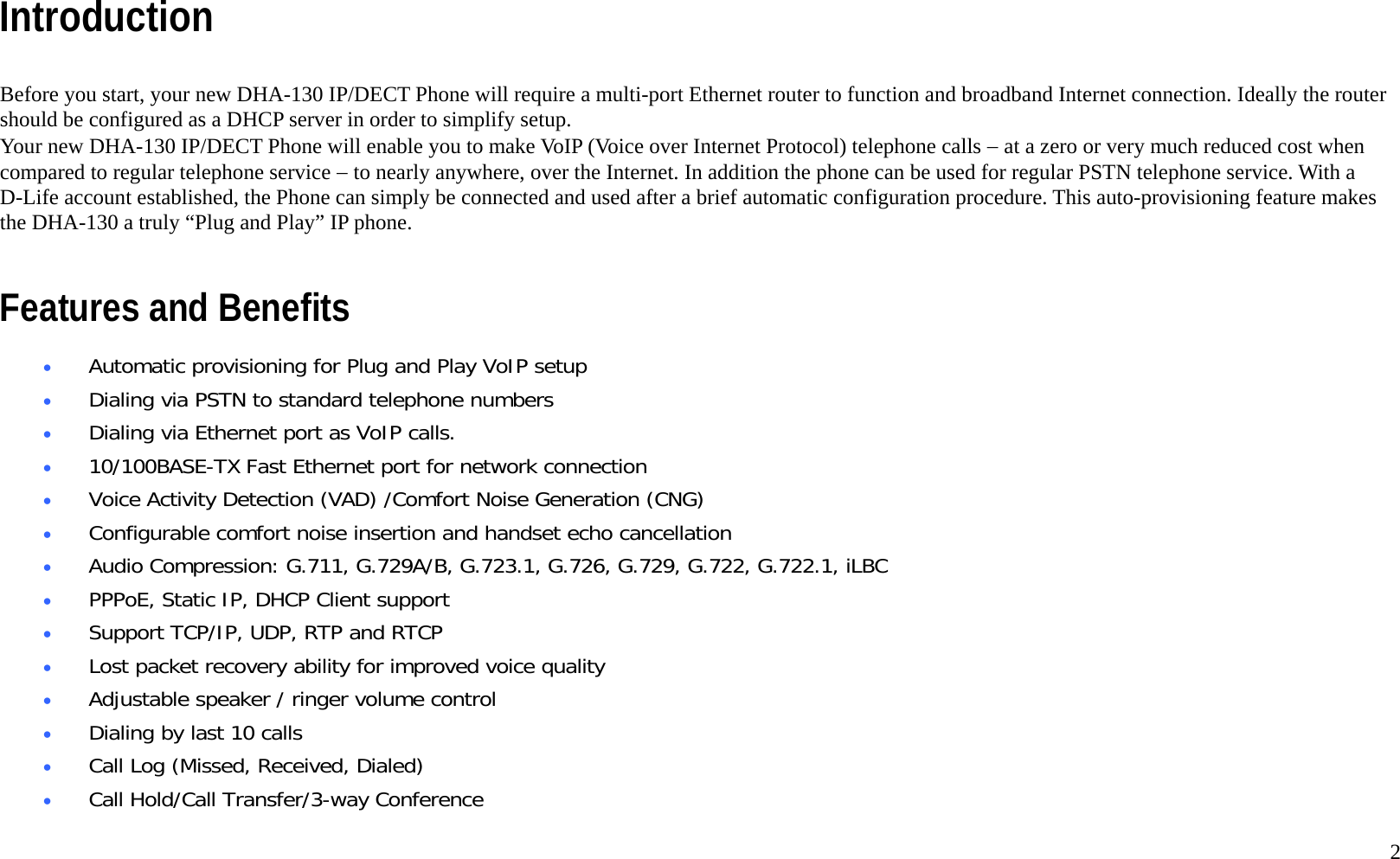
  2 Introduction  Before you start, your new DHA-130 IP/DECT Phone will require a multi-port Ethernet router to function and broadband Internet connection. Ideally the router should be configured as a DHCP server in order to simplify setup. Your new DHA-130 IP/DECT Phone will enable you to make VoIP (Voice over Internet Protocol) telephone calls − at a zero or very much reduced cost when compared to regular telephone service − to nearly anywhere, over the Internet. In addition the phone can be used for regular PSTN telephone service. With a D-Life account established, the Phone can simply be connected and used after a brief automatic configuration procedure. This auto-provisioning feature makes the DHA-130 a truly “Plug and Play” IP phone.    Features and Benefits •  Automatic provisioning for Plug and Play VoIP setup •  Dialing via PSTN to standard telephone numbers •  Dialing via Ethernet port as VoIP calls.  •  10/100BASE-TX Fast Ethernet port for network connection •  Voice Activity Detection (VAD) /Comfort Noise Generation (CNG) •  Configurable comfort noise insertion and handset echo cancellation •  Audio Compression: G.711, G.729A/B, G.723.1, G.726, G.729, G.722, G.722.1, iLBC •  PPPoE, Static IP, DHCP Client support •  Support TCP/IP, UDP, RTP and RTCP •  Lost packet recovery ability for improved voice quality •  Adjustable speaker / ringer volume control  •  Dialing by last 10 calls •  Call Log (Missed, Received, Dialed) •  Call Hold/Call Transfer/3-way Conference
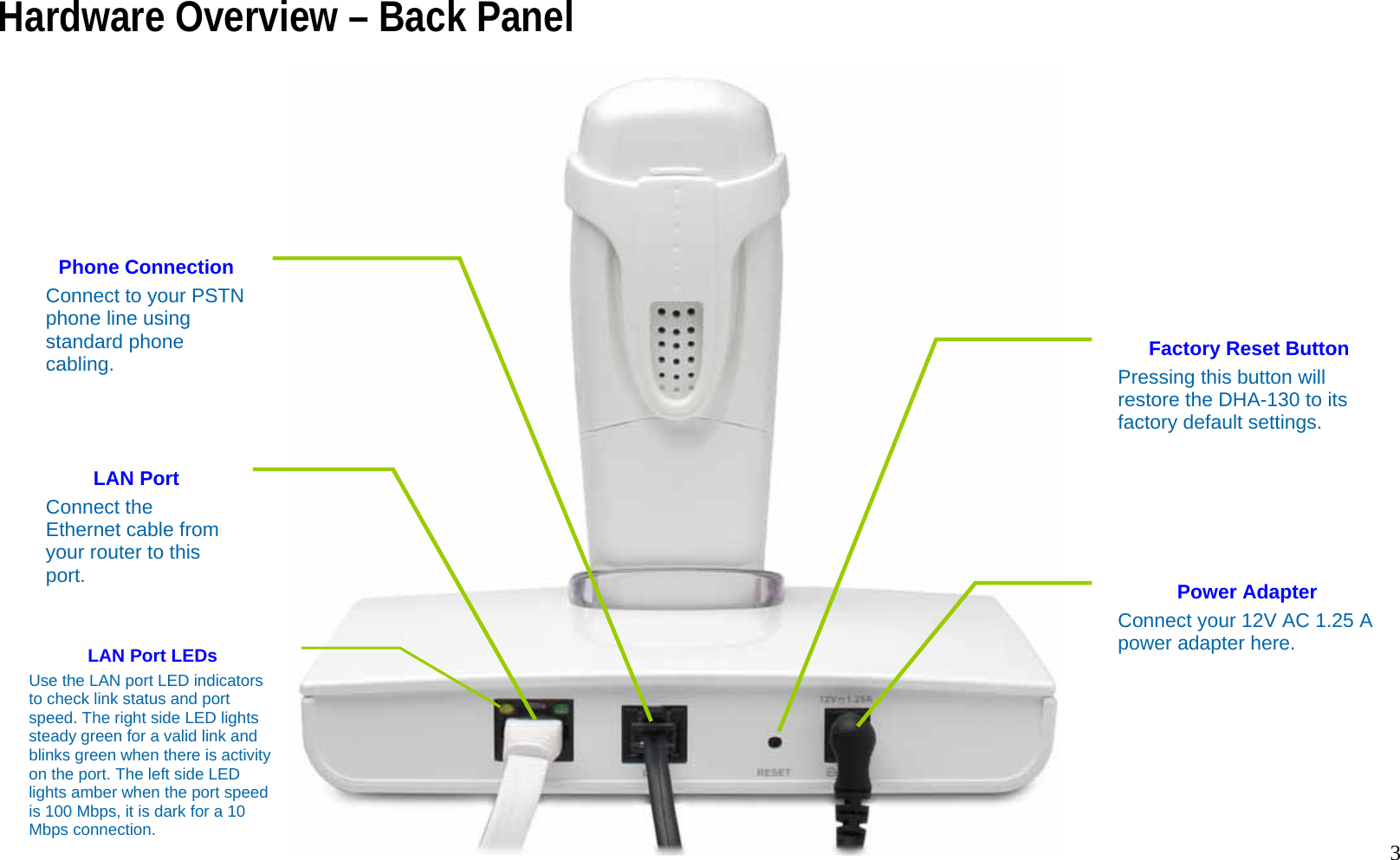
  3 Hardware Overview – Back Panel                                LAN Port Connect the Ethernet cable from your router to this port. Phone ConnectionConnect to your PSTN phone line using standard phone cabling.  Power Adapter Connect your 12V AC 1.25 A power adapter here.  Factory Reset Button Pressing this button will restore the DHA-130 to its factory default settings. LAN Port LEDs Use the LAN port LED indicators to check link status and port speed. The right side LED lights steady green for a valid link and blinks green when there is activity on the port. The left side LED lights amber when the port speed is 100 Mbps, it is dark for a 10 Mbps connection.
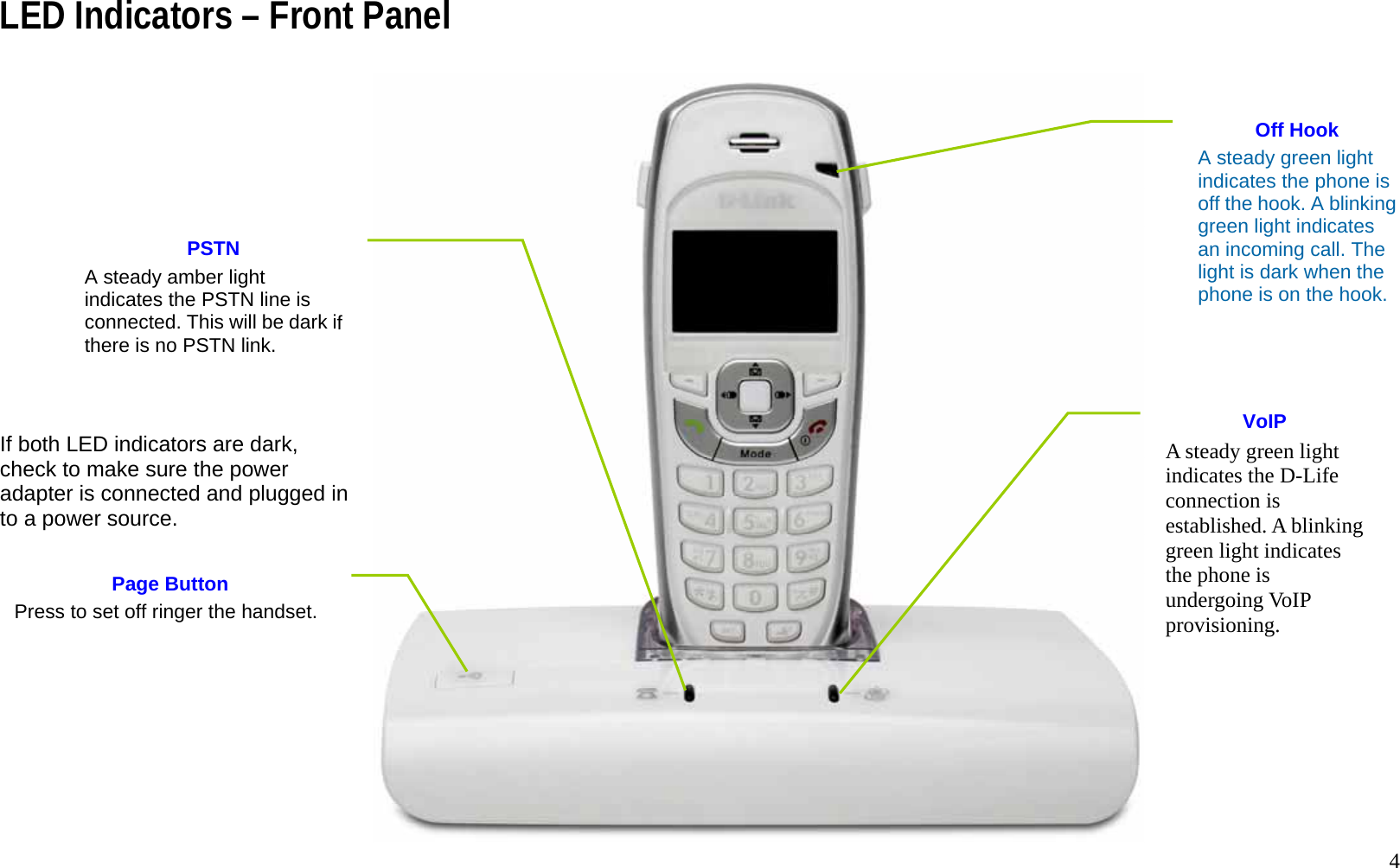
  4 LED Indicators – Front Panel                If both LED indicators are dark, check to make sure the power adapter is connected and plugged in to a power source.               Page Button Press to set off ringer the handset.  VoIP A steady green light indicates the D-Life connection is established. A blinking green light indicates the phone is undergoing VoIP provisioning.  PSTN A steady amber light indicates the PSTN line is connected. This will be dark ifthere is no PSTN link.   Off Hook A steady green light indicates the phone is off the hook. A blinkinggreen light indicates an incoming call. The light is dark when the phone is on the hook.
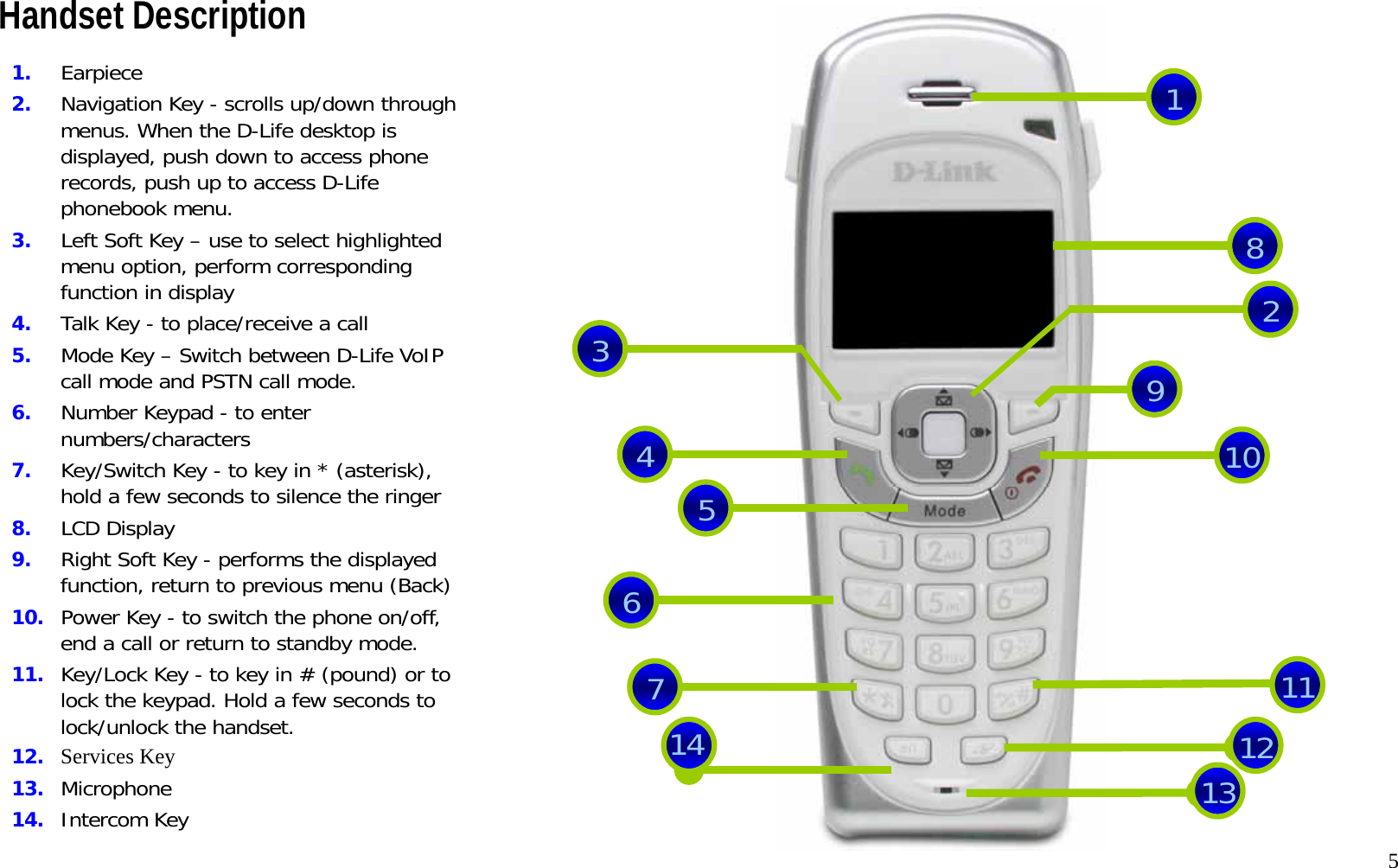
  5 Handset Description                             184561011 32 91.  Earpiece 2.  Navigation Key - scrolls up/down through menus. When the D-Life desktop is displayed, push down to access phone records, push up to access D-Life phonebook menu.  3.  Left Soft Key – use to select highlighted menu option, perform corresponding function in display 4.  Talk Key - to place/receive a call 5.  Mode Key – Switch between D-Life VoIP call mode and PSTN call mode.  6.  Number Keypad - to enter numbers/characters 7.  Key/Switch Key - to key in * (asterisk), hold a few seconds to silence the ringer8.  LCD Display 9.  Right Soft Key - performs the displayed function, return to previous menu (Back)10.  Power Key - to switch the phone on/off, end a call or return to standby mode. 11.  Key/Lock Key - to key in # (pound) or to lock the keypad. Hold a few seconds to lock/unlock the handset. 12.  Services Key 13.  Microphone 14.  Intercom Key   71214 13
  6 Getting Started  BEFORE YOU  BEGIN!  Make sure you have a broadband Internet connection, a multi-port Ethernet router such as a broadband router or ADSL router, and an active D-Life account already setup. If you do not have a D-Life account yet, access the D-Life website (www.dlife.com) and set up an account first. For information on using a broadband or ADSL router with the Phone, please read Appendix B Router Port Configuration on page 78.  The DHA-130 is very easy to setup and use. Connect the phone line and Ethernet cable as illustrated in the Back Panel picture. Connect the power and the Phone will begin to establish the connection to the D-Life account server. This process is called provisioning. During the provisioning, the green VoIP LED indicator on the front of the base station will blink. When the account has been verified and the Phone is ready to use, the VoIP LED indicator will shine steady green.
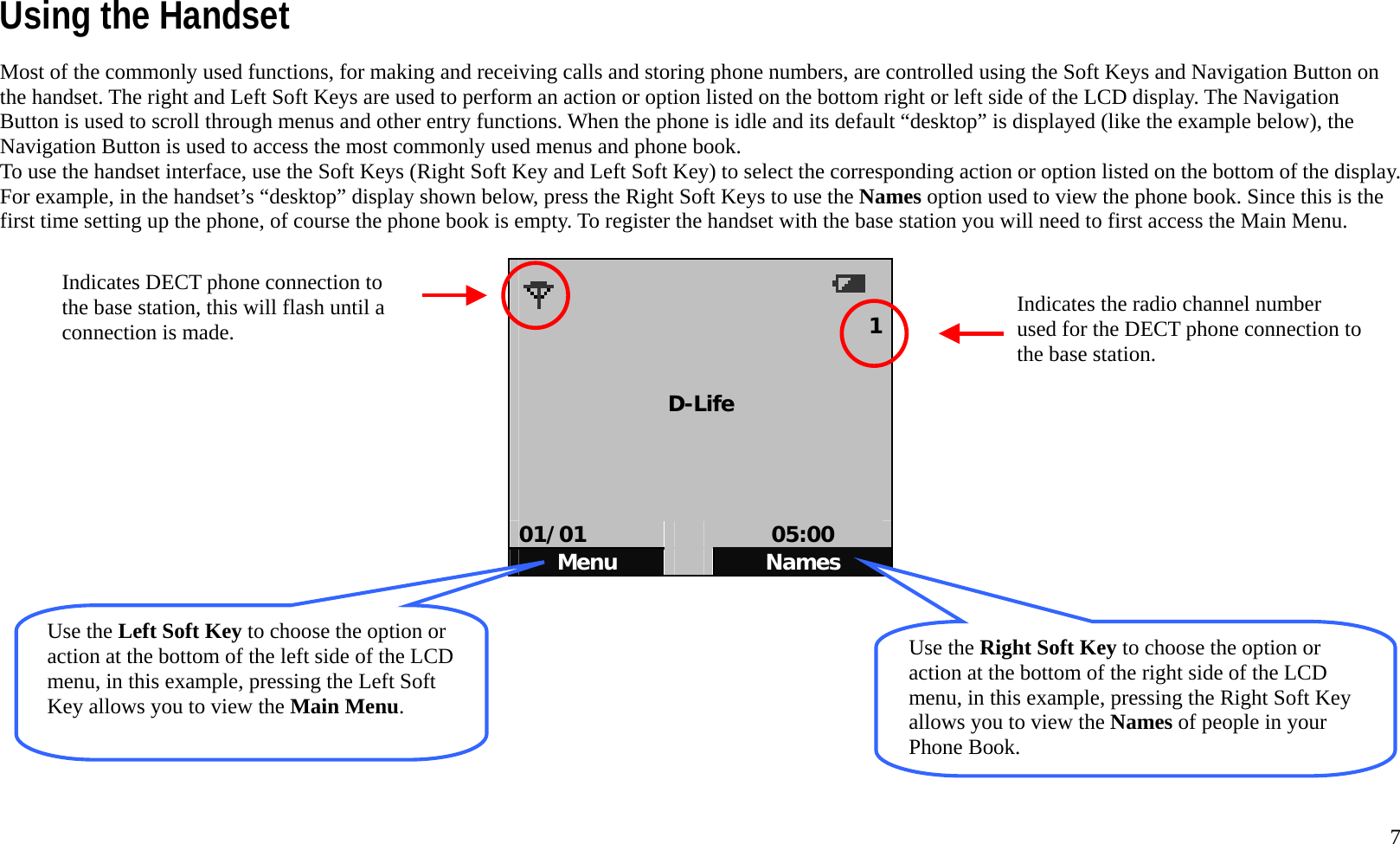
  7 Using the Handset Most of the commonly used functions, for making and receiving calls and storing phone numbers, are controlled using the Soft Keys and Navigation Button on the handset. The right and Left Soft Keys are used to perform an action or option listed on the bottom right or left side of the LCD display. The Navigation Button is used to scroll through menus and other entry functions. When the phone is idle and its default “desktop” is displayed (like the example below), the Navigation Button is used to access the most commonly used menus and phone book.     To use the handset interface, use the Soft Keys (Right Soft Key and Left Soft Key) to select the corresponding action or option listed on the bottom of the display. For example, in the handset’s “desktop” display shown below, press the Right Soft Keys to use the Names option used to view the phone book. Since this is the first time setting up the phone, of course the phone book is empty. To register the handset with the base station you will need to first access the Main Menu.    1  D-Life     01/01   05:00 Menu   Names         Use the Left Soft Key to choose the option or action at the bottom of the left side of the LCD menu, in this example, pressing the Left Soft Key allows you to view the Main Menu. Use the Right Soft Key to choose the option or action at the bottom of the right side of the LCD menu, in this example, pressing the Right Soft Key allows you to view the Names of people in your Phone Book. Indicates the radio channel number used for the DECT phone connection to the base station. Indicates DECT phone connection to the base station, this will flash until a connection is made.
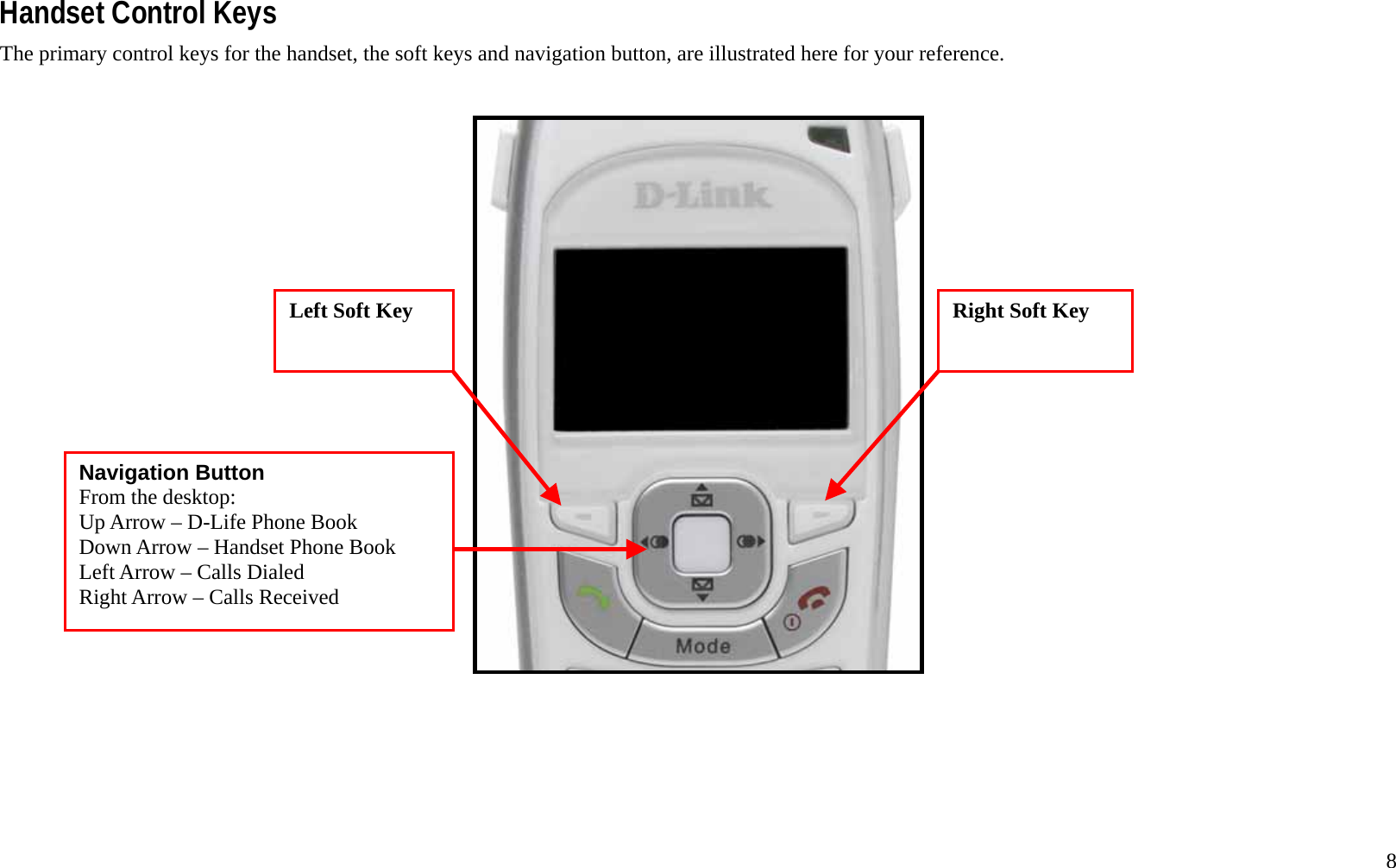
  8 Handset Control Keys The primary control keys for the handset, the soft keys and navigation button, are illustrated here for your reference.       Right Soft Key  Left Soft Key  Navigation Button From the desktop: Up Arrow – D-Life Phone Book Down Arrow – Handset Phone Book Left Arrow – Calls Dialed Right Arrow – Calls Received
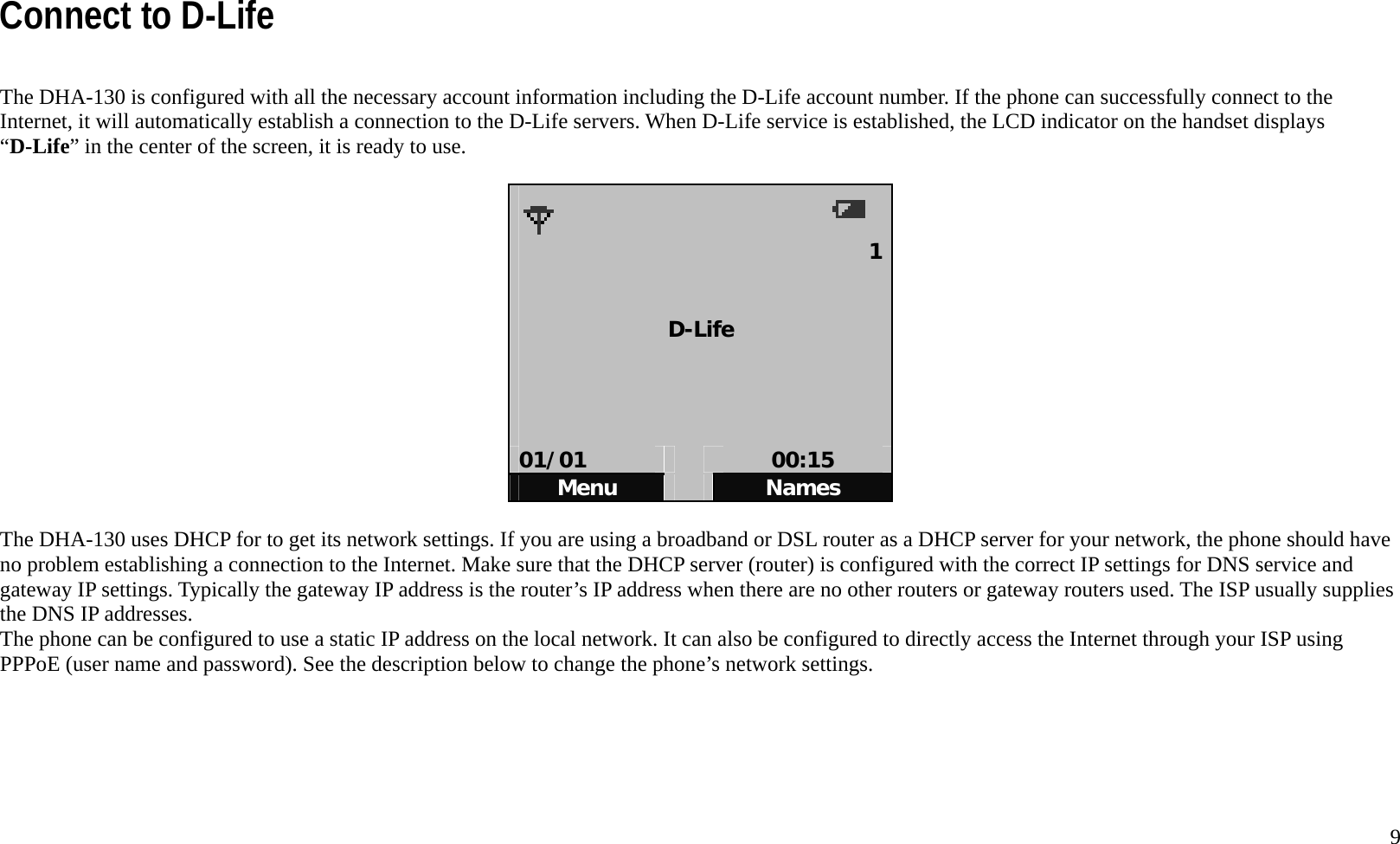
  9 Connect to D-Life  The DHA-130 is configured with all the necessary account information including the D-Life account number. If the phone can successfully connect to the Internet, it will automatically establish a connection to the D-Life servers. When D-Life service is established, the LCD indicator on the handset displays “D-Life” in the center of the screen, it is ready to use.    1  D-Life     01/01   00:15 Menu   Names  The DHA-130 uses DHCP for to get its network settings. If you are using a broadband or DSL router as a DHCP server for your network, the phone should have no problem establishing a connection to the Internet. Make sure that the DHCP server (router) is configured with the correct IP settings for DNS service and gateway IP settings. Typically the gateway IP address is the router’s IP address when there are no other routers or gateway routers used. The ISP usually supplies the DNS IP addresses.   The phone can be configured to use a static IP address on the local network. It can also be configured to directly access the Internet through your ISP using PPPoE (user name and password). See the description below to change the phone’s network settings.
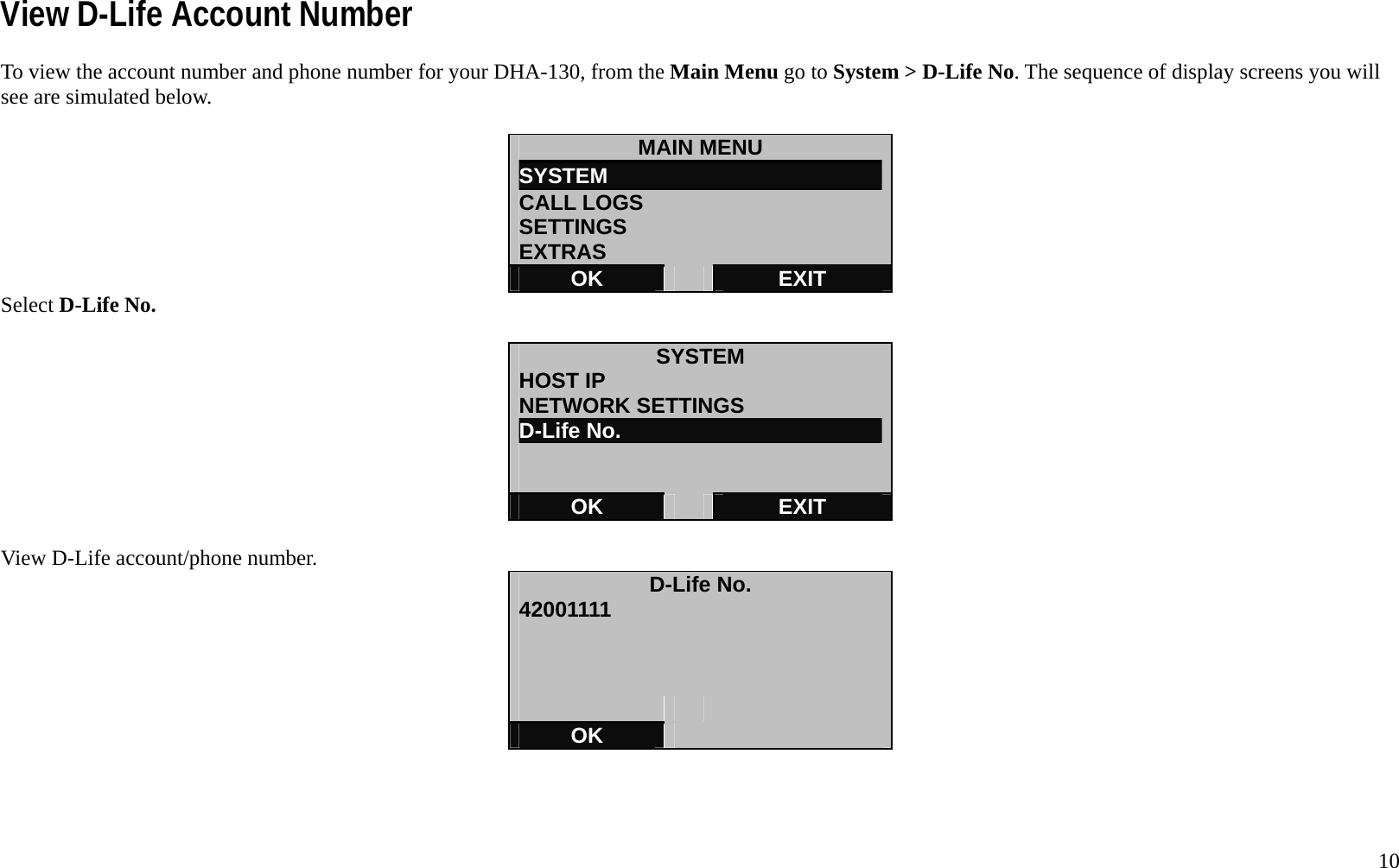
  10 View D-Life Account Number To view the account number and phone number for your DHA-130, from the Main Menu go to System > D-Life No. The sequence of display screens you will see are simulated below.  MAIN MENU SYSTEM                          CALL LOGS SETTINGS EXTRAS OK   EXIT Select D-Life No.  SYSTEM HOST IP NETWORK SETTINGS D-Life No.   OK   EXIT  View D-Life account/phone number.  D-Life No. 42001111         OK
  11Incoming Calls The procedures used when answering calls from D-Life VoIP stations or PSTN calls are identical. The main difference is that the LCD display will indicate that the incoming call is a VoIP call or PSTN call.                      [i]            123456     04/03   12:15 ANSWER   SILENT     To answer the call immediately either press the Talk Key, or the Left Soft Key. Press the Right Soft Key to silence the ringer but not answer the call.         When the call has been answered, a timer for the call appears, as well as OPTIONS that can be viewed using the Left Soft Key. The call can be muted so the call The number of the caller appears as well as the type of call ([i] for VoIP IP call and [P] for PSTN).
  12 is silenced from the handset while allowing voice and sound to still come through from the other end. To MUTE the handset, press the Right Soft Key while the call is active.               [i]            [i]: 123456      00:00:04     OPTIONS   MUTE  Use the Left Soft key to view the options available while the call is active.  OPTIONS SPEAKER                         HOLD LINE HS PHONEBOOK --------------------------------- OK   EXIT
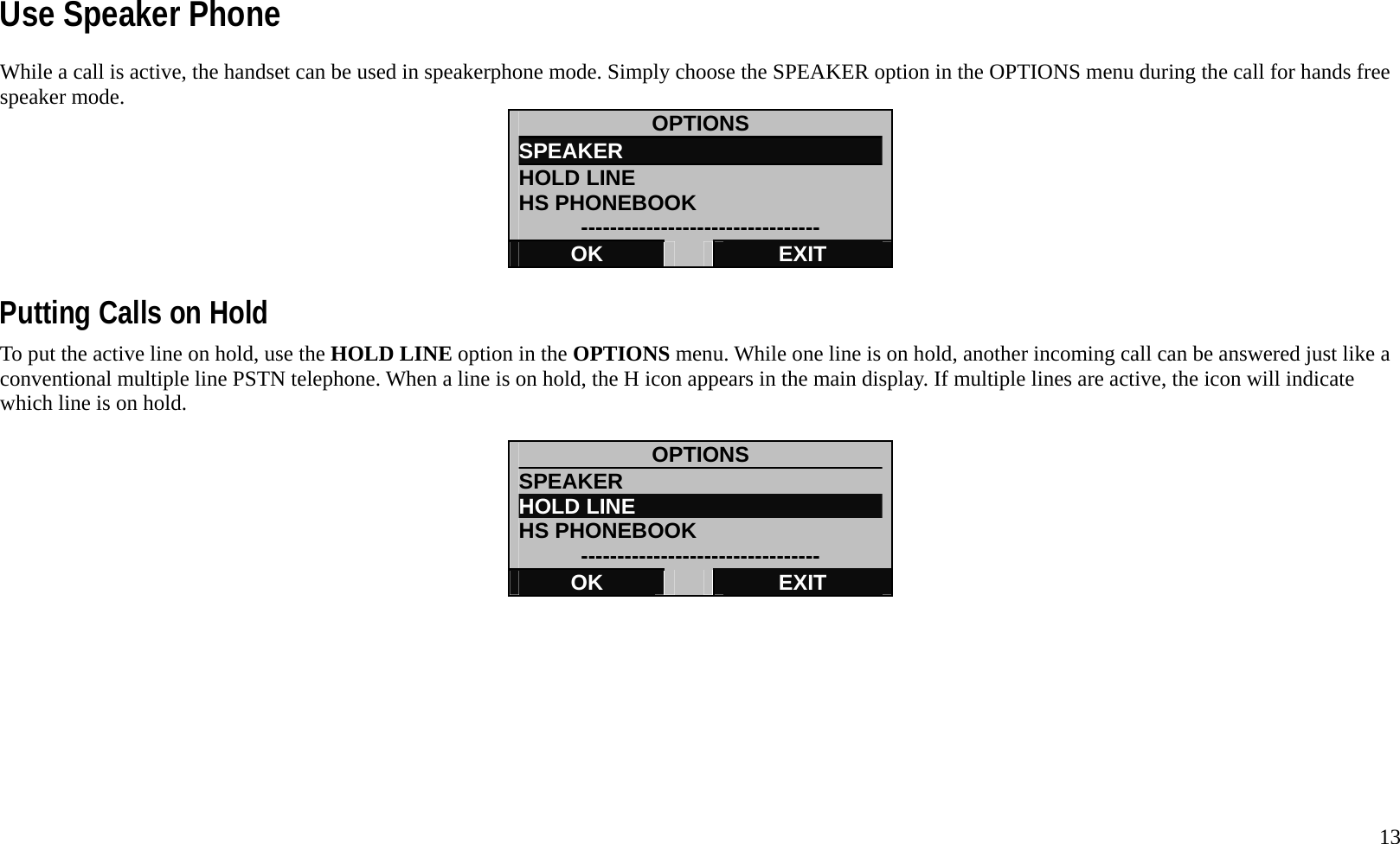
  13 Use Speaker Phone While a call is active, the handset can be used in speakerphone mode. Simply choose the SPEAKER option in the OPTIONS menu during the call for hands free speaker mode.    OPTIONS SPEAKER                         HOLD LINE HS PHONEBOOK --------------------------------- OK   EXIT  Putting Calls on Hold To put the active line on hold, use the HOLD LINE option in the OPTIONS menu. While one line is on hold, another incoming call can be answered just like a conventional multiple line PSTN telephone. When a line is on hold, the H icon appears in the main display. If multiple lines are active, the icon will indicate which line is on hold.  OPTIONS SPEAKER                         HOLD LINE HS PHONEBOOK --------------------------------- OK   EXIT
  14  Call Waiting When an incoming call occurs while another call is active, the incoming call can be answered while placing the active call on hold automatically.            [i]        [P]            [i]: 123456 [P]: 5558961     00:00:35     ANSWER   MUTE   To answer the incoming call and simultaneously place the active call on hold, press the Left Soft Key to ANSWER the incoming call. The original call will be on hold, this is indicated by the H1 icon indicating that line 1 is on hold.                   P            [P]: 5558961    00:00:02     OPTIONS   MUTE  Use the Left Soft Key to view the options, including the option to switch back to the original caller.   Incoming call indicated by flashing indicator (flashing [i] for VoIP, flashing [P] for PSTN) The name and number of the unanswered incoming call flashes. Current call information does not flash in the display.
  15 To return to the original call, use the SWITCH CALLS option in the OPTIONS menu. Switching to the other line will put the second call on hold while taking the original call off hold.    OPTIONS SPEAKER                         RELEASE & HOLD SWITCH CALLS CONFERENCE OK   EXIT   3-Way Conference Calls Conference calls can be held when both lines have active calls. To use the 3-way conference call function, go the OPTIONS menu when both lines are connected (one or both lines can be on hold).                   [P]             [i]: MOM/123456 [P]: BOB/5558961     00:00:35     OPTIONS   MUTE  It will be necessary to choose to put one call in conference mode, switch to the other line, then place that call in conference mode.
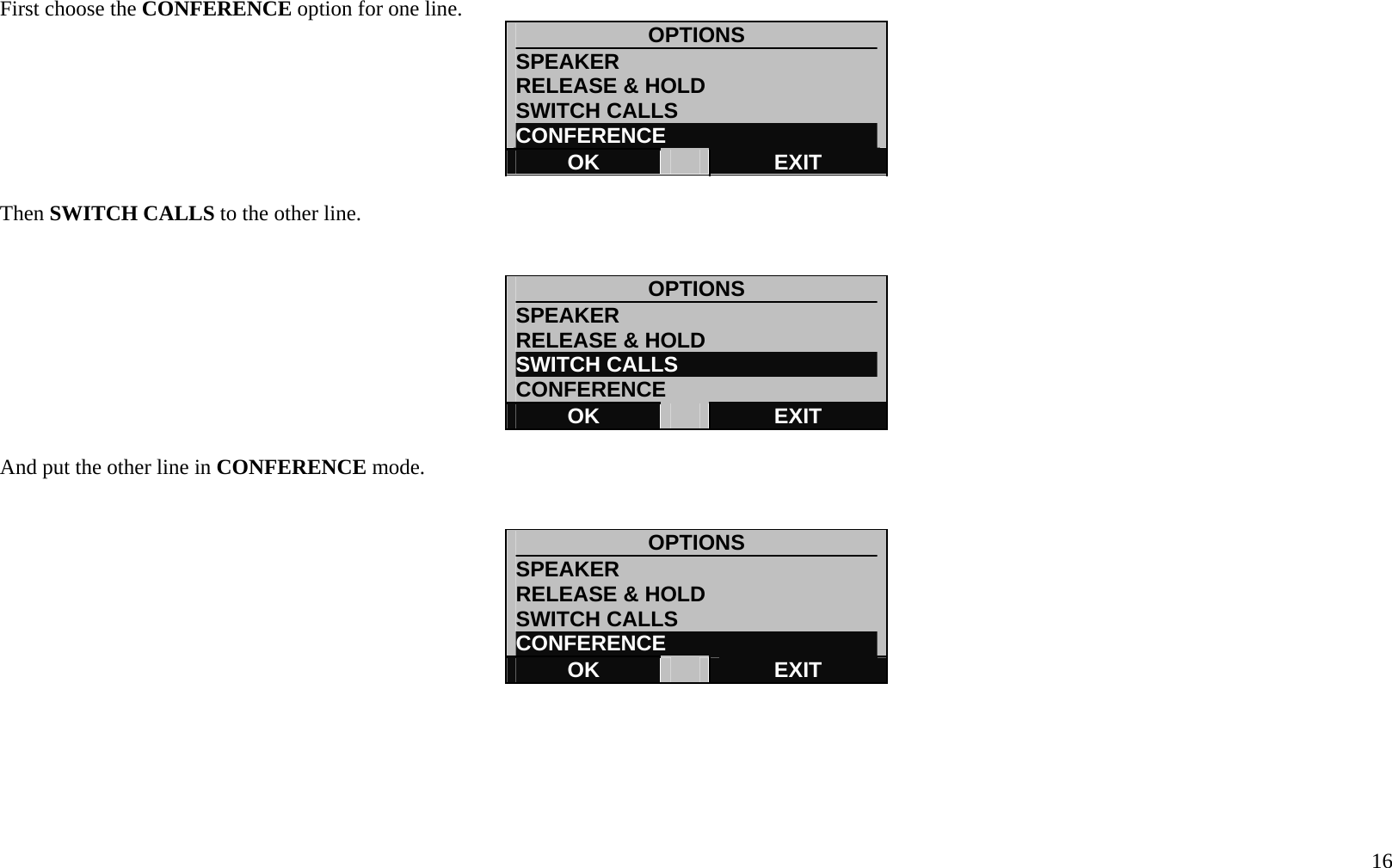
  16 First choose the CONFERENCE option for one line.  OPTIONS SPEAKER                         RELEASE & HOLD SWITCH CALLS CONFERENCE OK   EXIT  Then SWITCH CALLS to the other line.   OPTIONS SPEAKER                         RELEASE & HOLD SWITCH CALLS CONFERENCE OK   EXIT  And put the other line in CONFERENCE mode.     OPTIONS SPEAKER                         RELEASE & HOLD SWITCH CALLS CONFERENCE OK   EXIT
  17 The display indicates that the handset is in CONFERENCE mode.          [i]       [P]             CONFERENCE    00:12:37     OPTIONS   MUTE  To end the conference call or select one line to leave the conference call, bring up the OPTIONS menu again.  OPTIONS SPEAKER                         END CALL 1 END CALL 2 END ALL CALLS OK   EXIT  Select the option to END ALL CALLS if you want to terminate calls on both lines. Or choose to END CALL 1 or END CALL2 to return to single call mode with the remaining line.
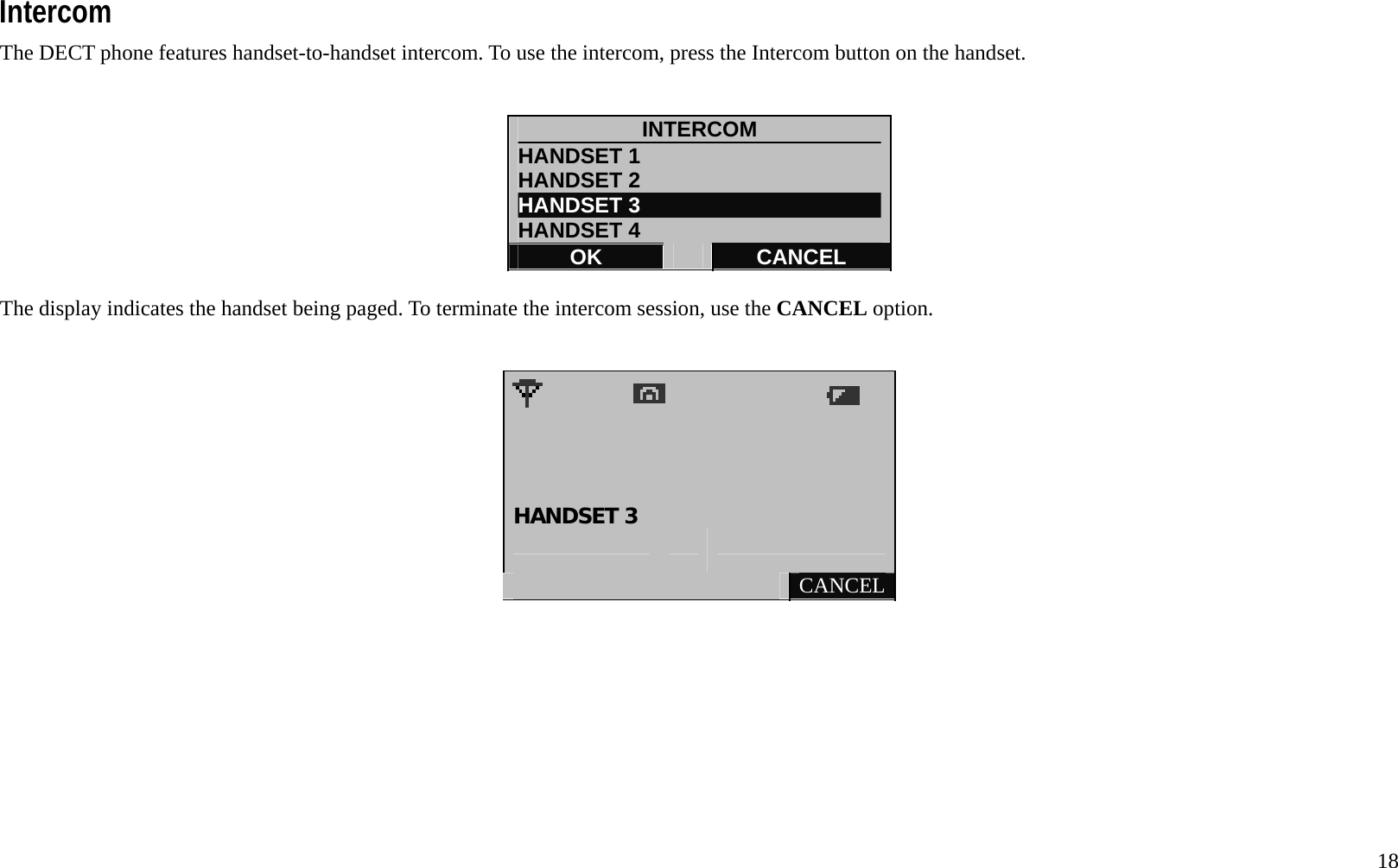
  18 Intercom The DECT phone features handset-to-handset intercom. To use the intercom, press the Intercom button on the handset.     INTERCOM HANDSET 1                       HANDSET 2 HANDSET 3 HANDSET 4 OK   CANCEL  The display indicates the handset being paged. To terminate the intercom session, use the CANCEL option.                        HANDSET 3       CANCEL
  19 Making Calls Calls can be made using phone book entries. Frequently used numbers can be added to the Quick Dial list. Calls can also be dialed if they do not appear in your logs or phone book. This section describes how to do all of these.  Calling a Phone Book Entry 1.  To call a number that is already in the phone book, simply choose NAMES from the desktop display.  PHONE BOOK HANDSET                         D-Life      -----------------------------------  OK   EXIT  2. Choose the HANDSET or D-Life phonebook.  HANDSET VIEW RECORD                    NEW ENTRY QUICK DIAL MEMORY STATUS OK   EXIT  3.  Select the number to call and choose DETAILS.  HANDSET [i] ALICEB                         [P] BOBK [i]CAROLD [P]DENNYJ DETAILS   EXIT
  20 4. Choose OPTIONS.  DETAILS MOM [i]123456      OPTIONS   EXIT   5. Choose the HANDSET or D-Life phonebook.  OPTIONS USE NUMBER                     EDIT DELETE  OK   EXIT  6. Select DIAL to call the number.     123456           DIAL   DELETE
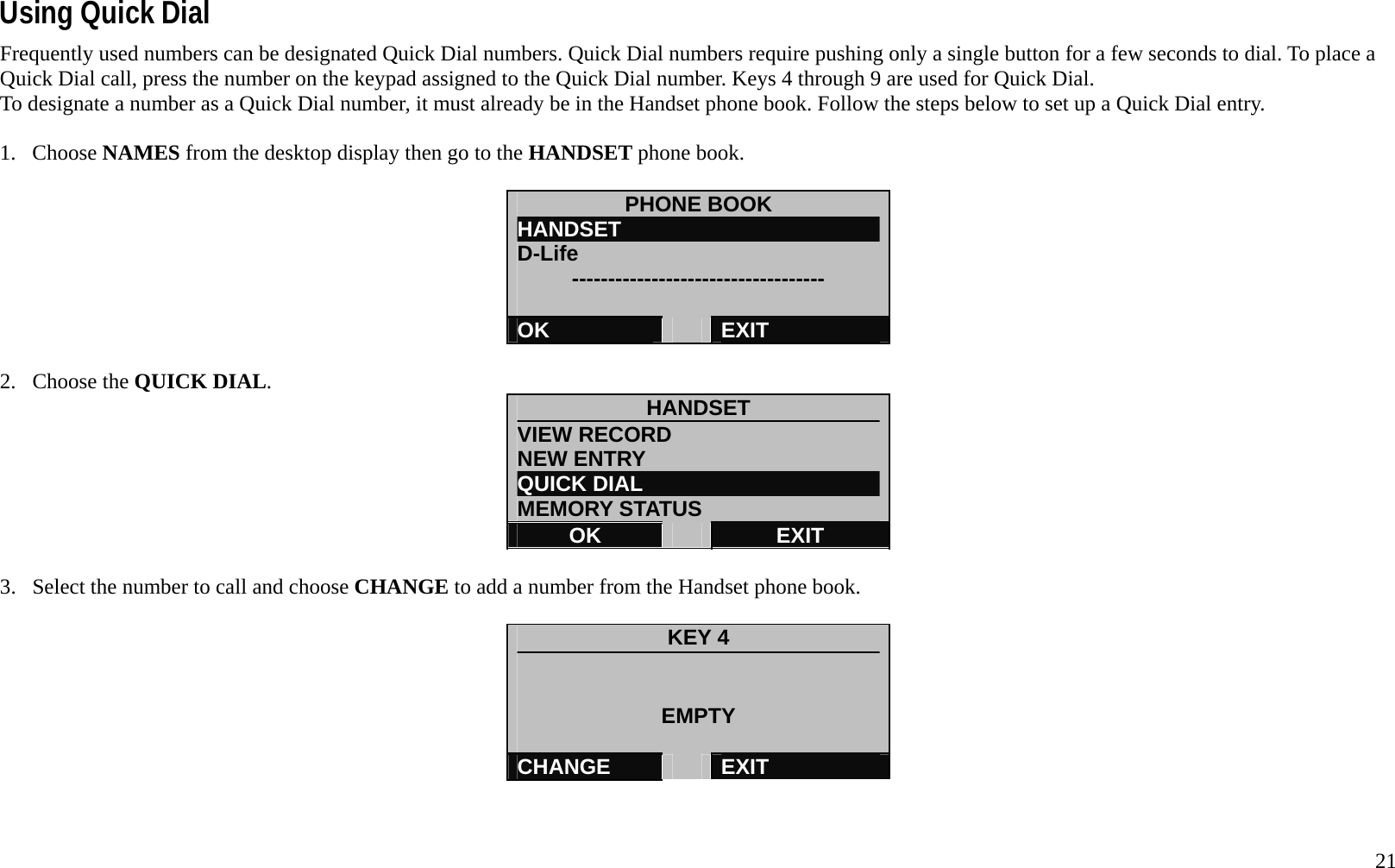
  21 Using Quick Dial Frequently used numbers can be designated Quick Dial numbers. Quick Dial numbers require pushing only a single button for a few seconds to dial. To place a Quick Dial call, press the number on the keypad assigned to the Quick Dial number. Keys 4 through 9 are used for Quick Dial.   To designate a number as a Quick Dial number, it must already be in the Handset phone book. Follow the steps below to set up a Quick Dial entry.  1. Choose NAMES from the desktop display then go to the HANDSET phone book.  PHONE BOOK HANDSET                         D-Life      -----------------------------------  OK   EXIT  2. Choose the QUICK DIAL.  HANDSET VIEW RECORD NEW ENTRY QUICK DIAL MEMORY STATUS OK   EXIT  3.  Select the number to call and choose CHANGE to add a number from the Handset phone book.  KEY 4   EMPTY  CHANGE   EXIT
  22 4. The HANDSET phone book appears. Scroll to the name you want to add to the empty Quick Dial slot.  HANDSET [P] BOBK [i]CAROLD [P]DENNYJ [i]MOM DETAILS   EXIT  5. The HANDSET phone book appears. Choose OK to assign this number to the Quick Dial slot or choose LIST to go back to the HANDSET phone book.  DETAILS MOM [i]123456  DEFAULT OK   LIST  6.  To add new Quick Dial numbers for the remaining keys (5 to 9), use the up and down navigation buttons on the handset to get to the remaining Quick Dial slots.    KEY 4   EMPTY  CHANGE   EXIT      7.  To edit or delete a Quick Dial entry, go to NAMES>HANDSET>QUICK DIAL and scroll to the key you want to edit or delete using the navigation button
  23 on the handset. The number appears listed as in the example below. Choose OPTIONS to edit or delete the Quick Dial entry.    KEY 4 MOM [i]123456   OPTIONS   EXIT  8. Select CHANGE to go to the Handset phone book listed entries and select a new number for the Quick Dial slot. Choose DELETE to remove the Quick Dial assignment, you will be asked to CONFIRM? The decision to delete in a new screen.    OPTIONS CHANGE                          DELETE      OK   EXIT
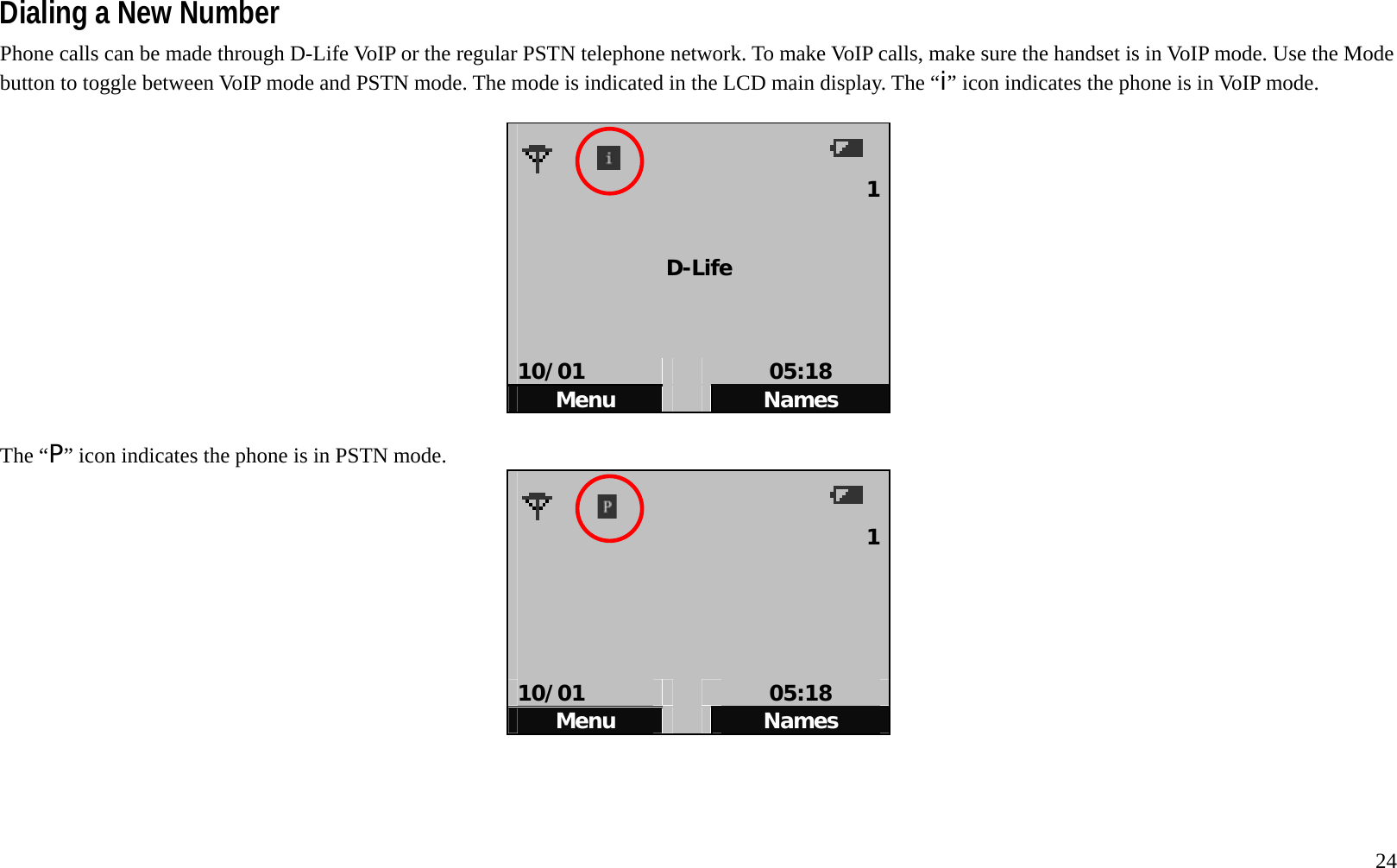
  24 Dialing a New Number Phone calls can be made through D-Life VoIP or the regular PSTN telephone network. To make VoIP calls, make sure the handset is in VoIP mode. Use the Mode button to toggle between VoIP mode and PSTN mode. The mode is indicated in the LCD main display. The “i” icon indicates the phone is in VoIP mode.        1  D-Life    10/01   05:18 Menu   Names  The “P” icon indicates the phone is in PSTN mode.    1     10/01   05:18 Menu   Names
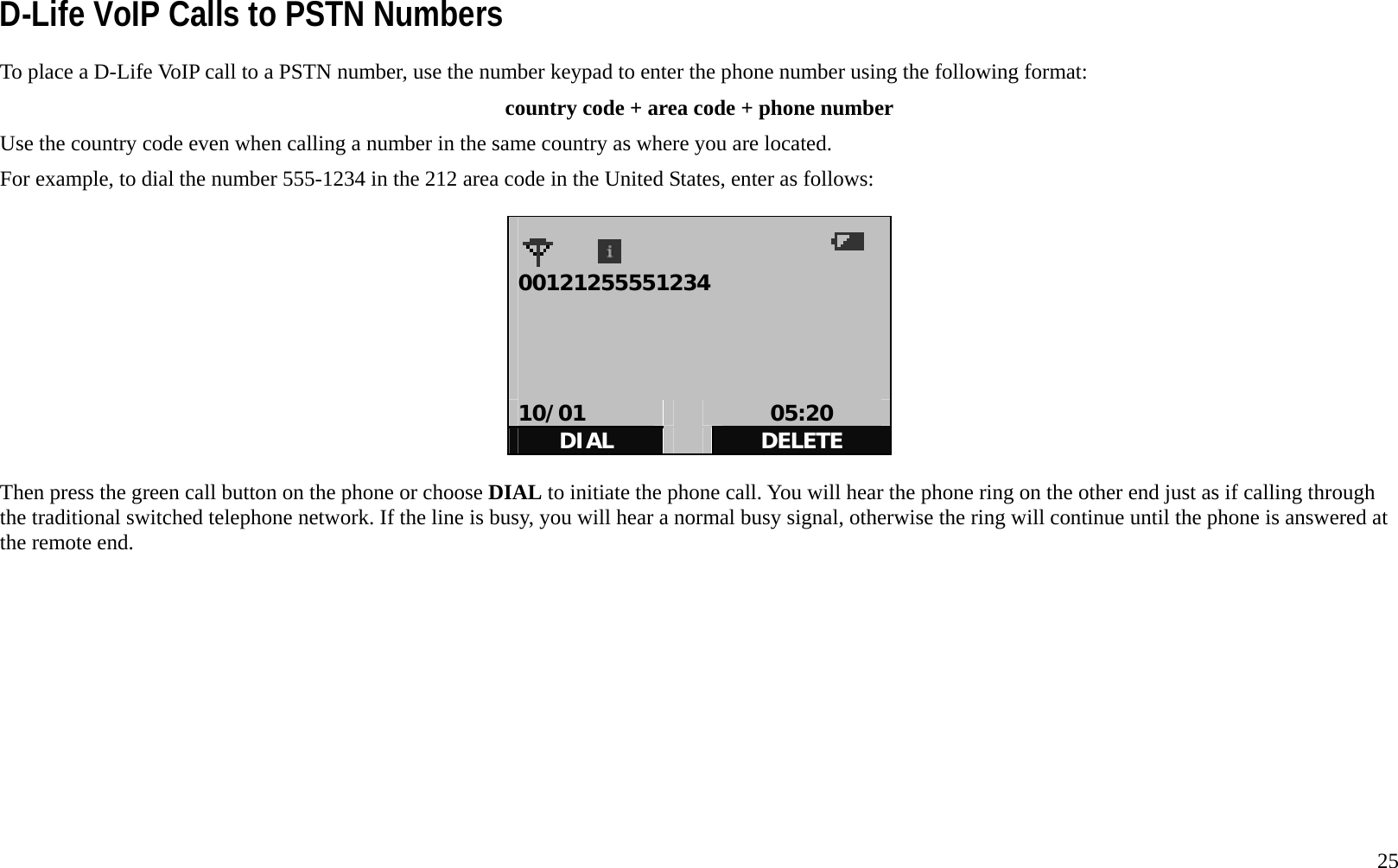
  25 D-Life VoIP Calls to PSTN Numbers To place a D-Life VoIP call to a PSTN number, use the number keypad to enter the phone number using the following format: country code + area code + phone number Use the country code even when calling a number in the same country as where you are located.   For example, to dial the number 555-1234 in the 212 area code in the United States, enter as follows:    00121255551234     10/01   05:20 DIAL   DELETE  Then press the green call button on the phone or choose DIAL to initiate the phone call. You will hear the phone ring on the other end just as if calling through the traditional switched telephone network. If the line is busy, you will hear a normal busy signal, otherwise the ring will continue until the phone is answered at the remote end.
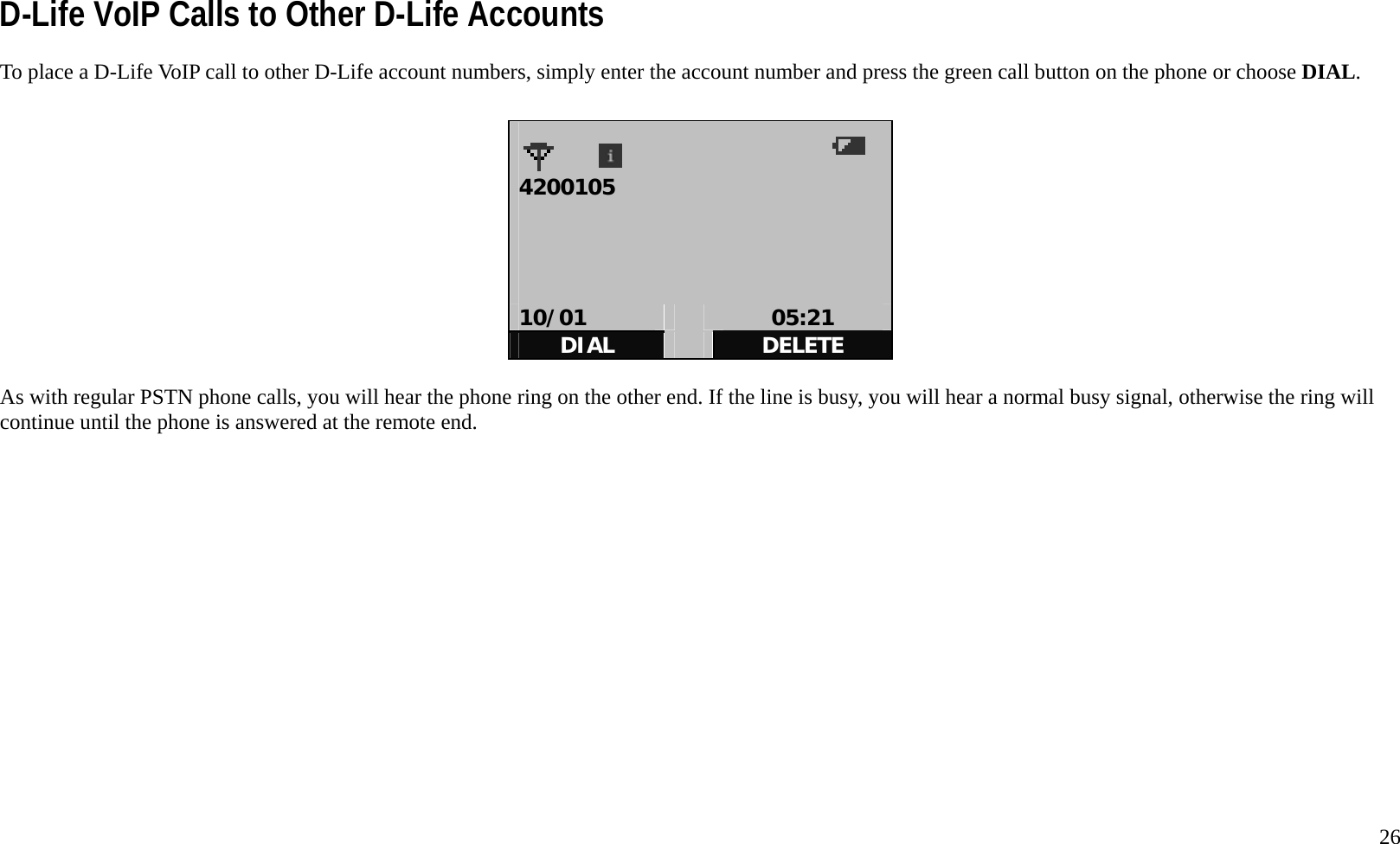
  26 D-Life VoIP Calls to Other D-Life Accounts To place a D-Life VoIP call to other D-Life account numbers, simply enter the account number and press the green call button on the phone or choose DIAL.     4200105      10/01   05:21 DIAL   DELETE  As with regular PSTN phone calls, you will hear the phone ring on the other end. If the line is busy, you will hear a normal busy signal, otherwise the ring will continue until the phone is answered at the remote end.
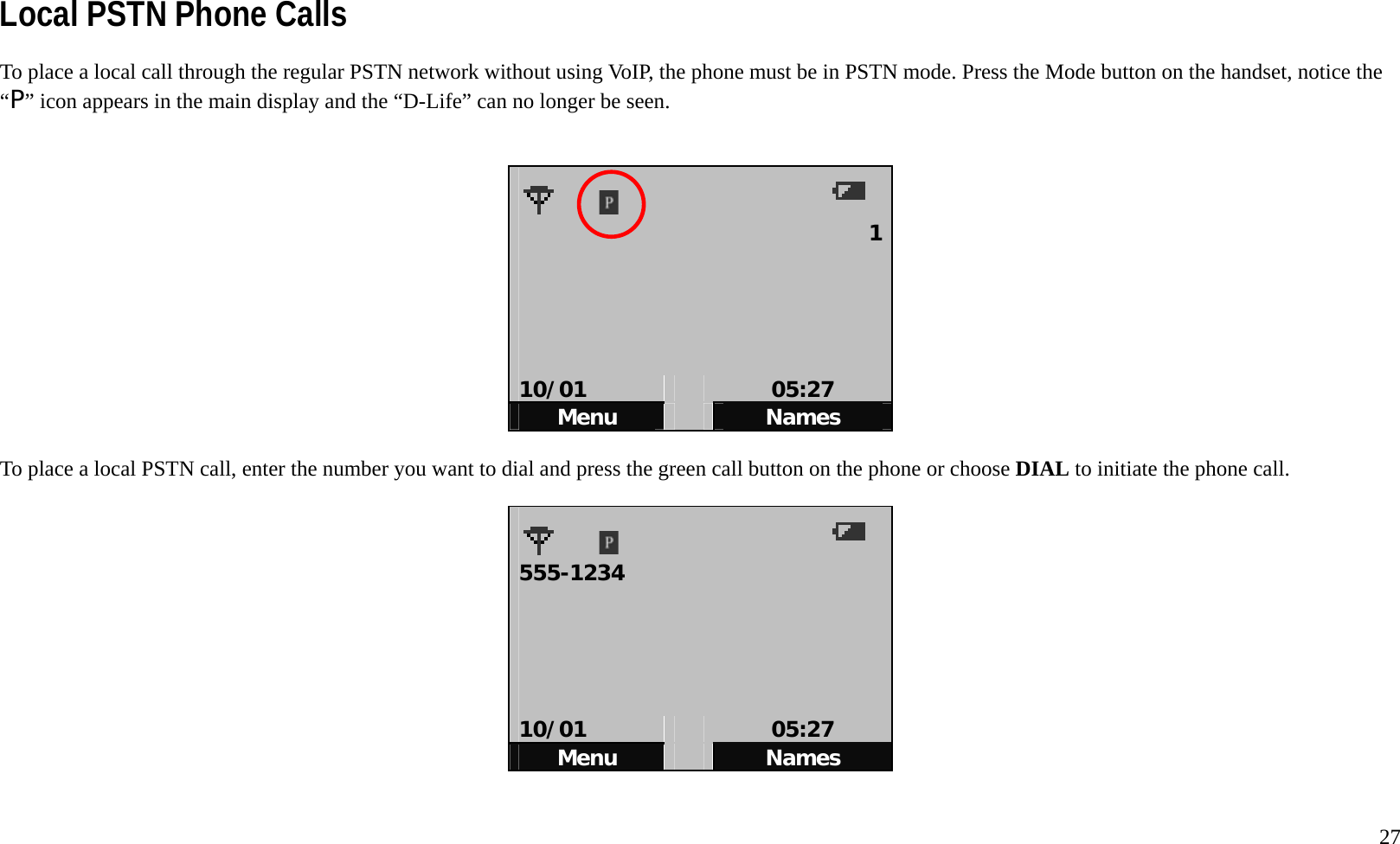
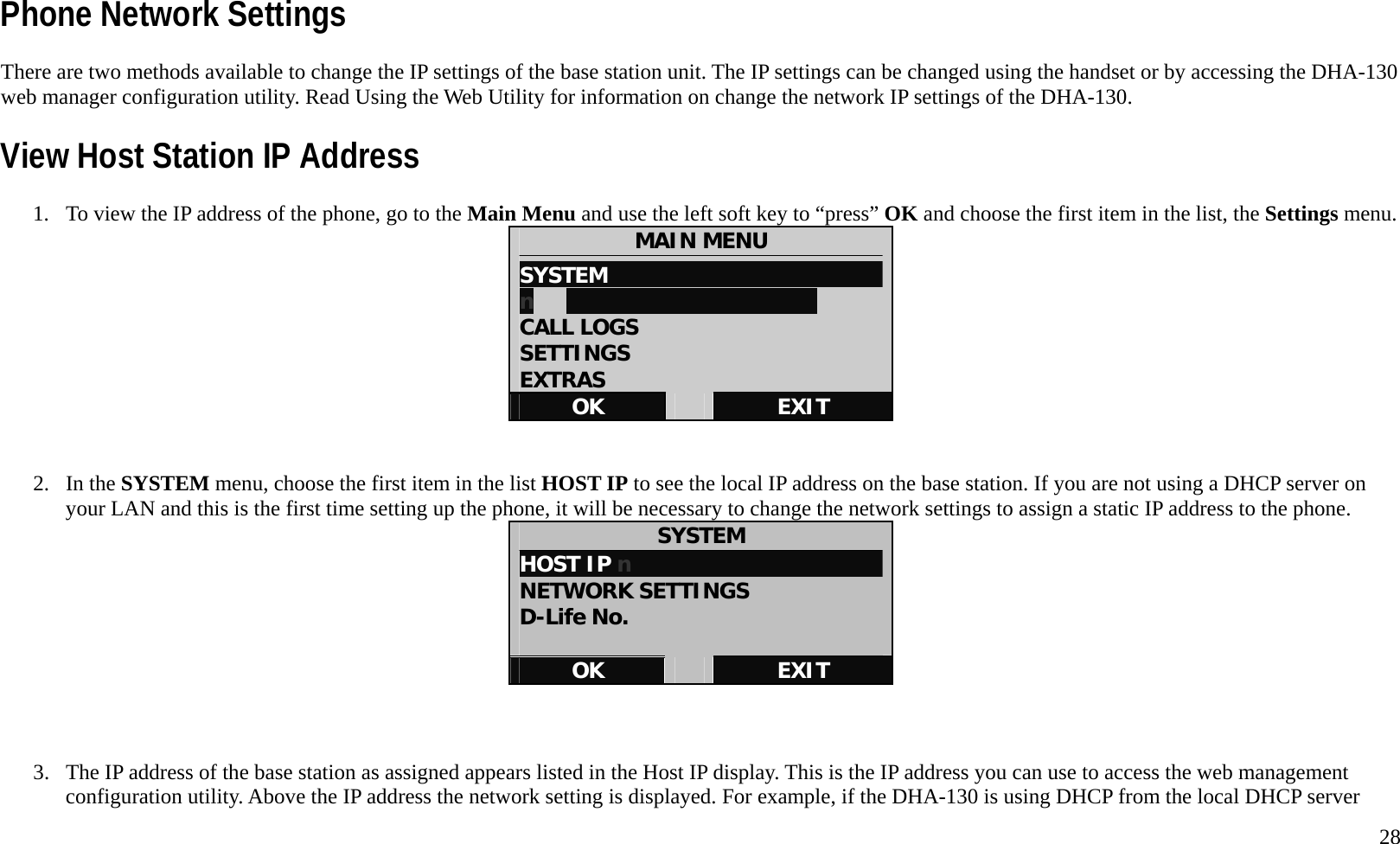
  27 Local PSTN Phone Calls To place a local call through the regular PSTN network without using VoIP, the phone must be in PSTN mode. Press the Mode button on the handset, notice the “P” icon appears in the main display and the “D-Life” can no longer be seen.     1     10/01   05:27 Menu   Names  To place a local PSTN call, enter the number you want to dial and press the green call button on the phone or choose DIAL to initiate the phone call.      555-1234       10/01   05:27 Menu   Names
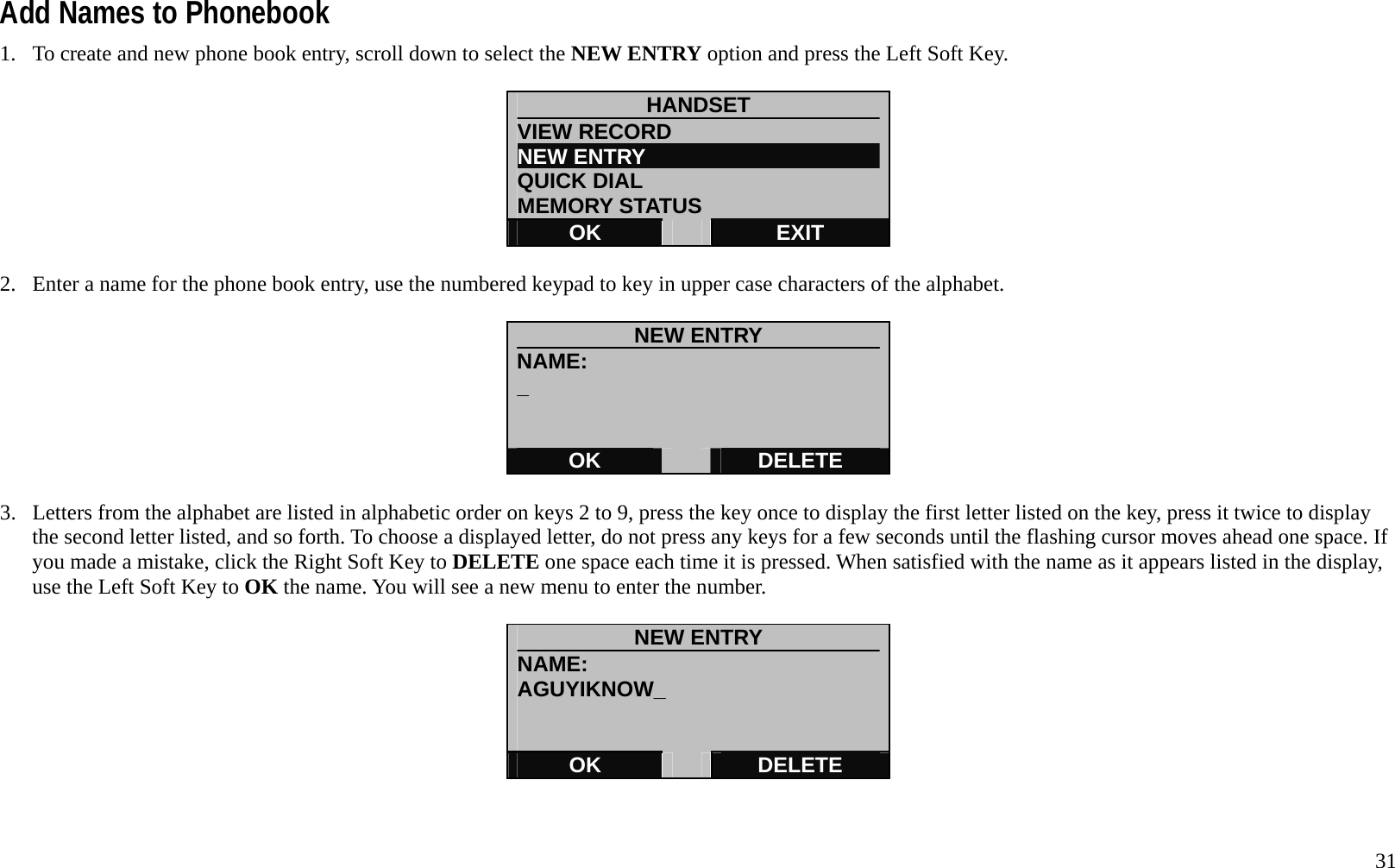
  28 Phone Network Settings There are two methods available to change the IP settings of the base station unit. The IP settings can be changed using the handset or by accessing the DHA-130 web manager configuration utility. Read Using the Web Utility for information on change the network IP settings of the DHA-130. View Host Station IP Address 1.  To view the IP address of the phone, go to the Main Menu and use the left soft key to “press” OK and choose the first item in the list, the Settings menu. MAIN MENU SYSTEM                           n                            CALL LOGS SETTINGS EXTRAS OK   EXIT   2. In the SYSTEM menu, choose the first item in the list HOST IP to see the local IP address on the base station. If you are not using a DHCP server on your LAN and this is the first time setting up the phone, it will be necessary to change the network settings to assign a static IP address to the phone.   SYSTEM HOST IP n                       NETWORK SETTINGS D-Life No.  OK   EXIT    3.  The IP address of the base station as assigned appears listed in the Host IP display. This is the IP address you can use to access the web management configuration utility. Above the IP address the network setting is displayed. For example, if the DHA-130 is using DHCP from the local DHCP server
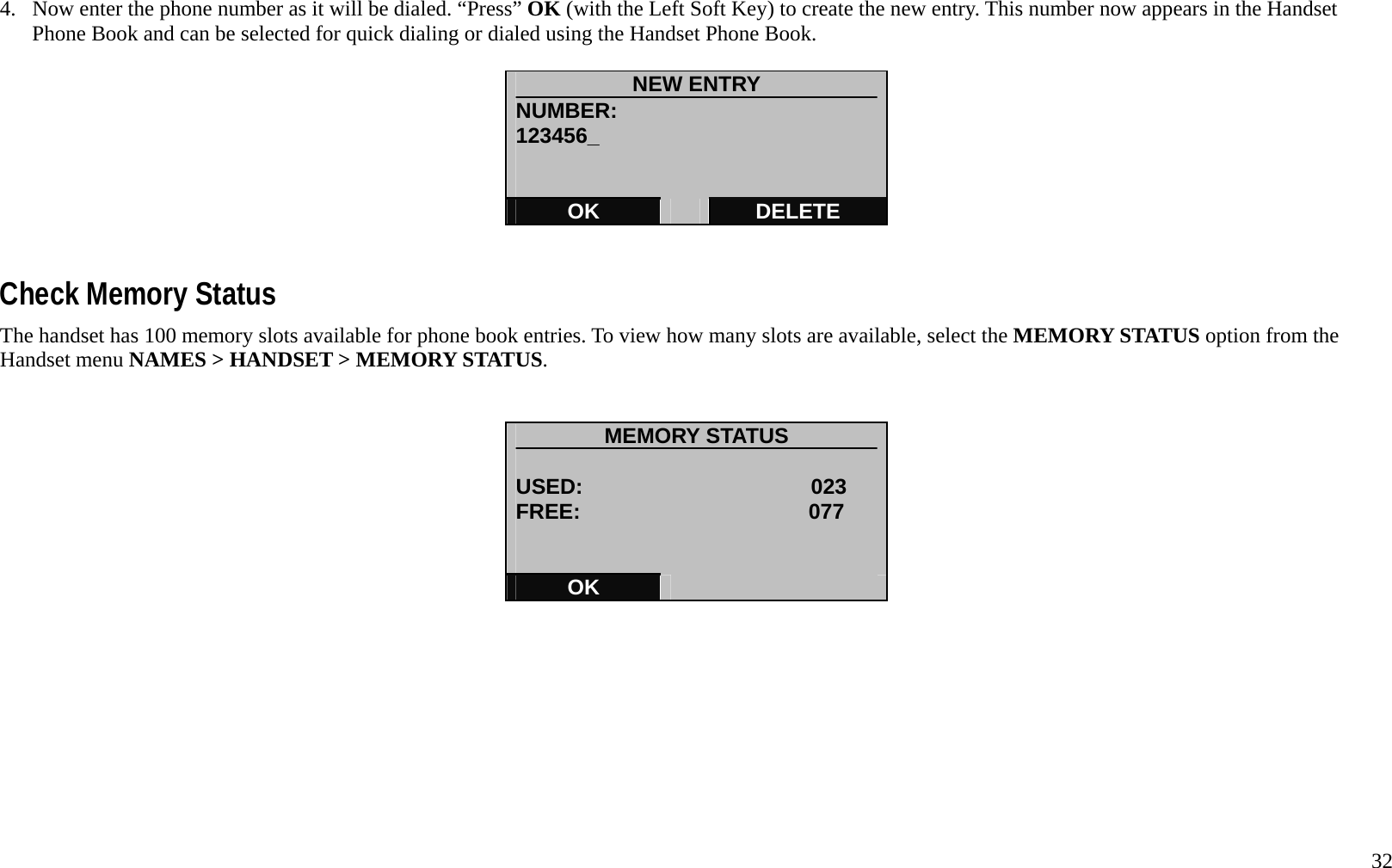
  29 (broadband or DSL router), the LCD display will look similar to this example:    HOST IP [DHCP] 192.168.1.48       OK   View Host Station IP Address – PPPoE Connection There are two methods to view the IP address if the phone is configured for PPPoE connection. Use either the SYSTEM menu and choose HOST IP, or use the NETWWORK SETTINGS menu and choose PPPoE to view a display similar to the example below. This only works if the phone is already configured for PPPoE. To configure the phone for PPPoE, please read  錯誤!  找不到參照來源。 below. HOST IP [PPPoE] 172.18.167.48   OK
  30 Using the Phonebook Phone numbers can be stored in the phonebook by entering them manually or after calling or receiving a call. Use Call Logs to store phone numbers you have dialed or received. See Using Call Logs for a description on how to store dialed and received numbers. Up to one hundred phonebook entries can be stored. To enter phone numbers manually, access the phonebook from the “desktop” D-Life display. There are two ways to access the phone book, use the navigation key or use the Left Soft Key to click Names option. This brings up the PHONE BOOK menu where you can select either the Handset phone records or the D-Life phone records.   The navigation key arrows can be used to go directly to the D-Life phone book or the Handset phone book. From the desktop, use the navigation key to press the Down arrow to view the Handset Phone Book record menu, press the Up arrow to view the D-Life Phone Book record.    PHONE BOOK HANDSET                         D-Life      -----------------------------------  OK   EXIT  View Names in Phonebook If you have already entered phone numbers you can select the VIEW RECORD option to Handset view phone book entries. The phonebook entries are listed alphabetically. To dial a number in the phonebook, scroll to the name you want to call and press the call button with the name highlighted.  NAMES > HANDSET > VIEW RECORD        HANDSET VIEW RECORD                    NEW ENTRY QUICK DIAL MEMORY STATUS OK   EXIT HANDSET [i] ALICEB                         [P] BOBK [i]CAROLD [P]DENNYJ DETAILS   EXIT
  31 Add Names to Phonebook 1.  To create and new phone book entry, scroll down to select the NEW ENTRY option and press the Left Soft Key.  HANDSET VIEW RECORD                    NEW ENTRY                       QUICK DIAL MEMORY STATUS OK   EXIT  2.  Enter a name for the phone book entry, use the numbered keypad to key in upper case characters of the alphabet.    NEW ENTRY NAME: _   OK   DELETE  3.  Letters from the alphabet are listed in alphabetic order on keys 2 to 9, press the key once to display the first letter listed on the key, press it twice to display the second letter listed, and so forth. To choose a displayed letter, do not press any keys for a few seconds until the flashing cursor moves ahead one space. If you made a mistake, click the Right Soft Key to DELETE one space each time it is pressed. When satisfied with the name as it appears listed in the display, use the Left Soft Key to OK the name. You will see a new menu to enter the number.    NEW ENTRY NAME: AGUYIKNOW_   OK   DELETE
  32 4.  Now enter the phone number as it will be dialed. “Press” OK (with the Left Soft Key) to create the new entry. This number now appears in the Handset Phone Book and can be selected for quick dialing or dialed using the Handset Phone Book.    NEW ENTRY NUMBER: 123456_   OK   DELETE   Check Memory Status The handset has 100 memory slots available for phone book entries. To view how many slots are available, select the MEMORY STATUS option from the Handset menu NAMES > HANDSET > MEMORY STATUS.   MEMORY STATUS  USED:                     023    FREE:                     077      OK
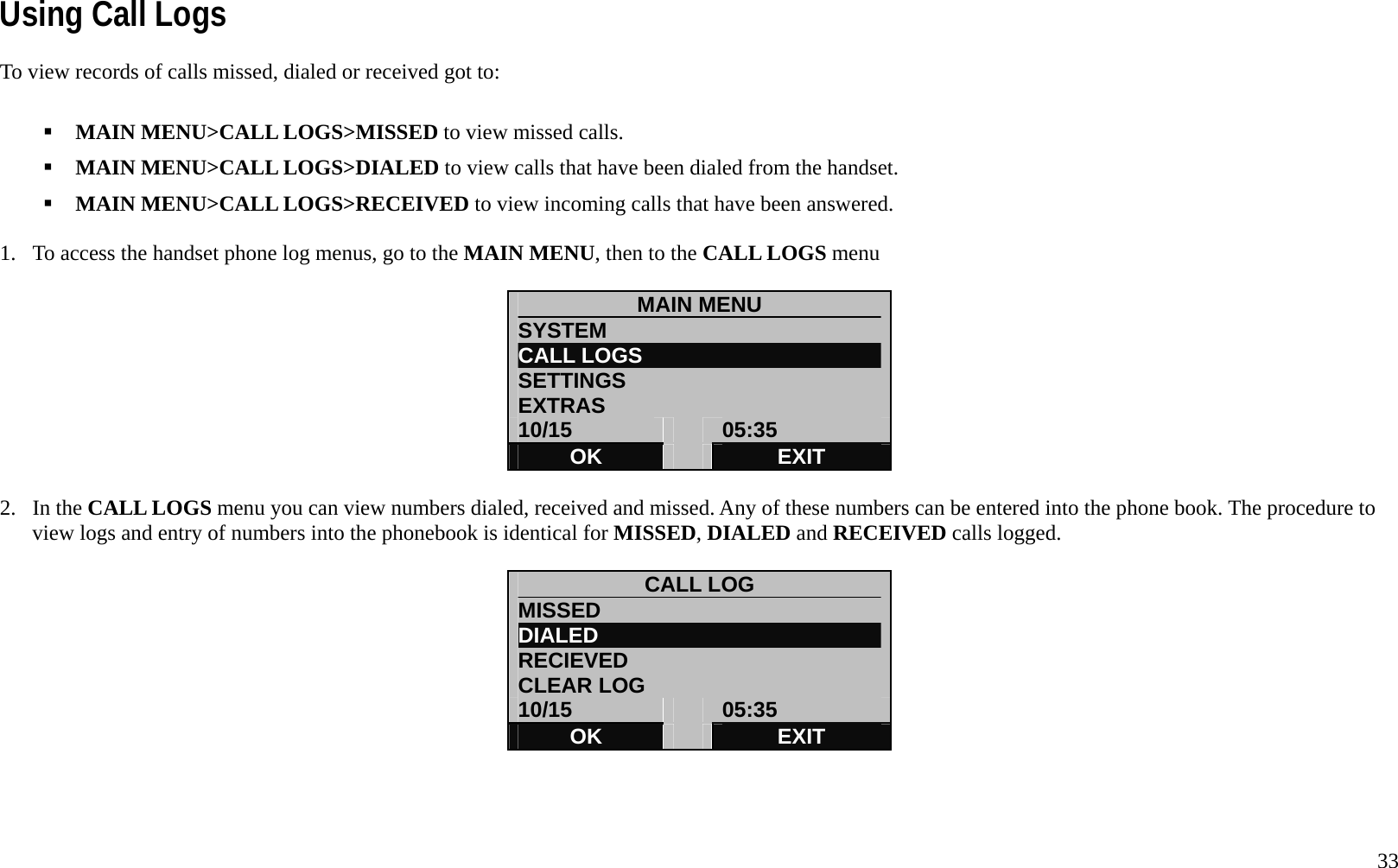
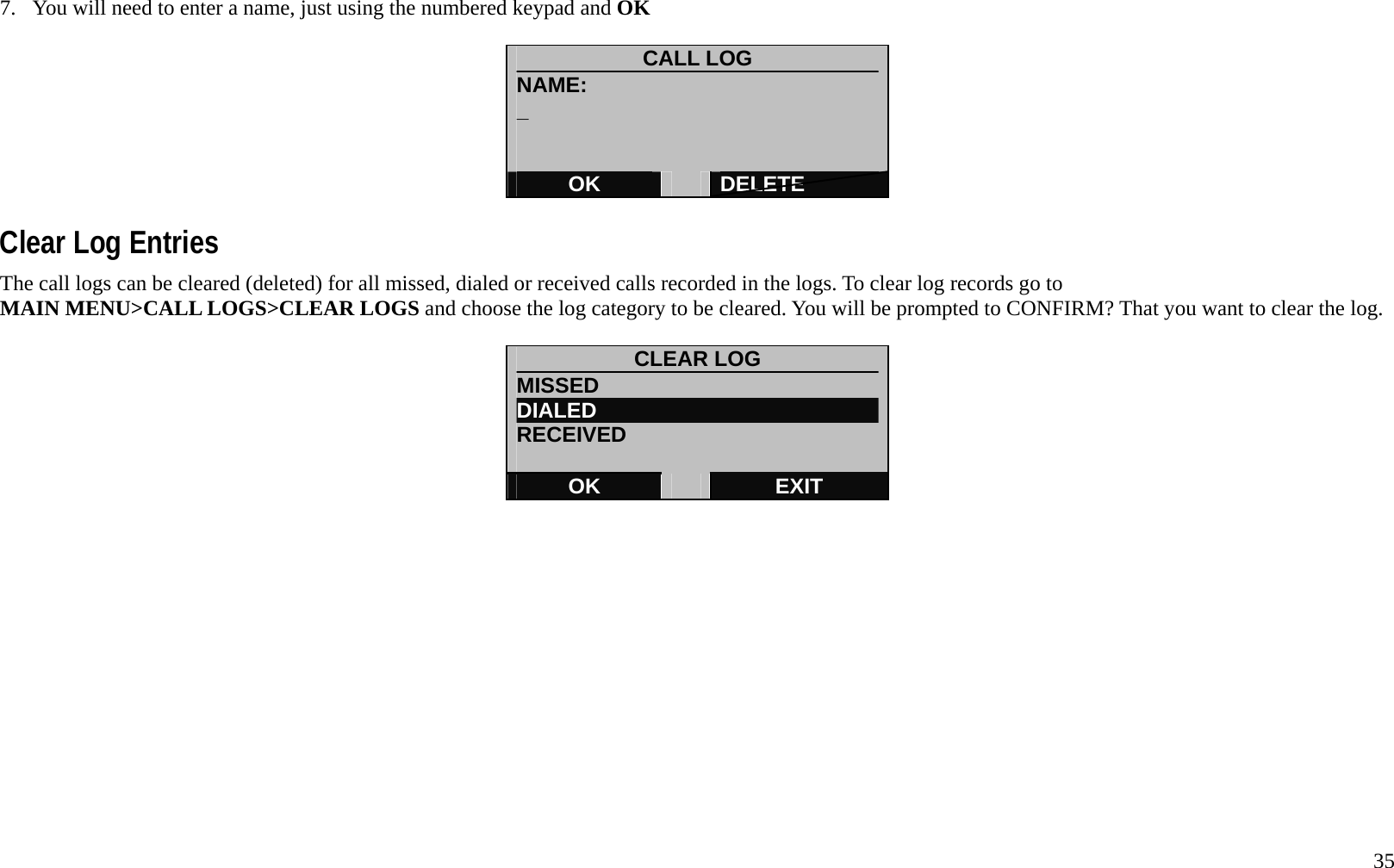
  33 Using Call Logs To view records of calls missed, dialed or received got to:     MAIN MENU>CALL LOGS>MISSED to view missed calls.  MAIN MENU>CALL LOGS>DIALED to view calls that have been dialed from the handset.  MAIN MENU>CALL LOGS>RECEIVED to view incoming calls that have been answered.  1.  To access the handset phone log menus, go to the MAIN MENU, then to the CALL LOGS menu  MAIN MENU            SYSTEM CALL LOGS SETTINGS EXTRAS 10/15   05:35 OK   EXIT  2. In the CALL LOGS menu you can view numbers dialed, received and missed. Any of these numbers can be entered into the phone book. The procedure to view logs and entry of numbers into the phonebook is identical for MISSED, DIALED and RECEIVED calls logged.    CALL LOG MISSED                          DIALED                           RECIEVED CLEAR LOG 10/15   05:35 OK   EXIT
  34 3.  For example, go to the DIALED call log to see what numbers have been called using the handset. To view the time and date a number was dialed, scroll to select the number and use the DETAILS option.  DIALED [i]0012125551234 [i]0012125550303 [i]0012125550022 [P]3125550011 DETAILS   EXIT  4.  The number dialed, time and date of the call are listed in the display. The number can then be saved.    DIALED  [i]0012125551234 18:00:00 2007/10/16 OPTIONS   EXIT  5.  To save the number in the phone book, use OPTIONS to go to the save or delete options menu.  OPTIONS SAVE                            DELETE   OK   EXIT  6. Use the SAVE option to create a new phone book entry for this number. The procedure is similar to creating a new entry in the phone book, except you already have the number. Use DELETE to remove this single entry from the call log.
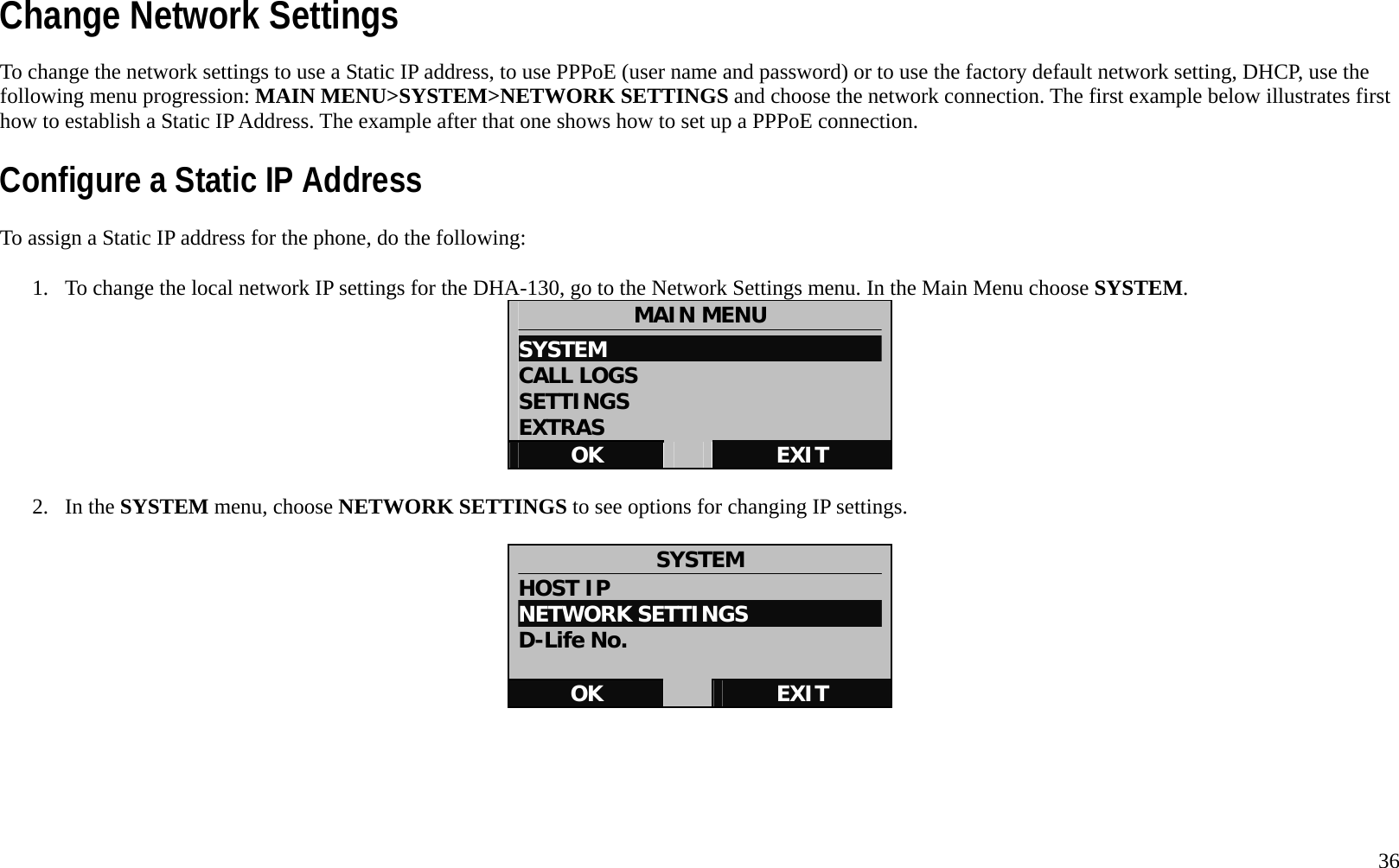
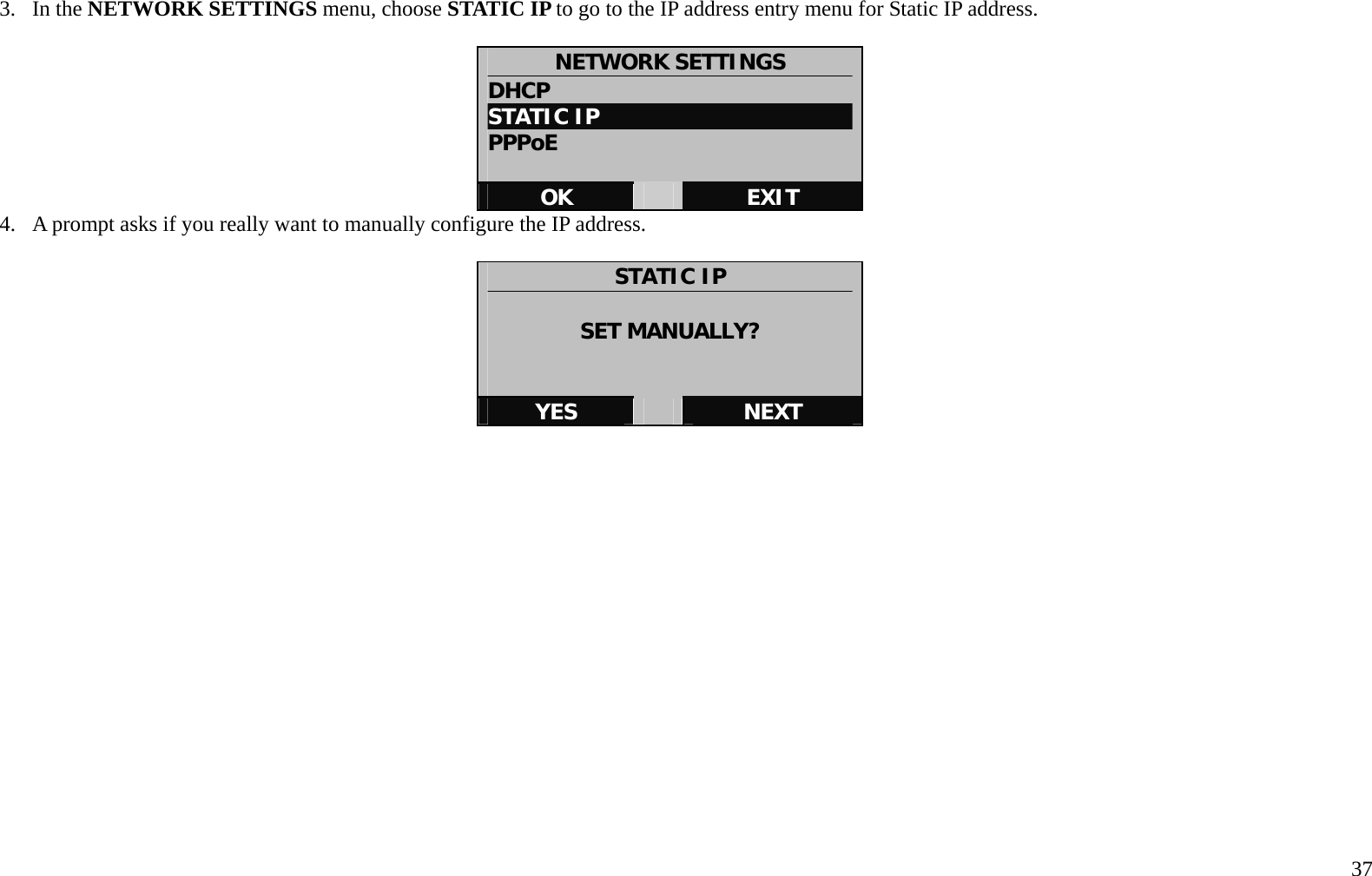
  35 7.  You will need to enter a name, just using the numbered keypad and OK   CALL LOG NAME: _   OK   DELETE  Clear Log Entries The call logs can be cleared (deleted) for all missed, dialed or received calls recorded in the logs. To clear log records go to MAIN MENU>CALL LOGS>CLEAR LOGS and choose the log category to be cleared. You will be prompted to CONFIRM? That you want to clear the log.  CLEAR LOG MISSED DIALED RECEIVED  OK   EXIT
  36 Change Network Settings To change the network settings to use a Static IP address, to use PPPoE (user name and password) or to use the factory default network setting, DHCP, use the following menu progression: MAIN MENU>SYSTEM>NETWORK SETTINGS and choose the network connection. The first example below illustrates first how to establish a Static IP Address. The example after that one shows how to set up a PPPoE connection.   Configure a Static IP Address To assign a Static IP address for the phone, do the following:  1.  To change the local network IP settings for the DHA-130, go to the Network Settings menu. In the Main Menu choose SYSTEM.  MAIN MENU SYSTEM                           CALL LOGS SETTINGS EXTRAS OK   EXIT  2. In the SYSTEM menu, choose NETWORK SETTINGS to see options for changing IP settings.  SYSTEM HOST IP NETWORK SETTINGS D-Life No.  OK   EXIT
  37 3. In the NETWORK SETTINGS menu, choose STATIC IP to go to the IP address entry menu for Static IP address.    NETWORK SETTINGS DHCP STATIC IP PPPoE  OK   EXIT 4.  A prompt asks if you really want to manually configure the IP address.      STATIC IP  SET MANUALLY?   YES   NEXT
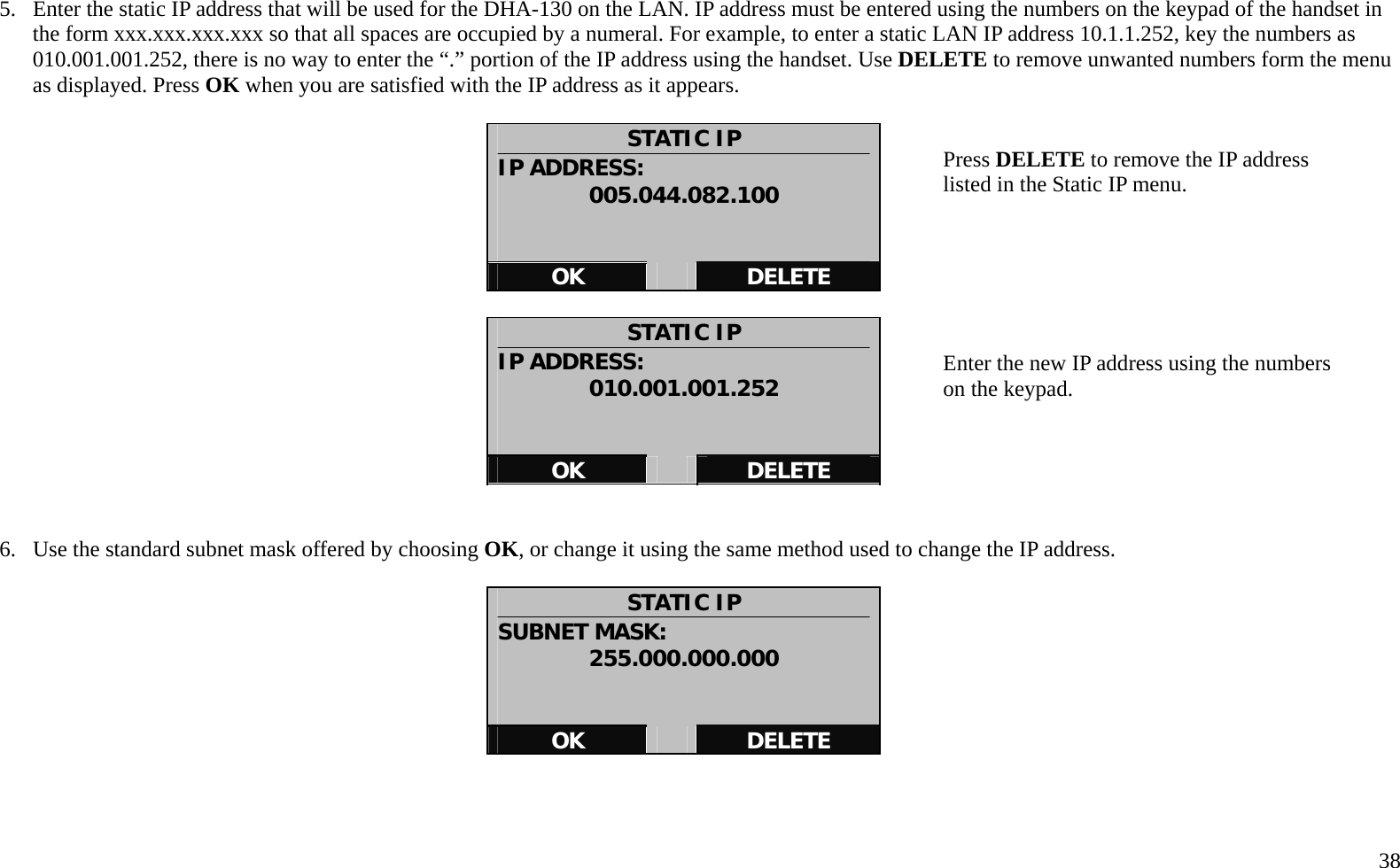
  38  5.  Enter the static IP address that will be used for the DHA-130 on the LAN. IP address must be entered using the numbers on the keypad of the handset in the form xxx.xxx.xxx.xxx so that all spaces are occupied by a numeral. For example, to enter a static LAN IP address 10.1.1.252, key the numbers as 010.001.001.252, there is no way to enter the “.” portion of the IP address using the handset. Use DELETE to remove unwanted numbers form the menu as displayed. Press OK when you are satisfied with the IP address as it appears.  STATIC IP IP ADDRESS: 005.044.082.100   OK   DELETE  STATIC IP IP ADDRESS: 010.001.001.252   OK   DELETE   6.  Use the standard subnet mask offered by choosing OK, or change it using the same method used to change the IP address.    STATIC IP SUBNET MASK: 255.000.000.000   OK   DELETE    Press DELETE to remove the IP address listed in the Static IP menu.         Enter the new IP address using the numbers on the keypad.
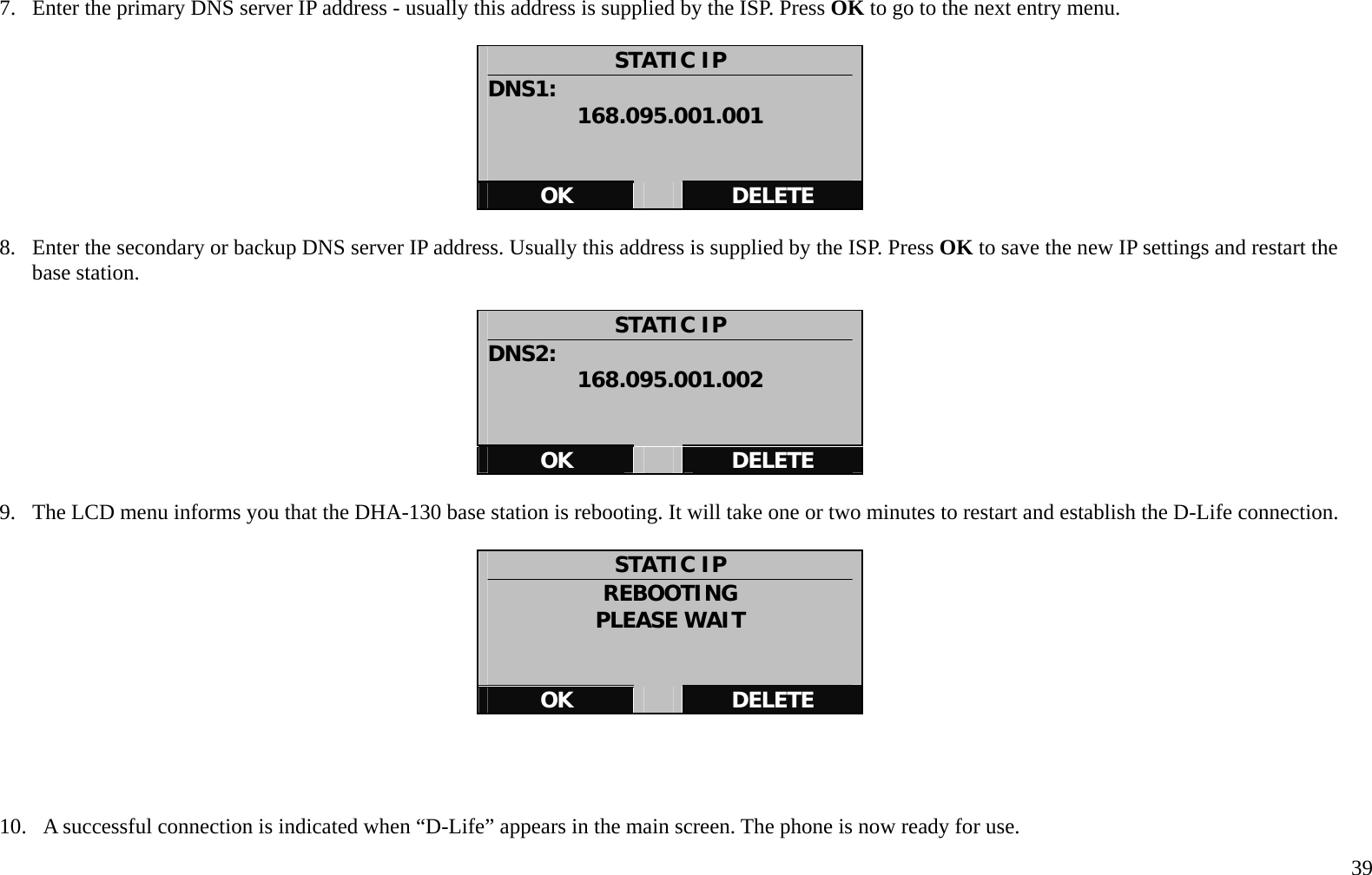
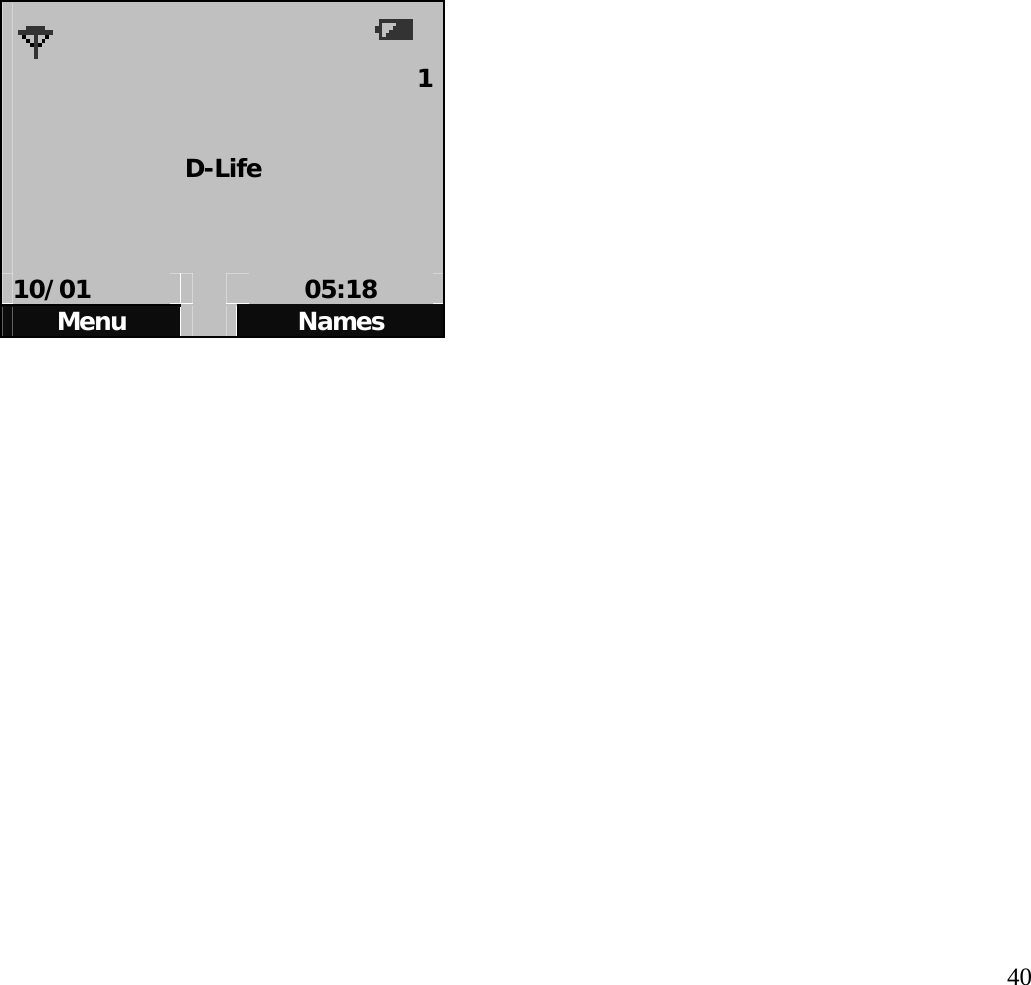
  39 7.  Enter the primary DNS server IP address - usually this address is supplied by the ISP. Press OK to go to the next entry menu.  STATIC IP DNS1:  168.095.001.001   OK   DELETE  8.  Enter the secondary or backup DNS server IP address. Usually this address is supplied by the ISP. Press OK to save the new IP settings and restart the base station.  STATIC IP DNS2:  168.095.001.002   OK   DELETE  9.  The LCD menu informs you that the DHA-130 base station is rebooting. It will take one or two minutes to restart and establish the D-Life connection.  STATIC IP REBOOTING PLEASE WAIT   OK   DELETE     10.   A successful connection is indicated when “D-Life” appears in the main screen. The phone is now ready for use.
  40    1  D-Life    10/01   05:18 Menu   Names
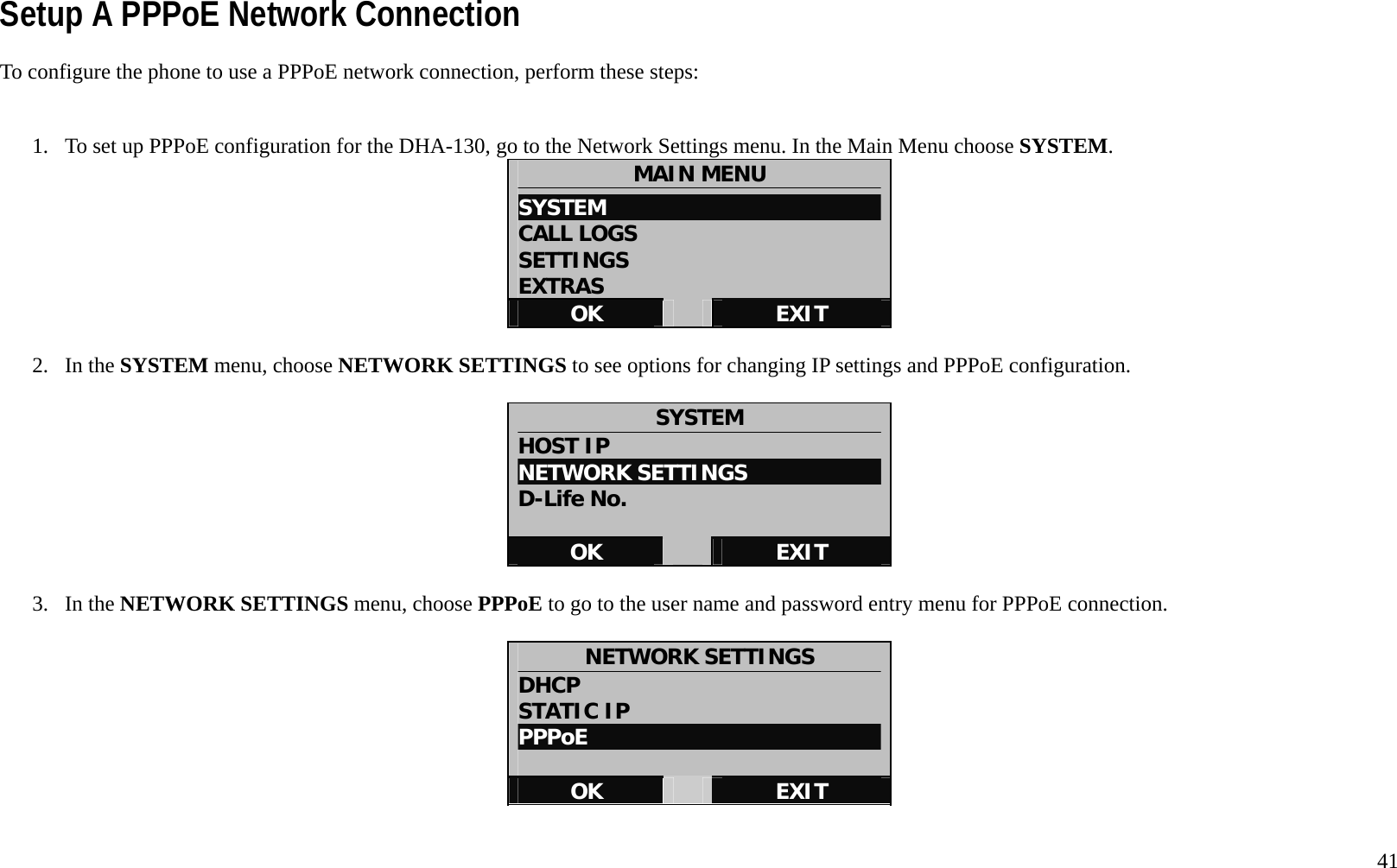
  41 Setup A PPPoE Network Connection To configure the phone to use a PPPoE network connection, perform these steps:   1.  To set up PPPoE configuration for the DHA-130, go to the Network Settings menu. In the Main Menu choose SYSTEM.  MAIN MENU SYSTEM                           CALL LOGS SETTINGS EXTRAS OK   EXIT  2. In the SYSTEM menu, choose NETWORK SETTINGS to see options for changing IP settings and PPPoE configuration.  SYSTEM HOST IP NETWORK SETTINGS D-Life No.  OK   EXIT  3. In the NETWORK SETTINGS menu, choose PPPoE to go to the user name and password entry menu for PPPoE connection.    NETWORK SETTINGS DHCP STATIC IP PPPoE  OK   EXIT
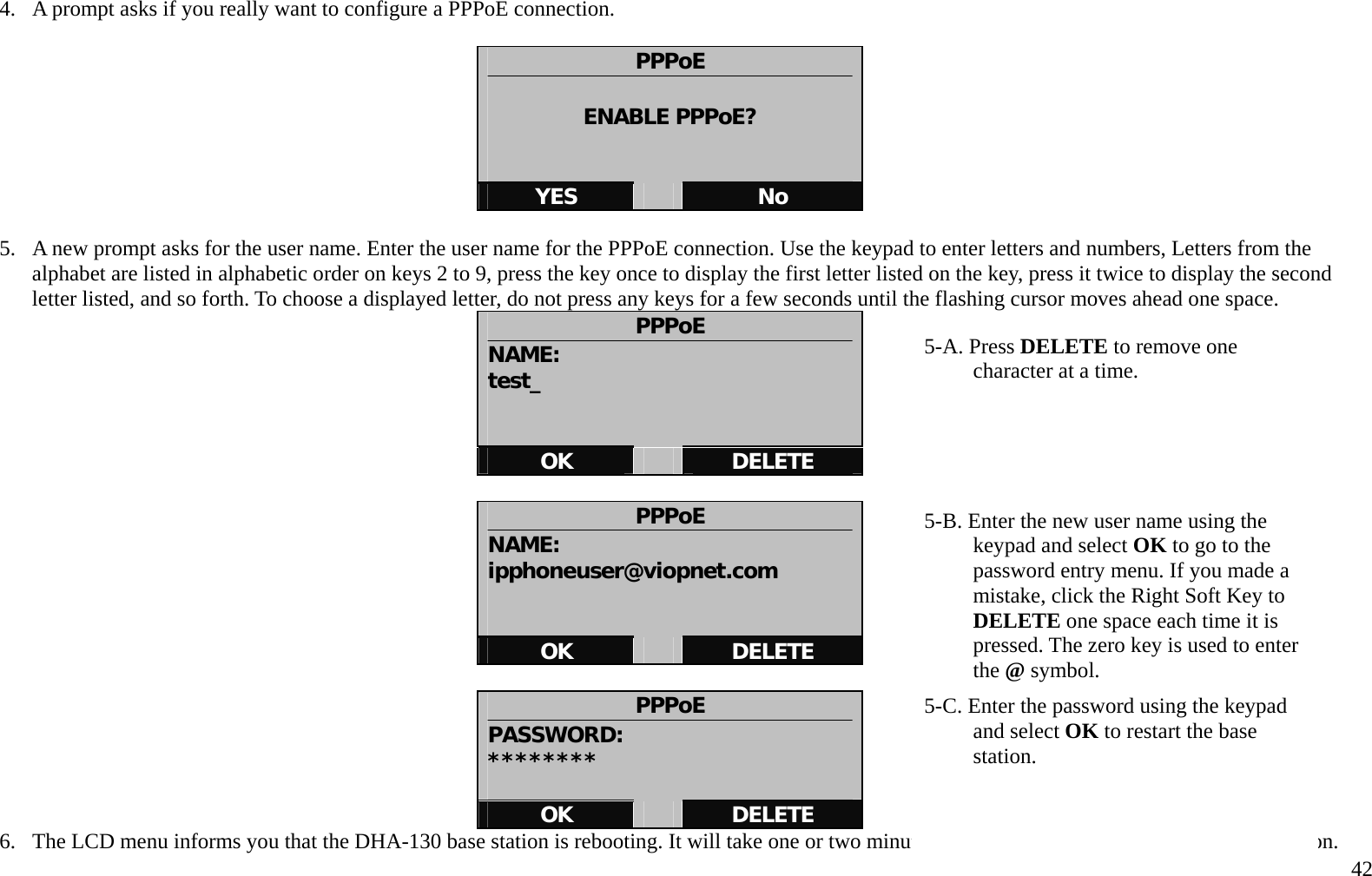
  42 4.  A prompt asks if you really want to configure a PPPoE connection.      PPPoE  ENABLE PPPoE?   YES   No  5.  A new prompt asks for the user name. Enter the user name for the PPPoE connection. Use the keypad to enter letters and numbers, Letters from the alphabet are listed in alphabetic order on keys 2 to 9, press the key once to display the first letter listed on the key, press it twice to display the second letter listed, and so forth. To choose a displayed letter, do not press any keys for a few seconds until the flashing cursor moves ahead one space.   PPPoE NAME: test_   OK   DELETE  PPPoE NAME: ipphoneuser@viopnet.com   OK   DELETE  PPPoE PASSWORD: ********  OK   DELETE 6.  The LCD menu informs you that the DHA-130 base station is rebooting. It will take one or two minutes to restart and establish the D-Life connection. 5-A. Press DELETE to remove one character at a time.        5-B. Enter the new user name using the keypad and select OK to go to the password entry menu. If you made a mistake, click the Right Soft Key to DELETE one space each time it is pressed. The zero key is used to enter the @ symbol. 5-C. Enter the password using the keypad and select OK to restart the base station.
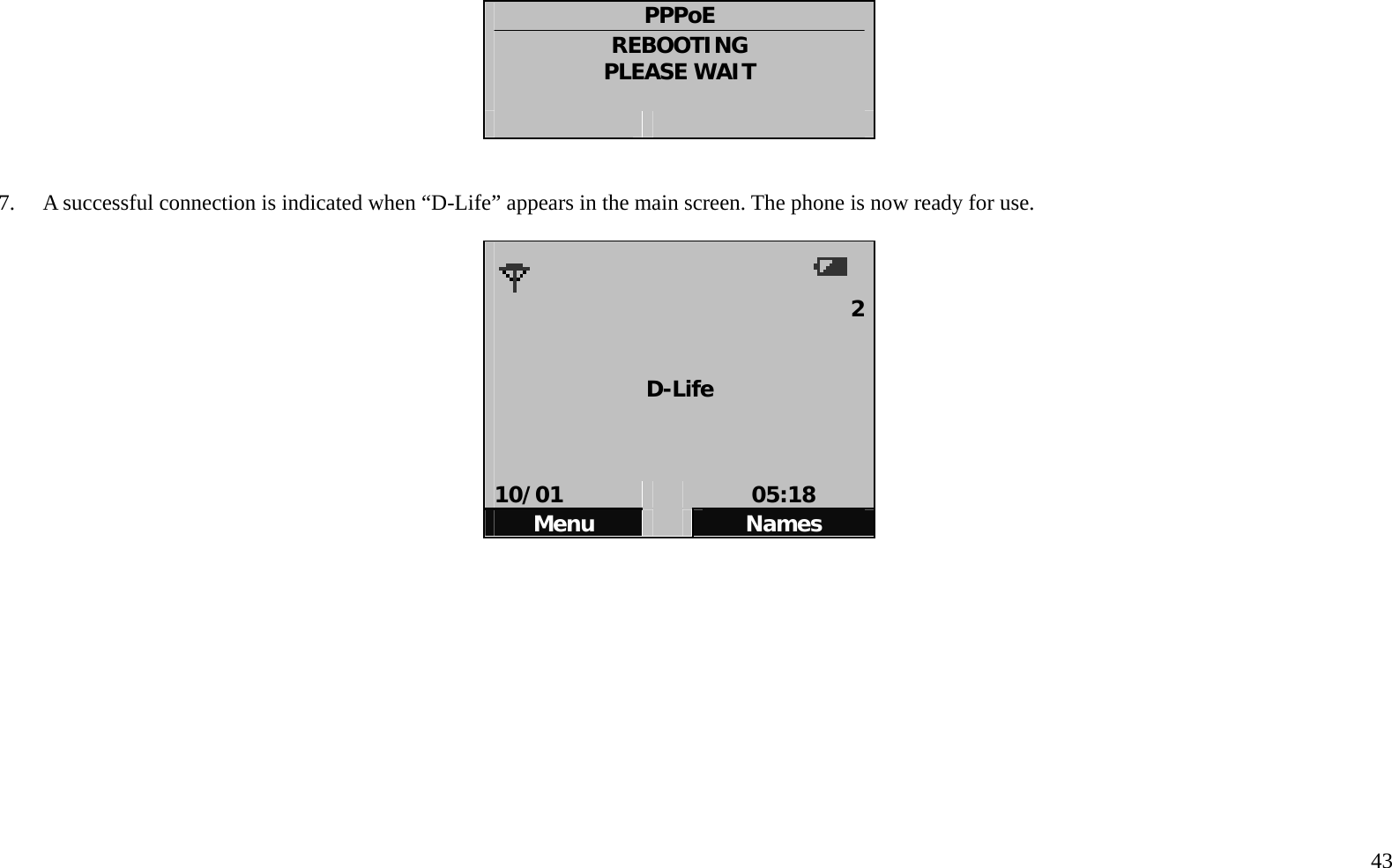
  43  PPPoE REBOOTING PLEASE WAIT       7.    A successful connection is indicated when “D-Life” appears in the main screen. The phone is now ready for use.        2  D-Life    10/01   05:18 Menu   Names
  44 Handset Settings Settings for the handset include settings the time and date that appears in the display and the format used to display it; the melody and volume of the ringer for intercom, PSTN and IP phone calls, interface language and call services. To change any of these go to the Settings menu from the Main Menu as shown in the example here.    Change Sound Settings Ringer tones can be customized so you know what type of call is incoming. The ringer tone can be changed to a unique style to distinguish if the call is a VoIP, PSTN or Intercom calls. The Sound settings menu is also used to turn on and off the tone for the keyed entries (key tone) and to turn on and off the tone made by the handset for events other than incoming calls, for example, the handset will make a noise when it is placed in the base station recharging cradle (handset tone). The Sounds menu options also include an Equalizer menu for enhanced treble or enhanced bass tones.    Change Ringer Tone The procedure to change ringer tones for VoIP, PSTN and Intercom calls is identical except that each ringer type has a separate menu in the accessed from the Sounds menu.    To change the volume or melody of the VoIP ringer, go to SETTINGS>SOUNDS>VoIP RINGER.   To change the volume or melody of the PSTN ringer, go to SETTINGS>SOUNDS>PSTN RINGER.   To change the volume or melody of the Intercom ringer, go to SETTINGS>SOUNDS>INTERCOM RINGER.  See the example below on how to change the VoIP ringer.
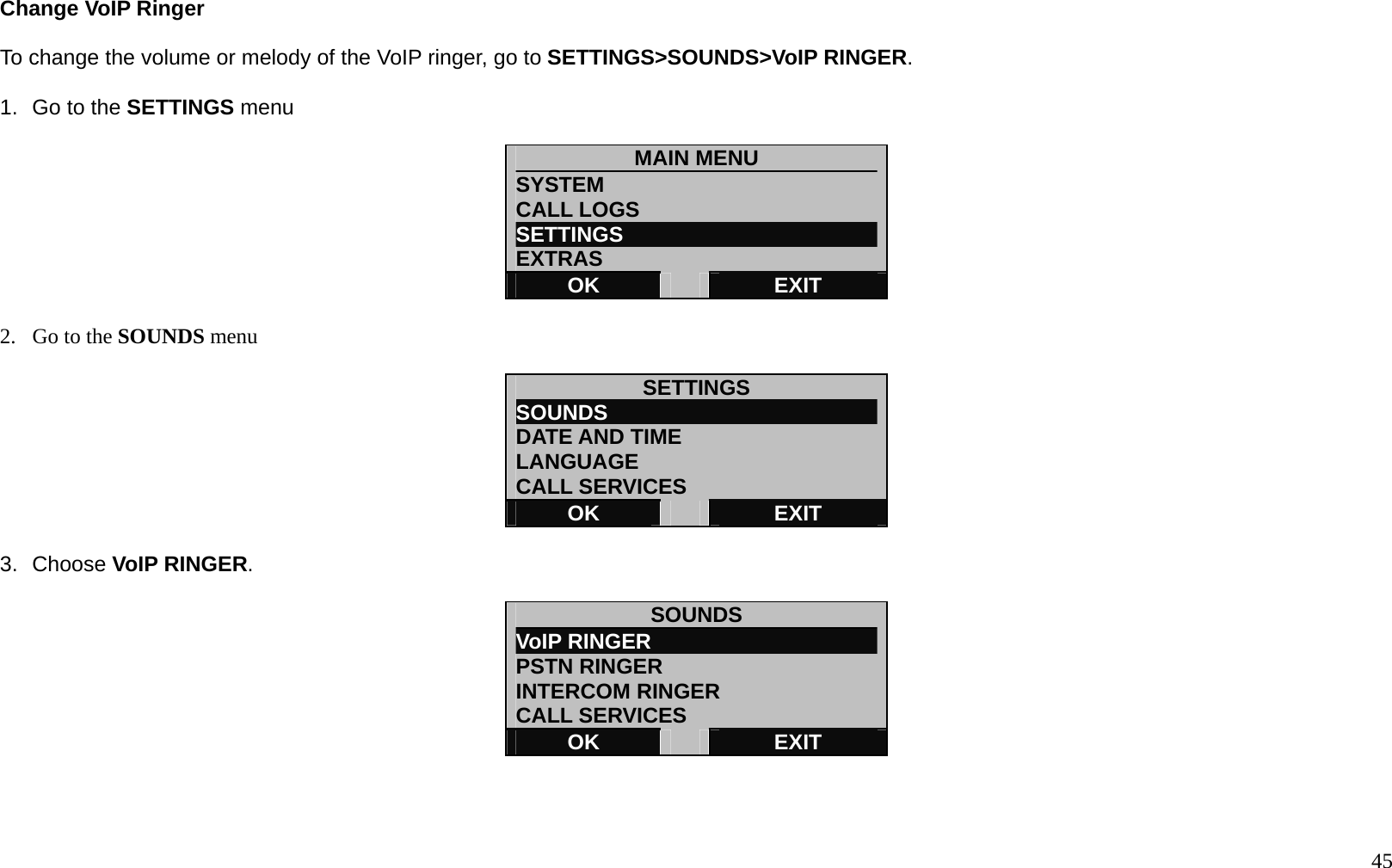
  45 Change VoIP Ringer  To change the volume or melody of the VoIP ringer, go to SETTINGS>SOUNDS>VoIP RINGER.  1.  Go to the SETTINGS menu  MAIN MENU SYSTEM CALL LOGS SETTINGS                         EXTRAS OK   EXIT  2.  Go to the SOUNDS menu  SETTINGS SOUNDS                          DATE AND TIME LANGUAGE CALL SERVICES OK   EXIT  3. Choose VoIP RINGER.  SOUNDS VoIP RINGER                      PSTN RINGER INTERCOM RINGER CALL SERVICES OK   EXIT
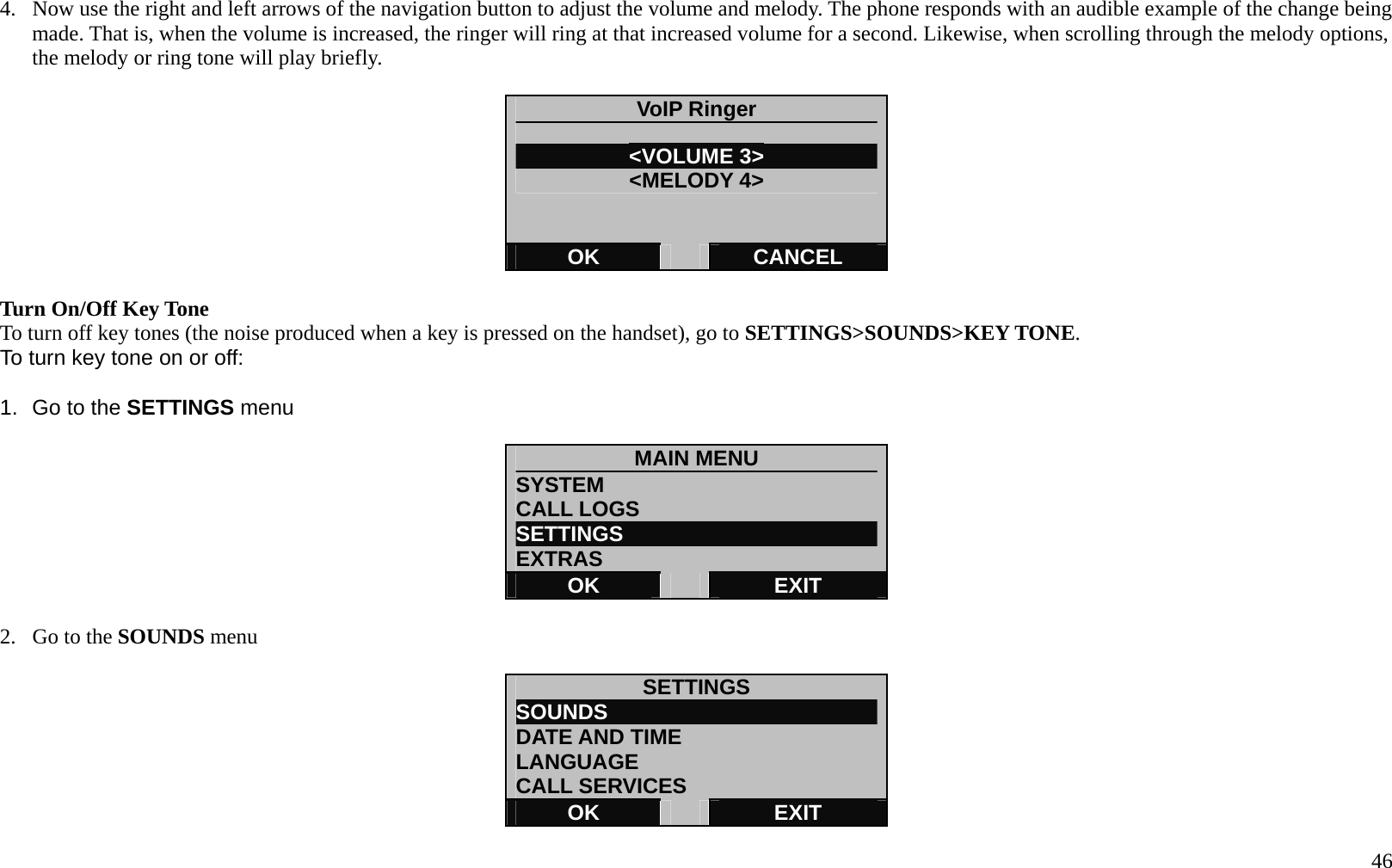
  46 4.  Now use the right and left arrows of the navigation button to adjust the volume and melody. The phone responds with an audible example of the change being made. That is, when the volume is increased, the ringer will ring at that increased volume for a second. Likewise, when scrolling through the melody options, the melody or ring tone will play briefly.  VoIP Ringer  <VOLUME 3> <MELODY 4> OK   CANCEL  Turn On/Off Key Tone To turn off key tones (the noise produced when a key is pressed on the handset), go to SETTINGS>SOUNDS>KEY TONE. To turn key tone on or off:  1.  Go to the SETTINGS menu  MAIN MENU SYSTEM CALL LOGS SETTINGS                         EXTRAS OK   EXIT  2.  Go to the SOUNDS menu  SETTINGS SOUNDS                          DATE AND TIME LANGUAGE CALL SERVICES OK   EXIT
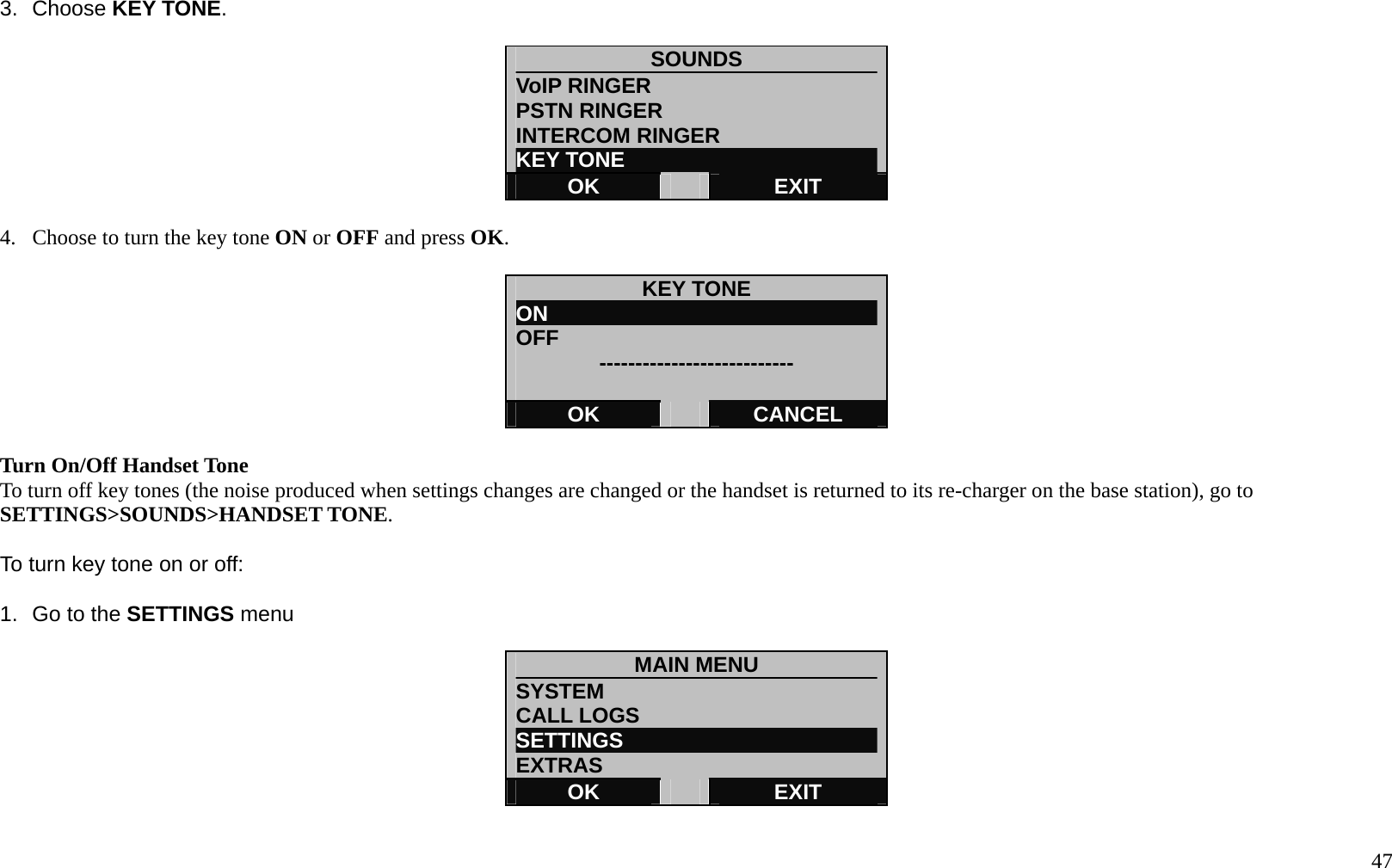
  47 3. Choose KEY TONE.  SOUNDS VoIP RINGER                      PSTN RINGER INTERCOM RINGER KEY TONE OK   EXIT  4.  Choose to turn the key tone ON or OFF and press OK.  KEY TONE ON                                OFF  ---------------------------  OK   CANCEL  Turn On/Off Handset Tone To turn off key tones (the noise produced when settings changes are changed or the handset is returned to its re-charger on the base station), go to SETTINGS>SOUNDS>HANDSET TONE.  To turn key tone on or off:  1.  Go to the SETTINGS menu  MAIN MENU SYSTEM CALL LOGS SETTINGS                         EXTRAS OK   EXIT
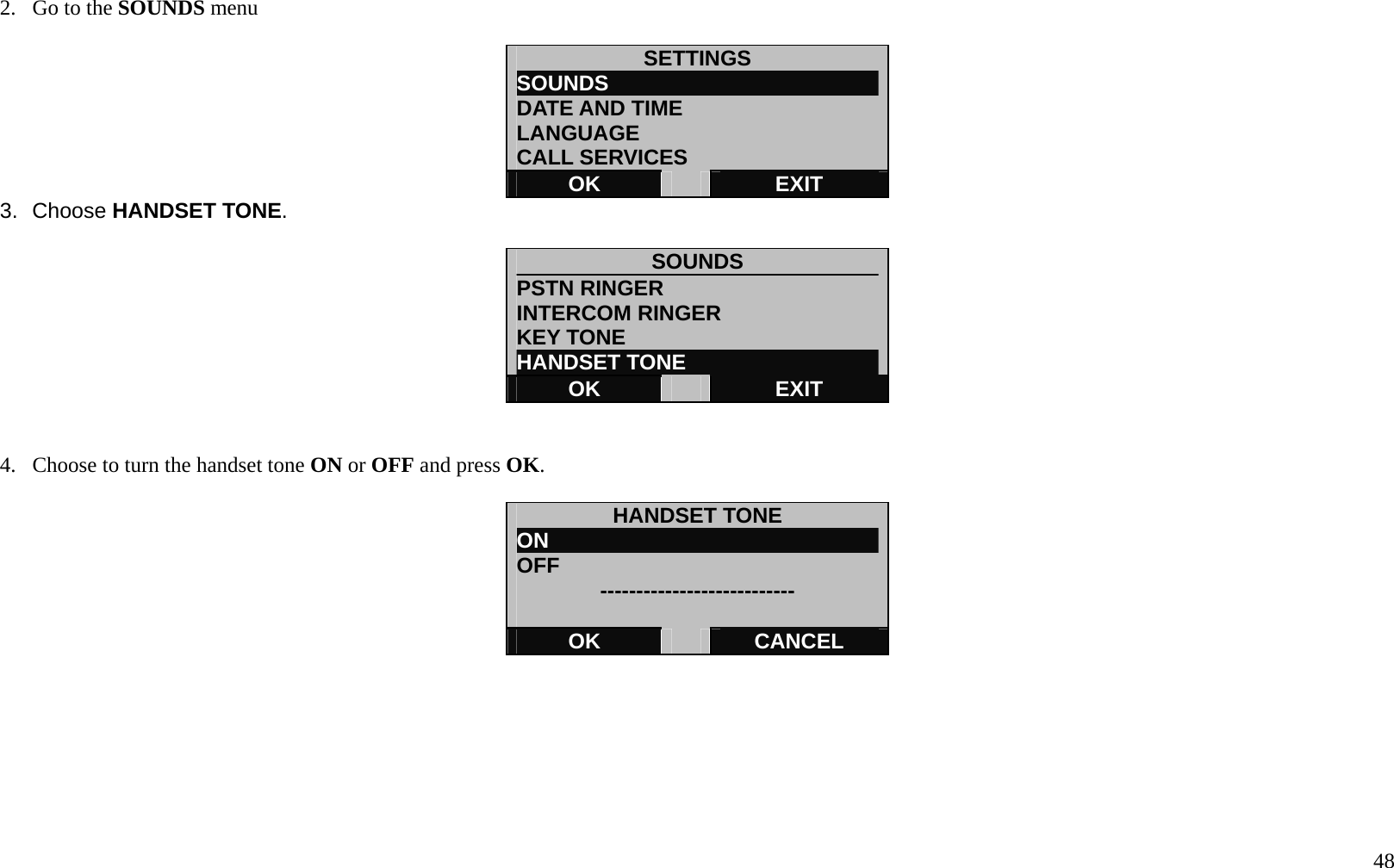
  48 2.  Go to the SOUNDS menu  SETTINGS SOUNDS                          DATE AND TIME LANGUAGE CALL SERVICES OK   EXIT 3. Choose HANDSET TONE.  SOUNDS              PSTN RINGER INTERCOM RINGER KEY TONE HANDSET TONE OK   EXIT   4.  Choose to turn the handset tone ON or OFF and press OK.  HANDSET TONE ON                                OFF  ---------------------------  OK   CANCEL
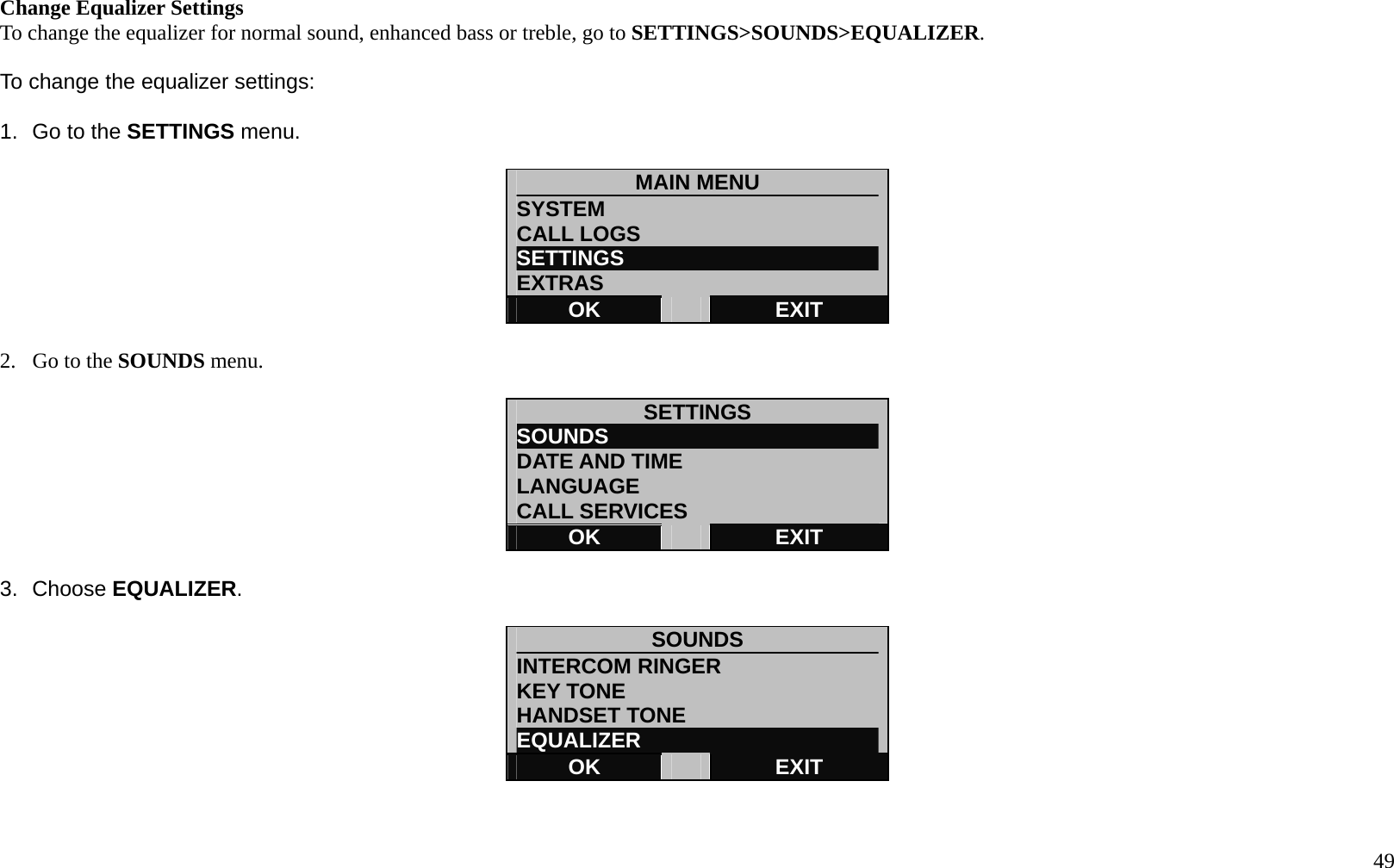
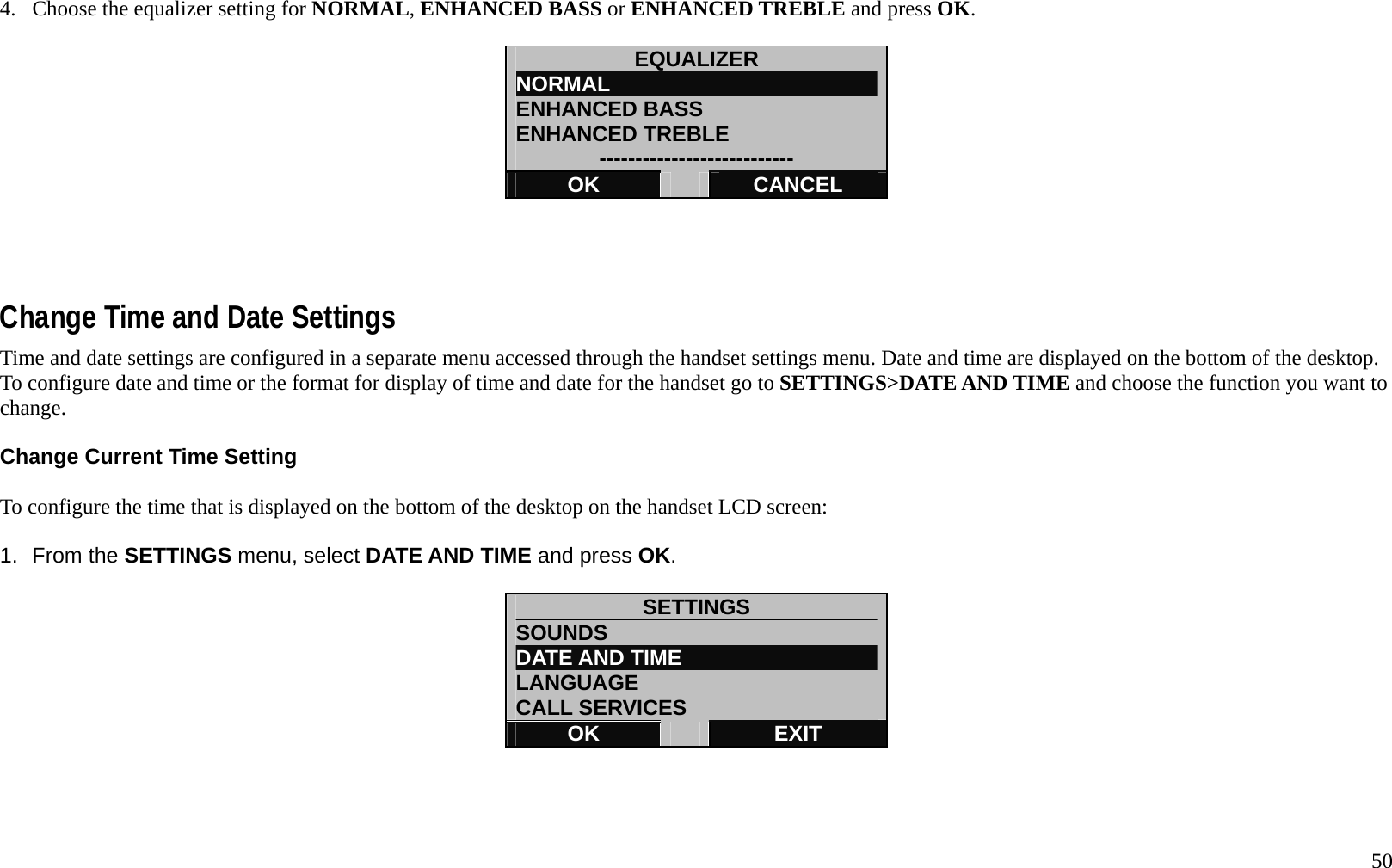
  49 Change Equalizer Settings To change the equalizer for normal sound, enhanced bass or treble, go to SETTINGS>SOUNDS>EQUALIZER.  To change the equalizer settings:  1.  Go to the SETTINGS menu.  MAIN MENU SYSTEM CALL LOGS SETTINGS                         EXTRAS OK   EXIT  2.  Go to the SOUNDS menu.  SETTINGS SOUNDS                          DATE AND TIME LANGUAGE CALL SERVICES OK   EXIT  3. Choose EQUALIZER.  SOUNDS              INTERCOM RINGER KEY TONE HANDSET TONE EQUALIZER OK   EXIT
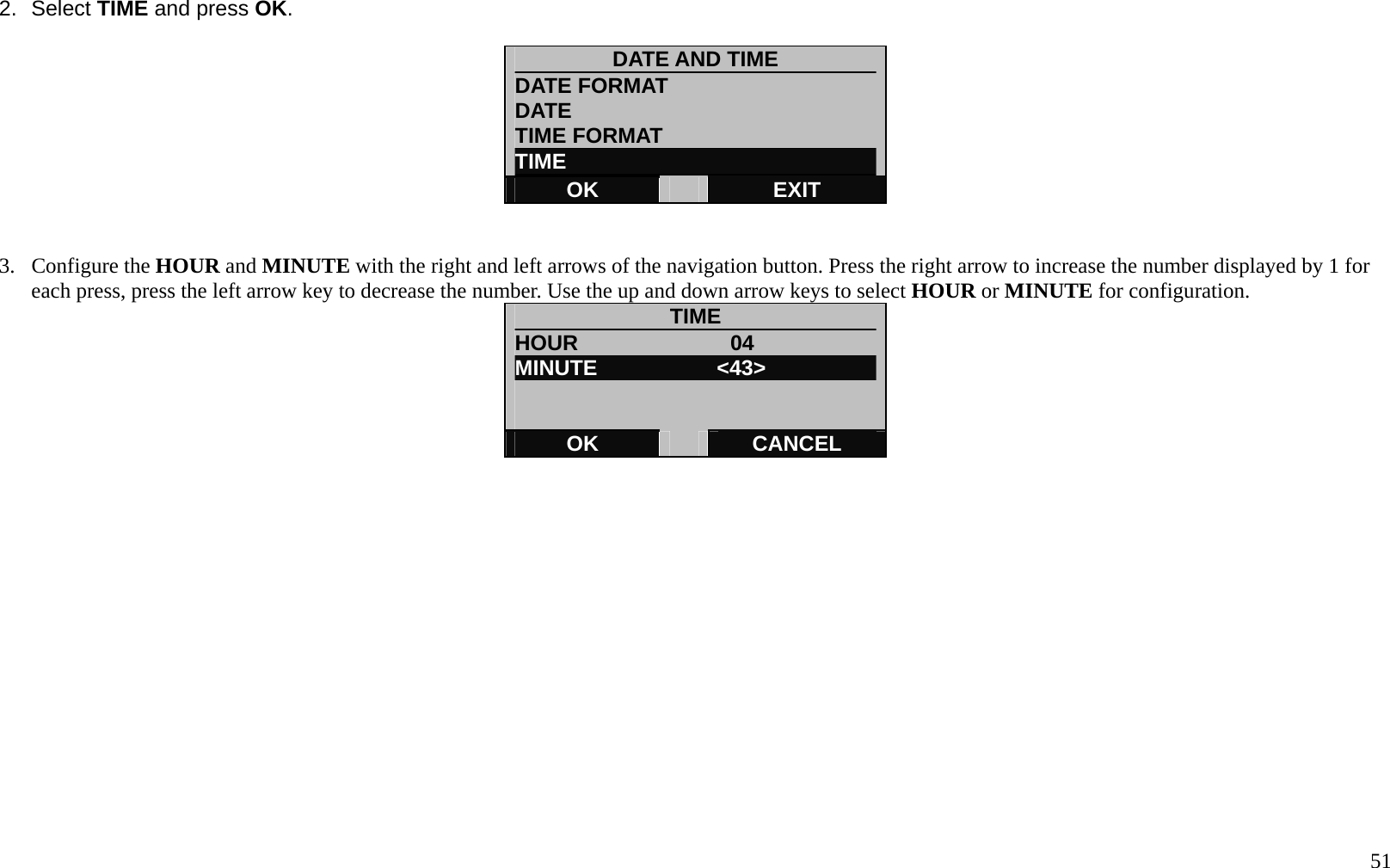
  50 4.  Choose the equalizer setting for NORMAL, ENHANCED BASS or ENHANCED TREBLE and press OK.  EQUALIZER NORMAL                          ENHANCED BASS ENHANCED TREBLE --------------------------- OK   CANCEL     Change Time and Date Settings Time and date settings are configured in a separate menu accessed through the handset settings menu. Date and time are displayed on the bottom of the desktop. To configure date and time or the format for display of time and date for the handset go to SETTINGS>DATE AND TIME and choose the function you want to change.  Change Current Time Setting  To configure the time that is displayed on the bottom of the desktop on the handset LCD screen:  1. From the SETTINGS menu, select DATE AND TIME and press OK.  SETTINGS SOUNDS DATE AND TIME LANGUAGE CALL SERVICES OK   EXIT
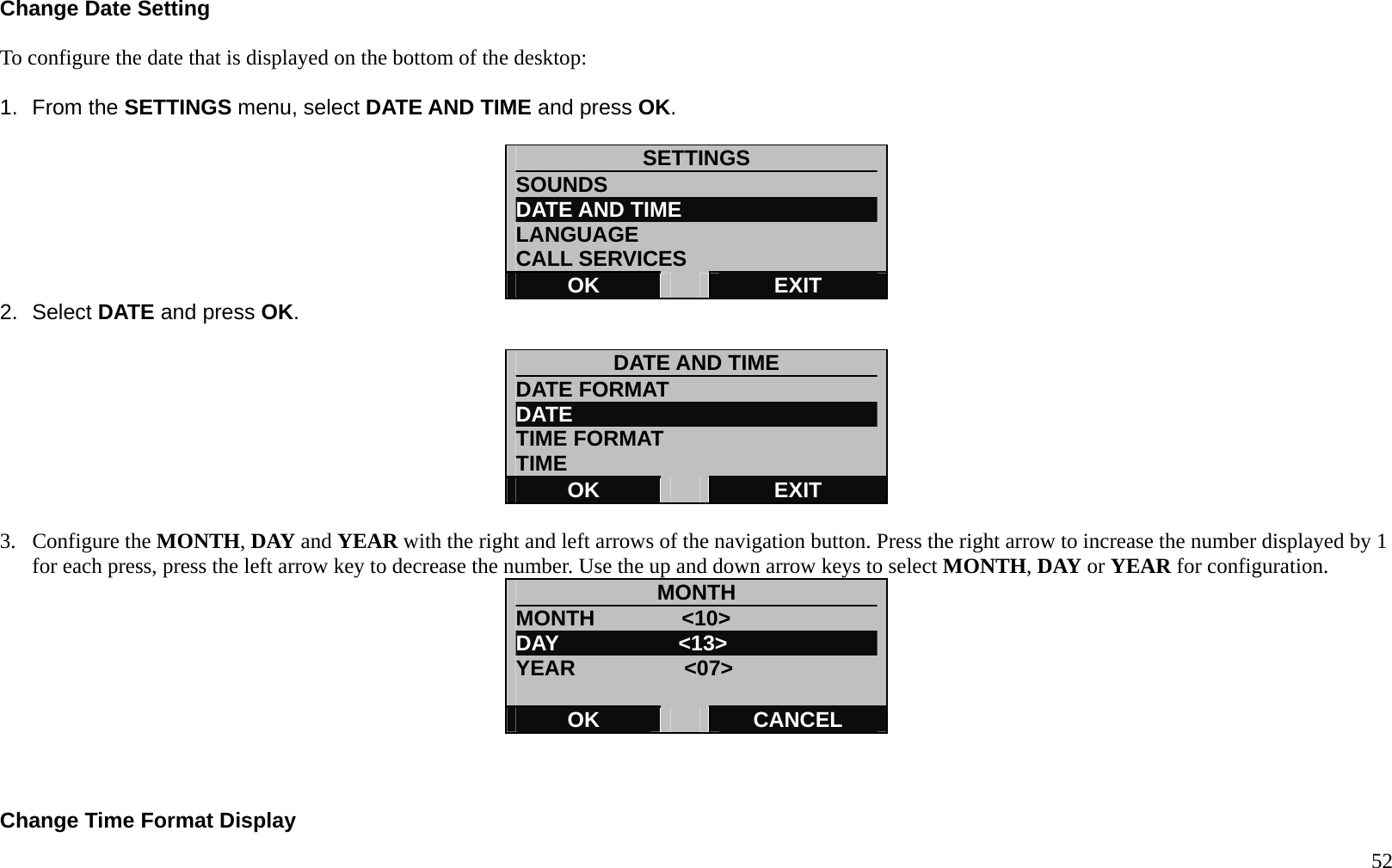
  51 2. Select TIME and press OK.  DATE AND TIME DATE FORMAT DATE  TIME FORMAT   TIME OK   EXIT   3. Configure the HOUR and MINUTE with the right and left arrows of the navigation button. Press the right arrow to increase the number displayed by 1 for each press, press the left arrow key to decrease the number. Use the up and down arrow keys to select HOUR or MINUTE for configuration. TIME HOUR              04 MINUTE           <43>   OK   CANCEL
  52 Change Date Setting  To configure the date that is displayed on the bottom of the desktop:  1. From the SETTINGS menu, select DATE AND TIME and press OK.  SETTINGS SOUNDS DATE AND TIME LANGUAGE CALL SERVICES OK   EXIT 2. Select DATE and press OK.  DATE AND TIME DATE FORMAT DATE  TIME FORMAT   TIME OK   EXIT  3. Configure the MONTH, DAY and YEAR with the right and left arrows of the navigation button. Press the right arrow to increase the number displayed by 1 for each press, press the left arrow key to decrease the number. Use the up and down arrow keys to select MONTH, DAY or YEAR for configuration. MONTH MONTH        <10> DAY           <13> YEAR          <07>  OK   CANCEL    Change Time Format Display
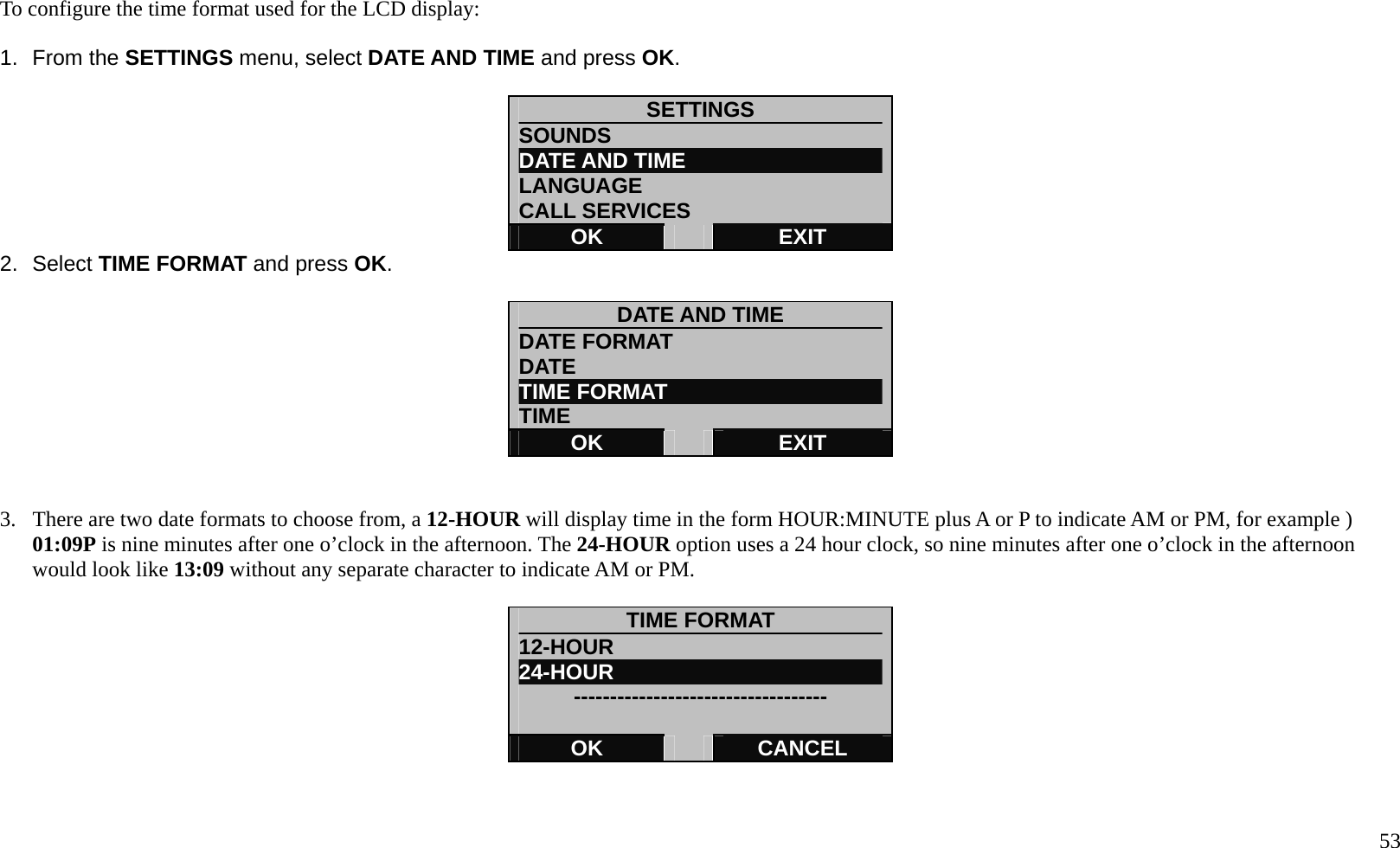
  53  To configure the time format used for the LCD display:  1. From the SETTINGS menu, select DATE AND TIME and press OK.  SETTINGS SOUNDS DATE AND TIME LANGUAGE CALL SERVICES OK   EXIT 2. Select TIME FORMAT and press OK.  DATE AND TIME DATE FORMAT DATE  TIME FORMAT   TIME OK   EXIT   3.  There are two date formats to choose from, a 12-HOUR will display time in the form HOUR:MINUTE plus A or P to indicate AM or PM, for example ) 01:09P is nine minutes after one o’clock in the afternoon. The 24-HOUR option uses a 24 hour clock, so nine minutes after one o’clock in the afternoon would look like 13:09 without any separate character to indicate AM or PM.  TIME FORMAT 12-HOUR               24-HOUR            -----------------------------------  OK   CANCEL
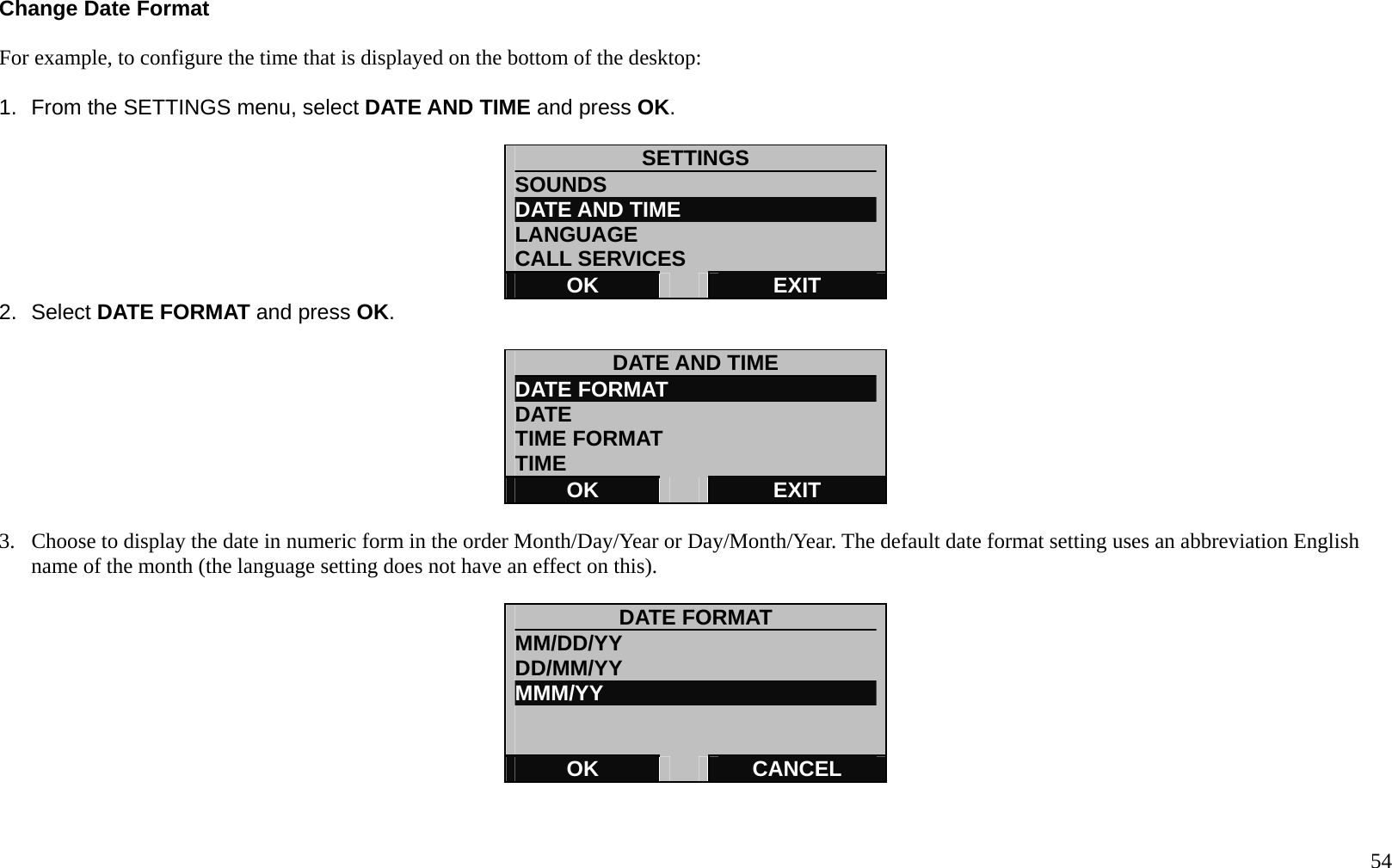
  54 Change Date Format  For example, to configure the time that is displayed on the bottom of the desktop:  1.  From the SETTINGS menu, select DATE AND TIME and press OK.  SETTINGS SOUNDS DATE AND TIME LANGUAGE CALL SERVICES OK   EXIT 2. Select DATE FORMAT and press OK.  DATE AND TIME DATE FORMAT DATE  TIME FORMAT   TIME OK   EXIT  3.  Choose to display the date in numeric form in the order Month/Day/Year or Day/Month/Year. The default date format setting uses an abbreviation English name of the month (the language setting does not have an effect on this).    DATE FORMAT MM/DD/YY DD/MM/YY MMM/YY             OK   CANCEL
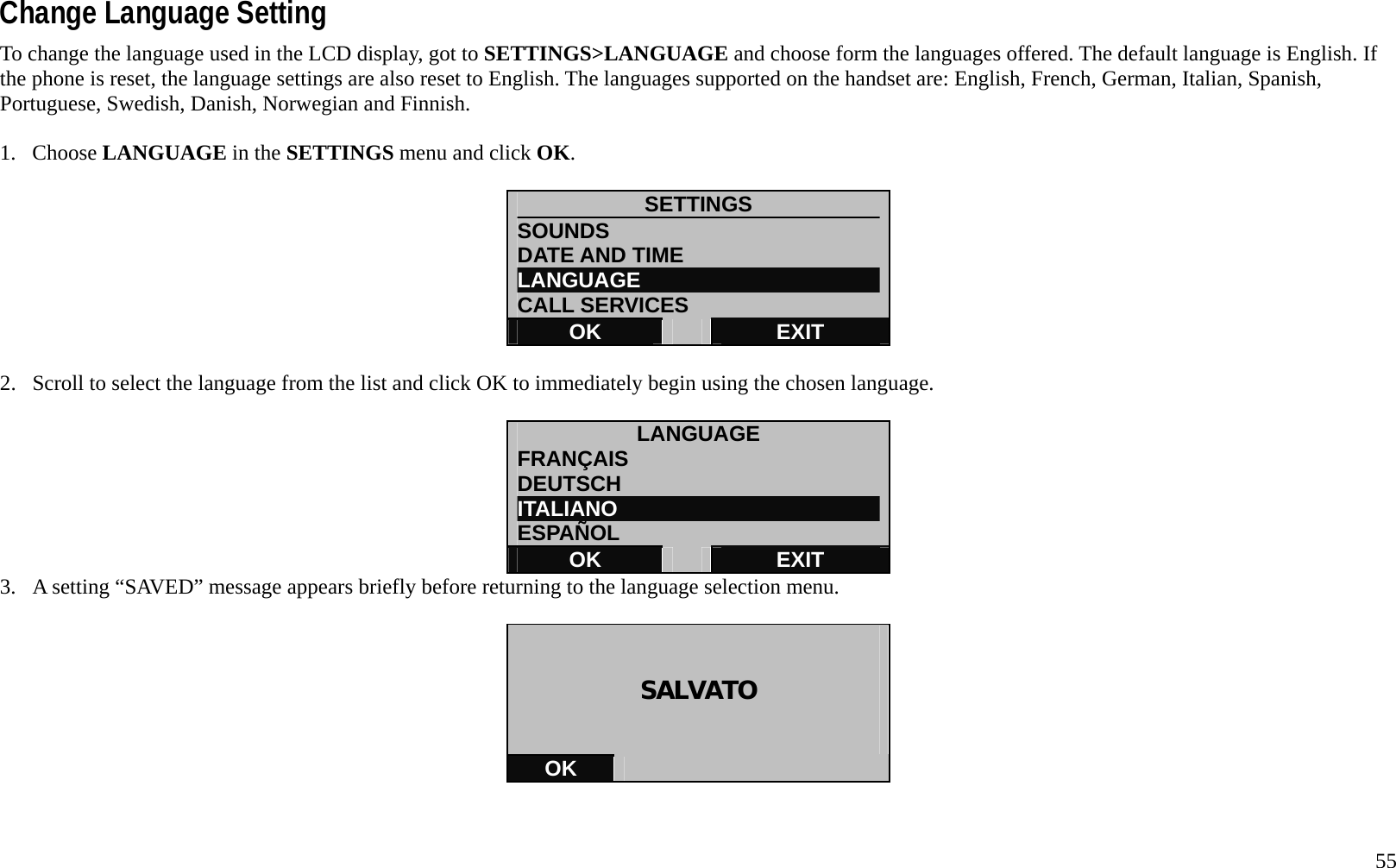
  55 Change Language Setting To change the language used in the LCD display, got to SETTINGS>LANGUAGE and choose form the languages offered. The default language is English. If the phone is reset, the language settings are also reset to English. The languages supported on the handset are: English, French, German, Italian, Spanish, Portuguese, Swedish, Danish, Norwegian and Finnish.  1. Choose LANGUAGE in the SETTINGS menu and click OK.  SETTINGS SOUNDS DATE AND TIME LANGUAGE CALL SERVICES OK   EXIT  2.  Scroll to select the language from the list and click OK to immediately begin using the chosen language.  LANGUAGE FRANÇAIS DEUTSCH ITALIANO ESPAÑOL OK   EXIT 3.  A setting “SAVED” message appears briefly before returning to the language selection menu.    SALVATO   OK
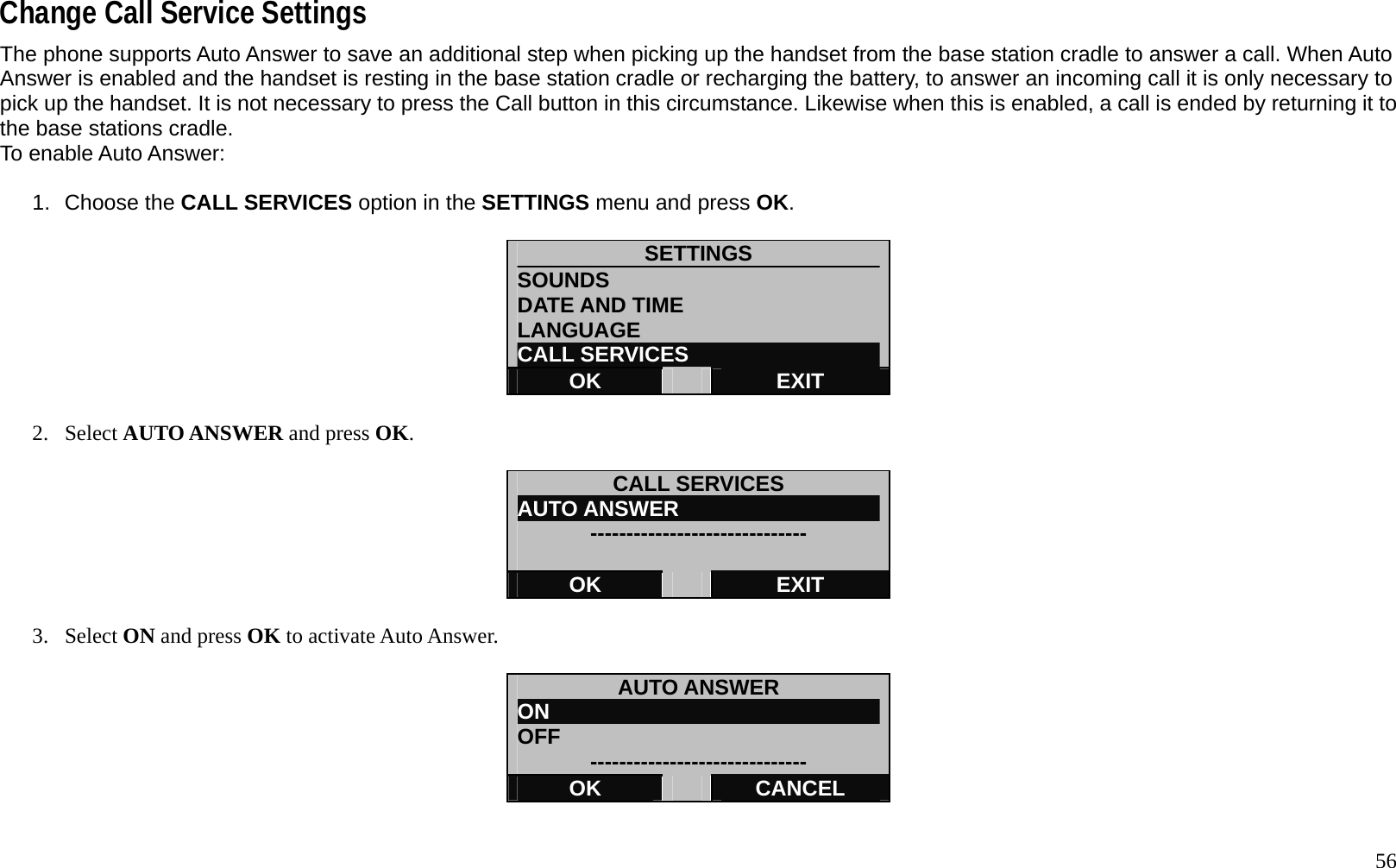
  56 Change Call Service Settings The phone supports Auto Answer to save an additional step when picking up the handset from the base station cradle to answer a call. When Auto Answer is enabled and the handset is resting in the base station cradle or recharging the battery, to answer an incoming call it is only necessary to pick up the handset. It is not necessary to press the Call button in this circumstance. Likewise when this is enabled, a call is ended by returning it to the base stations cradle. To enable Auto Answer:  1. Choose the CALL SERVICES option in the SETTINGS menu and press OK.   SETTINGS SOUNDS DATE AND TIME LANGUAGE CALL SERVICES OK   EXIT  2. Select AUTO ANSWER and press OK.  CALL SERVICES AUTO ANSWER                    ------------------------------  OK   EXIT  3. Select ON and press OK to activate Auto Answer.  AUTO ANSWER ON                                OFF  ------------------------------ OK   CANCEL
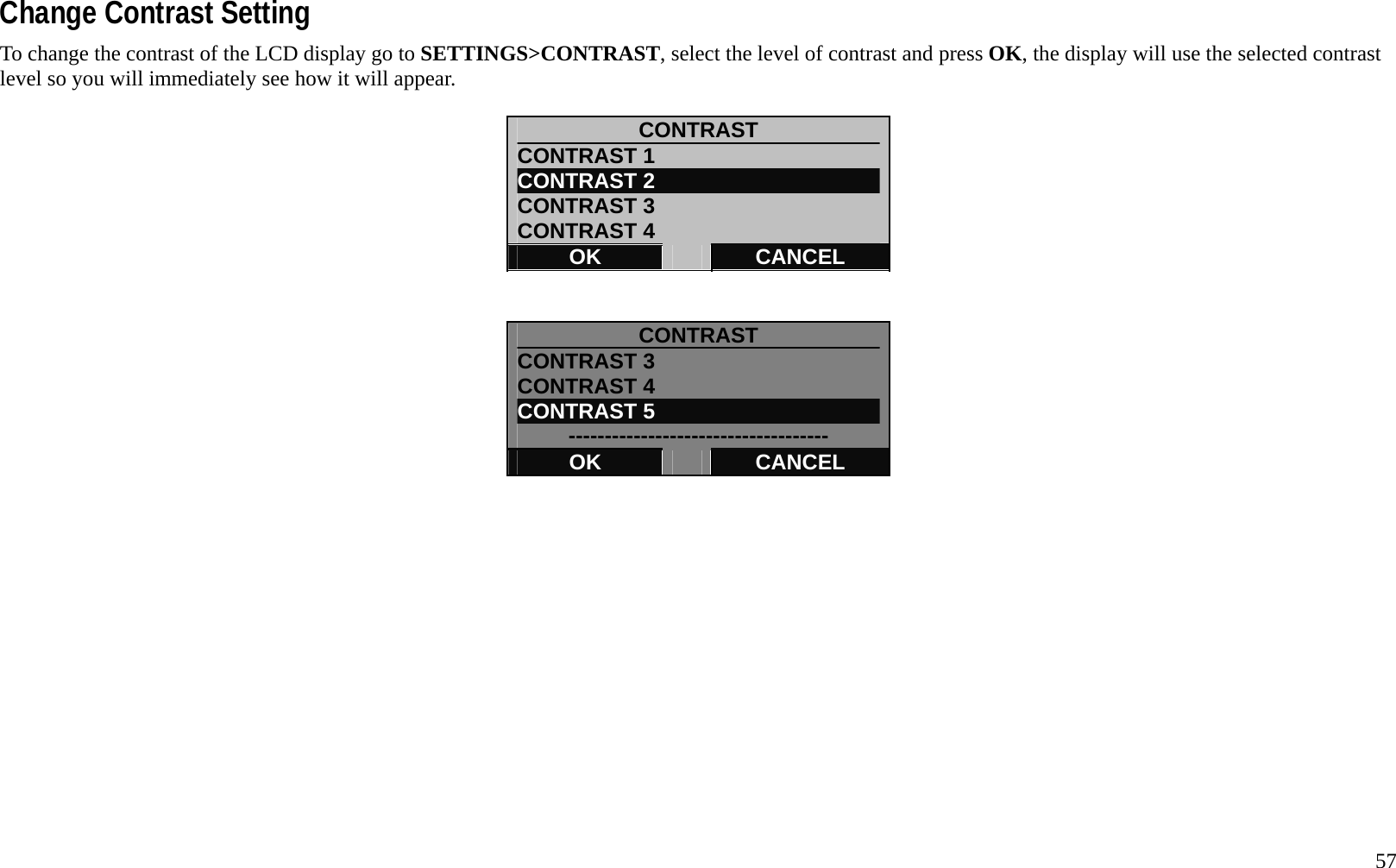
  57 Change Contrast Setting To change the contrast of the LCD display go to SETTINGS>CONTRAST, select the level of contrast and press OK, the display will use the selected contrast level so you will immediately see how it will appear.  CONTRAST CONTRAST 1 CONTRAST 2 CONTRAST 3 CONTRAST 4 OK   CANCEL   CONTRAST CONTRAST 3 CONTRAST 4 CONTRAST 5 ------------------------------------ OK   CANCEL
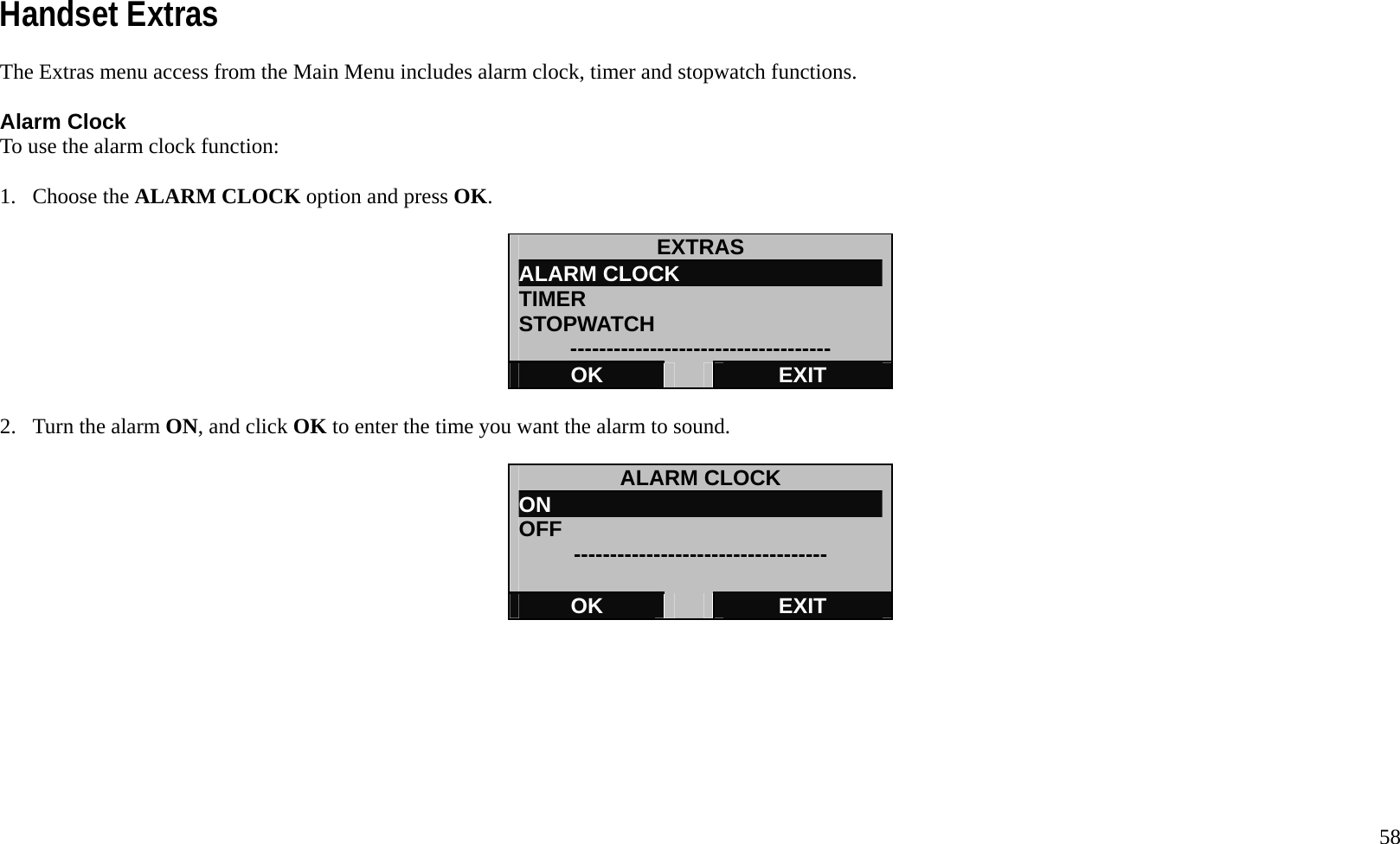
  58 Handset Extras The Extras menu access from the Main Menu includes alarm clock, timer and stopwatch functions.  Alarm Clock To use the alarm clock function:  1. Choose the ALARM CLOCK option and press OK.  EXTRAS ALARM CLOCK TIMER STOPWATCH ------------------------------------ OK   EXIT  2.  Turn the alarm ON, and click OK to enter the time you want the alarm to sound.  ALARM CLOCK ON OFF  -----------------------------------  OK   EXIT
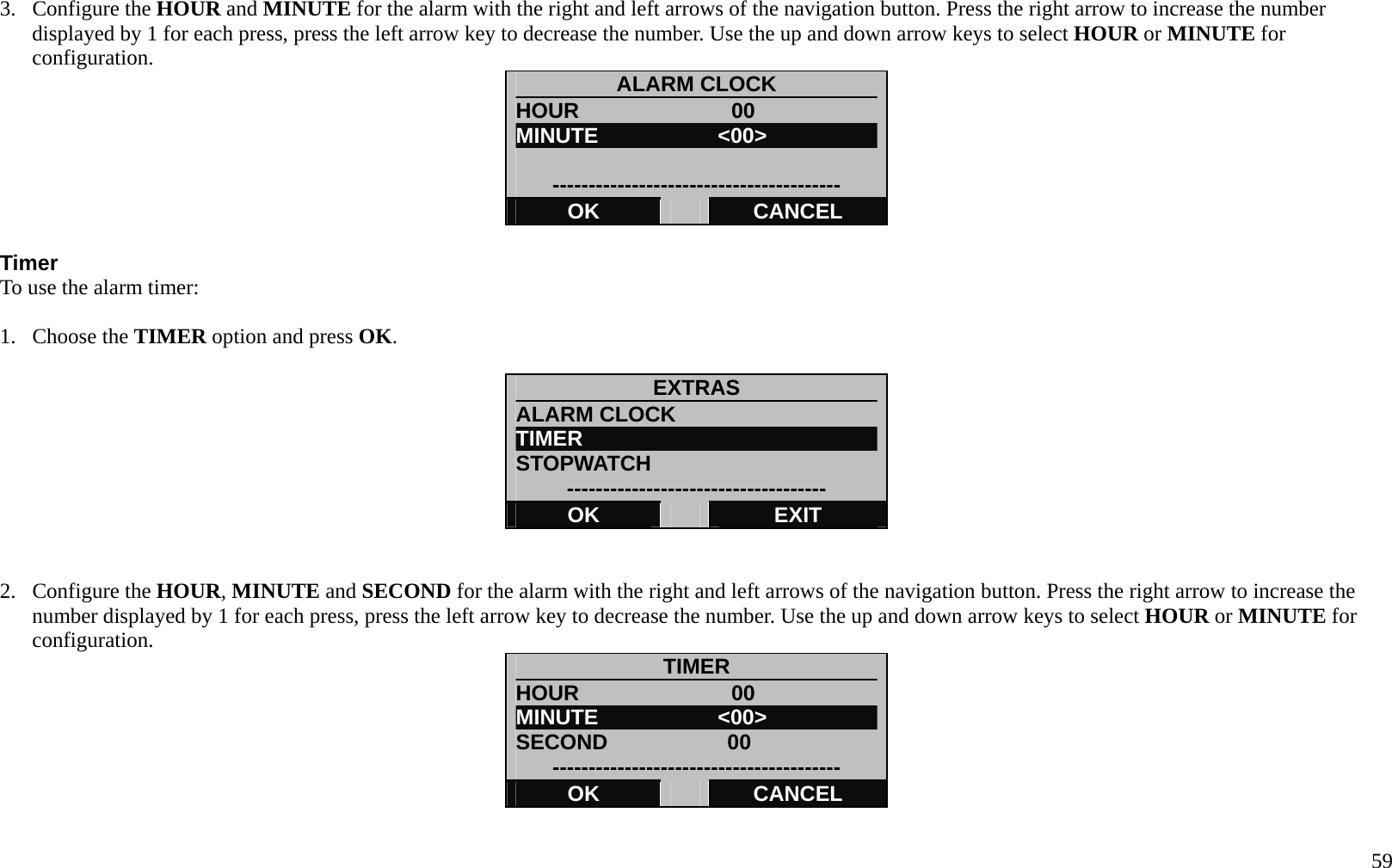
  59 3. Configure the HOUR and MINUTE for the alarm with the right and left arrows of the navigation button. Press the right arrow to increase the number displayed by 1 for each press, press the left arrow key to decrease the number. Use the up and down arrow keys to select HOUR or MINUTE for configuration. ALARM CLOCK HOUR              00 MINUTE           <00>  ---------------------------------------- OK   CANCEL  Timer To use the alarm timer:  1. Choose the TIMER option and press OK.  EXTRAS ALARM CLOCK TIMER STOPWATCH ------------------------------------ OK   EXIT   2. Configure the HOUR, MINUTE and SECOND for the alarm with the right and left arrows of the navigation button. Press the right arrow to increase the number displayed by 1 for each press, press the left arrow key to decrease the number. Use the up and down arrow keys to select HOUR or MINUTE for configuration. TIMER HOUR              00 MINUTE           <00> SECOND           00 ---------------------------------------- OK   CANCEL
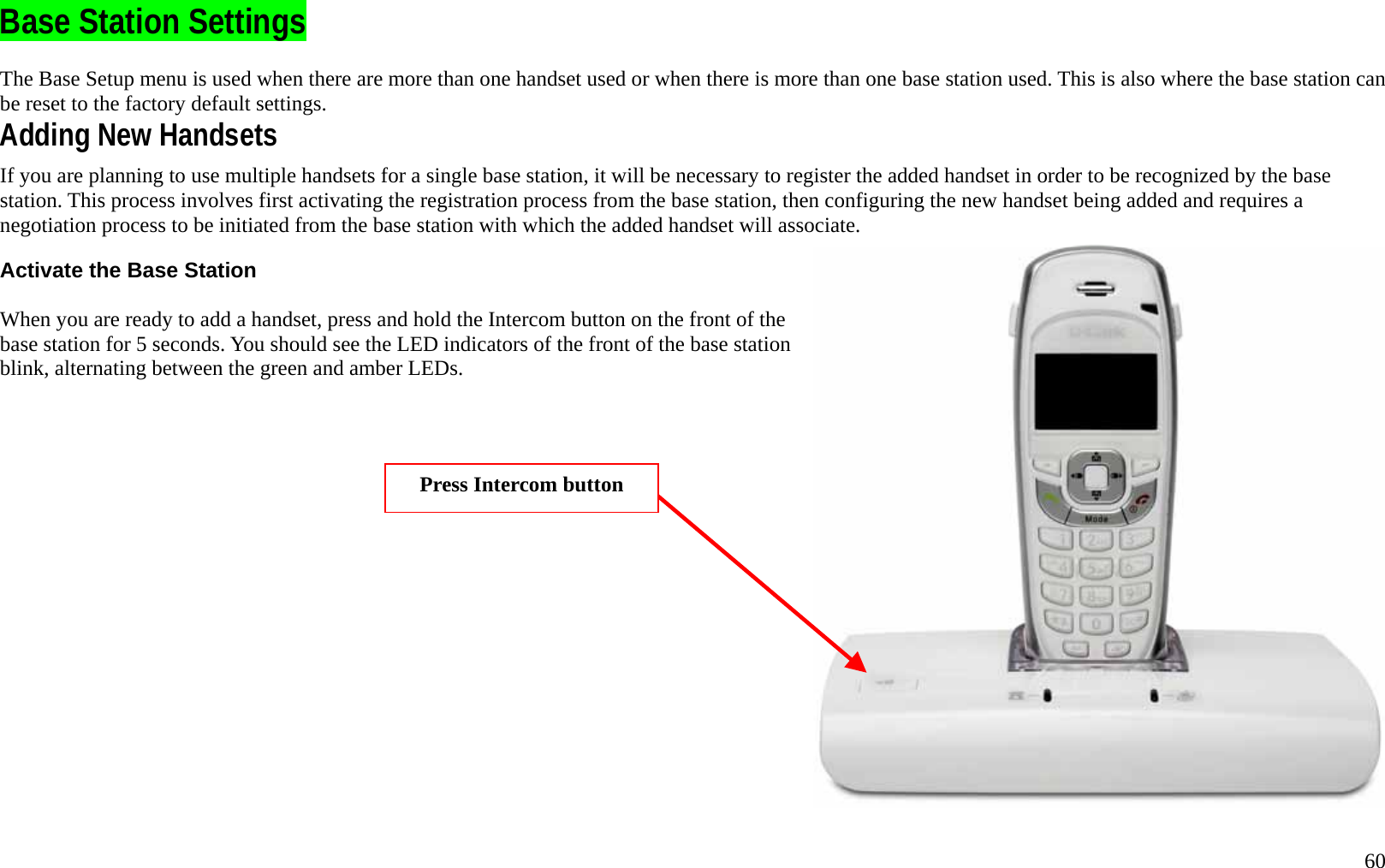
  60 Base Station Settings The Base Setup menu is used when there are more than one handset used or when there is more than one base station used. This is also where the base station can be reset to the factory default settings.   Adding New Handsets If you are planning to use multiple handsets for a single base station, it will be necessary to register the added handset in order to be recognized by the base station. This process involves first activating the registration process from the base station, then configuring the new handset being added and requires a negotiation process to be initiated from the base station with which the added handset will associate.      Activate the Base Station  When you are ready to add a handset, press and hold the Intercom button on the front of the base station for 5 seconds. You should see the LED indicators of the front of the base station blink, alternating between the green and amber LEDs.   Press Intercom button
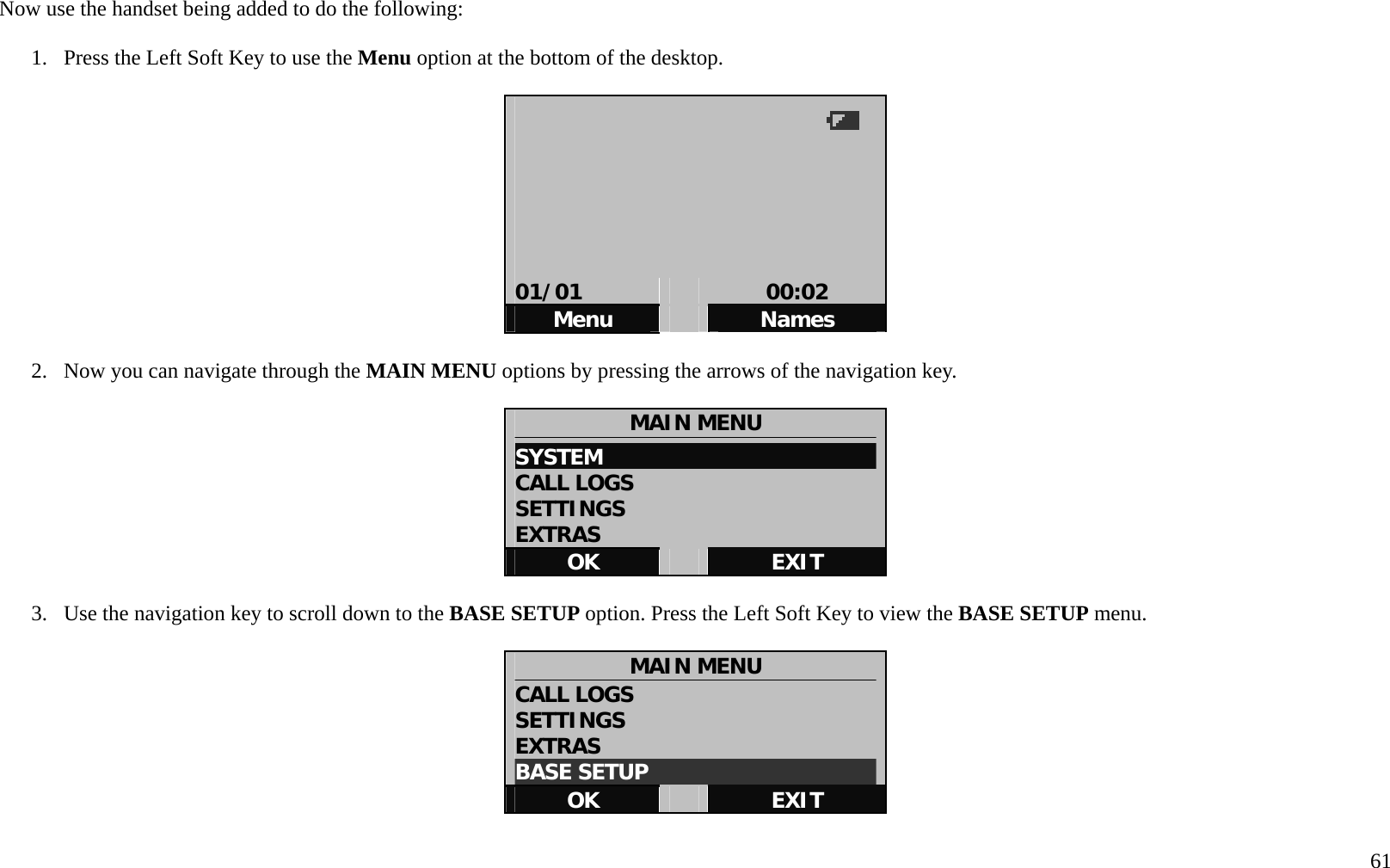
  61 Now use the handset being added to do the following:  1.  Press the Left Soft Key to use the Menu option at the bottom of the desktop.          01/01   00:02 Menu   Names  2.  Now you can navigate through the MAIN MENU options by pressing the arrows of the navigation key.      MAIN MENU SYSTEM                           CALL LOGS SETTINGS EXTRAS OK   EXIT  3.  Use the navigation key to scroll down to the BASE SETUP option. Press the Left Soft Key to view the BASE SETUP menu.  MAIN MENU CALL LOGS SETTINGS EXTRAS BASE SETUP                      OK   EXIT
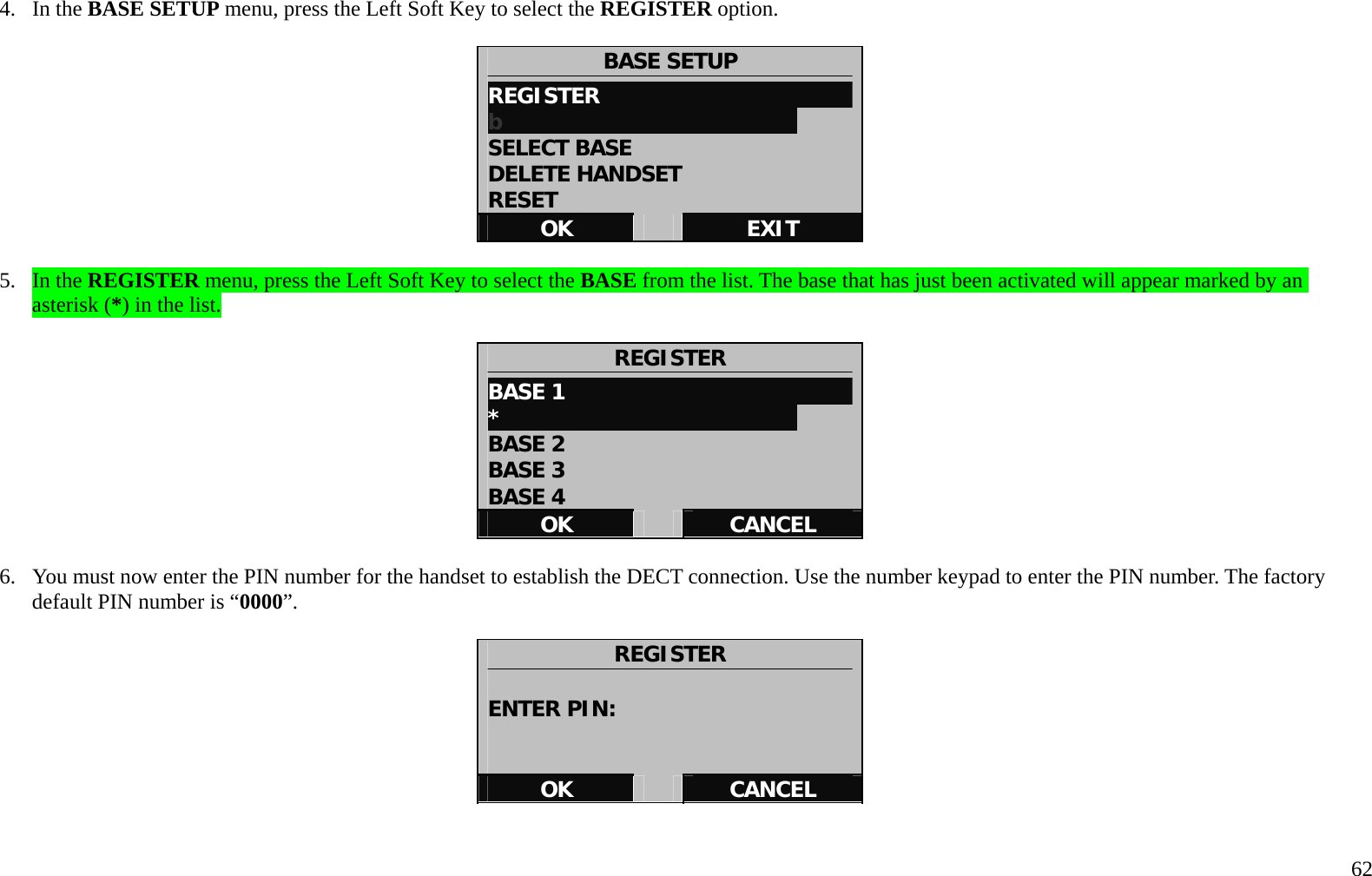
  62 4. In the BASE SETUP menu, press the Left Soft Key to select the REGISTER option.   BASE SETUP REGISTER                       b                            SELECT BASE DELETE HANDSET RESET OK   EXIT  5. In the REGISTER menu, press the Left Soft Key to select the BASE from the list. The base that has just been activated will appear marked by an asterisk (*) in the list.     REGISTER BASE 1                            *                            BASE 2 BASE 3 BASE 4 OK   CANCEL  6.  You must now enter the PIN number for the handset to establish the DECT connection. Use the number keypad to enter the PIN number. The factory default PIN number is “0000”.    REGISTER  ENTER PIN:   OK   CANCEL
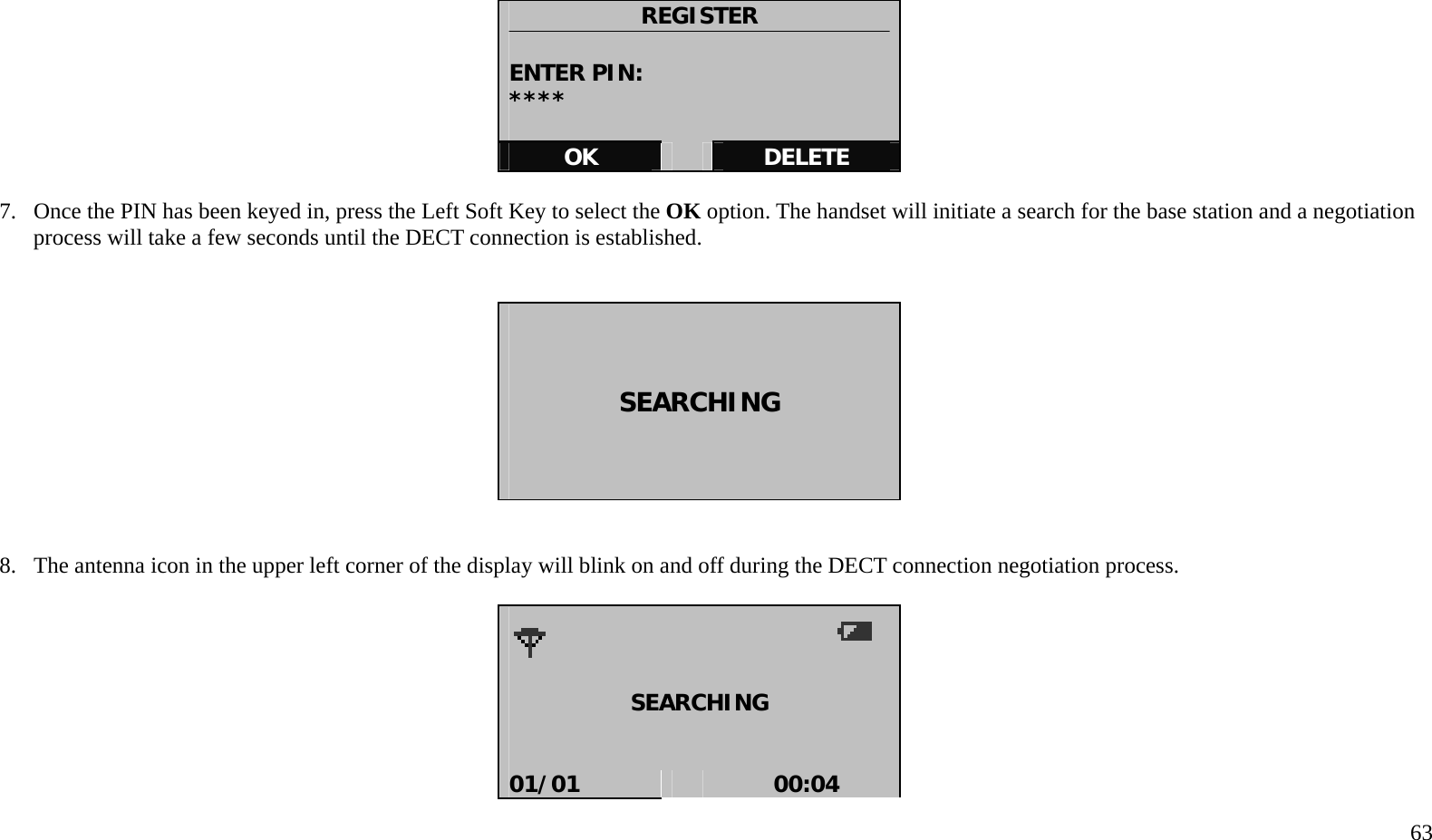
  63    REGISTER  ENTER PIN: ****  OK   DELETE  7.  Once the PIN has been keyed in, press the Left Soft Key to select the OK option. The handset will initiate a search for the base station and a negotiation process will take a few seconds until the DECT connection is established.        SEARCHING      8.  The antenna icon in the upper left corner of the display will blink on and off during the DECT connection negotiation process.      SEARCHING   01/01   00:04
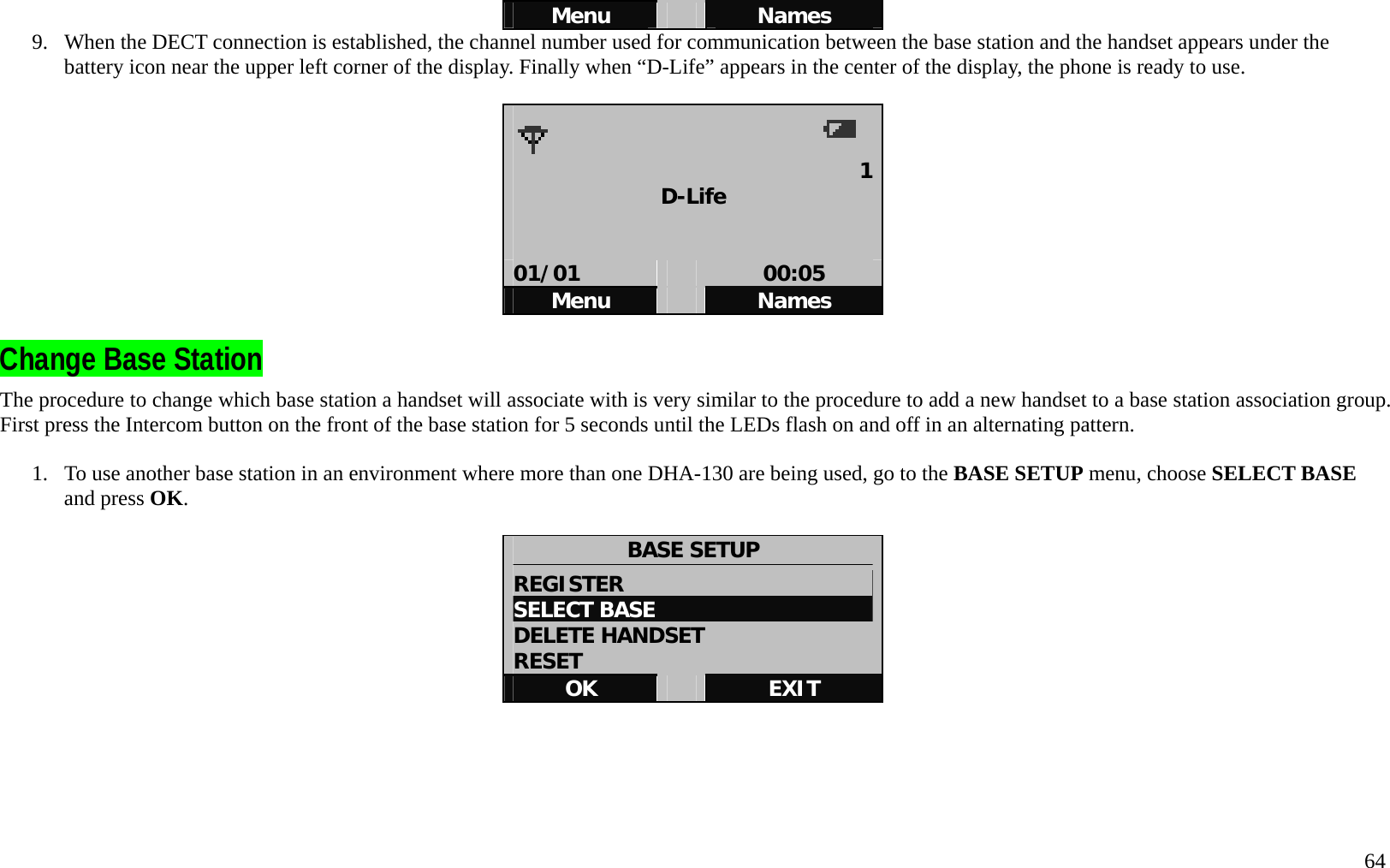
  64 Menu   Names 9.  When the DECT connection is established, the channel number used for communication between the base station and the handset appears under the battery icon near the upper left corner of the display. Finally when “D-Life” appears in the center of the display, the phone is ready to use.        1D-Life   01/01   00:05 Menu   Names  Change Base Station The procedure to change which base station a handset will associate with is very similar to the procedure to add a new handset to a base station association group. First press the Intercom button on the front of the base station for 5 seconds until the LEDs flash on and off in an alternating pattern.  1.  To use another base station in an environment where more than one DHA-130 are being used, go to the BASE SETUP menu, choose SELECT BASE and press OK.   BASE SETUP REGISTER                       SELECT BASE DELETE HANDSET RESET OK   EXIT
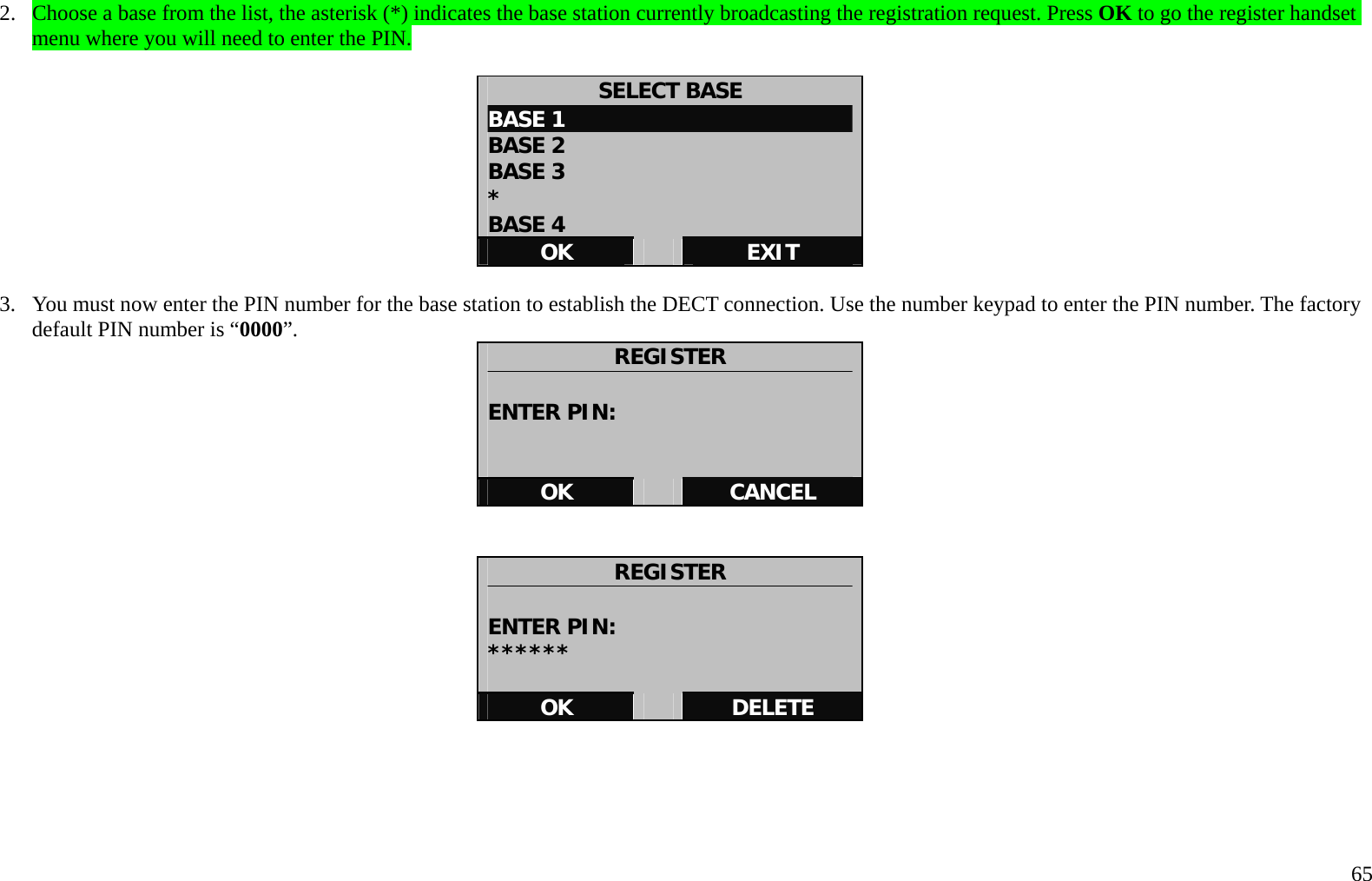
  65 2.  Choose a base from the list, the asterisk (*) indicates the base station currently broadcasting the registration request. Press OK to go the register handset menu where you will need to enter the PIN.  SELECT BASE BASE 1 BASE 2 BASE 3                            * BASE 4 OK   EXIT  3.  You must now enter the PIN number for the base station to establish the DECT connection. Use the number keypad to enter the PIN number. The factory default PIN number is “0000”.  REGISTER  ENTER PIN:   OK   CANCEL   REGISTER  ENTER PIN: ******  OK   DELETE
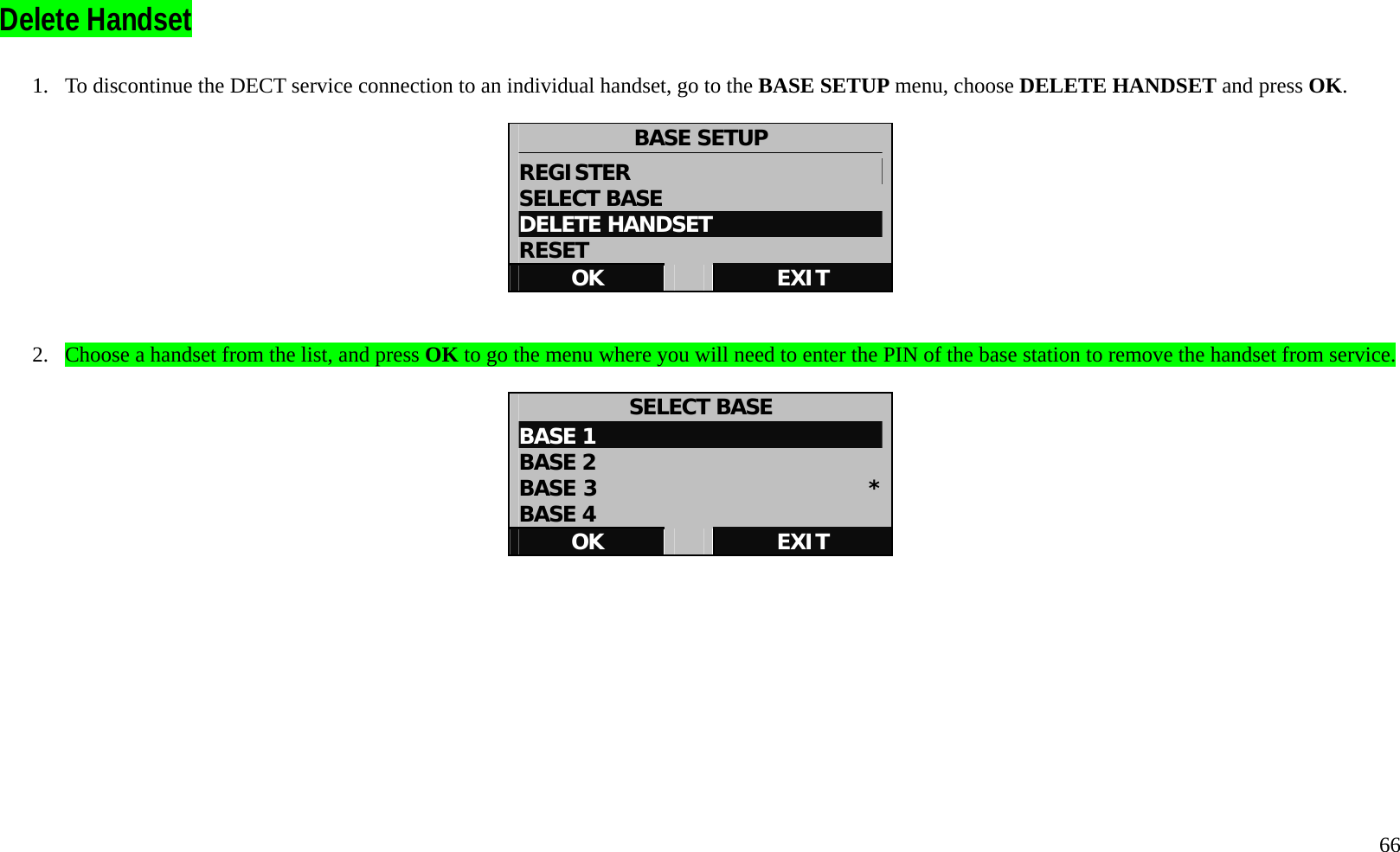
  66  Delete Handset    1.  To discontinue the DECT service connection to an individual handset, go to the BASE SETUP menu, choose DELETE HANDSET and press OK.  BASE SETUP REGISTER                       SELECT BASE DELETE HANDSET RESET OK   EXIT   2.  Choose a handset from the list, and press OK to go the menu where you will need to enter the PIN of the base station to remove the handset from service.  SELECT BASE BASE 1 BASE 2 BASE 3                         *BASE 4 OK   EXIT
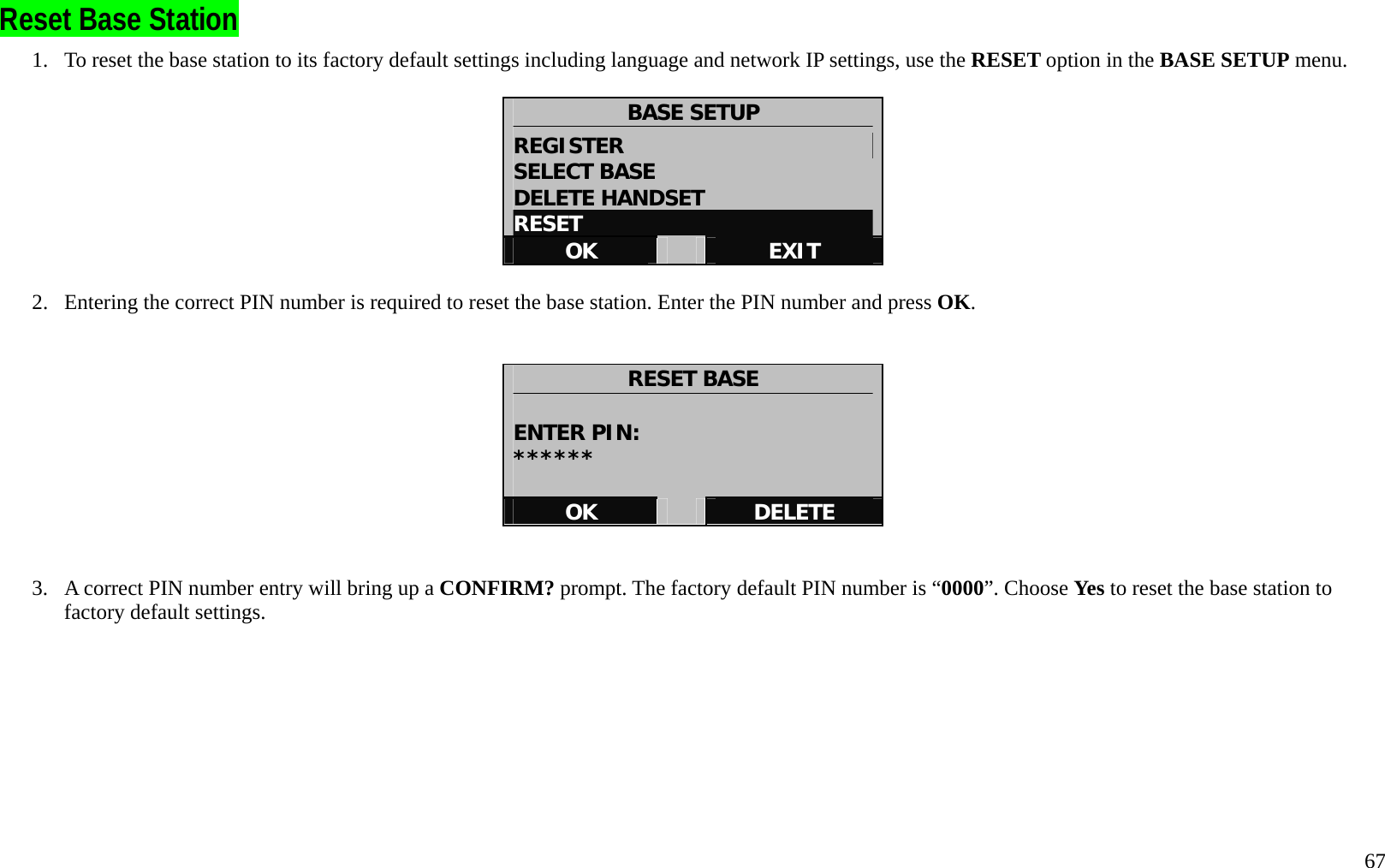
  67 Reset Base Station 1.  To reset the base station to its factory default settings including language and network IP settings, use the RESET option in the BASE SETUP menu.  BASE SETUP REGISTER                       SELECT BASE DELETE HANDSET RESET OK   EXIT  2.  Entering the correct PIN number is required to reset the base station. Enter the PIN number and press OK.   RESET BASE  ENTER PIN: ******  OK   DELETE   3.  A correct PIN number entry will bring up a CONFIRM? prompt. The factory default PIN number is “0000”. Choose Yes to reset the base station to factory default settings.
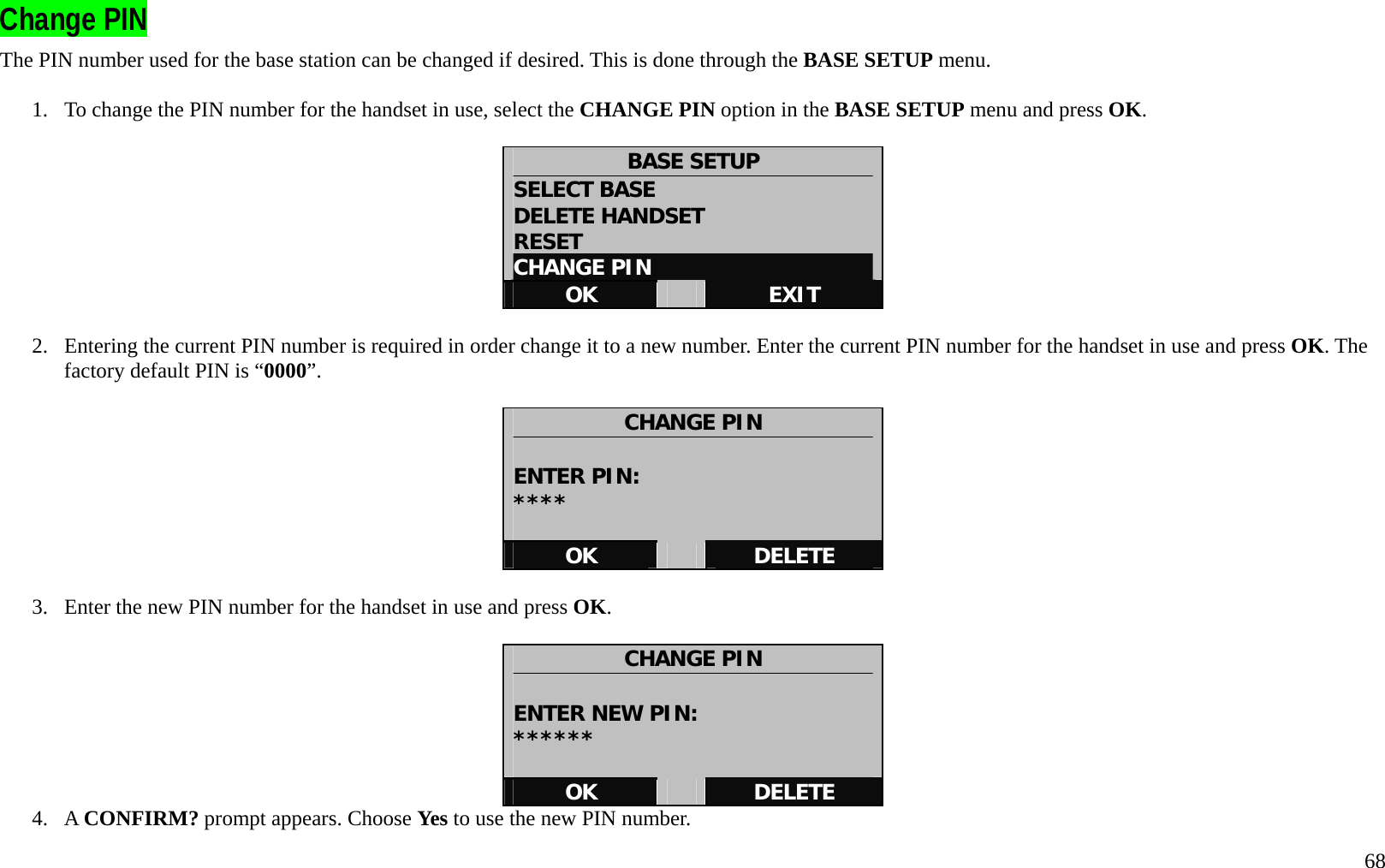
  68 Change PIN   The PIN number used for the base station can be changed if desired. This is done through the BASE SETUP menu.  1.  To change the PIN number for the handset in use, select the CHANGE PIN option in the BASE SETUP menu and press OK.  BASE SETUP SELECT BASE DELETE HANDSET RESET CHANGE PIN OK   EXIT  2.  Entering the current PIN number is required in order change it to a new number. Enter the current PIN number for the handset in use and press OK. The factory default PIN is “0000”.  CHANGE PIN  ENTER PIN: ****  OK   DELETE  3.  Enter the new PIN number for the handset in use and press OK.  CHANGE PIN  ENTER NEW PIN: ******  OK   DELETE 4. A CONFIRM? prompt appears. Choose Yes to use the new PIN number.
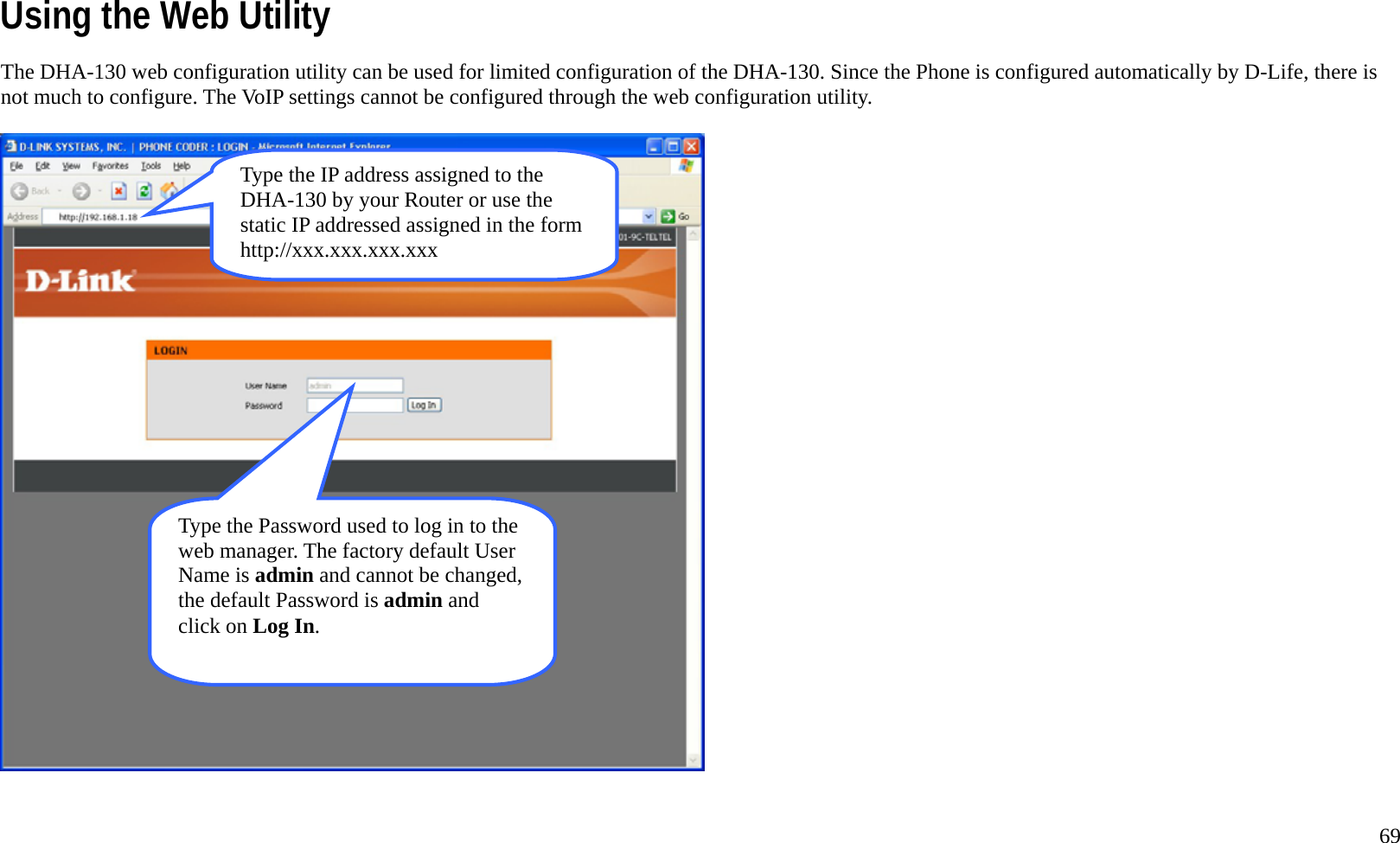
  69 Using the Web Utility The DHA-130 web configuration utility can be used for limited configuration of the DHA-130. Since the Phone is configured automatically by D-Life, there is not much to configure. The VoIP settings cannot be configured through the web configuration utility.  Type the IP address assigned to the DHA-130 by your Router or use the static IP addressed assigned in the form http://xxx.xxx.xxx.xxx Type the Password used to log in to the web manager. The factory default User Name is admin and cannot be changed, the default Password is admin and click on Log In.
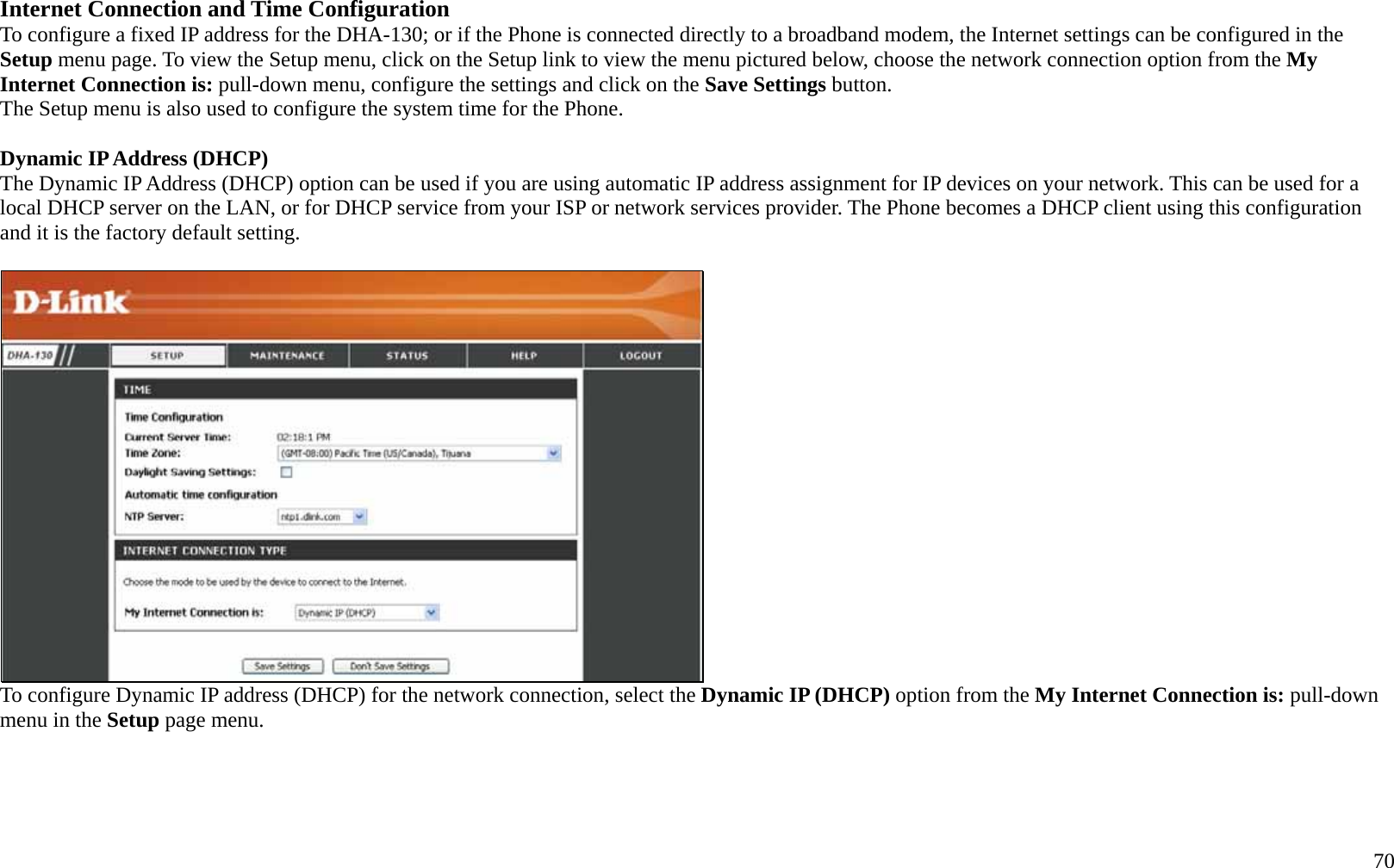
  70 Internet Connection and Time Configuration To configure a fixed IP address for the DHA-130; or if the Phone is connected directly to a broadband modem, the Internet settings can be configured in the Setup menu page. To view the Setup menu, click on the Setup link to view the menu pictured below, choose the network connection option from the My Internet Connection is: pull-down menu, configure the settings and click on the Save Settings button. The Setup menu is also used to configure the system time for the Phone.    Dynamic IP Address (DHCP) The Dynamic IP Address (DHCP) option can be used if you are using automatic IP address assignment for IP devices on your network. This can be used for a local DHCP server on the LAN, or for DHCP service from your ISP or network services provider. The Phone becomes a DHCP client using this configuration and it is the factory default setting.    To configure Dynamic IP address (DHCP) for the network connection, select the Dynamic IP (DHCP) option from the My Internet Connection is: pull-down menu in the Setup page menu.
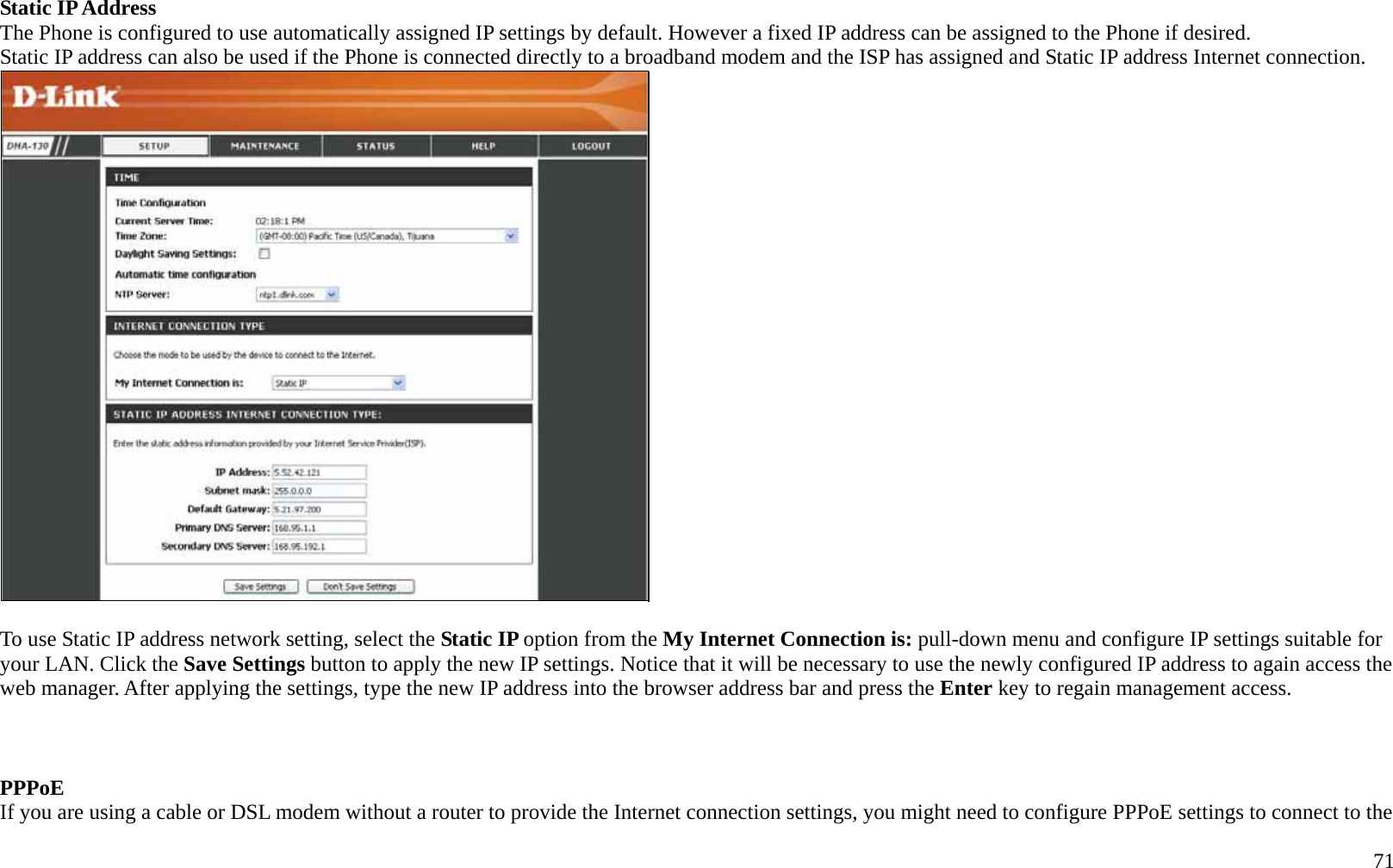
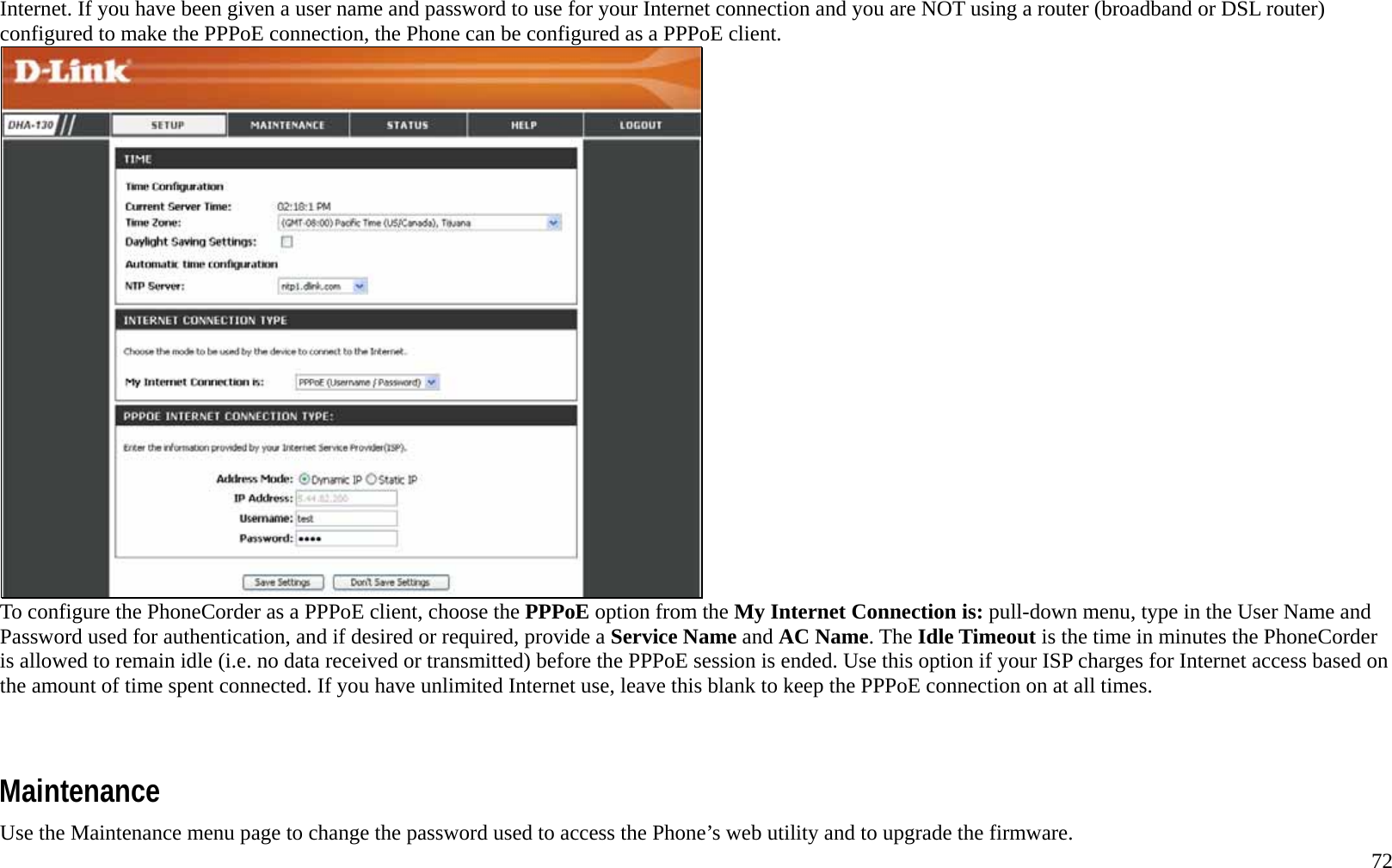
  71 Static IP Address The Phone is configured to use automatically assigned IP settings by default. However a fixed IP address can be assigned to the Phone if desired. Static IP address can also be used if the Phone is connected directly to a broadband modem and the ISP has assigned and Static IP address Internet connection.     To use Static IP address network setting, select the Static IP option from the My Internet Connection is: pull-down menu and configure IP settings suitable for your LAN. Click the Save Settings button to apply the new IP settings. Notice that it will be necessary to use the newly configured IP address to again access the web manager. After applying the settings, type the new IP address into the browser address bar and press the Enter key to regain management access.    PPPoE  If you are using a cable or DSL modem without a router to provide the Internet connection settings, you might need to configure PPPoE settings to connect to the
  72 Internet. If you have been given a user name and password to use for your Internet connection and you are NOT using a router (broadband or DSL router) configured to make the PPPoE connection, the Phone can be configured as a PPPoE client.    To configure the PhoneCorder as a PPPoE client, choose the PPPoE option from the My Internet Connection is: pull-down menu, type in the User Name and Password used for authentication, and if desired or required, provide a Service Name and AC Name. The Idle Timeout is the time in minutes the PhoneCorder is allowed to remain idle (i.e. no data received or transmitted) before the PPPoE session is ended. Use this option if your ISP charges for Internet access based on the amount of time spent connected. If you have unlimited Internet use, leave this blank to keep the PPPoE connection on at all times.      Maintenance Use the Maintenance menu page to change the password used to access the Phone’s web utility and to upgrade the firmware.
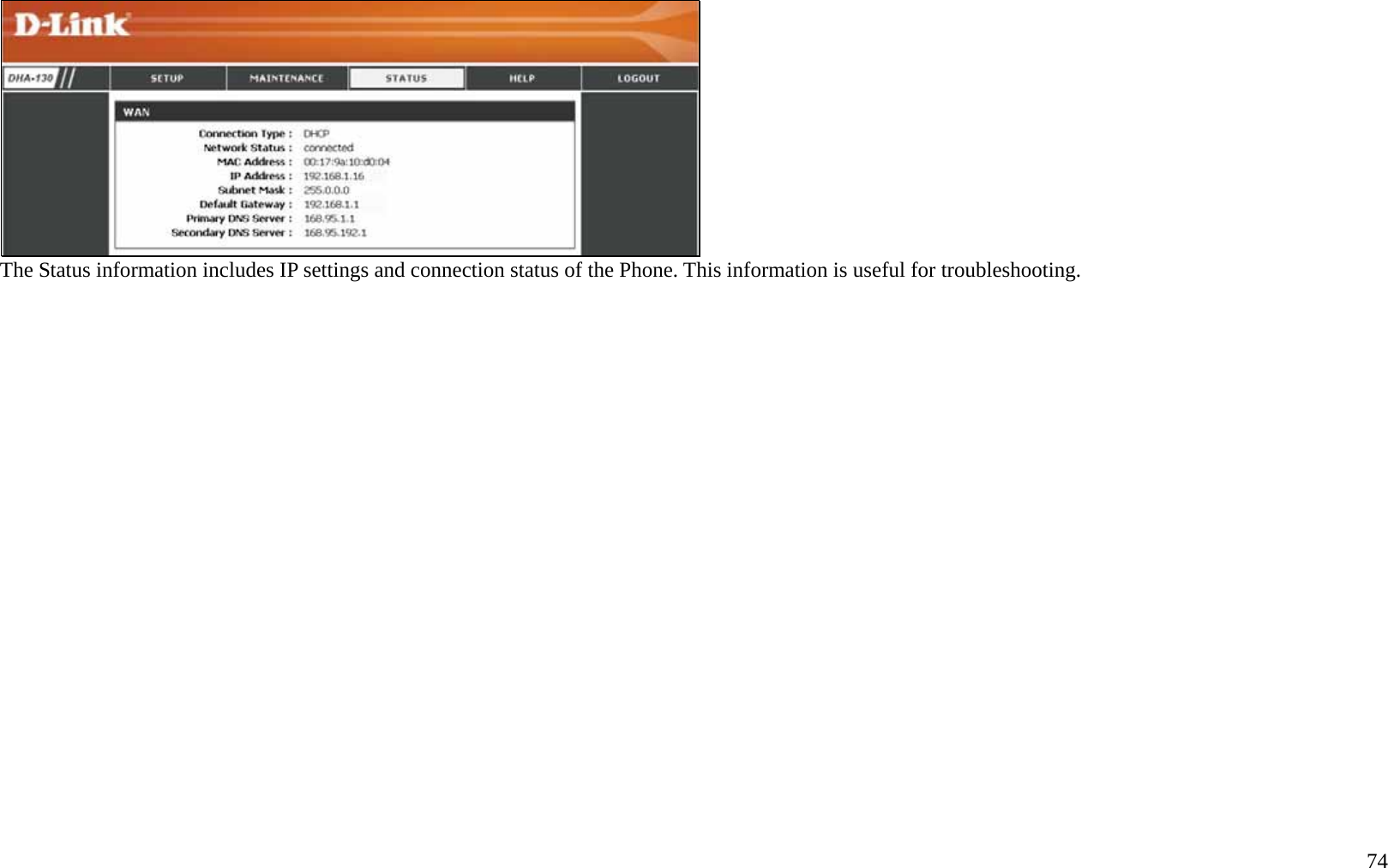
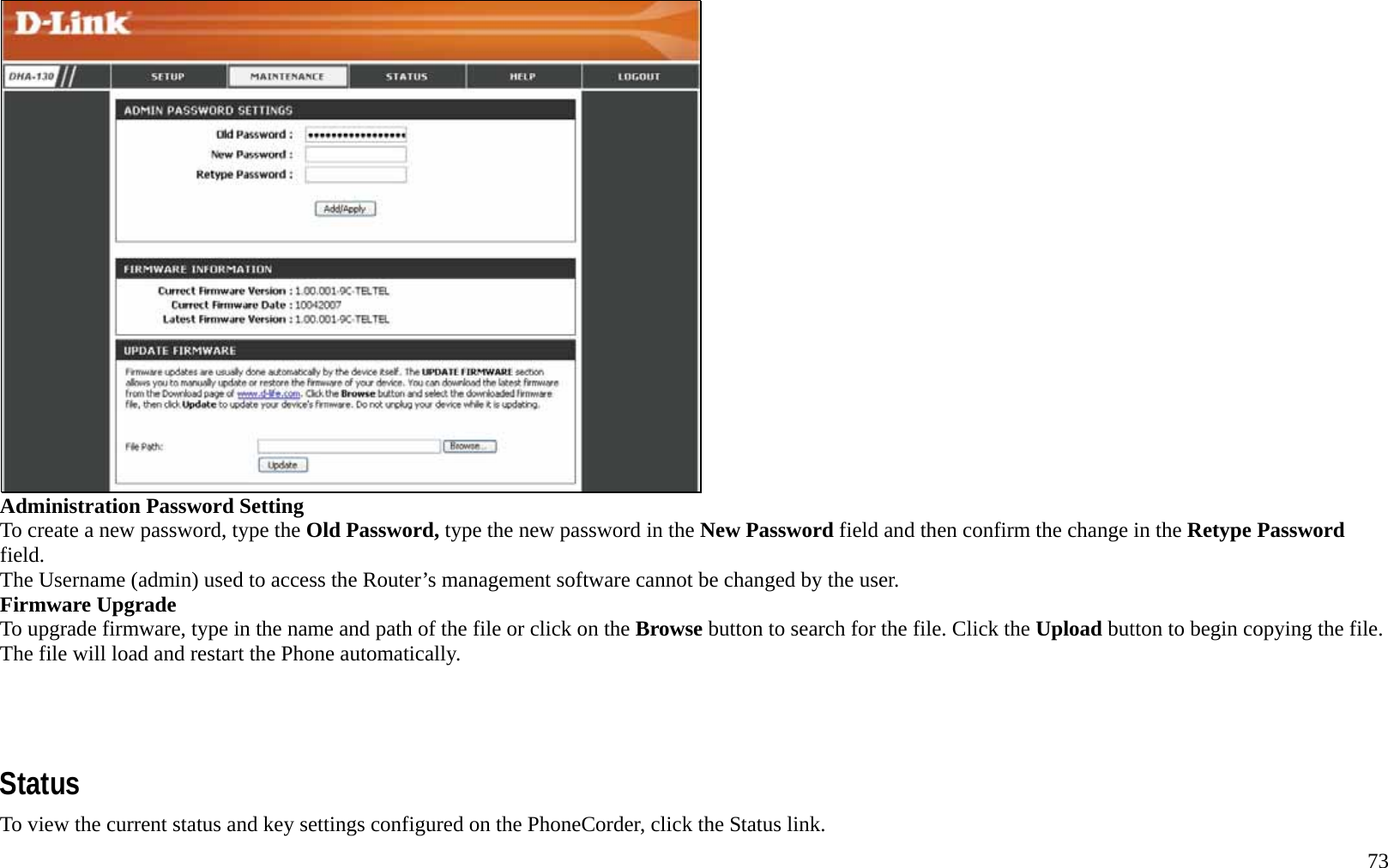
  73  Administration Password Setting To create a new password, type the Old Password, type the new password in the New Password field and then confirm the change in the Retype Password field. The Username (admin) used to access the Router’s management software cannot be changed by the user. Firmware Upgrade   To upgrade firmware, type in the name and path of the file or click on the Browse button to search for the file. Click the Upload button to begin copying the file. The file will load and restart the Phone automatically.     Status To view the current status and key settings configured on the PhoneCorder, click the Status link.
  74  The Status information includes IP settings and connection status of the Phone. This information is useful for troubleshooting.
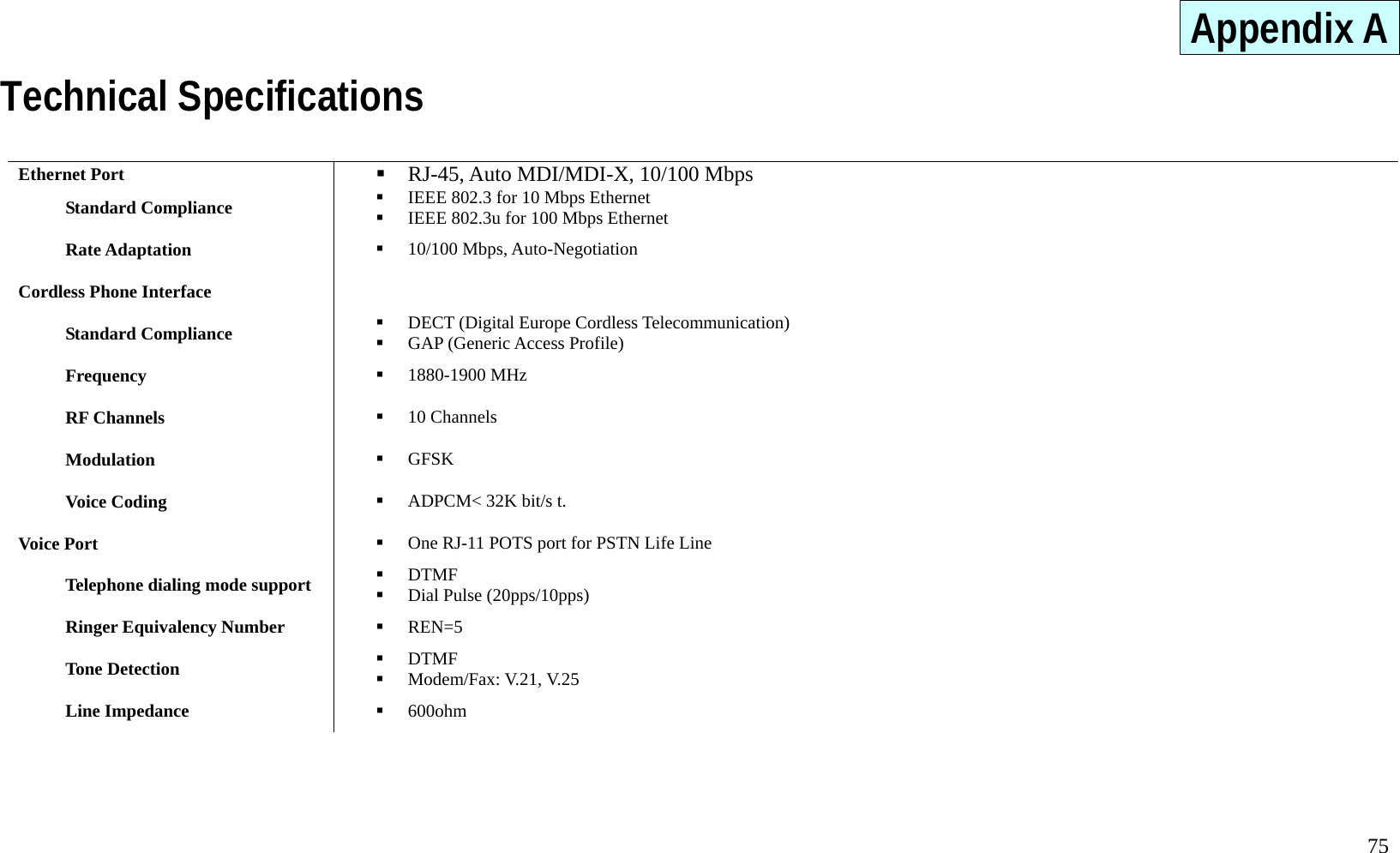
  75 Appendix A Technical Specifications  Ethernet Port   RJ-45, Auto MDI/MDI-X, 10/100 Mbps Standard Compliance    IEEE 802.3 for 10 Mbps Ethernet   IEEE 802.3u for 100 Mbps Ethernet Rate Adaptation    10/100 Mbps, Auto-Negotiation Cordless Phone Interface   Standard Compliance    DECT (Digital Europe Cordless Telecommunication)   GAP (Generic Access Profile) Frequency    1880-1900 MHz RF Channels    10 Channels Modulation    GFSK Voice Coding    ADPCM< 32K bit/s t. Voice Port    One RJ-11 POTS port for PSTN Life Line Telephone dialing mode support    DTMF   Dial Pulse (20pps/10pps) Ringer Equivalency Number    REN=5 Tone Detection    DTMF   Modem/Fax: V.21, V.25 Line Impedance    600ohm
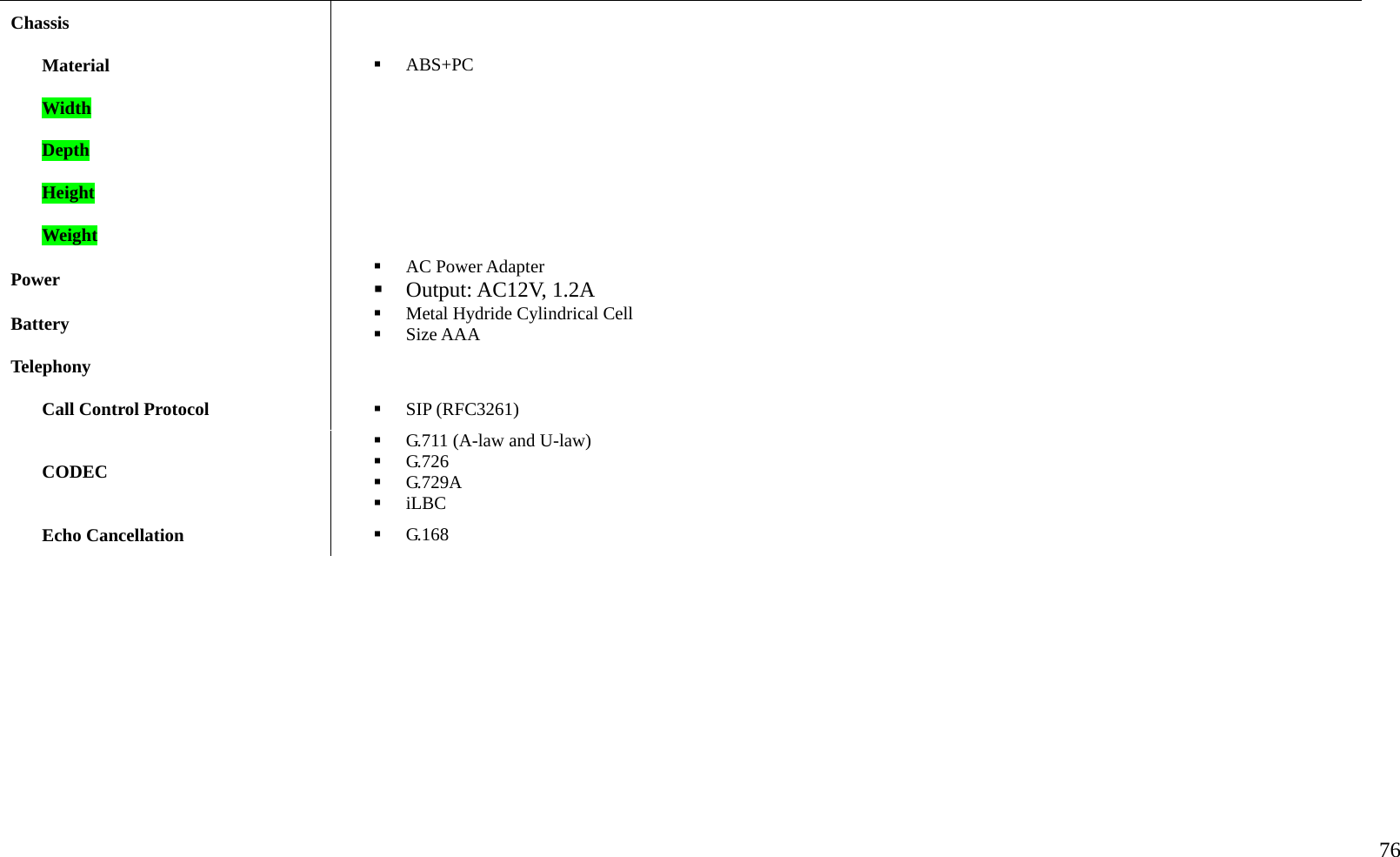
  76  Chassis   Material    ABS+PC Width   Depth   Height   Weight   Power    AC Power Adapter  Output: AC12V, 1.2A Battery    Metal Hydride Cylindrical Cell   Size AAA Telephony    Call Control Protocol    SIP (RFC3261) CODEC   G.711 (A-law and U-law)   G.726   G.729A   iLBC Echo Cancellation    G.168
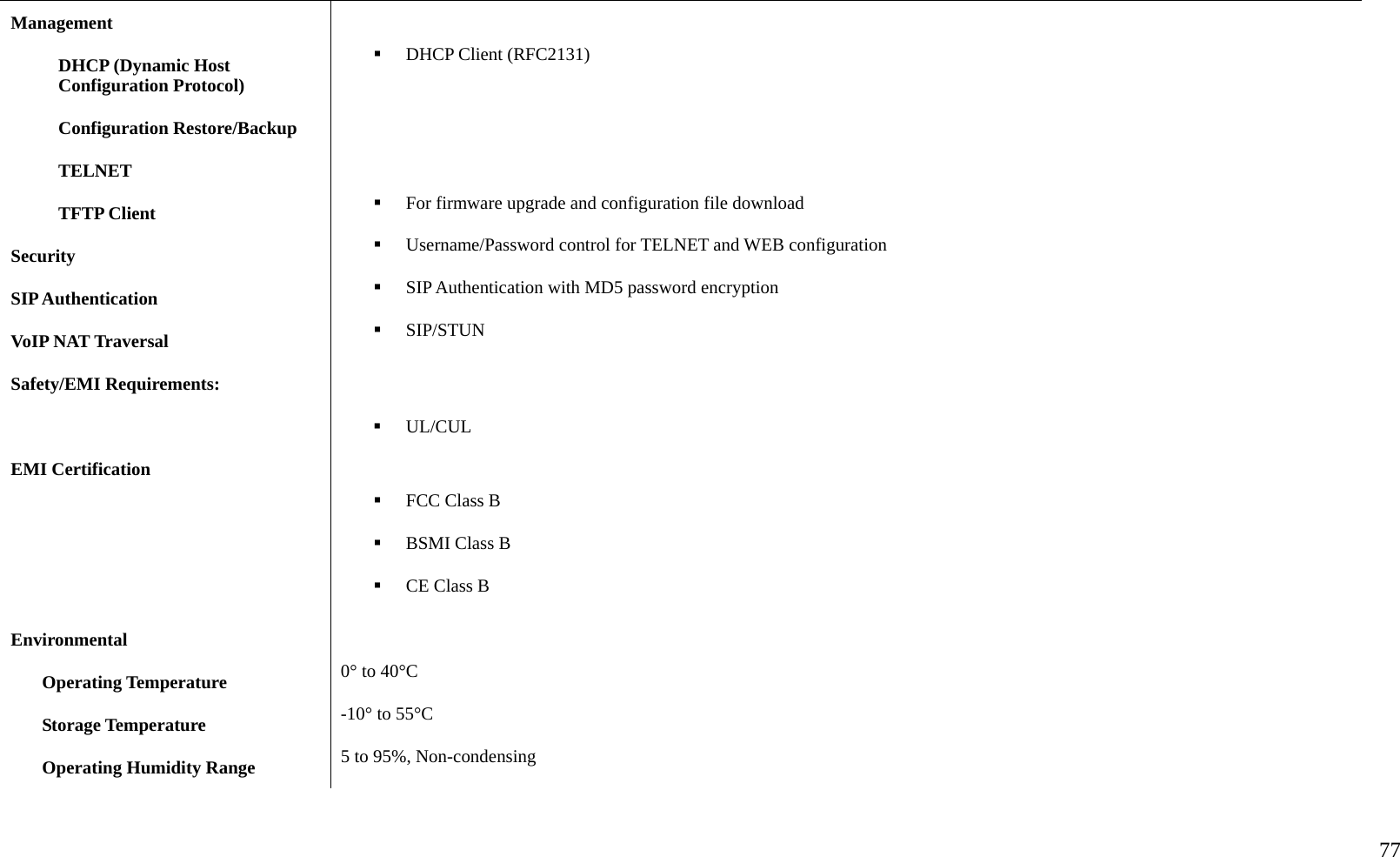
  77  Management   DHCP (Dynamic Host Configuration Protocol)   DHCP Client (RFC2131) Configuration Restore/Backup   TELNET   TFTP Client    For firmware upgrade and configuration file download Security    Username/Password control for TELNET and WEB configuration SIP Authentication    SIP Authentication with MD5 password encryption VoIP NAT Traversal    SIP/STUN Safety/EMI Requirements:      UL/CUL EMI Certification      FCC Class B    BSMI Class B    CE Class B Environmental    Operating Temperature  0° to 40°C Storage Temperature  -10° to 55°C Operating Humidity Range  5 to 95%, Non-condensing
  78 Appendix B Router Port Configuration Most D-Link routers such as the [insert D-Link DSL and broadband router product numbers here] support a feature that allows easy one-click configuration of the DHA-130.    So if you are using a D-Link router, chances are you will not need to manually configure the ports. If a one-click VoIP configuration is not supported on your router, check to make sure it is using the latest firmware. Upgrading your router to the latest firmware might be necessary to support this feature. If you have other routers or you are having difficulty with the DHA-130, read the information on the next below to learn how to open ports on routers. A D-Link router is used for the examples to illustrate how the port forwarding menus are used, but the example is typical of many small office routers.     Opening Ports on Routers and Gateways The firewall security features built into most routers and gateways might prevent users from accessing the VoIP features of their DHA-130.  A router connects to the Internet through a series of numbered ports. The ports used by the DHA-130 are often blocked from access over the Internet by the firewall features of the router.  You may be able to connect to another VoIP telephone but not receive any audio. This is a typical scenario of a firewall blocking the ports needed by the DHA-130 to send audio.  If this is the case, you need to open the ports on your router to the Internet to allow access to the DHA-130.  The port numbers used by the DHA-130 are:   3478  5060  8080  9090  The router or gateway that you are using may be different from the D-Link DI-614+ wireless router example shown on the following pages. However, the general procedure for opening ports will be similar. (If you do not have a D-Link router, look for Virtual Server, Firewall Rules, Port Forwarding, Advanced or Firewall in your router’s configuration utility.)
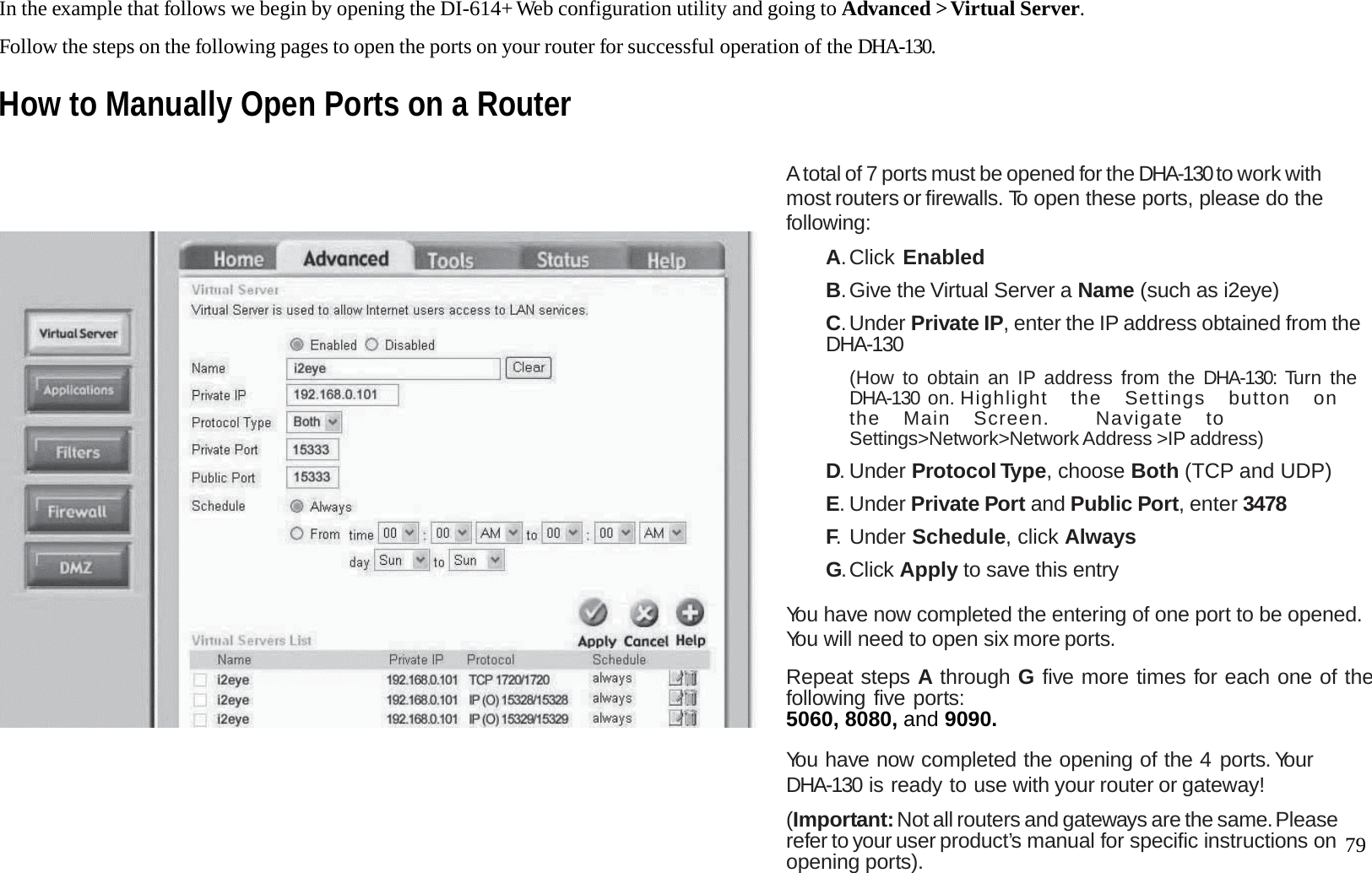
  79 In the example that follows we begin by opening the DI-614+ Web configuration utility and going to Advanced > Virtual Server.  Follow the steps on the following pages to open the ports on your router for successful operation of the DHA-130. How to Manually Open Ports on a Router                           A total of 7 ports must be opened for the DHA-130 to work with most routers or firewalls. To open these ports, please do the following:  A. Click  Enabled  B. Give the Virtual Server a Name (such as i2eye)  C. Under Private IP, enter the IP address obtained from the DHA-130  (How to obtain an IP address from the DHA-130: Turn the DHA-130 on. H i ghli g h t   th e   Se t tings   butt o n   on   the  Main  Screen.    Navigate  to Settings>Network>Network Address >IP address)  D. Under Protocol Type, choose Both (TCP and UDP)  E. Under Private Port and Public Port, enter 3478  F. Under Schedule, click Always  G. Click  Apply to save this entry  You have now completed the entering of one port to be opened. You will need to open six more ports.  Repeat steps A through G five more times for each one of thefollowing five ports: 5060, 8080, and 9090.   You have now completed the opening of the 4 ports. Your DHA-130 is ready to use with your router or gateway!  (Important: Not all routers and gateways are the same. Please refer to your user product’s manual for specific instructions on opening ports).
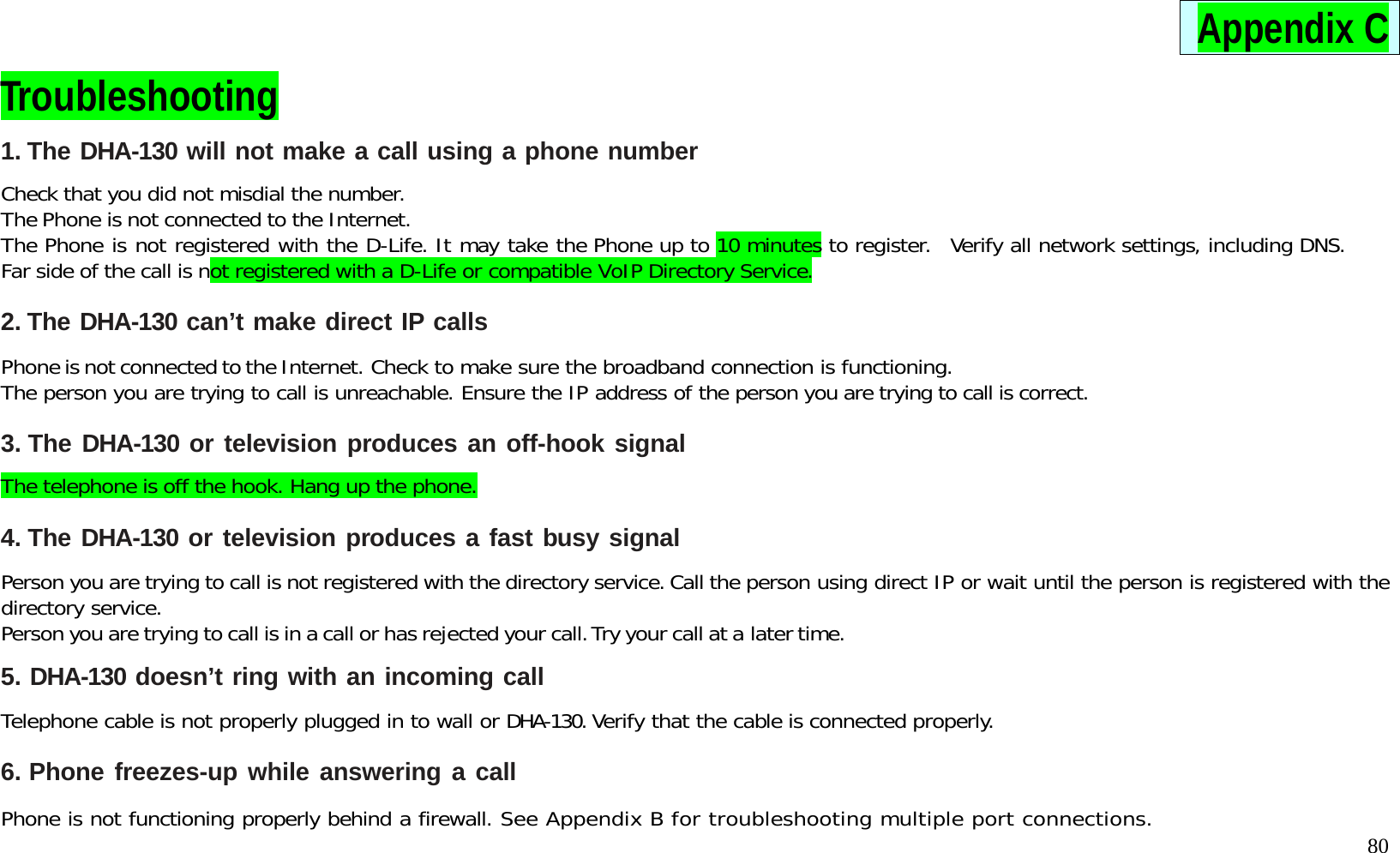
  80 Appendix C Troubleshooting 1. The DHA-130 will not make a call using a phone number  Check that you did not misdial the number. The Phone is not connected to the Internet. The Phone is not registered with the D-Life. It may take the Phone up to 10 minutes to register.  Verify all network settings, including DNS. Far side of the call is not registered with a D-Life or compatible VoIP Directory Service.  2. The DHA-130 can’t make direct IP calls  Phone is not connected to the Internet. Check to make sure the broadband connection is functioning.  The person you are trying to call is unreachable. Ensure the IP address of the person you are trying to call is correct.  3. The DHA-130 or television produces an off-hook signal  The telephone is off the hook. Hang up the phone.  4. The DHA-130 or television produces a fast busy signal  Person you are trying to call is not registered with the directory service. Call the person using direct IP or wait until the person is registered with the directory service. Person you are trying to call is in a call or has rejected your call. Try your call at a later time.  5. DHA-130 doesn’t ring with an incoming call  Telephone cable is not properly plugged in to wall or DHA-130. Verify that the cable is connected properly.  6. Phone freezes-up while answering a call  Phone is not functioning properly behind a firewall. See Appendix B for troubleshooting multiple port connections.
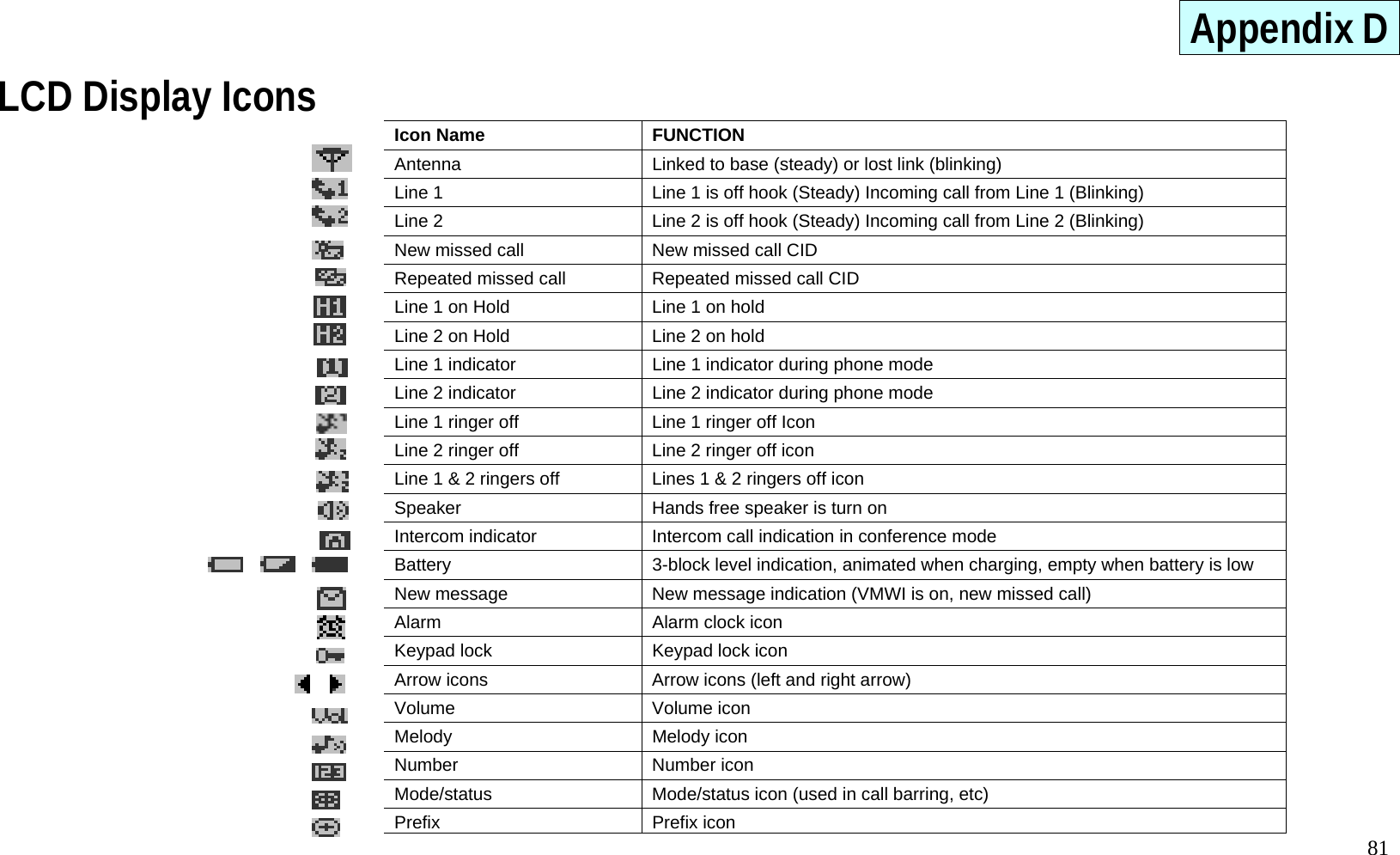
  81 Appendix D LCD Display Icons     Icon Name  FUNCTION Antenna  Linked to base (steady) or lost link (blinking) Line 1  Line 1 is off hook (Steady) Incoming call from Line 1 (Blinking) Line 2  Line 2 is off hook (Steady) Incoming call from Line 2 (Blinking) New missed call  New missed call CID Repeated missed call  Repeated missed call CID Line 1 on Hold  Line 1 on hold Line 2 on Hold  Line 2 on hold Line 1 indicator  Line 1 indicator during phone mode Line 2 indicator  Line 2 indicator during phone mode Line 1 ringer off  Line 1 ringer off Icon Line 2 ringer off  Line 2 ringer off icon Line 1 & 2 ringers off  Lines 1 & 2 ringers off icon Speaker  Hands free speaker is turn on Intercom indicator  Intercom call indication in conference mode Battery  3-block level indication, animated when charging, empty when battery is low New message  New message indication (VMWI is on, new missed call) Alarm  Alarm clock icon Keypad lock  Keypad lock icon Arrow icons  Arrow icons (left and right arrow) Volume Volume icon Melody Melody icon Number Number icon Mode/status Mode/status icon (used in call barring, etc) Prefix Prefix icon
Navigation menu