Ascalade Technologies DT19R42 1.9 GHZ DECT PSTN CORDLESS PHONE-BASE User Manual DECT200UG10
Ascalade Technologies, Inc. 1.9 GHZ DECT PSTN CORDLESS PHONE-BASE DECT200UG10
Contents
- 1. USERS MANUAL
- 2. USERS MANUAL 2
- 3. USERS MANUAL 1
USERS MANUAL 2
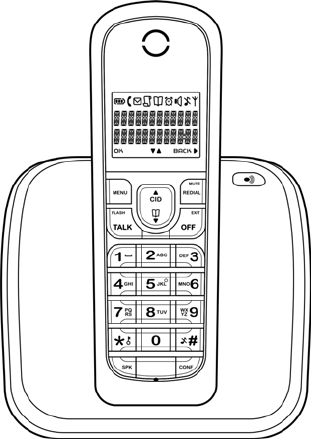
User Guide
DECT200
DRAFT
1.9GHz DECT Telephone
Caller ID
Hands-free

- i -
Table of Contents
1 Environment and Safety ....................................................... 2
2 What’s in the Box? ..............................................................4
3 Welcome ..........................................................................5
How to use this user guide? ................................................. 5
Need more help? .............................................................. 5
4 About your phone ...............................................................6
The handset.................................................................... 6
The base........................................................................ 7
The icons ....................................................................... 7
The menus ..................................................................... 8
5 Getting Started .................................................................. 9
Connecting your phone....................................................... 9
Connecting your charger ..................................................... 9
Charging your handset ....................................................... 9
Checking the battery level .................................................10
What is standby mode?......................................................10
Registering your handset ...................................................11
Setting the clock .............................................................11
6 Call ............................................................................... 12
Making a call ..................................................................12
Ending a call ..................................................................13
Answering a call..............................................................13
During a call ..................................................................14
7 Intercom and Conference Calls............................................. 15
Calling another handset.....................................................15
Transferring a call ...........................................................15
Making a conference call ...................................................15
8 Text and Numbers............................................................. 17
Entering text and numbers .................................................17
9 Phonebook ...................................................................... 18
Viewing the phonebook .....................................................18
Calling from the phonebook................................................18
Adding a record ..............................................................19
Editing a record ..............................................................19
Deleting a record.............................................................19
Deleting all records..........................................................19
10 Call Log .......................................................................... 21
Viewing the call records ....................................................21
Making a call ..................................................................21
Saving a call record to your phonebook ..................................21
Deleting a call record .......................................................21
Deleting all records..........................................................21
11 Custom Options ................................................................ 23
Personalizing your phone’s display........................................23
Personalizing your handset’s sounds ......................................23
12 Calling Features ............................................................... 25

Table of Contents
- ii -
Auto answer...................................................................25
Dial mode .....................................................................25
Recall selection ..............................................................25
Area code removal...........................................................26
CID Prefix......................................................................26
13 Extra Features ................................................................. 27
The alarm clock ..............................................................27
Baby call.......................................................................27
Keypad lock ...................................................................28
Missing handset(s)............................................................28
Voicemail indication.........................................................28
14 The System ..................................................................... 29
Registering your handset with additional base..........................29
Selecting a base unit ........................................................29
Deleting a handset...........................................................30
Changing the system PIN....................................................30
Resetting to default settings ...............................................30
15 Appendix ........................................................................ 31
Default settings ..............................................................31
Troubleshooting ..............................................................32
PHONE Specifications........................................................33
16 Compliance Statement ....................................................... 34
17 Service Centers ................................................................ 37

- 1 -
BEFORE USING YOUR TELEPHONE EQUIPMENT, BASIC SAFETY PRECAUTIONS SHOUD
ALWAYS BE FOLLOWED TO REDUCE THE RISK OF FIRE, ELECTRIC SHOCK AND
INJURY, INCLUDING THE FOLLOWING.
• Read and follow all warnings and instructions marked on the product.
• Do not use this product near water, laundry tub, in a wet basement, or near a swimming pool.
• Do not place this product on an unstable table. The product may fall and be damaged.
• This product should never be placed near or over a radiator or heat register.
• This product should be operated only from the type of power source indicated on the label.
• Do not allow anything to rest on the power cord. Do not locate this product where the cord will be
abused by persons walking on it.
• Do not overload wall outlets and extension cords as this can result in the risk of fire or electric
shock.
• Avoid using a telephone during an electrical storm. There may be a remote risk of electric shock
from lightning.
• Do not use this product to report a gas leak in the vicinity of the leak.
• Do not use this product near intensive care medical equipment or by persons with pacemakers.
• Due to the radio signals between base station and handset, wearers of hearing aids may experience
interference in the form of a humming noise.
• Do not allow the handset to come into contact with liquids or moisture.
• Do not open the handset, base unit or charger. This could expose you to high voltages.
• Do not allow the charging contacts or the battery to come into contact with conductive materials.
• There is a slight chance that your product could be damaged by an electrical storm. We recommend
that you unplug the product from the power supply and telephone socket during a storm.
• Do not use the handset in an explosive hazard area such as where there is gas leaking.
• It is recommended that this product is not used near intensive care medical equipments or by
persons with pacemakers.
• This product can interfere with electrical equipment such as answering machine, television, radio,
and computers if placed too close. We recommend that you position the base unit at least one
meter from such appliances.
• This product is not designed for making emergency telephone calls when the power fails. Alternative
arrangements should be made for access to emergency services.
BATTERIES
• Use only the battery type listed in the instruction manual. Do not use lithium batteries.
• Do not dispose of the battery in a fire, as they can explode.
• Do not open or mutilate the battery. Released electrolyte is corrosive and can cause damage to the
eyes or skin. It can be toxic if swallowed.
• Avoid contact with metal objects when handling the battery. These objects could short out the
batteries or cause the conductor to overheat resulting in burns.
• Do not attempt to recharge the battery cell by heating it. Sudden release of battery electrolyte can
cause burns or irritation to the eyes or skin.
• Observe the proper polarity, or direction, of any battery. Reverse insertion of the battery cell can
result in leakage or explosion.
• Remove the battery cells if you do not plan to use the product for several months at a time.
• Discard any “dead” batteries because they are likely to leak into the product.
• Do not store this product or the battery in a high temperature area. Battery stored in a freezer or
refrigerator should be protected from condensation during storage and defrosting. Battery should
be stabilized at room temperature before using.
• Your battery is rechargeable and can be recycled once it outlives its usefulness. Depending upon
your local and state law, it might be illegal to dispose of this battery into a municipal waste system.
Check with your local solid waste company for more information on your recycling options for the
battery cells.
SAVE THESE INSTRUCTIONS
Im
p
ortant Safet
y
Instructions
Environment and Safety
- 2 -
Environment and Safety
IMPORTANT
This product is not designed for making emergency telephone calls when
the power fails. Alternate arrangements should be made for access to
emergency services.
Power requirements
This product requires an electrical supply of 110-120 volts, single-phase
alternating current, excluding IT installations defined in standard UL 60950.
Handset Charger Adapter
Input: 120VAC 60Hz
Output: 6VDC 150mA
Base Unit Adapter
Input: 120VAC 60Hz
Output: 6VDC 300mA
Battery requirements
The handset requires power source of two rechargeable NiMH batteries,
size AAA 1.2V 650mAh (HR10/44).
Telephone connections
The voltage on the network is classified as TNV-3 (Telecommunication
Network Voltages, as defined in the standard UL 60950). Following a power
cut, the call in progress as well as the date and time settings will be lost.
Hearing aid
Please note that this telephone works by sending radio signals between the
base unit and the handset. These signals may interfere with some hearing
aids, causing a humming noise.
CAUTION: Use only the mains adapter supplied with this equipment. Incorrect
adapter polarity or voltage can seriously damage the unit.
CAUTION: The electrical network is classified as dangerous according to
criteria in the standard UL 60950. The only way to power down this product is
by unplugging the power supply from the electrical outlet. Ensure the
electrical outlet is located close to the apparatus and is always easily
accessible
WARNING: RISK OF EXPLOSION IF BATTERY IS REPLACED BY AN INCORRECT TYPE.
Never use non-rechargeable batteries. Use recommended type supplied with
this product. NiMH batteries must be disposed of in accordance with the
applicable waste disposal regulations.

Environment and Safety
- 3 -
Environmental
Remember to observe the local regulations regarding the disposal of your
packaging materials, exhausted batteries, and old equipments. Promote
their recycling where possible.
Recycling & disposal
Disposal instructions for old products: The purpose of WEEE directive (Waste
Electrical and Electronic Equipment; 2002/96/EC) is to ensure that products are
recycled using best available treatment, recovery and recycling techniques to
ensure human health and high environmental protection. You product is
designed and manufactured with high quality materials and components, which
can be recycled and reused.
• Do not dispose of your old product in your general household
waste bin.
• Inform yourself about the local separate collection system for
electrical and electronic products marked by this symbol.
Use one of the following disposal options:
• Dispose of the complete product (including its cables, plugs and accessories)
in the designated WEEE collection facilities.
• If you purchase a replacement product, hand your complete old product
back to the retailer. He should accept it as required by the WEEE directive.
Disposal instructions for batteries:
Batteries should not be disposed of with general household waste.
- 4 -
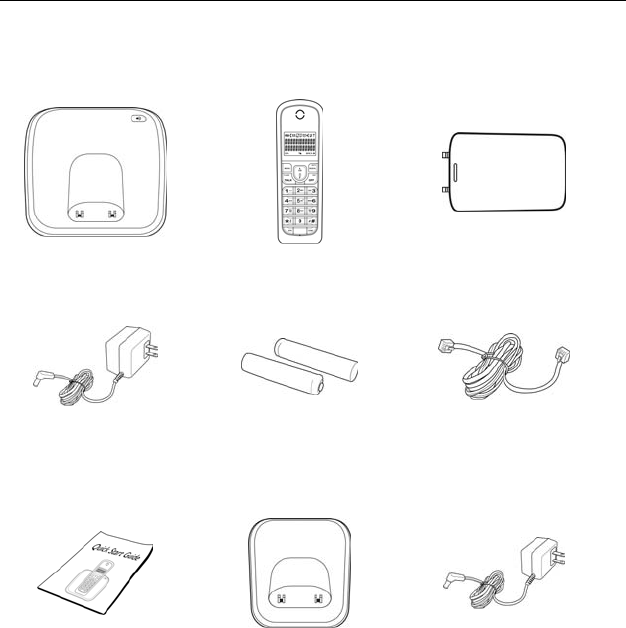
What’s in the Box?
Make sure you have all these items in the box. For missing item(s), contact
your dealer.
Base Unit Handset Handset Battery Cover
Base Power Adapter NiMH AAA
Rechargeable Battery
x 2
Telephone Line Cord
Quick Start Guide Charger
* For multiple pack
model
Charger Power
Adapter
* For multiple pack
model
- 5 -
Welcome
This user guide provides you with information and instruction you need to
get the most from your phone.
HOW TO USE THIS USER GUIDE?
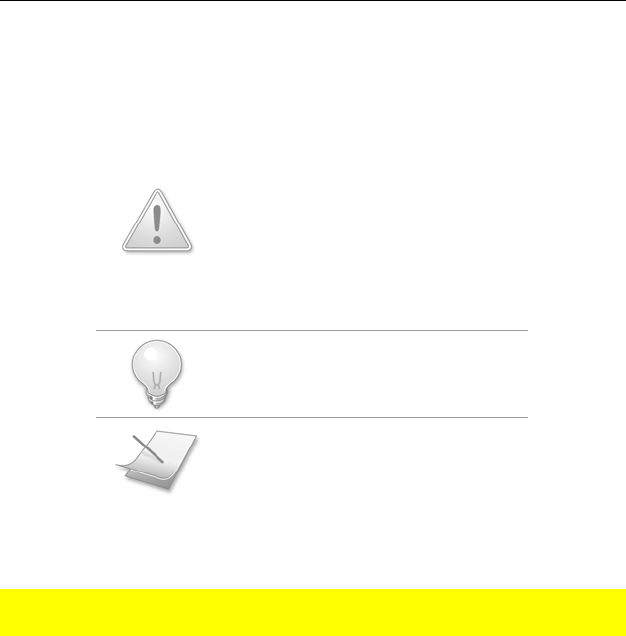
The following symbols are used to alert you on important information.
This symbol has two meanings:
• Warning: Critical information for
preventing personal injury.
• Caution: Critical information for
preventing damage on the
product.
• Tip: Information for easier
operation.
• Note: Explanatory or critical
information for carrying out an
operation correctly.
NEED MORE HELP?
• See the Troubleshooting section in this user guide on page 32.
• Call the Helpline at …
• Visit our online help xxx.com
- 6 -
About your phone
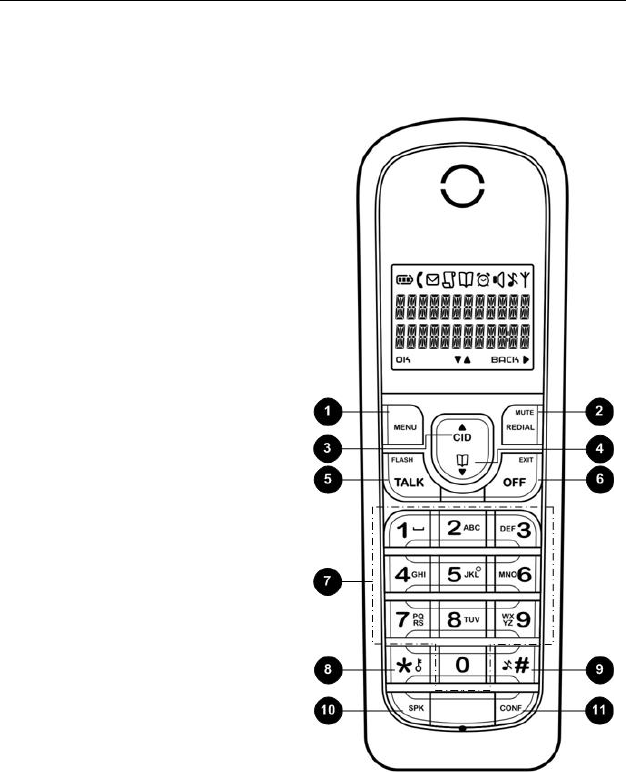
THE HANDSET
1 M e n u & O K k e y
Use to enter the menus.
Use to select menu.
Use to confirm selection.
2 Re d i a l , M u t e & B a c k k e y
Use to enter the redial log.
Use to dial the last dialed
number.
Use to erase text and numbers.
Use to mute/unmute microphone.
Use to switch between screens.
3 Up Navigation & Call Log key
Use to enter the call log.
Use to scroll up menu items.
Use to increase the ringer and
receiver volume.
4 Down Navigation & Phonebook
key
Use to enter the phonebook.
Use to scroll down menu items.
Use to reduce the ringer and
receiver volume.
5 Talk & Recall key
Use to make and receive calls.
Use to send flash signal.
6 End & On/Off key
Use to end a call.
Use to exit menus.
7 D i g i t k e y s
Use to dial digits.
Use to enter text and numbers.
8 S t ar & Ri n g e r O f f k e y
Use to dial *.
Use to lock the keypad.
9 Pound, Keylock, & Pause key
Use to dial #.
Use to enter a pause.
Use to turn the ringer on/off.
1
0
Speaker key
Use to turn the speaker on/off.
1
1
Intercom & Conference key
Use to make an intercom call.
Use to start a conference call.
About Your Phone
- 7 -
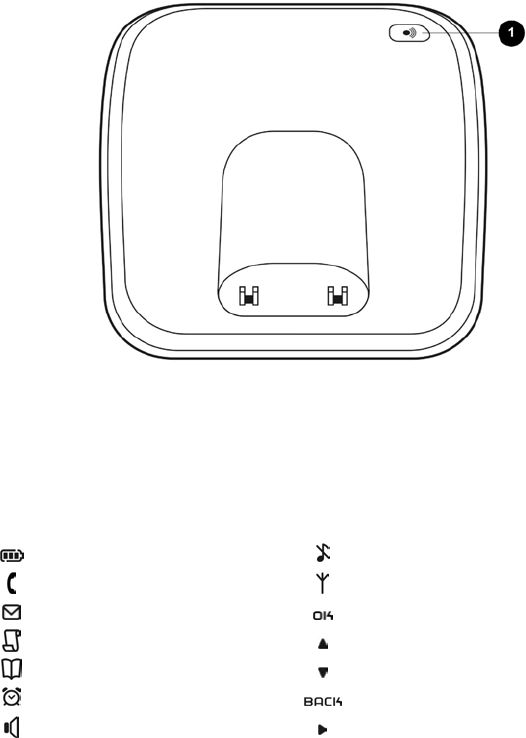
THE BASE
1 Page key
Use to locate handsets.
Use for registration.
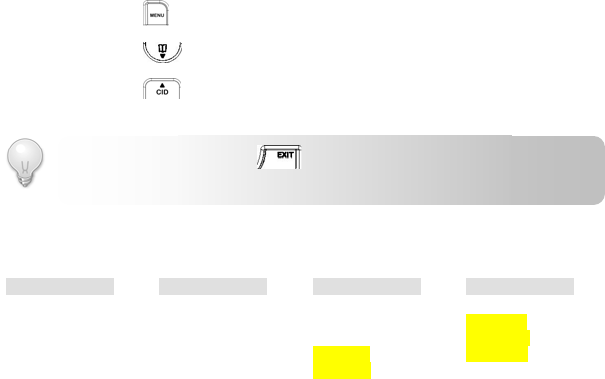
THE ICONS
Each icon gives you a visual message of what is happening on your handset.
Battery level Ringer off
Call in progress Signal strength
Voicemail indicator Press to confirm
Caller ID indicator Menu options upward
Phonebook Menu options downward
Alarm clock on Press to cancel/delete
Speaker on More digits on the right
About Your Phone
- 8 -
THE MENUS
Your phone offers a variety of features and functions grouped in the menus.
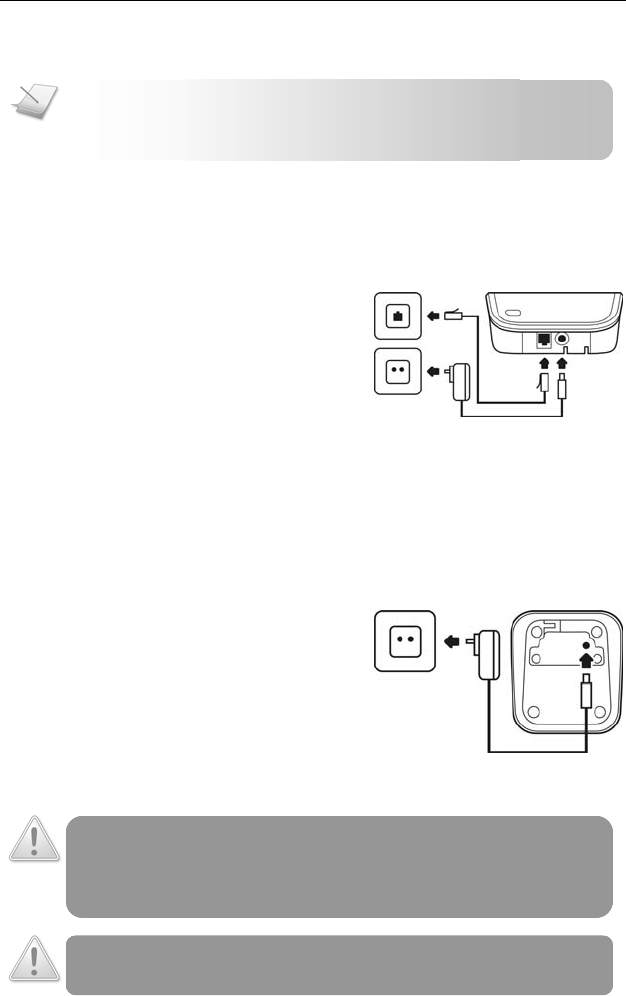
Browsing the menus
The main menu includes the Phonebook, Clock/Alarm, Personal Set, and
Advanced Set menu.
Press to enter the main menu.
Press to enter the phonebook.
Press to enter the incoming call log.
Taking a glance at the menus
PHONEBOOK CLOCK/ALARM PERSONAL SET ADVANCED SET
Add
Edit
Delete
Delete All
Time
Set Alarm
Alarm Tone
Handset Tone
Handset Name
Auto Answer
Backlight
Language
Recall Time
Dial Mode
Area Code
CID Prefix
Baby Call
Registration
Base Select
Delete HS
Change PIN
Reset
TIP: Quick Exit. Press to exit from any menu instantly.
All unconfirmed changes will not be saved.
- 9 -
Getting Started
CONNECTING YOUR PHONE
1. Connect the output plug of
the mains adapter to the
bottom of the base unit.
2. Connect the mains adapter to
a standard wall outlet.
3. Connect the telephone line
cord to the phone sockets at
the bottom of the base unit
and the wall phone socket.
CONNECTING YOUR CHARGER
* For multiple pack model
1. Connect the output plug of
the mains adapter to the
bottom of the charger unit.
2. Connect the mains adapter to
a standard wall outlet.
CHARGING YOUR HANDSET
WARNING: RISK OF EXPLOSION IF BATTERY IS REPLACED BY AN INCORRECT TYPE.
Never use non-rechargeable batteries. Use recommended type supplied with
this product. NiMH batteries must be disposed of in accordance with the
applicable waste disposal regulations.
CAUTION: Check the batteries polarity when inserting the batteries. Incorrect
polarity may damage the product.
NOTE: The power adapters (for the phone and charger) are
intended to be correctly orientated in a vertical or floor
mount position.
Getting Started
- 10 -
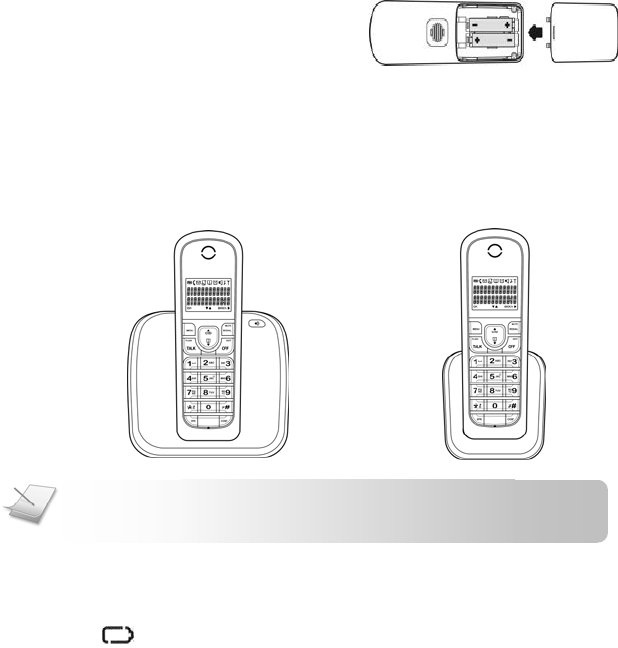
1. Place the 2 rechargeable
batteries (included) into the
battery compartment.
2. Slide the battery door firmly
into place.
3. Place the handset on the base unit or charger for charging.
Charge for 14 hours before initial use.
* The charger is only applicable to multiple pack model.
CHECKING THE BATTERY LEVEL
The battery icon displays the current battery level. An almost empty
battery icon indicates the batteries need recharging.
Your handset may power down shortly if it is not charged after the battery
is empty.
If you are on the phone while the battery is nearly empty, you will hear
warning tones. Your call maybe cut off shortly after the warning.
WHAT IS STANDBY MODE?
Your phone is in standby mode when it is idle. The standby screen displays
the handset name, the handset number (the digit on the right), the time,
the signal icon, and the battery icon.
NOTE: Handset may get warm during initial charge. This is
normal. The handset may take a few seconds to power up.
Getting Started
- 11 -
REGISTERING YOUR HANDSET
Registration allows communication between your base unit and handset(s).
If your handset cannot communicate with its base, you will not be able to
make any call or use some of the functions and features on the phone.
To register your handset to an additional base unit, see Registering your
handset with additional base on page 29.
If your handset displays UNREGISTERED, follow the steps below to register
your handset.
1. Press on the base for 4 seconds.
2. Press on the handset.
3. Press
OK
to select REGISTRATION.
4. Enter the system PIN (Pre-set: 0000). Press
BACK
to make
corrections.
5. Press
OK
.
6. Select the base number you want. A blinking digit indicates
that the base number is already being used. Your handset
starts searching for the base.
If registration is successful, the signal icon displays steadily along with
the handset name. The base assigns a handset number to your handset. It is
the digit displayed on the right margin of the screen.
If registration failed, repeat the above procedure.
SETTING THE CLOCK
Your phone has a digital clock. Set the time before initial use of the phone.
Setting the time
1. Press .
2. Select CLOCK/ALARM TIME SET CLOCK. Press
OK
.
3. Use the digit keys to enter the new time. The clock is in 24-
hour format.
4. Press
OK
when finished. The new setting is saved.
NOTE: Your base can register up to 4 handsets.
NOTE: Your handset is already registered unless you have
bought an extra handset individually or you have de-registered
- 12 -
Call
MAKING A CALL
This section describes the different ways to make a call.
1. Press .
2. Dial the phone number. The number displays on the screen
and is dialed out.
Pre-dialing
Pre-dialing lets you view and make changes to the number before making the
call.
1. Enter the phone number. The number displays on the screen.
You can make changes before dialing out.
2. Press to dial out the number.
Redialing the last number
1. Press .
2. Press . The last dialed number displays on the screen and
is dialed out.
Calling from the dialed call log
Each handset stores the last 5 numbers (up to 20 digits each) you have
dialed. The most recent dialed number is stored at the top of the list.
1. Press to enter the dialed list.
2. Select the number you want.
3. Press to dial out the number.
TIP: Press
BACK
to erase a digit.
Press and hold to enter a pause. P displays on the screen.
NOTE: Emergency Call. This telephone is not designed for
making emergency telephone calls when the power fails.
Alternate arrangements should be made for access to
NOTE: Call Timer. During a call, the call timer displays the
talk time of your current call.
Call
- 13 -
Calling from your phonebook
For details on the phonebook, see Phonebook on page 18.
1. Press .
2. Select the phonebook record you want.
3. Press to dial out the number.
Calling from the incoming call log
You can return a call from the incoming call log.
1. Press .
2. Select the record you want.
3. Press to dial out the number.
ENDING A CALL
1. Press or place the handset on the base unit or charger.
ANSWERING A CALL
When you receive a call, your phone rings. Press to answer the call.
Turning off the ringer
You can turn off the ringer for all incoming calls.
1. Press and hold during standby. displays on the screen.
For details on the ringer setting, see Personalizing your
handset’s sounds on page 23.
NOTE: Caller ID Service. Consult and subscribe from your
service provider.
TIP: Silent Ringer. When the phone is ringing, press to
turn off the ringer for the incoming call.
Call
- 14 -
DURING A CALL
This section describes the features that are available during a call.
Making a second call
1. Press to put the current call on hold.
2. Dial the number you want. The number displays on the screen
and is dialed out.
Answering a second call
During a call, your phone sounds a short beep periodically to notify you of a
2nd incoming call.
1. Press to put the current call on hold and answer the 2nd call.
Toggling between two calls
1. Press to put the current call on hold and connect to the
other call.
Adjusting the earpiece volume
1. Press or to adjust the volume during a call.
Muting the microphone
The mute feature allows you to speak to someone in the house privately.
1. Press during a call. The caller cannot hear you, but you
can still hear his voice.
Un-muting the microphone
1. Press again. You can now communicate with the caller.
Using the speaker
Use the speaker to involve everyone in the room in the conversation.
Turning the speaker on/off
1. Press during a call. is displayed when the speaker is on.
NOTE:
2
nd Call Service. Consult and subscribe from your service
NOTE:
2
nd Call Service. Consult and subscribe from your service
- 15 -
Intercom and Conference Calls
CALLING ANOTHER HANDSET
1. Press .
2. Select the handset you want.
3. Press
OK
. Wait for the other party to answer your call.
4. Press to cancel or end the intercom call.
While you are on the phone
While talking on the phone, you can put the external caller on hold and call
another handset.
1. Press during the call.
2. Select the handset you want.
3. Press
OK
. Wait for the other party to answer your call.
4. Press to switch between the outside call and the intercom call.
TRANSFERRING A CALL
1. Press during a call.
2. Select the handset you want. Press
OK
.
3. Press after the other handset answers your call. The
outside call is now transferred to the other handset.
MAKING A CONFERENCE CALL
You are talking on the phone with an outside caller, and you want to
involve another handset user in this conversation.
1. Press during your call with the outside caller.
2. Select the handset you want.
3. Press
OK
. Wait for the other handset to answer your call.
4. Press and hold for 2 seconds after the other handset picks
up the call. You are now on a 3-way conference call.
5. Press to exit the conference call.
During the conference call,
1. Press to put the external line on hold and you can talk to
the other handset in private.
NOTE: You need at least 2 handsets to carry out the functions
mentioned in this section.

Intercom and Conference Calls
- 16 -
2. Press and hold to re-establish the conference call.

- 17 -
Text and Numbers
You can enter text and numbers for handset name, phonebook record, and
others.
ENTERING TEXT AND NUMBERS
1. Find the key with the character you want.
2. Press it as many times as needed for the character to display
on the screen.
Key Characters
0 0 -- / \ o
1 space 1 ( )
2 A B C 2
3 D E F 3
4 G H I 4
5 J K L 5
6 M N O 6
7 P Q R S 7
8 T U V 8
9 W X Y Z 9

- 18 -
Phonebook
Each handset has a phonebook that can store up to 50 records. Each
phonebook record can have a name of up to 12 characters long and a
number of up to 20 digits long.
VIEWING THE PHONEBOOK
1. Press .
2. Select the record you want.
Searching a record
You can search the phonebook by scrolling or by searching the first
character.
Searching by scrolling
1. While at the phonebook, press or to scroll.
Searching by the first character
1. While at the phonebook, press the digit key that contains the
character that you want to search.
During a call
You can access the phonebook during a call.
1. Press and hold during a call.
2. Select the record you want.
3. Press and hold again to exit phonebook.
CALLING FROM THE PHONEBOOK
You can make a call directly from the phonebook while you are viewing it.
Calling directly from the phonebook
See Calling from your phonebook on page 13.
During a call
You can send a number from the phonebook during a call.
1. Press and hold during a call.
2. Select the record you want.
Phonebook
- 19 -
3. Press
OK
to send the phonebook number or press and hold
again to exit phonebook.
ADDING A RECORD
1. Press .
2. Select PHONEBOOK ADD. Press
OK
.
3. Enter the name. Press
OK
.
4. Enter the number.
5. Press
OK
. Your new record is saved.
EDITING A RECORD
1. Press .
2. Select PHONEBOOK EDIT. Press
OK
.
3. Select the record you want to edit. Press
OK
.
4. Edit the name if necessary. Press
OK
.
5. Edit the number if necessary. Press
OK
. Your record is edited.
DELETING A RECORD
1. Press .
2. Select PHONEBOOK DELETE. Press
OK
.
3. Select the record you want to delete. Press
OK
.
4. Press
OK
to delete the record. The handset displays a
confirmation request.
5. Press
OK
to confirm. The record is deleted.
DELETING ALL RECORDS
1. Press .
2. Select PHONEBOOK DELETE ALL. Press
OK
. The handset
displays a confirmation request.
TIP: Pause. Press and hold to insert a pause.
NOTE: Memory Full. If your phonebook is full, a notification
displays. Delete unnecessary records before adding new ones.
NOTE: Duplicate Name. Phonebook records with identical
names cannot be saved.

Phonebook
- 20 -
3. Press
OK
to confirm. All records are deleted.

- 21 -
Call Log
The call log stores the call history of the last 20 incoming and the last 5
dialed calls.
VIEWING THE CALL RECORDS
1. Press to view the incoming call log, or
Press to view the dialed call log.
2. Select the record you want.
3. Press
to see details.
MAKING A CALL
Returning a call
To return a call from the incoming call log, see Calling from the incoming
call log on page 13.
Redialing a call
To make a call that you have made previously, see Calling from the dialed
call log on page 12.
SAVING A CALL RECORD TO YOUR PHONEBOOK
1. Press after selecting a call record.
2. Select SAVE. Press
OK
.
3. Edit the name if necessary. Press
OK
.
4. Edit the number if necessary. Press
OK
. Your record is saved.
DELETING A CALL RECORD
1. Press
after selecting a call record.
2. Select DELETE. Press
OK
. The handset displays a confirmation
request.
3. Press
OK
to confirm. The record is deleted.
DELETING ALL RECORDS
1. Press after selecting a call record.
2. Select DELETE ALL. Press
OK
. The handset displays a
confirmation request.
3. Press
OK
to confirm. All records are deleted.
Call Log
- 22 -

- 23 -
Custom Options
Make this your handset – change the look and sound to suit your needs and
tastes. From the display to sound, this section shows you how to set your
preference.
PERSONALIZING YOUR PHONE’S DISPLAY
Naming your handset
Every handset can have its own name. It displays on the screen during
standby.
1. Press .
2. Select PERSONAL SET HANDSET NAME. Press
OK
.
3. Edit the name. Use
BACK
to make corrections.
4. Press
OK
when finished. The new setting is saved.
Setting your language
This section only applies to model(s) with multiple language support.
Language is the text you see on the screen.
1. Press .
2. Select PERSONAL SET LANGUAGE. Press
OK
.
3. Select the new setting.
4. Press
OK
when finished. The new setting is saved.
Setting the backlit
The backlit turns on when you press a key on the handset.
1. Press .
2. Select PERSONAL SET BACKLIGHT. Press
OK
.
3. Select the new setting.
4. Press
OK
when finished. The new setting is saved.
PERSONALIZING YOUR HANDSET’S SOUNDS
Setting your handset’s ringer melody
1. Press .
2. Select PERSONAL SET HANDSET TONE MELODY. Press
OK
.
3. Select the melody you want.
4. Press
OK
when finished. The new setting is saved.

Custom Options
- 24 -
Setting your handset’s ringer volume
Your handset has 6 ringer volume levels (including ringer off).
1. Press .
2. Select PERSONAL SET HANDSET TONE VOLUME. Press
OK
.
3. Select the volume level.
4. Press
OK
when finished. The new setting is saved.
Setting the key tone
Key tone is the sound you hear when you press a key on your handset.
1. Press .
2. Select PERSONAL SET HANDSET TONE KEY BEEP. Press
OK
.
3. Select the new setting.
4. Press
OK
when finished. The new setting is saved.

- 25 -
Calling Features
Your phone supports a number of call-related features to help you handle
and manage your calls more effectively and conveniently.
AUTO ANSWER
Auto answer enables you to answer an incoming call by simply picking up
the handset from the charging cradle. You do not need to press a key to
answer the call.
Activating/Deactivating auto answer
1. Press .
2. Select PERSONAL SET AUTO ANSWER. Press
OK
.
3. Select the new setting.
4. Press
OK
. The new setting is saved.
DIAL MODE
Dial mode is the telephone signal used in your country. Your phone supports
tone (DTMF) and pulse (rotary) dialing. For details, consult your service
provider.
Selecting dial mode
1. Press .
2. Select ADVANCED SET DIAL MODE. Press
OK
.
3. Select the new setting.
4. Press
OK
. The new setting is saved.
RECALL SELECTION
Recall is a signal that needs to be sent when using some of the calling
features such as making or answering a second call. Your phone supports
different recall signals. You can make changes depending on the
requirements. For details, consult your service provider.
TIP: Temporary Tone Mode. If your phone is set to pulse
dialing, press and hold during a call for temporary tone
mode. ‘d’ displays. Digits entered after ‘d’ are sent out as
tone signal (on this call only).

Calling Features
- 26 -
Selecting recall duration
1. Press .
2. Select ADVANCED SET RECALL TIME. Press
OK
.
3. Select the new setting.
4. Press
OK
. The new setting is saved.
AREA CODE REMOVAL
The area code feature automatically removes an area code of an incoming
call. You can define an area code you want to remove. The phone number
will be saved in the call log without the area code.
Activating the area code
1. Press .
2. Select ADVANCED SET AREA CODE. Press
OK
.
3. Enter the area code (any digit between 0-9).
4. Press
OK
when finished. The new setting is saved.
Deactivating the area code
1. Press .
2. Select ADVANCED SET AREA CODE. Press
OK
.
3. Use
BACK
to delete all the digits.
4. Press
OK
when finished. The new setting is saved.
CID PREFIX
This section only applies to model(s) with CID Prefix support.
Some telephone providers send a CID prefix along with the CallerID. Consult
your service provider on category number handling.
To call back from the history properly, change setting to ON if your
telephone service provider sends out a CID prefix, or change setting to OFF
if the CID prefix is not sent.
Setting category number
1. Press .
2. Select ADVANCED CID PREFIX. Press
OK
.
3. Select the new setting.
4. Press
OK
. The new setting is saved.
- 27 -
Extra Features
Discover and explore the additional features your phone offers! Find out
how these features can benefit you and help you make the most from your
phone.
THE ALARM CLOCK
Use your phone as an alarm clock to wake you up from your sleep. You can
have different alarm settings for each handset.
Setting the alarm clock
1. Press .
2. Select CLOCK/ALARM SET ALARM. Press
OK
.
3. Select ON. Press
OK
.
4. Enter the alarm time. The clock is in 24-hour format. Press
OK
. The alarm clock is set. You see an alarm icon
displayed.
Turning off the alarm clock
When the alarm clock rings
1. Press to turn off the alarm clock.
Before the alarm clock rings
1. Press .
2. Select CLOCK/ALARM SET ALARM. Press
OK
.
3. Select OFF. Press
OK
.
BABY CALL
Baby call allows you to dial out a programmed number by pressing any key
on the handset (except ).
Activating baby call
1. Press .
2. Select ADVANCED SET BABY CALL. Press
OK
.
3. Select ON. Press
OK
.
4. Enter or edit the number. Press
OK
.
NOTE: If you do not press any key after the alarm clock rings
for 1 minute, it will turn off automatically.
Extra Features
- 28 -
Deactivating baby call
1. Press .
2. Select OFF. Press
OK
.
KEYPAD LOCK
You can lock the keypad to prevent accidental presses on the handset while
you are carrying it around.
Locking/Unlocking the keypad
1. Press and hold to lock and unlock the keypad.
MISSING HANDSET(S)
1. Press on the base unit. All the handsets connected to this
base unit ring.
2. Press on the base unit again to stop paging. All the
handsets stop ringing, or
Press any key to stop the paging of that handset.
VOICEMAIL INDICATION
Voicemail indication is a visual voicemail alert. On this phone, you see an
envelope icon when there is a voicemail waiting in your mailbox(es).
After you’ve listened to all the new messages, will turn off.
You can also turn it off manually,
1. Reset the power of the base unit (Unplug the power adapter of
the base unit. Wait for 30 seconds. Plug in the power again.)
2. If you still see the envelope icon, press and hold on each
handset for 2 seconds during standby.
NOTE: Voicemail Indication Service. Consult and subscribe
from your service provider.

- 29 -
The System
REGISTERING YOUR HANDSET WITH ADDITIONAL BASE
This section shows you how to register your handset to additional base
unit(s). If your handset displays UNREGISTERED, refer to Registering your
handset on page 11.
1. Press and hold on the base unit for 4 seconds.
2. Press
on the handset.
3. Select ADVANCED SET REGISTRATION. Press
OK
.
4. Enter the system PIN (Pre-set: 0000). Press
BACK
to make
corrections.
5. Press
OK
.
6. Select the base number you want. A blinking digit indicates
that the base number is already being used. Your handset
starts searching for the base.
If registration is successful, the signal icon displays steadily
along with the handset name. The base assigns a handset
number to your handset. It is the digit displayed on the right
margin of the screen.
If registration failed, repeat the above procedure.
SELECTING A BASE UNIT
You can switch your handset between different base units that it has
registered to. For your convenience, you can program the handset to
automatically connect to the closest base unit. You can also program the
handset to only connect to a fixed base unit you have specified.
1. Press .
2. Select ADVANCED SET BASE SELECT. Press
OK
.
3. Select the base unit you want or select AUTO if you want your
handset to automatically connect to the closet base unit.
4. Press
OK
. The new setting is saved.
NOTE: Each handset can be registered to up to 4 base units.

The System
- 30 -
DELETING A HANDSET
Use one handset to delete (de-register) another handset that shares the
same base unit.
1. Press .
2. Select ADVANCED SET DELETE HS. Press
OK
.
3. Select the handset (number) you want to delete. Press
OK
.
4. Enter the system PIN. Use
BACK
to make corrections.
5. Press
OK
. The handset is deleted.
CHANGING THE SYSTEM PIN
The system PIN is used for registering, deleting handsets, and protecting
the access rights to some of the other menus. The pre-set system PIN is
0000. You can personalize the PIN for greater security.
1. Press .
2. Select ADVANCED SET CHANGE PIN. Press
OK
.
3. Enter the system PIN. Use
BACK
to make corrections. Press
OK
to confirm.
4. Enter the new system PIN. Press
OK
.
5. Enter the new system PIN again for verification.
6. Press
OK
. The new setting is saved.
RESETTING TO DEFAULT SETTINGS
The default settings are the original factory settings of your phone. You can
reset your phone settings to factory default.
1. Press .
2. Select ADVANCED SET RESET. Press
OK
.
3. Enter the system PIN. Press
OK
to confirm.
To find out what settings are being reset, see Default settings on page 31.
NOTE: Forgotten PIN. Write down your PIN and save it for future
use. If you have forgotten the PIN, call your manufacturer for
- 31 -
Appendix
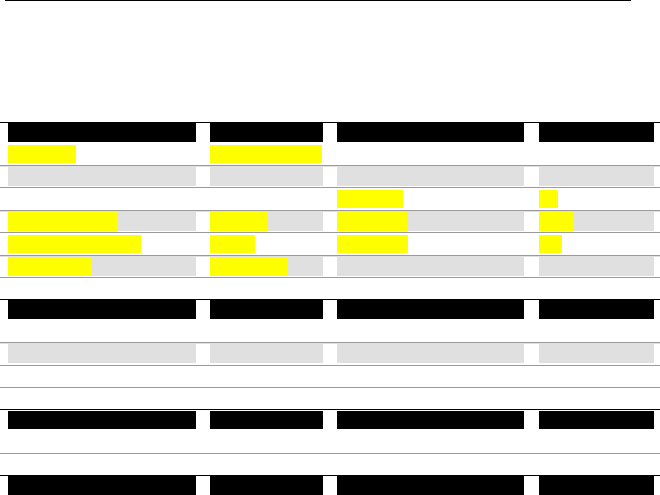
DEFAULT SETTINGS
These are the factory pre-programmed settings of your phone.
General Setting
Language Country setting Handset Name* Unchanged
Time 00:00 Alarm Clock Off
Auto Answer On Backlight On
Recall Duration Recall 1 Dial Mode Tone
Area Code number Empty CID Prefix Off
Phonebook* Unchanged
Sounds Setting
Handset Ringer Melody Melody 3 Handset Ringer Volume Level 3
Alarm Ringer Melody Melody 2 Alarm Ringer Volume Level 3
Receiver Volume Medium Handset Key Keep On
Call Log Setting
Incoming Call Log* Unchanged Dialed Call Log* Unchanged
System Setting
Base Selection Auto PIN Code 0000
* This setting is not restored after reset.

Appendix
- 32 -
TROUBLESHOOTING
Problem Tip
No dialing tone • Check your phone connections.
• The handset may be out of range. Move closer.
• The battery capacity may be low. Charge
battery.
Signal icon flashing • The handset may be out of range. Move closer.
• If the handset displays Unregistered, register the
handset. See page 11.
No parking tone • The handset may not be placed properly. Try
again.
• Charging contacts may be dirty. Clean contacts
with a damp cloth.
Handset on the
charger does not
charge
• The battery may be defective. Purchase new
battery from your dealer.
• Check that the battery is inserted correctly.
• Make sure the handset is placed properly on the
base unit or charger. The battery icon is
animated while charging.
No display • Check that the battery is charged.
• Check the connections.
Bad audio (crackles,
echo, etc.)
• The handset may be nearly out of range. Move
closer.
• The phone may be interfered by nearby
electrical appliance. Move the base unit to a
different location.
• The phone may be at a location with thick walls.
Move the base unit to a different location.
Handset does not ring • Check that the handset ringer is turned on. See
page 23.
Caller ID does not
display
• Caller ID service may not be activated. Check
with your service provider.
• The caller’s information may be withheld or is
unavailable.
Cannot make/answer
a 2nd call
• 2nd call service may not be activated. Check
with your service provider.
• Check that the recall selection is correct. See
page 25.

Appendix
- 33 -
PHONE SPECIFICATIONS
Item Specification
Product name SYNER.G
Frequency bands North America (UPCS): 1920-1930MHz
Number of
channels
North America (UPCS): 60 channels
Range 300m outdoor, 50m indoor
Connection PSTN
Standby time 120 hours
Talk time 10 hours
Rechargeable
battery cells
2 x AAA, NiMH 650 mAh

Appendix
- 34 -
Compliance Statement
Equipment Approval Information
Your telephone equipment is approved for connection to the Public Switched Telephone Network and is in
compliance with parts 15 and 68, FCC Rules and Regulations and the Technical Requirements for Telephone
Terminal Equipment Published by ACTA.
Notification to the local telephone company
On the bottom of this equipment is a label indicating, among other information, the US number and Ringer
Equivalence Number (REN) for the equipment. You must, upon request, provide this information to your
telephone company.
The REN is useful in determining the number of devices you may connect to your telephone line and still have all
of these devices ring when your telephone number is called. In most (but not all) areas, the sum of the RENs of
all devices connected to one line should not exceed 5. To be certain of the number of devices you may connect
to your line as determined by the REN, you should contact your local telephone company.
A plug and jack used to connect this equipment to the premises wiring and telephone network must comply with
the applicable FCC Part 68 rules and requirements adopted by the ACTA. A compliant telephone cord and
modular plug is provided with this product. It is designed to be connected to a compatible modular jack that is
also compliant. See installation instructions for details.
Notes
• This equipment may not be used on coin service provided by the telephone company.
• Party lines are subject to state tariffs, and therefore, you may not able to use your own telephone equipment if you
are on a party line. Check with your local telephone company.
• Notice must be given to the telephone company upon permanent disconnection of your telephone from your line.
• If your home has specially wired alarm equipment connected to the telephone line, ensure the installation of this
product does not disable your alarm equipment. If you have questions about what will disable alarm equipment,
consult your telephone company or a qualified installer.
Rights of the Phone Company
Should your equipment cause trouble on your line which may harm the telephone network, the telephone
company shall, where practicable, notify you that temporary discontinuance of service may be required. Where
prior notice is not practicable and the circumstances warrant such action, the telephone company may
temporarily discontinue service immediately. In case of such temporary discontinuance, the telephone company
must:
I. promptly notify you of such temporary discontinuance ;
II. afford you the opportunity to correct the situation ; and
III. inform you of your right to bring a complaint to the Commission
pursuant to procedures set forth in Subpart E of Part 68, FCC Rules
and Regulations.
The telephone company may make changes in its communications facilities, equipment, operations or procedures
where such action is required in the operation of its business and not inconsistent with FCC Rules and Regulations.
If these changes are expected to affect the use or performance of your telephone equipment, the telephone
company must give you adequate notice, in writing, to allow you to maintain uninterrupted service.
Interference Information
This device complies with Part 15 of the FCC Rules. Operation is subject to the following two conditions : (1) This
device may not cause harmful interference ; and (2) This device must accept and interference received, including
interference that may cause undesired operation.
This equipment has been tested and found to comply with the limits for a Class B digital device, pursuant to Part
15 o the FCC Rules. These limits are designed to provide reasonable protection against harmful interference in a
residential installation.
Appendix
- 35 -
This equipment generates, uses, and can radiate radio frequency energy and, if not installed and used in
accordance with the instructions, may cause harmful interference to radio communications. However, there is no
guarantee that interference with not occur in a particular installation.
If this equipment does cause harmful interference to radio or television reception, which can be determined by
turning the equipment off and on, the user is encouraged to try to correct the interference by one or more of the
following measures :
• Reorient or relocate the receiving antenna ( that is, the antenna for radio or television that is « receiving «
the interference).
• Reorient or relocate and increase the separation between the telecommunications equipment and receiving
antenna.
• Connect the telecommunications equipment into an outlet on a circuit different from that to which the
receiving antenna is connected.
If these measures do not eliminate the interference, please consult your dealer or an experienced
radio/television technician for additional suggestions. Also, the Federal Communications Commission has
prepared a helpful booklet, « How To Identify and Resolve Radio/TV Interference Problems. » This booklet is
available from the U.S. Government Printing Office, Washington, D.C. 20402. Please specify stock number 004-
000-00345-4 when ordering copies.
Noise
Electrical pulse noise is present at one time or another. This is most intense during electrical storms. Certain
kinds of electrical equipment, such as light dimmers, fluorescent bulbs, motors, fans, etc., also generate pulse
noise. Because radio frequencies are susceptible to this, you may on occasion hear pulse noise through the
receiver. This is usually only a minor annoyance and should not be interpreted as a defect of the unit.
FCC RF Radiation Exposure Statement
This equipment complies with FCC RF radiation exposure limits set forth for an uncontrolled environment. This
equipment should be installed and operated with a minimum distance of 20 centimeters between the radiator and
your body. This transmitter must not be co-located or operating in conjunction with any other antenna or
transmitter. For hand held operation, this phone has been tested and meets the FCC RF exposure guidelines. Use
of other accessories may not ensure compliance with FCC RF exposure guidelines.
Hearing Aid Compatibility (HAC)
This telephone system meets FCC and industry Canada standards for Hearing Aid
Compatibility.
Privacy
Privacy of communications may not be ensured when using this telephone.
Additional Information
I.C. Notice
Terminal Equipment
NOTICE : This equipment meets the applicable Industry Canada Terminal Equipment Technical Specifications.
This is confirmed by the registration number : the abbreviation, IC, before the registration number signifies that
registration was performed based on a Declaration of Conformity indicating that Industry Canada technical
specifications were met. It does not imply that Industry Canada approved the equipment.
NOTICE : The Ringer Equivalence Number (REN) for this terminal equipment is marked on
the equipment itself. The REN assigned to each terminal equipment provides an indication
of the maximum number of terminals allowed to be connected to a telephone interface.
The termination on an interface may consist of any combination of devices subject only to
the requirement that the sum of the Ringer Equivalence Numbers of all the devices does
not exceed five.
Radio Equipment
Appendix
- 36 -
The term « IC : » before the radio certification number only signifies that Industry Canada technical specifications
were met. Operation is subject to the following two conditions: (1) this device may not cause interference, and
(2) this device must accept any interference, including interference that may cause undesired operation of the
device.
Do not attempt to repair or modify this equipment
Repairs to certified equipment should be made by an authorized maintenance facility designated by the supplier.
Any repairs or alterations made by the user to the equipment may render the equipment void in product warranty
and compliance. This could also void the user’s authority to operate the equipment.

Appendix
- 37 -
Service Centers
USA Location :
Ascalade Communications
5077 W. Sunset Drive,
Lake Oswego, OR 97035
Canada Location :
12051 Riverside Way,
Richmond, BC
Canada, V6W 1K7