AsiaRF AWBRG2405 WLAN Broadband Router User Manual Preparation
AsiaRF Ltd. WLAN Broadband Router Preparation
AsiaRF >
manual
Quick Installation Guide of WLAN Broadband Router
1 At lease one PC with IEEE802.11b/g WLAN client installed.
2 One straight-through Category 5 Ethernet cable, used to link WAN interface to xDSL or CM for
Internet connection.
3 WLAN Broadband Router.
Check package contents:
WLAN Broadband Router
DC 7.5V Power Adapter
User’s manual CD-ROM
1.8M RJ-45 Cable Line (Option)
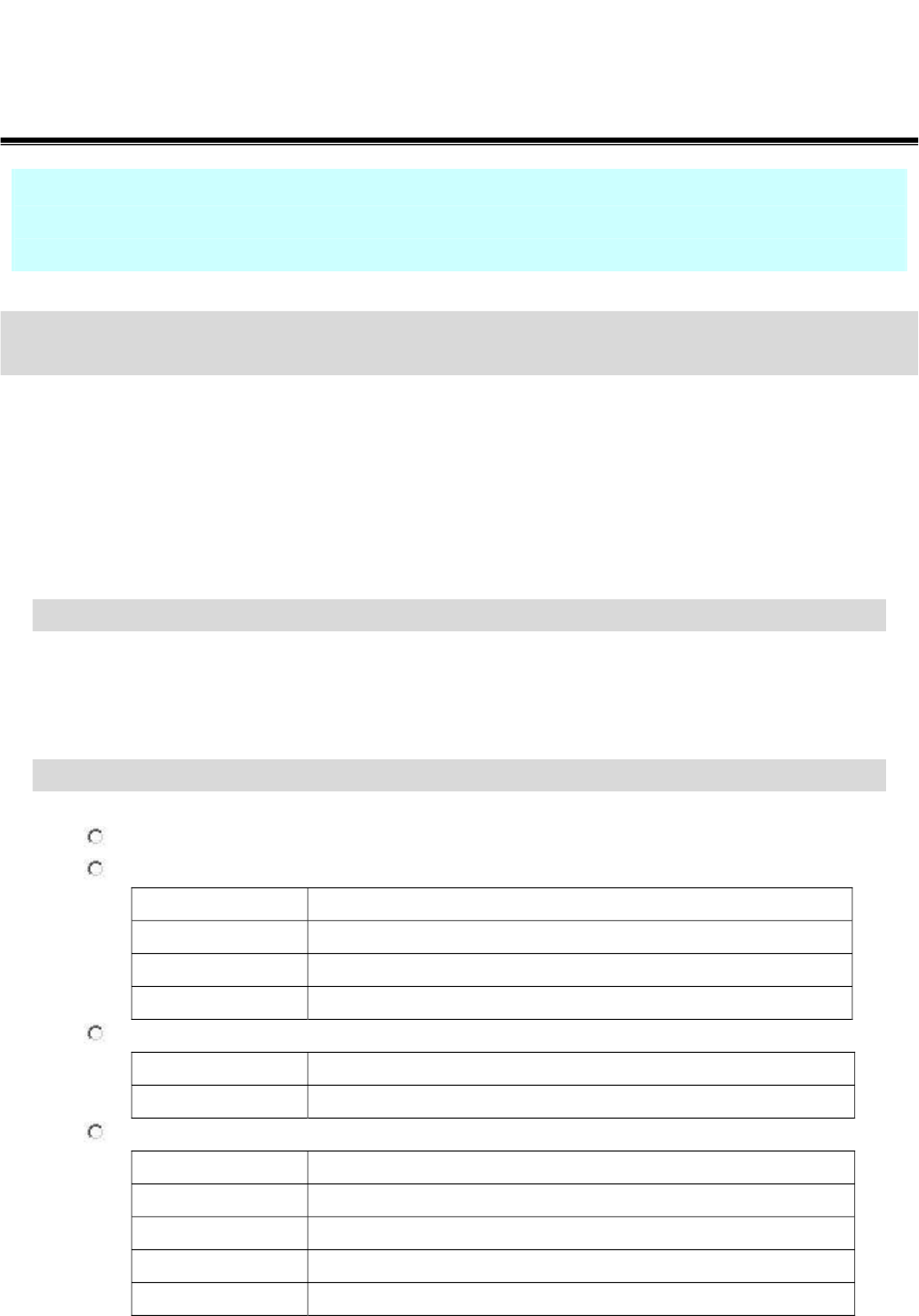
Collect Installation Information:
WAN configuration (Contact your ISP or network administrator for these information)
DHCP Client
Static IP
IP Address FFF . FFF . FFF . FFF
Subnet Mask FFF . FFF . FFF . FFF
Default Gateway FFF . FFF . FFF . FFF
DNS Address FFF . FFF . FFF . FFF
PPPoE
User Name
Password
PPTP
IP Address FFF . FFF . FFF . FFF
Subnet Mask FFF . FFF . FFF . FFF
Server IP Address FFF . FFF . FFF . FFF
User Name
Password
※ To avoid users without access right through your WLAN Broadband
Router, suggest that use security mechanism like WEP, WPA or set
ID/password for web configuration login IP address 192.168.1.254.
Preparation
第 1/11页
Quick Installation Guide of WLAN Broadband Router
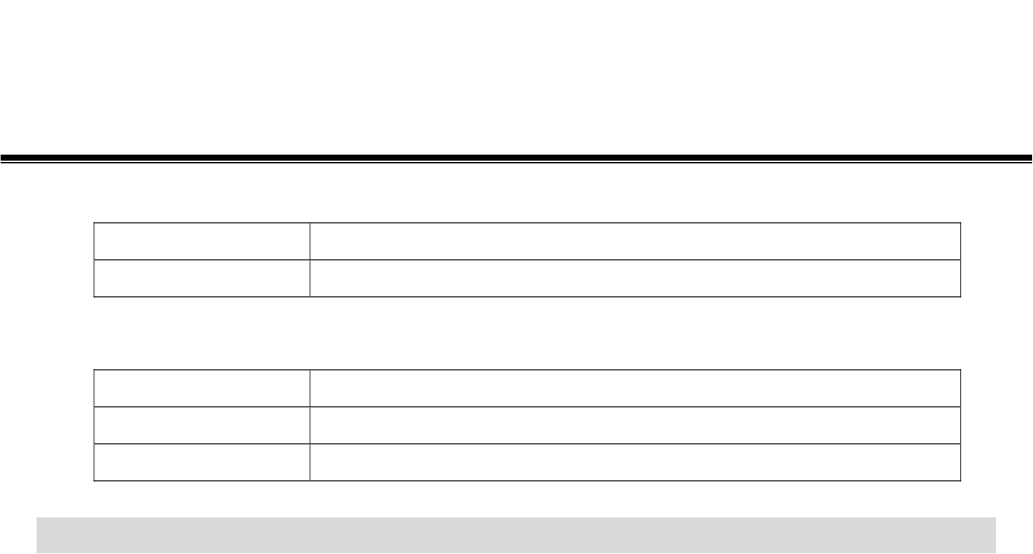
LAN configuration
IP Address FFF . FFF . FFF . FFF
Subnet Mask FFF . FFF . FFF . FFF
WLAN configuration
SSID
Mode
Channel Number
Parts and Functions of WLAN Broadband Router:
第 2/11页
Quick Installation Guide of WLAN Broadband Router
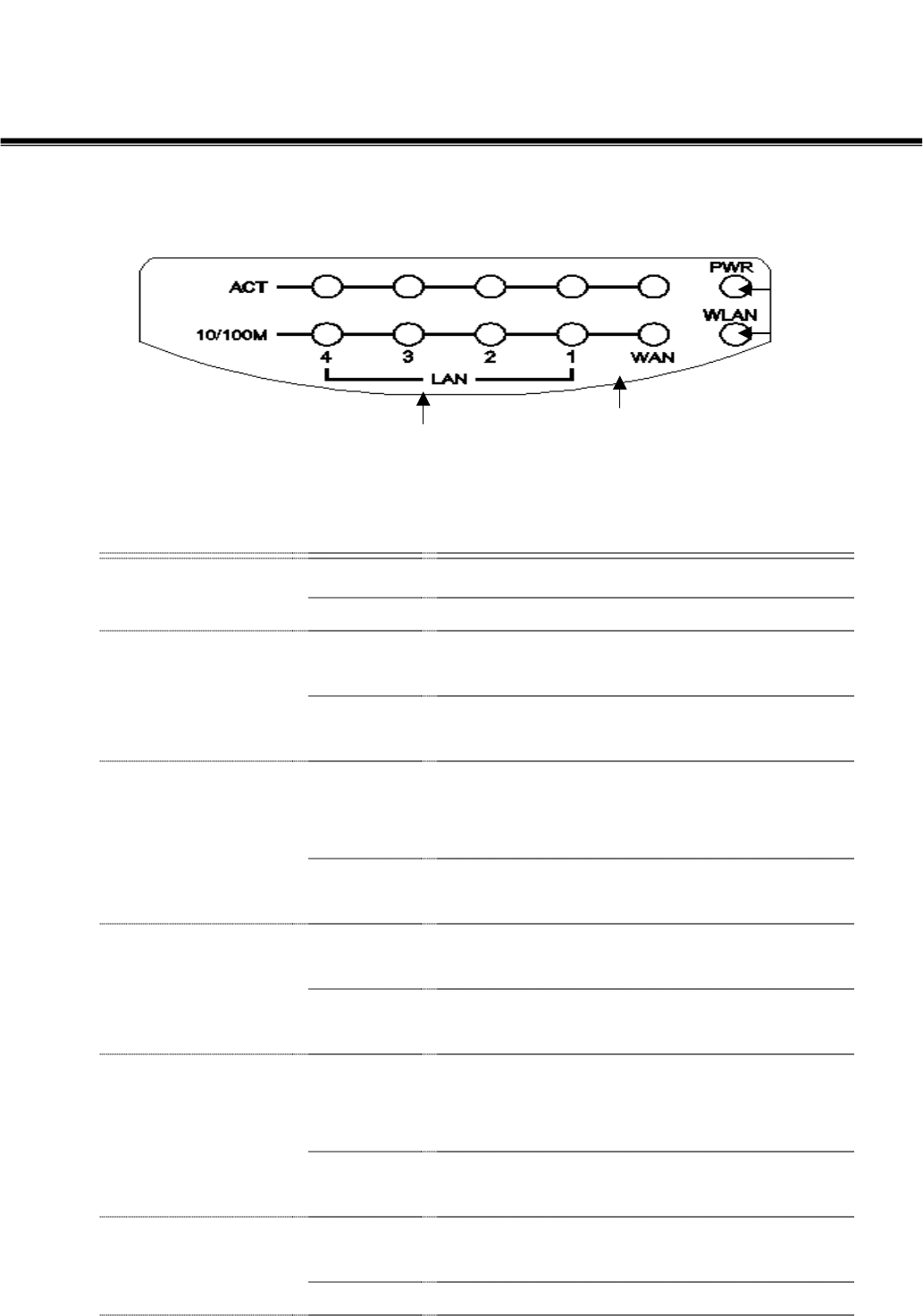
Panel Description
WAN LED
LAN LED
Power LED
WLAN LED
LED Indicator State Description
1. Power LED On The WLAN Broadband Router is powered on.
Off The WLAN Broadband Router is powered off.
2. WLAN LED Flashing Data is transmitting or receiving on the
antenna.
Off No data is transmitting or receiving on the
antenna.
3. WAN LED
ACT Flashing Data is transmitting or receiving on the WAN
interface.
Off No data is transmitting or receiving on the
WAN interface.
10/100M On Connection speed is 100Mbps on WAN
interface.
Off Connection speed is 10Mbps on WAN
interface.
4. LAN LED
ACT Flashing Data is transmitting or receiving on the LAN
interface.
Off No data is transmitting or receiving on the LAN
interface.
10/100M On Connection speed is 100Mbps on LAN
interface.
Off Connection speed is 10Mbps on LAN interface.
第 3/11页
第 3/11页

Quick Installation Guide of WLAN Broadband Router
Antenna
Reset
WAN LAN Powe
r
Interfaces Description
1. Antenna The Wireless LAN Antenna.
2. Reset Push continually the reset button 5 ~ 10 seconds to reset the
configuration parameters to factory defaults.
3. WAN The RJ-45 socket allows WAN connection through a Category
5 cable. Support auto-sensing on 10/100M speed and half/ full
duplex; comply with IEEE 802.3/ 802.3u respectively.
4. LAN The RJ-45 sockets allow LAN connection through Category 5
cables. Support auto-sensing on 10/100M speed and half/ full
duplex; comply with IEEE 802.3/ 802.3u respectively.
5. Power The power jack allows an external DC +7.5 V power supply
connection.
The external AC to DC adaptor provide adaptive power
requirement to the WLAN Broadband Router.
第 4/11页
第 4/11页
Quick Installation Guide of WLAN Broadband Router
Installation
Step One – Power On WLAN Broadband Router
Connect DC 7.5V Power Adapter to WLAN Broadband Router and the wall power socket.
Notice: It will take about 55 seconds to complete the boot up sequence after powered on
the WLAN Broadband Router; Power LED will be active, and after that the
WLAN Activity LED will be flashing to show the WLAN interface is enabled
and working now.
Step Two – Configure WLAN Broadband Router
1. Connect your PC to LAN port for configuration setting
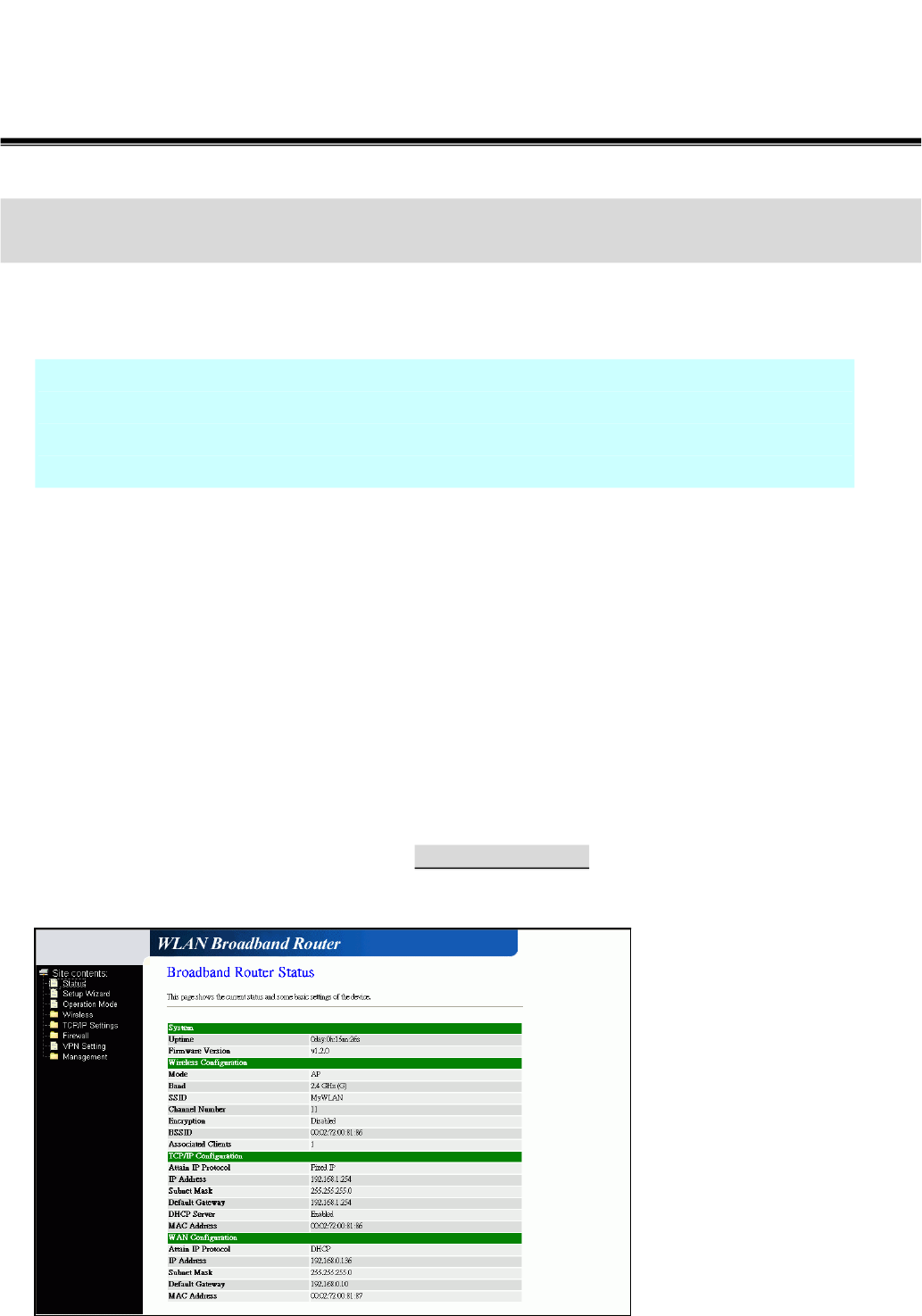
WLAN Broadband Router is delivered with the following factory default parameters on the Ethernet
LAN interfaces.
Default IP Address: 192.168.1.254
Default IP subnet mask: 255.255.255.0
WEB login User Name: <empty>
WEB login Password: <empty>
Configure your PC with IP address between 192.168.1.1 to 192.168.1.253 and subnet mask to be
255.255.255.0, then open an Internet browser (i.e. Microsoft IE6.1 SP1 or above) to connect
WLAN Broadband Router by entering http://192.168.1.254 to URL field.
第 5/11页
Quick Installation Guide of WLAN Broadband Router
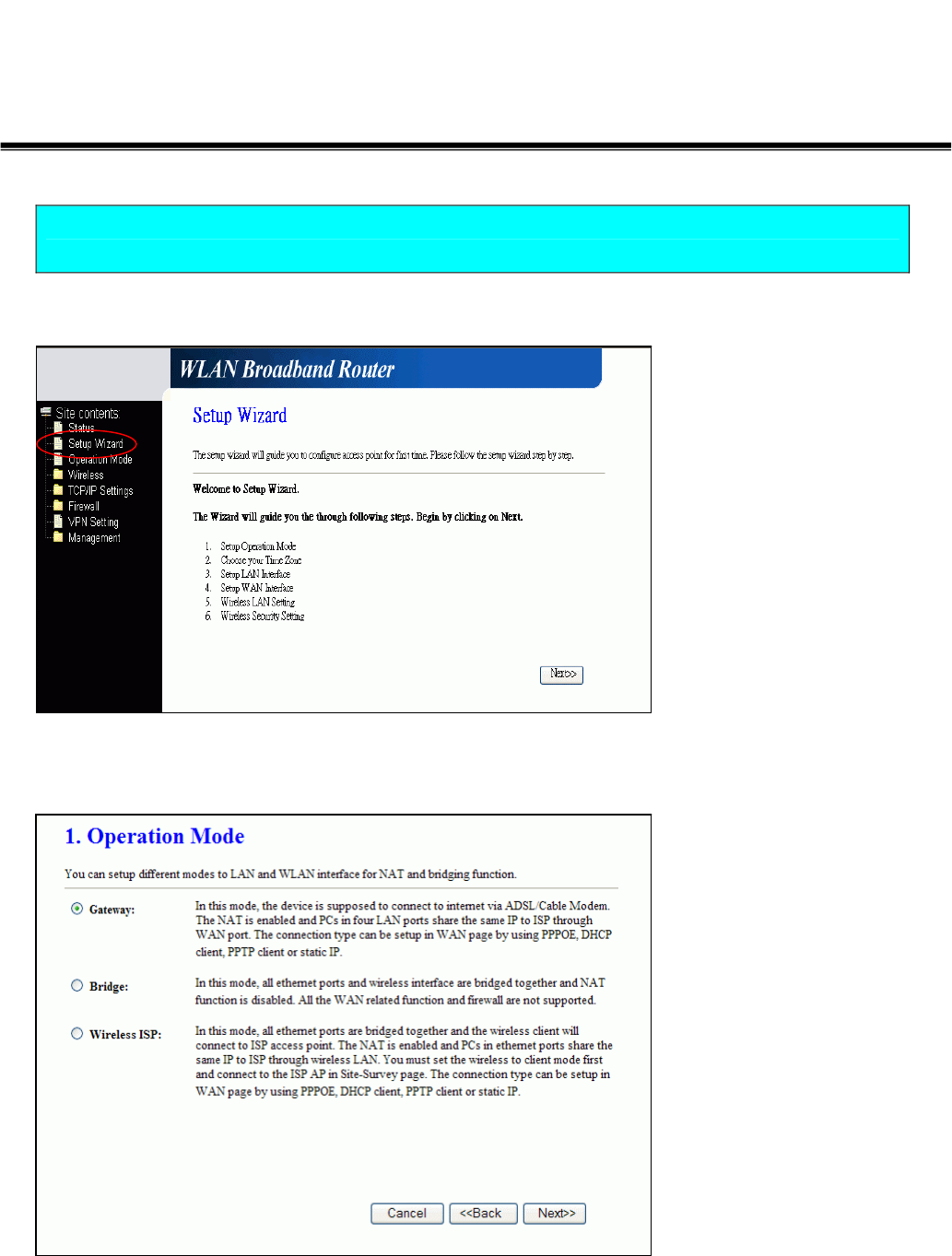
The following example is to configure router as “Gateway” mode that use factory default value.
You may change those values if you think that is necessary.
2. Click “Setup Wizard” in submenu of Site contents
Click “Next>>” button to
go next.
3. Configure Operation Mode
Click “Gateway”.
Click “Next>>” button to
go next.
第 6/11页
Quick Installation Guide of WLAN Broadband Router
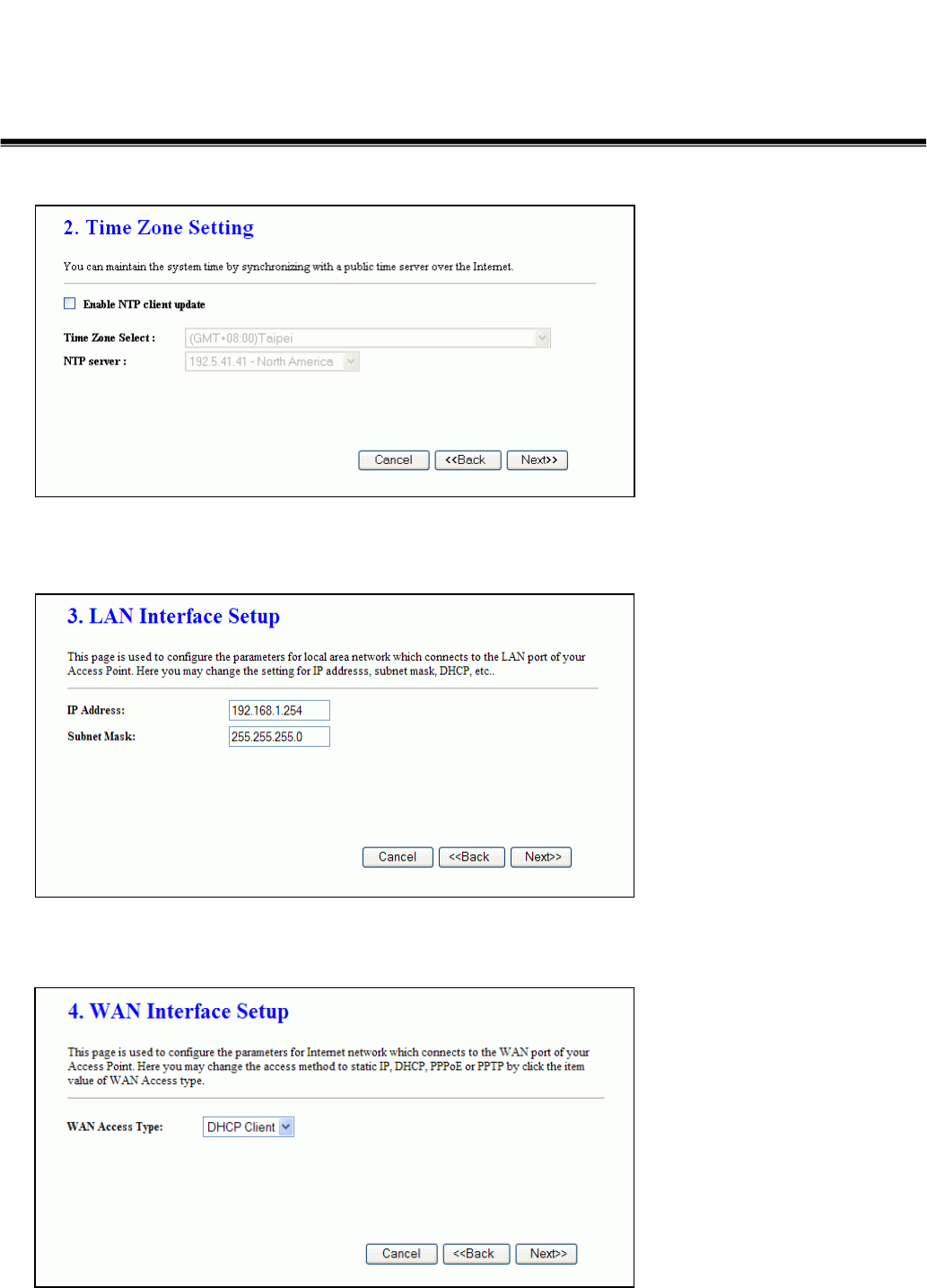
4. Configure Time Zone Setting configuration
Click “Next>>” button to
go next.
5. Configure LAN Interface Setup
IP Address:
192.168.1.254.
Subnet Mask:
255.255.255.0.
Click “Next>>” button to
go next.
6. WAN Interface Setup
WAN Access Type: Select
WAN connection of ISP
provides.
WAN Options:
Static IP, PPPoE, PPTP
Click “Next>>” button to
go next.
第 7/11页
Quick Installation Guide of WLAN Broadband Router
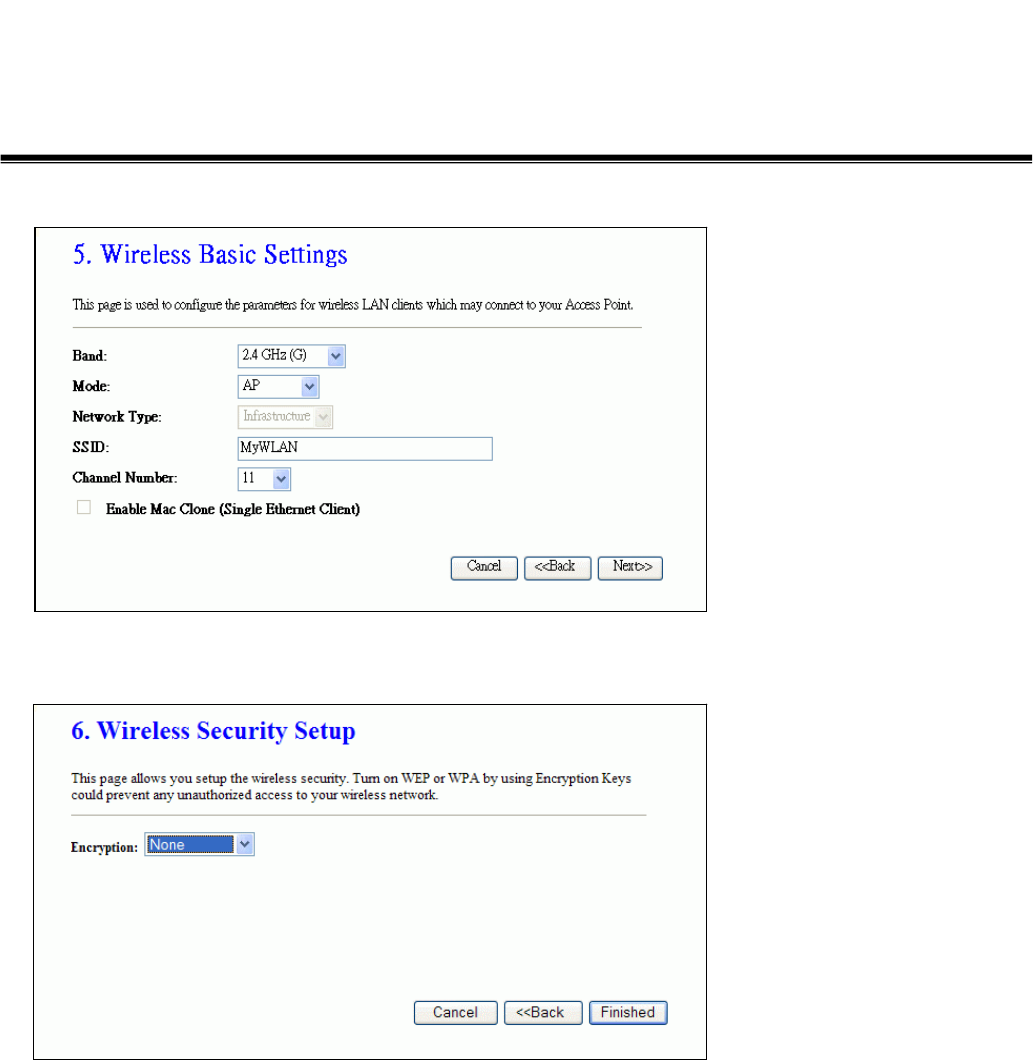
7. Wireless Basic Settings
Band: 2.4GHz(G)
Mode: AP
Network Type: disabled
SSID: MyWLAN
Channel: 11
Enable Mac Clone:
disabled
Click “Next>>” button to
go next.
8. Wireless Security Setup
Encryption: None
Options:
WEP, WPA (TKIP),
WPA2 (AES), WPA2
Mixed
Click “Finished” button to
close setup session.
第 8/11页
Quick Installation Guide of WLAN Broadband Router
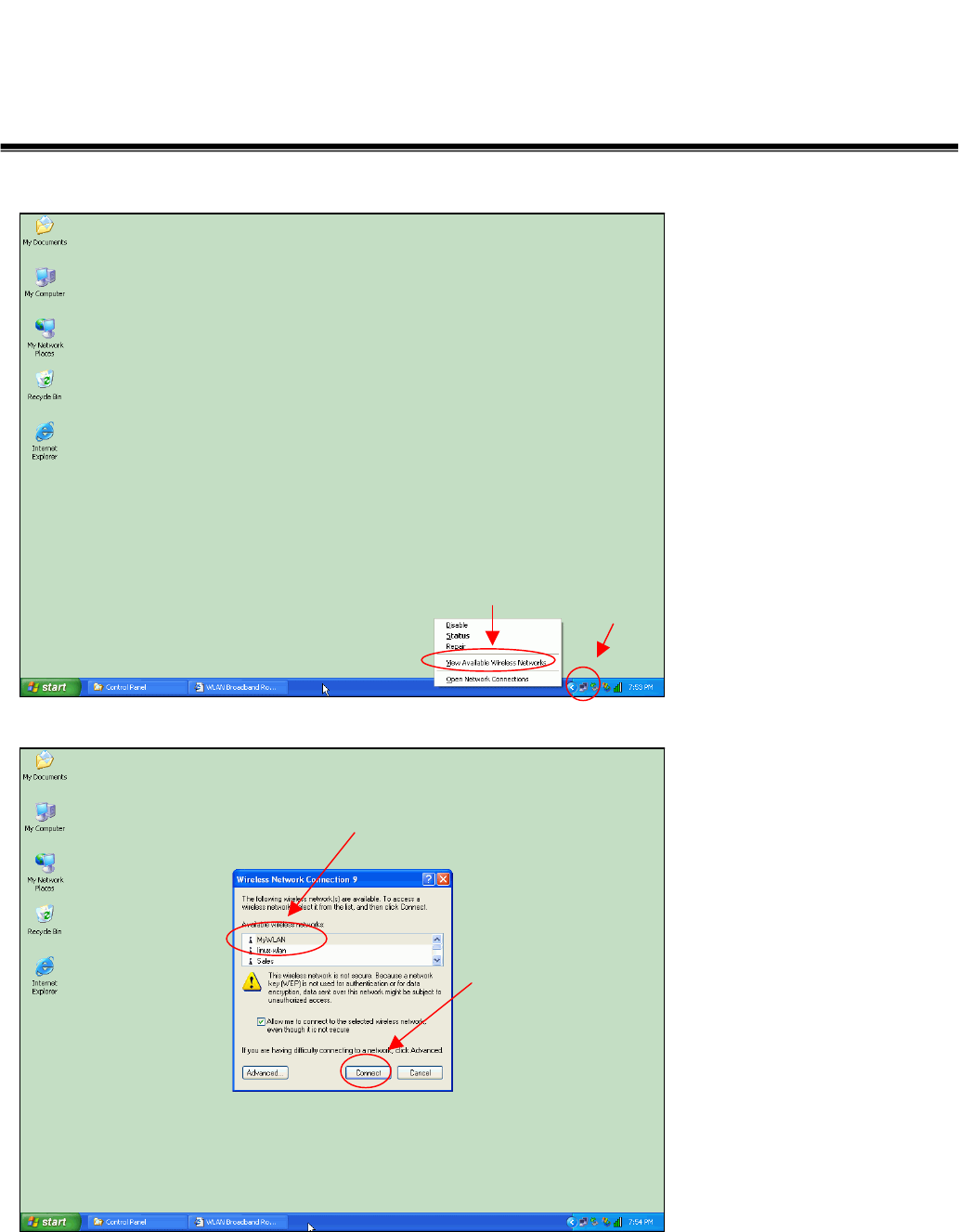
Step Three – Connect WLAN client to WLAN Broadband Router wirelessly
On your wireless client PC:
1. Move your mouse to the
Network icon on the Task
bar and right click the
mouse button to bring up
the pop-up menu.
2. Click the View Available
Wireless Networks on the
pop-up menu.
4
3
1
2
3. Select the specific WLAN
network (SSID) from the
Available Networks list.
4. Click the Connect button
to establish the
communication link to the
wireless network
第 9/11页
第 9/11页
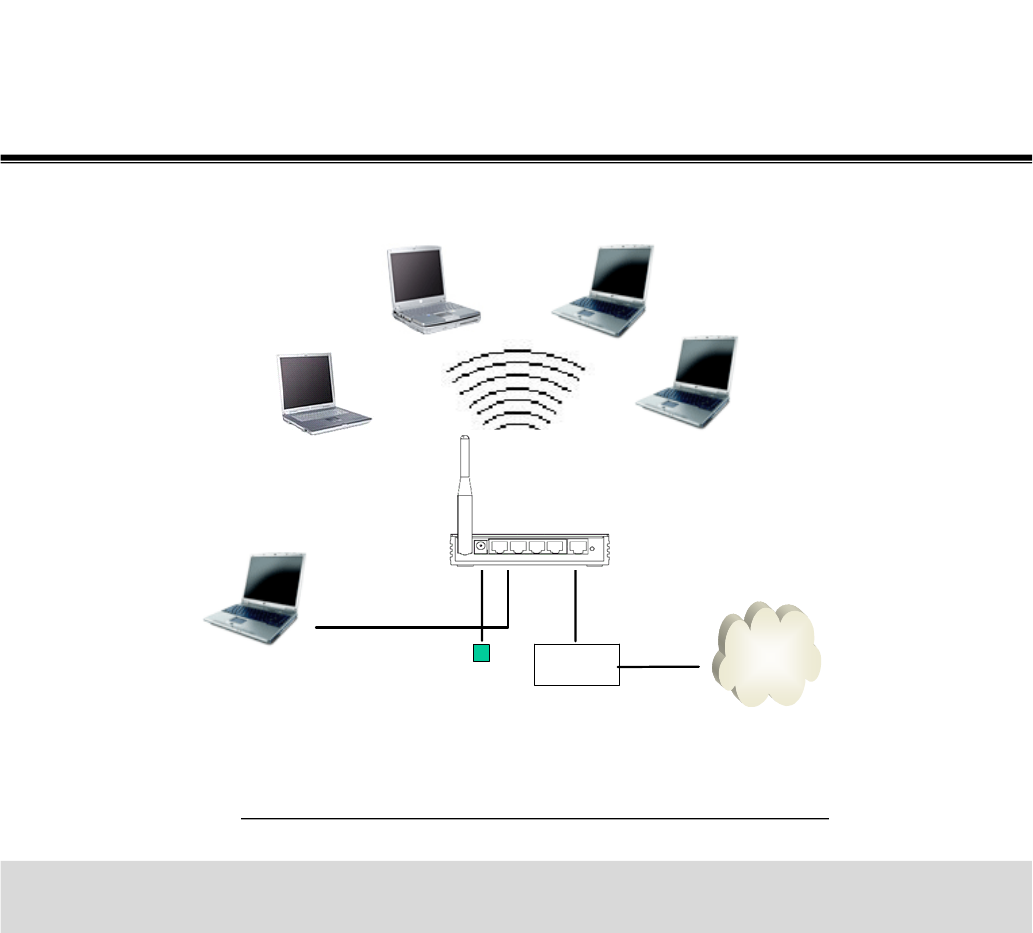
Quick Installation Guide of WLAN Broadband Router
Power adapter
Ethernet cable
xDSL/ CM
Ethernet
Cable
Internet
The wireless network diagram of WLAN Broadband Router..
Reference
Please consult the user’s manual of WLAN Broadband Router for detailed and complete operation guide.
第 10/11页
第 10/11页

Quick Installation Guide of WLAN Broadband Router
One Year Limited Warranty
This device is guaranteed against manufacturing defects for one full year from the original date
of purchase.
This warranty is valid at the time of purchase and is non-transferable.
This warranty must be presented to the service facility before any repair can be made.
Sales slip or other authentic evidence is required to validate warranty.
Damage caused by accident, misuse, abuse, improper storage, and/or uncertified repairs is not
covered by this warranty.
All mail or transportation costs including insurance are at the expense of the owner.
Do not send any product to service center for warranty without a RMA
(Return Merchandise Authorization) and proof of purchase. Ensure a trackable method of
delivery is used (keep tracking number).
Warranty is valid only in the country of purchase.
We assume no liability that may result directly or indirectly from the use or misuse of these
products.
IMPORTANT
"This warranty will be voided if the device is tampered with, improperly serviced, or the security
seals are broken or removed"
第 11/11页

Federal Communications Commission (FCC) Requirements, Part 15
This equipment has been tested and found to comply with the limits for a class B digital device,
pursuant to part 15 of the FCC Rules. These limits are designed to provide reasonable
protection against harmful interference in a residential installation.
This equipment generates, uses and can radiate radio frequency energy and, if not installed
and used in accordance with the instructions, may cause harmful interference to radio
communications. However, there is no guarantee that interference will not occur in a particular
installation. If this equipment does cause harmful interference to radio or television reception,
which can be determined by turning the equipment off and on, the user is encouraged to try to
correct the interference by one or more of the following measures:
---Reorient or relocate the receiving antenna.
---Increase the separation between the equipment and receiver.
---Connect the equipment into an outlet on a circuit different from that to which the receiver is
connected.
---Consult the dealer or an experienced radio/TV technician for help.
Regulatory information / Disclaimers
Changes or modifications not expressly approved by the party responsible for compliance
could void the user's authority to operate the equipment.
This device complies with Part 15 of the FCC Rules. Operation is subject to the following two
conditions:
(1) This device may not cause harmful interference.
(2) This device must accept any interference received, including interference that may cause
undesired operation.
IMPORTANT NOTE (CO-LOCATION)
FCC RF Radiation Exposure Statement: This equipment complies with FCC RF radiation
exposure limits set forth for an uncontrolled environment. This device and its antenna must
not be co-located or operating in conjunction with any other antenna or transmitter.
The antenna(s) used for this transmitter must be installed to provide a separation
distance of at least 20 cm from all persons.