AsiaRF VIRTU901 Wireless AP Router User Manual virtu901 T
AsiaRF Ltd. Wireless AP Router virtu901 T
AsiaRF >
user manual
WiBRAVO
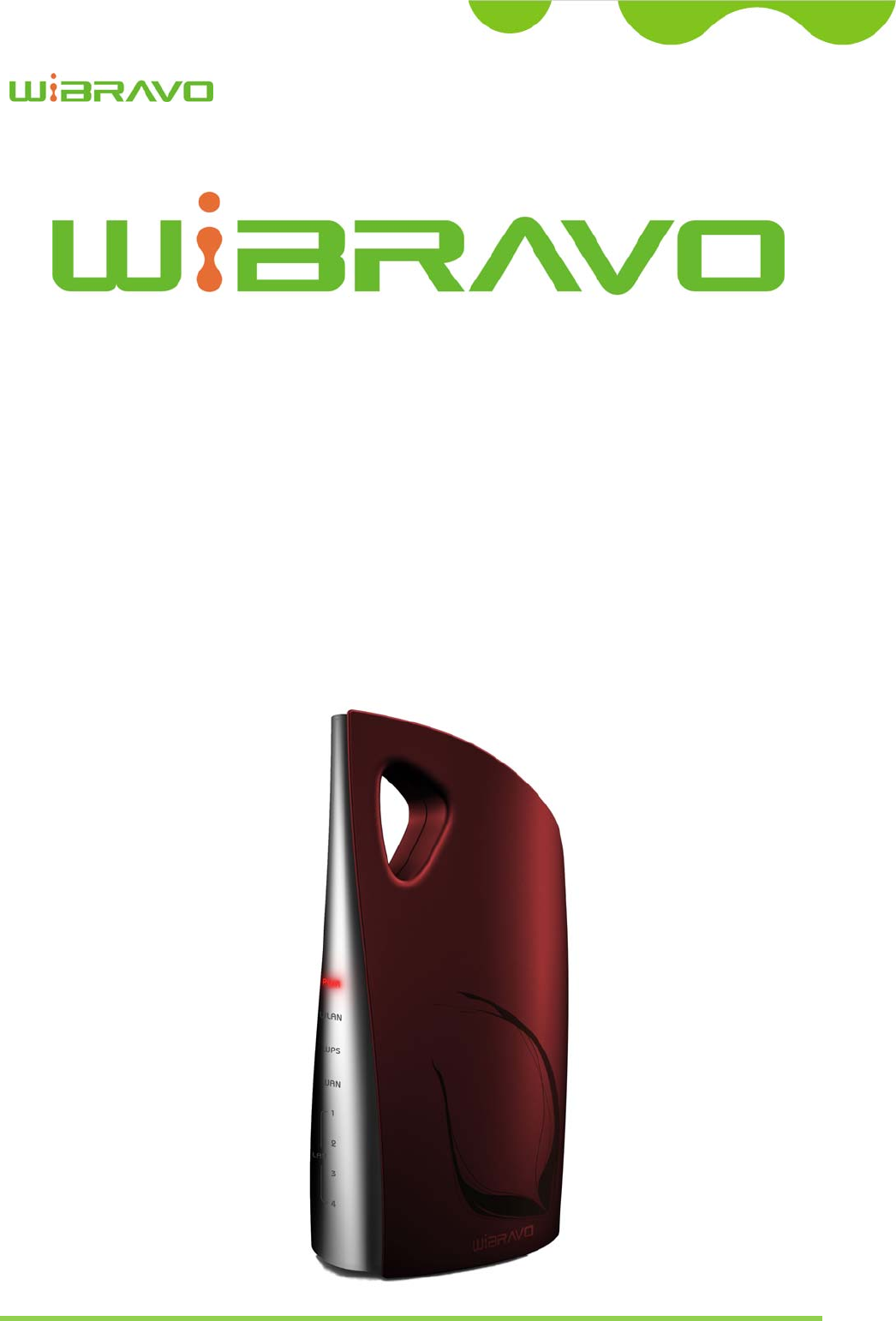
Virtu 901
User Manual i
User Manual
Version: 1.0
Model: Virtu 901
FCC ID: TKZVirtu901
Product: Wireless AP Router

WiBRAVO
Virtu 901
User Manual ii
Trademarks
Copyright @2008
Contents are subject to change without notice.
All trademarks belong to their respective proprietors.
Copyright Statement
THIS DOCUMENT CONTAINS OF PROPRIETARY TECHNICAL INFORMATION THAT IS THE PROPERTY OF
THIS COMPANY. AND NO PART OF THIS DOCUMENTATION MAY BE REPRODUCED, STORED IN A RETRIEVAL
SYSTEM OR TRANSMITTED IN ANY FORM OR BY ANY MEANS, ELECTRICAL OR MECHANICAL, BY
PHOTOCOPYING, RECORDING, OR OTHERWISE, WITHOUT THE PRIOR WRITTEN CONSENT OF THIS
COMPANY.
Federal Communication Commission Interference Statement
This equipment has been tested and found to comply with the limits for a Class B digital device, pursuant to Part 15 of
the FCC Rules. These limits are designed to provide reasonable protection against harmful interference in a residential
installation. This equipment generates, uses and can radiate radio frequency energy and, if not installed and used in
accordance with the instructions, may cause harmful interference to radio communications. However, there is no
guarantee that interference will not occur in a particular installation. If this equipment does cause harmful interference
to radio or television reception, which can be determined by turning the equipment off and on, the user is encouraged to
try to correct the interference by one of the following measures:
- Reorient or relocate the receiving antenna.
- Increase the separation between the equipment and receiver.
- Connect the equipment into an outlet on a circuit different from that to which the receiver is connected.
- Consult the dealer or an experienced radio/TV technician for help.
This device complies with Part 15 of the FCC Rules. Operation is subject to the following two conditions: (1) This device
may not cause harmful interference, and (2) this device must accept any interference received, including interference
that may cause undesired operation.
FCC Caution: Any changes or modifications not expressly approved by the party responsible for compliance could void
the user's authority to operate this equipment.
IMPORTANT NOTE:
FCC Radiation Exposure Statement:
This equipment complies with FCC radiation exposure limits set forth for an uncontrolled environment. This equipment
should be installed and operated with minimum distance 20cm between the radiator & your body.
This transmitter must not be co-located or operating in conjunction with any other antenna or transmitter.

WiBRAVO
Virtu 901
User Manual iii
Table of Contents
REVISION HISTORY .................................................................................................................. VI
TERMINOLOGY .......................................................................................................................... VI
1INTRODUCTION.................................................................................................................... 1
1.1PACKAGE CONTENTS ............................................................................................................ 1
1.2PRODUCT SPECIFICATIONS ................................................................................................... 1
1.3PRODUCT FEATURES ............................................................................................................ 2
1.4PANEL DESCRIPTION (2TX2R).............................................................................................. 3
2INSTALLATION ..................................................................................................................... 4
2.1HARDWARE INSTALLATION .................................................................................................. 4
2.2SOFTWARE INSTALLATION .................................................................................................... 5
3SOFTWARE CONFIGURATION ......................................................................................... 6
3.1PREPARE YOUR PC TO CONFIGURE THE WLAN BROADBAND ROUTER ................................ 6
3.2CONNECT TO THE WLAN BROADBAND ROUTER ................................................................. 8
3.3MANAGEMENT AND CONFIGURATION ON THE WLAN BROADBAND ROUTER ....................... 8
3.3.1Status .......................................................................................................................... 8
3.3.2Setup Wizard ............................................................................................................ 11
IOperation Mode ....................................................................................................... 11
IITime Zone Setting .................................................................................................... 12
IIILAN Interface Setup ................................................................................................ 12
IVWAN Interface Setup ............................................................................................... 13
VWireless Basic Settings ............................................................................................ 13
VIWireless Security Setup ........................................................................................... 14
3.3.3Operation Mode ....................................................................................................... 14
3.3.4Wireless - Basic Settings .......................................................................................... 15
3.3.5Wireless - Advanced Settings .................................................................................. 17
3.3.6Wireless - Security Setup ......................................................................................... 19
3.3.7Wireless - Access Control ........................................................................................ 21
3.3.8WDS Settings ........................................................................................................... 22
IWDS Security Setup ................................................................................................ 24
Requirement: Set [Wireless]->[Basic Settings]->[Mode]->AP+WDS ................................ 24

WiBRAVO
Virtu 901
User Manual iv
IIWDS AP Table ......................................................................................................... 24
3.3.9Site Survey ............................................................................................................... 25
3.3.10WPS ......................................................................................................................... 26
3.3.11LAN Interface Setup ................................................................................................ 28
IStatic DHCP Setup ................................................................................................... 29
3.3.12WAN Interface Setup ............................................................................................... 30
IStatic IP .................................................................................................................... 31
IIDHCP Client ............................................................................................................ 33
IIIPPPoE ...................................................................................................................... 35
IVPPTP ........................................................................................................................ 38
VL2TP ........................................................................................................................ 40
3.3.13Firewall - Port Filtering ........................................................................................... 42
3.3.14Firewall - IP Filtering ............................................................................................... 43
3.3.15Firewall - MAC Filtering ......................................................................................... 44
3.3.16Firewall - Port Forwarding ....................................................................................... 45
3.3.17Firewall – URL Filtering .......................................................................................... 46
3.3.18Firewall - DMZ ........................................................................................................ 47
3.3.19Firewall – Virtual Server .......................................................................................... 48
3.3.20QoS .......................................................................................................................... 49
3.3.21USB Storage ............................................................................................................. 50
3.3.22Management - Statistics ........................................................................................... 52
3.3.23Management - DDNS .............................................................................................. 53
3.3.24Management - Time Zone Setting ............................................................................ 54
3.3.25Management – Denial-of-Service ............................................................................ 55
3.3.26Management - Log ................................................................................................... 56
3.3.27Management - Upgrade Firmware ........................................................................... 57
3.3.28Management Save/ Reload Settings ......................................................................... 58
3.3.29Management - Password Setup ................................................................................ 59
3.3.30USB Storage ............................................................................................................. 60
4FREQUENTLY ASKED QUESTIONS (FAQ) .................................................................... 61
4.1WHAT AND HOW TO FIND MY PC’S IP AND MAC ADDRESS? ............................................... 61
4.2WHAT IS WIRELESS LAN? ................................................................................................. 62
4.3WHAT ARE ISM BANDS? .................................................................................................... 62
4.4HOW DOES WIRELESS NETWORKING WORK? ....................................................................... 62
4.5WHAT IS BSSID? ............................................................................................................... 63
4.6WHAT IS ESSID? ............................................................................................................... 63

WiBRAVO
Virtu 901
User Manual v
4.7WHAT ARE POTENTIAL FACTORS THAT MAY CAUSES INTERFERENCE? ................................. 64
4.8WHAT ARE THE OPEN SYSTEM AND SHARED KEY AUTHENTICATIONS? .............................. 64
4.9WHAT IS WEP? .................................................................................................................. 64
4.10WHAT IS FRAGMENT THRESHOLD? ..................................................................................... 64
4.11WHAT IS RTS (REQUEST TO SEND) THRESHOLD? .............................................................. 65
4.12WHAT IS BEACON INTERVAL? ............................................................................................. 65
4.13WHAT IS PREAMBLE TYPE? ................................................................................................ 66
4.14WHAT IS SSID BROADCAST? ............................................................................................. 66
4.15WHAT IS WI-FI PROTECTED ACCESS (WPA)? .................................................................... 66
4.16WHAT IS WPA2? ................................................................................................................ 67
4.17WHAT IS 802.1X AUTHENTICATION? .................................................................................. 67
4.18WHAT IS TEMPORAL KEY INTEGRITY PROTOCOL (TKIP)? ................................................. 67
4.19WHAT IS ADVANCED ENCRYPTION STANDARD (AES)? ...................................................... 67
4.20WHAT IS INTER-ACCESS POINT PROTOCOL (IAPP)? ........................................................... 67
4.21WHAT IS WIRELESS DISTRIBUTION SYSTEM (WDS)? ......................................................... 68
4.22WHAT IS UNIVERSAL PLUG AND PLAY (UPNP)? ................................................................. 68
4.23WHAT IS MAXIMUM TRANSMISSION UNIT (MTU) SIZE?.................................................... 68
4.24WHAT IS CLONE MAC ADDRESS? ...................................................................................... 68
4.25WHAT IS DDNS? ................................................................................................................ 68
4.26WHAT IS NTP CLIENT? ...................................................................................................... 68
4.27WHAT IS VPN? ................................................................................................................... 69
4.28WHAT IS IPSEC? ................................................................................................................ 69
4.29WHAT IS WLAN BLOCK RELAY BETWEEN CLIENTS? ........................................................ 69
4.30WHAT IS WMM? ................................................................................................................ 69
4.31WHAT IS WLAN ACK TIMOUT? ..................................................................................... 69
4.32WHAT IS MODULATION CODING SCHEME (MCS)? ............................................................. 69
4.33WHAT IS FRAME AGGREGATION? ....................................................................................... 69
4.34WHAT IS GUARD INTERVALS (GI)? ..................................................................................... 70
5CONFIGURATION EXAMPLES ........................................................................................ 71
5.1EXAMPLE ONE – PPPOE ON THE WAN .............................................................................. 71
5.2EXAMPLE TWO – FIXED IP ON THE WAN ........................................................................... 73

WiBRAVO
Virtu 901
User Manual vi
Revision History
DATE REVISION OF USER’S MANUAL FIRMWARE
2008/08/26 Version 1.2/e e2.0.1
Terminology
3DES Triple Data Encryption Standard
AES Advanced Encryption Standard
ANSI American National Standards Institute
AP Access Point
CCK Complementary Code Keying
CSMA/CA Carrier Sense Multiple Access/ Collision Avoidance
CSMA/CD Carrier Sense Multiple Access/ Collision Detection
DDNS Dynamic Domain Name Server
DH Diffie-Hellman Algorithm
DHCP Dynamic Host Configuration Protocol
DSSS Direct Sequence Spread Spectrum
EAP Extensible Authentication Protocol
ESP Encapsulating Security Payload
FCC Federal Communications Commission
FTP File Transfer Protocol
GI Guard Intervals
IAPP Inter Access Point Protocol
IEEE Institute of Electrical and Electronic Engineers
IKE Internet Key Exchange
IP Internet Protocol
ISM Industrial, Scientific and Medical
LAN Local Area Network
MAC Media Access Control
MCS Modulation Coding Scheme
MD5 Message Digest 5
NAT Network Address Translation
NT Network Termination

WiBRAVO
Virtu 901
User Manual vii
NTP Network Time Protocol
PPTP Point to Point Tunneling Protocol
PSD Power Spectral Density
RF Radio Frequency
SHA1 Secure Hash Algorithm
SNR Signal to Noise Ratio
SSID Service Set Identification
TCP Transmission Control Protocol
TFTP Trivial File Transfer Protocol
TKIP Temporal Key Integrity Protocol
UPNP Universal Plug and Play
VPN Virtual Private Network
WDS Wireless Distribution System
WEP Wired Equivalent Privacy
WISP Wireless Internet Service Provider
WLAN Wireless Local Area Network
WPA Wi-Fi Protected Access
WPS Wi-Fi Protected Setup

WiBRAVO
Virtu 901
User Manual 1
1 Introduction
The Wireless LAN Broadband Router is an affordable IEEE 802.11b/g with 802.11n Draft 2.0
specifications of wireless LAN broadband router solution; setting SOHO and enterprise
standard for high performance, secure, manageable and reliable WLAN.
This document describes the steps required for the initial IP address assign and other WLAN
router configuration. The description includes the implementation of the above steps.
1.1 Package contents
The package of the WLAN Broadband Router includes the following items,
The WLAN Broadband Router
The DC Power Adapter
The Documentation CD
RJ-45 Cable Line
Quick Installation Guide
Antenna
1.2 Product Specifications
Product Name WLAN 11n Router
Standard 802.11b/g/n(Wireless), 802.3(10BaseT), 802.3u(100BaseT)
Data Transfer Rate 1,2,5.5,6,9,11,12,18,24,36,48,54, and maximum of 300Mbps
Modulation Method BPSK/QPSK/16-QAM/64-QAM
Frequency Band 2.4GHz – 2.497GJz ISM Band, DSSS
RF Output Power < 14dBm(802.11n),< 17dBm(802.11b),< 14dBm(802.11g)
Receiver Sensitivity 802.11b: -80dBm@8%, 802.11g: -70dBm@10%,
802.11n: -64dBm@10%
Operation Range Indoor@Up to 100 meters,Outdoor@Up to 280 meters
Antenna External Antenna(2Tx2R) 2dBi
LED Power, Active (WLAN), (Ethernet)
Security 64 bit/128 bit WEP, TKIP, AES
WAN Interface One 10/100BaseT with RJ45 port
LAN Interface Four 10/100BaseT with RJ45 port
USB Interface One USB 2.0 Port
Power Consumption DC Power Adapter
Operating Temperature 0 ~ 50oC ambient temperature
Storage Temperature -10 ~ 70°C ambient temperature

WiBRAVO
Virtu 901
User Manual 2
Humidity 5 to 90 % maximum (non-condensing)
Dimension
111(L)
x
59(W)
x
215(H)
(not
including
antenna)
1.3 Product Features
Generic Router
Compatible with IEEE 802.11n Draft 2.0 Specifications provides wireless speed up
to 300Mbps data rate.
Compatible with IEEE 802.11g high rate standard to provide wireless Ethernet
speeds of 54Mbps data rate.
Maximizes the performance and ideal for media-centric applications like streaming
video, gaming and Voice over IP technology.
Supports multi-operation (bridge/gateway/WISP) modes between wireless and
wired Ethernet interfaces.
Supports WPS, 64-bit and 128-bit WEP, WPA, WPA2 encryption/decryption and
WPA with Radius function to protect the wireless data transmission.
Supports IEEE 802.1x Authentication.
Supports IEEE 802.3x full duplex flow control on 10/100M Ethernet interface.
Supports DHCP server to provide clients auto IP addresses assignment.
Supports DHCP client, static IP, PPPoE, PPTP of WAN Interface.
Supports firewall security with Port filtering, IP filtering, MAC filtering, Port
forwarding, DMZ hosting and URL filtering functions.
Supports WEB based management and configuration.
Supports UPnP for automatic Internet access.
Supports Dynamic DNS service.
Supports NTP client service.
Supports Log table and remote Log service.
Support Setup Wizard mode.
Supports Network File sharing function.
Supports FTP Server function.
Supports USB storage format tool.
WiBRAVO
Virtu 901
User Manual 3
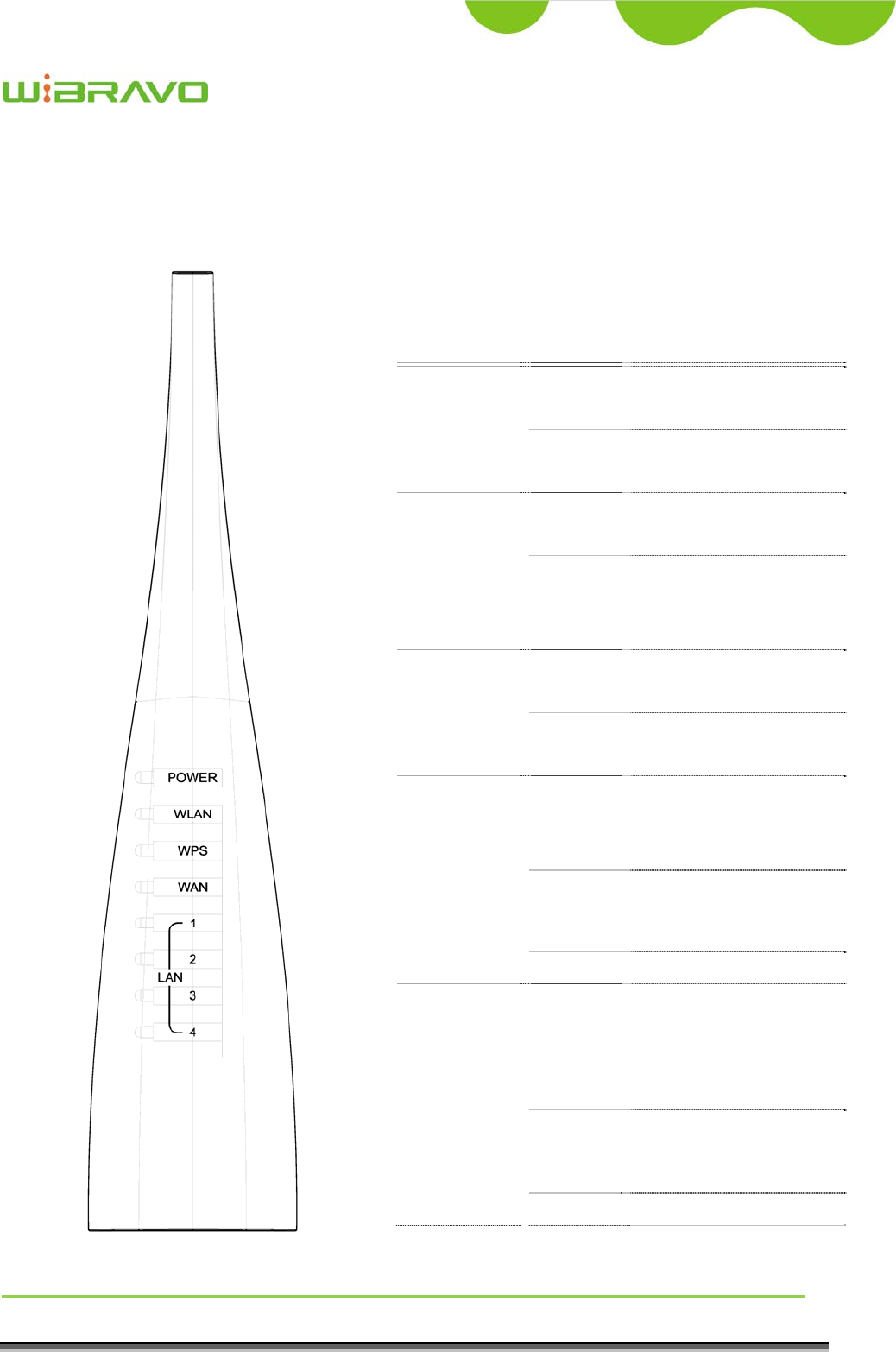
1.4 Panel Description (2Tx2R)
LED Indicator State Description
1. PWR LED On The WLAN Broadband
Router is powered on.
Off The WLAN Broadband
Router is powered off.
2. WLAN
LED
Flashing Data is transmitting or
receiving on the antenna.
Off No data is transmitting
or receiving on the
antenna.
3. WPS LED On The WPS feature is
Enabled.
Off The WPS feature is
Disabled.
4. WAN LED
ACT
Flashing Data is transmitting or
receiving on the WAN
interface.
On Port linked.
Off No link.
5. LAN LED
ACT Flashing Data is transmitting or
receiving on the LAN
interface.
On Port linked.
Off No link.

WiBRAVO
Virtu 901
User Manual 4
Interfaces Description
Antenna
(Fixed / SMA)
The Wireless LAN Antenna.
PWR (Power) The power jack allows an external DC power supply
connection.
The external DC adaptor provide adaptive power requirement
to the WLAN Broadband Router.
LAN The RJ-45 sockets allow LAN connection through Category 5
cables. Support auto-sensing on 10/100M speed and half/ full
duplex; comply with IEEE 802.3/ 802.3u respectively.
WAN The RJ-45 socket allows WAN connection through a Category
5 cable. Support auto-sensing on 10/100M speed and half/ full
duplex; comply with IEEE 802.3/ 802.3u respectively.
USB The USB port allows USB Storage connection to support FTP
server、File server.
RS (Reset) Push continually the reset button 5 ~ 10 seconds to reset the
configuration parameters to factory defaults.
2 Installation
2.1 Hardware Installation
Step 1: Place the Wireless LAN Broadband Router to the best optimum transmission
location. The best transmission location for your WLAN Broadband Router is
usually at the geographic center of your wireless network, with line of sign to all
of your mobile stations.
Step 2: Connect the WLAN Broadband Router to your wired network. Connect the
Ethernet WAN interface of WLAN Broadband Router by category 5 Ethernet
cable to your switch/ hub/ xDSL modem or cable modem. A straight-through

WiBRAVO
Virtu 901
User Manual 5
Ethernet cable with appropriate cable length is needed.
Step 3: Supply DC power to the WLAN Broadband Router. Use only the AC/DC power
adapter supplied with the WLAN Broadband Router; it maybe occur damage by
using a different type of power adapter.
The hardware installation finished.
2.2 Software Installation
There are no software drivers, patches or utilities installation needed, but only the
configuration setting. Please refer to chapter 3 for software configuration.
Notice: It will take about 50 seconds to complete the boot up sequence after
powered on the WLAN Broadband Router; Power LED will be active,
and after that the WLAN Activity LED will be flashing to show the
WLAN interface is enabled and working now.

WiBRAVO
Virtu 901
User Manual 6
3 Software configuration
There are web based management and configuration functions allowing you to have the jobs
done easily.
The WLAN Broadband Router is delivered with the following factory default parameters on
the Ethernet LAN interfaces.
Default IP Address: 192.168.1.254
Default IP subnet mask: 255.255.255.0
WEB login User Name: <empty>
WEB login Password: <empty>
3.1 Prepare your PC to configure the WLAN Broadband Router
For OS of Microsoft Windows 95/ 98/ Me/XP:
1. Click the Start button and select Settings, then click Control Panel. The Control
Panel window will appear.
Note: Windows Me users may not see the Network control panel. If so, select View
all Control Panel options on the left side of the window
2. Move mouse and double-click the right button on Network icon. The Network
window will appear.
3. Check the installed list of Network Components. If TCP/IP is not installed, click the
Add button to install it; otherwise go to step 6.
4. Select Protocol in the Network Component Type dialog box and click Add button.
5. Select TCP/IP in Microsoft of Select Network Protocol dialog box then click OK
button to install the TCP/IP protocol, it may need the Microsoft Windows CD to
complete the installation. Close and go back to Network dialog box after the TCP/IP
installation.
6. Select TCP/IP and click the properties button on the Network dialog box.
7. Select Specify an IP address and type in values as following example.
IP Address: 192.168.1.1, any IP address within 192.168.1.1 to 192.168.1.253 is
good to connect the Wireless LAN Access Point.
IP Subnet Mask: 255.255.255.0
8. Click OK and reboot your PC after completes the IP parameters setting.
For OS of Microsoft Windows 2000, XP:

WiBRAVO
Virtu 901
User Manual 7
1. Click the Start button and select Settings, then click Control Panel. The Control
Panel window will appear.
2. Move mouse and double-click the right button on Network and Dial-up Connections
icon. Move mouse and double-click the Local Area Connection icon. The Local Area
Connection window will appear. Click Properties button in the Local Area
Connection window.
3. Check the installed list of Network Components. If TCP/IP is not installed, click the
Add button to install it; otherwise go to step 6.
4. Select Protocol in the Network Component Type dialog box and click Add button.
5. Select TCP/IP in Microsoft of Select Network Protocol dialog box then click OK
button to install the TCP/IP protocol, it may need the Microsoft Windows CD to
complete the installation. Close and go back to Network dialog box after the TCP/IP
installation.
6. Select TCP/IP and click the properties button on the Network dialog box.
7. Select Specify an IP address and type in values as following example.
IP Address: 192.168.1.1, any IP address within 192.168.1.1 to 192.168.1.253 is
good to connect the Wireless LAN Access Point.
IP Subnet Mask: 255.255.255.0
8. Click OK to completes the IP parameters setting.
For OS of Microsoft Windows NT:
1. Click the Start button and select Settings, then click Control Panel. The Control
Panel window will appear.
2. Move mouse and double-click the right button on Network icon. The Network
window will appear. Click Protocol tab from the Network window.
3. Check the installed list of Network Protocol window. If TCP/IP is not installed, click
the Add button to install it; otherwise go to step 6.
4. Select Protocol in the Network Component Type dialog box and click Add button.
5. Select TCP/IP in Microsoft of Select Network Protocol dialog box then click OK
button to install the TCP/IP protocol, it may need the Microsoft Windows CD to
complete the installation. Close and go back to Network dialog box after the TCP/IP
installation.
6. Select TCP/IP and click the properties button on the Network dialog box.
7. Select Specify an IP address and type in values as following example.
IP Address: 192.168.1.1, any IP address within 192.168.1.1 to 192.168.1.253 is
good to connect the Wireless LAN Access Point.

WiBRAVO
Virtu 901
User Manual 8
IP Subnet Mask: 255.255.255.0
8. Click OK to complete the IP parameters setting.
For OS of Microsoft Windows Vista:
1. Click the Start button and select Settings, then click Control Panel. The Control
Panel window will appear.
2. Move mouse and double-click the right button on Network Connections item. The
Network Connections window will appear. Double click Local Area Connection icon,
then User Account Control window shown. Right click Continue button to set
properties.
3. In Local Area Connection Properties window, Choose Networking tab, move mouse
and click Internet Protocol Version 4 (TCP/IPv4), then click Properties button.
4. Move mouse and click General tab, Select Specify an IP address and type in values
as following example.
IP Address: 192.168.1.1, any IP address within 192.168.1.1 to 192.168.1.253 is
good to connect the Wireless LAN Access Point.
IP Subnet Mask: 255.255.255.0
5. Click OK to complete the IP parameters setting.
3.2 Connect to the WLAN Broadband Router
Open a WEB browser, i.e. Microsoft Internet Explore 6.1 SP1 or above, then enter
192.168.1.254 on the URL to connect the WLAN Broadband Router.
3.3 Management and configuration on the WLAN Broadband Router
3.3.1 Status
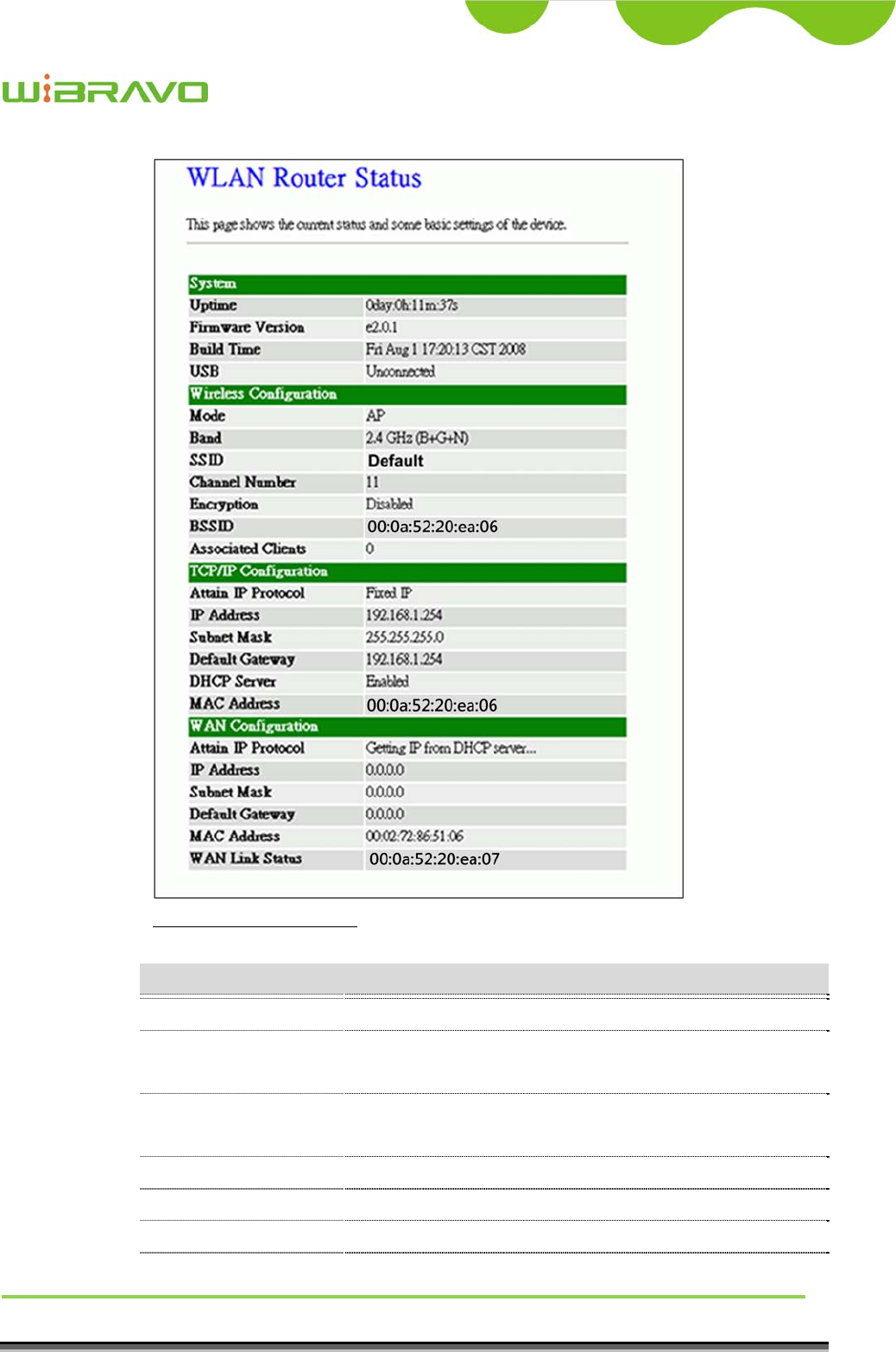
This page shows the current status and some basic settings of the device, includes
system, wireless, Ethernet LAN and WAN configuration information.
WiBRAVO
Virtu 901
User Manual 9
Screen snapshot – Status
Item Description
System
Uptime It shows the duration since WLAN Broadband Router is
powered on.
Firmware version It shows the firmware version of WLAN Broadband
Router.
Build time It shows the Build-up time of firmware
USB It shows USB connection status.
Wireless configuration
Mode It shows wireless operation mode

WiBRAVO
Virtu 901
User Manual 10
Band It shows the current wireless operating frequency.
SSID It shows the SSID of this WLAN Broadband Router.
The SSID is the unique name of WLAN Broadband
Router and shared among its service area, so all devices
attempts to join the same wireless network can identify it.
Channel Number It shows the wireless channel connected currently.
Encryption It shows the status of encryption function.
BSSID It shows the BSSID address of the WLAN Broadband
Router. BSSID is a six-byte address.
Associated Clients It shows the number of connected clients (or stations,
PCs).
TCP/IP configuration
Attain IP Protocol It shows type of connection.
IP Address It shows the IP address of LAN interfaces of WLAN
Broadband Router.
Subnet Mask It shows the IP subnet mask of LAN interfaces of WLAN
Broadband Router.
Default Gateway It shows the default gateway setting for LAN interfaces
outgoing data packets.
DHCP Server It shows the DHCP server is enabled or not.
MAC Address It shows the MAC address of LAN interfaces of WLAN
Broadband Router.
WAN configuration
Attain IP Protocol It shows how the WLAN Broadband Router gets the IP
address. The IP address can be set manually to a fixed
one or set dynamically by DHCP server or attain IP by
PPPoE / PPTP connection.
IP Address It shows the IP address of WAN interface of WLAN
Broadband Router.
Subnet Mask It shows the IP subnet mask of WAN interface of WLAN
Broadband Router.
Default Gateway It shows the default gateway setting for WAN interface
outgoing data packets.
MAC Address It shows the MAC address of WAN interface of WLAN
Broadband Router.
WAN Link Status It shows WAN connection status.
WiBRAVO
Virtu 901
User Manual 11
3.3.2 Setup Wizard
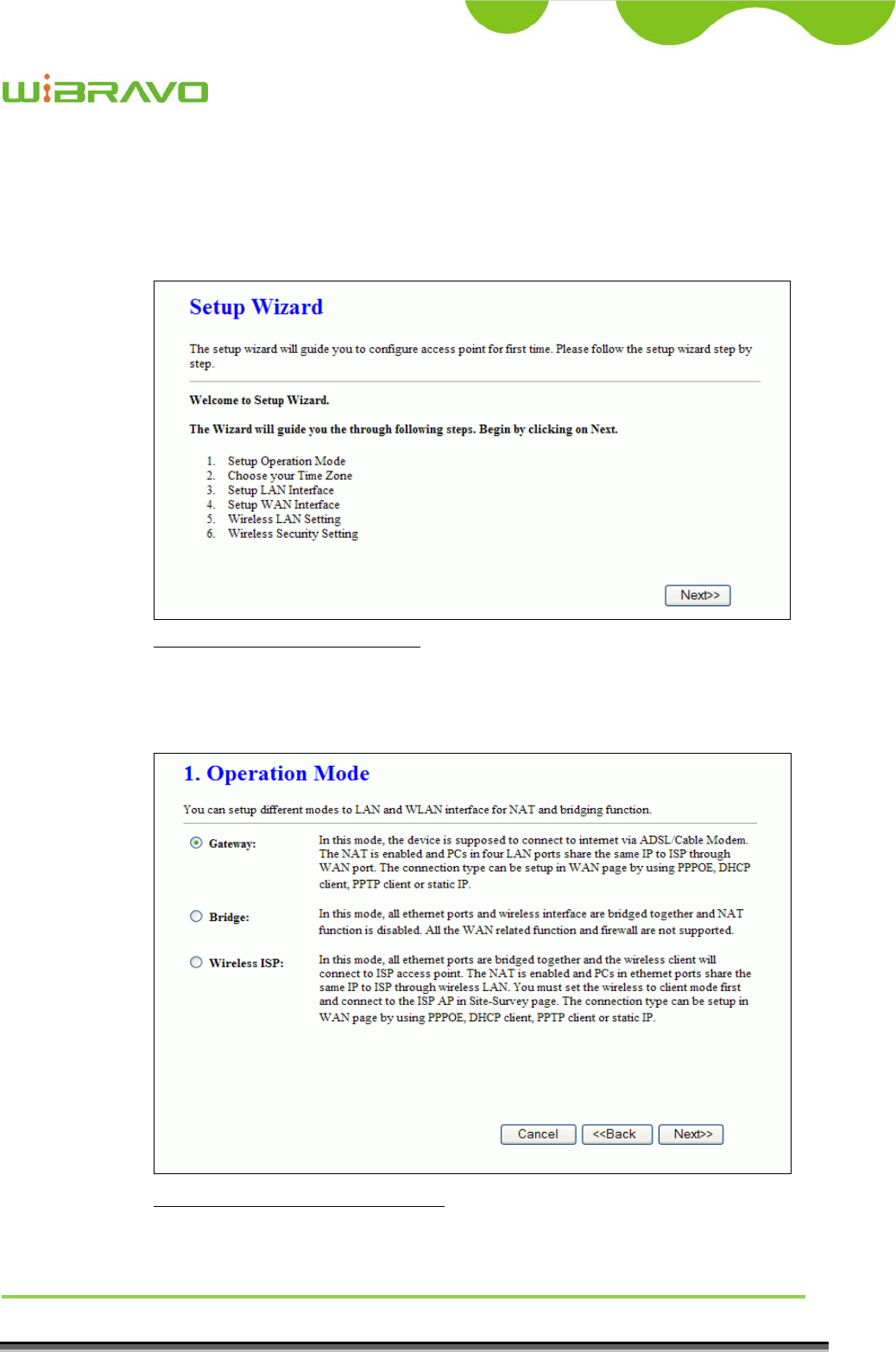
This page guides you to configure wireless broadband router for first time
Screen snapshot – Setup Wizard
I Operation Mode
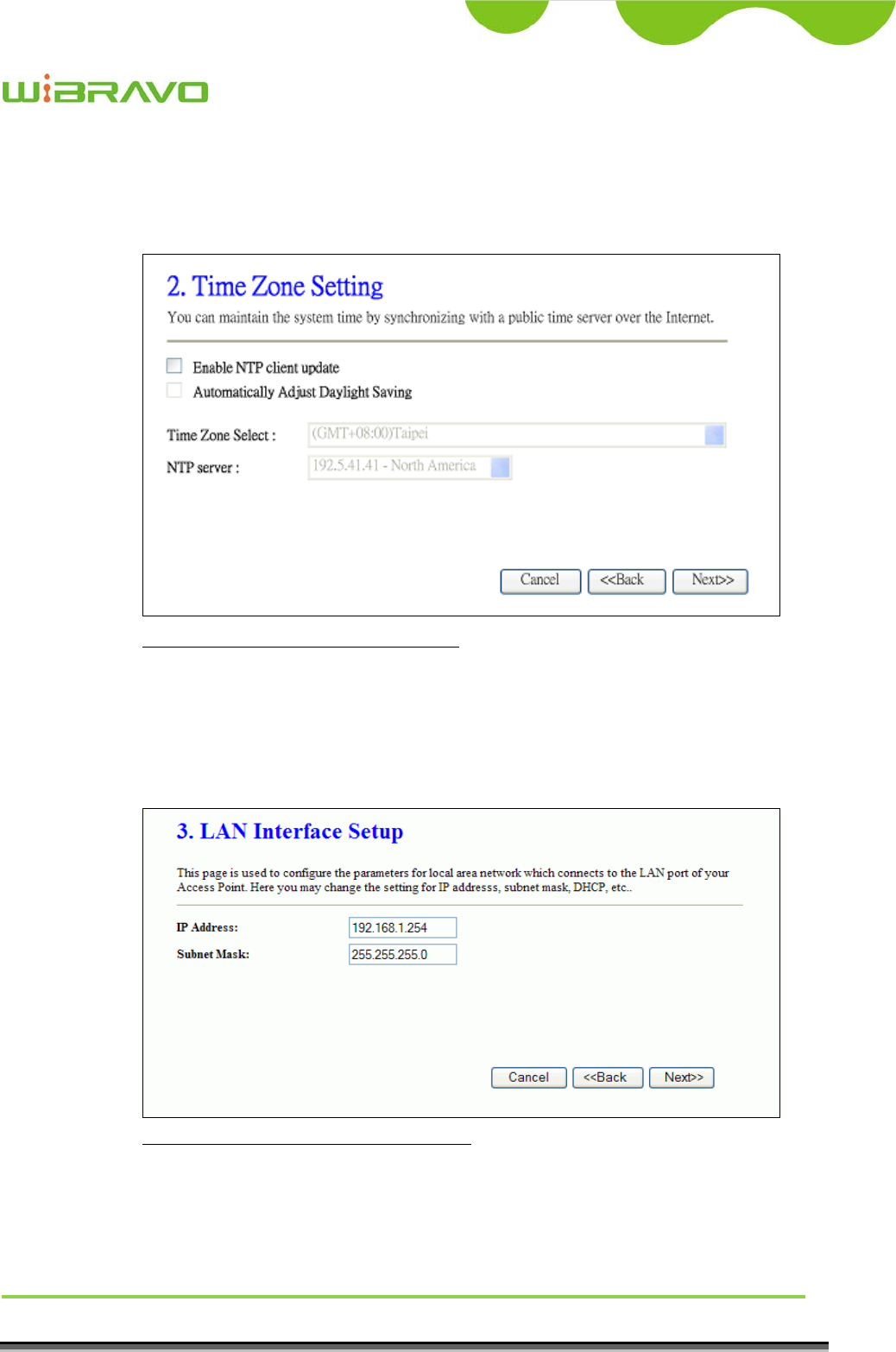
This page followed by Setup Wizard page to define the operation mode.
Screen snapshot – Operation Mode
WiBRAVO
Virtu 901
User Manual 12
II Time Zone Setting
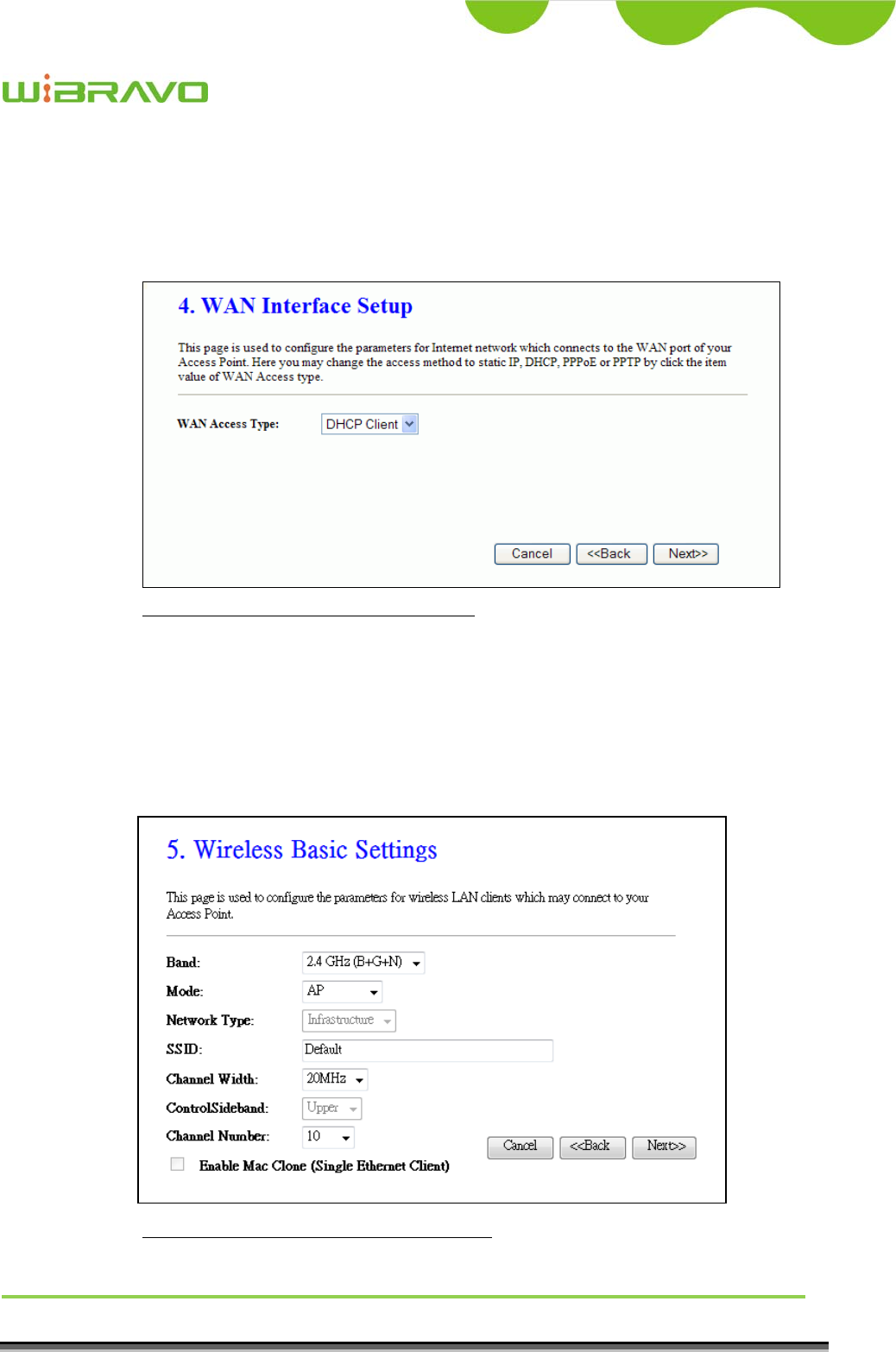
This page is used to enable and configure NTP client
Screen snapshot – Time Zone Settings
III LAN Interface Setup
This page is used to configure local area network IP address and subnet
mask
Screen snapshot – LAN Interface Setup
WiBRAVO
Virtu 901
User Manual 13
IV WAN Interface Setup
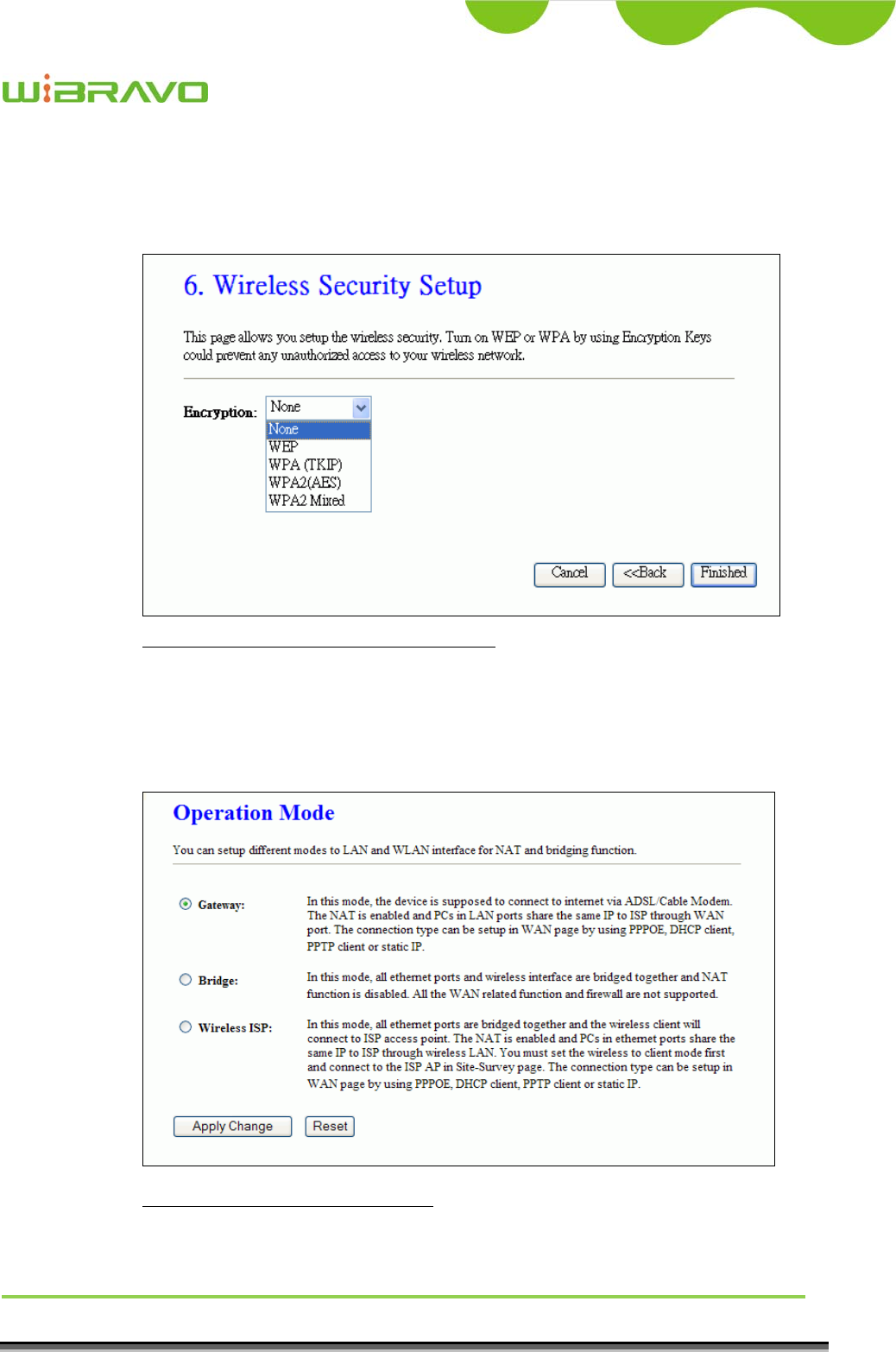
This page is used to configure WAN access type
Screen snapshot – WAN Interface Setup
V Wireless Basic Settings
This page is used to configure basic wireless parameters like Band, Mode,
Network Type SSID, Channel Number, Enable Mac Clone(Single
Ethernet Client)
Screen snapshot – Wireless Basic Settings
WiBRAVO
Virtu 901
User Manual 14
VI Wireless Security Setup
This page is used to configure wireless security
Screen snapshot – Wireless Security Setup
3.3.3 Operation Mode
This page is used to configure which mode wireless broadband router acts
Screen snapshot – Operation Mode

WiBRAVO
Virtu 901
User Manual 15
Item Description
Gateway Traditional gateway configuration. It always connects
internet via ADSL/Cable Modem. LAN interface, WAN
interface, Wireless interface, NAT and Firewall modules
are applied to this mode
Bridge Each interface (LAN, WAN and Wireless) regards as
bridge. NAT, Firewall and all router’s functions are not
supported
Wireless ISP Switch Wireless interface to WAN port and all Ethernet
ports in bridge mode. Wireless interface can do all
router’s functions
Apply Changes Click the Apply Changes button to complete the new
configuration setting.
Reset Click the Reset button to abort change and recover the
previous configuration setting.
3.3.4 Wireless - Basic Settings
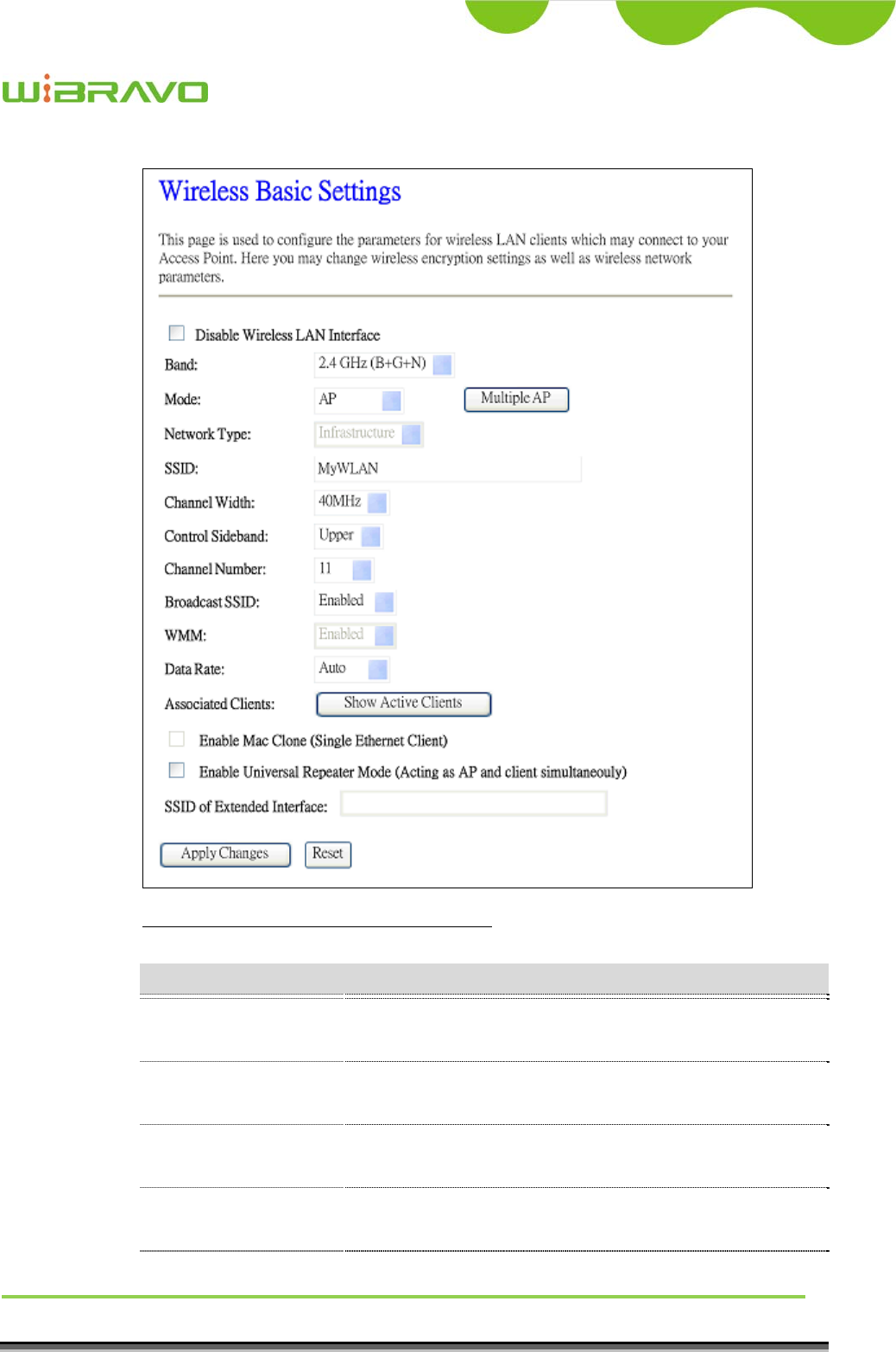
This page is used to configure the parameters for wireless LAN clients that may
connect to your Broadband Router. Here you may change wireless encryption
settings as well as wireless network parameters.
WiBRAVO
Virtu 901
User Manual 16
Screen snapshot – Wireless Basic Settings
Item Description
Disable Wireless LAN
Interface
Click on to disable the wireless LAN data transmission.
Band Click to select 2.4GHz(B) / 2.4GHz(G) / 2.4GHz(N)
2.4GHz(B+G)/ 2.4GHz(G+N) / 2.4GHz(B+G+N)
Mode Click to select the WLAN AP / Client / WDS / AP+WDS
wireless mode.
Network Type While Mode is selected to be Client. Click to select the
network type infrastructure or Ad hoc.
SSID It is the wireless network name. The SSID can be 32

WiBRAVO
Virtu 901
User Manual 17
bytes long.
Channel Width Select the operating channel width 20 MHz or 40 MHz.
[N band only]
Control Sideband Select the Sideband with Upper or Lower for channel
width 40MHz. [N band only]
Channel Number Select the wireless communication channel from
pull-down menu.
Broadcast SSID Click to enable or disable the SSID broadcast function.
Refer to 4.14 What is SSID Broadcast?
WMM Click Enabled/Disabled to init WMM feature.
Data Rate Select the transmission data rate from pull-down menu.
Data rate can be auto-select, 1M to 54Mbps or MCS.
Refer to 4.32 What is Modulation Coding Schemes
(MCS)?
Associated Clients Click the Show Active Clients button to open Active
Wireless Client Table that shows the MAC address,
transmit-packet, receive-packet and transmission-rate for
each associated wireless client.
Enable Mac Clone
(Single Ethernet Client)
Take Laptop NIC MAC address as wireless client MAC
address. [Client Mode only]
Enable Universal
Repeater Mode
Click to enable Universal Repeater Mode
SSID of Extended
Interface
Assign SSID when enables Universal Repeater Mode.
Apply Changes Click the Apply Changes button to complete the new
configuration setting.
Reset Click the Reset button to abort change and recover the
previous configuration setting.
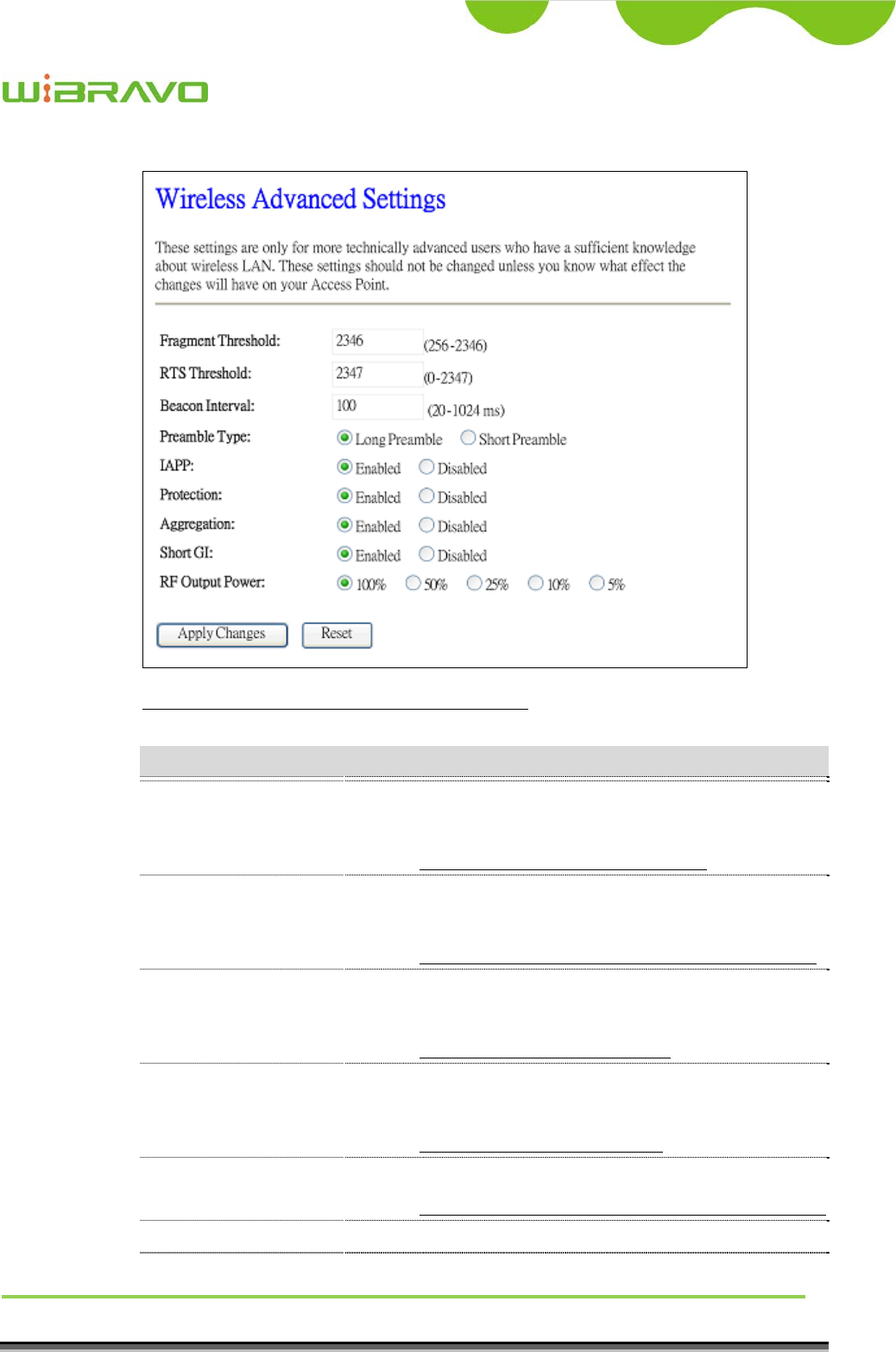
3.3.5 Wireless - Advanced Settings
These settings are only for more technically advanced users who have a
sufficient knowledge about wireless LAN. These settings should not be changed
unless you know what effect the changes will have on your WLAN Broadband
Router.
WiBRAVO
Virtu 901
User Manual 18
Screen snapshot – Wireless Advanced Settings
Item Description
Fragment Threshold Set the data packet fragmentation threshold, value can be
written between 256 and 2346 bytes.
Refer to 4.10 What is Fragment Threshold?
RTS Threshold Set the RTS Threshold, value can be written between 0
and 2347 bytes.
Refer to 4.11 What is RTS(Request To Send) Threshold?
Beacon Interval Set the Beacon Interval, value can be written between 20
and 1024 ms.
Refer to 4.12 What is Beacon Interval?
Preamble Type Click to select the Long Preamble or Short Preamble
support on the wireless data packet transmission.
Refer to 4.13 What is Preamble Type?
IAPP Click to enable or disable the IAPP function.
Refer to 4.20 What is Inter-Access Point Protocol(IAPP)?
Protection Protect 802.11n user priority.
Aggregation Click to enable or disable the Aggregation function.
WiBRAVO
Virtu 901
User Manual 19
Refer to 4.33 What is Aggregation?
Short GI Click to enable or disable the short Guard Intervals
function.
Refer to 4.34 What is Guard Intervals (GI)?
RF Output Power To adjust transmission power level.
Apply Changes Click the Apply Changes button to complete the new
configuration setting.
Reset Click the Reset button to abort change and recover the
previous configuration setting.
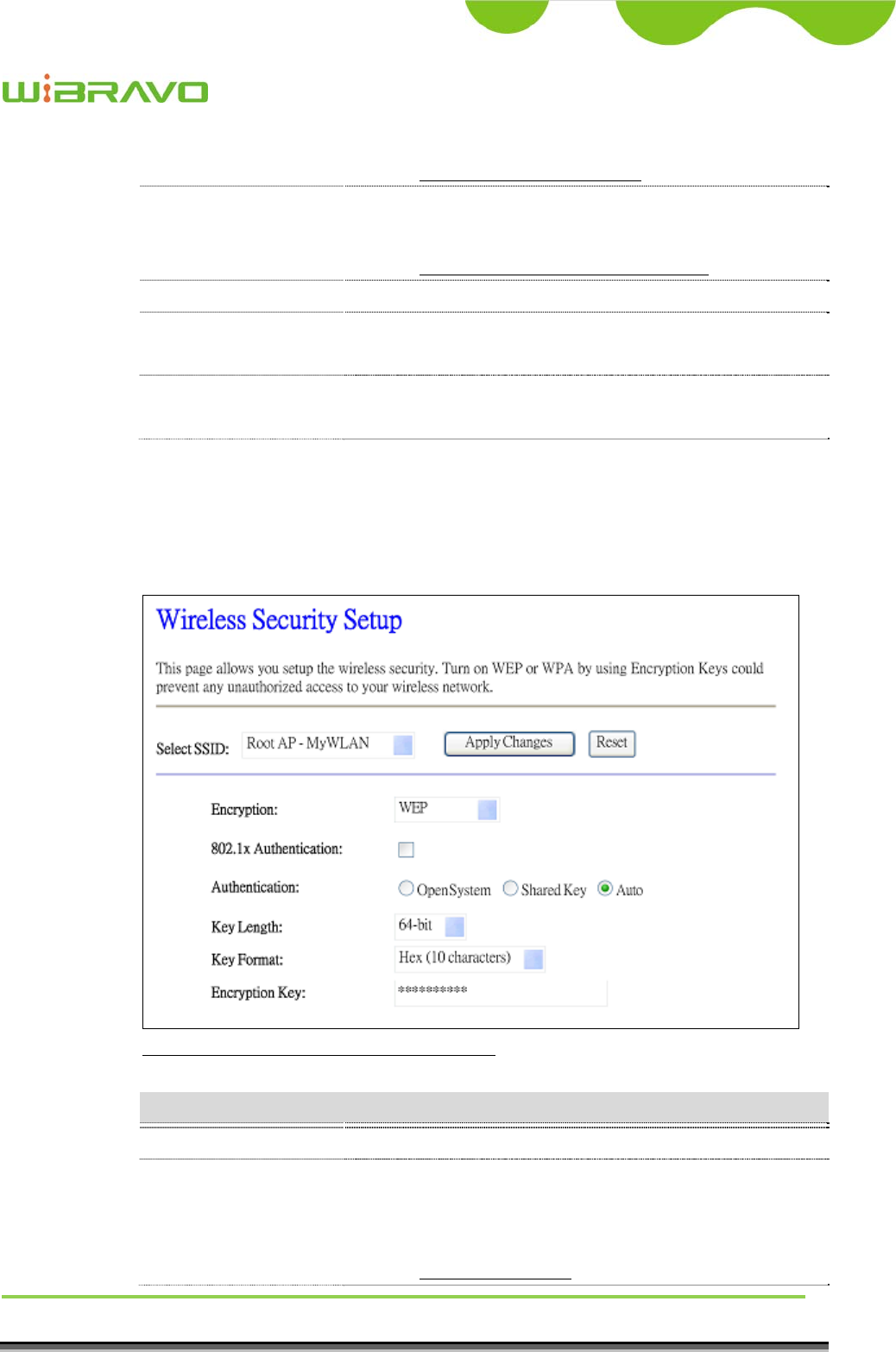
3.3.6 Wireless - Security Setup
This page allows you setup the wireless security. Turn on WEP, WPA, WPA2 by
using encryption keys could prevent any unauthorized access to your wireless
network.
Screen snapshot – Wireless Security Setup
Item Description
Select SSID Select the SSID from multiple APs.
Encryption Select the encryption supported over wireless access. The
encryption method can be None, WEP, WPA, WPA2 or
WPA-Mixed
Refer to 4.9 What is WEP?

WiBRAVO
Virtu 901
User Manual 20
4.15 What is Wi-Fi Protected Access (WPA)?
4.16 What is WPA2?
Use 802.1x
Authentication
While Encryption is selected to be WEP.
Click the check box to enable IEEE 802.1x
authentication function.
Refer to 4.17 What is 802.1x Authentication?
Authentication Type Click to select the authentication type in Open System,
Shared Key or Auto selection.
Key Length Select the WEP shared secret key length from pull-down
menu. The length can be chose between 64-bit and
128-bit (known as “WEP2”) keys.
The WEP key is composed of initialization vector (24
bits) and secret key (40-bit or 104-bit).
Key Format Select the WEP shared secret key format from pull-down
menu. The format can be chose between plant text
(ASCII) and hexadecimal (HEX) code.
Encryption Key Secret key of WEP security encryption function.
WPA Authentication
Mode
While Encryption is selected to be WPA.
Click to select the WPA Authentication Mode with
Enterprise (RADIUS) or Personal (Pre-Shared Key).
Refer to 4.15 What is Wi-Fi Protected Access (WPA)?
WPA Cipher Suite Select the Cipher Suite for WPA encryption.
4.18 What is Temporal Key Integrity Protocol (TKIP)?
4.19 What is Advanced Encryption Standard (AES)?
WPA2 Cipher Suite Select the Cipher Suite for WPA2 encryption.
Pre-Shared Key Format While Encryption is selected to be WPA.
Select the Pre-shared key format from the pull-down
menu. The format can be Passphrase or Hex (64
characters). [WPA, Personal(Pre-Shared Key) only]
Pre-Shared Key Fill in the key value. [WPA, Personal(Pre-Shared Key)
only]
Enable
Pre-Authentication
Click to enable Pre-Authentication. [WPA2/WPA2
Mixed only, Enterprise only]
Authentication
RADIUS Server
Set the IP address, port and login password information
of authentication RADIUS sever.
Apply Changes Click the Apply Changes button to complete the new
WiBRAVO
Virtu 901
User Manual 21
configuration setting.
Reset Click the Reset button to abort change and recover the
previous configuration setting.
WEP encryption key (secret key) length:
Length
Format 64-bit 128-bit
ASCII 5 characters 13 characters
HEX 10 hexadecimal codes 26 hexadecimal codes
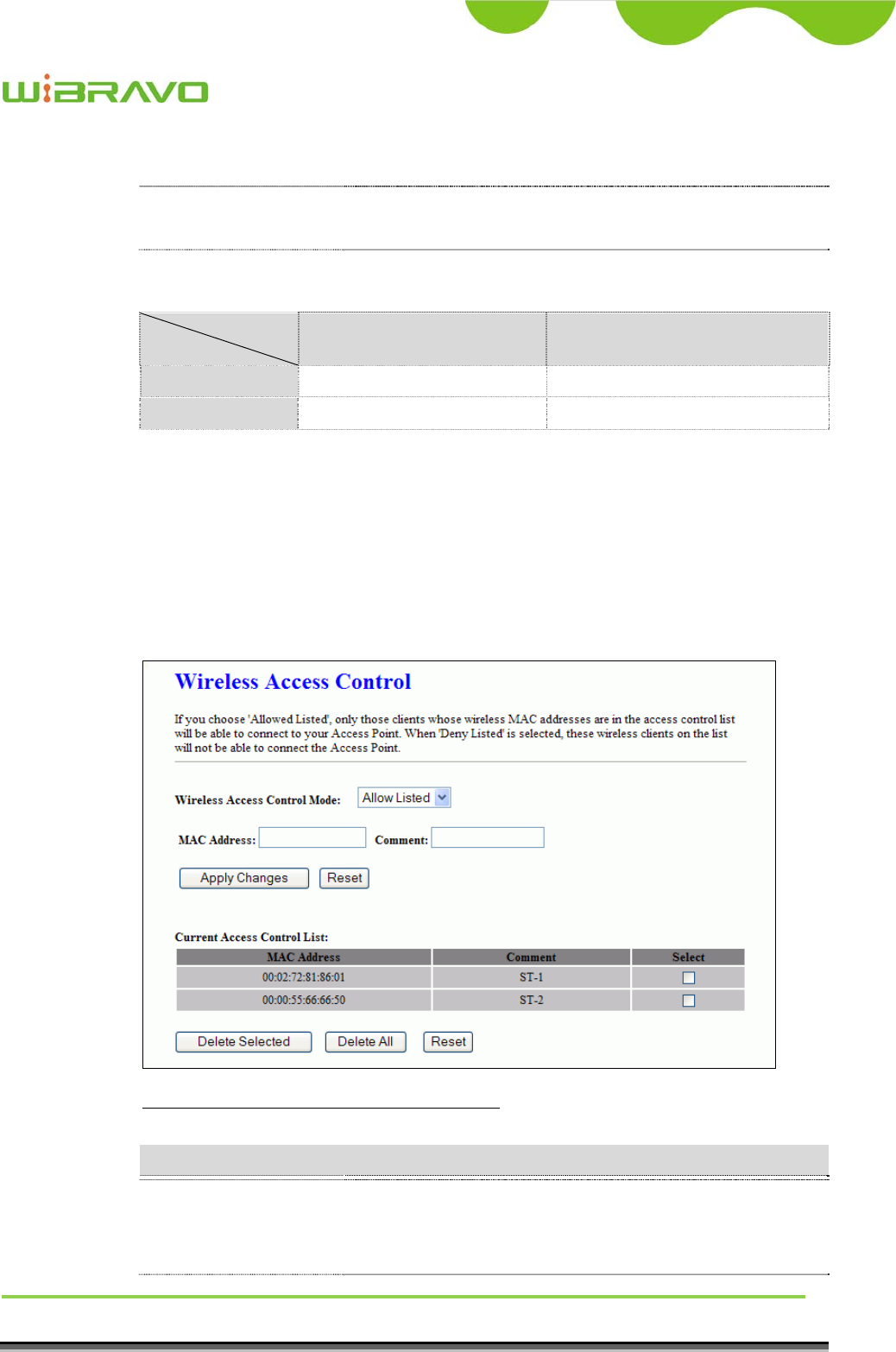
3.3.7 Wireless - Access Control
If you enable wireless access control, only those clients whose wireless MAC
addresses are in the access control list will be able to connect to your Access
Point. When this option is enabled, no wireless clients will be able to connect if
the list contains no entries.
Screen snapshot – Wireless Access Control
Item Description
Wireless Access
Control Mode
Click the Disabled, Allow Listed or Deny Listed of drop
down menu choose wireless access control mode.
This is a security control function; only those clients

WiBRAVO
Virtu 901
User Manual 22
registered in the access control list can link to this
WLAN Broadband Router.
MAC Address Fill in the MAC address of client to register this WLAN
Broadband Router access capability.
Comment Fill in the comment tag for the registered client.
Apply Changes Click the Apply Changes button to register the client to
new configuration setting.
Reset Click the Reset button to abort change and recover the
previous configuration setting.
Current Access Control
List
It shows the registered clients that are allowed to link to
this WLAN Broadband Router.
Delete Selected Click to delete the selected clients that will be access
right removed from this WLAN Broadband Router.
Delete All Click to delete all the registered clients from the access
allowed list.
Reset Click the Reset button to abort change and recover the
previous configuration setting.
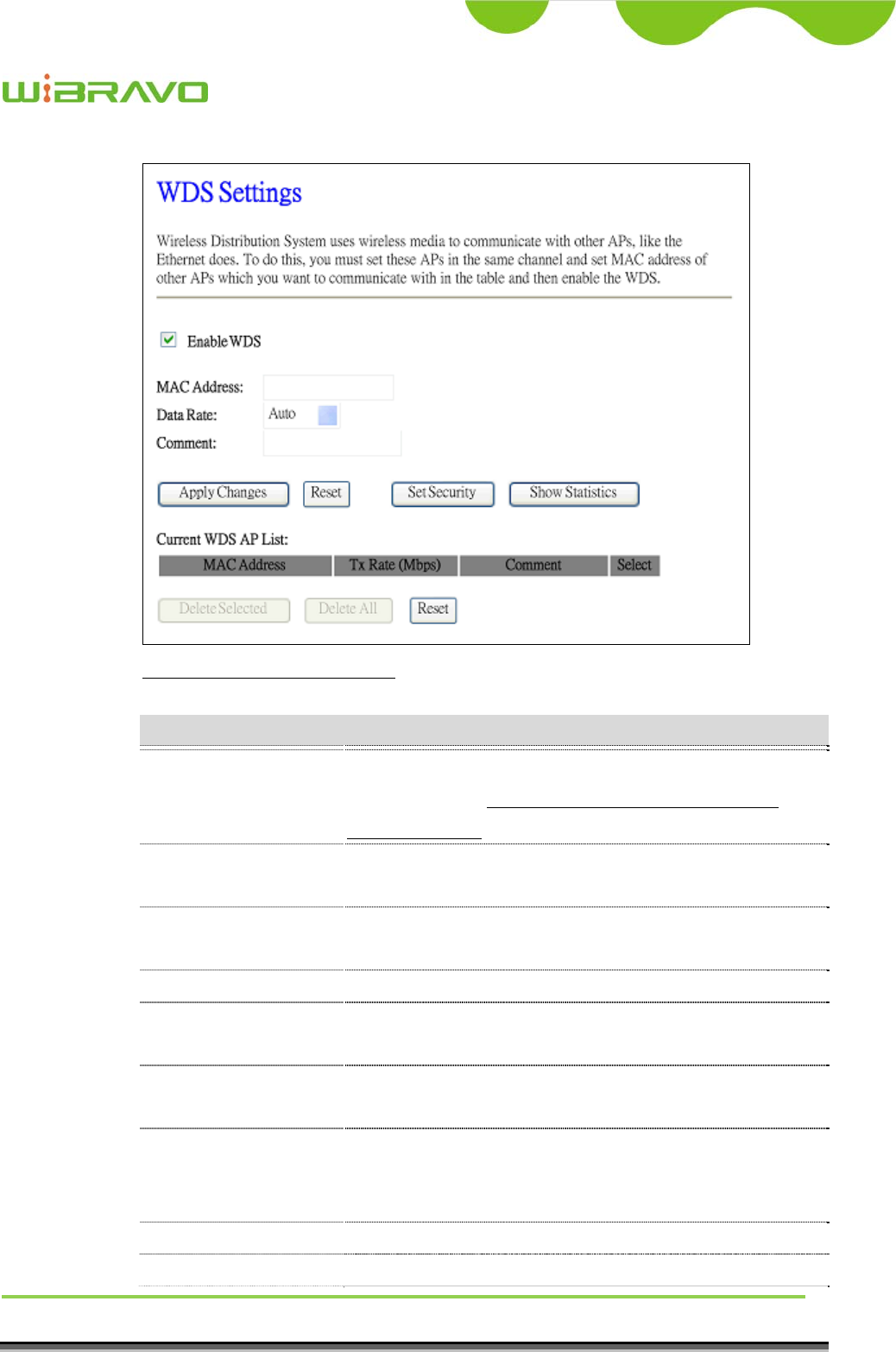
3.3.8 WDS Settings
Wireless Distribution System uses wireless media to communicate with other
APs, like the Ethernet does. To do this, you must set these APs in the same
channel and set MAC address of other AP that you want to communicate with in
the table and then enable the WDS.
WiBRAVO
Virtu 901
User Manual 23
Screen snapshot – WDS Setup
Item Description
Enable WDS Click the check box to enable wireless distribution
system. Refer to 4.21 What is Wireless Distribution
System (WDS)?
MAC Address Fill in the MAC address of AP to register the wireless
distribution system access capability.
Data Rate Select the transmission data rate from pull-down menu.
Data rate can be auto-select, 1M to 54Mbps or MCS.
Comment Fill in the comment tag for the registered AP.
Apply Changes Click the Apply Changes
b
utton to register the AP to new
configuration setting.
Reset Click the Reset button to abort change and recover the
previous configuration setting.
Set Security Click button to configure wireless security like
WEP(64bits), WEP(128bits), WPA(TKIP), WPA2(AES)
or None
Show Statistics It shows the TX, RX packets, rate statistics
Delete Selected Click to delete the selected clients that will be removed
WiBRAVO
Virtu 901
User Manual 24
from the wireless distribution system.
Delete All Click to delete all the registered APs from the wireless
distribution system allowed list.
Reset Click the Reset button to abort change and recover the
previous configuration setting.
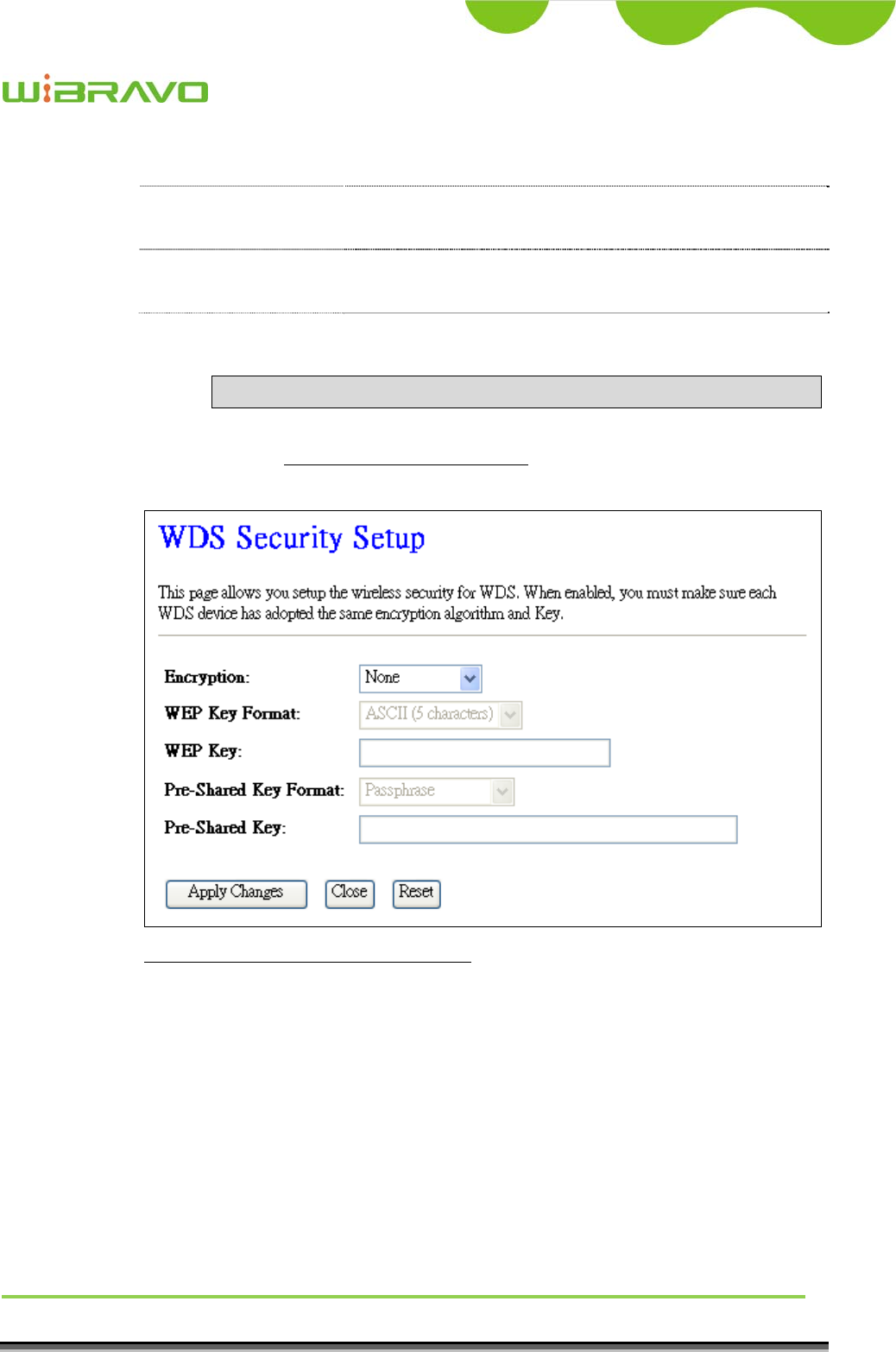
I WDS Security Setup
Requirement: Set [Wireless]->[Basic Settings]->[Mode]->AP+WDS
This page is used to configure the wireless security between APs.
Refer to 3.3.6 Wireless Security Setup.
Screen snapshot – WDS Security Setup
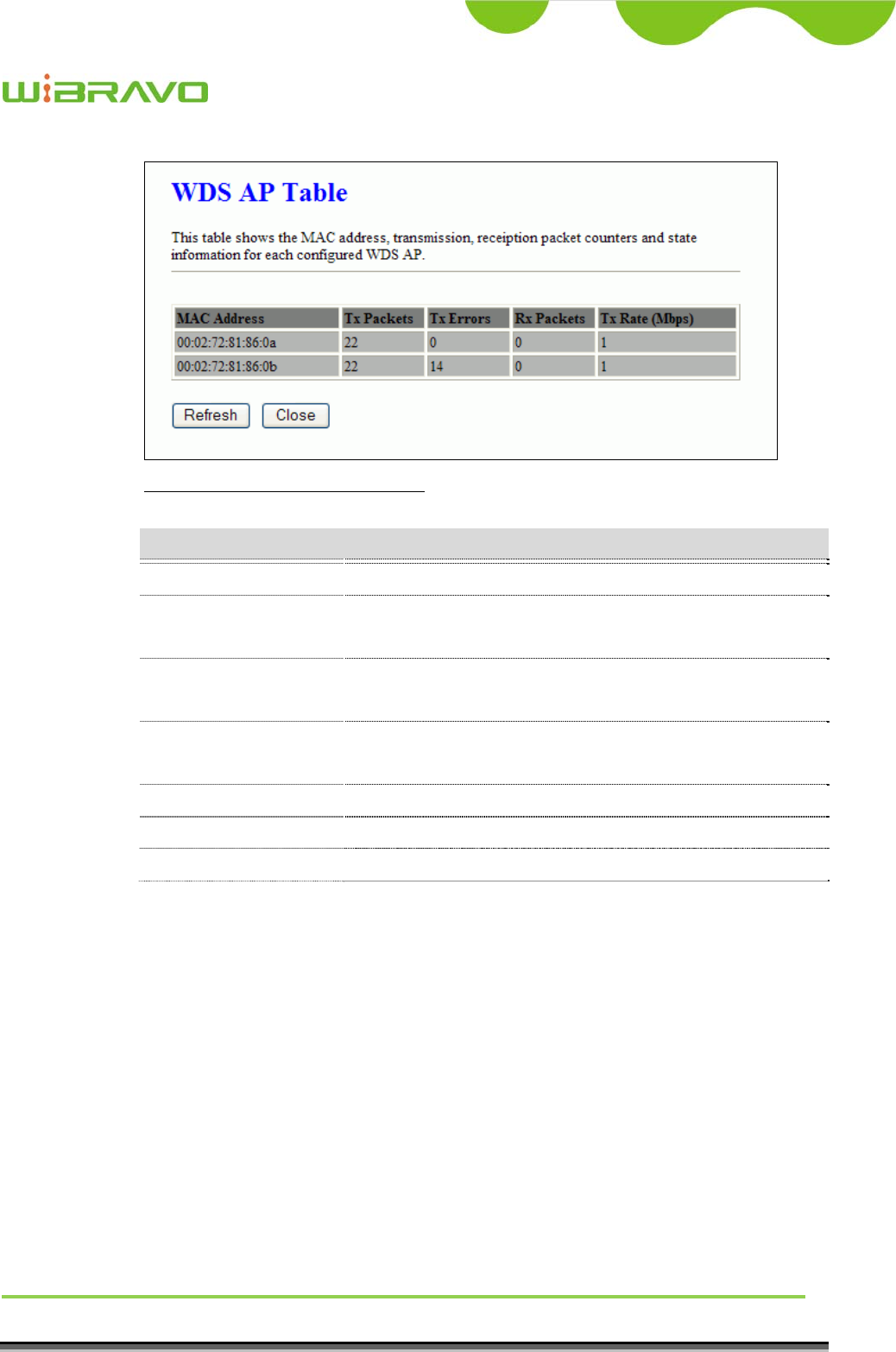
II WDS AP Table
This page is used to show WDS statistics
WiBRAVO
Virtu 901
User Manual 25
Screen snapshot – WDS AP Table
Item Description
MAC Address It shows the MAC Address within WDS.
Tx Packets It shows the statistic count of sent packets on the wireless
LAN interface.
Tx Errors It shows the statistic count of error sent packets on the
Wireless LAN interface.
Rx Packets It shows the statistic count of received packets on the
wireless LAN interface.
Tx Rare (Mbps) It shows the wireless link rate within WDS.
Refresh Click to refresh the statistic counters on the screen.
Close Click to close the current window.
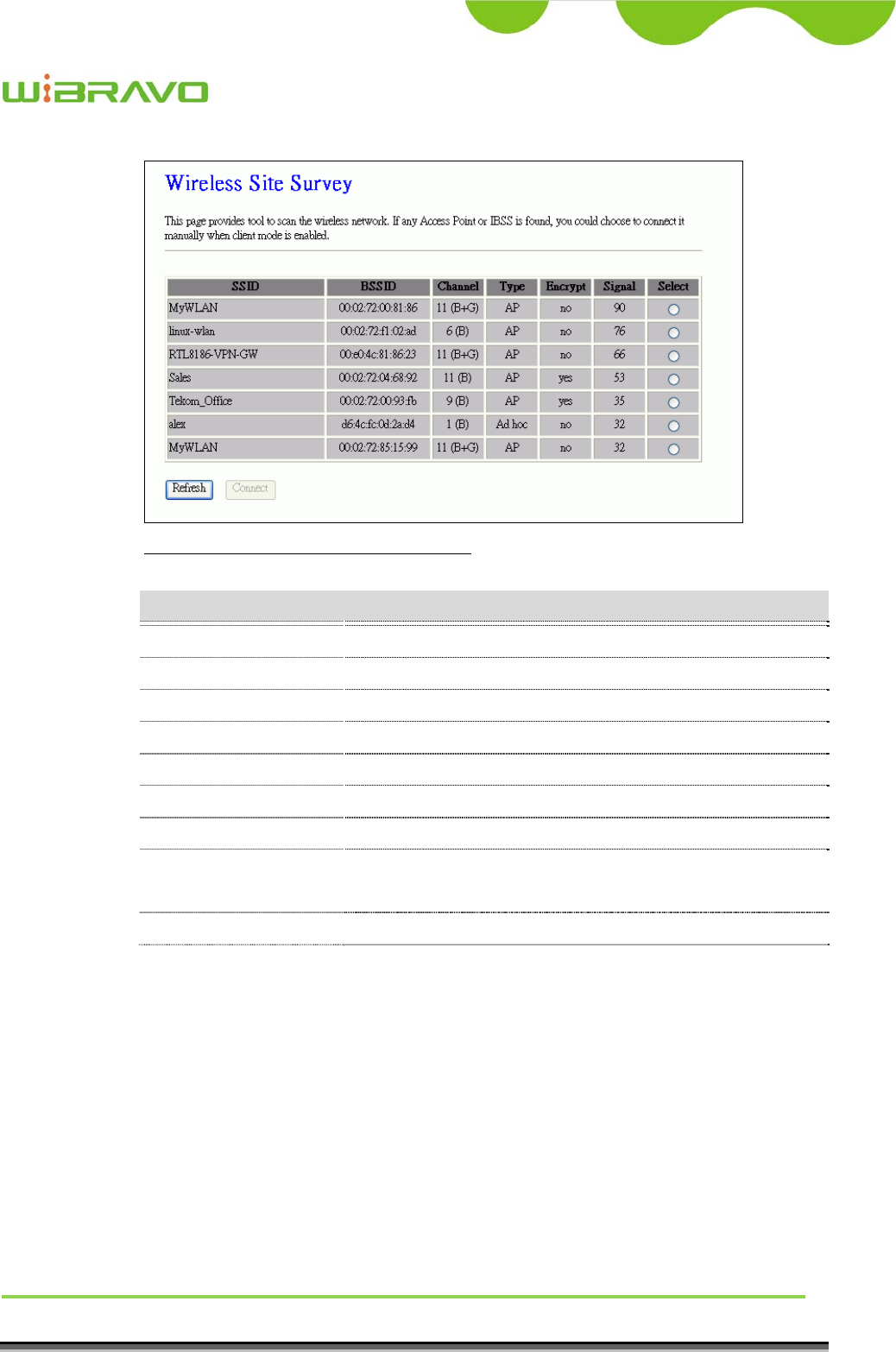
3.3.9 Site Survey
This page is used to view or configure other APs near yours.
WiBRAVO
Virtu 901
User Manual 26
Screen snapshot – Wireless Site Survey
Item Description
SSID It shows the SSID of AP.
BSSID It shows BSSID of AP.
Channel It show the current channel of AP occupied.
Type It show which type AP acts.
Encrypt It shows the encryption status.
Signal It shows the power level of current AP.
Select Click to select AP or client you’d like to connect.
Refresh Click the Refresh button to re-scan site survey on the
screen.
Connect Click the Connect button to establish connection.
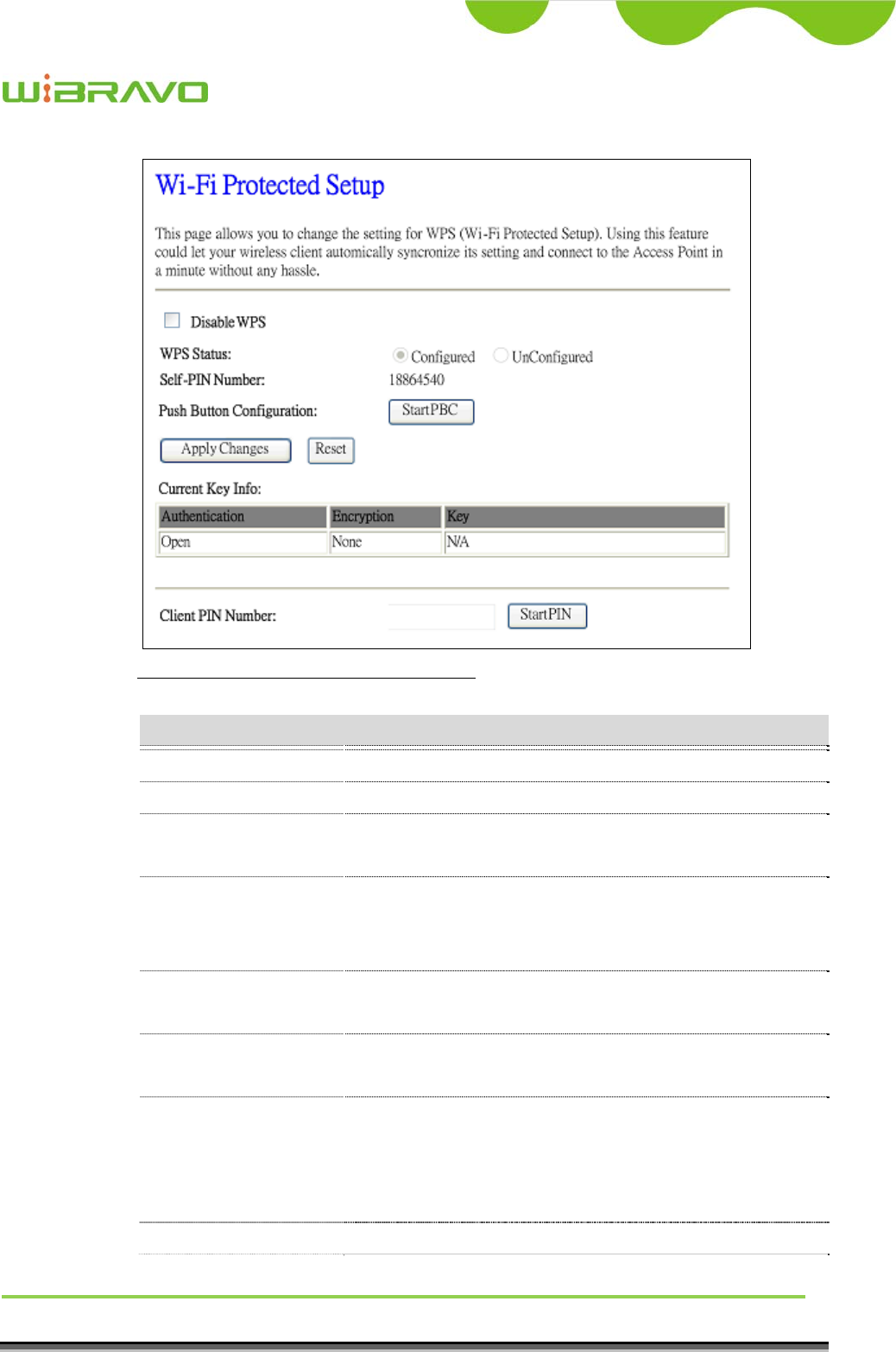
3.3.10 WPS
This page allows you to change the setting for WPS (Wi-Fi Protected Setup).
Using this feature could let your wireless client automically syncronize its
setting and connect to the Access Point in a minute without any hassle.
WiBRAVO
Virtu 901
User Manual 27
Screen snapshot – Wi-Fi Protected Setup
Item Description
Disable WPS Click on to disable the Wi-Fi Protected Setup function.
WPS Status Show WPS status is Configured or UnConfigured.
Self-PIN Number Fill in the PIN Number of AP to register the wireless
distribution system access capability.
Push Button
Configuration
The Start PBC button provides tool to scan the wireless
network. If any Access Point or IBSS is found, you could
connect it automatically when client join PBC mode.
Apply Changes Click the Apply Changes button to complete the new
configuration setting.
Reset Click the Reset button to abort change and recover the
previous configuration setting.
Current Key Info Authentication:It shows the Authentication is opened or
closed.
Encryption:It shows the Encryption mode.
Key:It shows the Encryption key.
Client PIN Number Fill in the Client PIN Number from your Client sites.
WiBRAVO
Virtu 901
User Manual 28
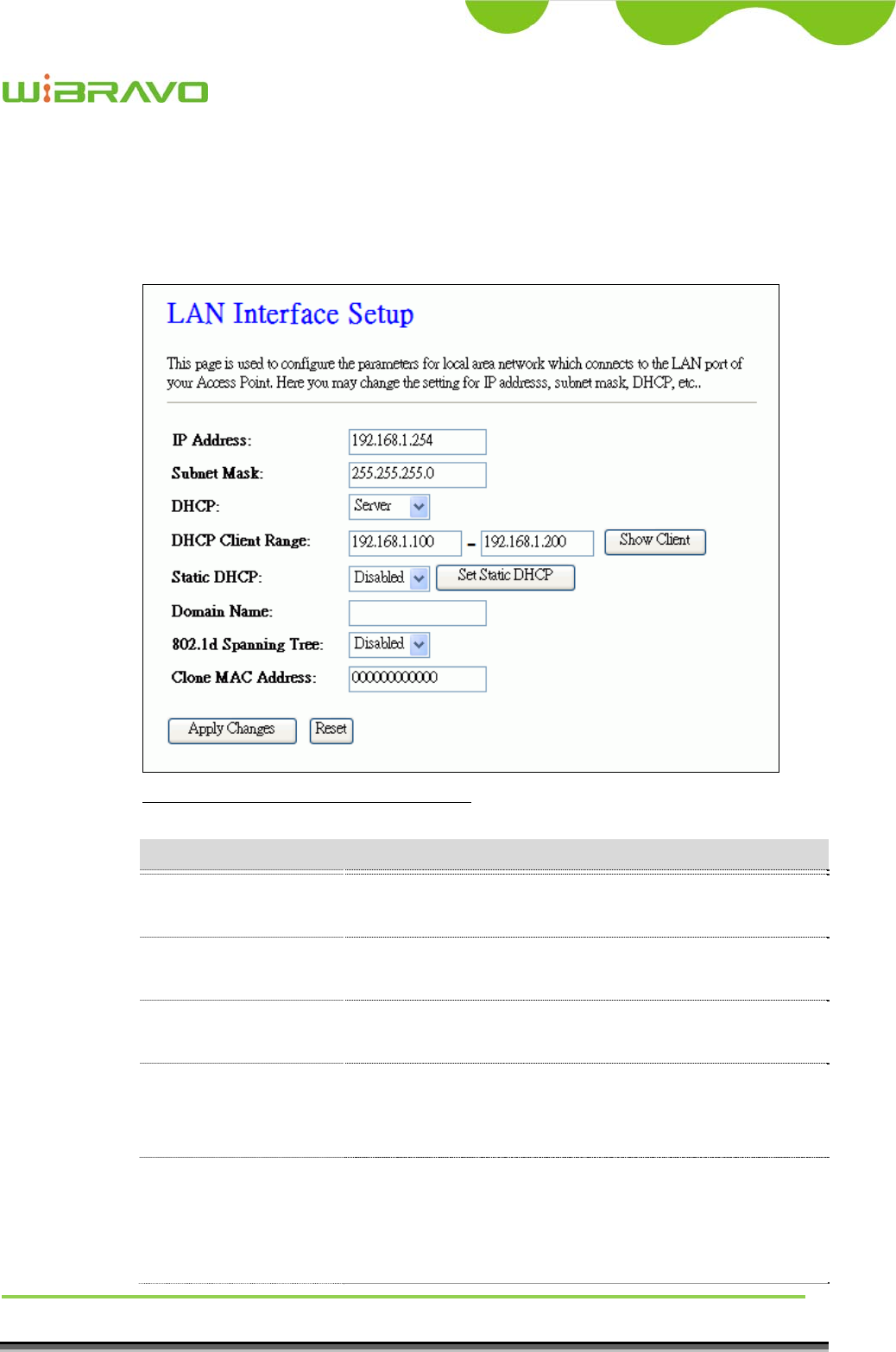
3.3.11 LAN Interface Setup
This page is used to configure the parameters for local area network that
connects to the LAN ports of your WLAN Broadband Router. Here you may
change the setting for IP address, subnet mask, DHCP, etc.
Screen snapshot – LAN Interface Setup
Item Description
IP Address Fill in the IP address of LAN interfaces of this WLAN
Access Point.
Subnet Mask Fill in the subnet mask of LAN interfaces of this WLAN
Access Point.
DHCP Click to select Disabled, Client or Server in different
operation mode of wireless Access Point.
DHCP Client Range Fill in the start IP address and end IP address to allocate a
range of IP addresses; client with DHCP function set will
be assigned an IP address from the range.
Show Client Click to open the Active DHCP Client Table window that
shows the active clients with their assigned IP address,
MAC address and time expired information. [Server
mode only]
WiBRAVO
Virtu 901
User Manual 29
Static DHCP Select enable or disable the Static DHCP function from
pull-down menu. [Server mode only]
Set Static DHCP Manual setup Static DHCP IP address for specific MAC
address. [Server mode only]
Domain Name Assign Domain Name and dispatch to DHCP clients. It is
optional field.
802.1d Spanning Tree Select enable or disable the IEEE 802.1d Spanning Tree
function from pull-down menu.
Clone MAC Address Fill in the MAC address that is the MAC address to be
cloned. Refer to 4.24 What is Clone MAC Address?
Apply Changes Click the Apply Changes button to complete the new
configuration setting.
Reset Click the Reset button to abort change and recover the
previous configuration setting.
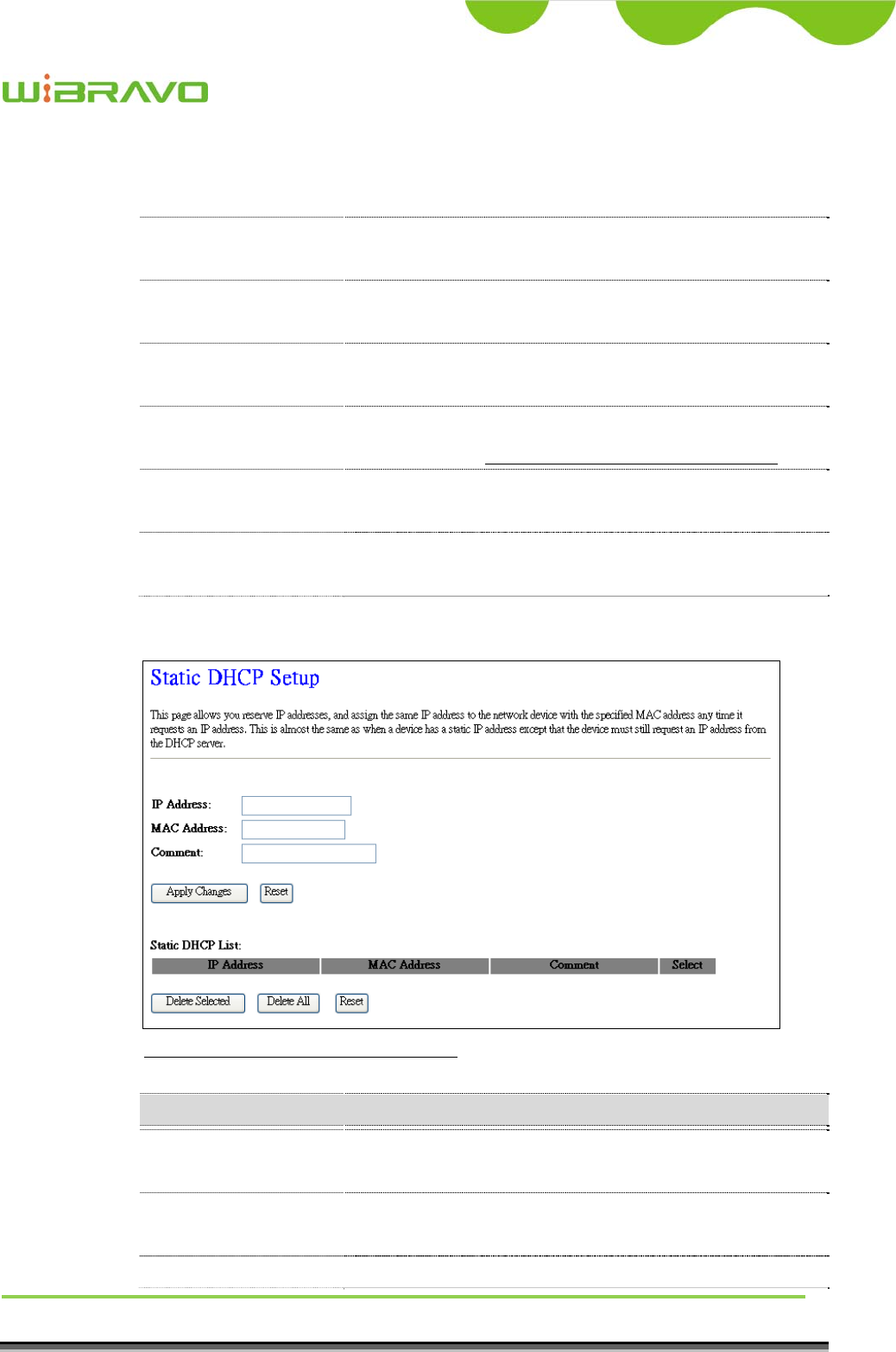
I Static DHCP Setup
Screen snapshot – Static DHCP Setup
Item Description
IP Address If you select the Set Static DHCP on LAN interface, fill
in the IP address for it.
MAC Address If you select the Set Static DHCP on LAN interface, fill
in the MAC address for it.
Comment Fill in the comment tag for the registered Static DHCP.

WiBRAVO
Virtu 901
User Manual 30
Apply Changes Click the Apply Changes button to complete the new
configuration setting.
Reset Click the Reset button to abort change and recover the
previous configuration setting.
Static DHCP List It shows IP Address、MAC Address from the Static
DHCP.
Delete Selected Click to delete the selected clients that will be removed
from the Static DHCP list.
Delete All Click to delete all the registered clients from the Static
DHCP list.
Reset Click the Reset button to abort change and recover the
previous configuration setting.
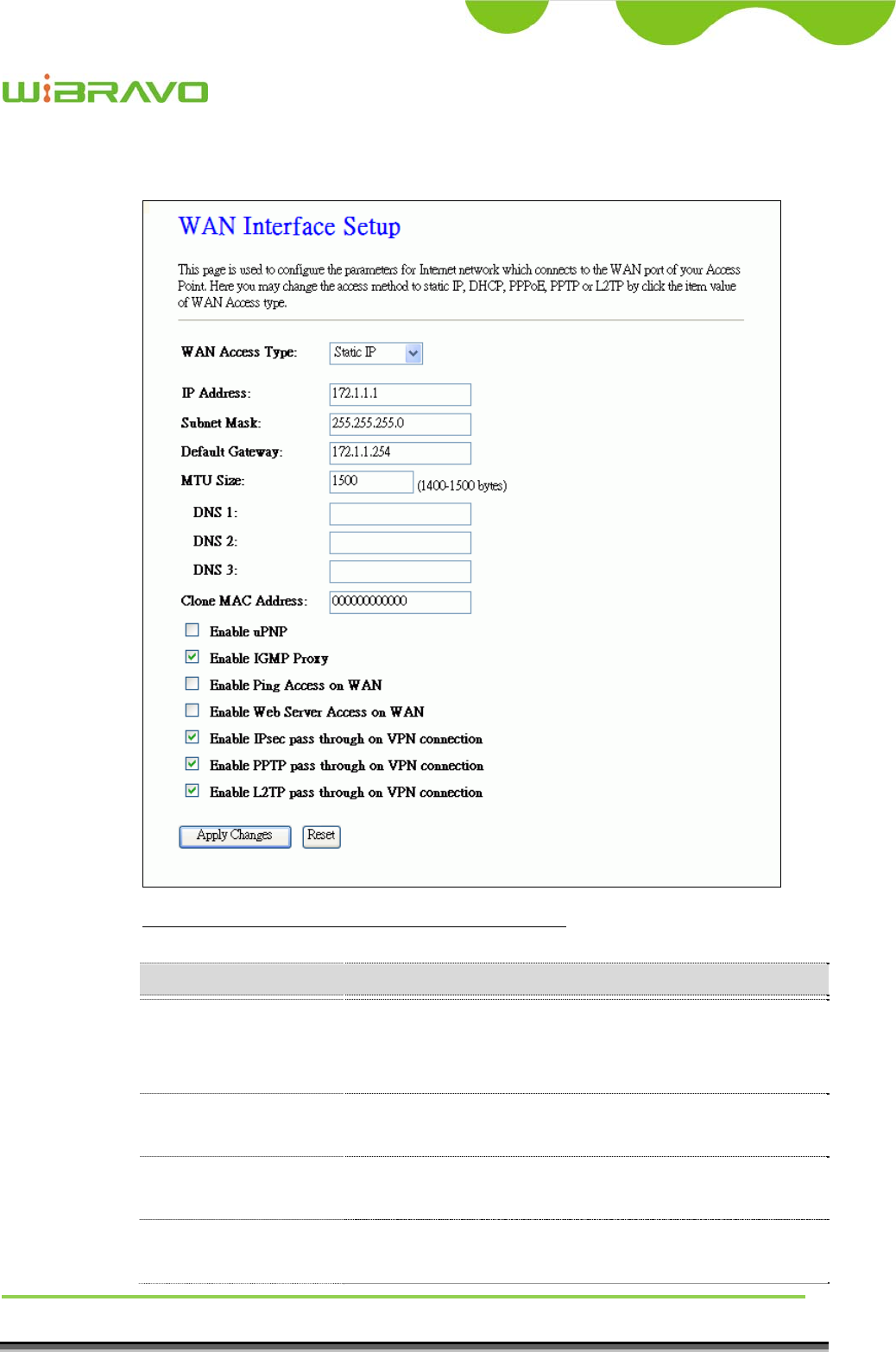
3.3.12 WAN Interface Setup
This page is used to configure the parameters for wide area network that
connects to the WAN port of your WLAN Broadband Router. Here you may
change the access method to Static IP, DHCP, PPPoE , PPTP or L2TP by
click the item value of WAN Access Type.
WiBRAVO
Virtu 901
User Manual 31
I Static IP
Screen snapshot – WAN Interface Setup – Static IP
Item Description
Static IP Click to select Static IP support on WAN interface. There
are IP address, subnet mask and default gateway settings
need to be done.
IP Address If you select the Static IP support on WAN interface, fill
in the IP address for it.
Subnet Mask If you select the Static IP support on WAN interface, fill
in the subnet mask for it.
Default Gateway If you select the Static IP support on WAN interface, fill
in the default gateway for WAN interface out going data

WiBRAVO
Virtu 901
User Manual 32
packets.
MTU Size Fill in the mtu size of MTU Size. The default value is
1500
DNS 1 Fill in the IP address of Domain Name Server 1.
DNS 2 Fill in the IP address of Domain Name Server 2.
DNS 3 Fill in the IP address of Domain Name Server 3.
Clone MAC Address Fill in the MAC address that is the MAC address to be
cloned. Refer to 4.24 What is Clone MAC Address?
Enable uPNP Click the checkbox to enable uPNP function.
Refer to 4.22 What is Universal Plug and Play (uPNP)?
Enable IGMP Proxy Click the checkbox to enable IGMP Proxy.
Enable Ping Access on
WAN
Click the checkbox to enable WAN ICMP response.
Enable Web Server
Access on WAN
Click the checkbox to enable web configuration from
WAN side.
Enable IPsec pass
through on VPN
connection
Click the checkbox to enable IPSec packet pass through
Enable PPTP pass
through on VPN
connection
Click the checkbox to enable PPTP packet pass through
Enable L2TP pass
through on VPN
connection
Click the checkbox to enable L2TP packet pass through
Apply Changes Click the Apply Changes button to complete the new
configuration setting.
Reset Click the Reset button to abort change and recover the
previous configuration setting.
WiBRAVO
Virtu 901
User Manual 33
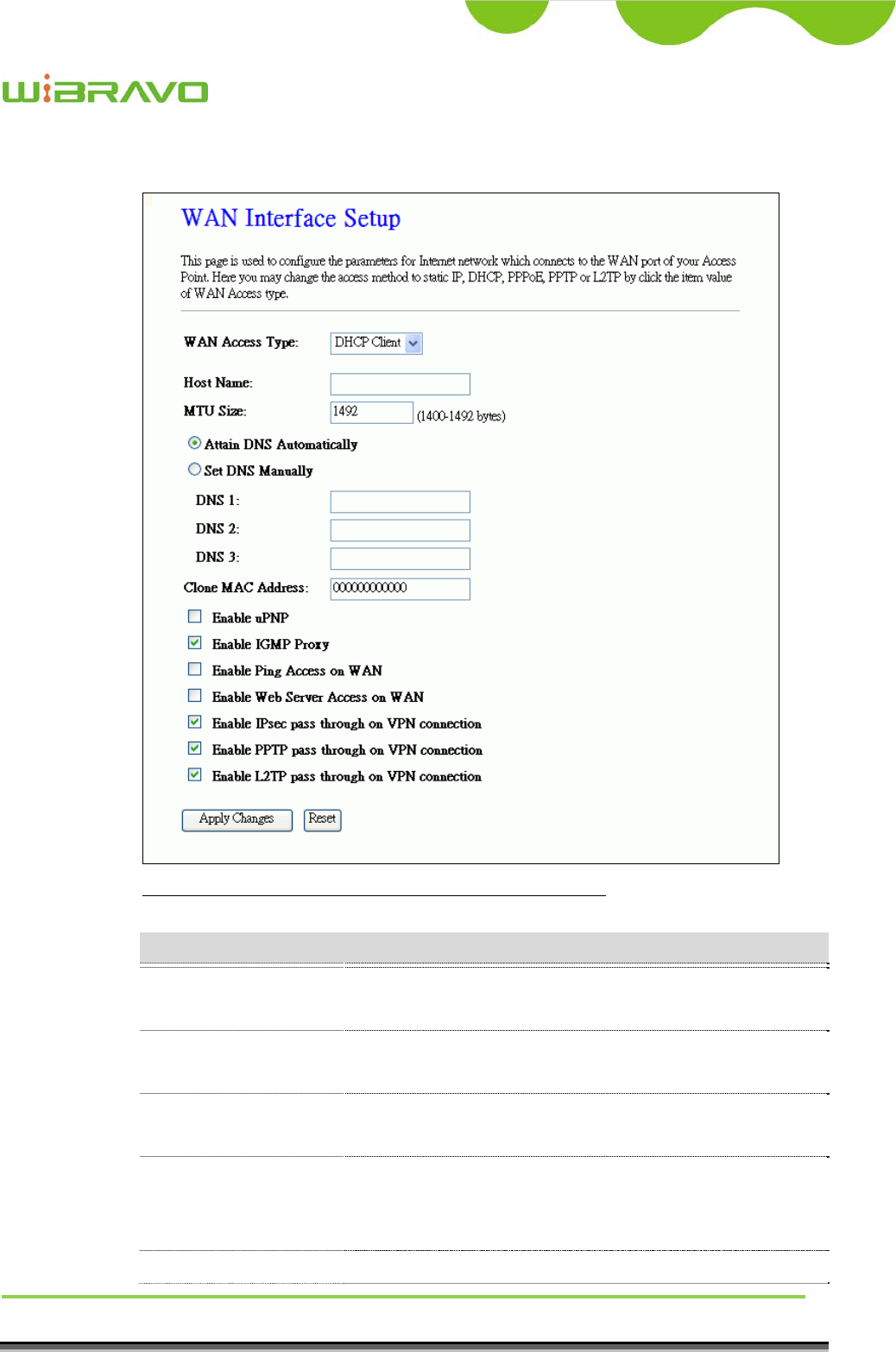
II DHCP Client
Screen snapshot – WAN Interface Setup – DHCP Client
Item Description
DHCP Client Click to select DHCP support on WAN interface for IP
address assigned automatically from a DHCP server.
Host Name Fill in the host name of Host Name. The default value is
empty
MTU Size Fill in the mtu size of MTU Size. The default value is
1492
Attain DNS
Automatically
Click to select getting DNS address for DHCP support.
Please select Set DNS Manually if the DHCP support is
selected.
Set DNS Manually Click to select getting DNS address for DHCP support.

WiBRAVO
Virtu 901
User Manual 34
DNS 1 Fill in the IP address of Domain Name Server 1.
DNS 2 Fill in the IP address of Domain Name Server 2.
DNS 3 Fill in the IP address of Domain Name Server 3.
Clone MAC Address Fill in the MAC address that is the MAC address to be
cloned. Refer to 4.24 What is Clone MAC Address?
Enable uPNP Click the checkbox to enable uPNP function.
Refer to 4.22 What is Universal Plug and Play (uPNP)?
Enable IGMP Proxy Click the checkbox to enable IGMP Proxy.
Enable Ping Access on
WAN
Click the checkbox to enable WAN ICMP response.
Enable Web Server
Access on WAN
Click the checkbox to enable web configuration from
WAN side.
Apply Changes Click the Apply Changes button to complete the new
configuration setting.
Reset Click the Reset button to abort change and recover the
previous configuration setting.
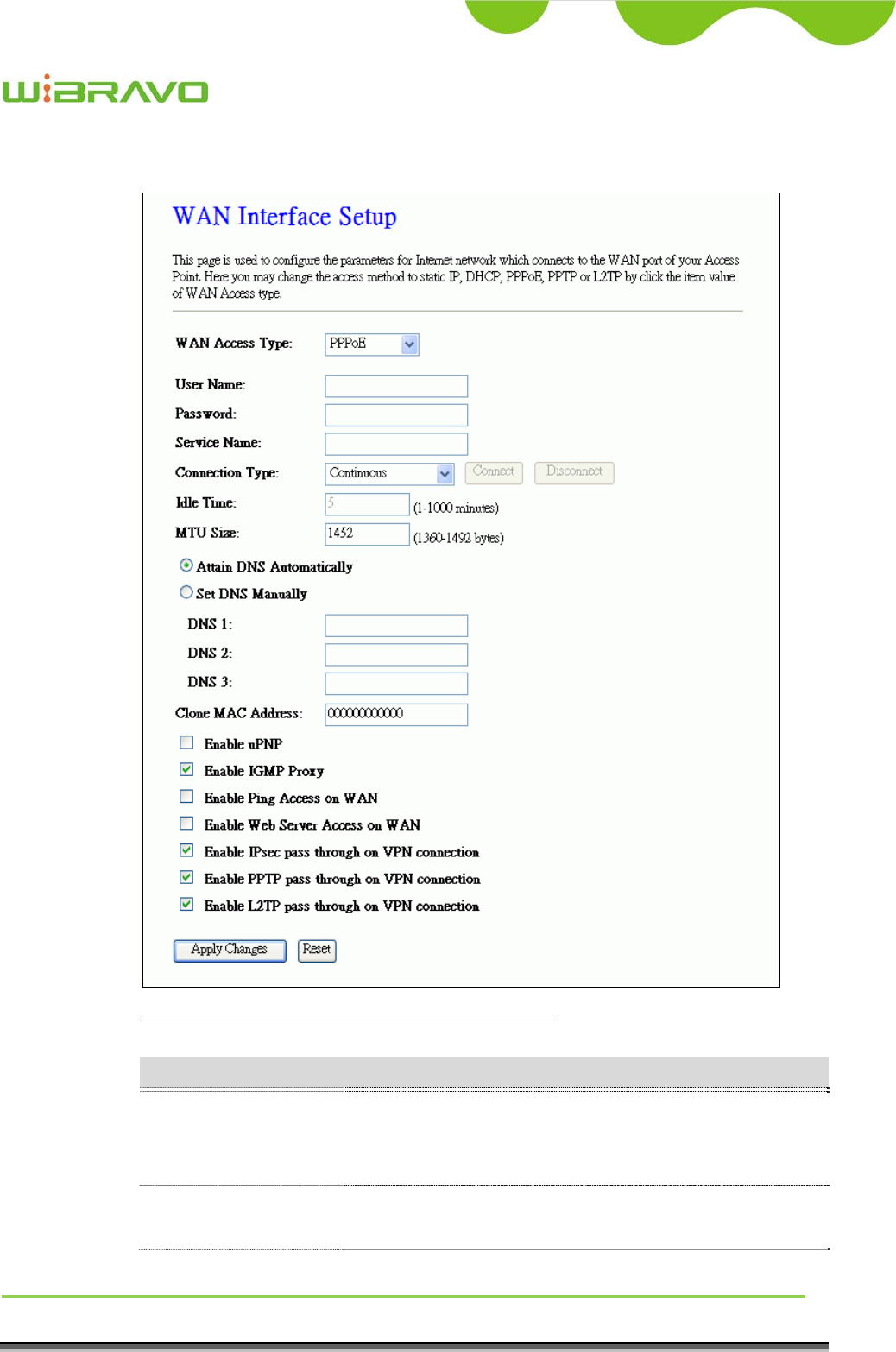
WiBRAVO
Virtu 901
User Manual 35
III PPPoE
Screen snapshot – WAN Interface Setup – PPPoE
Item Description
PPPoE Click to select PPPoE support on WAN interface. There
are user name, password, connection type and idle time
settings need to be done.
User Name If you select the PPPoE support on WAN interface, fill in
the user name and password to login the PPPoE server.

WiBRAVO
Virtu 901
User Manual 36
Password If you select the PPPoE support on WAN interface, fill in
the user name and password to login the PPPoE server.
Service Name Fill in the service name of Service Name. The default
value is empty.
Connection Type Select the connection type from pull-down menu. There
are Continuous, Connect on Demand and Manual three
types to select.
Continuous connection type means to setup the
connection through PPPoE protocol whenever this
WLAN Broadband Router is powered on.
Connect on Demand connection type means to setup the
connection through PPPoE protocol whenever you send
the data packets out through the WAN interface; there are
a watchdog implemented to close the PPPoE connection
while there are no data sent out longer than the idle time
set.
Manual connection type means to setup the connection
through the PPPoE protocol by clicking the Connect
button manually, and clicking the Disconnect button
manually.
Idle Time If you select the PPPoE and Connect on Demand
connection type, fill in the idle time for auto-disconnect
function. Value can be between 1 and 1000 minutes.
MTU Size Fill in the mtu size of MTU Size. The default value is
1452. Refer to 4.23 What is Maximum Transmission Unit
(MTU) Size?
Attain DNS
Automatically
Click to select getting DNS address for PPPoE support.
Please select Set DNS Manually if the PPPoE support is
selected.
Set DNS Manually Click to select getting DNS address for Static IP support.
DNS 1 Fill in the IP address of Domain Name Server 1.
DNS 2 Fill in the IP address of Domain Name Server 2.
DNS 3 Fill in the IP address of Domain Name Server 3.
Clone MAC Address Fill in the MAC address that is the MAC address to be
cloned. Refer to 4.24 What is Clone MAC Address?
Enable uPNP Click the checkbox to enable uPNP function.

WiBRAVO
Virtu 901
User Manual 37
Refer to 4.22 What is Universal Plug and Play (uPNP)?
Enable IGMP Proxy Click the checkbox to enable IGMP Proxy.
Enable Ping Access on
WAN
Click the checkbox to enable WAN ICMP response.
Enable Web Server
Access on WAN
Click the checkbox to enable web configuration from
WAN side.
Apply Changes Click the Apply Changes button to complete the new
configuration setting.
Reset Click the Reset button to abort change and recover the
previous configuration setting.
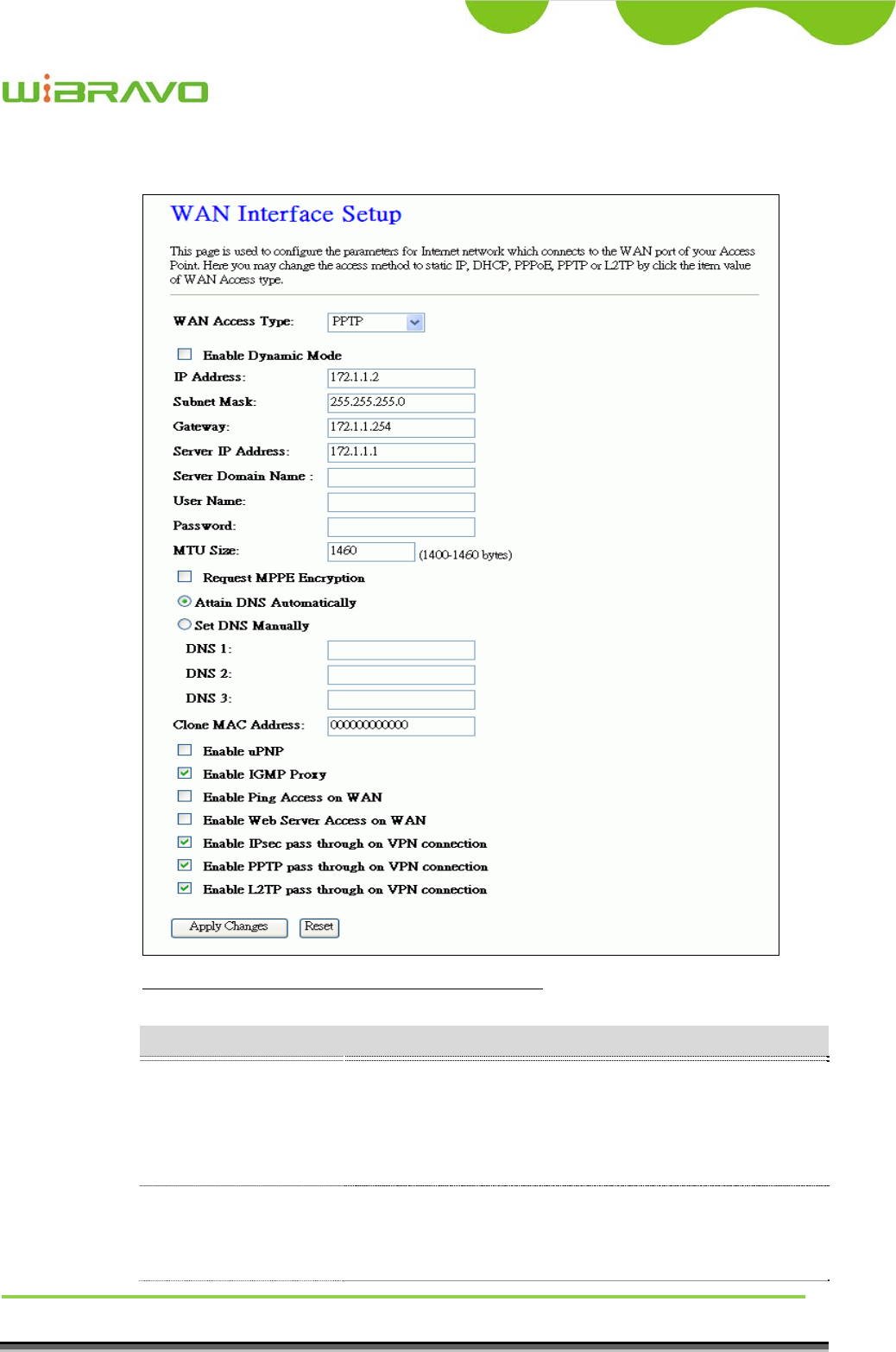
WiBRAVO
Virtu 901
User Manual 38
IV PPTP
Screen snapshot – WAN Interface Setup – PPTP
Item Description
PPTP Allow user to make a tunnel with remote site directly to
secure the data transmission among the connection. User
can use embedded PPTP client supported by this router to
make a VPN connection.
Enable Dynamic Mode Click to select PPTP Dynamic support on WAN interface
for IP address assigned automatically from a PPTP
server.

WiBRAVO
Virtu 901
User Manual 39
IP Address If you select the PPTP support on WAN interface, fill in
the IP address for it.
Subnet Mask If you select the PPTP support on WAN interface, fill in
the subnet mask for it.
Gateway If you select the Static PPTP support on WAN interface,
fill in the gateway for WAN interface out going data
packets.
Server IP Address Enter the IP address of the PPTP Server.
Server Domain Name Assign Domain Name and dispatch to PPTP servers. It is
optional field.
User Name If you select the PPTP support on WAN interface, fill in
the user name and password to login the PPTP server.
Password f you select the PPTP support on WAN interface, fill in
the user name and password to login the PPTP server.
MTU Size Fill in the mtu size of MTU Size. The default value is
1460. Refer to 4.23 What is Maximum Transmission Unit
(MTU) Size?
Request MPPE
Encryption
Click the checkbox to enable request MPPE encryption.
Attain DNS
Automatically
Click to select getting DNS address for PPTP support.
Please select Set DNS Manually if the PPTP support is
selected.
Set DNS Manually Click to select getting DNS address for PPTP support.
DNS 1 Fill in the IP address of Domain Name Server 1.
DNS 2 Fill in the IP address of Domain Name Server 2.
DNS 3 Fill in the IP address of Domain Name Server 3.
Clone MAC Address Fill in the MAC address that is the MAC address to be
cloned. Refer to 4.24 What is Clone MAC Address?
Enable uPNP Click the checkbox to enable uPNP function.
Refer to 4.22 What is Universal Plug and Play (uPNP)?
Enable IGMP Proxy Click the checkbox to enable IGMP Proxy.
Enable Ping Access on
WAN
Click the checkbox to enable WAN ICMP response.
Enable Web Server
Access on WAN
Click the checkbox to enable web configuration from
WAN side.
Apply Changes Click the Apply Changes button to complete the new
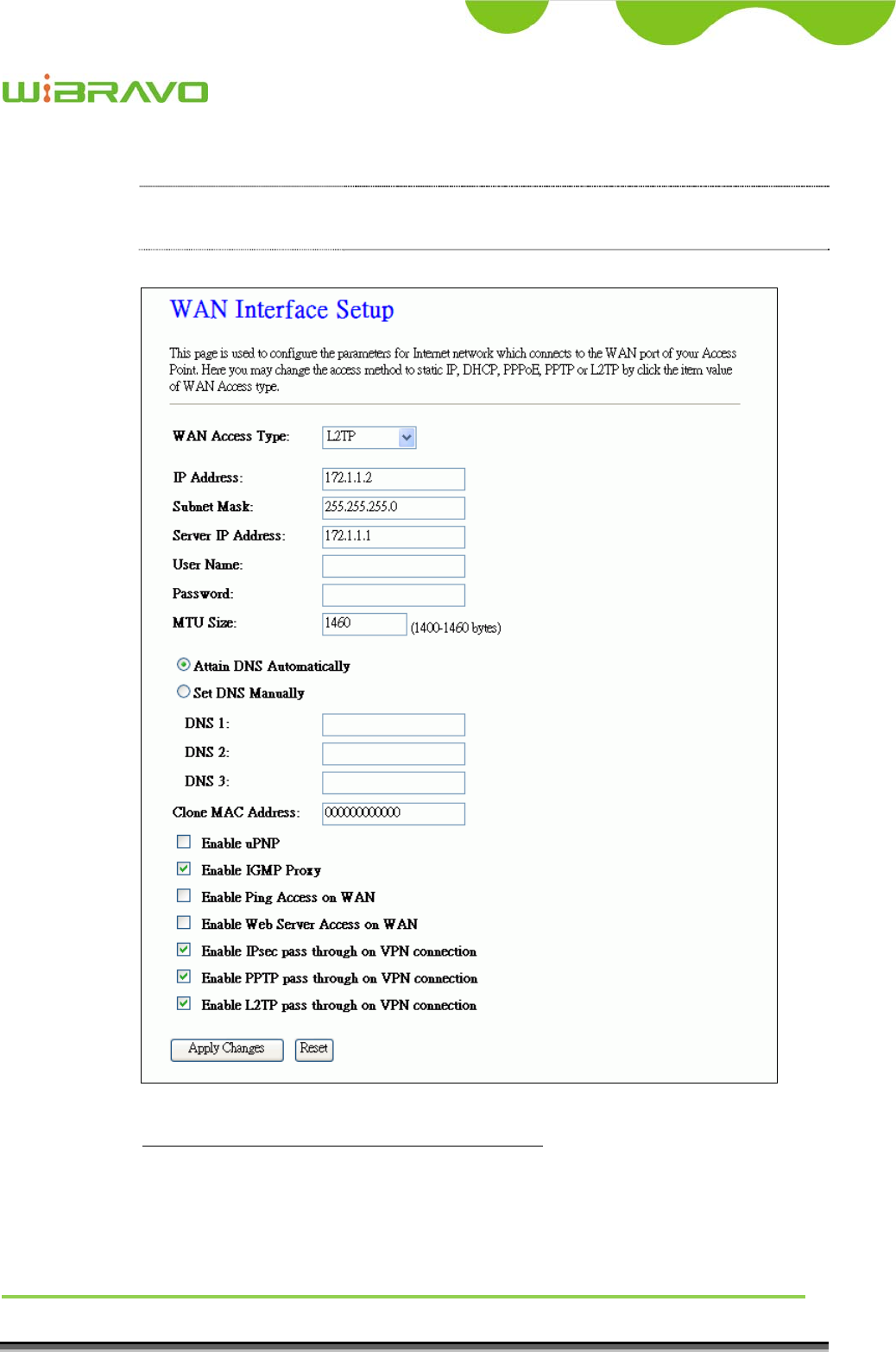
WiBRAVO
Virtu 901
User Manual 40
configuration setting.
Reset Click the Reset button to abort change and recover the
previous configuration setting.
V L2TP
Screen snapshot – WAN Interface Setup – PPTP

WiBRAVO
Virtu 901
User Manual 41
Item Description
L2TP Allow user to make a tunnel with remote site directly to
secure the data transmission among the connection. User
can use embedded L2TP client supported by this router to
make a VPN connection.
IP Address If you select the L2TP support on WAN interface, fill in
the IP address for it.
Subnet Mask If you select the L2TP support on WAN interface, fill in
the subnet mask for it.
Gateway If you select the Static L2TP support on WAN interface,
fill in the gateway for WAN interface out going data
packets.
Server IP Address Enter the IP address of the L2TP Server.
User Name If you select the L2TP support on WAN interface, fill in
the user name and password to login the L2TP server.
Password f you select the L2TP support on WAN interface, fill in
the user name and password to login the L2TP server.
MTU Size Fill in the mtu size of MTU Size. The default value is
1460. Refer to 4.23 What is Maximum Transmission Unit
(MTU) Size?
Attain DNS
Automatically
Click to select getting DNS address for L2TP support.
Please select Set DNS Manually if the L2TP support is
selected.
Set DNS Manually Click to select getting DNS address for L2TP support.
DNS 1 Fill in the IP address of Domain Name Server 1.
DNS 2 Fill in the IP address of Domain Name Server 2.
DNS 3 Fill in the IP address of Domain Name Server 3.
Clone MAC Address Fill in the MAC address that is the MAC address to be
cloned. Refer to 4.24 What is Clone MAC Address?
Enable uPNP Click the checkbox to enable uPNP function.
Refer to 4.22 What is Universal Plug and Play (uPNP)?
Enable IGMP Proxy Click the checkbox to enable IGMP Proxy.
Enable Ping Access on
WAN
Click the checkbox to enable WAN ICMP response.
Enable Web Server Click the checkbox to enable web configuration from
WiBRAVO
Virtu 901
User Manual 42
Access on WAN WAN side.
Apply Changes Click the Apply Changes button to complete the new
configuration setting.
Reset Click the Reset button to abort change and recover the
previous configuration setting.
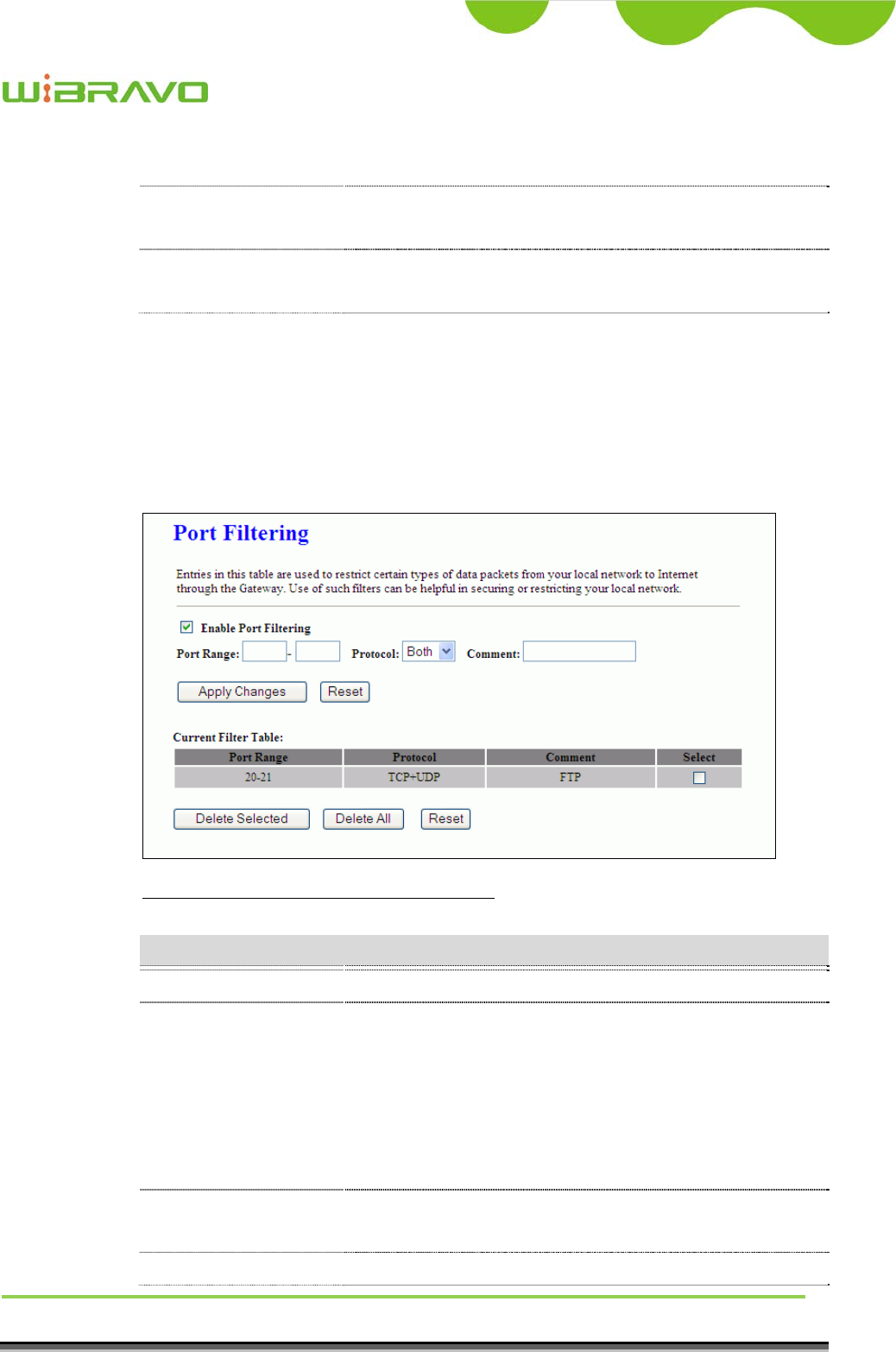
3.3.13 Firewall - Port Filtering
Entries in this table are used to restrict certain types of data packets from your
local network to Internet through the Gateway. Use of such filters can be
helpful in securing or restricting your local network.
Screen snapshot – Firewall - Port Filtering
Item Description
Enable Port Filtering Click to enable the port filtering security function.
Port Range
Protocol
Comments
To restrict data transmission from the local network on
certain ports, fill in the range of start-port and end-port,
and the protocol, also put your comments on it.
The Protocol can be TCP, UDP or Both.
Comments let you know about whys to restrict data from
the ports.
Apply Changes Click the Apply Changes button to register the ports to
port filtering list.
Reset Click the Reset button to abort change and recover the
WiBRAVO
Virtu 901
User Manual 43
previous configuration setting.
Delete Selected Click to delete the selected port range that will be
removed from the port-filtering list.
Delete All Click to delete all the registered entries from the
port-filtering list.
Reset Click the Reset button to abort change and recover the
previous configuration setting.
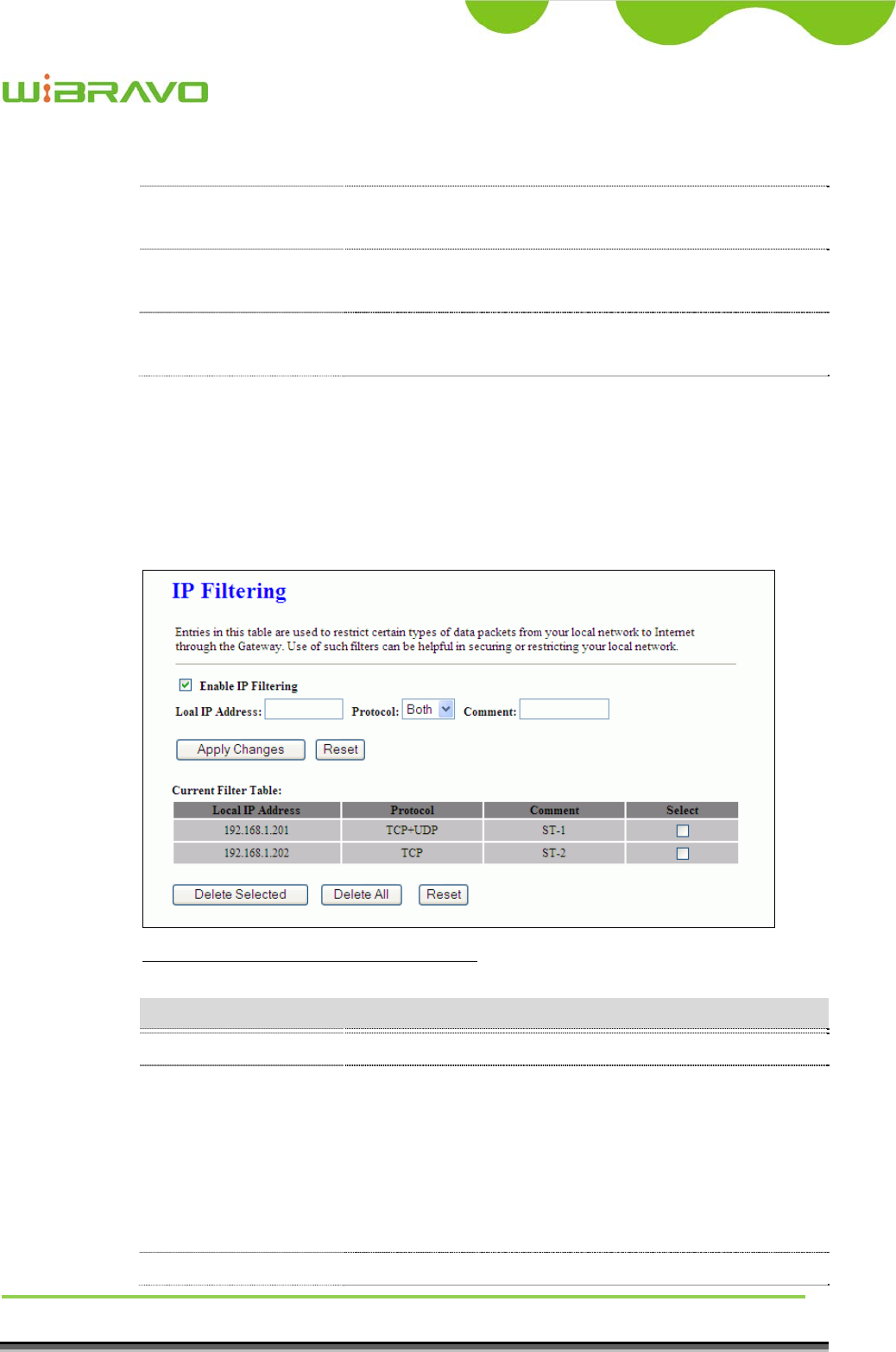
3.3.14 Firewall - IP Filtering
Entries in this table are used to restrict certain types of data packets from your
local network to Internet through the Gateway. Use of such filters can be
helpful in securing or restricting your local network.
Screen snapshot – Firewall - IP Filtering
Item Description
Enable IP Filtering Click to enable the IP filtering security function.
Local IP Address
Protocol
Comments
To restrict data transmission from local network on
certain IP addresses, fill in the IP address and the
protocol, also put your comments on it.
The Protocol can be TCP, UDP or Both.
Comments let you know about whys to restrict data from
the IP address.
Apply Changes Click the Apply Changes
b
utton to register the IP address
WiBRAVO
Virtu 901
User Manual 44
to IP filtering list.
Reset Click the Reset button to abort change and recover the
previous configuration setting.
Delete Selected Click to delete the selected IP address that will be
removed from the IP-filtering list.
Delete All Click to delete all the registered entries from the
IP-filtering list.
Reset Click the Reset button to abort change and recover the
previous configuration setting.
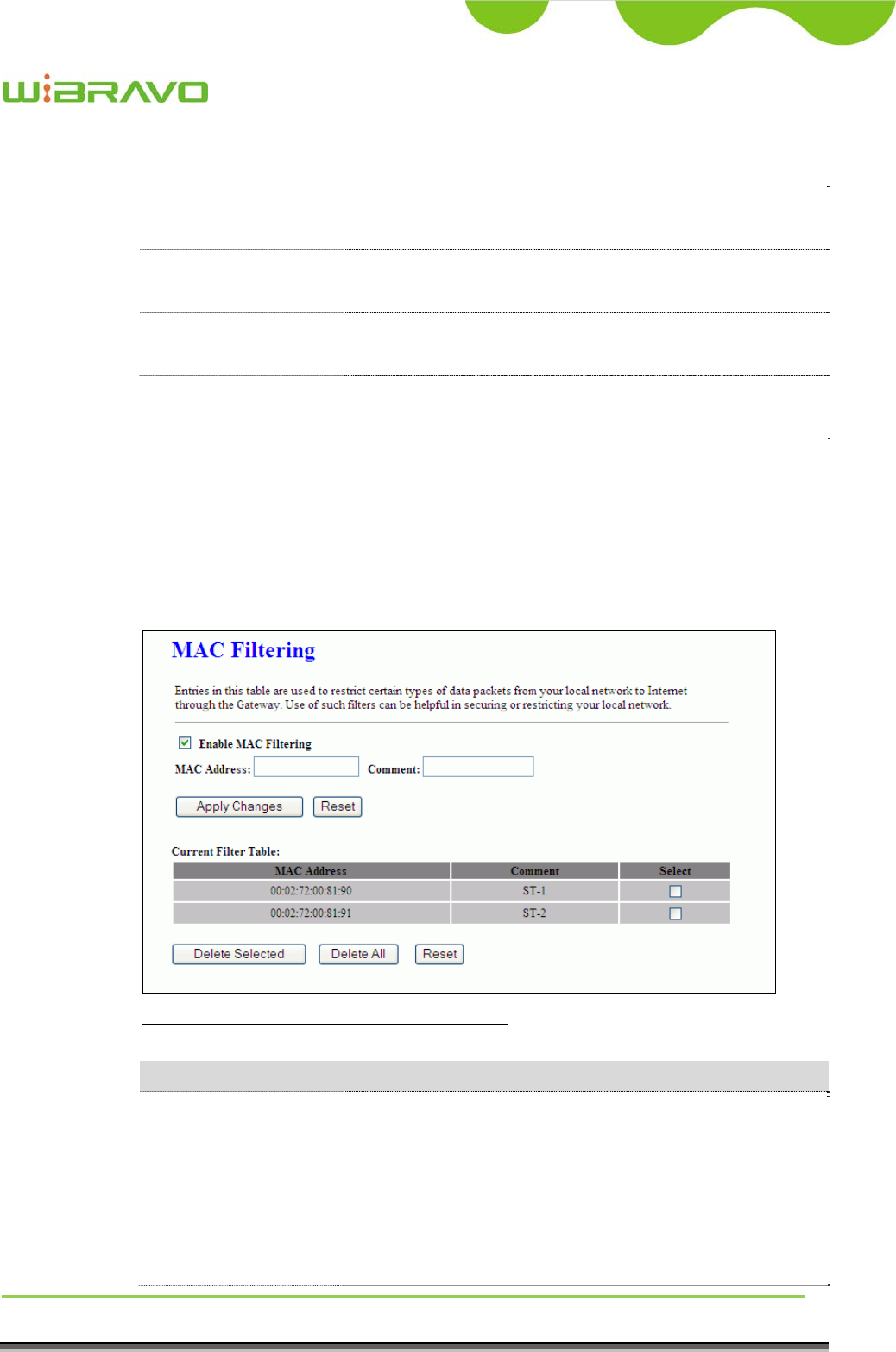
3.3.15 Firewall - MAC Filtering
Entries in this table are used to restrict certain types of data packets from your
local network to Internet through the Gateway. Use of such filters can be
helpful in securing or restricting your local network.
Screen snapshot – Firewall - MAC Filtering
Item Description
Enable MAC Filtering Click to enable the MAC filtering security function.
MAC Address
Comments
To restrict data transmission from local network on
certain MAC addresses, fill in the MAC address and your
comments on it.
Comments let you know about whys to restrict data from
the MAC address.
WiBRAVO
Virtu 901
User Manual 45
Apply Changes Click the Apply Changes button to register the MAC
address to MAC filtering list.
Reset Click the Reset button to abort change and recover the
previous configuration setting.
Delete Selected Click to delete the selected MAC address that will be
removed from the MAC-filtering list.
Delete All Click to delete all the registered entries from the
MAC-filtering list.
Reset Click the Reset button to abort change and recover the
previous configuration setting.
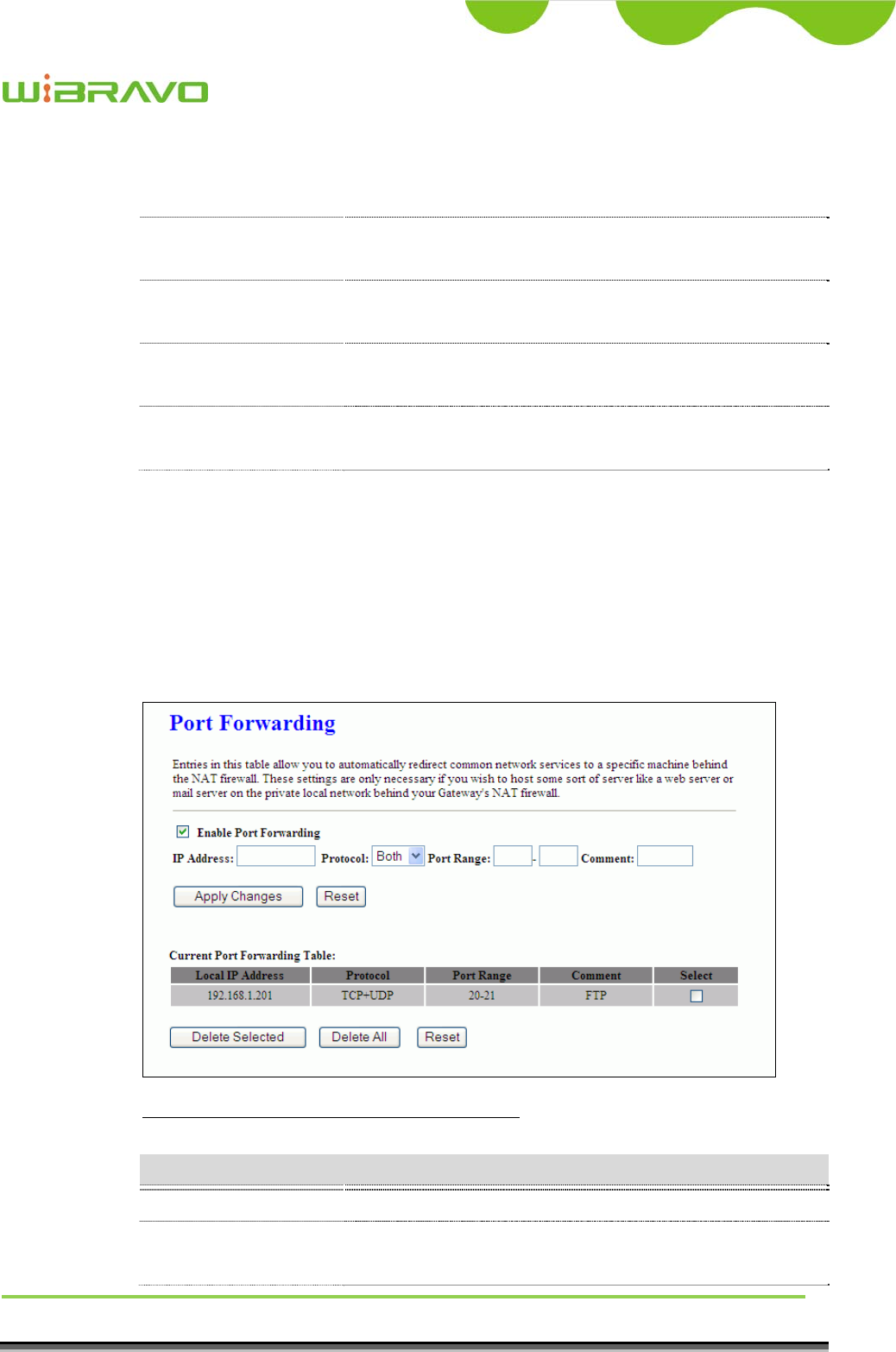
3.3.16 Firewall - Port Forwarding
Entries in this table allow you to automatically redirect common network
services to a specific machine behind the NAT firewall. These settings are only
necessary if you wish to host some sort of server like a web server or mail
server on the private local network behind your Gateway's NAT firewall.
Screen snapshot – Firewall - Port Forwarding
Item Description
Enable Port Forwarding Click to enable the Port Forwarding security function.
IP Address
Protocol
To forward data packets coming from WAN to a specific
IP address that hosted in local network behind the NAT
WiBRAVO
Virtu 901
User Manual 46
Port Range
Comment
firewall, fill in the IP address, protocol, port range and
your comments.
The Protocol can be TCP, UDP or Both.
The Port Range for data transmission.
Comments let you know about whys to allow data
packets forward to the IP address and port number.
Apply Changes Click the Apply Changes button to register the IP address
and port number to Port forwarding list.
Reset Click the Reset button to abort change and recover the
previous configuration setting.
Delete Selected Click to delete the selected IP address and port number
that will be removed from the port-forwarding list.
Delete All Click to delete all the registered entries from the
port-forwarding list.
Reset Click the Reset button to abort change and recover the
previous configuration setting.
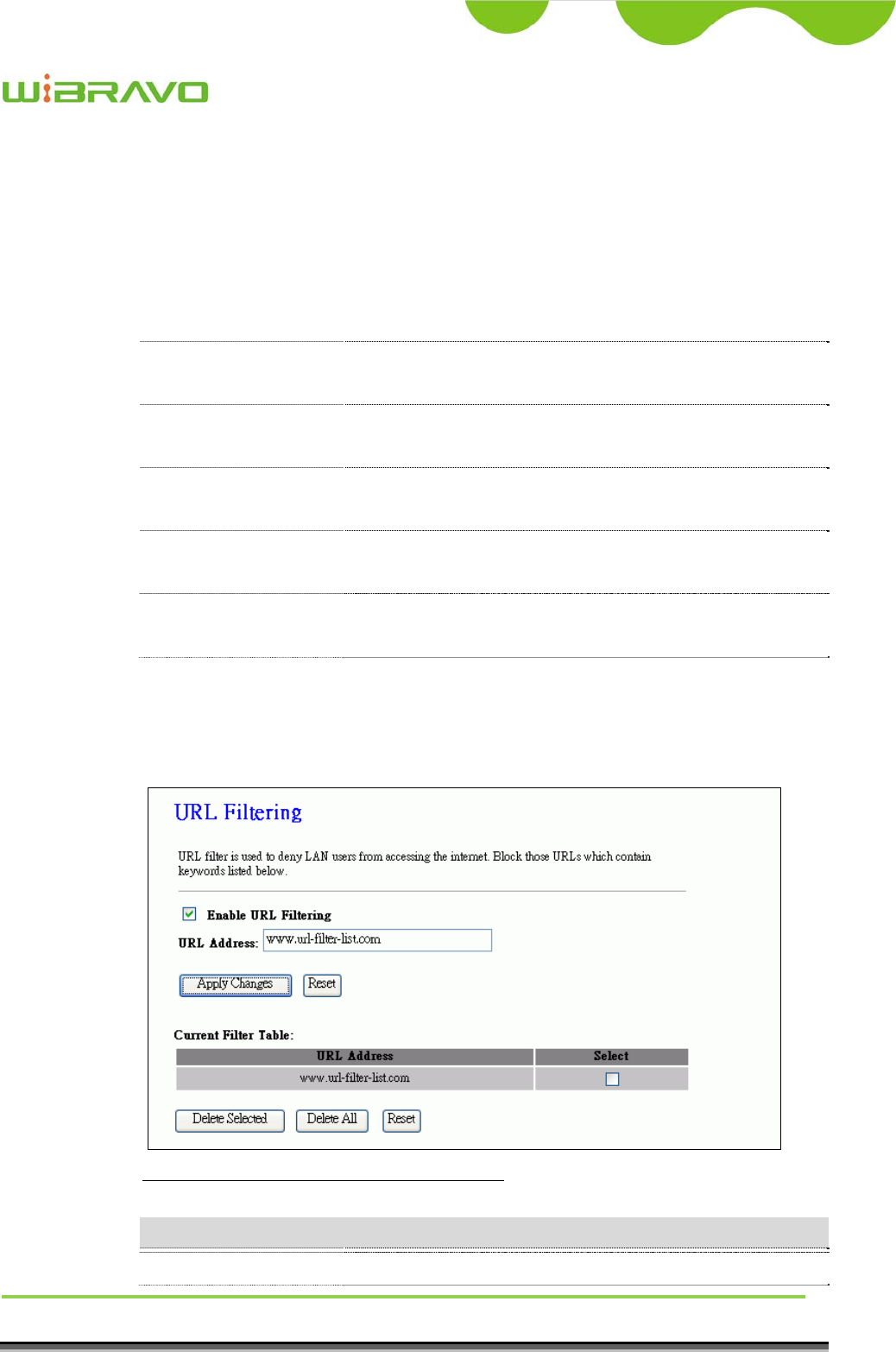
3.3.17 Firewall – URL Filtering
URL Filtering is used to restrict users to access specific websites in internet.
Screen snapshot – Firewall – URL Filtering
Item Description
Enable URL Filtering Click to enable the URL Filtering function.
WiBRAVO
Virtu 901
User Manual 47
URL Address Add one URL address.
Apply Changes Click the Apply Changes button to save settings.
Reset Click the Reset button to abort change and recover the
previous configuration setting.
Delete Selected Click to delete the selected URL address that will be
removed from the URL Filtering list.
Delete All Click to delete all the registered entries from the URL
Filtering list.
Reset Click the Reset button to abort change and recover the
previous configuration setting.
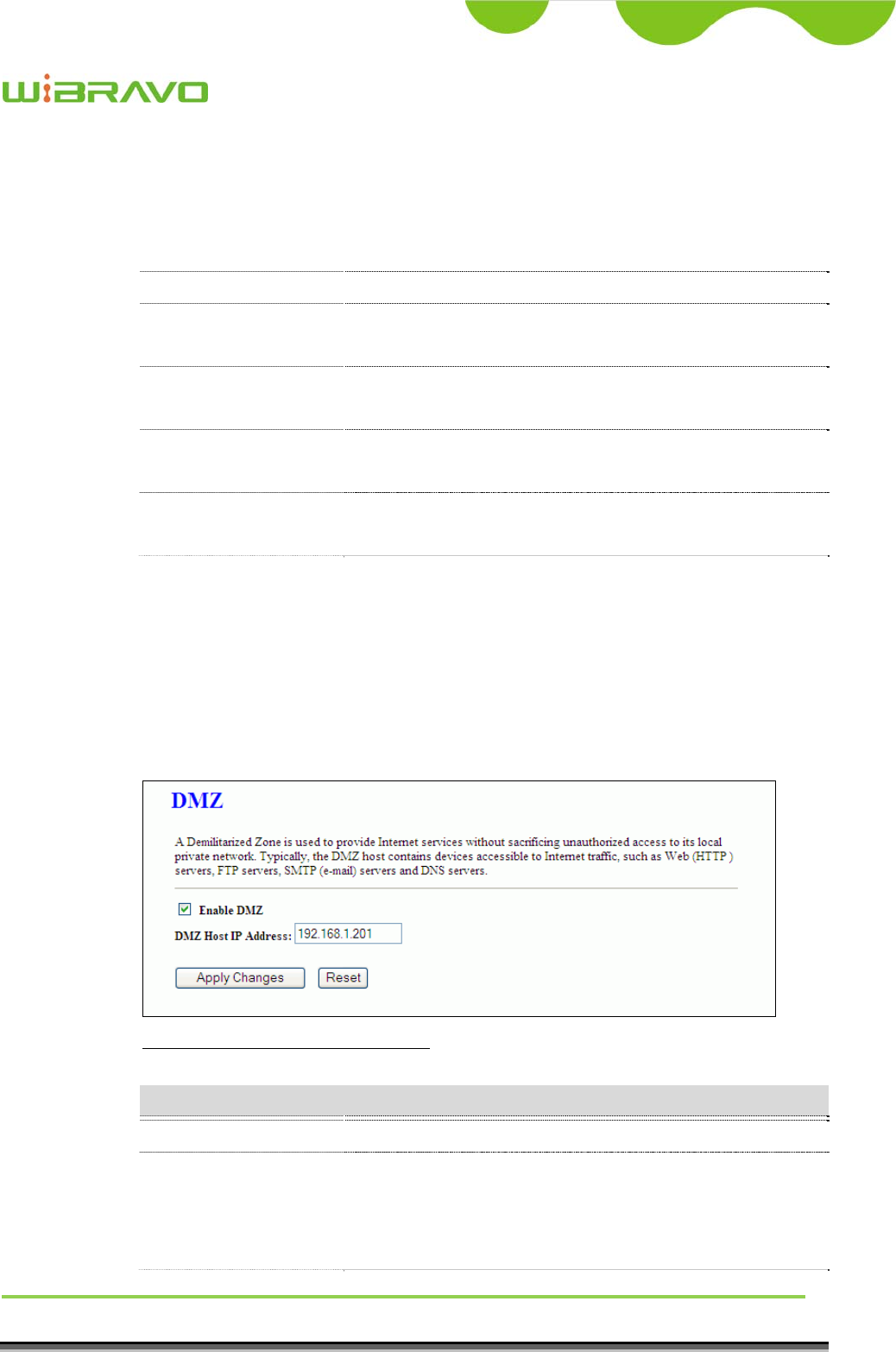
3.3.18 Firewall - DMZ
A Demilitarized Zone is used to provide Internet services without sacrificing
unauthorized access to its local private network. Typically, the DMZ host
contains devices accessible to Internet traffic, such as Web (HTTP) servers,
FTP servers, SMTP (e-mail) servers and DNS servers.
Screen snapshot – Firewall - DMZ
Item Description
Enable DMZ Click to enable the DMZ function.
DMZ Host IP Address To support DMZ in your firewall design, fill in the IP
address of DMZ host that can be access from the WAN
interface.
WiBRAVO
Virtu 901
User Manual 48
Apply Changes Click the Apply Changes
b
utton to register the IP address
of DMZ host.
Reset Click the Reset button to abort change and recover the
previous configuration setting.
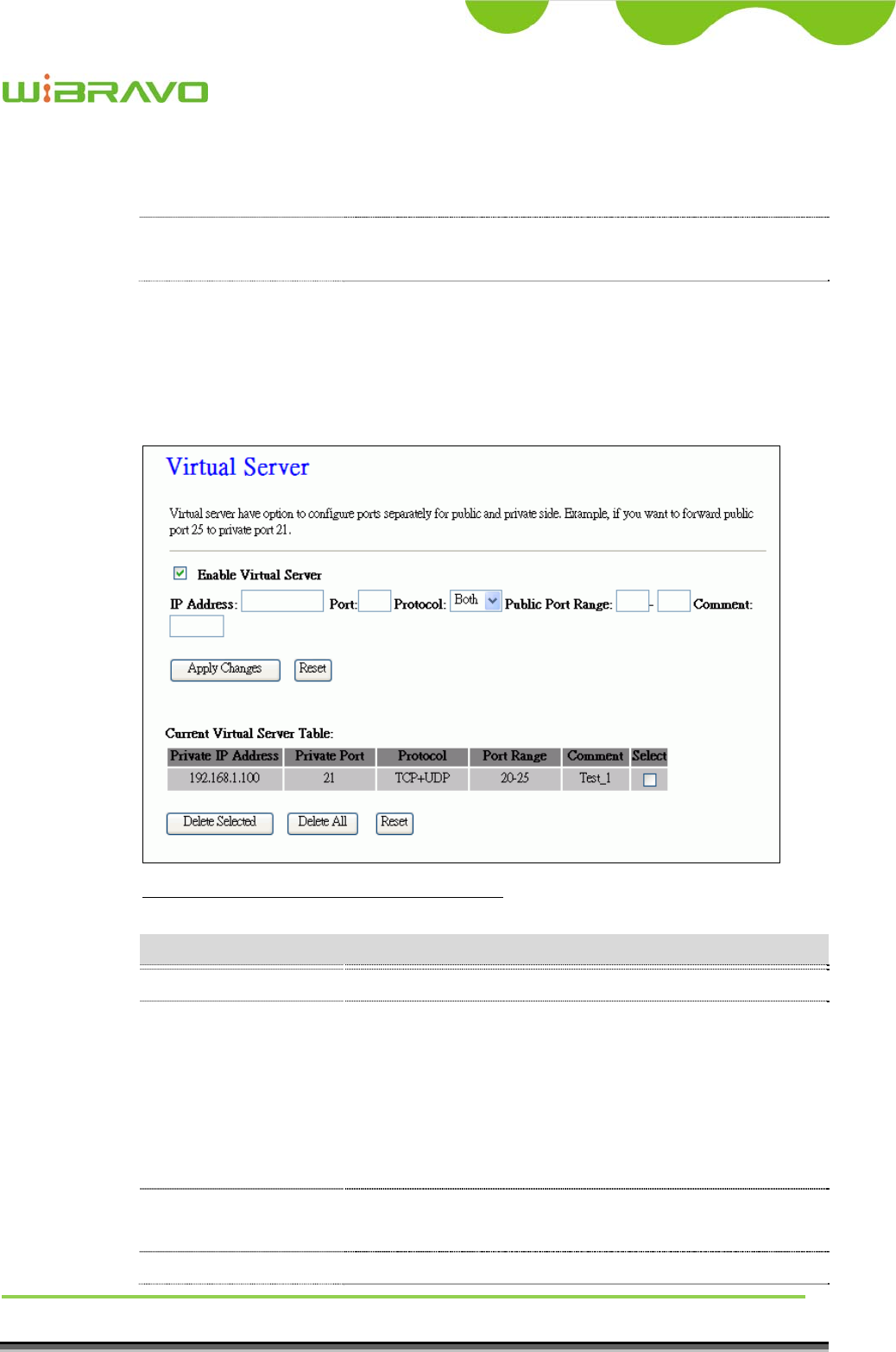
3.3.19 Firewall – Virtual Server
Entries in this table allow you to redirect specific public port to private ports in
local network behind your Gateway's NAT firewall.
Screen snapshot – Firewall – Virtual Server
Item Description
Enable Virtual Server Click to enable the Virtual Server function.
IP Address
Port
Protocol
Public Port Range
Comment
The IP Address for local ip address.
The Port for local private port
The Protocol can be TCP, UDP or Both.
The Public Port Range for public service ports range.
Comments let you know about whys to allow data
packets forward to the IP address and port number.
Apply Changes Click the Apply Changes button to register the IP address
and port number to Port forwarding list.
Reset Click the Reset button to abort change and recover the
WiBRAVO
Virtu 901
User Manual 49
previous configuration setting.
Delete Selected Click to delete the selected IP address and port number
that will be removed from the port-forwarding list.
Delete All Click to delete all the registered entries from the
port-forwarding list.
Reset Click the Reset button to abort change and recover the
previous configuration setting.
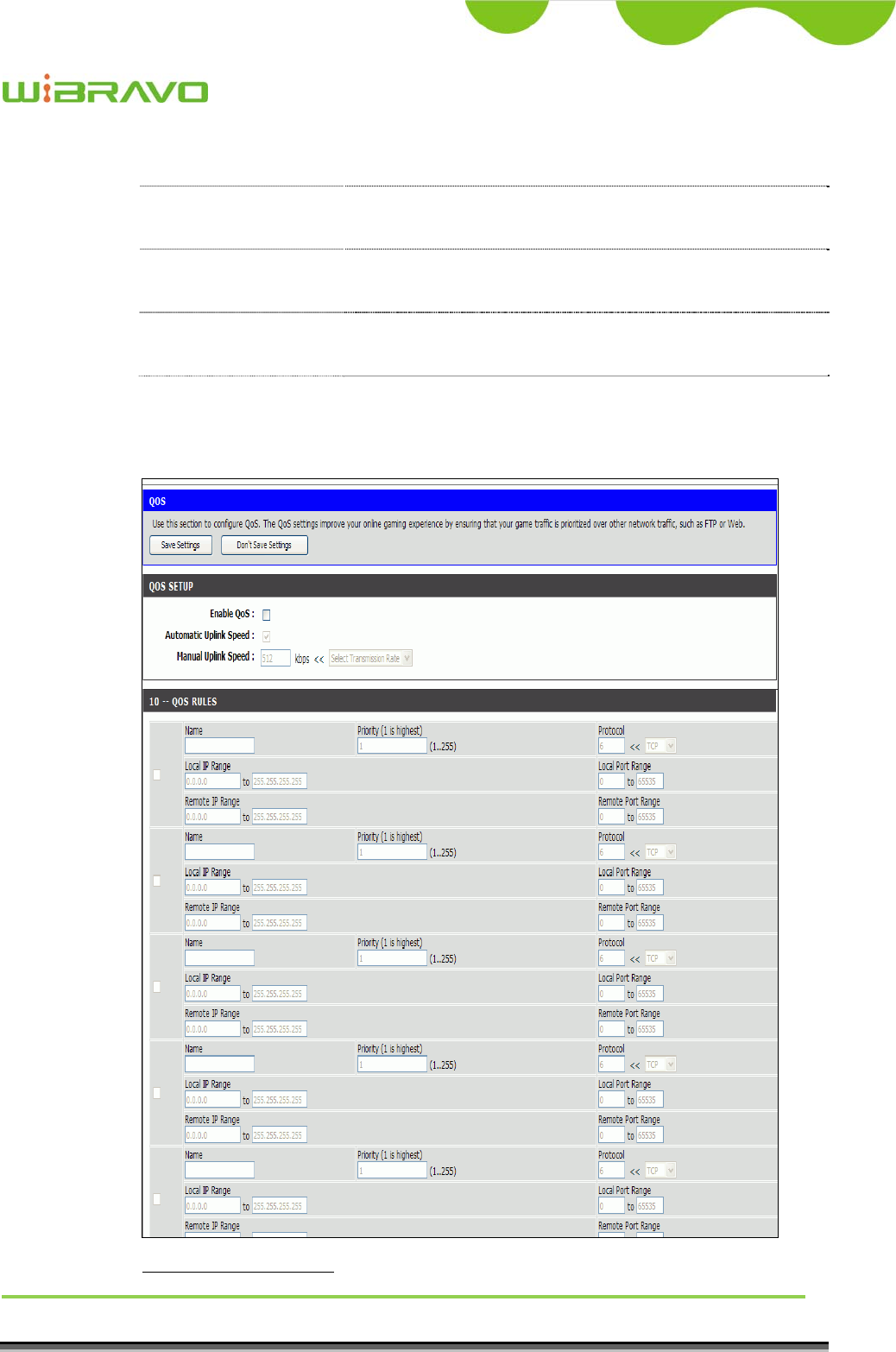
3.3.20 QoS
This page provides multi remote and local end points quality of service.
Screen snapshot – QoS

WiBRAVO
Virtu 901
User Manual 50
Item Description
Save Settings Click the Save Settings button to complete the new
configuration setting.
Don’t Save Settings Click the Don’t Save Settings
b
utton to complete the new
configuration setting.
Enable QoS Click checkbox to enable QoS
Automatic Uplink
Speed
Click the Automatic Uplink Speed to management link
rate by system.
Manual Uplink Speed Input link rate (kbps) or click Select Transmission Rate
to setup link speed,
Name Input QoS rule name
Priority Input digit number between 1 to 255 to set up priority.
Protocol Input digit number for specific protocol id or click right
drop down menu to set up generic protocol.
Local IP Range Input Local Start and End IP Address for QoS
management.
Local Port Range Input Local Start and End Port Range for QoS
management.
Remote IP Range Input Remote Start and End IP Address for QoS
management.
Remote Port Range Input Remote Start and End Port Range for QoS
management.
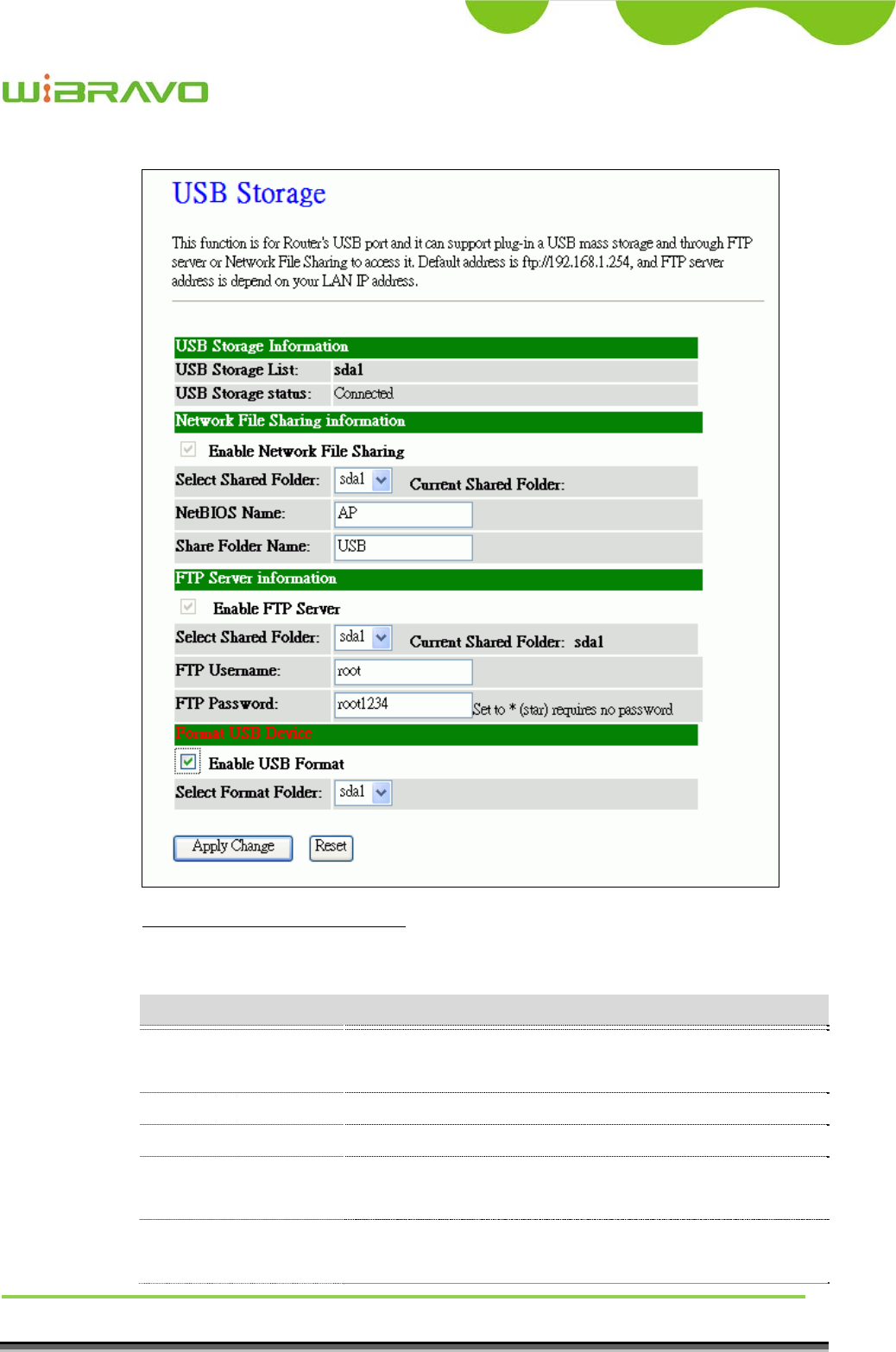
3.3.21 USB Storage
This page provides USB storage management like USB link status, network
file sharing, ftp server and USB FAT32 format tool.
WiBRAVO
Virtu 901
User Manual 51
Screen snapshot – USB Storage
Item Description
USB Storage
Information
USB Storage List It lists mounted USB storage ID.
USB Storage Status It shows USB storage link status.
Network File Sharing
Information
Enable Network File
Sharing
Click to enable Network File Sharing.

WiBRAVO
Virtu 901
User Manual 52
Select Share Folder Click drop down menu to select which USB storage
which you would like to share.
Current Share Folder It shows the current share USB storage.
NetBIOS Name Input NetBIOS name. Max character is 30.
Share Folder Name Input Share Folder name. Max character is 30.
FTP Server
Information
Enable FTP Server Click to enable FTP Server.
Select Share Folder Click drop down menu to select which USB storage
which you would like to set as FTP Server.
Current Share Folder It shows the current FTP USB server.
FTP Username Assign FTP server login name. Default is root.
FTP Password Assign FTP server login password. Default is root1234.
Format USB Device
Enable USB Format Click to enable USB storage format tool.
Select Format Folder Click drop down menu to select which USB storage you
would like to format to FAT32.
Apply Change Click the Apply Change button to save and enable
services.
Reset Click the Reset button to abort change and recover the
previous configuration setting.
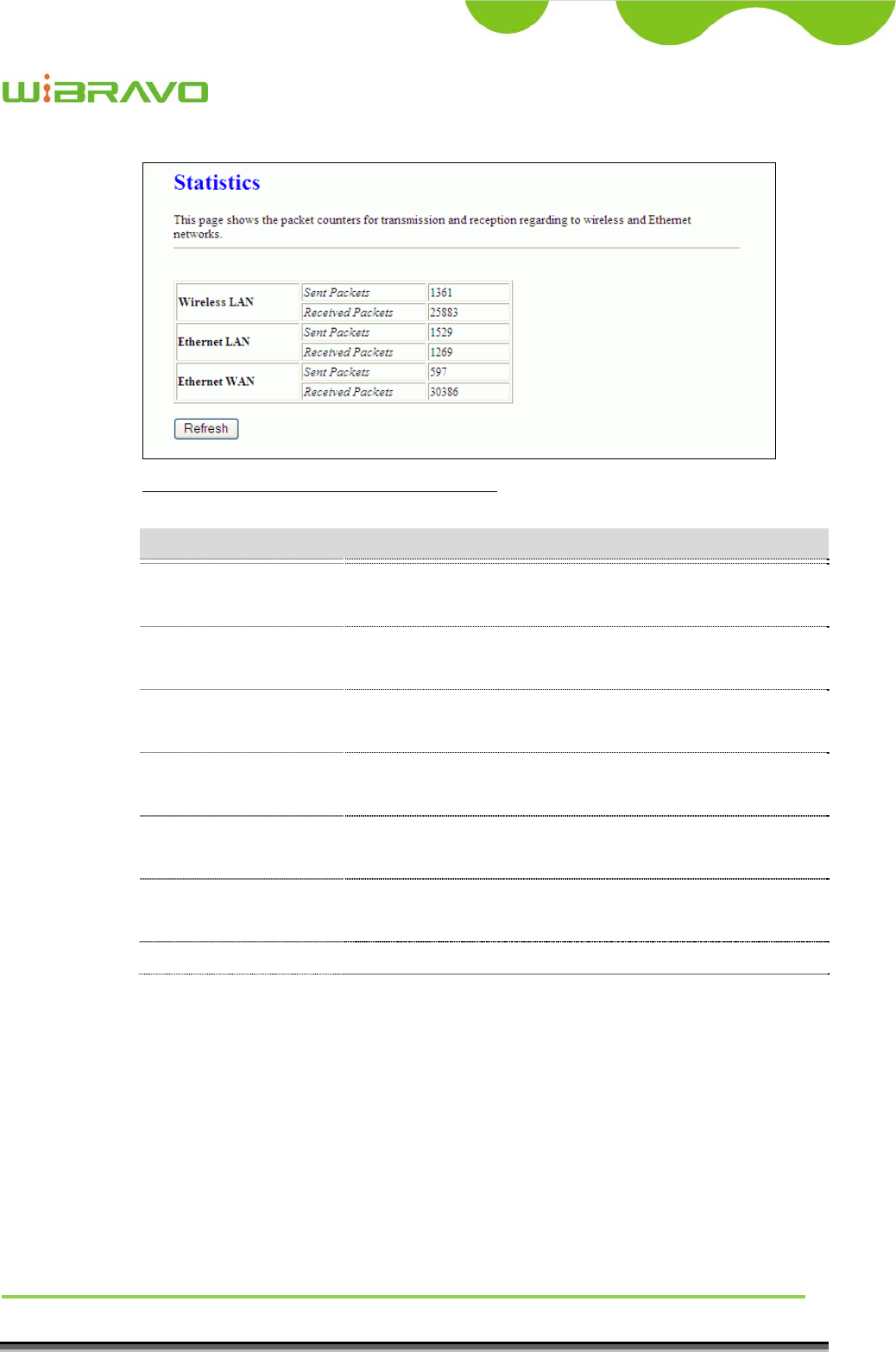
3.3.22 Management - Statistics
This page shows the packet counters for transmission and reception regarding
to wireless, Ethernet LAN and Ethernet WAN networks.
WiBRAVO
Virtu 901
User Manual 53
Screen snapshot – Management - Statistics
Item Description
Wireless LAN
Sent Packets
It shows the statistic count of sent packets on the wireless
LAN interface.
Wireless LAN
Received Packets
It shows the statistic count of received packets on the
wireless LAN interface.
Ethernet LAN
Sent Packets
It shows the statistic count of sent packets on the
Ethernet LAN interface.
Ethernet LAN
Received Packets
It shows the statistic count of received packets on the
Ethernet LAN interface.
Ethernet WAN
Sent Packets
It shows the statistic count of sent packets on the
Ethernet WAN interface.
Ethernet WAN
Received Packets
It shows the statistic count of received packets on the
Ethernet WAN interface.
Refresh Click the refresh the statistic counters on the screen.
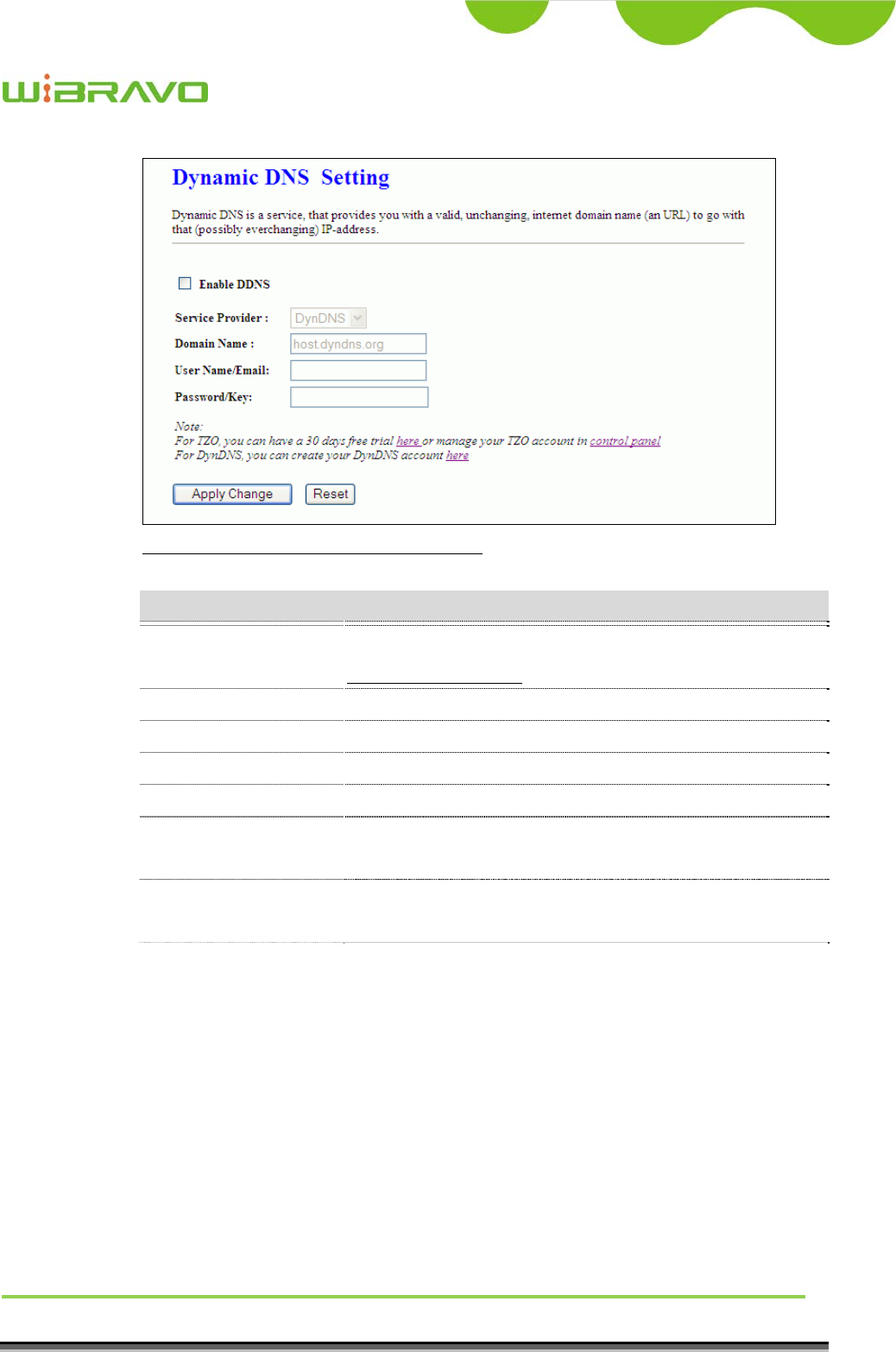
3.3.23 Management - DDNS
This page is used to configure Dynamic DNS service to have DNS with
dynamic IP address.
WiBRAVO
Virtu 901
User Manual 54
Screen snapshot – Management – DDNS
Item Description
Enable DDNS Click the checkbox to enable DDNS service. Refer to
4.25 What is DDNS?
Service Provider Click the drop down menu to pickup the right provider.
Domain Name To configure the Domain Name.
User Name/Email Configure User Name, Email.
Password/Key Configure Password, Key.
Apply Change Click the Apply Changes button to save and enable
DDNS service.
Reset Click the Reset button to abort change and recover the
previous configuration setting.
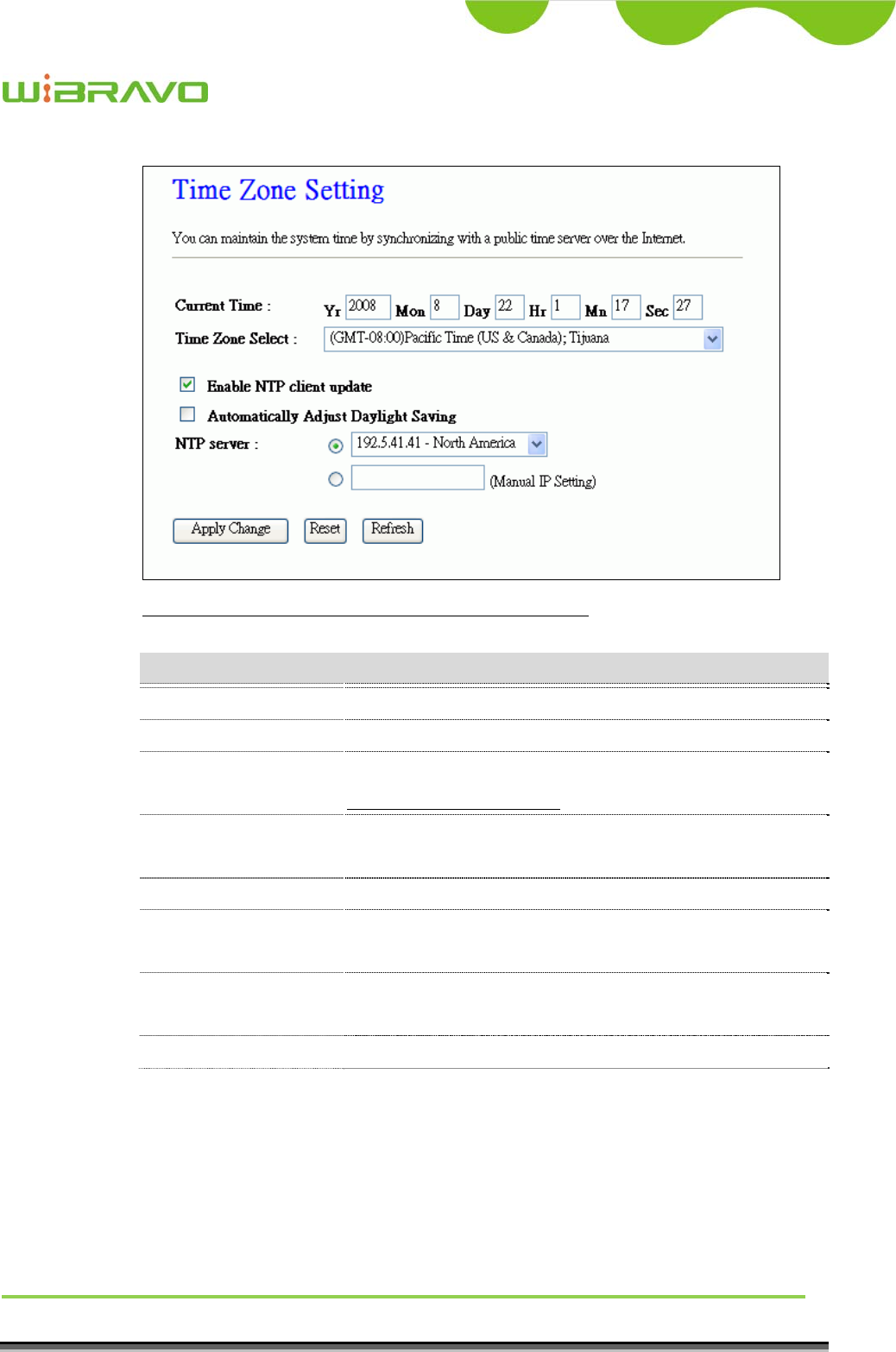
3.3.24 Management - Time Zone Setting
This page is used to configure NTP client to get current time.
WiBRAVO
Virtu 901
User Manual 55
Screen snapshot – Management – Time Zone Settings
Item Description
Current Time It shows the current time.
Time Zone Select Click the time zone in your country.
Enable NTP client
update
Click the checkbox to enable NTP client update. Refer to
4.26 What is NTP Client?
Automatically Adjust
Daylight Saving
Click to enable Daylight Saving adjustment
automatically.
NTP Server Click select default or input NTP server IP address.
Apply Change Click the Apply Changes button to save and enable NTP
client service.
Reset Click the Reset button to abort change and recover the
previous configuration setting.
Refresh Click the refresh the current time shown on the screen.
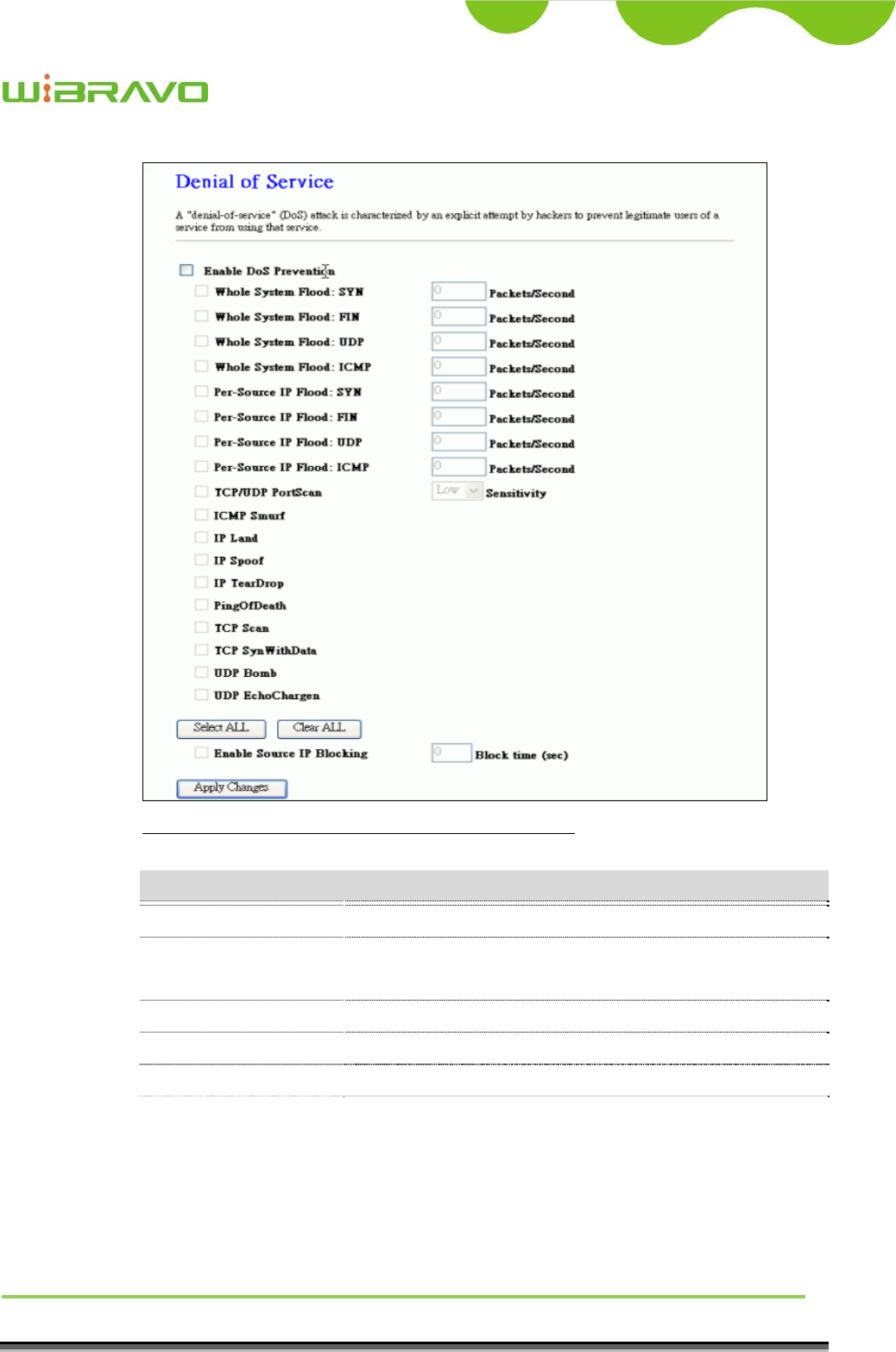
3.3.25 Management – Denial-of-Service
This page is used to enable and setup protection to prevent attack by hacker’s
program. It provides more security for users.
WiBRAVO
Virtu 901
User Manual 56
Screen snapshot – Management – Denial-of-Service
Item Description
Enable DoS Prevention Click the checkbox to enable DoS prevention.
Whole System Flood /
Per-Source IP Flood…
Enable and setup prevention in details.
Select ALL Click the checkbox to enable all prevention items.
Clear ALL Click the checkbox to disable all prevention items.
Apply Changes Click the Apply Changes button to save above settings.
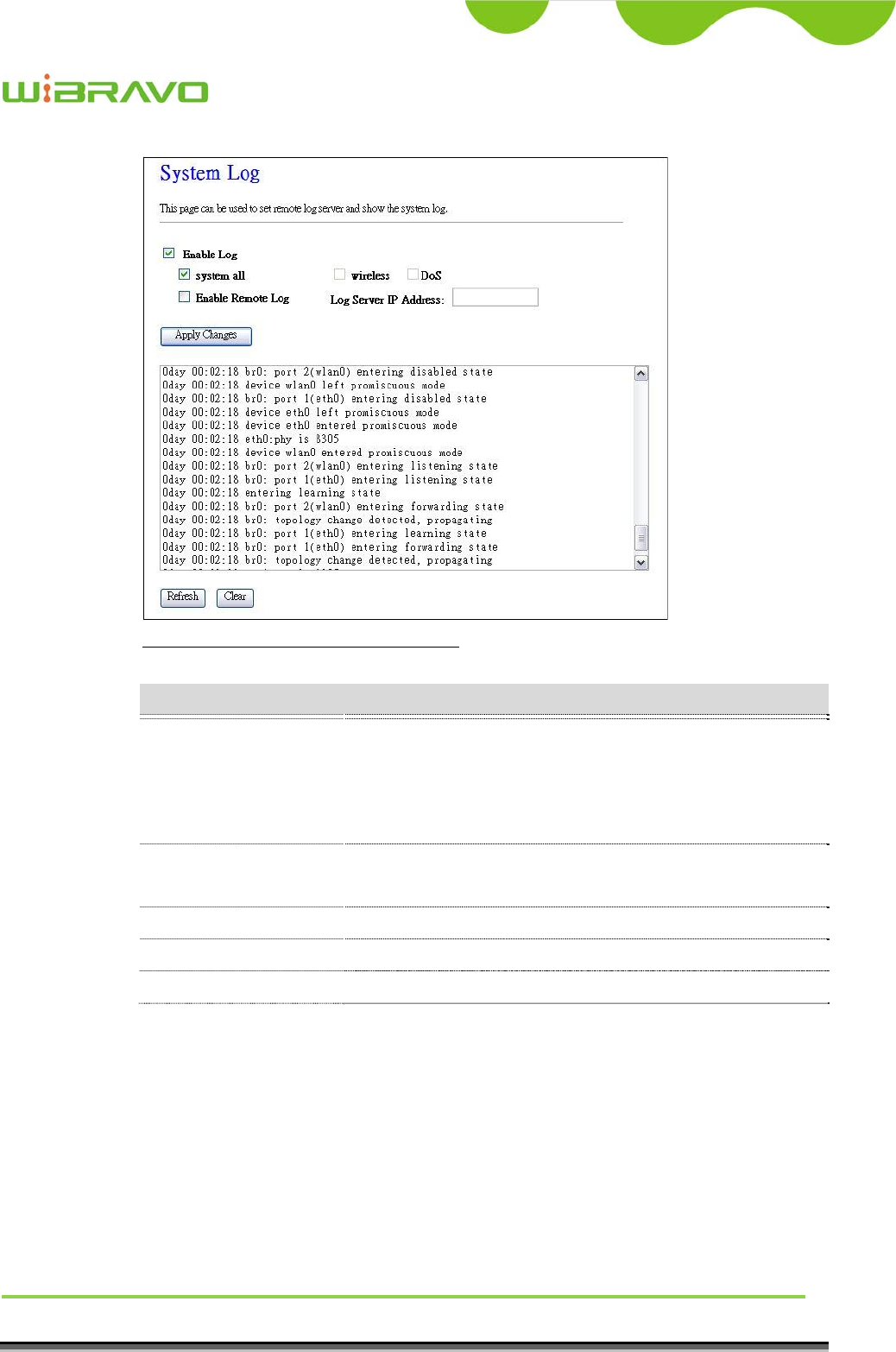
3.3.26 Management - Log
This page is used to configure the remote log server and shown the current log.
WiBRAVO
Virtu 901
User Manual 57
Screen snapshot – Management – Log
Item Description
Enable Log
System all
Wirelessy
DoS
Click the checkbox to enable log.
Show all log of wireless broadband router
Only show wireless log
Only show Denial-of-Service log
Enable Remote Log
Log Server IP Address
Click the checkbox to enable remote log service.
Input the remote log IP address
Apply Changes Click the Apply Changes button to save above settings.
Refresh Click the refresh the log shown on the screen.
Clear Clear log display screen
3.3.27 Management - Upgrade Firmware
This page allows you upgrade the Access Point firmware to new version.
Please note, do not power off the device during the upload because it may
crash the system.
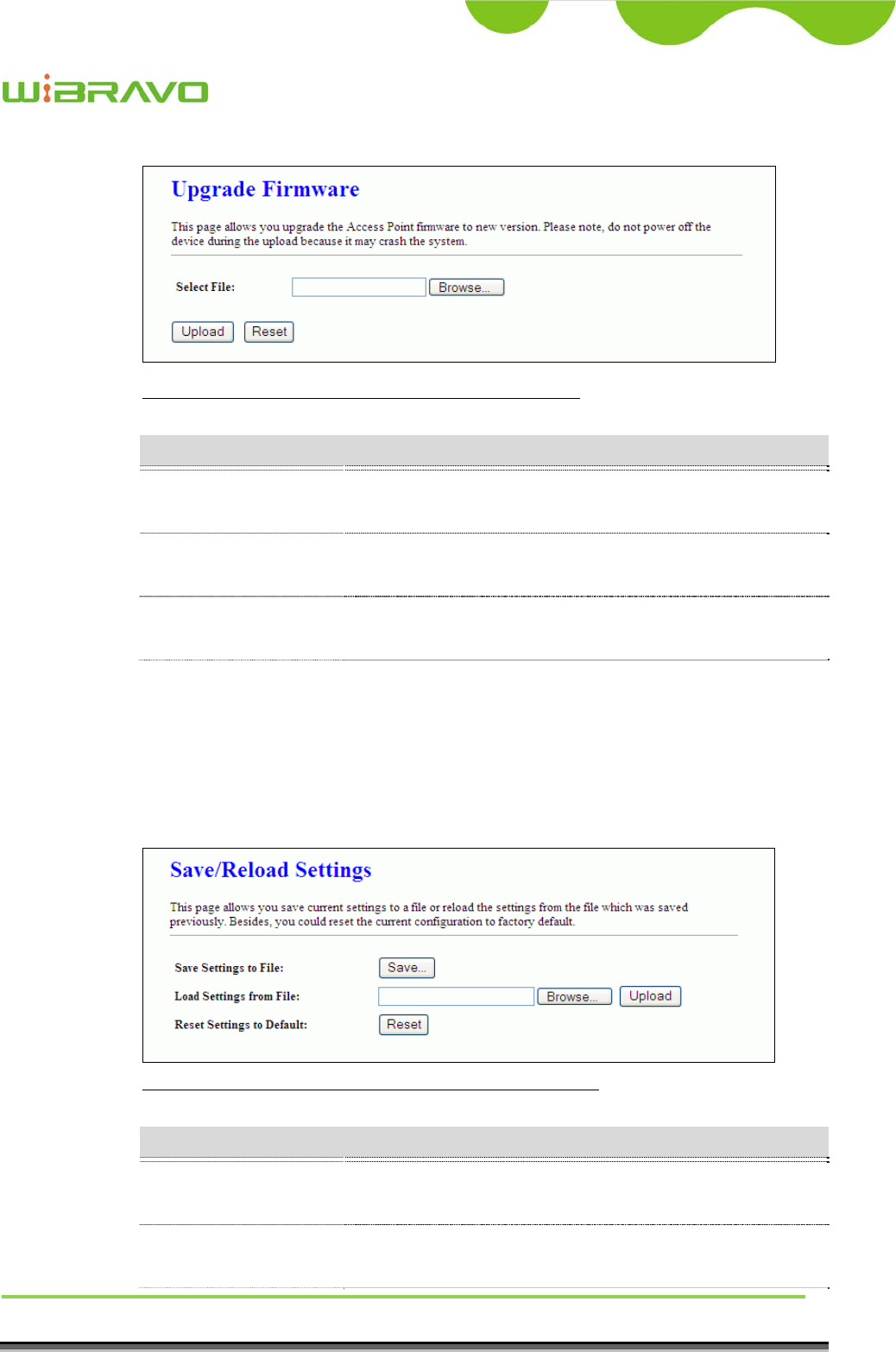
WiBRAVO
Virtu 901
User Manual 58
Screen snapshot – Management - Upgrade Firmware
Item Description
Select File Click the Browse button to select the new version of web
firmware image file.
Upload Click the Upload button to update the selected web
firmware image to the WLAN Broadband Router.
Reset Click the Reset button to abort change and recover the
previous configuration setting.
3.3.28 Management Save/ Reload Settings
This page allows you save current settings to a file or reload the settings from
the file that was saved previously. Besides, you could reset the current
configuration to factory default.
Screen snapshot – Management - Save/Reload Settings
Item Description
Save Settings to File Click the Save button to download the configuration
parameters to your personal computer.
Load Settings from File Click the Browse button to select the configuration files
then click the Upload button to update the selected
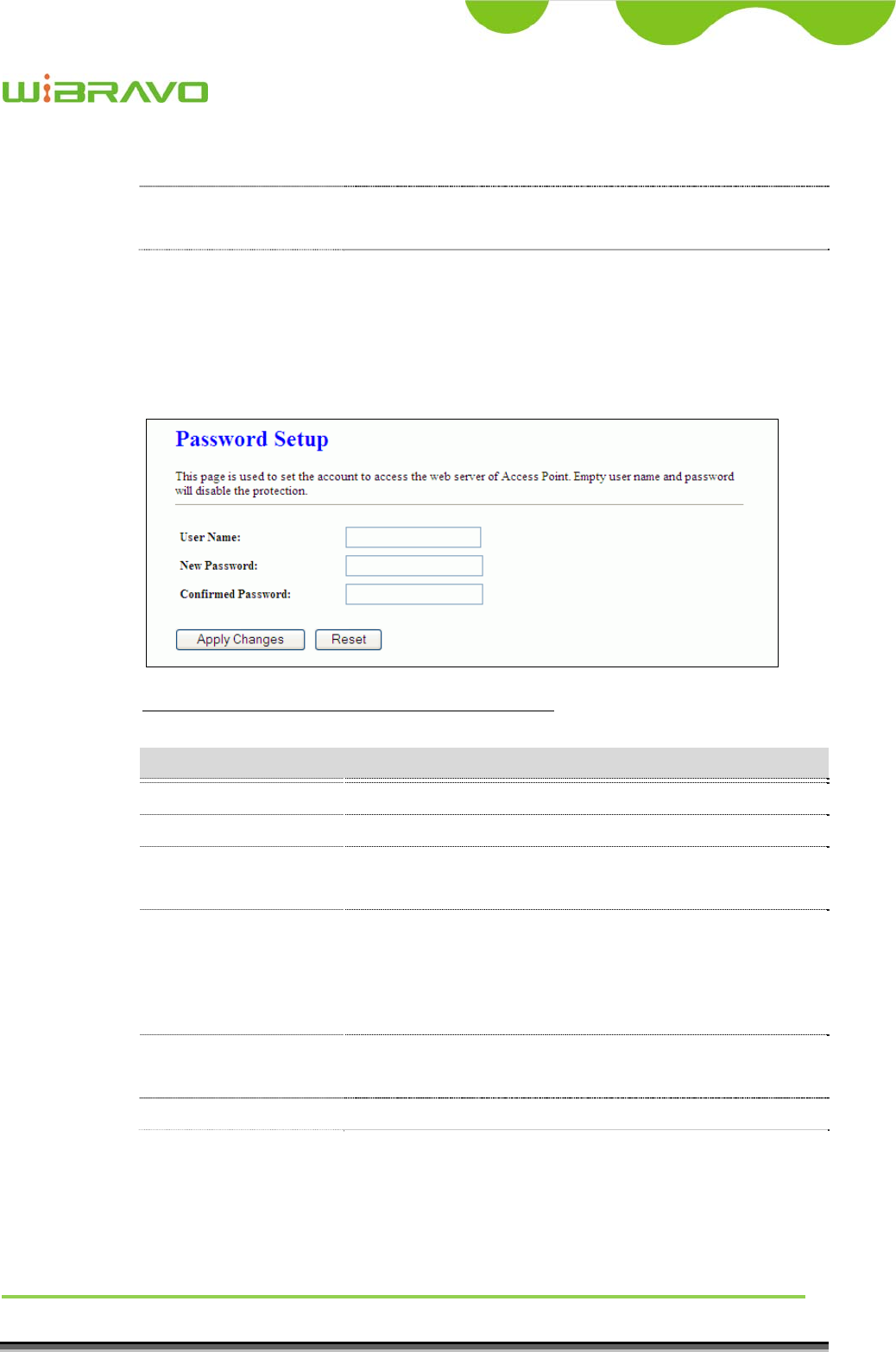
WiBRAVO
Virtu 901
User Manual 59
configuration to the WLAN Broadband Router.
Reset Settings to
Default
Click the Reset button to reset the configuration
parameter to factory defaults.
3.3.29 Management - Password Setup
This page is used to set the account to access the web server of Access Point.
Empty user name and password will disable the protection.
+
Screen snapshot – Management - Password Setup
Item Description
User Name Fill in the user name for web management login control.
New Password Fill in the password for web management login control.
Confirmed Password Because the password input is invisible, so please fill in
the password again for confirmation purpose.
Apply Changes Clear the User Name and Password fields to empty,
means to apply no web management login control.
Click the Apply Changes button to complete the new
configuration setting.
Reset Click the Reset button to abort change and recover the
previous configuration setting.
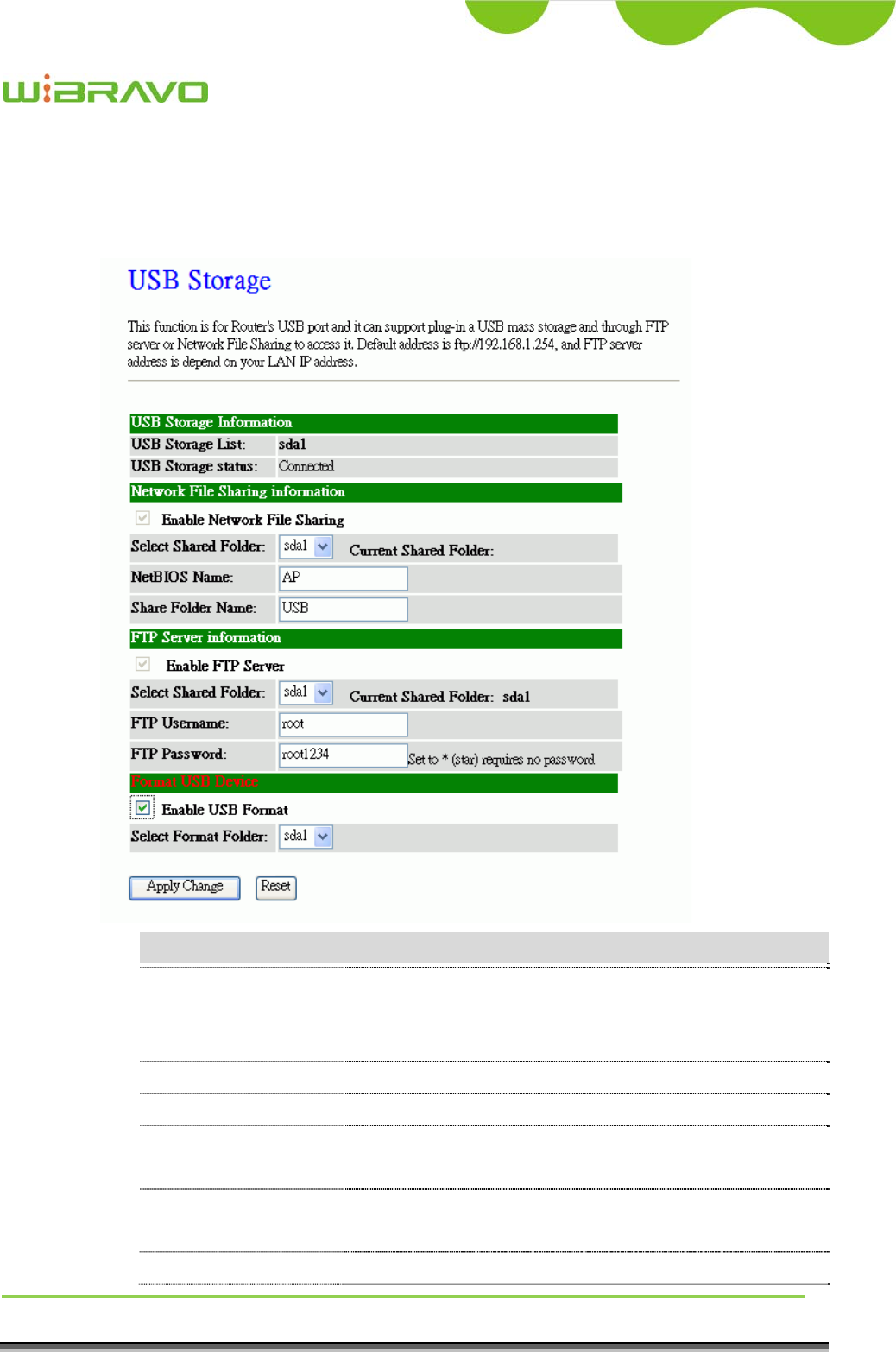
WiBRAVO
Virtu 901
User Manual 60
3.3.30 USB Storage
This page provides USB storage management like USB link status,
network file sharing, ftp server and USB FAT32 format tool.
Item Description
USB Storage
Information
USB Storage List It lists mounted USB storage ID.
USB Storage Status It shows USB storage link status.
Network File Sharing
Information
Enable Network File
Sharing
Click to enable Network File Sharing.
Select Share Folder Click drop down menu to select which USB storage which

WiBRAVO
Virtu 901
User Manual 61
you would like to share.
Current Share Folder It shows the current share USB storage.
NetBIOS Name Input NetBIOS name. Max character is 30.
Share Folder Name Input Share Folder name. Max character is 30.
FTP Server
Information
Enable FTP Server Click to enable FTP Server.
Select Share Folder Click drop down menu to select which USB storage which
you would like to set as FTP Server.
Current Share Folder It shows the current FTP USB server.
FTP Username Assign FTP server login name. Default is root.
FTP Password Assign FTP server login password. Default is root1234.
Format USB Device
Enable USB Format Click to enable USB storage format tool.
Select Format Folder Click drop down menu to select which USB storage you
would like to format to FAT32.
Apply Change Click the Apply Change
b
utton to save and enable services.
Reset Click the Reset button to abort change and recover the
previous configuration setting.
4 Frequently Asked Questions (FAQ)
4.1 What and how to find my PC’s IP and MAC address?
IP address is the identifier for a computer or device on a TCP/IP network. Networks

WiBRAVO
Virtu 901
User Manual 62
using the TCP/IP protocol route messages based on the IP address of the destination.
The format of an IP address is a 32-bit numeric address written as four numbers
separated by periods. Each number can be zero to 255. For example, 191.168.1.254
could be an IP address.
The MAC (Media Access Control) address is your computer's unique hardware number.
(On an Ethernet LAN, it's the same as your Ethernet address.) When you're connected to
the Internet from your computer (or host as the Internet protocol thinks of it), a
correspondence table relates your IP address to your computer's physical (MAC) address
on the LAN.
To find your PC’s IP and MAC address,
Open the Command program in the Microsoft Windows.
Type in ipconfig /all then press the Enter button.
Your PC’s IP address is the one entitled IP Address and your PC’s MAC address is
the one entitled Physical Address.
4.2 What is Wireless LAN?
A wireless LAN (WLAN) is a network that allows access to Internet without the need
for any wired connections to the user’s machine.
4.3 What are ISM bands?
ISM stands for Industrial, Scientific and Medical; radio frequency bands that the Federal
Communications Commission (FCC) authorized for wireless LANs. The ISM bands are
located at 915 +/- 13 MHz, 2450 +/- 50 MHz and 5800 +/- 75 MHz.
4.4 How does wireless networking work?
The 802.11 standard define two modes: infrastructure mode and ad hoc mode. In
infrastructure mode, the wireless network consists of at least one access point connected
to the wired network infrastructure and a set of wireless end stations. This configuration
is called a Basic Service Set (BSS). An Extended Service Set (ESS) is a set of two or
more BSSs forming a single subnetwork. Since most corporate WLANs require access
to the wired LAN for services (file servers, printers, Internet links) they will operate in
infrastructure mode.
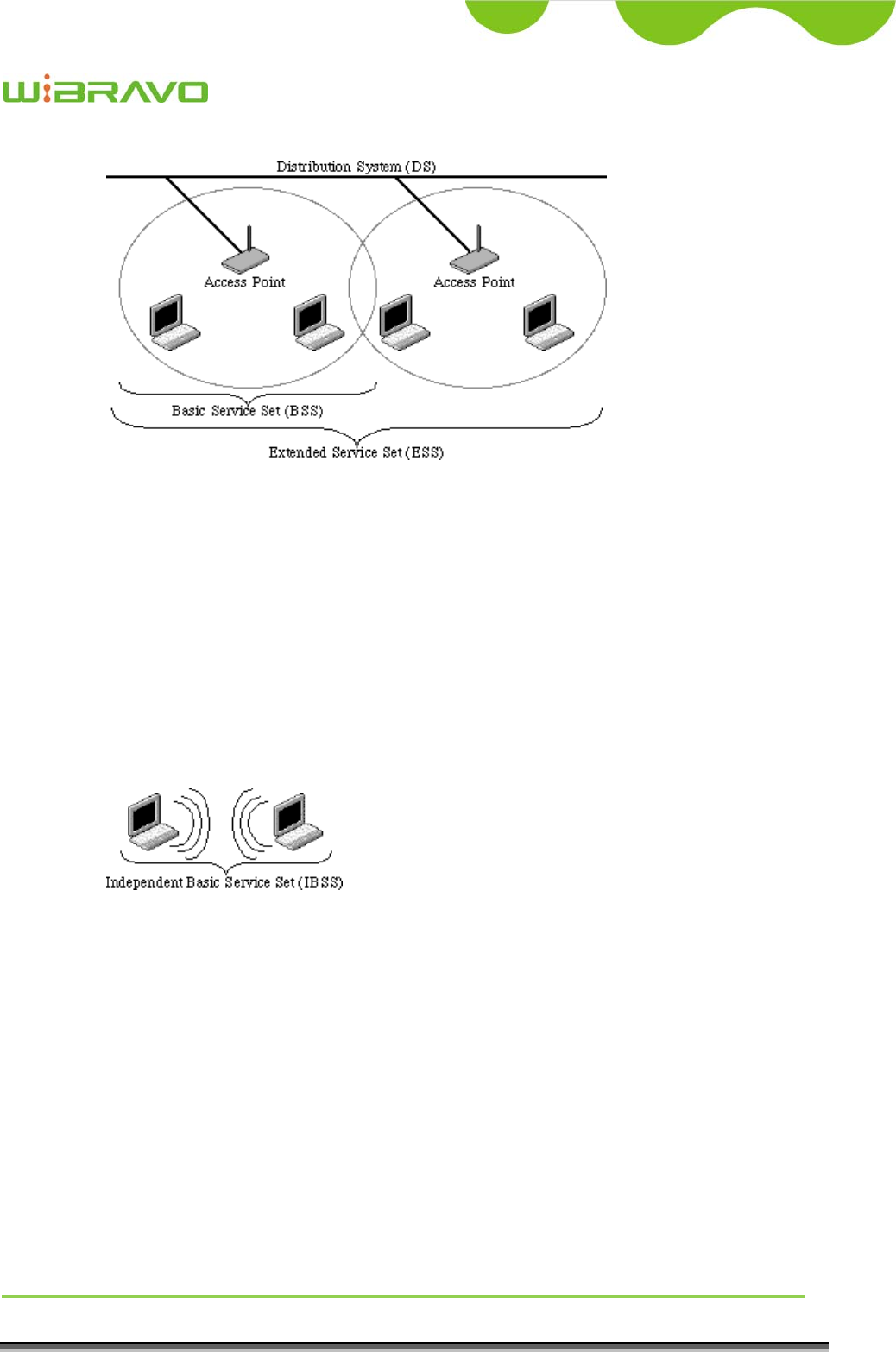
WiBRAVO
Virtu 901
User Manual 63
Example 1: wireless Infrastructure Mode
Ad hoc mode (also called peer-to-peer mode or an Independent Basic Service Set, or
IBSS) is simply a set of 802.11 wireless stations that communicate directly with one
another without using an access point or any connection to a wired network. This mode
is useful for quickly and easily setting up a wireless network anywhere that a wireless
infrastructure does not exist or is not required for services, such as a hotel room,
convention center, or airport, or where access to the wired network is barred (such as for
consultants at a client site).
Example 2: wireless Ad Hoc Mode
4.5 What is BSSID?
A six-byte address that distinguishes a particular a particular access point from others.
Also know as just SSID. Serves as a network ID or name.
4.6 What is ESSID?
The Extended Service Set ID (ESSID) is the name of the network you want to access. It
is used to identify different wireless networks.

WiBRAVO
Virtu 901
User Manual 64
4.7 What are potential factors that may causes interference?
Factors of interference:
Obstacles: walls, ceilings, furniture… etc.
Building Materials: metal door, aluminum studs.
Electrical devices: microwaves, monitors and electrical motors.
Solutions to overcome the interferences:
Minimizing the number of walls and ceilings.
Position the WLAN antenna for best reception.
Keep WLAN devices away from other electrical devices, eg: microwaves,
monitors, electric motors, … etc.
Add additional WLAN Access Points if necessary.
4.8 What are the Open System and Shared Key authentications?
IEEE 802.11 supports two subtypes of network authentication services: open system and
shared key. Under open system authentication, any wireless station can request
authentication. The station that needs to authenticate with another wireless station sends
an authentication management frame that contains the identity of the sending station.
The receiving station then returns a frame that indicates whether it recognizes the
sending station. Under shared key authentication, each wireless station is assumed to
have received a secret shared key over a secure channel that is independent from the
802.11 wireless network communications channel.
4.9 What is WEP?
An optional IEEE 802.11 function that offers frame transmission privacy similar to a
wired network. The Wired Equivalent Privacy generates secret shared encryption keys
that both source and destination stations can use to alert frame bits to avoid disclosure to
eavesdroppers.
WEP relies on a secret key that is shared between a mobile station (e.g. a laptop with a
wireless Ethernet card) and an access point (i.e. a base station). The secret key is used to
encrypt packets before they are transmitted, and an integrity check is used to ensure that
packets are not modified in transit.
4.10 What is Fragment Threshold?
The proposed protocol uses the frame fragmentation mechanism defined in IEEE 802.11
to achieve parallel transmissions. A large data frame is fragmented into several

WiBRAVO
Virtu 901
User Manual 65
fragments each of size equal to fragment threshold. By tuning the fragment threshold
value, we can get varying fragment sizes. The determination of an efficient fragment
threshold is an important issue in this scheme. If the fragment threshold is small, the
overlap part of the master and parallel transmissions is large. This means the spatial
reuse ratio of parallel transmissions is high. In contrast, with a large fragment threshold,
the overlap is small and the spatial reuse ratio is low. However high fragment threshold
leads to low fragment overhead. Hence there is a trade-off between spatial re-use and
fragment overhead.
Fragment threshold is the maximum packet size used for fragmentation. Packets larger
than the size programmed in this field will be fragmented.
If you find that your corrupted packets or asymmetric packet reception (all send packets,
for example). You may want to try lowering your fragmentation threshold. This will
cause packets to be broken into smaller fragments. These small fragments, if corrupted,
can be resent faster than a larger fragment. Fragmentation increases overhead, so you'll
want to keep this value as close to the maximum value as possible.
4.11 What is RTS (Request To Send) Threshold?
The RTS threshold is the packet size at which packet transmission is governed by the
RTS/CTS transaction. The IEEE 802.11-1997 standard allows for short packets to be
transmitted without RTS/CTS transactions. Each station can have a different RTS
threshold. RTS/CTS is used when the data packet size exceeds the defined RTS
threshold. With the CSMA/CA transmission mechanism, the transmitting station sends
out an RTS packet to the receiving station, and waits for the receiving station to send
back a CTS (Clear to Send) packet before sending the actual packet data.
This setting is useful for networks with many clients. With many clients, and a high
network load, there will be many more collisions. By lowering the RTS threshold, there
may be fewer collisions, and performance should improve. Basically, with a faster RTS
threshold, the system can recover from problems faster. RTS packets consume valuable
bandwidth, however, so setting this value too low will limit performance.
4.12 What is Beacon Interval?
In addition to data frames that carry information from higher layers, 802.11 includes
management and control frames that support data transfer. The beacon frame, which is a

WiBRAVO
Virtu 901
User Manual 66
type of management frame, provides the "heartbeat" of a wireless LAN, enabling
stations to establish and maintain communications in an orderly fashion.
Beacon Interval represents the amount of time between beacon transmissions. Before a
station enters power save mode, the station needs the beacon interval to know when to
wake up to receive the beacon (and learn whether there are buffered frames at the access
point).
4.13 What is Preamble Type?
There are two preamble types defined in IEEE 802.11 specification. A long preamble
basically gives the decoder more time to process the preamble. All 802.11 devices
support a long preamble. The short preamble is designed to improve efficiency (for
example, for VoIP systems). The difference between the two is in the Synchronization
field. The long preamble is 128 bits, and the short is 56 bits.
4.14 What is SSID Broadcast?
Broadcast of SSID is done in access points by the beacon. This announces your access
point (including various bits of information about it) to the wireless world around it. By
disabling that feature, the SSID configured in the client must match the SSID of the
access point.
Some wireless devices don't work properly if SSID isn't broadcast (for example the
D-link DWL-120 USB 802.11b adapter). Generally if your client hardware supports
operation with SSID disabled, it's not a bad idea to run that way to enhance network
security. However it's no replacement for WEP, MAC filtering or other protections.
4.15 What is Wi-Fi Protected Access (WPA)?
Wi-Fi’s original security mechanism, Wired Equivalent Privacy (WEP), has been
viewed as insufficient for securing confidential business communications. A longer-term
solution, the IEEE 802.11i standard, is under development. However, since the IEEE
802.11i standard is not expected to be published until the end of 2003, several members
of the WI-Fi Alliance teamed up with members of the IEEE 802.11i task group to
develop a significant near-term enhancement to Wi-Fi security. Together, this team
developed Wi-Fi Protected Access.
To upgrade a WLAN network to support WPA, Access Points will require a WPA

WiBRAVO
Virtu 901
User Manual 67
software upgrade. Clients will require a software upgrade for the network interface card,
and possibly a software update for the operating system. For enterprise networks, an
authentication server, typically one that supports RADIUS and the selected EAP
authentication protocol, will be added to the network.
4.16 What is WPA2?
It is the second generation of WPA. WPA2 is based on the final IEEE 802.11i
amendment to the 802.11 standard.
4.17 What is 802.1x Authentication?
802.1x is a framework for authenticated MAC-level access control, defines Extensible
Authentication Protocol (EAP) over LANs (WAPOL). The standard encapsulates and
leverages much of EAP, which was defined for dial-up authentication with
Point-to-Point Protocol in RFC 2284.
Beyond encapsulating EAP packets, the 802.1x standard also defines EAPOL messages
that convey the shared key information critical for wireless security.
4.18 What is Temporal Key Integrity Protocol (TKIP)?
The Temporal Key Integrity Protocol, pronounced tee-kip, is part of the IEEE 802.11i
encryption standard for wireless LANs. TKIP is the next generation of WEP, the Wired
Equivalency Protocol, which is used to secure 802.11 wireless LANs. TKIP provides
per-packet key mixing, a message integrity check and a re-keying mechanism, thus
fixing the flaws of WEP.
4.19 What is Advanced Encryption Standard (AES)?
Security issues are a major concern for wireless LANs, AES is the U.S. government’s
next-generation cryptography algorithm, which will replace DES and 3DES.
4.20 What is Inter-Access Point Protocol (IAPP)?
The IEEE 802.11f Inter-Access Point Protocol (IAPP) supports Access Point Vendor
interoperability, enabling roaming of 802.11 Stations within IP subnet.
IAPP defines messages and data to be exchanged between Access Points and between
the IAPP and high layer management entities to support roaming. The IAPP protocol
uses TCP for inter-Access Point communication and UDP for RADIUS request/response

WiBRAVO
Virtu 901
User Manual 68
exchanges. It also uses Layer 2 frames to update the forwarding tables of Layer 2
devices.
4.21 What is Wireless Distribution System (WDS)?
The Wireless Distribution System feature allows WLAN AP to talk directly to other APs
via wireless channel, like the wireless bridge or repeater service.
4.22 What is Universal Plug and Play (uPNP)?
UPnP is an open networking architecture that consists of services, devices, and control
points. The ultimate goal is to allow data communication among all UPnP devices
regardless of media, operating system, programming language, and wired/wireless
connection.
4.23 What is Maximum Transmission Unit (MTU) Size?
Maximum Transmission Unit (MTU) indicates the network stack of any packet is larger
than this value will be fragmented before the transmission. During the PPP negotiation,
the peer of the PPP connection will indicate its MRU and will be accepted. The actual
MTU of the PPP connection will be set to the smaller one of MTU and the peer’s MRU.
The default is value 1400.
4.24 What is Clone MAC Address?
Clone MAC address is designed for your special application that request the clients to
register to a server machine with one identified MAC address.
Since that all the clients will communicate outside world through the WLAN Broadband
Router, so have the cloned MAC address set on the WLAN Broadband Router will solve
the issue.
4.25 What is DDNS?
DDNS is the abbreviation of Dynamic Domain Name Server. It is designed for user own
the DNS server with dynamic WAN IP address.
4.26 What is NTP Client?
NTP client is designed for fetching the current timestamp from internet via Network
Time protocol. User can specify time zone, NTP server IP address.

WiBRAVO
Virtu 901
User Manual 69
4.27 What is VPN?
VPN is the abbreviation of Virtual Private Network. It is designed for creating point-to
point private link via shared or public network.
4.28 What is IPSEC?
IPSEC is the abbreviation of IP Security. It is used to transferring data securely under
VPN.
4.29 What is WLAN Block Relay Between Clients?
An Infrastructure Basic Service Set is a BSS with a component called an Access Point
(AP). The access point provides a local relay function for the BSS. All stations in the
BSS communicate with the access point and no longer communicate directly. All frames
are relayed between stations by the access point. This local relay function effectively
doubles the range of the IBSS
4.30 What is WMM?
WMM is based on a subset of the IEEE 802.11e WLAN QoS draft standard. WMM adds
prioritized capabilities to Wi-Fi networks and optimizes their performance when multiple
concurring applications, each with different latency and throughput requirements,
compete for network resources. By using WMM, end-user satisfaction is maintained in a
wider variety of environments and traffic conditions. WMM makes it possible for home
network users and enterprise network managers to decide which data streams are most
important and assign them a higher traffic priority.
4.31 What is WLAN ACK TIMOUT?
ACK frame has to receive ACK timeout frame. If remote does not receive in specified
period, it will be retransmitted.
4.32 What is Modulation Coding Scheme (MCS)?
MCS is Wireless link data rate for 802.11n. The throughput/range performance of a AP
will depend on its implementation of coding schemes. MCS includes variables such as
the number of spatial streams, modulation, and the data rate on each stream. Radios
establishing and maintaining a link must automatically negotiate the optimum MCS
based on channel conditions and then continuously adjust the selection of MCS as
conditions change due to interference, motion, fading, and other events.
4.33 What is Frame Aggregation?
Every 802.11 packet, no matter how small, has a fixed amount of overhead associated

WiBRAVO
Virtu 901
User Manual 70
with it. Frame Aggregation combines multiple smaller packets together to form one
larger packet. The larger packet can be sent without the overhead of the individual
packets. This technique helps improve the efficiency of the 802.11n radio allowing more
end user data to be sent in a given time.
4.34 What is Guard Intervals (GI)?
A GI is a period of time between symbol transmission that allows reflections (from
multipath) from the previous data transmission to settle before transmitting a new
symbol.
The 802.11n draft specifies two guard intervals: 400ns (short) and 800ns (long).
Support of the 400ns GI is optional for transmit and receive. The purpose of a guard
interval is to introduce immunity to propagation delays, echoes, and reflections to which
digital data is normally very sensitive.
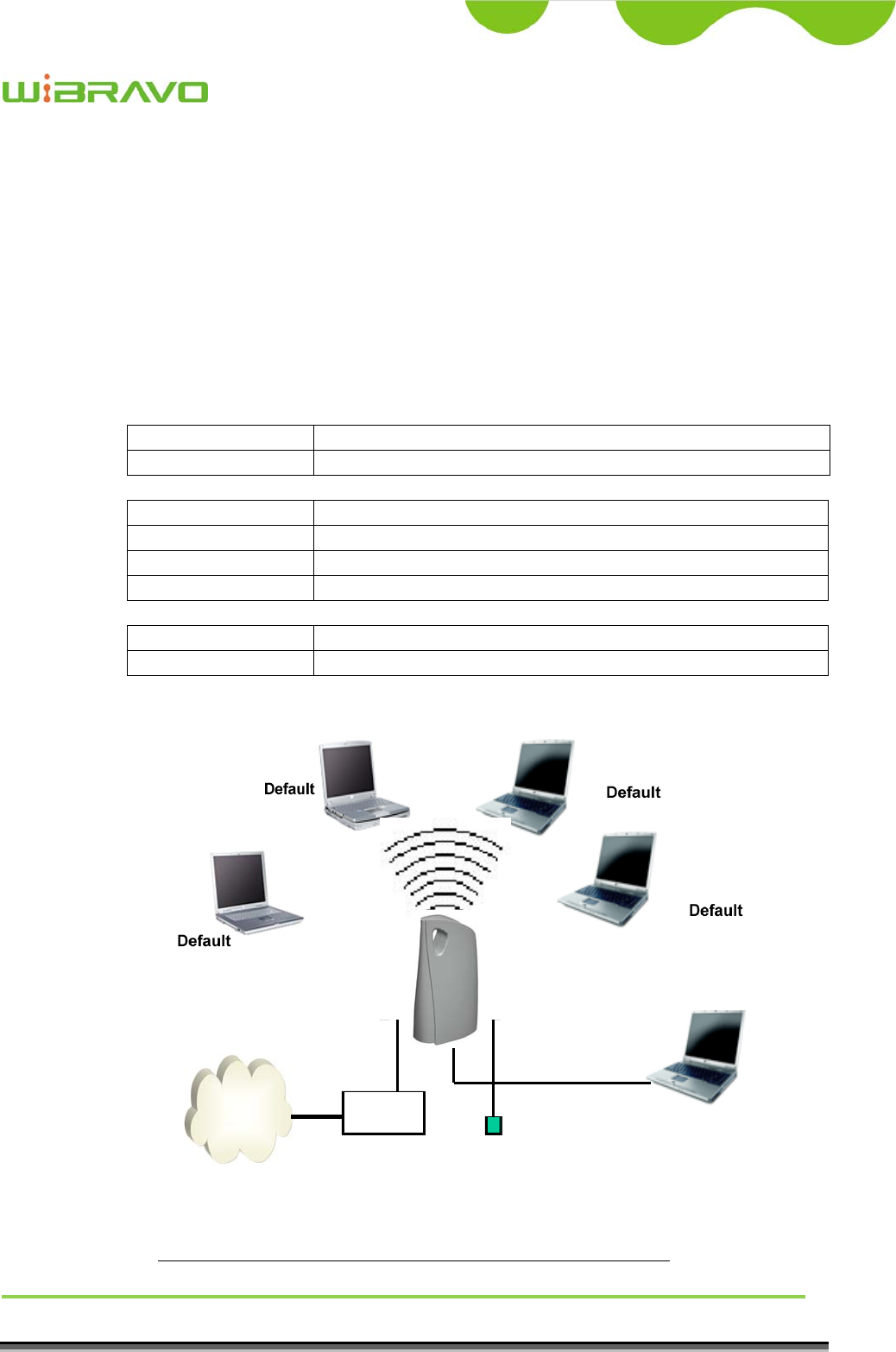
WiBRAVO
Virtu 901
User Manual 71
5 Configuration Examples
5.1 Example One – PPPoE on the WAN
Sales division of Company ABC likes to establish a WLAN network to support mobile
communication on sales’ Notebook PCs. MIS engineer collects information and plans
the WLAN Broadband Router implementation by the following configuration.
WAN configuration:
PPPoE
User Name H890123456
Password PW192867543210
LAN configuration
IP Address 192.168.1.254
Subnet Mask 255.255.255.0
Default Gateway 0.0.0.0
DHCP Client Range 192.168.1.100 – 192.168.1.200
WLAN configuration
SSID Default
Channel Number 11
Internet xDSL/ CM
Power adapter
Ethernet
Cable Ethernet cable
SSID: MyWLAN
Channel: 11
DHCP client
SSID: MyWLAN
Channel: 11
DHCP client
SSID: MyWLAN
Channel: 11
DHCP client
SS ID : My WLA N
Chan nel: 11
DHC P cli ent
DHCP client
Bridge mode
P PPoE connection p ara meters:
User Name: H890123456
Passwrod: pw192867543210
SSID: MyWLAN
Channel: 11
DHCP range: 192.168.1.100 to 192.168.1.200
Figure 3 – Configuration Example One – PPPoE on the WAN
SSID: Default
Chanel: 11
DHCP range: 192.168.1.100 to 192.168.1.200
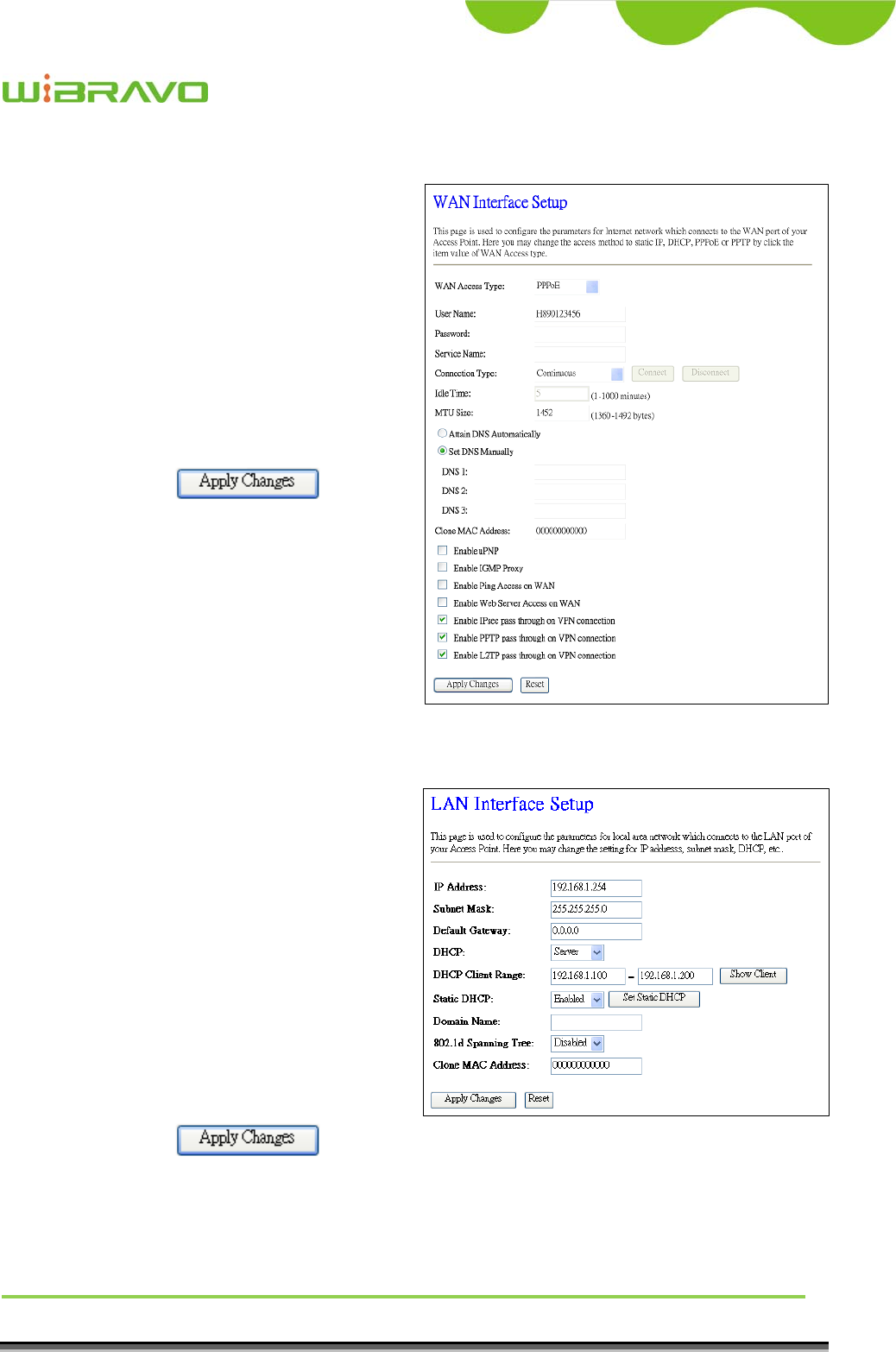
WiBRAVO
Virtu 901
User Manual 72
Configure the WAN interface:
Open WAN Interface Setup page,
select PPPoE then enter the User
Name “H890123456” and
Password “PW192867543210”, the
password is encrypted to display on
the screen.
Press button
to confirm the configuration
setting.
Configure the LAN interface:
Open LAN Interface Setup page,
enter the IP Address
“192.168.1.254”, Subnet Mask
“255.255.255.0”, Default Gateway
“0.0.0.0”, enable DHCP Server,
DHCP client range
“192.168.1.100” to
“192.168.1.200”.
Press button to confirm the configuration setting.
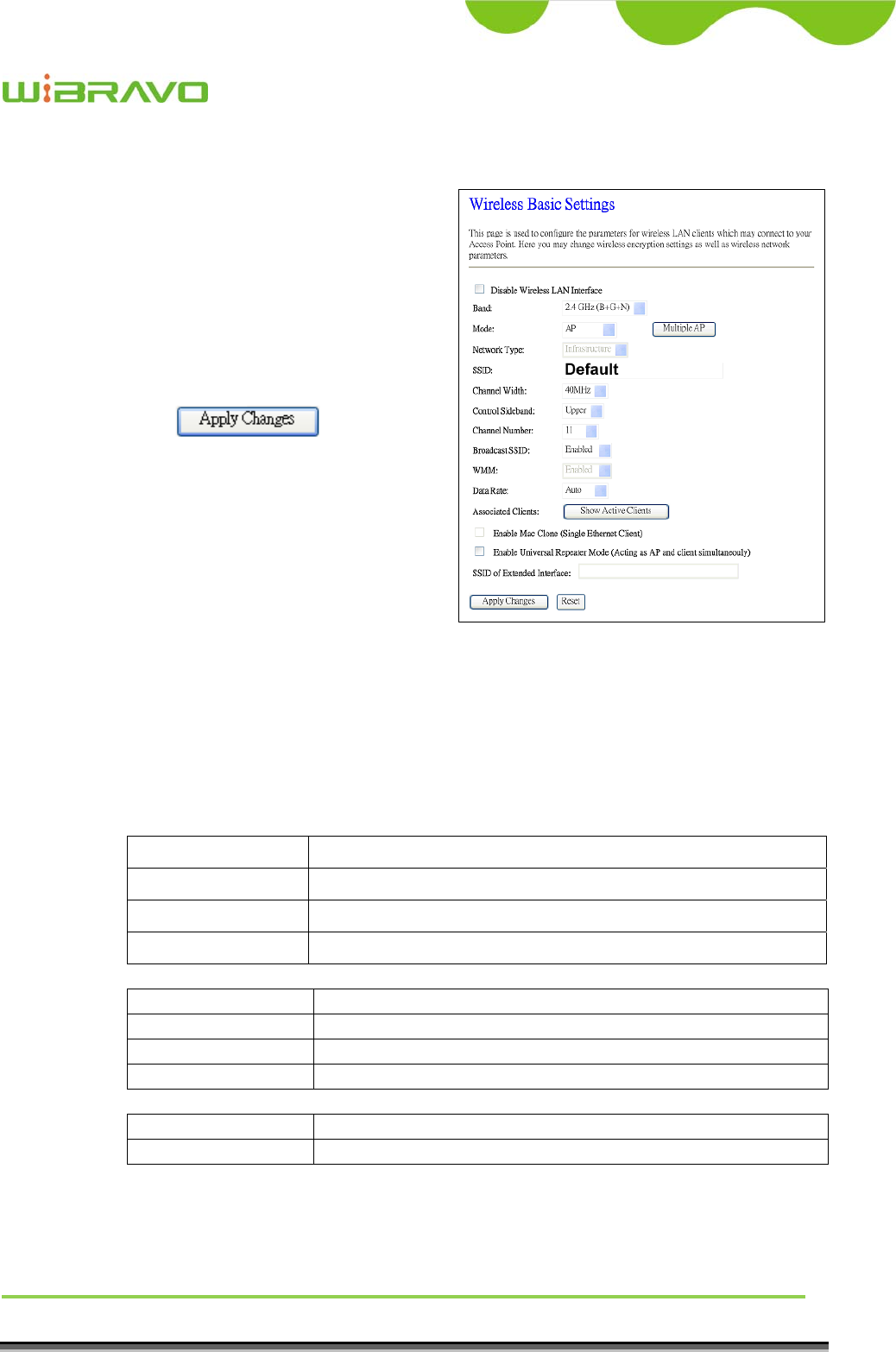
WiBRAVO
Virtu 901
User Manual 73
Configure the WLAN interface:
Open WLAN Interface Setup page,
enter the SSID “Default”, Channel
Number “11”.
Press button to
confirm the configuration setting.
5.2 Example Two – Fixed IP on the WAN
Company ABC likes to establish a WLAN network to support mobile communication
on all employees’ Notebook PCs. MIS engineer collects information and plans the
WLAN Broadband Router implementation by the following configuration.
WAN configuration:
Fixed IP
IP Address 192.168.2.254
Subnet Mask 255.255.255.0
Default Gateway 192.168.2.10
DNS Address 168.95.1.1
LAN configuration
IP Address 192.168.1.254
Subnet Mask 255.255.255.0
Default Gateway 192.168.2.254
DHCP Client Range 192.168.1.100 – 192.168.1.200
WLAN configuration
SSID Default
Channel Number 11
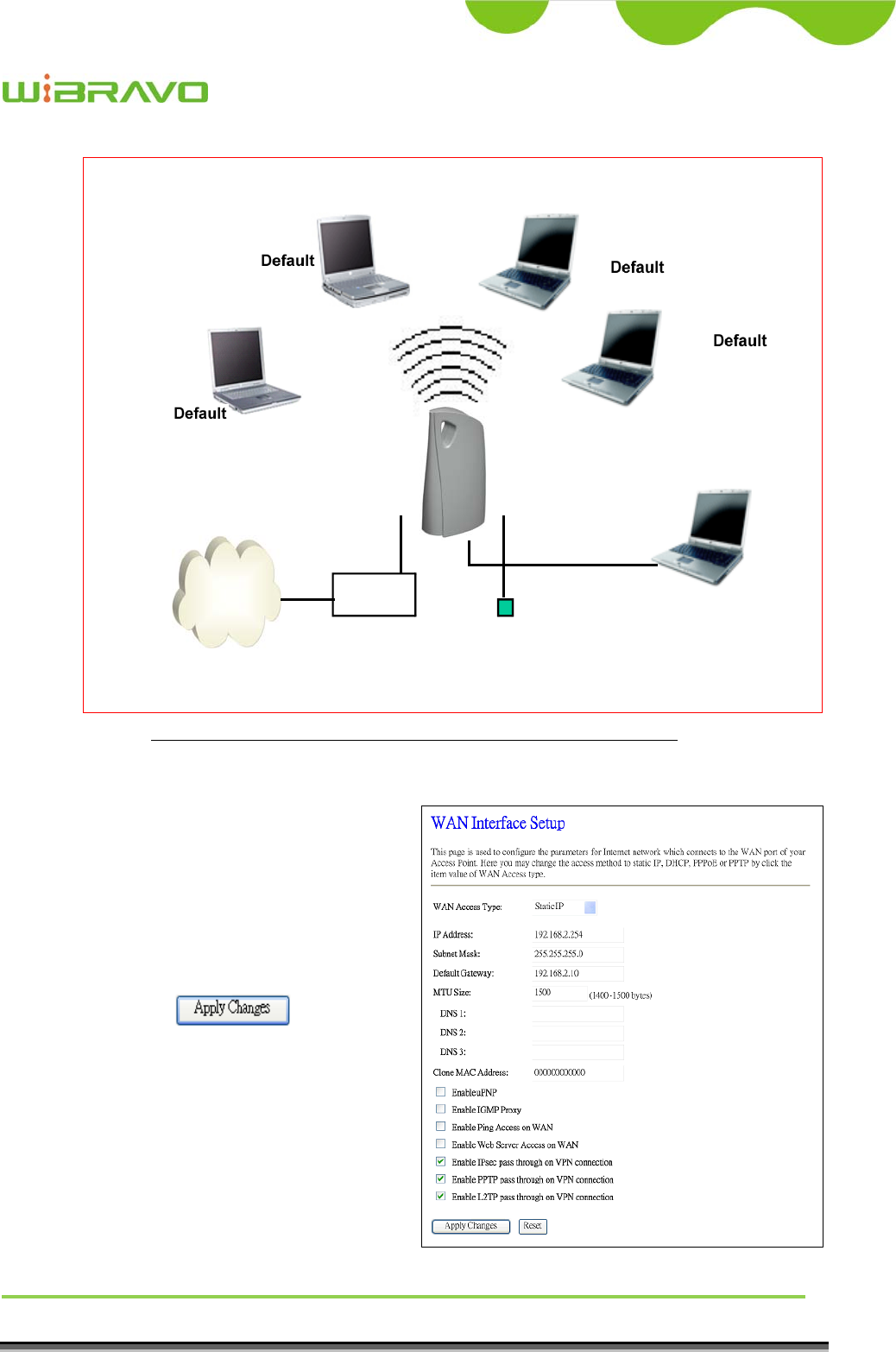
WiBRAVO
Virtu 901
User Manual 74
Internet xDSL/ CM
Power adapter
Ethernet
Cable Ethernet cable
SS ID : My WLA N
Channel: 11
DHC P cl ien t
SSID: MyWLAN
Channel: 11
DHCP client
SSID: MyWLAN
Channel: 11
DHCP client
SSID: MyWLAN
Channel: 11
DHCP client
DHCP client
R ou ter m ode
SSID: MyWLAN
Ch ann el: 11
DHCP range: 192.168.1.100 to 192.168.1.200
WAN IP: 192.168.2.254/ 255 .255.255.0
1 92.1 68.2. 10 / 25 5.25 5. 25 5.0
Figure 4 – Configuration Example Two – Fixed IP on the WAN
Configure the WAN interface:
Open WAN Interface Setup page,
select Fixed IP then enter IP
Address “192.168.2.254”, subnet
mask “255.255.255.0”, Default
gateway “192.168.2.10”.
Press button
to confirm the configuration the
setting.
SSID: Default
Chanel: 11
DHCP range: 192.168.1.100 to 192.168.1.200
WAN IP: 192.168.2.254/255.255.255.0
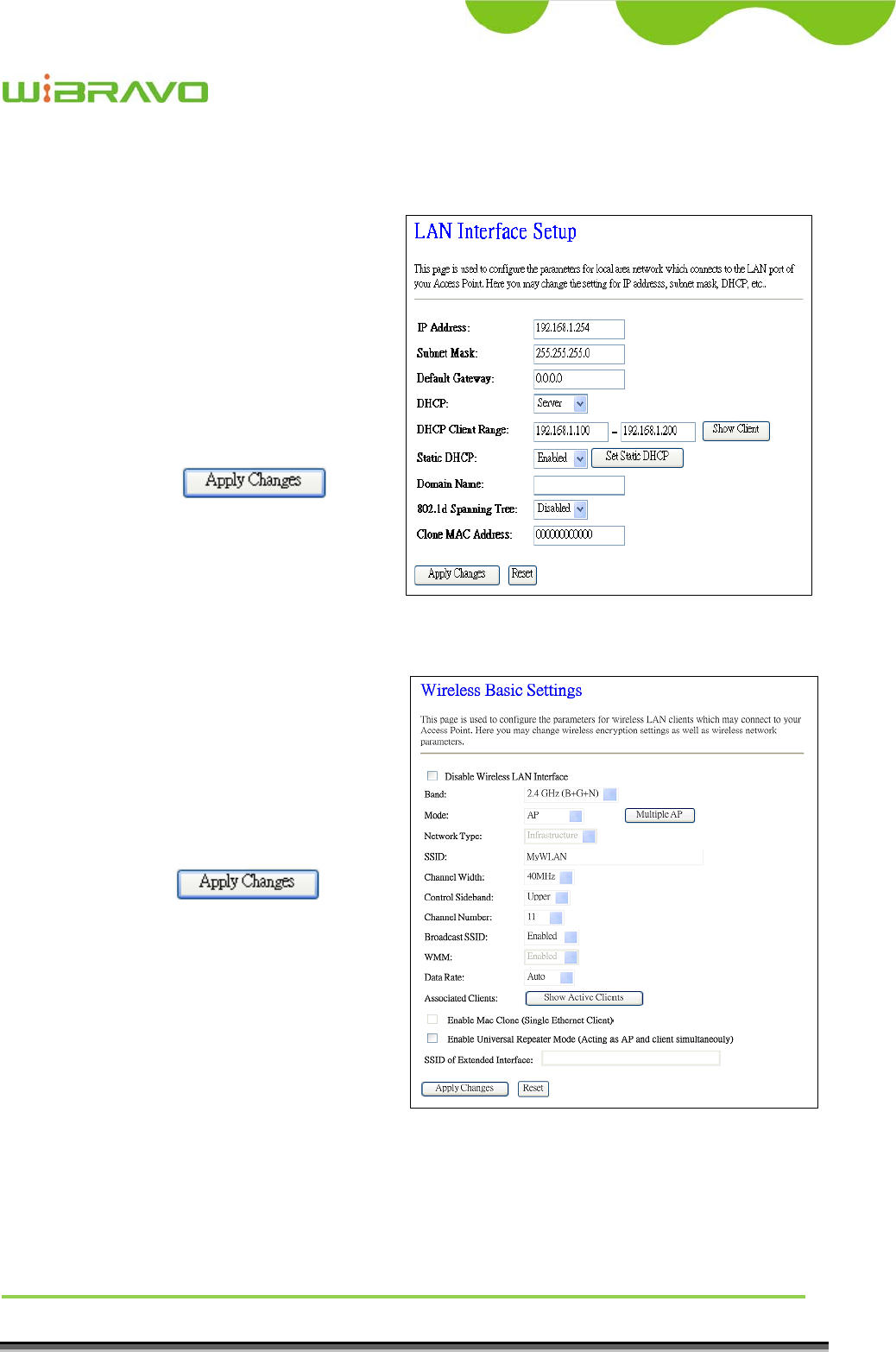
WiBRAVO
Virtu 901
User Manual 75
Configure the LAN interface:
Open LAN Interface Setup page,
enter the IP Address
“192.168.1.254”, Subnet Mask
“255.255.255.0”, enable DHCP
Server, DHCP client range
“192.168.1.100” to
“192.168.1.200”.
Press
button to confirm the
configuration setting.
Configure the WLAN interface:
Open WLAN Interface Setup
page, enter the SSID
“MyWLAN”, Channel Number
“11”.
Press button
to confirm the configuration
setting.