Asrock Computer Hardware 775Dual 880Pro Users Manual 880 Pro_UM.p65
2015-02-02
: Asrock Asrock-Asrock-Computer-Hardware-775Dual-880Pro-Users-Manual-418857 asrock-asrock-computer-hardware-775dual-880pro-users-manual-418857 asrock pdf
Open the PDF directly: View PDF  .
.
Page Count: 43

11
11
1
775Dual-880Pro
User Manual
Version 1.0
Published May 2005
Copyright©2005 ASRock INC. All rights reserved.
22
22
2
Copyright Notice:Copyright Notice:
Copyright Notice:Copyright Notice:
Copyright Notice:
No part of this manual may be reproduced, transcribed, transmitted, or translated in
any language, in any form or by any means, except duplication of documentation by
the purchaser for backup purpose, without written consent of ASRock Inc.
Products and corporate names appearing in this manual may or may not be regis-
tered trademarks or copyrights of their respective companies, and are used only for
identification or explanation and to the owners’ benefit, without intent to infringe.
Disclaimer:Disclaimer:
Disclaimer:Disclaimer:
Disclaimer:
Specifications and information contained in this manual are furnished for informa-
tional use only and subject to change without notice, and should not be constructed
as a commitment by ASRock. ASRock assumes no responsibility for any errors or
omissions that may appear in this manual.
With respect to the contents of this manual, ASRock does not provide warranty of
any kind, either expressed or implied, including but not limited to the implied warran-
ties or conditions of merchantability or fitness for a particular purpose.
In no event shall ASRock, its directors, officers, employees, or agents be liable for
any indirect, special, incidental, or consequential damages (including damages for
loss of profits, loss of business, loss of data, interruption of business and the like),
even if ASRock has been advised of the possibility of such damages arising from any
defect or error in the manual or product.
This device complies with Part 15 of the FCC Rules. Operation is subject to the
following two conditions:
(1) this device may not cause harmful interference, and
(2) this device must accept any interference received, including interference that
may cause undesired operation.
ASRock Website: http://www.asrock.com

33
33
3
ContentsContents
ContentsContents
Contents
1. Introduction1. Introduction
1. Introduction1. Introduction
1. Introduction ....................................................................................................
....................................................................................................
.................................................. 5 5
5 5
5
1.1 Package Contents .......................................................... 5
1.2 Specifications ................................................................ 6
1.3 Supported AGP VGA Card List for AGP Slot ................ 9
1.4 Supported PCI Express VGA Card List for PCI
Express Graphics Slot (PCI Express x 4) ..................... 11
1.5 Motherboard Layout ...................................................... 12
1.6 ASRock 8CH I/O ............................................................. 13
2. Installation2. Installation
2. Installation2. Installation
2. Installation ........................................................................................................
........................................................................................................
.................................................... 14 14
14 14
14
2.1 Screw Holes ................................................................. 14
2.2 Pre-installation Precautions ........................................... 14
2.3 CPU Installation .............................................................. 15
2.4 Installation of Heatsink and CPU fan ............................. 17
2.5 Installation of Memory Modules (DIMM)......................... 18
2.6 Expansion Slots ............................................................. 20
2.7 Surround Display Feature ............................................. 21
2.8 Jumpers Setup .............................................................. 21
2.9 Onboard Headers and Connectors .............................. 22
2.10 Serial ATA (SATA) Hard Disks Installation ................... 25
2.11 Hot Plug and Hot Swap Functions for SATA HDDs ..... 25
2.12 Installing Windows 2000 / Windows XP / Windows XP
64-bit With RAID Functions .......................................... 26
2.12.1 Installing Windows 2000 / Windows XP With
RAID Functions ............................................... 26
2.12.2 Installing Windows XP 64-bit With RAID
Functions .........................................................26
2.13 Installing Windows 98 / ME / 2000 / XP / XP 64-bit
Without RAID Functions ................................................27
3. BIOS S3. BIOS S
3. BIOS S3. BIOS S
3. BIOS SETUP UTILITYETUP UTILITY
ETUP UTILITYETUP UTILITY
ETUP UTILITY ..................................................................................
..................................................................................
......................................... 28 28
28 28
28
3.1 Introduction .................................................................... 28
3.1.1 BIOS Menu Bar .................................................... 28
3.1.2 Navigation Keys ................................................... 29
3.2 Main Screen................................................................... 29
3.3 Advanced Screen ......................................................... 30
3.3.1 CPU Configuration................................................ 30
3.3.2 Chipset Configuration .......................................... 31
3.3.3 ACPI Configuration ............................................... 33
3.3.4 IDE Configuration ................................................. 34
3.3.5 PCIPnP Configuration ........................................... 36

44
44
4
3.3.6 Floppy Configuration ........................................... 36
3.3.7 Super IO Configuration ........................................ 37
3.3.8 USB Configuration ............................................... 38
3.4 Hardware Health Event Monitoring Screen .................. 39
3.5 Boot Screen................................................................... 39
3.5.1 Boot Settings Configuration.................................. 40
3.5.2 Boot Device Priority............................................... 40
3.6 Security Screen ............................................................ 41
3.7 Exit Screen .................................................................... 42
4. Software Support4. Software Support
4. Software Support4. Software Support
4. Software Support....................................................................................
....................................................................................
.......................................... 43 43
43 43
43
4.1 Install Operating System ............................................... 43
4.2 Support CD Information ................................................. 43
4.2.1 Running Support CD ............................................ 43
4.2.2 Drivers Menu ........................................................ 43
4.2.3 Utilities Menu ........................................................ 43
4.2.4 “LGA 775 CPU Installation Live Demo” Program .. 43
4.2.5 Contact Information .............................................. 43
55
55
5
1.1.
1.1.
1. IntroductionIntroduction
IntroductionIntroduction
Introduction
Thank you for purchasing ASRock 775Dual-880Pro motherboard, a reliable
motherboard produced under ASRock’s consistently stringent quality control. It de-
livers excellent performance with robust design conforming to ASRock’s commit-
ment to quality and endurance.
In this manual, chapter 1 and 2 contain introduction of the motherboard and step-by-
step guide to the hardware installation. Chapter 3 and 4 contain the configuration
guide to BIOS setup and information of the Support CD.
Because the motherboard specifications and the BIOS software might be
updated, the content of this manual will be subject to change without
notice. In case any modifications of this manual occur, the updated
version will be available on ASRock website without further notice. You
may find the latest memory and CPU support lists on ASRock website as
well. ASRock website http://www.asrock.com
1.1 Package Contents1.1 Package Contents
1.1 Package Contents1.1 Package Contents
1.1 Package Contents
ASRock 775Dual-880Pro Motherboard
(ATX Form Factor: 12.0-in x 9.6-in, 30.5 cm x 24.4 cm)
ASRock 775Dual-880Pro Quick Installation Guide
ASRock 775Dual-880Pro Support CD
(including LGA 775 CPU Installation Live Demo)
One 80-conductor Ultra ATA 66/100/133 IDE Ribbon Cable
One Ribbon Cable for a 3.5-in Floppy Drive
One Serial ATA (SATA) Cable (Optional)
One Serial ATA (SATA) HDD Power Cable (Optional)
One ASRock 8CH I/O

66
66
6
1.2 Specifications1.2 Specifications
1.2 Specifications1.2 Specifications
1.2 Specifications
Platform: ATX Form Factor: 12.0-in x 9.6-in, 30.5 cm x 24.4 cm
CPU: 775-Pin Socket
supporting Intel® Pentium® 4 / Celeron® processor (in 775-land
LGA package)
Chipsets: North Bridge:
VIA PT880Pro, FSB @ 1066/800/533 MHz,
supports Hyper-Threading Technology (see CAUTION 1)
South Bridge:
VIA VT8237, supports USB 2.0, ATA 133, SATA 1.5Gb/s
Memory: 2 DDR DIMM Slots: DDR1 and DDR2
supports PC3200 (DDR400) / PC2700 (DDR333) /
PC2100 (DDR266), Max. 2GB
2 DDRII DIMM Slots: DDRII1 and DDRII2
supports PCII5300 (DDRII667) / PCII4300 (DDRII533) /
PCII3200 (DDRII400), Max. 2GB (see CAUTION 2)
Dual Channel Memory Technology support (see CAUTION 3)
IDE: IDE1: ATA 133 / Ultra DMA Mode 6
IDE2: ATA 133 / Ultra DMA Mode 6
Supports up to 4 IDE devices
Serial ATA: 2 SATA connectors
Support up to 1.5Gb/s data transfer rate
Floppy Port: Supports up to 2 floppy disk drives
Audio: 7.1 channels AC’97 Audio
LAN: Speed: 802.3u (10/100 Ethernet), supports Wake-On-LAN
Hardware Monitor: CPU temperature sensing
Chassis temperature sensing
CPU overheat shutdown to protect CPU life
(ASRock U-COP)(see CAUTION 4)
CPU fan tachometer
Chassis fan tachometer
Voltage monitoring: +12V, +5V, +3.3V, Vcore
PCI slots: 4 slots with PCI Specification 2.3
AGP slot: 1 AGP slot, supports 1.5V, 8X/4X AGP card (see CAUTION 5)
PCI Express Graphics slot (PCI Express x 4):
1 slot with PCI Express x 4 , supports PCI Express x 16 Graphic
Card (see CAUTION 6)
77
77
7
USB 2.0: 8 USB 2.0 ports:
include 4 ready-to-use USB 2.0 ports on the rear panel,
plus two on-board headers supporting 4 extra USB 2.0 ports
(see CAUTION 7)
ASRock 8CH I/O: 1 PS/2 Mouse Port, 1 PS/2 Keyboard Port
1 Serial Port: COM1
1 Parallel Port (ECP/EPP Support)
4 Ready-to-Use USB 2.0 Ports
1 RJ-45 Port
Audio Jack: Rear Speaker / Side Speaker / Central/Bass /
Line In / Front Speaker / Microphone
(see CAUTION 8)
BIOS: AMI BIOS
Supports “Plug and Play”
ACPI 1.1 compliance wake up events
Supports jumperfree
SMBIOS 2.3.1 support
CPU frequency stepless control
(only for advanced users’ reference, see CAUTION 9)
OS: Microsoft® Windows® 98SE / ME / 2000 / XP compliant
CAUTION!
1. About the setting of “Hyper Threading Technology”, please check page 31.
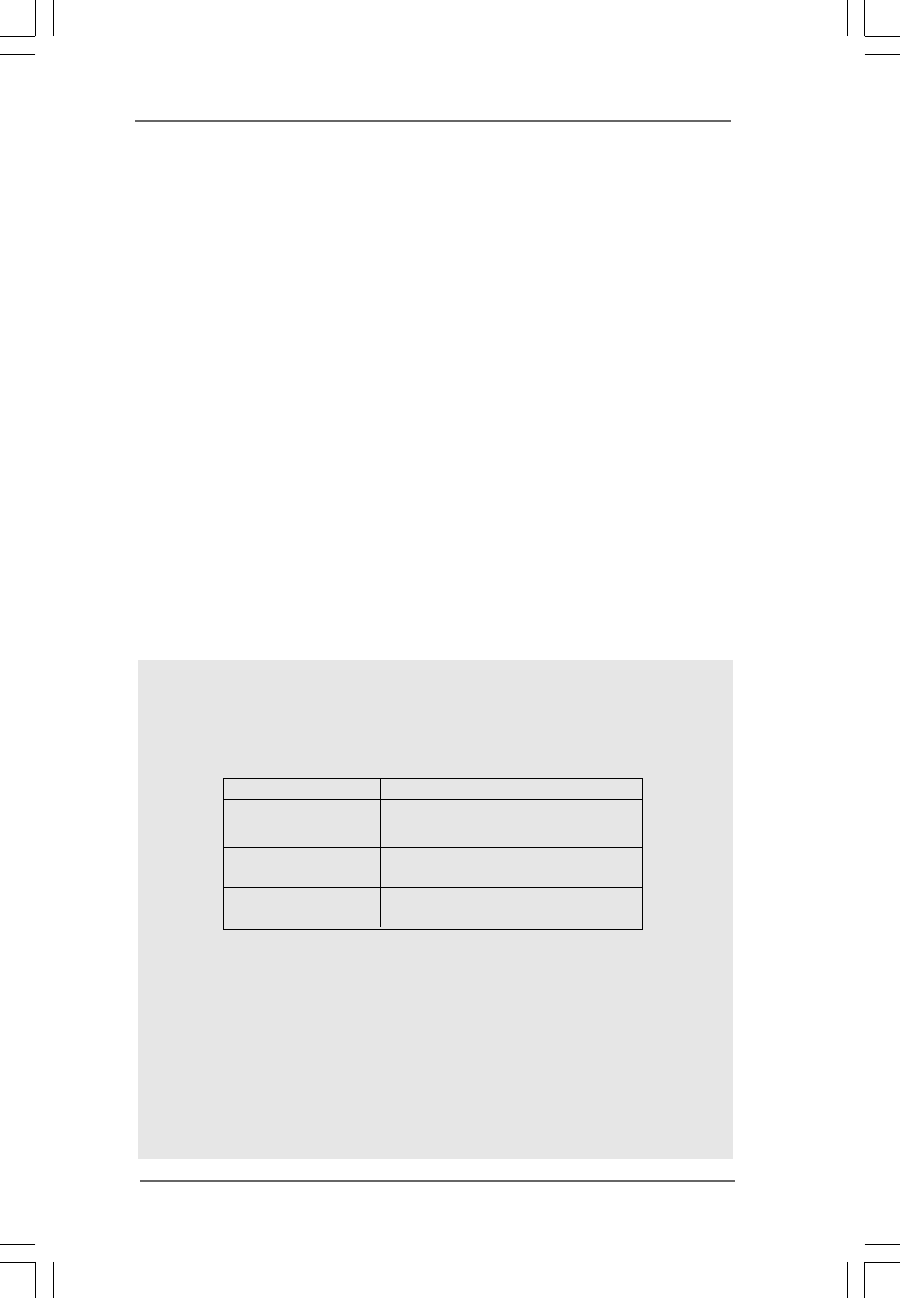
2. Please check the table below for the memory support frequency and its
corresponding CPU FSB frequency.
CPU FSB Frequency Memory Support Frequency
1066 DDR266, DDR333, DDR400,
DDRII400, DDRII533, DDRII667
800 DDR266, DDR333, DDR400
DDRII400, DDRII533, DDRII667
533 DDR266, DDR333, DDR400
DDRII400, DDRII533, DDRII667
3. This motherboard supports Dual Channel Memory Technology. Before you
implement Dual Channel Memory Technology, make sure to read the
installation guide of memory modules on page 18 for proper installation.
4. While CPU overheat is detected, the system will automatically shutdown.
Before you resume the system, please check if the CPU fan on the
motherboard functions properly and unplug the power cord, then plug it
back again. To improve heat dissipation, remember to spray thermal
grease between the CPU and the heatsink when you install the PC system.
5. Do NOT use a 3.3V AGP card on the AGP slot of this motherboard!
It may cause permanent damage! For the information of the compatible
AGP VGA cards, please refer to the “Supported AGP VGA Card List for

88
88
8
AGP Slot” on page 9 and 10. For the proper installation of PCI Express
VGA card, please refer to the installation guide on page 20.
6. For the information of the compatible PCI Express VGA cards, please
refer to the “Supported PCI Express VGA Card List for PCI Express
Graphics Slot (PCI Express x 4)” on page 11. For the proper installation of
PCI Express VGA card, please refer to the installation guide on page 20.
7. Power Management for USB 2.0 works fine under Microsoft® Windows® XP
SP1 / 2000 SP4. It may not work properly under Microsoft® Windows® 98 /
ME.
8. For microphone input, this motherboard supports both stereo and mono
modes. For audio output, this motherboard supports 2-channel, 4-channel,
6-channel, and 8-channel modes. Please check the table on page 13 for
proper connection.
9. Although this motherboard offers stepless control, it is not recommended
to perform over-clocking. Frequencies other than the recommended CPU
bus frequencies may cause the instability of the system or damage the
CPU.
99
99
9
1.31.3
1.31.3
1.3 Supported AGP VGA Card List for AGP SlotSupported AGP VGA Card List for AGP Slot
Supported AGP VGA Card List for AGP SlotSupported AGP VGA Card List for AGP Slot
Supported AGP VGA Card List for AGP Slot
(for Windows 2000/Windows XP)
I. AGP 4X
Graphics Chip Model Name
Vendor
n-VIDIA Inno3D GeForce 2 MX 400
ASUS V8170
ASUS V9180 Magic/T
ProLink GeForce 4 MX440
II. AGP 8X
Graphics Chip Model Name
Vendor
n-VIDIA ALBATRON GeForce4 MX-480 Series
ASUS V9280TD
ASUS V9480
AOPEN Aeolus FX5200-DV128
CHAINTECH A-FX20-N
LEADTEK WINFAST A340TDH
ASUS V9520-X
LEADTEK WinFast A340PRO/TD
ASUS V9560/TD
ALBATRON GeForce FX5600 Series
LEADTEK WinFast A360TD
Inno3D GeForce FX5600
AWIN FX5700-LE
GIGABYTE GV-N57L256D
ProLink GeForceFX 5700LE
ASUS V9570/TD
MIS FX5700-TD128
PixelView MGVA-NVGA35BA
CHAINTECH SA5900X
ASUS V9950ULTRA
GIGABYTE GV-N66128DP
LEADTEK WinFast A6600GT/TDH
ALBATRON GeForce 6600GT
Leadtek WinFast A6600 GT TDH
ASUS N6200
LEADTEK WinFast A400TDH
ASUS V9999LE
ASUS V9999ULTRA/2DT

1010
1010
10
ATI GigaCube GigaCube-R9200 128M
POWERCOLOR Radeon 9200SE
Connect3D Radeon 9250
POWERCOLOR Radeon 9250
GECUBE Radeon 9250/128M
POWERCOLOR R95V-C3L
Club3D Radeon 9550SE
ASUS A9600SE
Sapphire ATLANTIS Radeon 9600SE
GECUBE GC-R9600L (SE)
FIC Radeon 9600 PRO
ASUS A9600XT/TVD
Sapphire ATLANTIS Radeon 9600XT
PowerColor XR97-C3L
PowerColor R98-SC3
Club3D Radeon 9800
ASUS A9800XT
ASUS X800
GEXCUBE GC-RX700PGA-C3
For the latest updates of the supported AGP VGA card list for AGP slot, please
visit ASRock website for details.
ASRock website: http://www.asrock.com/support/index.htm
1111
1111
11
1.41.4
1.41.4
1.4 Supported PCI Express VGA Card List for PCISupported PCI Express VGA Card List for PCI
Supported PCI Express VGA Card List for PCISupported PCI Express VGA Card List for PCI
Supported PCI Express VGA Card List for PCI
Express Graphics Slot (PCI Express x 4)Express Graphics Slot (PCI Express x 4)
Express Graphics Slot (PCI Express x 4)Express Graphics Slot (PCI Express x 4)
Express Graphics Slot (PCI Express x 4)
(for Windows 2000/Windows XP)
Graphics Chip Model Name
Vendor
n-VIDIA ASUS EN5750
MSI PCX 5750-TD128
ASUS Extreme N5900
SPARKLE GeFORCE 6200TC
LEADTEK PX6200 TC/TDH
ASUS EN6200GE
GIGABYTE GV-NX62128D
ASUS EN6200
ALBATRON PC6600GT
ASUS EN6600
GIGABYTE GV-NX66128D
ASUS EN6800GT
ASUS EN6800
ATI POWERCOLOR X300 SE
ASUS EAX600XT/HTVD
ABIT X600XT
ASUS EAX700PRO/TVD
ASUS EAX800XL
MSI X800XT
GECUBE X850XT-VIVO
For the latest updates of the supported PCI Express VGA card list for PCI
Express Graphics slot (PCI Express X 4), please visit ASRock website for
details.
ASRock website: http://www.asrock.com/support/index.htm
1212
1212
12
1.4 Motherboard Layout1.4 Motherboard Layout
1.4 Motherboard Layout1.4 Motherboard Layout
1.4 Motherboard Layout
1.5V_AGP1
VIA
PT880Pro
Chipset
VIA
VT8237
CMOS
Battery
`
7.1 CH
PCI Express Graphics
PCI 2
PCI 3
PCI 4
PCI 1
4MB
BIOS
DDRII1 (64/72 bit, 240-pin module)
DDR1 (64/72 bit, 184-pin module)
DDRII2 (64/72 bit, 240-pin module)
DDR2 (64/72 bit, 184-pin module)
ATXPWR1
775Dual-880Pro
FLOPPY1
CD1
SATA
ATA133
USB2.0
FSB1066
AGP 8X
ATX12V1
PS2_USB_PWR1
1
IDE1 IDE2
GAME1 PANEL 1
HDLED RESET
PLED PWRBTN
1
USB67
1
IR1
1
SPEAKER1
1
CHA_FAN1
PARALLEL PORT
COM1
PS2
Mouse
PS2
Keyboard
USB 2.0
T: US B 2
B: USB3
USB 2.0
T: US B 0
B: USB1
Top:
RJ-45
Top :
REAR SPK
Center:
SIDE SPK
Bottom:
CTR BASS
Top :
LINE IN
Center:
FRONT
Bottom:
MIC IN
Super
I/O
CLRCMOS1
1
AUDIO1
JR1 JL1
LAN
PHY
Audio
CODEC
24.4cm (9.6 in)
30.5cm (12.0 in)
USB45
1
PCI
EXPRESS
Dual Channel
CPU_FAN1
SATA2
SATA1
6
457
3
12
8
9
10
11
12
13
14
15
16
18
19 17
22 21 20
23
24
25
26
27
28
29
DDR400/DDRII667
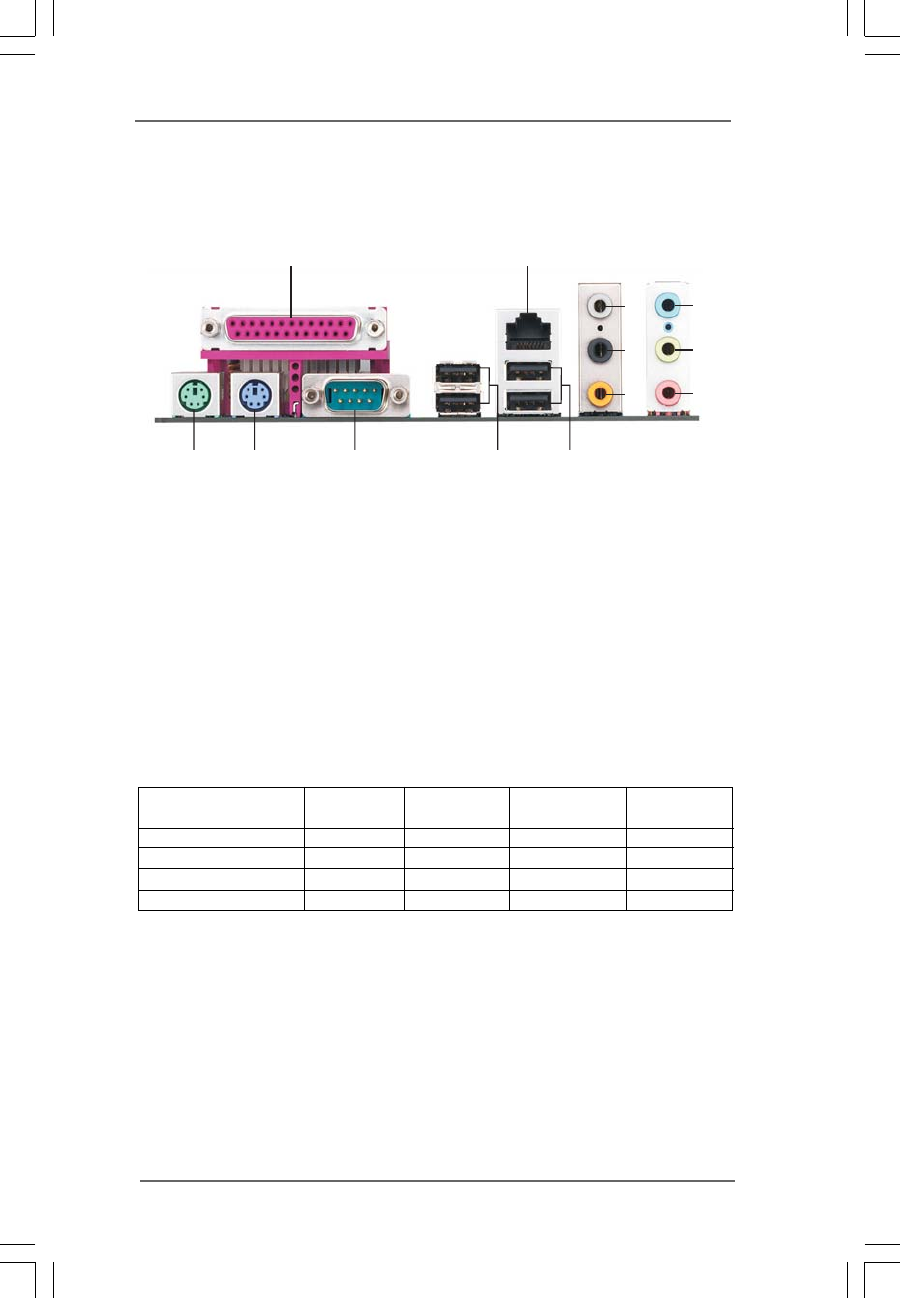
1 PS2_USB_PWR1 Jumper 15 Chassis Fan Connector (CHA_FAN1)
2 ATX 12V Connector (ATX12V1) 16 Flash Memory
3 775-Pin CPU Socket 17 South Bridge Controller
4 North Bridge Controller 18 Clear CMOS Jumper (CLRCMOS1)
5 CPU Fan Connector (CPU_FAN1) 19 USB 2.0 Header (USB45, Blue)
6 2 x 240-pin DDRII DIMM Slots 20 USB 2.0 Header (USB67, Blue)
(Dual Channel A: DDRII1, DDRII2; Yellow) 21 Floppy Connector (FLOPPY1)
7 2 x 184-pin DDR DIMM Slots 22 Game Connector (GAME1)
(Dual Channel B: DDR1, DDR2; Blue) 23 Front Panel Audio Header (AUDIO1)
8 AGP Slot (1.5V_AGP1) 24 JR1 / JL1 Jumpers
9 Secondary IDE Connector (IDE2, Black) 25 Internal Audio Connector: CD1 (Black)
10 Primary IDE Connector (IDE1, Blue) 26 4 x PCI Slots (PCI1- 4)
11 Secondary Serial ATA Connector (SATA2) 27 PCI Express Graphics Slot (PCI Express x 4)
12 Primary Serial ATA Connector (SATA1) 28 Infrared Module Header (IR1)
13 System Panel Header (PANEL1) 29 ATX Power Connector (ATXPWR1)
14 Chassis Speaker Header (SPEAKER 1)
1313
1313
13
1.51.5
1.51.5
1.5 ASRock 8CH I/OASRock 8CH I/O
ASRock 8CH I/OASRock 8CH I/O
ASRock 8CH I/O
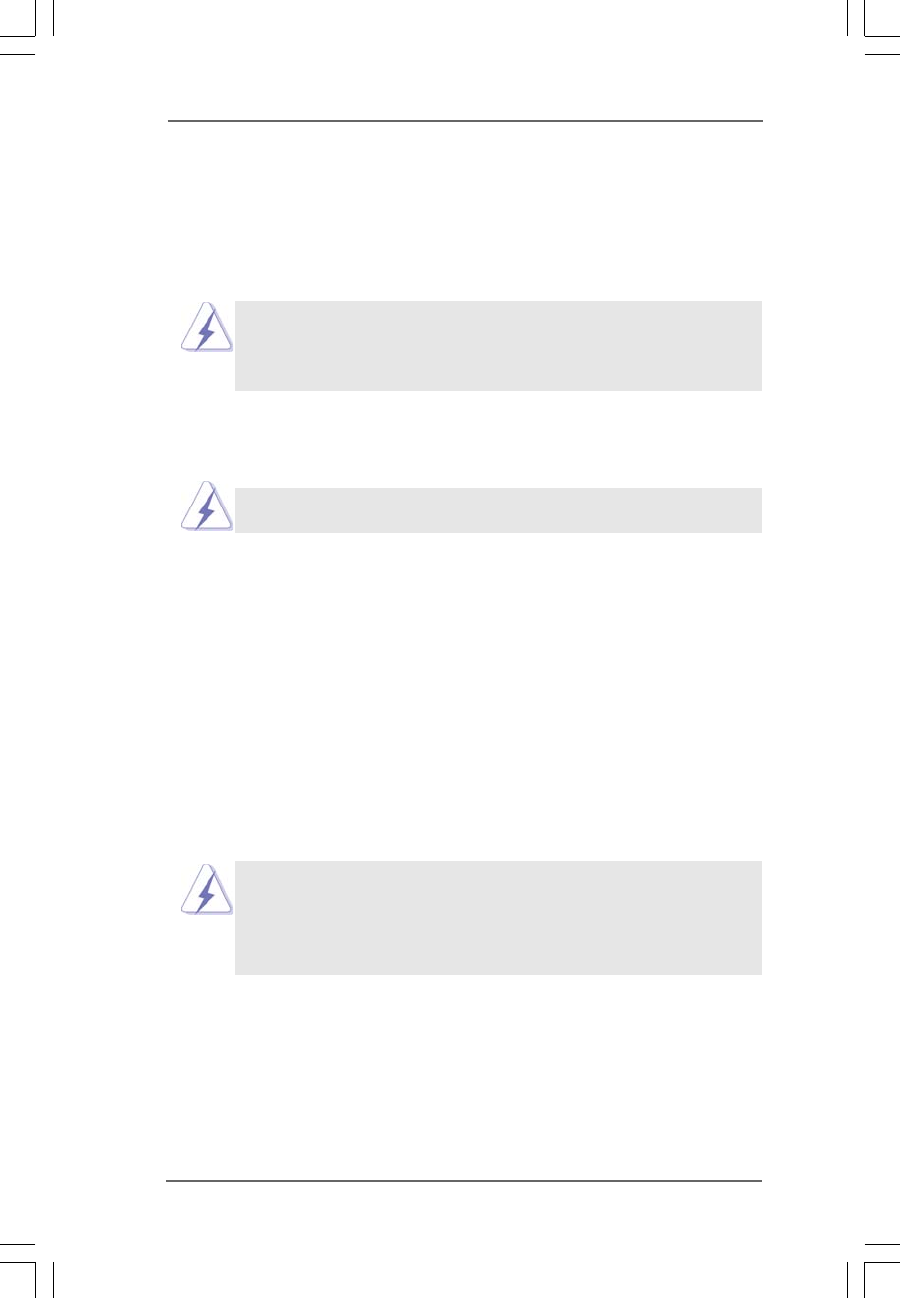
1 Parallel Port 8 Microphone (Pink)
2 RJ-45 Port 9 USB 2.0 Ports (USB01)
3 Rear Speaker (Gray) 10 USB 2.0 Ports (USB23)
4 Side Speaker (Black) 11 Serial Port: COM1
5 Central / Bass (Orange) 12 PS/2 Keyboard Port (Purple)
6 Line In (Light Blue) 13 PS/2 Mouse Port (Green)
*7 Front Speaker (Lime)
* If you use 2-channel speaker, please connect the speaker’s plug into “Front Speaker Jack”. See
the table below for connection details in accordance with the type of speaker you use.
TABLE for Audio Output Connection
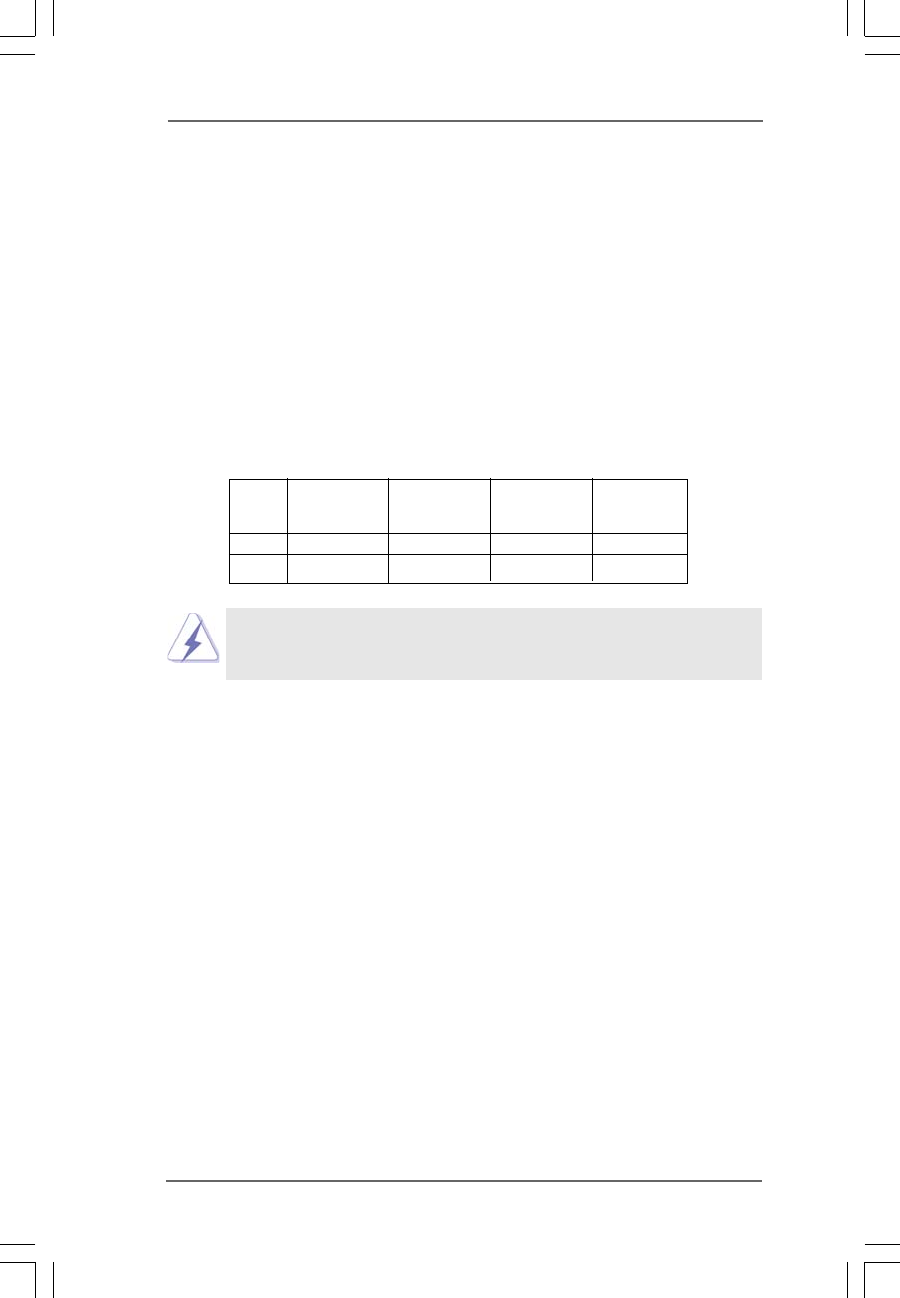
Audio Output Channels Front Speaker Rear Speaker Central / Bass Side Speaker
(No. 7) (No. 3) (No. 5) (No. 4)
2 V -- -- --
4VV----
6VVV--
8VVVV
12
3
4
5
6
7
8
910
11
12
13
1414
1414
14
Chapter 2 InstallationChapter 2 Installation
Chapter 2 InstallationChapter 2 Installation
Chapter 2 Installation
775Dual-880Pro is an ATX form factor (12.0" x 9.6", 30.5 x 24.4 cm) motherboard.
Before you install the motherboard, study the configuration of your chassis to
ensure that the motherboard fits into it.
Make sure to unplug the power cord before installing or removing the
motherboard. Failure to do so may cause physical injuries to you and
damages to motherboard components.
2.1 Screw Holes2.1 Screw Holes
2.1 Screw Holes2.1 Screw Holes
2.1 Screw Holes
Place screws into the holes indicated by circles to secure the motherboard to the
chassis.
Do not over-tighten the screws! Doing so may damage the motherboard.
2.2 Pre-installation Precautions2.2 Pre-installation Precautions
2.2 Pre-installation Precautions2.2 Pre-installation Precautions
2.2 Pre-installation Precautions
Take note of the following precautions before you install motherboard components
or change any motherboard settings.
1. Unplug the power cord from the wall socket before touching any component.
2. To avoid damaging the motherboard components due to static electricity, NEVER
place your motherboard directly on the carpet or the like. Also remember to use
a grounded wrist strap or touch a safety grounded object before you handle
components.
3. Hold components by the edges and do not touch the ICs.
4. Whenever you uninstall any component, place it on a grounded antistatic pad or
in the bag that comes with the component.
Before you install or remove any component, ensure that the power is
switched off or the power cord is detached from the power supply.
Failure to do so may cause severe damage to the motherboard, peripherals,
and/or components.
1515
1515
15
2.3 775-LAND CPU Installation2.3 775-LAND CPU Installation
2.3 775-LAND CPU Installation2.3 775-LAND CPU Installation
2.3 775-LAND CPU Installation
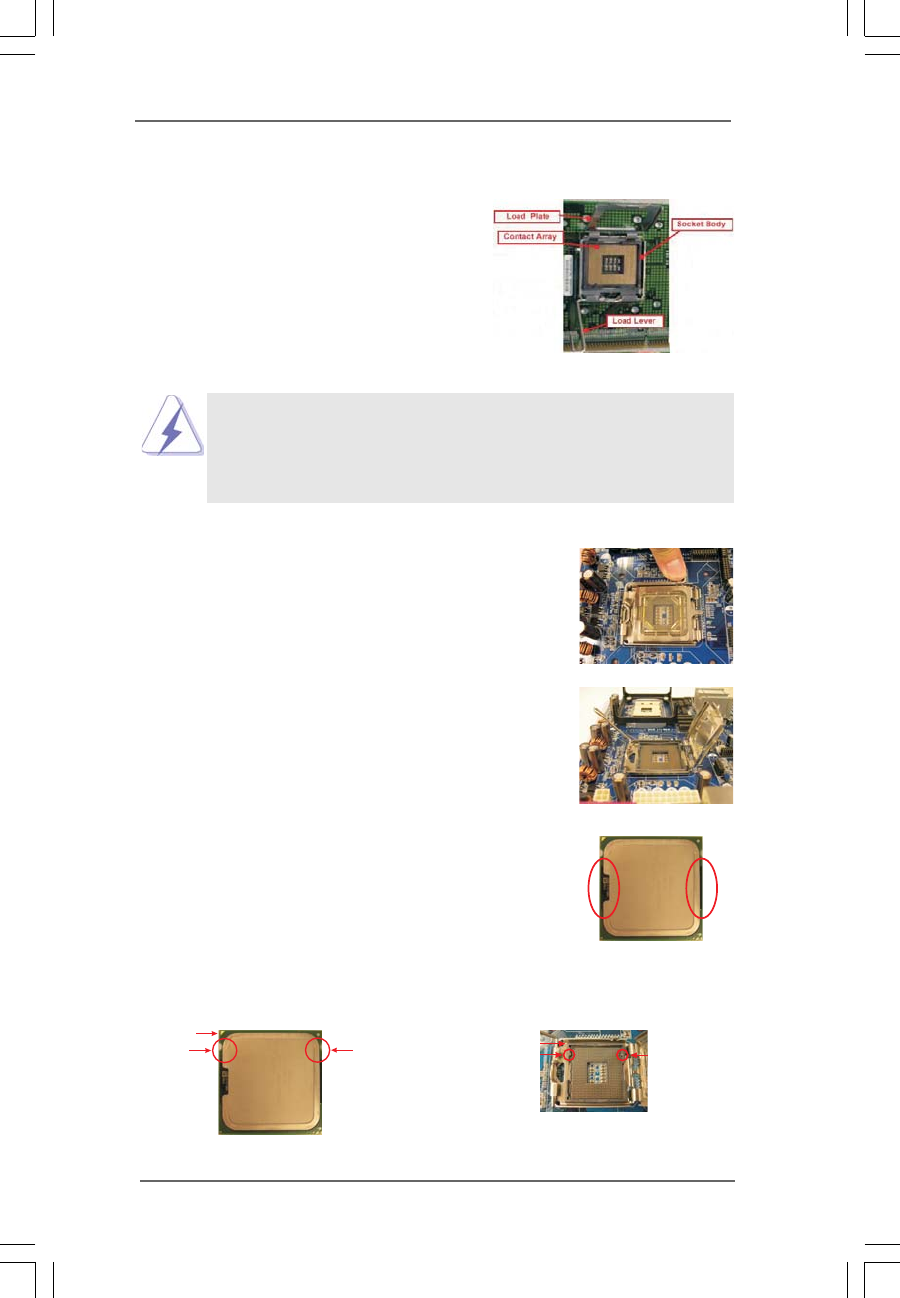
For the installation of Intel 775-LAND CPU,
please follow the steps below.
Before you insert the 775-LAND CPU into the socket, please check if
the CPU surface is unclean or if there is any bent pin on the socket.
Do not force to insert the CPU into the socket if above situation is
found. Otherwise, the CPU will be seriously damaged.
Step 1. Open the socket:
Step 1-1. Disengaging the lever by depressing
down and out on the hook to clear
retention tab.
Step 1-2. Rotate the load lever to fully open po-
sition at approximately 135 degrees.
Step 1-3. Rotate the load plate to fully open po-
sition at approximately 100 degrees.
Step 2. Insert the 775-LAND CPU:
Step 2-1. Hold the CPU by the edges where are
marked with black lines.
Step 2-2. Orient the CPU with IHS (Integrated
Heat Sink) up. Locate Pin1 and the two
orientation key notches.
775-Pin Socket Overview
black line
black line
775-Pin Socket
Pin1
alignment key alignment key
Pin1
orientation
key notch
orientation
key notch
775-LAND CPU
1616
1616
16
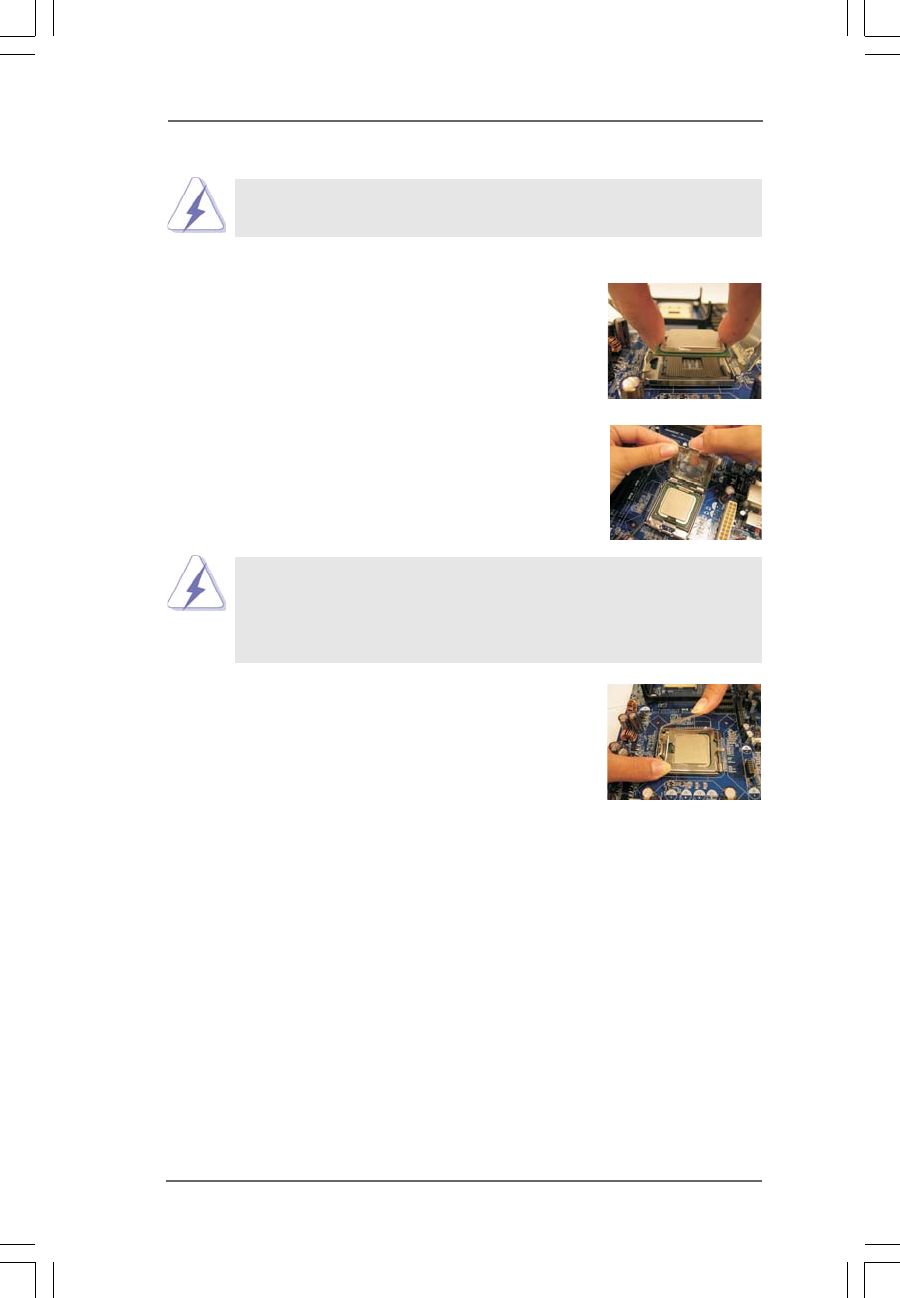
For proper inserting, please ensure to match the two orientation key
notches of the CPU with the two alignment keys of the socket.
Step 2-3. Carefully place the CPU into the socket
by using a purely vertical motion.
Step 2-4. Verify that the CPU is within the socket
and properly mated to the orient keys.
Step 3. Remove PnP Cap (Pick and Place Cap):
Use your left hand index finger and thumb to
support the load plate edge, engage PnP cap
with right hand thumb and peel the cap from the
socket while pressing on center of PnP cap to
assist in removal.
1. It is recommended to use the cap tab to handle and avoid kicking
off the PnP cap.
2. This cap must be placed if returning the motherboard for after
service.
Step 4. Close the socket:
Step 4-1. Rotate the load plate onto the IHS.
Step 4-2. While pressing down lightly on load
plate, engage the load lever.
Step 4-3. Secure load lever with load plate tab
under retention tab of load lever.
1717
1717
17
2.42.4
2.42.4
2.4 Installation of CPU Fan and HeatsinkInstallation of CPU Fan and Heatsink
Installation of CPU Fan and HeatsinkInstallation of CPU Fan and Heatsink
Installation of CPU Fan and Heatsink
This motherboard is equipped with 775-Pin socket that supports Intel 775-LAND CPU.
Please adopt the type of heatsink and cooling fan compliant with Intel 775-LAND CPU
to dissipate heat. Before you installed the heatsink, you need to spray thermal
interface material between the CPU and the heatsink to improve heat dissipation.
Ensure that the CPU and the heatsink are securely fastened and in good contact with
each other. Then connect the CPU fan to the CPU_FAN connector (CPU_FAN1, see
page 12, No. 5).
For proper installation, please kindly refer to the instruction manuals of your
CPU fan and heatsink.
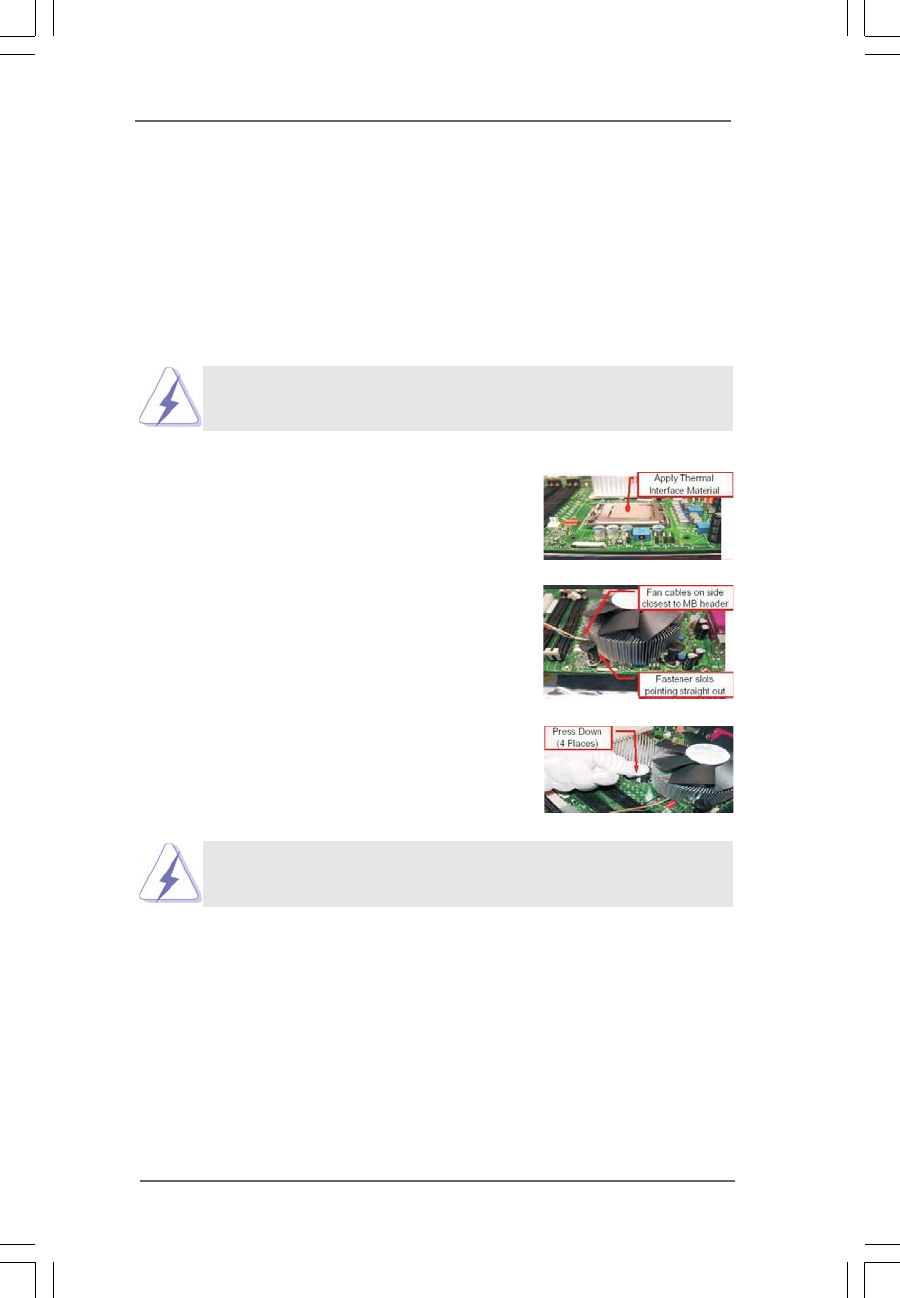
Below is an example to illustrate the installation of the heatsink for 775-LAND CPU.
Step 1. Apply thermal interface material onto center
of IHS on the socket surface.
Step 2. Place the heatsink onto the socket. Ensure
fan cables are oriented on side closest to the
CPU fan connector on the motherboard
(CPU_FAN1, see page 12, No. 5).
Step 3. Align fasteners with the motherboard
throughholes.
Step 4. Rotate the fastener clockwise, then press
down on fastener caps with thumb to install
and lock. Repeat with remaining fasteners.
If you press down the fasteners without rotating them clockwise,
the heatsink cannot be secured on the motherboard.
Step 5. Connect fan header with the CPU fan
connector on the motherboard.
Step 6. Secure excess cable with tie-wrap to ensure
cable does not interfere with fan operation or
contact other components.
1818
1818
18
2.5 Installation of Memory Modules (DIMM)2.5 Installation of Memory Modules (DIMM)
2.5 Installation of Memory Modules (DIMM)2.5 Installation of Memory Modules (DIMM)
2.5 Installation of Memory Modules (DIMM)
775Dual-880Pro motherboard provides two 184-pin DDR (Double Data Rate)
DIMM slots and two 240-pin DDRII DIMM slots, and supports Dual Channel Memory
Technology. For dual channel configuration, you always need to install identi-
cal (the same brand, speed, size and chip-type) DDR DIMM pair in the slots of the
same color. In other words, you have to install identical DDR DIMM pair in Dual
Channel A (DDRII1 and DDRII2; Yellow slots; see p.12 No.6) or identical DDR
DIMM pair in Dual Channel B (DDR1 and DDR2; Blue slots; see p.12 No.7), so
that Dual Channel Memory Technology can be activated. You may refer to the
Dual Channel Memory Configuration Table below.
Dual Channel Memory Configurations
DDRII1 DDR1 DDRII2 DDR2
(Yellow Slot) (Blue Slot) (Yellow Slot) (Blue Slot)
(1) Populated - Populated -
(2) - Populated - Populated
1. It is not allowed to install DDR into DDRII slot or DDRII into DDR
slot;otherwise, this motherboard and DIMM may be damaged.
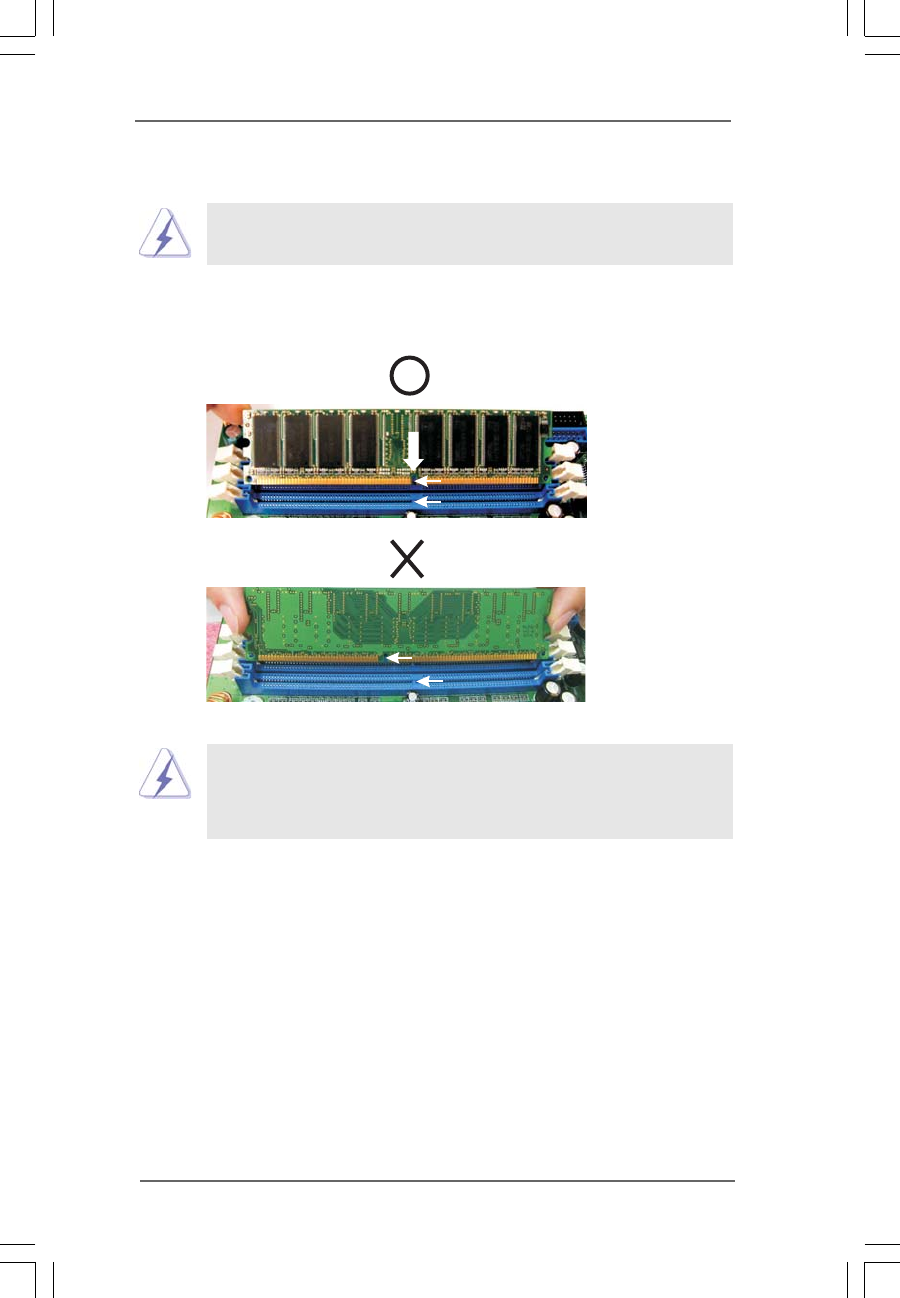
1919
1919
19
notch
break
notch
break
Installing a DIMMInstalling a DIMM
Installing a DIMMInstalling a DIMM
Installing a DIMM
Please make sure to disconnect power supply before adding or
removing DIMMs or the system components.
Step 1. Unlock a DIMM slot by pressing the retaining clips outward.
Step 2. Align a DIMM on the slot such that the notch on the DIMM matches the break
on the slot.
The DIMM only fits in one correct orientation. It will cause permanent
damage to the motherboard and the DIMM if you force the DIMM into the
slot at incorrect orientation.
Step 3. Firmly insert the DIMM into the slot until the retaining clips at both ends fully
snap back in place and the DIMM is properly seated.
2020
2020
20
2.6 Expansion Slots (PCI, AGP, and PCI Express Graphics2.6 Expansion Slots (PCI, AGP, and PCI Express Graphics
2.6 Expansion Slots (PCI, AGP, and PCI Express Graphics2.6 Expansion Slots (PCI, AGP, and PCI Express Graphics
2.6 Expansion Slots (PCI, AGP, and PCI Express Graphics
Slots) Slots)
Slots) Slots)
Slots)
There are 4 PCI slots, 1 AGP slot, and 1 PCI Express Graphics slot on 775Dual-880Pro
motherboard.
PCI slots: PCI slots are used to install expansion cards that have the 32-bit PCI
interface.
AGP slot: The AGP slot is used to install a graphics card. The ASRock AGP slot has
a special design of clasp that can securely fasten the inserted graphics
card. AGP slot is used to install AGP expansion cards. For the informa
tion of the compatible AGP VGA cards, please refer to the “Supported
AGP VGA Card List for AGP Slot” on page 9 and 10.
Please do NOT use a 3.3V AGP card on the AGP slot of this motherboard!
It may cause permanent damage! For the voltage information of your
AGP card, please check with the AGP card vendors.
PCI Express Graphics slot (PCI Express x 4):
PCI Express Graphics slot (PCI Express x 4) is used to install PCI Express
expansion cards. For the information of the compatible PCI Express VGA
cards, please refer to the “Supported PCI Express VGA Card List for PCI
Express Graphics Slot (PCI Express x 4)” on page 11.
Installing an expansion cardInstalling an expansion card
Installing an expansion cardInstalling an expansion card
Installing an expansion card
Step 1. Before installing the expansion card, please make sure that the power
supply is switched off or the power cord is unplugged. Please read the
documentation of the expansion card and make necessary hardware
settings for the card before you start the installation.
Step 2. Remove the system unit cover (if your motherboard is already installed in a
chassis).
Step 3. Remove the bracket facing the slot that you intend to use. Keep the screws
for later use.
Step 4. Align the card connector with the slot and press firmly until the card is
completely seated on the slot.
Step 5. Fasten the card to the chassis with screws.
Step 6. Replace the system cover.
2121
2121
21
2.8 Jumpers Setup2.8 Jumpers Setup
2.8 Jumpers Setup2.8 Jumpers Setup
2.8 Jumpers Setup
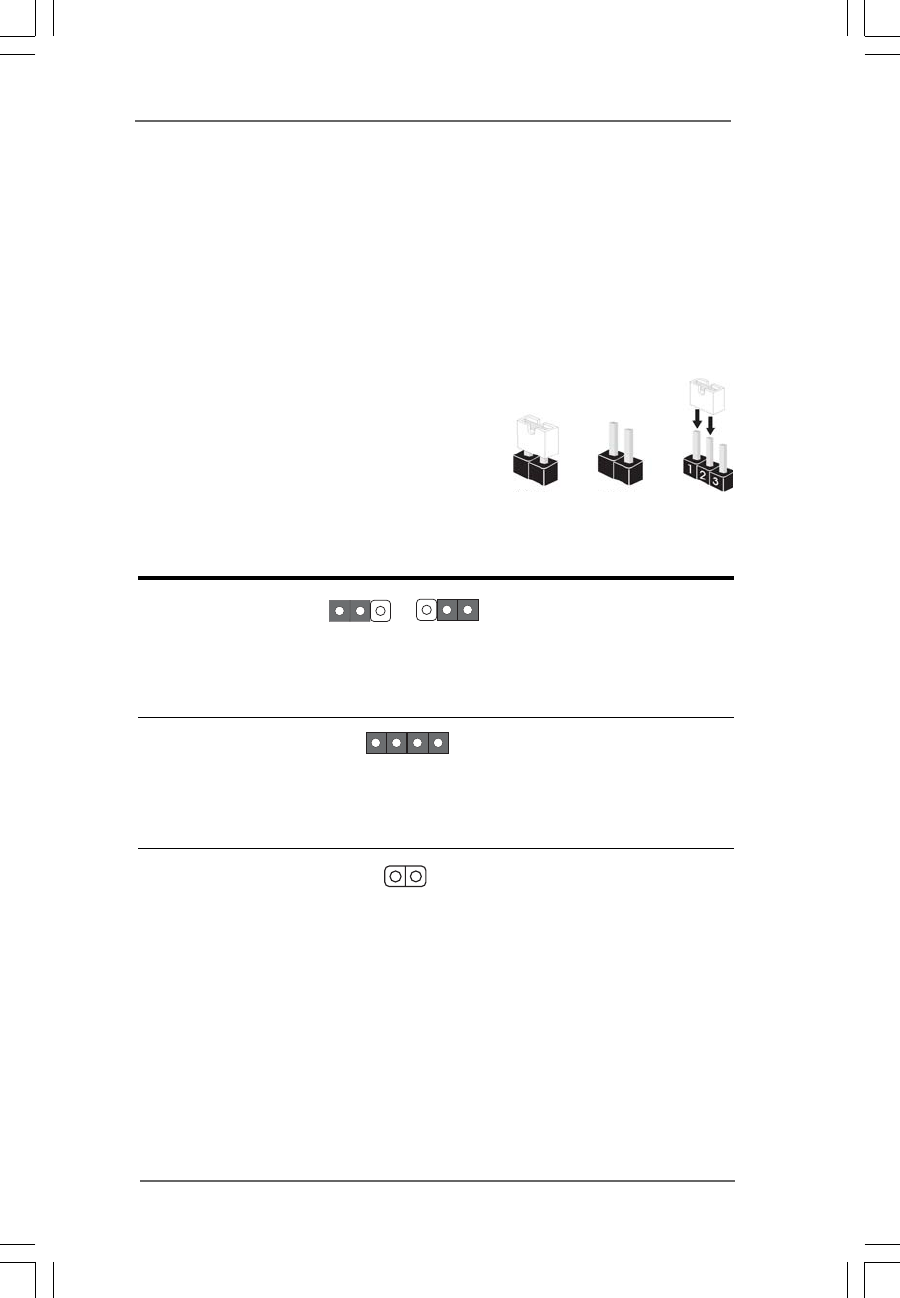
The illustration shows how jumpers are
setup. When the jumper cap is placed on
pins, the jumper is “Short”. If no jumper cap
is placed on pins, the jumper is “Open”. The
illustration shows a 3-pin jumper whose pin1
and pin2 are “Short” when jumper cap is
placed on these 2 pins.
Jumper Setting
PS2_USB_PWR1 Short pin2, pin3 to enable
(see p.12, No. 1) +5VSB (standby) for PS/2
or USB wake up events.
Note: To select +5VSB, it requires 2 Amp and higher standby current provided
by power supply.
JR1(see p.12, No. 24)
JL1(see p.12, No. 24)
Note: If the jumpers JL1 and JR1 are short, both the front panel and the rear panel
audio connectors can work.
Clear CMOS
(CLRCMOS1, 2-pin jumper)
(see p.12, No. 18)
Note: CLRCMOS1 allows you to clear the data in CMOS. The data in CMOS includes
system setup information such as system password, date, time, and system
setup parameters. To clear and reset the system parameters to default setup,
please turn off the computer and unplug the power cord from the power
supply. After waiting for 15 seconds, use a jumper cap to short 2 pins on
CLRCMOS1 for 5 seconds. However, please do not clear the CMOS right after
you update the BIOS. If you need to clear the CMOS when you just finish
updating the BIOS, you must boot up the system first, and then shut it down
before you do the clear-CMOS action.
+5V
1_2
+5VSB
2_3
Short Open
JR1 JL1
2-pin jumper
2.7 Surround Display Feature2.7 Surround Display Feature
2.7 Surround Display Feature2.7 Surround Display Feature
2.7 Surround Display Feature
Thanks to ASRock patented PCI Express Graphics Technology, this motherboard
supports Surround Display upgrade. With the external add-on AGP VGA card and
PCI Express VGA card, you can easily enjoy the benefits of Surround Display
feature. For the detailed instruction, please refer to the document at the following
path in the Support CD: ..\ Surround Display
2222
2222
22
2.9 Onboard Headers and Connectors2.9 Onboard Headers and Connectors
2.9 Onboard Headers and Connectors2.9 Onboard Headers and Connectors
2.9 Onboard Headers and Connectors
Onboard headers and connectors are NOT jumpers. Do NOT place jumper
caps over these headers and connectors. Placing jumper caps over the
headers and connectors will cause permanent damage of the motherboard!
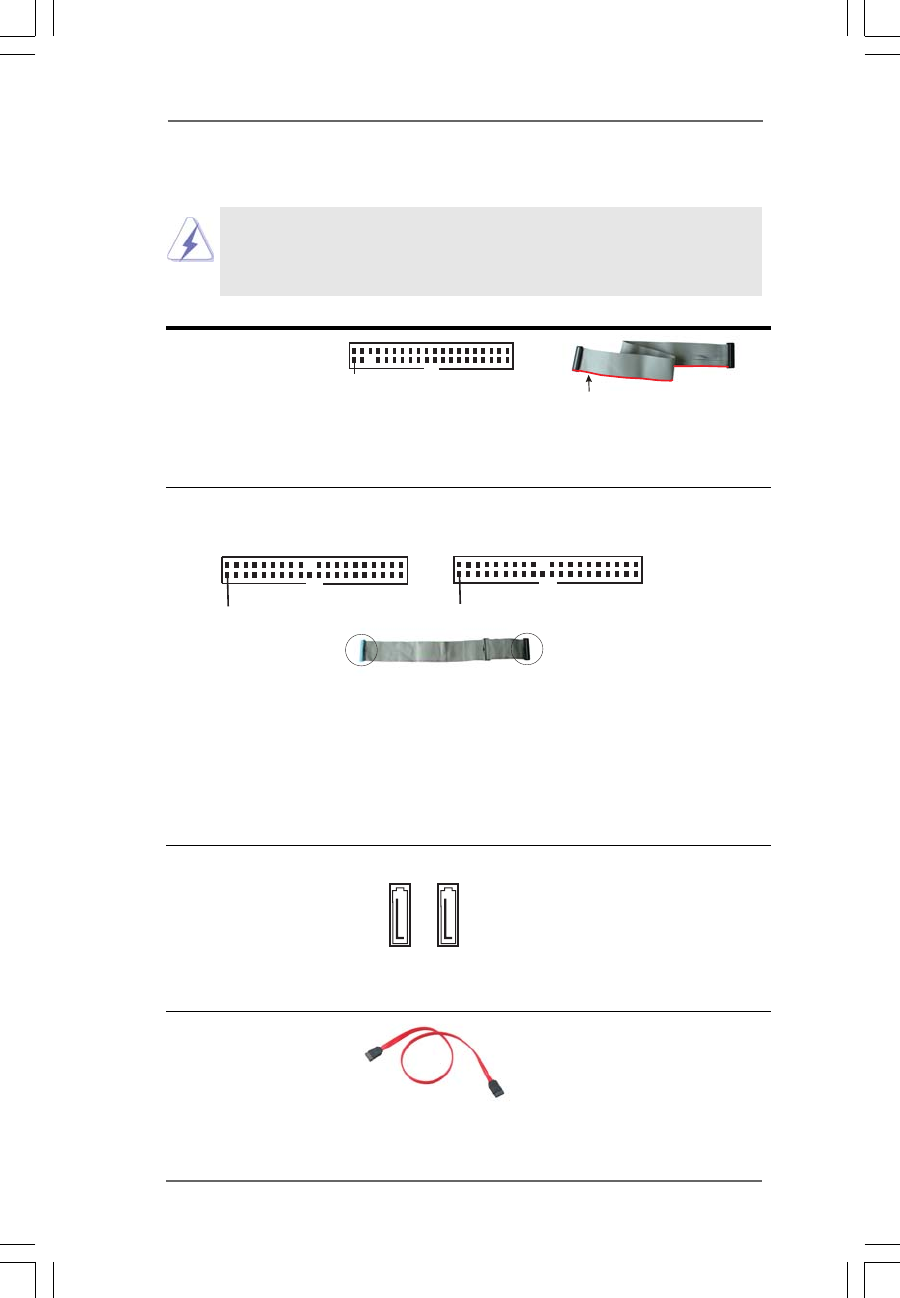
FDD Connector
(33-pin FLOPPY1)
(see p.12, No. 21)
Note: Make sure the red-striped side of the cable is plugged into Pin1 side of the
connector.
Primary IDE Connector (Blue) Secondary IDE Connector (Black)
(39-pin IDE1, see p.12, No. 10) (39-pin IDE2, see p.12, No. 9)
Note: If you use only one IDE device on this motherboard, please set the IDE
device as “Master”. Please refer to the instruction of your IDE device vendor
for the details. Besides, to optimize compatibility and performance, please
connect your hard disk drive to the primary IDE connector (IDE1, blue) and
CD-ROM to the secondary IDE connector (IDE2, black).
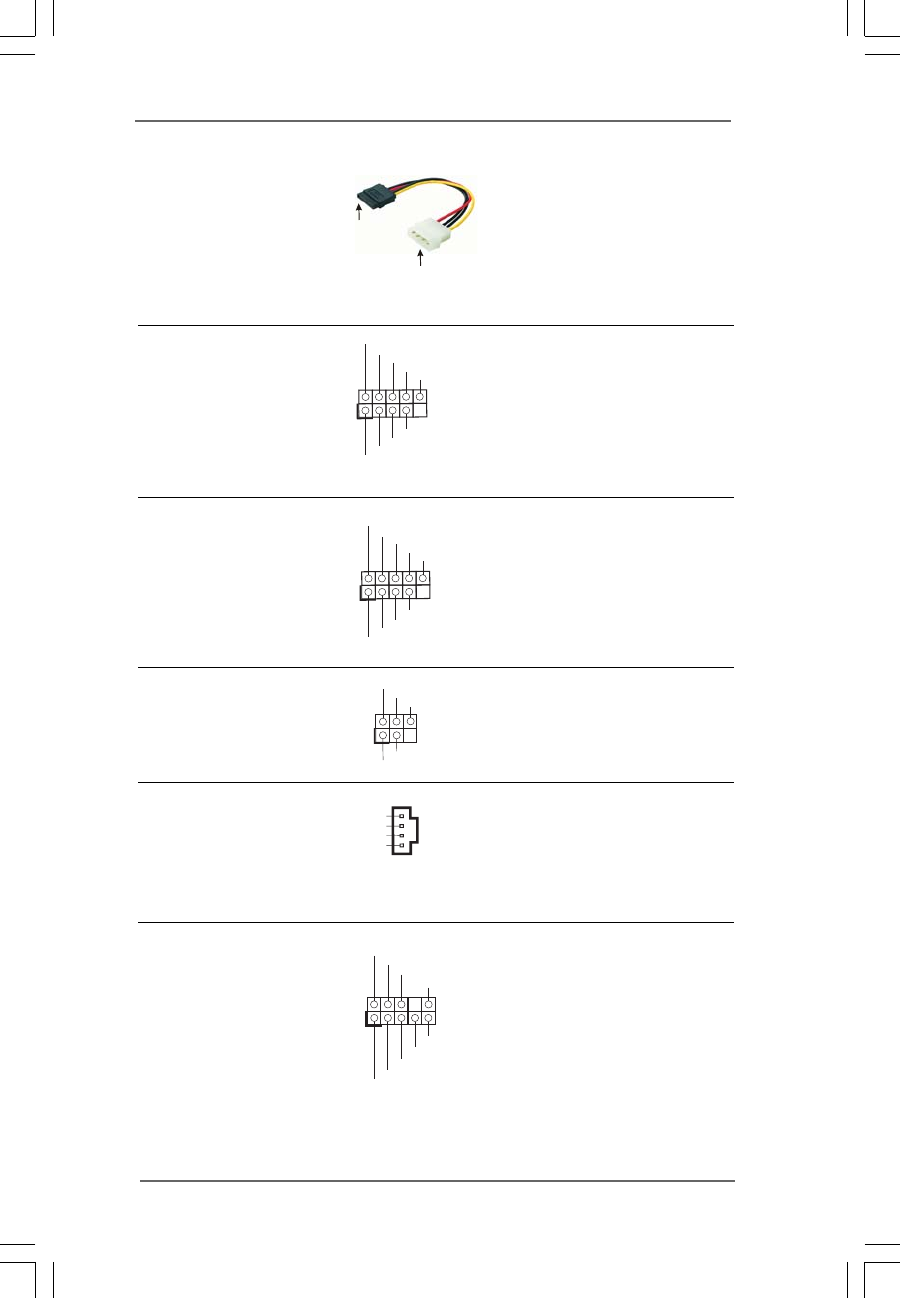
Serial ATA Connectors These two Serial ATA (SATA)
(SATA1: see p.12, No. 12) connectors support SATA data
(SATA2: see p.12, No. 11) cables for internal storage
devices. The current SATA
interface allows up to 1.5 Gb/s
data transfer rate.
Serial ATA (SATA) Either end of the SATA data
Data Cable cable can be connected to the
SATA hard disk or the SATA
connector on the motherboard.
FLOPPY1
Pin1
IDE1
PIN1
IDE2
PIN1
connect the black end
to the IDE devices
connect the blue end
to the motherboard
80-conductor ATA 66/100/133 cable
the red-striped side to Pin1
SATA1 SATA2
2323
2323
23
Serial ATA (SATA) Please connect the black end of
Power Cable SATA power cable to the power
(Optional) connector on the drive. Then
connect the white end of SATA
power cable to the power
connector of the power supply.
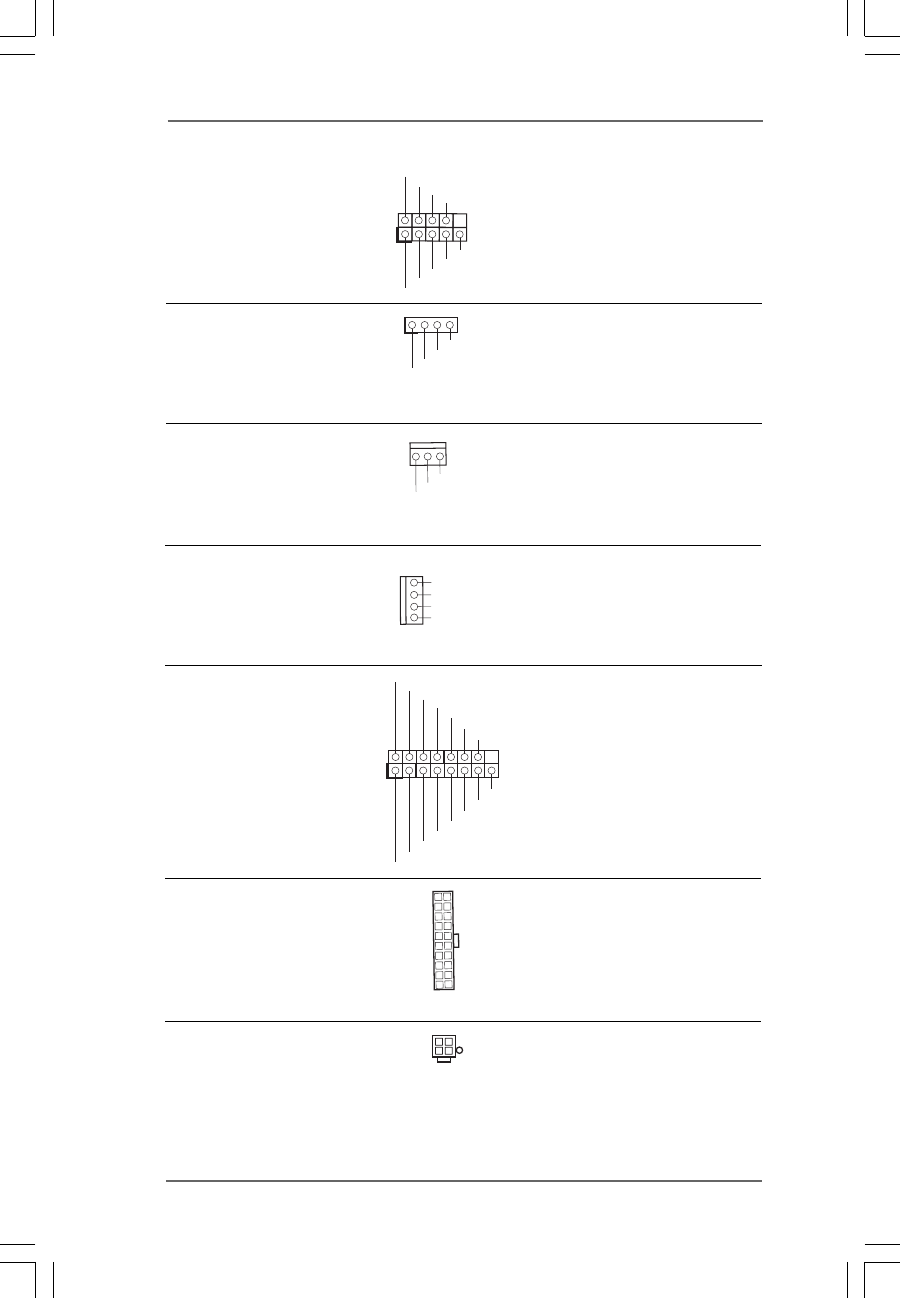
USB 2.0 Header ASRock 8CH I/OTM provides you
(9-pin USB67) 4 ready-to-use USB 2.0 ports on
(see p.12, No. 20) the rear panel. If the rear USB
ports are not sufficient, this
USB 2.0 header is available to
support 2 extra USB 2.0 ports.
USB 2.0 Header ASRock 8CH I/OTM provides you
(9-pin USB45) 4 ready-to-use USB 2.0 ports on
(see p.12, No. 19) the rear panel. If the rear USB
ports are not sufficient, this
USB 2.0 header is available to
support 2 extra USB 2.0 ports.
Infrared Module Header This header supports an optional
(5-pin IR1) wireless transmitting and
(see p.12, No. 28) receiving infrared module.
Internal Audio Connectors These connectors allow you
(4-pin CD1) to receive stereo audio input
(CD1: see p.12, No. 25) from sound sources such as
a CD-ROM, DVD-ROM, TV
tuner card, or MPEG card.
Front Panel Audio Header This is an interface for the front
(9-pin AUDIO1) panel audio cable that allows
(see p.12, No. 23) convenient connection and
control of audio devices.
DUMMY
GND
+5V
IRTX
IRRX
1
CD-R
GND
GND
CD-L
CD1
USB_PWR
USB_PWR
P+7
P-7
P+6
P-6
GND
GND
DUMMY
1
GND
GND
+5VA
BACKOUT-R
BACKOUT-L
AUD-OUT-L
AUD-OUT-R
MIC-POWER
MIC
1
connect to the SATA HDD
power connector
connect to the
power supply
USB_PWR
USB_PWR
P+5
P-5
P+4
P-4
GND
GND
DUMMY
1
2424
2424
24
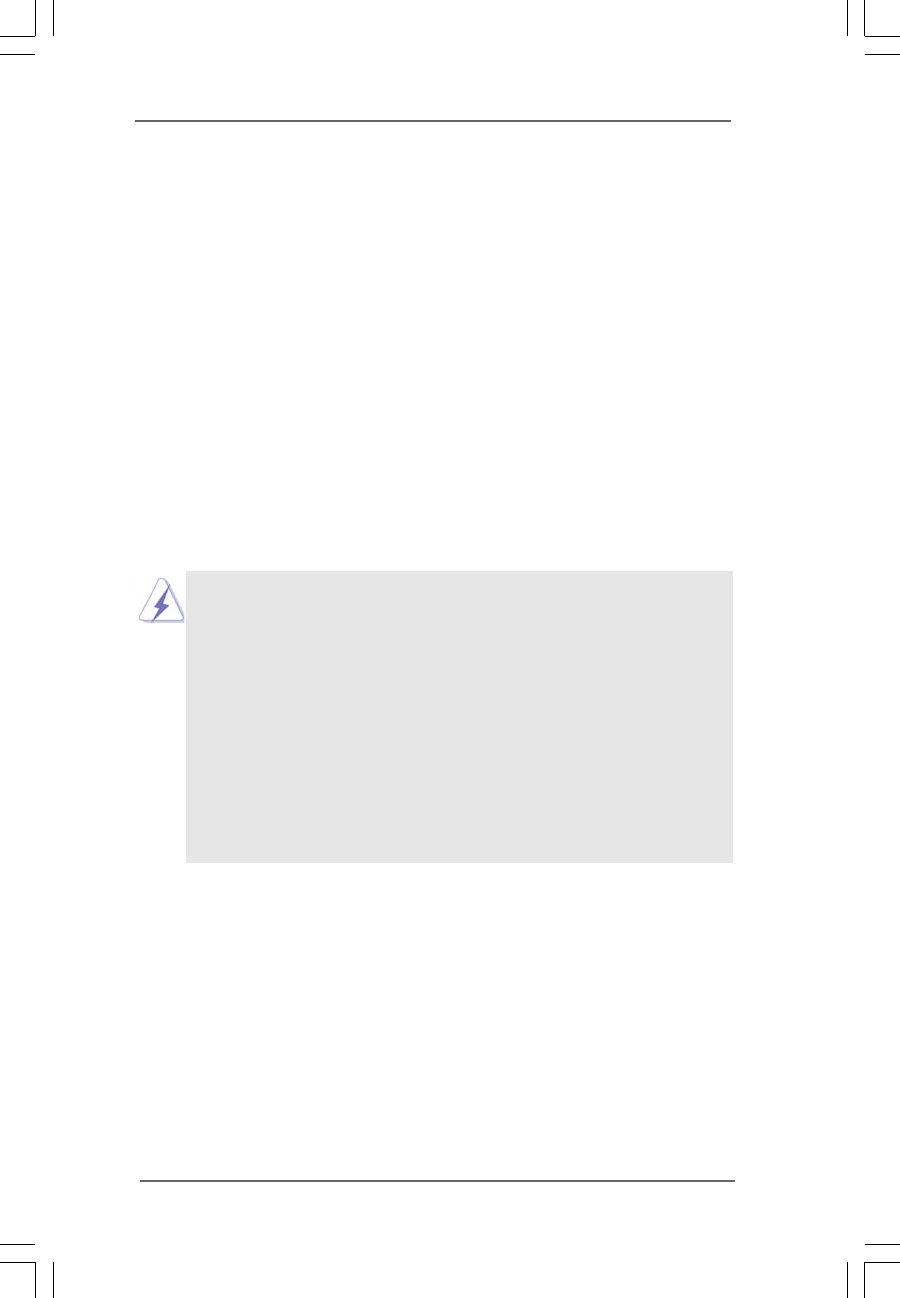
System Panel Header This header accommodates
(9-pin PANEL1) several system front panel
(see p.12, No. 13) functions.
Chassis Speaker Header Please connect the chassis
(4-pin SPEAKER 1) speaker to this header.
(see p.12, No. 14)
Chassis Fan Connector Please connect the chassis fan
(3-pin CHA_FAN1) cable to this connector and
(see p.12, No. 15) match the black wire to the
ground pin.
CPU Fan Connector Please connect the CPU fan
(4-pin CPU_FAN1) cable to this connector and
(see p.12, No. 5) match the black wire to the
ground pin.
Game Connector Connect a Game cable to this
(15-pin GAME1) connector if the Game port
(see p.12, No. 22) bracket is installed.
ATX Power Connector Please connect an ATX power
(20-pin ATXPWR1) supply to this connector.
(see p.12, No. 29)
ATX 12V Connector Please note that it is necessary
(4-pin ATX12V1) to connect a power supply with
(see p.12, No. 2) ATX 12V plug to this connector
so that it can provides sufficient
power. Failing to do so will cause
the failure to power up.
GND
+12V
CHA_FAN_SPEED
MIDI_OUT
JAB2
JBY
JBB2
MIDI_IN
+5V
JAY
GND
GND
1
JAX
JAB1
+5V
JBX
JBB1
+5V
+5V
DUMMY
DUMMY
SPEAKER
1
GND
PWRBTN#
PLED-
PLED+
DUMMY
RESET#
GND
HDLED+
HDLED-
1
GND
+12V
CPU_FAN_SPEED
N/C
2525
2525
25
2.10 Serial A2.10 Serial A
2.10 Serial A2.10 Serial A
2.10 Serial ATT
TT
TA (SAA (SA
A (SAA (SA
A (SATT
TT
TA) Hard Disks InstallationA) Hard Disks Installation
A) Hard Disks InstallationA) Hard Disks Installation
A) Hard Disks Installation
This motherboard adopts VIA VT8237 southbridge chipset that supports Serial
ATA (SATA) hard disks and RAID functions. You may install SATA hard disks on
this motherboard for internal storage devices. This section will guide you to install
the SATA hard disks.
STEP 1: Install the SATA hard disks into the drive bays of your chassis.
STEP 2: Connect the SATA power cable to the SATA hard disk.
STEP 3: Connect one end of the SATA data cable to the motherboard’s SATA
connector.
STEP 4: Connect the other end of the SATA data cable to the SATA hard disk.
2.11 Hot Plug and Hot Swap F2.11 Hot Plug and Hot Swap F
2.11 Hot Plug and Hot Swap F2.11 Hot Plug and Hot Swap F
2.11 Hot Plug and Hot Swap Functions for SAunctions for SA
unctions for SAunctions for SA
unctions for SATT
TT
TA HDDsA HDDs
A HDDsA HDDs
A HDDs
775Dual-880Pro motherboard supports Hot Plug and Hot Swap functions
for SATA Devices.
NOTE
What is Hot Plug Function?
If the SATA HDDs are NOT set for RAID configuration, it is called “Hot
Plug” for the action to insert and remove the SATA HDDs while the system
is still power-on and in working condition.
However, please note that it cannot perform Hot Plug if the OS has been
installed into the SATA HDD.
What is Hot Swap Function?
If SATA HDDs are built as RAID1 then it is called “Hot Swap” for the action
to insert and remove the SATA HDDs while the system is still power-on
and in working condition.

2626
2626
26
2.122.12
2.122.12
2.12 Installing Windows 2000 / Windows XP /Installing Windows 2000 / Windows XP /
Installing Windows 2000 / Windows XP /Installing Windows 2000 / Windows XP /
Installing Windows 2000 / Windows XP /
Windows XP 64-bit With RAID FunctionsWindows XP 64-bit With RAID Functions
Windows XP 64-bit With RAID FunctionsWindows XP 64-bit With RAID Functions
Windows XP 64-bit With RAID Functions
If you want to install Windows 2000 / Windows XP / Windows XP-64bit OS on
your system with RAID functions, please refer to the below methods for proper
installation according to the different Windows OS versions.
2.12.1 Installing Windows 2000 / Windows XP with2.12.1 Installing Windows 2000 / Windows XP with
2.12.1 Installing Windows 2000 / Windows XP with2.12.1 Installing Windows 2000 / Windows XP with
2.12.1 Installing Windows 2000 / Windows XP with
RAID Functions RAID Functions
RAID Functions RAID Functions
RAID Functions
If you want to install Windows 2000 / Windows XP OS on your SATA
HDDs with RAID functions, please follow the below steps.
STEP 1: Make a SATA Driver Diskette.
A. Insert the ASRock Support CD into your optical drive to boot your
system.
B. During POST at the beginning of system boot-up, press <F11> key, and
then a window for boot devices selection appears. Please select CD-
ROM as the boot device.
C. When you see the message on the screen, “Do you want to generate
Serial ATA driver diskette [YN]?”, press <Y>.
D. Then you will see these messages,
Please insert a diskette into the floppy drive.
WARNING! Formatting the floppy diskette will
lose ALL data in it!
Start to format and copy files [YN]?
Please insert a floppy diskette into the floppy drive, and press <Y>.
E. The system will start to format the floppy diskette and copy SATA
drivers into the floppy diskette.
STEP 2: Use “SATA RAID BIOS” to set RAID configuration.
Before you start to configure the RAID function, you need to check the
installation guide in the Support CD for proper configuration. Please refer
to the document in the Support CD, “Guide to SATA Hard Disks Installation
and RAID Configuration”, which is located in the folder at the following
path: .. \ SATA RAID BIOS
STEP 3: Install Windows 2000 / Windows XP OS on your system.
After making a SATA driver diskette and using “SATA RAID BIOS” to set
RAID configuration, you can start to install Windows 2000 / Windows XP
on your system.
2.12.2 Installing Windows XP 64-bit With RAID2.12.2 Installing Windows XP 64-bit With RAID
2.12.2 Installing Windows XP 64-bit With RAID2.12.2 Installing Windows XP 64-bit With RAID
2.12.2 Installing Windows XP 64-bit With RAID
Functions Functions
Functions Functions
Functions
If you want to install Windows XP 64-bit OS on your SATA HDDs with RAID
functions, please follow the below steps.
2727
2727
27
STEP 1: Make a SATA Driver Diskette.
A. Insert the floppy diskette into your floppy drive.
B. Copy the SATA 64-bit drivers to your floppy diskette.
The SATA 64-bit drivers are located at the following path in the Support CD:
.. \ 64bit SATA Driver
STEP 2: Install Windows XP 64-bit OS on your system.
After making a SATA driver diskette, you can start to install Windows XP 64-
bit on your system.
After the installation of Windows 2000 / Windows XP / Windows XP 64-bit OS,
if you want to manage RAID functions, you are allowed to use both “SATA RAID
BIOS” and “VIA RAID Tool” for RAID configuration. Please refer to the document
in the Support CD, “Guide to SATA Hard Disks Installation and RAID Configuration”,
which is located in the folder at the following path: .. \ SATA RAID BIOS and the
document in the support CD, “Guide to VIA RAID Tool”, which is located in the
folder at the following path: .. \ VIA RAID Tool
1. Windows 98 / Windows ME does not support RAID functions.
2. If you want to use “VIA RAID Tool” in Windows environment, please install
SATA drivers from the Support CD again so that “VIA RAID Tool” will be
installed to your system as well.
2.132.13
2.132.13
2.13 Installing Windows 98 / ME / 2000 / XP / XP 64-bitInstalling Windows 98 / ME / 2000 / XP / XP 64-bit
Installing Windows 98 / ME / 2000 / XP / XP 64-bitInstalling Windows 98 / ME / 2000 / XP / XP 64-bit
Installing Windows 98 / ME / 2000 / XP / XP 64-bit
Without RAID FunctionsWithout RAID Functions
Without RAID FunctionsWithout RAID Functions
Without RAID Functions
If you want to install Windows 98 / ME / 2000 / XP / XP 64-bit on your SATA HDDs
without RAID functions or you want to install Windows 98 / ME / 2000 / XP / XP
64-bit on your IDE HDDs instead of SATA HDDs, please follow the below steps.
STEP 1: Set Up BIOS. (Only for Windows 2000 / XP / XP 64-bit)
A. Enter BIOS SETUP UTILITY Advanced screen IDE Configuration.
B. Set the “SATA Operation Mode” option from [RAID] to [non-RAID].
STEP 2: Install Windows 98 / ME / 2000 / XP / XP 64-bit OS on your system.
After setting up BIOS, you can start to install Windows 98 / ME / 2000 / XP / XP
64-bit on your system.
If you don’t want to set up RAID functions, there is no need to make a SATA
driver diskette.
If you want to install Windows 98 / Windows ME on your SATA HDDs without
RAID functions, you don’t have to set up BIOS. Please install Windows 98 /
Windows ME OS on your system directly.
2828
2828
28
3.3.
3.3.
3. BIOS SETUP UTILITYBIOS SETUP UTILITY
BIOS SETUP UTILITYBIOS SETUP UTILITY
BIOS SETUP UTILITY
3.1 Introduction3.1 Introduction
3.1 Introduction3.1 Introduction
3.1 Introduction
This section explains how to use the BIOS SETUP UTILITY to configure your system.
The Flash Memory on the motherboard stores the BIOS SETUP UTILITY. You may run
the BIOS SETUP UTILITY when you start up the computer. Please press <F2> during
the Power-On-Self-Test (POST) to enter the BIOS SETUP UTILITY, otherwise, POST
will continue with its test routines.
If you wish to enter the BIOS SETUP UTILITY after POST, restart the system by
pressing <Ctl> + <Alt> + <Delete>, or by pressing the reset button on the system
chassis. You may also restart by turning the system off and then back on.
Because the BIOS software is constantly being updated, the following
BIOS setup screens and descriptions are for reference purpose only,
and they may not exactly match what you see on your screen.
3.1.13.1.1
3.1.13.1.1
3.1.1 BIOS Menu BarBIOS Menu Bar
BIOS Menu BarBIOS Menu Bar
BIOS Menu Bar
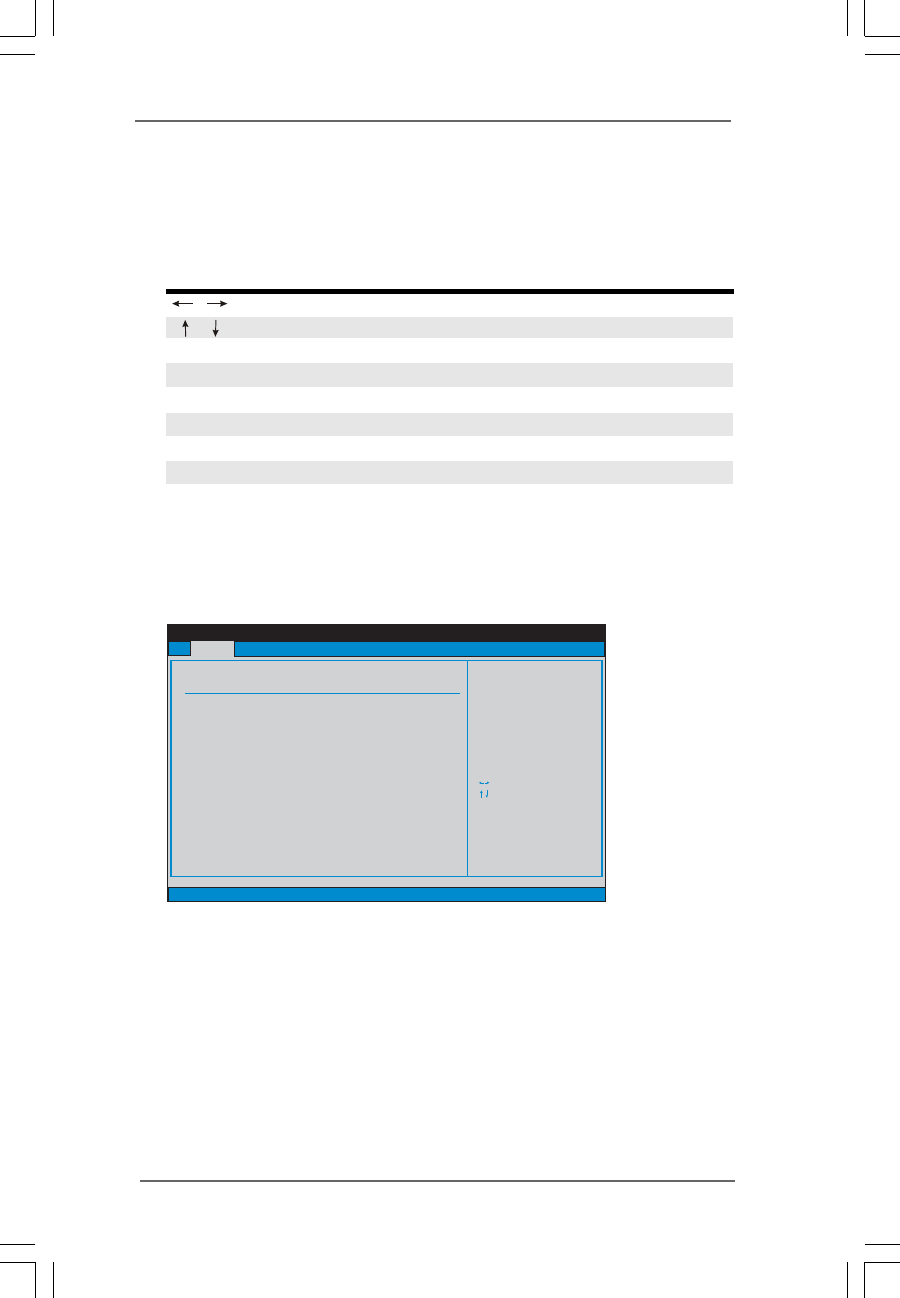
The top of the screen has a menu bar with the following selections:
Main To set up the system time/date information
Advanced To set up the advanced BIOS features
H/W Monitor To display current hardware status
Boot To set up the default system device to locate and load the
Operating System
Security To set up the security features
Exit To exit the current screen or the BIOS SETUP UTILITY
Use < > key or < > key to choose among the selections on the menu bar,
and then press <Enter> to get into the sub screen.
2929
2929
29
3.1.23.1.2
3.1.23.1.2
3.1.2 Navigation KeysNavigation Keys
Navigation KeysNavigation Keys
Navigation Keys
Please check the following table for the function description of each navigation
key.
Navigation Key(s) Function Description
/ Moves cursor left or right to select Screens
/ Moves cursor up or down to select items
+ / - To change option for the selected items
<Enter> To bring up the selected screen
<F1> To display the General Help Screen
<F9> To load optimal default values for all the settings
<F10> To save changes and exit the BIOS SETUP UTILITY
<ESC> To jump to the Exit Screen or exit the current screen
3.23.2
3.23.2
3.2 Main ScreenMain Screen
Main ScreenMain Screen
Main Screen
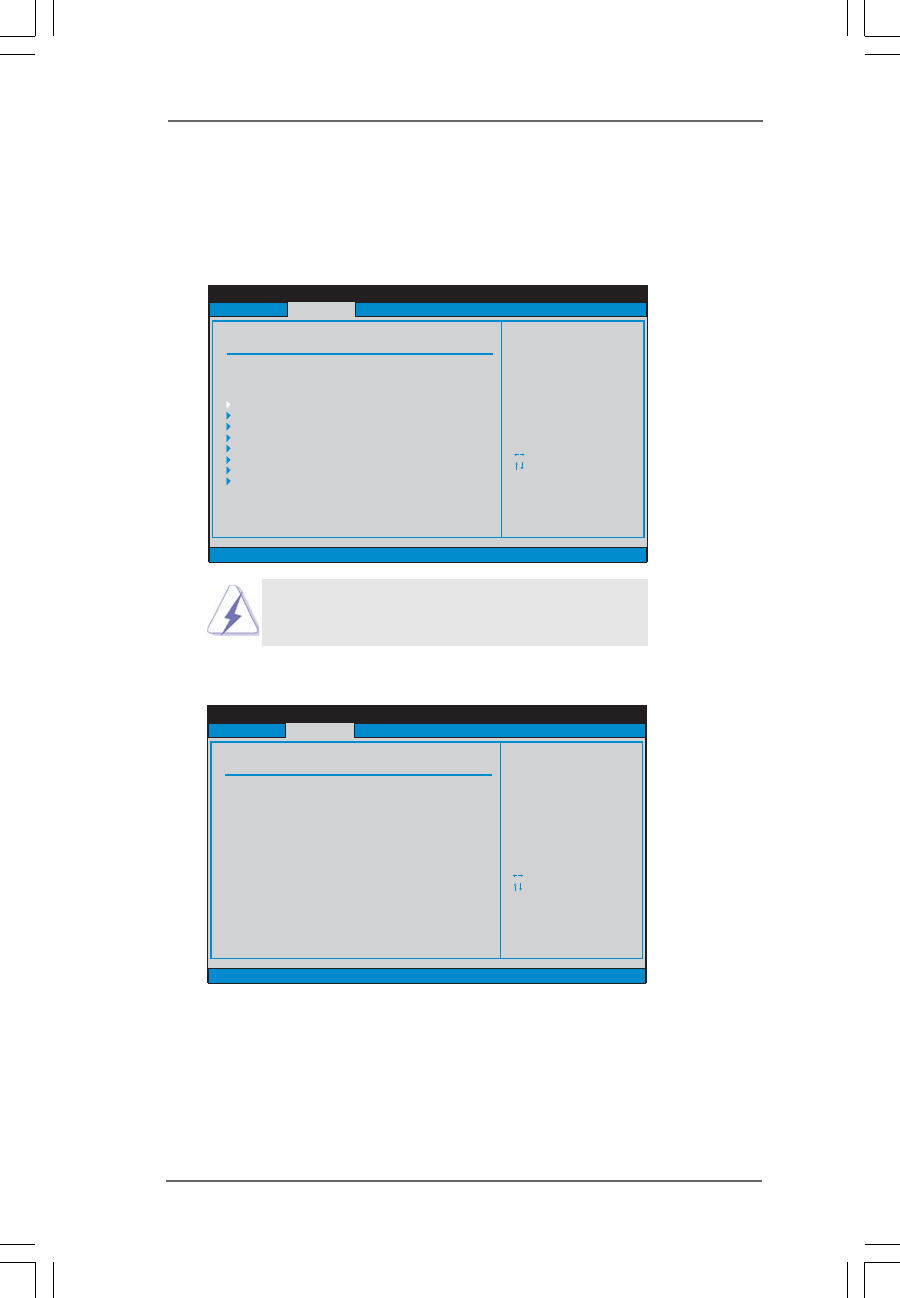
When you enter the BIOS SETUP UTILITY, the Main screen will appear and display
the system overview
System Time [Hour:Minute:Second]
Use this item to specify the system time.
System Date [Day Month/Date/Year]
Use this item to specify the system date.
BIOS SETUP UTILITY
Main Advanced H/W Monitor Boot Security Exit
System Overview
System Time
System Date
[ :00:09]
[Tue 02/01/2005]
Use [Enter], [TAB]
or [SHIFT-TAB] to
select a field.
Use [+] or [-] to
configure system Time.
Select Screen
Select Item
+- Change Field
Tab Select Field
F1 General Help
F9 Load Defaults
F10 Save and Exit
ESC Exit
BIOS Version
Processor Type
Processor Speed
Microcode Update
Total Memory
DIMMII 1
DIMM 1
Cache Size
DIMMII 2
DIMM 2
: 775Dual-880Pro BIOS P1.00
: Intel (R) CPU 3.20 GHz
: 3200 MHz
:
: 1024KB
: 512MB
:
:
:
F34/14
Dual-Channel Memory Mode
None
256MB/166MHz (DDR333)
None
: 256MB/166MHz (DDR333)
v02.54 (C) Copyright 1985-2003, American Megatrends, Inc.
17
3030
3030
30
3.33.3
3.33.3
3.3 Advanced ScreenAdvanced Screen
Advanced ScreenAdvanced Screen
Advanced Screen
In this section, you may set the configurations for the following items: CPU
Configuration, Chipset Configuration, ACPI Configuration, IDE Configuration, PCIPnP
Configuration, Floppy Configuration, SuperIO Configuration, and USB Configuration.
Setting wrong values in this section may cause
the system to malfunction.
3.3.13.3.1
3.3.13.3.1
3.3.1 CPU ConfigurationCPU Configuration
CPU ConfigurationCPU Configuration
CPU Configuration
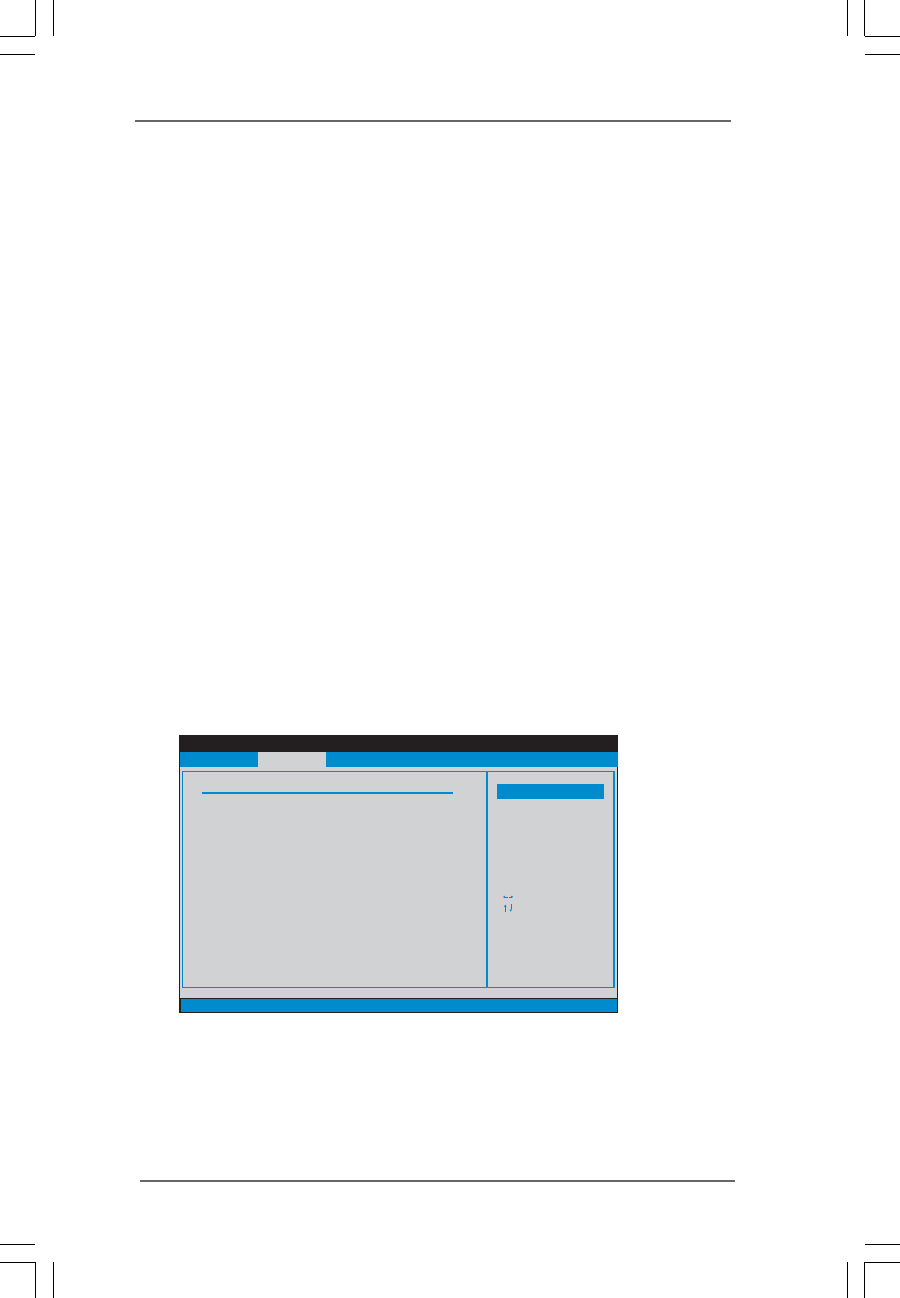
CPU Host Frequency
While entering setup, BIOS auto detects the present CPU host frequency of
this motherboard. The actual CPU host frequency will show in the following
item.
Spread Spectrum
This item should always be [Disabled] for better system stability.
BIOS SETUP UTILITY
Main H/W Monitor Boot Security Exit
Advanced Settings
WARNING : Setting wrong values in below sections
may cause system to malfunction.
Configure CPU
Select Screen
Select Item
Enter Go to Sub Screen
F1 General Help
F9 Load Defaults
F10 Save and Exit
ESC Exit
v02.54 (C) Copyright 1985-2003, American Megatrends, Inc.
Advanced
CPU Configuration
Chipset Configuration
IDE Configuration
PCIPnP Configuration
Floppy Configuration
SuperIO Configuration
USB Configuration
ACPI Configuration
BIOS SETUP UTILITY
CPU Configuration
Actual Frequency (MHz)
Select how to set the
CPU host frequency.
Select Screen
Select Item
+- Change Option
F1 General Help
F9 Load Defaults
F10 Save and Exit
ESC Exit
v02.54 (C) Copyright 1985-2003, American Megatrends, Inc.
Advanced
CPU Host Frequency
[133]
[Auto]
Spread Spectrum [Disabled]
Select Screen
Select Item
+- Change Option
F1 General Help
F9 Load Defaults
F10 Save and Exit
ESC Exit
Ratio Status
Ratio Actual Value
CPU Thermal Throttling
Hyper Threading Technology
[Enabled]
[Auto]
:Locked
:18
3131
3131
31
Ratio Status
This is a read-only item, which displays whether the ratio status of this
motherboard is “Locked” or “Unlocked”. If it shows “Unlocked”, you will find
an item Ratio CMOS Setting appears to allow you changing the ratio value
of this motherboard. If it shows “Locked”, then the item Ratio CMOS Set-
ting will be hidden. If you use the ratio value to time the CPU frequency, it will
be equal to the core speed of the installed processor.
Ratio Actual Value
This is a read-only item, which displays the ratio actual value of this
motherboard.
CPU Thermal Throttling
You may select [Enabled] to enable P4 CPU internal thermal control mecha-
nism to keep the CPU from overheated.
Hyper Threading Technology
To enable this feature, it requires a computer system with an Intel Pentium®4
processor that supports Hyper-Threading technology and an operating sys-
tem that includes optimization for this technology, such as Microsoft® Win-
dows® XP. Set to [Auto] if using Microsoft® Windows® XP, or Linux kernel
version 2.4.18 or higher. This option will be hidden if the installed CPU does
not support Hyper-Threading technology.
3.3.23.3.2
3.3.23.3.2
3.3.2 Chipset ConfigurationChipset Configuration
Chipset ConfigurationChipset Configuration
Chipset Configuration
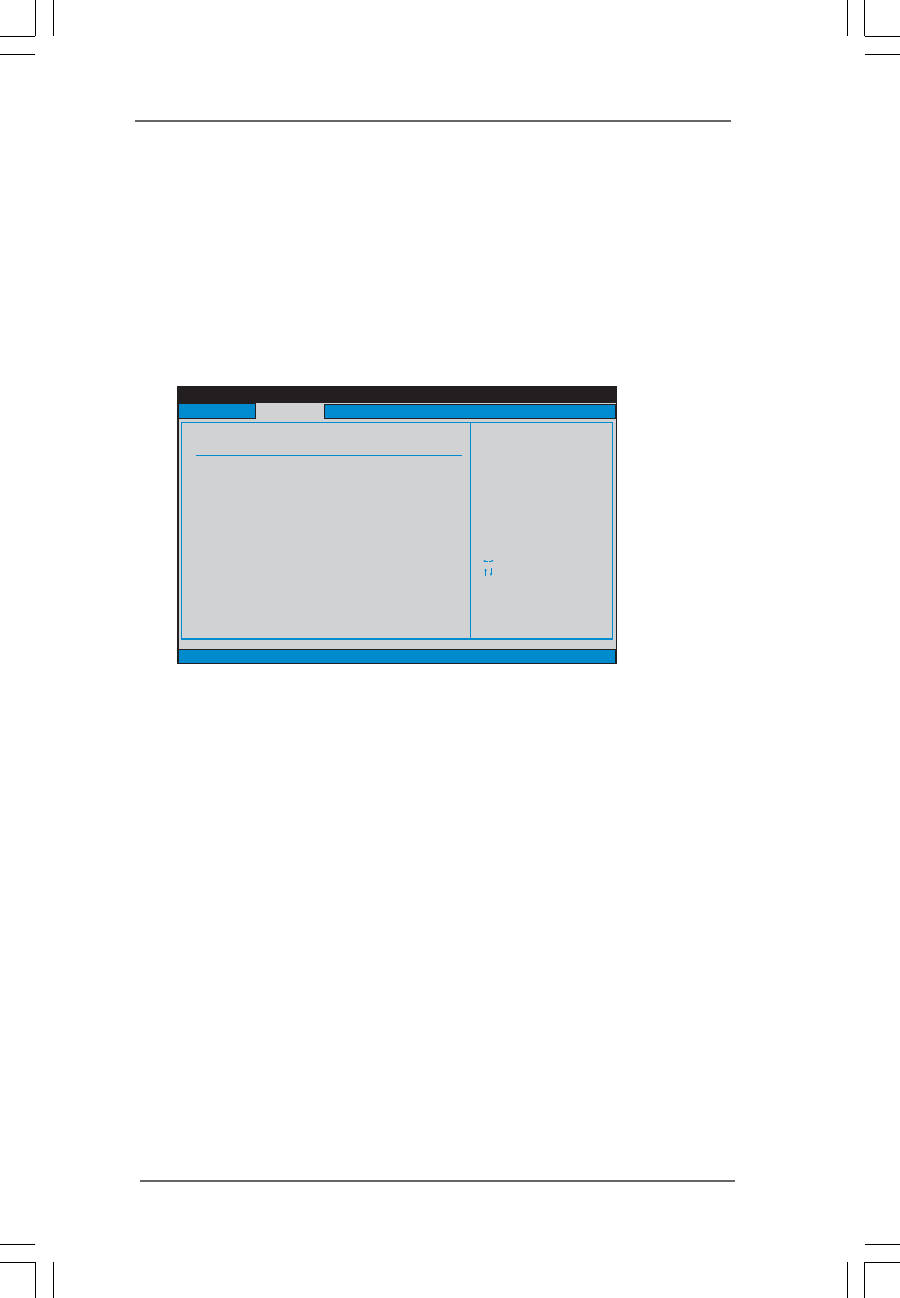
DRAM Frequency
If [Auto] is selected, the motherboard will detect the memory module(s)
inserted and assigns appropriate frequency automatically. You may also
select other value as operating frequency: [133MHz (DDR 266)],
[166MHz (DDR 333)], [200MHz (DDR 400)] for DDR; [200MHz (DDRII 400)],
[266MHz (DDRII 533)] for DDRII.
BIOS SETUP UTILITY
v02.54 (C) Copyright 1985-2003, American Megatrends, Inc.
Chipset Configuration
DRAM Frequency
Flexibility Option
DRAM CAS# Latency
DRAM Command Rate
DRAM Bus Selection
DRAM Voltage
AGP Voltage
Primary Graphics Adapter
AGP Aperture Size
AGP Mode
AGP Fast Write
PCI Delay Transaction
OnBoard LAN
OnBoard AC'97 Audio
[Disabled]
[Auto]
[Normal]
[High]
[PCI]
[64MB]
[Auto]
[Disabled]
[Auto]
[Auto]
[2T Command]
[Disabled]
[Eabled]
[Auto]
Select Screen
Select Item
+ - Change Option
F1 General Help
F10 Save and Exit
ESC Exit
F9 Load Defaults
Options
133MHz (DDR266)
166MHz (DDR333)
200MHz (DDR400)
Auto
Advanced

3232
3232
32
Flexibility Option
The default value of this option is [Disabled]. It will allow better tolerance for
memory compatibility when it is set to [Enabled].
DRAM CAS# Latency
Use this item to adjust the means of memory accessing. Configuration
options: [Auto], [2.5], [2], and [3] for DDR; [Auto], [3], [4], [5] for DDRII.
DRAM Command Rate
Use this to select among [2T Command] and [1T Command] for DRAM
Command Rate. The default value is [2T Command].
DRAM Bus Selection
The default value is [Auto], which will automatically select the proper ac-
cess mode for the system. You may select between [Single Channel] and
[Dual Channel] if you have properly set the dual channel memory
configuration.
DRAM Voltage
Use this to select among [Normal] and [High] for DRAM Voltage. The default
value is [Normal].
AGP Voltage
Use this to select among [Normal] and [High] for AGP Voltage. The default
value is [High].
Primary Graphics Adapter
This allows you to select [PCI], [AGP], or [PCI-Express] as the primary
graphics adapter. The default vaule is [PCI].
AGP Aperture Size
It refers to a section of the PCI memory address range used for graphics
memory. It is recommended to leave this field at the default value unless the
installed AGP card’s specifications requires other sizes.
AGP Mode
The default value of this feature is set to [Auto]. If you install an 8X-AGP
card on this motherboard, you may select [Auto], [8X] or [4X] as the AGP
mode. If the installed AGP card is a 4X-AGP card, then you may set the AGP
mode as [Auto], [4X], [2X], or [1X].
AGP Fast Write
This allows you to enable or disable the feature of AGP fast write protocol
support.
PCI Delay Transaction
Enable PCI Delay Transaction feature will free the PCI Bus when the CPU is
accessing 8-bit ISA cards. Disable this feature when using ISA cards that
are not PCI 2.1 compliant.
3333
3333
33
OnBoard LAN
This allows you to enable or disable the onboard LAN feature.
OnBoard AC’97 Audio
Select [Auto], [Enabled] or [Disabled] for the onboard AC’97 Audio feature.
If you select [Auto], the onboard AC’97 Audio will be disabled when PCI
Sound card is plugged.
3.3.33.3.3
3.3.33.3.3
3.3.3 ACPI ConfigurationACPI Configuration
ACPI ConfigurationACPI Configuration
ACPI Configuration
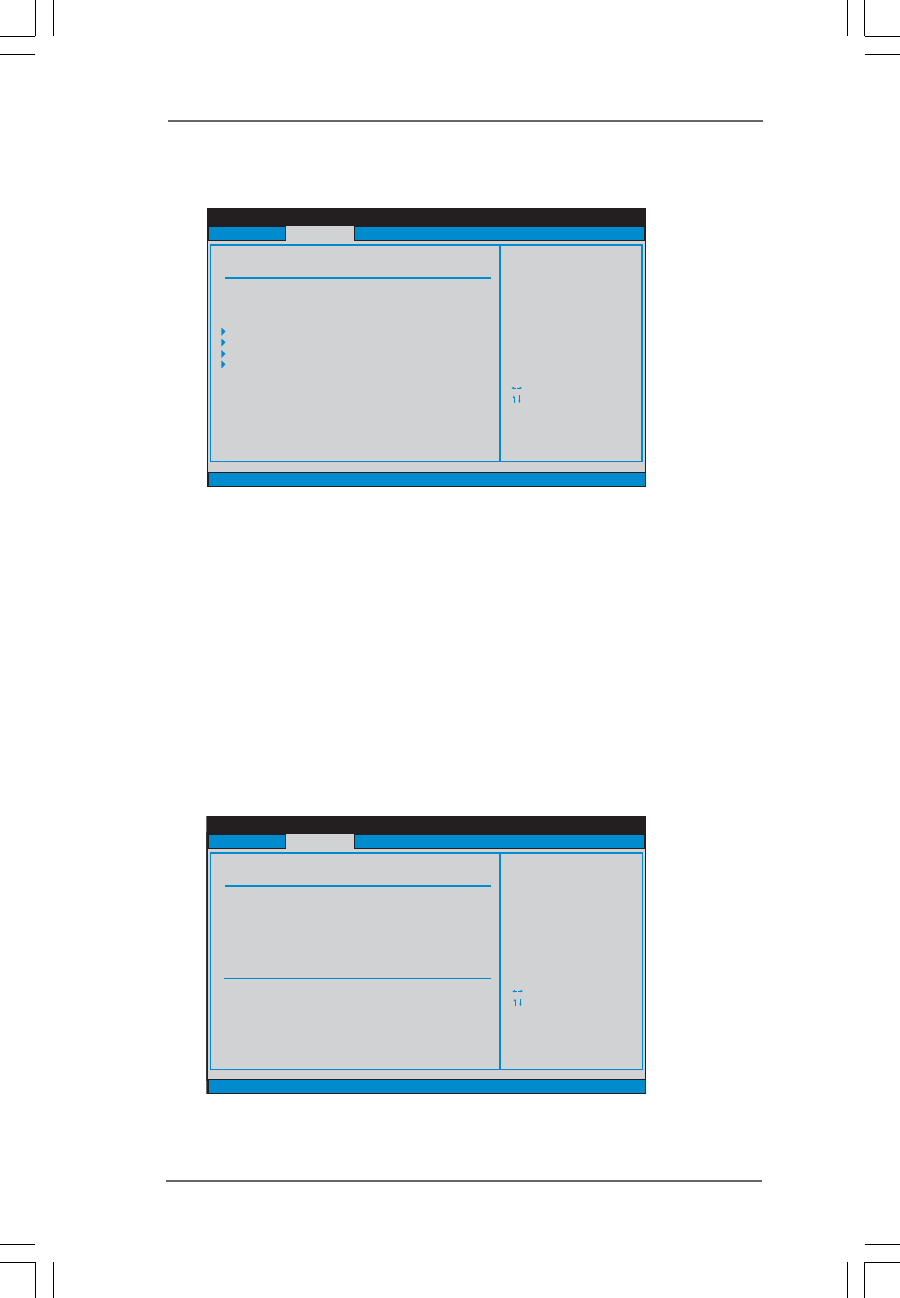
Restore on AC/Power Loss
Use this item to set the power state after an unexpected AC/power loss. If
[Power Off] is selected, the AC/power remains off when the power
recovers. If [Power On] is selected, the AC/power resumes and the sys-
tem starts to boot up when the power recovers.
Ring-In Power On
Use this item to enable or disable Ring-In signals to turn on the system from
the power-soft-off mode.
PCI Devices Power On
Use this item to enable or disable PCI devices to turn on the system from the
power-soft-off mode.
PS/2 Keyboard Power On
Use this item to enable or disable PS/2 keyboard to turn on the system from
the power-soft-off mode.
RTC Alarm Power On
Use this item to enable or disable RTC (Real Time Clock) to power on the
system.
BIOS SETUP UTILITY
ACPI Configuration
Select auto-detect or
disable the STR
feature.
Select Screen
Select Item
+- Change Option
F1 General Help
F9 Load Defaults
F10 Save and Exit
ESC Exit
v02.54 (C) Copyright 1985-2003, American Megatrends, Inc.
Advanced
Suspend To RAM
Restore on AC / Power Loss
Ring-In Power On
PCI Devices Power On
PS / 2 Keyboard Power On
RTC Alarm Power On
[Disabled]
[Power Off]
[Disabled]
[Disabled]
[Disabled]
[Disabled]
3434
3434
34
3.3.43.3.4
3.3.43.3.4
3.3.4 IDE ConfigurationIDE Configuration
IDE ConfigurationIDE Configuration
IDE Configuration
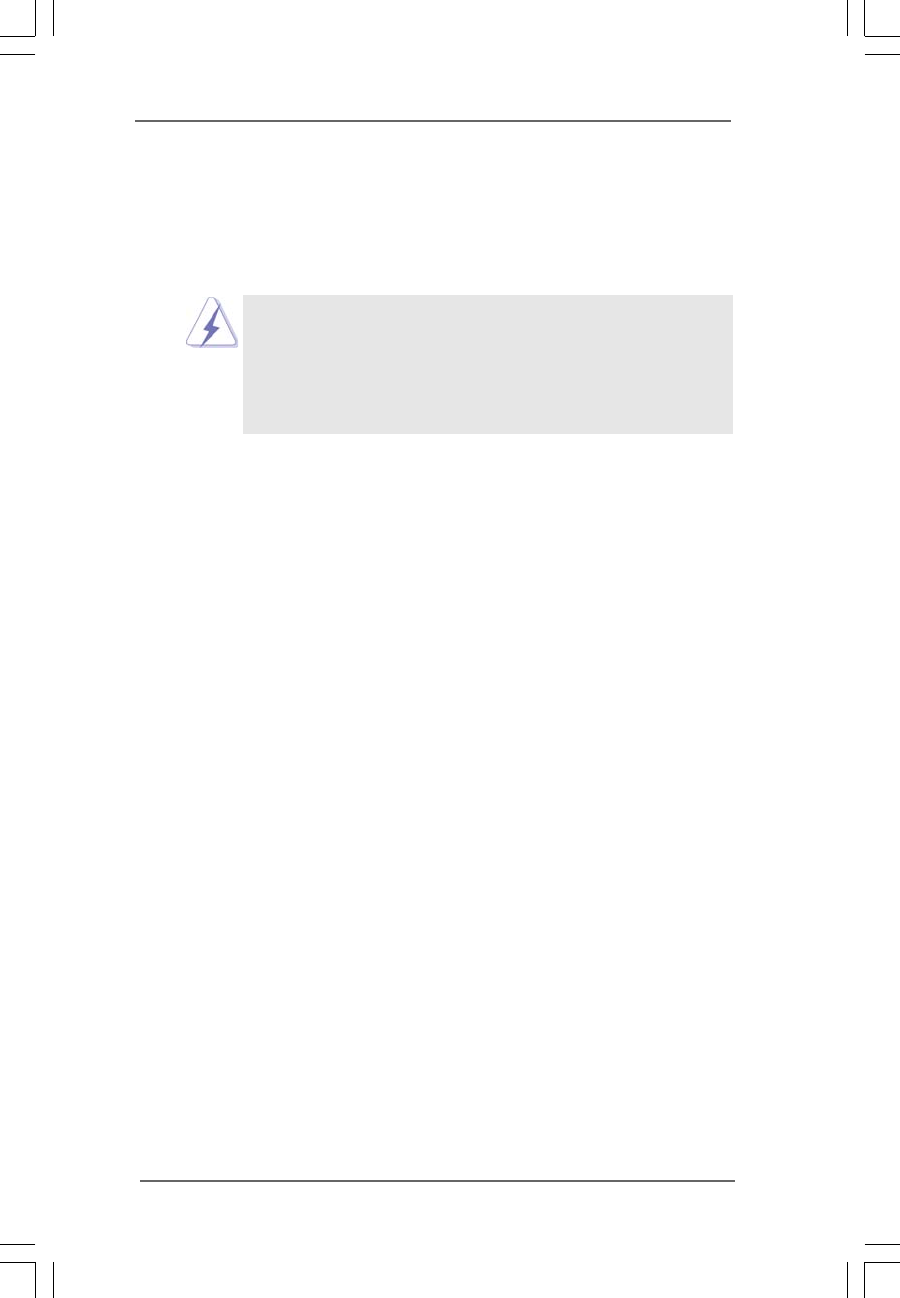
OnBoard IDE Controller
Use this item to enable or disable the onboard IDE controller.
SATA Operation Mode
Use this item to adjust SATA Operation Mode. The default value of this
option is [RAID]. If you don’t want to operate RAID function on SATA HDDs,
please select [non-RAID]. However, if you want to install Windows 98/ME
without RAID functions, please still select [RAID].
IDE Device Configuration
You may set the IDE configuration for the device that you specify. We will
use the “Primary IDE Master” as the example in the following instruction,
which can be applied to the configurations of “Primary IDE Slave”, “Sec-
ondary IDE Master”, and “Secondary IDE Slave” as well.
BIOS SETUP UTILITY
IDE Configuration
v02.54 (C) Copyright 1985-2003, American Megatrends, Inc.
Advanced
OnBoard IDE Controller
Primary IDE Master
Primary IDE Slave
Secondary IDE Master
Secondary IDE Slave
[Both]
[Hard Disk]
[Not Detected]
[Not Detected]
[Not Detected]
Select Screen
Select Item
+- Change Option
F1 General Help
F9 Load Defaults
F10 Save and Exit
ESC Exit
Select Screen
Select Item
+- Change Option
F1 General Help
F9 Load Defaults
F10 Save and Exit
ESC Exit
DISABLED: disables the
integrated IDE
Controller.
PRIMARY: enables only
the Primary IDE
Controller.
SECONDARY: enables
only the Secondary IDE
Controller.
BOTH: enables both IDE
Controllers.
SATA Operation Mode [RAID]
BIOS SETUP UTILITY
Primary IDE Master
Select the type
of device connected
to the system.
Select Screen
Select Item
+- Change Option
F1 General Help
F9 Load Defaults
F10 Save and Exit
ESC Exit
v02.54 (C) Copyright 1985-2003, American Megatrends, Inc.
Advanced
Type
LBA/Large Mode
Block (Multi-Sector Transfer)
PIO Mode
DMA Mode
S.M.A.R.T.
32Bit Data Transfer
[Auto]
[Auto]
[Auto]
[Auto]
[Auto]
[Disabled]
[Disabled]
Device
Vendor
Size
LBA Mode
Block Mode
PIO Mode
Async DMA
Ultra DMA
S.M.A.R.T.
:Hard Disk
:ST340014A
:40.0 GB
:Supported
:16Sectors
:4
:MultiWord DMA-2
:Ultra DMA-5
:Supported
3535
3535
35
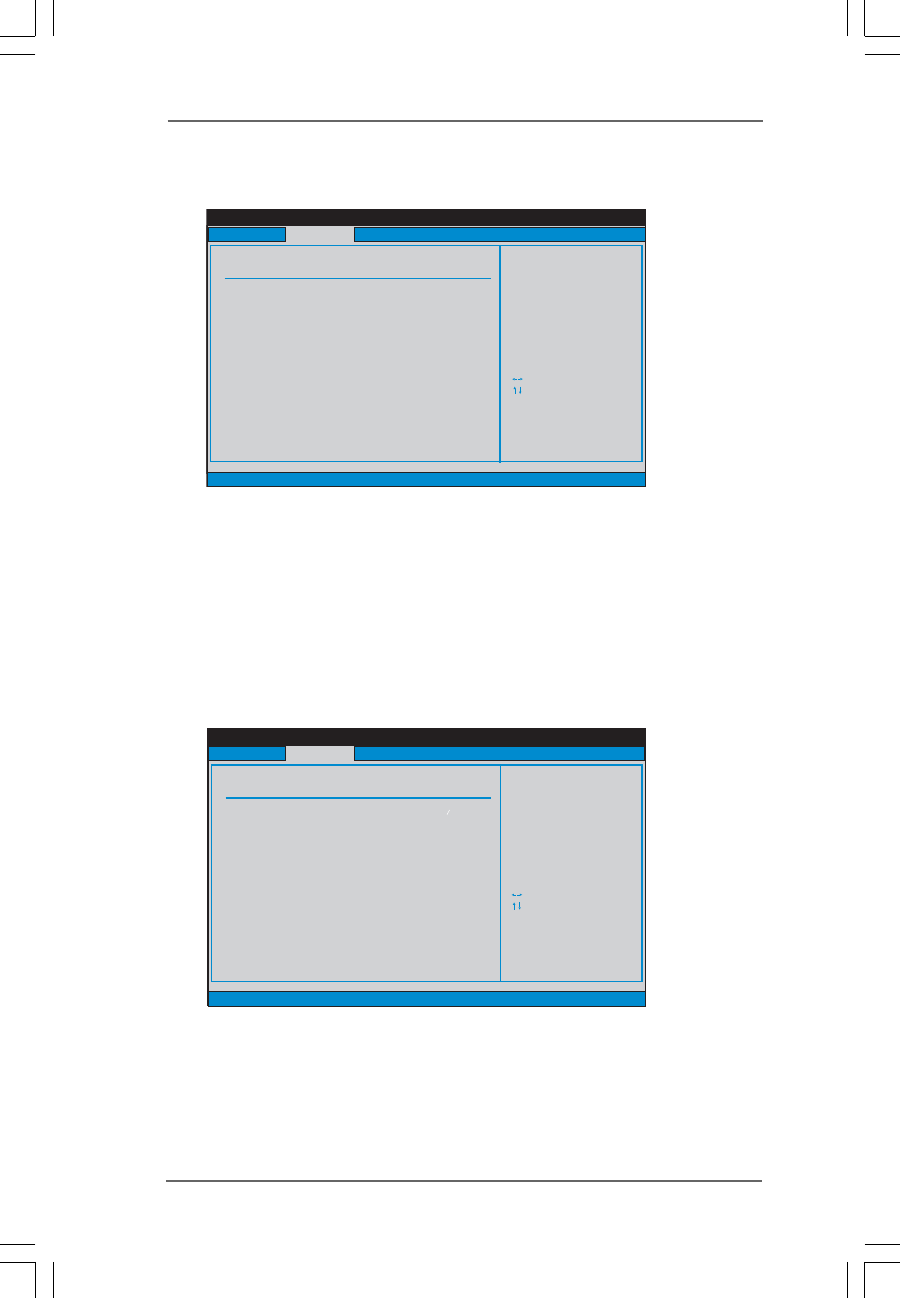
TYPE
Use this item to configure the type of the IDE device that you specify.
Configuration options: [Not Installed], [Auto], [CD/DVD], and [ARMD].
[Not Installed]: Select [Not Installed] to disable the use of IDE device.
[Auto]: Select [Auto] to automatically detect the hard disk drive.
After selecting the hard disk information into BIOS, use a disk
utility, such as FDISK, to partition and format the new IDE hard
disk drives. This is necessary so that you can write or read
data from the hard disk. Make sure to set the partition of the
Primary IDE hard disk drives to active.
[CD/DVD]: This is used for IDE CD/DVD drives.
[ARMD]: This is used for IDE ARMD (ATAPI Removable Media Device),
such as MO.
LBA/Large Mode
Use this item to select the LBA/Large mode for a hard disk > 512 MB under
DOS and Windows; for Netware and UNIX user, select [Disabled] to
disable the LBA/Large mode.
Block (Multi-Sector Transfer)
The default value of this item is [Auto]. If this feature is enabled, it will
enhance hard disk performance by reading or writing more data during
each transfer.
PIO Mode
Use this item to set the PIO mode to enhance hard disk performance by
optimizing the hard disk timing.
DMA Mode
DMA capability allows the improved transfer-speed and data-integrity for
compatible IDE devices.
S.M.A.R.T.
Use this item to enable or disable the S.M.A.R.T. (Self-Monitoring, Analysis,
and Reporting Technology) feature. Configuration options: [Disabled], [Auto],
[Enabled].
32-Bit Data Transfer
Use this item to enable 32-bit access to maximize the IDE hard disk data
transfer rate.
3636
3636
36
3.3.53.3.5
3.3.53.3.5
3.3.5 PCIPnP ConfigurationPCIPnP Configuration
PCIPnP ConfigurationPCIPnP Configuration
PCIPnP Configuration
PCI Latency Timer
The default value is 32. It is recommended to keep the default value unless
the installed PCI expansion cards’ specifications require other settings.
PCI IDE BusMaster
Use this item to enable or disable the PCI IDE BusMaster feature.
3.3.63.3.6
3.3.63.3.6
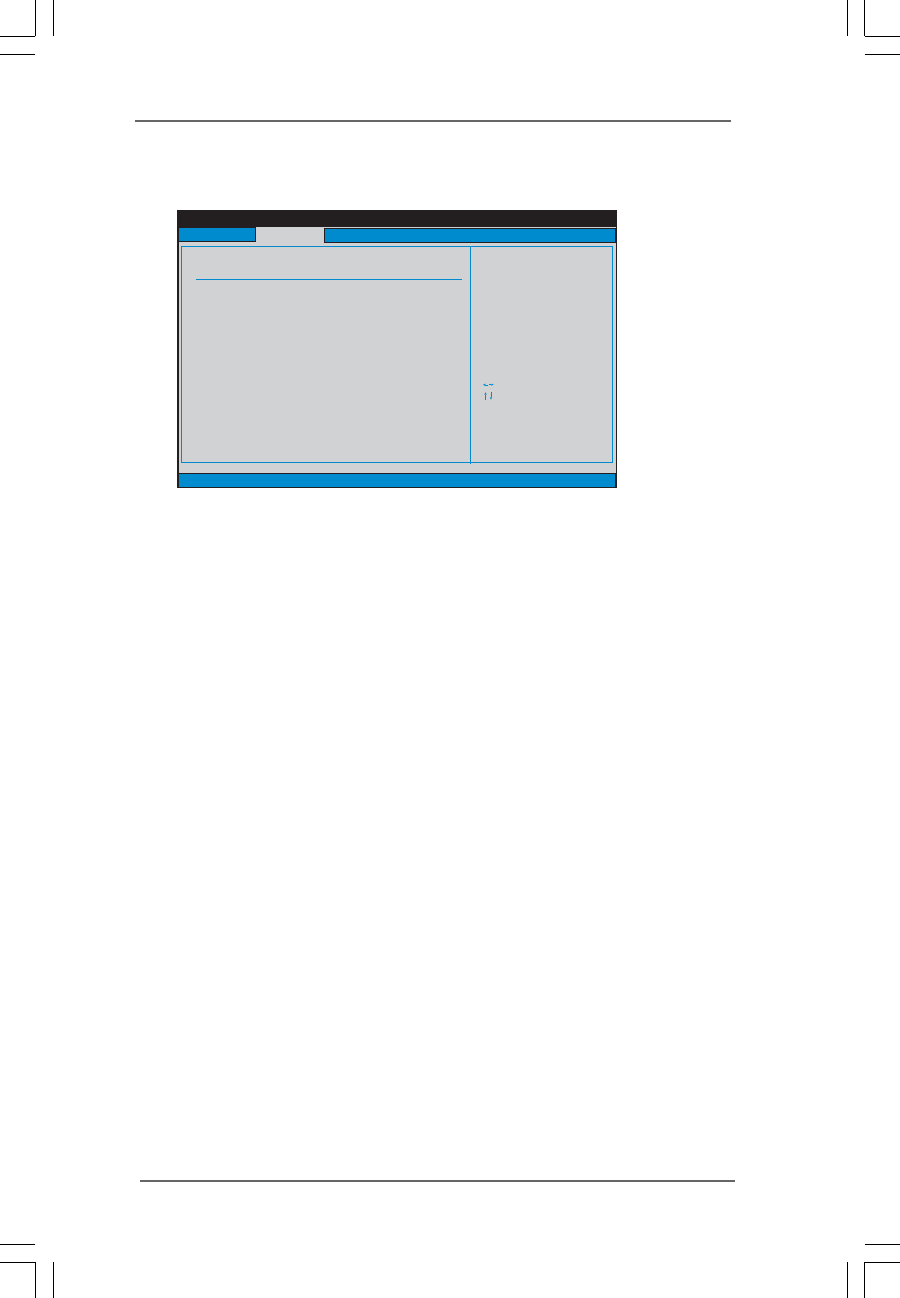
3.3.6 Floppy ConfigurationFloppy Configuration
Floppy ConfigurationFloppy Configuration
Floppy Configuration
In this section, you may configure the type of your floppy drive.
BIOS SETUP UTILITY
PCI / PnP Configuration
Value in units of PCI
clocks for PCI device
latency timer
register.
Select Screen
Select Item
+- Change Option
F1 General Help
F9 Load Defaults
F10 Save and Exit
ESC Exit
v02.54 (C) Copyright 1985-2003, American Megatrends, Inc.
PCI Latency Timer
PCI IDE BusMaster
[32]
[Enabled]
Advanced
BIOS SETUP UTILITY
Floppy Configuration
Select the type of
floppy drive
connected to the
system.
Select Screen
Select Item
+- Change Option
F1 General Help
F9 Load Defaults
F10 Save and Exit
ESC Exit
v02.54 (C) Copyright 1985-2003, American Megatrends, Inc.
Advanced
Floppy A
Floppy B
[1.44 MB 3 "]
[Disabled]
12
3737
3737
37
3.3.73.3.7
3.3.73.3.7
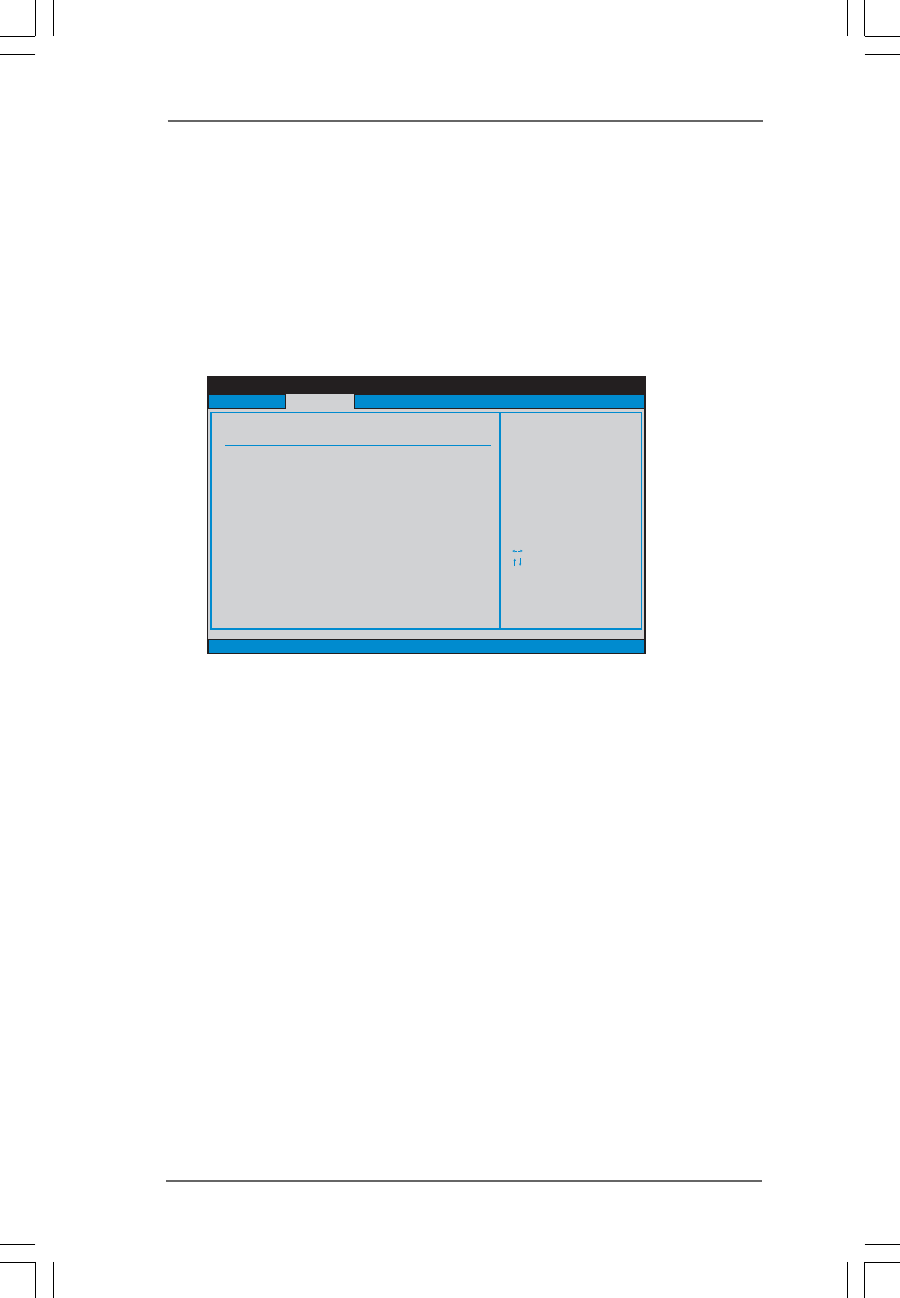
3.3.7 Super IO ConfigurationSuper IO Configuration
Super IO ConfigurationSuper IO Configuration
Super IO Configuration
OnBoard Floppy Controller
Use this item to enable or disable floppy drive controller.
Serial Port Address
Use this item to set the address for the onboard serial port or disable it.
Configuration options: [Disabled], [3F8 / IRQ4], [2F8 / IRQ3], [3E8 / IRQ4],
[2E8 / IRQ3].
Infrared Port Address
Use this item to set the address for the onboard infrared port or disable it.
Configuration options: [Disabled], [2F8 / IRQ3], and [2E8 / IRQ3].
Parallel Port Address
Use this item to set the address for the onboard parallel port or disable it.
Configuration options: [Disabled], [378], and [278].
Parallel Port Mode
Use this item to set the operation mode of the parallel port. The default
value is [ECP+EPP]. If this option is set to [ECP+EPP], it will show the EPP
version in the following item, “EPP Version”. Configuration options:
[Normal], [Bi-Directional], and [ECP+EPP].
EPP Version
Use this item to set the EPP version. Configuration options: [1.9]
and [1.7].
ECP Mode DMA Channel
Use this item to set the ECP mode DMA channel. Configuration
options: [DMA0], [DMA1], and [DMA3].
Parallel Port IRQ
Use this item to set the IRQ for the parallel port. Configuration options:
[IRQ5] and [IRQ7].
BIOS SETUP UTILITY
Configure Super IO Chipset
Allow BIOS to Enable
or Disable Floppy
Controller.
Select Screen
Select Item
+- Change Option
F1 General Help
F9 Load Defaults
F10 Save and Exit
ESC Exit
v02.54 (C) Copyright 1985-2003, American Megatrends, Inc.
Advanced
OnBoard Floppy Controller
Serial Port Address
Infrared Port Address
Parallel Port Address
Parallel Port Mode
EPP Version
ECP Mode DMA Channel
Parallel Port IRQ
OnBoard Game Port
OnBoard MIDI Port
[Enabled]
[3F8 / IRQ4]
[Disabled]
[378]
[ECP + EPP]
[1.9]
[DMA3]
[IRQ7]
[Enabled]
[Disabled]
3838
3838
38
OnBoard Game Port
Use this item to enable the Game Port or disable it.
OnBoard MIDI Port
Use this itme to select the address for the MIDI Port or disable it. Configura-
tion options: [Disabled], [300], and [330].
3.3.83.3.8
3.3.83.3.8
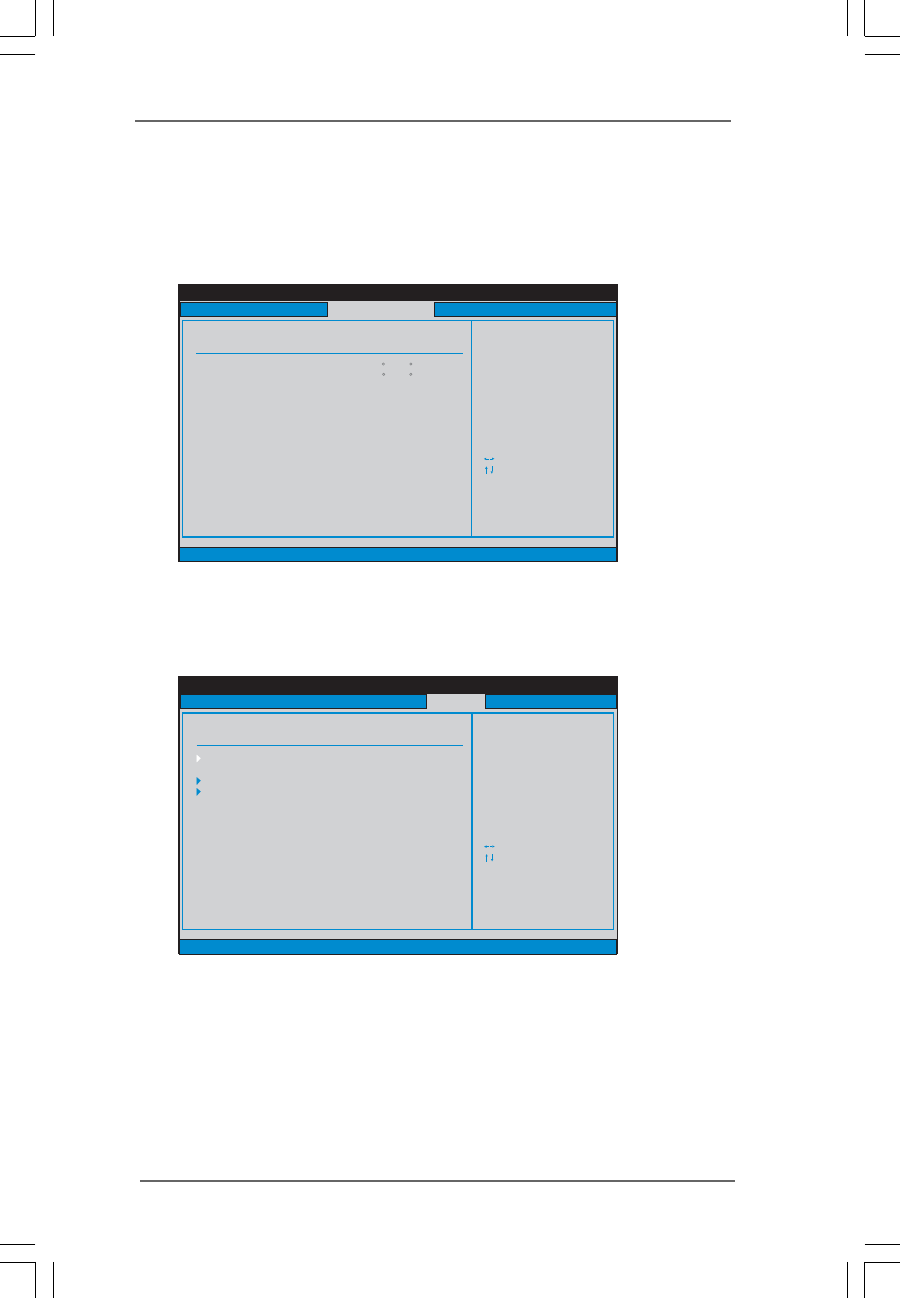
3.3.8 USB ConfigurationUSB Configuration
USB ConfigurationUSB Configuration
USB Configuration
USB Controller
Use this item to enable or disable the use of USB controller.
USB 2.0 Support
Use this item to enable or disable the USB 2.0 support.
Legacy USB Support
Use this item to enable or disable the support to emulate legacy I/O
devices such as mouse, keyboard,... etc. Or you may select [Auto] so
that the system will start to auto-detect; if there is no USB device
connected, “Auto” option will disable the legacy USB support.
BIOS SETUP UTILITY
USB Configuration
To enable or disable
the onboard USB
controllers.
Select Screen
Select Item
+- Change Option
F1 General Help
F9 Load Defaults
F10 Save and Exit
ESC Exit
v02.54 (C) Copyright 1985-2003, American Megatrends, Inc.
Advanced
USB Controller
USB 2.0 Support
Legacy USB Support
[Enabled]
[Enabled]
[Disabled]
3939
3939
39
3.43.4
3.43.4
3.4 Hardware Health Event Monitoring ScreenHardware Health Event Monitoring Screen
Hardware Health Event Monitoring ScreenHardware Health Event Monitoring Screen
Hardware Health Event Monitoring Screen
In this section, it allows you to monitor the status of the hardware on your system,
including the parameters of the CPU temperature, motherboard temperature, CPU fan
speed, chassis fan speed, and the critical voltage.
3.53.5
3.53.5
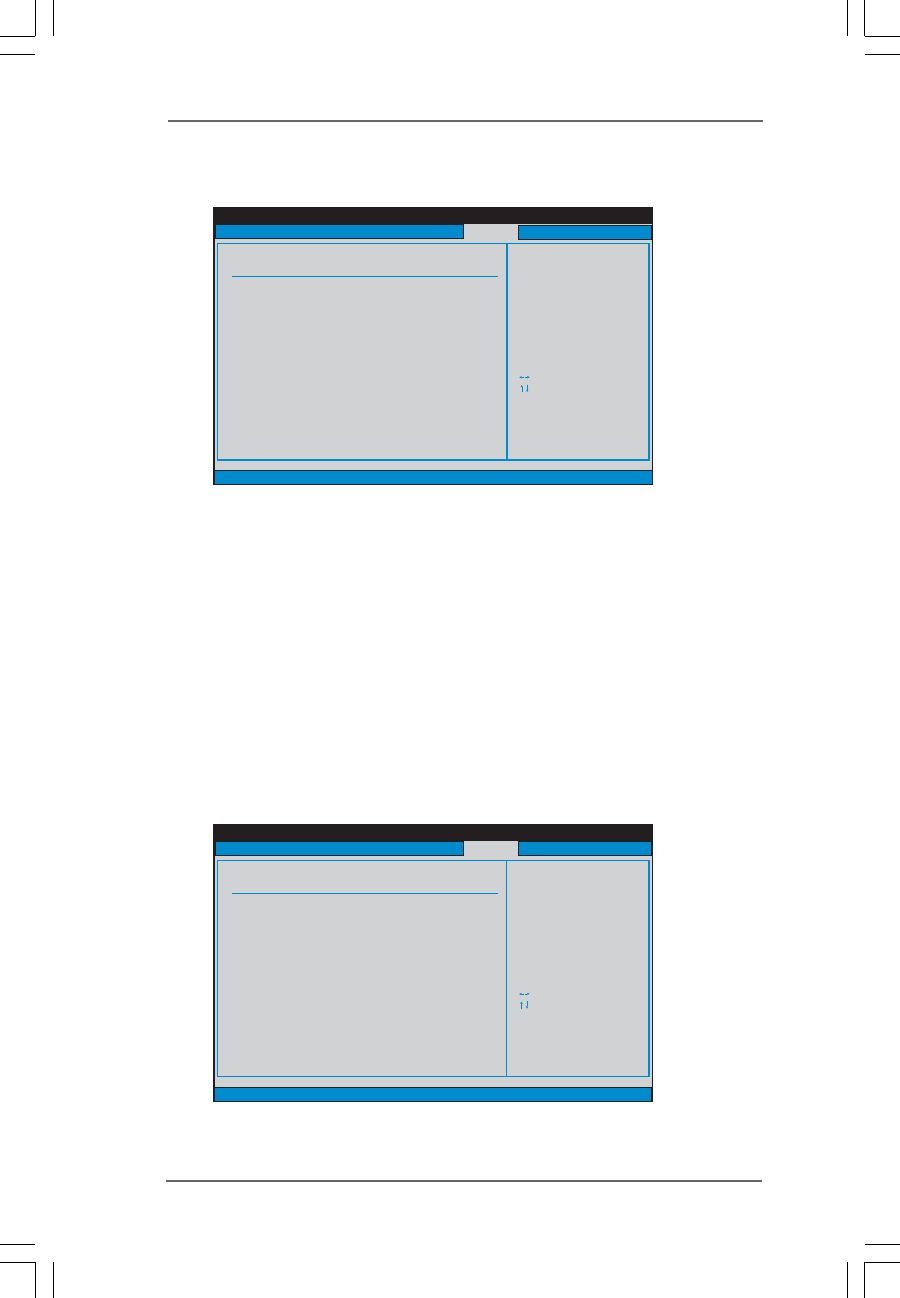
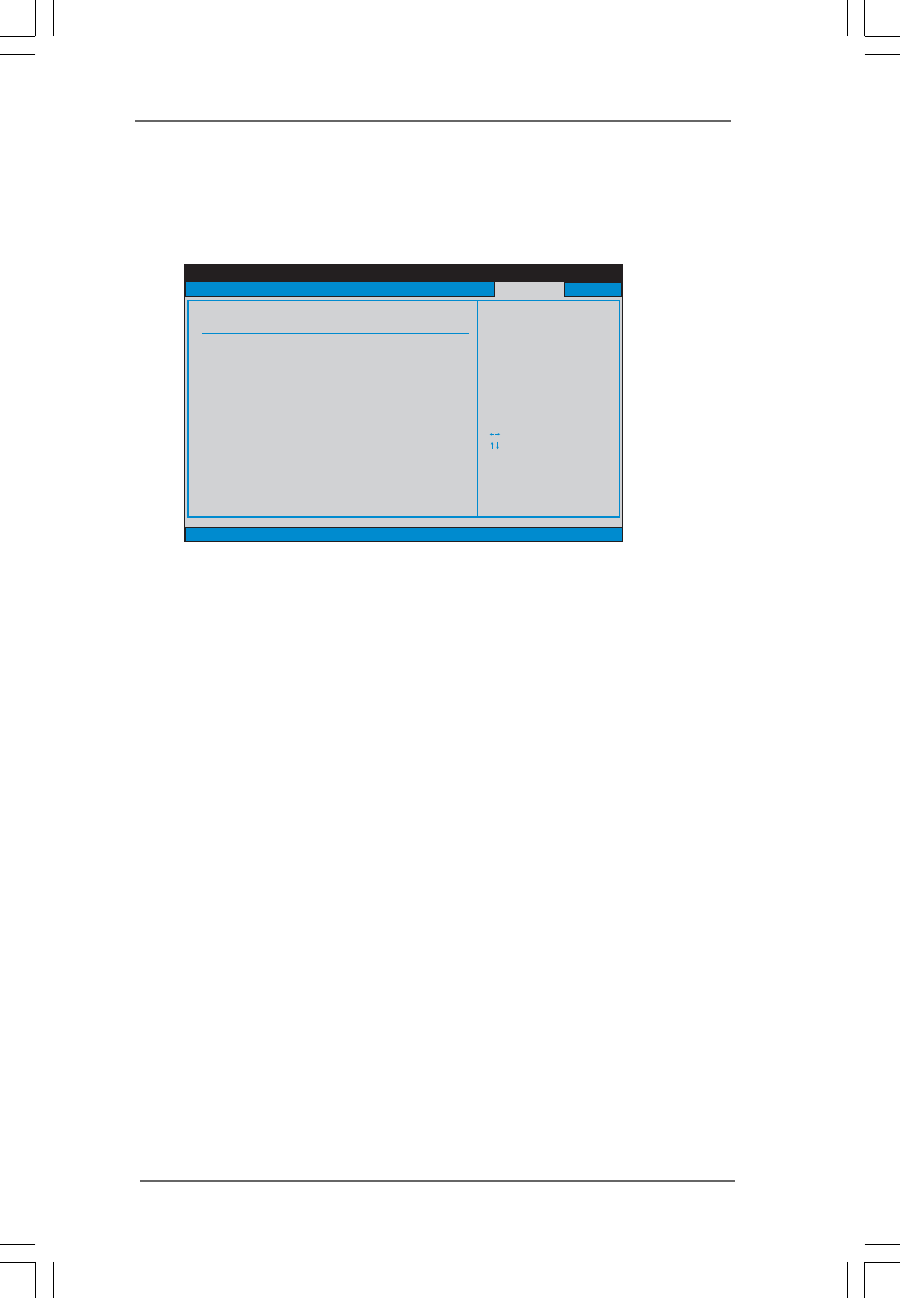
3.5 Boot ScreenBoot Screen
Boot ScreenBoot Screen
Boot Screen
In this section, it will display the available devices on your system for you to config-
ure the boot settings and the boot priority.
BIOS SETUP UTILITY
Hardware Health Event Monitoring
Select Screen
Select Item
F1 General Help
F9 Load Defaults
F10 Save and Exit
ESC Exit
v02.54 (C) Copyright 1985-2003, American Megatrends, Inc.
CPU Temperature
M / B Temperature
CPU Fan Speed
Chassis Fan Speed
Vcore
+ 3.30V
+ 5.00V
+ 12.00V
: 37C/98F
: 2463 RPM
:N/A
: 1.629V
: 3.306V
: 5.067V
: 11.890V
: 31C/87F
Main Advanced Boot Security Exit
H/W Monitor
BIOS SETUP UTILITY
Main Advanced H/W Monitor Security Exit
Boot Settings Configure Settings
during System Boot.
Select Screen
Select Item
Enter Go to Sub Screen
F1 General Help
F9 Load Defaults
F10 Save and Exit
ESC Exit
v02.54 (C) Copyright 1985-2003, American Megatrends, Inc.
Boot
Boot Settings Configuration
Boot Device Priority
Removable Drives
4040
4040
40
3.5.13.5.1
3.5.13.5.1
3.5.1 Boot Settings ConfigurationBoot Settings Configuration
Boot Settings ConfigurationBoot Settings Configuration
Boot Settings Configuration
Boot From Network
Use this item to enable or disable the Boot From Network feature.
VIA SATA Raid Utility
Use this to enable or disable VIA VT8237 SATA Raid BIOS Utility during
POST.
Boot Up Num-Lock
If this item is set to [On], it will automatically activate the Numeric Lock
function after boot-up.
3.5.23.5.2
3.5.23.5.2
3.5.2 Boot Device PriorityBoot Device Priority
Boot Device PriorityBoot Device Priority
Boot Device Priority
In this section, you may specify the boot sequence from the available devices
in your system.
Likewise, you may also specify the boot sequence from the available devices
for the hard disk drives, the removable drives, and the CD/DVD drives.
BIOS SETUP UTILITY
Boot Settings Configuration
To enable or disable the
boot from network feature.
Select Screen
Select Item
+ - Change Option
F1 General Help
F9 Load Defaults
F10 Save and Exit
ESC Exit
v02.54 (C) Copyright 1985-2003, American Megatrends, Inc.
Boot
Boot From Network
VIA SATA Raid Utility
Bootup Num-Lock
[Disabled]
[Enabled]
[On]
BIOS SETUP UTILITY
Boot Device Priority
Specifies the boot
sequence from the
available devices.
A device enclosed in
parenthesis has been
disabled in the
corresponding type
menu.
Select Screen
Select Item
+ - Change Option
F1 General Help
F10 Save and Exit
ESC Exit
F9 Load Defaults
v02.54 (C) Copyright 1985-2003, American Megatrends, Inc.
1st Boot Device
2nd Boot Device
3rd Boot Device
[1st FLOPPY DRIVE]
[HDD: PM-MAXTOR 6L08]
[CD/DVD]
Boot
4141
4141
41
3.63.6
3.63.6
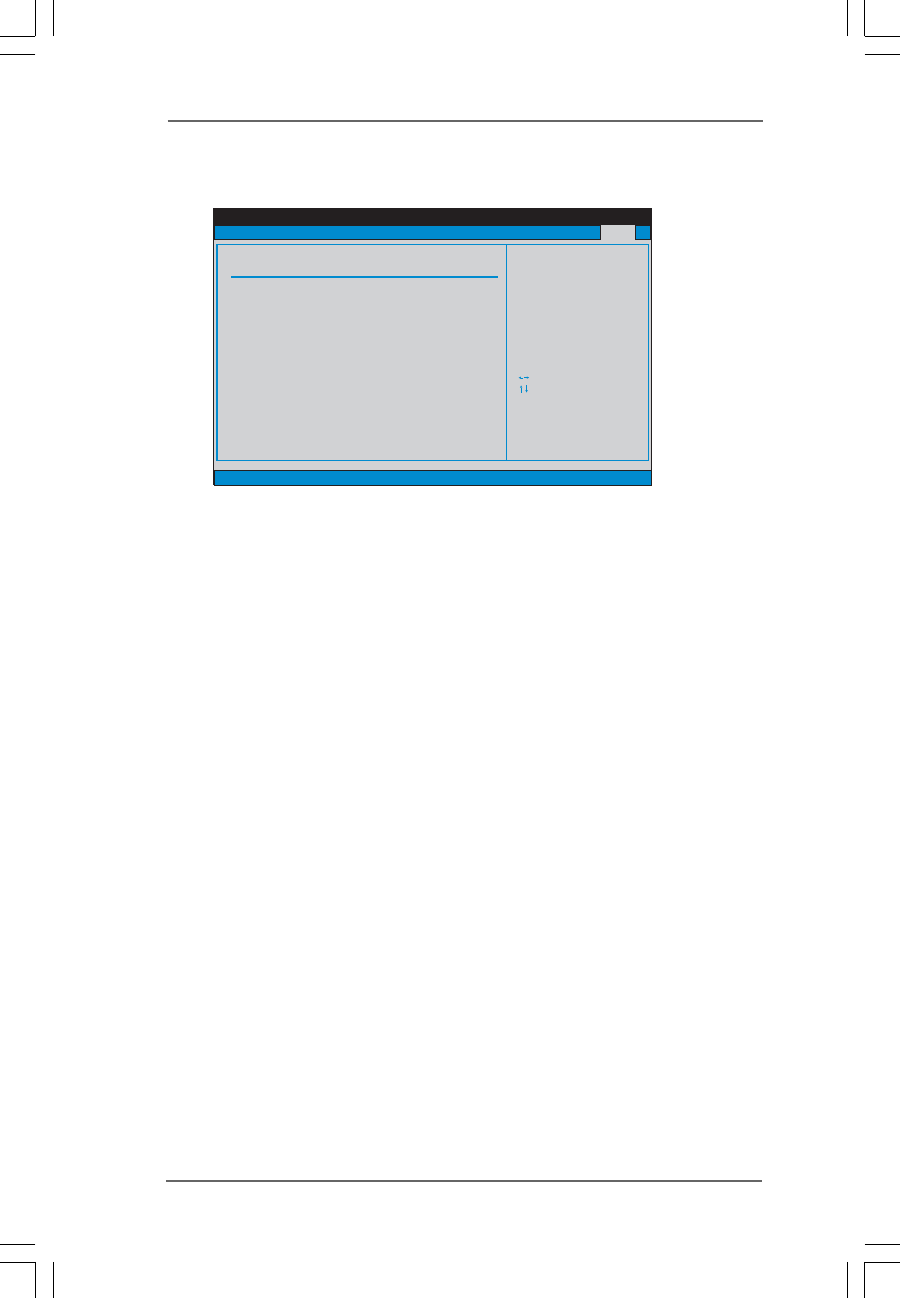
3.6 Security ScreenSecurity Screen
Security ScreenSecurity Screen
Security Screen
In this section, you may set or change the supervisor/user password for the system.
For the user password, you may also clear it.
BIOS SETUP UTILITY
Main Advanced H/W Monitor Boot Exit
Install or Change the
password.
Select Screen
Select Item
Enter Change
F1 General Help
F10 Save and Exit
ESC Exit
F9 Load Defaults
v02.54 (C) Copyright 1985-2003, American Megatrends, Inc.
Security
Change Supervisor Password
Change User Password
Clear User Password
Security Settings
Supervisor Password : Not Installed
User Password : Not Installed
4242
4242
42
3.73.7
3.73.7
3.7 Exit ScreenExit Screen
Exit ScreenExit Screen
Exit Screen
Save Changes and Exit
When you select this option, it will pop-out the following message, “Save
configuration changes and exit setup?” Select [OK] to save the changes
and exit the BIOS SETUP UTILITY.
Discard Changes and Exit
When you select this option, it will pop-out the following message, “Dis-
card changes and exit setup?” Select [OK] to exit the BIOS SETUP UTILITY
without saving any changes.
Discard Changes
When you select this option, it will pop-out the following message, “Dis-
card changes?” Select [OK] to discard all changes.
Load Optimal Defaults
When you select this option, it will pop-out the following message, “Load
optimal defaults?” Select [OK] to load the default values for all the setup
configurations.
BIOS SETUP UTILITY
Main Advanced H/W Monitro Boot Security
Exit system setup
after saving the
changes.
F10 key can be used
for this operation.
Select Screen
Select Item
Enter Go to Sub Screen
F1 General Help
F10 Save and Exit
ESC Exit
F9 Load Defaults
v02.54 (C) Copyright 1985-2003, American Megatrends, Inc.
Exit
Save Changes and Exit
Discard Changes and Exit
Discard Changes
Load Optimal Defaults
Exit Options

4343
4343
43
Chapter 4 Software SupporChapter 4 Software Suppor
Chapter 4 Software SupporChapter 4 Software Suppor
Chapter 4 Software Supportt
tt
t
4.14.1
4.14.1
4.1 Install Operating SystemInstall Operating System
Install Operating SystemInstall Operating System
Install Operating System
This motherboard supports various Microsoft® Windows® operating systems: 98 SE / ME / 2000
/ XP. Because motherboard settings and hardware options vary, use the setup procedures in this
chapter for general reference only. Refer to your OS documentation for more information.
4.24.2
4.24.2
4.2 Support CD InformationSupport CD Information
Support CD InformationSupport CD Information
Support CD Information
The Support CD that came with the motherboard contains necessary drivers and useful utilities
that enhance the motherboard features.
4.2.14.2.1
4.2.14.2.1
4.2.1 Running The Support CDRunning The Support CD
Running The Support CDRunning The Support CD
Running The Support CD
To begin using the support CD, insert the CD into your CD-ROM drive. The CD automati-
cally displays the Main Menu if “AUTORUN” is enabled in your computer. If the Main
Menu did not appear automatically, locate and double click on the file “ASSETUP.EXE”
from the BIN folder in the Support CD to display the menus.
4.2.24.2.2
4.2.24.2.2
4.2.2 Drivers MenuDrivers Menu
Drivers MenuDrivers Menu
Drivers Menu
The Drivers Menu shows the available devices drivers if the system detects installed
devices. Please install the necessary drivers to activate the devices.
4.2.34.2.3
4.2.34.2.3
4.2.3 Utilities MenuUtilities Menu
Utilities MenuUtilities Menu
Utilities Menu
The Utilities Menu shows the applications software that the motherboard supports. Click on
a specific item then follow the installation wizard to install it.
4.2.44.2.4
4.2.44.2.4
4.2.4 “LGA 775 CPU Installation Live Demo” Program“LGA 775 CPU Installation Live Demo” Program
“LGA 775 CPU Installation Live Demo” Program“LGA 775 CPU Installation Live Demo” Program
“LGA 775 CPU Installation Live Demo” Program
This motherboard is equipped with Intel LGA 775 socket, which is a new CPU socket
interface that Intel has released. Since it has several tiny pins, whcih are easily to be
damaged by improper handling, ASRock sincerely presents you a clear installation guide
through this “LGA 775 CPU Installation Live Demo”. We hope you may check this live
demo program before you start the installation of LGA 775 CPU in order to reduce the risks
of CPU and motherboard damages caused by any improper handling. To see this Live
Demo, you can run Microsoft® Media Player® to play the file. You may find this Live Demo
in the motherboard’s Support CD through the following path:
..\ MPEGAV \ LGA775INST.DAT
4.2.54.2.5
4.2.54.2.5
4.2.5 Contact InformationContact Information
Contact InformationContact Information
Contact Information
If you need to contact ASRock or want to know more about ASRock, welcome to visit
ASRock’s website at http://www.asrock.com; or you may contact your dealer for further
information.
