Asus A8N E Users Manual
A8N-E to the manual 71976c18-05a8-446b-aa13-7f9ee2c553c1
2015-01-21
: Asus Asus-A8N-E-Users-Manual-236467 asus-a8n-e-users-manual-236467 asus pdf
Open the PDF directly: View PDF  .
.
Page Count: 76

Motherboard
A8N-E

iiii
iiii
ii
Copyright © 2006 ASUSTeK COMPUTER INC. All Rights Reserved.
No part of this manual, including the products and software described in it, may be reproduced,
transmitted, transcribed, stored in a retrieval system, or translated into any language in any form
or by any means, except documentation kept by the purchaser for backup purposes, without the
express written permission of ASUSTeK COMPUTER INC. (“ASUS”).
Product warranty or service will not be extended if: (1) the product is repaired, modified or
altered, unless such repair, modification of alteration is authorized in writing by ASUS; or (2)
the serial number of the product is defaced or missing.
ASUS PROVIDES THIS MANUAL “AS IS” WITHOUT WARRANTY OF ANY KIND, EITHER
EXPRESS OR IMPLIED, INCLUDING BUT NOT LIMITED TO THE IMPLIED WARRANTIES
OR CONDITIONS OF MERCHANTABILITY OR FITNESS FOR A PARTICULAR PURPOSE.
IN NO EVENT SHALL ASUS, ITS DIRECTORS, OFFICERS, EMPLOYEES OR AGENTS BE
LIABLE FOR ANY INDIRECT, SPECIAL, INCIDENTAL, OR CONSEQUENTIAL DAMAGES
(INCLUDING DAMAGES FOR LOSS OF PROFITS, LOSS OF BUSINESS, LOSS OF USE
OR DATA, INTERRUPTION OF BUSINESS AND THE LIKE), EVEN IF ASUS HAS BEEN
ADVISED OF THE POSSIBILITY OF SUCH DAMAGES ARISING FROM ANY DEFECT OR
ERROR IN THIS MANUAL OR PRODUCT.
SPECIFICATIONS AND INFORMATION CONTAINED IN THIS MANUAL ARE FURNISHED
FOR INFORMATIONAL USE ONLY, AND ARE SUBJECT TO CHANGE AT ANY TIME
WITHOUT NOTICE, AND SHOULD NOT BE CONSTRUED AS A COMMITMENT BY ASUS.
ASUS ASSUMES NO RESPONSIBILITY OR LIABILITY FOR ANY ERRORS OR
INACCURACIES THAT MAY APPEAR IN THIS MANUAL, INCLUDING THE PRODUCTS
AND SOFTWARE DESCRIBED IN IT.
Products and corporate names appearing in this manual may or may not be registered
trademarks or copyrights of their respective companies, and are used only for identification or
explanation and to the owners’ benefit, without intent to infringe.
E2500E2500
E2500E2500
E2500
V2V2
V2V2
V2
March 2006March 2006
March 2006March 2006
March 2006

iiiiii
iiiiii
iii
Contents
Notices ................................................................................................ vi
Safety information ............................................................................. vii
About this guide ............................................................................... viii
How this guide is organized .................................................. viii
Where to find more information ............................................ viii
Conventions used in this guide ............................................... ix
Typography ......................................................................................... ix
A8N-E specifications summary ............................................................ x
Chapter 1: Product introductionChapter 1: Product introduction
Chapter 1: Product introductionChapter 1: Product introduction
Chapter 1: Product introduction
1.1 Special features .................................................................... 1-2
1.1.1 Product highlights ................................................... 1-2
1.1.2 Innovative ASUS features ....................................... 1-4
1.2 Before you proceed .............................................................. 1-5
1.3 Motherboard overview .......................................................... 1-6
1.3.1 Placement direction ................................................ 1-6
1.3.2 Screw holes ............................................................ 1-6
1.3.3 Motherboard layout ................................................ 1-7
1.4 Central Processing Unit (CPU) .............................................. 1-8
1.4.1 Overview ................................................................. 1-8
1.4.2 Installling the CPU ................................................... 1-8
1.4.3 Installing the heatsink and fan .............................. 1-10
1.5 System memory ................................................................. 1-13
1.5.1 Overview ............................................................... 1-13
1.5.2 Memory Configurations ......................................... 1-13
1.5.3 Installing a DIMM ................................................... 1-15
1.5.4 Removing a DIMM ................................................. 1-15
1.6 Expansion slots ................................................................... 1-16
1.6.1 Installing an expansion card .................................. 1-16
1.6.2 Configuring an expansion card .............................. 1-16
1.6.3 Interrupt assignments .......................................... 1-17
1.6.4 PCI slots ................................................................ 1-17
1.6.5 PCI Express x16 slot ............................................. 1-18
1.6.6 PCI Express x1 slot ............................................... 1-18

iviv
iviv
iv
Contents
1.7 Jumpers .............................................................................. 1-18
1.8 Connectors ......................................................................... 1-20
1.8.1 Rear panel connectors .......................................... 1-20
1.8.2 Internal connectors ............................................... 1-22
Chapter 2: BIOS setupChapter 2: BIOS setup
Chapter 2: BIOS setupChapter 2: BIOS setup
Chapter 2: BIOS setup
2.1 Managing and updating your BIOS ........................................ 2-2
2.1.1 Creating a bootable floppy disk .............................. 2-2
2.1.2 Updating the BIOS .................................................. 2-3
2.1.3 Saving the current BIOS file .................................... 2-5
2.1.4 ASUS EZ Flash utility .............................................. 2-6
2.2 BIOS setup program ............................................................. 2-7
2.2.1 BIOS menu screen ................................................... 2-8
2.2.2 Menu bar ................................................................. 2-8
2.2.3 Legend bar ............................................................. 2-9
2.2.4 Menu items ............................................................. 2-9
2.2.5 Sub-menu items ..................................................... 2-9
2.2.6 Configuration fields ................................................ 2-9
2.2.7 Pop-up window ..................................................... 2-10
2.2.8 General help .......................................................... 2-10
2.3 Main menu .......................................................................... 2-11
2.3.1 System Time ......................................................... 2-11
2.3.2 System Date ......................................................... 2-11
2.3.3 Language .............................................................. 2-11
2.3.4 Legacy Diskette A ................................................ 2-11
2.3.5 Primary and Secondary IDE Master/Slave ............. 2-12
2.3.6 First, Second, Third, Fourth SATA Master ............ 2-14
2.3.7 HDD SMART Monitoring ........................................ 2-15
2.3.8 Installed Memory .................................................. 2-15
2.4 Advanced menu .................................................................. 2-16
2.4.1 CPU Configuration ................................................. 2-16

vv
vv
v
Contents
2.4.2 PCIPnP ................................................................... 2-19
2.4.3 Onboard Devices Configuration ............................ 2-20
2.5 Power menu ........................................................................ 2-24
2.5.1 ACPI Suspend Type ............................................... 2-24
2.5.2 ACPI APIC Support ................................................ 2-24
2.5.3 APM Configuration ................................................ 2-25
2.5.4 Hardware Monitor ................................................. 2-27
2.6 Boot menu .......................................................................... 2-28
2.6.1 Boot Device Priority .............................................. 2-28
2.6.2 Removable Drives ................................................. 2-29
2.6.3 Hard Disk Drives ................................................... 2-29
2.6.4 CDROM Drives ....................................................... 2-29
2.6.5 Boot Settings Configuration ................................. 2-30
2.6.6 Security ................................................................ 2-31
2.7 Exit menu ........................................................................... 2-33
vivi
vivi
vi
Notices
Federal Communications Commission StatementFederal Communications Commission Statement
Federal Communications Commission StatementFederal Communications Commission Statement
Federal Communications Commission Statement
This device complies with Part 15 of the FCC Rules. Operation is subject to
the following two conditions:
•
This device may not cause harmful interference, and
•
This device must accept any interference received including interference
that may cause undesired operation.
This equipment has been tested and found to comply with the limits for a
Class B digital device, pursuant to Part 15 of the FCC Rules. These limits are
designed to provide reasonable protection against harmful interference in a
residential installation. This equipment generates, uses and can radiate radio
frequency energy and, if not installed and used in accordance with
manufacturer’s instructions, may cause harmful interference to radio
communications. However, there is no guarantee that interference will not
occur in a particular installation. If this equipment does cause harmful
interference to radio or television reception, which can be determined by
turning the equipment off and on, the user is encouraged to try to correct
the interference by one or more of the following measures:
•
Reorient or relocate the receiving antenna.
•
Increase the separation between the equipment and receiver.
•
Connect the equipment to an outlet on a circuit different from that to
which the receiver is connected.
•
Consult the dealer or an experienced radio/TV technician for help.
Canadian Department of Communications StatementCanadian Department of Communications Statement
Canadian Department of Communications StatementCanadian Department of Communications Statement
Canadian Department of Communications Statement
This digital apparatus does not exceed the Class B limits for radio noise
emissions from digital apparatus set out in the Radio Interference
Regulations of the Canadian Department of Communications.
This class B digital apparatus complies with CanadianThis class B digital apparatus complies with Canadian
This class B digital apparatus complies with CanadianThis class B digital apparatus complies with Canadian
This class B digital apparatus complies with Canadian
ICES-003.ICES-003.
ICES-003.ICES-003.
ICES-003.
The use of shielded cables for connection of the monitor to the graphics
card is required to assure compliance with FCC regulations. Changes or
modifications to this unit not expressly approved by the party
responsible for compliance could void the user’s authority to operate
this equipment.

viivii
viivii
vii
Safety information
Electrical safetyElectrical safety
Electrical safetyElectrical safety
Electrical safety
•
To prevent electrical shock hazard, disconnect the power cable from the
electrical outlet before relocating the system.
•
When adding or removing devices to or from the system, ensure that the
power cables for the devices are unplugged before the signal cables are
connected. If possible, disconnect all power cables from the existing
system before you add a device.
•
Before connecting or removing signal cables from the motherboard,
ensure that all power cables are unplugged.
•
Seek professional assistance before using an adapter or extension cord.
These devices could interrupt the grounding circuit.
•
Make sure that your power supply is set to the correct voltage in your
area. If you are not sure about the voltage of the electrical outlet you are
using, contact your local power company.
•
If the power supply is broken, do not try to fix it by yourself. Contact a
qualified service technician or your retailer.
Operation safetyOperation safety
Operation safetyOperation safety
Operation safety
•
Before installing the motherboard and adding devices on it, carefully read
all the manuals that came with the package.
•
Before using the product, make sure all cables are correctly connected
and the power cables are not damaged. If you detect any damage,
contact your dealer immediately.
•
To avoid short circuits, keep paper clips, screws, and staples away from
connectors, slots, sockets and circuitry.
•
Avoid dust, humidity, and temperature extremes. Do not place the
product in any area where it may become wet.
•
Place the product on a stable surface.
•
If you encounter technical problems with the product, contact a qualified
service technician or your retailer.

viiiviii
viiiviii
viii
About this guide
This user guide contains the information you need when installing and
configuring the motherboard.
How this guide is organizedHow this guide is organized
How this guide is organizedHow this guide is organized
How this guide is organized
This manual contains the following parts:
••
••
•Chapter 1: Product introductionChapter 1: Product introduction
Chapter 1: Product introductionChapter 1: Product introduction
Chapter 1: Product introduction
This chapter describes the features of the motherboard and the new
technology it supports. It also lists the hardware setup procedures
that you have to perform when installing system components. It
includes description of the jumpers and connectors on the
motherboard.
••
••
•Chapter 2: BIOS setupChapter 2: BIOS setup
Chapter 2: BIOS setupChapter 2: BIOS setup
Chapter 2: BIOS setup
This chapter tells how to change system settings through the BIOS
Setup menus. Detailed descriptions of the BIOS parameters are also
provided.
Where to find more informationWhere to find more information
Where to find more informationWhere to find more information
Where to find more information
Refer to the following sources for additional information and for product
and software updates.
1.1.
1.1.
1. WebsitesWebsites
WebsitesWebsites
Websites
Visit the TARGA
®
website (www.targa-online.com) to download the
latest BIOS for this motherboard. Use ONLY the TARGA
®
OEM BIOS
when updating the motherboard BIOS. Other BIOS updates may
corrupt the BIOS ROM.
2.2.
2.2.
2. Optional documentationOptional documentation
Optional documentationOptional documentation
Optional documentation
Your product package may include optional documentation, such as
warranty flyers, that may have been added by your dealer. These
documents are not part of the standard package.

ixix
ixix
ix
Conventions used in this guideConventions used in this guide
Conventions used in this guideConventions used in this guide
Conventions used in this guide
To make sure that you perform certain tasks properly, take note of the
following symbols used throughout this manual.
Typography
DANGER/WARNING: DANGER/WARNING:
DANGER/WARNING: DANGER/WARNING:
DANGER/WARNING: Information to prevent injury to yourself
when trying to complete a task.
CAUTION:CAUTION:
CAUTION:CAUTION:
CAUTION: Information to prevent damage to the components
when trying to complete a task.
NOTE: NOTE:
NOTE: NOTE:
NOTE: Tips and additional information to help you complete a
task.
IMPORTANT: IMPORTANT:
IMPORTANT: IMPORTANT:
IMPORTANT: Instructions that you MUST follow to complete a
task.
Bold textBold text
Bold textBold text
Bold text Indicates a menu or an item to select
Italics
Used to emphasize a word or a phrase
<Key> Keys enclosed in the less-than and greater-than sign means
that you must press the enclosed key
Example: <Enter> means that you must press the Enter or
Return key
<Key1+Key2+Key3> If you must press two or more keys simultaneously, the
key names are linked with a plus sign (+)
Example: <Ctrl+Alt+D>
Command Means that you must type the command exactly as shown,
then supply the required item or value enclosed in
brackets
Example: At the DOS prompt, type the command line:
awdflash A8NE.ROM

xx
xx
x
A8N-E specifications summary
(continued on the next page)
CPUCPU
CPUCPU
CPU
ChipsetChipset
ChipsetChipset
Chipset
MemoryMemory
MemoryMemory
Memory
Expansion slotsExpansion slots
Expansion slotsExpansion slots
Expansion slots
StorageStorage
StorageStorage
Storage
Special featuresSpecial features
Special featuresSpecial features
Special features
Socket 939 for AMD Athlon™ 64FX/AMD Athlon™ 64
processor
Supports AMD 64 architecture that enables simultaneous
32-bit and 64-bit architecture
Supports AMD
®
Cool ‘n’ Quiet! Technology
NVIDIA
®
nForce™ 4 standard
Dual-channel memory architecture
4 x 184-pin DIMM sockets support non-ECC
unbufferred 400/333 MHz DDR memory modules
Supports up to 4 GB system memory
1 x PCI Express x16 slots
2 x PCI Express x1 slots
1 x PCI Express x4 slot
3 x PCI slots
NVIDIA
®
nForce™ 4 standard chipset supports:
- 2 x Ultra DMA 133/100/66/33
- 4 x Serial ATA 1.5Gb/s drives
- RAID 0, RAID 1, RAID 1+0
ASUS Q-Fan
ASUS Multi-language BIOS
1 x Floppy disk drive connector
2 x IDE connectors
4 x Serial ATA connectors
1 x CPU fan connector
1 x Power fan connector
2 x Chassis fan connector
1 x Serial port connector (COM port)
1 x 24-pin ATX power connector
1 x 4-pin ATX 12 V power connector
3 x USB 2.0 connectors for 6 additional USB 2.0 ports
1 x Internal audio connectors (CD\AUX)
1 x GAME/MIDI connector
1 x Chassis intrusion connector
1 x Front panel audio connector
Intel panel connector
1 x IEEE 1394a connector (Optional)
InternalInternal
InternalInternal
Internal
connectorsconnectors
connectorsconnectors
connectors

xixi
xixi
xi
A8N-E specifications summary
LANLAN
LANLAN
LAN
AI AudioAI Audio
AI AudioAI Audio
AI Audio
USBUSB
USBUSB
USB
IEEE 1394IEEE 1394
IEEE 1394IEEE 1394
IEEE 1394
Rear panelRear panel
Rear panelRear panel
Rear panel
BIOS featuresBIOS features
BIOS featuresBIOS features
BIOS features
PowerPower
PowerPower
Power
RequirementRequirement
RequirementRequirement
Requirement
Form FactorForm Factor
Form FactorForm Factor
Form Factor
NVIDIA
®
nForce™ 4 built-in Gigabit MAC with external
Marvell
®
PHY supports
Realtek
®
ALC850 8-channel CODEC
1 x Coaxial S/PDIF out port
1 x Optical S/PDIF out port
Supports up to 10 USB 2.0 ports
Optional T1 controller supports:
- 2 x IEEE 1394a port
1 x Parallel port
1 x LAN (RJ-45) port
4 x USB 2.0 ports
1 x Optical S/PDIF out port
1 x Coaxial S/PDIF out port
1 x PS/2 keyboard port
1 x PS/2 mouse port
8-channel audio ports
1 x IEEE 1394a port (Optional)
4 Mb Flash ROM, Phoenix-Award BIOS, PnP, DMI2.0,
WfM2.0, SM BIOS 2.3
ATX power supply (with 24-pin and 4-pin 12 V plugs)
ATX 12 V 2.0 compliant
ATX form factor: 12 in x 9.6 in (30.5 cm x 24.4 cm)
*Specifications are subject to change without notice.

xiixii
xiixii
xii

ASUS A8N-EASUS A8N-E
ASUS A8N-EASUS A8N-E
ASUS A8N-E 1-11-1
1-11-1
1-1
1
Product
introduction
This chapter describes the motherboard
features and the new technologies
it supports.

1-21-2
1-21-2
1-2 Chapter 1: Product introductionChapter 1: Product introduction
Chapter 1: Product introductionChapter 1: Product introduction
Chapter 1: Product introduction
1.1 Special features
1.1.11.1.1
1.1.11.1.1
1.1.1 Product highlightsProduct highlights
Product highlightsProduct highlights
Product highlights
Latest processor technology Latest processor technology
Latest processor technology Latest processor technology
Latest processor technology
The AMD Athlon™ 64FX and Athlon™ 64 desktop processors are based on
AMD’s 64-bit and 32-bit architecture, which represents the landmark
introduction of the industry’s first x86-64 technology. These processors
provide a dramatic leap forward in compatibility, performance, investment
protection, and reduced total cost of ownership and development. See
page 1-10.
AMD Cool ‘n’ Quiet!™ Technology AMD Cool ‘n’ Quiet!™ Technology
AMD Cool ‘n’ Quiet!™ Technology AMD Cool ‘n’ Quiet!™ Technology
AMD Cool ‘n’ Quiet!™ Technology
The motherboard supports the AMD Cool ‘n’ Quiet!™ Technology that
dynamically and automatically changes the CPU speed, voltage and amount
of power depending on the task the CPU performs. See pages 2-22, 3-31.
HyperTransport™ Technology HyperTransport™ Technology
HyperTransport™ Technology HyperTransport™ Technology
HyperTransport™ Technology
HyperTransport™ Technology is a high-speed, low latency, point-to-point
link designed to increase the communication speed between integrated
circuits in computers, networking and telecommunicatons equipment up to
48 times faster than other existing technologies.
Dual Channel DDR memory support Dual Channel DDR memory support
Dual Channel DDR memory support Dual Channel DDR memory support
Dual Channel DDR memory support
Employing the Double Data Rate (DDR) memory technology, the
motherboard supports up to 4GB of system memory using DDR400/333/
266 DIMMs. The ultra-fast 400MHz memory bus delivers the required
bandwidth for the latest 3D graphics, multimedia, and Internet applications.
See page 1-15.
Serial ATA 1.5Gb/s technology Serial ATA 1.5Gb/s technology
Serial ATA 1.5Gb/s technology Serial ATA 1.5Gb/s technology
Serial ATA 1.5Gb/s technology
The motherboard supports the next-generation Serial ATA 1.5Gb/s
technology through the Serial ATA interfaces and the NVIDIA
®
nForce™ 4
standard chipset. Additionally, Serial ATA allows thinner, more flexible
cables with lower pin count, and reduced voltage requirement. See pages 1-
25.

ASUS A8N-EASUS A8N-E
ASUS A8N-EASUS A8N-E
ASUS A8N-E 1-31-3
1-31-3
1-3
RAID solutionRAID solution
RAID solutionRAID solution
RAID solution
The NVIDIA
®
nForce™ 4 standard RAID controller onboard provides the
motherboard with RAID 0, RAID 1, RAID 1+0 and JBOD configuration for
four SATA and two PATA connectors. See page 3-21 for details.
PCI Express™ interface PCI Express™ interface
PCI Express™ interface PCI Express™ interface
PCI Express™ interface
The motherboard fully supports PCI Express, the latest I/O interconnect
technology that speeds up the PCI bus. PCI Express features point-to-point
serial interconnections between devices and allows higher clockspeeds by
carrying data in packets. This high speed interface is software compatible with
existing PCI specifications. See page 1-20 for details.
S/PDIF digital sound ready S/PDIF digital sound ready
S/PDIF digital sound ready S/PDIF digital sound ready
S/PDIF digital sound ready
The motherboard supports the S/PDIF Out function through the S/PDIF
interfaces on the rear panel. The S/PDIF technology turns your computer into
a high-end entertainment system with digital connectivity to powerful audio
and speaker systems. See page 1-23 for details.
USB 2.0 technology USB 2.0 technology
USB 2.0 technology USB 2.0 technology
USB 2.0 technology
The motherboard implements the Universal Serial Bus (USB) 2.0
specification, dramatically increasing the connection speed from the
12 Mbps bandwidth on USB 1.1 to a fast 480 Mbps on USB 2.0. USB 2.0 is
backward compatible with USB 1.1. See page 1-23 and 1-27 for details.
Temperature, fan, and voltage monitoringTemperature, fan, and voltage monitoring
Temperature, fan, and voltage monitoringTemperature, fan, and voltage monitoring
Temperature, fan, and voltage monitoring
The CPU temperature is monitored by the ASIC (integrated in the Winbond
Super I/O) to prevent overheating and damage. The system fan rotations
per minute (RPM) is monitored for timely failure detection. The ASIC
monitors the voltage levels to ensure stable supply of current for critical
components. See section “2.5.4 Hardware Monitor” on page 2-35.

1-41-4
1-41-4
1-4 Chapter 1: Product introductionChapter 1: Product introduction
Chapter 1: Product introductionChapter 1: Product introduction
Chapter 1: Product introduction
1.1.21.1.2
1.1.21.1.2
1.1.2 Innovative ASUS featuresInnovative ASUS features
Innovative ASUS featuresInnovative ASUS features
Innovative ASUS features
ASUS Q-Fan technology ASUS Q-Fan technology
ASUS Q-Fan technology ASUS Q-Fan technology
ASUS Q-Fan technology
The ASUS Q-Fan technology smartly adjusts the fan speeds according to
the system loading to ensure quiet, cool, and efficient operation. See page
2-35 for details.
ASUS Multi-language BIOS ASUS Multi-language BIOS
ASUS Multi-language BIOS ASUS Multi-language BIOS
ASUS Multi-language BIOS
The multi-language BIOS allows you to select the language of your choice
from the available options. The localized BIOS menus allow you to configure
easier and faster. See page 2-16 for details.
ASUS A8N-EASUS A8N-E
ASUS A8N-EASUS A8N-E
ASUS A8N-E 1-51-5
1-51-5
1-5
1.2 Before you proceed
Take note of the following precautions before you install motherboard
components or change any motherboard settings.
• Unplug the power cord from the wall socket before touching any
component.
• Use a grounded wrist strap or touch a safely grounded object or to
a metal object, such as the power supply case, before handling
components to avoid damaging them due to static electricity
• Hold components by the edges to avoid touching the ICs on them.
• Whenever you uninstall any component, place it on a grounded
antistatic pad or in the bag that came with the component.
•Before you install or remove any component, ensureBefore you install or remove any component, ensure
Before you install or remove any component, ensureBefore you install or remove any component, ensure
Before you install or remove any component, ensure
that the ATX power supply is switched off or thethat the ATX power supply is switched off or the
that the ATX power supply is switched off or thethat the ATX power supply is switched off or the
that the ATX power supply is switched off or the
power cord is detached from the power supply. power cord is detached from the power supply.
power cord is detached from the power supply. power cord is detached from the power supply.
power cord is detached from the power supply. Failure
to do so may cause severe damage to the motherboard, peripherals,
and/or components.
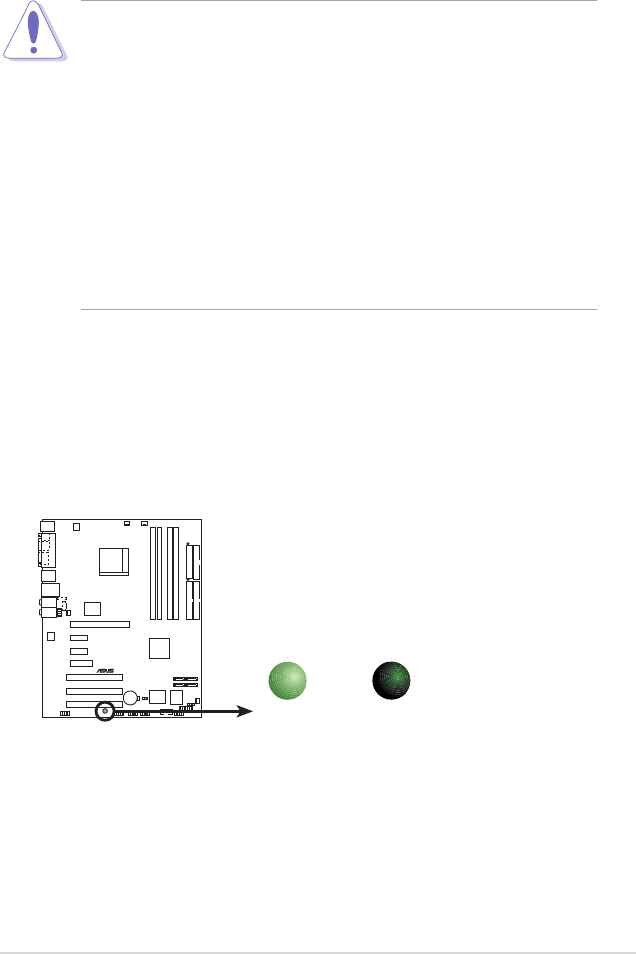
Onboard LEDsOnboard LEDs
Onboard LEDsOnboard LEDs
Onboard LEDs
The motherboard comes with a green standby power LED that lights
up to indicate that the system is ON, in sleep mode, or in soft-off
mode. This is a reminder that you should shut down the system and
unplug the power cable before removing or plugging in any
motherboard component.
A8N-E
®
A8N-E Onboard LED
SB_PWR
ON
Standby
Power
OFF
Powere
d
Off

1-61-6
1-61-6
1-6 Chapter 1: Product introductionChapter 1: Product introduction
Chapter 1: Product introductionChapter 1: Product introduction
Chapter 1: Product introduction
A8N-E
1.3 Motherboard overview
Before you install the motherboard, study the configuration of your chassis
to ensure that the motherboard fits into it.
Make sure to unplug the power cord before installing or removing the
motherboard. Failure to do so can cause you physical injury and damage
motherboard components.
Do not overtighten the screws! Doing so can damage the motherboard.
1.3.11.3.1
1.3.11.3.1
1.3.1 Placement directionPlacement direction
Placement directionPlacement direction
Placement direction
When installing the motherboard, make sure that you place it into the
chassis in the correct orientation. The edge with external ports goes to the
rear part of the chassis as indicated in the image below.
1.3.21.3.2
1.3.21.3.2
1.3.2 Screw holesScrew holes
Screw holesScrew holes
Screw holes
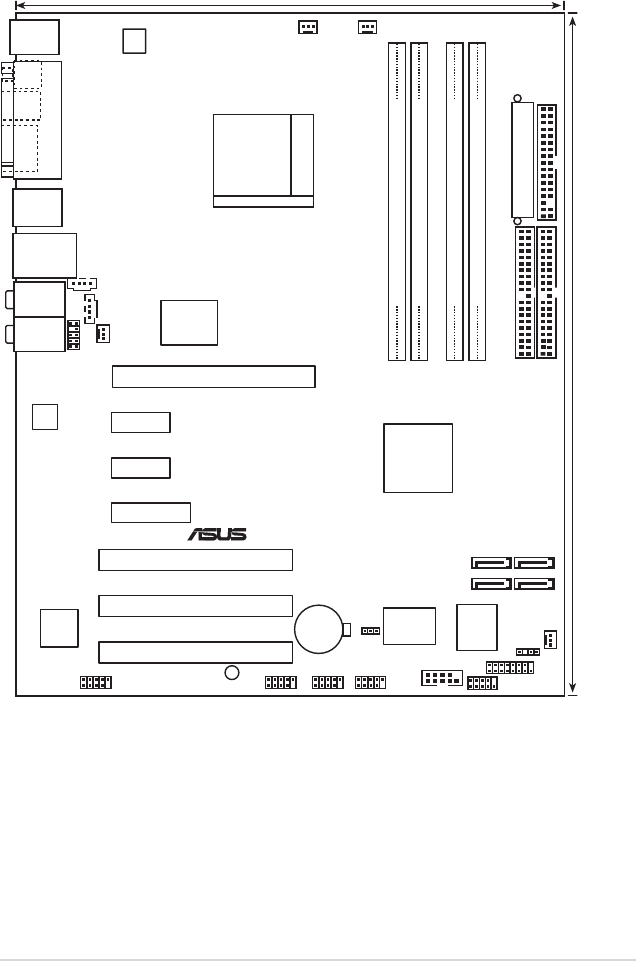
Place nine (9) screws into the holes indicated by circles to secure the
motherboard to the chassis.
Place this side towardsPlace this side towards
Place this side towardsPlace this side towards
Place this side towards
the rear of the chassisthe rear of the chassis
the rear of the chassisthe rear of the chassis
the rear of the chassis
ASUS A8N-EASUS A8N-E
ASUS A8N-EASUS A8N-E
ASUS A8N-E 1-71-7
1-71-7
1-7
1.3.31.3.3
1.3.31.3.3
1.3.3 Motherboard layoutMotherboard layout
Motherboard layoutMotherboard layout
Motherboard layout
Bottom:Mic In
Center:Line Out
Top:Line In
Below:
Center/Subwoofer
Center:
Side Speaker Out
Top:Rear Speaker Out
F_PANEL
A8N-E
®
CR2032 3V
Lithium Cell
CMOS Power
AUX
FP_AUDIO
GAME
CHASSIS
PRI_IDE
SEC_IDE
EATXPWR
COM1
24.5cm (9.6in)
30.5cm (12.0in)
CPU_FAN
Socket 939
DDR DIMM_B1 (64 bit,184-pin module)
DDR DIMM_A1 (64 bit,184-pin module)
DDR DIMM_A2 (64 bit,184-pin module)
DDR DIMM_B2 (64 bit,184-pin module)
CHA2_FAN
USB12
PWR_FAN
FLOPPY
Super
I/O
4Mb
BIOS
PS/2KBMS
T: Mouse
B: Keyboard
PARALLEL PORT
SPDIF_O
SPDIF_O2
LAN1_USB34
CD
ACL850
PCIEX16_1
PCIEX1_1
PCIEX1_2
PCI1
PCI2
PCI3
Marvell
88E1115
CLRTC
USB78 USB56 USB910
SATA3SATA4
SATA1SATA2
CHA1_FAN
ATX12V
nForce4
standard
SB_PWR
PCIEX4_1
1394
IE1394_1
TSB43AB22A

1-81-8
1-81-8
1-8 Chapter 1: Product introductionChapter 1: Product introduction
Chapter 1: Product introductionChapter 1: Product introduction
Chapter 1: Product introduction
1.4.21.4.2
1.4.21.4.2
1.4.2 Installling the CPUInstallling the CPU
Installling the CPUInstallling the CPU
Installling the CPU
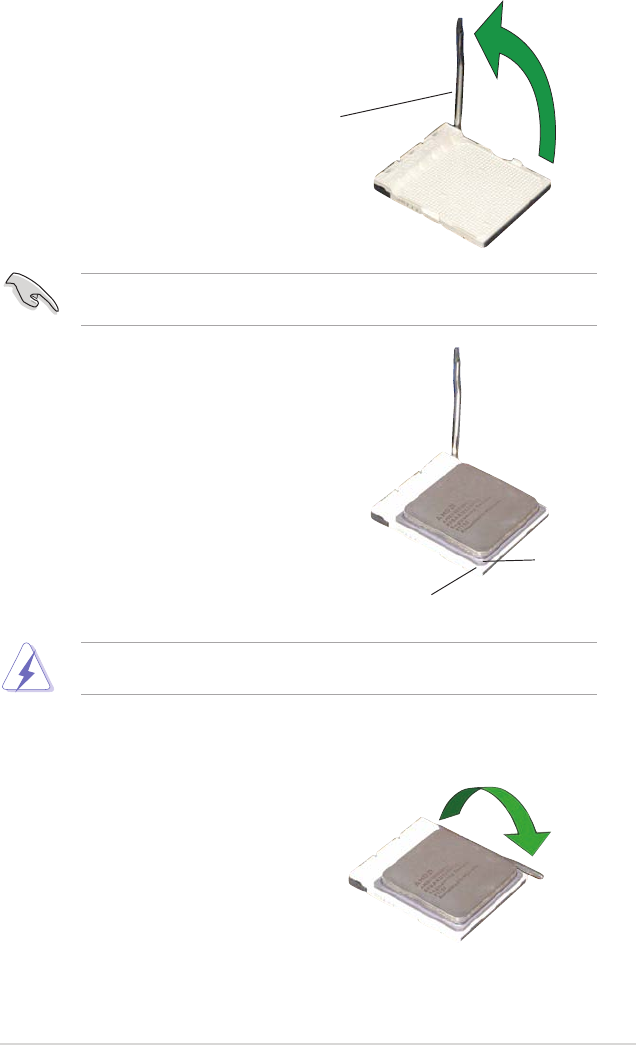
To install a CPU:
1. Locate the CPU socket on the motherboard.
1.4 Central Processing Unit (CPU)
1.4.11.4.1
1.4.11.4.1
1.4.1 OverviewOverview
OverviewOverview
Overview
The motherboard comes with a surface mount 939-pin Zero Insertion Force
(ZIF) socket designed for the AMD Athlon™ 64FX, AMD Athlon 64™ or AMD
Sempron™ processor.
The 128-bit-wide data paths of these processors can run applications
faster than processors with only 32-bit or 64-bit wide data paths.
Before installing the CPU, make sure that the socket box is facing
towards you and the load lever is on your left.
Take note of the marked corner (with
gold triangle) on the CPU. This mark
should match a specific corner on the
socket to ensure correct installation.
Gold triangle
A8N-E
®
A8N-E CPU Socket 939
ASUS A8N-EASUS A8N-E
ASUS A8N-EASUS A8N-E
ASUS A8N-E 1-91-9
1-91-9
1-9
3. Position the CPU above the
socket such that the CPU corner
with the gold triangle matches
the socket corner with a small
triangle.
4. Carefully insert the CPU into the
socket until it fits in place.
2. Unlock the socket by pressing
the lever sideways, then lift it up
to a 90°-100° angle.
Make sure that the socket lever is lifted up to 90°-100° angle, otherwise
the CPU does not fit in completely.
The CPU fits only in one correct orientation. DO NOT force the CPU into
the socket to prevent bending the pins and damaging the CPU!
5. When the CPU is in place, push
down the socket lever to secure
the CPU. The lever clicks on the
side tab to indicate that it is
locked.
Gold triangleGold triangle
Gold triangleGold triangle
Gold triangle
Small triangleSmall triangle
Small triangleSmall triangle
Small triangle
Socket LeverSocket Lever
Socket LeverSocket Lever
Socket Lever

1-101-10
1-101-10
1-10 Chapter 1: Product introductionChapter 1: Product introduction
Chapter 1: Product introductionChapter 1: Product introduction
Chapter 1: Product introduction
1.4.31.4.3
1.4.31.4.3
1.4.3 Installing the heatsink and fanInstalling the heatsink and fan
Installing the heatsink and fanInstalling the heatsink and fan
Installing the heatsink and fan
The AMD Athlon™ 64FX or AMD Athlon 64™ processor require a specially
designed heatsink and fan assembly to ensure optimum thermal condition
and performance.
Follow these steps to install the CPU heatsink and fan.
1. Place the heatsink on top of the installed CPU, making sure that the
heatsink fits properly on the retention module base.
Retention Module BaseRetention Module Base
Retention Module BaseRetention Module Base
Retention Module Base
CPU HeatsinkCPU Heatsink
CPU HeatsinkCPU Heatsink
CPU Heatsink
CPU FanCPU Fan
CPU FanCPU Fan
CPU Fan
Retention bracket lockRetention bracket lock
Retention bracket lockRetention bracket lock
Retention bracket lock
Retention bracketRetention bracket
Retention bracketRetention bracket
Retention bracket
Make sure that you use only qualified heatsink and fan assembly.
• The retention module base is already installed on the motherboard
upon purchase.
• You do not have to remove the retention module base when
installing the CPU or installing other motherboard components.
• If you purchased a separate CPU heatsink and fan assembly, make
sure that a Thermal Interface Material is properly applied to the CPU
heatsink or CPU before you install the heatsink and fan assembly.
Your boxed CPU heatsink and fan assembly should come with installation
instructions for the CPU, heatsink, and the retention mechanism. If the
instructions in this section do not match the CPU documentation, follow
the latter.
ASUS A8N-EASUS A8N-E
ASUS A8N-EASUS A8N-E
ASUS A8N-E 1-111-11
1-111-11
1-11
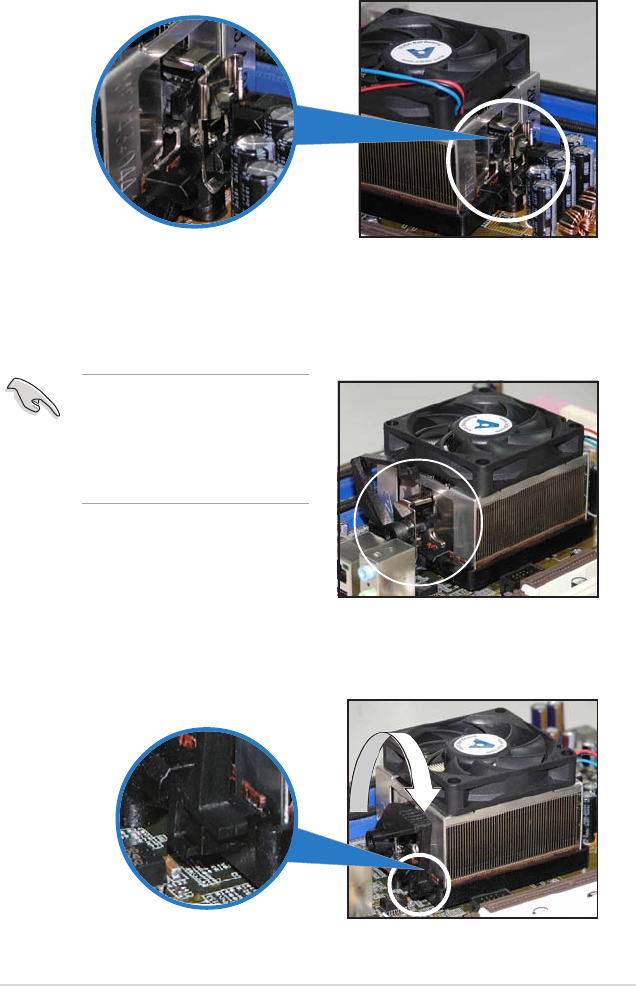
2. Attach one end of the retention bracket to the retention module
base.
3. Align the other end of the retention bracket (near the retention
bracket lock) to the retention module base. A clicking sound denotes
that the retention bracket is in place.
4. Push down the retention bracket lock on the retention mechanism to
secure the heatsink and fan to the module base.
Make sure that the fan and
heatsink assembly perfectly
fits the retention mechanism
module base, otherwise you
cannot snap the retention
bracket in place.
1-121-12
1-121-12
1-12 Chapter 1: Product introductionChapter 1: Product introduction
Chapter 1: Product introductionChapter 1: Product introduction
Chapter 1: Product introduction
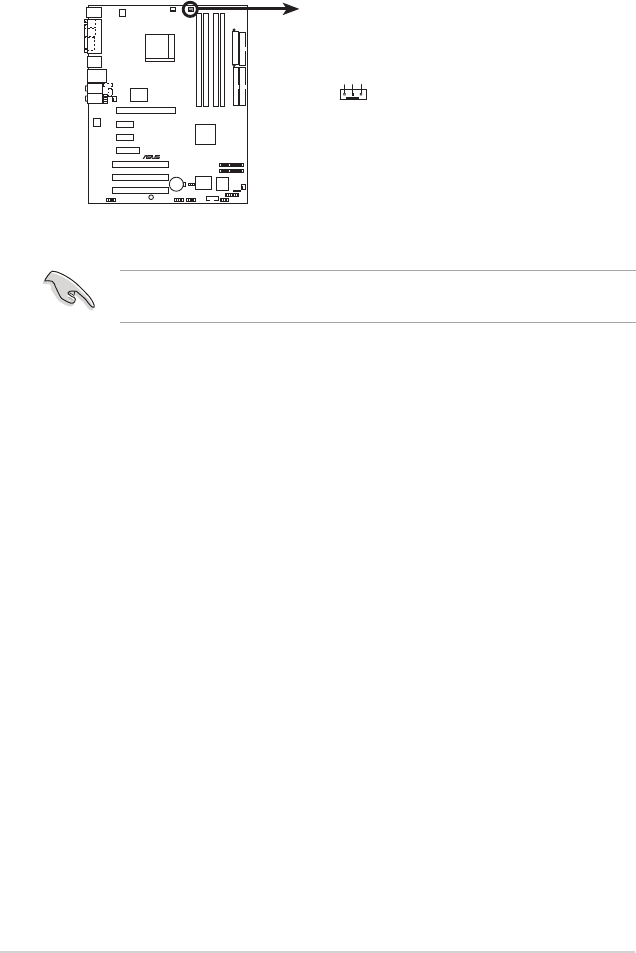
3. When the fan and heatsink assembly is in place, connect the CPU fan
cable to the connector on the motherboard labeled CPU_FAN.
Do not forget to connect the CPU fan connector! Hardware monitoring
errors can occur if you fail to plug this connector.
A8N-E
®
A8N-E CPU fan connector
CPU_FA
N
GND
Rotation
+12V
ASUS A8N-EASUS A8N-E
ASUS A8N-EASUS A8N-E
ASUS A8N-E 1-131-13
1-131-13
1-13
1.5 System memory
1.5.11.5.1
1.5.11.5.1
1.5.1 OverviewOverview
OverviewOverview
Overview
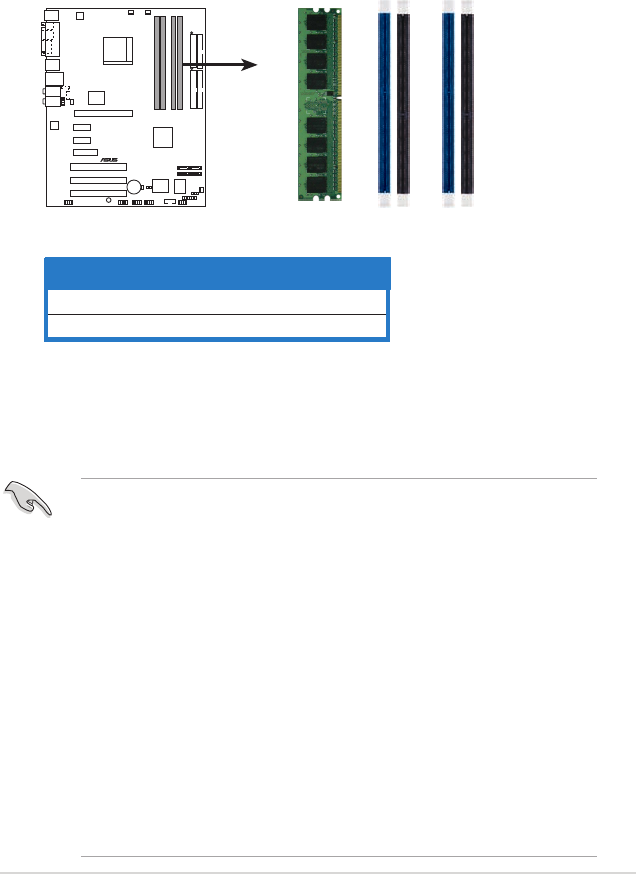
The motherboard comes with four 184-pin Double Data Rate (DDR) Dual
Inline Memory Modules (DIMM) sockets.
The following figure illustrates the location of the sockets:
1.5.21.5.2
1.5.21.5.2
1.5.2 Memory ConfigurationsMemory Configurations
Memory ConfigurationsMemory Configurations
Memory Configurations
You may install 256 MB, 512 MB and 1 GB unbuffered or non-ECC DDR
DIMMs into the DIMM sockets using the memory configurations in this
section.
•
For dual-channel configuration, the total size of memory module(s)
installed per channel must be the same for better performance
(DIMM_A1+DIMM_A2=DIMM_B1+DIMM_B2).
•
When using one DDR DIMM module, install into DIMM_B1 slot only.
•
When using two DDR DIMM modules, install into DIMM_A1 and
DIMM_B1 slots only.
•
Always install DIMMs with the same CAS latency. For optimum
compatibility, it is recommended that you obtain memory modules
from the same vendor. Refer to the DDR400 Qualified Vendors List
on the next page for details.
• Due to chipset resource allocation, the system may detect less than
4 GB of system memory when you installed four 1 GB DDR memory
modules.
• Due to CPU limitation, DIMM modules with 128 Mb memory chips or
double-sided x16 memory chips are not supported in this
motherboard.
ChannelChannel
ChannelChannel
Channel Sockets Sockets
Sockets Sockets
Sockets
Channel A DIMM_A1 and DIMM_A2
Channel B DIMM_B1 and DIMM_B2
A8N-E
®
A8N-E 184-pin DDR DIMM sockets
DIMM_A
1
DIMM_A
2
DIMM_B
1
DIMM_B
2

1-141-14
1-141-14
1-14 Chapter 1: Product introductionChapter 1: Product introduction
Chapter 1: Product introductionChapter 1: Product introduction
Chapter 1: Product introduction
DDR400 Qualified Vendors ListDDR400 Qualified Vendors List
DDR400 Qualified Vendors ListDDR400 Qualified Vendors List
DDR400 Qualified Vendors List
Side(s): SS - Side(s): SS -
Side(s): SS - Side(s): SS -
Side(s): SS - Single-Sided DS -DS -
DS -DS -
D S - Double-Sided
DIMM Support:DIMM Support:
DIMM Support:DIMM Support:
DIMM Support:
AA
AA
A - supports one module inserted into either the blue slots, in a Single-channel
memory configuration.
BB
BB
B - supports on pair of modules inserted into either the blue slots or the black slots
as one pair of Dual-channel memory configuration.
CC
CC
C - support for 4 modules inserted into the blue and black slots as two pairs of
Dual-channel memory configuration.
DIMM supportDIMM support
DIMM supportDIMM support
DIMM support
SizeSize
SizeSize
Size VendorVendor
VendorVendor
Vendor Model Model
Model Model
Model Brand Side(s) Brand Side(s)
Brand Side(s) Brand Side(s)
Brand Side(s) Component Component
Component Component
Component AA
AA
ABB
BB
BCC
CC
C
256MB KINGSTON KVR400X64C3A/256 Hynix SS HY5DU56822BT-D43 • • •
512MB KINGSTON KVR400X64C3A/512 Hynix DS HY5DU56822BT-D43 • • •
256MB KINGSTON KVR400X72C3A/256 Mosel SS V58C2256804SAT5(ECC) • • •
512MB KINGSTON KVR400X72C3A/512 Mosel DS V58C2256804SAT5(ECC) • •
256MB KINGSTON KVR400X64C3A/256 Infineon SS HYB25D256800BT-5B • • •
512MB KINGSTON KVR400X64C3A/512 Infineon DS HYB25D256809BT-5B • •
256MB KINGSTON KVR400X64C3A/256 KINGSTON SS D3208DL2T-5 • • •
512MB KINGSTON KVR400X64C3A/512 KINGSTON DS D328DIB-50 • • •
1024MB KINGSTON HYB25D512800BE-5B N/A DS KVR400X64C3A/1G • • •
256MB SAMSUNG M381L3223ETM-CCC SAMSUNG SS K4H560838E-TCCC(ECC) • • •
512MB SAMSUNG M381L6423ETM-CCC SAMSUNG DS K4H560838E-TCCC(ECC) •
256MB SAMSUNG M368L3223ETM-CCC SAMSUNG SS K4H560838E-TCCC • • •
256MB SAMSUNG M368L3223FTN-CCC SAMSUNG SS K4H560838F-TCCC • • •
512MB SAMSUNG M368L6423FTN-CCC SAMSUNG DS K4H560838F-TCCC • • •
512MB SAMSUNG M368L6523BTM-CCC SAMSUNG SS K4H510838B-TCCC • • •
256MB MICRON MT8VDDT3264AG-40BCB MICRON SS MT46V32M8TG-5BC • • •
512MB MICRON MT16VDDT6464AG-40BCB MICRON DS MT46V32M8TG-5BC • • •
256MB Infineon HYS64D32300HU-5-C Infineon SS HYB25D256800CE-5C • • •
512MB Infineon HYS64D64320HU-5-C Infineon DS HYB25D256800CE-5C • • •
256MB CORSAIR CMX256A-3200C2PT Winbond SS W942508BH-5 • • •
512MB CORSAIR VS512MB400 VALUE seLecT DS VS32M8-5 • •
1024MB CORSAIR TWINX2048-3200C2 N/A DS N/A • •
256MB Hynix HYMD232645D8J-D43 Hynix SS HY5DU56822DT-D43 • • •
512MB Hynix HYMD264646D8J-D43 Hynix DS HY5DU56822DT-D43 • • •
ASUS A8N-EASUS A8N-E
ASUS A8N-EASUS A8N-E
ASUS A8N-E 1-151-15
1-151-15
1-15
1.5.41.5.4
1.5.41.5.4
1.5.4 Removing a DIMMRemoving a DIMM
Removing a DIMMRemoving a DIMM
Removing a DIMM
Follow these steps to remove a DIMM.
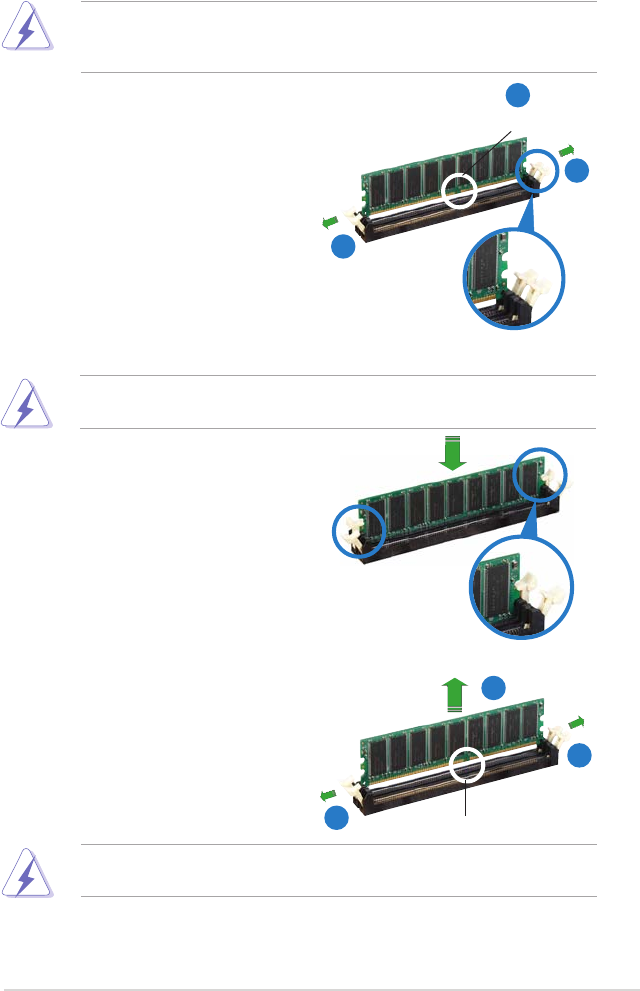
1. Simultaneously press the
retaining clips outward to unlock
the DIMM.
2. Remove the DIMM from the socket.
Support the DIMM lightly with your fingers when pressing the retaining
clips. The DIMM might get damaged when it flips out with extra force.
1.5.31.5.3
1.5.31.5.3
1.5.3 Installing a DIMMInstalling a DIMM
Installing a DIMMInstalling a DIMM
Installing a DIMM
3. Firmly insert the DIMM into the
socket until the retaining clips
snap back in place and the DIMM
is properly seated.
1. Unlock a DIMM socket by
pressing the retaining clips
outward.
2. Align a DIMM on the socket such
that the notch on the DIMM
matches the break on the
socket.
Locked Retaining ClipLocked Retaining Clip
Locked Retaining ClipLocked Retaining Clip
Locked Retaining Clip
Make sure to unplug the power supply before adding or removing DIMMs
or other system components. Failure to do so may cause severe damage
to both the motherboard and the components.
A DDR DIMM is keyed with a notch so that it fits in only one direction.
DO NOT force a DIMM into a socket to avoid damaging the DIMM.
Unlocked retaining clipUnlocked retaining clip
Unlocked retaining clipUnlocked retaining clip
Unlocked retaining clip
DDR DIMM notchDDR DIMM notch
DDR DIMM notchDDR DIMM notch
DDR DIMM notch
1
2
1
DDR DIMM notchDDR DIMM notch
DDR DIMM notchDDR DIMM notch
DDR DIMM notch
1
2
1
1-161-16
1-161-16
1-16 Chapter 1: Product introductionChapter 1: Product introduction
Chapter 1: Product introductionChapter 1: Product introduction
Chapter 1: Product introduction
1.6 Expansion slots
In the future, you may need to install expansion cards. The following
sub-sections describe the slots and the expansion cards that they support.
1.6.11.6.1
1.6.11.6.1
1.6.1 Installing an expansion cardInstalling an expansion card
Installing an expansion cardInstalling an expansion card
Installing an expansion card
To install an expansion card:
1. Before installing the expansion card, read the documentation that
came with it and make the necessary hardware settings for the card.
2. Remove the system unit cover (if your motherboard is already
installed in a chassis).
3. Remove the bracket opposite the slot that you intend to use. Keep
the screw for later use.
4. Align the card connector with the slot and press firmly until the card is
completely seated on the slot.
5. Secure the card to the chassis with the screw you removed earlier.
6. Replace the system cover.
1.6.21.6.2
1.6.21.6.2
1.6.2 Configuring an expansion cardConfiguring an expansion card
Configuring an expansion cardConfiguring an expansion card
Configuring an expansion card
After installing the expansion card, configure the it by adjusting the
software settings.
1. Turn on the system and change the necessary BIOS settings, if any.
See Chapter 2 for information on BIOS setup.
2. Assign an IRQ to the card. Refer to the tables on the next page.
3. Install the software drivers for the expansion card.
Make sure to unplug the power cord before adding or removing
expansion cards. Failure to do so may cause you physical injury and
damage motherboard components.
We recommended to install the memory modules first before installing a
PCI Express x16 card.
ASUS A8N-EASUS A8N-E
ASUS A8N-EASUS A8N-E
ASUS A8N-E 1-171-17
1-171-17
1-17
1.6.31.6.3
1.6.31.6.3
1.6.3 Interrupt assignmentsInterrupt assignments
Interrupt assignmentsInterrupt assignments
Interrupt assignments
Standard interrupt assignmentsStandard interrupt assignments
Standard interrupt assignmentsStandard interrupt assignments
Standard interrupt assignments
IRQIRQ
IRQIRQ
IRQ PriorityPriority
PriorityPriority
Priority Standard FunctionStandard Function
Standard FunctionStandard Function
Standard Function
0 1 System Timer
1 2 Keyboard Controller
2 – Re-direct to IRQ#9
4 12 Communications Port (COM1)*
5 13 IRQ holder for PCI steering*
6 14 Floppy Disk Controller
7 15 Printer Port (LPT1)*
8 3 System CMOS/Real Time Clock
9 4 IRQ holder for PCI steering*
10 5 IRQ holder for PCI steering*
11 6 IRQ holder for PCI steering*
12 7 PS/2 Compatible Mouse Port*
13 8 Numeric Data Processor
14 9 Primary IDE Channel
15 10 Secondary IDE Channel
* These IRQs are usually available for ISA or PCI devices.
IRQ assignments for this motherboardIRQ assignments for this motherboard
IRQ assignments for this motherboardIRQ assignments for this motherboard
IRQ assignments for this motherboard
AA
AA
ABB
BB
BCC
CC
CDD
DD
DEE
EE
EFF
FF
FGG
GG
GHH
HH
H
PCI slot 1 shared — — — — — — —
PCI slot 2 — shared — — — — — —
PCI slot 3 — — shared — — — — —
Onboard USB 1.0 controller shared — — — — — — —
Onboard USB 2.0 controller shared — — — — — — —
Onboard LAN1 shared — — — — — — —
When using PCI cards on shared slots, ensure that the drivers support
“Share IRQ” or that the cards do not need IRQ assignments. Otherwise,
conflicts will arise between the two PCI groups, making the system
unstable and the card inoperable.
1.6.41.6.4
1.6.41.6.4
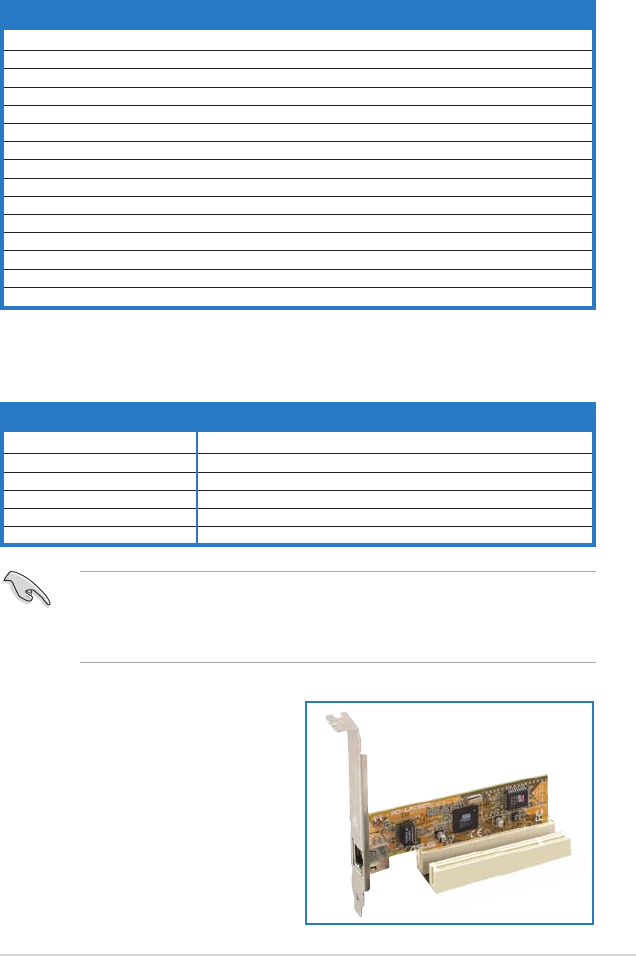
1.6.4 PCI slotsPCI slots
PCI slotsPCI slots
PCI slots
The PCI slots support cards such as a
LAN card, SCSI card, USB card, and
other cards that comply with PCI
specifications. The figure shows a
LAN card installed on a PCI slot.

1-181-18
1-181-18
1-18 Chapter 1: Product introductionChapter 1: Product introduction
Chapter 1: Product introductionChapter 1: Product introduction
Chapter 1: Product introduction
1.6.51.6.5
1.6.51.6.5
1.6.5 PCI Express x16 slotPCI Express x16 slot
PCI Express x16 slotPCI Express x16 slot
PCI Express x16 slot
This motherboard supports PCI
Express x16 graphic cards that
comply with the PCI Express
specifications. The following figure
shows a graphics card installed on
the PCI Express x16 slot.
1.6.61.6.6
1.6.61.6.6
1.6.6 PCI Express x1 slotPCI Express x1 slot
PCI Express x1 slotPCI Express x1 slot
PCI Express x1 slot
This motherboard supports PCI
Express x1 network cards, SCSI cards
and other cards that comply with the
PCI Express specifications. The figure
shows a network card installed on the
PCI Express x1 slot.
In Normal mode, only the PCI Express blue slot can be used for PCI
Express x16 graphics cards. The PCI Express black slot functions as a PCI
Express x1 slot.
1.6.71.6.7
1.6.71.6.7
1.6.7 Universal PCIe slot (PCI Express x4 slot)Universal PCIe slot (PCI Express x4 slot)
Universal PCIe slot (PCI Express x4 slot)Universal PCIe slot (PCI Express x4 slot)
Universal PCIe slot (PCI Express x4 slot)
This motherboard provides a PCI
Express x4 slot that can support PCI
Express x1, x4, x8, or x16 cards. This
ASUS proprietary slot allows you to
use additional PCI Express cards
(e.g. graphics card) for twice the
speed of a PCI Express x1 slot.
The Universal PCIe slot
supports a total bandwidth of
1GB/s.

ASUS A8N-EASUS A8N-E
ASUS A8N-EASUS A8N-E
ASUS A8N-E 1-191-19
1-191-19
1-19
1.7 Jumpers
1.1.
1.1.
1. Clear RTC RAM (CLRTC)Clear RTC RAM (CLRTC)
Clear RTC RAM (CLRTC)Clear RTC RAM (CLRTC)
Clear RTC RAM (CLRTC)
This jumper allows you to clear the Real Time Clock (RTC) RAM in
CMOS. You can clear the CMOS memory of date, time, and system
setup parameters by erasing the CMOS RTC RAM data. The onboard
button cell battery powers the RAM data in CMOS, which include
system setup information such as system passwords.
To erase the RTC RAM:
1. Turn OFF the computer and unplug the power cord.
2. Remove the onboard battery.
3. Move the jumper cap from pins 1-2 (default) to pins 2-3. Keep the
cap on pins 2-3 for about 5~10 seconds, then move the cap back to
pins 1-2.
4. Re-install the battery.
5. Plug the power cord and turn ON the computer.
6. Hold down the <Del> key during the boot process and enter BIOS
setup to re-enter data.
Except when clearing the RTC RAM, never remove the cap on CLRTC
jumper default position. Removing the cap will cause system boot failure!
A8N-E
®
A8N-E Clear RTC RAM
CLRTC
Normal Clear CMOS
(Default)
12 23

1-201-20
1-201-20
1-20 Chapter 1: Product introductionChapter 1: Product introduction
Chapter 1: Product introductionChapter 1: Product introduction
Chapter 1: Product introduction
1.8 Connectors
1.8.11.8.1
1.8.11.8.1
1.8.1 Rear panel connectorsRear panel connectors
Rear panel connectorsRear panel connectors
Rear panel connectors
1.1.
1.1.
1. PS/2 mouse port (green).PS/2 mouse port (green).
PS/2 mouse port (green).PS/2 mouse port (green).
PS/2 mouse port (green). This port is for a PS/2 mouse.
2.2.
2.2.
2. Parallel port.Parallel port.
Parallel port.Parallel port.
Parallel port. This 25-pin port connects a parallel printer, a scanner,
or other devices.
3.3.
3.3.
3. LAN (RJ-45) port.LAN (RJ-45) port.
LAN (RJ-45) port.LAN (RJ-45) port.
LAN (RJ-45) port. Supported by the NVIDIA
®
nForce™ 4 Gigabit
MAC with external Marvell
®
PHY, this port allows Gigabit connection to
a Local Area Network (LAN) through a network hub. Refer to the table
below for the LAN port LED indications.
SPEED
LED
ACT/LINK
LED
LAN port
LAN port LED indicationsLAN port LED indications
LAN port LED indicationsLAN port LED indications
LAN port LED indications
4.4.
4.4.
4. Rear Speaker Out port (gray).Rear Speaker Out port (gray).
Rear Speaker Out port (gray).Rear Speaker Out port (gray).
Rear Speaker Out port (gray). This port connects the rear
speakers on a 4-channel, 6-channel, or 8-channel audio configuration.
5.5.
5.5.
5. Side Speaker Out port (black).Side Speaker Out port (black).
Side Speaker Out port (black).Side Speaker Out port (black).
Side Speaker Out port (black). This port connects the side
speakers in an 8-channel audio configuration.
6.6.
6.6.
6. Line In port (light blue).Line In port (light blue).
Line In port (light blue).Line In port (light blue).
Line In port (light blue). This port connects the tape, CD, DVD
player, or other audio sources.
7.7.
7.7.
7. Line Out port (lime).Line Out port (lime).
Line Out port (lime).Line Out port (lime).
Line Out port (lime). This port connects a headphone or a
speaker. In 4-channel, 6-channel, and 8-channel configuration, the
function of this port becomes Front Speaker Out.
8.8.
8.8.
8. Microphone port (pink). Microphone port (pink).
Microphone port (pink). Microphone port (pink).
Microphone port (pink). This port connects a microphone.
9.9.
9.9.
9. Center/Subwoofer port (yellow orange).Center/Subwoofer port (yellow orange).
Center/Subwoofer port (yellow orange).Center/Subwoofer port (yellow orange).
Center/Subwoofer port (yellow orange). This port connects
the center/subwoofer speakers.
ACT/LINK LED ACT/LINK LED
ACT/LINK LED ACT/LINK LED
ACT/LINK LED SPEED LED SPEED LED
SPEED LED SPEED LED
SPEED LED
StatusStatus
StatusStatus
Status DescriptionDescription
DescriptionDescription
Description StatusStatus
StatusStatus
Status DescriptionDescription
DescriptionDescription
Description
OFF No link OFF 10 Mbps connection
GREEN Linked ORANGE 100 Mbps connection
BLINKING Data activity GREEN 1 Gbps connection
10
3 4
9
5
6
7
8
1
15
2
14 13 1112

ASUS A8N-EASUS A8N-E
ASUS A8N-EASUS A8N-E
ASUS A8N-E 1-211-21
1-211-21
1-21
10.10.
10.10.
10. USB 2.0 ports 3 and 4.USB 2.0 ports 3 and 4.
USB 2.0 ports 3 and 4.USB 2.0 ports 3 and 4.
USB 2.0 ports 3 and 4. These two 4-pin Universal Serial Bus
(USB) ports are available for connecting USB 2.0 devices.
11.11.
11.11.
11. USB 2.0 ports 1 and 2.USB 2.0 ports 1 and 2.
USB 2.0 ports 1 and 2.USB 2.0 ports 1 and 2.
USB 2.0 ports 1 and 2. These two 4-pin Universal Serial Bus
(USB) ports are available for connecting USB 2.0 devices.
12.12.
12.12.
12. IE1394_2 port.IE1394_2 port.
IE1394_2 port.IE1394_2 port.
IE1394_2 port. This 6-pin IEEE 1394a port provides high-speed
connectivity for audio/video devices, storage peripherals, PCs, or
portable devices.
13.13.
13.13.
13. Optical S/PDIF Out portOptical S/PDIF Out port
Optical S/PDIF Out portOptical S/PDIF Out port
Optical S/PDIF Out port. This port connects an external audio
output device via an optical S/PDIF cable.
14.14.
14.14.
14. Coaxial S/PDIF Out port.Coaxial S/PDIF Out port.
Coaxial S/PDIF Out port.Coaxial S/PDIF Out port.
Coaxial S/PDIF Out port. This port connects an external audio
output device via a coaxial S/PDIF cable.
15.15.
15.15.
15. PS/2 keyboard port (purple).PS/2 keyboard port (purple).
PS/2 keyboard port (purple).PS/2 keyboard port (purple).
PS/2 keyboard port (purple). This port is for a PS/2 keyboard.
Audio 2, 4, 6, or 8-channel configurationAudio 2, 4, 6, or 8-channel configuration
Audio 2, 4, 6, or 8-channel configurationAudio 2, 4, 6, or 8-channel configuration
Audio 2, 4, 6, or 8-channel configuration
Light Blue Line In Line In Line In Line In
Lime Line Out Front Speaker Out Front Speaker Out Front Speaker Out
Pink Mic In Mic In Mic In Mic In
Gray • Rear Speaker Out Rear Speaker Out Rear Speaker Out
Black • • • Side Speaker Out
Yellow Orange • • Center/Subwoofer Center/Subwoofer
PortPort
PortPort
Port HeadsetHeadset
HeadsetHeadset
Headset 4-channel4-channel
4-channel4-channel
4-channel 6-channel6-channel
6-channel6-channel
6-channel 8-channel8-channel
8-channel8-channel
8-channel
2-channel2-channel
2-channel2-channel
2-channel
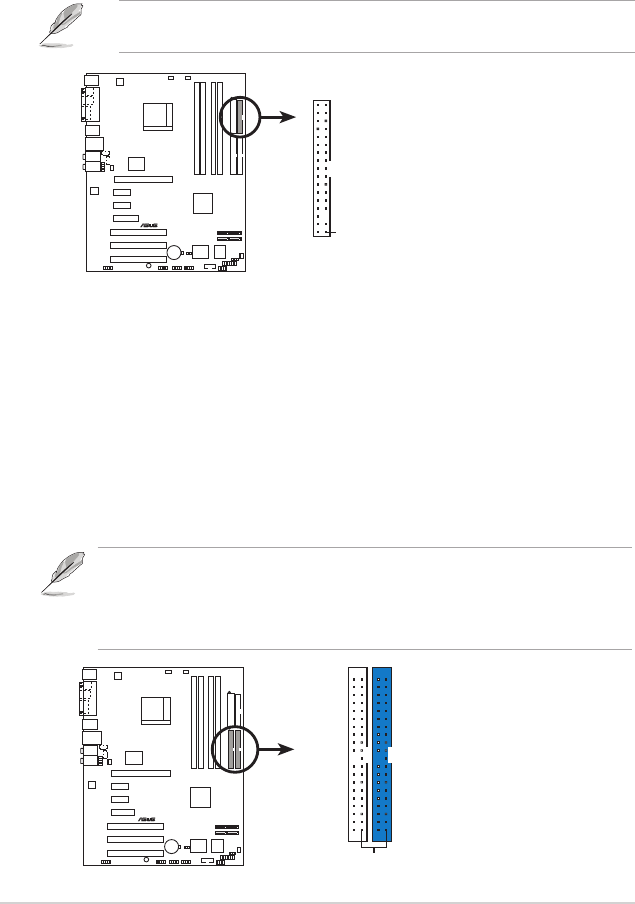
Refer to the audio configuration table below for the function of the
audio ports in 2, 4, 6, or 8-channel configuration.
1-221-22
1-221-22
1-22 Chapter 1: Product introductionChapter 1: Product introduction
Chapter 1: Product introductionChapter 1: Product introduction
Chapter 1: Product introduction
2.2.
2.2.
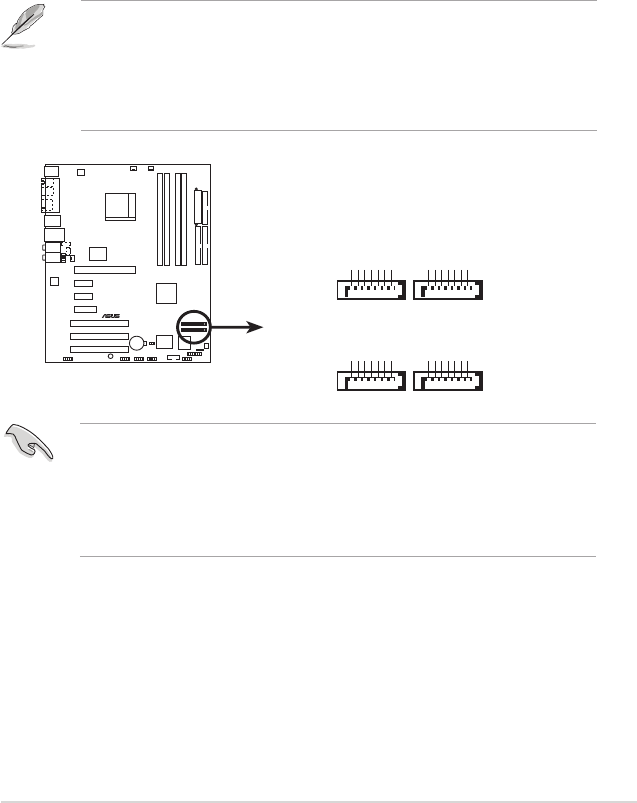
2. IDE connectors (40-1 pin PRI_IDE, SEC_IDE)IDE connectors (40-1 pin PRI_IDE, SEC_IDE)
IDE connectors (40-1 pin PRI_IDE, SEC_IDE)IDE connectors (40-1 pin PRI_IDE, SEC_IDE)
IDE connectors (40-1 pin PRI_IDE, SEC_IDE)
These connectors are for Ultra DMA 133/100/66 signal cables. The
Ultra DMA 133/100/66 signal cable has three connectors: a blue
connector for the primary IDE connector on the motherboard, a black
connector for an Ultra DMA 133/100/66 IDE slave device (optical
drive/hard disk drive), and a gray connector for an Ultra DMA 133/
100/66 IDE master device (hard disk drive). If you install two hard disk
drives, you must configure the second drive as a slave device by setting
its jumper accordingly. Refer to the hard disk documentation for the
jumper settings.
1.8.21.8.2
1.8.21.8.2
1.8.2 Internal connectorsInternal connectors
Internal connectorsInternal connectors
Internal connectors
1.1.
1.1.
1. Floppy disk drive connector (34-1 pin FLOPPY)Floppy disk drive connector (34-1 pin FLOPPY)
Floppy disk drive connector (34-1 pin FLOPPY)Floppy disk drive connector (34-1 pin FLOPPY)
Floppy disk drive connector (34-1 pin FLOPPY)
This connector is for the provided floppy disk drive (FDD) signal cable.
Insert one end of the cable to this connector, then connect the other
end to the signal connector at the back of the floppy disk drive.
The Pin 5 on the connector is removed to prevent incorrect cable
connection when using an FDD cable with a covered Pin 5.
• The Pin 20 on the IDE connector is removed to match the covered hole
on the Ultra DMA cable connector. This prevents incorrect insertion
when you connect the IDE cable.
• Use the 80-conductor IDE cable for UltraDMA133/100/66 IDE devices.
A8N-E
®
A8N-E Floppy disk drive connector
NOTE: Orient the red markings o
n
the floppy ribbon cable to PIN 1.
PIN 1
FLOPPY
A8N-E
®
A8N-E IDE connectors
NOTE: Orient the red marking
s
(usually zigzag) on the IDE
ribbon cable to PIN 1.
PRI_IDE
PIN 1
SEC_IDE
ASUS A8N-EASUS A8N-E
ASUS A8N-EASUS A8N-E
ASUS A8N-E 1-231-23
1-231-23
1-23
3.3.
3.3.
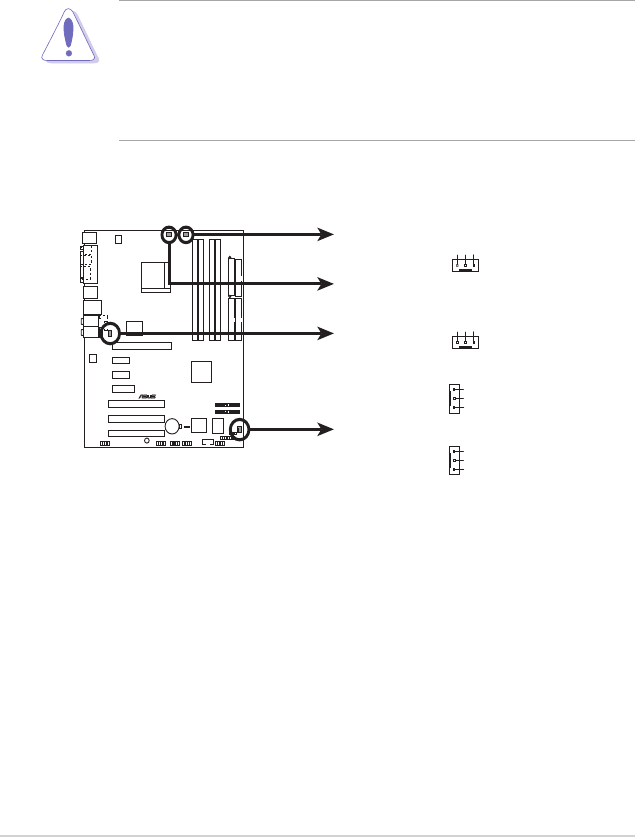
3. Serial ATA connectorsSerial ATA connectors
Serial ATA connectorsSerial ATA connectors
Serial ATA connectors
(7-pin SATA1, SATA2, SATA3, SATA4)(7-pin SATA1, SATA2, SATA3, SATA4)
(7-pin SATA1, SATA2, SATA3, SATA4)(7-pin SATA1, SATA2, SATA3, SATA4)
(7-pin SATA1, SATA2, SATA3, SATA4)
Supported by the NVIDIA
®
nForce™ 4 standard chipset, these
connectors are for the Serial ATA signal cables for Serial ATA hard
disk drives that allows up to 1.5Gb/s of data transfer rate.
If you installed Serial ATA hard disk drives, you can create a RAID 0,
RAID 1, RAID 1+0, or JBOD configuration that span across the Parallel
ATA drives. Refer to Chapter 5 for details on how to set up RAID
configurations.
Important notes on Serial ATAImportant notes on Serial ATA
Important notes on Serial ATAImportant notes on Serial ATA
Important notes on Serial ATA
•
The actual data transfer rate depends on the speed of Serial ATA
hard disks installed.
• See Appendix for instructions on how to install the Serial ATA
extension module.
These connectors are set to SATA SATA
SATA SATA
SATA by default. In SATA mode, you can
connect Serial ATA boot or data hard disk drives to these connectors. If
you intent to create a Serial ATA RAID set using these connectors,
enable the RAID function of each port from the NVRAIDNVRAID
NVRAIDNVRAID
NVRAID
ConfigurationConfiguration
ConfigurationConfiguration
Configuration sub-menu item in the BIOS. See section “2.4.3 Onboard
Devices Configuration” on pages 2-24 and 2-25 for details.
A8N-E
®
A8N-E SATA connectors
SATA
1
SATA2
GND
RSATA_TXP4
RSATA_TXN4
GND
RSATA_RXN4
RSATA_RXP4
GND
GND
RSATA_TXP3
RSATA_TXN3
GND
RSATA_RXN3
RSATA_RXP3
GND
GND
RSATA_TXP2
RSATA_TXN2
GND
RSATA_RXN2
RSATA_RXP2
GND
GND
RSATA_TXP1
RSATA_TXN1
GND
RSATA_RXN1
RSATA_RXP1
GND
SATA
3
SATA4
1-241-24
1-241-24
1-24 Chapter 1: Product introductionChapter 1: Product introduction
Chapter 1: Product introductionChapter 1: Product introduction
Chapter 1: Product introduction
4.4.
4.4.
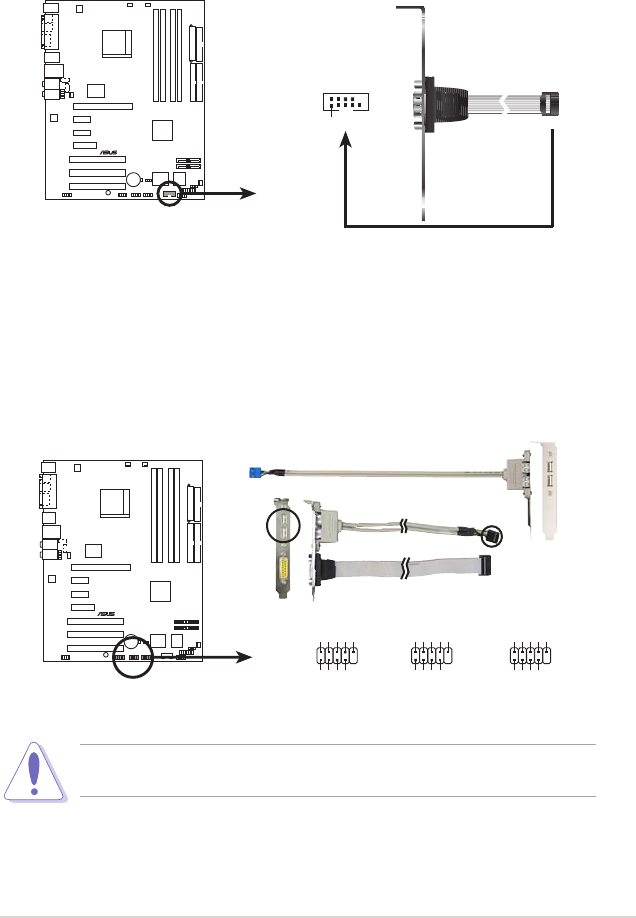
4. CPU, Chassis and Power fan connectorsCPU, Chassis and Power fan connectors
CPU, Chassis and Power fan connectorsCPU, Chassis and Power fan connectors
CPU, Chassis and Power fan connectors
(3-pin CPU_FAN, 3-pin CHA2_FAN, 3-pin PWR_FAN,(3-pin CPU_FAN, 3-pin CHA2_FAN, 3-pin PWR_FAN,
(3-pin CPU_FAN, 3-pin CHA2_FAN, 3-pin PWR_FAN,(3-pin CPU_FAN, 3-pin CHA2_FAN, 3-pin PWR_FAN,
(3-pin CPU_FAN, 3-pin CHA2_FAN, 3-pin PWR_FAN,
3-pin CHA1_FAN) 3-pin CHA1_FAN)
3-pin CHA1_FAN) 3-pin CHA1_FAN)
3-pin CHA1_FAN)
The fan connectors support cooling fans of 350mA~2000mA (24 W
max.) or a total of 1A~3.48A (41.76 W max.) at +12V. Connect the
fan cables to the fan connectors on the motherboard, making sure that
the black wire of each cable matches the ground pin of the connector.
• Do not forget to connect the fan cables to the fan connectors. Lack
of sufficient air flow inside the system may damage the
motherboard components. These are not jumpers! DO NOT place
jumper caps on the fan connectors!
• The ASUS Q-Fan function is supported using the CPU Fan (CPU_FAN)
and Chassis Fan 1 (CHA1_FAN) connectors only.
A8N-E
®
A8N-E Fan connectors
CPU_FAN
CHA1_FAN
PWR_FAN
CHA2_FAN
GND
Rotation
+12V GND
Rotatio
n
+12V
GND
Rotatio
n
+12V
GND
Rotatio
n
+12V
CPU_FAN
CHA1_FAN
PWR_FAN
CHA2_FAN
ASUS A8N-EASUS A8N-E
ASUS A8N-EASUS A8N-E
ASUS A8N-E 1-251-25
1-251-25
1-25
5.5.
5.5.
5. Serial port connector (10-1 pin COM1)Serial port connector (10-1 pin COM1)
Serial port connector (10-1 pin COM1)Serial port connector (10-1 pin COM1)
Serial port connector (10-1 pin COM1)
This connector is for a serial (COM) port. Connect the serial port
module cable to this connector, then install the module to a slot
opening at the back of the system chassis.
Never connect a 1394 cable1394 cable
1394 cable1394 cable
1394 cable to the USB connectors. Doing so will
damage the motherboard!
6.6.
6.6.
6. USB connectors (10-1 pin USB56, USB78, USB910)USB connectors (10-1 pin USB56, USB78, USB910)
USB connectors (10-1 pin USB56, USB78, USB910)USB connectors (10-1 pin USB56, USB78, USB910)
USB connectors (10-1 pin USB56, USB78, USB910)
These connectors are for USB 2.0 ports. Connect the USB/GAME
module cable to any of these connectors, then install the module to a
slot opening at the back of the system chassis. These USB connectors
comply with USB 2.0 specification that supports up to 480 Mbps
connection speed.
A8N-E
®
A8N-E COM port connector
PIN 1
COM1
A8N-E
®
A8N-E USB 2.0 connectors
USB56
USB+5V
USB_P6-
USB_P6+
GND
NC
USB+5V
USB_P5-
USB_P5+
GND
1
USB78
USB+5V
USB_P8-
USB_P8+
GND
NC
USB+5V
USB_P7-
USB_P7+
GND
1
USB910
USB+5V
USB_P10-
USB_P10 +
GND
NC
USB+5V
USB_P9-
USB_P9+
GND
1

1-261-26
1-261-26
1-26 Chapter 1: Product introductionChapter 1: Product introduction
Chapter 1: Product introductionChapter 1: Product introduction
Chapter 1: Product introduction
8.8.
8.8.
8. ATX power connectorsATX power connectors
ATX power connectorsATX power connectors
ATX power connectors
(24-pin EATXPWR1, 4-pin ATX12V1)(24-pin EATXPWR1, 4-pin ATX12V1)
(24-pin EATXPWR1, 4-pin ATX12V1)(24-pin EATXPWR1, 4-pin ATX12V1)
(24-pin EATXPWR1, 4-pin ATX12V1)
These connectors are for an ATX power supply plugs. The power
supply plugs are designed to fit these connectors in only one
orientation. Find the proper orientation and push down firmly until the
connectors completely fit.
•
Use of a power supply unit (PSU) with a higher power output is
recommended when configuring a system with more power-
consuming devices. The system may become unstable or may not
boot up if the power is inadequate.
• Make sure that your PSU can provide at least the minimum power
required by your system.
A8N-E
®
A8N-E ATX power connectors
EATXPWR
ATX12V
+12V DC GND
+12V DC GND +3 Volts
+3 Volts
Ground
+5 Volts
+5 Volts
Ground
Ground
Power OK
+5V Standb
y
+12 Volts
-5 Volts
+5 Volts
+3 Volts
-12 Volts
Ground
Ground
Ground
PSON#
Ground
+5 Volts
+12 Volts
+3 Volts
+5 Volts
Ground
7.7.
7.7.
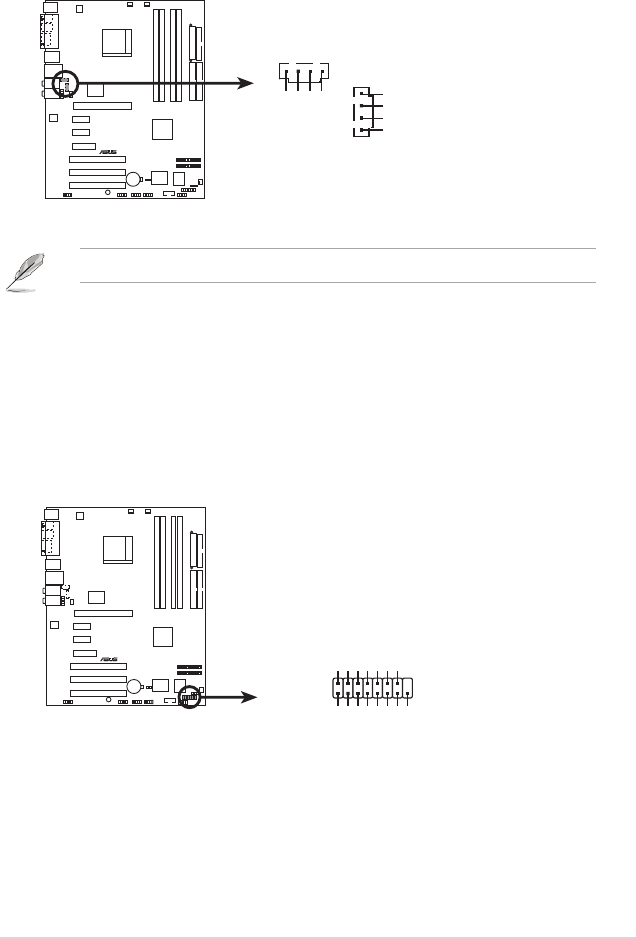
7. IEEE 1394a connector (10-1 pinIE1394_1 [orange])IEEE 1394a connector (10-1 pinIE1394_1 [orange])
IEEE 1394a connector (10-1 pinIE1394_1 [orange])IEEE 1394a connector (10-1 pinIE1394_1 [orange])
IEEE 1394a connector (10-1 pinIE1394_1 [orange])
This connector is for an additional IEEE 1394a port. Connect the IEEE
1394a module cable (orange) to this connector, then install the
module to a slot opening at the back of the system chassis.
Never connect a USB port module cableUSB port module cable
USB port module cableUSB port module cable
USB port module cable to the IEEE 1394a
connector. Doing so will damage the motherboard!
A8N-E
®
A8N-E IEEE 1394 connector
IE1394_1 1
TPA1-
GND
TPB1-
+12V
GND
TPA1+
GND
TPB1+
+12V
ASUS A8N-EASUS A8N-E
ASUS A8N-EASUS A8N-E
ASUS A8N-E 1-271-27
1-271-27
1-27
9.9.
9.9.
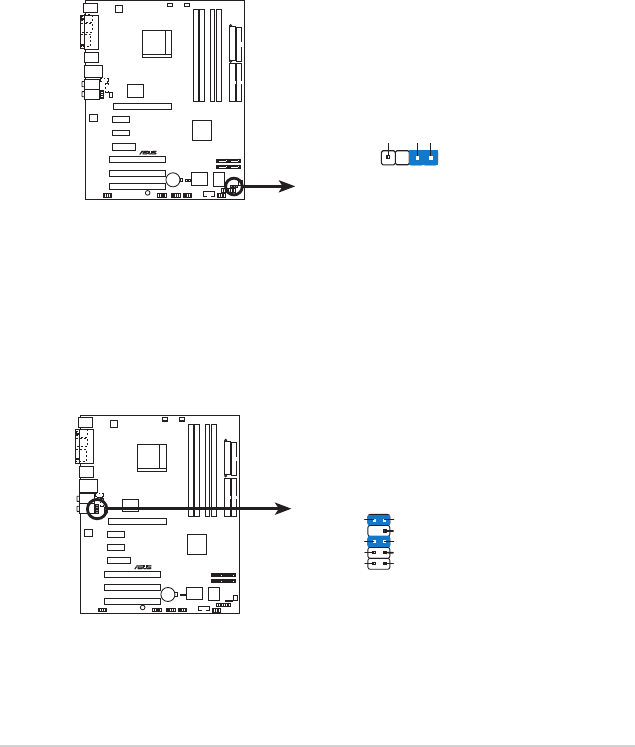
9. Internal audio connectors (4-pin CD, AUX)Internal audio connectors (4-pin CD, AUX)
Internal audio connectors (4-pin CD, AUX)Internal audio connectors (4-pin CD, AUX)
Internal audio connectors (4-pin CD, AUX)
These connectors allow you to receive stereo audio input from sound
sources such as a CD-ROM, TV-tuner, or MPEG card.
10.10.
10.10.
10. GAME/MIDI port connector (16-1 pin GAME)GAME/MIDI port connector (16-1 pin GAME)
GAME/MIDI port connector (16-1 pin GAME)GAME/MIDI port connector (16-1 pin GAME)
GAME/MIDI port connector (16-1 pin GAME)
This connector is for a GAME/MIDI port. Connect the USB/GAME
module cable to this connector, then install the module to a slot
opening at the back of the system chassis. The GAME/MIDI port
connects a joystick or game pad for playing games, and MIDI devices
for playing or editing audio files.
The function of these connectors are disabled under 8-channel mode.
A8N-E
®
A8N-E Internal audio connectors
AUX
(white)
CD
(black)
Right Audio Channe
l
Left Audio Channel
Ground
Ground
Right Audio Channel
Left Audio Channel
Ground
Ground
A8N-E
®
A8N-E Game connector
GAME
+5V +5V
J2B1
J2CX
MIDI_OUT
J2CY
J2B2
MIDI_IN
J1B1
J1CX
GND
GND
J1CY
J1B2
+5V
1-281-28
1-281-28
1-28 Chapter 1: Product introductionChapter 1: Product introduction
Chapter 1: Product introductionChapter 1: Product introduction
Chapter 1: Product introduction
12.12.
12.12.
12. Front panel audio connector (10-1 pin FP_AUDIO)Front panel audio connector (10-1 pin FP_AUDIO)
Front panel audio connector (10-1 pin FP_AUDIO)Front panel audio connector (10-1 pin FP_AUDIO)
Front panel audio connector (10-1 pin FP_AUDIO)
This connector is for a chassis-mounted front panel audio I/O module
that supports legacy AC ‘97 audio standard. Connect one end of the
front panel audio I/O module cable to this connector.
11.11.
11.11.
11. Chassis intrusion connector (4-1 pin CHASSIS)Chassis intrusion connector (4-1 pin CHASSIS)
Chassis intrusion connector (4-1 pin CHASSIS)Chassis intrusion connector (4-1 pin CHASSIS)
Chassis intrusion connector (4-1 pin CHASSIS)
This connector is for a chassis-mounted intrusion detection sensor or
switch. Connect one end of the chassis intrusion sensor or switch
cable to this connector. The chassis intrusion sensor or switch sends a
high-level signal to this connector when a chassis component is
removed or replaced. The signal is then generated as a chassis
intrusion event.
By default, the pins labeled “Chassis Signal” and “Ground” are shorted
with a jumper cap. Remove the jumper caps only when you intend to
use the chassis intrusion detection feature. See related BIOS item in
page 2-42.
A8N-E
®
A8N-E Chassis intrusion connector
CHASSIS
+5VSB_MB
Chassis Signal
GND
(Default
)
A8N-E
®
A8N-E Front panel audio connector
FP_AUDIO
BLINE_OUT_L
MIC2
Line out_R
Line out_L
BLINE_OUT_R
NC
MICPWR+5VA
AGND

ASUS A8N-EASUS A8N-E
ASUS A8N-EASUS A8N-E
ASUS A8N-E 1-291-29
1-291-29
1-29
A8N-E
®
A8N-E System panel connector
*
Requires an ATX power suppl
y.
F_PANEL
PLED-
PWR
PLED+
Ground
GNDReset
IDE_LED+
IDE_LED-
IDE_LED RESET
PLED PWRSW
NC
13.13.
13.13.
13. System panel connector (10-1 pin F_PANEL1)System panel connector (10-1 pin F_PANEL1)
System panel connector (10-1 pin F_PANEL1)System panel connector (10-1 pin F_PANEL1)
System panel connector (10-1 pin F_PANEL1)
This connector supports several chassis-mounted functions.
•
System power LED (2-pin PLED)System power LED (2-pin PLED)
System power LED (2-pin PLED)System power LED (2-pin PLED)
System power LED (2-pin PLED)
This 3-pin connector is for the system power LED. Connect the
chassis power LED cable to this connector. The system power LED
lights up when you turn on the system power, and blinks when the
system is in sleep mode.
•
ATX power button/soft-off button (2-pin PWRSW)ATX power button/soft-off button (2-pin PWRSW)
ATX power button/soft-off button (2-pin PWRSW)ATX power button/soft-off button (2-pin PWRSW)
ATX power button/soft-off button (2-pin PWRSW)
This connector is for the system power button. Pressing the power
button turns the system on or puts the system in sleep or soft-off
mode depending on the BIOS settings. Pressing the power switch for
more than four seconds while the system is ON turns the system OFF.
•
Hard disk drive activity LED (2-pin IDELED)Hard disk drive activity LED (2-pin IDELED)
Hard disk drive activity LED (2-pin IDELED)Hard disk drive activity LED (2-pin IDELED)
Hard disk drive activity LED (2-pin IDELED)
This 2-pin connector is for the HDD Activity LED. Connect the HDD
Activity LED cable to this connector. The IDE LED lights up or flashes
when data is read from or written to the HDD.
•
Reset button (2-pin RESET)Reset button (2-pin RESET)
Reset button (2-pin RESET)Reset button (2-pin RESET)
Reset button (2-pin RESET)
This 2-pin connector is for the chassis-mounted reset button for
system reboot without turning off the system power.

1-301-30
1-301-30
1-30 Chapter 1: Product introductionChapter 1: Product introduction
Chapter 1: Product introductionChapter 1: Product introduction
Chapter 1: Product introduction

ASUS A8N-EASUS A8N-E
ASUS A8N-EASUS A8N-E
ASUS A8N-E 2-12-1
2-12-1
2-1
2
BIOS setup
This chapter tells how to change
the system settings through the BIOS
Setup menus. Detailed descriptions
of the BIOS parameters are also
provided.

2-22-2
2-22-2
2-2 Chapter 2: BIOS setupChapter 2: BIOS setup
Chapter 2: BIOS setupChapter 2: BIOS setup
Chapter 2: BIOS setup
2.1 Managing and updating your BIOS
The following utilities allow you to manage and update the motherboard
Basic Input/Output System (BIOS) setup.
1. Award BIOS Flash Utility Award BIOS Flash Utility
Award BIOS Flash Utility Award BIOS Flash Utility
Award BIOS Flash Utility (Updates the BIOS in DOS mode using a
bootable floppy disk.)
2. ASUS EZ Flash ASUS EZ Flash
ASUS EZ Flash ASUS EZ Flash
ASUS EZ Flash (Updates the BIOS in DOS using a floppy disk.)
Refer to the corresponding sections for details on these utilities.
2.1.12.1.1
2.1.12.1.1
2.1.1 Creating a bootable floppy diskCreating a bootable floppy disk
Creating a bootable floppy diskCreating a bootable floppy disk
Creating a bootable floppy disk
1. Do either one of the following to create a bootable floppy disk.
DOS environment
a. Insert a 1.44MB floppy disk into the drive.
b. At the DOS prompt, type format A:/S
then press <Enter>.
Windows
®
XP environment
a. Insert a 1.44 MB floppy disk to the floppy disk drive.
b. Click Start Start
Start Start
Start from the Windows
®
desktop, then select MyMy
MyMy
My
ComputerComputer
ComputerComputer
Computer.
c. Select the 3 1/2 Floppy Drive icon.
d. Click File File
File File
File from the menu, then select FormatFormat
FormatFormat
Format. A Format 3 1/2Format 3 1/2
Format 3 1/2Format 3 1/2
Format 3 1/2
Floppy DiskFloppy Disk
Floppy DiskFloppy Disk
Floppy Disk window appears.
e. Select Create an MS-DOS startup disk Create an MS-DOS startup disk
Create an MS-DOS startup disk Create an MS-DOS startup disk
Create an MS-DOS startup disk from the format
options field, then click StartStart
StartStart
Start.
Windows
®
2000 environment
To create a set of boot disks for Windows
®
2000:
a. Insert a formatted, high density 1.44 MB floppy disk into the drive.
b. Insert the Windows
®
2000 CD to the optical drive.
Save a copy of the original motherboard BIOS file to a bootable floppy
disk in case you need to restore the BIOS in the future. Copy the original
motherboard BIOS using the AwardBIOS Flash utilities.

ASUS A8N-EASUS A8N-E
ASUS A8N-EASUS A8N-E
ASUS A8N-E 2-32-3
2-32-3
2-3
c. Click StartStart
StartStart
Start, then select RunRun
RunRun
Run.
d. From the Open field, type
D:\bootdisk\makeboot a:
assuming that D: is your optical drive.
e. Press <Enter>, then follow screen instructions to continue.
2. Copy the original or the latest motherboard BIOS file to the bootable
floppy disk.
2.1.22.1.2
2.1.22.1.2
2.1.2 Updating the BIOSUpdating the BIOS
Updating the BIOSUpdating the BIOS
Updating the BIOS
The Basic Input/Output System (BIOS) can be updated using the
AwardBIOS Flash Utility. Follow these instructions to update the BIOS using
this utility.
1. Download the latest BIOS file from the Targa web site. Rename the file
to A8N-E.BINA8N-E.BIN
A8N-E.BINA8N-E.BIN
A8N-E.BIN and save it to a floppy disk.
Save only the updated BIOS file in the floppy disk to avoid loading the
wrong BIOS file.
2. Copy the AwardBIOS Flash Utility (awdflash.exe) to the floppy disk
with the latest BIOS file.
3. Boot the system in DOS mode using the bootable floppy disk you
created earlier.
4. When the A:>A:>
A:>A:>
A : > appears, replace the bootable floppy disk with the
floppy disk containing the new BIOS file and the Award BIOS Flash
Utility.
5. At the prompt, type
awdflashawdflash
awdflashawdflash
awdflash then press
<Enter>. The Award
BIOS Flash Utility screen
appears.
AwardBIOS Flash Utility for ASUS V1.01
(C) Phoenix Technologies Ltd. All Rights Reserved
Message: Please input File Name!
For NF-KC804-A8N-E-00 DATE: 11/18/2004
Flash Type - SST 49LF004A/B /3.3V
File Name to Program:

2-42-4
2-42-4
2-4 Chapter 2: BIOS setupChapter 2: BIOS setup
Chapter 2: BIOS setupChapter 2: BIOS setup
Chapter 2: BIOS setup
6. Type the BIOS file name
in the File Name toFile Name to
File Name toFile Name to
File Name to
ProgramProgram
ProgramProgram
Program field, then
press <Enter>.
7. Press <N> when the utility prompts you to save the current BIOS file.
The following screen appears.
8. The utility verifies the
BIOS file in the floppy
disk and starts flashing
the BIOS file.
Do not turn off or reset the system during the flashing process!
AwardBIOS Flash Utility for ASUS V1.01
(C) Phoenix Technologies Ltd. All Rights Reserved
For NF-KC804-A8N-E-00 DATE: 11/18/2004
Flash Type - SST 49LF004A/B /3.3V
File Name to Program: 1001.bin
AwardBIOS Flash Utility for ASUS V1.01
(C) Phoenix Technologies Ltd. All Rights Reserved
Warning: Don’t Turn Off Power Or Reset System!
For NF-KC804-A8N-E-00 DATE: 11/18/2004
Flash Type - SST 49LF004A/B /3.3V
File Name to Program: 1001.bin
Program Flashing Memory - OFE00 OK
Write OK No Update Write Fail
Message: Do You Want To Save Bios (Y/N)
9. The utility displays a
Flashing CompleteFlashing Complete
Flashing CompleteFlashing Complete
Flashing Complete
message indicating that
you have successfully
flashed the BIOS file.
Remove the floppy disk
then press <F1> to
restart the system.
AwardBIOS Flash Utility for ASUS V1.01
(C) Phoenix Technologies Ltd. All Rights Reserved
F1
Reset
For NF-KC804-A8N-E-00 DATE: 11/18/2004
Flash Type - SST 49LF004A/B /3.3V
File Name to Program: 1001.bin
Flashing Complete
Press <F1> to Continue
Write OK No Update Write Fail

ASUS A8N-EASUS A8N-E
ASUS A8N-EASUS A8N-E
ASUS A8N-E 2-52-5
2-52-5
2-5
3. Type a filename for the
current BIOS file in the
Save current BIOSSave current BIOS
Save current BIOSSave current BIOS
Save current BIOS
as as
as as
a s field, then press
<Enter>.
4. The utility saves the
current BIOS file to the
floppy disk, then returns
to the BIOS flashing
process.
2.1.32.1.3
2.1.32.1.3
2.1.3 Saving the current BIOS fileSaving the current BIOS file
Saving the current BIOS fileSaving the current BIOS file
Saving the current BIOS file
You can use the AwardBIOS Flash Utility to save the current BIOS file. You
can load the current BIOS file when the BIOS file gets corrupted during the
flashing process.
AwardBIOS Flash Utility for ASUS V1.01
(C) Phoenix Technologies Ltd. All Rights Reserved
Message:
For NF-KC804-A8N-E-00 DATE: 11/18/2004
Flash Type - SST 49LF004A/B /3.3V
File Name to Program: 1001.bin
Save current BIOS as:
AwardBIOS Flash Utility for ASUS V1.01
(C) Phoenix Technologies Ltd. All Rights Reserved
Message: Please Wait!
For NF-KC804-A8N-E-00 DATE: 11/18/2004
Flash Type - SST 49LF004A/B /3.3V
File Name to Program: 1001.bin
Checksum: DAD6H
Save current BIOS as: old.bin
AwardBIOS Flash Utility for ASUS V1.01
(C) Phoenix Technologies Ltd. All Rights Reserved
Message: Please Wait!
For NF-KC804-A8N-E-00 DATE: 11/18/2004
Flash Type - SST 49LF004A/B /3.3V
File Name to Program: 1001.bin
Now Backup System BIOS to
File!
To save the current BIOS file using the AwardBIOS Flash Utility:
1. Follow steps 1 to 6 of
the previous section.
2. Press <Y> when the
utility prompts you to
save the current BIOS
file. The following screen
appears.
Make sure that the floppy disk has enough disk space to save the file.

2-62-6
2-62-6
2-6 Chapter 2: BIOS setupChapter 2: BIOS setup
Chapter 2: BIOS setupChapter 2: BIOS setup
Chapter 2: BIOS setup
2.1.42.1.4
2.1.42.1.4
2.1.4 ASUS EZ Flash utilityASUS EZ Flash utility
ASUS EZ Flash utilityASUS EZ Flash utility
ASUS EZ Flash utility
The ASUS EZ Flash feature allows you to update the BIOS without having to
go through the long process of booting from a floppy disk and using a
DOS-based utility. The EZ Flash utility is built-in the BIOS chip so it is
accessible by pressing <Alt> + <F2> during the Power-On Self Tests
(POST).
To update the BIOS using EZ Flash:
1. Visit the Targa website (www.targa-online.com) to download the
latest BIOS file for the motherboard.
2. Save the BIOS file to a floppy disk, then restart the system.
3. Press <Alt> + <F2> during POST to display the following.
Insert Disk then press Enter or ESC to continue POST
4. Insert the floppy disk
that contains the BIOS
file to the floppy disk
drive then press
<Enter>. The following
screen appears.
Do not shutdown or reset the system while updating the BIOS to
prevent system boot failure!
AwardBIOS Flash Utility for ASUS V1.01
(C) Phoenix Technologies Ltd. All Rights Reserved
Message: Please wait...
For NF-KC804-A8N-E-00 DATE: 11/18/2004
Flash Type - SST 49LF004A/B /3.3V
File Name to Program:
5. When the correct BIOS file is found, EZ Flash performs the BIOS
update process and automatically reboots the system when done.

ASUS A8N-EASUS A8N-E
ASUS A8N-EASUS A8N-E
ASUS A8N-E 2-72-7
2-72-7
2-7
2.2 BIOS setup program
This motherboard supports a programmable Low-Pin Count (LPC) chip that
you can update using the provided utility described in section
“
2.1
Managing and updating your BIOS.”
Use the BIOS Setup program when you are installing a motherboard,
reconfiguring your system, or prompted to “Run Setup”. This section
explains how to configure your system using this utility.
Even if you are not prompted to use the Setup program, you can change
the configuration of your computer in the future. For example, you can
enable the security password feature or change the power management
settings. This requires you to reconfigure your system using the BIOS
Setup program so that the computer can recognize these changes and
record them in the CMOS RAM of the LPC chip.
The LPC chip on the motherboard stores the Setup utility. When you start
up the computer, the system provides you with the opportunity to run this
program. Press <Del>
during the Power-On Self-Test (POST) to enter the
Setup utility; otherwise, POST continues with its test routines.
If you wish to enter Setup after POST, restart the system by pressing
<Ctrl+Alt+Delete>, or by pressing the reset button on the system chassis.
You can also restart by turning the system off and then back on. Do this
last option only if the first two failed.
The Setup program is designed to make it as easy to use as possible. Being
a menu-driven program, it lets you scroll through the various sub-menus
and make your selections from the available options using the navigation
keys.
• The default BIOS settings for this motherboard apply for most
conditions to ensure optimum performance. If the system becomes
unstable after changing any BIOS settings, load the default settings
to ensure system compatibility and stability. Select the LoadLoad
LoadLoad
Load
Default SettingsDefault Settings
Default SettingsDefault Settings
Default Settings item under the Exit Menu. See section “2.7 Exit
Menu.”
• The BIOS setup screens shown in this section are for reference
purposes only, and may not exactly match what you see on your
screen.
• Visit the Targa website (www.targa-online.com) to download the
latest BIOS file for this motherboard and .
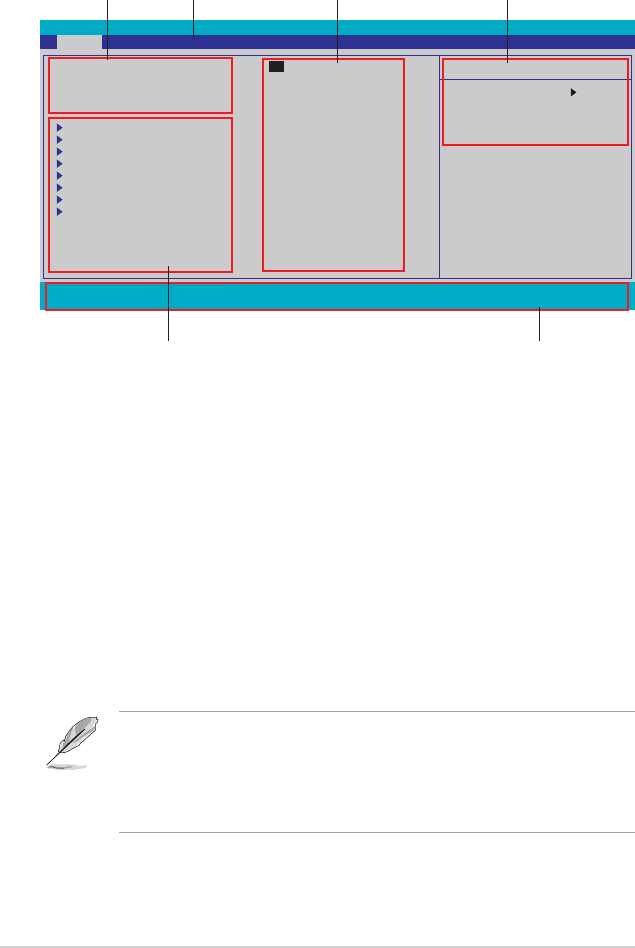
2-82-8
2-82-8
2-8 Chapter 2: BIOS setupChapter 2: BIOS setup
Chapter 2: BIOS setupChapter 2: BIOS setup
Chapter 2: BIOS setup
F1:Help ↑↓ ↑↓
↑↓ ↑↓
↑↓ : Select Item -/+: Change Value F5: Setup Defaults
ESC: Exit →← →←
→← →←
→←: Select Menu Enter: Select Sub-menu F10: Save and Exit
Phoenix-Award BIOS CMOS Setup Utility
Main Advanced Power Boot Exit
Select Menu
Item Specific Help
Change the internal
time.
System Time 15 : 30 : 36
System Date Wed, Nov 5 2005
Legacy Diskette A: [1.44M, 3.5 in.]
Primary IDE Master [ST321122A]
Primary IDE Slave [ASUS CD-S520/]
Secondary IDE Master [None]
Secondary IDE Slave [None]
First SATA Master [None]
Second SATA Master [None]
Third SATA Master [None]
Fourth SATA Master [None]
HDD SMART Monitoring [Disabled]
Installed Memory 512MB
Usable Memory 512MB
2.2.22.2.2
2.2.22.2.2
2.2.2 Menu barMenu bar
Menu barMenu bar
Menu bar
The menu bar on top of the screen has the following main items:
MainMain
MainMain
M a i n For changing the basic system configuration
AdvancedAdvanced
AdvancedAdvanced
Advanced For changing the advanced system settings
PowerPower
PowerPower
Power For changing the advanced power management (APM)
configuration
BootBoot
BootBoot
Boot For changing the system boot configuration
ExitExit
ExitExit
Exit For selecting the exit options and loading default settings
To select an item on the menu bar, press the right or left arrow key on the
keyboard until the desired item is highlighted.
2.2.12.2.1
2.2.12.2.1
2.2.1 BIOS menu screenBIOS menu screen
BIOS menu screenBIOS menu screen
BIOS menu screen
• The BIOS setup screens shown in this chapter are for reference
purposes only, and may not exactly match what you see on your
screen.
• Visit the Targa website (www.targa-online.com) to download the
latest BIOS.
Legend barLegend bar
Legend barLegend bar
Legend bar
General helpGeneral help
General helpGeneral help
General help
Menu barMenu bar
Menu barMenu bar
Menu bar
Sub-menu itemsSub-menu items
Sub-menu itemsSub-menu items
Sub-menu items
Configuration fieldsConfiguration fields
Configuration fieldsConfiguration fields
Configuration fields
Menu itemsMenu items
Menu itemsMenu items
Menu items
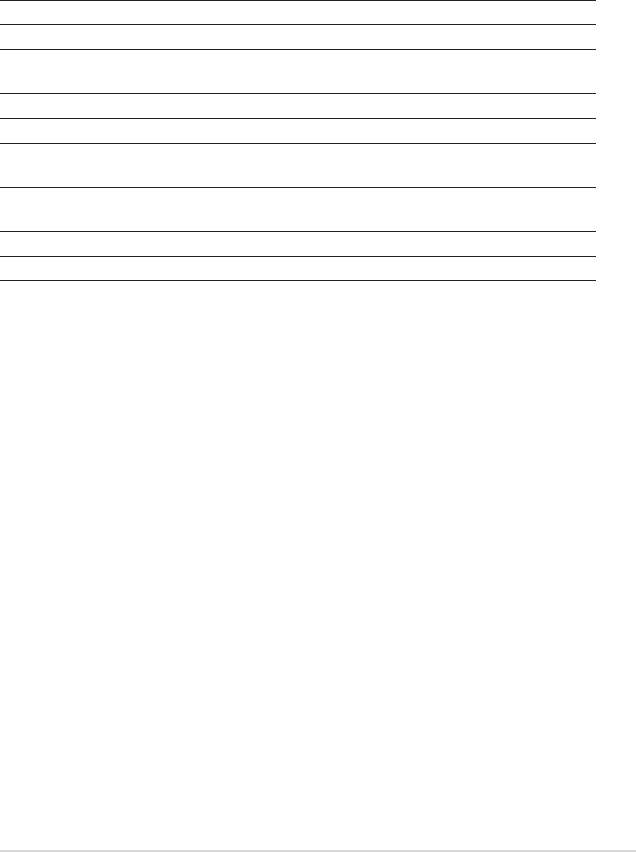
ASUS A8N-EASUS A8N-E
ASUS A8N-EASUS A8N-E
ASUS A8N-E 2-92-9
2-92-9
2-9
2.2.42.2.4
2.2.42.2.4
2.2.4 Menu itemsMenu items
Menu itemsMenu items
Menu items
The highlighted item on the menu bar displays the specific items for that
menu. For example, selecting Main Main
Main Main
Main shows the Main menu items.
The other items (Advanced, Power, Boot, and Exit) on the menu bar have
their respective menu items.
2.2.52.2.5
2.2.52.2.5
2.2.5 Sub-menu itemsSub-menu items
Sub-menu itemsSub-menu items
Sub-menu items
A solid triangle before each item on any menu screen means that the iteam
has a sub-menu. To display the sub-menu, select the item and press
<Enter>.
2.2.62.2.6
2.2.62.2.6
2.2.6 Configuration fieldsConfiguration fields
Configuration fieldsConfiguration fields
Configuration fields
These fields show the values for the menu items. If an item is
user-configurable, you can change the value of the field opposite the item.
You cannot select an item that is not user-configurable.
A configurable field is enclosed in brackets, and is highlighted when
selected. To change the value of a field, select it then press <Enter> to
display a list of options. Refer to “2.2.7 Pop-up window.”
2.2.32.2.3
2.2.32.2.3
2.2.3 Legend barLegend bar
Legend barLegend bar
Legend bar
At the bottom of the Setup screen is a legend bar. The keys in the legend
bar allow you to navigate through the various setup menus. The following
table lists the keys found in the legend bar with their corresponding
functions.
Navigation KeyNavigation Key
Navigation KeyNavigation Key
Navigation Key FunctionFunction
FunctionFunction
Function
<F1><F1>
<F1><F1>
<F1> Displays the General Help screen
<F5><F5>
<F5><F5>
<F5> Loads setup default values
<Esc><Esc>
<Esc><Esc>
<Esc> Exits the BIOS setup or returns to the main menu
from a sub-menu
Left or Right arrowLeft or Right arrow
Left or Right arrowLeft or Right arrow
Left or Right arrow Selects the menu item to the left or right
Up or Down arrowUp or Down arrow
Up or Down arrowUp or Down arrow
Up or Down arrow Moves the highlight up or down between fields
Page Down or – (minus)Page Down or – (minus)
Page Down or – (minus)Page Down or – (minus)
Page Down or – (minus) Scrolls backward through the values for the
highlighted field
Page Up or + (plus)Page Up or + (plus)
Page Up or + (plus)Page Up or + (plus)
Page Up or + (plus) Scrolls forward through the values for the highlighted
field
<Enter><Enter>
<Enter><Enter>
<Enter> Brings up a selection menu for the highlighted field
<F10><F10>
<F10><F10>
<F10> Saves changes and exit
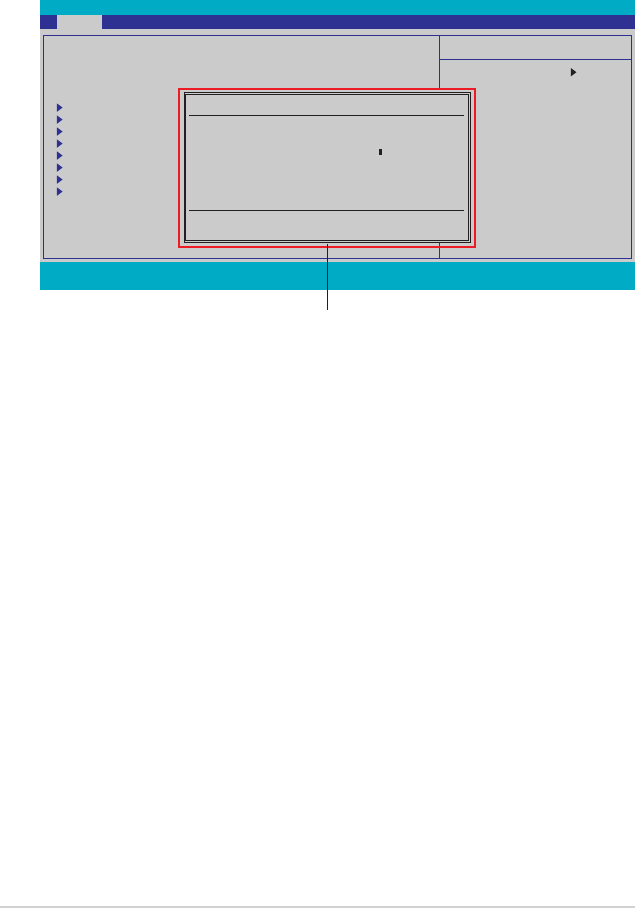
2-102-10
2-102-10
2-10 Chapter 2: BIOS setupChapter 2: BIOS setup
Chapter 2: BIOS setupChapter 2: BIOS setup
Chapter 2: BIOS setup
2.2.72.2.7
2.2.72.2.7
2.2.7 Pop-up windowPop-up window
Pop-up windowPop-up window
Pop-up window
Select a menu item then press <Enter> to display a pop-up window with
the configuration options for that item.
F1:Help ↑↓ ↑↓
↑↓ ↑↓
↑↓ : Select Item -/+: Change Value F5: Setup Defaults
ESC: Exit →← →←
→← →←
→←: Select Menu Enter: Select Sub-menu F10: Save and Exit
Phoenix-Award BIOS CMOS Setup Utility
Main Advanced Power Boot Exit
Select Menu
Item Specific Help
Specifies the capacity
and physical size of
diskette drive A.
System Time 15 : 30 : 36
System Date Wed, Nov 5 2005
Legacy Diskette A: [1.44M, 3.5 in.]
Primary IDE Master [ST321122A]
Primary IDE Slave [ASUS CDS520/A]
Secondary IDE Master [None]
Secondary IDE Slave [None]
First SATA Master [None]
Second SATA Master
Third SATA Master [None]
Fourth SATA Master
HDD SMART Monitoring [Disabled]
Installed Memory 256MB
2.2.82.2.8
2.2.82.2.8
2.2.8 General helpGeneral help
General helpGeneral help
General help
At the top right corner of the menu screen is a brief description of the
selected item.
Legacy Diskette A:
Disabled ..... [ ]
720K , 3.5 in. ..... [ ]
1.44M, 3.5 in. ..... [ ]
↑↓ ↑↓
↑↓ ↑↓
↑↓ :Move ENTER:Accept ESC:Abort
Pop-up menuPop-up menu
Pop-up menuPop-up menu
Pop-up menu
Usable Memory
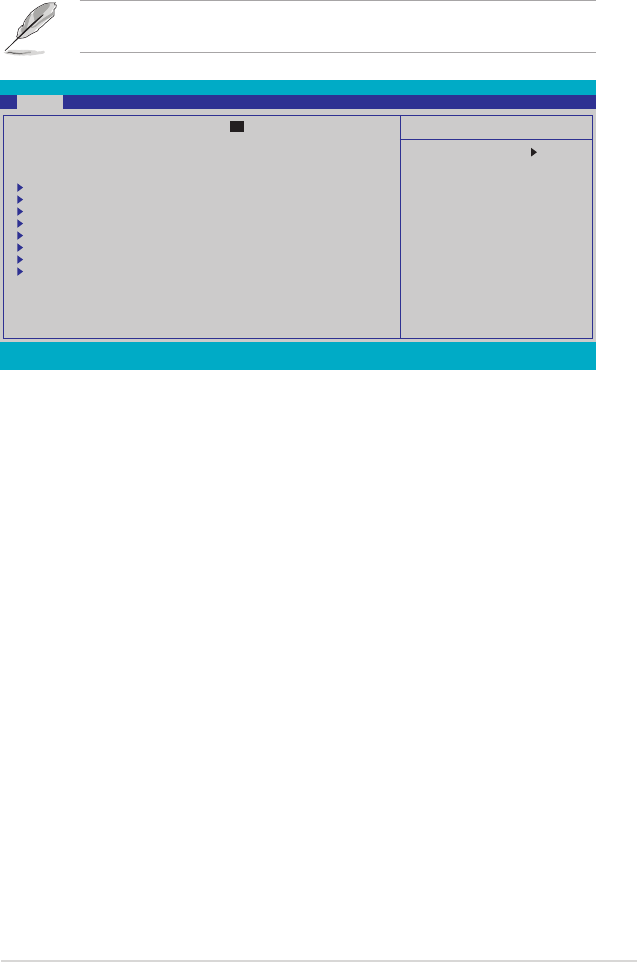
ASUS A8N-EASUS A8N-E
ASUS A8N-EASUS A8N-E
ASUS A8N-E 2-112-11
2-112-11
2-11
F1:Help ↑↓ ↑↓
↑↓ ↑↓
↑↓ : Select Item -/+: Change Value F5: Setup Defaults
ESC: Exit →← →←
→← →←
→←: Select Menu Enter: Select Sub-menu F10: Save and Exit
Phoenix-Award BIOS CMOS Setup Utility
Main Advanced Power Boot Exit
Select Menu
Item Specific Help
Change the internal
time.
System Time 15 : 30 : 36
System Date Wed, Nov 5 2004
Legacy Diskette A: [1.44M, 3.5 in.]
Primary IDE Master [ST321122A]
Primary IDE Slave [ASUS CD-S520/]
Secondary IDE Master [None]
Secondary IDE Slave [None]
First SATA Master [None]
Second SATA Master [None]
Third SATA Master [None]
Fourth SATA Master [None]
HDD SMART Monitoring [Disabled]
Installed Memory 512MB
Usable Memory 512MB
2.3 Main menu
When you enter the BIOS Setup program, the Main menu screen appears,
giving you an overview of the basic system information.
Refer to section “2.2.1 BIOS menu screen” for information on the menu
screen items and how to navigate through them.
2.3.12.3.1
2.3.12.3.1
2.3.1 System Time [xx:xx:xxxx]System Time [xx:xx:xxxx]
System Time [xx:xx:xxxx]System Time [xx:xx:xxxx]
System Time [xx:xx:xxxx]
Allows you to set the system time.
2.3.22.3.2
2.3.22.3.2
2.3.2 System Date [Day xx/xx/xxxx]System Date [Day xx/xx/xxxx]
System Date [Day xx/xx/xxxx]System Date [Day xx/xx/xxxx]
System Date [Day xx/xx/xxxx]
Allows you to set the system date.
2.3.32.3.3
2.3.32.3.3
2.3.3 Language [English]Language [English]
Language [English]Language [English]
Language [English]
Allows you to choose the BIOS language version from the options.
Configuration options: [Français] [German] [English]
2.3.42.3.4
2.3.42.3.4
2.3.4 Legacy Diskette A [1.44M, 3.5 in.]Legacy Diskette A [1.44M, 3.5 in.]
Legacy Diskette A [1.44M, 3.5 in.]Legacy Diskette A [1.44M, 3.5 in.]
Legacy Diskette A [1.44M, 3.5 in.]
Sets the type of floppy drive installed. Configuration options: [Disabled]
[360K, 5.25 in.] [1.2M , 5.25 in.] [720K , 3.5 in.] [1.44M, 3.5 in.]
[2.88M, 3.5 in.]

2-122-12
2-122-12
2-12 Chapter 2: BIOS setupChapter 2: BIOS setup
Chapter 2: BIOS setupChapter 2: BIOS setup
Chapter 2: BIOS setup
2.3.52.3.5
2.3.52.3.5
2.3.5 Primary and Secondary IDE Master/SlavePrimary and Secondary IDE Master/Slave
Primary and Secondary IDE Master/SlavePrimary and Secondary IDE Master/Slave
Primary and Secondary IDE Master/Slave
While entering Setup, the BIOS automatically detects the presence of IDE
devices. There is a separate sub-menu for each IDE device. Select a device
item then press <Enter> to display the IDE device information.
The BIOS automatically detects the values opposite the dimmed items
(Capacity, Cylinder, Head, Sector and Transfer Mode). These values are not
user-configurable. These items show N/A if no IDE device is installed in the
system.
PIO ModePIO Mode
PIO ModePIO Mode
PIO Mode
Sets the PIO mode for the IDE device.
Configuration options: [Auto] [Mode 0] [Mode 1] [Mode 2] [Mode 3]
[Mode 4]
UDMA ModeUDMA Mode
UDMA ModeUDMA Mode
UDMA Mode
Disables or sets the UDMA mode. Configuration options: [Disabled] [Auto]
IDE Primary Master/Slave [Auto]; IDE Secondary Master/IDE Primary Master/Slave [Auto]; IDE Secondary Master/
IDE Primary Master/Slave [Auto]; IDE Secondary Master/IDE Primary Master/Slave [Auto]; IDE Secondary Master/
IDE Primary Master/Slave [Auto]; IDE Secondary Master/
Slave [Auto]Slave [Auto]
Slave [Auto]Slave [Auto]
Slave [Auto]
Select [Auto] to automatically detect an IDE hard disk drive. If automatic
detection is successful, the BIOS automatically fills in the correct values for
the remaining fields on this sub-menu. If the hard disk was already
formatted on a previous system, the setup BIOS may detect incorrect
parameters. Select [Manual] to manually enter the IDE hard disk drive
parameters. If no drive is installed select [None].
Configuration options: [None] [Auto] [Manual]
F1:Help ↑↓ ↑↓
↑↓ ↑↓
↑↓ : Select Item -/+: Change Value F5: Setup Defaults
ESC: Exit →← →←
→← →←
→←: Select Menu Enter: Select Sub-menu F10: Save and Exit
Phoenix-Award BIOS CMOS Setup Utility
Main
Select Menu
Item Specific Help
Press [Enter] to
select
Primary IDE Master
Primary IDE Master [Auto]
Access Mode [Auto]
Capacity 82 GB
Cylinder 39420
Head 16
Sector 255
PIO Mode [Auto]
UDMA Mode [Auto]
Transfer Mode UDMA 6

ASUS A8N-EASUS A8N-E
ASUS A8N-EASUS A8N-E
ASUS A8N-E 2-132-13
2-132-13
2-13
Before attempting to configure a hard disk drive, make sure you have
the correct configuration information supplied by the drive
manufacturer. Incorrect settings may cause the system to fail to
recognize the installed hard disk.
CapacityCapacity
CapacityCapacity
Capacity
Displays the auto-detected hard disk capacity. This item is not
configurable.
CylinderCylinder
CylinderCylinder
Cylinder
Shows the number of the hard disk cylinders. This item is not configurable.
HeadHead
HeadHead
Head
Shows the number of the hard disk read/write heads. This item is not
configurable.
SectorSector
SectorSector
Sector
Shows the number of sectors per track. This item is not configurable.
Transfer ModeTransfer Mode
Transfer ModeTransfer Mode
Transfer Mode
Shows the Transfer mode. This item is not configurable.
After entering the IDE hard disk drive information into BIOS, use a disk
utility, such as FDISK, to partition and format new IDE hard disk drives.
This is necessary so that you can write or read data from the hard disk.
Make sure to set the partition of the Primary IDE hard disk drives to
active.
Access Mode [Auto]Access Mode [Auto]
Access Mode [Auto]Access Mode [Auto]
Access Mode [Auto]
The default [Auto] allows automatic detection of an IDE hard disk drive.
Select [CHS] for this item if you set the IDE Primary Master/Slave to
[Manual]. Configuration options: [CHS] [LBA] [Large] [Auto]

2-142-14
2-142-14
2-14 Chapter 2: BIOS setupChapter 2: BIOS setup
Chapter 2: BIOS setupChapter 2: BIOS setup
Chapter 2: BIOS setup
2.3.62.3.6
2.3.62.3.6
2.3.6 First, Second, Third, Fourth SATA MasterFirst, Second, Third, Fourth SATA Master
First, Second, Third, Fourth SATA MasterFirst, Second, Third, Fourth SATA Master
First, Second, Third, Fourth SATA Master
While entering Setup, the BIOS automatically detects the presence of Serial
ATA devices. There is a separate sub-menu for each SATA device. Select a
device item then press <Enter> to display the SATA device information.
The BIOS automatically detects the values opposite the dimmed items
(Capacity, Cylinder, Head, Precomp, Landing Zone and Sector). These
values are not user-configurable. These items show 0 if no SATA device is
installed in the system.
Extended DriveExtended Drive
Extended DriveExtended Drive
Extended Drive
Selects the type of fixed disk connected to the system.
Configuration options: [None] [Auto]
Access ModeAccess Mode
Access ModeAccess Mode
Access Mode
Sets the sector addressing mode. Configuration options: [Large] [Auto]
F1:Help ↑↓ ↑↓
↑↓ ↑↓
↑↓ : Select Item -/+: Change Value F5: Setup Defaults
ESC: Exit →← →←
→← →←
→←: Select Menu Enter: Select Sub-menu F10: Save and Exit
Phoenix-Award BIOS CMOS Setup Utility
Main
Select Menu
Item Specific Help
Selects the type of
fixed disk connected
to the system.
Primary IDE Master
Extended IDE Drive [Auto]
Access Mode [Auto]
Capacity 0 MB
Cylinder 0
Head 0
Precomp 0
Landing Zone 0
Sector 0
Before attempting to configure a hard disk drive, make sure you have
the correct configuration information supplied by the drive
manufacturer. Incorrect settings may cause the system to fail to
recognize the installed hard disk.
CapacityCapacity
CapacityCapacity
Capacity
Displays the auto-detected hard disk capacity. This item is not
configurable.
CylinderCylinder
CylinderCylinder
Cylinder
Shows the number of the hard disk cylinders. This item is not configurable.

ASUS A8N-EASUS A8N-E
ASUS A8N-EASUS A8N-E
ASUS A8N-E 2-152-15
2-152-15
2-15
HeadHead
HeadHead
Head
Shows the number of the hard disk read/write heads. This item is not
configurable.
PrecompPrecomp
PrecompPrecomp
Precomp
Shows the number of precomp per track. This item is not configurable.
Landing ZoneLanding Zone
Landing ZoneLanding Zone
Landing Zone
Shows the number of landing zone per track. This item is not configurable.
SectorSector
SectorSector
Sector
Shows the number of sectors per track. This item is not configurable.
After entering the IDE hard disk drive information into BIOS, use a disk
utility, such as FDISK, to partition and format new IDE hard disk drives.
This is necessary so that you can write or read data from the hard disk.
Make sure to set the partition of the Primary IDE hard disk drives to
active.
2.3.72.3.7
2.3.72.3.7
2.3.7 HDD SMART MonitoringHDD SMART Monitoring
HDD SMART MonitoringHDD SMART Monitoring
HDD SMART Monitoring
Allows you to enable or disable the HDD Self-Monitoring Analysis and
Reporting Technology (SMART) feature.
Configuration options: [Disabled] [Enabled]
2.3.82.3.8
2.3.82.3.8
2.3.8 Installed MemoryInstalled Memory
Installed MemoryInstalled Memory
Installed Memory
Shows the size of installed memory.
2-162-16
2-162-16
2-16 Chapter 2: BIOS setupChapter 2: BIOS setup
Chapter 2: BIOS setupChapter 2: BIOS setup
Chapter 2: BIOS setup
Phoenix-Award BIOS CMOS Setup Utility
Main Advanced Power Boot Exit
Select Menu
Item Specific Help
Press Enter to Set
CPU Configuration
PCIPnP
Onboard Device Configuration
2.4.12.4.1
2.4.12.4.1
2.4.1 CPU ConfigurationCPU Configuration
CPU ConfigurationCPU Configuration
CPU Configuration
Select Menu
Item Specific Help
DRAM timing and
control
CPU Configuration
CPU Type AMD Athlon(tm) 64 Processor 3200+
CPU Speed 2000MHz
Cache RAM 512K
DRAM Configuration
Hyper Transport Frequency [Auto]
AMD K8 Cool’n’Quiet control [Disabled]
Phoenix-Award BIOS CMOS Setup Utility
Advanced
2.4 Advanced menu
The Advanced menu items allow you to change the settings for the CPU
and other system devices.
Take caution when changing the settings of the Advanced menu items.
Incorrect field values can cause the system to malfunction.
F1:Help ↑↓ ↑↓
↑↓ ↑↓
↑↓ : Select Item -/+: Change Value F5: Setup Defaults
ESC: Exit →← →←
→← →←
→←: Select Menu Enter: Select Sub-menu F10: Save and Exit
ASUS A8N-EASUS A8N-E
ASUS A8N-EASUS A8N-E
ASUS A8N-E 2-172-17
2-172-17
2-17
DRAM ConfigurationDRAM Configuration
DRAM ConfigurationDRAM Configuration
DRAM Configuration
The items in this sub-menu show the DRAM-related information
auto-detected by the BIOS.
Select Menu
Item Specific Help
<Enter> to select DRAM
configuration by
Auto] is recommended.
[Manual] allows you to
set each
configuration on your
own.
DRAM Configuration
Timing Mode [Auto]
x Memclock index value (Mhz) 166Mhz
x CAS# latency (Tcl) 2.5
x Min RAS# active time (Tras) 7T
x RAS# to CAS# delay (Trcd) 3T
x Row precharge Time (Trp) 3T
x Row cycle Time (Trc) 10T
x Row refresh cyc Time (Trfc) 12T
x Read-to Write Time (Trwt) 4T
x Write Recovery Time (Twr) 3T
x 1T/2T Memory Timing 2T
S/W DRAM Over 4C Remapping [Enabled]
Phoenix-Award BIOS CMOS Setup Utility
Advanced
Timing Mode [Auto]
Configuration options: [Auto] [Manual]
The following items are user-configurable only when Timing Mode item is
set to [Manual].
Memclock index value (Mhz) [200Mhz]
Set DRAM Frequency. Configuration options: [100Mhz] [133Mhz]
[166Mhz][200Mhz]
CAS# latency (Tcl) [3]
Set the latency between the DRAM command and the time the data
actually becomes available. Configuration options: [2.0] [2.5] [3.0]
Min RAS# active time (Tras) [8T]
Controls the number of DRAM clocks used for DRAM parameters.
Configuration options: [5] [6] [7] [8] [9] [10] [11] [12] [13] [14]
[15]
RAS# to CAS# delay (Trcd) [3T]
Controls the latency between the DRAM active command and the R/W
command. Configuration options: [2] [3] [4] [5] [6] [7]

2-182-18
2-182-18
2-18 Chapter 2: BIOS setupChapter 2: BIOS setup
Chapter 2: BIOS setupChapter 2: BIOS setup
Chapter 2: BIOS setup
Row precharge Time (Trp) [3T]
Controls the idle clocks after issuing a precharge command to the
DRAM. Configuration options: [2] [3] [4] [5] [6][7]
Row cycle Time (Trc) [11T]
Set Row cycle timing. Configuration options: [7] [8] [9] [10] [11]
[12] [13] [14] [15] [16][17][18] [19] [20] [21] [22]
Row refresh cyc Time (Trfc) [14T]
Set Row refresh cycle timing. Configuration options: [9] [10] [11]
[12] [13] [14] [15] [16][17][18] [19] [20] [21] [22] [23] [24]
Read-to-Write Time (Trwt) [5T]
Set Write to Read delay timing. Configuration options: [1] [2] [3] [4]
[5] [6]
Write Recovery time (Twr) [3T]
Set Write Recovery timing. Configuration options: [2] [3]
1T/2T Memory Timing [2T]
Select DRAM commands and adress will be driven for 1 clock or 2
clock cycles. 2 clock cycles should only be set with unbuffered DIMMs.
Configuration options: [Auto] [1T] [2T]
S/W DRAM Over 4G Remapping [Enabled]
When 4G or More DRAM is installed. Memory block just below 4GB and
move it to above 4GB. Thus All 4GB can be used for OS supporting
PAE. Otherwise, some memory range are reserved for PCI.
Configuration options: [Disabled] [Enabled]
Hyper Transport Frequency [Auto]Hyper Transport Frequency [Auto]
Hyper Transport Frequency [Auto]Hyper Transport Frequency [Auto]
Hyper Transport Frequency [Auto]
Sets the Hyper Transport frequency.
Configuration options: [Auto] [1x] [2x] [3x] [4x] [5x] [Auto]
AMD K8 Cool’n’Quiet control [Auto]AMD K8 Cool’n’Quiet control [Auto]
AMD K8 Cool’n’Quiet control [Auto]AMD K8 Cool’n’Quiet control [Auto]
AMD K8 Cool’n’Quiet control [Auto]
Enables or disables the AMD Cool ‘n’ Quiet! technology.
Configuration options: [Disabled] [Enabled]
ASUS A8N-EASUS A8N-E
ASUS A8N-EASUS A8N-E
ASUS A8N-E 2-192-19
2-192-19
2-19
Select Menu
Item Specific Help
Select Yes if you are
using a Plug and Play
capable operating
system Select No if
PCIPnp
Plug & Play O/S [No]
Primary Display Adapter [PCI]
Resources Controlled By [Auto]
x IRQ Resources
Phoenix-Award BIOS CMOS Setup Utility
Advanced
2.4.22.4.2
2.4.22.4.2
2.4.2 PCIPnPPCIPnP
PCIPnPPCIPnP
PCIPnP
Plug & Play O/S [No]Plug & Play O/S [No]
Plug & Play O/S [No]Plug & Play O/S [No]
Plug & Play O/S [No]
When set to [No], the BIOS configures all the devices in the system. When
set to [Yes] and if you install a Plug and Play operating system, the
operating system configures the Plug and Play devices not required for
boot. Configuration options: [No] [Yes]
Resources Controlled By [Auto]Resources Controlled By [Auto]
Resources Controlled By [Auto]Resources Controlled By [Auto]
Resources Controlled By [Auto]
When set to [Auto], the BIOS automatically configures all the boot and
Plug and Play compatible devices. Set to [Manual] if you want to assign the
IRQ DMA and memory base address fields.
Configuration options: [Auto] [Manual]
When the item Resources Controlled By is set to [Auto], the item IRQ
Resources is grayed out and not user-configurable. Refer to the section
“IRQ Resources” for information on how to enable this item.
IRQ ResourcesIRQ Resources
IRQ ResourcesIRQ Resources
IRQ Resources
This sub-menu is activated only when the Resources Controlled ByResources Controlled By
Resources Controlled ByResources Controlled By
Resources Controlled By
item is set to Manual.
Select Menu
Item Specific Help
Legacy ISA for devices
compliant with the
original PC AT bus
specification, PCI/ISA
PnP for devices
compliant with the
IRQ Resources
IRQ-3 assigned to [PCI Device]
IRQ-4 assigned to [PCI Device]
IRQ-5 assigned to [PCI Device]
IRQ-7 assigned to [PCI Device]
IRQ-9 assigned to [PCI Device]
IRQ-10 assigned to [PCI Device]
IRQ-11 assigned to [PCI Device]
IRQ-12 assigned to [PCI Device]
IRQ-14 assigned to [PCI Device]
IRQ-15 assigned to [PCI Device]
Phoenix-Award BIOS CMOS Setup Utility
Advanced
IRQ-xx assigned to
When set to [PCI Device], the specific IRQ is free for use of PCI/PnP
devices. When set to [Reserved], the IRQ is reserved for legacy ISA
devices. Configuration options: [PCI Device] [Reserved]

2-202-20
2-202-20
2-20 Chapter 2: BIOS setupChapter 2: BIOS setup
Chapter 2: BIOS setupChapter 2: BIOS setup
Chapter 2: BIOS setup
PCI/VGA Palette Snoop [Disabled]PCI/VGA Palette Snoop [Disabled]
PCI/VGA Palette Snoop [Disabled]PCI/VGA Palette Snoop [Disabled]
PCI/VGA Palette Snoop [Disabled]
When set to [Enabled], the pallete snooping feature informs the PCI
devices that an ISA graphics device is installed in the system so that the
latter can function correctly. Configuration options: [Disabled] [Enabled]
Select Menu
Item Specific Help
Disable/Enable OnChip
IDE Channel0
Phoenix-Award BIOS CMOS Setup Utility
Advanced
IDE Function SetupIDE Function Setup
IDE Function SetupIDE Function Setup
IDE Function Setup
This sub-menu contains IDE function-related items. Select an item then
press <Enter> to edit.
Onboard Device Configuration
OnChip IDE Channel0 [Enabled]
OnChip IDE Channel1 [Enabled]
IDE DMA transfer access [Enabled]
SATA Port 1, 2 [Enabled]
SATA DMA transfer [Enabled]
SATA Port 3, 4 [Enabled]
SATA2 DMA transfer [Enabled]
IDE Prefetch Mode [Enabled]
F1:Help ↑↓ ↑↓
↑↓ ↑↓
↑↓ : Select Item -/+: Change Value F5: Setup Defaults
ESC: Exit →← →←
→← →←
→←: Select Menu Enter: Select Sub-menu F10: Save and Exit
Select Menu
Item Specific Help
Press [Enter] to set.
Onboard Device Configuration
IDE Function Setup
NVRAID Configuration
USB Configuration
Onboard NV LAN [Enabled]
Onboard LAN Boot ROM [Disabled]
AC97 Audio [Enabled]
PCI IEEE 1394a [Enabled]
Serial Port1 Address [3F8/IRQ4]
Parallel Port Address [378/IRQ7]
Parallel Port Mode [ECP+EPP]
ECP MOde Use DMA [3]
Game Port Address [201]
Phoenix-Award BIOS CMOS Setup Utility
Advanced
2.4.32.4.3
2.4.32.4.3
2.4.3 Onboard Devices ConfigurationOnboard Devices Configuration
Onboard Devices ConfigurationOnboard Devices Configuration
Onboard Devices Configuration
OnChip IDE Channel0 [Enabled]OnChip IDE Channel0 [Enabled]
OnChip IDE Channel0 [Enabled]OnChip IDE Channel0 [Enabled]
OnChip IDE Channel0 [Enabled]
Allows you to enable or disable the onchip IDE channel 0 controller .
Configuration options: [Disabled] [Enabled]
OnChip IDE Channel1 [Enabled]OnChip IDE Channel1 [Enabled]
OnChip IDE Channel1 [Enabled]OnChip IDE Channel1 [Enabled]
OnChip IDE Channel1 [Enabled]
Allows you to enable or disable the onchip IDE channel 1 controller .
Configuration options: [Disabled] [Enabled]
ASUS A8N-EASUS A8N-E
ASUS A8N-EASUS A8N-E
ASUS A8N-E 2-212-21
2-212-21
2-21
IDE DMA transfer access [Enabled]IDE DMA transfer access [Enabled]
IDE DMA transfer access [Enabled]IDE DMA transfer access [Enabled]
IDE DMA transfer access [Enabled]
Allows you to enable or disable the IDE DMA transfer access.
Configuration options: [Disabled] [Enabled]
SATA Port 1, 2 [Enabled]SATA Port 1, 2 [Enabled]
SATA Port 1, 2 [Enabled]SATA Port 1, 2 [Enabled]
SATA Port 1, 2 [Enabled]
Allows you to enable or disable the SATA 1 and 2 ports.
Configuration options: [Disabled] [Enabled]
SATA DMA access [Enabled]SATA DMA access [Enabled]
SATA DMA access [Enabled]SATA DMA access [Enabled]
SATA DMA access [Enabled]
Allows you to enable or disable the SATA DMA transfer access.
Configuration options: [Disabled] [Enabled]
SATA Port 3, 4 [Enabled]SATA Port 3, 4 [Enabled]
SATA Port 3, 4 [Enabled]SATA Port 3, 4 [Enabled]
SATA Port 3, 4 [Enabled]
Allows you to enable or disable the SATA 3 and 4 ports.
Configuration options: [Disabled] [Enabled]
SATA2 DMA transfer [Enabled]SATA2 DMA transfer [Enabled]
SATA2 DMA transfer [Enabled]SATA2 DMA transfer [Enabled]
SATA2 DMA transfer [Enabled]
Allows you to enable or disable the SATA2 DMA transfer access.
Configuration options: [Disabled] [Enabled]
IDE Prefetch Mode [Enabled]IDE Prefetch Mode [Enabled]
IDE Prefetch Mode [Enabled]IDE Prefetch Mode [Enabled]
IDE Prefetch Mode [Enabled]
Allows you to enable or disable the IDE prefetch mode.
Configuration options: [Disabled] [Enabled]
NVRAID ConfigurationNVRAID Configuration
NVRAID ConfigurationNVRAID Configuration
NVRAID Configuration
This sub-menu contains NVRAID function-related items. Select an item then
press <Enter> to edit.
Select Menu
Item Specific Help
Disable/Enable nVIDIA
RAID feature.
Phoenix-Award BIOS CMOS Setup Utility
Advanced
NVRAID Configuration
RAID Enabled [Disabled]
x IDE Primary Master RAID Disabled
x IDE Primary Slave RAID Disabled
x IDE Secondary Master RAID Disabled
x IDE Secondary Slave RAID Disabled
x First SATA Master RAID Disabled
x Second SATA Master RAID Disabled
x Third SATA Master RAID Disabled
x Fourth SATA Master RAID Disabled
RAID Enabled [Disabled]RAID Enabled [Disabled]
RAID Enabled [Disabled]RAID Enabled [Disabled]
RAID Enabled [Disabled]
Enables or disables the onboard RAID controller. When Enabled, the
succeeding items becomes user-configurable.
Configuration options: [Enabled] [Disabled]

2-222-22
2-222-22
2-22 Chapter 2: BIOS setupChapter 2: BIOS setup
Chapter 2: BIOS setupChapter 2: BIOS setup
Chapter 2: BIOS setup
IDE Primary, Secondary Master/Slave RAID [Disabled]IDE Primary, Secondary Master/Slave RAID [Disabled]
IDE Primary, Secondary Master/Slave RAID [Disabled]IDE Primary, Secondary Master/Slave RAID [Disabled]
IDE Primary, Secondary Master/Slave RAID [Disabled]
Enables or disables the RAID function of the primary or secondary master
or slave IDE. Configuration options: [Enabled] [Disabled]
First, Second, Third, Fourth SATA Master RAID [Disabled]First, Second, Third, Fourth SATA Master RAID [Disabled]
First, Second, Third, Fourth SATA Master RAID [Disabled]First, Second, Third, Fourth SATA Master RAID [Disabled]
First, Second, Third, Fourth SATA Master RAID [Disabled]
Enables or disables the RAID function of the first, second, third or fourth
SATA master drive. Configuration options: [Enabled] [Disabled]
Select Menu
Item Specific Help
USB Configuration
USB Controller [Enabled]
USB2.0 Controller [Enabled]
USB Legacy support [Enabled]
Phoenix-Award BIOS CMOS Setup Utility
Advanced
USB ConfigurationUSB Configuration
USB ConfigurationUSB Configuration
USB Configuration
The items in this menu allows you to change the USB-related features.
Select an item then press <Enter> to display the configuration options.
USB Controller [Enabled]USB Controller [Enabled]
USB Controller [Enabled]USB Controller [Enabled]
USB Controller [Enabled]
Allows you to enable or disable the onchip USB controller.
Configuration options: [Disabled] [Enabled]
USB 2.0 Controller [Enabled]USB 2.0 Controller [Enabled]
USB 2.0 Controller [Enabled]USB 2.0 Controller [Enabled]
USB 2.0 Controller [Enabled]
Allows you to enable or disable the USB 2.0 controller.
Configuration options: [Disabled] [Enabled]
USB Legacy Support [Enabled]USB Legacy Support [Enabled]
USB Legacy Support [Enabled]USB Legacy Support [Enabled]
USB Legacy Support [Enabled]
Allows you to enable or disable support for USB devices on legacy
operating systems (OS). Configuration options: [Disabled] [Enabled]
Onboard NV LAN [Enabled]Onboard NV LAN [Enabled]
Onboard NV LAN [Enabled]Onboard NV LAN [Enabled]
Onboard NV LAN [Enabled]
Enables or disables the onboard NVIDIA
®
Gigabit LAN controller.
Configuration options: [Enabled] [Disabled]
OnBoard LAN Boot ROM [Disabled]OnBoard LAN Boot ROM [Disabled]
OnBoard LAN Boot ROM [Disabled]OnBoard LAN Boot ROM [Disabled]
OnBoard LAN Boot ROM [Disabled]
Allows you to enable or disable the onboard LAN boot ROM.
Configuration options: [Disabled] [Enabled]
AC97 Audio [Enabled]AC97 Audio [Enabled]
AC97 Audio [Enabled]AC97 Audio [Enabled]
AC97 Audio [Enabled]
Allows you to disable or enabled the onboard AC97 audio controller.
Configuration options: [Disabled] [Enabled]

ASUS A8N-EASUS A8N-E
ASUS A8N-EASUS A8N-E
ASUS A8N-E 2-232-23
2-232-23
2-23
Serial Port1 Address [3F8/IRQ4]Serial Port1 Address [3F8/IRQ4]
Serial Port1 Address [3F8/IRQ4]Serial Port1 Address [3F8/IRQ4]
Serial Port1 Address [3F8/IRQ4]
Allows you to select the Serial Port1 base address.
Configuration options: [Disabled] [3F8/IRQ4] [3E8/IRQ4] [2E8/IRQ3]
Parallel Port Address [378/IRQ7]Parallel Port Address [378/IRQ7]
Parallel Port Address [378/IRQ7]Parallel Port Address [378/IRQ7]
Parallel Port Address [378/IRQ7]
Allows you to select the Parallel Port base addresses.
Configuration options: [Disabled] [378/IRQ7] [278/IRQ5] [3BC/IRQ7]
Parallel Port Mode [ECP+EPP]Parallel Port Mode [ECP+EPP]
Parallel Port Mode [ECP+EPP]Parallel Port Mode [ECP+EPP]
Parallel Port Mode [ECP+EPP]
Allows you to select the Parallel Port mode.
Configuration options: [Normal] [Bi-directional] [EPP] [ECP]
ECP Mode Use DMA [3]ECP Mode Use DMA [3]
ECP Mode Use DMA [3]ECP Mode Use DMA [3]
ECP Mode Use DMA [3]
Allows selection of ECP Mode. Configuration options: [1] [3]
Game Port Address [201]Game Port Address [201]
Game Port Address [201]Game Port Address [201]
Game Port Address [201]
Allows you to select the Game Port address or to disable the port.
Configuration options: [Disabled] [201] [209]
Midi Port Address [Disabled]Midi Port Address [Disabled]
Midi Port Address [Disabled]Midi Port Address [Disabled]
Midi Port Address [Disabled]
Allows you to select the Game Port address or to disable the port.
Configuration options: [Disabled] [330] [300]
Midi Port IRQ [10]Midi Port IRQ [10]
Midi Port IRQ [10]Midi Port IRQ [10]
Midi Port IRQ [10]
Allows you to set the Midi port IRQ address. Configuration options: [5] [10]
2-242-24
2-242-24
2-24 Chapter 2: BIOS setupChapter 2: BIOS setup
Chapter 2: BIOS setupChapter 2: BIOS setup
Chapter 2: BIOS setup
2.5 Power menu
The Power menu items allow you to change the settings for the Advanced
Configuration and Power Interface (ACPI) and the Advanced Power
Management (APM). Select an item then press <Enter> to display the
configuration options.
Phoenix-Award BIOS CMOS Setup Utility
Main Advanced Power Boot Exit
Select Menu
Item Specific Help
Select the ACPI state
used for System
Suspend.
ACPI Suspend Type [S1&S3]
ACPI APIC support [Enabled]
APM Configuration
Hardware Monitor
F1:Help ↑↓ ↑↓
↑↓ ↑↓
↑↓ : Select Item -/+: Change Value F5: Setup Defaults
ESC: Exit →← →←
→← →←
→←: Select Menu Enter: Select Sub-menu F10: Save and Exit
2.5.12.5.1
2.5.12.5.1
2.5.1 ACPI Suspend Type [S1&S3]ACPI Suspend Type [S1&S3]
ACPI Suspend Type [S1&S3]ACPI Suspend Type [S1&S3]
ACPI Suspend Type [S1&S3]
Allows you to select the Advanced Configuration and Power Interface
(ACPI) state to be used for system suspend.
Configuration options: [S1 (POS)] [S3(STR)] [S1&S3]
2.5.22.5.2
2.5.22.5.2
2.5.2 ACPI APIC Support [Enabled]ACPI APIC Support [Enabled]
ACPI APIC Support [Enabled]ACPI APIC Support [Enabled]
ACPI APIC Support [Enabled]
Allows you to enable or disable the Advanced Configuration and Power
Interface (ACPI) support in the Application-Specific Integrated Circuit
(ASIC). When set to Enabled, the ACPI APIC table pointer is included in the
RSDT pointer list. Configuration options: [Disabled] [Enabled]
ASUS A8N-EASUS A8N-E
ASUS A8N-EASUS A8N-E
ASUS A8N-E 2-252-25
2-252-25
2-25
2.5.32.5.3
2.5.32.5.3
2.5.3 APM ConfigurationAPM Configuration
APM ConfigurationAPM Configuration
APM Configuration
F1:Help ↑↓ ↑↓
↑↓ ↑↓
↑↓ : Select Item -/+: Change Value F5: Setup Defaults
ESC: Exit →← →←
→← →←
→←: Select Menu Enter: Select Sub-menu F10: Save and Exit
Select Menu
Item Specific Help
Press [ENTER] to
select whether or not
to restart the system
after AC power loss.
APM Configuration
Restore on AC Power Loss [Disabled]
PWR Button < 4 secs [Instant Off]
Power On By PCI Devices [Disabled]
Power On By External Modems [Disabled]
Power-On by RTC Alarm [Disabled]
x Date (of Month) 0
x Time (hh:mm:ss) 0 : 0 : 0
Power Up By PS/2 Mouse [Disabled]
Power Up By PS/2 Keyboard [Disabled]
Phoenix-Award BIOS CMOS Setup Utility
Power
Restore on AC Power Loss [Disabled]Restore on AC Power Loss [Disabled]
Restore on AC Power Loss [Disabled]Restore on AC Power Loss [Disabled]
Restore on AC Power Loss [Disabled]
Allows you to enable or disable the Restore on AC Power Loss function.
Configuration options: [Disabled] [Enabled]
PWR Button < 4 secs [Instant-Off]PWR Button < 4 secs [Instant-Off]
PWR Button < 4 secs [Instant-Off]PWR Button < 4 secs [Instant-Off]
PWR Button < 4 secs [Instant-Off]
Allows you to set the event after the power button is pressed for more
than 4 seconds. Configuration options: [Suspend] [Instant-Off]
Power On By PCI Devices [Disabled]Power On By PCI Devices [Disabled]
Power On By PCI Devices [Disabled]Power On By PCI Devices [Disabled]
Power On By PCI Devices [Disabled]
When set to [Enabled], this parameter allows you to turn on the system
through a PCI LAN or modem card. This feature requires an ATX power
supply that provides at least 1A on the +5VSB lead.
Configuration options: [Disabled] [Enabled]
Power On By External Modems [Disabled]Power On By External Modems [Disabled]
Power On By External Modems [Disabled]Power On By External Modems [Disabled]
Power On By External Modems [Disabled]
This allows either settings of [Enabled] or [Disabled] for powering up the
computer when the external modem receives a call while the computer is in
Soft-off mode. Configuration options: [Disabled] [Enabled]
The computer cannot receive or transmit data until the computer and
applications are fully running. Thus, connection cannot be made on the
first try. Turning an external modem off and then back on while the
computer is off causes an initialization string that turns the system
power on.

2-262-26
2-262-26
2-26 Chapter 2: BIOS setupChapter 2: BIOS setup
Chapter 2: BIOS setupChapter 2: BIOS setup
Chapter 2: BIOS setup
Power On By RTC Alarm [Disabled]Power On By RTC Alarm [Disabled]
Power On By RTC Alarm [Disabled]Power On By RTC Alarm [Disabled]
Power On By RTC Alarm [Disabled]
Allows you to enable or disable RTC to generate a wake event. When this
item is set to Enabled, the items Date of Month Alarm and Time (hh:mm:ss)
Alarm items become user-configurable with set values.
Configuration options: [Disabled] [Enabled]
Day of Month Alarm [Disabled]Day of Month Alarm [Disabled]
Day of Month Alarm [Disabled]Day of Month Alarm [Disabled]
Day of Month Alarm [Disabled]
To set the date of alarm, highlight this item and press <Enter> to display
the Day of Month Alarm pop-up menu. Key-in a value within the specified
range then press <Enter>. Configuration options: [Min=0] [Max=31]
Time (hh:mm:ss) Alarm [Disabled]Time (hh:mm:ss) Alarm [Disabled]
Time (hh:mm:ss) Alarm [Disabled]Time (hh:mm:ss) Alarm [Disabled]
Time (hh:mm:ss) Alarm [Disabled]
To set the time of alarm:
1. Highlight this item and press <Enter> to display a pop-up menu for the
hour field.
2. Key-in a value (Min=0, Max=23), then press <Enter>.
3. Press <TAB> to move to the minutes field then press <Enter>.
4. Key-in a minute value (Min=0, Max=59), then press <Enter>.
5. Press <TAB> to move to the seconds field then press <Enter>.
6. Key-in a value (Min=0, Max=59), then press <Enter>.
Power Up By PS/2 Mouse [Disabled]Power Up By PS/2 Mouse [Disabled]
Power Up By PS/2 Mouse [Disabled]Power Up By PS/2 Mouse [Disabled]
Power Up By PS/2 Mouse [Disabled]
When set to [Enabled], this parameter allows you to use the PS/2 mouse
to turn on the system. This feature requires an ATX power supply that
provides at least 1A on the +5VSB lead.
Configuration options: [Disabled] [Enabled]
Power On By PS/2 Keyboard [Disabled]Power On By PS/2 Keyboard [Disabled]
Power On By PS/2 Keyboard [Disabled]Power On By PS/2 Keyboard [Disabled]
Power On By PS/2 Keyboard [Disabled]
Allows you to disable the Power On by PS/2 keyboard function or set
specific keys on the PS/2 keyboard to turn on the system. This feature
requires an ATX power supply that provides at least 1A on the +5VSB lead.
Configuration options: [Disabled] [Space Bar] [Ctrl-ESC] [Power Key]

ASUS A8N-EASUS A8N-E
ASUS A8N-EASUS A8N-E
ASUS A8N-E 2-272-27
2-272-27
2-27
2.5.42.5.4
2.5.42.5.4
2.5.4 Hardware MonitorHardware Monitor
Hardware MonitorHardware Monitor
Hardware Monitor
The items in this sub-menu displays the hardware monitor values
automatically detected by the BIOS. It also allows you to change CPU Q-Fan
feature-related parameters. Select an item then press <Enter> to display
the configuration options.
F1:Help ↑↓ ↑↓
↑↓ ↑↓
↑↓ : Select Item -/+: Change Value F5: Setup Defaults
ESC: Exit →← →←
→← →←
→←: Select Menu Enter: Select Sub-menu F10: Save and Exit
Select Menu
Item Specific Help
Press [Enter] to
enable or disable
Hardware Monitor
Q-Fan Controller [Disabled]
Vcore Voltage 1.40V
3.3V Voltage 3.23V
5V Voltage 5.05V
12V Voltage 11.71V
CPU Temperature 35ºC
M/B Temperature 34ºC
CPU FAN Speed 2960 RPM
CHA1 FAN Speed 0 RPM
x CPU Target Temperature 72ºC
CPU FAN Speed warning [1200 RPM]
Phoenix-Award BIOS CMOS Setup Utility
Power
Q-Fan Controller [Disabled]Q-Fan Controller [Disabled]
Q-Fan Controller [Disabled]Q-Fan Controller [Disabled]
Q-Fan Controller [Disabled]
Allows you to enable or disable the Q-Fan controller.
Configuration options: [Disabled] [Enabled]
VCORE Voltage, +12V Voltage, 3.3V Voltage, 5VCCVCORE Voltage, +12V Voltage, 3.3V Voltage, 5VCC
VCORE Voltage, +12V Voltage, 3.3V Voltage, 5VCCVCORE Voltage, +12V Voltage, 3.3V Voltage, 5VCC
VCORE Voltage, +12V Voltage, 3.3V Voltage, 5VCC
VoltageVoltage
VoltageVoltage
Voltage
The onboard hardware monitor automatically detects the voltage output
through the onboard voltage regulators. These items are not
user-configurable.
CPU Temperature, M/B TemperatureCPU Temperature, M/B Temperature
CPU Temperature, M/B TemperatureCPU Temperature, M/B Temperature
CPU Temperature, M/B Temperature
The onboard hardware monitor automatically detects and displays the
motherboard and CPU temperatures. These items are not user-configurable.

2-282-28
2-282-28
2-28 Chapter 2: BIOS setupChapter 2: BIOS setup
Chapter 2: BIOS setupChapter 2: BIOS setup
Chapter 2: BIOS setup
2.6 Boot menu
The Boot menu items allow you to change the system boot options. Select
an item then press <Enter> to display the sub-menu.
Phoenix-Award BIOS CMOS Setup Utility
Main Advanced Power Boot Exit
Select Menu
Item Specific Help
Boot Device Priority
Removable Drives
Hard Disk Drives
CDROM Drives
Boot Settings Configuration
Security
F1:Help ↑↓ ↑↓
↑↓ ↑↓
↑↓ : Select Item -/+: Change Value F5: Setup Defaults
ESC: Exit →← →←
→← →←
→←: Select Menu Enter: Select Sub-menu F10: Save and Exit
2.6.12.6.1
2.6.12.6.1
2.6.1 Boot Device PriorityBoot Device Priority
Boot Device PriorityBoot Device Priority
Boot Device Priority
1st ~ xxth Boot Device [Removable]1st ~ xxth Boot Device [Removable]
1st ~ xxth Boot Device [Removable]1st ~ xxth Boot Device [Removable]
1st ~ xxth Boot Device [Removable]
These items specify the boot device priority sequence from the available
devices. The number of device items that appears on the screen depends
on the number of devices installed in the system.
Configuration options: [Removable] [Hard Disk] [CDROM] [Legacy LAN]
[Disabled]
Select Menu
Item Specific Help
Select your boot
device priority
Boot Device Priority
1st Boot Device [Removable]
2nd Boot Device [Hard Disk]
3rd Boot Device [CDROM]
4th Boot Device [Disabled]
Phoenix-Award BIOS CMOS Setup Utility
Power
CPU Target TemperatureCPU Target Temperature
CPU Target TemperatureCPU Target Temperature
CPU Target Temperature
Allows you to set the temperature threshold before the CPU fan rotates at
full speed. Configuration options: [51ºC] [54ºC] [57ºC] [60ºC] [63ºC]
[66ºC] [69ºC] [72ºC] [75ºC] [78ºC] [81ºC]
ASUS A8N-EASUS A8N-E
ASUS A8N-EASUS A8N-E
ASUS A8N-E 2-292-29
2-292-29
2-29
2.6.22.6.2
2.6.22.6.2
2.6.2 Removable DrivesRemovable Drives
Removable DrivesRemovable Drives
Removable Drives
1. Floppy Disks1. Floppy Disks
1. Floppy Disks1. Floppy Disks
1. Floppy Disks
Allows you to assign a removable drive attached to the system.
Select Menu
Item Specific Help
Removable Drives
1. Floppy Disks
Phoenix-Award BIOS CMOS Setup Utility
Boot
2.6.32.6.3
2.6.32.6.3
2.6.3 Hard Disk DrivesHard Disk Drives
Hard Disk DrivesHard Disk Drives
Hard Disk Drives
1. 1st Master: XXXXXXXXX1. 1st Master: XXXXXXXXX
1. 1st Master: XXXXXXXXX1. 1st Master: XXXXXXXXX
1. 1st Master: XXXXXXXXX
Allows you to assign hard disk drives attached to the system.
Select Menu
Item Specific Help
Hard Disk Drives
1. 1st Master: XXXXXXXXX
2. Bootable Add-in Cards
Phoenix-Award BIOS CMOS Setup Utility
Boot
2.6.42.6.4
2.6.42.6.4
2.6.4 CDROM DrivesCDROM Drives
CDROM DrivesCDROM Drives
CDROM Drives
1. 1st Slave: XXXXXXXXX1. 1st Slave: XXXXXXXXX
1. 1st Slave: XXXXXXXXX1. 1st Slave: XXXXXXXXX
1. 1st Slave: XXXXXXXXX
Allows you to assign optical drives attached to the system.
Select Menu
Item Specific Help
CDROM Drives
1. 1st Slave: XXXXXXXXX
Phoenix-Award BIOS CMOS Setup Utility
Boot

2-302-30
2-302-30
2-30 Chapter 2: BIOS setupChapter 2: BIOS setup
Chapter 2: BIOS setupChapter 2: BIOS setup
Chapter 2: BIOS setup
2.6.52.6.5
2.6.52.6.5
2.6.5 Boot Settings ConfigurationBoot Settings Configuration
Boot Settings ConfigurationBoot Settings Configuration
Boot Settings Configuration
F1:Help ↑↓ ↑↓
↑↓ ↑↓
↑↓ : Select Item -/+: Change Value F5: Setup Defaults
ESC: Exit →← →←
→← →←
→←: Select Menu Enter: Select Sub-menu F10: Save and Exit
Select Menu
Item Specific Help
Press [Enter] to
enable or disable.
Boot Settings Configuration
Case Open Warning [Enabled]
Quick Boot [Enabled]
Boot Up Floppy Seek [Enabled]
Bootup Num-Lock [On]
Typematic Rate Setting [Disabled]
x Typematic Rate (Chars/Sec) 6
x Typematic Delay (Msec) 250
OS Select For DRAM > 64MB [Non-OS2]
Full Screen LOGO [Enabled]
Halt On [All Errors]
Phoenix-Award BIOS CMOS Setup Utility
Boot
Case Open Warning [Enabled]Case Open Warning [Enabled]
Case Open Warning [Enabled]Case Open Warning [Enabled]
Case Open Warning [Enabled]
Enables or disables the chassis open status feature. Setting to Enabled,
clears the chassis open status. Refer to section “2.7 Internal connectors”
for setting details. Configuration options: [Disabled] [Enabled]
Quick Boot [Enabled]Quick Boot [Enabled]
Quick Boot [Enabled]Quick Boot [Enabled]
Quick Boot [Enabled]
Allows you to enable or disable the system quick boot feature. When
Enabled, the system skips certain tests while booting.
Configuration options: [Disabled] [Enabled]
Boot Up Floppy Seek [Enabled]Boot Up Floppy Seek [Enabled]
Boot Up Floppy Seek [Enabled]Boot Up Floppy Seek [Enabled]
Boot Up Floppy Seek [Enabled]
Enables or disables the chassis open status feature. Setting to Enabled,
clears the chassis open status. Configuration options: [Disabled] [Enabled]
Bootup Num-Lock [On]Bootup Num-Lock [On]
Bootup Num-Lock [On]Bootup Num-Lock [On]
Bootup Num-Lock [On]
Allows you to select the power-on state for the NumLock.
Configuration options: [Off] [On]
Typematic Rate Setting [Disabled]Typematic Rate Setting [Disabled]
Typematic Rate Setting [Disabled]Typematic Rate Setting [Disabled]
Typematic Rate Setting [Disabled]
Allows you to set the keystroke rate. Enable this item to configure the
Typematic Rate (Chars/Sec) Typematic Rate (Chars/Sec)
Typematic Rate (Chars/Sec) Typematic Rate (Chars/Sec)
Typematic Rate (Chars/Sec) and the Typematic Delay (Msec)Typematic Delay (Msec)
Typematic Delay (Msec)Typematic Delay (Msec)
Typematic Delay (Msec).
Configuration options: [Disabled] [Enabled]
The items Typematic Rate (Chars/Sec)Typematic Rate (Chars/Sec)
Typematic Rate (Chars/Sec)Typematic Rate (Chars/Sec)
Typematic Rate (Chars/Sec) and Typematic DelayTypematic Delay
Typematic DelayTypematic Delay
Typematic Delay
(Msec)(Msec)
(Msec)(Msec)
(Msec) becomes user-configurable only when the item Typematic Rate
Setting is enabled.

ASUS A8N-EASUS A8N-E
ASUS A8N-EASUS A8N-E
ASUS A8N-E 2-312-31
2-312-31
2-31
Typematic Rate (Chars/Sec) [6]Typematic Rate (Chars/Sec) [6]
Typematic Rate (Chars/Sec) [6]Typematic Rate (Chars/Sec) [6]
Typematic Rate (Chars/Sec) [6]
Allows you to select the rate at which a character repeats when you hold a
key. Configuration options: [6] [8] [10] [12] [15] [20] [24] [30]
Typematic Delay (Msec) [250]Typematic Delay (Msec) [250]
Typematic Delay (Msec) [250]Typematic Delay (Msec) [250]
Typematic Delay (Msec) [250]
Allows you to set the delay before keystrokes begin to repeat.
Configuration options: [250] [500] [750] [1000]
OS Select for DRAM > 64MB [Non-OS2]OS Select for DRAM > 64MB [Non-OS2]
OS Select for DRAM > 64MB [Non-OS2]OS Select for DRAM > 64MB [Non-OS2]
OS Select for DRAM > 64MB [Non-OS2]
Set this item to OS2 only when you are running on an OS/2 operating
system with an installed RAM of greater than 64 KB.
Configuration options: [Non-OS2] [OS2]
Full Screen LOGO [Enabled]Full Screen LOGO [Enabled]
Full Screen LOGO [Enabled]Full Screen LOGO [Enabled]
Full Screen LOGO [Enabled]
Allows you to enable or disable the full screen logo display feature.
Configuration options: [Disabled] [Enabled]
Halt On [All Errors]Halt On [All Errors]
Halt On [All Errors]Halt On [All Errors]
Halt On [All Errors]
Allows you to error report type.
Configuration options: [All Errors] [No Errors] [All, But Keyboard]
[All, But Diskette] [All, But Disk/Key]
2.6.62.6.6
2.6.62.6.6
2.6.6 SecuritySecurity
SecuritySecurity
Security
Select Menu
Item Specific Help
Boot Settings Configuration
Supervisor Password Clear
User Password Clear
Password Check [Setup]
Phoenix-Award BIOS CMOS Setup Utility
Boot
Supervisor PasswordSupervisor Password
Supervisor PasswordSupervisor Password
Supervisor Password
User PasswordUser Password
User PasswordUser Password
User Password
These fields allow you to set passwords:
To set a password:
1. Select an item then press <Enter>.
2. Type in a password using a combination of a maximum of eight (8)
alpha-numeric characters, then press <Enter>.

2-322-32
2-322-32
2-32 Chapter 2: BIOS setupChapter 2: BIOS setup
Chapter 2: BIOS setupChapter 2: BIOS setup
Chapter 2: BIOS setup
3. When prompted, confirm the password by typing the exact characters
again, then press <Enter>. The password field setting is changed to
Set.
To clear the password:
1. Select the password field and press <Enter> twice. The following
message appears:
PASSWORD DISABLED !!!
Press any key to continue...
2. Press any key to continue. The password field setting is changed to
Clear.
A note about passwordsA note about passwords
A note about passwordsA note about passwords
A note about passwords
The Supervisor password is required to enter the BIOS Setup program
preventing unauthorized access. The User password is required to
boot the system preventing unauthorized use.
Forgot your password?Forgot your password?
Forgot your password?Forgot your password?
Forgot your password?
If you forget your password, you can clear it by erasing the CMOS Real
Time Clock (RTC) RAM. The RAM data containing the password
information is powered by the onboard button cell battery. If you need
to erase the CMOS RAM, refer to section “2.6 Jumpers” for
instructions.
Password CheckPassword Check
Password CheckPassword Check
Password Check
This field requires you to enter the password before entering the BIOS
setup or the system. Select [Setup] to require the password before
entering the BIOS Setup. Select [System] to require the password before
entering the system. Configuration options: [Setup] [System]
ASUS A8N-EASUS A8N-E
ASUS A8N-EASUS A8N-E
ASUS A8N-E 2-332-33
2-332-33
2-33
Phoenix-Award BIOS CMOS Setup Utility
Main Advanced Power Boot Exit
Select Menu
Item Specific Help
This option save data
to CMOS and exiting
the setup menu.
Exit & Save Changes
Exit & Discard Changes
Load Setup Default
Discard Changes
F1:Help ↑↓ ↑↓
↑↓ ↑↓
↑↓ : Select Item -/+: Change Value F5: Setup Defaults
ESC: Exit →← →←
→← →←
→←: Select Menu Enter: Select Sub-menu F10: Save and Exit
2.7 Exit menu
The Exit menu items allow you to load the optimal or failsafe default values
for the BIOS items, and save or discard your changes to the BIOS items.
Exit & Save ChangesExit & Save Changes
Exit & Save ChangesExit & Save Changes
Exit & Save Changes
Once you are finished making your selections, choose this option from the
Exit menu to ensure the values you selected are saved to the CMOS RAM.
An onboard backup battery sustains the CMOS RAM so it stays on even
when the PC is turned off. When you select this option, a confirmation
window appears. Select YesYes
YesYes
Y e s to save changes and exit.
Pressing <Esc> does not immediately exit this menu. Select one of the
options from this menu or <F10> from the legend bar to exit.
Exit & Discard ChangesExit & Discard Changes
Exit & Discard ChangesExit & Discard Changes
Exit & Discard Changes
Select this option only if you do not want to save the changes that you
made to the Setup program. If you made changes to fields other than
System Date, System Time, and Password, the BIOS asks for a confirmation
before exiting.
If you attempt to exit the Setup program without saving your changes,
the program prompts you with a message asking if you want to save
your changes before exiting. Press <Enter> to save the changes while
exiting.

2-342-34
2-342-34
2-34 Chapter 2: BIOS setupChapter 2: BIOS setup
Chapter 2: BIOS setupChapter 2: BIOS setup
Chapter 2: BIOS setup
Load Setup DefaultsLoad Setup Defaults
Load Setup DefaultsLoad Setup Defaults
Load Setup Defaults
This option allows you to load the default values for each of the
parameters on the Setup menus. When you select this option or if you
press <F5>, a confirmation window appears. Select YesYes
YesYes
Y e s to load default
values. Select Exit & Save ChangesExit & Save Changes
Exit & Save ChangesExit & Save Changes
Exit & Save Changes or make other changes before
saving the values to the non-volatile RAM.
Discard ChangesDiscard Changes
Discard ChangesDiscard Changes
Discard Changes
This option allows you to discard the selections you made and restore the
previously saved values. After selecting this option, a confirmation appears.
Select YesYes
YesYes
Y e s to discard any changes and load the previously saved values.
