Asus Motherboard P8Z68 V Pro Gen3 Users Manual
Asus-P8Z68V-Pro-Owner-S-Manual asus-p8z68v-pro-owner-s-manual
E6696_P8Z68-V_PRO E6696_P8Z68-V_PRO
P8Z68-V to the manual 5a5dcbe3-a2dc-4632-9a6d-8ca1ffa1342f
2015-01-21
: Asus Asus-Asus-Motherboard-P8Z68-V-Pro-Gen3-P8Z68-V-Users-Manual-236679 asus-asus-motherboard-p8z68-v-pro-gen3-p8z68-v-users-manual-236679 asus pdf
Open the PDF directly: View PDF  .
.
Page Count: 146 [warning: Documents this large are best viewed by clicking the View PDF Link!]
- Notices
- Chapter 1: Product introduction
- Chapter 2: Hardware information
- 2.1 Before you proceed
- 2.2 Motherboard overview
- 2.3 Building your computer system
- 2.3.1 Additional tools and components to build a PC system
- 2.3.2 CPU installation
- 2.3.3 CPU heatsink and fan assembly installation
- 2.3.4 DIMM installation
- 2.3.5 Motherboard installation
- 2.3.6 ATX Power connection
- 2.3.7 SATA device connection
- 2.3.8 Front I/O Connector
- 2.3.9 Expension Card installation
- 2.3.10 Rear panel connection
- 2.3.11 Audio I/O connections
- 2.4 Starting up for the first time
- 2.5 Turning off the computer
- Chapter 3: BIOS setup
- Chapter 4: Software support
- Chapter 5: Multiple GPU technology support

Motherboard
P8Z68-V
PRO

ii
E6696
Second Edition (V2)
June 2011
Copyright © 2011 ASUSTeK COMPUTER INC. All Rights Reserved.
No part of this manual, including the products and software described in it, may be reproduced,
transmitted, transcribed, stored in a retrieval system, or translated into any language in any form or by any
means, except documentation kept by the purchaser for backup purposes, without the express written
permission of ASUSTeK COMPUTER INC. (“ASUS”).
Product warranty or service will not be extended if: (1) the product is repaired, modied or altered, unless
such repair, modication of alteration is authorized in writing by ASUS; or (2) the serial number of the
product is defaced or missing.
ASUS PROVIDES THIS MANUAL “AS IS” WITHOUT WARRANTY OF ANY KIND, EITHER EXPRESS
OR IMPLIED, INCLUDING BUT NOT LIMITED TO THE IMPLIED WARRANTIES OR CONDITIONS OF
MERCHANTABILITY OR FITNESS FOR A PARTICULAR PURPOSE. IN NO EVENT SHALL ASUS, ITS
DIRECTORS, OFFICERS, EMPLOYEES OR AGENTS BE LIABLE FOR ANY INDIRECT, SPECIAL,
INCIDENTAL, OR CONSEQUENTIAL DAMAGES (INCLUDING DAMAGES FOR LOSS OF PROFITS,
LOSS OF BUSINESS, LOSS OF USE OR DATA, INTERRUPTION OF BUSINESS AND THE LIKE),
EVEN IF ASUS HAS BEEN ADVISED OF THE POSSIBILITY OF SUCH DAMAGES ARISING FROM ANY
DEFECT OR ERROR IN THIS MANUAL OR PRODUCT.
SPECIFICATIONS AND INFORMATION CONTAINED IN THIS MANUAL ARE FURNISHED FOR
INFORMATIONAL USE ONLY, AND ARE SUBJECT TO CHANGE AT ANY TIME WITHOUT NOTICE,
AND SHOULD NOT BE CONSTRUED AS A COMMITMENT BY ASUS. ASUS ASSUMES NO
RESPONSIBILITY OR LIABILITY FOR ANY ERRORS OR INACCURACIES THAT MAY APPEAR IN THIS
MANUAL, INCLUDING THE PRODUCTS AND SOFTWARE DESCRIBED IN IT.
Products and corporate names appearing in this manual may or may not be registered trademarks or
copyrights of their respective companies, and are used only for identication or explanation and to the
owners’ benet, without intent to infringe.
Offer to Provide Source Code of Certain Software
This product may contain copyrighted software that is licensed under the General Public License (“GPL”)
and under the Lesser General Public License Version (“LGPL”). The GPL and LGPL licensed code in this
product is distributed without any warranty. Copies of these licenses are included in this product.
You may obtain the complete corresponding source code (as dened in the GPL) for the GPL Software,
and/or the complete corresponding source code of the LGPL Software (with the complete machine-
readable “work that uses the Library”) for a period of three years after our last shipment of the product
including the GPL Software and/or LGPL Software, which will be no earlier than December 1, 2011, either
(1) for free by downloading it from http://support.asus.com/download;
or
(2) for the cost of reproduction and shipment, which is dependent on the preferred carrier and the location
where you want to have it shipped to, by sending a request to:
ASUSTeK Computer Inc.
Legal Compliance Dept.
15 Li Te Rd.,
Beitou, Taipei 112
Taiwan
In your request please provide the name, model number and version, as stated in the About Box of the
product for which you wish to obtain the corresponding source code and your contact details so that we
can coordinate the terms and cost of shipment with you.
The source code will be distributed WITHOUT ANY WARRANTY and licensed under the same license as
the corresponding binary/object code.
This offer is valid to anyone in receipt of this information.
ASUSTeK is eager to duly provide complete source code as required under various Free Open Source
Software licenses. If however you encounter any problems in obtaining the full corresponding source code
we would be much obliged if you give us a notication to the email address gpl@asus.com, stating the
product and describing the problem (please do NOT send large attachments such as source code archives
etc to this email address).

iii
Contents
Notices ....................................................................................................................... vi
Safety information ..................................................................................................... vii
About this guide ....................................................................................................... viii
P8Z68-V PRO specications summary ..................................................................... x
Chapter 1: Product introduction
1.1 Welcome! .................................................................................................... 1-1
1.2 Package contents....................................................................................... 1-1
1.3 Special features.......................................................................................... 1-2
1.3.1 Product highlights........................................................................ 1-2
1.3.2 Dual Intelligent Processors 2 with DIGI+ VRM ........................... 1-3
1.3.3 ASUS Exclusive Features ........................................................... 1-4
1.3.4 ASUS Quiet Thermal Solution ..................................................... 1-4
1.3.5 ASUS EZ DIY .............................................................................. 1-5
1.3.6 Other special features ................................................................. 1-5
Chapter 2: Hardware information
2.1 Before you proceed ................................................................................... 2-1
2.2 Motherboard overview ............................................................................... 2-2
2.2.1 Motherboard layout ..................................................................... 2-2
2.2.2 Central Processing Unit (CPU) ................................................... 2-4
2.2.3 System memory .......................................................................... 2-5
2.2.4 Expansion slots ......................................................................... 2-12
2.2.5 Onboard switches ..................................................................... 2-14
2.2.6 Onboard LEDs .......................................................................... 2-18
2.2.7 Jumper ...................................................................................... 2-20
2.2.8 Internal connectors.................................................................... 2-21
2.3 Building your computer system ............................................................. 2-30
2.3.1 Additional tools and components to build a PC system ............ 2-30
2.3.2 CPU installation......................................................................... 2-31
2.3.3 CPU heatsink and fan assembly installation ............................. 2-33
2.3.4 DIMM installation....................................................................... 2-35
2.3.5 Motherboard installation ............................................................ 2-36
2.3.6 ATX Power connection .............................................................. 2-38
2.3.7 SATA device connection ............................................................ 2-39
2.3.8 Front I/O Connector .................................................................. 2-40
2.3.9 Expension Card installation....................................................... 2-41
2.3.10 Rear panel connection .............................................................. 2-42
2.3.11 Audio I/O connections ............................................................... 2-45

iv
Contents
2.4 Starting up for the rst time .................................................................... 2-48
2.5 Turning off the computer ......................................................................... 2-48
Chapter 3: BIOS setup
3.1 Knowing BIOS ............................................................................................ 3-1
3.2 BIOS setup program .................................................................................. 3-1
3.2.1 EZ Mode...................................................................................... 3-2
3.2.2 Advanced Mode .......................................................................... 3-3
3.3 Main menu .................................................................................................. 3-5
3.4 Ai Tweaker menu ........................................................................................ 3-7
3.5 Advanced menu ....................................................................................... 3-14
3.5.1 CPU Conguration .................................................................... 3-15
3.5.2 System Agent Conguration...................................................... 3-17
3.5.3 PCH Conguration .................................................................... 3-17
3.5.4 SATA Conguration ................................................................... 3-18
3.5.5 USB Conguration .................................................................... 3-20
3.5.6 Onboard Devices Conguration ................................................ 3-21
3.5.7 APM .......................................................................................... 3-24
3.6 Monitor menu ........................................................................................... 3-25
3.7 Boot menu ................................................................................................ 3-28
3.8 Tools menu ............................................................................................... 3-29
3.8.1 ASUS EZ Flash 2 Utility ............................................................ 3-29
3.8.2. ASUS O.C. Prole ..................................................................... 3-30
3.9 Exit menu .................................................................................................. 3-31
3.10 Updating BIOS ..........................................................................................3-32
3.10.1 ASUS Update utility................................................................... 3-32
3.10.2 ASUS EZ Flash 2 utility ............................................................. 3-35
3.10.3 ASUS CrashFree BIOS 3 utility................................................. 3-36
3.10.4 ASUS BIOS Updater ................................................................. 3-37
Chapter 4: Software support
4.1 Installing an operating system ................................................................. 4-1
4.2 Support DVD information .......................................................................... 4-1
4.2.1 Running the support DVD ........................................................... 4-1
4.2.2 Obtaining the software manuals.................................................. 4-2
4.3 Software information ................................................................................. 4-3
4.3.1 AI Suite II..................................................................................... 4-3
4.3.2 DIGI+ VRM .................................................................................. 4-4
4.3.3 BT GO! ........................................................................................ 4-5
4.3.4 TurboV EVO ................................................................................4-7

v
4.3.5 EPU ........................................................................................... 4-12
4.3.6 ASUS FAN Xpert ....................................................................... 4-13
4.3.7 ASUS Probe II ........................................................................... 4-14
4.3.8 Ai Charger+ ...............................................................................4-15
4.3.9 Audio congurations.................................................................. 4-16
4.4 RAID congurations ................................................................................ 4-17
4.4.1 RAID denitions ........................................................................ 4-17
4.4.2 Installing Serial ATA hard disks ................................................. 4-18
4.4.3 Setting the RAID item in BIOS .................................................. 4-18
4.4.4 Intel® Rapid Storage Technology Option ROM utility ................ 4-18
4.5 Creating a RAID driver disk..................................................................... 4-24
4.5.1 Creating a RAID driver disk without entering the OS ................ 4-24
4.5.2 Creating a RAID driver disk in Windows® .................................. 4-24
4.5.3 Installing the RAID driver during Windows® OS installation ...... 4-25
4.5.4 Using a USB oppy disk drive ................................................... 4-26
Chapter 5: Multiple GPU technology support
5.1 ATI® CrossFireX™ technology ..................................................................5-1
5.1.1 Requirements .............................................................................. 5-1
5.1.2 Before you begin ......................................................................... 5-1
5.1.3 Installing two CrossFireX™ graphics cards ................................ 5-2
5.1.4 Installing the device drivers ......................................................... 5-3
5.1.5 Enabling the ATI® CrossFireX™ technology ...............................5-3
5.2 NVIDIA® SLI™ technology ......................................................................... 5-4
5.2.1 Requirements .............................................................................. 5-4
5.2.2 Installing two SLI-ready graphics cards ...................................... 5-4
5.2.3 Installing the device drivers ......................................................... 5-5
5.2.4 Enabling the NVIDIA® SLI™ technology ..................................... 5-5
5.3 LucidLogix® Virtu™ solution ..................................................................... 5-8
5.3.1 Hardware installation................................................................... 5-8
5.3.2 Software conguration ................................................................ 5-9
Contents
vi
Notices
Federal Communications Commission Statement
This device complies with Part 15 of the FCC Rules. Operation is subject to the following two
conditions:
• This device may not cause harmful interference, and
• This device must accept any interference received including interference that may cause
undesired operation.
This equipment has been tested and found to comply with the limits for a Class B digital
device, pursuant to Part 15 of the FCC Rules. These limits are designed to provide
reasonable protection against harmful interference in a residential installation. This
equipment generates, uses and can radiate radio frequency energy and, if not installed
and used in accordance with manufacturer’s instructions, may cause harmful interference
to radio communications. However, there is no guarantee that interference will not occur
in a particular installation. If this equipment does cause harmful interference to radio or
television reception, which can be determined by turning the equipment off and on, the user
is encouraged to try to correct the interference by one or more of the following measures:
•
Reorient or relocate the receiving antenna.
•
Increase the separation between the equipment and receiver.
•
Connect the equipment to an outlet on a circuit different from that to which the receiver is
connected.
•
Consult the dealer or an experienced radio/TV technician for help.
Canadian Department of Communications Statement
This digital apparatus does not exceed the Class B limits for radio noise emissions from
digital apparatus set out in the Radio Interference Regulations of the Canadian Department
of Communications.
This class B digital apparatus complies with Canadian ICES-003.
The use of shielded cables for connection of the monitor to the graphics card is required
to assure compliance with FCC regulations. Changes or modications to this unit not
expressly approved by the party responsible for compliance could void the user’s authority
to operate this equipment.
REACH
Complying with the REACH (Registration, Evaluation, Authorisation, and Restriction of
Chemicals) regulatory framework, we published the chemical substances in our products at
ASUS REACH website at http://csr.asus.com/english/REACH.htm.
DO NOT throw the motherboard in municipal waste. This product has been designed to
enable proper reuse of parts and recycling. This symbol of the crossed out wheeled bin
indicates that the product (electrical and electronic equipment) should not be placed in
municipal waste. Check local regulations for disposal of electronic products.
DO NOT throw the mercury-containing button cell battery in municipal waste. This symbol
of the crossed out wheeled bin indicates that the battery should not be placed in municipal
waste.

vii
Safety information
Electrical safety
• To prevent electrical shock hazard, disconnect the power cable from the electrical outlet
before relocating the system.
• When adding or removing devices to or from the system, ensure that the power cables
for the devices are unplugged before the signal cables are connected. If possible,
disconnect all power cables from the existing system before you add a device.
• Before connecting or removing signal cables from the motherboard, ensure that all
power cables are unplugged.
• Seek professional assistance before using an adapter or extension cord. These devices
could interrupt the grounding circuit.
• Ensure that your power supply is set to the correct voltage in your area. If you are not sure
about the voltage of the electrical outlet you are using, contact your local power company.
• If the power supply is broken, do not try to x it by yourself. Contact a qualied service
technician or your retailer.
Operation safety
• Before installing the motherboard and adding devices on it, carefully read all the manuals
that came with the package.
• Before using the product, ensure all cables are correctly connected and the power
cables are not damaged. If you detect any damage, contact your dealer immediately.
• To avoid short circuits, keep paper clips, screws, and staples away from connectors,
slots, sockets and circuitry.
• Avoid dust, humidity, and temperature extremes. Do not place the product in any area
where it may become wet.
• Place the product on a stable surface.
• If you encounter technical problems with the product, contact a qualied service
technician or your retailer.

viii
About this guide
This user guide contains the information you need when installing and conguring the motherboard.
How this guide is organized
This guide contains the following parts:
• Chapter 1: Product introduction
This chapter describes the features of the motherboard and the new technology it
supports.
• Chapter 2: Hardware information
This chapter lists the hardware setup procedures that you have to perform when
installing system components. It includes description of the switches, jumpers, and
connectors on the motherboard.
• Chapter 3: BIOS setup
This chapter tells how to change system settings through the BIOS Setup menus.
Detailed descriptions of the BIOS parameters are also provided.
• Chapter 4: Software support
This chapter describes the contents of the support DVD that comes with the
motherboard package and the software.
• Chapter 5: Multiple GPU technology support
This chapter describes how to install and congure multiple ATI® CrossFireX™ and
NVIDIA® SLI™ graphics cards.
Where to nd more information
Refer to the following sources for additional information and for product and software updates.
1. ASUS websites
The ASUS website provides updated information on ASUS hardware and software
products. Refer to the ASUS contact information.
2. Optional documentation
Your product package may include optional documentation, such as warranty yers,
that may have been added by your dealer. These documents are not part of the
standard package.

ix
Conventions used in this guide
To ensure that you perform certain tasks properly, take note of the following symbols used
throughout this manual.
Typography
Bold text Indicates a menu or an item to select.
Italic
s Used to emphasize a word or a phrase.
<Key> Keys enclosed in the less-than and greater-than sign means
that you must press the enclosed key.
Example: <Enter> means that you must press the Enter or
Return key.
<Key1> + <Key2> + <Key3> If you must press two or more keys simultaneously, the key
names are linked with a plus sign (+).
Example: <Ctrl> + <Alt> + <Del>
DANGER/WARNING: Information to prevent injury to yourself when trying to
complete a task.
CAUTION: Information to prevent damage to the components when trying to
complete a task.
IMPORTANT: Instructions that you MUST follow to complete a task.
NOTE: Tips and additional information to help you complete a task.

x
P8Z68-V PRO specications summary
(continued on the next page)
CPU LGA1155 socket for Intel® 2nd Generation Core™ i7 / Core™ i5 /
Core™ i3 Processors
Supports 32nm CPU
Supports Intel® Turbo Boost Technology 2.0*
* The Intel® Turbo Boost Technology 2.0 support depends on CPU
types.
** Refer to www.asus.com for the Intel CPU support list.
Chipset Intel® Z68 Express Chipset
Memory 4 x DIMM, max. 32GB, DDR3 2200(O.C.)* / 2133(O.C.) /
1866(O.C.) / 1600 / 1333 / 1066 MHz, non-ECC, un-buffered memory
Dual channel memory architecture
Supports Intel® Extreme Memory Prole (XMP)
* Due to CPU behavior, DDR3 2200/2000/1800 MHz memory
module will run at DDR3 2133/1866/1600 MHz frequency as
default.
** Hyper DIMM support is subject to the physical characteristics of
individual CPUs. Some hyper DIMMs only support one DIMM
per channel. Please refer to Memory QVL for details.
*** Refer to www.asus.com or this user manual for the Memory
QVL (Qualied Vendors Lists)
Expansion slots 2 x PCI Express 2.0 x16 slots (single at x16 or dual at x8 / x8 mode)
1 x PCI Express 2.0 x16 slot [black] (max. at x4 mode, compatible
with PCIe x1 and x4 devices)
2 x PCI Express 2.0 x1 slots
2 x PCI slots
* The PCIe x16_3 slot shares bandwidth with PCIe x1_1 slot,
PCIe x1_2 slot, USB3_34 and eSATA. The PCIe x16_3 default
setting is in x1 mode.
VGA Multi-VGA output support: HDMI, DVI-D, and RGB ports
Supports HDMI with max. resolution 1920 x 1200 @60Hz
Supports DVI with max. resolution 1920 x 1200 @60Hz
Supports RGB with max. resolution 2048 x 1536 @75Hz
Maximum shared memory of 1748MB
Multi-GPU support Supports NVIDIA® Quad-GPU SLI™ Technology
Supports ATI® Quad-GPU CrossFireX™ Technology
Supports LucidLogix® VirtuTM Technology*
* LucidLogix® VirtuTM supports Windows® 7 operating systems.
Storage Intel® Z68 Express Chipset
- 2 x SATA 6.0 Gb/s ports (gray)
- 4 x SATA 3.0 Gb/s ports (blue)
- Intel® Rapid Storage Technology supports RAID 0, 1, 5, and 10
- Supports Intel® Smart Response Technology on 2nd generation
Intel® CoreTM processor family*
* Intel® Smart Response Technology supports Windows® 7/
Vista operating systems.
Marvell® PCIe SATA 6.0 Gb/s controller**
- 2 x SATA 6.0 Gb/s ports (navy blue)
JMicron® JMB362 SATA controller**
- 1 x eSATA 3.0 Gb/s port
** These SATA ports are for data hard drives only. ATAPI devices
are not supported.
LAN Intel® 82579 Gigabit LAN - Dual interconnect between the
Integrated LAN controller and Physical Layer (PHY)

xi
P8Z68-V PRO specications summary
Bluetooth Bluetooth v2.1 + EDR
ASUS BT GO! Utility
Audio Realtek® ALC892 8-channel High Denition Audio CODEC
- Absolute Pitch 192khz/24bit True BD Lossless Sound
- BD Audio Layer Content Protection
- DTS Surround Sensation UltraPC
- Supports Jack-Detection, Multi-Streaming and
Front Panel Jack-Retasking
- Optical S/PDIF Out ports at back I/O
IEEE 1394 VIA® VT6308P controller supports 2 x IEEE 1394a ports
(2 headers at mid-board)
USB 2 x ASMedia USB 3.0 controllers
- 2 x USB 3.0 ports at mid-board for front panel support (blue)
- 2 x USB 3.0 ports at back panel (blue)
Intel® Z68 Express Chipset
- 12 x USB 2.0 ports (6 ports at mid-board, 6 ports at back panel)
ASUS unique features ASUS Dual Intelligent Processors 2 with DIGI+ VRM:
ASUS DIGI+ VRM
- Industry leading Digital 16-phase* Power Design
- ASUS DIGI+ VRM Utility
* 12-phase for CPU, 4-phase for iGPU
ASUS EPU
- EPU, EPU switch
ASUS TPU
- Auto Tuning, TurboV, GPU Boost, TPU switch
ASUS BT GO! (Bluetooth):
- Folder Sync, BT Transfer, Shot & Send, BT to Net,
Music Player, Personal Manager
ASUS BT Turbo Remote:
- Exclusive Smartphone Interface supporting iPhone,
Android, Windows Mobile and Symbian systems
ASUS Exclusive Features
- ASUS UEFI BIOS EZ Mode featuring friendly graphics user
interface
- MemOK!
- AI Suite II
- AI Charger+
- Anti Surge
- Disk Unlocker
ASUS Quiet Thermal Solutions
- ASUS Fanless Design: Heat-sink solution
- ASUS Fan Xpert
ASUS EZ DIY
- ASUS Q-Shield
- ASUS Q-Connector
- ASUS O.C. Tuner
- ASUS CrashFree BIOS 3
- ASUS EZ Flash 2
ASUS Q-Design ASUS Q-LED (CPU, DRAM, VGA, Boot Device LED)
ASUS Q-Slot
ASUS Q-DIMM
(continued on the next page)

xii
*Specications are subject to change without notice.
P8Z68-V PRO specications summary
ASUS exclusive
overclocking features
Precision Tweaker 2
- vCore: Adjustable CPU voltage at 0.005V increment
- vCCIO: Adjustable I/O voltage at 0.00625V increment
- vDRAM Bus: 160-step memory voltage control
- vPCH: 90-step chipset voltage control
- vCPU_PLL: 160-step CPU & PLL voltage control
SFS (Stepless Frequency Selection)
- BCLK/PCIE frequency tuning from 80MHz up to 300MHz at
0.1MHz increment
Overclocking protection
- ASUS C.P.R. (CPU Parameter Recall)
Back panel I/O ports 1 x Optical S/PDIF Out port
1 x Bluetooth module
1 x eSATA port
1 x Intel® LAN (RJ-45) port
2 x USB 3.0/2.0 ports (blue)
6 x USB 2.0/1.1 ports
1 x HDMI port
1 x DVI port
1 x VGA port
8-channel Audio I/O ports
Internal I/O connectors 1 x USB 3.0/2.0 connectors support additional 2 USB ports (19-pin)
3 x USB 2.0/1.1 connectors support additional 6 USB ports
4 x SATA 6.0 Gb/s connectors (2 x gray, 2 x navy blue)
4 x SATA 3.0 Gb/s connectors (blue)
2 x CPU Fan connector (4-pin)
2 x Chassis Fan connectors (1 x 4-pin, 1 x 3-pin)
2 x Power Fan connector (3-pin)
2 x IEEE1394a connector
1 x Front panel audio connector
1 x S/PDIF Out header
1 x 24-pin EATX Power connector
1 x 8-pin EATX 12V Power connector
1 x System Panel (Q-Connector)
1 x MemOK! button
1 x EPU switch
1 x TPU switch
BIOS features 64 Mb Flash ROM, UEFI AMI BIOS, PnP, DMI 2.0, WfM 2.0,
SM BIOS 2.5, ACPI 2.0a, Multi-language BIOS,
ASUS EZ Flash 2, ASUS CrashFree BIOS 3,
F12 PrintScreen Function
Manageability WfM 2.0, DMI 2.0, WOL by PME, WOR by PME, PXE
Support DVD contents Drivers
ASUS Utilities
ASUS Update
Anti-virus software (OEM version)
Form factor ATX form factor: 12 in. x 9.6 in. (30.5 cm x 24.4 cm)
ASUS P8Z68-V PRO 1-1
Chapter 1
Chapter 1: Product introduction
Chapter 1
1.1 Welcome!
Thank you for buying an ASUS® P8Z68-V PRO motherboard!
The motherboard delivers a host of new features and latest technologies, making it another
standout in the long line of ASUS quality motherboards!
Before you start installing the motherboard, and hardware devices on it, check the items in
your package with the list below.
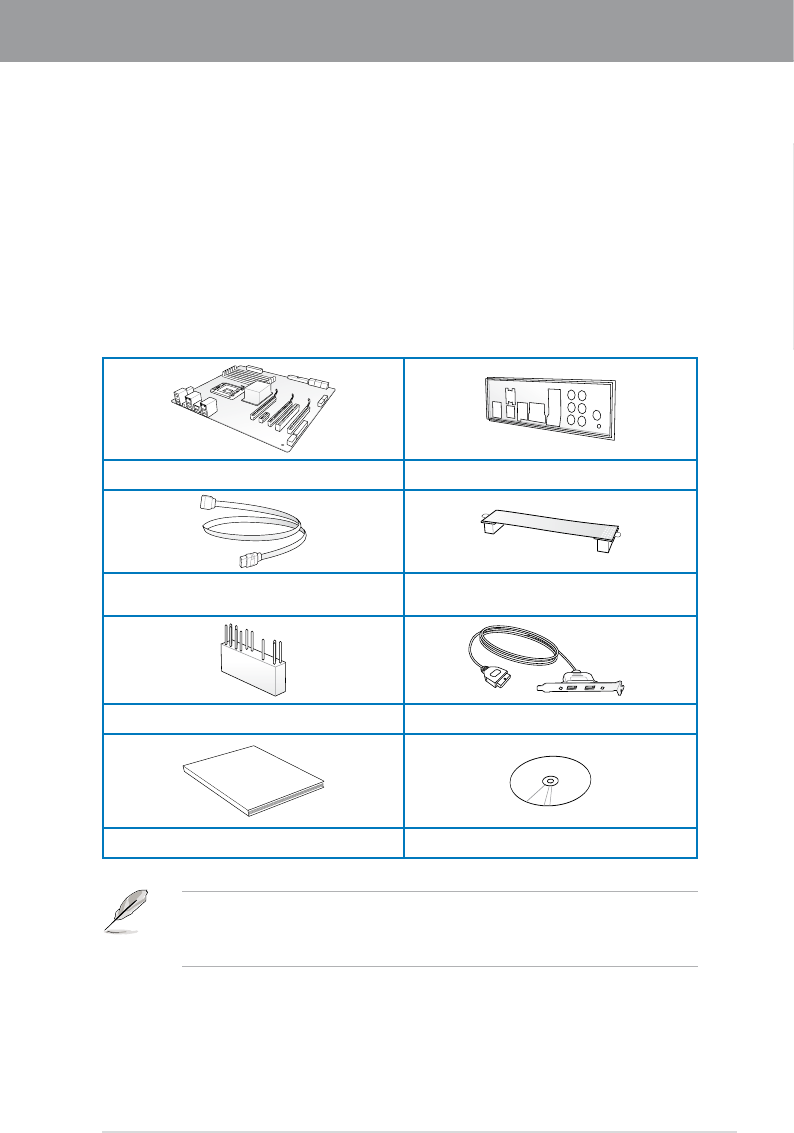
1.2 Package contents
Check your motherboard package for the following items.
• If any of the above items is damaged or missing, contact your retailer.
• The illustrated items above are for reference only. Actual product specications may
vary with different models.
ASUS P8Z68-V PRO motherboard 1 x ASUS Q-Shield
2 x Serial ATA 3.0 Gb/s cables
2 x Serial ATA 6.0 Gb/s cables 1 x ASUS SLI™ bridge connector
1 x 2-in-1 ASUS Q-Connector kit 1x ASUS USB 3.0 Bracket
User Manual
User guide Support DVD

1-2 Chapter 1: Product Introduction
Chapter 1
1.3 Special features
1.3.1 Product highlights
LGA1155 socket for Intel® Second Generation Core™ i7 / Core™ i5 / Core™ i3
Processors
This motherboard supports the Intel® second generation Core™ i7 / Core™ i5 / Core™ i3
processors in LGA1155 package with memory and PCI Express controllers integrated to
support 2-channel (4 DIMMs) DDR3 memory and 16 PCI Express 2.0 lanes. This provides
great graphics performance. Intel® second generation Core™ i7 / Core™ i5 / Core™ i3
processors are among the most powerful and energy efcient CPUs in the world.
Intel® Z68 Express Chipset
The Intel® Z68 Express Chipset is the latest single-chipset design to support the new 1155
socket Intel® Core™ i7 / Core™ i5 / Core™ i3 second generation processors. It uses serial
point-to-point links, which allows increased bandwidth and stability, and provides an improved
performance. It also provides two SATA 6.0 Gb/s and four SATA 3.0 Gb/s ports for faster
data retrieval at double the bandwidth of current bus systems. Moreover, Intel® Z68 Express
Chipset also supports iGPU function, letting users enjoy the latest Intel integrated graphic
performance.
Intel® Smart Response Technology
Intel® Smart Response Technology boosts overall system performance. It uses an installed
fast SSD (min 18.6GB available capacity) as a cache for frequently accessed data.
Harnesses the combination of SSD-like performance and response with hard drive capacity,
running 4X faster than an HDD-only system.
* Intel® Smart Response Technology supports Windows® 7/ Vista operating systems.
** Intel® Smart Response Technology is supported by 2nd generation Intel® Core™ processor
family.
*** Operating systems must be installed on the HDD to launch Intel® Smart Response Technology.
The capacity of the SSD is reserved for caching function.
Quad-GPU SLI™ and Quad-GPU CrossFireX™ Support
The motherboard’s powerful Intel® Z68 platform optimizes PCIe allocation in multiple-GPU
congurations of either SLI™ or CrossFireX™. This allows you to enjoy a never
before-experienced brand new gaming style.
Dual-Channel DDR3 2200(O.C.) / 2133(O.C.) / 1866(O.C.) / 1600 / 1333 / 1066 Support
The motherboard supports DDR3 memory that features data transfer rates of 2200(O.C.) /
2133(O.C.) / 1866 / 1600/ 1333 / 1066 MHz to meet the higher bandwidth requirements
of the latest 3D graphics, multimedia, and Internet applications. The dual-channel DDR3
architecture enlarges the bandwidth of your system memory to boost system performance.
* Due to CPU behavior, DDR3 2200/2000/1800 MHz memory module will run at DDR3 2133/1866/1600
MHz frequency as default.

ASUS P8Z68-V PRO 1-3
Chapter 1
Complete USB 3.0 Integration
ASUS facilitates strategic USB 3.0 accessibility for both the front and rear panel - 4 USB 3.0
ports in total. Experience the latest plug & play connectivity at speeds up to 10 times faster
than USB 2.0. The P8Z68-V PRO affords greater convenience to high speed connectivity.
Extra SATA 6.0 Gb/s Support
The Intel® Z68 Express Chipset natively supports the next-generation Serial ATA (SATA)
interface, delivering up to 6.0 Gb/s data transfer. ASUS provides extra SATA 6.0 Gb/s ports
with enhanced scalability, faster data retrieval, and double the bandwidth of current bus
systems.
1.3.2 Dual Intelligent Processors 2 with DIGI+ VRM
The world’s rst Dual Intelligent Processors from ASUS pioneered the use of two onboard
chips—EPU (Energy Processing Unit) and TPU (TurboV Processing Unit). New generation
Dual Intelligent Processors 2 with DIGI+ VRM digital power design launch control into a new
era, empowering users with superior exibility and perfect precision to ensure optimized
performance, extreme system stability and greater power efciency.
DIGI+ VRM
New ASUS DIGI+ VRM upgrades motherboard power delivery to a digital standard. The
16 digital architecture delivers twice the precision power. With iGPU on P8Z68-V PRO
motherboards, DIGI+ VRM intelligently adjust Vcore PWM, integrated graphics voltages
and frequency modulation to minimize power loss through BIOS tuning and the exclusive
user interface. It increases overclocking range while performance reaches its full potential,
adjusting frequencies dynamically and cutting EM interference by half to enhance system
stability through enabled spread spectrum. The DIGI+ VRM digital power design empowers
users with superior exibility and perfect precision to ensure optimized performance. extreme
system stability, and greater power efciency.
2X Precise Power Control
ASUS DIGI+ VRM delivers twice the precision power, intelligently adjusting PWM voltage and
frequency modulation to minimize power loss while performance reaches its full potential.
2X Less Radiation
ASUS DIGI+ VRM adjusts frequencies dynamically, cutting radiation by half to enhance
system stability through enabling spread spectrum.
TPU
Unleash your performance with ASUS' simple onboard switch or AI Suite II utility. The TPU
chip offers precise voltage control and advanced monitoring through Auto Tuning and TurboV
functions. Auto Tuning offers a user friendly way to automatically optimize the system for fast,
yet stable clock speeds, while TurboV enables unlimited freedom to adjust CPU frequencies
and ratios for optimized performance in diverse situations.

1-4 Chapter 1: Product Introduction
Chapter 1
EPU
Tap into the world's rst real-time PC power saving chip through a simple onboard switch or
AI Suite II utility. Get total system-wide energy optimization by automatically detecting current
PC loadings and intelligently moderating power consumption. This also reduces fan noise
and extends component longevity!
1.3.3 ASUS Exclusive Features
GPU Boost
GPU Boost accelerates the integrated CPU for extreme graphics performance. The user-
friendly interface facilitates exible frequency adjustments. It easily delivers stable system-
level upgrades for every use.
BT GO! (Bluetooth)
Onboard Bluetooth wireless design enables smart connectivity to Bluetooth devices with
no additional adapter. ASUS BT GO! comes with 7 special functions that offer signicant
breakthrough in Bluetooth evolution, including Folder Sync, BT Transfer, BT Turbo Remote,
BT-to-Net, Music Player, Shot and Send, and Personal Manager. All are accessible through
the exclusive, user-friendly ASUS interface.
MemOK!
MemOK! quickly ensures memory boot compatibility. This remarkable memory rescue tool
requires a mere push of a button to patch memory issues. MemOK! determines failsafe
settings and dramatically improves your system boot success.
AI Suite II
With its user-friendly interface, ASUS AI Suite II consolidates all the exclusive ASUS features
into one simple to use software package. It allows users to supervise overclocking, energy
management, fan speed control, voltage and sensor readings, and even interact with mobile
devices via Bluetooth. This all-in-one software offers diverse and ease to use functions, with
no need to switch back and forth between different utilities.
1.3.4 ASUS Quiet Thermal Solution
ASUS Fanless Design—Heat-sink solution
The stylish heatsink features 0-dB thermal solution that offers users a noiseless PC
environment. Not only the beautiful shape upgrades the visual enjoyment for motherboard
users, but also the heatsink design lowers the temperature of the chipset and power phase
area through high efcient heat-exchange. Combined with usability and aesthetics, the ASUS
stylish heatsink will give users an extremely silent and cooling experience with the elegant
appearance!
ASUS Fan Xpert
ASUS Fan Xpert intelligently allows you to adjust both the CPU and chassis fan speeds
according to different ambient temperatures caused by different climate conditions in different
geographic regions and your PC’s loading. The built-in variety of useful proles offer exible
controls of fan speed to achieve a quiet and cool environment.

ASUS P8Z68-V PRO 1-5
Chapter 1
1.3.5 ASUS EZ DIY
ASUS UEFI BIOS (EZ Mode)
ASUS UEFI BIOS offers a user-friendly interface that goes beyond traditional keyboard-only
BIOS controls to enable more exible and convenient mouse input. Users can easily navigate
the UEFI BIOS with the smoothness of their operating system. Quick and simple overclocking
and setup sharing is facilitated by the F12 hotkey BIOS snapshot feature. The exclusive EZ
Mode displays frequently-accessed setup info, while the Advanced Mode is for experienced
performance enthusiasts that demand far more intricate system control, including detailed
DRAM information.
Supports hard drives over 2.2TB
ASUS UEFI BIOS natively supports hard drives larger than 2.2TB in 64-bit, with full storage
space utilization helping deliver far more exciting computing than traditional BIOS versions.
ASUS Q-Design
ASUS Q-Design enhances your DIY experience. All of Q-LED, Q-Slot and Q-DIMM design
speed up and simplify the DIY process!
ASUS Q-Shield
The specially designed ASUS Q-Shield does without the usual "ngers" - making it
convenient and easy to install. With better electric conductivity, it ideally protects your
motherboard against static electricity and shields it against Electronic Magnetic Interference
(EMI).
ASUS Q-Connector
ASUS Q-Connector allows you to easily connect or disconnect the chassis front panel cables
to the motherboard. This unique module eliminates the trouble of connecting the system
panel cables one at a time and avoiding wrong cable connections.
ASUS EZ-Flash 2
ASUS EZ Flash 2 is a user-friendly utility that allows you to update the BIOS without using a
bootable oppy disk or an OS-based utility.
1.3.6 Other special features
LucidLogix® Virtu™
LucidLogix® Virtu™ is designed for the Intel® Sandy Bridge platform’s powerful integrated
graphics. Its GPU virtualization dynamically assigns tasks to the best available graphics
resources based on power, performance and system load on Windows® 7 based PCs. It
allows users to fully utilize the unique capabilities of advanced Sandy Bridge multimedia
features alongside the high end 3D rendering performance provided by installed graphics
cards. When no discrete graphics are needed, the graphics card is put in idle mode to lower
utilization, heat, fan speed and power draw down to near zero, making the system more
environmentally-friendly. For users with diverse needs, LucidLogix® Virtu™ GPU virtualization
provides great exibility and efciency.
*LucidLogix® VirtuTM supports Windows® 7 operating system.
**Intel® Quick Sync Video feature is supported by 2nd generation Intel® CoreTM processor family.

1-6 Chapter 1: Product Introduction
Chapter 1
DTS Surround Sensation UltraPC
DTS Surround Sensation UltraPC delivers exceptional 5.1 surround experience through the
most common PC audio setups—your existing stereo speakers or headphones. In addition
to virtual surround, “Bass enhancement” provides stronger low frequency bass sound, and
“Voice clarication” provides clear human dialogue even with loud background sound. With
these technologies, you may experience a better home-theater audio with ease.
ErP Ready
The motherboard is European Union’s Energy-related Products (ErP) ready, and ErP requires
products to meet certain energy efciency requirements in regards to energy consumptions.
This is in line with ASUS vision of creating environment-friendly and energy-efcient products
through product design and innovation to reduce carbon footprint of the product and thus
mitigate environmental impacts.

ASUS P8Z68-V PRO 2-1
2.1 Before you proceed
Take note of the following precautions before you install motherboard components or change
any motherboard settings.
• Unplug the power cord from the wall socket before touching any component.
• Before handling components, use a grounded wrist strap or touch a safely grounded
object or a metal object, such as the power supply case, to avoid damaging them due
to static electricity.
• Hold components by the edges to avoid touching the ICs on them.
• Whenever you uninstall any component, place it on a grounded antistatic pad or in the
bag that came with the component.
• Before you install or remove any component, ensure that the ATX power supply is
switched off or the power cord is detached from the power supply. Failure to do so
may cause severe damage to the motherboard, peripherals, or components.
Chapter 2: Hardware information
Chapter 2
2-2 Chapter 2: Hardware information
Chapter 2
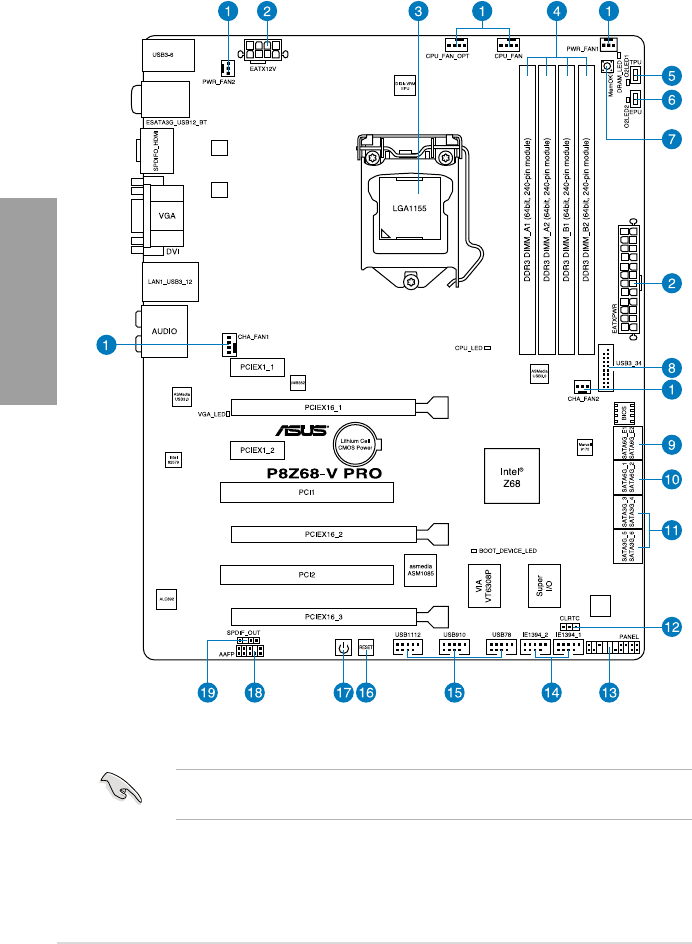
Refer to 2.2.8 Internal connectors and 2.3.10 Rear panel connection for more
information about rear panel connectors and internal connectors.
2.2 Motherboard overview
2.2.1 Motherboard layout

ASUS P8Z68-V PRO 2-3
Chapter 2
Layout contents
Connectors/Jumpers/Slots Page
1. CPU, chassis, and power fan connectors (4-pin CPU_FAN
/CPU_FAN_OPT, 4-pin CHA_FAN1, 3-pin CHA_FAN2,
3-pin PWR_FAN1-2)
2-28
2. ATX power connectors (24-pin EATXPWR, 8-pin EATX12V) 2-30
3. LGA1155 CPU socket 2-4
4. DDR3 DIMM slots 2-5
5. TPU switch 2-18
6. EPU switch 2-19
7. MemOK! switch 2-17
8. USB 3.0 connector (20-1 pin USB3_34) 2-25
9. Marvell® Serial ATA 6.0 Gb/s connectors
(7-pin SATA6G_E1/E2 [navy blue])
2-25
10. Intel® Z68 Serial ATA 6.0 Gb/s connectors
(7-pin SATA6G_1/2 [gray])
2-24
11. Intel® Z68 Serial ATA 3.0 Gb/s connectors
(7-pin SATA3G_3–6 [blue])
2-23
12. Clear RTC RAM (3-pin CLRTC) 2-22
13. System panel connector (20-8 pin PANEL) 2-31
14. IEEE 1394a port connector (10-1 pin IE1394_1-2) 2-27
15. USB 2.0 connectors (10-1 pin USB78, USB910, USB1112) 2-26
16. Reset switch 2-16
17. POWER-on switch 2-16
18. Front panel audio connector (10-1 pin AAFP) 2-29
19. Digital audio connector (4-1 pin SPDIF_OUT) 2-27
2-4 Chapter 2: Hardware information
Chapter 2
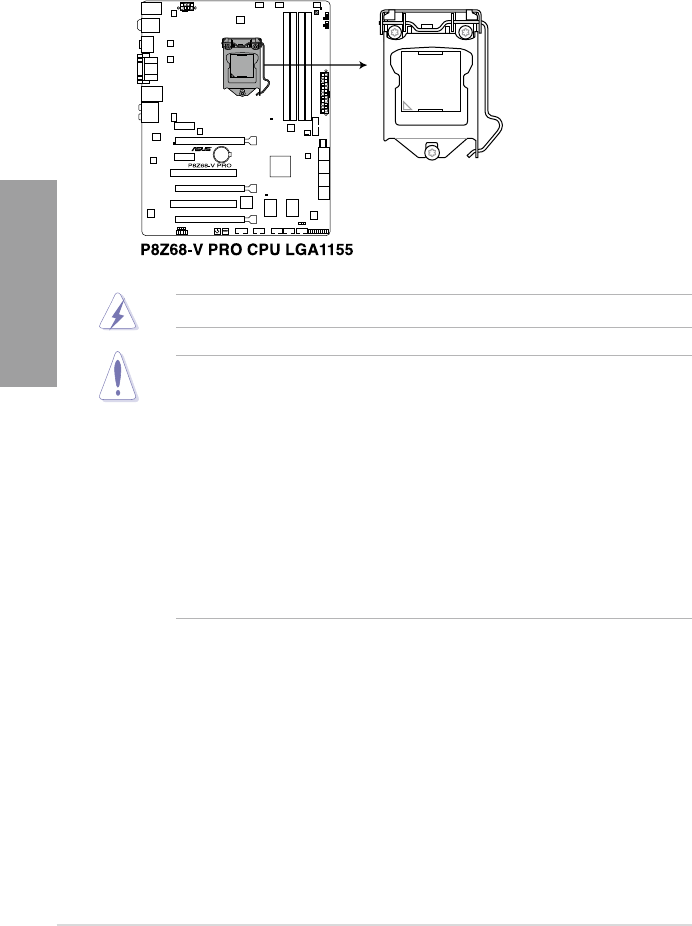
2.2.2 Central Processing Unit (CPU)
The motherboard comes with a surface mount LGA1155 socket designed for the Intel®
2nd Generation Core™ i7 / Core™ i5 / Core™ i3 Processors.
• The LGA1156 CPU is incompatible with the LGA1155 socket. DO NOT install a
LGA1156 CPU on the LGA1155 socket.
• Upon purchase of the motherboard, ensure that the PnP cap is on the socket and
the socket contacts are not bent. Contact your retailer immediately if the PnP cap
is missing, or if you see any damage to the PnP cap/socket contacts/motherboard
components. ASUS will shoulder the cost of repair only if the damage is shipment/
transit-related.
• Keep the cap after installing the motherboard. ASUS will process Return Merchandise
Authorization (RMA) requests only if the motherboard comes with the cap on the
LGA1155 socket.
• The product warranty does not cover damage to the socket contacts resulting from
incorrect CPU installation/removal, or misplacement/loss/incorrect removal of the PnP
cap.
Ensure that all power cables are unplugged before installing the CPU.
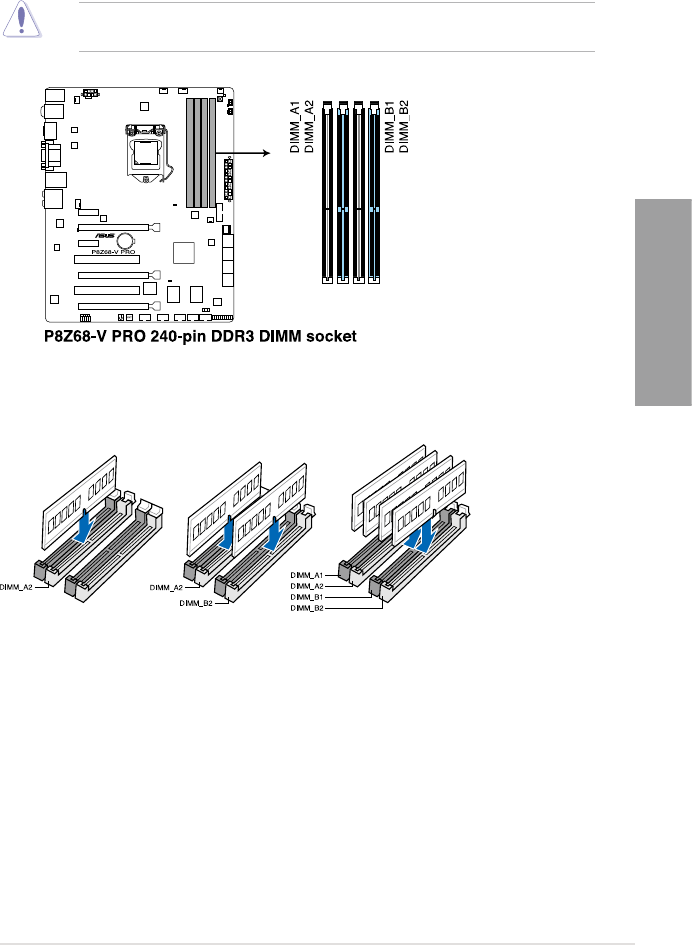
ASUS P8Z68-V PRO 2-5
Chapter 2
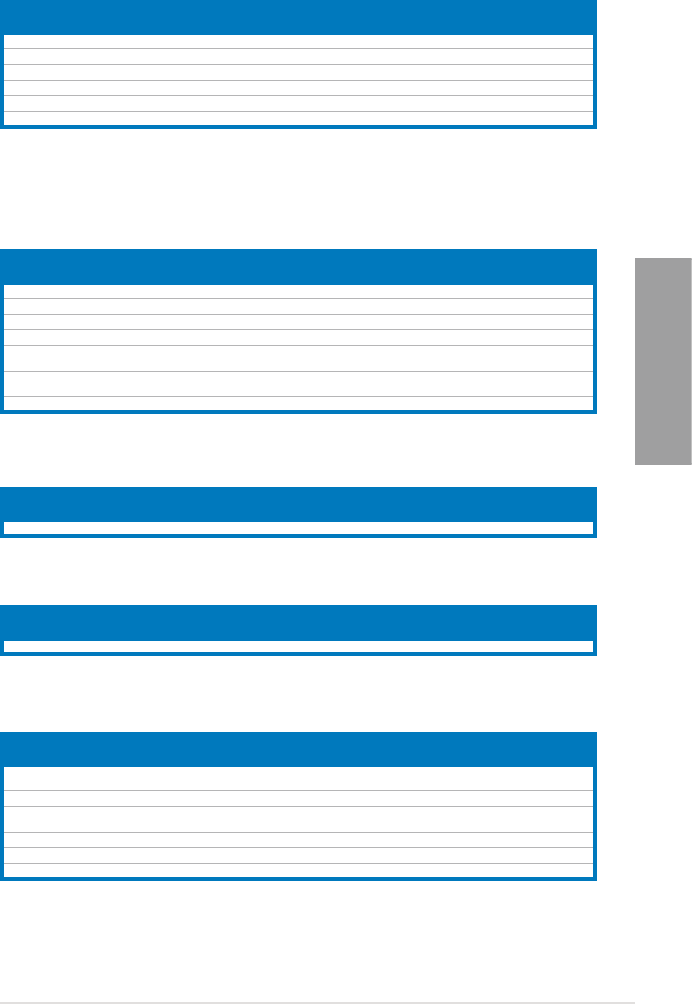
Recommended memory congurations
2.2.3 System memory
The motherboard comes with four Double Data Rate 3 (DDR3) Dual Inline Memory Modules
(DIMM) slots.
A DDR3 module is notched differently from a DDR or DDR2 module. DO NOT install a DDR
or DDR2 memory module to the DDR3 slot.

2-6 Chapter 2: Hardware information
Chapter 2
Memory congurations
You may install 1GB, 2GB, 4GB, and 8GB unbuffered and non-ECC DDR3 DIMMs into the
DIMM sockets.
• You may install varying memory sizes in Channel A and Channel B. The system maps
the total size of the lower-sized channel for the dual-channel conguration. Any excess
memory from the higher-sized channel is then mapped for single-channel operation.
• Due to CPU behavior, DDR3 2200/2000/1800 MHz memory module will run at DDR3
2133/1866/1600 MHz frequency as default.
• According to Intel CPU spec, DIMM voltage below 1.65V is recommended to protect
the CPU.
• Always install DIMMs with the same CAS latency. For optimum compatibility, we
recommend that you obtain memory modules from the same vendor.
• Due to the memory address limitation on 32-bit Windows OS, when you install 4GB
or more memory on the motherboard, the actual usable memory for the OS can be
about 3GB or less. For effective use of memory, we recommend that you do any of the
following:
- Use a maximum of 3GB system memory if you are using a 32-bit Windows OS.
- Install a 64-bit Windows OS when you want to install 4GB or more on the
motherboard.
For more details, refer to the Microsoft® support site at
http://support.microsoft.com/kb/929605/en-us.
• This motherboard does not support DIMMs made up of 512Mb (64MB) chips or less
(Memory chip capacity counts in Megabit, 8 Megabit/Mb = 1 Megabyte/MB).
• The default memory operation frequency is dependent on its Serial Presence Detect
(SPD), which is the standard way of accessing information from a memory module.
Under the default state, some memory modules for overclocking may operate at a
lower frequency than the vendor-marked value. To operate at the vendor-marked
or at a higher frequency, refer to section 3.4 Ai Tweaker menu for manual memory
frequency adjustment.
• For system stability, use a more efcient memory cooling system to support a full
memory load (4 DIMMs) or overclocking condition.
ASUS P8Z68-V PRO 2-7
Chapter 2
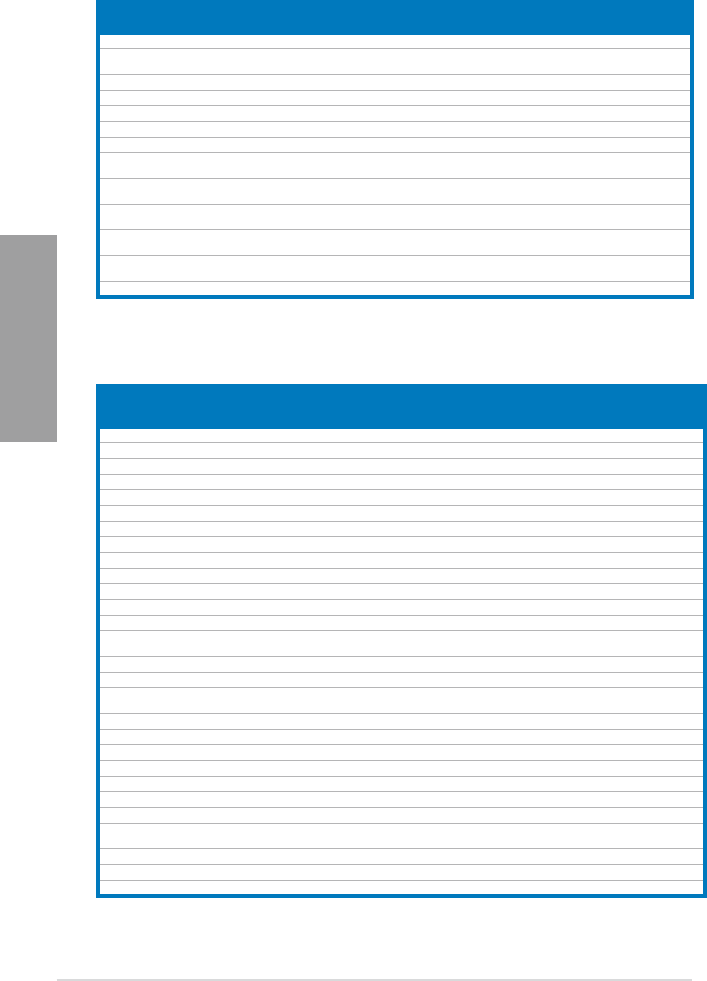
P8Z68-V PRO Motherboard Qualied Vendors Lists (QVL)
DDR3-2200 (O.C.) MHz capability
Vendors Part No. Size SS/
DS
Chip
Brand
Chip
NO. Timing Voltage DIMM socket support (Optional)
1 DIMM 2 DIMM 4 DIMM
G.SKILL F3-17600CL7D-4GBFLS(XMP) 4G ( 2x 2G ) DS - - 7-10-10-28 1.65 • •
G.SKILL F3-17600CL8D-4GBPS(XMP) 4GB(2 x 2GB) DS - - 8-8-8-24 1.65 • •
G.SKILL F3-17600CL9D-4GBTDS(XMP) 4GB(2 x 2GB) DS - - 9-9-9-24 1.65 • •
GEIL GET34GB2200C9DC(XMP) 4GB ( 2x 2GB ) DS - - 9-10-9-28 1.65 • •
KINGMAX FLKE85F-B8KHA(XMP) 4G ( 2x 2G ) DS - - - 1.5~1.7 • •
KINGMAX FLKE85F-B8KJAA-FEIS(XMP) 4GB ( 2x 2GB ) DS Kingmax N/A -- • •
P8Z68-V PRO Motherboard Qualied Vendors Lists (QVL)
DDR3-2133 (O.C.) MHz capability
Vendors Part No. Size SS/
DS
Chip
Brand
Chip
NO. Timing Voltage DIMM socket support (Optional)
1 DIMM 2 DIMM 4 DIMM
CORSAIR CMGTX3(XMP) 2GB DS - - 9-11-9-27 1.65 • •
G.SKILL F3-19200CL9D-4GBPIS(XMP) 4G ( 2x 2G ) DS - - 9-11-11-31 1.65 • •
G.SKILL F3-19200CL9D-4GBPIS(XMP) 4G ( 2x 2G ) DS - - 9-11-9-28 1.65 • •
GEIL GET34GB2400C9DC(XMP) 4GB ( 2x 2GB ) DS - - 9-11-9-27 1.65 • •
Transcend TX2400KLU-4GK
(381850)(XMP) 2GB DS - - 1.65 • • •
Transcend TX2400KLU-
4GK(374243)(XMP) 2GB DS - - 1.65 • •
Patriot PVV34G2400C9K(XMP) 4GB ( 2x 2GB ) DS - - 9-11-9-27 1.66 • •
* The above QVL is for the DDR3 2400 MHz memory module. Due to CPU behavior, DDR3 2400 MHz
memory module will run at DDR3 2133 MHz frequency.
Vendors Part No. Size SS/
DS
Chip
Brand
Chip
NO. Timing Voltage DIMM socket support (Optional)
1 DIMM 2 DIMM 4 DIMM
KINGSTON KHX2333C9D3T1K2/4GX(XMP) 4GB ( 2x 2GB ) DS - - - 1.65 • •
* The above QVL is for the DDR3 2333 MHz memory module. Due to CPU behavior, DDR3 2333 MHz
memory module will run at DDR3 2133 MHz frequency..
Vendors Part No. Size SS/
DS
Chip
Brand
Chip
NO. Timing Voltage DIMM socket support (Optional)
1 DIMM 2 DIMM 4 DIMM
KINGSTON KHX2250C9D3T1K2/4GX(XMP) 4GB ( 2x 2GB ) DS - - - 1.65 • • •
* The above QVL is for the DDR3 2250 MHz memory module. Due to CPU behavior, DDR3 2250 MHz
memory module will run at DDR3 2133 MHz frequency.
Vendors Part No. Size SS/
DS
Chip
Brand
Chip
NO. Timing Voltage DIMM socket support (Optional)
1 DIMM 2 DIMM 4 DIMM
G.SKILL F3-17600CL7D-
4GBFLS(XMP)
4G ( 2x 2G ) DS - - 7-10-10-28 1.65 • •
G.SKILL F3-17600CL8D-4GBPS(XMP) 4GB(2 x 2GB) DS - - 8-8-8-24 1.65 • •
G.SKILL F3-17600CL9D-
4GBTDS(XMP)
4GB(2 x 2GB) DS - - 9-9-9-24 1.65 • •
GEIL GET34GB2200C9DC(XMP) 4GB ( 2x 2GB ) DS - - 9-10-9-28 1.65 • •
KINGMAX FLKE85F-B8KHA(XMP) 4G ( 2x 2G ) DS - - - 1.5~1.7 • •
KINGMAX FLKE85F-B8KJAA-FEIS(XMP) 4GB ( 2x 2GB ) DS Kingmax N/A - - • •
* The above QVL is for the DDR3 2200 MHz memory module. Due to CPU behavior, DDR3 2200 MHz
memory module will run at DDR3 2133 MHz frequency.
* The memory modules in 2200MHz and above are supported by this motherboard, however, the
actual frequency support varies depending on the O.C. margin of the installed CPU.
2-8 Chapter 2: Hardware information
Chapter 2
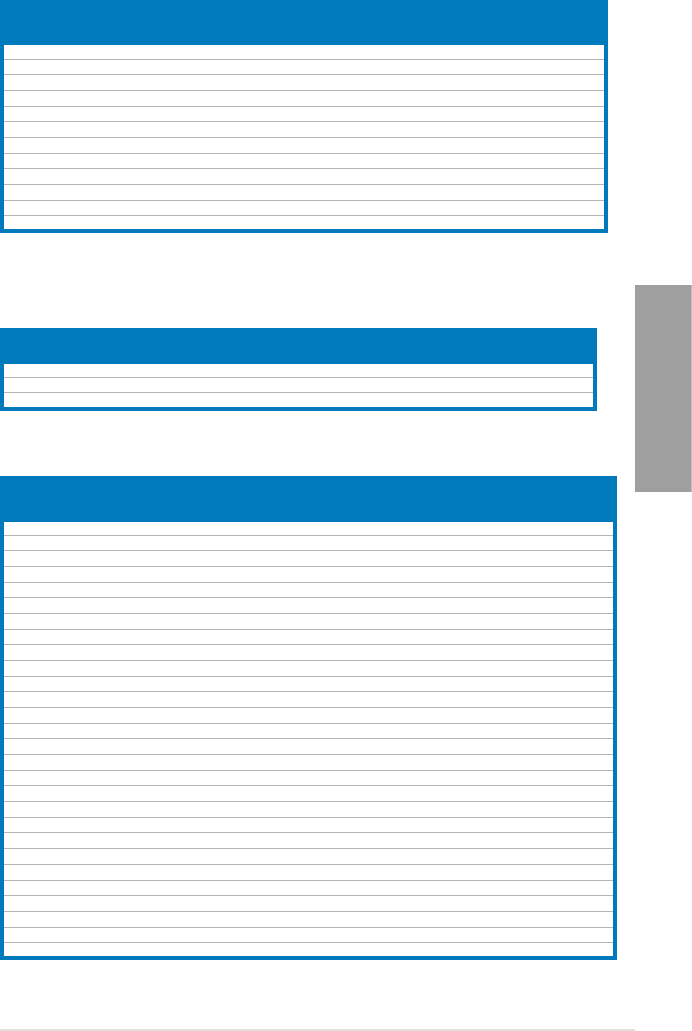
P8Z68-V PRO Motherboard Qualied Vendors Lists (QVL)
DDR3-1866 (O.C.) MHz capability
P8Z68-V PRO Motherboard Qualied Vendors Lists (QVL)
DDR3-2133 (O.C.) MHz capability (continued)
Vendors Part No. Size SS/
DS
Chip
Brand
Chip
NO. Timing Voltage DIMM socket support (Optional)
1 DIMM 2 DIMM 4 DIMM
CORSAIR CMT4GX3M2A2133C9(XMP) 4GB ( 2x 2GB ) DS - - 9-10-9-24 1.65 • • •
G.SKILL F3-17066CL9D-
4GBTDS(XMP)
4GB ( 2x 2GB ) DS - - - 1.65 • •
G.SKILL F3-17066CL8D-4GBPS(XMP) 4GB(2 x 2GB) DS - - 8-8-8-24 1.65 • •
G.SKILL F3-17066CL9D-4GBTD(XMP) 4GB(2 x 2GB) DS - - 9-9-9-24 1.65 •
G.SKILL F3-17066CL9T-6GB-T 6GB(3 x 2GB) DS - - 9-9-9-24 1.65 • •
GEIL GE34GB2133C9DC(XMP) 4GB(2 x 2GB) DS - - 9-9-9-28 1.65 •
GEIL GU34GB2133C9DC(XMP) 4GB(2 x 2GB) DS - - 9-9-9-28 1.65 •
KINGSTON KHX2133C9AD3T1K2/
4GX(XMP)
4GB ( 2x 2GB ) DS - - - 1.65 • •
KINGSTON KHX2133C9AD3W1K2/
4GX(XMP)
4GB ( 2x 2GB ) DS - - 9 1.65 • •
KINGSTON KHX2133C9AD3X2K2/
4GX(XMP)
4GB ( 2x 2GB ) DS - - 9 1.65 • •
KINGSTON KHX2133C9D3T1K2/
4GX(XMP)
4GB(2 x 2GB) DS - - 9 1.65 • •
KINGSTON KHX2133C9AD3T1FK4/
8GX(XMP)
8GB ( 4x 2GB ) DS - - 9 1.65 • •
Patriot PVV34G2133C9K(XMP) 4GB ( 2x 2GB ) DS - - 9-11-9-27 1.66 • •
Vendors Part No. Size SS/
DS
Chip
Brand Chip NO. Timing Voltage
DIMM socket support
(Optional)
1 DIMM 2 DIMM 4 DIMM
Apacer 78.AAGD5.9KD(XMP) 6GB(3 x 2GB) DS - - 9-9-9-27 - • • •
CORSAIR CMT6GX3M3A2000C8(XMP) 6GB ( 3x 2GB ) DS - - 8-9-8-24 1.65 • • •
Crucial BL12864BE2009.8SFB3(EPP) 1GB SS - - 9-9-9-28 2 • •
G.SKILL F3-16000CL9D-4GBRH(XMP) 4GB(2 x 2GB) DS - - 9-9-9-24 1.65 • • •
G.SKILL F3-16000CL9D-4GBTD(XMP) 4GB(2 x 2GB) DS - - 9-9-9-24 1.65 • • •
G.SKILL F3-16000CL7T-6GBPS(XMP) 6GB(3 x 2GB) DS - - 7-8-7-20 1.65 • •
G.SKILL F3-16000CL9T-6GBPS(XMP) 6GB(3 x 2GB) DS - - 9-9-9-24 1.65 • •
G.SKILL F3-16000CL9T-6GBTD(XMP) 6GB(3 x 2GB) DS - - 9-9-9-24 1.6 • • •
G.SKILL F3-16000CL7Q-8GBFLS(XMP) 8GB(4 x 2GB) DS - - 7-9-7-24 1.65 • •
GEIL GUP34GB2000C9DC(XMP) 4GB ( 2x 2GB ) DS - - 9-9-9-28 1.65 • • •
GEIL GE38GB2000C9QC(XMP) 8GB(4 x 2GB) DS - - 9-9-9-28 1.65 • •
KINGSTON KHX2000C9AD3T1K3/3GX(XMP) 3GB ( 3x 1GB ) SS - - - 1.65 • • •
KINGSTON KHX2000C9AD3T1K2/4GX(XMP) 4GB ( 2x 2GB ) DS - - 9 1.65 • • •
KINGSTON KHX2000C9AD3W1K2/
4GX(XMP)
4GB ( 2x 2GB ) DS - - 9 1.65 • •
KINGSTON KHX2000C9AD3T1K3/6GX(XMP) 6GB ( 3x 2GB ) DS - - 9 1.65 • • •
KINGSTON KHX2000C9AD3T1K3/6GX(XMP) 6GB ( 3x 2GB ) DS - - - 1.65 • • •
KINGSTON KHX2000C9AD3W1K3/
6GX(XMP)
6GB ( 3x 2GB ) DS - - 9 1.65 • •
OCZ OCZ3B2000LV6GK 6GB(3 x 2GB) DS - - 7-8-7 1.65 • •
Transcend TX2000KLN-8GK (388375)(XMP) 4GB DS - - 1.6 • • •
AEXEA AXA3ES2G2000LG28V(XMP) 2GB DS - - - 1.65 • • •
AEXEA AXA3ES4GK2000LG28V(XMP) 4GB ( 2x 2GB ) DS - - - 1.65 • • •
Gingle 9CAASS37AZZ01D1 2GB DS - - 9-9-9-24 - • •
Patriot PX7312G2000ELK(XMP) 12GB ( 3x 4GB ) DS - - 9-11-9-27 1.65 • • •
Patriot PVT36G2000LLK(XMP) 6GB(3 x 2GB) DS - - 8-8-8-24 1.65 • • •
Silicon
Power
SP002GBLYU200S02(XMP) 2GB DS - - - - • • •
Team TXD32048M2000C9(XMP) 2GB DS Team T3D1288RT-20 9-9-9-24 1.5 • • •
Team TXD32048M2000C9-L(XMP) 2GB DS Team T3D1288LT-20 9-9-9-24 1.5 • •
Team TXD32048M2000C9-L(XMP) 2GB DS Team T3D1288RT-20 9-9-9-24 1.6 • • •
* The above QVL is for the DDR3 2000 MHz memory module. Due to CPU behavior, DDR3 2000 MHz
memory module will run at DDR3 1866 MHz frequency.
ASUS P8Z68-V PRO 2-9
Chapter 2
P8Z68-V PRO Motherboard Qualied Vendors Lists (QVL)
DDR3-1600 MHz capability
Vendors Part No. Size SS/
DS
Chip
Brand Chip NO. Timing Voltage
DIMM socket support
(Optional)
1 DIMM 2 DIMM 4 DIMM
CORSAIR TR3X6G1866C9DVer4.1(XMP) 6GB(3 x 2GB) DS - - 9-9-9-24 1.65 • •
CORSAIR CMZ8GX3M2A1866C9(XMP) 8GB ( 2x 4GB ) DS - - 9-10-9-27 1.5 • • •
G.SKILL F3-15000CL9D-4GBRH (XMP) 4GB(2 x 2GB) DS - - 9-9-9-24 1.65 • • •
G.SKILL F3-15000CL9D-4GBTD(XMP) 4GB(2 x 2GB) DS - - 9-9-9-24 1.65 • • •
KINGSTON KHX1866C9D3T1K3/3GX(XMP) 3GB ( 3x 1GB ) SS - - - 1.65 • • •
KINGSTON KHX1866C9D3T1K3/6GX(XMP) 6GB(3 x 2GB) DS -- 9 1.65 •
OCZ OCZ3RPR1866C9LV3GK 3GB ( 3x 1GB ) DS - - 9-9-9 1.65 • •
OCZ OCZ3G1866LV4GK 4GB ( 2x 2GB ) DS - - 10-10-10 1.65 • •
OCZ OCZ3P1866C9LV6GK 6GB(3 x 2GB) DS - - 9-9-9 1.65 •
OCZ OCZ3RPR1866C9LV6GK 6GB(3 x 2GB) DS - - 9-9-9 1.65 • •
Super Talent W1866UX2G8(XMP) 2GB(2 x 1GB) SS - - 8-8-8-24 - • • •
Team TXD32048M1866C9(XMP) 2GB DS Team T3D1288RT-16 9-9-9-24 1.65 • ••
Vendors Part No. Size SS/
DS
Chip
Brand Chip NO. Timing Voltage
DIMM socket support
(Optional)
1 DIMM 2 DIMM 4 DIMM
CORSAIR CMZ8GX3M2A1600C8(XMP) 8GB ( 2x 4GB ) DS - - 8-8-8-24 1.5 • • •
CORSAIR CMZ8GX3M2A1600C9(XMP) 8GB ( 2x 4GB ) DS - - 9-9-9-24 1.5 • • •
Crucial BL12864BN1608.8FF(XMP) 2GB( 2x 1GB ) SS - - 8-8-8-24 1.65 • • •
Crucial BL25664BN1608.16FF(XMP) 2GB DS - - 8-8-8-24 1.65 • • •
G.SKILL F3-12800CL9D-4GBNQ(XMP) 4GB ( 2x 2GB ) DS - - 9-9-9-24 1.5 • • •
G.SKILL F3-12800CL8D-8GBECO(XMP) 8GB ( 2x4GB ) DS - - 8-8-8-24 1.35 • • •
GEIL GUP34GB1600C7DC(XMP) 4GB ( 2x 2GB ) DS - - 7-7-7-24 1.6 • • •
GEIL GVP38GB1600C8QC(XMP) 8GB ( 4x 2GB ) DS - - 8-8-8-28 1.6 • • •
KINGMAX FLGD45F-B8MF7(XMP) 1GB SS - - - • • •
KINGSTON KHX1600C9D3X2K2/4GX(XMP) 4GB ( 2x 2GB ) DS - - 9 1.65 • • •
KINGSTON KHX1600C9D3K3/6GX(XMP) 6GB ( 3x 2GB ) DS - - 9 1.65 • • •
OCZ OCZ3BE1600C8LV4GK 4GB( 2x 2GB ) DS - - 8-8-8 1.65 • • •
OCZ OCZ3OB1600LV4GK 4GB(2 x 2GB) DS - - 9-9-9 1.65 • •
Super Talent WP160UX4G9(XMP) 4GB(2 x 2GB) DS - - 9 - • • •
Super Talent WB160UX6G8(XMP) 6GB(3 x 2GB) DS - - 8 - • • •
AEXEA AXA3PS2G1600S18V(XMP) 2GB DS - - - 1.65 • • •
AEXEA AXA3PS4GK1600S18V(XMP) 4GB ( 2x 2GB ) DS - - - 1.65 • • •
Asint SLZ3128M8-EGJ1D(XMP) 2GB DS Asint 3128M8-GJ1D - - • • •
EK Memory EKM324L28BP8-I16(XMP) 4GB( 2x 2GB ) DS - - 9 - • • •
EK Memory EKM324L28BP8-I16(XMP) 4GB(2 x 2GB) DS - - 9 - • • •
Elixir M2P2G64CB8HC9N-DG(XMP) 2GB DS - - - - • • •
GoodRam GR1600D364L9/2G 2GB DS GoodRam GF1008KC-JN - - • • •
KINGTIGER KTG2G1600PG3(XMP) 2GB DS - - - - • • •
Mushkin 996805(XMP) 4GB ( 2x 2GB ) DS - - 6-8-6-24 1.65 • • •
Mushkin 998805(XMP) 6GB ( 3x 2GB ) DS - - 6-8-6-24 1.65 • • •
Patriot PX7312G1600LLK(XMP) 12GB ( 3x 4GB ) DS - - 8-9-8-24 1.65 • • •
Patriot PX538G1600LLK(XMP) 8GB ( 2x 4GB ) DS - - 8-9-8-24 1.65 • • •
Team TXD32048M1600HC8-D(XMP) 2GB DS Team T3D1288RT-16 8-8-8-24 1.65 • • •
Vendors Part No. Size SS/
DS
Chip
Brand
Chip
NO. Timing Voltage DIMM socket support (Optional)
1 DIMM 2 DIMM 4 DIMM
G.SKILL F3-14400CL6D-4GBFLS(XMP) 4GB(2 x 2GB) DS - - 6-8-6-24 1.65 • • •
G.SKILL F3-14400CL9D-4GBRL(XMP) 4GB(2 x 2GB) DS - - 9-9-9-24 1.6 • • •
KINGSTON KHX1800C9D3T1K3/6GX(XMP) 6GB(3 x 2GB) DS - - - 1.65 • • •
* The above QVL is for the DDR3 1800 MHz memory module. Due to CPU behavior, DDR3 1800 MHz
memory module will run at DDR3 1600 MHz frequency.

2-10 Chapter 2: Hardware information
Chapter 2
P8Z68-V PRO Motherboard Qualied Vendors Lists (QVL)
DDR3-1333 MHz capability
Vendors Part No. Size SS/
DS Chip Brand Chip NO. Timing Voltage
DIMM socket support
(Optional)
1
DIMM
2
DIMM
4
DIMM
A-DATA SU3U1333W8G9-B 8GB DS Elpida J4208BASE-DJ-F 9 - • • •
Apacer 78.01GC6.9L0 1GB SS Apacer AM5D5808DEJSBG 9 - • • •
Apacer 78.A1GC6.9L1 2GB DS Apacer AM5D5808FEQSBG 9 - • • •
CORSAIR TW3X4G1333C9A 4GB ( 2x 2GB ) DS - - 9-9-9-24 1.5 • • •
CORSAIR CMX8GX3M2A1333C9(XMP) 8GB ( 2x 4GB ) DS - - 9-9-9-24 1.5 • • •
Crucial BL25664BN1337.16FF(XMP) 2GB DS - - 7-7-7-24 1.65 •• •
Crucial CT25664BA1339.16FF 2GB DS MICRON D9KPT 9 - • • •
ELPIDA EBJ20UF8BCF0-DJ-F 2GB SS Elpida J2108BCSE-DJ-F - - • • •
ELPIDA EBJ21UE8BDF0-DJ-F 2GB DS ELPIDA J1108BDSE-DJ-F - - • • •
G.SKILL F3-10600CL9D-4GBNT 4GB ( 2x 2GB ) DS G.SKILL D3 128M8CE9 2GB 9-9-9-24 1.5 • • •
G.SKILL F3-10666CL8D-4GBHK(XMP) 4GB ( 2x 2GB ) DS - - 8-8-8-21 1.5 • • •
GEIL GET316GB1333C9QC 16GB ( 4x 4GB
)DS - - 9-9-9-24 1.5 •• •
GEIL GVP38GB1333C7QC 8GB ( 4x 2GB ) DS - - 7-7-7-24 1.5 • • •
Hynix HMT325U6BFR8C-H9 2GB SS Hynix H5TQ2G83BFR - - • • •
Hynix HMT351U6BFR8C-H9 4GB DS Hynix H5TQ2G83BFR - - • • •
KINGMAX FLFE85F-C8KM9 2GB SS Kingmax KFC8FNMXF-BXX-15A - - • • •
KINGMAX FLFF65F-C8KM9 4GB DS Kingmax KFC8FNMXF-BXX-15A - - • •
Kingston KHX1333C9D3UK2/4GX(XMP) 4GB ( 2x 2GB ) DS - - 9 1.25 • • •
KINGSTON KVR1333D3N9K2/4G 4GB ( 2x 2GB ) DS KINGSTON D1288JEMFPGD9U - 1.5 • • •
MICRON MT8JTF25664AZ-1G4D1 2GB SS Micron D9LGK - - • • •
MICRON MT16JTF51264AZ-1G4D1 4GB DS Micron D9LGK - - • • •
OCZ OCZ3G1333LV4GK 4GB ( 2x 2GB ) DS - - 9-9-9 1.65 • • •
OCZ OCZ3G1333LV8GK 8GB ( 2x 4GB ) DS - - 9-9-9 1.65 • • •
PSC PC310600U-9-10-A0 1GB SS PSC A3P1GF3FGF - - • • •
PSC PC310600U-9-10-B0 2GB DS PSC A3P1GF3FGF - - • • •
SAMSUNG M378B5273DH0-CH9 4GB DS Samsung K4B2G08460 - - • • •
SAMSUNG M378B1G73AH0-CH9 8GB DS SAMSUNG K4B4G0846A-HCH9 - - • • •
Transcend TS256MLK64V3N (574206) 2GB SS Micron D9LGK 9 - • • •
Transcend TS512MLK64V3N (574831) 4GB DS Micron D9LGK 9 - • • •
ACTICA ACT4GHU64B8H1333H 4GB DS Hynix H5TQ2G83AFR - - • • •
ACTICA ACT4GHU72D8H1333H 4GB DS Hynix H5TQ2G83AFR(ECC) - - • • •
BUFFALO D3U1333-2G 2GB DS Elpida J1108BFBG-DJ-F - • • •
BUFFALO D3U1333-4G 4GB DS NANYA NT5CB256M8BN-CG - • •
EK Memory EKM324L28BP8-I13 4GB(2 x 2GB) DS - - 9 - • • •
Elixir M2F2G64CB88B7N-CG 2GB SS Elixir N2CB2G808N-CG - - • • •
Elixir M2F4G64CB8HB5N-CG 4GB DS Elixir N2CB2G808N-CG - - • • •
GoodRam GR1333D364L9/2G 2GB DS Qimonda IDSH1G-03A1F1C-13H - - • • •
KINGTIGER F10DA2T1680 2GB DS KINGTIGER KTG1333PS1208NST-C9 - - • • •
KINGTIGER KTG2G1333PG3 2GB DS - - - - • • •
Patriot PSD32G13332 2GB DS Prtriot PM128M8D3BU-15 9 - • •
Patriot PGS34G1333LLKA 4GB(2 x 2GB) DS - - 7-7-7-20 1.7 • • •
Silicon Power SP001GBLTE133S01 1GB SS NANYA NT5CB128M8AN-CG - - • • •
Silicon Power SP002GBLTE133S01 2GB DS NANYA NT5CB128M8AN-CG - - • • •
Team TXD31024M1333C7(XMP) 1GB SS Team T3D1288LT-13 7-7-7-21 1.75 • • •
Team TXD32048M1333C7-D(XMP) 2GB DS Team T3D1288LT-13 7-7-7-21 1.5-1.6 • • •
ASUS P8Z68-V PRO 2-11
Chapter 2
P8Z68-V PRO Motherboard Qualied Vendors Lists (QVL)
DDR3-1066 MHz capability
Vendors Part No. Size SS/
DS Chip Brand Chip NO. Timing Voltage
DIMM socket support
(Optional)
1 DIMM 2 DIMM 4 DIMM
Crucial CT12864BA1067.8FF 1GB SS MICRON D9KPT 7 -
•••
Crucial CT12864BA1067.8SFD 1GB SS MICRON D9JNL 7 - • • •
Crucial CT12872BA1067.9FF 1GB SS MICRON D9KPT(ECC) 7 - • • •
Crucial CT25664BA1067.16FF 2GB DS MICRON D9KPT 7 - • • •
Crucial CT25664BA1067.16SFD 2GB DS MICRON D9JNL 7 - • • •
Crucial CT25672BA1067.18FF 2GB DS MICRON D9KPT(ECC) 7 - •• •
ELPIDA EBJ10UE8BAW0-AE-E 1GB SS ELPIDA J1108BABG-DJ-E 7 - • • •
ELPIDA EBJ10UE8EDF0-AE-F 1GB SS ELPIDA J1108EDSE-DJ-F - - • • •
ELPIDA EBJ11UD8BAFA-AG-E 1GB DS ELPIDA J5308BASE-AC-E 8 - • •
ELPIDA EBJ21UE8BAW0-AE-E 2GB DS ELPIDA J1108BABG-DJ-E 7 - • • •
ELPIDA EBJ21UE8EDF0-AE-F 2GB DS ELPIDA J1108EDSE-DJ-F - - • • •
GEIL GG34GB1066C8DC 4GB ( 2x
2GB ) DS GEIL GL1L128M88BA115FW 8-8-8-20 1.3 •• •
Hynix HMT112U6AFP8C-
G7N0 1GB SS HYNIX H5TQ1G83AFPG7C 7 - • • •
Hynix HYMT112U64ZNF8-G7 1GB SS HYNIX HY5TQ1G831ZNFP-G7 7 - • •
Hynix HMT125U6AFP8C-
G7N0 2GB DS HYNIX H5TQ1G83AFPG7C 7 - • • •
Hynix HYMT125U64ZNF8-G7 2GB DS HYNIX HY5TQ1G831ZNFP-G7 7 - • • •
Kingston KVR1066D3N7/1G 1GB SS Kingston D1288JPNDPLD9U 7 1.5 • • •
Kingston KVR1066D3N7/2G 2GB DS Elpida J1108BDSE-DJ-F 7 1.5 • • •
MICRON MT8JTF12864AZ-
1G1F1 1GB SS MICRON 8ZF22 D9KPV 7 - • • •
MICRON MT8JTF12864AZ-
1G1F1 1GB SS MICRON D9KPT 7 - • • •
MICRON MT9JSF12872AZ-
1G1F1 1GB SS MICRON D9KPT(ECC) 7 - • • •
MICRON MT16JTF25664AZ-
1G1F1 2GB DS MICRON 8ZF22 D9KPV 7 - • • •
MICRON MT16JTF25664AZ-
1G1F1 2GB DS MICRON D9KPT 7 - • • •
MICRON MT18JSF25672AZ-
1G1F1 2GB DS MICRON D9KPT(ECC) 7 - • • •
SAMSUNG M378B5273BH1-CF8 4GB DS SAMSUNG K4B2G0846B-HCF8 8 1.5 • • •
Elixir M2Y2G64CB8HA9N-BE 2GB DS - - - - • • •
Elixir M2Y2G64CB8HC5N-BE 2GB DS Elixir N2CB1G80CN-BE - - • • •
Elixir M2Y2G64CB8HC9N-BE 2GB DS - - - - • • •
WINTEC 3DU3191A-10 1GB DS Qimonda IDSH51-03A1F1C-10F 7 - • •
Side(s): SS - Single-sided DS - Double-sided
DIMM support:
• 1 DIMM: Supports one (1) module inserted into any slot as Single-channel memory
conguration. We suggest that you install the module into A2 slot.
• 2 DIMMs: Supports two (2) modules inserted into either the blue slots or the black
slots as one pair of Dual-channel memory conguration. We suggest that
you install the modules into slots A2 and B2 for better compatibility.
• 4 DIMMs: Supports four (4) modules inserted into both the blue and black slots as two
pairs of Dual-channel memory conguration.
• ASUS exclusively provides hyper DIMM support function.
• Hyper DIMM support is subject to the physical characteristics of individual CPUs. Load
the X.M.P. or D.O.C.P. settings in the BIOS for the hyper DIMM support.
• Visit the ASUS website for the latest QVL.
2-12 Chapter 2: Hardware information
Chapter 2
2.2.4 Expansion slots
Ensure to unplug the power cord before adding or removing expansion cards. Failure to do
so may cause you physical injury and damage motherboard components.
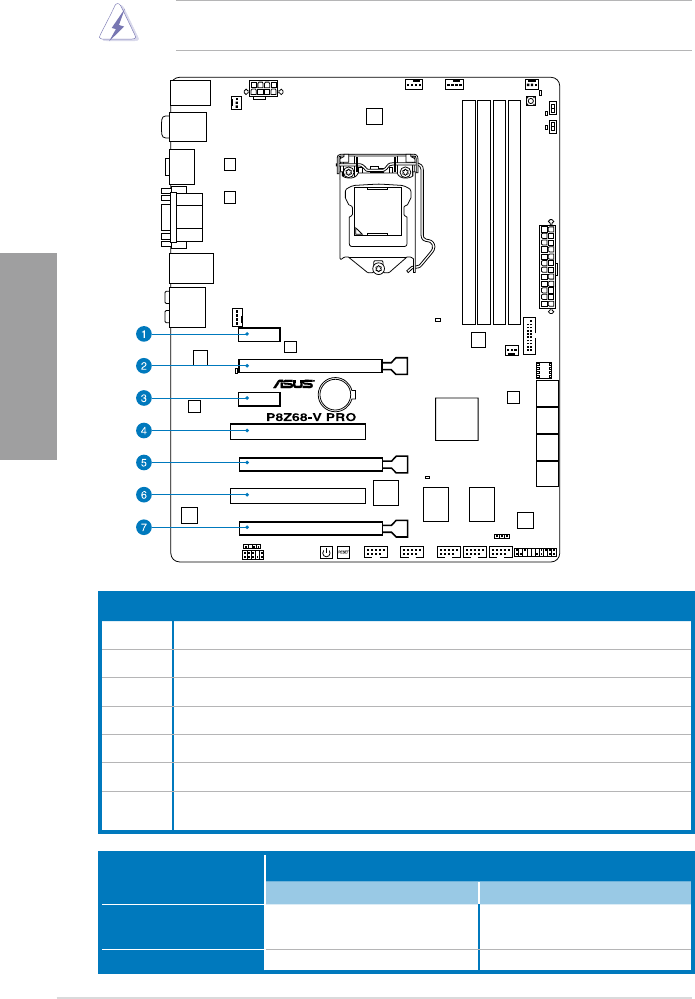
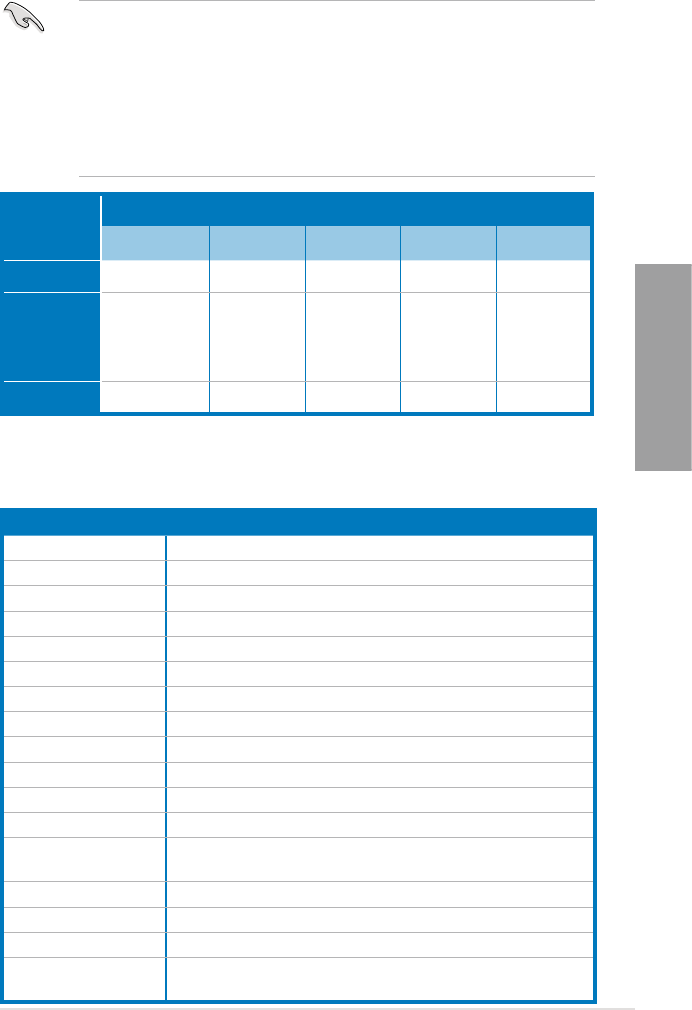
Slot No. Slot Description
1 PCIe 2.0 x1_1 slot
2 PCIe 2.0 x16_1 slot (single at x16 or dual at x8/x8 mode)
3 PCIe 2.0 x1_2 slot
4 PCI slot 1
5 PCIe 2.0 x16_2 slot [gray] (at x8 mode)
6 PCI slot 2
7PCIe 2.0 x16_3 slot [black] (at x4 mode, compatible with PCIe x1 and x4
devices)
VGA conguration PCI Express operating mode
PCIe 2.0 x16_1 PCIe 2.0 x16_2
Single VGA/PCIe card x16
(Recommend for single VGA) N/A
Dual VGA/PCIe card x8 x8
ASUS P8Z68-V PRO 2-13
Chapter 2
• In single VGA card mode, use the PCIe 2.0 x16_1 slot (navy blue) for a PCI Express
x16 graphics card to get better performance.
• In CrossFireX™ or SLI™ mode, use the PCIe 2.0 x16_1 and PCIe 2.0 x16_2 slots for
PCI Express x16 graphics cards to get better performance.
• We recommend that you provide sufcient power when running CrossFireX™ or SLI™
mode. Refer to page 2-25 for details.
• Connect a chassis fan to the motherboard connector labeled CHA_FAN1/2 when using
multiple graphics cards for better thermal environment. See page 2-23 for details.
IRQ assignments for this motherboard
A B C D E F G H
PCIEx16_1 shared – – – – – – –
PCIEx16_2 shared – – – – – – –
PCIEx16_3 – shared – – – – – –
PCIEx1_1 – – shared – – – – –
PCIEx1_2/USB3_1234 – shared – – – – –
PCI_1 – – shared – – – – –
PCI_2 – – – shared – – – –
LAN_1 – – – shared – – –
USB 2.0 Controller 1 – – – – – – – shared
USB 2.0 Controller 2 – – – – – – – shared
USB 3.0 Controller shared
SATA Controller – – shared – – – – –
Marvell® SATA 6G
Controller – – – shared – – – –
JMicron ATA Controller – – – shared – – – –
1394 Controller – shared – – – – – –
HD Audio – – – – – – shared –
I.G.D. (Internal
Graphics Device) shared – – – – – – –
* Please refer to 3-20 for details.
PCIEX16_3
conguration
PCI Express sharing mode
PCIEX16_3 PCIEX1_1 PCIEX1_2 USB3_34 ESATA
Auto Mode X1 X1 N/A X1 X1
X4 Mode
X4
(Recommend
for high speed
device)
N/A N/A N/A N/A
X1 Mode X1 X1 X1 N/A X1
2-14 Chapter 2: Hardware information
Chapter 2
2.2.5 Onboard switches
Onboard switches allow you to ne-tune performance when working on a bare or open-
case system. This is ideal for overclockers and gamers who continually change settings to
enhance system performance.
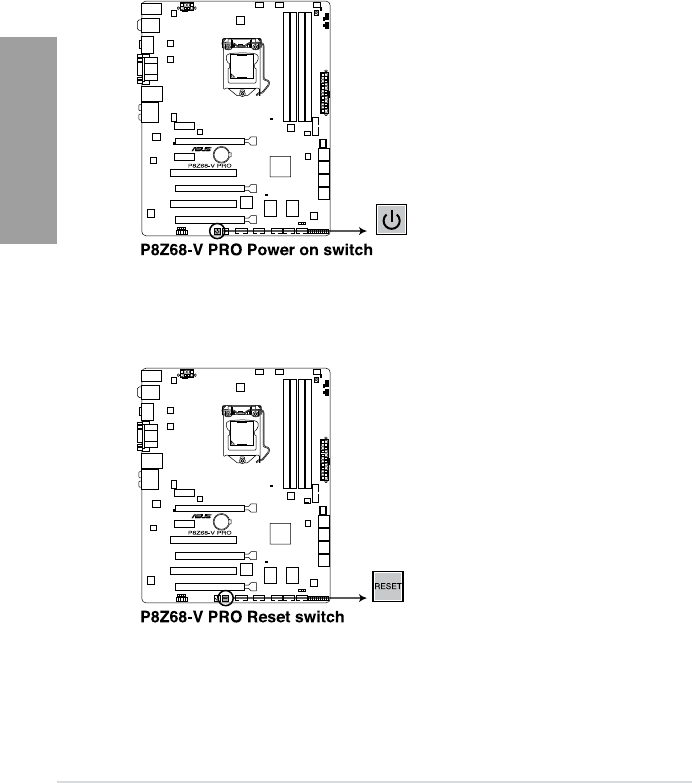
1. Power-on switch
The motherboard comes with a power-on switch that allows you to power up or wake
up the system. The switch also lights up when the system is plugged to a power source
indicating that you should shut down the system and unplug the power cable before
removing or plugging in any motherboard component. The illustration below shows the
location of the onboard power-on switch.
2. Reset switch
Press the reset switch to reboot the system.
ASUS P8Z68-V PRO 2-15
Chapter 2
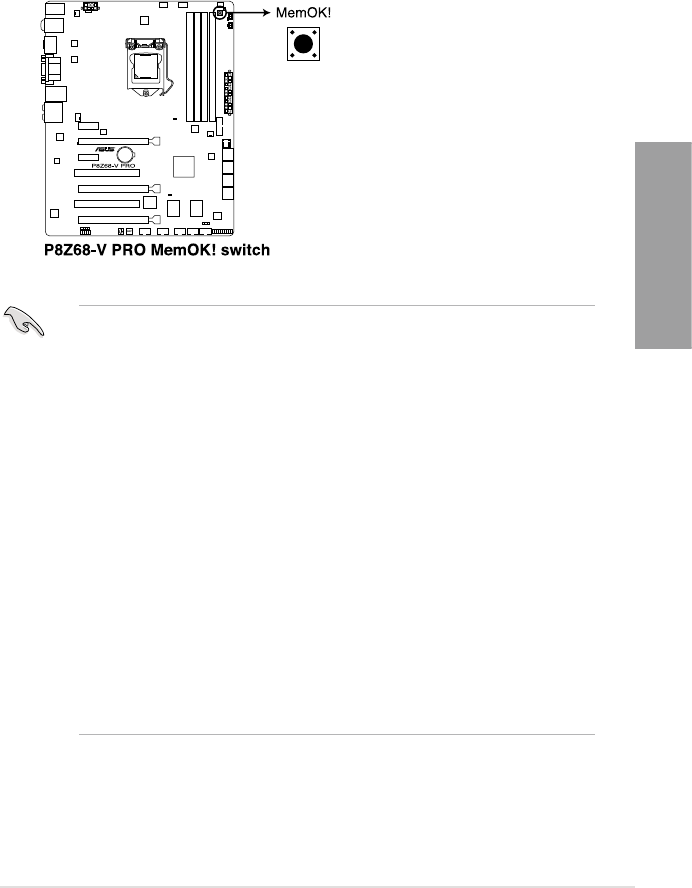
3. MemOK! switch
Installing DIMMs that are incompatible with the motherboard may cause system
boot failure, and the DRAM_LED near the MemOK! switch lights continuously. Press
and hold the MemOK! switch until the DRAM_LED starts blinking to begin automatic
memory compatibility tuning for successful boot.
• Refer to section 2.2.6 Onboard LEDs for the exact location of the DRAM_LED.
• The DRAM_LED also lights when the DIMM is not properly installed. Turn off the
system and reinstall the DIMM before using the MemOK! function.
• The MemOK! switch does not function under Windows™ OS environment.
• During the tuning process, the system loads and tests failsafe memory settings. It
takes about 30 seconds for the system to test one set of failsafe settings. If the test
fails, the system reboots and test the next set of failsafe settings. The blinking speed
of the DRAM_LED increases, indicating different test processes.
• Due to memory tuning requirement, the system automatically reboots when each
timing set is tested. If the installed DIMMs still fail to boot after the whole tuning
process, the DRAM_LED lights continuously. Replace the DIMMs with ones
recommended in the Memory QVL (Qualied Vendors Lists) in this user manual or on
the ASUS website at www.asus.com.
• If you turn off the computer and replace DIMMs during the tuning process, the system
continues memory tuning after turning on the computer. To stop memory tuning, turn
off the computer and unplug the power cord for about 5–10 seconds.
• If your system fail to boot due to BIOS overclocking, press the MemOK! switch to boot
and load BIOS default settings. A messgae will appear during POST reminding you
that the BIOS has been restored to its default settings.
• We recommend that you download and update to the latest BIOS version from the
ASUS website at www.asus.com after using the MemOK! function.
2-16 Chapter 2: Hardware information
Chapter 2
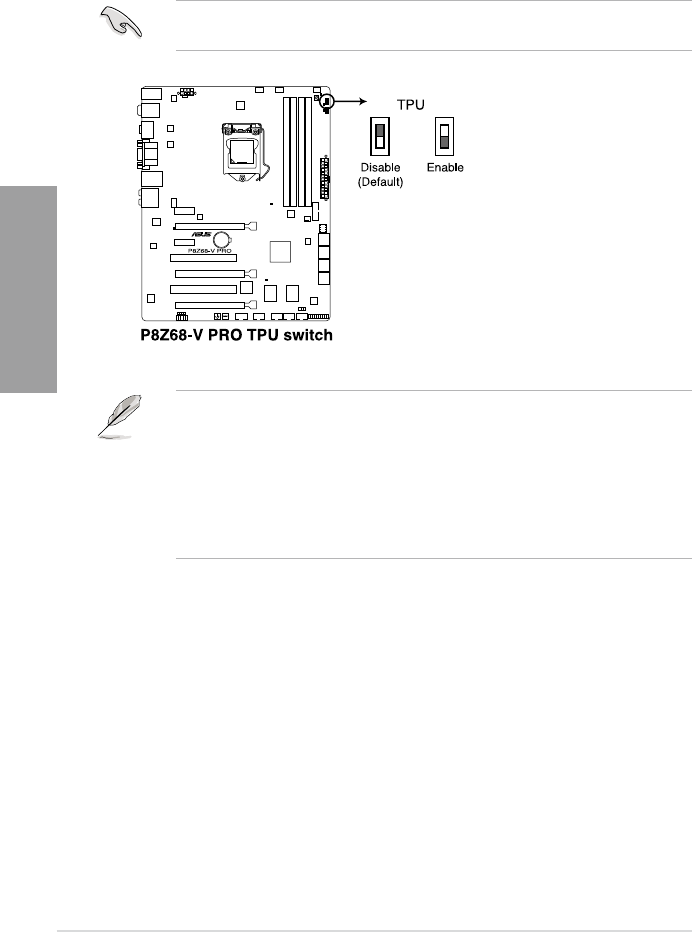
4. TPU switch
Turning this switch to Enable will automatically optimize the system for fast, yet stable
clock speeds.
For ensuring the system performance, turn the switch setting to Enable when the system is
powered off.
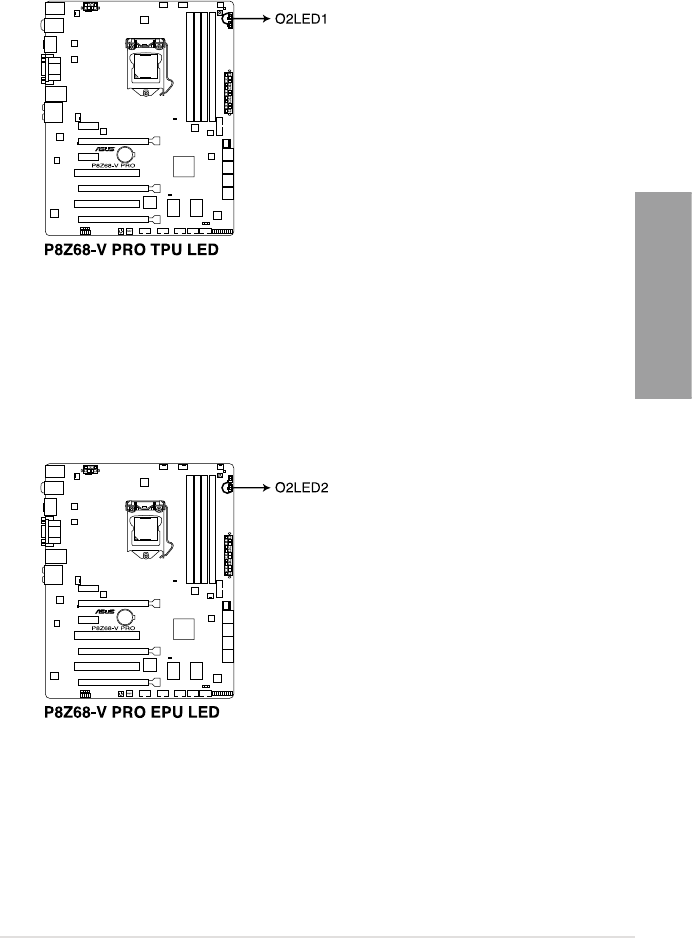
• The TPU LED (O2LED1) near the TPU switch lights when the switch setting is turned
to Enable. Refer to section 2.2.6 Onboard LEDs for the exact location of the TPU
LED.
• If you change the switch setting to Enable under the OS environment, the TPU
function will be activated after the next system bootup.
• You may use the TurboV and Auto Tuning feature in the TurboV EVO application,
adjust the BIOS setup program, or enable the TPU switch at the same time. However,
the system will use the last setting you have made.
ASUS P8Z68-V PRO 2-17
Chapter 2
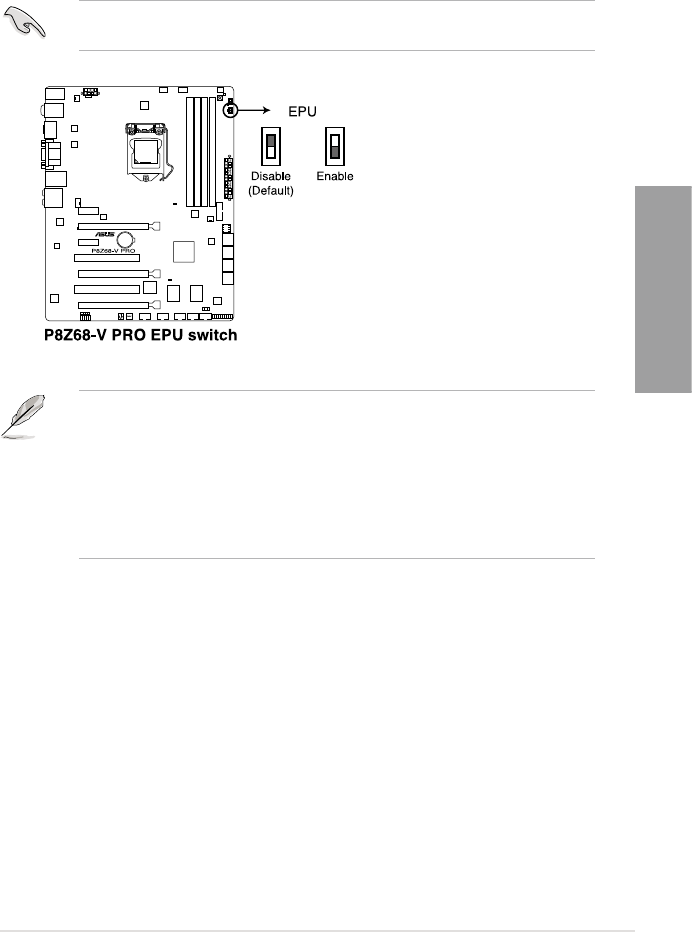
5. EPU switch
Turning this switch to Enable will automatically detect the current PC loadings and
intelligently moderate the power consumption.
For ensuring the system performance, turn the switch setting to Enable when the system is
powered off.
• The EPU LED (O2LED2) near the EPU switch lights when the switch setting is turned
to Enable. Refer to section 2.2.6 Onboard LEDs for the exact location of the EPU
LED.
• If you change the switch setting to Enable under the OS environment, the EPU
function will be activated after the next system bootup.
• You may change the EPU settings in the software application or BIOS setup program,
and enable the EPU function at the same time. However, the system will use the last
setting you have made.
2-18 Chapter 2: Hardware information
Chapter 2
2.2.6 Onboard LEDs
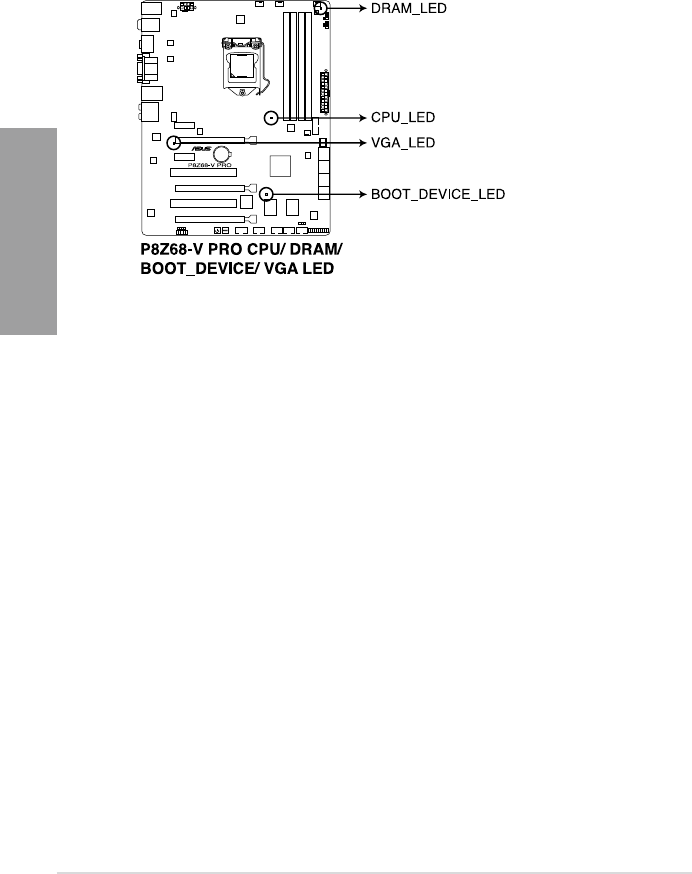
1. POST State LEDs
The POST State LEDs of CPU, DRAM, VGA card, and HDD indicate key components
status during POST (Power-on Self Test). If an error is found , the LED next to the
error device will continue lighting until the problem is solved. This user-friendly design
provides an intuitional way to locate the root problem within a second.
ASUS P8Z68-V PRO 2-19
Chapter 2
4. EPU LED
The EPU LED lights when the EPU switch is turned to Enable.
3. TPU LED
The TPU LED lights when the TPU switch is turned to Enable.
2-20 Chapter 2: Hardware information
Chapter 2
2.2.7 Jumper
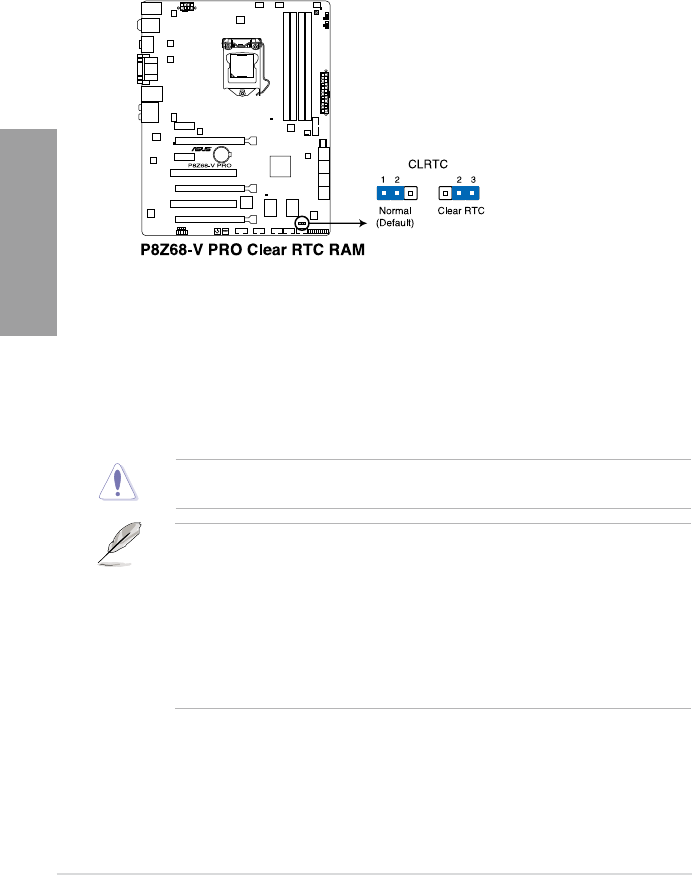
Clear RTC RAM (3-pin CLRTC)
This jumper allows you to clear the Real Time Clock (RTC) RAM in CMOS. You can clear the
CMOS memory of date, time, and system setup parameters by erasing the CMOS RTC RAM
data. The onboard button cell battery powers the RAM data in CMOS, which include system
setup information such as system passwords.
Except when clearing the RTC RAM, never remove the cap on CLRTC jumper default
position. Removing the cap will cause system boot failure!
To erase the RTC RAM:
1. Turn OFF the computer and unplug the power cord.
2. Move the jumper cap from pins 1-2 (default) to pins 2-3. Keep the cap on pins 2-3 for
about 5-10 seconds, then move the cap back to pins 1-2.
3. Plug the power cord and turn ON the computer.
4. Hold down the <Del> key during the boot process and enter BIOS setup to re-enter
data.
• If the steps above do not help, remove the onboard battery and move the jumper again
to clear the CMOS RTC RAM data. After the CMOS clearance, reinstall the battery.
• You do not need to clear the RTC when the system hangs due to overclocking. For
system failure due to overclocking, use the C.P.R. (CPU Parameter Recall) feature.
Shut down and reboot the system so the BIOS can automatically reset parameter
settings to default values.
• Due to the chipset behavior, AC power off is required to enable C.P.R. function. You
must turn off and on the power supply or unplug and plug the power cord before
rebooting the system.
ASUS P8Z68-V PRO 2-21
Chapter 2
2.2.8 Internal connectors
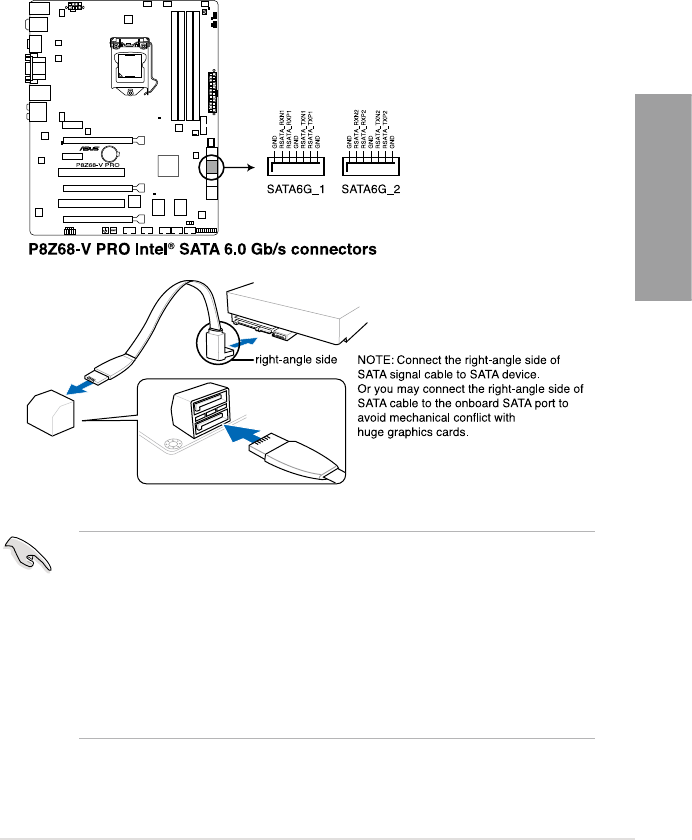
1. Intel® Z68 Serial ATA 6.0 Gb/s connectors (7-pin SATA6G_1/2 [gray])
These connectors connect to Serial ATA 6.0 Gb/s hard disk drives via Serial ATA 6.0
Gb/s signal cables.
If you installed Serial ATA hard disk drives, you can create a RAID 0, 1, 5, and 10
conguration with the Intel® Rapid Storage Technology through the onboard Intel® Z68
chipset.
•
These connectors are set to [AHCI Mode] by default. If you intend to create a Serial
ATA RAID set using these connectors, set the SATA Mode item in the BIOS to [RAID
Mode]. Refer to section 3.5.4 SATA Conguration for details.
• Before creating a RAID set, refer to section 4.4 RAID congurations or the manual
bundled in the motherboard support DVD.
•
When using NCQ, set the SATA Mode in the BIOS to [AHCI Mode]. Refer to section
3.5.4 SATA Conguration for details.
•
You must install Windows® XP Service Pack 3 or later versions before using Serial
ATA hard disk drives. The Serial ATA RAID feature is available only if you are using
Windows® XP SP3 or later versions.
2-22 Chapter 2: Hardware information
Chapter 2
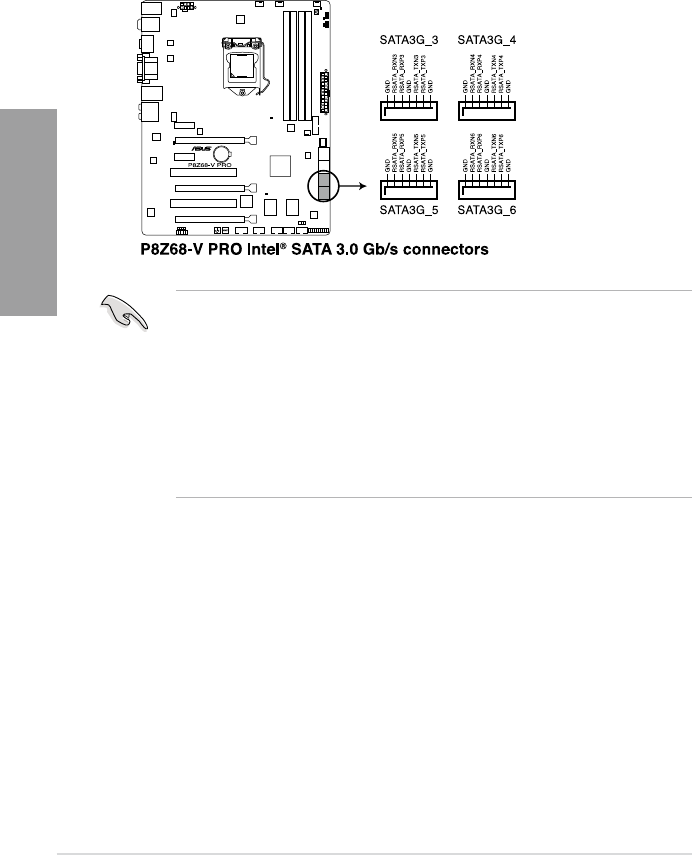
2. Intel® Z68 Serial ATA 3.0 Gb/s connectors (7-pin SATA3G_3–6 [blue])
These connectors connect to Serial ATA 3.0 Gb/s hard disk drives and optical disc
drives via Serial ATA 3.0 Gb/s signal cables.
If you installed Serial ATA hard disk drives, you can create a RAID 0, 1, 5, and 10
conguration with the Intel® Rapid Storage Technology through the onboard Intel® Z68
chipset.
•
These connectors are set to [AHCI Mode] by default. If you intend to create a Serial
ATA RAID set using these connectors, set the SATA Mode item in the BIOS to [RAID
Mode]. Refer to section 3.5.4 SATA Conguration for details.
• Before creating a RAID set, refer to section 4.4 RAID congurations or the manual
bundled in the motherboard support DVD.
•
When using NCQ, please check the SATA Mode in the BIOS is [AHCI Mode]. Refer to
section 3.5.4 SATA Conguration for details.
•
You must install Windows® XP Service Pack 3 or later versions before using Serial
ATA hard disk drives. The Serial ATA RAID feature is available only if you are using
Windows® XP SP3 or later versions.
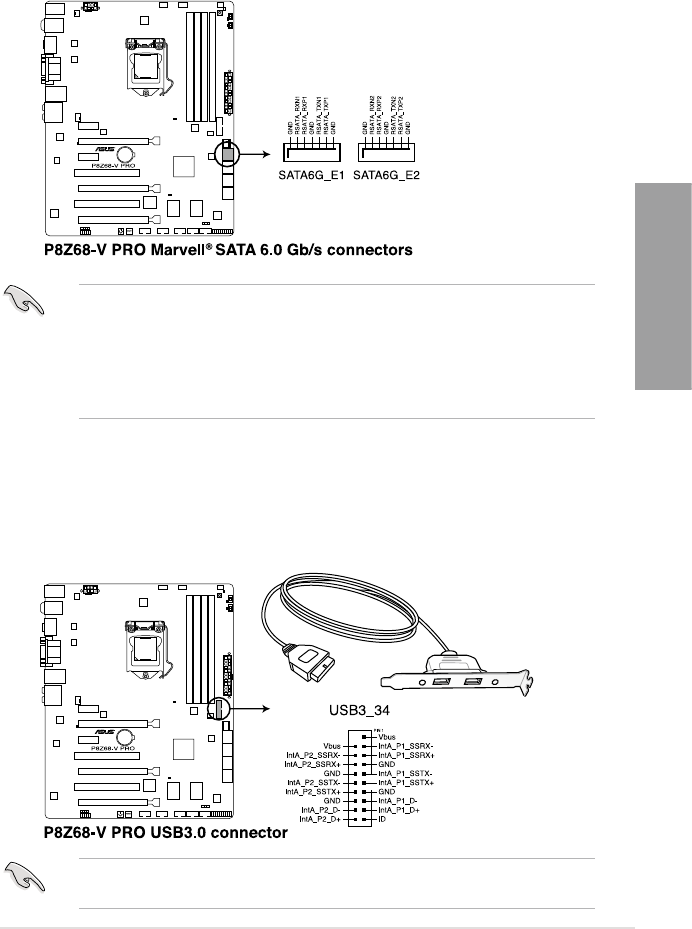
ASUS P8Z68-V PRO 2-23
Chapter 2
3. Marvell® Serial ATA 6.0 Gb/s connectors (7-pin SATA6G_E1/E2 [navy blue])
These connectors connect to Serial ATA 6.0 Gb/s hard disk drives via Serial ATA 6.0
Gb/s signal cables.
•
The SATA6G_E1/E2 (navy blue) connectors are for data drives only. ATAPI device is
not supported.
•
You must install Windows® XP Service Pack 3 or later versions before using Serial ATA
hard disk drives.
•
When using NCQ, set the Marvell Storage Controller item in the BIOS to [Enabled].
Refer to section 3.5.6 Onboard Devices Conguration for details.
4. USB 3.0 connector (20-1 pin USB3_34)
These connectors are for the additional USB 3.0 ports, and complies with the USB 3.0
specicaton that supports up to 480 MBps connection speed. If the USB 3.0 front panel
cable is available from your system chassis, with this USB 3.0 connector, you can have
a front panel USB 3.0 solution.
You can connect the ASUS front panel USB 3.0 bracket to this connector to obtain the front
panel USB 3.0 solution.
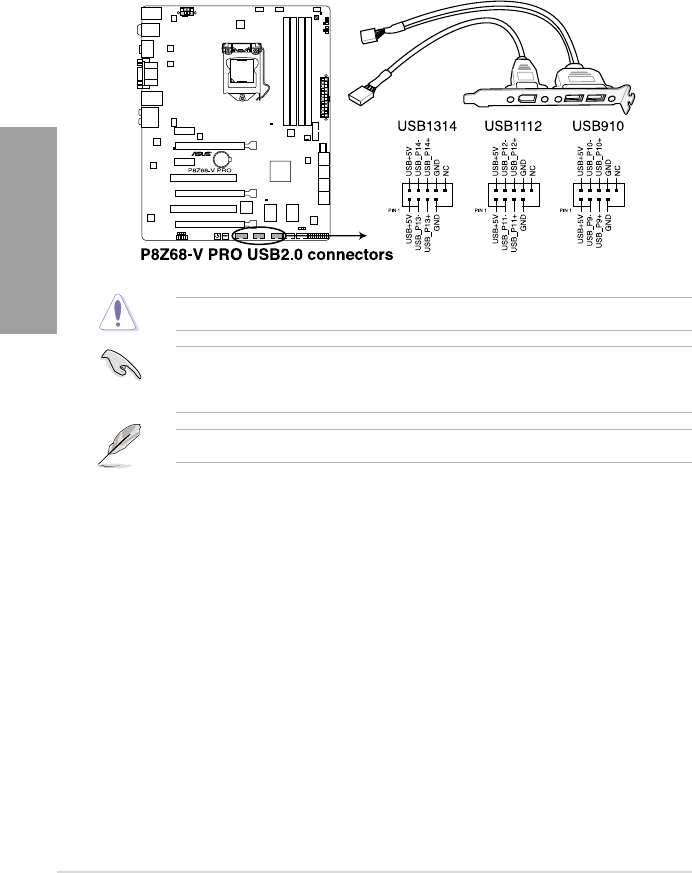
2-24 Chapter 2: Hardware information
Chapter 2
You can connect the front panel USB cable to the ASUS Q-Connector (USB, blue) rst, and
then install the Q-Connector (USB) to the USB connector onboard if your chassis supports
front panel USB ports.
Never connect a 1394 cable to the USB connectors. Doing so will damage the motherboard!
5. USB 2.0 connectors (10-1 pin USB78; USB910; USB1112)
These connectors are for USB 2.0 ports. Connect the USB module cable to any of
these connectors, then install the module to a slot opening at the back of the system
chassis. These USB connectors comply with USB 2.0 specication that supports up to
48 MBps connection speed.
The USB 2.0 module is purchased separately.
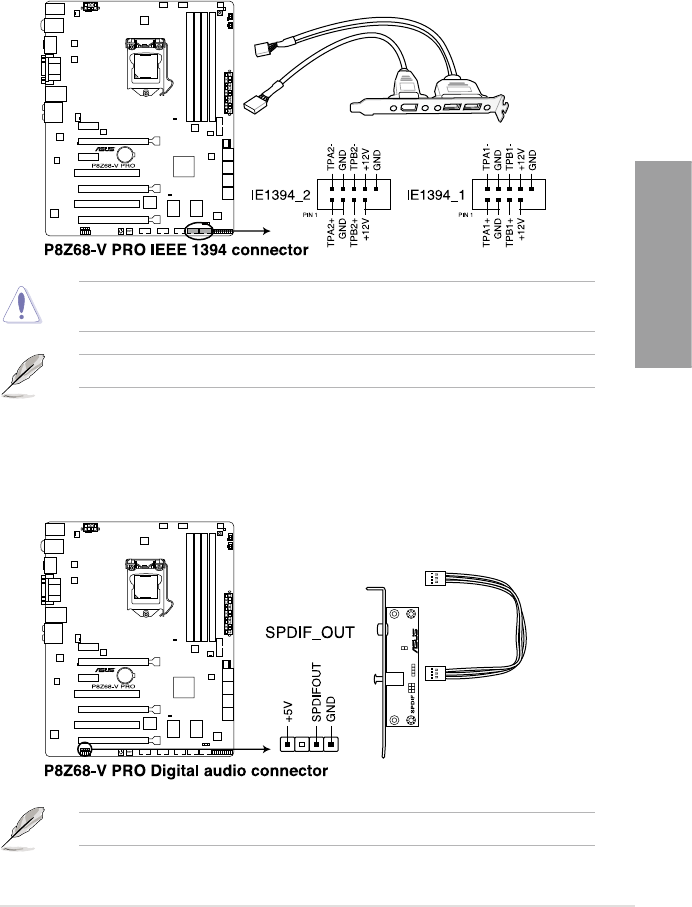
ASUS P8Z68-V PRO 2-25
Chapter 2
6. IEEE 1394a port connector (10-1 pin IE1394_1; IE1394_2)
These connectors are for an IEEE 1394a port. Connect the IEEE 1394a module cable
to this connector, then install the module to a slot opening at the back of the system
chassis.
Never connect a USB cable to the IEEE 1394a connector. Doing so will damage the
motherboard!
The IEEE 1394a module is purchased separately.
7. Digital audio connector (4-1 pin SPDIF_OUT)
This connector is for an additional Sony/Philips Digital Interface (S/PDIF) port(s).
Connect the S/PDIF Out module cable to this connector, then install the module to a
slot opening at the back of the system chassis.
The S/PDIF module is purchased separately.
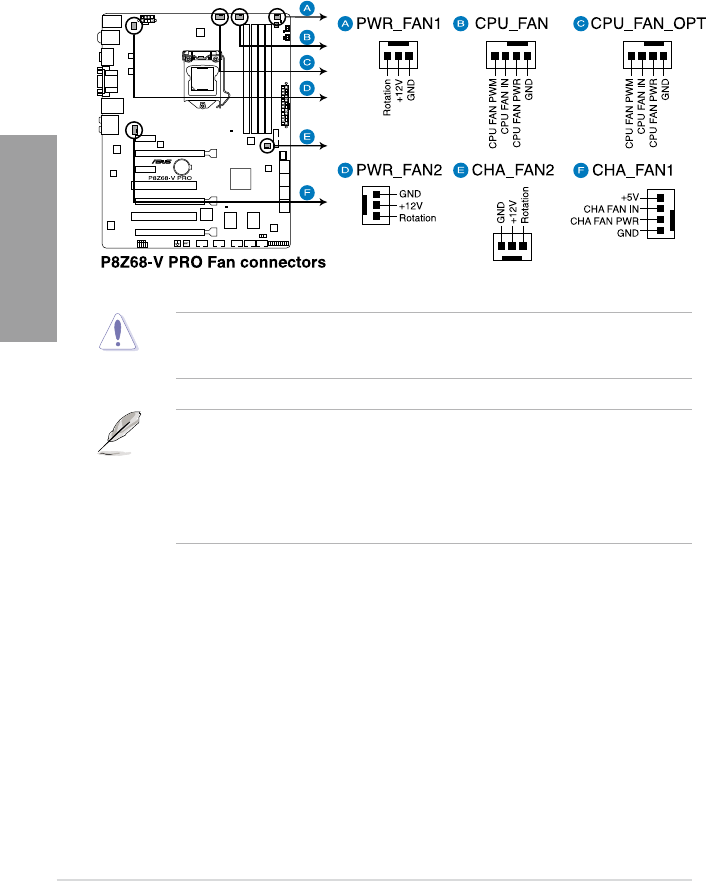
2-26 Chapter 2: Hardware information
Chapter 2
8. CPU, chassis, and power fan connectors
(4-pin CPU_FAN/CPU_FAN_OPT; 4-pin CHA_FAN1; 3-pin CHA_FAN2; 3-pin
PWR_FAN1/2)
Connect the fan cables to the fan connectors on the motherboard, ensuring that the
black wire of each cable matches the ground pin of the connector.
• The CPU_FAN connector supports the CPU fan of maximum 1A (12 W) fan power.
• Only the CPU_FAN, CHA_FAN 1 and CHA_FAN 2 connectors support the ASUS FAN
Xpert feature.
• If you install two VGA cards, we recommend that you plug the rear chassis fan cable
to the motherboard connector labeled CHA_FAN1 or CHA_FAN2 for better thermal
environment.
Do not forget to connect the fan cables to the fan connectors. Insufcient air ow inside the
system may damage the motherboard components. These are not jumpers! Do not place
jumper caps on the fan connectors!
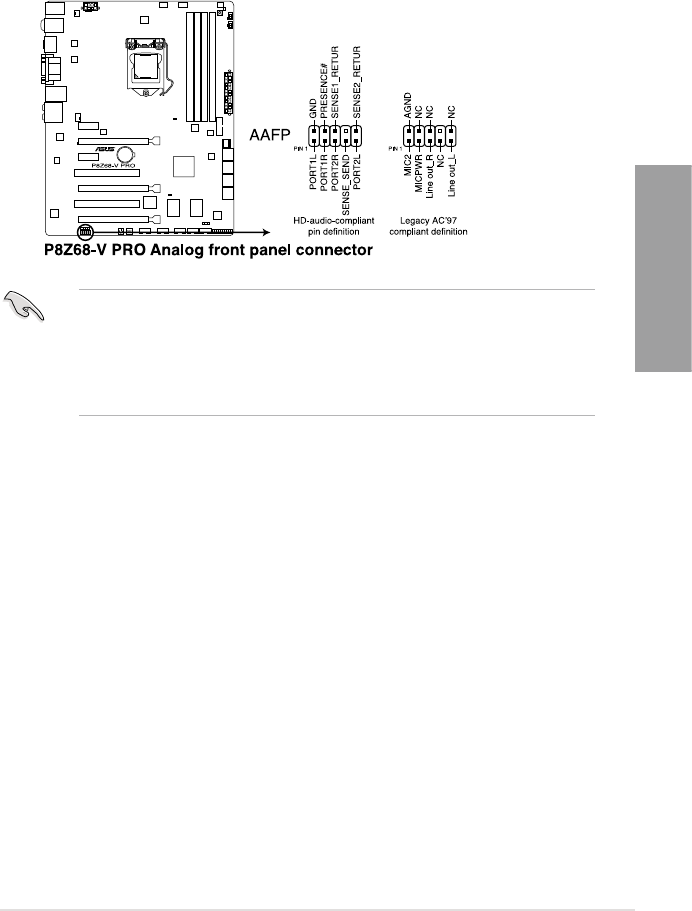
ASUS P8Z68-V PRO 2-27
Chapter 2
9. Front panel audio connector (10-1 pin AAFP)
This connector is for a chassis-mounted front panel audio I/O module that supports
either HD Audio or legacy AC`97 audio standard. Connect one end of the front panel
audio I/O module cable to this connector.
• We recommend that you connect a high-denition front panel audio module to this
connector to avail of the motherboard’s high-denition audio capability.
• If you want to connect a high-denition front panel audio module to this connector, set
the Front Panel Type item in the BIOS setup to [HD]; if you want to connect an AC'97
front panel audio module to this connector, set the item to [AC97]. By default, this
connector is set to [HD].
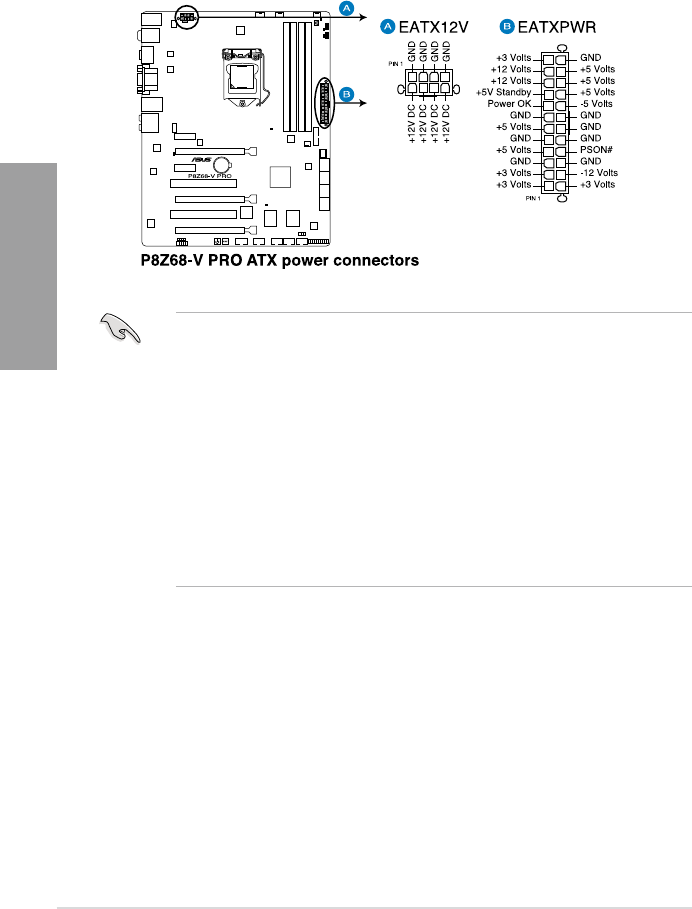
2-28 Chapter 2: Hardware information
Chapter 2
• For a fully congured system, we recommend that you use a power supply unit
(PSU) that complies with ATX 12 V Specication 2.0 (or later version) and provides a
minimum power of 350 W.
• Do not forget to connect the 4-pin/8-pin EATX12 V power plug; otherwise, the system
will not boot.
• Use of a PSU with a higher power output is recommended when conguring a system
with more power-consuming devices. The system may become unstable or may not
boot up if the power is inadequate.
• If you are uncertain about the minimum power supply requirement for your system,
refer to the Recommended Power Supply Wattage Calculator at http://support.asus.
com/PowerSupplyCalculator/PSCalculator.aspx?SLanguage=en-us for details.
• If you want to use two or more high-end PCI Express x16 cards, use a PSU with
1000W power or above to ensure the system stability.
10. ATX power connectors (24-pin EATXPWR; 8-pin EATX12V)
These connectors are for ATX power supply plugs. The power supply plugs are
designed to t these connectors in only one orientation. Find the proper orientation and
push down rmly until the connectors completely t.
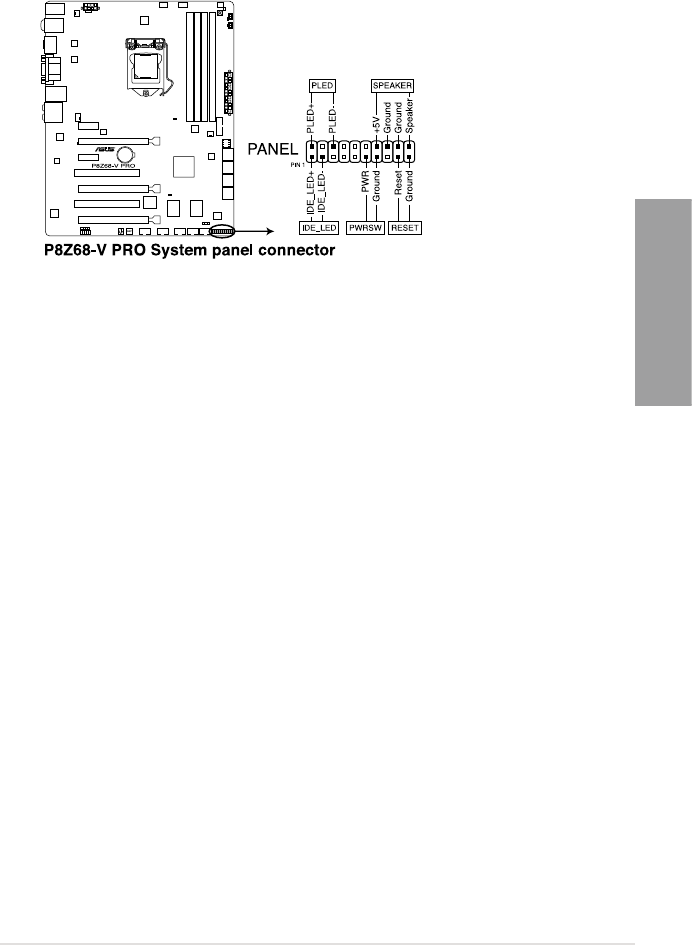
ASUS P8Z68-V PRO 2-29
Chapter 2
• System power LED (2-pin PLED)
This 2-pin connector is for the system power LED. Connect the chassis power LED
cable to this connector. The system power LED lights up when you turn on the system
power, and blinks when the system is in sleep mode.
• Hard disk drive activity LED (2-pin IDE_LED)
This 2-pin connector is for the HDD Activity LED. Connect the HDD Activity LED cable
to this connector. The IDE LED lights up or ashes when data is read from or written to
the HDD.
• System warning speaker (4-pin SPEAKER)
This 4-pin connector is for the chassis-mounted system warning speaker. The speaker
allows you to hear system beeps and warnings.
• ATX power button/soft-off button (2-pin PWRSW)
This connector is for the system power button. Pressing the power button turns the
system on or puts the system in sleep or soft-off mode depending on the BIOS settings.
Pressing the power switch for more than four seconds while the system is ON turns the
system OFF.
• Reset button (2-pin RESET)
This 2-pin connector is for the chassis-mounted reset button for system reboot without
turning off the system power.
11. System panel connector (20-8 pin PANEL)
This connector supports several chassis-mounted functions.
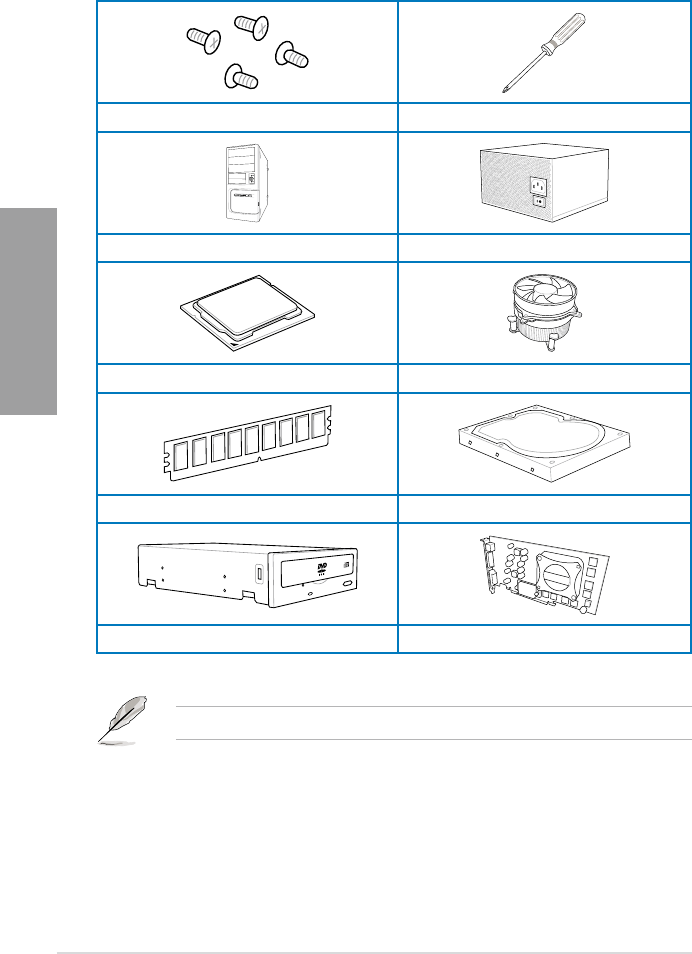
2-30 Chapter 2: Hardware information
Chapter 2
2.3 Building your computer system
2.3.1 Additional tools and components to build a PC system
1 bag of screws Philips (cross) screwdriver
PC chassis Power supply unit
Intel LGA 1155 CPU Intel LGA 1155 compatible CPU Fan
DIMM SATA hard disk drive
SATA optical disc drive (optional) Graphics card (optional)
The tools and components in the table above are not included in the motherboard package.
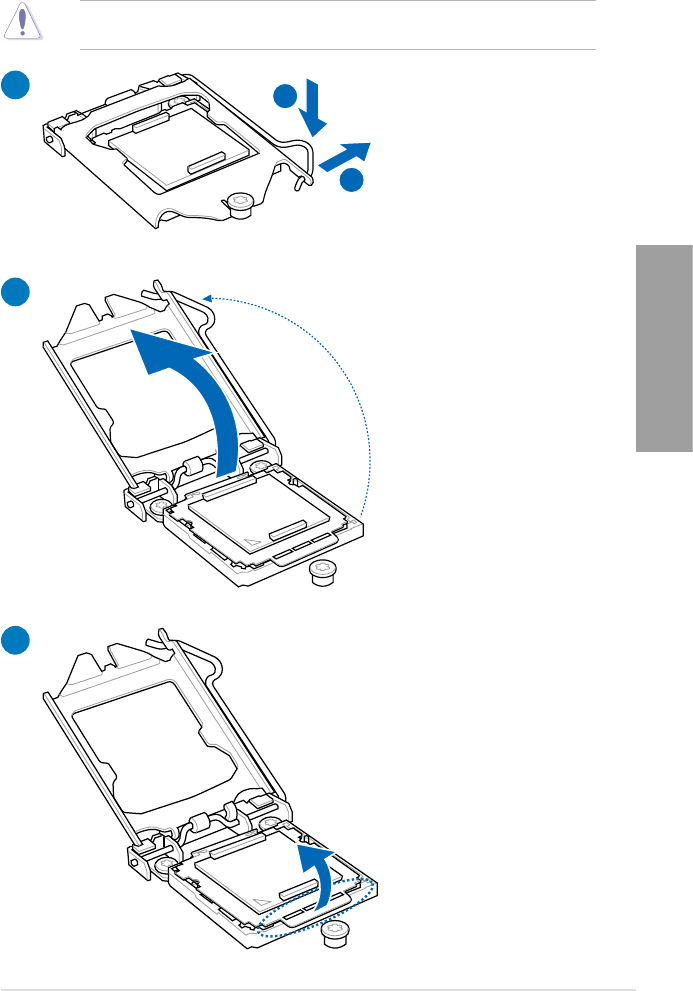
ASUS P8Z68-V PRO 2-31
Chapter 2
A
B
1
2
3
2.3.2 CPU installation
The LGA1156 CPU is incompatible with the LGA1155 socket. DO NOT install a LGA1156
CPU on the LGA1155 socket.
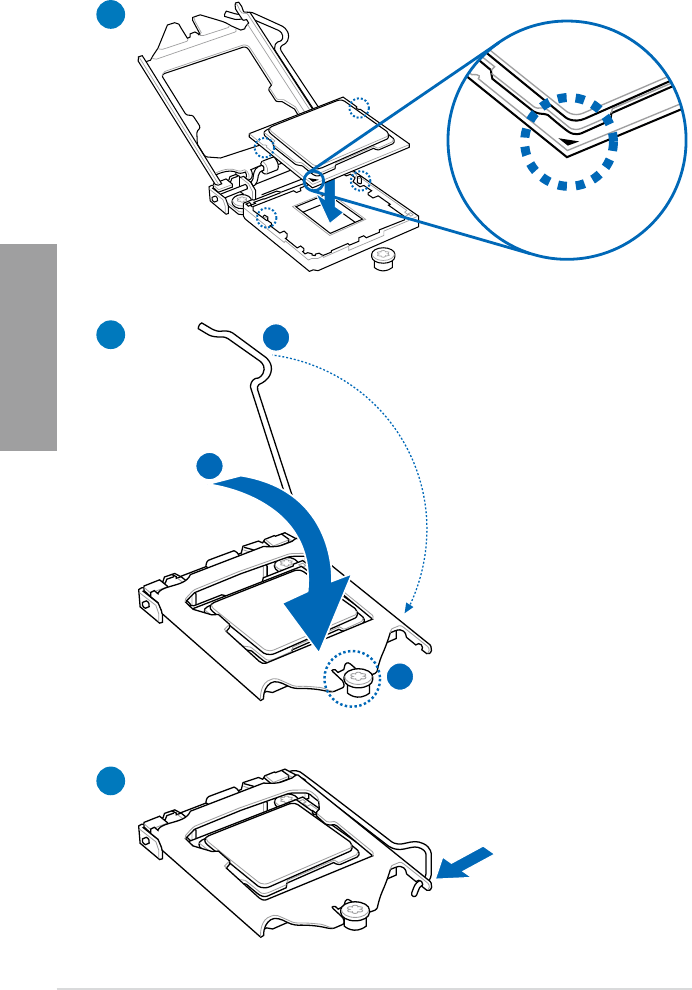
2-32 Chapter 2: Hardware information
Chapter 2
C
B
A
5
6
4
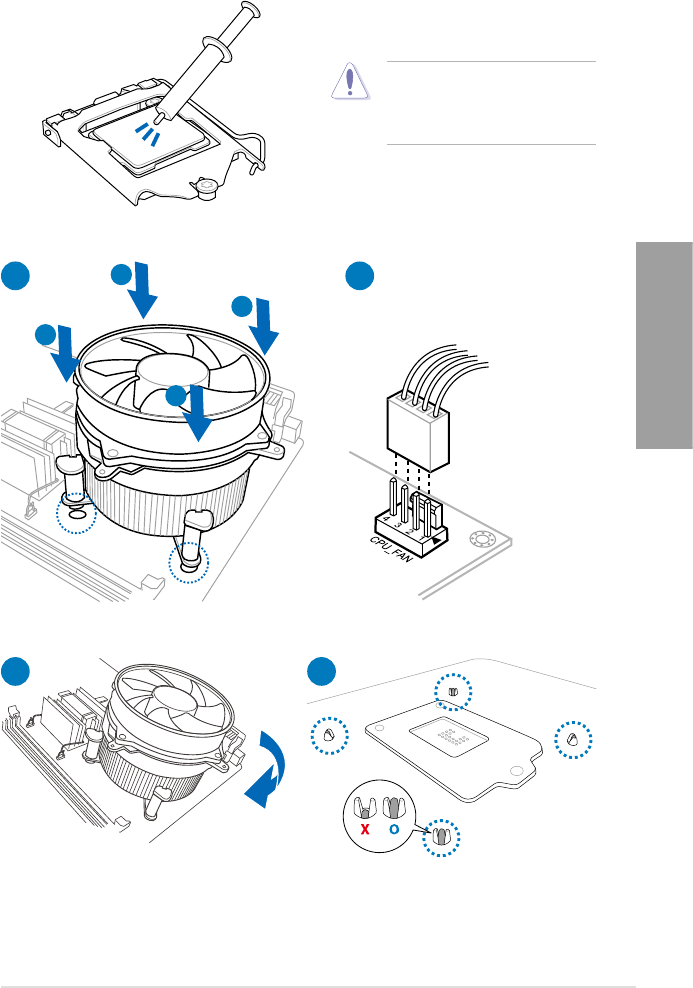
ASUS P8Z68-V PRO 2-33
Chapter 2
2.3.3 CPU heatsink and fan assembly installation
Apply the Thermal Interface Material
to the CPU heatsink and CPU
before you install the heatsink and
fan if necessary.
To install the CPU heatsink and fan assembly
2
B
B
A
A
1
3 4
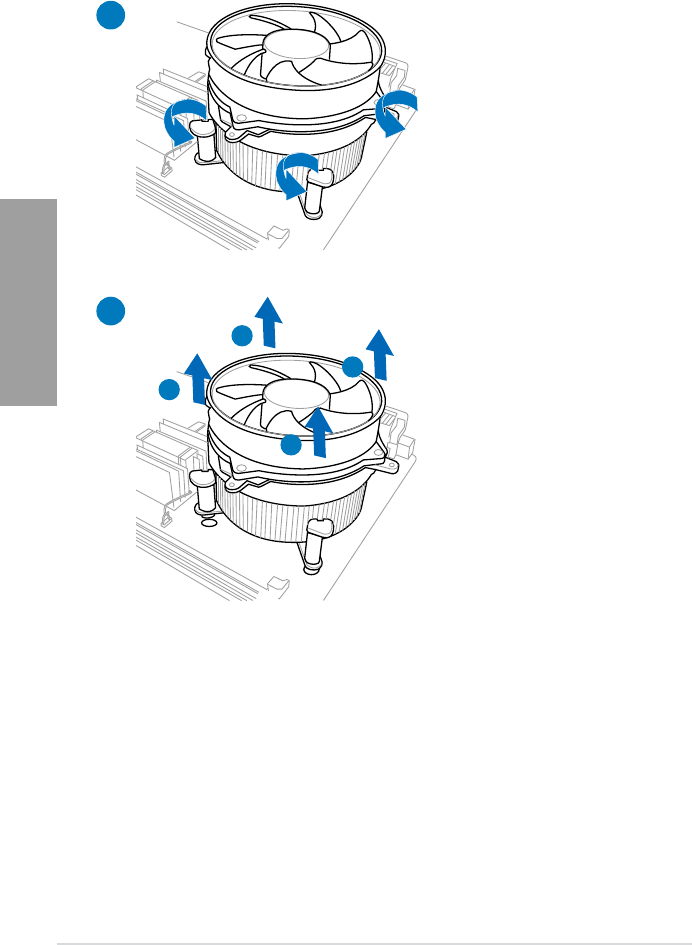
2-34 Chapter 2: Hardware information
Chapter 2
To uninstall the CPU heatsink and fan assembly
2
A
B
B
A
1
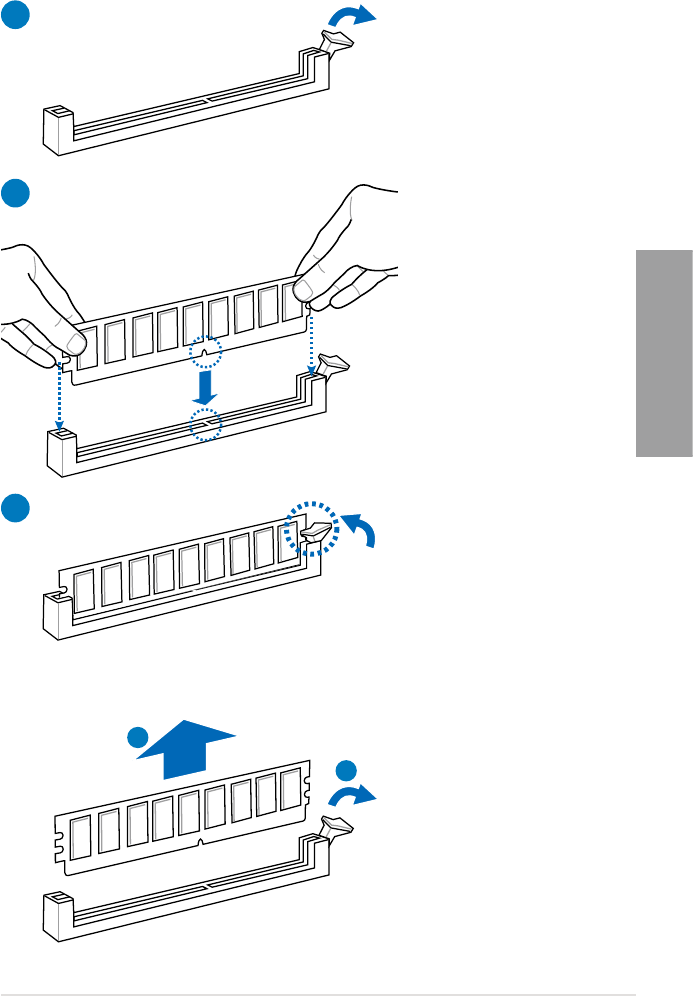
ASUS P8Z68-V PRO 2-35
Chapter 2
1
2
3
To remove a DIMM
2.3.4 DIMM installation
B
A
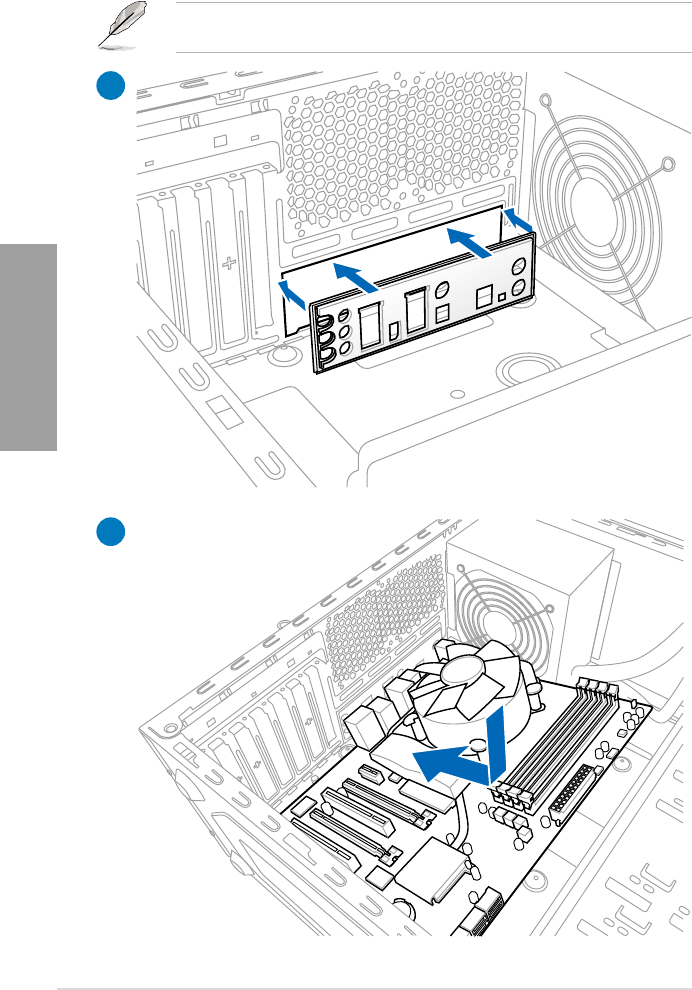
2-36 Chapter 2: Hardware information
Chapter 2
2.3.5 Motherboard installation
2
1
The diagrams in this section are for reference only. The motherboard layout may vary with
models, but the installation steps remain the same.
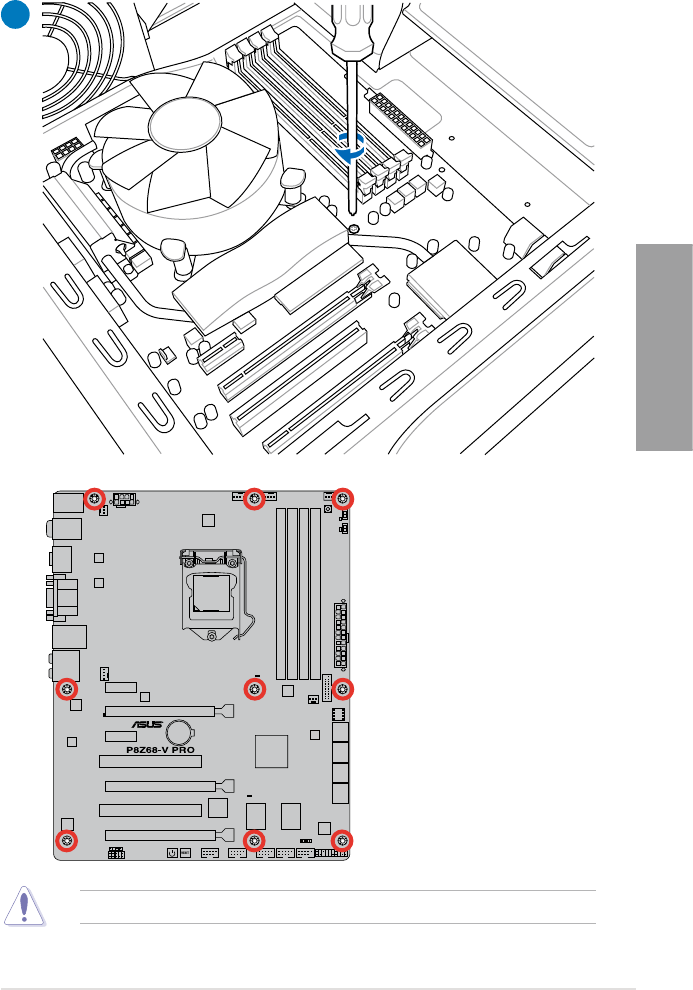
ASUS P8Z68-V PRO 2-37
Chapter 2
DO NOT overtighten the screws! Doing so can damage the motherboard.
3
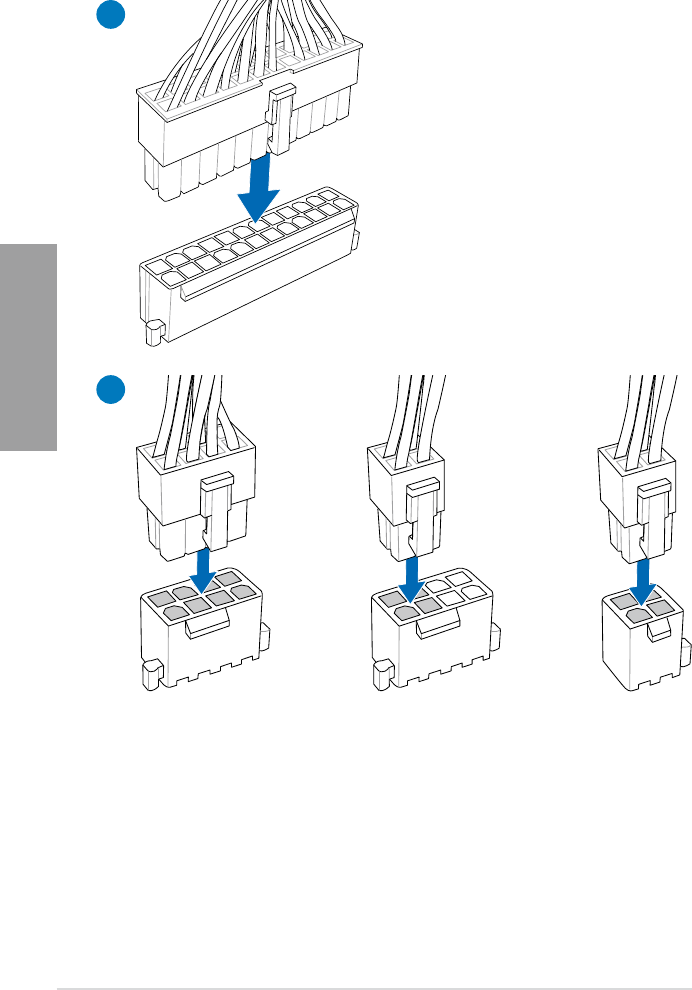
2-38 Chapter 2: Hardware information
Chapter 2
2.3.6 ATX Power connection
1
2
OR OR
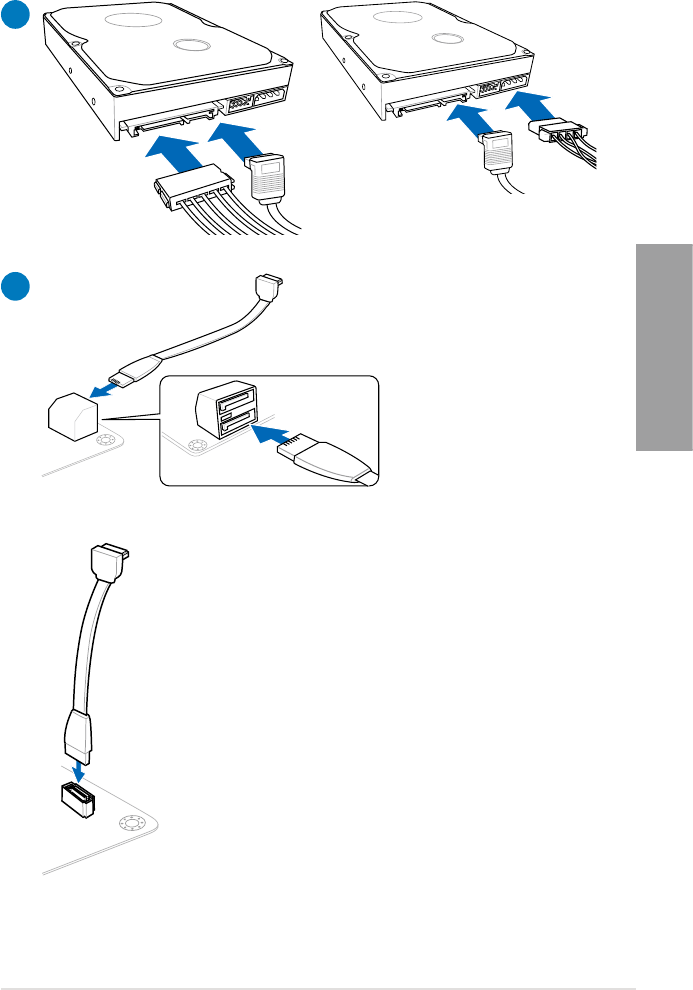
ASUS P8Z68-V PRO 2-39
Chapter 2
2.3.7 SATA device connection
OR
2
OR
1
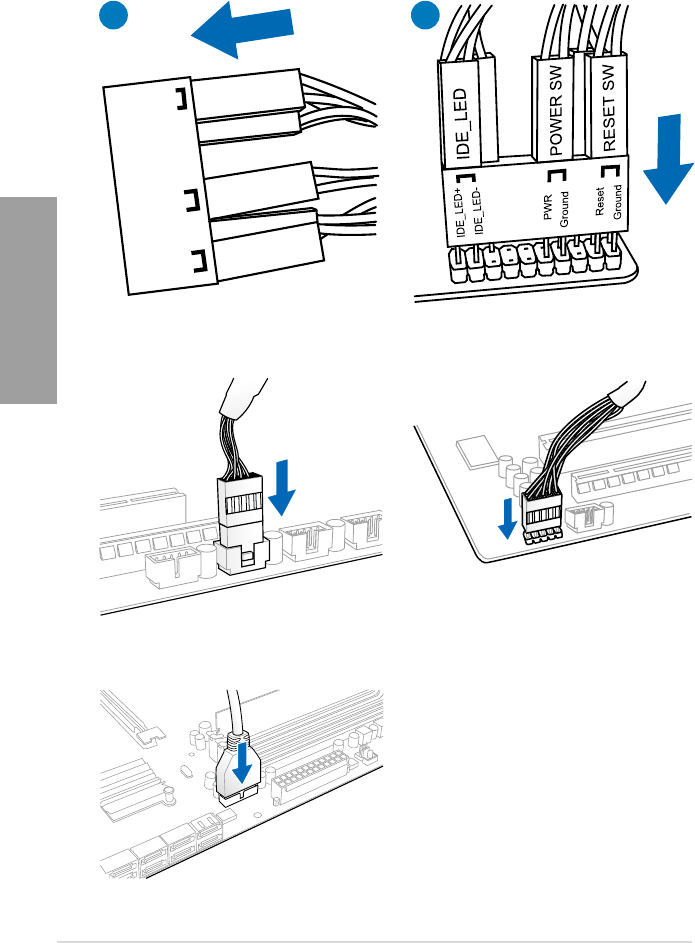
2-40 Chapter 2: Hardware information
Chapter 2
2.3.8 Front I/O Connector
To install ASUS Q-Connector
IDE_LED
POWER SW
RESET SW
IDE_LED-
IDE_LED+
PWR
Reset
Ground
Ground
1 2
USB 2.0
AAFP
To install USB 2.0 Connector To install front panel audio connector
USB 3.0
To install USB 3.0 Connector
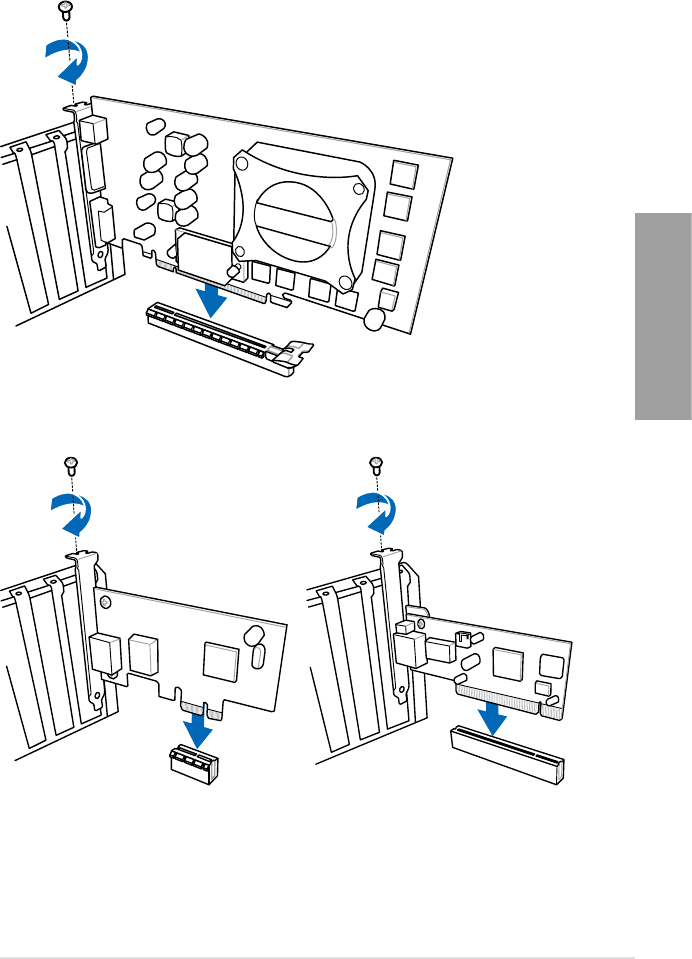
ASUS P8Z68-V PRO 2-41
Chapter 2
2.3.9 Expension Card installation
To install PCIe x16 cards
To install PCIe x1 cards To install PCI cards
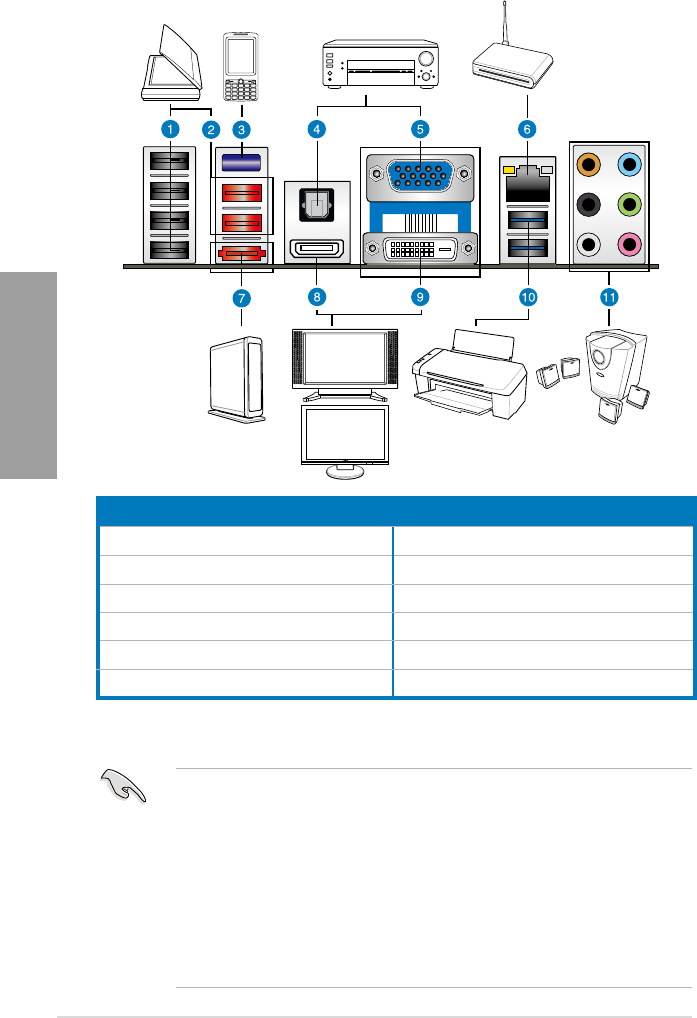
2-42 Chapter 2: Hardware information
Chapter 2
2.3.10 Rear panel connection
Rear panel connectors
1. USB 2.0 ports 3, 4, 5 and 6 7. External SATA port
2. USB 2.0 ports 1 and 2 8. HDMI port
3. Bluetooth module* 9. DVI port
4. Optical S/PDIF Out port 10. USB 3.0 ports 1 and 2
5. VGA port 11. Audio I/O ports***
6. Intel LAN (RJ-45) port 1**
• DO NOT insert a different connector to the external SATA port.
• Due to USB 3.0 controller limitation, USB 3.0 devices can only be used under
Windows® OS environment and after the USB 3.0 driver installation.
• USB 3.0 devices can only be used as data storage only.
• We strongly recommend that you connect USB 3.0 devices to USB 3.0 ports for faster
and better performance for your USB 3.0 devices.
• If you want to use the hot-plug function of the external SATA ports, you have to set the
JMB Storage Controller item in the BIOS setting to [Enabled] and install the JMicron
JMB36X Controller Driver from the motherboard support DVD. Refer to section 3.5.6
Onboard Devices Conguration for details.
*, ** and ***: Refer to the tables on the next page for bluetooth module LED, LAN port LED, and
audio port denitions.
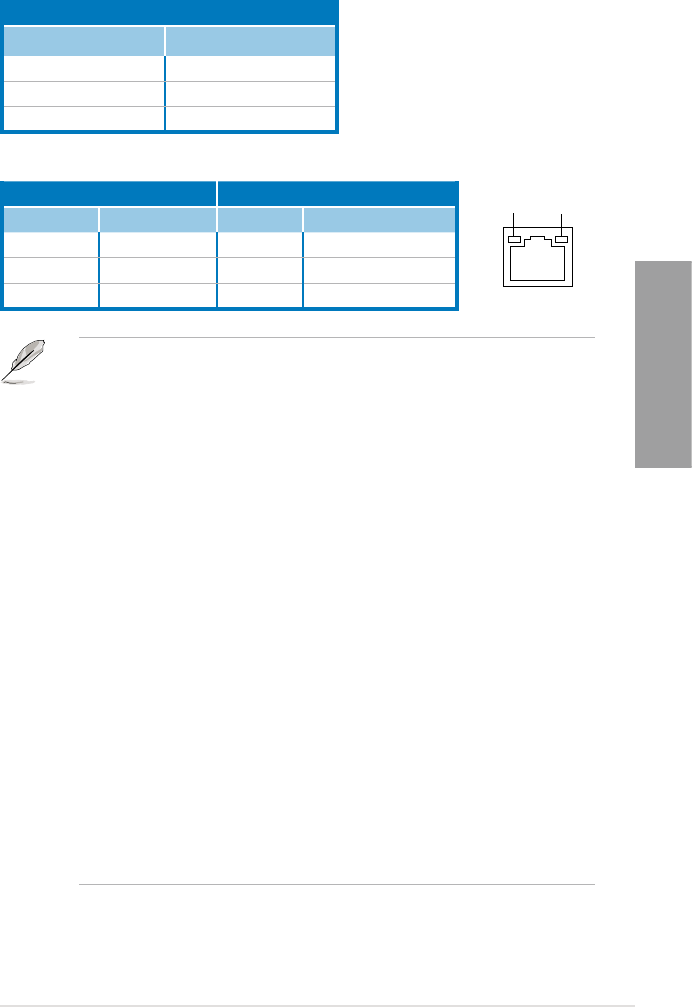
ASUS P8Z68-V PRO 2-43
Chapter 2
** LAN port LED indications
SPEED
LED
ACT/LINK
LED
LAN port
Activity Link LED Speed LED
Status Description Status Description
OFF No link OFF 10 Mbps connection
ORANGE Linked ORANGE 100 Mbps connection
BLINKING Data activity GREEN 1 Gbps connection
* Bluetooth dongle LED indications
Activity Link LED
Status Description
OFF No link
Blue Linked
BLINKING Data activity
• If you use an Intel® CPU with integrated GPU and install an add-on VGA card on
your motherboard, the system will automatically select the the add-on VGA card as
the primary VGA output after reboot. To use the iGPU as the VGA output, go to 3.5.3
System Agent Conguration > Initiate Graphic Adapter, select [iGPU], and plug
the VGA cable(s) to the onboard video port(s) for VGA output.
• This motherboard comes with multiple VGA output that features desktop extension on
two monitors. You can connect two monitors to any two of the onboard VGA, DVI-D,
and HDMI ports. Note that DVI-D/HDMI dual output works in OS environment only and
that during POST or BIOS setup, only DVI-D output is valid.
• Due to the Intel® VGA driver issue, the Windows® Display Settings menu may offer
some resolution options that your monitor does not support. When you set a resolution
not supported by your monitor, it will black out. If this happens, wait 15 seconds for the
system to return to its original setting or restart the system and press F8 to enter Safe
Mode. In Safe Mode, change the display setting to 800 x 600, and then restart the
system to adjust the monitor resolution from the Windows® Display Settings menu.
• Due to the Intel® driver issue, some monitor resolution settings will lead to monitor
overscan or underscan. Refer to the next page for the troubleshooting on monitor
overscan/underscan problem
• Playback of Blu-Ray Discs
The speed and bandwidth of the CPU/Memory, DVD player, and drivers will affect the
playback quality. Following is a conguration example for your reference. Using the
CPU/Memory of higher speed and bandwidth with the higher-version DVD player and
drivers will upgrade the playback quality.
CPU: Intel Pentium 2.8GHz
DIMM: DDR3-1066 2GB
Playback software - CyberLink PowerDVD v9.0 Ultra Build 2320
• To play Blu-Ray Disc, make sure to use an HDCP compliant monitor.
• You can only play Blu-Ray Disc under Windows® Vista™ / 7™ OS.
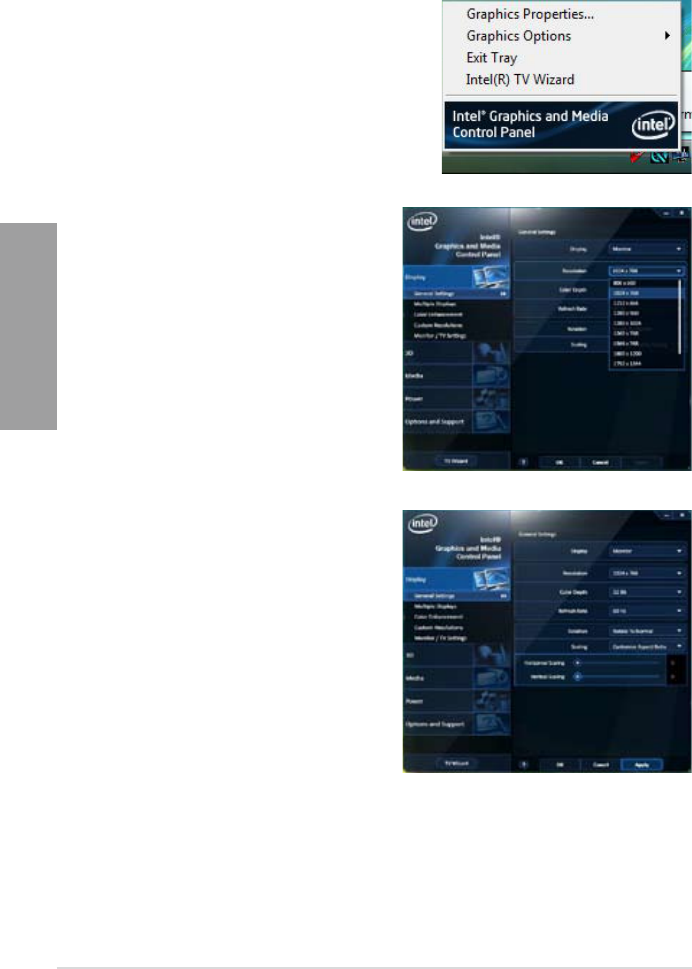
2-44 Chapter 2: Hardware information
Chapter 2
**Troubleshooting on monitor overscan / underscan problem
1. Install Intel Graphics Accelerator Driver
from the motherboard support DVD.
2. From the Windows® notication area,
double-click the Intel(R) Graphics Media
Accelerator Driver icon and click Graphics
Properties.
3. Click Display > General Settings
and select a Resolution. Click
Apply.
4. Or you can click Display > General
Settings > Scaling > Customize
Aspect Ratio. Move the Horizontal
Scaling and Vertical Scaling sliders
and then click Apply.
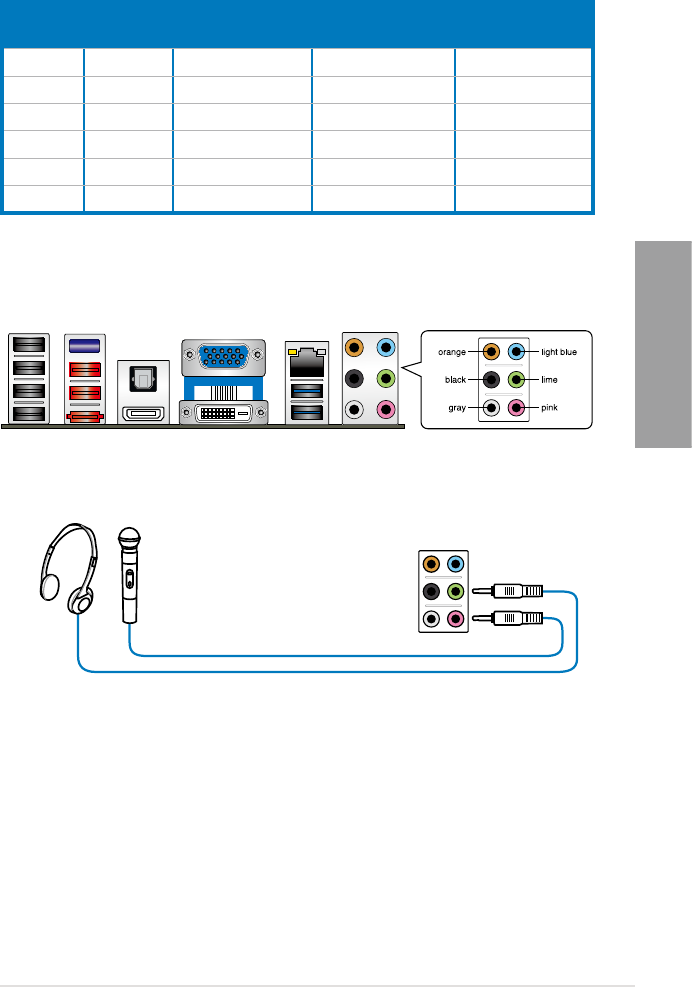
ASUS P8Z68-V PRO 2-45
Chapter 2
2.3.11 Audio I/O connections
Audio I/O ports
***Audio 2, 4, 6, or 8-channel conguration
Port Headset
2-channel
4-channel 6-channel 8-channel
Light Blue Line In Line In Line In Line In
Lime Line Out Front Speaker Out Front Speaker Out Front Speaker Out
Pink Mic In Mic In Mic In Mic In
Orange – – Center/Subwoofer Center/Subwoofer
Black – Rear Speaker Out Rear Speaker Out Rear Speaker Out
Gray – – – Side Speaker Out
Connect to Headphone and Mic
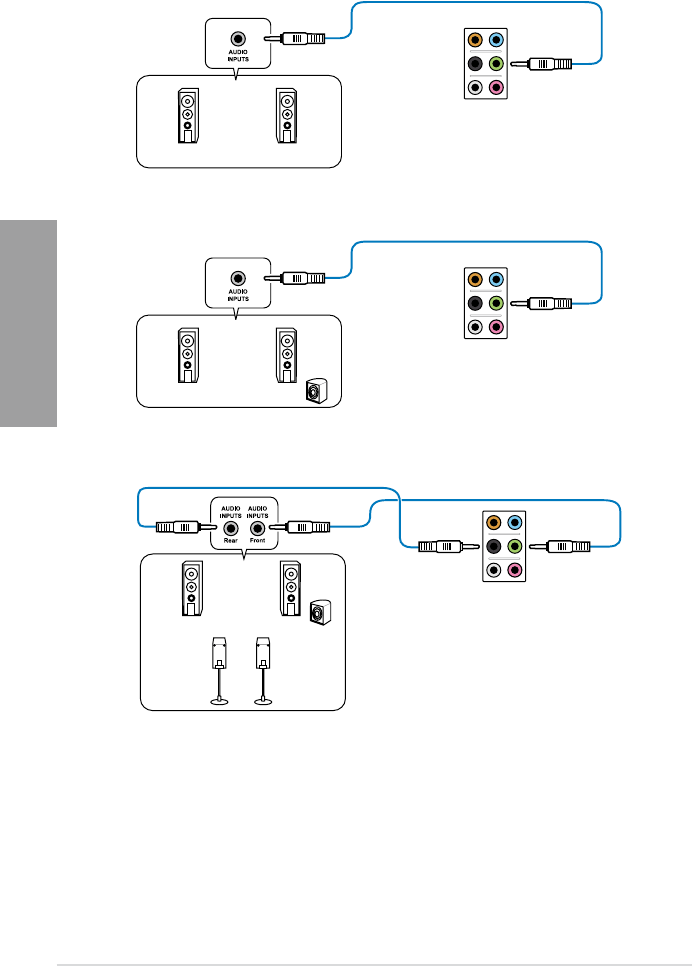
2-46 Chapter 2: Hardware information
Chapter 2
Connect to Stereo Speakers
Connect to 2.1 channel Speakers
Connect to 4.1 channel Speakers
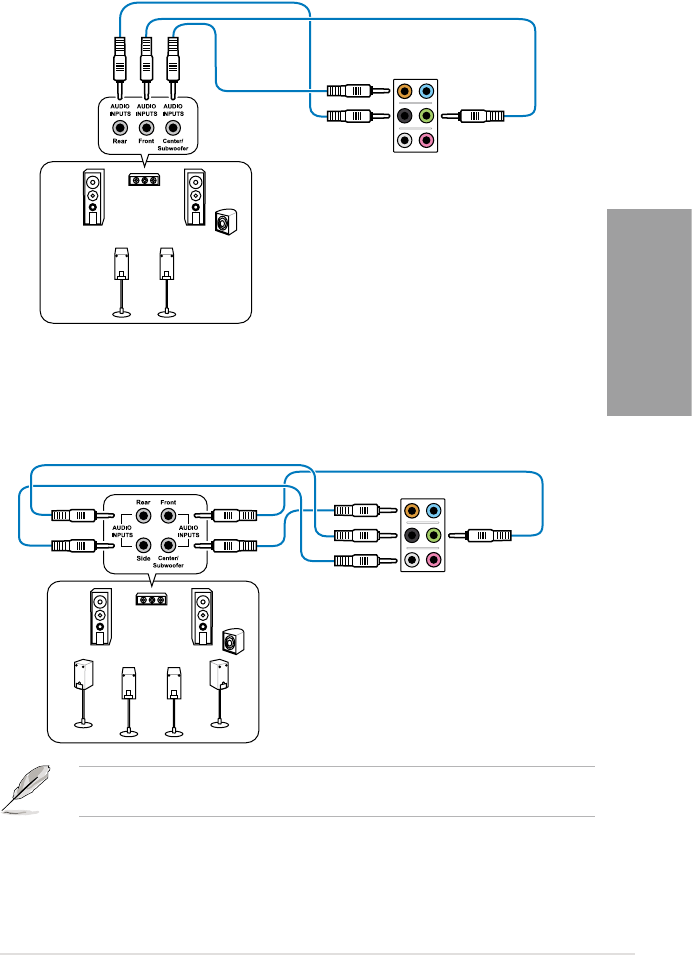
ASUS P8Z68-V PRO 2-47
Chapter 2
Connect to 5.1 channel Speakers
Connect to 7.1 channel Speakers
Chapter 2
When the DTS Surround Sensation UltraPC function is enabled, ensure to connect the rear
speaker to the gray port.
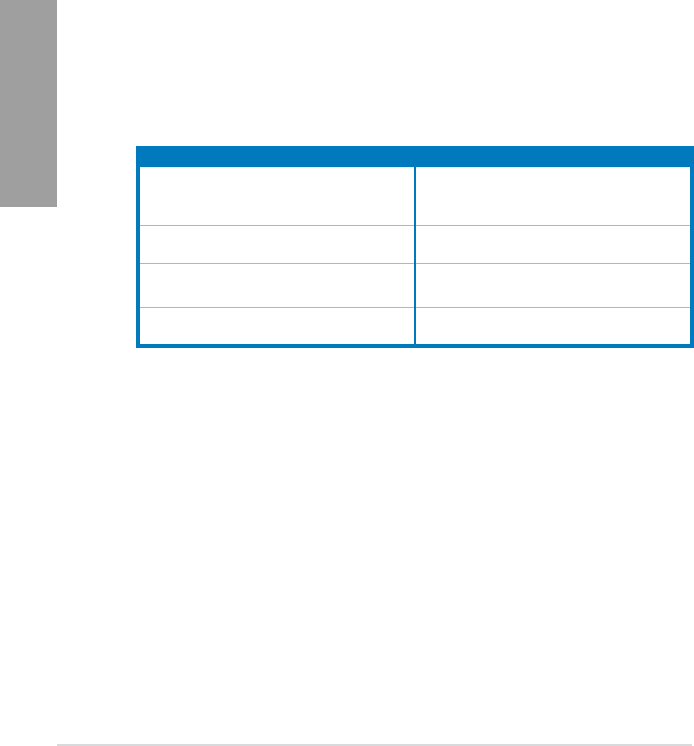
2-48 Chapter 2: Hardware information
Chapter 2
2.4 Starting up for the rst time
1. After making all the connections, replace the system case cover.
2. Be sure that all switches are off.
3. Connect the power cord to the power connector at the back of the system chassis.
4. Connect the power cord to a power outlet that is equipped with a surge protector.
5. Turn on the devices in the following order:
a. Monitor
b. External SCSI devices (starting with the last device on the chain)
c. System power
6. After applying power, the system power LED on the system front panel case lights up.
For systems with ATX power supplies, the system LED lights up when you press the
ATX power button. If your monitor complies with the “green” standards or if it has a
“power standby” feature, the monitor LED may light up or change from orange to green
after the system LED turns on.
The system then runs the power-on self tests or POST. While the tests are running, the
BIOS beeps (refer to the BIOS beep codes table below) or additional messages appear
on the screen. If you do not see anything within 30 seconds from the time you turned
on the power, the system may have failed a power-on test. Check the jumper settings
and connections or call your retailer for assistance.
7. At power on, hold down the <Delete> key to enter the BIOS Setup. Follow the
instructions in Chapter 3.
BIOS Beep Description
One short beep VGA detected
Quick boot set to disabled
No keyboard detected
One continuous beep followed by two
short beeps then a pause (repeated)
No memory detected
One continuous beep followed by three
short beeps
No VGA detected
One continuous beep followed by four
short beeps
Hardware component failure
2.5 Turning off the computer
While the system is ON, pressing the power switch for less than four seconds puts the system
on sleep mode or soft-off mode, depending on the BIOS setting. Pressing the power switch
for more than four seconds lets the system enter the soft-off mode regardless of the BIOS
setting.

ASUS P8Z68-V PRO 3-1
Chapter 3
Chapter 3: BIOS setup
Chapter 3
3.1 Knowing BIOS
The ASUS UEFI BIOS offers a user-friendly interface that goes beyond traditional
keyboard-only BIOS controls to enable more exible and convenient mouse input. Users
can easily navigate the UEFI BIOS with the same smoothness as their operating system.
The term “BIOS” in this user manual refers to “UEFI BIOS” unless otherwise specied.
BIOS (Basic Input and Output System) stores system hardware settings such as storage
device conguration, overclocking settings, advanced power management, and boot device
conguration that are needed for system startup in the motherboard CMOS. In normal
circumstances, the default BIOS settings apply to most conditions to ensure optimum
performance. We recommend that you not change the default BIOS settings except in
the following circumstances:
• An error message appears on the screen during the system bootup and requests you to
run the BIOS Setup.
• You have installed a new system component that requires further BIOS settings or
update.
Inappropriate settings of the BIOS may result to instability or failure to boot. We strongly
recommend that you change the BIOS settings only with the help of a trained service
personnel.
3.2 BIOS setup program
A BIOS setup program is provided for BIOS item modication. When you start up the
computer, the system provides you with the opportunity to run this program. Press <Del>
during the Power-On Self-Test (POST) to enter the Setup utility. Otherwise, POST continues
with its test routines.
If you wish to enter Setup after POST, press <Ctrl> + <Alt> + <Delete>, or press the reset
button on the system chassis to restart the system. You can also turn the system off and then
turn it back on to restart the system. Do this last option only if the rst two failed.
• The BIOS setup screens shown in this section are for reference purposes only, and
may not exactly match what you see on your screen.
• Ensure that a USB mouse is connected to your motherboard if you want to use the
mouse to control the BIOS setup program.
• If the system becomes unstable after changing any BIOS setting, load the default
settings to ensure system compatibility and stability. Select the Load Optimized
Defaults item under the Exit menu. See section 3.9 Exit Menu for details.
• If the system fails to boot after changing any BIOS setting, try to clear the CMOS and
reset the motherboard to the default value. See section 2.2.8 Jumper for information
on how to erase the RTC RAM.
• The BIOS setup program does not support the bluetooth devices.
The BIOS setup program is designed to make it as easy to use as possible. Being a
menu-driven program, it lets you scroll through the various submenus and select from the
available options using a keyboard or a USB mouse.
The BIOS setup program can be used under two modes: EZ Mode and Advanced Mode.
You can change modes from the Exit menu or from the Exit/Advanced Mode button in the
EZ Mode/Advanced Mode screen.
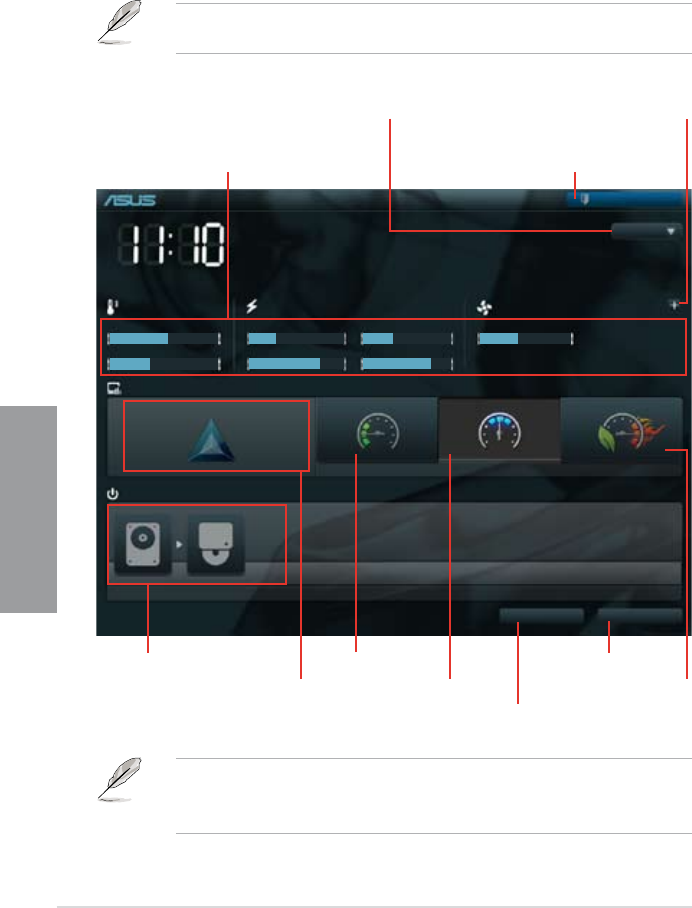
3-2 Chapter 3: BIOS setup
Chapter 3
3.2.1 EZ Mode
By default, the EZ Mode screen appears when you enter the BIOS setup program. The EZ
Mode provides you an overview of the basic system information, and allows you to select
the display language, system performance mode and boot device priority. To access the
Advanced Mode, click Exit/Advanced Mode, then select Advanced Mode.
The default screen for entering the BIOS setup program can be changed. Refer to the
Setup Mode item in section 3.7 Boot memu for details.
P8Z68-V PRO
BIOS Version : 0209 Build Date : 03/04/2011
CPU Type : Genuine Intel(R) CPU 0 @ 3.10GHz Speed : 3531 MHz
Total Memory : 512 MB (DDR3 1066MHz)
Exit/Advanced Mode
Temperature Voltage Fan Speed
CPU +113.0ºF/+45.0ºC CPU 1.248V 5V 5.160V CPU_FAN 3325RPM PWR_FAN1 N/A
MB +75.2ºF/+40.0ºC 3.3V 3.344V 12V 12.248V CHA_FAN1 N/A CHA_FAN2 N/A
English
EFI BIOS Utility - EZ Mode
Monday [9/13/2010]
Normal
Quiet
Performance Energy Saving
System Performance
Boot Menu(F8) Default(F5)
Use the mouse to drag or keyboard to navigate to decide the boot priority.
Boot Priority
Exits the BIOS setup program without saving
the changes, saves the changes and resets
the system, or enters the Advanced Mode
Selects the display language of
the BIOS setup program
Displays the CPU/motherboard temperature,
CPU/5V/3.3V/12V voltage output,
CPU/chassis/power fan speed
Power Saving mode
Normal mode ASUS Optimal mode
Loads optimized default
Selects the boot device priority
Selects the boot device priority
• The boot device options vary depending on the devices you installed to the system.
• The Boot Menu(F8) button is available only when the boot device is installed to the
system.
Displays the system properties of the
selected mode on the right hand side
Clicks to display all fan
speeds if available
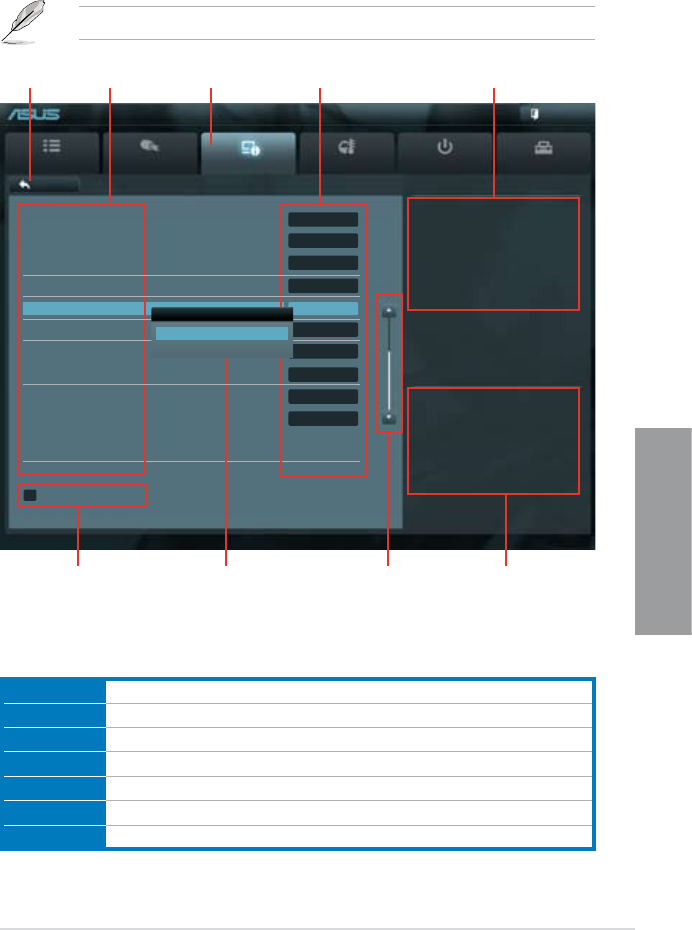
ASUS P8Z68-V PRO 3-3
Chapter 3
3.2.2 Advanced Mode
The Advanced Mode provides advanced options for experienced end-users to congure
the BIOS settings. The gure below shows an example of the Advanced Mode. Refer to the
following sections for the detailed congurations.
To access the Advanced Mode, click Exit, then select Advanced Mode.
Main Ai Tweaker Advanced Monitor Boot Tool
Exit
Version 2.00.1201. Copyright (C) 2010 American Megatrends, Inc.
Enabled/Disabled Bluetooth Controller
→←: Select Screen
↑↓: Select Item
Enter: Select
+/-: Change Opt.
F1: General Help
F2: Previous Values
F5: Optimized Defaults
F10: Save ESC: Exit
F12: Print Screen
Back Advanced\ Onboard Devices Conguration >
EFI BIOS Utility - Advanced Mode
Menu bar
The menu bar on top of the screen has the following main items:
Main For changing the basic system conguration
Ai Tweaker For changing the overclocking settings
Advanced For changing the advanced system settings
Monitor For displaying the system temperature, power status, and changing the fan settings.
Boot For changing the system boot conguration
Tool For conguring options for special functions
Exit For selecting the exit options and loading default settings
Navigation keys
General help
Menu bar
Submenu item
Conguration elds
Menu items
Scroll bar
Pop-up window
Back button
HD Audio Controller Enabled
Front Panel Type HD
SPDIF Out Type SPDIF
Renesas USB 3.0 Controller Enabled
Bluetooth Controller Enabled
VIA 1394 Controller Enabled
PCI Express X16_3 slot (black) bandwidth Auto
PCI Express X1_1 slot or USB3.0 switch X1 Slot
Marvell Storage Controller AHCI Mode
Marvell Storage OPROM Enabled
Bluetooth Controller
Disabled
Enabled

3-4 Chapter 3: BIOS setup
Chapter 3
Menu items
The highlighted item on the menu bar displays the specic items for that menu. For example,
selecting Main shows the Main menu items.
The other items (Ai Tweaker, Advanced, Monitor, Boot, Tool, and Exit) on the menu bar have
their respective menu items.
Back button
This button appears when entering a submenu. Press <Esc> or use the USB mouse to click
this button to return to the previous menu screen.
Submenu items
A greater than sign (>) before each item on any menu screen means that the item has a
submenu. To display the submenu, select the item and press <Enter>.
Pop-up window
Select a menu item and press <Enter> to display a pop-up window with the conguration
options for that item.
Scroll bar
A scroll bar appears on the right side of a menu screen when there are items that do not t on
the screen. Press the Up/Down arrow keys or <Page Up> / <Page Down> keys to display the
other items on the screen.
Navigation keys
At the bottom right corner of the menu screen are the navigation keys for the BIOS setup
program. Use the navigation keys to select items in the menu and change the settings.
General help
At the top right corner of the menu screen is a brief description of the selected item. Use
<F12> key to capture the BIOS screen and save it to the removable storage device.
Conguration elds
These elds show the values for the menu items. If an item is user-congurable, you can
change the value of the eld opposite the item. You cannot select an item that is not
user-congurable.
A congurable eld is highlighted when selected. To change the value of a eld, select it and
press <Enter> to display a list of options.
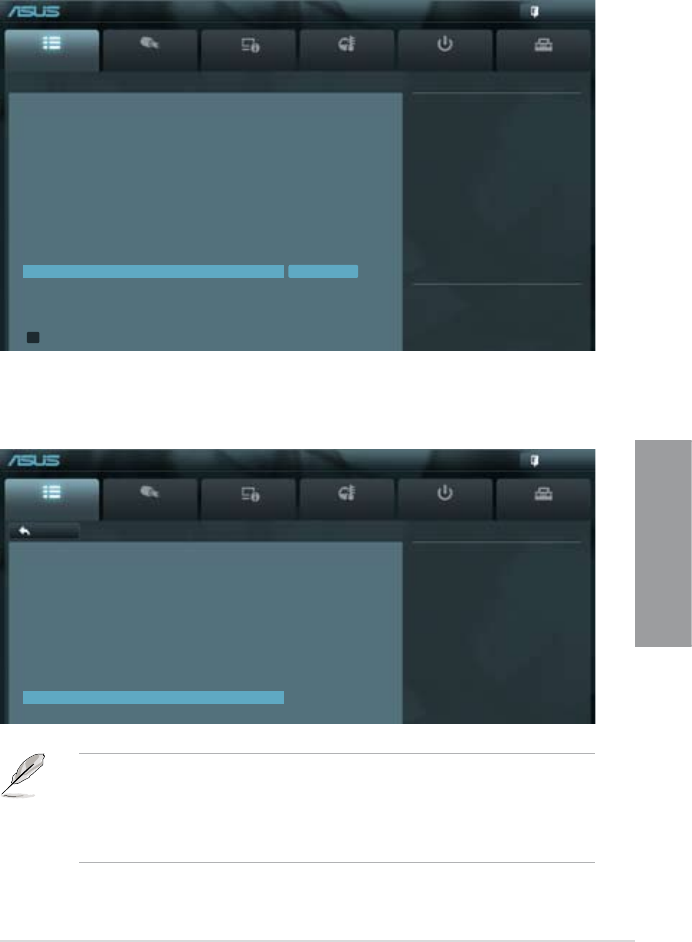
ASUS P8Z68-V PRO 3-5
Chapter 3
3.3 Main menu
The Main menu screen appears when you enter the Advanced Mode of the BIOS Setup
program. The Main menu provides you an overview of the basic system information, and
allows you to set the system date, time, language, and security settings.
Security
The Security menu items allow you to change the system security settings.
Main Ai Tweaker Advanced Monitor Boot Tool
Exit
To clear the administrator password,
key in the current password in the
Enter Current Password box,
and then press <Enter> when
prompted to create/conrm the
password.
Password Description
If ONLY the Administrator's password is set,
then this only limits access to Setup and is
only asked for when entering Setup
If ONLY the User's password is set, then this
is a power on password and must be entered to
boot or enter Setup. In Setup the User will
have Administrator rights
Administrator Password Not Installed
User Password Not Installed
Administrator Password
User Password
Back Main\ Security >
EFI BIOS Utility - Advanced Mode
• If you have forgotten your BIOS password, erase the CMOS Real Time Clock (RTC)
RAM to clear the BIOS password. See section 2.3.7 Jumper for information on how to
erase the RTC RAM.
• The Administrator or User Password items on top of the screen show the default
Not Installed. After you set a password, these items show Installed.
Main Ai Tweaker Advanced Monitor Boot Tool
Exit
EFI BIOS Utility - Advanced Mode
Choose the system default language
BIOS Information
BIOS Version 0209 x64
Build Date 03/14/2011
EC Version MBECE-0019
ME Version 7.0.10.1065
South Bridge Stepping B2 Stepping
CPU Information
Genuine Intel(R) CPU 0 @ 3.10GHz
Speed 3531 MHz
Memory Information
Total Memory 512 MB
Speed 1097 MHz
System Language English
System Date [Fri 03/25/2011]
System Time [16:46:15]
Access Level Administrator
> Security

3-6 Chapter 3: BIOS setup
Chapter 3
Administrator Password
If you have set an administrator password, we recommend that you enter the administrator
password for accessing the system. Otherwise, you might be able to see or change only
selected elds in the BIOS setup program.
To set an administrator password:
1. Select the Administrator Password item and press <Enter>.
2. From the Create New Password box, key in a password, then press <Enter>.
3. Conrm the password when prompted.
To change an administrator password:
1. Select the Administrator Password item and press <Enter>.
2. From the Enter Current Password box, key in the current password, then press
<Enter>.
3. From the Create New Password box, key in a new password, then press <Enter>.
4. Conrm the password when prompted.
To clear the administrator password, follow the same steps as in changing an administrator
password, but press <Enter> when prompted to create/conrm the password. After you clear
the password, the Administrator Password item on top of the screen shows Not Installed.
User Password
If you have set a user password, you must enter the user password for accessing the system.
The User Password item on top of the screen shows the default Not Installed. After you set
a password, this item shows Installed.
To set a user password:
1. Select the User Password item and press <Enter>.
2. From the Create New Password box, key in a password, then press <Enter>.
3. Conrm the password when prompted.
To change a user password:
1. Select the User Password item and press <Enter>.
2. From the Enter Current Password box, key in the current password, then press
<Enter>.
3. From the Create New Password box, key in a new password, then press <Enter>.
4. Conrm the password when prompted.
To clear the user password, follow the same steps as in changing a user password, but press
<Enter> when prompted to create/conrm the password. After you clear the password, the
User Password item on top of the screen shows Not Installed.
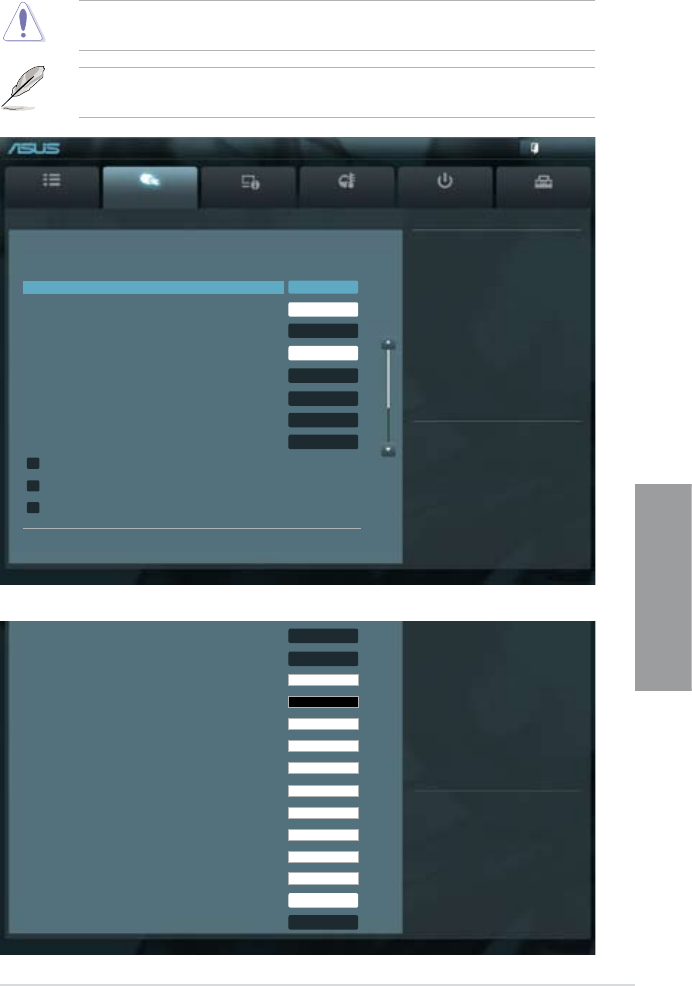
ASUS P8Z68-V PRO 3-7
Chapter 3
3.4 Ai Tweaker menu
The Ai Tweaker menu items allow you to congure overclocking-related items.
Be cautious when changing the settings of the Ai Tweaker menu items. Incorrect eld
values can cause the system to malfunction.
The conguration options for this section vary depending on the CPU and DIMM model you
installed on the motherboard.
Scroll down to display the following items:
Main Ai Tweaker Advanced Monitor Boot Tool
Exit
Version 2.00.1201. Copyright (C) 2010 American Megatrends, Inc.
[X.M.P.] When XMP is enabled BLCK
frequency, CPU ratio and memory
parameters will be auto optimized.
→←: Select Screen
↑↓: Select Item
Enter: Select
+/-: Change Opt.
F1: General Help
F2: Previous Values
F5: Optimized Defaults
F10: Save ESC: Exit
F12: Print Screen
EFI BIOS Utility - Advanced Mode
Version 2.00.1201. Copyright (C) 2010 American Megatrends, Inc.
Target CPU Turbo-Mode Speed : 4429MHz
Target DRAM Speed : 1097MHz
Ai Overclock Tuner Auto
BCLK/PCIE Frequency 103.0
Turbo Ratio Auto
By All Cores (Can Adjust in OS) 43
Internal PLL Overvoltage Auto
Memory Frequency Auto
iGPU Max. Frequency Auto
EPU Power Saving Mode Disabled
> OC Tuner
> DRAM Timing Control
> CPU Power Management
CPU Voltage 1.176V Offset Mode
Offset Mode Sign +
CPU Offset Voltage Auto
iGPU Offset Mode Sign +
iGPU Offset Voltage Auto
DRAM Voltage 1.515V Auto
VCCIO Voltage 1.062V Auto
CPU PLL Voltage 1.800V Auto
PCH Voltage 1.062V Auto
DRAM DATA REF Voltage on CHA Auto
DRAM CTRL REF Voltage on CHA Auto
DRAM DATA REF Voltage on CHB Auto
DRAM CTRL REF Voltage on CHB Auto
CPU Spread Spectrum Auto

3-8 Chapter 3: BIOS setup
Chapter 3
Ai Overclock Tuner [Auto]
Allows you to select the CPU overclocking options to achieve the desired CPU internal
frequency. Select any of these preset overclocking conguration options:
[Auto] Loads the optimal settings for the system.
[Manual] Allows you to individually set overclocking parameters.
[X.M.P.] If you install memory modules supporting the eXtreme Memory Prole
(X.M.P.) Technology, choose this item to set the proles supported by your
memory modules for optimizing the system performance.
BCLK/PCIE Frequency [XXX]
Allows you to adjust the CPU and VGA frequency to enhance the system performance. Use
the <+> and <-> keys to adjust the value. You can also key in the desired value using the
numeric keypad. The values range from 80.0MHz to 300.0MHz.
eXtreme Memory Prole [High Performance]
This item appears only when you set the Ai Overclock Tuner item to [X.M.P.] and allows you
to select the X.M.P. mode supported by your memory module.
Conguration options: [Disabled] [Prole #1] [Prole #2]
Turbo Ratio [By All Cores]
Allows you to manually adjust the Trubo CPU ratio.
[Auto] All Turbo ratio are set by Intel CPU default settings.
[By ALL Cores (Can Adjust in OS)] All numbers of active cores will be set to one single
Turbo ratio in OS.
[By Per Core (Cannot Adjust in OS)] All numbers of active cores can be set to an individual
Turbo ratio in BIOS.
By ALL Cores (Can Adjust in OS) [XX]
This item appears only when you set the Turbo Ratio item to [By ALL Cores (Can Adjust in
OS)]. Use the <+> and <-> keys to adjust the value.
1-/2-/3-/4-Core Ratio Limit [XX]
This item appears only when you set the Turbo Ratio item to [By Per Core (Cannot Adjust in
OS)]. Use the <+> and <-> keys to adjust the value.
Internal PLL Overvoltage [Auto]
Allows you to set the Internal PLL Overvoltage.
Conguration options: [Auto] [Enabled] [Disabled]
Memory Frequency [Auto]
Allows you to set the memory operating frequency. The conguration options vary with the
BCLK/PCIE Frequency item settings.
Selecting a very high memory frequency may cause the system to become unstable! If this
happens, revert to the default setting.
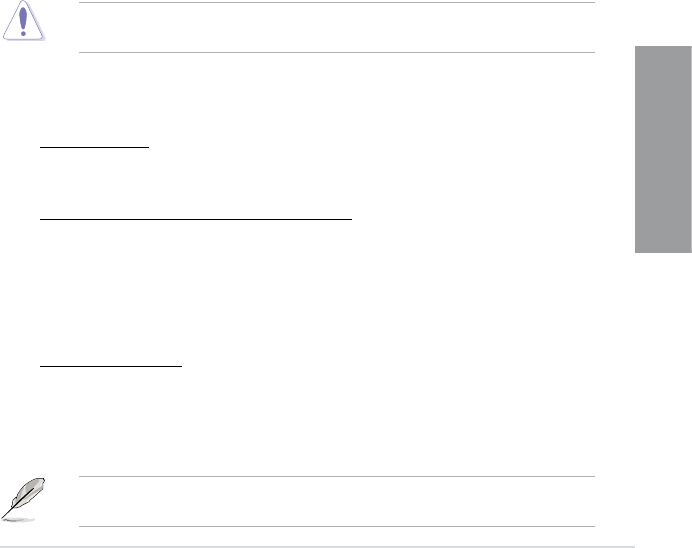
ASUS P8Z68-V PRO 3-9
Chapter 3
iGPU Max. Frequency [XXXX]
Use the <+> and <-> keys to adjust the value. The values range from 1100MHz to 3000MHz
with a 50MHz interval.
EPU Power Saving MODE [Disabled]
Allows you to enable or disable the EPU power saving function.
Conguration options: [Disabled] [Enabled]
EPU Setting [Auto]
This item appears only when you set the EPU Power Saving MODE item to [Enabled.] and
allows you to select the EPU power saving mode.
Conguration options: [Auto] [Light Power Saving Mode] [Medium Power Saving Mode] [Max
Power Saving Mode]
OC Tuner
OC Tuner automatically overclocks the frequency and voltage of CPU and DRAM for
enhancing the system performance. Conguration options: [OK] [Cancel]
DRAM Timing Control
The sub-items in this menu allow you to set the DRAM timing control features. Use the <+>
and <-> keys to adjust the value. To restore the default setting, type [auto] using the keyboard
and press the <Enter> key.
Changing the values in this menu may cause the system to become unstable! If this
happens, revert to the default settings.
CPU Power Management
The sub-items in this menu allow you to set the CPU ratio and features.
CPU Ratio [Auto]
Allows you to manually adjust the maximum non-turbo CPU ratio. Use <+> and <-> keys to
adjust the value. The valid value ranges vary according to your CPU model.
Enhanced Intel SpeedStep Technology [Enabled]
Allows you to enable or disable the Enhanced Intel® SpeedStep Technology (EIST).
[Disabled] Disables this function.
[Enabled] The operating system dynamically adjusts the processor voltage and
core frequency which may result in decreased average consumption and
decreased average heat production.
Turbo Mode [Enabled]
This item appears only when you set the EIST item to [Enabled].
[Enabled] Allows processor cores to run faster than marked frequency in specic
condition.
[Disabled] Disables this function.
The following ve items appear only when you set the EIST and Turbo Mode items to
[Enabled].

3-10 Chapter 3: BIOS setup
Chapter 3
Long Duration Power Limit [Auto]
Use the <+> and <-> keys to adjust the value.
Long Duration Maintained [Auto]
Use the <+> and <-> keys to adjust the value.
Short Duration Power Limit [Auto]
Use the <+> and <-> keys to adjust the value.
Additional Turbo Voltage [Auto]
Use the <+> and <-> keys to adjust the value.
Primary Plane Current Limit [Auto]
Maximum instaneous current allowed at any given time for CPU cores.
Use <+> and <-> key to adjust the value at 0.125A increment.
DIGI+ VRM
Load-Line Calibration [Auto]
Load-line is dened by Intel VRM spec and affects CPU voltage. The CPU working voltage
will decrease proportionally to CPU loading. Higher load-line calibration would get higher
voltage and better overclocking performance, but increase the CPU and VRM thermal. This
item allows you to adjust the voltage range from the following percentages to boost the
system performance: 0% (Regular), 25% (Medium), 50% (High), 75% (Ultra High) and 100%
(Extreme).
Conguration options: [Auto] [Regular] [Medium] [High] [Ultra High] [Extreme]
The actual performance boost may vary depending on your CPU speciation.
VRM Frequency [Auto]
Switching frequency will affect the VRM transient response and component thermal. Setting a
higher frequency gets faster transient response.
[Auto] Allows you to enable or disable the Spread Spectrum item.
[Manual] Allows you to manually set the frequency with a 10k Hz interval.
VRM Spread Spectrum [Disabled]
This item appears only when you set the Frequency item to [Auto] and allows you to enable
the spread spectrum to enhance system stability.
VRM Fixed Frequency Mode [XXX]
This item appears only when you set the VRM Frequency item to [Manual] and allows you to
set a xed VRM frequency. Use the <+> and <-> keys to adjust the value. The values range
from 300k Hz to 500k Hz with a 10k Hz interval.
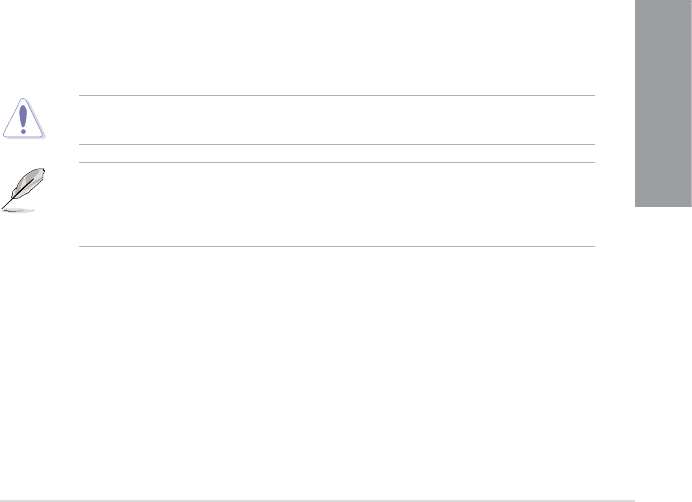
ASUS P8Z68-V PRO 3-11
Chapter 3
Phase Control [Extreme]
Phase number is the number of woorking VRM phase. Increasing phase number under
heavy system loading to get more transient and better thermal performance. Reducing phase
number under light system loading to increase VRM efciency
[Standard] Proceeds phase control depending on the CPU loading.
[Optimized] Loads the ASUS optimized phase tuning prole.
[Extreme] Proceeds the full phase mode.
[Manual Adjustment] Allows manual adjustment.
Manual Adjustment [Medium]
This item appears only when you set the Phase Control item to [Manual Adjustment].
Conguration options: [Ultra Fast] [Fast] [Medium] [Regular]
Duty Control [T.Probe]
[T.Probe] Maintains the VRM thermal balance.
[Extreme] Maintains the VRM current balance.
CPU Current Capability [100%]
This item provides wider total power range for overclocking. A higher value brings a wider
total power range and extends the overclocking frequency range simultaneously.
Conguration options: [100%] [110%] [120%] [130%] [140%]
iGPU Load-line Calibration [Auto]
Allows you to set the iGPU Load-line Calibration.
Conguration options: [Auto] [Regular] [High] [Extreme]
iGPU Current Capability [100%]
Allows you to set the iGPU Current Capability.
Conguration options: [100%] [140%]
Do not remove the thermal module while changing the DIGI+ VRM related parrameters .
The thermal conditions should be monitored.
Some of the following items are adjusted by typing the desired values using the numeric
keypad and press the <Enter> key. You can also use the <+> and <-> keys to adjust the
value. To restore the default setting, type [auto] using the keyboard and press the <Enter>
key.
CPU Voltage [Offset Mode]
[Manual Mode] Allows you to set a xed CPU voltage.
[Offset Mode] Allows you to set the Offset voltage.
Offset Mode Sign [+]
This item appears only when you set the CPU Voltage item to [Offset Mode].
[+] To offset the voltage by a positive value.
[–] To offset the voltage by a negative value.
3-12 Chapter 3: BIOS setup
Chapter 3
CPU Offset Voltage [Auto]
This item appears only when you set the CPU Voltage item to [Offset Mode] and
allows you to set the Offset voltage. The values range from 0.005V to 0.635V with a
0.005V interval.
CPU Manual Voltage [Auto]
This item appears only when you set the CPU Voltage item to [Manual Mode] and
allows you to set a xed CPU voltage. The values range from 0.800V to 1.990V with a
0.005V interval.
Refer to the CPU documentation before setting the CPU voltage. Setting a high voltage
may damage the CPU permanently, and setting a low voltage may make the system
unstable.
iGPU Offset Mode Sign [+]
[+] To offset the voltage by a positive value.
[–] To offset the voltage by a negative value.
iGPU Offset Voltage [Auto]
Allows you to set the iGPU Offset voltage. The values range from 0.005V to 0.635V
with a 0.005V interval.
DRAM Voltage [Auto]
Allows you to set the DRAM voltage. The values range from 1.20V to 2.20V with a 0.00625V
interval.
According to Intel CPU spec, DIMMs with voltage requirement over 1.65V may damage
the CPU permanently. We recommend you install the DIMMs with the voltage requirement
below 1.65V.
VCCIO Voltage [Auto]
Allows you to set the VCCIO voltage. The values range from 0.80V to 1.70V with a 0.00625V
interval.
CPU PLL Voltage [Auto]
Allows you to set the CPU and PCH PLL voltage. The values range from 1.20V to 2.20V with
a 0.00625V interval.
PCH Voltage [Auto]
Allows you to set the Platform Controller Hub volage. The values range from 0.80V to 1.70V
with a 0.01V interval.
• The values of the CPU Manual Voltage, CPU Offset Voltage, DRAM Voltage, VCCIO
Voltage, CPU PLL Voltage, and PCH Voltage items are labeled in different color,
indicating the risk levels of high voltage settings.
• The system may need better cooling system to work stably under high voltage
settings.

ASUS P8Z68-V PRO 3-13
Chapter 3
DRAM DATA REF Voltage on CHA/B [Auto]
Allows you to set the DRAM DATA Reference Voltage on Channel A/B. The values
range from 0.395x to 0.630x with a 0.005x interval. Different ratio might enhance DRAM
overclocking ability.
DRAM CTRL REF Voltage on CHA/B [Auto]
Allows you to set the DRAM Control Reference Voltage on Channel A/B. The values
range from 0.395x to 0.630x with a 0.005x interval. Different ratio might enhance DRAM
overclocking ability.
CPU Spread Spectrum [Auto]
[Auto] Automatic conguration.
[Disabled] Enhances the BCLK overclocking ability.
[Enabled] Sets to [Enabled] for EMI control.
Black Yellow Pink Red
CPU Manual Voltage 0.8V–1.22V 1.225V–1.280V 1.285V–1.335V 1.340V–1.990V
CPU Offset Voltage 0.005V–0.060V 0.065V–0.120V 0.125V–0.175V 0.180V–0.635V
iGPU Offset Voltage 0.005V–0.035V 0.04V–0.065V 0.07V–0.1V 0.105V–0.635V
DRAM Voltage 1.20000V–
1.57500V
1.58125V–
1.65000V
1.65625V–
1.72500V
1.73125V–
2.20000V
VCCIO Voltage 0.80000V–
1.10000V
1.10625V–
1.15000V
1.15625V–
1.20625V
1.21250V–
1.70000V
CPU PLL Voltage 1.20000V–
1.88750V
1.89375V–
1.97500V
1.98125V–
2.06875V
2.07500V–
2.20000V
PCH Voltage 0.80000V–
1.10000V
1.11000V–
1.15000V
1.16000V–
1.20000V
1.21000V–
1.70000V
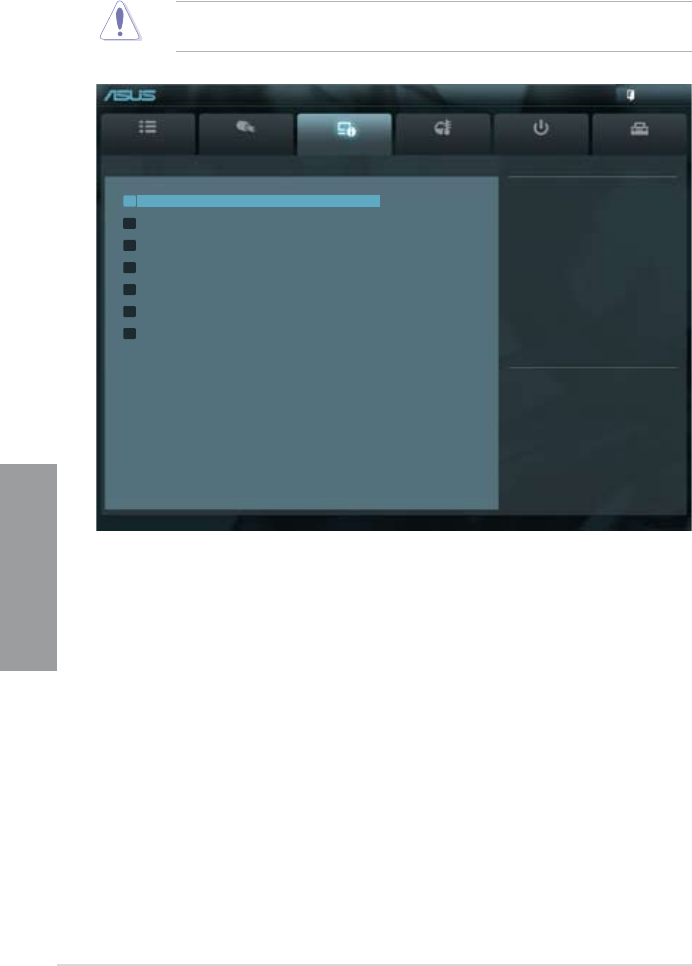
3-14 Chapter 3: BIOS setup
Chapter 3
Be cautious when changing the settings of the Advanced menu items. Incorrect eld values
can cause the system to malfunction.
3.5 Advanced menu
The Advanced menu items allow you to change the settings for the CPU and other system
devices.
Main Ai Tweaker Advanced Monitor Boot Tool
Exit
CPU Conguration Parameters
EFI BIOS Utility - Advanced Mode
> CPU Conguration
> System Agent Conguration
> PCH Conguration
> SATA Conguration
> USB Conguration
> Onboard Devices Conguration
> APM
Version 2.00.1201. Copyright (C) 2010 American Megatrends, Inc.
→←: Select Screen
↑↓: Select Item
Enter: Select
+/-: Change Opt.
F1: General Help
F2: Previous Values
F5: Optimized Defaults
F10: Save ESC: Exit
F12: Print Screen
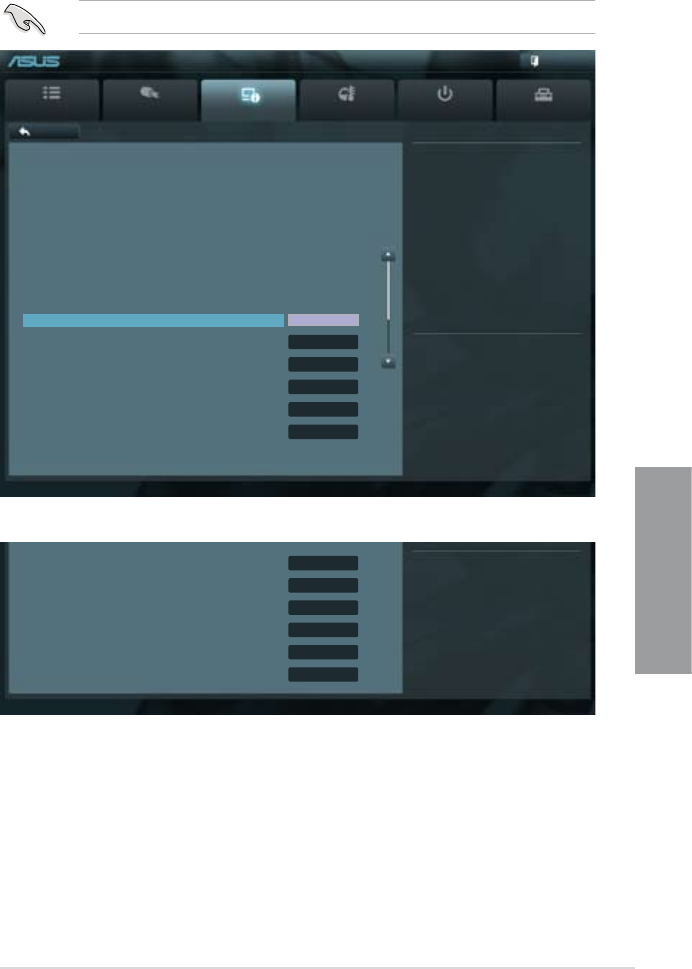
ASUS P8Z68-V PRO 3-15
Chapter 3
3.5.1 CPU Conguration
The items in this menu show the CPU-related information that the BIOS automatically
detects.
The items shown in this screen may be different due to the CPU you installed.
Scroll down to display the following items:
Main Ai Tweaker Advanced Monitor Boot Tool
Exit
Version 2.00.1201. Copyright (C) 2010 American Megatrends, Inc.
Adjust Non-Turbo Ratio
→←: Select Screen
↑↓: Select Item
Enter: Select
+/-: Change Opt.
F1: General Help
F2: Previous Values
F5: Optimized Defaults
F10: Save ESC: Exit
F12: Print Screen
Back Advanced\ CPU Conguration >
EFI BIOS Utility - Advanced Mode
CPU Conguration
Intel(R) CPU 0 @ 3.10GHz
EM64T Supported
Processor Speed 3517 MHz
Processor Stepping 206a7
Microcode Revision 14
L1 Cache 256 KB
L2 Cache 1024 KB
L3 Cache 8192 KB
Processor Cores 4
Intel HT Technology Supported
CPU Ratio Range 16-34
CPU Current Ratio 34
CPU Ratio Auto
Intel Adaptive Thermal Monitor Enabled
Hyper-threading Enabled
Active Processor Cores All
Limit CPUID Maximum Disabled
Execute Disable Bit Enabled
Version 2.00.1201. Copyright (C) 2010 American Megatrends, Inc.
Intel Virtualization Technology Disabled
Enhanced Intel SpeedStep Technology Enabled
Turbo Mode Enabled
CPU C1E Auto
CPU C3 Report Auto
CPU C6 Report Auto
CPU Ratio [Auto]
Allows you to set the ratio between the CPU Core Clock and the BCLK Frequency. Use <+>
and <-> keys to adjust the ratio. The valid value ranges vary according to your CPU model.
Intel Adaptive Thermal Monitor [Enabled]
[Enabled] Enables the overheated CPU to throttle its clock speed to cool down.
[Disabled] Disables the CPU thermal monitor function.

3-16 Chapter 3: BIOS setup
Chapter 3
Hyper-threading [Enabled]
The Intel Hyper-Threading Technology allows a hyper-threading processor to appear as two
logical processors to the operating system, allowing the operating system to schedule two
threads or processes simultaneously.
[Enabled] Two threads per activated core are enabled.
[Disabled] Only one thread per activated core is enabled.
Active Processor Cores [All]
Allows you to choose the number of CPU cores to activate in each processor package.
Conguration options: [All] [1] [2] [3]
Limit CPUID Maximum [Disabled]
[Enabled] Allows legacy operating systems to boot even without support for CPUs
with extended CPUID functions.
[Disabled] Disables this function.
Execute Disable Bit [Enabled]
[Enabled] Enables the No-Execution Page Protection Technology.
[Disabled] Forces the XD feature ag to always return to zero (0).
Intel(R) Virtualization Tech [Disabled]
[Enabled] Allows a hardware platform to run multiple operating systems separately
and simultaneously, enabling one system to virtually function as several
systems.
[Disabled] Disables this function.
Enhanced Intel SpeedStep Technology [Enabled]
Allows you to enable or disable the Enhanced Intel® SpeedStep Technology (EIST).
[Disabled] The CPU runs at its default speed.
[Enabled] The operating system controls the CPU speed.
Turbo Mode [Enabled]
This item appears only when you set the EIST item to [Enabled] and allows you to enable or
disable the Intel® Turbo Mode Technology.
[Enabled] Allows processor cores to run faster than marked frequency in specic
condition.
[Disabled] Disables this function.
CPU C1E [Auto]
[Enabled] Enables the C1E support function. This item should be enabled in order to
enable the Enhanced Halt State.
[Disabled] Disables this function.
CPU C3 Report [Auto]
Allows you to disable or enable the CPU C3 report to OS.
CPU C6 Report [Auto]
Allows you to disable or enable the CPU C6 report to OS.
ASUS P8Z68-V PRO 3-17
Chapter 3
3.5.2 System Agent Conguration
3.5.3 PCH Conguration
Initiate Graphic Adapter [PCIE/PCI]
Allows you to decide which graphics controller to use as the primary boot device.
Conguration options: [iGPU] [PCI/iGPU] [PCI/PCIE] [PCIE/PCI]
iGPU Memory [64M]
Allows you to set the iGPU Memory. Conguration options: [32M] [64M] [96M] [128M]
Render Standy [Enabled]
Allows you to set the Render Standy. Conguration options: [Disabled] [Enabled]
iGPU Multi-Monitor [Disabled]
Allows you to set the iGPU Multi-Monitor. Conguration options: [Disabled] [Enabled]
High Precision Timer [Enabled]
Allows you to enable or disable the High Precision Event Timer.
Conguration options: [Enabled] [Disabled]
Main Ai Tweaker Advanced Monitor Boot Tool
Exit
Select which graphics controller to
use as the primary boot device.
Back Advanced\ System Agent Conguration >
EFI BIOS Utility - Advanced Mode
Main Ai Tweaker Advanced Monitor Boot Tool
Exit
Enabled/Disabled the High Precision
Event Timer.
Back Advanced\ PCH Conguration >
EFI BIOS Utility - Advanced Mode
PCH Conguration
High Precision Timer Enabled
System Agent Conguration
Initate Graphic Adapter PCIE/PCI
iGPU Memory 64M
Render Standy Enabled
iGPU Multi-Monitor Disabled
3-18 Chapter 3: BIOS setup
Chapter 3
3.5.4 SATA Conguration
While entering Setup, the BIOS automatically detects the presence of SATA devices. The SATA
Port items show Not Present if no SATA device is installed to the corresponding SATA port.
SATA Mode [AHCI Mode]
Allows you to set the SATA conguration.
[Disabled] Disables the SATA function.
[IDE Mode] Set to [IDE Mode] when you want to use the Serial ATA hard disk drives as
Parallel ATA physical storage devices.
[AHCI Mode] Set to [AHCI Mode] when you want the SATA hard disk drives to use the
AHCI (Advanced Host Controller Interface). The AHCI allows the onboard
storage driver to enable advanced Serial ATA features that increases
storage performance on random workloads by allowing the drive to
internally optimize the order of commands.
[RAID Mode] Set to [RAID Mode] when you want to create a RAID conguration from the
SATA hard disk drives.
Serial-ATA Controller 0 [Enhanced]
This item appear only when you set the previous item to [IDE Mode]
Main Ai Tweaker Advanced Monitor Boot Tool
Exit
(1) IDE Mode. (2) AHCI Mode. (3)
RAID Mode.
Back Advanced\ SATA Conguration >
EFI BIOS Utility - Advanced Mode
→←: Select Screen
↑↓: Select Item
Enter: Select
+/-: Change Opt.
F1: General Help
F2: Previous Values
F5: Optimized Defaults
F10: Save ESC: Exit
F12: Print Screen
Scroll down to display the following items:
Version 2.00.1201. Copyright (C) 2010 American Megatrends, Inc.
SATA Conguration
SATA Mode AHCI Mode
S.M.A.R.T. Status Check Enabled
SATA 6G_1 (Gray) Not Present
Hot Plug Disabled
SATA 6G_2 (Gray) Not Present
Hot Plug Disabled
SATA 3G_3 (Blue) ASUS CB-521 ATAPI
Hot Plug Disabled
SATA 3G_4 (Blue) Not Present
Hot Plug Disabled
SATA 3G_5 (Blue) Not Present
Hot Plug Disabled
SATA 3G_6 (Blue) Not Present
Hot Plug Disabled

ASUS P8Z68-V PRO 3-19
Chapter 3
[Disabled] Disables the SATA function.
[Enhanced] Set to [Enhanced] to support two SATA 6.0 Gb/s and two SATA 3.0 Gb/s
devices.
[Compatible] Set to [Compatible] when using Windows 98/NT/2000/MS-DOS. Up to four
SATA devices are supported under these operating systems.
Serial-ATA Controller 1 [Enhanced]
[Disabled] Disables the SATA function.
[Enhanced] Set to [Enhanced] to support 2 SATA 3Gb/s devices.
S.M.A.R.T. Status Check [Enabled]
S.M.A.R.T. (Self-Monitoring, Analysis and Reporting Technology) is a monitor system. When
read/write of your hard disk errors occur, this feature allows the hard disk to report warning
messages during the POST.
Conguration options: [Enabled] [Disabled]
3-20 Chapter 3: BIOS setup
Chapter 3
3.5.5 USB Conguration
The items in this menu allow you to change the USB-related features.
The USB Devices item shows the auto-detected values. If no USB device is detected, the
item shows None.
Legacy USB Support [Enabled]
[Enabled] Enables the support for USB devices on legacy operating systems (OS).
[Disabled] The USB devices can be used only for the BIOS setup program.
[Auto] Allows the system to detect the presence of USB devices at startup. If
detected, the USB controller legacy mode is enabled. If no USB device is
detected, the legacy USB support is disabled.
Legacy USB3.0 Support [Enabled]
[Enabled] Enables the support for USB 3.0 devices on legacy operating systems
(OS).
[Disabled] Disables the function.
EHCI Hand-off [Disabled]
[Enabled] Enables the support for operating systems without an EHCI hand-off
feature.
[Disabled] Disables the function.
Main Ai Tweaker Advanced Monitor Boot Tool
Exit
Enables Legacy USB support. AUTO
option disables legacy support if no
USB devices are connected. DISABLE
option will keep USB devices
available only for EFI applications.
Back Advanced\ USB Conguration >
EFI BIOS Utility - Advanced Mode
USB Conguration
USB Devices:
1 Keyboard, 1 Mouse, 2 Hubs
Legacy USB Support Enabled
Legacy USB3.0 Support Enabled
EHCI Hand-off Disabled
ASUS P8Z68-V PRO 3-21
Chapter 3
3.5.6 Onboard Devices Conguration
Scroll down to display the following items:
Version 2.00.1201. Copyright (C) 2010 American Megatrends, Inc.
Main Ai Tweaker Advanced Monitor Boot Tool
Exit
Version 2.00.1201. Copyright (C) 2010 American Megatrends, Inc.
Enabled/Disabled Azalia HD Audio
→←: Select Screen
↑↓: Select Item
Enter: Select
+/-: Change Opt.
F1: General Help
F2: Previous Values
F5: Optimized Defaults
F10: Save ESC: Exit
F12: Print Screen
Back Advanced\ Onboard Devices Conguration >
EFI BIOS Utility - Advanced Mode
HD Audio Controller [Enabled]
[Enabled] Enables the High Denition Audio Controller.
[Disabled] Disables the controller.
The following two items appear only when you set the Azalia HD Audio item to [Enabled].
Front Panel Type [HD]
Allows you to set the front panel audio connector (AAFP) mode to legacy AC’97 or high-
denition audio depending on the audio standard that the front panel audio module supports.
[HD] Sets the front panel audio connector (AAFP) mode to high denition audio.
[AC97] Sets the front panel audio connector (AAFP) mode to legacy AC’97
Asmedia USB 3.0 Controller Enabled
Asmedia USB 3.0 Battery Charging Support Disabled
Intel LAN Controller Enabled
Intel PXE OPROM Disabled
HD Audio controller Enabled
Front Panel Type HD
SPDIF Out Type SPDIF
Bluetooth Controller Enabled
VIA 1394 Controller Enabled
PCI Express X16_3 slot (black) bandwidth Auto
Marvell Storage Controller AHCI Mode
Marvell Storage OPROM Enabled
JMB Storage Controller Enabled
JMB Storage OPROM Enabled
Display OptionRom in POST Enabled

3-22 Chapter 3: BIOS setup
Chapter 3
SPDIF Out Type [SPDIF]
[SPDIF] Sets to [SPDIF] for SPDIF audio output.
[HDMI] Sets to [HDMI] for HDMI audio output.
Bluetooth Controller [Enabled]
[Enabled] Enables the onboard bluetooth controller.
[Disabled] Disables the controller.
VIA 1394 Controller [Enabled]
[Enabled] Enables the onboard IEEE 1394a controller.
[Disabled] Disables the controller.
PCI Express X16_3 slot (black) bandwidth [Auto]
Allows you to select the PCI Express X16_3 slot (black) bandwidth.
[Auto] PCIeX16_3 slot runs at X1 mode for system resource optimization.
(PCIeX1_2 will be disabled.)
[X4 mode] PCIeX16_3 slot runs at X4 mode for high performance support. (USB3_34,
eSATA ports, PCIeX1_1, PCIeX1_2 will be disabled.)
[X1 mode] PCIeX16_3 slot runs at X1 mode with all slots enabled. (USB3_34 will be
disabled.)
Marvell Storage Controller [AHCI Mode]
Allows you to select the Marvell storage controller operating mode.
[Disabled] Disables the controller.
[IDE Mode] Set to [IDE Mode] when you want to use the Serial ATA hard disk drives as
Parallel ATA physical storage devices.
[AHCI Mode] Set to [AHCI Mode] when you want the SATA hard disk drives to use the
AHCI (Advanced Host Controller Interface). The AHCI allows the onboard
storage driver to enable advanced Serial ATA features that increases
storage performance on random workloads by allowing the drive to
internally optimize the order of commands.
Marvell Storage OPROM [Enabled]
This item appears only when you set the previous item to [Enabled] and allows you to enable
or disable the OptionRom of the Marvell storage controller.
Conguration options: [Enabled] [Disabled]
JMB Storage Controller [Enabled]
Allows you to enable or disable the JMB storage controller.
Conguration options: [Disabled] [Enabled]
If you want to use the full functin of the JMB storage contorller (ex. AHCI), we recommend
that you set this item to [Enabled] and install the JMicron JMB36X Controller Driver from
the motherboard support DVD.

ASUS P8Z68-V PRO 3-23
Chapter 3
JMB Storage OPROM [Enabled]
This item appears only when you set the previous item to [Enabled] and allows you to enable
or disable the OptionRom of the JMB storage controller.
Conguration options: [Enabled] [Disabled]
Display OptionRom in POST [Enabled]
This item appears only when you set the JMB Storage OPROM item to [Enabled] and
allows you to display or hide the OptionRom of the JMB storage controller during POST.
Conguration options: [Enabled] [Disabled]
Intel LAN Controller [Enabled]
[Enabled] Enables the Intel LAN controller.
[Disabled] Disables the controller.
Intel PXE OPROM [Disabled]
This item appears only when you set the previous item to [Enabled] and allows you to enable
or disable the PXE OptionRom of the Intel LAN controller.
Conguration options: [Enabled] [Disabled]
Asmedia USB 3.0 Controller [Enabled]
[Enabled] Enables the USB 3.0 controller.
[Disabled] Disables the controller.
Asmedia USB 3.0 Battery Charging Support [Disabled]
[Enabled] Enables Asmedia USB 3.0 fast battery charging support for USB 3.0
devices complying with the BC 1.1 regulation.
[Disabled] Disables battery charging support.
3-24 Chapter 3: BIOS setup
Chapter 3
Restore AC Power Loss [Power Off]
[Power On] The system goes into on state after an AC power loss.
[Power Off] The system goes into off state after an AC power loss.
[Last State] The system goes into either off or on state, whatever the system state was
before the AC power loss.
Power On By PCI [Disabled]
[Disabled] Disables the PME to wake up from S5 by PCI devices.
[Enabled] Allows you to turn on the system through a PCI LAN or modem card. This
feature requires an ATX power supply that provides at least 1A on the
+5VSB lead.
Power On By PCIE [Disabled]
[Disabled] Disables the PCIE devices to generate a wake event.
[Enabled] Enables the PCIE devices to generate a wake event.
Power On By RTC [Disabled]
[Disabled] Disables RTC to generate a wake event.
[Enabled] When set to [Enabled], the items RTC Alarm Date (Days) and Hour/
Minute/Second will become user-congurable with set values.
3.5.7 APM
Main Ai Tweaker Advanced Monitor Boot Tool
Exit
Specify what state to go to when
power is re-applied after a power
failure (G3 state).
Back Advanced\ APM >
EFI BIOS Utility - Advanced Mode
Restore AC Power Loss Power Off
Power On By PCI Disabled
Power On By PCIE Disabled
Power On By RTC Disabled
ASUS P8Z68-V PRO 3-25
Chapter 3
3.6 Monitor menu
The Monitor menu displays the system temperature/power status, and allows you to change
the fan settings.
Main Ai Tweaker Advanced Monitor Boot Tool
Exit
Version 2.00.1201. Copyright (C) 2010 American Megatrends, Inc.
→←: Select Screen
↑↓: Select Item
Enter: Select
+/-: Change Opt.
F1: General Help
F2: Previous Values
F5: Optimized Defaults
F10: Save ESC: Exit
F12: Print Screen
EFI BIOS Utility - Advanced Mode
CPU Temperature / MB Temperature [xxxºC/xxxºF]
The onboard hardware monitor automatically detects and displays the CPU and motherboard
temperatures. Select Ignore if you do not wish to display the detected temperatures.
CPU Fan Speed [xxxx RPM] or [Ignore] / [N/A]
CPU Fan OPT Speed [xxxx RPM] or [Ignore] / [N/A]
Chassis Fan 1/2 Speed [xxxx RPM] or [Ignore] / [N/A]
Power Fan 1 Speed [xxxx RPM] or [Ignore] / [N/A]
The onboard hardware monitor automatically detects and displays the CPU, chassis,
and power fan speed in rotations per minute (RPM). If the fan is not connected to the
motherboard, the eld shows N/A. Select Ignore if you do not wish to display the detected
speed.
Scroll down to display the following items:
Version 2.00.1201. Copyright (C) 2010 American Megatrends, Inc.
CPU Temperature +73ºC / +163ºF
MB Temperature +31ºC / +87ºF
CPU Fan Speed 4192 RPM
CPU Fan OPT Speed N/A
Chassis Fan 1 Speed N/A
Chassis Fan 2 Speed N/A
Power Fan 1 Speed N/A
CPU Q-Fan Control Enabled
CPU Fan Speed Low Limit 600 RPM
CPU Fan Prole Standard
Chassis Q-Fan Control Enabled
Chassis Fan Speed Low Limit 600 RPM
Chassis Fan Prole Standard
CPU Voltage +1.176 V
3.3V Voltage +3.328 V
5V Voltage +5.120 V
12V Voltage +12.192 V
Anti Surge Support Enabled

3-26 Chapter 3: BIOS setup
Chapter 3
CPU Q-Fan Control [Enabled]
[Disabled] Disables the CPU Q-Fan control feature.
[Enabled] Enables the CPU Q-Fan control feature.
CPU Fan Speed Low Limit [600 RPM]
This item appears only when you enable the CPU Q-Fan Control feature and allows you to
disable or set the CPU fan warning speed.
Conguration options: [Ignore] [200 RPM] [300 RPM] [400 RPM] [500 RPM] [600 RPM]
CPU Fan Profile [Standard]
This item appears only when you enable the CPU Q-Fan Control feature and allows
you to set the appropriate performance level of the CPU fan.
[Standard] Sets to [Standard] to make the CPU fan automatically adjust depending on
the CPU temperature.
[Silent] Sets to [Silent] to minimize the fan speed for quiet CPU fan operation.
[Turbo] Sets to [Turbo] to achieve maximum CPU fan speed.
[Manual] Sets to [Manual] to assign detailed fan speed control parameters.
The following four items appear only when you set CPU Fan Prole to [Manual].
CPU Upper Temperature [70]
Use the <+> and <-> keys to adjust the upper limit of the CPU temperature. The values range
from 40ºC to 90ºC.
CPU Fan Max. Duty Cycle(%) [100]
Use the <+> and <-> keys to adjust the maximum CPU fan duty cycle. The values range from
20% to 100%. When the CPU temperature reaches the upper limit, the CPU fan will operate at
the maximum duty cycle.
CPU Lower Temperature [20]
Displays the lower limit of the CPU temperature.
CPU Fan Min. Duty Cycle(%) [20]
Use the <+> and <-> keys to adjust the minimum CPU fan duty cycle. The values range from 0%
to 100%. When the CPU temperature is under 40ºC, the CPU fan will operate at the minimum
duty cycle.
Chassis Q-Fan Control [Enabled]
[Disabled] Disables the Chassis Q-Fan control feature.
[Enabled] Enables the Chassis Q-Fan control feature.
Chassis Fan Speed Low Limit [600 RPM]
This item appears only when you enable the Chassis Q-Fan Control feature and allows you
to disable or set the chassis fan warning speed.
Conguration options: [Ignore] [200 RPM] [300 RPM] [400 RPM] [500 RPM] [600 RPM]

ASUS P8Z68-V PRO 3-27
Chapter 3
Chassis Fan Profile [Standard]
This item appears only when you enable the Chassis Q-Fan Control feature and
allows you to set the appropriate performance level of the chassis fan.
[Standard] Sets to [Standard] to make the chassis fan automatically adjust depending
on the chassis temperature.
[Silent] Sets to [Silent] to minimize the fan speed for quiet chassis fan operation.
[Turbo] Sets to [Turbo] to achieve maximum chassis fan speed.
[Manual] Sets to [Manual] to assign detailed fan speed control parameters.
The following four items appear only when you set Chassis Fan Prole to [Manual].
Chassis Upper Temperature [70]
Use the <+> and <-> keys to adjust the upper limit of the CPU temperature. The values range
from 40ºC to 90ºC.
Chassis Fan Max. Duty Cycle(%) [100]
Use the <+> and <-> keys to adjust the maximum chassis fan duty cycle. The values range
from 20% to 100%. When the chassis temperature reaches the upper limit, the chassis fan will
operate at the maximum duty cycle.
Chassis Lower Temperature [40]
Displays the lower limit of the chassis temperature.
CPU Fan Min. Duty Cycle(%) [60]
Use the <+> and <-> keys to adjust the minimum chassis fan duty cycle. The values range from
0% to 100%. When the chassis temperature is under 40ºC, the chassis fan will operate at the
minimum duty cycle.
CPU Voltage, 3.3V Voltage, 5V Voltage, 12V Voltage
The onboard hardware monitor automatically detects the voltage output through the onboard
voltage regulators. Select Ignore if you do not want to detect this item.
Anti Surge Support [Enabled]
This item allows you to enable or disable the Anti Surge function.
Conguration options: [Disabled] [Enabled]
3-28 Chapter 3: BIOS setup
Chapter 3
3.7 Boot menu
The Boot menu items allow you to change the system boot options.
Bootup NumLock State [On]
[On] Sets the power-on state of the NumLock to [On].
[Off] Sets the power-on state of the NumLock to [Off].
Full Screen Logo [Enabled]
[Enabled] Enables the full screen logo display feature.
[Disabled] Disables the full screen logo display feature.
Set this item to [Enabled] to use the ASUS MyLogo 2™ feature.
Wait For ‘F1’ If Error [Enabled]
[Disabled] Disables this function.
[Enabled] The system waits for the <F1> key to be pressed when error occurs.
Option ROM Messages [Force BIOS]
[Force BIOS] The third-party ROM messages will be forced to display during the boot
sequence.
[Keep Current] The third-party ROM messages will be displayed only if the third-party
manufacturer had set the add-on device to do so.
Main Ai Tweaker Advanced Monitor Boot Tool
Exit
Version 2.00.1201. Copyright (C) 2010 American Megatrends, Inc.
Select the keyboard NumLock state
→←: Select Screen
↑↓: Select Item
Enter: Select
+/-: Change Opt.
F1: General Help
F2: Previous Values
F5: Optimized Defaults
F10: Save ESC: Exit
F12: Print Screen
EFI BIOS Utility - Advanced Mode
Bootup NumLock State On
Full Screen Logo Enabled
Wait for ‘F1’ If Error Enabled
Option ROM Messages Force BIOS
Setup Mode EZ Mode
Boot Option Priorities
Boot Option #1 P3: xxxxxxx
Boot Option #2 P4: xxxxxxx
Boot Override
> P5: xxxxxxxxxxxx
> P6: xxxxxxxxxxxx
> Hard Drive BBS Priorities
> CD/DVD ROM Drive BBS Priorities
ASUS P8Z68-V PRO 3-29
Chapter 3
3.8 Tools menu
The Tools menu items allow you to congure options for special functions. Select an item
then press <Enter> to display the submenu.
Main Ai Tweaker Advanced Monitor Boot Tool
Exit
Be used to update BIOS
EFI BIOS Utility - Advanced Mode
3.8.1 ASUS EZ Flash 2 Utility
Allows you to run ASUS EZ Flash 2. When you press <Enter>, a conrmation message
appears. Use the left/right arrow key to select between [Yes] or [No], then press <Enter> to
conrm your choice.
For more details, refer to section 3.10.2 ASUS EZ Flash 2 utility.
Setup Mode [EZ Mode]
[Advanced Mode] Sets Advanced Mode as the default screen for entering the BIOS setup
program.
[EZ Mode] Sets EZ Mode as the default screen for entering the BIOS setup program.
Boot Option Priorities
These items specify the boot device priority sequence from the available devices. The
number of device items that appears on the screen depends on the number of devices
installed in the system.
• To select the boot device during system startup, press <F8> when ASUS Logo appears.
• To access Windows OS in Safe Mode, do any of the following:
- Press <F5> when ASUS Logo appears.
- Press <F8> after POST.
Boot Override
These items displays the available devices. The number of device items that appears on
the screen depends on the number of devices installed in the system. Click an item to start
booting from the selected device.
> ASUS EZ Flash 2 Utility
> ASUS O.C. Prole
> ASUS SPD Information
3-30 Chapter 3: BIOS setup
Chapter 3
3.8.2. ASUS O.C. Prole
This item allows you to store or load multiple BIOS settings.
Main Ai Tweaker Advanced Monitor Boot Tool
Exit
Save BIOS settings to Prole
Back Tool\ ASUS O.C. Prole >
EFI BIOS Utility - Advanced Mode
The Setup Prole Status items show Not Installed if no prole is created.
• DO NOT shut down or reset the system while updating the BIOS to prevent the
system boot failure!
• We recommend that you update the BIOS le only coming from the same memory/CPU
conguration and BIOS version.
Save to Prole
Allows you to save the current BIOS settings to the BIOS Flash, and create a prole. Key in a
prole number from one to eight, press <Enter>, and then select Yes.
Load from Prole
Allows you to load the previous BIOS settings saved in the BIOS Flash. Key in the prole
number that saved your BIOS settings, press <Enter>, and then select Yes.
O.C. Prole Conguration
Setup Prole 1 Status : Not Installed
Setup Prole 2 Status : Not Installed
Setup Prole 3 Status : Not Installed
Setup Prole 4 Status : Not Installed
Setup Prole 5 Status : Not Installed
Setup Prole 6 Status : Not Installed
Setup Prole 7 Status : Not Installed
Setup Prole 8 Status : Not Installed
Add Your CMOS Prole
Label
Save to Prole 1
Add Your CMOS Prole
Load from Prole 1

ASUS P8Z68-V PRO 3-31
Chapter 3
3.9 Exit menu
The Exit menu items allow you to load the optimal default values for the BIOS items, and
save or discard your changes to the BIOS items. You can access the EZ Mode from the Exit
menu.
Load Optimized Defaults
This option allows you to load the default values for each of the parameters on the Setup
menus. When you select this option or if you press <F5>, a conrmation window appears.
Select Yes to load the default values.
Save Changes & Reset
Once you are nished making your selections, choose this option from the Exit menu to
ensure the values you selected are saved. When you select this option or if you press <F10>,
a conrmation window appears. Select Yes to save changes and exit.
Discard Changes & Exit
This option allows you to exit the Setup program without saving your changes. When you
select this option or if you press <Esc>, a conrmation window appears. Select Yes to
discard changes and exit.
ASUS EZ Mode
This option allows you to enter the EZ Mode screen.
Launch EFI Shell from lesystem device
This option allows you to attempt to launch the EFI Shell application (shellx64.e) from one of
the available lesystem devices.
Exit
Load Optimized Defaults
Save Changes & Reset
Discard Changes & Exit
ASUS EZ Mode
Launch EFI Shell from lesystem device
3-32 Chapter 3: BIOS setup
Chapter 3
3.10 Updating BIOS
The ASUS website publishes the latest BIOS versions to provide enhancements on system
stability, compatibility, or performance. However, BIOS updating is potentially risky. If there
is no problem using the current version of BIOS, DO NOT manually update the BIOS.
Inappropriate BIOS updating may result in the system’s failure to boot. Carefully follow the
instructions of this chapter to update your BIOS if necessary.
Visit the ASUS website (www.asus.com) to download the latest BIOS le for this
motherboard.
The following utilities allow you to manage and update the motherboard BIOS setup program.
1. ASUS Update: Updates the BIOS in Windows® environment.
2. ASUS EZ Flash 2: Updates the BIOS using a USB ash drive.
3. ASUS CrashFree BIOS 3: Restores the BIOS using the motherboard support DVD or
a USB ash drive when the BIOS le fails or gets corrupted.
4. ASUS BIOS Updater: Updates and backups the BIOS in DOS environment using the
motherboard support DVD and a USB ash disk drive.
Refer to the corresponding sections for details on these utilities.
Save a copy of the original motherboard BIOS le to a USB ash disk in case you need
to restore the BIOS in the future. Copy the original motherboard BIOS using the ASUS
Update or BIOS Updater utilities.
3.10.1 ASUS Update utility
The ASUS Update is a utility that allows you to manage, save, and update the motherboard
BIOS in Windows® environment. The ASUS Update utility allows you to:
• Update the BIOS directly from the Internet
• Download the latest BIOS le from the Internet
• Update the BIOS from an updated BIOS le
• Save the current BIOS le
• View the BIOS version information
This utility is available in the support DVD that comes with the motherboard package.
ASUS Update requires an Internet connection either through a network or an Internet
Service Provider (ISP).
Launching ASUS Update
After installing AI Suite II from the motherboard support DVD, launch ASUS Update by
clicking Update > ASUS Update on the AI Suite II main menu bar.
Quit all Windows® applications before you update the BIOS using this utility.
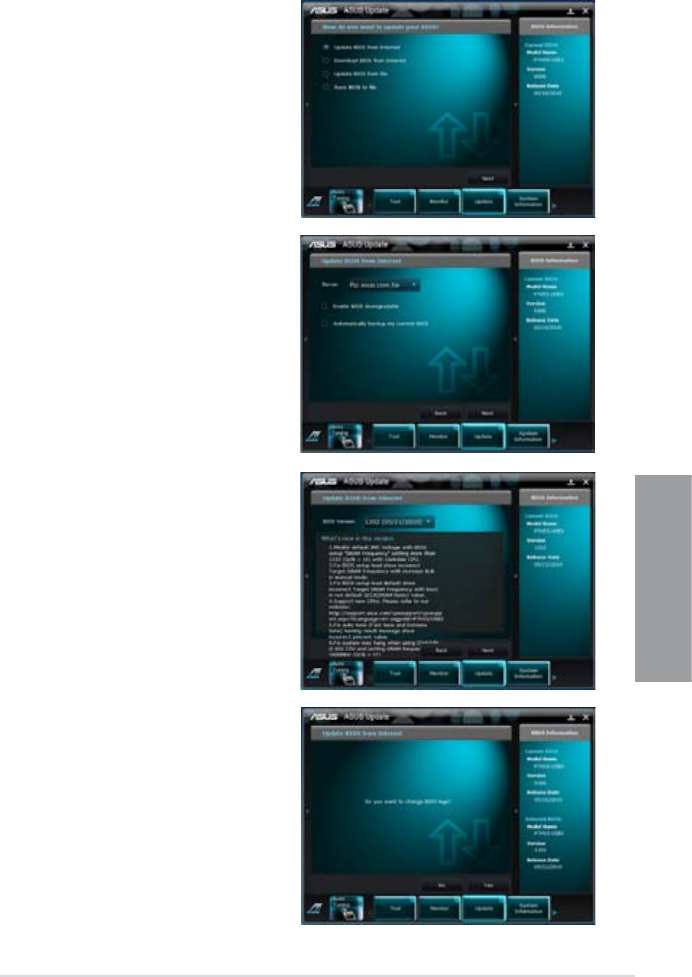
ASUS P8Z68-V PRO 3-33
Chapter 3
Updating the BIOS through the Internet
To update the BIOS through the Internet:
1. From the ASUS Update screen,
select Update BIOS from Internet,
and then click Next.
2. Select the ASUS FTP site nearest
you to avoid network trafc.
If you want to enable the BIOS
downgradable function and auto
BIOS backup function, check the
checkboxs before the two items on
the screen.
4. You can decide whether to change
the BIOS boot logo, which is the
image appearing on screen during
the Power-On Self-Tests (POST).
Click Yes if you want to change the
boot logo or No to continue.
5. Follow the onscreen instructions to
complete the update process.
3. Select the BIOS version that you
want to download. Click Next.
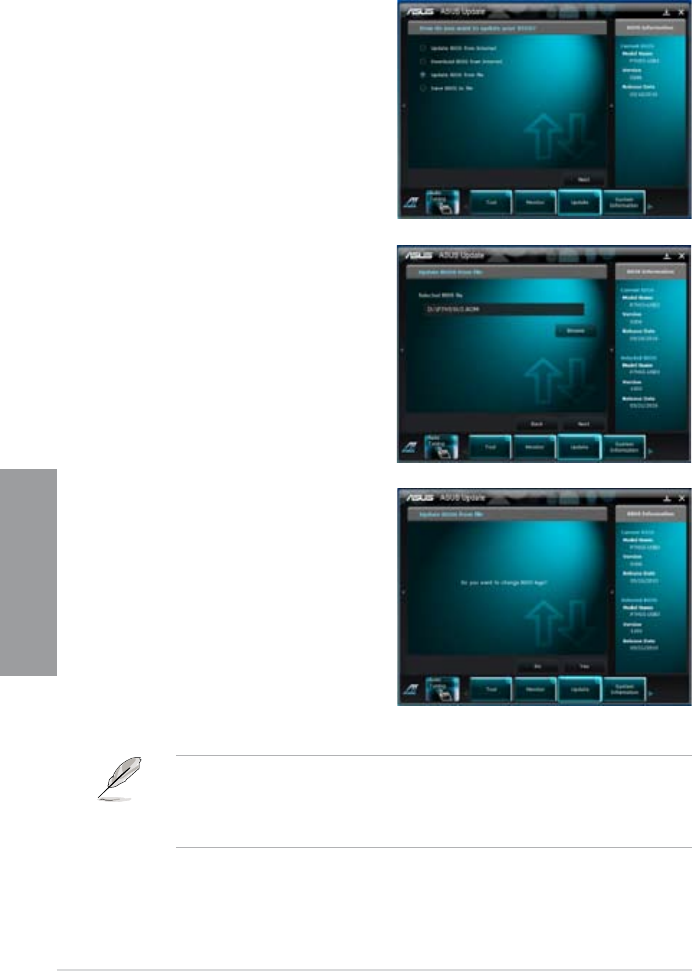
3-34 Chapter 3: BIOS setup
Chapter 3
• The screenshots in this section are for reference only. The actual BIOS information
vary by models.
• Refer to the software manual in the support DVD or visit the ASUS website at
www.asus.com for detailed software conguration.
Updating the BIOS through a BIOS le
To update the BIOS through a BIOS le:
1. From the ASUS Update screen,
select Update BIOS from le, and
then click Next.
2. Locate the BIOS le from the Open
window, click Open, and click Next.
3. You can decide whether to change
the BIOS boot logo. Click Yes if you
want to change the boot logo or No to
continue.
4. Follow the onscreen instructions to
complete the update process.
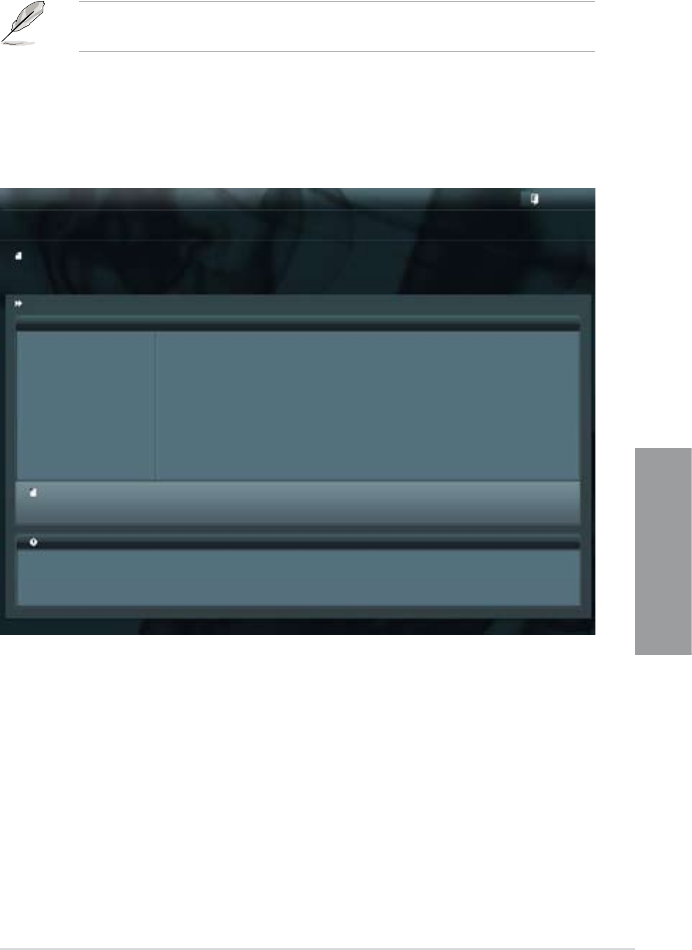
ASUS P8Z68-V PRO 3-35
Chapter 3
3.10.2 ASUS EZ Flash 2 utility
The ASUS EZ Flash 2 feature allows you to update the BIOS without having to use a
bootable oppy disk or an OS-based utility.
Before you start using this utility, download the latest BIOS from the ASUS website
at www.asus.com.
To update the BIOS using EZ Flash 2:
1. Insert the USB ash disk that contains the latest BIOS le to the USB port.
2. Enter the Advanced Mode of the BIOS setup program. Go to the Tool menu to select
ASUS EZ Flash Utility and press <Enter> to enable it.
3. Press <Tab> to switch to the Drive eld.
4. Press the Up/Down arrow keys to nd the USB ash disk that contains the latest BIOS,
and then press <Enter>.
5. Press <Tab> to switch to the Folder Info eld.
6. Press the Up/Down arrow keys to nd the BIOS le, and then press <Enter> to perform
the BIOS update process. Reboot the system when the update process is done.
Flash Info
MODEL: P8Z68-V PRO VER: 0301 DATE: 10/15/2010
Exit
[Enter] Select or Load [Tab] Switch [Up/Down/PageUp/PageDown/Home/End] Move [Esc] Exit [F2] Backup
fs0:\
Drive Folder Info
fs0:\ 08/05/10 10:23p 4194304 P8Z68-V PRO.ROM
fs1:\
ASUSTek EZ Flash BIOS ROM Utility V00.75
File Infor
MODEL: VER: DATE:
Help Info
3-36 Chapter 3: BIOS setup
Chapter 3
3.10.3 ASUS CrashFree BIOS 3 utility
The ASUS CrashFree BIOS 3 utility is an auto recovery tool that allows you to restore the
BIOS le when it fails or gets corrupted during the updating process. You can restore a
corrupted BIOS le using the motherboard support DVD or a USB ash drive that contains
the BIOS le.
The BIOS le in the motherboard support DVD may be older than the BIOS le published
on the ASUS ofcial website. If you want to use the newer BIOS le, download the le at
support.asus.com and save it to a USB ash drive.
Recovering the BIOS
To recover the BIOS:
1. Turn on the system.
2. Insert the motherboard support DVD to the optical drive, or the USB ash drive
containing the BIOS le to the USB port.
3. The utility automatically checks the devices for the BIOS le. When found, the utility
reads the BIOS le and enters ASUS EZ Flash 2 utility automatically.
4. The system requires you to enter BIOS Setup to recover BIOS setting. To ensure
system compatibility and stability, we recommend that you press <F5> to load default
BIOS values.
DO NOT shut down or reset the system while updating the BIOS! Doing so can cause
system boot failure!
• This function can support devices such as a USB ash disk with FAT 32/16 format and
single partition only.
• DO NOT shut down or reset the system while updating the BIOS to prevent system
boot failure!
Ensure to load the BIOS default settings to ensure system compatibility and stability. Select
the Load Optimized Defaults item under the Exit menu. See section 3.9 Exit Menu for
details.

ASUS P8Z68-V PRO 3-37
Chapter 3
Booting the system in DOS environment
1. Insert the USB ash drive with the latest BIOS le and BIOS Updater to the USB port.
2. Boot your computer. When the ASUS Logo appears, press <F8> to show the BIOS
Boot Device Select Menu. Insert the support DVD into the optical drive and select the
optical drive as the boot device.
Welcome to FreeDOS (http://www.freedos.org)!
C:\>d:
D:\>
3. When the Make Disk menu appears, select the FreeDOS command prompt item by
pressing the item number.
4. At the FreeDOS prompt, type d: and press <Enter> to switch the disk from
Drive C (optical drive) to Drive D (USB ash drive).
3.10.4 ASUS BIOS Updater
The ASUS BIOS Updater allows you to update BIOS in DOS environment. This utility also
allows you to copy the current BIOS le that you can use as a backup when the BIOS fails or
gets corrupted during the updating process.
The succeeding utility screens are for reference only. The actual utility screen displays may
not be same as shown.
Before updating BIOS
1. Prepare the motherboard support DVD and a USB ash drive in FAT32/16 format and
single partition.
2. Download the latest BIOS le and BIOS Updater from the ASUS website at http://
support.asus.com and save them on the USB ash drive.
• NTFS is not supported under DOS environment. Do not save the BIOS le and BIOS
Updater to a hard disk drive or USB ash drive in NTFS format.
• Do not save the BIOS le to a oppy disk due to low disk capacity.
3. Turn off the computer and disconnect all SATA hard disk drives (optional).
Please select boot device:
SATA: XXXXXXXXXXXXXXXX
USB XXXXXXXXXXXXXXXXX
UEFI: XXXXXXXXXXXXXXXX
Enter Setup
↑ and ↓ to move selection
ENTER to select boot device
ESC to boot using defaults
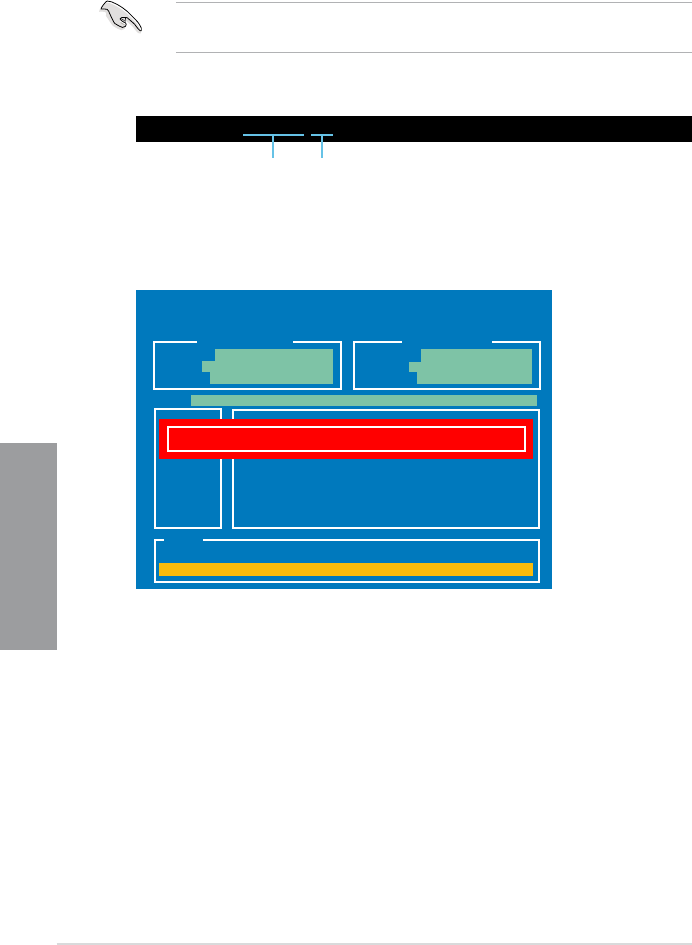
3-38 Chapter 3: BIOS setup
Chapter 3
2. The BIOS Updater backup screen appears indicating the BIOS backup process. When
BIOS backup is done, press any key to return to the DOS prompt.
ASUSTek BIOS Updater for DOS V1.18 [2010/04/29]
Current ROM Update ROM
Note
Saving BIOS:
PATH: A:\
BOARD: P8Z68-V PRO
VER: 0204
DATE: 08/05/2010
BOARD: Unknown
VER: Unknown
DATE: Unknown
BIOS backup is done! Press any key to continue.
D:\>bupdater /oOLDBIOS1.rom
Filename Extension
Backing up the current BIOS
To backup the current BIOS le using the BIOS Updater
Ensure that the USB ash drive is not write-protected and has enough free space to save
the le.
1. At the FreeDOS prompt, type bupdater /o[lename] and press <Enter>.
The [lename] is any user-assigned lename with no more than eight alphanumeric
characters for the lename and three alphanumeric characters for the extension.
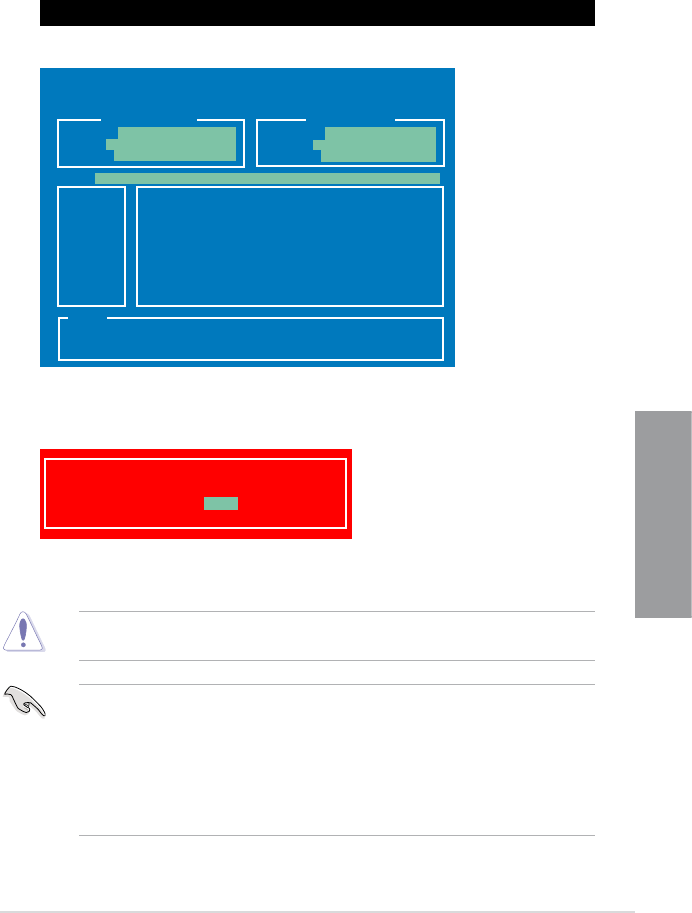
ASUS P8Z68-V PRO 3-39
Chapter 3
4. Select Yes and press <Enter>. When BIOS update is done, press <ESC> to exit BIOS
Updater. Restart your computer.
DO NOT shut down or reset the system while updating the BIOS to prevent system boot
failure!
• For BIOS Updater version 1.04 or later, the utility automatically exits to the DOS
prompt after updating BIOS.
• Ensure to load the BIOS default settings to ensure system compatibility and stability.
Select the Load Optimized Defaults item under the Exit BIOS menu. See Chaper 3
of your motherboard user manual for details.
• Ensure to connect all SATA hard disk drives after updating the BIOS le if you have
disconnected them.
Updating the BIOS le
To update the BIOS le using BIOS Updater
1. At the FreeDOS prompt, type bupdater /pc /g and press <Enter>.
ASUSTek BIOS Updater for DOS V1.18 [2010/04/29]
Current ROM Update ROM
A:
Note
[Enter] Select or Load [Tab] Switch [V] Drive Info
[Up/Down/Home/End] Move [B] Backup [Esc] Exit
P8Z68-V PRO.ROM 4194304 2010-08-05
17:30:48
PATH: A:\
BOARD: P8Z68-V PRO
VER: 0204
DATE: 08/05/2010
BOARD: Unknown
VER: Unknown
DATE: Unknown
D:\>bupdater /pc /g
2. The BIOS Updater screen appears as below.
3. Press <Tab> to switch between screen elds and use the <Up/Down/Home/End> keys
to select the BIOS le and press <Enter>. BIOS Updater checks the selected BIOS le
and prompts you to conrm BIOS update.
Are you sure to update BIOS?
Yes No

3-40 Chapter 3: BIOS setup
Chapter 3
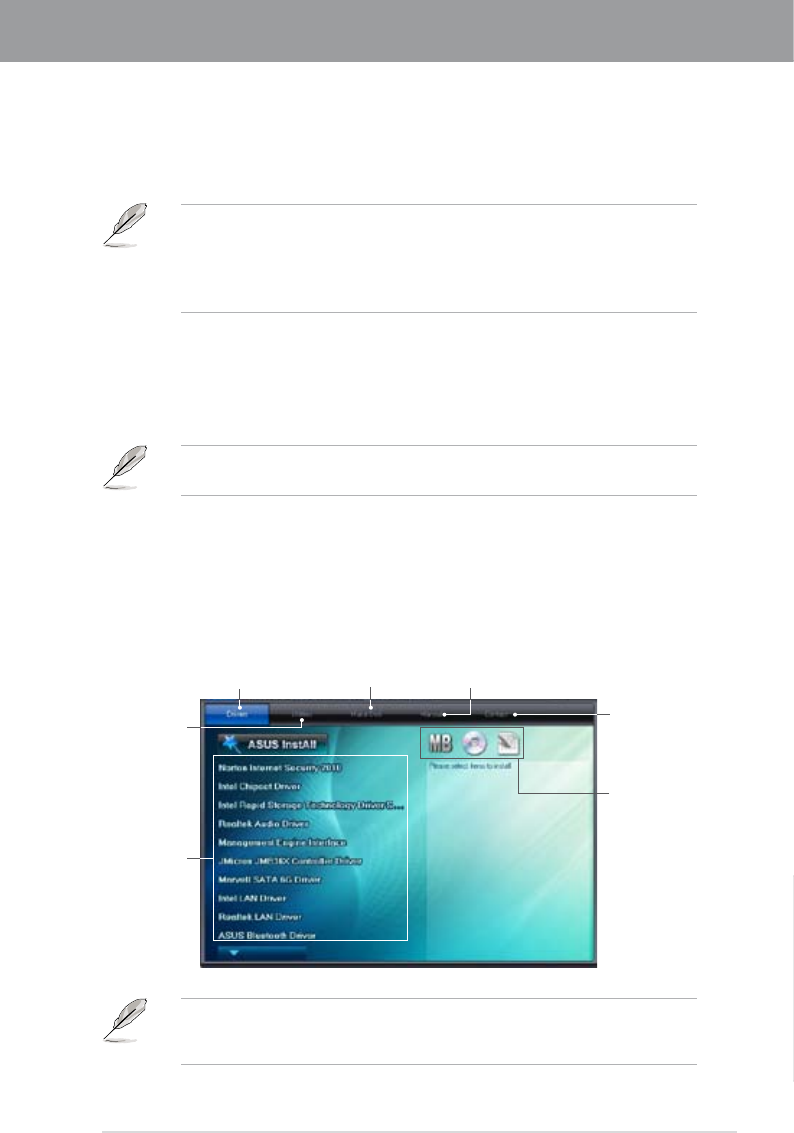
ASUS P8Z68-V PRO 4-1
Chapter 4
If Autorun is NOT enabled in your computer, browse the contents of the support DVD to
locate the le ASSETUP.EXE from the BIN folder. Double-click the ASSETUP.EXE to run
the DVD.
4.1 Installing an operating system
This motherboard supports Windows® XP/ 64-bit XP/ Vista / 64-bit Vista / 7 / 64-bit 7
operating systems (OS). Always install the latest OS version and corresponding updates to
maximize the features of your hardware.
4.2 Support DVD information
The support DVD that comes with the motherboard package contains the drivers, software
applications, and utilities that you can install to avail all motherboard features.
4.2.1 Running the support DVD
Place the support DVD into the optical drive. The DVD automatically displays the Drivers menu if
Autorun is enabled in your computer. Click each menu tab and select the items you want to install.
• Motherboard settings and hardware options vary. Use the setup procedures presented
in this chapter for reference only. Refer to your OS documentation for detailed
information.
• Ensure that you install the Windows® XP Service Pack 3 or later versions before
installing the drivers for better compatibility and system stability.
The contents of the support DVD are subject to change at any time without notice. Visit the
ASUS website at www.asus.com for updates.
Chapter 4: Software support
Chapter 4
The Drivers menu shows the available
device drivers if the system detects
installed devices. Install the necessary
drivers to use the devices.
The Utilities
menu shows the
applications and
other software that
the motherboard
supports.
The Make Disk menu
contains items to
create the RAID/AHCI
driver disk.
The Manual menu contains
the list of supplementary user
manuals. Click an item to open
the folder of the user manual.
Click the Contact
tab to display the
ASUS contact
information.
Click an icon
to display DVD/
motherboard
information
Click an item
to install
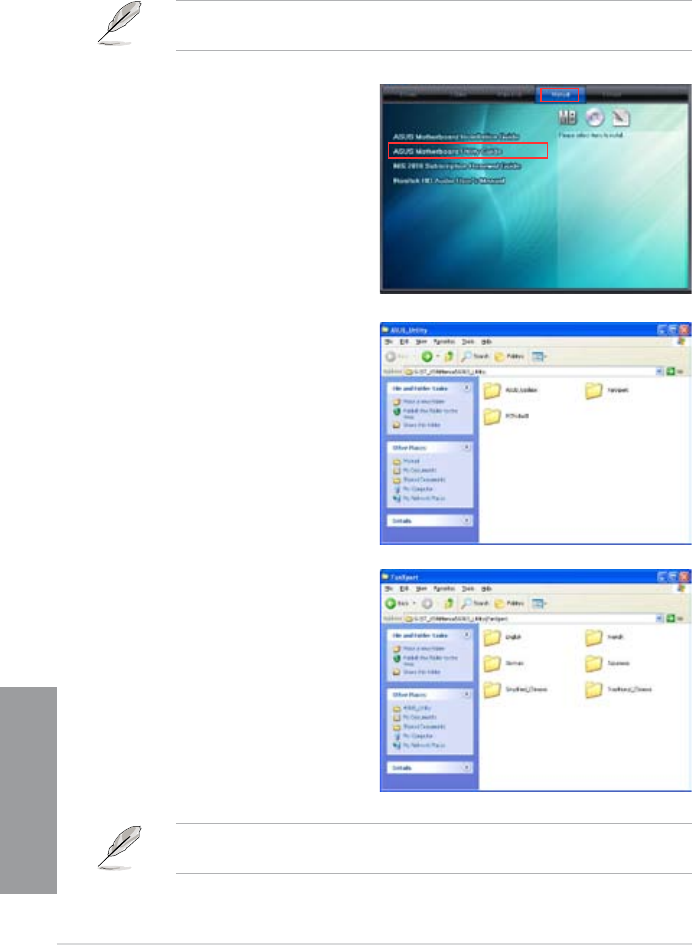
4-2 Chapter 4: Software support
Chapter 4
4.2.2 Obtaining the software manuals
The software manuals are included in the support DVD. Follow the instructions below to get
the necessary software manuals.
The software manual les are in Portable Document Format (PDF). Install the Adobe®
Acrobat® Reader from the Utilities menu before opening the les.
The screenshots in this section are for reference only. The actual software manuals
containing in the support DVD vary by models.
1. Click the Manual tab. Click ASUS
Motherboard Utility Guide from
the manual list on the left.
2. The Manual folder of the support
DVD appears. Double-click the
folder of your selected software.
3. Some software manuals are
provided in different languages.
Double-click the language to
show the software manual.
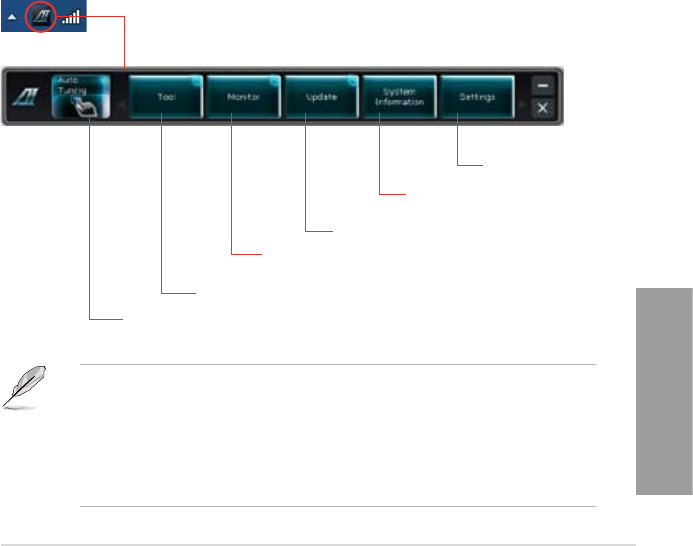
ASUS P8Z68-V PRO 4-3
Chapter 4
4.3 Software information
Most of the applications in the support DVD have wizards that will conveniently guide you
through the installation. View the online help or readme le that came with the software
application for more information.
4.3.1 AI Suite II
AI Suite II is an all-in-one interface that integrates several ASUS utilities and allows users to
launch and operate these utilities simultaneously.
Installing AI Suite II
To install AI Suite II on your computer
1. Place the support DVD to the optical drive. The Drivers installation tab appears if your
computer has enabled the Autorun feature.
2. Click the Utilities tab, then click AI Suite II.
3. Follow the onscreen instructions to complete installation.
Using AI Suite II
AI Suite II automatically starts when you enter the Windows® operating system (OS). The AI
Suite II icon appears in the Windows® notication area. Click the icon to open the AI Suite II
main menu bar.
Click each button to select and launch a utility, to monitor or update the motherboard BIOS, to
display the system information, and to customize the settings of AI Suite II.
Shortcut to the Auto Tuning
Mode under TurboV EVO
Click to select a utility
Click to monitor sensors
or CPU frequency
Click to update the motherboard BIOS
Click to show the
system information
Click to customize
the interface settings
• The Auto Tuning button appears only on models with the TurboV EVO function.
• The applications in the Tool menu vary with models.
• The screeshots of AI Suite II in this user manual are for reference only. The actual
screenshots vary with models.
• Refer to the software manual in the support DVD or visit the ASUS website
at www.asus.com for detailed software conguration.
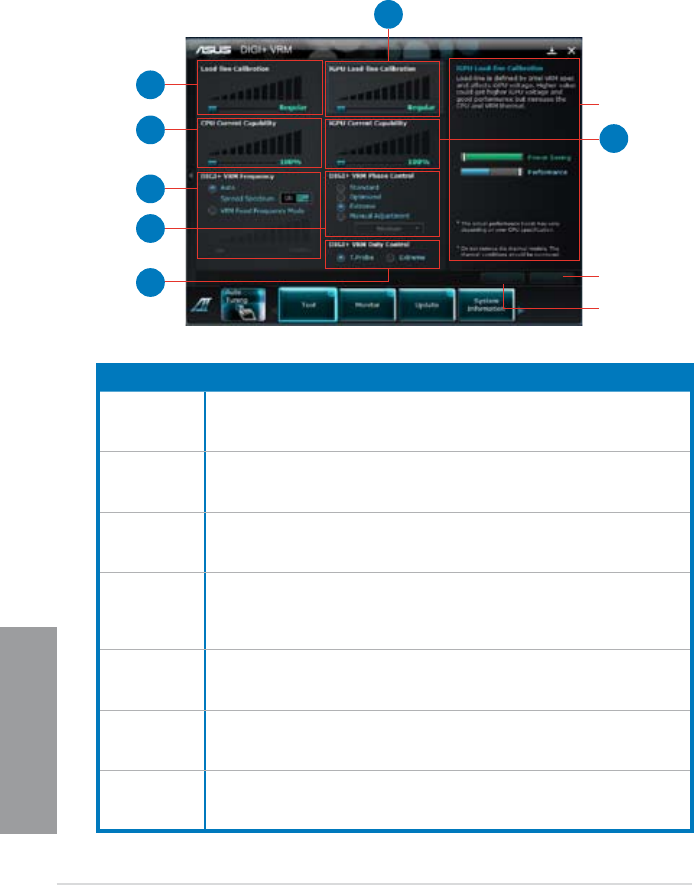
4-4 Chapter 4: Software support
Chapter 4
4.3.2 DIGI+ VRM
ASUS DIGI+ VRM allows you to adjust VRM voltage and frequency modulation to enhance
reliability and stability. It also provides the highest power efciency, generating less heat to
longer component lifespan and minimize power loss.
After installing AI Suite II from the motherboard support DVD, launch DIGI+ VRM by
clicking Tool > DIGI+ VRM on the AI Suite II main menu bar.
Function no. Function description
1DIGI+ VRM Load-line Calibration
Higher load-line calibration could get higher voltage and good overclocking
performance but increase the CPU and VRM thermal.
2DIGI+ VRM CPU Current Capability
DIGI+ VRM CPU Current Capability provides wider total power range for
overclocking. A higher value setting gets higher VRM power consumption delivery.
3DIGI+ VRM Frequency
Switching frequency will affect the VRM transient response and component thermal.
Higher frequency gets quicker transient response.
4DIGI+ VRM Phase Control
Increase phase number under heavy system loading to get more transient and
better thermal performance. Reduce phase number under light system loading to
increase VRM efciency.
5DIGI+ VRM Duty Control
DIGI+ VRM Duty Control adjusts the current of every VRM phase and the thermal of
every phase component.
6iGPU Load-line Calibration
Higher value could get higher iGPU voltage and good performance but increase the
CPU and VRM thermal.
7iGPU Current Capability
A higher value brings a wider total iGPU power and overclocking frequency range to
enhance iGPU performance..
Application helps
Apply all changes
immediately
Undo all changes
without applying
1
2
3
4
6
5
7
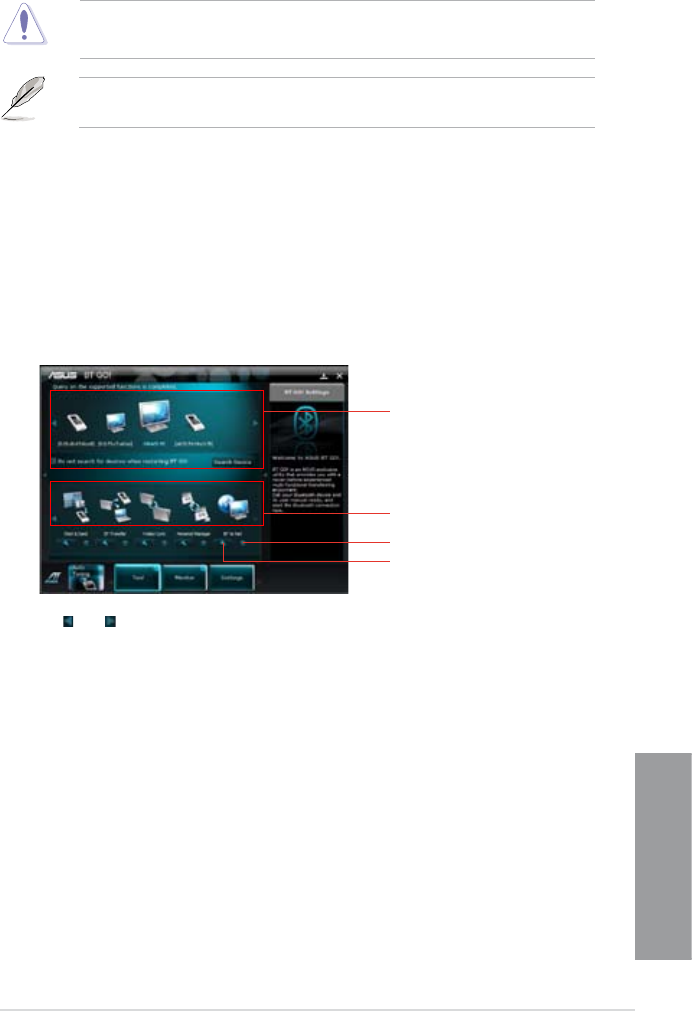
ASUS P8Z68-V PRO 4-5
Chapter 4
• The actual performance boost may vary depending on your CPU specication.
• Do not remove the thermal module. The thermal conditions should be monitored.
Refer to the software manual in the support DVD or visit the ASUS website at
www.asus.com for detailed software conguration.
4.3.3 BT GO!
BT GO! connects a bluetooth (BT) device with the motherboard through Bluetooth connection
for le transferring, le synchronization, music playback, personal manager, and multiple
remote functions.
Launching BT GO!
After installing AI Suite II from the motherboard support DVD, launch BT GO! by clicking
Tool > BT GO! on the AI Suite II main menu bar.
Using BT GO!
• Click and to scroll the device list and the function list.
• Click any of the device icons to select the device as the connected BT device and BT
GO! will automatically search for the supported functions for the selected device.
• Click any of the device / function icons to connect the selected device and enable /
disable the selected function.
Device list
Function list
Click to show the corresponding setting
pane on the right side
Lights when the function is enabled
Function introduction
Shot & Send: allows you to snap and transfer the screenshot to the connected BT device.
BT Transfer: allows you to share the les stored in the host BT device to another
connected BT devices.
Folder Sync: allows you to sync or back up the selected folder between the selected BT
devices and the computer.
Personal Manager: allows you to synchronize the personal contacts and calendar
information between the BT device and the system.
BT to Net: allows the system to access the Internet via the network shared by the
Bluetooth device.

4-6 Chapter 4: Software support
Chapter 4
• Refer to the software manual in the support DVD or visit the ASUS website at
www.asus.com for detailed software conguration.
• The Bluetooth word mark and logos are owned by the Bluetooth SIG, Inc. and any
use of such marks by ASUSTek Computer Inc. is under license. Other trademarks and
trade names are those of their respective owners.
Music Player: allows you to play the selected music les in the BT device through the
computer’s speakers.
BT Turbo Remote: provides a user-friendly interface that allows you to use your smartphone
as the remote controller via the bluetooth connection for the BT Turbo Key, Pocket Media,
and Reset/Off functions.
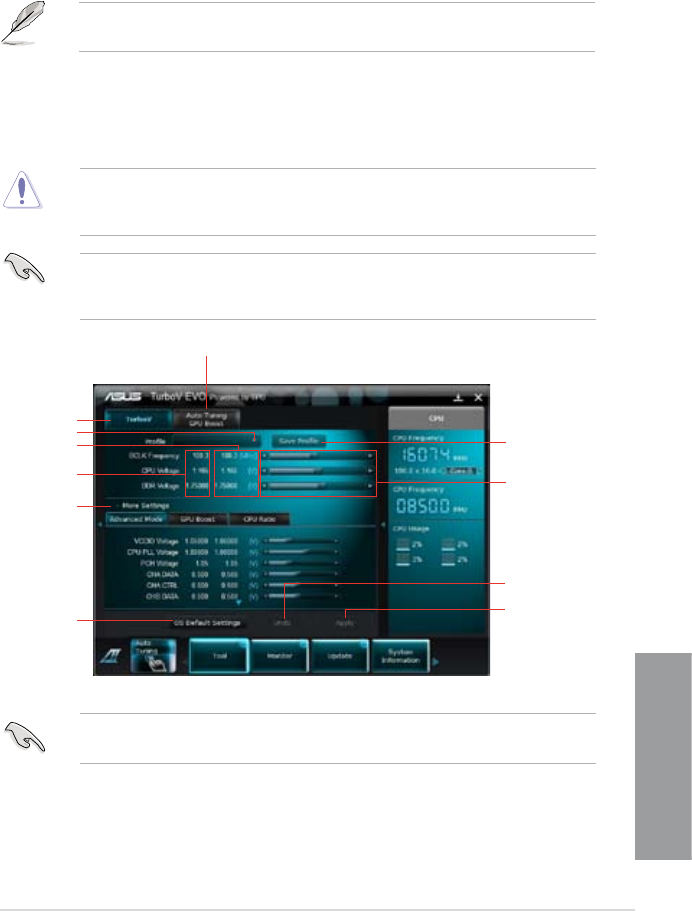
ASUS P8Z68-V PRO 4-7
Chapter 4
4.3.4 TurboV EVO
ASUS TurboV EVO introduces TurboV that allows you to manually adjust the CPU frequency
and related voltages as well as Auto Tuning function that offers automatic and easy
overlocking and system level up. After installing AI Suite II from the motherboard support
DVD, launch TurboV EVO by clicking Tool > TurboV EVO on the AI Suite II main menu bar.
Refer to the software manual in the support DVD or visit the ASUS website at
www.asus.com for detailed software conguration.
TurboV
TurboV allows you to overclock the BCLK frequency, CPU voltage, IMC voltage, and DRAM
Bus voltage in WIndows® environment and takes effect in real-time without exiting and
rebooting the OS.
Refer to the CPU documentation before adjusting CPU voltage settings. Setting a high
voltage may damage the CPU permanently, and setting a low voltage may make the
system unstable.
For system stability, all changes made in TurboV will not be saved to BIOS settings and
will not be kept on the next system boot. Use the Save Prole function to save your
customized overclocking settings and manually load the prole after Windows starts.
For advanced overclock ability, adjust rst the BIOS items, and then proceed more detailed
adjustments in More Settings.
Save the current
settings as a new
prole
Voltage
Adjustment
bars
Current values
Target values
Load prole
TurboV
Auto Tuning Mode
Click to show
/ hide more
settings
Applies all changes
immediately
Undoes all changes
without applying
Click to restore
all start-up
settings
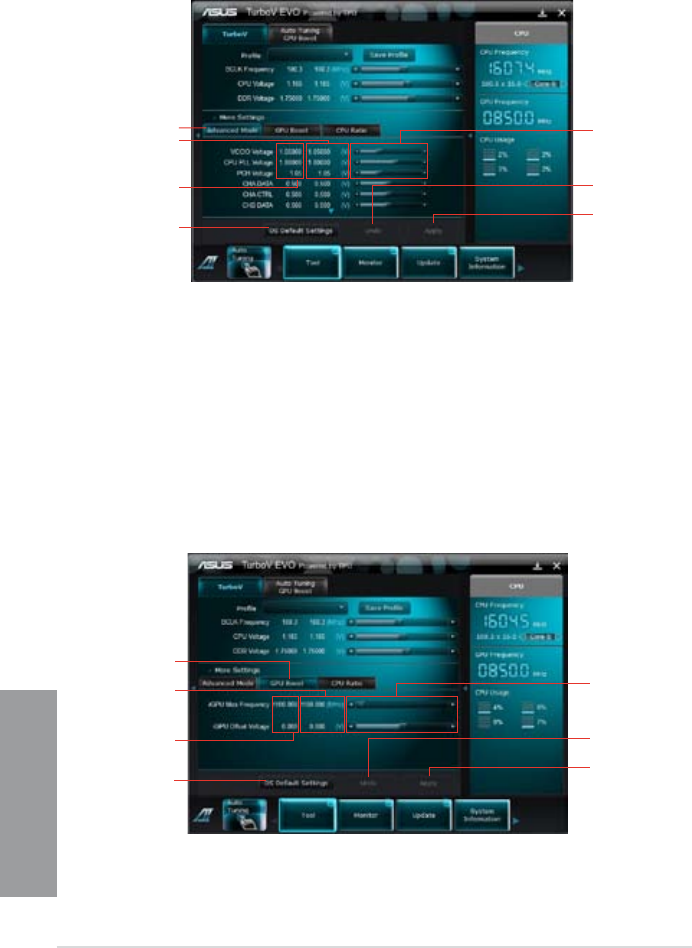
4-8 Chapter 4: Software support
Chapter 4
Using Advanced Mode
Click More Settings, and then click the Advanced Mode tab to adjust the advanced voltage
settings.
Advanced mode
Applies all changes
immediately
Undoes all changes
without applying
Click to restore
all start-up
settings
Current values
Target values Voltage
Adjustment
bars
GPU Boost
Applies all changes
immediately
Undoes all changes
without applying
Click to restore
all start-up
settings
Current values
Target values Adjustment bars
GPU Boost
GPU Boost overclocks the integrated iGPU for the best graphics performance.
1. Click More Settings, and then click the GPU Boost tab.
2. Adjust the iGPU Max Frequency and iGPU Voltage, then you will be requested to
restart the system. Click Yes to make the change take effect.
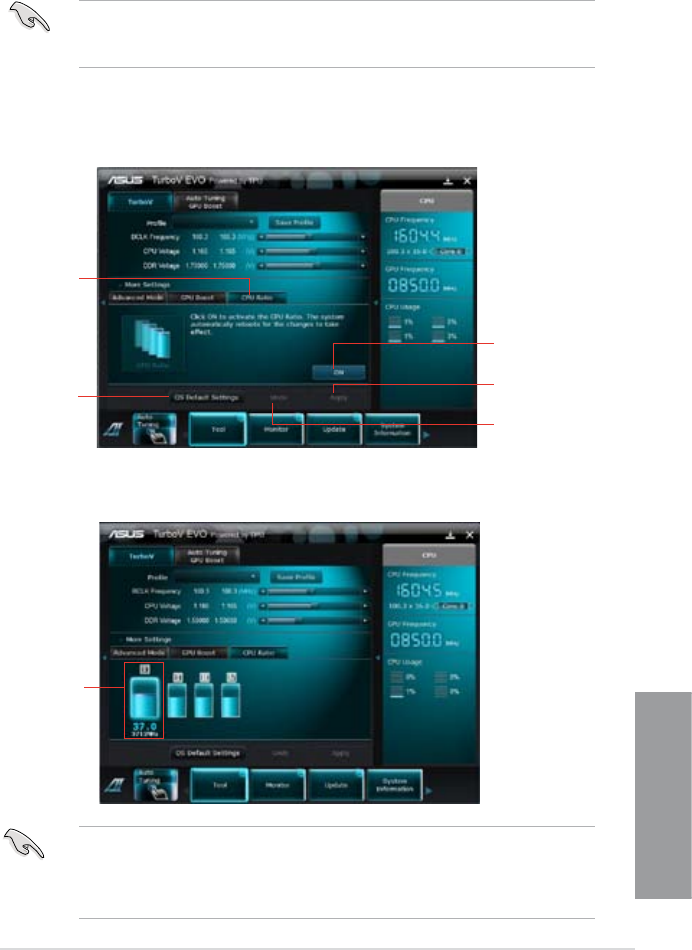
ASUS P8Z68-V PRO 4-9
Chapter 4
• Set the CPU Ratio Setting item in BIOS to [Auto] before using the CPU Ratio function
in TurboV. Refer to Chapter 3 of your motherboard user manual for details.
• The CPU Ratio bars show the status of the CPU cores, which vary with your CPU
model.
Adjustment bar
4. Drag the adjustment bar upwards or downwards to the desired value.
CPU Ratio
Allows you to manually adjust the CPU ratio.
The rst time you use CPU Ratio, go to AI Tweaker > CPU Power Management in BIOS
and set the Turbo Ratio item to [Maximum Turbo Ratio setting in OS], or activate CPU
Ratio by clicking the ON button on the CPU Ratio function screen.
1. Click More Settings, and then click the CPU Ratio tab.
2. Click the ON button to activate CPU Ratio.
3. You will requested to restart the system. Click Yes to make the change take effect.
CPU Ratio
Applies all changes
immediately
Undoes all changes
without applying
Click to restore
all start-up
settings
Click to activate the
CPU Ratio
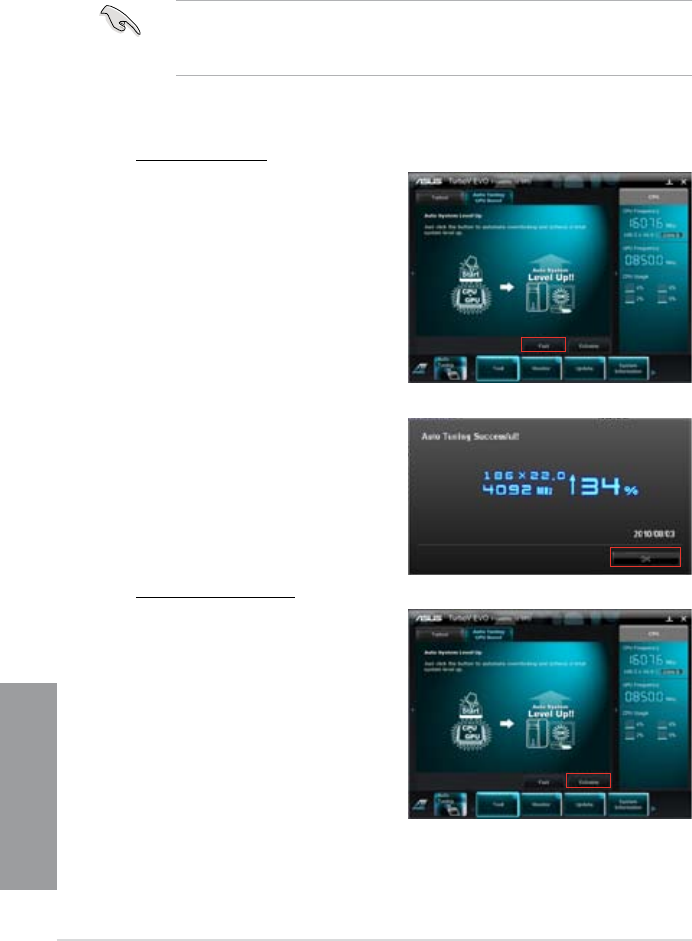
4-10 Chapter 4: Software support
Chapter 4
Auto Tuning
ASUS TurboV EVO includes two auto tuning modes, providing the most exible auto-tuning
options.
• The overclocking result varies with the CPU model and the system conguration.
• To prevent overheating from damaging the motherboard, a better thermal environment
is strongly recommended.
• Fast Tuning: fast CPU overclocking
• Extreme Tuning: extreme overclocking for CPU and memory
Using Fast Tuning
1. Click the Auto Tuning tab and then
click Fast.
2. Read through the warning
messages and click OK to start
auto-overclocking.
3. TurboV automatically overclocks
the CPU, saves BIOS settings
and restarts the system. After
re-entering Windows, a message
appears indicating auto tuning
success. Click OK to exit.
Using Extreme Tuning
1. Click the Auto Tuning tab and then
click Extreme.
2. Read through the warning
messages and click OK to start
auto-overclocking.
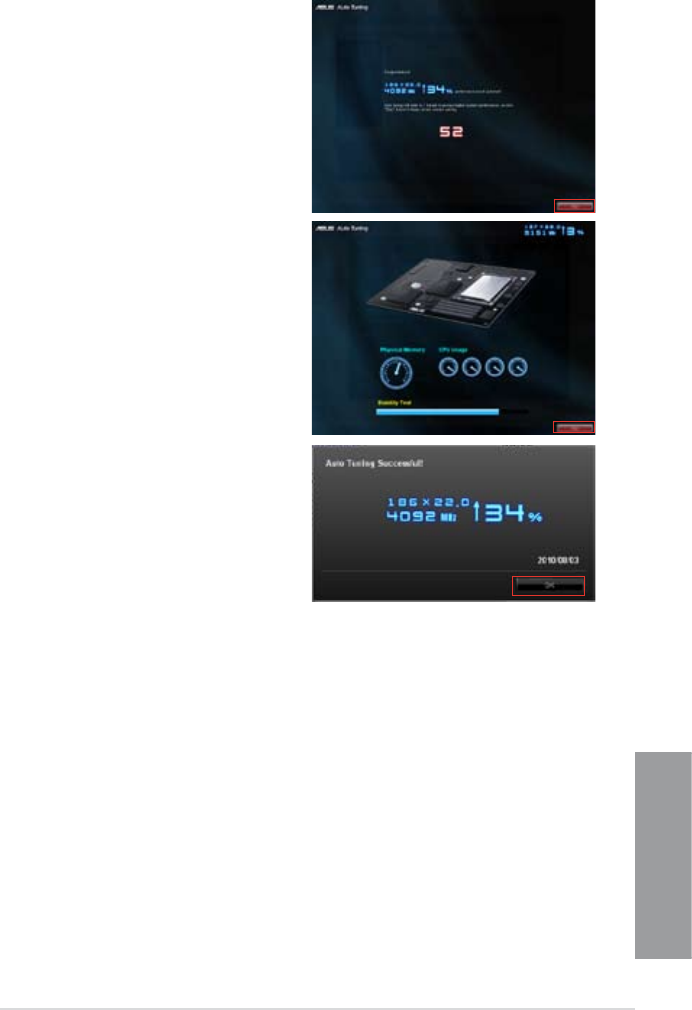
ASUS P8Z68-V PRO 4-11
Chapter 4
3. TurboV automatically overclocks
the CPU and memory and restarts
the system. After re-entering
Windows, a message appears
indicating the current overclocking
result. To keep the result, click
Stop.
4. If you did not click Stop in
the previous step, TurboV
automatically starts further system
overclocking and stability test.
An animation appears indicating
the overclocking process. Click
Stop if you want to cancel the
Overclocking process.
5. TurboV automatically adjusts and
saves BIOS settings and restarts
the system. After re-entering
Windows, a message appears
indicating auto tuning success.
Click OK to exit.
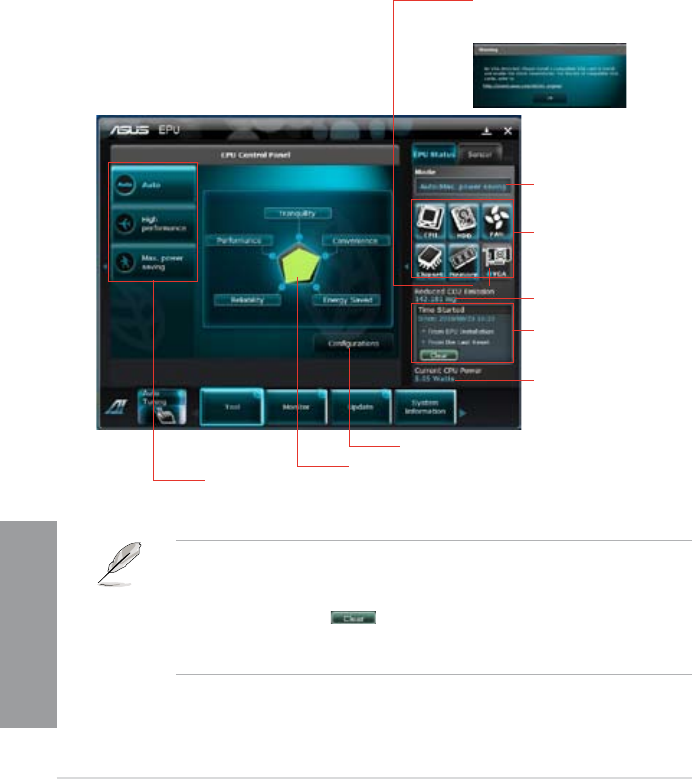
4-12 Chapter 4: Software support
Chapter 4
4.3.5 EPU
EPU is an energy-efcient tool that satises different computing needs. This utility provides
several modes that you can select to save system power. Selecting Auto mode will have the
system shift modes automatically according to current system status. You can also customize
each mode by conguring settings like CPU frequency, GPU frequency, vCore Voltage, and
Fan Control.
Launching EPU
After installing AI Suite II from the motherboard support DVD, launch EPU by clicking
Tool > EPU on the AI Suite II main menu bar.
*• Select From EPU Installation to show the CO2 that has been reduced since you
installed EPU.
*• Select From the Last Reset to show the total CO2 that has been reduced since you
click the Clear button .
• Refer to the software manual in the support DVD or visit the ASUS website at
www.asus.com for detailed software conguration.
*Shifts between the
display of Total and
Current CO2 reduced
Displays the system
properties of each mode
Displays the following message
if no VGA power saving engine is
detected.
Advanced settings for each mode
Multiple system
operating modes
Displays current mode
The items lighting up
means power saving
engine is activated
Displays the amount
of CO2 reduced
Displays the current
CPU power
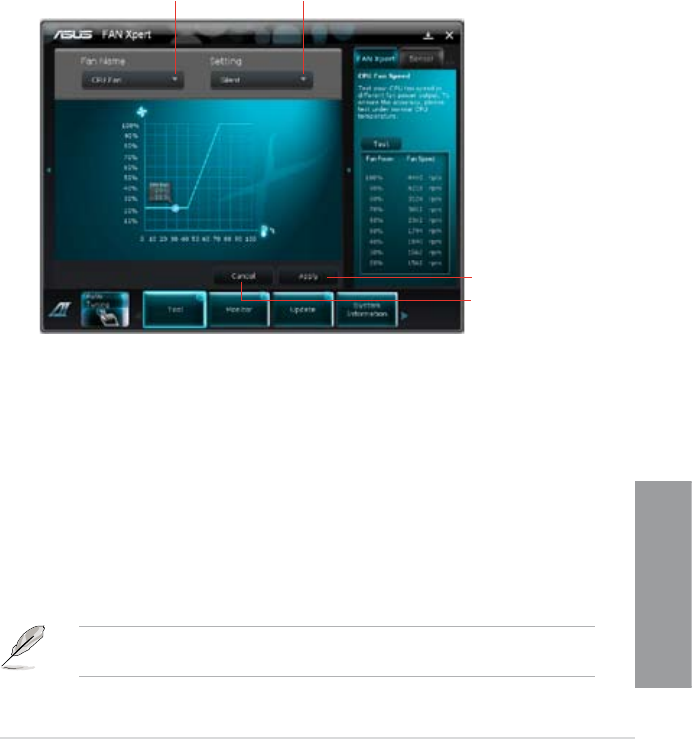
ASUS P8Z68-V PRO 4-13
Chapter 4
Refer to the software manual in the support DVD or visit the ASUS website at
www.asus.com for detailed software conguration.
4.3.6 ASUS FAN Xpert
Asus Fan Xpert allows you to adjust both the CPU and chassis fan speeds according to
different ambient temperatures and your PC’s system loading. The various fan proles offer
exible controls of fan speeds to achieve a quiet and cool system environment.
Launching FAN Xpert
After installing AI Suite II from the motherboard support DVD, launch FAN Xpert by clicking
Tool > Fan Xpert on the AI Suite II main menu bar.
Fan setting
• Disable: disables the Fan Xpert function.
• Standard: adjusts fan speed in a moderate pattern.
• Silent: minimizes fan speed for quiet fan operation.
• Turbo: maximizes the fan speed for the best cooling effect.
• Intelligent: automatically adjusts the CPU fan speed according to the ambient
temperature.
• Stable: xes the CPU fan speed to avoid noise caused by the unsteady fan rotation.
However, the fan will speed up when the temperature exceeds 70°C.
• User: Allows you to congure the CPU fan prole under certain limitations.
Using FAN Xpert
Click Fan Name to select a fan and then click Setting to select a preset mode for your
selected fan.
Click to select a fan type Click to select a fan prole
Click to apply the settings
Click to discard the settings
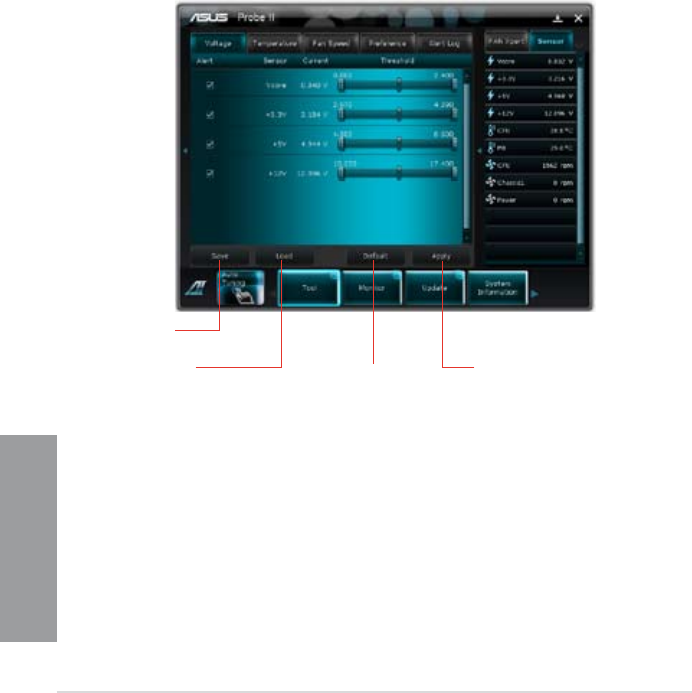
4-14 Chapter 4: Software support
Chapter 4
4.3.7 ASUS Probe II
ASUS Probe II is a utility that monitors the computer’s vital components, and detects and
alerts you of any problem with these components. Probe II senses fan rotations, CPU
temperature, and system voltages, among others. With this utility, you are assured that your
computer is always at a healthy operating condition.
Launching Probe II
After installing AI Suite II from the motherboard support DVD, launch Probe II by clicking
Tool > Probe II on the AI Suite II main menu bar.
Loads the default
threshold values
for each sensor
Applies your
changes
Loads your saved
conguration
Saves your
conguration
Conguring Probe II
Click the Voltage/Temperature/Fan Speed tabs to activate the sensors or to adjust the
sensor threshold values. The Preference tab allows you to customize sensor alerts, or
change the temperature scale.
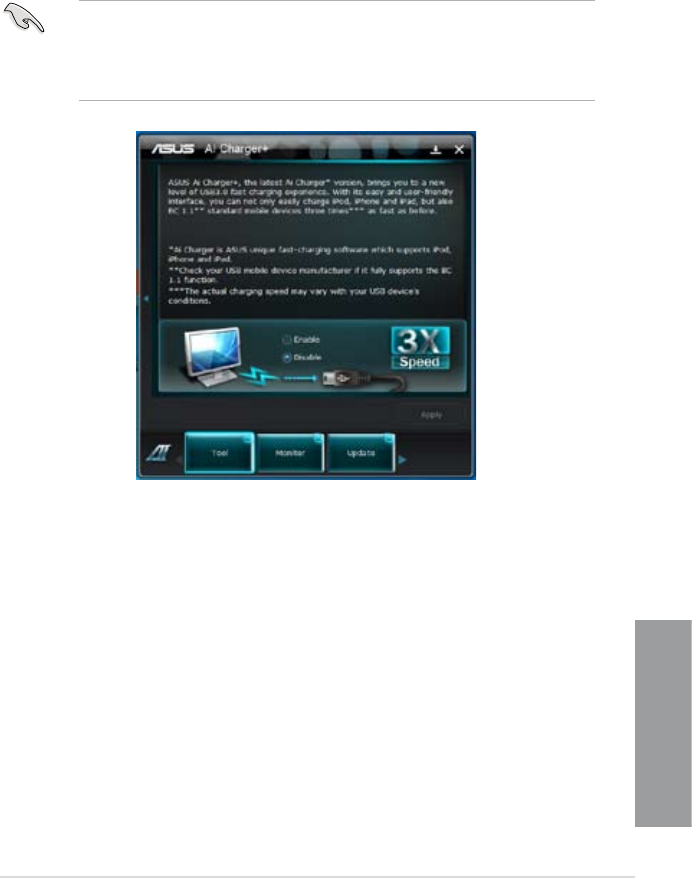
ASUS P8Z68-V PRO 4-15
Chapter 4
4.3.8 Ai Charger+
Battery Charging Version 1.1 (BC 1.1), a USB Implementers Forum (USB-IF) certied
USB charging function, is designed to make USB charging faster than the standard USB
devices. If your USB device supports the BC 1.1 function*, when you connect your USB
device to your system, the system automatically detects your USB device and starts a fast
USB charging. The charging speed may get 3 times faster than that of the standard USB
devices**.
• * Check your USB device manufacturer if it fully supports the BC 1.1 function.
• ** The actual charging speed may vary with your USB device’s conditions.
• Ensure to remove and reconnect your USB device after enabling or disabling
Ai Charger+ to ensure normal charging function.
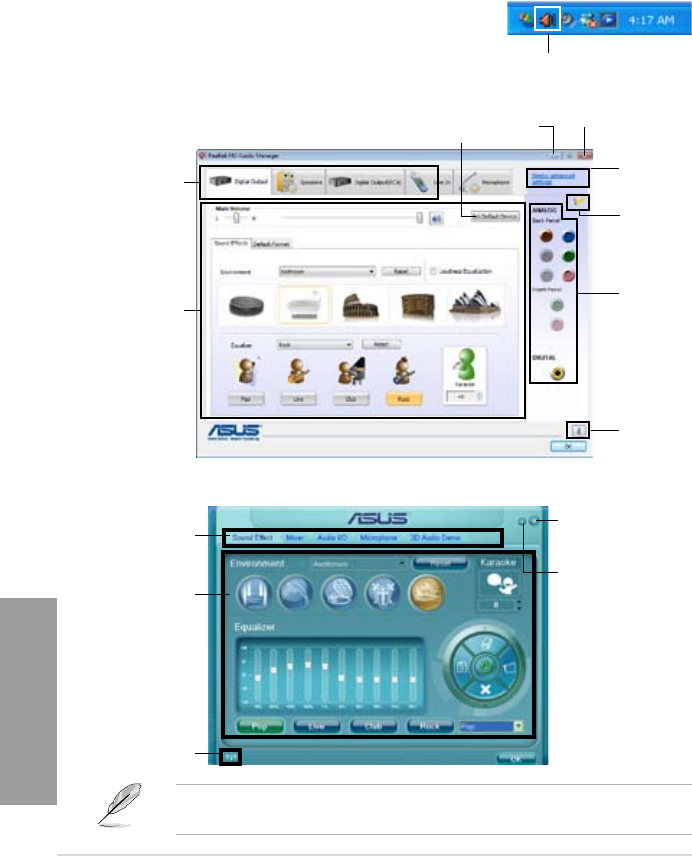
4-16 Chapter 4: Software support
Chapter 4
4.3.9 Audio congurations
The Realtek® audio CODEC provides 8-channel audio capability to deliver the ultimate audio
experience on your computer. The software provides Jack-Detection function, S/PDIF Out
support, and interrupt capability. The CODEC also includes the Realtek® proprietary UAJ®
(Universal Audio Jack) technology for all audio ports, eliminating cable connection errors and
giving users plug and play convenience.
Follow the installation wizard to install the Realtek® Audio Driver from the support DVD that
came with the motherboard package.
If the Realtek audio software is correctly installed, you will nd
the Realtek HD Audio Manager icon on the taskbar. Double-
click on the icon to display the Realtek HD Audio Manager. Realtek HD Audio Manager
A. Realtek HD Audio Manager for Windows® Vista™
Control
settings
window
Conguration
option tabs
Information
button
Exit button
Minimize
button
Device
advanced
settings
Connector
settings
Analog
and digital
connector
status
Set default device
button
Control settings
window
Conguration
options
Information button
Exit button
Minimize button
B. Realtek HD Audio Manager for Windows XP
Refer to the software manual in the support DVD or visit the ASUS website at
www.asus.com for detailed software conguration.

ASUS P8Z68-V PRO 4-17
Chapter 4
4.4 RAID congurations
The motherboard supports the following SATA RAID solution:
Intel® Rapid Storage Technology with RAID 0, RAID 1, RAID 10 and RAID 5 support.
• You must install Windows® XP Service Pack 3 or later versions before using Serial
ATA hard disk drives. The Serial ATA RAID feature is available only if you are using
Windows® XP SP3 or later versions.
• Due to Windows® XP / Vista limitation, a RAID array with the total capacity over 2TB
cannot be set as a boot disk. A RAID array over 2TB can only be set as a data disk
only.
• If you want to install a Windows® operating system to a hard disk drive included in a
RAID set, you have to create a RAID driver disk and load the RAID driver during OS
installation. Refer to section 4.5 Creating a RAID driver disk for details.
4.4.1 RAID denitions
RAID 0 (Data striping) optimizes two identical hard disk drives to read and write data in
parallel, interleaved stacks. Two hard disks perform the same work as a single drive but at a
sustained data transfer rate, double that of a single disk alone, thus improving data access
and storage. Use of two new identical hard disk drives is required for this setup.
RAID 1 (Data mirroring) copies and maintains an identical image of data from one drive to
a second drive. If one drive fails, the disk array management software directs all applications
to the surviving drive as it contains a complete copy of the data in the other drive. This RAID
conguration provides data protection and increases fault tolerance to the entire system. Use
two new drives or use an existing drive and a new drive for this setup. The new drive must be
of the same size or larger than the existing drive.
RAID 5 stripes both data and parity information across three or more hard disk drives. Among
the advantages of RAID 5 conguration include better HDD performance, fault tolerance, and
higher storage capacity. The RAID 5 conguration is best suited for transaction processing,
relational database applications, enterprise resource planning, and other business systems.
Use a minimum of three identical hard disk drives for this setup.
RAID 10 is data striping and data mirroring combined without parity (redundancy data) having
to be calculated and written. With the RAID 10 conguration you get all the benets of both
RAID 0 and RAID 1 congurations. Use four new hard disk drives or use an existing drive
and three new drives for this setup.
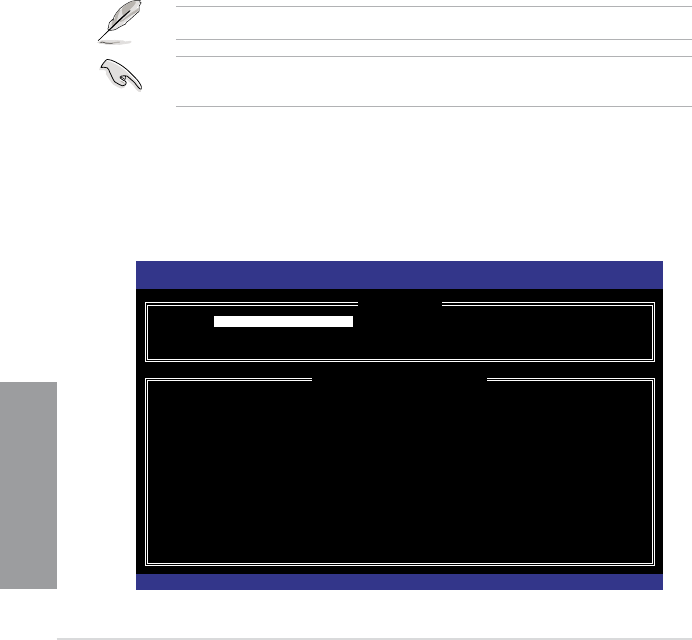
4-18 Chapter 4: Software support
Chapter 4
4.4.2 Installing Serial ATA hard disks
The motherboard supports Serial ATA hard disk drives. For optimal performance, install
identical drives of the same model and capacity when creating a disk array.
To install the SATA hard disks for a RAID conguration:
1. Install the SATA hard disks into the drive bays.
2. Connect the SATA signal cables.
3. Connect a SATA power cable to the power connector on each drive.
4.4.3 Setting the RAID item in BIOS
You must enable the RAID function in the BIOS Setup before creating RAID set(s) using
SATA HDDs. To do this:
1. Enter the BIOS Setup during POST.
2. Go to the Advanced menu > SATA Conguration, and then press <Enter>.
3. Set the SATA Mode item to [RAID Mode].
4. Save your changes, and then exit the BIOS Setup.
Refer to Chapter 3 for details on entering and navigating through the BIOS Setup.
Due to chipset limitation, when set any of SATA ports to RAID mode, all SATA ports run at
RAID mode together.
4.4.4 Intel® Rapid Storage Technology Option ROM utility
To enter the Intel® Rapid Storage Technology Option ROM utility:
1. Turn on the system.
2. During POST, press <Ctrl> + <I> to display the utility main menu.
Intel(R) Rapid Storage Technology - Option ROM - v10.5.1.1070
Copyright(C) 2003-10 Intel Corporation. All Rights Reserved.
[ MAIN MENU ]
1. Create RAID Volume 4. Recovery Volume Options
2. Delete RAID Volume 5. Acceleration Options
3. Reset Disks to Non-RAID 6. Exit
[ DISK/VOLUME INFORMATION ]
RAID Volumes:
None dened.
Physical Devices:
Port Device Model Serial # Size Type/Status(Vol ID)
0 ST3160812AS 9LS0HJA4 149.0GB Non-RAID Disk
1 ST3160812AS 9LS0F4HL 149.0GB Non-RAID Disk
2 ST3160812AS 3LS0JYL8 149.0GB Non-RAID Disk
3 ST3160812AS 9LS0BJ5H 149.0GB Non-RAID Disk
[↑↓]-Select [ESC]-Exit [ENTER]-Select Menu
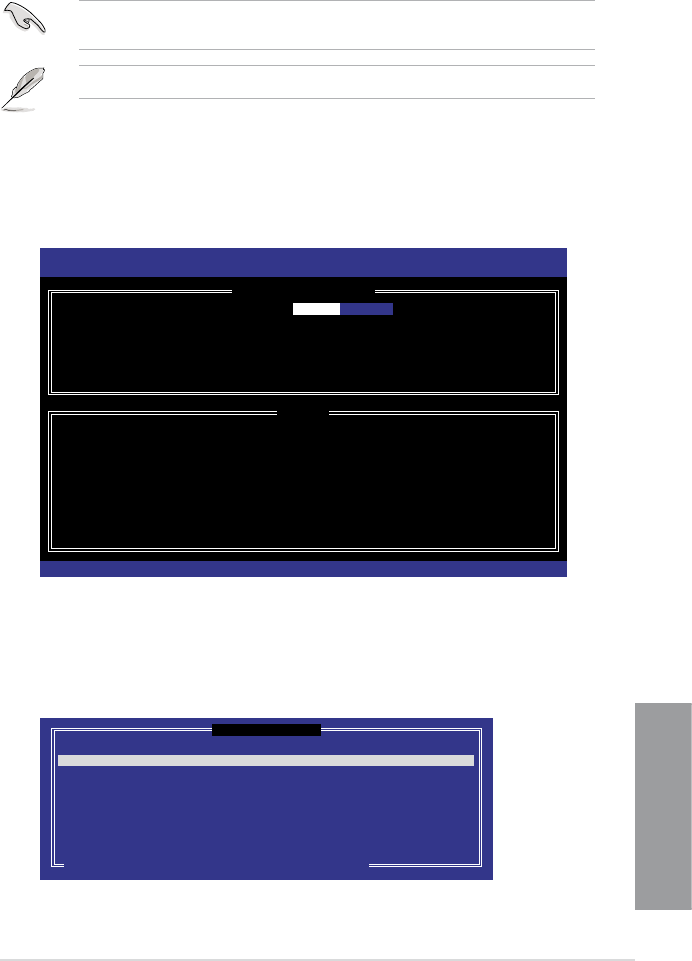
ASUS P8Z68-V PRO 4-19
Chapter 4
Creating a RAID set
To create a RAID set:
1. From the utility main menu, select 1. Create RAID Volume and press <Enter>. The
following screen appears:
2. Enter a name for the RAID set and press <Enter>.
3. When the RAID Level item is selected, press the up/down arrow key to select a RAID
level to create, and then press <Enter>.
4. When the Disks item is selected, press <Enter> to select the hard disk drives you want
to include in the RAID set. The SELECT DISKS screen appears:
The utility supports maximum four hard disk drives for RAID conguration.
The navigation keys at the bottom of the screen allow you to move through the menus
and select the menu options.
The RAID BIOS setup screens shown in this section are for reference only and may not
exactly match the items on your screen.
Intel(R) Rapid Storage Technology - Option ROM - v10.5.1.1070
Copyright(C) 2003-10 Intel Corporation. All Rights Reserved.
[ CREATE VOLUME MENU ]
[ HELP ]
Enter a unique volume name that has no special characters and is
16 characters or less.
[↑↓]Change [TAB]-Next [ESC]-Previous Menu [ENTER]-Select
Name: Volume0
RAID Level: RAID0(Stripe)
Disks: Select Disks
Strip Size: 128KB
Capacity: 0.0 GB
Sync: N/A
Create Volume
[ SELECT DISKS ]
Port Drive Model Serial # Size Status
0 ST3160812AS 9LS0HJA4 149.0GB Non-RAID Disk
1 ST3160812AS 9LS0F4HL 149.0GB Non-RAID Disk
2 ST3160812AS 3LS0JYL8 149.0GB Non-RAID Disk
3 ST3160812AS 9LS0BJ5H 149.0GB Non-RAID Disk
Select 2 to 6 disks to use in creating the volume.
[↑↓]-Prev/Next [SPACE]-SelectDisk [ENTER]-Done

4-20 Chapter 4: Software support
Chapter 4
5. Use the up/down arrow key to select a drive, and then press <Space> to select. A small
triangle marks the selected drive. Press <Enter> after completing your selection.
6. Use the up/down arrow key to select the stripe size for the RAID array (for RAID 0, 10
and 5 only),and then press <Enter>. The available stripe size values range from 4KB
to 128KB. The following are typical values:
RAID 0: 128KB
RAID 10: 64KB
RAID 5: 64KB
We recommend a lower stripe size for server systems, and a higher stripe size for
multimedia computer systems used mainly for audio and video editing.
WARNING: ALL DATA ON SELECTED DISKS WILL BE LOST.
Are you sure you want to create this volume? (Y/N):
9. Press <Y> to create the RAID volume and return to the main menu, or <N> to go back
to the CREATE VOLUME menu.
7. When the Capacity item is selected, enter the RAID volume capacity that you want
and press <Enter>. The default value indicates the maximum allowed capacity.
8. When the Create Volume item is selected, press <Enter>. The following warning
message appears:

ASUS P8Z68-V PRO 4-21
Chapter 4
Deleting a RAID set
Take caution when deleting a RAID set. You will lose all data on the hard disk drives when
you delete a RAID set.
To delete a RAID set:
1. From the utility main menu, select 2. Delete RAID Volume and press <Enter>. The
following screen appears:
Exiting the Intel® Rapid Storage Technology Option ROM utility
To exit the utility:
1. From the utility main menu, select 5. Exit, and then press <Enter>. The following
warning message appears:
2. Press <Y> to exit or press <N> to return to the utility main menu.
2. Use the up/down arrow key to select the RAID set you want to delete, and then press
<Del>. The following warning message appears:
3. Press <Y> to delete the RAID set and return to the utility main menu, or press <N> to
return to the DELETE VOLUME menu.
Intel(R) Rapid Storage Technology - Option ROM - v10.5.1.1070
Copyright(C) 2003-10 Intel Corporation. All Rights Reserved.
[ DELETE VOLUME MENU ]
[ HELP ]
Deleting a volume will reset the disks to non-RAID.
WARNING: ALL DISK DATA WILL BE DELETED.
(This does not apply to Recovery volumes)
[↑↓]-Select [ESC]-Previous Menu [DEL]-Delete Volume
Name Level Drives Capacity Status Bootable
Volume0 RAID0(Stripe) 2 298.0GB Normal Yes
ALL DATA IN THE VOLUME WILL BE LOST!
(This does not apply to Recovery volumes)
Are you sure you want to delete volume “Volume0”? (Y/N):
[ DELETE VOLUME VERIFICATION ]
Are you sure you want to exit? (Y/N):
[ CONFIRM EXIT ]
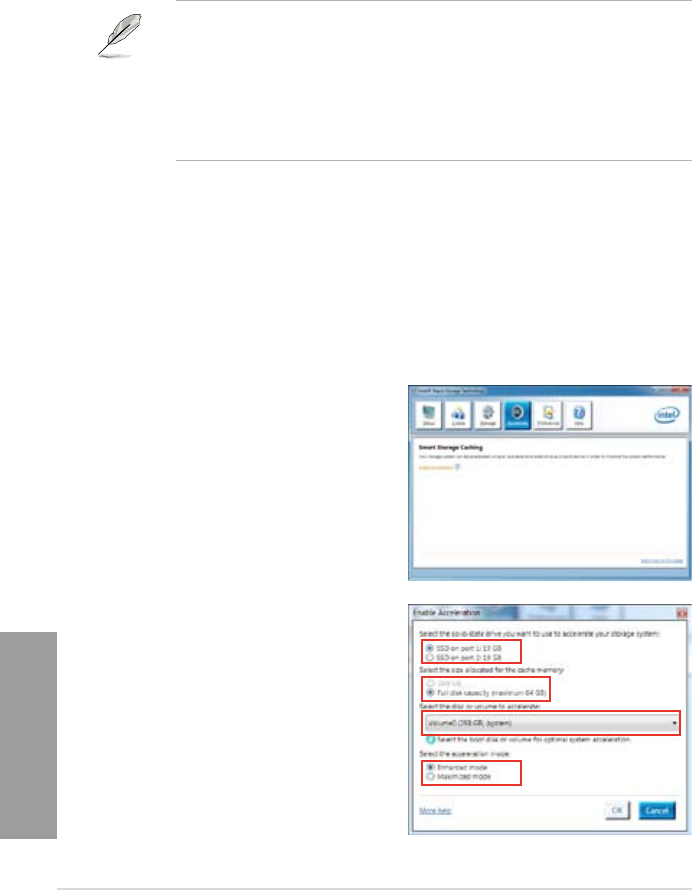
4-22 Chapter 4: Software support
Chapter 4
Intel® Smart Response Technology
Intel® Smart Response Technology boosts overall system performance. It uses an installed
fast SSD (min 18.6GB available) as a cache for frequently accessed operations, speeding up
hard drive/ main memory interaction. Key benets are expedited hard drive speeds, reduced
load and wait times, and maximized storage utilization. Power consumption also goes down
by reducing unnecessary hard drive spin.
2. a. Select the SSD you want to use to
accelerate your storage system.
b. Select the size allocated for SSD
caching.
c. Select which HDD for caching.
d.
Enhanced mode:WRITE THROUGH,
write to SSD and HDD at the same
time.
Maximized mode:WRITE BACK,
write to SSD and write back to HDD in
a later time.
1. Click Accelerate to launch Smart
Response Technology settings.
To install Intel® Smart Response Technology:
1. Place the support DVD to the optical drive. The Drivers installation tab appears if your
computer has enabled the Autorun feature.
2. Click the Drivers tab, then click Intel® Rapid Storage Technology Driver software.
3. Follow the onscreen instructions to complete installation.
To use Intel® Smart Response Technology:
• Intel® Smart Response Technology supports Windows® 7/ Vista operating systems.
• Intel® Smart Response Technology is supported by 2nd generation Intel® Core™
processor family.
• Operating systems must be installed on the HDD to launch Intel® Smart Response
Technology. The capacity of the SSD is reserved for caching function.
• Before applying Intel® Smart Response Technology, set the SATA Mode BIOS item to
[RAID mode] in BIOS setup. Refer to section 3.5.4 SATA Conguration for details.
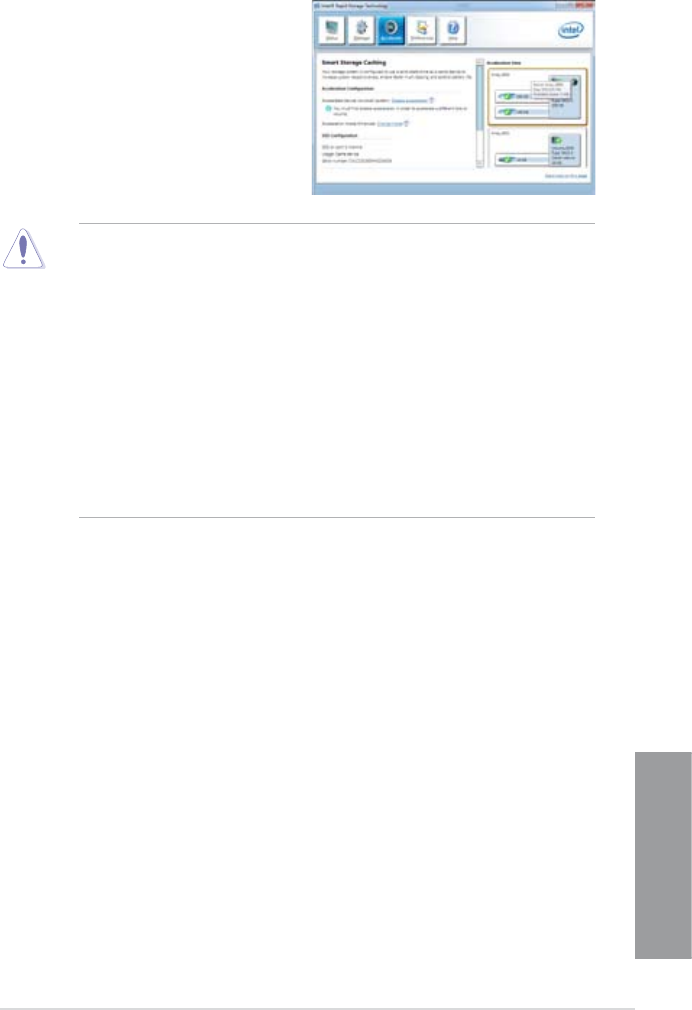
ASUS P8Z68-V PRO 4-23
Chapter 4
3. Select Disable Acceleration to disable
this function and select Change Mode to
switch acceleration mode to Enhanced/
Maximus.
• Only Intel® internal SATA ports (gray and blue) support Intel® Smart Response
Technology.
• You need at least one SSD (>18.6GB) and one HDD as a set to enable Intel® Smart
Response Technology. A single SSD can only be assigned to one HDD for caching.
• The maximum caching size on the SSD is 64GB. If the SSD exceeds 64GB, storage
capacity left out of caching can still be identied by the system for normal storage.
• Be sure to disable the acceleration function of Intel® Smart Response Technology
under OS when applying the actions below:
– Removing or replacing the SSD
– Updating IRST 10.5 driver
– Updating BIOS
• If you want to restore the OS, go to BIOS Option ROM utility and select Acceleration
Options to disable Intel® Smart Response Technology.
• The performance of Intel® Smart Response Technology varies by SSD.

4-24 Chapter 4: Software support
Chapter 4
4.5 Creating a RAID driver disk
A oppy disk with the RAID driver is required when installing a Windows® operating system
on a hard disk drive that is included in a RAID set.
• The motherboard does not provide a oppy drive connector. You have to use a
USB oppy disk drive when creating a SATA RAID driver disk.
• Windows® XP may not recognize the USB oppy disk drive due to Windows® XP
limitation. To work around this OS limitation, refer to section 4.5.4 Using a USB
oppy disk drive.
4.5.1 Creating a RAID driver disk without entering the OS
To create a RAID driver disk without entering the OS:
1. Boot your computer.
2. Press <Del> during POST to enter the BIOS setup utility.
3. Set the optical drive as the primary boot device.
4. Insert the support DVD into the optical drive.
5. Save changes and exit BIOS.
6. When the Make Disk menu appears, press <1> to create a RAID driver disk.
7. Insert a formatted oppy disk into the USB oppy disk drive, then press <Enter>.
8. Follow the succeeding screen instructions to complete the process.
4.5.2 Creating a RAID driver disk in Windows®
To create a RAID driver disk in Windows®:
1. Start Windows®.
2. Plug the USB oppy disk drive and insert a oppy disk.
3. Place the motherboard support DVD into the optical drive.
4. Go to the Make Disk menu, and then click Intel AHCI/RAID Driver Disk to create a
RAID driver disk.
5. Select USB oppy disk drive as the destination disk.
6. Follow the succeeding screen instructions to complete the process.
Write-protect the oppy disk to avoid a computer virus infection.

ASUS P8Z68-V PRO 4-25
Chapter 4
4.5.3 Installing the RAID driver during Windows® OS installation
To install the RAID driver in Windows® XP:
1. During the OS installation, the system prompts you to press the F6 key to install third-
party SCSI or RAID driver.
2. Press <F6>, and then insert the oppy disk with RAID driver into the USB oppy disk drive.
3. When prompted to select the SCSI adapter to install, select the RAID driver for the
corresponding OS version.
4. Follow the succeeding screen instructions to complete the installation.
To install the RAID driver for Windows® Vista or later OS:
1. During the OS installation, click Load Driver to allow you to select the installation
media containing the RAID driver.
2. Insert the USB ash drive with RAID driver into the USB port or the support DVD into
the optical drive, and then click Browse.
3. Click the name of the device you’ve inserted, go to Drivers > RAID, and then select
the RAID driver for the corresponding OS version. Click OK.
4. Follow the succeeding screen instructions to complete the installation.
Before loading the RAID driver from a USB ash drive, you have to use another computer
to copy the RAID driver from the support DVD to the USB ash drive.
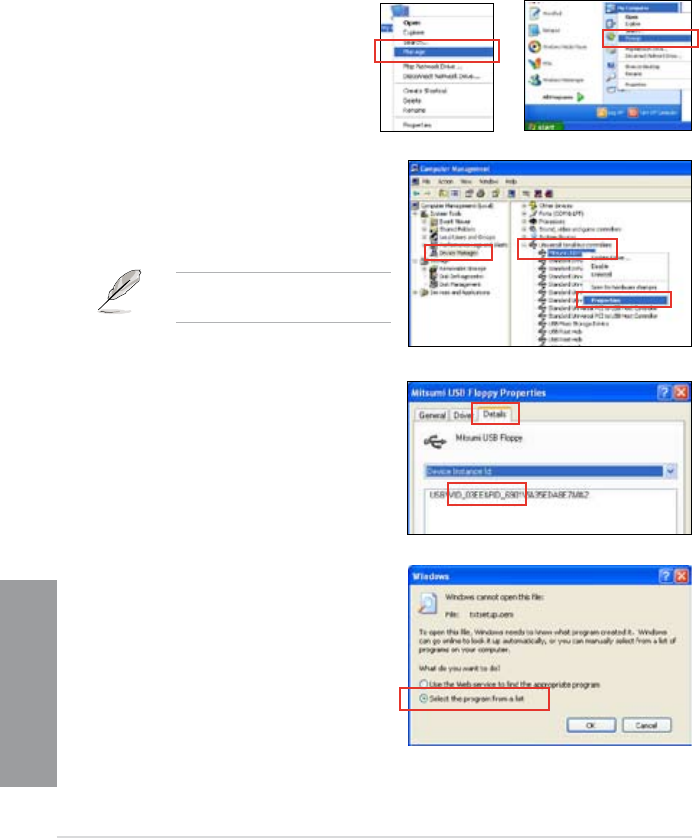
4-26 Chapter 4: Software support
Chapter 4
4.5.4 Using a USB oppy disk drive
Due to OS limitation, Windows® XP may not recognize the USB oppy disk drive when you
install the RAID driver from a oppy disk during the OS installation.
To solve this issue, add the USB oppy disk drive’s Vendor ID (VID) and Product ID (PID) to
the oppy disk containing the RAID driver. Refer to the steps below:
1. Using another computer, plug the USB oppy disk drive, and insert the oppy disk
containing the RAID driver.
2. Right-click My Computer on the
Windows® desktop or start menu,
and then select Manage from the
pop-up window.
3. Select Device Manager. From the
Universal Serial Bus controllers,
right-click xxxxxx USB Floppy, and
then select Properties from the pop-up
window.
The name of the USB oppy disk
drive varies with different vendors.
or
4. Click Details tab. The Vendor ID (VID)
and Product ID (PID) are displayed.
5. Browse the contents of the RAID driver
disk to locate the le txtsetup.oem.
6. Double-click the le. A window appears,
allowing you to select the program for
opening the oem le.
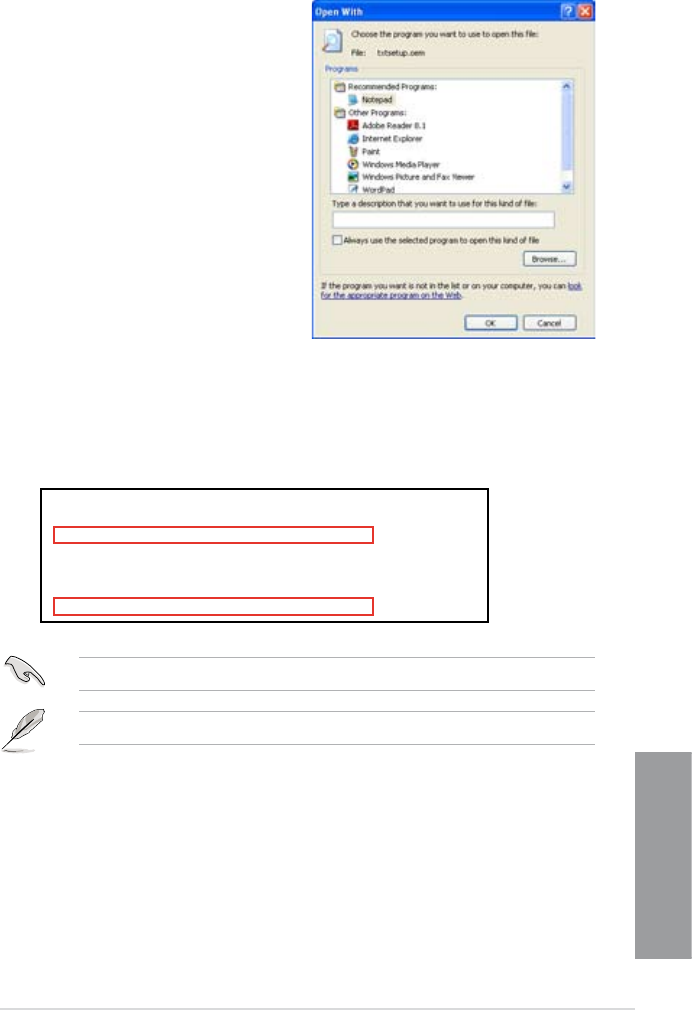
ASUS P8Z68-V PRO 4-27
Chapter 4
8. Find the [HardwareIds.scsi.iaAHCI_DesktopWorkstationServer] and
[HardwareIds.scsi.iaStor_DesktopWorkstationServer] sections in the txtsetup.oem
le.
9. Type the following line to the bottom of the two sections:
id = “USB\VID_xxxx&PID_xxxx”, “usbstor”
10. Save and exit the le.
Add the same line to both sections.
The VID and PID vary with different vendors.
7. Use Notepad to open the le.
[HardwareIds.scsi.iaAHCI_DesktopWorkstationServer]
id= “PCI\VEN_8086&DEV_1C02&CC_0106”,”iaStor”
id= “USB\VID_03EE&PID_6901”, “usbstor”
[HardwareIds.scsi.iaStor_DesktopWorkstationServer]
id= “PCI\VEN_8086&DEV_2822&CC_0104”,”iaStor”
id= “USB\VID_03EE&PID_6901”, “usbstor”

4-28 Chapter 4: Software support
Chapter 4

ASUS P8Z68-V PRO 5-1
Chapter 5
5.1 ATI® CrossFireX™ technology
The motherboard supports the ATI® CrossFireX™ technology that allows you to install
multi-graphics processing units (GPU) graphics cards. Follow the installation procedures in
this section.
5.1.1 Requirements
• In Dual CrossFireX mode, you should have two identical CrossFireX-ready graphics
cards or one CrossFireX-ready dual-GPU graphics card that are ATI® certied.
• Ensure that your graphics card driver supports the ATI CrossFireX technology.
Download the latest driver from the AMD website (www.amd.com).
• Ensure that your power supply unit (PSU) can provide at least the minimum power
required by your system. See Chapter 2 for details.
5.1.2 Before you begin
For ATI CrossFireX to work properly, you have to uninstall all existing graphics card drivers
before installing ATI CrossFireX graphics cards to your system.
To uninstall existing graphics card drivers:
1. Close all current applications.
2. For Windows XP, go to Control Panel > Add/Remove Programs.
For Windows Vista, go to Control Panel > Programs and Features.
3. Select your current graphics card driver/s.
4. For Windows XP, select Add/Remove.
For Windows Vista, select Uninstall.
5. Turn off your computer.
• We recommend that you install additional chassis fans for better thermal environment.
• Visit the ATI Game website (http://game.amd.com) for the latest certied graphics card
and the supported 3D application list.
Chapter 5: Multiple GPU technology support
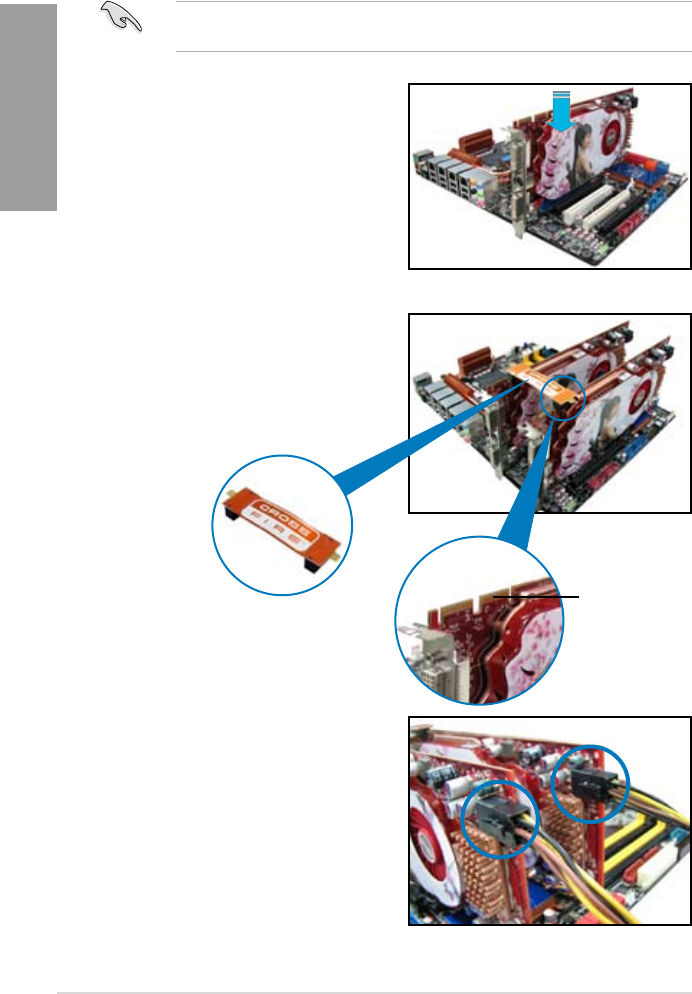
5-2 Chapter 5: Multiple GPU technology support
Chapter 5
5. Connect two independent auxiliary power
sources from the power supply to the two
graphics cards separately.
6. Connect a VGA or a DVI cable to the
graphics card.
4. Align and rmly insert the CrossFireX
bridge connector to the goldngers on
each graphics card. Ensure that the
connector is rmly in place.
5.1.3 Installing two CrossFireX™ graphics cards
The following pictures are for reference only. The graphics cards and the motherboard
layout may vary with models, but the installation steps remain the same.
1. Prepare two CrossFireX-ready graphics
cards.
2. Insert the two graphics card into the
PCIEX16 slots. If your motherboard
has more than two PCIEX16 slots,
refer to Chapter 2 in this user manual
for the locations of the PCIEX16 slots
recommended for multi-graphics card
installation.
3. Ensure that the cards are properly
seated on the slots.
goldngers
CrossFireX bridge
(bundled with
graphics cards)
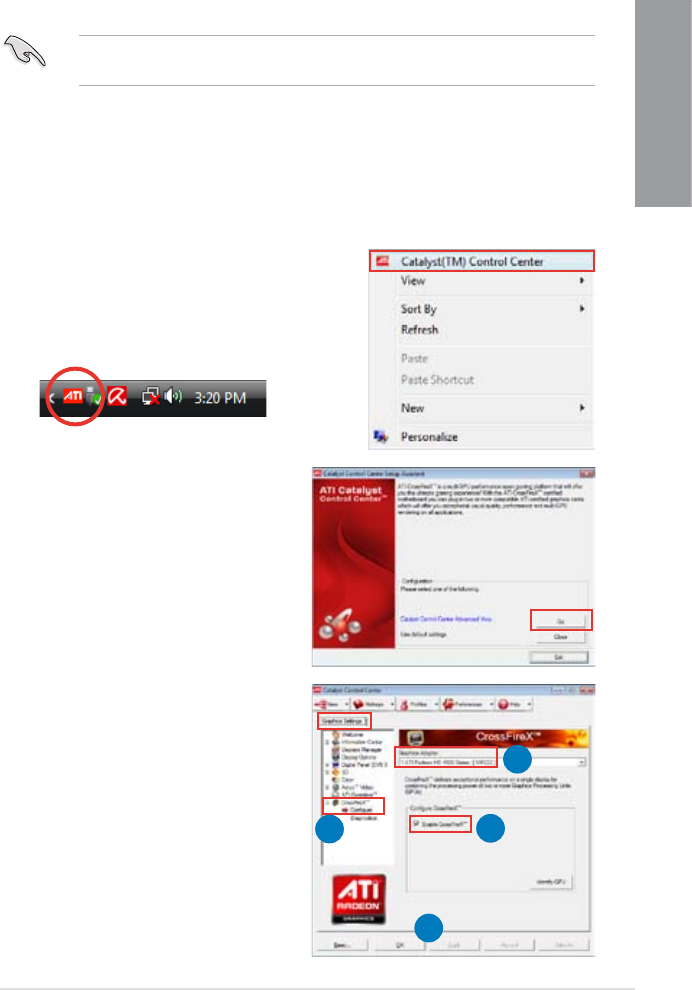
ASUS P8Z68-V PRO 5-3
Chapter 5
5.1.4 Installing the device drivers
Refer to the documentation that came with your graphics card package to install the device
drivers.
Ensure that your PCI Express graphics card driver supports the ATI® CrossFireX™
technology. Download the latest driver from the AMD website (www.amd.com).
5.1.5 Enabling the ATI® CrossFireX™ technology
After installing your graphics cards and the device drivers, enable the CrossFireX™ feature
through the ATI Catalyst™ Control Center in Windows environment.
Launching the ATI Catalyst Control Center
To launch the ATI Catalyst Control Center:
1. Right-click on the Windows® desktop and select
Catalyst(TM) Control Center. You can also
right-click the ATI icon in the Windows notication
area and select Cayalist Control Center.
2. The Catalyst Control Center Setup
Assistant appears when the system
detects the existance of multi-graphics
cards. Click Go to continue to the
Catalyst Control Center Advanced
View window.
Enabling Dual CrossFireX technology
1. In the Catalyst Control Center window,
click Graphics Settings > CrossFireX >
Congure.
2. From the Graphics Adapter list, select
the graphics card to act as the display
GPU.
3. Select Enable CrossFireX.
4. Click Apply, and then click OK to exit
the window.
1
2
3
4
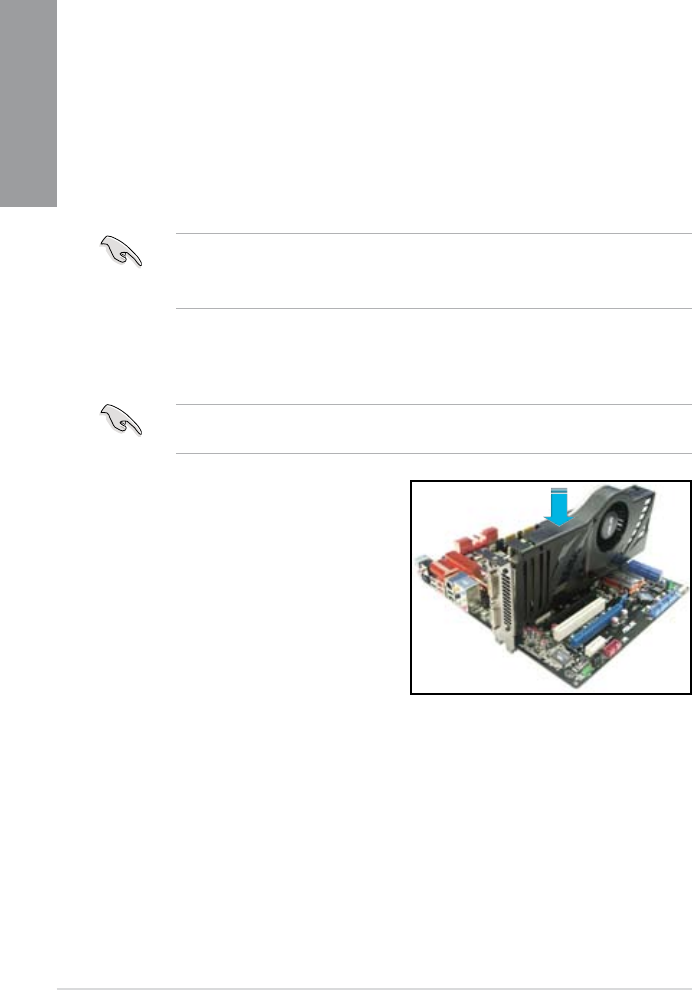
5-4 Chapter 5: Multiple GPU technology support
Chapter 5
5.2 NVIDIA® SLI™ technology
The motherboard supports the NVIDIA® SLI™ (Scalable Link Interface) technology that
allows you to install multi-graphics processing units (GPU) graphics cards. Follow the
installation procedures in this section.
5.2.1 Requirements
• In SLI mode, you should have two identical SLI-ready graphics cards that are NVIDIA®
certied.
• Ensure that your graphics card driver supports the NVIDIA SLI technology. Download
the latest driver from the NVIDIA website (www.nvidia.com).
• Ensure that your power supply unit (PSU) can provide at least the minimum power
required by your system. See Chapter 2 for details.
5.2.2 Installing two SLI-ready graphics cards
The following pictures are for reference only. The graphics cards and the motherboard
layout may vary with models, but the installation steps remain the same.
1. Prepare two SLI-ready graphics cards.
2. Insert the two graphics card into the
PCIEX16 slots. If your motherboard
has more than two PCIEX16 slots,
refer to Chapter 2 in this user manual
for the locations of the PCIEX16 slots
recommended for multi-graphics card
installation.
3. Ensure that the cards are properly seated
on the slots.
• We recommend that you install additional chassis fans for better thermal environment.
• Visit the NVIDIA zone website (http://www.nzone.com) for the latest certied graphics
card and supported 3D application list.
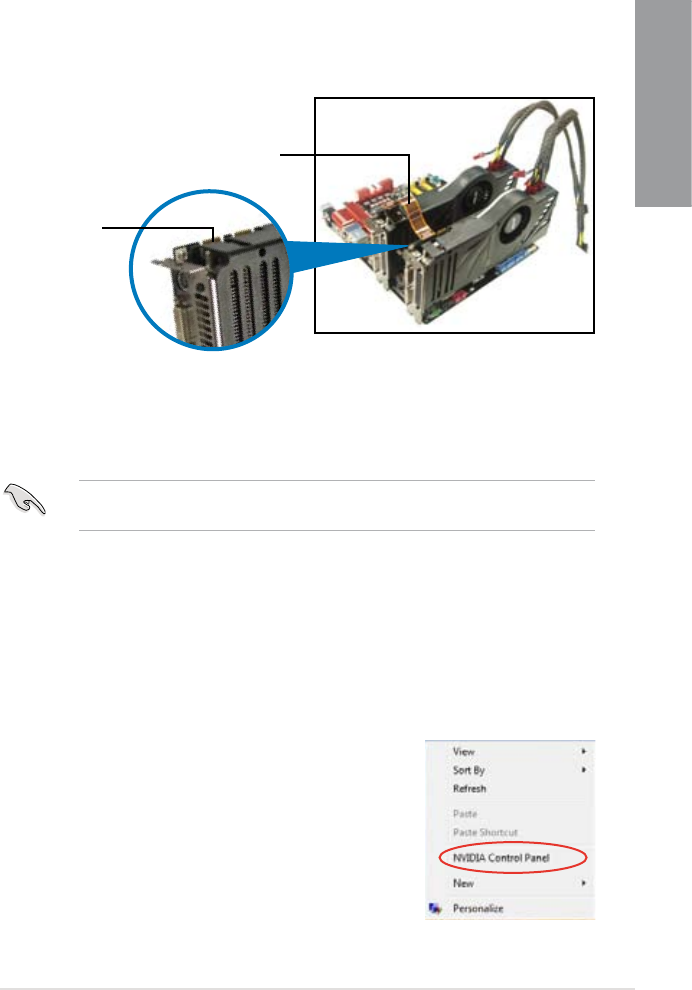
ASUS P8Z68-V PRO 5-5
Chapter 5
4. Align and rmly insert the SLI bridge connector to the goldngers on each graphics
card. Ensure that the connector is rmly in place.
5. Connect two independent auxiliary power sources from the power supply to the two
graphics cards separately.
6. Connect a VGA or a DVI cable to the graphics card.
5.2.3 Installing the device drivers
Refer to the documentation that came with your graphics card package to install the device
drivers.
Ensure that your PCI Express graphics card driver supports the NVIDIA® SLI™ technology.
Download the latest driver from the NVIDIA website (www.nvidia.com).
Goldngers
SLI bridge
5.2.4 Enabling the NVIDIA® SLI™ technology
After installing your graphics cards and the device drivers, enable the SLI feature in NVIDIA®
Control Panel under the Windows® Vista™ operating system.
Launching the NVIDIA Control Panel
You can launch the NVIDIA Control Panel by the following two methods.
A. Right click on the empty space of the Windows® desktop
and select NVIDIA Control Panel.
The NVIDIA Control Panel window appears (See Step B5).
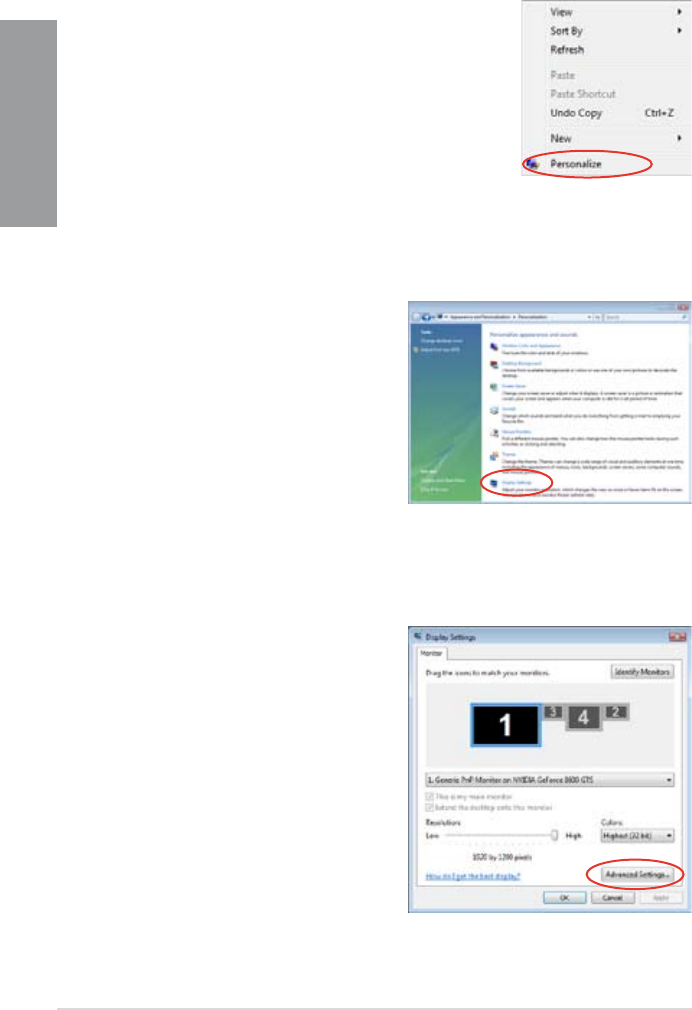
5-6 Chapter 5: Multiple GPU technology support
Chapter 5
B1. If you cannot see the NVIDIA Control Panel item in step
(A), select Personalize.
B2. From the Personalization window,
select Display Settings.
B3. From the Display Settings dialog box,
click Advanced Settings.
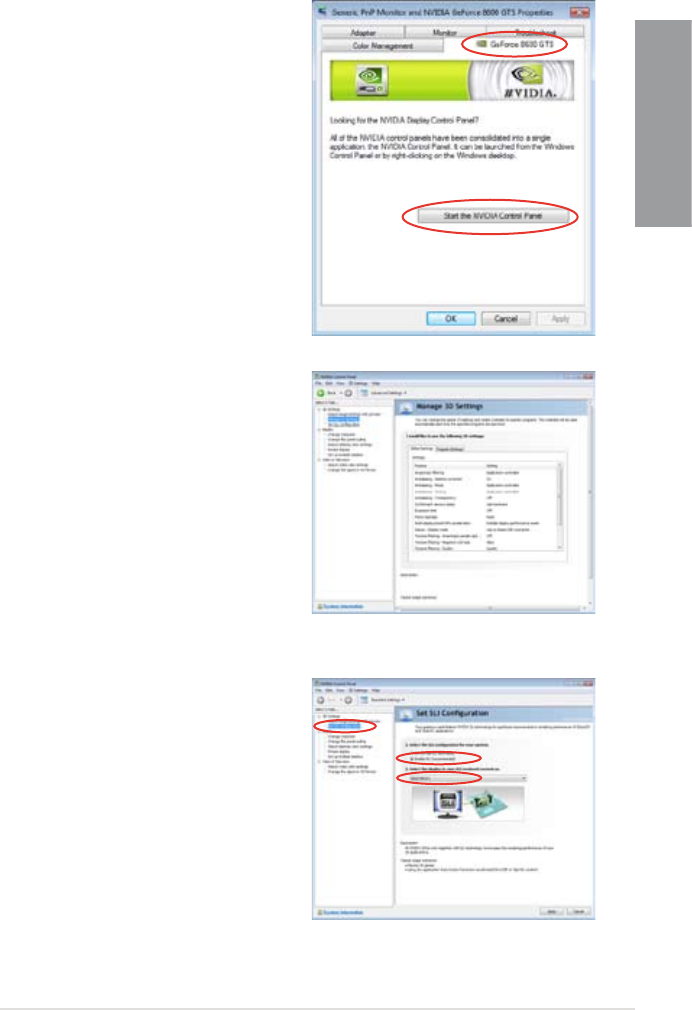
ASUS P8Z68-V PRO 5-7
Chapter 5
B4. Select the NVIDIA GeForce tab, and
then click Start the NVIDIA Control
Panel.
B5. The NVIDIA Control Panel window
appears.
Enabling SLI settings
From the NVIDIA Control Panel window, select
Set SLI Conguration. Click Enable SLI
and set the display for viewing SLI rendered
content. When done, click Apply.
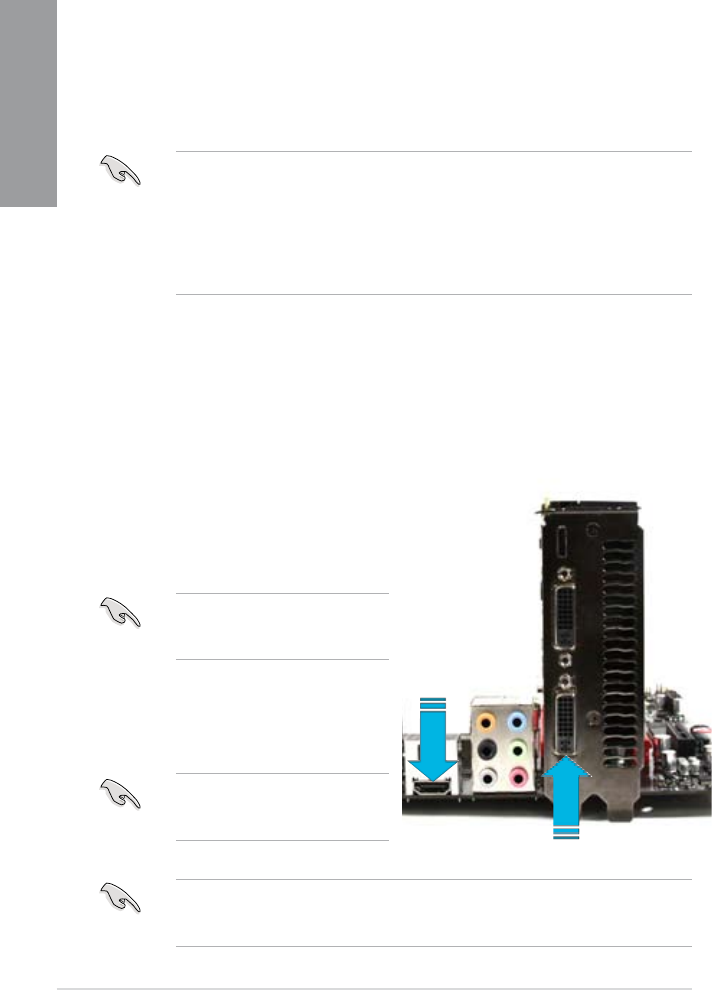
5-8 Chapter 5: Multiple GPU technology support
Chapter 5
d-Mode (output from the discrete GPU)
i-Mode (output from the
Sandy Bridge GPU)
5.3 LucidLogix® Virtu™ solution
LucidLogix® Virtu™ is a new generation GPU virtualization software that blurs the line
between embedded graphics and discrete GPU for increased graphics performance. Its GPU
virtualization dynamically assigns tasks to the best available graphics resources based on
power, performance and system load. It allows users to fully utilize the unique capabilities
of advanced Sandy Bridge multimedia features alongside the high end 3D rendering
performance provided by installed graphics cards. For users with diverse needs, LucidLogix®
Virtu™ GPU virtualization provides great exibility and efciency.
• LucidLogix® Virtu™ supports Windows® 7 operating systems.
• Intel® Quick Sync Video feature is supported by 2nd generation Intel® Core™
processor family.
• iGPU Multi-Monitor support option has to be enabled in BIOS before installing
LucidLogix® Virtu™.
• Supports NVIDIA® GF4xx/ 5xx series & AMD® HD5xxx/ 6xxx series graphic cards.
5.3.1 Hardware installation
To install LucidLogix® Virtu™:
1. Place the support DVD to the optical drive. The Drivers installation tab appears if your
computer has enabled the Autorun feature.
2. Click the Drivers tab, then click LucidLogix® Virtu™ software.
3. Follow the onscreen instructions to complete installation.
Both i-Mode and d-Mode enjoy the performance of Intel® Sandy Bridge built-in
media features and discrete card. d-Mode is recommended for enhanced 3D gaming
performance.
i-Mode
To use LucidLogix® Virtu™ solution in i-Mode,
display must be always connected to Sandy
Bridge motherboard video output.
Be sure to set Initial Graphic Adaptor
to iGPU in BIOS to activate i-Mode
support.
d-Mode (recommended mode)
To use LucidLogix® Virtu™ solution in
d-Mode, display must be connected to the
discrete GPU installed in the system.
Be sure to set Initial Graphic Adaptor
to PCIE or PCIE/ PCI in BIOS to
enable d-Mode support.
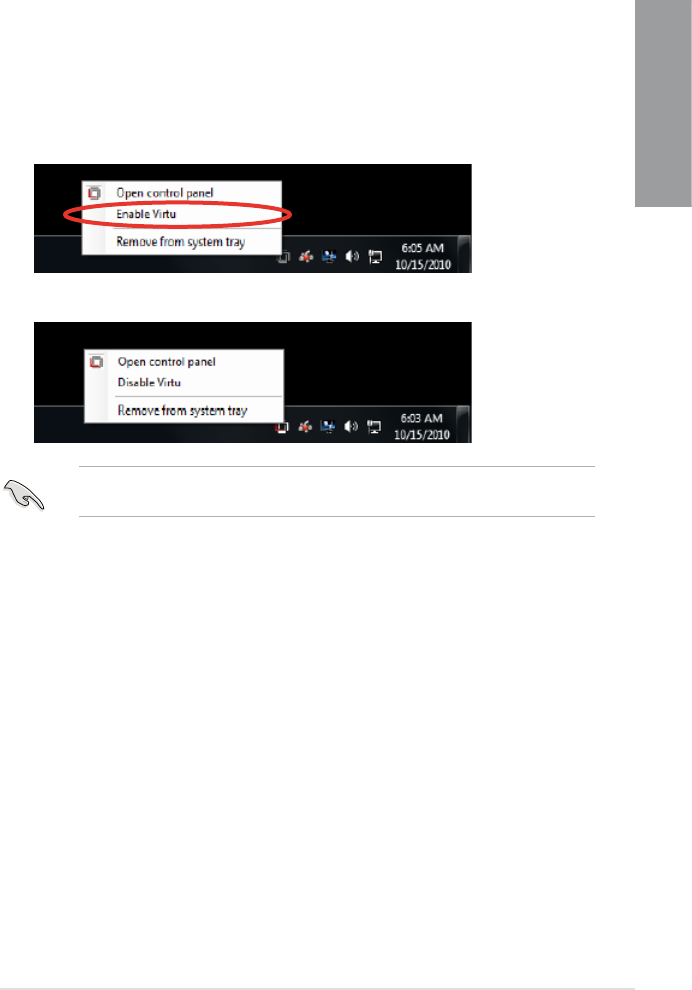
ASUS P8Z68-V PRO 5-9
Chapter 5
5.3.2 Software conguration
After you successfully installed the LucidLogix® Virtu™ from the support DVD that comes with
your motherboard package, a LucidLogix® Virtu™ icon appears in the notication area.
To enable LucidLogix® Virtu™
1. Right-click LucidLogix® Virtu™ icon in the notication area and select Enable Virtu.
2. LucidLogix® Virtu™ is enabled.
LucidLogix® Virtu™ is automatically activated when your system is powered on. Select
Remove from system tray, if you want to remove LucidLogix® Virtu™.
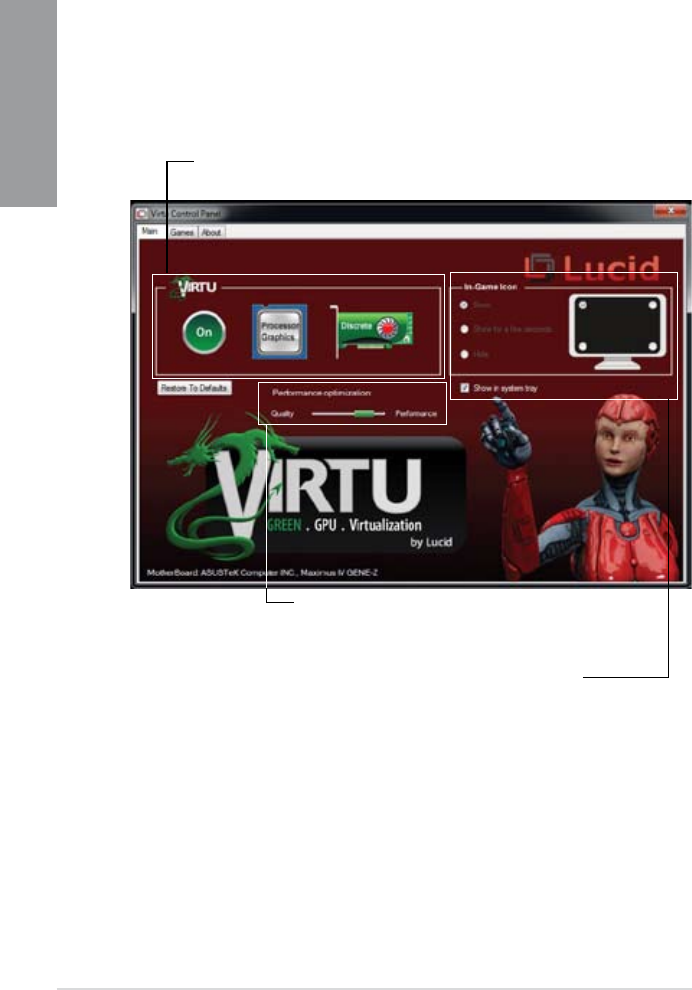
5-10 Chapter 5: Multiple GPU technology support
Chapter 5
To open the control panel
1. Right-click LucidLogix® Virtu™ icon in the notication area and select Open control
panel.
2. In the Main tab, you can check the LucidLogix® Virtu™ status and customize your
settings.
Check your current display mode, i-mode (blue) or d-Mode (green)
Adjust Performance optimization,
Quality over Performance or
Performance over Quality
Select the way to show the Lucid
icon when you are in game.
ASUS contact information
ASUSTeK COMPUTER INC.
Address 15 Li-Te Road, Peitou, Taipei, Taiwan 11259
Telephone +886-2-2894-3447
Fax +886-2-2890-7798
E-mail info@asus.com.tw
Web site www.asus.com.tw
Technical Support
Telephone +86-21-38429911
Online support support.asus.com
ASUS COMPUTER INTERNATIONAL (America)
Address 800 Corporate Way, Fremont, CA 94539, USA
Telephone +1-812-282-3777
Fax +1-510-608-4555
Web site usa.asus.com
Technical Support
Telephone +1-812-282-2787
Support fax +1-812-284-0883
Online support support.asus.com
ASUS COMPUTER GmbH (Germany and Austria)
Address Harkort Str. 21-23, D-40880 Ratingen, Germany
Fax +49-2102-959911
Web site www.asus.de
Online contact www.asus.de/sales
Technical Support
Telephone +49-1805-010923*
Support Fax +49-2102-9599-11
Online support support.asus.com
* EUR 0.14/minute from a German xed landline; EUR 0.42/minute from a mobile phone.
EC Declaration of Conformity
We, the undersigned,
Manufacturer: ASUSTek COMPUTER INC.
Address, City: No. 150, LI-TE RD., PEITOU, TAIPEI 112, TAIWAN R.O.C.
Country: TAIWAN
Authorized representative in Europe: ASUS COMPUTER GmbH
Address, City: HARKORT STR. 21-23, 40880 RATINGEN
Country: GERMANY
declare the following apparatus:
Product name : Motherboard
Model name : P8Z68-V PRO
conform with the essential requirements of the following directives:
2004/108/EC-EMC Directive
EN 55022:2006+A1:2007
EN 61000-3-2:2006
EN 55013:2001+A1:2003+A2:2006
EN 55024:1998+A1:2001+A2:2003
EN 61000-3-3:2008
EN 55020:2007
1999/5/EC-R &TTE Directive
EN 300 328 V1.7.1(2006-10)
EN 300 440-1 V1.4.1(2008-05)
EN 300 440-2 V1.2.1(2008-03)
EN 301 511 V9.0.2(2003-03)
EN 301 908-1 V3.2.1(2007-05)
EN 301 908-2 V3.2.1(2007-05)
EN 301 893 V1.4.1(2005-03)
EN 302 544-2 V1.1.1(2009-01)
EN 50360:2001
EN 50371:2002
EN 50385:2002
EN 301 489-1 V1.8.1(2008-04)
EN 301 489-3 V1.4.1(2002-08)
EN 301 489-4 V1.3.1(2002-08)
EN 301 489-7 V1.3.1(2005-11)
EN 301 489-9 V1.4.1(2007-11)
EN 301 489-17 V2.1.1(2009-05)
EN 301 489-24 V1.4.1(2007-09)
EN 302 326-2 V1.2.2(2007-06)
EN 302 326-3 V1.3.1(2007-09)
EN 301 357-2 V1.3.1(2006-05)
EN 302 623 V1.1.1(2009-01)
2006/95/EC-LVD Directive
EN 60950-1:2006
EN 60950-1:2006+A11:2009
EN 60065:2002+A1:2006+A11:2008
2009/125/EC-ErP Directive
Regulation (EC) No. 1275/2008
EN 62301:2005
Regulation (EC) No. 642/2009
EN 62301:2005
Regulation (EC) No. 278/2009
EN 62301:2005
Ver. 110101
CE marking
Declaration Date: Apr. 12, 2011
Year to begin affixing CE marking:2011
Position : CEO
Name : Jerry Shen
Signature : __________
(
EC conformit
y
markin
g)
DECLARATION OF CONFORMITY
Per FCC Part 2 Section 2. 1077(a)
Responsible Party Name:
Asus Computer International
Address: 800 Corporate Way, Fremont
, CA 94539.
Phone/Fax No: (510)739-3777/(510)608-4555
hereby declares that the product
Product Name : Motherboard
Model Number : P8Z68-V PRO
Conforms to the following specifications:
FCC Part 15, Subpart B, Unintentional Radiators
FCC Part 15, Subpart C, Intentional Radiators
FCC Part 15, Subpart E, Intentional Radiators
Supplementary Information:
This device complies with part 15 of the FCC Rules. Operation is subject to
the following two conditions: (1) This device may not cause harmful
interference, and (2) this device must accept any interference received,
including interference that may cause undesired operation.
Representative Person’s Name : Steve Chang / President
Signature :
Date : Apr. 12, 2011
Ver. 110101
