Austar technology AU500 Bluetooth Car Kit User Manual User s manual

Austar technology (Hang Zhou) Co., Ltd. Bluetooth Car Kit User s manual

Manual

                      AUSTAR TECHNOLOGY (HANG ZHOU) CO., LTD.    AU500 Bluetooth Car kit     USER’S GUIDE
                      AUSTAR TECHNOLOGY (HANG ZHOU) CO., LTD.   Index
                      AUSTAR TECHNOLOGY (HANG ZHOU) CO., LTD.    Introduction
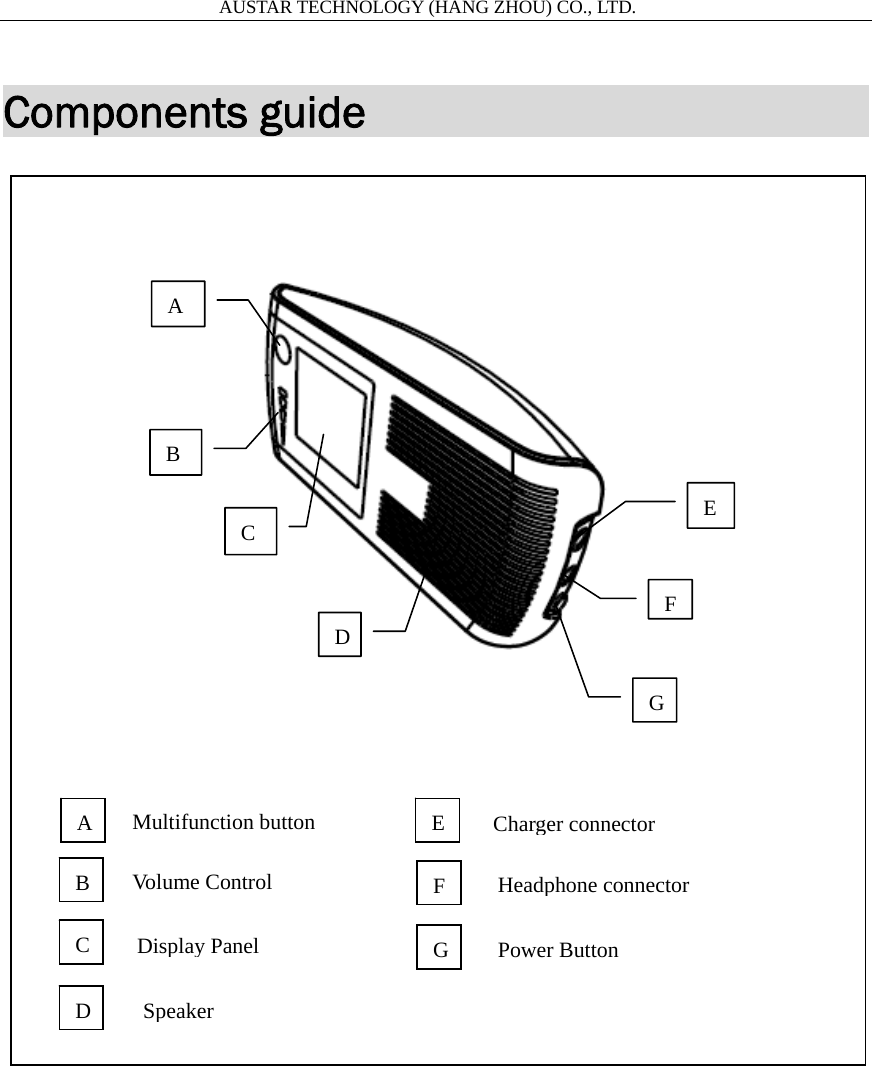
                      AUSTAR TECHNOLOGY (HANG ZHOU) CO., LTD.   Components guide                        ABC DE FGA B C D EFGMultifunction button Volume Control Display Panel Speaker Charger connectorHeadphone connectorPower Button
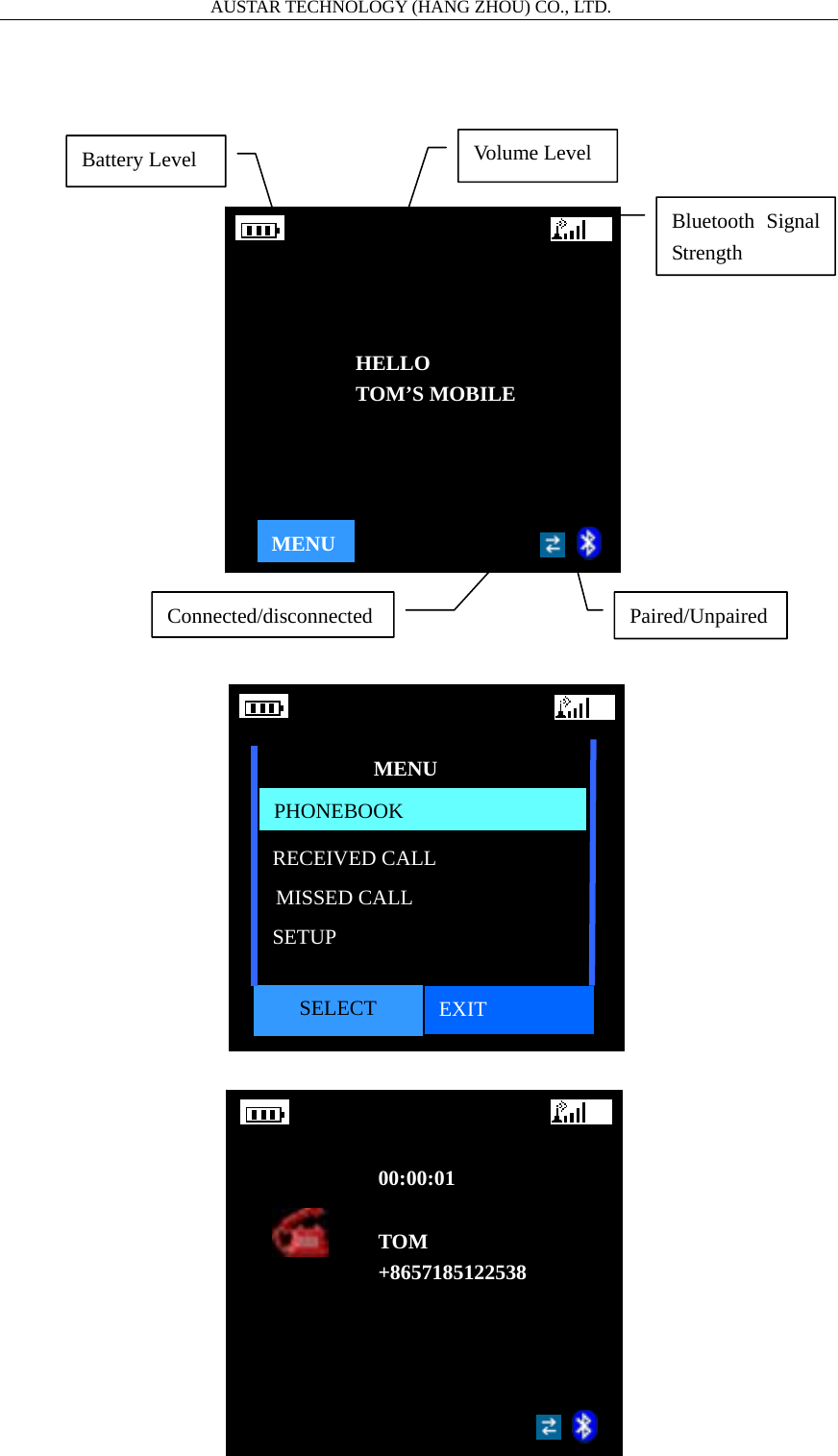
                      AUSTAR TECHNOLOGY (HANG ZHOU) CO., LTD.   Battery Level  Volume Level Bluetooth Signal Strength Paired/Unpaired Connected/disconnected MENUHELLO TOM’S MOBILE SELECT  EXIT MENU PHONEBOOKRECEIVED CALL MISSED CALL SETUP 00:00:01  TOM +8657185122538
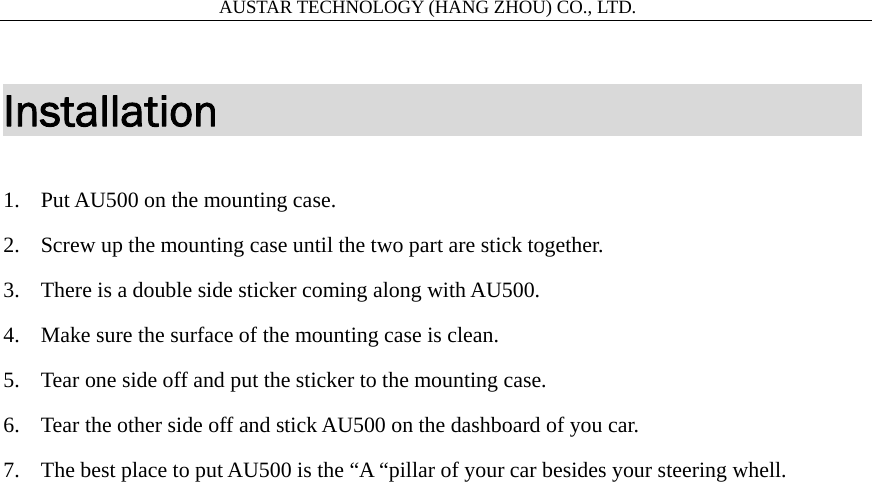
                      AUSTAR TECHNOLOGY (HANG ZHOU) CO., LTD.   Installation                             1. Put AU500 on the mounting case. 2. Screw up the mounting case until the two part are stick together. 3. There is a double side sticker coming along with AU500.   4. Make sure the surface of the mounting case is clean. 5. Tear one side off and put the sticker to the mounting case. 6. Tear the other side off and stick AU500 on the dashboard of you car. 7. The best place to put AU500 is the “A “pillar of your car besides your steering whell.
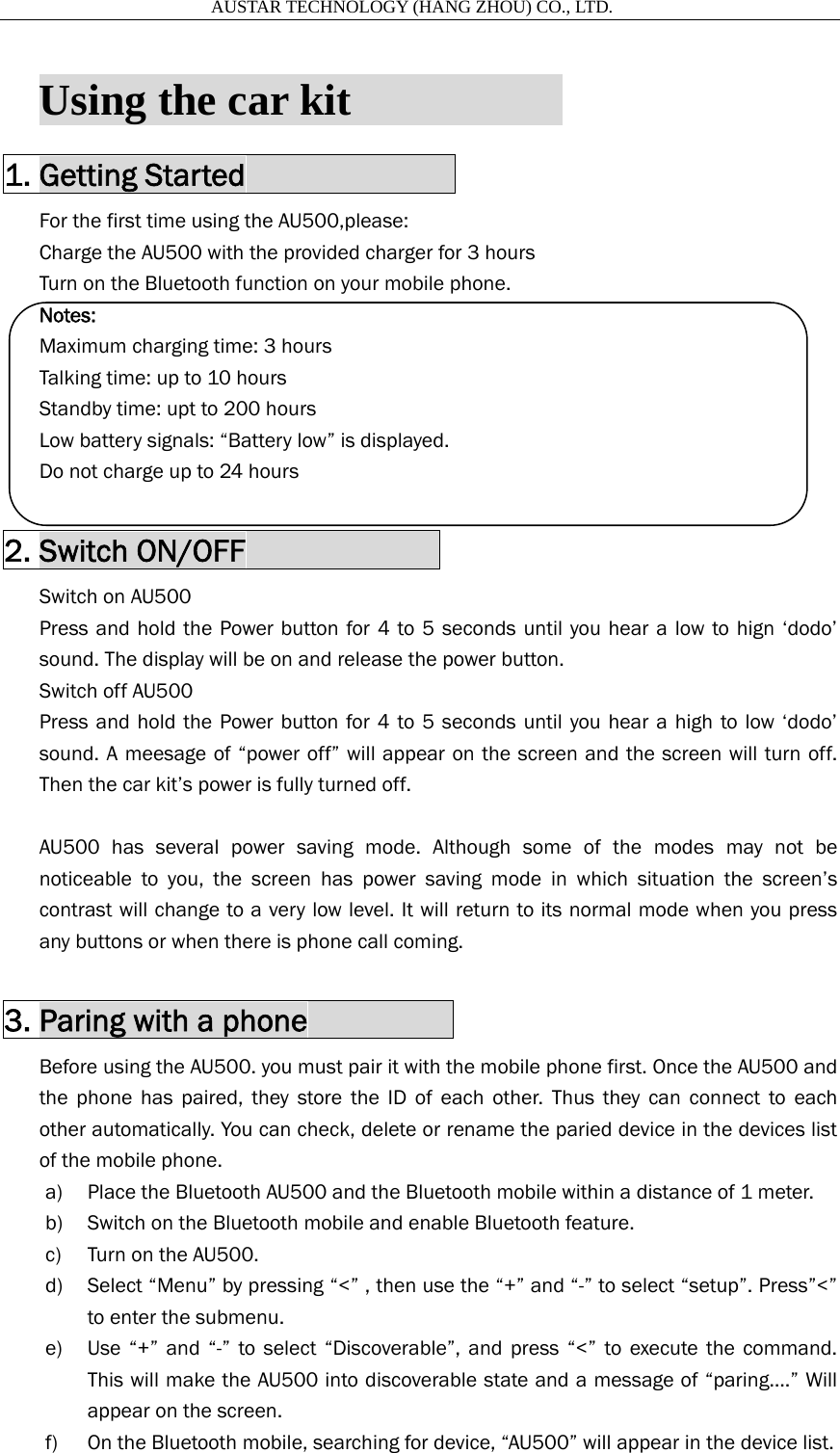
                      AUSTAR TECHNOLOGY (HANG ZHOU) CO., LTD.   Using the car kit                     1. Getting Started              For the first time using the AU500,please: Charge the AU500 with the provided charger for 3 hours Turn on the Bluetooth function on your mobile phone. Notes: Maximum charging time: 3 hours Talking time: up to 10 hours Standby time: upt to 200 hours Low battery signals: “Battery low” is displayed. Do not charge up to 24 hours  2. Switch ON/OFF             Switch on AU500 Press and hold the Power button for 4 to 5 seconds until you hear a low to hign ‘dodo’ sound. The display will be on and release the power button. Switch off AU500 Press and hold the Power button for 4 to 5 seconds until you hear a high to low ‘dodo’ sound. A meesage of “power off” will appear on the screen and the screen will turn off. Then the car kit’s power is fully turned off.  AU500 has several power saving mode. Although some of the modes may not be noticeable to you, the screen has power saving mode in which situation the screen’s contrast will change to a very low level. It will return to its normal mode when you press any buttons or when there is phone call coming.  3. Paring with a phone          Before using the AU500. you must pair it with the mobile phone first. Once the AU500 and   the phone has paired, they store the ID of each other. Thus they can connect to each other automatically. You can check, delete or rename the paried device in the devices list of the mobile phone. a) Place the Bluetooth AU500 and the Bluetooth mobile within a distance of 1 meter. b) Switch on the Bluetooth mobile and enable Bluetooth feature. c) Turn on the AU500.   d) Select “Menu” by pressing “<” , then use the “+” and “-” to select “setup”. Press”<” to enter the submenu. e) Use “+” and “-” to select “Discoverable”, and press “<” to execute the command. This will make the AU500 into discoverable state and a message of “paring….” Will appear on the screen. f) On the Bluetooth mobile, searching for device, “AU500” will appear in the device list.
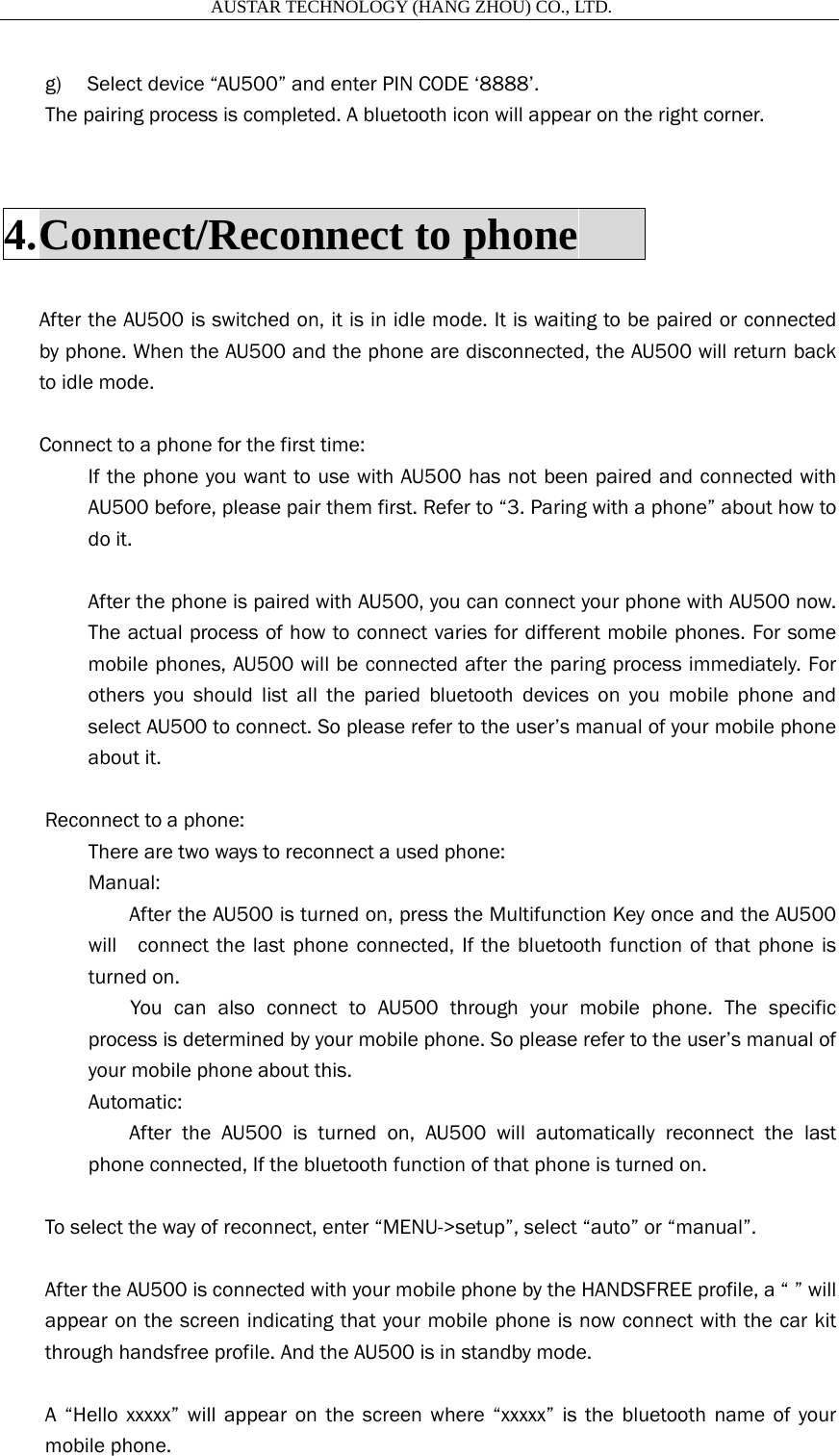
                      AUSTAR TECHNOLOGY (HANG ZHOU) CO., LTD.   g) Select device “AU500” and enter PIN CODE ‘8888’.   The pairing process is completed. A bluetooth icon will appear on the right corner.  4. Connect/Reconnect to phone       After the AU500 is switched on, it is in idle mode. It is waiting to be paired or connected by phone. When the AU500 and the phone are disconnected, the AU500 will return back to idle mode.  Connect to a phone for the first time: If the phone you want to use with AU500 has not been paired and connected with AU500 before, please pair them first. Refer to “3. Paring with a phone” about how to do it.  After the phone is paired with AU500, you can connect your phone with AU500 now. The actual process of how to connect varies for different mobile phones. For some mobile phones, AU500 will be connected after the paring process immediately. For others you should list all the paried bluetooth devices on you mobile phone and select AU500 to connect. So please refer to the user’s manual of your mobile phone about it.  Reconnect to a phone: There are two ways to reconnect a used phone: Manual:   After the AU500 is turned on, press the Multifunction Key once and the AU500 will    connect the last phone connected, If the bluetooth function of that phone is turned on.     You can also connect to AU500 through your mobile phone. The specific process is determined by your mobile phone. So please refer to the user’s manual of your mobile phone about this. Automatic:   After the AU500 is turned on, AU500 will automatically reconnect the last phone connected, If the bluetooth function of that phone is turned on.  To select the way of reconnect, enter “MENU->setup”, select “auto” or “manual”.  After the AU500 is connected with your mobile phone by the HANDSFREE profile, a “ ” will appear on the screen indicating that your mobile phone is now connect with the car kit through handsfree profile. And the AU500 is in standby mode.  A “Hello xxxxx” will appear on the screen where “xxxxx” is the bluetooth name of your mobile phone.
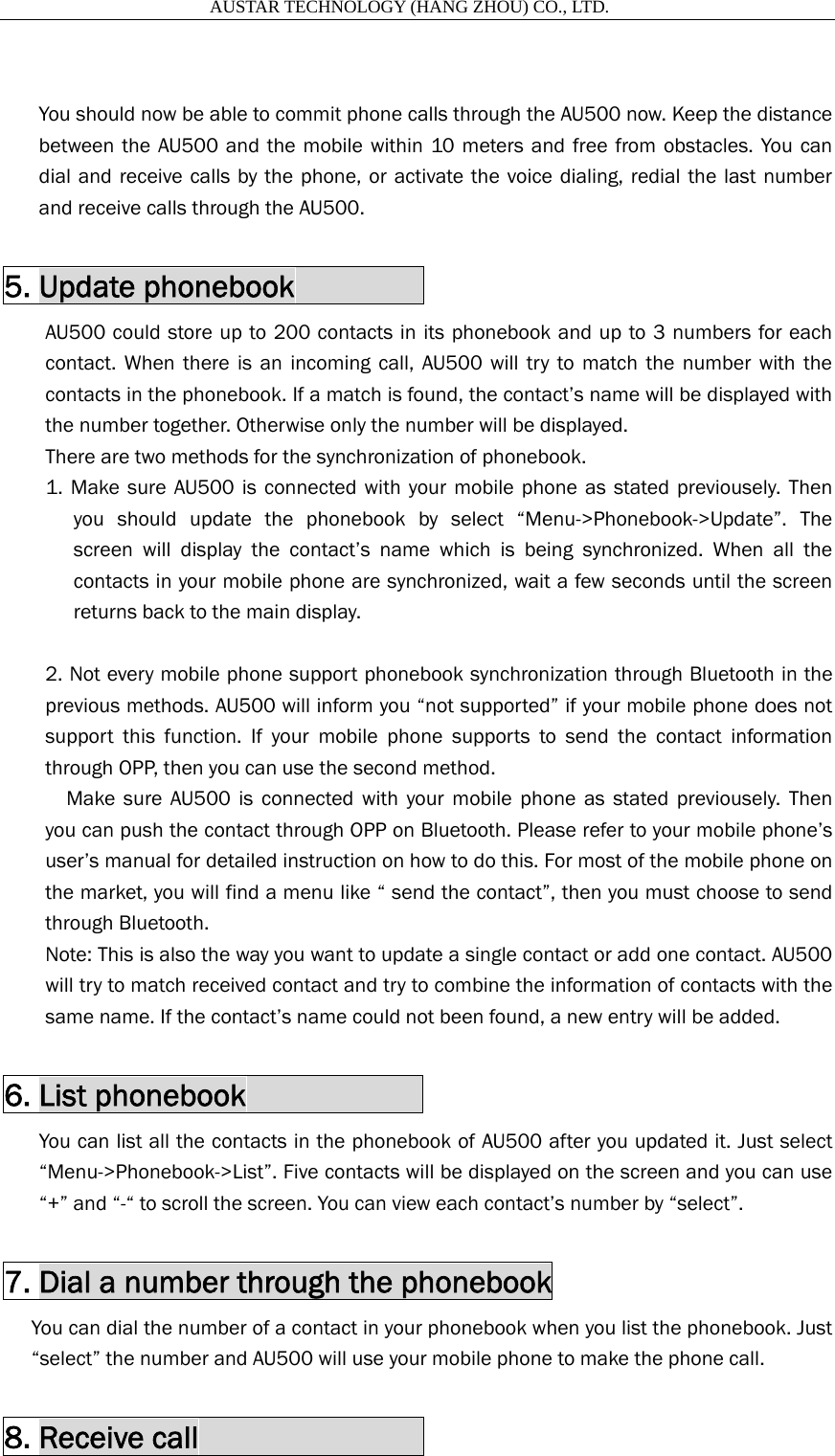
                      AUSTAR TECHNOLOGY (HANG ZHOU) CO., LTD.    You should now be able to commit phone calls through the AU500 now. Keep the distance between the AU500 and the mobile within 10 meters and free from obstacles. You can dial and receive calls by the phone, or activate the voice dialing, redial the last number and receive calls through the AU500.  5. Update phonebook         AU500 could store up to 200 contacts in its phonebook and up to 3 numbers for each contact. When there is an incoming call, AU500 will try to match the number with the contacts in the phonebook. If a match is found, the contact’s name will be displayed with the number together. Otherwise only the number will be displayed. There are two methods for the synchronization of phonebook. 1. Make sure AU500 is connected with your mobile phone as stated previousely. Then you should update the phonebook by select “Menu->Phonebook->Update”. The screen will display the contact’s name which is being synchronized. When all the contacts in your mobile phone are synchronized, wait a few seconds until the screen returns back to the main display.  2. Not every mobile phone support phonebook synchronization through Bluetooth in the previous methods. AU500 will inform you “not supported” if your mobile phone does not support this function. If your mobile phone supports to send the contact information through OPP, then you can use the second method.   Make sure AU500 is connected with your mobile phone as stated previousely. Then you can push the contact through OPP on Bluetooth. Please refer to your mobile phone’s user’s manual for detailed instruction on how to do this. For most of the mobile phone on the market, you will find a menu like “ send the contact”, then you must choose to send through Bluetooth.   Note: This is also the way you want to update a single contact or add one contact. AU500 will try to match received contact and try to combine the information of contacts with the same name. If the contact’s name could not been found, a new entry will be added.    6. List phonebook            You can list all the contacts in the phonebook of AU500 after you updated it. Just select “Menu->Phonebook->List”. Five contacts will be displayed on the screen and you can use “+” and “-“ to scroll the screen. You can view each contact’s number by “select”.  7. Dial a number through the phonebook You can dial the number of a contact in your phonebook when you list the phonebook. Just “select” the number and AU500 will use your mobile phone to make the phone call.  8. Receive call
                      AUSTAR TECHNOLOGY (HANG ZHOU) CO., LTD.   When there is phone call coming, AU500 will play ring tone to notify you. If your mobile phone support in-band ring feature, AU500 will play the same ring tone of your mobile phone, otherwise a normal telephone ring tone will be played. AU500 will also display the caller’s number and name on the screen. Press Multifunction Key once to receive the call. A timer will appear on the screen indicating how long the call has lasted. z some mobile phones does not send the caller’s name when there is voice call coming. And the AU500 will not be able to display the caller’s name if you use these kind of mobile phone. Please refer to the user’s manual of you mobile phone for further details of this feature.  9. Reject call                 When AU500 is ringing, the screen displays the caller’s number and name. Press Multifunction Key twice to reject the call and ‘REJECT’ will be displayed.  10. End call                   Press Multifunction Key once during a call and the voice call is end. The timer and caller’s number will disappear.  11. Transfer to phone            During a call, press and hold Multifunction key for 3 seconds. LCD displays ‘TRANSFER’. To transfer back to the first call, press once again.  12. Redial the last number       In standby mode, press multifunction key twice. The last number will be redialed. The screen displays ‘REDIAL’  13. Voice dial                  In standby mode, press Multifunction Key once. The screen displays ‘ VOICE DIAL’. You will hear a tone from the AU500. It indicates the mobile phone is ready to receive voice tag. Speak the name of the person you wish to call. Then the mobile starts the voice dial automatically. (Ensure the mobile phone supports Voice Control Dialing before use.)  14. Adjust volume           Press ‘+’ or ‘-‘ buttons to control volume up or down. Screen will display the volume level. The volume will decrease when the battery is low even when you set the volume level as the same when the battery is full. So please recharge the AU500 when you feel the maxim
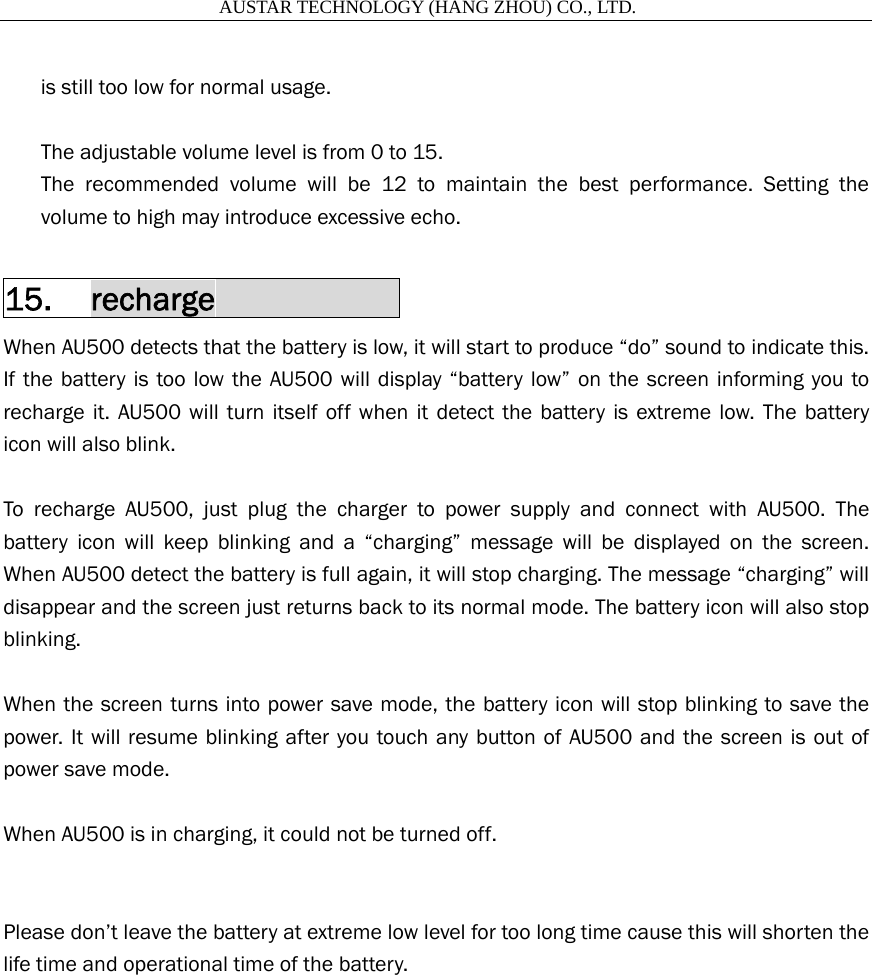
                      AUSTAR TECHNOLOGY (HANG ZHOU) CO., LTD.   is still too low for normal usage.    The adjustable volume level is from 0 to 15.   The recommended volume will be 12 to maintain the best performance. Setting the volume to high may introduce excessive echo.  15. recharge            When AU500 detects that the battery is low, it will start to produce “do” sound to indicate this. If the battery is too low the AU500 will display “battery low” on the screen informing you to recharge it. AU500 will turn itself off when it detect the battery is extreme low. The battery icon will also blink.  To recharge AU500, just plug the charger to power supply and connect with AU500. The battery icon will keep blinking and a “charging” message will be displayed on the screen. When AU500 detect the battery is full again, it will stop charging. The message “charging” will disappear and the screen just returns back to its normal mode. The battery icon will also stop blinking.  When the screen turns into power save mode, the battery icon will stop blinking to save the power. It will resume blinking after you touch any button of AU500 and the screen is out of power save mode.  When AU500 is in charging, it could not be turned off.   Please don’t leave the battery at extreme low level for too long time cause this will shorten the life time and operational time of the battery.
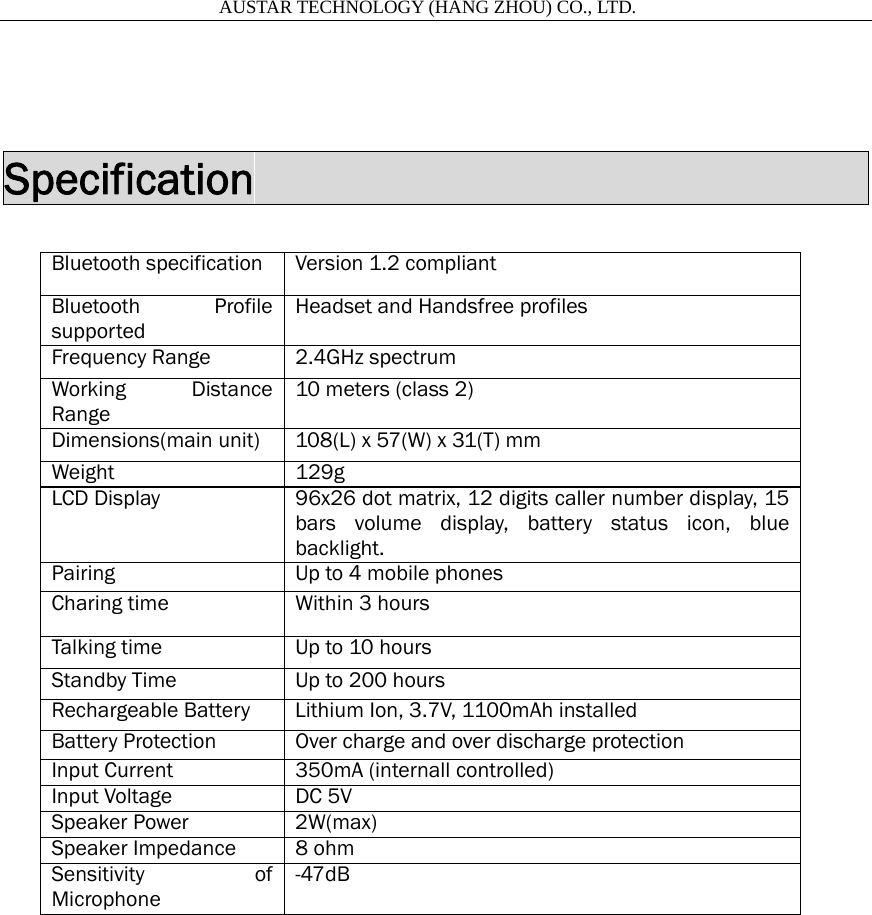
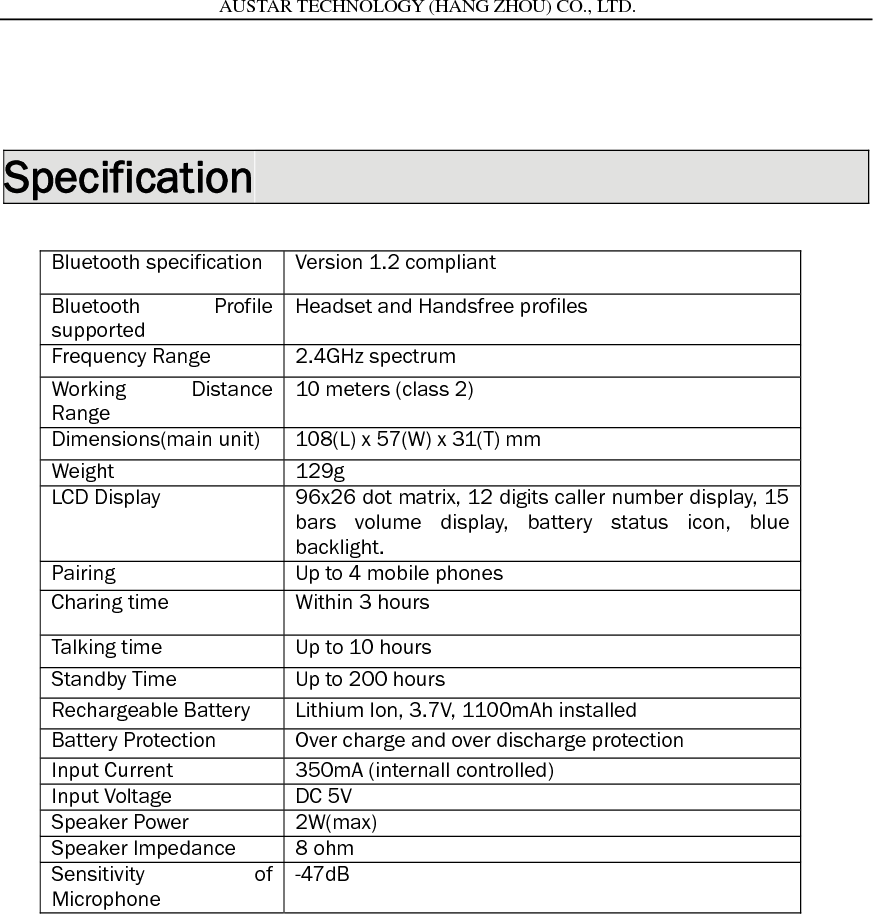
                      AUSTAR TECHNOLOGY (HANG ZHOU) CO., LTD.    Specification                            Bluetooth specification  Version 1.2 compliant Bluetooth Profile supported Headset and Handsfree profiles Frequency Range  2.4GHz spectrum Working Distance Range 10 meters (class 2) Dimensions(main unit)  108(L) x 57(W) x 31(T) mm Weight 129g LCD Display  96x26 dot matrix, 12 digits caller number display, 15 bars volume display, battery status icon, blue backlight. Pairing  Up to 4 mobile phones Charing time  Within 3 hours Talking time  Up to 10 hours Standby Time  Up to 200 hours Rechargeable Battery  Lithium Ion, 3.7V, 1100mAh installed Battery Protection  Over charge and over discharge protection Input Current  350mA (internall controlled) Input Voltage  DC 5V Speaker Power  2W(max) Speaker Impedance  8 ohm Sensitivity of Microphone -47dB
                      AUSTAR TECHNOLOGY (HANG ZHOU) CO., LTD.

Navigation menu