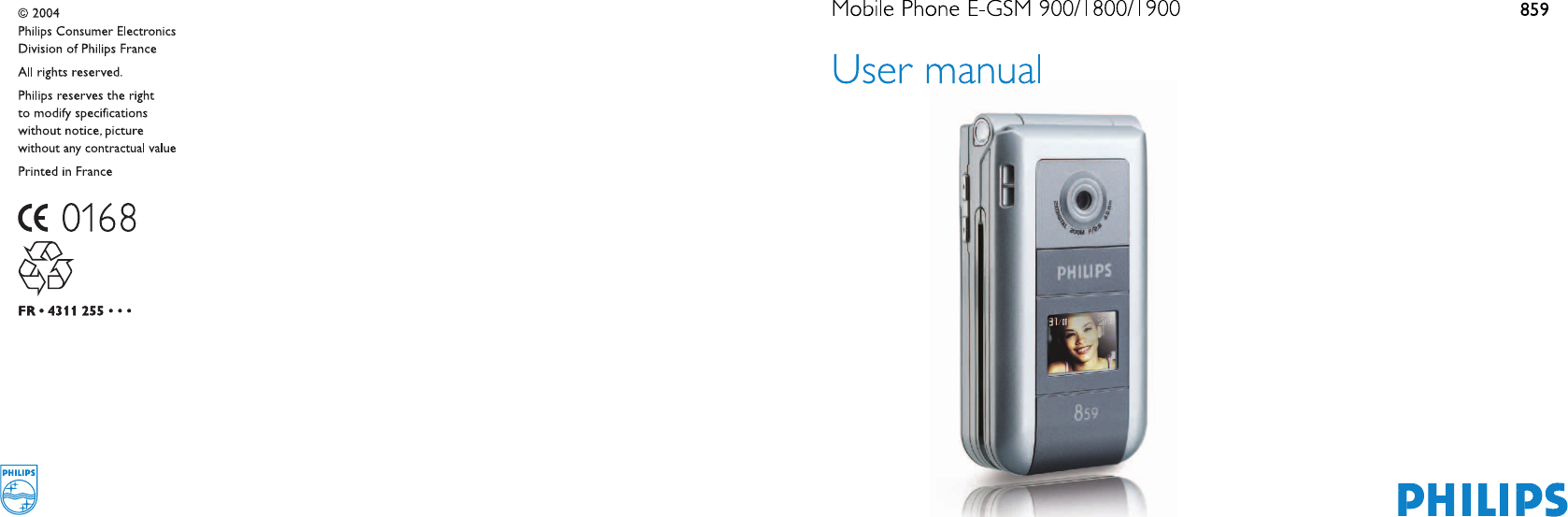
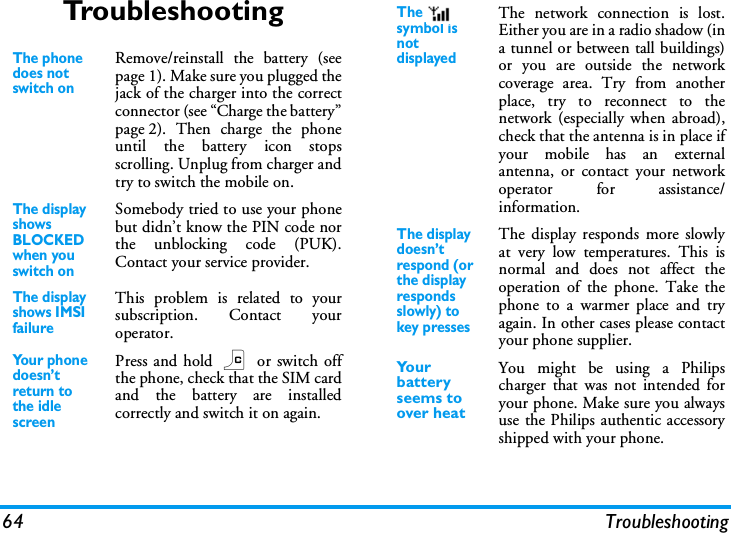
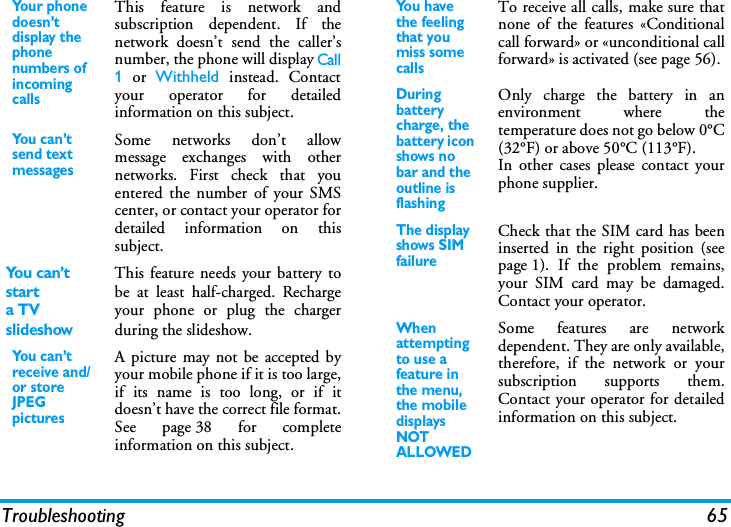
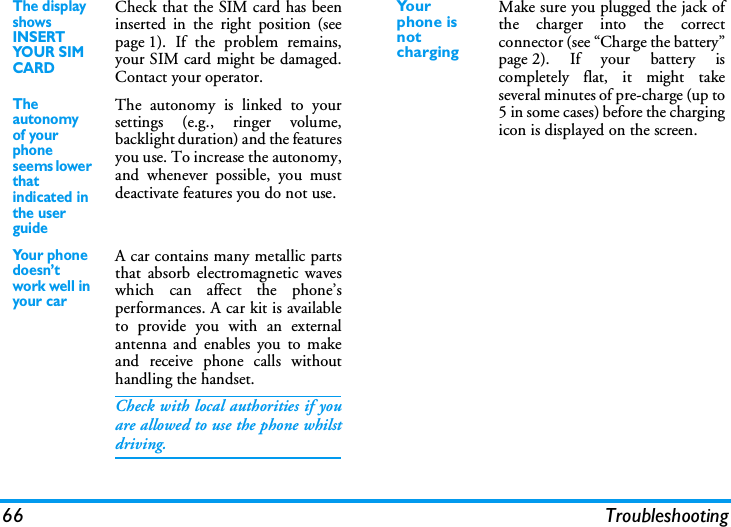
Avantech Mobile CT8598 GSM 900/1800/1900 Mobile Phone User Manual Philips859 EMEA GB 4311 255 60451

Avantech Mobile GSM 900/1800/1900 Mobile Phone Philips859 EMEA GB 4311 255 60451

Contents

User Manual

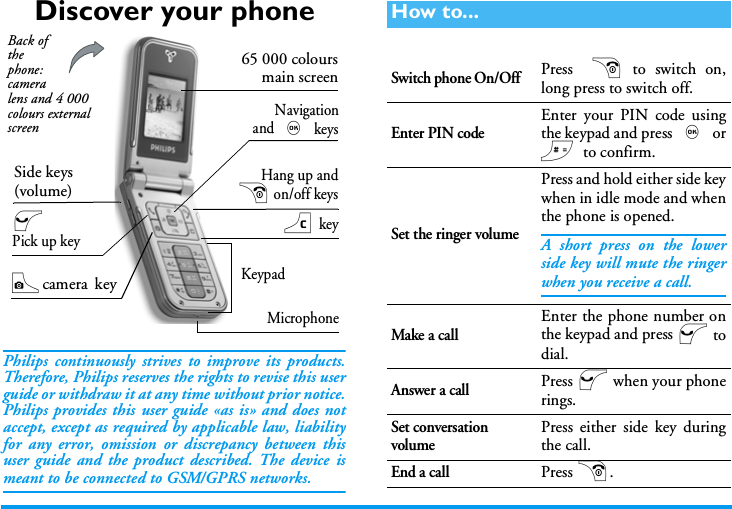
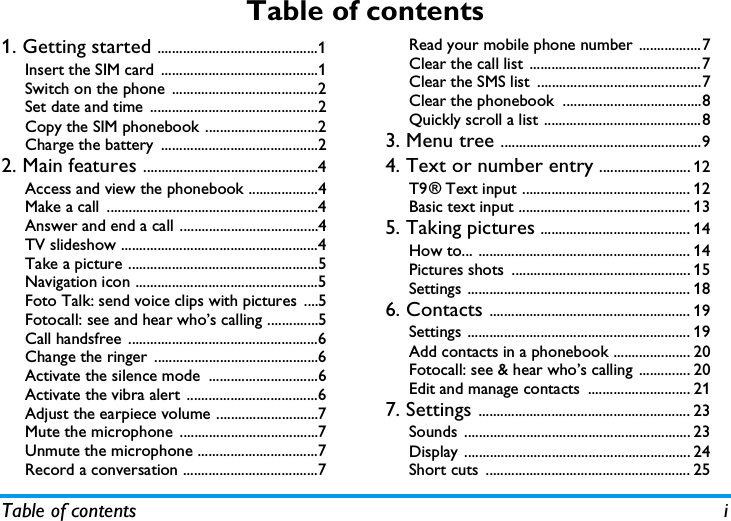
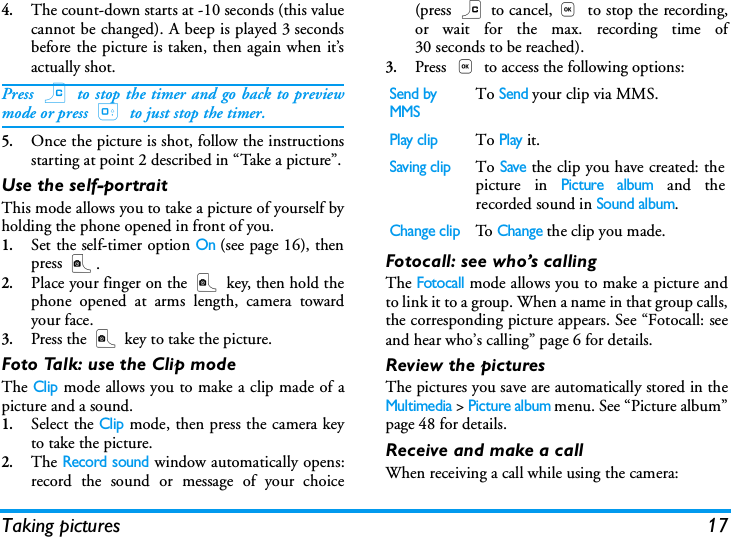
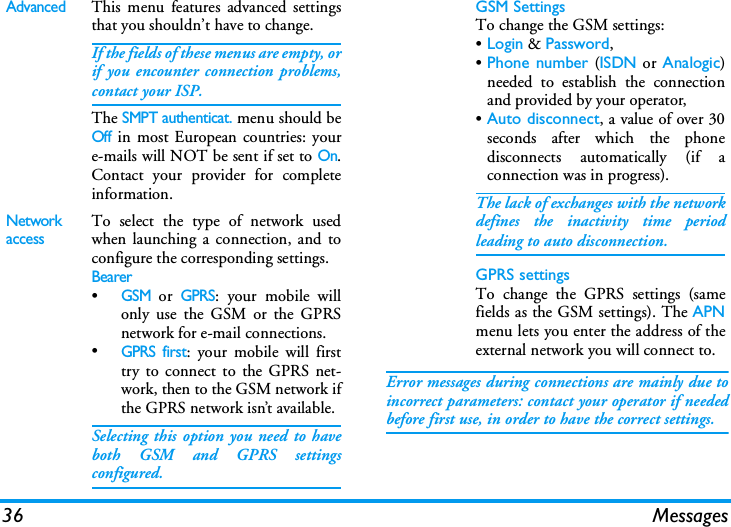
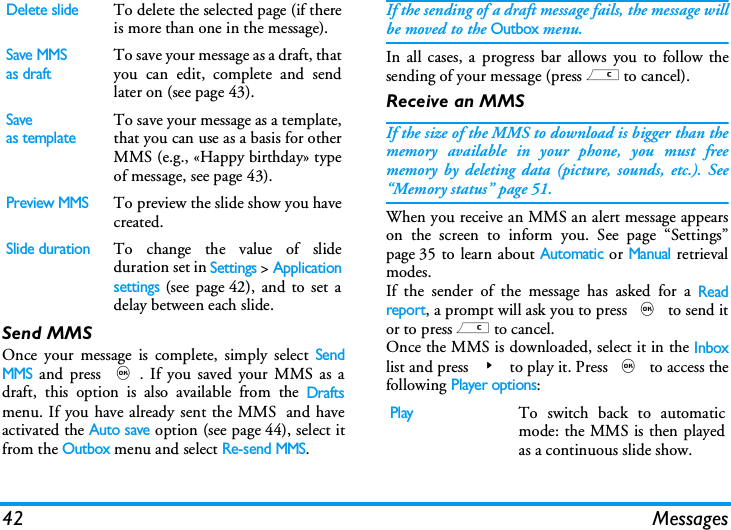
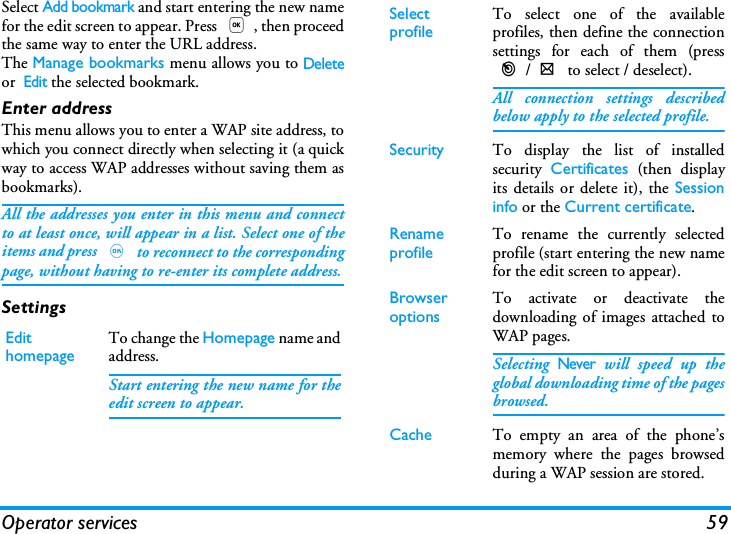
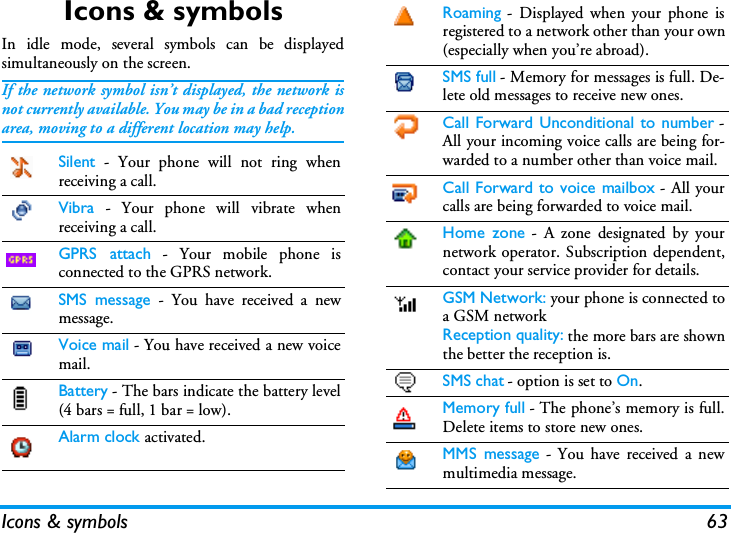
Discover your phonePhilips continuously strives to improve its products.Therefore, Philips reserves the rights to revise this userguide or withdraw it at any time without prior notice.Philips provides this user guide «as is» and does notaccept, except as required by applicable law, liabilityfor any error, omission or discrepancy between thisuser guide and the product described. The device ismeant to be connected to GSM/GPRS networks.KeypadMicrophoneNavigationand , keys65 000 coloursmain screenCcamera  keyc key(Pick up keyHang up and) on/off keysSide keys(volume)Back of the phone: camera lens and 4 000 colours external screenHow to...Switch phone On/OffPress  ) to switch on,long press to switch off.Enter PIN codeEnter your PIN code usingthe keypad and press , or# to confirm.Set the ringer volumePress and hold either side keywhen in idle mode and whenthe phone is opened.A short press on the lowerside key will mute the ringerwhen you receive a call.Make a callEnter the phone number onthe keypad and press ( todial.Answer a callPress ( when your phonerings.Set conversationvolumePress either side key duringthe call.End a callPress ).
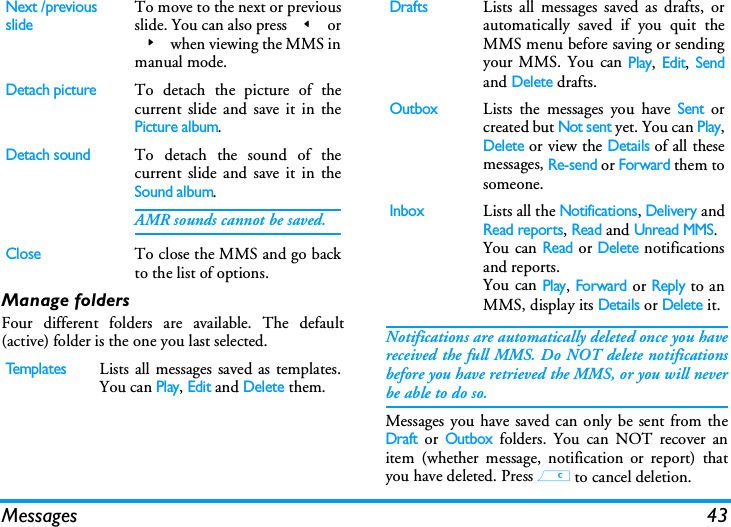
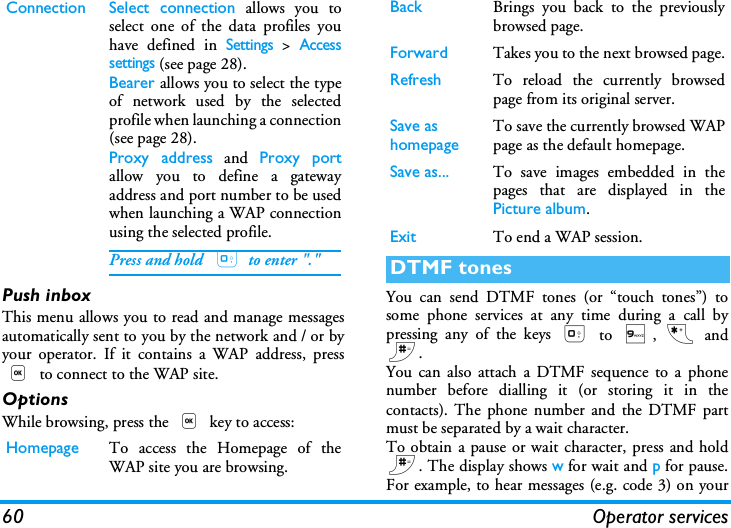
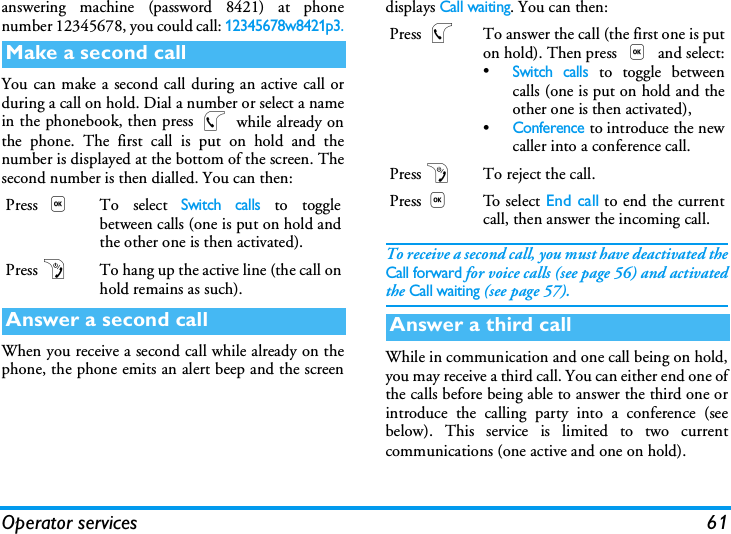
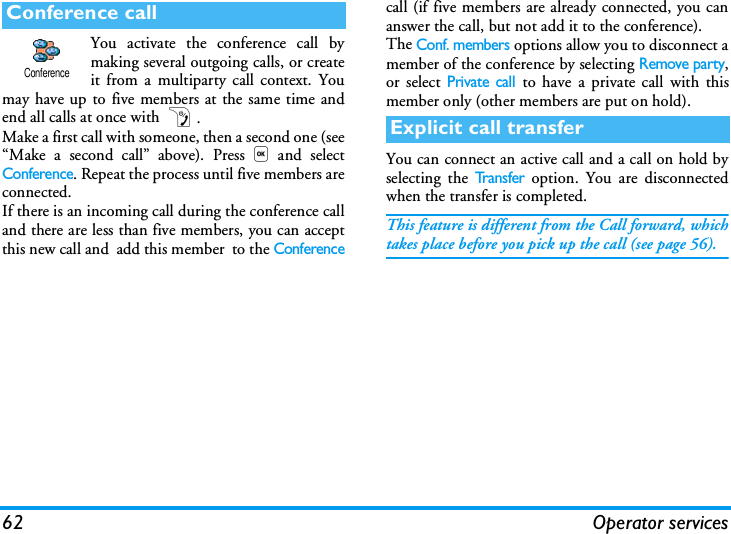
A carrousel is a circular loop of icons displayed on thescreen. Each icon represents a feature or operation ofyour phone.All icons don’t fit within the screen; the hidden onesappear when scrolling< or>.You access the main carousel by pressing , whenin idle mode. Move< (anti clockwise) or>(clockwise) and press, when the feature or optionReject a callPress ) or press and holdeither side key (in this case,the phone but be closed).Access the main menuPress , in idle mode.Access the ContactsPress- in idle mode.Use the ContactsBrowse the list bymoving+or-andpress ( to call the selectedname.Access the Call listPress+ in idle mode.Go to previous menuPress c.Quickly returnto idle when browsing menusPress and hold c, or press).View the last call madePress ( in idle mode.Activate a programmedVoice commandPress and hold the , key.Access a functionin the menuPress ,, move<or>to select a function,then press , to enter thesub-menu. Repeat to reachthe desired function.Quickly open the MMS menuPress < in idle mode.Quickly send an SMSPress > in idle mode(opens the names list for youto select the recipient).Activate CameraPress C in idle mode.Launch WAPPress and hold 0.The carrousel
of your choice is selected, or c to cancel. Anothersub-carousel or list will then appear.Pressing+or-will alternate between twooptions, such as Activate/Deactivate, On/Off,Increase/Decrease a value, etc.Browse carousels and lists until you reach the desiredfeature or option. When navigating in a list, a scrollbar located on the right hand side of the screen showsyour actual position in the list. With the navigationkey, you can then select or adjust all the functions ofyour phone as described in the relevant chapter of thisuser guide.Some events may modify the idle screen (missed call,new message, etc.). Press , to access thecorresponding menu or press c to go back to theidle screen.Events
Table of contents iTable of contents1. Getting started ............................................1Insert the SIM card ...........................................1Switch on the phone  ........................................2Set date and time  ..............................................2Copy the SIM phonebook ...............................2Charge the battery  ...........................................22. Main features ................................................4Access and view the phonebook ...................4Make a call ..........................................................4Answer and end a call ......................................4TV slideshow ......................................................4Take a picture ....................................................5Navigation icon ..................................................5Foto Talk: send voice clips with pictures  ....5Fotocall: see and hear who’s calling ..............5Call handsfree ....................................................6Change the ringer .............................................6Activate the silence mode  ..............................6Activate the vibra alert ....................................6Adjust the earpiece volume ............................7Mute the microphone ......................................7Unmute the microphone .................................7Record a conversation .....................................7Read your mobile phone number .................7Clear the call list ...............................................7Clear the SMS list  .............................................7Clear the phonebook  ......................................8Quickly scroll a list ...........................................83. Menu tree .......................................................94. Text or number entry ......................... 12T9® Text input .............................................. 12Basic text input ............................................... 135. Taking pictures ......................................... 14How to... .......................................................... 14Pictures shots  ................................................. 15Settings ............................................................. 186. Contacts ....................................................... 19Settings ............................................................. 19Add contacts in a phonebook ..................... 20Fotocall: see & hear who’s calling .............. 20Edit and manage contacts  ............................ 217. Settings .......................................................... 23Sounds .............................................................. 23Display .............................................................. 24Short cuts  ........................................................ 25
ii Table of contentsSecurity .............................................................26Network .......................................................... 27Time and date  ................................................. 29Language ........................................................... 30Profiles .............................................................. 308. Messages ....................................................... 32SMS .................................................................... 32E-Mail ................................................................35SMS chat ........................................................... 40Broadcast SMS ................................................ 40MMS .................................................................. 409. Infrared .......................................................... 46Position of devices ......................................... 46Send data .......................................................... 46Receive data  .................................................... 46Use the phone as a modem ......................... 4710. Multimedia ................................................ 48Sound album .................................................... 48Picture album  .................................................. 48TV Slideshow  .................................................. 50Memory status ................................................ 51Demo mode .................................................... 51Sound recording ............................................. 5111. Games & Applications ...................... 52Euro converter ............................................... 52Calculator ........................................................ 52Alarm clock ..................................................... 52Organiser ......................................................... 52JAVA ................................................................. 54Brick game ....................................................... 5412. Call information .................................... 55Call settings ..................................................... 55Call list .............................................................. 56Call counters ................................................... 5713. Operator services ............................... 58WAP ................................................................. 58DTMF tones .................................................... 60Make a second call ......................................... 61Answer a second call  .................................... 61Answer a third call  ........................................ 61Conference call  .............................................. 62Explicit call transfer ....................................... 62Icons & symbols ............................................ 63Troubleshooting ........................................... 64Precautions ....................................................... 67Philips authentic accessories ................. 70
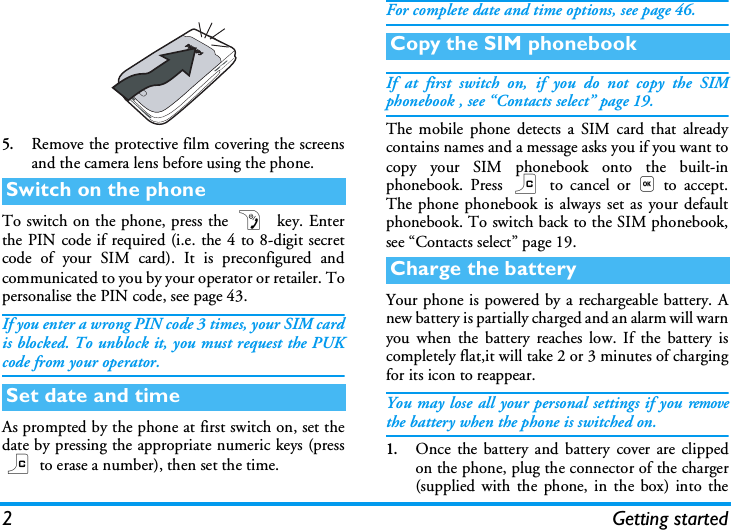
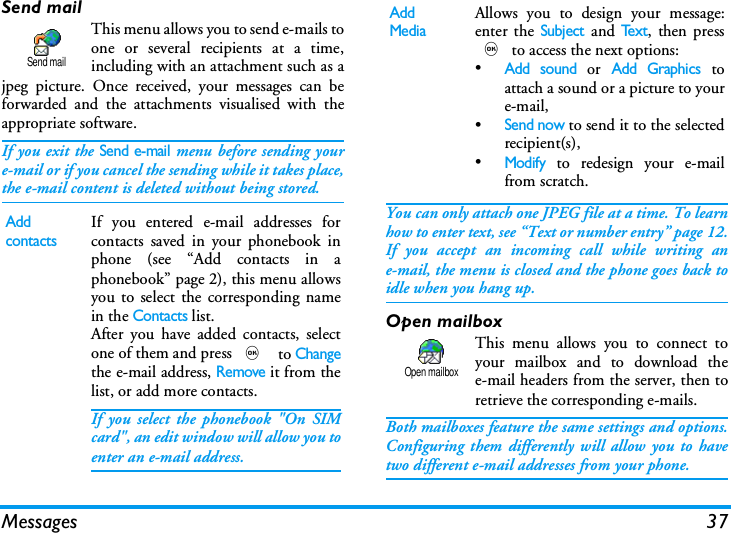
Getting started 11 • Getting startedRead the safety instructions in the «Precautions» sectionbefore use.To use your phone, you must insert a valid SIM cardsupplied by your GSM operator or retailer. The SIMcard contains your subscription, your mobile number,and memory in which you can store phone numbersand messages (see “Contacts” page 19).1.Press on the back cover of your phone as shownbelow and slide it downwards to remove it.2.Remove the SIM card from its holder and insertit under the metal clip holder, until it stops. Becareful that the clipped corner of the card is inthe correct corner.3.Place the battery in its slots as shown below: firstplace its right side against the right edge of thephone and press until it clips.4.Replace the back cover of your phone: hook thefront housing onto the hinges on the top of thephone, then press the bottom down until thelatch catches.Insert the SIM card1. 2.
2Getting started5.Remove the protective film covering the screensand the camera lens before using the phone.To switch on the phone, press the )  key. Enterthe PIN code if required (i.e. the 4 to 8-digit secretcode of your SIM card). It is preconfigured andcommunicated to you by your operator or retailer. Topersonalise the PIN code, see page 43.If you enter a wrong PIN code 3 times, your SIM cardis blocked. To unblock it, you must request the PUKcode from your operator.As prompted by the phone at first switch on, set thedate by pressing the appropriate numeric keys (pressc to erase a number), then set the time.For complete date and time options, see page 46.If at first switch on, if you do not copy the SIMphonebook , see “Contacts select” page 19.The mobile phone detects a SIM card that alreadycontains names and a message asks you if you want tocopy your SIM phonebook onto the built-inphonebook. Press c to cancel or,to accept.The phone phonebook is always set as your defaultphonebook. To switch back to the SIM phonebook,see “Contacts select” page 19.Your phone is powered by a rechargeable battery. Anew battery is partially charged and an alarm will warnyou when the battery reaches low. If the battery iscompletely flat,it will take 2 or 3 minutes of chargingfor its icon to reappear.You may lose all your personal settings if you removethe battery when the phone is switched on.1.Once the battery and battery cover are clippedon the phone, plug the connector of the charger(supplied with the phone, in the box) into theSwitch on the phoneSet date and timeCopy the SIM phonebookCharge the battery
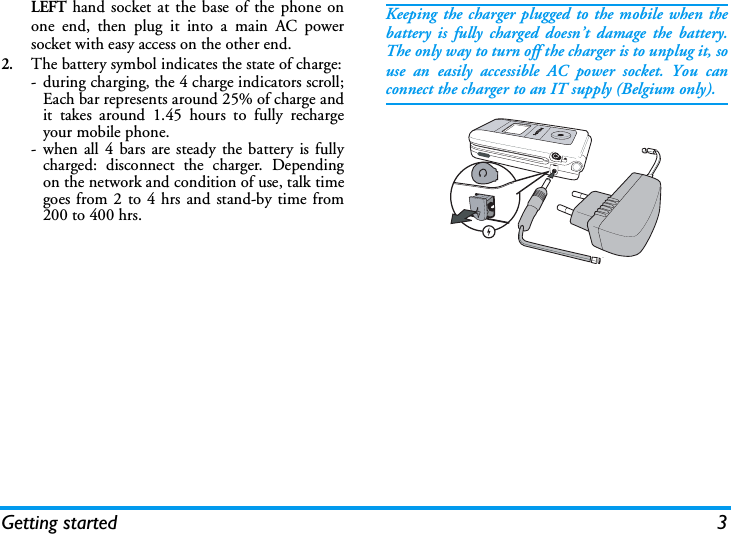
Getting started 3LEFT hand socket at the base of the phone onone end, then plug it into a main AC powersocket with easy access on the other end.2.The battery symbol indicates the state of charge:- during charging, the 4 charge indicators scroll;Each bar represents around 25% of charge andit takes around 1.45 hours to fully rechargeyour mobile phone.- when all 4 bars are steady the battery is fullycharged: disconnect the charger. Dependingon the network and condition of use, talk timegoes from 2 to 4 hrs and stand-by time from200 to 400 hrs.Keeping the charger plugged to the mobile when thebattery is fully charged doesn’t damage the battery.The only way to turn off the charger is to unplug it, souse an easily accessible AC power socket. You canconnect the charger to an IT supply (Belgium only).
4 Main features2 • Main featuresIn idle mode, press-. Dependingon the selected phonebook (in SIM orin phone, see “Contacts” page 1), thecontent that appears on the screen may vary.To view the phonebook during a call, press ,andselect View Names List. Press c twice to return tothe in-call screen.Press #, enter the first letters of the name you aresearching, and press , to jump directly to thatname.1.In idle mode, enter the phone number using thekeypad. To correct an error, press c.2.Press ( to dial the number and press ) tohang up.For an international call, press and hold  * to enterthe «+» sign instead of the usual international prefix.When receiving a call, the number of the caller may bedisplayed. If you stored his/her number, his/her nameis displayed instead of the number.1.To answer the call, press (.2.To re ject a ca ll, pres s ). If you have activated“Active flip” (see page 55), the call is diverted toa number or voice mail.3.To hang up, press ).The phone will not ring if in Silence mode (seepage 6). If you have selected Any Key Answer (seepage 56), you can accept a call by pressing any key(except )). This feature allows you to display yourpictures listed in the Picture Album(automatically in a slideshow, ormanually, one-by-one) on a TV screen via the TVLink accessory, or on the main (internal) screen ofyour phone.1.Connect the TV Link to the TV video yellow(RCA) jack and to your mobile’s audio jack,then select a video (CBVS) channel.Access and view the phonebookMake a callContactsAnswer and end a callTV slideshowTV Slideshow
Main features 52.A default picture will automatically appear onthe TV screen, while the TV slideshow menuwill be displayed on the screen of your phone.3.Use the menu of your phone to set an automaticslideshow, or display the pictures manually bypressing + and -.TV Link only support JPEG pictures, up to VGA size(640 x 480 pixels). See “TV Slideshow” page 50 fordetails about this feature.Your mobile phone features a camera, allowing you totake pictures and send them to your friends andrelatives. See “Taking pictures” page 14 for completeinformation on this subject.A Navigation icon appears in idle mode and allowsyou to spot the menus that can be accessed via thephone’s navigation key. See “Navigation icon”page 26 for details on how to activate/deactivate it.This feature allows you to quickly send a messagemade of a picture and a sound.1.When in idle mode, press the camera key toactivate the camera. If needed, press # toswitch to the Clip mode.2.Press the camera key to take a picture; Recordsound then opens automatically.3.Record the sound or message of your choice,press c to cancel or , to stop the recording(you can also wait for the maximum recordingtime of 30 seconds to be reached).4.Then send your message via MMS (see “MMS”page 40 for details).This feature is available only when selecting thephonebook in the phone (not the one in the SIM card).This feature allows you to link one or several names toa group. When a name in that group calls, it willappear along with the corresponding picture and themelody defined for that group will ring.Take a pi c t u reNavigation iconFoto Talk: send voice clips with picturesFotocall: see and hear who’s calling
6 Main features1.When in idle mode, press the camera key once toactivate the camera, and a second time to take apicture of your friend.2.Select  Contacts > Settings > Groups setting.Rename a group and select the Ringer of yourchoice, then your friend’s picture.When making a group of only one person, you can alsoselect Multimedia > Sound recording > New, recordhim/her saying something, then select the recording asthe Ringer.3.Select a name in your phonebook, choose Selectgroup and link it to the group you renamed.For your own comfort and safety, ensure you move thephone away from your ear when calling handsfree,especially when increasing the volume.1.If you selected the phonebook in your SIM card,select a name, press ,twice, select Callhandsfree and press,to dial the number.2.If you selected the phonebook in your phone,proceed the same way to call the default number,or press < or >, select a number in the list,then press , and select Call handsfree.If already on the phone, press,twice to switch tohandsfree mode and back.Select  Settings > Sounds > Ringer, press , andmove+or-to select a ringer in the list. Press, to confirm your choice.If you don’t want your phone to ringwhen you receive a call, deactivate theringer by selecting Settings > Sounds >Silent. Press -until the volume is set to On.If you want your phone to vibrate whenyou receive a call, activate the vibra alertby selecting Settings > Sounds > Vibraalert, then On or Off.Activating the vibra doesn’t mute the ringer. If youwant to both mute it and keep the vibra On, activatethe Silent mode as described above.The vibra alert is automatically set to Off when youplug the charger.Call handsfreeChange the ringerActivate the silence modeActivate the vibra alertSilentVibra alert
Main features 7To read your own mobile phone number, press-when in idle mode and select Own numbers > Show.Your number is displayed if present on your SIM card.If not, select New, then follow the instructions.If your own number has been stored in the phonebook,you can read it during a call. See “Access and view thephonebook” page 4.During a call, move the navigation key + or -to increase/decrease the volume.You can mute the microphone so thatyour caller cannot hear you. During acall, press ,, select Mute and press, again.To unmute the microphone during acall, press,, select Unmute andconfirm by pressing,.In most countries, conversationrecording is subject to law regulation.We advise you to notify the caller if youintend to record the conversation you have with themand only record if they agree. You should also keep anyrecording private. 1 min. is the maximum recordingtime available (see “Sound recording” page 51).To record a conversation during a call, press ,,select  Record dialogue and press,. Pressc,, or hang up to end the recording: an editwindow allows you to name the recording, which isthen available in Multimedia > Sound album.To clear your call list, press , andselect Call Info > Call list > Reset. Press,twice to reset the call list.To clear the whole messages list at once, press ,and select Messages > SMS > Read SMS > Delete allSMS. Press ,twice to reset the SMS list.Read your mobile phone numberAdjust the earpiece volumeMute the microphoneUnmute the microphoneMuteUnmuteRecord a conversationClear the call listClear the SMS listRecord dialogueReset
8 Main featuresYou can also delete all the SMS messages from the SMSArchive menu. Deleting your SMS list is useful to freememory space in order to receive new messagesThis option only applies to the phonebook in yourphone, NOT to the SIM phonebook.To clear the content of your phonebook at once, press, and select Contacts > Settings > Delete all.Press , to reset the phonebook content.When browsing a list, long press + or -to scrollpage per page instead of item by item.This doesn’t apply to the list of ringers.Clear the phonebook Quickly scroll a list
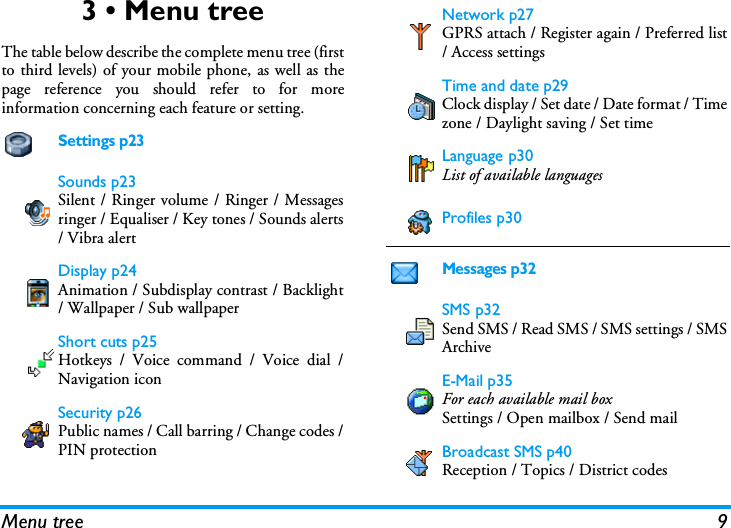
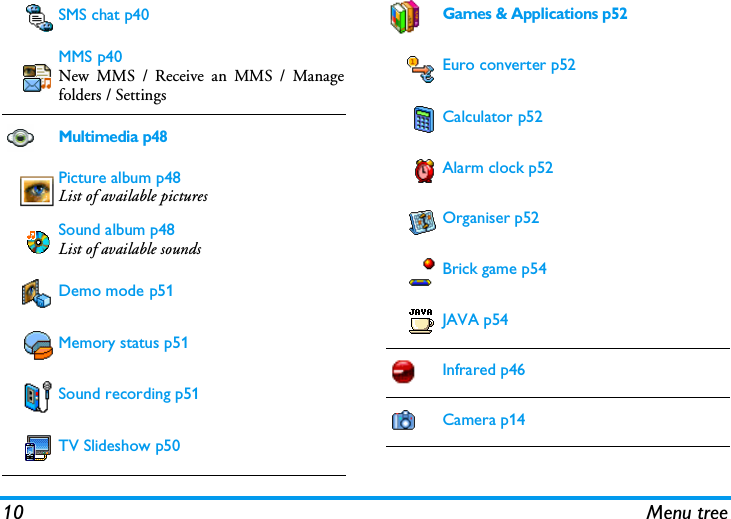
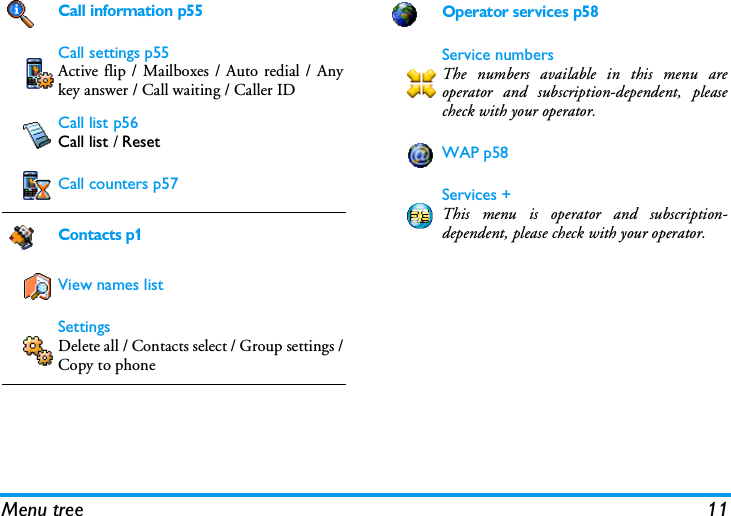
Menu tree 93 • Menu treeThe table below describe the complete menu tree (firstto third levels) of your mobile phone, as well as thepage reference you should refer to for moreinformation concerning each feature or setting.Settings p23Sounds p23Silent / Ringer volume / Ringer / Messagesringer / Equaliser / Key tones / Sounds alerts/ Vibra alertDisplay p24Animation / Subdisplay contrast / Backlight/ Wallpaper / Sub wallpaperShort cuts p25Hotkeys / Voice command / Voice dial /Navigation iconSecurity p26Public names / Call barring / Change codes /PIN protectionNetwork p27GPRS attach / Register again / Preferred list/ Access settingsTime and date p29Clock display / Set date / Date format / Timezone / Daylight saving / Set timeLanguage p30List of available languagesProfiles p30Messages p32SMS p32Send SMS / Read SMS / SMS settings / SMSArchiveE-Mail p35For each available mail boxSettings / Open mailbox / Send mailBroadcast SMS p40Reception / Topics / District codes
10 Menu treeSMS chat p40MMS p40New MMS / Receive an MMS / Managefolders / SettingsMultimedia p48Picture album p48List of available picturesSound album p48List of available soundsDemo mode p51Memory status p51Sound recording p51TV Slideshow p50Games & Applications p52Euro converter p52Calculator p52Alarm clock p52Organiser p52Brick game p54JAVA p54Infrared p46Camera p14
Menu tree 11Call information p55Call settings p55Active flip / Mailboxes / Auto redial / Anykey answer / Call waiting / Caller ID Call list p56Call list / ResetCall counters p57Contacts p1View names listSettingsDelete all / Contacts select / Group settings /Copy to phoneOperator services p58Service numbersThe numbers available in this menu areoperator and subscription-dependent, pleasecheck with your operator.WAP p58Services +This menu is operator and subscription-dependent, please check with your operator.
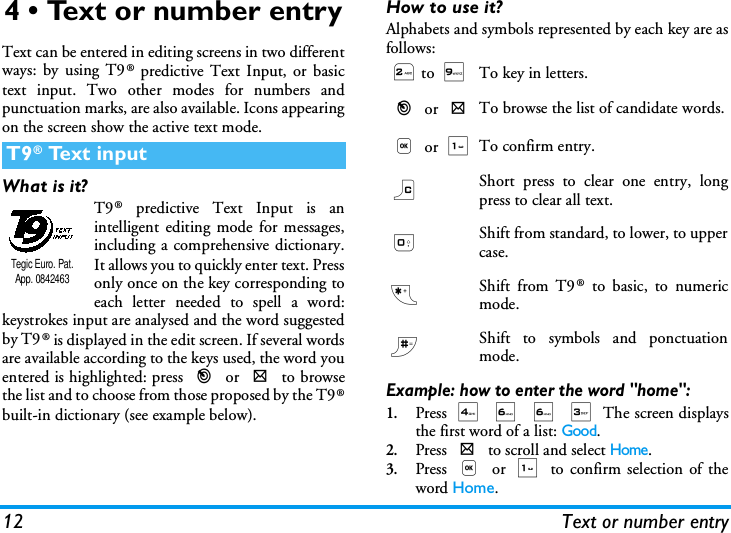
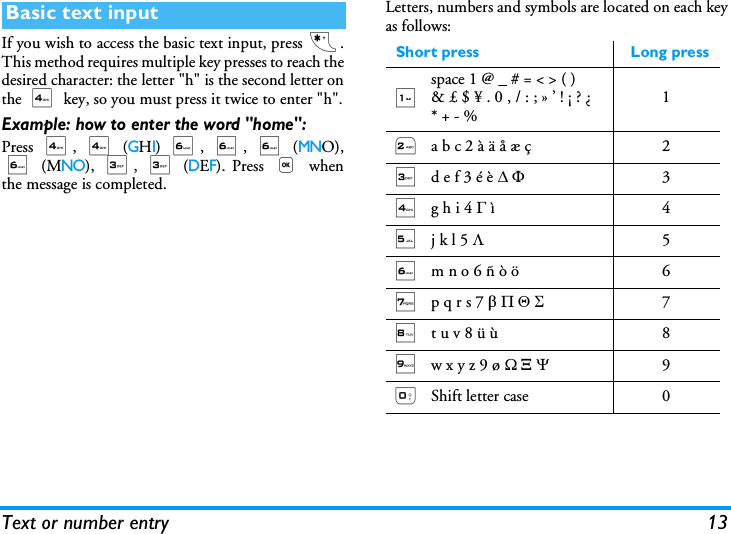
12 Text or number entry4 • Text or number entryText can be entered in editing screens in two differentways: by using T9® predictive Text Input, or basictext input. Two other modes for numbers andpunctuation marks, are also available. Icons appearingon the screen show the active text mode.What is it?T9® predictive Text Input is anintelligent editing mode for messages,including a comprehensive dictionary.It allows you to quickly enter text. Pressonly once on the key corresponding toeach letter needed to spell a word:keystrokes input are analysed and the word suggestedby T9® is displayed in the edit screen. If several wordsare available according to the keys used, the word youentered is highlighted: press < or > to browsethe list and to choose from those proposed by the T9®built-in dictionary (see example below).How to use it?Alphabets and symbols represented by each key are asfollows:Example: how to enter the word "home":1.Press 4 6 6 3 The screen displaysthe first word of a list: Good.2.Press > to scroll and select Home.3.Press , or 1 to confirm selection of theword Home.T9® Text inputTegic Euro. Pat. App. 08424632to 9To key in letters.< or >To browse the list of candidate words., or 1To confirm entry.c Short press to clear one entry, longpress to clear all text.0Shift from standard, to lower, to uppercase.*Shift from T9® to basic, to numericmode.#Shift to symbols and ponctuationmode.
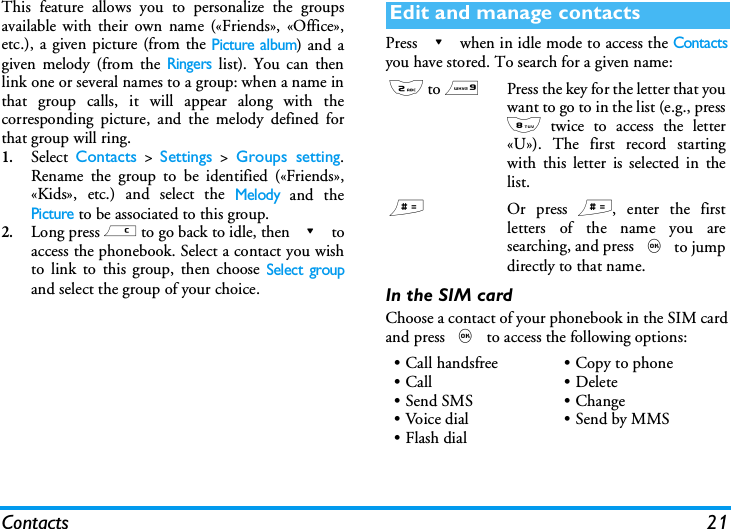
Text or number entry 13If you wish to access the basic text input, press *.This method requires multiple key presses to reach thedesired character: the letter "h" is the second letter onthe 4 key, so you must press it twice to enter "h".Example: how to enter the word "home":Press 4, 4 (GHI) 6, 6, 6 (MNO),6 (MNO), 3, 3 (DEF). Press , whenthe message is completed.Letters, numbers and symbols are located on each keyas follows:Basic text inputShort press Long press1space 1 @ _ # = < > ( )& £ $ ¥ . 0 , / : ; » ’ ! ¡ ? ¿* + - %12a b c 2 à ä å æ ç 23d e f 3 é è D F34g h i 4 G ì45j k l 5 L56m n o 6 ñ ò ö  67p q r s 7 b P Q S78t u v 8 ü ù 89w x y z 9 ø W X Y90Shift letter case 0
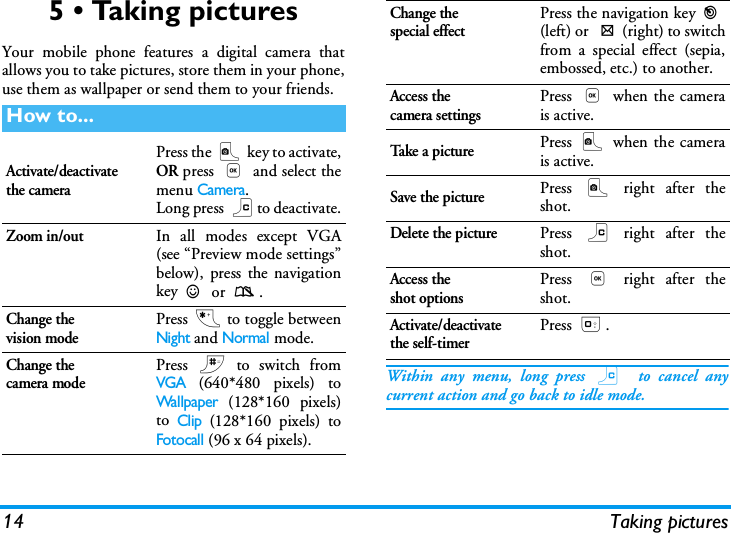
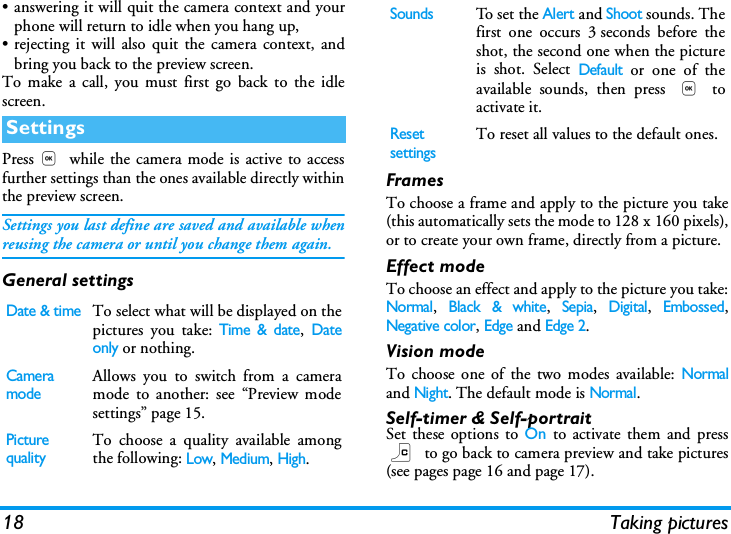
14 Taking pictures5 • Taking picturesYour mobile phone features a digital camera thatallows you to take pictures, store them in your phone,use them as wallpaper or send them to your friends.Within any menu, long press c  to cancel anycurrent action and go back to idle mode.How to...Activate/deactivatethe cameraPress the C key to activate,OR press , and select themenu Camera.Long press cto deactivate.Zoom in/outIn all modes except VGA(see “Preview mode settings”below), press the navigationkey+ or -.Change thevision modePress * to toggle betweenNight and Normal mode.Change thecamera modePress # to switch fromVGA (640*480 pixels) toWallpaper (128*160 pixels)to Clip (128*160 pixels) toFotocall (96 x 64 pixels).Change thespecial effectPress the navigation key<(left) or >(right) to switchfrom a special effect (sepia,embossed, etc.) to another.Access thecamera settingsPress , when the camerais active.Take  a p i ctu rePress C when the camerais active.Save the picturePress C right after theshot.Delete the picturePress c right after theshot.Access theshot optionsPress , right after theshot.Activate/deactivatethe self-timerPress 0.
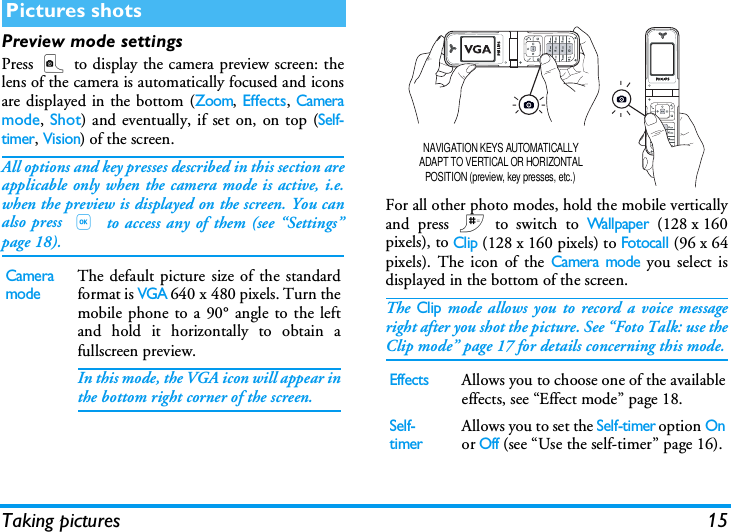
Taking pictures 15Preview mode settingsPress C to display the camera preview screen: thelens of the camera is automatically focused and iconsare displayed in the bottom (Zoom, Effects, Cameramode, Shot) and eventually, if set on, on top (Self-timer, Vision) of the screen.All options and key presses described in this section areapplicable only when the camera mode is active, i.e.when the preview is displayed on the screen. You canalso press , to access any of them (see “Settings”page 18).For all other photo modes, hold the mobile verticallyand press # to switch to Wallpaper (128 x 160pixels), to Clip (128 x 160 pixels) to Fotocall (96 x 64pixels). The icon of the Camera mode you select isdisplayed in the bottom of the screen.The Clip mode allows you to record a voice messageright after you shot the picture. See “Foto Talk: use theClip mode” page 17 for details concerning this mode.Pictures shotsCamera modeThe default picture size of the standardformat is VGA 640 x 480 pixels. Turn themobile phone to a 90° angle to the leftand hold it horizontally to obtain afullscreen preview.In this mode, the VGA icon will appear inthe bottom right corner of the screen.EffectsAllows you to choose one of the availableeffects, see “Effect mode” page 18.Self-timerAllows you to set the Self-timer option Onor Off (see “Use the self-timer” page 16).NAVIGATION KEYS AUTOMATICALLY ADAPT TO VERTICAL OR HORIZONTAL POSITION (preview, key presses, etc.)
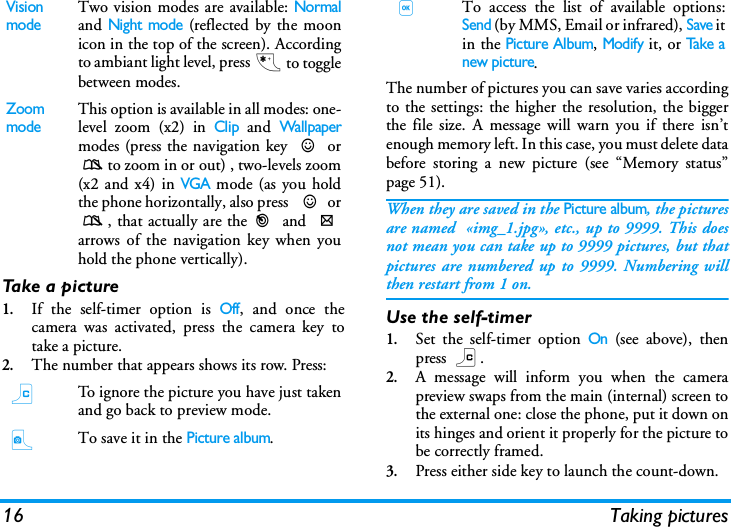
16 Taking picturesTake a picture1.If the self-timer option is Off, and once thecamera was activated, press the camera key totake a picture.2.The number that appears shows its row. Press:The number of pictures you can save varies accordingto the settings: the higher the resolution, the biggerthe file size. A message will warn you if there isn’tenough memory left. In this case, you must delete databefore storing a new picture (see “Memory status”page 51).When they are saved in the Picture album, the picturesare named  «img_1.jpg», etc., up to 9999. This doesnot mean you can take up to 9999 pictures, but thatpictures are numbered up to 9999. Numbering willthen restart from 1 on.Use the self-timer1.Set the self-timer option On (see above), thenpress c.2.A message will inform you when the camerapreview swaps from the main (internal) screen tothe external one: close the phone, put it down onits hinges and orient it properly for the picture tobe correctly framed.3.Press either side key to launch the count-down.Vision modeTwo vision modes are available: Normaland Night mode (reflected by the moonicon in the top of the screen). Accordingto ambiant light level, press * to togglebetween modes.Zoom modeThis option is available in all modes: one-level zoom (x2) in Clip and Wallpapermodes (press the navigation key + or-to zoom in or out) , two-levels zoom(x2 and x4) in VGA mode (as you holdthe phone horizontally, also press  + or-, that actually are the< and >arrows of the navigation key when youhold the phone vertically).cTo ignore the picture you have just takenand go back to preview mode.CTo save it in the Picture album.,To access the list of available options:Send (by MMS, Email or infrared), Save itin the Picture Album, Modify it, or Take anew picture.
Taking pictures 174.The count-down starts at -10 seconds (this valuecannot be changed). A beep is played 3 secondsbefore the picture is taken, then again when it’sactually shot.Press c to stop the timer and go back to previewmode or press 0 to just stop the timer.5.Once the picture is shot, follow the instructionsstarting at point 2 described in “Take a picture”.Use the self-portraitThis mode allows you to take a picture of yourself byholding the phone opened in front of you.1.Set the self-timer option On (see page 16), thenpress C.2.Place your finger on the C key, then hold thephone opened at arms length, camera towardyour face.3.Press the C key to take the picture.Foto Talk: use the Clip modeThe Clip mode allows you to make a clip made of apicture and a sound.1.Select the Clip mode, then press the camera keyto take the picture.2.The Record sound window automatically opens:record the sound or message of your choice(press c to cancel,, to stop the recording,or wait for the max. recording time of30 seconds to be reached).3.Press , to access the following options:Fotocall: see who’s callingThe Fotocall mode allows you to make a picture andto link it to a group. When a name in that group calls,the corresponding picture appears. See “Fotocall: seeand hear who’s calling” page 6 for details.Review the picturesThe pictures you save are automatically stored in theMultimedia > Picture album menu. See “Picture album”page 48 for details.Receive and make a callWhen receiving a call while using the camera:Send by MMSTo Send your clip via MMS.Play clipTo Play it.Saving clipTo Save the clip you have created: thepicture in Picture album and therecorded sound in Sound album.Change clipTo  Change the clip you made.
18 Taking pictures• answering it will quit the camera context and yourphone will return to idle when you hang up,• rejecting it will also quit the camera context, andbring you back to the preview screen.To make a call, you must first go back to the idlescreen.Press, while the camera mode is active to accessfurther settings than the ones available directly withinthe preview screen.Settings you last define are saved and available whenreusing the camera or until you change them again.General settingsFramesTo choose a frame and apply to the picture you take(this automatically sets the mode to 128 x 160 pixels),or to create your own frame, directly from a picture.Effect modeTo choose an effect and apply to the picture you take:Normal, Black & white, Sepia, Digital, Embossed,Negative color, Edge and Edge 2.Vision modeTo choose one of the two modes available: Normaland Night. The default mode is Normal.Self-timer & Self-portraitSet these options to On to activate them and pressc to go back to camera preview and take pictures(see pages page 16 and page 17).SettingsDate & timeTo select what will be displayed on thepictures you take: Time & date, Dateonly or nothing.Camera modeAllows you to switch from a cameramode to another: see “Preview modesettings” page 15.Picture qualityTo choose a quality available amongthe following: Low, Medium, High.SoundsTo se t  the Alert and Shoot sounds. Thefirst one occurs 3 seconds before theshot, the second one when the pictureis shot. Select Default or one of theavailable sounds, then press , toactivate it.Reset settingsTo reset all values to the default ones.
Contacts 196 • ContactsThe Contacts menu allows you to select one of the twoavailable phonebooks: the one on your SIM card(number of entries depending on capacity) or the onein your phone (up to 499 names), which is the defaultselected phonebook. When entering new names in themenu Contacts, they will only be added to thephonebook you have selected.499 is the maximum number of names and eventscards, provided that other features (memos, sounds,pictures, etc.) are not using a significant amount of thephone’s memory.Contacts selectPress , and select Contacts > Settings> Contacts select. Press + or - toselect a phonebook. Contacts added tothe selected phonebook can then becopied into the other, via the Copy to SIM or Copyto phone options.Delete allTo delete all contacts at once. Thisoption only applies to the phonebookin phone, NOT to the SIMphonebook.Copy to phoneIf you cancelled or aborted theautomatic copy of your SIMphonebook at first switch, you can do itmanually: select Contacts > Settings >Copy to phone.Your mobile phone only manages one phonebook ata time and will ignore the information relative to theother one e.g. if "Smith" is present in bothphonebooks and if you delete it in the phone, itremains unchanged in the SIM.Groups settingsAllows you manage groups, renamethem and link a specific melody andpicture to each group.You link names to groups from the Contacts list. See“Fotocall: see & hear who’s calling” page 20.SettingsContacts selectDelete allCopy to phoneGroups setting
20 ContactsContacts will be added to the selected phonebook.In the SIM phonebook1.Press - when in idle mode and select<New>.2.Enter the name and the number of your choice,then the type of number allocated to the name(Phone, Fax or Data) and press , to  store thisname in your phonebook.A number is limited to 40 digits, depending on yourSIM card. Entering international prefix, country &area codes allows you to dial a number from anylocation.In the phone phonebook1.Press - when in idle mode and select<New>. Enter the first, then last name (up to 20latin characters); one of the two fields can beempty, but not both.2.Then select the Number type. Numeric fields canhold up to  40 digits and one «+» sign andalphanumeric fields (e-mail and note) feature upto 50 latin characters. Each contact can feature amaximum of 5 numeric fields (e.g., 2 mobilenumbers, 3 work numbers, an e-mail addressand a text note).3.If needed, choose the group you want thiscontact to belong to. Own numbersThe Own numbers option that appears in eachphonebook should contain your own phone number.If not, we advise that you enter your mobile numberas well as any other relevant information.Although all its fields can be empty, the Own numberitem cannot be deleted.Emergency numberThe emergency number will call theemergency services number in yourcountry. In most cases, you can call thisnumber even if you haven’t yet entered your PIN.In Europe the standard emergency number is 112, inthe UK it is 999. This feature is only available when you select thephonebook of your phone, NOT the SIM phonebook.Add contacts in a phonebookFotocall: see & hear who’s callingSOS Call
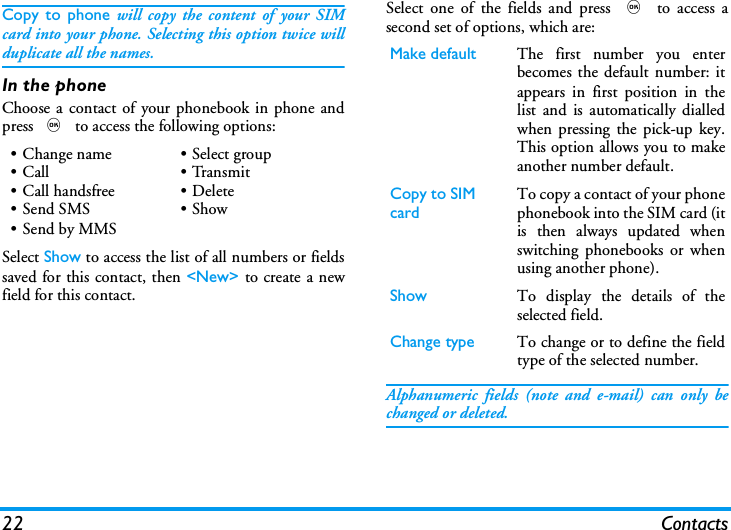
Contacts 21This feature allows you to personalize the groupsavailable with their own name («Friends», «Office»,etc.), a given picture (from the Picture album) and agiven melody (from the Ringers list). You can thenlink one or several names to a group: when a name inthat group calls, it will appear along with thecorresponding picture, and the melody defined forthat group will ring.1.Select  Contacts > Settings > Groups setting.Rename the group to be identified («Friends»,«Kids», etc.) and select the Melody and thePicture to be associated to this group.2.Long press c to go back to idle, then - toaccess the phonebook. Select a contact you wishto link to this group, then choose Select groupand select the group of your choice.Press - when in idle mode to access the Contactsyou have stored. To search for a given name:In the SIM cardChoose a contact of your phonebook in the SIM cardand press , to access the following options:Edit and manage contacts2 to 9Press the key for the letter that youwant to go to in the list (e.g., press8 twice to access the letter«U»). The first record startingwith this letter is selected in thelist.#Or press #, enter the firstletters of the name you aresearching, and press , to jumpdirectly to that name.• Call handsfree•Call•Send SMS•Voice dial•Flash dial• Copy to phone•Delete•Change•Send by MMS
22 ContactsCopy to phone will copy the content of your SIMcard into your phone. Selecting this option twice willduplicate all the names.In the phoneChoose a contact of your phonebook in phone andpress , to access the following options:Select Show to access the list of all numbers or fieldssaved for this contact, then <New> to create a newfield for this contact.Select one of the fields and press , to access asecond set of options, which are:Alphanumeric fields (note and e-mail) can only bechanged or deleted.• Change name•Call•Call handsfree•Send SMS• Send by MMS• Select group•Transmit• Delete•ShowMake default The first number you enterbecomes the default number: itappears in first position in thelist and is automatically dialledwhen pressing the pick-up key.This option allows you to makeanother number default.Copy to SIM card To copy a contact of your phonephonebook into the SIM card (itis then always updated whenswitching phonebooks or whenusing another phone).Show To display the details of theselected field.Change type To change or to define the fieldtype of the selected number.
Settings 237 • SettingsThe Settings menu allows you to customise yourphone and change the settings related to each availableoption (sounds, time and date, security, etc.). TheProfiles menu allows you to change several settings atonce (see page 30).SilentAllows you to set the Silence mode Onor Off. When this setting is On, all alertsare deactivated and the vibra alert isactive.The Silent mode also applies to key tones.Ringer volume By default the ringer volume can be setto Medium. Press+or-to set thevolume of your ringer from Silent toIncreasing.RingerAllows you to select a ringer tone. Thelist also includes recorded sounds andmelodies you saved. Scroll through the list and wait tohear the selected melody being played.You will not hear the melody if the volume ringer is setto Off or if the Silence mode was activated (see page 6).Messages ringerAllows you to set an alert beep On orOff, for each time you receive a newmessage. When On, this option alsoallows you to select the alert of your choice from theringers list.EqualiserThis option allows you to choose fromdifferent audio settings, also availablewhile a call is in progress (in this case,scroll through the list and wait a few seconds to hearthe difference).Key tonesAllows you to set the key tones On orOff. Even when set Off, DTMF areplayed during calls (see page 60).Sounds alertsAllows you to set alert beeps On or Offfor the following items:SoundsSilentRinger volumeRingerMessages RingerEqualiserKey tonesSounds Alerts
24 Settings• when an event programmed in your Organiser isdue,•when there’s a Missed call,•when the Battery alert requires charging,• to manage the duration of your calls with a Minutealert (the beep cannot be heard by the caller).This menu only allows you to set the alert sounds Onor Off, NOT the alerts themselves. E.g. setting theOrganiser alert Off will not prevent your phone fromdisplaying the Reminder screen (if you programmedone), but the corresponding sound will not be played.Vibra alertAllows you to set the vibra alert On orOff when receiving a call, when an eventset in the organiser is due, when youreceive a message and when the alarm rings.The vibra alert is always Off when you connect thecharger or the Cigarette Lighter Adapter.AnimationAllows you to set the animation of themenus On or Off. When On, this optionwill also scroll texts, such a message selected in theRead SMS menu.Deactivating this function increases the autonomy ofyour phone.Subdisplay contrastAllows you to choose among severallevels of contrast that will apply to thesubdisplay.BacklightAllows you to set a backlight Durationby selecting one of the available values.Backlight is activated when receivingincoming calls or messages, browsing menus, etc.Deactivating this function increases battery life.WallpaperAllows you to set the Wallpaper On orOff. When On, the picture you selectedis displayed in Normal mode when inidle mode, and in Fade mode in other contexts.Only JPEG type pictures can be used as Wallpapers.DisplayVibra alertAnimationSubdisplay contrastBacklightWallpaper
Settings 25Sub wallpaperAllows you to set the Wallpaper of theexternal screen On or Off. The behavioris then the same as the Wallpaperdescribed above.HotkeysAllows you to set up direct access to aspecific function by linking it to a key.A long press on the key will thenautomatically activate the function or call theassociated number (Flash dial).You can only program keys 2 to 9 , as the othersare predefined and locked, preventing you fromreprogramming them. Depending on your serviceprovider, other hotkeys may be predefined and locked.1.Select a key from 2 to 9 and press ,.2.Browse the list to select the function you wish toassociate with this key and press ,. Mostchoices will open the menu (e.g., Send messageor  E-mail), or launch the function (such asCalculator or Record).If the selected key is already set, you can reprogram it:press , twice and select Change. This will bring youto the list of available functions.To use the hotkeys, simply press and hold the keycorresponding to the function you want to launch orto the number you want to dial while in idle mode.Voice commandAllows you to set up direct access to aspecific function by linking it to a voicetag.You can associate a Voice command to most functionssupported by the Hotkeys.1.Select <New>, browse the list to select thefunction of your choice and press ,.2.When Press OK then speak appears, follow theinstructions displayed on the screen. Whenprompted to record your voice tag, make sureyou are in a quiet environment, choose a shortand simple word and clearly pronounce it.3.The next menu gives you access to the Delete,Play voice tag,  Change function and Changevoice options. Press c to create another voicetag.Short cutsSub wallpaperHotkeysVoice Command
26 SettingsTo use the voice command, press and hold , whenin idle mode, then say the recorded voice tag.Voice dialAllows you to set up a voice tag  byrecording a word that will call thecorresponding name when pronounced.Proceed as described in the previous section, select thecontact of your choice in the list, then press ,.When the phonebook in phone is selected, choose thenumber of your choice in the list that is displayed.As for Voice command, when Add voice tag? appears,press , and follow the instructions displayed onthe screen. To use the voice dial, press and hold ,when in idle mode, then say the voice tagcorresponding to the number you want to dial.Up to 15 voice tags can be defined and shared betweenvoice dial and voice command. Recorded voice tags areavailable in their respective menu and can be deleted,played or changed.Navigation iconAllows you to set the Navigation iconOn or Off. When On, it appears in idlemode, and allows you to spot the menus that can beaccess via the phone’s navigation key.Menus can always be accessed this way, even when theoption is set to Off.Public namesAllows you to manage a specific nameslist, called Public Names list, and restrictcalls to this list via the Call restrictionoption.Voice DialNavigationSecurityCallrestriction Allows you to restrict the calls tothe Public Names list. In this case,you can only access the names ofthe Public names list, as opposed tothe Contacts of the main menu.This function is subscriptiondependent and requires a PIN2code (see page 27). This optionmight also apply to WAP ande-mail connections over GPRS.Public names
Settings 27Call barringAllows you to limit the use of yourphone to specific calls by letting you barboth outgoing and incoming calls. Thisfunction is network dependent and requires a specificcall barring password supplied by your serviceprovider. Call barring can be applied both toIncoming calls (All calls or When roaming) and toOugoing calls (All calls, International calls and Intl. Exc.Home). In all cases, the Cancel option of these menus applies toall calls at once. The Status menu allows you to knowwhether a type of call is barred or not.Change codesAllows you to change your PINandPIN 2 codes, as well as the call Barringcode. Depending on your SIM card,some features or options may require a PIN2 secretcode, given to you by your operator.If you enter a wrong PIN2 code 3 times, your SIMcard is blocked. To unblock it, request the PUK2 codefrom your operator or retailer. If you enter anincorrect PUK code 10 times in a row, the SIM cardwill be blocked and unusable. If this happens, contactyour operator or retailer.PIN protectionThis allows you to set the PINprotection On or Off. When On, youwill be asked to enter your PIN codewhen switching your phone on.You cannot change your PIN code if this option is Off.Contact your phone operator to have full informationabout GPRS availability over their network and foran appropriate subscription. You might also need toconfigure your phone with the GPRS settings suppliedby your operator, by using the menus described in thissection. Then select the bearer (GSM or GPRS) in themenus of each application to be used (e.g., WAP,MMS, e-mail, etc.).Public names Allows you to view, edit andmodify your Public Names list. viaa PIN2 code.Call barringChange codesNetworkPIN protection
28 SettingsGPRS attachThis menu allows you to define theattach mode of your mobile phone tothe GPRS service.Register againProvides you with a list of the networksavailable in the area when the Manualmode is selected. Select the network youwant to register with and press , to confirm.Preferred listAllows you to build a network list inorder of preference. Once defined, thephone will try to register on a network, according toyour preferences.Access settingsThis menu allows you to create severaldata profiles: when using WAP or whensending MMS, the selected profile willbe used to connect to the GSM or GPRS network.Options described below are operator and/orsubscription dependent. Error messages duringconnections are mainly due to incorrect parameters:contact your operator before first use, in order to havethe appropriate settings, which you may receive bySMS in some cases. Some pre-configured profilesmight be locked, preventing  re-programming andrenaming.Select an item in the list and press , to access thefollowing options:Always on Your phone will always register tothe GPRS service. This optionallows faster GPRS connection.However it will increase energyconsumption.For data calls Your phone will automaticallyregister to the GPRS service onlywhen required. This optionreduces energy consumption,however it will increase theconnection delay.GPRS attachRegister againPreferred listChange name To rename the selected profile.Show To visualise all parameters of theselected profile.Access settings
Settings 29Clock displayAllows you to select the time formatthat will be displayed in idle mode.Set dateAllows you to set the date by pressingthe appropriate numeric keys. You canalso set the date by moving+or-.Date formatAllows you to select one of the twoavailable date formats, either Wes ternor Thai.Time zoneTime zone and daylight savings should be set first(double-check date and time if previously set).Allows you to set the time zone youbelong to, according to GMT(Greenwich Meridian Time).Daylight savingThis setting only concerns countries in which time isset according to summer/winter time (e.g. GreenwichMeridian Time / British Summer Time).Allows you to set the daylight savings toOn (in summer time) or Off (in wintertime). If daylight saving is On and youGSM Settings To change the GSM settings:•Login,•Password,•Phone number needed toestablish the connection andprovided by your operator(ISDN or Analogic),•Inactivity time, a value of over30 seconds after which thephone disconnects automati-cally (if a connection was inprogress)GPRS settings To change the GPRS settings(same fields as the GSM settings).The  APN menu allows you toenter the address of the externaldata network you want toconnect to, a text string used toestablish the connection.Time and dateClock displaySet dateDate formatTime zoneDaylight saving
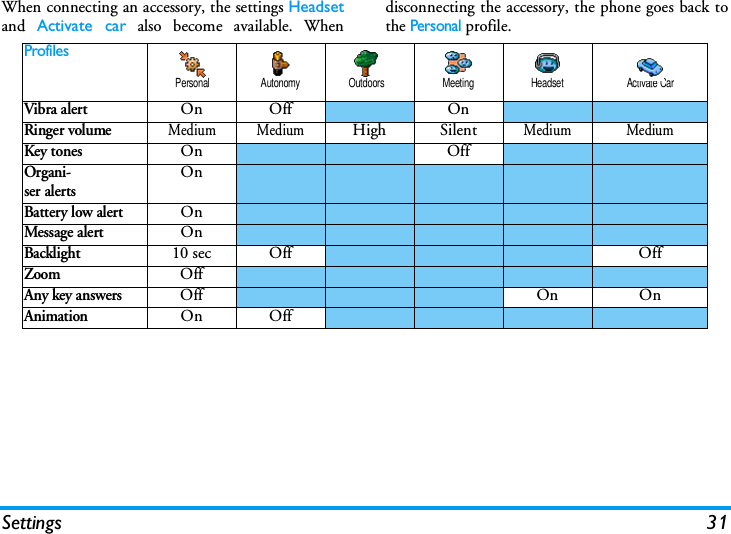
30 Settingsset the time to 12:00, it will automatically switch to13:00 when turning the option to Off.Set timeAllows you to set the time by pressingthe appropriate keys. You can alsoincrease or decrease the time minute byminute by pressing+or-.This menu allows you to select a language for all menutexts. Press + or - to select the language ofyour choice, then press , to confirm. This menu allows you to access a group of predefinedsettings, which let you quickly adapt your phone toyour environment by changing several settings atonce. For example, selecting Meeting will set yourringer volume to silent, activate vibra and deactivatethe key tones (the other items are set according to thesettings you configured). When your meeting is over,selecting Personal will reactivate all your usualsettings.When you associate a hotkey to a profile (e.g. long presskey 3 activates Silence, see “Hotkeys” page 25), alsolong press this key to deactivate it and go back to thePersonal settings.The settings listed in the column Personal, in thefollowing table, are default settings preset duringproduction. As you can change them, the personalsettings in your phone may differ from the table.Each   box of the table refers to the settings asstored in the Personal menu (whether you havechanged the settings or not).LanguageProfilesSet time
Settings 31When connecting an accessory, the settings Headsetand  Activate car also become available. Whendisconnecting the accessory, the phone goes back tothe Personal profile.ProfilesVibra alertOn Off OnRinger volumeMedium MediumHigh SilentMedium MediumKey tonesOn OffOrgani-ser alertsOnBattery low alertOnMessage alertOnBacklight10 sec Off OffZoomOffAny key answersOff On OnAnimationOn OffPersonal Autonomy Outdoors Meeting Headset Activate Car
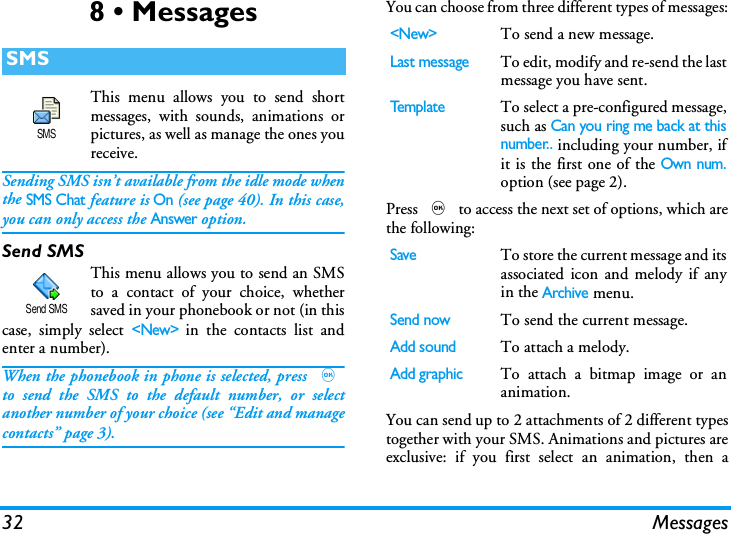
32 Messages8 • MessagesThis menu allows you to send shortmessages, with sounds, animations orpictures, as well as manage the ones youreceive.Sending SMS isn’t available from the idle mode whenthe SMS Chat feature is On (see page 40). In this case,you can only access the Answer option.Send SMSThis menu allows you to send an SMSto a contact of your choice, whethersaved in your phonebook or not (in thiscase, simply select <New> in the contacts list andenter a number).When the phonebook in phone is selected, press ,to send the SMS to the default number, or selectanother number of your choice (see “Edit and managecontacts” page 3).You can choose from three different types of messages:Press , to access the next set of options, which arethe following:You can send up to 2 attachments of 2 different typestogether with your SMS. Animations and pictures areexclusive: if you first select an animation, then aSMSSMSSend SMS<New>To send a new message.Last messageTo edit, modify and re-send the lastmessage you have sent.Te mp l a t eTo select a pre-configured message,such as Can you ring me back at thisnumber.. including your number, ifit is the first one of the Own num.option (see page 2).SaveTo store the current message and itsassociated icon and melody if anyin the Archive menu.Send nowTo send the current message.Add soundTo attach a melody.Add graphicTo attach a bitmap image or ananimation.
Messages 33picture, only the picture will be taken into accountand vice-versa.Some pre-defined items are supplied as standard withyour mobile phone. Personal pictures and sounds thatyou have stored in the relevant menus cannot be sentwhen they are copyright protected.Read SMSThis menu allows you to read all typesof SMS, whether sent, received, readand/or stored. The Delete all SMS, at thefirst level, allows you to delete all messages at once.When a message is displayed, press , to access thefollowing options:DeleteTo delete the selected message.Move toarchiveTo store messages in the phonememory. You can then consult them inMessages > SMS Archive.Moving a message to the archive listdeletes it from the read SMS list.Read SMSEdit SMSTo edit, modify and resend the SMS tosomeone (you can add a picture or asound).If a picture or a sound was attached tothe message you edit, you must firstdetach it and store it in the Picturealbum or in the Sound Album. Then re-attach it to your message.ReplyTo reply to the sender.Storegraphic(s)To save the graphics and/or animationsthat were sent together with themessage.Forward toTo forward the selected message(choose the recipient in the phonebookor enter a phone number manually).StorenumberTo save the number of the sender if it isattached to the message,Call handsfreeTo call the sender of the messagehandsfree.Call back  To call the sender of the message(operator- dependent).
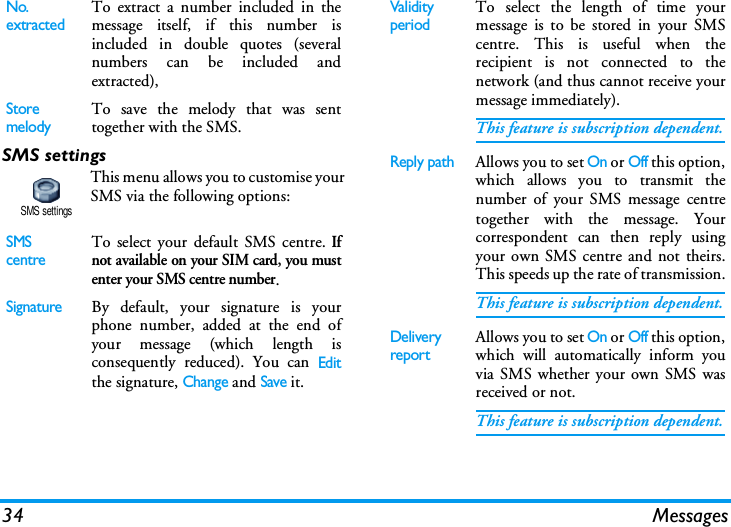
34 MessagesSMS settingsThis menu allows you to customise yourSMS via the following options:No. extractedTo extract a number included in themessage itself, if this number isincluded in double quotes (severalnumbers can be included andextracted),StoremelodyTo save the melody that was senttogether with the SMS.SMS centreTo select your default SMS centre. Ifnot available on your SIM card, you mustenter your SMS centre number.SignatureBy default, your signature is yourphone number, added at the end ofyour message (which length isconsequently reduced). You can Editthe signature, Change and Save it.SMS settingsValidity periodTo select the length of time yourmessage is to be stored in your SMScentre. This is useful when therecipient is not connected to thenetwork (and thus cannot receive yourmessage immediately).This feature is subscription dependent.Reply pathAllows you to set On or Off this option,which allows you to transmit thenumber of your SMS message centretogether with the message. Yourcorrespondent can then reply usingyour own SMS centre and not theirs.This speeds up the rate of transmission.This feature is subscription dependent.Delivery reportAllows you to set On or Off this option,which will automatically inform youvia SMS whether your own SMS wasreceived or not.This feature is subscription dependent.
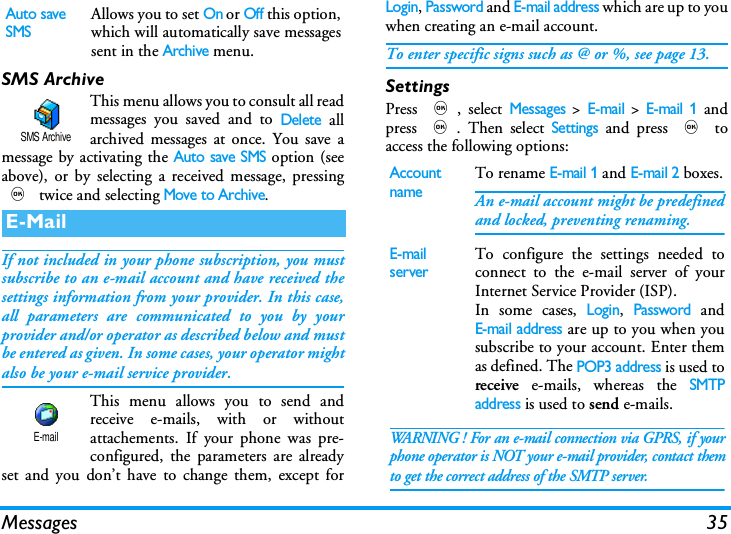
Messages 35SMS ArchiveThis menu allows you to consult all readmessages you saved and to Delete allarchived messages at once. You save amessage by activating the Auto save SMS option (seeabove), or by selecting a received message, pressing, twice and selecting Move to Archive.If not included in your phone subscription, you mustsubscribe to an e-mail account and have received thesettings information from your provider. In this case,all parameters are communicated to you by yourprovider and/or operator as described below and mustbe entered as given. In some cases, your operator mightalso be your e-mail service provider.This menu allows you to send andreceive e-mails, with or withoutattachements. If your phone was pre-configured, the parameters are alreadyset and you don’t have to change them, except forLogin, Password and E-mail address which are up to youwhen creating an e-mail account.To enter specific signs such as @ or %, see page 13.SettingsPress ,, select Messages > E-mail > E-mail 1 andpress ,. Then select Settings and press , toaccess the following options:Auto save SMSAllows you to set On or Off this option,which will automatically save messagessent in the Archive menu.E-MailSMS ArchiveE-mailAccount nameTo rename E-mail 1 and E-mail 2 boxes.An e-mail account might be predefinedand locked, preventing renaming.E-mail serverTo configure the settings needed toconnect to the e-mail server of yourInternet Service Provider (ISP).In some cases, Login, Password andE-mail address are up to you when yousubscribe to your account. Enter themas defined. The POP3 address is used toreceive e-mails, whereas the SMTPaddress is used to send e-mails. WARNING ! For an e-mail connection via GPRS, if yourphone operator is NOT your e-mail provider, contact themto get the correct address of the SMTP server.
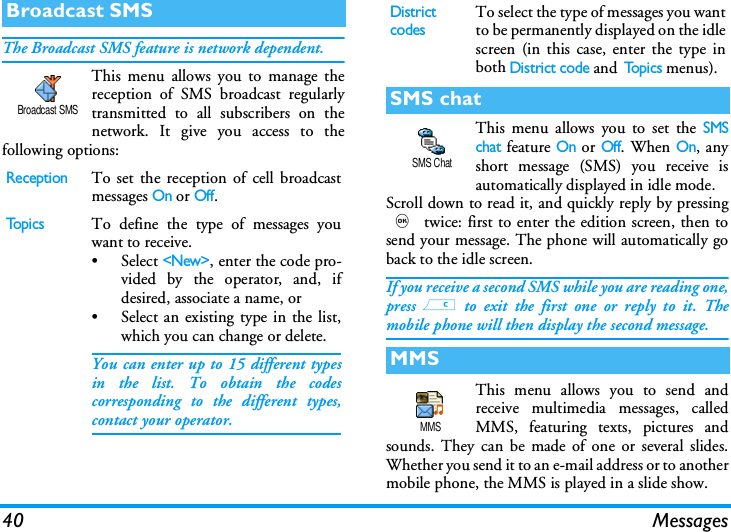
36 MessagesError messages during connections are mainly due toincorrect parameters: contact your operator if neededbefore first use, in order to have the correct settings.AdvancedThis menu features advanced settingsthat you shouldn’t have to change.If the fields of these menus are empty, orif you encounter connection problems,contact your ISP.The SMPT authenticat. menu should beOff in most European countries: youre-mails will NOT be sent if set to On.Contact your provider for completeinformation.Network accessTo select the type of network usedwhen launching a connection, and toconfigure the corresponding settings.Bearer•GSM or GPRS: your mobile willonly use the GSM or the GPRSnetwork for e-mail connections.•GPRS first: your mobile will firsttry to connect to the GPRS net-work, then to the GSM network ifthe GPRS network isn’t available.Selecting this option you need to haveboth GSM and GPRS settingsconfigured.GSM SettingsTo change the GSM settings:•Login & Password,•Phone number (ISDN or Analogic)needed to establish the connectionand provided by your operator,•Auto disconnect, a value of over 30seconds after which the phonedisconnects automatically (if aconnection was in progress).The lack of exchanges with the networkdefines the inactivity time periodleading to auto disconnection.GPRS settingsTo change the GPRS settings (samefields as the GSM settings). The APNmenu lets you enter the address of theexternal network you will connect to.
Messages 37Send mailThis menu allows you to send e-mails toone or several recipients at a time,including with an attachment such as ajpeg picture. Once received, your messages can beforwarded and the attachments visualised with theappropriate software.If you exit the Send e-mail menu before sending youre-mail or if you cancel the sending while it takes place,the e-mail content is deleted without being stored.You can only attach one JPEG file at a time. To learnhow to enter text, see “Text or number entry” page 12.If you accept an incoming call while writing ane-mail, the menu is closed and the phone goes back toidle when you hang up.Open mailboxThis menu allows you to connect toyour mailbox and to download thee-mail headers from the server, then toretrieve the corresponding e-mails.Both mailboxes feature the same settings and options.Configuring them differently will allow you to havetwo different e-mail addresses from your phone.Add contactsIf you entered e-mail addresses forcontacts saved in your phonebook inphone (see “Add contacts in aphonebook” page 2), this menu allowsyou to select the corresponding namein the Contacts list.After you have added contacts, selectone of them and press , to Changethe e-mail address, Remove it from thelist, or add more contacts.If you select the phonebook "On SIMcard", an edit window will allow you toenter an e-mail address.Send mailAdd MediaAllows you to design your message:enter the Subject and Te x t, then press, to access the next options:•Add sound or Add Graphics toattach a sound or a picture to youre-mail,•Send now to send it to the selectedrecipient(s),•Modify to redesign your e-mailfrom scratch.Open mailbox
38 Messages1.Select Open mailbox: your phone automaticallyconnects to the e-mail server and downloads thelist of e-mail headers if any (five at a time).2.If Next (or Previous) appears at the end (orbeginning) of the list, other e-mail headers arepending: select one of the available options andpress , to retrieve them.An e-mail without any attachment may beautomatically displayed in the details screen.3.Select a header, and press ,to display theDetails. The following status icons may appear inregards to each header:4.Press , and select Get mail to download thee-mail. Repeat this operation to download eache-mail corresponding to each selected header. If the e-mail is too big (over 50 KB), it is rejected andthe download is cancelled.5.If the e-mail you have received containsattachments (picture, text or another e-mail),they are characterised by a specific icon:[Noicon]The e-mail can be downloaded.The e-mail size is too large, it cannotbe downloaded.The e-mail is marked to be deleted.Contains the details of the e-mail header(date and time, sender’s e-mail address, etc.),press , to display these details.The text of the e-mail itself can be viewed asan attachment, press , to read it (noadvanced options in this case).A text file (text only, «.txt» format) isattached to the e-mail, press , to read it(no advanced options in this case).The application needed to manage thisattachment isn’t available in your phone, orthe e-mail is too large to be uploaded.Another e-mail is attached to the one youreceived (up to five e-mails can be attachedone after the other, no advanced options inthis case).A picture is attached to this e-mail. Select itin the list and press , twice to store it inyour phone (you can rename it if you wish).
Messages 39You must have stored a picture before being able toview it via the Picture album menu. See “Picturealbum” page 48 for more details. If there isn’t enoughmemory to store the new picture, you must delete otheritems (name, event or picture) to release enoughmemory to be able to save the new picture.A picture may not be accepted by your mobile phoneif it is too large or if it doesn’t have the right fileformat. When receiving a picture via e-mail, proceedas follows to obtain optimal results:• The picture received must have been saved inJPEG, BMP or GIF format.• The size of the picture file should not exceed50 KB.• The optimal size is 128 x 160 pixels, in order tobe displayed correctly (use a standard pictureediting software to create the size of the pictureyou want).• Use a file name, a maximum of 10 characters.You can then add an extension such as «.jpg».6.Select an e-mail header and press , to accessthe following options:Add to namesTo add the sender’s e-mail address toyour phonebook, even when youhaven’t yet downloaded his e-mail.Select <New> to create a new contact,or a name in the list to add or changethe e-mail address.You must have selected the phonebookin the phone in this case; this menuitem will NOT appear if you selectedthe SIM phonebook.DeleteTo mark the e-mail to be deleted (selectthis option again to unmark it). Whenyou exit the E-mail menu, you will beasked to confirm deletion of theselected item(s) from the e-mail serverReplyTo reply to the sender, which address isautomatically added to the list. Proceedas described in “Send mail” page 37.ForwardTo forward the downloaded e-mail tosomeone else. Proceed as described in“Send mail” page 37.
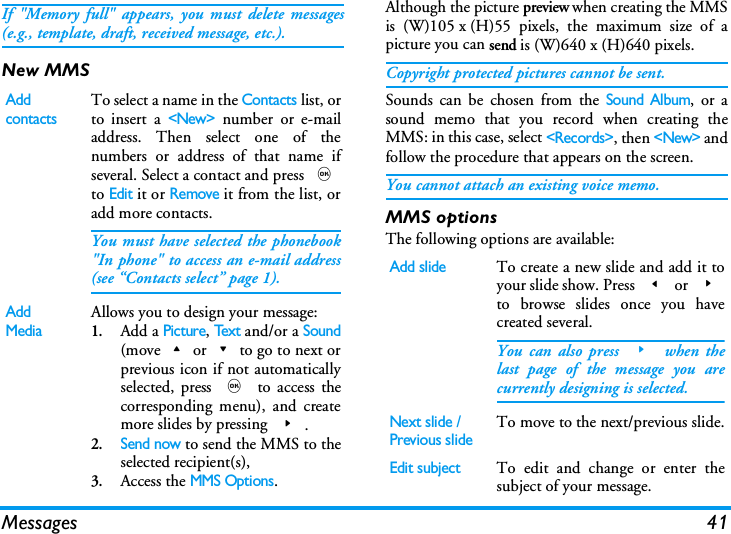
40 MessagesThe Broadcast SMS feature is network dependent.This menu allows you to manage thereception of SMS broadcast regularlytransmitted to all subscribers on thenetwork. It give you access to thefollowing options:This menu allows you to set the SMSchat feature On or Off. When On, anyshort message (SMS) you receive isautomatically displayed in idle mode.Scroll down to read it, and quickly reply by pressing, twice: first to enter the edition screen, then tosend your message. The phone will automatically goback to the idle screen.If you receive a second SMS while you are reading one,press c to exit the first one or reply to it. Themobile phone will then display the second message.This menu allows you to send andreceive multimedia messages, calledMMS, featuring texts, pictures andsounds. They can be made of one or several slides.Whether you send it to an e-mail address or to anothermobile phone, the MMS is played in a slide show.Broadcast SMSReceptionTo set the reception of cell broadcastmessages On or Off.Top i csTo define the type of messages youwant to receive.• Select <New>, enter the code pro-vided by the operator, and, ifdesired, associate a name, or• Select an existing type in the list,which you can change or delete.You can enter up to 15 different typesin the list. To obtain the codescorresponding to the different types,contact your operator.Broadcast SMSDistrict codesTo select the type of messages you wantto be permanently displayed on the idlescreen (in this case, enter the type inboth District code and To p i c s  menus).SMS chatMMSSMS ChatMMS
Messages 41If "Memory full" appears, you must delete messages(e.g., template, draft, received message, etc.).New MMSAlthough the picture preview when creating the MMSis (W)105 x (H)55 pixels, the maximum size of apicture you can send is (W)640 x (H)640 pixels.Copyright protected pictures cannot be sent.Sounds can be chosen from the Sound Album, or asound memo that you record when creating theMMS: in this case, select <Records>, then <New> andfollow the procedure that appears on the screen.You cannot attach an existing voice memo.MMS optionsThe following options are available:Add contactsTo select a name in the Contacts list, orto insert a <New> number or e-mailaddress. Then select one of thenumbers or address of that name ifseveral. Select a contact and press ,to Edit it or Remove it from the list, oradd more contacts.You must have selected the phonebook"In phone" to access an e-mail address(see “Contacts select” page 1).Add MediaAllows you to design your message:1.Add a Picture, Tex t and/or a Sound(move+or-to go to next orprevious icon if not automaticallyselected, press , to access thecorresponding menu), and createmore slides by pressing >.2.Send now to send the MMS to theselected recipient(s),3.Access the MMS Options.Add slideTo create a new slide and add it toyour slide show. Press < or >to browse slides once you havecreated several.You can also press > when thelast page of the message you arecurrently designing is selected.Next slide /Previous slideTo move to the next/previous slide.Edit subjectTo edit and change or enter thesubject of your message.
42 MessagesSend MMSOnce your message is complete, simply select SendMMS and press ,. If you saved your MMS as adraft, this option is also available from the Draftsmenu. If you have already sent the MMS  and haveactivated the Auto save option (see page 44), select itfrom the Outbox menu and select Re-send MMS.If the sending of a draft message fails, the message willbe moved to the Outbox menu.In all cases, a progress bar allows you to follow thesending of your message (press c to cancel).Receive an MMSIf the size of the MMS to download is bigger than thememory available in your phone, you must freememory by deleting data (picture, sounds, etc.). See“Memory status” page 51.When you receive an MMS an alert message appearson the screen to inform you. See page “Settings”page 35 to learn about Automatic or Manual retrievalmodes. If the sender of the message has asked for a Readreport, a prompt will ask you to press , to send itor to press c to cancel.Once the MMS is downloaded, select it in the Inboxlist and press > to play it. Press , to access thefollowing Player options:Delete slideTo delete the selected page (if thereis more than one in the message).Save MMSas draftTo save your message as a draft, thatyou can edit, complete and sendlater on (see page 43).Saveas templateTo save your message as a template,that you can use as a basis for otherMMS (e.g., «Happy birthday» typeof message, see page 43).Preview MMSTo preview the slide show you havecreated.Slide durationTo change the value of slideduration set in Settings > Applicationsettings (see page 42), and to set adelay between each slide.PlayTo switch back to automaticmode: the MMS is then playedas a continuous slide show.
Messages 43Manage foldersFour different folders are available. The default(active) folder is the one you last selected. Notifications are automatically deleted once you havereceived the full MMS. Do NOT delete notificationsbefore you have retrieved the MMS, or you will neverbe able to do so.Messages you have saved can only be sent from theDraft or Outbox folders. You can NOT recover anitem (whether message, notification or report) thatyou have deleted. Press c to cancel deletion.Next /previousslideTo move to the next or previousslide. You can also press < or> when viewing the MMS inmanual mode.Detach pictureTo detach the picture of thecurrent slide and save it in thePicture album.Detach soundTo detach the sound of thecurrent slide and save it in theSound album.AMR sounds cannot be saved.CloseTo close the MMS and go backto the list of options.TemplatesLists all messages saved as templates.You can Play, Edit and Delete them.DraftsLists all messages saved as drafts, orautomatically saved if you quit theMMS menu before saving or sendingyour MMS. You can Play, Edit, Sendand Delete drafts.OutboxLists the messages you have Sent orcreated but Not sent yet. You can Play,Delete or view the Details of all thesemessages, Re-send or Forward them tosomeone.InboxLists all the Notifications, Delivery andRead reports, Read and Unread MMS.You can Read or Delete notificationsand reports.You can Play, Forward or Reply to anMMS, display its Details or Delete it.
44 MessagesSettingsYour phone may have been pre-configured to directlyaccess the services offered. If not, contact your operatorto receive the information items described in thepresent section and enter them as given. With someoperators, access parameters can be set «over the air».The following settings are available:Retrieval modeAllows you to choose from:Manual: you connect manually to theserver by selecting a notification in theInbox, selecting Read to downloading,then Play.Automatic: will place received MMS inthe Inbox. Select the MMS and press> to play it.This mode is deactivated when roam-ing.Validity periodTo select how long your MMS will bestored on the server, from 1 hour to 1week (maximum). This is useful whenthe recipient is not connected to thenetwork (and thus cannot receive yourmessage immediately).Read reportThis option can be set On or Off andinforms you (via an SMS) when thestatus the MMS you have sent haschanged, i.e. if it was read or deleted.Delivery reportThis option can be set On or Off andinforms you (via an SMS) the status ofdelivery, e.g. if your MMS wasreceived or rejected.Auto saveThis option can be set On or Off andallows you to automatically save themessages sent from the Outbox menu.Slide durationAllows you to select the durationbetween each slide of the MMS.
Messages 45Network settings Network account is used to choose aconnection profile from the ones youhave set (see “Access settings”page 28).Bearer allows you to select the type ofnetwork used when launching aconnection: GSM, GPRS or GPRS first.Choose MMS Center to enter theMMS address of the server you willconnect to.Gateway address and Gateway port willallow you to enter both IP and Portnumbers of the server’s gateway.
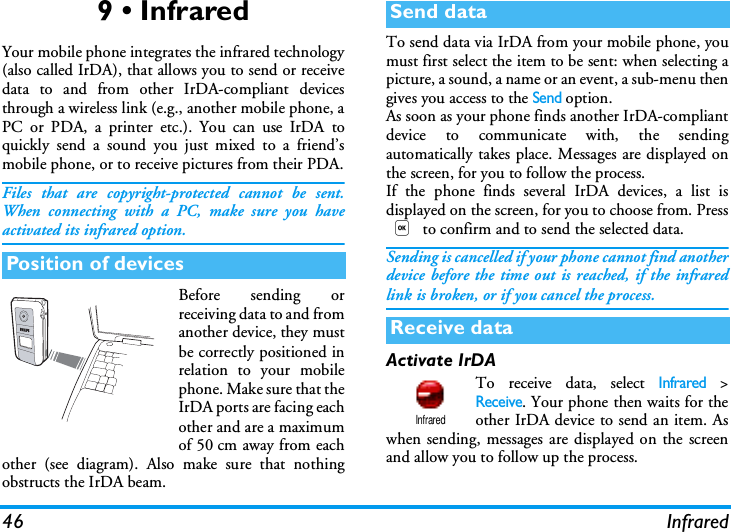
46 Infrared9 • InfraredYour mobile phone integrates the infrared technology(also called IrDA), that allows you to send or receivedata to and from other IrDA-compliant devicesthrough a wireless link (e.g., another mobile phone, aPC or PDA, a printer etc.). You can use IrDA toquickly send a sound you just mixed to a friend’smobile phone, or to receive pictures from their PDA.Files that are copyright-protected cannot be sent.When connecting with a PC, make sure you haveactivated its infrared option.Before sending orreceiving data to and fromanother device, they mustbe correctly positioned inrelation to your mobilephone. Make sure that theIrDA ports are facing eachother and are a maximumof 50 cm away from eachother (see diagram). Also make sure that nothingobstructs the IrDA beam.To send data via IrDA from your mobile phone, youmust first select the item to be sent: when selecting apicture, a sound, a name or an event, a sub-menu thengives you access to the Send option.As soon as your phone finds another IrDA-compliantdevice to communicate with, the sendingautomatically takes place. Messages are displayed onthe screen, for you to follow the process.If the phone finds several IrDA devices, a list isdisplayed on the screen, for you to choose from. Press, to confirm and to send the selected data.Sending is cancelled if your phone cannot find anotherdevice before the time out is reached, if the infraredlink is broken, or if you cancel the process.Activate IrDATo receive data, select Infrared >Receive. Your phone then waits for theother IrDA device to send an item. Aswhen sending, messages are displayed on the screenand allow you to follow up the process.Position of devicesSend dataReceive dataInfrared
Infrared 47Receiving is cancelled if your phone isn’t contacted byanother device before the time out is reached, if theinfrared link is broken, if the size of the file sent is toolarge or if you cancel the process.Save the data receivedPress , to access the following options:Press c to go back to the idle screen without saving.You can also use your mobile phonetogether with a PC or a PDA, e.g. tosurf the Internet or send faxes.To fully benefit from the services available via IrDA(send and receive SMS, e-mail and fax, uploadpictures and MIDI sounds in your phone, phonebooksynchronization, GPRS Wizard, etc.), you mustinstall  Mobile Phone Tools on your PC. Thissoftware application is available on the CD-Romshipped with your phone.The software supplied on the CD-Rom is notcompatible with Apple® Macintosh® computers. Itonly supports Windows® 98 SE, ME, XP and 2000(Service Pack 3 and up mandatory in this case).Specific software modules for Lotus Notes, LotusOrganizer and Microsoft Outlook are designed toallow synchronisation from your Philips mobilephone to these applications (refer to their respectiveuser guides for detailed information).SaveTo save the data, then go back toidle. The items you have receivedwill be saved under their defaultname, which you can change byselecting them in the relevantmenus.ShowTo display the details of the datayou have received (play or sound ordisplay a picture).Use the phone as a modemData
48 Multimedia10 • MultimediaThis menu allows you to manage andlisten to the sounds stored in yourmobile phone, your Own melodies,Standard melodies or Records. When entering oneof the available sub-menus, select a sound and press, to access the following options:JPEG pictures must have the correct size and formatfor your mobile phone to store and display themcorrectly .This menu allows you to manage anddisplay the pictures stored in yourmobile phone.When entering one of the available sub-menus, thepictures stored in your phone are displayed as a textlist. To access the graphical display, select a picture inthe list and press >. Press , to access theoptions described hereafter.Modify pictureYou can also access this menu and related featureswhen using the camera. When selecting this option,the picture you have chosen is displayed andautomatically resized to 128 x 160 pixels.Sound albumDelete To Delete the selected sound.Sounds in the Standard melodiesfolder cannot be deleted.Send by... To send the selected sound viaE-mail (see page 35), via IrDA (seepage 46) or MMS (see page 40).You will not be able to send soundsthat are protected by a copyright.Set as ringer To set the selected sound as Ringer.Sound AlbumAs SMS/MMS ringer To set the selected sound asMessages ringer (this option mustbe set On in Settings > Sounds, seepage 23).Rename To  Rename the selected sound.Picture albumPicture Album
Multimedia 49Select a picture add press , to access the optionsdescribed below, which the icons located on the lefthand side of the screen allow you to perform. In eachcase, press c to go back one step, or , tovalidate and go to the next option.DeleteTo Delete the selected picture.Pictures in the Standard Pictures folder cannot bedeleted.Send by...To send the selected picture via Infrared (see“Infrared” page 46), MMS (see “MMS” page 40), orby Email (see “E-Mail” page 35).Set as wall paperTo set the selected picture as Wallpaper (this optionmust be set On in Settings > Display, see page 24).Add text To add text to the selected picture.Press the navigation key to move theshape in any direction (short press tomove it of 1 pixel, long press for 5pixels).Add frame or icon To add a frame or an icon to theselected picture, which you can alsomove on the screen by pressing thearrows. Press < or > to accessthe graphical display when browsingthe lists.Eraser To   Undo the last modification madeon the picture, or to Reset, i.e.,cancel all changes at once. Press cto cancel or , to validate.Save picture To save the picture including all thechanges you have applied to it: enterthe name of your choice and press, to validate.If you don’t rename the picture, the original file youselected from the album will be overwritten. You cansave a picture at any time, even if you are not donemodifying it.Send picture To s en d th e pict u re  vi a IrDA , E-Mailor MMS (see relevant chapters in thepresent user guide for detailedinformation).Help For a better visibility of the preview,select Help and press , to togglebetween On and Off options.
50 MultimediaSet as subwall paperTo set the selected picture as Subwallpaper (thisoption must be set On in Settings > Display, seepage 24).RotateTo rotate the picture of 90° or 180°, press , toconfirm your choice.RenameTo Rename it: press ,, enter a name and press, again.THE PHONE BATTERY MUST BE AT LEAST ATHALF CHARGE TO RUN A TV SLIDESHOW. This feature allows you to display yourJPEG pictures listed in the Picturealbum (automatically in a slideshow, ormanually, one-by-one) on a TV screen via the TVLink accessory or on the screen of your phone.TV Link may not supplied with your product. In thiscase, you must purchase it separately. See “Philipsauthentic accessories” page 70 for details.ManualSelect  TV Slideshow, then Manual, and press ,and browse the complete list of pictures.Press > to activate the graphical fullscreen displayand send it to the TV, press < to go back to the list.Automatic1.Select  TV Slideshow, select the value to beapplied between each picture and press ,.2.Choose (Un)Check all by pressing < or >to select all pictures at once, orBrowse the list and select/deselect the pictures ofyour choice by pressing < or > (selectedpictures feature checked boxes).3.In both cases, press , to start the slideshowand c to stop it.4.Select  (Un)check all to deselect all pictures atonce.The last selection/slideshow made is automaticallysaved and can be played several times in a row, evenwhen you quit the TV Slideshow menu.When browsing manually, press , to open therotation options (90°, 180° or 270°), select the optionof your choice and press ,. Changes areautomatically stored.TV SlideshowTV Slideshow
Multimedia 51Press , to launch the Demo movie.If you turned the phone on without having inserted aSIM card, this menu is available in the first menulevel.This menu allows you to display thepercentage of memory available in yourphone. Several features share the mobilecapacity: pictures and sound albums, recorded memosand voice tags for voice commands, messages you havestored in the phone, phonebook and organiser entries,games, etc.Your mobile phone is supplied with many sounds andpictures. You can only delete sounds or pictures in thePicture or Sound albums, e.g. to free memory space foryour own sounds and pictures.Press , to check the memory status. The displayshows you the percentage of memory free and thephone’s total memory in KB. Press , again andaccess the detailed list of memory used by eachfeature.If «List full» appears when saving a new item or to freememory space, you must delete an item to be able tocreate or add a new one.This menu allows you to record a soundof 1 minute maximum and up to 20different sounds, depending on theMemory status.Select  <New> to record a new sound. Follow theinstructions on the screen and press , once yoursound is recorded. Select it in the list to play it, orpress , to Delete or Rename it.Recordings can then be used as alarm or incoming callringers, etc. Recordings saved cannot be sent by MMS.Demo modeMemory statusDemo modeMemory statusSound recordingSound recording
52 Games & Applications11 • Games & ApplicationsThese menus allow you to convert asum from or into Euros by entering theamount and pressing ,.The currency used for the conversion is determined bythe country where you have subscribed. The Euroconverter is available upon subscription and only incountries using the Euro.This menu provides the followingfunctions:Enter the figures using the keypad. Calculatoraccuracy is to 2 decimal places and is rounded up tothe higher decimal figure. Press and hold 0 to getthe dot.This menu allows you to set the alarmclock. Press , and select: Once,Every day or On weekdays according toyour needs. Then select one of the alarm alerts: aMelody, a Sound recording (the latter being played onlyonce) or the Buzzer.The alarm clock will ring even if you turned off yourphone, and even if the Ringer volume is set to Off (seepage 23). Press any key to stop the alarm ringing.The organiser shares the mobile capacity and memorywith other features (phonebook, picture album, sound,etc.). To check the memory available in your phone,select Multimedia > Memory status.Euro converterCalculatorAdditionPress *.SubstractionPress * twice.MultiplicationPress * 3 times.-> EuroCalculatorDivisionPress * 4 times.EqualsPress #.Alarm clockOrganiserAlarm clock
Games & Applications 53Create a new eventThis menu allows to create events andstore them in your organiser. When theorganiser alert is On (see page 23), abeep alerts you when an event is due.1.Select <New>, then the type of event to create(Holiday, Meeting, ToD o), and enter its startingand ending date & time.2.Name it (e.g. «Meeting with Smith»), then set areminder and a frequency: alerts will be triggeredat the chosen time. The reminder only applies to Meeting and To Doevents. It will be updated when changing time zones(see “Time and date” page 29).Delete old eventsThis menu allows you to delete past events. Enter thestarting date (past or future) from which all previousevents will be deleted and press ,twice to delete allevents preceding this date.To delete all events set in your organiser, enter astarting date several years ahead (e.g., 3rd ofDecember, 2010) to make sure all events precedingthis date are deleted at once.Manage eventsSelect an event in the list and press , to access thefollowing options:Events viewsThe Day view, Week view and Month view display inthe respective format all events stored in yourorganiser. To display events in these views, simplyselect the view of your choice and press ,, thenmove  < or  > to display the previous or nextday, week or month.Note that changing time zones will impact allorganiser reminders: the event alarms will be updateddepending on the time displayed on the screen (see“Time and date” page 29).OrganiserDeleteTo delete the selected event.ChangeTo change the selected event.Changing a repeated event willalso modify all instances of thisevent.Tr a n s m itTo transmit the selected event toanother IrDA-compatible device.
54 Games & ApplicationsThis menu can be subscription dependent. As such itsicon and content may vary.This menu gives you access to the brickgame, which object is to destroy thebricks by hitting them with the ball.Destroying all bricks give you access tothe next level. Keys used are the following:Your mobile phone features JAVA,which allows you to run JAVA-compatible applications such as gamesdownloaded on the network.NetworkAuto-LaunchAllows you to set the automatic launch of JAVA On orOff. When On, a JAVA application will beautomatically launched right after it was installed.Brick game4 and 6To move the racket left orright.* and #To start the game by throw-ing the ball left or right.0To pause the game up to2 min. (after which thescreen returns to idle modeand the game is lost).JAVABrick GameJAVABearerTo select the type of network usedwhen launching a connection.•GSM or GPRS: your mobile willonly use the GSM or the GPRSnetwork for e-mail connections.•GPRS first: your mobile will firsttry to connect to the GPRS net-work, then to the GSM network ifthe GPRS network isn’t available.When selecting this option, you need tohave both GSM and GPRS settingsconfigured. See page 28 for details.DNS addressAllows you to enter the DNS address ofthe external data network you want toconnect to.Network accountAllows you to select one of the dataprofiles you have defined in Settings >Access settings (see page 28).
Call information 5512 • Call informationThis menu allows you to set all the calloptions (call forward, waiting, etc.) andgives you access to the menus describedhereafter.Active flipWhen activated, this option allows you to pick up anincoming call by simply opening the phone. A beepalso indicates the end of the communication whenhanging up.To reject a call, press and hold the lower side key.Call forwardTo divert incoming calls to your mailbox or to anumber (whether in your contacts or not) and appliesto Data calls, Voic e calls and Fax calls.Before activating this option, you must enter yourvoice mailboxes’ numbers (see “Mailboxes” page 55).This feature is subscription dependent, and differentfrom the call transfer, which takes place when one/several calls are in progress.MailboxesTo enter your voice mailbox numbers (if not availableon your SIM card).In some cases, you might have to enter two numbers:one to listen to your mailbox, the other one to forwardcalls. Contact your operator for more information onthis subject.Call settingsCall settingsUnconditionalWill divert all the incoming calls.Warning! When selecting thisoption, you will not receive any callsat all until you deactivate it.ConditionalAllows you to choose in whichcircumstance(s) you want to divertincoming calls: If no reply, If notreachable or If busy. Each option canbe set independently.StatusWill display the status of all callforwarding.
56 Call informationAuto redialTo set the auto redial On or Off. When On if theperson you are calling is busy, your phoneautomatically redials this number until a successfulconnection is made or until the maximum number ofattempts is reached (10). The phone beeps at thebeginning of each attempt and emits a special beep ifthe connection is successful.The time between redials increases with each attempt.Any key answerTo accept a call by pressing any key, except ), usedto reject a call.Call waitingCaller IDTo Show or Hide your identity to your correspondent.The Status option will inform you if this function isactivated or not.This menu provides you with the list ofoutgoing and incoming calls, attemptsat auto redialling and call details. Thecalls (made, missed and received) are displayed inchronological order with the most recent on top.With GSM callApplies to All calls, Voice calls, Faxcalls and Data calls. When thisoption is active, you hear a beep ifsomeone tries to call you whilealready on a call. Select the Statusoption to find out whether theGSM call waiting is active or not. This function is subscriptiondependent. Contact your operator.With GPRS callAllows you to Activate or Deactivatethe call waiting for voice incomingcalls while a GPRS connection isongoing.Call listCall listSelect an item and press , toconsult the date, time, number, callstatus of any selected call and toknow if it was sent or received. Press , again to access theoptions: Call or Call handsfree thiscorrespondent, Send a SMS, Send byMMS, Delete the selected call orStore the associated number.Call List
Call information 57If a number listed is also in your Contacts, thecorresponding name is displayed. Move+or-toselect the number to redial and press (. Press )to hang up.This menu features the GSM counterssubmenu, which gives you access to theoptions described below and allows youto handle the cost and duration of your calls.The GSM Call Counters do not include WAPconnections. Most options mentioned below aresubscription dependent.ResetTo reset the whole list at once.Call countersTotal durationTo Show or Reset the time durationof Outgoing or Incoming calls.Last call infoTo display the duration and/or costof your last call.Info at call endTo set On or Off the systematicdisplay of the length and/or cost ofeach call when hanging up.Call countersTotal costTo display the accumulated costand to set the counter to zero (maybe protected by PIN/PIN2 codes).•Show will show how much hasbeen spent, having establishedthe charge rate.•Reset allows to reset the cur-rent To t a l  c o s t to 0.•Show balance allows to checkthe remaining credit (com-pared with previously setlimit).•Cancel cost limit allows to can-cel the cost limit.•Cost limit lets you to enter thecost limit used in the Show bal-ance menu.•Change rate allows to set orchange the rate per unit. Firstenter the currency used (threecharacters maximum), thenenter the cost per unit.
58 Operator services13 • Operator servicesMost items of this menu are subscription dependentand specific to operators. Consequently, the menusdescribed below may or may not be available. Contactyour network operator for details.The services provided may involve making a phonecall or sending a SMS for which you may be charged.This menu allows you to access servicessupplied with your network, such asnews, sports, weather, etc.If your phone was pre-configured, it isn’t necessary foryou to change the settings described in this section.With some operators, settings can be set remotely.Your mobile phone connects to the network accordingto the Access settings you have defined in the menuSettings > Network (see page 28).HomepageThis is the link to the first WAP site you access whenlaunching a WAP session. In most cases, this menuitem is preconfigured and will connect to youroperator’s WAP homepage. To change this defaulthomepage see “Settings” page 59.BookmarksThis menu allows you to store your favourite WAPsite addresses, rename them and access them quicklyfrom the list.Press @ while browsing, then select Bookmarks: theName and URL fields will be automatically filled inwith the information of the page you are browsing.WAPSelect Operator Services  >WAP >Homepageand press ,.To launch a WAP session.Press + or -To  brow se the o nli ne  pagesPress ,To select a highlighteditem.WAPPress cTo return to the previouspage.Press and hold cTo end the WAP session.You can also select Options> Exit and press ,.
Operator services 59Select Add bookmark and start entering the new namefor the edit screen to appear. Press ,, then proceedthe same way to enter the URL address.The Manage bookmarks menu allows you to Deleteor  Edit the selected bookmark.Enter addressThis menu allows you to enter a WAP site address, towhich you connect directly when selecting it (a quickway to access WAP addresses without saving them asbookmarks).All the addresses you enter in this menu and connectto at least once, will appear in a list. Select one of theitems and press , to reconnect to the correspondingpage, without having to re-enter its complete address.SettingsEdit homepage To change the Homepage name andaddress.Start entering the new name for theedit screen to appear.Select profile To select one of the availableprofiles, then define the connectionsettings for each of them (press</> to select / deselect).All connection settings describedbelow apply to the selected profile.Security To display the list of installedsecurity  Certificates (then displayits details or delete it), the Sessioninfo or the Current certificate.Rename profile To rename the currently selectedprofile (start entering the new namefor the edit screen to appear).Browser options To activate or deactivate thedownloading of images attached toWAP pages.Selecting Never will speed up theglobal downloading time of the pagesbrowsed.Cache To empty an area of the phone’smemory where the pages browsedduring a WAP session are stored.
60 Operator servicesPush inboxThis menu allows you to read and manage messagesautomatically sent to you by the network and / or byyour operator. If it contains a WAP address, press, to connect to the WAP site.OptionsWhile browsing, press the , key to access:You can send DTMF tones (or “touch tones”) tosome phone services at any time during a call bypressing any of the keys 0 to 9, * and#.You can also attach a DTMF sequence to a phonenumber before dialling it (or storing it in thecontacts). The phone number and the DTMF partmust be separated by a wait character.To obtain a pause or wait character, press and hold#. The display shows w for wait and p for pause.For example, to hear messages (e.g. code 3) on yourConnection Select connection allows you toselect one of the data profiles youhave defined in Settings > Accesssettings (see page 28).Bearer allows you to select the typeof network used by the selectedprofile when launching a connection(see page 28).Proxy address and Proxy portallow you to define a gatewayaddress and port number to be usedwhen launching a WAP connectionusing the selected profile.Press and hold  0 to enter "."Homepage To access the Homepage of theWAP site you are browsing.Back Brings you back to the previouslybrowsed page.Forward Takes you to the next browsed page.Refresh To reload the currently browsedpage from its original server.Save as homepage To save the currently browsed WAPpage as the default homepage.Save as... To save images embedded in thepages that are displayed in thePicture album.Exit To end a WAP session.DTMF tones
Operator services 61answering machine (password 8421) at phonenumber 12345678, you could call: 12345678w8421p3.You can make a second call during an active call orduring a call on hold. Dial a number or select a namein the phonebook, then press ( while already onthe phone. The first call is put on hold and thenumber is displayed at the bottom of the screen. Thesecond number is then dialled. You can then:When you receive a second call while already on thephone, the phone emits an alert beep and the screendisplays Call waiting. You can then:To receive a second call, you must have deactivated theCall forward for voice calls (see page 56) and activatedthe Call waiting (see page 57).While in communication and one call being on hold,you may receive a third call. You can either end one ofthe calls before being able to answer the third one orintroduce the calling party into a conference (seebelow). This service is limited to two currentcommunications (one active and one on hold).Make a second callPress ,To select Switch calls to togglebetween calls (one is put on hold andthe other one is then activated).Press)To hang up the active line (the call onhold remains as such).Answer a second callPress (To answer the call (the first one is puton hold). Then press , and select:•Switch calls to toggle betweencalls (one is put on hold and theother one is then activated),•Conference to introduce the newcaller into a conference call.Press)To reject the call.Press,To se l ect End call to end the currentcall, then answer the incoming call.Answer a third call
62 Operator servicesYou activate the conference call bymaking several outgoing calls, or createit from a multiparty call context. Youmay have up to five members at the same time andend all calls at once with ).Make a first call with someone, then a second one (see“Make a second call” above). Press,and selectConference. Repeat the process until five members areconnected.If there is an incoming call during the conference calland there are less than five members, you can acceptthis new call and  add this member  to the Conferencecall (if five members are already connected, you cananswer the call, but not add it to the conference).The Conf. members options allow you to disconnect amember of the conference by selecting Remove party,or select Private call to have a private call with thismember only (other members are put on hold).You can connect an active call and a call on hold byselecting the Tr a n s f e r option. You are disconnectedwhen the transfer is completed.This feature is different from the Call forward, whichtakes place before you pick up the call (see page 56).Conference callConferenceExplicit call transfer
Icons & symbols 63Icons & symbolsIn idle mode, several symbols can be displayedsimultaneously on the screen.If the network symbol isn’t displayed, the network isnot currently available. You may be in a bad receptionarea, moving to a different location may help.Silent - Your phone will not ring whenreceiving a call.Vibra - Your phone will vibrate whenreceiving a call.GPRS attach - Your mobile phone isconnected to the GPRS network.SMS message - You have received a newmessage. Voice mail - You have received a new voicemail.Battery - The bars indicate the battery level(4 bars = full, 1 bar = low).Alarm clock activated.Roaming - Displayed when your phone isregistered to a network other than your own(especially when you’re abroad).SMS full - Memory for messages is full. De-lete old messages to receive new ones.Call Forward Unconditional to number -All your incoming voice calls are being for-warded to a number other than voice mail.Call Forward to voice mailbox - All yourcalls are being forwarded to voice mail.Home zone - A zone designated by yournetwork operator. Subscription dependent,contact your service provider for details.GSM Network: your phone is connected toa GSM networkReception quality: the more bars are shownthe better the reception is.SMS chat - option is set to On.Memory full - The phone’s memory is full.Delete items to store new ones.MMS message - You have received a newmultimedia message.
64 TroubleshootingTroubleshootingThe phone does not switch onRemove/reinstall the battery (seepage 1). Make sure you plugged thejack of the charger into the correctconnector (see “Charge the battery”page 2). Then charge the phoneuntil the battery icon stopsscrolling. Unplug from charger andtry to switch the mobile on.The display shows BLOCKED when you switch onSomebody tried to use your phonebut didn’t know the PIN code northe unblocking code (PUK).Contact your service provider.The display shows IMSI failureThis problem is related to yoursubscription. Contact youroperator.You r p h on e doesn’t return to the idle screenPress and hold c or switch offthe phone, check that the SIM cardand the battery are installedcorrectly and switch it on again.The   symbol is not displayedThe network connection is lost.Either you are in a radio shadow (ina tunnel or between tall buildings)or you are outside the networkcoverage area. Try from anotherplace, try to reconnect to thenetwork (especially when abroad),check that the antenna is in place ifyour mobile has an externalantenna, or contact your networkoperator for assistance/information.The display doesn’t respond (or the display responds slowly) to key pressesThe display responds more slowlyat very low temperatures. This isnormal and does not affect theoperation of the phone. Take thephone to a warmer place and tryagain. In other cases please contactyour phone supplier.Yo u r battery seems to over heatYou might be using a Philipscharger that was not intended foryour phone. Make sure you alwaysuse the Philips authentic accessoryshipped with your phone.
Troubleshooting 65You r p h on e doesn’t display the phone numbers of incoming callsThis feature is network andsubscription dependent. If thenetwork doesn’t send the caller’snumber, the phone will display Call1 or Withheld instead. Contactyour operator for detailedinformation on this subject.You can’t send text messagesSome networks don’t allowmessage exchanges with othernetworks. First check that youentered the number of your SMScenter, or contact your operator fordetailed information on thissubject.Yo u  c a n ’t  starta TV slideshowThis feature needs your battery tobe at least half-charged. Rechargeyour phone or plug the chargerduring the slideshow.You can’t receive and/or store JPEG picturesA picture may not be accepted byyour mobile phone if it is too large,if its name is too long, or if itdoesn’t have the correct file format.See page 38 for completeinformation on this subject.Yo u  h av e  the feeling that you miss some callsTo receive all calls, make sure thatnone of the features «Conditionalcall forward» or «unconditional callforward» is activated (see page 56). During battery charge, the battery icon shows no bar and the outline is flashingOnly charge the battery in anenvironment where thetemperature does not go below 0°C(32°F) or above 50°C (113°F).In other cases please contact yourphone supplier.The display shows SIM failureCheck that the SIM card has beeninserted in the right position (seepage 1). If the problem remains,your SIM card may be damaged.Contact your operator.When attempting to use a feature in the menu, the mobile displays NOT ALLOWEDSome features are networkdependent. They are only available,therefore, if the network or yoursubscription supports them.Contact your operator for detailedinformation on this subject.
66 TroubleshootingThe display shows INSERT YOUR SIM CARDCheck that the SIM card has beeninserted in the right position (seepage 1). If the problem remains,your SIM card might be damaged.Contact your operator.The autonomy of your phone seems lower that indicated in the user guideThe autonomy is linked to yoursettings (e.g., ringer volume,backlight duration) and the featuresyou use. To increase the autonomy,and whenever possible, you mustdeactivate features you do not use.You r p h on e doesn’t work well in your carA car contains many metallic partsthat absorb electromagnetic waveswhich can affect the phone’sperformances. A car kit is availableto provide you with an externalantenna and enables you to makeand receive phone calls withouthandling the handset.Check with local authorities if youare allowed to use the phone whilstdriving.Yo u r phone is not chargingMake sure you plugged the jack ofthe charger into the correctconnector (see “Charge the battery”page 2). If your battery iscompletely flat, it might takeseveral minutes of pre-charge (up to5 in some cases) before the chargingicon is displayed on the screen.
Precautions 67PrecautionsYour cellular mobile phone is a low power radiotransmitter and receiver. When it is operating, itsends and receives radio waves. The radio wavescarry your voice or data signal to a base station thatis connected to the telephone network. Thenetwork controls the power at which the phone transmits.• Your phone transmits/receives radio waves in the GSMfrequency (900 /1800 / 1900 MHz).• The GSM network controls transmission power (0.01to 2 watts).• Your phone complies with all relevant safety standards.• The CE mark on your phone shows compliancy withEuropean electromagnetic compatibility (Ref. 89/336/EEC) and low voltage directives (Ref. 73/23/EEC).Your cellular mobile phone is your responsibility. To avoiddamage to yourself, to others or to the phone itself, read andfollow all the safety instructions and make them known toanyone borrowing your phone. Furthermore to preventunauthorised use of your phone:Keep your phone in a safe place and keep it out ofsmall children's reach.Avoid writing down your PIN code. Try toremember it instead. Switch off the phone and remove the battery if youare going to leave it unused for a long time.Use the Security menu to change the PIN code afterpurchasing the phone and to activate call restriction options.The design of your phone complies with allapplicable laws and regulations. However yourphone may cause interference with other electronicdevices. Consequently you should follow all localrecommendations and regulations when usingyour cellular phone both at home and when away.Regulations on the use of cellular phones in vehicles andaircraft are particularly stringent.Public concern has been focused for some time on the possiblehealth risks for users of cellular phones. The current researchon radio wave technology, including the GSM technology,has been reviewed and safety standards have been drawn up toensure protection from exposure to radio wave energy. Yourcellular telephone complies with all applicable safetystandards  and the Radio Equipment andTelecommunications Terminal Equipment Directive 1999/5/EC.Inadequately protected or sensitive electronic equipmentmay be affected by radio energy. This interference can lead toaccidents.Before boarding an aircraft and/or when packingthe phone in your luggage: the use of mobilephones in an aircraft may be dangerous for theoperation of the aircraft, disrupt the mobile phonesnetwork and may be illegal.In hospitals, clinics, other health care centres andanywhere else where you may be in the closevicinity of medical equipment.Radio wavesAlways switch off your phone
68 PrecautionsIn areas with a potentially explosive atmosphere(e.g. petrol stations and also areas where the aircontains dust particles, such as metal powders).In a vehicle transporting flammable products (evenif the vehicle is parked) or a vehicle powered byliquefied petroleum gas (LPG), check first that the vehiclecomplies with the applicable safety rules.In areas where you are requested to turn off radio transmittingdevices, such as quarries or other areas where blastingoperations are in progress.Check with the vehicle manufacturer thatelectronic equipment used in your vehicle will notbe affected by radio energy.If you are a user of a pacemaker:• Always keep the phone more than 15cm from yourpacemaker when the phone is switched on, in order toavoid potential interference.• Do not carry the phone in a breastpocket.• Use the ear opposite to the pacemaker to minimise thepotential interference.• Switch off your phone if you suspect that interference istaking place.If you are a user of a hearing aid, consult your physician andhearing aid manufacturer to learn whether your particulardevice is susceptible to cellular phone interference.In order to improve the performance of your phone, reduceradio energy emission, reduce battery consumption andensure safe operation adhere to the following guidelines:For the optimal and satisfactory operation of thephone you are recommended to use the phone inthe normal operating position (when not using inhands-free mode or with a hands-free accessory).•  Do not expose your phone to extreme temperatures.• Treat the phone with care. Any misuse will void theInternational Guarantee.• Do not immerse the phone in any liquid; if your phoneis damp, switch it off, remove the battery and let themdry for 24hrs before using them again.• To clean the phone, wipe it with a soft cloth.• Placing and receiving calls consumes the same amountof battery energy. However, the mobile consumes lessenergy in idle screen when kept in the same place.When in idle screen and while you are moving, yourphone consumes energy to transmit updated locationinformation to the network. Setting the backlight for ashorter period of time as well as avoiding unnecessarynavigating in the menus will also help to save the bat-tery’s energy for longer phoning and stand-by perform-ances.• Your phone is powered by a rechargeable battery.• Use specified charger only.• Do not incinerate.Users of pacemakersUsers of hearing aidsPerformance improvementInformation displayed on battery
Precautions 69• Do not deform or open the battery.• Do not allow metal objects (such as keys in yourpocket) to short circuit the battery contacts.• Avoid exposure to excessive heat (>60°C or 140°F),moisture or caustic environments.You should only use Philips Authentic Accessories,as the use of any other accessories may damageyour phone and will make all guarantees for yourPhilips phone null and void.Make sure damaged parts are replaced immediatelyby a qualified technician and that they are replaced withgenuine Philips replacement parts.It lowers concentration, which can be dangerous.Adhere to the following guidelines:Give your full attention to driving. Pull off theroad and park before using the phone.Respect the local regulations in countries whereyou drive and use your GSM phone.If you want to use your phone in a vehicle, install the hands-free car kit which is designed for that purpose, still ensuringyou give full attention to driving.Ensure that your phone and car kit do not block any air bagsor other security devices fitted in your car.The use of an alarm system to operate a vehicle's light or hornto indicate incoming phone calls is prohibited on public roadsin some countries. Check local regulations.In case of hot weather or after a prolonged exposure to the sun(e.g., behind a window or a windscreen), the temperature ofyour phone's casing might increase, especially when featuringa metallic finish. Be very careful in this case when picking upyour phone and also avoid using it with an ambienttemperature over 40°C.Remember to observe the local regulationsregarding the disposal of your packaging materials,exhausted batteries and old phone and pleasepromote their recycling.Philips has marked the battery and packaging withstandard symbols designed to promote the recycling andappropriate disposal of your eventual waste.Do not use your phonewhile drivingEN 60950 NormEnvironmental careThe battery should not be disposed of withgeneral household waste.The labelled packaging material is recyclable.A financial contribution has been made to theassociated national packaging recovery andrecycling system (e.g. EcoEmballage in France).The materials are recyclable (also identifies theplastic material).
70 Philips authentic accessoriesPhilips authentic accessoriesSome accessories, such as a standard battery and acharger, are included as standard in the package ofyour mobile phone. Other accessories might be sold inthe commercial package (according to the operator orthe retailer), or sold separately. As a consequence, thepackage contents may vary.To maximise the performance of your Philips phoneand not to void the warranty, always purchase PhilipsAuthentic Accessories that are specially designed foruse with your phone. Philips Consumer Electronicscannot be held liable for any damage due to use withnon authorised accessories. Ask for Philips AuthenticAccessories where you purchased your Philips Phone.Charges your battery in any AC outlet. Small enoughto carry in a briefcase/handbag.Designed to operate your Philips mobile phonehands-free and easy to use, this compact hands-freesolution offers a high audio quality. Simply plug thekit into the vehicle auxiliary outlet.In-line answer button offers you a simplifiedalternative to searching for the phone. Simply answeran incoming call by pressing the button. In idle mode,press to activate voice dial.In certain countries, telephoning while driving isprohibited. For safe and trouble free installation, werecommend that specialized technicians install hands-free car kits.A black leather carry case protects your phone fromnicks and scratches. Supplied with necklace.This data cable allows you to display a slide show onyour TV. Simply connect the data end of the cable tothe headset (top) connector on the right handside ofyour phone, then connect the video end to the videoIN connector of your TV or VCR. See “TVSlideshow” page 50 for detailed information on howto select pictures and display them in a slideshow.ChargerUniversal car kitDeluxe headsetCarry caseTV Link
Philips authentic accessories 71This software is based in part on the work of theIndependent JPEG group.Easy data connection to your Philips mobile phone:the USB cable enable high speed connection betweenyour phone and your computer. Just connect yourphone to the cable for an automatic organiser andphonebook synchronization within a few seconds.The provided software allows you to send faxes andYour mobile phone is shipped with a CD Romcontaining Mobile Phone Tools, a software thatallows you to fully benefit from all the servicesavailable via Infrared. See “Use the phone as amodem” page 47 for information and also refer to thedocumentation available on the CD Rom.Data connect kitMobile Phone Tools

Navigation menu