Avantech Mobile CT9A9J GSM/GPRS Cellular Mobile Phone with Bluetooth User Manual Philips XNRG Master EN

Avantech Mobile GSM/GPRS Cellular Mobile Phone with Bluetooth Philips XNRG Master EN

Contents

User Manual

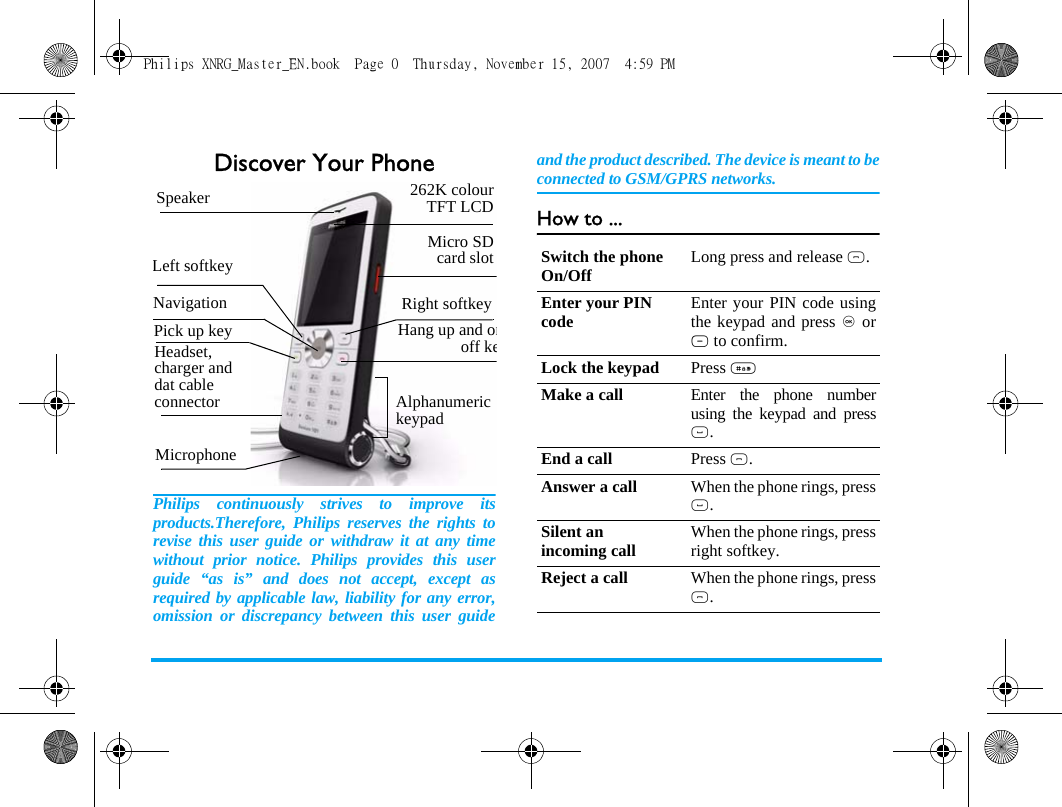
Discover Your PhonePhilips continuously strives to improve itsproducts.Therefore, Philips reserves the rights torevise this user guide or withdraw it at any timewithout prior notice. Philips provides this userguide “as is” and does not accept, except asrequired by applicable law, liability for any error,omission or discrepancy between this user guideand the product described. The device is meant to beconnected to GSM/GPRS networks.How to ...Alphanumeric keypadMicrophone 262K colourTFT LCDNavigationHang up and onoff keLeft softkeyRight softkeyPick up keyMicro SDcard slotHeadset, charger and dat cable connectorSpeakerSwitch the phone On/Off Long press and release ).Enter your PIN code Enter your PIN code usingthe keypad and press , orL to confirm.Lock the keypad Press #Make a call Enter the phone numberusing the keypad and press(.End a call Press ).Answer a call When the phone rings, press(.Silent an incoming call When the phone rings, pressright softkey.Reject a call When the phone rings, press).Philips XNRG_Master_EN.book  Page 0  Thursday, November 15, 2007  4:59 PM
1SoftkeysThe left and right soft keys are located at the top ofkeypad area. Pressing the soft keys allows you toselect the option displayed on the screen directlyabove them, including options during a call. Thefunctions of the soft keys change according to thecurrent context. Main MenuYou can access the different features of your Xenium9@9j from the main menu. The following tablesummarises the structure of the Main menu, what theicons represent and the page number on which you canobtain more information regarding the menufunctions.Activate call handsfree When the phone rings, press, and press left softkey toconfirm.Adjust conversation volumePress up and down volumeside keys to adjust the volumeduring a call.Adjust ringer volume When the phone is in idlemode, long press volumeside keys to adjust the ringvolume of an incoming call.Access all calls list Press ( in idle mode.Access Settings Press + in idle mode.Access Contacts Press - in idle mode.Access Camera Press < in idle mode.Access My Files  Press > in idle mode.Access Main Menu Press ,.Go to previous menu Press left softkey whenbrowsing menu or in editingmode.Quickly return to idle when browsing menusShort press ).Philips XNRG_Master_EN.book  Page 1  Thursday, November 15, 2007  4:59 PM
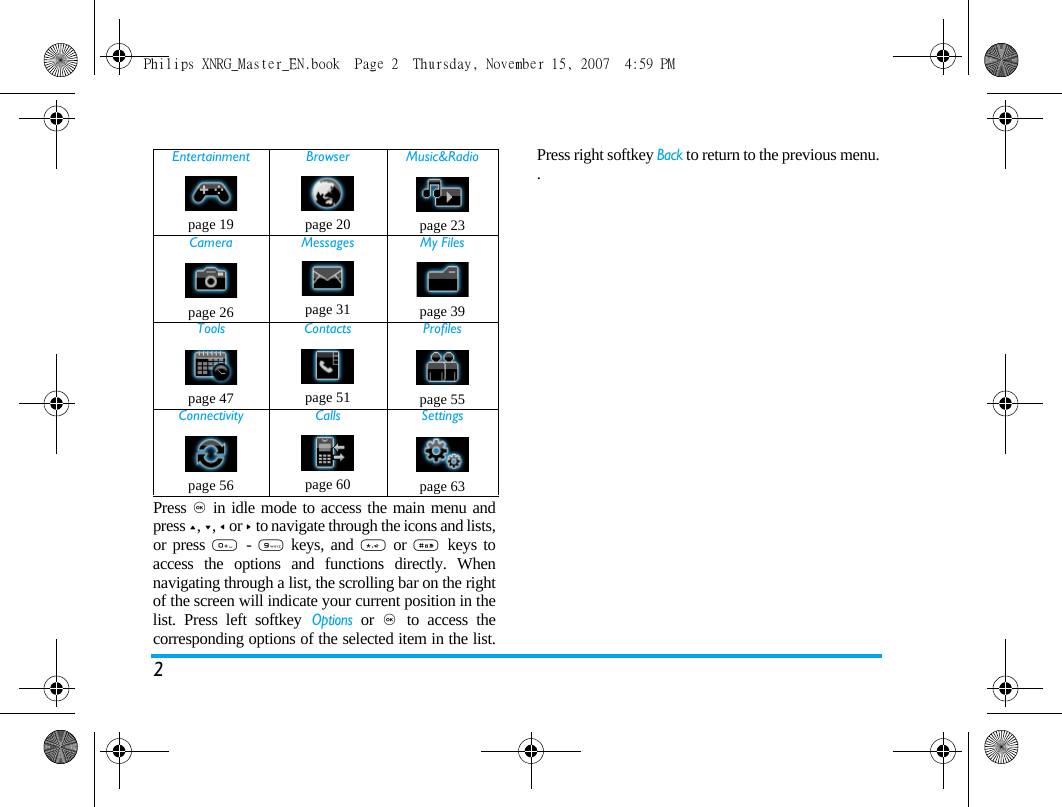
2Press , in idle mode to access the main menu andpress +, -, < or > to navigate through the icons and lists,or press 0  - 9 keys, and * or #  keys toaccess the options and functions directly. Whennavigating through a list, the scrolling bar on the rightof the screen will indicate your current position in thelist. Press left softkey Options or ,  to access thecorresponding options of the selected item in the list.Press right softkey Back to return to the previous menu..Entertainment Browser Music&Radiopage 19 page 20 page 23Camera Messages My Filespage 26 page 31 page 39Tools Contacts Profilespage 47 page 51 page 55Connectivity Calls Settingspage 56 page 60 page 63Philips XNRG_Master_EN.book  Page 2  Thursday, November 15, 2007  4:59 PM
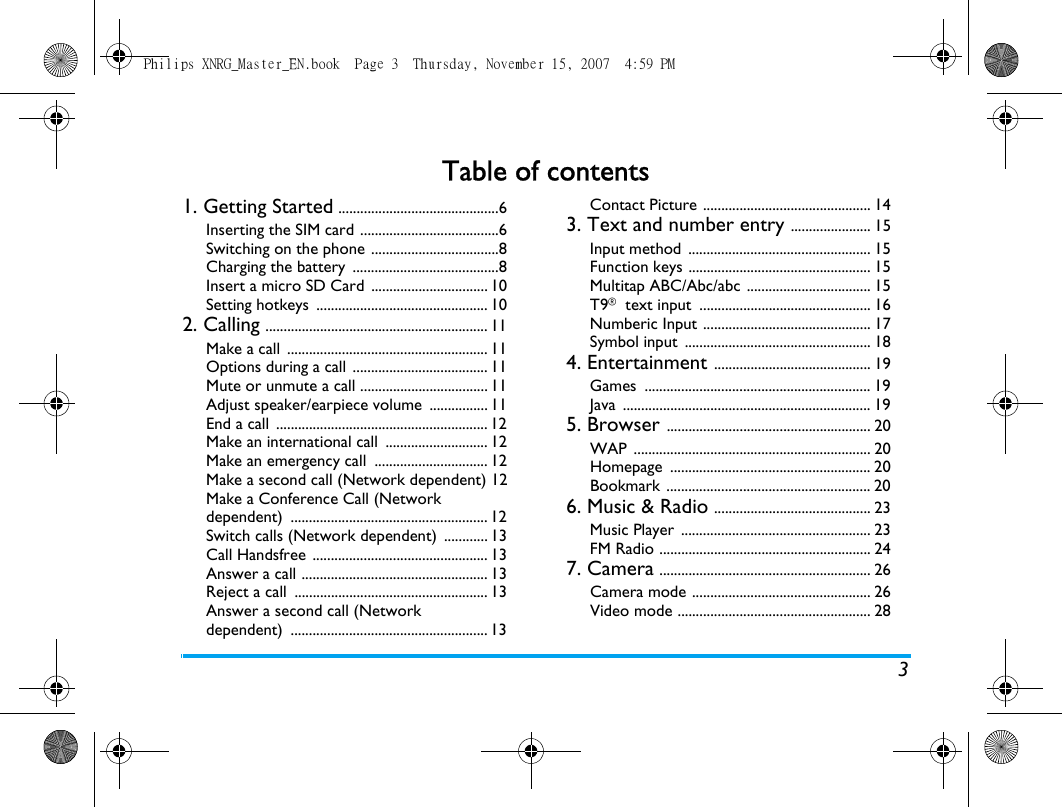
3Table of contents1. Getting Started ............................................6Inserting the SIM card ......................................6Switching on the phone ...................................8Charging the battery  ........................................8Insert a micro SD Card  ................................ 10Setting hotkeys  ............................................... 102. Calling ............................................................. 11Make a call  ....................................................... 11Options during a call  ..................................... 11Mute or unmute a call ................................... 11Adjust speaker/earpiece volume  ................ 11End a call  .......................................................... 12Make an international call  ............................ 12Make an emergency call  ............................... 12Make a second call (Network dependent) 12Make a Conference Call (Network dependent) ...................................................... 12Switch calls (Network dependent)  ............ 13Call Handsfree  ................................................ 13Answer a call ................................................... 13Reject a call  ..................................................... 13Answer a second call (Network dependent) ...................................................... 13Contact Picture .............................................. 143. Text and number entry ...................... 15Input method  .................................................. 15Function keys .................................................. 15Multitap ABC/Abc/abc .................................. 15T9® text input  ............................................... 16Numberic Input .............................................. 17Symbol input  ................................................... 184. Entertainment ........................................... 19Games .............................................................. 19Java .................................................................... 195. Browser ........................................................ 20WAP ................................................................. 20Homepage ....................................................... 20Bookmark ........................................................ 206. Music & Radio ........................................... 23Music Player  .................................................... 23FM Radio .......................................................... 247. Camera .......................................................... 26Camera mode ................................................. 26Video mode ..................................................... 28Philips XNRG_Master_EN.book  Page 3  Thursday, November 15, 2007  4:59 PM
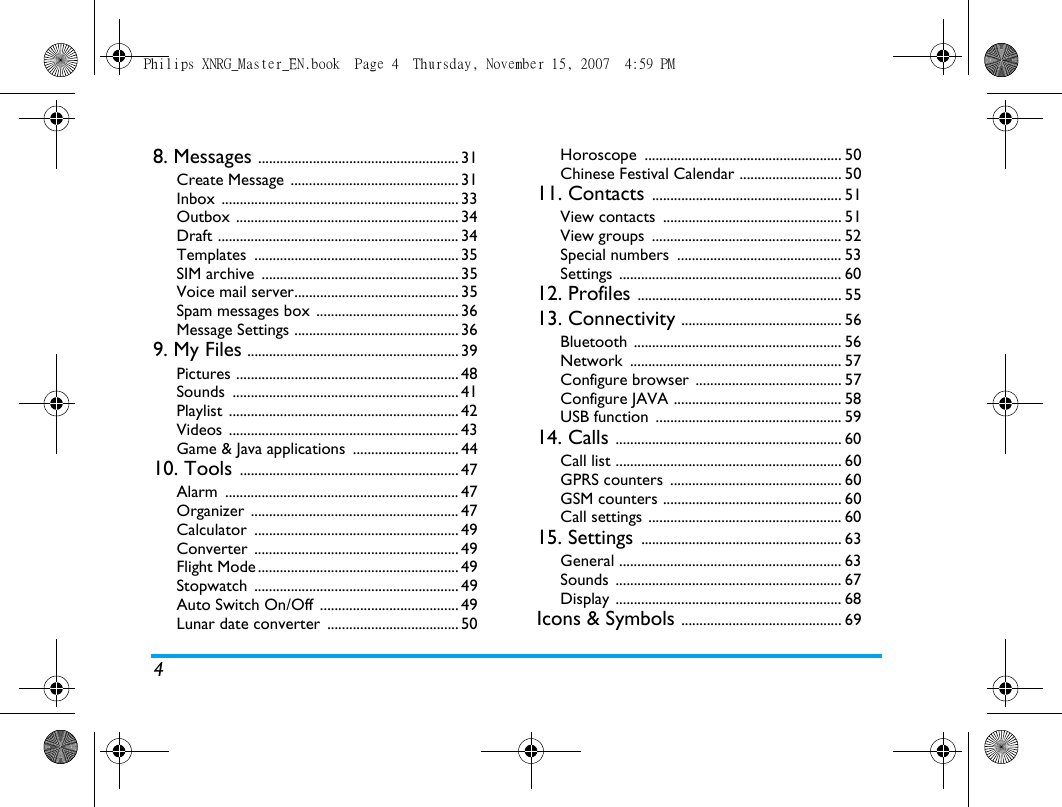
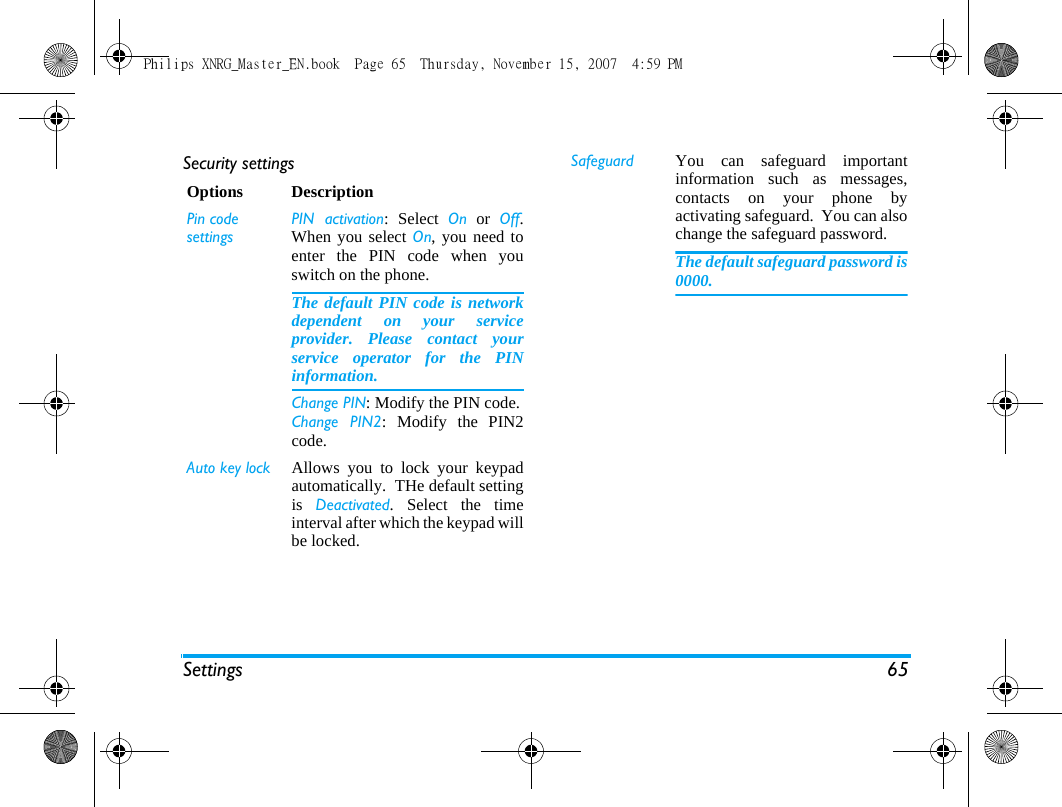
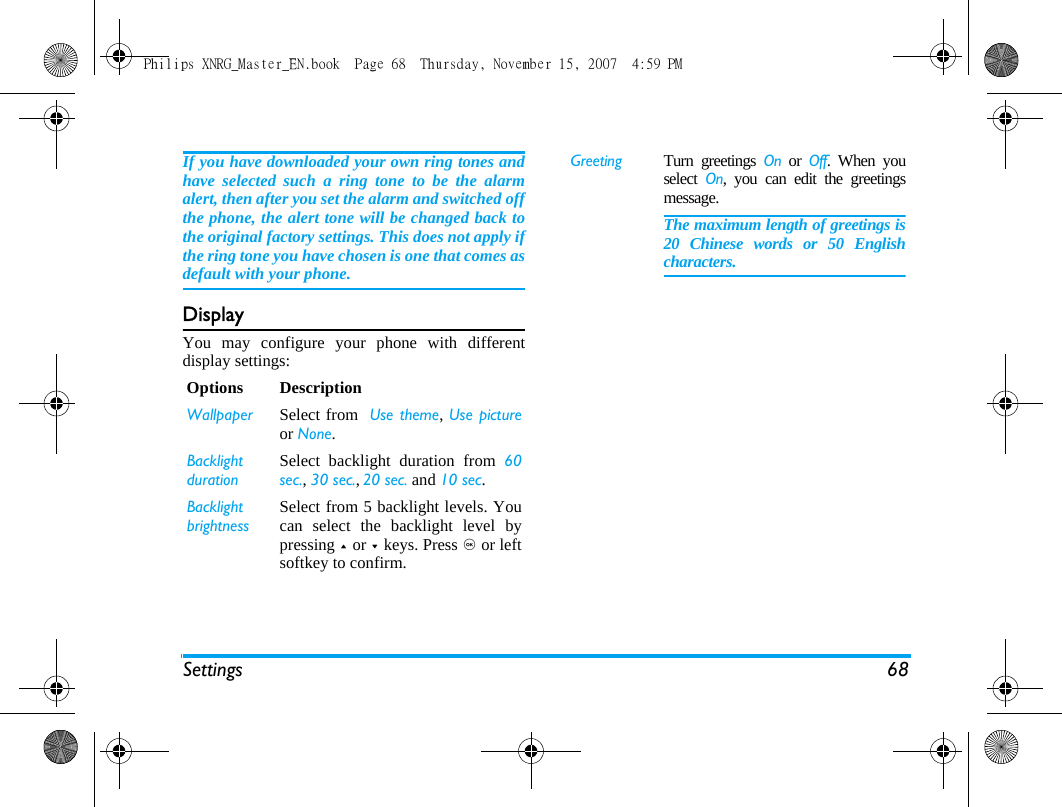
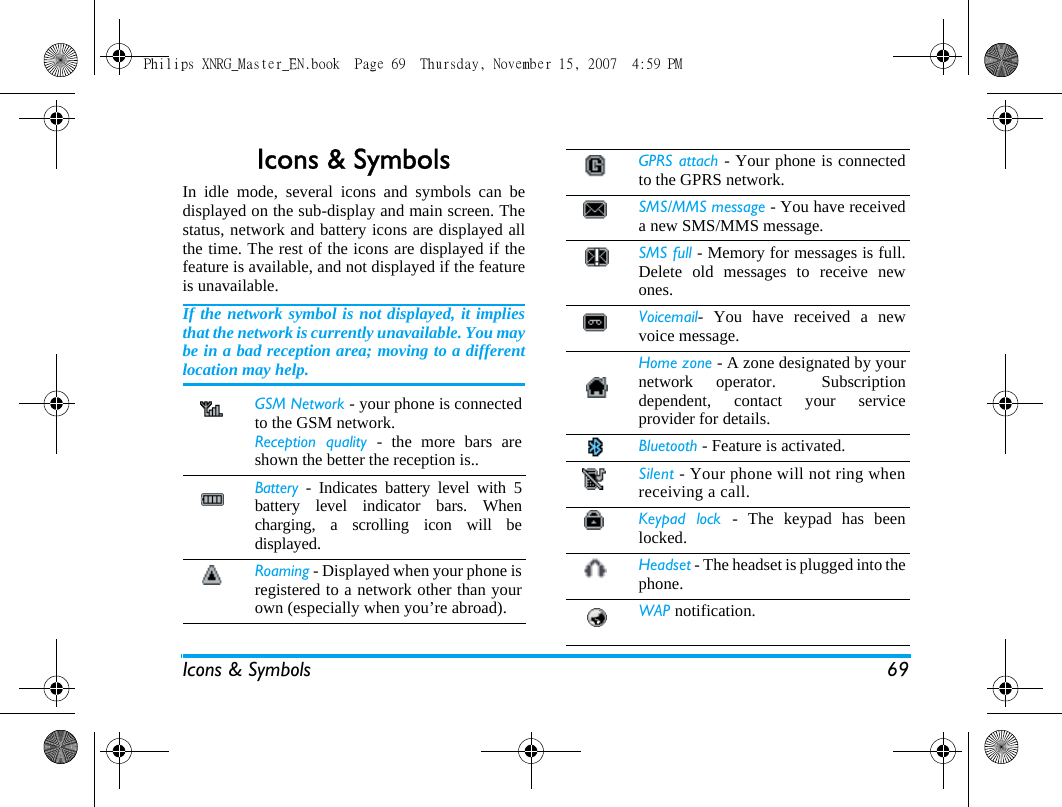
48. Messages ....................................................... 31Create Message  .............................................. 31Inbox ................................................................. 33Outbox ............................................................. 34Draft .................................................................. 34Templates ........................................................ 35SIM archive  ...................................................... 35Voice mail server............................................. 35Spam messages box  ....................................... 36Message Settings ............................................. 369. My Files .......................................................... 39Pictures ............................................................. 48Sounds .............................................................. 41Playlist ............................................................... 42Videos ............................................................... 43Game & Java applications  ............................. 4410. Tools ............................................................ 47Alarm ................................................................ 47Organizer ......................................................... 47Calculator ........................................................ 49Converter ........................................................ 49Flight Mode ....................................................... 49Stopwatch ........................................................ 49Auto Switch On/Off  ...................................... 49Lunar date converter  .................................... 50Horoscope ...................................................... 50Chinese Festival Calendar ............................ 5011. Contacts .................................................... 51View contacts  ................................................. 51View groups  .................................................... 52Special numbers  ............................................. 53Settings ............................................................. 6012. Profiles ........................................................ 5513. Connectivity ............................................ 56Bluetooth ......................................................... 56Network .......................................................... 57Configure browser ........................................ 57Configure JAVA .............................................. 58USB function  ................................................... 5914. Calls .............................................................. 60Call list .............................................................. 60GPRS counters  ............................................... 60GSM counters ................................................. 60Call settings ..................................................... 6015. Settings ....................................................... 63General ............................................................. 63Sounds .............................................................. 67Display .............................................................. 68Icons & Symbols ............................................ 69Philips XNRG_Master_EN.book  Page 4  Thursday, November 15, 2007  4:59 PM
5Precautions ....................................................... 70Troubleshooting ............................................ 75Philips Authentic Accessories .............. 77Trademark Declaration ............................ 78Limited warranty .......................................... 79Philips XNRG_Master_EN.book  Page 5  Thursday, November 15, 2007  4:59 PM
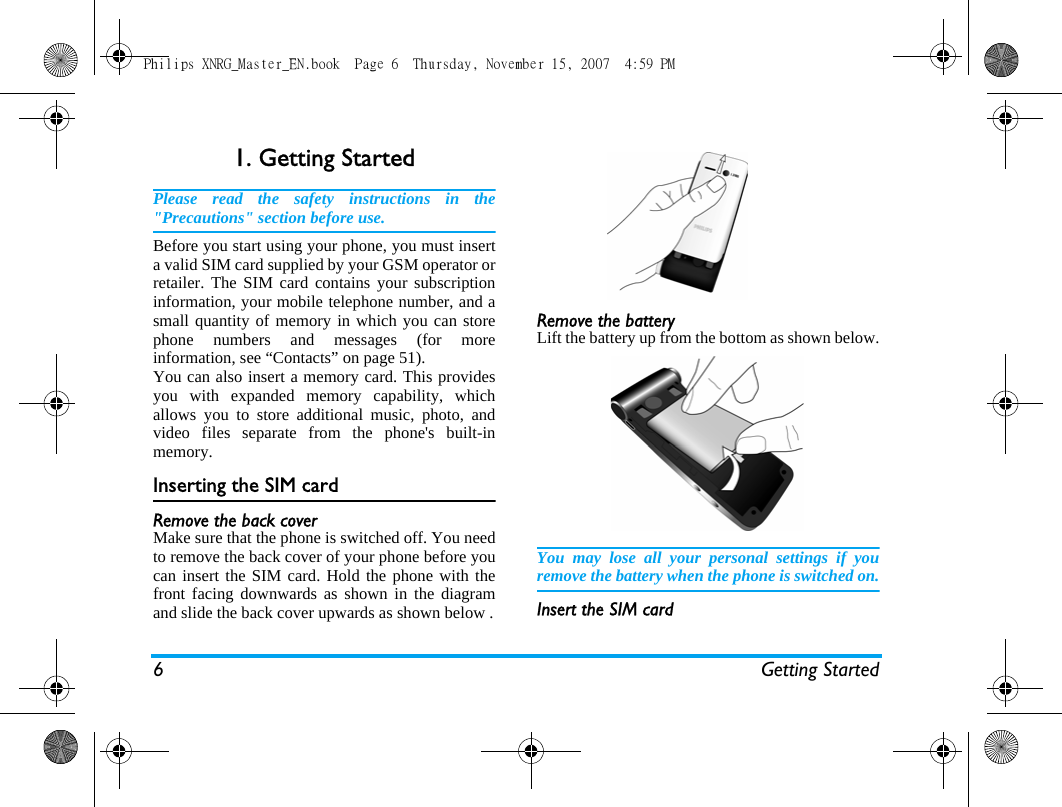
6 Getting Started1. Getting StartedPlease read the safety instructions in the"Precautions" section before use.Before you start using your phone, you must inserta valid SIM card supplied by your GSM operator orretailer. The SIM card contains your subscriptioninformation, your mobile telephone number, and asmall quantity of memory in which you can storephone numbers and messages (for moreinformation, see “Contacts” on page 51). You can also insert a memory card. This providesyou with expanded memory capability, whichallows you to store additional music, photo, andvideo files separate from the phone's built-inmemory.Inserting the SIM cardRemove the back coverMake sure that the phone is switched off. You needto remove the back cover of your phone before youcan insert the SIM card. Hold the phone with thefront facing downwards as shown in the diagramand slide the back cover upwards as shown below .Remove the batteryLift the battery up from the bottom as shown below.You may lose all your personal settings if youremove the battery when the phone is switched on.Insert the SIM cardPhilips XNRG_Master_EN.book  Page 6  Thursday, November 15, 2007  4:59 PM
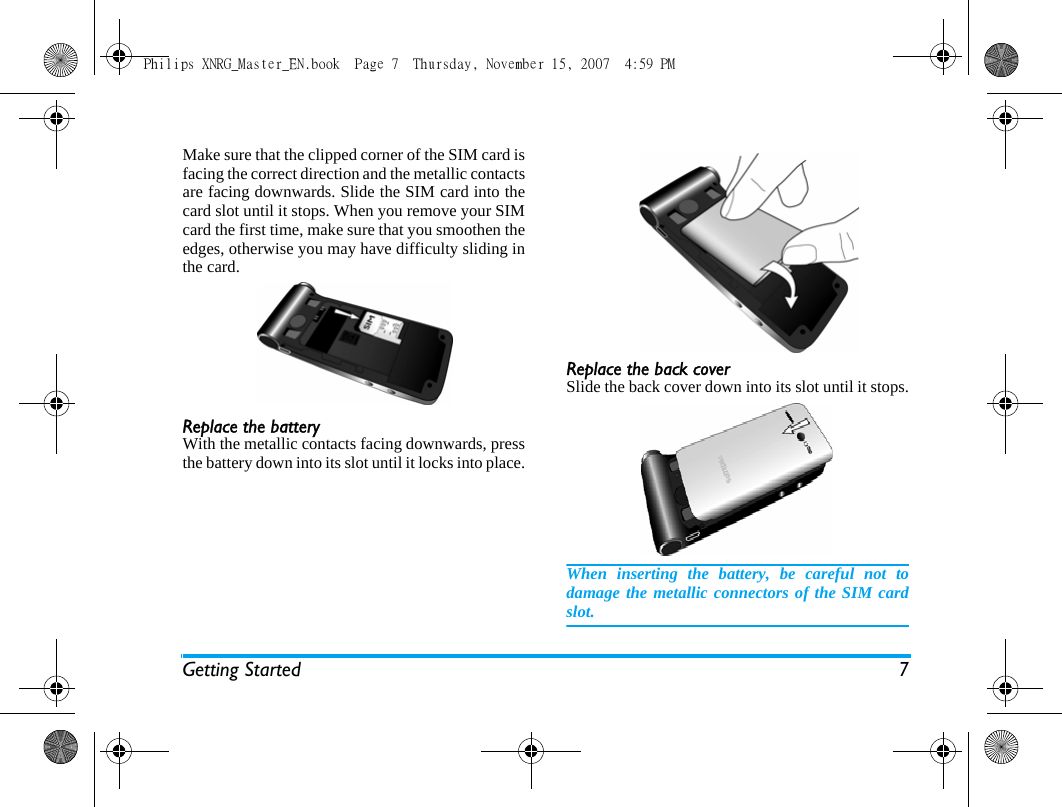
Getting Started 7Make sure that the clipped corner of the SIM card isfacing the correct direction and the metallic contactsare facing downwards. Slide the SIM card into thecard slot until it stops. When you remove your SIMcard the first time, make sure that you smoothen theedges, otherwise you may have difficulty sliding inthe card.Replace the batteryWith the metallic contacts facing downwards, pressthe battery down into its slot until it locks into place.Replace the back coverSlide the back cover down into its slot until it stops.When inserting the battery, be careful not todamage the metallic connectors of the SIM cardslot.Philips XNRG_Master_EN.book  Page 7  Thursday, November 15, 2007  4:59 PM
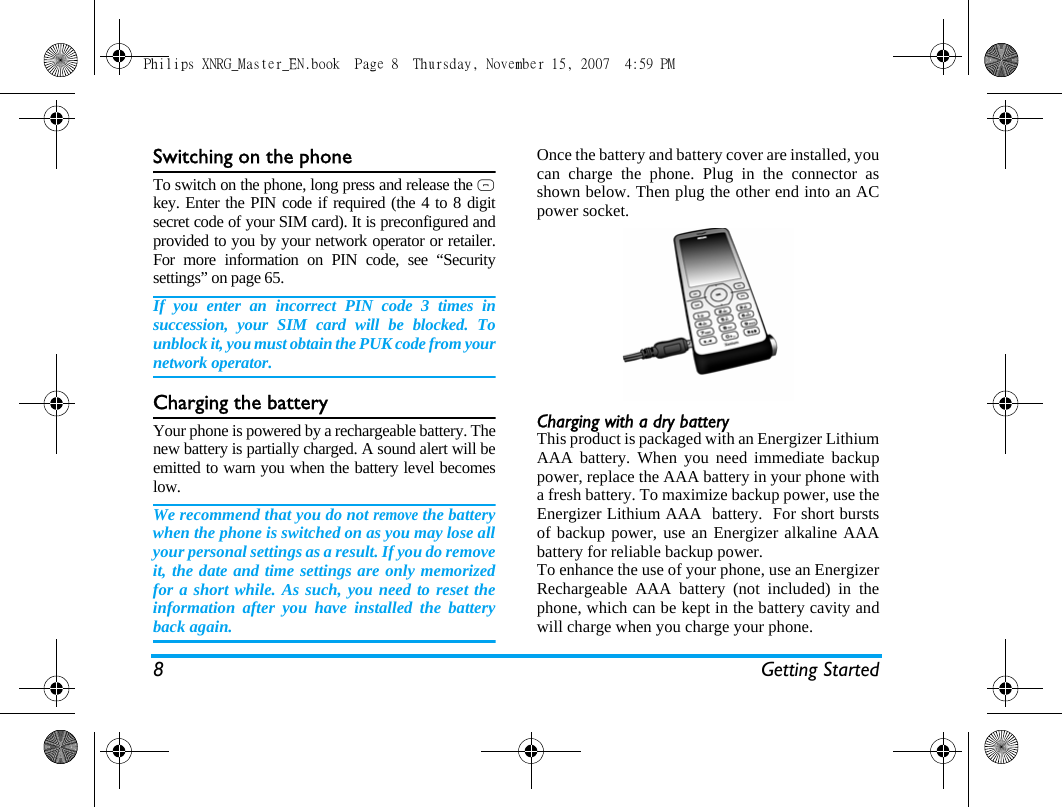
8 Getting StartedSwitching on the phoneTo switch on the phone, long press and release the )key. Enter the PIN code if required (the 4 to 8 digitsecret code of your SIM card). It is preconfigured andprovided to you by your network operator or retailer.For more information on PIN code, see “Securitysettings” on page 65.If you enter an incorrect PIN code 3 times insuccession, your SIM card will be blocked. Tounblock it, you must obtain the PUK code from yournetwork operator.Charging the batteryYour phone is powered by a rechargeable battery. Thenew battery is partially charged. A sound alert will beemitted to warn you when the battery level becomeslow. We recommend that you do not remove the batterywhen the phone is switched on as you may lose allyour personal settings as a result. If you do removeit, the date and time settings are only memorizedfor a short while. As such, you need to reset theinformation after you have installed the batteryback again.Once the battery and battery cover are installed, youcan charge the phone. Plug in the connector asshown below. Then plug the other end into an ACpower socket.Charging with a dry batteryThis product is packaged with an Energizer LithiumAAA battery. When you need immediate backuppower, replace the AAA battery in your phone witha fresh battery. To maximize backup power, use theEnergizer Lithium AAA  battery.  For short burstsof backup power, use an Energizer alkaline AAAbattery for reliable backup power.To enhance the use of your phone, use an EnergizerRechargeable AAA battery (not included) in thephone, which can be kept in the battery cavity andwill charge when you charge your phone.   Philips XNRG_Master_EN.book  Page 8  Thursday, November 15, 2007  4:59 PM
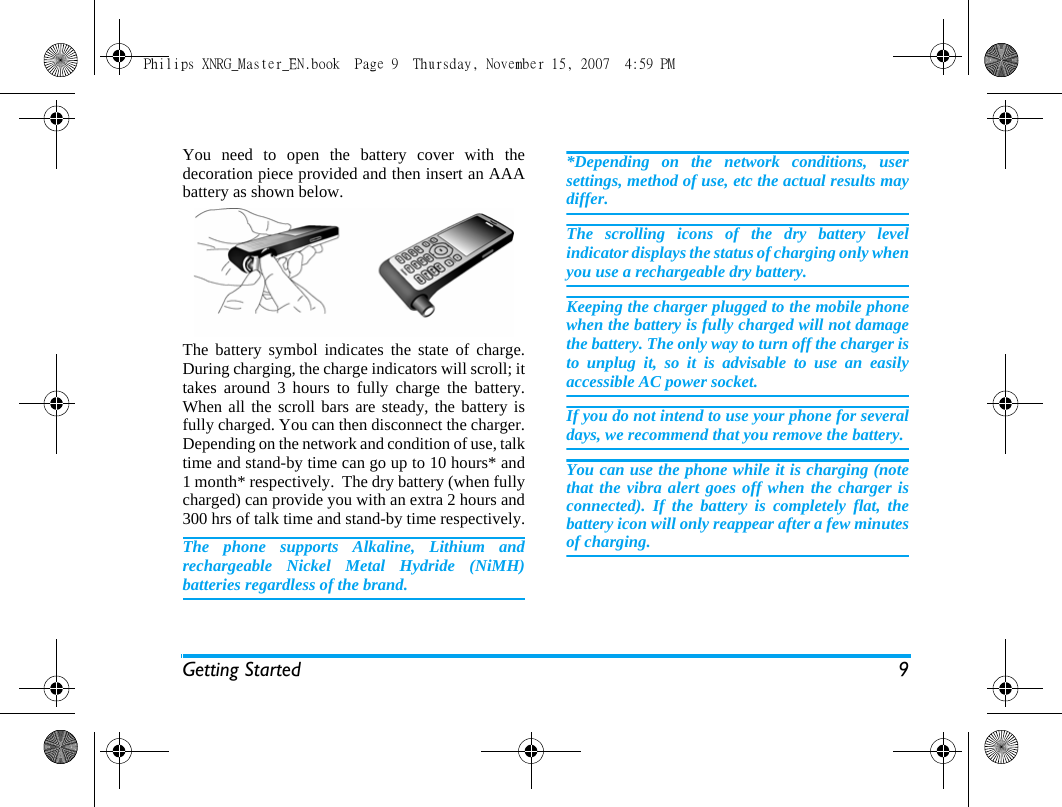
Getting Started 9You need to open the battery cover with thedecoration piece provided and then insert an AAAbattery as shown below.   The battery symbol indicates the state of charge.During charging, the charge indicators will scroll; ittakes around 3 hours to fully charge the battery.When all the scroll bars are steady, the battery isfully charged. You can then disconnect the charger.Depending on the network and condition of use, talktime and stand-by time can go up to 10 hours* and1 month* respectively.  The dry battery (when fullycharged) can provide you with an extra 2 hours and300 hrs of talk time and stand-by time respectively.The phone supports Alkaline, Lithium andrechargeable Nickel Metal Hydride (NiMH)batteries regardless of the brand. *Depending on the network conditions, usersettings, method of use, etc the actual results maydiffer. The scrolling icons of the dry battery levelindicator displays the status of charging only whenyou use a rechargeable dry battery.Keeping the charger plugged to the mobile phonewhen the battery is fully charged will not damagethe battery. The only way to turn off the charger isto unplug it, so it is advisable to use an easilyaccessible AC power socket. If you do not intend to use your phone for severaldays, we recommend that you remove the battery.You can use the phone while it is charging (notethat the vibra alert goes off when the charger isconnected). If the battery is completely flat, thebattery icon will only reappear after a few minutesof charging.Philips XNRG_Master_EN.book  Page 9  Thursday, November 15, 2007  4:59 PM
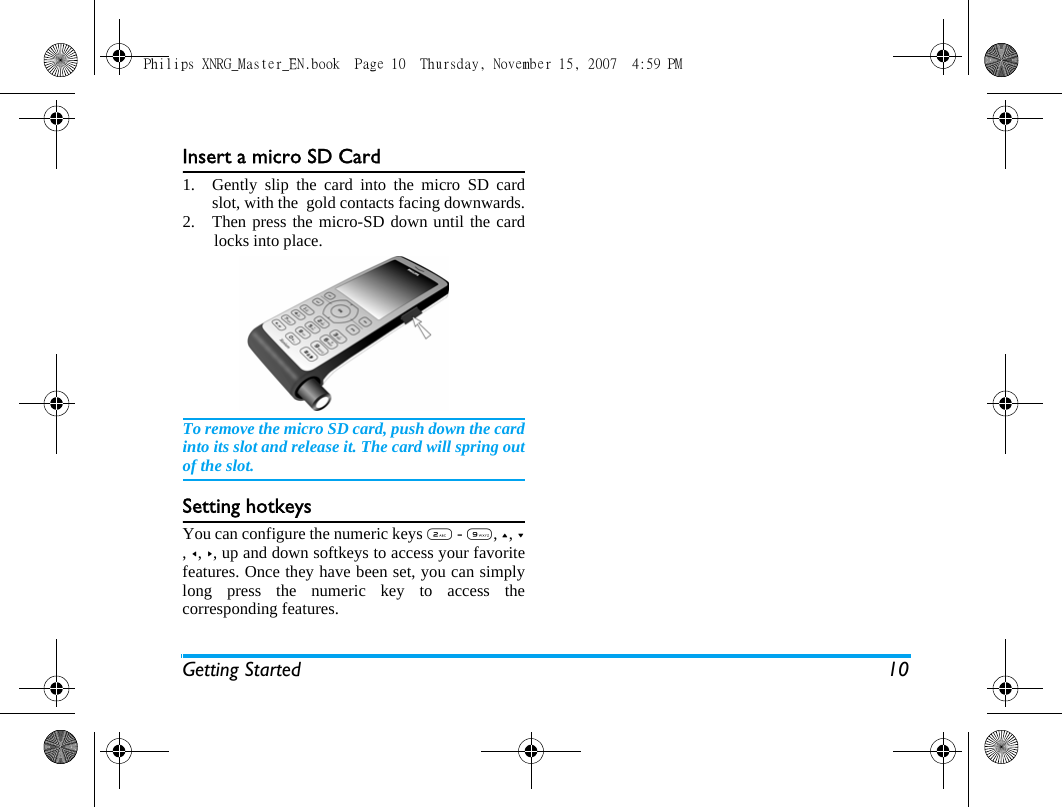
Getting Started 10Insert a micro SD Card1. Gently slip the card into the micro SD cardslot, with the  gold contacts facing downwards.2.  Then press the micro-SD down until the cardlocks into place.To remove the micro SD card, push down the cardinto its slot and release it. The card will spring outof the slot.Setting hotkeysYou can configure the numeric keys 2 - 9, +, -, <, >, up and down softkeys to access your favoritefeatures. Once they have been set, you can simplylong press the numeric key to access thecorresponding features.Philips XNRG_Master_EN.book  Page 10  Thursday, November 15, 2007  4:59 PM
Calling 112. CallingMake a callFrom idle screen1. In idle mode, enter the phone number with thekeypad. To correct an error, press left softkey.2. Press ( to dial the number.3. Press ) to hang up.To make an international call, long press 0toinsert the international prefix “+”.Using the phonebook1.Press - in idle mode.2. Select a contact from the list, press ( to dial.To select a different number, press + or - (see“Contacts” for more information).3. Press ) to hang up.IP call (China only)You may select IP call. When you select IP calloption, the mobile phone will automatically add theIP special service number preset by you in front ofthe phone number and then make IP call. When you have entered several IP special servicenumbers, you will be prompted to verify them toavoid adding them repeatedly.Options during a callDuring a call, you can press L Options to carry outthe following operations:- Activate/Deactivate Handsfree-Use the BT headset- Mute/Unmute the call- Put the call on Hold- Access the Scratchpad- End the call- Access Main menuMute or unmute a callDuring a call, press left or right softkey to Mute orUnmute. If you select Mute, the microphone will bedeactivated.When you switch from one call to another, mutingwill be cancelled. Adjust speaker/earpiece volumeDuring a call, call on hold or call waiting, you canpress +/- side keys to increase or decrease thePhilips XNRG_Master_EN.book  Page 11  Thursday, November 15, 2007  4:59 PM
12 Callingvolume (if you are not browsing the call optionsmenu).When the volume has been set, the call volume willtake effect immediately and the settings will beapplied to your subsequent calls. End a callPress left softkey and select End  call or ) to end acall.Make an international call1. Long press 0 until "+" appears on the screen.2. Enter the country code.3. Enter the area code (normally without the 0 infront), followed by the phone number. 4. Press ( to call directly.Make an emergency callYou can make an emergency call anytime,irrespective of whether the mobile phone has beenregistered on the network. 1. In idle mode, enter the emergency call number(specific number in the caller's country)2.  Press (.Note that an emergency call will not be stored inthe call record. Make a second call (Network dependent)You can make a second call by putting the currentcall on hold: 1. During a call with Party A, you can enterParty's B number using the keypad. 2. Press ( to dial Party B's number. Party A willbe put on hold automatically. Make a Conference Call (Network dependent)Your phone supports multi-party call of up to fivemembers. The screen will display Conference callduring the multi-party call.When there is a call waiting while you are alreadyon the phone, you can carry out the followingoperations to establish the multi-party call:1. Press ( to answer the second call. The first callwill be put on hold automatically. Philips XNRG_Master_EN.book  Page 12  Thursday, November 15, 2007  4:59 PM
Calling 132. Select Conference Call from the call menu. Thetwo calls will be combined and a conferencecall is established. During the multi-party call, you can answer a newincoming call or add a new member to the call bydialing the new member (the ongoing multi-partycall will be put on hold automatically). Once the callis established, select Establish conference call fromthe call menu to add the new member to the multi-party call (you can add up to five members).If youwish to separate one member from the call, you canselect  Split conference Call during the multi-partycall. To disconnect a member from the call, selectEnd call in conference.Switch calls (Network dependent)When you have one active call and one call on hold,you can press left softkey Options, then select Swapcalls to switch between the 2 calls. Call HandsfreeDuring a call, press left softkey Options and selectHandsfree.When the headset is plugged into the phone, youcannot activate handsfree mode.Answer a callPress ( to answer a call.Reject a callPress ) to reject a call.Answer a second call (Network dependent) If you have activated Call waiting, you will be alertedwhen there is a second incoming call. You can: 1. Press ( to answer the second call. The currentcall will be put on hold automatically.2. Press ) to reject the second call and continuewith your current call.3. When there is one active call and one call onhold, you can press L Options to carry out thefollowing operations:If you press the numeric keys, the notepad editorwill opened under call waiting mode. • Handsfree • BT headset • Mute• Scratchpad • End call • Swap calls• End all callsPhilips XNRG_Master_EN.book  Page 13  Thursday, November 15, 2007  4:59 PM
14 CallingContact PictureThis feature allows you to link a contact in yourphonebook to a photo you have taken using theCamera function, or a picture you have downloadedvia WAP or data cable. During a call, if the otherparty's name card is linked to a picture, theincoming call background will display thecorresponding picture. This feature is referred to asContact picture.Contact picture is only available on the phonememory. The photo size should not be larger than128 x 160 pixels.Philips XNRG_Master_EN.book  Page 14  Thursday, November 15, 2007  4:59 PM
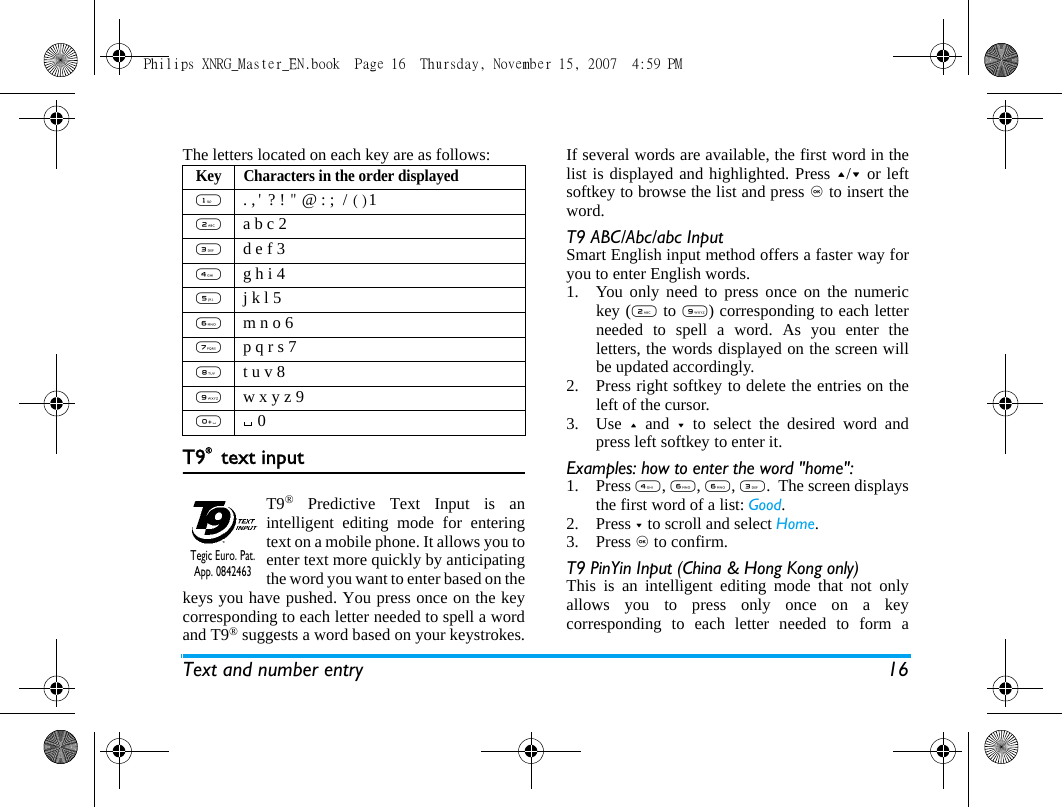
15 Text and number entry3. Text and number entryInput MethodYour phone supports 6 types of input methods:Multitap ABC/Abc/abcT9 ABC/Abc/abcT9 PinYinSimplified Chinese strokeNumericSymbolsYou can select in the option list the appropriate inputmethod to enter English letters, words, symbols andnumbers. Icons appearing on the screen indicate theactive input mode. Function keysMultitap ABC/Abc/abc Input1. Press once on the numeric key (2 to 9) toenter the first letter on the key, press twice toenter the second letter on the key, so on and soforth. If the letter you wish to enter and the oneyou have just entered are on the same key, justwait for a few seconds for the cursor to re-appear.2. Press right soft key to delete the characters onthe left of the cursor.Example: how to enter the word "home":Press 4, 4 (GHI) 6, 6, 6 (MNO), 6(MNO), 3, 3 (DEF). Press , when the messageis completed.You can press key 0 to insert a space in ABC/abcMultitap input mode.Rightsoftkey Delete the characters on the left of thecursor or exit from editing mode.+/-/</>Move the cursor, select a letter, word orsymbol from the list, or scroll down a list.)Return to idle mode.Leftsoftkey Select the highlighted word from the listor enter Options menu.*Enter symbols.#long press to switch between Multitap andT9 inputs.Philips XNRG_Master_EN.book  Page 15  Thursday, November 15, 2007  4:59 PM
Text and number entry 16The letters located on each key are as follows:T9® text inputT9® Predictive Text Input is anintelligent editing mode for enteringtext on a mobile phone. It allows you toenter text more quickly by anticipatingthe word you want to enter based on thekeys you have pushed. You press once on the keycorresponding to each letter needed to spell a wordand T9® suggests a word based on your keystrokes.If several words are available, the first word in thelist is displayed and highlighted. Press +/- or leftsoftkey to browse the list and press , to insert theword.T9 ABC/Abc/abc InputSmart English input method offers a faster way foryou to enter English words.1. You only need to press once on the numerickey (2 to 9) corresponding to each letterneeded to spell a word. As you enter theletters, the words displayed on the screen willbe updated accordingly.2. Press right softkey to delete the entries on theleft of the cursor.3. Use  + and - to select the desired word andpress left softkey to enter it.Examples: how to enter the word "home":1. Press 4, 6, 6, 3.  The screen displaysthe first word of a list: Good.2. Press - to scroll and select Home.3. Press , to confirm.T9 PinYin Input (China & Hong Kong only)This is an intelligent editing mode that not onlyallows you to press only once on a keycorresponding to each letter needed to form aKey Characters in the order displayed1 . ,' ? ! " @ : ;  / ()1 2 a b c 23 d e f 34 g h i 45 j k l 56 m n o 67 p q r s 78 t u v 89 w x y z 900Tegic Euro. Pat. App. 0842463Philips XNRG_Master_EN.book  Page 16  Thursday, November 15, 2007  4:59 PM
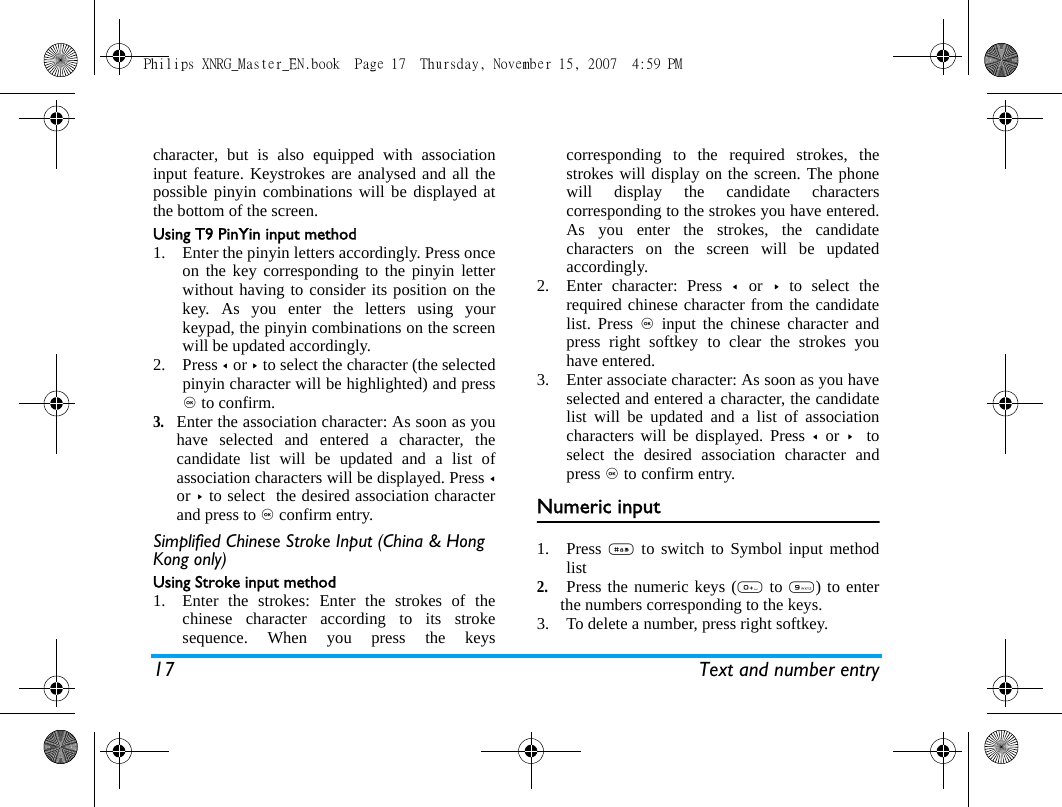
17 Text and number entrycharacter, but is also equipped with associationinput feature. Keystrokes are analysed and all thepossible pinyin combinations will be displayed atthe bottom of the screen.Using T9 PinYin input method1. Enter the pinyin letters accordingly. Press onceon the key corresponding to the pinyin letterwithout having to consider its position on thekey. As you enter the letters using yourkeypad, the pinyin combinations on the screenwill be updated accordingly.2. Press < or > to select the character (the selectedpinyin character will be highlighted) and press, to confirm. 3.Enter the association character: As soon as youhave selected and entered a character, thecandidate list will be updated and a list ofassociation characters will be displayed. Press <or > to select  the desired association characterand press to , confirm entry.Simplified Chinese Stroke Input (China & Hong Kong only)Using Stroke input method1. Enter the strokes: Enter the strokes of thechinese character according to its strokesequence. When you press the keyscorresponding to the required strokes, thestrokes will display on the screen. The phonewill display the candidate characterscorresponding to the strokes you have entered.As you enter the strokes, the candidatecharacters on the screen will be updatedaccordingly.2. Enter character: Press <  or > to select therequired chinese character from the candidatelist. Press , input the chinese character andpress right softkey to clear the strokes youhave entered.3. Enter associate character: As soon as you haveselected and entered a character, the candidatelist will be updated and a list of associationcharacters will be displayed. Press <  or >  toselect the desired association character andpress , to confirm entry. Numeric input1. Press # to switch to Symbol input methodlist 2. Press the numeric keys (0 to 9) to enterthe numbers corresponding to the keys.3. To delete a number, press right softkey.Philips XNRG_Master_EN.book  Page 17  Thursday, November 15, 2007  4:59 PM
Text and number entry 18Symbol InputPress * to enter punctuation or symbols. Use thenavigation keys to select the desired punctuation orsymbol and press left softkey or  to , to enter it. Philips XNRG_Master_EN.book  Page 18  Thursday, November 15, 2007  4:59 PM
Entertainment 194. EntertainmentThis section describes the games and additionaltools installed on your mobile phone.Some of the features described here are dependenton the configuration of your mobile phone, thecountry in which you purchased your mobilephone, and/or your service provider.GamesDefault gamesThis menu features games that are pre-installed inyour mobile phone. Press , to enter the main menufrom idle mode and select Entertainment > Games.Java Your mobile phone features a Java run-timeenvironment, which allows you to run Javaapplications, such as games downloaded from thenetwork. •Press Java > Launch to launch a new applicationafter you download it into the phone. Philips XNRG_Master_EN.book  Page 19  Thursday, November 15, 2007  4:59 PM
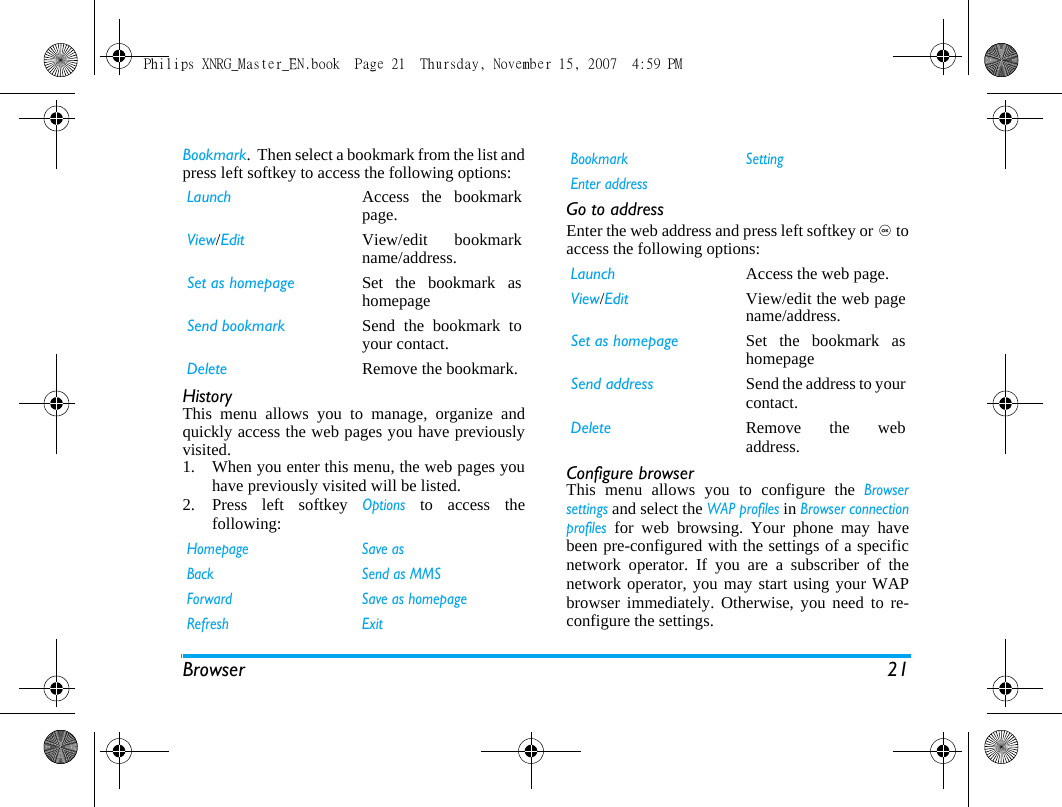
20 Browser5. BrowserYour phone comes with a WAP browser. You canobtain news, sports and weather information, aswell as services from the internet via the WAPbrowser. This feature is available only if your subscriptionincludes WAP access services. The settings havebeen pre-configured (depends on countryvariants) and you do not need to modify them. Formore information, please contact your networkoperator. WAP Normally, the phone would have been pre-configured. If you wish to add or modify theconfiguration parameters, you need to obtain thenecessary information from your networkoperator before you proceed. Philips is not liable togive prior notification nor shall it bear anyconsequences for any failures arising fromchanges of configuration made by you or by thenetwork operator. Please check with your networkoperator for the most updated information.HomepageSelect this menu to access the homepage directly.You can also set the homepage address in thesettings menu. BookmarkYou can save the current web page or the web pagesthat you frequently visit to the Bookmark list, manageand organize them. When you enter the menu, a list of bookmark entriesis displayed. To connect to the web address of aparticular bookmark entry, select an entry using + or- and press ,.To add a new bookmark, press , to enter the mainmenu from idle mode and select Browser  >Bookmark. Select <New bookmark> and press leftsoftkey or ,. Then Enter the Bookmark name andURL of the new bookmark and press left softkey or,.To manage a bookmark, press , from idle mode toenter the main menu  and  select Browser  >Philips XNRG_Master_EN.book  Page 20  Thursday, November 15, 2007  4:59 PM
Browser 21Bookmark.  Then select a bookmark from the list andpress left softkey to access the following options:HistoryThis menu allows you to manage, organize andquickly access the web pages you have previouslyvisited. 1. When you enter this menu, the web pages youhave previously visited will be listed.2. Press left softkey Options to access thefollowing:Go to addressEnter the web address and press left softkey or , toaccess the following options:Configure browserThis menu allows you to configure the Browsersettings and select the WAP profiles in Browser connectionprofiles for web browsing. Your phone may havebeen pre-configured with the settings of a specificnetwork operator. If you are a subscriber of thenetwork operator, you may start using your WAPbrowser immediately. Otherwise, you need to re-configure the settings. Launch Access the bookmarkpage.View/Edit View/edit bookmarkname/address.Set as homepage Set the bookmark ashomepageSend bookmark Send the bookmark toyour contact.Delete Remove the bookmark.Homepage Save asBack Send as MMSForward Save as homepageRefresh ExitBookmark SettingEnter addressLaunch Access the web page.View/Edit View/edit the web pagename/address.Set as homepage Set the bookmark ashomepageSend address Send the address to yourcontact.Delete Remove the webaddress.Philips XNRG_Master_EN.book  Page 21  Thursday, November 15, 2007  4:59 PM
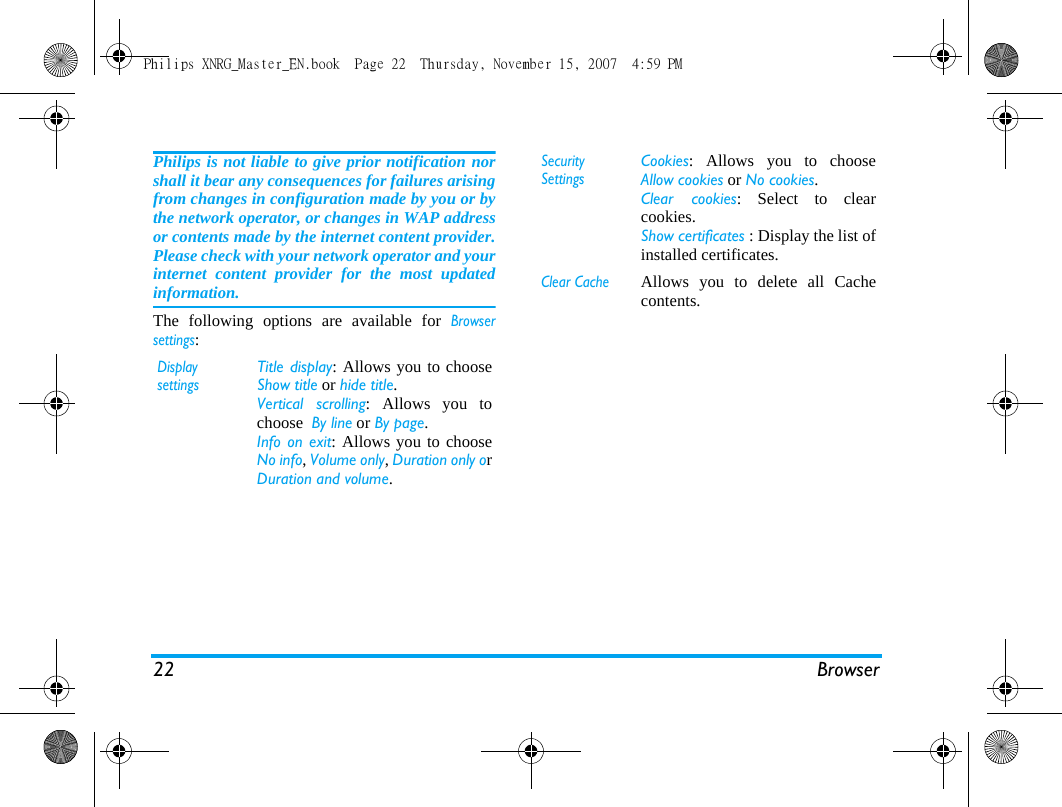
22 BrowserPhilips is not liable to give prior notification norshall it bear any consequences for failures arisingfrom changes in configuration made by you or bythe network operator, or changes in WAP addressor contents made by the internet content provider.Please check with your network operator and yourinternet content provider for the most updatedinformation.The following options are available for Browsersettings:Display settingsTitle display: Allows you to chooseShow title or hide title.Vertical scrolling: Allows you tochoose  By line or By page. Info on exit: Allows you to chooseNo info, Volume only, Duration only orDuration and volume. Security SettingsCookies: Allows you to chooseAllow cookies or No cookies.Clear cookies: Select to clearcookies.Show certificates : Display the list ofinstalled certificates. Clear CacheAllows you to delete all Cachecontents. Philips XNRG_Master_EN.book  Page 22  Thursday, November 15, 2007  4:59 PM
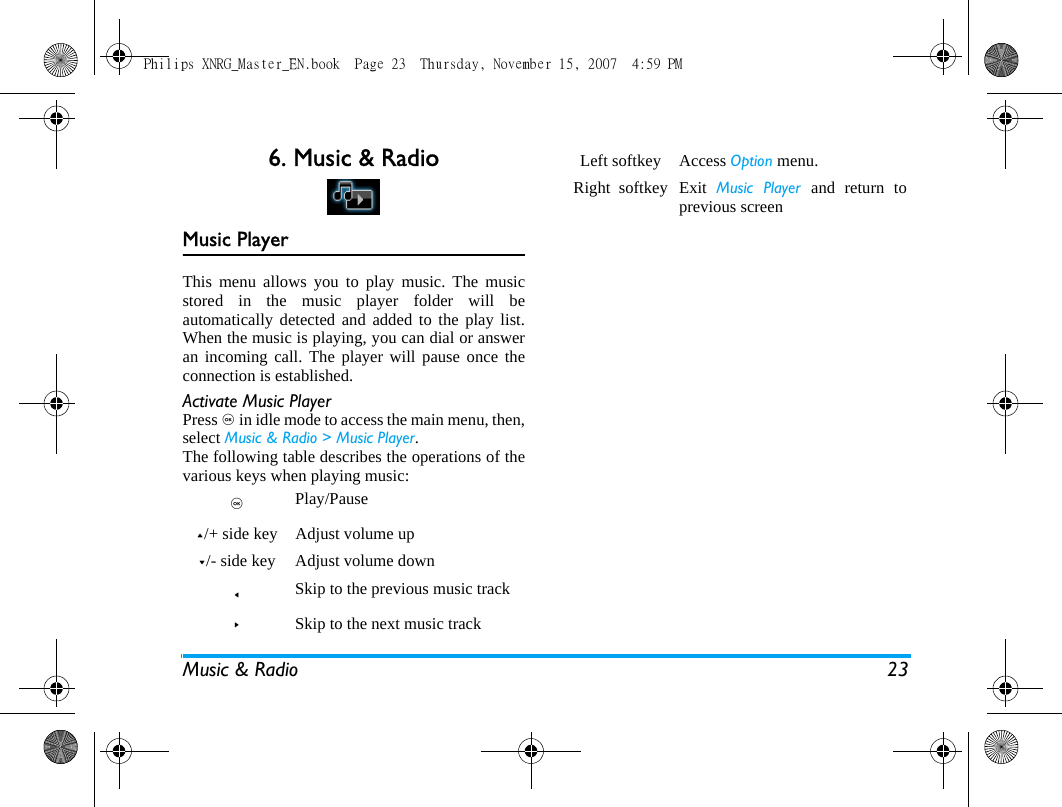
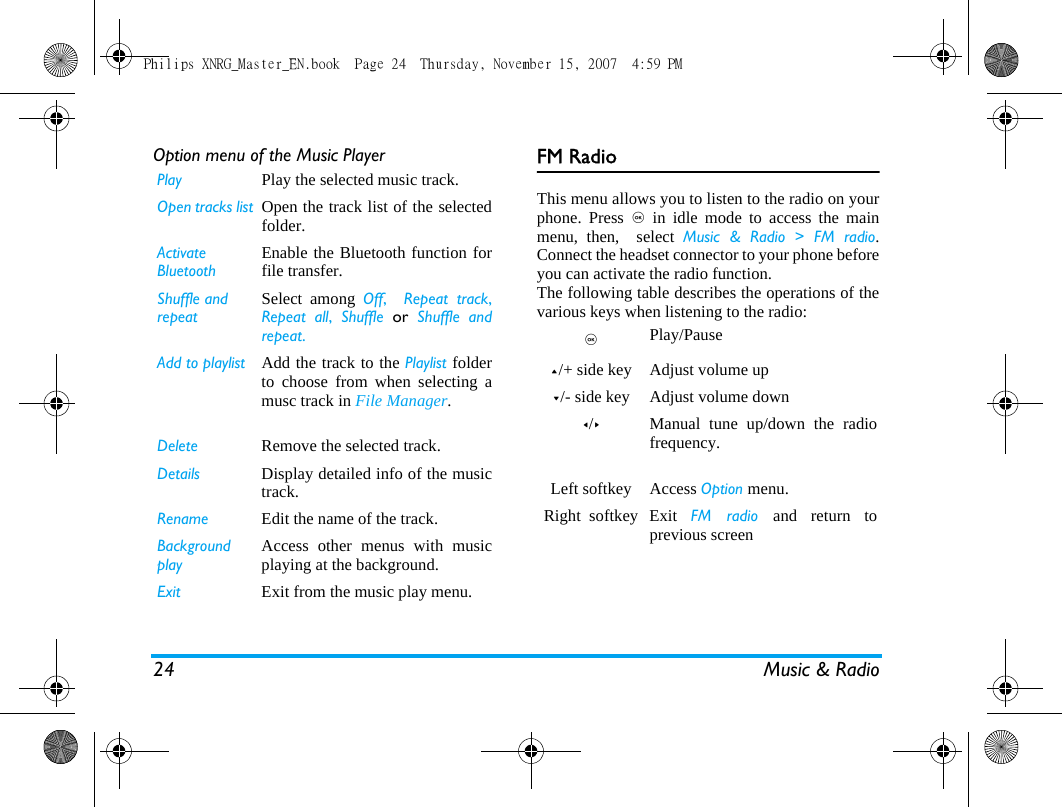
Music & Radio 236. Music & RadioMusic PlayerThis menu allows you to play music. The musicstored in the music player folder will beautomatically detected and added to the play list.When the music is playing, you can dial or answeran incoming call. The player will pause once theconnection is established.Activate Music PlayerPress , in idle mode to access the main menu, then,select Music & Radio > Music Player.The following table describes the operations of thevarious keys when playing music:,   Play/Pause+/+ side key Adjust volume up-/- side key Adjust volume down< Skip to the previous music track>Skip to the next music trackLeft softkey Access Option menu.Right  softkey Exit  Music Player and return toprevious screenPhilips XNRG_Master_EN.book  Page 23  Thursday, November 15, 2007  4:59 PM
24 Music & RadioOption menu of the Music Player FM RadioThis menu allows you to listen to the radio on yourphone. Press , in idle mode to access the mainmenu, then,  select Music & Radio > FM radio.Connect the headset connector to your phone beforeyou can activate the radio function.  The following table describes the operations of thevarious keys when listening to the radio:Play Play the selected music track.  Open tracks list Open the track list of the selectedfolder.Activate BluetoothEnable the Bluetooth function forfile transfer.Shuffle and repeatSelect among Off,  Repeat track,Repeat all,  Shuffle or Shuffle andrepeat.     Add to playlist Add the track to the Playlist folderto choose from when selecting amusc track in File Manager.Delete Remove the selected track.Details Display detailed info of the musictrack.Rename Edit the name of the track.Background playAccess other menus with musicplaying at the background.Exit Exit from the music play menu. ,   Play/Pause+/+ side key Adjust volume up-/- side key Adjust volume down</>Manual tune up/down the radiofrequency. Left softkey Access Option menu.Right  softkey Exit  FM radio and return toprevious screenPhilips XNRG_Master_EN.book  Page 24  Thursday, November 15, 2007  4:59 PM
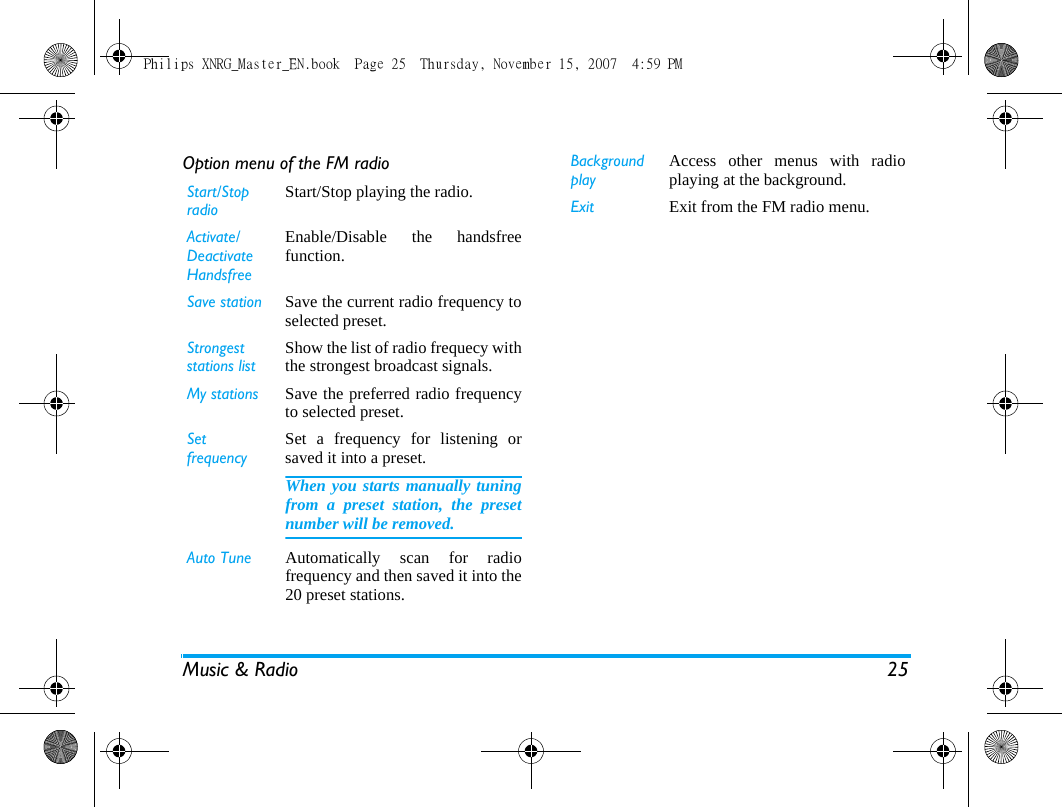
Music & Radio 25Option menu of the FM radioStart/Stop radioStart/Stop playing the radio. Activate/Deactivate HandsfreeEnable/Disable the handsfreefunction.Save station Save the current radio frequency toselected preset.Strongest  stations listShow the list of radio frequecy withthe strongest broadcast signals.My stations Save the preferred radio frequencyto selected preset.Set frequencySet a frequency for listening orsaved it into a preset.When you starts manually tuningfrom a preset station, the presetnumber will be removed.Auto Tune Automatically scan for radiofrequency and then saved it into the20 preset stations.Backgroundplay Access other menus with radioplaying at the background.Exit Exit from the FM radio menu.Philips XNRG_Master_EN.book  Page 25  Thursday, November 15, 2007  4:59 PM
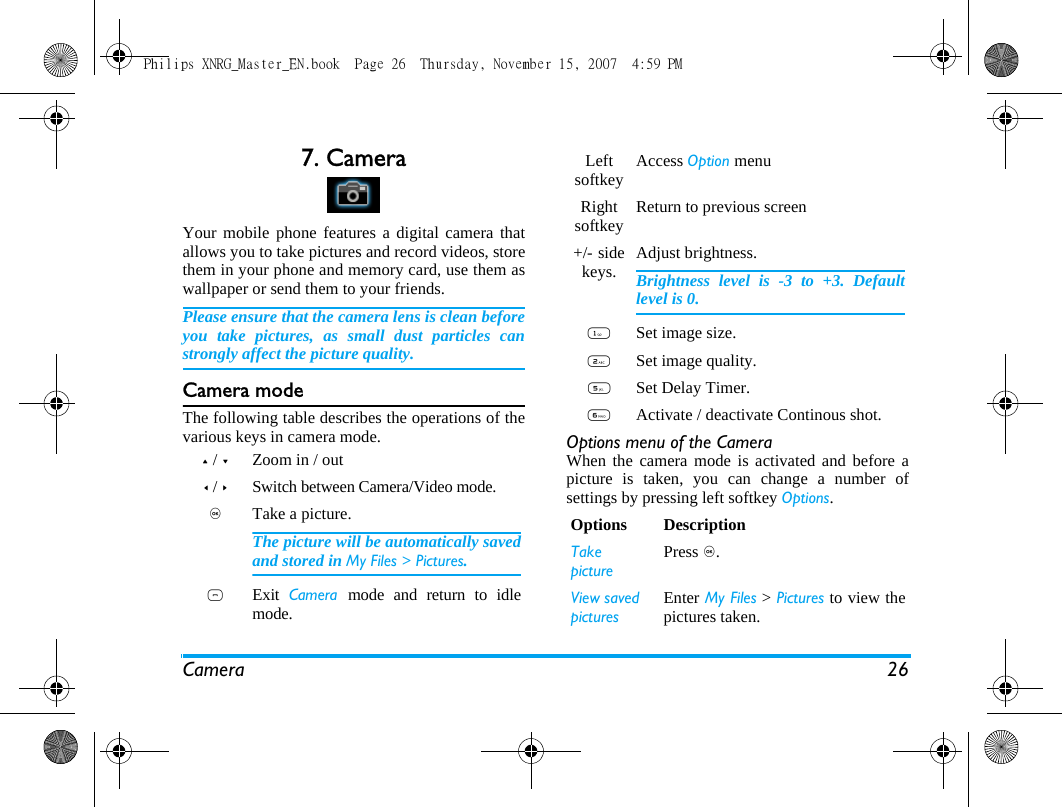
Camera 267. CameraYour mobile phone features a digital camera thatallows you to take pictures and record videos, storethem in your phone and memory card, use them aswallpaper or send them to your friends.Please ensure that the camera lens is clean beforeyou take pictures, as small dust particles canstrongly affect the picture quality.Camera modeThe following table describes the operations of thevarious keys in camera mode. Options menu of the CameraWhen the camera mode is activated and before apicture is taken, you can change a number ofsettings by pressing left softkey Options.+ / -Zoom in / out< / >Switch between Camera/Video mode.,Take a picture.The picture will be automatically savedand stored in My Files > Pictures. )Exit  Camera  mode and return to idlemode.Left softkey Access Option menuRight softkey Return to previous screen +/-  side keys. Adjust brightness.Brightness level is -3 to +3. Defaultlevel is 0. 1Set image size.2Set image quality.5Set Delay Timer. 6Activate / deactivate Continous shot. Options DescriptionTakepicturePress ,.View savedpicturesEnter My Files > Pictures to view thepictures taken.Philips XNRG_Master_EN.book  Page 26  Thursday, November 15, 2007  4:59 PM
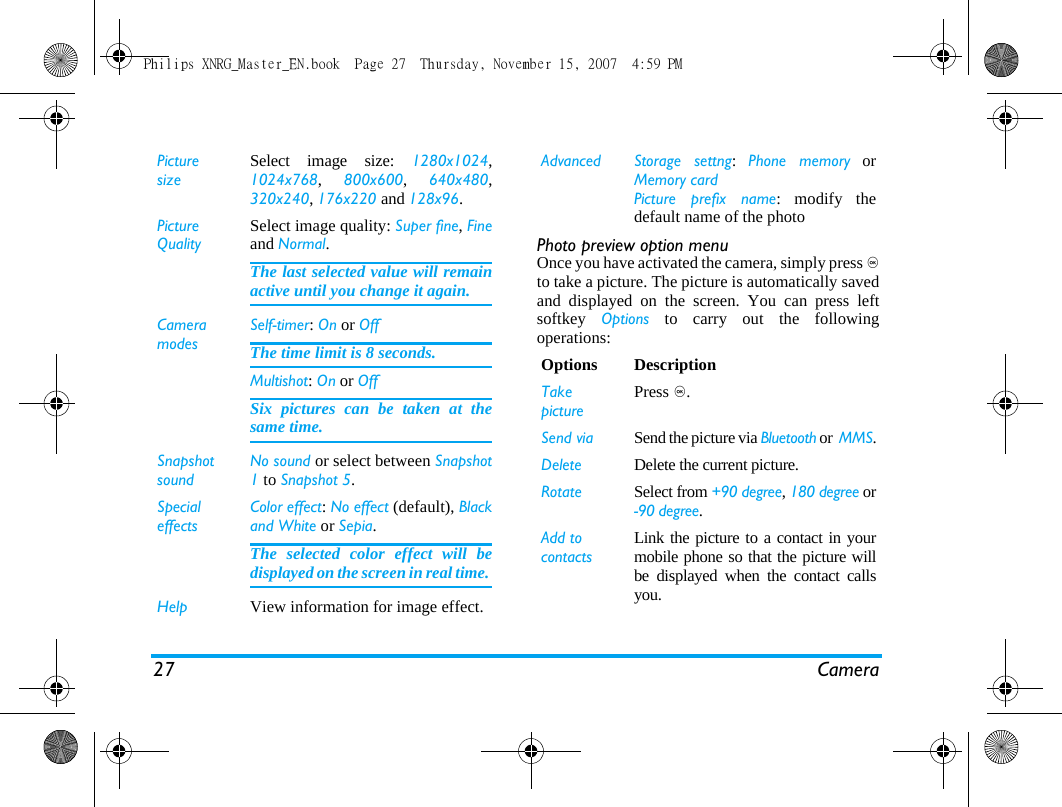
27 CameraPhoto preview option menuOnce you have activated the camera, simply press ,to take a picture. The picture is automatically savedand displayed on the screen. You can press leftsoftkey  Options to carry out the followingoperations: PicturesizeSelect image size: 1280x1024,1024x768,  800x600,  640x480,320x240, 176x220 and 128x96.Picture QualitySelect image quality: Super fine, Fineand Normal.The last selected value will remainactive until you change it again.Camera modesSelf-timer: On or OffThe time limit is 8 seconds. Multishot: On or OffSix pictures can be taken at thesame time.SnapshotsoundNo sound or select between Snapshot1 to Snapshot 5.SpecialeffectsColor effect: No effect (default), Blackand White or Sepia. The selected color effect will bedisplayed on the screen in real time. Help View information for image effect.Advanced Storage settng:  Phone memory orMemory cardPicture prefix name: modify thedefault name of the photo Options DescriptionTakepicturePress ,.Send via Send the picture via Bluetooth or  MMS.Delete Delete the current picture.Rotate Select from +90 degree, 180 degree or-90 degree.Add to contacts Link the picture to a contact in yourmobile phone so that the picture willbe displayed when the contact callsyou.Philips XNRG_Master_EN.book  Page 27  Thursday, November 15, 2007  4:59 PM
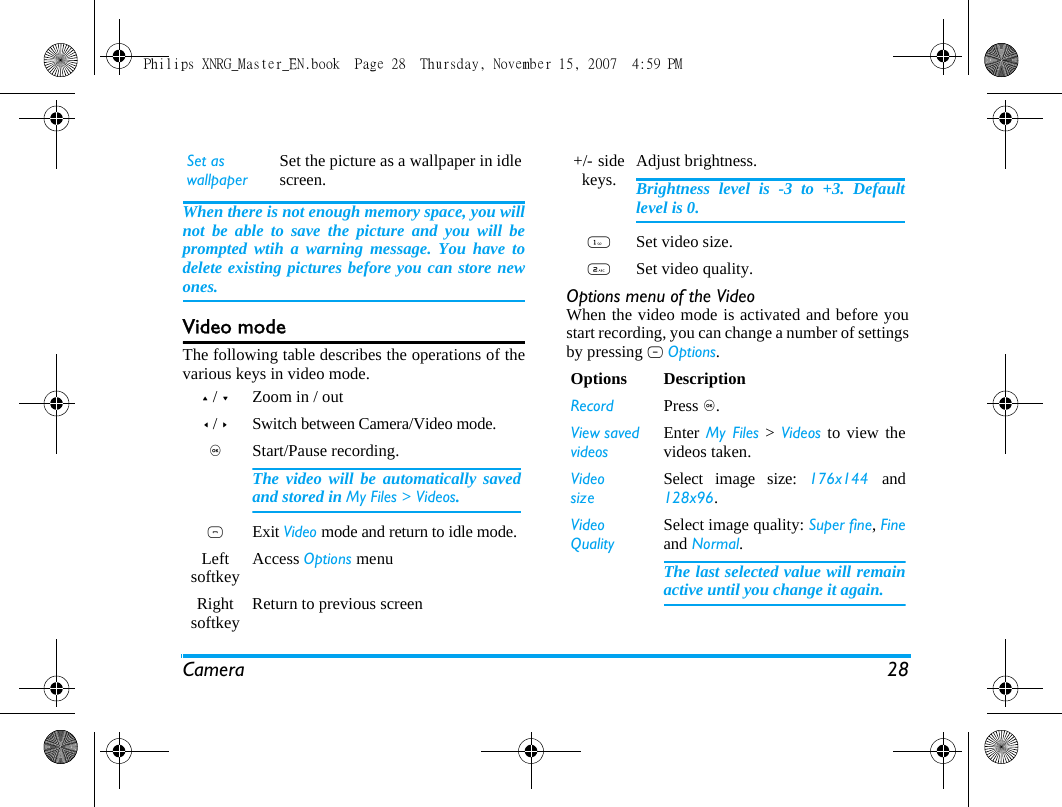
Camera 28When there is not enough memory space, you willnot be able to save the picture and you will beprompted wtih a warning message. You have todelete existing pictures before you can store newones. Video modeThe following table describes the operations of thevarious keys in video mode.Options menu of the VideoWhen the video mode is activated and before youstart recording, you can change a number of settingsby pressing L Options.Set as wallpaperSet the picture as a wallpaper in idlescreen.+ / -Zoom in / out< / >Switch between Camera/Video mode.,Start/Pause recording.The video will be automatically savedand stored in My Files > Videos. )Exit Video mode and return to idle mode.Left softkey Access Options menuRight softkey Return to previous screen +/-  side keys. Adjust brightness.Brightness level is -3 to +3. Defaultlevel is 0. 1Set video size.2Set video quality.Options DescriptionRecord Press ,.View savedvideosEnter My Files > Videos to view thevideos taken.VideosizeSelect image size: 176x144  and128x96.Video QualitySelect image quality: Super fine, Fineand Normal.The last selected value will remainactive until you change it again.Philips XNRG_Master_EN.book  Page 28  Thursday, November 15, 2007  4:59 PM
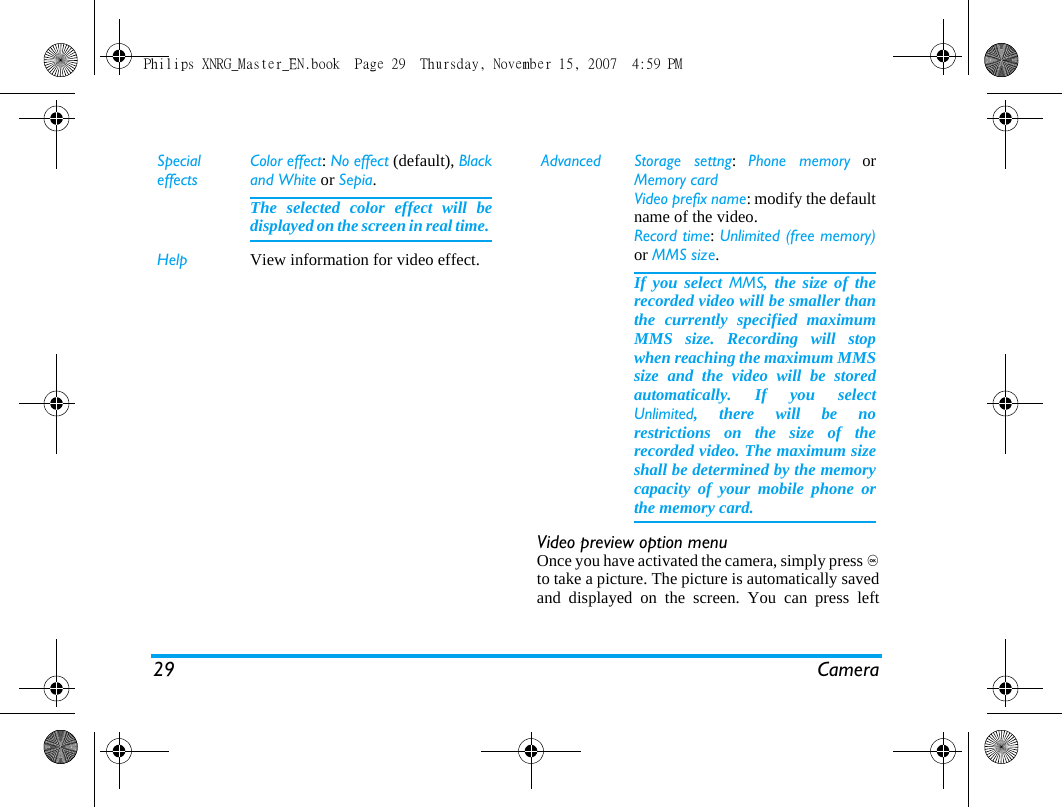
29 CameraVideo preview option menuOnce you have activated the camera, simply press ,to take a picture. The picture is automatically savedand displayed on the screen. You can press leftSpecialeffectsColor effect: No effect (default), Blackand White or Sepia. The selected color effect will bedisplayed on the screen in real time. Help View information for video effect.Advanced Storage settng:  Phone memory orMemory cardVideo prefix name: modify the defaultname of the video.Record time: Unlimited (free memory)or MMS size.If you select MMS, the size of therecorded video will be smaller thanthe currently specified maximumMMS size. Recording will stopwhen reaching the maximum MMSsize and the video will be storedautomatically. If you selectUnlimited, there will be norestrictions on the size of therecorded video. The maximum sizeshall be determined by the memorycapacity of your mobile phone orthe memory card.Philips XNRG_Master_EN.book  Page 29  Thursday, November 15, 2007  4:59 PM
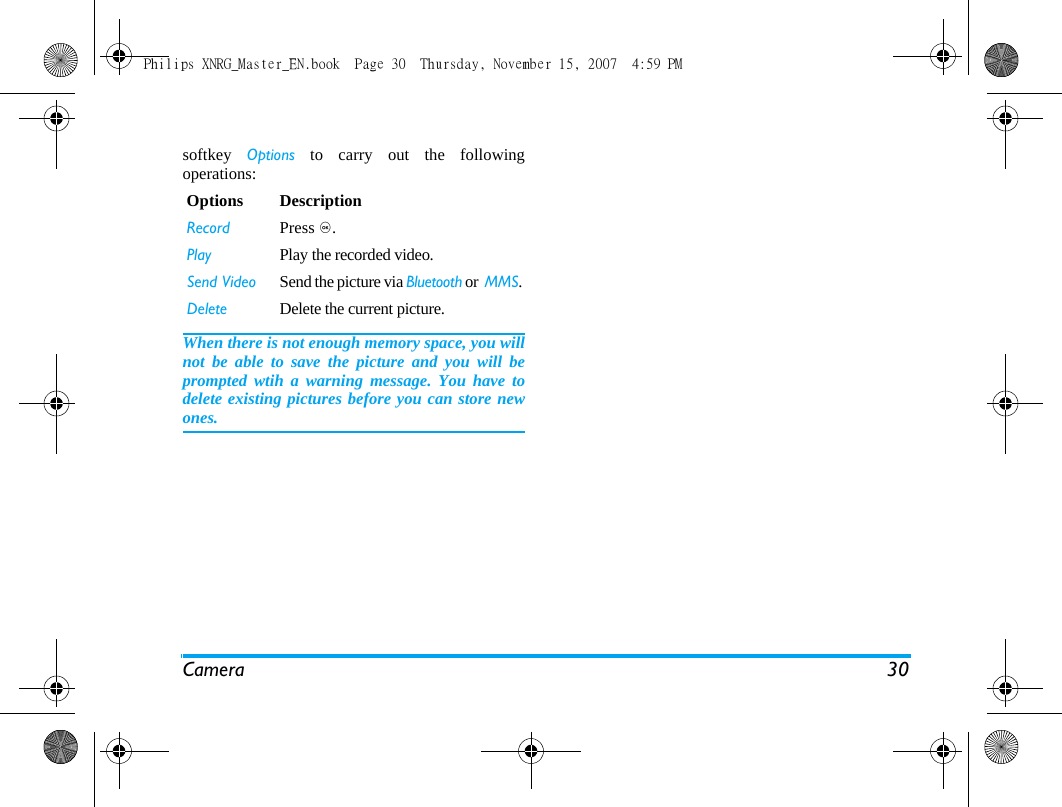
Camera 30softkey  Options to carry out the followingoperations: When there is not enough memory space, you willnot be able to save the picture and you will beprompted wtih a warning message. You have todelete existing pictures before you can store newones. Options DescriptionRecord Press ,.Play Play the recorded video.Send Video Send the picture via Bluetooth or  MMS.Delete Delete the current picture.Philips XNRG_Master_EN.book  Page 30  Thursday, November 15, 2007  4:59 PM
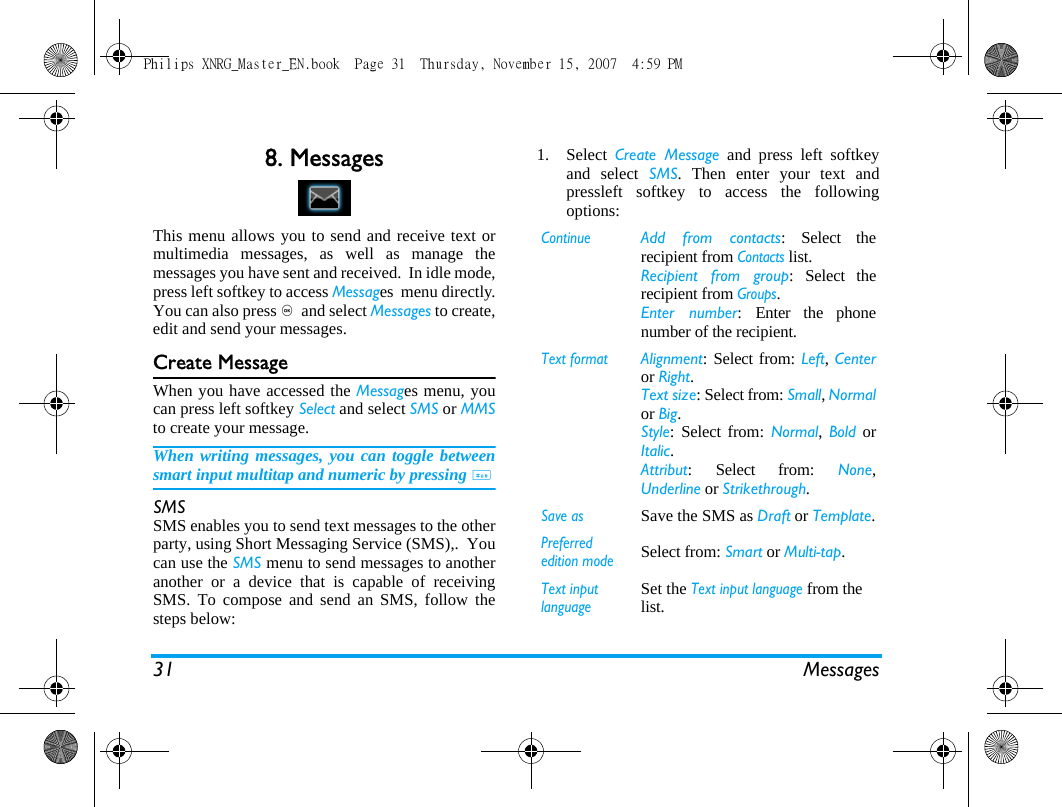
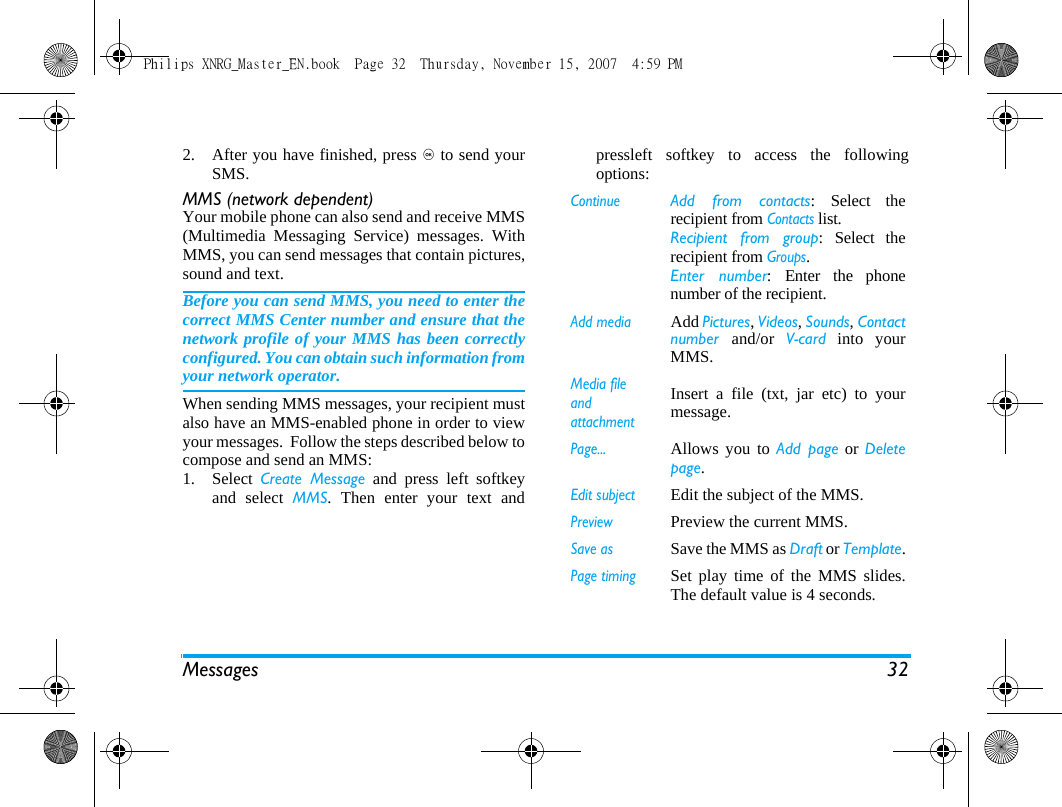
31 Messages8. MessagesThis menu allows you to send and receive text ormultimedia messages, as well as manage themessages you have sent and received.  In idle mode,press left softkey to access Messages  menu directly.You can also press ,  and select Messages to create,edit and send your messages.  Create MessageWhen you have accessed the Messages menu, youcan press left softkey Select and select SMS or MMSto create your message.When writing messages, you can toggle betweensmart input multitap and numeric by pressing #SMSSMS enables you to send text messages to the otherparty, using Short Messaging Service (SMS),.  Youcan use the SMS menu to send messages to anotheranother or a device that is capable of receivingSMS. To compose and send an SMS, follow thesteps below:1. Select  Create Message and press left softkeyand select SMS. Then enter your text andpressleft softkey to access the followingoptions: ContinueAdd from contacts: Select therecipient from Contacts list. Recipient from group: Select therecipient from Groups. Enter number: Enter the phonenumber of the recipient. Text formatAlignment: Select from: Left, Centeror Right.Text size: Select from: Small, Normalor Big.Style: Select from: Normal, Bold orItalic.Attribut: Select from: None,Underline or Strikethrough.Save asSave the SMS as Draft or Template.Preferred edition modeSelect from: Smart or Multi-tap.Text input languageSet the Text input language from the list.Philips XNRG_Master_EN.book  Page 31  Thursday, November 15, 2007  4:59 PM
Messages 322. After you have finished, press , to send yourSMS.MMS (network dependent)Your mobile phone can also send and receive MMS(Multimedia Messaging Service) messages. WithMMS, you can send messages that contain pictures,sound and text.Before you can send MMS, you need to enter thecorrect MMS Center number and ensure that thenetwork profile of your MMS has been correctlyconfigured. You can obtain such information fromyour network operator. When sending MMS messages, your recipient mustalso have an MMS-enabled phone in order to viewyour messages.  Follow the steps described below tocompose and send an MMS:1. Select  Create Message and press left softkeyand select MMS. Then enter your text andpressleft softkey to access the followingoptions: ContinueAdd from contacts: Select therecipient from Contacts list. Recipient from group: Select therecipient from Groups. Enter number: Enter the phonenumber of the recipient. Add mediaAdd Pictures, Videos, Sounds, Contactnumber  and/or  V-card into yourMMS.Media file and attachmentInsert a file (txt, jar etc) to yourmessage.Page...Allows you to Add page or Deletepage.Edit subjectEdit the subject of the MMS.PreviewPreview the current MMS.Save asSave the MMS as Draft or Template.Page timingSet play time of the MMS slides.The default value is 4 seconds.Philips XNRG_Master_EN.book  Page 32  Thursday, November 15, 2007  4:59 PM
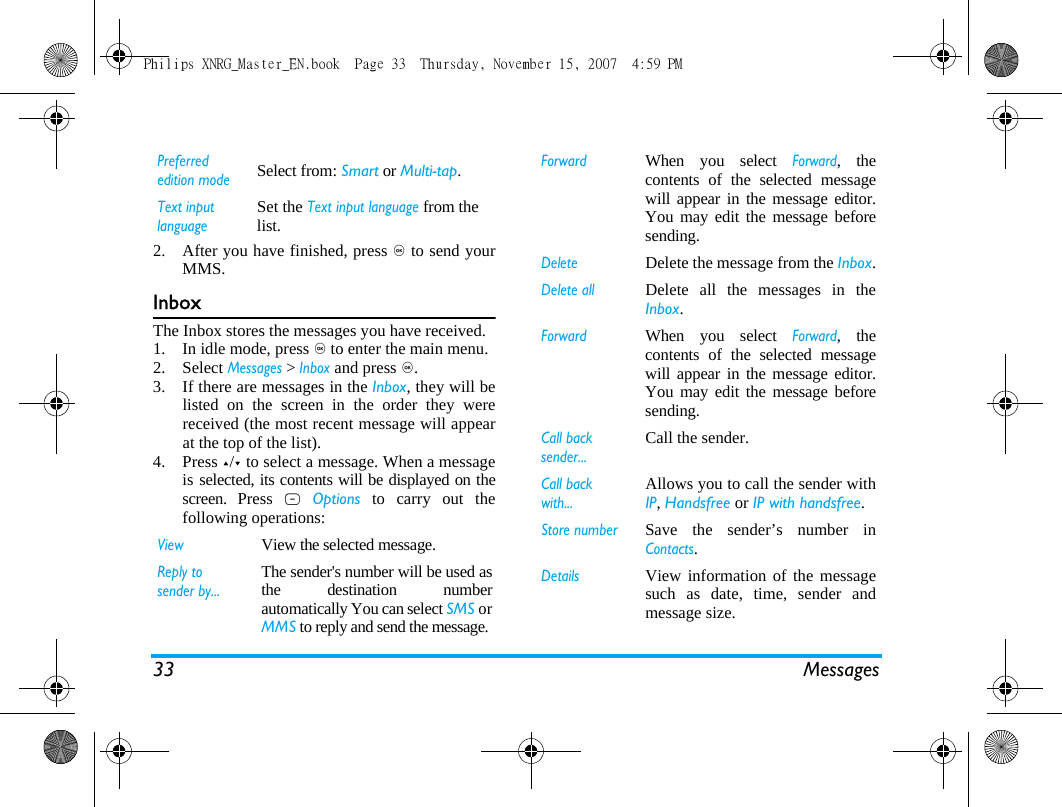
33 Messages2. After you have finished, press , to send yourMMS.InboxThe Inbox stores the messages you have received. 1. In idle mode, press , to enter the main menu.2. Select Messages > Inbox and press ,.3. If there are messages in the Inbox, they will belisted on the screen in the order they werereceived (the most recent message will appearat the top of the list).4. Press +/- to select a message. When a messageis selected, its contents will be displayed on thescreen. Press L Options to carry out thefollowing operations:Preferred edition modeSelect from: Smart or Multi-tap.Text input languageSet the Text input language from the list.ViewView the selected message.Reply to sender by...The sender's number will be used asthe destination numberautomatically You can select SMS orMMS to reply and send the message.ForwardWhen you select Forward, thecontents of the selected messagewill appear in the message editor.You may edit the message beforesending. DeleteDelete the message from the Inbox.Delete allDelete all the messages in theInbox.ForwardWhen you select Forward, thecontents of the selected messagewill appear in the message editor.You may edit the message beforesending. Call back sender...Call the sender.Call back with...Allows you to call the sender withIP, Handsfree or IP with handsfree.Store number Save the sender’s number inContacts.DetailsView information of the messagesuch as date, time, sender andmessage size.Philips XNRG_Master_EN.book  Page 33  Thursday, November 15, 2007  4:59 PM
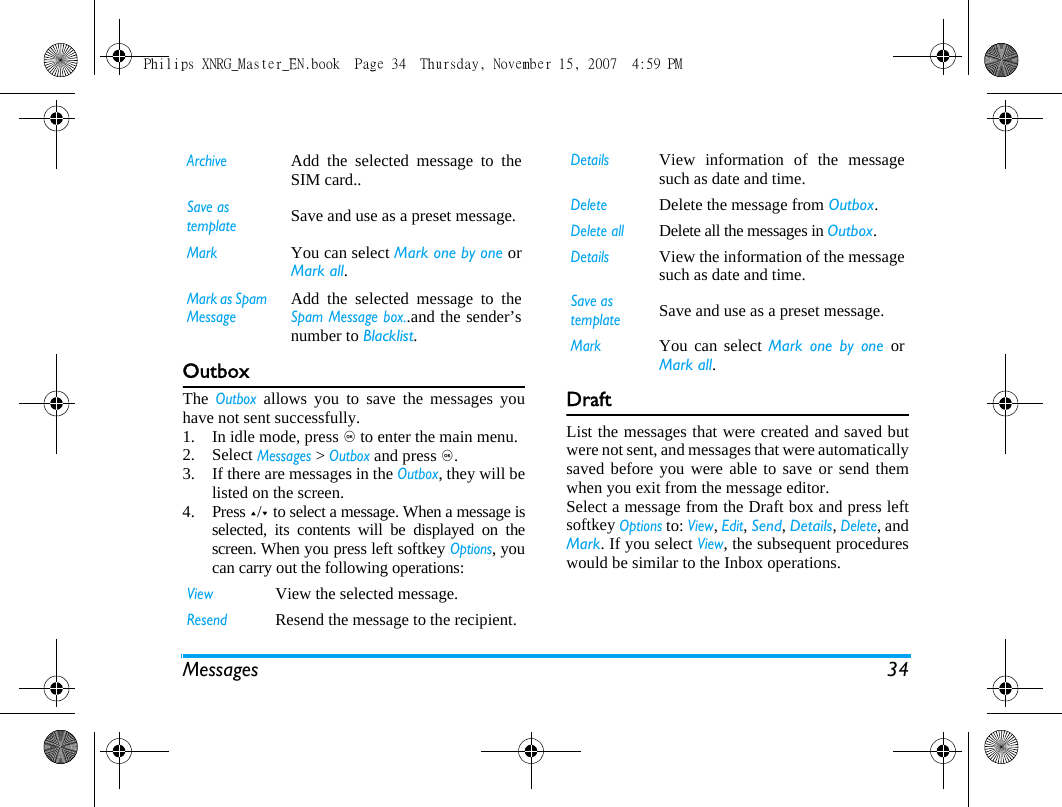
Messages 34OutboxThe Outbox allows you to save the messages youhave not sent successfully. 1. In idle mode, press , to enter the main menu.2. Select Messages > Outbox and press ,.3. If there are messages in the Outbox, they will belisted on the screen. 4. Press +/- to select a message. When a message isselected, its contents will be displayed on thescreen. When you press left softkey Options, youcan carry out the following operations:DraftList the messages that were created and saved butwere not sent, and messages that were automaticallysaved before you were able to save or send themwhen you exit from the message editor. Select a message from the Draft box and press leftsoftkey Options to: View, Edit, Send, Details, Delete, andMark. If you select View, the subsequent procedureswould be similar to the Inbox operations.ArchiveAdd the selected message to theSIM card..Save as templateSave and use as a preset message.MarkYou can select Mark one by one orMark all.Mark as Spam MessageAdd the selected message to theSpam Message box..and the sender’snumber to Blacklist.ViewView the selected message.Resend Resend the message to the recipient. DetailsView information of the messagesuch as date and time.DeleteDelete the message from Outbox.Delete allDelete all the messages in Outbox.DetailsView the information of the messagesuch as date and time.Save as templateSave and use as a preset message.MarkYou can select Mark one by one orMark all.Philips XNRG_Master_EN.book  Page 34  Thursday, November 15, 2007  4:59 PM
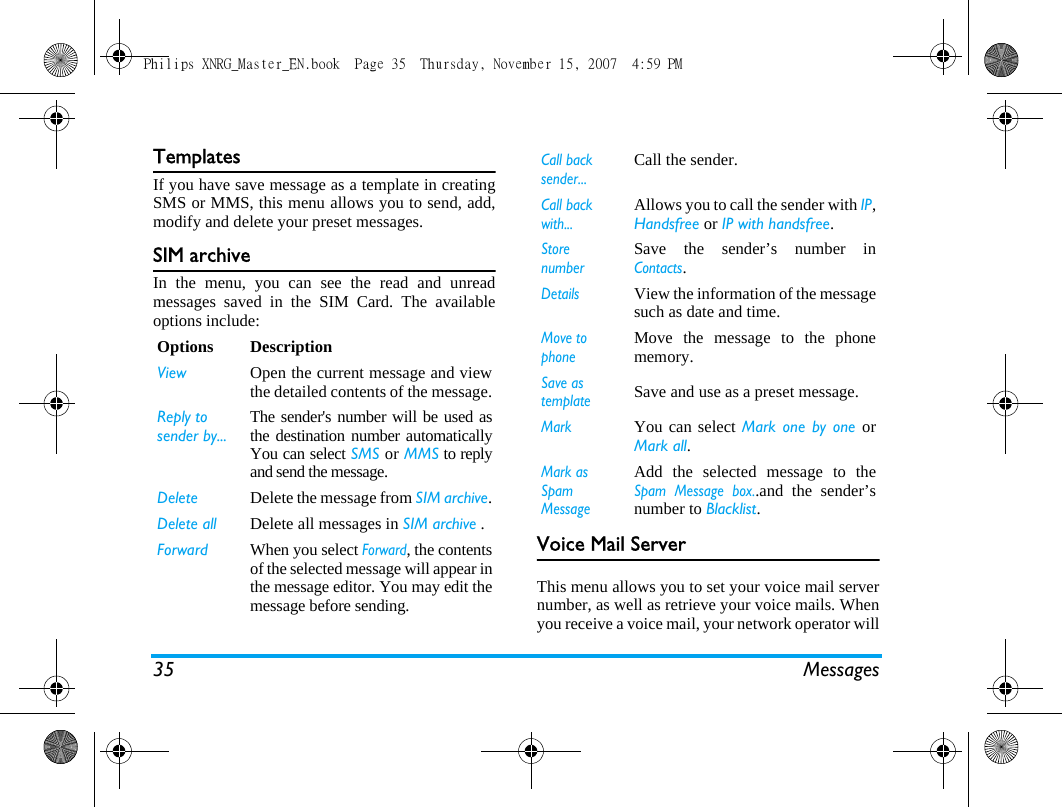
35 MessagesTemplatesIf you have save message as a template in creatingSMS or MMS, this menu allows you to send, add,modify and delete your preset messages.SIM archiveIn the menu, you can see the read and unreadmessages saved in the SIM Card. The availableoptions include:Voice Mail ServerThis menu allows you to set your voice mail servernumber, as well as retrieve your voice mails. Whenyou receive a voice mail, your network operator willOptions DescriptionView Open the current message and viewthe detailed contents of the message.Reply to sender by...The sender's number will be used asthe destination number automaticallyYou can select SMS or MMS to replyand send the message.Delete Delete the message from SIM archive.Delete all Delete all messages in SIM archive .Forward When you select Forward, the contentsof the selected message will appear inthe message editor. You may edit themessage before sending. Call back sender...Call the sender.Call back with...Allows you to call the sender with IP,Handsfree or IP with handsfree.Store number Save the sender’s number inContacts.DetailsView the information of the messagesuch as date and time.Move to phoneMove the message to the phonememory.Save as templateSave and use as a preset message.MarkYou can select Mark one by one orMark all.Mark as Spam MessageAdd the selected message to theSpam Message box..and the sender’snumber to Blacklist.Philips XNRG_Master_EN.book  Page 35  Thursday, November 15, 2007  4:59 PM
Messages 36send a notification to your phone.You can enter four sets of voice mail servernumbers which are supplied by your networkoperator.Select a voice mail box and press left softkey toaccess the following options:You can quickly access your voice mail server bylong pressing 1 key in idle mode.Spam messages boxThis menu allows you to filter the SMS/MMS afterthe firewall has been set.  When the firewall isactivated, any SMS/MMS from a person on yourblacklist will go to the Spam messages box.  Select amessage on the  Spam messages box list in the andpress left softkey to access the following options:Message SettingsSMSSelect Messages > message settings. Then press leftsoftkey and select SMS to open the SMS settingoptions:Delivery reportYou can select left softkey On or Off. This optionallows you to set whether or not to notify you thesend status of your messages: successfully sent tothe recipient, or not sent successfully. This feature is subscription dependent. View/Edit Read or modify voice mailnumber.Call Call the voice mail number.Handsfree Call the voice mail numberhandsfree.Delete Delete the voice mail number.View spam messageRead the selected spam message.Delete spam messageDelete the select spam messagefrom the Spam messages box .Delete all spam messagesDelete all the select spammessage from the Spam messagesbox.Move to inbox Move the spam message to Inboxto edit or send.Philips XNRG_Master_EN.book  Page 36  Thursday, November 15, 2007  4:59 PM
37 MessagesAuto save in outboxYou can select left softkey On or Off. When On, allthe unsent email will be saved in On.SignatureYou can press leftsoft key and select Activation > Onor Off.  Then enter your signature on the  Entersignature option. If the SMS is too long after adding the signature,the signature will be ignored. Validity periodAllows you to select the duration by which yourmessages will be stored in the service center. Youcan select from: 1 hour, 8 hours, 1 day, 3 days, 1 weekand Maximum. Press + / - to select a value. This option is useful when your recipient is notconnected to the network and is not able to receiveyour messages immediately. This feature is subscription dependent. SMS CenterThis menu allows you to save and edit the SMSservice center number of your home network. If theservice center number is empty, you will not be ableto send any SMS.Reply PathWhen , this option allows you to transmit thenumber of your SMS message center together withthe message.  The recipient can then repy using yourSMS center and not theirs.  This speeds up the rateof transmission.  This feature is subscriptiondependent. Storage locationYou can press L Change to select the preferredstorage location of your messages: SIM card(Default) or Mobile phone.MMSThis menu allows you to set your MMS center andpersonalize your MMS settings.  Select Messages >message settings. Then press left softkey and selectMMS to open the SMS setting options: MMS connection profilesYou can select or edit the parameters.Read reportYou can press < / > to set this option On or off. Whenset to On, a report will be sent to notify you if theMMS has been read by the recipient. Delivery reportYou can press < / > to set this option On or Off. Thisoption allows you to set whether or not to notify youPhilips XNRG_Master_EN.book  Page 37  Thursday, November 15, 2007  4:59 PM
Messages 38the send status of your messages: successfully sentto the recipient, or not sent successfully. Auto save in outboxYou can press < / > to set this option On or Off. WhenOn, all the unsent email will be saved in On.Validity periodAllows you to select the duration by which yourmessages will be stored in the service center. Youcan select from: 1 hour, 12 hours, 1 day, 1 week andMaximum. Press < / >  to select a value. This option is useful when your recipient is notconnected to the network and is not able to receiveyour messages immediately. Retrieval modeAllows you to select Automatic, or Manual whendownloading of MMS messages.Default slide durationAllows you to change the value of slide durationand to set a delay between each slide. Hide identityYou can press < / >  to set this option Never or Always.It is used to set if your identity will be visible whenMMS is sent.Philips XNRG_Master_EN.book  Page 38  Thursday, November 15, 2007  4:59 PM
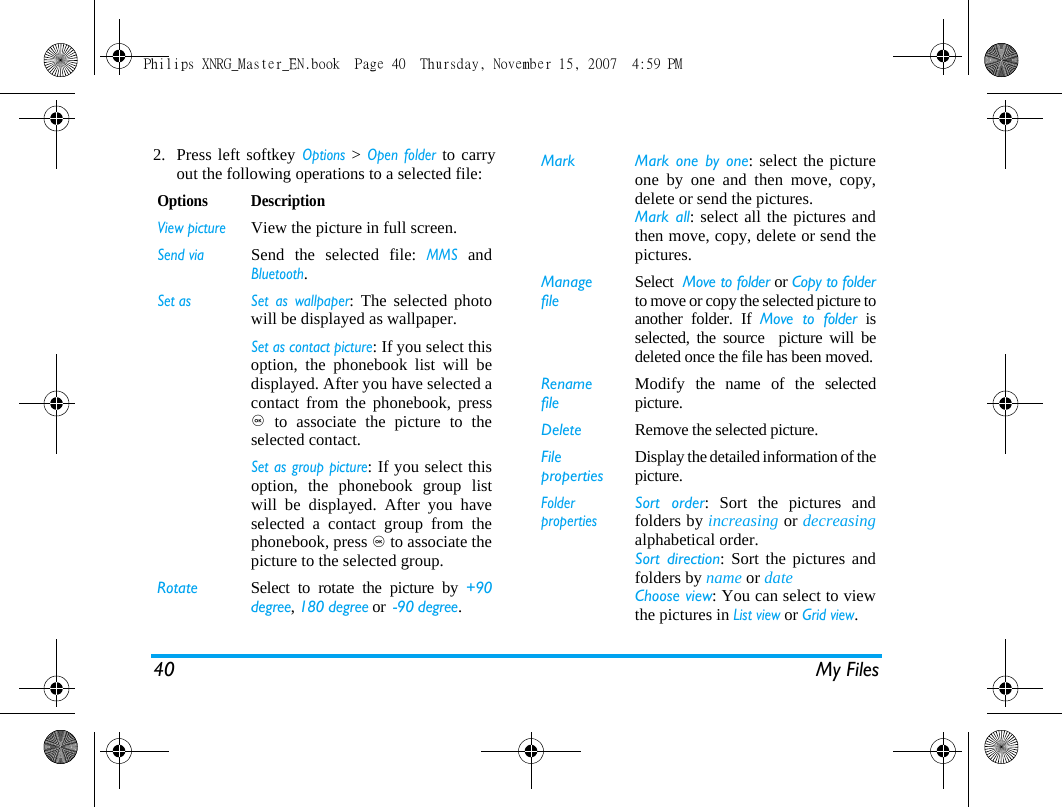
My Files 399. My FilesThis menu allows you to store the files in differentfolders (Pictures,  Sounds, Playlists,  Videos, Game &Java applications) to facilitate more efficientmanagement of files in your phone and the memorycard. In addition, you can obtain informationregarding your phone and memory card, such asnumber of files, memory utilized, percentage ofmemory utilised via the Memory status option.  Press, in idle mode to access the main menu, and selectMy Files.Then Press left softkey Options  to access thefollowing folder options:PicturesWhen you enter this menu, the photos which youhave taken using the phone's camera as well aspictures you have downloaded via MMS, WAP, BT,or USB will be displayed in a list. 1. Select My files > Pictures and press , to enter themenu.Open folder Open the selected folder. Folder propertiesSort order: Sort the pictures andfolders by increasing or decreasingalphabetical order.Sort direction: Sort the pictures andfolders by name or date Choose view: You can select to viewthe pictures in List view, Grid view or Fullscreen.Rename folderModify the name of the folder.You cannot rename the presetfolders.Delete Folder Remove the folder.You cannot delete the presetfolders.Philips XNRG_Master_EN.book  Page 39  Thursday, November 15, 2007  4:59 PM
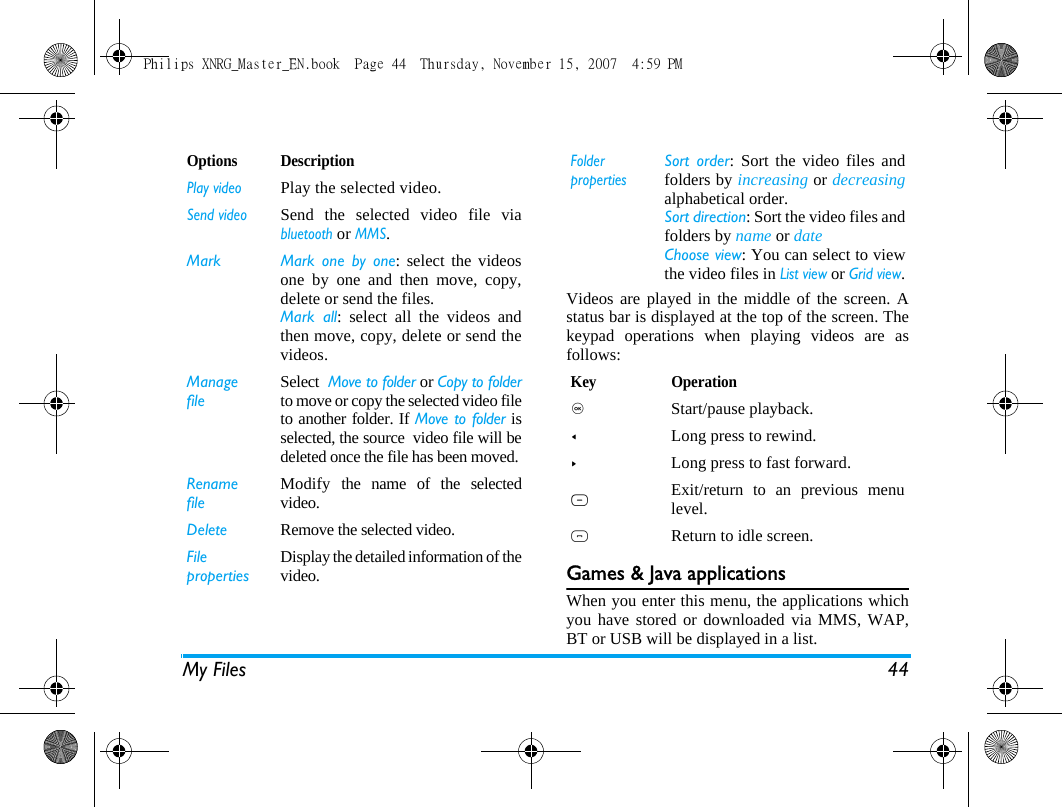
40 My Files2. Press left softkey Options > Open folder to carryout the following operations to a selected file:Options DescriptionView pictureView the picture in full screen.Send viaSend the selected file: MMS andBluetooth.Set as Set as wallpaper: The selected photowill be displayed as wallpaper.Set as contact picture: If you select thisoption, the phonebook list will bedisplayed. After you have selected acontact from the phonebook, press, to associate the picture to theselected contact. Set as group picture: If you select thisoption, the phonebook group listwill be displayed. After you haveselected a contact group from thephonebook, press , to associate thepicture to the selected group. Rotate Select to rotate the picture by +90degree, 180 degree or  -90 degree.Mark  Mark one by one: select the pictureone by one and then move, copy,delete or send the pictures. Mark all: select all the pictures andthen move, copy, delete or send thepictures. ManagefileSelect  Move to folder or Copy to folderto move or copy the selected picture toanother folder. If Move to folder isselected, the source  picture will bedeleted once the file has been moved.RenamefileModify the name of the selectedpicture.Delete Remove the selected picture.FilepropertiesDisplay the detailed information of thepicture.FolderpropertiesSort order: Sort the pictures andfolders by increasing or decreasingalphabetical order.Sort direction: Sort the pictures andfolders by name or date Choose view: You can select to viewthe pictures in List view or Grid view.Philips XNRG_Master_EN.book  Page 40  Thursday, November 15, 2007  4:59 PM
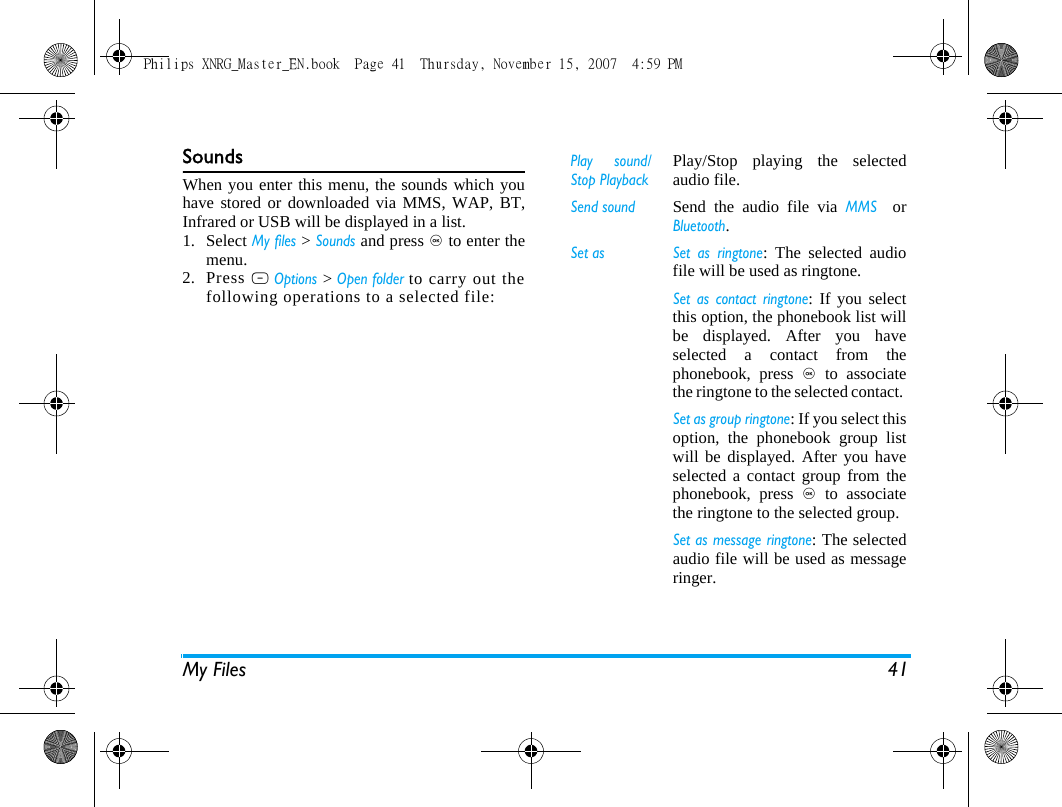
My Files 41SoundsWhen you enter this menu, the sounds which youhave stored or downloaded via MMS, WAP, BT,Infrared or USB will be displayed in a list. 1. Select My files > Sounds and press , to enter themenu.2. Press L Options > Open folder to carry out thefollowing operations to a selected file:Play sound/Stop PlaybackPlay/Stop playing the selectedaudio file.Send soundSend the audio file via MMS  orBluetooth.Set as Set as ringtone: The selected audiofile will be used as ringtone.Set as contact ringtone: If you selectthis option, the phonebook list willbe displayed. After you haveselected a contact from thephonebook, press , to associatethe ringtone to the selected contact. Set as group ringtone: If you select thisoption, the phonebook group listwill be displayed. After you haveselected a contact group from thephonebook, press , to associatethe ringtone to the selected group. Set as message ringtone: The selectedaudio file will be used as messageringer. Philips XNRG_Master_EN.book  Page 41  Thursday, November 15, 2007  4:59 PM
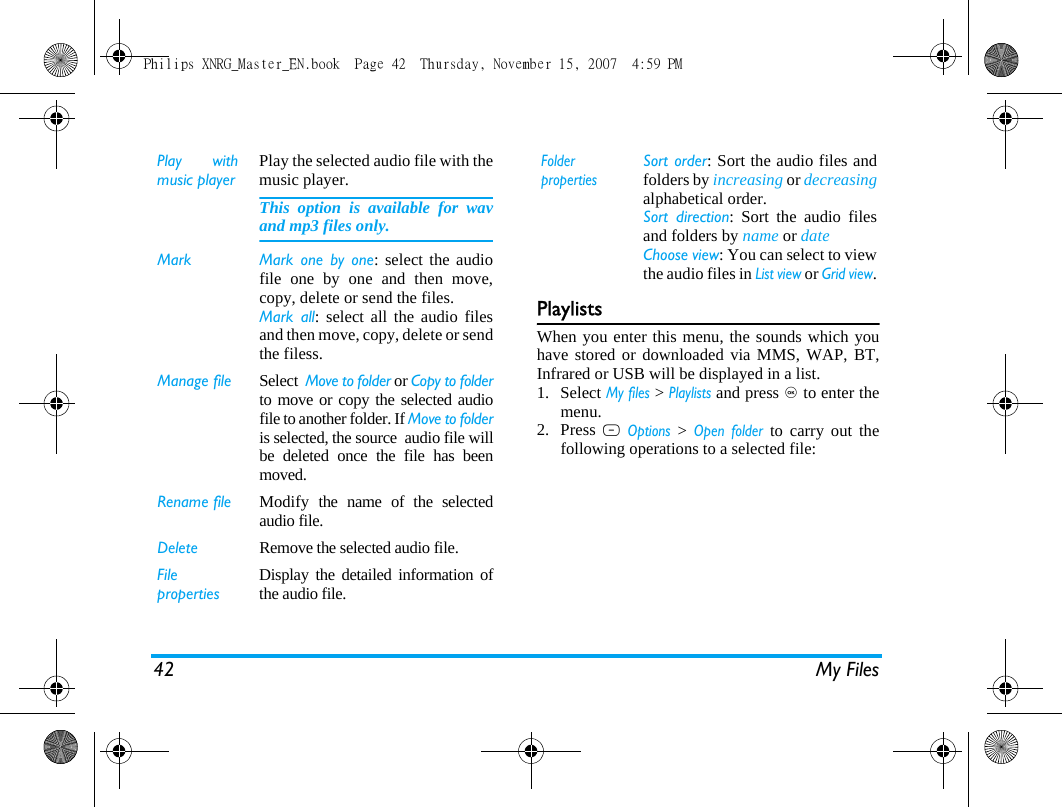
42 My FilesPlaylistsWhen you enter this menu, the sounds which youhave stored or downloaded via MMS, WAP, BT,Infrared or USB will be displayed in a list.1. Select My files > Playlists and press , to enter themenu.2. Press L Options > Open folder to carry out thefollowing operations to a selected file:Play withmusic playerPlay the selected audio file with themusic player. This option is available for wavand mp3 files only.Mark  Mark one by one: select the audiofile one by one and then move,copy, delete or send the files. Mark all: select all the audio filesand then move, copy, delete or sendthe filess. Manage file Select  Move to folder or Copy to folderto move or copy the selected audiofile to another folder. If Move to folderis selected, the source  audio file willbe deleted once the file has beenmoved.Rename file Modify the name of the selectedaudio file.Delete Remove the selected audio file.FilepropertiesDisplay the detailed information ofthe audio file.FolderpropertiesSort order: Sort the audio files andfolders by increasing or decreasingalphabetical order.Sort direction: Sort the audio filesand folders by name or date Choose view: You can select to viewthe audio files in List view or Grid view.Philips XNRG_Master_EN.book  Page 42  Thursday, November 15, 2007  4:59 PM
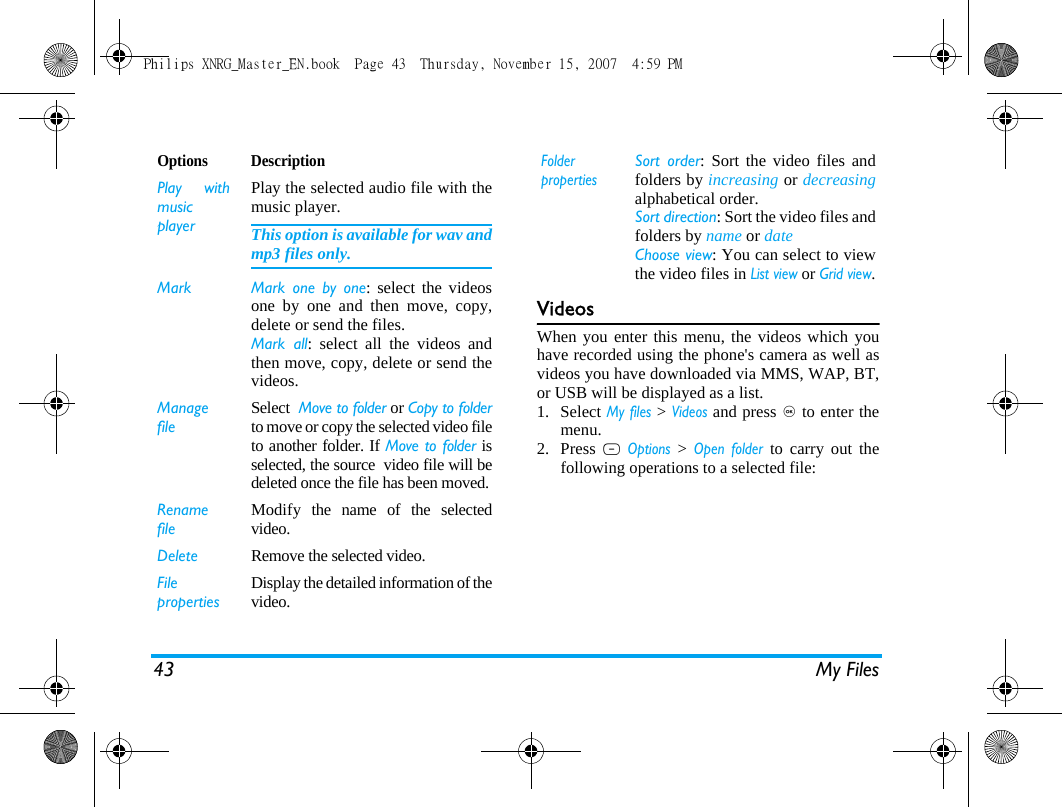
43 My FilesVideosWhen you enter this menu, the videos which youhave recorded using the phone's camera as well asvideos you have downloaded via MMS, WAP, BT,or USB will be displayed as a list.1. Select My files > Videos and press , to enter themenu.2. Press L Options > Open folder to carry out thefollowing operations to a selected file:Options DescriptionPlay withmusicplayerPlay the selected audio file with themusic player. This option is available for wav andmp3 files only.Mark  Mark one by one: select the videosone by one and then move, copy,delete or send the files. Mark all: select all the videos andthen move, copy, delete or send thevideos. ManagefileSelect  Move to folder or Copy to folderto move or copy the selected video fileto another folder. If Move to folder isselected, the source  video file will bedeleted once the file has been moved.RenamefileModify the name of the selectedvideo.Delete Remove the selected video.FilepropertiesDisplay the detailed information of thevideo.FolderpropertiesSort order: Sort the video files andfolders by increasing or decreasingalphabetical order.Sort direction: Sort the video files andfolders by name or date Choose view: You can select to viewthe video files in List view or Grid view.Philips XNRG_Master_EN.book  Page 43  Thursday, November 15, 2007  4:59 PM
My Files 44Videos are played in the middle of the screen. Astatus bar is displayed at the top of the screen. Thekeypad operations when playing videos are asfollows: Games & Java applicationsWhen you enter this menu, the applications whichyou have stored or downloaded via MMS, WAP,BT or USB will be displayed in a list.Options DescriptionPlay videoPlay the selected video.Send videoSend the selected video file viabluetooth or MMS.Mark  Mark one by one: select the videosone by one and then move, copy,delete or send the files. Mark all: select all the videos andthen move, copy, delete or send thevideos. ManagefileSelect  Move to folder or Copy to folderto move or copy the selected video fileto another folder. If Move to folder isselected, the source  video file will bedeleted once the file has been moved.RenamefileModify the name of the selectedvideo.Delete Remove the selected video.FilepropertiesDisplay the detailed information of thevideo.FolderpropertiesSort order: Sort the video files andfolders by increasing or decreasingalphabetical order.Sort direction: Sort the video files andfolders by name or date Choose view: You can select to viewthe video files in List view or Grid view.Key Operation,  Start/pause playback.<Long press to rewind.>Long press to fast forward.RExit/return to an previous menulevel.)Return to idle screen.Philips XNRG_Master_EN.book  Page 44  Thursday, November 15, 2007  4:59 PM
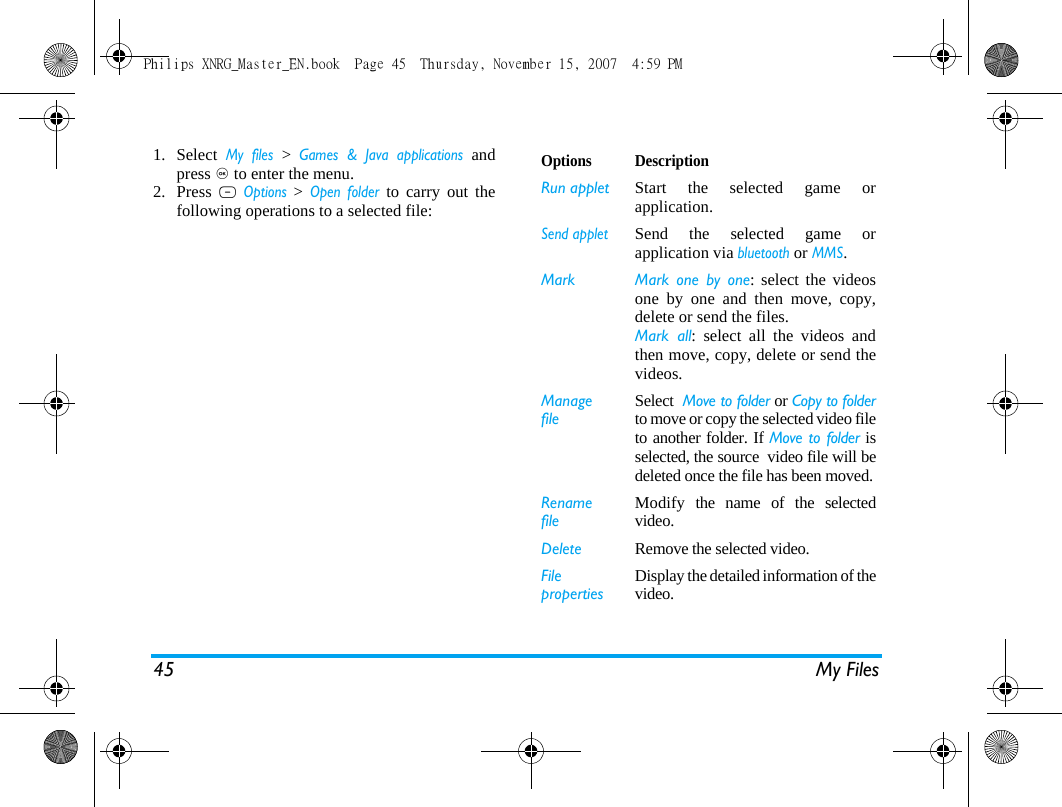
45 My Files1. Select My files > Games & Java applications andpress , to enter the menu.2. Press L Options > Open folder to carry out thefollowing operations to a selected file:Options DescriptionRun applet Start the selected game orapplication.Send appletSend the selected game orapplication via bluetooth or MMS.Mark  Mark one by one: select the videosone by one and then move, copy,delete or send the files. Mark all: select all the videos andthen move, copy, delete or send thevideos. ManagefileSelect  Move to folder or Copy to folderto move or copy the selected video fileto another folder. If Move to folder isselected, the source  video file will bedeleted once the file has been moved.RenamefileModify the name of the selectedvideo.Delete Remove the selected video.FilepropertiesDisplay the detailed information of thevideo.Philips XNRG_Master_EN.book  Page 45  Thursday, November 15, 2007  4:59 PM
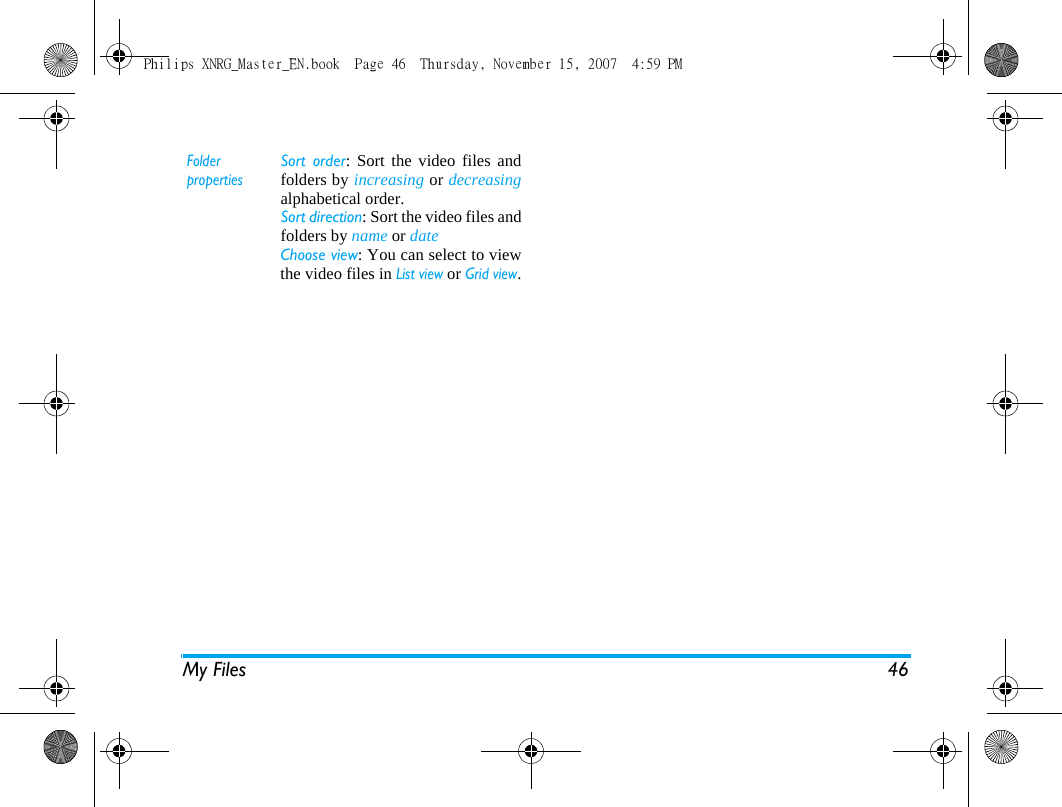
My Files 46FolderpropertiesSort order: Sort the video files andfolders by increasing or decreasingalphabetical order.Sort direction: Sort the video files andfolders by name or date Choose view: You can select to viewthe video files in List view or Grid view.Philips XNRG_Master_EN.book  Page 46  Thursday, November 15, 2007  4:59 PM
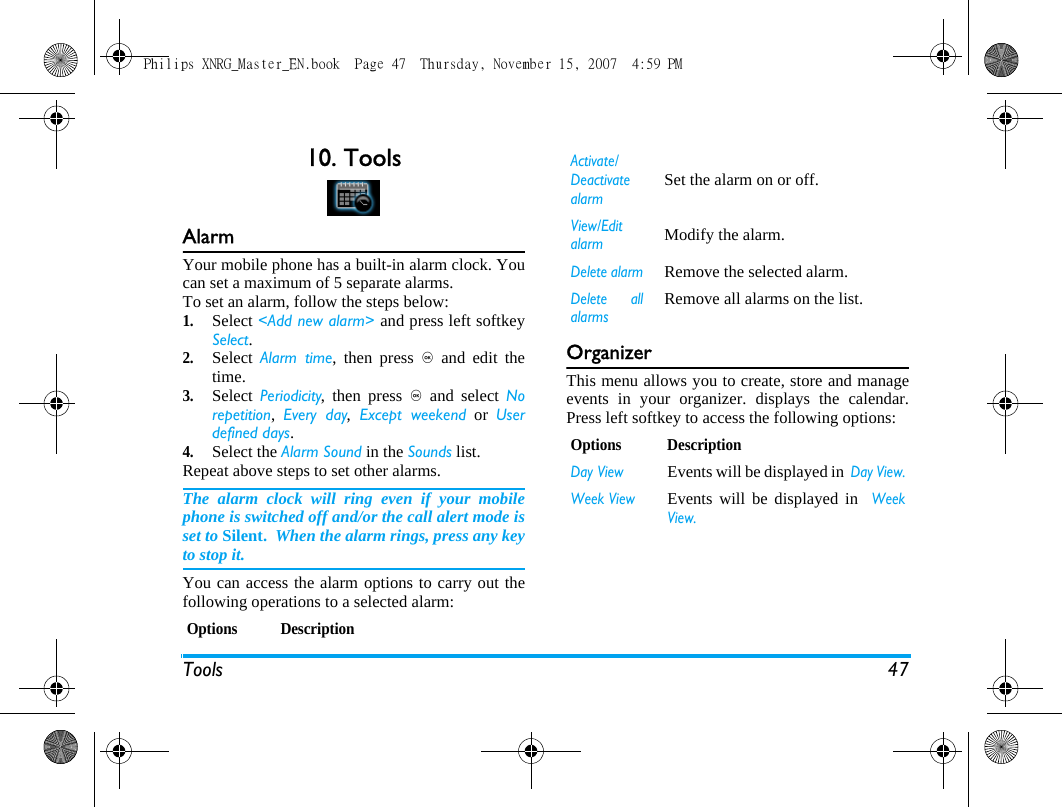
Tools 4710. ToolsAlarmYour mobile phone has a built-in alarm clock. Youcan set a maximum of 5 separate alarms.To set an alarm, follow the steps below:1.Select <Add new alarm> and press left softkeySelect.2.Select  Alarm time, then press , and edit thetime. 3.Select  Periodicity, then press , and select Norepetition,  Every day, Except weekend or Userdefined days. 4.Select the Alarm Sound in the Sounds list.Repeat above steps to set other alarms.The alarm clock will ring even if your mobilephone is switched off and/or the call alert mode isset to Silent.  When the alarm rings, press any keyto stop it.You can access the alarm options to carry out thefollowing operations to a selected alarm:OrganizerThis menu allows you to create, store and manageevents in your organizer. displays the calendar.Press left softkey to access the following options:Options DescriptionActivate/DeactivatealarmSet the alarm on or off.View/EditalarmModify the alarm.Delete alarmRemove the selected alarm.Delete allalarmsRemove all alarms on the list.Options DescriptionDay ViewEvents will be displayed in  Day View.Week ViewEvents will be displayed in  WeekView.Philips XNRG_Master_EN.book  Page 47  Thursday, November 15, 2007  4:59 PM
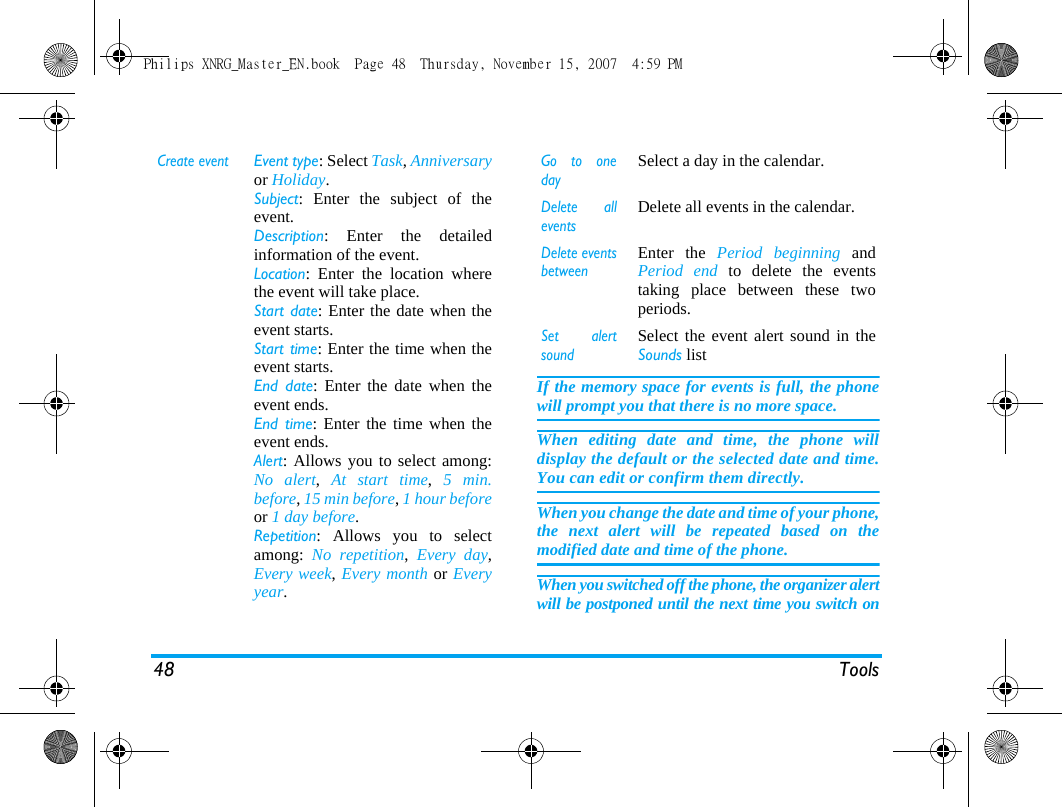
48 ToolsIf the memory space for events is full, the phonewill prompt you that there is no more space. When editing date and time, the phone willdisplay the default or the selected date and time.You can edit or confirm them directly. When you change the date and time of your phone,the next alert will be repeated based on themodified date and time of the phone. When you switched off the phone, the organizer alertwill be postponed until the next time you switch onCreate eventEvent type: Select Task, Anniversaryor Holiday.Subject: Enter the subject of theevent. Description: Enter the detailedinformation of the event.Location: Enter the location wherethe event will take place.Start date: Enter the date when theevent starts.Start time: Enter the time when theevent starts.End date: Enter the date when theevent ends.End time: Enter the time when theevent ends.Alert: Allows you to select among:No alert,  At start time,  5 min.before, 15 min before, 1 hour beforeor 1 day before.Repetition: Allows you to selectamong:  No repetition,  Every day,Every week, Every month or Everyyear.Go to onedaySelect a day in the calendar.Delete alleventsDelete all events in the calendar.Delete eventsbetweenEnter the Period beginning andPeriod end to delete the eventstaking place between these twoperiods. Set alertsoundSelect the event alert sound in theSounds listPhilips XNRG_Master_EN.book  Page 48  Thursday, November 15, 2007  4:59 PM
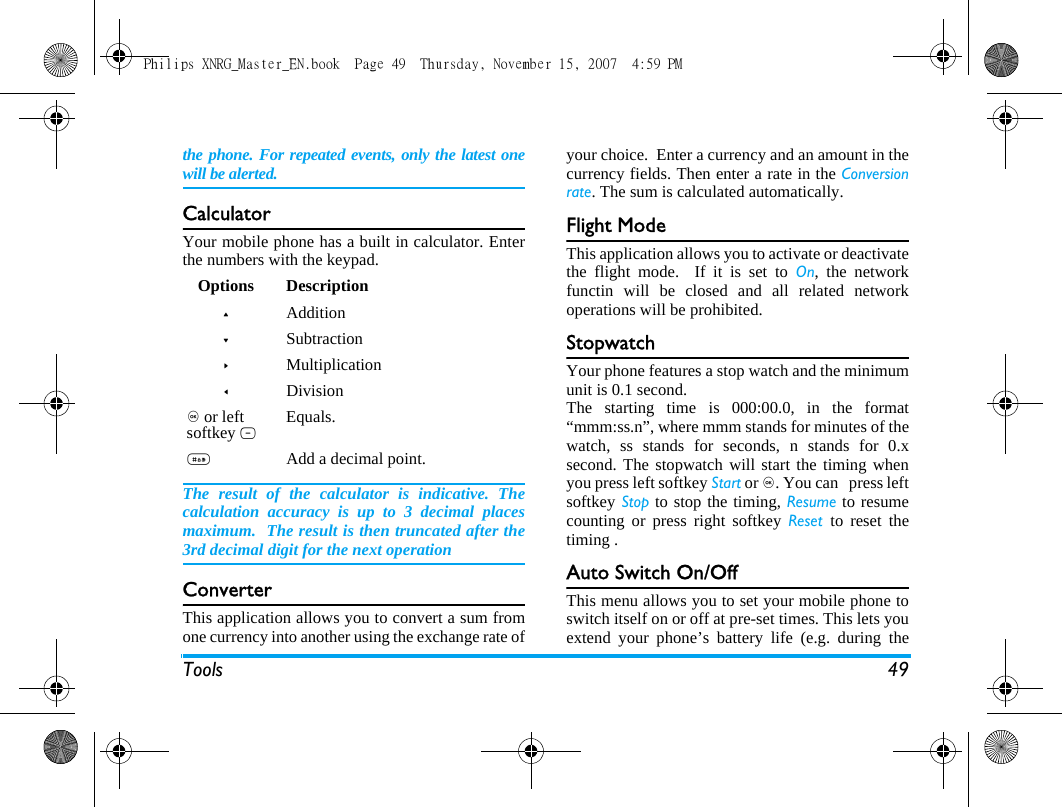
Tools 49the phone. For repeated events, only the latest onewill be alerted.CalculatorYour mobile phone has a built in calculator. Enterthe numbers with the keypad.The result of the calculator is indicative. Thecalculation accuracy is up to 3 decimal placesmaximum.  The result is then truncated after the3rd decimal digit for the next operationConverterThis application allows you to convert a sum fromone currency into another using the exchange rate ofyour choice.  Enter a currency and an amount in thecurrency fields. Then enter a rate in the Conversionrate. The sum is calculated automatically.Flight ModeThis application allows you to activate or deactivatethe flight mode.  If it is set to On, the networkfunctin will be closed and all related networkoperations will be prohibited.StopwatchYour phone features a stop watch and the minimumunit is 0.1 second.The starting time is 000:00.0, in the format“mmm:ss.n”, where mmm stands for minutes of thewatch, ss stands for seconds, n stands for 0.xsecond. The stopwatch will start the timing whenyou press left softkey Start or ,. You can   press leftsoftkey Stop to stop the timing, Resume to resumecounting or press right softkey Reset  to reset thetiming .Auto Switch On/OffThis menu allows you to set your mobile phone toswitch itself on or off at pre-set times. This lets youextend your phone’s battery life (e.g. during theOptions Description+Addition-Subtraction>Multiplication<Division, or left softkey L Equals.#Add a decimal point.Philips XNRG_Master_EN.book  Page 49  Thursday, November 15, 2007  4:59 PM
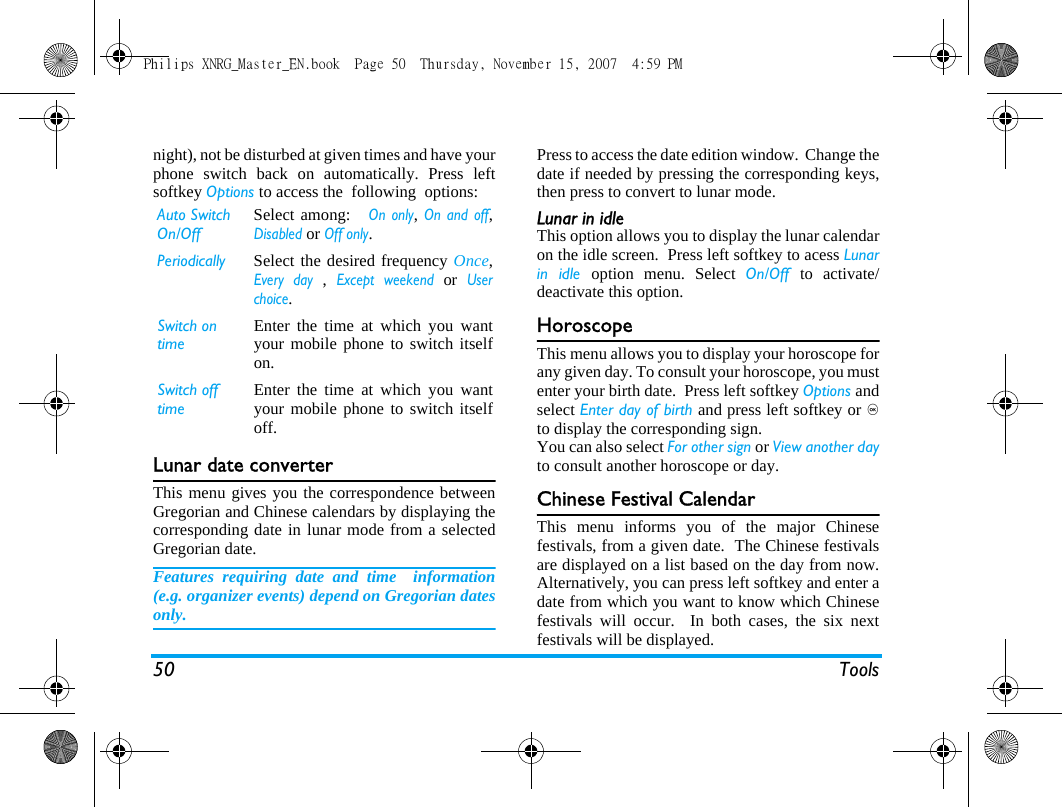
50 Toolsnight), not be disturbed at given times and have yourphone switch back on automatically. Press leftsoftkey Options to access the  following  options:Lunar date converterThis menu gives you the correspondence betweenGregorian and Chinese calendars by displaying thecorresponding date in lunar mode from a selectedGregorian date.Features requiring date and time  information(e.g. organizer events) depend on Gregorian datesonly.Press to access the date edition window.  Change thedate if needed by pressing the corresponding keys,then press to convert to lunar mode.Lunar in idleThis option allows you to display the lunar calendaron the idle screen.  Press left softkey to acess Lunarin idle option menu. Select On/Off  to activate/deactivate this option.HoroscopeThis menu allows you to display your horoscope forany given day. To consult your horoscope, you mustenter your birth date.  Press left softkey Options andselect Enter day of birth and press left softkey or ,to display the corresponding sign.You can also select For other sign or View another dayto consult another horoscope or day.Chinese Festival CalendarThis menu informs you of the major Chinesefestivals, from a given date.  The Chinese festivalsare displayed on a list based on the day from now.Alternatively, you can press left softkey and enter adate from which you want to know which Chinesefestivals will occur.  In both cases, the six nextfestivals will be displayed.Auto Switch On/Off Select among:   On only, On and off,Disabled or Off only.Periodically Select the desired frequency Once,Every day , Except weekend or Userchoice.Switch on timeEnter the time at which you wantyour mobile phone to switch itselfon.Switch off timeEnter the time at which you wantyour mobile phone to switch itselfoff.Philips XNRG_Master_EN.book  Page 50  Thursday, November 15, 2007  4:59 PM
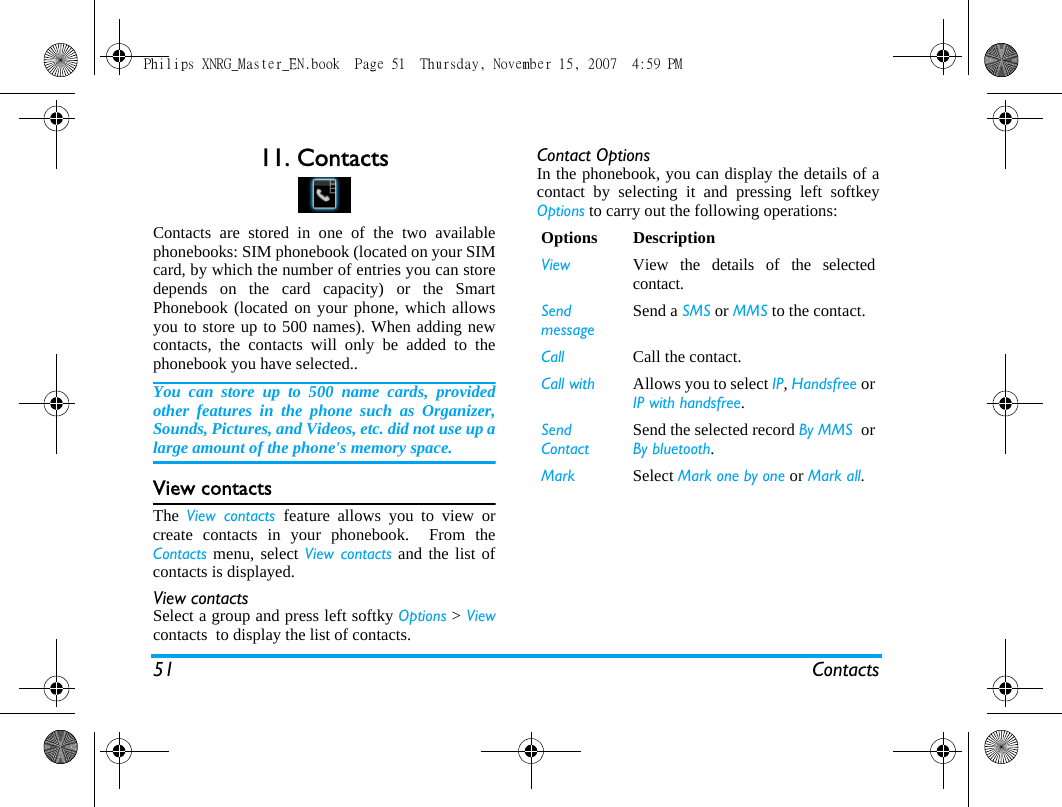
51 Contacts11. ContactsContacts are stored in one of the two availablephonebooks: SIM phonebook (located on your SIMcard, by which the number of entries you can storedepends on the card capacity) or the SmartPhonebook (located on your phone, which allowsyou to store up to 500 names). When adding newcontacts, the contacts will only be added to thephonebook you have selected..You can store up to 500 name cards, providedother features in the phone such as Organizer,Sounds, Pictures, and Videos, etc. did not use up alarge amount of the phone's memory space.View contactsThe  View contacts feature allows you to view orcreate contacts in your phonebook.  From theContacts menu, select View contacts and the list ofcontacts is displayed.View contactsSelect a group and press left softky Options > Viewcontacts  to display the list of contacts.Contact OptionsIn the phonebook, you can display the details of acontact by selecting it and pressing left softkeyOptions to carry out the following operations:Options DescriptionView View the details of the selectedcontact.SendmessageSend a SMS or MMS to the contact.Call Call the contact.Call with  Allows you to select IP, Handsfree orIP with handsfree.Send ContactSend the selected record By MMS  orBy bluetooth.Mark Select Mark one by one or Mark all.Philips XNRG_Master_EN.book  Page 51  Thursday, November 15, 2007  4:59 PM
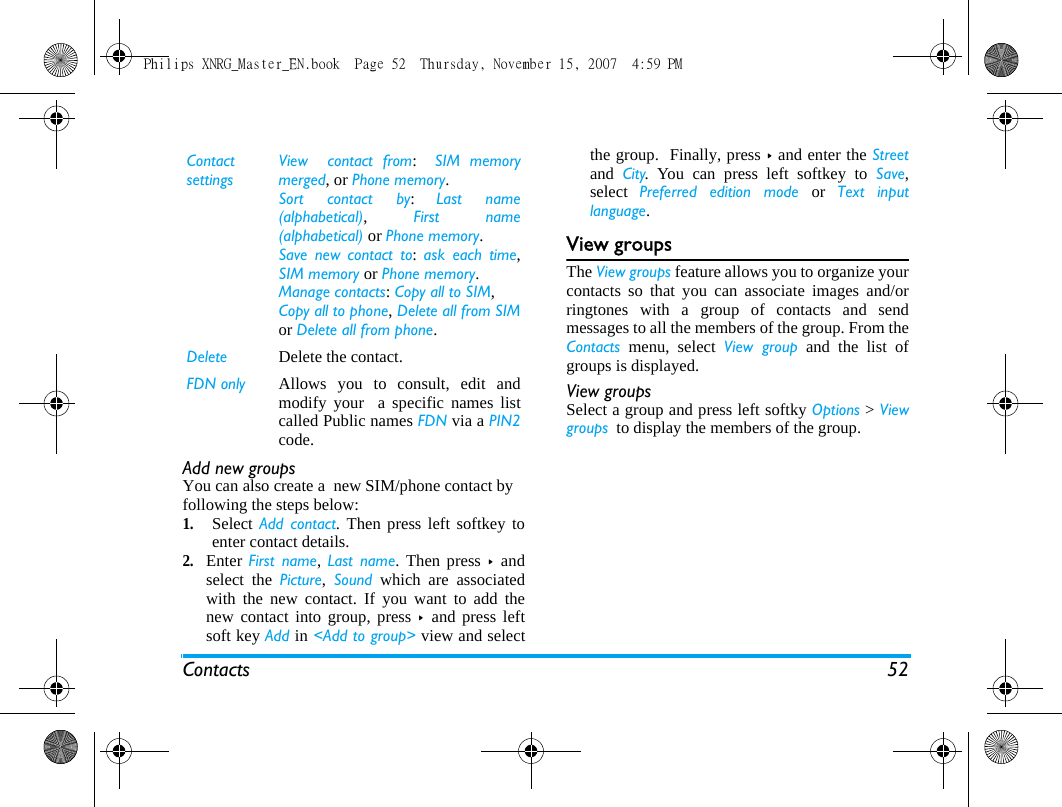
Contacts 52Add new groupsYou can also create a  new SIM/phone contact by following the steps below:1.Select Add contact. Then press left softkey toenter contact details. 2.Enter First name,  Last name. Then press >  andselect the Picture,  Sound which are associatedwith the new contact. If you want to add thenew contact into group, press >  and press leftsoft key Add in <Add to group> view and selectthe group.  Finally, press > and enter the Streetand  City. You can press left softkey to Save,select  Preferred edition mode or  Text inputlanguage.View groupsThe View groups feature allows you to organize yourcontacts so that you can associate images and/orringtones with a group of contacts and sendmessages to all the members of the group. From theContacts menu, select View group and the list ofgroups is displayed.View groupsSelect a group and press left softky Options > Viewgroups  to display the members of the group.Contact settingsView  contact from:  SIM memorymerged, or Phone memory.Sort contact by:  Last name(alphabetical), First name(alphabetical) or Phone memory.Save new contact to: ask each time,SIM memory or Phone memory.Manage contacts: Copy all to SIM, Copy all to phone, Delete all from SIMor Delete all from phone.Delete Delete the contact.FDN only Allows you to consult, edit andmodify your  a specific names listcalled Public names FDN via a PIN2code.   Philips XNRG_Master_EN.book  Page 52  Thursday, November 15, 2007  4:59 PM
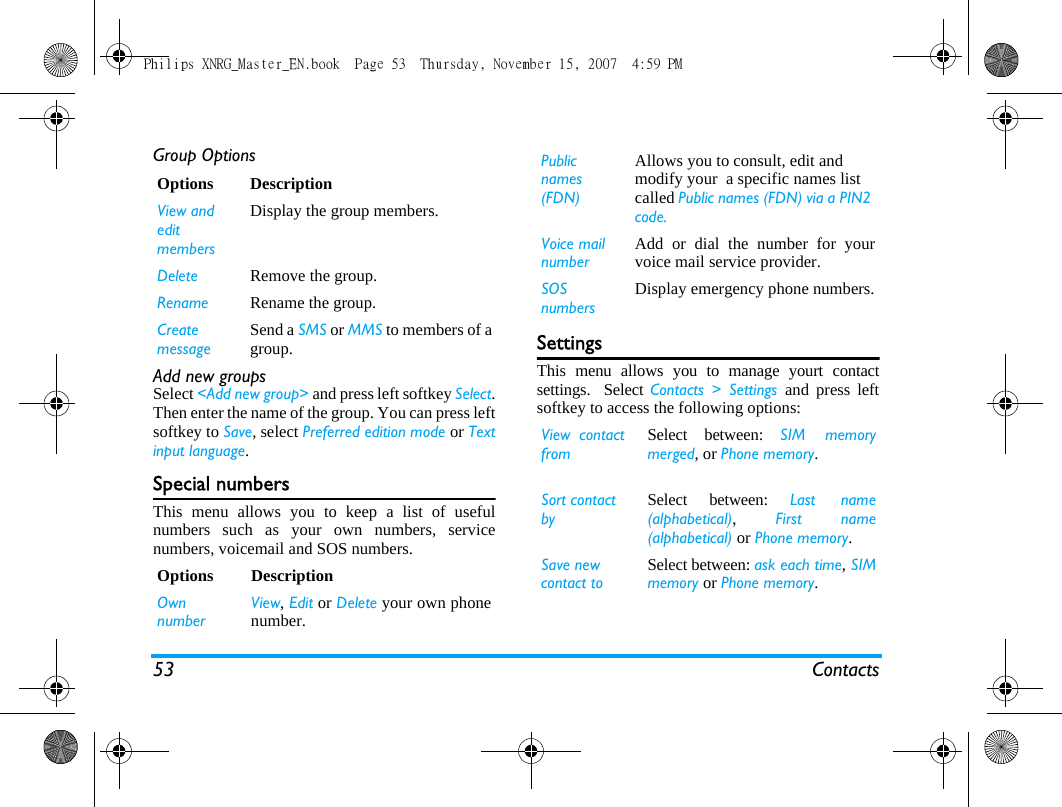
53 ContactsGroup OptionsAdd new groupsSelect <Add new group> and press left softkey Select.Then enter the name of the group. You can press leftsoftkey to Save, select Preferred edition mode or Textinput language.Special numbersThis menu allows you to keep a list of usefulnumbers such as your own numbers, servicenumbers, voicemail and SOS numbers.Settings This menu allows you to manage yourt contactsettings.  Select Contacts > Settings and press leftsoftkey to access the following options:Options DescriptionView and edit membersDisplay the group members.Delete Remove the group.Rename Rename the group.Create messageSend a SMS or MMS to members of agroup.Options DescriptionOwn numberView, Edit or Delete your own phonenumber.Public names (FDN)Allows you to consult, edit and modify your  a specific names list called Public names (FDN) via a PIN2 code.   Voice mail numberAdd or dial the number for yourvoice mail service provider.SOS numbersDisplay emergency phone numbers.View  contact fromSelect between: SIM memorymerged, or Phone memory. Sort contact bySelect between: Last name(alphabetical), First name(alphabetical) or Phone memory.Save new contact toSelect between: ask each time, SIMmemory or Phone memory.Philips XNRG_Master_EN.book  Page 53  Thursday, November 15, 2007  4:59 PM
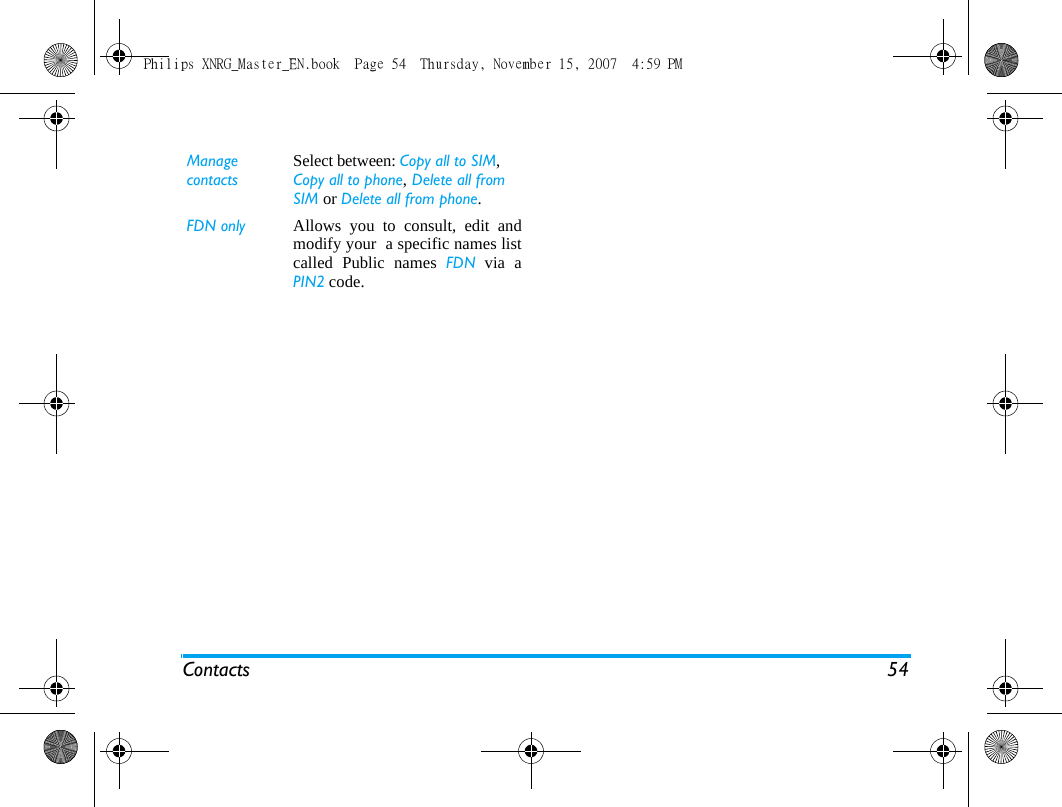
Contacts 54Manage contactsSelect between: Copy all to SIM, Copy all to phone, Delete all from SIM or Delete all from phone.FDN only Allows you to consult, edit andmodify your  a specific names listcalled Public names FDN via aPIN2 code. Philips XNRG_Master_EN.book  Page 54  Thursday, November 15, 2007  4:59 PM
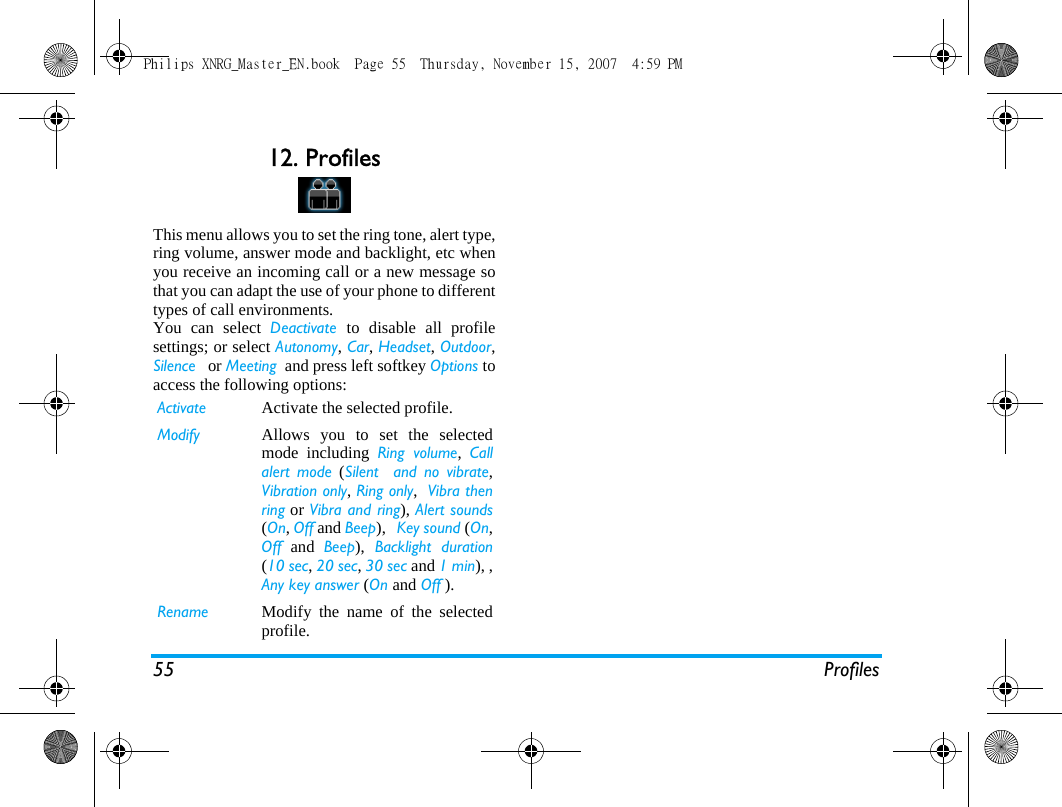
55 Profiles12. ProfilesThis menu allows you to set the ring tone, alert type,ring volume, answer mode and backlight, etc whenyou receive an incoming call or a new message sothat you can adapt the use of your phone to differenttypes of call environments.You can select Deactivate  to disable all profilesettings; or select Autonomy, Car, Headset, Outdoor,Silence   or Meeting  and press left softkey Options toaccess the following options:Activate Activate the selected profile.Modify Allows you to set the selectedmode including Ring volume,  Callalert mode (Silent  and no vibrate,Vibration only, Ring only,  Vibra thenring or Vibra and ring), Alert sounds(On, Off and Beep),   Key sound (On,Off and Beep), Backlight duration(10 sec, 20 sec, 30 sec and 1 min), ,Any key answer (On and Off ).Rename Modify the name of the selectedprofile.Philips XNRG_Master_EN.book  Page 55  Thursday, November 15, 2007  4:59 PM
56 Connectivity13. ConnectivityThis menu provides you with more features to set upa connection with these external devices.BluetoothYour phone supports Bluetooth wirelesstechnology, allowing connection to a compatibleBluetooth device. The Bluetooth connection can besubject to interference from obstructions such aswalls or other electronic devices.Before you can apply Bluetooth, make sure theother device supports Bluetooth function bycontacting the device’s manufacturer or itsaccompanied documentation.Establish a Bluetooth connectionTo activate, press , to enter the main menu fromidle mode and then select Connectivity > Bluetooth.On the Bluetooth screen, select Activation  >  On.Next, select My devices > <Find device>. When thelist of devices appears, press left softkey to selectthe device you wish to establish a connection with.If you do not intend to use the Bluetooth featurefor some time, you should deactivate it in order toconserve battery power.Bluetooth menuOptions DescriptionActivation Turn Bluetooth feature On or Off. My devices • Search for the external devices that you can connect to.• Select to connect to devices that you predefined.Visible Choose to show or hide the deviceby select toggle On or Off.Phone nameEdit the name of the device.Philips XNRG_Master_EN.book  Page 56  Thursday, November 15, 2007  4:59 PM
Connectivity 57NetworkThis menu allows you to select the service networkYou can select a network other than your homenetwork only if it has a valid roaming agreementwith your home network. If you change thenetwork, some problems may arise during theoperation of your phone.Configure browserThis menu allows you to configure the Browsersettings and select the WAP profiles in Browser connectionprofiles for web browsing. Your phone may havebeen pre-configured with the settings of a specificnetwork operator. If you are a subscriber of thenetwork operator, you may start using your WAPbrowser immediately. Otherwise, you need to re-configure the settings. Philips is not liable to give prior notification norshall it bear any consequences for failures arisingfrom changes in configuration made by you or bythe network operator, or changes in WAP addressor contents made by the internet content provider.Please check with your network operator and yourinternet content provider for the most updatedinformation.RegistrationModeAutomatic: your phone will automatically select and register to an available network.Manual: provides you with a list ofavailable network in the area.Select the network you wish toregister with and press left softkeyto confirm. You are recommended to selectAutomatic.PreferredNetwork listSelect a  preferred network to be used currently.Philips XNRG_Master_EN.book  Page 57  Thursday, November 15, 2007  4:59 PM
58 ConnectivityThe following options are available for Browsersettings:Configure JAVAYour mobile phone features a Java run-timeenvironment, which allows you to run Javaapplications, such as games downloaded on thenetwork.  View Java listSelect Connectivity > Configure JAVA to view the Javalist and press left softkey to access the followingoptions: Create a new Java applicationSelect Connectivity > Configure JAVA > <New profile...>to configure a new Java. The first time you launch Java, a message appears to alert you that the installation and configuration of Java will take several moments. This is a one-time occurrence. Once Java has been installed, you may then proceed to set the following Profile name, Network connection profile (select and configure whether GSM or GPRS will be used when lauching a connection), User proxy (Yes or No), Proxy address, Display settingsTitle display: Allows you to chooseShow title or hide title.Vertical scrolling: Allows you tochoose  By line or By page. Info on exit: Allows you to chooseNo info, Volume only, Duration only orDuration and volume. Security SettingsCookies: Allows you to chooseAllow cookies or No cookies.Clear cookies: Select to clearcookies.Show certificates: Display the list ofinstalled certificates. Clear CacheAllows you to delete all Cachecontents. Options DescriptionActivate Launch the selected Javaapplication. View View the detailed information of theselected Java application.Rename Modify the name of the selectedJava application.Delete Remove the selected Javaapplication.Philips XNRG_Master_EN.book  Page 58  Thursday, November 15, 2007  4:59 PM
Connectivity 59Proxy port, Proxy login, Proxy password, DNS mode (Automatic or Manual), DNS address and DNS port.USB function(need further information of how to operate)Philips XNRG_Master_EN.book  Page 59  Thursday, November 15, 2007  4:59 PM
60 Calls14. CallsMost options described in this chapter are operatorand/or subscription dependent and require either aPIN2 code or a phone code. For more informationon PIN codes, see “Security settings” on page 53.Calls listThis menu provides you with a list of calls you havemissed, answered and made. The calls include Allcalls,  Dialled call,  Missed calls,  Received call andRejected calls, which are displayed in chronologicalorder with the most recent call at the top of the list.Select a call from one of the lists, then press leftsoftkey Options to access the following:GPRS countersTabulates the amount of data sent and received viaGPRS. You can also reset the counter. The unit ofmeasurement is Byte.GSM countersDisplays the number of calls that have been madeand received.Call settingsThis menu allows you to configure the call settings:Options DescriptionCall Call the selected number.Call with  Allows you to select IP, Handsfree orIP with handsfree.Create messageSend a message to the selectednumber. You can send by SMS orMMS.Add to contactsAdd the number if the number is notin the Contacts list.Ban caller To add the phone number into theblacklist, see “Security settings” onpage 53.Delete recordDelete the selected number from thelist.Delete all  Delete all number from the list.Options DescriptionPhilips XNRG_Master_EN.book  Page 60  Thursday, November 15, 2007  4:59 PM
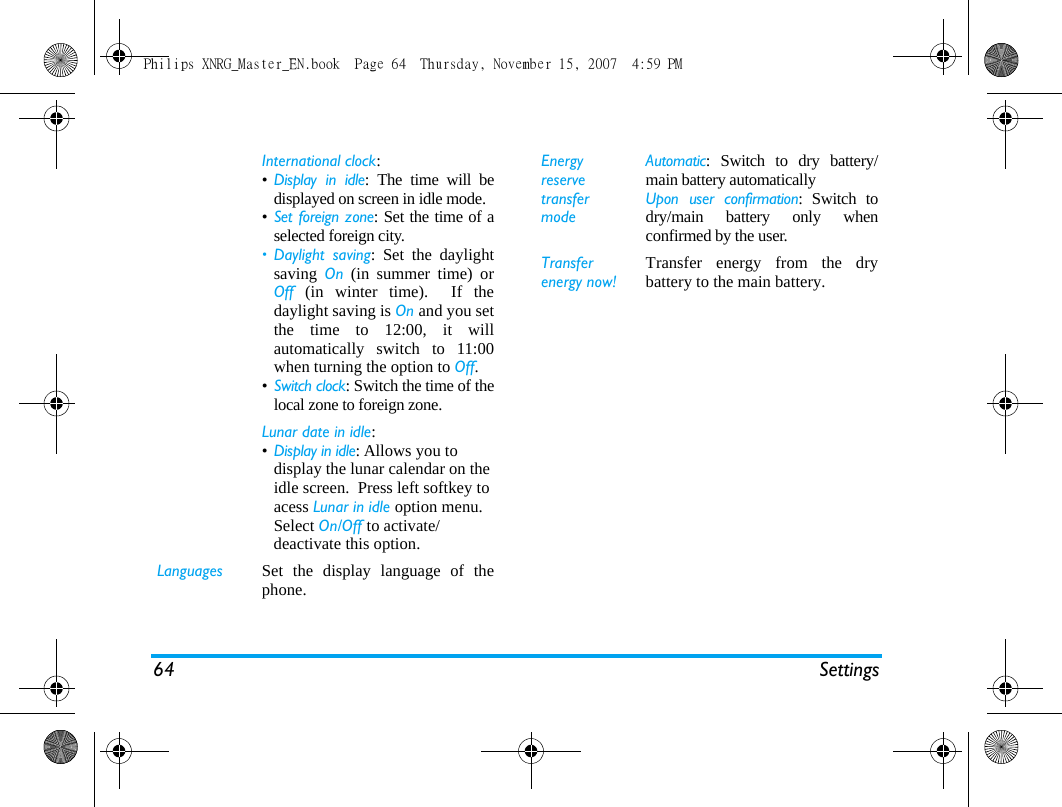
Calls 61Any keyanswerTurn Any key answer On or Off. Whenthis function is on, you can answerincoming calls by pressing any key,except ), right softkey, and +/- sidekeys.My identity (network dependent)Select to Show or Hide your identityto your corresponent. The Status willinform you on which option isactivated.Auto redial You can set auto redial option On orOff.  When set to On and the partyyou wish to call is not connected,you will be asked to redial or not. Call waiting Call  waiting  GSM: Applies to All,Voice, Fax, and Data calls. When thisoption is active, you hear a beep ifsomeone tries to call you whilealready on a call. Call waiting if GPRS: Allows you toActivate or Deactivate the call waitingfor voice incoming calls while aGPRS connection is ongoing..Call divert Voice: Set or cancel the followingcall divert options to mailbox,number or contact : Unconditional, Allconditional, If no reply,  If unreachableor If busy.•When Unconditional is on, you will not receive any calls until you deactivate it.•When is All conditional is on, youcan choose when you want todivert incoming calls• When If no reply is on, incomingcalls will be diverted if the userdoes not answer. • When  If unreachable is on,incoming calls will be diverted tothe pre-set number when the useris not connected to the network. • When  If busy is on, calls will bediverted if the user is alreadyonline or if the call is rejected.• You can also check the Status ofyour call diverts Philips XNRG_Master_EN.book  Page 61  Thursday, November 15, 2007  4:59 PM
62 CallsIP prefixThis menu allows you to store the IP service numberso that you need not enter the number before youmake an IP call.The IP service number has to be supported by yournetwork operator before you can make an IP call.When you change a new SIM card, the IP servicenumber you have stored with be cleared.The phone does not validate the IP service numberyou have entered.  Therefore, please ensure thatthe number is correct.  Call barring The types of calls you can bar are asfollows:• Outgoing calls:  All outgoing calls,international calls or internationalexcept home • Incoming calls: All incoming calls orwhen roaming. In both cases, you can cancel the callbarring to Outgoing and Incomingcalls. You can also check the Statusof your call barring or Set passwordto prevent the reception or makingof different types of calls.This operation only supports GSMcalls. Philips XNRG_Master_EN.book  Page 62  Thursday, November 15, 2007  4:59 PM
Settings 6315. SettingsYou can configure your phone to best suit yourusage preference. You can configure the followingsettings:  General,  Display,  Sounds  and  Connectivity.Press , to enter the main menu from idle mode modeand select Settings. Press <  or >  to select a settingsmenu.  Press + or -. Enter the menu options.GeneralPhone settingsTime & date Set local time & date: • Set the time in the format HH:MM and set the date format.•Time zone: use the navigationkey to change the time zone.• Daylight saving: Set the daylightsaving  On (in summer time) orOff (in winter time).  If thedaylight saving is On and you setthe time to 12:00, it willautomatically switch to 11:00when turning the option to Off.•Display time: Select On or Off.When you select On, the timeinformation will be displayed inidle screen.•Time format: Set the time formatas 24 hours or 12 hours.•Date format: Set the date formatas  DD/MM/YYYY,  MM/DD/YYYY,or YYYY/MM/DD.Philips XNRG_Master_EN.book  Page 63  Thursday, November 15, 2007  4:59 PM
64 SettingsInternational clock: •Display in idle: The time will bedisplayed on screen in idle mode.•Set foreign zone: Set the time of aselected foreign city. • Daylight saving: Set the daylightsaving  On (in summer time) orOff (in winter time).  If thedaylight saving is On and you setthe time to 12:00, it willautomatically switch to 11:00when turning the option to Off.•Switch clock: Switch the time of thelocal zone to foreign zone.Lunar date in idle: •Display in idle: Allows you to display the lunar calendar on the idle screen.  Press left softkey to acess Lunar in idle option menu. Select On/Off to activate/deactivate this option.Languages Set the display language of thephone.Energy reserve transfer modeAutomatic: Switch to dry battery/main battery automaticallyUpon user confirmation: Switch todry/main battery only whenconfirmed by the user.Transfer energy now!Transfer energy from the drybattery to the main battery.Philips XNRG_Master_EN.book  Page 64  Thursday, November 15, 2007  4:59 PM
Settings 65Security settingsOptions DescriptionPin code settingsPIN activation: Select On or Off.When you select On, you need toenter the PIN code when youswitch on the phone. The default PIN code is networkdependent on your serviceprovider. Please contact yourservice operator for the PINinformation.Change PIN: Modify the PIN code.Change PIN2: Modify the PIN2code.Auto key lock Allows you to lock your keypadautomatically.  THe default settingis  Deactivated. Select the timeinterval after which the keypad willbe locked.Safeguard You can safeguard importantinformation such as messages,contacts on your phone byactivating safeguard.  You can alsochange the safeguard password.The default safeguard password is0000.Philips XNRG_Master_EN.book  Page 65  Thursday, November 15, 2007  4:59 PM
66 SettingsShortcutsDisplays a list of shortcut features. You can set anew shortcut key by establishing a link between acertain feature and a numeric or navigation key.You can also change or delete an existing shortcutkey.Firewall Firewall activation: Allows you to setthe firewall option On or Off. WhenOn, you mobile phone will rejectall calls and messages receivedfrom people listed in the blacklist.Rejected calls appear in the Calls listand rejected messages in the Spammessages box.Reject calls alert: Select No alert ifyou do not want to receive alert forrejected calls or Text alert if youwant to receive alert of the rejectedcalls.Spam messages alert: Select Noalert if you do not want to receivealert for rejected messages or Textalert if you want to receive alert ofthe rejected messages.Blacklist: Displays the list ofcontacts whose calls and messageswill be rejected.  Select to add aName,  Blacklisted number andwhether to reject the Calls,Messages  or Messages and calls sentby the blacklisted contact.Shortcuts Displays a list of shortcut features.You can set a new shortcut key byestablishing a link between acertain feature and a numeric ornavigation key. You can alsochange or delete an existingshortcut key.DefaultstorageSet the default storage location:Phone memory or Memory card.Memory statusYou can check the memory statusof Contacts, Messaging and My files.You can also check the memorystatus of memory card if it isinserted.Default settingsRestore your phone settings to thedefault values. Philips XNRG_Master_EN.book  Page 66  Thursday, November 15, 2007  4:59 PM
67 SettingsMemory ManagementRestore factory settingsThis menu allows you to reset some settings in yourphone to its factory settings.Enter the phone lock password and press leftsoftkey/, and press left softkey Yes to confirm.SoundsYou can set your phone to operate with differentsound profiles. For details, see “Profiles” onpage 66.Options DescriptionStorage settingsDefault storage location: Select thepreferred storage location: Phonememory or Memory card.Picture prefix name: assign a prefixname on your picture files.Video prefix name: assign a prefix nameon your video files.Memory statusDisplays the percentage of memorythat has been utilized in Contacts,Messages,  JAVA,  Phone memory andMemory card (if available).Format phone memoryIf selected, all folders and files youcreated will be removed.Erase personal dataIf selected, all personal files(messages, pictures, videos, etc) willbe removed.Options DescriptionCall Alert ModeSelect from Silent, Vibrate only, Ringonly, Vibrate then ring or Vibrate andring.Ring volumeSelect from 6 volume levels.Default call ringerSelect from Use theme, Use sound orUse beep.Contacts call ringerSelect from Same as default ringer,Use sound or Use beep.Alert soundsNew message tone: Select from Usetheme, Use sound, beep or None.Other alert: Select from On, Off orBeep.Keytones Turn key sound On or Off.Philips XNRG_Master_EN.book  Page 67  Thursday, November 15, 2007  4:59 PM
Settings 68If you have downloaded your own ring tones andhave selected such a ring tone to be the alarmalert, then after you set the alarm and switched offthe phone, the alert tone will be changed back tothe original factory settings. This does not apply ifthe ring tone you have chosen is one that comes asdefault with your phone.DisplayYou may configure your phone with differentdisplay settings:Options DescriptionWallpaper Select from  Use theme, Use pictureor None.Backlight durationSelect backlight duration from 60sec., 30 sec., 20 sec. and 10 sec.Backlight brightnessSelect from 5 backlight levels. Youcan select the backlight level bypressing + or - keys. Press , or leftsoftkey to confirm. Greeting Turn greetings On or Off. When youselect  On, you can edit the greetingsmessage. The maximum length of greetings is20 Chinese words or 50 Englishcharacters.Philips XNRG_Master_EN.book  Page 68  Thursday, November 15, 2007  4:59 PM
Icons & Symbols 69Icons & SymbolsIn idle mode, several icons and symbols can bedisplayed on the sub-display and main screen. Thestatus, network and battery icons are displayed allthe time. The rest of the icons are displayed if thefeature is available, and not displayed if the featureis unavailable.If the network symbol is not displayed, it impliesthat the network is currently unavailable. You maybe in a bad reception area; moving to a differentlocation may help.GSM Network - your phone is connectedto the GSM network.Reception quality - the more bars areshown the better the reception is..Battery - Indicates battery level with 5battery level indicator bars. Whencharging, a scrolling icon will bedisplayed.Roaming - Displayed when your phone isregistered to a network other than yourown (especially when you’re abroad).GPRS attach - Your phone is connectedto the GPRS network.SMS/MMS message - You have receiveda new SMS/MMS message.SMS full - Memory for messages is full.Delete old messages to receive newones.Voicemail- You have received a newvoice message.Home zone - A zone designated by yournetwork operator.  Subscriptiondependent, contact your serviceprovider for details. Bluetooth - Feature is activated.Silent - Your phone will not ring whenreceiving a call.Keypad lock - The keypad has beenlocked.Headset - The headset is plugged into thephone.WAP notification.Philips XNRG_Master_EN.book  Page 69  Thursday, November 15, 2007  4:59 PM
70 PrecautionsPrecautionsRadio WavesYour cellular mobile phone is a low powerradio transmitter and receiver. When itis operating, it sends and receives radiowaves. The radio waves carry your voiceor data signal to a base station that is connected tothe telephone network. The network controls thepower at which the phone transmits.• Your phone transmits/receives radio waves in theGSM frequency (900 / 1800 / 1900 MHz).• The GSM network controls transmission power(0.01 to 2 watts).• Your phone complies with all relevant safetystandards.• The CE mark on your phone shows compliancywith European electromagnetic compatibility(Ref. 89/336/EEC) and low voltage directives(Ref. 73/23/EEC).Your cellular mobile phone is your responsibility.To avoid damage to yourself, to others or to thephone itself, read and follow all the safetyinstructions and make them known to anyoneborrowing your phone.Furthermore to preventunauthorized use of your phone:Keep your phone in a safe place and keepit out of small children's reach.Avoid writing down your PIN code. Try toremember it instead. Switch off the phone and remove the battery if youare going to leave it unused for a long time.Change your PIN code after purchasing the phoneand to activate call restriction options.The design of your phone complies withall applicable laws and regulations.However your phone may causeinterference with other electronic devices.Consequently you should follow all localrecommendations and regulations when usingyour cellular phone both at home and when away.Regulations on the use of cellular phones invehicles and aircraft are particularly stringent.Public concern has been focused for some time on thepossible health risks for users of cellular phones. Thecurrent research on radio wave technology, includingthe GSM technology, has been reviewed and safetystandards have been drawn up to ensure protectionfrom exposure to radio wave energy. Your cellulartelephone  complies with all applicable safetystandards and the Radio Equipment andPhilips XNRG_Master_EN.book  Page 70  Thursday, November 15, 2007  4:59 PM
Precautions 71Telecommunications Terminal Equipment Directive1999/5/EC.Always switch off your phoneInadequately protected or sensitive electronicequipment may be affected by radio energy. Thisinterference can lead to accidents.Before boarding an aircraft and/or whenpacking the phone in your luggage: the useof mobile phones in an aircraft may bedangerous for the operation of the aircraft, disruptthe mobile phones network and may be illegal.In  hospitals, clinics, other health carecentres and anywhere else where you maybe in the close vicinity of medicalequipment.In areas with a potentially explosiveatmosphere (e.g. petrol stations and alsoareas where the air contains dust particles,such as metal powders).In a vehicle transporting flammable products (evenif the vehicle is parked) or a vehicle powered byliquefied petroleum gas (LPG), check first that thevehicle complies with the applicable safety rules.In areas where you are requested to turn off radiotransmitting devices, such as quarries or other areaswhere blasting operations are in progress.Check with the vehicle manufacturer thatelectronic equipment used in yourvehicle will not be affected by radioenergy.PacemakersIf you have a pacemaker:• Always keep the phone more than 15 cm fromyour pacemaker when the phone is switched on,in order to avoid potential interference.• Do not carry the phone in a breast pocket.• Use the ear opposite to the pacemaker tominimize the potential interference.• Switch off your phone if you suspect thatinterference is taking place.Users of hearing aidsIf you are a user of a hearing aid, consult yourphysician and hearing aid manufacturer to learnwhether your particular device is susceptible tocellular phone interference.Philips XNRG_Master_EN.book  Page 71  Thursday, November 15, 2007  4:59 PM
72 PrecautionsImproved performanceIn order to improve the performance of yourphone, reduce radio energy emission, reducebattery consumption and ensure safe operationadhere to the following guidelines:For the optimal and satisfactory operationof the phone, you are recommended to usethe phone in the normal operating position(when not using in hands-free mode orwith a hands-free accessory).• Do not expose your phone to extremetemperatures.• Treat the phone with care. Any misuse will voidthe International Guarantee.• Do not immerse the phone in any liquid; if yourphone is damp, switch it off, remove the battery.and let them dry for 24hrs before using themagain.• To clean the phone, wipe it with a soft cloth.• Placing and receiving calls consumes the sameamount of battery energy. However, the mobileconsumes less energy in idle screen when kept inthe same place. When in idle screen and whileyou are moving, your phone consumes energy totransmit updated location information to thenetwork. Setting the backlight for a shorter periodof time as well as avoiding unnecessarynavigating in the menus will also help to save thebattery's energy for longer phoning and stand-byperformances.Battery information• Your phone is powered by a rechargeable battery.• Use specified charger only.• Do not incinerate.• Do not deform or open the battery.• Do not allow metal objects (such as keys in yourpocket) to short circuit the battery contacts.• Avoid exposure to excessive heat (>60°C or140°F), moisture or caustic environments.You should only use Philips authenticbattery and accessories, as the use of anyother accessories may damage your phoneand may be dangerous, and will make allguarantees for your Philips phone null andvoid. The use of an incorrect type of battery mayalso cause an explosion.Make sure damaged parts are replaced immediatelyby a qualified technician and that they are replacedwith genuine Philips replacement parts.Philips XNRG_Master_EN.book  Page 72  Thursday, November 15, 2007  4:59 PM
Precautions 73Your mobile phone and your carStudies have shown that speaking on thetelephone while driving lowers yourconcentration, which can be dangerous.Adhere to the following guidelines:• Give your full attention to driving. Pull off theroad and park before using the phone.• Respect the local regulations in countries whereyou drive and use your GSM phone.• If you want to use your phone in a vehicle, installthe hands-free car kit which is designed for thatpurpose.• Ensure that your phone and car kit do not blockany air bags or other security devices fitted in yourcar.The use of an alarm system to operate a vehicle'slight or horn to indicate incoming phone calls isprohibited on public roads in some countries. Checklocal regulations.EN 60950 NormIn hot weather or after prolonged exposure to thesun (e.g., behind a window or a windscreen), thetemperature of your phone's casing might increase,especially when featuring a metallic finish. Be verycareful in this case when picking up your phone andalso avoid using it with an ambient temperature over40° C or below 5° C.For your phone, the socket-outlet shall be installednear the phone and shall be accessible.FCC Compliance StatementThis equipment has been tested and found tocomply with the limits for a Class B digital device,pursuant to Part 15 of the FCC Rules. These limitsare designed to provide reasonable protectionagainst harmful interference in a residentialinstallation. This equipment generates, uses and canradiate radio frequency energy and, if not installedand used in accordance with the instructions, maycause harmful interference to radiocommunications. However, there is no guaranteethat interference will not occur in a particularinstallation. If this equipment does cause harmful interference toradio or television reception, which can bedetermined by turning the equipment off and on, theuser is encouraged to try to correct the interferenceby one or more of the following measures: -- Reorient or relocate the receiving antenna. Philips XNRG_Master_EN.book  Page 73  Thursday, November 15, 2007  4:59 PM
74 Precautions-- Increase the separation between the equipmentand receiver. -- Connect the equipment into an outlet on a circuitdifferent from that to which the receiver isconnected. Any changes or modifications not expresslyapproved by the party responsible for compliancecould void the user’s authority to operate theequipment.Environmental careRemember to observe the local regulationsregarding the disposal of the packagingmaterials, exhausted batteries and oldphone and please promote their recycling.Philips has marked the battery and packaging withstandard symbols designed to promote the recyclingand appropriate disposal of your eventual waste.WEEE Marking in the DFU: “Information to the Consumer”Disposal of your old productYour product is designed and manufactured withhigh quality materials and components, which canbe recycled and reused. When this crossed-out wheeled binsymbol is attached to a product it meansthe product is covered by the EuropeanDirective 2002/96/ECPlease inform yourself about the localseparate collection system for electricaland electronic products.Please act according to your local rules and do notdispose of your old products with your normalhousehold waste. The correct disposal of your oldproduct will help prevent potential negativeconsequences for the environment and humanhealth.The labelled packaging material isrecyclable.A financial contribution has been madeto the associated national packagingrecovery and recycling system.The plastic material is recyclable (alsoidentifies the type of plastic).Philips XNRG_Master_EN.book  Page 74  Thursday, November 15, 2007  4:59 PM
75TroubleshootingThe phone does not switch onRemove/reinstall the battery. Then charge thephone until the battery icon stops scrolling. Unplugfrom charger and try to switch on the phone.Your phone doesn’t return to the idle screenLong press the hangup key or switch off the phone,check that the SIM card and the battery have beeninstalled correctly and switch it on again.The network symbol is not displayedThe network connection is lost. Either you are in aradio shadow (in a tunnel or between tall buildings)or you are outside the network coverage area. Tryfrom another place, try to reconnect to the network(especially when abroad), check that the antenna is inplace if your mobile has an external antenna, orcontact your network operator for assistance/information.The display doesn’t respond (or the display responds slowly) to key pressesThe display responds more slowly at very lowtemperatures. This is normal and does not affect theoperation of the phone. Take the phone to a warmerplace and try again. In other cases, please contactyour phone supplier.Your battery seems to over heatYou might be using a charger that was not intendedfor use with your phone. Make sure you always usethe Philips authentic accessory shipped with yourphone.Your phone doesn’t display the phone numbers of incoming callsThis feature is network and subscription dependent.If the network does not send the caller’s number, thephone will display Call 1 or Withheld instead.Contact your operator for detailed information onthis subject.You can’t send text messagesSome networks don’t allow message exchangeswith other networks. First check that you enteredthe number of your SMS centre, or contact youroperator for detailed information on this subject.You have the feeling that you miss some callsCheck your call divert options.The display shows INSERT SIM Check that the SIM card has been inserted correctly.If the problem remains, your SIM card may bedamaged. Contact your operator.Philips XNRG_Master_EN.book  Page 75  Thursday, November 15, 2007  4:59 PM
76When attempting to use a feature in the menu, the mobile displays NOT ALLOWEDSome features are network dependent. Therefore,they are only available if the network or yoursubscription supports them. Contact your operatorfor detailed information on this subject.Your phone is not chargingIf your battery is completely flat, it might takeseveral minutes of pre-charge (up to 10 minutes insome cases) before the charging icon is displayed onthe screen.Philips XNRG_Master_EN.book  Page 76  Thursday, November 15, 2007  4:59 PM
77Philips Authentic AccessoriesSome accessories, such as a standard battery and acharger, are included as standard accessories in yourmobile phone package. Additional accessories mayalso be provided or sold separately. Packagecontents may therefore vary.To maximize the performance of your Philipsphone and not to void the warranty, alwayspurchase Philips Authentic Accessories that arespecially designed for use with your phone. PhilipsConsumer Electronics cannot be held liable forany damages due to use with non authorizedaccessories.ChargerCharges your battery in any AC outlet. Smallenough to carry in a briefcase/handbag.Data connect kitProvides easy data connection to your Philipsmobile phone. The USB cable enables high-speedcommunication between your phone and yourcomputer. The provided software allows you todownload pictures and melodies and to synchronizeyour contacts and appointments.Deluxe HeadsetThe integrated answer button offers you a simpleway to answer your calls. Simply answer anincoming call by pressing the button or long press toreject the incoming call.Philips XNRG_Master_EN.book  Page 77  Thursday, November 15, 2007  4:59 PM
78Trademark DeclarationJAVA is a trademark of SunMicrosystems, Inc.T9® is a trademark of TegicCommunications Inc.Bluetooth™ is a trade-markowned bytelefonaktiebolaget L MEricsson, Sweden andlicensed to Philips.Tegic Euro. Pat. App. 0842463Philips XNRG_Master_EN.book  Page 78  Thursday, November 15, 2007  4:59 PM
79Limited warranty1.  What Does This Limited Warranty Cover?Philips warrants to the original retail purchaser(“Consumer” or “You”) that this Philipscellular product and all accessories originallyprovided by Philips in the sales package(“Product”) are free from defects in materials,design and workmanship under normal use inaccordance with the operating instructions andpursuant to the following terms and conditions.This limited warranty extends only to theConsumer for Products purchased and used inthe original country of purchase. The limitedwarranty is valid only in Philips’ intendedcountry of sales of the product.2.  How Long is The Limited Warranty Period?The limited warranty period for the Productextends for ONE (1) YEAR from the date ofpurchase of the Product, documented by validproof of purchase. The limited warranty fororiginal Philips rechargeable battery extendsfor six (6) months from the date of purchase.3.  What Will Philips Do if The Product is NotFree From Material Defects in Materials andWorkmanship During The Limited WarrantyPeriod?During the limited warranty period, Philips orits authorized service representative will, at itsoption either repair or replace, without chargefor parts or labour, a materially defectiveProduct with new or refurbished parts orProduct and return such repaired or replacedProduct to the Consumer in working condition.Philips will retain defective parts, modules orequipment.Repaired or replaced Product will be coveredby this limited warranty for the balance of theoriginal limited warranty period or ninety (90)days from the date of repair or replacementwhichever is longer. Repair or replacement ofProduct, at Philips’ option is your exclusiveremedy.4.  What is Not Covered By This LimitedWarranty?This limited warranty does not cover:a)  Product that has been subjected to misuse,accident, shipping or other physicaldamage, improper installation, abnormalPhilips XNRG_Master_EN.book  Page 79  Thursday, November 15, 2007  4:59 PM
80operation handling, neglect, inundation,fire, water or other liquid intrusion; orb)  Product that has been damaged due torepair, alteration, or modification byanyone not authorized by Philips; orc)  Product that has reception or operationproblems caused by signal conditions,network reliability or cable or antennasystems; ord)  Product defects or problems caused byuses with non-Philips products oraccessories; or e)  Product which warranty/quality stickers,product serial number or electronic serialnumber has been removed, altered orrendered illegible; or f)  Product purchased, used, serviced, orshipped for repair from outside the originalcountry of purchase, or used forcommercial or institutional purposes(including but not limited to Products usedfor rental purposes); or g) Product returned without valid proof ofpurchase or which proof of purchase hasbeen altered or is illegible.h) Normal wear and tear or Force Majeure.5.  How Do You Get Warranty Service?a)  Return the Product to an authorized servicecenter of Philips. You may contact thelocal Philips office for the location of thenearest authorized service center.b) The SIM card must be removed from theProduct before it is given to Philips. Philipsassumes no liability for damaged or loss ofthe SIM card or the data contained therein.c) If the Product failure is not covered by thislimited warranty, or this limited warrantyis inapplicable, void or invalid due to anyterms and conditions stated herein, theConsumer will be charged for the cost ofrepair or replacement of the Product and allother related cost incurred in repairing orreplacing the Product.d)  IMPORTANT - you are required to returnthe Product together with a valid proof ofpurchase which must identify the point ofpurchase, date of purchase, Product modeland Product serial number clearly.6. Other Limitation: This Warranty is The EntireAgreement.EXCEPT FOR THE EXPRESSWARRANTIES SET FORTH ABOVE ANDTHOSE IMPLIED BY LAW AND WHICHCANNOT BE EXCLUDED OR MODIFIEDBY AGREEMENT, PHILIPS PROVIDES NOPhilips XNRG_Master_EN.book  Page 80  Thursday, November 15, 2007  4:59 PM
81OTHER WARRANTY WHETHEREXPRESS OR IMPLIED (WHETHER BYSTATUTE, UNDER THE OPERATION OFLAW OR OTHERWISE) AND SPECIALLYDISCLAIMS ANY WARRANTY OFSATISFACTORY QUALITYMERCHANTABILITY OR FITNESS FOR APARTICULAR PURPOSE.PHILIPS’ TOTAL LIABILITY FORDAMAGES RELATING TO OR ARISINGOUT OF THE PURCHASE OR USE OF THEPRODUCT, REGARDLESS OF THE TYPEOR CAUSE OF SUCH DAMAGE OR THEFORM OR CHARACTERISATION OF THECLAIM ASSERTED (E.G. CONTRACT ORTOPIT), SHALL NOT EXCEED THEORIGINAL PURCHASE PRICE PAID FORTHE PRODUCT.HOWEVER IN NO EVENT SHALL PHILIPSBE LIABLE FOR ANY PUNITIVE,SPECIAL, INCIDENTAL, INDIRECT ORCONSEQUENTIAL DAMAGES (INCLUDINGBUT NOT LIMITED TO THE LOSS OF USE,LOSS OF TIME, INCONVENIENCE,COMMERIAL LOSS, LOST PROFITS,LOST BUSINESS OPPORTUNITIES, COSTOF SUBSTITUTION OF GOODS ORSERVICES, INVESTMENTS, DAMAGE TOGOODWILL OR REPUTATION, OR LOSSOF DATA AND CLAIMS BY THIRDPARTIES) RESULTING FROM PURCHASEOR USE OF THE PRODUCT, TO THEFULLEST EXTENT ALLOWED BY LAW,WHETHER OR NOT PHILIPS HAS BEENADVISED OF THE POSSIBILTY OF SUCHDAMAGES. THESE LIMITATIONS SHALLAPPLY NOTWITHSTANDING THEFAILURE OF THE ESSENTIAL PURPOSEOF ANY LIMITED REMEDY.This limited warranty represents the completeand exclusive agreement between theConsumer and Philips with respect to thiscellular Product and it supercedes all prioragreements between the parties, oral or written,and all other communications between theparties relating to the subject matter of thislimited warranty. No carrier, retailer, agent,dealer, employee, thereof, or employee ofPhilips is authorized to make modifications tothis limited warranty and you should not rely onany such representation.This limited warranty does not affect theConsumer’s statutory rights under applicablenational laws in force.Philips XNRG_Master_EN.book  Page 81  Thursday, November 15, 2007  4:59 PM

Navigation menu