Avantech Mobile CT9A9W CT9A9W User Manual 9 9w EN070622

Avantech Mobile CT9A9W 9 9w EN070622

Contents

Users manual

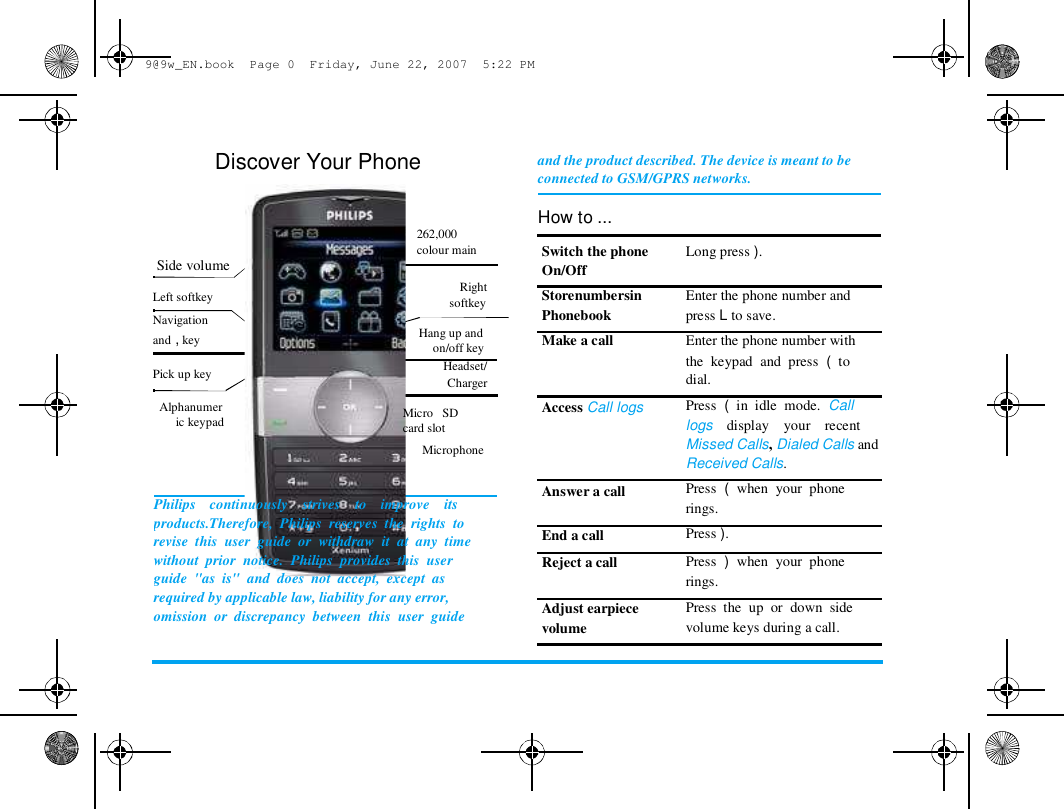
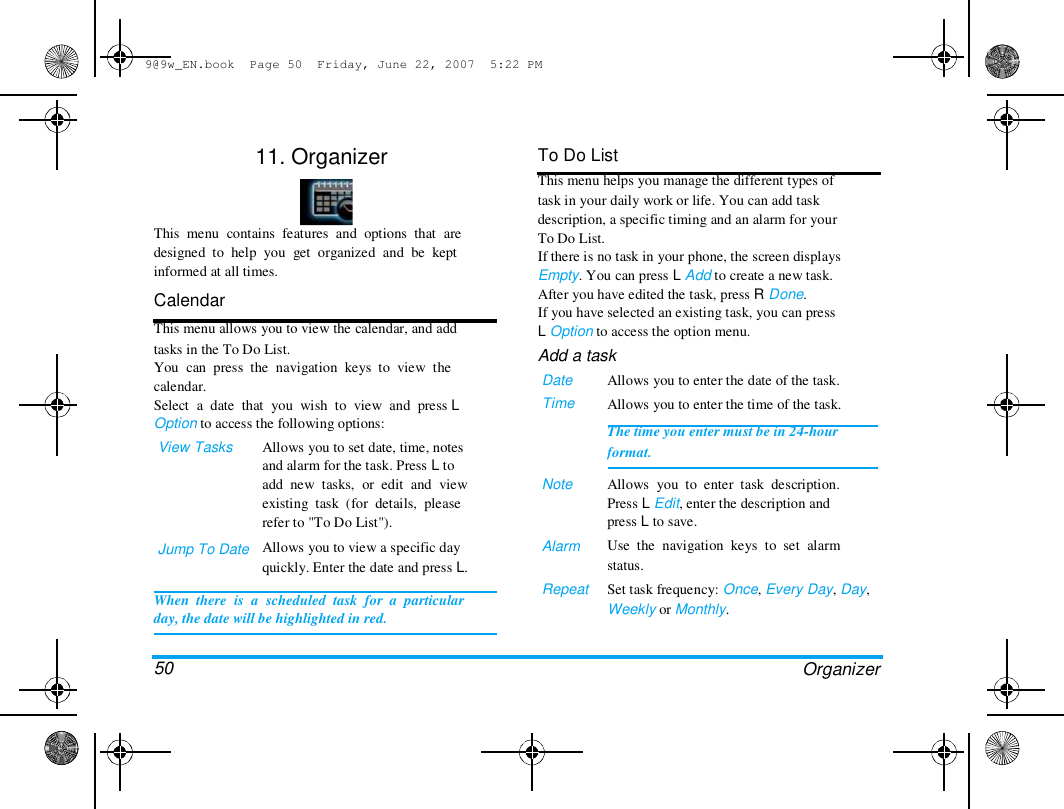
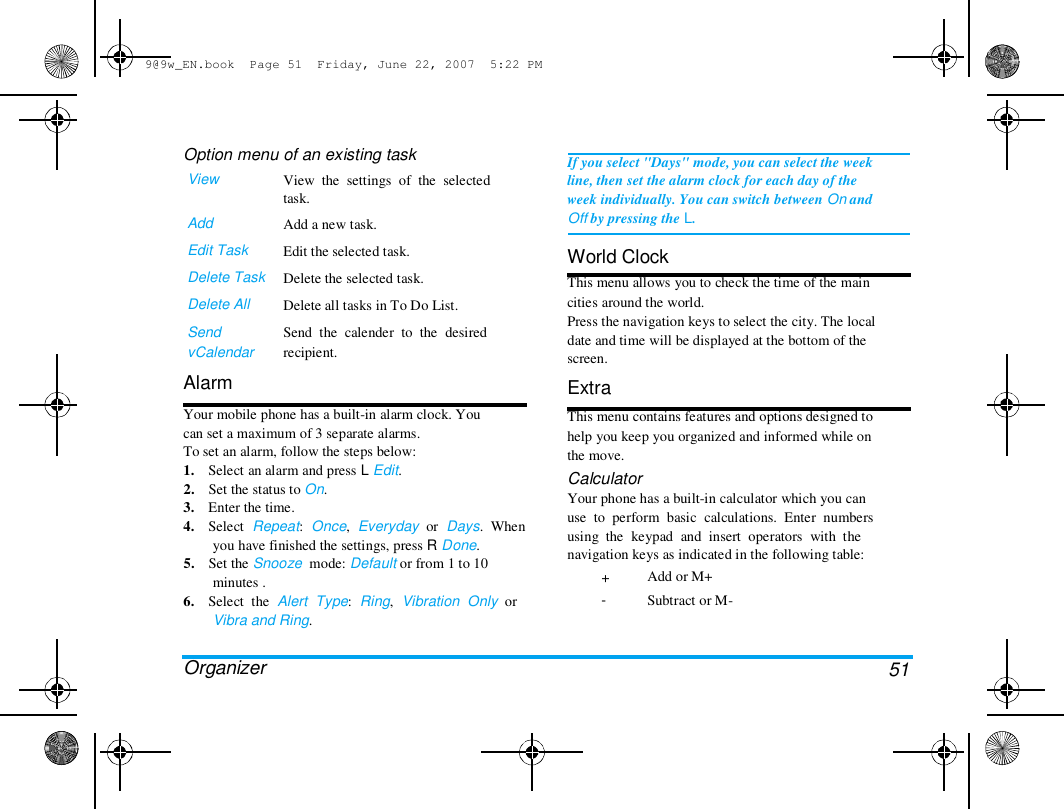
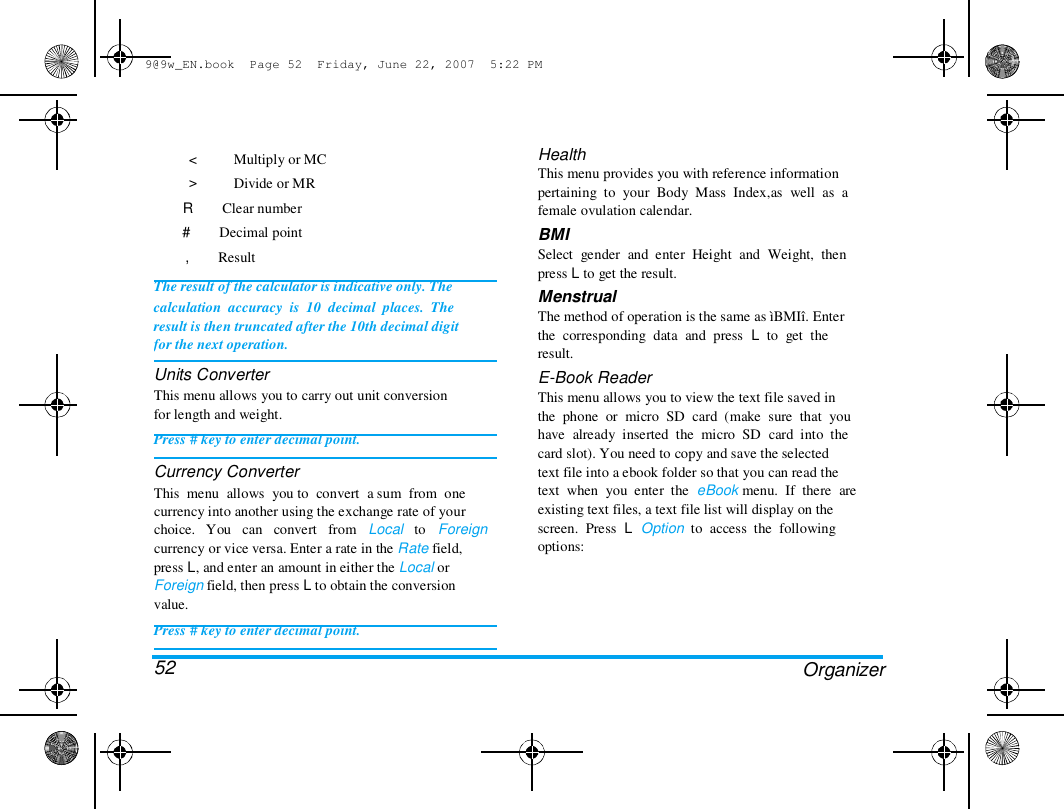
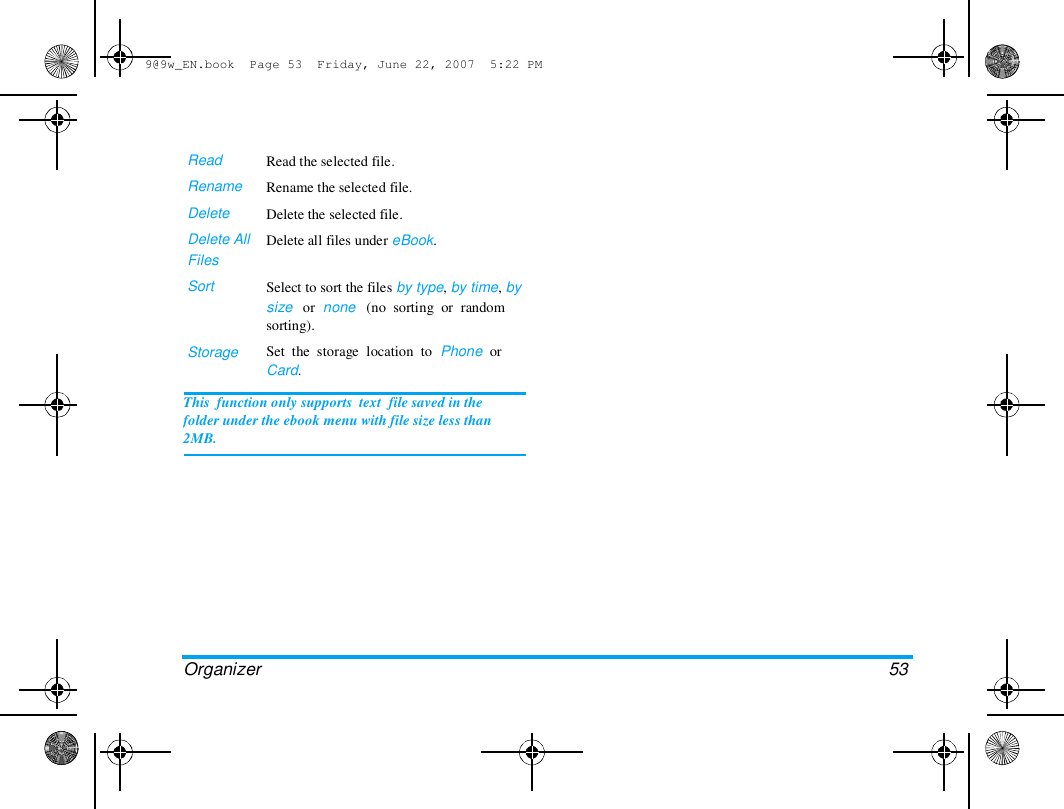
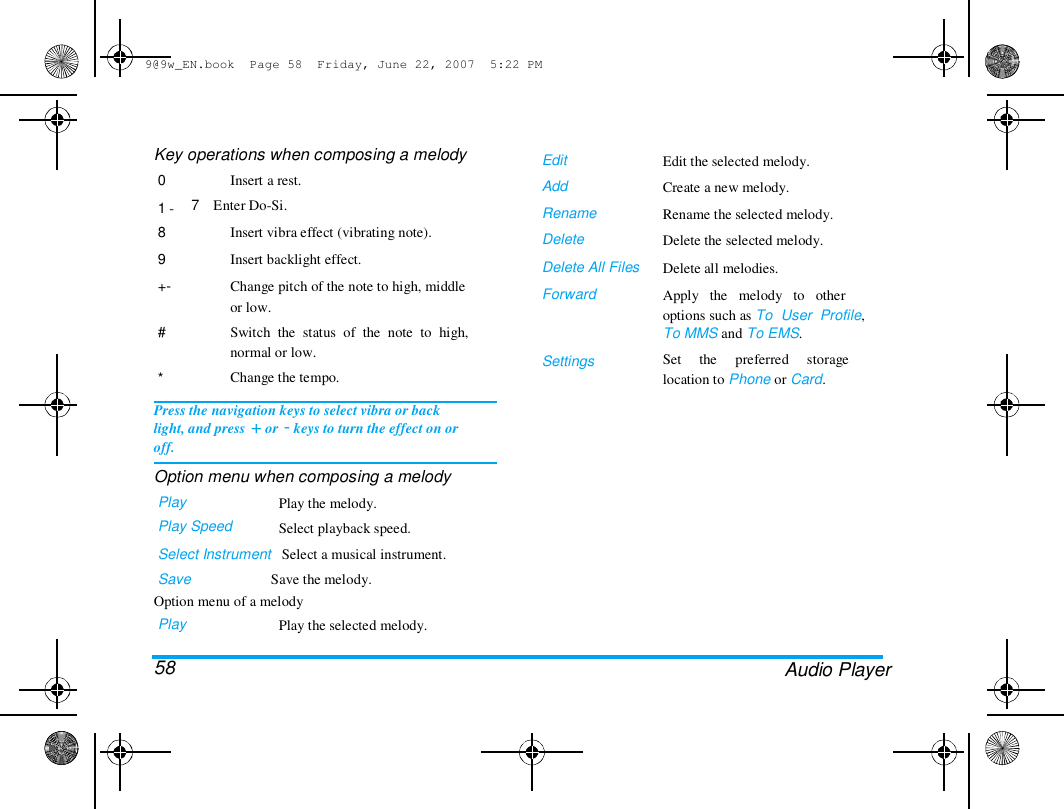
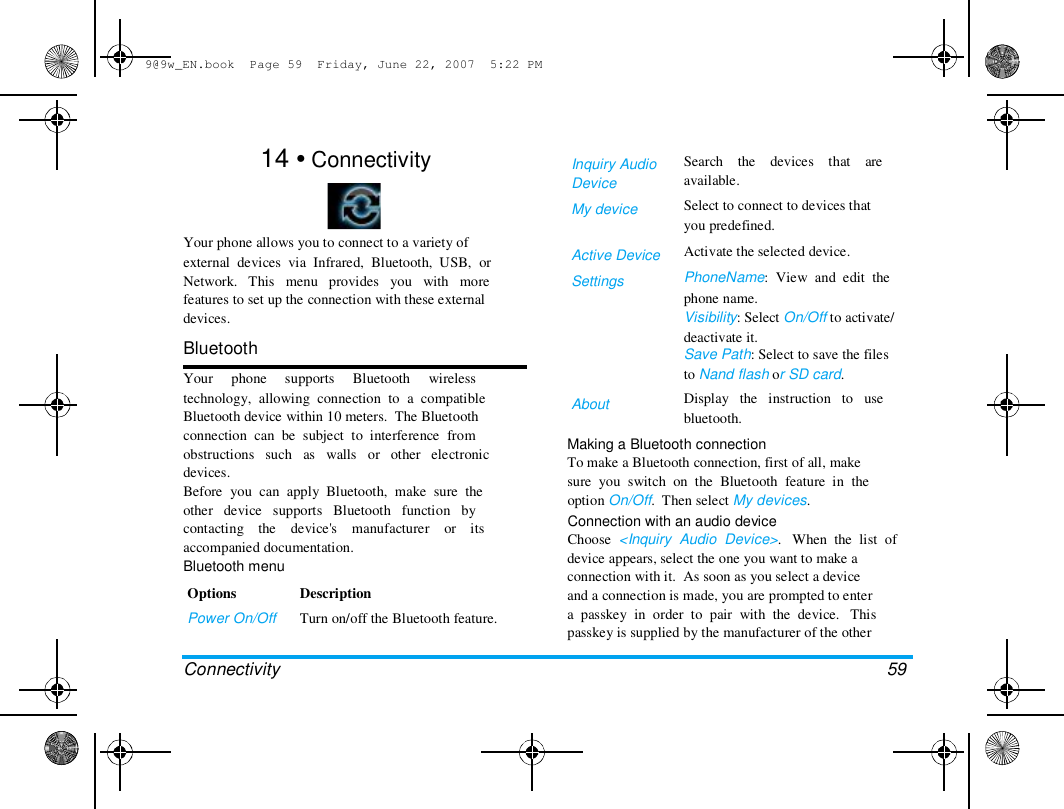
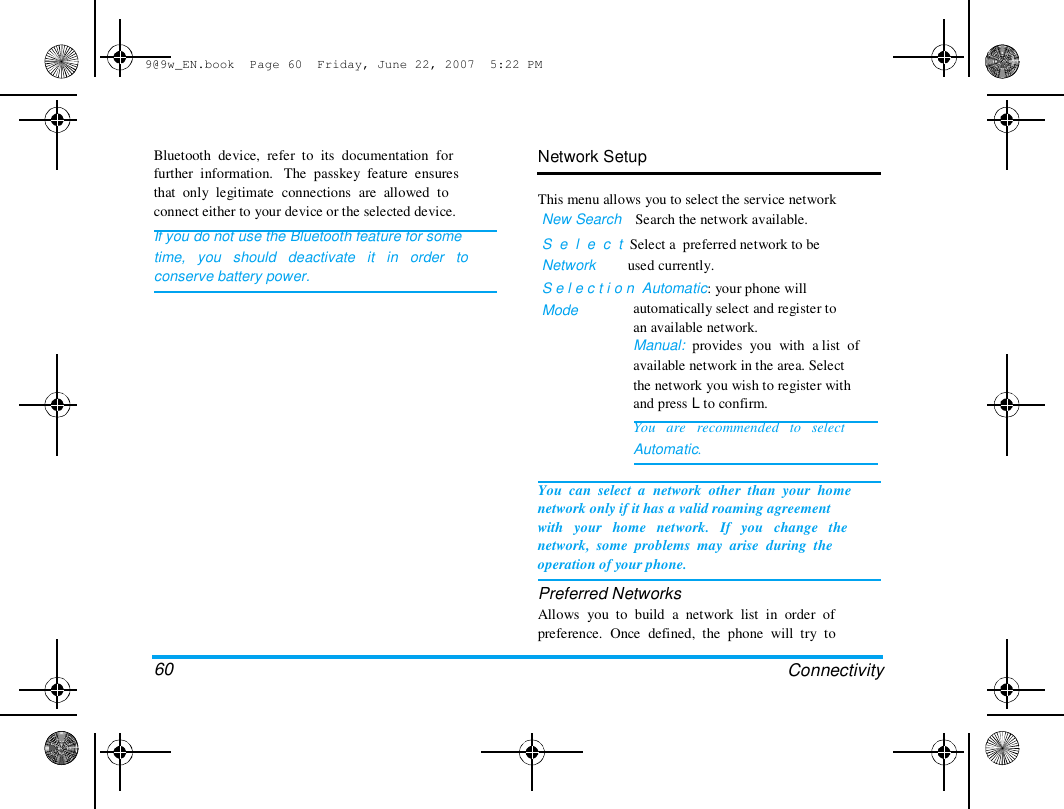
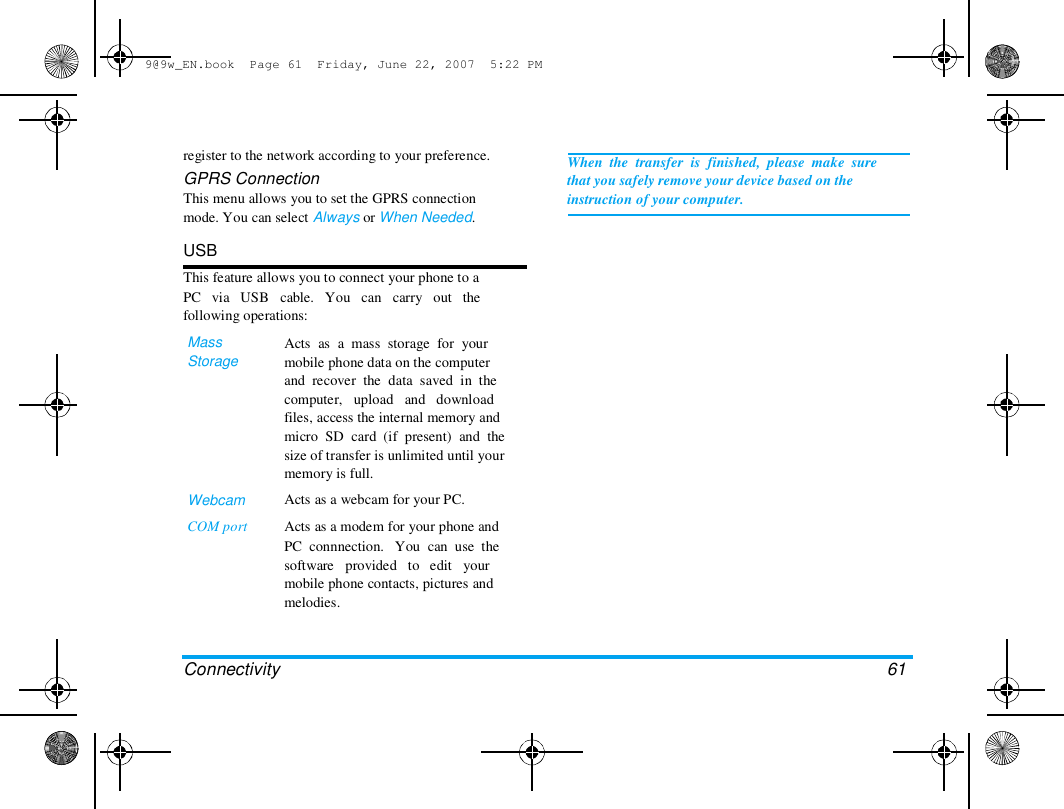
9@9w_EN.book  Page 0  Friday, June 22, 2007  5:22 PM  Discover Your Phone    262,000  Side volume   Left softkey  Navigation  and , key   Pick up key   Alphanumer  ic keypad  +  -  colour main   Right  softkey   Hang up and  on/off key  Headset/  Charger   Micro   SD  card slot  Microphone  and the product described. The device is meant to be  connected to GSM/GPRS networks.   How to ...  Switch the phone  On/Off  Storenumbersin  Phonebook  Make a call  Access Call logs  Long press ).   Enter the phone number and  press L to save.  Enter the phone number with  the  keypad  and  press  (  to  dial.  Press  (  in  idle  mode.  Call  logs    display    your    recent  Missed Calls, Dialed Calls and  Received Calls.  Press  (  when  your  phone  rings.  Press ).  Press  )  when  your  phone  rings.  Press  the  up  or  down  side  volume keys during a call.  Philips    continuously    strives    to    improve    its  products.Therefore,  Philips  reserves  the  rights  to  revise  this  user  guide  or  withdraw  it  at  any  time  without  prior  notice.  Philips  provides  this  user  guide  "as  is"  and  does  not  accept,  except  as  required by applicable law, liability for any error,  omission  or  discrepancy  between  this  user  guide  Answer a call   End a call  Reject a call   Adjust earpiece  volume
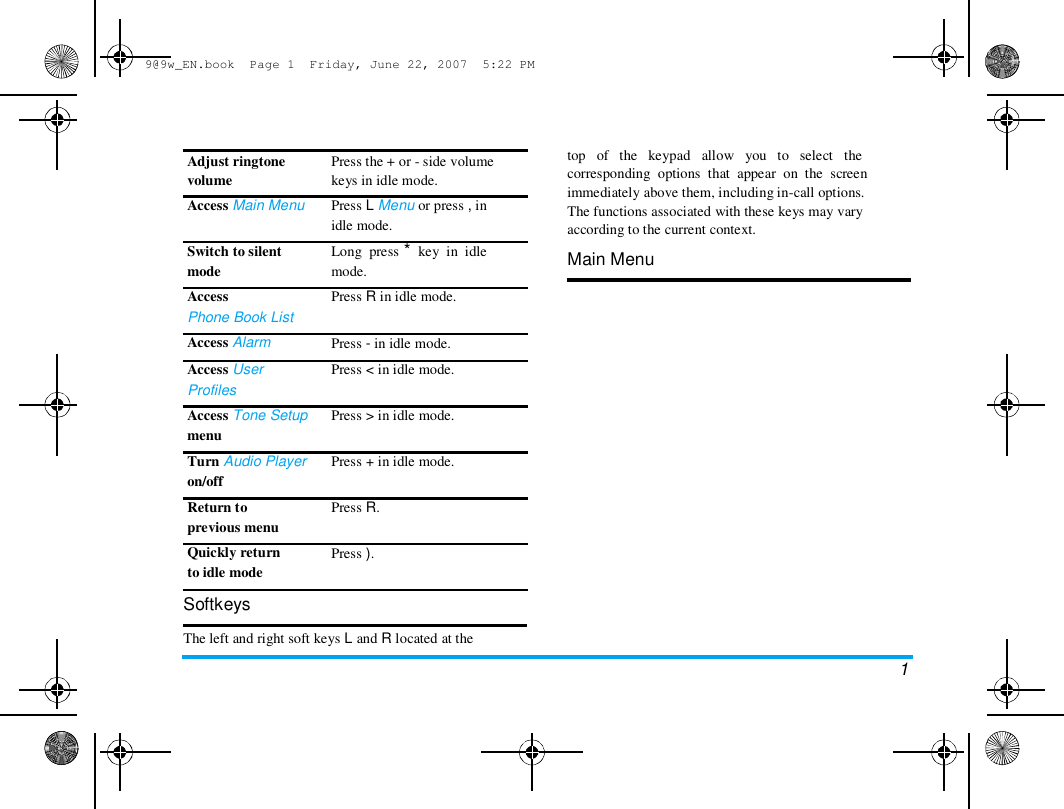
9@9w_EN.book  Page 1  Friday, June 22, 2007  5:22 PM  Adjust ringtone  volume  Access Main Menu   Switch to silent  mode  Access  Phone Book List  Access Alarm  Access User  Profiles  Access Tone Setup  menu  Turn Audio Player  on/off  Return to  previous menu  Quickly return  to idle mode  Softkeys  Press the + or - side volume  keys in idle mode.  Press L Menu or press , in  idle mode.  Long  press *  key  in  idle  mode.  Press R in idle mode.   Press - in idle mode.  Press < in idle mode.   Press > in idle mode.   Press + in idle mode.   Press R.   Press ).  top   of   the   keypad   allow   you   to   select   the  corresponding  options  that  appear  on  the  screen  immediately above them, including in-call options.  The functions associated with these keys may vary  according to the current context.  Main Menu  The left and right soft keys L and R located at the  1
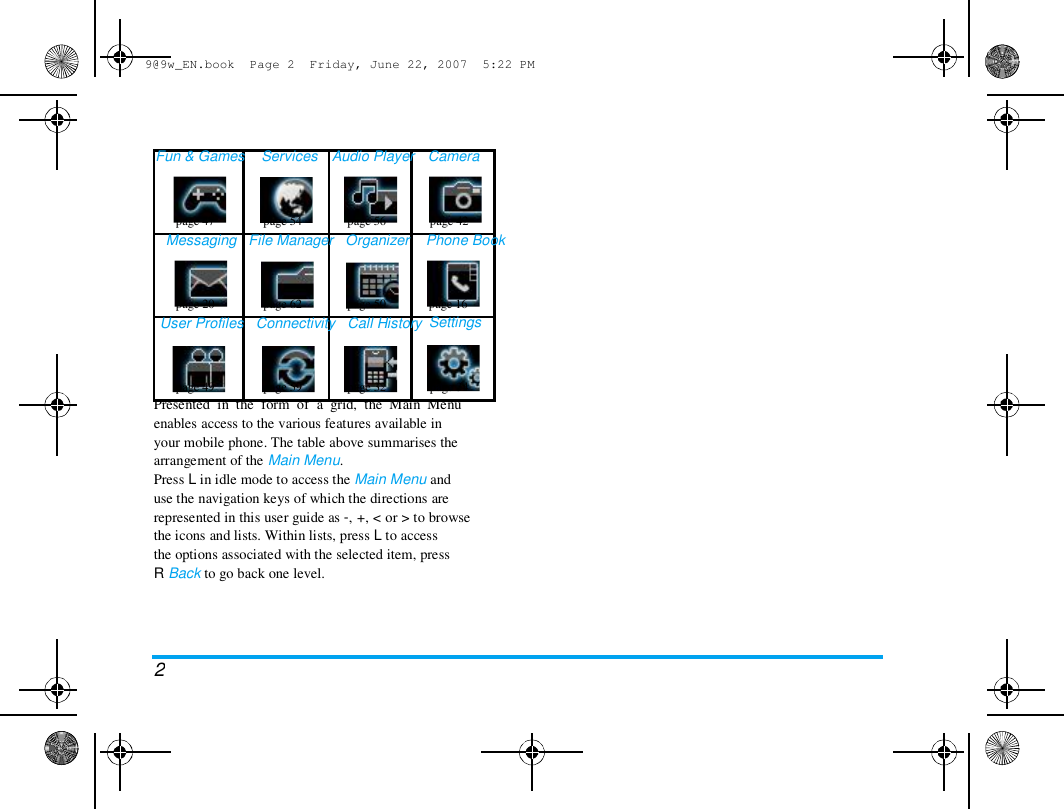
9@9w_EN.book  Page 2  Friday, June 22, 2007  5:22 PM  Fun & Games  Services  Audio Player   Camera  page 47  page 54  page 56  page 42  Messaging   File Manager   Organizer    Phone Book  page 20  page 62  page 50  User Profiles   Connectivity   Call History  page 16  Settings  page 49  page 59  page 32  page 34  Presented  in  the  form  of  a  grid,  the  Main  Menu  enables access to the various features available in  your mobile phone. The table above summarises the  arrangement of the Main Menu.  Press L in idle mode to access the Main Menu and  use the navigation keys of which the directions are  represented in this user guide as -, +, < or > to browse  the icons and lists. Within lists, press L to access  the options associated with the selected item, press  R Back to go back one level.  2
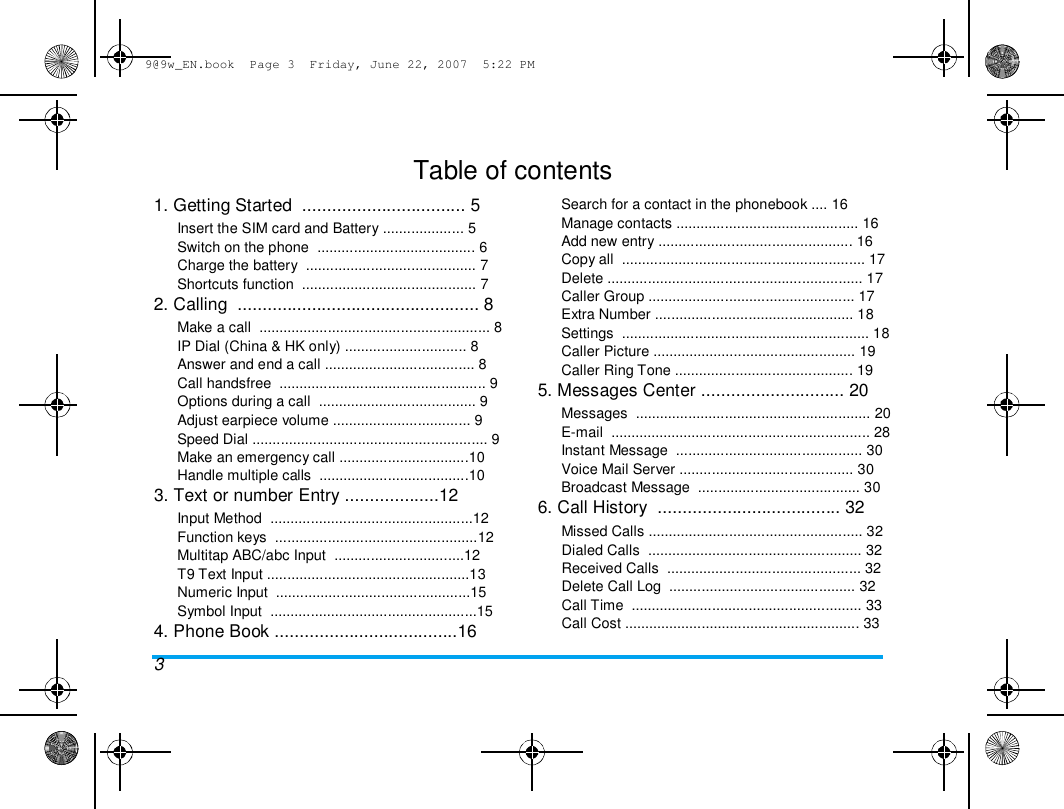
9@9w_EN.book  Page 3  Friday, June 22, 2007  5:22 PM  Table of contents  1. Getting Started  ................................. 5  Insert the SIM card and Battery .................... 5  Switch on the phone  ....................................... 6  Charge the battery  .......................................... 7  Shortcuts function  ........................................... 7  2. Calling  ................................................. 8  Make a call  ......................................................... 8  IP Dial (China & HK only) .............................. 8  Answer and end a call ..................................... 8  Call handsfree  ................................................... 9  Options during a call  ....................................... 9  Adjust earpiece volume .................................. 9  Speed Dial .......................................................... 9  Make an emergency call ................................10  Handle multiple calls  .....................................10  3. Text or number Entry ...................12  Input Method  ..................................................12  Function keys  ..................................................12  Multitap ABC/abc Input  ................................12  T9 Text Input ..................................................13  Numeric Input  ................................................15  Symbol Input  ...................................................15  4. Phone Book .....................................16  3  Search for a contact in the phonebook .... 16  Manage contacts ............................................. 16  Add new entry ................................................ 16  Copy all  ............................................................ 17  Delete ............................................................... 17  Caller Group ................................................... 17  Extra Number ................................................. 18  Settings  ............................................................. 18  Caller Picture .................................................. 19  Caller Ring Tone ............................................ 19  5. Messages Center ............................. 20  Messages  .......................................................... 20  E-mail  ................................................................ 28  Instant Message  .............................................. 30  Voice Mail Server ........................................... 30  Broadcast Message  ........................................ 30  6. Call History  ..................................... 32  Missed Calls ..................................................... 32  Dialed Calls  ..................................................... 32  Received Calls  ................................................ 32  Delete Call Log  .............................................. 32  Call Time  ......................................................... 33  Call Cost .......................................................... 33
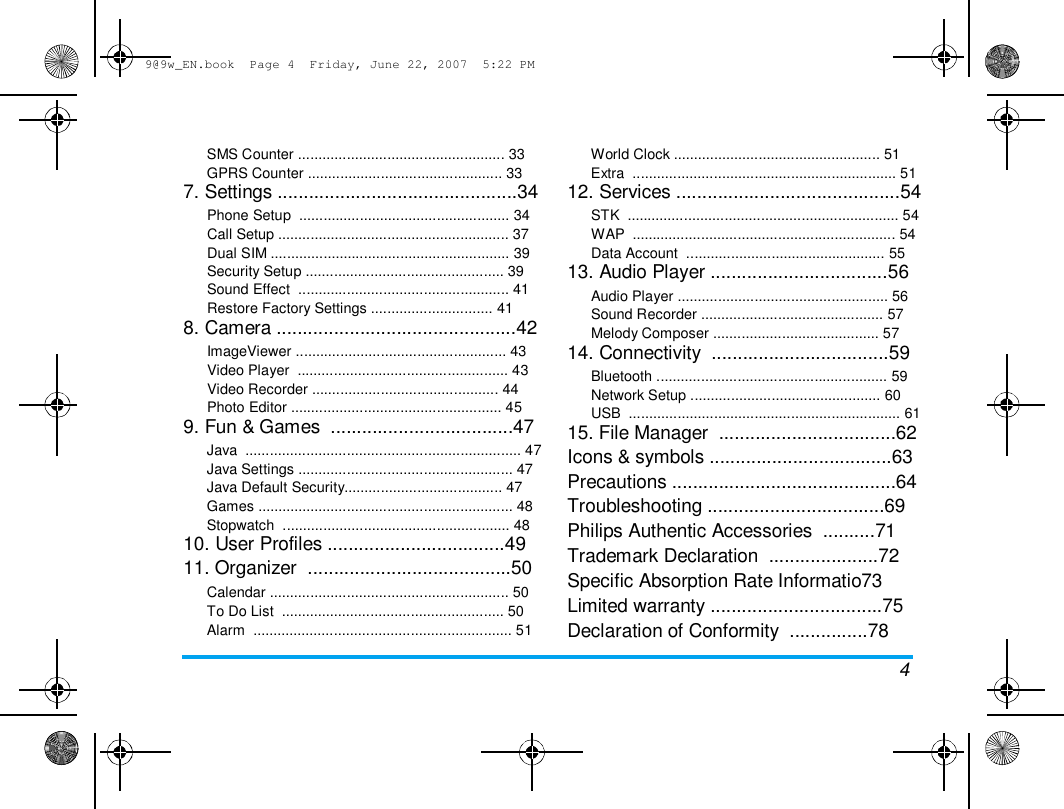
9@9w_EN.book  Page 4  Friday, June 22, 2007  5:22 PM  SMS Counter ................................................... 33  GPRS Counter ................................................ 33  7. Settings ..............................................34  Phone Setup  .................................................... 34  Call Setup ......................................................... 37  Dual SIM ........................................................... 39  Security Setup ................................................. 39  Sound Effect  .................................................... 41  Restore Factory Settings .............................. 41  8. Camera ..............................................42  ImageViewer .................................................... 43  Video Player  .................................................... 43  Video Recorder .............................................. 44  Photo Editor .................................................... 45  9. Fun & Games  ...................................47  Java  .................................................................... 47  Java Settings ..................................................... 47  Java Default Security....................................... 47  Games ............................................................... 48  Stopwatch  ........................................................ 48  10. User Profiles ..................................49  11. Organizer  .......................................50  Calendar ........................................................... 50  To Do List  ....................................................... 50  Alarm  ................................................................ 51  World Clock ................................................... 51  Extra  ................................................................. 51  12. Services ...........................................54  STK  ................................................................... 54  WAP  ................................................................. 54  Data Account  ................................................. 55  13. Audio Player ..................................56  Audio Player .................................................... 56  Sound Recorder ............................................. 57  Melody Composer ......................................... 57  14. Connectivity  ..................................59  Bluetooth ......................................................... 59  Network Setup ............................................... 60  USB  ................................................................... 61  15. File Manager  ..................................62  Icons & symbols ...................................63  Precautions ...........................................64  Troubleshooting ..................................69  Philips Authentic Accessories  ..........71  Trademark Declaration  .....................72  Specific Absorption Rate Informatio73  Limited warranty .................................75  Declaration of Conformity  ...............78  4
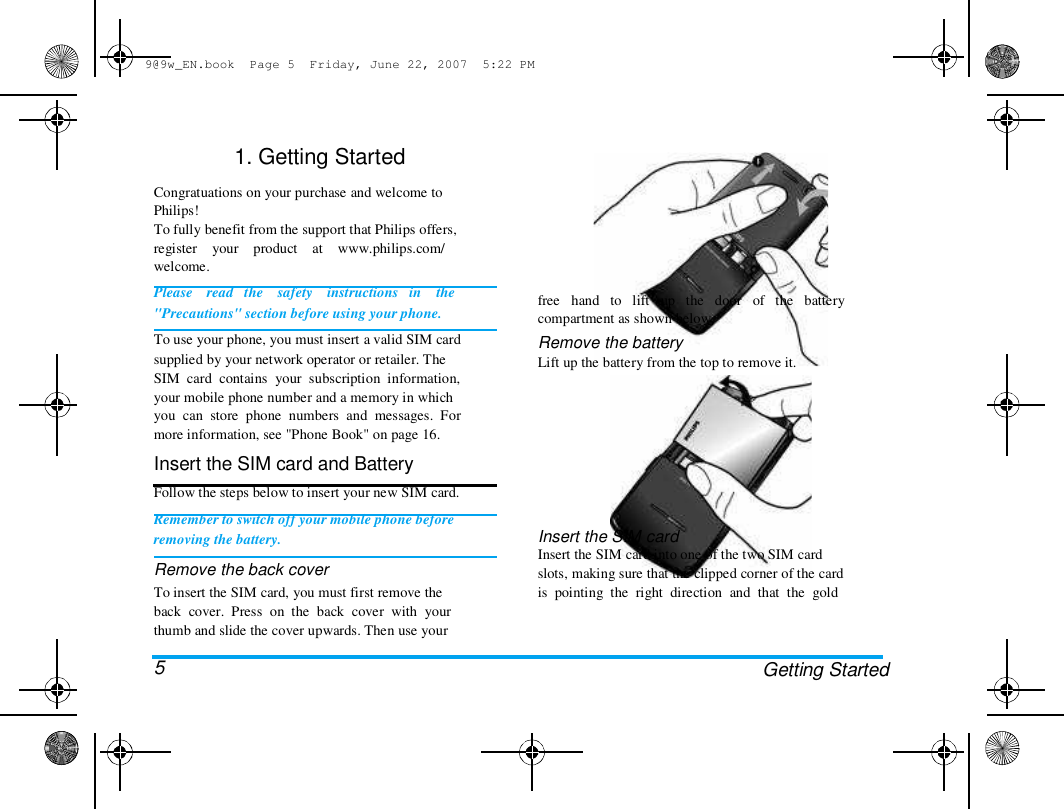
9@9w_EN.book  Page 5  Friday, June 22, 2007  5:22 PM  1. Getting Started   Congratuations on your purchase and welcome to  Philips!  To fully benefit from the support that Philips offers,  register    your    product    at    www.philips.com/  welcome.  Please    read   the    safety    instructions   in    the  "Precautions" section before using your phone.  To use your phone, you must insert a valid SIM card  supplied by your network operator or retailer. The  SIM  card  contains  your  subscription  information,  your mobile phone number and a memory in which  you  can  store  phone  numbers  and  messages.  For  more information, see "Phone Book" on page 16.  Insert the SIM card and Battery  Follow the steps below to insert your new SIM card.  Remember to switch off your mobile phone before  removing the battery.  Remove the back cover  To insert the SIM card, you must first remove the  back  cover.  Press  on  the  back  cover  with  your  thumb and slide the cover upwards. Then use your   5  free   hand   to   lift   up   the   door   of   the   battery  compartment as shown below.  Remove the battery  Lift up the battery from the top to remove it.  Insert the SIM card  Insert the SIM card into one of the two SIM card  slots, making sure that the clipped corner of the card  is  pointing  the  right  direction  and  that  the  gold  Getting Started
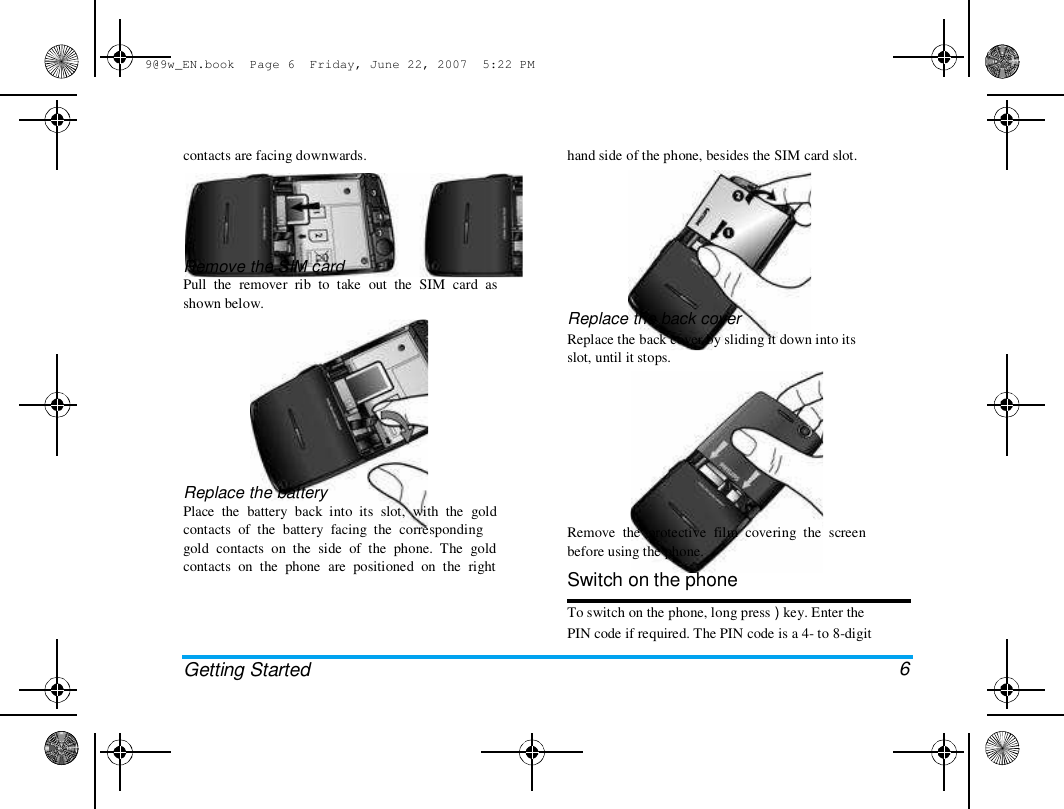
9@9w_EN.book  Page 6  Friday, June 22, 2007  5:22 PM  contacts are facing downwards.   hand side of the phone, besides the SIM card slot.  Remove the SIM card  Pull  the  remover  rib  to  take  out  the  SIM  card  as  shown below.  Replace the back cover  Replace the back cover by sliding it down into its  slot, until it stops.  Replace the battery  Place  the  battery  back  into  its  slot,  with  the  gold  contacts  of  the  battery  facing  the  corresponding  gold  contacts  on  the  side  of  the  phone.  The  gold  contacts  on  the  phone  are  positioned  on  the  right  Getting Started  Remove  the  protective  film  covering  the  screen  before using the phone.  Switch on the phone  To switch on the phone, long press ) key. Enter the  PIN code if required. The PIN code is a 4- to 8-digit   6
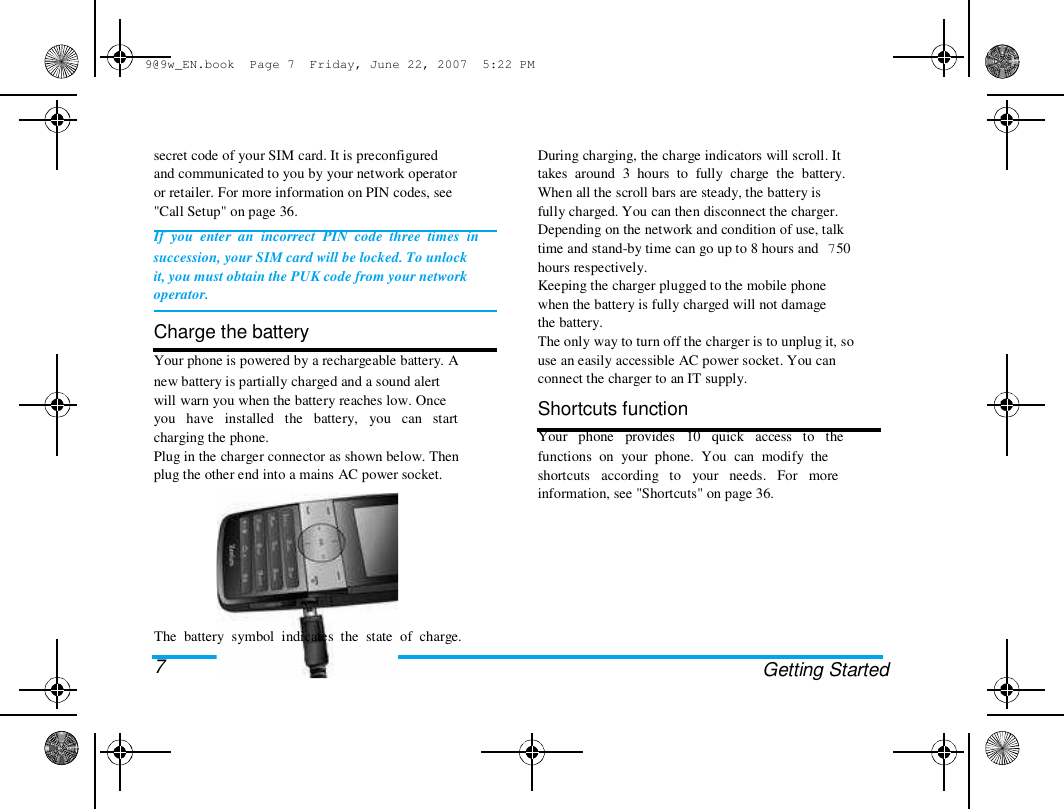
9@9w_EN.book  Page 7  Friday, June 22, 2007  5:22 PM  secret code of your SIM card. It is preconfigured  and communicated to you by your network operator  or retailer. For more information on PIN codes, see  "Call Setup" on page 36.  If  you  enter  an  incorrect  PIN  code  three  times  in  succession, your SIM card will be locked. To unlock  it, you must obtain the PUK code from your network  operator.   Charge the battery  Your phone is powered by a rechargeable battery. A  new battery is partially charged and a sound alert  will warn you when the battery reaches low. Once  you   have   installed   the   battery,   you   can   start  charging the phone.  Plug in the charger connector as shown below. Then  plug the other end into a mains AC power socket.  During charging, the charge indicators will scroll. It  takes  around  3  hours  to  fully  charge  the  battery.  When all the scroll bars are steady, the battery is  fully charged. You can then disconnect the charger.  Depending on the network and condition of use, talk  time and stand-by time can go up to 8 hours and 750  hours respectively.  Keeping the charger plugged to the mobile phone  when the battery is fully charged will not damage  the battery.  The only way to turn off the charger is to unplug it, so  use an easily accessible AC power socket. You can  connect the charger to an IT supply.  Shortcuts function  Your   phone   provides   10   quick   access   to   the  functions  on  your  phone.  You  can  modify  the  shortcuts   according   to   your   needs.   For   more  information, see "Shortcuts" on page 36.  The  battery  symbol  indicates  the  state  of  charge.  7  Getting Started
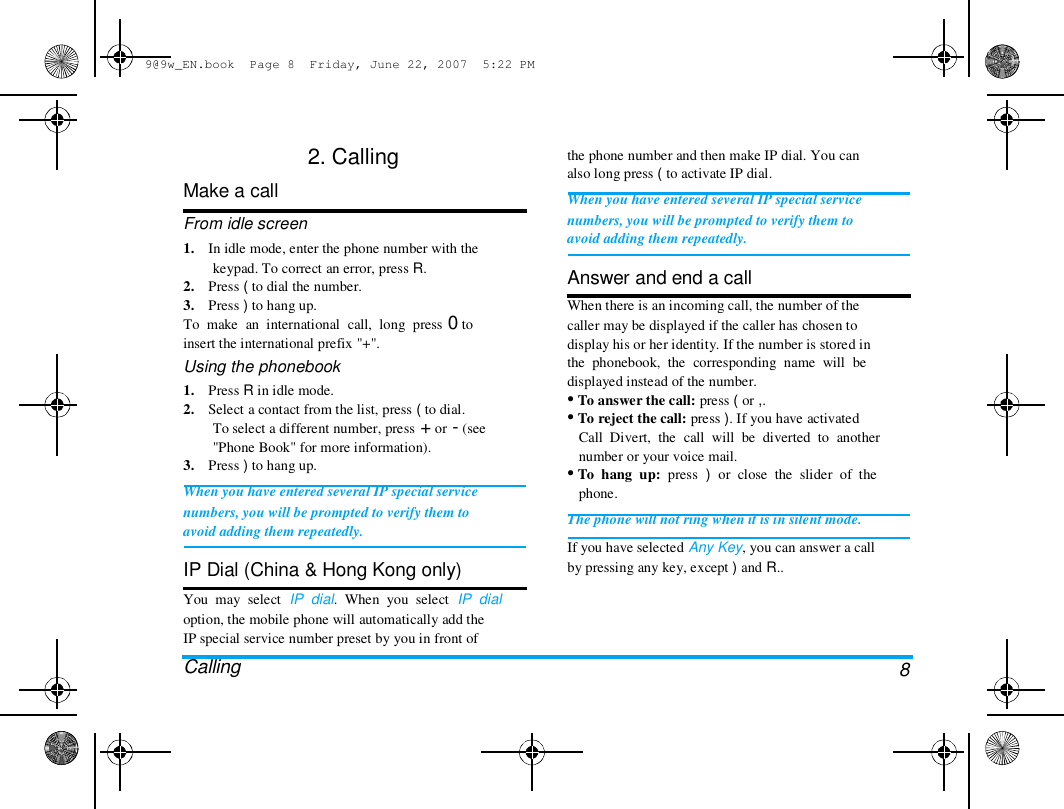
9@9w_EN.book  Page 8  Friday, June 22, 2007  5:22 PM  2. Calling  Make a call  From idle screen  1.    In idle mode, enter the phone number with the  keypad. To correct an error, press R.  2.    Press ( to dial the number.  3.    Press ) to hang up.  To  make  an  international  call,  long  press 0 to  insert the international prefix "+".  Using the phonebook  1.    Press R in idle mode.  2.    Select a contact from the list, press ( to dial.  To select a different number, press + or - (see  "Phone Book" for more information).  3.    Press ) to hang up.  When you have entered several IP special service  numbers, you will be prompted to verify them to  avoid adding them repeatedly.   IP Dial (China & Hong Kong only)  You  may  select  IP  dial.  When  you  select  IP  dial  option, the mobile phone will automatically add the  IP special service number preset by you in front of  Calling  the phone number and then make IP dial. You can  also long press ( to activate IP dial.  When you have entered several IP special service  numbers, you will be prompted to verify them to  avoid adding them repeatedly.   Answer and end a call  When there is an incoming call, the number of the  caller may be displayed if the caller has chosen to  display his or her identity. If the number is stored in  the  phonebook,  the  corresponding  name  will  be  displayed instead of the number.  • To answer the call: press ( or ,.  • To reject the call: press ). If you have activated  Call  Divert,  the  call  will  be  diverted  to  another  number or your voice mail.  • To  hang  up:  press  )  or  close  the  slider  of  the  phone.  The phone will not ring when it is in silent mode.  If you have selected Any Key, you can answer a call  by pressing any key, except ) and R..  8
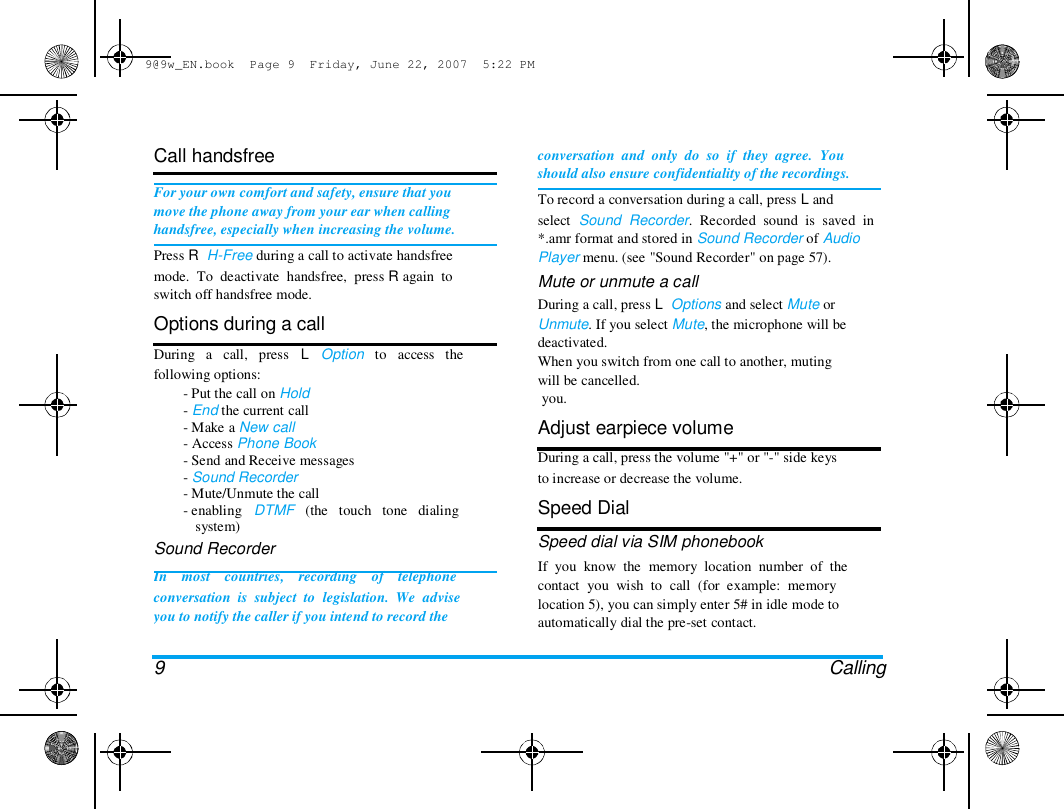
9@9w_EN.book  Page 9  Friday, June 22, 2007  5:22 PM  Call handsfree   For your own comfort and safety, ensure that you  move the phone away from your ear when calling  handsfree, especially when increasing the volume.  Press R  H-Free during a call to activate handsfree  mode.  To  deactivate  handsfree,  press R again  to  switch off handsfree mode.  Options during a call  During   a   call,   press   L   Option   to   access   the  following options:  - Put the call on Hold  - End the current call  - Make a New call  - Access Phone Book  - Send and Receive messages  - Sound Recorder  - Mute/Unmute the call  - enabling   DTMF   (the   touch   tone   dialing  system)  Sound Recorder  In    most    countries,    recording    of    telephone  conversation  is  subject  to  legislation.  We  advise  you to notify the caller if you intend to record the   9  conversation  and  only  do  so  if  they  agree.  You  should also ensure confidentiality of the recordings.  To record a conversation during a call, press L and  select  Sound  Recorder.  Recorded  sound  is  saved  in  *.amr format and stored in Sound Recorder of Audio  Player menu. (see "Sound Recorder" on page 57).  Mute or unmute a call  During a call, press L  Options and select Mute or  Unmute. If you select Mute, the microphone will be  deactivated.  When you switch from one call to another, muting  will be cancelled.  you.  Adjust earpiece volume  During a call, press the volume "+" or "-" side keys  to increase or decrease the volume.  Speed Dial  Speed dial via SIM phonebook  If  you  know  the  memory  location  number  of  the  contact  you  wish  to  call  (for  example:  memory  location 5), you can simply enter 5# in idle mode to  automatically dial the pre-set contact.   Calling
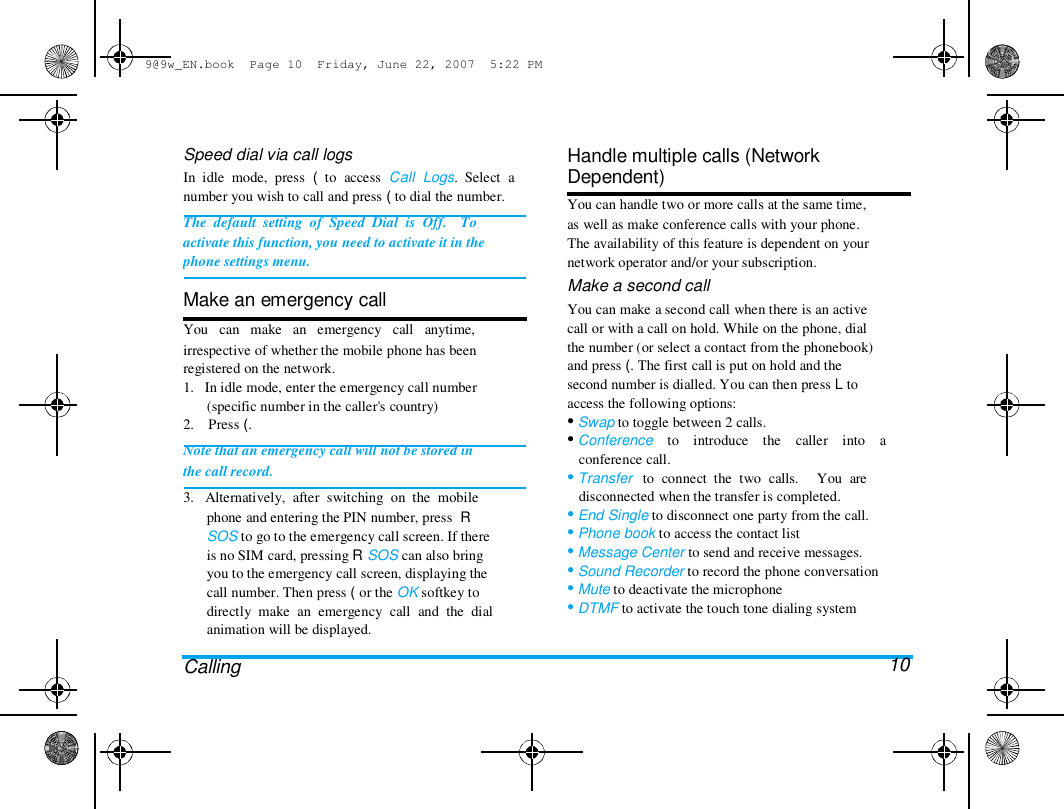
9@9w_EN.book  Page 10  Friday, June 22, 2007  5:22 PM  Speed dial via call logs  In  idle  mode,  press  (  to  access  Call  Logs.  Select  a  number you wish to call and press ( to dial the number.  The  default  setting  of  Speed  Dial  is  Off.    To  activate this function, you need to activate it in the  phone settings menu.   Make an emergency call  You   can   make   an   emergency   call   anytime,  irrespective of whether the mobile phone has been  registered on the network.  1.   In idle mode, enter the emergency call number  (specific number in the caller's country)  2.    Press (.  Note that an emergency call will not be stored in  the call record.  3.   Alternatively,  after  switching  on  the  mobile  phone and entering the PIN number, press  R  SOS to go to the emergency call screen. If there  is no SIM card, pressing R SOS can also bring  you to the emergency call screen, displaying the  call number. Then press ( or the OK softkey to  directly  make  an  emergency  call  and  the  dial  animation will be displayed.   Calling  Handle multiple calls (Network  Dependent)  You can handle two or more calls at the same time,  as well as make conference calls with your phone.  The availability of this feature is dependent on your  network operator and/or your subscription.  Make a second call  You can make a second call when there is an active  call or with a call on hold. While on the phone, dial  the number (or select a contact from the phonebook)  and press (. The first call is put on hold and the  second number is dialled. You can then press L to  access the following options:  • Swap to toggle between 2 calls.  • Conference    to    introduce    the    caller    into    a  conference call.  • Transfer   to  connect  the  two  calls.     You  are  disconnected when the transfer is completed.  • End Single to disconnect one party from the call.  • Phone book to access the contact list  • Message Center to send and receive messages.  • Sound Recorder to record the phone conversation  • Mute to deactivate the microphone  • DTMF to activate the touch tone dialing system   10
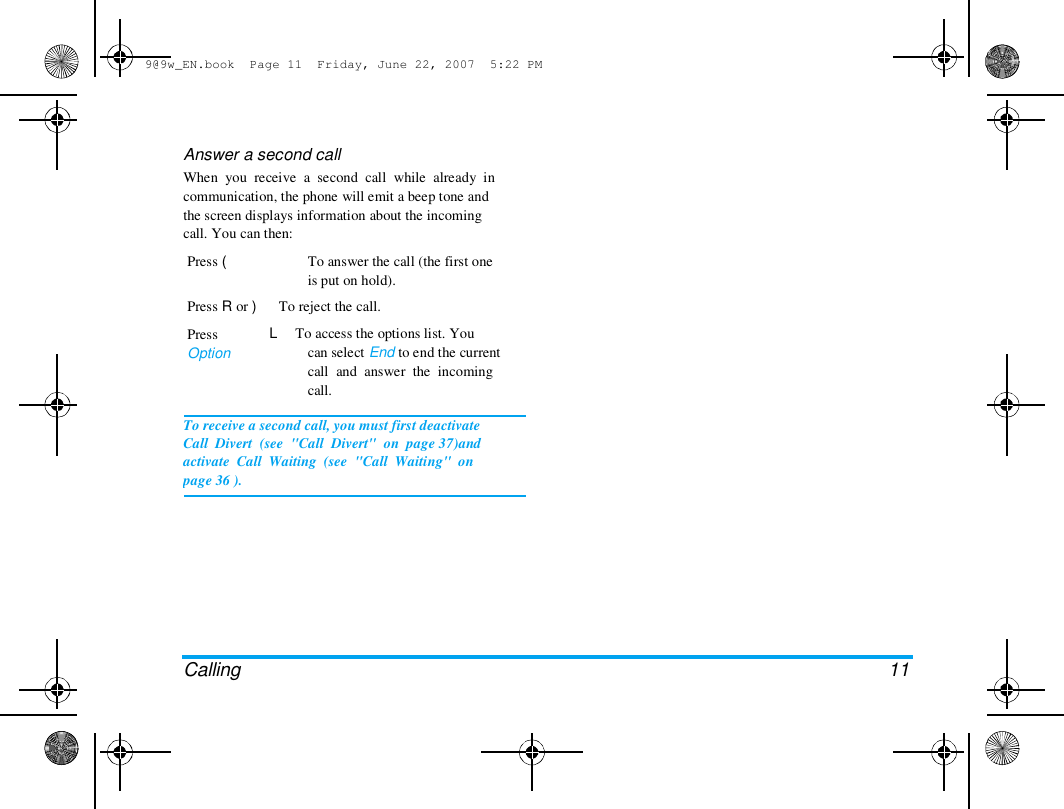
9@9w_EN.book  Page 11  Friday, June 22, 2007  5:22 PM  Answer a second call  When  you  receive  a  second  call  while  already  in  communication, the phone will emit a beep tone and  the screen displays information about the incoming  call. You can then:  Press (   To answer the call (the first one  is put on hold).  Press R or )      To reject the call.  Press  Option  L     To access the options list. You  can select End to end the current  call  and  answer  the  incoming  call.  To receive a second call, you must first deactivate  Call  Divert  (see  "Call  Divert"  on  page 37)and  activate  Call  Waiting  (see  "Call  Waiting"  on  page 36 ).  Calling  11
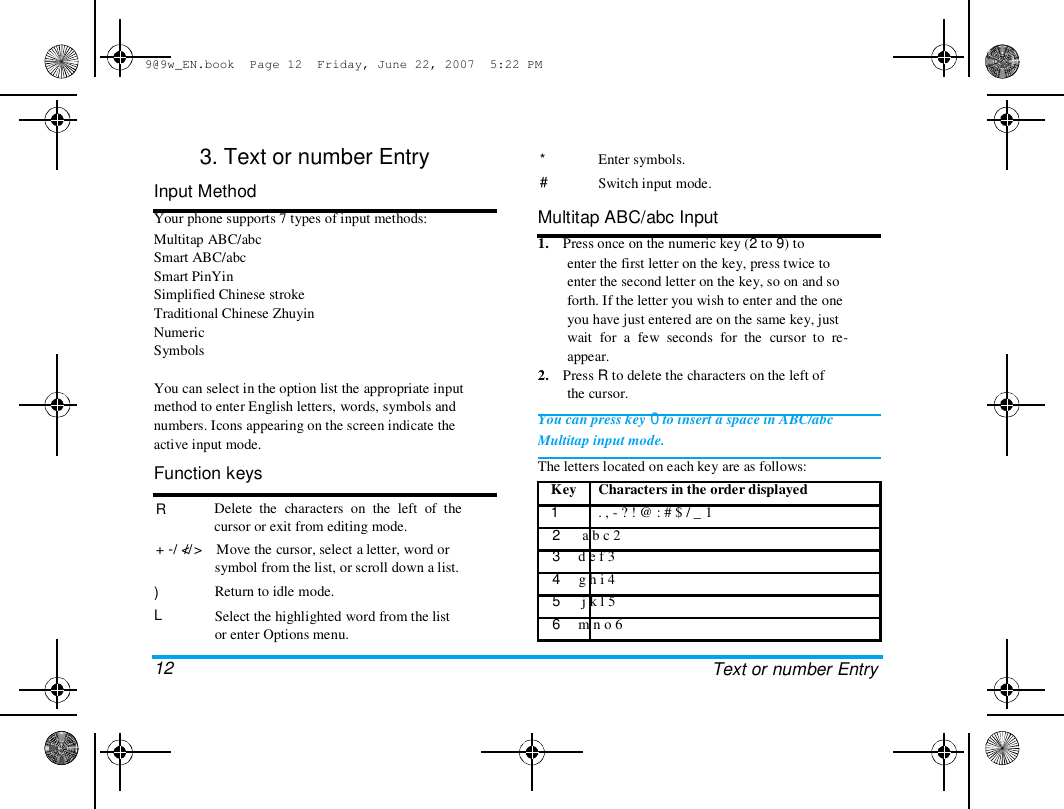
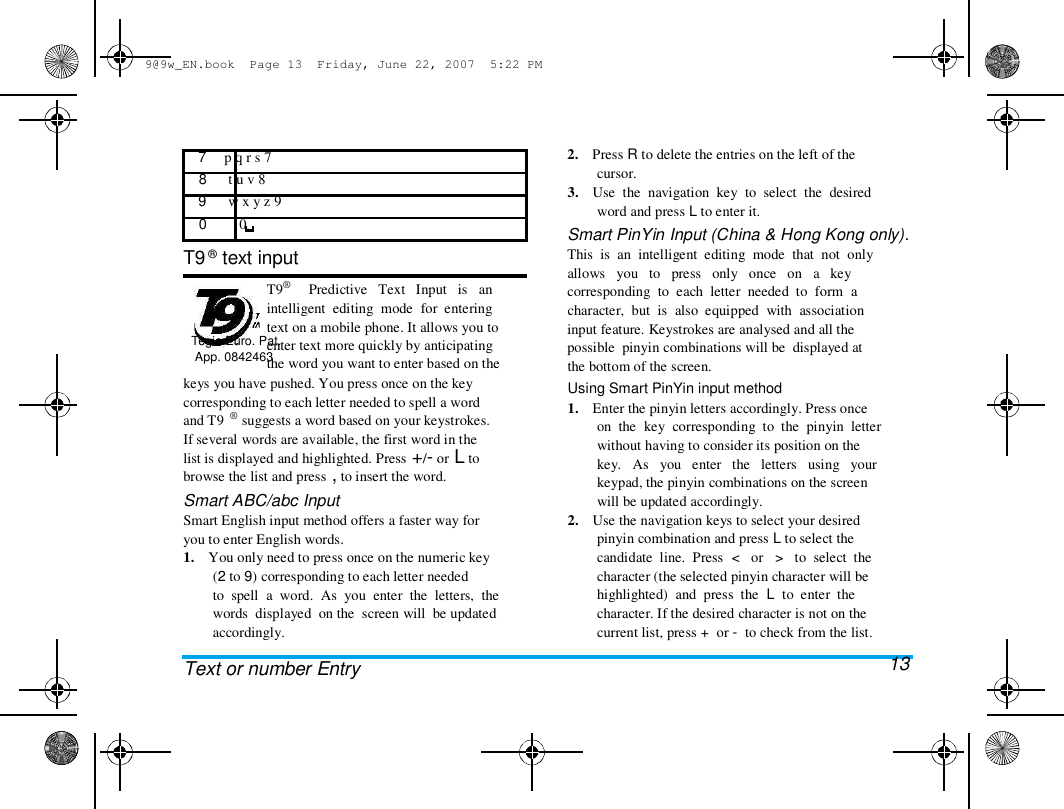
9@9w_EN.book  Page 12  Friday, June 22, 2007  5:22 PM  3. Text or number Entry  Input Method  Your phone supports 7 types of input methods:  Multitap ABC/abc  Smart ABC/abc  Smart PinYin  Simplified Chinese stroke  Traditional Chinese Zhuyin  Numeric  Symbols   You can select in the option list the appropriate input  method to enter English letters, words, symbols and  numbers. Icons appearing on the screen indicate the  active input mode.  Function keys  R   + -/  // Delete  the  characters  on  the  left  of  the  cursor or exit from editing mode.  < >    Move the cursor, select a letter, word or  symbol from the list, or scroll down a list.  Return to idle mode.  Select the highlighted word from the list  or enter Options menu.  *  #  Enter symbols.  Switch input mode.  Multitap ABC/abc Input  1.    Press once on the numeric key (2 to 9) to  enter the first letter on the key, press twice to  enter the second letter on the key, so on and so  forth. If the letter you wish to enter and the one  you have just entered are on the same key, just  wait  for  a  few  seconds  for  the  cursor  to  re-  appear.  2.    Press R to delete the characters on the left of  the cursor.  You can press key 0 to insert a space in ABC/abc  Multitap input mode.  The letters located on each key are as follows:  Key  1  Characters in the order displayed  . , - ? ! @ : # $ / _ 1  )  L   12  2      a b c 2  3     d e f 3  4     g h i 4  5      j k l 5  6     m n o 6  Text or number Entry
9@9w_EN.book  Page 13  Friday, June 22, 2007  5:22 PM  7     p q r s 7  8      t u v 8  9      w x y z 9  0         0   T9 ® text input   T9®  Tegic Euro. Pat.  App. 0842463  Predictive   Text   Input   is   an  intelligent  editing  mode  for  entering  text on a mobile phone. It allows you to  enter text more quickly by anticipating  the word you want to enter based on the  keys you have pushed. You press once on the key  corresponding to each letter needed to spell a word  and T9  ® suggests a word based on your keystrokes.  If several words are available, the first word in the  list is displayed and highlighted. Press +/- or L to  browse the list and press , to insert the word.  Smart ABC/abc Input  Smart English input method offers a faster way for  you to enter English words.  1.    You only need to press once on the numeric key  (2 to 9) corresponding to each letter needed  to  spell  a  word.  As  you  enter  the  letters,  the  words  displayed  on the  screen will  be updated  accordingly.   Text or number Entry  2.    Press R to delete the entries on the left of the  cursor.  3.    Use  the  navigation  key  to  select  the  desired  word and press L to enter it.  Smart PinYin Input (China & Hong Kong only).  This  is  an  intelligent  editing  mode  that  not  only  allows   you   to   press   only   once   on   a   key  corresponding  to  each  letter  needed  to  form  a  character,  but  is  also  equipped  with  association  input feature. Keystrokes are analysed and all the  possible  pinyin combinations will be  displayed at  the bottom of the screen.  Using Smart PinYin input method  1.    Enter the pinyin letters accordingly. Press once  on  the  key  corresponding  to  the  pinyin  letter  without having to consider its position on the  key.   As   you   enter   the   letters   using   your  keypad, the pinyin combinations on the screen  will be updated accordingly.  2.    Use the navigation keys to select your desired  pinyin combination and press L to select the  candidate  line.  Press  <   or   >   to  select  the  character (the selected pinyin character will be  highlighted)  and  press  the  L  to  enter  the  character. If the desired character is not on the  current list, press +  or -  to check from the list.  13
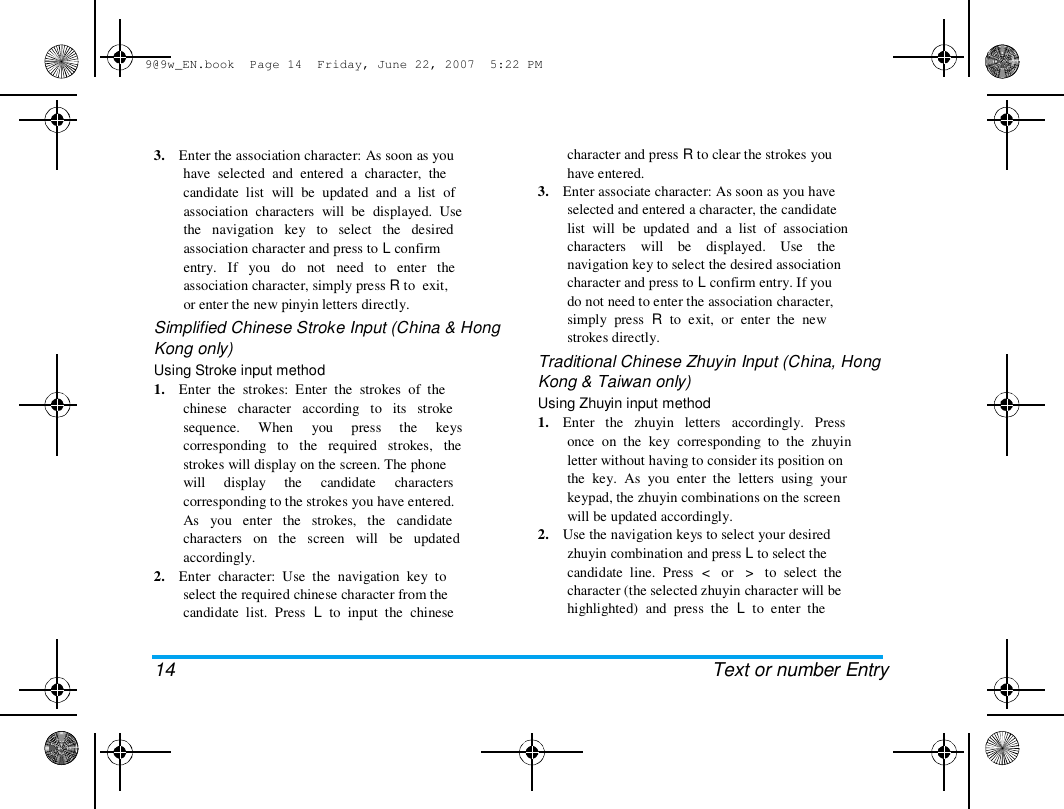
9@9w_EN.book  Page 14  Friday, June 22, 2007  5:22 PM  3.    Enter the association character: As soon as you  have  selected  and  entered  a  character,  the  candidate  list  will  be  updated  and  a  list  of  association  characters  will  be  displayed.  Use  the   navigation   key   to   select   the   desired  association character and press to L confirm  entry.   If   you   do   not   need   to   enter   the  association character, simply press R to  exit,  or enter the new pinyin letters directly.  Simplified Chinese Stroke Input (China & Hong  Kong only)  Using Stroke input method  1.    Enter  the  strokes:  Enter  the  strokes  of  the  chinese   character   according   to   its   stroke  sequence.     When     you     press     the     keys  corresponding   to   the   required   strokes,   the  strokes will display on the screen. The phone  will     display     the     candidate     characters  corresponding to the strokes you have entered.  As   you   enter   the   strokes,   the   candidate  characters   on   the   screen   will   be   updated  accordingly.  2.    Enter  character:  Use  the  navigation  key  to  select the required chinese character from the  candidate  list.  Press  L  to  input  the  chinese  14 character and press R to clear the strokes you  have entered.  3.    Enter associate character: As soon as you have  selected and entered a character, the candidate  list  will  be  updated  and  a  list  of  association  characters    will    be    displayed.    Use    the  navigation key to select the desired association  character and press to L confirm entry. If you  do not need to enter the association character,  simply  press  R  to  exit,  or  enter  the  new  strokes directly.  Traditional Chinese Zhuyin Input (China, Hong  Kong & Taiwan only)  Using Zhuyin input method  1.    Enter   the   zhuyin   letters   accordingly.   Press  once  on  the  key  corresponding  to  the  zhuyin  letter without having to consider its position on  the  key.  As  you  enter  the  letters  using  your  keypad, the zhuyin combinations on the screen  will be updated accordingly.  2.    Use the navigation keys to select your desired  zhuyin combination and press L to select the  candidate  line.  Press  <   or   >   to  select  the  character (the selected zhuyin character will be  highlighted)  and  press  the  L  to  enter  the  Text or number Entry
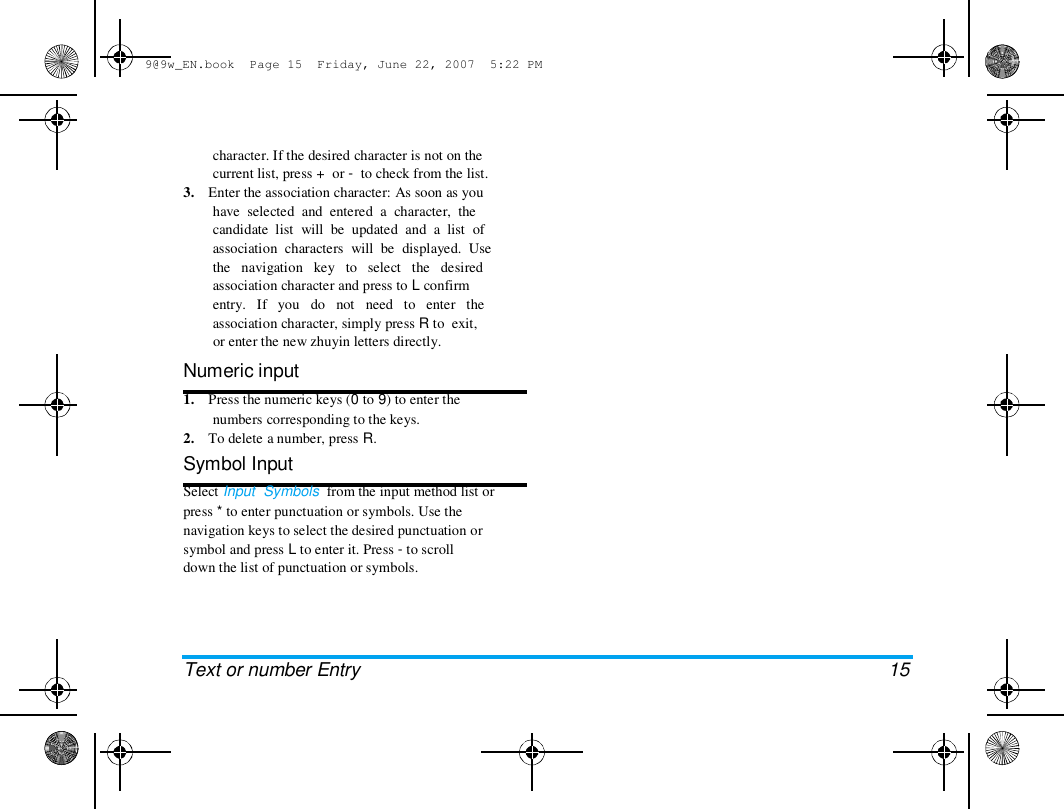
9@9w_EN.book  Page 15  Friday, June 22, 2007  5:22 PM  character. If the desired character is not on the  current list, press +  or -  to check from the list.  3.    Enter the association character: As soon as you  have  selected  and  entered  a  character,  the  candidate  list  will  be  updated  and  a  list  of  association  characters  will  be  displayed.  Use  the   navigation   key   to   select   the   desired  association character and press to L confirm  entry.   If   you   do   not   need   to   enter   the  association character, simply press R to  exit,  or enter the new zhuyin letters directly.  Numeric input  1.    Press the numeric keys (0 to 9) to enter the  numbers corresponding to the keys.  2.    To delete a number, press R.  Symbol Input  Select Input  Symbols  from the input method list or  press * to enter punctuation or symbols. Use the  navigation keys to select the desired punctuation or  symbol and press L to enter it. Press - to scroll  down the list of punctuation or symbols.  Text or number Entry  15
9@9w_EN.book  Page 16  Friday, June 22, 2007  5:22 PM  4. Phone Book    Contacts  are  stored  in  one  of  the  two  available  phonebooks: SIM phonebook (located on your SIM  card, by which the number of entries you can store  depends   on   the   card   capacity)   or   the   Smart  Phonebook (located on your phone, which allows  you to store up to 300 names). When adding new  contacts,  the  contacts  will  only  be  added  to  the  phonebook you have selected.  Search for a contact in the phonebook  Quick Search option  1.    Select Phone Book in the main menu and select  Quick Search  to access the  Phone Book List.  2.    Enter the name of the contact.  Search Entry option  1.    Enter Phone Book in the main menu and select  Search Entry.  2.    Enter the name of the contact, press L Option  and press L.  Phone Book List  Press R in idle mode to access phone book list and  press the key that corresponds to the letter you wish  to search (e.g. press 8 key three times to access the  letter V). The first record starting with this letter in  the list will be selected.  Manage contacts  Select a name from the phone book list and press to  ( dial the number or press L Option to access the  following options:  IP Dial  Edit  Copy  Duplicate  Move  Add new entry  Send SMS  Send MMS  View  Delete  Send vcard  16  1.    Select Phone  Book  in the main menu and select  Add  New  Entry.  Select  the  storage  location  and  press L.  2.    If  you  select  To  SIM,  you  need  to  enter  the  Name and Number. After you have entered the  name, press L. Then enter the phone number  and  press  L.  You  can  enter  the  telephone   Phone Book
9@9w_EN.book  Page 17  Friday, June 22, 2007  5:22 PM  numbers  saved  in  the  SIM  phone  book  into  different groups according to your relation to  the people.  3.    If you select To Phone, the procedures will be the  same  as  above.  You  can  enter  the  contact's  Name,   Number,   Home   Number,   Company  Name,  E-mail  Address,  Office  Number,  Fax  Number  and  Birthday.  You  can  also  Associate  Picture,  Associate  Sound,  Associate  video  as  well  as  Associate  Caller  Group  to  the  contact.  Press  L  to  confirm.  The  phone  will  display  a  notification to confirm that the contact has been  saved.  Copy all  You can copy all the contacts in your phone to your  SIM card and vice-versa.  1.    Select  Phone  Book  in  the  main  menu,  select  Copy All and press L.  2.    Select From SIM or From Phone, and press L.  3.    Confirmation prompts will be displayed on the  screen. Select L Yes to confirm the operation  or select R No to cancel the operation.  When  you  copy  telephone  number  entries  from  your mobile phone onto your SIM card, only the  names and telephone numbers will be copied.   Delete  You can select From SIM or From Phone to delete all  the   entries  in  the  SIM   card  or  mobile  phone  phonebook respectively. You can select One By One  to delete a telephone number.  Delete all the entries from SIM card or phone. You  need to input a password for the delete all feature.  The default password is "0000".   Caller Group  This option allows you to group the contacts in the  phonebook for more efficient management of your  contacts.  Phone Book   17
9@9w_EN.book  Page 18  Friday, June 22, 2007  5:22 PM  1.    Select Phone Book in the main menu and select  Caller Group.  2.    Select a group and press L.  3.    Select the option for which you wish to modify  its settings.  You can set the following options:  Group name  Ring type  Picture  Member List  Set group name.  Set the ring tone for incoming calls  from   the   contacts   in   the   caller  group.  Set the icon to be displayed on the  screen  when  there  is  an  incoming  call from the contacts in the caller  group.  Add or delete members of the caller  group.  Extra Number  Owner Number  The Owner Number option should contain your own  phone number. If not, we recommend that you enter  your own mobile phone number and other relevant  information.  Service Dial Number   18  This service is provided by your network operator.  For more information regarding the corresponding  function, please contact your network operator.  SOS Number  This SOS number will call the emergency services  number in your country. In most cases, you can call  this number even if you have not yet inserted a SIM  card or entered your PIN.  Depending on your network operator, you may be  able to dial the emergency number even without  inserting the SIM card.   Settings  Memory Status  Displays  the  total  number  of  contacts  you  have  stored  in  each  phonebook  and  the  total  memory  used.  Preferred Storage  Allows you to set the default phonebook in which  you save your contacts.  Phone Book
9@9w_EN.book  Page 19  Friday, June 22, 2007  5:22 PM  Fields  Allows  you  to  select  the  items  such  as  Home  Number,   Company   Name,   Email   Address,   Office  Number,  Fax  Number,  Birthday,  Associate  Picture/  Video/Sound and Caller Group to be displayed in the  Smart Phonebook.  My vcard  Allows you to edit or send your personal details.  Caller Picture  Allows  you  to  assign  a  picture  from  the  picture  folder in File Manager menu as the caller picture.  Caller Ring Tone  Allows you to assign a ring tone saved in the mobile  phone  or  delivered  to  you  and  saved  in  the  User  Profiles menu as the caller ring tone.  Phone Book  19
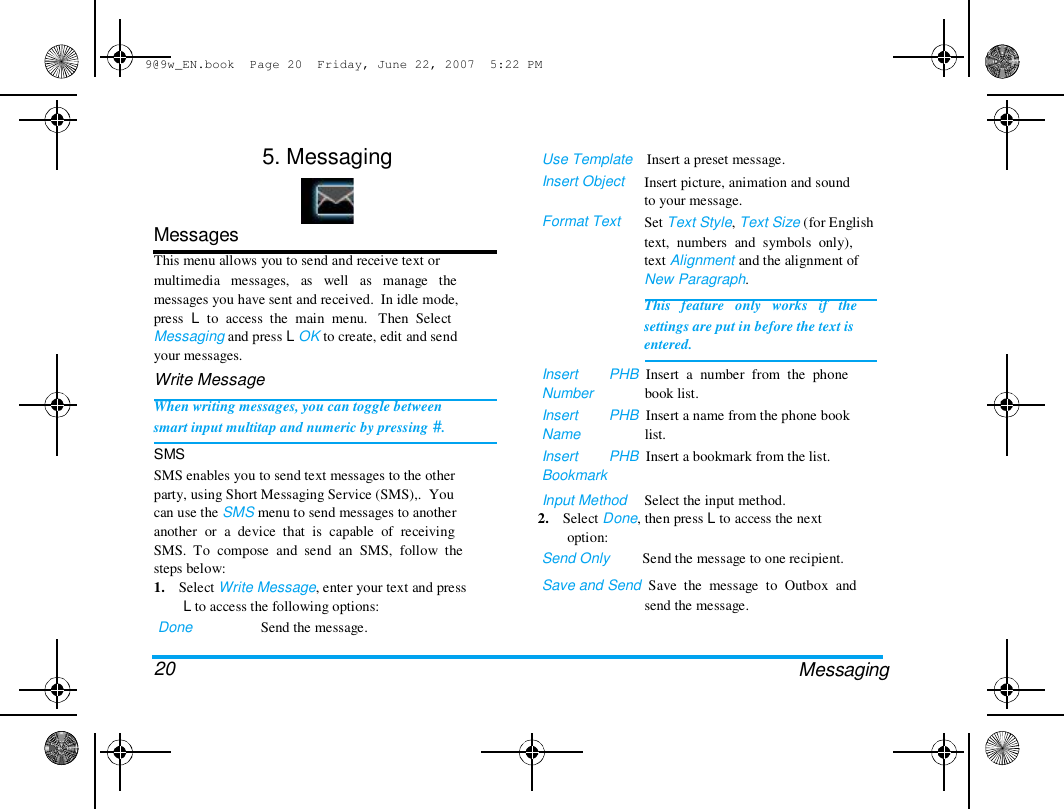
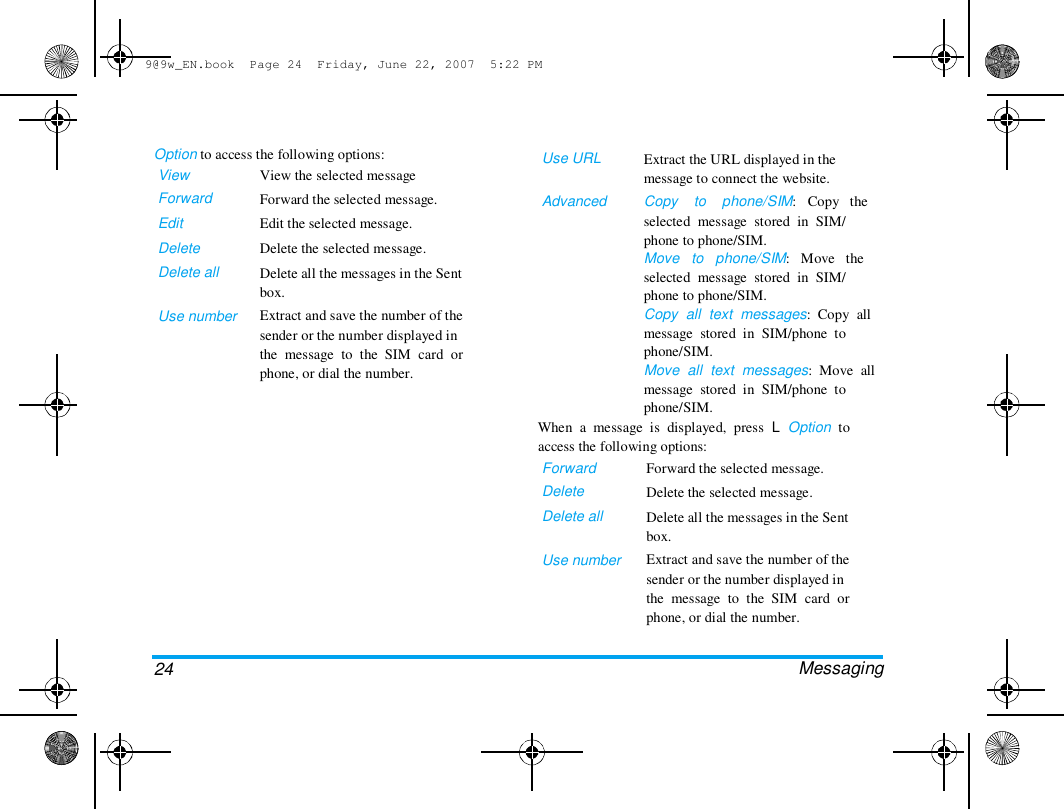
9@9w_EN.book  Page 20  Friday, June 22, 2007  5:22 PM  5. Messaging  Use Template    Insert a preset message.  Insert Object   Format Text  Insert picture, animation and sound  to your message.  Set Text Style, Text Size (for English  text,  numbers  and  symbols  only),  text Alignment and the alignment of  New Paragraph.  This   feature   only   works   if   the  settings are put in before the text is  entered.  Messages  This menu allows you to send and receive text or  multimedia   messages,   as   well   as   manage   the  messages you have sent and received.  In idle mode,  press  L  to  access  the  main  menu.   Then  Select  Messaging and press L OK to create, edit and send  your messages.  Write Message  When writing messages, you can toggle between  smart input multitap and numeric by pressing #.  SMS  SMS enables you to send text messages to the other  party, using Short Messaging Service (SMS),.  You  can use the SMS menu to send messages to another  another  or  a  device  that  is  capable  of  receiving  SMS.  To  compose  and  send  an  SMS,  follow  the  steps below:  1.    Select Write Message, enter your text and press  L to access the following options:  Done   20  Send the message.  Insert  Number  Insert  Name  Insert  Bookmark  PHB  Insert  a  number  from  the  phone  book list.  PHB  Insert a name from the phone book  list.  PHB  Insert a bookmark from the list.  Input Method  Select the input method.  2.    Select Done, then press L to access the next  option:  Send Only         Send the message to one recipient.  Save and Send  Save  the  message  to  Outbox  and  send the message.  Messaging
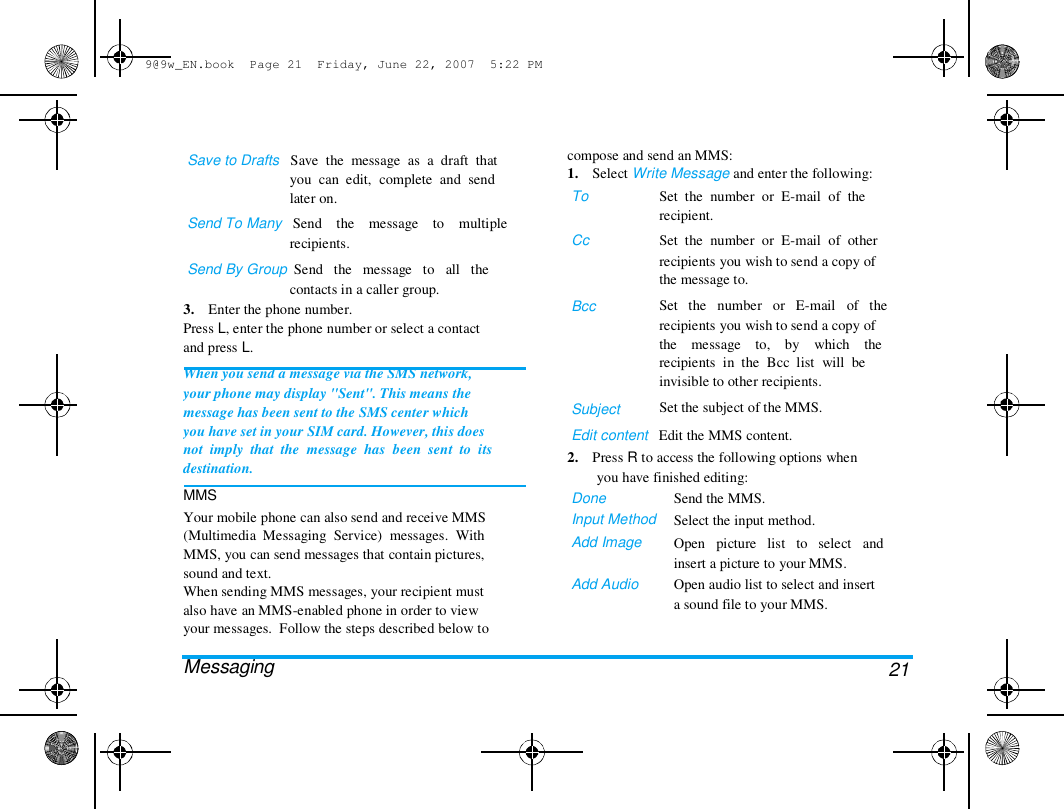
9@9w_EN.book  Page 21  Friday, June 22, 2007  5:22 PM  Save to Drafts   Save  the  message  as  a  draft  that  you  can  edit,  complete  and  send  later on.  Send To Many   Send    the    message    to    multiple  recipients.  Send By Group  Send   the   message   to   all   the  contacts in a caller group.  3.    Enter the phone number.  Press L, enter the phone number or select a contact  and press L.  When you send a message via the SMS network,  your phone may display "Sent". This means the  message has been sent to the SMS center which  you have set in your SIM card. However, this does  not  imply  that  the  message  has  been  sent  to  its  destination.  MMS  Your mobile phone can also send and receive MMS  (Multimedia  Messaging  Service)  messages.  With  MMS, you can send messages that contain pictures,  sound and text.  When sending MMS messages, your recipient must  also have an MMS-enabled phone in order to view  your messages.  Follow the steps described below to   Messaging  compose and send an MMS:  1.    Select Write Message and enter the following:  To   Cc  Bcc  Subject  Set  the  number  or  E-mail  of  the  recipient.  Set  the  number  or  E-mail  of  other  recipients you wish to send a copy of  the message to.  Set   the   number   or   E-mail   of   the  recipients you wish to send a copy of  the    message    to,    by    which    the  recipients  in  the  Bcc  list  will  be  invisible to other recipients.  Set the subject of the MMS.  Edit content   Edit the MMS content.  2.    Press R to access the following options when  you have finished editing:  Done  Input Method  Add Image   Add Audio  Send the MMS.  Select the input method.  Open   picture   list   to   select   and  insert a picture to your MMS.  Open audio list to select and insert  a sound file to your MMS.  21
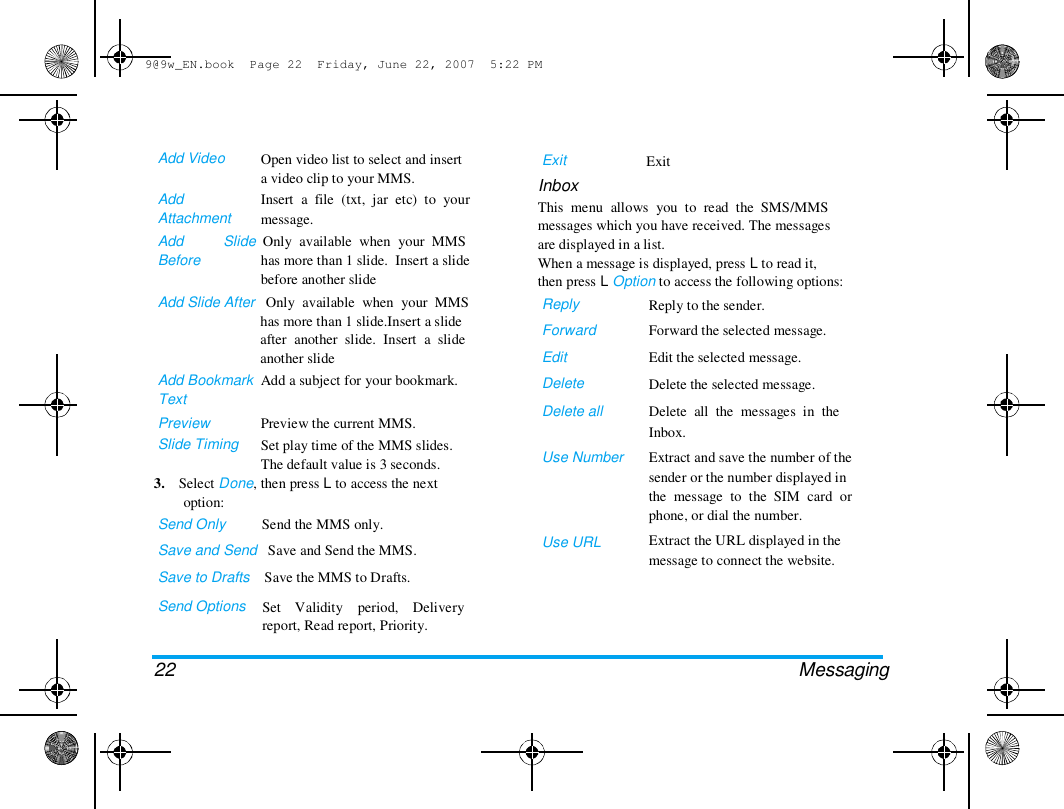
9@9w_EN.book  Page 22  Friday, June 22, 2007  5:22 PM  Add Video   Add  Attachment  Add  Before  Open video list to select and insert  a video clip to your MMS.  Insert  a  file  (txt,  jar  etc)  to  your  message.  Exit  Inbox  Exit  Slide  Only  available  when  your  MMS  has more than 1 slide.  Insert a slide  before another slide  This  menu  allows  you  to  read  the  SMS/MMS  messages which you have received. The messages  are displayed in a list.  When a message is displayed, press L to read it,  then press L Option to access the following options:  Reply  Forward  Edit  Delete  Delete all   Use Number  Add Slide After   Only  available  when  your  MMS  has more than 1 slide.Insert a slide  after  another  slide.  Insert  a  slide  another slide  Add Bookmark  Add a subject for your bookmark.  Text  Preview  Slide Timing  Preview the current MMS.  Set play time of the MMS slides.  The default value is 3 seconds.  3.    Select Done, then press L to access the next  option:  Send Only          Send the MMS only.  Save and Send   Save and Send the MMS.  Save to Drafts    Save the MMS to Drafts.  Send Options   Set    Validity    period,    Delivery  report, Read report, Priority.  Use URL  Reply to the sender.  Forward the selected message.  Edit the selected message.  Delete the selected message.  Delete  all  the  messages  in  the  Inbox.  Extract and save the number of the  sender or the number displayed in  the  message  to  the  SIM  card  or  phone, or dial the number.  Extract the URL displayed in the  message to connect the website.  22 Messaging
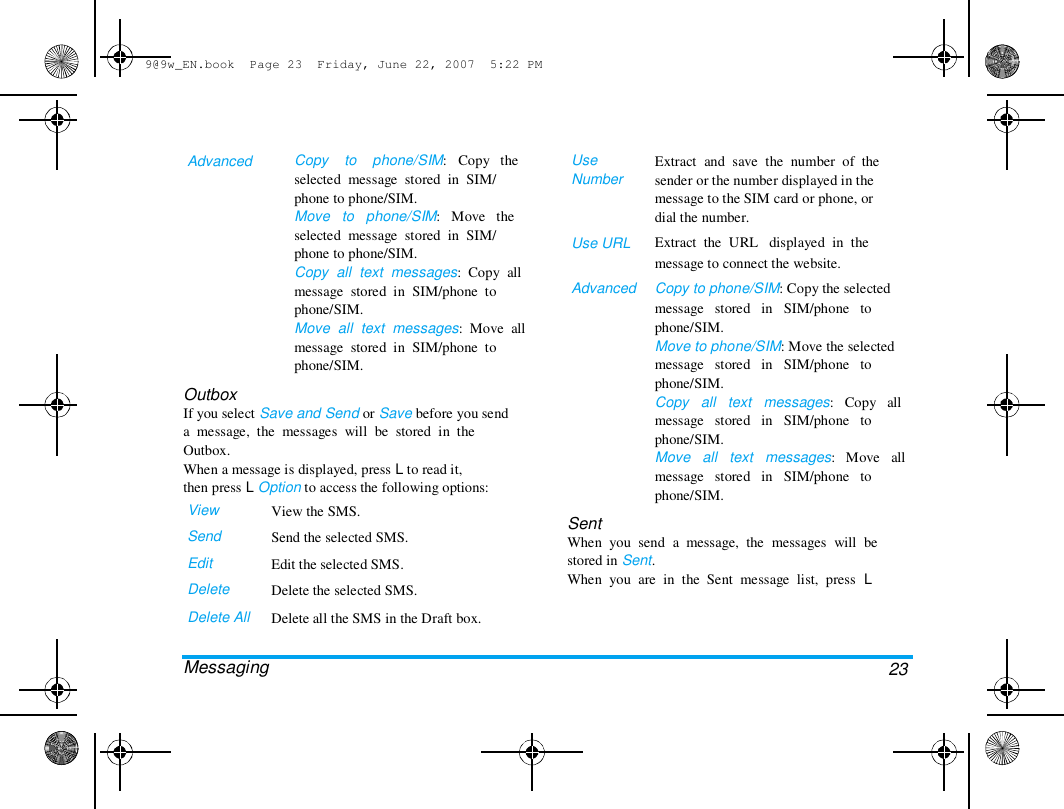
9@9w_EN.book  Page 23  Friday, June 22, 2007  5:22 PM  Advanced  Copy    to    phone/SIM:   Copy   the  selected  message  stored  in  SIM/  phone to phone/SIM.  Move   to   phone/SIM:   Move   the  selected  message  stored  in  SIM/  phone to phone/SIM.  Copy  all  text  messages:  Copy  all  message  stored  in  SIM/phone  to  phone/SIM.  Move  all  text  messages:  Move  all  message  stored  in  SIM/phone  to  phone/SIM.  Use  Number  Use URL   Advanced  Outbox  If you select Save and Send or Save before you send  a  message,  the  messages  will  be  stored  in  the  Outbox.  When a message is displayed, press L to read it,  then press L Option to access the following options:  View  Send  Edit  Delete  Delete All   Messaging  View the SMS.  Send the selected SMS.  Edit the selected SMS.  Delete the selected SMS.  Delete all the SMS in the Draft box.  Extract  and  save  the  number  of  the  sender or the number displayed in the  message to the SIM card or phone, or  dial the number.  Extract  the  URL   displayed  in  the  message to connect the website.  Copy to phone/SIM: Copy the selected  message   stored   in   SIM/phone   to  phone/SIM.  Move to phone/SIM: Move the selected  message   stored   in   SIM/phone   to  phone/SIM.  Copy   all   text   messages:   Copy   all  message   stored   in   SIM/phone   to  phone/SIM.  Move   all   text   messages:   Move   all  message   stored   in   SIM/phone   to  phone/SIM.  Sent  When  you  send  a  message,  the  messages  will  be  stored in Sent.  When  you  are  in  the  Sent  message  list,  press  L  23
9@9w_EN.book  Page 24  Friday, June 22, 2007  5:22 PM  Option to access the following options:  View  Forward  Edit  Delete  Delete all   Use number  View the selected message  Forward the selected message.  Edit the selected message.  Delete the selected message.  Delete all the messages in the Sent  box.  Extract and save the number of the  sender or the number displayed in  the  message  to  the  SIM  card  or  phone, or dial the number.  Use URL   Advanced  Extract the URL displayed in the  message to connect the website.  Copy    to    phone/SIM:   Copy   the  selected  message  stored  in  SIM/  phone to phone/SIM.  Move   to   phone/SIM:   Move   the  selected  message  stored  in  SIM/  phone to phone/SIM.  Copy  all  text  messages:  Copy  all  message  stored  in  SIM/phone  to  phone/SIM.  Move  all  text  messages:  Move  all  message  stored  in  SIM/phone  to  phone/SIM.  When  a  message  is  displayed,  press  L  Option  to  access the following options:  Forward  Delete  Delete all   Use number  Forward the selected message.  Delete the selected message.  Delete all the messages in the Sent  box.  Extract and save the number of the  sender or the number displayed in  the  message  to  the  SIM  card  or  phone, or dial the number.   Messaging  24
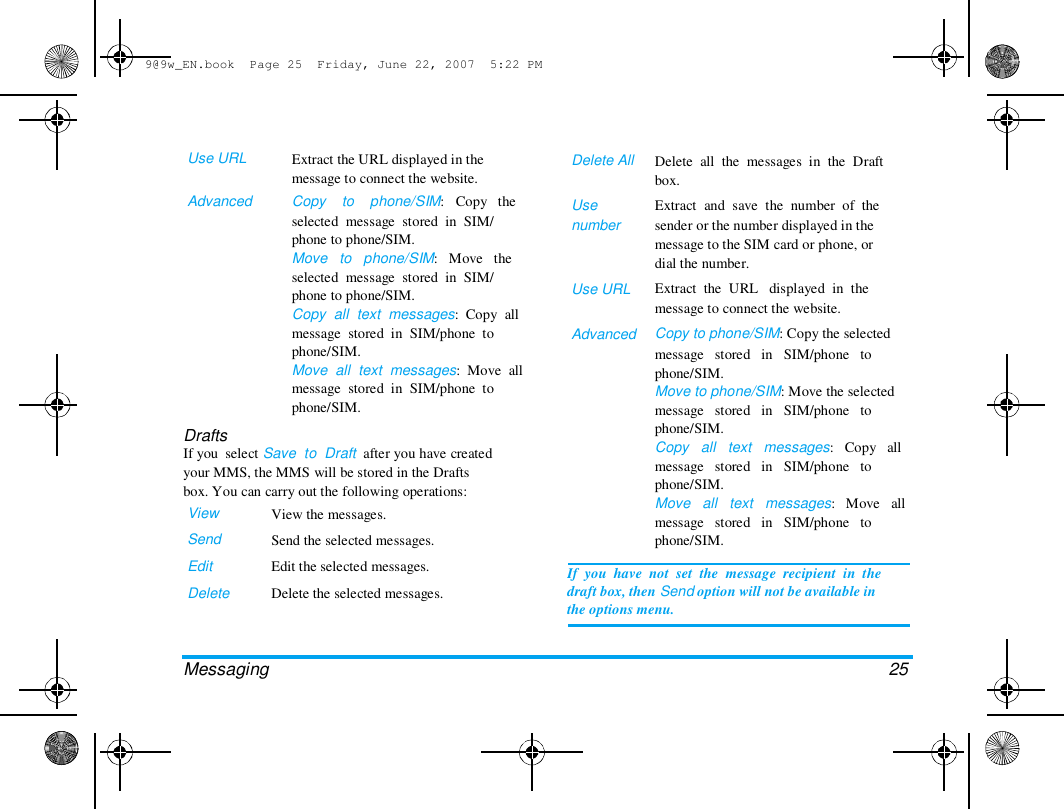
9@9w_EN.book  Page 25  Friday, June 22, 2007  5:22 PM  Use URL   Advanced  Extract the URL displayed in the  message to connect the website.  Copy    to    phone/SIM:   Copy   the  selected  message  stored  in  SIM/  phone to phone/SIM.  Move   to   phone/SIM:   Move   the  selected  message  stored  in  SIM/  phone to phone/SIM.  Copy  all  text  messages:  Copy  all  message  stored  in  SIM/phone  to  phone/SIM.  Move  all  text  messages:  Move  all  message  stored  in  SIM/phone  to  phone/SIM.  Delete All   Use  number  Use URL   Advanced  Drafts  If you  select Save  to  Draft  after you have created  your MMS, the MMS will be stored in the Drafts  box. You can carry out the following operations:  View  Send  Edit  Delete  View the messages.  Send the selected messages.  Edit the selected messages.  Delete the selected messages.  Delete  all  the  messages  in  the  Draft  box.  Extract  and  save  the  number  of  the  sender or the number displayed in the  message to the SIM card or phone, or  dial the number.  Extract  the  URL   displayed  in  the  message to connect the website.  Copy to phone/SIM: Copy the selected  message   stored   in   SIM/phone   to  phone/SIM.  Move to phone/SIM: Move the selected  message   stored   in   SIM/phone   to  phone/SIM.  Copy   all   text   messages:   Copy   all  message   stored   in   SIM/phone   to  phone/SIM.  Move   all   text   messages:   Move   all  message   stored   in   SIM/phone   to  phone/SIM.  If  you  have  not  set  the  message  recipient  in  the  draft box, then Send option will not be available in  the options menu.  Messaging   25
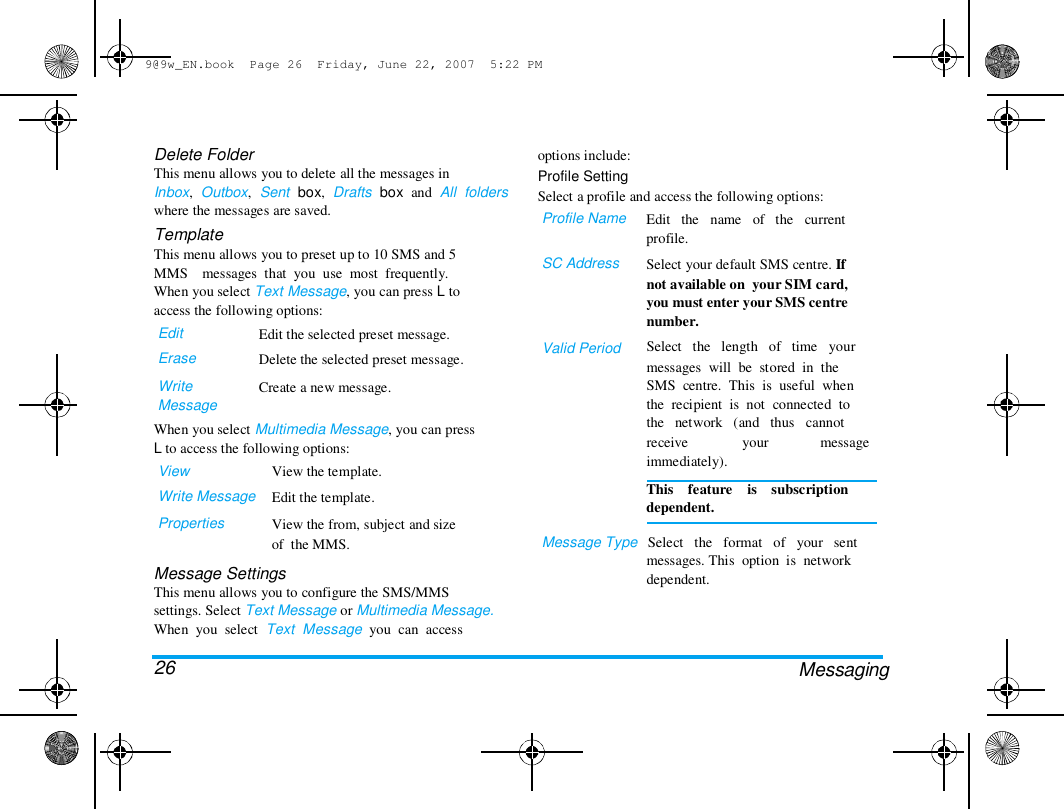
9@9w_EN.book  Page 26  Friday, June 22, 2007  5:22 PM  Delete Folder  This menu allows you to delete all the messages in  Inbox,  Outbox,  Sent  box,  Drafts  box  and  All  folders  where the messages are saved.  Template  This menu allows you to preset up to 10 SMS and 5  MMS    messages  that  you  use  most  frequently.  When you select Text Message, you can press L to  access the following options:  Edit  Erase  Write  Message  Edit the selected preset message.  Delete the selected preset message.  Create a new message.  options include:  Profile Setting  Select a profile and access the following options:  Profile Name   SC Address  Valid Period  When you select Multimedia Message, you can press  L to access the following options:  View  Write Message  Properties  View the template.  Edit the template.  View the from, subject and size  of  the MMS.  Edit   the   name   of   the   current  profile.  Select your default SMS centre. If  not available on  your SIM card,  you must enter your SMS centre  number.  Select   the   length   of   time   your  messages  will  be  stored  in  the  SMS  centre.  This  is  useful  when  the  recipient  is  not  connected  to  the   network   (and   thus   cannot  receive  immediately).  your  message  Message Settings  This menu allows you to configure the SMS/MMS  settings. Select Text Message or Multimedia Message.  When  you  select  Text  Message  you  can  access   26  This    feature    is    subscription  dependent.   Message Type   Select   the   format   of   your   sent  messages. This  option  is  network  dependent.  Messaging
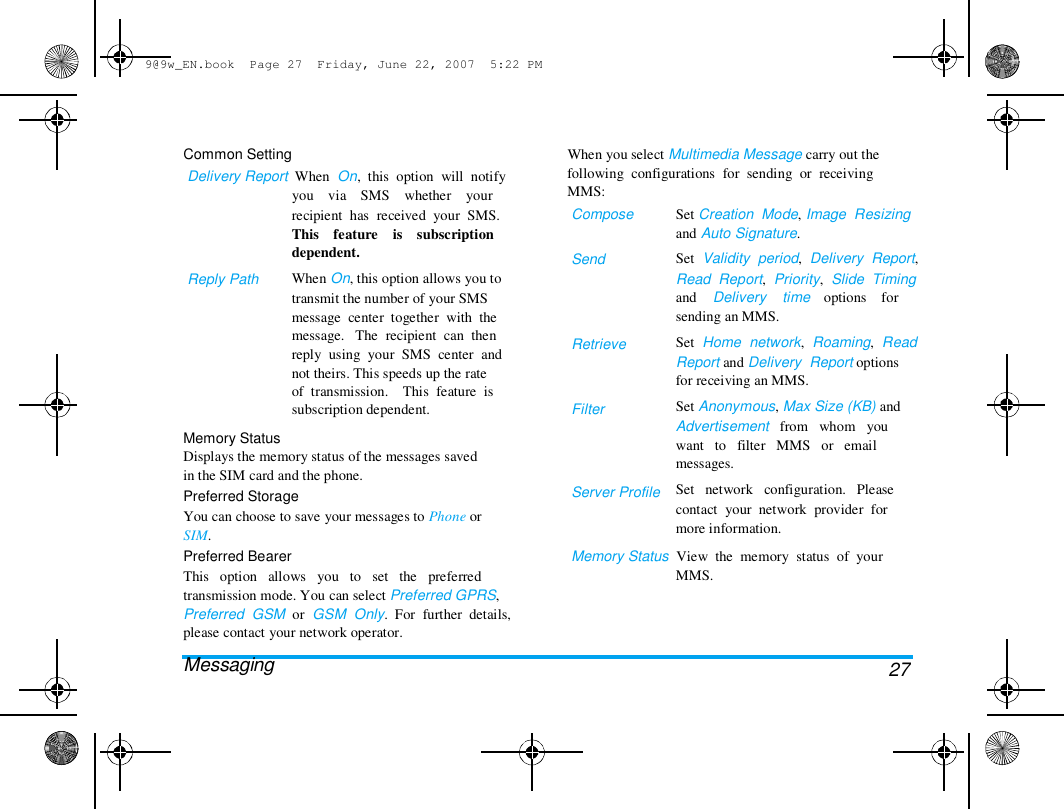
9@9w_EN.book  Page 27  Friday, June 22, 2007  5:22 PM  Common Setting  Delivery Report  When  On,  this  option  will  notify  you    via    SMS    whether    your  When you select Multimedia Message carry out the  following  configurations  for  sending  or  receiving  MMS:  Compose   Send  Set Creation  Mode, Image  Resizing  and Auto Signature.  Set  Validity  period,  Delivery  Report,  Read  Report,  Priority,  Slide  Timing  and    Delivery    time    options    for  sending an MMS.  Set  Home  network,  Roaming,  Read  Report and Delivery  Report options  for receiving an MMS.  Set Anonymous, Max Size (KB) and  Advertisement   from   whom   you  want   to   filter   MMS   or   email  messages.  Set   network   configuration.   Please  contact  your  network  provider  for  more information.  Reply Path  recipient  has  received  your  SMS.  This    feature    is    subscription  dependent.  When On, this option allows you to  transmit the number of your SMS  message  center  together  with  the  message.   The  recipient  can  then  reply  using  your  SMS  center  and  not theirs. This speeds up the rate  of  transmission.    This  feature  is  subscription dependent.  Retrieve  Filter  Memory Status  Displays the memory status of the messages saved  in the SIM card and the phone.  Preferred Storage  You can choose to save your messages to Phone or  SIM.  Preferred Bearer  This   option   allows   you   to   set   the   preferred  transmission mode. You can select Preferred GPRS,  Preferred  GSM  or  GSM  Only.  For  further  details,  please contact your network operator.  Messaging  Server Profile  Memory Status  View  the  memory  status  of  your  MMS.  27
9@9w_EN.book  Page 28  Friday, June 22, 2007  5:22 PM  E-mail   If not included in your mobile phone contract, you  will need to subscribe to an e-mail service in order  to  send  and  receive  e-mails.  In  this  case,  all  parameters  are  communicated  to  you  by  your  operator.  This  menu  allows  you  to  send  e-mails  to  one  or  several  recipients  at  a  time,  including  with  an  attachment such as a JPEG picture. Once received,  your    messages    can    be    forwarded    and    the  attachments  software.  visualised  with  the  appropriate  Create an e-mail account  Before you start using E-mail function, the phone  will asks you to set Sender's e-mail address in   E-  mail profile.  To create a new account, select E-mail >  E-mail profile.  Select a profile and press L to access  the option menu. Select Edit and enter the account  properties   in   Profile   Setting,   Outgoing   Server,  Incoming Server and Signature correctly. You can  set up to three email accounts, one in each profile.  Send and Receive e-mail  To  send  an  e-email,  select  Option  >  Send.    This  might bring up a message requesting airtime.  Select   28  yes to continue and send the e-email.   To receive  new  e-emails,  select  Option  >  Receive  mail.   This  might bring up a message requesting airtime.  Select  yes to continue and receive new e-emails.  Write e-mail  To  write  an  e-email,  select  E-mail  >  Write  E-mail.  Enter  the  address  (To),  a  copy  (Cc),  Subject  and  Attachment (up to 3 files), and the e-mail content.  When you have finished writting your e-mail, press  L  to access the option menu.  You can then select  to  Send,  Send  and  Save,  Save  to  Draft  or  Quit  without Saving.  If  you  exit  the  Messaging  >  Write  E-mail  menu  before  sending  your  e-mail  or  if  you  cancel  the  sending while it takes place, the e-mail content is  deleted without being stored.   You can only attach one file (JPEG, MID, JAR,  TXT, MP3) or one sound at a time. If you accept  an  incoming  call  while  writing  an  e-mail,  the  menu  is  closed  and  the  phone  goes  back  to  idle  when you hang up.  Inbox  This menu allows you to connect to your mailbox  and   download   the   e-mail   headers   (sender   and   Messaging
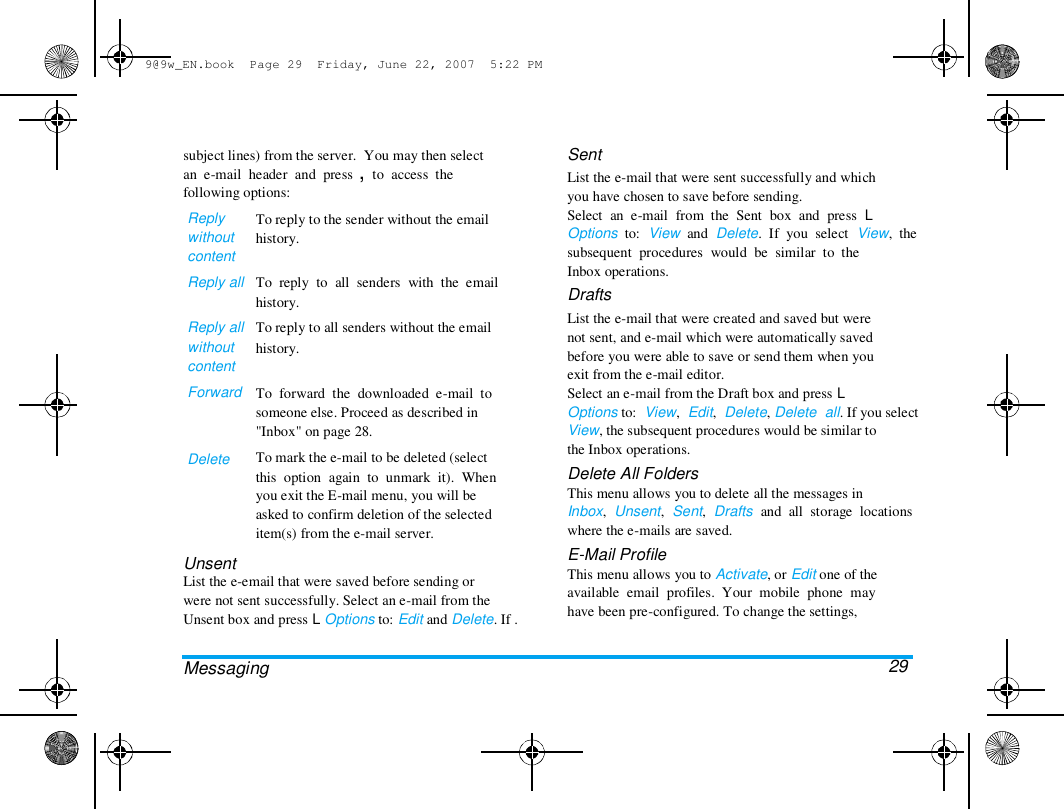
9@9w_EN.book  Page 29  Friday, June 22, 2007  5:22 PM  subject lines) from the server.  You may then select  an  e-mail  header  and  press ,  to  access  the  following options:  Reply  without  content  Reply all   Reply all  without  content  Forward  Delete  To reply to the sender without the email  history.   To  reply  to  all  senders  with  the  email  history.  To reply to all senders without the email  history.   To  forward  the  downloaded  e-mail  to  someone else. Proceed as described in  "Inbox" on page 28.  To mark the e-mail to be deleted (select  this  option  again  to  unmark  it).  When  you exit the E-mail menu, you will be  asked to confirm deletion of the selected  item(s) from the e-mail server.  Unsent  List the e-email that were saved before sending or  were not sent successfully. Select an e-mail from the  Unsent box and press L Options to: Edit and Delete. If .   Messaging  Sent  List the e-mail that were sent successfully and which  you have chosen to save before sending.  Select  an  e-mail  from  the  Sent  box  and  press  L  Options  to:  View  and  Delete.  If  you  select  View,  the  subsequent  procedures  would  be  similar  to  the  Inbox operations.  Drafts  List the e-mail that were created and saved but were  not sent, and e-mail which were automatically saved  before you were able to save or send them when you  exit from the e-mail editor.  Select an e-mail from the Draft box and press L  Options to:  View,  Edit,  Delete, Delete  all. If you select  View, the subsequent procedures would be similar to  the Inbox operations.  Delete All Folders  This menu allows you to delete all the messages in  Inbox,  Unsent,  Sent,  Drafts  and  all  storage  locations  where the e-mails are saved.  E-Mail Profile  This menu allows you to Activate, or Edit one of the  available  email  profiles.  Your  mobile  phone  may  have been pre-configured. To change the settings,   29
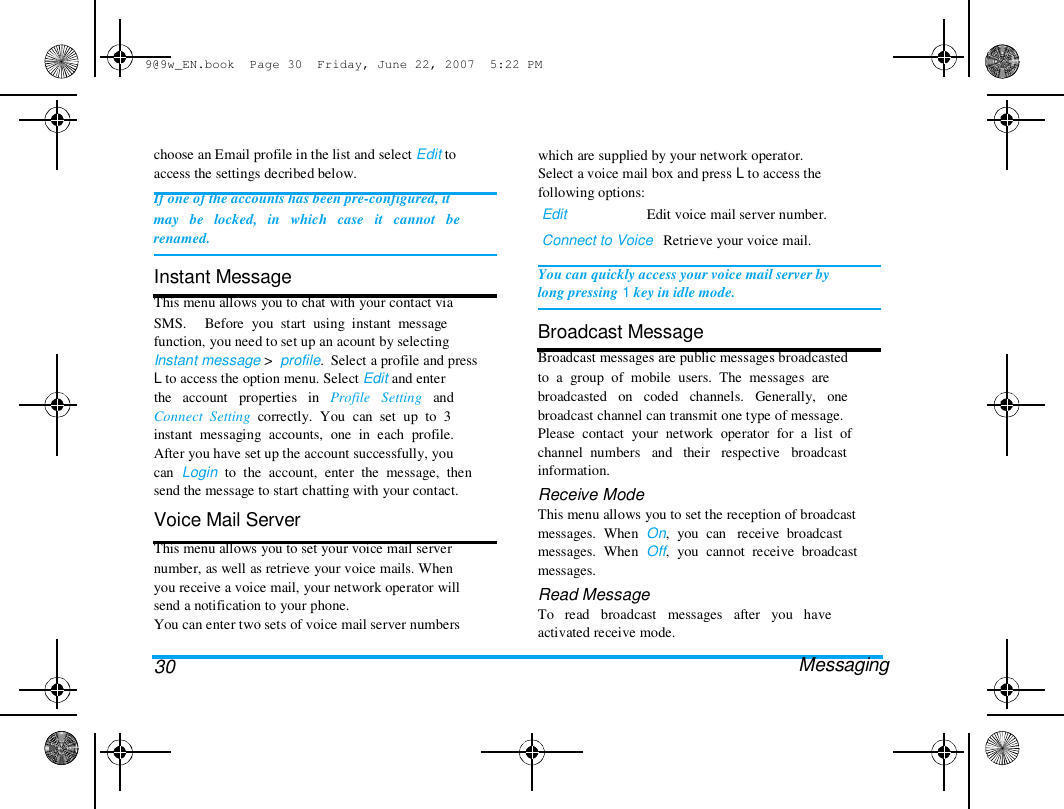
9@9w_EN.book  Page 30  Friday, June 22, 2007  5:22 PM  choose an Email profile in the list and select Edit to  access the settings decribed below.  If one of the accounts has been pre-configured, it  may   be   locked,   in   which   case   it   cannot   be  renamed.   Instant Message  This menu allows you to chat with your contact via  SMS.     Before  you  start  using  instant  message  function, you need to set up an acount by selecting  Instant message >  profile.  Select a profile and press  L to access the option menu. Select Edit and enter  the   account   properties   in   Profile   Setting   and  Connect  Setting  correctly.  You  can  set  up  to  3  instant  messaging  accounts,  one  in  each  profile.  After you have set up the account successfully, you  can  Login  to  the  account,  enter  the  message,  then  send the message to start chatting with your contact.  Voice Mail Server  This menu allows you to set your voice mail server  number, as well as retrieve your voice mails. When  you receive a voice mail, your network operator will  send a notification to your phone.  You can enter two sets of voice mail server numbers   30  which are supplied by your network operator.  Select a voice mail box and press L to access the  following options:  Edit                      Edit voice mail server number.  Connect to Voice   Retrieve your voice mail.   You can quickly access your voice mail server by  long pressing 1 key in idle mode.   Broadcast Message  Broadcast messages are public messages broadcasted  to  a  group  of  mobile  users.  The  messages  are  broadcasted   on   coded   channels.   Generally,   one  broadcast channel can transmit one type of message.  Please  contact  your  network  operator  for  a  list  of  channel  numbers   and   their   respective   broadcast  information.  Receive Mode  This menu allows you to set the reception of broadcast  messages.  When  On,  you  can   receive  broadcast  messages.  When  Off,  you  cannot  receive  broadcast  messages.  Read Message  To   read   broadcast   messages   after   you   have  activated receive mode.  Messaging
9@9w_EN.book  Page 31  Friday, June 22, 2007  5:22 PM  Languages  To set the language of the broadcast messages that  can  be received.  Channel Setting  Press L to access channel settings. You can Select,  Add, Edit or Delete channels.  Messaging  31
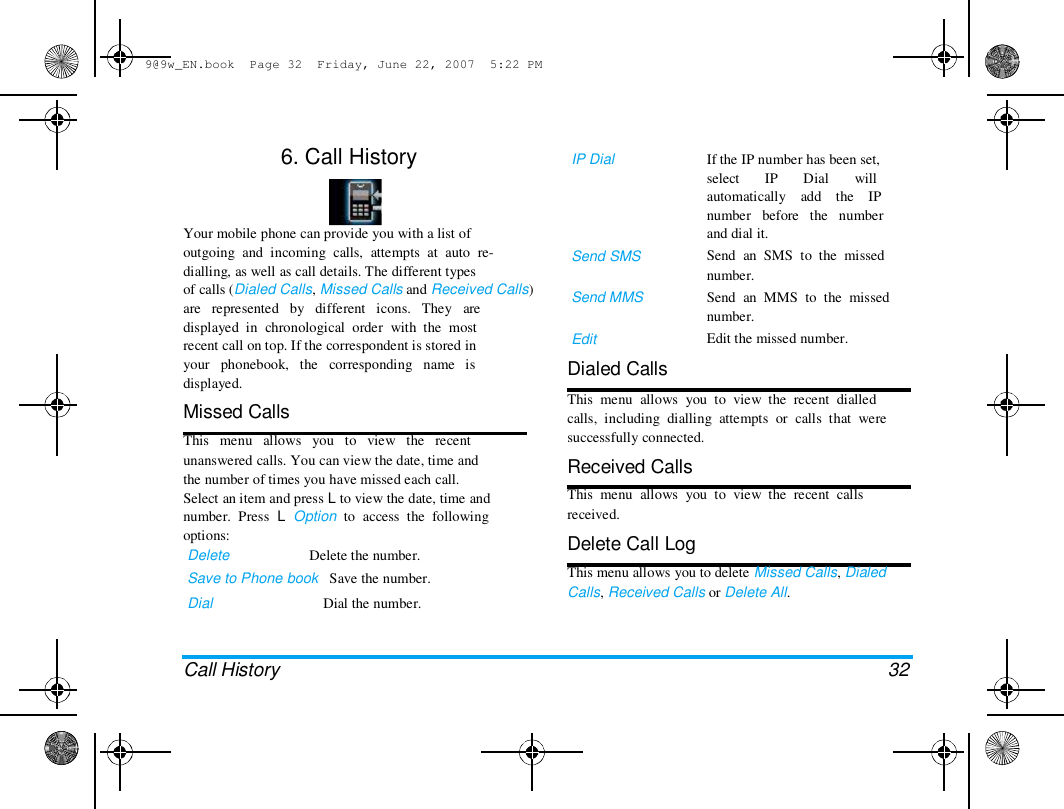
9@9w_EN.book  Page 32  Friday, June 22, 2007  5:22 PM  6. Call History  IP Dial  If the IP number has been set,  select       IP       Dial       will  automatically    add    the    IP  number   before   the   number  and dial it.  Send  an  SMS  to  the  missed  number.  Send  an  MMS  to  the  missed  number.  Edit the missed number.  Your mobile phone can provide you with a list of  outgoing  and  incoming  calls,  attempts  at  auto  re-  dialling, as well as call details. The different types  of calls (Dialed Calls, Missed Calls and Received Calls)  are   represented   by   different   icons.   They   are  displayed  in  chronological  order  with  the  most  recent call on top. If the correspondent is stored in  your   phonebook,   the   corresponding   name   is  displayed.  Missed Calls  This   menu   allows   you   to   view   the   recent  unanswered calls. You can view the date, time and  the number of times you have missed each call.  Select an item and press L to view the date, time and  number.  Press  L  Option  to  access  the  following  options:  Delete                      Delete the number.  Save to Phone book   Save the number.  Dial  Dial the number.  Send SMS   Send MMS   Edit  Dialed Calls  This  menu  allows  you  to  view  the  recent  dialled  calls,  including  dialling  attempts  or  calls  that  were  successfully connected.  Received Calls  This  menu  allows  you  to  view  the  recent  calls  received.  Delete Call Log  This menu allows you to delete Missed Calls, Dialed  Calls, Received Calls or Delete All.  Call History  32
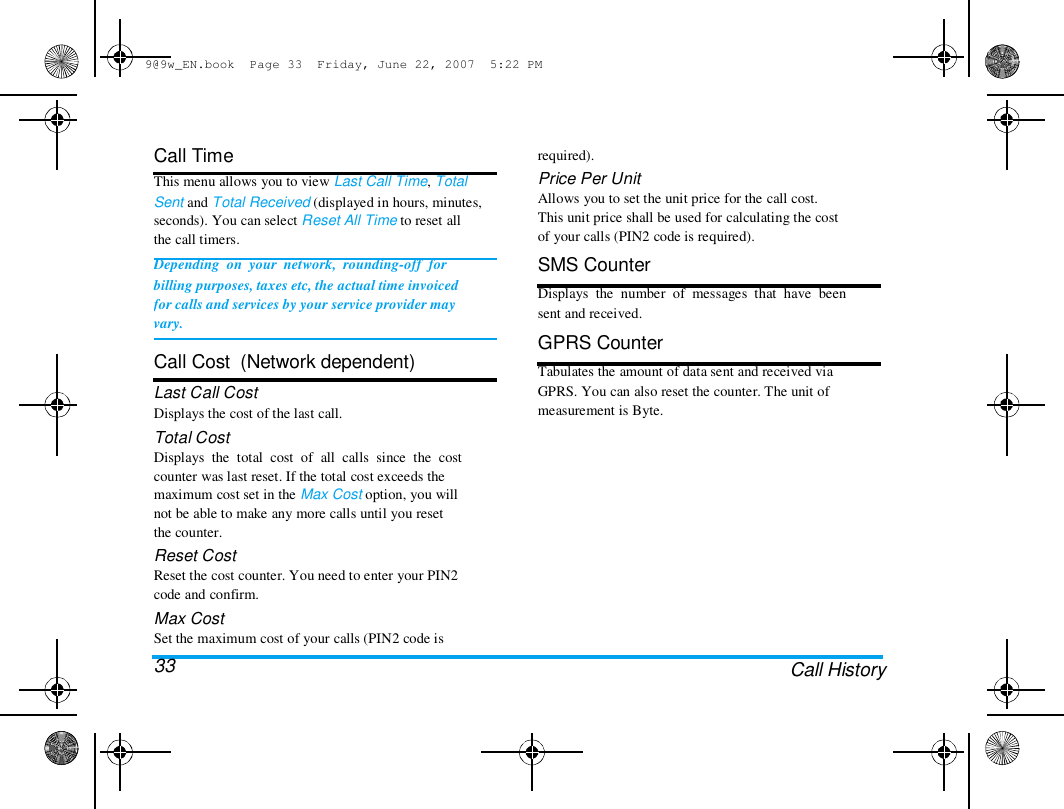
9@9w_EN.book  Page 33  Friday, June 22, 2007  5:22 PM  Call Time  This menu allows you to view Last Call Time, Total  Sent and Total Received (displayed in hours, minutes,  seconds). You can select Reset All Time to reset all  the call timers.  Depending  on  your  network,  rounding-off  for  billing purposes, taxes etc, the actual time invoiced  for calls and services by your service provider may  vary.   Call Cost  (Network dependent)  Last Call Cost  Displays the cost of the last call.  Total Cost  Displays  the  total  cost  of  all  calls  since  the  cost  counter was last reset. If the total cost exceeds the  maximum cost set in the Max Cost option, you will  not be able to make any more calls until you reset  the counter.  Reset Cost  Reset the cost counter. You need to enter your PIN2  code and confirm.  Max Cost  Set the maximum cost of your calls (PIN2 code is  33  required).  Price Per Unit  Allows you to set the unit price for the call cost.  This unit price shall be used for calculating the cost  of your calls (PIN2 code is required).  SMS Counter  Displays  the  number  of  messages  that  have  been  sent and received.  GPRS Counter  Tabulates the amount of data sent and received via  GPRS. You can also reset the counter. The unit of  measurement is Byte.  Call History
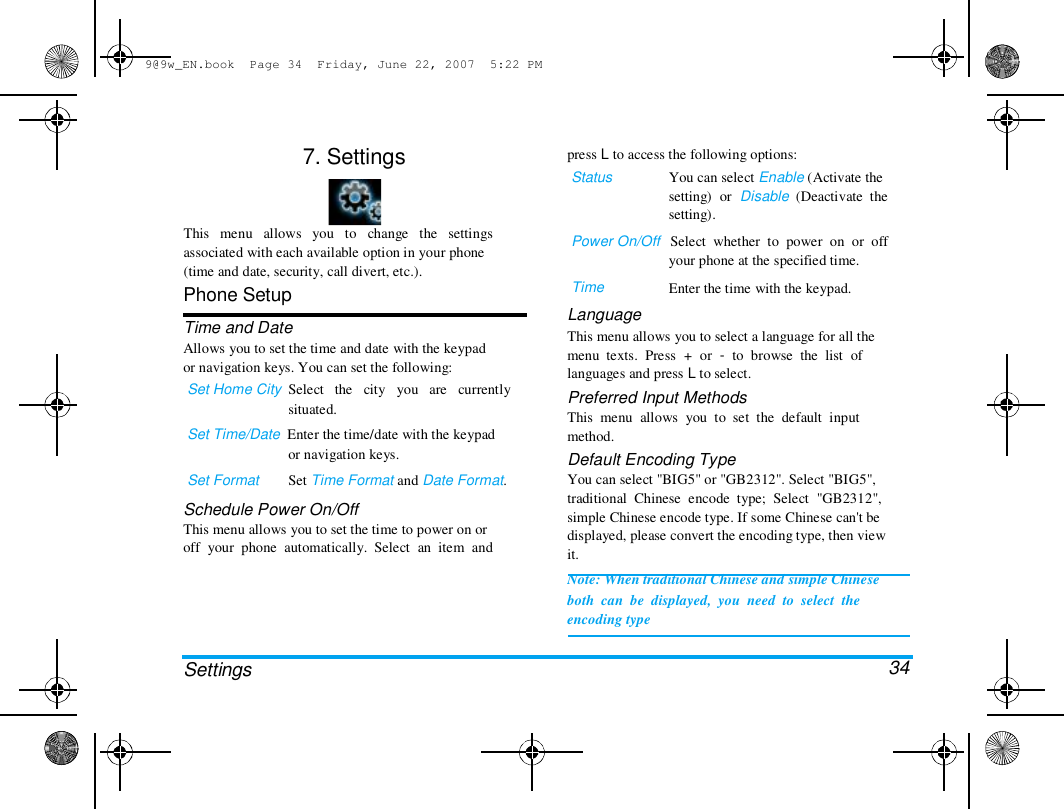
9@9w_EN.book  Page 34  Friday, June 22, 2007  5:22 PM  7. Settings  press L to access the following options:  Status  You can select Enable (Activate the  setting)  or  Disable  (Deactivate  the  setting).  This   menu   allows   you   to   change   the   settings  associated with each available option in your phone  (time and date, security, call divert, etc.).  Phone Setup  Time and Date  Allows you to set the time and date with the keypad  or navigation keys. You can set the following:  Set Home City  Select   the   city   you   are   currently  situated.  Set Time/Date  Enter the time/date with the keypad  or navigation keys.  Set Format        Set Time Format and Date Format.  Schedule Power On/Off  This menu allows you to set the time to power on or  off  your  phone  automatically.  Select  an  item  and  Power On/Off   Select  whether  to  power  on  or  off  your phone at the specified time.  Time  Language  Enter the time with the keypad.  Settings  This menu allows you to select a language for all the  menu  texts.  Press  +  or  -  to  browse  the  list  of  languages and press L to select.  Preferred Input Methods  This  menu  allows  you  to  set  the  default  input  method.  Default Encoding Type  You can select "BIG5" or "GB2312". Select "BIG5",  traditional  Chinese  encode  type;  Select  "GB2312",  simple Chinese encode type. If some Chinese can't be  displayed, please convert the encoding type, then view  it.  Note: When traditional Chinese and simple Chinese  both  can  be  displayed,  you  need  to  select  the  encoding type   34
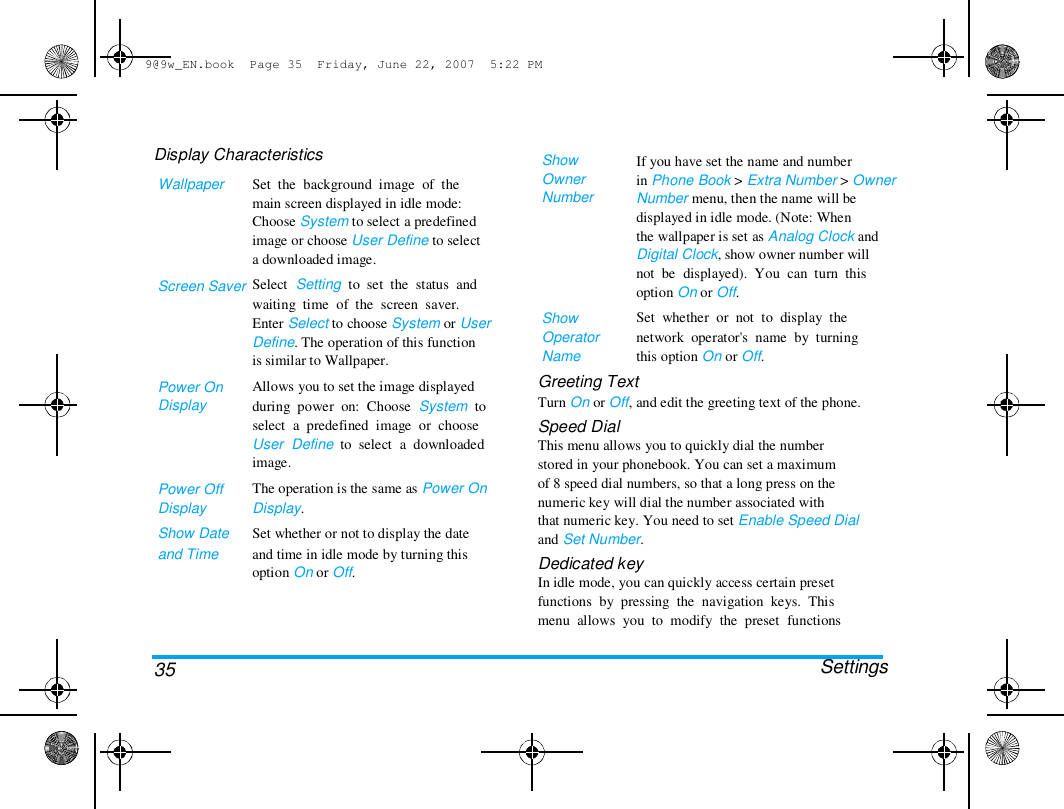
9@9w_EN.book  Page 35  Friday, June 22, 2007  5:22 PM  Display Characteristics  Wallpaper  Screen Saver  Power On  Display  Power Off  Display  Show Date  and Time  Set  the  background  image  of  the  main screen displayed in idle mode:  Choose System to select a predefined  image or choose User Define to select  a downloaded image.  Select  Setting  to  set  the  status  and  waiting  time  of  the  screen  saver.  Enter Select to choose System or User  Define. The operation of this function  is similar to Wallpaper.  Allows you to set the image displayed  during  power  on:  Choose  System  to  select  a  predefined  image  or  choose  User  Define  to  select  a  downloaded  image.  The operation is the same as Power On  Display.  Set whether or not to display the date  and time in idle mode by turning this  option On or Off.  Show  Owner  Number  Show  Operator  Name  Greeting Text  If you have set the name and number  in Phone Book > Extra Number > Owner  Number menu, then the name will be  displayed in idle mode. (Note: When  the wallpaper is set as Analog Clock and  Digital Clock, show owner number will  not  be  displayed).  You  can  turn  this  option On or Off.  Set  whether  or  not  to  display  the  network  operator's  name  by  turning  this option On or Off.  35 Turn On or Off, and edit the greeting text of the phone.  Speed Dial  This menu allows you to quickly dial the number  stored in your phonebook. You can set a maximum  of 8 speed dial numbers, so that a long press on the  numeric key will dial the number associated with  that numeric key. You need to set Enable Speed Dial  and Set Number.  Dedicated key  In idle mode, you can quickly access certain preset  functions  by  pressing  the  navigation  keys.  This  menu  allows  you  to  modify  the  preset  functions   Settings
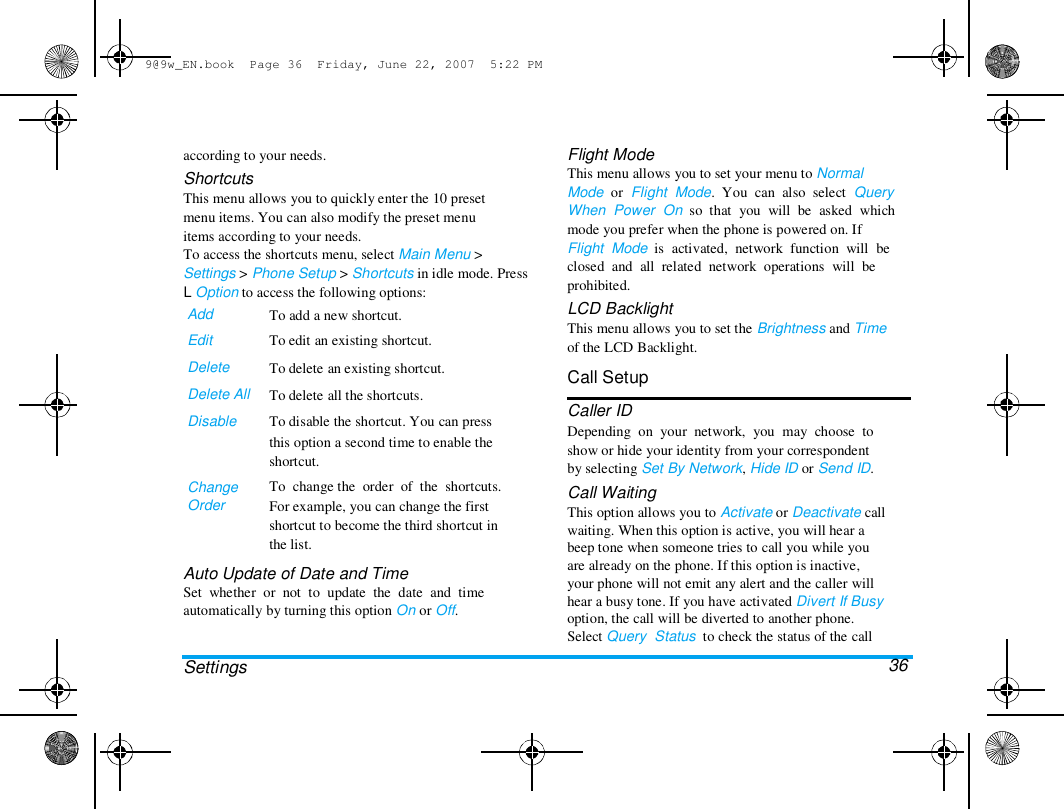
9@9w_EN.book  Page 36  Friday, June 22, 2007  5:22 PM  according to your needs.  Shortcuts  This menu allows you to quickly enter the 10 preset  menu items. You can also modify the preset menu  items according to your needs.  To access the shortcuts menu, select Main Menu >  Settings > Phone Setup > Shortcuts in idle mode. Press  L Option to access the following options:  Add  Edit  Delete  Delete All  Disable  Change  Order  To add a new shortcut.  To edit an existing shortcut.  To delete an existing shortcut.  To delete all the shortcuts.  To disable the shortcut. You can press  this option a second time to enable the  shortcut.  To  change the  order  of  the  shortcuts.  For example, you can change the first  shortcut to become the third shortcut in  the list.  Auto Update of Date and Time  Set  whether  or  not  to  update  the  date  and  time  automatically by turning this option On or Off.   Settings  Flight Mode  This menu allows you to set your menu to Normal  Mode  or  Flight  Mode.  You  can  also  select  Query  When  Power  On  so  that  you  will  be  asked  which  mode you prefer when the phone is powered on. If  Flight  Mode  is  activated,  network  function  will  be  closed  and  all  related  network  operations  will  be  prohibited.  LCD Backlight  This menu allows you to set the Brightness and Time  of the LCD Backlight.  Call Setup  Caller ID  Depending  on  your  network,  you  may  choose  to  show or hide your identity from your correspondent  by selecting Set By Network, Hide ID or Send ID.  Call Waiting  This option allows you to Activate or Deactivate call  waiting. When this option is active, you will hear a  beep tone when someone tries to call you while you  are already on the phone. If this option is inactive,  your phone will not emit any alert and the caller will  hear a busy tone. If you have activated Divert If Busy  option, the call will be diverted to another phone.  Select Query  Status  to check the status of the call  36
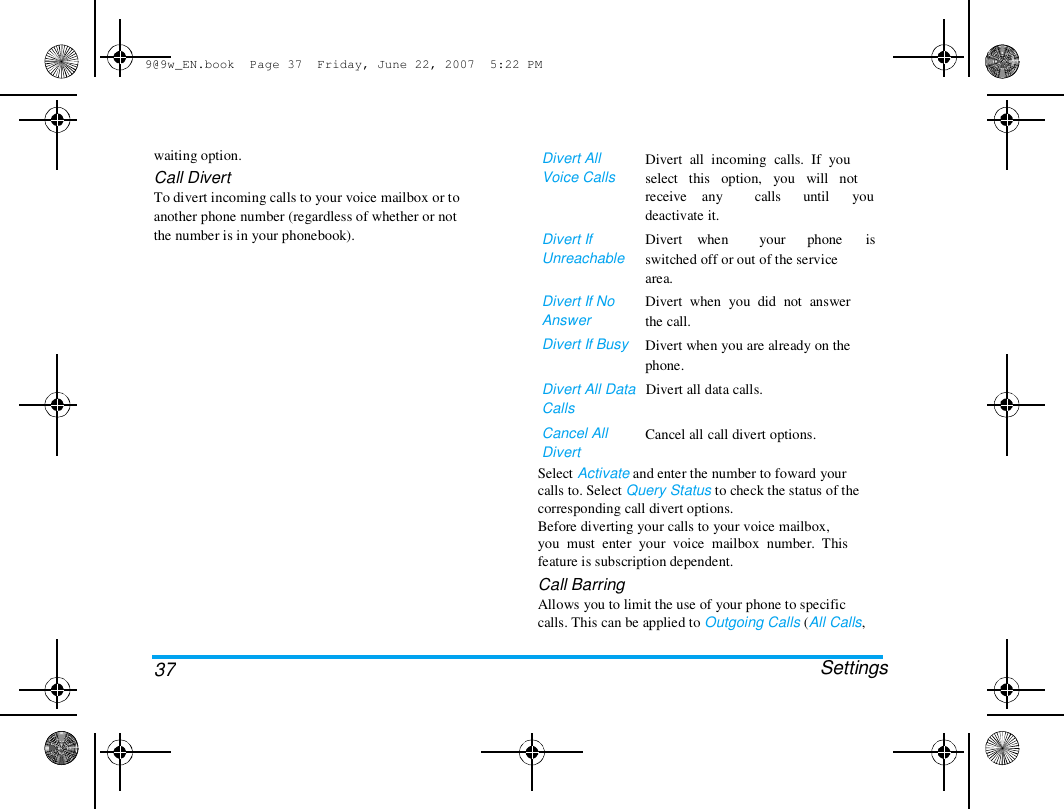
9@9w_EN.book  Page 37  Friday, June 22, 2007  5:22 PM  waiting option.  Call Divert  To divert incoming calls to your voice mailbox or to  another phone number (regardless of whether or not  the number is in your phonebook).  Divert All  Voice Calls   Divert  all  incoming  calls.  If  you  select   this   option,   you   will   not  receive    any  deactivate it.  Divert    when  calls   your  until   phone  you   is  Divert If  Unreachable   Divert If No  Answer  Divert If Busy  switched off or out of the service  area.  Divert  when  you  did  not  answer  the call.  Divert when you are already on the  phone.  Divert All Data   Divert all data calls.  Calls  Cancel All  Divert   Cancel all call divert options.  37 Select Activate and enter the number to foward your  calls to. Select Query Status to check the status of the  corresponding call divert options.  Before diverting your calls to your voice mailbox,  you  must  enter  your  voice  mailbox  number.  This  feature is subscription dependent.  Call Barring  Allows you to limit the use of your phone to specific  calls. This can be applied to Outgoing Calls (All Calls,   Settings
9@9w_EN.book  Page 38  Friday, June 22, 2007  5:22 PM  International Calls or International Except Home) and/or  to Incoming Calls (All Calls or When Roaming). In both  cases, Cancel All option applies to all calls at once.  Change  Barring  PW  allows  you  to  change  the  call  barring password. Query Status allows you to check  whether  or  not  a  particular  type  of  call  has  been  barred.  This feature is network dependent and requires a  specific  call  barring  password  supplied  by  your  service provider.  Line Switching  This menu allows you to switch between 2 calls.  Call Time Reminder  This  menu  allows  you  to  set  whether  or  not  the  phone  will  emit  a  beep  tone  after  a  certain  call  duration. You can select Off (does not emit a beep  tone), Single (select a value from 1 to 3000 seconds,  which  is  the  duration  after  which  the  phone  will  emit a beep tone) or Periodic (select a value from 30  to 60 seconds, which is the periodic time after which  the phone will emit a beep tone. The phone will emit  a beep tone after each periodic time during a call).  Call Time Display  This  menu  allows  you  to  set  whether  or  not  to  display the call time during a call.  Settings  Auto Redial  If the call you have dialled is not answered, your  phone  will  automatically  redial  this  number  at  intervals. Press ) or R to cancel auto redial.  Closed User Group  This  menu  is  a  network  dependent  service  which  allows you to define a group of users within which  outgoing and incoming call restrictions can be made  by the network (for example only calls to numbers  within the group are possible). The same group of  users is then permitted to communicate with each  other but not with users outside the group. Select  Closed  User  Group  and press L Ok, then you can  press  L  Option  to  Edit,  Add,  Activate,  Deactivate,  Delete the user group.  IP Number  This  menu  allows  you  to  store  3  groups  of  IP  number  so  that  you  need  not  enter  the  number  before  you  make  an  IP  call.  Press  L  Option  to  Activate or Edit the IP Number.  The  IP  number  has  to  be  supported  by  your  network operator before you can make an IP call.  When you change a new SIM card, the IP number  you have stored will be cleared. The phone does  not  validate  the  IP  number  you  have  entered.   38
9@9w_EN.book  Page 39  Friday, June 22, 2007  5:22 PM  Therefore,  please  ensure  that  the  numbers  are  correct.  Black list  This menu displays the list of contacts whose calls  and SMS will be rejected. You can select to set the  Black List Mode On/Off.  To add the corresponding  number  to  the  list,  select  and  enter  the  Black  List  Number then confirm by saving it.  You  cannot  add  a  name  to  the  blacklist  directly  from the phonebook, the Calls list and the SMS Inbox.   Dual SIM  Swap SIM  This  menu  allows  you  to  switch  one  SIM  into  another.  Default SIM Slot  This menu allows you to select the default SIM slot.  Switch on Roaming  This menu allows you to set your roaming status.  You can select Off (roaming disabled) or Ask when  roaming  (select  to  switch  another  SIM  card  when  you are roaming)  Security Setup  PIN Code  This menu allows you to set the PIN code On or Off.  The default setting is Off. If set to On, you have to  enter your PIN code when switching your phone on.  If the enter the wrong PIN code, you will not be able  to use most of the features in this phone.  Press ,  to  activate.  Make  sure  that  you  have  entered  the  correct PIN code before you can enable this feature.  Phone Lock  This menu allows you to set a password for your  phone. The default setting is Off. Once you have set  Phone Lock, you must enter the password each time  you switch on your phone.  Enter the password and press L. If Phone Lock is  currently Off, the status will change to On and vice-  versa.  The default phone lock code is 0000.  Auto Keypad Lock  This   menu   allows   you   to   lock   your   keypad  automatically. The default setting is Off.  Select the time interval after which the keypad will  be locked and press L to confirm.   39  Settings
9@9w_EN.book  Page 40  Friday, June 22, 2007  5:22 PM  The keypad will be locked/unlocked automatically  when you close/open the slider.  Fixed Dial  This  menu  allows  you  to  restrict  your  outgoing  calls. You need to enter PIN2 code, which has to be  supplied / supported by your network operator.  Mode  There are two modes: On (you only dial  the numbers stored in the Fixed Dial List)  and Off (you can dial any number).  Fixed Dial   Displays  the  fixed  dial  list.  Press  L  List  Add, enter the name and phone number,  then  press  L,  enter  PIN2  code  and  press L.  Not all SIM cards support PIN2 code. If your SIM  card does not have a PIN2 code, this option is not  available.  Barred Dial  This menu allows you to restrict different types of  outgoing  calls.You  can  activate  or  deactivate  this  feature if your SIM card supports it.  Change Password  This menu allows you to change the PIN code, PIN2  code and Phone Lock Password.   40  PIN  It  is  supplied  together  with  the  SIM  card.  The  default  PIN  code  is  supplied  by  your  network  operator.  If you enter an incorrect PIN code three times in  succession, the PIN code of your SIM card will be  locked automatically and you will be prompted to  enter the PUK code to unlock it. You can obtain  the PUK code from your network operator. If you  enter   an   incorrect   PUK   code   ten   times   in  succession,    the    SIM    card    will    be    locked  permanently.  When  this  happens,  please  contact  your network operator or retailer.  PIN2  It is used to access certain network functions such as  call  charges  or  fixed  dial,  etc.  If  you  enter  an  incorrect PIN2 code three times in succession, the  PIN2  code  of  your  SIM  card  will  be  locked.  To  unlock  PIN2  code,  you  need  to  obtain  the  PUK2  code from your network operator. If you enter an  incorrect PUK2  code  ten times  in  succession,  the  SIM  card  will  be  locked  permanently.  When  this  happens, contact your network operator or retailer.  Phone Lock Password  It protects your phone against unauthorised use by   Settings
9@9w_EN.book  Page 41  Friday, June 22, 2007  5:22 PM  other parties. To protect your data, you need to enter  the phone lock password before you restore factory  settings. The default phone lock password is 0000.  Sound Effect  Equalizer  This  menu  allows  you  to  set  the  audio  frequency  when playing music.  Restore Factory Settings  This  menu  allows  you  to  reset  your  phone  to  its  factory settings.  Enter  the  phone  lock  password  and  press  L  to  confirm.  Once you have entered the correct password (same  as  your  Phone  Lock  Password,  default  value  is  0000),  your  phone  will  be  restored  to  its  factory  settings.  Settings  41
9@9w_EN.book  Page 42  Friday, June 22, 2007  5:22 PM  8. Camera  Your phone features a built-in digital camera. You  can  take  pictures,  store  them  in  your  phone  or  transfer them to your PC via a data cable, use them  as wallpaper or send them to your friends via MMS.  Activate the camera  You can go to the Camera by selecting Main menu >  Camera.  The following table describes the operations of the  various keys in camera mode.  + /  < /  -    Zoom in / out  >    Increase / decrease exposure compensation  5     Activate / deactivate Continous shot.  6     Set Scene Mode.  7     Set Image Quality.  8     Set Image Size.  Take a picture  1.    Frame  your  picture  and  press  ,  to  take  the  picture.  2.    Once  the  picture  is  taken,  the  image  will  be  displayed. Press L to save the picture or press  R to clear the picture.  Options menu of the Camera  This  section  describes  the  Option   menu  of  the  Camera.  Album               Access ImageViewer.  Camera Setting  Set   Shutter   Sound,   EV,   Banding,  Delay Timer, and Cont Shot.  Image Setting  Set Image Size (176x220, 160x120,  320x240,  648x480  1280x1024  or  1600x1200)   and   Image  (Normal, High, Fine or Low).  Quality  ,      Take a picture  )     Exit Camera mode and return to idle mode.  L     Access Option menu  R     Return to previous screen  1     Effects Setting  2     Set White Balance  4     Set Delay Timer.   42  Camera
9@9w_EN.book  Page 43  Friday, June 22, 2007  5:22 PM  White Balance   Select the appropriate White Balance  for     different     locations:     Auto,  Daylight,     Tungsten,     Fluorescent,  Cloud or Incandescence.  Scene Mode   Effect Setting  Add Frame  following options:  View  Browse Style   Forward  Storage   Restore  Default  Set  the  Scene  mode  to  Auto  or  Night.  Set special effects for the picture.  Add a frame to the picture. Some  frames are available only to certain  picture sizes.  Set  the  storage  location  to  Phone,  DRM rights or Memory card.  Reset the camera settings to their  default values.  Rename  Delete  Display the picture.  Set the browse style as List Style or  Matrix Style.  Apply the selected picture to other  options such as To  Wallpaper,   To  Screen  Saver, To  Power  On  Display,  To Power Off Display, To Phonebook,  To MMS , To E-mail and To Bluetooth.  Rename the selected picture.  Delete the selected picture.  Delete All Files   Delete all pictures.  Sort   Storage  Sort   all   pictures   according   to  name, type, time or size.  Set  the  storage  location  to  Phone,  DRM rights or Memory card.  ImageViewer  When you take a picture and save it, the picture is  stored in the ImageViewer folder. When you access  the   menu,   your   photos   will   be   displayed   as  thumbnails. Use + and - navigation keys to browse  through  the  list.  Press  L  Option  to  access  the  Video Player  This option allows you to view the videos you have  recorded or pre-installed in your phone.  Select  a  video  and  press  L  Option  to  access  the  Camera  43
9@9w_EN.book  Page 44  Friday, June 22, 2007  5:22 PM  following options:  Play  Forward  Rename  Delete  Play the selected video.  Apply  the  selected  video  to  other  options such as To MMS , To E-mail  and To Bluetooth..  Rename the selected video.  Delete the selected video.  Activate Video Recorder  Select Video Recorder and press L to activate it.  The following table describes the operations of the  various keys in video recording mode.  + /  < /  -     Zoom in / out  >     Increase        /  decrease  exposure  Delete All Files   Delete all videos.  Sort   Storage  Sort all videos according to name,  type, time or size.  Set  the  storage  location  to  Phone,  DRM rights or Memory card.  When  the  movie  is  playing,  you  can  adjust  the  speed  by  pressing  the +/-  key.  Press #  key  to  snatch  the  image  in  the  movies.  The  snatched  images  will  be  saved  in  the  photos  in  the  File  Manager. Press * key to play the movie in full  screen/landscape mode.   Video Recorder  This  menu  allows  you  to  record  videos  in  3GP  format.   44  compensation  ,       Start / Pause recording  )      Exit video recording mode and return to  idle mode  L      Access Option menu  R      Return to previous screen  1      Effect Setting  2      Set White Balance  4      Set Night Mode  Record a video  Frame  your  image  and  press  ,  to  start  recording.  While  recording,  you  can  press  ,  Pause/Resume.  Press R to stop the recording and save the video.  Option menu of the Video Recorder  This section describes the Option menu of the Video  Camera
9@9w_EN.book  Page 45  Friday, June 22, 2007  5:22 PM  Recorder:  To Player  CamCorder  Setting  Video Setting  Access Video Player  Set White Balance, EV, Night Mode  and Banding  Set Video Quality, File Size Limit, Rec  Time    Limit,   Record    Audio   and  Encode Format  Set special effects for the video  Set the storage location to Phone,  DRM rights or Memory card.  Main LCD  Clip   Resize the selected picture manually.  Press the navigation keys to select the  area  that  needs  to  be  clipped.  Press  * to enlarge and press # to reduce  the clipped area.  When you have finished the picture editing, press  L to access the following options:  Save As  Add Effect  Add Frame  Effect Setting  Storage  Restore Default  Reset the video recorder settings  to their default values  Photo Editor  This menu will link you to the File manager which  allows  you  to  manage  the  pictures  in  Images  and  Photos folders in your phone. Select Photo Artist and  select  Phone  under  File  manager.    Then  select  a  picture in Images or Photos folders and press L to  access the following functions:  Auto Resize   Resize       the       selected       picture  automatically  to  fit  the  screen  size  (i.e. 176x220).  Add Icon  Add Text  Adjustment   Flip  Camera  Save the picture to a new file.  Apply the effect provided by the phone.  Add a frame provided by the phone to  the  picture.  You  can  use  the  same  frame repeatedly for the picture.  Add an icon provided by the phone to  the picture. Use the navigation keys  to move the selected icon. Then press  , and L Done.  Use the navigation keys to move to  the  location  where  the  text  will  be  added. Press , and press L Done.  Adjust  the  image  and  colour  of  the  picture.  Use  the  navigation  keys  to  flip  the  picture.   45
9@9w_EN.book  Page 46  Friday, June 22, 2007  5:22 PM  Expand  Canvas   Help  Adjust the size of the picture if it is  not displayed in full screen (i.e. 176 x  220).  Obtain information on Add Effect, Add  Frame, Add Icon and Add Text.  46 Camera
9@9w_EN.book  Page 47  Friday, June 22, 2007  5:22 PM  9. Fun & Games  Java  Your   mobile   phone   features   a   Java   run-time  environment,   which   allows   you   to   run   Java  applications,  such  as  games  downloaded  on  the  network.  The first time you launch Java, a message appears to  alert you that the installation and configuration of  Java will take several moments. This is a one-time  occurrence.  Java Settings  Once Java has been installed, you may then proceed  to set the following:  Java Audio        Allows you to set the volume level.  Java Vibration    Allows  you  to  set  the  automatic  launch of Java On or Off.  Java network   Heap Size  Allows  you  to  choose  your  preferred network.  Displays   the   maximum   allowed  size for Java memory.  Java Default Security  Allows you to set the automatic launch preference  of Java.  Untrusted domain  Network  Access  Allows  you  to  set  the  automatic  connection  preference.  You  can  select  Prompt   always,   Prompt   at  first, Prompt once, or Never.  Auto Invocation  Allows you to set the preference of  starting   a   Midlet   automatically.  You   can   select   Prompt   always,  Prompt   at   first,   Prompt   once,  or  Never.  Your  mobile  phone  may  display  messages      about      "MIDlets".  Messaging  MIDlets  are  JAVA  applications  or games.   Allows you to set the preference of  receiving    messages.    You    can  select  Prompt   always,   Prompt   at  first, Prompt once, or Never.  47 Fun & Games
9@9w_EN.book  Page 48  Friday, June 22, 2007  5:22 PM  Multimedia  Allows you to set the preference of  multimedia   messages.   You   can  select  Prompt   always,   Prompt   at  first, Prompt once, or Never.  Read user data  Allows you to set the preference of  Read  user  data.  You  can  select  Prompt   always,   Prompt   at   first,  Prompt once, or Never.  Write user data  Allows you to set the preference of  Write  user  data.  You  can  select  Prompt   always,   Prompt   at   first,  Prompt once, or Never.  Restore Settings  Allows  you  to  restore  the  Java  application  to  its  default settings.  Games  Select a game and press L. For details regarding a  certain    game,    please    refer    to    the    onscreen  instructions.  Game Setting  This   menu   allows   you   to   turn   the   audio   and  vibration effect of the games on or off.  Select  BGM  (Background  music),  Sound  Effect  or   Fun & Games  Game Vibration, then press the </> to select On or Off  and press L to confirm.  Stopwatch  Your phone provides the stopwatch function. There  are  two  types  of  stopwatches  available:  Typical  Stopwatch  and  nWay  Stopwatch.  When  you  select  Typical  Stopwatch,  you  can  access  the  following  options:  Split Timing  Lap Timing  View record  Press L Start/Stop/Resume to start/  stop/resume counting and press R  Split  to  split  the  time.  When  you  select   Split,   the   stopwatch   still  counts continously.  Press L Start/Stop/Resume to start/  stop/resume counting and press R  Lap  to  lap  the  time.  When  you  press  R  Lap,  the  stopwatch  will  count from the beginning.  View the saved record.  When you select nWay Stopwatch, you can press L  Start  to  record  your  time.  There  are  four  time  displays available. They are indicated by the +, -, <  and  >  navigation  keys.  The  selected  time  will  display in red colour.   48
9@9w_EN.book  Page 49  Friday, June 22, 2007  5:22 PM  10. User Profiles  This menu allows you to set the ring tone, alert type,  ring volume, answer mode and backlight, etc when  you receive an incoming call or a new message so  that you can adapt the use of your phone to different  types of call environments.  Select General, Meeting, Outdoor, Indoor, Headset or  Bluetooth   and   press   L   Option   to   access   the  following options:  Activate  Customize  Activate the selected profile.  Allows  you  to  set  the  selected  mode     including     Tone     Setup  (Incoming  Call,  Alarm,  Power  On,  Message  Tone  and  Keypad  Tone),  Volume  (Ring  Tone and Key  Tone),  Alert   Type   (Ring,   Vibration   Only,  Vibra and Ring or Vibra Then Ring),  Ring    Type    (Single,    Repeat    or  Ascending),  Extra   Tone   (Warning,  Error,   Camp    on   and   Connect),  Answer Mode (Any Key).  The "Auto" option in  Answer Mode  is  available  only when the phone is in Headset Mode. Headset  mode need not be activated. The phone will switch  to headset mode automatically when you plug the  headset into your phone.  User Profiles  49
9@9w_EN.book  Page 50  Friday, June 22, 2007  5:22 PM  11. Organizer  This  menu  contains  features  and  options  that  are  designed  to  help  you  get  organized  and  be  kept  informed at all times.  Calendar  This menu allows you to view the calendar, and add  tasks in the To Do List.  You  can  press  the  navigation  keys  to  view  the  calendar.  Select  a  date  that  you  wish  to  view  and  press L  Option to access the following options:  View Tasks  To Do List  This menu helps you manage the different types of  task in your daily work or life. You can add task  description, a specific timing and an alarm for your  To Do List.  If there is no task in your phone, the screen displays  Empty. You can press L Add to create a new task.  After you have edited the task, press R Done.  If you have selected an existing task, you can press  L Option to access the option menu.  Add a task  Date  Time  Jump To Date  Allows you to set date, time, notes  and alarm for the task. Press L to  add  new  tasks,  or  edit  and  view  existing  task  (for  details,  please  refer to "To Do List").  Allows you to view a specific day  quickly. Enter the date and press L.  Note  Alarm   Repeat  When  there  is  a  scheduled  task  for  a  particular  day, the date will be highlighted in red.   50  Allows you to enter the date of the task.  Allows you to enter the time of the task.  The time you enter must be in 24-hour  format.   Allows  you  to  enter  task  description.  Press L Edit, enter the description and  press L to save.  Use  the  navigation  keys  to  set  alarm  status.  Set task frequency: Once, Every Day, Day,  Weekly or Monthly.  Organizer
9@9w_EN.book  Page 51  Friday, June 22, 2007  5:22 PM  Option menu of an existing task  View   Add  Edit Task  Delete Task  Delete All  Send  vCalendar  Alarm  View  the  settings  of  the  selected  task.  Add a new task.  Edit the selected task.  Delete the selected task.  Delete all tasks in To Do List.  Send  the  calender  to  the  desired  recipient.  Your mobile phone has a built-in alarm clock. You  can set a maximum of 3 separate alarms.  To set an alarm, follow the steps below:  1.    Select an alarm and press L Edit.  2.    Set the status to On.  3.    Enter the time.  4.    Select  Repeat:  Once,  Everyday  or  Days.  When  you have finished the settings, press R Done.  5.    Set the Snooze  mode: Default or from 1 to 10  minutes .  6.    Select  the  Alert  Type:  Ring,  Vibration  Only  or  Vibra and Ring.   Organizer  If you select "Days" mode, you can select the week  line, then set the alarm clock for each day of the  week individually. You can switch between On and  Off by pressing the L.   World Clock  This menu allows you to check the time of the main  cities around the world.  Press the navigation keys to select the city. The local  date and time will be displayed at the bottom of the  screen.  Extra  This menu contains features and options designed to  help you keep you organized and informed while on  the move.  Calculator  Your phone has a built-in calculator which you can  use  to  perform  basic  calculations.  Enter  numbers  using  the  keypad  and  insert  operators  with  the  navigation keys as indicated in the following table:  + -  Add or M+  Subtract or M-  51
9@9w_EN.book  Page 52  Friday, June 22, 2007  5:22 PM  < > Multiply or MC  Divide or MR  R        Clear number  #        Decimal point  ,        Result  The result of the calculator is indicative only. The  calculation  accuracy  is  10  decimal  places.  The  result is then truncated after the 10th decimal digit  for the next operation.  Units Converter  This menu allows you to carry out unit conversion  for length and weight.  Press # key to enter decimal point.  Currency Converter  This  menu  allows  you to  convert  a sum  from  one  currency into another using the exchange rate of your  choice.   You   can   convert   from   Local   to   Foreign  currency or vice versa. Enter a rate in the Rate field,  press L, and enter an amount in either the Local or  Foreign field, then press L to obtain the conversion  value.  Press # key to enter decimal point.   52  Health  This menu provides you with reference information  pertaining  to  your  Body  Mass  Index,as  well  as  a  female ovulation calendar.  BMI  Select  gender  and  enter  Height  and  Weight,  then  press L to get the result.  Menstrual  The method of operation is the same as ìBMIî. Enter  the  corresponding  data  and  press  L  to  get  the  result.  E-Book Reader  This menu allows you to view the text file saved in  the  phone  or  micro  SD  card  (make  sure  that  you  have  already  inserted  the  micro  SD  card  into  the  card slot). You need to copy and save the selected  text file into a ebook folder so that you can read the  text  when  you  enter  the  eBook menu.  If  there  are  existing text files, a text file list will display on the  screen.  Press  L  Option  to  access  the  following  options:  Organizer
9@9w_EN.book  Page 53  Friday, June 22, 2007  5:22 PM  Read  Rename  Delete  Delete All  Files  Sort  Storage  Read the selected file.  Rename the selected file.  Delete the selected file.  Delete all files under eBook.   Select to sort the files by type, by time, by  size   or  none   (no  sorting  or  random  sorting).  Set  the  storage  location  to  Phone  or  Card.  This  function only supports  text  file saved in the  folder under the ebook menu with file size less than  2MB.  Organizer   53
9@9w_EN.book  Page 54  Friday, June 22, 2007  5:22 PM  12. Services    This menu contains Wap and Data Account.  STK  The availability of the features in this menu depends  on whether or not your SIM card supports STK. If  your  SIM  card  supports  STK  function,  the  STK  menu will be displayed on the screen.  WAP  This option allows you to access the internet. Your  phone  has  been  pre-configured  with  a  number  of  internet access modes. You can start browsing the  internet once you have activated an access mode.  Homepage  You can store a homepage for each access mode.  When   you   access   the   internet   with   the   WAP  browser, the homepage of the access mode which  you have selected will be displayed first.  Bookmarks  You  can  save  the  URL  as  a  bookmark  in  your  phone. Select a bookmark and press L Option  to  access the following options:  Services  Goto   Edit  Send  Delete  Delete all  Access   the   web   page   of   the  selected bookmark.  Edit the selected bookmark.  Send the selected bookmark.  Delete the selected bookmark.  Delete all bookmarks  Add Bookmark   Enter the title and URL to create a  new bookmark.  Recent pages  This menu allows you to view the websites which  you have visited recently.  Enter address  Enter a web address and confirm connection to the  website.  Settings  This menu allows you to configure web settings for  web browsing. Your phone may be  preconfigured  with the settings parameter of a particular network  operator.  If  you  are  a  subscriber  of  the  network  operator,   you   may   start   using   your   browser.  Otherwise, you need to reconfigure the settings.  Philips is not liable to give prior notification nor  shall  it   bear  any  consequences  for  any  failures   54
9@9w_EN.book  Page 55  Friday, June 22, 2007  5:22 PM  arising  from  changes  of  configuration  made  by  you or by the network operator. Please check with  your   network   operator   for   the   most   updated  information.  The   following   options   for   Web   settings   are  available:  Edit Profile         To     make     changes     on     the  configuration  of the  currently  selected profile.  Clear Cookies  Trusted  Certificates  You can enable or disable Cookie, and  clear cookie. Cookie is an information  sent to your browser when you visit a  website.  Display the list of installed Trusted  Certificates.  Browser  options  Service  Message  Settings  Clear Cache  Allows    you    to    configure    the  browser  parameters,  such  as  set  Timeout and enable or disable Show  images function.   Allows you to activate or deactivate  the service message settings.   You  can  enable,  disable  or  clear  cache.  Data Account  This   menu   allows   you   to   set   your   account  information.  The  existing  account  information  is  supplied by the manufacturer.  GSM Data  You  can  set:  Account  Name,  Number,  User  Name,  Password, Line Type, Speed and DNS.  GPRS  You can set: Account Name, APN, User Name, Password,  Auth. Type.  55 Services
9@9w_EN.book  Page 56  Friday, June 22, 2007  5:22 PM  13. Audio Player  )   L   R  Audio Player  This  menu  allows  you  to  play  music.  The  music  stored    in    the    audio    player    folder    will    be  automatically  detected  and  added  to  the  play  list.  When the music is playing, you can dial or answer  an  incoming  call.  The  player  will  pause  once  the  connection is established.  Activate Audio Player  Press + in idle mode or select Audio Player.  The following table describes the operations of the  various keys when playing music.  +  -   <   >  Volume  side keys  Play/Pause   Stop  Skip to the previous music track   Skip to the next music track   Adjust music volume  Exit Audio Player and return to home  screen  Access play List and press L again  to access Option menu.  Return to previous screen  Option menu of the Audio Player  Play  Details   Add To Rings  Play the selected music track.  Display detailed info of the music  track.  Add  the  track  to  the  My  Music  folder    to    choose    from    when  selecting  Manager.  a ringtone  in  File  Refresh List  Update   the   play   list   in   Audio  Player.  56 Audio Player
9@9w_EN.book  Page 57  Friday, June 22, 2007  5:22 PM  Settings   Include  Phone/Memory   card,  Play  List,  List Auto  Gen, Repeat (Repeat  mode),     Shuffle     (Play     order),  Record  Background Play (Whether or not to  continue  playing  when  you  exit  from  the  audio  player), BT  Stereo  Output   BT,   Stereo   Headset   and  Equalizer.   To add or delete music tracks, you need to connect  your phone to the computer using the USB data  cable.  After  the  computer  has  identified  your  phone,  you  can  then  copy  music  tracks  to  your  phone or delete music tracks from your phone.   Sound Recorder  This menu allows you to record sound. You can also  play,   rename   and   delete   the   sound   you   have  recorded. Select a recording and press L, or press  L directly to access Option menu.  Play  Append  Rename  Delete  Delete All  Settings  Forward  Press L to start recording, press L to  Pause  or  Cont.  recording.  To  finish  recording,   press   R   Stop.   Enter   a  filename  for  the  recording  and  press  L.  Play the recording.  Append sound to the recording.  Rename the recording.  Delete the recording.  Delete all recordings.  Set the format of the recording.  Apply the recording to other options.  Melody Compose  This menu allows you to edit a melody and set it as  ring tone.  If there is no melody, you can press L Add to create  a melody and press L to access Option menu when  composing  the  melody.  If  you  have  selected  an  existing melody, you can press L to access Option  menu.  Audio Player  57
9@9w_EN.book  Page 58  Friday, June 22, 2007  5:22 PM  Key operations when composing a melody  0   1 -  8  9  +-   #   *  Insert a rest.  7    Enter Do-Si.  Insert vibra effect (vibrating note).  Insert backlight effect.  Change pitch of the note to high, middle  or low.  Switch  the  status  of  the  note  to  high,  normal or low.  Change the tempo.  Edit  Add  Rename  Delete  Delete All Files  Forward  Edit the selected melody.  Create a new melody.  Rename the selected melody.  Delete the selected melody.  Delete all melodies.  Apply   the   melody   to   other  options such as To  User  Profile,  To MMS and To EMS.  Set     the     preferred     storage  location to Phone or Card.  Settings  Press the navigation keys to select vibra or back  light, and press + or - keys to turn the effect on or  off.  Option menu when composing a melody  Play  Play Speed  Play the melody.  Select playback speed.  Select Instrument   Select a musical instrument.  Save                      Save the melody.  Option menu of a melody  Play   58  Play the selected melody.  Audio Player
9@9w_EN.book  Page 59  Friday, June 22, 2007  5:22 PM  14 • Connectivity    Your phone allows you to connect to a variety of  external  devices  via  Infrared,  Bluetooth,  USB,  or  Network.   This   menu   provides   you   with   more  features to set up the connection with these external  devices.  Bluetooth  Your     phone     supports     Bluetooth     wireless  technology,  allowing  connection  to  a  compatible  Bluetooth device within 10 meters.  The Bluetooth  connection  can  be  subject  to  interference  from  obstructions   such   as   walls   or   other   electronic  devices.  Before  you  can  apply  Bluetooth,  make  sure  the  other   device   supports   Bluetooth   function   by  contacting    the    device's    manufacturer    or    its  accompanied documentation.  Bluetooth menu  Options  Power On/Off   Connectivity  Description  Turn on/off the Bluetooth feature.  Inquiry Audio  Device  My device   Active Device  Settings  About  Search    the    devices    that    are  available.  Select to connect to devices that  you predefined.  Activate the selected device.  PhoneName:  View  and  edit  the  phone name.  Visibility: Select On/Off to activate/  deactivate it.  Save Path: Select to save the files  to Nand flash or SD card.  Display   the   instruction   to   use  bluetooth.  Making a Bluetooth connection  To make a Bluetooth connection, first of all, make  sure  you  switch  on  the  Bluetooth  feature  in  the  option On/Off.  Then select My devices.  Connection with an audio device  Choose  <Inquiry  Audio  Device>.   When  the  list  of  device appears, select the one you want to make a  connection with it.  As soon as you select a device  and a connection is made, you are prompted to enter  a  passkey  in  order  to  pair  with  the  device.   This  passkey is supplied by the manufacturer of the other   59
9@9w_EN.book  Page 60  Friday, June 22, 2007  5:22 PM  Bluetooth  device,  refer  to  its  documentation  for  further  information.   The  passkey  feature  ensures  that  only  legitimate  connections  are  allowed  to  connect either to your device or the selected device.  If you do not use the Bluetooth feature for some  time,   you   should   deactivate   it   in   order   to  conserve battery power.  Network Setup   This menu allows you to select the service network  New Search    Search the network available.  S  e  l  e  c  t  Select a  preferred network to be  Network         used currently.  S e l e c t i o n  Automatic: your phone will  Mode  automatically select and register to  an available network.  Manual:  provides  you  with  a list  of  available network in the area. Select  the network you wish to register with  and press L to confirm.  You   are   recommended   to   select  Automatic.  60  You  can  select  a  network  other  than  your  home  network only if it has a valid roaming agreement  with   your   home   network.   If   you   change   the  network,  some  problems  may  arise  during  the  operation of your phone.  Preferred Networks  Allows  you  to  build  a  network  list  in  order  of  preference.  Once  defined,  the  phone  will  try  to   Connectivity
9@9w_EN.book  Page 61  Friday, June 22, 2007  5:22 PM  register to the network according to your preference.  GPRS Connection  This menu allows you to set the GPRS connection  mode. You can select Always or When Needed.   USB  This feature allows you to connect your phone to a  PC   via   USB   cable.   You   can   carry   out   the  following operations:  Mass  Storage  When  the  transfer  is  finished,  please  make  sure  that you safely remove your device based on the  instruction of your computer.  Webcam  COM port  Acts  as  a  mass  storage  for  your  mobile phone data on the computer  and  recover  the  data  saved  in  the  computer,   upload   and   download  files, access the internal memory and  micro  SD  card  (if  present)  and  the  size of transfer is unlimited until your  memory is full.  Acts as a webcam for your PC.  Acts as a modem for your phone and  PC  connnection.   You  can  use  the  software   provided   to   edit   your  mobile phone contacts, pictures and  melodies.  Connectivity  61
9@9w_EN.book  Page 62  Friday, June 22, 2007  5:22 PM  15. File Manager  Create Folder   Create a new folder.  You  can  also  organize  your  files  into  subfolders.    Select  a  folder  This menu allows you to view the total memory and  free  memory  capacity  in  the  phone,  DRM  rights  and memory card.  It also allows you to manage the  pictures, recorded sound, ring tone and music files  in your phone.  Press L Option to access the following:  Open  Open  the  folder.  You  can  select  a  file   or   folder   to   carry   out   the  following operations:  • Folder operations  Open, Create Folder, Rename, Delete  and Sort.  • File operations  Play (for music file), View (for image  file), Forward, Detail, Rename, Copy,  Edit, Move, Delete, Delete All Files and  Sort.  Format  under which you want to create a  subfolder. Press L Edit and select  Create  Folder.  You  can  then  store  your files into the subfolder.   Format  the  folder.  (Available  for  root directory only).  The  top  right  corner  of  the  file  manager  screen  displays  the  storage  memory  utilized.  When  you  select a folder or file in file manager, the top right  corner of the screen will also display the date and  size of the file/folder.   Files stored in DRM rights have limitations on the  usage or access right. You cannot share these files  with the third party.  62 File Manager
9@9w_EN.book  Page 63  Friday, June 22, 2007  5:22 PM  Icons & symbols  In  idle  mode,  several  symbols  can  be  displayed  simultaneously on the main screen.  If the network symbol is not displayed, the network  is  currently  not  available.  You  may  be  in  a  bad  reception area; moving to a different location may  help.   Silent  -  Your  phone  will  not  ring  when  receiving a call.  Battery  -  The  bars  indicate  the  battery  level (4 bars=full, 1 bar=low).  GSM Network - your phone is connected to  the GSM network.  Reception quality - the more bars are shown  the better the reception is.  Keypad lock - The keypad has been locked.  Bluetooth - Feature is activated.  Alarm - The alarm clock has been activated.  Firewall - Feature is activated.  Ring - The phone will ring when there is an  incoming call.   Icons & symbols  Vibration only - The phone will vibrate when  there is an incoming call.  Call forward - All your incoming voice calls  are being forwarded to a number.  Roaming  -  Displayed  when  your  phone  is  registered to a network other than your own  (especially when you're abroad).  Home  zone  -  A  zone  designated  by  your  network operator.  Subscription dependent,  contact your service provider for details.  GPRS attach - Your phone is connected to  the GPRS network.  SMS/MMS message - You have received a  new SMS/MMS message.  SMS  full  -  Memory  for  messages  is  full.  Delete old messages to receive new ones.  Headset  - The headset is plugged into the  phone.  Recording    -   Sound   recording   mode   is  activated during a call.  63
9@9w_EN.book  Page 64  Friday, June 22, 2007  5:22 PM  Precautions  Radio Waves  Your cellular mobile phone is a low power  radio transmitter and receiver. When it  is  operating,  it  sends  and  receives  radio  waves. The radio waves carry your voice  or data signal to a base station that is connected to  the  telephone  network.  The  network  controls  the  power at which the phone transmits.  • Your phone transmits/receives radio waves in the  GSM frequency (900 / 1800 MHz).  • The  GSM  network  controls  transmission  power  (0.01 to 2 watts).  • Your  phone  complies  with  all  relevant  safety  standards.  • The CE mark on your phone shows compliancy  with   European   electromagnetic   compatibility  (Ref.  89/336/EEC)  and  low  voltage  directives  (Ref. 73/23/EEC). This device complies with Part 15 of the FCC Rules. Operation is subject to the following two conditions:  This device may not cause harmful interference, and  This device must accept any interference received, including interference that may cause undesired operationYour cellular mobile phone is your responsibility.  To  avoid  damage  to  yourself,  to  others  or  to  the  phone   itself,   read   and   follow   all   the   safety  instructions   and   make   them   known   to   anyone  borrowing  your  phone.  Furthermore  to  prevent  unauthorised use of your phone:  64  Keep your phone in a safe place and keep  it out of small children's reach.  Avoid writing down your PIN code. Try to  remember it instead.  Switch off the phone and remove the battery if you  are going to leave it unused for a long time.  Change your PIN code after purchasing the phone  and to activate call restriction options.  The design  of  your phone complies  with  all    applicable    laws    and    regulations.  However     your     phone     may     cause  interference with other electronic devices.  Consequently    you    should    follow    all    local  recommendations  and  regulations  when  using  your cellular phone both at home and when away.  Regulations  on  the  use  of  cellular  phones  in  vehicles and aircraft are particularly stringent.  Public concern has been focused for some time on  the possible health risks for users of cellular phones.  The  current  research  on  radio  wave  technology,  including the GSM technology, has been reviewed  and safety standards have been drawn up to ensure  protection  from  exposure  to  radio  wave  energy.  Your    cellular    telephone    complies    with    all  applicable   safety   standards   and   the   Radio  Equipment   and   Telecommunications   Terminal  Equipment Directive 1999/5/EC.
9@9w_EN.book  Page 65  Friday, June 22, 2007  5:22 PM  Always switch off your phone...  Inadequately   protected   or   sensitive   electronic  equipment may be affected by radio energy. This  interference can lead to accidents.  Before boarding an aircraft and/or when  packing the phone in your luggage: the use  of  mobile  phones  in  an  aircraft  may  be  dangerous for the operation of the aircraft, disrupt  the mobile phones network and may be illegal.  In  hospitals,  clinics,  other  health  care  centres and anywhere else where you may  be   in   the   close   vicinity   of   medical  equipment.   In   areas   with   a   potentially   explosive  atmosphere (e.g. petrol stations and also  areas where the air contains dust particles,  such as metal powders).  In a vehicle transporting flammable products (even  if  the  vehicle  is  parked)  or  a  vehicle  powered  by  liquefied petroleum gas (LPG), check first that the  vehicle complies with the applicable safety rules.  In areas where you are requested to turn off radio  transmitting devices, such as quarries or other areas  where blasting operations are in progress.  energy.  Check with the vehicle manufacturer that  electronic    equipment    used    in    your  vehicle   will   not   be   affected   by   radio   Pacemakers  If you have a pacemaker:  • Always  keep  the  phone  more  than  15 cm  from  your pacemaker when the phone is switched on,  in order to avoid potential interference.  • Do not carry the phone in a breastpocket.  • Use   the   ear   opposite   to   the   pacemaker   to  minimise the potential interference.  • Switch   off   your   phone   if   you   suspect   that  interference is taking place.  Hearing aids  If  you  are  a  user  of  a  hearing  aid,  consult  your  physician  and  hearing  aid  manufacturer  to  learn  whether  your  particular  device  is  susceptible  to  cellular phone interference.  Improved performance  In  order  to  improve  the  performance  of  your  phone,   reduce   radio   energy   emission,   reduce  65
9@9w_EN.book  Page 66  Friday, June 22, 2007  5:22 PM  battery consumption and ensure safe operation  adhere to the following guidelines:  For the optimal and satisfactory operation  of the phone you are recommended to use  the phone in the normal operating position  (when  not  using  in  hands-free  mode  or  with a hands-free accessory).  • Do    not    expose    your    phone    to    extreme  temperatures.  • Treat the phone with care. Any misuse will void  the International Guarantee.  • Do not immerse the phone in any liquid; if your  phone is damp, switch it off, remove the battery  and  let  them  dry  for  24hrs  before  using  them  again.  • To clean the phone, wipe it with a soft cloth.  • Placing  and  receiving  calls  consumes  the  same  amount  of  battery  energy.  However,  the  mobile  consumes less energy in idle screen when kept in  the same place. When in idle screen and while you  are   moving,   your   phone   consumes   energy   to  transmit   updated   location   information   to   the  network. Setting the backlight for a shorter period  of time as well as avoiding unnecessary navigating  in  the menus  will also  help to  save the  battery's  energy  for longer  phoning  and  stand-by  performances.  66
9@9w_EN.book  Page 67  Friday, June 22, 2007  5:22 PM  Battery information  • Your phone is powered by a rechargeable battery.  • Use specified charger only.  • Do not incinerate.  • Do not deform or open the battery.  • Do not allow metal objects (such as keys in your  pocket) to short circuit the battery contacts.  • Avoid  exposure  to  excessive  heat  (>60° C  or  140° F), moisture or caustic environments.  You  should  only  use  Philips  Authentic  battery and accessories, as the use of any  other accessories may damage your phone  and may be dangerous, and will make all  guarantees for your Philips phone null and  void. The use of an incorrect type of battery may  also cause an explosion.  Make sure damaged parts are replaced immediately  by a qualified technician and that they are replaced  with genuine Philips replacement parts.  Your mobile phone and your car  Studies have shown that speaking on the  telephone   while   driving   lowers   your  concentration,  which  can  be  dangerous.  Adhere to the following guidelines:  • Give  your  full  attention  to  driving.  Pull  off  the  road and park before using the phone.  • Respect the local regulations in countries where  you drive and use your GSM phone.  • If you want to use your phone in a vehicle, install  the hands-free car kit which is designed for that  purpose.  • Ensure that your phone and car kit do not block  any air bags or other security devices fitted in your  car.  The use of an alarm system to operate a vehicle's  light  or  horn  to  indicate  incoming  phone  calls  is  prohibited on public roads in some countries. Check  local regulations.  EN 60950 Norm  In hot weather or after prolonged exposure to the  sun  (e.g.,  behind  a  window  or  a  windscreen),  the  temperature of your phone's casing might increase,  especially when featuring a metallic finish. Be very  careful in this case when picking up your phone and  also avoid using it with an ambient temperature over  40° C or below 5° C.  67
9@9w_EN.book  Page 68  Friday, June 22, 2007  5:22 PM  Environmental care  Remember to observe the local regulations  regarding  the  disposal  of  the  packaging  materials,   exhausted   batteries   and   old  phone and please promote their recycling.  Philips has marked the battery and packaging with  standard symbols designed to promote the recycling  and appropriate disposal of your eventual waste.  The   labelled   packaging   material   is  recyclable.  A financial contribution has been made  to  the  associated  national  packaging  recovery and recycling system.  The plastic material is recyclable (also  identifies the type of plastic).   WEEE Marking in the DFU: "Information  to the Consumer"   Disposal of your old product  Your  product  is  designed  and  manufactured  with  high quality materials and components, which can  be recycled and reused.   68  When   this   crossed-out   wheeled   bin  symbol is attached to a product it means  the product is covered by the European  Directive 2002/96/EC  Please inform yourself about the local  separate collection system for electrical  and electronic products.  Please act according to your local rules and do not  dispose  of  your  old  products  with  your  normal  household waste. The correct disposal of your old  product   will   help   prevent   potential   negative  consequences   for   the   environment   and   human  health.
9@9w_EN.book  Page 69  Friday, June 22, 2007  5:22 PM  Troubleshooting  The phone does not switch on  Remove/reinstall   the   battery.   Then   charge   the  phone until the battery icon stops scrolling. Unplug  the charger and try to switch on the phone.  Your phone doesn't return to idle screen  Long press the hangup key or switch off the phone,  check that the SIM card and the battery are installed  correctly and switch it on again.  The network symbol is not displayed  The network connection is lost. Either you are in a  radio shadow (in a tunnel or between tall buildings)  or you are outside the network coverage area. Try  from another place, try to reconnect to the network  (especially when abroad), check that the antenna is in  place if your mobile phone has an external antenna,  or  contact  your  network  operator  for  assistance/  information.  The display doesn't respond (or the display  responds slowly) to key presses  The  display  responds  more  slowly  at  very  low  temperatures. This is normal and does not affect the  operation of the phone. Take the phone to a warmer  place and try again. In other cases, please contact  your phone supplier.  Your battery seems to over heat  You might be using a charger that was not intended  for  your  phone.  Make  sure  you  always  use  the  Philips   authentic   accessory   shipped   with   your  phone.  Your phone doesn't display the phone numbers  of incoming calls  This feature is network and subscription dependent.  If the network doesn't send the caller's number, the  phone  will  display  Call   1  or  Withheld  instead.  Contact     your     network     operator     for     more  information.  You can't send text messages  Some  networks  don't  allow  message  exchanges  with  other  networks.  First  check  that  you  have  entered the number of your SMS centre, or contact  your operator for more information.  You can't display pictures  A  picture  may  not  be  accepted  by  your  mobile  phone if it is too large, if its name is too long, or if  it doesn't have the correct file format.  You have the feeling that you missed some calls  Check your call divert options.  69
9@9w_EN.book  Page 70  Friday, June 22, 2007  5:22 PM  The display shows INSERT SIM  Check that the SIM card has been inserted correctly.  If  the  problem  remains,  your  SIM  card  may  be  damaged. Contact your network operator.  When attempting to use a feature in the menu,  the mobile displays NOT ALLOWED  Some   features   are   network   and   subscription  dependent. They are only available, therefore, if the  network   or   your   subscription   supports   them.  Contact     your     network     operator     for     more  information.  Your phone is not charging  If  your  battery  is  completely  flat,  it  might  take  a  while before the charging icon is displayed on the  screen.  70
9@9w_EN.book  Page 71  Friday, June 22, 2007  5:22 PM  Philips Authentic  Accessories   Some accessories, such as battery and charger, are  included  as  standard  accessories  in  your  mobile  phone package. Additional accessories may also be  provided or sold separately. Package contents may  therefore vary.  To  maximise  the  performance  of  your  Philips  mobile phone and not to void the warranty, always  purchase  Philips  Authentic  Accessories  that  are  specially designed for use with your phone. Philips  Consumer  Electronics  cannot  be  held  liable  for  any   damage   due   to   use   with   non-authorised  accessories.   Charger  Charges  your  battery  in  any  AC  outlet.  Small  enough to carry in a briefcase/handbag.  Headset  Your     phone     will     activate     headset     mode  automatically  when you plug in the headset. And you can select  "auto" option in answer mode. If this option's status  is "on", your phone will automatically answer the  incoming call in 5 or 10 seconds.  USB cable  The USB cable enables high speed communication  between  your phone  and  your  computer. You  can  then manage the information stored in your phone  such as image, animation, photo, video and music.  You can also use the cable to connect your phone to  a  Webcam  or  charge  the  battery  (this  charging  mode is compatible with most computers).  Data connect kit  Provides  easy   data   connection   to   your  Philips  mobile phone. The USB cable enables high-speed  communication   between   your   phone   and   your  computer.  The  software  provided  allows  you  to  copy, move and delete pictures and melodies.  71
9@9w_EN.book  Page 72  Friday, June 22, 2007  5:22 PM  Trademark Declaration   JAVA is a trademark of Sun  Microsystems, Inc.  T9 ® is a trademark of Tegic  Communications Inc.  Tegic Euro. Pat.  App. 0842463  Bluetooth™ is a trade-mark  owned                             by  telefonaktiebolaget    L    M  Ericsson,      Sweden      and  licensed to Philips.  72
9@9w_EN.book  Page 73  Friday, June 22, 2007  5:22 PM  73
9@9w_EN.book  Page 73  Friday, June 22, 2007  5:22 PM  Specific Absorption Rate Information  International standards  THIS MOBILE PHONE MEETS THE INTERNATIONAL RECOMMENDATIONS FOR EXPOSURE TO  RADIO WAVES  Your mobile phone is a radio transmitter and receiver. It is designed and manufactured not to exceed the limits  for exposure to radio frequency (RF) energy defined by the international standards. These recommendations  have been established by the International Commission on Non-Ionizing Radiation Protection (ICNIRP) and,  the  Institute  of  Electrical  and  Electronics  Engineers  (IEEE)  that  forecast  a  substantial  safety  margin  for  assuring the protection of all persons, regardless of age and health.  The exposure recommendations for mobile phones use a measurement unit known as the Specific Absorption  Rate (SAR). The SAR limit recommended by the ICNIRP for the mobile phones used by the general public is  2.0W/kg averaged over ten grams of tissue and, is 1,6W/kg averaged over one gram of tissue by IEEE Std  1528 for the head.  Tests  for  SAR  have  been  conducted  using  recommended  operating  positions  with  the  mobile  phone  transmitting at its highest certified power level in all tested frequency bands. Although the SAR is determined  at the highest certified power level, the actual SAR levels of the mobile phone while operating are generally  below the maximum SAR value. This is because the phone is designed to operate at multiple power levels so  as to use only the power required to reach the network. In general, the closer you are to a base station antenna,  the lower the power output.  While there may be differences between the SAR levels of various phones and at various positions, they all  meet the international protection standards for exposure to radio waves.  The highest SAR value for this Philips Xenium 9@9w model phone when tested for compliance against the  standard was 0,868W/kg for ICNIRP recommendation and 1,21W/kg for IEEE Std 1528.  73  Specific Absorption Rate Information
9@9w_EN.book  Page 74  Friday, June 22, 2007  5:22 PM  For limiting the radio waves exposure, it is recommended to reduce the mobile phone call duration or to use a  headset. The purpose of those precautions is to take the mobile phone away from the head and the body.  Specific Absorption Rate Information  74
9@9w_EN.book  Page 75  Friday, June 22, 2007  5:22 PM  1.  Limited warranty  What Does This Limited Warranty Cover?   Philips warrants to the original retail purchaser  ("Consumer"   or   "You")   that   this   Philips  cellular product and all accessories originally  provided   by   Philips   in   the   sales   package  ("Product") are free from defects in materials,  design and workmanship under normal use in  accordance with the operating instructions and  pursuant to the following terms and conditions.  This  limited  warranty  extends  only  to  the  Consumer for Products purchased and used in  the  original  country  of  purchase.  The  limited  warranty  is  valid  only  in  Philips'  intended  country of sales of the product.  2.    How Long is The Limited Warranty Period?   The  limited  warranty  period  for  the  Product  extends for ONE (1) YEAR from the date of  purchase of the Product, documented by valid  proof  of  purchase.  The  limited  warranty  for  original  Philips  rechargeable  battery  extends  for six (6) months from the date of purchase.   3.    What  Will  Philips  Do  if  The  Product  is  Not  Free  From  Material  Defects  in  Materials  and   75  Workmanship  During  The  Limited  Warranty  Period?   During the limited warranty period, Philips or  its authorized service representative will, at its  option either repair or replace, without charge  for   parts   or   labour,   a   materially   defective  Product   with   new   or   refurbished   parts   or  Product  and  return  such  repaired  or  replaced  Product to the Consumer in working condition.  Philips will retain defective parts, modules or  equipment.   Repaired or replaced Product will be covered  by this limited warranty for the balance of the  original limited warranty period or ninety (90)  days  from  the  date  of  repair  or  replacement  whichever is longer. Repair or replacement of  Product,  at  Philips'  option  is  your  exclusive  remedy.   4.    What   is   Not   Covered   By   This   Limited  Warranty?   This limited warranty does not cover:   a)    Product that has been subjected to misuse,  accident,    shipping    or    other    physical  damage,  improper  installation,  abnormal
9@9w_EN.book  Page 76  Friday, June 22, 2007  5:22 PM  operation  handling,  neglect,  inundation,  fire, water or other liquid intrusion; or  b)    Product  that  has  been  damaged  due  to  repair,   alteration,   or   modification   by  anyone not authorized by Philips; or  c)    Product  that  has  reception  or  operation  problems   caused   by   signal   conditions,  network  reliability  or  cable  or  antenna  systems; or  d)    Product  defects  or  problems  caused  by  uses     with     non-Philips     products     or  accessories; or  e)    Product  which  warranty/quality  stickers,  product serial number or electronic serial  number   has   been   removed,   altered   or  f) rendered illegible; or  Product   purchased,   used,   serviced,   or  shipped for repair from outside the original  country    of    purchase,    or    used    for  commercial    or    institutional    purposes  (including but not limited to Products used  for rental purposes); or  g)    Product  returned  without  valid  proof  of  purchase  or  which  proof of purchase has  been altered or is illegible.  h)    Normal wear and tear or Force Majeure.   5.    How Do You Get Warranty Service?  a)    Return the Product to an authorized service  center  of  Philips.  You  may  contact  the  local Philips office for the location of the  nearest authorized service center.  b)    The SIM card must be removed from the  Product before it is given to Philips. Philips  assumes no liability for damaged or loss of  the SIM card or the data contained therein.  c)    If the Product failure is not covered by this  limited warranty, or this limited warranty  is inapplicable, void or invalid due to any  terms  and  conditions  stated  herein,  the  Consumer will be charged for the cost of  repair or replacement of the Product and all  other related cost incurred in repairing or  replacing the Product.  d)    IMPORTANT - you are required to return  the Product together with a valid proof of  purchase which must identify the point of  purchase, date of purchase, Product model  and Product serial number clearly.   6.   Other Limitation: This Warranty is The Entire  Agreement.   EXCEPT         FOR         THE         EXPRESS  WARRANTIES  SET  FORTH  ABOVE  AND  THOSE  IMPLIED  BY  LAW  AND  WHICH  CANNOT  BE  EXCLUDED  OR  MODIFIED  BY AGREEMENT, PHILIPS PROVIDES NO  76
9@9w_EN.book  Page 77  Friday, June 22, 2007  5:22 PM  OTHER   WARRANTY   WHETHER  EXPRESS  OR  IMPLIED  (WHETHER  BY  STATUTE,  UNDER  THE  OPERATION  OF  LAW  OR  OTHERWISE)  AND  SPECIALLY  DISCLAIMS     ANY      WARRANTY      OF  SATISFACTORY                           QUALITY  MERCHANTABILITY OR FITNESS FOR A  PARTICULAR PURPOSE.  PHILIPS'      TOTAL      LIABILITY      FOR  DAMAGES  RELATING  TO  OR  ARISING  OUT OF THE PURCHASE OR USE OF THE  PRODUCT,  REGARDLESS  OF  THE  TYPE  OR  CAUSE  OF  SUCH  DAMAGE  OR  THE  FORM OR CHARACTERISATION OF THE  CLAIM  ASSERTED  (E.G.  CONTRACT  OR  TOPIT),    SHALL    NOT    EXCEED    THE  ORIGINAL  PURCHASE  PRICE  PAID  FOR  THE PRODUCT.   HOWEVER IN NO EVENT SHALL PHILIPS  BE     LIABLE     FOR     ANY     PUNITIVE,  SPECIAL,   INCIDENTAL,   INDIRECT   OR  CONSEQUENTIAL DAMAGES (INCLUDING  BUT NOT LIMITED TO THE LOSS OF USE,  LOSS     OF     TIME,     INCONVENIENCE,  COMMERIAL    LOSS,    LOST    PROFITS,  LOST BUSINESS OPPORTUNITIES, COST  OF    SUBSTITUTION    OF    GOODS    OR  SERVICES, INVESTMENTS, DAMAGE TO  GOODWILL  OR  REPUTATION,  OR  LOSS  OF   DATA   AND   CLAIMS   BY   THIRD  PARTIES) RESULTING FROM PURCHASE  OR   USE   OF   THE   PRODUCT,   TO   THE  FULLEST  EXTENT  ALLOWED  BY  LAW,  WHETHER  OR  NOT  PHILIPS  HAS  BEEN  ADVISED OF THE POSSIBILTY OF SUCH  DAMAGES. THESE LIMITATIONS SHALL  APPLY        NOTWITHSTANDING        THE  FAILURE  OF  THE  ESSENTIAL  PURPOSE  OF ANY LIMITED REMEDY.   This limited warranty represents the complete  and     exclusive     agreement     between     the  Consumer  and  Philips  with  respect  to  this  cellular  Product  and  it  supercedes  all  prior  agreements between the parties, oral or written,  and  all  other  communications  between  the  parties  relating  to  the  subject  matter  of  this  limited  warranty.  No  carrier,  retailer,  agent,  dealer,   employee,   thereof,   or   employee   of  Philips is authorized to make modifications to  this limited warranty and you should not rely on  any such representation.   This   limited   warranty   does   not   affect   the  Consumer's  statutory  rights  under  applicable  national laws in force.  77
 9@9w_EN.book  Page 78  Friday, June 22, 2007  5:22 PM  Declaration of conformity   We,  Philips Electronics Hong Kong Ltd.  Business Group Mobile Phone  5/F, Philips Electronics Building  5 Science Park Avenue  Shatin New Territories  Hong Kong   declare   under   our   sole   responsibility   that   the  product  CT9@9w  Cellular Mobile Radio GSM 900/1800/1900  TAC: 358233 00   to  which  this  declaration relates,  is  in  conformity  with the following Standards:  EN 60950, EN 50360 and EN 301 489-07  EN 301 511 v 9.0.2  We hereby declare that all essential radio test suites  have  been  carried  out  and  that  the  above  named  product   is   in   conformity   to   all   the   essential  requirements of Directive 1999/5/EC.  The conformity assessment procedure referred to in  Article  10  and  detailed  in  Annex  V  of  Directive  1999/ 5/EC has been followed related to articles 3.1  and 3.2 with the involvement of the following Noti-  fied  Body:  BABT,  Balfour  House,  Churchfield  Road, Waltonon- Thames, KT12 2TQ. UK  Identification mark: 0168   June 12, 2007  Quality Manager

Navigation menu