Avaya Call Detail Recording System Users Manual EE CDR
2015-06-01
: Avaya Avaya-Call-Detail-Recording-System-Users-Manual-735738 avaya-call-detail-recording-system-users-manual-735738 avaya pdf
Open the PDF directly: View PDF  .
.
Page Count: 78
- Figures
- Tables
- Preface
- Chapter 1
- Introduction
- Chapter 2
- Configuring Call Detail Recording
- Chapter 3
- Call Detail Recording Reports
- SL-1 reports
- Norstar reports
- Norstar report types
- Norstar Standard reports
- Norstar CLID reports
- Norstar Real Time report format
- Norstar All report format
- Auto Attendant and Call Center station set numbers
- Standard Hospitality record format
- Target line/Physical lines
- Busy reports
- Bearer capability data
- PRI Call-by-call service
- Voice over IP calls
- Dialed number identification service
- Call connected digit separator
- External call forward
- Norstar report field definitions
- Real Time Hospitality record format
- Advice of charges at end of call
- Chapter 4
- Install CDRClient application
- Glossary
- Index

Part No. P0993139 01
Business Communications
Manager 3.0
Call Detail Recording System
Administration Guide

2
P0993139 01
Copyright © 2001 Nortel Networks
All rights reserved. July 9, 2002.
The information in this document is subject to change without notice. The statements, configurations, technical data, and
recommendations in this document are believed to be accurate and reliable, but are presented without express or implied
warranty. Users must take full responsibility for their applications of any products specified in this document. The
information in this document is proprietary to Nortel Networks NA Inc.
Trademarks
NORTEL NETWORKS is a trademark of Nortel Networks.
Microsoft, MS, MS-DOS, Windows, and Windows NT are registered trademarks of Microsoft Corporation.
All other trademarks and registered trademarks are the property of their respective owners.

3
Call Detail Recording System Administration Guide
Contents
Figures . . . . . . . . . . . . . . . . . . . . . . . . . . . . . . . . . . . . . . . . . . . . . . . . . . . . . . . 7
Tables . . . . . . . . . . . . . . . . . . . . . . . . . . . . . . . . . . . . . . . . . . . . . . . . . . . . . . . . 9
Preface . . . . . . . . . . . . . . . . . . . . . . . . . . . . . . . . . . . . . . . . . . . . . . . . . . . . . . 11
Before you begin . . . . . . . . . . . . . . . . . . . . . . . . . . . . . . . . . . . . . . . . . . . . . . . . . . . . . 11
Emergency 911 Dialing . . . . . . . . . . . . . . . . . . . . . . . . . . . . . . . . . . . . . . . . . . . . . 11
Text conventions . . . . . . . . . . . . . . . . . . . . . . . . . . . . . . . . . . . . . . . . . . . . . . . . . . . . . 11
Acronyms . . . . . . . . . . . . . . . . . . . . . . . . . . . . . . . . . . . . . . . . . . . . . . . . . . . . . . . . . . . 12
Related publications . . . . . . . . . . . . . . . . . . . . . . . . . . . . . . . . . . . . . . . . . . . . . . . . . . 13
Chapter 1
Introduction . . . . . . . . . . . . . . . . . . . . . . . . . . . . . . . . . . . . . . . . . . . . . . . . . . 15
About Call Detail Recording . . . . . . . . . . . . . . . . . . . . . . . . . . . . . . . . . . . . . . . . . . . . 15
Your role as System Administrator . . . . . . . . . . . . . . . . . . . . . . . . . . . . . . . . . . . . 16
Chapter 2
Configuring Call Detail Recording . . . . . . . . . . . . . . . . . . . . . . . . . . . . . . . . 17
Unified Manager . . . . . . . . . . . . . . . . . . . . . . . . . . . . . . . . . . . . . . . . . . . . . . . . . . . . . 17
The Call Detail Recording keys . . . . . . . . . . . . . . . . . . . . . . . . . . . . . . . . . . . . . . 19
The Report Parameters . . . . . . . . . . . . . . . . . . . . . . . . . . . . . . . . . . . . . . . . . . . . 19
Report formats and types . . . . . . . . . . . . . . . . . . . . . . . . . . . . . . . . . . . . . . . . 20
SL-1 reports . . . . . . . . . . . . . . . . . . . . . . . . . . . . . . . . . . . . . . . . . . . . . . . . . . 20
Norstar reports . . . . . . . . . . . . . . . . . . . . . . . . . . . . . . . . . . . . . . . . . . . . . . . . 21
Report Language . . . . . . . . . . . . . . . . . . . . . . . . . . . . . . . . . . . . . . . . . . . . . . 21
Report Filter . . . . . . . . . . . . . . . . . . . . . . . . . . . . . . . . . . . . . . . . . . . . . . . . . . 22
All calls . . . . . . . . . . . . . . . . . . . . . . . . . . . . . . . . . . . . . . . . . . . . . . . . . . . . . . 22
Outgoing calls only . . . . . . . . . . . . . . . . . . . . . . . . . . . . . . . . . . . . . . . . . . . . . 22
Prefix strings . . . . . . . . . . . . . . . . . . . . . . . . . . . . . . . . . . . . . . . . . . . . . . . . . . 22
Account Code Feature Code . . . . . . . . . . . . . . . . . . . . . . . . . . . . . . . . . . . . . . . . . 23
Account Code list . . . . . . . . . . . . . . . . . . . . . . . . . . . . . . . . . . . . . . . . . . . . . . 23
Using Account Codes . . . . . . . . . . . . . . . . . . . . . . . . . . . . . . . . . . . . . . . . . . . 24
The Report Options . . . . . . . . . . . . . . . . . . . . . . . . . . . . . . . . . . . . . . . . . . . . . . . 25
Date Format . . . . . . . . . . . . . . . . . . . . . . . . . . . . . . . . . . . . . . . . . . . . . . . . . . 26
Header Format . . . . . . . . . . . . . . . . . . . . . . . . . . . . . . . . . . . . . . . . . . . . . . . . 26
DNIS Info . . . . . . . . . . . . . . . . . . . . . . . . . . . . . . . . . . . . . . . . . . . . . . . . . . . . 26
Connect Char (Characters) . . . . . . . . . . . . . . . . . . . . . . . . . . . . . . . . . . . . . . . 27
Clip File Schedule . . . . . . . . . . . . . . . . . . . . . . . . . . . . . . . . . . . . . . . . . . . . . . 27
File size . . . . . . . . . . . . . . . . . . . . . . . . . . . . . . . . . . . . . . . . . . . . . . . . . . . . . . 27
Disk Space limit . . . . . . . . . . . . . . . . . . . . . . . . . . . . . . . . . . . . . . . . . . . . . . . 27

4 Contents
P0993139 01
The Market Parameters . . . . . . . . . . . . . . . . . . . . . . . . . . . . . . . . . . . . . . . . . . . . 28
CLID with Name . . . . . . . . . . . . . . . . . . . . . . . . . . . . . . . . . . . . . . . . . . . . . . . 29
Long CLID Support . . . . . . . . . . . . . . . . . . . . . . . . . . . . . . . . . . . . . . . . . . . . . 29
CLID with Call Type . . . . . . . . . . . . . . . . . . . . . . . . . . . . . . . . . . . . . . . . . . . . 29
Support Call Charge . . . . . . . . . . . . . . . . . . . . . . . . . . . . . . . . . . . . . . . . . . . . 29
Answer Supervision . . . . . . . . . . . . . . . . . . . . . . . . . . . . . . . . . . . . . . . . . . . . 29
Call Filter Duration . . . . . . . . . . . . . . . . . . . . . . . . . . . . . . . . . . . . . . . . . . . . . 29
Hospitality Record . . . . . . . . . . . . . . . . . . . . . . . . . . . . . . . . . . . . . . . . . . . . . 29
The Prefix Bin Settings . . . . . . . . . . . . . . . . . . . . . . . . . . . . . . . . . . . . . . . . . . . . . 30
Prefix filter . . . . . . . . . . . . . . . . . . . . . . . . . . . . . . . . . . . . . . . . . . . . . . . . . . . . 30
The Access Bin Settings . . . . . . . . . . . . . . . . . . . . . . . . . . . . . . . . . . . . . . . . . . . 31
Access Bin Settings . . . . . . . . . . . . . . . . . . . . . . . . . . . . . . . . . . . . . . . . . . . . 32
Suppress Length Settings . . . . . . . . . . . . . . . . . . . . . . . . . . . . . . . . . . . . . . . 32
Saving configuration changes . . . . . . . . . . . . . . . . . . . . . . . . . . . . . . . . . . . . . 32
The Configuration menu . . . . . . . . . . . . . . . . . . . . . . . . . . . . . . . . . . . . . . . . . . . . 33
Configuration Commit . . . . . . . . . . . . . . . . . . . . . . . . . . . . . . . . . . . . . . . . . . . 33
Configuration Undo . . . . . . . . . . . . . . . . . . . . . . . . . . . . . . . . . . . . . . . . . . . . . 34
Configuration Clip File . . . . . . . . . . . . . . . . . . . . . . . . . . . . . . . . . . . . . . . . . . 35
Data File Transfer . . . . . . . . . . . . . . . . . . . . . . . . . . . . . . . . . . . . . . . . . . . . . . . . . 37
Methods of Data File Transfer . . . . . . . . . . . . . . . . . . . . . . . . . . . . . . . . . . . . . 37
Features of Data File Transfer . . . . . . . . . . . . . . . . . . . . . . . . . . . . . . . . . . . . 38
Central server requirements . . . . . . . . . . . . . . . . . . . . . . . . . . . . . . . . . . . . . . 38
Scheduling the Push transfer of the Call Detail Recording information . . . . . 38
Transferring the Call Detail Recording information immediately . . . . . . . . . . . 41
Transferring the Data Files using a Pull transfer . . . . . . . . . . . . . . . . . . . . . . . 41
Chapter 3
Call Detail Recording Reports. . . . . . . . . . . . . . . . . . . . . . . . . . . . . . . . . . . . 43
SL-1 reports . . . . . . . . . . . . . . . . . . . . . . . . . . . . . . . . . . . . . . . . . . . . . . . . . . . . . . . . . 43
Report logs . . . . . . . . . . . . . . . . . . . . . . . . . . . . . . . . . . . . . . . . . . . . . . . . . . . . . . 43
SL-1 report types . . . . . . . . . . . . . . . . . . . . . . . . . . . . . . . . . . . . . . . . . . . . . . . . . 43
SL-1 report field definitions . . . . . . . . . . . . . . . . . . . . . . . . . . . . . . . . . . . . . . . . . . 44
SL-1 report options . . . . . . . . . . . . . . . . . . . . . . . . . . . . . . . . . . . . . . . . . . . . . 45
SL-1 Standard reports . . . . . . . . . . . . . . . . . . . . . . . . . . . . . . . . . . . . . . . . . . . . . 45
SL-1 CLID reports . . . . . . . . . . . . . . . . . . . . . . . . . . . . . . . . . . . . . . . . . . . . . . . . . 46
SL-1 Target line/Physical lines . . . . . . . . . . . . . . . . . . . . . . . . . . . . . . . . . . . . 47
Auto Attendant and Call Center station set numbers . . . . . . . . . . . . . . . . . . . . . . 47
Advice of charges at end of call (AOCE) . . . . . . . . . . . . . . . . . . . . . . . . . . . . . . . . 47
Norstar reports . . . . . . . . . . . . . . . . . . . . . . . . . . . . . . . . . . . . . . . . . . . . . . . . . . . . . . . 48
Norstar report types . . . . . . . . . . . . . . . . . . . . . . . . . . . . . . . . . . . . . . . . . . . . . . . 48
Norstar Standard reports . . . . . . . . . . . . . . . . . . . . . . . . . . . . . . . . . . . . . . . . . . . 49
Norstar CLID reports . . . . . . . . . . . . . . . . . . . . . . . . . . . . . . . . . . . . . . . . . . . . . . . 49

Contents 5
Call Detail Recording System Administration Guide
Norstar report field definitions . . . . . . . . . . . . . . . . . . . . . . . . . . . . . . . . . . . . . 50
Norstar Real Time report format . . . . . . . . . . . . . . . . . . . . . . . . . . . . . . . . . . . . . . 51
Norstar All report format . . . . . . . . . . . . . . . . . . . . . . . . . . . . . . . . . . . . . . . . . . . . 52
Auto Attendant and Call Center station set numbers . . . . . . . . . . . . . . . . . . . . . . 53
Standard Hospitality record format . . . . . . . . . . . . . . . . . . . . . . . . . . . . . . . . . . . . 53
Target line/Physical lines . . . . . . . . . . . . . . . . . . . . . . . . . . . . . . . . . . . . . . . . . . . . 54
Busy reports . . . . . . . . . . . . . . . . . . . . . . . . . . . . . . . . . . . . . . . . . . . . . . . . . . . . . 54
Direct Inward Dial (DID) busy . . . . . . . . . . . . . . . . . . . . . . . . . . . . . . . . . . . . . 54
Target line busy . . . . . . . . . . . . . . . . . . . . . . . . . . . . . . . . . . . . . . . . . . . . . . . . 55
Bearer capability data . . . . . . . . . . . . . . . . . . . . . . . . . . . . . . . . . . . . . . . . . . . . . . 55
PRI Call-by-call service . . . . . . . . . . . . . . . . . . . . . . . . . . . . . . . . . . . . . . . . . . . . . 55
Voice over IP calls . . . . . . . . . . . . . . . . . . . . . . . . . . . . . . . . . . . . . . . . . . . . . . . . . 56
Dialed number identification service . . . . . . . . . . . . . . . . . . . . . . . . . . . . . . . . . . . 56
Call connected digit separator . . . . . . . . . . . . . . . . . . . . . . . . . . . . . . . . . . . . . . . . 57
External call forward . . . . . . . . . . . . . . . . . . . . . . . . . . . . . . . . . . . . . . . . . . . . . . . 57
Norstar report field definitions . . . . . . . . . . . . . . . . . . . . . . . . . . . . . . . . . . . . . . . . 58
Norstar Standard and CLID report description . . . . . . . . . . . . . . . . . . . . . . . . 60
Printable line descriptions . . . . . . . . . . . . . . . . . . . . . . . . . . . . . . . . . . . . . . . . 60
Norstar Real Time record description . . . . . . . . . . . . . . . . . . . . . . . . . . . . . . . 64
Real Time Hospitality record format . . . . . . . . . . . . . . . . . . . . . . . . . . . . . . . . . . . 65
Advice of charges at end of call . . . . . . . . . . . . . . . . . . . . . . . . . . . . . . . . . . . . . . 66
Chapter 4
Install CDRClient application . . . . . . . . . . . . . . . . . . . . . . . . . . . . . . . . . . . . 69
Call Detail Recording display . . . . . . . . . . . . . . . . . . . . . . . . . . . . . . . . . . . . . . . . . . . . 69
The CDRClient window . . . . . . . . . . . . . . . . . . . . . . . . . . . . . . . . . . . . . . . . . . . . . 70
Call Detail Recording Record Security . . . . . . . . . . . . . . . . . . . . . . . . . . . . . . . . . . . . 71
CDR Group User Administration . . . . . . . . . . . . . . . . . . . . . . . . . . . . . . . . . . . . . . . . 71
CDR User Management . . . . . . . . . . . . . . . . . . . . . . . . . . . . . . . . . . . . . . . . . . . . 71
Create a user profile . . . . . . . . . . . . . . . . . . . . . . . . . . . . . . . . . . . . . . . . . . . . 72
Modify user privileges . . . . . . . . . . . . . . . . . . . . . . . . . . . . . . . . . . . . . . . . . . . 72
Delete a user name . . . . . . . . . . . . . . . . . . . . . . . . . . . . . . . . . . . . . . . . . . . . 72
CDR User Management additional information . . . . . . . . . . . . . . . . . . . . . . . . . . . . . . 73
Glossary . . . . . . . . . . . . . . . . . . . . . . . . . . . . . . . . . . . . . . . . . . . . . . . . . . . . . 75
Index . . . . . . . . . . . . . . . . . . . . . . . . . . . . . . . . . . . . . . . . . . . . . . . . . . . . . . . . 77

6 Contents
P0993139 01

7
Call Detail Recording System Administration Guide
Figures
Figure 1 The Comprehensive window . . . . . . . . . . . . . . . . . . . . . . . . . . . . . . . . . . 17
Figure 2 The Summary window . . . . . . . . . . . . . . . . . . . . . . . . . . . . . . . . . . . . . . . 18
Figure 3 The Report Parameters window . . . . . . . . . . . . . . . . . . . . . . . . . . . . . . . . 19
Figure 4 The Report Options window . . . . . . . . . . . . . . . . . . . . . . . . . . . . . . . . . . . 25
Figure 5 The Market Parameters window . . . . . . . . . . . . . . . . . . . . . . . . . . . . . . . . 28
Figure 6 The Prefix Bin Settings window . . . . . . . . . . . . . . . . . . . . . . . . . . . . . . . . 30
Figure 7 The Access Bin Settings and Suppress Length Settings window . . . . . . 31
Figure 8 The Configuration reminder window . . . . . . . . . . . . . . . . . . . . . . . . . . . . . 33
Figure 9 The Commit option window . . . . . . . . . . . . . . . . . . . . . . . . . . . . . . . . . . . 34
Figure 10 The Undo option window . . . . . . . . . . . . . . . . . . . . . . . . . . . . . . . . . . . . . 35
Figure 11 The Clip File option window . . . . . . . . . . . . . . . . . . . . . . . . . . . . . . . . . . . 36
Figure 12 Sample outgoing call . . . . . . . . . . . . . . . . . . . . . . . . . . . . . . . . . . . . . . . . 45
Figure 13 Sample incoming call . . . . . . . . . . . . . . . . . . . . . . . . . . . . . . . . . . . . . . . . 45
Figure 14 Sample call transfer . . . . . . . . . . . . . . . . . . . . . . . . . . . . . . . . . . . . . . . . . 46
Figure 15 Sample conference call . . . . . . . . . . . . . . . . . . . . . . . . . . . . . . . . . . . . . . 46
Figure 16 Sample incoming call with CLID . . . . . . . . . . . . . . . . . . . . . . . . . . . . . . . . 46
Figure 17 Sample incoming call with Call Information and without CLID . . . . . . . . . 46
Figure 18 Sample incoming call transferred with Call Information available . . . . . . 47
Figure 19 Sample target line transfer . . . . . . . . . . . . . . . . . . . . . . . . . . . . . . . . . . . . 47
Figure 20 Sample end of call with charges rounded down . . . . . . . . . . . . . . . . . . . . 47
Figure 21 Sample end of call with charges rounded up . . . . . . . . . . . . . . . . . . . . . . 48
Figure 22 Sample end of call with pulse charges . . . . . . . . . . . . . . . . . . . . . . . . . . . 48
Figure 23 Sample end of call with no charge . . . . . . . . . . . . . . . . . . . . . . . . . . . . . . 48
Figure 24 Sample end of call with charges not available . . . . . . . . . . . . . . . . . . . . . 48
Figure 25 Sample outgoing call . . . . . . . . . . . . . . . . . . . . . . . . . . . . . . . . . . . . . . . . 49
Figure 26 Sample incoming call . . . . . . . . . . . . . . . . . . . . . . . . . . . . . . . . . . . . . . . . 49
Figure 27 Sample incoming call with CLID . . . . . . . . . . . . . . . . . . . . . . . . . . . . . . . . 50
Figure 28 Sample call with CLID not answered . . . . . . . . . . . . . . . . . . . . . . . . . . . . 50
Figure 29 Sample call with truncated CLID . . . . . . . . . . . . . . . . . . . . . . . . . . . . . . . 51
Figure 30 Sample call with partial CLID . . . . . . . . . . . . . . . . . . . . . . . . . . . . . . . . . . 51
Figure 31 Sample call with DNIS . . . . . . . . . . . . . . . . . . . . . . . . . . . . . . . . . . . . . . . 52
Figure 32 Sample call transfer . . . . . . . . . . . . . . . . . . . . . . . . . . . . . . . . . . . . . . . . . 52
Figure 33 Sample call with Standard, CLID and Real Time information . . . . . . . . . 53
Figure 34 Sample room status vacant . . . . . . . . . . . . . . . . . . . . . . . . . . . . . . . . . . . 53
Figure 35 Sample room status basic . . . . . . . . . . . . . . . . . . . . . . . . . . . . . . . . . . . . 53
Figure 36 Sample room status mid . . . . . . . . . . . . . . . . . . . . . . . . . . . . . . . . . . . . . 54
Figure 37 Sample room status full . . . . . . . . . . . . . . . . . . . . . . . . . . . . . . . . . . . . . . 54
Figure 38 Sample target line and physical line . . . . . . . . . . . . . . . . . . . . . . . . . . . . . 54
Figure 39 Sample busy call with DID . . . . . . . . . . . . . . . . . . . . . . . . . . . . . . . . . . . . 54
Figure 40 Sample busy call on a target line . . . . . . . . . . . . . . . . . . . . . . . . . . . . . . . 55

8 Figures
P0993139 01
Figure 41 Sample incoming call with Bearer capability . . . . . . . . . . . . . . . . . . . . . . 55
Figure 42 Sample PRI . . . . . . . . . . . . . . . . . . . . . . . . . . . . . . . . . . . . . . . . . . . . . . . 56
Figure 43 Sample incoming call with VoIP . . . . . . . . . . . . . . . . . . . . . . . . . . . . . . . . 56
Figure 44 Sample incoming call with DNIS . . . . . . . . . . . . . . . . . . . . . . . . . . . . . . . 57
Figure 45 Sample call with digit separator . . . . . . . . . . . . . . . . . . . . . . . . . . . . . . . . 57
Figure 46 Sample external call with external call forward . . . . . . . . . . . . . . . . . . . . 58
Figure 47 Sample internal call with external call forward . . . . . . . . . . . . . . . . . . . . . 58
Figure 48 Standard and CLID report formats . . . . . . . . . . . . . . . . . . . . . . . . . . . . . . 59
Figure 49 Real Time record format . . . . . . . . . . . . . . . . . . . . . . . . . . . . . . . . . . . . . 60
Figure 50 Sample start header line . . . . . . . . . . . . . . . . . . . . . . . . . . . . . . . . . . . . . 60
Figure 51 Sample restart line . . . . . . . . . . . . . . . . . . . . . . . . . . . . . . . . . . . . . . . . . . 61
Figure 52 Sample call ringing line . . . . . . . . . . . . . . . . . . . . . . . . . . . . . . . . . . . . . . 61
Figure 53 Sample outgoing line . . . . . . . . . . . . . . . . . . . . . . . . . . . . . . . . . . . . . . . . 61
Figure 54 Sample unanswered call line . . . . . . . . . . . . . . . . . . . . . . . . . . . . . . . . . . 61
Figure 55 Sample busy line . . . . . . . . . . . . . . . . . . . . . . . . . . . . . . . . . . . . . . . . . . . 61
Figure 56 Sample hold and off hold lines . . . . . . . . . . . . . . . . . . . . . . . . . . . . . . . . . 61
Figure 57 Sample conference start and end lines . . . . . . . . . . . . . . . . . . . . . . . . . . 62
Figure 58 Sample call transfer line . . . . . . . . . . . . . . . . . . . . . . . . . . . . . . . . . . . . . . 62
Figure 59 Sample call transfer from line . . . . . . . . . . . . . . . . . . . . . . . . . . . . . . . . . . 62
Figure 60 Sample end call line . . . . . . . . . . . . . . . . . . . . . . . . . . . . . . . . . . . . . . . . . 62
Figure 61 Sample digits dialed line . . . . . . . . . . . . . . . . . . . . . . . . . . . . . . . . . . . . . 62
Figure 62 Sample invalid password line . . . . . . . . . . . . . . . . . . . . . . . . . . . . . . . . . . 63
Figure 63 Sample account code line . . . . . . . . . . . . . . . . . . . . . . . . . . . . . . . . . . . . 63
Figure 64 Sample password . . . . . . . . . . . . . . . . . . . . . . . . . . . . . . . . . . . . . . . . . . . 63
Figure 65 Sample last line . . . . . . . . . . . . . . . . . . . . . . . . . . . . . . . . . . . . . . . . . . . . 63
Figure 66 Sample physical line . . . . . . . . . . . . . . . . . . . . . . . . . . . . . . . . . . . . . . . . . 63
Figure 67 Sample CLID information . . . . . . . . . . . . . . . . . . . . . . . . . . . . . . . . . . . . . 64
Figure 68 Sample room status . . . . . . . . . . . . . . . . . . . . . . . . . . . . . . . . . . . . . . . . . 64
Figure 69 Sample external call forward . . . . . . . . . . . . . . . . . . . . . . . . . . . . . . . . . . 64
Figure 70 Sample room status vacant . . . . . . . . . . . . . . . . . . . . . . . . . . . . . . . . . . . 65
Figure 71 Sample room status basic . . . . . . . . . . . . . . . . . . . . . . . . . . . . . . . . . . . . 65
Figure 72 Sample room status mid . . . . . . . . . . . . . . . . . . . . . . . . . . . . . . . . . . . . . 66
Figure 73 Sample room status full . . . . . . . . . . . . . . . . . . . . . . . . . . . . . . . . . . . . . . 66
Figure 74 Sample charges in dollars . . . . . . . . . . . . . . . . . . . . . . . . . . . . . . . . . . . . 66
Figure 75 Sample charges in lira . . . . . . . . . . . . . . . . . . . . . . . . . . . . . . . . . . . . . . . 66
Figure 76 Sample charges in units . . . . . . . . . . . . . . . . . . . . . . . . . . . . . . . . . . . . . . 66
Figure 77 Sample with no charges . . . . . . . . . . . . . . . . . . . . . . . . . . . . . . . . . . . . . . 67
Figure 78 Sample charges not available . . . . . . . . . . . . . . . . . . . . . . . . . . . . . . . . . 67
Figure 79 CDRClient window . . . . . . . . . . . . . . . . . . . . . . . . . . . . . . . . . . . . . . . . . . 70

9
Call Detail Recording System Administration Guide
Tables
Table 1 Summary window parameters . . . . . . . . . . . . . . . . . . . . . . . . . . . . . . . . . 18
Table 2 Report Parameters . . . . . . . . . . . . . . . . . . . . . . . . . . . . . . . . . . . . . . . . . . 20
Table 3 Sample Account Codes . . . . . . . . . . . . . . . . . . . . . . . . . . . . . . . . . . . . . . 23
Table 4 Report Options parameters . . . . . . . . . . . . . . . . . . . . . . . . . . . . . . . . . . . 25
Table 5 The Market Parameters window parameters . . . . . . . . . . . . . . . . . . . . . . 28
Table 6 Configuration reminder window . . . . . . . . . . . . . . . . . . . . . . . . . . . . . . . . 33
Table 7 Data File Transfer parameters . . . . . . . . . . . . . . . . . . . . . . . . . . . . . . . . . 39
Table 8 Field definitions for line 1 . . . . . . . . . . . . . . . . . . . . . . . . . . . . . . . . . . . . . 44
Table 9 Field definitions for line 2 . . . . . . . . . . . . . . . . . . . . . . . . . . . . . . . . . . . . . 44
Table 10 Report options and letter codes . . . . . . . . . . . . . . . . . . . . . . . . . . . . . . . . 45
Table 11 Report options and letter codes . . . . . . . . . . . . . . . . . . . . . . . . . . . . . . . . 51

10 Tables
P0993139 01

11
Call Detail Recording System Administration Guide
Preface
Your Business Communications Manager telephone system has many features that you can
customize to keep up with changes in your workplace.
This guide provides information about how to program a Business Communications Manager
telephone. This information includes items such as programming personal speed dials, transferring
a call, and using special features. Some of the features included in the Business Communications
Manager telephone system are, conference calls, group listening, group pickup, directed pickup,
and call tracking.
This guide is aimed at the day to day operators of the Business Communications Manager
telephone system.
Before you begin
Plan the programming changes you want to make before you begin. Record the changes so that
you have the information at hand. For example, before you program system speed dial numbers,
create a record so that you have all the numbers and codes available.
Programming applies to both North America and International telephones in your Business
Communications Manager system.
Emergency 911 Dialing
Emergency 911 Dialing is the capability to access a public emergency response system.
State and local requirements for support of Emergency 911 Dialing service by Customer Premises
Equipment vary. Ask your local telecommunications service provider about compliance with
applicable laws and regulations.
Emergency 911 Dialing may not apply to International systems.
Text conventions
This guide uses the following text conventions:
Bold Is used to highlight a programming level within the Unified Manager
menu.
Example: ALL report type.
italic text Indicates new terms and book titles.
Example: Business Communications Manager Installation and
Maintenance Guide.
Forward slash / Separates names where two actions are assigned to one button.
Example: MM/DD/YY.

12 Acronyms
P0993139 01
Acronyms
This guide uses the following acronyms:
AL Alarm
AOCE Advice of charges at end of call
ASM Analog Station Module
ATA Analog Terminal Adapter
BRI Basic rate interface
CDR Call Detail Recording
CFAC Call Forward all Calls
CFB Call Forward Busy
CFNA Call Forward No Answer
CLASS Custom Local Area Signalling Service
CLID Calling Line Identification
CMS Call Management Services
DID Direct inward dial
DISA Direct inward system access
DN Directory number
DND Do not disturb
DNIS Dialed Number Identification Services
DRT Delayed Ring Transfer
ERC Express routing code
ETSI European Telecommunications Standards Institute
HS Hospitality services
IP Internet Protocol
ISDN Integrated Services Digital Network
ISO International Organization for Standardization
KB Kilobyte
LAN Local Area Network
MB Megabyte
PC Personal computer
PBX Private branch exchange
PIN Personal Identification Number
PRI Primary Rate Interface

Related publications 13
Call Detail Recording System Administration Guide
Related publications
For more information about using Business Communications Manager 3.0, refer to the following
publications:
• Programming Operations Guide
This document provides more information about using Unified Manager.
RC Room condition
RO Room occupancy
SLR Selective line redirection
URL Uniform Resource Locator
WAN Wide Area Network

14 Related publications
P0993139 01
15
Call Detail Recording System Administration Guide
Chapter 1
Introduction
The Nortel Networks Business Communications Manager Call Detail Recording is an application
that records and reports call activity. Each time a telephone call is made to or from your company,
you can record the information about the call. When the call is completed, you can print
information about the call in a report. Call Detail Recording also provides information on
incoming calls as the events occur. This information appears in a Real Time Call record.
About Call Detail Recording
Call Detail Recording provides information about:
• date and time of the call, and digits dialed
• the originating and the terminating line or station set
• whether an incoming call was answered
• elapsed time between origin of a call and when it was answered
• whether a call was transferred or put on hold
• call duration
• call charges
• calls associated with Account codes
• incoming call Calling Line Identification (CLID) information
• Bearer Capability of the line in the call
• Hospitality records for room occupancy status
• Real Time records for ringing, DNIS, answered, unanswered, transferred, and released events
for incoming calls with CLID information and Hospitality room occupancy status
You can use information collected by Call Detail Recording to:
• allocate telephone costs to departments or individuals
• charge back telephone costs to billable clients through Account codes
• determine whether the telephone system is being used efficiently
• guard against abuse of the telephone system
• provide immediate call information to database applications through Real Time call records
• track changes in room occupancy status
Note: Call Detail Recording delivers Custom Local Area Signalling Services (CLASS),
Call Management Services (CMS), Automatic Number Identification, and Dialed Number
Identification Services (DNIS) in the form of CLID reports. Contact your customer
service representative for more information.

16 About Call Detail Recording About Call Detail Recording
P0993139 01
Your role as System Administrator
As System Administrator, you perform the initial and ongoing administration tasks. Your tasks
include:
• administering Call Detail Recording
• determining Account codes used as references for tracking telephone calls
• interpreting reports
Warning: SECURITY ALERT: Call Detail Recording provides information such as the
date and time of the call, digits dialed, incoming call information and call time elapsed.
This includes sensitive and personal information such as telephone banking numbers,
credit card numbers and personal identification numbers. Digits dialed are not maintained
as confidential.
As System Administrator it is solely your responsibility to advise the system users that
their telephone dialing information can be monitored and recorded.
Further, LAN-based access to call records (passive or real time) demands a greater
emphasis on call record security. Limitations and security arrangements can vary
depending on the network environment and how the customer administers and limits
access to the call records. Consult with the appropriate members of your organization
regarding the proper safeguards.
17
Call Detail Recording System Administration Guide
Chapter 2
Configuring Call Detail Recording
Call Detail Recording uses configuration parameters to specify the kinds of calls to be reported as
well as the report type and format. Each parameter can be changed at any time.
Unified Manager
1Open Business Communications Manager Unified Manager.
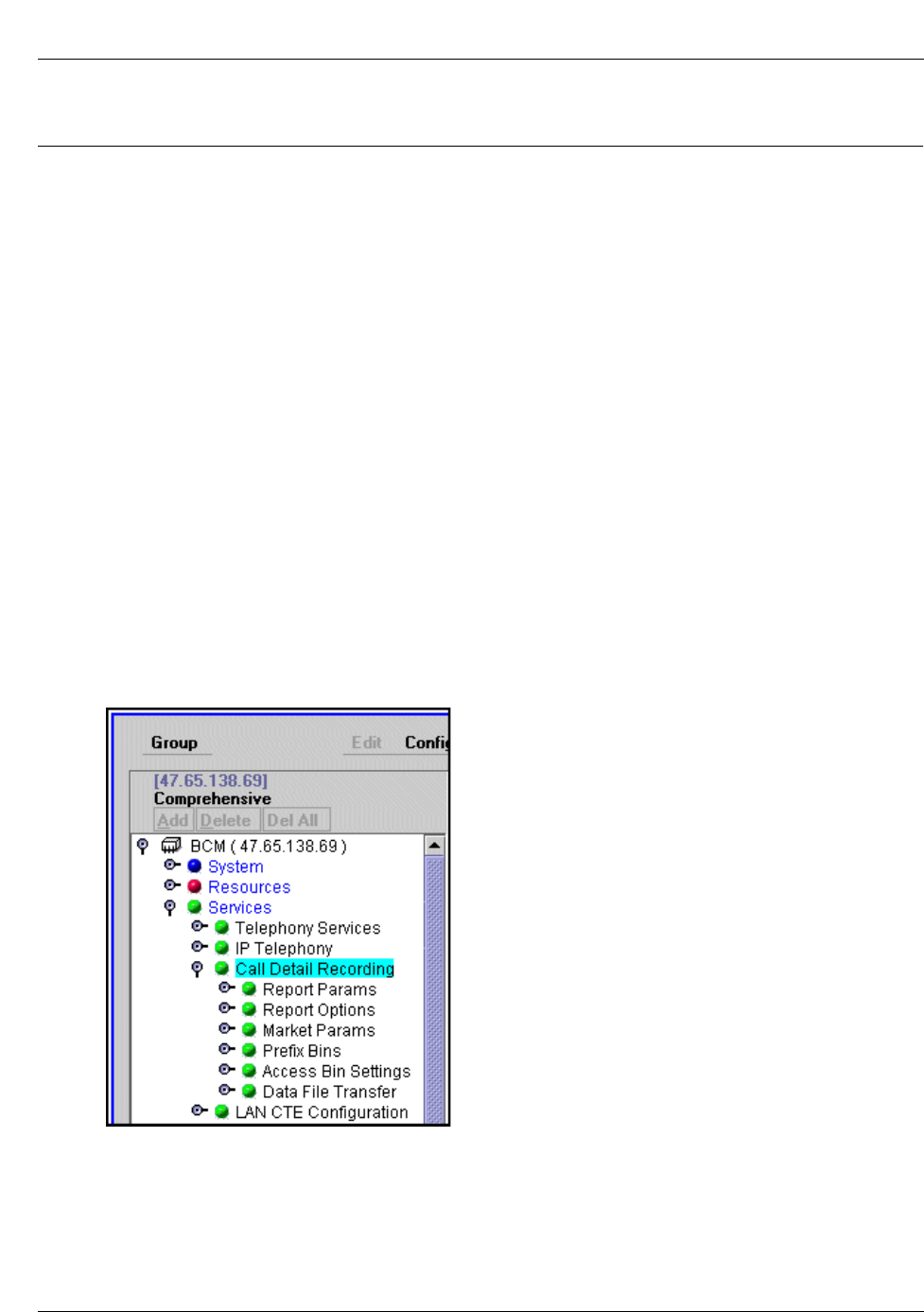
The Comprehensive window appears. The Business Communications Manager navigation tree
shows the following five keys:
•System
• Resources
•Services
• Management
• Diagnostics
Figure 1 shows the Comprehensive window. Refer to “The Comprehensive window” on page 17.
Figure 1 The Comprehensive window
2On the navigation tree click the Business Communications Manager key and then click the
Services key.
3Click the Call Detail Recording key.
The Summary window appears.
18 Unified Manager Unified Manager
P0993139 01
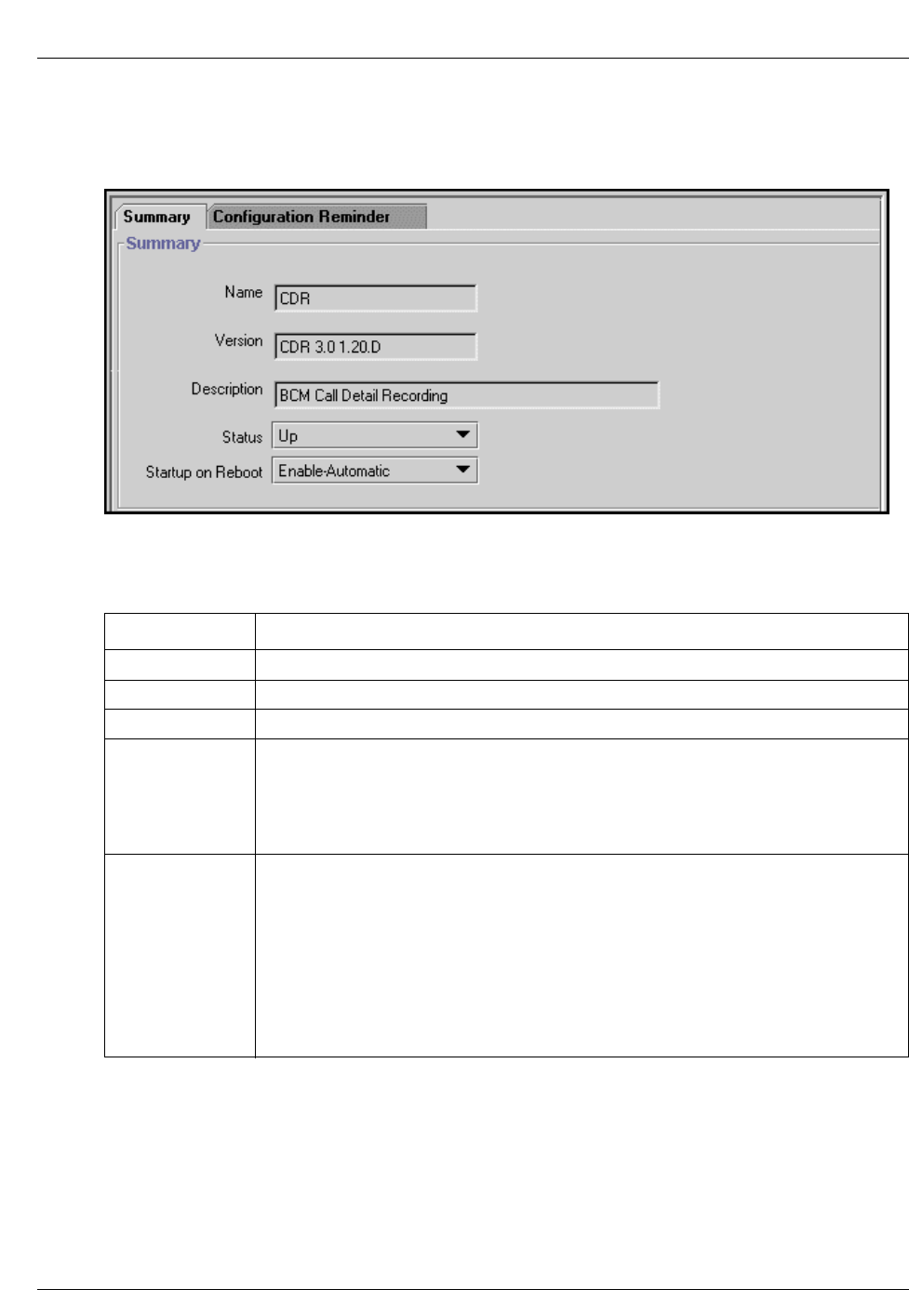
Figure 2 shows the Summary window.
Figure 2 The Summary window
Table 1 shows the parameters you can configure using the Summary window.
Table 1 Summary window parameters
Setting Description
Name Displays the name of the Call Detail Recording service.
Version Displays the software version of the Call Detail Recording service.
Description Displays a description of the Call Detail Recording service.
Status Allows you to view and change the operating status of the Call Detail Recording
service. The status can be Up or Down.
To change the Status, click the Status drop list and select one of the following options.
Select Up to enable the Call Detail Recording service.
Select Down to disable the Call Detail Recording service.
Startup on Reboot Allows you to set whether the Call Detail Recording service starts automatically when
the Business Communications Manager system is rebooted.
To change Startup on Reboot, click the drop list and select one of the following options.
Select Enable-Automatic if you want the Call Detail Recording service to start up
automatically when the Business Communications Manager system is rebooted.
Select Enable-Manual if you want to manually start the Call Detail Recording service
when the Business Communications Manager system is rebooted.
Select Disable if you want the Call Detail Recording service to be disabled when the
Business Communications Manager system is rebooted.
Unified Manager Unified Manager 19
Call Detail Recording System Administration Guide
The Call Detail Recording keys
From the Services folder, click the Call Detail Recording key.
Call Detail Recording shows the following six keys:
• Report Parameters
• Report Options
• Market Parameters
• Prefix Bin Settings
• Access Bin Settings
• Data File Transfer
When you click on a key the window for that item appears.
The Report Parameters
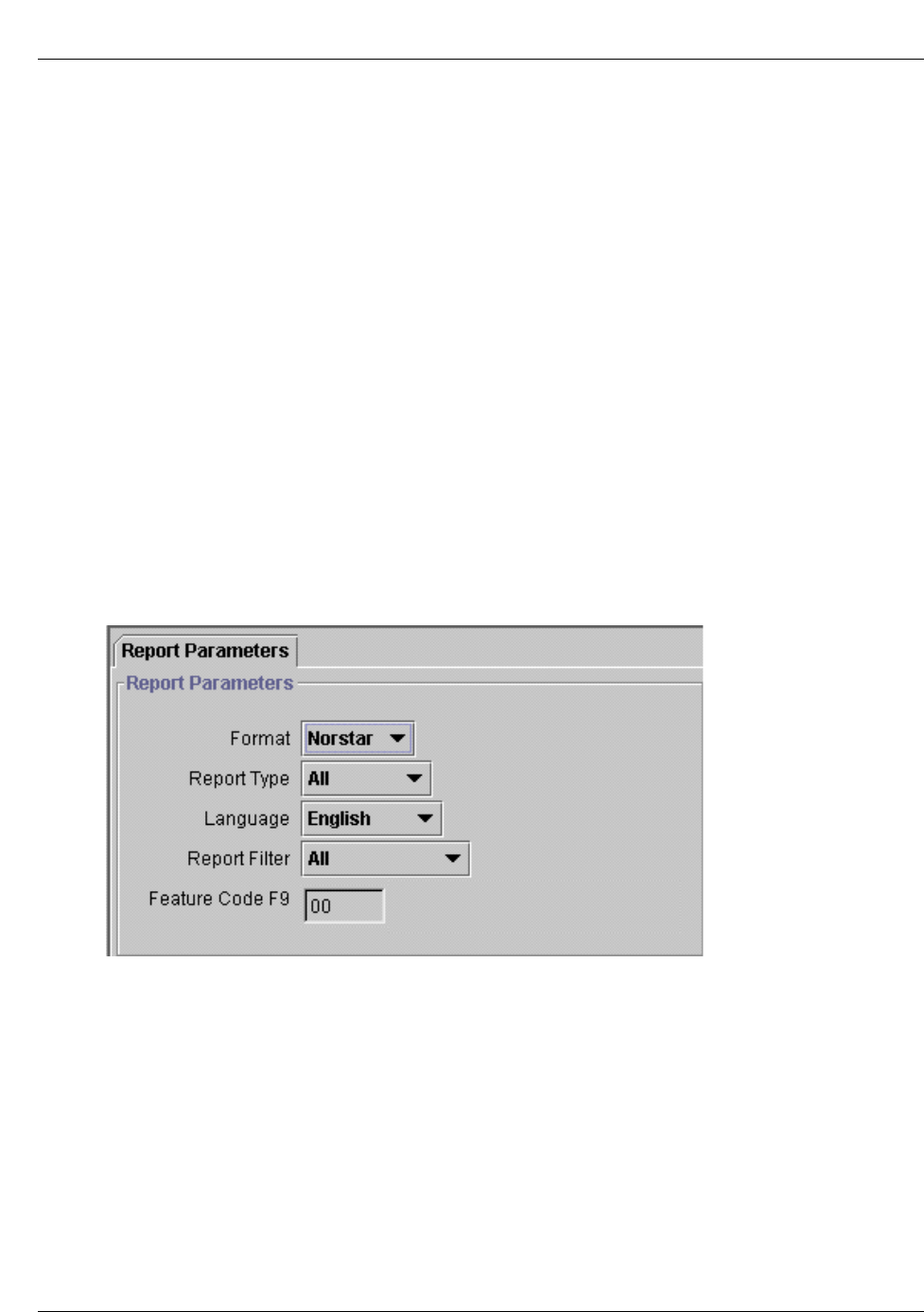
When you select the Report Parameters key from the Comprehensive window, the Report
Parameters window shown in Figure 3 appears. Refer to “The Report Parameters window” on
page 19.
Figure 3 The Report Parameters window
20 Unified Manager Unified Manager
P0993139 01
Table 2 shows the parameters you can configure using the Report Parameters window. Refer to
“Report Parameters” on page 20.
Report formats and types
Call Detail Recording generates both Norstar and SL-1 report types. SL-1 offers two report
formats: Standard and CLID. Norstar offers four report formats: Standard, CLID, Real Time and
All.
SL-1 reports
Use the SL-1 report format when you are supplying the Call Detail Recording output to legacy
commercial call accounting packages or equipment.
This report format supports recording Standard report type as well as the Calling Line
Identification (CLID) report type.
The SL-1 CLID report prints the CLID information only if the information is delivered. Otherwise,
it records the call in SL-1 Standard report type.
The SL-1 report format does not support the recording of Bearer Capability and DDI Busy reports.
Table 2 Report Parameters
Format Report Type
SL-1 SL-1 Standard
Norstar SL-1 CLID
Norstar Standard
Norstar CLID
English Norstar Real Time
French Norstar All
Danish
Swedish Report Filter
Dutch All
Spanish Outgoing
German Prefix
Italian Account Code
Norwegian
Feature Code
F900-999
Note: The Report format default is SL-1. The Report type default is Standard.
Note: For more information about SL-1 reports, refer to “SL-1 reports” on page 43.
Unified Manager Unified Manager 21
Call Detail Recording System Administration Guide
Assign the SL-1 report type
From the Report Parameters window, you can assign the SL-1 report type as Standard or CLID.
To assign or change Report Parameters:
1Click the Report Parameters key.
The Report Parameters window opens.
2In the Format list box, select SL-1.
3In the Report Type list box, select Standard or CLID.
Norstar reports
Use the Norstar report format for more detailed and concise call reports.
Assign the Norstar report type
From the Report Parameters window, you can assign the Norstar report type as Standard, CLID,
Real Time or All.
To assign or change Report Parameters:
1Click the Report Parameters key.
The Report Parameters window opens.
2In the Format list box, select Norstar.
3In the Report Type list box, select Standard, CLID, Real Time or All.
Report Language
If your Business Communications Manager server supports other languages, select either English
or one of the alternate languages. The Report Language default is English.
To assign or change the Report Language:
1Click the Report Parameters key.
The Report Language window opens.
2From the Report Language list box, select English or an alternate language.
Note: Call Detail Recording reports only the CLID Information for lines that are capable
of delivering CLID. Calls on non-CLID capable lines are reported in SL-1 Standard report
format.
Note: For more information about Norstar reports, refer to “Norstar reports” on page 48.
Note: The Report Language you select only affects Call Detail Recording reports. The
language assigned to each telephone determines the language used in the Account codes.
22 Unified Manager Unified Manager
P0993139 01
Report Filter
The Report Filter option allows you to specify the type of calls to be collected. Select one of the
following:
• All calls
• Outgoing calls only
• Calls that match the prefix strings on long distance
• Calls with Account codes only
Only one of the above reports can be selected at a time. The Report Filter default is All and can be
changed from the Call Detail Recording Report Parameters window.
All calls
Call Detail Recording reports all incoming and outgoing calls.
Outgoing calls only
Call Detail Recording only reports on outgoing calls. Incoming calls are not reported.
Prefix strings
Call Detail Recording reports calls matching the pre-determined long distance digit strings.
The purpose of the Prefix option is to report only long distance calls, calls to certain area codes or
calls to specific numbers. If you select the Prefix Report filter, you must also specify the prefix
digits.
If the first digits dialed match one or more of the programmable prefix strings, the call is reported,
otherwise the call is not reported. You can have a maximum of eight prefix strings assigned at one
time. The maximum length for each prefix string is eight digits.
Account Code
Call Detail Recording reports only calls with account codes associated with them.
To assign or change a Report Filter:
1Click the Report Parameters key.
The Report Parameters window opens.
2In the Report Filter option, select All, Outgoing, Prefix or Account Code.
3Click the OK button.
Note: The Prefix filter defaults are 0, 1, 90, 91, 411 and 9411. Invalid Password attempts
are reported regardless of the Report Filter selected.
Unified Manager Unified Manager 23
Call Detail Recording System Administration Guide
Account Code Feature Code
Account Codes allow you to cross-reference telephone calls from your company to different
clients or for telephone activities.
Before Account Codes can be entered by users, a Feature Code must be established. This Feature
Code is any number between 900 and 999 and ranges from one to 12 digits long. The Feature Code
default is the first available Feature Code from the Business Communications Manager server
(usually 900).
When Call Detail Recording is connected to the unit, a default Feature Code is requested from the
Business Communications Manager server. View or modify the Feature Code from the Call Detail
Recording Report Parameters window.
To assign or change the Feature Code:
1Click the Report Parameters key.
The Report Parameters window opens.
2In the Feature Code list box, enter any number between 00 and 99. The first digit (9) is
provided.
The appropriate Account Code is now available to all users making billable calls.
Account Code list
Account Codes create a reference for tracking telephone calls. For example, a user contacting a
billable client enters an assigned code each time a call is placed to that client.
Account codes consist of a Feature Code (F9--) and an account number. The account number can
have a maximum of 12 digits but cannot contain symbols such as (*) or (#). Table 3 gives an
example of an Account Code list. Refer to “Sample Account Codes” on page 23.
Table 3 Sample Account Codes
Account code Description
11127 Pat
37 Field Support
239 Liza
45 Roger
1552 Monique
53 Modern Ways Limited
100 Long distance
Note: Remember to provide your colleagues with the Call Detail Recording Feature
Codes and the Account Code list.

24 Unified Manager Unified Manager
P0993139 01
Using Account Codes
You can associate Account Codes with any incoming or outgoing calls. To assign an Account
Code from any Business Communications Manager telephone, enter the Feature Code (F9--)
followed by the account number.
You can enter an Account Code any time during a call. However, you cannot enter the Account
Code when a call is on hold or when a configuration session is in progress.
Unified Manager Unified Manager 25
Call Detail Recording System Administration Guide
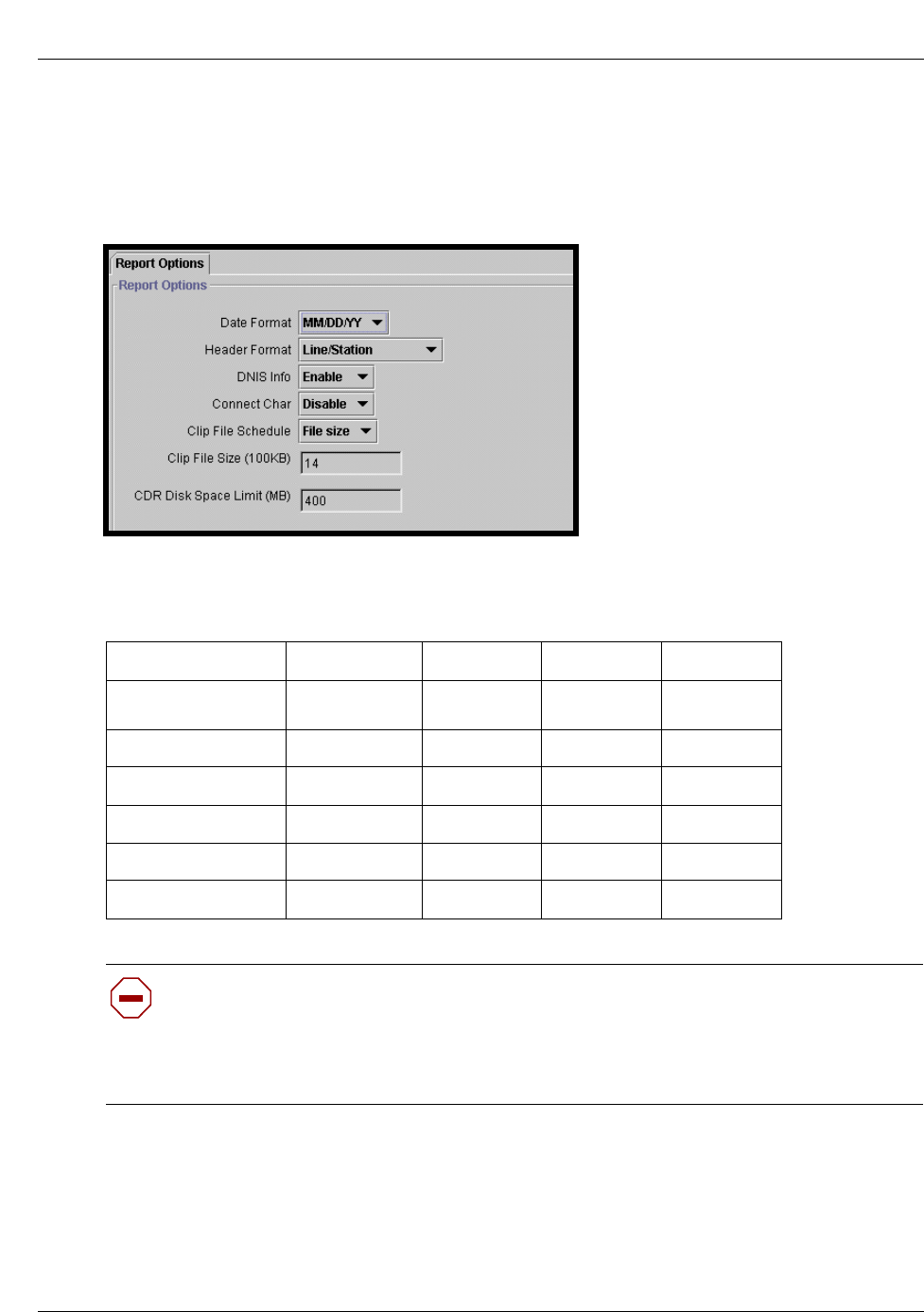
The Report Options
When you click on the Report options key in the Comprehensive window (see Figure 1), the
window shown in Figure 4 appears. Refer to “The Report Options window” on page 25.
Figure 4 The Report Options window
Table 4 shows the parameters you can configure using the Report options window. Refer to
“Report Options parameters” on page 25.
Table 4 Report Options parameters
Date Format MM/DD/YY DD/MM/YY YY/MM/DD
Header Format Line/Station Source/
Destination
DNIS Info Disable Enable
Connect Char Disable Enable
Clip File Schedule Daily Weekly Monthly File size
File size (100KB) 14 (1,400 KB)
Disk Space Limit 400 (MB)
Caution: Some of the above parameters are market specific. If the parameter value does
not match the trunk property, Call Detail Recording can produce incorrect reports. If you
are using a Call Accounting package to process reports, consult your software vendor
before you make any changes. File size is used only when this option is selected in the
Clip File Schedule.

26 Unified Manager Unified Manager
P0993139 01
Date Format
The Date Format includes the day, month and year. There are three date formats. Select one of the
following:
• MM/DD/YY
• DD/MM/YY
• YY/MM/DD
The default Date Format is MM/DD/YY. This parameter affects only the Norstar Record Format.
It is intended to provide market compatibility.
To assign or change the Date Format:
1Click the Report Options key.
The Report Options window opens.
2In the Date Format list box, select MM/DD/YY, DD/MM/YY or YY/MM/DD.
Header Format
There are two kinds of Header Format. Select one of the following:
• Line/Station
• Source/Destination
The Header Format default is Line/Destination. This parameter applies to the Norstar Record
Format only.
The Line/Station format always reports the line number followed by the station number. The
Source/Destination format always reports the number placing the call followed by the number
receiving the call. Incoming calls are reported in the Line/Station format. Outgoing calls are
reported in the Station/Line format.
To assign or change the Header Format:
1Click the Report Options key.
The Report Options window opens.
2In the Header Format list box, select Line/Station or Source/Destination.
DNIS Info
The Dialed Number Identification Service (DNIS) provides the number the caller dialed to reach
the Business Communications Manager system.
You can enable or disable the DNIS Info parameter. The DNIS Info default is Enabled. This
parameter applies to the Norstar Record Format only. Not all trunks support DNIS.
To enable or disable the DNIS Info options:
1Click the Report Options key.
The Report Options window opens.
2In the DNIS Info list box, select Enable or Disable.
Unified Manager Unified Manager 27
Call Detail Recording System Administration Guide
Connect Char (Characters)
Normally, Call Detail Recording reports all the digits the user dialed to connect a call. The digits
can include digits responding to prompts from an Auto-attendant, extension transfer or voice mail
service. To distinguish between digits dialed to connect the call and digits dialed after the call is
connected, you can insert an “!” between the two sets of digits.
You can enable or disable the Connect Char parameter. The Connect Char default is Disabled.
To enable or disable the Connect Char options:
1Click the Report Options key.
The Report Options window opens.
2In the Connect Char list box, select Enable or Disable.
Clip File Schedule
By default, the Business Communications Manager server clips the data files when the file size
reaches the maximum of 1,400 kilobytes (KB). You can change the file schedule to clip at regular
intervals. The Clip File Schedule options are:
• daily: at midnight
• weekly: Sunday at midnight
• monthly: the first day of each month at midnight
• file size: from 1,000 KB and 5,000 KB
• On File Transfer: when the files are transferred
File size
Data file size limit for clipping is changeable. File size ranges from 10 (1,000 KB) to 50 (5,000
KB).
Disk Space limit
The minimum disk space requirement for Call Detail Recording is 2 MB. The default is 400 MB.
Available disk space is verified when the service starts and when files are clipped.
When the minimum amount of disk space is available automatic file deletion occurs, beginning
with the oldest file. Files are deleted until 20% space is made available. For example, if the disk
size is assigned as 400 MB, Call Detail Recording deletes old files until 320 MB of space is
available.
Note: Some of the Report Options parameters are market specific. If the parameter value
does not match the trunk property, Call Detail Recording can produce incorrect reports. If
you are using a Call Accounting package to process reports, consult your software vendor
before you make any changes.
Note: The File size parameter is not used when a regular interval is assigned, but only
when the Clip file Schedule option is selected.
28 Unified Manager Unified Manager
P0993139 01
The Market Parameters
There are seven Market Parameters. The seven Market Parameters are:
• CLID with Name
• Long CLID Support
• CLID with Call Type
• Support Call Charge
• Answer Supervision
• Call Filter Duration
• Hospitality Record
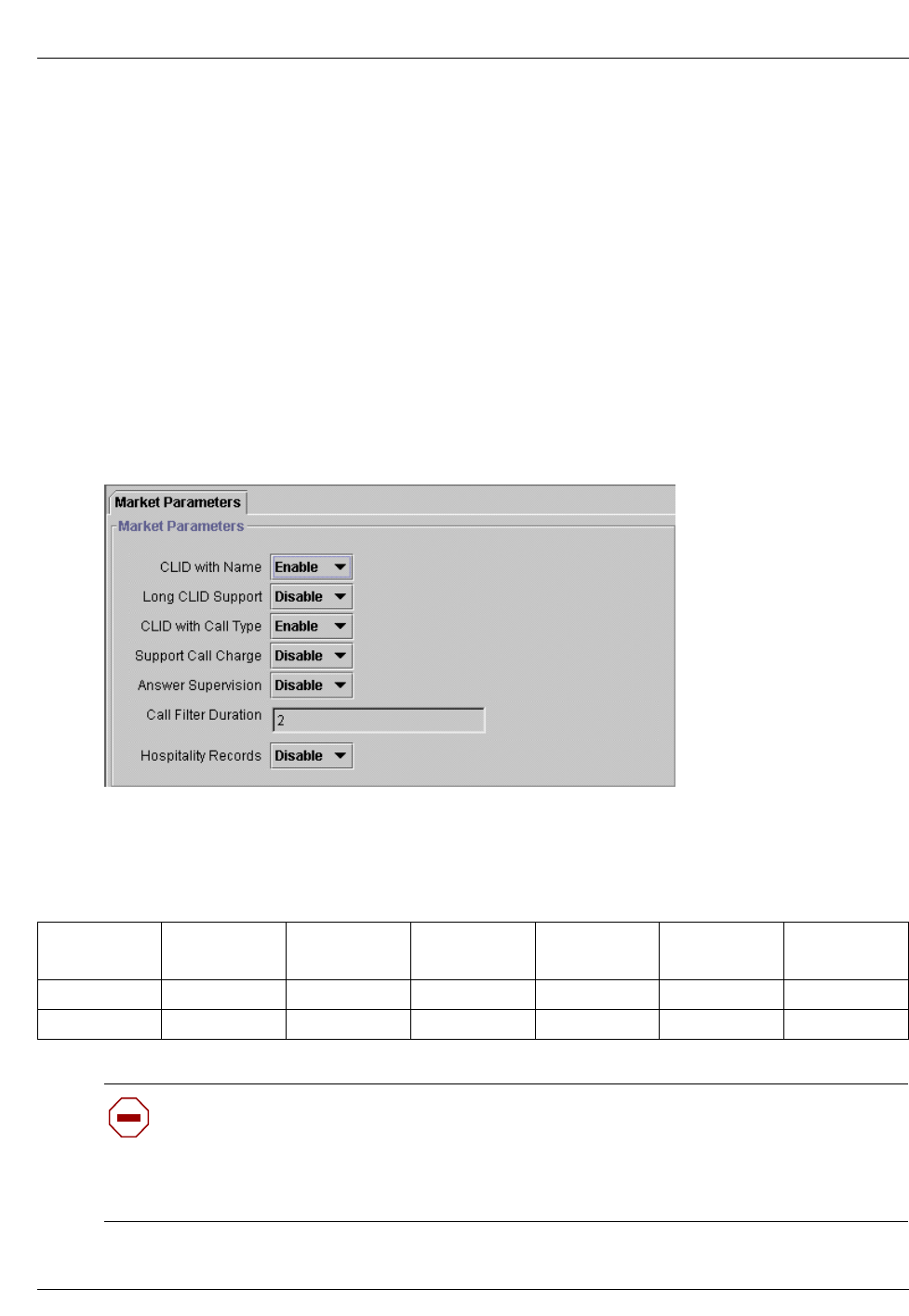
Click on the Market parameters key in the Comprehensive window (Figure 1) to open the window
as shown in Figure 5. Refer to “The Market Parameters window” on page 28.
Figure 5 The Market Parameters window
Table 5 shows the parameters you can configure using the Market Parameters window. Refer to
“The Market Parameters window parameters” on page 28.
Table 5 The Market Parameters window parameters
CLID with
Name Long CLID
Support CLID with
Call Type Support Call
Charge Answer
Supervision Call Filter
Duration Hospitality
Record
Disable Disable Disable Disable Disable 0-30 Sec. Disable
Enable Enable Enable Enable Enable Enable
Caution: Some of the Report Options parameters are market specific. If the parameter
value does not match the trunk property, Call Detail Recording can produce incorrect
reports. Changing the Market Parameters can affect some Access Bin Settings or Suppress
Length Settings parameters. If you are using a Call Accounting package to process reports,
consult your software vendor before you make any changes.

Unified Manager Unified Manager 29
Call Detail Recording System Administration Guide
CLID with Name
Call Detail Recording reports the CLID name of each call. You can enabled or disabled this
parameter at any time. The CLID with Name default setting is Enabled. This parameter applies to
the Norstar Record Format only. Not all trunks support Name CLID.
Long CLID Support
Call Detail Recording supports long CLID digit reporting. The Long CLID Support default setting
is Disabled. This parameter is market specific. Do not change the default unless the trunk supports
this feature.
CLID with Call Type
Call Detail Recording supports long distance or unknown call types. The CLID with Call Type
default setting is Enabled. This parameter applies to the Norstar Record Format only. Do not
change the default unless the trunk supports this feature.
Support Call Charge
Call Detail Recording supports charges on calls. The Support Call Charge default setting is
Disabled. This parameter is market specific. Do not change the default unless the trunk supports
this feature.
Answer Supervision
Call Detail Recording identifies the telephone number answering outgoing calls. The Answer
Supervision default setting is Disabled. This parameter is market specific. Do not change the
default unless the trunk supports this feature.
Call Filter Duration
Call Detail Recording reports the length of all outgoing call connections. The Call Filter Duration
default setting is 2 seconds. The duration range is zero to 30 seconds.
Hospitality Record
Call Detail Recording represents four states of room occupancy: vacant, basic, mid and full. Room
number lengths range from one to five digits.
Assign or Change Market Parameters
To assign or change the Market Parameters:
1Click the Market Parameters key.
The Market Parameters window opens.
2From the CLID With Name list box, select Enable or Disable.
3From the Long CLID Support list box, select Enable or Disable.

30 Unified Manager Unified Manager
P0993139 01
4From the CLID With Call Type list box, select Enable or Disable.
5From the Support Call Charge list box, select Enable or Disable.
6From the Answer Supervision list box, select Enable or Disable.
7In the Call Filter Duration box, enter a number between 0 and 30.
8In the Hospitality Record box, select Enable or Disable.
The Prefix Bin Settings
Click on the Prefix Bin Settings key in the Comprehensive window (see Figure 1) to open the
window as shown in Figure 6. Refer to “The Prefix Bin Settings window” on page 30.
Figure 6 The Prefix Bin Settings window
Prefix filter
If you select the Prefix filter, you must also specify the prefix digits. The Prefix option allows you
to monitor and report all long distance calls, calls to certain area codes or calls to specific numbers.
If the first digits dialed match one or more of the programmable prefix strings, the call is reported,
otherwise the call is not reported. You can have a maximum of eight prefix strings assigned at one
time. The maximum length for each prefix string is eight digits. The Prefix filter default settings
are 0, 1, 90, 91, 411 and 9411.
Unified Manager Unified Manager 31
Call Detail Recording System Administration Guide
Assign or Change Prefix Bin Settings
To assign or change a Prefix filter:
1Click the Prefix Bin Settings key.
The Prefix Bin Settings window opens.
2In the Prefix 1 list box, enter the prefix number.
3In the Prefix 2 through Prefix 8 list boxes, enter the prefix numbers as required.
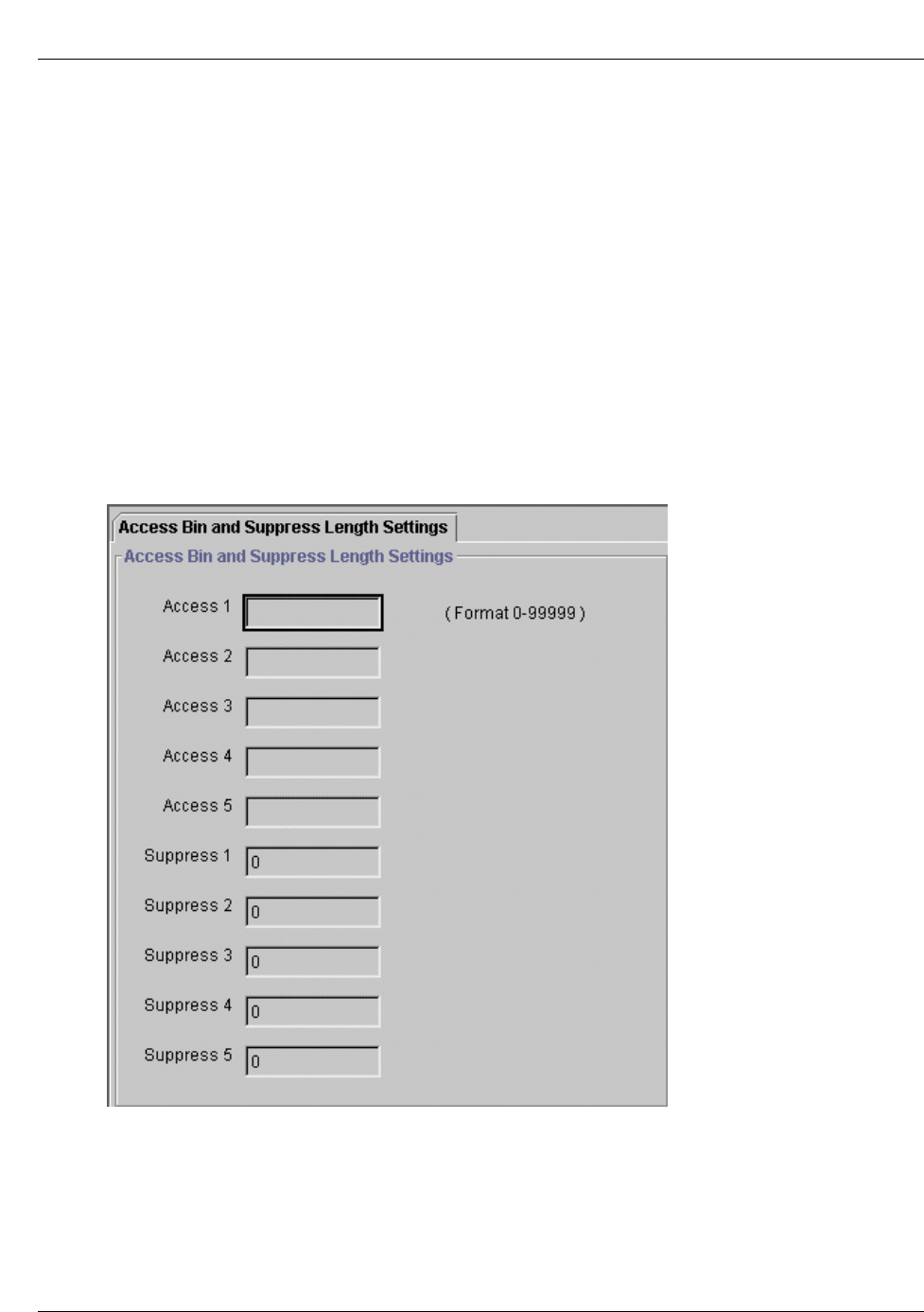
The Access Bin Settings
Click on the Access Bin Settings key in the Comprehensive window, (see Figure 1) to open the
window as shown in Figure 7. Refer to “The Access Bin Settings and Suppress Length Settings
window” on page 31.
Figure 7 The Access Bin Settings and Suppress Length Settings window
Use the Access Bin Settings window to configure parameters for Access Bin Settings 1 to 5 and
Suppress Length Settings 1 to 5.
32 Unified Manager Unified Manager
P0993139 01
Access Bin Settings
Access Bin Settings codes are used to access certain long distance carriers. Personal Identification
Numbers (PIN) can be associated with these codes. The long distance user dials the code of the
carrier (up to five digits) followed by the PIN (0 to 16 digits), followed by the telephone number to
make long distance calls. Access Bin Settings provide security to the long distance user by
suppressing the printing of the PIN in the output reports.
Suppress Length Settings
You can have a maximum of five codes assigned at any one time. Each code is a maximum of five
digits and can be associated with a suppression number equal to the length of the PIN. The first
digits dialed are compared to the Access Bin Settings. If there is a match, the next digits are
suppressed. The number of digits suppressed equals the value in the suppress field for that code.
Only the Access Bin Settings numbers and the remaining digits (excluding the PIN) are printed in
the output report.
Assign or Change Access Bin Settings and Suppress Length Settings
To enter or change the Access Bin Settings:
1Click the Access Bin Settings key.
The Access Bin Settings Suppress Length Settings window opens.
2In the Access 1 list box, enter the access code.
3In the Access 2 through Access 5 list boxes, enter the access code as required.
To enter or change the Suppress Length Settings:
4In the Suppress 1 list box, enter the Suppression Setting.
5In the Suppress 2 through Suppress 5 list boxes, enter the Suppression Setting as required.
Saving configuration changes
The Call Detail Recording Administration feature of Unified Manager enables you to maintain a
copy of all options and parameters. When you complete the configurations and changes required to
all parameters, follow the procedures below to save and implement them. Changes do not apply
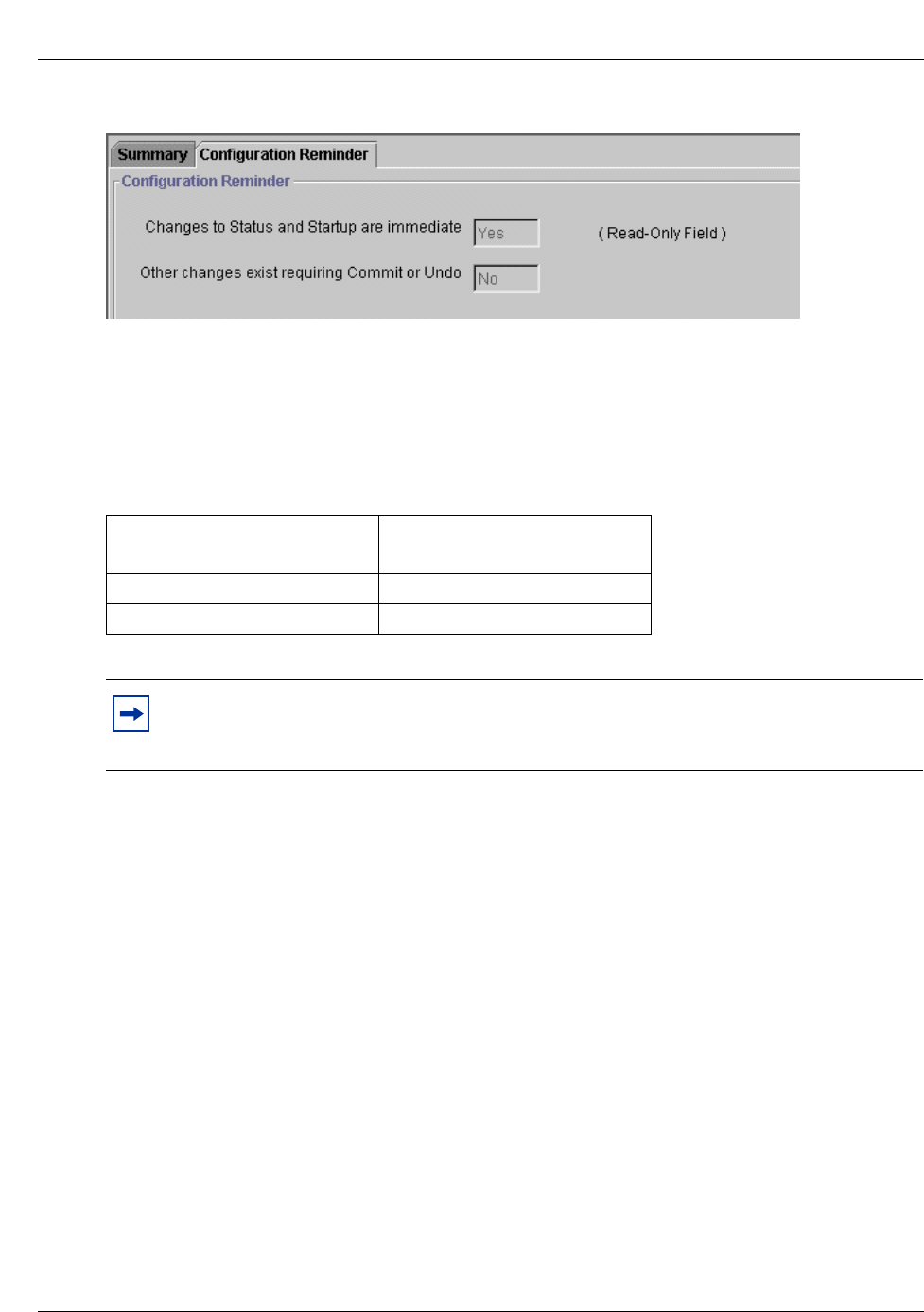
until you select the Commit option or reboot the system. When you click on Configuration in the
menu bar, the Configuration reminder window shown in Figure 8 appears. Refer to “The
Configuration reminder window” on page 33.
Note: You can suppress a maximum of 16 digits following the Access Bin Settings.
Unified Manager Unified Manager 33
Call Detail Recording System Administration Guide
Figure 8 The Configuration reminder window
The Configuration reminder window updates automatically as changes are made to other
parameters. Changes do not go into effect until Commit or Undo are assigned.
Table 6 shows the parameter you can configure using the Configuration reminder window. Refer
to“Configuration reminder window” on page 33.
The Configuration menu
The Configuration menu is available from all of the Call Detail Recording Administration
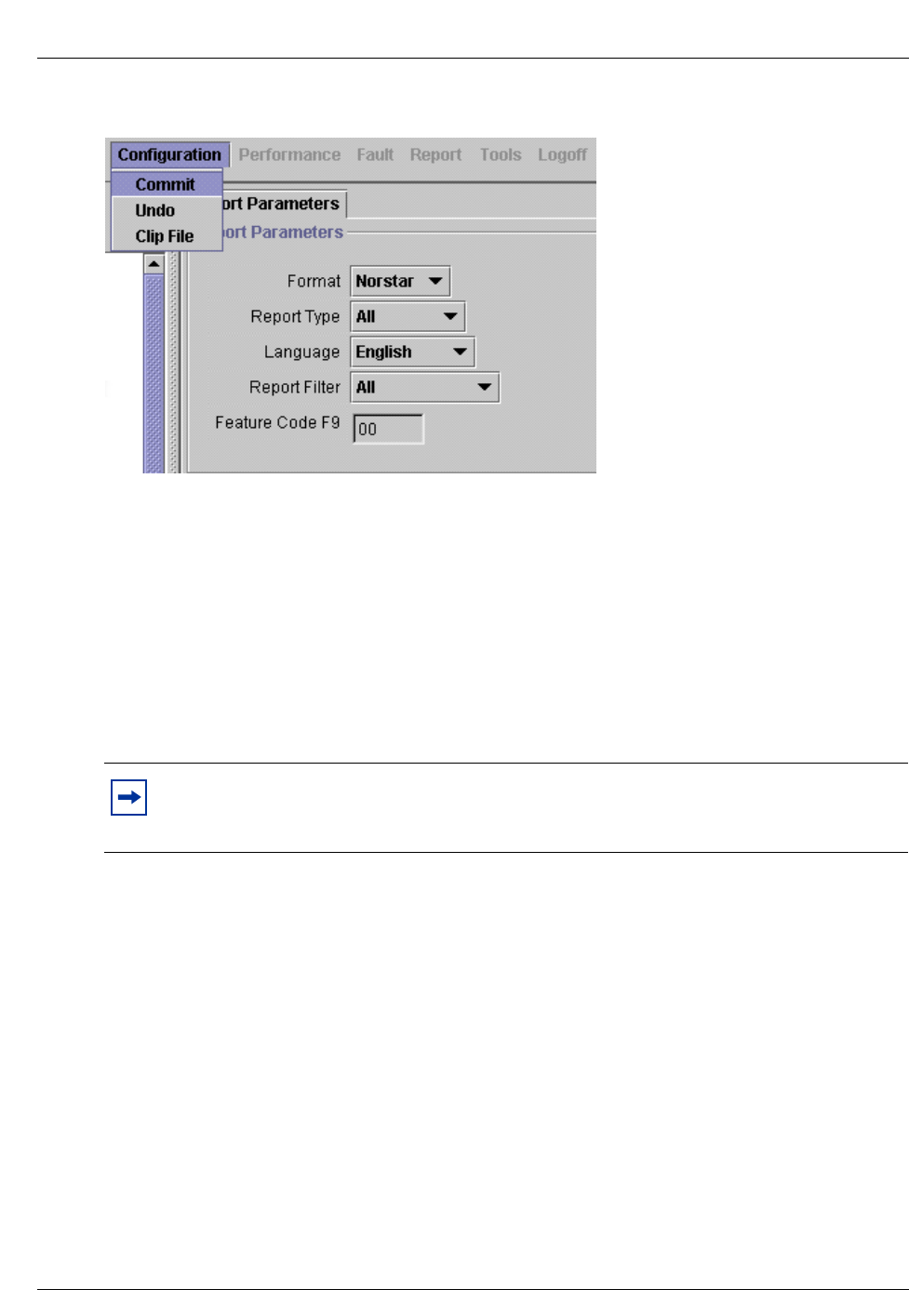
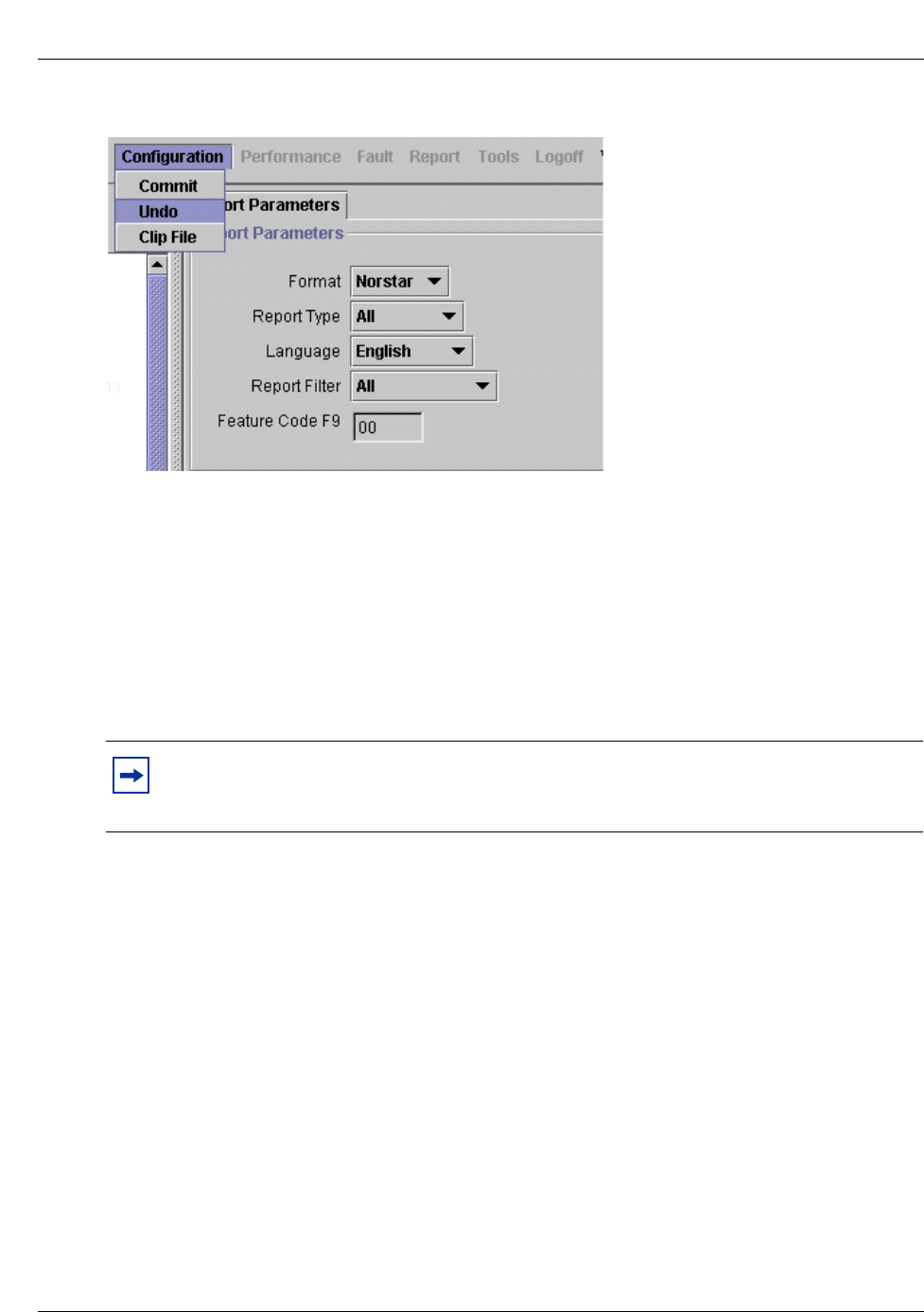
window. The three options under Configuration are: Commit, Undo and Clip File. Figure 9, Figure
10, and Figure 11 show the three Configuration option windows.
Configuration Commit
Call Detail Recording Administration maintains a copy of all options and parameters internally.
Changes made are not applied until the Commit option is selected or the system reboots. Make the
changes required to all parameters. When changes are complete, select Commit to apply the
changes. Refer to “The Commit option window” on page 34.
Table 6 Configuration reminder window
Changes to Status and Startup
are immediate Other changes exist requiring
Commit or Undo
Yes Yes
No
Note: In the Configuration Reminder window the ‘Changes to Status and Startup are
immediate’ and ‘Other changes exist requiring Commit or Undo’ parameters are read-only
fields.
34 Unified Manager Unified Manager
P0993139 01
Figure 9 The Commit option window
Commit changes
To make and apply changes:
1From the Business Communications Manager key, click the Services key.
2Click the Call Detail Recording key or any key in the Call Detail Recording submenu.
3From the Configuration menu, choose Commit.
The Unified Manager applies changes to the parameters and generates a new header in the Call
Detail Recording log file.
Configuration Undo
Call Detail Recording Administration maintains a copy of all options and parameters internally.
Undo restores the settings to the last committed values. Refer to “The Undo option window” on
page 35.
Note: Before you commit a change, the ‘Other changes exist requiring Commit or Undo’
parameter appears as Yes in the Configuration Reminder window. When you commit the
change, the parameter automatically changes to No.
Unified Manager Unified Manager 35
Call Detail Recording System Administration Guide
Figure 10 The Undo option window
Undo changes
To undo changes and restore previous values:
1From the Business Communications Manager key, click the Services key.
2Click the Call Detail Recording key or any key in the Call Detail Recording submenu.
3From the Configuration menu, choose Undo.
Previously committed values are restored.
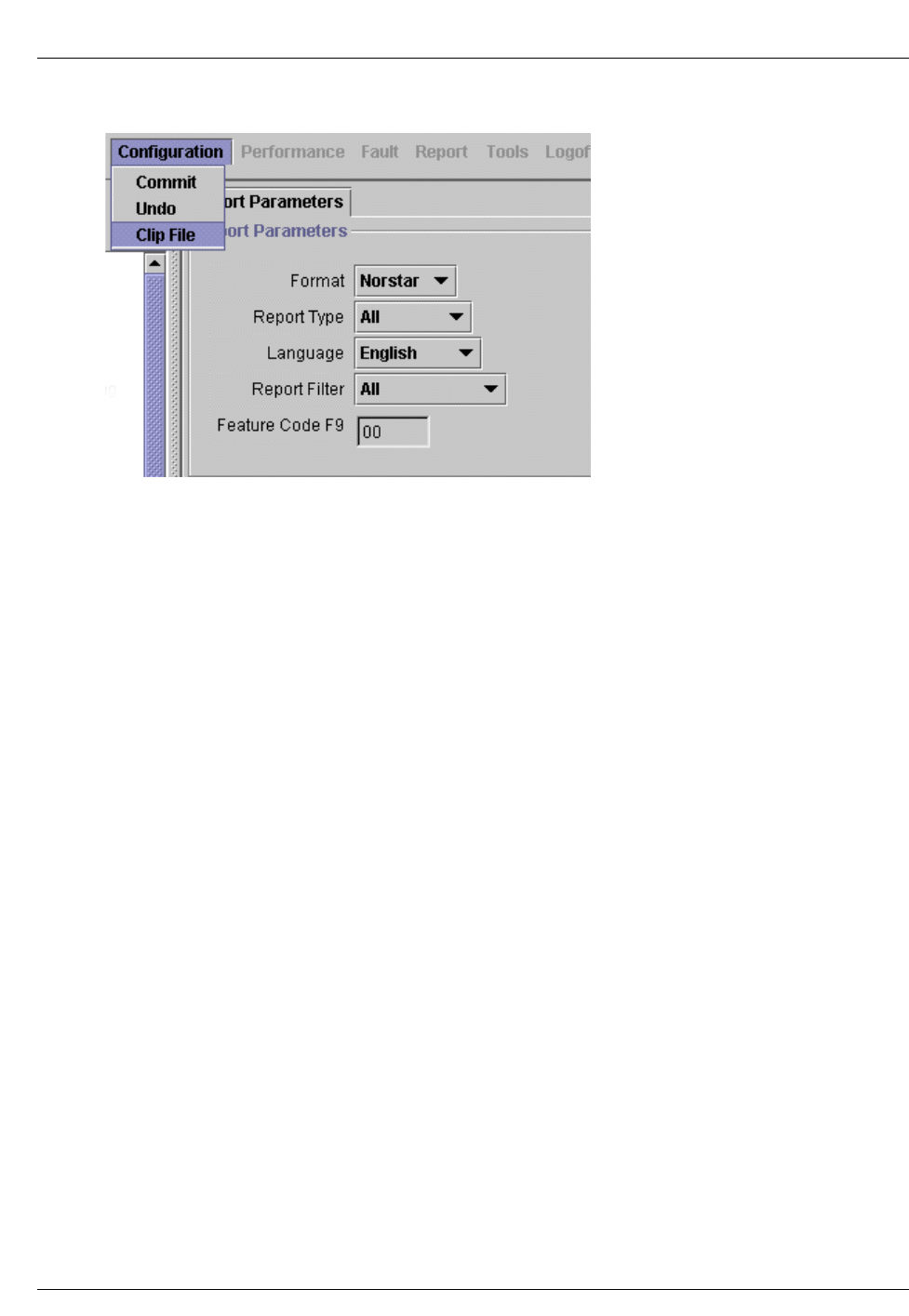
Configuration Clip File
The current file log is not accessible when Call Detail Recording Service is running. Call Detail
Recording Administration closes the current log file and creates a new log file with a new header.
Refer to “The Clip File option window” on page 36.
Note: Before you commit a change, the ‘Other changes exist requiring Commit or Undo’
parameter appears as Yes in the Configuration Reminder window. When you commit the
change, the parameter automatically changes to No.
36 Unified Manager Unified Manager
P0993139 01
Figure 11 The Clip File option window
Clip File
To clip the file log:
1From the Business Communications Manager key, click the Services key.
2Click the Call Detail Recording folder or any key in the Call Detail Recording submenu.
3From the Configuration menu, choose Clip File.
The format for the data file extension created is YYYYMMDDHHMMSS. You can download
these files using the Unified Manager.
1Click the Call Detail Recording key.
2From the Tools menu, choose Web Download.
3From the Call Detail Recording section, click the log file.
4Save the log file to the designated directory.

Unified Manager Unified Manager 37
Call Detail Recording System Administration Guide
Data File Transfer
The Data File Transfer feature provides you with a method of transferring the Call Detail
Recording files to a central server.
A typical application of the Data File Transfer feature is when a company with several branch
offices wants to analyze the telephony traffic at its branch offices using the Call Detail Recording
information. Without the Data File Transfer feature, someone at the central office has to access
each branch office individually and down load the files before the analysis can be done. Using the
Data File Transfer feature, the Call Detail Recording information is automatically transferred from
all of the branch offices to a central server on a defined schedule.
Methods of Data File Transfer
There are two methods you can use to transfer the Call Detail Recording files to a central server:
• Data File Push Transfer
• Data File Pull Transfer
Data File Push Transfer
When you use a Push Transfer, the Business Communications Manager system sends the Call
Detail Recording data files to the central server. The advantage of the Push Transfer is that you
configure the data transfer parameters on the Business Communications Manager system using
Unified Manager. No additional applications are required. You can use the Push Transfer to send
Call Detail Recording data files from any number of Business Communications Manager systems,
but it is most beneficial when you are transferring from a smaller number of systems.
Data File Pull Transfer
When you use a Pull Transfer, an application running on the central server (the Central Client)
downloads the Call Detail Recording data files from the Business Communications Manager
system. When you use a Pull Transfer, you configure the data transfer parameters on the Central
Client. The advantage of the Pull Transfer is that the central server determines the rate that the data
files are transferred, so the central server cannot easily be overloaded with transfer information.
You can use the Pull Transfer to transfer Call Detail Recording data files from any number of
Business Communications Managers, but it is most beneficial when you are transferring from a
large number of systems.

38 Unified Manager Unified Manager
P0993139 01
Features of Data File Transfer
• You can schedule a data file transfer so that the Business Communications Manager system
sends the data files on a regular basis (daily, weekly or monthly) and at a specified time.
• You can manually start the transfer of data files from the Business Communications Manager
system when you need the Call Detail Recording information immediately.
• Business Communications Manager can compress the Call Detail Recording information to
reduce the amount of time it takes to transfer the files.
• Business Communications Manager can automatically attempt to re-send the data if the initial
data transfer fails.
• Only the files that have not been sent before are transferred.
Central server requirements
The server you are transferring the Call Detail Recording information to must have the following:
• an FTP Server application installed
• a Central Client can schedule and initiate Pull Transfers (for Pull Transfer only)
• a ZIP/UNZIP utility installed
• a username/password defined for use by the Business Communications Manager system that
has the appropriate access for FTP transfer
• the FTP Server application is configured to receive connections from the desired Business
Communications Manager systems
• write permissions are granted to the appropriate directories for putting the files transferred
from the Business Communications Manager system
• a user account in the CDR Group on the Business Communications Manager system (for Pull
Transfers only)
Scheduling the Push transfer of the Call Detail Recording information
You can schedule a Data File Push Transfer to occur on a regular basis. When you create the
schedule, you need to specify:
• where the files are transferred to
• how often the transfer should occur
• on which day the transfer starts
• at what time the transfer starts
To schedule a transfer of the Call Detail Recording information:
1Start Unified Manager.
2Click the Services key and then click the Call Detail Recording key.
3Click the Data File Transfer heading.
The Data File Transfer screen appears.

Unified Manager Unified Manager 39
Call Detail Recording System Administration Guide
4Configure the Data File Transfer parameter according to Table 7.
Table 7 Data File Transfer parameters
Setting Description
Transfer Type Allows you to select how often the Call Detail Recording information is sent to a central server.
Push-Daily – The information is sent once a day at the time entered in the Transfer Time box.
Push-Weekly – The information is sent once a week at the time entered in the Transfer Time
box and the day entered in the Day of Week box.
Push-Monthly – The information is sent once a month at the time entered in the Transfer Time
box and the date entered in the Day of Month box.
Pull – Sets the Business Communications Manager system in Pull mode, so that it will accept
data file transfer requests from the central server. The Pull option is not used for scheduling a
Data File Push Transfer.
None – The files are not sent to a central server.
The default for this parameter is None.
IP Address or
Machine Name Allows you to enter the IP address or Machine name of the central server to which you are
sending the Call Detail Recording information.
An IP address must be entered in the proper dotted format (for example, 10.10.10.1.)
A machine name can be up to 47 characters long.
Remote User Allows you to enter the FTP login user name that Business Communications Manager uses when
connecting to the central server.
The Remote User name must be the same as the user name you assigned to Business
Communications Manager in the central server configuration.
The Remote User name can be up to 47 characters.
If you leave the Remote User box blank, the Business Communications Manager system uses
the userid “anonymous” with no password to access the FTP server.
Note: If you use the “anonymous” userid, there is no security provided for the Call Detail
Recording files on the FTP server. Anyone who logs on to the FTP server with the “anonymous”
userid can access your Call Detail Recording information.
Remote Password Allows you to enter the FTP login password that Business Communications Manager uses when
connecting to the central server.
The Remote Password must be the same as the password you assigned to Business
Communications Manager in the central server configuration.
The Remote Password can be up to 47 characters.
Destination FTP
Alias Allows you to specify an FTP alias on the central server where the Call Detail Recording
information is transferred.
An example of a Destination FTP Alias is: \Telephone_systems\Call_Records.
In the central server configuration, you must grant FTP writing permission on this location for the
user name you entered in the Remote User box and the password you entered in the Remote
Password box.
The Destination FTP Alias can be up to 47 characters.
Note: If you leave the Destination FTP Alias box blank, the Call Detail Recording files are
transferred to the ftp home directory for that particular userid.
Number of Retries Allows you to specify the number of times that Business Communications Manager attempts to
send the Call Detail Recording information to the central server when a data file transfer fails.
Enter a value from 0 to 10 as the Number of Retries.
If you enter a value of 0, Business Communications Manager does not attempt to send the data
again.
The default for this parameter is 0.

40 Unified Manager Unified Manager
P0993139 01
Delete file after
Transfer Allows you to specify if the Call Detail Recording data files are deleted from the Business
Communications Manager after the files are successfully transferred to the central server.
Select Yes to delete the files after they are successfully sent.
Select No to leave the files on the Business Communications Manager system.
The default for this parameter is No.
Compress File
before Transfer Allows you to specify if the Call Detail Recording data files are compressed into one ZIP file
before they are transferred to the central server.
The name of the zip file created is BCM machine name + year (4 digits) + month (2digits) + day
(2digits) + hour (2 digits) + minute (2digits) + second (2 digits) + .zip.
For example: SouthBCM20010915084522.zip.
Select Yes to compress the files into a single ZIP file.
Select No to send the files uncompressed.
The default for this parameter is Yes.
Transfer Time Allows you to specify the time of day when the Call Detail Recording files are transferred to the
central server.
Enter the time in hours and minutes according to the 24 hour clock (00:00 to 23:59).
The default for this parameter is 00:00 (midnight).
Note: The Transfer Time is based on the local time of the Business Communications Manager,
not the time at the central server.
Only one of the following three fields appears on the screen.
Transfer Day This field appears when you select Push-Daily as the Transfer Type.
This is a read only field that always displays Daily.
Day of Week This field appears when you select Push-Weekly as the Transfer Type.
Allows you to specify the day of the week when the transfer will occur.
You can select Monday, Tuesday, Wednesday, Thursday, Friday, Saturday or Sunday.
The default for this parameter is Monday.
Day of Month This field appears when you select Push-Monthly as the Transfer Type.
Allows you to enter the day of the month when the transfer will occur.
You can enter a value from 1 to 31.
The default for this parameter is 1.
Note: If you enter 29, 30 or 31 for the Day of Month, the Call Detail Recording files will not be
sent on some months. This occurs because some months do not contain these dates. For
example, the month of February never has 30 or 31 days.
If you want the files sent at the end of every month, use the default values for Transfer Time
(00:00) and Day of Month (1).
Last Transfer
Time Displays the last time the Call Detail Recording data files were successfully sent to the central
server.
Note: If you are transferring Call Detail Recording files from several Business
Communications Manager systems to a single central server, Nortel Networks
recommends that you stagger the time of the transfers so that the central server is not
overloaded with too many requests.
Table 7 Data File Transfer parameters
Setting Description
Unified Manager Unified Manager 41
Call Detail Recording System Administration Guide
Transferring the Call Detail Recording information immediately
When you transfer immediately, the Business Communications Manager system uses the
information entered on the Data File Transfer screen, but sends the Call Detail Recording
information immediately.
To transfer the Call Detail Recording information immediately:
1Start Unified Manager.
2Click the Services key and then click the Call Detail Recording key.
3Click the Data File Transfer heading.
The Data File Transfer screen appears.
4Set the parameters on the Data File Transfer screen to specify the server to which the Call
Detail Recording information is sent.
For information about the parameters on this screen, refer to Table 7 on page 39.
5On the Configuration menu, click Transfer immediately.
The Business Communications Manager starts transferring Call Detail Recording information
to the specified server.
Transferring the Data Files using a Pull transfer
To transfer Call Detail Recording data files using a Pull transfer, you must:
• Set up a Call Detail Recording user account on the Business Communications Manager system
• Set the Data Transfer type to Pull
• Configure the Central Client to start the transfer
Setting up the Call Detail Recording user account
To ensure the security of the Call Detail Recording data files, any user, including the Central
Client, must use a special Call Detail Recording user account to access the directory where the
files are stored. You must set up this user account on every Business Communications Manager
system from which the Central Client will pull information.
To set up the Call Detail Recording user account:
1Start Unified Manager.
Note: The Transfer immediately option uses the Push method of Data File Transfer.
Note: When using the Transfer Immediately option, the following fields are not used
and can be ignored: Transfer Type, Transfer Time, Transfer Day, Day of Week and
Day of Month.
42 Unified Manager Unified Manager
P0993139 01
2Click the Management key and then click the UserManager heading.
The User Profile screen appears.
3On the Configuration menu, click Add User.
The User Profile dialog box appears.
4In the User Name box, enter the user name for the Call Detail Recording user account.
5In the Password box, enter the password for the Call Detail Recording user account.
6In the Confirm Password box, enter the password again.
7In the Member Of box, click CDRUserGroup.
8Click the Save button.
Setting the Data Transfer type to Pull
You must set the Data Transfer type to Pull on every the Business Communications Manager
system from which the Central Client will pull information.
To set the Data Transfer type to Pull:
1Start Unified Manager.
2Click the Services key and then click the Call Detail Recording key.
3Click the Data File Transfer heading.
The Data File Transfer screen appears.
4Click the TransferType drop list and then click Pull.
The Data File Transfer screen changes to display the current Call Detail Recording Pull
statistics.
Configuring the Central Client
The Central Client is the application running on the central server that accesses the Business
Communications Manager systems and downloads the Call Detail Recording data files.
The Central Client is typically a custom application that was created by your company or by an
external vendor for your company. The advantage of a custom Central Client is that the application
can be designed to work with your choice of operating systems and can be integrated with your
existing databases. If you are using a custom Central Client, refer to the documentation that came
with the Central Client for information about configuring the client.
If your company does not have or require a custom Central Client, a sample Central Client is
included on the Business Communications Manager system. For information about how to install
the sample Central Client, refer to “Install CDRClient application” on page 69. The sample Central
Client, named CDR Pull Client, is installed at the same time the CDR Client is installed.
Note: To reset the Call Detail Recording Pull statistics, click the Configuration menu
and then click Reset CDR Pull Data.

43
Call Detail Recording System Administration Guide
Chapter 3
Call Detail Recording Reports
Call Detail Recording provides two types of report:
•“SL-1 reports”
•“Norstar reports”
SL-1 reports
Use the SL-1 report when the you are supplying the output to legacy commercial accounting
package or equipment. SL-1 reports are in the form of one or two lines in ASCII characters.
This section describes the SL-1 reports and explains how to interpret them.
Report logs
Report logs reside in the Business Communications Manager Call Detail Recording LOG
directory. Use logs for call accounting processing and call activity review.
To download report logs:
1From the Unified Manager login window, enter the user ID and password.
2From the Tools menu, select Web Download.
3From the Call Detail Recording section, click the log file.
4Save the log file to the designated directory.
SL-1 report types
The Call Detail Recording supports two different SL-1 report types:
• SL-1 Standard report
• SL-1 CLID report
The SL-1 CLID format is similar to the SL-1 Standard format with the addition of CLID
information. For lines that do not support CLID or when the Business Communications Manager
server does not deliver CLID information, calls report in an SL-1 Standard report format.

44 SL-1 reports SL-1 reports
P0993139 01
SL-1 report field definitions
Table 8 and Table 9 show summaries of field definitions for SL-1 reports, line 1 and line 2. Refer
to “Field definitions for line 1” on page 44 and “Field definitions for line 2” on page 44.
Table 8 Field definitions for line 1
Column Name Format Definition
1 RecType Y report type
2 Blank Blank space
3-5 RecNo XXX report seq number
6 Blank Blank space
7-8 CustNo 00 Customer number
9 Blank Blank space
10-16 OrigID TXXXXXX Line number
DNXXXX STN number
CF00001 Conference number
17 Blank Blank space
18-24 TerID TXXXXXX Line number
DNXXXX STN number
25-37 Blank Blank space
38-48 TimeStamp MM/DD HH:MM Time stamp
49 Blank Blank space
50-57 Duration HH:MM:SS Call duration
58 Blank Blank space
59-90 Digits XXX...X Dialed digits
50-61 AccCode XXX...X Account code (C report)
Table 9 Field definitions for line 2
Column Name Format Definition
3-18 CLID XXX...X CLID number
11-15 AOCE XXXXXX.XX Call charges
11-15 Pulse Charge nnnnn
(00000-32767) Pulse charge for the call. Valid only for ETSI ISDN
lines which support AOCE.
17-22 Currency
Charge nnnnn
(000000-999999) Currency charge for the call. Valid only for DASS2 and
ETSI ISDN lines which support AOCE.
SL-1 reports SL-1 reports 45
Call Detail Recording System Administration Guide
SL-1 report options
Call Detail Recording generates the SL-1 report options using letter codes, as shown in Table 10.
Refer to “Report options and letter codes” on page 45.
The I (Initialization) report option contains only the report type and time stamp. The S (Start)
option, E (End) option, M (Conference charge) option, and C (Charge) option reports do not
contain the duration field. The E (End) option report does not contain any dialed digits.
SL-1 Standard reports
Figure 12 shows an example of an outgoing call on line 52 from station set 7425. Refer to “Sample
outgoing call” on page 45.
Figure 12 Sample outgoing call
Figure 13 shows an example of an incoming call on line 47 to station set 2221. Refer to “Sample
incoming call” on page 45.
Figure 13 Sample incoming call
Figure 14 shows an example of an outgoing call on line 38 from station set 7447 and transferred to
station set 2221. Refer to “Sample call transfer” on page 46.
Table 10 Report options and letter codes
Letter code Report option
I Initialization report
N Normal report
S Start report
E End report
A Authorization report
C Charge report
M Conference Charge report
Note: The I report does not contain Call Information number; all other report types
contain the Call Information number (if delivered).
N 027 00 DN7425 T052000 04/04 14:03 00:01:32 5551212
N 028 00 T047000 DN2221 04/04 14:22 00:12:04
46 SL-1 reports SL-1 reports
P0993139 01
Figure 14 Sample call transfer
Figure 15 shows an example of a two-line conference call with two outgoing calls. Refer to
“Sample conference call” on page 46.
Figure 15 Sample conference call
SL-1 CLID reports
The SL-1 CLID report consists of two lines. The CLID information, if available, appears in the
third character position of the second line.
The CLID number is always 16 digits. Any missing numbers are represented by an “x.” If there is
no CLID Information available then no CLID Information report is delivered.
Figure 16 shows an example of an incoming call on line 38 to station set 2221 with CLID enabled.
The CLID number available is 4037692000. Refer to “Sample incoming call with CLID” on page
46.
Figure 16 Sample incoming call with CLID
Figure 17 shows an example of an incoming call on line 37 to station set 2211 with Call
Information enabled, and the CLID number is not available. Refer to “Sample incoming call with
Call Information and without CLID” on page 46.
Figure 17 Sample incoming call with Call Information and without CLID
Figure 18 shows an example of an incoming call on line 38 to station set 7447 and transferred to
station set 2223. Call Information is enabled, and the Call Information number available is
4032919001. Refer to “Sample incoming call transferred with Call Information available” on page
47.
S 029 00 DN7447 T038000 04/04 15:02 8761344
E 030 00 T038000 DN2221 04/04 15:07
S 000 01 DN6545 T038000 04/04 12:23 9369552
E 001 01 CF0001 T038000 04/04 12:27
S 002 01 DN6789 T047000 04/04 12:23 8082635
E 003 01 CF0001 T047000 04/04 12:27
N 034 00 T038000 DN2221 04/04 15:32 00:10:24
4037692000xxxxxx
N 035 00 T037000 DN2211 04/04 14:22 00:12:04
SL-1 reports SL-1 reports 47
Call Detail Recording System Administration Guide
Figure 18 Sample incoming call transferred with Call Information available
SL-1 Target line/Physical lines
When target lines are used on digital trunks, reports show both the target line number and the
physical line number.
Figure 19 shows an example of an incoming call on target line 103 and transferred to another
station set. The physical line is 37. Refer to “Sample target line transfer” on page 47.
Figure 19 Sample target line transfer
Auto Attendant and Call Center station set numbers
When the Auto Attendant answers incoming calls, the station set number reports as the DN of the
Auto Attendant. When Call Center answers incoming calls, the station set number reports as the
Control DN (CDN) of the Skillset that answered the call.
Advice of charges at end of call (AOCE)
On ISDN ETSI lines only, the cost of a call is available on an SL -1 record. Cost appears in dollars
or pulse units. The maximum amount chargeable to an SL-1 account is $999999 or 99999 units.
Figure 20 shows an example of end of call with currency charges of $123.45. The amount is
rounded down to the nearest dollar. Refer to “Sample end of call with charges rounded down” on
page 47.
Figure 20 Sample end of call with charges rounded down
Figure 21 shows an example of end of call with currency charges of $123.50. The amount is
rounded up to the nearest dollar. Refer to “Sample end of call with charges rounded up” on page
48.
S 029 00 T038000 DN7447 04/04 15:02
4032919001xxxxxx
E 030 00 T038000 DN2223 04/04 15:07
4032919001xxxxxx
S 029 00 T037103 DN7499 04/04 15:02
E 030 00 T037103 DN7370 04/04 15:07
N 003 00 DN0285 T181000 07/19 16:43 00:00:02 999
00000 000123
48 Norstar reports Norstar reports
P0993139 01
Figure 21 Sample end of call with charges rounded up
Figure 22 shows an example of end of call with pulse charges of 456 units. Refer to “Sample end
of call with pulse charges” on page 48.
Figure 22 Sample end of call with pulse charges
Figure 23 shows an example of end of call with zero charges. Refer to “Sample end of call with no
charge” on page 48.
Figure 23 Sample end of call with no charge
Figure 24 shows an example of end of call with charges not available. Refer to “Sample end of call
with charges not available” on page 48.
Figure 24 Sample end of call with charges not available
Norstar reports
Use Norstar reports when the you assign the Business Communications Manager Call Detail
Recording output to a printer or Call Accounting package designed to use the Norstar report.
This section describes the Norstar report and explains how to interpret the reports.
Norstar report types
The Call Detail Recording supports four different Norstar report types:
• Standard report
• CLID report
• Real Time report
• All report
N 002 00 DN0285 T181000 07/19 17:21 00:00:03 888
00000 000124
N 012 00 DN0285 T181000 07/19 17:31 00:00:02 99
00456 000000
N 013 00 DN0285 T181000 07/19 17:33 00:00:04 45678
00000 000000
N 001 00 DN0285 T181000 07/19 17:43 00:00:02 888
Norstar reports Norstar reports 49
Call Detail Recording System Administration Guide
Norstar Standard reports
Norstar Standard reports always start with a header line indicating the date (MM/DD/YY) time
(HH/MM/SS), LINE field and STN field. The reports have at least one event line showing an event
and time stamp.
Figure 25 sows an example of an Outgoing call in Standard format. Refer to “Sample outgoing
call” on page 49.
Figure 25 Sample outgoing call
Figure 26 shows an example of an Incoming Call in Standard format. Refer to “Sample incoming
call” on page 49.
Figure 26 Sample incoming call
Norstar CLID reports
When you select this option, CLID information received from the Business Communications
Manager server for an incoming call prints between the report header and the event lines. There is
one occurrence of CLID information per call. A CLID field does not appear in the report when
CLID information is not available.
If you need Secondary CLID information, you must configure the Primary Call Detail Recording
to receive CLID information. You must configure The Primary Call Detail Recording to print SL-1
CLID report format or Norstar CLID report format.
Note: Call Detail Recording reports CLID information only for lines that are capable of
delivering CLID. You must configure the Business Communications Manager server to
enable delivery of CLID information.
-------- 04/04/99 11:39:43 LINE = 0003 STN = 7425
00:00:00 OUTGOING CALL
DIGITS DIALED 5551212
00:00:37 ACCOUNT CODE 87
00:12:59 CALL RELEASED
-------- 04/04/99 12:00:01 LINE = 0083 STN = 7726
00:00:00 INCOMING CALL RINGING 0:32
00:00:39 HOLD
00:01:12 UNHOLD
00:02:47 CALL RELEASED
50 Norstar reports Norstar reports
P0993139 01
Norstar report field definitions
The first Call Information line after the header line is the CALLING NUMBER. It contains a
maximum of 11 characters. When information is incomplete, one of the following messages
appear:
• If the number is truncated the forward slash symbol ‘/’ precedes the digits received.
• If a partial CLID number is received, ‘x’ follows the digits received.
• If the number field does not receive data, ‘UNKNOWN’ appears.
The second Call Information line is the NAME. It contains a maximum of 15 characters.
• If the name field does not receive data, ‘UNKNOWN’ appears.
The third Call Information line is the call type indicating when the call is a long distance call.
• If the call type field does not receive data, ‘UNKNOWN’ appears.
Figure 27 shows an example of an incoming call with CLID. Refer to “Sample incoming call with
CLID” on page 50.
Figure 27 Sample incoming call with CLID
Figure 28 shows an example of an abandoned (no answer) incoming call with CLID. Refer to
“Sample call with CLID not answered” on page 50.
Figure 28 Sample call with CLID not answered
Figure 29 shows an example of a call report with CLID number truncated. Refer to “Sample call
with truncated CLID” on page 51.
-------- 04/04/99 11:12:01 LINE = 0013 STN = 7465
CALLING NUMBER 4032919123
NAME UNKNOWN
UNKNOWN
BC = SPEECH
00:00:00 INCOMING CALL RINGING 0:32
00:00:39 HOLD
00:01:12 UNHOLD
00:02:47 CALL RELEASED
-------- 04/04/99 20:30:00 LINE = 0035
CALLING NUMBER 4032919123
NAME UNKNOWN
UNKNOWN
BC = SPEECH
00:00:00 NO ANSWER RINGING 3:15

Norstar reports Norstar reports 51
Call Detail Recording System Administration Guide
Figure 29 Sample call with truncated CLID
Figure 30 shows an example of a call with only a partial CLID number. Refer to “Sample call with
partial CLID” on page 51.
Figure 30 Sample call with partial CLID
Norstar Real Time report format
Real Time call records are one line long. All Real Time records begin with an asterisk (*) to
differentiate them from non-Real Time call records. Real Time records are generated only when
CLID Information is available. Real Time records also generate five call states and four
Hospitality types.
Call Detail Recording generates the Norstar Real Time report options using letter codes, as shown
in Table 11. Refer to “Report options and letter codes” on page 51.
Table 11 Report options and letter codes
Letter code Report option
GRinging
D Dialed Number Identification Service
(DNIS)
AAnswered
NNo Answer
TTransfer
R Released
HV Hospitality vacant
HB Hospitality basic
HM Hospitality mid
-------- 04/04/99 11:12:01 LINE = 0013 STN = 7465
CALLING NUMBER /12345678901
NAME UNKNOWN
UNKNOWN
BC = SPEECH
00:00:00 INCOMING CALL RINGING 0:32
00:00:39 HOLD
00:01:12 UNHOLD
00:02:47 CALL RELEASED
-------- 04/04/99 11:12:01 LINE = 0013 STN = 7465
CALLING NUMBER 1234567890x
NAME UNKNOWN
UNKNOWN
BC = SPEECH
00:00:00 INCOMING CALL RINGING 0:32
00:00:39 HOLD
00:01:12 UNHOLD
00:02:47 CALL RELEASED
52 Norstar reports Norstar reports
P0993139 01
The RINGING call state is unique to Real Time records. It indicates a ringing line as soon as Call
Detail Recording receives the CLID Information.
The Dialed Number Identification Service (DNIS) record is reported only if the line delivers the
DNIS information. If present, it follows the RINGING record.
Figure 31 shows an example of a call, ringing with DNIS, answered and released. Refer to
“Sample call with DNIS” on page 52.
Figure 31 Sample call with DNIS
Figure 32 shows an example of a transferred call. Refer to “Sample call transfer” on page 52.
Figure 32 Sample call transfer
You can use the record information to drive external PC database applications, for example, to
compile customer information by extracting the CLID data from the Real Time records.
Norstar All report format
When selected, this report provides Standard, CLID Information and Real Time records.
Figure 33 shows an example of a call record when All is selected. The RINGING records shows
the call received time with CLID Information, not the start alert time. The call is answered 15
seconds after the ringing began. It is transferred 25 seconds after it is answered and is released two
minutes after it was transferred. Refer to “Sample call with Standard, CLID and Real Time
information” on page 53.
*030198 154615 0019 6137635114 John Doe U G
*030198 154615 0019 6137635114 4037352000 U D
*030198 154623 0019 7832 6137635114 John Doe U A
*030198 154831 0019 7832 6137635114 John Doe U R
*041197 094105 0003 7692000 Alan Smith U G
*041197 094105 0003 7692000 7305432 U D
*041197 094111 0003 7344 7692000 Alan Smith U A
*041197 094156 0003 7440 7692000 Alan Smith U T
*041197 094414 0003 7440 7692000 Alan Smith U R

Norstar reports Norstar reports 53
Call Detail Recording System Administration Guide
Figure 33 Sample call with Standard, CLID and Real Time information
Auto Attendant and Call Center station set numbers
When the Auto Attendant answers incoming calls, the station set number reports as the DN of the
Auto Attendant. When Call Center answers incoming calls, the station set number reports as the
Control DN (CDN) of the Skillset that answered the call.
Standard Hospitality record format
The Hospitality record represents four states of room occupancy: vacant, basic, mid and full.
Room number lengths range from one to five digits.
Figure 34 shows an example of a Standard Hospitality record with room 12345 status set as
vacant. Refer to “Sample room status vacant” on page 53.
Figure 34 Sample room status vacant
Figure 35 shows an example of a Standard Hospitality record with room 732 status set as basic.
Refer to “Sample room status basic” on page 53.
Figure 35 Sample room status basic
Figure 36 shows an example of a Standard Hospitality record with room 73 status set to mid. Refer
to “Sample room status mid” on page 54.
*030298 154920 0022 4037692000 UNKNOWN D G
*030298 154920 0022 4037692000 8002349876 D D
*030298 154935 0022 7101 4037692000 UNKNOWN D A
*030298 155000 0022 7169 4037692000 UNKNOWN D T
*030298 155200 0022 7169 4037692000 UNKNOWN D R
-------- 03/02/98 15:49:20 LINE = 0022 STN = 7101
CALLING NUMBER 4037692000
NAME UNKNOWN
LONG DISTANCE
DNIS NUMBER 8002349876
BC = SPEECH
00:00:00 INCOMING CALL RINGING 0:15
00:00:20 HOLD
00:00:25 TRANSFERRED
-------- 03/02/98 15:50:00 LINE = 0022 STN = 7169
00:00:00 FROM TRANSFER
00:00:00 UNHOLD
00:02:00 CALL RELEASED
-------- 23/01/98 23:49:00 STN = 12345
HOSPITALITY VACANT
-------- 23/01/98 23:49:00 STN = 732
HOSPITALITY BASIC
54 Norstar reports Norstar reports
P0993139 01
Figure 36 Sample room status mid
Figure 37 shows an example of a Standard Hospitality record with room 7 status set to full. Refer
to “Sample room status full” on page 54.
Figure 37 Sample room status full
Target line/Physical lines
When target lines are used on digital trunks, the Call Detail Recording reports show both the target
line and the physical line number.
Figure 38 shows an example of an incoming call on a target line. The target line number is 101 and
the physical line number is 38. Station 7466 answers the call. Refer to “Sample target line and
physical line” on page 54.
Figure 38 Sample target line and physical line
Busy reports
Call Detail Recording produces two types of busy reports:
• Direct Inward Dial
• Target Line
Direct Inward Dial (DID) busy
A call rings busy when the digital line is set up as a DID line requiring receive digits to route the
call through the Business Communications Manager server via a target line. If all target line
destinations are busy, the unit returns a busy signal instead of routing the call to the prime station
set. Call Detail Recording produces a busy report. Figure 39 shows an example of a busy call to a
set with DID. Refer to “Sample busy call with DID” on page 54.
Figure 39 Sample busy call with DID
-------- 23/01/98 23:49:00 STN = 73
HOSPITALITY MID
-------- 23/01/98 23:49:00 STN = 7
HOSPITALITY FULL
-------- 12/12/97 12:00:01 LINE = 0101 STN = 7468
00:00:00 INCOMING CALL
LINE = 0038
00:28:33 CALL RELEASED
-------- 03/02/99 15:09:32 LINE = 0235
00:00:00 BUSY
LINE = 0035
Norstar reports Norstar reports 55
Call Detail Recording System Administration Guide
Target line busy
A call rings busy when a target line is involved with a call, and a second incoming call tries to use
the same line. Call Detail Recording produces a busy report, but does not include the target line
information. Figure 40 shows an example of a call to a busy target line. Refer to “Sample busy call
on a target line” on page 55.
Figure 40 Sample busy call on a target line
Call Detail Recording reports busy only if the Business Communications Manager server is
programmed to provide busy treatment.
Bearer capability data
When you assign Call Detail Recording to report in the Norstar CLID report format, Call Detail
Recording provides Bearer capability information associated with the call. Figure 41 shows an
example of an incoming call with Bearer capability data. Refer to “Sample incoming call with
Bearer capability” on page 55.
Figure 41 Sample incoming call with Bearer capability
PRI Call-by-call service
When the ISDN Primary Rate Interface (PRI) trunk is installed in the Business Communications
Manager server, Call Detail Recording provides PRI Call-by-call service information as part of the
CLID call records in Norstar CLID format. The record provides both the service type and service
ID for incoming and outgoing calls. Figure 42 shows an example of an incoming call using the TIE
service with service ID 0 and the corresponding outgoing call using the PUBLIC service. Refer to
“Sample PRI” on page 56.
Note: This information appears in the Norstar report when the Business
Communications Manager server supports Bearer capabilities.
-------- 03/02/99 14:36:02 LINE = 0035
00:00:00 BUSY
-------- 12/03/99 14:36:00 LINE = 0035
CALLING NUMBER 7355303
NAME UNKNOWN
UNKNOWN
BC = SPEECH
00:00:00 NO ANSWER RINGING 0:02
56 Norstar reports Norstar reports
P0993139 01
Figure 42 Sample PRI
Voice over IP calls
Calls, both incoming and outgoing, that use the Voice over IP (VoIP) protocol appear in the CLID
report. Figure 43 shows an example of an incoming call using Voice over IP. Refer to “Sample
incoming call with VoIP” on page 56.
Figure 43 Sample incoming call with VoIP
Dialed number identification service
Certain trunk types support the delivery of Dialed Number Identification Service (DNIS). Call
Detail Recording supports the reporting of DNIS as part of the CLID call reports. Both the Norstar
CLID and Norstar Real Time format support DNIS reporting. Figure 44 shows an example of an
incoming call with DNIS information. Refer to “Sample incoming call with DNIS” on page 57.
Note: Business Communications Manager only supports PRI with the necessary
hardware installation and the PRI trunks configuration to deliver PRI call-by-call service
information.
-------- 01/01/98 01:38:00 LINE = 0001 STN = 221
CALLING NUMBER 6135551212
NAME UNKNOWN
UNKNOWN
DNIS NUMBER 9772210
BC = SPEECH
PRI SERVICE TIE 0
00:00:00 INCOMING CALL RINGING 0:00
00:01:35 CALL RELEASED
-------- 01/01/98 01:38:00 LINE = 0023 STN = 223
BC = SPEECH
PRI SERVICE PUBLIC
00:00:00 OUTGOING CALL
DIGITS DIALED 9772210
00:01:35 CALL RELEASED
-------- 12/03/99 14:36:00 LINE = 0035
CALLING NUMBER 7355303
NAME UNKNOWN
UNKNOWN
BC = SPEECH
VOIP CALL
00:00:00 NO ANSWER RINGING 0:02
Norstar reports Norstar reports 57
Call Detail Recording System Administration Guide
Figure 44 Sample incoming call with DNIS
Call connected digit separator
Normally, Call Detail Recording reports all the digits the user dials to connect a call. The digits can
include digits responding to prompts from the Automated Attendants, extension transfer, or voice
mail service. To identify the digits dialed to connect the call and digits dialed after the call is
connected, you can insert an “!” between them. Figure 45 shows an example of an outgoing call
with call connected digit separator. Refer to “Sample call with digit separator” on page 57.
Figure 45 Sample call with digit separator
External call forward
External call forward occurs when an extension is configured to externally forward calls in three
different situations:
• Call Forward All Calls (CFAC)
• Call Forward Busy (CFB)
• Call Forward No Answer (CFNA)
Note: Business Communications Manager only support DNIS with the necessary
hardware installation and trunk configuration to deliver DNIS information.
Note: Call Detail Recording cannot differentiate between digits required to connect a call
and extra digits dialed before the call is connected. Not all units support the delivery of call
connected signals so this feature is not be available for all Business Communications
Manager servers.
-------- 01/01/99 01:38:00 LINE = 0001 STN = 221
CALLING NUMBER 6135551212
NAME UNKNOWN
UNKNOWN
DNIS NUMBER 9772210
BC = SPEECH
PRI SERVICE TIE 0
00:00:00 INCOMING CALL RINGING 0:00
00:01:35 CALL RELEASED
-------- 01/01/99 01:38:00 LINE = 0023 STN = 223
BC = SPEECH
00:00:00 OUTGOING CALL
DIGITS DIALED 9772210!0132
00:01:35 CALL RELEASED
58 Norstar reports Norstar reports
P0993139 01
When an incoming call is unanswered and externally forwarded, Call Detail Recording reports the
call as outgoing. The reports provides the:
• incoming line or extension
• outgoing line
• extension responsible for the external call forward
• reason for the external call forward
• digits dialled
Figure 46 shows an example of an Incoming Call on line 0001 being externally forwarded to line
0002. Extension 221 is responsible for the external call forward event. Refer to “Sample external
call with external call forward” on page 58.
Figure 46 Sample external call with external call forward
Figure 47 shows an example of an internal call being externally forwarded to line 0002. Extension
222 originated the call. Extension 221 is responsible for the external call forward event. Refer to
“Sample internal call with external call forward” on page 58.
Figure 47 Sample internal call with external call forward
Norstar report field definitions
Figure 48 shows all of the lines available for printing by Call Detail Recording in the Norstar
report. Refer to “Standard and CLID report formats” on page 59.
Note: For more information, refer to the Installation and Maintenance Guide that came
with your system.
-------- 12/31/99 11:59:59 LINE = 0001 LINE = 0002
CALLING NUMBER 4032919123
BC = SPEECH
EXT CALL FWD STN = 221 REASON = CFAC
00:00:00 OUTGOING CALL
DIGITS DIALED 5551212
00:02:47 CALL RELEASED
-------- 12/31/99 11:59:59 STN = 222 LINE = 0002
CALLING NUMBER 4032919123
BC = SPEECH
EXT CALL FWD STN = 221 REASON = CFAC
00:00:00 OUTGOING CALL
DIGITS DIALED 5551212
00:02:47 CALL RELEASED

Norstar reports Norstar reports 59
Call Detail Recording System Administration Guide
Figure 48 Standard and CLID report formats
Figure 49 shows an example of the lines available for printing by Call Detail Recording in the Real
Time report. Refer to “Real Time record format” on page 60.
0 1 2 3 4 5 6 7
1234567890123456789012345678901234567890123456789012345678901234567890
-------- MM/DD/YY HH:MM:SS LINE = XXXX STN = XXXXXXX
-------- MM/DD/YY HH:MM:SS LINE = XXXX LINE = XXXX
-------- MM/DD/YY HH:MM:SS LINE = XXXX
-------- MM/DD/DY HH:MM:SS
RECORD RESTART
00:00:00 INCOMING CALL RINGING 0:00
00:00:00 OUTGOING CALL
00:00:00 NO ANSWER RINGING 0:00
00:00:00 FROM TRANSFER
00:00:00 INVALID PASSWORD
00:00:00 HOLD
00:00:00 UNHOLD
00:00:00 ACCOUNT CODE 123
00:00:00 BUSY
DIGITS DIALED 9369552
00:00:00 CONFERENCE STN2 = 7425
00:00:00 CONFERENCE LINE2 = 0052
00:00:00 CONFERENCE END
00:00:00 RESTRICTI0N PASSWORD 99
00:00:00 CALL CHARGES = PULSES
00:00:00 CALL RELEASED
00:00:00 TRANSFERRED
00:00:00 FROM TRANSFER
RECORDS LOST
LINE = 0015
BC = SPEECH
BC = UNRESTRICTED DIGITAL
BC = RESTRICTED DIGITAL
BC = 3.1 kHZ AUDIO
BC = 7 kHZ AUDIO
BC = VIDEO
CALLING NUMBER 4032919123
CALLING NUMBER /12345678901
CALLING NUMBER 4032919123x
NAME Peter Pan
LONG DISTANCE
UNKNOWN
DNIS NUMBER 4032652300
PRI SERVICE PUBLIC
PRI SERVICE PRIVATE
PRI SERVICE TIE
PRI SERVICE FX
PRI SERVICE OUTWATS
PRI SERVICE SWITCHED DIGITAL
PRI SERVICE INWATS
PRI SERVICE INTL INWATS
PRI SERVICE 900
HOSPITALITY VACANT
HOSPITALITY BASIC
HOSPITALITY MID
HOSPITALITY FULL
EXT CALL FWD STN = 4221 REASON = CFAC
EXT CALL FWD STN = 4222 REASON = CFB
EXT CALL FWD STN = 4227 REASON = CFNA
VOIP CALL
60 Norstar reports Norstar reports
P0993139 01
Figure 49 Real Time record format
Norstar Standard and CLID report description
For non-Real time Standard and CLID reports, each line has a maximum of three fields (except for
the header line).
The header line has a maximum of five fields:
• The first field always contains eight dashes.
• The second field provides the date the call originated.
• The third field provides the time the call originated.
• The fourth field provides the line being used.
• The fifth field provides the line, or station using the line, from the fourth field.
Call Detail Recording reports calls based on events (change of call states).
• The first field is the time the associated event occurred. The time is an offset from the start
time of the call indicated in the header.
• The second field describes the event associated with that call. Events can be either a call state
like hold or transfer, or a user action like account code entry.
• The third field is data that further describes the action indicated in the second field.
Printable line descriptions
Figure 50 shows an example of a header line indicating the start of a call report, or the continuation
of a call report after a transfer. This report can have three, four or five fields. The date and time
reflect the date and time the call started. For incoming calls, this is when the call is answered. For
outgoing calls it is the time the line is seized. The LINE field is fixed at four digits. The STN
directory number (DN) ranges from two to seven digits in length. For Outgoing tandem calls, both
the fourth and the fifth field are LINE. Refer to “Sample start header line” on page 60.
Figure 50 Sample start header line
0 1 2 3 4 5 6 7
1234567890123456789012345678901234567890123456789012345678901234567890
*MMDDYY HHMMSS LINE STATION CLID NUMBER NAME/DNIS TYPE EVENT
*030193 154615 0019 6137635122 Alan Smith U G
*030193 154615 0019 6137635122 4032632300 U D
*030193 154615 0019 7343 6137635122 Alan Smith U A
*030193 154615 0019 7343 6137635114 Alan Smith U N
*030193 154615 0019 7343 6137635122 Alan Smith U T
*030193 154615 0019 7343 6137635114 Alan Smith U R
*012398 234900 12345 H V
*012398 234900 12345 H B
*012398 234900 12345 H M
*012398 234900 12345 H F
-------- MM/DD/YY HH:MM:SS LINE = XXXX STN = XXXXXX
Norstar reports Norstar reports 61
Call Detail Recording System Administration Guide
Figure 51 shows an example of the line following the header line when Call Detail Recording or
the Business Communications Manager server re-starts. Refer to “Sample restart line” on page 61.
Figure 51 Sample restart line
Figure 52 shows an example of the line following the header line (with all five fields), or after the
CLID Information. The time in the header line shows when the call is answered. This time minus
the ringing duration (the third field) shows when the call starts ringing. Refer to “Sample call
ringing line” on page 61.
Figure 52 Sample call ringing line
Figure 53 shows an example of the line following the header line (with all five fields). The time in
the header line field shows when the call is initiated. Refer to “Sample outgoing line” on page 61.
Figure 53 Sample outgoing line
Figure 54 shows an example of the line following the header line when an incoming call is
unanswered. Refer to “Sample unanswered call line” on page 61.
Figure 54 Sample unanswered call line
Figure 55 shows an example of the line indicating when an incoming call receives busy treatment.
Refer to “Sample busy line” on page 61.
Figure 55 Sample busy line
Figure 56 shows an example of the line indicating when the call is put on hold or taken off hold.
Refer to “Sample hold and off hold lines” on page 61.
Figure 56 Sample hold and off hold lines
RECORD RESTART
00:00:00 INCOMING CALL RINGING 0:04
00:00:00 OUTGOING CALL
00:00:00 NO ANSWER RINGING 0:22
00:00:00 BUSY
00:00:04 HOLD
00:00:06 UNHOLD
62 Norstar reports Norstar reports
P0993139 01
Figure 57 shows an example of the line indicating the start and the end of a conference. The third
party in the conference can be a second station set or a second line as indicated in the third field.
Refer to “Sample conference start and end lines” on page 62.
Figure 57 Sample conference start and end lines
Figure 58 shows an example of the line indicating when a call is transferred. Refer to “Sample call
transfer line” on page 62.
Figure 58 Sample call transfer line
Figure 59 shows an example of the line indicating when a call was transferred. It indicates the start
of the call at the new station set that received the transfer. Refer to “Sample call transfer from line”
on page 62.
Figure 59 Sample call transfer from line
Figure 60 shows an example of the line indicating the last state of a call. It is followed by a
carriage return and two line feeds so that there is a blank line before the start of the next call report.
Refer to “Sample end call line” on page 62.
Figure 60 Sample end call line
Figure 61 shows an example of the line indicating digits dialed appear in Outgoing call reports. A
maximum of 32 digits/characters can appear. If the call connected digit separator option is enabled,
an “!” appears between digits dialed before and after the call connects. Refer to “Sample digits
dialed line” on page 62.
Figure 61 Sample digits dialed line
Figure 62 shows an example of the line indicating when the user or caller enters an invalid
password. Refer to “Sample invalid password line” on page 63.
00:10:32 CONFERENCE STN2 = 7425
00:12:12 CONFERENCE LINE2 = 0052
00:12:45 CONFERENCE END
00:00:00 TRANSFERRED
00:00:00 FROM TRANSFER
00:00:00 CALL RELEASED
DIGITS DIALED XXXXXXXXXXXXXXXXXXXXXXXXXXXXXXXX
DIGITS DIALED 123456789!1234
Norstar reports Norstar reports 63
Call Detail Recording System Administration Guide
Figure 62 Sample invalid password line
Figure 63 shows an example of the line indicating when an account code is entered. Account codes
can be a maximum of 12 digits. Refer to “Sample account code line” on page 63.
Figure 63 Sample account code line
Figure 64 is an example of the line indicating when a password is entered. The password ID is a
maximum of two digits (00-99). The report indicates the password override ID and not the
password itself. Refer to “Sample password” on page 63.
Figure 64 Sample password
Figure 65 shows an example of the line indicating the last line of a call report if the call states are
missed or if a call is missed altogether. It is followed by a carriage return and two line feeds so that
there is a blank line before the start of the next call report. Refer to “Sample last line” on page 63.
Figure 65 Sample last line
Figure 66 shows and example of the line identifying the physical line of an incoming call on a
target line. The line number is fixed at four digits (with leading zeros). Refer to “Sample physical
line” on page 63.
Figure 66 Sample physical line
Figure 67 shows an example of the lines indicating when CLID information is available. The
calling number shown can be a maximum of 12 characters of which a maximum of eleven can be
digits. If a number received by the Business Communications Manager server is longer than
eleven digits, then a “/” is the first character, followed by the eleven least significant digits. The
name can be a maximum of 15 characters. Each of the number and name can show
“UNKNOWN”. The third line is the call type. It shows either “LONG DISTANCE” or
“UNKNOWN” if call type information is not available. The DNIS number, if available, appears
after the call type. It is followed by the Bearer Capability. The last line is the PRI Call-by-call
service which appears only when the PRI service information is available. Refer to “Sample CLID
information” on page 64.
00:00:00 INVALID PASSWORD
00:00:00 ACCOUNT CODE XXXXXXXXXXXX
00:00:00 RESTRICTION PASSWORD XX
REPORTS LOST
LINE = XXXX
64 Norstar reports Norstar reports
P0993139 01
Figure 67 Sample CLID information
Figure 68 shows an example of the lines indicating when the room occupancy status of room
12345 changes to vacant. Refer to “Sample room status” on page 64.
Figure 68 Sample room status
Figure 69 shows an example of the line indicating when a call is externally forwarded. Extension
221 is responsible for the external call forward event. Refer to “Sample external call forward” on
page 64.
Figure 69 Sample external call forward
Norstar Real Time record description
The Real Time record is one line long beginning with an asterisk (*) to differentiate it from other
Norstar records. This record contains eight fields:
• date in MMDDYY format
• time in HHMMSS format
• line number associated with the call
• station set number associated with the call
• CLID number
• CLID name or DNIS number
• call type
• call state
The date field is a fixed length of six digits (MMDDYY). The month, day or year are preceded by
a leading 0 to keep the field length fixed. For example, 010501 is January 5, 2001.
The time field is a fixed length of six digits (HHMMSS). There are no separators between hour,
minute and second.
The line field shows the call being tracked. The line is fixed at four digits and can have leading
zeros. For example, 0019 is line 19. As the Real Time Hospitality record does not use the third
field it does not contain any characters and appears blank.
CALLING NUMBER XXXXXXXXXXX
NAME XXXXXXXXXXXXXXX
UNKNOWN
DNIS NUMBER XXXXXXXXXX
BC = SPEECH
PRI SERVICE TIE XXXXX
VOIP CALL
-------- 23/01/98 23:49:00 STN = 12345
HOSPITALITY VACANT
EXT CALL FWD STN = 221 REASON = CFAC

Norstar reports Norstar reports 65
Call Detail Recording System Administration Guide
The station set number field shows the station set associated with the call. Station set numbers
range from two to seven digits. If the number is less than seven digits there are no leading zeros
because this field is not fixed. In the Real Time Hospitality record this field shows the room
number. Room numbers range from one to five digits.
The CLID Information field shows the calling number. The number is a maximum of 12 characters
(11 digits maximum and the “/” and “x” character). There is always information in this field. If no
number is available, either UNKNOWN or PRIVATE appears in this field. As the Real Time
Hospitality record does not use this field it appears blank.
The CLID name or DNIS information field shows the name. The name is a maximum of 15
characters. If no name is available, UNKNOWN appears in this field. DNIS information in “D”
records replace this field. The DNIS is a maximum of 10 digits. In the Real Time Hospitality
record this field shows the room occupancy status indicator.
The CLID call type field shows either long distance (D) or unknown (U) status.
The call state field of the Real Time record always contains a call state indicator, and is followed
immediately by a carriage return and two line feeds.
Real Time Hospitality record format
The Real Time Hospitality record represents four states of room occupancy:
• vacant
•basic
•mid
•full
Room number lengths range from one to five digits.
Figure 70 shows an example of a Real Time Hospitality record with room 12345 status set to
vacant. Refer to “Sample room status vacant” on page 65.
Figure 70 Sample room status vacant
Figure 71 shows an example of a Real Time Hospitality record showing room 732 status set to
basic. Refer to “Sample room status basic” on page 65.
Figure 71 Sample room status basic
Figure 72 shows an example of a Real Time Hospitality record showing room 73 status set to mid.
Refer to “Sample room status mid” on page 66.
*012398 234900 12345 H V
*012398 234900 732 H B
66 Norstar reports Norstar reports
P0993139 01
Figure 72 Sample room status mid
Figure 73 shows an example of a Real Time Hospitality record showing room 7 status set to full
appears below. Refer to “Sample room status full” on page 66.
Figure 73 Sample room status full
Advice of charges at end of call
On ISDN ETSI lines only, the cost of a call is available on a Norstar record. Cost appears in dollars
or pulse units.
Figure 74 shows an example of end of call currency charges of $123.45. Refer to “Sample charges
in dollars” on page 66.
Figure 74 Sample charges in dollars
Figure 75 shows an example of end of call currency charges of 123 Lira. Refer to “Sample charges
in lira” on page 66.
Figure 75 Sample charges in lira
Figure 76 shows an example of end of call pulse charges of 456 units. Refer to “Sample charges in
units” on page 66.
Figure 76 Sample charges in units
Figure 77 shows an example of end of call with no charges. Refer to “Sample with no charges” on
page 67.
*012398 234900 73 H M
*012398 234900 7 H F
-------- 07/19/00 16:13:11 LINE = 0181 LINE = 285
BC = SPEECH
00:00:00 OUTGOING CALL
DIGITS DIALED 54672
CALL CHARGE = 123.45 $
00:00:08 CALL RELEASED
-------- 07/19/00 16:16:56 LINE = 0181 LINE = 285
BC = SPEECH
00:00:00 OUTGOING CALL
DIGITS DIALED 98
CALL CHARGE = 123 Lira
00:00:03 CALL RELEASED
-------- 07/19/00 16:28:15 LINE = 0181 LINE = 285
BC = SPEECH
00:00:00 OUTGOING CALL
DIGITS DIALED 546
CALL CHARGE = 456 PULSES
00:00:04 CALL RELEASED
Norstar reports Norstar reports 67
Call Detail Recording System Administration Guide
Figure 77 Sample with no charges
Figure 78 shows an example of end of call with charges not available. Refer to “Sample charges
not available” on page 67.
Figure 78 Sample charges not available
-------- 07/19/00 16:29:40 LINE = 0181 LINE = 285
BC = SPEECH
00:00:00 OUTGOING CALL
DIGITS DIALED 55
CALL CHARGE = 0
00:00:03 CALL RELEASED
-------- 07/19/00 16:26:13 LINE = 0181 LINE = 285
BC = SPEECH
00:00:00 OUTGOING CALL
00:00:02 CALL RELEASED
00:00:02 CALL RELEASED

68 Norstar reports Norstar reports
P0993139 01
69
Call Detail Recording System Administration Guide
Chapter 4
Install CDRClient application
The CDRClient application allows you to administer remotely the domain and user access to the
Call Detail Recording records. You can view and print records. You also control record security.
To install the CDRClient application:
1Exit any Windows® programs that are running.
2Disable any anti-virus programs that are running.
3On the Unified Manager front page, click the Install Clients button.
The Client Install Application page appears.
4Click the CDR Client Wrapper link.
The Call Detail Recording page appears.
5Click the Download CDR Client Wrapper button.
A file download window appears.
6Select Save this program to disk and click the OK button.
The SaveAs dialog appears.
7Choose a location to save this file to and click the Save button.
The file begins downloading.
8When the file is finished downloading, click the Close button.
9Double-click the CDRClientWrapper.exe file.
10 Follow the instructions on the display to complete the installation.
11 When completed, CDRClient appears under the Start menu.
Call Detail Recording display
CDRClient allows you to monitor records remotely as calls occur. To access CDRClient:
1Click the Start button, point to Programs.
2Point to and click CDRClient.
The CDRClient window appears.
Note: The CDRClientWrapper.exe file installs the CDRClient and the CDR Pull Client.
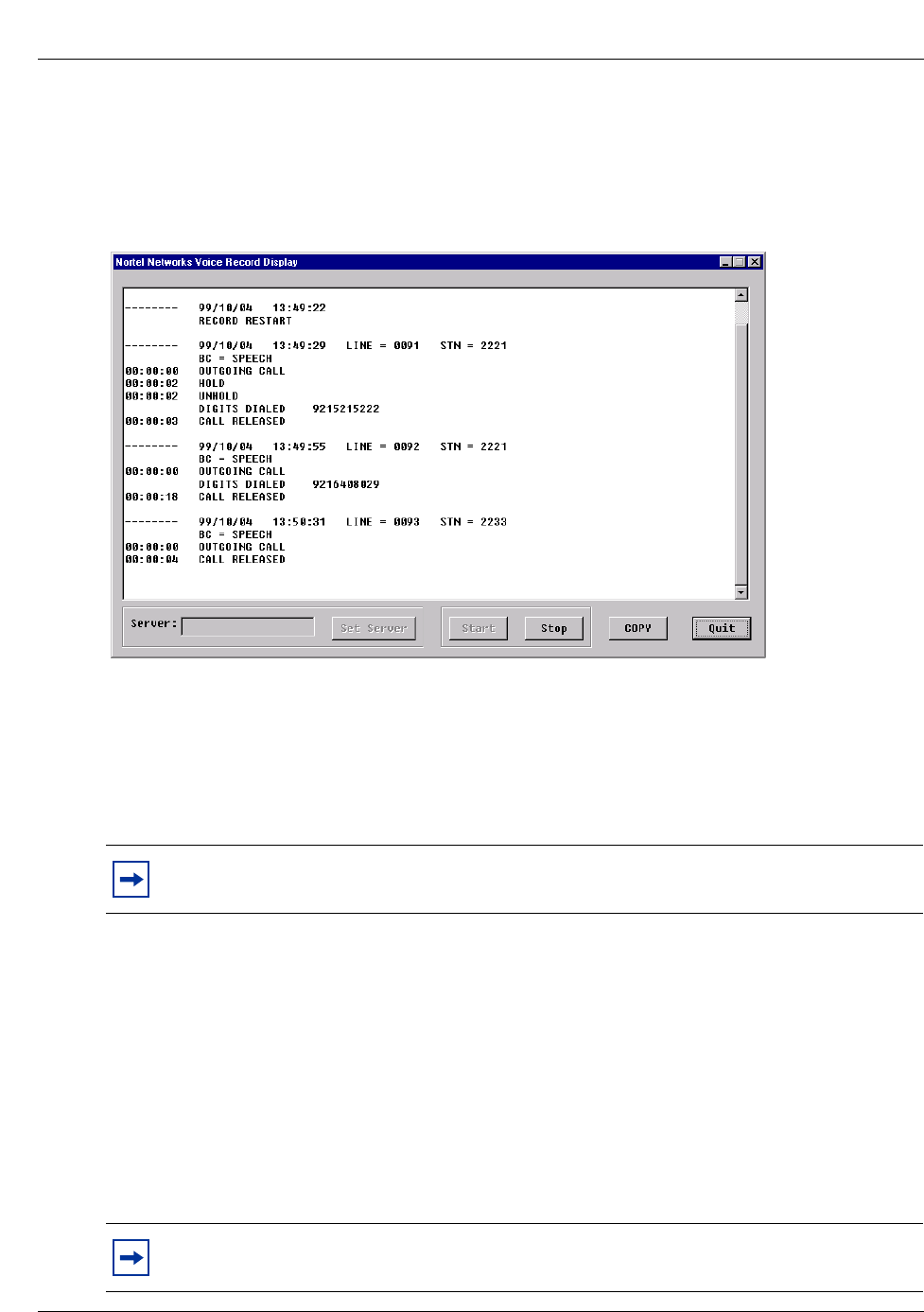
70 Call Detail Recording display Call Detail Recording display
P0993139 01
The CDRClient window
Using CDRClient you can view and print records. Figure 79 shows an example of the CDRClient
window. Refer to “CDRClient window” on page 70.
Figure 79 CDRClient window
To use CDRClient:
1Type the server name to connect to the Business Communications Manager server.
2Click the Set Server button to apply the name.
3Click the Start button to view call activity records.
The CDRClient maintains a limited number of records. New records replace old records after the
buffer is full.
4Click the Stop button to stop viewing call activity records.
To print records as you view them:
1Select the record you want to print or right click on the mouse to Select All.
2Click the COPY button or right click on the mouse to copy the record to the clipboard.
3Paste the record into a text application such as WordPad or Notepad.
4Print the record.
Note: If you do not know the server name, ask your System Administrator.
Note: All records are maintained on the Business Communications Manager server. Use
Business Communications Manager Unified Manager to obtain records and print files.
Call Detail Recording Record Security Call Detail Recording Record Security 71
Call Detail Recording System Administration Guide
Call Detail Recording Record Security
The records from Call Detail Recording are sensitive in nature. Communication among top
executives and external companies, telephone banking passwords, long distant PIN codes, etc. are
some of the examples that require protection from unauthorized access. With the introduction of
network real time access in Call Detail Recording, the System Administrator must setup the
system to protect against unauthorized access.
The default installation of Call Detail Recording enables the CDR group to have launch
permission to the records. This means anyone in the CDR group has access to the Call Detail
Recording records.
To guard against unauthorized access to Call Detail Recording records, you must add only the
authorized users to the Call Detail Recording group. In this configuration, the NT security protects
all records against unauthorized access.
CDR Group User Administration
User groups are created during installation. The System Administrator can add user names to the
CDR group and grant them access to Call Detail Recording records using the Business
Communications Manager Unified Manager. The System Administrator can also modify user
access privileges or delete existing user names from the group.
CDR User Management
Under User Management you can:
• create a new user profile
• modify user privileges
• delete a user name
Note: For more information, refer to the Programming Operations Guide that came with
your system.

72 CDR Group User Administration CDR Group User Administration
P0993139 01
Create a user profile
To add a user name:
1Start Unified Manager.
2Click the Management key and then click the UserManager heading.
The User Profile screen appears.
3On the Configuration menu, click Add User.
The User Profile dialog box appears.
4In the User Name box, enter the user name for this user account.
5In the Password box, enter the password for this user account.
6In the Confirm Password box, enter the password again.
7In the Member Of box, click CDRUserGroup.
8Click the Save button.
The user now has access to Call Detail Recording records.
Modify user privileges
To modify privileges a user can access:
1Start Unified Manager.
2Click the Management key and then click the UserManager heading.
The User Profile screen appears.
3Click on the user name.
4On the Configuration menu, choose Modify User.
The User Profile dialog box appears.
5Modify the access privileges. Click Save.
The user’s privileges are now changed.
Delete a user name
To delete a name from a user list:
1Start Unified Manager.
2Click the Management key and then click the UserManager heading.
The User Profile screen appears.
3Click on the user name.
4From the Configuration menu, choose Delete User.
The user profile is now deleted from the list.
CDR User Management additional information CDR User Management additional information
Call Detail Recording System Administration Guide
CDR User Management additional information
Call Detail Recording Domain User Management, in the previous section, uses a domain server
network as an example for the launch permission administration. In addition, the Business
Communications Manager server must be registered as a member server of the domain.
The configuration differs for a peer-to-peer network. In this case, the Business Communications
Manager server is not registered as a member server in the network. This appears in the CDR
Group User Administration, in the previous section.
The group/user accounts must exist in the Business Communications Manager server before the
CDR server launches permission administration. The Business Communications Manager server
takes responsibility to verify if the users have the right launch permission.
If the remote PC is a Windows NT® workstation, ensure the user accounts in the launch permission
list exist on both the server and the client PC with matching passwords. When the user logs in to
the remote PC using one of the authorized user accounts, the user has the launch permission to the
Business Communications Manager server. The System Administrator can administer local users
from Unified Manager by clicking the Management and UserManager keys, and then the
Configuration menu.
The System Administrator is responsible for ensuring the system configuration is secure.
Note: The domain passwords of the users in the launch permission list must be the same
as the passwords in the corresponding Business Communications Manager server user
accounts.

74 CDR User Management additional information CDR User Management additional information
P0993139 01

75
Call Detail Recording System Administration Guide
Glossary
This Glossary provides terms used in the Business Communications Manager Call Detail
Recording System Administration Guide.
Account feature code
A three-digit number that enables users to enter a Call Detail Recording account code
from a two-line display telephone.
Baud
A variable unit of data transmission speed equal to one bit per second.
Business Communications Manager
Call Detail Recording is an application on your Business Communications Manager
system used to record call activity.
Business Communications Manager server
The central hardware component in the Business Communications Manager system. This
unit has its own processor and memory, and provides a physical point for connection of
various types of data terminals, telephones and expansion modules.
Call Accounting
An optional software program used to analyze the data collected by Call Detail Recording
and to organize it according to a company’s needs.
Call report
A type of report created by Call Detail Recording. This report includes information about
a call's duration and number dialed. Call report information is collected to itemize
telephone activity.
CLASS
Custom Local Area Signalling Services is a collection of services from the local telephone
company.
CLID
When available from the local telephone company, Calling Line Identification shows the
calling number on the telephone display.
CMS
Call Management Services is a collection of services from the local telephone company.
CMS is a part of CLASS.
Default
A value that Call Detail Recording assumes unless another one is specified.

76 Glossary
P0993139 01
External Call Forward
A Business Communications Manager telephone is configured to forward calls to
destinations external to the system using outgoing lines.
Hospitality Record
A type of record created by Call Detail Recording that provides the room occupancy status
whether vacant, basic, mid or full.
ISDN
Integrated Services Digital Network is a worldwide digital communications network.
Norstar report format
An English language syntax organization of call reports.
Physical line
The physical connection between the Business Communications Manager system and the
outside world.
SL-1 report format
The organization of information that Call Detail Recording data must be translated into
before the data it contains is read by an SL-1 call accounting program.
System Administrator
The person responsible for installing, administrating and maintaining Call Detail
Recording for a particular company.
Target line
A Target line is a virtual line, not a physical line. It is dedicated to receiving and routing
incoming calls on DID or auto-answer trunks to a specific destination.

Call Detail Recording System Administration Guide
77
Index
Numbers
911 11
A
Access Bin Settings and Suppress Length Settings
accessing 31
Account Bin Settings 32
acronyms 12
Auto Attendant, station set numbers 47, 53
B
Business Communications Manager Call Detail
Recording, about 15
Business Communications Manager Unified Manager
17
Management 17
Resources 17
Services 17, 19
System 17
Busy
Norstar Direct Inward Dial 54
Norstar Reports 54
Norstar Target line 55
C
Call Center station set numbers 47, 53
Call connected 57
Call information 49
Comprehensive
accessing 17
Connect Characters 27
conventions, text 11
D
Date Format 26
Descriptions 60
Norstar Reports 60
Real Time record 64
Dialed number 56
information 26
Digit separator 57
Direct Inward Dial 54
E
Emergency 911 11
External call forward 64
F
Feature Codes 23
creating list 23
using 24
Field definitions 58
CLID report 50
Format
Date 26
Header 26
H
Header Format 26
Hospitality record 15
Real Time 65
Standard 53
I
Identification service 56
K
Keys 19
L
Language
Report 21
Long distance
Prefix filter 22, 30
M
Market Parameters
accessing 28
N
Norstar report 58
Norstar Target line 55
P
Physical lines

78 Index
P0993139 01
Norstar 54
SL-1 47
Prefix Bin Settings
accessing 30
Primary Rate Interface 55
Printable line 60
Programming
Business Communications Manager Call Detail
Recording parameters 17
publications
related 13
R
Remote administration 73
Report filter 22
Report format
Norstar 21, 48, 49
Norstar All 52
Norstar Real Time 51
Norstar Standard 49
Norstar, call charges 66
SL-1 20, 43
SL-1 CLID 46
SL-1 field definitions 44
SL-1 Report options 45
SL-1 Standard 45
SL-1, Call charges 47
Report language 21
Report logs 43
Report Options
accessing 25
Report Parameters
accessing 19
Report type
Norstar 48
SL-1 43
Reports
Bearer capability 55
Busy 54
SL-1 43
S
Summary
accessing 18
Suppress Length Settings 32
T
Target lines
SL-1 47
text conventions 11
U
Unified Manager
Diagnostics 17
