BEIJING ITHINK CHUANGXIANG KEJI C4 IP Camera User Manual
BEIJING ITHINK CHUANGXIANG KEJI CO.,LTD IP Camera
User Manual
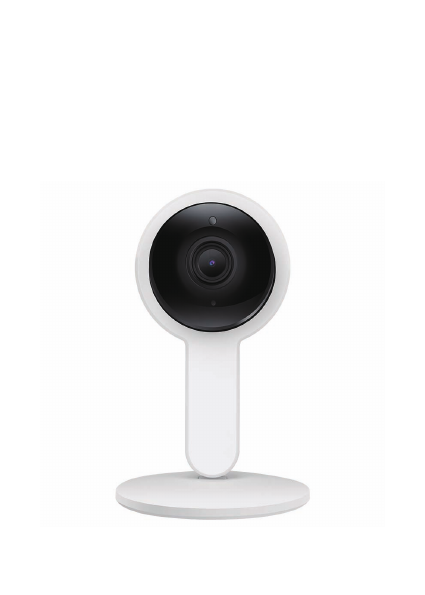
Before using this product, please read the guide carefully to avoid
any damages to the product, do not misconfiguration or misuse.
User Manual
IP Camera
Before using this product, please read the guide carefully to avoid
any damages to the product, do not misconfiguration or misuse.
User Manual
IP Camera
1. Product Description
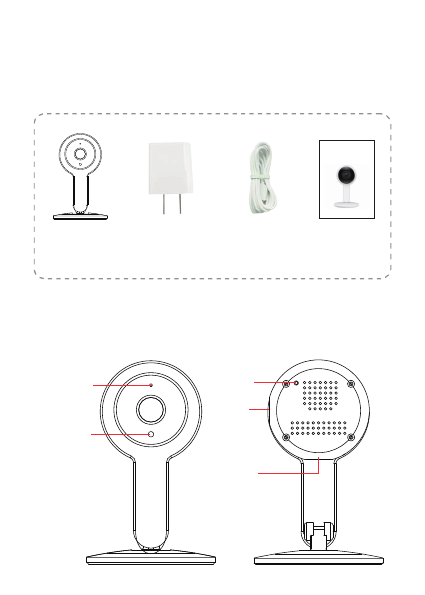
1.1Packing list
Camera User manualUSB cable
*Pictures are only for reference.
1.2 Product outlook
Adapter
-2-
Infrared night
vision
LED Indicator
RESET
RESET
Micro USB
Power Input
SD card
2. Installation
2.1 App installation
For iPhone users:
Open the App Store and search for “NeteSee”
Download and install the NetSee app onto your iPhone.
For Android phone users:
Open the Google Play Store and search for “NeteSee”
Download and install the NetSee app onto your Android
phone.
2.2 Device Hardware installation
Connect the power supply to the camera device, then wait
for the indicator light to flash.
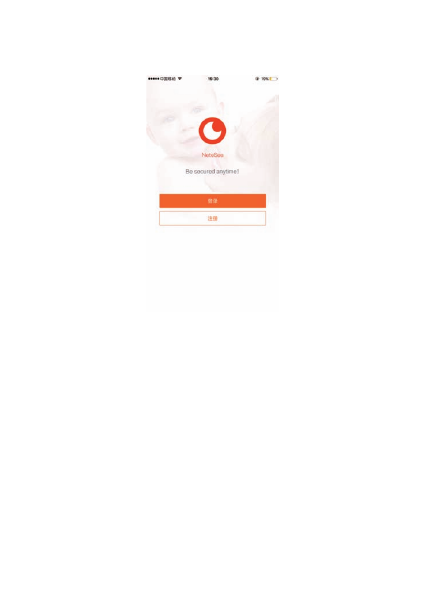
1. After opening the app for the first time, register your
account by clicking ‘sign up’ and enter the desired
username and password.
a. Note that only letters, numbers and underscores are
permitted for the username, and should be between 6
and 18 characters.
Different LED colors correspond to different
camera statuses:
Blue
Slow blue flash
Fast blue flash
Solid blue
System start up
Syncing mode
Connecting to Wi-Fi
Camera working properly
2.3 User Account Registration
-3-
b. Your login information will be saved the next time you
open the app; however, it is recommended that you write
your login information down.
Click the top-left “+” button, click on ‘connecting to my
camera’ and then “Next”.
Step 1: Check to see if the front LED light is flashing: After
powering on the camera, the LED light should be flashing
blue, click on ‘Next’ and proceed to Step 2.
Step 2: Connect to your network:
a. Find your wireless network in the first field. You can
select ‘Other’ if you do not see your wireless network.
b. Enter your Wi-Fi password. If your wireless network does not
have a password, click on the ‘No Wi-Fi’ password box.
Then click ‘Next.
c. Follow the instructions on the screen and move your phone
speaker close to the camera’s microphone. Before doing so,
make sure you are in a quiet environment without any noise
interference and make sure your phone is not on silent. Then
click ‘send sound wave’.
d. You will hear a scrambled sound being played from your
phone. Keep your phone still and wait for the duration of the
transmission, before you move your phone away. Afterwards,
the voice prompt will indicate that the binding was successful
and the app will redirect you to the camera view interface
automatically.
2.4 Camera Device and Phone Synchronization
-4-
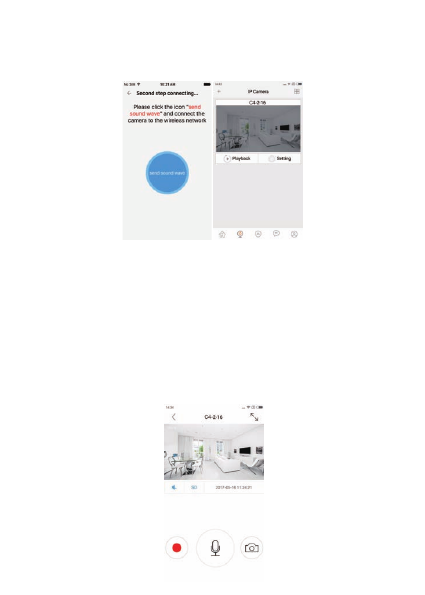
e. If you do not hear the voice prompt say, ‘binding successful’,
you can try again by clicking the ‘Send sound wave’ or click
on the hyperlink and follow the instructions.
-5-
3. App functions
3.1 Live video
After syncing successfully, click the IP Camera interface to view
live video. Smooth, SD and HD video definition are available.
3.2 Video Recording
3.2.1 Users can record video on live video interface or on playback
video interface, by pressing the red video recording icon on
the left. Refer to photo below. The recorded video will be stored
in the album on the homepage of app.
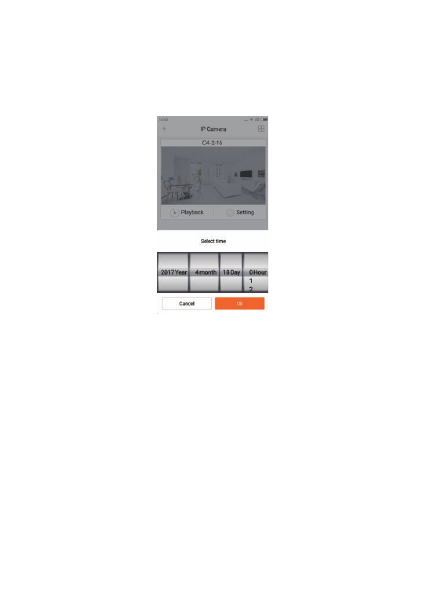
3.2.2 Playback: Click “Playback” icon and choose the time to
replay the video recorded by the camera.
Select the date and time you wish to playback. You can fast
forward/backward by swiping on the time bar. Tap on the
camera icon to take a screen shot while replaying the video.
Refer to photo below.
3.3 More Functions
4. Warning
In “Settings” you will find: two-way talk, infrared night vision,
infrared alarm, snapshot sharing, viewing lock functions on
the app.
● When using the camera, please avoid rain, fire and lightning.
The camera’s working humidity range is: 20%-50% indoor,
20%-70% outdoor. Working temperature range is: -10°-50℃
(14°-122°F) indoor; -20°-55℃ (-4°-131°F) outdoor.
● The IP Camera is designed to ensure the security and
confidentiality of its users, but cannot completely guarantee
the threat of being compromised, due to various setup
circumstances. We highly advise that you only use the camera
on a trusted password protected Wi-Fi network. This camera is
recommended for general purpose monitoring only. The user
acknowledges the risk of using the device otherwise.
-6-

☆ User can only bind when the camera device is in the Binding
mode (i.e. LED is blue and flashes once a second). Otherwise, you
cannot bind a camera device when outside of the Binding mode.
☆ Make sure the environment around the camera is quiet when
transmitting the “sound wave” and the outer speaker of your
phone is close to the microphone in front of the camera.
☆ If shown warning “WIFI does not exists”, please make sure
your Wi-Fi network name is correct.
☆ If shown warning “WIFI connection fail”, please make sure
your Wi-Fi password correct.
☆ If shown warning “Network abnormal please check router
configuration”, please make sure your router is connected to
Internet.
1) Cannot bind camera device?
☆ Check the compatibility of the camera device with your router.
Supports 802.11 b/n/g.
☆ Check whether the name and password of WIFI has been
changed.
2) Cannot connect to Internet?
Switch between “SD” and “HD”.
3) Video quality is not clear?
☆ Check if there is a micro-SD card (must be 64GB or less)
☆ Insert a micro-SD card, you can replay video after 10 minutes.
4) Cannot replay video?
Our camera device can only connect to non-hidden Wi-Fi networks.
5) If the Wi-Fi is hidden, why cannot I find any
network or camera device?
While the camera device is on, use a small object to hold down
the reset button located on the back of the unit for 3-5 seconds.
The voice prompt will indicate that the system is resetting.
During this time, do not unplug the camera device.
6) How to restore Factory Settings?
5.FAQ
-7-

OTHER NOTES:
Please make sure your phone is not on silent and the volume
is turned up.
7) Sound is not coming from app on phone?
● To refresh your camera list, pull-down on the screen while
viewing the camera list.
● After binding the device and phone successfully, if the camera
device does not appear on the homepage, refresh the camera list
interface. If the device is still not showing, log out of your
account, then login again.
● The camera supports up to 64GB micro-SD card, and can store
videos up to 40 days.
● There is approximately a 10-minute delay after a micro SD card
has been inserted before you can replay videos.
● When testing the alarm function, after setting the alarm, please
exit the app to receive the notification when the camera is
triggered by motion.
● You can bind up to maximum of 15 user accounts to each
camera (if the account administrator shares access).
● The first account bound to the camera is defaulted as the
administrator account.
● When syncing the camera device and phone, do not leave the
binding page, please wait for the camera to finish automatically.
-8-
FCC Warnning:
This equipment has been tested and found to comply with the limits for a Class B digital device, pursuant
to part 15 of the FCC Rules. These limits are designed to provide reasonable protection against harmful
interference in a residential installation. This equipment generates, uses and can radiate radio frequency
energy and, if not installed and used in accordance with the instructions, may cause harmful interference
to radio communications. However, there is no guarantee that interference will not occur in a particular
installation. If this equipment does cause harmful interference to radio or television reception, which can
be determined by turning the equipment off and on, the user is encouraged to try to correct the
interference by one or more of the following measures:
• Reorient or relocate the receiving antenna.
• Increase the separation between the equipment and receiver.
• Connect the equipment into an outlet on a circuit different from that to which the receiver is connected.
• Consult the dealer or an experienced radio/TV technician for help.
Caution: Any changes or modifications to this device not explicitly approved by manufacturer could void
your authority to operate this equipment.
This device complies with part 15 of the FCC Rules. Operation is subject to the following two conditions:
(1) This device may not cause harmful interference,
and (2) this device must accept any interference received, including
interference that may cause undesired operation.
To comply with FCC RF exposure compliance requirements,this grant isapplicable to only mobile
configurations. The antennas used for this transmittermust be installed to provide a separation distance
of at least 20 cm from allpersons and must not be co-l ocated or operating in conjunction with any
otherantenna or transmitter.