BICOM EZD9US Wireless Intercommunication User Manual

BICOM INC. Wireless Intercommunication

User Manual

BI-COMUSER GUIDEEZ-D9US915MHz DIGITAL WIRELESS INTERCOM/TWO-WAY RADIOBi-ComEditing and distribute of this document are possible under only Bi-Com Co., Ltd.’spermission. Ownership and right of each trademark have owner of trademark. Thecontents of this document can be changed without notice. Change of contents whichincluded in this document is possible by only Bi-Com Co., Ltd.’s decision.
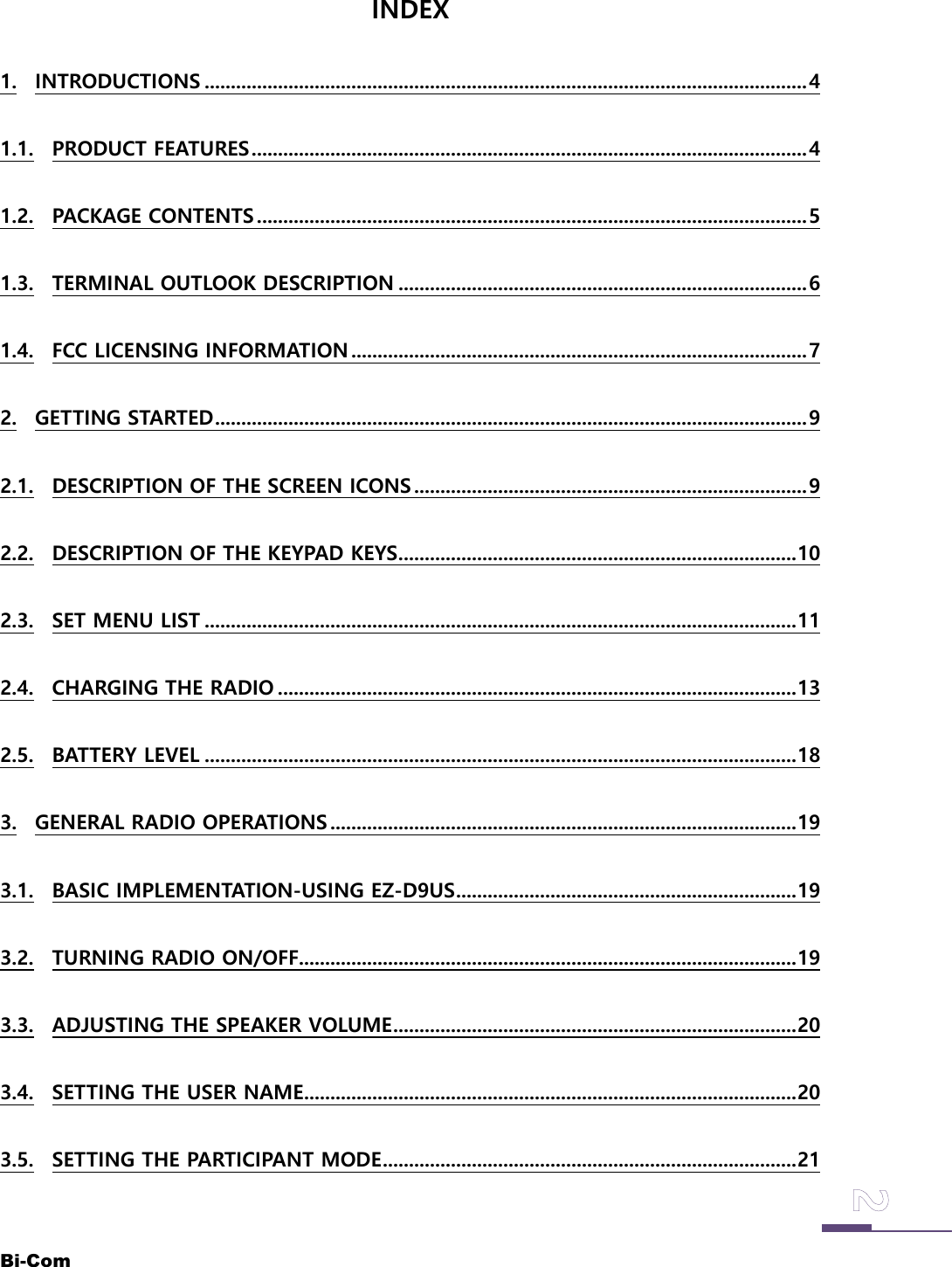
Bi-ComINDEX1. INTRODUCTIONS ...................................................................................................................41.1. PRODUCT FEATURES..........................................................................................................41.2. PACKAGE CONTENTS .........................................................................................................51.3. TERMINAL OUTLOOK DESCRIPTION ..............................................................................61.4. FCC LICENSING INFORMATION .......................................................................................72. GETTING STARTED.................................................................................................................92.1. DESCRIPTION OF THE SCREEN ICONS ...........................................................................92.2. DESCRIPTION OF THE KEYPAD KEYS............................................................................102.3. SET MENU LIST .................................................................................................................112.4. CHARGING THE RADIO ...................................................................................................132.5. BATTERY LEVEL .................................................................................................................183. GENERAL RADIO OPERATIONS .........................................................................................193.1. BASIC IMPLEMENTATION-USING EZ-D9US.................................................................193.2. TURNING RADIO ON/OFF...............................................................................................193.3. ADJUSTING THE SPEAKER VOLUME.............................................................................203.4. SETTING THE USER NAME..............................................................................................203.5. SETTING THE PARTICIPANT MODE...............................................................................21
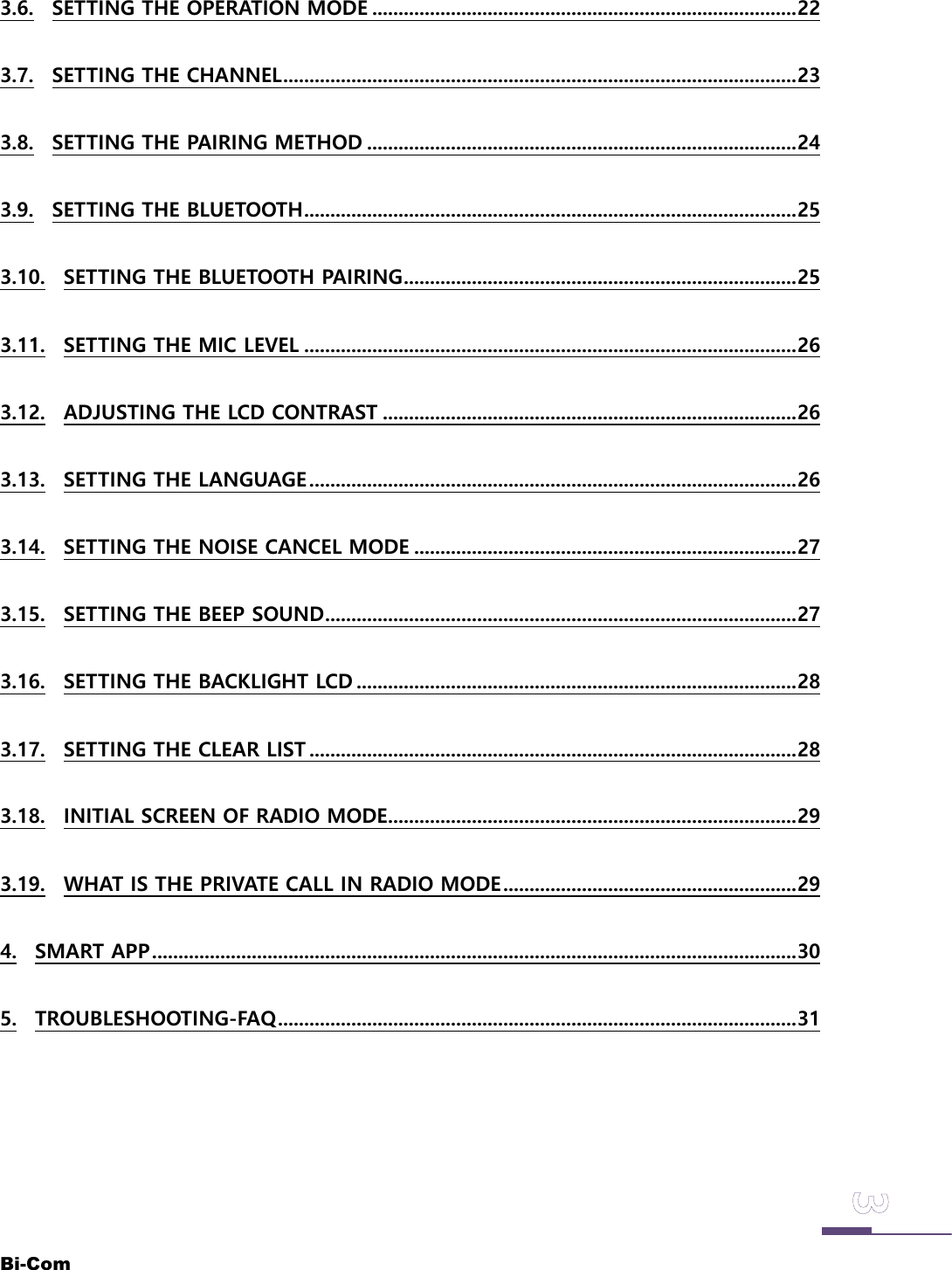
Bi-Com3.6. SETTING THE OPERATION MODE .................................................................................223.7. SETTING THE CHANNEL..................................................................................................233.8. SETTING THE PAIRING METHOD ..................................................................................243.9. SETTING THE BLUETOOTH..............................................................................................253.10. SETTING THE BLUETOOTH PAIRING...........................................................................253.11. SETTING THE MIC LEVEL ..............................................................................................263.12. ADJUSTING THE LCD CONTRAST ...............................................................................263.13. SETTING THE LANGUAGE.............................................................................................263.14. SETTING THE NOISE CANCEL MODE .........................................................................273.15. SETTING THE BEEP SOUND..........................................................................................273.16. SETTING THE BACKLIGHT LCD ....................................................................................283.17. SETTING THE CLEAR LIST .............................................................................................283.18. INITIAL SCREEN OF RADIO MODE..............................................................................293.19. WHAT IS THE PRIVATE CALL IN RADIO MODE........................................................294. SMART APP...........................................................................................................................305. TROUBLESHOOTING-FAQ...................................................................................................31
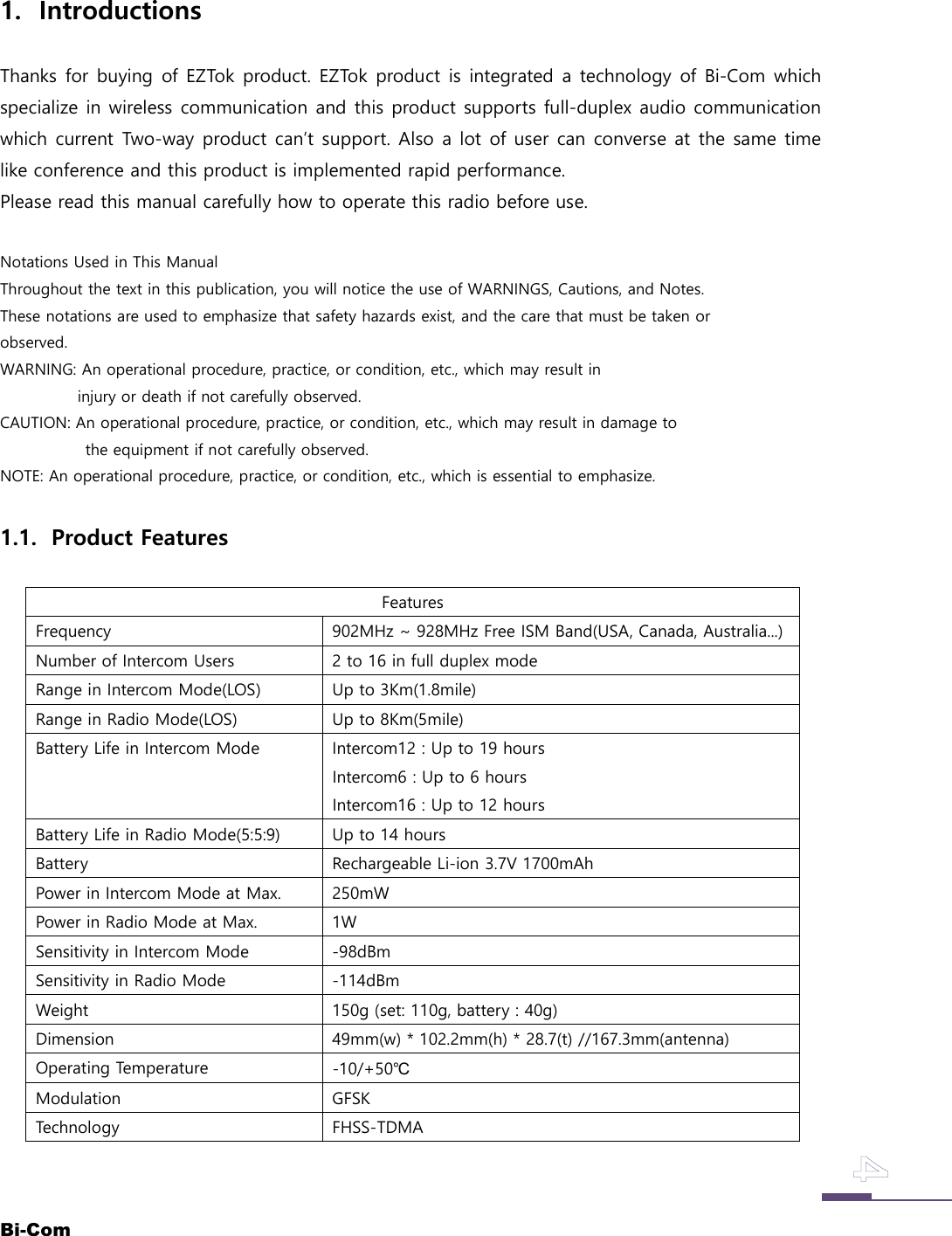
Bi-Com1. IntroductionsThanks for buying of EZTok product. EZTok product is integrated a technology of Bi-Com whichspecialize in wireless communication and this product supports full-duplex audio communicationwhich current Two-way product can’t support. Also a lot of user can converse at the same timelike conference and this product is implemented rapid performance.Please read this manual carefully how to operate this radio before use.Notations Used in This ManualThroughout the text in this publication, you will notice the use of WARNINGS, Cautions, and Notes.These notations are used to emphasize that safety hazards exist, and the care that must be taken orobserved.WARNING: An operational procedure, practice, or condition, etc., which may result ininjury or death if not carefully observed.CAUTION: An operational procedure, practice, or condition, etc., which may result in damage tothe equipment if not carefully observed.NOTE: An operational procedure, practice, or condition, etc., which is essential to emphasize.1.1. Product FeaturesFeaturesFrequency 902MHz ~ 928MHz Free ISM Band(USA, Canada, Australia...)Number of Intercom Users 2 to 16 in full duplex modeRange in Intercom Mode(LOS) Up to 3Km(1.8mile)Range in Radio Mode(LOS) Up to 8Km(5mile)Battery Life in Intercom Mode Intercom12 : Up to 19 hoursIntercom6 : Up to 6 hoursIntercom16 : Up to 12 hoursBattery Life in Radio Mode(5:5:9) Up to 14 hoursBattery Rechargeable Li-ion 3.7V 1700mAhPower in Intercom Mode at Max. 250mWPower in Radio Mode at Max. 1WSensitivity in Intercom Mode -98dBmSensitivity in Radio Mode -114dBmWeight 150g (set: 110g, battery : 40g)Dimension 49mm(w) * 102.2mm(h) * 28.7(t) //167.3mm(antenna)Operating Temperature -10/+50℃Modulation GFSKTechnology FHSS-TDMA
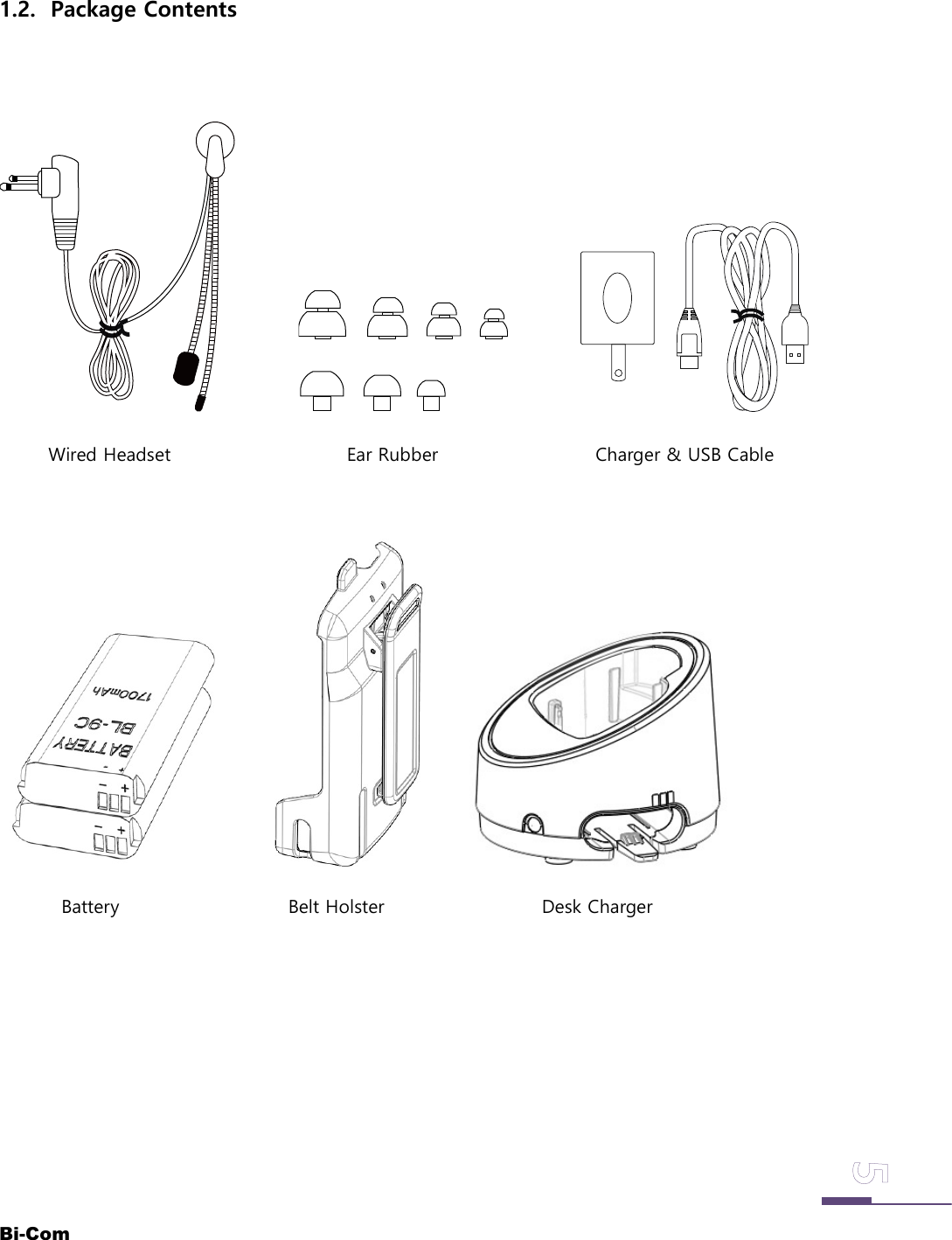
Bi-Com1.2. Package ContentsWired Headset Ear Rubber Charger & USB CableBattery Belt Holster Desk Charger
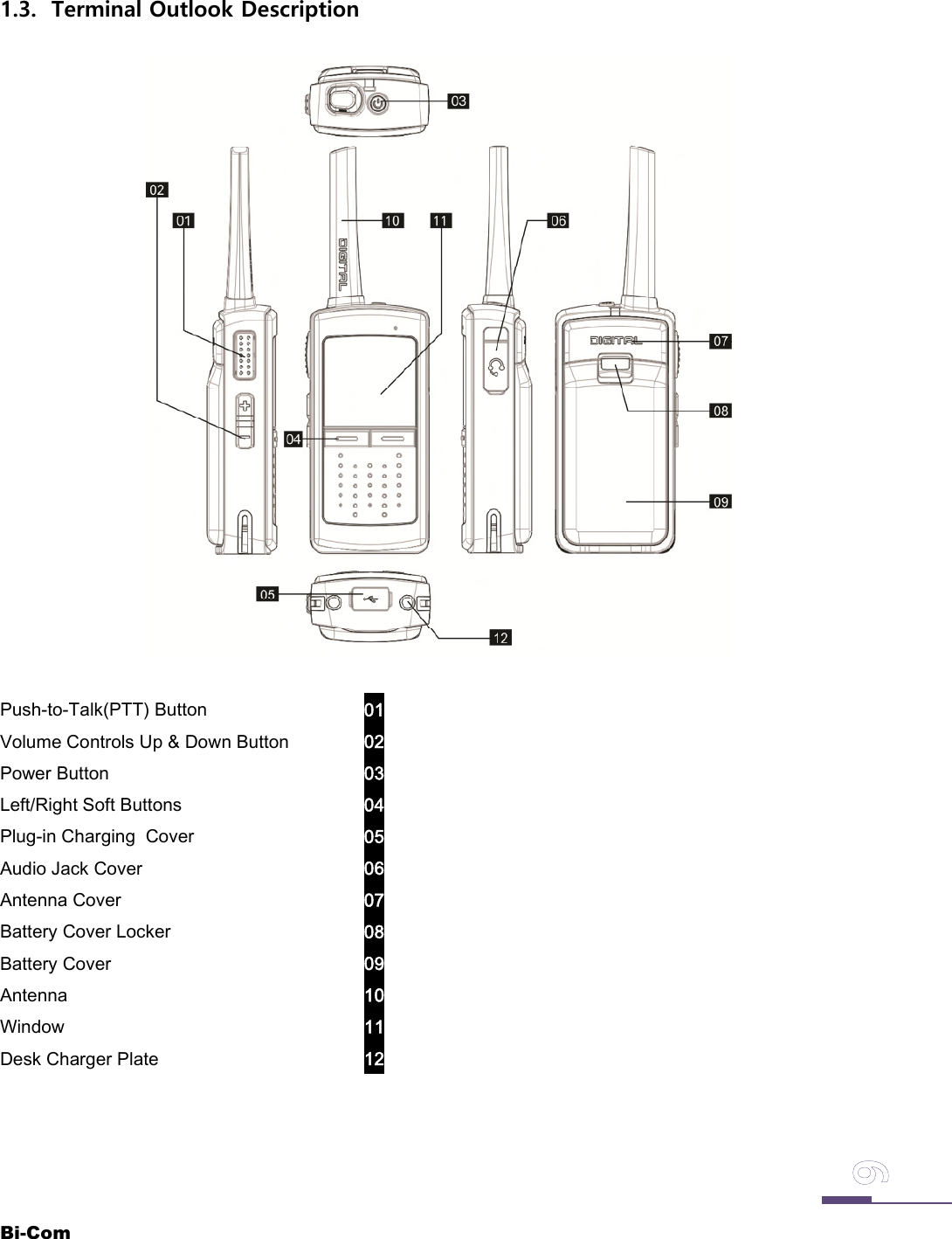
Bi-Com1.3. Terminal Outlook DescriptionPush-to-Talk(PTT) Button 01Volume Controls Up & Down Button 02Power Button 03Left/Right Soft Buttons 04Plug-in Charging Cover 05Audio Jack Cover 06Antenna Cover 07Battery Cover Locker 08Battery Cover 09Antenna 10Window 11Desk Charger Plate 12
Bi-Com1.4. FCC Licensing InformationEZ-D9US operates in the license-free 900MHz ISM band. EZ-D9US is subject to the Rules and Regulations ofthe FCC.This device complies with part 15 of the FCC rules. Operation is subject to the following two conditions:(1)This device may not cause harmful interference, and (2)this device must accept any interference received,including interference that may cause undesired operation.NOTE: THE GRANTEE IS NOT RESPONSIBLE FOR ANY CHANGES OR MODIFICATIONS NOT EXPRESSLYAPPROVED BY THE PARTY RESPONSIBLE FOR COMPLIANCE. SUCH MODIFICATIONS COULD VOIDTHE USER’S AUTHORITY TO OPERATE THE EQUIPMENT.NOTE: This equipment has been tested and found to comply with the limits for a Class B digital device,pursuant to part 15 of the FCC Rules. These limits are designed to provide reasonable protection againstharmful interference in a residential installation. This equipment generates uses and can radiate radiofrequency energy and, if not installed and used in accordance with the instructions, may cause harmfulinterference to radio communications. However, there is no guarantee that interference will not occur in aparticular installation.If this equipment does cause harmful interference to radio or television reception, which can be determinedby turning the equipment off and on, the user is encouraged to try to correct the interference by one ormore of the following measures:- Reorient or relocate the receiving antenna.- Increase the separation between the equipment and receiver.-Connect the equipment into an outlet on a circuit different from that to which the receiver is connected.-Consult the dealer or an experienced radio/TV technician for help.WARNING !FCC Radiation Exposure Statement:This portable equipment with its antenna complies with FCC’s RF radiation exposure limits set forth for anuncontrolled environment. To maintain compliance follow the instructions below; . radio and intercom modeuse1. This transmitter must not be co-located or operating in conjunction with any other antenna or transmitter.2. Avoid direct contact to the antenna, or keep it to a minimum while using this equipment.3. In front of the face. Hold the radio in a vertical position with the microphone (and other parts of theradio including the antenna) at least one inch (2.5 centimeters) away from the nose or lips.Keeping the radio at a proper distance is important to ensure compliance.Test separation distancesKDB 643646 D01 – AppendixHead SAR Test considerationHead SAR is measured with the front of surface of the radio positioned at 2.5 cmparallel to a flat phantom.
Bi-ComNOTE: RF exposures decrease with increasing distance from the antenna.•  Body Worn Operation. When worn on the body, always place the radio in a Bi-Com -approved holster or body harness for this product.Using approved body-worn accessories is important because the use of non-Bi-Com-approved accessories may result in exposure levels, which exceedthe occupational/controlled environment RF exposure limits.•  Use only Bi-Com-approved supplied or replacement antennas, batteries, and audio accessories. Use of non- Bi-Com-approved antennas, batteries, andwired or wireless accessories may exceed the applicable RF exposureguidelines (FCC).
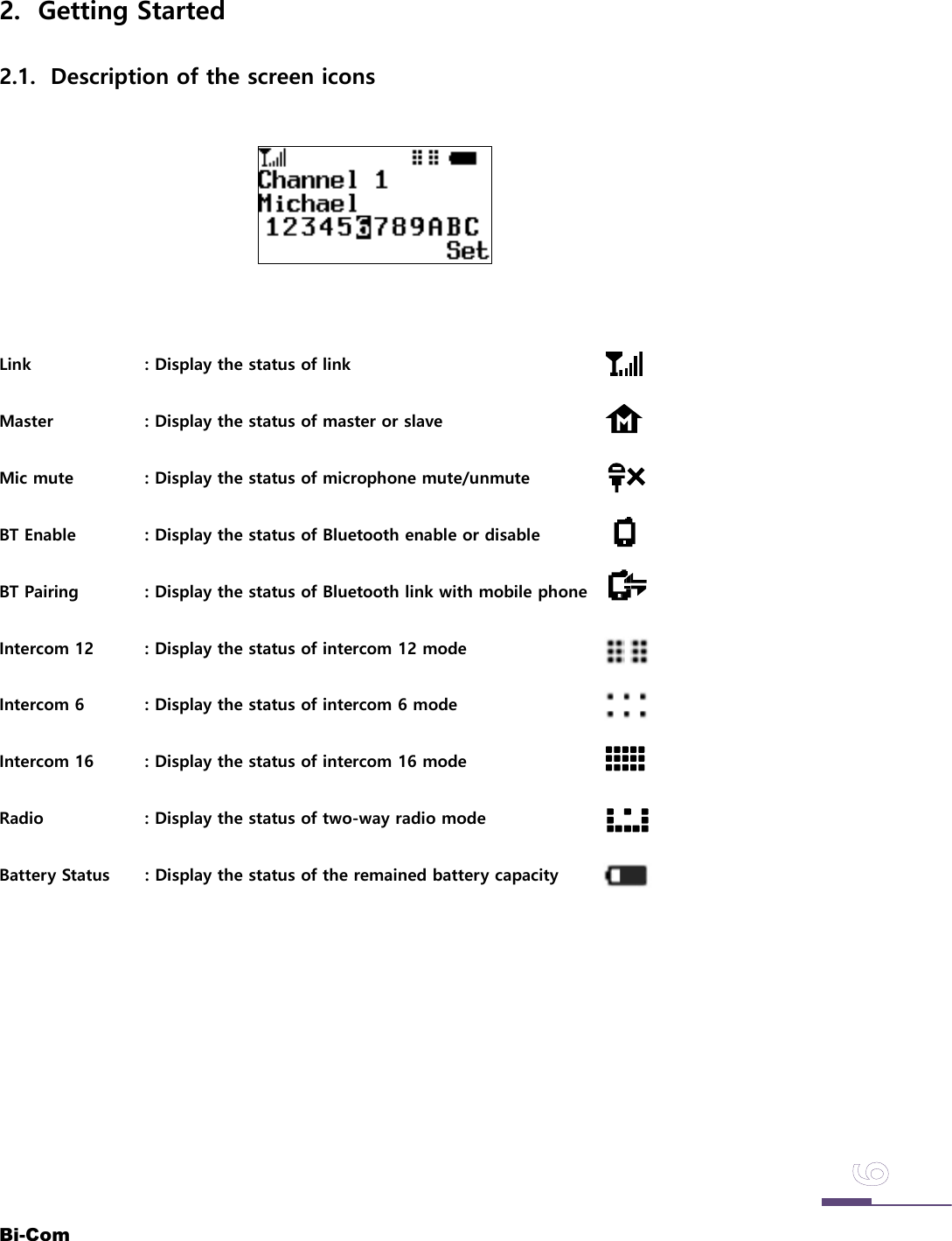
Bi-Com2. Getting Started2.1. Description of the screen iconsLink : Display the status of linkMaster : Display the status of master or slaveMic mute : Display the status of microphone mute/unmuteBT Enable : Display the status of Bluetooth enable or disableBT Pairing : Display the status of Bluetooth link with mobile phoneIntercom 12 : Display the status of intercom 12 modeIntercom 6 : Display the status of intercom 6 modeIntercom 16 : Display the status of intercom 16 modeRadio : Display the status of two-way radio modeBattery Status : Display the status of the remained battery capacity
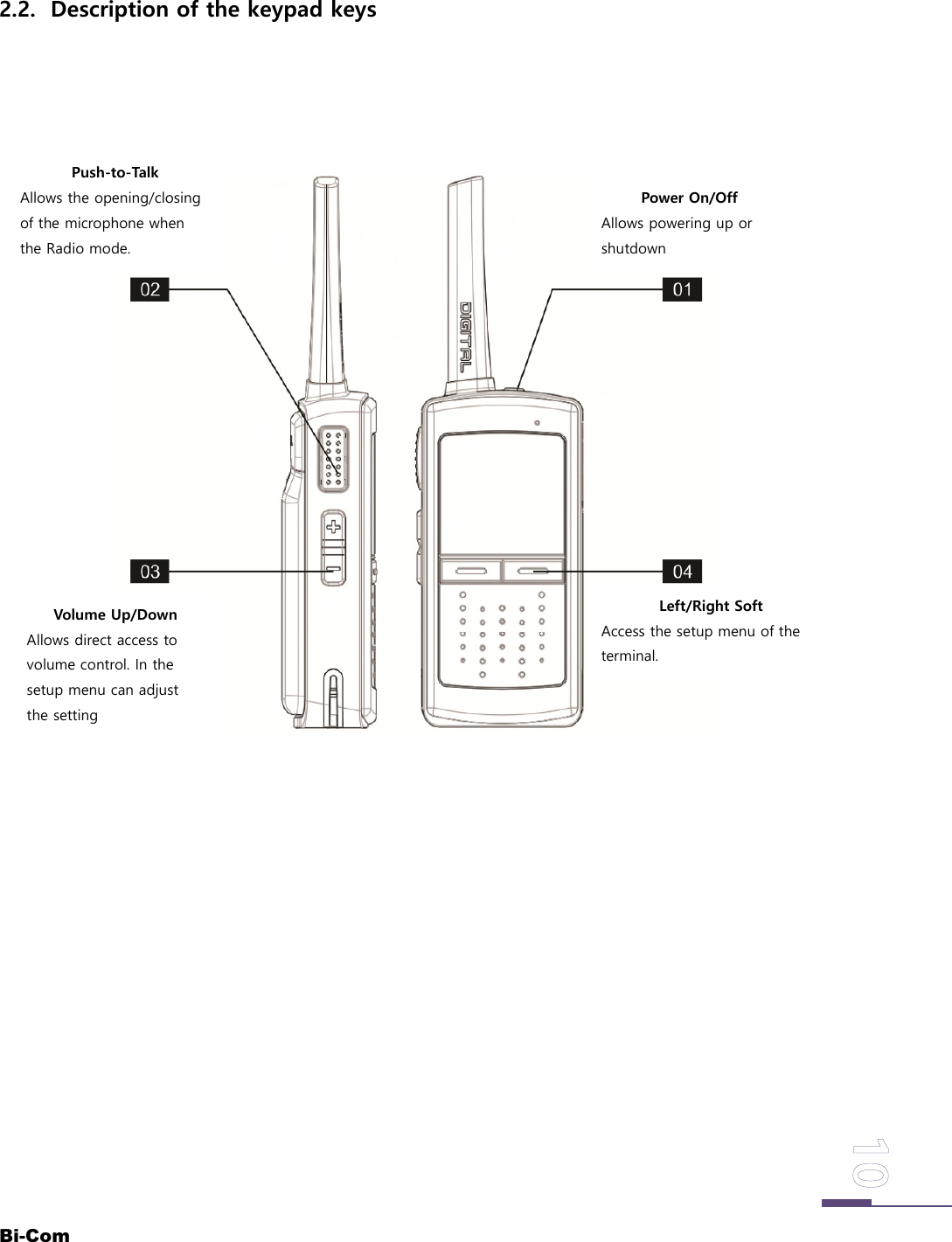
Bi-ComPower On/OffAllows powering up orshutdownPush-to-TalkAllows the opening/closingof the microphone whenthe Radio mode.Volume Up/DownAllows direct access tovolume control. In thesetup menu can adjustthe settingLeft/Right SoftAccess the setup menu of theterminal.2.2. Description of the keypad keys
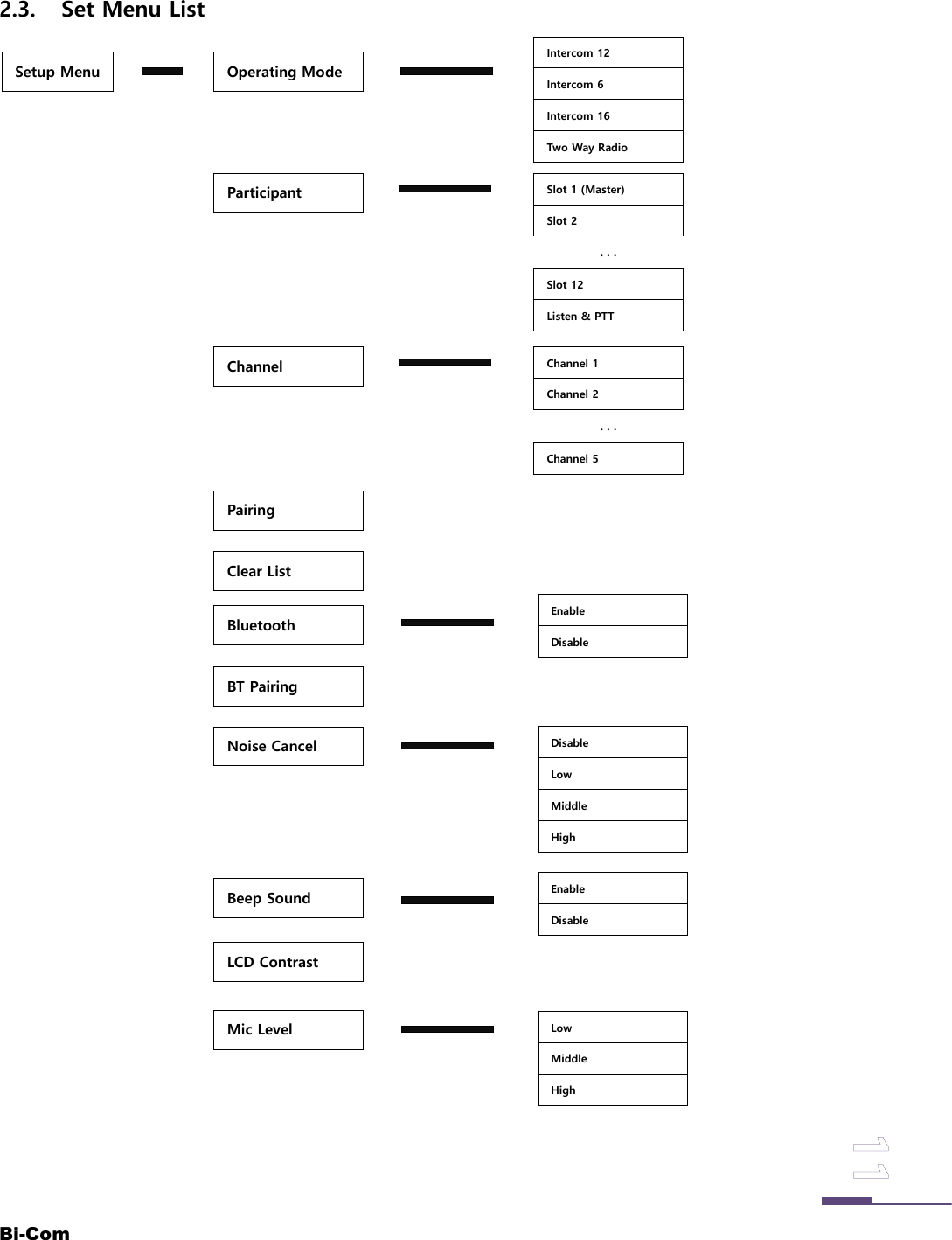
Bi-ComSetup Menu Operating ModeIntercom 12Intercom 6Intercom 16Two Way RadioParticipant Slot 1 (Master)Slot 2Slot 12Listen & PTT...Channel Channel 1Channel 2Channel 5...PairingBluetoothBT PairingClear ListEnableDisableNoise Cancel DisableLowMiddleHighLCD ContrastBeep Sound EnableDisableMic Level LowMiddleHigh2.3. Set Menu List
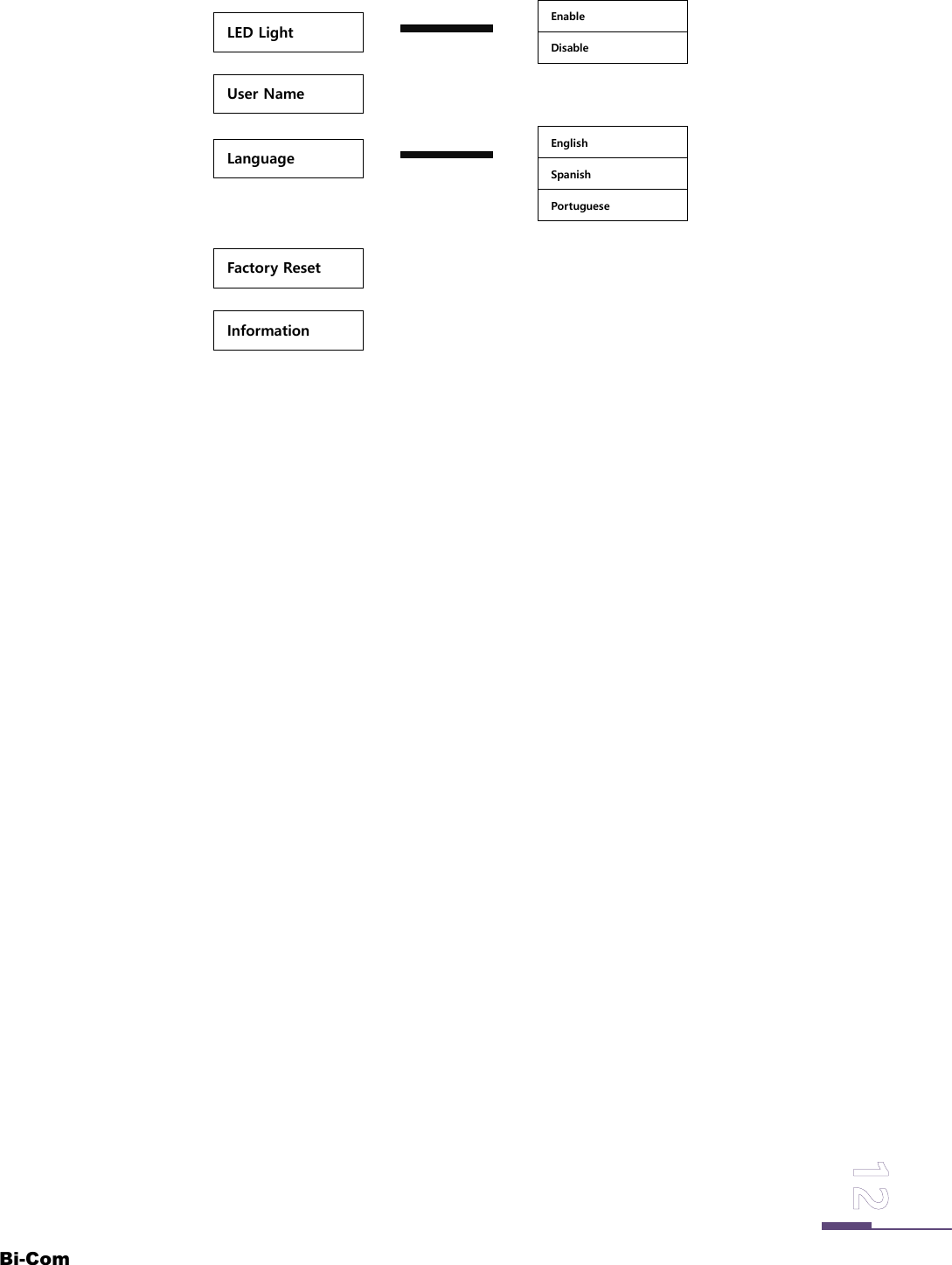
Bi-ComUser NameLanguageLED LightEnglishSpanishEnableDisableFactory ResetInformationPortuguese
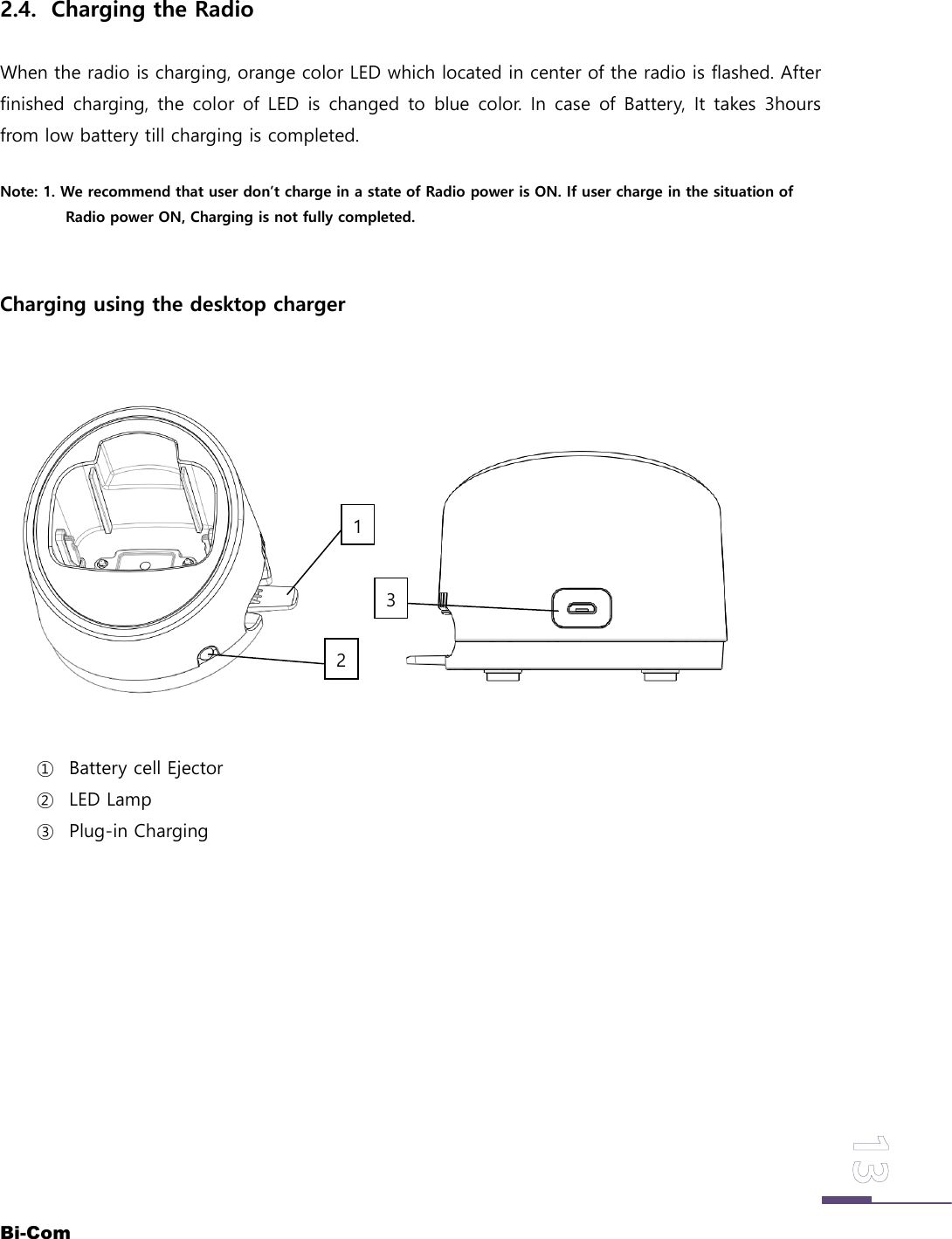
Bi-Com2.4. Charging the RadioWhen the radio is charging, orange color LED which located in center of the radio is flashed. Afterfinished charging, the color of LED is changed to blue color. In case of Battery, It takes 3hoursfrom low battery till charging is completed.Note: 1. We recommend that user don’t charge in a state of Radio power is ON. If user charge in the situation ofRadio power ON, Charging is not fully completed.Charging using the desktop charger① Battery cell Ejector② LED Lamp③ Plug-in Charging213
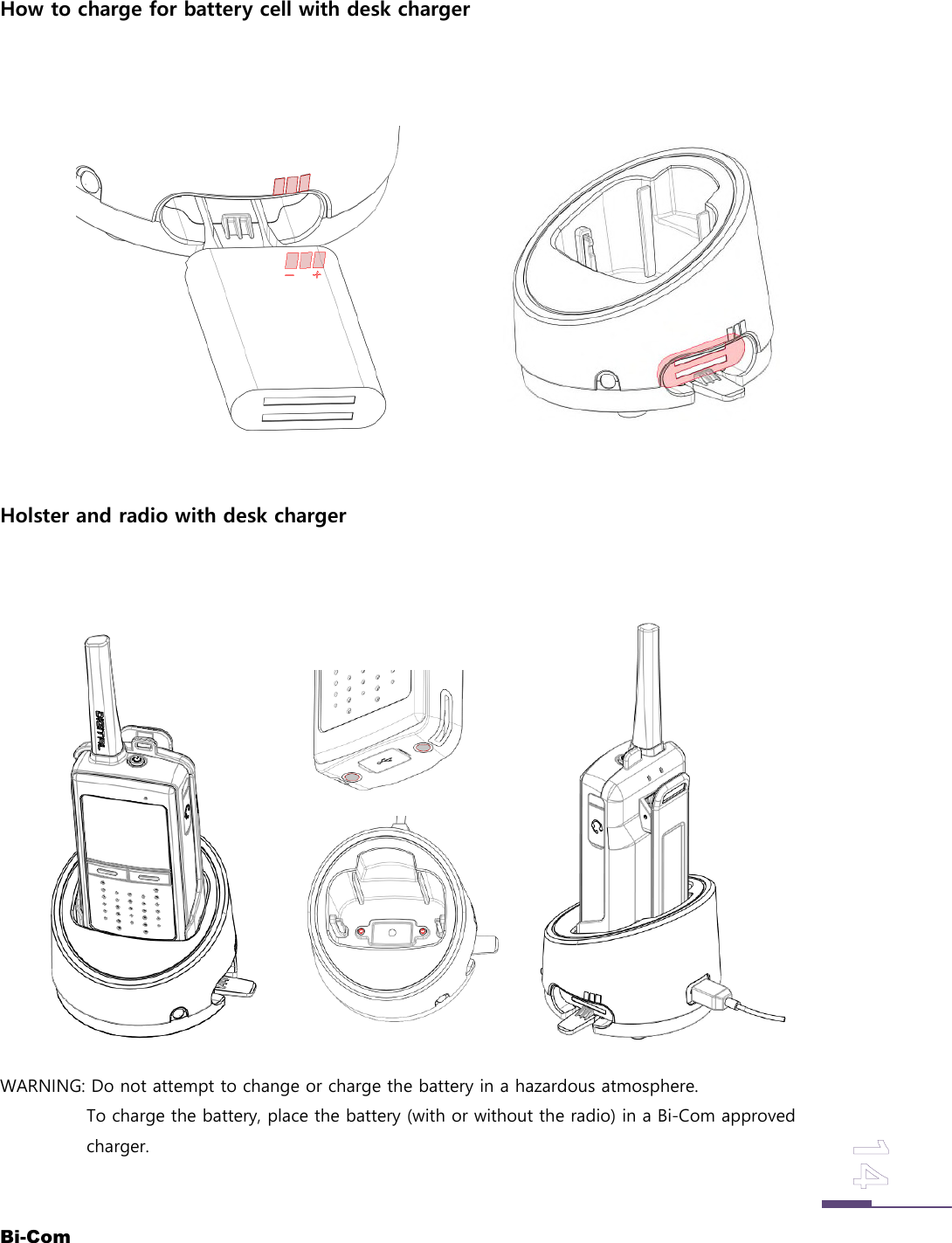
Bi-ComHow to charge for battery cell with desk chargerHolster and radio with desk chargerWARNING: Do not attempt to change or charge the battery in a hazardous atmosphere.To charge the battery, place the battery (with or without the radio) in a Bi-Com approvedcharger.
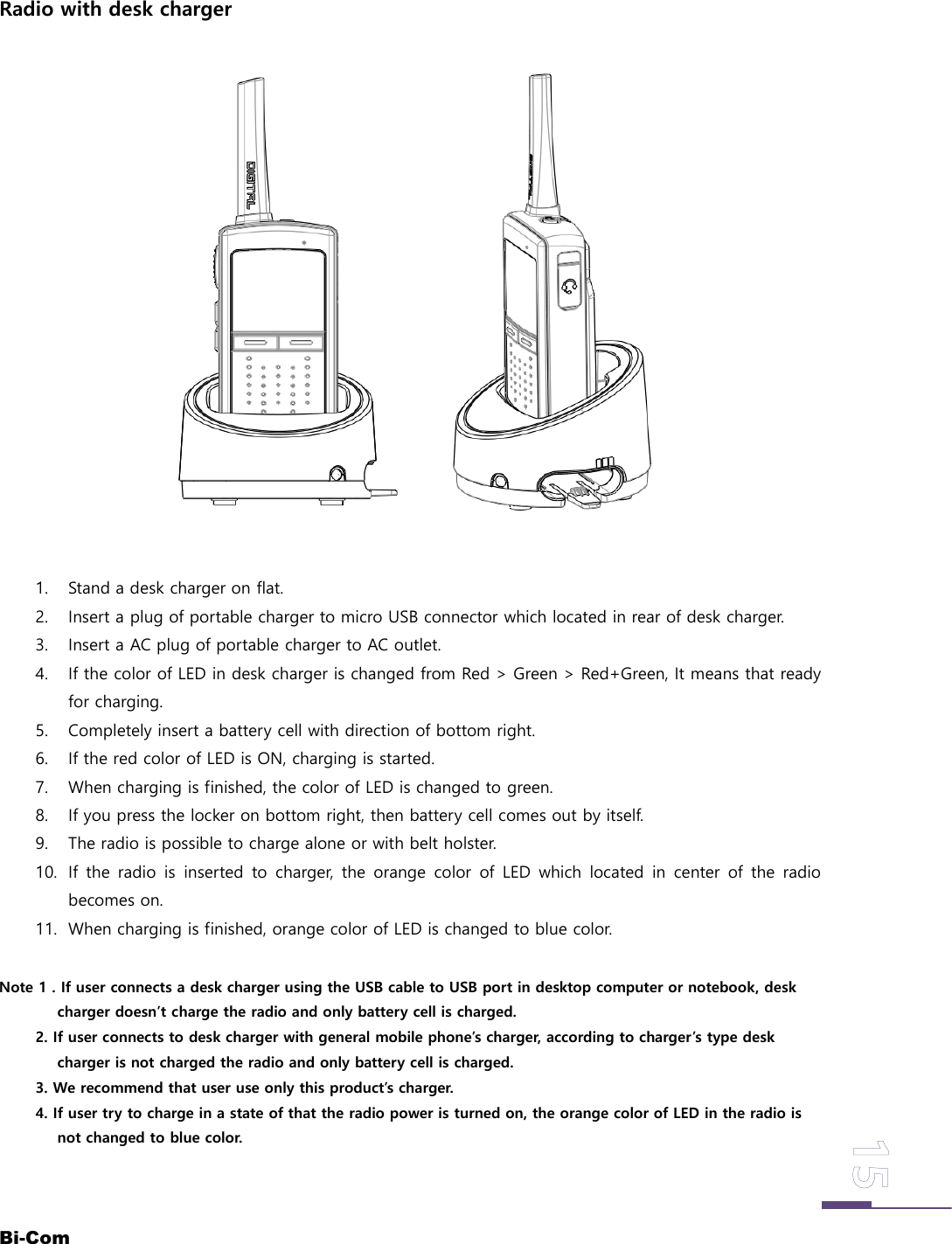
Bi-ComRadio with desk charger1. Stand a desk charger on flat.2. Insert a plug of portable charger to micro USB connector which located in rear of desk charger.3. Insert a AC plug of portable charger to AC outlet.4. If the color of LED in desk charger is changed from Red > Green > Red+Green, It means that readyfor charging.5. Completely insert a battery cell with direction of bottom right.6. If the red color of LED is ON, charging is started.7. When charging is finished, the color of LED is changed to green.8. If you press the locker on bottom right, then battery cell comes out by itself.9. The radio is possible to charge alone or with belt holster.10. If the radio is inserted to charger, the orange color of LED which located in center of the radiobecomes on.11. When charging is finished, orange color of LED is changed to blue color.Note 1 . If user connects a desk charger using the USB cable to USB port in desktop computer or notebook, deskcharger doesn’t charge the radio and only battery cell is charged.2. If user connects to desk charger with general mobile phone’s charger, according to charger’s type deskcharger is not charged the radio and only battery cell is charged.3. We recommend that user use only this product’s charger.4. If user try to charge in a state of that the radio power is turned on, the orange color of LED in the radio isnot changed to blue color.
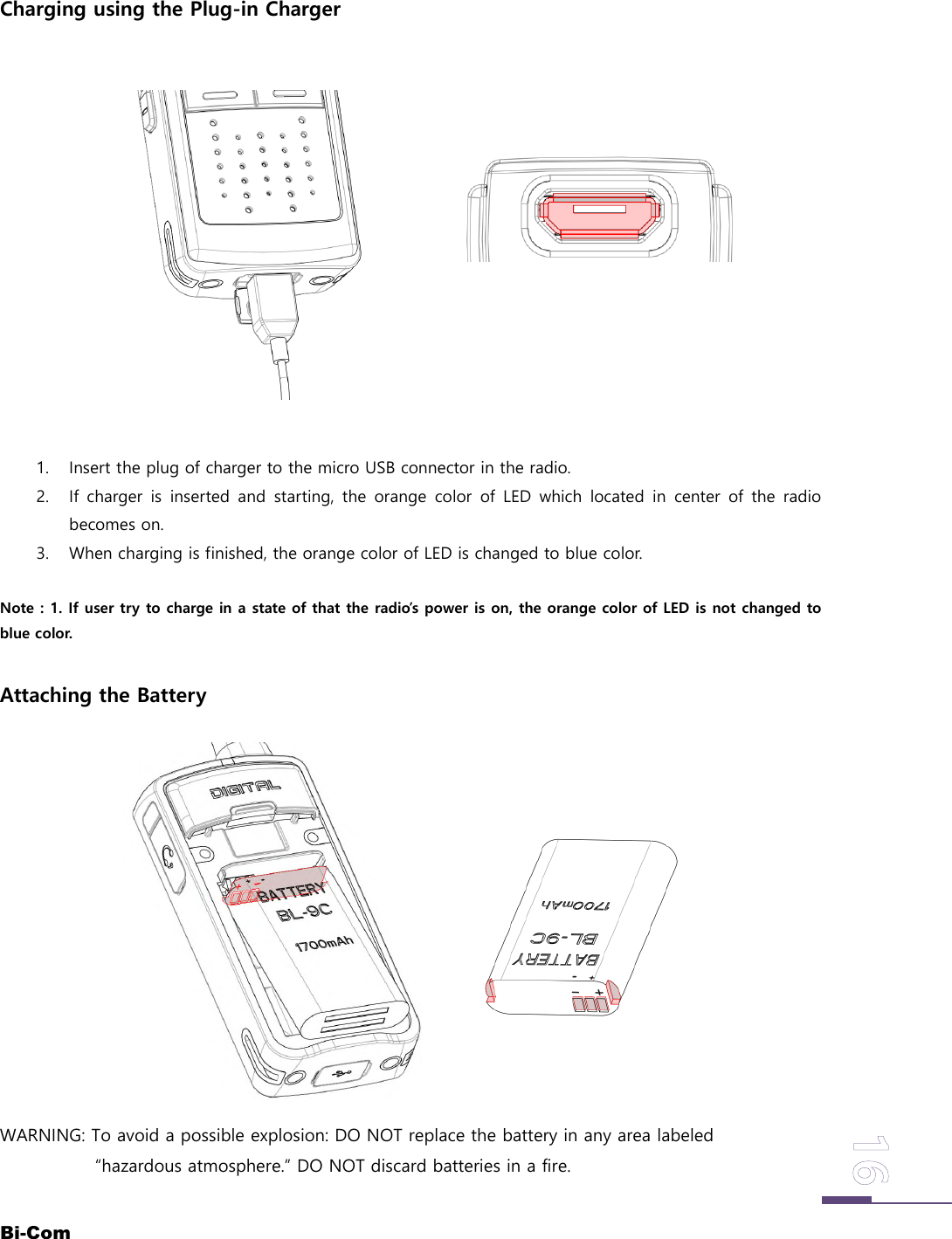
Bi-ComCharging using the Plug-in Charger1. Insert the plug of charger to the micro USB connector in the radio.2. If charger is inserted and starting, the orange color of LED which located in center of the radiobecomes on.3. When charging is finished, the orange color of LED is changed to blue color.Note : 1. If user try to charge in a state of that the radio’s power is on, the orange color of LED is not changed toblue color.Attaching the BatteryWARNING: To avoid a possible explosion: DO NOT replace the battery in any area labeled“hazardous atmosphere.” DO NOT discard batteries in a fire.
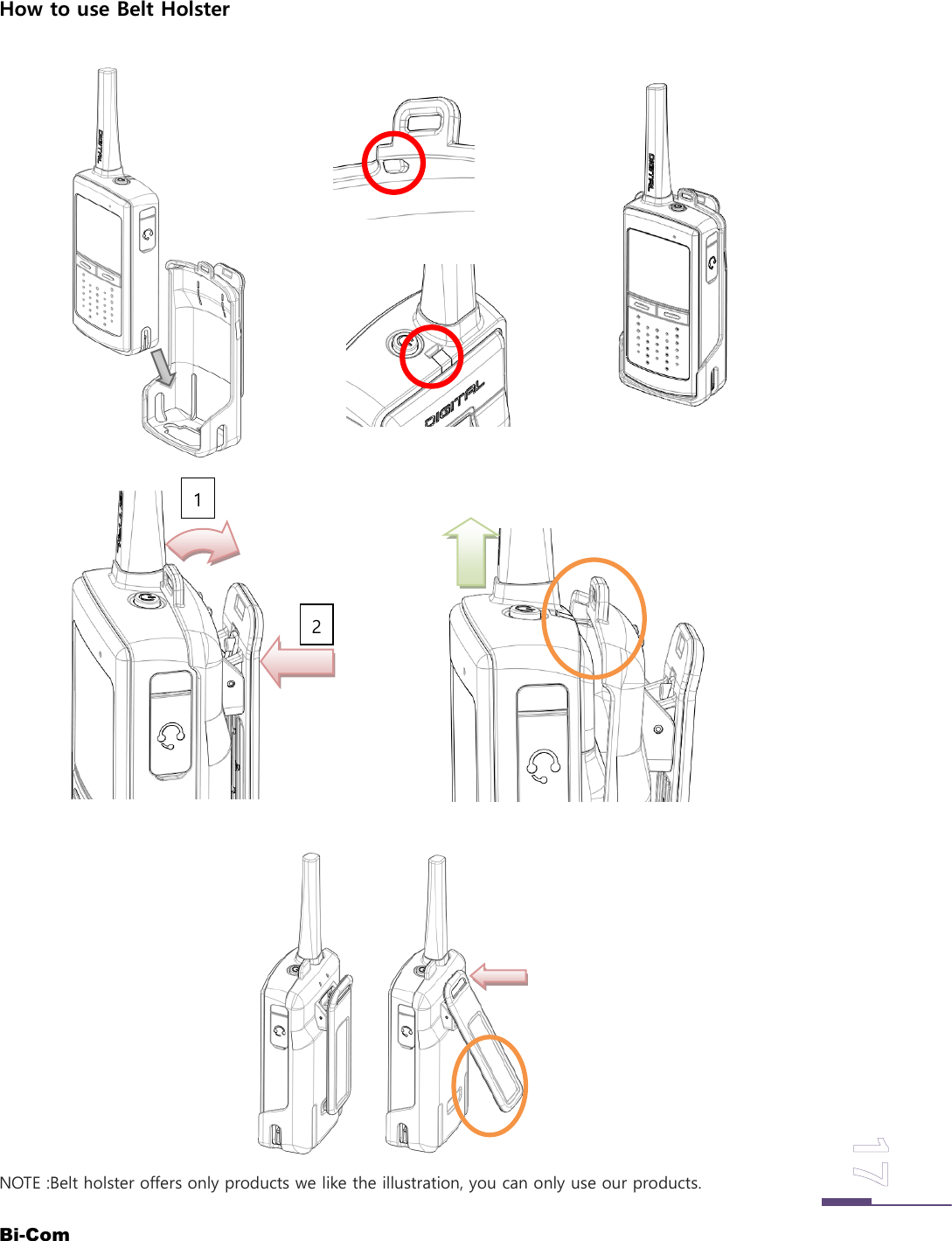
Bi-ComHow to use Belt HolsterNOTE :Belt holster offers only products we like the illustration, you can only use our products.21
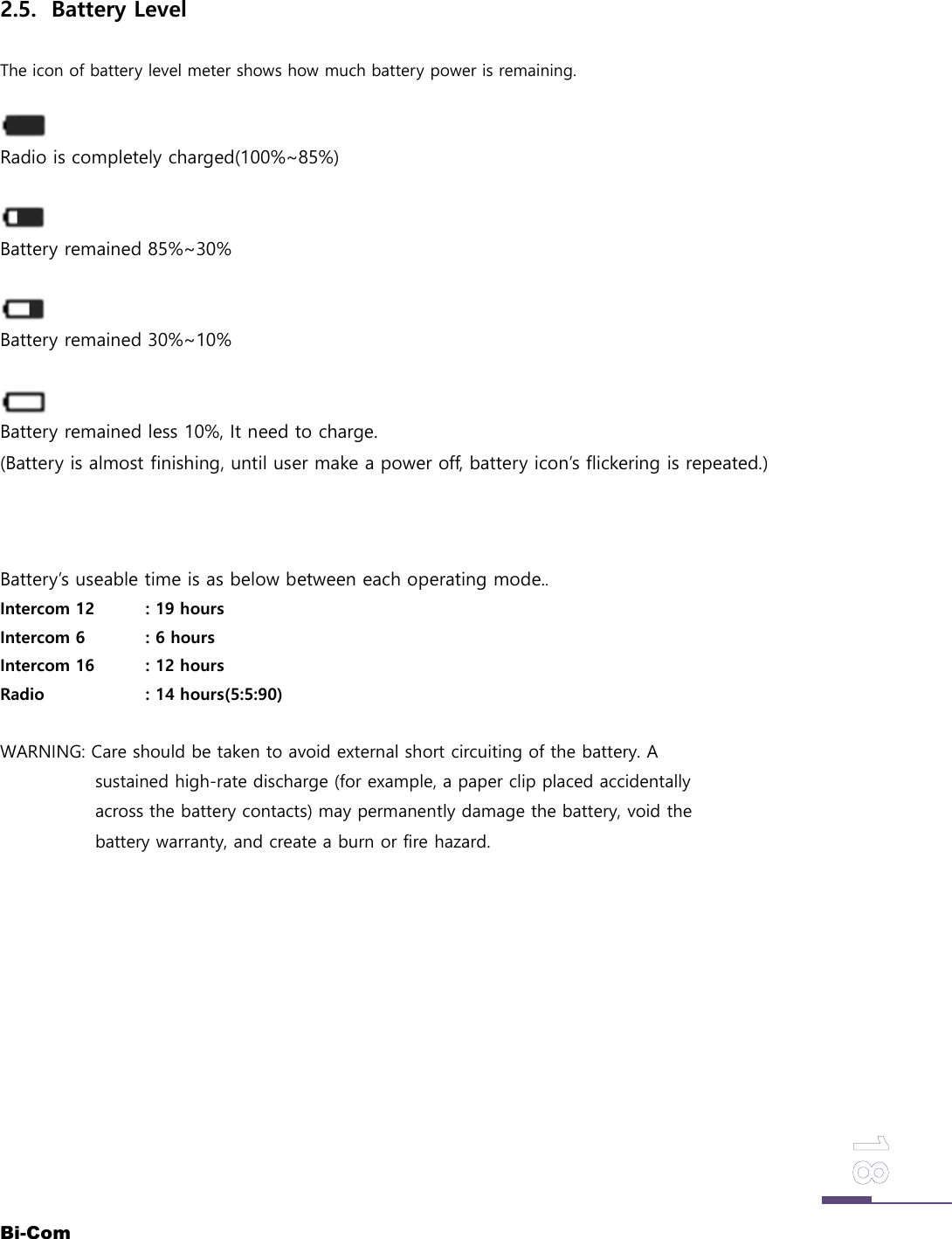
Bi-Com2.5. Battery LevelThe icon of battery level meter shows how much battery power is remaining.Radio is completely charged(100%~85%)Battery remained 85%~30%Battery remained 30%~10%Battery remained less 10%, It need to charge.(Battery is almost finishing, until user make a power off, battery icon’s flickering is repeated.)Battery’s useable time is as below between each operating mode..Intercom 12 : 19 hoursIntercom 6 : 6 hoursIntercom 16 : 12 hoursRadio : 14 hours(5:5:90)WARNING: Care should be taken to avoid external short circuiting of the battery. Asustained high-rate discharge (for example, a paper clip placed accidentallyacross the battery contacts) may permanently damage the battery, void thebattery warranty, and create a burn or fire hazard.
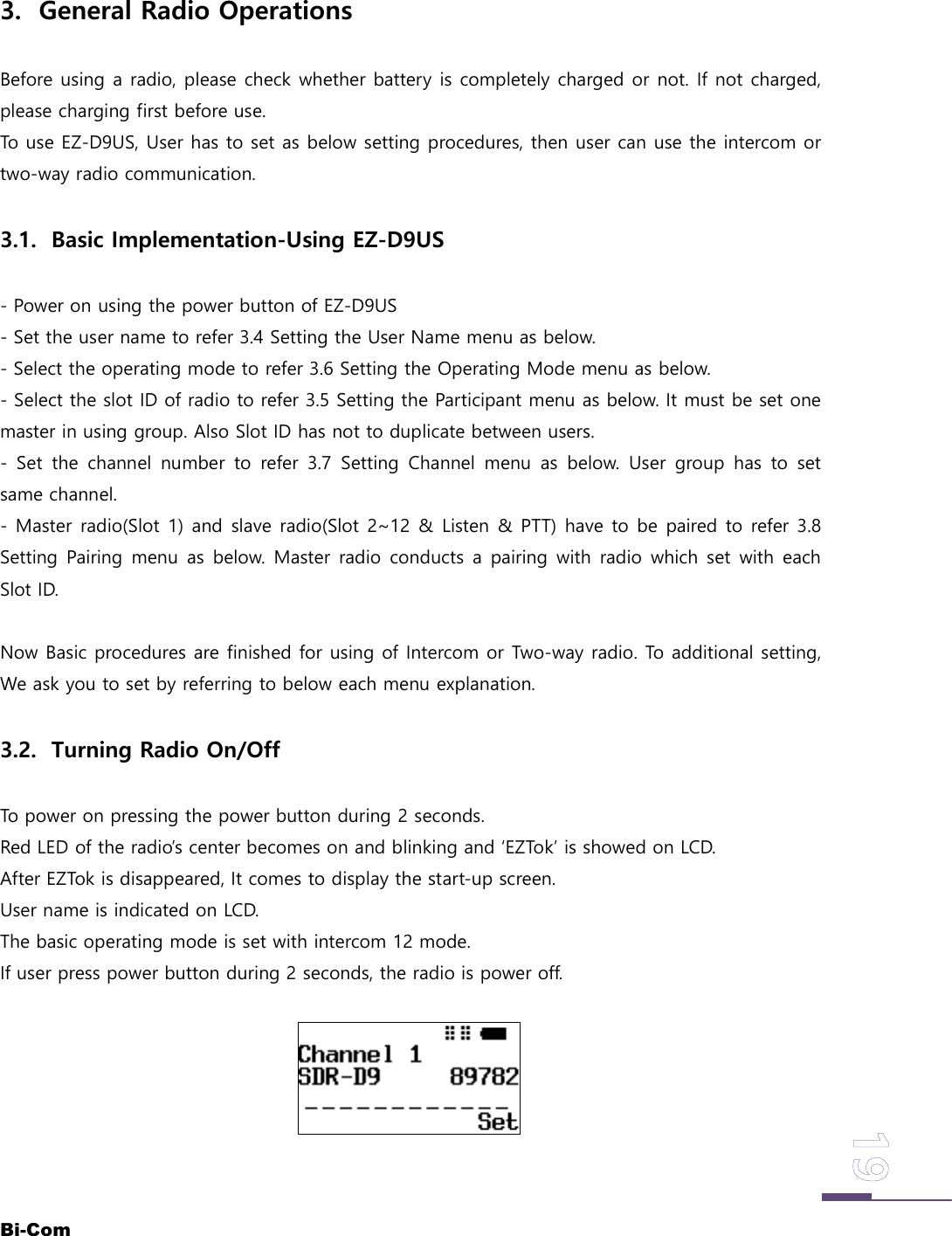
Bi-Com3. General Radio OperationsBefore using a radio, please check whether battery is completely charged or not. If not charged,please charging first before use.To use EZ-D9US, User has to set as below setting procedures, then user can use the intercom ortwo-way radio communication.3.1. Basic Implementation-Using EZ-D9US- Power on using the power button of EZ-D9US- Set the user name to refer 3.4 Setting the User Name menu as below.- Select the operating mode to refer 3.6 Setting the Operating Mode menu as below.- Select the slot ID of radio to refer 3.5 Setting the Participant menu as below. It must be set onemaster in using group. Also Slot ID has not to duplicate between users.- Set the channel number to refer 3.7 Setting Channel menu as below. User group has to setsame channel.- Master radio(Slot 1) and slave radio(Slot 2~12 & Listen & PTT) have to be paired to refer 3.8Setting Pairing menu as below. Master radio conducts a pairing with radio which set with eachSlot ID.Now Basic procedures are finished for using of Intercom or Two-way radio. To additional setting,We ask you to set by referring to below each menu explanation.3.2. Turning Radio On/OffTo power on pressing the power button during 2 seconds.Red LED of the radio’s center becomes on and blinking and ‘EZTok’ is showed on LCD.After EZTok is disappeared, It comes to display the start-up screen.User name is indicated on LCD.The basic operating mode is set with intercom 12 mode.If user press power button during 2 seconds, the radio is power off.
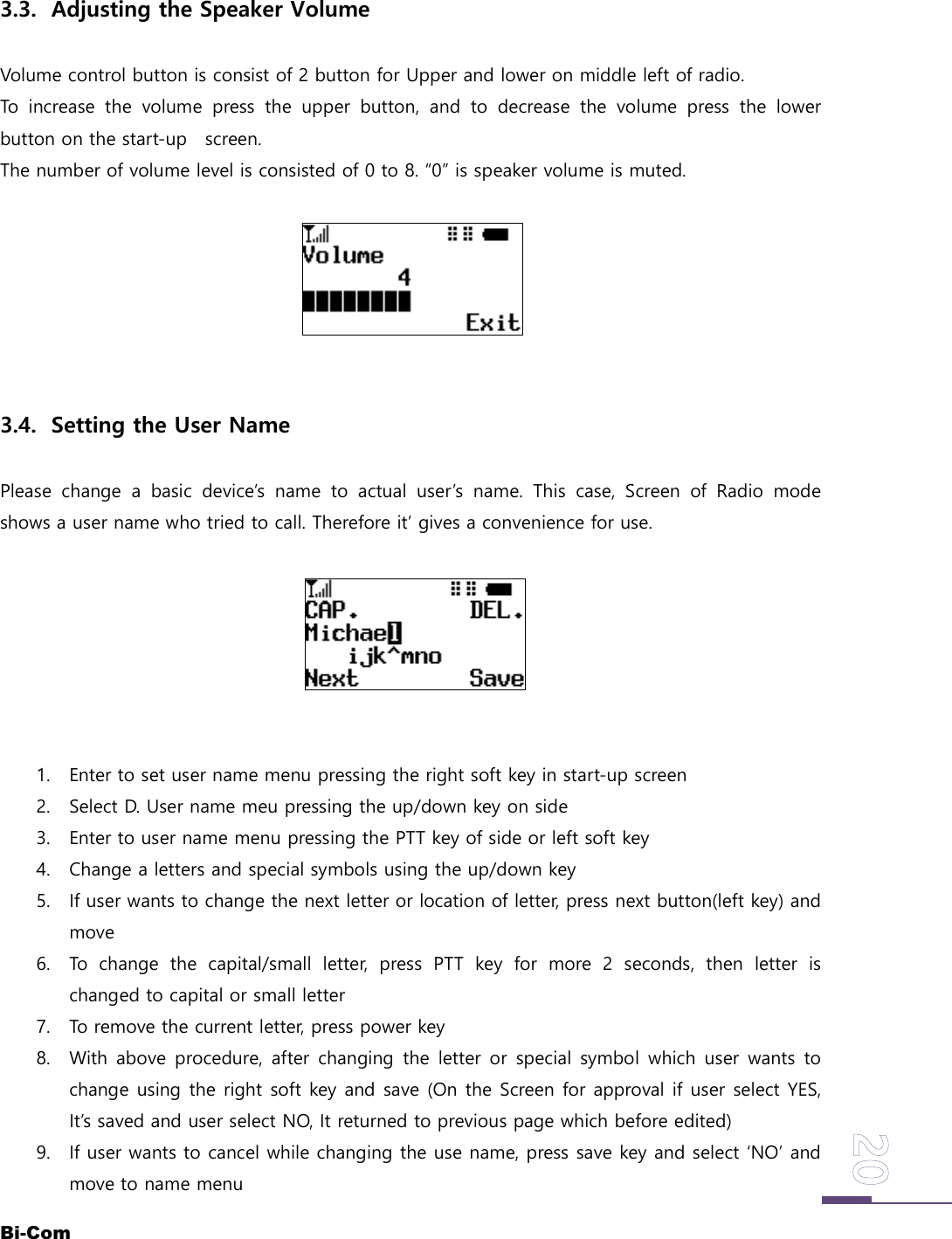
Bi-Com3.3. Adjusting the Speaker VolumeVolume control button is consist of 2 button for Upper and lower on middle left of radio.To increase the volume press the upper button, and to decrease the volume press the lowerbutton on the start-up screen.The number of volume level is consisted of 0 to 8. “0” is speaker volume is muted.3.4. Setting the User NamePlease change a basic device’s name to actual user’s name. This case, Screen of Radio modeshows a user name who tried to call. Therefore it’ gives a convenience for use.1. Enter to set user name menu pressing the right soft key in start-up screen2. Select D. User name meu pressing the up/down key on side3. Enter to user name menu pressing the PTT key of side or left soft key4. Change a letters and special symbols using the up/down key5. If user wants to change the next letter or location of letter, press next button(left key) andmove6. To change the capital/small letter, press PTT key for more 2 seconds, then letter ischanged to capital or small letter7. To remove the current letter, press power key8. With above procedure, after changing the letter or special symbol which user wants tochange using the right soft key and save (On the Screen for approval if user select YES,It’s saved and user select NO, It returned to previous page which before edited)9. If user wants to cancel while changing the use name, press save key and select ‘NO’ andmove to name menu
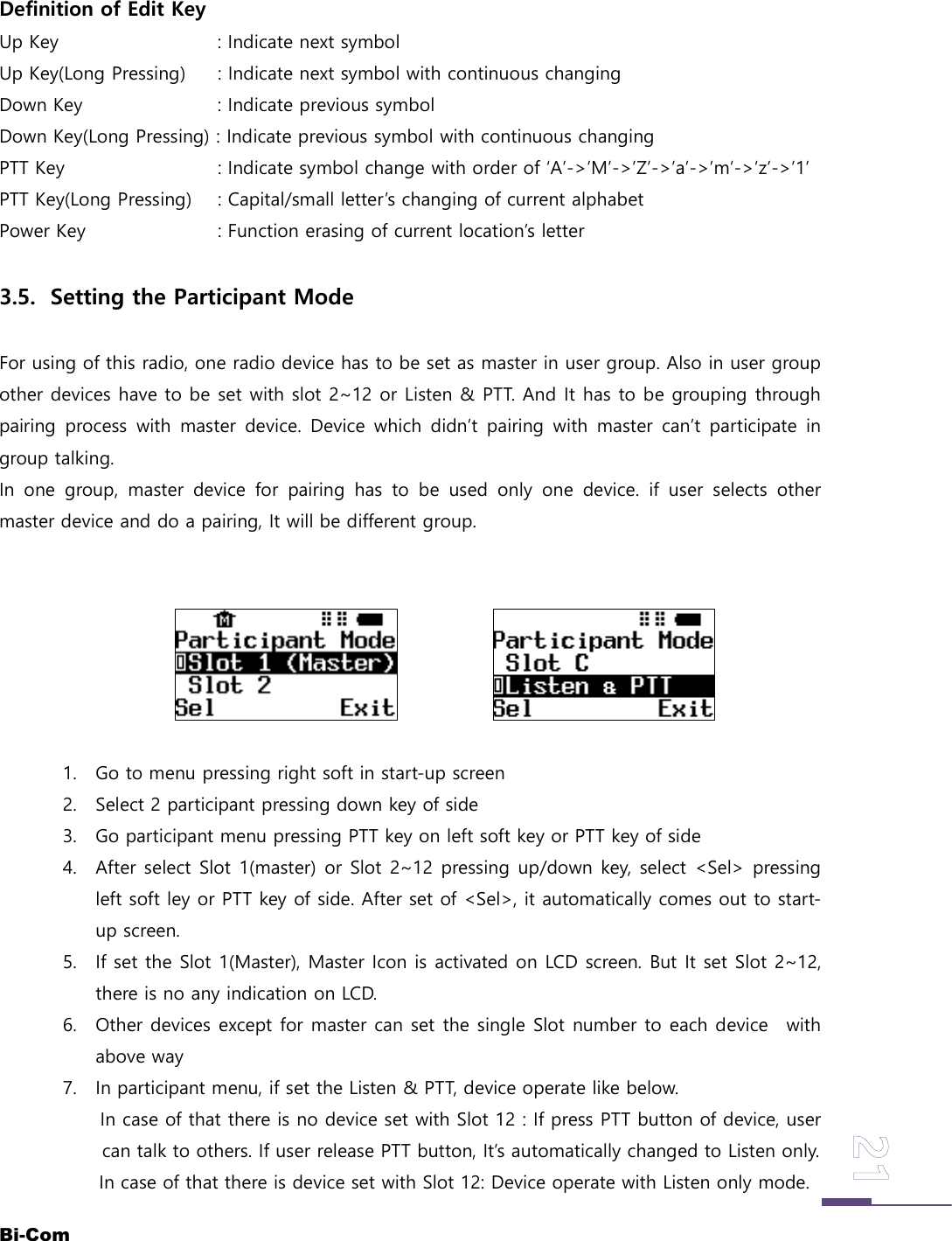
Bi-ComDefinition of Edit KeyUp Key : Indicate next symbolUp Key(Long Pressing) : Indicate next symbol with continuous changingDown Key : Indicate previous symbolDown Key(Long Pressing) : Indicate previous symbol with continuous changingPTT Key : Indicate symbol change with order of ‘A’->’M’->’Z’->’a’->’m’->’z’->’1’PTT Key(Long Pressing) : Capital/small letter’s changing of current alphabetPower Key : Function erasing of current location’s letter3.5. Setting the Participant ModeFor using of this radio, one radio device has to be set as master in user group. Also in user groupother devices have to be set with slot 2~12 or Listen & PTT. And It has to be grouping throughpairing process with master device. Device which didn’t pairing with master can’t participate ingroup talking.In one group, master device for pairing has to be used only one device. if user selects othermaster device and do a pairing, It will be different group.1. Go to menu pressing right soft in start-up screen2. Select 2 participant pressing down key of side3. Go participant menu pressing PTT key on left soft key or PTT key of side4. After select Slot 1(master) or Slot 2~12 pressing up/down key, select <Sel> pressingleft soft ley or PTT key of side. After set of <Sel>, it automatically comes out to start-up screen.5. If set the Slot 1(Master), Master Icon is activated on LCD screen. But It set Slot 2~12,there is no any indication on LCD.6. Other devices except for master can set the single Slot number to each device withabove way7. In participant menu, if set the Listen & PTT, device operate like below.In case of that there is no device set with Slot 12 : If press PTT button of device, usercan talk to others. If user release PTT button, It’s automatically changed to Listen only.In case of that there is device set with Slot 12: Device operate with Listen only mode.
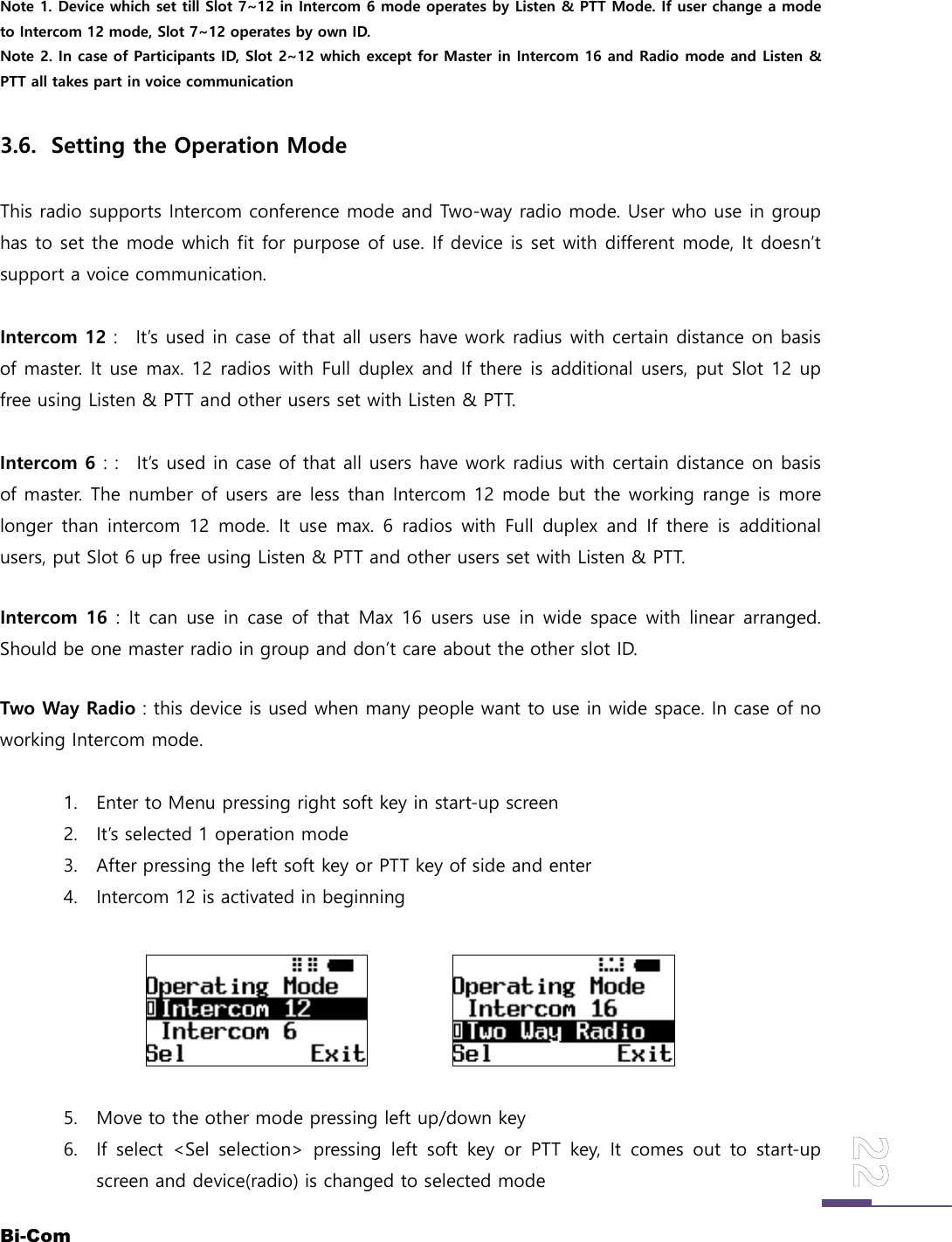
Bi-ComNote 1. Device which set till Slot 7~12 in Intercom 6 mode operates by Listen & PTT Mode. If user change a modeto Intercom 12 mode, Slot 7~12 operates by own ID.Note 2. In case of Participants ID, Slot 2~12 which except for Master in Intercom 16 and Radio mode and Listen &PTT all takes part in voice communication3.6. Setting the Operation ModeThis radio supports Intercom conference mode and Two-way radio mode. User who use in grouphas to set the mode which fit for purpose of use. If device is set with different mode, It doesn’tsupport a voice communication.Intercom 12 : It’s used in case of that all users have work radius with certain distance on basisof master. It use max. 12 radios with Full duplex and If there is additional users, put Slot 12 upfree using Listen & PTT and other users set with Listen & PTT.Intercom 6 : : It’s used in case of that all users have work radius with certain distance on basisof master. The number of users are less than Intercom 12 mode but the working range is morelonger than intercom 12 mode. It use max. 6 radios with Full duplex and If there is additionalusers, put Slot 6 up free using Listen & PTT and other users set with Listen & PTT.Intercom 16 : It can use in case of that Max 16 users use in wide space with linear arranged.Should be one master radio in group and don’t care about the other slot ID.Two Way Radio : this device is used when many people want to use in wide space. In case of noworking Intercom mode.1. Enter to Menu pressing right soft key in start-up screen2. It’s selected 1 operation mode3. After pressing the left soft key or PTT key of side and enter4. Intercom 12 is activated in beginning5. Move to the other mode pressing left up/down key6. If select <Sel selection> pressing left soft key or PTT key, It comes out to start-upscreen and device(radio) is changed to selected mode
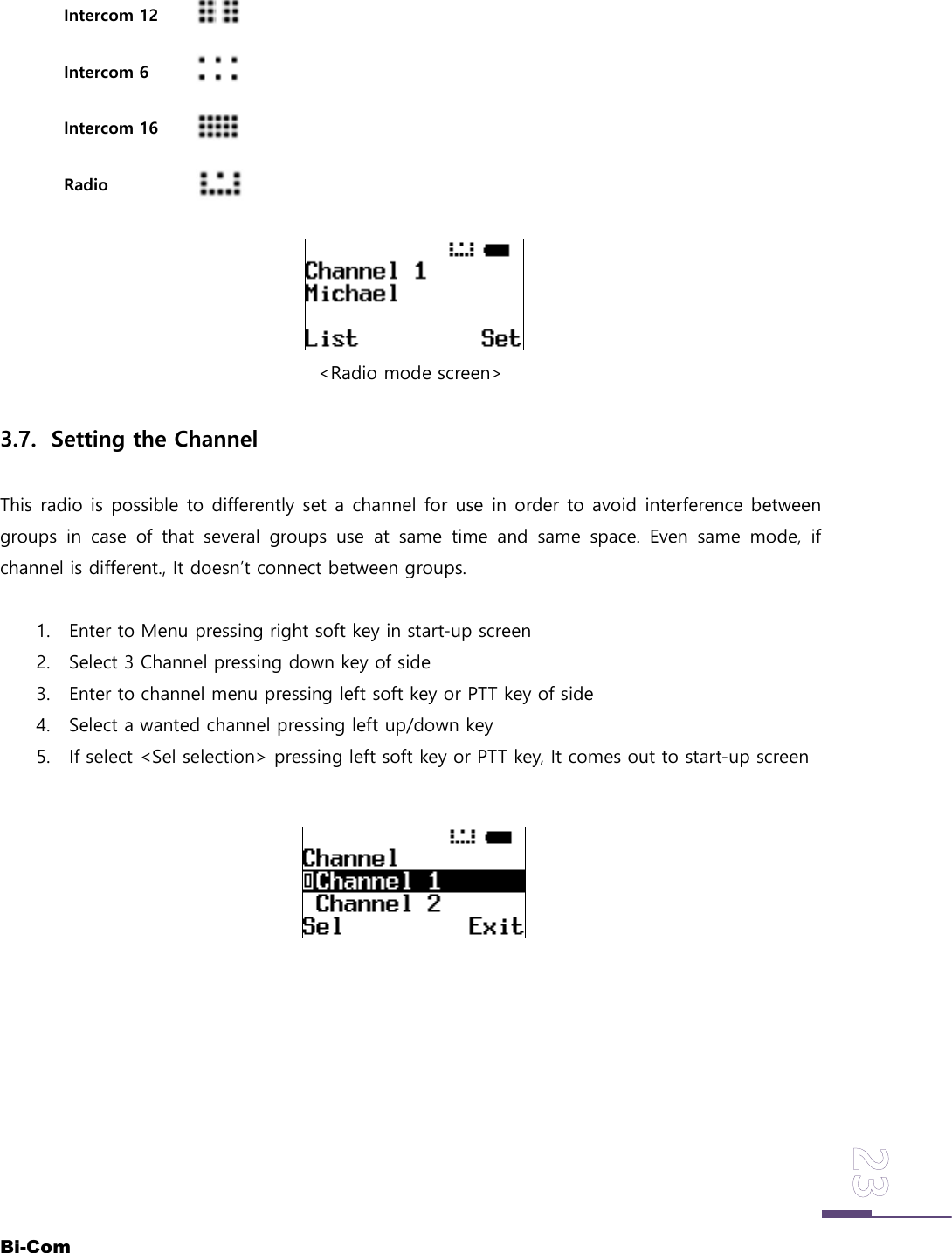
Bi-ComIntercom 12Intercom 6Intercom 16Radio<Radio mode screen>3.7. Setting the ChannelThis radio is possible to differently set a channel for use in order to avoid interference betweengroups in case of that several groups use at same time and same space. Even same mode, ifchannel is different., It doesn’t connect between groups.1. Enter to Menu pressing right soft key in start-up screen2. Select 3 Channel pressing down key of side3. Enter to channel menu pressing left soft key or PTT key of side4. Select a wanted channel pressing left up/down key5. If select <Sel selection> pressing left soft key or PTT key, It comes out to start-up screen
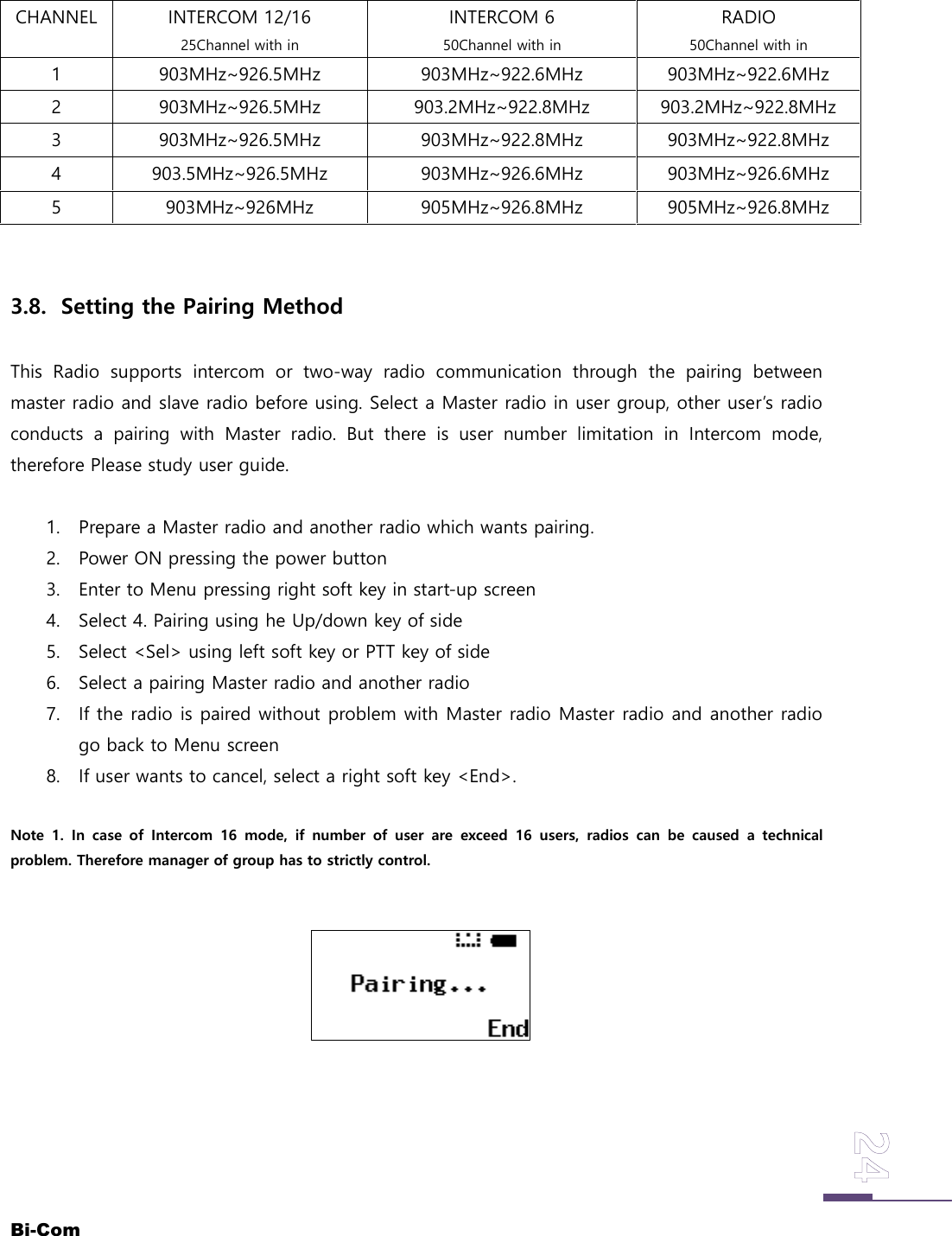
Bi-ComCHANNEL INTERCOM 12/1625Channel with inINTERCOM 650Channel with inRADIO50Channel with in1 903MHz~926.5MHz 903MHz~922.6MHz 903MHz~922.6MHz2 903MHz~926.5MHz 903.2MHz~922.8MHz 903.2MHz~922.8MHz3 903MHz~926.5MHz 903MHz~922.8MHz 903MHz~922.8MHz4 903.5MHz~926.5MHz 903MHz~926.6MHz 903MHz~926.6MHz5 903MHz~926MHz 905MHz~926.8MHz 905MHz~926.8MHz3.8. Setting the Pairing MethodThis Radio supports intercom or two-way radio communication through the pairing betweenmaster radio and slave radio before using. Select a Master radio in user group, other user’s radioconducts a pairing with Master radio. But there is user number limitation in Intercom mode,therefore Please study user guide.1. Prepare a Master radio and another radio which wants pairing.2. Power ON pressing the power button3. Enter to Menu pressing right soft key in start-up screen4. Select 4. Pairing using he Up/down key of side5. Select <Sel> using left soft key or PTT key of side6. Select a pairing Master radio and another radio7. If the radio is paired without problem with Master radio Master radio and another radiogo back to Menu screen8. If user wants to cancel, select a right soft key <End>.Note 1. In case of Intercom 16 mode, if number of user are exceed 16 users, radios can be caused a technicalproblem. Therefore manager of group has to strictly control.
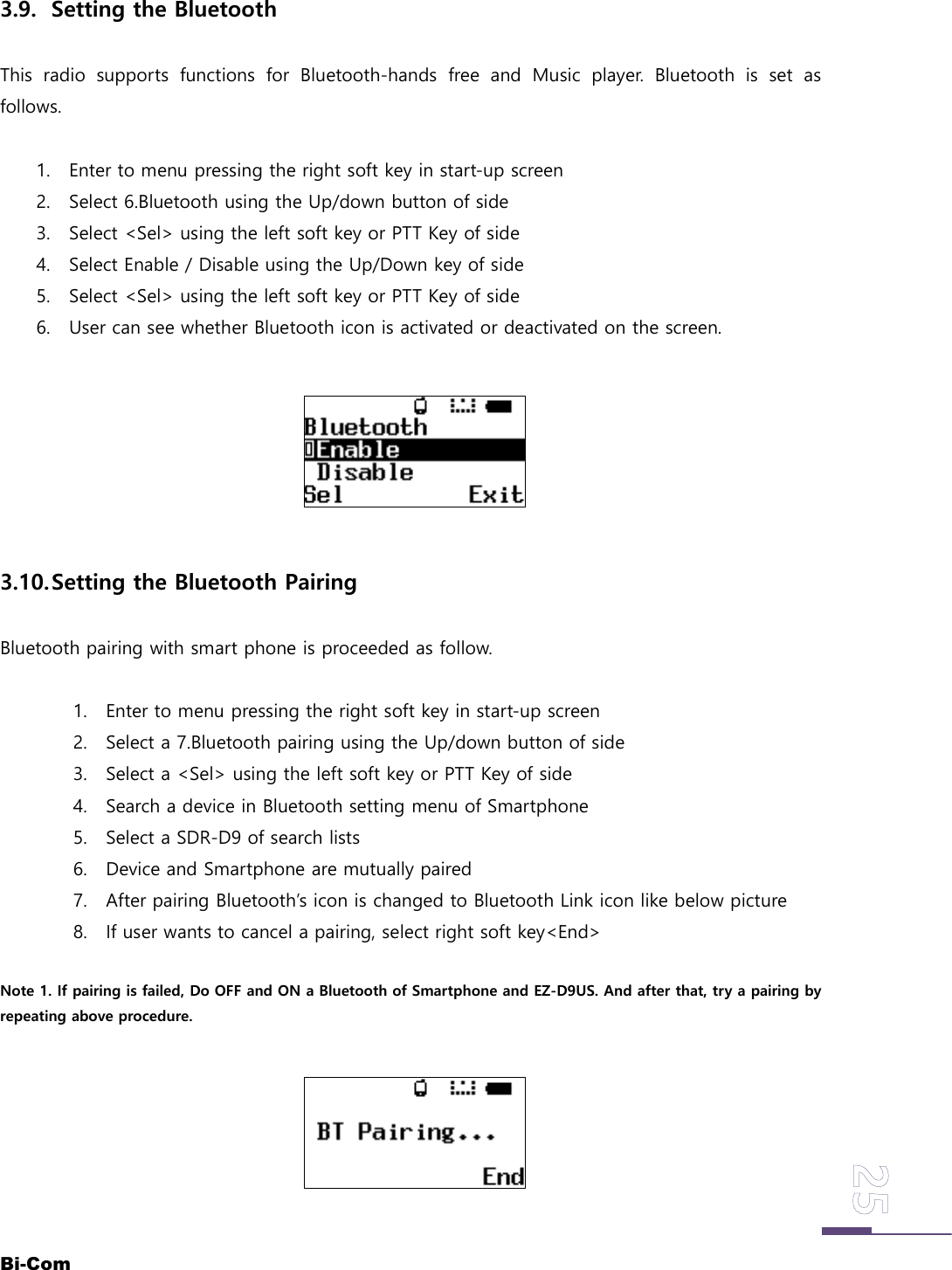
Bi-Com3.9. Setting the BluetoothThis radio supports functions for Bluetooth-hands free and Music player. Bluetooth is set asfollows.1. Enter to menu pressing the right soft key in start-up screen2. Select 6.Bluetooth using the Up/down button of side3. Select <Sel> using the left soft key or PTT Key of side4. Select Enable / Disable using the Up/Down key of side5. Select <Sel> using the left soft key or PTT Key of side6. User can see whether Bluetooth icon is activated or deactivated on the screen.3.10.Setting the Bluetooth PairingBluetooth pairing with smart phone is proceeded as follow.1. Enter to menu pressing the right soft key in start-up screen2. Select a 7.Bluetooth pairing using the Up/down button of side3. Select a <Sel> using the left soft key or PTT Key of side4. Search a device in Bluetooth setting menu of Smartphone5. Select a SDR-D9 of search lists6. Device and Smartphone are mutually paired7. After pairing Bluetooth’s icon is changed to Bluetooth Link icon like below picture8. If user wants to cancel a pairing, select right soft key<End>Note 1. If pairing is failed, Do OFF and ON a Bluetooth of Smartphone and EZ-D9US. And after that, try a pairing byrepeating above procedure.
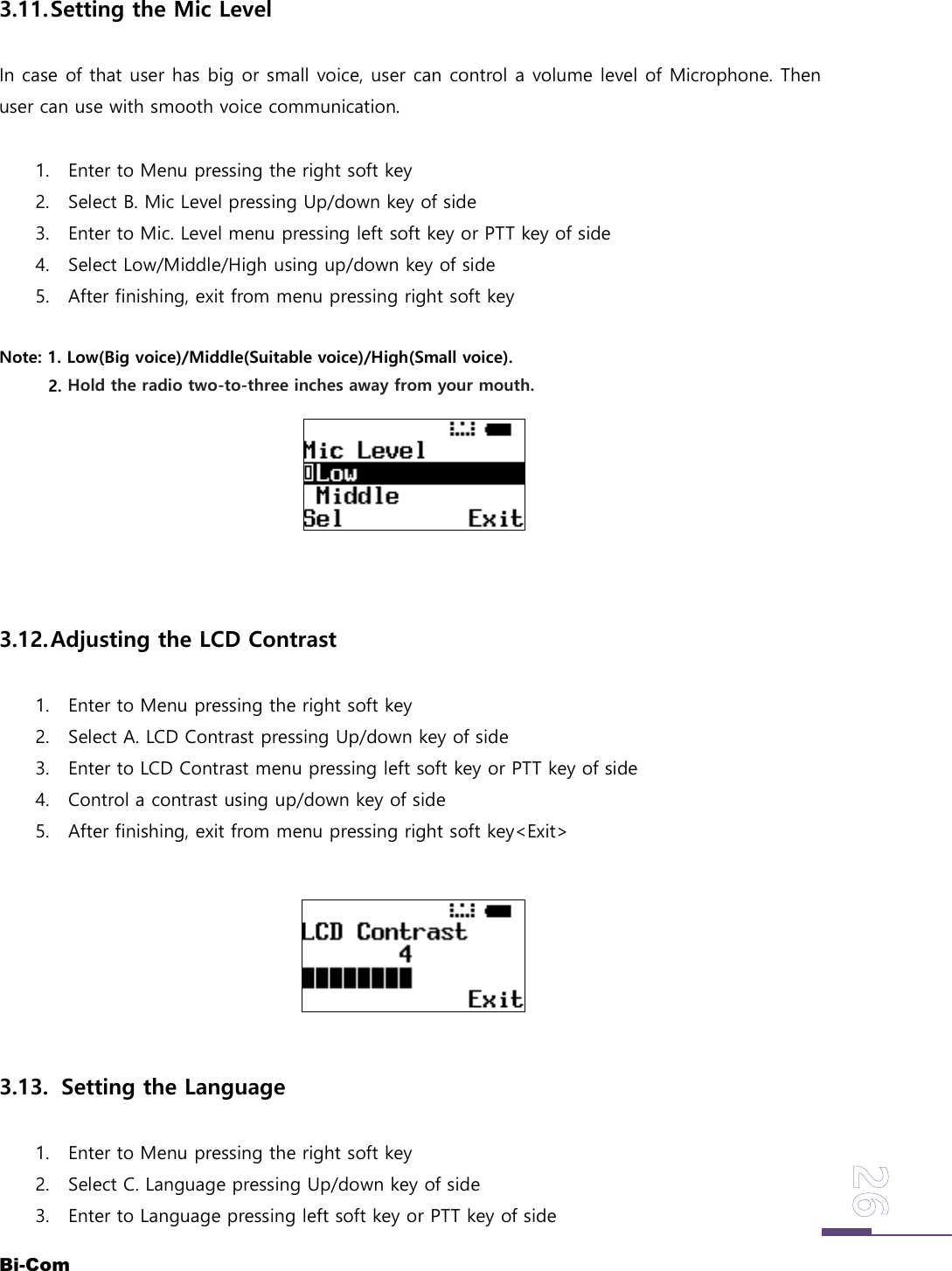
Bi-Com3.11.Setting the Mic LevelIn case of that user has big or small voice, user can control a volume level of Microphone. Thenuser can use with smooth voice communication.1. Enter to Menu pressing the right soft key2. Select B. Mic Level pressing Up/down key of side3. Enter to Mic. Level menu pressing left soft key or PTT key of side4. Select Low/Middle/High using up/down key of side5. After finishing, exit from menu pressing right soft keyNote: 1. Low(Big voice)/Middle(Suitable voice)/High(Small voice).2. Hold the radio two-to-three inches away from your mouth.3.12.Adjusting the LCD Contrast1. Enter to Menu pressing the right soft key2. Select A. LCD Contrast pressing Up/down key of side3. Enter to LCD Contrast menu pressing left soft key or PTT key of side4. Control a contrast using up/down key of side5. After finishing, exit from menu pressing right soft key<Exit>3.13. Setting the Language1. Enter to Menu pressing the right soft key2. Select C. Language pressing Up/down key of side3. Enter to Language pressing left soft key or PTT key of side
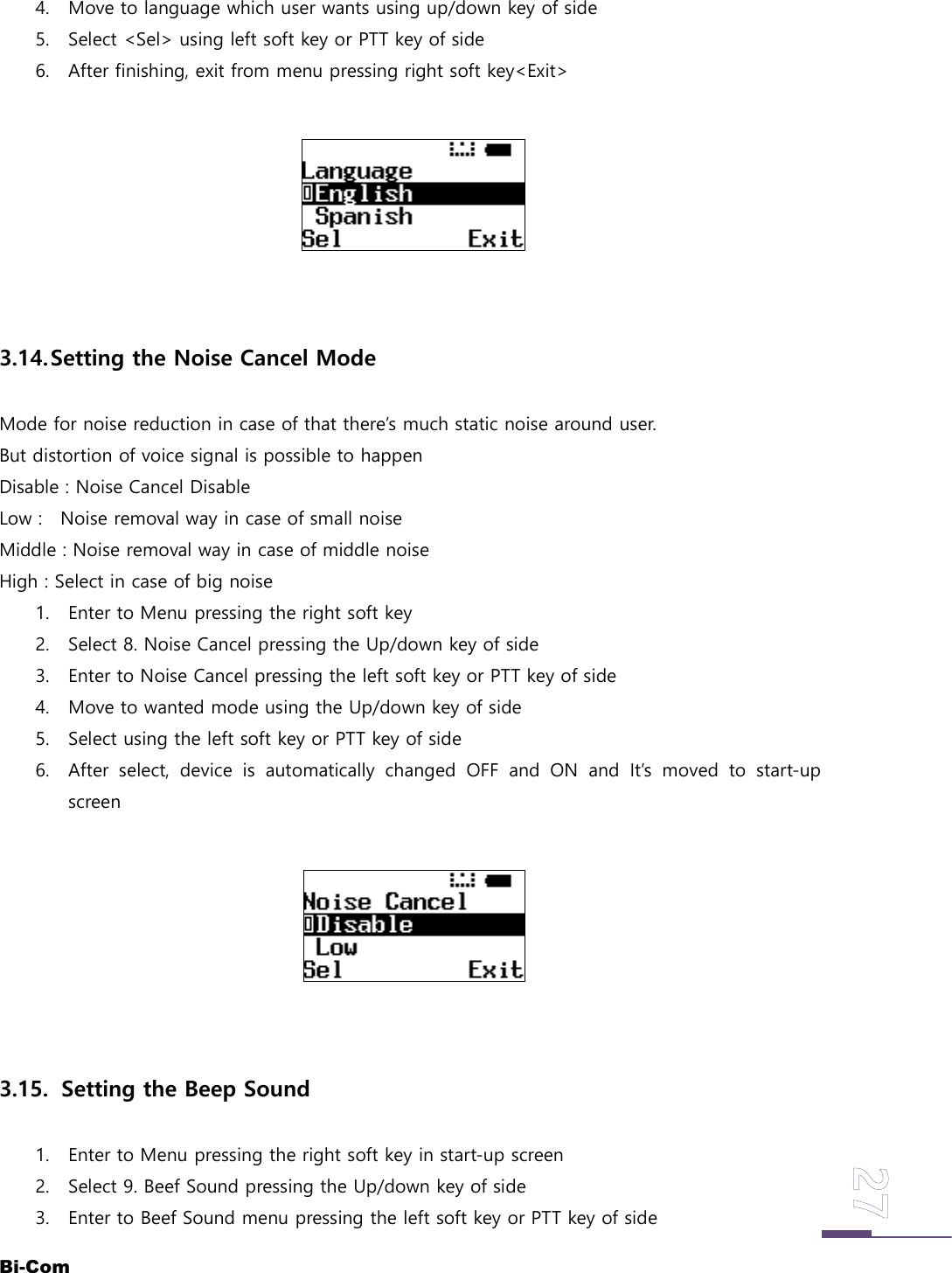
Bi-Com4. Move to language which user wants using up/down key of side5. Select <Sel> using left soft key or PTT key of side6. After finishing, exit from menu pressing right soft key<Exit>3.14.Setting the Noise Cancel ModeMode for noise reduction in case of that there’s much static noise around user.But distortion of voice signal is possible to happenDisable : Noise Cancel DisableLow : Noise removal way in case of small noiseMiddle : Noise removal way in case of middle noiseHigh : Select in case of big noise1. Enter to Menu pressing the right soft key2. Select 8. Noise Cancel pressing the Up/down key of side3. Enter to Noise Cancel pressing the left soft key or PTT key of side4. Move to wanted mode using the Up/down key of side5. Select using the left soft key or PTT key of side6. After select, device is automatically changed OFF and ON and It’s moved to start-upscreen3.15. Setting the Beep Sound1. Enter to Menu pressing the right soft key in start-up screen2. Select 9. Beef Sound pressing the Up/down key of side3. Enter to Beef Sound menu pressing the left soft key or PTT key of side
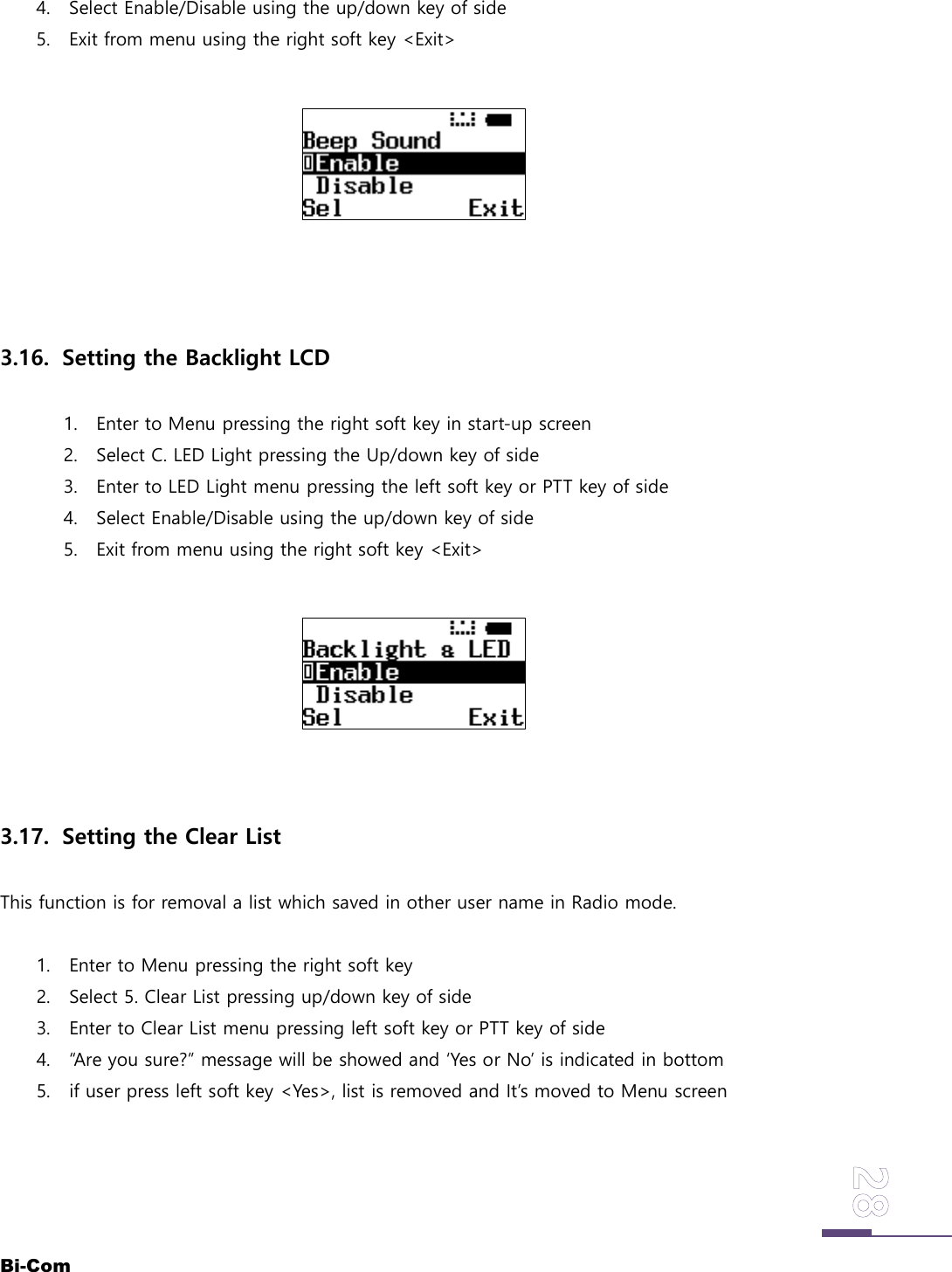
Bi-Com4. Select Enable/Disable using the up/down key of side5. Exit from menu using the right soft key <Exit>3.16. Setting the Backlight LCD1. Enter to Menu pressing the right soft key in start-up screen2. Select C. LED Light pressing the Up/down key of side3. Enter to LED Light menu pressing the left soft key or PTT key of side4. Select Enable/Disable using the up/down key of side5. Exit from menu using the right soft key <Exit>3.17. Setting the Clear ListThis function is for removal a list which saved in other user name in Radio mode.1. Enter to Menu pressing the right soft key2. Select 5. Clear List pressing up/down key of side3. Enter to Clear List menu pressing left soft key or PTT key of side4. “Are you sure?” message will be showed and ‘Yes or No’ is indicated in bottom5. if user press left soft key <Yes>, list is removed and It’s moved to Menu screen
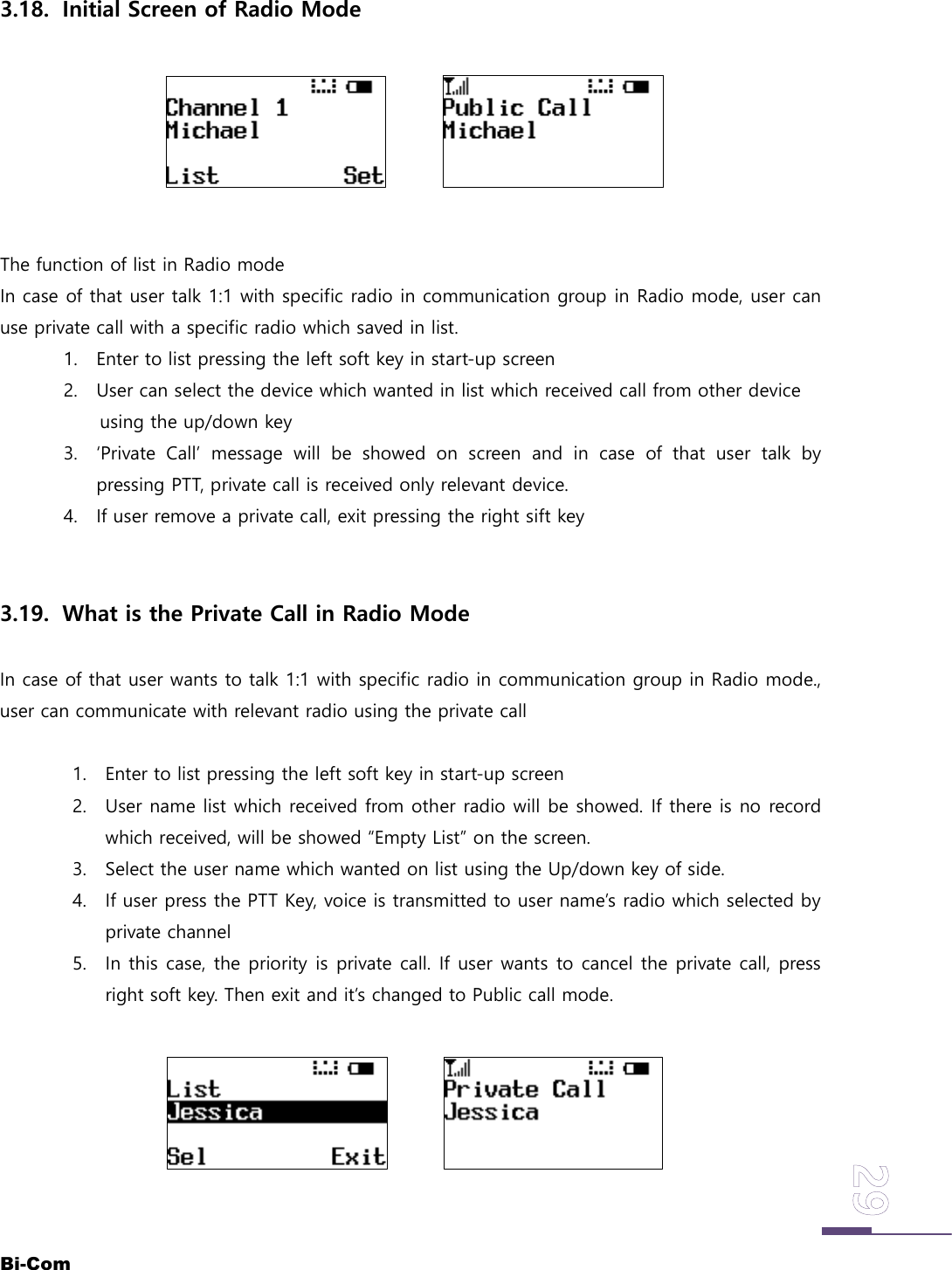
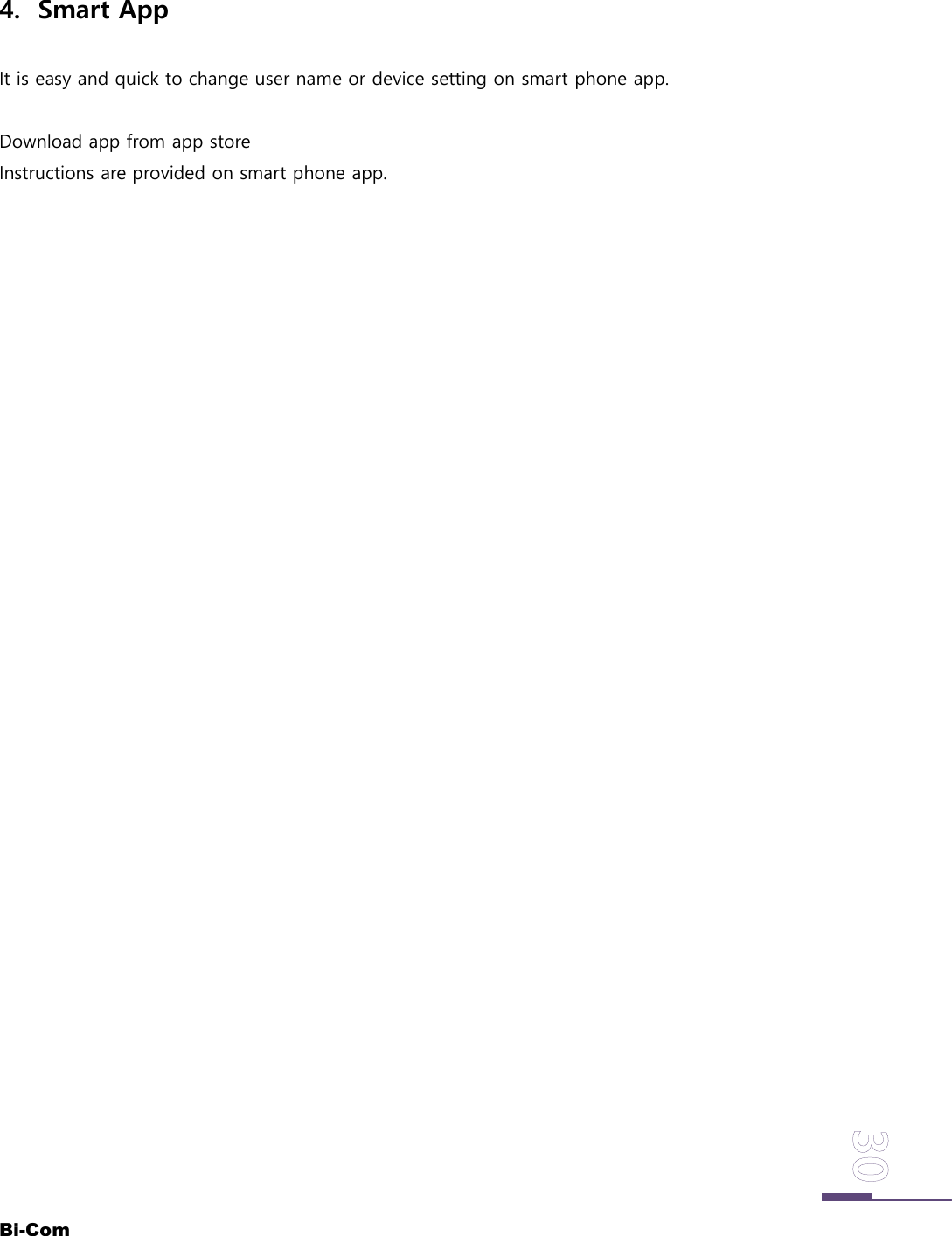
Bi-Com3.18. Initial Screen of Radio ModeThe function of list in Radio modeIn case of that user talk 1:1 with specific radio in communication group in Radio mode, user canuse private call with a specific radio which saved in list.1. Enter to list pressing the left soft key in start-up screen2. User can select the device which wanted in list which received call from other deviceusing the up/down key3. ‘Private Call’ message will be showed on screen and in case of that user talk bypressing PTT, private call is received only relevant device.4. If user remove a private call, exit pressing the right sift key3.19. What is the Private Call in Radio ModeIn case of that user wants to talk 1:1 with specific radio in communication group in Radio mode.,user can communicate with relevant radio using the private call1. Enter to list pressing the left soft key in start-up screen2. User name list which received from other radio will be showed. If there is no recordwhich received, will be showed “Empty List” on the screen.3. Select the user name which wanted on list using the Up/down key of side.4. If user press the PTT Key, voice is transmitted to user name’s radio which selected byprivate channel5. In this case, the priority is private call. If user wants to cancel the private call, pressright soft key. Then exit and it’s changed to Public call mode.
Bi-Com4. Smart AppIt is easy and quick to change user name or device setting on smart phone app.Download app from app storeInstructions are provided on smart phone app.
Bi-Com5. Troubleshooting-FAQProblem with turning on the radioIf red LED doesn’t show on the device with power button, please charge up the battery.If the device gets turned off after red LED blink, please charge the battery.Connection problem with other radiosRadios without pairing with master radio can’t be joined in a group. Try re-pairing with masterradio of the groupCheck whether the operating mode is same or not with other users in a group. It cannot beconnected with other users if it is different operating modeCheck whether the channel is same or not with other users. It cannot be connected with otherusers if it is different channel.In case of Intercom 12, It is possible to connect with condition of that radio which selected slot 1(master) radio and another one slot(slot 2~12) has to be existed in connecting range. (If only 2radios (slot 1 radio and other radio which is selected Listen & PTT) exist, It is not connected. Userneed to change a Listen & PTT setting to Slot 2 or other Slot number.)In case of Intercom 6, It’s possible to connect with condition of that radio which selected slot 1(master) radio and another one slot(slot 2~6) has to be existed in connecting range. (If only 2device (slot 1 radio and other radio which selected slot(slot7~12) or Listen & PTT) exist, It is notconnected. User need to change slot(slot7~12) or Listen & PTT setting to Slot 2 or otherslot(slot3~6)).If it does not work properly even all setting in normal mode, try it in a short distance. Longdistance might be the problem.What happens if master radio is changed to other slot number after paring with otherradios?Because it is paired between master radio before being changed to other slot number, pairingrecord is saved in master radio. So it can be communicated with other users.After pairing with A group, It paired with Master device of B group. If user wants to back toA group. How to back?Please do a pairing with same method of pairing of A group’s master device again. Then It pairedto A group once again.What happens if user use same Slot ID with other radio(Intercom 12 & Intercom 6)?
Bi-ComIn this case, two radios which use the same slot ID can be received other user’s voice. But user’svoice which has same ID is transmitted to other radios which is located in near with my radio.Also In this case, other users hear the broken voice from same slot ID users or can’t receive thevoice even nearby my radio.How can user know that user use a same Slot ID with other radio?Generally before using of group intercom, user can know the number of user in group. Forexample, assuming that there are 5 users in this event and they use an Intercom 12 mode, thenumber of users on the screen has to show the Slot ID (1,2,3,4,5) for 5 users. But if there is 4 useron screen of radio in spite of that Slot 3 is empty, someone use same ID of members. This case,group manager need to inform all group members and check each ID.What happens if my radio set as Master radio after pairing with A group’s master?Pairing information remains. So user who change to master radio can communicate with existingdevices if there is no previous master radio. If there is a previous master radio, that will behappen the problem. But if user make pairing the other device using my radio, from this time myradio can communicate paired group.If you hear cranking sound on radio mode.=>It might happen when received date is damaged by surrounding environment or long distance.Make the distance between devices short, or move to good radio signal areaIf you hear cranking sound on intercom mode.It might happen when received date is damaged by surrounding environment or long distance.Make the distance between devices short, or move to good radio signal areaBattery charging problem with desk charger using by smart phone chargerIt could happen when charging current is not enough in smart phone charger. For moreinformation, please refer to the charging section in “Charging the radio”Battery charging problem with desk charger using by USB cable connected with PCUSB cable of PC has current(electric) limit, so only battery cell is charged and radio can‘t becharged.For further information, please refer to the charging section in “Charging the radio”
Bi-ComIf you hear your own voice from your headset.Give more distance between the radios. If two radios are too close, the user can hear your voicefrom headset.Keypad doesn’t work properly.Don’t push several buttons on keypad at the same time. The radio only recognizes one buttonsequentially.If press the power key within short time, all of key go to lock and locks the function of keypad. Ifpress the power key once again, goes to unlock for all of key.Short communication distanceCheck the antenna connection if it is damaged.Don’t hold antenna or roll around the headset line.Communication distance could be short if you are surrounded by many building in city area orunder the high humidity environment.Battery dies so quick.Check the below point if the product is under warranty- Battery normally lasts 2 hours with frequently talking on radio mode.- Use the charger and AC/DC adopter provided only from the our company.- If the product is under warranty as well as battery/Adopter provided from our company areused, please contact our customer service center.=> The warranty of battery is 12 months. You have to purchase new one afterwards.

Navigation menu