BT Networks BM2001 USB BLUETOOTH DONGLE User Manual users manual
BTNetworks Co., Ltd. USB BLUETOOTH DONGLE users manual
users manual
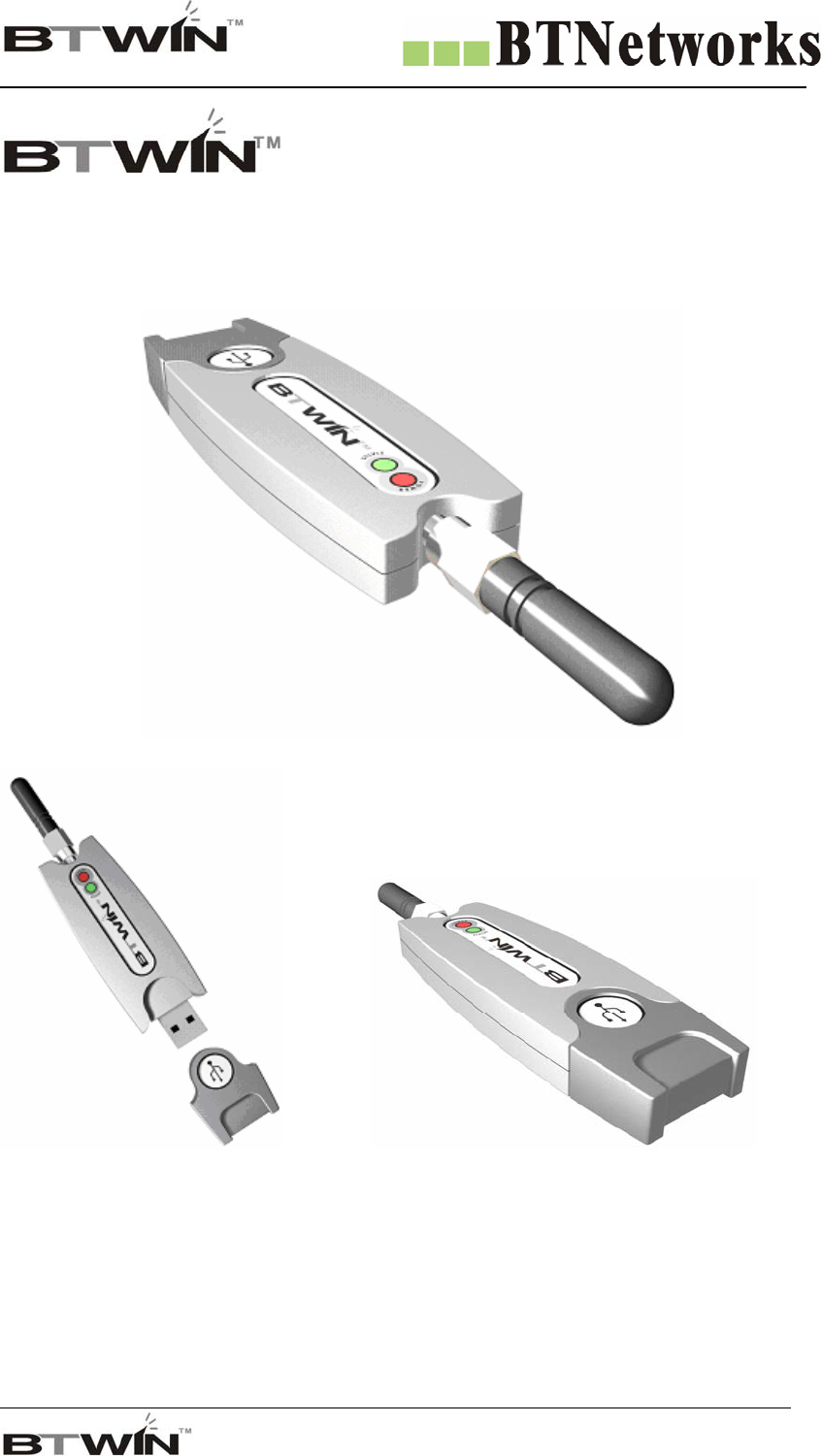
Wireless Total Solution Company
For your Free Bluetooth USB Adapter BM2001 User’s Guide
1
BTWIN™ is a Trademark of BTNetworks.
BM2001 (Bluetooth USB Adapter) User’s Guide
BTNetworks Co., LTD 2005 08.30 Ver 3.0

Wireless Total Solution Company
For your Free Bluetooth USB Adapter BM2001 User’s Guide
2
Table of Contents
1 Introduction (Model: BM2001) 4
2 Bluetooth USB Adapter & Bluetooth USB Dongle 6
3 What is the Bluetooth USB Adapter? 6
4 External View 7
5 Contents of Package 8
6 Antenna Configuration Scenario 9
7 Specification 9
8 About the DIP Switch 10
8.1 Function select switch 10
8.2 Baud Rate Switch 10
9 Function Select Switch 11
9.1 Select the Role (MASTER / SLAVE) 11
9.2 Select the Mode 12
10 Set the Baud Rate 13
11 LED / Reset Switch 14
11.1 Power indication LED / Status indication LED 14
11.2 Reset Switch 14
12 Power Consumption 14
13 The Bluetooth Communication with BM2001 15
14 Install the BM2001 device driver 16
14.1 Windows 98 & Windows 2000 16
14.2 Windows XP 21
15 Remove the BTWIN BM2001 USB Adapter driver 25
16 Set COM Port for BM2001 USB Adapter 26
16.1 Windows 98 26

Wireless Total Solution Company
For your Free Bluetooth USB Adapter BM2001 User’s Guide
3
16.2 Windows 2000 & XP 27
17 DIP-Switch Configuration Mode 29
17.1 Check on default setting before testing BM2001 29
17.2 Communication Test at 9600 bps (default Setting) 29
17.2 Communication Test at 115,200 bps (change the baud rate) 32
18 PC Configuration Mode 35
18.1 Pre Setting before using the PC Configuration Mode 35
18.2 How to use the PC Configuration Mode 37
19 Operating Modes 45
19.1 MODE 1 45
19.2 MODE 2 45
19.3 MODE 3 47

Wireless Total Solution Company
For your Free Bluetooth USB Adapter BM2001 User’s Guide
4
1. Introduction (Model: BM2001)
Bluetooth USB Adapter, BM2001 is product that is developed, designed and produced by BTNetworks. It
is able to replacement standard RS232 cable perfectly.
Bluetooth communication’s security is very strong because it use the frequency hopping
and 128bit encryption in 2.4Ghz frequency range.
Hardware setting is very easy and simple.
- The maintenance is very convenience.
- One pair of BM2001 will try to connect automatically whenever power up.
It needs an installing for the USB device driver.
- Doesn’t need to install the application software.
You can choice various configurations with DIP Switch (In DIP-Switch mode)
- Set Baud Rate (1,200 bps ~ 115,200 bps)
- Set the Role as Master or Slave
- Select Mode: DIP-Switch Configuration mode or PC configuration mode
BM2001 doesn’t need the external power because it use the power of PC’s USB port

Wireless Total Solution Company
For your Free Bluetooth USB Adapter BM2001 User’s Guide
5
Default Setting (Factory Setting) & explain the each mode.
Part DIP Switch Configuration Mode PC Configuration Mode
Set device name
Set Pin Code
View Local BD Address
Set Baud rate Set Remote BD Address
Variable Select Role Select Role (Master/ Slave)
Values - Master Search for bluetooth device and
- Slave Connect new device
Select Mode Set Baud rate
- DIP Switch Mode Set Stop bit
- PC Configuration Mode Set Parity bit
Set Hardware flow control
You can set up the value with
HyperTerminal program of Windows.
Ramark
When connect other bluetooth device,
Using this mode.
DIP Switch Mode is the default
Setting.
Baud rate = 9600 bps Device Name = BTNetworks
Data Bit = 8 Bit PIN Code = BTWIN
Default Stop Bit =1 Bit Operating Mode = MODE1
Setting Parity Bit =No Parity Bit Baud rate = 9600 bps
Hardware flow Control = None Data Bit = 8 Bit
Role = MASTER or SLAVE Stop Bit =1 Bit
Parity Bit =No Parity Bit
Hardware flow Control = None
ROLE = MASTER
Wireless Total Solution Company
For your Free Bluetooth USB Adapter BM2001 User’s Guide
6
2. Bluetooth USB Adapter & Bluetooth USB Dongle.
Part Bluetooth USB Adapter USB Dongle
Hardware View Bluetooth Serial Adapter is added
USB TO Serial Converter feature.
Software View Bluetooth Module includes
running software.
Bluetooth Application
software works on the PC.
Device driver Need Need
Application Software Don’t need Need
Bluetooth Support Profile SPP SPP, PAN, DUN, LAN, HID etc
3. What is the Bluetooth USB Adapter?
Bluetooth USB Adapter is a Bluetooth Serial Adapter plus USB to Serial converter feature.
But it is not a USB dongle. It doesn’t need an application software like a BTW of Widcomm.
Wireless Total Solution Company
For your Free Bluetooth USB Adapter BM2001 User’s Guide
7
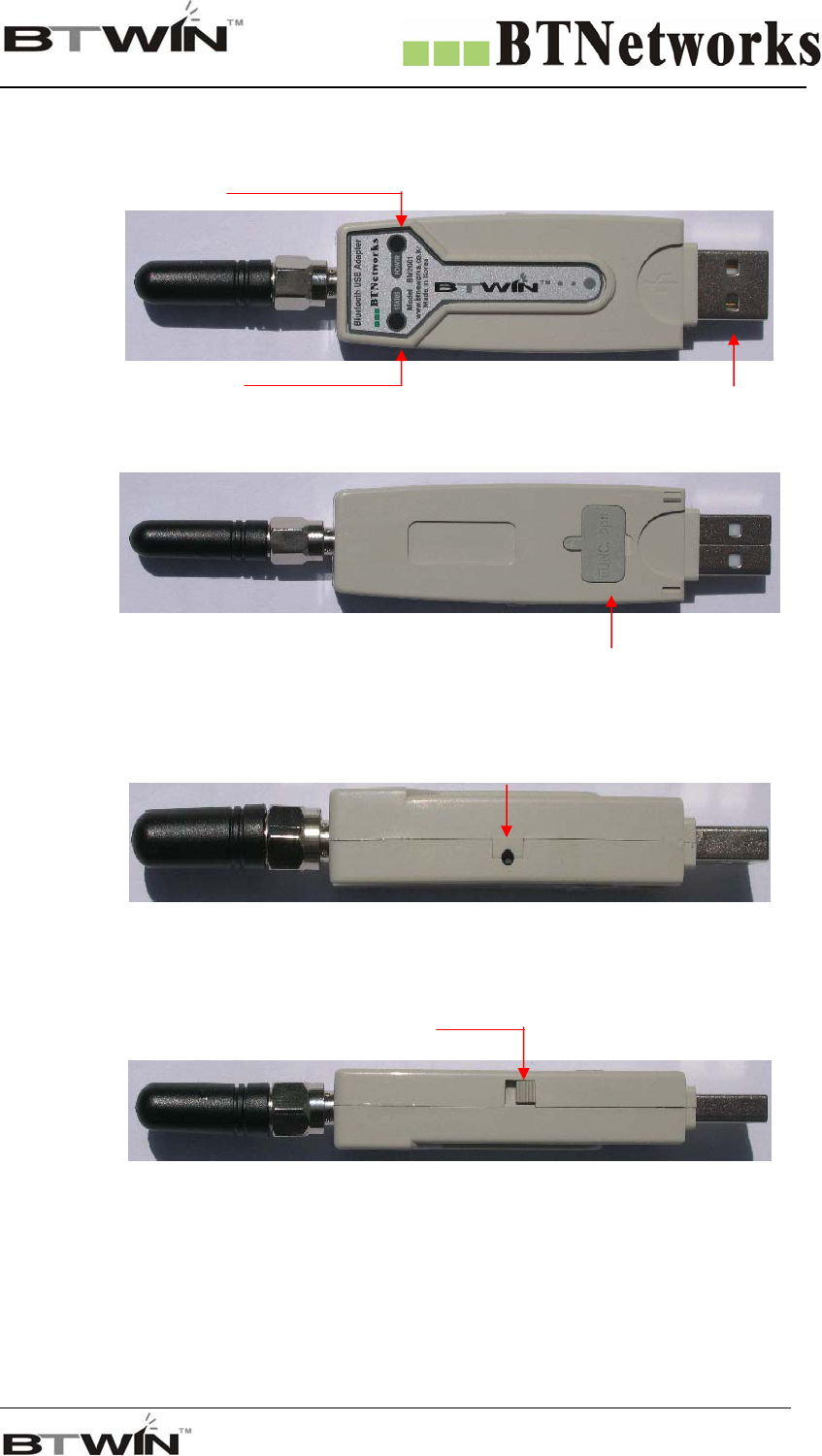
4. External View
Power LED
<TOP View>
<Bottom View> DIP Switch Cover
<Left View>
<Right View>
Reset Switch
Power Switch
USB Port
Status LED
Wireless Total Solution Company
For your Free Bluetooth USB Adapter BM2001 User’s Guide
8
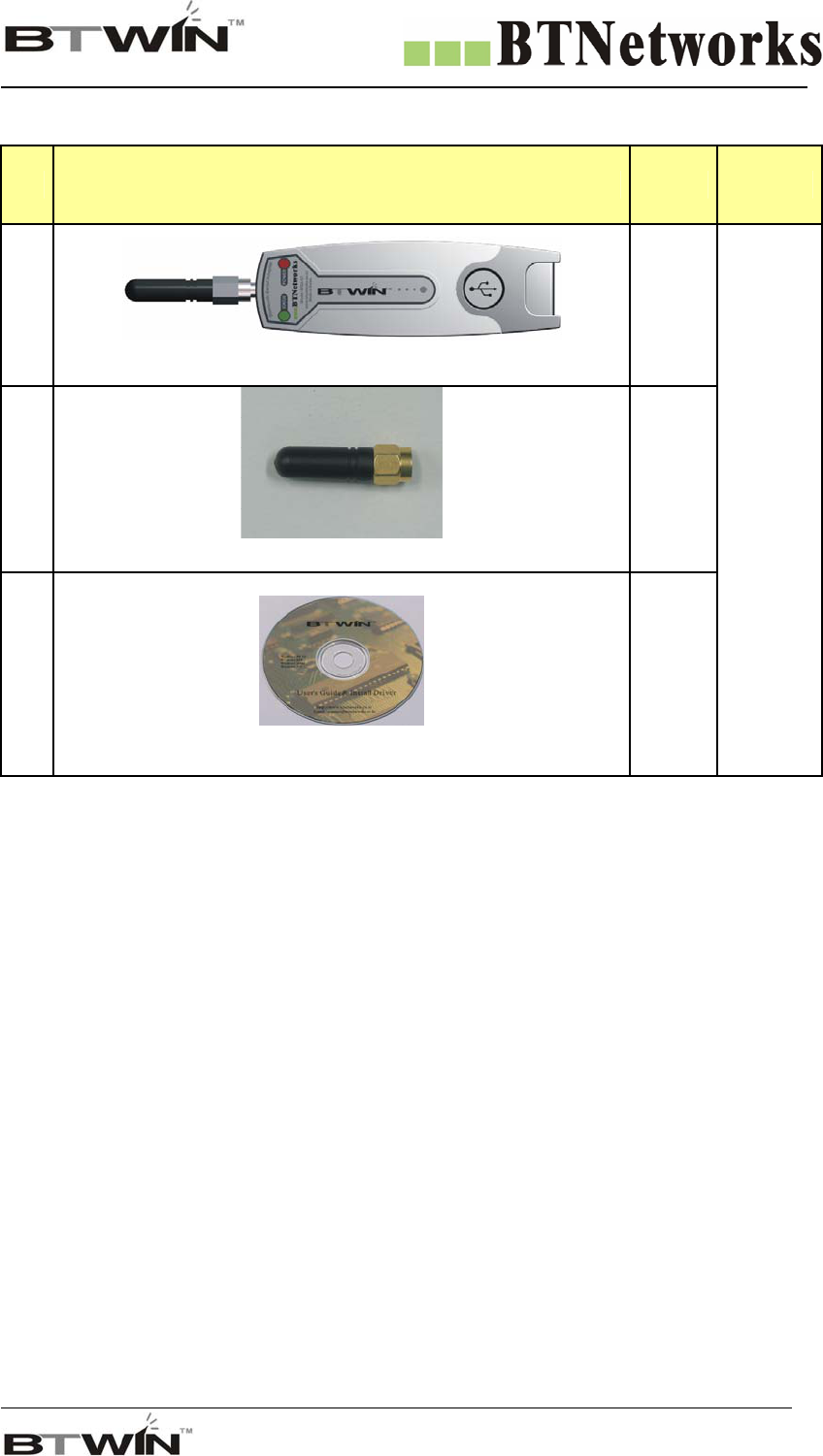
5. Contents of Package
No Picture Qty Ramark
1
BM2001
2
2
External Antenna (2.5 dB)
2
3
BTWIN™ BM2001User’s Guide CD
1
Default
Wireless Total Solution Company
For your Free Bluetooth USB Adapter BM2001 User’s Guide
9
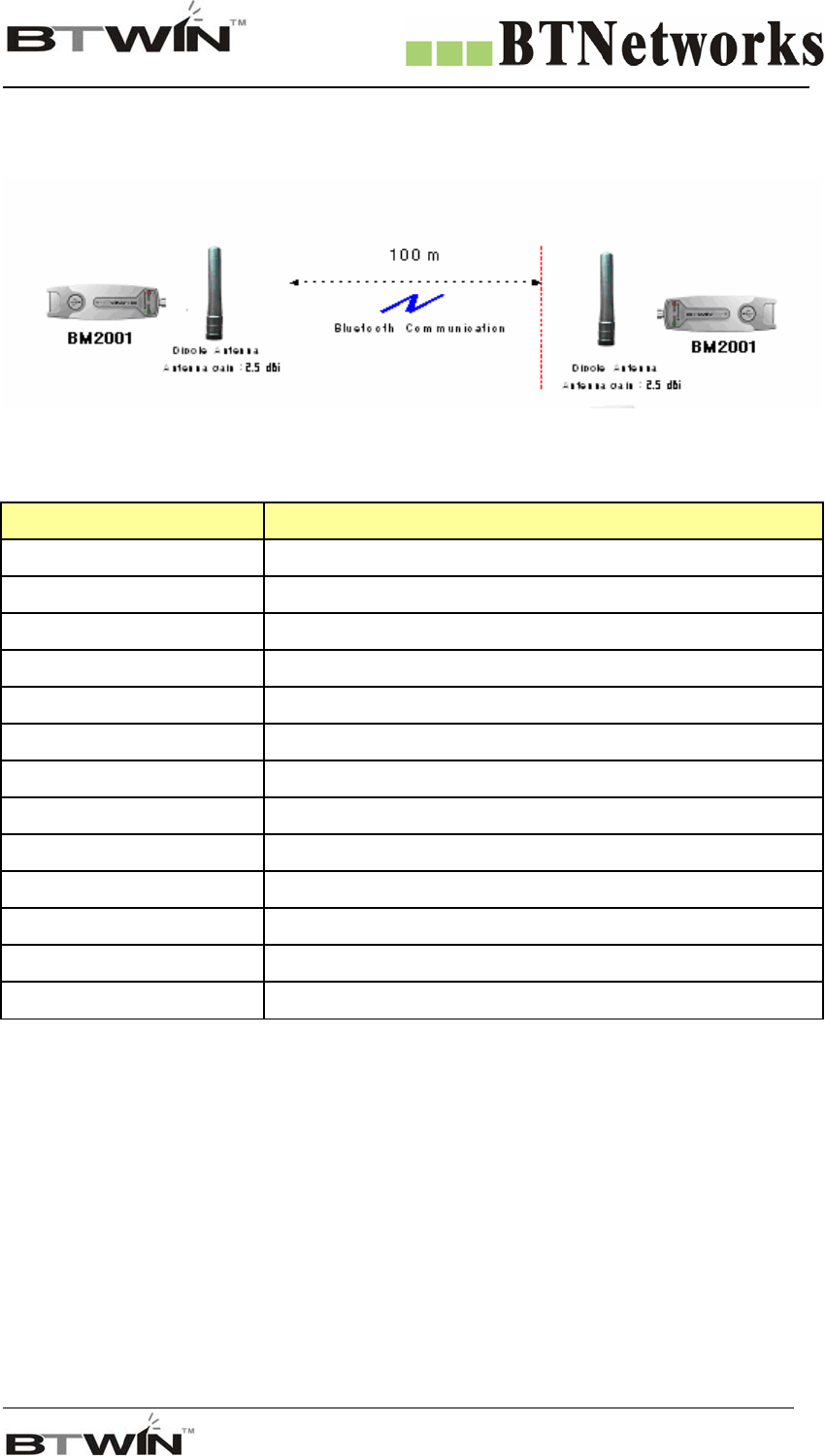
6. Antenna Configuration Scenario
7. Specification
Part Specification
Bluetooth Spec Bluetooth Specification V1.1
Communication distance 100 M
Frequency Range 2.4 GHz ISM Band
Sensitivity -83dBm (Typical)
Transmit Power 12dBm (Typical)
Size 66 * 31 mm
Support Bluetooth Profile SPP
Input Power 4 - 12 V
Current Consumption Maximum 100 mA
Operating Temperature -10 ~ 70℃℃
Communication Speed 1,200bps ~ 115,200bps
Antenna Dipole Antenna (2.5 dB)
PC interface USB
Wireless Total Solution Company
For your Free Bluetooth USB Adapter BM2001 User’s Guide
10
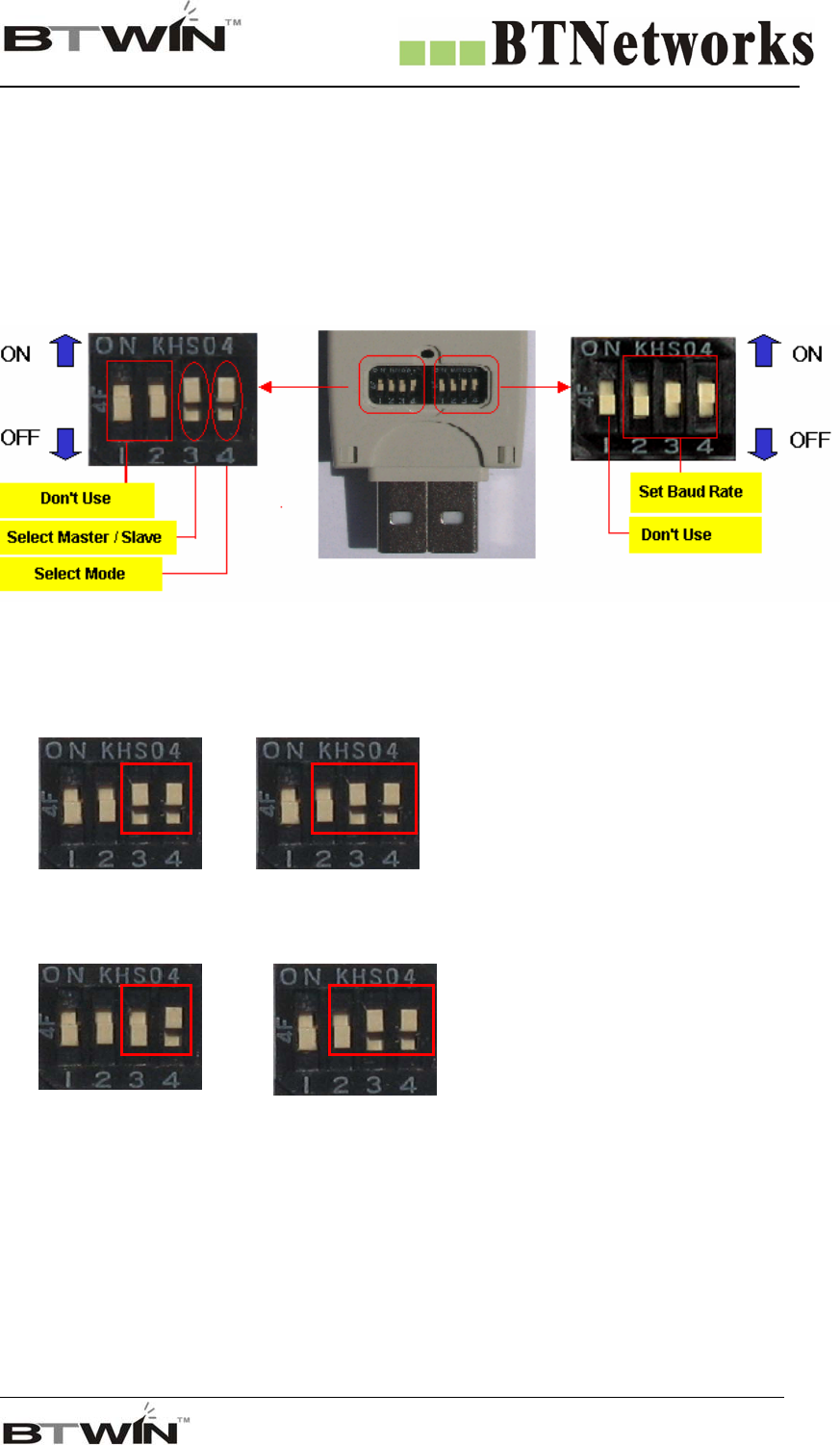
8. About the DIP Switch
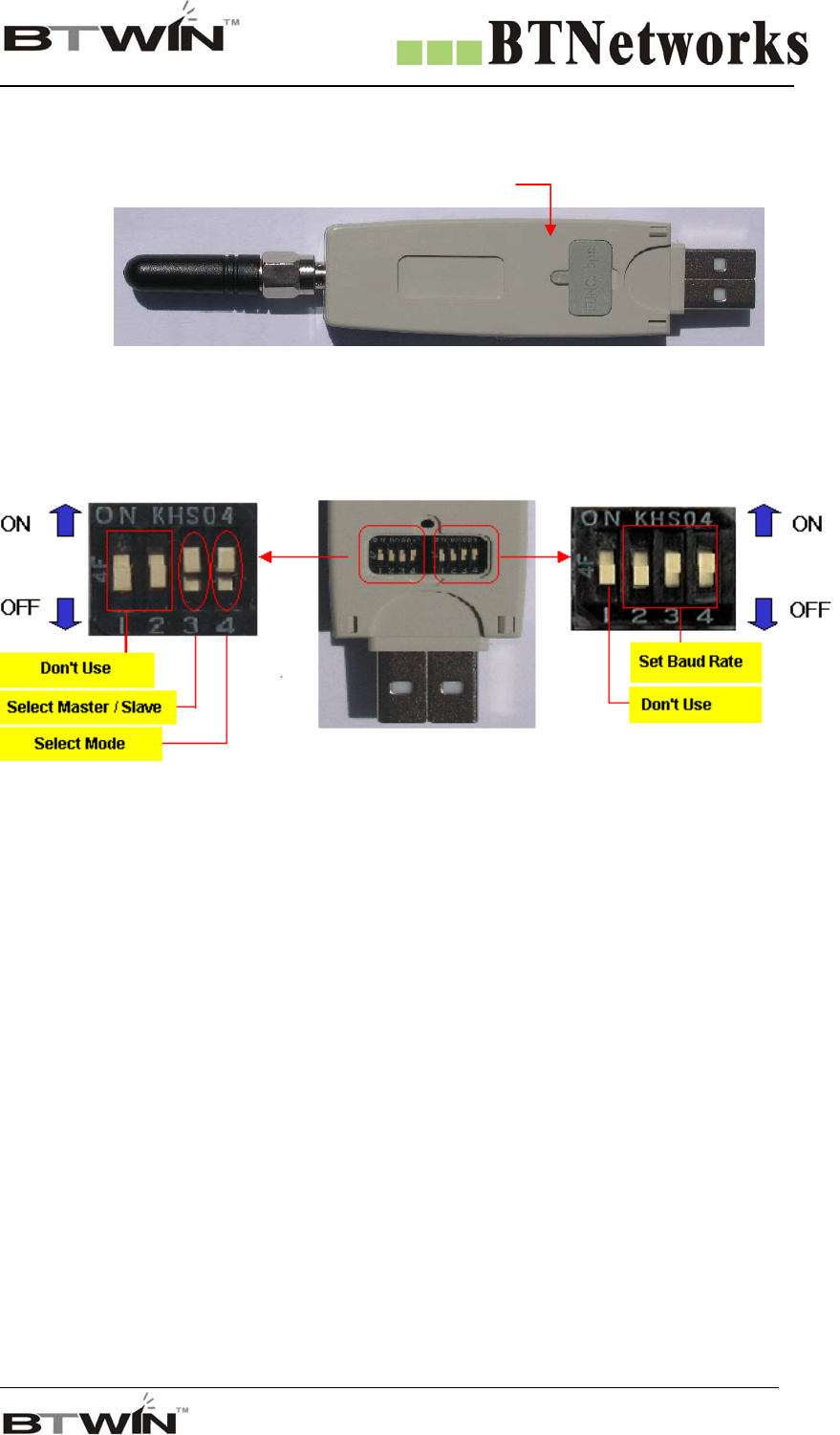
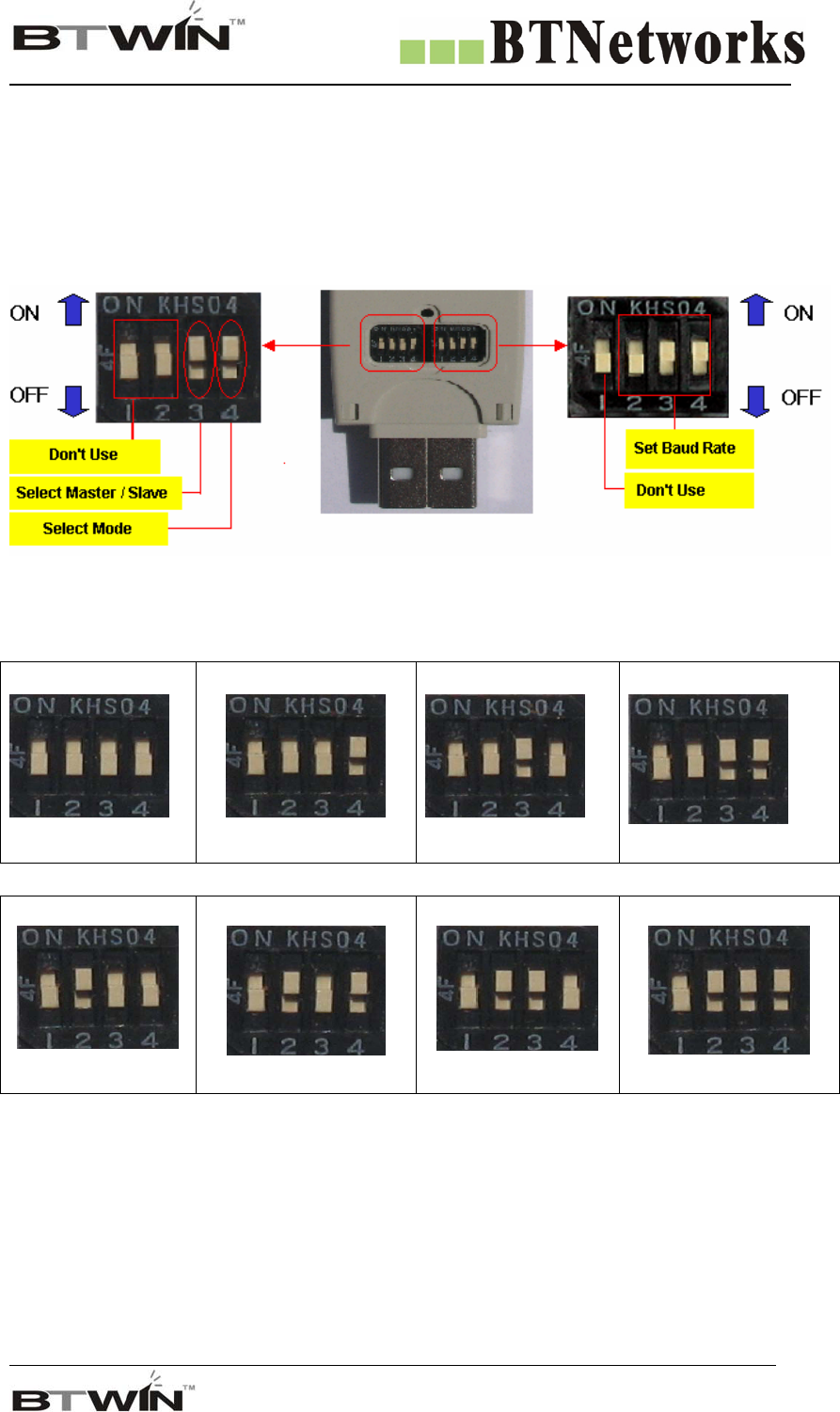
Open the DIP-switch cover, and you can see the below picture.
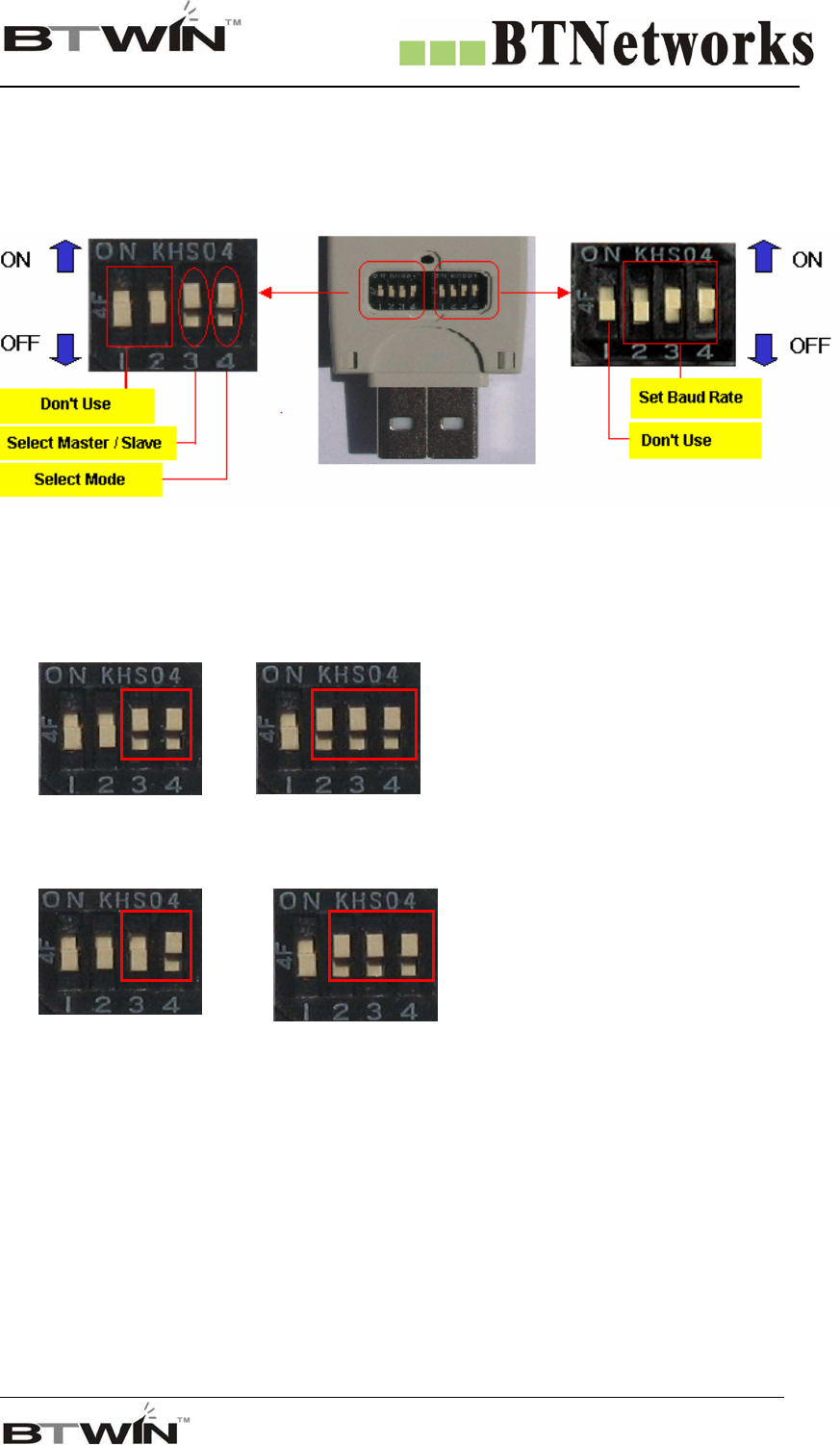
Function Select Switch Baud Rate Switch
8.1 Function select switch
Pin #1 and #2 don’t use.
Pin #3 is used to select the role.
- The master is up.
- The slave is down.
Pin #4 is used to select the mode.
- The DIP Switch mode is up.
- PC configuration mode is down.
8.2 Baud Rate Switch
You may set the baud rate with this DIP Switch.
- Pin #2,3,4 are used to set the baud rate.
- You can choice the baud rate from 1,200 bps to 115,200 bps.
* Caution : If you want to set the baud rate with DIP Switch, pin #4 of the
Function select switch must be up.
DIP Switch Cover
<Bottom View>
Wireless Total Solution Company
For your Free Bluetooth USB Adapter BM2001 User’s Guide
11
9. Function Select Switch
9.1 Select the Role (MASTER / SLAVE)
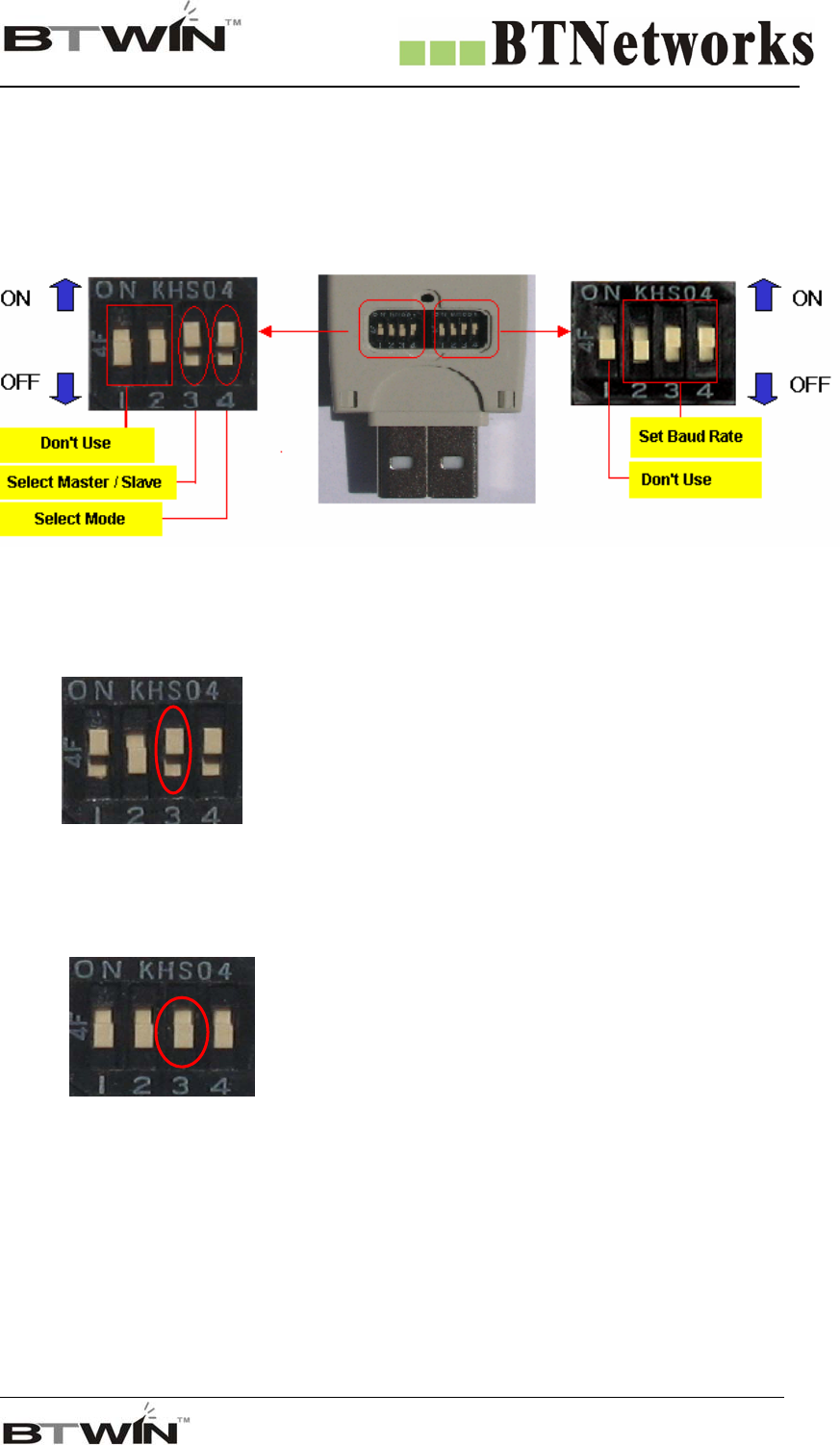
In order to communicate between two BM2001, one should be a Master and another should be a Slave.
You may set the role with pin#3 of the function select switch.
Function Select Switch Baud Rate Switch
Set the Role with pin #3 of the Function Select switch.
i) Set the Role as a MASTER
Move up the pin#3 of the function select switch,
and it is MASTER.
ii) Set the Role as a SLAVE
Move down the pin #3 of the function select switch,
and it is SLAVE.
Wireless Total Solution Company
For your Free Bluetooth USB Adapter BM2001 User’s Guide
12
9.2 Select the Mode
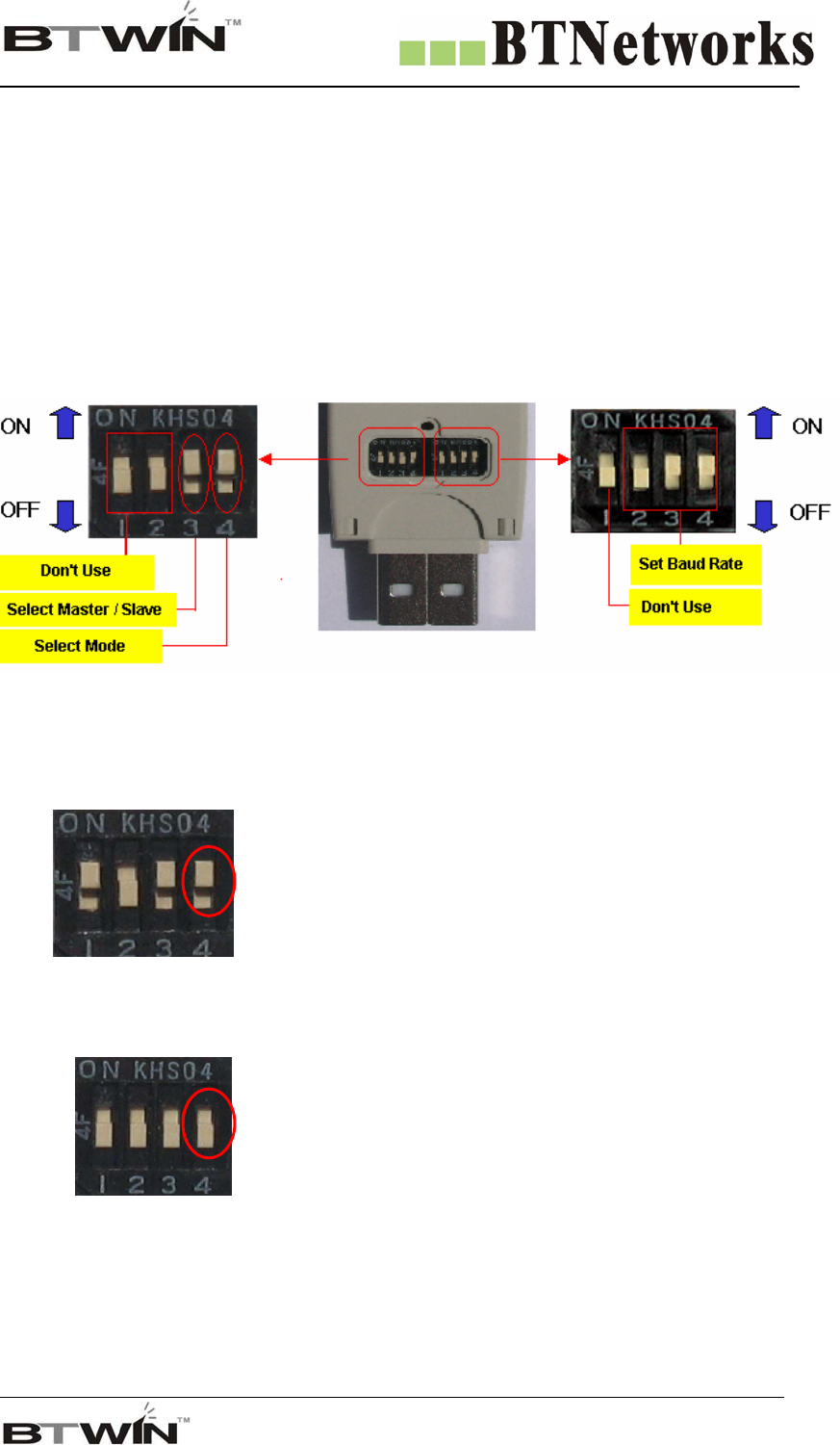
BM2001 has two modes, one is DIP Switch mode and other is PC configuration mode.
You may choice the mode.
1) DIP Switch Mode
You may set the baud rate and Role with only DIP Switch.
If you want to set them, BM2001’s mode must be a DIP Switch mode.
2) PC Configuration Mode
You may set the various values with Hyperterminal of the windows. It is very powerfull.
You can set every configuration values in PC configuration mode.
Function Select Switch Baud Rate Switch
Set the Mode with pin #4 of Function Select Switch.
i) DIP Switch Mode
Move Up the pin#4 of the Function Select Switch, and the Mode
is DIP Switch mode.
ii) PC Configuration Mode
Move down the pin#4 of the Function Select Switch, and the
mode is PC Configuration mode.
Wireless Total Solution Company
For your Free Bluetooth USB Adapter BM2001 User’s Guide
13
10. Set the Baud Rate.
BM2001support various communication speed from 1200 bps to 230,400 bps.
You can set the baud rate with DIP-Switch from 1,200 bps to 115,200 bps.
Check on the baud rate switch.
Function Select Switch Baud Rate Switch
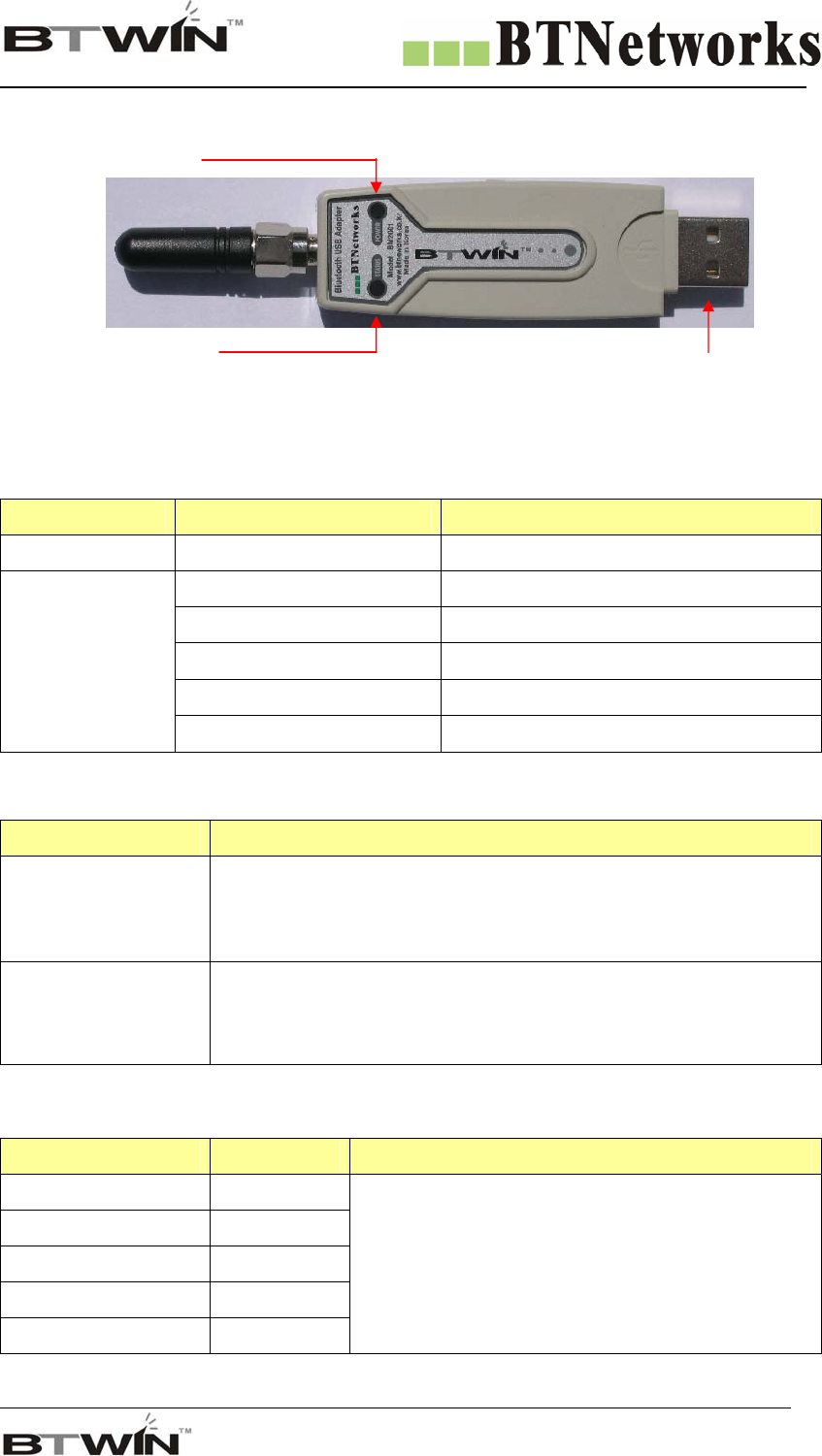
Set the baud rate with the Baud Rate Switch.
Set the Baud Rate Switch
1200 bps 2400 bps 4800 bps 9600 bps
19200 bps 38400 bps 57600 bps 115200 bps
** Caution **
- Pin #1 of the Baud Rate Switch doesn’t use.
- Pin #4 of the Function Select Switch must be up (DIP Switch Mode).
- If you want higher speed than 115,200 bps, Use the PC configuration mode.
Wireless Total Solution Company
For your Free Bluetooth USB Adapter BM2001 User’s Guide
14
11. LED / Reset Switch
11-1. Power indication LED / Status indication LED
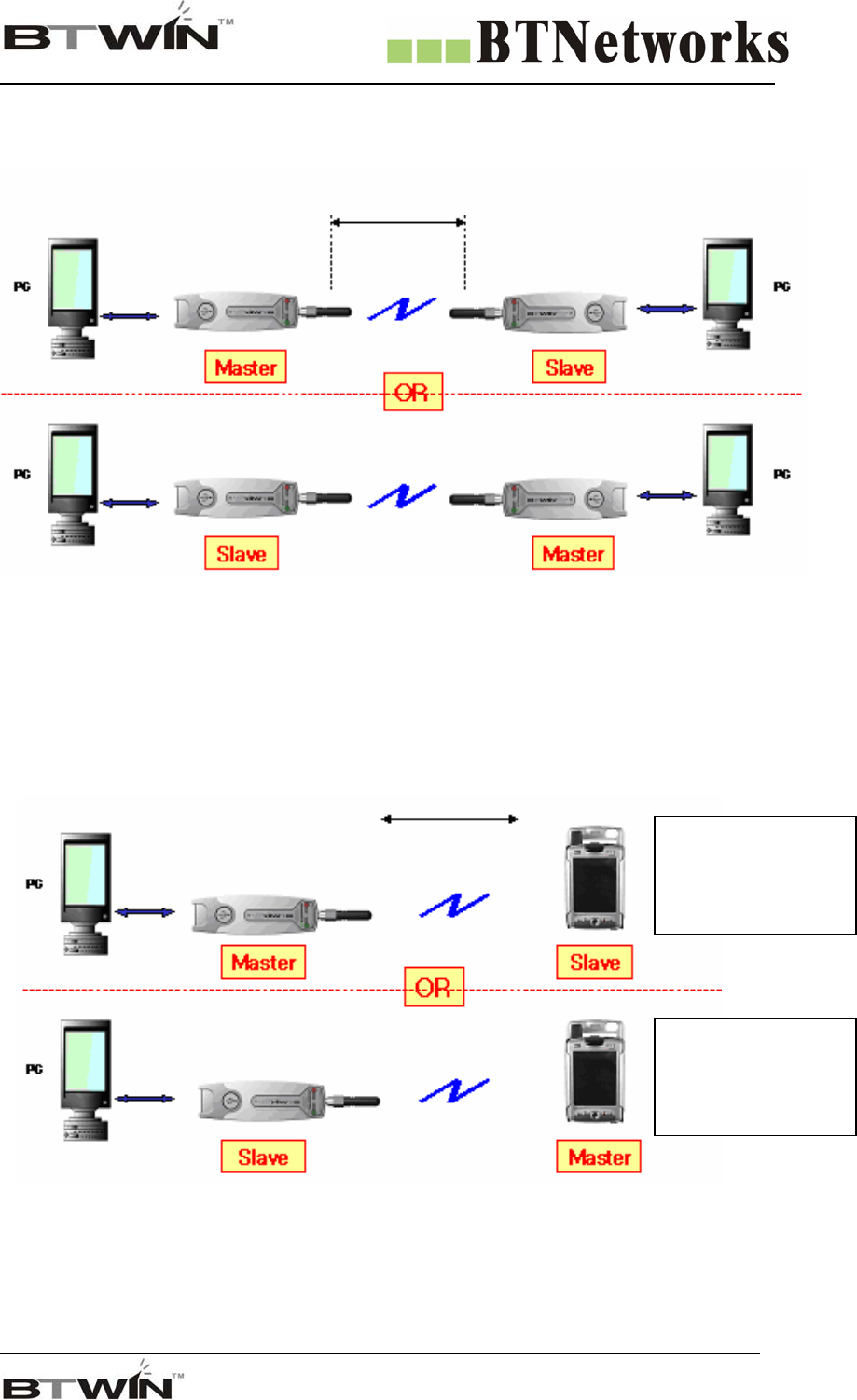
You can find the status of BM2001 with Red and Green LED indicator.
LED Status Description
Power LED Power ON Red LED is On (Stable)
Connecting Green LED is flashing twice per second.
Connection Green LED is On (Stable)
Connection Error Red LED is flashing every 0.05-second.
Enter Configuration Setting Red LED is flashing twice per second.
Status LED
Configuration Setting Red LED is flashing three times per second.
11-2. Reset Switch
Status LED Result After Reset
Green is On
1) Current connection will be disconnecting.
2) Releases the latest connection informs.
3) Try Reconnecting.
Red is flashing 1) The setting is initializing as factory setting.
2) BM2001 will begin rebooting.
12. Power Consumption
Mode Current Remark
Standby 20 ㎃
Device Searching 73 ㎃
Pairing 55 ㎃
Before Connection 73 ㎃
After Connection 50 - 55 ㎃
Test Environment
- Baud rate is 9600 bps
- Input Voltage is 5V.
Power consumption depends on communication
speed and the environment.
Power LED
<TOP View> USB Port
Status LED
Wireless Total Solution Company
For your Free Bluetooth USB Adapter BM2001 User’s Guide
15
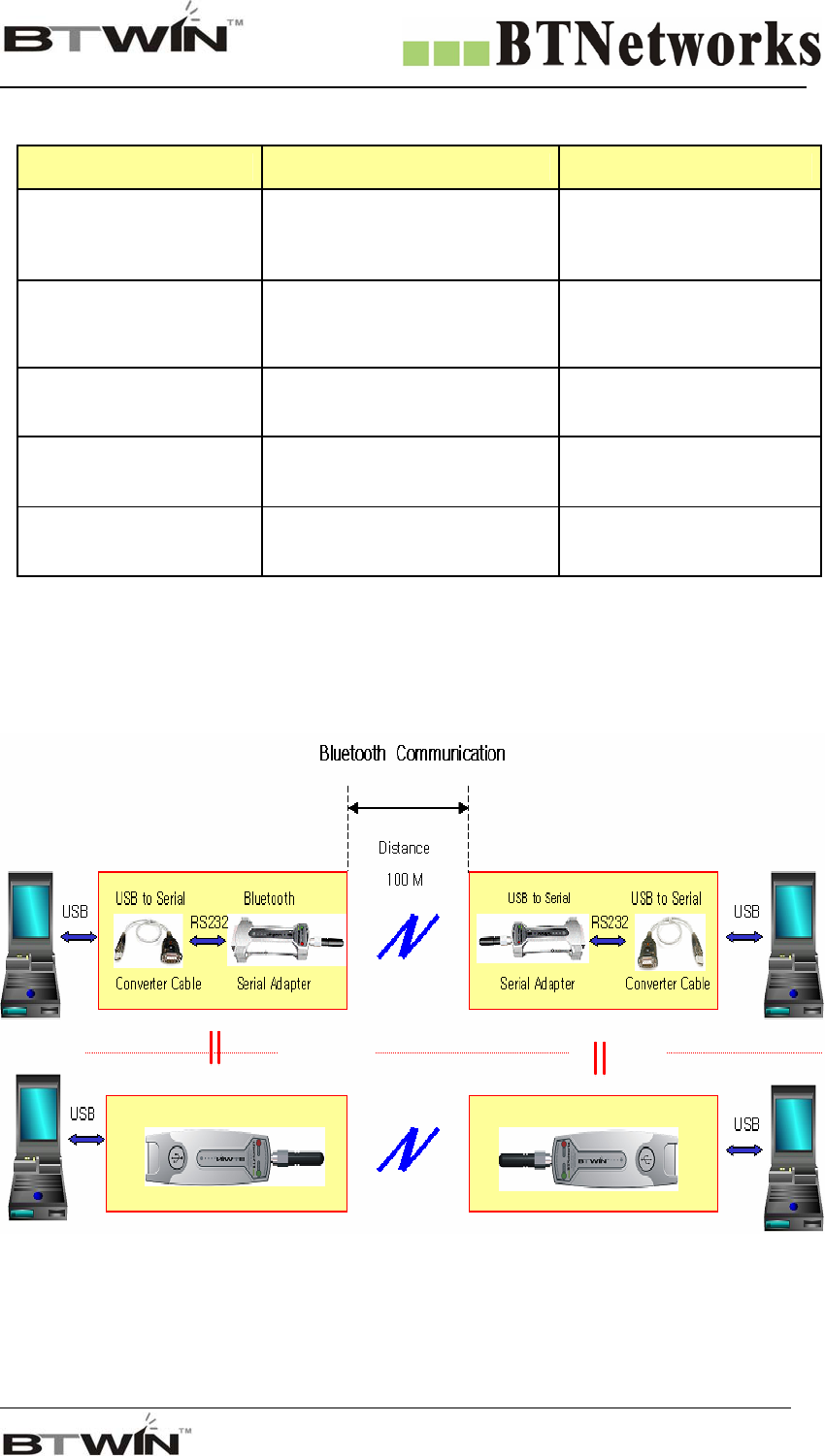
13. The Bluetooth Communication with BM2001
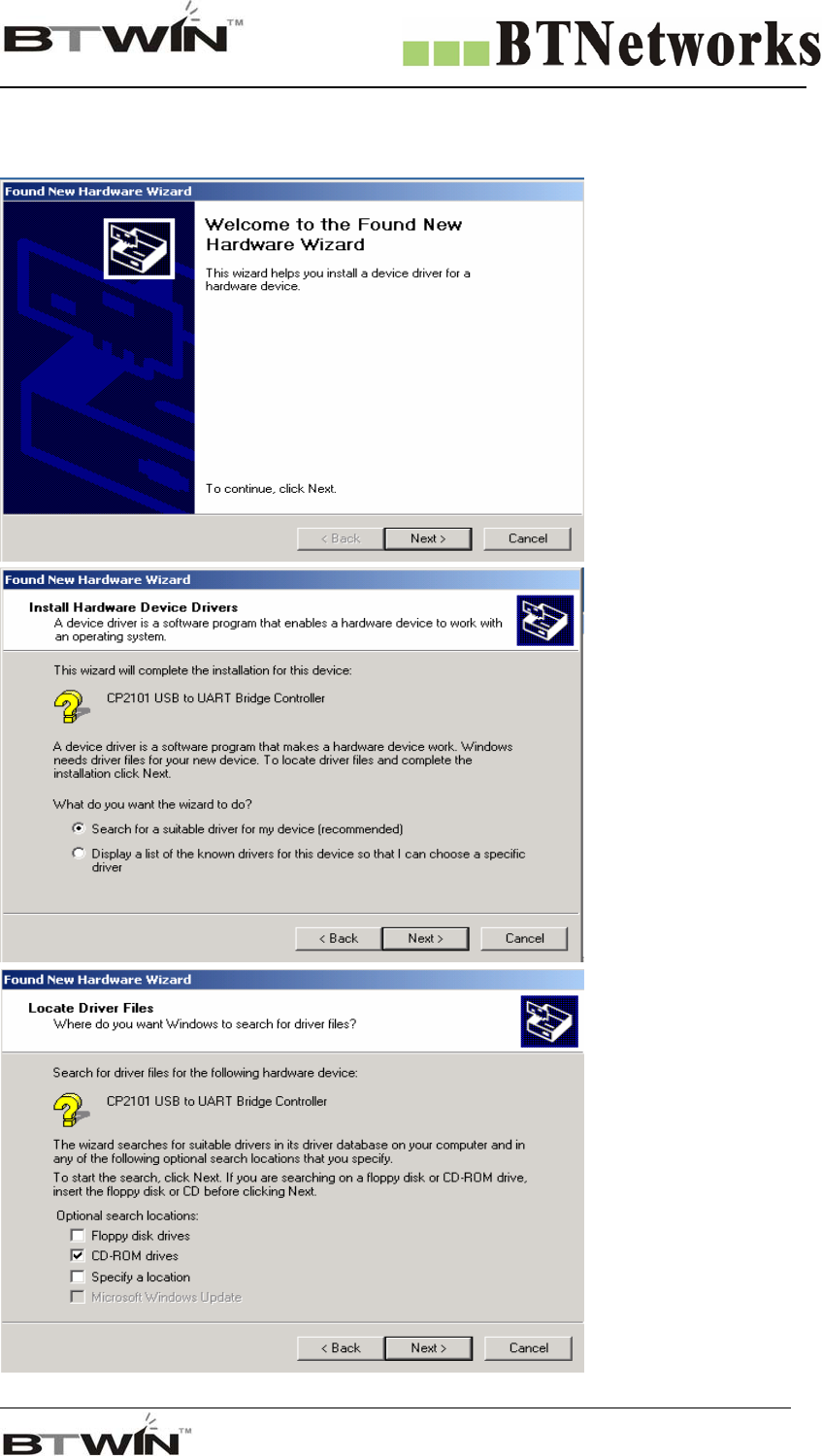
• In order to communicate between two BM2001, one should be a Master and another should be a Slave.
In order to communicate between BM2001 and Bluetooth products that are able to support SPP profile
like PDA, Mobile Phone, Bluetooth Dongle, BM2001 must be a Master or a Slave. And the other
products must be opposite role. If BM2001 is a Master, other side product should be a Slave.
Bluetooth Communication
USB
USB
BM2001
BM2001 100 M
Bluetooth Communication
Bluetooth PDA
Mobile Phone
Bluetooth Dongle…etc
Bluetooth PDA
Mobile Phone
Bluetooth Dongle…etc
Wireless Total Solution Company
For your Free Bluetooth USB Adapter BM2001 User’s Guide
16
14. Install the BM2001 device driver
14.1 Windows 98 & Windows 2000
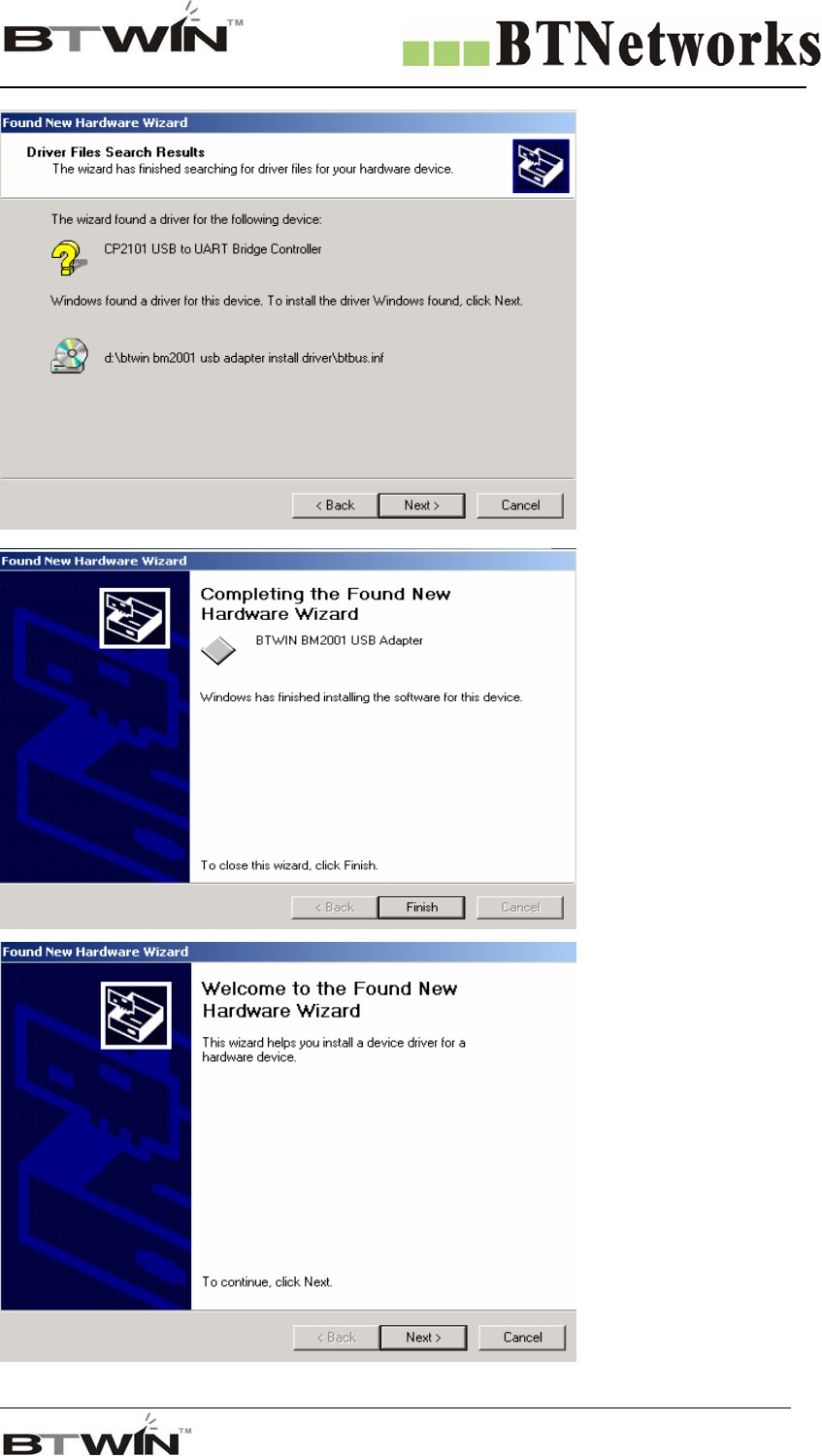
1) Attach BM2001 to USB
port of PC and turn on the
BM2001.
2) The pop up window will
appear for new hardware
device.
3) Click Next button.
4) Select “Search for a
suitable driver for my
device [recommended]” and
click Next button.
5) Select “CD-ROM
drivers” and click Next
button.
Wireless Total Solution Company
For your Free Bluetooth USB Adapter BM2001 User’s Guide
17
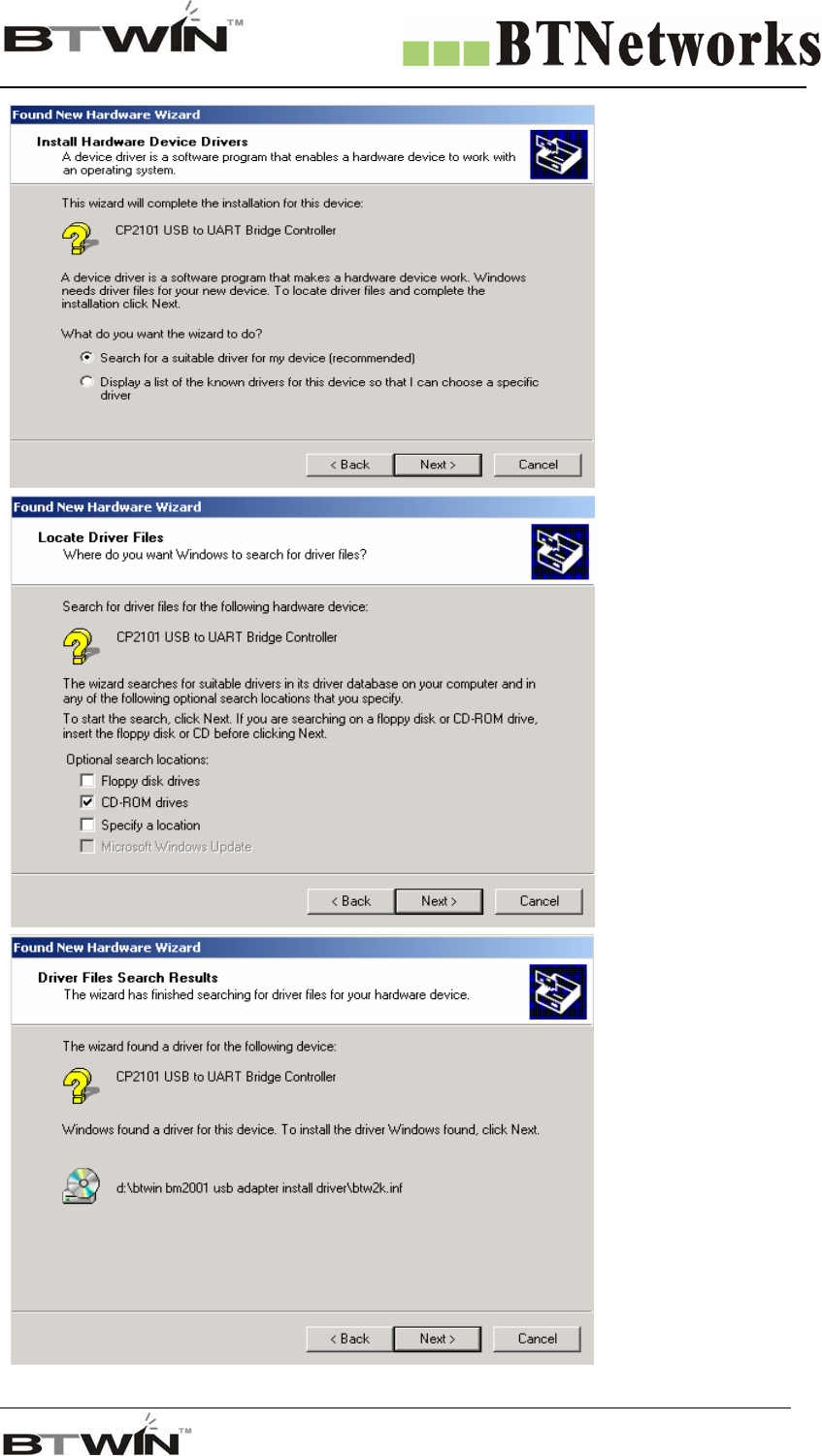
6) Windows found a
driver for BM2001.
Click Next button.
7) First driver Installing
procedure has finished.
Click Finish button.
* You should do driver
installing procedure one
more time
8) You may see new
pop up window.
Click Next button.
Wireless Total Solution Company
For your Free Bluetooth USB Adapter BM2001 User’s Guide
18
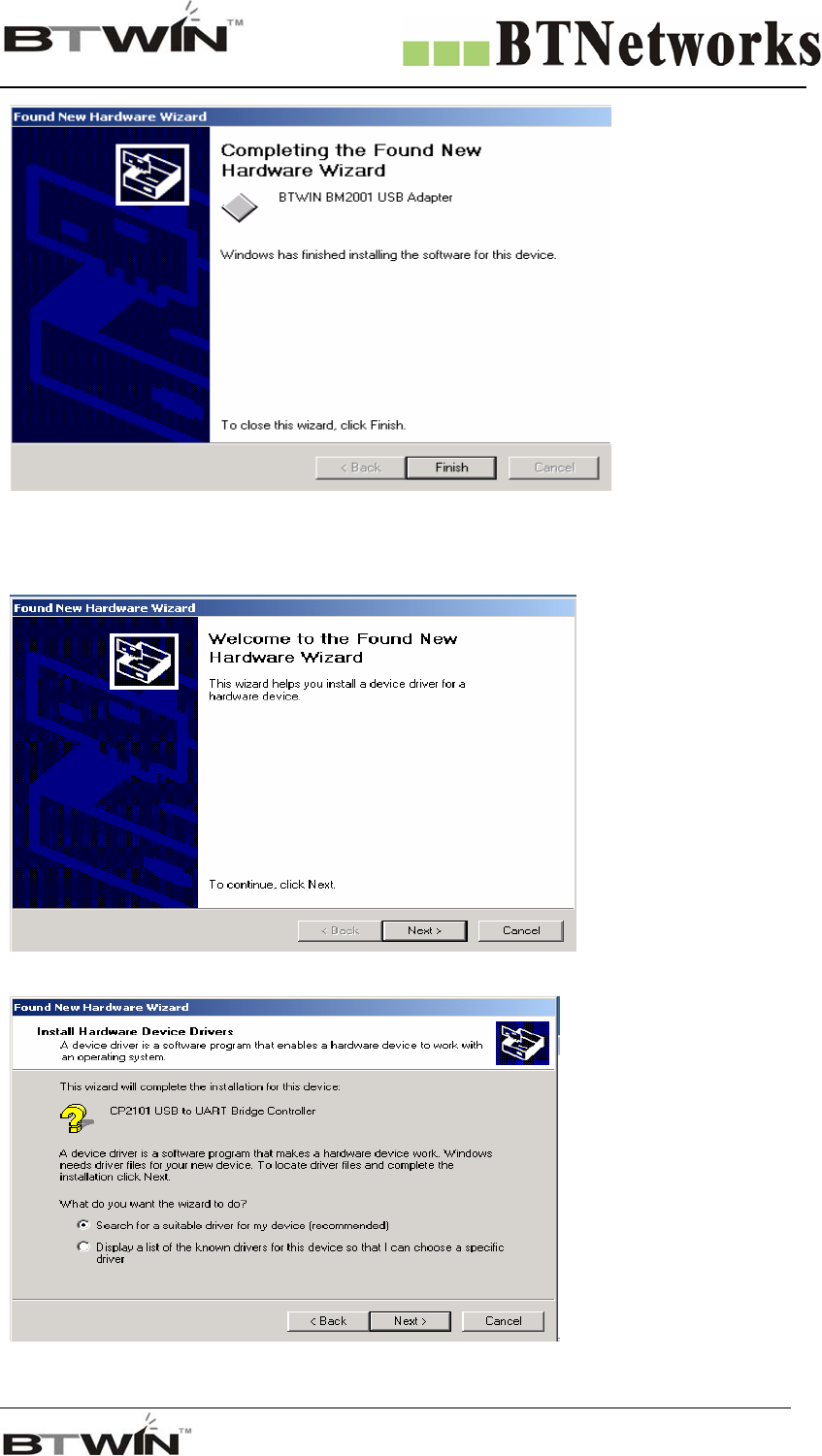
Select “Search for a
suitable driver for my
device
[recommended]” and
click Next button.
5) Select “CD-ROM
drivers” and click
Next button.
6) Windows found a
driver for BM2001.
Click Next button.
Wireless Total Solution Company
For your Free Bluetooth USB Adapter BM2001 User’s Guide
19
7) All driver
Installing procedure
has finished. Click
Finish button.
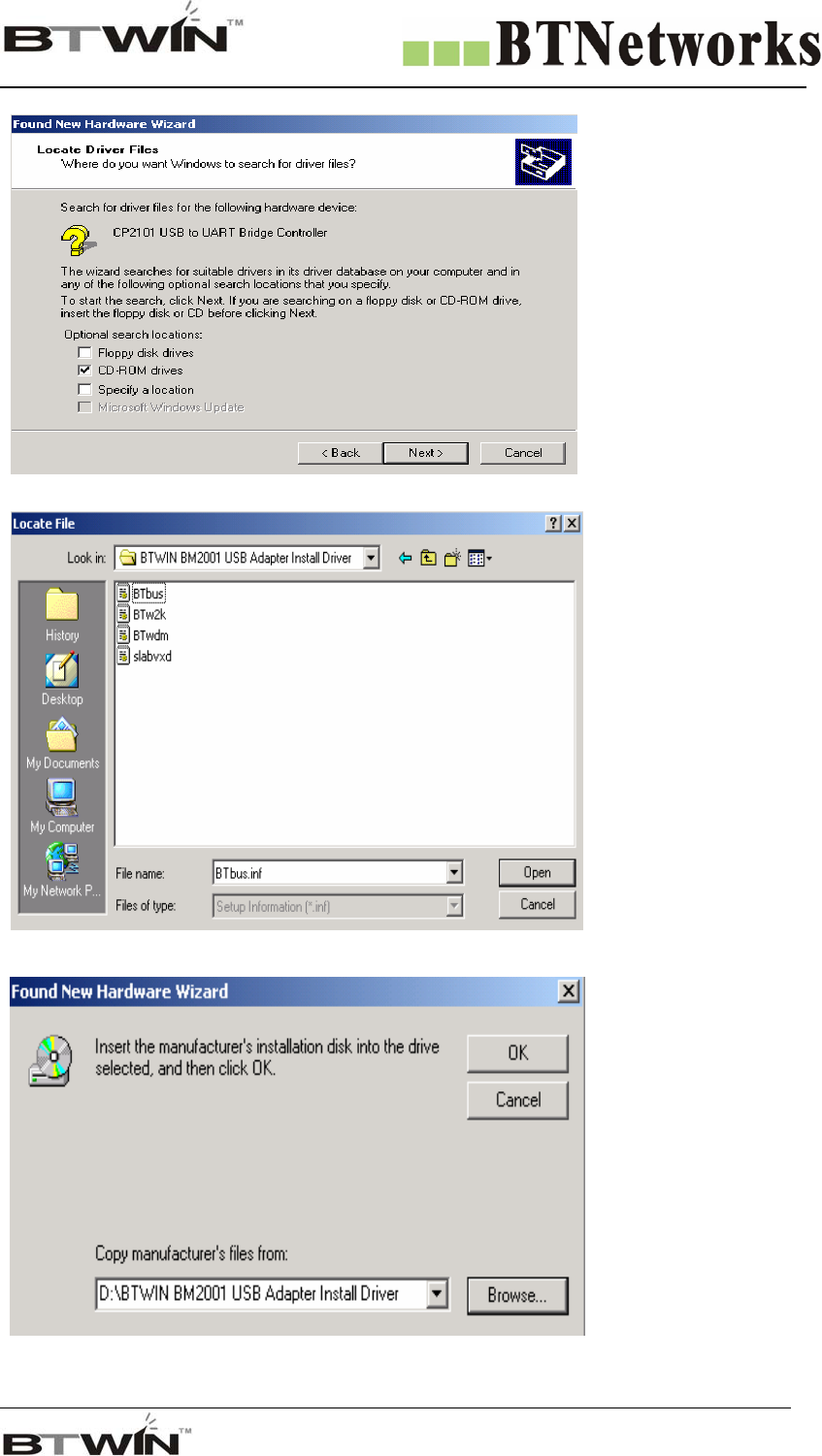
If you have a trouble to install driver, you may try another way. Here is another way.
Follow the below procedures.
1) Attached BM2001 to
USB port of PC and turn
on the BM2001.
2)”Found new hardware
device” message will be
displayed.
3) Click next button.
4) Select “Search for a
suitable driver for my
device [recommended]”
and click Next button.
Wireless Total Solution Company
For your Free Bluetooth USB Adapter BM2001 User’s Guide
20
5) Select “Specify a
location” and click Next
button.
6) Move to CD-ROM’s
BTWIN BM2001 USB
Adapter install driver.
7) Select “Btbus” file and
click “Open” button.
8) Windows found a
driver for BM2001.
Click Next button
Wireless Total Solution Company
For your Free Bluetooth USB Adapter BM2001 User’s Guide
21
.
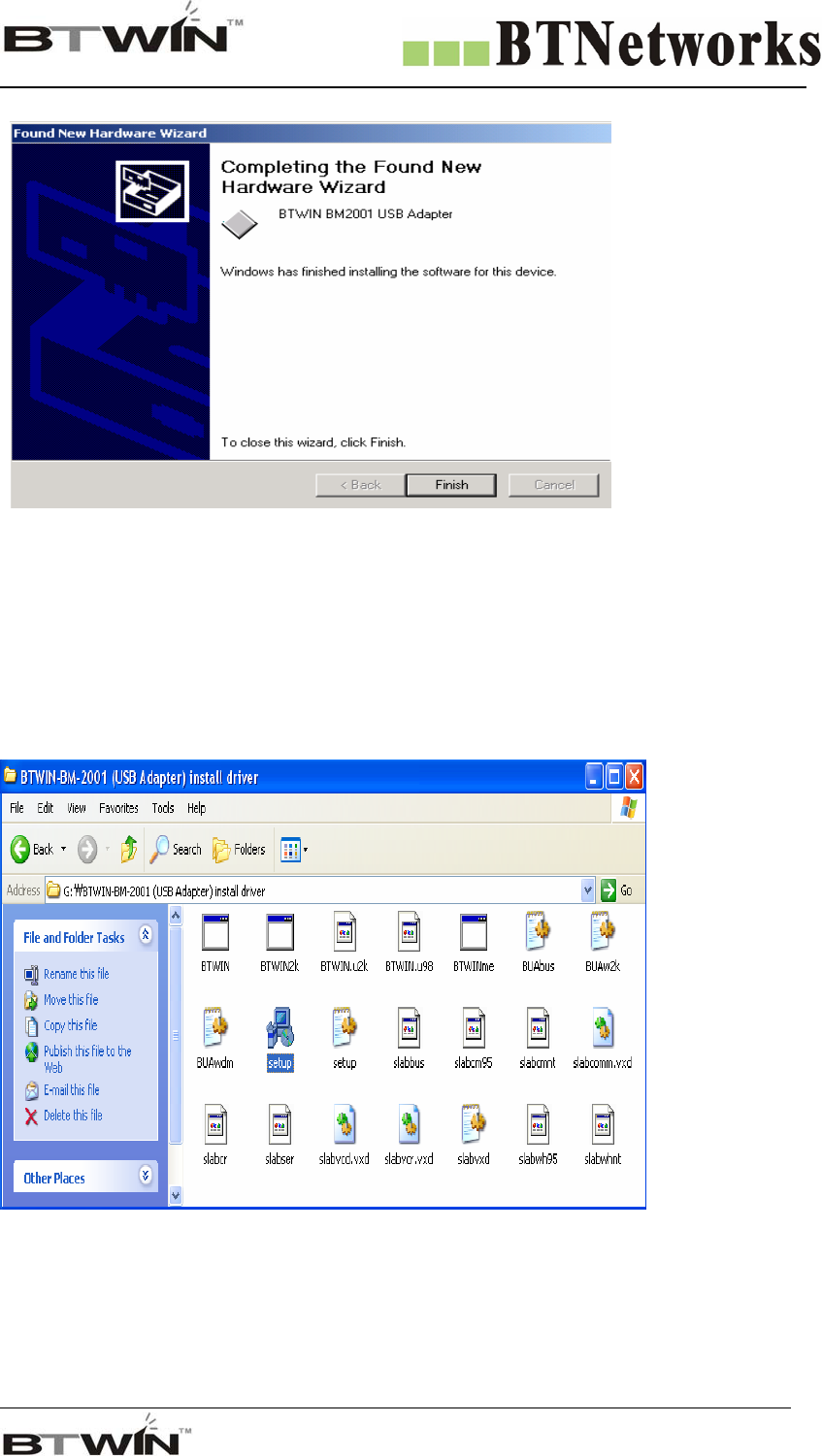
9) Driver installing has
finished. Click Finish
button.
14.2 Windows XP
Before set up the device driver, turn off the BM2001’s power switch.
The device driver install procedures are separated two steps.
The first step is making the driver folder in the Windows.
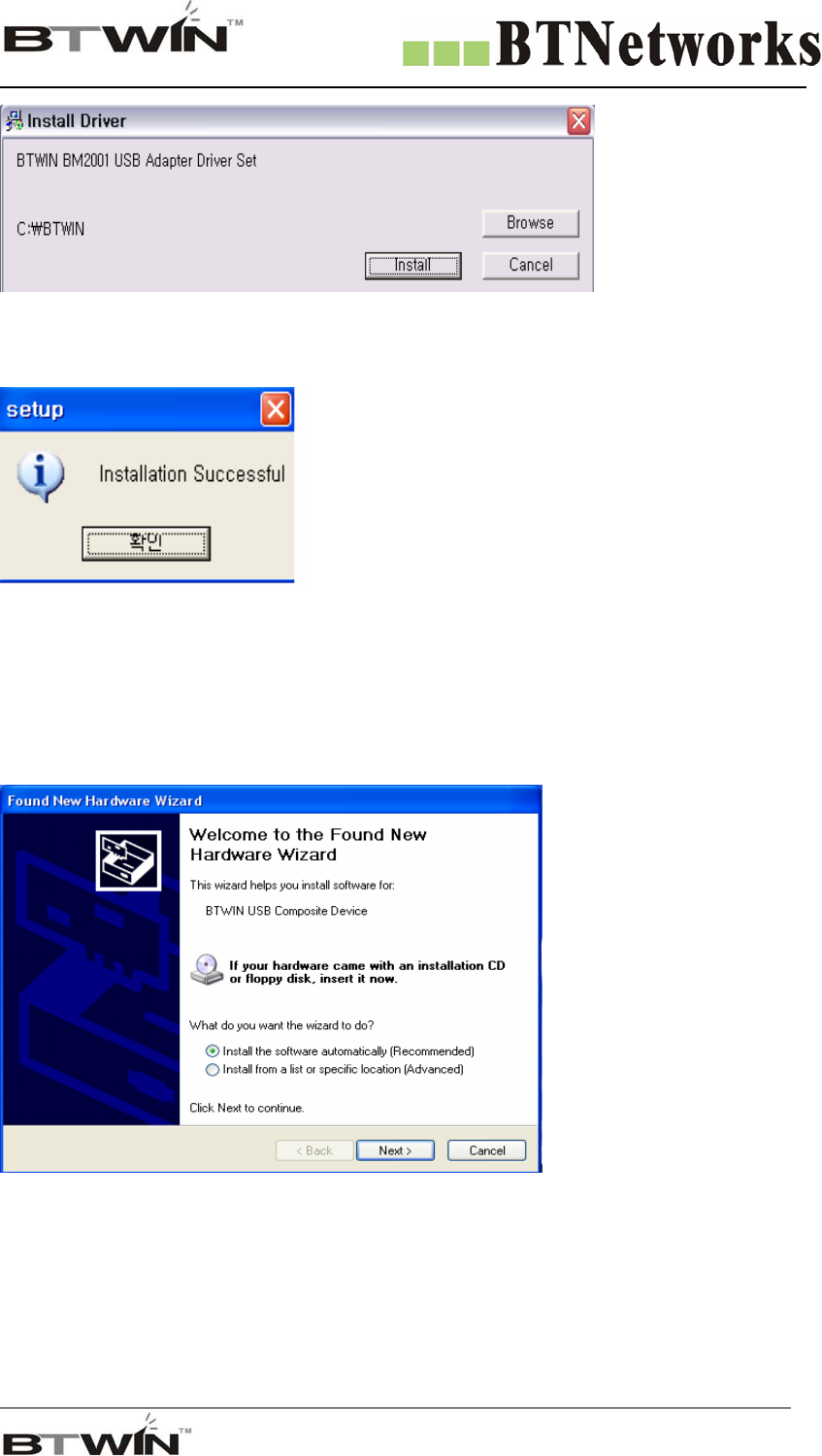
[1] Move to “BTWIN BM2001 USB Adapter driver “ folder on CD be provided,
and you can see below window.
[My Computer]Î[CD Rom Drive]Î[BTWIN BM2001 USB Adapter driver]
[2] Double click the “Setup” icon, and the pop-up window will appear.
Wireless Total Solution Company
For your Free Bluetooth USB Adapter BM2001 User’s Guide
22
[3] Click the "install" button, and installing procedure will start.
[4] Ok, first step has finished. Open the C drive of your computer, and you can find “BTWIN” folder.
[5] Now, the installing procedure will begin from here for the BM2001’s device driver. Turn on the power switch of
BM2001.
[6] The windows shall find the new device and you will see the pop-up window.
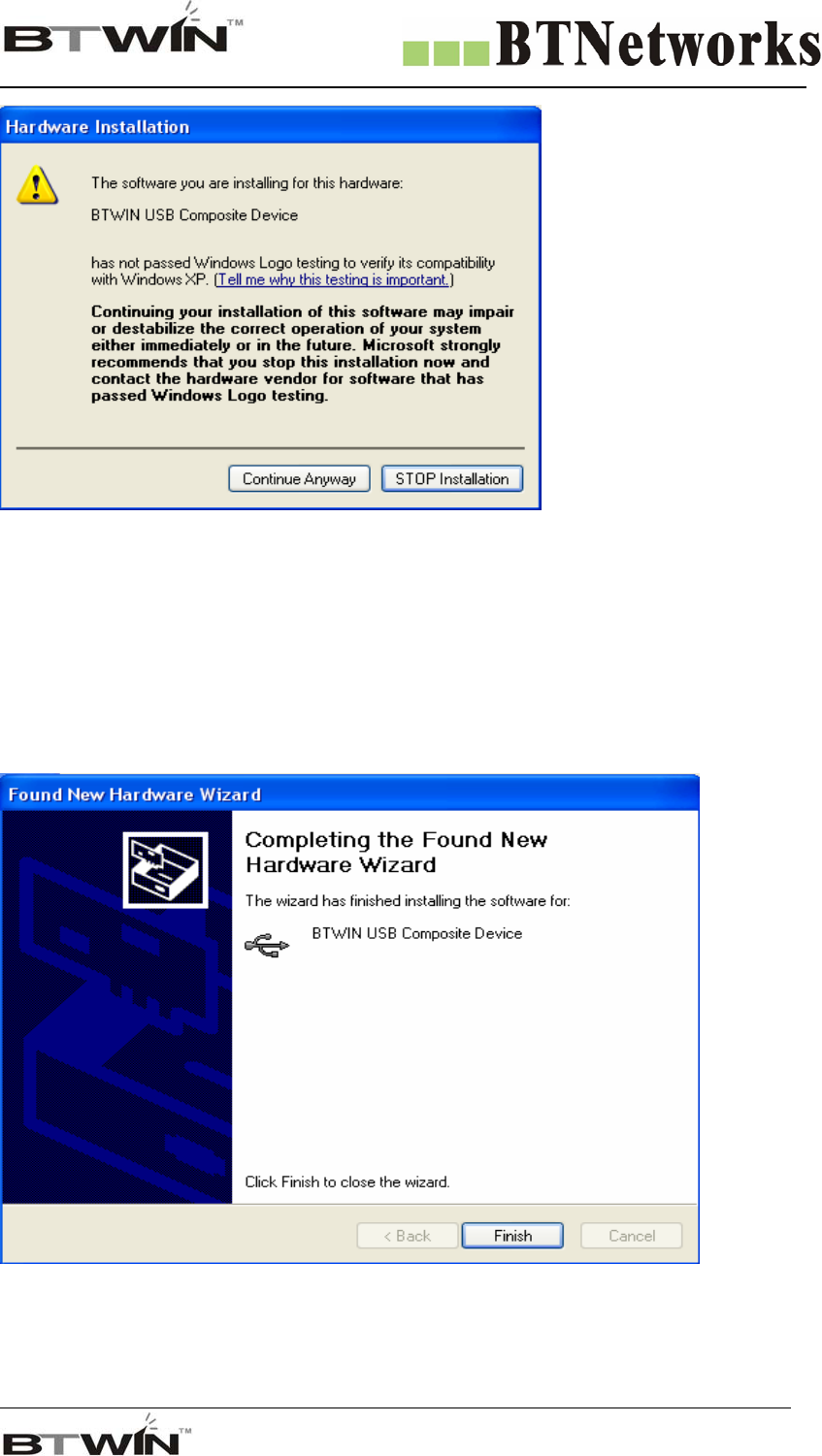
[7] Select “Install the software automatically [Recommended]” and press “Next” button.
[8] If your OS is a Windows XP, you will see the below windows.
Wireless Total Solution Company
For your Free Bluetooth USB Adapter BM2001 User’s Guide
23
But you can ignore that massage, click “Continue Anyway” button.
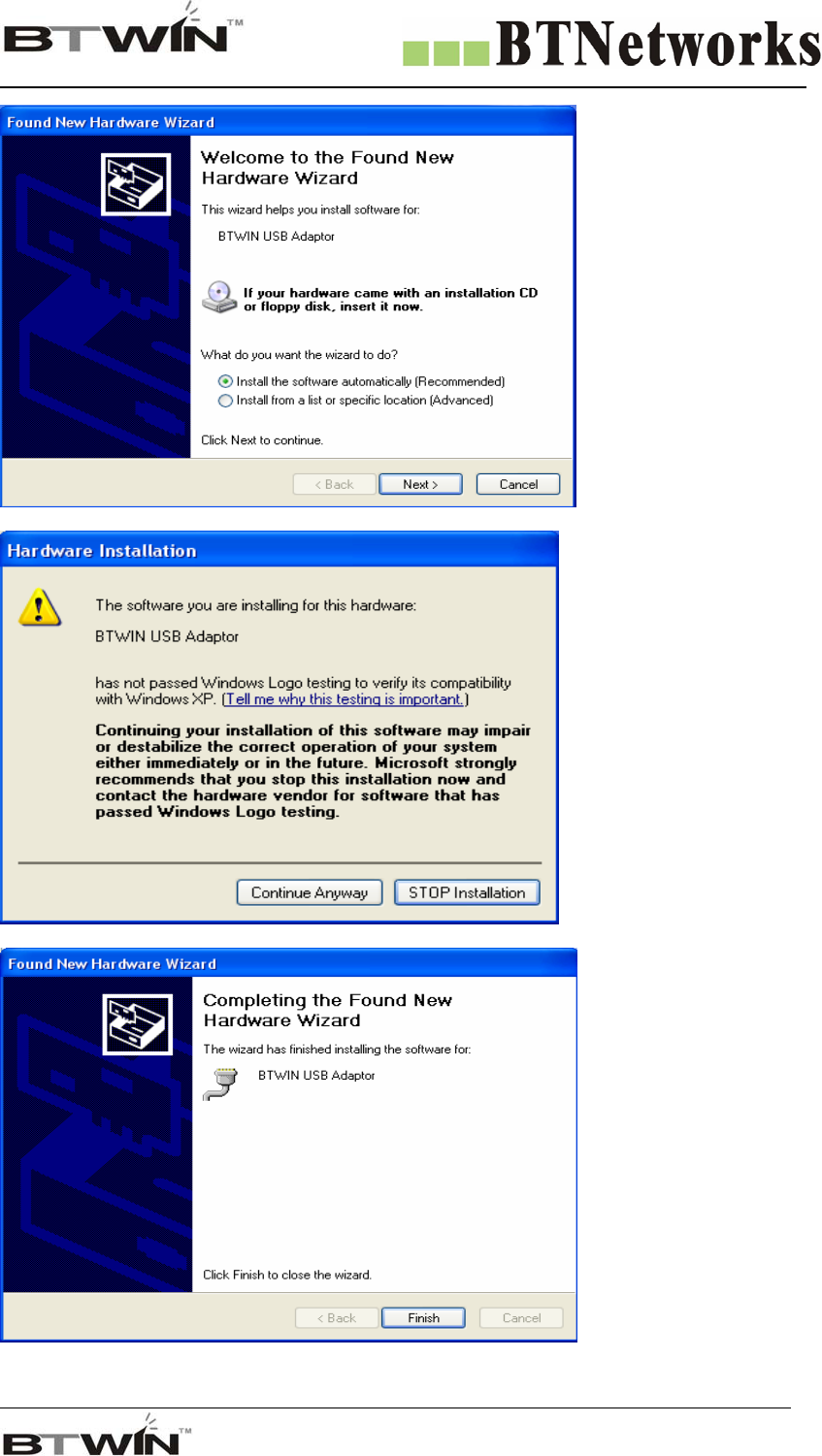
[9] Click “Finish” button, and window will disappear.
[10] The first installation procedure has been finished.
[11] New windows will appear, but it is not a problem. You will do one more same procedure for the driver installing.
Wireless Total Solution Company
For your Free Bluetooth USB Adapter BM2001 User’s Guide
24
[11] Select “Install the software
automatically
[Recommended]” and press
“Next” button.
[12] If your OS is a Windows
XP, you will see the below
windows.
But you can ignore that massage,
click “Continue Anyway”
button.
[13] Click “Finish” button, and
window will disappear.
All installations have been
finished.
Wireless Total Solution Company
For your Free Bluetooth USB Adapter BM2001 User’s Guide
25
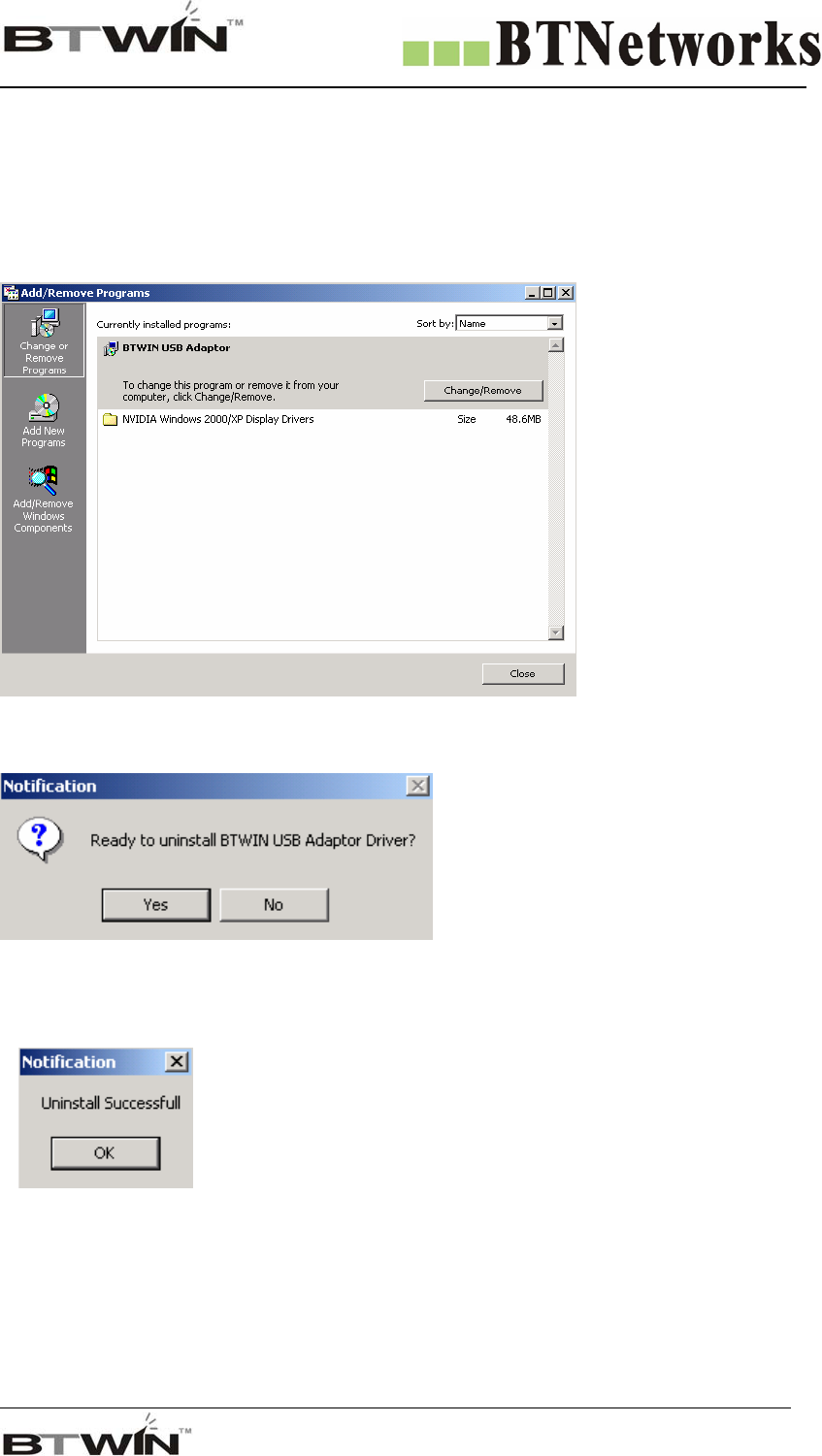
15. Remove the BTWIN BM2001 USB Adapter driver
(Windows 98, Windows 2000 and Windows XP)
1) Move to [My computer]Î[Control Panel]Î[Add/Remove programs]
2) You may see “BTWIN USB Adapter”.
3) Select that and click “Change/Remove”
4) Click “Yes” button.
5) Click “OK” button.
* Driver removing is successful.
Wireless Total Solution Company
For your Free Bluetooth USB Adapter BM2001 User’s Guide
26
16.Set COM Port for BM2001 USB Adapter
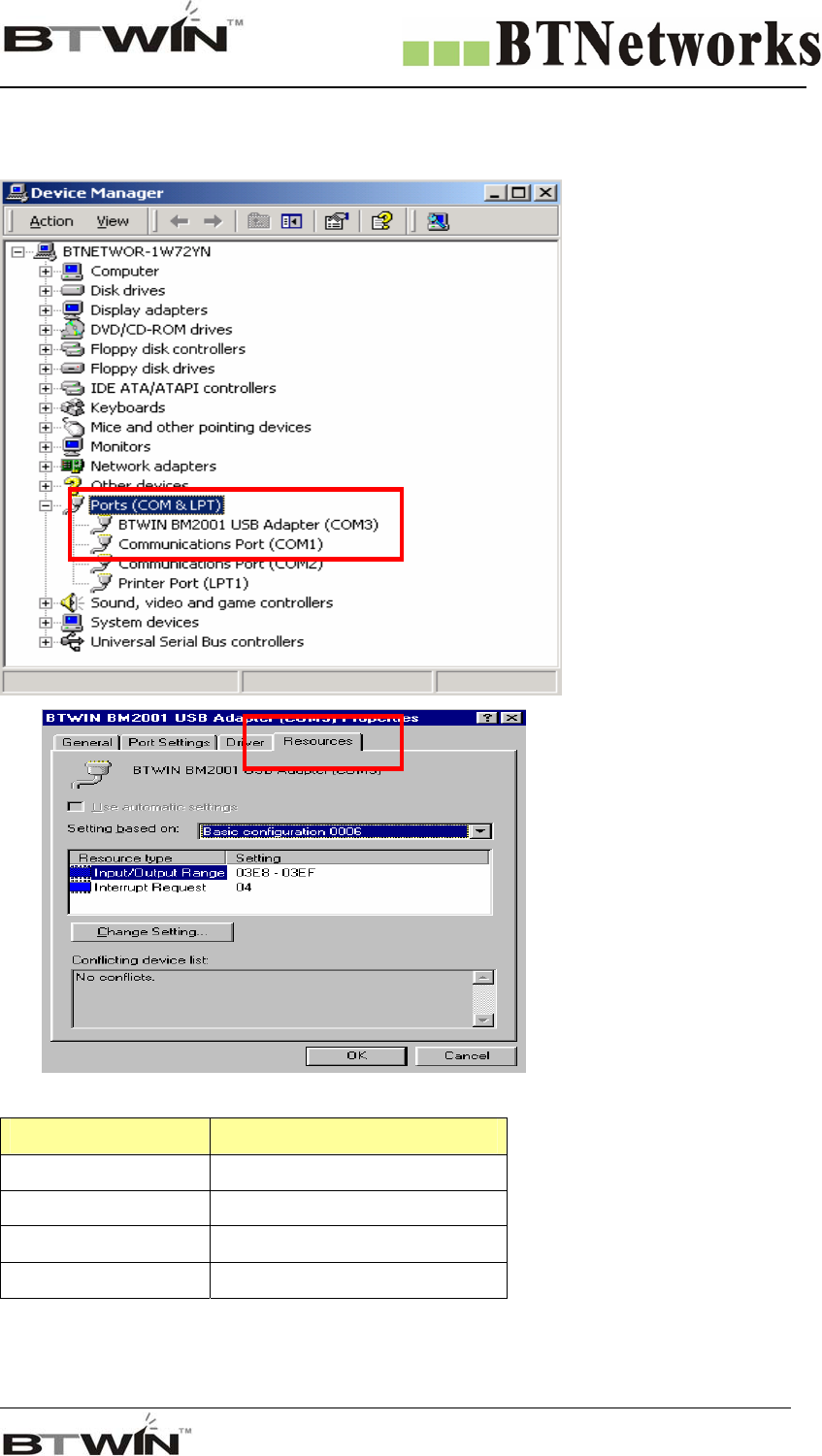
16.1 Window 98
[1] Move to [My computer]
Î[Control Panel]Î[System]
Î[Hardware]
Î[Device Manager]
[2] Click Port, and you may see
“BTWIN BM2001 USB Adapter”
[3] Double click BM2001 to see its
property.
[3] Select the Resources Tab.
[4] If you want to change COM port
for BM2001, you should change the
Setting based on.
[5] Please refer to below table.
COM Port No Input / Output Range
COM 1 03F8 – 03FF
COM 2 02F8 – 02FF
COM 3 03E8 – 03EF
COM 4 02E8 – 02EF
COM port Number is assigned by Input
/ Output Range.
Wireless Total Solution Company
For your Free Bluetooth USB Adapter BM2001 User’s Guide
27
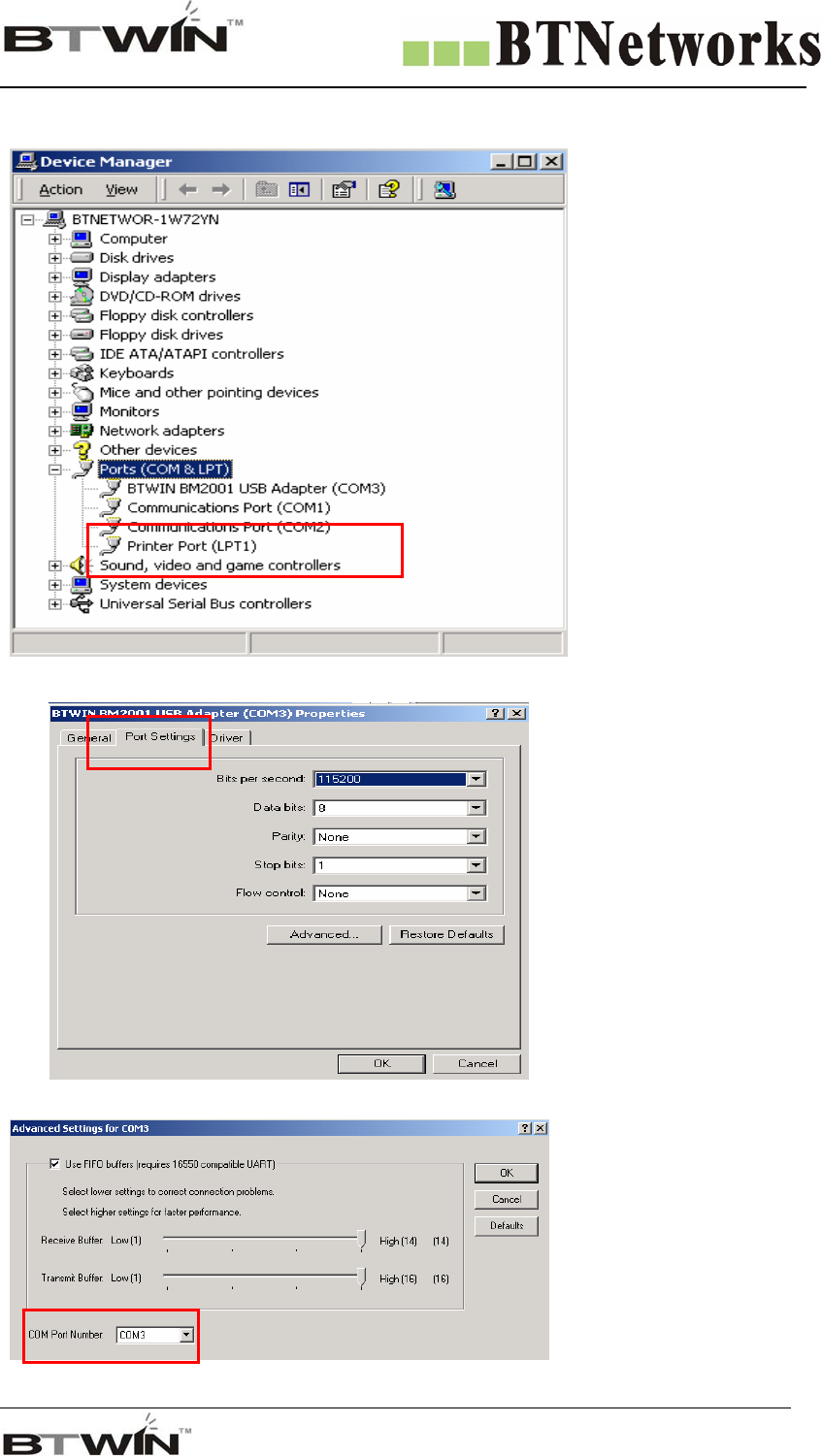
16.2 Windows 2000 & Windows XP
[1] Move to [My computer]
Î[Control Panel]
Î[System]
Î[Hardware]
Î[Device Manager]
[2] Click Port, and you may
see “BTWIN BM2001 USB
Adapter”
[3] Double click BM2001 to
see its property.
[4] Select “Port Setting” Tab.
[5] Click “Advanced” button.
[6] Set COM port No.
Wireless Total Solution Company
For your Free Bluetooth USB Adapter BM2001 User’s Guide
28
17. DIP-Switch Configuration Mode
17-1. Check on default setting before testing BM2001
1) There are two BM2001s. One should be a Master and opposite side should be a Slave.
* BM2001 is set either master or slave at factory.
2) Mode select is DIP-Switch Configuration mode.
3) Baud rate is 9600 bps.
Function Select Switch Baud Rate Switch
Set the DIP Switch
i) Set as a MASTER
Function Select Switch Baud Rate Switch Setting
Role: Master
bps: 9600 bps
Mode: DIP Switch
Configuration Mode
ii) Set as a SLAVE
Function Select Switch Baud Rate Switch Setting
Role: Slave
bps: 9600 bps
Mode: DIP Switch
Configuration Mode
Wireless Total Solution Company
For your Free Bluetooth USB Adapter BM2001 User’s Guide
29
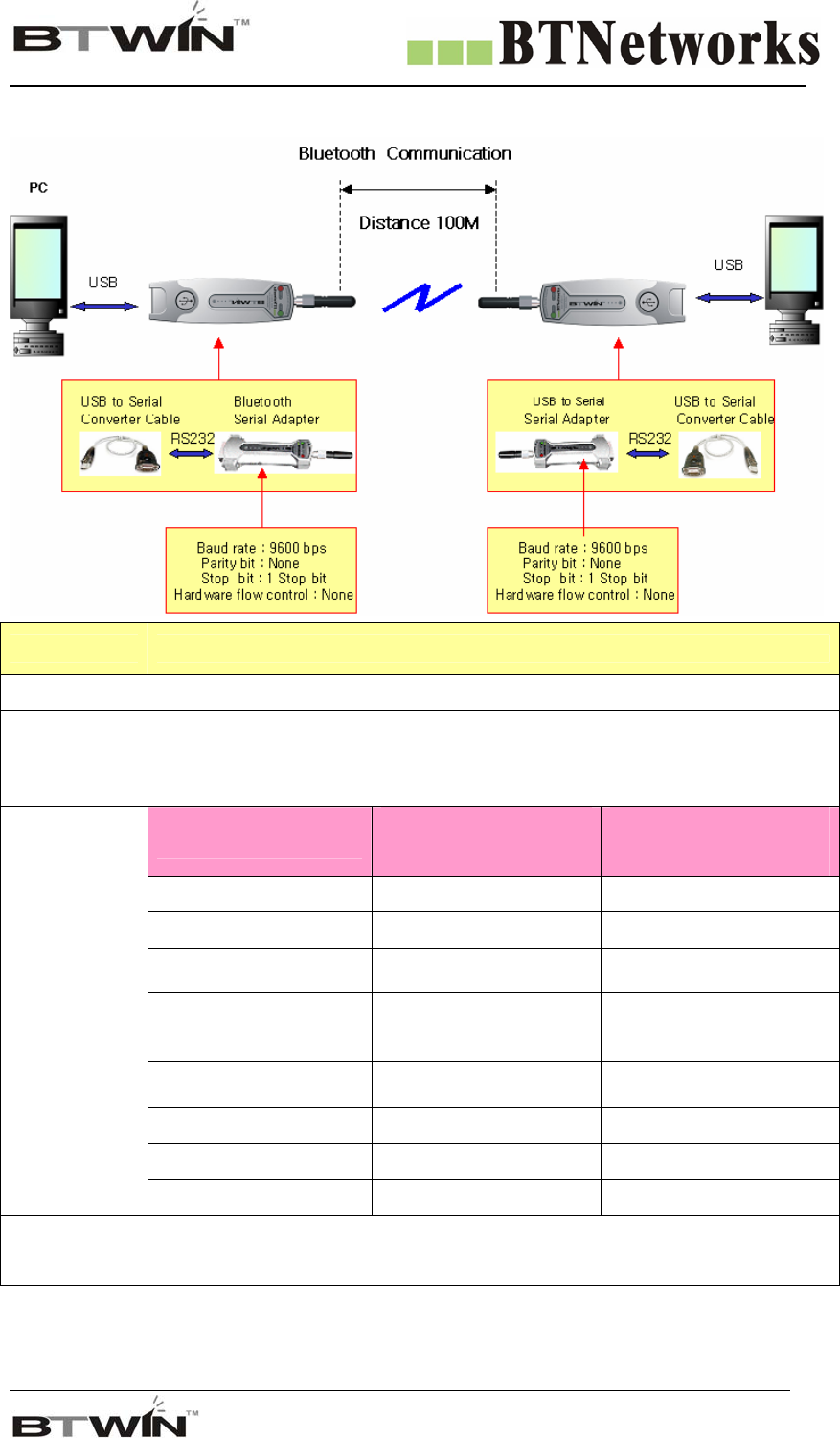
17-2. Communication Test at 9600 bps (default Setting)
Part Description
Equipment PC: 2 ea BM2001: 2 ea
PC is power on and OS is the Windows.
Test
Environment Use USB port of each PC.
Part Default
(Before change)
User Select
(After Change)
External Power Select Don’t Use Don’t Use
Select RI Signal Line Don’t Use Don’t Use
Master/Slave Select Master or Slave Master or Slave
Mode Select Dip switch
Configuration mode
Dip switch
Configuration mode
Baud rate 9600 bps 9600 bps
Parity None None
Stop bit 1 bit 1 bit
Setting
Values
Hardware flow control None None
* If use Default setting, You don’t have to change the setting.
Wireless Total Solution Company
For your Free Bluetooth USB Adapter BM2001 User’s Guide
30
Follow these procedures.
[1] Attach BM2001 to USB port of each PC.
[2] Turn on the power switch.
♦ Whenever turn on the power switch, BM2001will start working.
[3] Check on the power LED color is red.
♦ It means B2001 is supplied power stable.
[4] Check on status LED color is green.
♦ When Status LED is green, it means is established connection between two BM2001s.
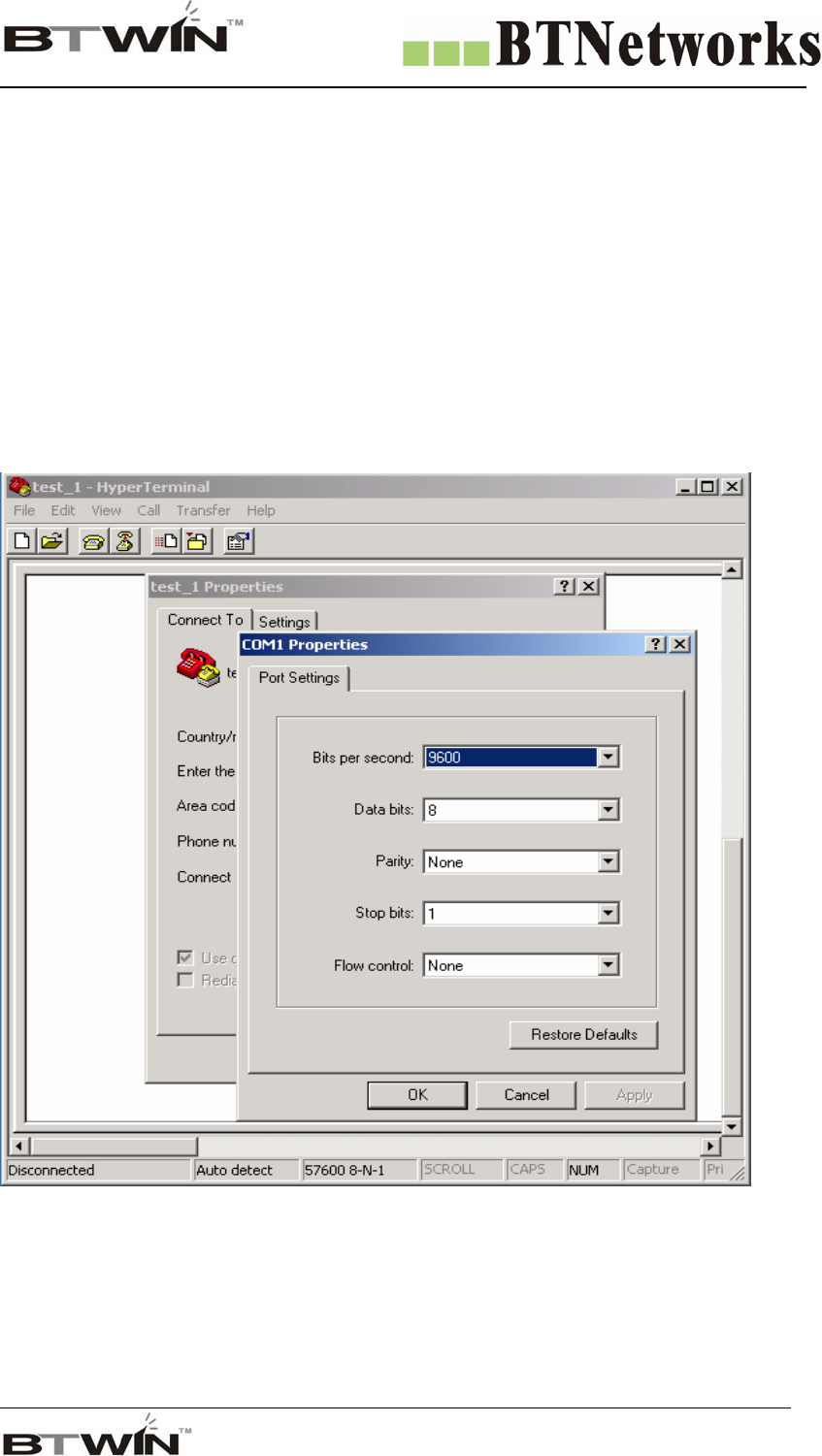
[5] Run the hyper terminal at each PC. And then set the parameters as below picture.
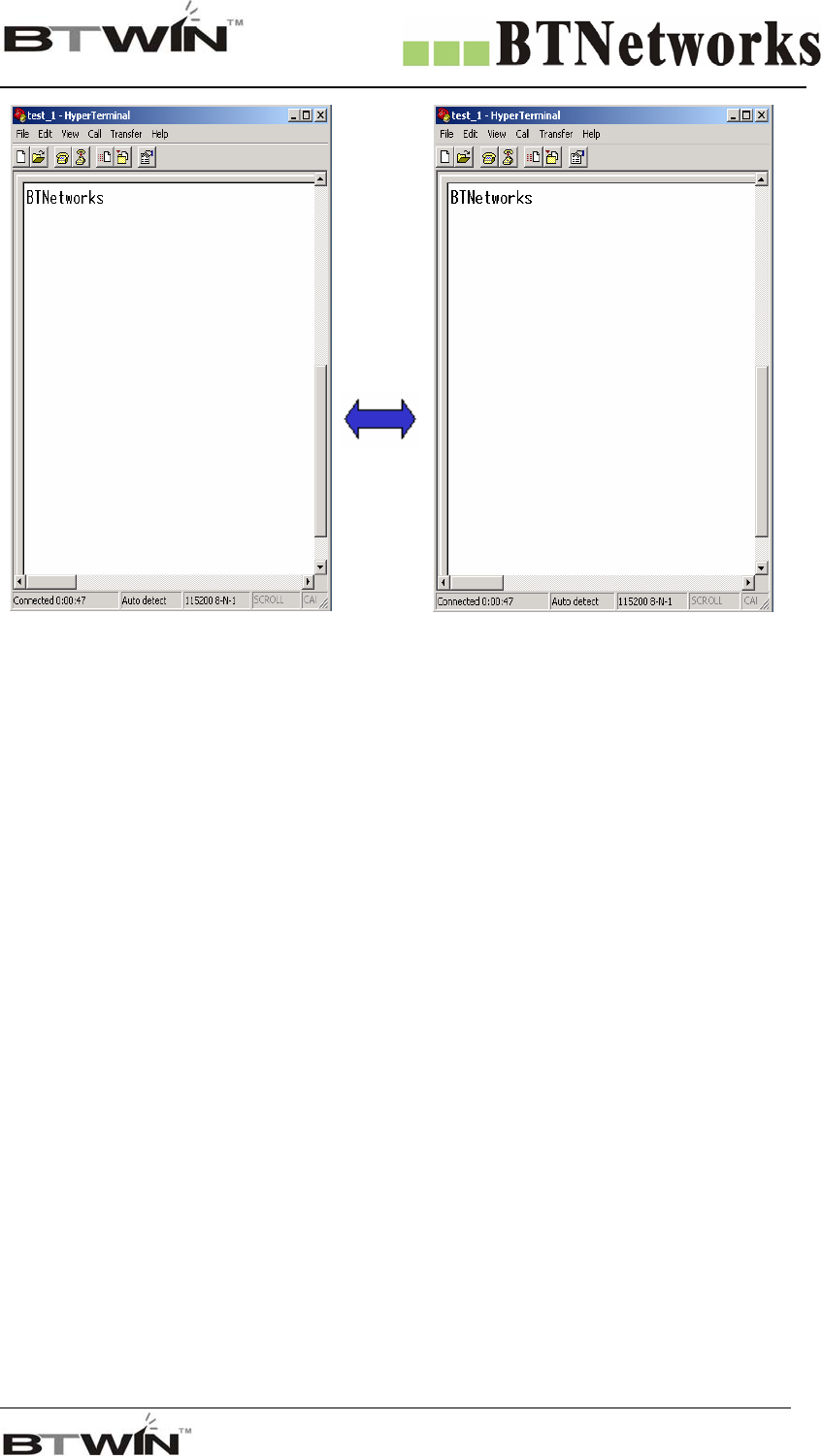
[6] Enter the characters via keyboard at each PC in order to transmit the data between two PCs.
Wireless Total Solution Company
For your Free Bluetooth USB Adapter BM2001 User’s Guide
31
PC1
Full
Duplex
Commu
nication
PC2
[7] If displayed characters are right, it means both the data transmitting through BM2001 and setup is
successful.
Wireless Total Solution Company
For your Free Bluetooth USB Adapter BM2001 User’s Guide
32
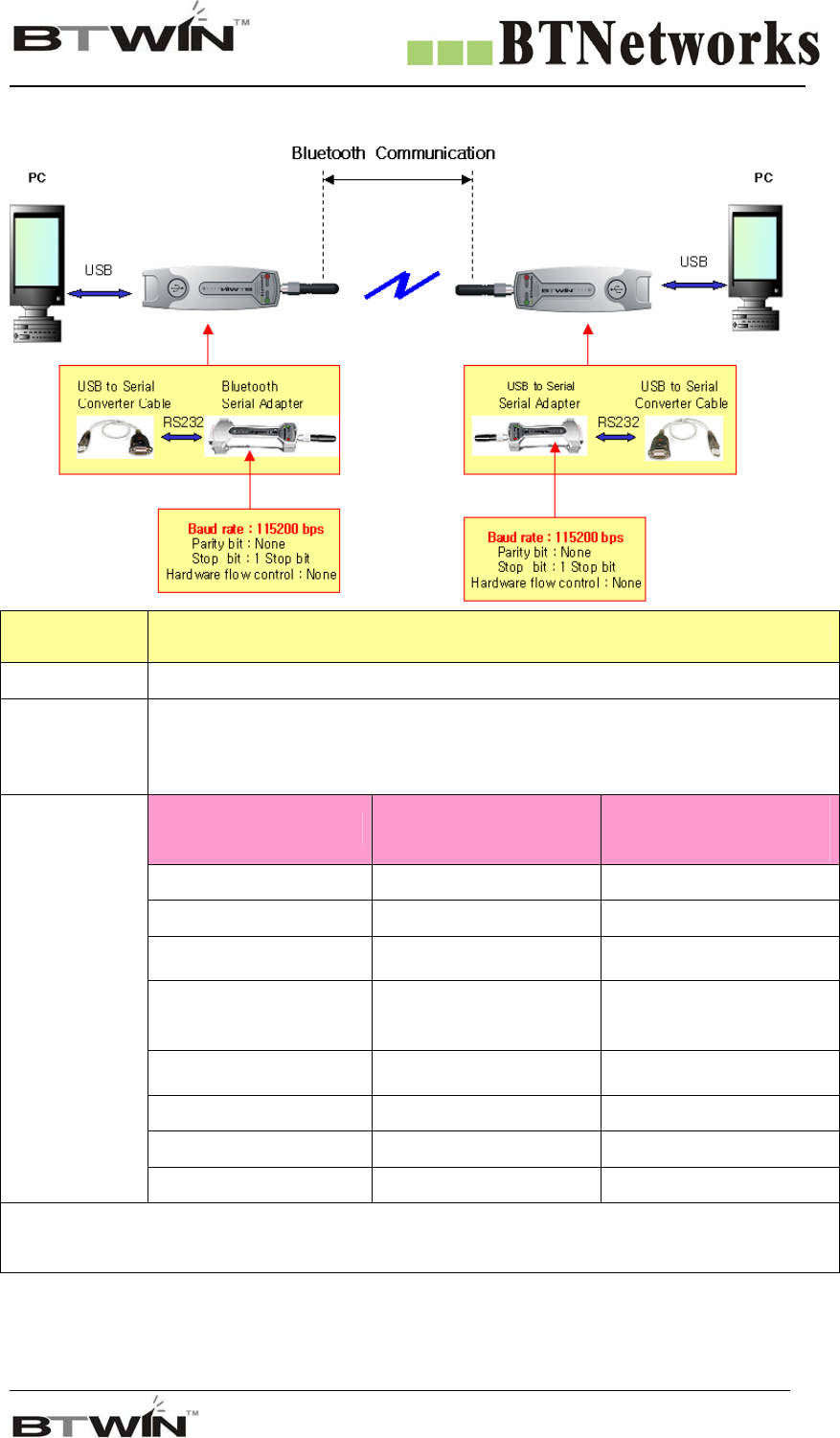
17-3. Communication Test at 115,200 bps (change the baud rate)
Part Description
Equipment PC: 2 ea BM2001: 2 ea
PC is power on and OS is the Windows.
Test
Environment Use USB port of each PC.
Part Default
(Before change)
User Select
(After Change)
External Power Select Don’t Use Don’t Use
Select RI Signal Line Don’t Use Don’t Use
Master/Slave Select Master or Slave Master or Slave
Mode Select Dip switch
Configuration mode
Dip switch
Configuration mode
Baud rate 9600 bps 115,200 bps
Parity None None
Stop bit 1 bit 1 bit
Setting
Values
Hardware flow control None None
* Only change the baud rate’s value
Wireless Total Solution Company
For your Free Bluetooth USB Adapter BM2001 User’s Guide
33
Follow these procedures.
[1] Change the baud rate switch as 115200 bps. Pin 2,3 and 4 are up.
♦ BM2001 should be either master or slave. If one is a master, another should be a slave.
Function Select Switch Baud Rate Switch
Set the DIP Switch
I) Set as a MASTER
Function Select Switch Baud Rate Switch Setting
Role: Master
Bps: 115200 bps
Mode: DIP Switch
Configuration Mode
ii) Set as a SLAVE
Function Select Switch Baud Rate Switch Setting
Role: Slave
Bps: 115200 bps
Mode: DIP Switch
Configuration Mode
[2] Attach BM2001 to USB port of each PC.
[3] Turn on the power switch.
- Whenever turn on the power switch, BM2001 will start working.
- Check on power LED color is red. It means B2001 is supplied power stable.
[4] Check on status LED color is green.
- When Status LED is green, it means is established connection between two BM2001s.
Wireless Total Solution Company
For your Free Bluetooth USB Adapter BM2001 User’s Guide
34
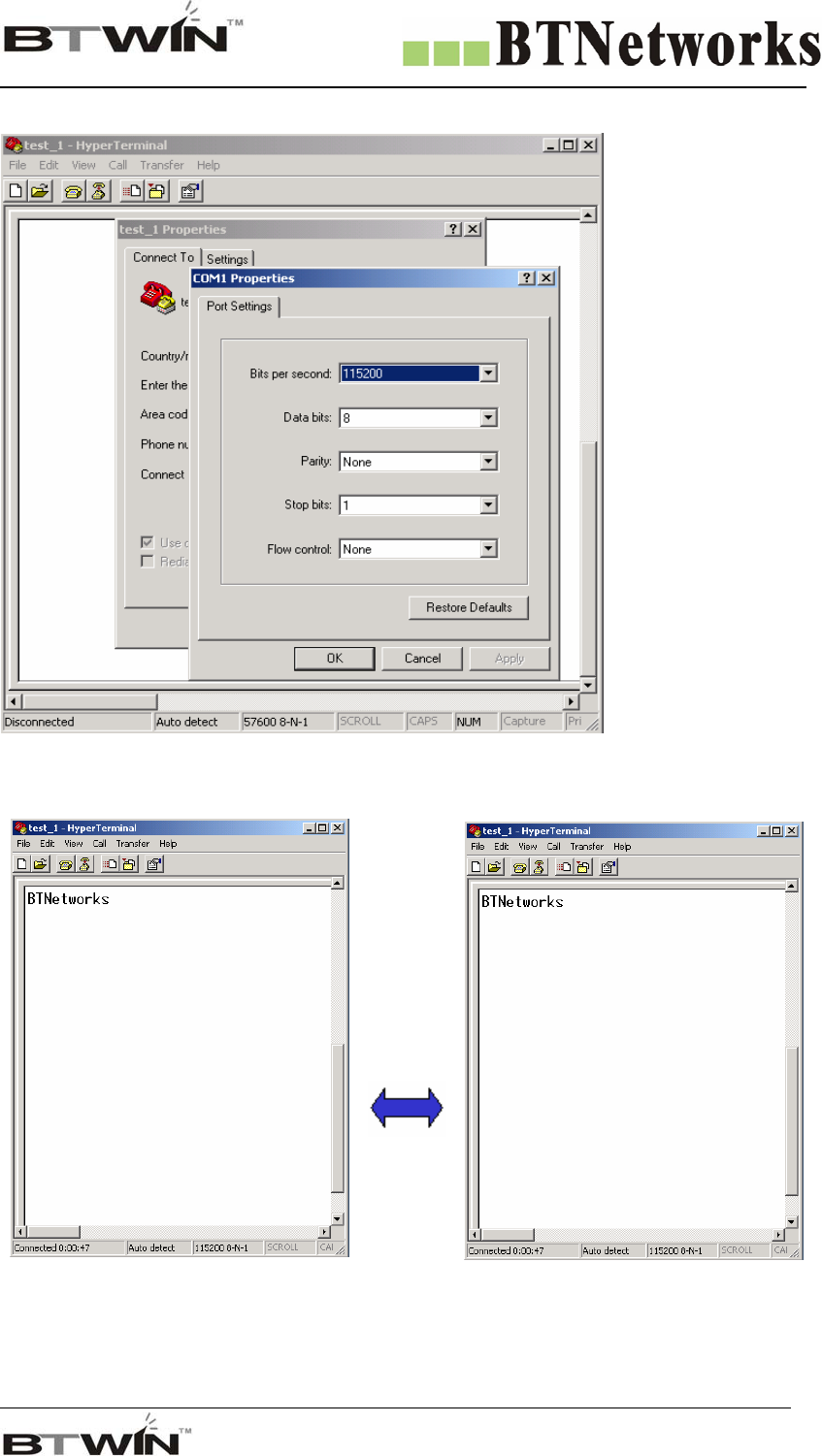
[5] Run the hyper terminal at each PC. And then set the parameters as below picture.
[6] Enter the characters via keyboard at each PC in order to transmit the data between two PCs.
PC1
Full
Duplex
Communi
cation
PC2
[7] If displayed characters are right, it means both the data transmitting through BM2001 and setup is
successful.
Wireless Total Solution Company
For your Free Bluetooth USB Adapter BM2001 User’s Guide
35
18. PC Configuration Mode
18-1. Pre Setting before using the PC Configuration Mode
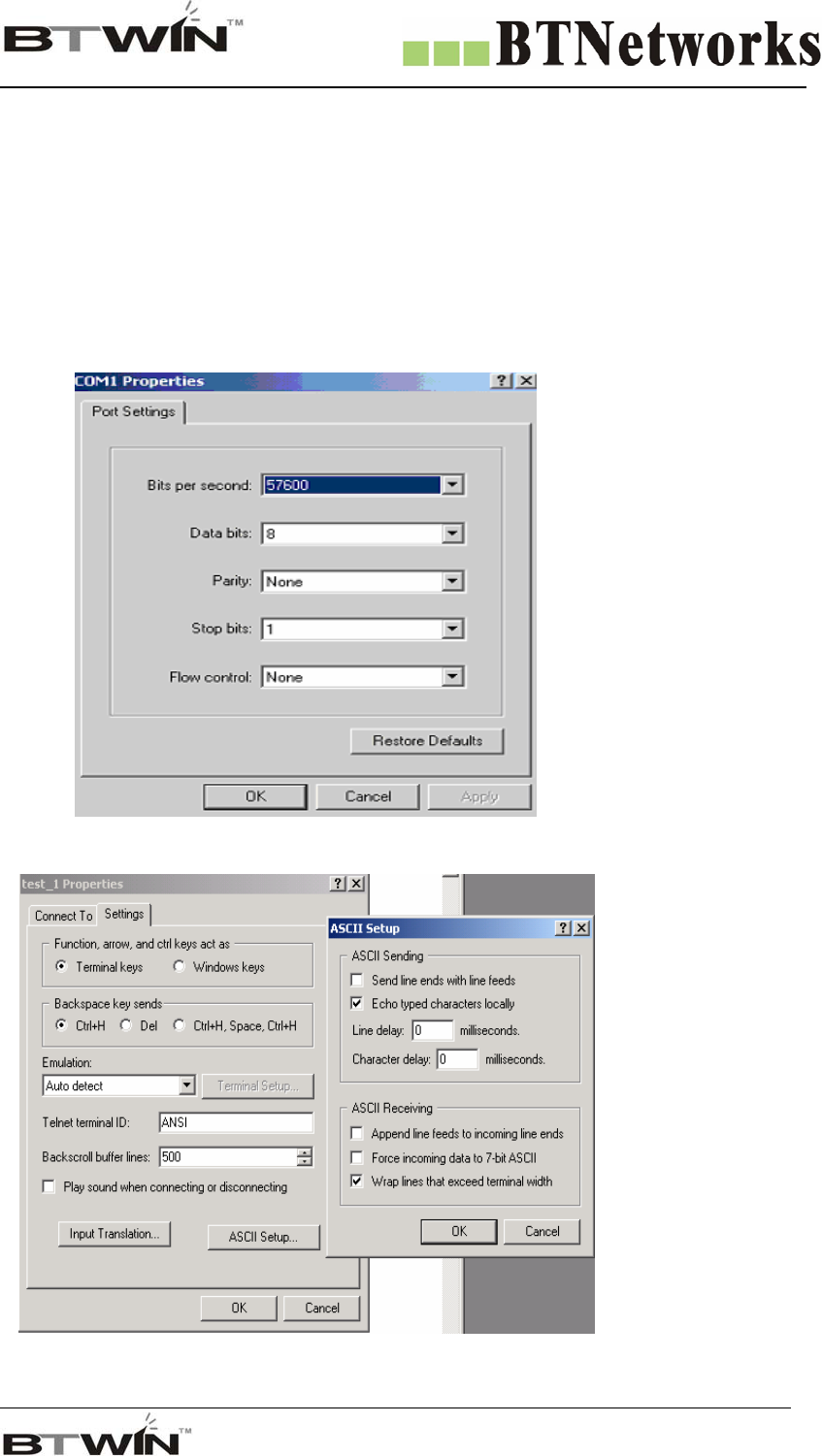
You should below procedures in order to use the PC Configuration mode before turn on the BM2001.
[1] In order to use PC Configuration Mode, you need the serial communication software.
Here we explain the usage scenario with HyperTerminal of Windows.
[2] Run the Hyper Terminal and then disconnect current connection.
[3] Open the menu [FileÎPropertyÎConfiguration] at Menu Bar.
Port Setting
Communication Speed:
Auto-Mode
Data Bit: 8
Parity Bit: None Parity
Stop Bit: 1
Flow Control: None
Click to “ASCII Setup”
button of Setup tab in the
properties to into ASCII
setup mode.
Check the “Echo typed
characters locally” box in
the ASCII Sending.
Wireless Total Solution Company
For your Free Bluetooth USB Adapter BM2001 User’s Guide
36
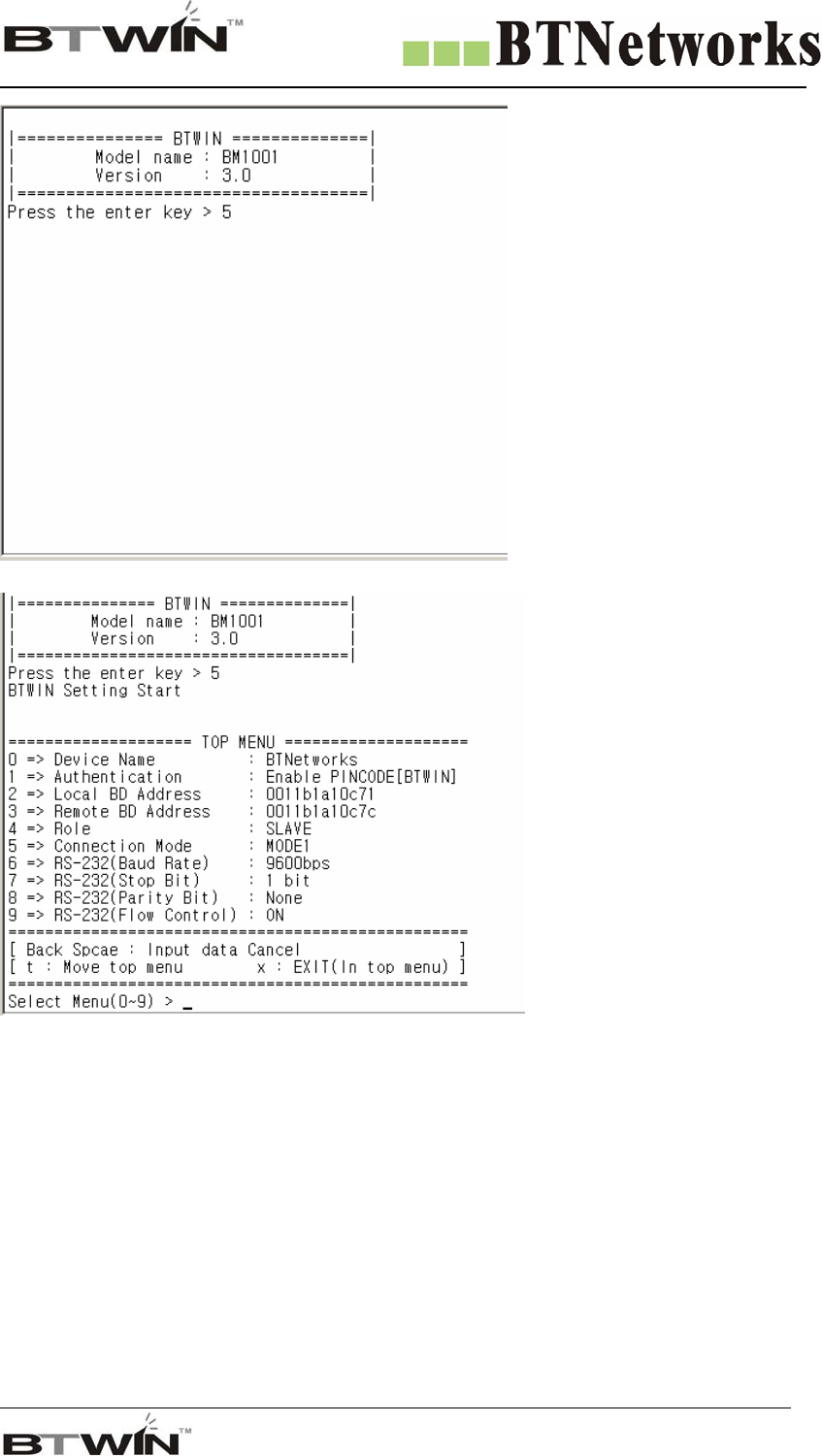
[4] Afterward above set up,
turn on the BM2001 and then
click the connect button.
It will appear the message like
left picture then it will start
the count down.
[5] Press the enter key within
5 seconds, and appear the TOP
menu to configure.
[6] If you don’t press the enter key within 5 seconds, BM2001 will try to communicate at default setting.
[7] If you need more detail information for PC Configuration Mode, refer below documents.
Wireless Total Solution Company
For your Free Bluetooth USB Adapter BM2001 User’s Guide
37
18-2. How to use the PC Configuration Mode
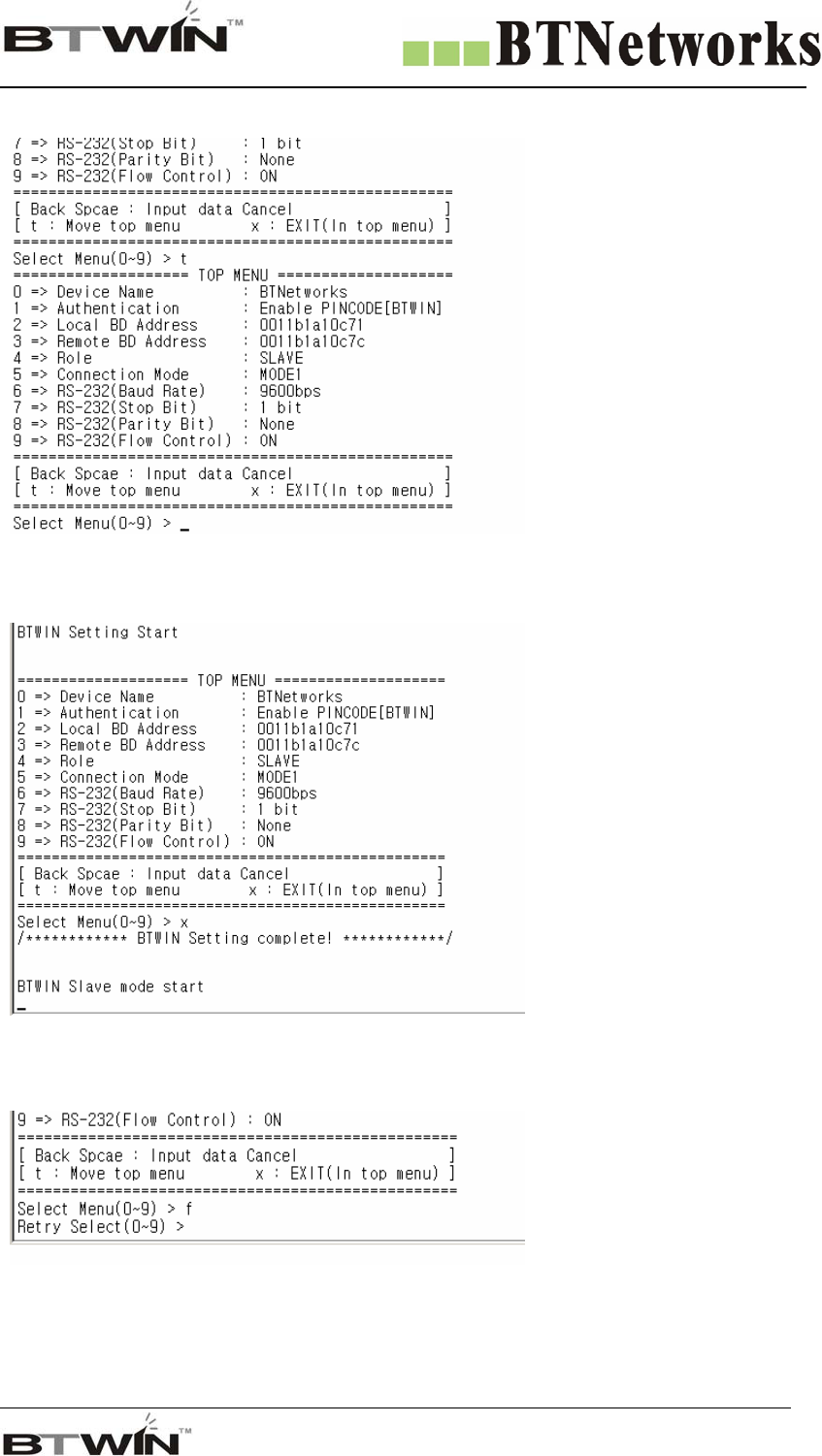
1) After enter the character,
Press the enter key.
2) Small “t” always moves to
TOP MENU.
3) Small “x” closes the PC
configuration utility.
3) To move to other menu you
should input the left first
number of menus.
4) To cancel current input
character use the “Í” Back
Space key and “ESC” key.
5) If the entered character is
wrong, “Retry > “
message will be displayed.
6) You can enter the character
until maximum 12 characters.
If the entered characters
exceed than 12 characters, it
will display “Overflow
buffer” message.
And then it will display
“Retry > “ message.
Wireless Total Solution Company
For your Free Bluetooth USB Adapter BM2001 User’s Guide
38
14.3 About the menu of the PC configuration mode
[1] Device Name: Bluetooth device’s name
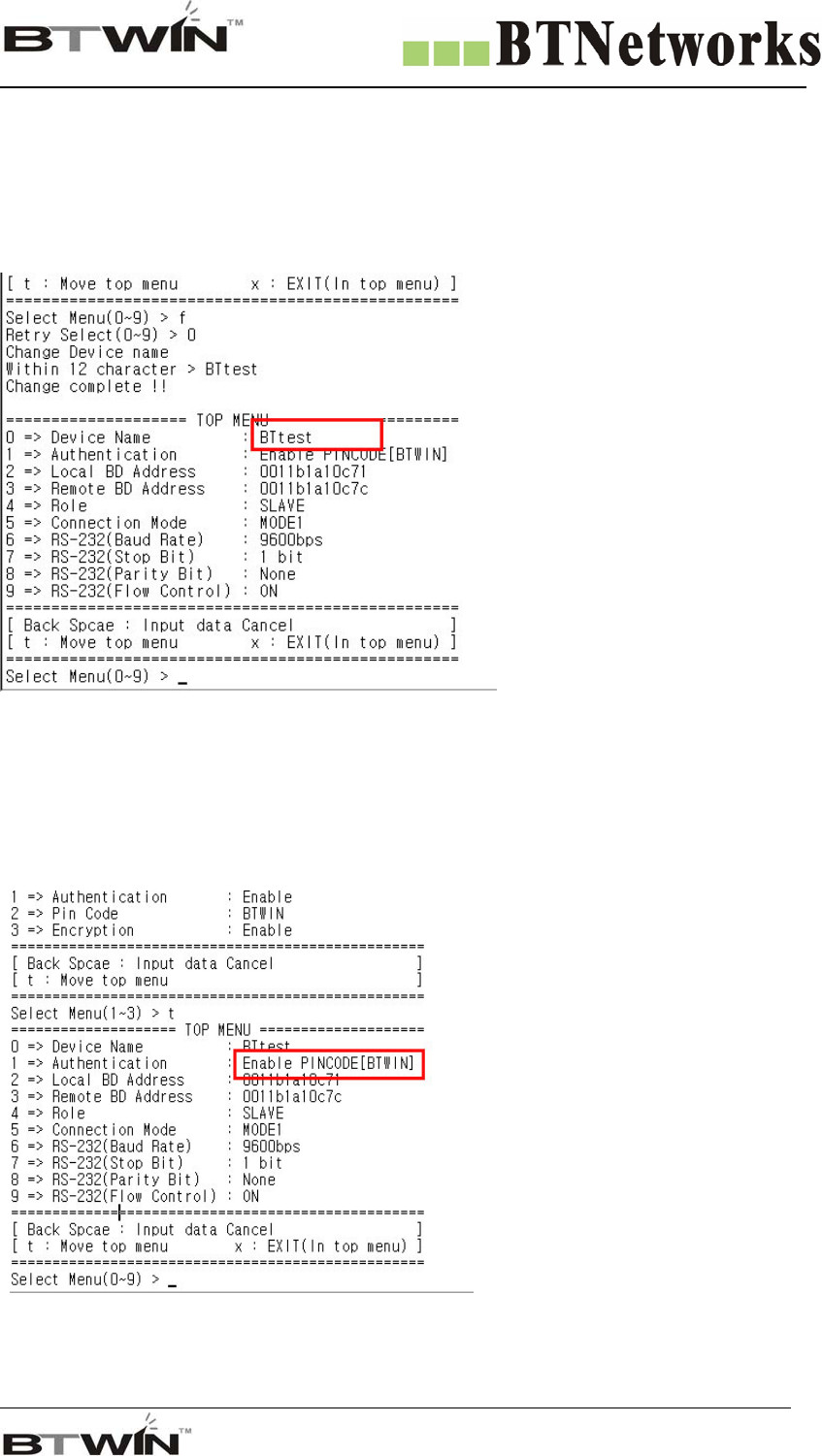
[1-1] You can change the device name within 12 characters.
[1-2] Afterward input the name then press the enter key.
Appear “Change Complete!!” message and then move to TOP MENU.
The device name is changed from BTNetworks to BTtest.
[1-3] You can see the changed device name at TOP menu.
[2] Authentication
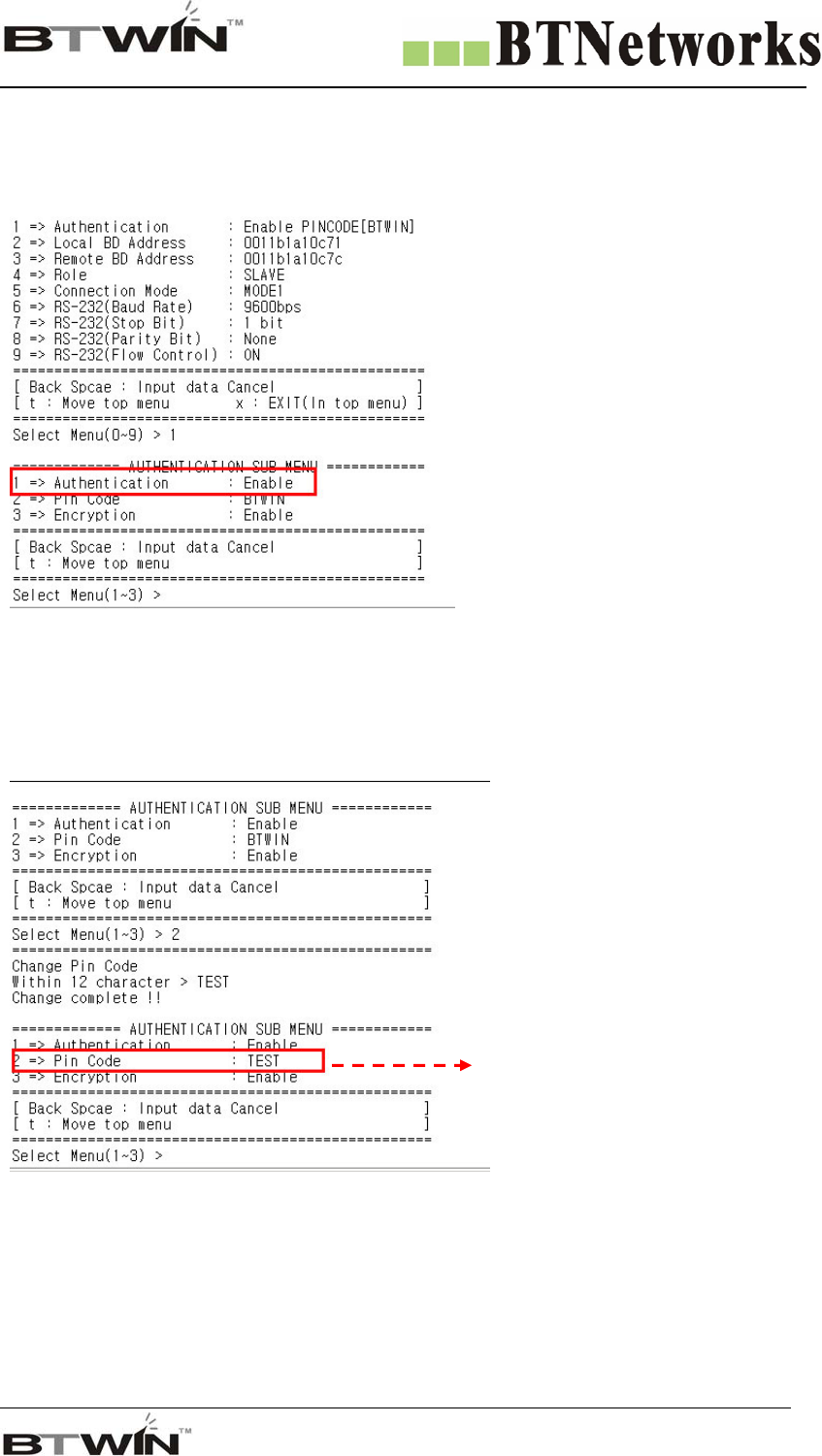
To connect other bluetooth devices it needs an authentication, pin code, encryption.
User may set them in this menu.
Authentication is set as enable
Pin Code is set as BTWIN
Wireless Total Solution Company
For your Free Bluetooth USB Adapter BM2001 User’s Guide
39
[2-1] Authentication
[2-1-1] User may set to request the authentication procedure.
[2-1-2] When it is disable, the encryption feature is disable too.
[2-1-3] The default setting is enable.
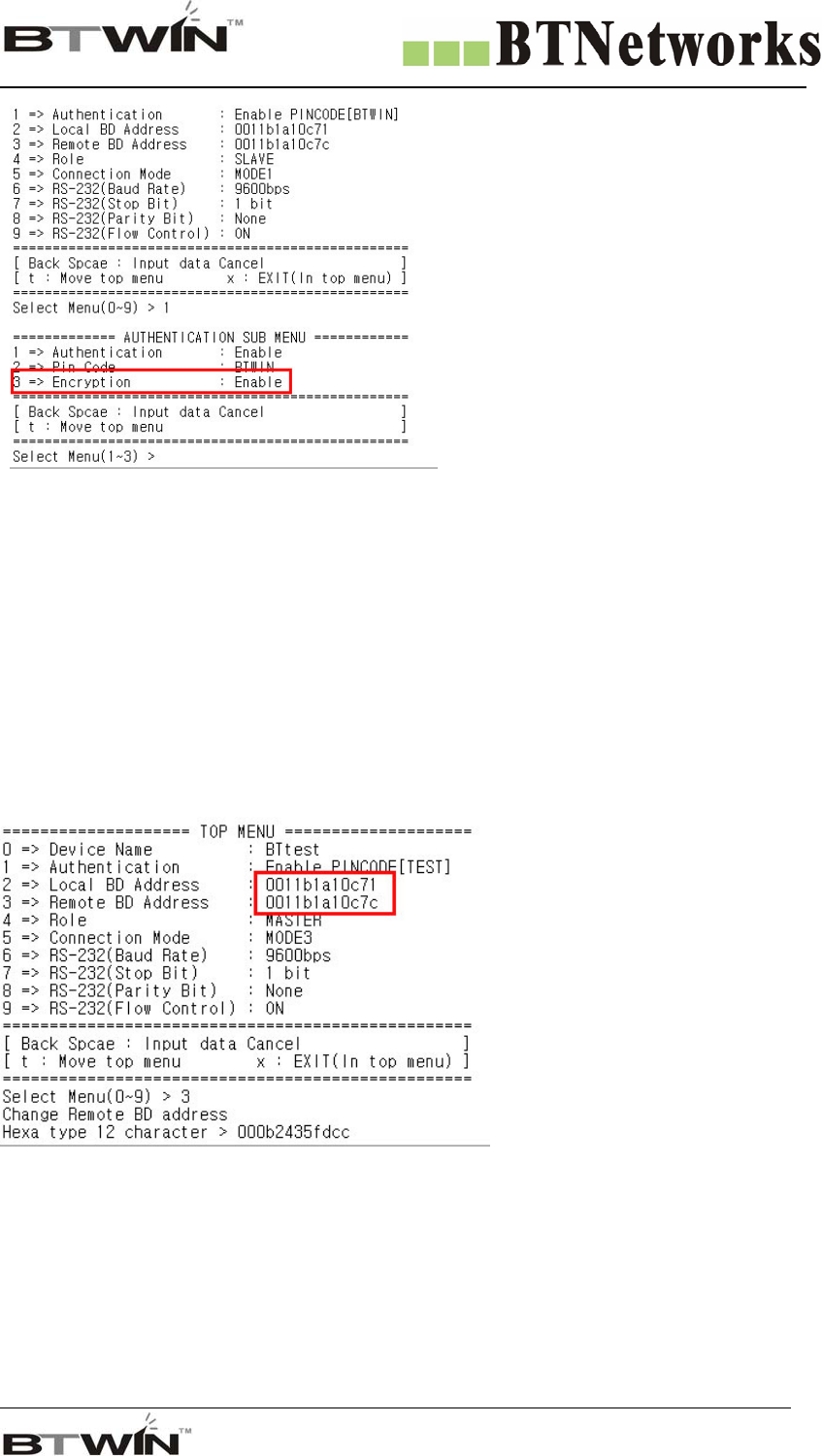
[2-2] Pin Code
[2-2-1] It is like a password.
[2-2-2] To connect between two devices, they have to have a same pin code.
[2-2-3] You can enter the pin code within 12 characters.
[2-2-4] After enter the pin code, “Change complete !!” message will be displayed.
And then move to AUTHENTICATION SUB MENU.
[2-3] Encryption
[2-3-1] This encrypt the data between two bluetooth devices.
[2-3-2] The default setting is enable.
[2-3-3] If the authentication is disable, this is disable too.
Pin code is changed.
Wireless Total Solution Company
For your Free Bluetooth USB Adapter BM2001 User’s Guide
40
[3] Local BD Address:
[3-1] This is a MAC address of Bluetooth Device. It is fixed parameter. You can’t change it.
[3-2] If you choice this menu, “No change local BD address” message will be displayed and then move to Top menu
automatically.
[4] Remote BD Address
[4-1] This is the latest paired bluetooth device address.
[4-2] If you want to connect new bluetooth device, delete the latest paired bluetooth device address and then enter
new bluetooth address.
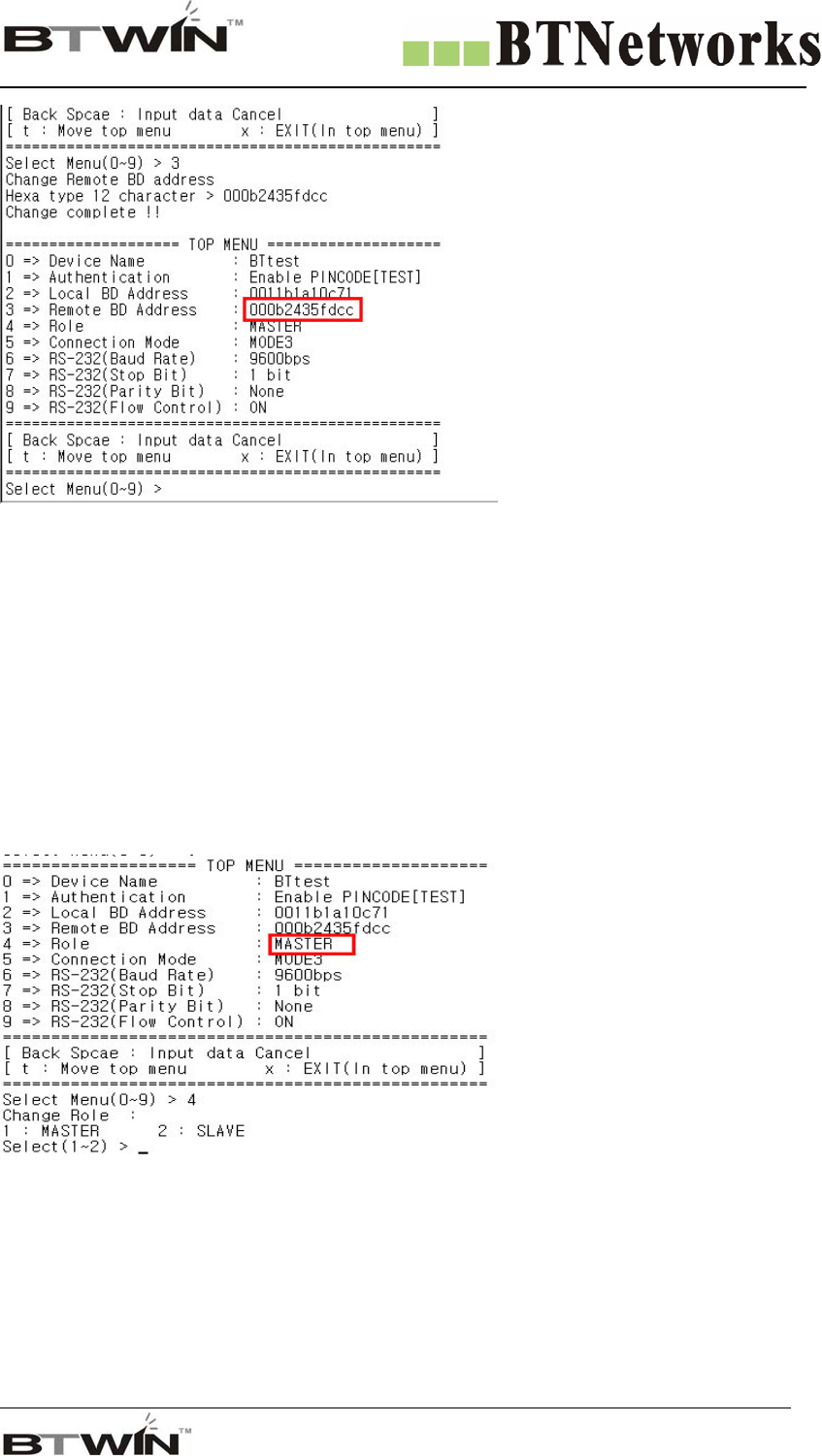
1) To use this feature enter “3” and then press the enter key at menu select status.
2) Input the new bluetooth device address in a hexadecimal that you want to connect it.
3) It will be displayed “Change complete!!” and then move to Top menu automatically.
4) You can see the changed Remote BD address.
Wireless Total Solution Company
For your Free Bluetooth USB Adapter BM2001 User’s Guide
41
[4-3] When you want to delete the Remote BD address, input twelve zeros
“000000000000”
If you delete the Remote BD address, it is able to connect the first bluetooth device has same PIN code in
MODE1.
[4-4] BM1001 must have a Remote BD address in MODE3.
[5] Role
[5-1] Bluetooth device has to be an either master or slave.
[5-2] In order to connect between two bluetooth devices one has to be a master and another has to be a
slave.
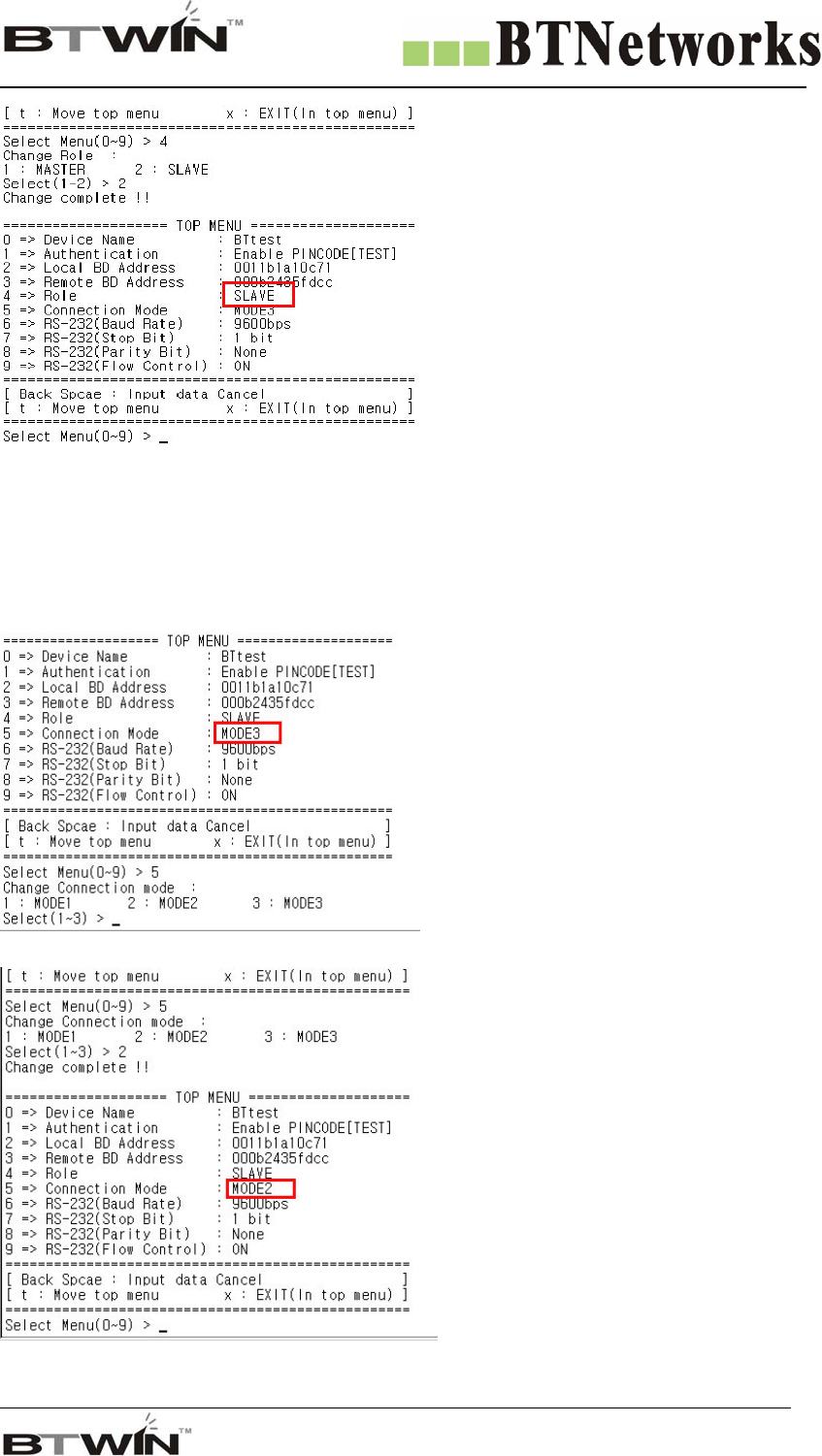
[5-3] Select menu 4 at TOP MENU, and you can select the role.
MASTER is 1 and SLAVE is 2.
[5-4] Select the role and press the enter key.
Wireless Total Solution Company
For your Free Bluetooth USB Adapter BM2001 User’s Guide
42
* You can see the changed Role.
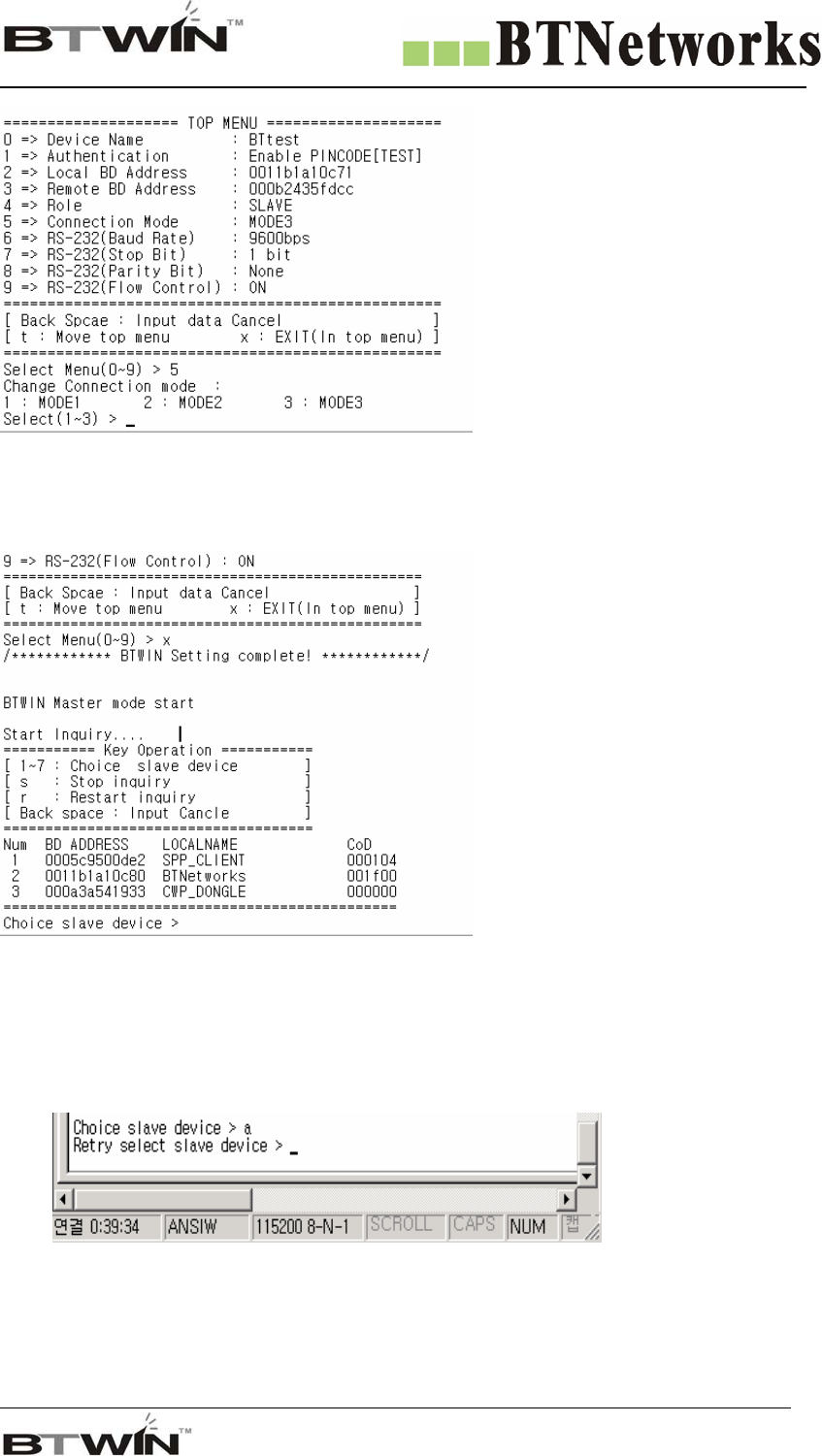
[6] Connection Mode
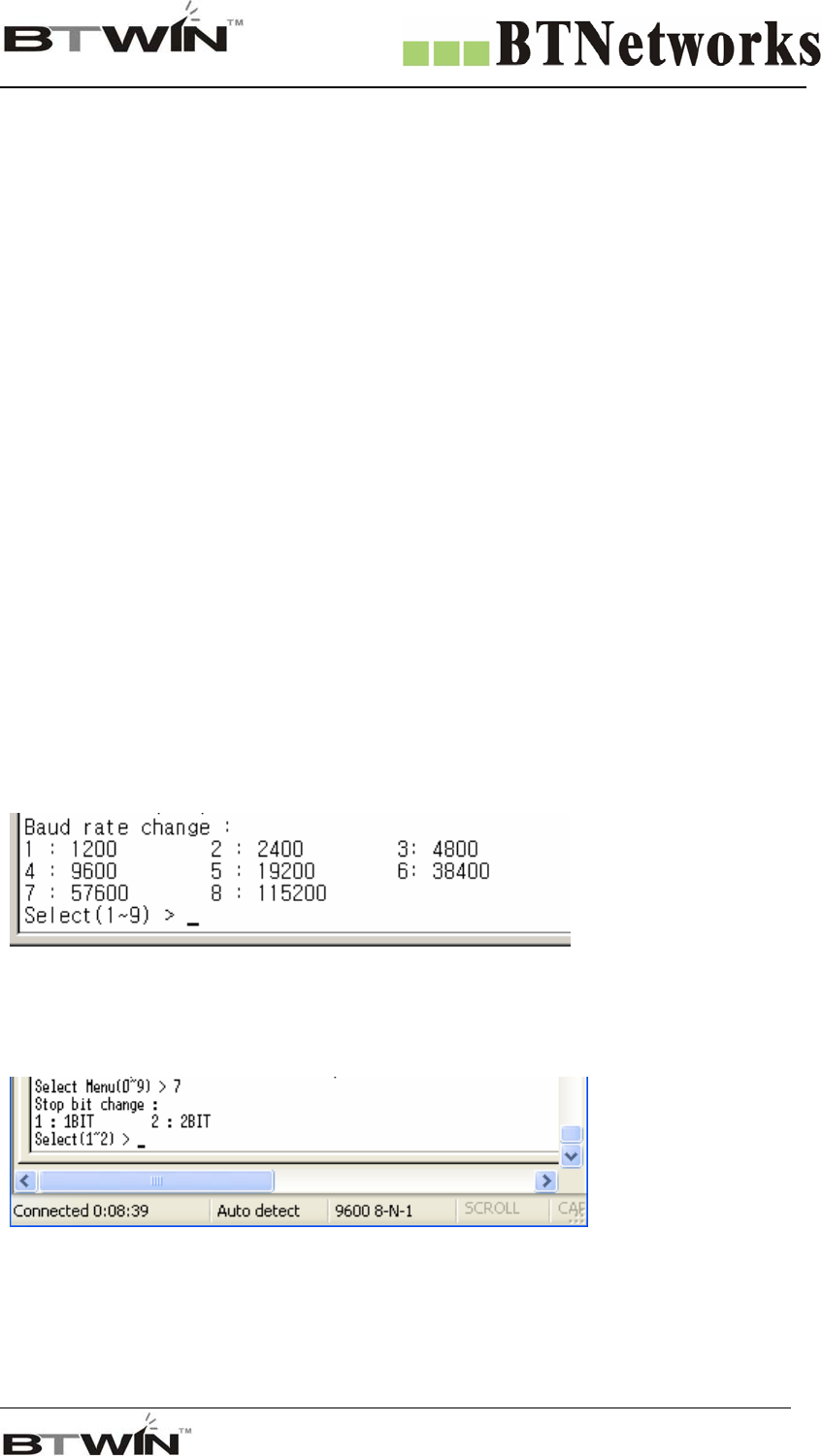
There are three connection modes. You may select connection mode.
1) Select menu 5 at TOP MENU.
2) Choice the mode. And press the enter key.
3) You can see the changed mode.
Wireless Total Solution Company
For your Free Bluetooth USB Adapter BM2001 User’s Guide
43
About the modes
MODE 1
In this mode, BM2001 always connect the latest paired bluetooth device.
If BM2001 has not the Remote BD address, try to connect the first bluetooth device is searched.
At this time, two bluetooth devices must have same PIN code.
MODE 2
1) In MASTER Case
You can search the bluetooth devices have same PIN code round it.
And the bluetooth devices list will be displayed.
You can select one among the bluetooth devices list.
2) In SLAVE case
when it received the connection request from the Master has same PIN code, it connect the master.
MODE 3
If you know the Remote BD address, you can change the Remote BD address in Mode3.
Enter the BD address of Remote device to “Remote BD Address”.
*Caution: BM2001 must have a Remote BD Address in mode3.
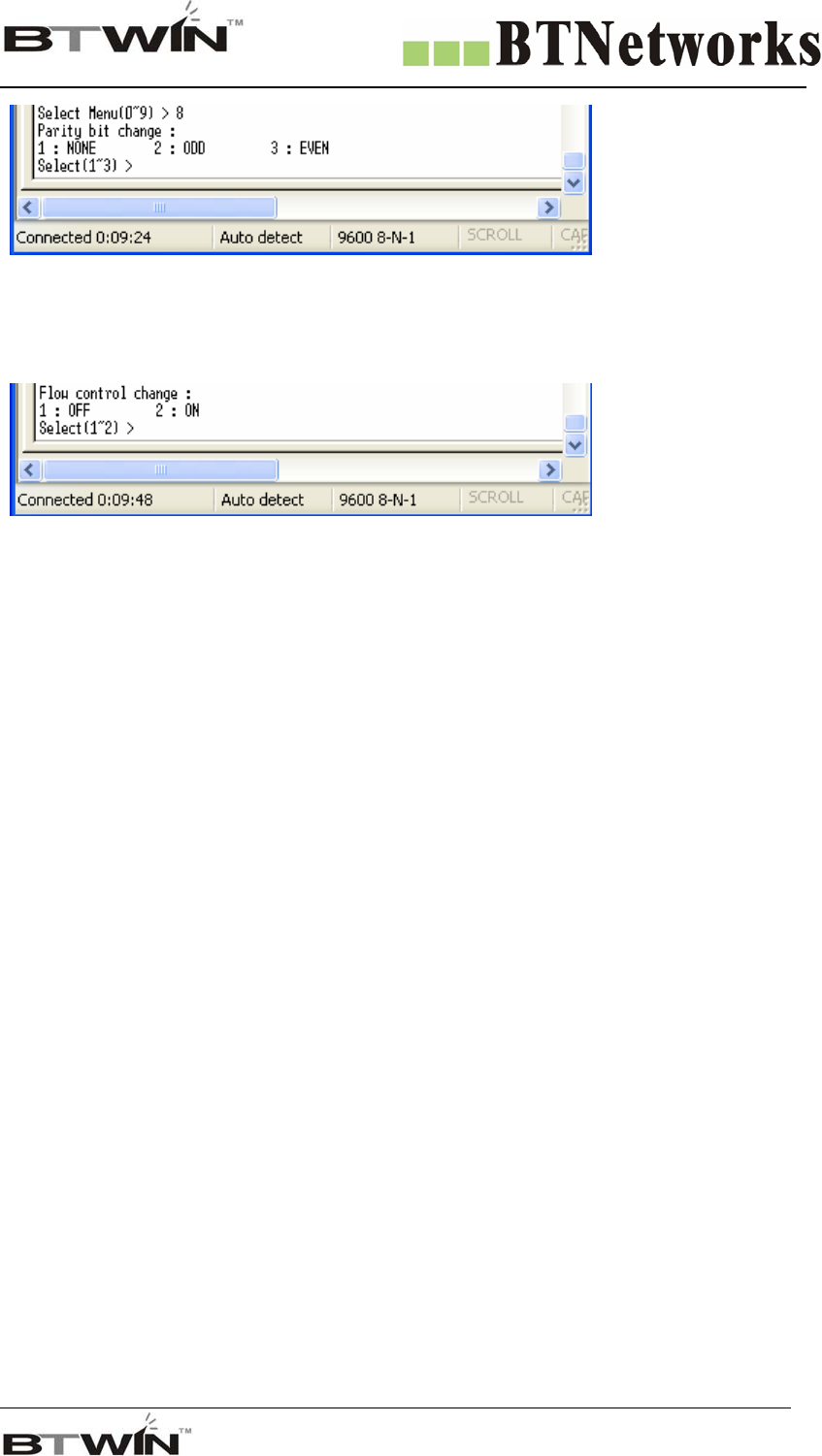
[7] RS-232 (Baud Rate)
[7-1] It is UART communication speed.
[7-2] BM2001 supports Baud Rate from 1,200 until 230,400 bps.
[8] RS-232 (Stop Bit)
STOP Bit is 1 Bit and 2 Bit.
[9] RS-232 (Parity Bit)
Parity Bit is NONE, ODD and EVEN.
Wireless Total Solution Company
For your Free Bluetooth USB Adapter BM2001 User’s Guide
44
[10] RS-232 (Flow control)
BM2001 supports Hardware Flow control. Default setting is OFF.
Wireless Total Solution Company
For your Free Bluetooth USB Adapter BM2001 User’s Guide
45
19. Connection Modes
19-1. MODE 1 (Default Mode)
This is the default seeting.
Before user change the connection mode, BM2001 use this mode always.
[1] it communicates with the latest paired bluetooth device.
- The latest paired bluetooth device address is memorized to the Remote BD Address.
[2] If it has not the Remote BD Address,
Master: It tries to connect the first bluetooth device is searched.
At this time, remote device should be a SLAVE mode and must have same PIN code.
SLAVE: When it received the connection request from the Master has same PIN code, it connect the
master.
19-2. MODE 2
If you want to connect the new bluetooth device, use this mode.
Using method
[1] Turn off BM2001 and move down the pin#4 of the function select switch. Then BM2001 will be a PC
configuration Mode.
[2] Run the Hyperterminal program of the windows. Refter to “PC Configuration Mode”.
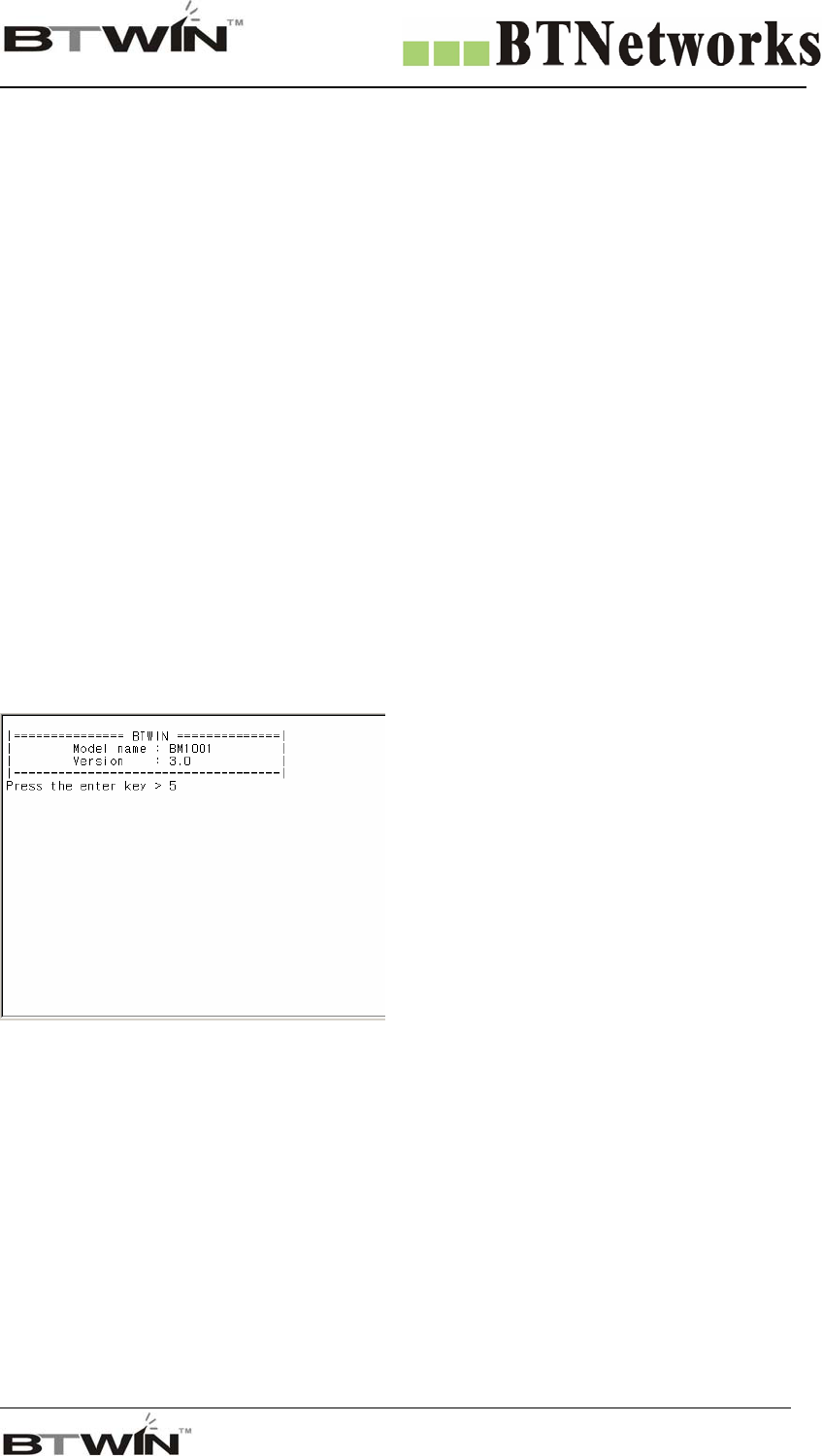
[3] Turn on BM2001, you will find the below picture at your monitor.
[4] Press the Enter key within 5 seconds.
[5] It will enter the PC configuration Mode.
[6] Select No.5 Connection Mode in the menu. And then press the Enter key.
[7] Select No.2 MODE2 in the connectin mode menu. And then press the Enter key.
[8] Turn off BM2001.
[9] Move up the pin#4 of the function select switch. It will ba DIP Switch Mode.
[10] Turn on BM2001.
Wireless Total Solution Company
For your Free Bluetooth USB Adapter BM2001 User’s Guide
46
In Master Case
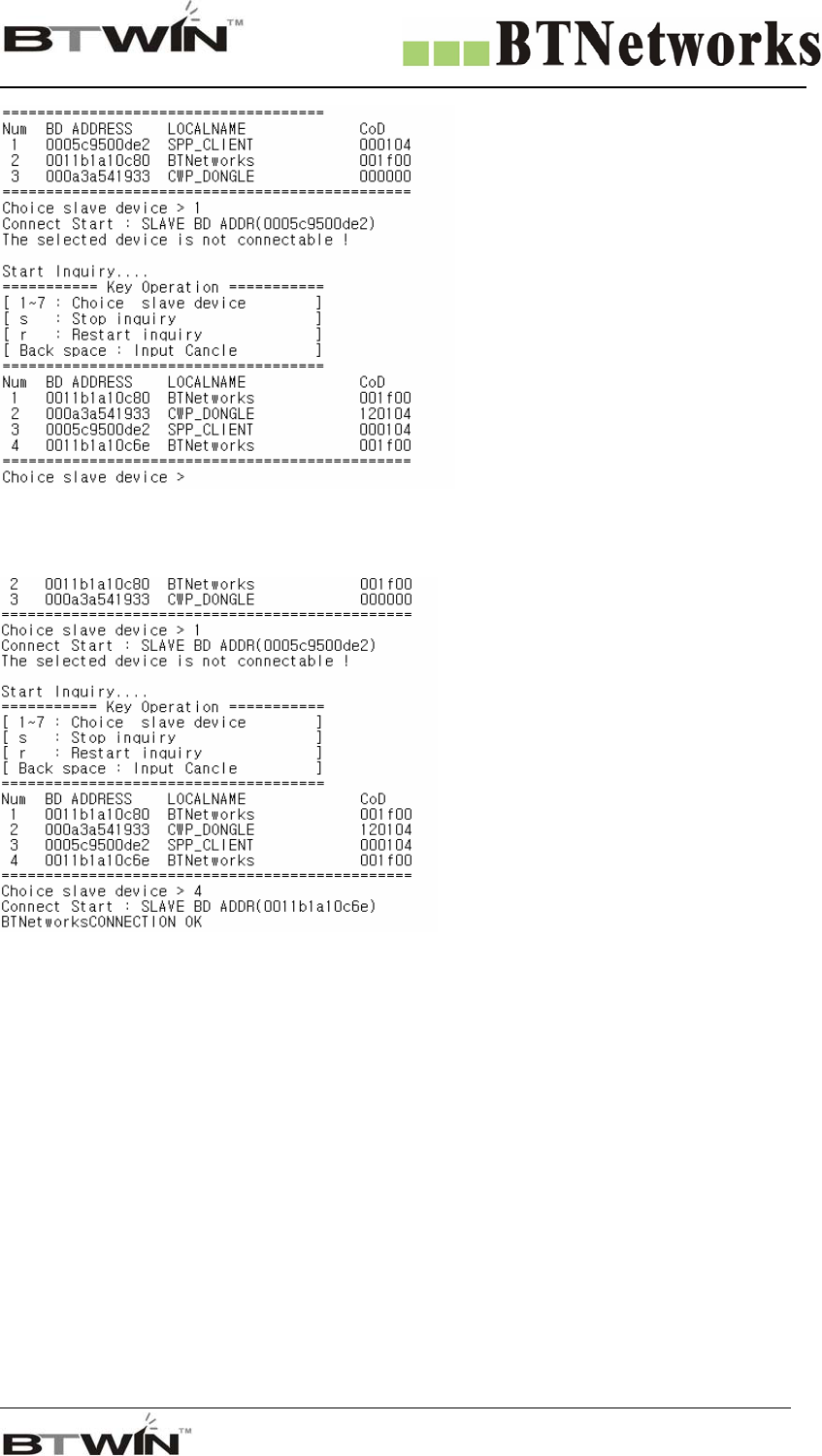
[11] You can see the below picture.
- BM2001 will find the bluetooth devices with same PIN code.
- The searching will be kept on until look for 7 slaves.
- Some keys have a function while searching.
“r” : Retry searching
“Í” Back space key : Cancel the entered data
“s” : Stop searching
Select one slave device of the list, and master will connect to that.
- If connection is fail, “The slave device is not connectable!!” message will be displayed.
- And retry search for bluetooth devices.
Wireless Total Solution Company
For your Free Bluetooth USB Adapter BM2001 User’s Guide
47
When the connection is successful, it will be displayed “CONNECTION OK”.
In Slave case
When slave device receive the connection request from the master device has same PIN code, it will
connect with master device.
After Pairing with new bluetooth device, BM2001 must retrun to MODE1.
If you don’t do it, whenever turn on BM2001 it will be find the new bluetooth devices.
Back to Mode1
[1] Turn off BM2001. And move down the pin#4 of the function switch to be PC configuration Mode.
[2] Turn on BM2001. And change the connection mode as MODE1 at the main menu.
[3] Turn on BM2001. And move up the pin#4 of the function switch to be DIP Switch Mode.

Wireless Total Solution Company
For your Free Bluetooth USB Adapter BM2001 User’s Guide
48
19-3. MODE 3
You can change the remote bluetooth device’s address directly.
[1]Enter the PC configuration Mode with BM2001.
[2] Select No.5 Connection Mode at the main menu.
[3] Select MODE3 in the connection mode menu.
[4] Go back main menu.
[5] Select No.3 Remote BD address at the main menu.
[6] Input the Remote device’s address.
[7] Input “x”, and then BM2001 will try to connect with new device what you want to connect.
[8]Wait until “Connection Ok” message will be displayed.
[9] Restart BM2001.
[10] Change the connection mode as MODE1 at the main menu.
[11] Turn off BM2001, and then move up pin#4 of the function switch to be DIP Swtich mode.
Two bluetooth devices have same PIN Code to use MODE3.

Wireless Total Solution Company
For your Free Bluetooth USB Adapter BM2001 User’s Guide
49
Regulatory Compliance
FCC compliance Information
This device complies with part 15 of FCC Rules.
Operation is subject to the following two conditions:
1. This device may not cause harmful interference, and
2. This device must accept any interference received.
Including interference that may cause undesired operation.
Information to User
This equipment has been tested and found to comply with the limits for a Class B digital device,
Pursuant to part 15 of the FCC Rules. These limits are designed to provide reasonable protection against
harmful interference in a residential installation.
This equipment generates, uses and can radiate radio Frequency energy and, if not installed and used in
accordance with the instructions, may cause harmful interference to radio communications. However, there
is no guarantee that interference will not occur in a particular installation. If this equipment does cause
harmful interference to radio or television reception, which can be determined by turning the equipment off
and on, the user is encouraged to try to correct the interference by one or more of the following measures:
- Reorient or relocate the receiving antenna.
- Increase the separation between the equipment and receiver
- Connect the equipment into an outlet on a circuit different from that to which the receiver is connected.
- Consult the dealer or an experienced radio/TV technician for help.
FCC WARNING
This equipment may generate or use radio frequency energy. Changes or modifications to this equipment
may cause harmful interference unless the modifications are expressly approved in the instruction manual.
The user could lose the authority to operate this equipment if an unauthorized change or modification is
made.
User information of CE compliance
Hereby, BTNetworks co., Ltd declares that this is Bluetooth USB Adapter (BM2001) in compliance with
the essential requirements and other relevant provisions of Directive 1999/5/EC.
RF Exposure Information
The antenna used for this transmitter must be installed to provide a separation distance of at least 1.5 cm
from all persons and must not be co-located or operating in conjunction with any other antenna or
transmitter.

Wireless Total Solution Company
For your Free Bluetooth USB Adapter BM2001 User’s Guide
50
Homepage www.btnetworks.co.kr
Technical Support techsupport@btnetworks.co.kr
Sales Contact contact@btnetworks.co.kr
Company Address 1F.Yoonjae Bldg. 1530-1,Seocho-Dong,
Seocho-Gu, Seoul, Korea, 137-871
Company Logo
Model : BM2001