Barco H600 User Manual To The 9452181b 1cd5 472e A580 Ed366d521db0
User Manual: Barco H600 to the manual
Open the PDF directly: View PDF  .
.
Page Count: 171 [warning: Documents this large are best viewed by clicking the View PDF Link!]
- toc
- 1. Introduction
- 2. Packaging
- 3. Installation guidelines
- 4. Installation
- 5. Setup
- 5.1 Powering up the projector
- 5.2 Starting up the projector
- 5.3 Setting up the RCU address
- 5.4 Setting up the projector address (only if necessary)
- 5.5 Setting up the orientation
- 5.6 Adjusting the lens
- 5.7 Setup the baudrate for serial communication
- 5.8 Setting the server ON/OFF state
- 5.9 Preferences
- 5.10 Installing the software
- 5.11 Configuring the client software
- 5.12 Configuring the Server software
- 5.13 DropZone settings
- 5.14 Start up
- 6. Getting started
- 7. Desktop Management
- 8. Advanced
- 9. Network centric operations
- A. Troubleshoot
- B. General guidelines on Network Configuration
- C. Exchange
- D. SNMP services
- E. Maintenance
- F. Image files
Barco iCon
Owner’s Manual
H600
R9011114
R5976821/06
15/03/2007
Product revision
Software version: V1.30
Barco nv Presentations
Noordlaan 5, 8520 Kuurne
Phone: +32 56.36.82.11
Fax: +32 56.35.86.51
E-mail: presentations.bid@barco.com
Visit us at the web: www.barco.com
PrintedinBelgium
Changes
Barco provides this manual ’as is’ without warranty of any kind, either expressed or implied, including but not limited to the implied war-
ranties or merchantability and fitness for a particular purpose. Barco may make improvements and/or changes to the product(s) and/or the
program(s) described in this publication at any time without notice.
This publication could contain technical inaccuracies or typographical errors. Changes are periodically made to the information in this
publication; these changes are incorporated in new editions of this publication.
Federal Communications Commission (FCC Statement)
This equipment has been tested and found to comply with the limits for a class A digital device, pursuant to Part 15 of the FCC rules.
These limits are designed to provide reasonable protection against harmful interference when the equipment is operated in a commercial
environment. This equipment generates, uses, and can radiate radio frequency energy and, if not installed and used in accordance with
the instruction manual, may cause harmful interference to radio communications. Operation of this equipment in a residential area may
cause harmful interference, in which case the user will be responsible for correcting any interference.
EN55022/CISPR22 Class A ITE (Information Technology Equipment)
Class A ITE is a category of all other ITE which satisfies the class A ITE limits but not the class B ITE limits. Such equipment should not
be restricted in its sale but the following warning shall be included in the instructions for use:
Warning : This is a class A product. In a domestic environment this product may cause radio interference in which case the user may be
required to take adequate measures.
Trademarks
Brand and product names mentioned in this manual may be trademarks, registered trademarks or copyrights of their respective holders.
All brand and product names mentioned in this manual serve as comments or examples and are not to be understood as advertising for
the products or their manufactures.
End User License agreement (EULA)
You have acquired a device that includes software licensed by Barco from Microsoft Licensing Inc. or its affiliates (“MS”). Those installed
software products of MS origin, as well as associated media, printed materials, and “online” or electronic documentation (“SOFTWARE”)
are protected by international intellectual property laws and treaties. The SOFTWARE is licensed, not sold. All rights reserved.
IF YOU DO NOT AGREE TO THIS END USER LICENSE AGREEMENT (“EULA”), DO NOT USE THE DEVICE OR COPY THE SOFT-
WARE. INSTEAD, PROMPTLY CONTACT BARCO FOR INSTRUCTIONS ON RETURN OF THE UNUSED DEVICE(S) FOR A REFUND.
ANY USE OF THE SOFTWARE, INCLUDING BUT NOT LIMITED TO USE ON THE DEVICE, WILL CONSTITUTE YOUR AGREEMENT
TO THIS EULA (OR RATIFICATION OF ANY PREVIOUS CONSENT).
This EULA grants you the following license:
• You may use the SOFTWARE only on the DEVICE
•NOT FAULT TOLERANT: THE SOFTWARE IS NOT FAULT TOLERANT. BARCO HAS INDEPENDENTLY DETERMINED HOW TO
USE THE SOFTWARE IN THE DEVICE, AND MS HAS RELIED UPON BARCO TO CONDUCT SUFFICIENT TESTING TO DETER-
MINETHATTHESOFTWAREISSUITABLEFORSUCHUSE
•NO WARRANTIES FOR THE SOFTWARE: THE SOFTWARE is provided “AS IS” and with all faults. THE ENTIRE RISK AS TO
SATISFACTORY QUALITY, PERFORMANCE, ACCURACY, AND EFFORT (INCLUDING LACK OF NEGLIGENCE) IS WITH YOU.
ALSO, THERE IS NO WARRANTY AGAINST INTERFERENCE WITH YOUR ENJOYMENT OF THE SOFTWARE OR AGAINST
INFRINGEMENT. IF YOU HAVE RECEIVED ANY WARRANTIES REGARDING THE DEVICE OR THE SOFTWARE, THOSE WAR-
RANTIES DO NOT ORIGINATE FROM, AND ARE NOT BINDING ON, MS.
•No Liability for Certain Damages:EXCEPTASP
ROHIBITED BY LAW, MS AND BARCO SHALL HAVE NO LIABILITY FOR ANY
INDIRECT, SPECIAL, CONSEQUENTIAL OR INCIDENTAL DAMAGES ARISING FROM OR IN CONNECTION WITH THE USE
OR PERFORMANCE OF THE SOFTWARE. THIS LIMITATION SHALL APPLY EVEN IF ANY REMEDY FAILS OF ITS ESSENTIAL
PURPOSE. IN NO EVENT MS AND BARCO SHALL BE LIABLE FOR ANY AMOUNT IN EXCESS OF U.S. TWO HUNDRED FIFTY
DOLLARS (U.S.$250.00).
•Limitations on Reverse Engineering, Decompilation, and Disassembly: You may not reverse engineer, decompile, or disassem-
ble the SOFTWARE, except and only to the extent that such activity is expressly permitted by applicable law notwithstanding this
limitation.
•SOFTWARE TRANSFER ALLOWED BUT WITH RESTRICTIONS: You may permanently transfer rights under this EULA only as
part of a permanent sale or transfer of the Device, and only if the recipient agrees to this EULA. If the SOFTWARE is an upgrade, any
transfer must also include all prior versions of the SOFTWARE.
•EXPORT RESTRICTIONS: You acknowledge that SOFTWARE is of US-origin. You agree to comply with all applicable international
and national laws that apply to the SOFTWARE, including the U.S. Export Administration Regulations, as well as end-user, end-use
and country destination restrictions issued by U.S. and other governments. For additional information on exporting the SOFTWARE,
see http://www.microsoft.com/exporting/.
•Installation and Use: The SOFTWARE may not be used by more than two (2) processors at any one time on the DEVICE. You
may permit a maximum of ten (10) computers or other electronic devices (each a “Client”) to connect to the DEVICE to utilize the
services of the SOFTWARE solely for file and print services, internet information services, and remote access (including connection
sharing and telephony services). The ten (10) connection maximum includes any indirect connections made through “multiplexing”
or other software or hardware which pools or aggregates connections. Except as otherwise permitted in the NetMeeting/Remote
Assistance/Remote Desktop Features terms below, you may not use a Client to use, access, display or run the SOFTWARE, the
SOFTWARE’s user interface or other executable software residing on the DEVICE.
• If you use the DEVICE to access or utilize the services or functionality of Microsoft Windows Server products (such as Microsoft
Windows NT Server 4.0 (all editions) or Microsoft Windows 2000 Server (all editions)), or use the DEVICE to permit workstation or
computing devices to access or utilize the services or functionality of Microsoft Windows Server products, you may be required to
obtain a Client Access License for the Device and/or each such workstation or computing device. Please refer to the end user license
agreement for your Microsoft Windows Server product for additional information.
•Restricted Uses: The SOFTWARE is not designed or intended for use or resale in hazardous environments requiring fail-safe perfor-
mance, such as in the operation of nuclear facilities, aircraft navigation or communication systems, air traffic control, or other devices
or systems in which a malfunction of the SOFTWARE would result in foreseeable risk of injury or death to the operator of the device
or system, or to others.
•Restricted Functionality: You are licensed to use the SOFTWARE to provide only the limited functionality (specific tasks or pro-
cesses) for which the DEVICE has been designed and marketed by BARCO. This license specifically prohibits any other use of the
software programs or functions, or inclusion of additional software programs or functions, on the DEVICE.
•Security Updates: Content providers are using the digital rights management technology (“Microsoft DRM”) contained in this SOFT-
WARE to protect the integrity of their content (“Secure Content”) so that their intellectual property, including copyright, in such content
is not misappropriated. Owners of such Secure Content (“Secure Content Owners”) may, from time to time, request MS, Microsoft
Corporation or their subsidiaries to provide security related updates to the Microsoft DRM components of the SOFTWARE (“Security
Updates”) that may affect your ability to copy, display and/or play Secure Content through Microsoft software or third party applications
that utilize Microsoft DRM. You therefore agree that, if you elect to download a license from the Internet which enables your use of Se-
cure Content, MS, Microsoft Corporation or their subsidiaries may, in conjunction with such license, also download onto your DEVICE
such Security Updates that a Secure Content Owner has requested that MS, Microsoft Corporation or their subsidiaries distribute.
MS, Microsoft Corporation or their subsidiaries will not retrieve any personally identifiable information, or any other information, from
your DEVICE by downloading such Security Updates
•NetMeeting/Remote Assistance/Remote Desktop Features: The SOFTWARE may contain NetMeeting, Remote Assistance, and
Remote Desktop technologies that enable the SOFTWARE or other applications installed on the Device to be used remotely between
two or more computing devices, even if the SOFTWARE or application is installed on only one Device. You may use NetMeeting,
Remote Assistance, and Remote Desktop with all Microsoft products; provided however, use of these technologies with certain Mi-
crosoft products may require an additional license. For both Microsoft products and non-Microsoft products, you should consult the
license agreement accompanying the applicable product or contact the applicable licensor to determine whether use of NetMeeting,
Remote Assistance, or Remote Desktop is permitted without an additional license
•Consent to Use of Data: You agree that MS, Microsoft Corporation and their affiliates may collect and use technical information
gathered in any manner as part of product support services related to the SOFTWARE. MS, Microsoft Corporation and their affiliates
may use this information solely to improve their products or to provide customized services or technologies to you. MS, Microsoft
Corporation and their affiliates may disclose this information to others, but not in a form that personally identifies you
•Internet Gaming/Update Features: If the SOFTWARE provides, and you choose to utilize, the Internet gaming or update features
within the SOFTWARE, it is necessary to use certain computer system, hardware, and software information to implement the features.
By using these features, you explicitly authorize MS, Microsoft Corporation and/or their designated agent to use this information solely
to improve their products or to provide customized services or technologies to you. MS or Microsoft Corporation may disclose this
information to others, but not in a form that personally identifies you.
•Internet-Based Services Components: The SOFTWARE may contain components that enable and facilitate the use of certain
Internet-based services. You acknowledge and agree that MS, Microsoft Corporation or their affiliates may automatically check the
version of the SOFTWARE and/or its components that you are utilizing and may provide upgrades or supplements to the SOFTWARE
that may be automatically downloaded to your Device.
•Links to Third Party Sites: The SOFTWARE may provide you with the ability to link to third party sites through the use of the
SOFTWARE. The third party sites are not under the control of MS, Microsoft Corporation or their affiliates. Neither MS nor Microsoft
Corporation nor their affiliates are responsible for (i) the contents of any third party sites, any links contained in third party sites, or
any changes or updates to third party sites, or (ii) webcasting or any other form of transmission received from any third party sites. If
the SOFTWARE provides links to third party sites, those links are provided to you only as a convenience, and the inclusion of any link
does not imply an endorsement of the third party site by MS, Microsoft Corporation or their affiliates.
•Additional Software/Services: The SOFTWARE may permit BARCO, MS, Microsoft Corporation or their affiliates to provide or make
available to you SOFTWARE updates, supplements, add-on components, or Internet-based services components of the SOFTWARE
after the date you obtain your initial copy of the SOFTWARE (“Supplemental Components”). If BARCO provides or makes available to
you Supplemental Components and no other EULA terms are provided along with the Supplemental Components, then the terms of
this EULA shall apply. If MS, Microsoft Corporation or their affiliates make available Supplemental Components, and no other EULA
terms are provided, then the terms of this EULA shall apply, except that the MS, Microsoft Corporation or affiliate entity providing the
Supplemental Component(s) shall be the licensor of the Supplemental Component(s). BARCO, MS, Microsoft Corporation and their
affiliates reserve the right to discontinue any Internet-based services provided to you or made available to you through the use of the
SOFTWARE. This EULA does not grant you any rights to use the Windows Media Format Software Development Kit (“WMFSDK”)
components contained in the SOFTWARE to develop a software application that uses Windows Media technology. If you wish to
use the WMFSDK to develop such an application, visit http://msdn.microsoft.com/workshop/imedia/windowsmedia/sdk/wmsdk.asp,
accept a separate license for the WMFSDK, download the appropriate WMFSDK, and install it on your system.
•PATENT INFRINGEMENTS: Barco disclaims any warranty that its Products do not infringe any patent, copyright or trademark; but
agrees to indemnify you regarding such claims if you promptly notify BARCO in writing and if Barco shall have sole control of the
defense of the action and its settlement or compromise. If the use of a Product is enjoined, or a settlement prevents continued use
oftheProduct,Barcoshallhavetheoptiontoprocureforyoutheright to continue use, or replace or modify the Product to remove
the infringement. Barco shall have no liability or duty to indemnify you if the infringement or claim is based on use of the Product in
combination with other products or software not furnished by Barco, where such claim would not have arisen if such Product were
used independently. You will hold Barco harmless against any expense or loss resulting from any infringement caused by compliance
with your designs, specifications, or instructions. The foregoing paragraph states Barco’s entire liability with regard to infringement of
patents, copyrights, or trademarks. This warranty on IP infringement only is valid within US, Canada, EC, Austria, Norway and Japan.
Copyright ©
All rights reserved. No part of this document may be copied, reproduced or translated. It shall not otherwise be recorded, transmitted or
stored in a retrieval system without the prior written consent of Barco.
Patent information
This Barco product is protected by the following Barco patents :
• EP1434433
• US6848792
• EP1569464
• US2005185143
• EP1566677
• US6966657
• EP1569463
• US6984042
Patent pending :
• EP1646232

Table of contents
TABLE OF CONTENTS
1. Introduction ......................................................................................................... 5
1.1 About this manual .................................................................................................................... 5
1.2 Network centric visualisation......................................................................................................... 6
2. Packaging ........................................................................................................... 7
2.1 Unpacking ............................................................................................................................ 7
3. Installation guidelines............................................................................................11
3.1 Safety warnings...................................................................................................................... 11
3.2 Installation guidelines ............................................................................................................... 11
3.3 Network implementation ............................................................................................................12
4. Installation .........................................................................................................13
4.1 Battery installation in the RCU ......................................................................................................15
4.2 Lens installation . . ................................................................................................................... 15
4.2.1 Removing/installing the cable basket ........................................................................................16
4.2.2 Lens range . ...................................................................................................................16
4.2.3 Lens formulas . . ...............................................................................................................17
4.3 Projector Configuration..............................................................................................................17
4.3.1 The different configurations...................................................................................................17
4.4 Positioning the projector.............................................................................................................18
4.5 Connections .........................................................................................................................21
4.5.1 Power connection ............................................................................................................21
4.5.2 Connections ................................................................................................................... 22
4.5.3 Signal connections . ...........................................................................................................24
4.5.3.1 The input/output section ............................................................................................... 24
4.5.3.2 Input boards specifications. ............................................................................................25
4.5.3.3 Connecting a Composite video signal .................................................................................26
4.5.3.4 Connecting an S-Video signal .. . . ..................................................................................... 26
4.5.3.5 Connecting an RGB signal.............................................................................................27
4.5.3.6 Connecting a Component Video signal.. . .............................................................................28
4.5.3.7 Connecting a DVI signal . . . ............................................................................................29
4.5.3.8 Connecting a computer signal . . . .....................................................................................29
4.6 Controls overview....................................................................................................................30
5. Setup ................................................................................................................33
5.1 Powering up the projector...........................................................................................................33
5.2 Starting up the projector.............................................................................................................34
5.3 Setting up the RCU address . . . . ....................................................................................................35
5.4 Setting up the projector address (only if necessary) . . .............................................................................36
5.5 Setting up the orientation ...........................................................................................................37
5.6 Adjusting the lens....................................................................................................................37
5.7 Setup the baudrate for serial communication. ......................................................................................39
5.8 Setting the server ON/OFF state.................................................................................................... 40
5.9 Preferences..........................................................................................................................41
5.9.1 Language setting. . . ...........................................................................................................41
5.9.2 Pre-programming RCU quick acces keys....................................................................................42
5.9.3 Automatic startup ............................................................................................................. 43
5.9.4 Background ................................................................................................................... 44
5.10 Installing the software ...............................................................................................................44
5.11 Configuring the client software......................................................................................................45
5.12 Configuring the Server software ....................................................................................................48
5.13 DropZone settings...................................................................................................................53
5.14 Start up...............................................................................................................................54
6. Getting started.....................................................................................................57
6.1 Starting up the projector.............................................................................................................57
6.2 Logon to the network . ...............................................................................................................57
6.3 Creating your new desktop..........................................................................................................57
6.3.1 Adding a new window to your desktop . . .....................................................................................57
6.3.2 Desktop examples ............................................................................................................59
6.3.3 Manipulating your source windows...........................................................................................60
6.3.3.1 The window menu . . ....................................................................................................60
6.3.3.2 Window setup . . . . . . ....................................................................................................61
6.3.3.3 Image controls.......................................................................................................... 64
6.3.3.4 Image file controls......................................................................................................64
6.4 Save your new desktop .............................................................................................................66
6.5 File dropping/launching..............................................................................................................67
6.6 Open remotely a file on the projector ............................................................................................... 68
7. Desktop Management ............................................................................................71
7.1 The Projector menu .................................................................................................................71
7.1.1 Desktop setting using the Projector menu ...................................................................................71
R5976821 BARCO ICON 15/03/2007 1

Table of contents
7.1.2 Opening the Projector menu..................................................................................................71
7.2 Opening the Projector controls menu . . . ............................................................................................72
7.3 Desktop Integration Configuration ..................................................................................................74
8. Advanced ...........................................................................................................77
8.1 Using the Dialog boxes.............................................................................................................. 77
8.2 Source selection ....................................................................................................................78
8.2.1 Source selection .............................................................................................................. 78
8.2.2 Composite video .............................................................................................................78
8.2.3 S-Video........................................................................................................................79
8.2.4 RGB-YUV .....................................................................................................................79
8.2.5 PC ............................................................................................................................. 80
8.2.6 DVI ............................................................................................................................81
8.3 General ..............................................................................................................................81
8.3.1 Pause..........................................................................................................................81
8.3.2 Freeze.........................................................................................................................82
8.3.3 Identification...................................................................................................................82
8.4 Image ................................................................................................................................83
8.4.1 Image settings ................................................................................................................ 84
8.4.1.1 Setting the Contrast ...................................................................................................84
8.4.1.2 Setting the Brightness..................................................................................................84
8.4.1.3 Color ....................................................................................................................85
8.4.1.4 Tint (NTSC video signals only).........................................................................................85
8.4.1.5 Sharpness . . . ...........................................................................................................85
8.4.1.6 Gamma ................................................................................................................86
8.4.1.7 Phase (RGB signals only)..............................................................................................86
8.4.1.8 Noise Reduction (only for video signals) . .............................................................................87
8.4.2 Aspect ratio ................................................................................................................... 88
8.4.3 Color temperature............................................................................................................. 91
8.4.4 Filmmode detection (video only) .............................................................................................92
8.4.5 Input balance . . ................................................................................................................93
8.4.6 Automatic gain control (AGC) ................................................................................................96
8.4.7 Manual gain control ...........................................................................................................97
8.5 Lamp management . . . ...............................................................................................................97
8.5.1 Runtimes .....................................................................................................................97
8.5.2 Lamp mode ...................................................................................................................98
8.5.3 History........................................................................................................................100
8.5.4 Reset lamp Runtime .........................................................................................................100
8.5.5 Clear lamp error..............................................................................................................101
8.5.6 Lamp runtime warning .......................................................................................................102
8.6 Image files ..........................................................................................................................103
8.6.1 Introduction to Image files ...................................................................................................103
8.6.2 Load file . . . . ..................................................................................................................104
8.6.3 Forced file load...............................................................................................................105
8.6.4 Auto Image...................................................................................................................106
8.6.5 Edit file .......................................................................................................................107
8.6.6 Save as (create a custom file)...............................................................................................109
8.6.7 Rename file ..................................................................................................................109
8.6.8 Copy..........................................................................................................................110
8.6.9 Delete ........................................................................................................................111
8.7 Display setup .......................................................................................................................112
8.7.1 Full screen synchronous representation ....................................................................................112
8.7.2 Textbox.......................................................................................................................113
8.7.3 Menu bar position............................................................................................................113
8.7.4 Status bar position...........................................................................................................114
8.7.5 Sliderbox position............................................................................................................114
9. Network centric operations.................................................................................... 117
9.1 Introduction .........................................................................................................................117
9.1.1 Network architecture.........................................................................................................117
9.1.2 Network functionality.........................................................................................................118
9.1.3 iCon server specifications ...................................................................................................119
9.2 Control ..............................................................................................................................119
9.2.1 Description ...................................................................................................................119
9.2.2 How to use the control manager? ...........................................................................................121
9.2.3 General.......................................................................................................................121
9.2.4 The source selection screen.................................................................................................121
9.2.5 The PiP screen ..............................................................................................................122
9.2.6 Image settings ...............................................................................................................126
9.2.7 Advanced control ............................................................................................................128
9.2.7.1 Lens adjustments......................................................................................................128
9.2.7.2 Options ................................................................................................................129
9.3 Configuration .......................................................................................................................130
9.3.1 E-mail messaging............................................................................................................130
9.3.2 E-mail configuration..........................................................................................................131
9.3.3 Projector Firmware Upgrade ................................................................................................132
2R5976821 BARCO ICON 15/03/2007

Table of contents
9.4 Remote desktop sharing (virtual meeting).........................................................................................133
9.5 The Web client .....................................................................................................................136
A. Troubleshoot ...................................................................................................... 139
A.1 Using the OSD......................................................................................................................139
B. General guidelines on Network Configuration .............................................................. 141
B.1 General Network . ..................................................................................................................141
B.2 The Internet and Web services ....................................................................................................141
C. Exchange........................................................................................................... 143
C.1 Exchange Installation...............................................................................................................143
C.1.1 Installation procedure........................................................................................................143
C.1.2 Troubleshooting ..............................................................................................................144
C.2 Exchange Integration...............................................................................................................145
C.2.1 Command ...................................................................................................................145
C.2.2 Example......................................................................................................................147
C.2.3 Microsoft Outlook Integration................................................................................................147
C.2.4 Folder form...................................................................................................................149
C.2.5 Limitations and known “problems”...........................................................................................150
D. SNMP services .................................................................................................... 151
D.1 SNMP installation...................................................................................................................151
D.2 SNMP integration...................................................................................................................152
E. Maintenance ....................................................................................................... 155
E.1 Cleaning the lens . ..................................................................................................................155
F. Image files.......................................................................................................... 157
F.1 Image files ..........................................................................................................................157
Index.................................................................................................................... 161
List of images......................................................................................................... 165
R5976821 BARCO ICON 15/03/2007 3

Table of contents
4R5976821 BARCO ICON 15/03/2007
1. Introduction
1. INTRODUCTION
1.1 About this manual
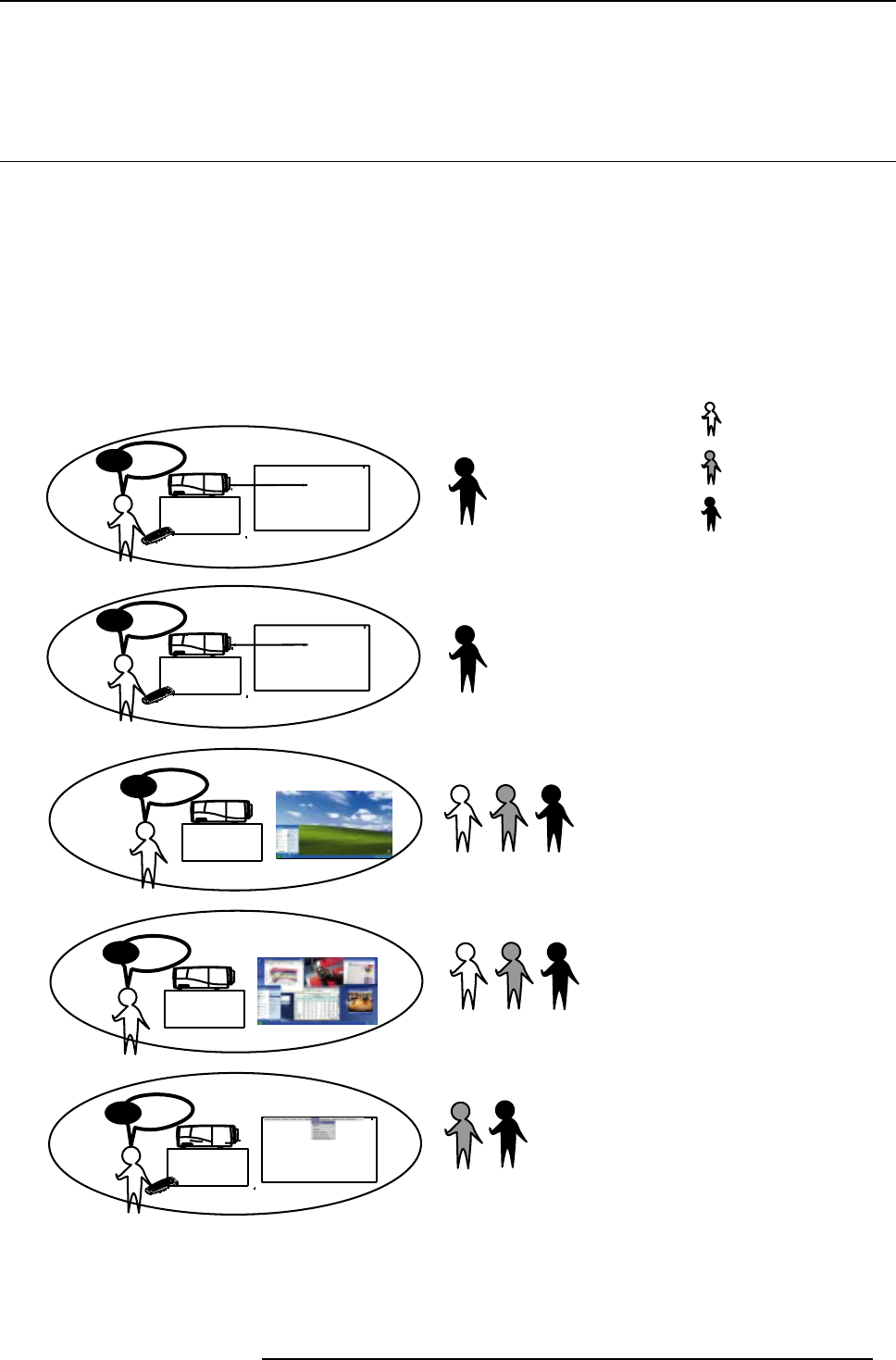
How to use this Manual ?
This manual contains 5 main parts :
1. Installation : The mechanical setup of the projector, removing from the shipping box , getting the projector ready to be started.
"Installation ", page 13
2. Setup: Adjusting the projection parameters in order to get the best image reproduction. "Setup", page 33
3. Getting started : Start the projector, create your desktop. "Getting started", page 57
4. Desktop management : Adapting the desktop to the presenter’s needs. "Desktop Management", page 71
5. Advanced operation : Using the remote control and the projector’s OSD for advanced setup. "Advanced", page 77
Pd
Pd ?
Position ?
Image ?
Sources ?
Interface?
RCU
OSD ?
advanced ?
1
3
5
Getting started
Installation
Advanced setup
Layout ?
Prefernces ?
4
Desktop Management
Pd
Pd ?
Position ?
2
Setup
Presenter
Installer
Skilled user
Image 1-1
R5976821 BARCO ICON 15/03/2007 5
1. Introduction
1.2 Network centric visualisation
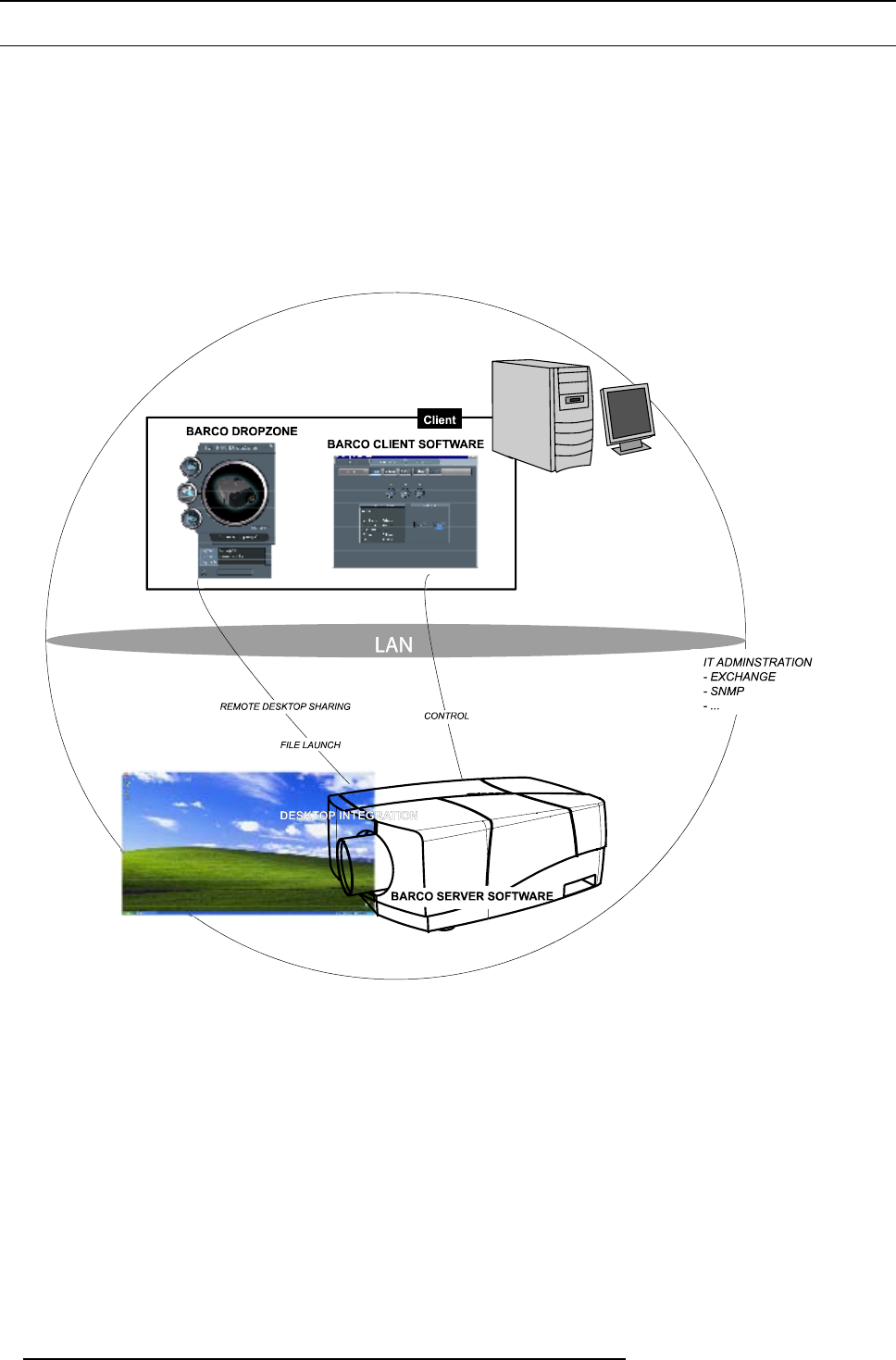
Architecture : Parts and Tools
• Barco Client software : runs on a client PC and allows control/diagnostics of the projector
• Barco DropZone : presentation tool, running on a client PC and allowing file manipulations (launch,...) and sharing with the
projector
• Barco Server software : runs on the projector (iCon server) and allows communication with the clients.
• Desktop integration : software running on the projector (iCon server) and allowing display content mangament on a Windows
XPTM desktop.
Image 1-2
Network centric architecture
6R5976821 BARCO ICON 15/03/2007
2. Packaging
2. PACKAGING
Overview
• Unpacking
2.1 Unpacking
CEE7
European power plug to connect the power cord to the wall outlet.
ANSI 73.11
American power plug to connect the power cord to the wall outlet.
Content
• 1 projector (weight ± 35 kg or 77 lbs)
• 1 remote control unit RCU + 2 batteries.
• 2 power cables with outlet plug type CEE7 and ANSI 73.11.
• 1 owners manual
• 1 safety manual
Form
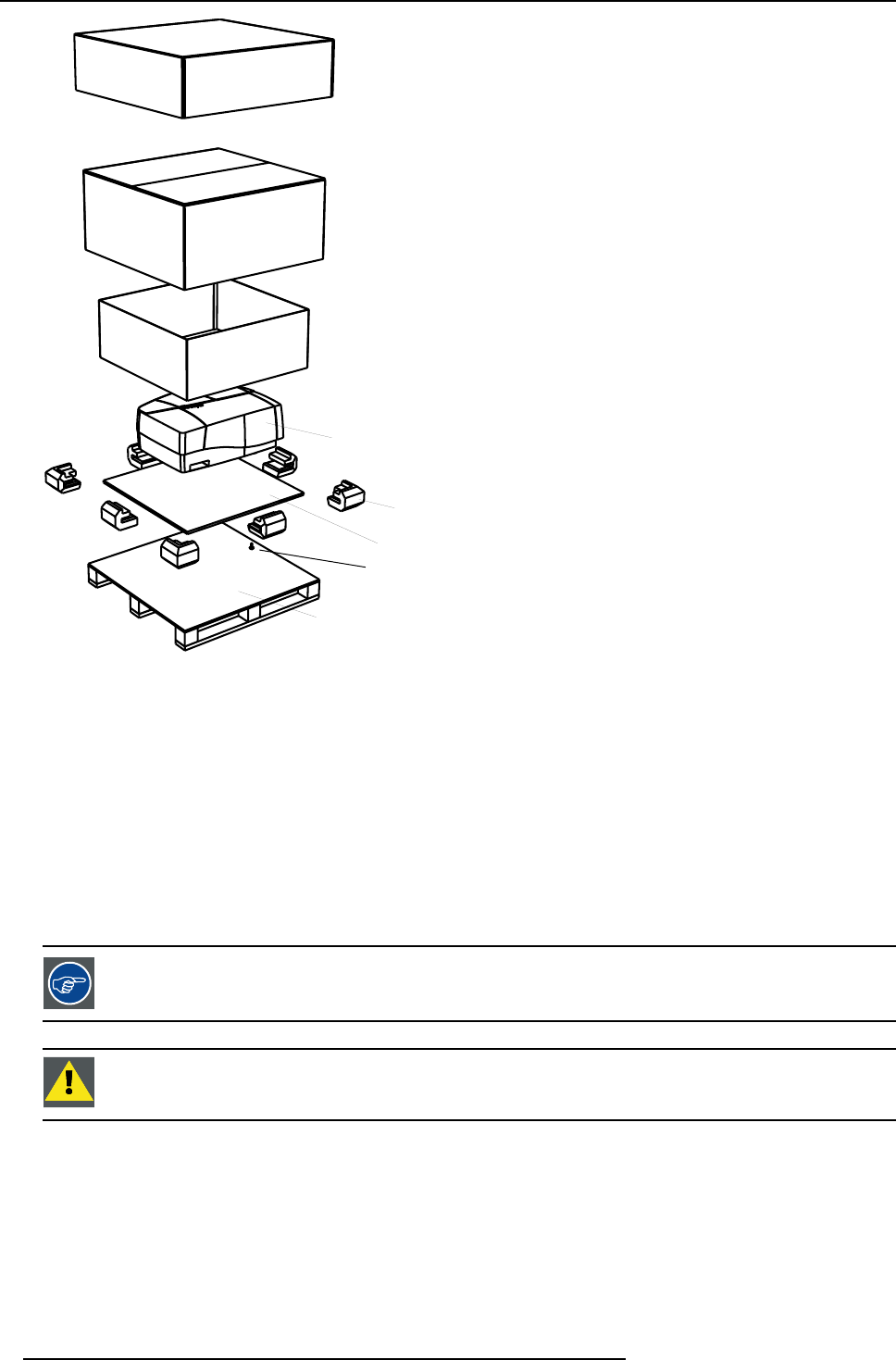
The projector is packed in a carton box. To provide protection during transportation, the projector is surrounded with foam. The
package is secured with banding and fastening clips.
R5976821 BARCO ICON 15/03/2007 7
2. Packaging
5
1
2
3
4
6
7
8
Image 2-1
Projector packaging
1 cardboard cover
2 strengthening cardboard
3 cardboard
4projector
5 wooden board
6 foam parts
7 screws
8pallet
Lens packaging
The Lens is supplied as an individual item.
Thelensispackedinacartonbox.
Save the original shipping carton and packing material, they will be necessary if you ever have to transport
the lens.
CAUTION:Never transport the projector with the lens mounted on it !
Always remove the lens before transporting the projector.
How to unpack the projector
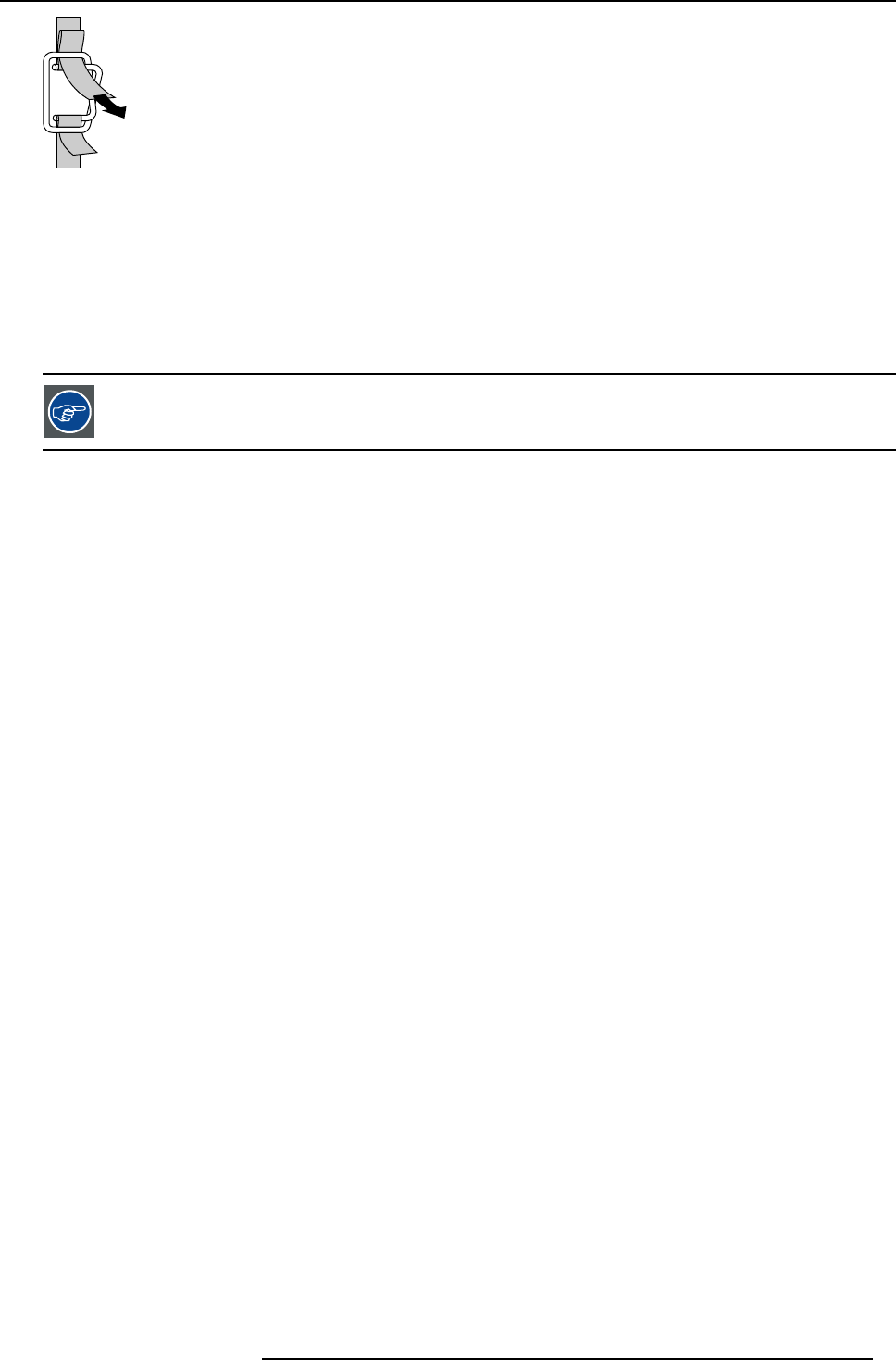
1. Release the cord straps.
8R5976821 BARCO ICON 15/03/2007
2. Packaging
PULL
TO OPE
Image 2-2
2. Remove the assembly from the pallet
3. Remove the cardboard cover
4. Remove the large cardboard
5. Remove the 8 foam parts
6. Loosen and remove the 3 screws spacers fixing the projector to the wooden board
7. Remove the projector from the board
Save the original shipping carton and packing material, they will be necessary if you ever have to ship your
projector. For maximum protection, repack your projector as it was originally packed at the factory.
R5976821 BARCO ICON 15/03/2007 9

2. Packaging
10 R5976821 BARCO ICON 15/03/2007

3. Installation guidelines
3. INSTALLATION GUIDELINES
Overview
• Safety warnings
• Installation guidelines
• Network implementation
3.1 Safety warnings
WARNING:Before installing the projector, read first the safety instructions in the safety manual (R5975258)
delivered with the projector.
Insure that the projector is installed in an easy to evacuate room in case of a lamp explosion.
Mercury Vapor Warnings
Keep the following warnings in mind when using the projector. The lamp used in the projector contains mercury. In case of a lamp
rupture, explosion there will be a mercury vapor emission. In order to minimize the potential risk of inhaling mercury vapors:
• Ensure the projector is installed only in ventilated rooms.
• Replace the lamp module before the end of its operational life.
• Promptly ventilate the room after a lamp rupture, explosion has occurred, evacuate the room (particularly in case of a pregnant
woman).
• Seek medical attention if unusual health conditions occur after a lamp rupture, explosion, such as headache, fatigue, shortness
of breath, chest-tightening coughing or nausea.
3.2 Installation guidelines
Ambient temperature check
Careful consideration of things such as image size, ambient light level, projector placement and type of screen to use are critical to
the optimum use of the projection system.
Max. ambient temperature : 40 °C or 104 °F
Min. ambient temperature : 0 °C or 32 °F
The projector will not operate if ambient air temperature falls outside this range (0°C- 40°C or 32°F-104°F).
Humidity Conditions
Storage: 0 to 98 % RH Non-condensing
Operation: 0 to 95 % RH Non-condensing
Environment
Do not install the projection system in a site near heat sources such as radiators or air ducts, or in a place subject to direct sunlight,
excessive dust or humidity. Be aware that room heat rises to the ceiling; check that temperature near the installation site is not
excessive.
Environment condition check
A projector must always be mounted in a manner which ensures the free flow of clean air into the projectors ventilation inlets as well
as free flow at the ventilation outlets. The installation must also allow easy access to the consumable parts ( dustfilters, lamps, ...)
For installations in environments where the projector is subject to airborne contaminants such as that produced by smoke machines
or similar (these deposit a thin layer of greasy residue upon the projectors internal optics and imaging electronic surfaces, degrading
performance), then it is highly advisable and desirable to have this contamination removed prior to it reaching the projectors clean
air supply. Devices or structures to extract or shield contaminated air well away from the projector are a prerequisite, if this is not
a feasible solution then measures to relocate the projector to a clean air environment should be considered. Make sure that the
projector never runs with dirty dustfilters as this will dramatically reduce the lifetime of the consumables. It is advised to clean the
dustfilters on a regular basis and to replace them at any lamp change. Barco reserves itself the right to refuse warranty replacement
of consumables if they have been used in a projector with dirty airfilters. Only use the manufactures recommended cleaning kit which
has been specifically designed for cleaning optical parts, never use industrial strength cleaners on a projectors optics as these will
degrade optical coatings and damage sensitive optoelectronics .
Failure to take suitable precautions to protect the projector from the effects of persistent and prolonged air contaminants will culmi-
nate in extensive and irreversible ingrained optical damage. At this stage cleaning of the internal optical units will be non-effective
R5976821 BARCO ICON 15/03/2007 11
3. Installation guidelines
and impracticable. Damage of this nature is under no circumstances covered under the manufactures warranty and may deem the
warranty null and void. In such a case the client shall be held solely responsible for all costs incurred during any repair. It is the
clients responsibility to ensure at all times that the projector is protected from the harmful effects of hostile airborne particles in the
environment of the projector. The manufacture reserves the right to refuse warranty repair if a projector has been subject to wantful
neglect, abandon or improper use.
What about ambient light ?
The ambient light level of any room is made up of direct or indirect sunlight and the light fixtures in the room. The amount of ambient
light will determine how bright the image will appear. So, avoid direct light on the screen. Windows that face the screen should be
covered by opaque drapery while the set is being viewed. It is desirable to install the projection system in a room whose walls and
floor are of non-reflecting material. The use of recessed ceiling lights and a method of dimming those lights to an acceptable level
is also important. Too much ambient light will ‘wash out’ of the projected image. This appears as less contrast between the darkest
and lightest parts of the image. With bigger screens, the ‘wash out’ becomes more important. As a general rule, darken the room to
the point where there is just sufficient light to read or write comfortably. Spot lighting is desirable for illuminating small areas so that
interference with the screen is minimal.
Which screen type ?
There are two major categories of screens used for projection equipment. Those used for front projected images and those for rear
projection applications. Screens are rated by how much light they reflect (or transmit in the case of rear projection systems) given a
determined amount of light projected toward them. The ‘GAIN’ of a screen is the term used. Front and rear screens are both rated
in terms of gain. The gain of screens range from a white matte screen with a gain of 1 (x1) to a brushed aluminized screen with a
gain of 10 (x10) or more. The choice between higher and lower gain screens is largely a matter of personal preference and another
consideration called the Viewing angle. In considering the type of screen to choose, determine where the viewers will be located
and go for the highest gain screen possible. A high gain screen will provide a brighter picture but reduce the viewing angle. For
more information about screens, contact your local screen supplier.
Image size
The projector is designed for projecting an image size with a screenwidth from 1.00m (3.3ft) to 10.00m (32.8ft) with an aspect ratio
of 16 to 9.
Image retention
Image retention can affect LCD projectors, in extreme cases, permanent “burn” can occur if still/repetitive images are left on the
screen for long periods of time. Such damage to the panels is NOT covered by warranty.
Please ensure that the following precautions are taken to avoid this phenomenon :
1. Use a screensaver (that moves)
2. Periodically change/alter any background images on the desktop
3. Turn off the projector when not in use.
3.3 Network implementation
Network installation
The installation of the server in a Local Area Network must be done in the same way as the installation of a standard PC in that
particular network meaning that the same rules and accepted practice should be respected.
The assistance of qualified IT personnel is advised.
CAUTION:Important !
A Virus protection program should be installed and kept up to date to prevent virus infections.
CAUTION:The maintenance of the Server must be done in the same way as a PC meaning that the same rules
and accepted practice should be respected.
Backups should be taken on a regular basis.
In the same way virus updates should be done regularly.
Barco will not be held responsible for destroyed information in case of a hard disk breakdown or virus infec-
tion and has no obligation to pay for or reimburse for the cost of recovering data.
12 R5976821 BARCO ICON 15/03/2007

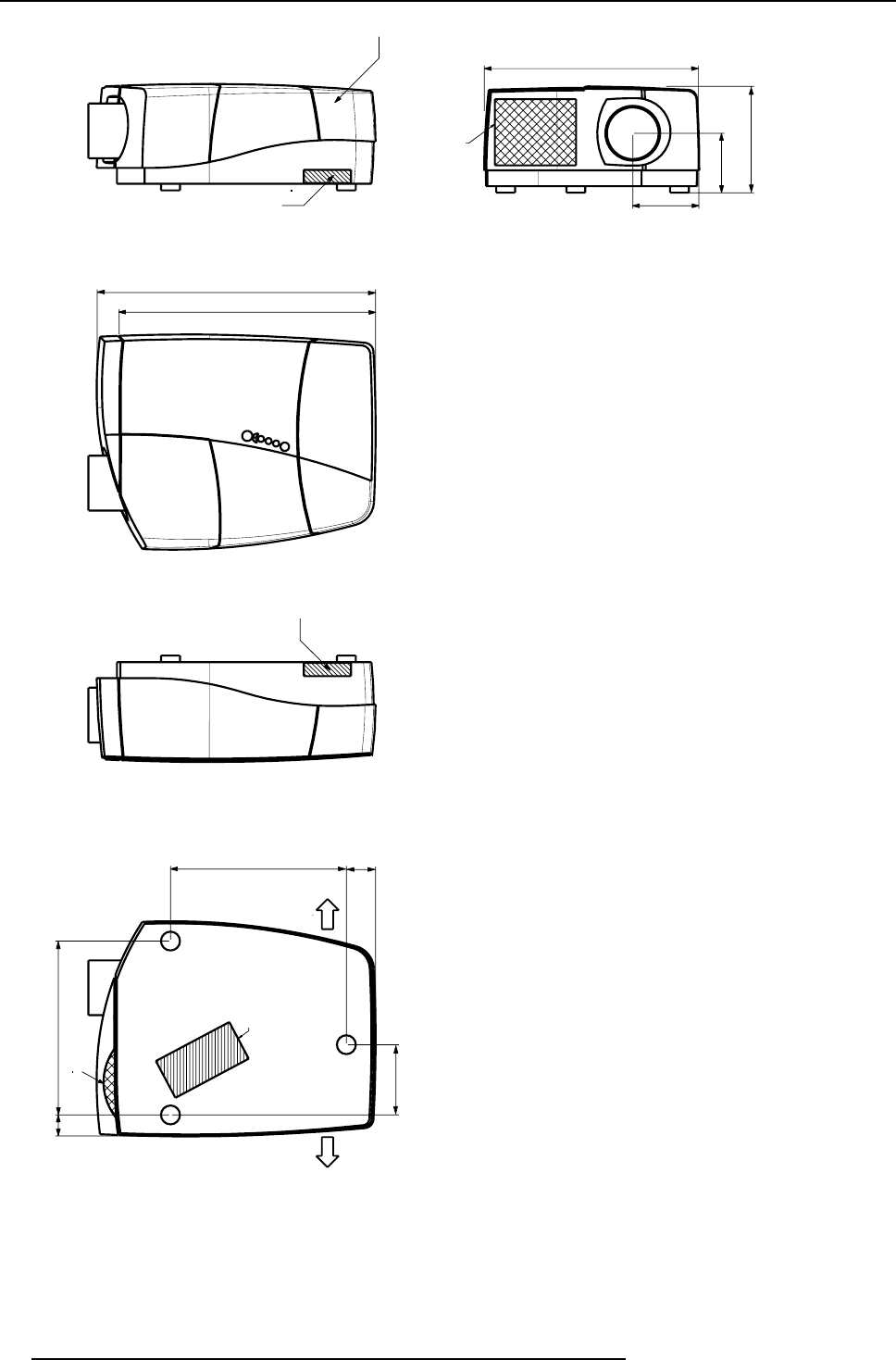
4. Installation
Lamp Doo
r
Hot air out
737 (with Cable basket)
679 (without Cable basket)
TOP VIEW
Hot air out
465.5 77.5
Hot air OUT Hot air OUT
Cold air IN
185.75
460
56
Cables out ( through cable basket)
566
Input Zone
(= behind
Cable Basket)
282
158
120% UP
120% DOWN
50% LEFT
50% RIGHT
175
With mechanical override
0% Left vs 100% Right
or
100% Left vs 0% Right
Image 4-1
14 R5976821 BARCO ICON 15/03/2007
4. Installation
4.1 Battery installation in the RCU
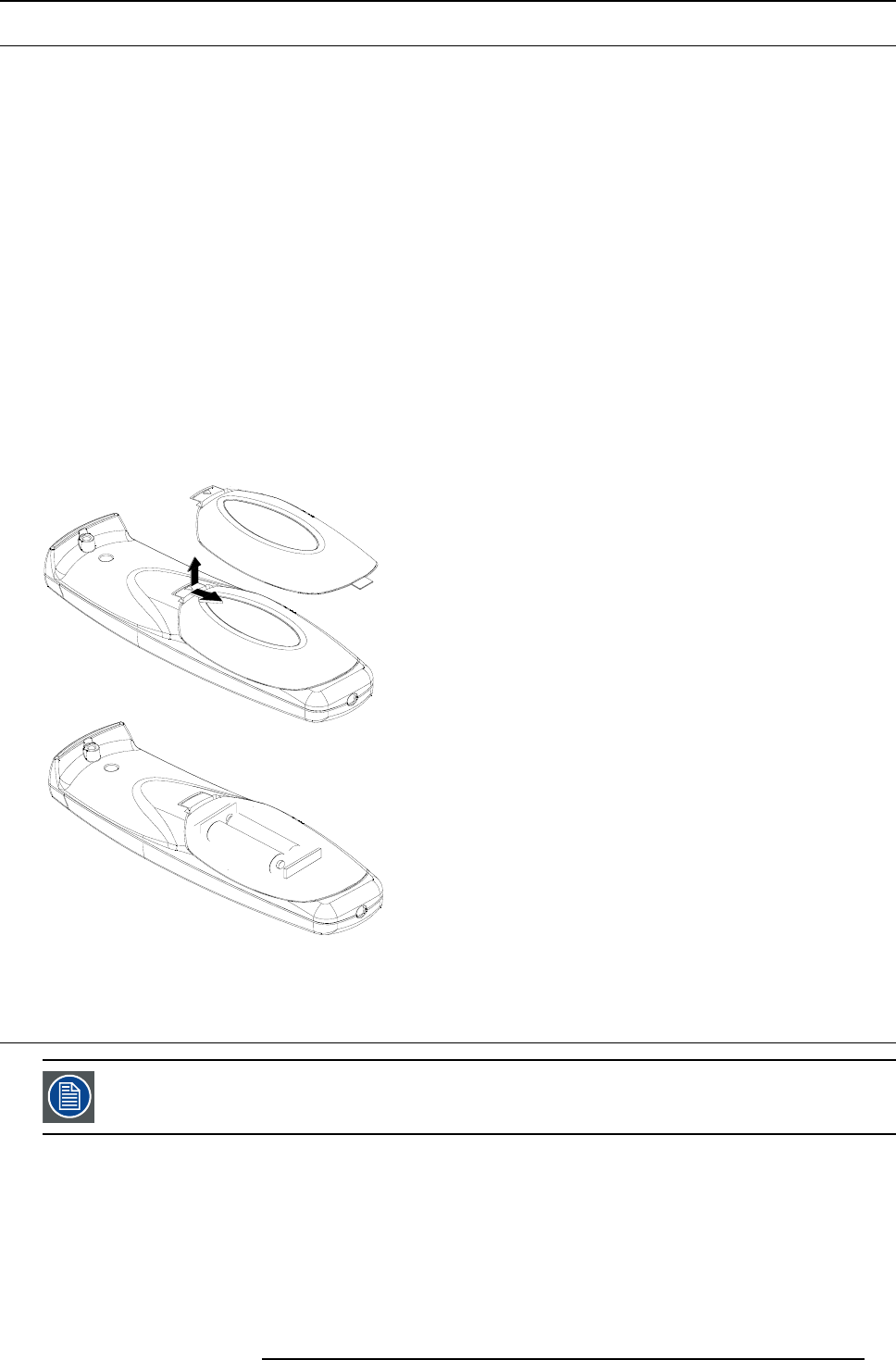
How to install the battery
Two batteries are packed together with the RCU. Before using your RCU, install first these batteries.
1. Remove the battery cover on the backside by pushing the handle a little towards the bottom of the RCU.
2. Lift up the top side of the cover at the same time.
3. Insert the batteries as indicated in the RCU.
4. Put the battery cover on its place.
How to replace the batteries in the RCU
To replace the batteries :
1. Remove the battery cover on the backside by pushing the handle a little towards the bottom of the RCU.
2. Lift up the top side of the cover at the same time.
3. Push on the + side of the battery towards the - side
4. Lift up the battery at the same time.
5. Repeat for the second battery.
6. Insert the batteries as indicated in the RCU (battery type AA or LR6 or equivalent).
7. Put the battery cover on its place.
Image 4-2
4.2 Lens installation
The installation of the lens itself is only for authorized Barco technicians. Refer to the lens installation manual.
Overview
• Removing/installing the cable basket
• Lens range
• Lens formulas
R5976821 BARCO ICON 15/03/2007 15
4. Installation
4.2.1 Removing/installing the cable basket
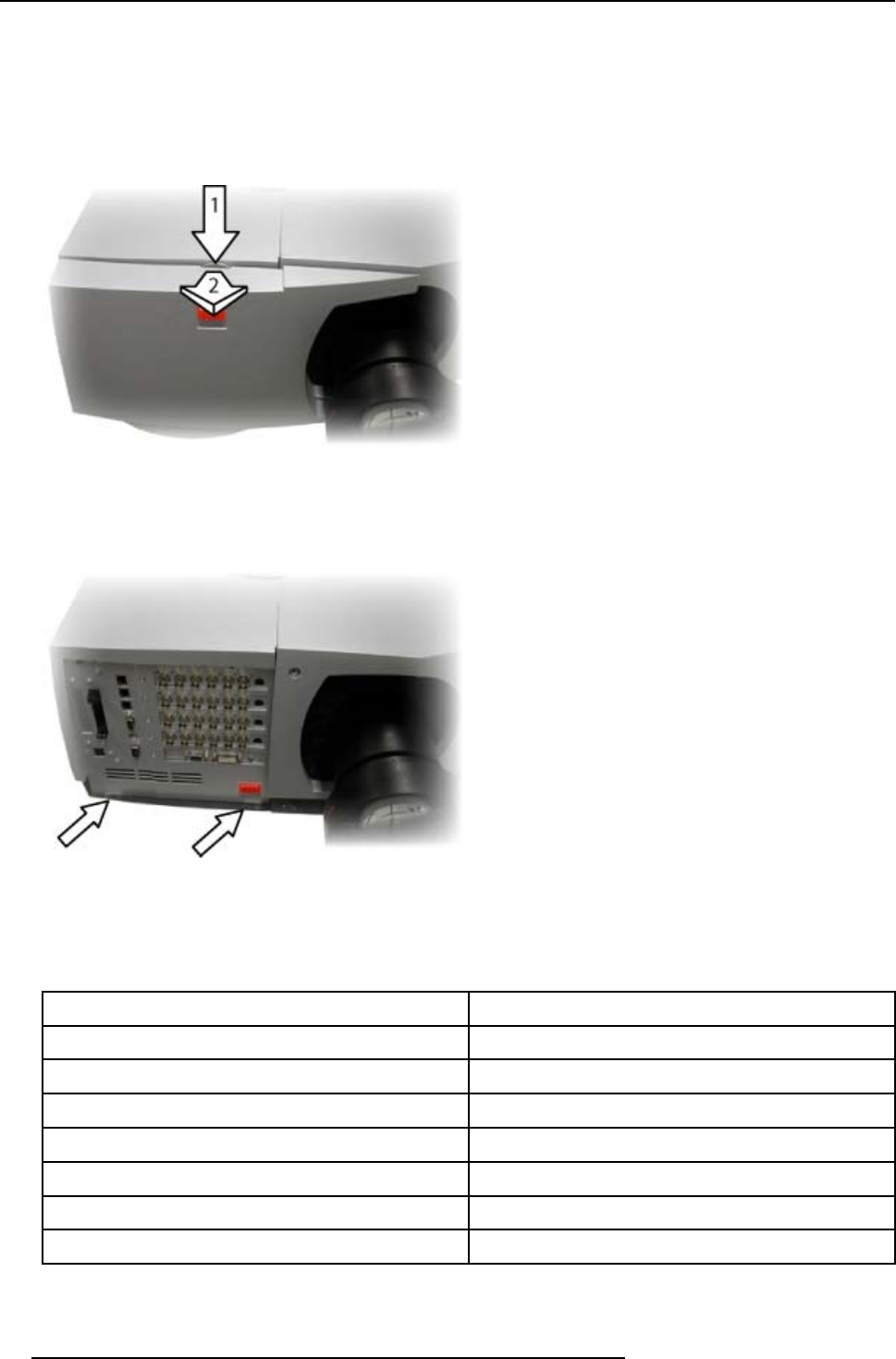
Necessary tools
No tools.
How to remove the cable basket ?
1. Press on the top of the cable basket so as to unlock the top part from the projector.
Image 4-3
2. Pull the cable basket so as to free it from the bottom locks.
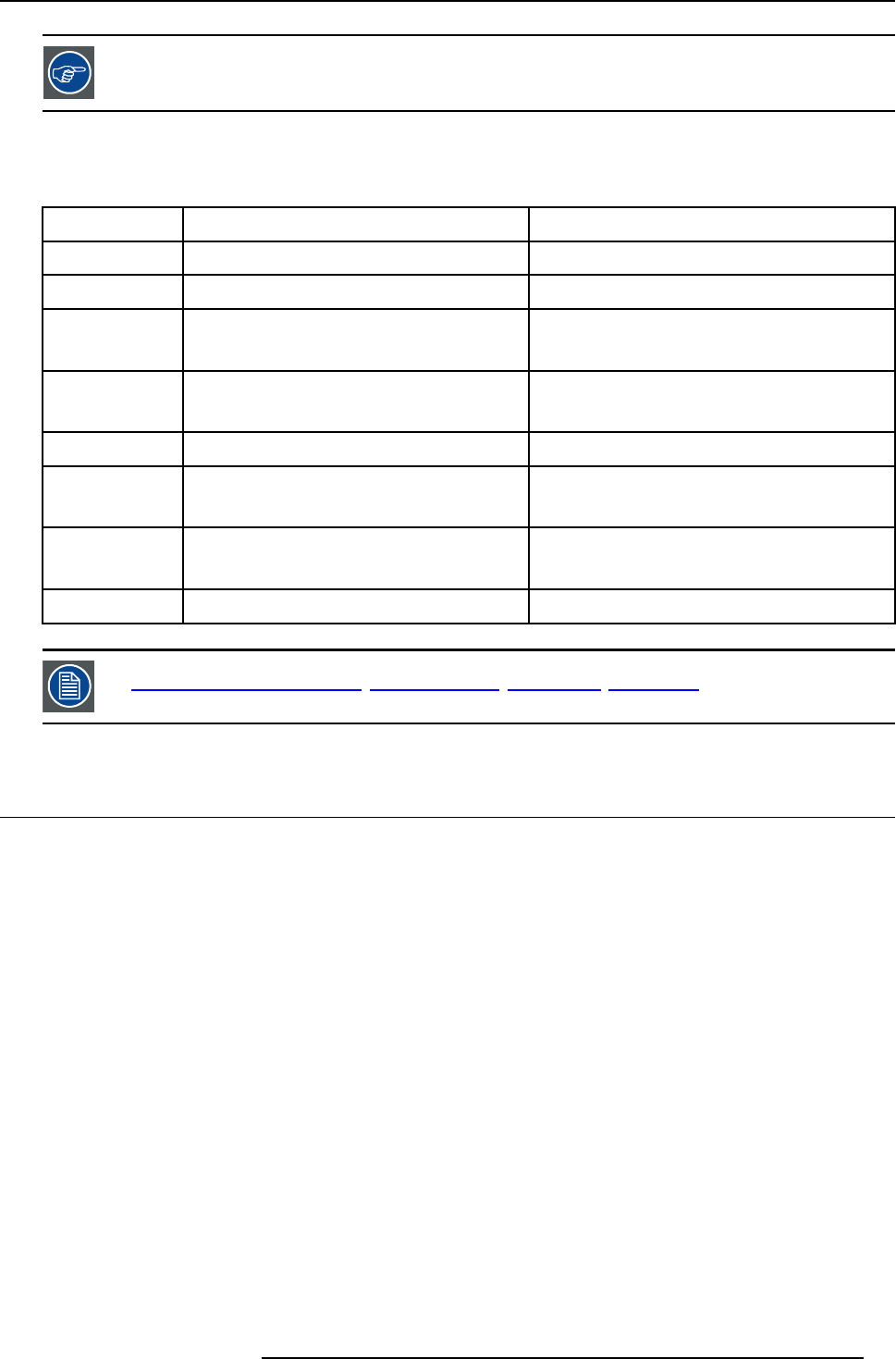
How to install the cable basket
1. Place the 2 feet of the cable basket into the 2 bottom locks of the projector.
Image 4-4
2. Bring the basket towards the projector and press on it so as to lock it at the top.
4.2.2 Lens range
Overview table
Lens Partnumber
QFD (1.27:1) R9840400
QFD (2.5:1) R9840290
QHD (1.4–2.1:1) R9849800
QFD (2.1–3.0:1) R9840390
QGD (3.5–4.5:1) R9840060
QFD (4.5–6.0:1) R9840100
Qfd (7:1) R9840410
16 R5976821 BARCO ICON 15/03/2007
4. Installation
See the Maintenance appendix for more information about lens cleaning.
4.2.3 Lens formulas
Formulas
Metric Formulas (meter) Inch formulas (inch)
QFD (1.27:1) PDmin = 1.287xSW PDmin = 1.287xSW
QFD (2.5:1) PDmin = 0.0264 + 2.461xSW + 0.00074/SW PDmin = 1.039 + 2.461xSW + 1.142/SW
QHD(1.4-2.0:1) PDmin = –0,245 + 1.526xSW + 0,129/SW
PDmax = –0,016 + 2,185xSW
PDmin = –9.645 +1 .526xSW + 199.950/SW
PDmax = –0.630 + 2.185xSW
QFD (2.1–3.0:1) PDmin = 0.0232 + 2.112xSW –0.0764/SW
PDmax = –0.066 + 2.954xSW + 0.00068/SW
PDmin = 0.913 + 2.112xSW – 118.420/SW
PDmax = –2.622 + 2.954xSW + 1.052/SW
QGD (0.86:1) PD = –0.030 + 0.866xSW – 0.00109/SW PD = –1.181 + 0.866xSW – 1.689/SW
QFD ( 3.4–4.5:1) PDmin = –0.134 + 3.444xSW + 0.261/SW
PDmax = 0.144 + 4.480xSW – 0.0231/SW
PDmin = 5.275 + 3.444xSW + 404.550/SW
PDmax = 5.669 + 4.480xSW – 35.805/SW
QFD (4.5–6.0:1) PDmin = 0.0116 + 4.311xSW – 0.0943/SW
PDmax = 0.115 + 5.942xSW – 0.163/SW
PDmin =0.4567 + 4.311xSW – 146.165/SW
PDmax = 4.527 + 5.942xSW – 252.650/SW
QFD (7:1) PD = –2.191 + 7.501xSW + 1.502/SW PD = – 86.260 + 7.501xSW + 2328.105/SW
Lens program to calculate the projector distance is available on the BARCO web site :
http://www.barco.com/projection_systems/customer_services/lens_program.asp
4.3 Projector Configuration
Overview
• The different configurations
4.3.1 The different configurations
The different configurations
Depending on the installation the projector can be mounted in different ways, the 4 different configurations are:
1. Rear/Ceiling
2. Rear/Table
3. Front/Ceiling
4. Front/Table
R5976821 BARCO ICON 15/03/2007 17
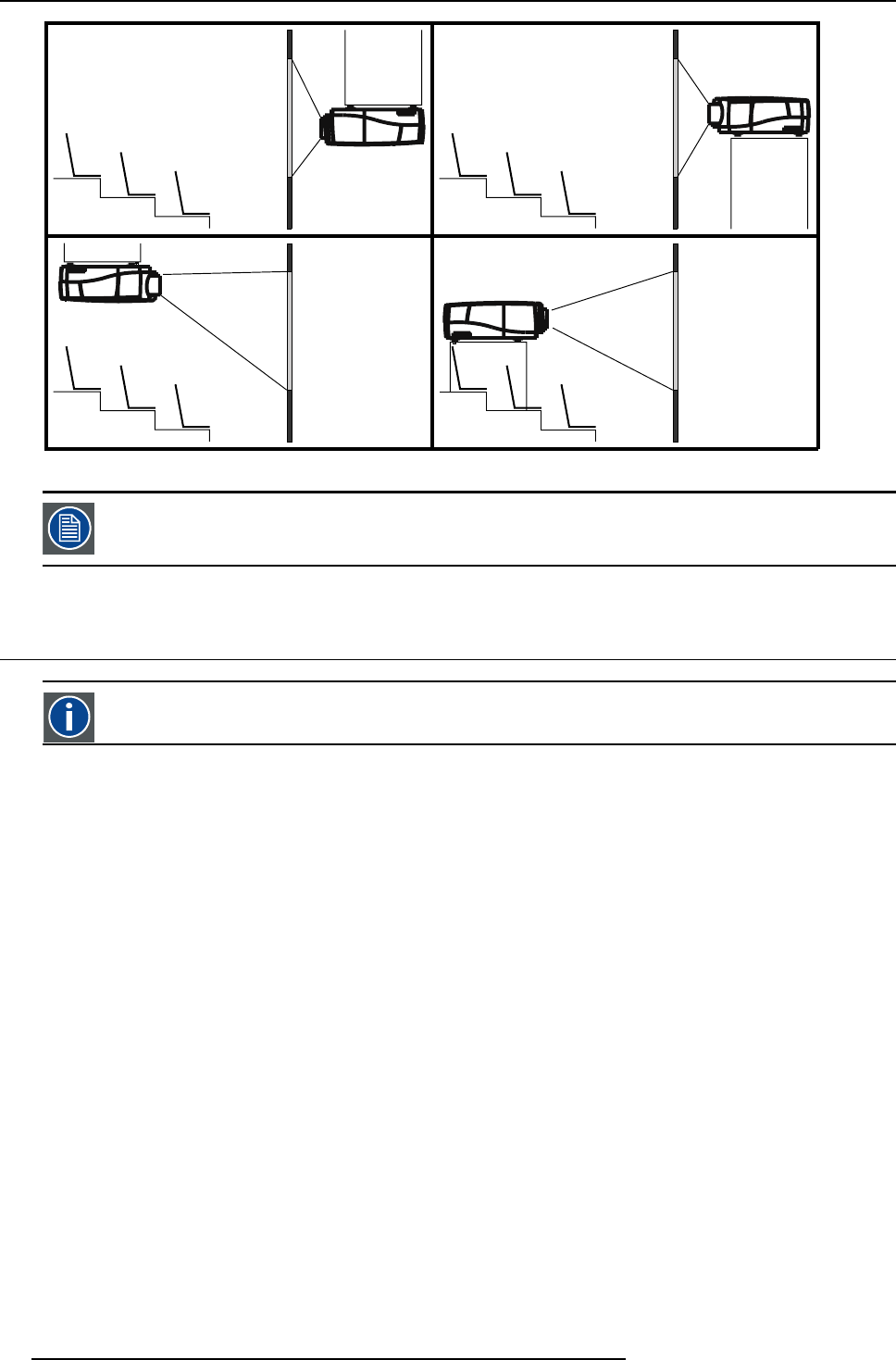
4. Installation
12
34
Image 4-5
The configuration should also be communicated to the projector. This is done in the Installation menu through
the Projector Configuration parameter. (See Setup section)
4.4 Positioning the projector
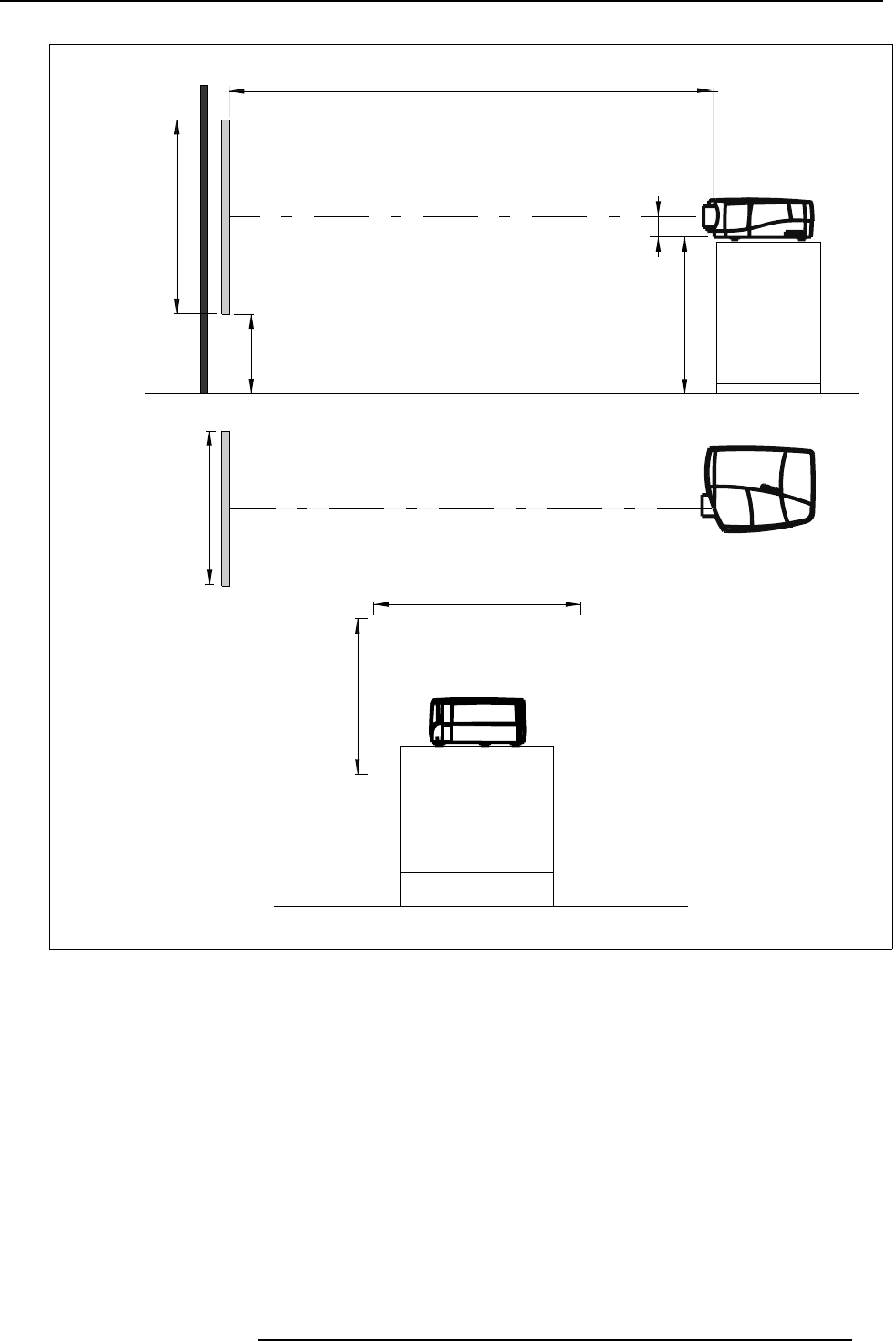
On-Axis projection
Projection where the projector is positioned so as to have the centre of the lens coinciding with the centre of the screen.
Positioning the projector
The position of the projector with reference to the screen may also be different depending on the installation. Basically the projector
can be positioned in an On-Axis or Off-Axis configuration. Several parameters can be calculated determining the position in any
installation.
18 R5976821 BARCO ICON 15/03/2007
4. Installation
P
PD
x
F
a
b
c
S
S
B
SH
SW
SH
SW
F
CD=SH/2+B-A
A
ref.: Front plate
Image 4-6
On-Axis projector installation
a Side view
b Top view
cBackview
x Optical axis projection lens
pProjector
s Screen
F Floor
R5976821 BARCO ICON 15/03/2007 19
4. Installation
P
PD
x
F
a
b
c
S
S
B
SH
SW
SH
SW
F
CD=B-A
A
ref : front plate
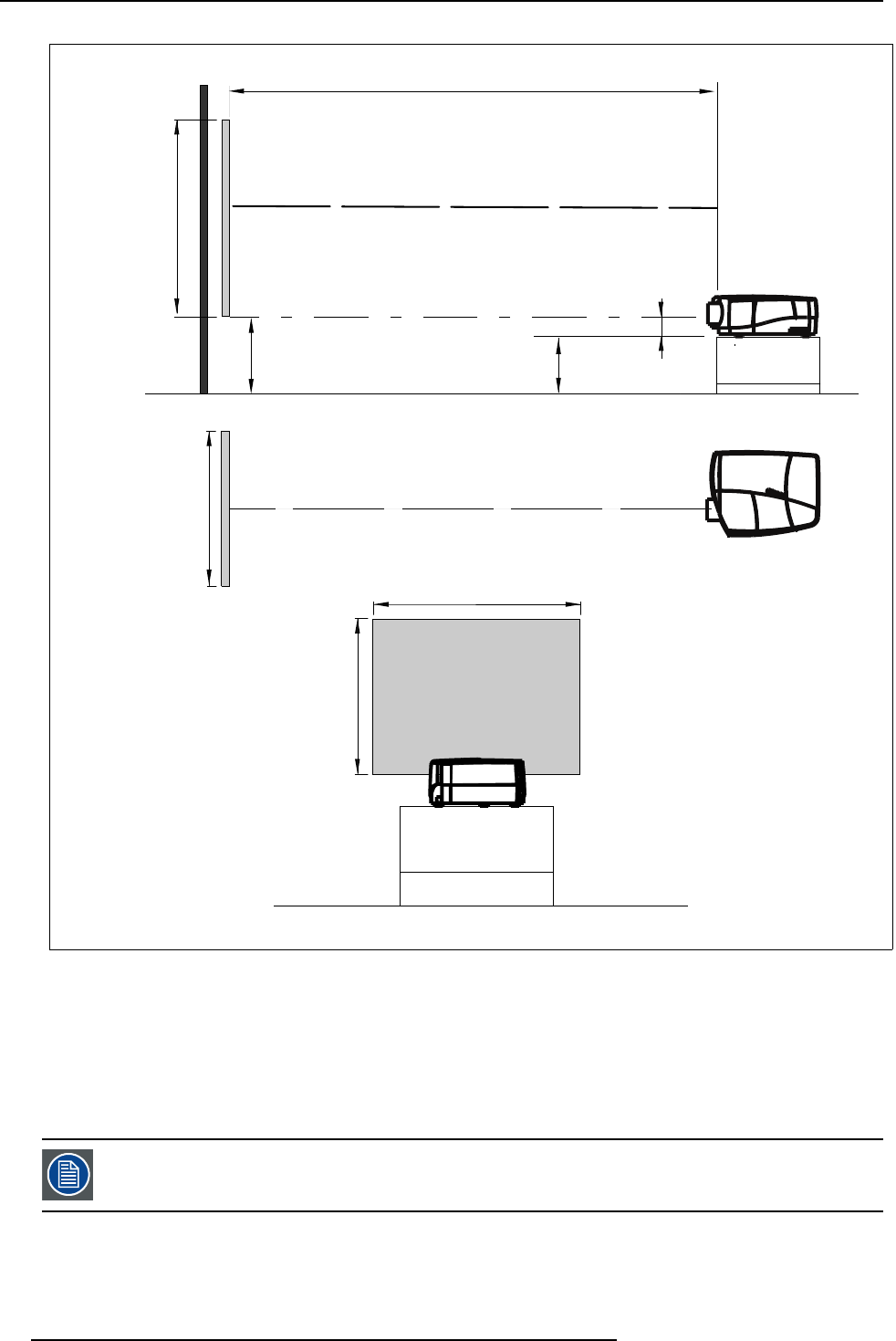
Image 4-7
Off-Axis projector installation
a Side view
b Top view
cBackview
x Optical axis projection lens
pProjector
s Screen
F Floor
A 100% Off-Axis position means that the position of the centre of the lens is shifted by half the screen height.
20 R5976821 BARCO ICON 15/03/2007
4. Installation
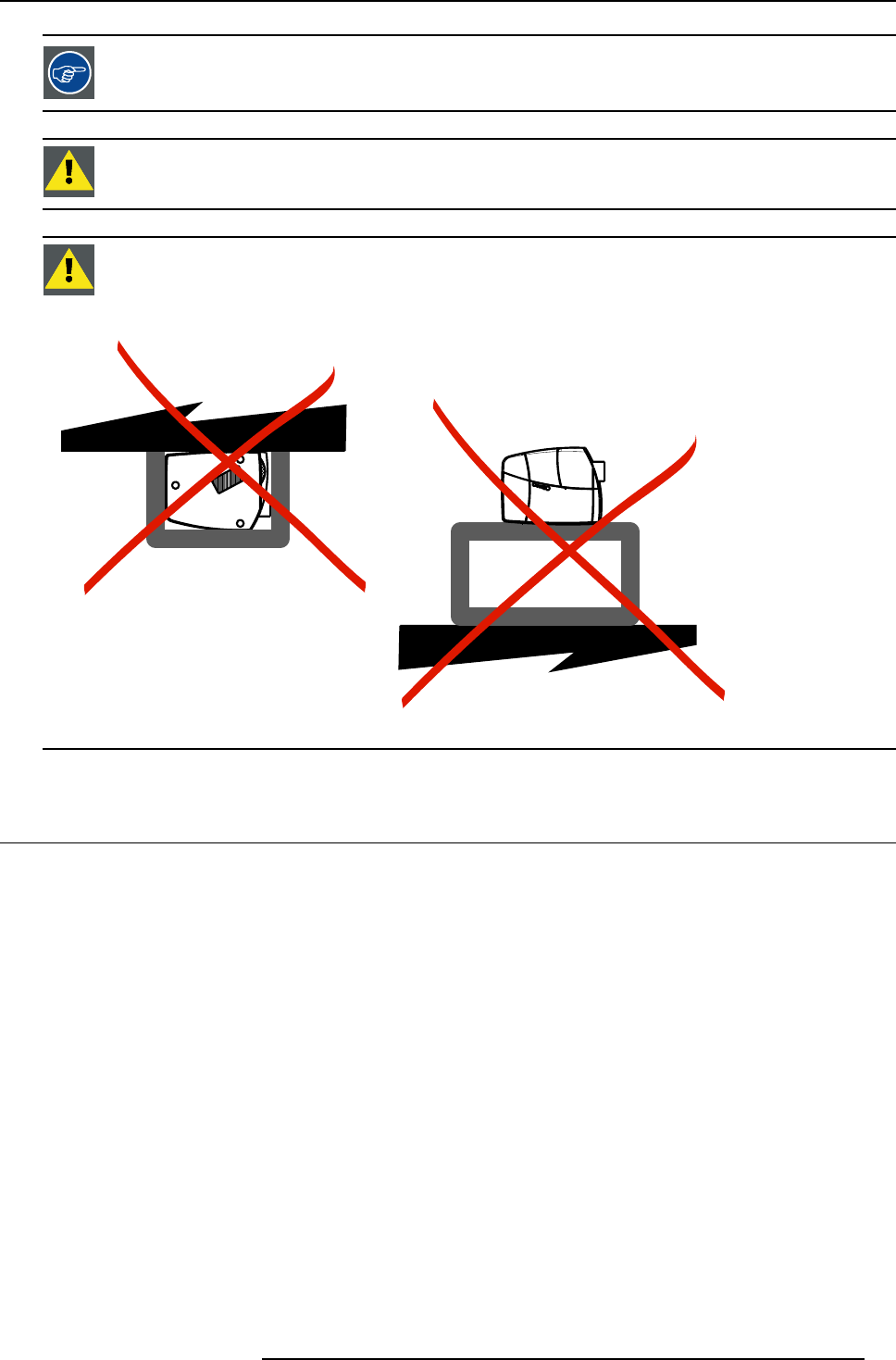
Never use a short throw lens in an Off-Axis installation. Shifting the lens will not guarantee optimal image
quality.
CAUTION:The harddisk in the Icon is formatted in a horizontal position but can operate in all axes ( 6 direc-
tions). The projector should, however, not be tilted more than +/- 5 degrees from these positions, otherwise
error rates will increase.
CAUTION:Never place the projector on either side !
Floor
Ceiling
Image 4-8
4.5 Connections
Overview
• Power connection
• Connections
• Signal connections
4.5.1 Power connection
Power connection
1. Use the supplied power cord to connect the projector to the power outlet.
2. Plug the female power connector into the male connector at the front of the projector, secure the connection with the locking
spring.
R5976821 BARCO ICON 15/03/2007 21
4. Installation
Image 4-9
CAUTION:To prevent damage to the projector always insure that the locking spring is well engaged !
4.5.2 Connections
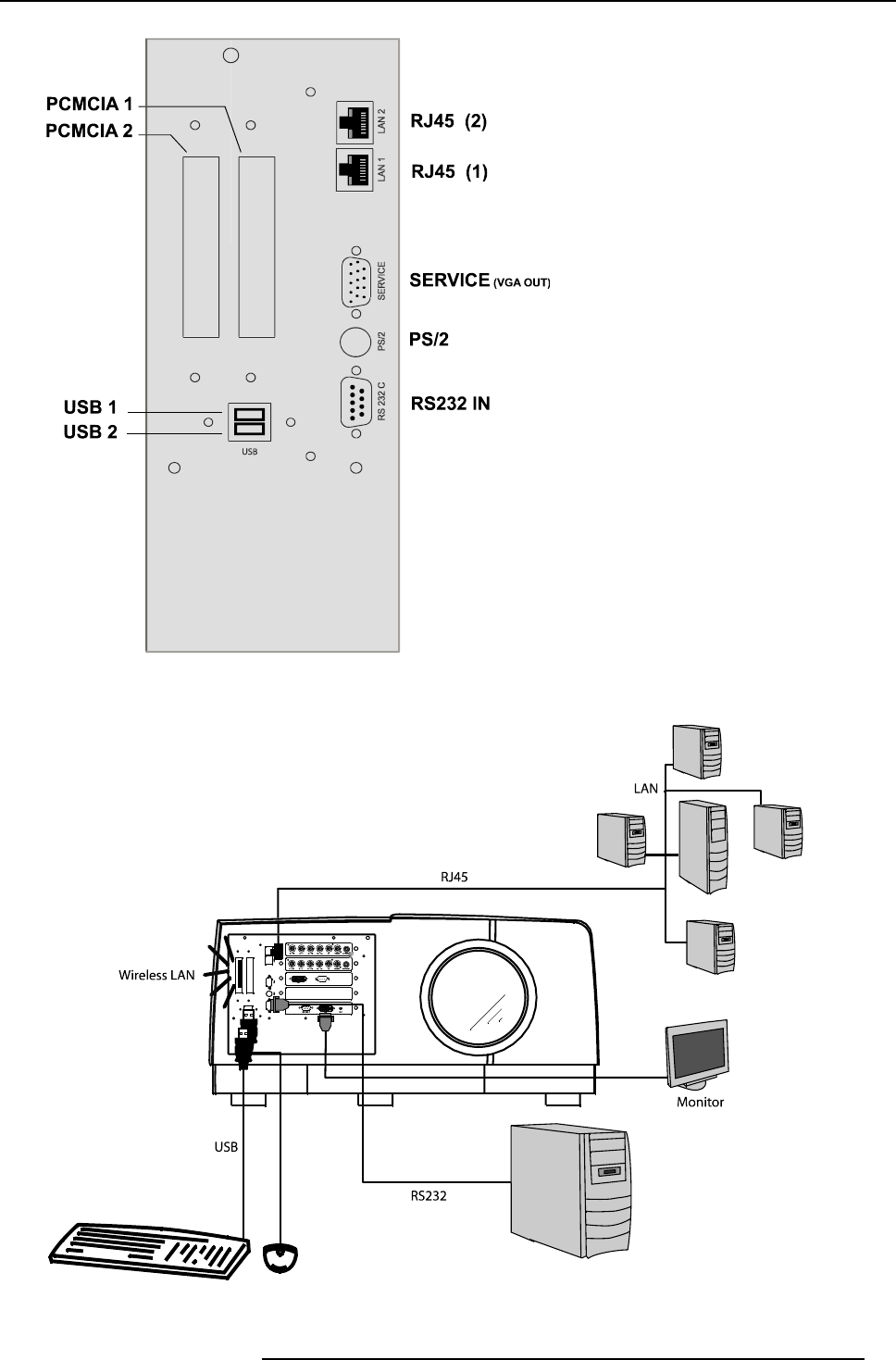
Server section layout
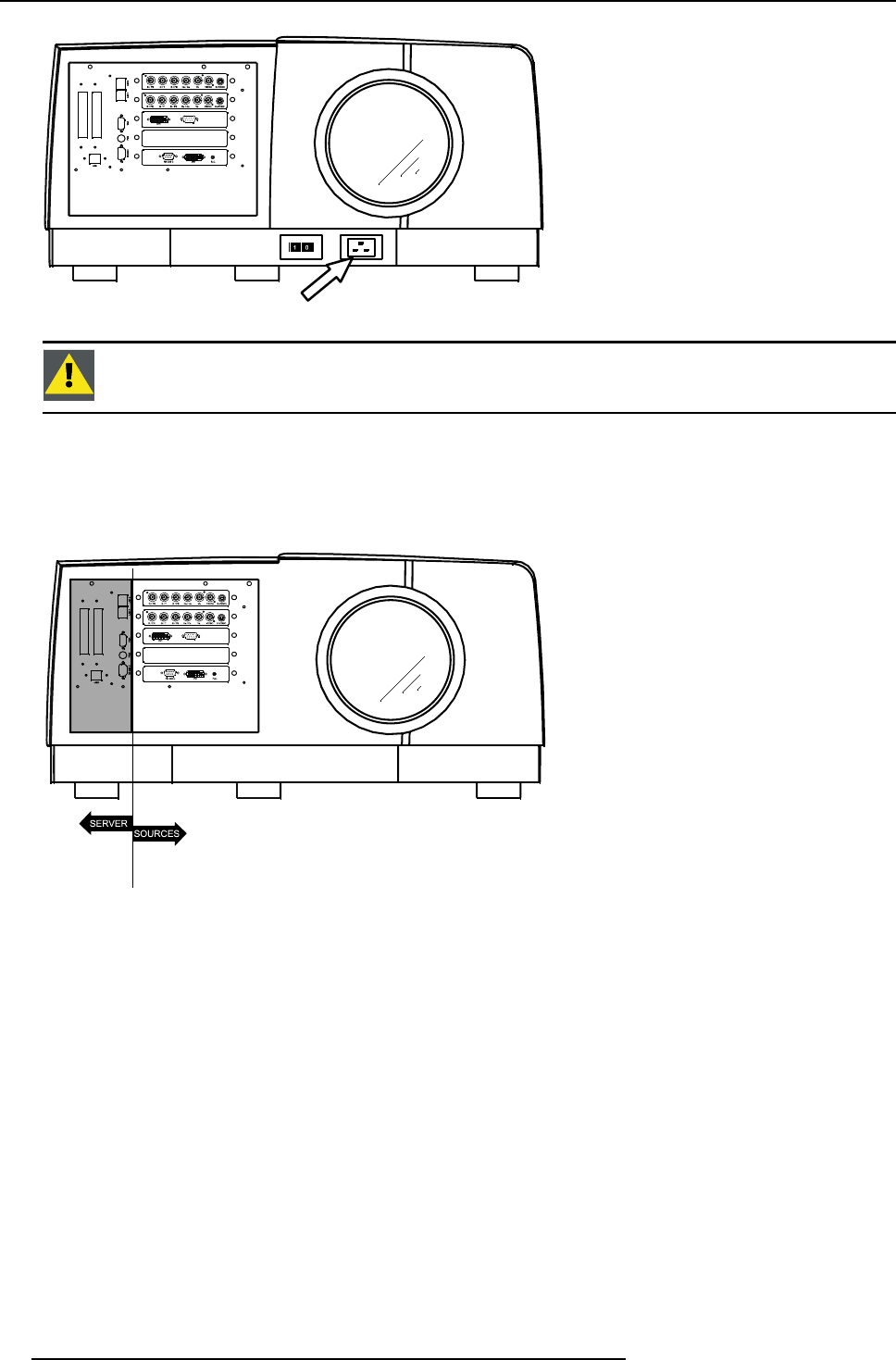
Image 4-10
Server section
22 R5976821 BARCO ICON 15/03/2007
4. Installation
Image 4-11
Server connections
Image 4-12
Typical server connection
R5976821 BARCO ICON 15/03/2007 23
4. Installation
How to connect the iCon server ?
1. Use one of the 2 RJ45 connectors to connect the server to the installed network.
2. Use the USB ports to connect peripherals such as a mouse or a keyboard, ...
3. Use the PCMCIA slot to connect a Wireless LAN card or other optional inputs like Bluetooth, Modem cards,...
Note: recommended card type:
-The card should be a type II card.
-The card should be WindowsTM XP compatible
When using the PS2 port to connect a keyboard always use the delivered PS2 splitter cable. Connecting the
keyboard directly to the projector will not work.
The Service output is only intended for service purposes (boot sequence).
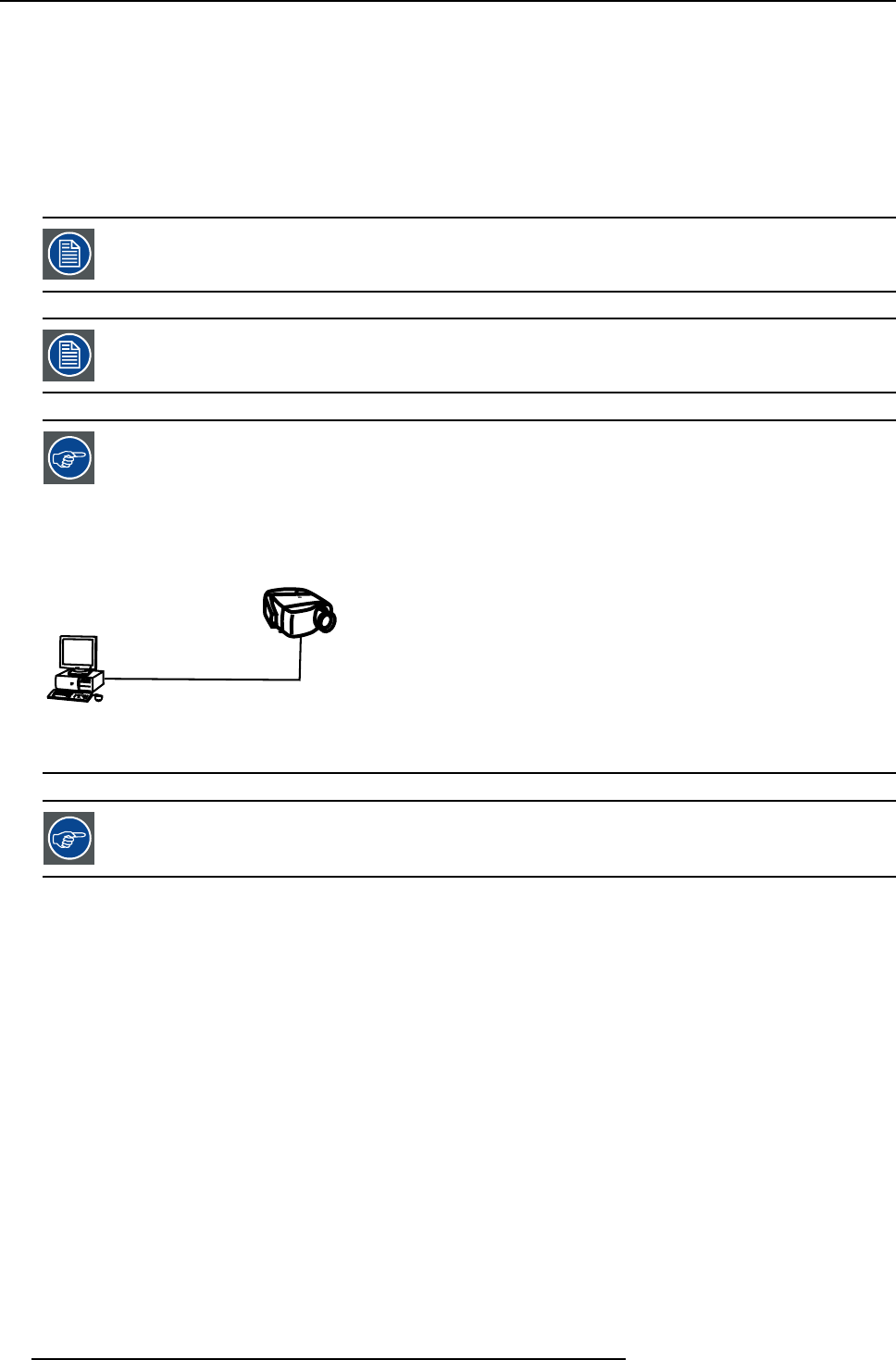
Point to point configuration
A
B
Image 4-13
In case of a temporary configuration (demo purposes) one can use the point to point configuration, the con-
nection being done via RJ45 connections using a crossed UTP cable.
The connection of the server section of the projector should be done in the same way as for a standard PC. If
necessary, contact your local IT administrator.
4.5.3 Signal connections
4.5.3.1 The input/output section
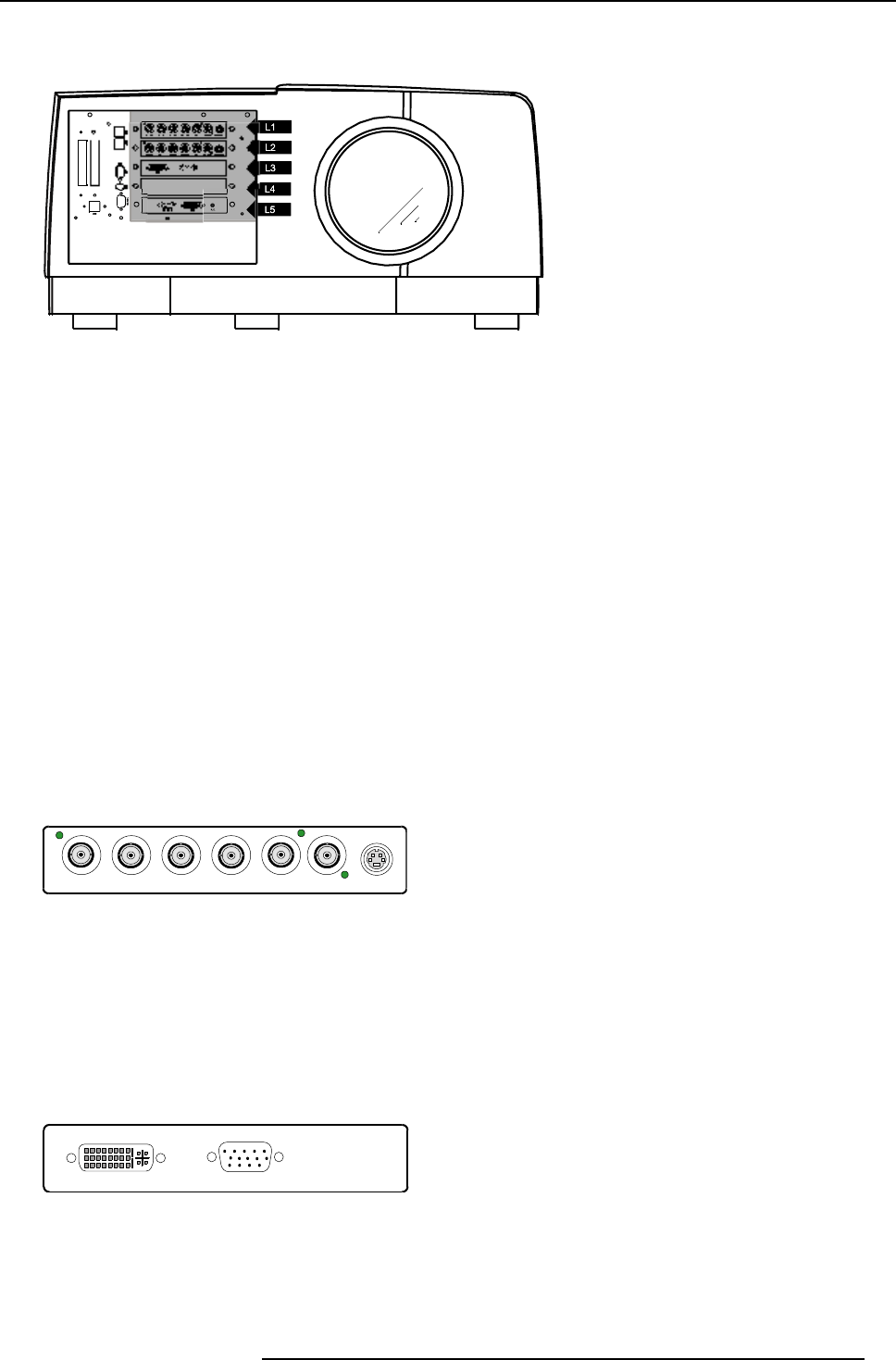
Input layers
The input/ouptut section is located at the front of the projector and has a modular architecture i.e. it is composed of 4 slots which
can be equipped with different input modules and one slot which can be used as an output :
The different available inputs :
• RGBHV & Video analog input module
• DVI & Computer (D15) input module
• HD-SDI module
The different available outputs :
24 R5976821 BARCO ICON 15/03/2007
4. Installation
• DVI output & RS232 module
Image 4-14
Input section of the Icon : default configuration
The iCon is by default equipped as follows:
• Slot 1 : RGB input board
• Slot 2 : RGB input board
• Slot 3 : DVI input board
•Slot4:empty
• Slot 5 : DVI output board
4.5.3.2 Input boards specifications
RGB & Video analog input board
This board includes :
• RGBHV 5 BNC input :
RGBHV ampl = 0.7V ± 3dB
75 Ωterminated
• Composite video input :
1.0 Vpp ± 3dB
75 Ωterminated
No loop through
• S-Video input
R / PR G / Y B / PB Hs / Cs Vs VIDEO S-VIDEO
Image 4-15
RGB analog input board
DVI & Computer input board
This board includes :
• DVI single link digital input
even though the connector is of the DVI-I type, the analog part is not supported.
• Computer input
TTL sync : Umin =2.0V
RGB ampl = 0.7V ± 3dB
DVI
Image 4-16
DVI digital input board
DVI output board
This board includes :
R5976821 BARCO ICON 15/03/2007 25
4. Installation
• DVI-D single link digital output at projector resolution (1920x1080)
• RS232 IN serial communciation port
• Remote control input for wired communication
DVI
RS 232 C R.C.
Image 4-17
DVIoutputboard
4.5.3.3 Connecting a Composite video signal
Composite video connection
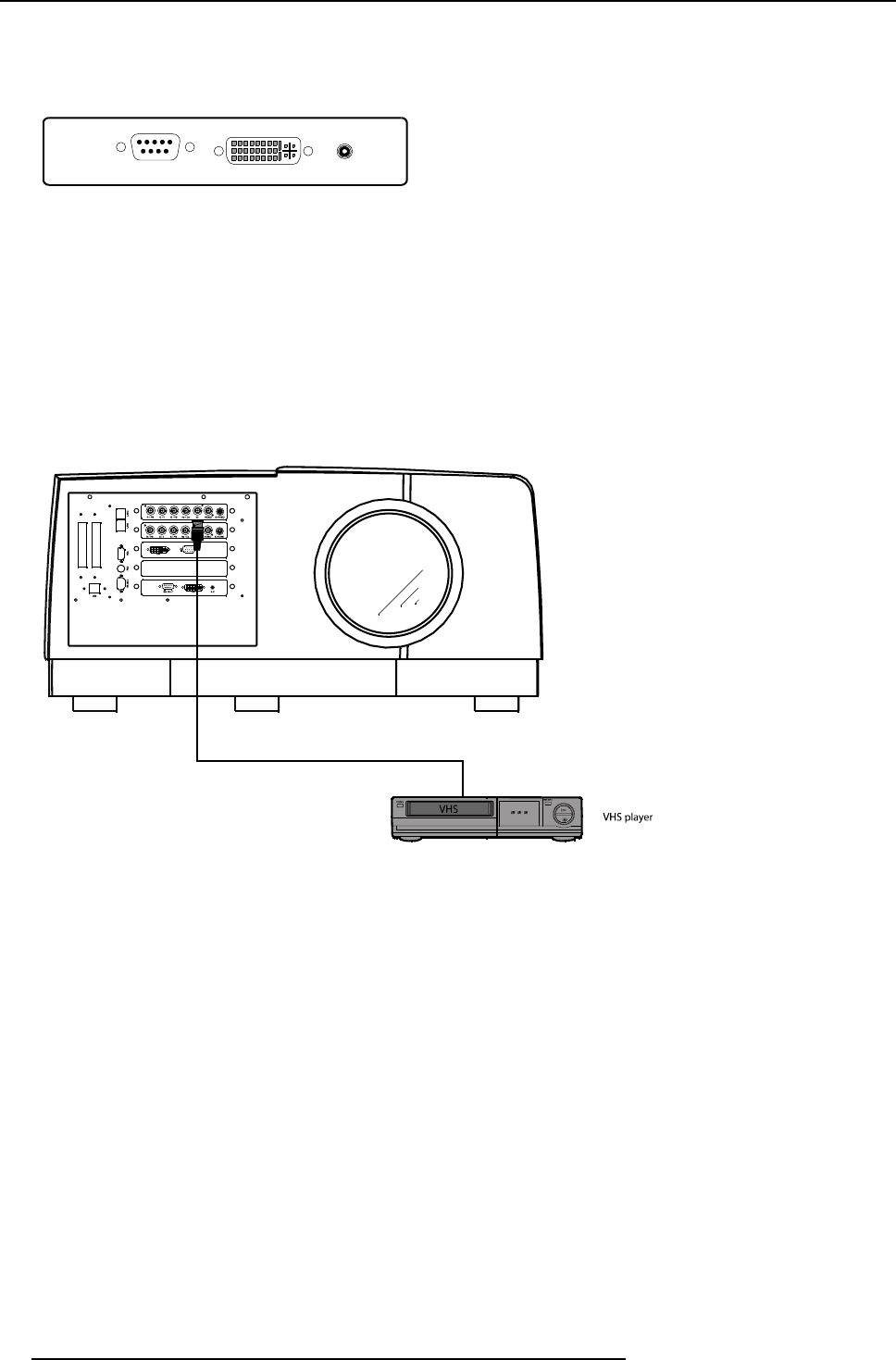
A Composite video signal is often available on a yellow cinch connector of a Camera, VCR or DVD player, in this case you will need
an adapter cable cinch/BNC to connect to Video input of the RGB board.
How to connect a composite video signal
1. Connect the BNC connector to the projector’s BNC video input
Image 4-18
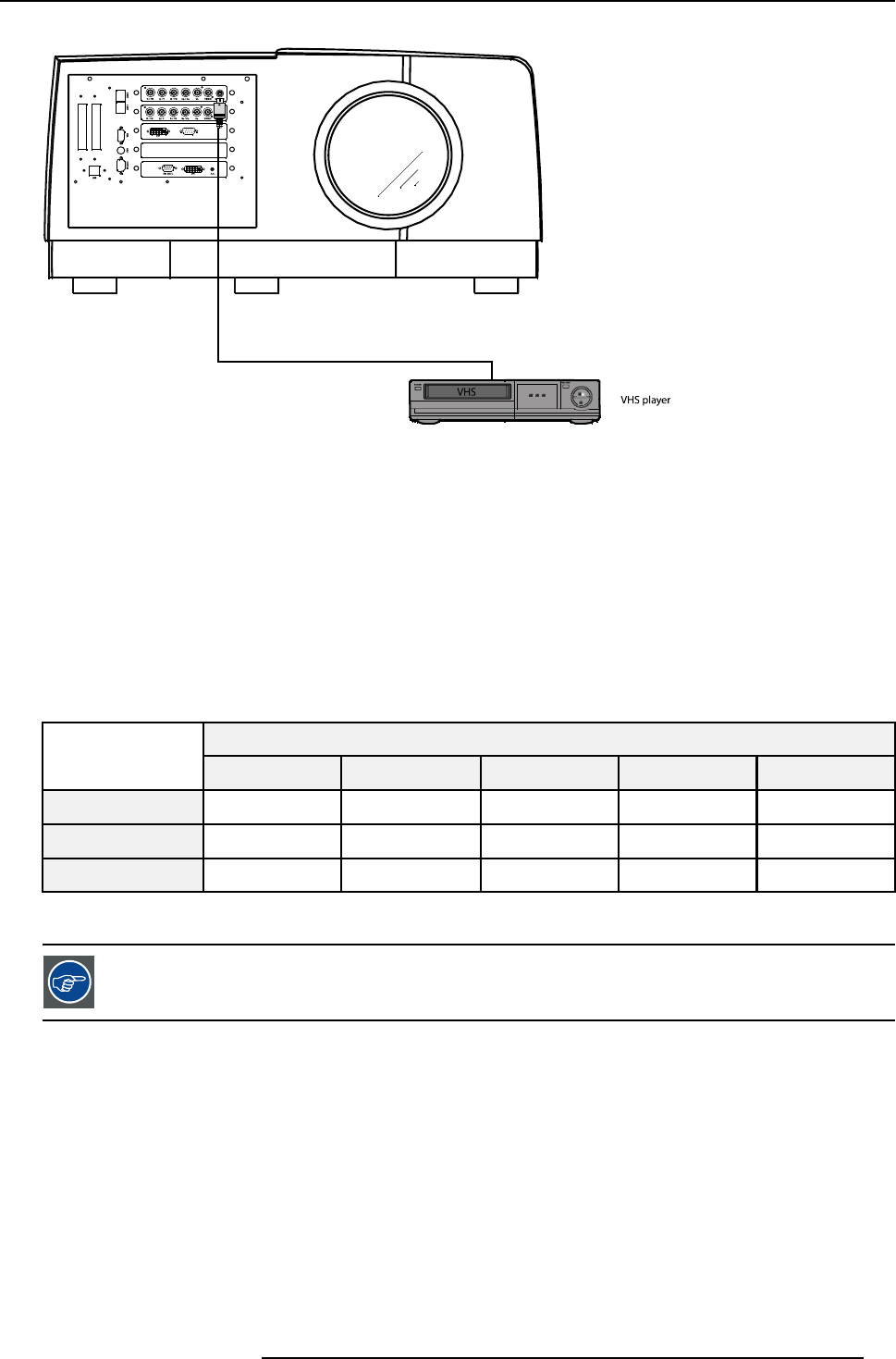
4.5.3.4 Connecting an S-Video signal
S-Video connection
An S-Video signal is available on the Mini-Din connector of a camera, VCR or DVD player.
How to connect an S-Video connection
1. Connect the mini din connector to the projector’s S-Video input
26 R5976821 BARCO ICON 15/03/2007
4. Installation
Image 4-19
4.5.3.5 Connecting an RGB signal
RGB data connection
The RGB input consists of 5 BNC
• 3 for the color signals R,G,B
• 2 for the sync signals H (horizontal sync), V (vertical sync)
RGBS : If the source disposes of a composite sync output i.e. one wire includes the horizontal and the vertical sync than the V BNC
must not be connected, resulting in 4 BNC being connected (V is free).
RGsB: If the source disposes of a sync on Green output i.e. the Green color signal includes the horizontal and the vertical sync
than the H and V BNC’s must not be connected, resulting in 3 BNC being connected (H and V are free).
BNC Connector
RGB H V
RGBHV RGB H V
RGsBRGsB- -
RGBS RGBS-
Table 4-3
HowtousetheBNC’sincaseofdifferentRGBsignals
The RGB 5 BNC input can also be used to connect a component video source : see Connecting a Component
video source.
How to connect an RGB signal
1. Connect the 5 or 4 BNC cables to the projector’s RGB input
R5976821 BARCO ICON 15/03/2007 27
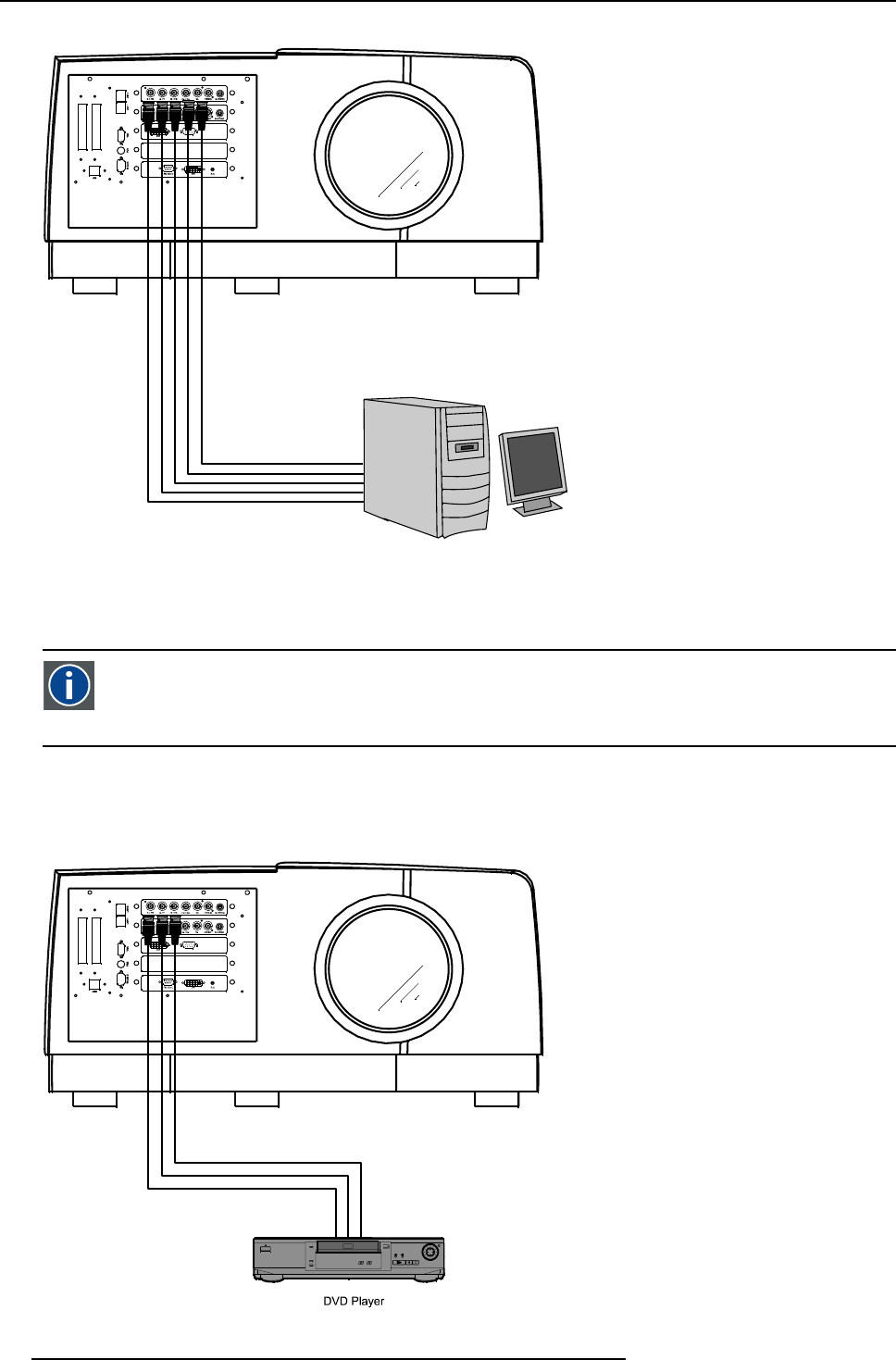
4. Installation
Image 4-20
RGB source connection
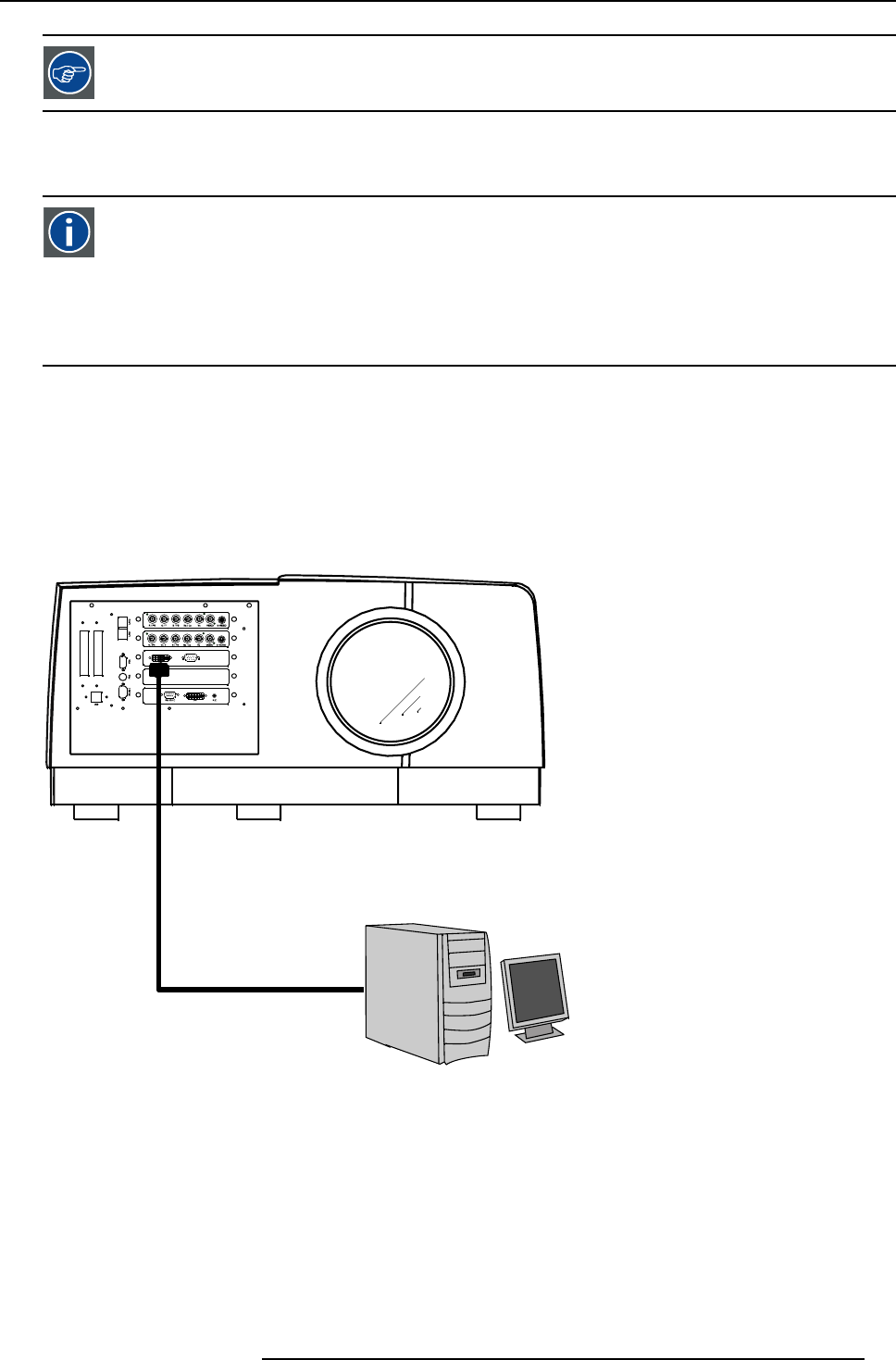
4.5.3.6 Connecting a Component Video signal
Component Video
In Component Video the term component describes a number (3) of elements that are needed to make up the video
picture, these components are R-Y/Y/B-Y. A composite video signal on the other hand contains all the information
needed for the color picture in a single channel of information
How to connect a Component video signal
1. Connect the 3 BNC connectors to the projector’s RGB input
Image 4-21
28 R5976821 BARCO ICON 15/03/2007
4. Installation
In case of a “progressive scan” component video source, the notation used is PR/Y/PB
4.5.3.7 Connecting a DVI signal
DVI
Digital Visual Interface is a display interface developed in response to the proliferation of digital flat panel displays.
The digital video connectivity standard that was developed by DDWG (Digital Display Work Group). This connection
standard offers two different connectors: one with 24 pins that handles digital video signals only, and one with 29 pins
that handles both digital and analog video. This standard uses TMDS (Transition Minimized Differential Signal) from
Silicon Image and DDC (Display Data Channel) from VESA (Video Electronics Standards Association).
DVI can be single or dual link.
Input specifications
Single link DVI
Differential input voltage: 200 mV - 800mV
How to connect a DVI signal ?
1. Connect the DVI cable to the DVI input
Image 4-22
4.5.3.8 Connecting a computer signal
How to connect a computer signal
1. Connect the D15 connector to the projector’s Computer input
R5976821 BARCO ICON 15/03/2007 29
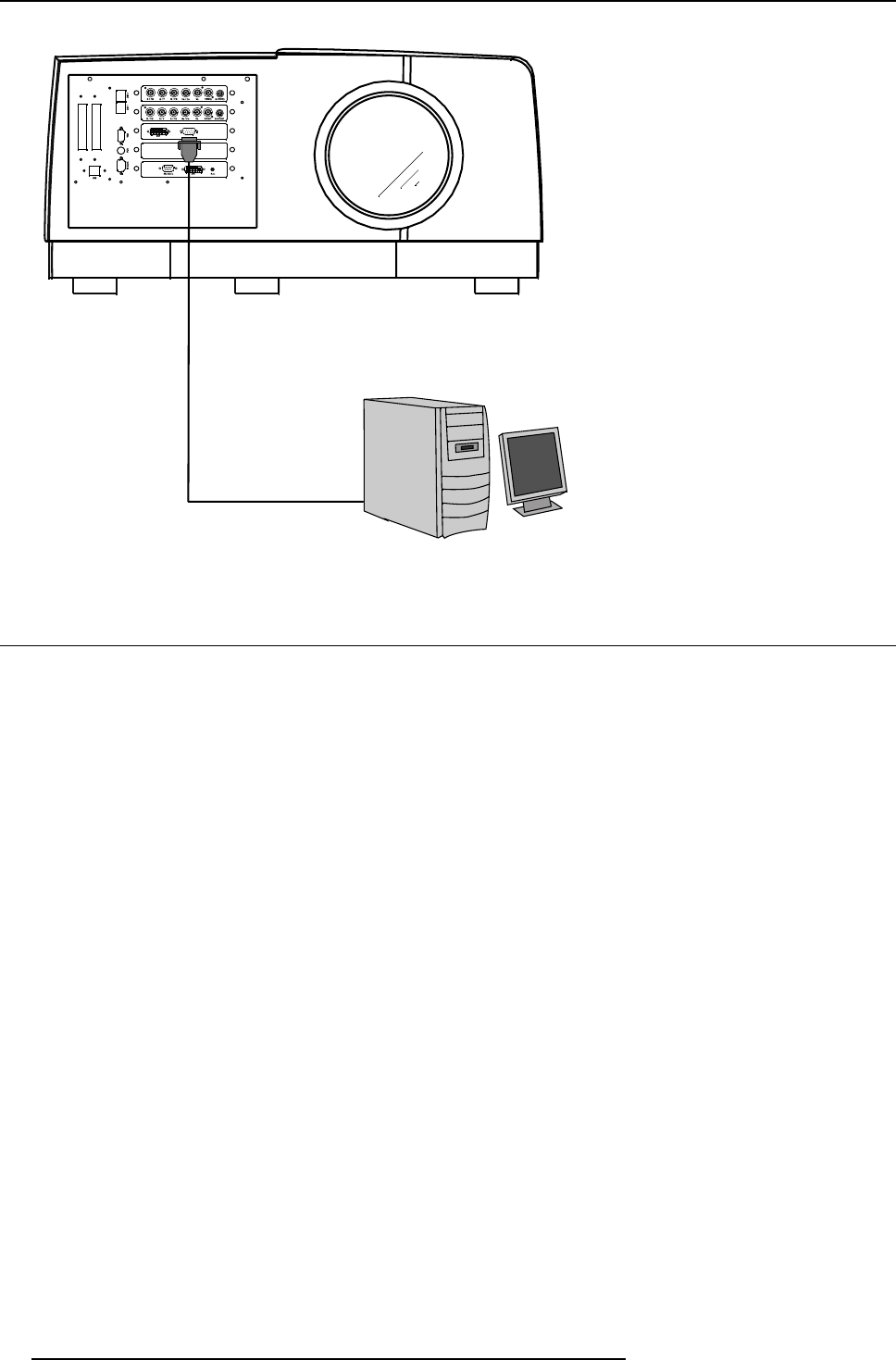
4. Installation
Image 4-23
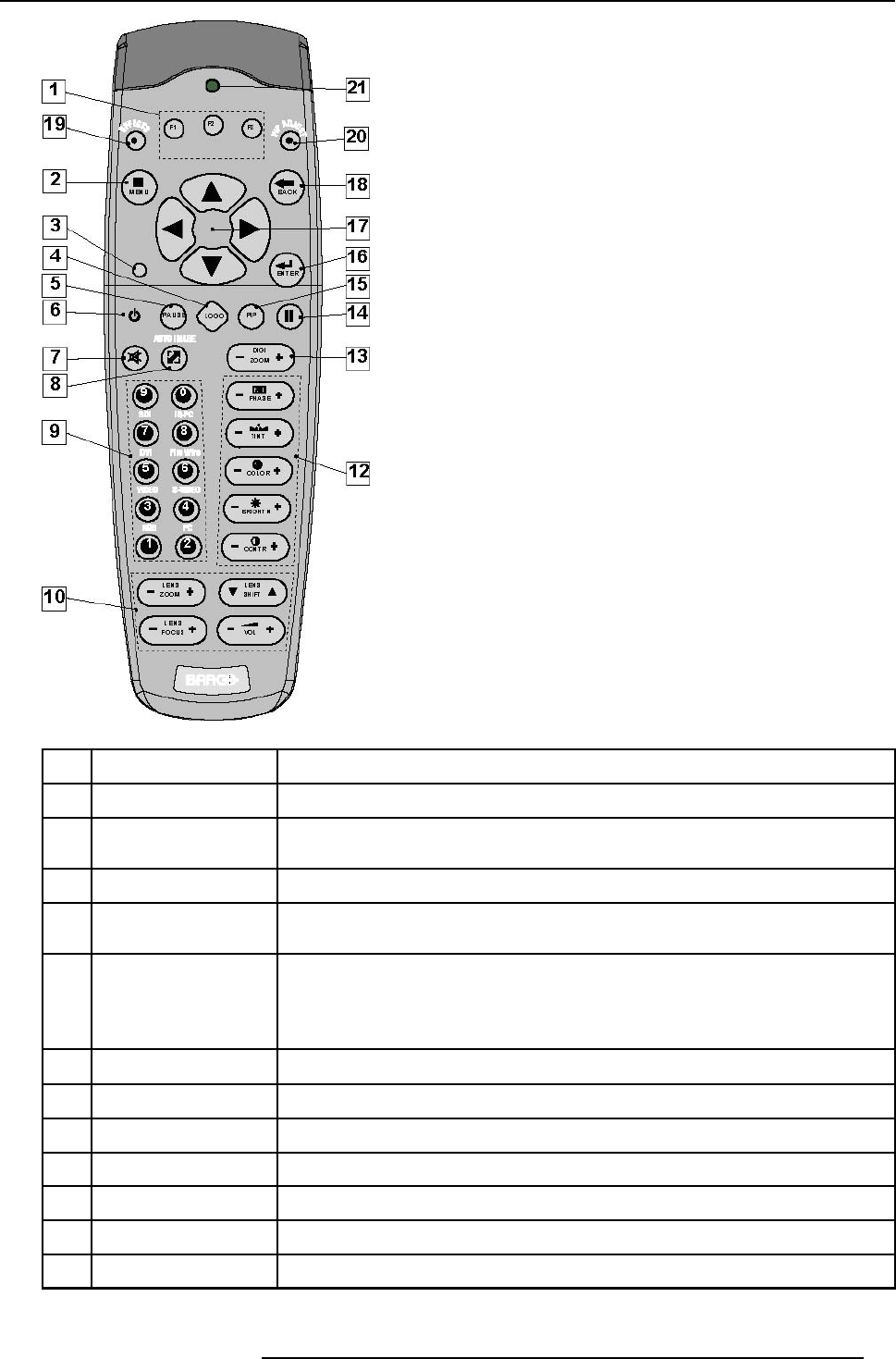
4.6 Controls overview
RCU
The following table gives an overview of the different functionalities of the keys.
30 R5976821 BARCO ICON 15/03/2007
4. Installation
Image 4-24
1Function keys user programmable keys with functions for direct access.
2MENU Menu key, to enter or exit the Tool bar menu.
3Address key (recessed key), to enter the address of the projector (between 0 and 9). Press the recessed
address key with a pencil, followed by pressing one digit button between 0 and 9.
4LOGO key not implemented
5PAUSE to stop projection for a short time, press ’PAUSE’. The image disappears but full power is
retained for immediate restarting.
6STBY standby button, to start projector when the power switch is switched on and to switch off the
projector without switching off the power switch.
Attention : Switching to Standby. When the projector is running and you want to
go to standby, press the standby key for 2 seconds.
7MUTE to interrupt the sound reproduction (audio = optional.
8AUTOIMAGE Auto image, to center the image on theactiveLCDsurface.
9Digit buttons direct input selection.
9b SOURCE button the Source Selection menu is opened
10 Lens control use these buttons to obtain the desired ZOOM, SHIFT, FOCUS.
11 VOL use this button to obtain the desired sound level (audio = optional)
12 Picture controls use these buttons to obtain the desired picture analog level.
R5976821 BARCO ICON 15/03/2007 31
4. Installation
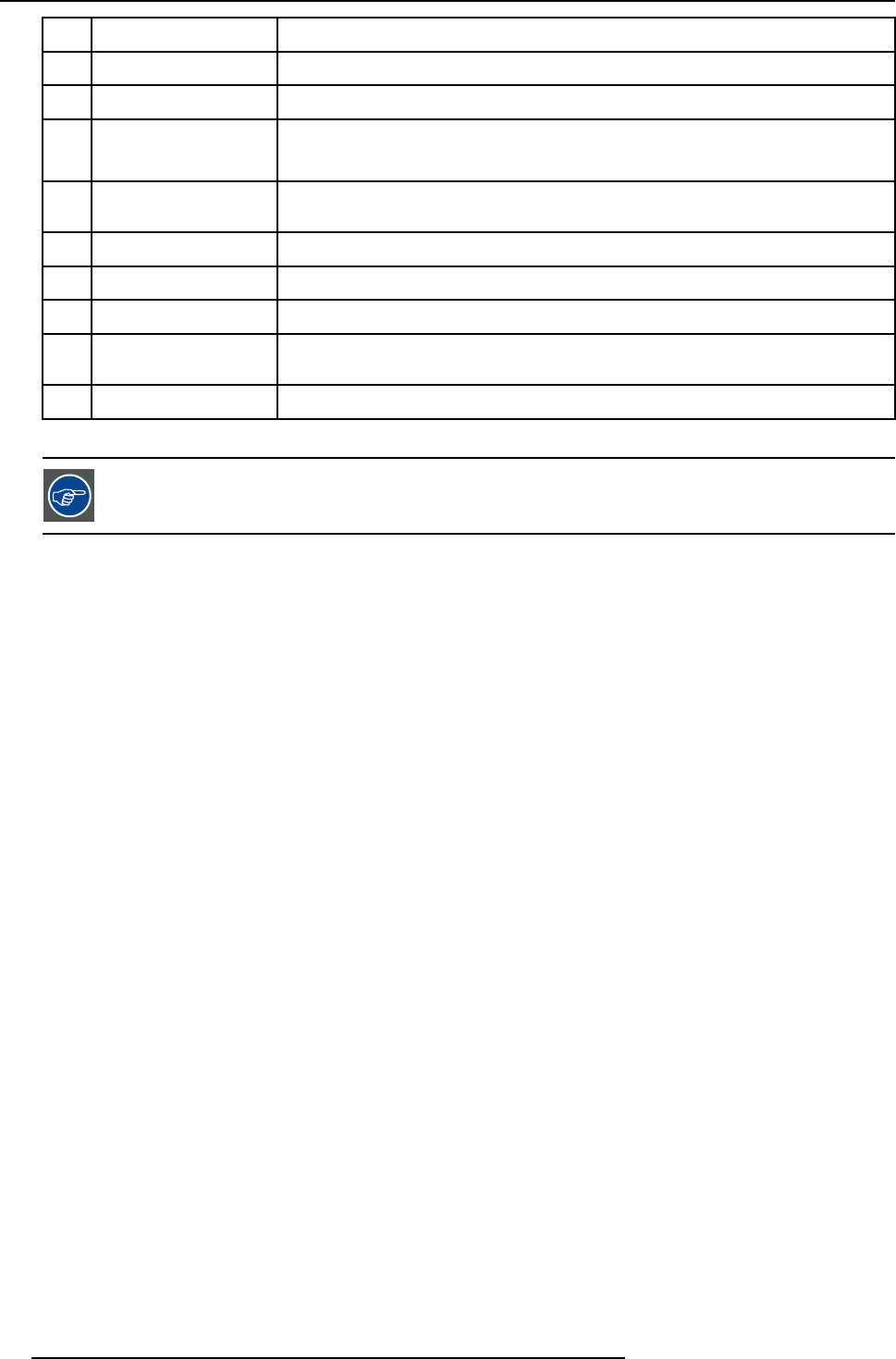
13 DIGI ZOOM not implemented
14 FREEZ press to freeze the projected image.
15 PIP not implemented
16 ENTER to confirm an adjustment or selection in the MENU.
On the local keypad the ENTER button additionally accesses the PIP window resize function
17 Cursor keys Cursor Keys on RCU or on the local keypad : to make menu selections or to access the
toolbar.
18 BACK to leave the selected menu or item (go upwards to previous menu).
19 EFFECTS not yet implemented
20 PIP ADJUST allows to select a PiP window and change its configuration on screen
21 RC operating indication lights up when a button on the remote control is pressed. (This is a visual indicator to
check the operation of the remote control)
22 IR receiver IR receiver
Table 4-4
ordernumber RCU: R763794K
32 R5976821 BARCO ICON 15/03/2007
5. Setup
5. SETUP
Overview
• Powering up the projector
• Starting up the projector
• Setting up the RCU address
• Setting up the projector address (only if necessary)
• Setting up the orientation
• Adjusting the lens
• Setup the baudrate for serial communication
• Setting the server ON/OFF state
• Preferences
• Installing the software
• Configuring the client software
• Configuring the Server software
• DropZone settings
•Startup
Important note !
Never change the display settings (graphical card settings) of the single board computer ! Doing this will not guarantee proper
functioning of the projector. Always leave them in the default (factory) setting.
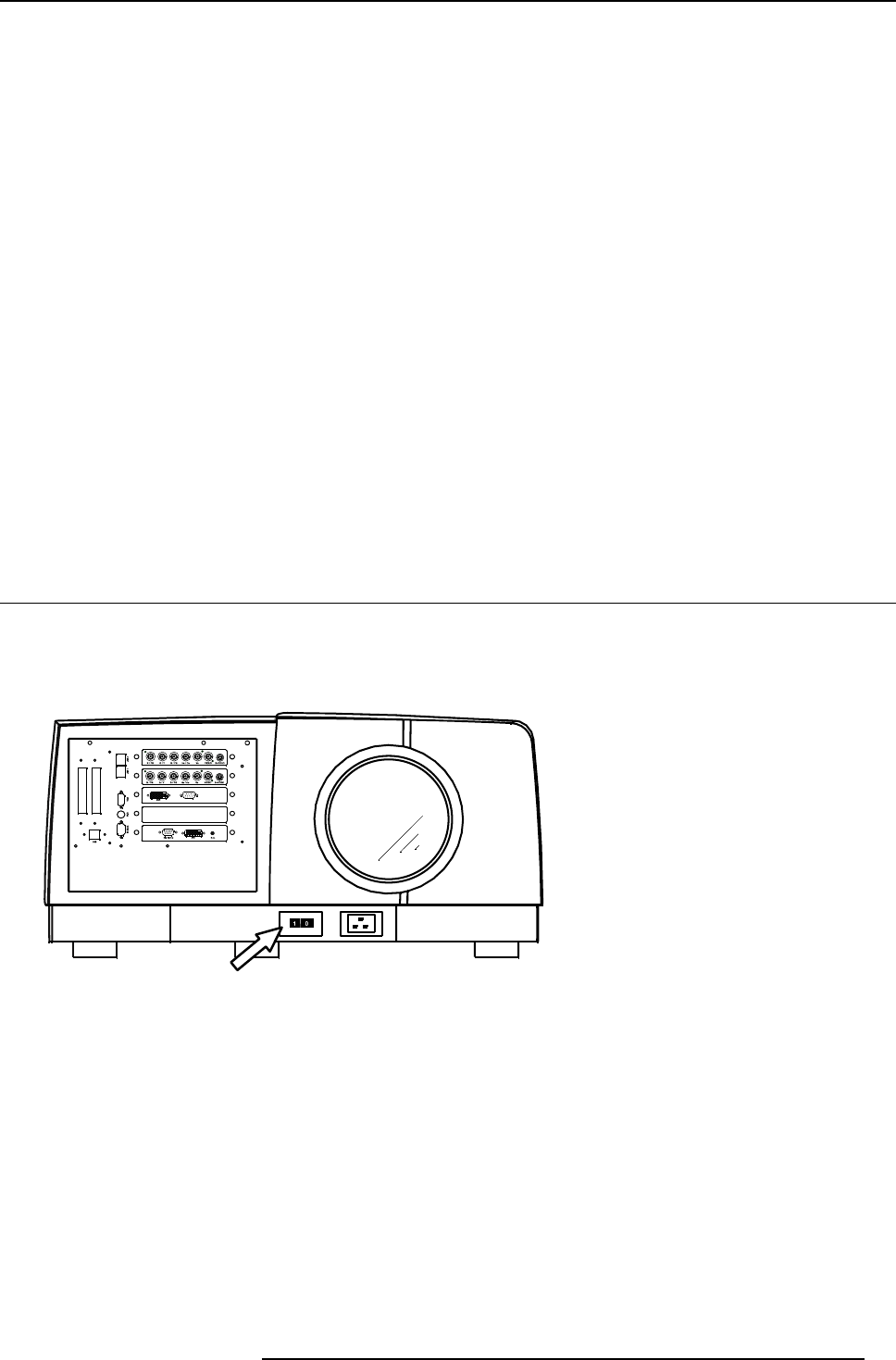
5.1 Powering up the projector
How to power up the projector
1. Switch the power switch to “1”
Image 5-1
R5976821 BARCO ICON 15/03/2007 33
5. Setup
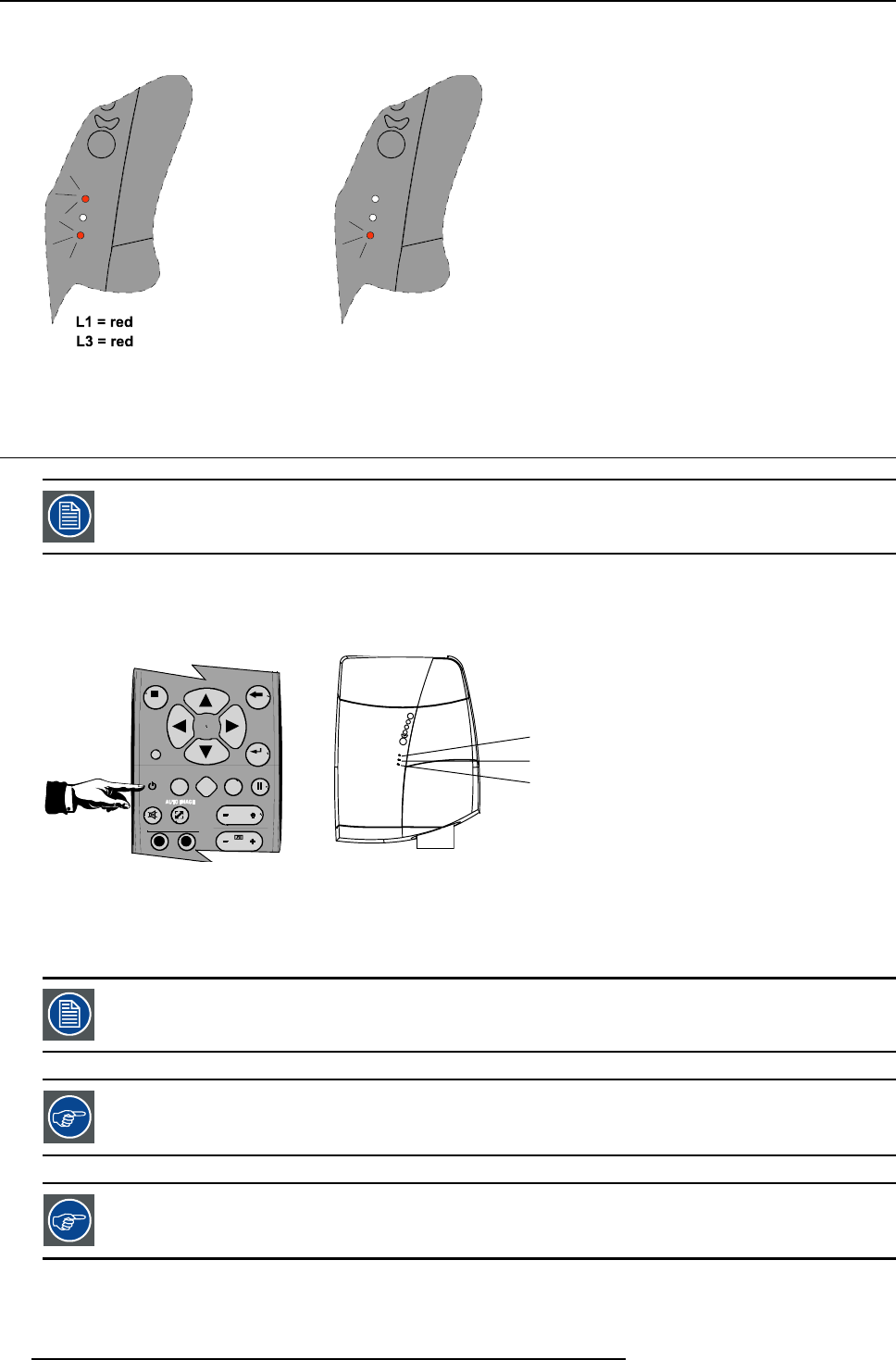
L3 and L1 light up red. After the initialization period L1 goes off.
Image 5-2
Image 5-3
Standby state : L3 is red
5.2 Starting up the projector
Starting up will only be possible after the initialization period i.e. when Led1 is off.
How to start up the projector ?
1. Press the Standby button on the RCU or on the local keypad.
90
EN T ER
MEN U BA
C
K
DI
G
I
Z
OO
M
PH A
SE
PA U
SE
PI P
L
OGO
Image 5-4
LED 1
LED 2
LED 3
Image 5-5
During startup Led3 becomes orange. When the projector becomes operational Led3 goes off and will only blink when receiving
IR commands from the remote control.
The iCon server source is displayed i.e. the WindowsTMdesktop is displayed.
Led2 blinking means that the projector is in standby while the Server is active
If the address setting is wrong the projector will not respond to the RCU, see the next step to set the address.
For more information on Server startup and shutdown see the Setup menu.
34 R5976821 BARCO ICON 15/03/2007
5. Setup
5.3 Setting up the RCU address
What has to be done ?
To allow the communication between the RCU and the projector the RCU has to be programmed with the same address as the
projector.
This address must be in the range 0–9.
To know the address of the projector, one can visualize it in projection mode (on screen) as well as in standby mode (shown with
the LED’s on top cover of the projector).
For more info on addresses see the appendix
At this stage the image projected may happen to be upside down or mirrored, this can be set in the Installation
menu under Projector orientation (see further setting up the projector’s orientation).
Displaying the Projector Address in Standby mode
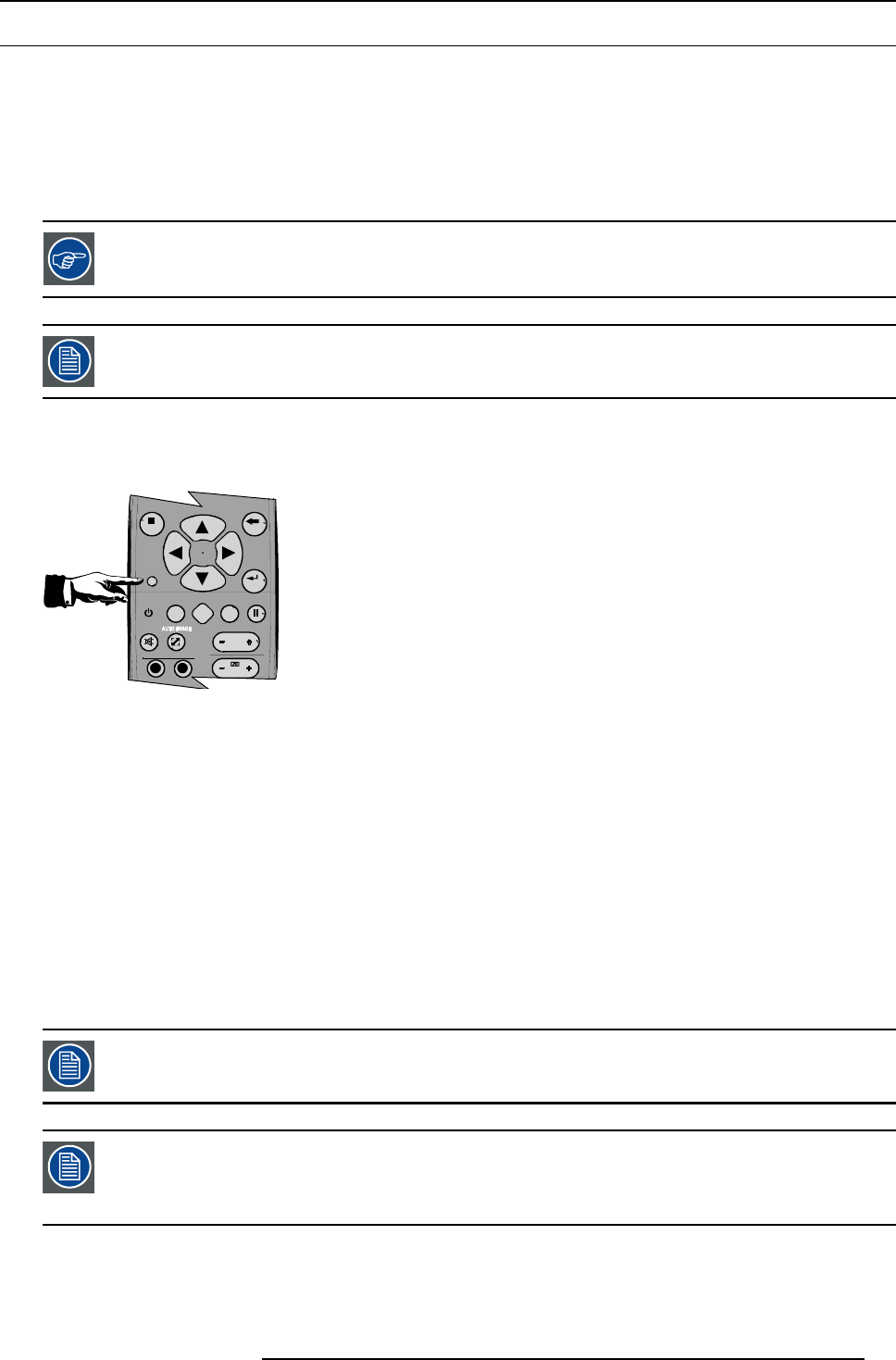
1. Press the Address key (recessed key on the RCU) with a pencil.
90
EN T ER
MEN U BA
C
K
DI
G
I
Z
OO
M
PH A
SE
PA U
SE
PI P
L
OGO
Image 5-6
All the LED’s (3) on the top cover of the projector go out.
Then LED1 starts blinking green the number of hundreds. After that LED2 starts blinking the number of tens. Finally LED3 starts
blinking green the number of units. If this is done, the original status of the LED’s is restored.
Displaying the Projector Address in projection mode)
1. Press the Address key (recessed key on the RCU) with a pencil.
The projector’s address will be displayed on the screen in a Textbox
Programming the RCU
1. Push the address key If the address is not entered within 5 seconds, the RCU returns to its default address (zero address) and
controls then all projectors in the room.
2. Enter the same address with the digit buttons within 5 seconds after pushing the address key.
The projector can now be controlled with the RCU.
For example : if the projector address is 3, then press "3" on the RCU to set the RCU’s address to match the
projector’s address.
Common address/Projector address : Beside the projector address, the projector disposes also of a Common
address which can be set to “0” or “1” (by default “0”).
In other words, an RCU set to address “0” will always control a projector regardless of its projector address
(since it uses the common address).
R5976821 BARCO ICON 15/03/2007 35
5. Setup
5.4 Setting up the projector address (only if necessary)
What can be done ?
The projector is shipped with projector address set to ”0”
In some cases the projector address must be changed, for example if an unique RCU is used to control 2 or more projectors (inde-
pendently).
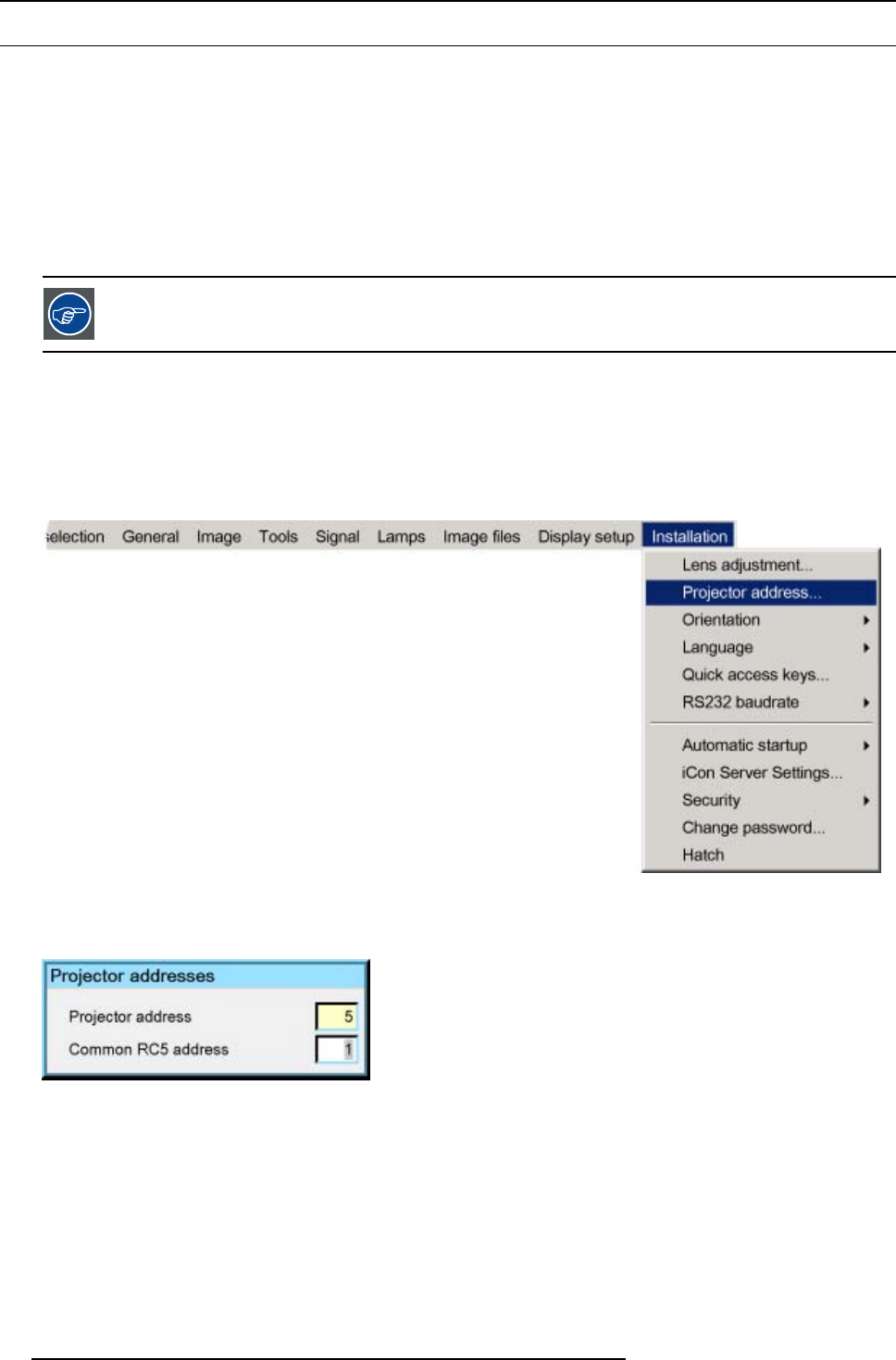
In the OSD menu Projector Address, the following addresses can be programmed :
• Projector address: address defined by the user, may be from 0 to 255
0-9 is used for RCU communication, 0–255 being used for RS232 serial communication.
• Common address : address may be 0 or 1
For more info on addresses see the appendix
How to change the projector’s address ?
1. Press MENU to activate the Tool bar
2. Press →to select the Installation
3. Press ↓to Pull down the Installation menu
4. Use ↑or ↓to select Projector address
Image 5-7
5. Press ENTER
A dialog box appears on the screen
Image 5-8
6. Enter the new projector address with the digit keys on the RCU, the local keypad or the cursor keys.
How to change the common address ?
1. Proceed in the same way as for the projector address
36 R5976821 BARCO ICON 15/03/2007
5. Setup
5.5 Setting up the orientation
What must be done ?
Depending on the mechanical orientation of the projector, the projector’s internal settings have to be adapted.
The projector is shipped (default) with a table/front orientation.
How to set the orientation ?
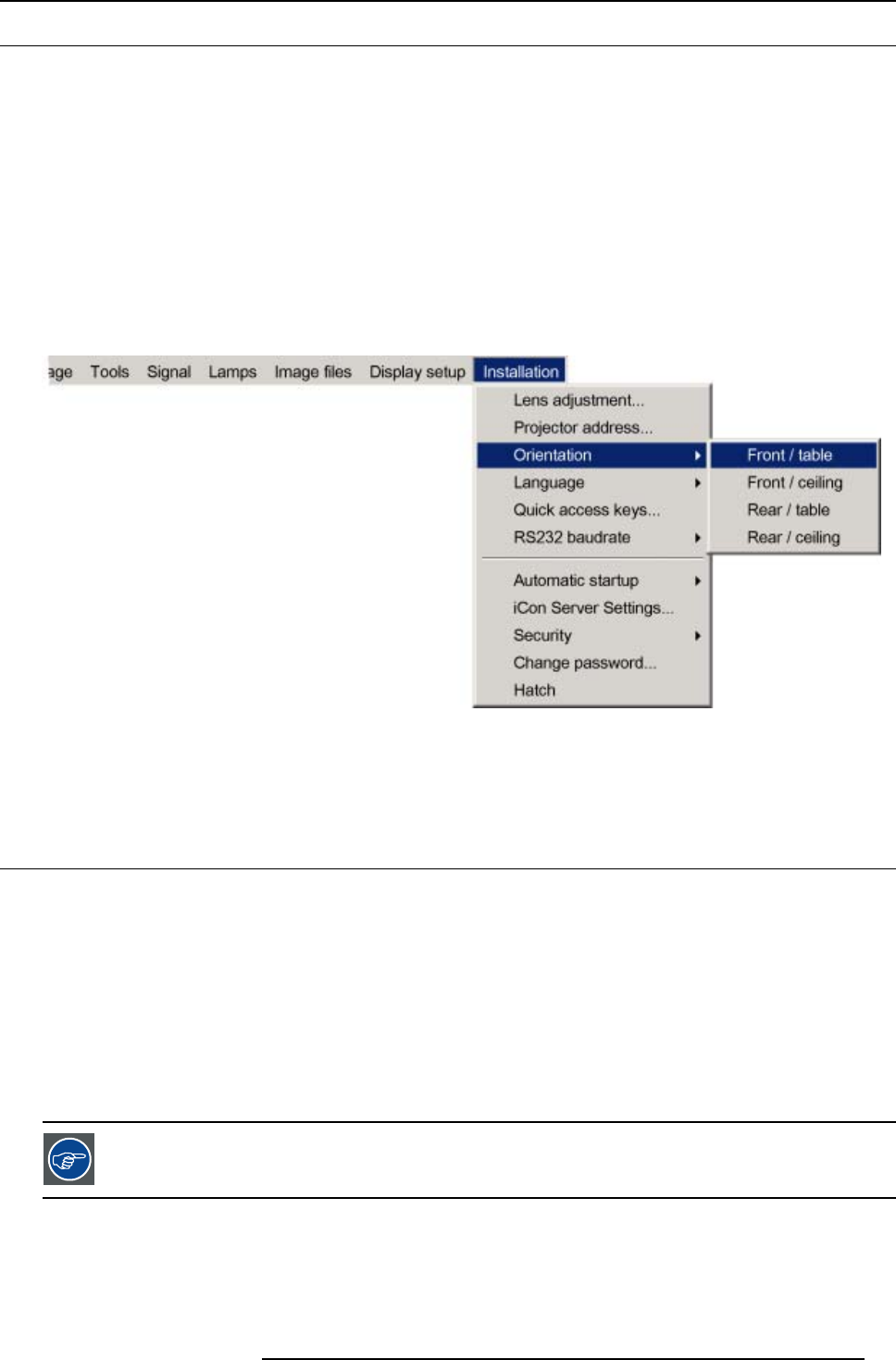
1. Press MENU to activate the Tool bar
2. Press →to select the Installation item
3. Press ↓to Pull down the Installation menu
4. Use ↑or ↓to select Orientation
5. Press →to pull down the menu
6. Use ↓or ↑to select the desired orientation
Image 5-9
7. Press ENTER
The projection is adapted and a bullet shows the active configuration.
5.6 Adjusting the lens
What must be done ?
Depending on the projection distance and the lens used, the image may not be at the desired size, position and/or may be out of
focus.
The projector will always allow you to shift your image Vertically as well as horizontally to position it on the screen. In addition,
motorized lenses will also allow you to Zoom and focus the image.
All these lens parameters can be adjusted using the RCU, the local keypad or in the Installation menu of the projector’s OSD.
• Zoom (only for motorized lenses)
• Focus (only for motorized lenses)
• horizontal/vertical Shift
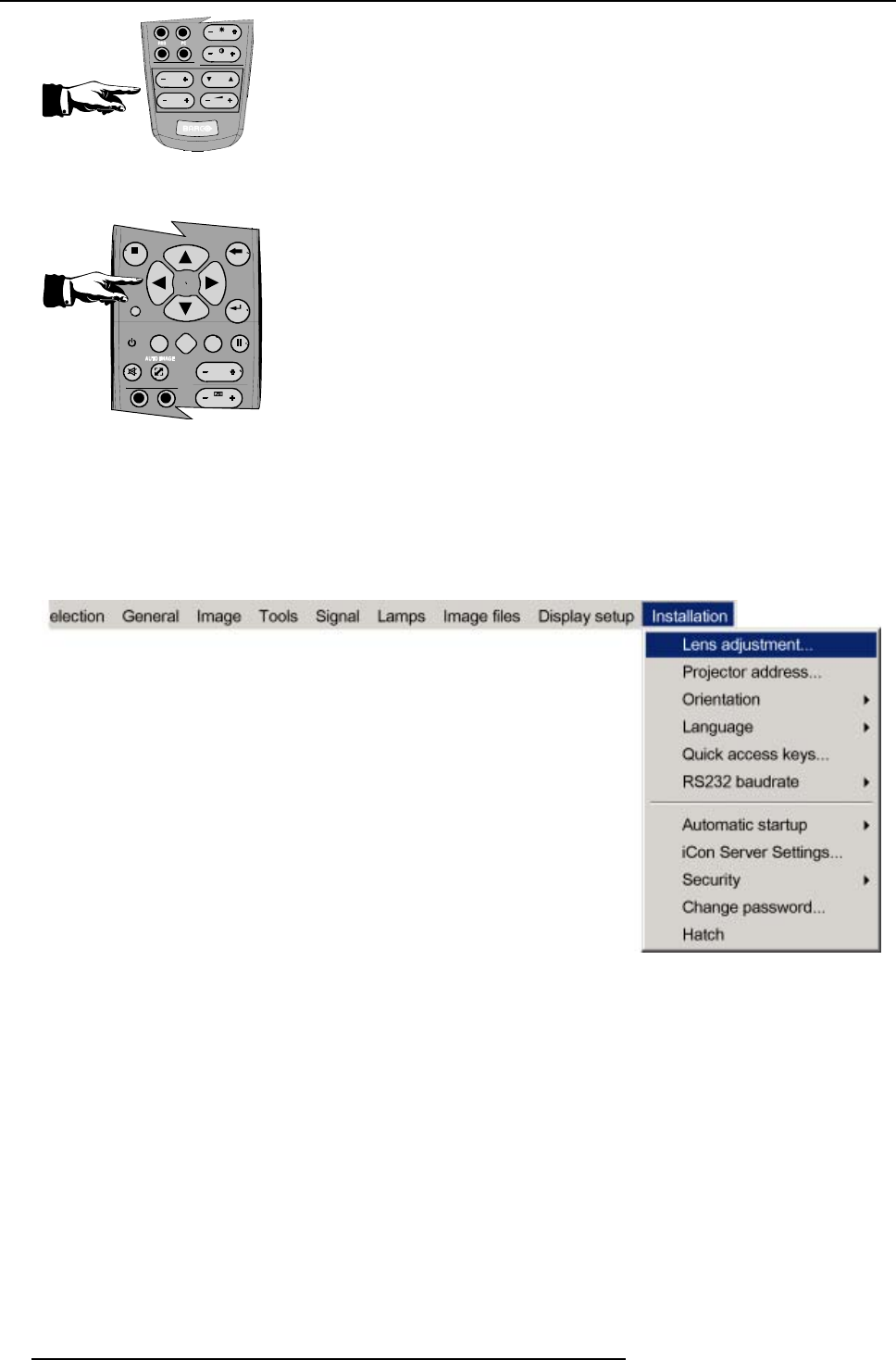
The lens can also be adjusted via the dedicated keys on the remote.
How to Zoom/focus or shift via the RCU (or keypad)
1. Press LENS ZOOM or
LENS FOCUS or LENS SHIFT on the RCU
R5976821 BARCO ICON 15/03/2007 37
5. Setup
3
1
4
2
LEN S
ZOOM
LEN S
SH I F T
LEN S
FOCU S VO L
CONTR
BRIGHTN
Image 5-10
2. Use the arrow keys to adjust
90
EN T ER
MEN U BA
C
K
DI
G
I
Z
OO
M
PH A
SE
PA U
SE
PI P
L
OGO
Image 5-11
How to Zoom/focus or shift in the OSD ?
1. Press MENU to activate the Tool bar
2. Press →to select the Installation
3. Press ↓to Pull down the Installation menu
4. Use ↑or ↓to select Lens adjustments...
Image 5-12
5. Press ENTER
38 R5976821 BARCO ICON 15/03/2007
5. Setup
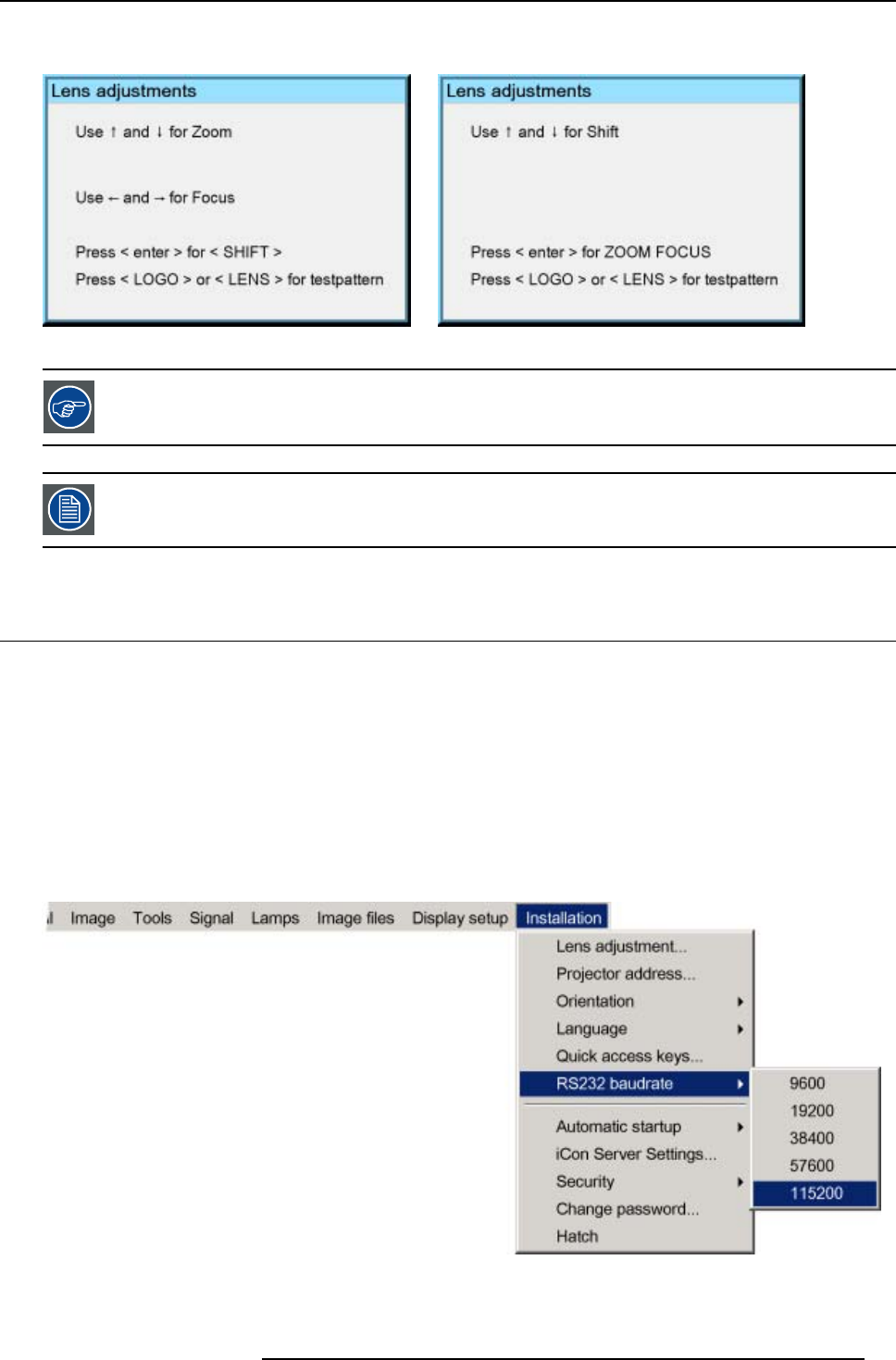
A textbox appears on the screen, follow the instructions.
Image 5-13 Image 5-14
The use of a sheet of paper held in front of the screen can be useful to determine the focus plane (position
for best focus)
Vertical shift range : -120% to 120%
Horizontal shift range : -100% to +100%
5.7 Setup the baudrate for serial communication
What can be done ?
The RS232 IN port of the projector allows you to communicate with any other equipment disposing of an RS232 port (generally a
PC used to upgrade the projector’s firmware) using the RS232 protocol. The baudrate must be set to the same value on both the
projector and the other equipment.
How to change the baudrate?
1. Press MENU to activate the Tool bar
2. Press →to select the Installation item
3. Press ↓to Pull down the Installation menu
4. Use ↑or ↓to select RS232 baudrate
Image 5-15
5. Press →to pull down the menu
R5976821 BARCO ICON 15/03/2007 39
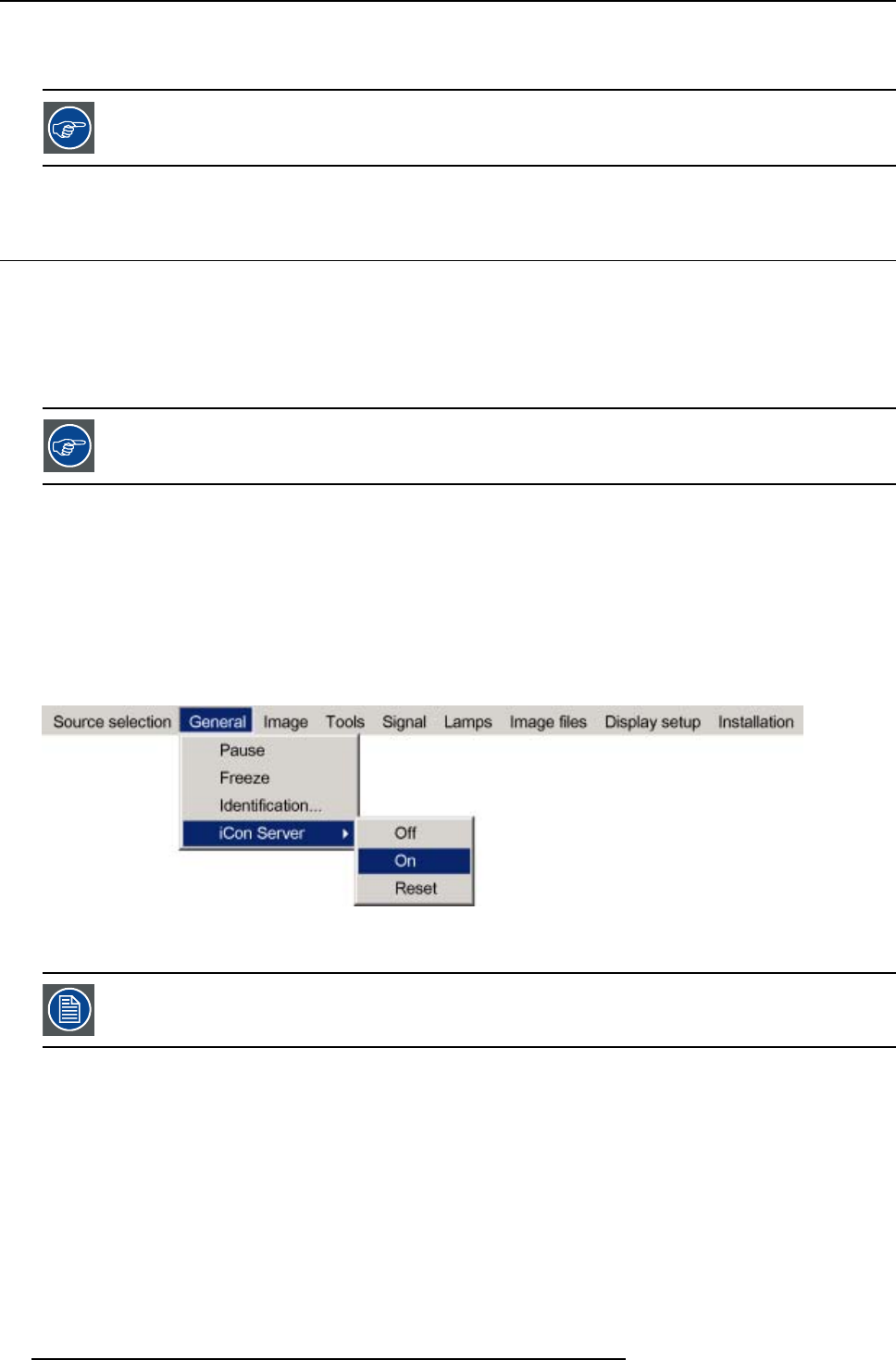
5. Setup
6. Use ↓or ↑to select the desired baudrate
7. Press ENTER
Always select the highest rate (115200) unless otherwise specified.
5.8 Setting the server ON/OFF state
Starting up
The Server (desktop) will always be displayed at projector startup, it can however still be shut down and re-started via the General
menu.
During the standby state of the projector the Server can be chosen to be active or inactive, this is done by defining the state of the
Server during a “Projector standby state” .
It is recommended to leave the server ON even when the projector is in standby to allow the use of the full
network capabilities.
Manual start up: How to start up/shut down/reset the Server ?
1. Press MENU to activate the Tool bar
2. Press →to select General
3. Press ↓to Pull down the General menu
4. Use ↑or ↓to select iCon Server
5. Press →to open the menu
6. Use ↑or ↓to select ON/OFF/Reset
Image 5-16
7. Press ENTER
When resetting the Server the menu items in the Server menu are greyed out during a short period.
Projector standby state: How to set the projector standby state ?
1. Press MENU to activate the Tool bar
2. Press →to select Installation
3. Press ↓to Pull down the menu
4. Use ↑or ↓to select iCon Server settings
40 R5976821 BARCO ICON 15/03/2007
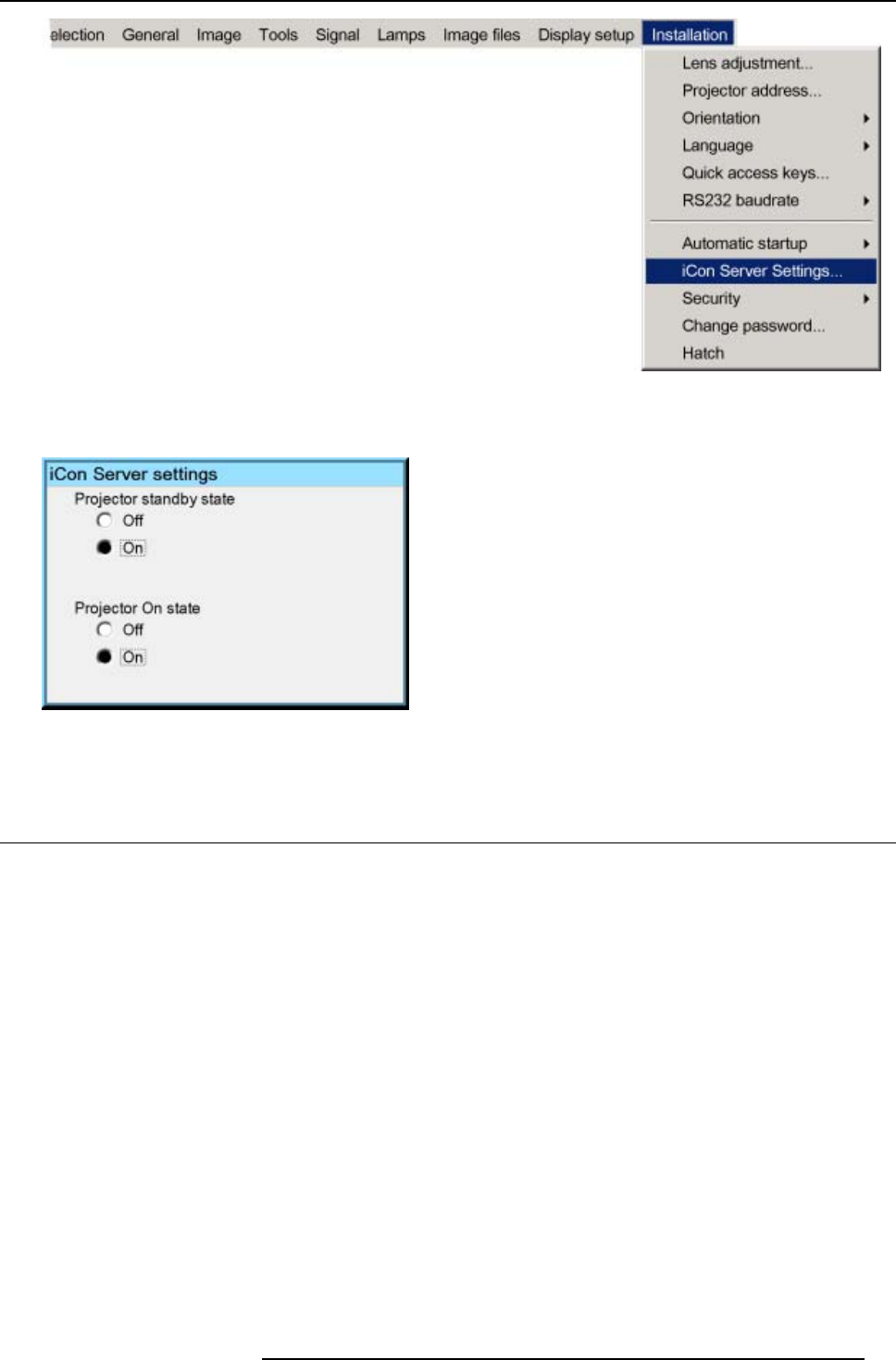
5. Setup
Image 5-17
5. Press ENTER
6. A dialog box is displayed
Image 5-18
7. Select ON or OFF for the “Projector standby state” setting
5.9 Preferences
Overview
• Language setting
• Pre-programming RCU quick acces keys
• Automatic startup
• Background
5.9.1 Language setting
List of languages
The list of selectable languages depends on the software version of the projector.
How to change the Language ?
1. Press MENU to activate the Tool bar
2. Press →to select the Installation item
3. Press ↓to Pull down the Installation menu
4. Use ↑or ↓to select Language
5. Press →to pull down the menu
6. Use ↓or ↑to select the desired language
R5976821 BARCO ICON 15/03/2007 41
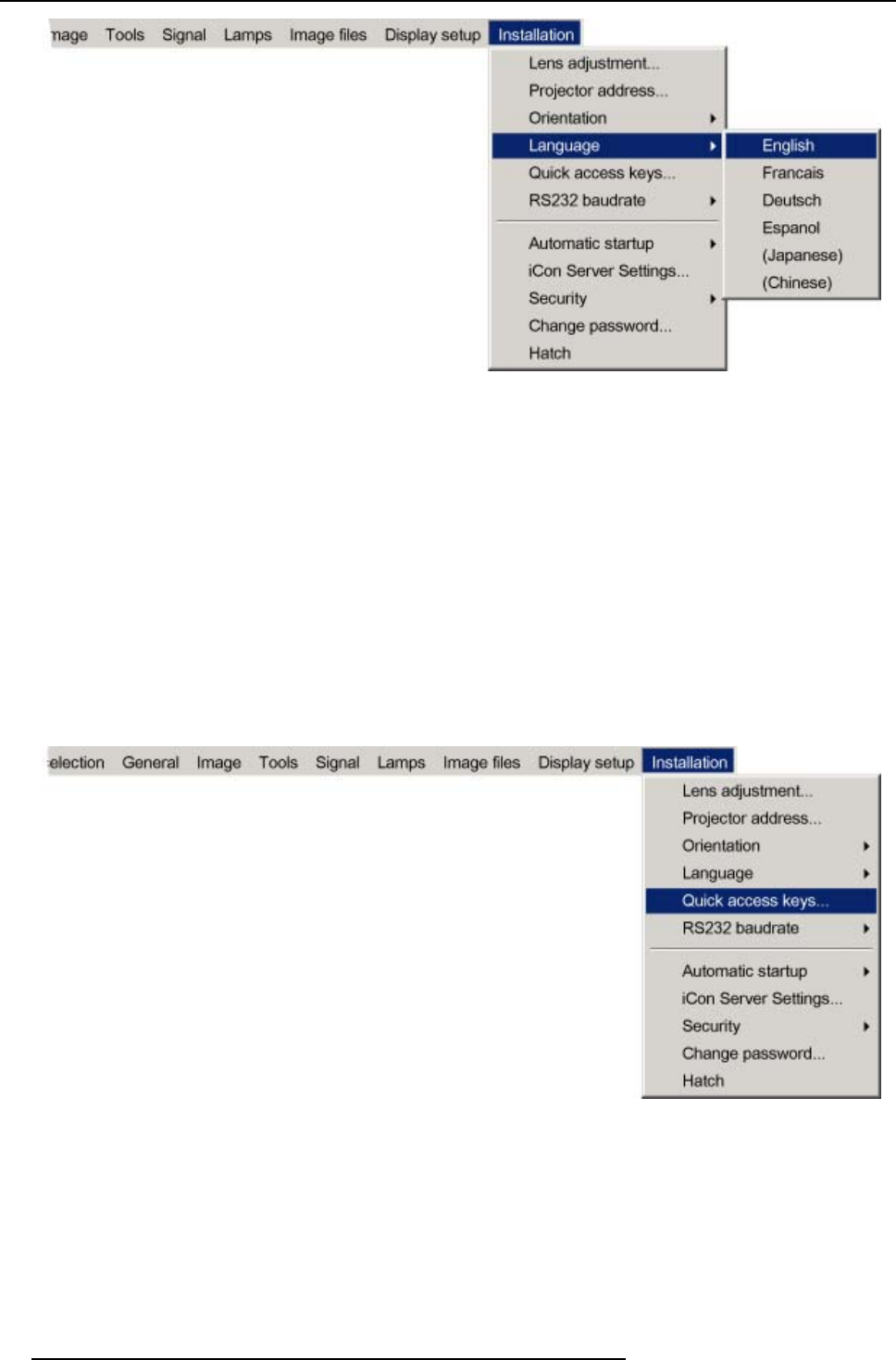
5. Setup
Image 5-19
7. Press ENTER
The language is adapted and a bullet shows the active selection.
5.9.2 Pre-programming RCU quick acces keys
What can be done ?
The 3 function keys on top of the RCU can be associated with a particular item in one of the menus.
Each function which is not password protected or does not have a key on the RCU can be associated to a function key.
How to get an overview of the quick access keys ?
1. Press MENU to activate the Tool bar
2. Press →to select the Installation
3. Press ↓to Pull down the Installation menu
4. Use ↑or ↓to select Quickaccesskeys
Image 5-20
5. Press ENTER
A textbox appears on the screen.
How to program the quick access keys ?
1. Scroll through the menus to the desired menu item
2. Push the desired function key for 3 seconds
42 R5976821 BARCO ICON 15/03/2007
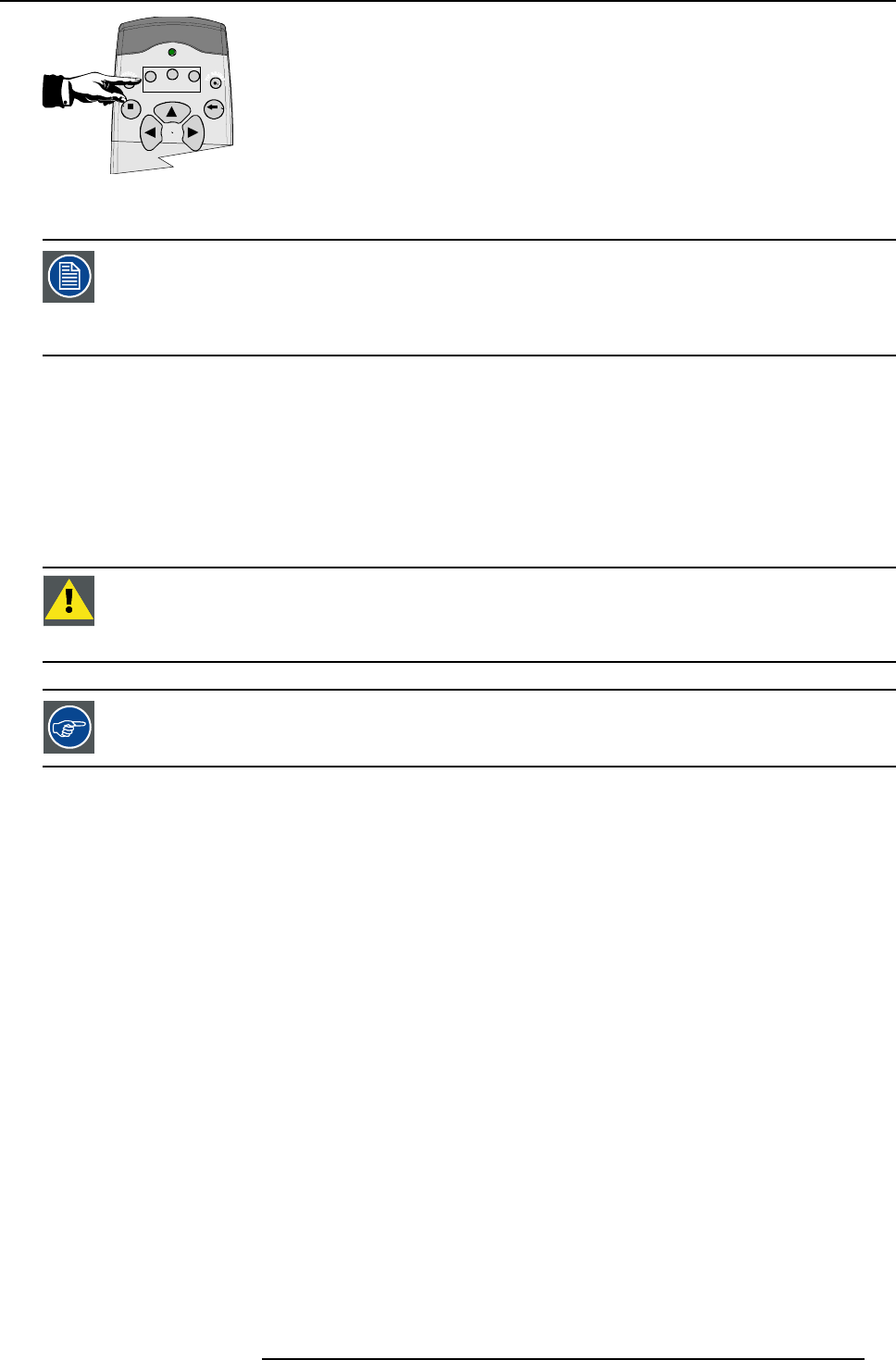
5. Setup
F1 F2 F3
MEN U BACK
Image 5-21
The menu item is stored in the quick access key
Factory pre-programmed functions
-F1 :
-F2 :
-F3 :
5.9.3 Automatic startup
What can be done ?
The automatic startup allows to bypass the standby state i.e. start up without going in standby state after switching on the projector.
This means that the automatic startup allows immediate restart of the projector after a power failure (breakdown), i.e. without passing
through the standby state, by recovering the previous settings (previous source,...).
This function can be disabled if undesired or inadequate for safety reasons, etc.
CAUTION:If the Automatic startup function is enabled one must be aware of the fact that it involves safety
precautions
Make sure that the projector (or the operators!) will not be affected by altered environmental conditions when
restarting at power resume.
Unless it is required, it is advised to leave this setting OFF.
In case of a power breakdown, this may introduce unwanted conditions at power resume : projector starting
up with high lamp temperature conditions, bad PC status, ...
How to enable/disable the Automatic startup?
1. Press MENU to activate the Tool bar
2. Press →to select the Installation item
3. Press ↓to Pull down the Installation menu
4. Use ↑or ↓to select Automatic startup
5. Press →to pull down the menu
6. Use ↓or ↑to enable/disable the automatic startup
R5976821 BARCO ICON 15/03/2007 43
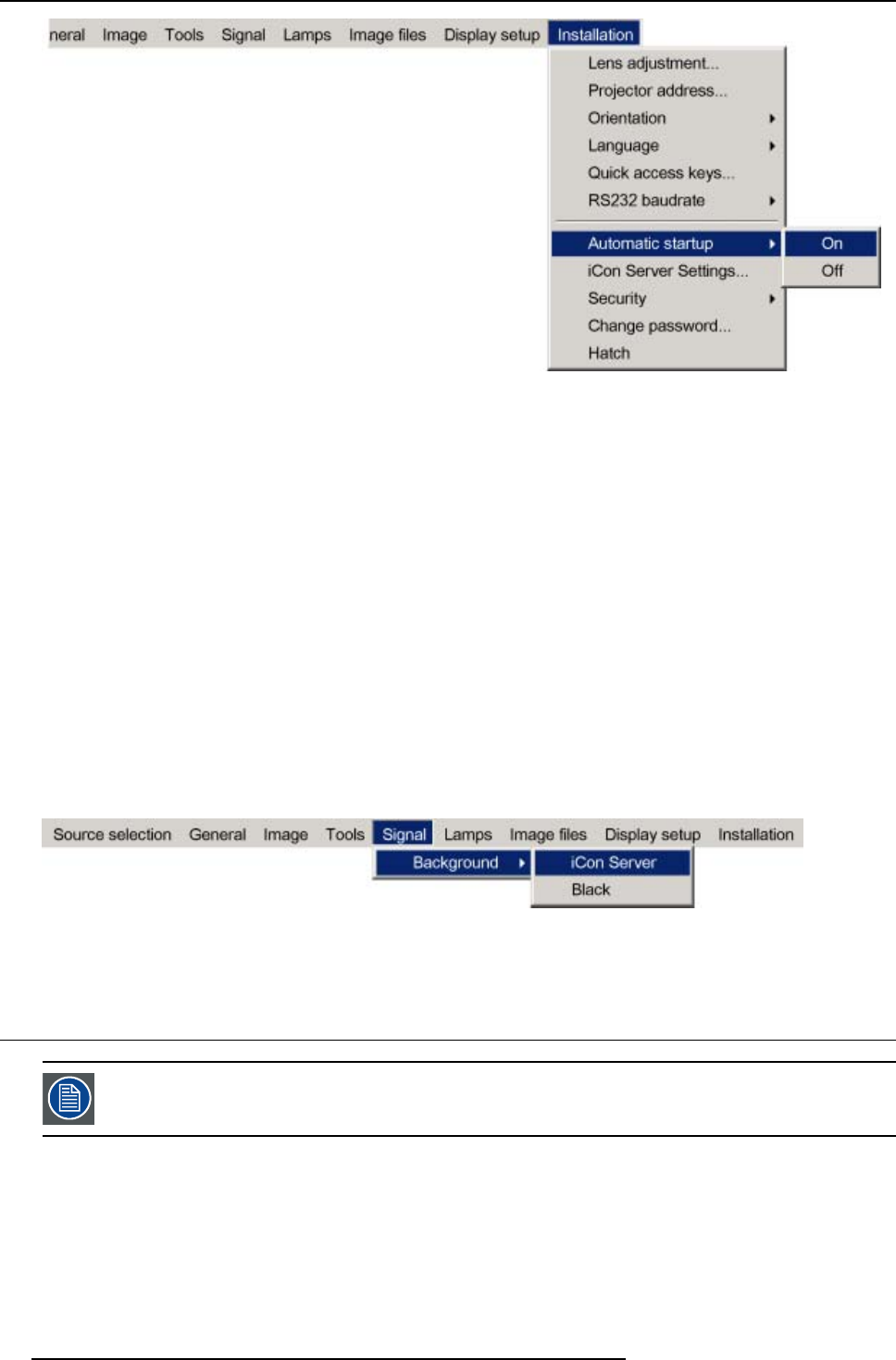
5. Setup
Image 5-22
7. Press ENTER
5.9.4 Background
Background setting
The background of the projected image can be chosen to be :
• iCon server: the desktop is always displayed in the background : video content is displayed on top of the desktop image
(desktop integration).
• Black : a black image is displayed in the background
How to setup the background ?
1. Press MENU to activate the Tool bar
2. Press →to select the Signal item
3. Press ↓to Pull down the menu
4. Use ↑or ↓to select Background startup
5. Press →to pull down the menu
6. Use ↓or ↑to select Black or iCon Server
Image 5-23
7. Press ENTER
5.10 Installing the software
An Administrator password has been installed for security reasons (worm and virus protection):
Password : Barco (case sensitive !)
Necessary parts
• installation CD (delivered)
•PC
How to install the client software ?
1. Install the client software from the CD ( Setup file )
44 R5976821 BARCO ICON 15/03/2007
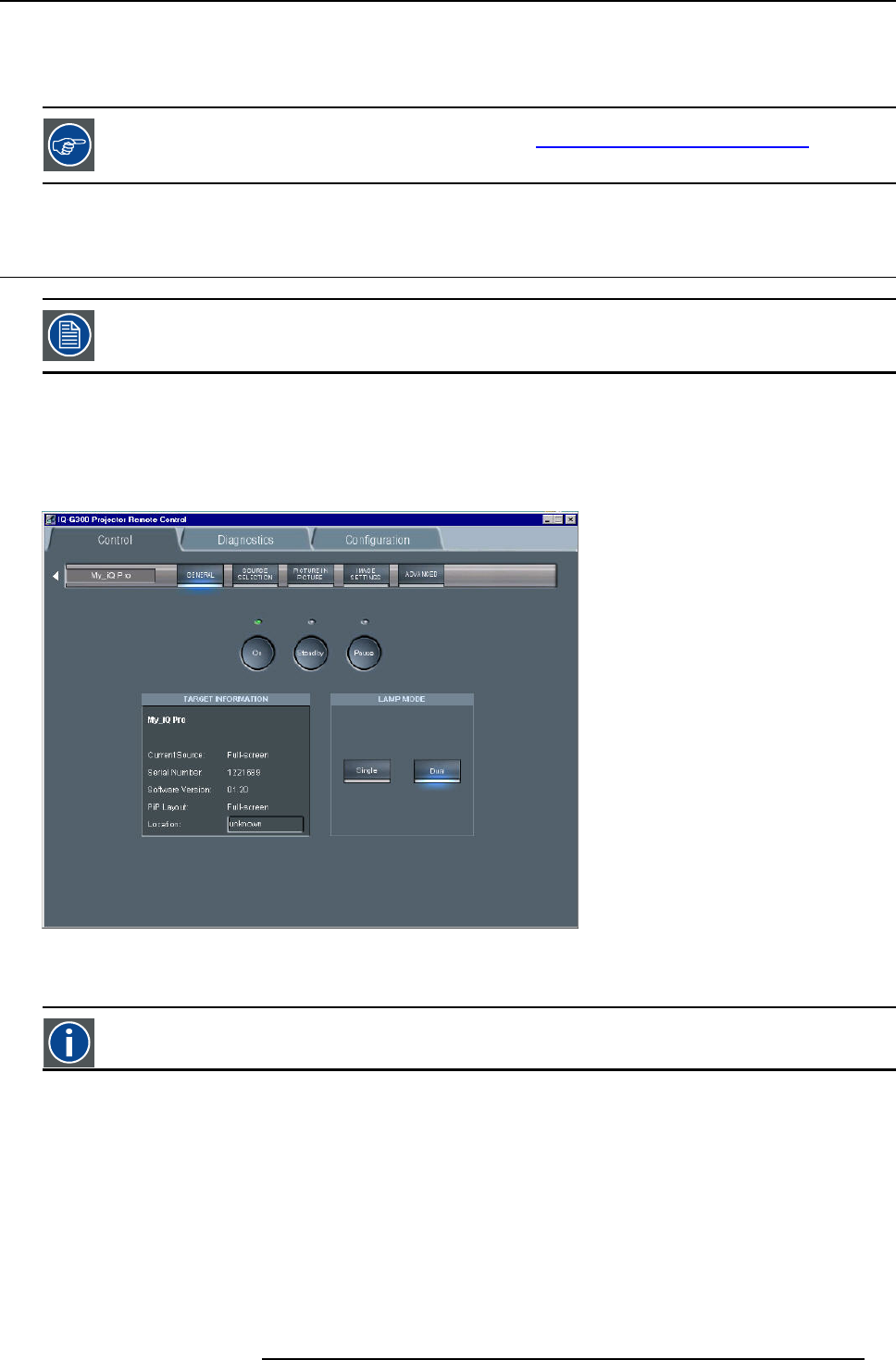
5. Setup
How to install the server software ?
1. The server software is by default installed on the projector.
if necessary, reinstall it from the CD.
The CD containing the server software and the client tools are delivered with the projector. They can always
be downloaded from the secured PartnerZone Web site : https://secure.barco.com/presentation/
5.11 Configuring the client software
The same universal client interface is used for different network centric projectors (iQ, iD, iCon). The layout of
the interface (position of the controls,...) is adapted after detection of the projector type. Some screenshots
may not fully coincide with the reality.
How to start up the client software ?
1. Start up the previously installed client program
The interface shows 3 tabs (upper tab control ): Control, Diagnosis and Configuration
The active sub interface is the control sub screen
Image 5-24
Control interface
2. Click on the upper menubar to select the desired sub interface
IP
Internet Protocol. The network layer of TCP/IP. Required for communication with the internet.
How to add a projector to the projector list
1. Click on the white arrow
R5976821 BARCO ICON 15/03/2007 45
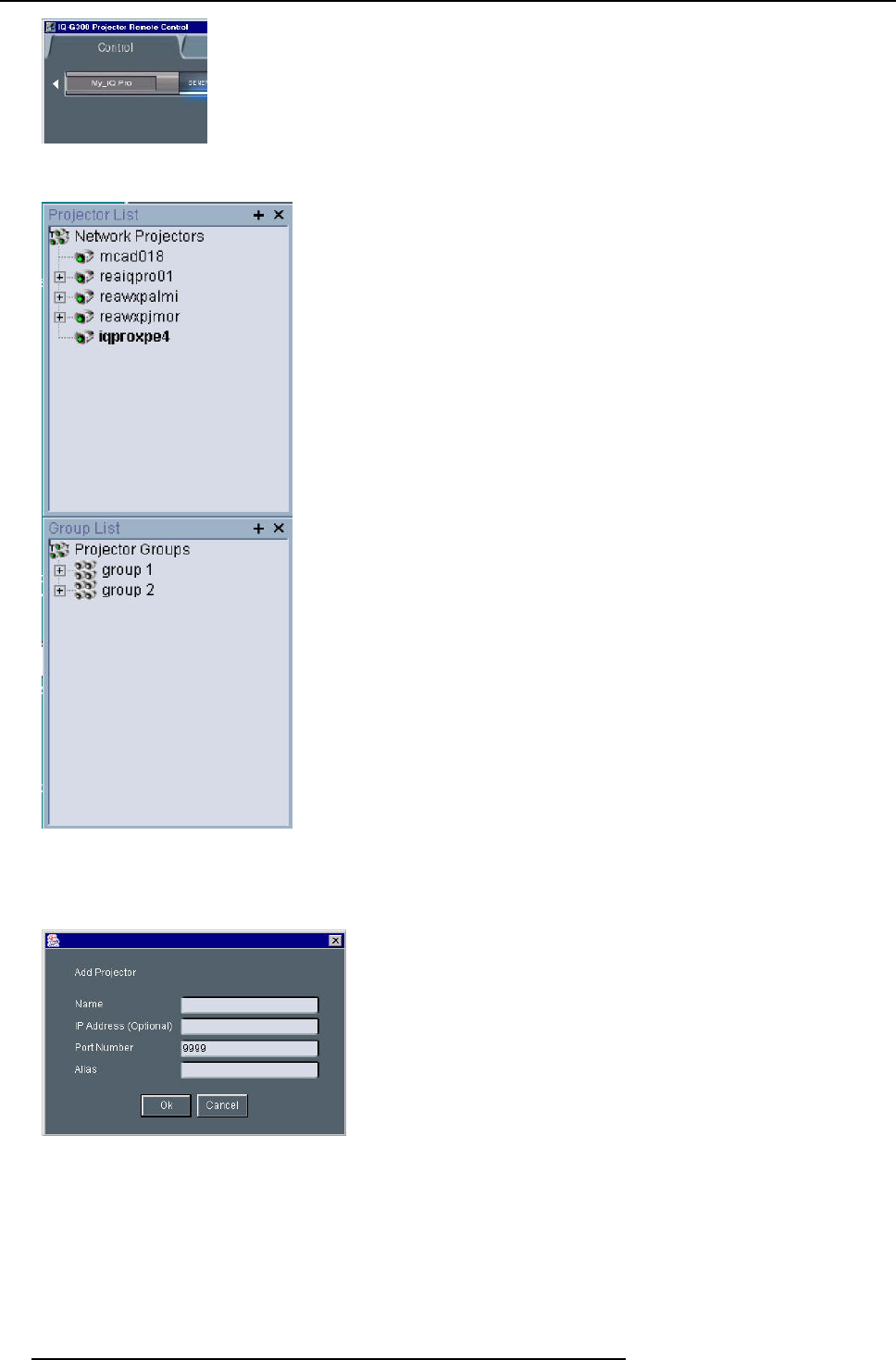
5. Setup
Image 5-25
A menu is dropped down
Image 5-26
projector list: contains a projector and a projector group sub list
2. click on the + sign of the projector list
A dialog box is displayed
Image 5-27
3. Fill in the Name, the IP address (optional) and the Port number of TCP/IP connection
Note: default port number = 9999
4. Fill in the alias
Tip: “Alias” is a custom name whereas “Name” is the name by which the projector is identified on the (corporate) network
5. Click OK to confirm or Cancel
46 R5976821 BARCO ICON 15/03/2007
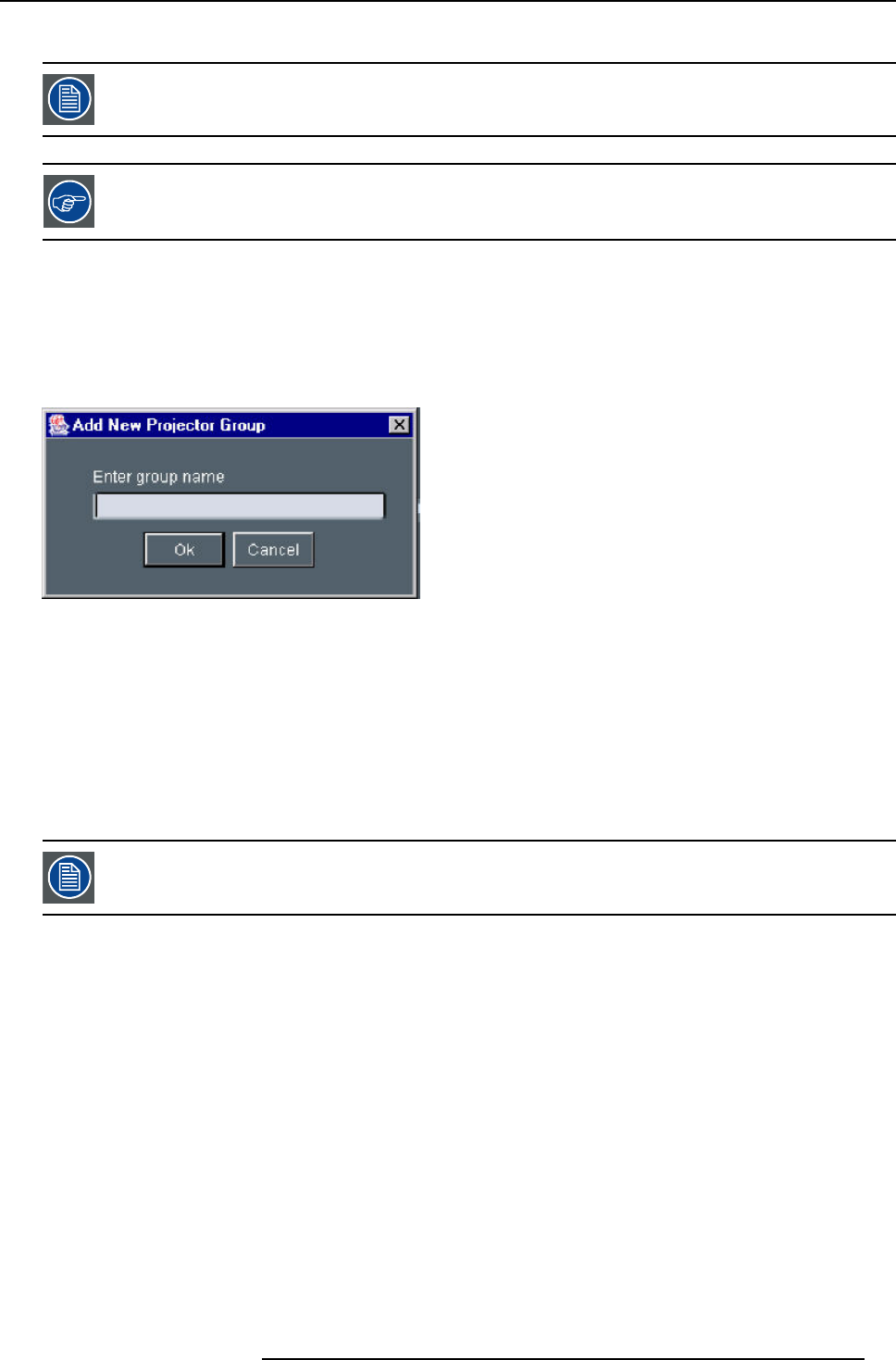
5. Setup
The projector is now added to the list of projectors
Depending on the installed network (use of DHCP server or not), the IP address may be needed to be entered
or not.
For a point to point installation the projector’s IP address must be entered manually.
Check the operating system on the for the IP address, or contact your IT administrator.
How to add a projector group to the projector group list ?
1. Click on the white arrow
A menu is displayed, image 5-26
2. Click on the + sign of the projector group list
A dialog box is displayed
Image 5-28
3. Fill in the group name
4. Click OK to confirm or Cancel
The group is now added to the list of groups
How to add projectors to a group ?
1. Click on the projector to be added in the projector list
2. Drag the projector down to the projector group.
The projector is added to the group.
Adding a projector to a group can also be done by using the “Copy + Paste” method on the right mouse button
menu.
How to connect to a projector or group of projectors ?
1. Double click on the projector or group of projectors
R5976821 BARCO ICON 15/03/2007 47
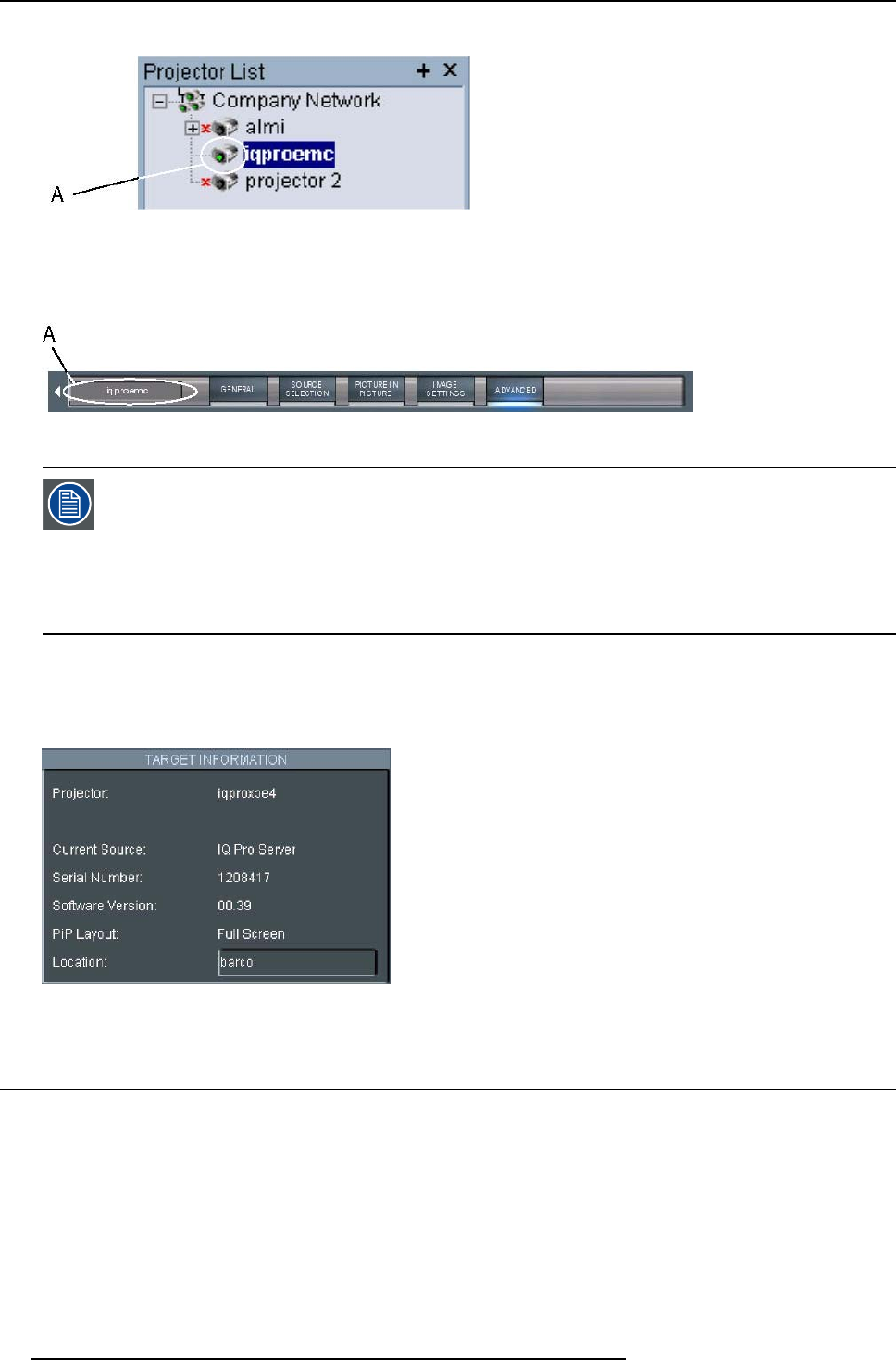
5. Setup
A green dot appears, indicating that the projector is present on the network and working properly
Image 5-29
connected and active projector
A connected and active projector
The name of the projector or group is now displayed in the upper part of the screen and indicates that the communication has
been set
Image 5-30
A connected and active projector
When connected to a group of projectors, some controls may be disabled.
In general, controls will only be selected if this is the status of all projectors in the group.
Sliders will be set to a particular value only if this is the same on all projectors in the group, otherwise they
will be positioned centrally with a dash in the value box. When the slider is moved the box will show the new
value and this value will be sent to all projectors in the group.
Labels such as Current Source in the general page will only be shown if the string value is the same on all
projectors, otherwise a dash will be shown
The Target information block
The target information block displays the main characteristics of the connected projector or group of projectors.
This gives also an indication whether the communication setting has been successful or not.
Image 5-31
5.12 Configuring the Server software
Internal network connection
The internal connection ( firmware connection) between the projector controller and the single board computer uses fixed IP ad-
dresses.
The IP address of the SBC can be found in control panel
48 R5976821 BARCO ICON 15/03/2007
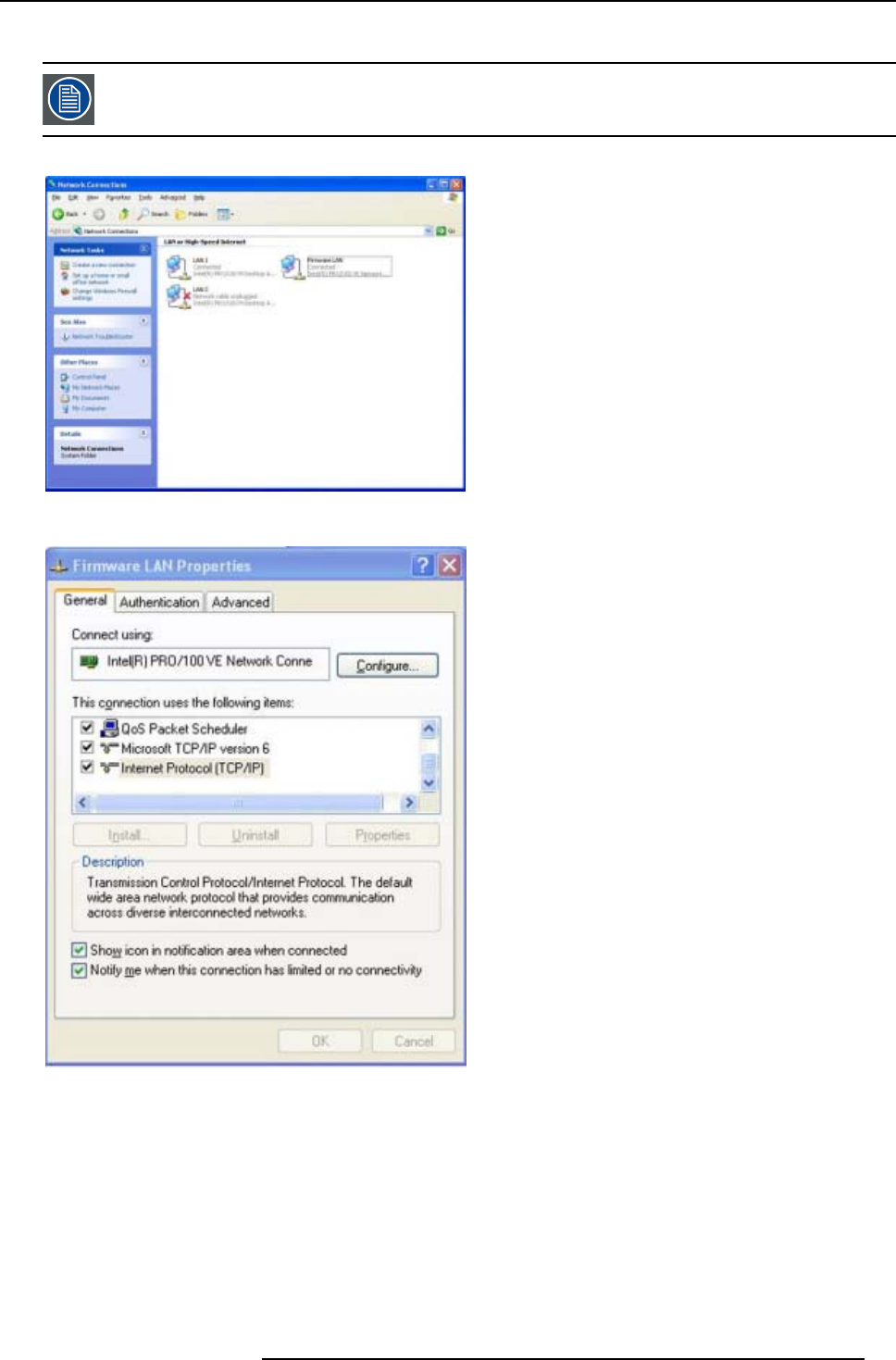
5. Setup
• SBC: IP address = 192.168.42.51, subnet mask = 255.255.255.248
Projector Controller’s IP address = 192.168.42.50
Image 5-32
Image 5-33
R5976821 BARCO ICON 15/03/2007 49

5. Setup
Image 5-34
CAUTION:Leave these IP addresses unchanged !
The server menu
The server menu can be opened by right clicking from the server tray icon
Image 5-35
Start Meetings control
The meeting control is started and positioned on the desktop, through out the meeting it will allow to :
• Accept requests interactively : a request for a desktop sharing from a client PC must be accepted on the iCon server, a dialog
box is displayed on the iCon asking to accept or decline the desktop sharing request
• Deny all requests : all request are denied
• Accept all requests automatically : desktop sharing is always accepted at the iCon (server) without prompting for confirmation
• Notify end of meeting at : allows to set a reminder at expected end time of the meeting
50 R5976821 BARCO ICON 15/03/2007
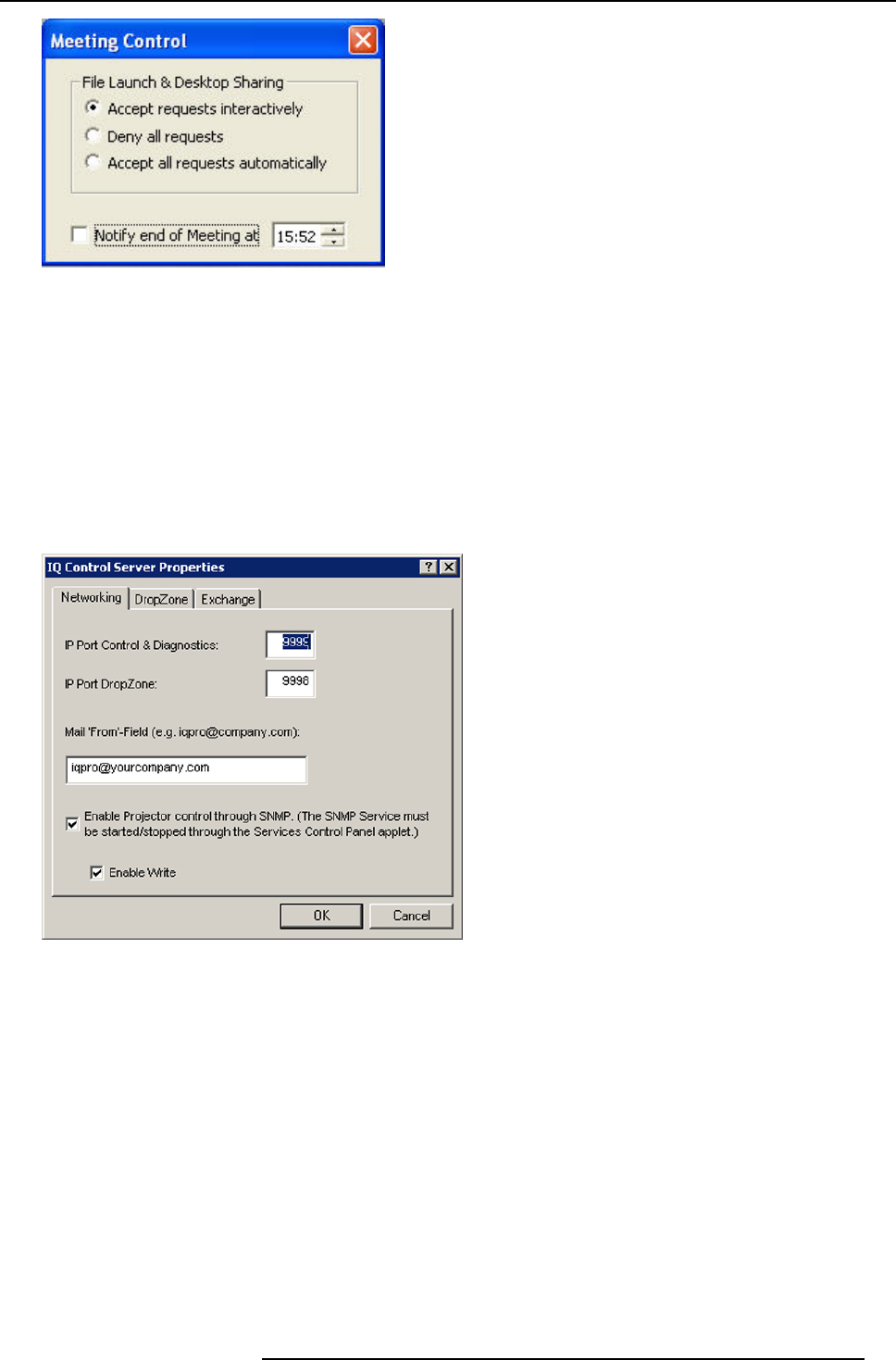
5. Setup
Image 5-36
How to configure the Server settings ?
1. Go to the server icon in the lower task bar of the desktop and click the right mouse button.
A menu is displayed
2. Select Settings
A dialog box is displayed allowing to select different tabs
-Networking
- Dropzone, see Dropzone chapter
- Exchange
Networking settings
Image 5-37
• Port settings: it is advised to leave these settings in their default value.
• Mail to field : see mail configuration in the client software
• SNMP enable: allows to enable the SNMP control of the projector.
The Enable write option allows to enable the client to overwrite projector settings via
SNMP.
Unchecking this option means that projector settings will only be read.
Exchange settings
This tab allows to fill in the exchange parameters to allow scheduling of projector tasks.
These parameters should be configured by your local IT administrator
R5976821 BARCO ICON 15/03/2007 51
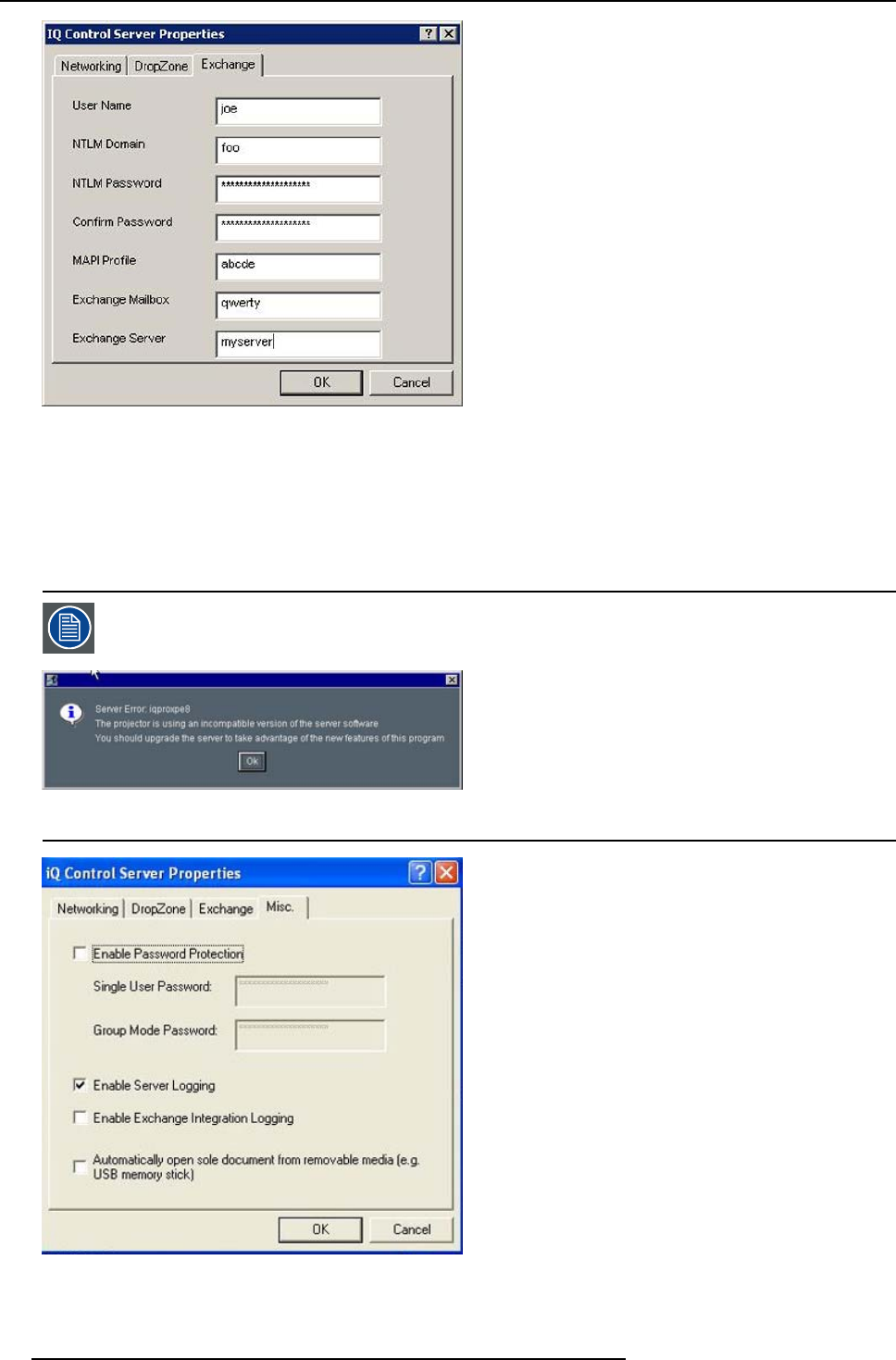
5. Setup
Image 5-38
Miscellaneous settings
This tab allows following settings :
• Enable password protection : when using a password, one must enter it when starting up the client interface
• Automatically open sole document ... : when using a USB stick, the document is automatically opened (only when one docu-
ment present).
When using a password, the control via the previous V1.1 client version will not be possible therefore disable
password protection. Note that using a previous client version in combination with V1.2 server is indicated
with following text box :
Image 5-39
client-server soft incompatibility
Image 5-40
52 R5976821 BARCO ICON 15/03/2007
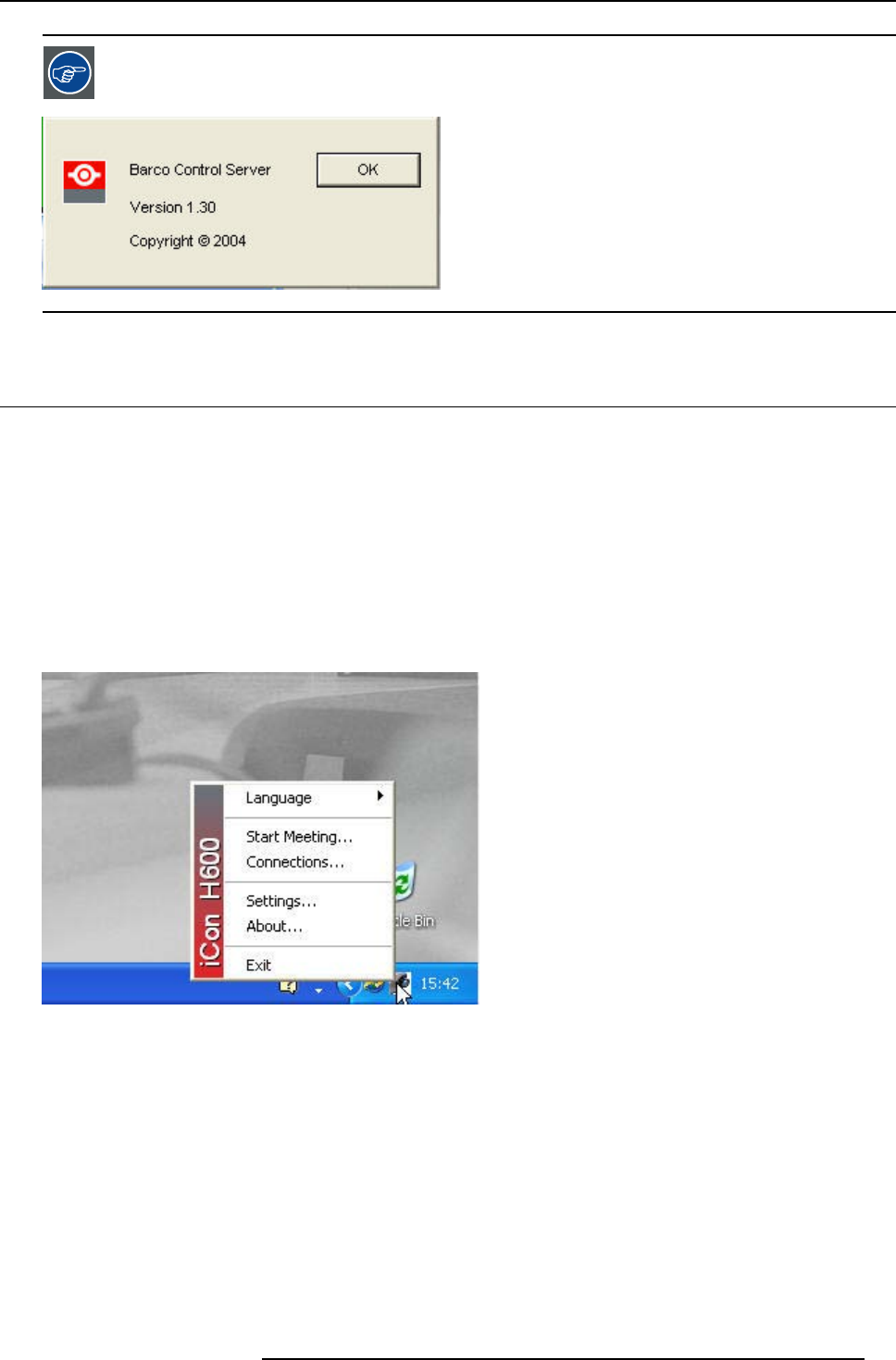
5. Setup
To check the server version open the about menu from the tray
Image 5-41
5.13 DropZone settings
What can be done ?
The Server settings on the Projector allow to configure the DropZone in several ways:
• Disallow new meeting participants: New meeting participants will not be able to request desktop sharing or desktop control.
• Disallow Launch file: Launching a file with the DropZone will be impossible when activating this setting, hereby preventing
undesired content to be projected during a meeting.
• Enable/disable desktop sharing at startup or logon.
How to setup the DropZone ?
1. Go to the server icon in the lower task bar of the server desktop and Click the right mouse button.
A menu is displayed
Image 5-42
2. Select Settings
3. Select the DropZone tab
R5976821 BARCO ICON 15/03/2007 53
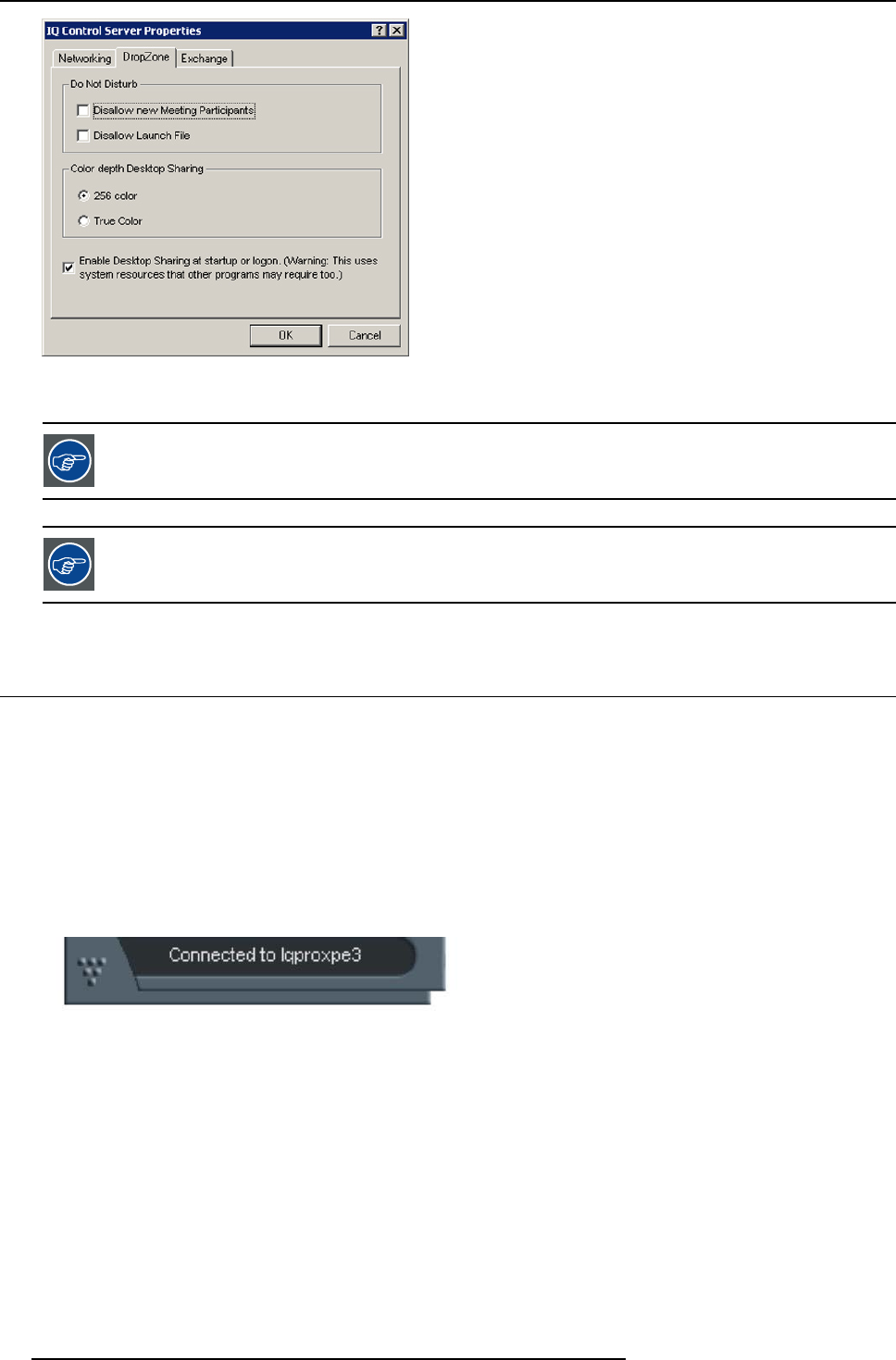
5. Setup
Image 5-43
4. Check the desired settings
Choosing True color as color depth setting will slow down the communication.
It is advised to leave the other Server properties as they are. If necessary Contact your IT administrator.
5.14 Start up
Start up
To start using the DropZone one must define the server (projector/display) to connect to. Several situations are possible.
1. The projector/display to connect to has not yet been declared in the DropZone interface, in that case the projector/display has
to be added to the DropZone list using the Add function.
2. The projector/display to connect to has already been declared in the DropZone, one must then just selected it from the list.
In case the projector/display name is not known, there is a possibility to select the projector.
by its location (only if the location has been specified).
How to open the installation menu ?
1. Click on the arrow to pull down the installation menu.
Image 5-44
54 R5976821 BARCO ICON 15/03/2007
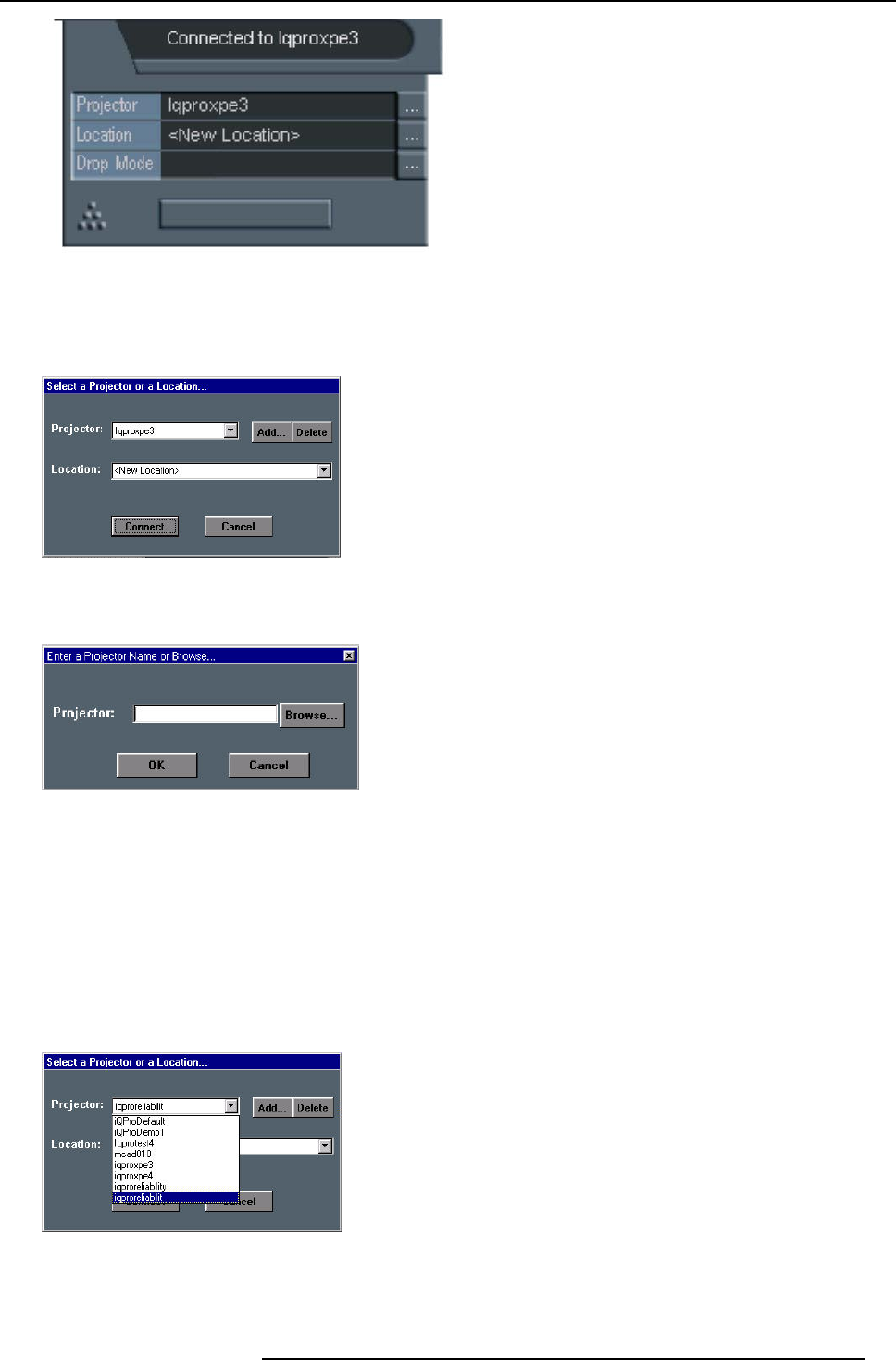
5. Setup
Image 5-45
installation menu
How to add a projector to the list ?
1. Click on the three suspension points to open the projector selection dialog box.
Image 5-46
2. Click on the Add button.
A dialogbox is displayed.
Image 5-47
3. Enter the projector name or browse the network.
4. Click on OK.
5. Enter the Location (optional).
6. Click on Connect.
Following message is displayed : “Connected to <projectorname>...”
How to select an existing projector by its name ?
1. Click on the three suspension points to open the projector selection dialog box, image 5-46
2. Open the listbox and select the projector.
Image 5-48
the location will also be filled (if it has been entered previously).
3. Click on Connect.
R5976821 BARCO ICON 15/03/2007 55
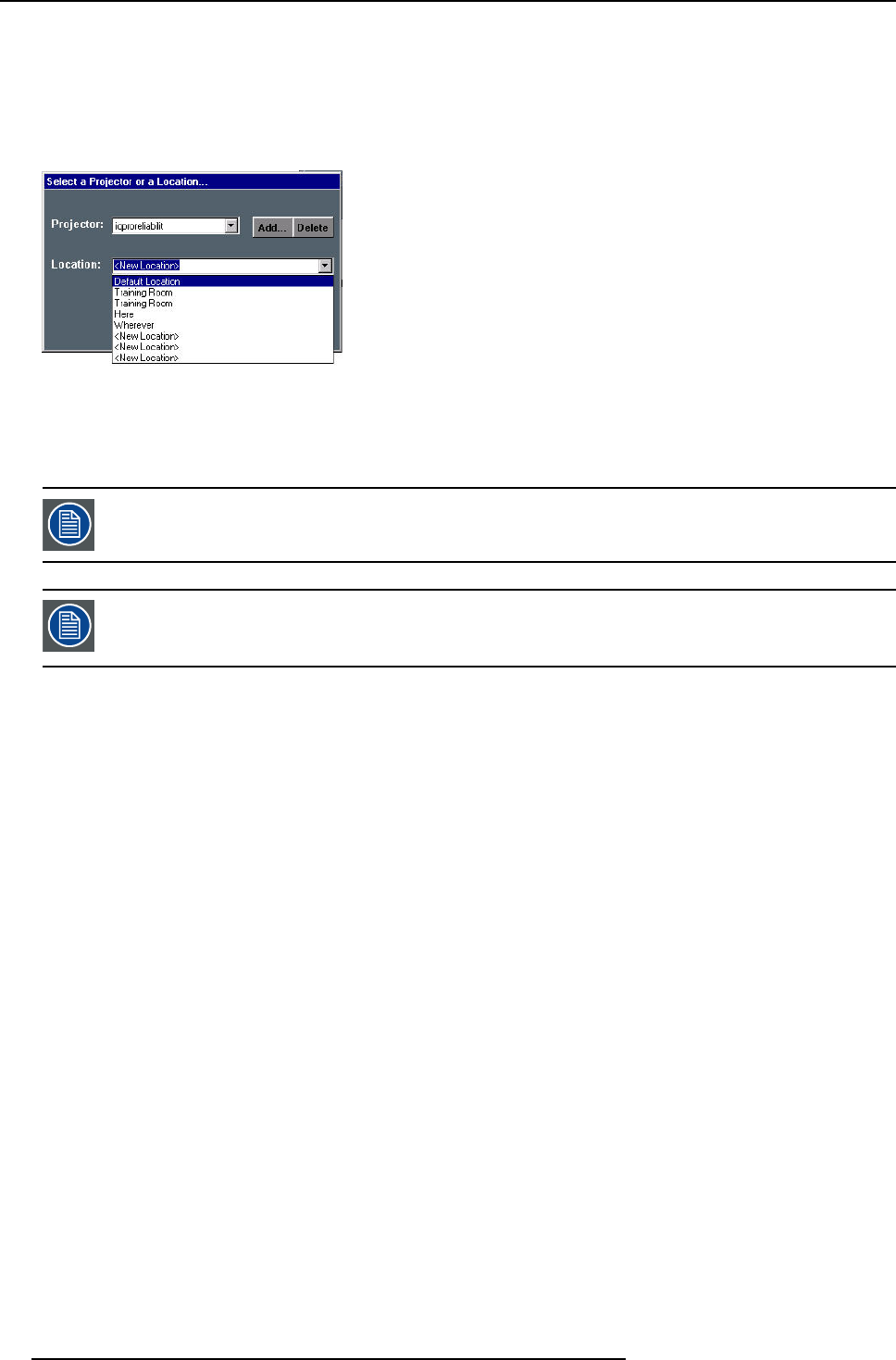
5. Setup
Following message is displayed : “Connected to <projectorname>...”
How to select an existing projector by its location ?
Can be useful when the projector name is not known.
1. Click on the three suspension points to open the projector selection dialog box, image 5-46
2. Open the listbox and select the location.
Image 5-49
The projector name is filled in.
3. Click on Connect.
Following message is displayed : “Connected to <projectorname>...”
This is only possible if the location has been filled, the default value for location being “<New Location>”
If the projector is not found following message will be displayed : “Host not found”
If the projector is found but unable to respond ( projector disconnected from the network, server software not
running, ...) following message will be displayed : “ Host found , but server inactive”
56 R5976821 BARCO ICON 15/03/2007
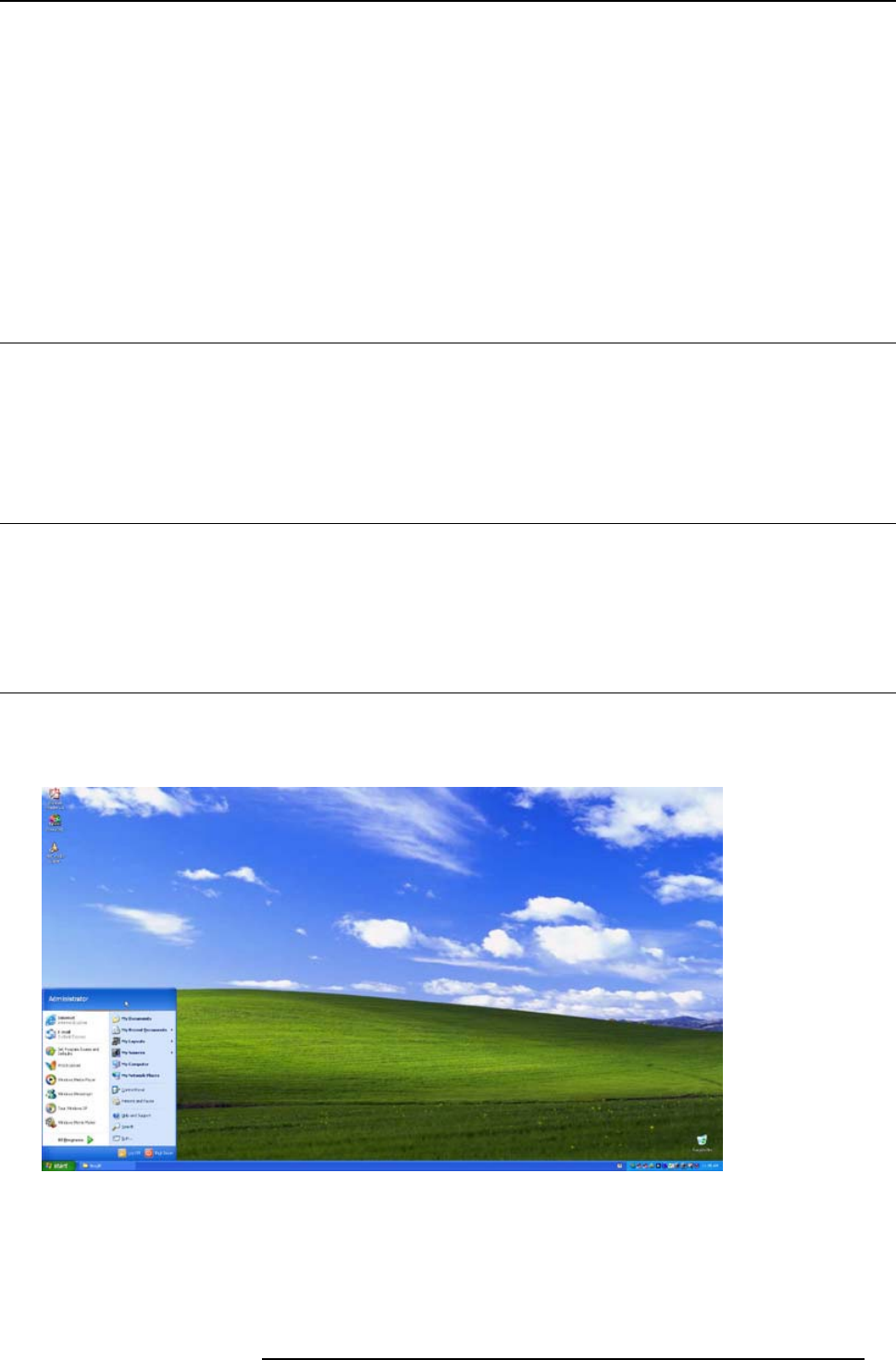
6. Getting started
6. GETTING STARTED
Overview
• Starting up the projector
• Logon to the network
• Creating your new desktop
• Save your new desktop
• File dropping/launching
• Open remotely a file on the projector
6.1 Starting up the projector
How to start up the projector
1. Press the Standby button on the RCU or on the local keypad.
The iCon server source is displayed i.e. the WindowsTM desktop.
6.2 Logon to the network
How to logon to the network
1. The Windows logon dialog box is displayed
Note: the logon dialog box is only displayed in case the automatic login is not activated.
6.3 Creating your new desktop
The Start menu
The iCon allows you to create a new desktop by placing the desired sources on top of it and this by simply using the Windows Start
menu.
Image 6-1
The Startup menu in Windows
6.3.1 Adding a new window to your desktop
The desktop’s source selection menu
The sources can be selected via the source selection menu in Start \ My sources
R5976821 BARCO ICON 15/03/2007 57
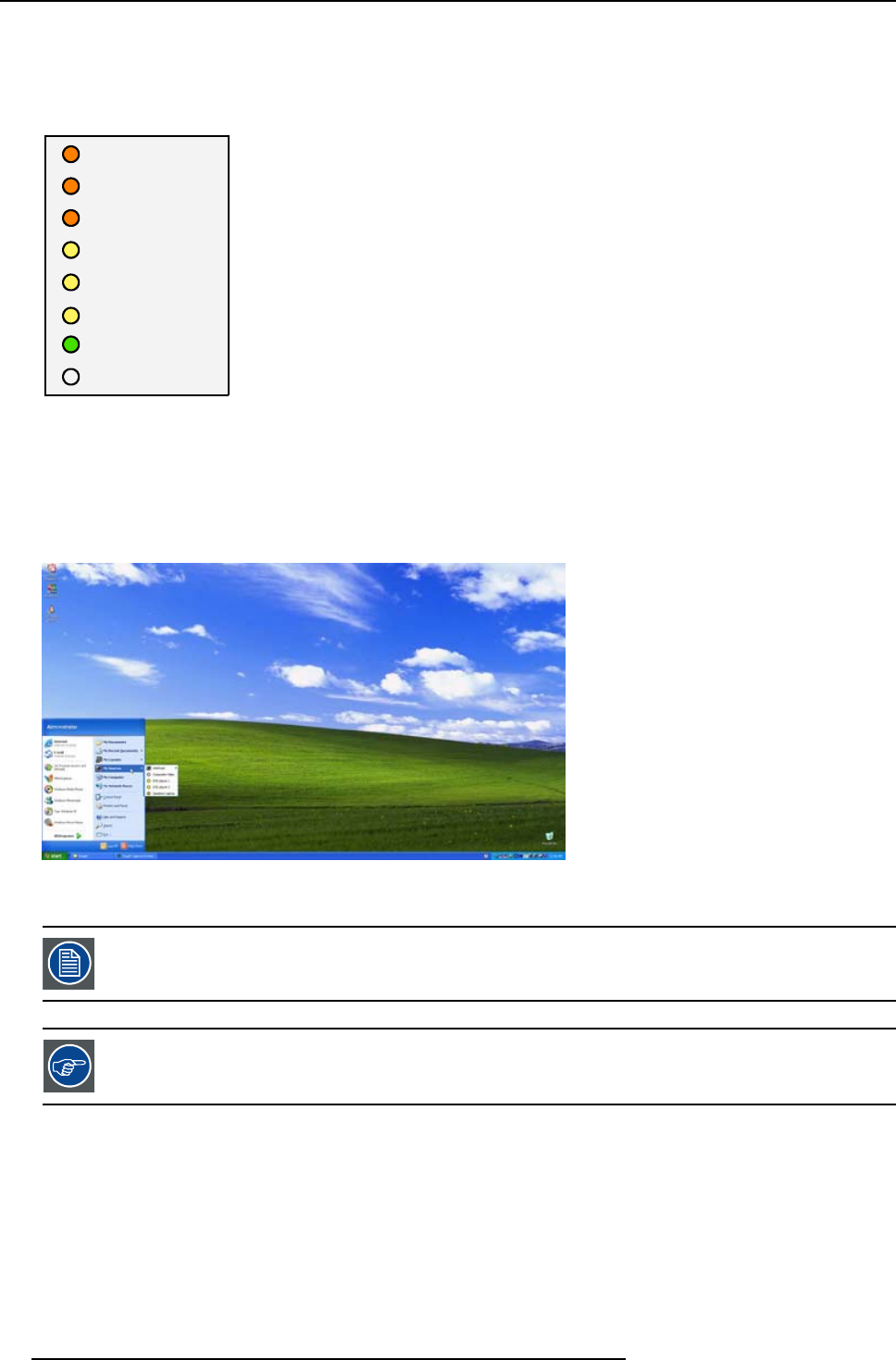
6. Getting started
The available inputs slots are shown in this menu whereas the status of the sources are given by the bullet colors:
• Yellow : no signal available
• Orange : signal available
• Green : signal available and selected (displayed)
L1 Video
L1 RGB
L1 S-Video
L2 Video
L2 RGB
L2 S-Video
L3 PC
L3 DVI
Image 6-2
Desktop source selection menu representing also the standard input configuration (L1,L2,L3 input layers installed)
How to add a window to your desktop
1. Click on the Start button
The start menu is opened
2. Click on My Sources to open the menu
Image 6-3
3. Select the source you want to add to the desktop.
Source selection from the desktop will load a standard file and use AutoImage. For permanent sources it is
advised to create a custom file via the OSD menu, see Save as... in the Image file menu (Advanced chapter).
If you want to personalize i.e. rename the source(s) see “Renaming the sources” in the Desktop management
chapter.
58 R5976821 BARCO ICON 15/03/2007
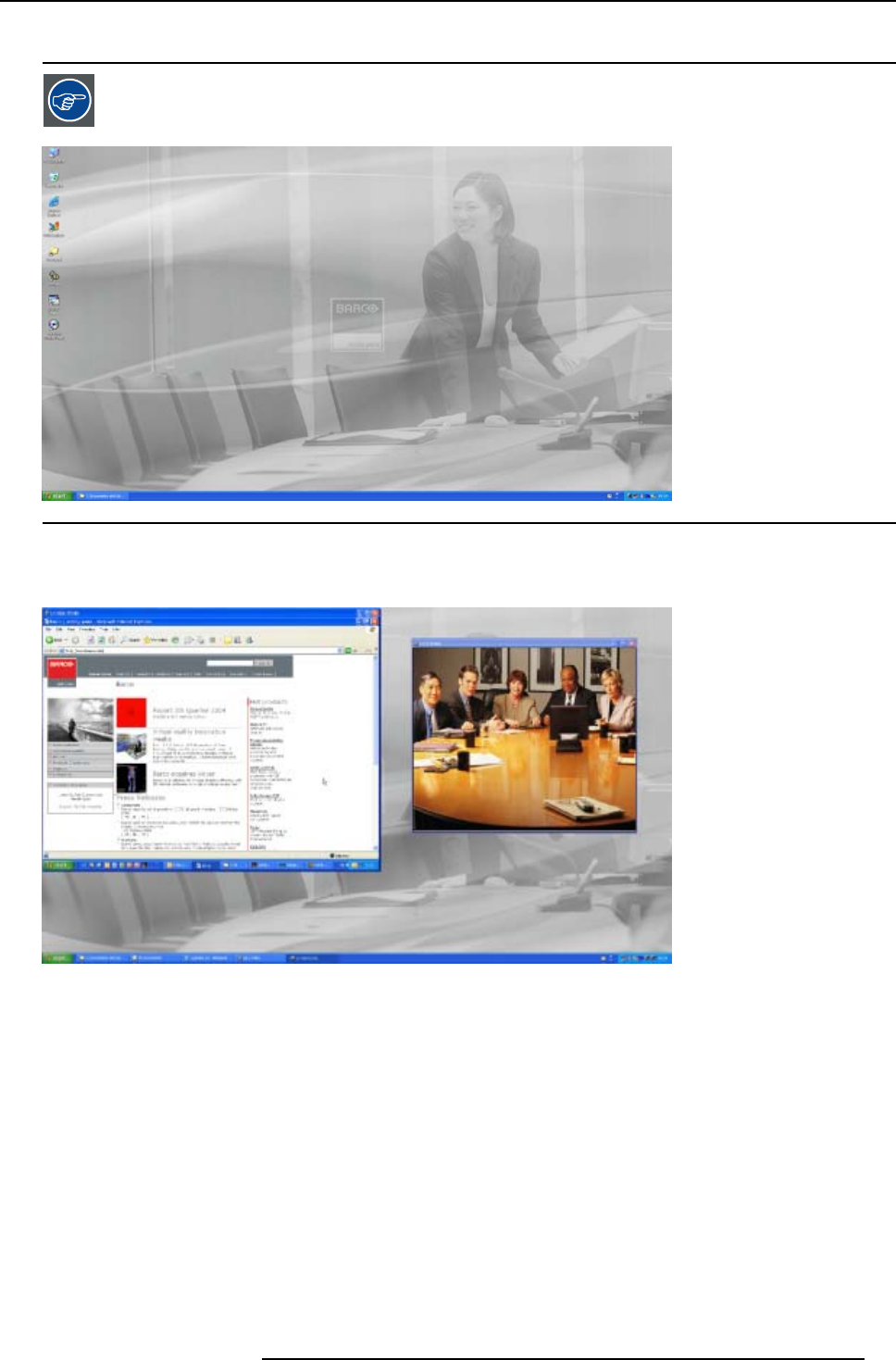
6. Getting started
6.3.2 Desktop examples
Instead of using the standard windows desktop background one can use a corporate logo as background. In
the following pictures a Barco logo has been used. To change the background go to control panel/display.
Image 6-4
Native representation of 1 data and 1 video source
A data source with XGA resolution (1024x768) can be shown aside a video source.
Image 6-5
2dataand1videosource
One re-sized video source and 2 re-sized data sources. Note that the aspect ratio is preserved.
R5976821 BARCO ICON 15/03/2007 59
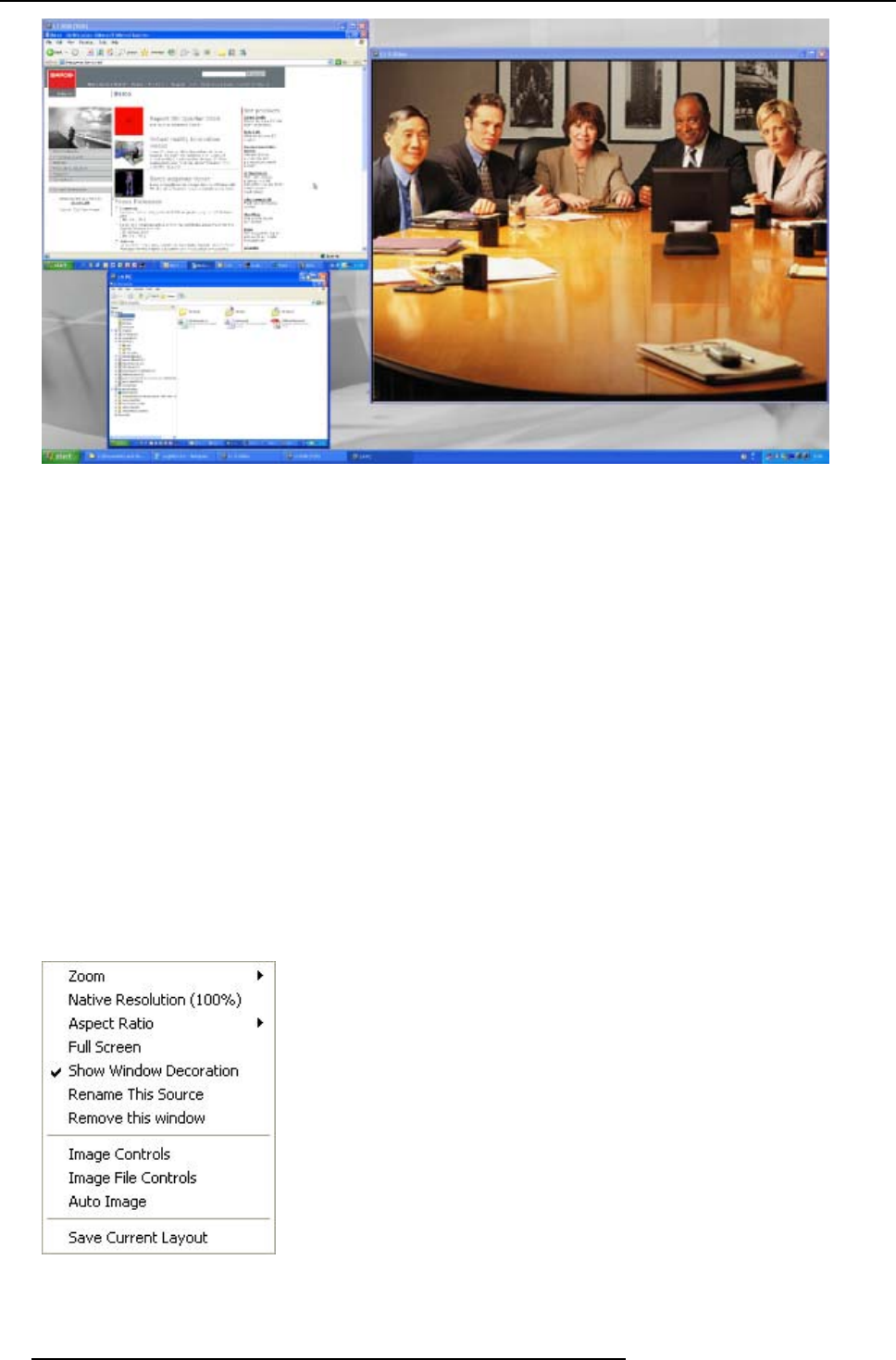
6. Getting started
Image 6-6
6.3.3 Manipulating your source windows
6.3.3.1 The window menu
Overview of the window menu
The window menu allows several manipulation on the window and its image :
• Zoom : size the window at you convenience
• Native Resolution (100%) : guarantees optimum image quality by forcing the native resolution (size or amount of pixels) of the
source.
• Full Screen: Fill the screen with the active window
• Freeze
• Show Window Decoration : allows to display or hide the window surrounding the source
• Variable Aspect Ratio: allow the aspect ratio of the source to be changed when sizing
• Save Current Layout : save your window layout
• Rename This Source: customize you desktop by renaming the windows
• Remove the window: set the load of your desktop by removing undesired windows
• Image Controls: customize the window image
• Image File Controls: see desktop management
• Auto Image: recalculate your image to guarantee the best reproduction
Image 6-7
60 R5976821 BARCO ICON 15/03/2007
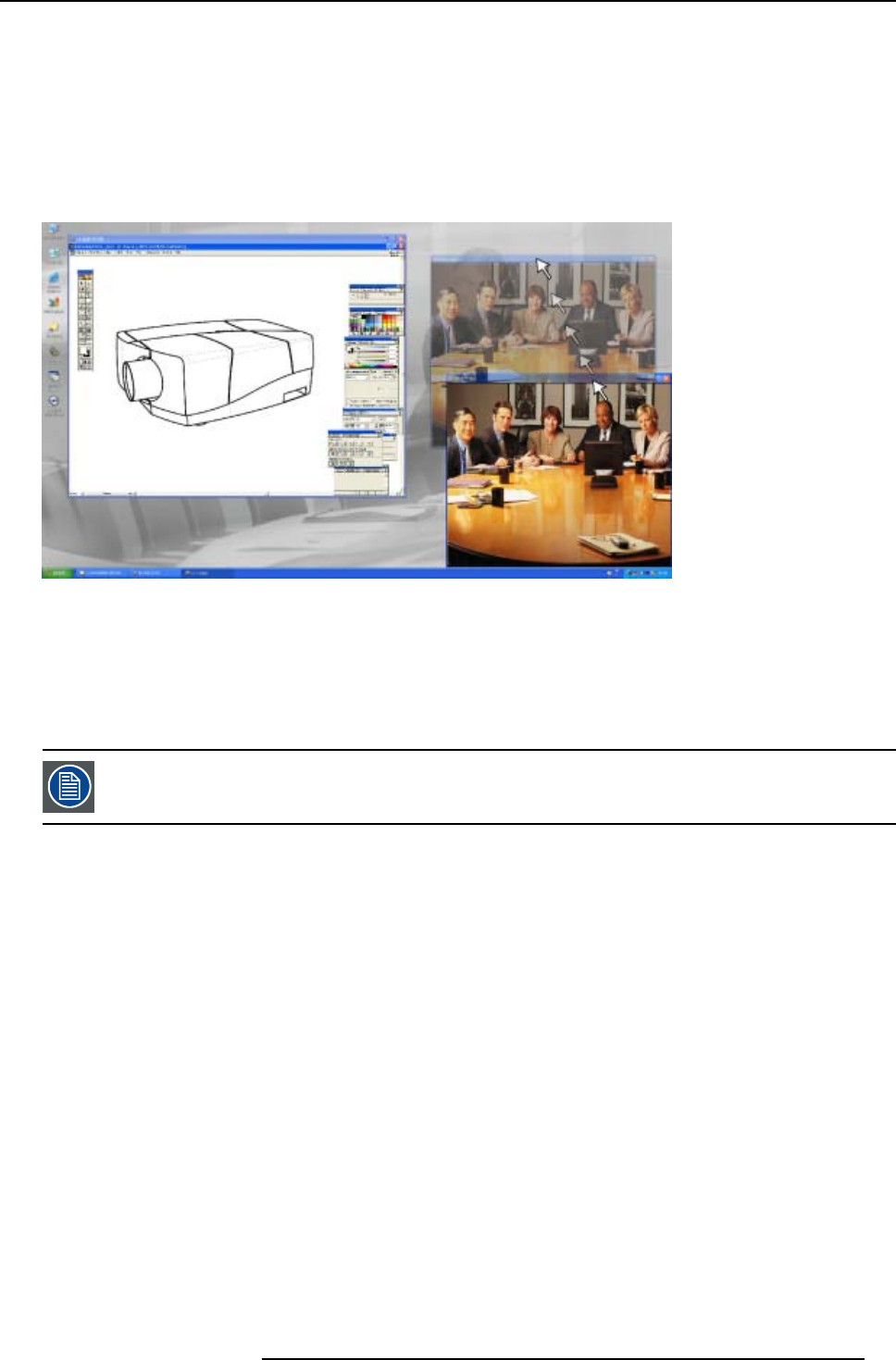
6. Getting started
Opening the window menu
1. Position the mouse cursor in the area of the active window and click the right mouse button
6.3.3.2 Window setup
Position the active window
1. Position the active window by using the mouse i.e. by simply clicking in the window decoration area and sliding the window to
the desired position
Image 6-8
positioning a video window
Zoom the window
1. Click on the Zoom function in the window menu.
The menu is opened.
2. Choose a Zoom factor to determine the size of the window.
The 100% Zoom corresponds with the native resolution representation of the source, this will guarantee the
best image quality.
R5976821 BARCO ICON 15/03/2007 61
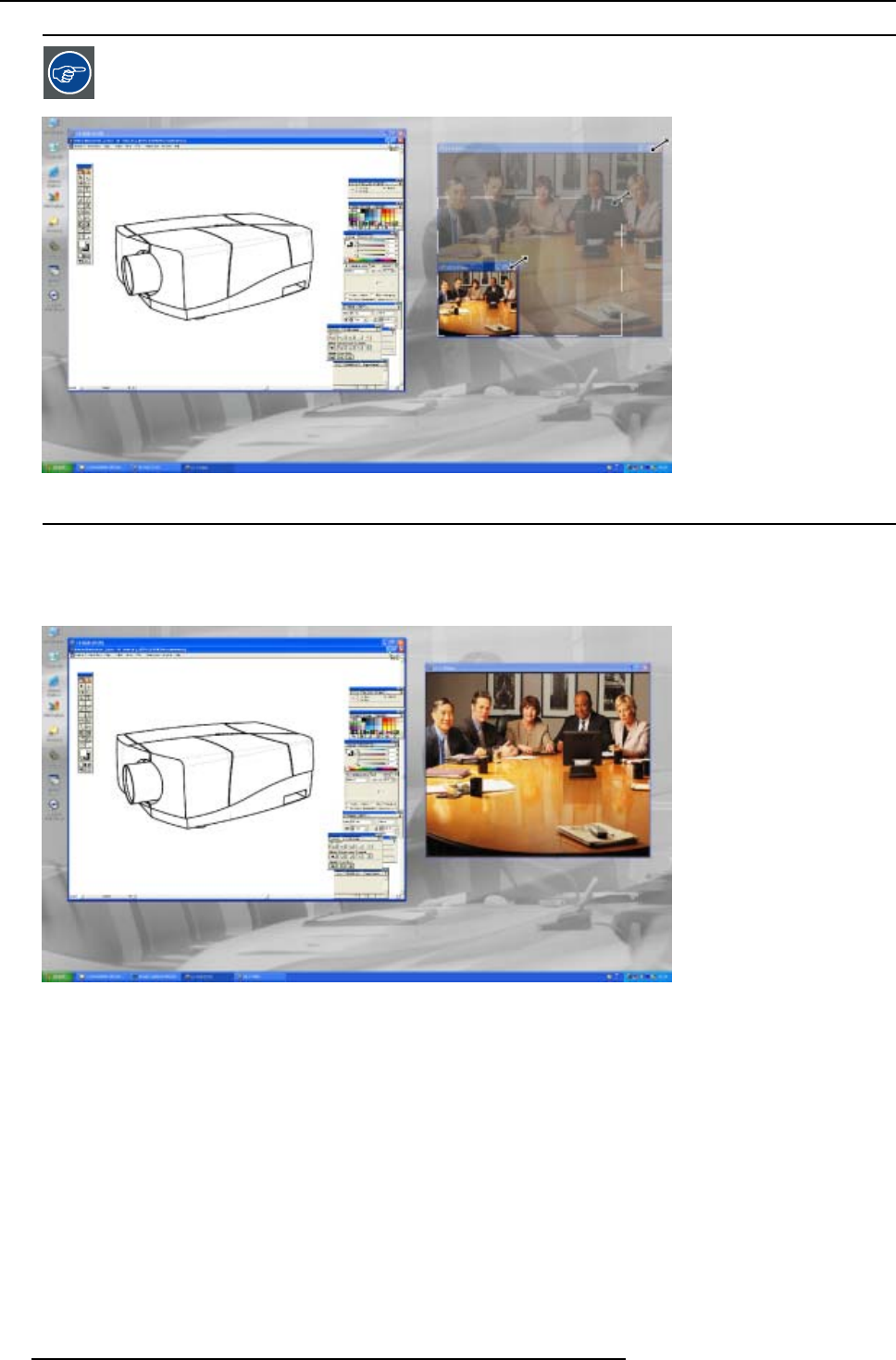
6. Getting started
Free Window sizing is also possible by using the mouse (sliding and release).
Image 6-9
free sizing a video window
Forcing the native resolution (100%)
1. Click on the Native resolution function in the window menu to force the window size to the native resolution of the source, this
will guarantee the best image quality.
Image 6-10
Data (RGB) and Video (S-Video) displayed at native resolution
Forcing a full screen representation
1. Click on the Full screen function in the window menu you can fill the whole screen with the active window (source).
62 R5976821 BARCO ICON 15/03/2007
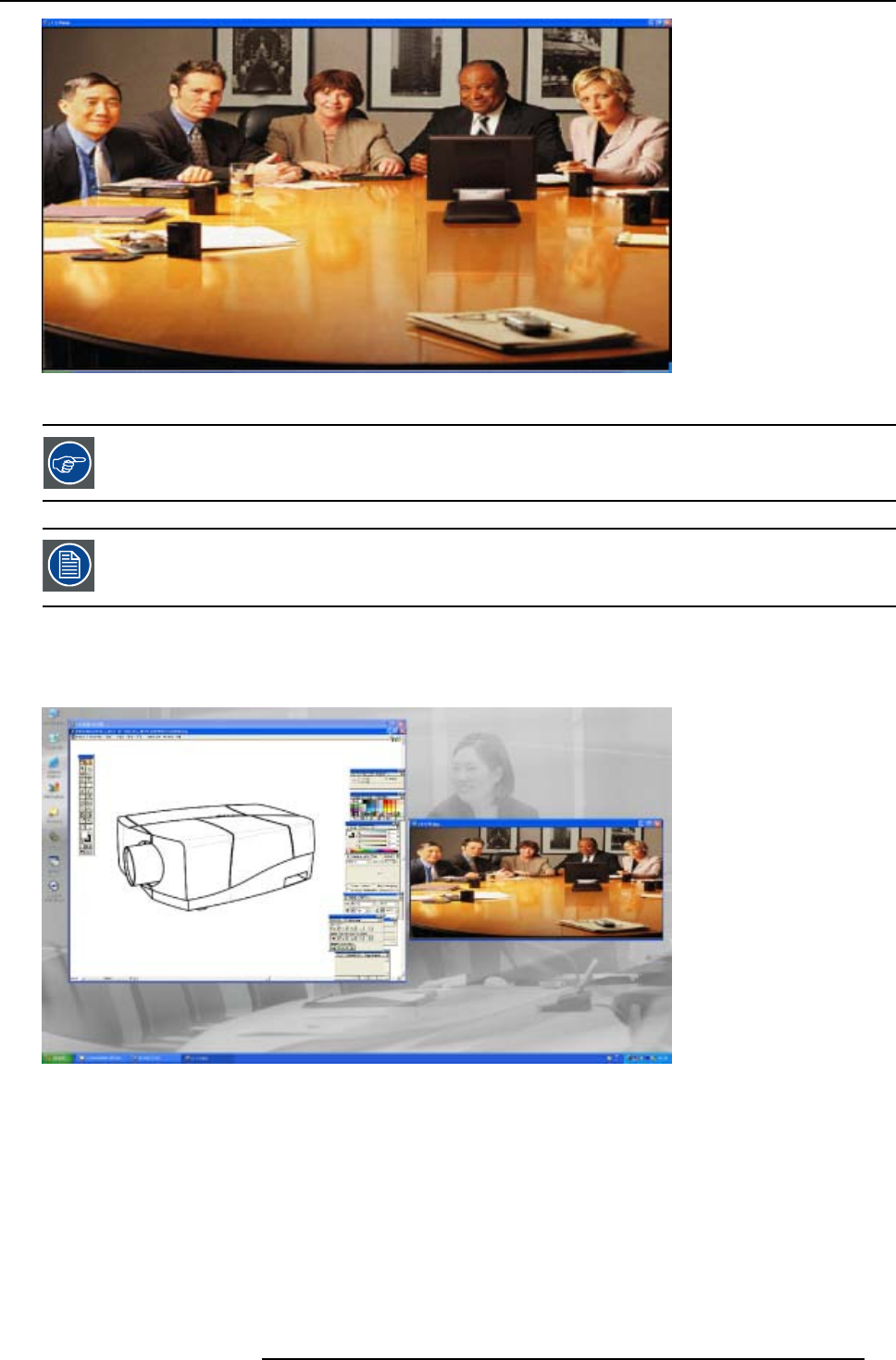
6. Getting started
Image 6-11
Video source in Full screen representation
Use the Full screen representation to display a HDTV source.
The aspect ratio of the source is not preserved !
Whentheaspectratiooftheactivewindowimageisnotthesameastheproj
ector (in this case 1920/1080 or
1.77: 1). The image and its objects will end to be distorted (stretched or shrinked).
Variable aspect ratio
1. Variable aspect ratio will allow you to the change the aspect ratio of the source when re-sizing the window. This function must be
disactivated if you don’t want the image to be distorted (stretched out).
Image 6-12
Re-sizing ofa video window with unlocked aspect ratio
Renaming the source (window)
1. Use the Rename This Source function in the window menu to rename the active source.
R5976821 BARCO ICON 15/03/2007 63
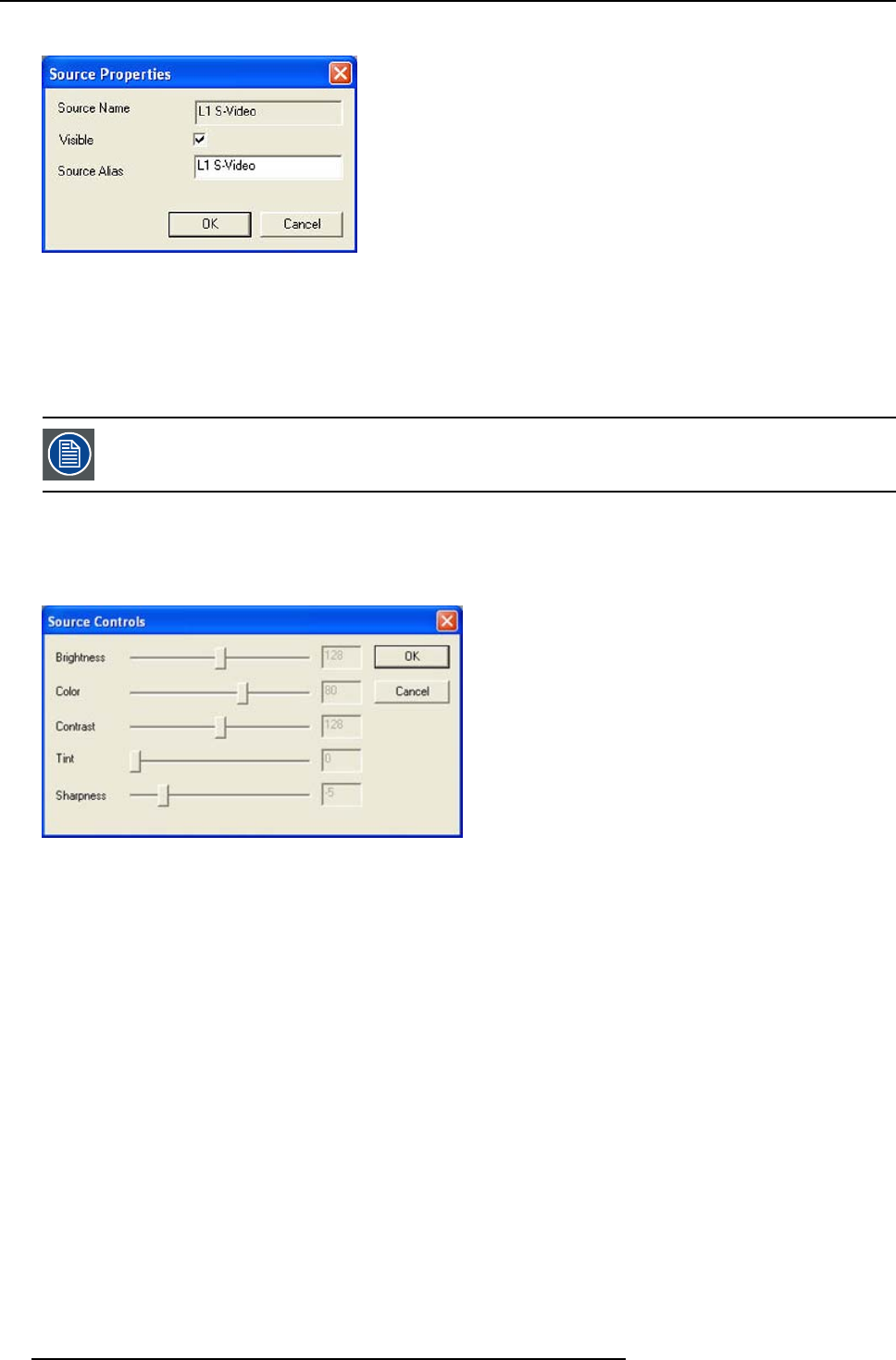
6. Getting started
A dialog box is displayed.
Image 6-13
Source rename dialog box
2. Fill in the new source name.
3. Set the source to be visible in the desktop’s Start/My Sources menu by checking the checkbox visible.
6.3.3.3 Image controls
The image settings on window level affect only the selected window. A general setting can be done in the
control panel or via the All Programs\Projector menu
Using the Image controls
1. Select Image controls in the window menu.
A dialog box is displayed
Image 6-14
Image controls dialo gbox
2. Adjust the desired image setting (Contrast, Brightness, ...) using the scroll bars
6.3.3.4 Image file controls
Image file controls
1. Select Image file controls in the window menu.
64 R5976821 BARCO ICON 15/03/2007
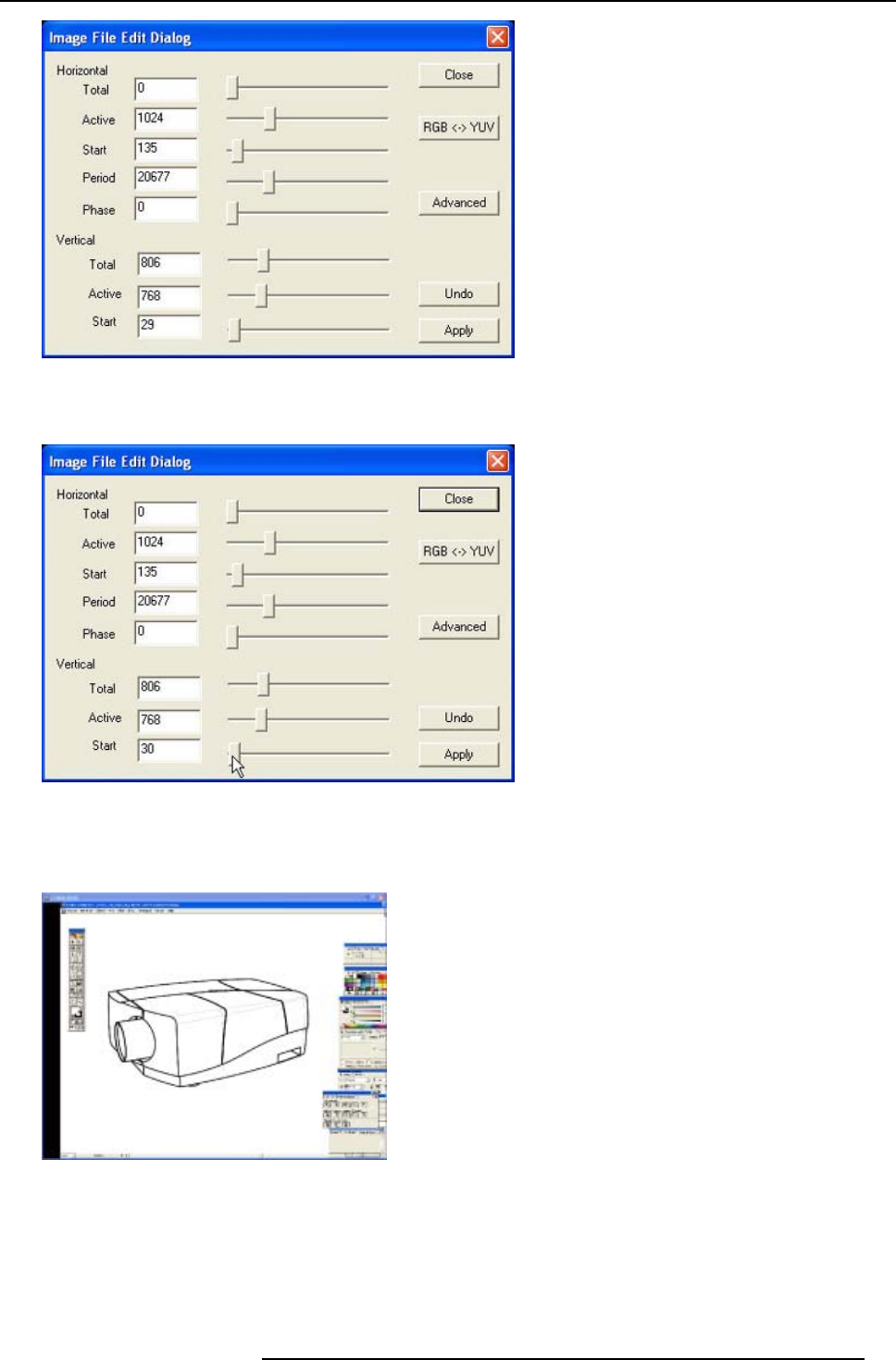
6. Getting started
Image 6-15
Image file controls
2. Adapt the desired parameter by positioning the cursor on the scroll bar and using the arrows on the keyboard ti increase or
decrease the value.
Image 6-16
image file controls: cursor on scroll bar
When to adjust the horizontal start pixels parameter ?
Adjust the horizontal start pixels when the window is not filled horizontally (left/right black bars)
Image 6-17
Start pixels: wrong setting
Color space setting (RGB > YUV)
Change the color space setting whenever the colors are totally wrong
2 different color spaces can be selected
R5976821 BARCO ICON 15/03/2007 65
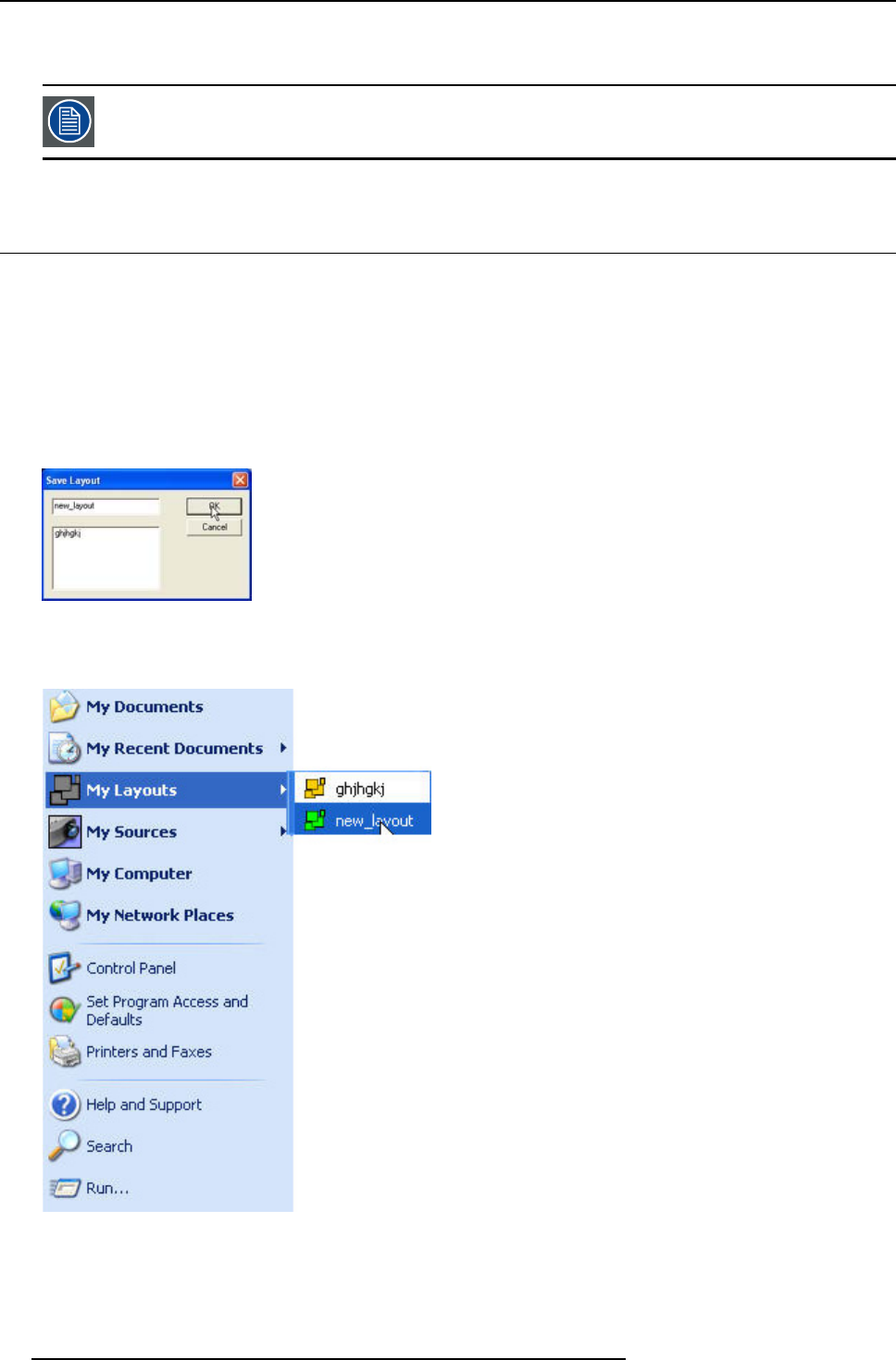
6. Getting started
•RGB
•YUV
In the OSD one can choose between 5 different color spaces.
6.4 Save your new desktop
Preserving your desktop settings
A desktop can always be saved and you can recall it at any time. Different parameters determining the positions and “looks” of your
window are saved.
How to save your layout
1. Open the window menu with the right mouse button.
2. Click on Save current layout.
A dialog box is displayed
Image 6-18
3. Enter the name in the upper field and confirm with OK
The layout is saved and the My Layouts menu is updated with the new layout.
Image 6-19
66 R5976821 BARCO ICON 15/03/2007
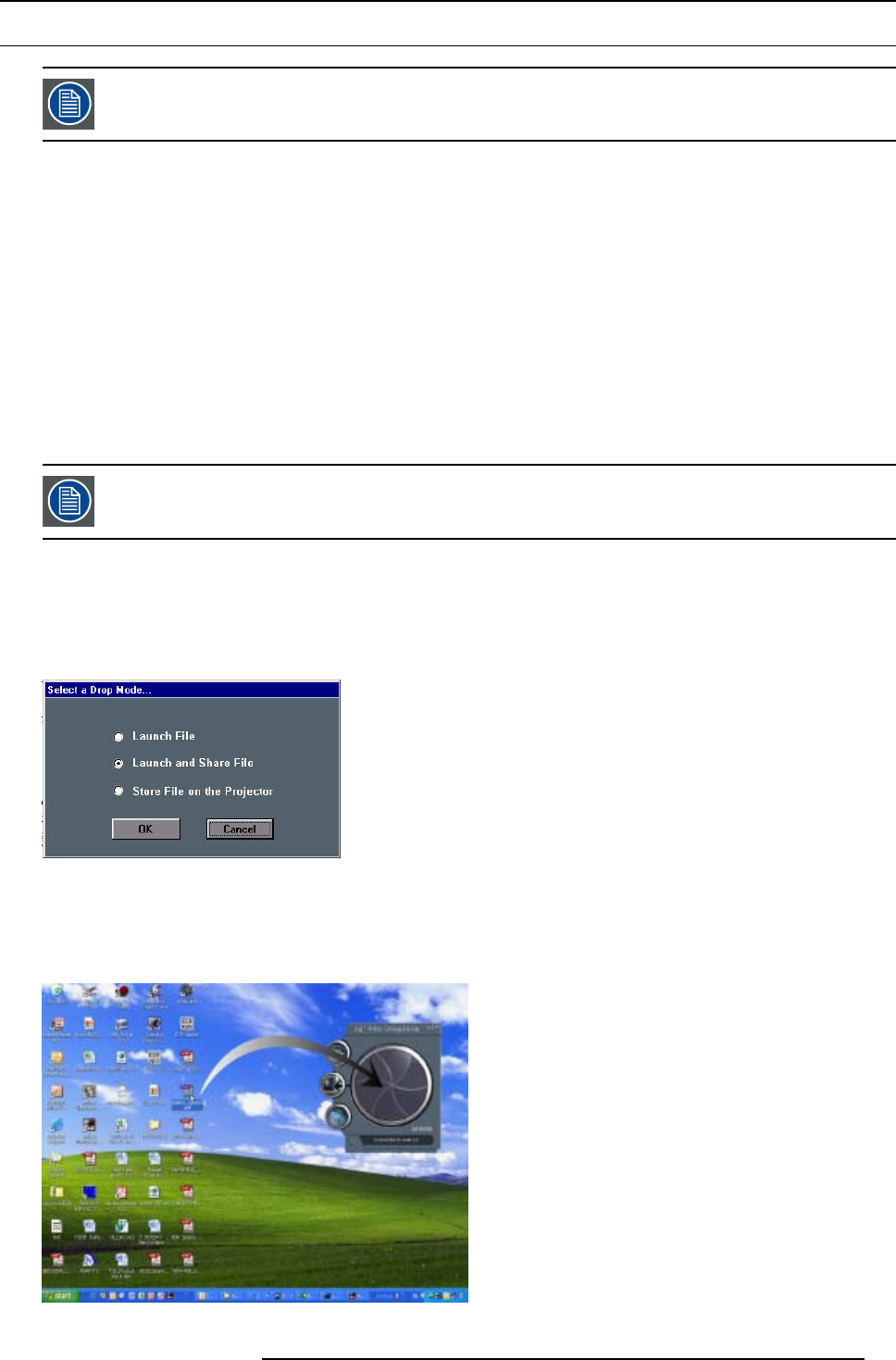
6. Getting started
6.5 File dropping/launching
Only the Microsoft viewers (PPT, Word, Excel,...) are installed on the projector.
File dropping
Dropping a file means sending it to the projector using the DropZone interface.
The projector can then react in different ways depending on the drop mode selected :
• launch file
• launch file and share
• store file on the projector
File launching
Launch files: a file stored on the projector (server) or on the network can be accessed from a local PC (via the network) or from the
projector itself. Launching a file means “sending and starting up” a file (using the required software).
A PowerPoint file can be launched on your PC and projected in another place (by default only the PPT viewer is installed on the
projector ).
for iQ only : The file will only be projected if the “iQ PC” is selected in the source selection.
How to set the drop mode ?
1. Open the DropZone interface.
2. Click on the arrow to pull down the installation menu.
3. Click on the three suspension points access the drop mode dialog box,image 5-45
Image 6-20
4. Click on one of the three modes.
How to drop a file using the drag method ?
1. Drag the file into the drop window.
Image 6-21
R5976821 BARCO ICON 15/03/2007 67
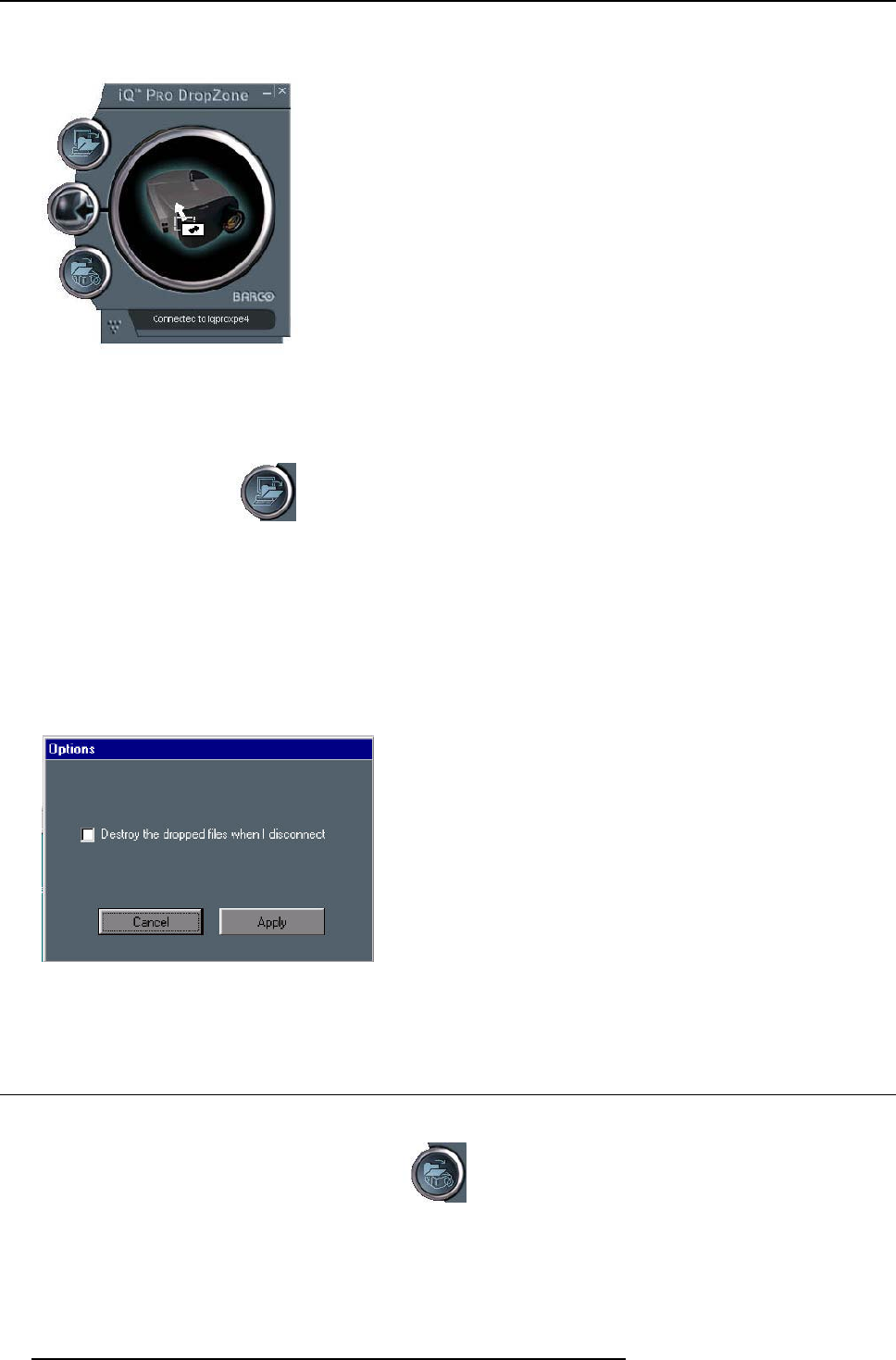
6. Getting started
The window opens and shows now the projector.
Image 6-22
2. release the mouse button.
The projector will then process the file according to the setting of the drop mode.
How to drop a file using the Open dialog box ?
1. Click on the upper button.
A browser is displayed. Choose a file to send to the projector.
The projector will then process the file according to the setting of the drop mode.
What to do with the launched files once disconnected ?
The previously dropped files are placed in a local directly on the server, one may choose to delete them or not.
1. Click on the arrow to pull down the installation menu.
2. Click on the Options button.
A dialog box is displayed.
Image 6-23
3. Check the box to destroy the launched files once disconnected.
6.6 Open remotely a file on the projector
Howtoopenafileontheprojector?
1. Click on the lower button of the DropZone interface
A browser is displayed. Select the file to be projected.
68 R5976821 BARCO ICON 15/03/2007

6. Getting started
for iQ only: The file will only be projected if the “iQ PC” is selected in the source selection.
R5976821 BARCO ICON 15/03/2007 69

6. Getting started
70 R5976821 BARCO ICON 15/03/2007
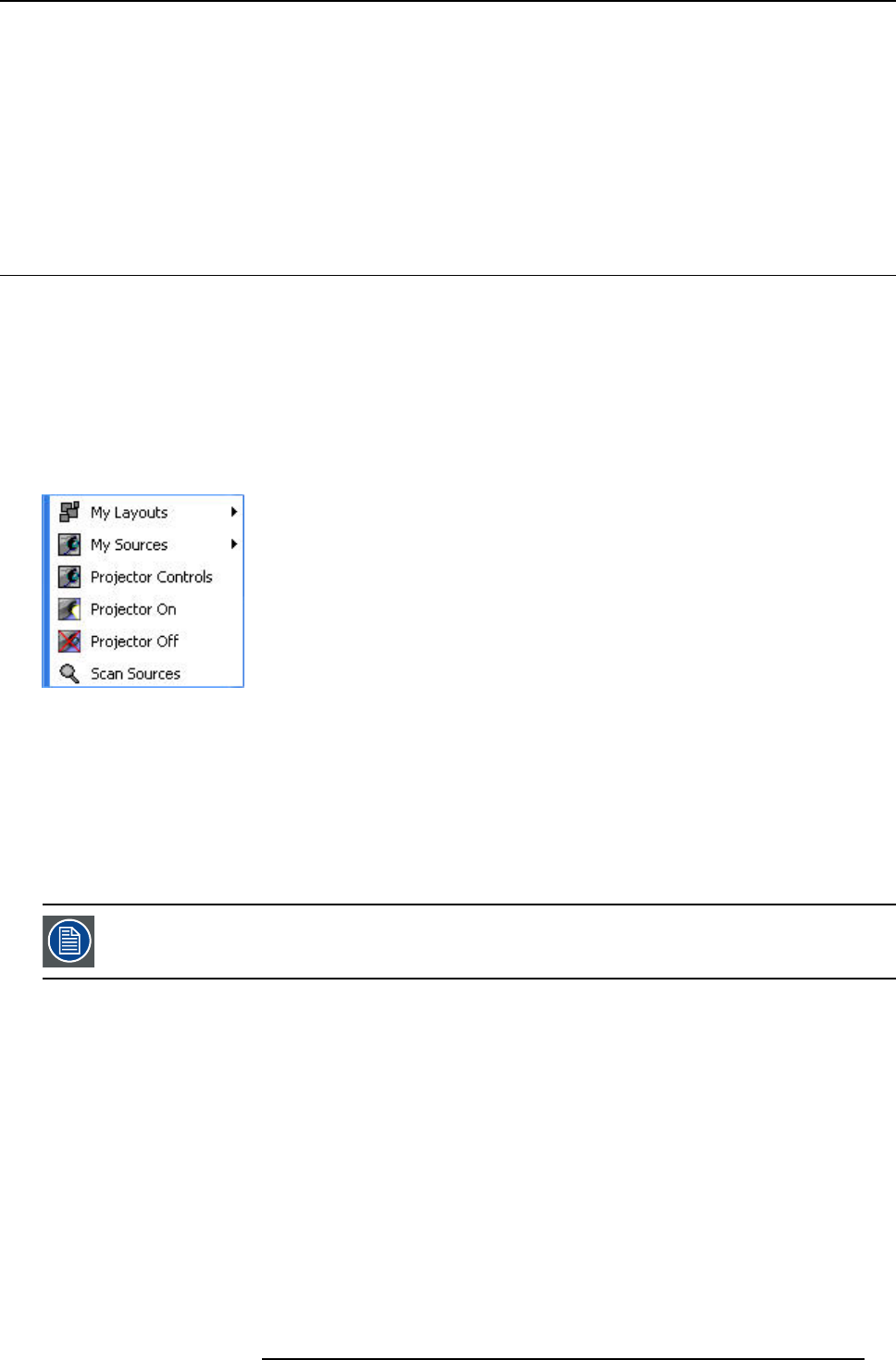
7. Desktop Management
7. DESKTOP MANAGEMENT
Overview
• The Projector menu
• Opening the Projector controls menu
• Desktop Integration Configuration
7.1 The Projector menu
Overview
• Desktop setting using the Projector menu
• Opening the Projector menu
7.1.1 Desktop setting using the Projector menu
The projector menu
The projector rmenu can be found under the Start/All programs
Image 7-1
• My layouts: gives an overview of the existing layouts, this is the same menu as the My Layouts menu in the Start menu
• My Sources: gives an overview of the sources (active and inactive), this is the same menu as the My Sources menu in the Start
menu
• Projector Controls: this menu allows several settings image settings, preferences, ...
Note that this menu can also be started via the control panel.
•ProjectorOn
• Projector Off: allows to switch the projector off
• Scan Sources: scans the sources in order to update the current source selection menu.
We will further only discuss the Projector controls menu, the other menus being explained in the Getting
started section.
7.1.2 Opening the Projector menu
How to open the projector menu ?
1. Click to open the Start menu
2. Click to open the All Programs menu
3. Select the Projector menu
R5976821 BARCO ICON 15/03/2007 71
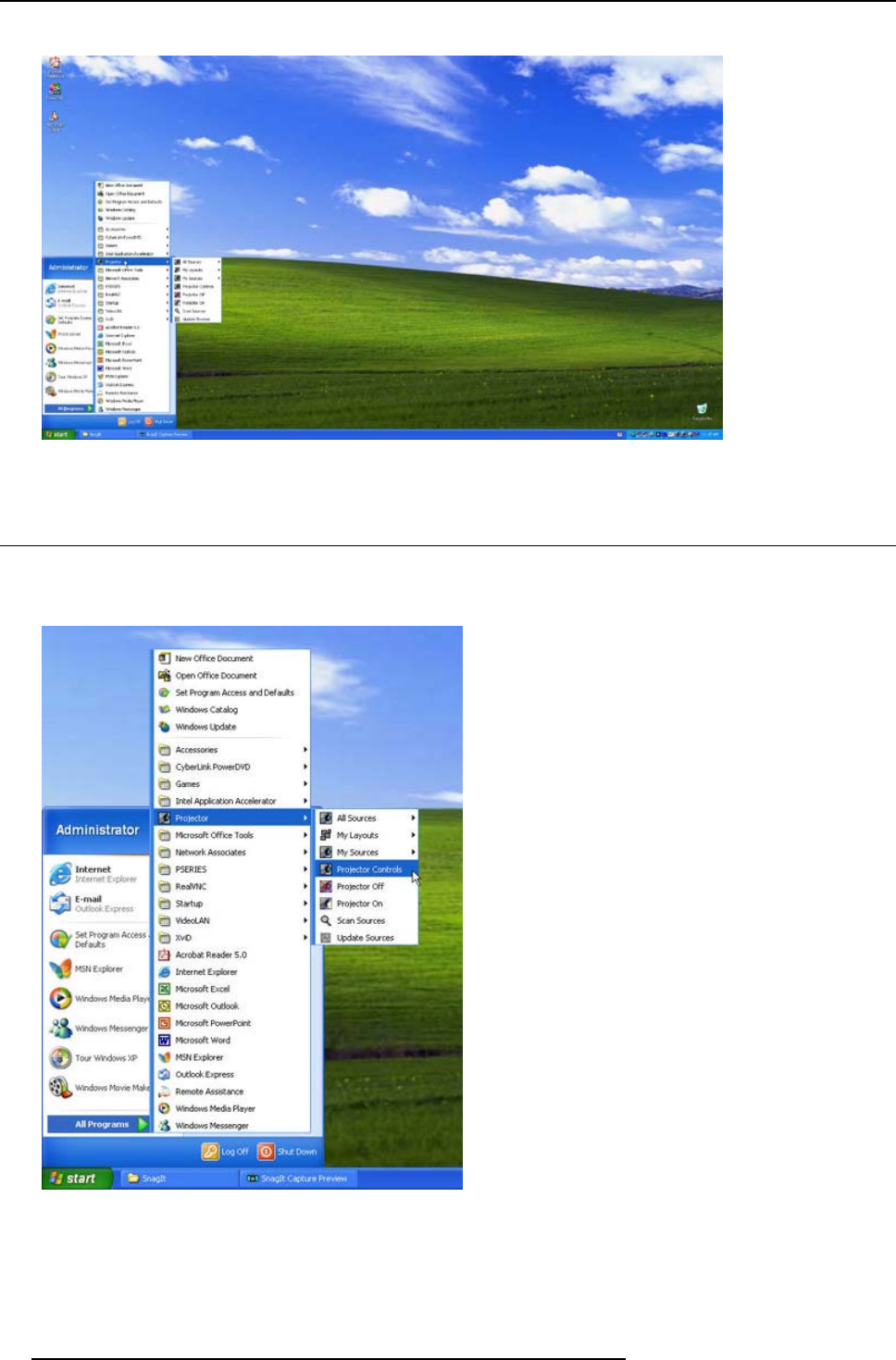
7. Desktop Management
The Projector menu is opened
Image 7-2
7.2 Opening the Projector controls menu
How to open the projector controls menu ?
1. Click on the projector controls in the Projector menu
Image 7-3
72 R5976821 BARCO ICON 15/03/2007
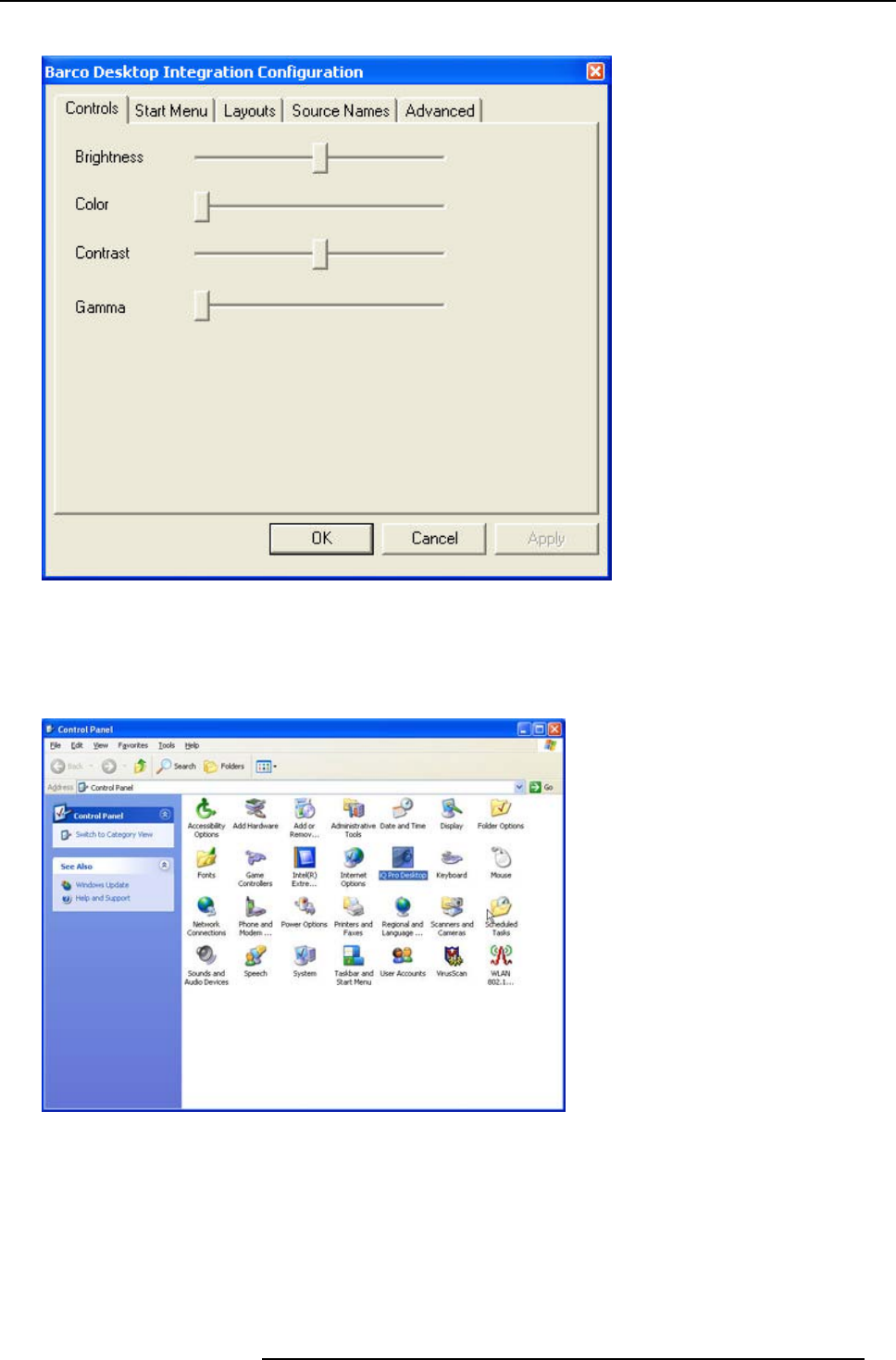
7. Desktop Management
The menu is displayed
Image 7-4
The projector control menu
How to open the projector controls menu from the WindowsTM control panel ?
1. Click on Control panel in the Start menu
2. Click on iQPro Desktop
Image 7-5
R5976821 BARCO ICON 15/03/2007 73
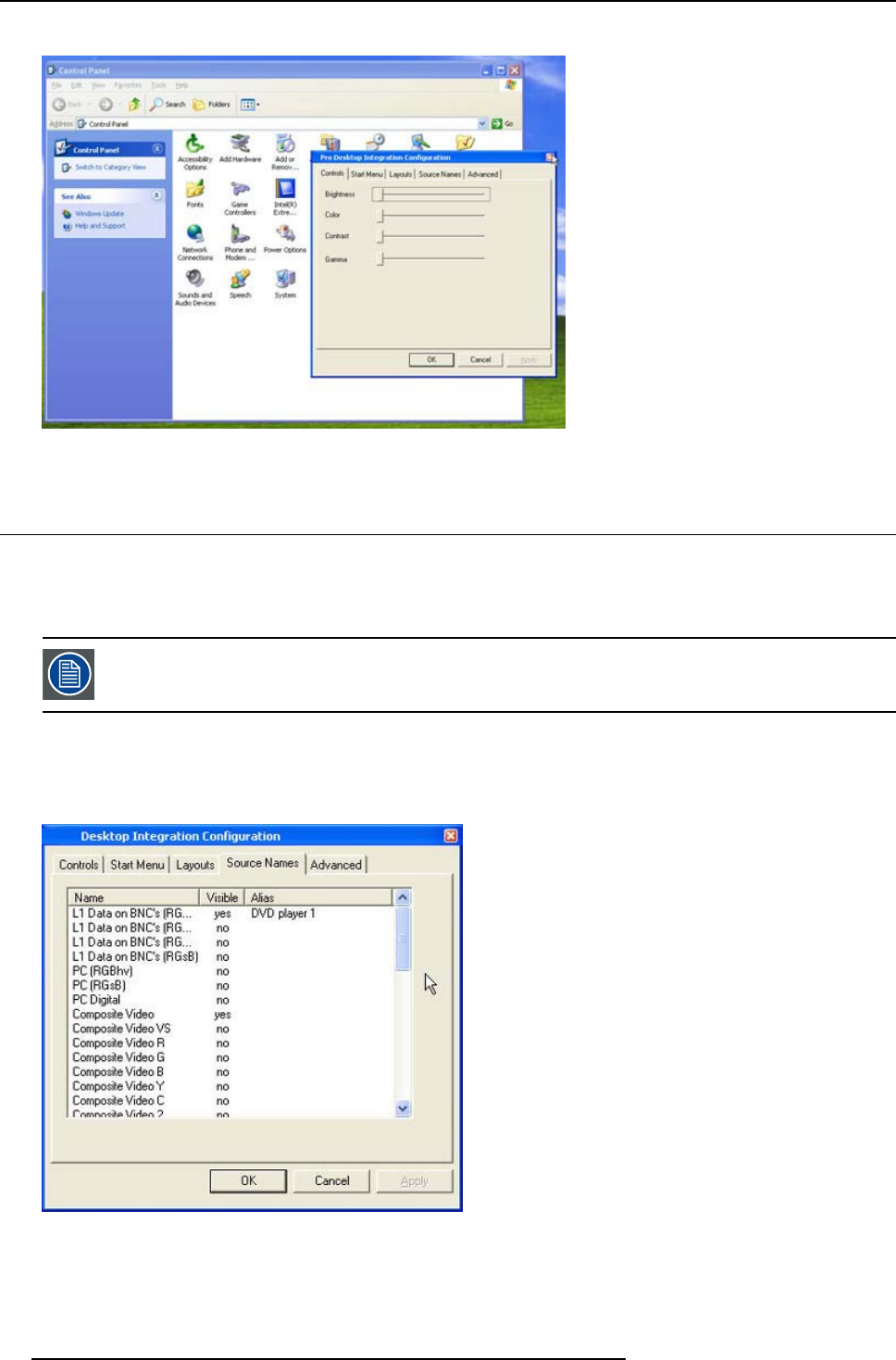
7. Desktop Management
The projector controls menu is displayed
Image 7-6
7.3 Desktop Integration Configuration
Managing the sources through the projector controls menu
The Source names menu in the projector controls gives an overview of all the sources, their aliases as well as whether they are all
visible or not in the Start/My sources menu. These attributes can be changed.
Renaming a source is changing (creating) the alias, the “input” name remains unchanged.
Renaming a source(s) using the projector controls menu
1. Click on the Source names tab of the projector controls menu
The source names menu is displayed
Image 7-7
2. Double click on the desired source
A dialog box is displayed
74 R5976821 BARCO ICON 15/03/2007
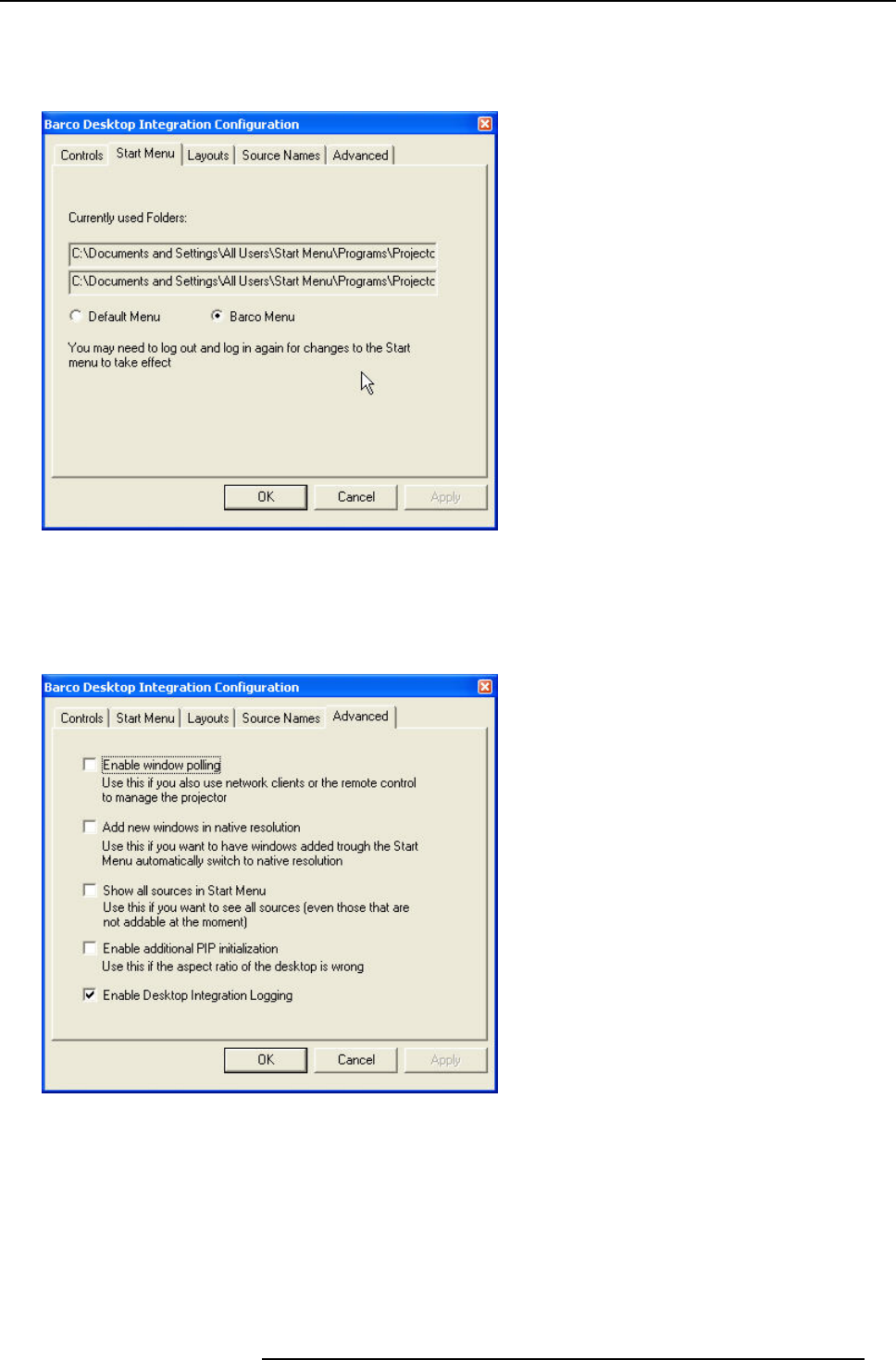
7. Desktop Management
Start menu configuration
1. Click on the Start menu tab of the projector controls menu
The menu is displayed
Image 7-8
2. Choose between the standard WindowsTM start menu (My Pictures/My Music) or the Barco start menu (My Sources/My Lay-
outs)
3. It may be necessary to restart the server for the changes to take effect
Advanced settings
Image 7-9
• Enable window polling : This allows to synchronize the window environment with the actual projector PiP interface. Note that
this is not recommended when working exclusively in the desktop environment.
Always enable window polling when working in multiple environments, for example
when using the RS232 communication.
• Add new windows in native resolution : This setting allows to choose whether the source is added in native resolution or not.
• Show all sources in Start menu: Choose if all sources or only addable (present) sources are shown in the My sources menu.
R5976821 BARCO ICON 15/03/2007 75

7. Desktop Management
When the window polling is not enabled and when controlling the projector with RS232 the desktop will not
correspond to the actual configuration i.e. a selected source will not be displayed (will be placed behind the
desktop and will thus be invisible)
76 R5976821 BARCO ICON 15/03/2007
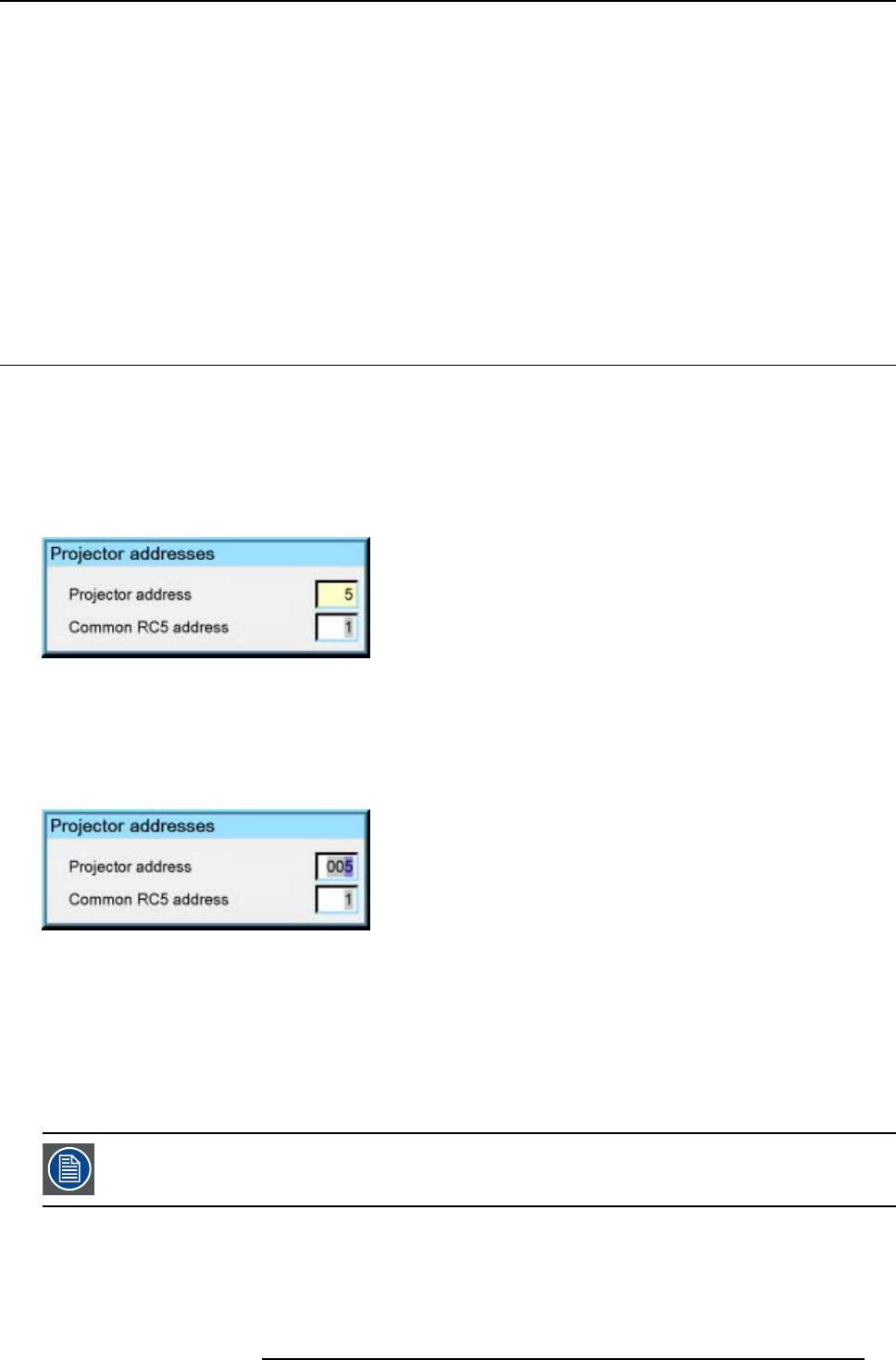
8. Advanced
8. ADVANCED
Overview
• Using the Dialog boxes
• Source selection
• General
• Image
• Lamp management
• Image files
• Display setup
8.1 Using the Dialog boxes
How to use the dialog boxes ?
Some parameters are modified by means of a dialog box, where selections can be made and/or values can be entered.
The values can be entered in several ways:
Entering numeric values using the numeric keys on the remote control
1. Press ENTER to activate the input field.
Image 8-1
2. Key in the desired value.
Entering numeric values using the arrow keys on the remote control
1. Press ENTER to activate the input field.
2. Press ←or →to select the digit to be changed.
Image 8-2
3. Press ↓or ↑to increase or decrease the value.
Entering numeric values using the arrow keys on the local keypad
1. Press ENTER to activate the input field.
2. Press ←or →to select the digit to be changed.
3. Press ↓or ↑to increase or decrease the value.
To confirm the changes always press ENTER.
Use ↓or ↑to browse between the different fields.
R5976821 BARCO ICON 15/03/2007 77
8. Advanced
In some cases an alphanumeric value (file name, ...) has to be entered. Use ↑or ↓to scroll through the char-
acter values once the input field is activated.
Following characters can be browsed in this particular order:
Decimal scroll list: 0123456789
Signed decimal scroll list: 0123456789-
ASCII scrolllist:ABCDEFGHIJKLMNOPQRSTUVWXYZ0123456789+-*/&@#.;.abcdefghijklmnopqrstuvwxyz
8.2 Source selection
Overview
• Source selection
• Composite video
•S-Video
•RGB-YUV
•PC
•DVI
8.2.1 Source selection
Selecting a source
The Source selection menu allows to select one of the different inputs. Another method to select an input source is via the remote
control using the numeric keys or by using the local keypad.
Selecting a source from the Icon’s menubar (OSD) will always display that source in a full screen mode.
The source names in the menubar are adapted automatically depending on the type signals connected to the projector ( the signals
are scanned). For example :
•L1RGB
•L2DVI
• ...
In this case, an RGB signal is connected to the first layer (L1), a DVI signal is connected to the second layer (L2) ,...
When selecting a source with a different resolution (and/or aspect ratio) than the projector’s resolution (and/or
aspect ratio ), the source can be shown in its native resolution or can be re-scaled to the projector’s resolution,
thelattercasebringsofcoursesomelostofquality.
For more info on resolution match see the Show native resolution function in the Image menu.
The resolution of the projector is 1920x1080 with an aspect ratio of 16:9
8.2.2 Composite video
When
Select composite video when you are in presence of a PAL or NTSC video signal.
A composite video signal is often available on a yellow cinch connector of a Camera, VCR or DVD player.
How to select the composite video input ?
1. Press MENU to activate the Toolbar
2. Press ↓to Pull down the Source Selection menu
The menu will contain one item Lx Video,xbeing the layer on which the composite video is connected (for example L2 Video if
the signal is connected to layer 2)
3. Use ↑or ↓to select Lx Video
78 R5976821 BARCO ICON 15/03/2007

8. Advanced
Image 8-3
4. Press ENTER to confirm your choice
A bullet indicates the selected composite video source which now appears on the screen.
Adjustments on a Composite video signal
The projectors allows different adjustments on a composite video signal. Depending on the type of signal (NTSC /PAL) the termi-
nology may differ :
• Contrast
• Brightness
• Color : adjusts the level of color saturation in a PAL signal
• Tint : adjusts the level of color saturation in an NTSC signal
• AGC: Automatic Gain Control
8.2.3 S-Video
When
Select the S-Video input when in presence of a video signal also called S-VHS signal.
An S-Video signal is available on the Mini-Din connector of a camera, VCR or DVD player.
AdjustmentsonaS-Videosignal
The projectors allows different adjustment on a video signal. Depending on the type of signal (NTSC /PAL) the terms differ :
• Color : adjusts the level of color saturation in a PAL signal
• Tint : adjusts the level of color saturation in an NTSC signal
How to select the S-Video input ?
1. Press MENU to activate the Toolbar
2. Press ↓to Pull down the Source Selection menu
The menu will contain one item Lx S-Video,xbeing the layer on which the composite video is connected (for example L3 S-Video
if the signal is connected to layer 3)
3. Use ↑or ↓to select Lx S-Video
Image 8-4
4. Press ENTER to confirm your choice
A bullet indicates the selected composite video source which now appears on the screen.
8.2.4 RGB-YUV
When
Select RGB-YUV when in presence of a data signal of the type RGB+ sync connected to the RGB input (5 BNC’s) or a component
signal of the type (R-Y)/Y/(B-Y).
These signals are often available on a VGA D15 connector of a PC or another image generator.
R5976821 BARCO ICON 15/03/2007 79
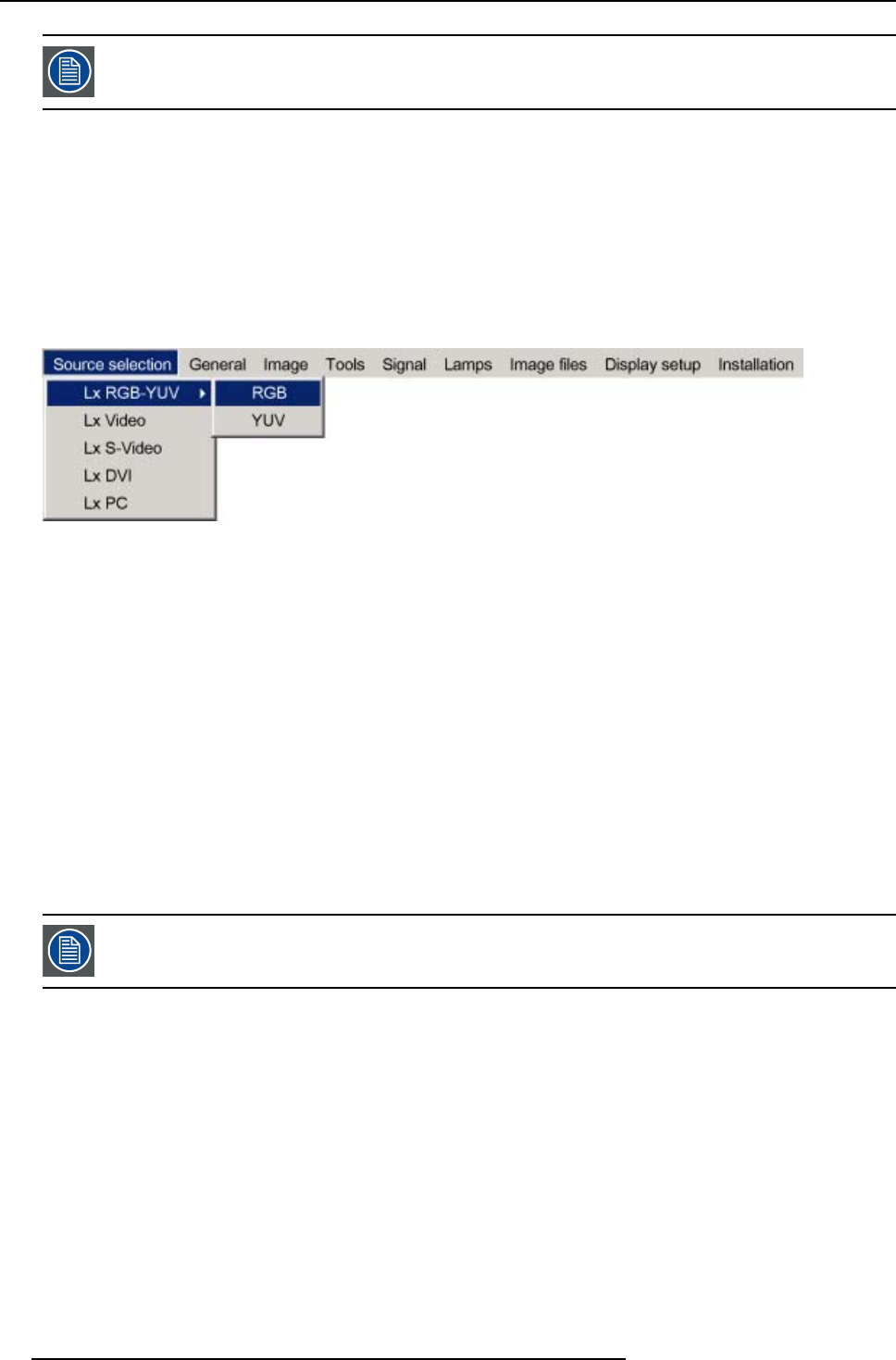
8. Advanced
An RGB data signal can have its sync signal added in different ways, refer to the Installation section for more
information on the RGB+sync signals accepted by the RGB input.
How to select the RGB input ?
1. Press MENU to activate the Toolbar
2. Press ↓to Pull down the Source Selection menu
The menu will contain one menu Lx RGB-YUV,xbeing the layer on which the RGB signal is connected (for example L1 RGB-YUV
if the signal is connected to layer 1)
3. Use ↑or ↓to select Lx RGB-YUV
4. Use →to open the menu
5. Use ↑or ↓to select RGB or YUV
Image 8-5
6. Press ENTER to confirm your choice
A bullet indicates the selected source which now appears on the screen.
AdjustmentsonanRGBsignal
The projector allows different adjustments on an RGB signal :
• Contrast
• Brightness
• Phase
• Input balance
• AutoImage : or manual edit of the image file settings
8.2.5 PC
When
Select PC when you are in presence of a data signal of the RGB + sync form connected to the D15 input connector of the projector.
An RGB data signal can have its sync signal added in different ways, refer to the Installation section for more
information on the RGB+sync signals accepted by the PC input.
How to select the PC input ?
1. Press MENU to activate the Toolbar
2. Press ↓to Pull down the Source Selection menu
The menu will contain one item Lx PC,xbeing the layer on which the PC signal is connected (for example L4 PC if the signal is
connected to layer 4)
3. Use ↑or ↓to select Lx PC
80 R5976821 BARCO ICON 15/03/2007
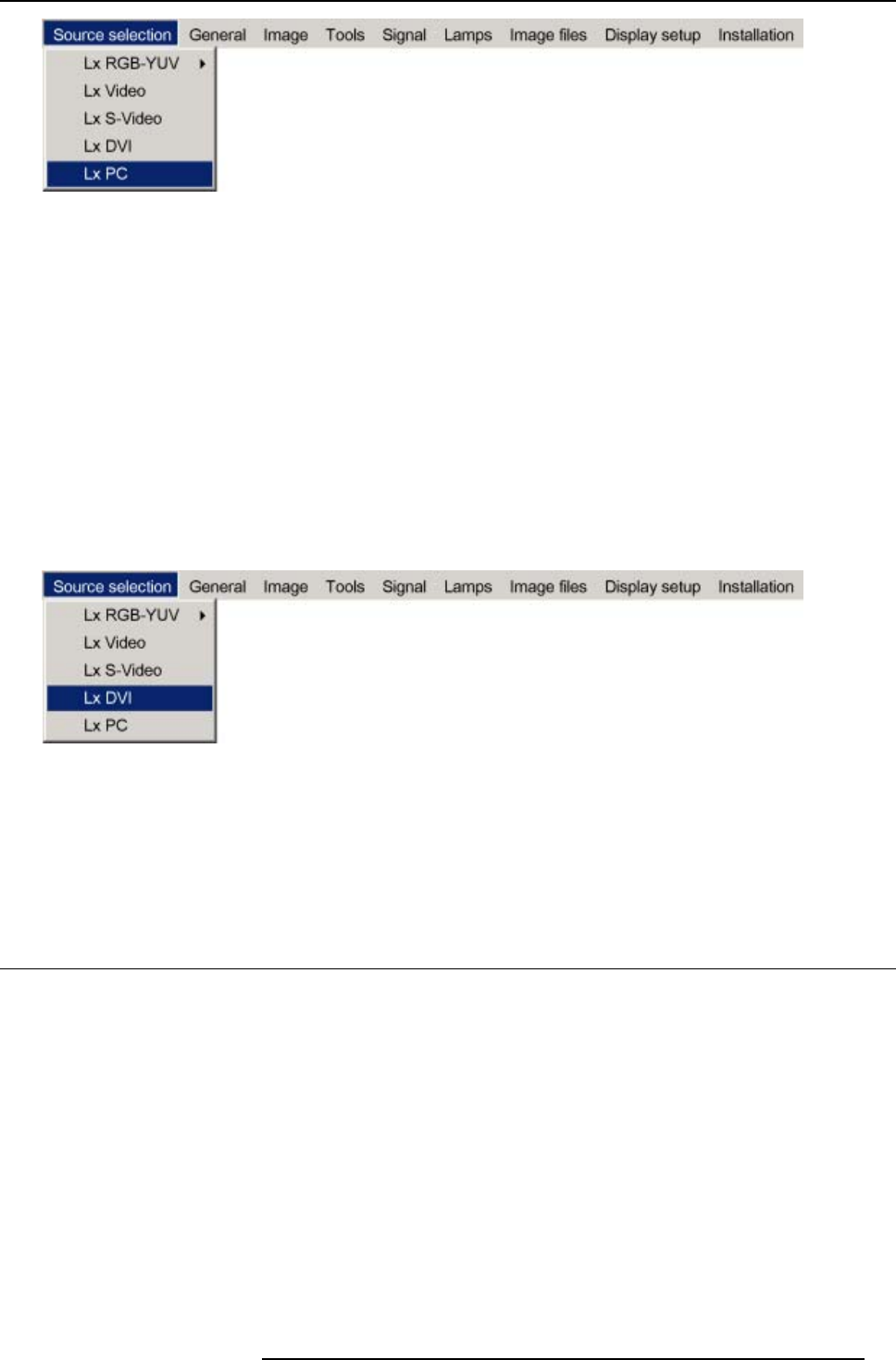
8. Advanced
Image 8-6
4. Press ENTER to confirm your choice
A bullet indicates the selected composite video source which now appears on the screen.
8.2.6 DVI
When
Select DVI when in presence of digital data signal connected to the DVI input of the projector. These signals are often available on
a PC or other image generator.
How to select the DVI input ?
1. Press MENU to activate the Tool bar
2. Press ↓to Pull down the Source Selection menu
The menu will contain one item Lx DVI,xbeing the layer on which the RGB signal is connected (for example L4 DVI if the signal
is connected to layer 4)
3. Use ↑or ↓to select Lx DVI
Image 8-7
4. Press ENTER to confirm your choice
A bullet indicates the selected composite video source which now appears on the screen.
Adjustments on a DVI signal
The digital nature of this signal eliminates the need of a large number of adjustments
8.3 General
8.3.1 Pause
Pause
The Pause function allows to stop the image display, the projector remaining with full power for immediate restart. The image display
is interrupted and the projected background is black.
How to pause the image display?
1. Press MENU to activate the Tool bar
2. Press →to select General
3. Press ↓to Pull down the General menu
4. Use ↑or ↓to select Pause
R5976821 BARCO ICON 15/03/2007 81
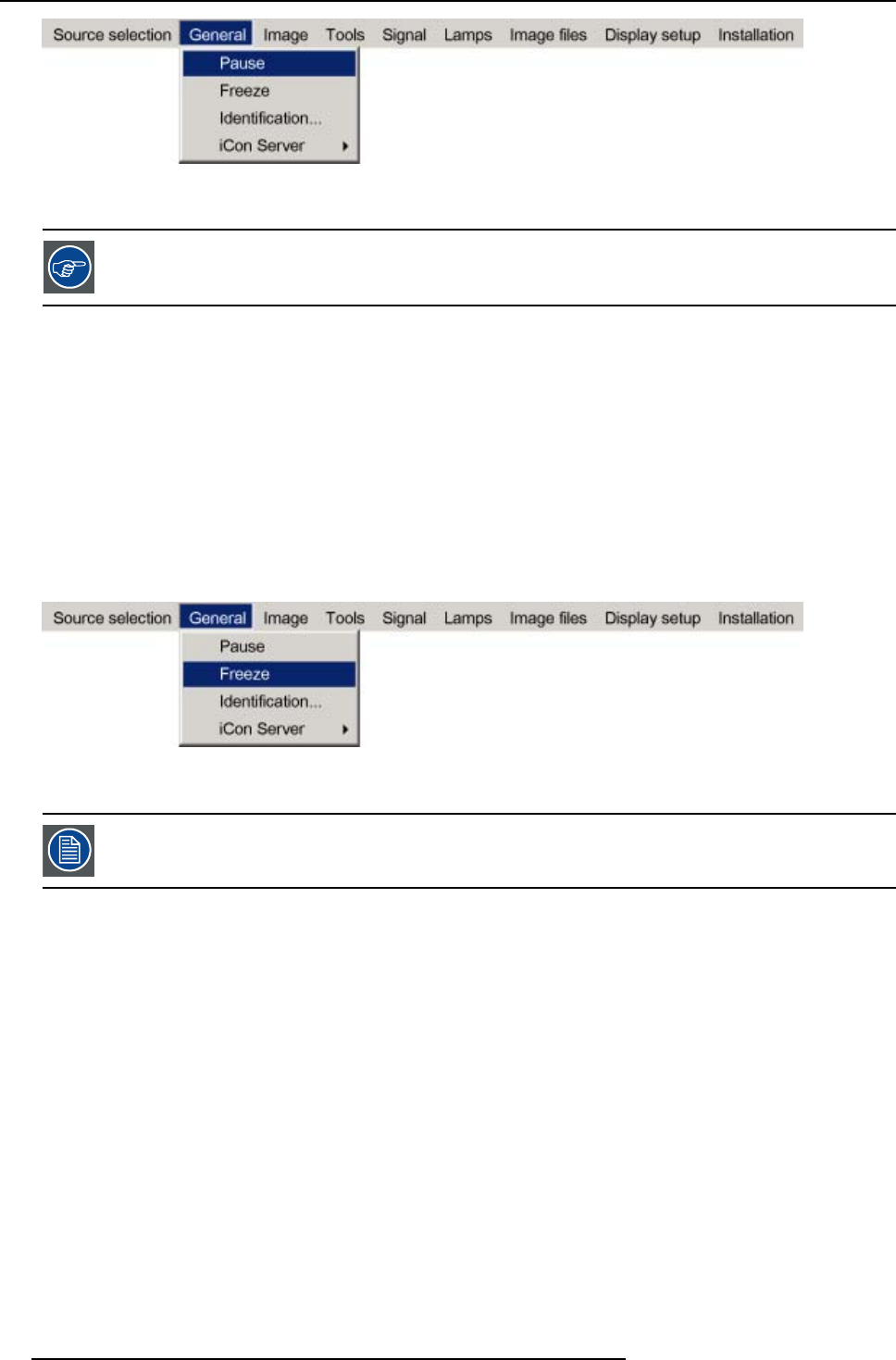
8. Advanced
Image 8-8
5. Press ENTER
The projection can also be interrupted using the PAUSE key on the RCU. To restart the image projection press
PAUSE
8.3.2 Freeze
Freezing the image
With the Freeze function, the image can be frozen. To restart the image, reuse the Freeze function or press the FREEZE button on
the remote.
Howtofreezetheimage?
1. Press MENU to activate the Tool bar
2. Press →to select General
3. Press ↓to Pull down the General menu
4. Use ↑or ↓to select Freeze
Image 8-9
5. Press ENTER to activate the Freeze function
TheimagecanalsobefrozenusingtheFREEZEkeyontheRCU
8.3.3 Identification
The projector’s identification screen
The identification screen displays the projector’s main characteristics
How to display the identification screen ?
1. Press MENU to activate the Tool bar
2. Press →to select General
3. Press ↓to Pull down the General menu
4. Use ↑or ↓to select Identification
82 R5976821 BARCO ICON 15/03/2007
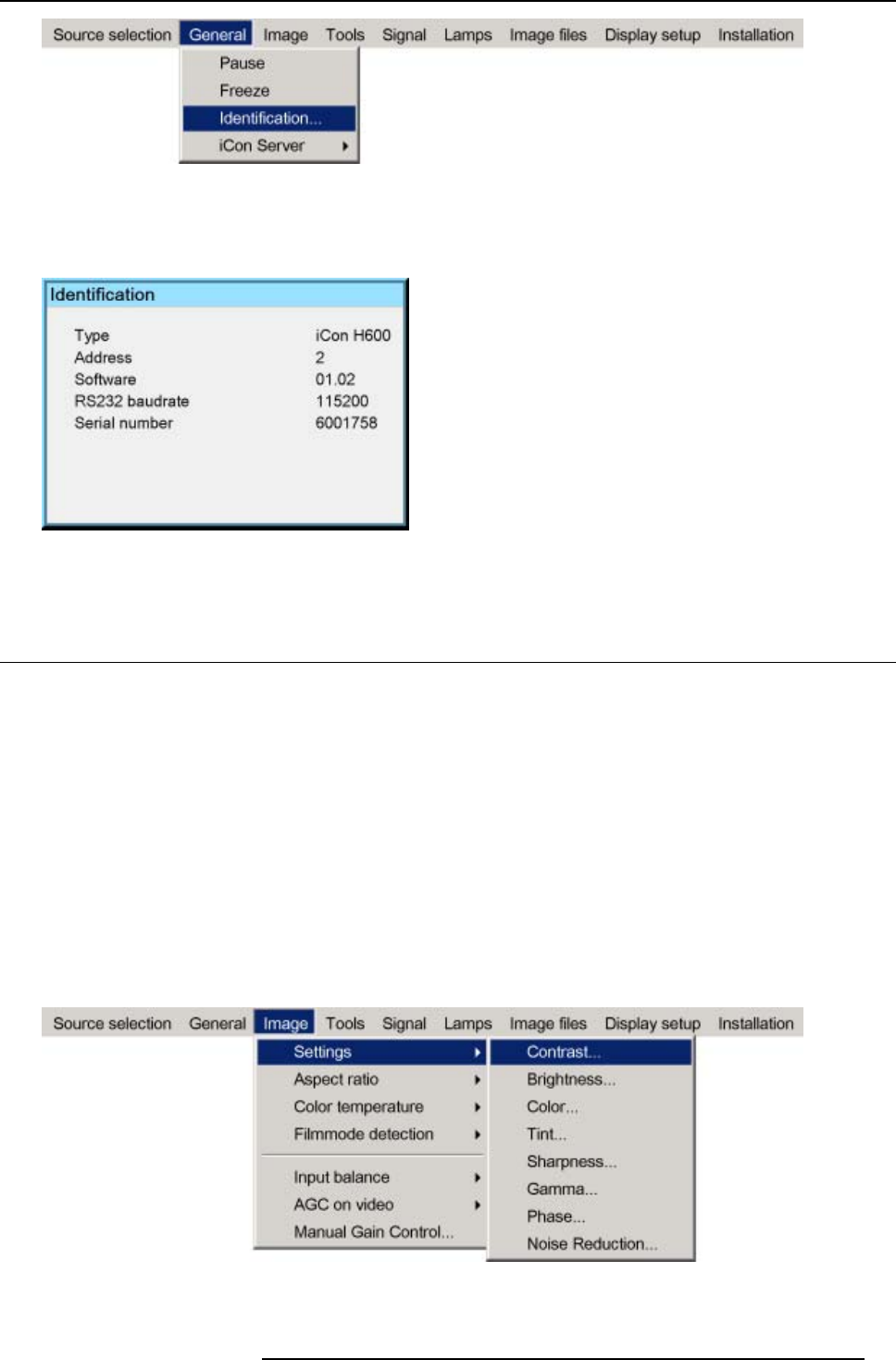
8. Advanced
Image 8-10
5. Press ENTER
On the screen appears a text box.
In this case the projector is an iCon H600
Image 8-11
6. Press MENU or BACK to exit or to go back to the previous menu
8.4 Image
Overview
• Image settings
• Aspect ratio
• Color temperature
• Filmmode detection (video only)
• Input balance
• Automatic gain control (AGC)
• Manual gain control
What can be done ?
Correct image settings are important for a good image reproduction. The image settings are made through a dialog box with a scroll
bar. Minimal, maximal and actual values are indicated. These settings can also be done directly via the RCU’s dedicated buttons,
except for the sharpness.
All the image settings like can be done in the Image/Settings menu.
Image 8-12
R5976821 BARCO ICON 15/03/2007 83
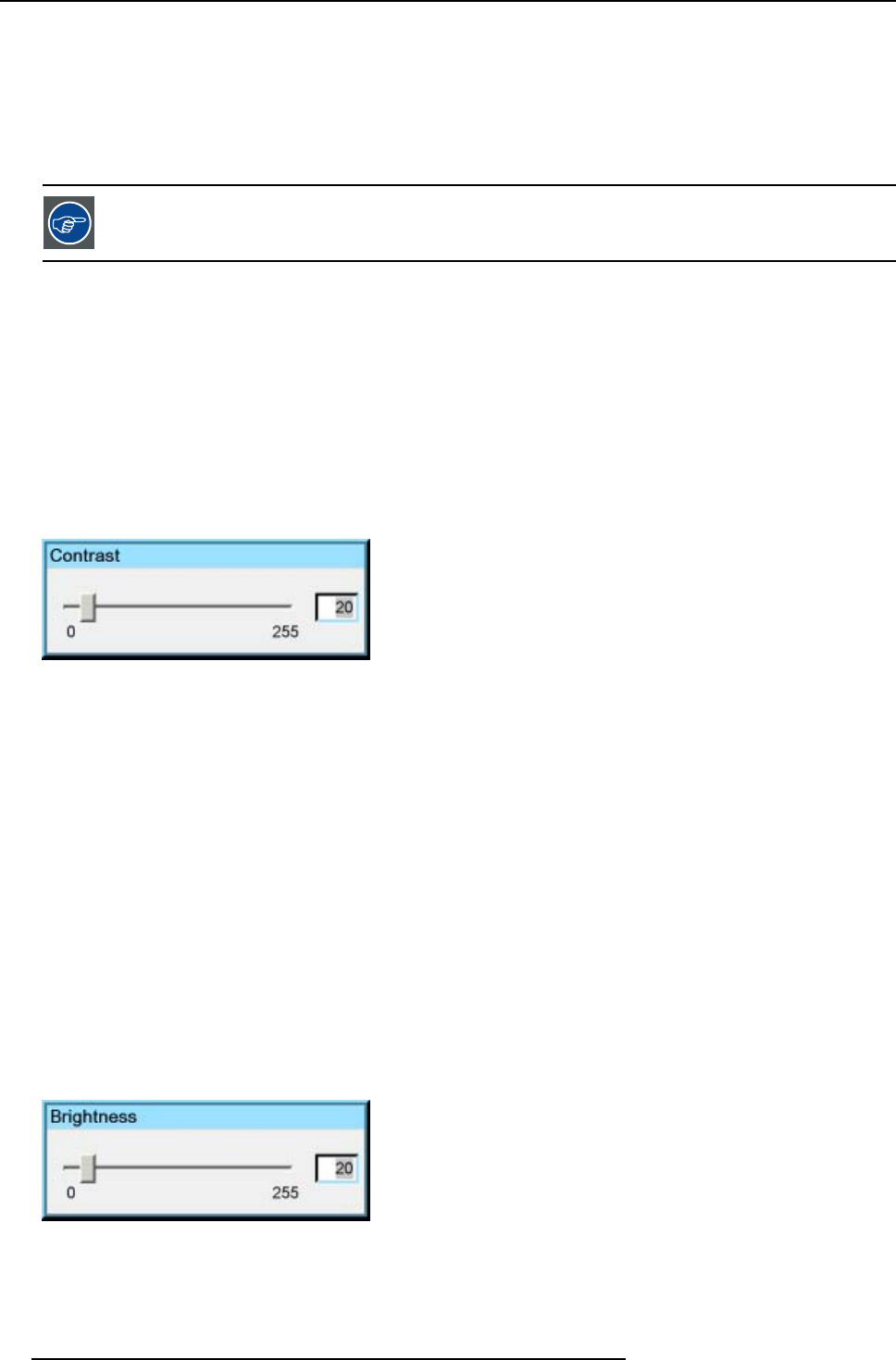
8. Advanced
8.4.1 Image settings
8.4.1.1 Setting the Contrast
Contrast adjustments
Adjust the contrast to “brighten” the white parts of the image.
It is recommended to adjust the brightness before adjusting the contrast.
How to change the Contrast
1. Press MENU to activate the Tool bar
2. Press →to select the Image item
3. Press ↓to Pull down the Image menu
4. Use ↑or ↓to select settings
5. Press →to pull down the menu
6. Use ↑or ↓to select Contrast
7. Press ENTER
On the screen appears now a slider box
Image 8-13
8. Use ←or →, the numeric keys on the remote, or the keypad to change the contrast
8.4.1.2 Setting the Brightness
Brightness adjustment
Adjusting the brightness will affect the dark areas of the image. Increase the brightness to “lighten” up the parts that are too dark.
How to change the Brightness
1. Press MENU to activate the Tool bar
2. Press →to select the Image item
3. Press ↓to Pull down the Image menu
4. Use ↑or ↓to select settings
5. Press →to pull down the menu
6. Use ↑or ↓to select Brightness
7. Press ENTER
On the screen appears now a slider box
Image 8-14
8. Use ←or →, the numeric keys on the remote, or the keypad to change the brightness
84 R5976821 BARCO ICON 15/03/2007
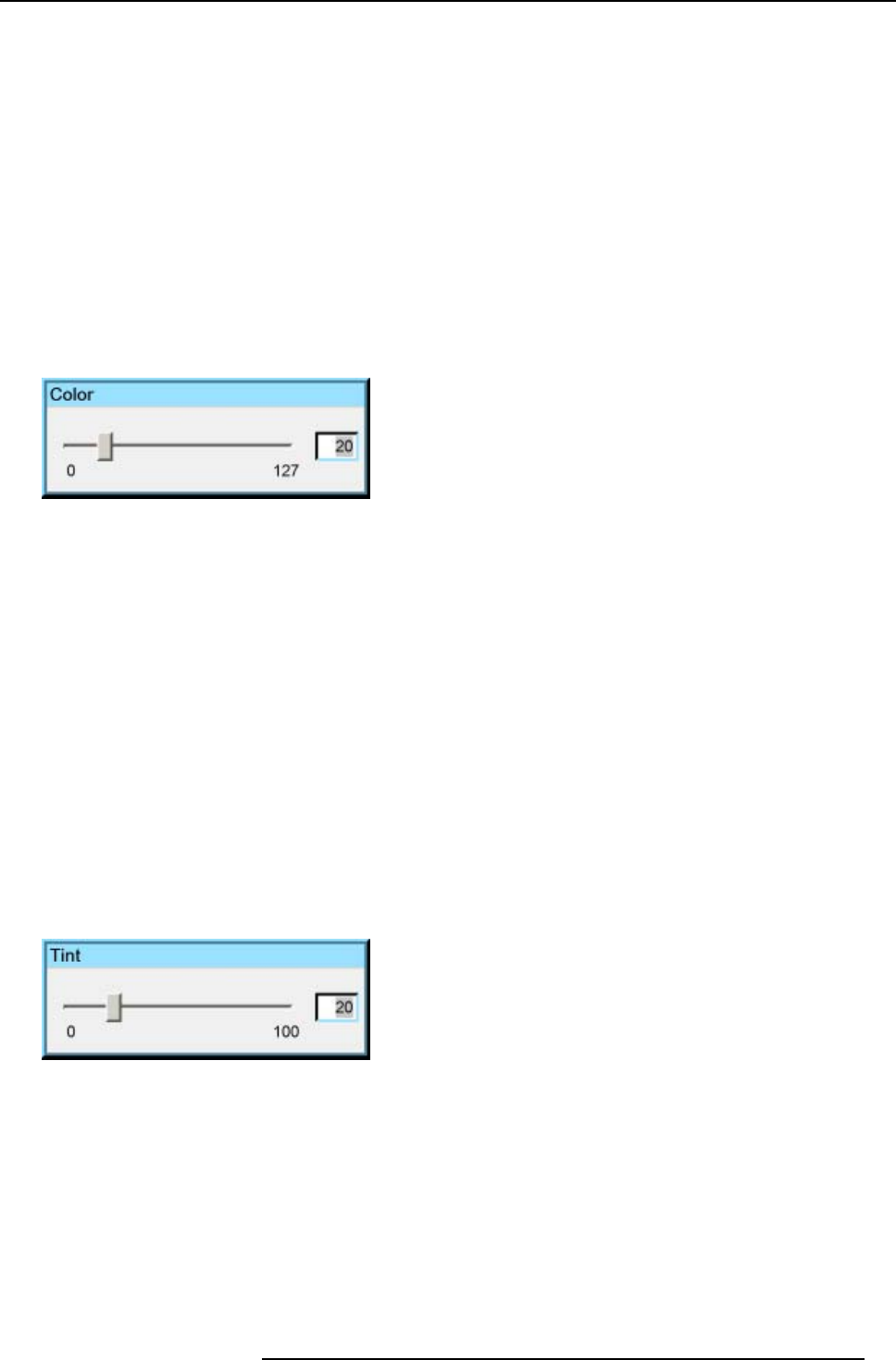
8. Advanced
8.4.1.3 Color
Color adjustment
Adjust the Color to obtain more or less saturated colors.
How to change the Color
1. Press MENU to activate the Tool bar
2. Press →to select the Image item
3. Press ↓to Pull down the Image menu
4. Use ↑or ↓to select settings
5. Press →to pull down the menu
6. Use ↑or ↓to select Color
7. Press ENTER
On the screen appears now a slider box
Image 8-15
8. Use ←or →, the numeric keys on the remote, or the keypad to change the color
8.4.1.4 Tint (NTSC video signals only)
Tint adjustment
Tint adjustment is only applicable for NTSC video signals. The tint adjustment allows the reddish and greenish tones to be corrected.
How to change the Tint
1. Press MENU to activate the Tool bar
2. Press →to select the Image item
3. Press ↓to Pull down the Image menu
4. Use ↑or ↓to select settings
5. Press →to pull down the menu
6. Use ↑or ↓to select Tint
7. Press ENTER
On the screen appears now a slider box
Image 8-16
8. Use ←or →, the numeric keys on the remote, or the keypad to change the Tint
8.4.1.5 Sharpness
How to adjust the Sharpness
1. Press MENU to activate the Tool bar
2. Press →to select the Image item
3. Press ↓to Pull down the Image menu
4. Use ↑or ↓to select settings
R5976821 BARCO ICON 15/03/2007 85
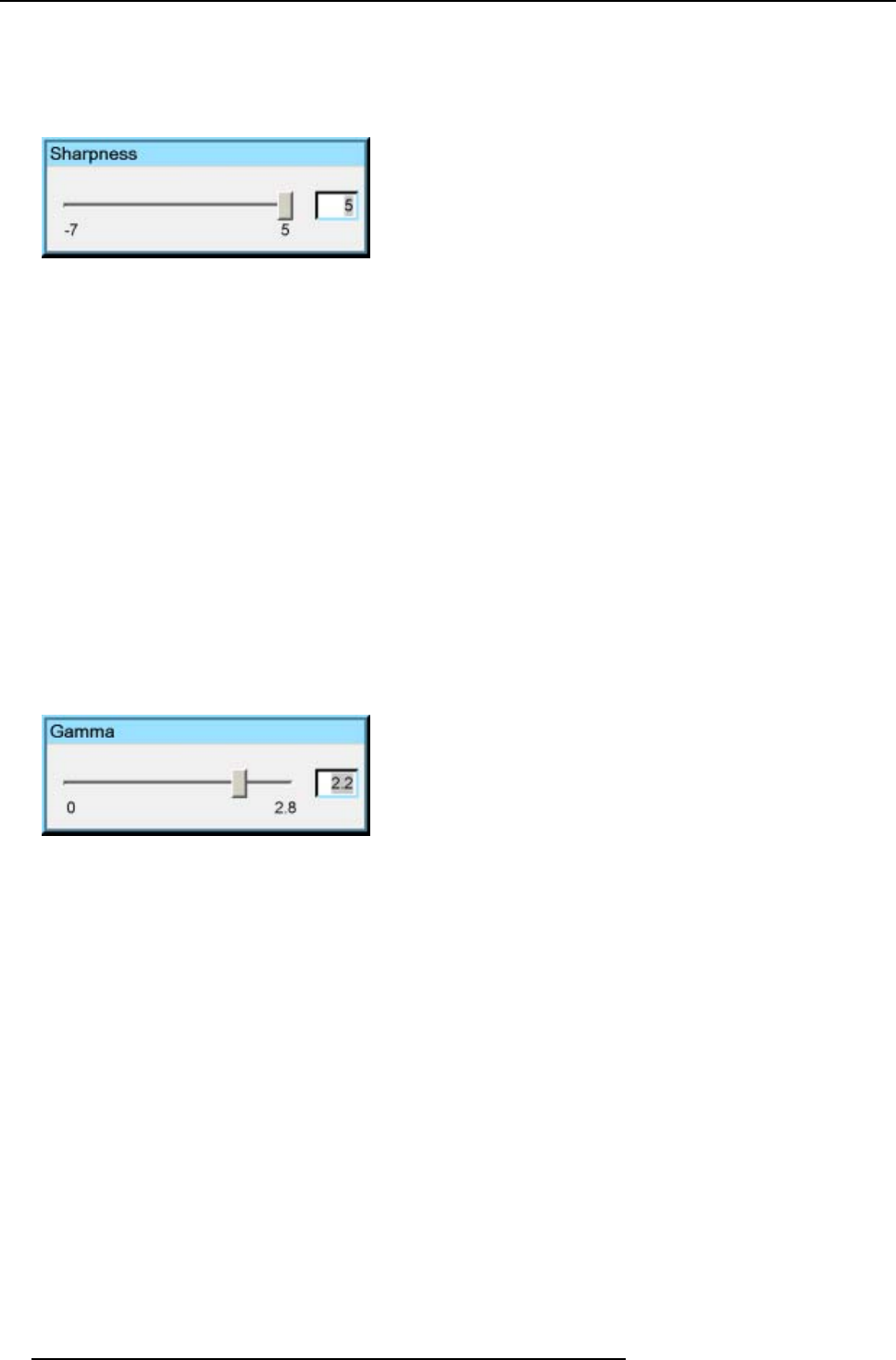
8. Advanced
5. Press →to pull down the menu
6. Use ↑or ↓to select Sharpness
7. Press ENTER
On the screen appears now a slider box
Image 8-17
8. Use ←or →, the numeric keys on the remote, or the keypad to change the Sharpness
8.4.1.6 Gamma
Gamma adjustment
The gamma parameter determines the way your encoded (luminance) signal is transformed into brightness at the output of the
projector. A correct gamma setting will allow the use of a maximum of gradations (brightness levels) in the projected image.
How to adjust the Gamma
1. Press MENU to activate the Tool bar
2. Press →to select the Image item
3. Press ↓to Pull down the Image menu
4. Use ↑or ↓to select settings
5. Press →to pull down the menu
6. Use ↑or ↓to select Gamma
7. Press ENTER
On the screen appears now a slider box
Image 8-18
8. Use ←or →, the numeric keys on the remote, or the keypad to change the Gamma
8.4.1.7 Phase (RGB signals only)
Phase adjustment
A bad phase adjustment will result in bad transitions and sometimes noise. (for example text will not be clear).
86 R5976821 BARCO ICON 15/03/2007
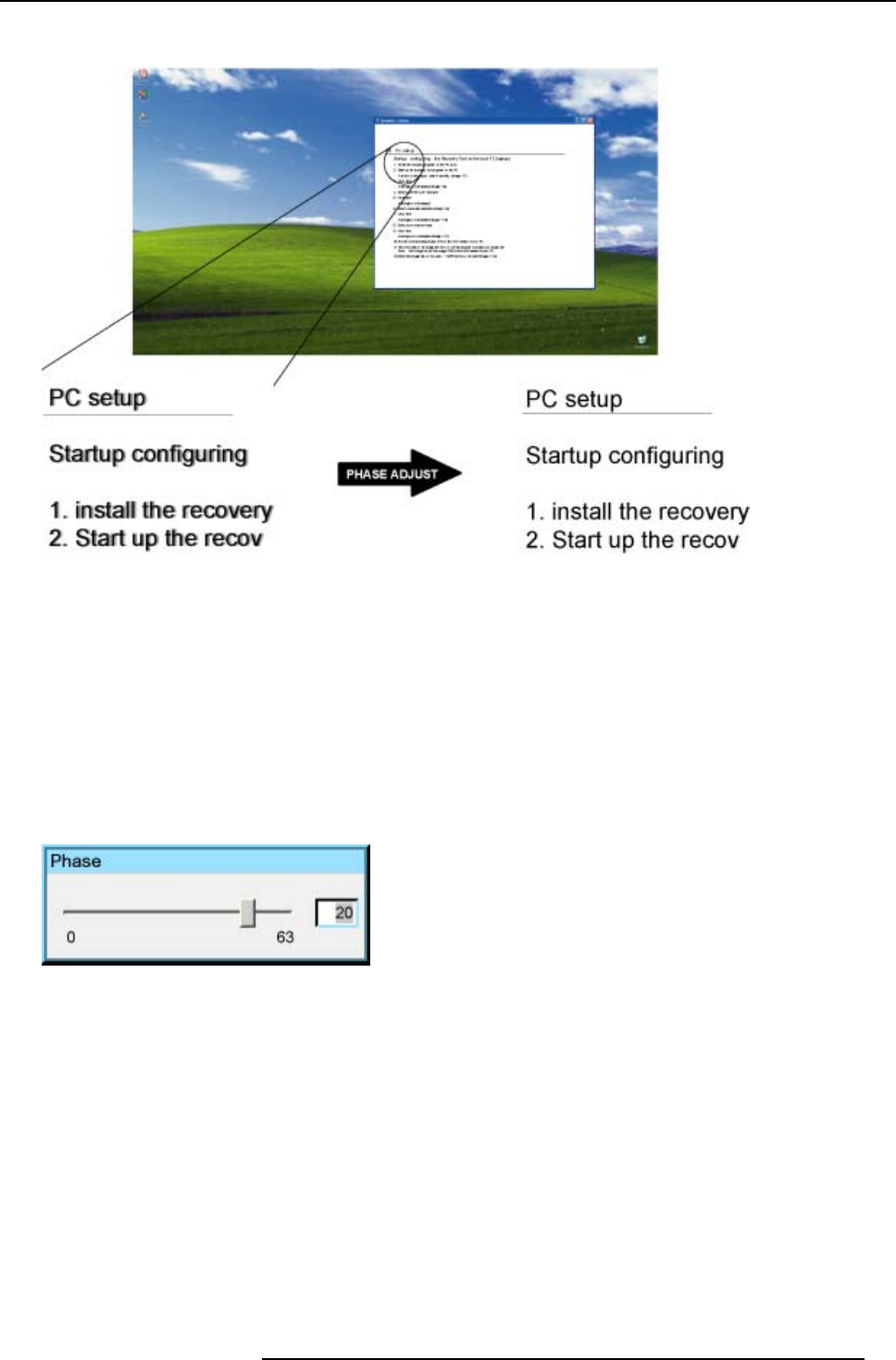
8. Advanced
Image 8-19
How to adjust the Phase
1. Press MENU to activate the Tool bar
2. Press →to select the Image item
3. Press ↓to Pull down the Image menu
4. Use ↑or ↓to select settings
5. Press →to pull down the menu
6. Use ↑or ↓to select Phase
7. Press ENTER
On the screen appears now a slider box
Image 8-20
8. Use ←or →, the numeric keys on the remote, or the keypad to change the Phase
8.4.1.8 Noise Reduction (only for video signals)
How to remove noise in the image
1. Press MENU to activate the Tool bar
2. Press →to select the Image item
3. Press ↓to Pull down the Image menu
4. Use ↑or ↓to select settings
5. Press →to pull down the menu
6. Use ↑or ↓to select Noise Reduction
7. Press ENTER
R5976821 BARCO ICON 15/03/2007 87
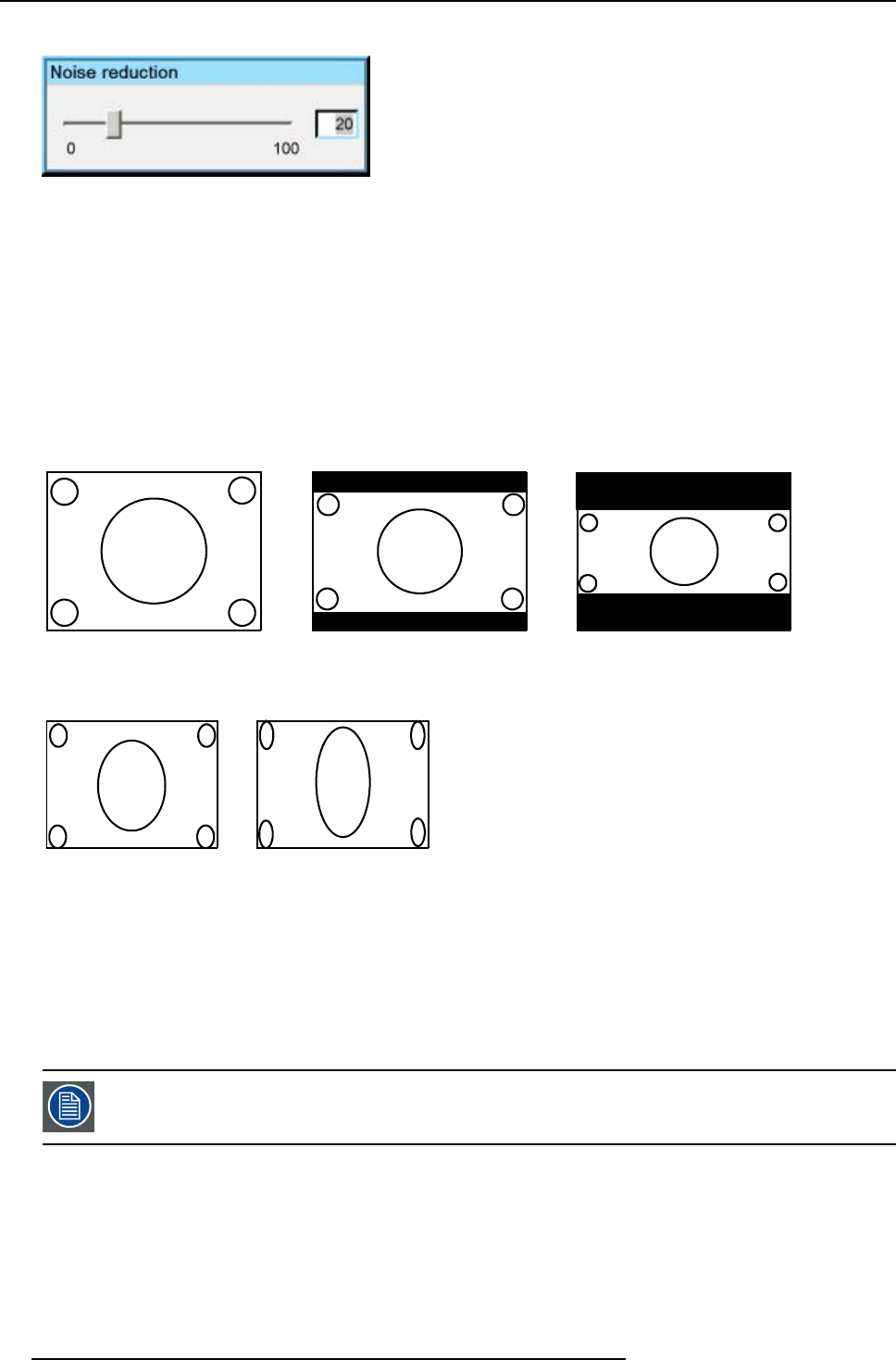
8. Advanced
On the screen appears now a slider box
Image 8-21
8. Use ←or →, the numeric keys on the remote, or the keypad to change the Noise Reduction
8.4.2 Aspect ratio
Aspect ratios
The standard aspect ratio used in broadcast television is the 4:3 ratio. However, most of the DVD sources use nowadays the
widescreen 16:9 or even the CinemascopeTM 2.35:1 aspect ratio.
Some DVD sources may even use the anamorphic 16:9 or anamorphic 2.35:1 to take advantage of the higher vertical resolution
offered by the 4:3 ratio. The “anamorphic” term means that the original wide screen image is squeezed in order to fit the 4:3 aspect
ratio.
4:3 16:9 2.35:1
Image 8-22
Common non- anamorphic aspect ratios in DVD sources
16:9 2.35:1
Image 8-23
Anamorphic aspect ratios in DVD sources
What can be done ?
The aspect ratio setting forces the projector to project an image using a defined aspect ratio :
•4:3
• 16:9
•5:4
•Auto
The settings do not refer to the aspect ratio of the source !
88 R5976821 BARCO ICON 15/03/2007
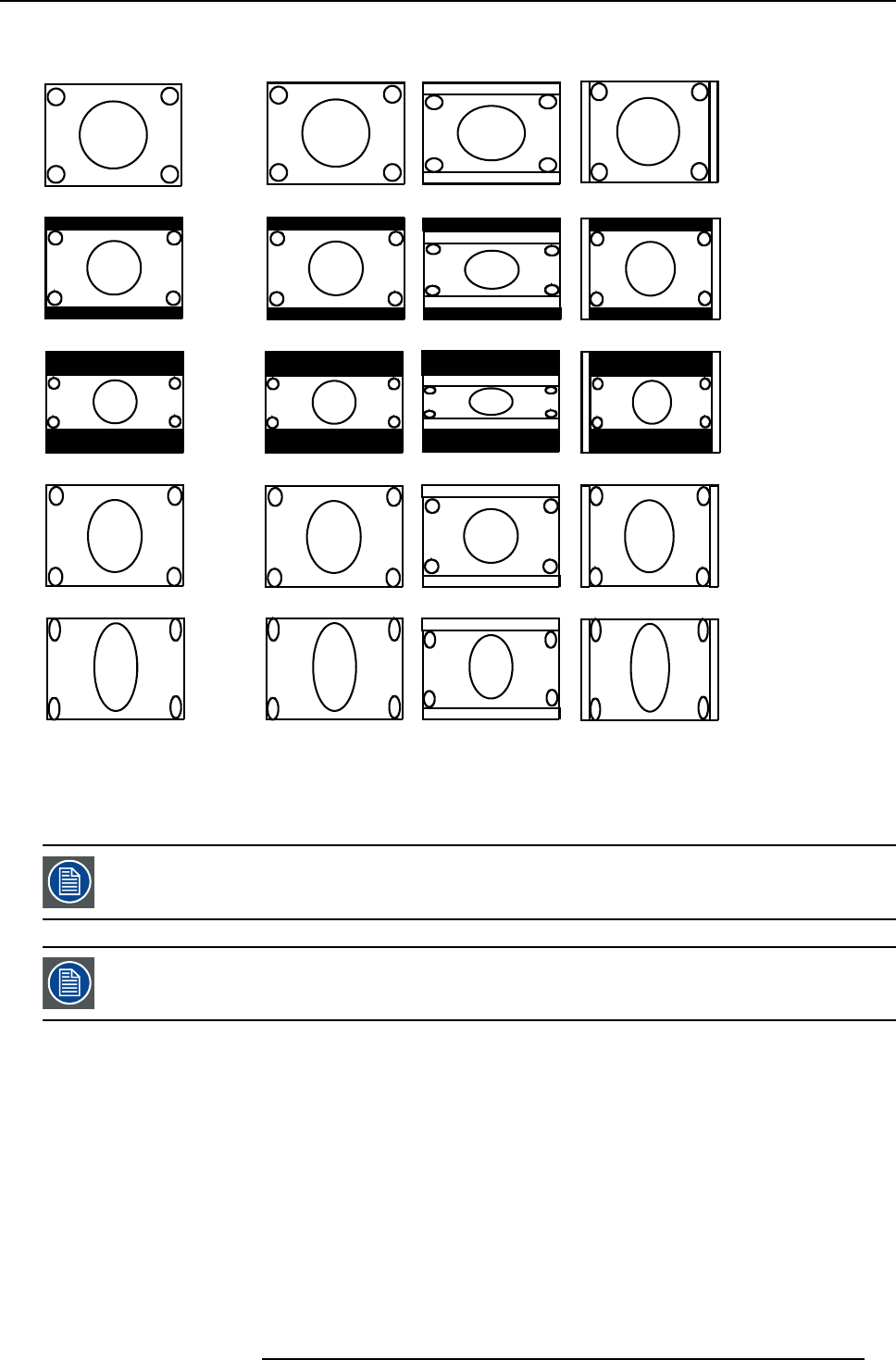
8. Advanced
4:3
16:9
2.35:1
16:9 anamorphic
2.35:1 anamorphic
Projector setting
Source
4:3 16:9 5:4
Image 8-24
Possible aspect ratio settings and their effect on different sources
We can conclude that the thumb rule for DVD projection is to always leave the projector in 4:3 format except when dealing with
anamorphic sources where the 16:9 setting allows the best reproduction.
The Auto function calculates an aspect ratio based on the information stored in the image files.
Selecting Auto in case of a Video source may shrink the image horizontally
The aspect ratio setting affects only the active source window, the desktop being locked on the native aspect
ratio.
How to change the Aspect ratio ?
1. Press MENU to activate the Toolbar
2. Press →to select Image
3. Press ↓to Pull down the Image menu
R5976821 BARCO ICON 15/03/2007 89
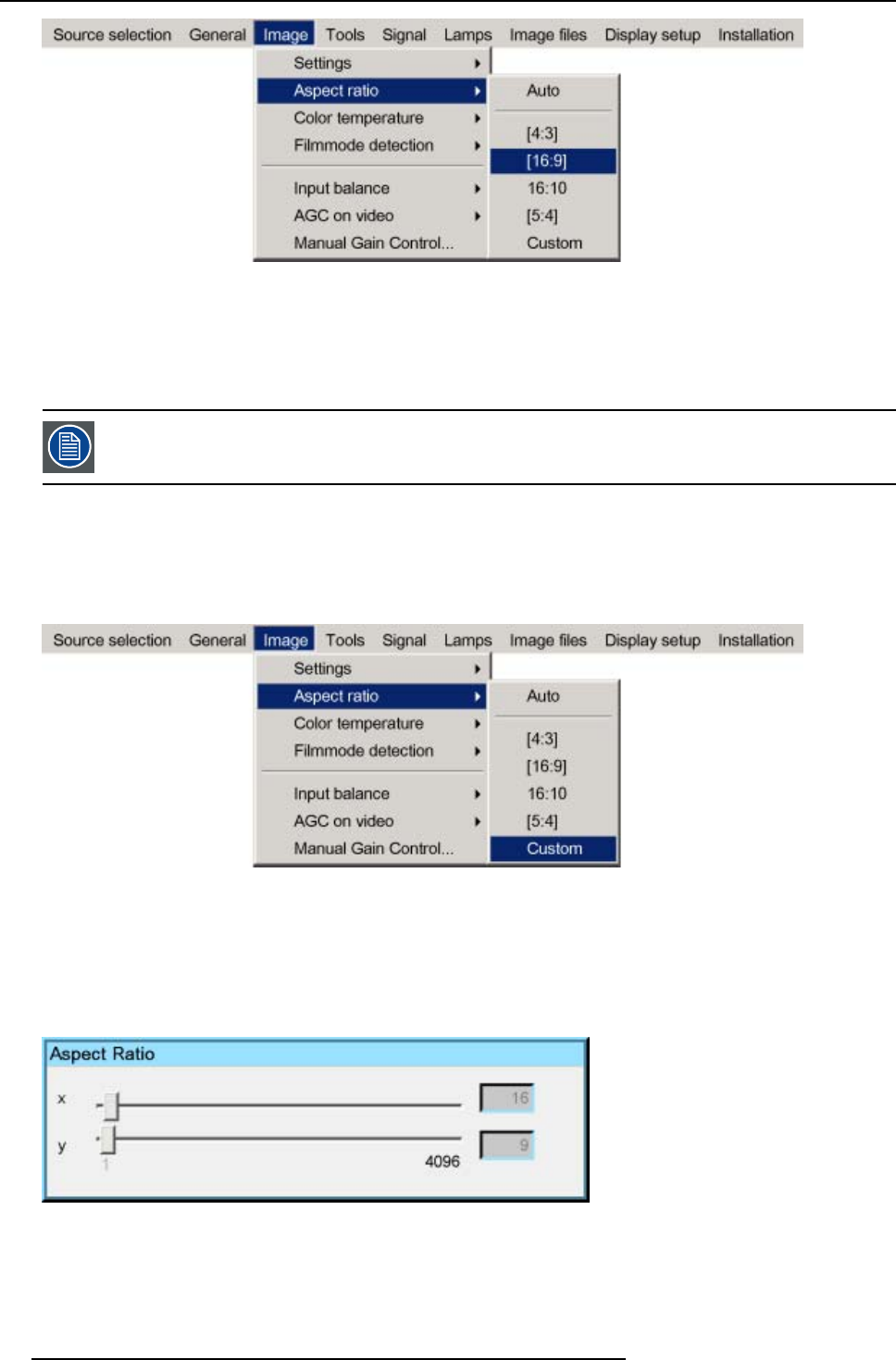
8. Advanced
Image 8-25
4. Use ↑or ↓to select Aspect ratio
5. Use →open the Aspect ratio menu
6. Use ↑or ↓to select the desired ratio
7. Press ENTER to confirm
The aspect ratio settings are greyed out in case the Show native resolution or the Full screen representation
setting is enabled.
How to set a custom Aspect ratio ?
1. Press MENU to activate the Toolbar
2. Press →to select Image
3. Press ↓to Pull down the Image menu
Image 8-26
4. Use ↑or ↓to select Aspect ratio
5. Use →open the Aspect ratio menu
6. Use ↑or ↓to select Custom
7. Press ENTER to confirm
A dialog box is displayed
Image 8-27
8. Enter the values for width and height of the image
The image aspect ratio is updated.
90 R5976821 BARCO ICON 15/03/2007
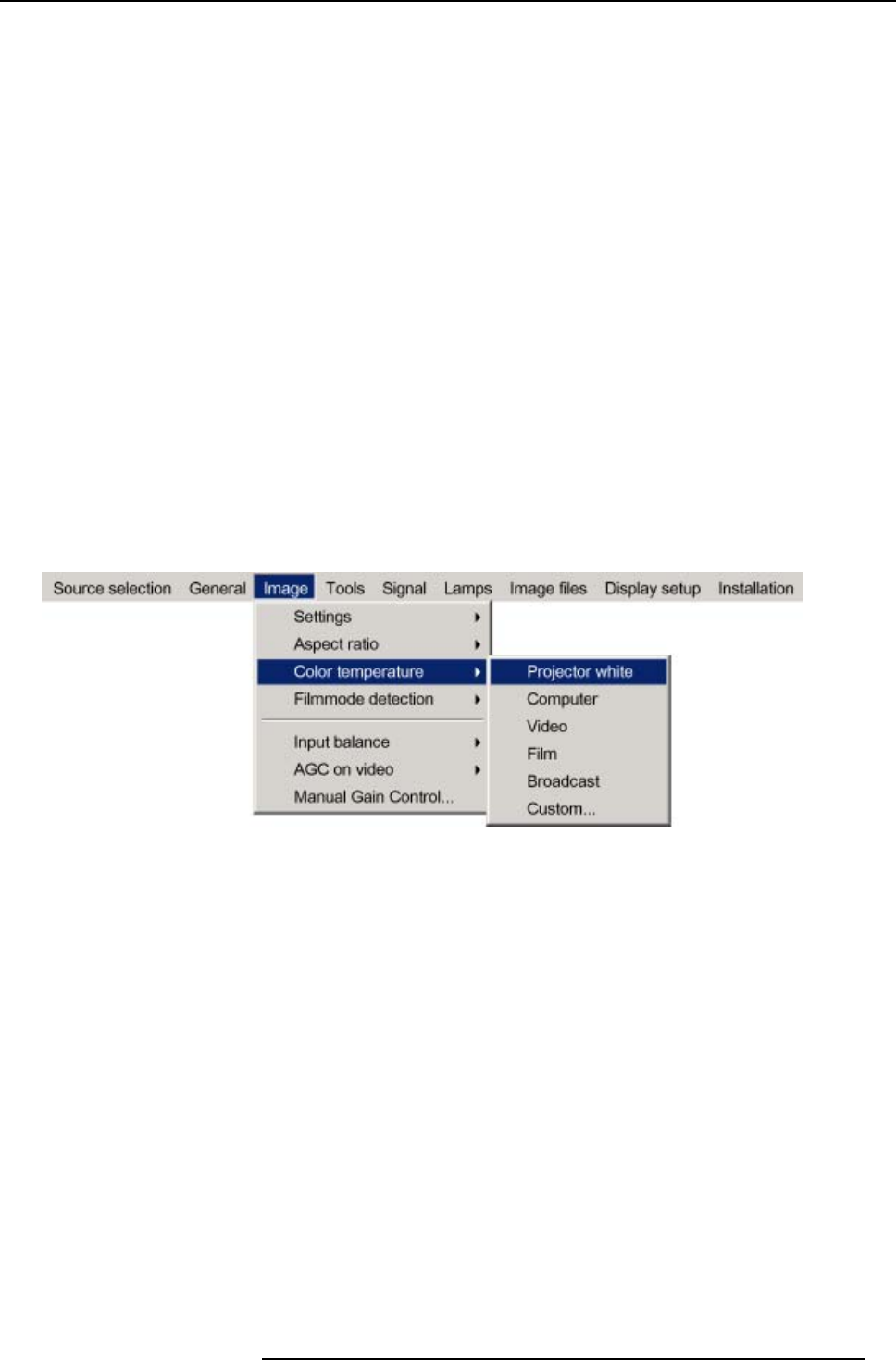
8. Advanced
8.4.3 Color temperature
What can be done ?
The color temperature can be selected according to the type of source:
There are 4 different preset color temperatures:
• Projector white
• computer : 9300 K
• Video : 6500 K
• Film : 5400 K
• Broadcast : 3200 K
These calibrated presets can be selected and will provide optimum color tracking, the projector allows however the setting of a
personal color temperature, this is done in custom.
How to select a preset color temperature ?
1. Press MENU to activate the Tool bar
2. Press →to select the Image item
3. Press ↓to Pull down the Image menu
4. Use ↑or ↓to select Color temperature
5. Press →to pull down the menu
6. Use ↓or ↑to select the desired preset color temperature
7. Press ENTER
The color temperature of the image is adapted and a bullet shows the active setting.
Image 8-28
How to set a custom color temperature ?
1. Press MENU to activate the Tool bar
2. Press →to select the Image item
3. Press ↓to Pull down the Image menu
4. Use ↑or ↓to select Color temperature
5. Press →to pull down the menu
6. Use ↓or ↑to select custom
7. Press ENTER
R5976821 BARCO ICON 15/03/2007 91
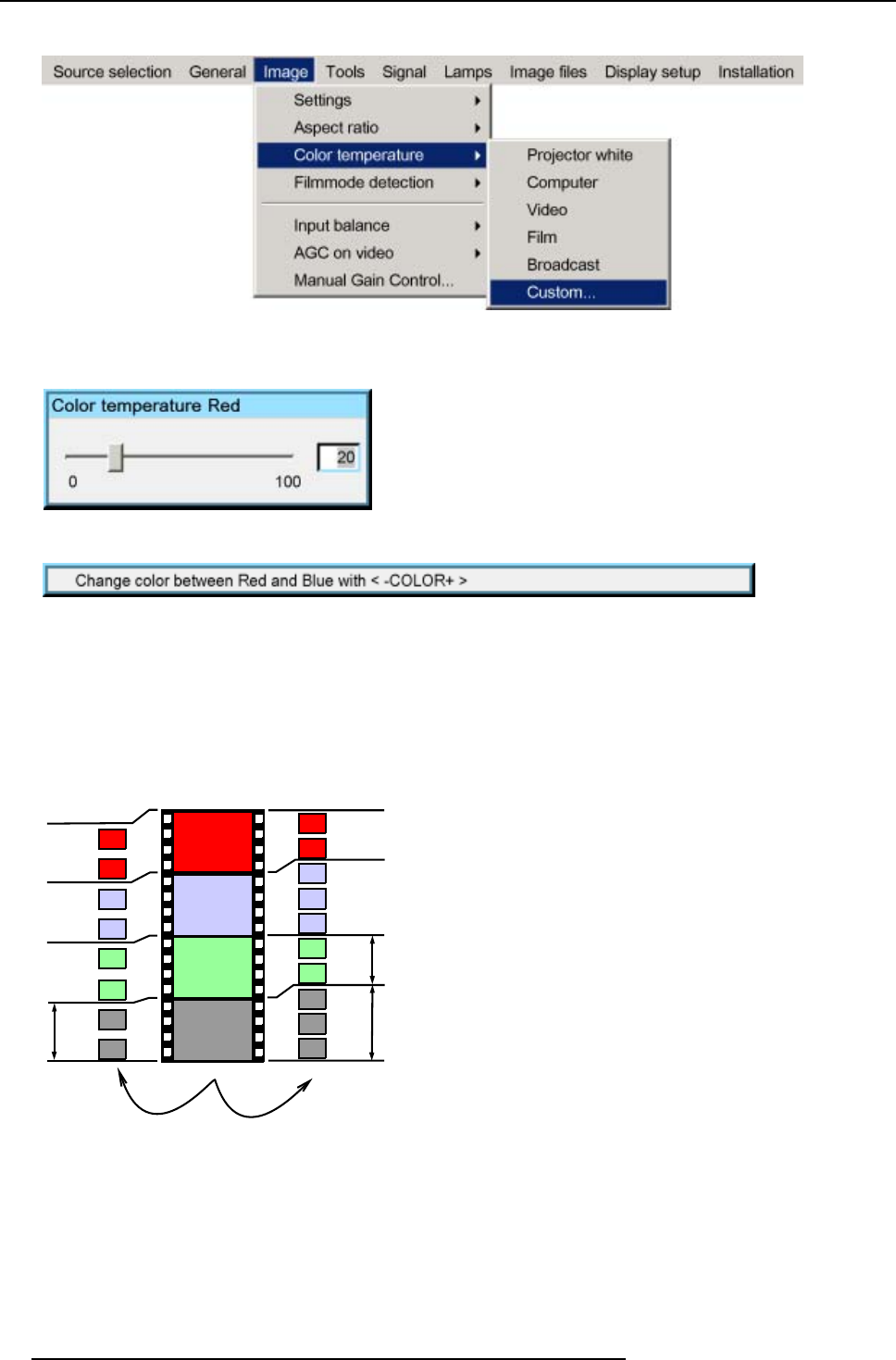
8. Advanced
A slider box for the red custom setting is displayed as well as a wizard text box in the lower part of the screen.
Image 8-29
Follow the instructions on the wizard text box.
Image 8-30
Image 8-31
8.4.4 Filmmode detection (video only)
What can be done ?
Some sources like common DVD material are derived from cinema 24 Hz sources (2/2 or 3/2 pull down method).
0
42
83
125
167
40
80
120
160
FILM
24 f/s
VIDEO PAL
50f/s
NTSC VIDEO
60 f/s
0
1/20s
1/30s
50
83
133
167
2/2 3/2
Image 8-32
film to video conversion: 2/2 and 2/3 pull down method
92 R5976821 BARCO ICON 15/03/2007
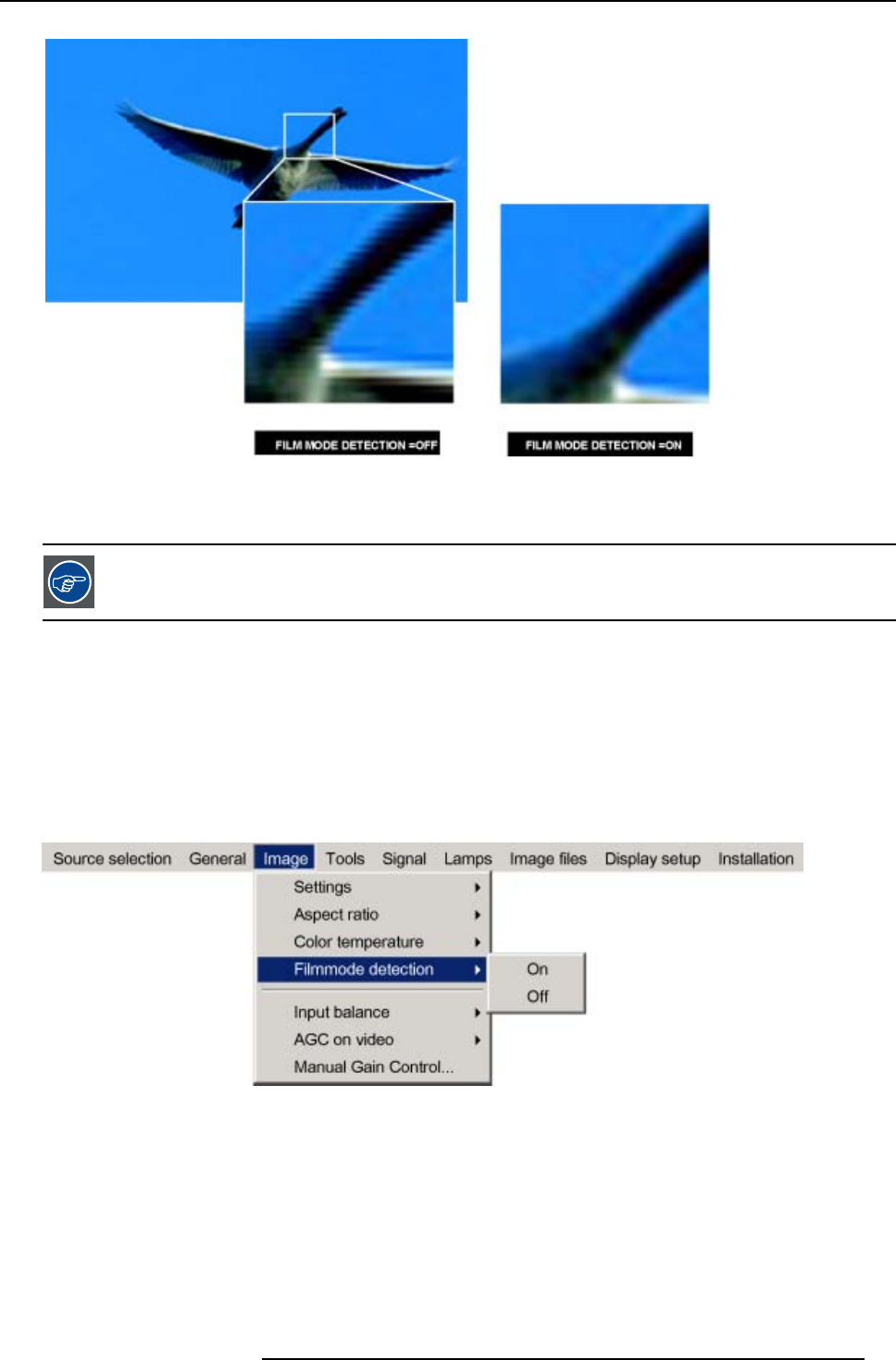
8. Advanced
Image 8-33
The filmmode detection insures that these converted signals are shown without artefacts, especially motion artefacts due to bad
de-interlacing.
This function may cause undesired effects on standard sources, therefore it can be disabled (OFF) at any time
Enabling/disabling the filmmode detection
1. PressMENU to activate the Tool bar
2. Press →to select the Image item
3. Press ↓to Pull down the Image menu
4. Use ↑or ↓to select Filmmode detection
5. Press →to pull down the menu
6. Use ↓or ↑to enable or disable the Filmmode detection
Image 8-34
7. Press ENTER
A white bullet shows the active setting
8.4.5 Input balance
Introduction: Unbalanced color signals
When transporting signals, there is always a risk of deterioration of the information contained in the signals.
The alterations of the three color signals will happen independently i.e. the colors will end to be unbalanced,
R5976821 BARCO ICON 15/03/2007 93
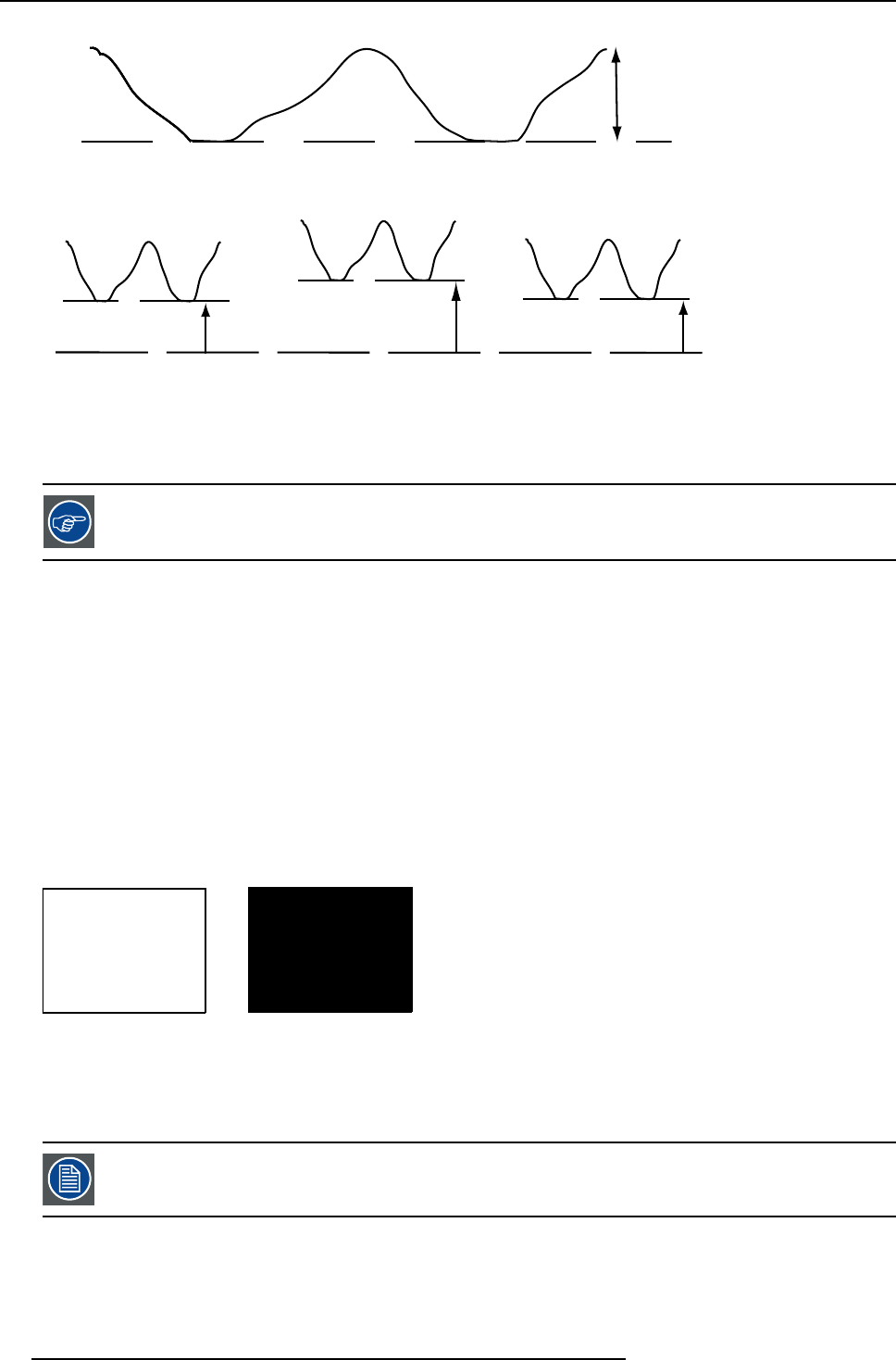
8. Advanced
B
Black level
0.7V
Image 8-35
Black level
∆
G
∆Β
∆
R
R
GB
Image 8-36
The objective of input balancing
The objective in input balancing is to “set” the same black level and the same white level for the three colors of a particular input
source.
Black level setting : brightness
White level setting : contrast
The same absolute black and white level for the three colors allows the same reference for Brightness and contrast control of the
picture !
These two references also set the range in which the ADC will work for that particular source ( this explains also why each input
balance setting is linked to a particular source and thus saved in the image file).
How can it be done ?
To balance the three color signals of a particular source there are conditions; in fact we must know the black and the white level of
the source i.e. :
1. the source in question must be able to generate a white signal, ideally a 100% white (background) full screen pattern
2. the source in question must be able to generate a black signal, ideally a 100 % black (background) full screen pattern
A
B
Image 8-37
White balance : In the projector, we will set the contrast for each color until we get a 100% light output picture when projecting a
100% white image (image A)
Black balance : In the projector, we will set the brightness for each color until we get a 0% light output picture when projecting a
100% black image (image B).
The changeover from min to max is indicated by the apparition of bright spots also called “digital noise”
94 R5976821 BARCO ICON 15/03/2007
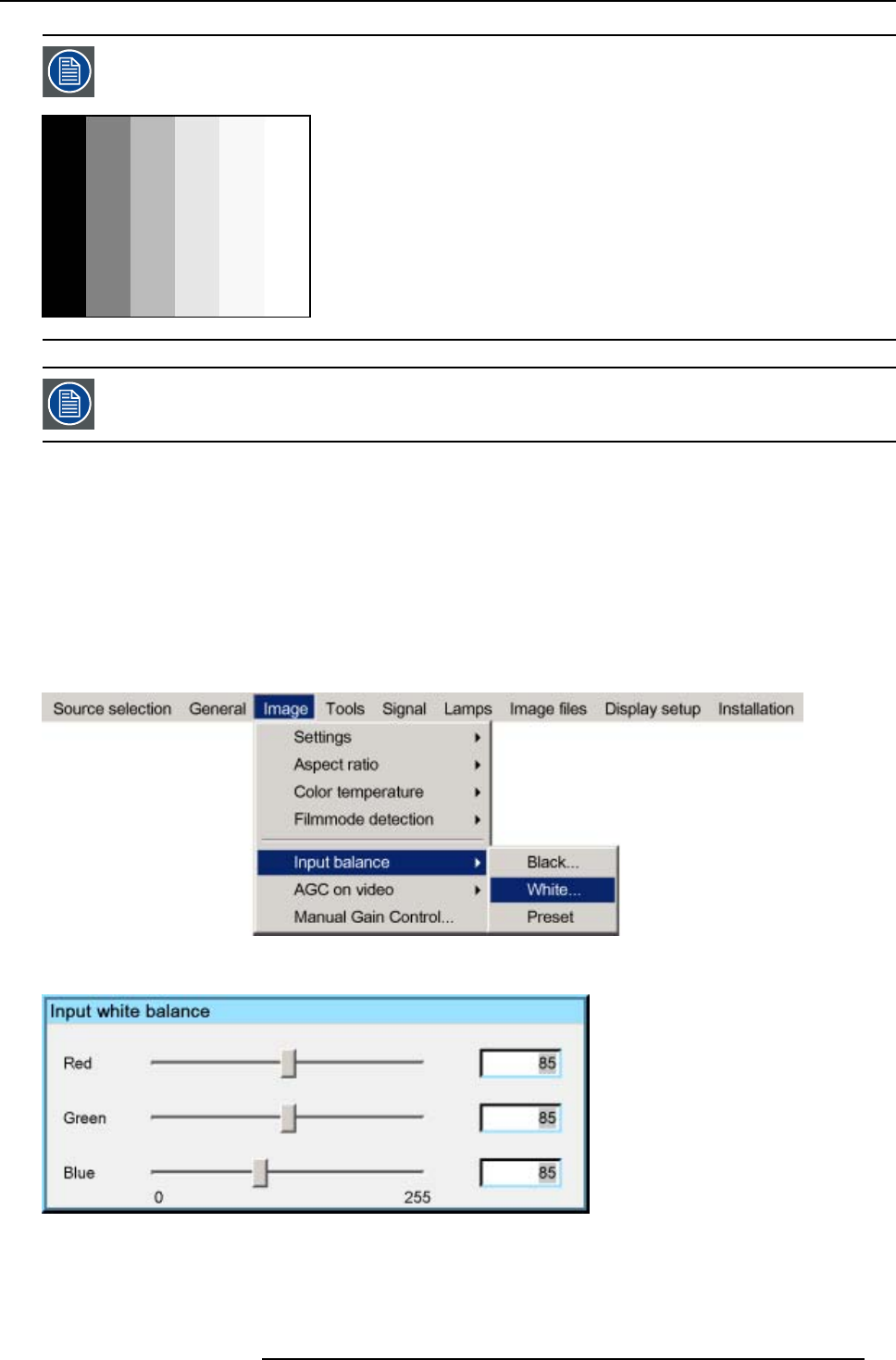
8. Advanced
An alternative to a full screen White/black pattern is the standard gray scale pattern, the white bar will be used
for white balance and the black bar for black balance.
Image 8-38
It is not necessary to adjust the black balance. Its value is automatically set to an optimal value (512).
Performing White input balance
1. Select a black pattern (or gray scale as alternative)
2. Press MENU to activate the Tool bar
3. Press →to select the Image item
4. Press ↓to Pull down the Image menu
5. Use ↑or ↓to select Input balance
6. Press →to pull down the menu
7. Use ↓or ↑to select White balance
Image 8-39
8. Adjust the red white level (gain) on a minimal value
Image 8-40
9. Adjust the blue white level (gain) on a minimal value
Note: this minimal value is not necessary , provided that the 2 other colors are not influencing too much the color to be adjusted,
in fact the aim is to minimize the effect of the two other colors since there is a risk of reaching too soon the transition
(bright spots) due to the contribution of these two other colors signals.
R5976821 BARCO ICON 15/03/2007 95

8. Advanced
10.Adjust the Green white level (gain) until bright spots appear on the white part of the image
11.Adjust the Blue white level (gain) until bright spots appear on the white part of the image
12.Adjust the Red white level (gain) until bright spots appear on the white part of the image
The projected image should now be noisy neutral grey.
if one uses a gray scale pattern, the bright spots should appear in the white bar.
Selecting Preset restores the factory input balance setting
The input balance settings are stored in the image file, each source has its own input balance.
8.4.6 Automatic gain control (AGC)
AGC is only for Video signals
Enabling/disabling the AGC
1. Press MENU to activate the Toolbar
2. Press →to select the Image item
3. Press ↓to Pull down the Image menu
4. Use ↑or ↓to select AGC on Video
5. Press →to pull down the menu
6. Use ↓or ↑to enable or disable the AGC
7. Press ENTER
A white bullet shows the active setting
Image 8-41
The AGC can be disturbing in case of Macrovision encoded signals, therefore the AGC can be disabled (OFF)
at any time
96 R5976821 BARCO ICON 15/03/2007
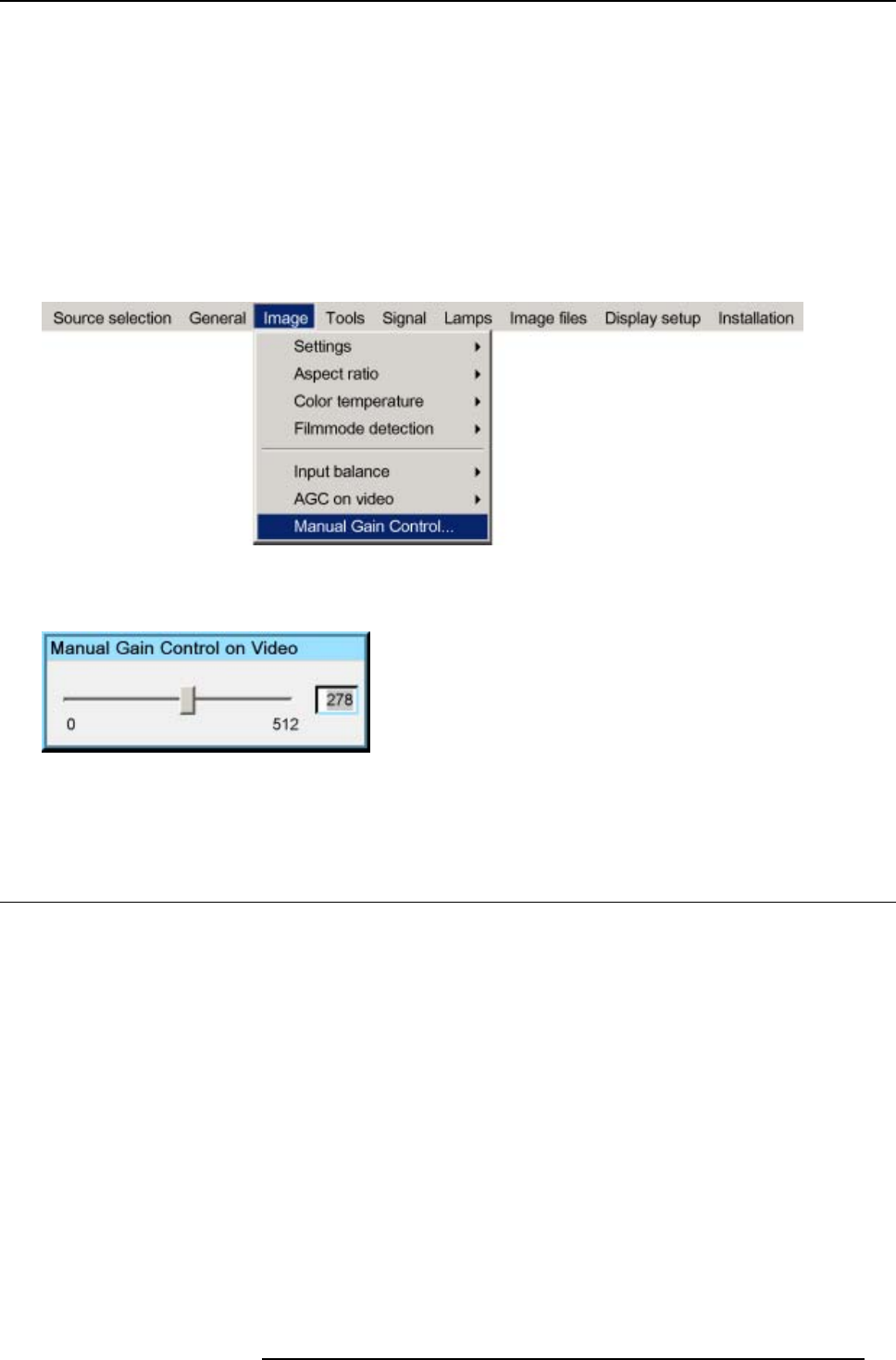
8. Advanced
8.4.7 Manual gain control
What can be done ?
Beside the AGC there is the possibility to manually set the gain of the incoming video signal. When the AGC is enabled (ON), the
manual setting does not affect the gain, AGC must therefore be disabled. The manual gain control must be done on an external
pattern with white areas (grey scale bar pattern)
How to set the Manual Gain Control ?
1. Press MENU to activate the Toolbar
2. Press →to select the Image item
3. Press ↓to Pull down the Image menu
4. Use ↑or ↓to select Manual Gain Control
Image 8-42
5. Press ENTER
A scroll bar is displayed
Image 8-43
6. Use ←or →, the numeric keys on the remote, or the keypad to change the gain so as to obtain homogeneous white parts in the
image.
8.5 Lamp management
Overview
• Runtimes
• Lamp mode
• History
• Reset lamp Runtime
• Clear lamp error
• Lamp runtime warning
Dual lamp system
The projector uses a dual lamp system and disposes therefore of some interesting features which facilitates lamp management and
increases flexibility towards maintenance.
8.5.1 Runtimes
How to display the runtimes ?
1. Press MENU to activate the Toolbar
2. Press →to select the Lamp item
R5976821 BARCO ICON 15/03/2007 97
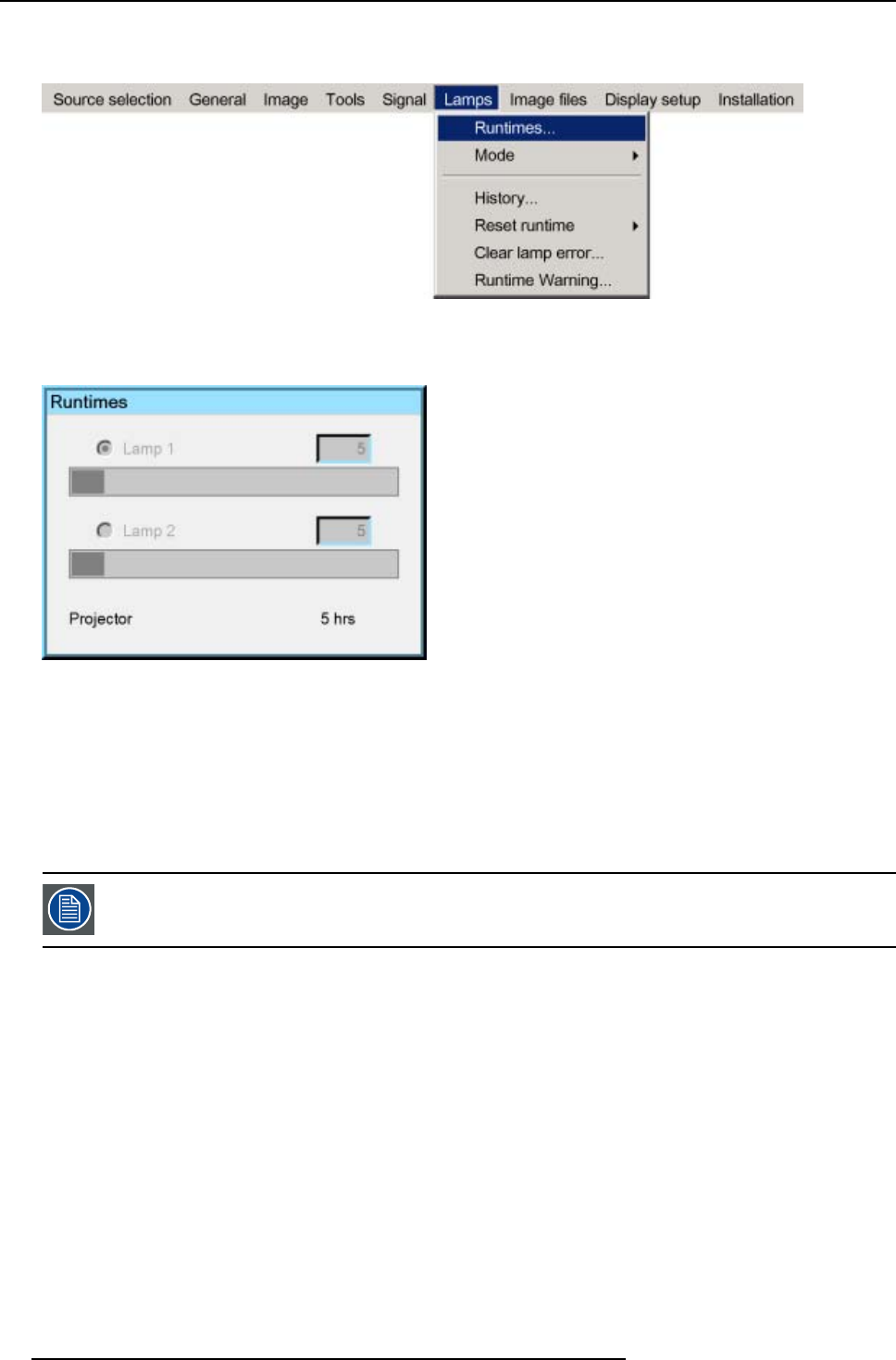
8. Advanced
3. Press ↓to Pull down the Lamp menu
4. Use ↑or ↓to select Runtimes
Image 8-44
5. Press ENTER
A textbox is displayed
Image 8-45
8.5.2 Lamp mode
Single mode
The projector will always switch to the lamp with the shortest runtime when the difference between the runtimes of lamp 1 and lamp
2 reaches 100 hours, switching from one lamp to another happens only at switching on of the projector and not during operation.
When the lamp fails or reaches its maximum runtime the projector switches automatically to the other lamp without interrupting the
projection
In case of a lamp failure a lamp error is logged and showed on the screen.
98 R5976821 BARCO ICON 15/03/2007
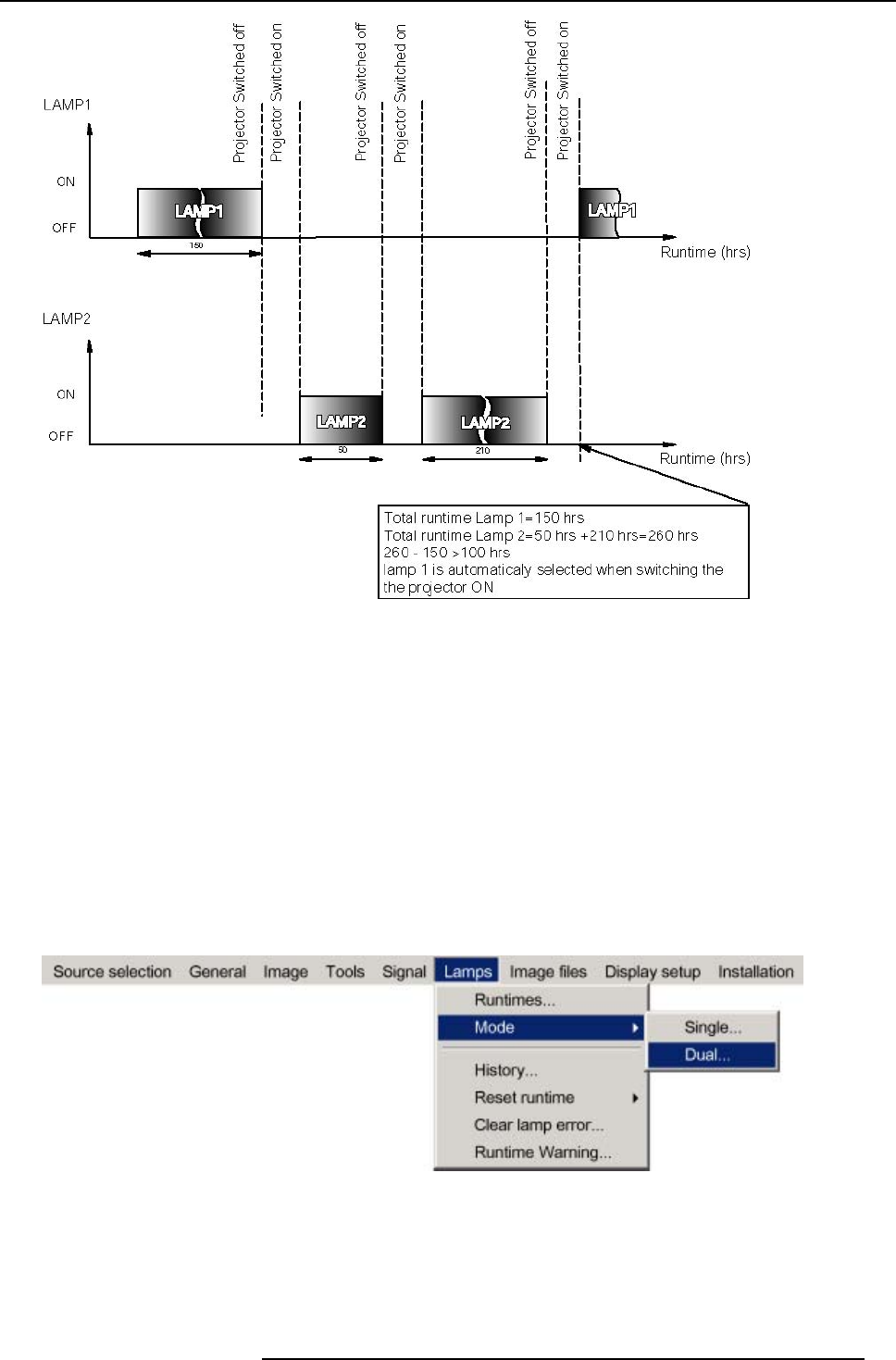
8. Advanced
Image 8-46
Single mode operation: switching principle
Dual mode
Both lamps are working at the same time.
When one lamp fails, the projector continues the projection using the remaining lamp. Again the lamp error is logged and shown on
the screen.
How to select the lamp mode ?
1. Press MENU to activate the Tool bar
2. Press →to select the Lamp item
3. Press ↓to Pull down the Lamp menu
4. Use ↑or ↓to select Mode
5. Press →to pull down the menu
6. Use ↑or ↓to select the desired mode
Image 8-47
7. Press ENTER
A bullet shows the active mode.
R5976821 BARCO ICON 15/03/2007 99
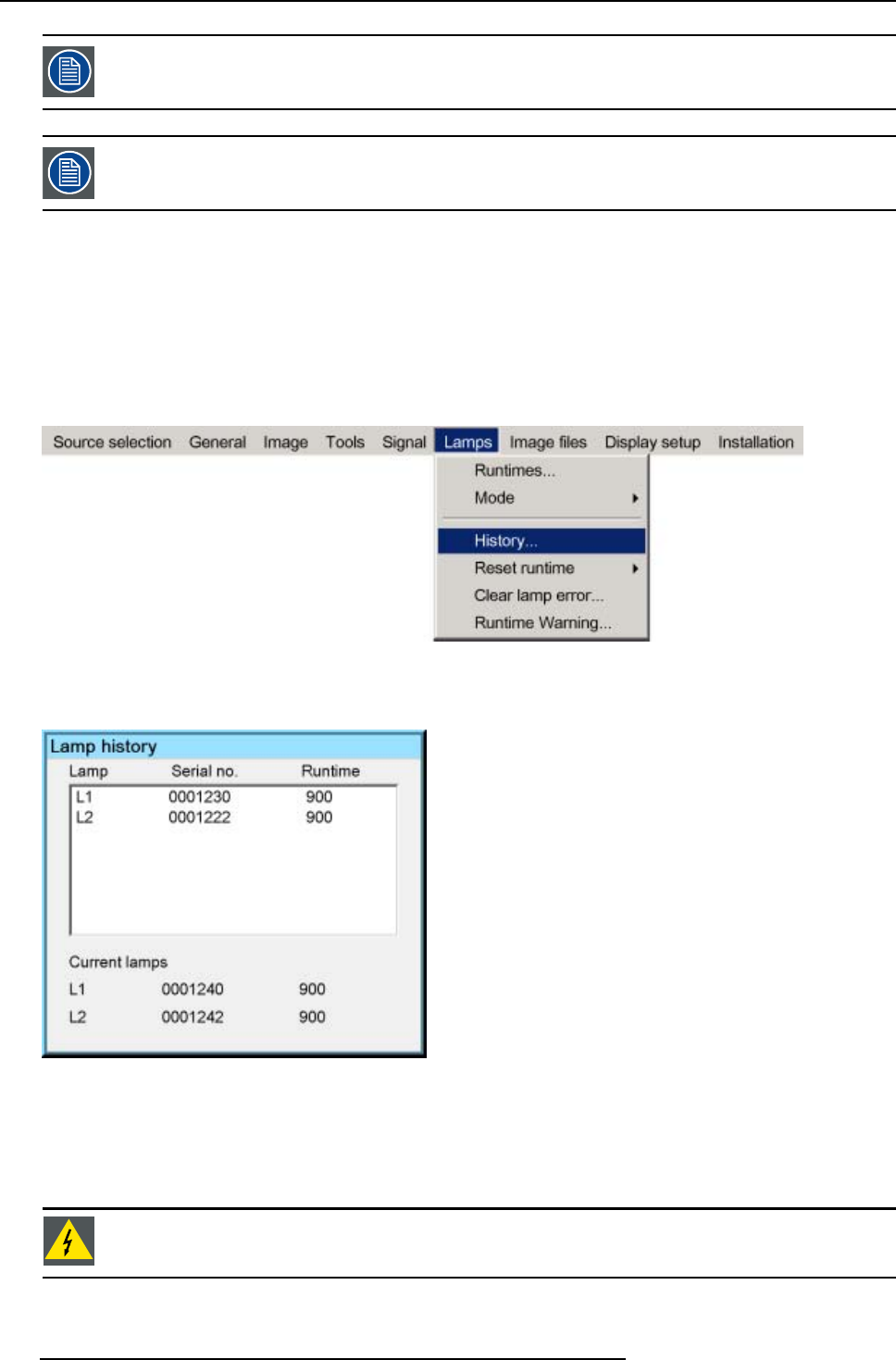
8. Advanced
When switching from the dual mode to the single mode the lamp with the longest runtime is switched off.
If the runtimes are equal (if the projector has always been operated in dual mode) then lamp 1 is switched out.
When switching to single mode, returning to the dual mode will not be possible in the first 60 seconds, Dual in
the menu is greyed out and the LED is flickering, showing that hot restrike (restart) of the lamp is impossible
during that time laps (60 sec).
8.5.3 History
How to view the history ?
1. Press MENU to activate the Tool bar
2. Press →to select the Lamp item
3. Press ↓to Pull down the Lamp menu
4. Use ↑or ↓to select History
Image 8-48
5. Press ENTER
A textbox is displayed
Image 8-49
8.5.4 Reset lamp Runtime
When to reset the lamp runtime ?
Reset the lamp runtime whenever you replace a lamp
WARNING:Lamp runtime reset as well as the lamp replacement can only be done by a Barco authorized
technician.
100 R5976821 BARCO ICON 15/03/2007
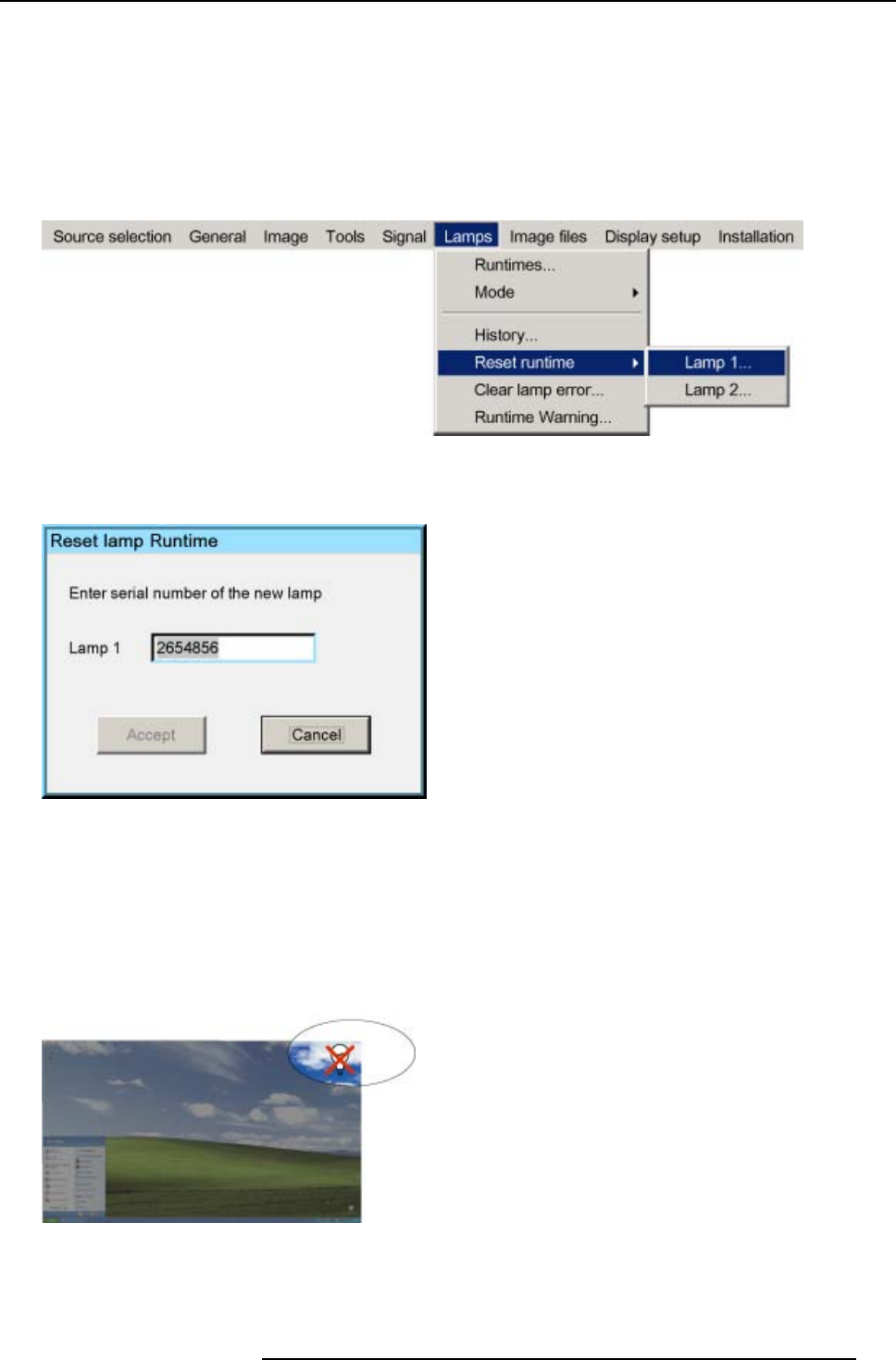
8. Advanced
How to reset the lamp runtime ?
1. Press MENU to activate the Toolbar
2. Press →to select the Lamp item
3. Press ↓to Pull down the Lamp menu
4. Use ↑or ↓to select Reset runtime
5. Press →to pull down the menu
6. Use ↑or ↓toselectthelamptobereset
Image 8-50
7. Press ENTER
A dialogbox is displayed
Image 8-51
8. Use ←or →, the numeric keys on the remote, or the keypad to enter the serial number of the new lamp (serial number 0000000
will not be accepted).
8.5.5 Clear lamp error
Lamp error
When a failure of one of the lamps has occurred, a lamp logo is displayed in the left corner of the screen. This logo will thus always
inform the user on a previous lamp error.
Image 8-52
Once the error has been solved or/and the lamp has been replaced one can remove (clear) the lamp error.
If the error has been cleared without solving the lamp problem the logo will be shown at next lamp startup (projector startup for
example)
R5976821 BARCO ICON 15/03/2007 101
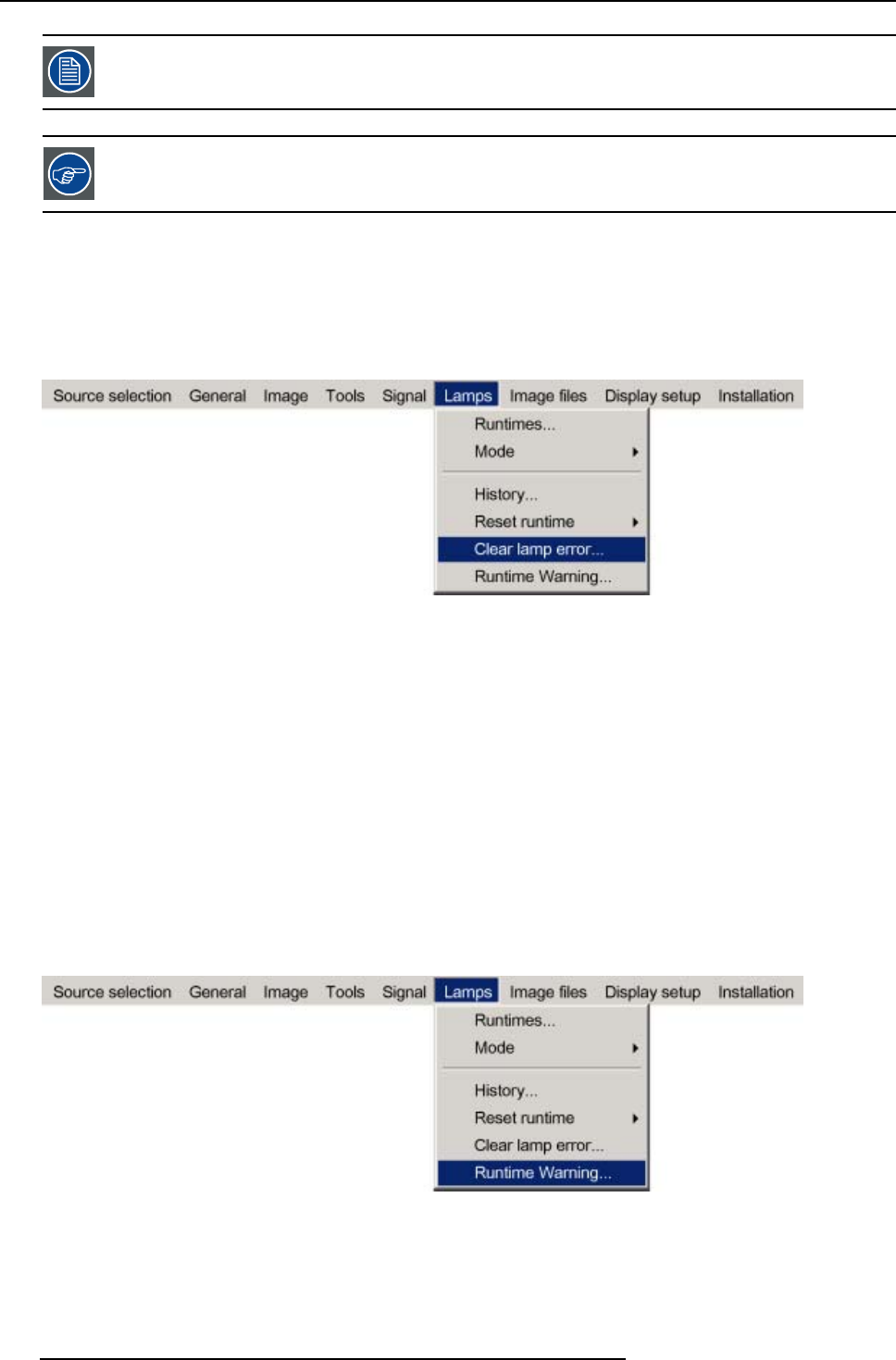
8. Advanced
A lamp failing to startup will be noticed by a low light output of the projector since the projector goes in single
lamp mode.
In case of a lamp error contact the local Barco authorized technician
How to clear the lamp error ?
1. Press MENU to activate the Tool bar
2. Press →to select the Lamp item
3. Press ↓to Pull down the Lamp menu
4. Use ↑or ↓to select Clear lamp error
Image 8-53
5. Press ENTER
The lamp error logo is removed from the screen
8.5.6 Lamp runtime warning
What can be done ?
When the lamp has reached a predetermined runtime , a warning message will be displayed on the screen. The lamp runtime
warning can be set in a range from 30 to 200 hours. The runtime warning is displayed by default at 30 hours before end of lamp
lifetime.
How to set the lamp runtime warning?
1. Press MENU to activate the Tool bar
2. Press →to select the Lamp item
3. Press ↓to Pull down the Lamp menu
4. Use ↑or ↓to select Runtime warning
Image 8-54
5. Press ENTER
102 R5976821 BARCO ICON 15/03/2007

8. Advanced
A dialog box is displayed
Image 8-55
6. Use ←or →, the numeric keys on the remote, or the keypad to change the runtime warning setting.
WARNING:Lamp runtime reset as well as the lamp replacement can only be done by a Barco authorized
technician.
8.6 Image files
Overview
• Introduction to Image files
• Load file
• Forced file load
• Auto Image
• Edit file
• Save as (create a custom file)
• Rename file
• Copy
• Delete
8.6.1 Introduction to Image files
Image files
An image file contains the main characteristics of a source (number of active lines,...). The projector’s memory contains a list of files
corresponding to the most common sources : standard files.
When a new source corresponds to one of these files, a custom file is created. The file is not automatically saved as a custom file.
The Save as... function allows to create and save a custom file.
The active file can always be edited in order to fit exactly the source specifications.
AutoImage creates automatically the best suited image file (custom file) for a new source. AutoImage is used
when :
- a new source is detected: AutoImage creates a new custom file which can always be edited if necessary.
- the AutoImage is launched via the button on the RCU, the projector’s OSD or from the desktop’s OSD
File notation
The notation of the image file happens as follows :
/Standard/SXGA+@60.xml
Type of file : standard or custom
Resolution
Vertical freq
file extension = xml
Image 8-56
R5976821 BARCO ICON 15/03/2007 103
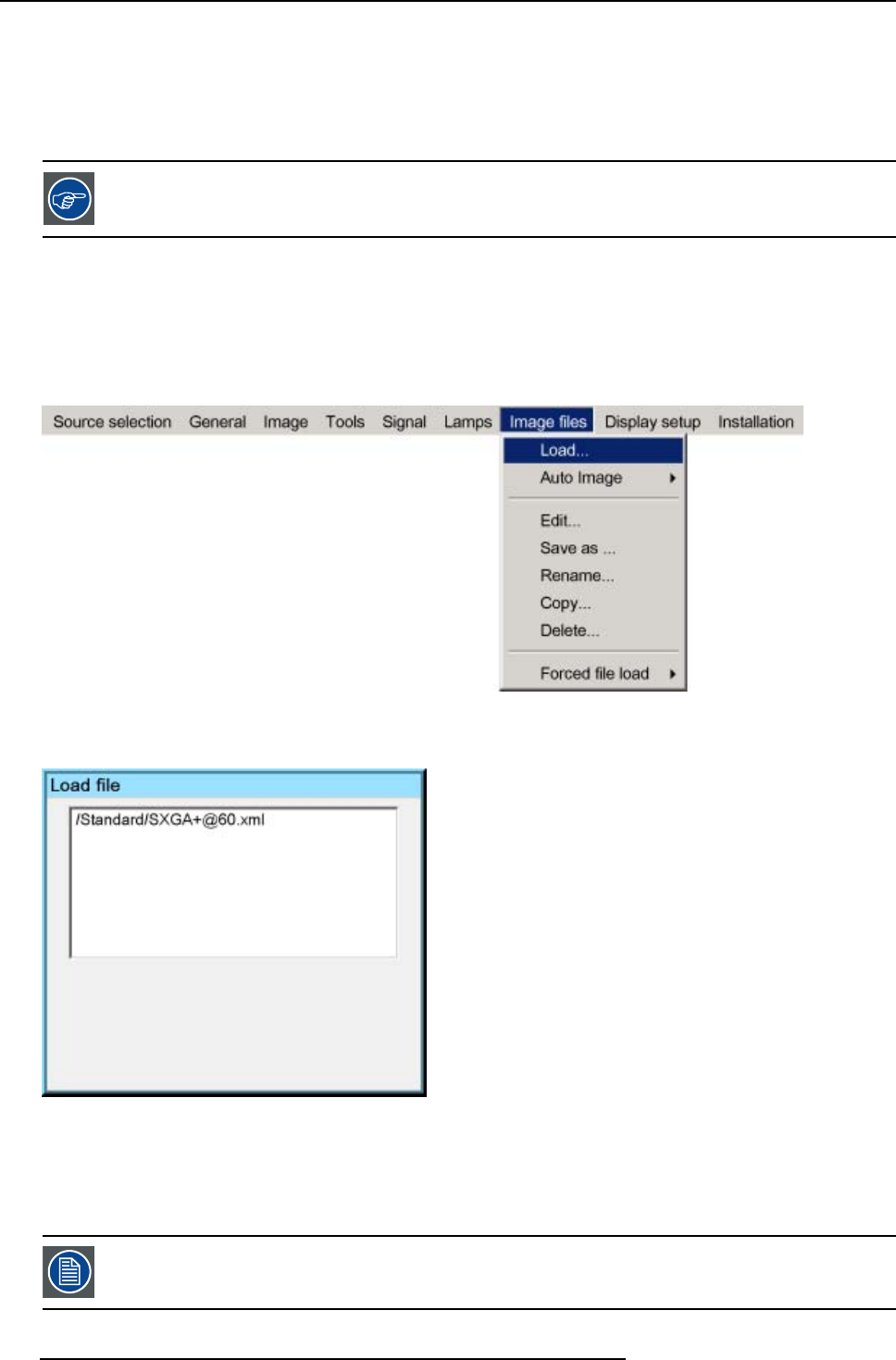
8. Advanced
8.6.2 Load file
When to load a file ?
In some cases the user wants a particular file to be used for the display of a particular source. In this case the user should load the
desired file from the image files menu. The load file option will allow the user to choose between several files corresponding more
or less to the active source specifications.
In normal operation the file selection (load) will be done automatically by AutoImage.
Howtoloadafile?
1. Press MENU to activate the Tool bar
2. Press →to select the Image files item
3. Press ↓to Pull down the Image files menu
4. Use ↑or ↓to select Load
Image 8-57
5. Press ENTER
A dialog box is displayed
Image 8-58
6. Use ↑or ↓to select the desired file
Tip: For more information (specifications) on the image files see the Appendix section
7. Press ENTER
The file is loaded and the image is adapted.
The list of files which may be loaded will be of the data type if the active window is a data window, or they will
be of the video type if the active window is a video window.
104 R5976821 BARCO ICON 15/03/2007
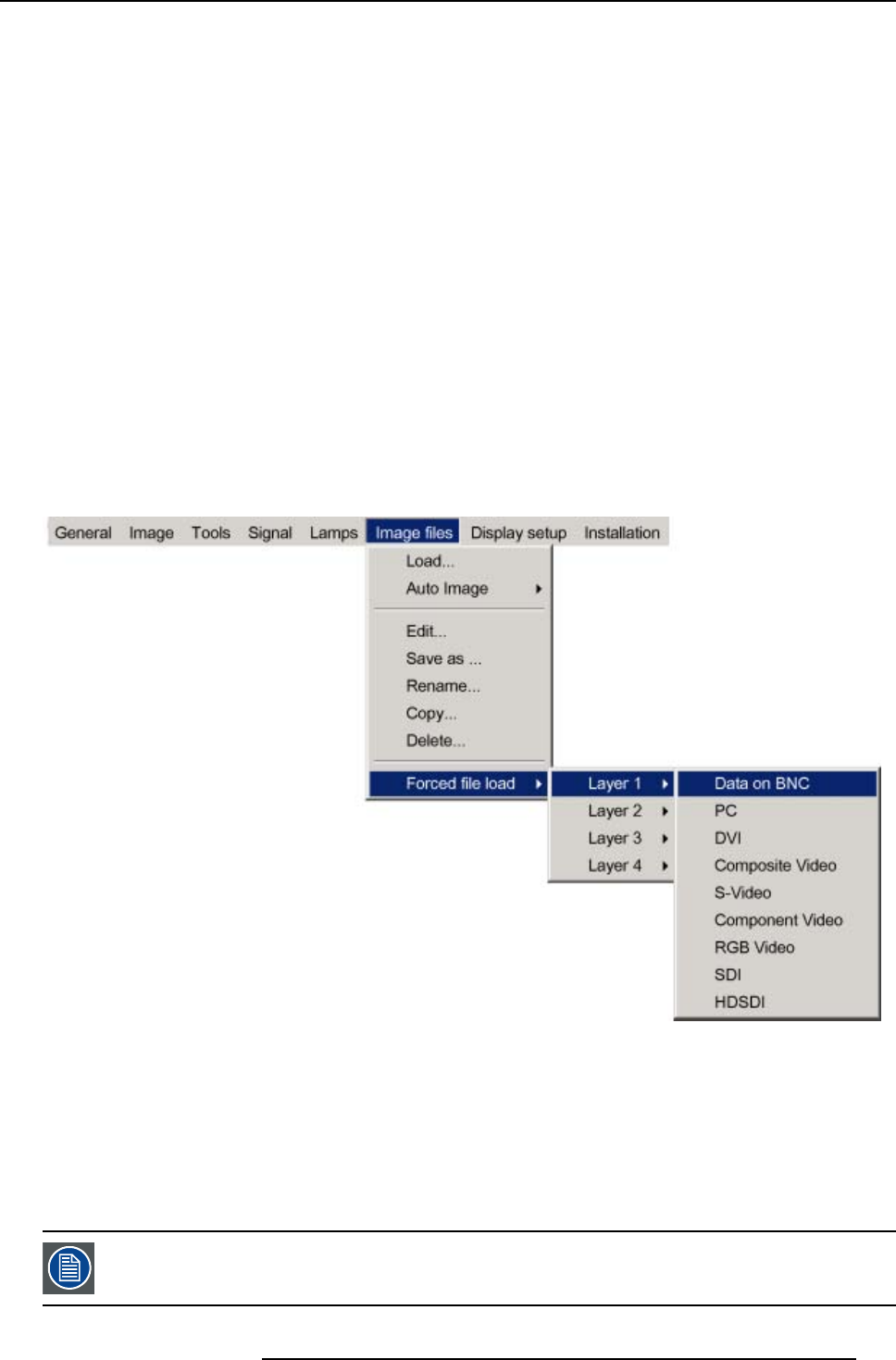
8. Advanced
What to do if the image is not perfect ?
If the displayed image is not correct after AutoImage or after selecting the best fitting file, go to the Edit menu, select the active file
and change the settings.
8.6.3 Forced file load
Forced file load
In some cases the user wants only one particular file to be loaded for a particular input (source) i.e. to prevent the (automatic) load
of an inadequate file.
One can link a file to every possible input of each layer.
If a file is already selected (forced) to that particular input it will be indicated in the menu.
Howtoforceafiletobeloaded?
1. Press MENU to activate the Tool bar
2. Press →to select the Image files item
3. Press ↓to Pull down the Image files menu
4. Use ↑or ↓to select Forced file load
5. Press →to open the menu
6. Use ↑or ↓to select the desired layer (for example Layer 1)
7. Use ↑or ↓to select the desired input (for example Data on BNC)
Image 8-59
Note: Inputs that are not hardware compatible with this layer are greyed out.
Note: if a file is already forced for that input it will be shown on the right.
8. Press ENTER
The Load dialog box is displayed
9. Use ↑or ↓to select the desired file (for example /Standard/SXGA+@60.xml)
10.Press ENTER
The file is selected and will be loaded in the future.
To delete the forced file, go to the desired input and press ENTER.
R5976821 BARCO ICON 15/03/2007 105
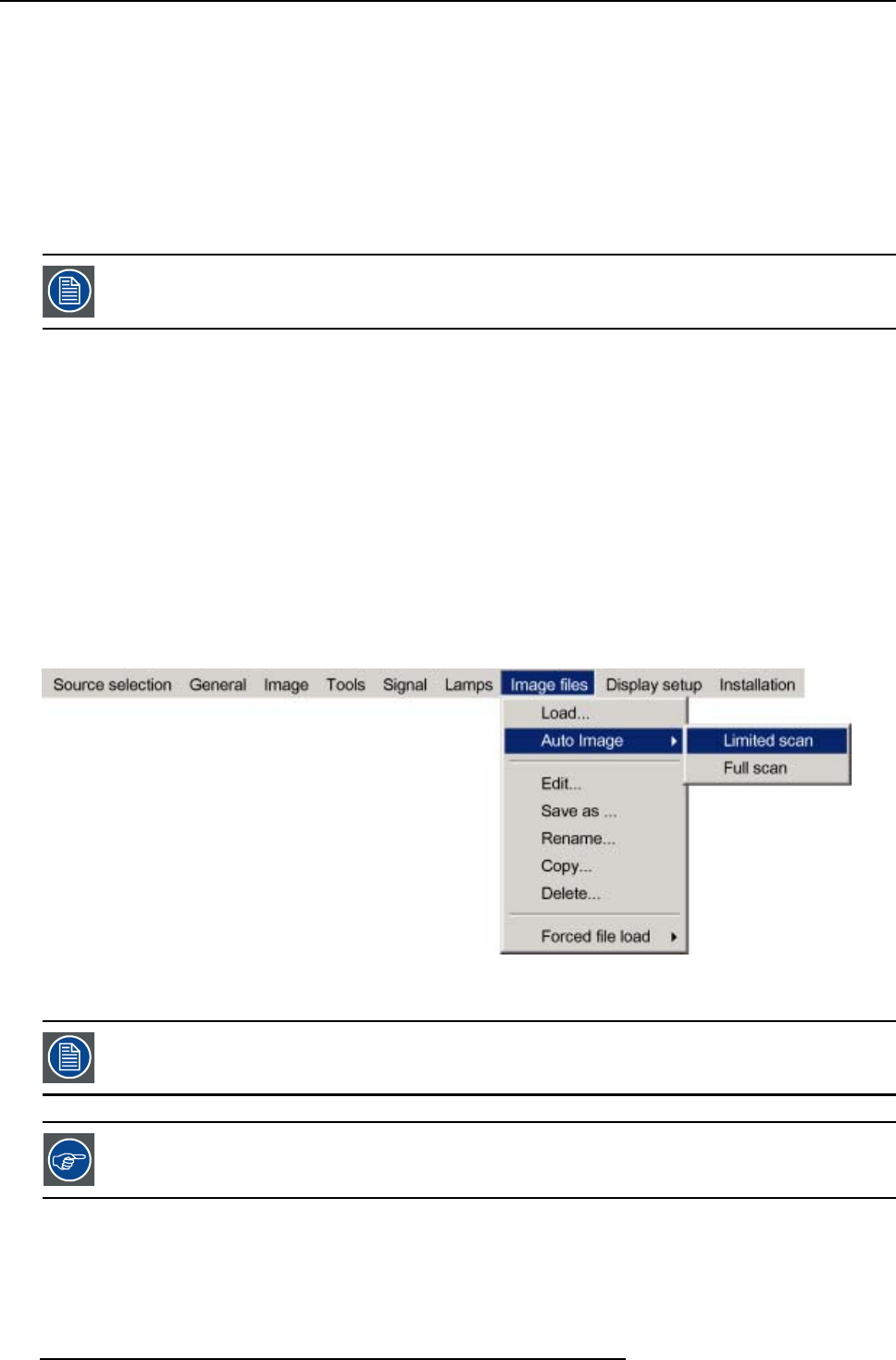
8. Advanced
8.6.4 Auto Image
What can be done ?
AutoImage creates the best suited image file for the connected source.
It calculates/measures several source parameters :
• Total pixels per line
• Start pixel
• Phase
• Contrast/Brightness levels
Auto Image works only for data images.
The measure of the total number of pixels per line can be done through 2 methods
• Limited scan: a windowing system is used to allow fast tracking.
The operation takes about 20 seconds (depending on file)
• Full scan: tracking is done over the full range.
The operation takes about 1.5 minutes (depending on file)
How to launch Auto Image?
1. Press MENU to activate the Tool bar
2. Press →to select the Image files item
3. Press ↓to Pull down the Image files menu
4. Use ↑or ↓to select Auto Image
5. Press →to open the menu
6. Use ↑or ↓to select the desired file scan method
Image 8-60
7. Press ENTER
AutoImage acts on the active window. The image in the window may move and change in aspect during the
AutoImage process.
Auto Image can also be launched via the RCU with the dedicated AutoImage key.
106 R5976821 BARCO ICON 15/03/2007
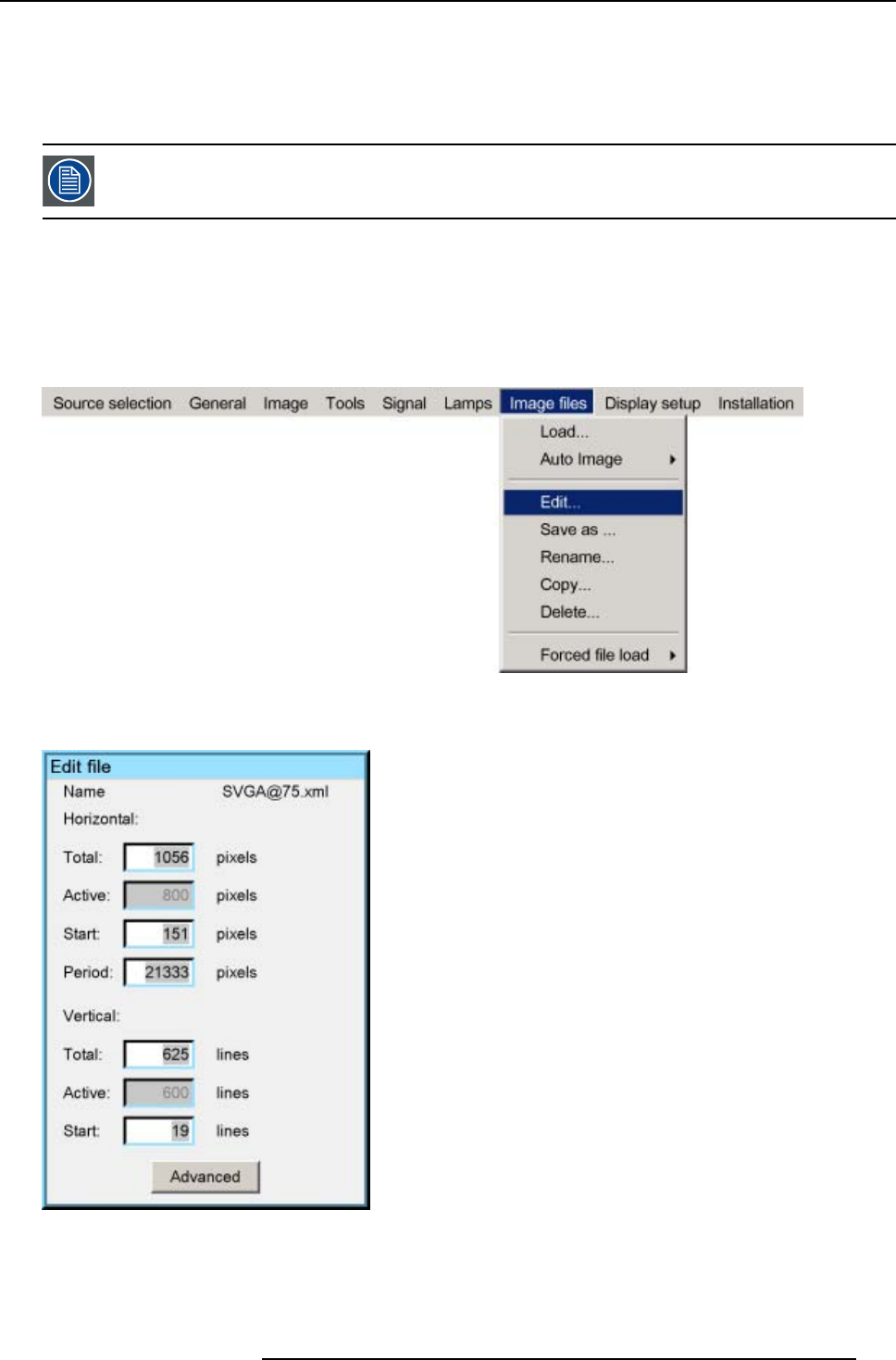
8. Advanced
8.6.5 Edit file
What can be done with the Edit file menu ?
The Edit file menu makes it possible to change the settings of the file according to the real settings of the connected source. Consult
the source specifications before entering the data.
only the active file can be edited
How to edit a file ?
1. Press MENU to activate the Tool bar
2. Press →to select the Image files item
3. Press ↓to Pull down the Image files menu
4. Use ↑or ↓to select Edit
Image 8-61
5. Press ENTER
A dialog box containing the active file is displayed
Image 8-62
6. Use ←or →, the numeric keys on the remote, or the keypad to edit and change the values, confirm with ENTER
Note: greyed out fields can not be updated (total pixels)
R5976821 BARCO ICON 15/03/2007 107
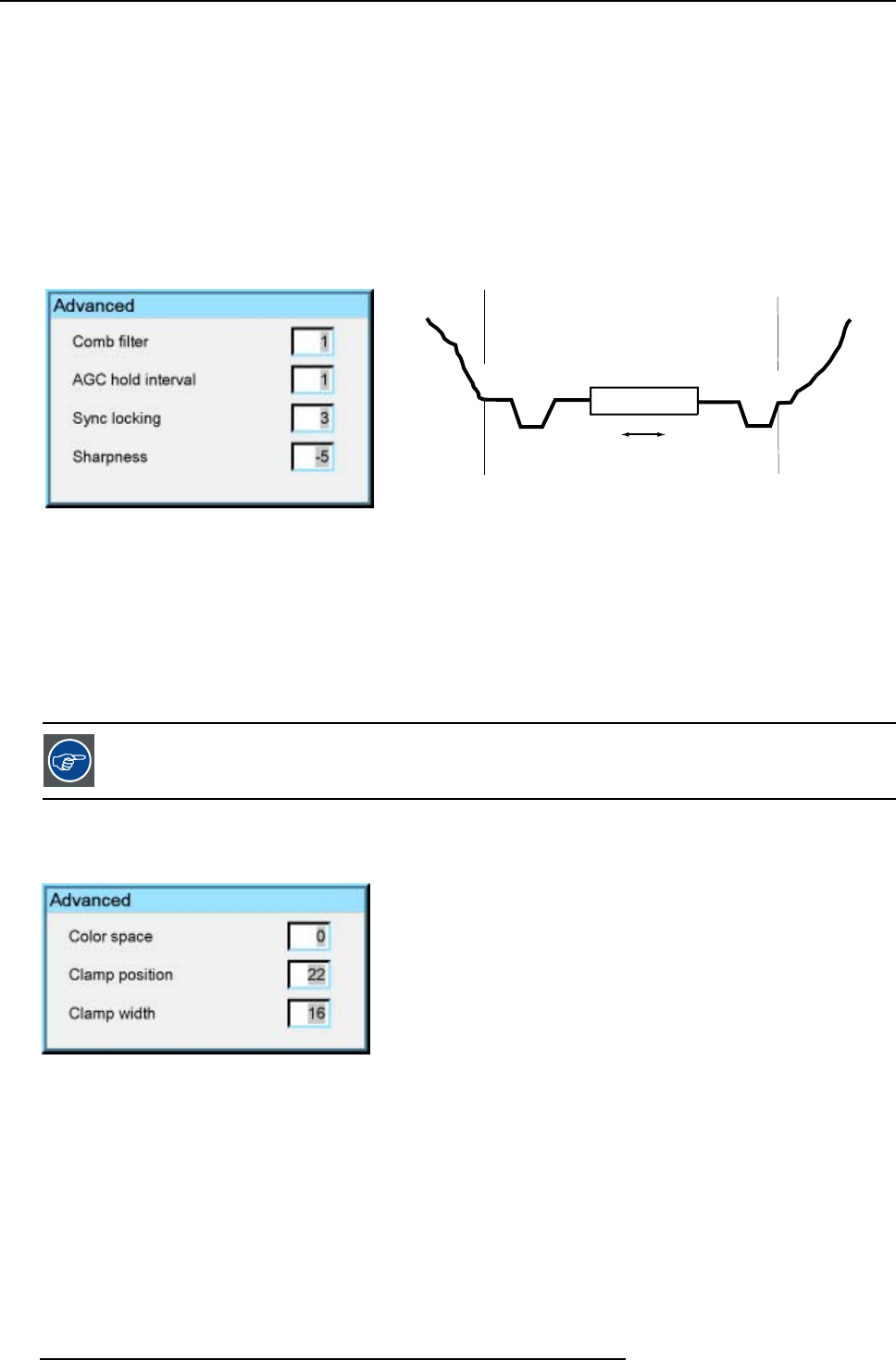
8. Advanced
Which items can be adjusted ?
The following items can be adjusted :
• Active horizontal pixels
• Horizontal start in pixels
• Horizontal period in ns
• Active vertical lines
• Vertical start in lines
Advanced video settings
The advanced button enables the advanced settings for a video source.
Image 8-63
video signal video signal
frame blanking
HI
egalisation
Image 8-64
HI AGC Hold interval
The Comb filter is by default enabled.
The AGC hold interval is the time interval in which the AGC is inhibited (AGC hold = no update in video amplitude measurement),
the advanced parameter allows to choose a short or long hold interval.
A long AGC hold interval eliminates Macrovision®disturbances since the AGC is hold during a long interval, thus reducing the
probability to encounter a Macrovision®pulse.
The sync locking setting is recommended for poor video signals (ex: poor TV signals).
Sharpness adjustment can be chosen to be coarse or fine.
It is recommended to use the default values.
Advanced Data settings
The advanced button enables the advanced settings for a data source.
Image 8-65
• color space : allows to select between 5 different color spaces
-RGB
- ITU_BT_709
- SMPTE_240M
- ITU_BT_601
- EBU
• Clamp position : allows to set the clamp pulse position in the clamping circuit
• Clamp width : allows to set the width of clamp pulse in the clamping circuit
108 R5976821 BARCO ICON 15/03/2007
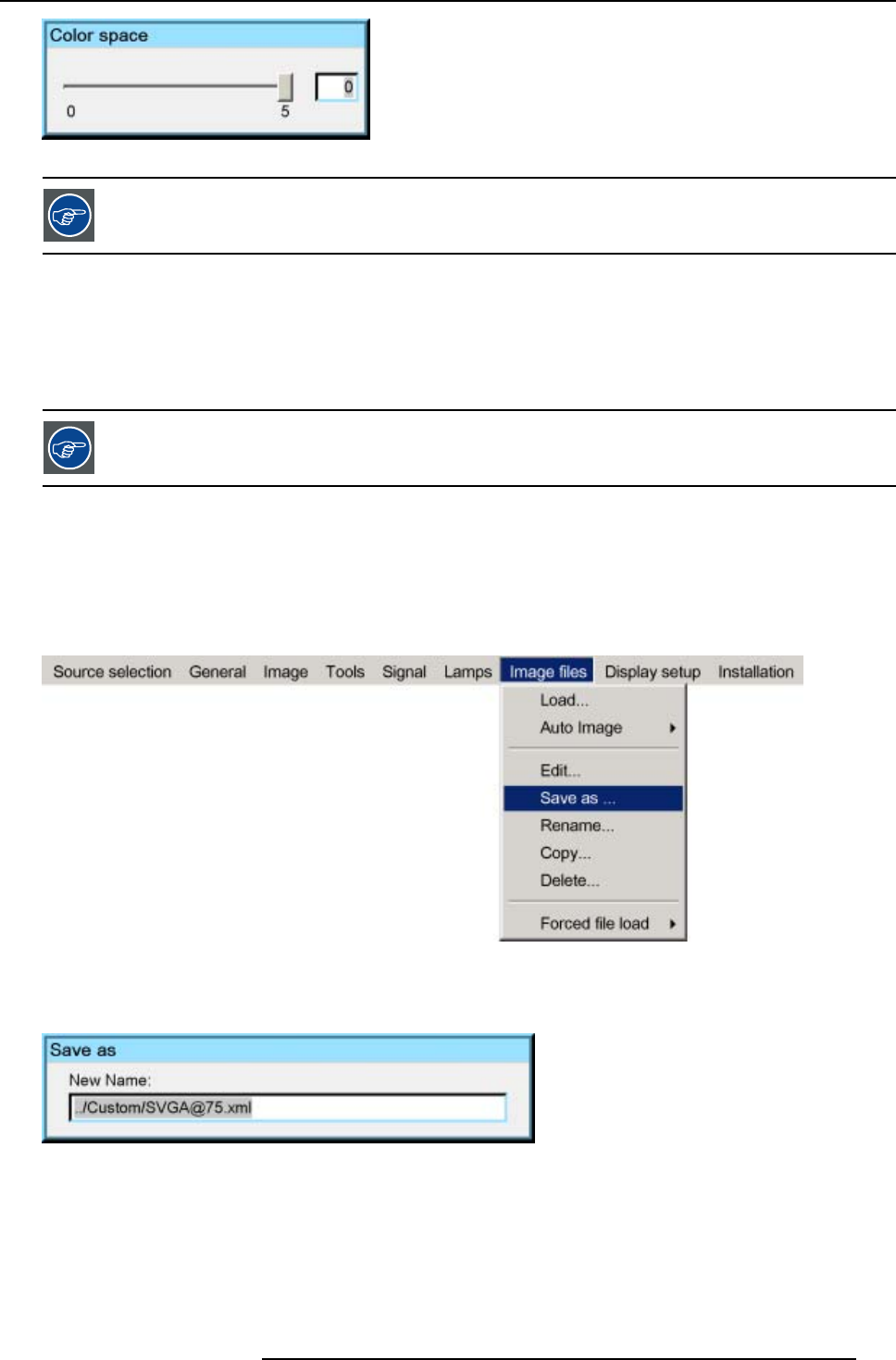
8. Advanced
Image 8-66
It is recommended to use the default values.
8.6.6 Save as (create a custom file)
Creating a custom file
When the loaded file is a standard file there is a possibility of saving it as a custom file (= creating a custom file) , this is done with
the save as function. The saved file will always be a custom file (saved in the custom directory)
For sources that are often used, a custom file should be created. This custom file will then be loaded auto-
matically and will prevent the AutoImage from being launched.
How to save a file ?
1. Press MENU to activate the Tool bar
2. Press →to select the Image files item
3. Press ↓to Pull down the Image files menu
4. Use ↑or ↓to select Save as...
Image 8-67
5. Press ENTER
A dialog box is displayed
Use ←or →,↓or ↑the numeric keys on the remote, or the keypad to edit and change the file name, confirm with ENTER.
Image 8-68
8.6.7 Rename file
How to rename a file ?
1. Press MENU to activate the Tool bar
2. Press →to select the Image files item
R5976821 BARCO ICON 15/03/2007 109
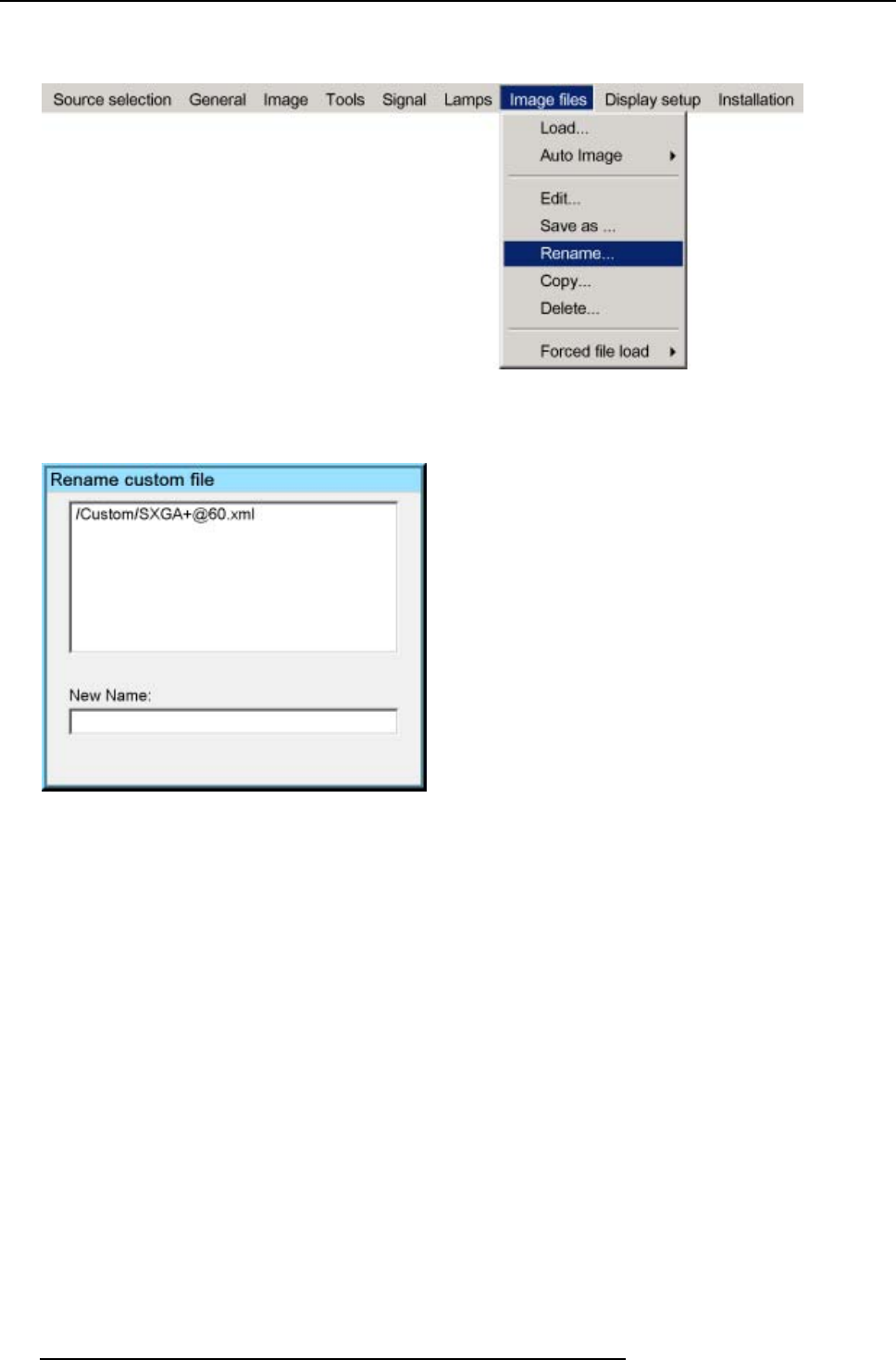
8. Advanced
3. Press ↓to Pull down the Image files menu
4. Use ↑or ↓to select Rename
Image 8-69
5. Press ENTER
A dialog box is displayed
Use ←or →,↓or ↑the numeric keys on the remote, or the keypad to edit and change the values, confirm with ENTER.
Image 8-70
8.6.8 Copy
Copy a file
The copy function allows to copy a file (standard or custom) to a custom file (to the custom directory).
How to copy a file ?
1. Press MENU to activate the Tool bar
2. Press →to select the Image files item
3. Press ↓to Pull down the Image files menu
4. Use ↑or ↓to select copy
110 R5976821 BARCO ICON 15/03/2007
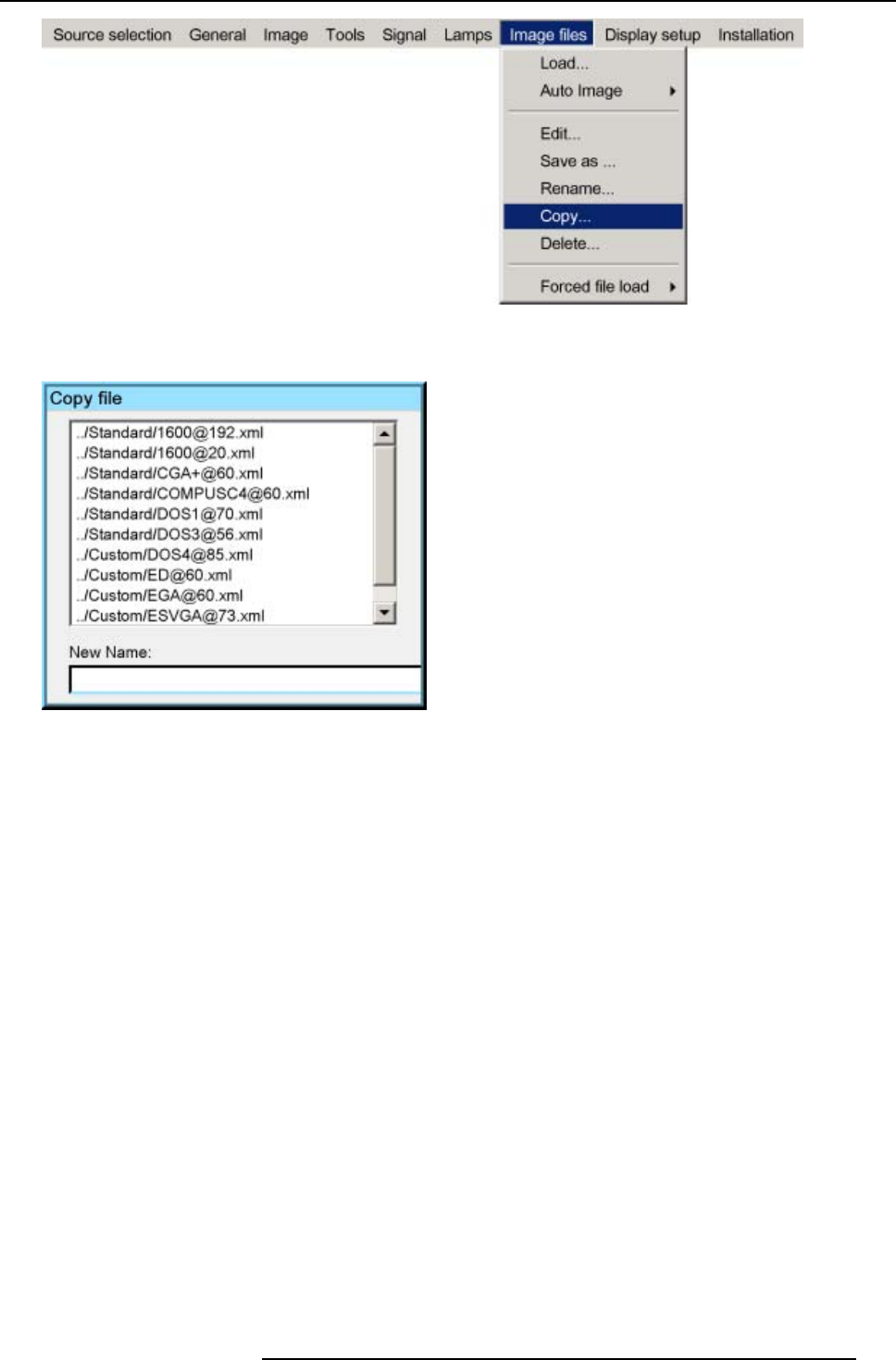
8. Advanced
Image 8-71
5. Press ENTER
A dialog box is displayed
Image 8-72
6. Use ↑or ↓to select the file to be copied
7. Press ENTER
The file name is copied in the edit field
8. Use the keys on the remote to change the name of the destination file
8.6.9 Delete
How to delete a file ?
1. Press MENU to activate the Tool bar
2. Press →to select the Image files item
3. Press ↓to Pull down the Image files menu
4. Use ↑or ↓to select delete
R5976821 BARCO ICON 15/03/2007 111
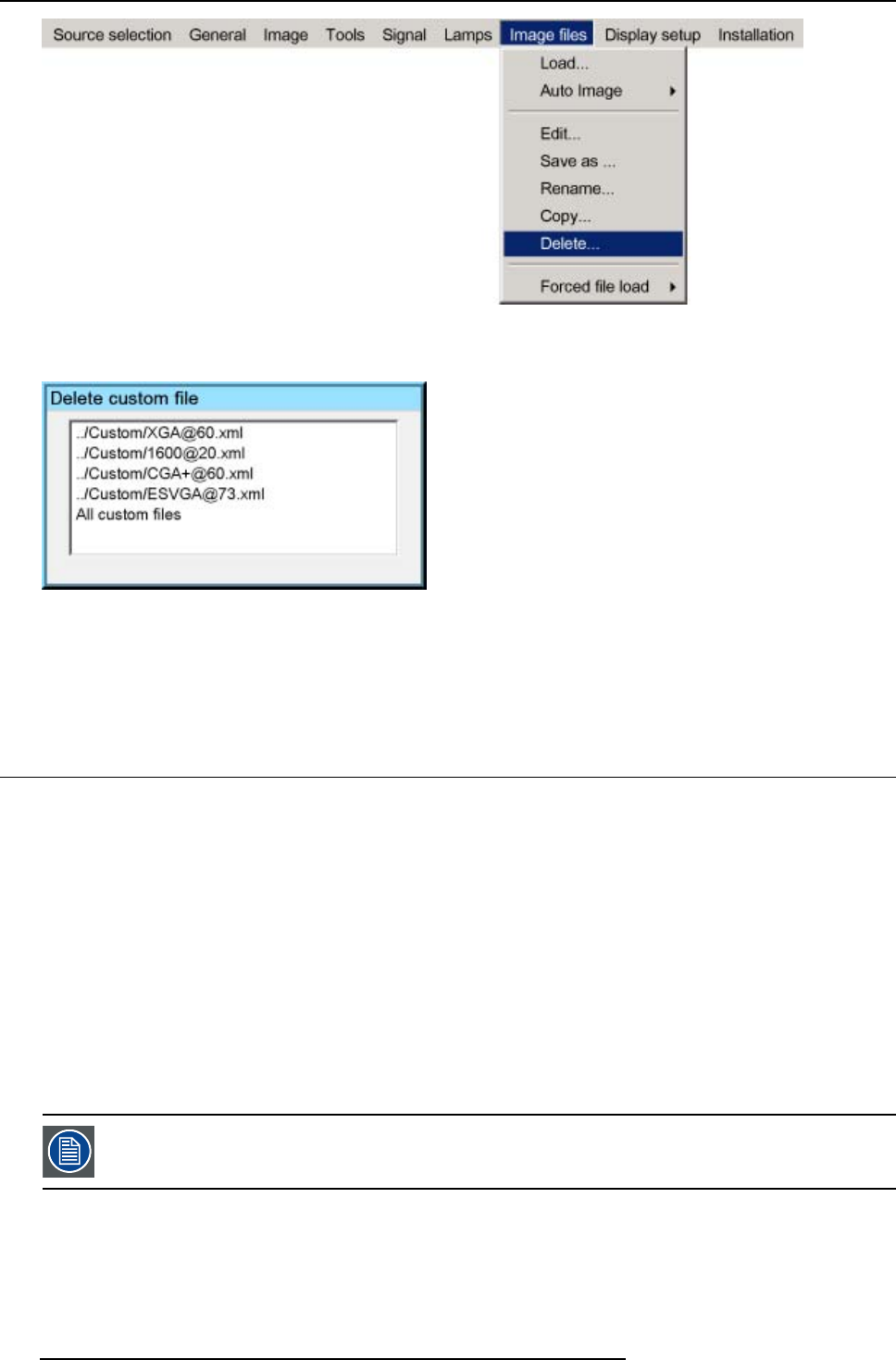
8. Advanced
Image 8-73
5. Press ENTER
A dialog box is displayed
Image 8-74
6. Use ↑or ↓to select the desired file
7. Press ENTER
The selected file is deleted and is removed from the list
8.7 Display setup
Overview
• Full screen synchronous representation
• Textbox
• Menu bar position
• Status bar position
• Sliderbox position
8.7.1 Full screen synchronous representation
What can be done ?
In the full screen mode, the projector will always try to lock on the input source. Some monitors (connected on the DVI output of the
projector) may fail to synchronize on this type of signal (number of total lines may vary in such a signal).
The Full-screen synchronous representation function in the Display setup menu allows to disable this mode.
Note that disabling the synchronous mode may introduce some image artefacts in the displayed DVI output
signal (on the monitor)
How to enable/disable the full-screen synchronous representation ?
1. Press MENU to activate the Tool bar
2. Press →to select the Display setup item
3. Press ↓to Pull down the Display setup menu
112 R5976821 BARCO ICON 15/03/2007
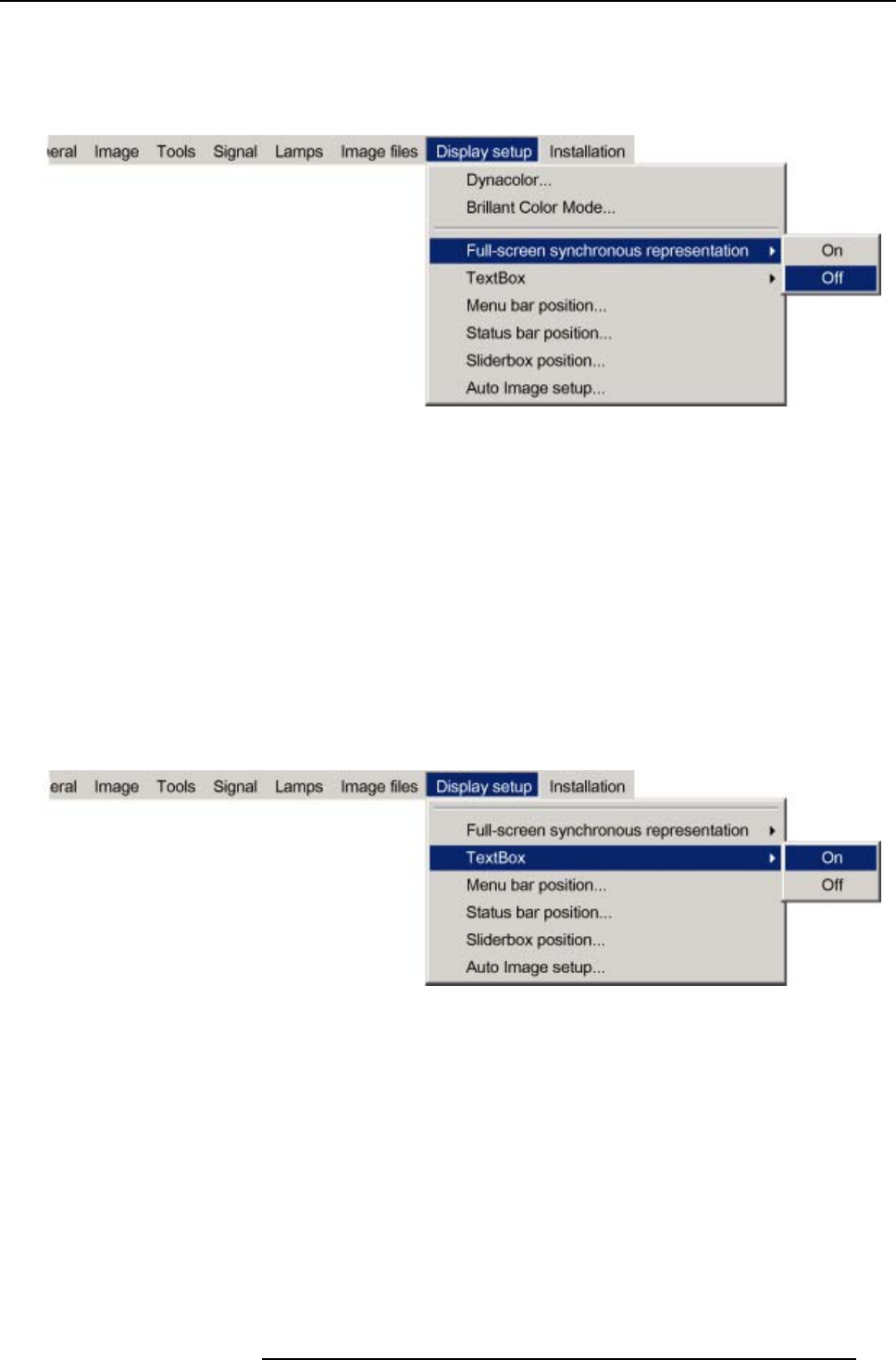
8. Advanced
4. Use ↑or ↓to select Full-screen synchronous representation
5. Press →to open the menu
6. Use ↑or ↓to select ON(enable)/OFF(disable)
7. Press ENTER
Image 8-75
8.7.2 Textbox
What can be done ?
The Textbox function allows to display or not the different textboxes used for instance for picture settings (contrast,...), it also affects
the source information windows (displayed in the right lower corner of the screen).
How to enable/disable the Textbox ?
1. Press MENU to activate the Tool bar
2. Press →to select the Display setup item
3. Press ↓to Pull down the Display setup menu
4. Use ↑or ↓to select Textbox
5. Press →to pull down the menu
6. Use ↓or ↑to enable/disable the textbox
Image 8-76
7. Press ENTER
8.7.3 Menu bar position
What can be done ?
The menu tool bar can be centered vertically , the range being from top of the screen to the middle of the screen. This can be useful
in applications where the top image content is not displayed.
How to center the menu ?
1. Press MENU to activate the Tool bar
2. Press →to select the Display setup item
3. Press ↓to Pull down the Display setup menu
4. Use ↑or ↓to select Menu bar position menu
R5976821 BARCO ICON 15/03/2007 113
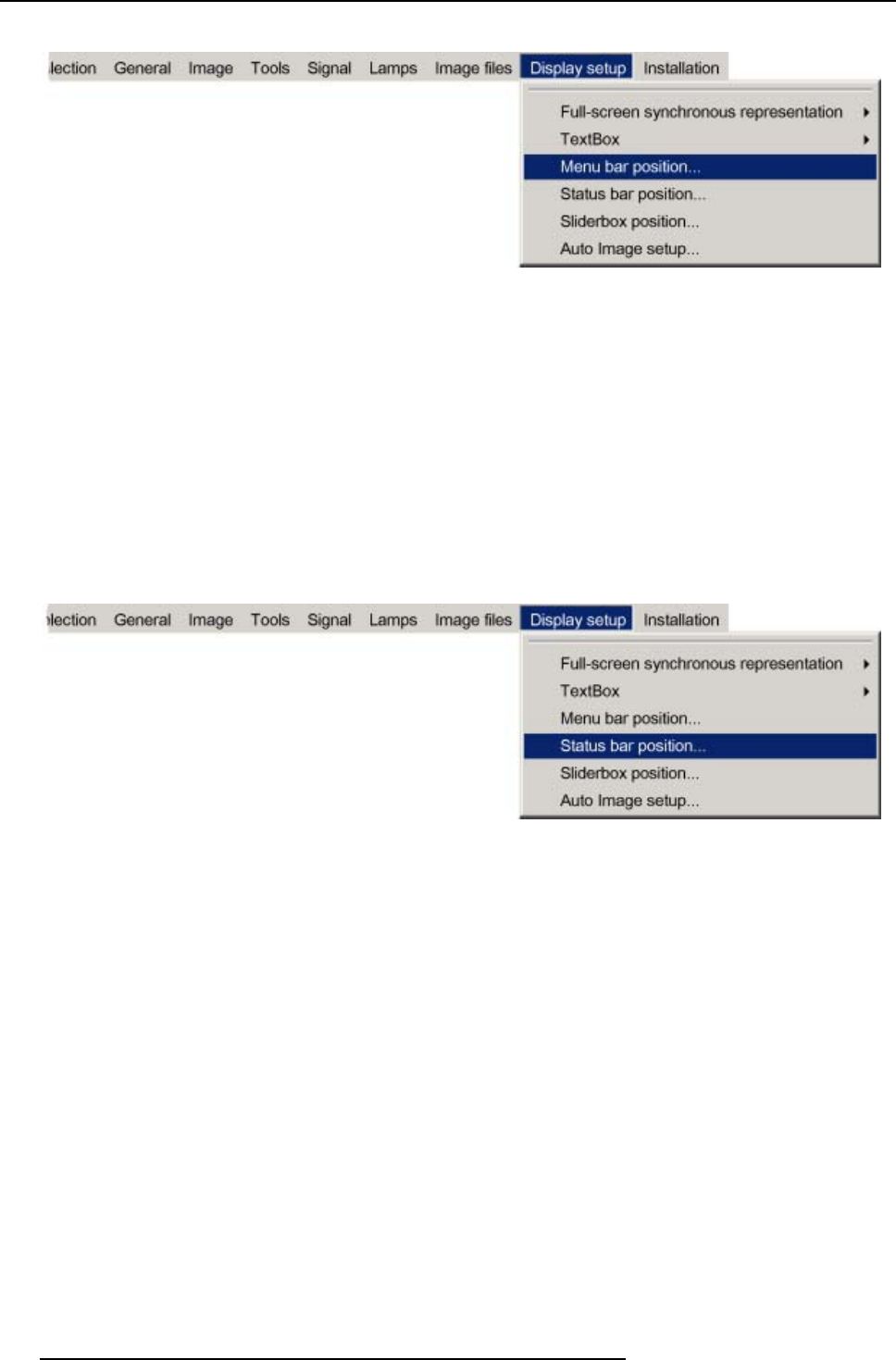
8. Advanced
5. Press ENTER
Image 8-77
6. Use ↑or ↓to position the Menu bar
8.7.4 Status bar position
What can be done ?
The status bar (wizard menu) can be centered vertically , the range being from bottom of the screen to the middle of the screen.
This can be useful in applications where the bottom image content is not displayed.
How to center the menu ?
1. Press MENU to activate the Tool bar
2. Press →to select the Display setup item
3. Press ↓to Pull down the Display setup menu
4. Use ↑or ↓to select Status bar position
Image 8-78
5. Press ENTER
6. Use ↑or ↓to position the status bar
8.7.5 Sliderbox position
What can be done ?
The sliderbox can be displayed anywhere on the screen, the position can be set in this menu.
How to reposition the sliderbox?
1. Press MENU to activate the Tool bar
2. Press →to select the Display setup item
3. Press ↓to Pull down the Display setup menu
4. Use ↑or ↓to select Sliderbox position
114 R5976821 BARCO ICON 15/03/2007
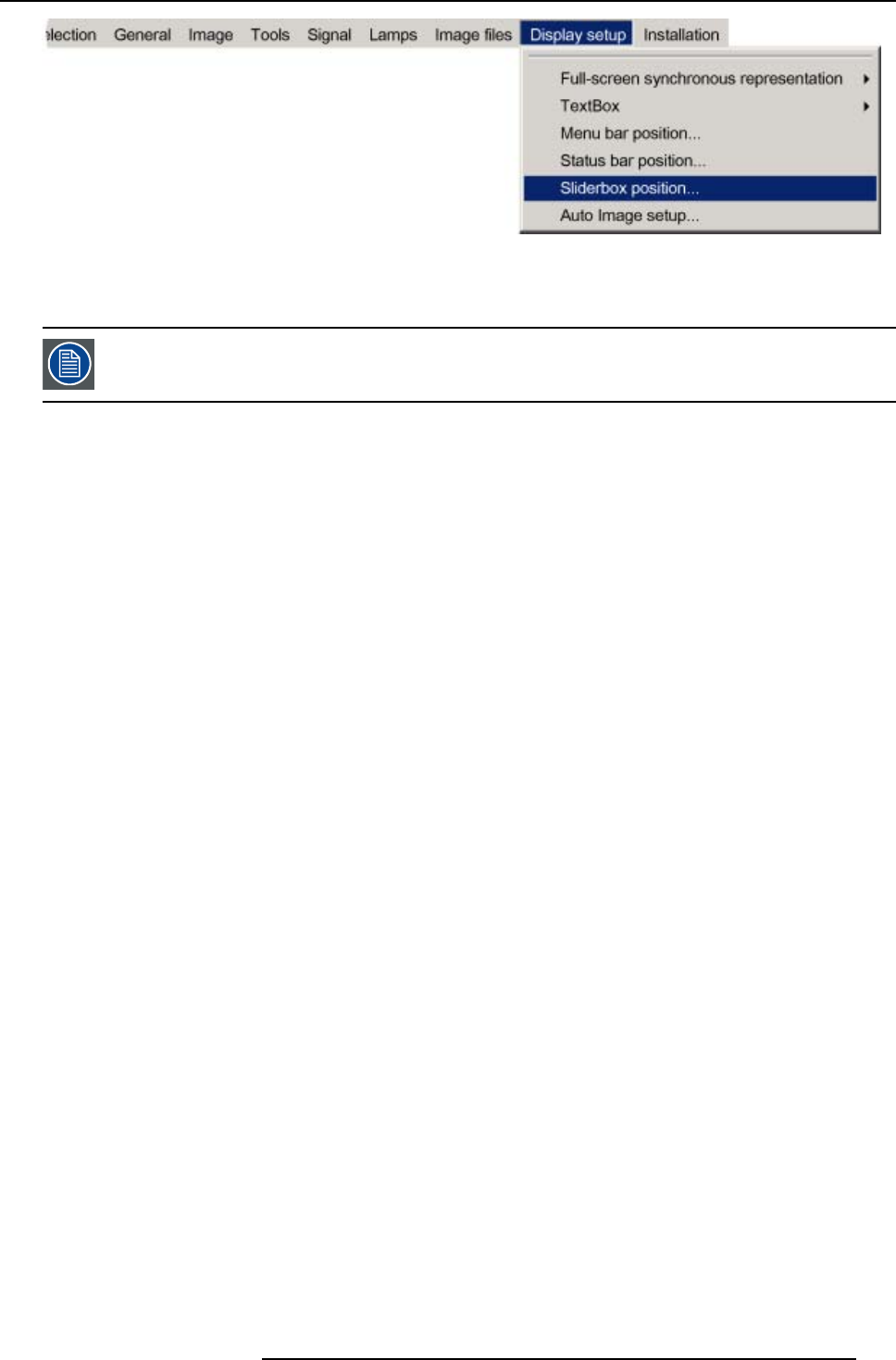
8. Advanced
Image 8-79
5. Press ENTER
A slider box is displayed. Use the 4 arrow keys to drag the box to the desired position.
There is a coarse and a fine adjustment of the position, use ENTER (when slider box is displayed) to switch
between the two.
R5976821 BARCO ICON 15/03/2007 115

8. Advanced
116 R5976821 BARCO ICON 15/03/2007
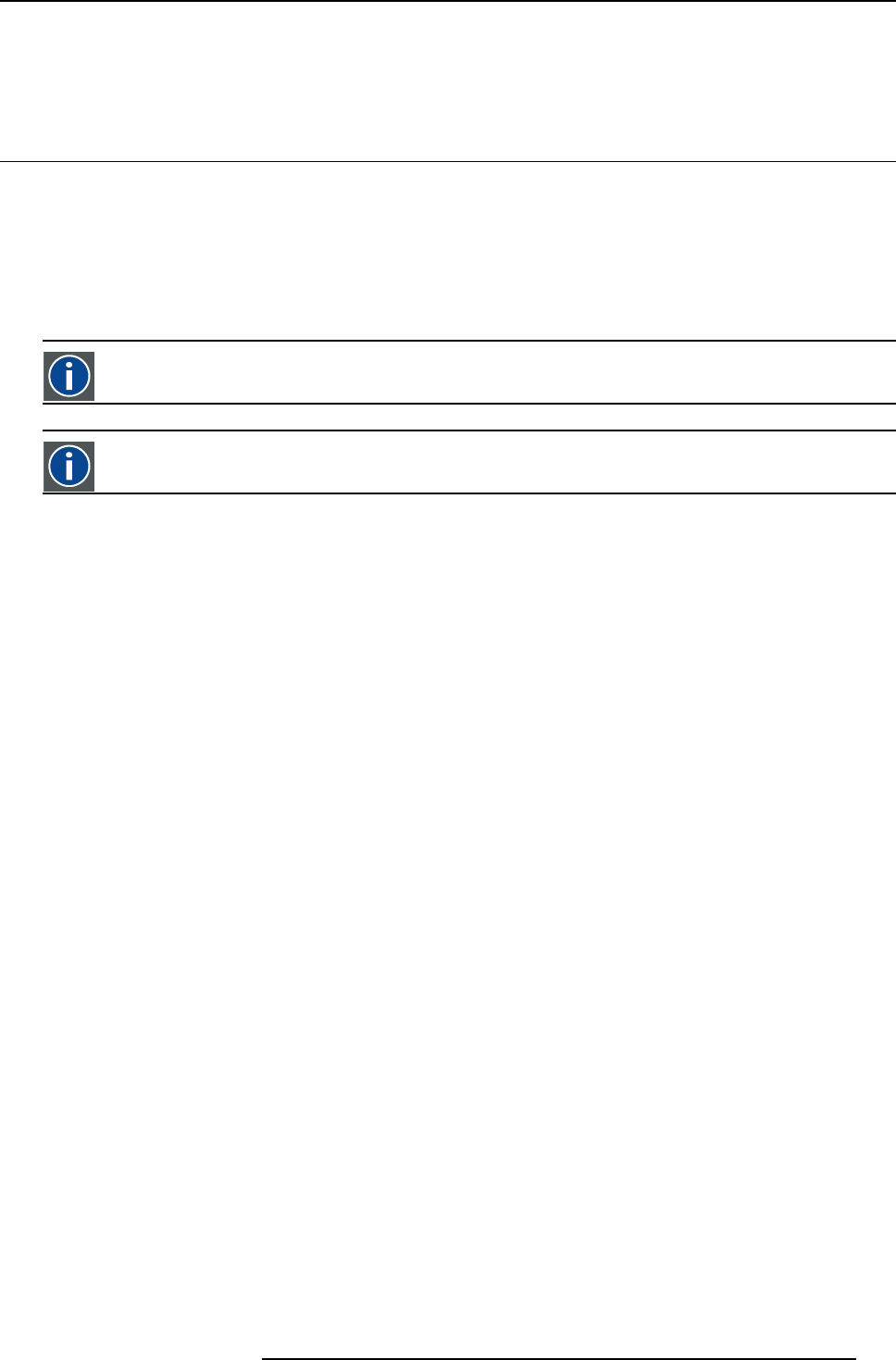
9. Network centric operations
9. NETWORK CENTRIC OPERATIONS
9.1 Introduction
Overview
• Network architecture
• Network functionality
• iCon server specifications
9.1.1 Network architecture
SBC
Single Board Computer,
GUI
Graphic User Interface
Topology
The network centric projector (iCon and iQPro) uses an integrated PC (SBC) and can be connected to a LAN.
The projector performs the role of Server while each PC is declared as a Client within the system.
Each client PC has to be configured (projector IP address, ...), see “Configuring the client software”
R5976821 BARCO ICON 15/03/2007 117
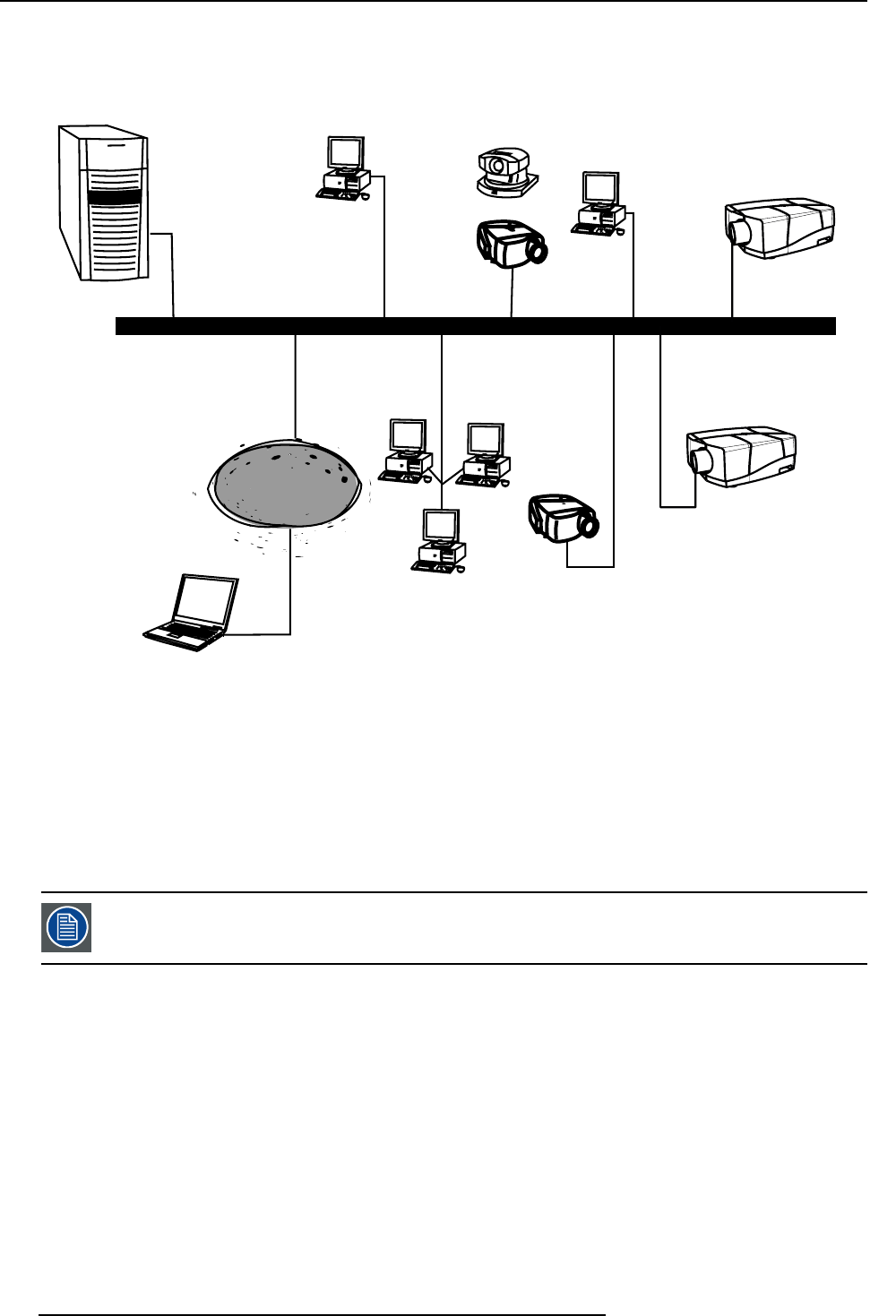
9. Network centric operations
WAN
LAN
RM : Remote control &
Management
P : projection area
M2 : Meeting room
M1 : Meeting room 1
A : SERVER
R : remote meeting attendee
V : streaming video data
M3 : Large conference room
Image 9-1
Typical iQ Pro network architecture
A server
RM Remote Control and Management
M1 Meeting room 1
M2 Meeting room 2
M3 Large screen conference room
P Projection area
R Remote meeting attendee
V Streaming Video data
Wireless LAN (point-to-point) is also possible (using the PCMCIA connection on the projector ) and comple-
ments the functionality of direct cabling.
9.1.2 Network functionality
What can be done ?
The network functionality allows the projector to perform several network functions thanks to network features which are required in
most corporate environments:
•Control & Management : wireless/wired (remote) control and monitoring of the projector(s) thanks to a user-friendly GUI (the
Client software).
•Diagnostics : diagnostics through a user-friendly GUI and automatic E-mail sending.
• Easy file (MS PowerPoint,...) manipulation and projection using the DropZone interface.
•Remote control of the projector by allowing the desktop to be shared over the network (the DropZone interface).
•Streaming media : The projector’s onboard computer is streaming video data ready, i.e. allowing the decoding of video stream-
ing data coming from a server via the LAN.
118 R5976821 BARCO ICON 15/03/2007
9. Network centric operations
The network centric projector may be configured in the same way as a standard PC to support :
- SNMP service : provides diagnostics, basic control via SNMP messaging
- Microsoft Exchange services: for scheduling of projector tasks.
- Web client : offers an alternative to the Client software through a user-friendly internet based
interface (includes almost the same features as the Client software)
See the Appendix “General guidelines on Network configuration” for general guidelines on how to enable
these services.
9.1.3 iCon server specifications
Specifications
• 2.6 GHz Pentium IV processor 1
• 1GB DDR RAM
• 40 GB Hard Disk storage
• Microsoft XP Operating System
• Barco Server Software for network communication between Server and clients
9.2 Control
Overview
• Description
• How to use the control manager?
• General
• The source selection screen
• The PiP screen
• Image settings
• Advanced control
9.2.1 Description
What can be done ?
The projector allows a software client (client PC) to communicate locally with the server and hereby control the projector’s settings,
in this case one has a point to point communication, image 9-2. The client PC or laptop communicating with the projector may be
locally installed or may be remote, communication may then happen over a LAN, image 9-3
The projector performs the role of Server while the PC acts as a Client within the system.
The control and management client software incudes the possibility to create groups of projectors and that way control a whole fleet
of projectors.
A
B
Image 9-2
point to point iQ Pro network communication
A facility manager’s desk
B projector area
1. the pentium IV socket is upgradeable
R5976821 BARCO ICON 15/03/2007 119
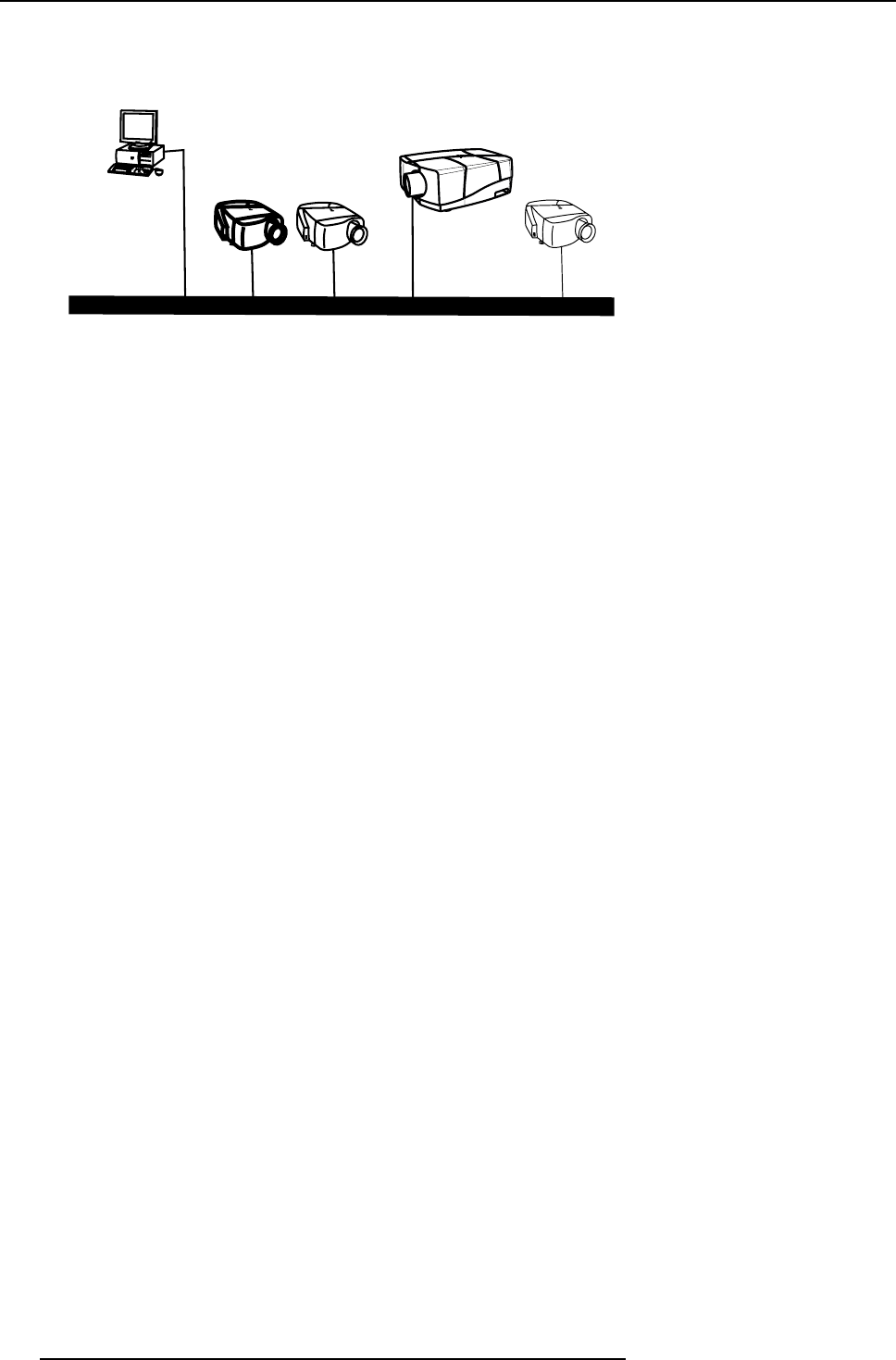
9. Network centric operations
LAN
A : facility manager's desk
B : projection areas
...
Image 9-3
control & management of network centric projector(s)
A facility manager’s desk
B projector area
What can be controlled ?
Almost every menu item can be controlled through the control manager
• standby on/off
•lampmode
• source selection
• switching effects
• background setting
• all PiP settings (layout, window)
• Image settings
• lens adjustments
The control manager
The control interface in the client software is divided into 5 subscreens, image 9-4:
• General
• source selection
•PiP
• image settings
• advanced
120 R5976821 BARCO ICON 15/03/2007
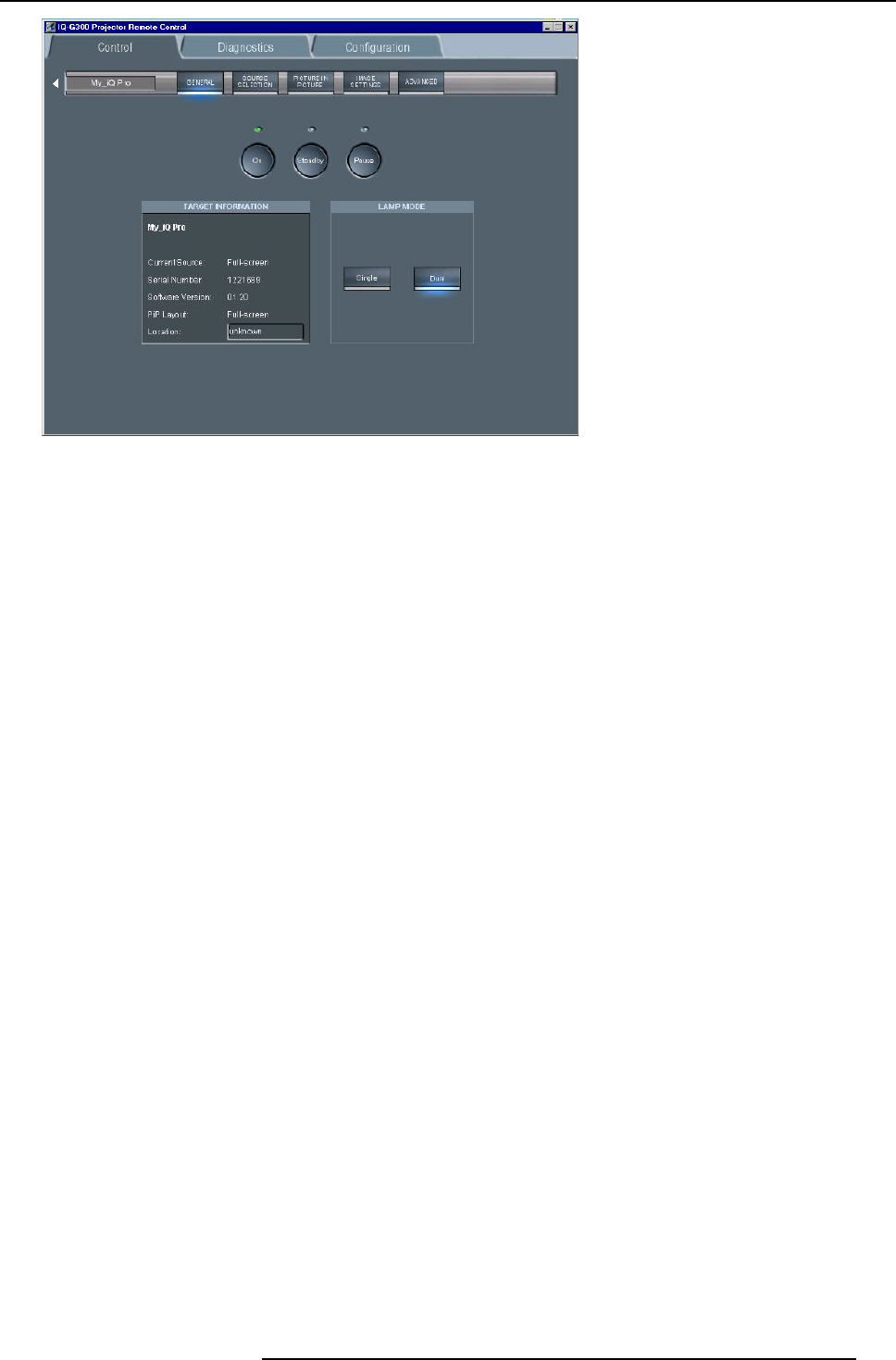
9. Network centric operations
Image 9-4
The control interface: the general sub screen is active (see tool bar)
9.2.2 How to use the control manager?
How to use the control manager?
1. Choose the sub screen by clicking on the desired item on the tool bar in the upper part of the control interface
The active sub screen is indicated with a blue spot
9.2.3 General
What can be done ?
Basic controlling, monitoring and general parameter setting of the projector can be done in this screen, image 9-4.
• 3 buttons ON,STANDBY and PAUSE
•Thetarget information part gives the main characteristics of the projector
• 2 buttons allow to switch between dual and the single lamp mode
How to change the general settings?
1. Click on the lamp mode button to select the desired mode
A blue spot indicates the active mode
2. Click on one of the three buttons to start up, pause or put in standby the projector
A green led indicates the status of the projector.
9.2.4 The source selection screen
What can be done ?
• A source selection dialog box allows to visualize all the sources or only the detected sources.
• 3 buttons to activate, freeze, pause and logo
• selection of 12 different switching effects
• selection of 3 different backgrounds: logo, Blue, Black
R5976821 BARCO ICON 15/03/2007 121
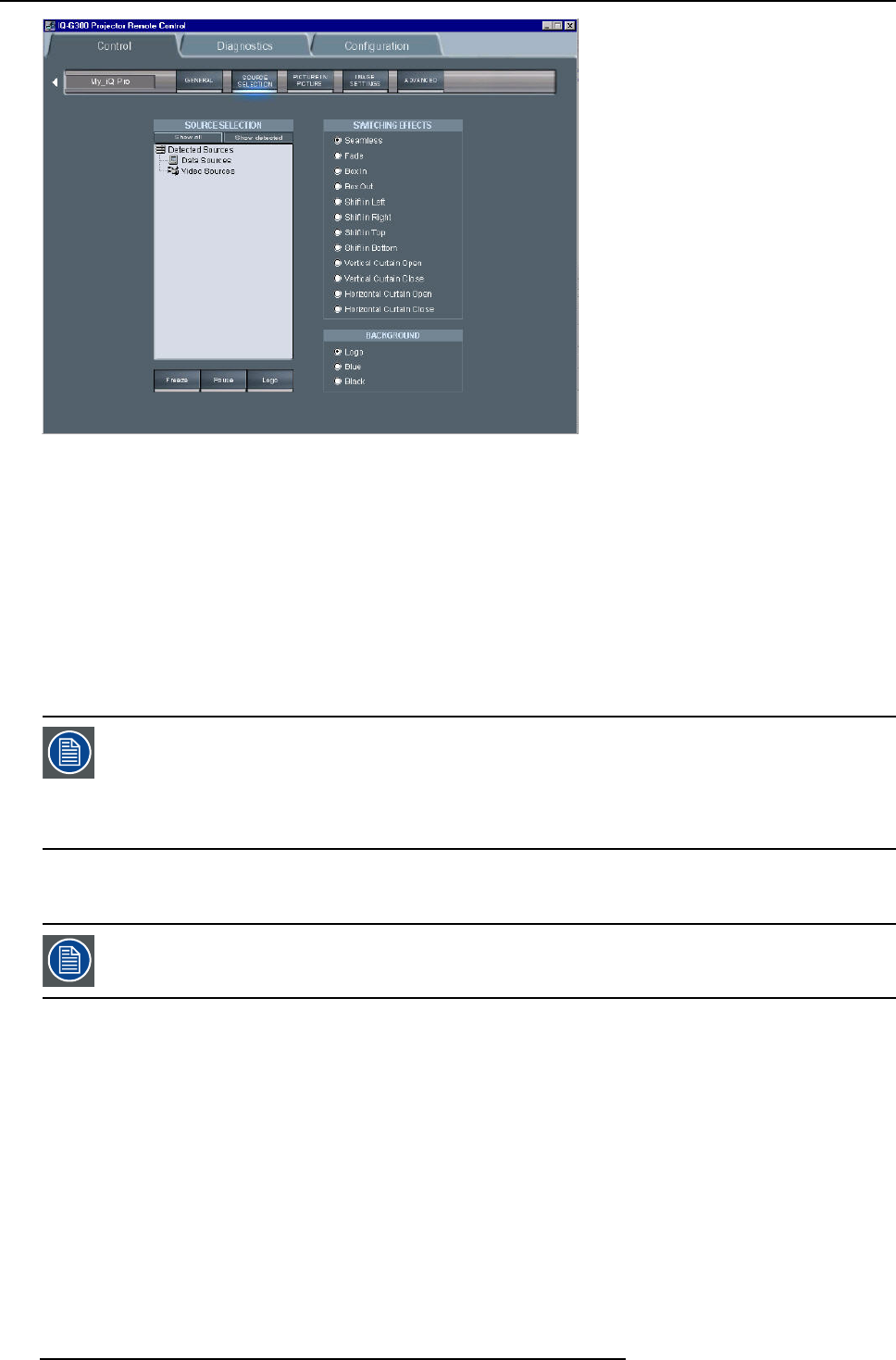
9. Network centric operations
Image 9-5
The source selection screen
How to select a source ?
1. Click on show all or show detected
Depending on the option (show all/detected) selected, a list is displayed.
In case show all is selected, a list of all possible sources is displayed, signal
presence is indicated with an orange dot.
When show detected is selected, all the detected sources are displayed with an orange dot.
2. Double click on the desired source
The selected source is now projected
In group mode there are only grey or green nodes, no orange (detected).
On start up, a green node will be shown when all projectors are playing the same source type.
Grey will be shown when some of the projectors are not showing the same source type.
If we double click on a grey node, it should go green as long as at least one of the projectors in the group can
show the source.
9.2.5 The PiP screen
Following screenshots are taken for an iQPro projector. The layouts may be slightly different for an iCon
(layout automatically adapted after projector type detection by the client).
What can be done ?
The PiP tool allows to manage the PiP of the projector in a more user friendly way:
• a check box list allows to choose between 10 PiP layout (5 preset layouts and 5 personal layouts)
• several buttons allow operations on windows (add, remove ) as well as on the PiP layouts (save, ...)
• a graphical screen allows easy altering of the PiP layout : re sizing, positioning of the different windows.
122 R5976821 BARCO ICON 15/03/2007
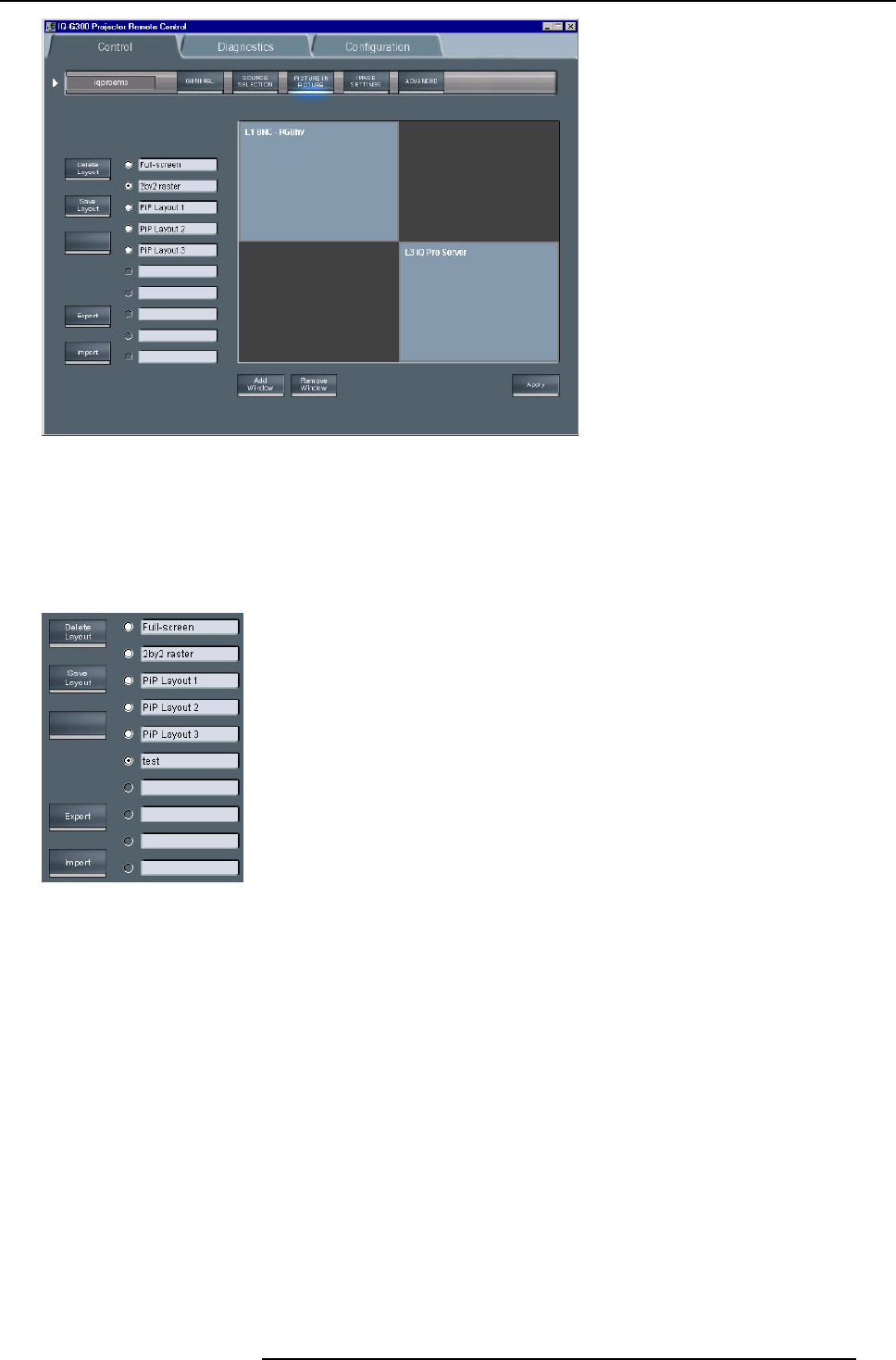
9. Network centric operations
Image 9-6
PiP screen
How to perform operations on a PiP layout
As an example, let us choose a personal (non preset) layout, add a window, reposition the windows, and save the layout under a
different name.
1. Click on one of the check boxes to choose a layout
Choose a personal layout
Image 9-7
R5976821 BARCO ICON 15/03/2007 123
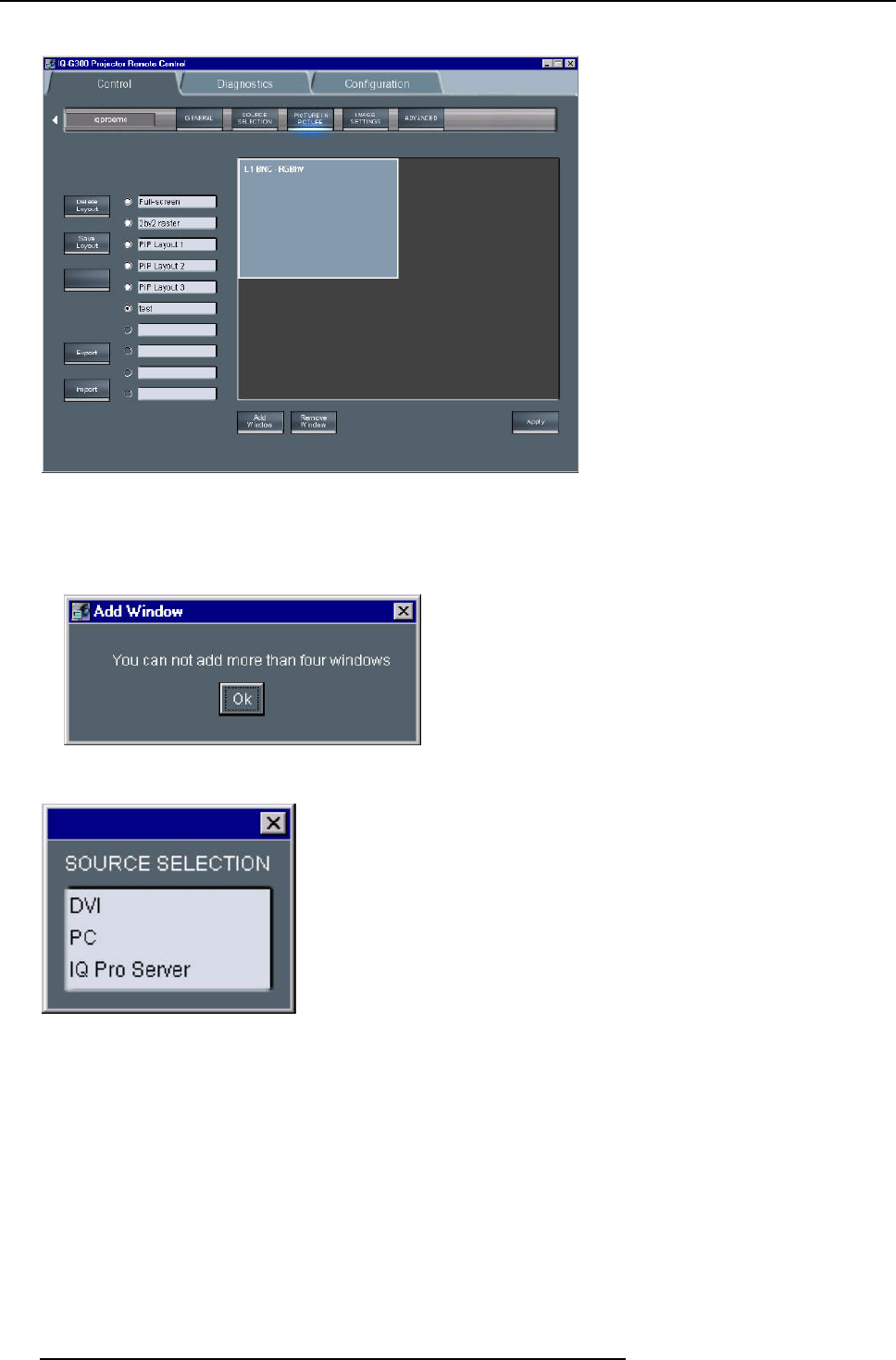
9. Network centric operations
The PiP screen (as well as the projected layout) is updated
Image 9-8
This layout contains one window being an RGBHV Data source
2. Click on the Add window button
Note: if the layout already contains 4 window, it will be impossible to add a new one. In that case a window is displayed,
image 9-9
Image 9-9
A dialog box is displayed showing the possible sources to be added.
Image 9-10
Add window dialog box
3. Select the source to be linked to the new window.
124 R5976821 BARCO ICON 15/03/2007
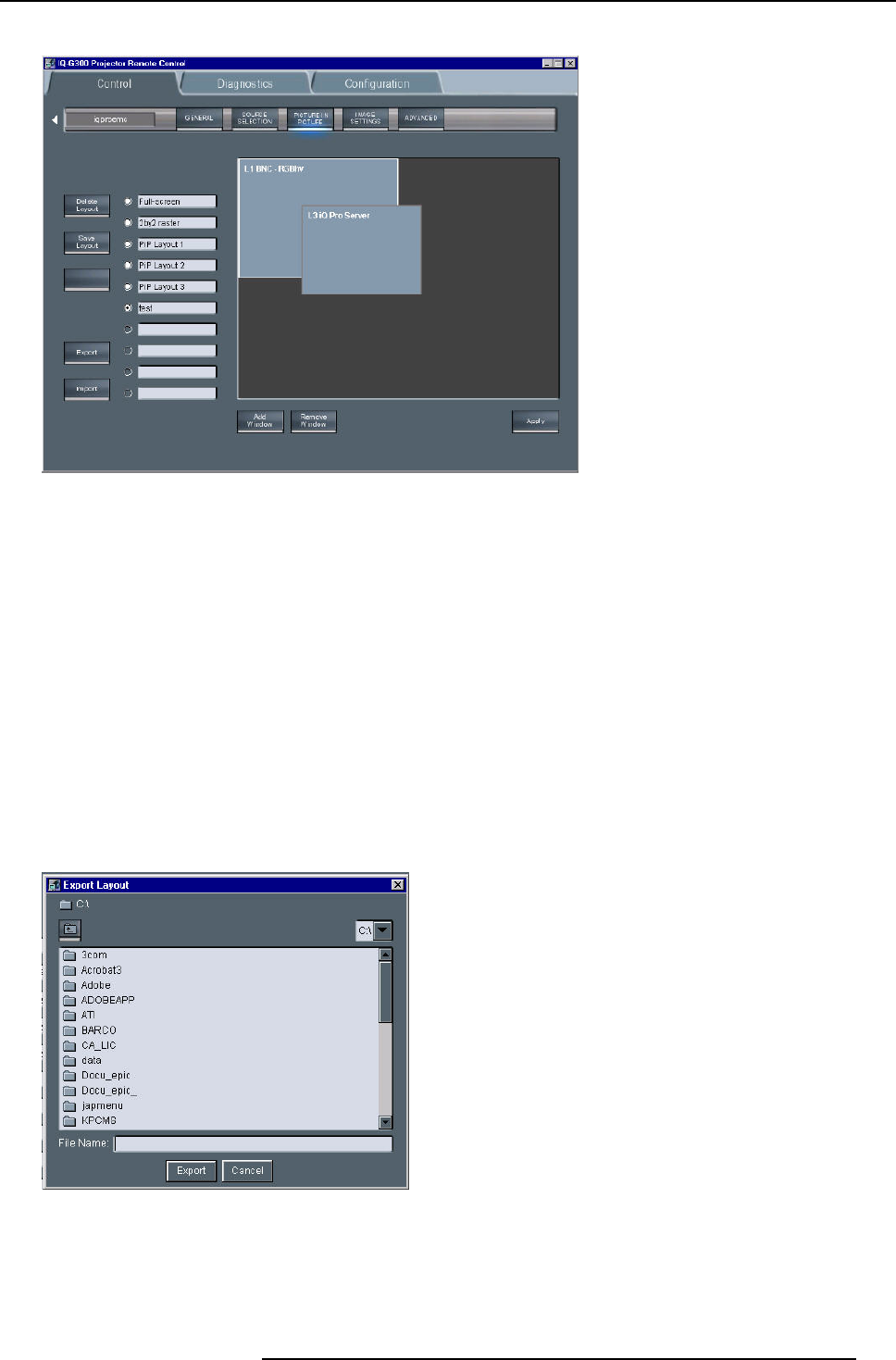
9. Network centric operations
The window is added to the layout.
Image 9-11
4. When entering the PiP screen the cursor is replaced by a hand, Click on the window to be repositioned.
The window is surrounded by a white frame.
5. Drag the window to the desired position.
6. Place the cursor on one of the corners of the window to be re sized.
A double arrow is displayed.
7. Drag to re size.
Note: the window is re sized by keeping the same aspect ratio.
Importing/exporting a layout
Every PiP layout can be exported and saved as backup on the network or on the hard disk of the Client PC.
It can then be imported at any time.
How to import/export a layout ?
1. Click on the Export button.
A dialog box is displayed.
Image 9-12
2. Browse to the desired location and fill in the filename.
How to import a layout ?
1. Click on the import button.
R5976821 BARCO ICON 15/03/2007 125
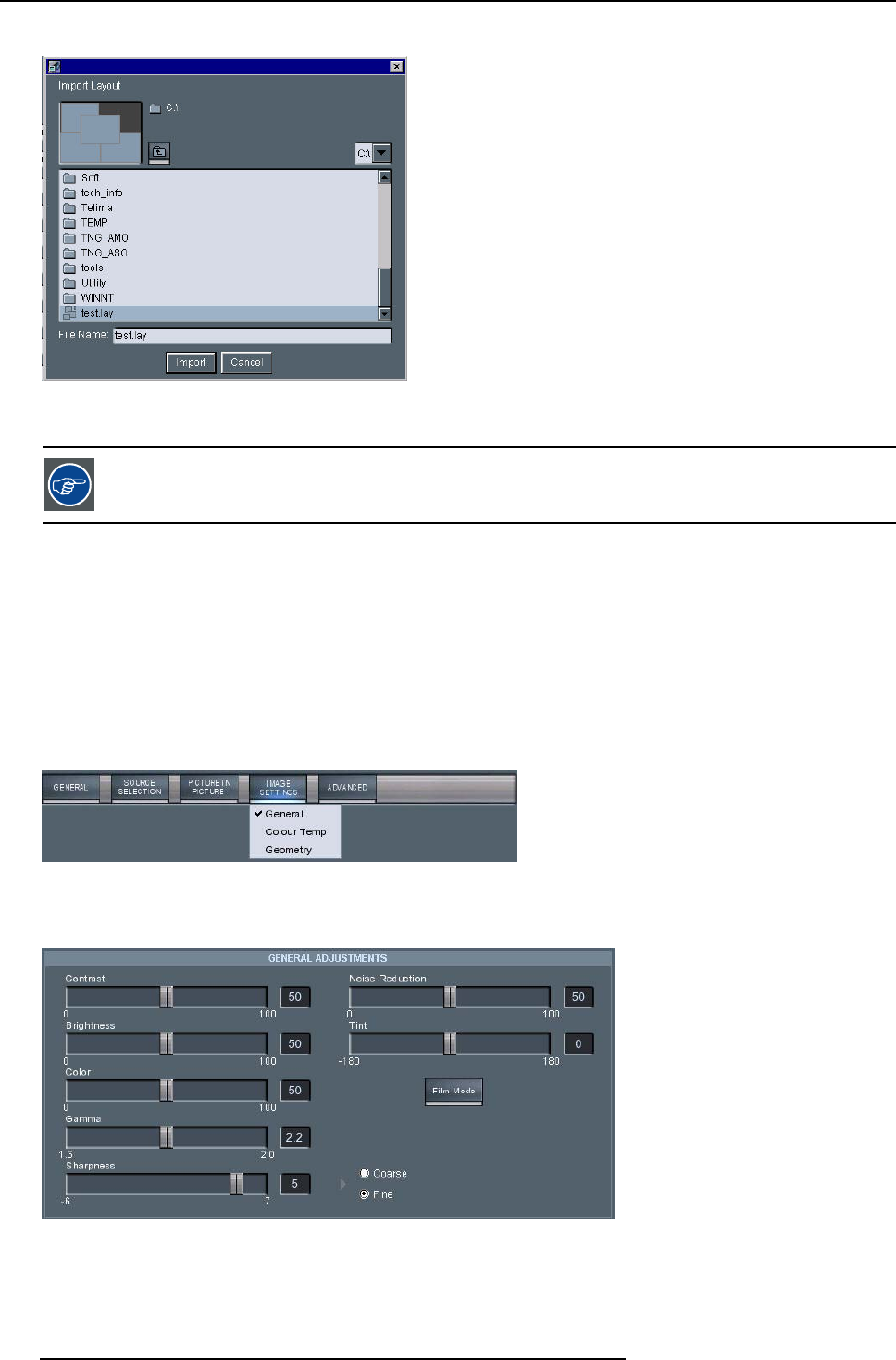
9. Network centric operations
A dialog box is displayed.
Image 9-13
2. Select the layout to be imported.
For more information on Picture in Picture see the PiP chapter.
9.2.6 Image settings
What can be done ?
• General settings
• Color temperature
• Geometry
General image settings
1. Click on Image settings menu in the tool bar to drop down the submenu
Image 9-14
2. Click on General
3. Slide the cursors to set the corresponding value
Image 9-15
126 R5976821 BARCO ICON 15/03/2007
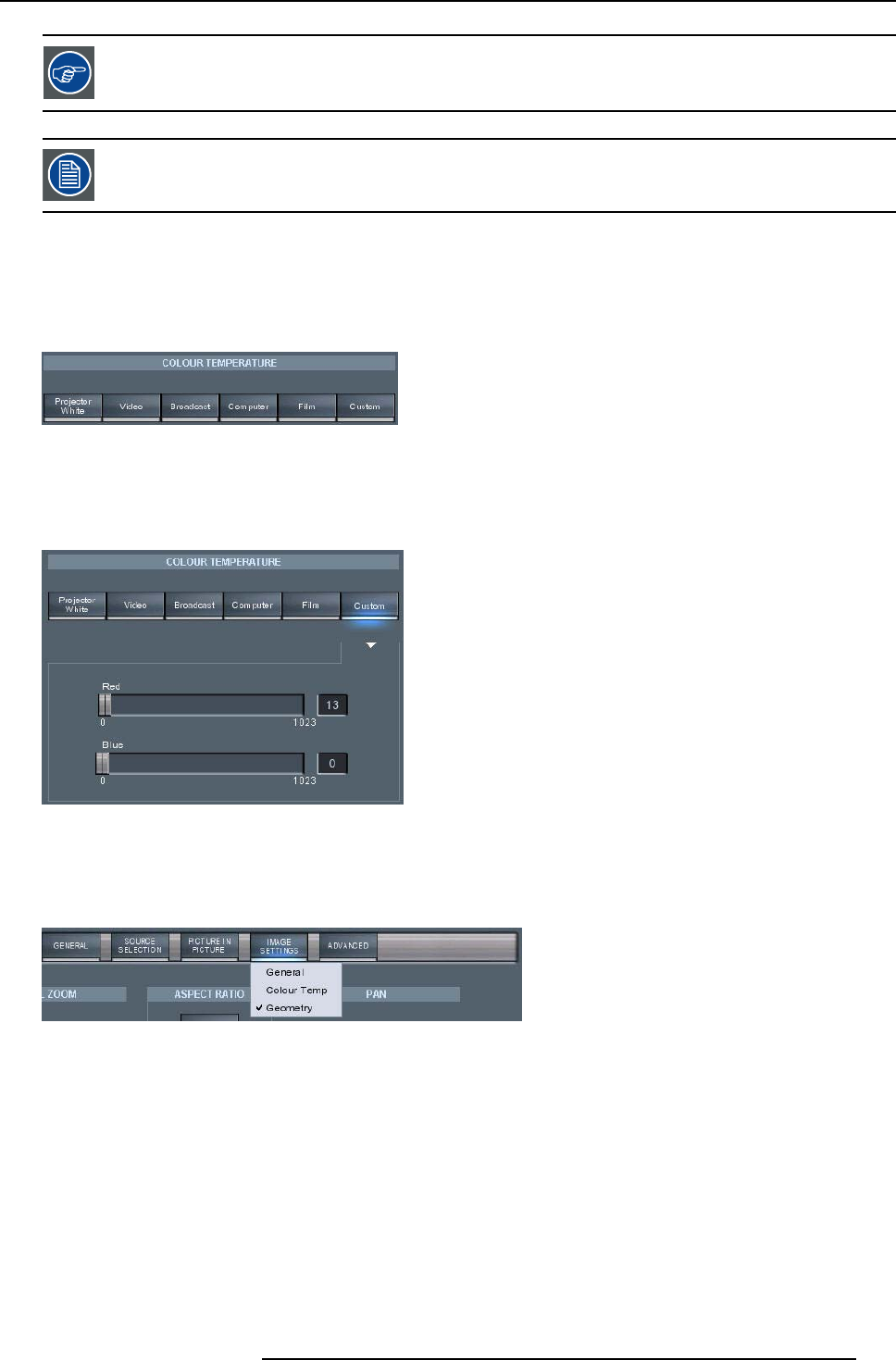
9. Network centric operations
Use the checkbox to define a coarse or a fine setting.
Click on the Filmmode button to enable or disable the filmmode.
Color temperature preset settings
1. Click on Image settings menu in the tool bar to drop down the submenu.
2. Click on color temp, image 9-14
3. Click on the desired preset color temperature.
Image 9-16
Custom color temperature setting
1. Click on the Custom button.
A dialog box is displayed.
Image 9-17
2. Use the sliders to set the red and the blue color temperature.
Geometry settings
1. Click on Image settings menu in the tool bar to drop down the submenu.
Image 9-18
2. Click on Geometry.
R5976821 BARCO ICON 15/03/2007 127
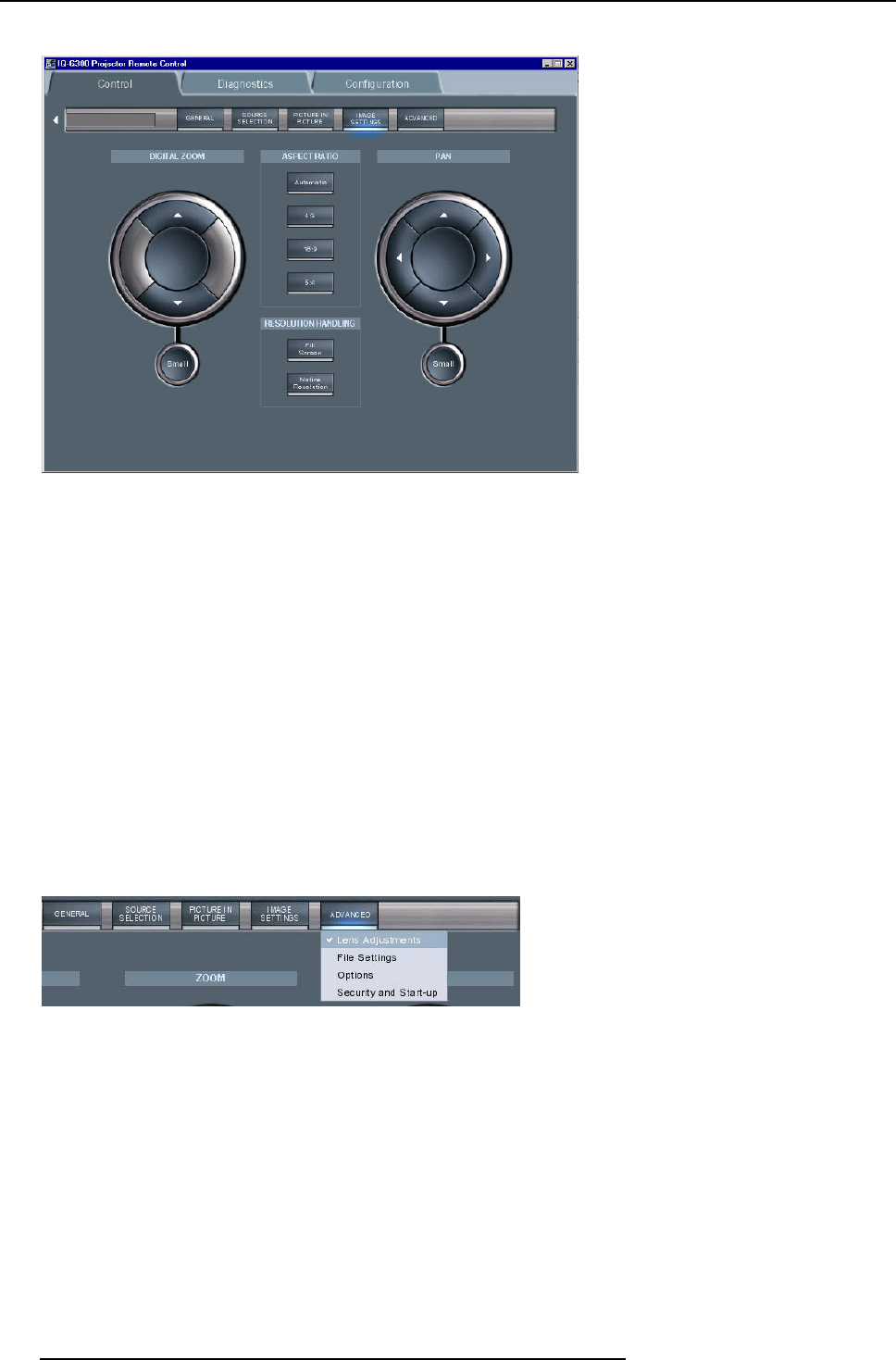
9. Network centric operations
a dialog box is displayed.
Image 9-19
3. Use the buttons to zoom or pan.
Tip: Use the buttons to choose small, medium or large adjustment steps.
Each click changes the setting.
4. Click on the desired aspect ratio and resolution handling mode.
9.2.7 Advanced control
Overview
• Lens adjustments
•Options
9.2.7.1 Lens adjustments
How to adjust the lens ?
1. Click on the Advanced menu in the tool bar to drop down the submenu
2. Click on lens adjustments
Image 9-20
the Advanced control submenu
3. Use the buttons to shift/zoom/focus the lens
128 R5976821 BARCO ICON 15/03/2007
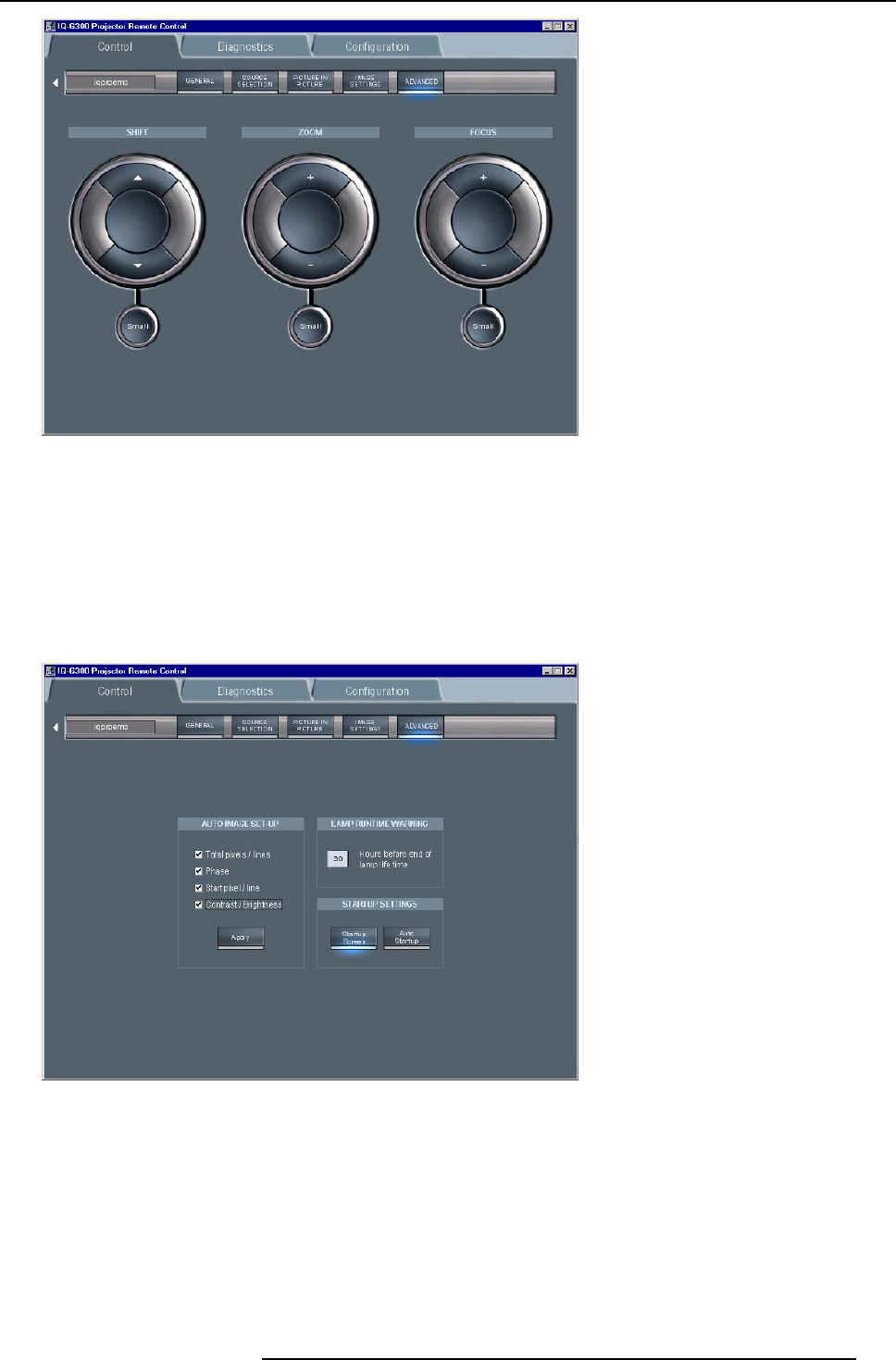
9. Network centric operations
Image 9-21
Tip: Use the buttons to choose small, medium or large adjustment steps.
Each click changes the setting.
9.2.7.2 Options
How to start up the options menu ?
1. Click on the Advanced menu in the tool bar to drop down the submenu.
2. Click on Options .
Image 9-22
The advanced Options screen
How to set up and perform AutoImage ?
1. Check the boxes corresponding to the desired setting of AutoImage.
R5976821 BARCO ICON 15/03/2007 129
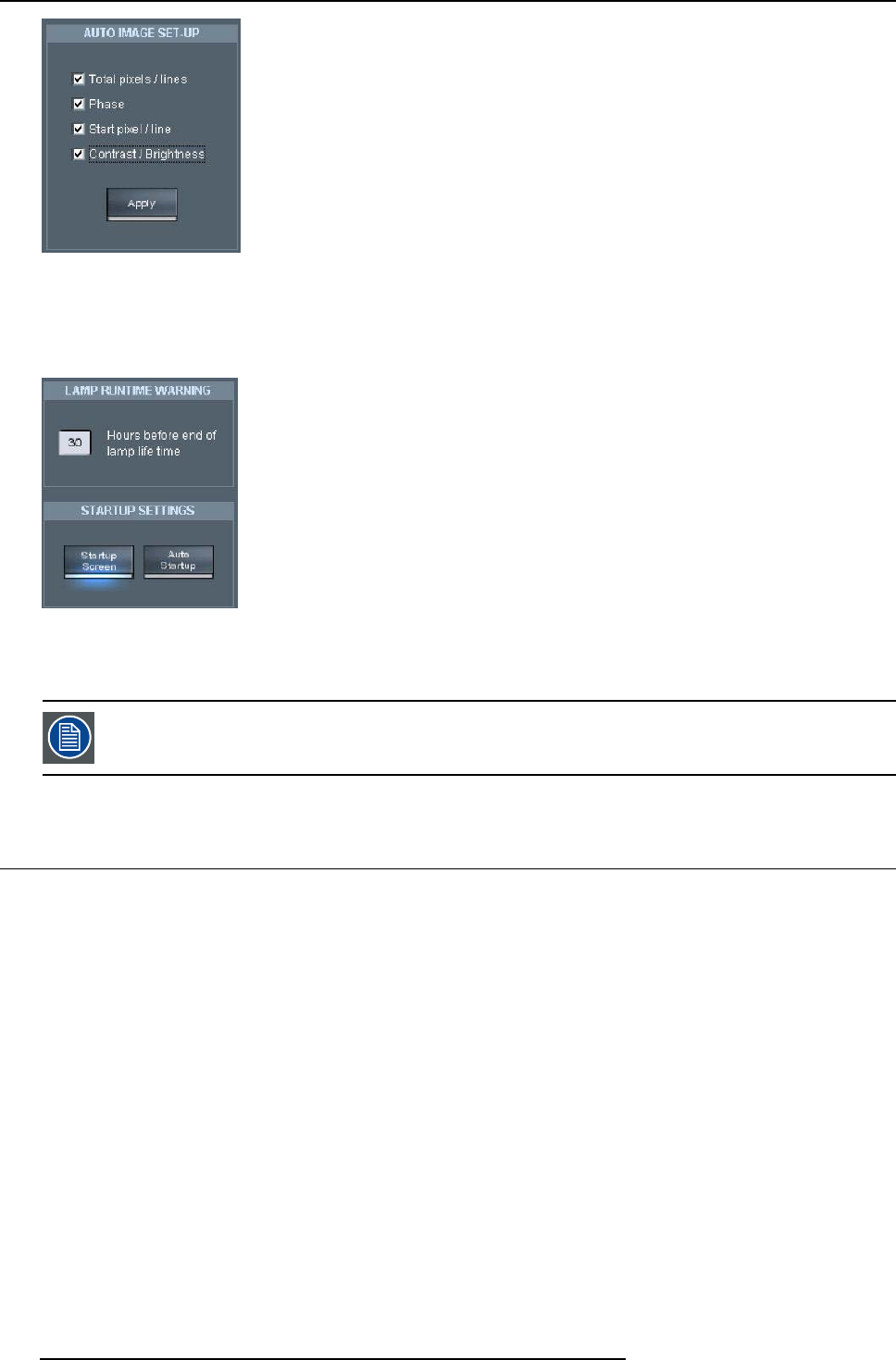
9. Network centric operations
Image 9-23
2. Click on Apply to perform AutoImage.
Lamp runtime warnings startup settings
1. Fill in the lamp runtime warning time.
Image 9-24
2. Click on startup screen to enable the startup screen.
3. Click on Auto Startup to enable automatic startup.
A blue spot indicates that the function is enabled.
9.3 Configuration
9.3.1 E-mail messaging
What can be done ?
E-mail messaging allows the projector to generate automatically E-mail and send them to three configurable recipients.
The mail can be sent on a regular basis i.e. daily, weekly or monthly or can be triggered by warnings.
Basically two different configurations must be done:
• content
• timing
Content configuration
The content configuration allows to define the content of the E-mail
• general content
• advanced content
Timing configuration
E-mail sending can be set to be time dependent or status dependent
130 R5976821 BARCO ICON 15/03/2007
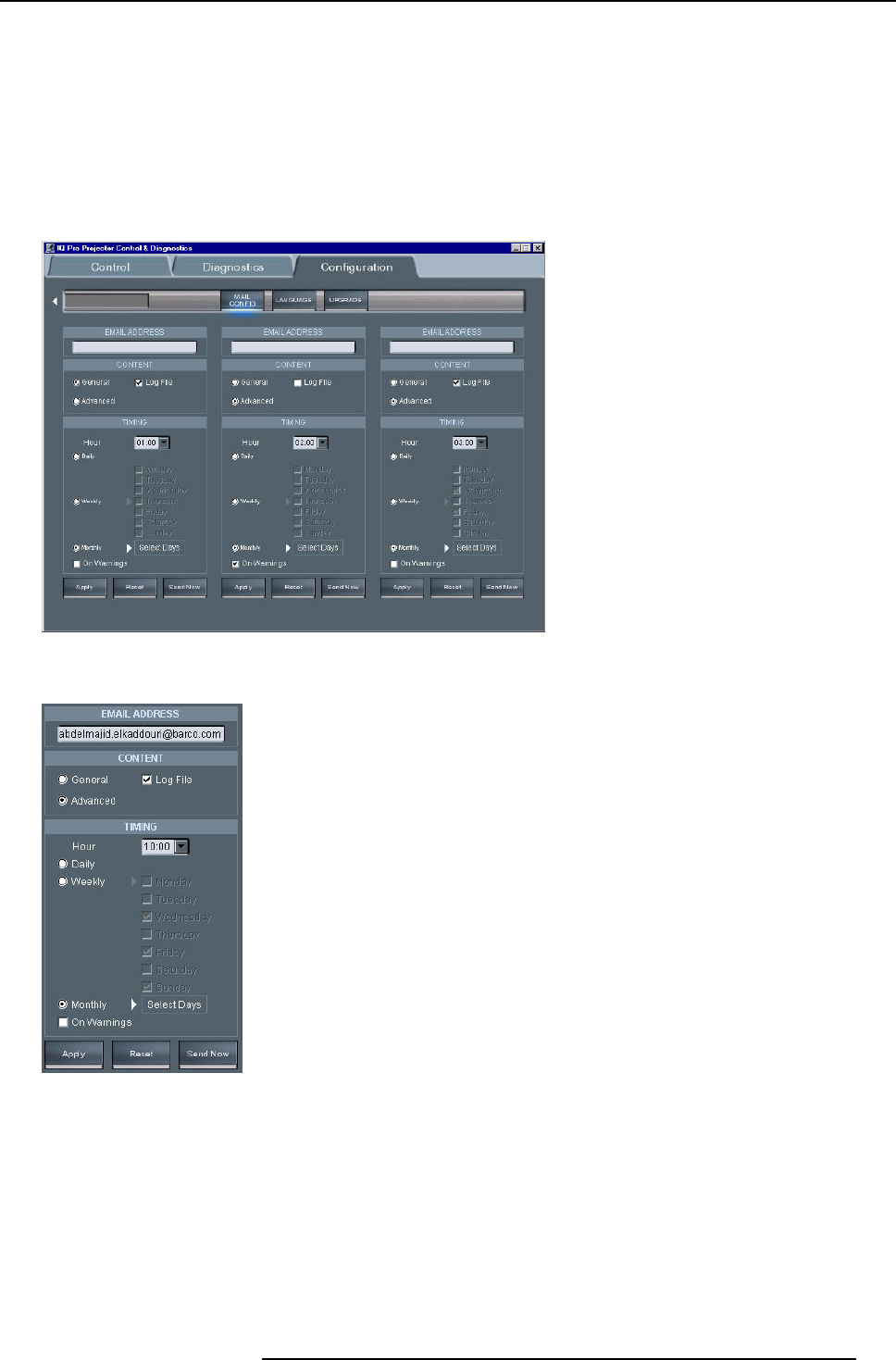
9. Network centric operations
• daily : E-mail is sent every day, the time can be set
• weekly: the day can be set with a calendar
• on warning : a E-mail is sent whenever a warning is generated by the projector
9.3.2 E-mail configuration
How to configure the E-mail ?
1. Click on Configuration in the toolbar
2. Click on Mail Config to open the mail configuration screen
Image 9-25
mail configuration screen
3. set the content by clicking the desired content
Image 9-26
4. set the timing by clicking the desired time interval
Note: if the timing is chosen to be monthly, a calendar is displayed , click the days on which the E-mail should be sent
Mail “from” configuration
The “from” field of the received mails i.e. the name of the sender (in this case the iQ Pro server) can be configured in the server
software.
Therefore the E-mail address has to be filled in the Networking tab of the iQ Control Server properties dialogbox
R5976821 BARCO ICON 15/03/2007 131
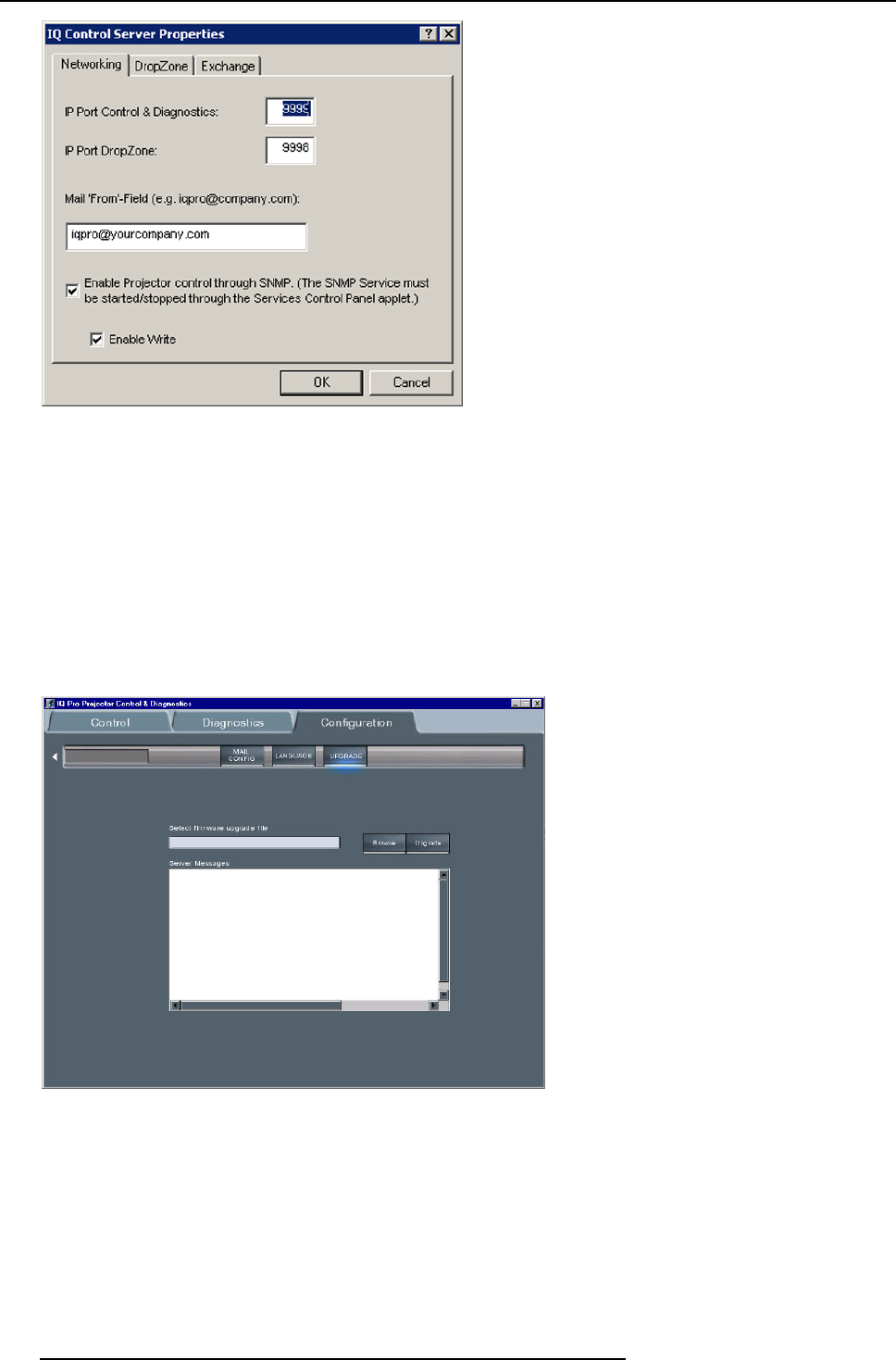
9. Network centric operations
Image 9-27
9.3.3 Projector Firmware Upgrade
What can be done ?
The client software allows to do an upgrade of the projector’s firmware.
The upgrade is done with a binary file (extension = “.bin”) which is sent to the projector using the LAN connection.
Single projector as well as multiple projector (group) upgrade is possible
How to upgrade the firmware ?
1. Click on Configuration in the toolbar
2. Click on Upgrade to open the firmware upgrade screen
Image 9-28
upgrade interface
3. Use the Browse key to select the desired bin file.
4. Press the Upgrade button on the browser to select the file to start the operation
132 R5976821 BARCO ICON 15/03/2007
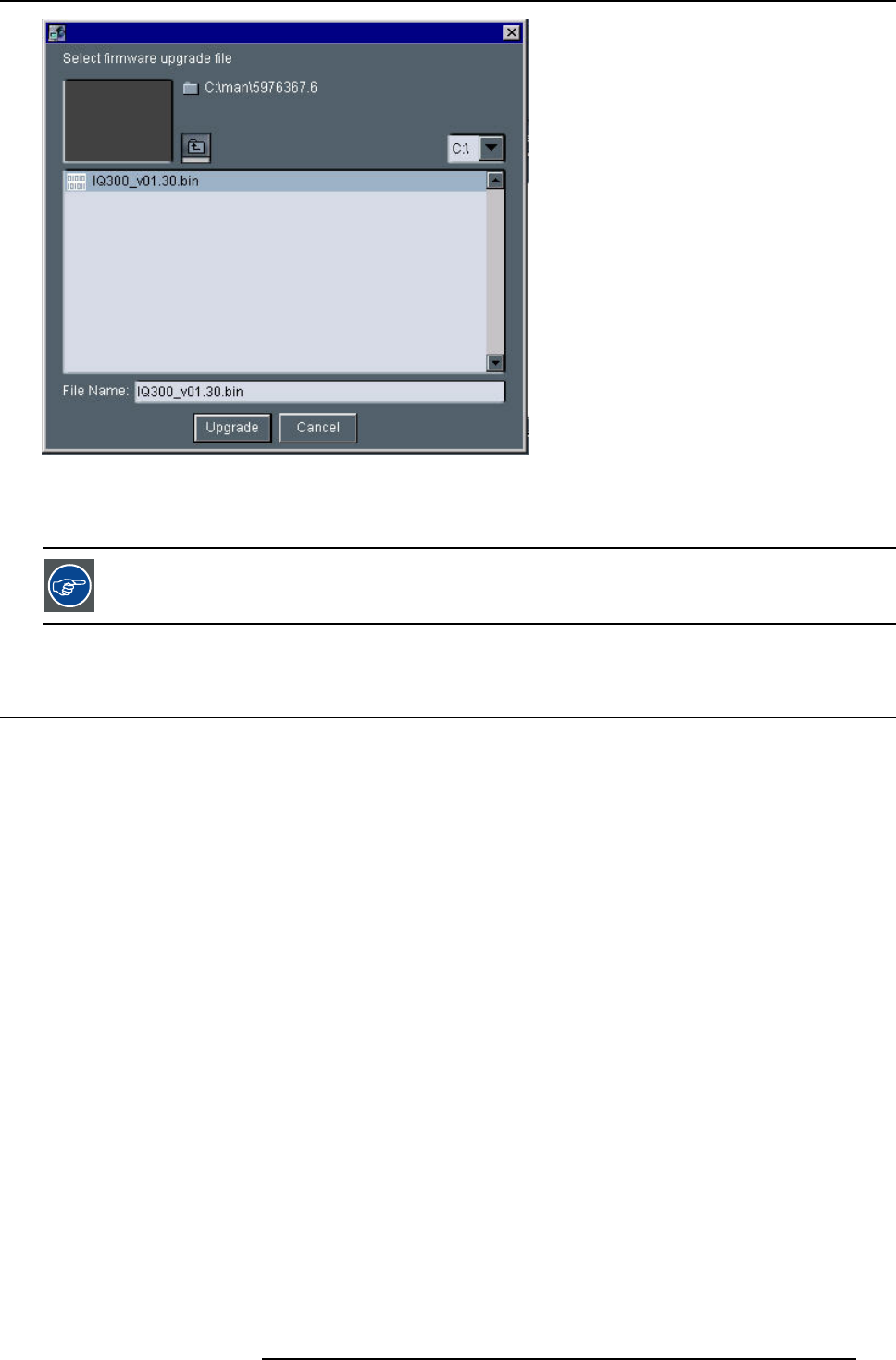
9. Network centric operations
Image 9-29
5. Press the Upgrade button on the upgrade screen to start the operation
The information screen will show the progress of the operation.
If the download doesn’t succeed please contact Barco
9.4 Remote desktop sharing (virtual meeting)
What can be done ?
The remote desktop sharing in the DropZone allows to visualize the projected image i.e. the desktop of the projector PC on a local
PC.
Besides Desktop sharing one can take the Control (mouse and keyboard control) over a presentation (using NetmeetingTM). The
control over the presentation can be taken or passed at any time.
The configuration consisting of several remote or local meeting participants sharing the same information content is called a virtual
meeting.
In this virtual meeting each meeting participant can participate to the meeting either in a passive way, by following the meeting on
his local desktop (remote desktop sharing), or in an active way by controlling the server’s desktop (mouse and keyboard).
Control over the desktop can be requested, forwarded or released.
R5976821 BARCO ICON 15/03/2007 133
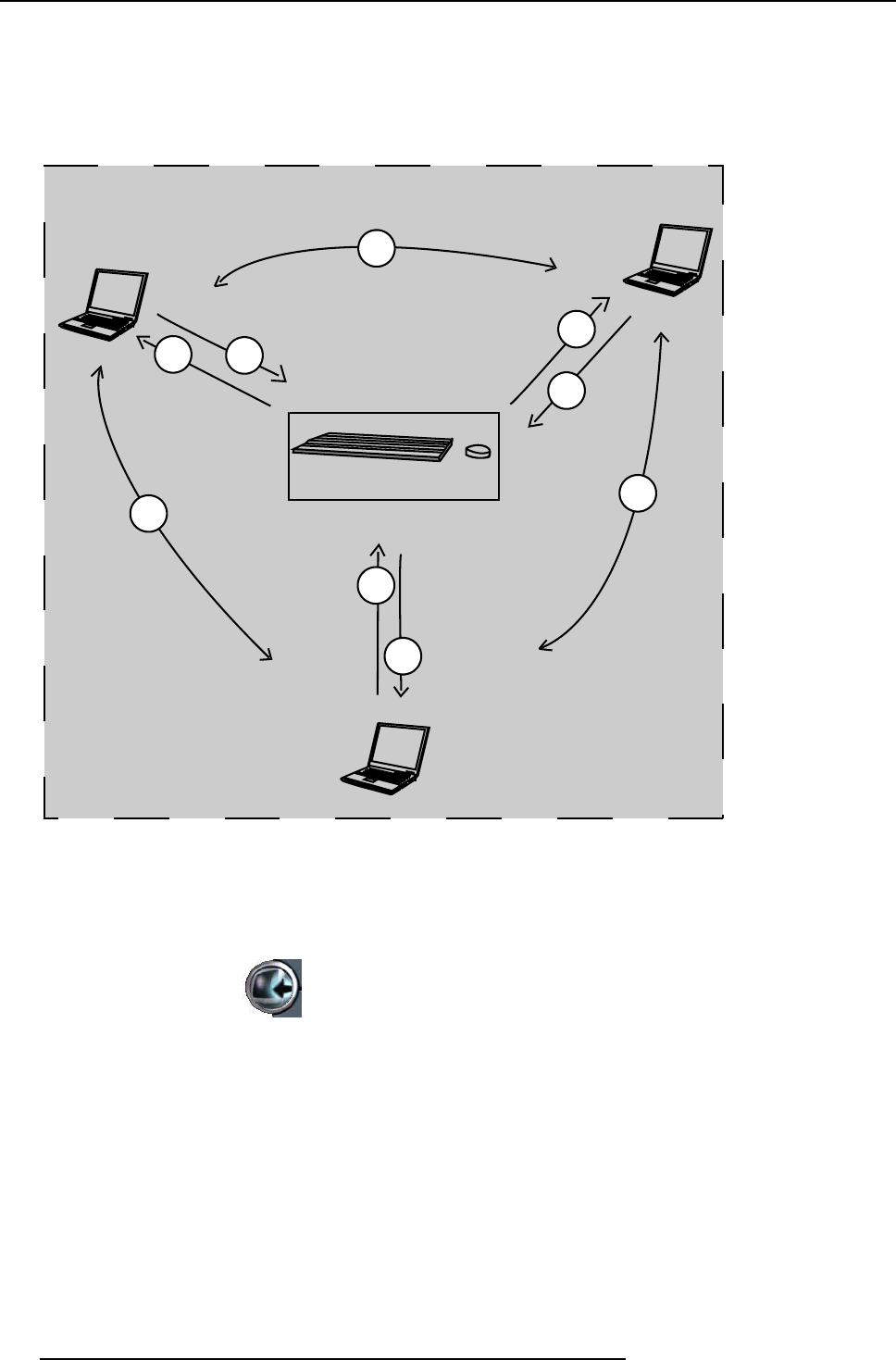
9. Network centric operations
IQ Pro Server desktop Control
1
1
1
2
3
2
3
3
2
Image 9-30
Virtual Meeting
1 forward control
2 release control
3 request control
How to perform remote desktop sharing ?
1. Click on the middle button
134 R5976821 BARCO ICON 15/03/2007
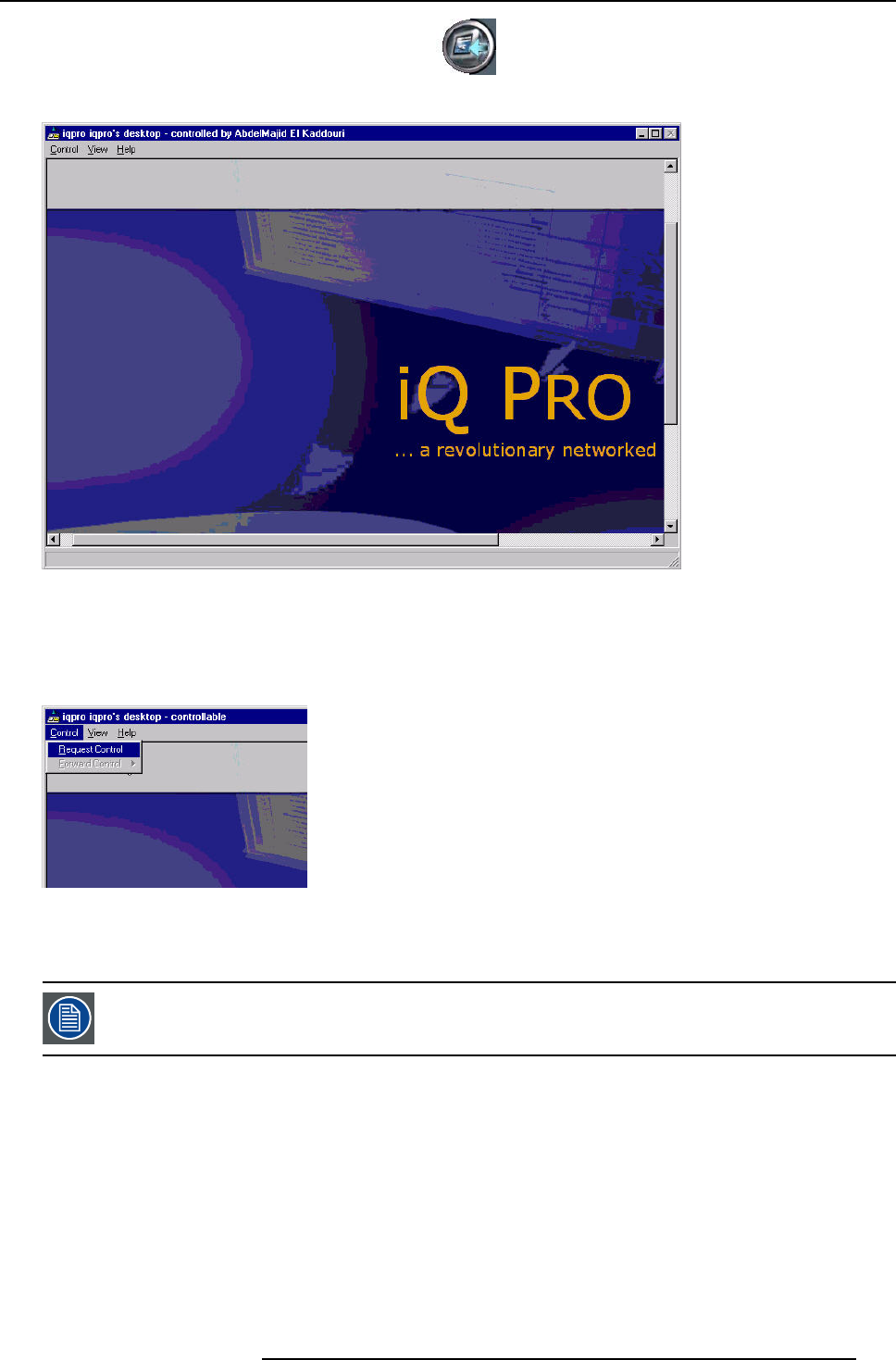
9. Network centric operations
The middle button indicates the activation of the remote
The desktop is displayed on the local PC monitor.
Image 9-31
remote desktop sharing in case of a PowerPointTM presentation
How to take (mouse and keyboard)Control over the desktop ?
1. Click on the Control menu
The Control menu is displayed
Image 9-32
2. Select the Request Control item
The desktop can now be remote controlled.
The control over the desktop is now done by the local PC. However, the user can at any time decide to release
or forward the control to someone else.
How to release control over the desktop ?
1. Click on the Control menu
R5976821 BARCO ICON 15/03/2007 135
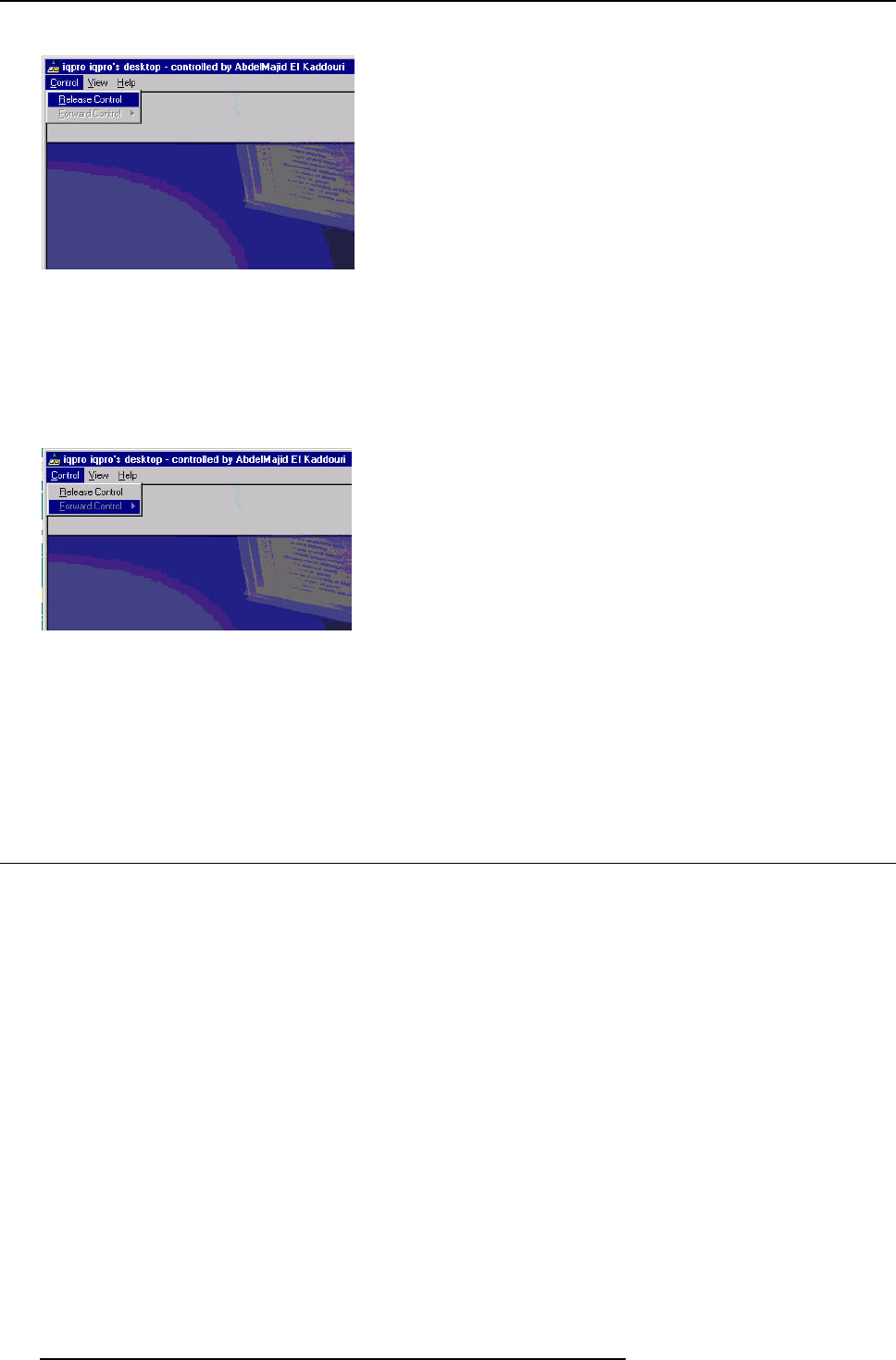
9. Network centric operations
The Control menu is displayed
Image 9-33
2. Select the Release Control item
The desktop remote control can now be requested by someone else.
How to forward control over the desktop ?
1. Click on the Control menu
The Control menu is displayed
Image 9-34
2. Select the Forward Control item
A pop up menu shows the meeting participants i.e. the users which are connected to the server and which participate to the
Remote sharing of the desktop.
3. Select the meeting participant
The control is transferred and the user which has the control is know indicated in the title bar.
9.5 The Web client
Web based functionality
The aim of the web services is to allow each network client within the LAN environment to browse via its internet browser to the web
client.
This may be seen as an alternative to the client software since the main control & diagnostic tools are also present. Its advantage
resides in the fact that no software has to be installed on the local PC, the internet takes while the html page generation is done
locally on the server.
How to access the web client via the internetbrowser?
To access the web client, the http link has to be filled in on the client’s internet browser.
This http link contains the name of the projector/display i.e. the name under which it is identified within the LAN.
136 R5976821 BARCO ICON 15/03/2007
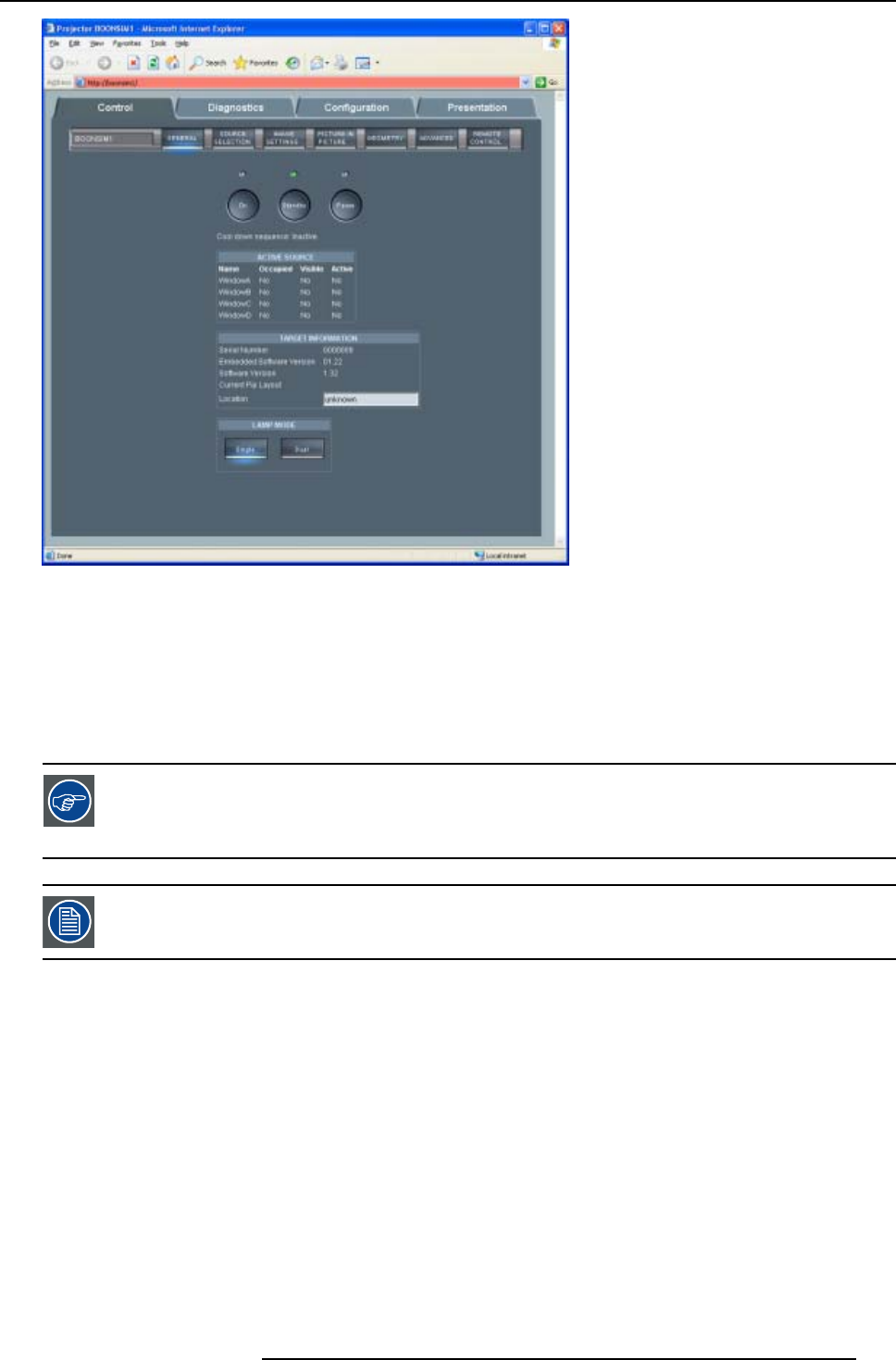
9. Network centric operations
Image 9-35
Web interface
What can be done ?
The possibilities are mainly the same as on the client software.
The web interface allows a user friendly way to manage the projector/display, its use being straightforward and similar to the client
interface (ref).
Requirements for the use of the Web client
Some components have to be installed or enabled on your local (client) operating system to allow access to
the Web client.
See the Appendix “ General guidelines on network configuration” for general guidelines on how to enable
these services. .
The minimal server software version should be V1.10 to allow the use of the Web client.
R5976821 BARCO ICON 15/03/2007 137

9. Network centric operations
138 R5976821 BARCO ICON 15/03/2007
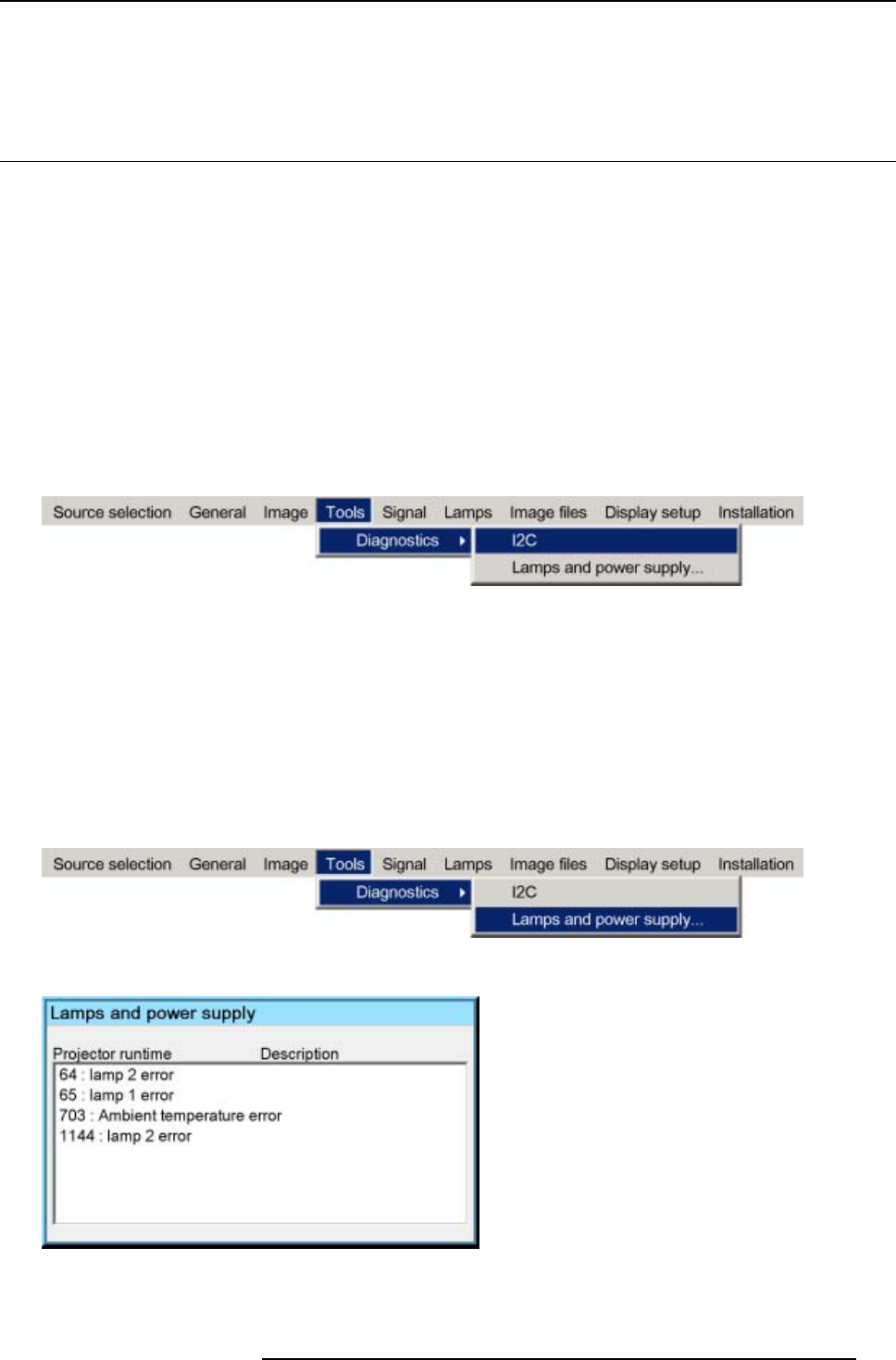
A. Troubleshoot
A. TROUBLESHOOT
A.1 Using the OSD
What can be done ?
The projector bus allows the diagnostic of different hardware components divided in two main groups.
•I
2C diagnostics : a number of internal electronic boards can be diagnosed and a graphical interface shows whether an error is
• Lamps and power supply : lamp temperature and power related failures are logged and can be checked at any time.
How to display the I2C diagnostics menu ?
1. Press MENU to activate the Tool bar
2. Press →to select the Tools item
3. Press ↓to Pull down the Tools menu
4. Use ↑or ↓to select Diagnostics
5. Press →to pull down the menu
6. Press ENTER to select I2C
Image A-1
A textbox is displayed
How to display the Lamps and power supply diagnostic menu ?
1. Press MENU to activate the Tool bar
2. Press →to select the Tools item
3. Press ↓to Pull down the Tools menu
4. Use ↑or ↓to select Diagnostics
5. Press →to pull down the menu
6. Press ENTER to select Lamps and power supply
Image A-2
A textbox is displayed
Image A-3
R5976821 BARCO ICON 15/03/2007 139
A. Troubleshoot
For Barco certified service technicians only: For more information on possible hardware failures refer to the
Service Manual.
140 R5976821 BARCO ICON 15/03/2007
B. General guidelines on Network Configuration
B. GENERAL GUIDELINES ON NETWORK
CONFIGURATION
Overview
• General Network
• The Internet and Web services
The installation of the iQ Pro in a Local Area Network must be done in the same way as the installation of
a standard PC in that particular network meaning that the same rules and accepted practice should be re-
spected.
The assistance of qualified IT personnel is advised.
B.1 General Network
An Administrator password has been installed for security reasons (worm and virus protection):
Password : Barco (case sensitive !)
Microsoft NT Domain
To enable access to your network resources, the iQ Pro must be a member of your NT Domain.
This can be configured in the Control Panel, under “System”, in the “Computer Name” tab, under the button “Network ID”. You’ll
need some help from the Network Administrator, since you need special rights to do this.
TCP/IP
The iQ Pro uses TCP/IP networking, so it needs the IP address, network mask, broadcast address, gateway, dns, wins, etc. to be
configured. This can be done in the Control Panel, under “Network Connections”. This can however be configured automatically, if
your network uses DHCP.
B.2 The Internet and Web services
Internet access
If you want to access the Internet from the iQ Pro, and the projector is located behind a firewall, you will also need to configure
the proxy to use. This can be done in the Control Panel, under “Internet Options”, in the tab “Connections”, under the button “LAN
Settings”.
iQ Pro Web services
To use the iQ Pro web client, you might need to change the “LAN Settings” on your local computer
If the client thinks the projector is on the Internet, and tries to connect to it through the proxy, you can turn on the “Bypass proxy
server for local addresses” feature, or add the projector to the Exceptions list under the “Advanced” button.
The “Internet Information Services(IIS) ” component has to be installed on the operating system.
SNMP
To enable management via the IQProSNMP Agent, you must enable the SNMP system service, and configure the communities
accordingly.
This can be done in the Control Panel, under Administrative Tools, in the Services, under the entry “Management and Monitoring
tools”. You may also need to enable SNMP in the iQ Pro Control Server in de suystem tray, see image below.
R5976821 BARCO ICON 15/03/2007 141
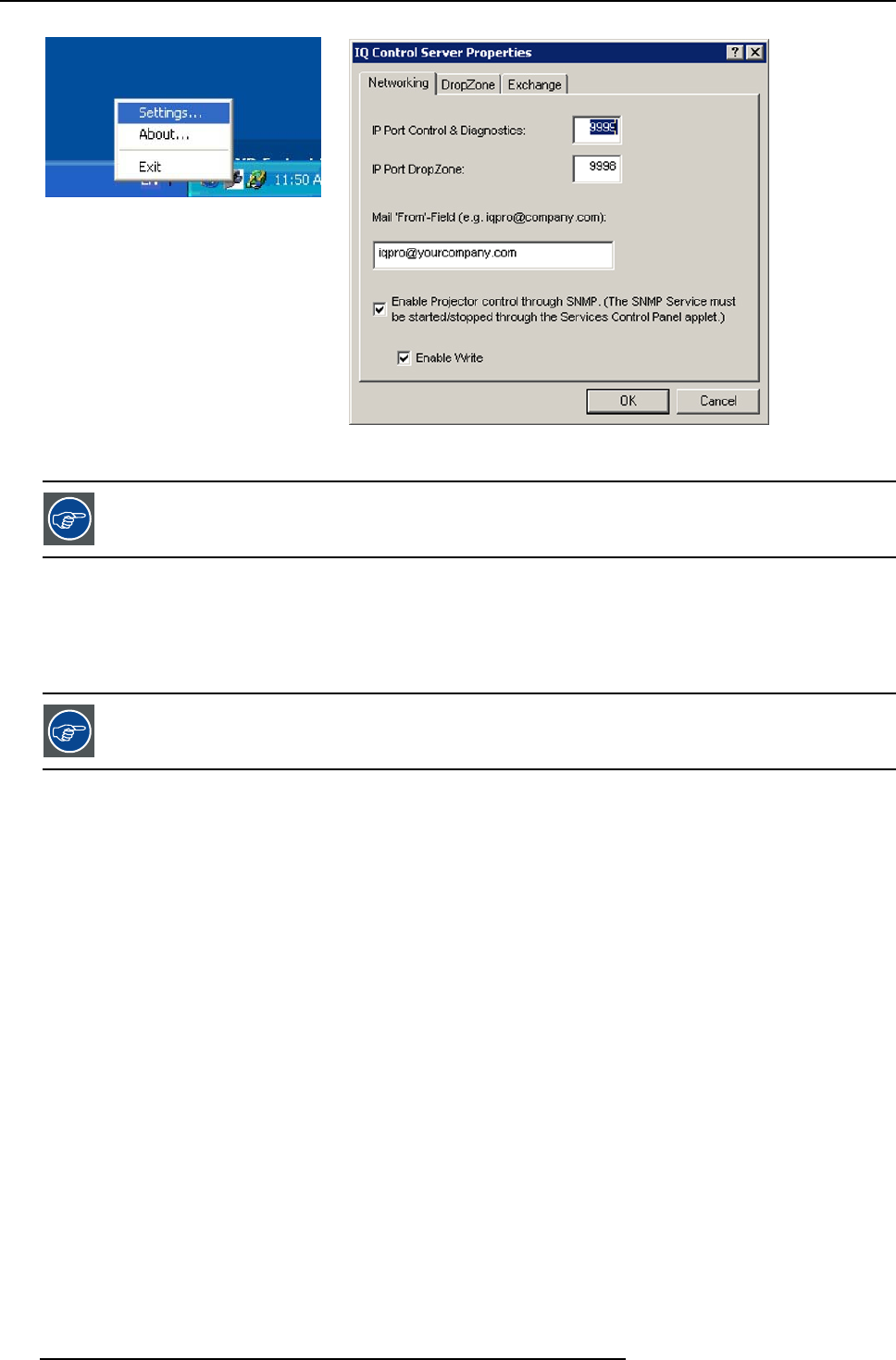
B. General guidelines on Network Configuration
Image B-1
system tray
Image B-2
server settings dialog box
For more info, see "SNMP services", page 151
Microsoft Exchange and Outlook
To enable control via the Microsoft Exchange integration, you need to install, enable and configure the IQProEXCH module.
To enable control from Microsoft Outlook, you need to install, enable and configure the IQProEXCH module, and install an Outlook
Form on the Exchange Server in your network.
For more info, see "Exchange", page 143
142 R5976821 BARCO ICON 15/03/2007

C. Exchange
C. EXCHANGE
Introduction
Some parameters values are installation dependent, and are shown here as an example.
You may need assistance from you network administrator, IT Manager or MIS helpdesk to obtain the settings or to configure
the projector for you, since this is a task description targeted to ‘Administrators’ and needs knowledge and/or permissions
normally held by those persons.
It is advised that you first try to follow the procedure to obtain a working setup, before changing the settings for conforming to your
local security requirements.
Use of this software requires a working Microsoft Exchange server installed somewhere in your corporate network.
C.1 Exchange Installation
C.1.1 Installation procedure
Creating a user account and mailbox
1. Create a user account in your NT Domain (on the projector).
The service will use this account to log on to the domain, and as credentials to authenticate to Microsoft
Exchange to read the entries in the Calendar folder of the Mailbox.
Username: iqpro
Domain: BARCO
Password: pwiqpro
2. Create a Mailbox for the projector’s account on the Microsoft Exchange Server (on your LAN).
The NT Domain user created in step 1 should have read access to this Mailbox.
Server: “BARCOEXCHSRV”
Mailbox: “Projector, IQPRO”
User: BARCO\iqpro
Installing and configuring Microsoft Outlook (on the projector)
1. Install Microsoft Outlook on the Projector.
Note: To be able to access Microsoft Exchange, you need a Client Access License.
Once you have one of those, you also have a license to Microsoft Outlook.
Refer to the following URL for more information: http://www.microsoft.com/resources/sam/licensing/cal_guide/ex-
change.asp
Tip: Outlook can be installed from the Microsoft Exchange Server CDROM or from a Microsoft Office Suite Installation
CDROM.
Since the IQ Pro has no CDROM drive, you may need to use a CDROM drive shared from a PC in the network.
Alternatively, you could use a USB CDROM drive.
2. Make sure the projector is part of the domain
Tip: This can be done in Control Panel->System->Computer Name->Change
3. Log in on the projector as the user
User: iqpro
Domain: BARCO
Password: pwiqpro
Tip: If the user cannot log on, the Local Administrator should add the right “Log on locally” for the user.
This must be configured in Start->Control Panel->Administrative Tools->Local Security Policy
4. Configure Outlook
Profile Name: “MS Exchange Settings”
This is what the wizard proposes by default, and what is used in this document.
Default Mail Client: yes
Note: Make sure that MS Outlook is the default Mail Client for this account.
You can do this afterwards from this configuration page: Start->Control Panel->Internet
Options->Programs->Email For more information, refer to :
http://www.microsoft.com/mspress/troubleshooting/outlook/LS/101801.asp
Enabling the account
1. Log on to the projector as an Administrator for the next steps.
R5976821 BARCO ICON 15/03/2007 143
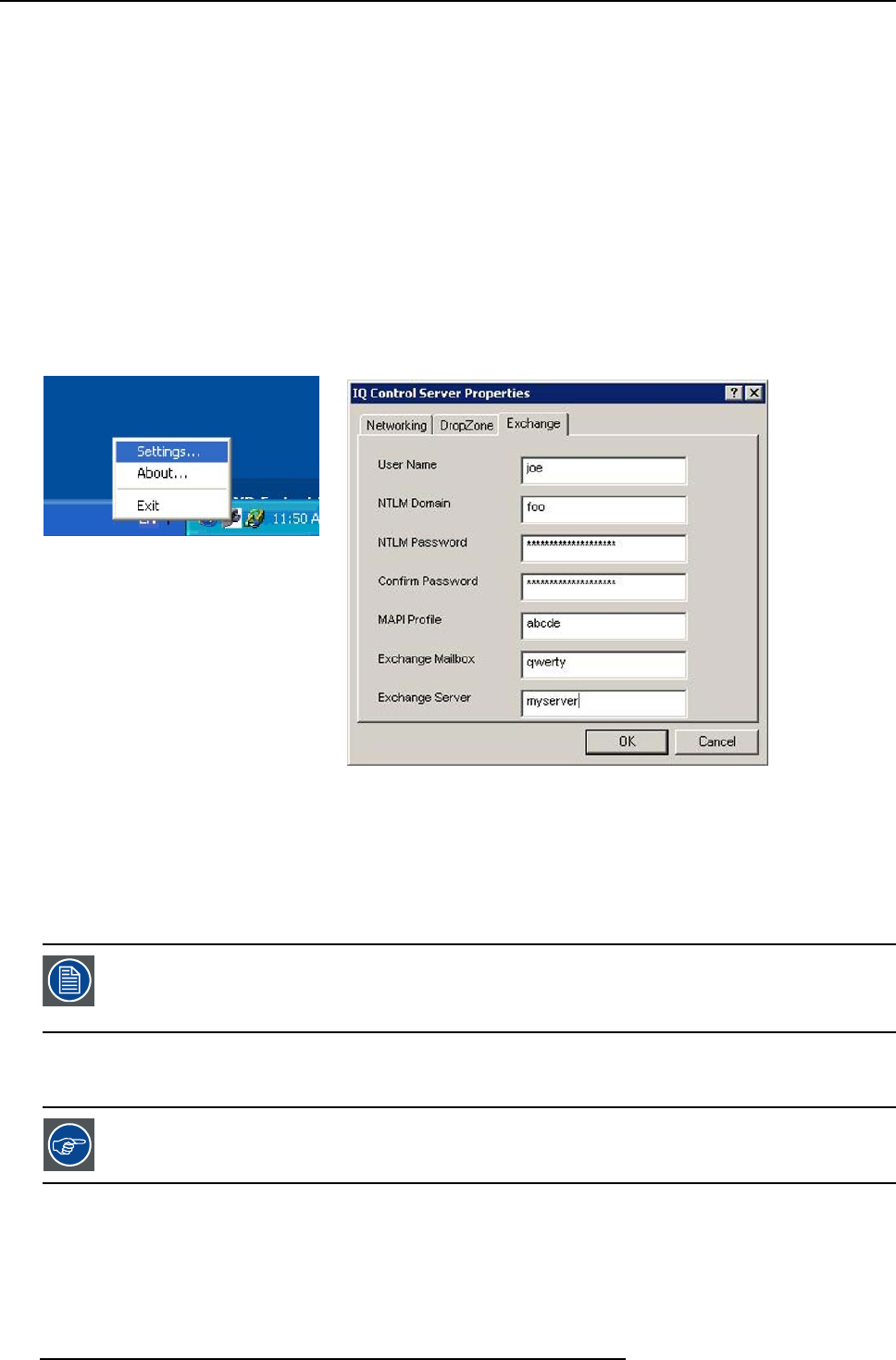
C. Exchange
For security reasons, you will probably not want to make the projector account part of one of the
administrator groups.
2. Enable the account to be used by the “iQ Pro Exchange Integration” service
3. In the Tree of the “Local Security Settings” application, navigate to Security Settings->Local Policies->User
Right Assignment.
4. In the List, edit the “Log on as a service”, and add the account, in the example “BARCO\iqpro”.
Installing and configuring the iQProEXCH service
Step 1,2,3 refers to the manual installation. One can use the SETUP.EXE program instead.
1. Copy the file IQProEXCH.EXE to (eg.) C:\Program Files\BARCO\iQ Pro Server
2. Open a command line, and go to the that directory
3. Type the following command IQProEXCH /Service
4. To configure, right click the “IQ Pro Server” tray icon, and go to the tab “Exchange”
Enter the credentials
Image C-1
system tray
Image C-2
server exchange tab
5. To enable the “IQProEXCH” service go to Control Panel->Administrative Tools->Services->IQPro Exchange
go to the TAB “General Startup” and Type: Automatic
Make the service use the correct account TAB Log On
Select “Local System Account”
Check “Allow service to interact with desktop”
6. Start the service, or reboot the projector.
You should now be able to schedule commands from a Microsoft Exchange client such as Outlook
running on any computer on the local network, provided you have the necessary permissions on the
Calendar in the projector mailbox.
C.1.2 Troubleshooting
The file C:\Program Files\BARCO\IQ Pro Server\IQProEXCH.log and the “Event Log” may contain helpful in-
formation to diagnose what’s going wrong
What can go wrongandwhattodo?
1. The log file contains “Logon failure: unknown user name or bad password”
Check Username, Password and Domain in Control Server/Exchange
2. The log file contains “Logon failure: the user has not been granted the requested logon type at this computer.”
The user account must be given the “Log on as a service” permission. This is done in Start/Control
144 R5976821 BARCO ICON 15/03/2007
C. Exchange
Panel/Administrative Tools/ Local Security Settings/Security Settings/Local Policies/User Right
Assignment. In the list, add the user to the entry “Log on as a service”
3. The log file contains “Could not log on with Profile ’MS Exchange Settings’” Make sure the profile exists. To check this, log
in to the projector as the user (BARCO\iqpro), as the profile should be owned by the projector account, and Outlook-profiles are
per-account. Start/Control Panel/Mail
4. The user cannot log on to the projector. The Administrator should add the right “Log on locally” for the user. This must be
configured in the Start/Control Panel/Administrative Tools/Local Security Policy
In the list, add the user to the entry “Logonasaservice”
5. When trying to start the service, the projector beeps, and the service stays in the ‘starting’ state
This happens when the service tries to display an error in a popup, but cannot access the desktop. Control
Panel/Administrative Tools/Services/IQPro Exchange
Check “Allow service to interact with desktop”
You may need to end the process ‘IQProEXCH’ from the task manager.
6. The commands are not executed at the right time
Check the time of the computer and the timezone Start/Control Panel/Date and Time/Timezone
7. An Outlook dialog box is displayed stating that there is no default mail client.
Make sure that MS Outlook is the default Mail Client for this account. You can do this from this
configuration page: Start/Control Panel/Internet Options/Programs/Email
You may need to do this as administrator, since the service is started as ‘Local System’ account.
Tip: For more information, refer to http://www.microsoft.com/mspress/troubleshooting/outlook/LS/101801.asp
C.2 Exchange Integration
Introduction
The projector must be configured to connect to a mailbox on a Microsoft Exchange server in the network, which is dedicated to the
projector, and to which of course the projector has rights to connect to.
The commands should be put in the SUBJECT of an appointment in the Exchange Calendar of the projector. The Start Time and
End Time of the appointments are used for timing info. The other fields (location, categories, body, … ) are not used by the software,
and thus can be used to store extra information for the USERS of the projector mailbox.
C.2.1 Command
How are the commands build up ?
• Command filename/filepath
The parameter filename is a filename relative to the “Receive” directory of the iQ Pro Control Server, which, in a default installation,
would typically be the local folder “C:\Documents and Settings\All Users\Received” The parameter filepath is an absolute path to a
file.
The commands should be put in the SUBJECT of an appointment in the Exchange Calendar of the projector. This is a mailbox on
a Microsoft Exchange server in the network, which is dedicated to the projector, and to which of course the projector has rights to
connect to.
The command and the filename are separated by a space.
R5976821 BARCO ICON 15/03/2007 145

C. Exchange
Overview of the commands
•ON
•STANDBY
• PAUSE
• PAUSE ON
• PAUSE OFF
•LOGO
•LOGOON
•LOGOOFF
• SWITCH SOURCE
•SWITCHLAYOUT
• LAUNCH ATTACHMENT
• STORE ATTACHMENT
•STOREfilename
•STOREFILEfilepath
• LAUNCH filename
• LAUNCH FILE filepath
• DELETE filename
• DELETE FILE filepath
ON, STANDBY
The projector is put in the specified state at the beginning of this event. Beware that if the SBC (Single Board Computer) is to be
powered-down during STANDBY, that further events will not be processed, since the integration runs on that SBC.
PAUSE, LOGO
The projector is put in the specified state at the beginning of this event, and the state is undone at the end of this event. o A parameter
ON or OFF can be specified to choose between the actions. This action will then be executed at the beginning. So “PAUSE from
12:00 to 13:00” is equivalent to “PAUSE ON at 12:00” + “PAUSE OFF at 13:00”
SWITCH SOURCE, SWITCH LAYOUT
The projector switches source or layout at the beginning of this event.
LAUNCH ATTACHMENT
The attachment is saved at the beginning of this event. Then the associated application is started. o At the end of the event, the
application is killed. This can not be guaranteed if the application was already running on the projector. For example, if a web page
is being displayed, and a second one is launched, the application is not started, but the original browser displays the page. In this
case the second event can not control the browser. This is a limitation of the Windows platform.
STORE ATTACHMENT
The attachment is saved at the beginning of this event. The name of the attachment is used and the file is placed in the Receive
folder.
STORE filename
The attachment is saved at the beginning of this event. The name filename is used and the file is placed in the Receive folder. For
example “STORE MYFILE.PPS” will save the attached file to “C:\Documents and Settings\All Users\Received\MYFILE.PPS”
STOREFILEfilepath
The attachment is saved at the beginning of this event. The path filepath is used as absolute filename. For example, the command
“STORE FILE C:\My Videos\MYFILE.AVI” will store the attachment as C:\My Videos\MYFILE.AVI. This of course if permissions are
correct and the directory C:\My Videos exists
DELETE filename
The file with name filename is deleted from the receive folder. For example “DELETE MYFILE.PPS” will delete “C:\Documents and
Settings\All Users\Received\MYFILE.PPS”
DELETE FILE filepath
The file with absolute name filepath is deleted. For example, the command “DELETE FILE C:\My Videos\MYFILE.AVI” will store the
attachment as C:\My Videos\MYFILE.AVI.
Drop down list
Besides the above commands some predefined commands can be selected from a drop down list in the iQPro tab.
146 R5976821 BARCO ICON 15/03/2007
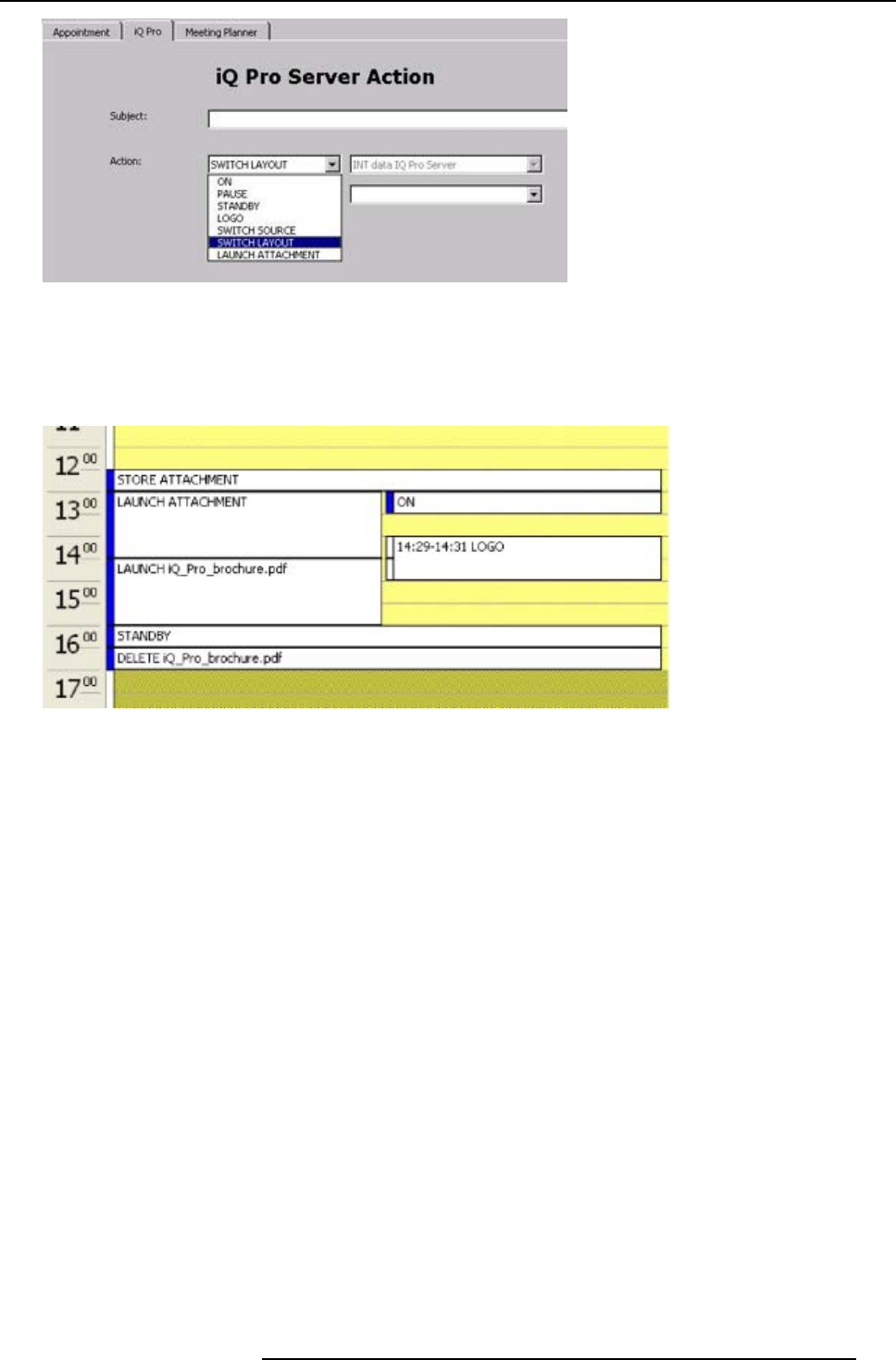
C. Exchange
Image C-3
C.2.2 Example
Schedule projector tasks in Microsoft Outlook 2000
following tasks are scheduled:
Image C-4
1. store attachment at 12:30 (The attached file is iQ_Pro_brochure.pdf)
2. turn the projector on at 13:00 and launch a different attached file
3. show the logo from 14:29 to 14:31 to hide the killing of the application and the starting of the PDF Viewer
4. at 14:30, lauch the PDF file that was stored in step 1 5
5. kill the application and put the projector in standby at 16:00
6. delete the PDF file that was stored in step 1
C.2.3 Microsoft Outlook Integration
Adding Outlook forms
To make things easier for users, you can install an Outlook Form that adds a tab called “iQ Pro” to the appointment. The form
contains the most-used commands in easy-to use drop-down lists. It looks as follows:
R5976821 BARCO ICON 15/03/2007 147
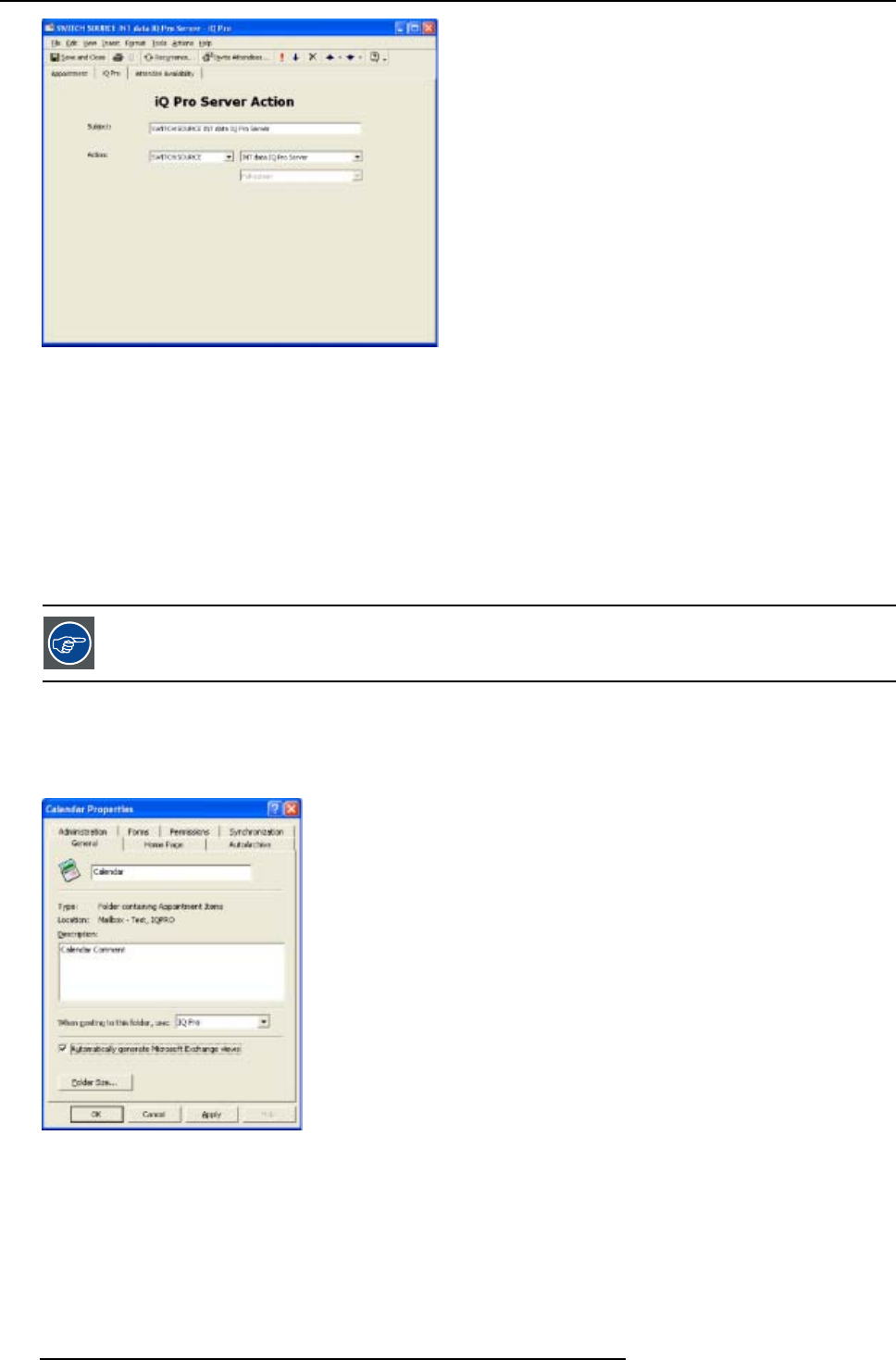
C. Exchange
Image C-5
The form contains the functionality that a normal user should be able to use without consulting the documentation.
The attachments, date and time fields must be edited in the “Appointment” tab.
Choosing items from the drop-down boxes fills in the subject.
By default, the layouts “Full-screen” and “2by2 raster” are defined in the form.
If you add layouts on the projector(s) or change the defaults, the user must type the name of the layout in the subject.
The form can be modified to make things easier for users, one can also add the defined layouts to the drop-down list. This must be
done from Outlook, in the menu “Tools->Forms->Design This Form”
Organizational Forms
The administrator should install Organizational Forms on the Exchange Server in the “Organizational Forms”
library.
Default form
Now the form still needs to be set as a default for creating new items. When returning to the “Forms” tab in the “Calendar Properties”
you should now see the “iQ Pro” template installed. Now go to the “General” tab and select the template as default for posting to
the folder.
Image C-6
If the form was installed as an “Organizational Form”, you need to select the “Forms…” entry, which will display the “Choose Form”
dialog,
148 R5976821 BARCO ICON 15/03/2007
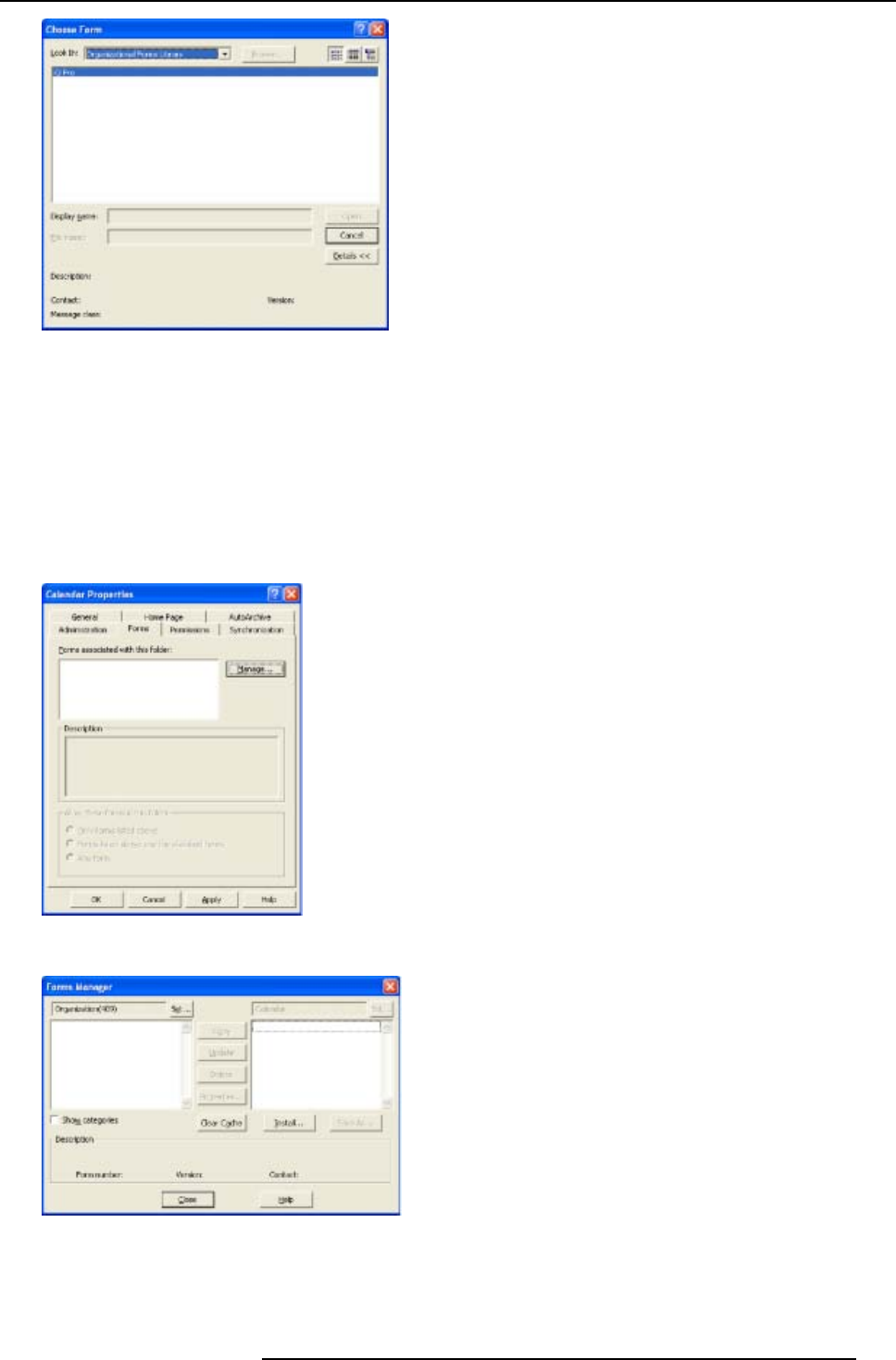
C. Exchange
Image C-7
C.2.4 Folder form
Folder form
Alternatively, the form can be installed for the Calendar folder only, by following the procedure described below
How to configure a folder form
1. In outlook, right-click on the “Calendar” icon in the “Outlook Shortcuts” tab in the “Outlook Bar” to open the “Properties” page,
while logged-on as the projector (Or display the “Folder List”, and right-click the “Calendar” folder to open the “Properties” page).
2. In the “Calendar Properties” dialog, go to the “Forms” tab, and click the “Manage…” button.
Image C-8
3. On the “Forms Manager” dialog, click the “Install…” button and select the file “iQ Pro.fdm”.
Image C-9
4. When returning to the “Forms” tab in the “Calendar Properties” you should now see the “iQ Pro” template installed.
Now go to the “General” tab and select the template as default for posting to the folder.
R5976821 BARCO ICON 15/03/2007 149
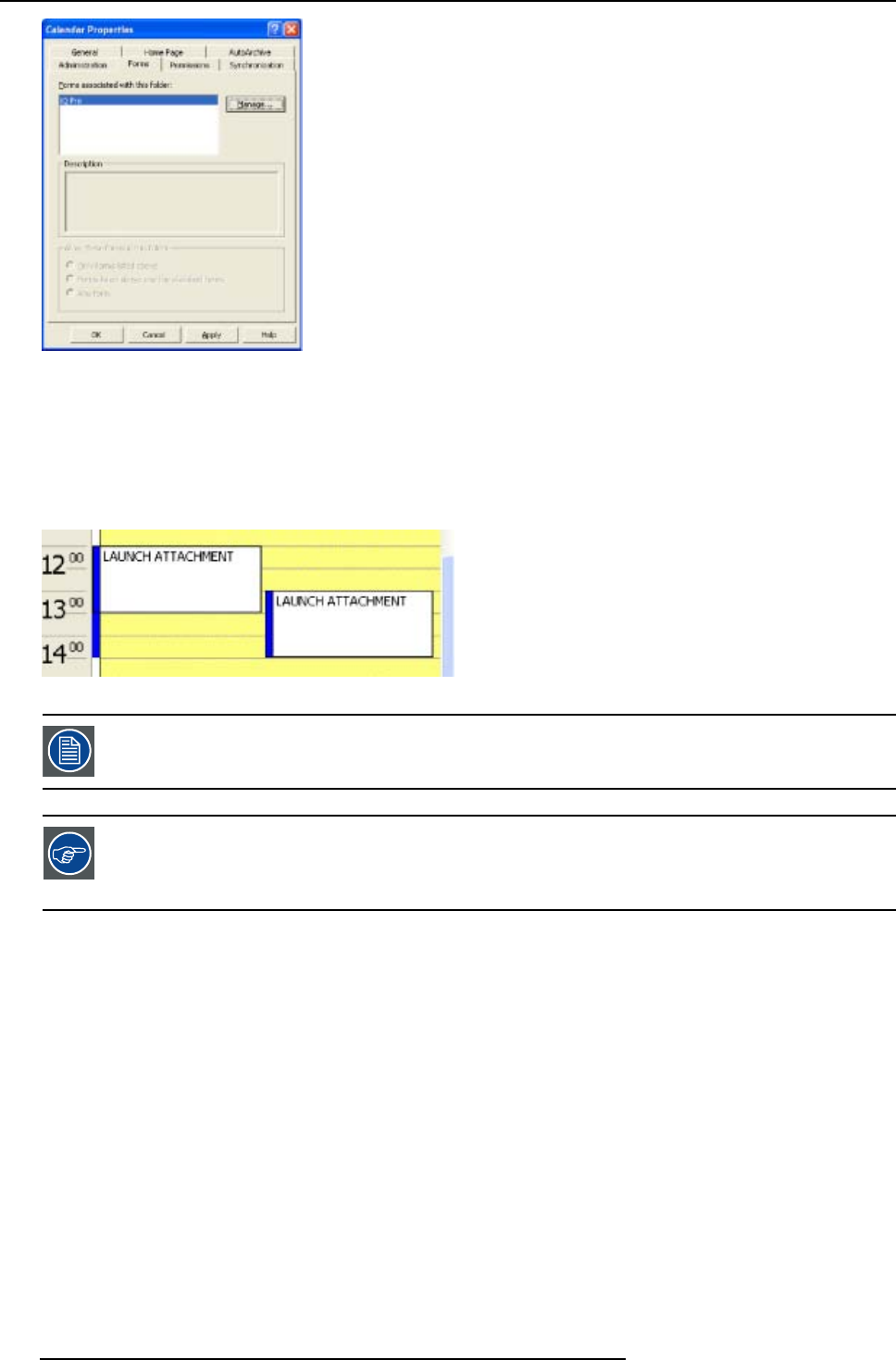
C. Exchange
Image C-10
C.2.5 Limitations and known “problems”
Overlapping tasks
When launching 2 attachments with overlapping times it is possible for the application to exit at the end of the first period. For
example, let’s say we try to display PRES1.PPT from 12:00 to 13:30, and PRES2.PPT from 13:00 to 14:30, it is possible for BOTH
presentations to exit at 13:30. This is because Windows uses the same process to display both files, and activates them via DDE.
Image C-11
This is a limitation in the Microsoft Windows ShellExecuteEx API
Avoid overlapping schedules in this case, or change the associations in: My Computer->Tools->Folder Op-
tions->File Types->(extension)
Try to disable DDE (under Edit with the default action, eg ‘open’, selected) and/or disable ‘Browse in same
window’ or using a different viewer/player for the file type.
150 R5976821 BARCO ICON 15/03/2007
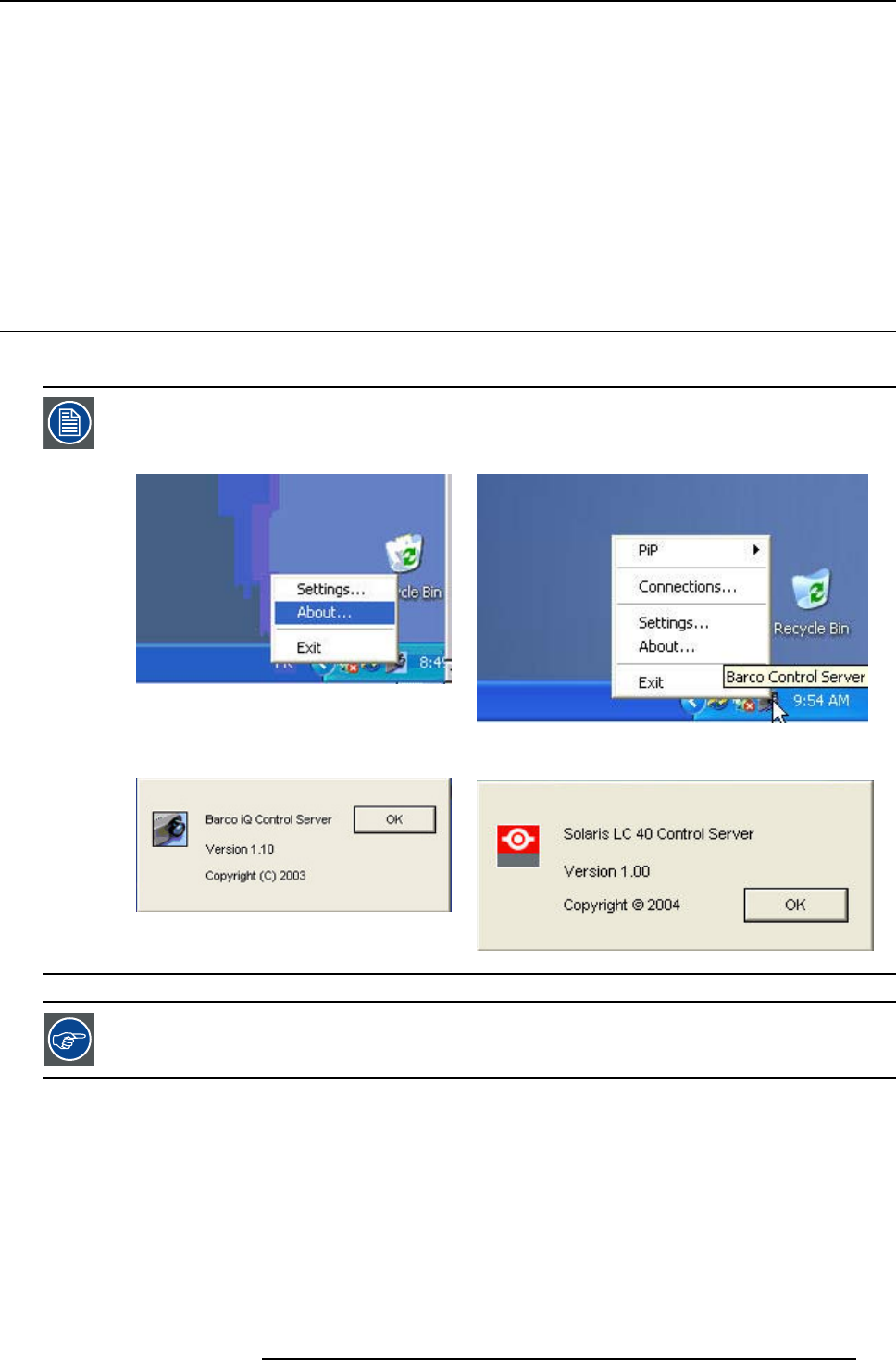
D. SNMP services
D. SNMP SERVICES
Introduction
Some parameters values are installation dependent, and are shown here as an example.
You may need assistance from you network administrator, IT Manager or MIS helpdesk to obtain the settings or to configure
the projector for you, since this is a task description targeted to ‘Administrators’ and needs knowledge and/or permissions
normally held by those persons.
It is advised that you first try to follow the procedure to obtain a working setup, before changing the settings for conforming to your
local security requirements.
D.1 SNMP installation
Introduction
The Control Server version should be at least version 1.10.
To check the version, open the about box from the server tray:
Image D-1
Image D-2
Image D-3
Image D-4
Software updates can be obtained from the BARCO support website: ftp://ftp.barco.com/pub/iq_pro_software/
or from secured website PartnerZone
How to install SNMP (only if necessary)
1. TheMicrosoftSNMPservicemustbeinstalled
You may need to install this service from the Windows XP CDROM.
2. Install the SNMP Agent Extension dll regsvr32 IQProSNMP.dll
The agent should now be registered as “iqpro” under
HKEY_LOCAL_MACHINE\SYSTEM\CurrentControlSet\Services\SNMP\Parameters\ExtensionAgents
How to configure SNMP (only if necessary)
1. Go to the Control panel, under the Administrative Tools, in the Services, in the “SNMP” entry.
2. In the “General” tab, you can enable the service, and make it start automatically.
R5976821 BARCO ICON 15/03/2007 151
D. SNMP services
3. In the “Security” tab, the default Community is called ‘public’ and is read-only.
You may want to give read-write permission to ‘public’ (not recommended) or create a ‘private’ community
with read-write permissions.
4. In the Control Server, enable the SNMP support, and optionally, enable read-write support.
5. The SNMP service should be restarted, to take the changed settings into account.
To uninstall the snmp agent: regsvr32 /u IQProSNMP.dll
D.2 SNMP integration
Commands
Following commands are provided stored in the MIB :
Command Type
PROJECTORTYPE READ
SERIALNUMBER READ
LAMPPRODUCTNUMBER READ
LAMPSERIALNUMBER READ
SERVERTYPE READ
SERVERVERSION READ
EMBEDDEDSOFTWAREVERSION READ
PROJECTORLANGUAGE READ
PROJECTORNAME READ
LOCATION READ
ORIENTATION READ
RESOLUTION READ
DESKTOPRESOLUTION READ
PROJECTORSTATE-cooldown READ
PROJECTORSTATE-textbox READ
PROJECTORSTATE-projector READ/WRITE
PAUSE READ/WRITE
FREEZE READ/WRITE
PROJECTORRUNTIME READ
LAMPWARNINGSTATUS READ
LAMPALERTSTATUS READ
LAMPMODE READ/WRITE
LAMPRUNTIME READ
LAMPSTATUS READ
LAMPWARNINGTIME READ/WRITE
I2CDIAGNOSTICS READ
152 R5976821 BARCO ICON 15/03/2007

D. SNMP services
Command Type
POWERSUPPLYERROR READ
LAMPERROR READ
PCSTATEPROJECTORON READ/WRITE
PCSTATEPROJECTORSTANDBY READ/WRITE
PCSTATE READ/WRITE
R5976821 BARCO ICON 15/03/2007 153

D. SNMP services
154 R5976821 BARCO ICON 15/03/2007
E. Maintenance
E. MAINTENANCE
E.1 Cleaning the lens
To minimize the possibility of damage to optical coatings, or scratches to lens surfaces, we have developed
recommendations for cleaning. FIRST, we recommend you try to remove any material from the lens by blowing
it off with clean, dry deionized air. DO NOT use any liquid to clean the lenses.
Necessary tools
Tor a ysee TM cloth (delivered together with the lens kit). Order number : R379058.
Howtocleanthelens?
Proceed as follow :
1. Always wipe lenses with a CLEAN TorayseeTM cloth.
2. Always wipe lenses in a single direction.
Warning: Do not wipe back and forwards across the lens surface as this tends to grind dirt into the coating.
3. Do not leave cleaning cloth in either an open room or lab coat pocket, as doing so can contaminate the cloth.
4. If smears occur when cleaning lenses, replace the cloth. Smears are the first indication of a dirty cloth.
CAUTION:Do not use fabric softener when washing the cleaning cloth or softener sheets when drying the
cloth.
Do not use liquid cleaners on the cloth as doing so will contaminate the cloth.
Other lenses can also be cleaned safely with this TorayseeTM cloth.
R5976821 BARCO ICON 15/03/2007 155

E. Maintenance
156 R5976821 BARCO ICON 15/03/2007
F. Image files
F. IMAGE FILES
F.1 I m ag e fi les
Table overview
The following standard image files are pre-programmed in the projector.
Name2Resolution3Fvert
Hz4
FHor
kHz5
Fpix
MHz6
Ptot7Pact8Ltot9Lact10
1600@48V 1600x600i 48,040 62,500 135,000 2160 1600 651 600
1600@60V 1600x900 60 56 119 2128 1600 932 900
1600@192 1600x600 96 63 135 2160 1600 651 600
1920x1440@60 1920x1440 60 90 234 2600 1920 1500 1440
CGA 640x200i 59,924 15.700 14.318 912 640 262 200
COMPUSC4 1024x480i 29,945 30,694 39,779 1296 1024 512 480
DOS3@56 640x400 56 24,800 21,030 848 640 440 400
EGA 640x350 59,702 21,851 16,257 744 640 366 350
ESVGA@75 832x624 73 47,900 53,648 1120 832 660 624
EXGA@60 1152x864 60 54,900 79,934 1456 1152 916 864
EXGA@80 1152x864 80,000 76,499 110,159 1140 1152 958 864
EXGA@85 1152x864 85
,000
77,202 121,671 1576 1152 907 864
EXGA1@70 1152x864 70 63,800 94,424 1480 1152 912 864
EXGA2@70 1152x864 70 66,098 99,941 1512 1152 945 864
EXGA2@75 1152x864 75 75,199 110,092 1464 1152 1002 864
FMR 640x400i 42,323 36,440 28,570 784 640 431 400
GE@50 640x400 50 31,200 44,928 1440 1163 625 522
GE@60 1085x480 60 30,700 41,261 1344 1085 512 480
hd@1080i 1920x540 60 33,750 74,249 2200 1920 563 540
hd@24p 1920x1080 24,000 27,000 74,000 2750 1920 1125 1080
hd@24sf 1950x540 48,000 27,000 74,000 2750 1950 562 540
hd@25i 1920x540 50,000 28,125 74,000 2640 1920 562 540
hd@25p 1920x1080 25,000 28,125 74,000 2640 1920 1125 1080
2. Name: name of file, contains the settings.
3. Resolution: image resolution, when followed by ..i means interlaced.
4. Fvert Hz: vertical frame frequency of the source
5. FHor kHz: horizontal frequency of the source
6. Fpix MHz: pixel frequency
7. Ptot : total pixels on one horizontal line.
8. Pact: active pixels on one horizontal line.
9. Ltot: total lines in one field
10. Lact: active lines in one field.
R5976821 BARCO ICON 15/03/2007 157

F. Image files
Name2Resolution3Fvert
Hz4
FHor
kHz5
Fpix
MHz6
Ptot7Pact8Ltot9Lact10
hd@30p 1920x1080 30,000 33,750 74,000 2200 1920 1125 1080
hd@60p 1280x720 60,000 45,000 74,000 1650 1280 750 720
INTER_GR 1184x886 67,170 61,796 92,941 1504 1184 920 886
IQPC_SXGA_2 1366x1024 59 62,933 106,230 1688 1366 1067 1024
IQPC_SXGA_D 1280x1024 60 63,857 107,791 1688 1280 1063 1024
IQPC_XGA_1 1024x768 61 49,005 65,863 1344 1024 807 768
IQPC_XGA_2 1024x768 60 48,485 65,164 1344 1024 807 768
IQPC_XGA_D 1024x768 61 49,005 65,863 1344 1024 806 768
MAC_3 512x384 60,147 24,480 15,667 640 512 407 384
MAC_5 512x342 60,158 22,259 16,670 704 512 370 342
MAC_6 832x624 74,546 49,722 57,280 1152 832 667 624
MAC_7 1024x768 74,907 60,150 80,000 1330 1024 803 768
MAC_POR 640x870 74,996 68,846 57,280 932 640 918 870
MXGA@100 1152x864 100 92,997 145,820 1568 1152 930 864
NTSC 675x240 60 15,748 13,512 858 675 263 240
NTSC_LIMO_x2 834x482 60 31,496 32,252 1024 834 525 482
PAL 675x286 50 15,625 13,500 864 675 313 286
PAL_LIMO_x2 834x574 50 31,250 32,000 1024 834 626 574
PAL_LIMO_x3 834x850 50 46,296 47,407 1024 834 926 850
PAL_LIMO_x4 834x1146 50 62,500 64,000 1024 834 1250 1146
PAM500 640x400 60,000 26,400 22,810 864 640 440 400
PAM800 1120x375i 44,936 36,443 50,000 1372 1120 406 375
PC98_2 1120x375i 39,994 32,835 47,840 1457 1120 411 375
PC98_3 1120x750 60,000 50,000 78,569 1571 1120 833 750
QXGA@56 2048x1536 56 89 247 2784 2048 1586 1536
QXGA@60 2048x1536 60 95 267 2800 2048 1589 1536
S1152@66 1152x900 66,004 61,846 94,500 1528 1152 937 900
S1152@76 1152x900 76,637 71,809 108,000 1504 1152 937 900
S1600@67 1600x1280 67 89,286 200,000 2240 1600 1334 1280
SDI_625 675x278i 25,000 15,625 13,500 864 720 313 278
SDI_525 675x240i 29,970 15,734 13,500 858 720 263 240
SG@50 1600x1200 50,000 62,500 130,313 2085 1600 1250 1200
158 R5976821 BARCO ICON 15/03/2007

F. Image files
Name2Resolution3Fvert
Hz4
FHor
kHz5
Fpix
MHz6
Ptot7Pact8Ltot9Lact10
SG@60_1 1280x1024 60,000 63,900 107,352 1680 1280 1065 1024
SG@60_3 960x680 60,000 43,200 54,432 1260 960 720 680
SGé60_4 1600x1200 60,000 75,000 156,375 2085 1600 1250 1200
STOR@100 764x287 100 31,300 30,361 970 764 313 287
STOR@50 1024x512 50 31,300 40,064 1280 1024 625 512
STOR@60 1024x512 60 31,300 40,064 1280 1024 525 512
SUNEWS@76 1280x1024 76,107 81,130 135,000 1664 1280 1066 1024
SUP_MAC 1024x768 60,000 48,780 63,999 1312 1024 813 768
SVGA_@56V 800x600 56,250 35,156 36,000 1024 800 625 600
SVGA_@60V 800x600 60,317 37,879 40,000 1056 800 628 600
SVGA_@72_1 800x600 72,084 48,080 50,003 1040 800 666 600
SVGA_@75 800x600 75,000 46,875 75,000 1056 800 625 600
SVGA_@85 800x600 85,000 53,635 56,250 1048 800 631 600
SXGA_@72_1 1280x1024 72 76,699 128,854 1680 1280 1061 1024
SXGA_@72_2 1280x1024 72 76,970 130,080 1690 1280 1069 1024
SXGA_@75 1280x1024 75 79,974 134,997 1688 1280 1066 1024
SXGA_@76 1280x1024 76 81,103 134,955 1664 1280 1066 1024
SXGA_@85 1280x1024 85 91,149 157,506 1728 1280 1072 1024
SXGA_L 1280x1024 60 62,500 84,000 1344 1280 1041 1024
SXGA+1_60 1400x1050 60 63,980 107,997 1688 1400 1066 1050
SXGA+2_60 1400x1050 60 65 123 1880 1400 1087 1050
SXGA2@60 1280x960 60 59,999 107,998 1800 1280 1000 960
SXGA2@85 1280x960 85 85,940 148,505 1728 1280 1011 960
SXGA@50 1280x1024 50 52,351 88,368 1688 1280 1047 1024
SXGAP@70 1024x1280 70 92,902 133,779 1440 1024 1326 1280
SXGAP2@60 1024x1280 60 79,498 110,661 1392 1024 1325 1280
UXGA@60 1600x1200 60 75,002 162,004 2160 1600 1250 1200
UXGA@70 1600x1200 70 87,497 188,993 2160 1600 1250 1200
UXGAé75 1600x1200 75 93,747 202,494 2160 1600 1250 1200
UXGA@85 1600x1200 85 106,247 229,494 2160 1600 1250 1200
R5976821 BARCO ICON 15/03/2007 159

F. Image files
Name2Resolution3Fvert
Hz4
FHor
kHz5
Fpix
MHz6
Ptot7Pact8Ltot9Lact10
UXGAP1@59 1200x1600 59 95,804 119,946 1252 1200 1620 1600
UXGAP2@60 1200x1600 60 99,404 163,817 1648 1200 1656 1600
VGA@60 640x480 60 31,326 25,061 800 640 525 480
VGA@66 640x480 67 35,100 30,326 864 640 525 480
VGA@73 640x480 73 37,860 31,500 832 640 520 480
VGA@75 640x480 75,000 37,500 31, 500 840 640 500 480
VGA1@85 640x480 85,000 43,369 36,000 832 640 509 480
VGA75ISO 640x480 75,000 39,375 31,500 800 640 525 480
VIDEO525 1302x239i 29,970 15,734 32,207 1302 1024 263 239
VIDEO625 1024x278i 25,000 15,625 31,984 1310 1024 313 278
WSXGA@60 1600x1024 60 64 137 2144 1600 1060 1024
WSXGA+@60 1680x1050 60 79 178 2272 1680 1304 1050
WUXGA@60 1920x1200 60 75 194 2592 1920 1245 1200
WUXGA_2@60 1920x1200 60 89 234 2624 1920 1490 1200
XGA@43 1024x384 87 35,500 44,872 1264 1024 409 384
XGA@60 1024x768 60,000 48,360 64,996 1344 1024 806 768
XGA@70_1 1024x768 70,000 56,475 74,999 1328 1024 806 768
XGA@70_2 1024x768 70,000 57,052 78,047 1368 1024 815 768
XGA@72 1024x768 71,955 58,140 80,000 1376 1024 808 768
XGA@75_1 1024x768 75 60,024 78,752 1312 1024 800 768
XGA@85 1024x768 85,000 68,680 94,500 1376 1024 808 768
XGA@87 1024x768 43 36 45 1264 1024 817 768
XGA@75_GS 1024x768 74,534 59,701 79,284 1328 1024 801 768
Table F-1
160 R5976821 BARCO ICON 15/03/2007

Index
INDEX
A
address 35
RCU 35
Address 36
Projector address 36
AGC 96
Auto Image 106
automatic startup 43
B
brightness 84
C
cable basket 16
removal 16
Cleaning 155
Lens 155
color 85
configuration 48
server 48
connection 26–29
Component video 28
computer 29
RGB 27
S-Video 26
connections 24
input 24
output 24
Connections 21
contrast 84
Control 119
description 119
Controls overview 30
D
desktop 57, 59–60, 64, 71–72, 74
add window 57
configuration 74
polling 74
renaming 74
examples 59
management 72
projector controls 72
projector menu 71
open 71
window 60, 64
image adjustments 64
menu 60
window manipulation 60
Desktop 71
Management 71
desktop management 71
menu 71
projector 71
Digital 29
DVI 29
display 112
synchronous 112
dropzone 67
dropping 67
E
exchange 143–144, 147
example 147
installation 143
troubleschooting 144
Exchange 145
exchange integration 149
folder form 149
F
File 107, 109–111
copy 110
delete 111
edit 107
rename 109
save 109
files 157
firmware 132
upgrade 132
freeze 82
G
gain control 97
manual 97
gamma 86
general 81
getting started 57, 61, 66
desktop 57, 66
creating 57
save 66
windows 61
manipulations 61
guidelines 141
general network config 141
Network 141
I
Identification 82
image 84, 87, 91
Color temperature 91
noise reduction 87
settings 84
image file 64
controls 64
image files 103
introduction 103
Image files 103, 157
image setup 83
Input 29
Input source connection 29
DVI 29
input balance 93
input boards 25
installation 11, 13, 15, 17–18, 21, 24, 26, 35, 37, 143
address 35
configuration 17
configurations 17
connection 21, 26
composite video 26
power 21
connections 24
signal 24
guidelines 11
lens 15
lens adjustments 37
positioning 18
procedure 143
RCU 15
setup 37
orientation 37
installation guidelines 12
network 12
Installation guidelines 11
guidelines 11
Safety 11
R5976821 BARCO ICON 15/03/2007 161

Index
safety warnings 11
Introduction 5, 117
L
lamp 97–98, 100–102
error 101
clear 101
history 100
mode 98
reset runtime 100
runtime 102
warning 102
runtimes 97
lens 16
range 16
Lens 155
Cleaning 155
Lenses 17
formulas 17
Load file 104–105
logon 57
M
Maintenance 155
manual 5
use 5
menu 97
lamp 97
Menu 36, 77, 88, 92, 107, 109–111, 113
Image files menu 107, 109–111
copy file 110
custom file 109
delete file 111
edit file 107
rename file 109
Image menu 88, 92
aspect ratio 88
filmmode detection 92
Installation 36
projector address 36
Installation menu 113
textbox 113
Using the dialog boxes 77
menu bar 113
Menu structure 77
Using the dialog boxes 77
menus 77
N
network 12, 45, 53–54, 68, 121, 128, 133, 136, 141
additional config info 141
configuration 45
control 121, 128
advanced 128
general 121
interface 121
source selection 121
dropzone 133
remote desktop sharing 133
Dropzone 68
file manager 68
DropZone 53–54
settings 53
start up 54
web 136
Network 44, 117–119, 122, 126, 128–131
architecture 117
configuration 130–131
E-mail 130–131
control 128–129
advanced lens adjustments 128
advanced options 129
Control manager 122, 126
image settings 126
PiP 122
functionality 118
installing 44
software 44
Projector 119
control 119
Network centric visualisation 6
Network management 117
O
OSD 77, 81
general 81
oulook integration 150
limitations 150
outlook intagration 147
P
packaging 7
parameter 145
list 145
pause 81
phase 86
power up 33
projector 33
preferences 41
R
representation 112
synchronous 112
S
S-Video 79
serial comms 39
baudrate 39
server 22, 40
Connections 22
setup 33, 39–43, 83
automatic startup 43
baudrate 39
image 83
language 41
quick access keys 42
server 40
sharpness 85
signal 44
background 44
sliderbox 114
SNMP 151–152
installation 151
integration 152
source 78
selection 78
source selection 78–80
composite video 78
PC 80
RGB-YUV 79
Source selection 81
DVI 81
Source Selection 78
specifications 119
server 119
start up 34, 57
projector 34, 57
status bar 114
T
Textbox 113
162 R5976821 BARCO ICON 15/03/2007


Index
164 R5976821 BARCO ICON 15/03/2007

List of images
LIST OF IMAGES
1-2 Network centric architecture .......................................................................................... 6
2-1 Projector packaging................................................................................................... 8
4-6 On-Axis projector installation ........................................................................................19
4-7 Off-Axis projector installation ........................................................................................20
4-10 Server section ........................................................................................................22
4-11 Server connections . . . ................................................................................................23
4-12 Typical server connection ............................................................................................23
4-14 Input section of the Icon : default configuration . . . ..................................................................25
4-15 RGB analog input board . ............................................................................................25
4-16 DVI digital input board................................................................................................25
4-17 DVI output board . ....................................................................................................26
4-20 RGB source connection . ............................................................................................28
5-3 Standby state : L3 is red ............................................................................................ 34
5-24 Control interface......................................................................................................45
5-26 projector list: contains a projector and a projector group sub list...................................................46
5-29 connected and active projector ......................................................................................48
5-39 client-server soft incompatibility......................................................................................52
5-45 installation menu .....................................................................................................55
6-1 The Startup menu in Windows.......................................................................................57
6-2 Desktop source selection menu representing also the standard input configuration (L1,L2,L3 input layers
installed) ..............................................................................................................58
6-8 positioning a video window. . . . . . .....................................................................................61
6-9 free sizing a video window...........................................................................................62
6-10 Data (RGB) and Video (S-Video) displayed at native resolution ...................................................62
6-11 Video source in Full screen representation..........................................................................63
6-12 Re-sizing ofa video window with unlocked aspect ratio.............................................................63
6-13 Source rename dialog box . . . . . . ..................................................................................... 64
6-14 Image controls dialo gbox............................................................................................64
6-15 Image file controls....................................................................................................65
6-16 image file controls: cursor on scroll bar .............................................................................65
6-17 Start pixels: wrong setting ........................................................................................... 65
7-4 The projector control menu ..........................................................................................73
8-22 Common non- anamorphic aspect ratios in DVD sources . . . .......................................................88
8-23 Anamorphic aspect ratios in DVD sources ..........................................................................88
8-24 Possible aspect ratio settings and their effect on different sources ................................................89
8-32 film to video conversion: 2/2 and 2/3 pull down method............................................................92
8-46 Single mode operation: switching principle . . . ......................................................................99
9-1 Typical iQ Pro network architecture.................................................................................118
9-2 point to point iQ Pro network communication ......................................................................119
9-3 control & management of network centric projector(s).............................................................120
9-4 The control interface: the general sub screen is active (see tool bar). . .. . . .......................................121
9-5 The source selection screen........................................................................................122
9-6 PiP screen...........................................................................................................123
9-10 Add window dialog box. . . ...........................................................................................124
9-20 the Advanced control submenu.....................................................................................128
9-22 The advanced Options screen .....................................................................................129
9-25 mail configuration screen ...........................................................................................131
9-28 upgrade interface. ...................................................................................................132
9-30 Virtual Meeting.......................................................................................................134
9-31 remote desktop sharing in case of a PowerPointTM presentation..................................................135
9-35 Web interface........................................................................................................137
B-1 system tray ..........................................................................................................142
B-2 server settings dialog box...........................................................................................142
C-1 system tray ..........................................................................................................144
C-2 server exchange tab. . ...............................................................................................144
R5976821 BARCO ICON 15/03/2007 165
