Barracuda Networks BCE130OD3 CudaCam Dome IP Camera User Manual

Barracuda Networks, Inc. CudaCam Dome IP Camera Users Manual

Users Manual

Dome IP CameraQuick Start GuideCAMCudaCam
Dear Barracuda Networks Customer, Thank you for choosing the CudaCam Dome IP Camera. Barracuda Networks oers a complimentary telephone installation appointment with this purchase to help you plan your installation, congure your system, and verify the operation of your CudaCam Dome IP Camera following installation. Please contact our Technical Support team to schedule your complimentary telephone installation appointment.Of course, this complimentary telephone installation appointment is not designed to replace the local support you may receive from your Barracuda Networks reseller. If you prefer, please do not hesitate to contact your Barracuda Networks reseller, whom we will be happy to coordinate with in order to provide additional deployment support.Thank you again for choosing the CudaCam Dome IP Camera. We encourage you to contact your reseller or our Technical Support team that is available around the clock to assist with technical questions or concerns. We look forward to helping you with your current and future needs in the areas of security, networking, and data protection.  Sincerely,BJ Jenkins CEO
Table of ContentsSetup1. Create Your CudaCam Account2. Wi-Fi Settings (Wi-Fi Users Only)3. Determine How and Where to Mount Camera4. Mount the Camera5. Connect Ethernet Cable and Ensure Power 6. Aim and Focus the Camera 7. Prepare and Seal the Camera Support  112 3 4 567
12Wi-Fi Settings (Wi-Fi Users Only)1Create Your CudaCam AccountSetupIf you are a rst time CudaCam user, create your CudaCam account. In a web browser, navigate to: http://www.cudacam.comClick the Camera Login button and then click I am a new user and complete the web form to create your account. The account you create is the rst user. You can add more users and cameras after creating this account.Before installing your cameras, connect one to a Power over Ethernet (PoE) enabled network connection and familiarize yourself with the camera set up, conguration, and web interface.Plug the camera into an Internet enabled PoE cable.  Congure the wireless settings as described on the Barracuda Networks website. If possible, congure the Wi-Fi settings within range of the Wi-Fi network you will use.Move the camera to the install site with the Wi-Fi ready to go.  For detailed instructions or complex congurations, please visit the Barracuda Networks website or contact Technical Support.
2You must install the camera as a sealed unit, with no path for moisture to enter. If not sealed, condensation can form inside the dome, blurring the camera view.Mounting options: The falcon dome camera can be surface mounted to a wall or ceiling, or it can be mounted recessed into a ceiling using a recessed mounting kit.Three screws or bolts are threaded through the holes in the camera base to support the camera.  A mounting template is included if holes need to be predrilled.The camera has two entry points for an Ethernet cable, a ½ inch NPT tting on the side, and a ¾ inch NPT tting on the bottom.  All entry points provide possible entry paths for moisture. The camera comes with sealing plugs for the NPT ttings, and with a cable gland for the ½ inch tting. The cable gland seals around cables varying from .125 to .350 inches in diameter. Most Ethernet cable is about 0.25 inches in diameter. Tighten the cable gland to achieve a good seal.3Determine How and Where to Mount CameraSetup
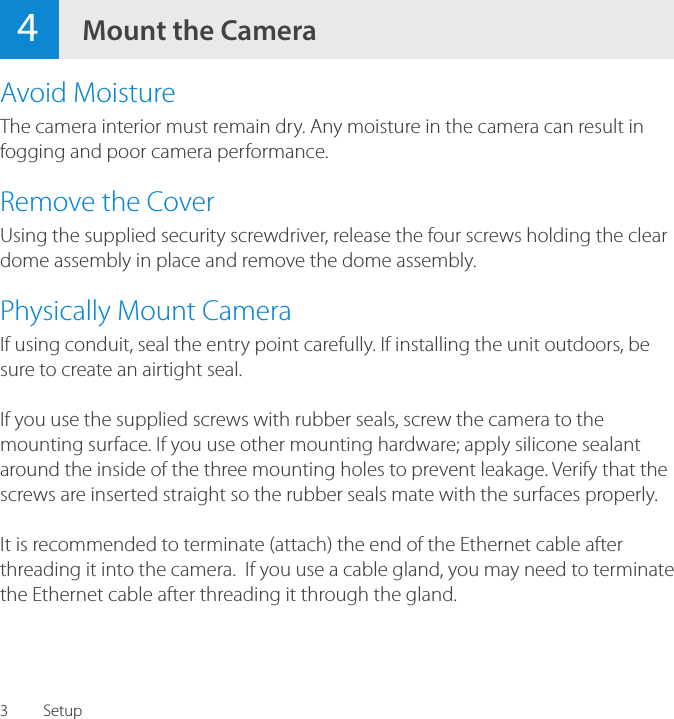
34Mount the CameraAvoid MoistureThe camera interior must remain dry. Any moisture in the camera can result in fogging and poor camera performance.Remove the CoverUsing the supplied security screwdriver, release the four screws holding the clear dome assembly in place and remove the dome assembly.Physically Mount CameraIf using conduit, seal the entry point carefully. If installing the unit outdoors, be sure to create an airtight seal.If you use the supplied screws with rubber seals, screw the camera to the mounting surface. If you use other mounting hardware; apply silicone sealant around the inside of the three mounting holes to prevent leakage. Verify that the screws are inserted straight so the rubber seals mate with the surfaces properly.It is recommended to terminate (attach) the end of the Ethernet cable after threading it into the camera.  If you use a cable gland, you may need to terminate the Ethernet cable after threading it through the gland.Setup
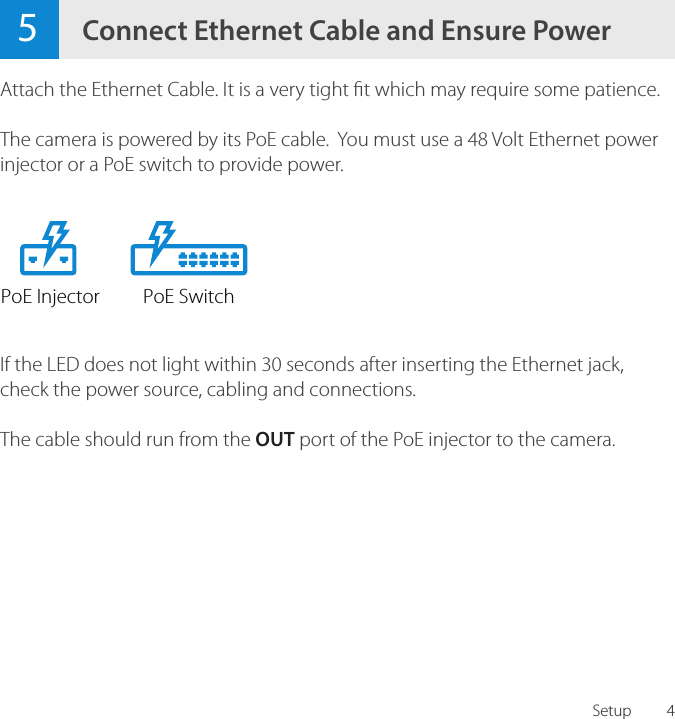
45Connect Ethernet Cable and Ensure PowerAttach the Ethernet Cable. It is a very tight t which may require some patience.The camera is powered by its PoE cable.  You must use a 48 Volt Ethernet power injector or a PoE switch to provide power.If the LED does not light within 30 seconds after inserting the Ethernet jack, check the power source, cabling and connections.The cable should run from the OUT port of the PoE injector to the camera.SetupPoE Injector PoE Switch
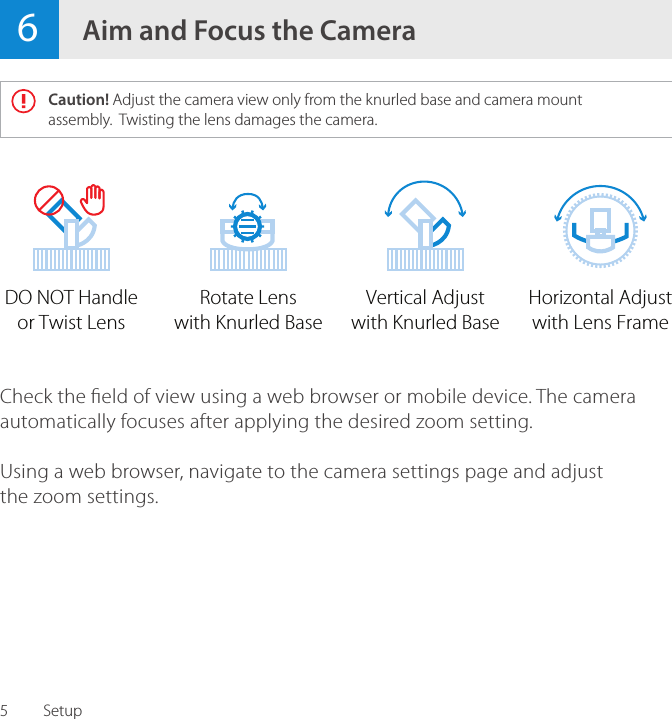
5 Setup6Aim and Focus the CameraCheck the eld of view using a web browser or mobile device. The camera automatically focuses after applying the desired zoom setting.Using a web browser, navigate to the camera settings page and adjust the zoom settings.Caution! Adjust the camera view only from the knurled base and camera mount assembly.  Twisting the lens damages the camera.Horizontal Adjustwith Lens FrameDO NOT Handleor Twist LensVertical Adjustwith Knurled BaseRotate Lenswith Knurled Base
6Setup1.  Inspect the three screw mount locations to ensure that the screws are snug and the rubber seals are compressed.  Do not over tighten the screws or the seals will be pushed out of place.2.  Ensure that the supplied sealing plug is fully inserted in any unused cable entry point.3.  Inspect the cable entry point you are using. Be sure cable gland or conduit is properly tightened, achieving a good seal.  Conduit or cable entry should be positioned so water does not ow toward the camera.  Use a drip loop with cables.4.  Place the supplied packet of moisture absorbent (desiccant) in the camera well where the cable is located.5.  Put the dome in place and tighten the four supplied screws. 6.  OPTIONAL If installing in locations with high humidity, with the dome loosely installed, use a dry air source (such as Radio Shack Dust Remover Catalog #: 64-104) to purge humidity from the camera.7.  Insert the red tube from the dust remover about a half inch into the gap between the dome and base. Blow the dry air from the can into the dome to purge all humid air from the dome, replacing it with dry air from the can. Use plenty of dry air. Pull the tube out, press the dome closed, and tighten the four screws which hold it in place.7Prepare and Seal the CameraCritical! To avoid fogging on the inside of the camera due to trapped moisture, the air in the camera must be completely dry.
7Online Support•  For additional product information, conguration instructions or supporting materials, visit www.cudacam.com.•  Please email support@barracuda.comTelephone Support•  For urgent matters, please call Technical Support at +1 408.342.5300. Phone lines are open 24 hours a day, 7 days a week.Support
FCC StatementThis device complies with Part 15 of the FCC Rules. Operation is subject to the following two conditions: (1) this device may not cause harmful interference, and (2) this device must accept any interference received, including interference that may cause undesired operation.This equipment has been tested and found to comply with the limits for a Class A digital device, pursuant to part 15 of the FCC Rules. These limits are designed to provide reasonable protection against harmful interference when the equipment is operated in a commercial environment. This equipment generates, uses, and can radiate radio frequency energy and, if not installed and used in accordance with the instruction manual, may cause harmful interference to radio communications. Operation of this equipment in a residential area is likely to cause harmful interference in which case the user will be required to correct the interference at his own expense.This equipment complies with FCC radiation exposure limits set forth for an uncontrolled environment.  This equipment should be installed and operated with minimum distance 20cm between the radiator & your body.  This transmitter must not be co-located or operating in conjunction with any other antenna or transmitter.Warning: Any changes or modifications not expressly approved by Barracuda Networks, Inc. could void the user’s authority to operate the equipment.IC StatementThis device complies with Industry Canada’s licence-exempt RSSs. Operation is subject to the following two conditions: (1) This device may not cause interference; and (2) This device must accept any interference, including interference that may cause undesired operation of the device. Cet appareil est conforme aux CNR exempts de licence d’Industrie Canada. Son fonctionnement est soumis aux deux conditions suivantes:(1) Ce dispositif ne peut causer des interférences; et (2) Cet appareil doit accepter toute interférence, y compris les interférences qui peuvent causer un mauvais fonctionnement de l’appareil This equipment complies with IC radiation exposure limits set forth for an uncontrolled environment.  This equipment should be installed and operated with minimum distance 20cm between the radiator & your body.Cet équipement est conforme aux limites d’exposition aux rayonnements IC établies pour un environnement non contrôlé. Cet équipement doit être installé et utilisé avec un minimum de 20 cm de distance entre la source de rayonnement et votre corps.
This radio transmitter, BNHW028 has been approved by Industry Canada to operate with a whip antenna with maximum permissible gain of 3.2 dBi. Other antenna types or whip antennas having a gain greater than the maximum gain, are strictly prohibited for use with this device.Cet émetteur radio, BNHW028 a été approuvé par Industrie Canada pour fonctionner avec une antenne fouet avec un gain maximal autorisé de 3,2 dBi. Autres types d’antenne ou des antennes de fouet ayant un gain supérieur au gain maximum, sont strictement interdits pour une utilisation avec cet appareil.Copyright InformationCopyright 2016 Barracuda Networks, Inc. All rights reserved. Use of this product and this manual is subject to license. Information in this document is subject to change without notice. CudaCam and Barracuda are trademarks of Barracuda Networks, Inc. All other brand and product names mentioned in this document are registered trademarks or trademarks of their respective holders. The Software supplied with this Product is provided under license from Barracuda Networks, Inc. and other licensors, and certain of the programs included in the Software may be provided under the GNU General Public License (GPL) or the Lesser General Public License (LGPL). In accordance with the terms of the GPL and LGPL, you may request a copy of the relevant source code. This oer is valid for up to three years from the date of original purchase of the Product.
Copyright 2016 Barracuda Networks Inc.3175 S. Winchester Blvd., Campbell, CA 95008 408-342-5400/888-268-4772 (US & Canada)barracuda.com Dome-160429-01-fg

Navigation menu