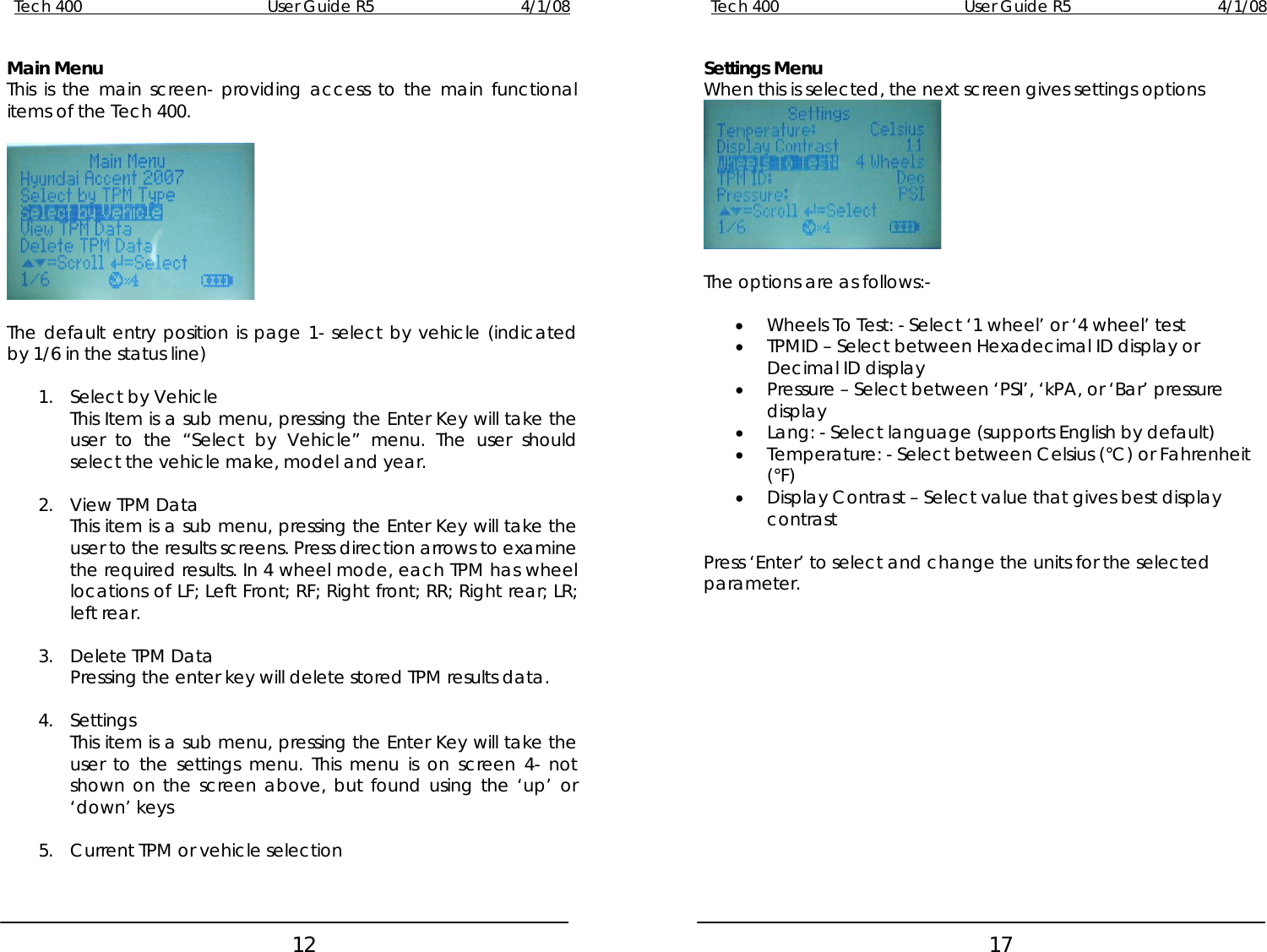
Bartec USA DSW Tire Pressure Sensor Diagnostic Tool User Manual TABLE OF CONTENTS

Bartec USA LLC. Tire Pressure Sensor Diagnostic Tool TABLE OF CONTENTS

Users Manual Revised

TECH400
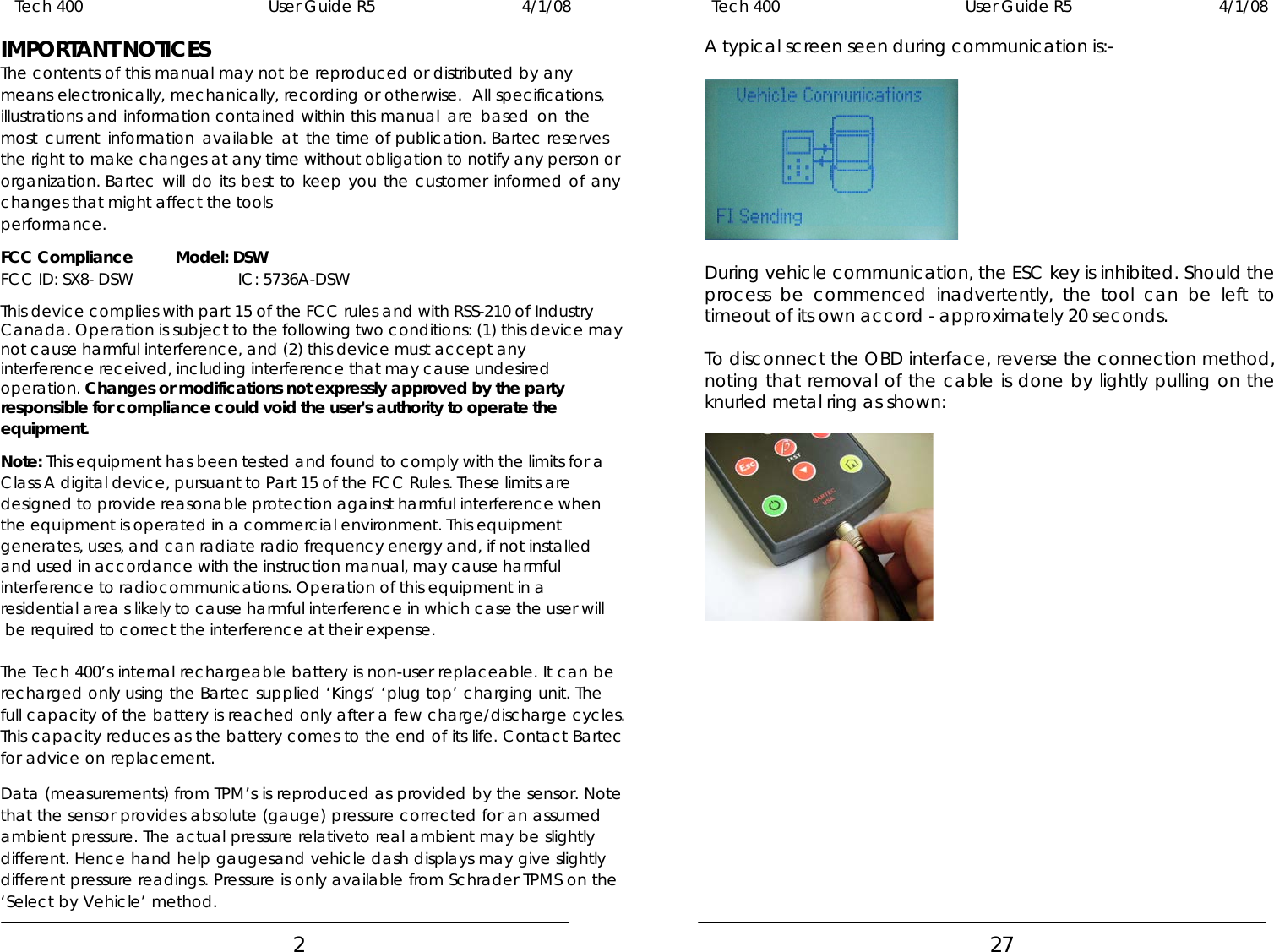
Tech 400        User Guide R5        4/1/08   28 QUICK REFERENCE GUIDE  If necessary, charge by plugging in charger - the unit will power up and show charging status via the battery symbol and charger connected icon.  Turn on using lower left ‘on/off’ key  Use up and down arrows to select (lighter text on dark background) the required function or menu item. Use ‘Enter’ to select this function  Common activities: Set to 4 wheels (use settings menu) to prepare to audit a vehicle. Select by vehicle—first by make, then model, then year. Press Enter key to continue test. In 4 wheel mode- the arrow points to the wheel to be tested Press ‘Test’ to test the TPM. If test passes, arrow automatically points to next wheel. (Or manually move around vehicle using ‘up’ or ‘down’ keys) Lower part of display provides summary results for each TPM. Where vehicles permit, use ‘up’ or ‘down’ to select vehicle communications icon in the audit display. Connect the cable to the OBD interface and plug this into the vehicle. Select required action from the screen.  TPM results data can also be viewed (in main menu entry item)  TPM results data can be accessed (printed) from a pc (connect using USB lead). The provided PC screen audit form can be completed from the pc keyboard.  TPM results data can be deleted (main menu item). It is recommended this is done prior to a vehicle audit.  Settings (e.g. TPM measurement units) can be altered (main menu item)  Home key will always return to the default main menu  Turn off using lower left ‘on/off’ key Tech 400        User Guide R5        4/1/08   1 TABLE OF CONTENTS  SPECIFICATION/ FUNCTIONALITY 3 PART NAMES AND FUNCTIONS 4 POWER ON/OFF SEQUENCE 5 TEST METHODOLOGY 5 MAIN DISPLAY AREA AND DESCRIPTION 5 RESULTS/ TEST DISPLAY AREA AND DESCRIPTION 10 MENU SYSTEM 11 READING A TPM 18 PC CONNECTION CAPABILITIES 23 VEHICLE COMMUNICATION 25 QUICK REFERENCE GUIDE 28
Tech 400        User Guide R5        4/1/08   2 IMPORTANT NOTICES The contents of this manual may not be reproduced or distributed by any means electronically, mechanically, recording or otherwise.  All specifications, illustrations and information contained within this manual are based on the most current information available at the time of publication. Bartec reserves the right to make changes at any time without obligation to notify any person or organization. Bartec will do its best to keep you the customer informed of any changes that might affect the tools performance.  FCC Compliance  Model: DSW FCC ID: SX8- DSW    IC: 5736A-DSW  This device complies with part 15 of the FCC rules and with RSS-210 of Industry Canada. Operation is subject to the following two conditions: (1) this device may not cause harmful interference, and (2) this device must accept any interference received, including interference that may cause undesired operation. Changes or modifications not expressly approved by the party responsible for compliance could void the user's authority to operate the equipment.  Note: This equipment has been tested and found to comply with the limits for a Class A digital device, pursuant to Part 15 of the FCC Rules. These limits are designed to provide reasonable protection against harmful interference when the equipment is operated in a commercial environment. This equipment generates, uses, and can radiate radio frequency energy and, if not installed and used in accordance with the instruction manual, may cause harmful interference to radiocommunications. Operation of this equipment in a residential area s likely to cause harmful interference in which case the user will be required to correct the interference at their expense.  The Tech 400’s internal rechargeable battery is non-user replaceable. It can be recharged only using the Bartec supplied ‘Kings’ ‘plug top’ charging unit. The full capacity of the battery is reached only after a few charge/discharge cycles. This capacity reduces as the battery comes to the end of its life. Contact Bartec for advice on replacement.  Data (measurements) from TPM’s is reproduced as provided by the sensor. Note that the sensor provides absolute (gauge) pressure corrected for an assumed ambient pressure. The actual pressure relativeto real ambient may be slightly different. Hence hand help gaugesand vehicle dash displays may give slightly different pressure readings. Pressure is only available from Schrader TPMS on the ‘Select by Vehicle’ method. Tech 400        User Guide R5        4/1/08   27 A typical screen seen during communication is:-    During vehicle communication, the ESC key is inhibited. Should the process be commenced inadvertently, the tool can be left to timeout of its own accord - approximately 20 seconds.  To disconnect the OBD interface, reverse the connection method, noting that removal of the cable is done by lightly pulling on the knurled metal ring as shown:
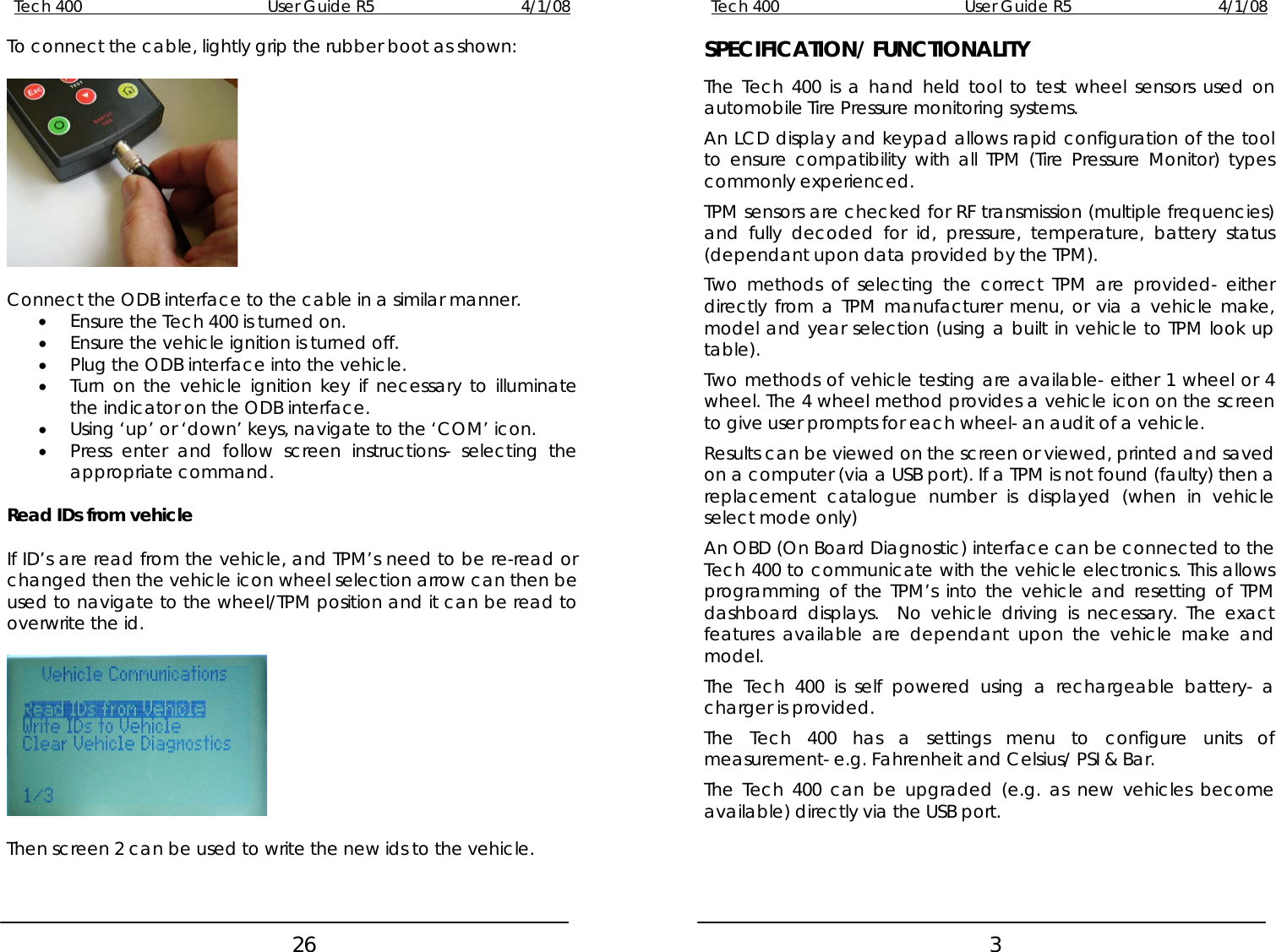
Tech 400        User Guide R5        4/1/08   26 To connect the cable, lightly grip the rubber boot as shown:     Connect the ODB interface to the cable in a similar manner. • Ensure the Tech 400 is turned on. • Ensure the vehicle ignition is turned off. • Plug the ODB interface into the vehicle. • Turn on the vehicle ignition key if necessary to illuminate the indicator on the ODB interface. • Using ‘up’ or ‘down’ keys, navigate to the ‘COM’ icon. • Press enter and follow screen instructions- selecting the appropriate command.  Read IDs from vehicle  If ID’s are read from the vehicle, and TPM’s need to be re-read or changed then the vehicle icon wheel selection arrow can then be used to navigate to the wheel/TPM position and it can be read to overwrite the id.    Then screen 2 can be used to write the new ids to the vehicle.   Tech 400        User Guide R5        4/1/08   3 SPECIFICATION/ FUNCTIONALITY  The Tech 400 is a hand held tool to test wheel sensors used on automobile Tire Pressure monitoring systems.  An LCD display and keypad allows rapid configuration of the tool to ensure compatibility with all TPM (Tire Pressure Monitor) types commonly experienced.  TPM sensors are checked for RF transmission (multiple frequencies) and fully decoded for id, pressure, temperature, battery status (dependant upon data provided by the TPM).  Two methods of selecting the correct TPM are provided- either directly from a TPM manufacturer menu, or via a vehicle make, model and year selection (using a built in vehicle to TPM look up table).  Two methods of vehicle testing are available- either 1 wheel or 4 wheel. The 4 wheel method provides a vehicle icon on the screen to give user prompts for each wheel- an audit of a vehicle.  Results can be viewed on the screen or viewed, printed and saved on a computer (via a USB port). If a TPM is not found (faulty) then a replacement catalogue number is displayed (when in vehicle select mode only)  An OBD (On Board Diagnostic) interface can be connected to the Tech 400 to communicate with the vehicle electronics. This allows programming of the TPM’s into the vehicle and resetting of TPM dashboard displays.  No vehicle driving is necessary. The exact features available are dependant upon the vehicle make and model.  The Tech 400 is self powered using a rechargeable battery- a charger is provided.  The Tech 400 has a settings menu to configure units of measurement- e.g. Fahrenheit and Celsius/ PSI & Bar.  The Tech 400 can be upgraded (e.g. as new vehicles become available) directly via the USB port.
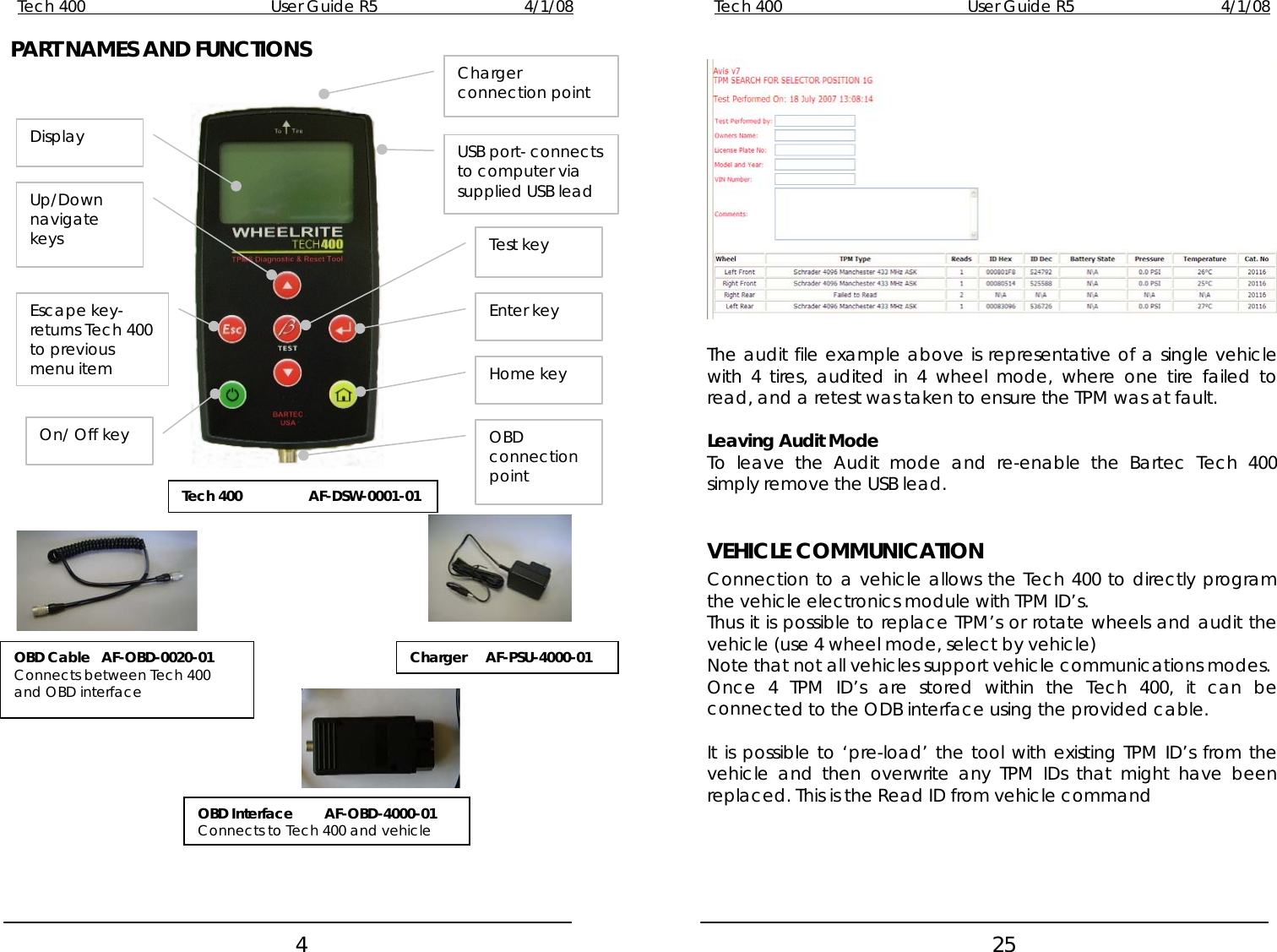
Tech 400        User Guide R5        4/1/08   4Tech 400        User Guide R5        4/1/08   25PART NAMES AND FUNCTIONS                                     Charger connection point Display USB port- connects to computer via supplied USB lead Up/Down navigate keys Enter keyTest key Escape key- returns Tech 400 to previous menu item  The audit file example above is representative of a single vehicle with 4 tires, audited in 4 wheel mode, where one tire failed to read, and a retest was taken to ensure the TPM was at fault. Home key On/ Off key OBD connection point Leaving Audit Mode To leave the Audit mode and re-enable the Bartec Tech 400 simply remove the USB lead. Tech 400   AF-DSW-0001-01   VEHICLE COMMUNICATION Connection to a vehicle allows the Tech 400 to directly program the vehicle electronics module with TPM ID’s. Thus it is possible to replace TPM’s or rotate wheels and audit the vehicle (use 4 wheel mode, select by vehicle) Charger     AF-PSU-4000-01 OBD Cable   AF-OBD-0020-01 Connects between Tech 400 and OBD interface  Note that not all vehicles support vehicle communications modes. Once 4 TPM ID’s are stored within the Tech 400, it can be connected to the ODB interface using the provided cable.  It is possible to ‘pre-load’ the tool with existing TPM ID’s from the vehicle and then overwrite any TPM IDs that might have been replaced. This is the Read ID from vehicle command OBD Interface  AF-OBD-4000-01 Connects to Tech 400 and vehicle
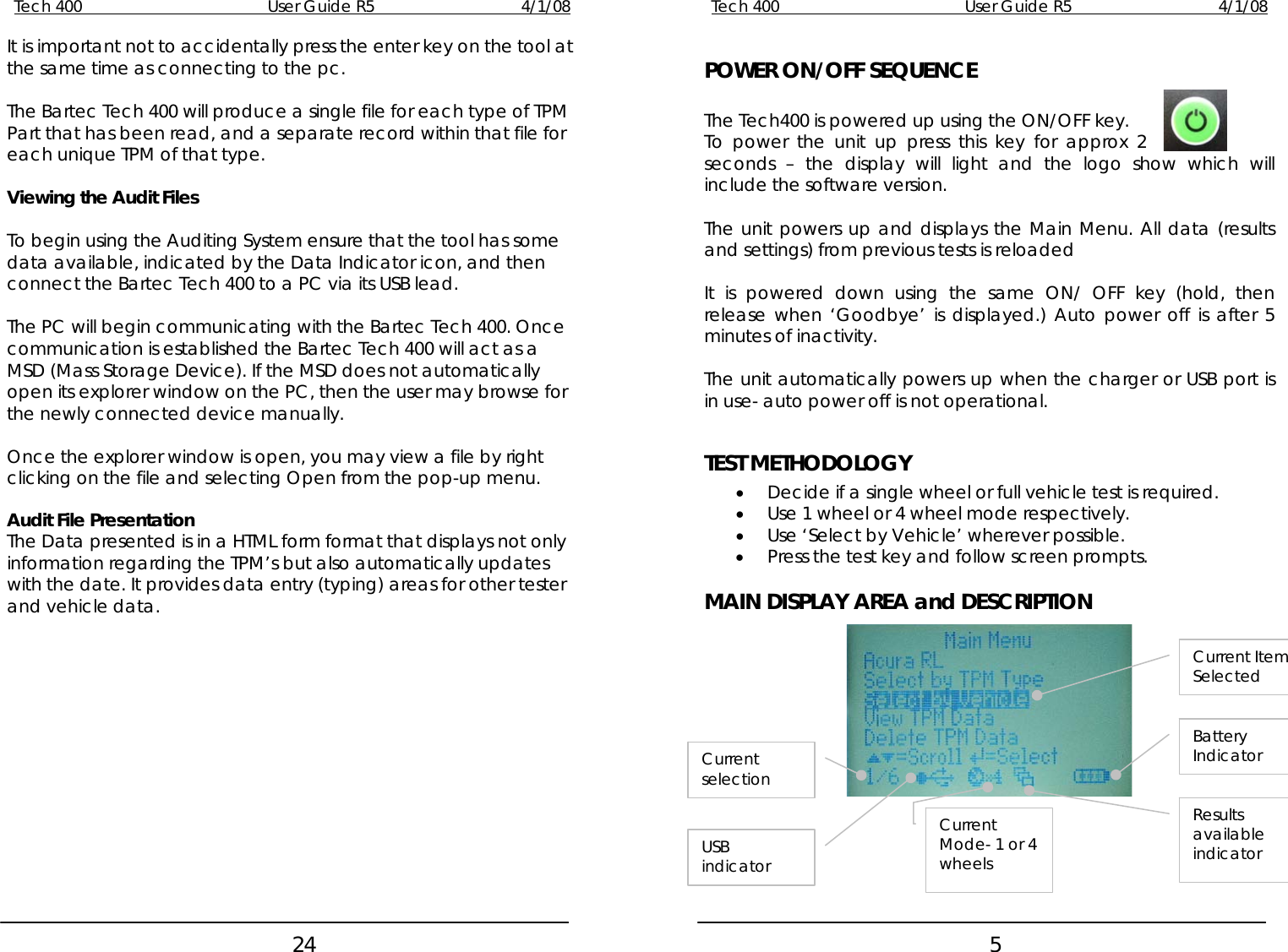
Tech 400        User Guide R5        4/1/08   24Tech 400        User Guide R5        4/1/08   5It is important not to accidentally press the enter key on the tool at the same time as connecting to the pc.  POWER ON/OFF SEQUENCE   The Bartec Tech 400 will produce a single file for each type of TPM Part that has been read, and a separate record within that file for each unique TPM of that type. The Tech400 is powered up using the ON/OFF key. To power the unit up press this key for approx 2 seconds – the display will light and the logo show which will include the software version.  Viewing the Audit Files    The unit powers up and displays the Main Menu. All data (results and settings) from previous tests is reloaded To begin using the Auditing System ensure that the tool has some data available, indicated by the Data Indicator icon, and then connect the Bartec Tech 400 to a PC via its USB lead.   It is powered down using the same ON/ OFF key (hold, then release when ‘Goodbye’ is displayed.) Auto power off is after 5 minutes of inactivity.  The PC will begin communicating with the Bartec Tech 400. Once communication is established the Bartec Tech 400 will act as a MSD (Mass Storage Device). If the MSD does not automatically open its explorer window on the PC, then the user may browse for the newly connected device manually.  The unit automatically powers up when the charger or USB port is in use- auto power off is not operational.   Once the explorer window is open, you may view a file by right clicking on the file and selecting Open from the pop-up menu.  TEST METHODOLOGY • Decide if a single wheel or full vehicle test is required.  • Use 1 wheel or 4 wheel mode respectively. Audit File Presentation  • Use ‘Select by Vehicle’ wherever possible. The Data presented is in a HTML form format that displays not only information regarding the TPM’s but also automatically updates with the date. It provides data entry (typing) areas for other tester and vehicle data. • Press the test key and follow screen prompts. MAIN DISPLAY AREA and DESCRIPTION               Current selection Current Mode- 1 or 4 wheels USB indicator Battery Indicator Results available indicator Current Item Selected
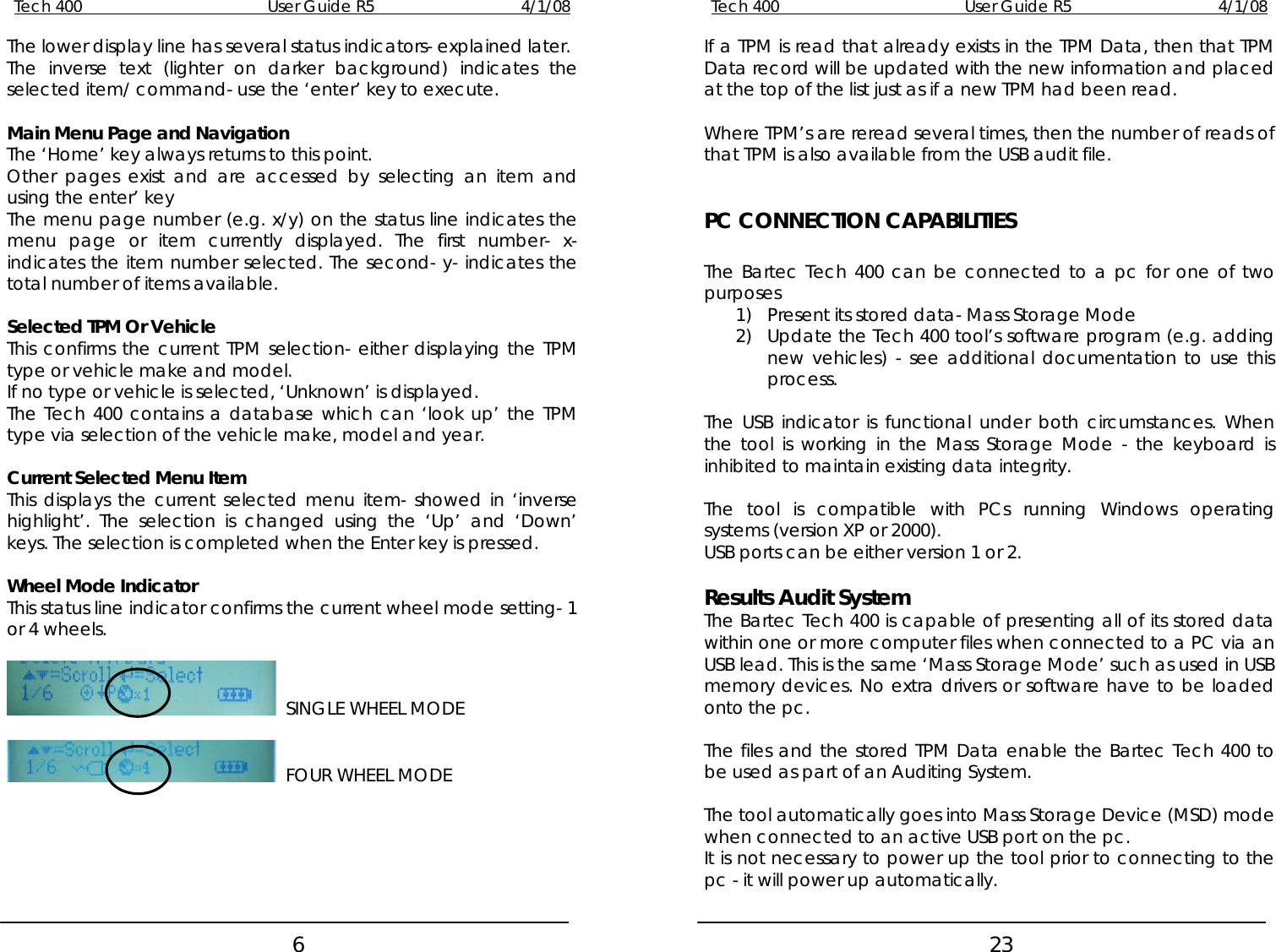
Tech 400        User Guide R5        4/1/08   6Tech 400        User Guide R5        4/1/08   23The lower display line has several status indicators- explained later.  If a TPM is read that already exists in the TPM Data, then that TPM Data record will be updated with the new information and placed at the top of the list just as if a new TPM had been read. The inverse text (lighter on darker background) indicates the selected item/ command- use the ‘enter’ key to execute.    Main Menu Page and Navigation  Where TPM’s are reread several times, then the number of reads of that TPM is also available from the USB audit file. The ‘Home’ key always returns to this point. Other pages exist and are accessed by selecting an item and using the enter’ key   PC CONNECTION CAPABILITIES The menu page number (e.g. x/y) on the status line indicates the menu page or item currently displayed. The first number- x- indicates the item number selected. The second- y- indicates the total number of items available.  The Bartec Tech 400 can be connected to a pc for one of two purposes  1) Present its stored data- Mass Storage Mode Selected TPM Or Vehicle  2) Update the Tech 400 tool’s software program (e.g. adding new vehicles) - see additional documentation to use this process. This confirms the current TPM selection- either displaying the TPM type or vehicle make and model. If no type or vehicle is selected, ‘Unknown’ is displayed.   The Tech 400 contains a database which can ‘look up’ the TPM type via selection of the vehicle make, model and year.  The USB indicator is functional under both circumstances. When the tool is working in the Mass Storage Mode - the keyboard is inhibited to maintain existing data integrity.  Current Selected Menu Item   This displays the current selected menu item- showed in ‘inverse highlight’. The selection is changed using the ‘Up’ and ‘Down’ keys. The selection is completed when the Enter key is pressed. The tool is compatible with PCs running Windows operating systems (version XP or 2000). USB ports can be either version 1 or 2.   Wheel Mode Indicator  Results Audit System This status line indicator confirms the current wheel mode setting- 1 or 4 wheels.  The Bartec Tech 400 is capable of presenting all of its stored data within one or more computer files when connected to a PC via an USB lead. This is the same ‘Mass Storage Mode’ such as used in USB memory devices. No extra drivers or software have to be loaded onto the pc.    SINGLE WHEEL MODE     FOUR WHEEL MODE  The files and the stored TPM Data enable the Bartec Tech 400 to be used as part of an Auditing System.   The tool automatically goes into Mass Storage Device (MSD) mode when connected to an active USB port on the pc. It is not necessary to power up the tool prior to connecting to the pc - it will power up automatically.
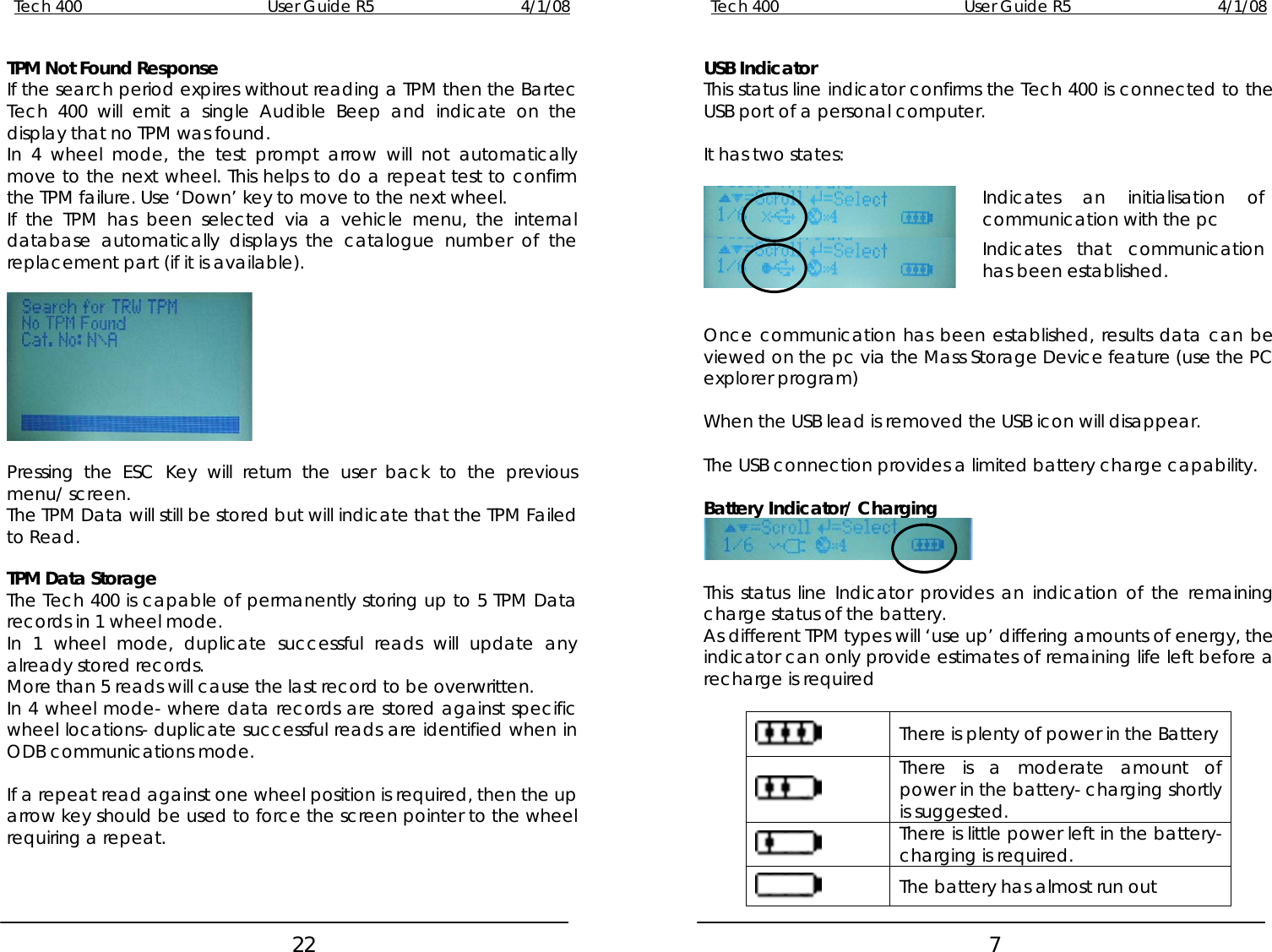
Tech 400        User Guide R5        4/1/08   22Tech 400        User Guide R5        4/1/08   7   TPM Not Found Response  USB Indicator If the search period expires without reading a TPM then the Bartec Tech 400 will emit a single Audible Beep and indicate on the display that no TPM was found.  This status line indicator confirms the Tech 400 is connected to the USB port of a personal computer.  In 4 wheel mode, the test prompt arrow will not automatically move to the next wheel. This helps to do a repeat test to confirm the TPM failure. Use ‘Down’ key to move to the next wheel. It has two states:   Indicates an initialisation of communication with the pc  Indicates that communication has been established.   If the TPM has been selected via a vehicle menu, the internal database automatically displays the catalogue number of the replacement part (if it is available).    Pressing the ESC Key will return the user back to the previous menu/ screen. The TPM Data will still be stored but will indicate that the TPM Failed to Read.   TPM Data Storage The Tech 400 is capable of permanently storing up to 5 TPM Data records in 1 wheel mode. In 1 wheel mode, duplicate successful reads will update any already stored records. More than 5 reads will cause the last record to be overwritten. In 4 wheel mode- where data records are stored against specific wheel locations- duplicate successful reads are identified when in ODB communications mode.  If a repeat read against one wheel position is required, then the up arrow key should be used to force the screen pointer to the wheel requiring a repeat.    Once communication has been established, results data can be viewed on the pc via the Mass Storage Device feature (use the PC explorer program)  When the USB lead is removed the USB icon will disappear.  The USB connection provides a limited battery charge capability.  Battery Indicator/ Charging   This status line Indicator provides an indication of the remaining charge status of the battery.  As different TPM types will ‘use up’ differing amounts of energy, the indicator can only provide estimates of remaining life left before a recharge is required   There is plenty of power in the Battery  There is a moderate amount of power in the battery- charging shortly is suggested.  There is little power left in the battery- charging is required.  The battery has almost run out
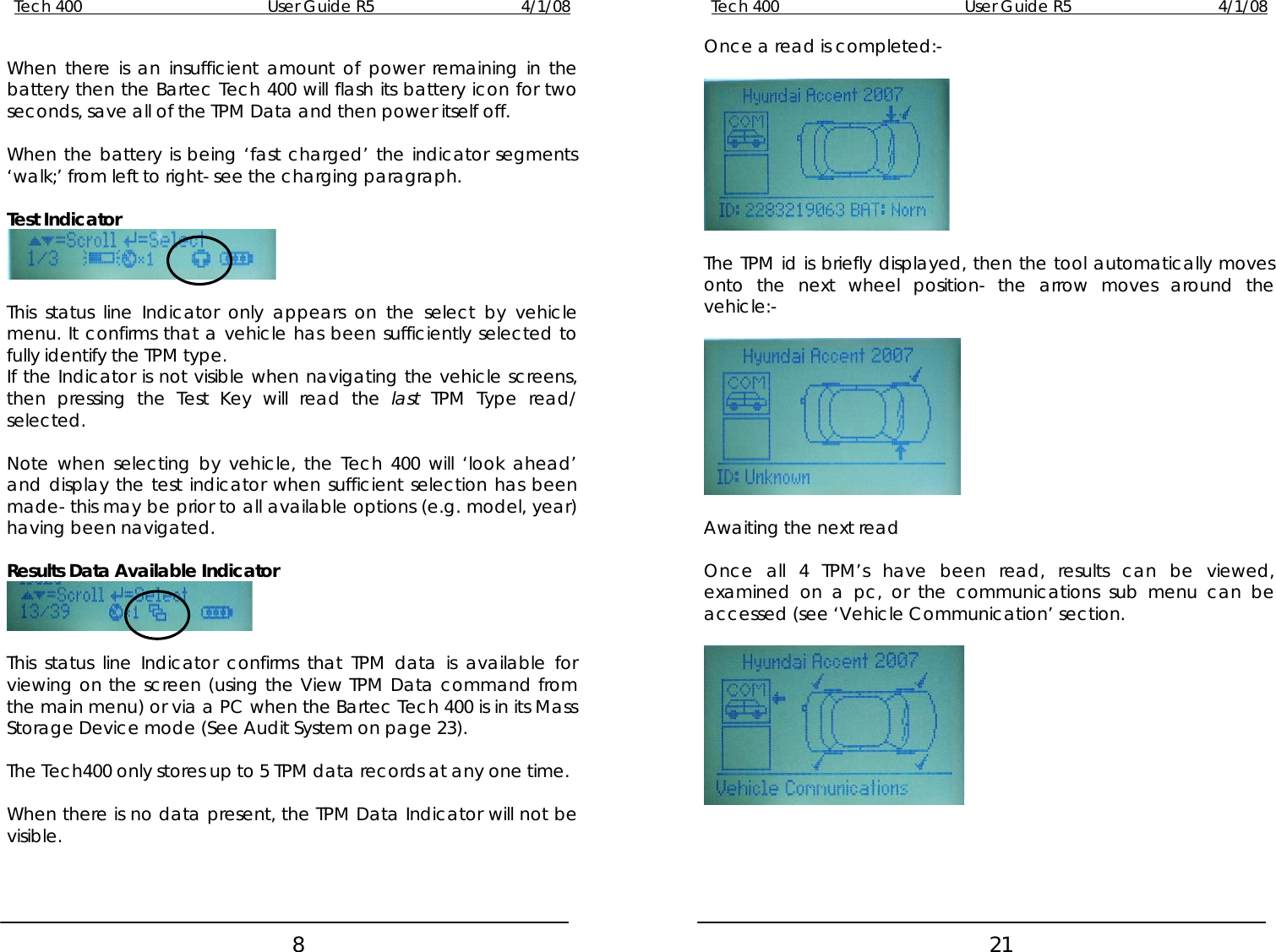
Tech 400        User Guide R5        4/1/08   8Tech 400        User Guide R5        4/1/08   21 Once a read is completed:-    The TPM id is briefly displayed, then the tool automatically moves onto the next wheel position- the arrow moves around the vehicle:-    Awaiting the next read  Once all 4 TPM’s have been read, results can be viewed, examined on a pc, or the communications sub menu can be accessed (see ‘Vehicle Communication’ section.    When there is an insufficient amount of power remaining in the battery then the Bartec Tech 400 will flash its battery icon for two seconds, save all of the TPM Data and then power itself off.  When the battery is being ‘fast charged’ the indicator segments ‘walk;’ from left to right- see the charging paragraph.  Test Indicator    This status line Indicator only appears on the select by vehicle menu. It confirms that a vehicle has been sufficiently selected to fully identify the TPM type. If the Indicator is not visible when navigating the vehicle screens, then pressing the Test Key will read the last TPM Type read/ selected.  Note when selecting by vehicle, the Tech 400 will ‘look ahead’ and display the test indicator when sufficient selection has been made- this may be prior to all available options (e.g. model, year) having been navigated.  Results Data Available Indicator   This status line Indicator confirms that TPM data is available for viewing on the screen (using the View TPM Data command from the main menu) or via a PC when the Bartec Tech 400 is in its Mass Storage Device mode (See Audit System on page 23).  The Tech400 only stores up to 5 TPM data records at any one time.  When there is no data present, the TPM Data Indicator will not be visible.
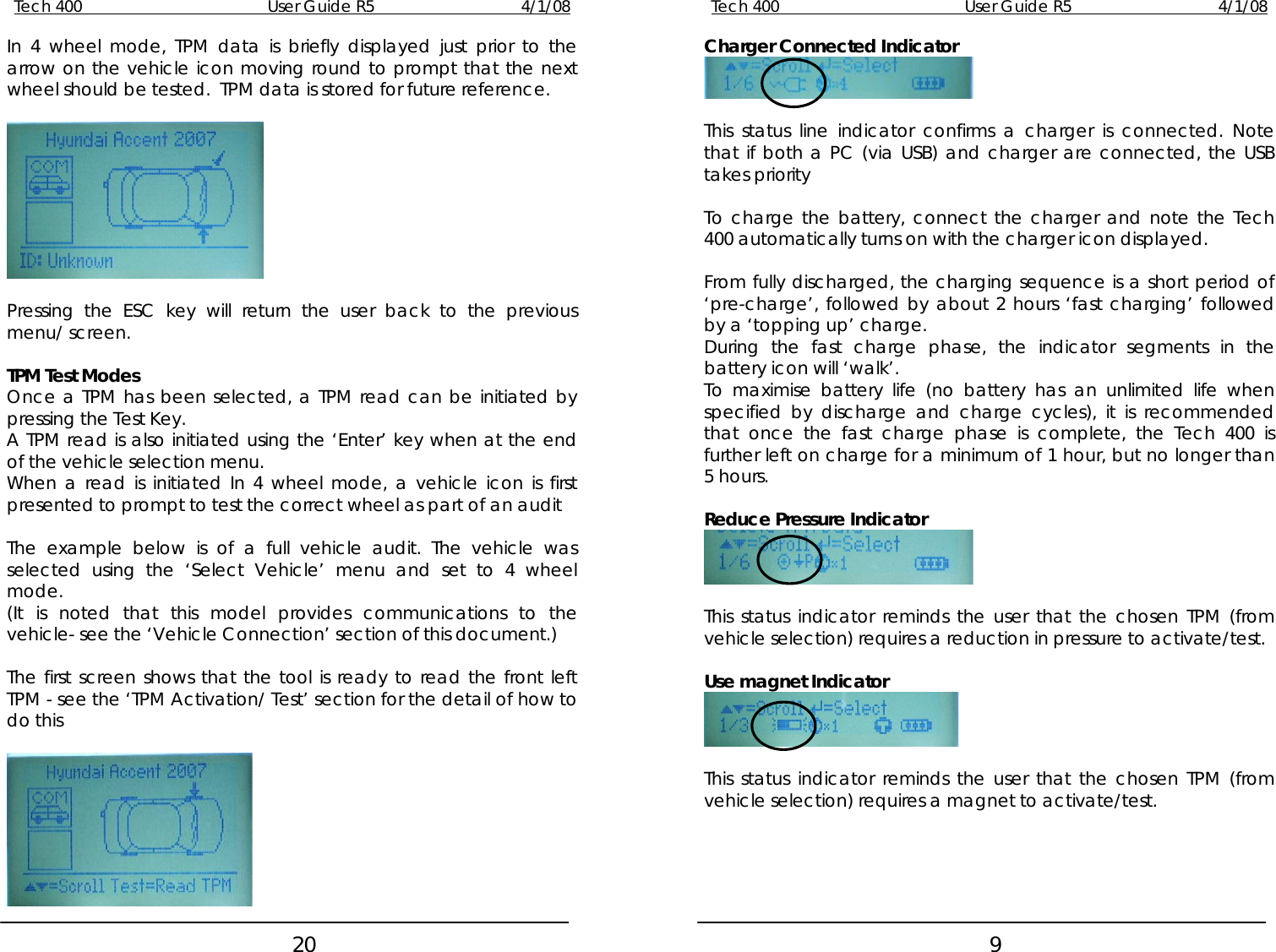
Tech 400        User Guide R5        4/1/08   20Tech 400        User Guide R5        4/1/08   9Charger Connected Indicator In 4 wheel mode, TPM data is briefly displayed just prior to the arrow on the vehicle icon moving round to prompt that the next wheel should be tested.  TPM data is stored for future reference.      This status line indicator confirms a charger is connected. Note that if both a PC (via USB) and charger are connected, the USB takes priority  To charge the battery, connect the charger and note the Tech 400 automatically turns on with the charger icon displayed.   From fully discharged, the charging sequence is a short period of ‘pre-charge’, followed by about 2 hours ‘fast charging’ followed by a ‘topping up’ charge.  Pressing the ESC key will return the user back to the previous menu/ screen.  During the fast charge phase, the indicator segments in the battery icon will ‘walk’.  TPM Test Modes  To maximise battery life (no battery has an unlimited life when specified by discharge and charge cycles), it is recommended that once the fast charge phase is complete, the Tech 400 is further left on charge for a minimum of 1 hour, but no longer than 5 hours. Once a TPM has been selected, a TPM read can be initiated by pressing the Test Key. A TPM read is also initiated using the ‘Enter’ key when at the end of the vehicle selection menu. When a read is initiated In 4 wheel mode, a vehicle icon is first presented to prompt to test the correct wheel as part of an audit   Reduce Pressure Indicator  The example below is of a full vehicle audit. The vehicle was selected using the ‘Select Vehicle’ menu and set to 4 wheel mode.    (It is noted that this model provides communications to the vehicle- see the ‘Vehicle Connection’ section of this document.)  This status indicator reminds the user that the chosen TPM (from vehicle selection) requires a reduction in pressure to activate/test.   The first screen shows that the tool is ready to read the front left TPM - see the ‘TPM Activation/ Test’ section for the detail of how to do this Use magnet Indicator    This status indicator reminds the user that the chosen TPM (from vehicle selection) requires a magnet to activate/test.
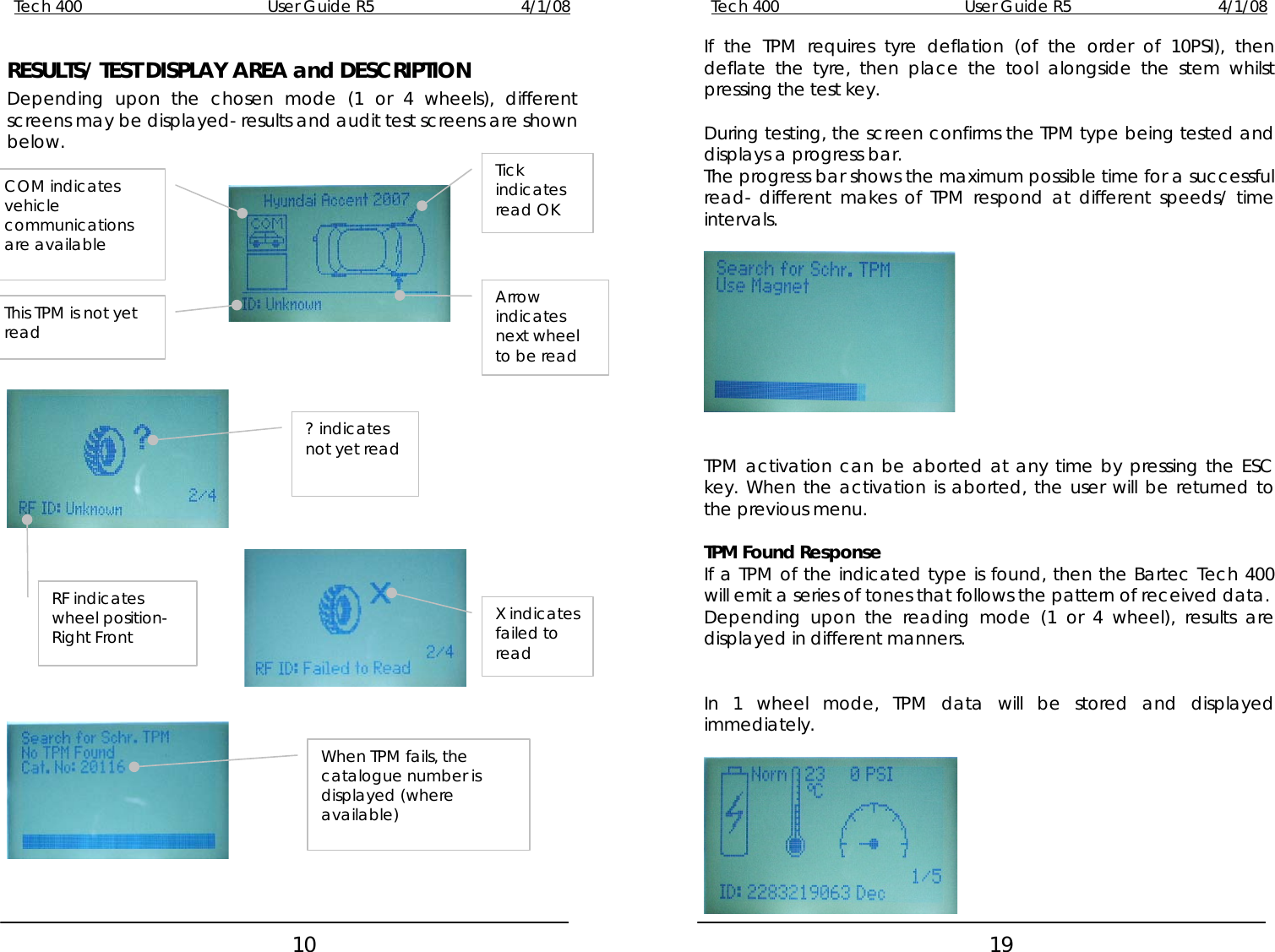
Tech 400        User Guide R5        4/1/08   10Tech 400        User Guide R5        4/1/08   19If the TPM requires tyre deflation (of the order of 10PSI), then deflate the tyre, then place the tool alongside the stem whilst pressing the test key. RESULTS/ TEST DISPLAY AREA and DESCRIPTION Depending upon the chosen mode (1 or 4 wheels), different screens may be displayed- results and audit test screens are shown below.  During testing, the screen confirms the TPM type being tested and displays a progress bar.                          Tick indicates read OK The progress bar shows the maximum possible time for a successful read- different makes of TPM respond at different speeds/ time intervals. COM indicates vehicle communications are available  Arrow indicates next wheel to be read This TPM is not yet read   ? indicates not yet read  TPM activation can be aborted at any time by pressing the ESC key. When the activation is aborted, the user will be returned to the previous menu.  TPM Found Response If a TPM of the indicated type is found, then the Bartec Tech 400 will emit a series of tones that follows the pattern of received data. RF indicates wheel position- Right Front X indicates failed to read Depending upon the reading mode (1 or 4 wheel), results are displayed in different manners.   In 1 wheel mode, TPM data will be stored and displayed immediately.  When TPM fails, the catalogue number is displayed (where available)
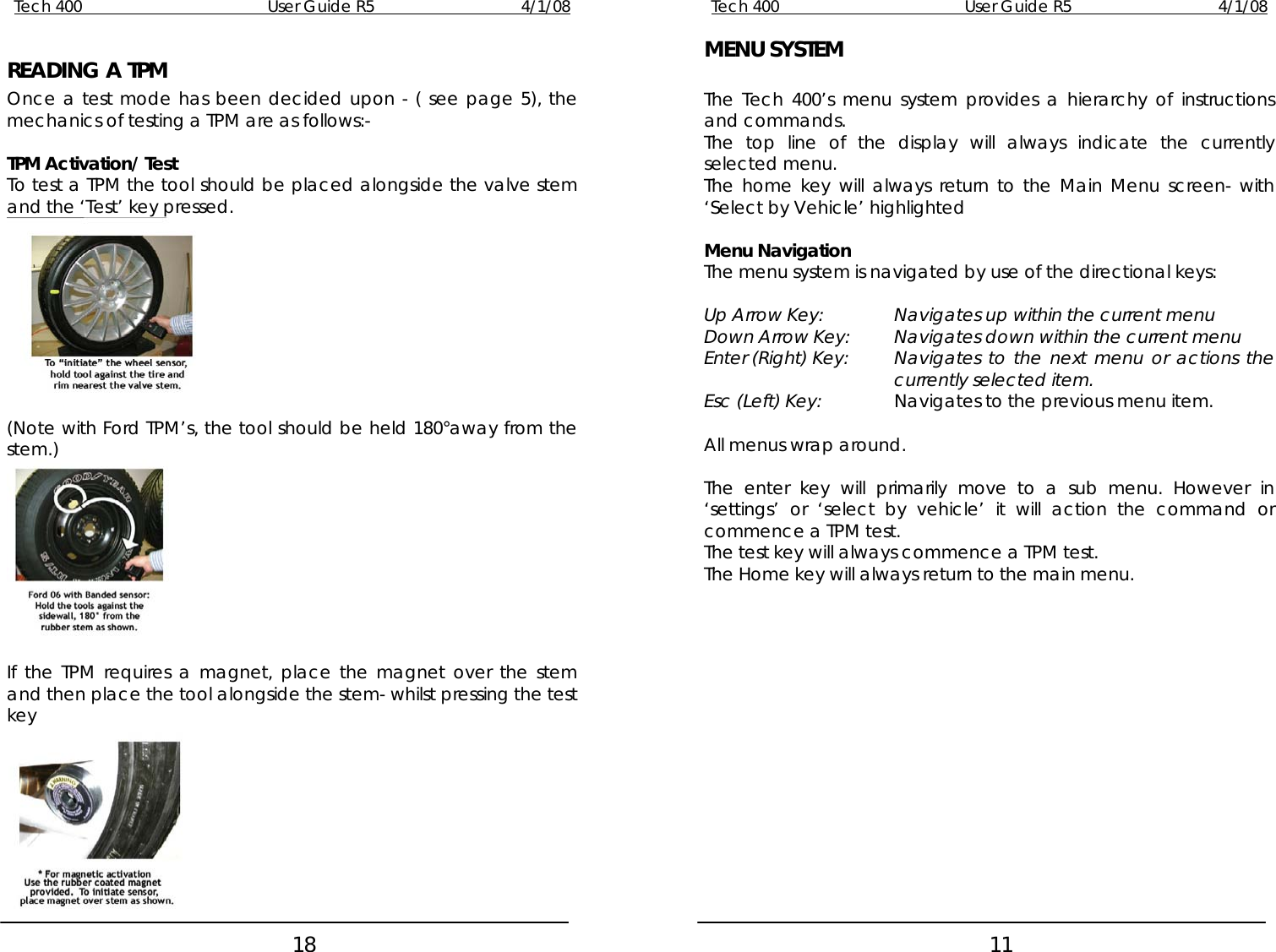
Tech 400        User Guide R5        4/1/08   18 READING A TPM Once a test mode has been decided upon - ( see page 5), the mechanics of testing a TPM are as follows:-  TPM Activation/ Test To test a TPM the tool should be placed alongside the valve stem and the ‘Test’ key pressed.   (Note with Ford TPM’s, the tool should be held 180°away from the stem.)   If the TPM requires a magnet, place the magnet over the stem and then place the tool alongside the stem- whilst pressing the test key  Tech 400        User Guide R5        4/1/08   11 MENU SYSTEM  The Tech 400’s menu system provides a hierarchy of instructions and commands. The top line of the display will always indicate the currently selected menu. The home key will always return to the Main Menu screen- with ‘Select by Vehicle’ highlighted  Menu Navigation The menu system is navigated by use of the directional keys:  Up Arrow Key:    Navigates up within the current menu Down Arrow Key:  Navigates down within the current menu Enter (Right) Key:  Navigates to the next menu or actions the currently selected item. Esc (Left) Key:   Navigates to the previous menu item.  All menus wrap around.  The enter key will primarily move to a sub menu. However in ‘settings’ or ‘select by vehicle’ it will action the command or commence a TPM test. The test key will always commence a TPM test. The Home key will always return to the main menu.
Tech 400        User Guide R5        4/1/08   12Tech 400        User Guide R5        4/1/08   17  Main Menu  Settings Menu This is the main screen- providing access to the main functional items of the Tech 400.  When this is selected, the next screen gives settings options     The options are as follows:-   • Wheels To Test: - Select ‘1 wheel’ or ‘4 wheel’ test The default entry position is page 1- select by vehicle (indicated by 1/6 in the status line)  • TPMID – Select between Hexadecimal ID display or Decimal ID display  • Pressure – Select between ‘PSI’, ‘kPA, or ‘Bar’ pressure display 1. Select by Vehicle This Item is a sub menu, pressing the Enter Key will take the user to the “Select by Vehicle” menu. The user should select the vehicle make, model and year.  • Lang: - Select language (supports English by default) • Temperature: - Select between Celsius (°C) or Fahrenheit (°F) • Display Contrast – Select value that gives best display contrast 2. View TPM Data This item is a sub menu, pressing the Enter Key will take the user to the results screens. Press direction arrows to examine the required results. In 4 wheel mode, each TPM has wheel locations of LF; Left Front; RF; Right front; RR; Right rear; LR; left rear.   Press ‘Enter’ to select and change the units for the selected parameter.  3. Delete TPM Data Pressing the enter key will delete stored TPM results data.  4. Settings This item is a sub menu, pressing the Enter Key will take the user to the settings menu. This menu is on screen 4- not shown on the screen above, but found using the ‘up’ or ‘down’ keys  5. Current TPM or vehicle selection
Tech 400        User Guide R5        4/1/08   16Tech 400        User Guide R5        4/1/08   13All the TPM data is available for examination or printing from a pc via the USB port. See the PC connection section of this document on page 23. This is an information line stating the current operation mode – by TPM type or vehicle model. Pressing ‘Enter’ will commence a test of this TPM / vehicle.  6. Select by TPM Type This Item is a sub menu, pressing the Enter Key will take the user to the “Select by TPM” menu. Select the required TPM.  Select by Vehicle When this is selected, the next screen prompts for selection by make, model, then year. If a vehicle has more than 1 TPM type in a year- the TPM type has also to be selected. (A vehicle model position ‘TRW Enable’ prompts for any TPM’s that require enabling prior to installation- e.g. TRW’s on Hondas)  The selected vehicle is remembered by the tool when a test is commenced.   Select By Make     Select by Model
Tech 400        User Guide R5        4/1/08   14Tech 400        User Guide R5        4/1/08   15 If the Tech 400 is in 4 wheel mode, results are displayed in the order LF, RF, RR, and LR. Select by Year  E.g.   View TPM Data (Results) Menu   This menu- when selected- gives direct access to specific screens that display the TPM data. No menu page name is provided- instead, the screen provides all of the TPM Data available from the TPM Type read; this may include: TPM ID (Hexadecimal & Decimal) Battery State, Temperature and Pressure.  ‘Up’ and ‘Down’ keys scroll through the TPM Data Items, the ‘Esc’ Key returns to the previous menu.  If no TPM data is available (or has been deleted), the screen will display ‘Unknown’  Not all TPM’s provide the same data.    Pressing the Enter Key will toggle the display format of the TPM ID between Hexadecimal and Decimal (this does not affect the id selection made in the settings menu)  If the Tech 400 is in 1 wheel mode, TPM Data is stored and displayed in chronological order - that is the newest TPM Data is stored at the top of the menu.      E.g.  If the TPM failed to respond (it is likely faulty) - the screen will display ‘No TPM Found’ during a search and ‘Failed to Read’ on the results screen.

Navigation menu