Beijing Choice Electronic Technology PR2-1 Med-Reminder User Manual
Beijing Choice Electronic Technology Co., Ltd. Med-Reminder
User Manual
USER
GUIDE
Ver 1.0

TABLE OF CONTENTS
Intended Use and Indications ....................................................... 1
Warranty Information ...................................................................... 1
FCC Statement ................................................................................ 1
Read Before Use .............................................................................. 2
Box Contents .................................................................................. 3
Understanding Your Unit ................................................................. 3
Charging Your Wristband ............................................................... 4
Battery Indication ......................................................................... 4-5
Getting Started ............................................................................. 5-7
Navigating the App ........................................................................ 8
App Settings ..................................................................................... 9
Reminder Settings ...................................................................... 9-11
Add Medication Reminders .................................................... 12-18
How to Use ................................................................................ 18-20
Smart Notications ................................................................... 21-23
Change Medication Status ......................................................... 24
Editing a Reminder ................................................................... 24-25
Medication Trends ................................................................... 25-26
Trouble Shooting............................................................................ 26
Medical ID ...................................................................................... 27
Symbol Denition ........................................................................... 28
Disclaimer ....................................................................................... 29
Warranty Registration Card ......................................................... 31

1
Intended Use and Indications
The Med-Reminder is the f irst medication reminder that can be worn on the wrist with
Bluetooth connection to your smartphone/device. It should be worn at all times so
that you do not miss a reminder.
Med-Reminder is IPX5 waterproof. It can be worn in light rain and in the shower. It
should not be submerged or exposed to large amounts of liquid, as this may damage
the device. (ie: bath or pool)
Limited Warranty
Thank you for purchasing a ChoiceMMed product.
See page 31 for the Warranty Registration Card.
Visit www.choicemmedamerica.com/register to register your product to obtain full
warranty services.
For detailed warranty information, visit www.choicemmedamerica.com/warranty
For questions regarding our products or services, visit
www.choicemmedamerica.com/contact or contact our helpline at: (215) 874-0458
FCC Statement
This device complies with Part 15 of the FCC Rules. Operation is subject to the
following two conditions:
(1) This device may not cause harmful interference, and
(2) This device must accept any interference received, including interference that
may cause undesired operation.
Attention that changes or modication not expressly approved by the party
responsible for compliance could void the user’s authority to operate the equipment.
Note: This product has been tested and found to comply with the limits for a Class
B digital device, pursuant to Part 15 of the FCC Rules. These limits are designed
to provide reasonable protection against harmful interference in a residential
installation. This product generates, uses, and can radiate radio frequency energy
and, if not installed and used in accordance with the instructions, may cause
harmful interference to radio communications. However, there is no guarantee
that interference will not occur in a particular installation. If this product does cause
harmful interference to radio or television reception, which can be determined
by turning the equipment off and on, the user is encouraged to try to correct the
interference by one or more of the following measures:
—Reorient or relocate the receiving antenna.
—Increase the separation between the equipment and receiver.
—Connect the equipment into an outlet on a circuit different from that to which the
receiver is connected.
—Consult the dealer or an experienced radio/TV technician for help.
Please take attention that changes or modication not expressly approved by the
party responsible for compliance could void the use’s authority to operate the
equipment.
2
READ BEFORE USE
The Med-Reminder wristband requires a
smartphone/device to set up and sync reminders .
You must download the free iChoice Meds App to
your smartphone/device to set up and program your
medication reminders to the Med-Reminder wristband.
After the initial set up/programming, the smartphone/
device is not necessary, unless you wish to use the “smart
notifications” feature or other features the iChoice Meds
App offers. See page 21 for more details.
If you do not have a smartphone/device, ask a friend or
relative to set up your Med-Reminder wristband via their
smartphone/device.
The Med-Reminder wristband must be set up/programmed via
the free iChoice Meds App on a smartphone/device.
NOTE: The iChoice Meds App is continually updated and improved. Therefore, screen
images included in this manual may be slightly different than the current App.
• iPhone 6S Plus
• iPhone 6S
• iPhone 6 Plus
• iPhone 6
• iPhone 5S
• iPhone 5C
• iPhone 5
• iPhone 4S
• iPad Air
• iPad Mini
• iPad 4
• iPad 3
• iPod Touch 5
Samsung
• S6
• S6 Edge
• S6+
• S6 Edge+
• Galaxy S5
LG
• Nexus 5
• G2
• G3
Motorola
• Moto G
• Moto X
Med-Reminder is compatible with:
Visit www.ichoicelife.com/support/devices for the latest list of compatible devices
iOS7 and above Android 4.3 and above
• Galaxy S4 Active
• Galaxy S4 Mini
• Galaxy S4
• Galaxy S3 Mini
• Galaxy S3
3
BOX CONTENTS
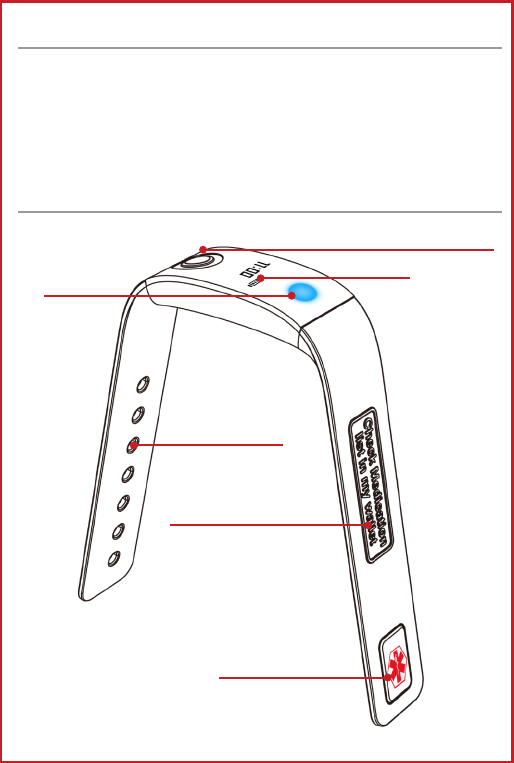
UNDERSTANDING YOUR UNIT
* Med-Reminder is Water Resistant
1 Med-Reminder Wristband
1 USB Charger
1 User Manual
1 Medical ID Card
7 Sets of Colored Stickers
Medical ID Symbol
Adjustable Strap
Check Medication List
Battery
Indication
Operation Button
Reminding
LED Display
*Image may have slight differences than actual unit
READ BEFORE USE
4
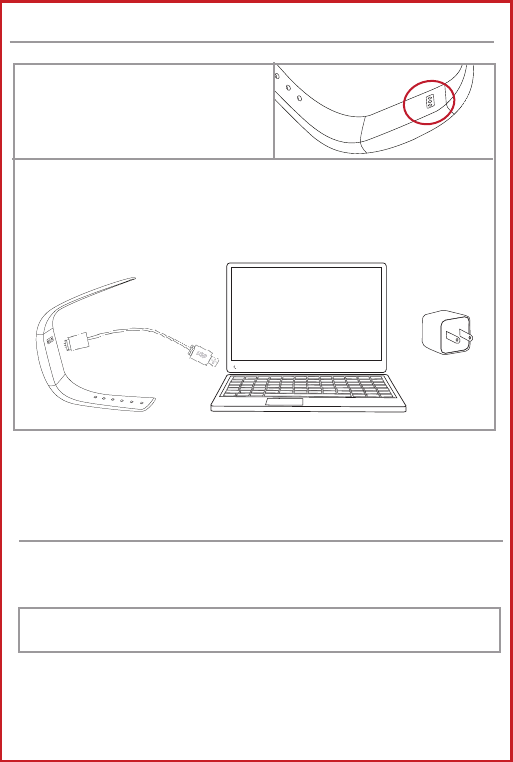
CHARGING YOUR WRISTBAND
Turn your Med-Reminder
Wristband over to locate the
charging port
Press the charging cable into the charging port on the
bottom of the wristband.
Plug the USB end into a USB port on a computer, into a USB
wall adapter or any other USB outlet.
USB WALL ADAPTER
NOT INCLUDED
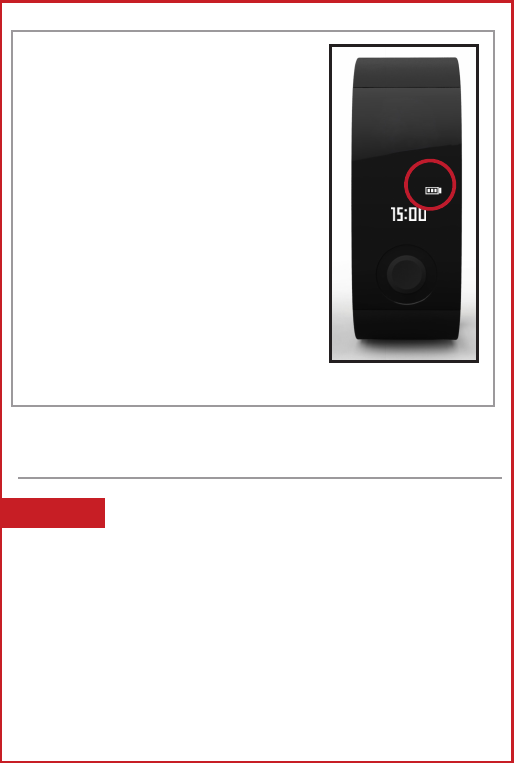
BATTERY INDICATION
Med-Reminder allows you to check the battery life of your
wristband at any time.
When a reminder is not present, Press the button once.
5
Med-Reminder wristband adopt lithium
battery (3.7V, 70mAh). If this is the first
time you are charging your Med-Reminder
wristband or the battery has completely
been drained to 0%, please allow 5 -10
minutes before a battery LED to appear.
We recommend charging the Med-Reminder
wristband every three months to ensure proper
use.
GETTING STARTED
To download the free iChoice Meds App to your
smartphone or device:
1. Scan the QR code on the bottom of the box
2. Visit www.ichoicelife.com/app/pillreminder
3. Search for iChoice Meds in the App Store or Google
Play Store
Download the free iChoice Meds App
STEP 1

6
The iChoice Meds App allows you to set up medication reminders,
send medication notifications to others, view medication history
and stay connected with other iChoice Meds users.
The only way to set up your medication reminders is via the
iChoice Meds App. You must sign up for a free account to
program your Med-Reminder wristband.
When registering for a free account, you must use a unique email
address and password. You will also be prompted to enter other
personal information.
NOTE: Once the reminders are programmed onto the
Med-Reminder wristband using the free iChoice Meds App, you
do not need to have the smartphone/device in your possession.
Some advanced features will be unavailable but the
medication reminders will still go off as scheduled. If you do
not have a smartphone/device, ask a friend or relative to set up
your Med-Reminder wristband via their smartphone/device.
First Name
Last Name
1. 2. 3.
Sign Up for an Account with iChoice Meds
STEP 2
7
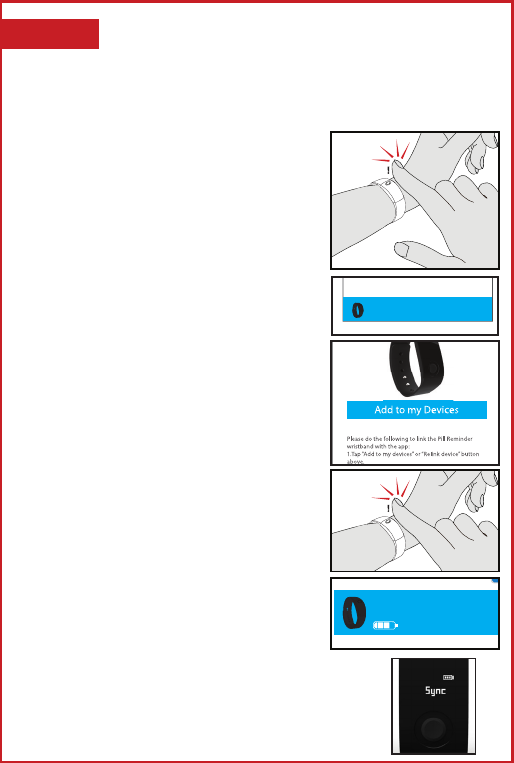
Med-Reminder uses Bluetooth Technology to connect your
smartphone/device to the wristband.
*Make sure your Bluetooth setting on your smartphone is turned on.
1. Turn on Your Wristband
Option 1. Charge your unit. Your
wristband will turn on when it is
charged sufficiently.
Option 2. Press & hold the button
on the wristband for 5 seconds. The
wristband will vibrate twice.
2. Sync Your Wristband to Account
Using the iChoice Meds App on your
smartphone/device, Tap “Tap to Link
New Device”on the bottom of the
screen.
3. Connect via Bluetooth
Tap “Add to my Devices”. The App
will begin looking for a compatible
device within range.
While the App looks for a device,
press and hold the button on your
Med-Reminder wristband until
the wristband vibrates. This will
pair your device with the App.
4. Sync Complete
The device will indicate “Sync”.The
bottom of the dashboard will indicate the
time the wristband was synced, when your
schedule was updated last and the current
battery life of the wristband.
HOLD
HOLD
Last synced at 8:42 AM
Schedule updated 8:42 AM
60%
Tap to Link New Device
Tap to Link New Device
Sync Med-Reminder to iChoice Account
STEP 3

8
Tapping on in the upper left hand corner will slide out
your navigation panel.
Sample User
Pills
Today
Schedule
AM Medications
9:30 AM
4:30 PM
Future Reminders
Past Reminders
Afternoon Medications
2:00 PM
PM Medications
6:00 PM
2 hours from now
Assigned Caregivers
As a Caregiver
Dashboard
Brings you back to the main screen where you can see your past and
future reminders.
As a Caregiver
Here, you can see all of the iChoice Meds users who have labeled you
as their caregiver. These are users who have given you access to their
prof ile and reminders. Tapping on a user will allow you to access
their dashboard. You can add, remove or edit their reminders here.
You will receive emails or push notifications when they take or miss a
medication.
Assigned Caregivers
Here, you can see a list of all the iChoice Meds users who have
accepted an invitation from you to be your caregiver. These caregivers
have access to your dashboard. They can add, remove and edit
your reminders. Assigned caregivers receive emails and/or push
notifications when you take or miss a medication. You can also send
invitations to new caregivers on this page. (See page 21 for more
information on how to invite new caregivers)
Settings
View/Change your profile, change reminder settings, read privacy
terms and conditions, learn more about iChoice, etc. ( See page 9 for
more information on the Settings)
NAVIGATING THE APP
9
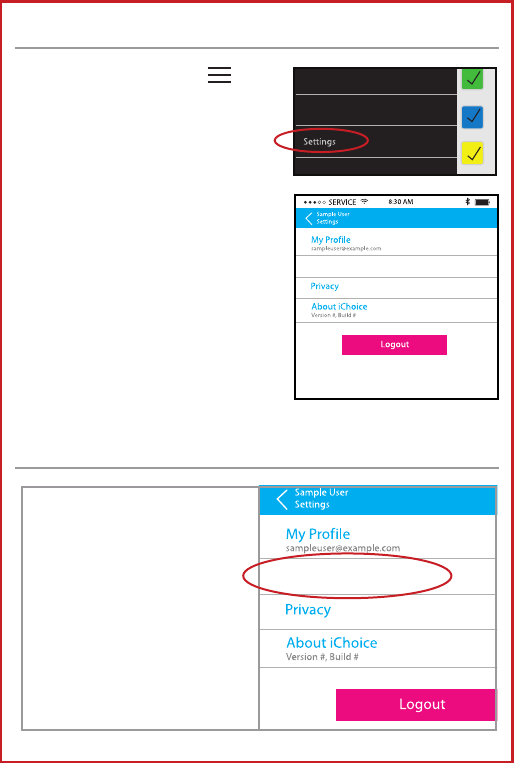
On the Navigation Panel,
Tap Settings to see your current
Med-Reminder settings.
APP SETTINGS
REMINDER SETTINGS
Assigned Caregivers
As a Caregiver
My Profile
Change your name, picture,
birthday, etc.
Reminder Settings
Here, you can change the wristband
timer settings
Privacy
Read the Privacy Terms for
Med-Reminder & iChoice Meds App
About iChoice
Learn more about iChoice
Reminder Settings
Reminder Settings
Tap Reminder Settings in
the Setting panel
10
REMINDER SETTINGS (cont.)
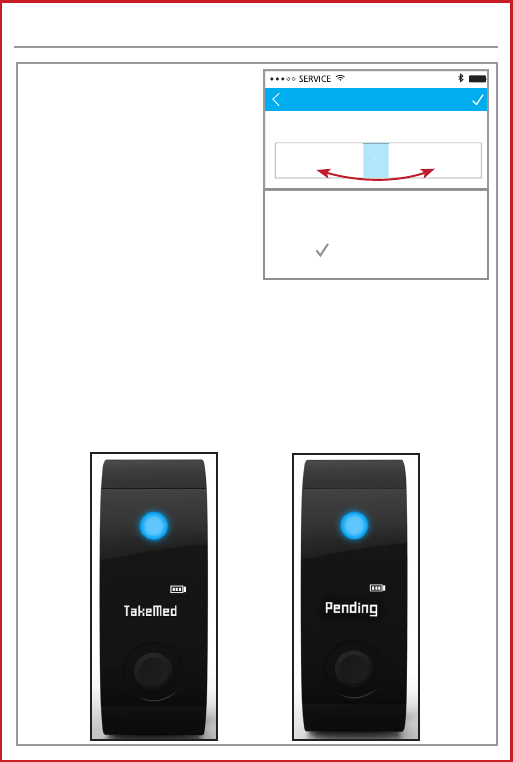
Vibration Time
The amount of time the
wristband will vibrate at the
time of a reminder.
When a reminder is present,
the device will vibrate and
indicates “TakeMed“, the
assigned color LED begin to
flash.
Pressing the button on the wristband during this time will
turn off the vibration and the assigned color LED still flash,
it indicate”Pending”.
If the button is not pressed before this assigned vibration
time ends, the wristband will automatically turn off the
reminder, record as missed in the app and send a missed
notification to the assigned caregiver.
Pill taken conf irmation time, minutes
Vibration time, minutes
1
28 29 31 32
2
Reminder Settings
1
30
To change the time, drag your finger left
or right until the blue box hovers over the
correct time.
Press the in the upper right hand corner to
save your changes.

11
REMINDER SETTINGS (cont.)
Conf irmation Time
This is the duration the
colored LED will flash on the
wristband, and the device
indicates “Pending“. You have
this assigned time to press
the button to confirm you
have taken the medication.
After take the medicatin,
press the button again , the
device indicates “Taken“ and 5 minutes later the device
will automatically turn to the time screen.
During this confirmation time, the wristband will
vibrate twice, every 3 minutes to remind you to press the
button again and take your medication.
A “missed notification” is sent to the assigned caregiver
if the button is not pressed during this time interval.
NOTE: Choosing a longer confirmation time may drain the battery.
Pill taken conf irmation time, minutes
Vibration time, minutes
1
28 29 31 32
2
Reminder Settings
1
30
To change the time, drag your finger left
or right until the blue box hovers over the
correct time.
Press the in the upper right hand corner to
save your changes.
12 13
Med-Reminder Wristband MUST be programmed via the FREE
iChoice Meds App. (See page 2 for a list of compatible devices and how to
download the iChoice Meds App).
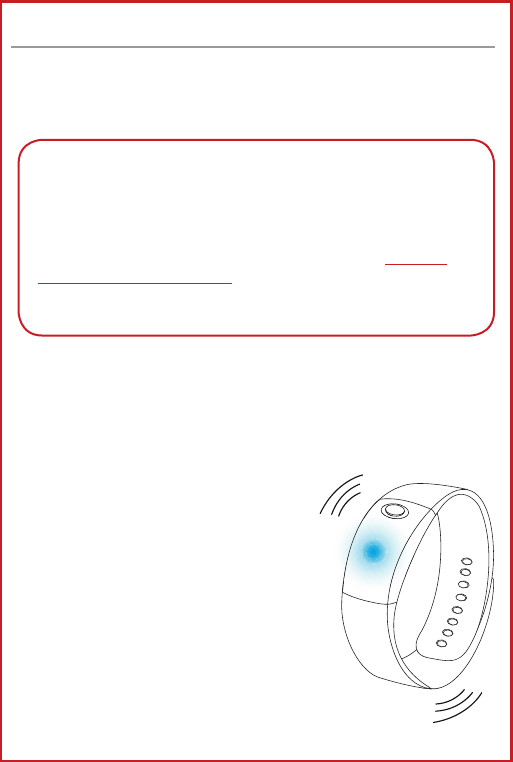
Once your medication reminders are programmed to your
wristband - it will alert you based on the alarms set via the
iChoice Meds App. At the given alert time, the wristband will
vibrate and show a steady colored LED light that you have
assigned. (See page 13) In the below example, a blue LED light has been
assigned to this medication reminder.
The wristband will vibrate and a steady
assigned colored LED light will appear.
When the button on the wristband is
pressed the vibration will stop and the
LED will begin to flash until the medication
is taken and button is pressed again or the
confirmation time runs out.
* The default vibration time is 1 minute.
The default confirmation time is 30 minutes.
Both of these times can be changed in the Settings option of the App.
ADD MEDICATION REMINDERS
*** Although Med-Reminder requires a smartphone/device to
setup your device, the wristband will operate independently once
the reminders are programmed and synced with device.
You do not need to have the smartphone/device in your
possession. Some features will be unavailable but the alerts
will still go off as scheduled. If you do not have a smartphone/
device, ask a friend or relative to set up your Med-Reminder via
their smartphone/device.
13
ADD MEDICATION REMINDERS (cont.)
Sample User
Manage Schedule
Medication set Archived
New Set
8:34 AM
No reminders for this day
Sample User
Add Reminder
AM Medications
Take with 1 glass of water
8:32 AM
Sample User
Add Reminder
Title
Description
+ Add Alarm
Starts: May 1, 2015
Ends: Never
+ Add Alarm
Starts: May 1, 2015
Ends: Never
8:30 AM
Sun MonTueWedThuFriSat
Sun MonTueWedThuFriSat
Sample User
Add Reminder
AM Medications
Take with 1 glass of water
Starts: May 1, 2015
Ends: Never
8:32 AM
9:30 AM
+ Add Alarm
Sun MonTueWedThuFriSat
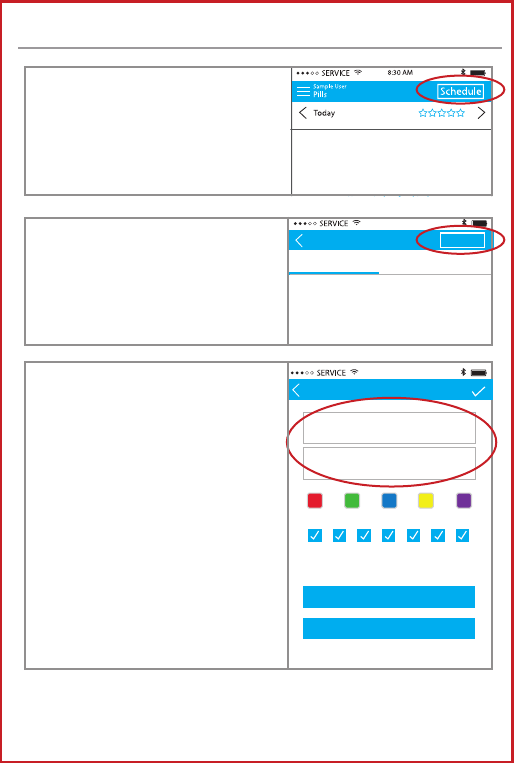
Navigate to Dashboard in
your iChoice Meds App.
Tap Schedule in the upper
right hand corner
Enter a Title for the new
Medication Reminder
This can be the name of the
medication or if multiple
medications are taken at the
same time, you can use one
generic name (ie: Morning Meds)
Enter a Description
You can add a note in this
section. (ie: Take with water, Very
Important! or Small Blue Pills)
Tap to Link New Device
Tap New Set in the upper
right hand corner to add a
new reminder.
You can set up to 10 reminders daily.
14
Sample User
Add Reminder
AM Medications
Take with 1 glass of water
8:32 AM
Sample User
Add Reminder
Title
Description
+ Add Alarm
Starts: May 1, 2015
Ends: Never
+ Add Alarm
Starts: May 1, 2015
Ends: Never
8:30 AM
Sun MonTueWedThuFriSat
Sun MonTueWedThuFriSat
Sample User
Add Reminder
AM Medications
Take with 1 glass of water
Starts: May 1, 2015
Ends: Never
8:32 AM
9:30 AM
+ Add Alarm
Sun MonTueWedThuFriSat
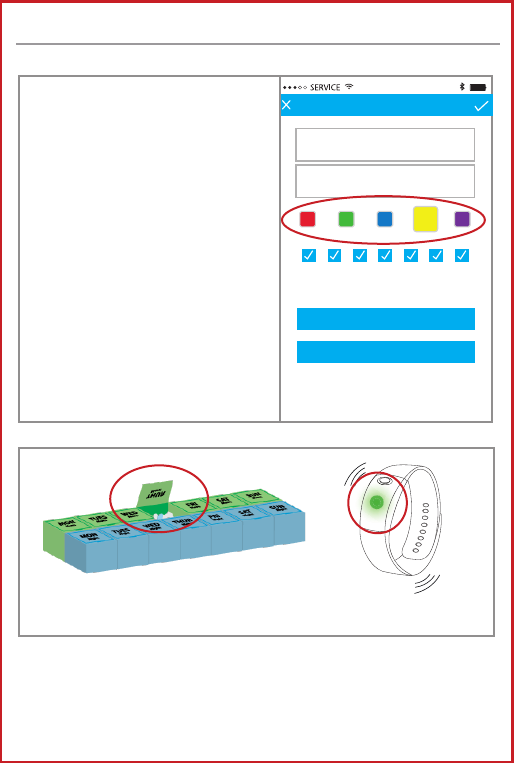
Assign a Color LED
To choose a Color LED, tap one
of the 5 colored squares.
These colors can correspond to
a colored pillbox or medication
container to easily identify
which medications to take. (A)
If your pillbox/containers
are not one of the 5 LED
choices, we included 7 sets
of colored stickers to help
match the colored LEDs to your
medications. (B) (see next page)
This medication was set to the green LED light. The user will take the medication
in the green compartment.
A
ADD MEDICATION REMINDERS (cont.)

15
This medication was set to the green LED light. The user does not have a green
pillbox. Green stickers are placed on the corresponding medications. User will
take the medication in the container with a green sticker
B
WITHOUT Med-Reminder
WITH Med-Reminder
16
Sample User
Add Reminder
AM Medications
Take with 1 glass of water
8:32 AM
Sample User
Add Reminder
Title
Description
+ Add Alarm
Starts: May 1, 2015
Ends: Never
+ Add Alarm
Starts: May 1, 2015
Ends: Never
8:30 AM
Sun MonTueWedThuFriSat
Sun MonTueWedThuFriSat
Sample User
Add Reminder
AM Medications
Take with 1 glass of water
Starts: May 1, 2015
Ends: Never
8:32 AM
9:30 AM
+ Add Alarm
Sun MonTueWedThuFriSat
Sample User
Add Reminder
AM Medications
Take with 1 glass of water
Starts: May 1, 2015
Ends: Never
8:32 AM
9:30 AM
+ Add Alarm
Sun MonTueWedThuFriSat
S
am
pl
e Use
r
Add
R
e
min
de
r
AM Me
d
ication
s
T
ake with 1
g
lass of wate
r
S
tarts: May 1, 201
5
E
n
ds:
N
e
v
e
r
8:3
2
AM
9:30
AM
+
A
dd
Al
a
rm
S
un
M
on
T
u
e
W
e
d
T
hu
F
r
i
S
at
iChoice Meds
OK
Ok
You have chosen a reminder
time that is less than 5 minutes
away. Please note that this alarm
may not go o as scheduled
today.
Sample User
Add Reminder
AM Medications
Take with 1 glass of water
8:32 AM
Sample User
Add Reminder
Title
Description
+ Add Alarm
Starts: May 1, 2015
Ends: Never
+ Add Alarm
Starts: May 1, 2015
Ends: Never
8:30 AM
Sun MonTueWedThuFriSat
Sun MonTueWedThuFriSat
Sample User
Add Reminder
AM Medications
Take with 1 glass of water
Starts: May 1, 2015
Ends: Never
8:32 AM
9:30 AM
+ Add Alarm
Sun MonTueWedThuFriSat
Sample User
Add Reminder
AM Medications
Take with 1 glass of water
Starts: May 1, 2015
Ends: Never
8:32 AM
9:30 AM
+ Add Alarm
Sun MonTueWedThuFriSat
S
am
pl
e Use
r
Add
R
e
min
de
r
S
tarts: May 1, 201
5
E
n
ds:
N
e
v
e
r
8:3
2
AM
Reminder Time
09
OK Cancel
15 AM
PM
78 10 119
Sample User
Add Reminder
AM Medications
Take with 1 glass of water
Starts: May 1, 2015
Ends: Never
8:32 AM
9:30 AM
+ Add Alarm
Sun MonTueWedThuFriSat
S
am
pl
e Use
r
Add
R
e
min
de
r
S
tarts: May 1, 201
5
E
n
ds:
N
e
v
e
r
8:3
2
AM
Reminder Time
09
OK Cancel
15 AM
PM
13 14 16 1715
Sample User
Add Reminder
AM Medications
Take with 1 glass of water
Starts: May 1, 2015
Ends: Never
8:32 AM
9:30 AM
+ Add Alarm
Sun MonTueWedThuFriSat
S
am
pl
e Use
r
Add
R
e
min
de
r
S
tarts: May 1, 201
5
E
n
ds:
N
e
v
e
r
8:3
2
AM
Reminder Time
09
OK Cancel
15 AM
PM
78 10 119
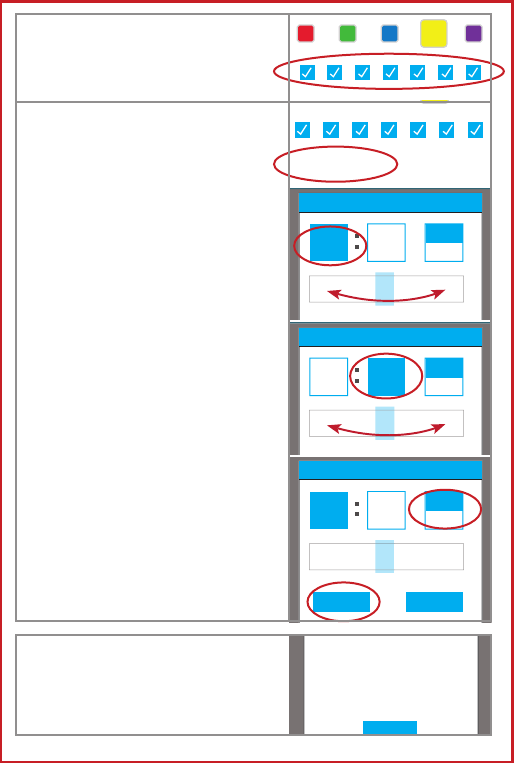
Select the Frequency
Check off the days you wish
the reminder to go off.
* If you choose a reminder that is
within 5 minutes of the current
time, a message will appear
alerting you that the reminder
may not go off as scheduled.
Add Alarm
Tap + Add Alarm to enter the
Reminder Time window
Choose Hour
Tap the hour square. The hour
is selected when a blue box is
present.
Slide your finger left and right
on the slide bar to select the
appropriate hour.
Choose Minutes
Tap the minutes square. The
minutes are selected when a
blue box is present.
Slide your finger left and right
on the slide bar to select the
appropriate minutes.
Choose AM or PM
Tap AM or PM to select.
Select OK to confirm or Cancel
to go back to previous screen.
17
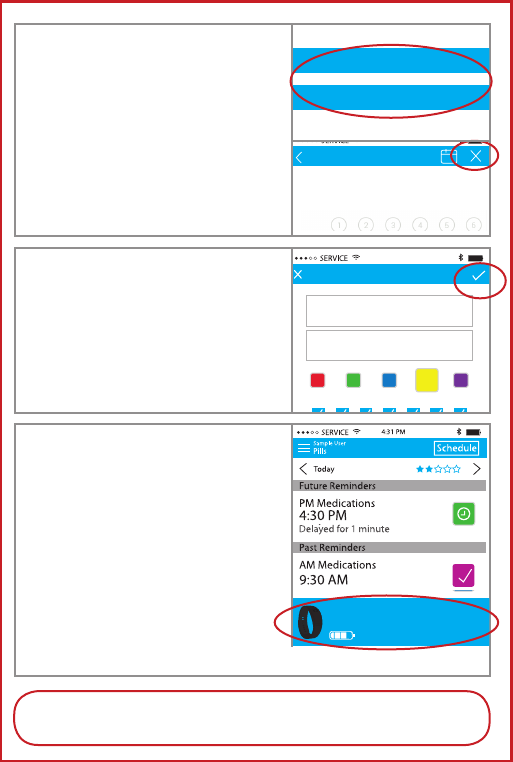
Conf irm Information
After all the fields are completed,
tap the check mark in the upper
right hand corner to save the
reminder. * Reminder will upload
to wristband after sync. (see
below)
The iChoice Meds App will upload
the reminder to your wristband
automatically.
You can see the last time your app
was synced and the last time the
schedule was updated on the bottom
of your Dashboard. The battery life of
the wristband is also indicated.
Tapping this bottom bar will also
force sync at any time.
The wristband and smartphone/device must be in
close proximity for the programming.
Sample User
Add Reminder
AM Medications
Take with 1 glass of water
8:32 AM
Sample User
Add Reminder
Title
Description
+ Add Alarm
Starts: May 1, 2015
Ends: Never
+ Add Alarm
Starts: May 1, 2015
Ends: Never
8:30 AM
Sun MonTueWedThuFriSat Sun MonTueWedThuFriSat
Sample User
Add Reminder
AM Medications
Take with 1 glass of water
Starts: May 1, 2015
Ends: Never
8:32 AM
9:30 AM
+ Add Alarm
Sun MonTueWedThuFriSat
Last synced at 8:42 AM
Schedule updated 8:42 AM
60%
Last synced at 8:42 AM
Schedule updated 8:42 AM
60%
Last synced at 8:42 AM
Schedule updated 8:42 AM
60%
** Every time you add a new reminder or update a medication reminder via the iChoice Meds
App, the new information must sync in order for the reminders to be transmitted to wristband.
Sample User
Add Reminder
AM Medications
Take with 1 glass of water
8:32 AM
Sample User
Add Reminder
Title
Description
+ Add Alarm
Starts: May 1, 2015
Ends: Never
+ Add Alarm
Starts: May 1, 2015
Ends: Never
8:30 AM
Sun MonTueWedThuFriSat Sun MonTueWedThuFriSat
Sample User
Add Reminder
AM Medications
Take with 1 glass of water
Starts: May 1, 2015
Ends: Never
8:32 AM
9:30 AM
+ Add Alarm
Sun MonTueWedThuFriSat
Sample User
Sun MonTue WedThu Fr
iS
at
Calendar
June 2015
19
8:32 AM
Choose Alert Duration
Tap the Start or End buttons to
enter calendar mode.
A calendar will appear for easy
entry. Tap the correct date.
To choose Ends: Never tap
the X in the upper right hand
corner.
18
If you wish to enter in another
medication reminder, navigate back
to ADD MEDICATION REMINDERS
(See page 12)
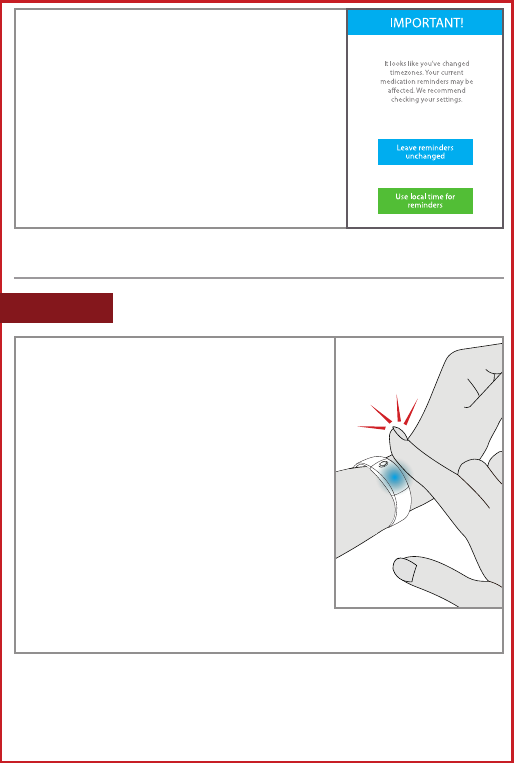
** If at any time, you change time zones, the
App on your smartphone will automatically
alert you. You will have the option of
changing the alert to the new time zone or
use the original setting time.
If no action is taken during the vibration time interval, the
reminder will turn off and the medication will be logged as missed
in the iChoice Meds App. If you have an assigned caregiver, a missed
notification will be sent to him/her.
When a reminder goes off, the
wristband will vibrate and the steady
assigned color LED light will appear, it
will indicates ”TakeMed”.
Press the button once to turn off the
vibration. The wristband will now enter
the Confirmation stage and the colored
LED light will flash with “Pending“
on the device for the assigned
confirmation time. The wristband will
also vibrate twice every 3 minutes to
remind you to take your medication.
You can change the confirmation time from
5 to 60 minutes in the Settings. See page 10.
CLICK!
PRESS
ONCE
PRESS
& HOLD
HOW TO USE
TURN OFF VIBRATION/ENTER CONFIRM STAGE
STEP 1
19
CLICK!
PRESS
ONCE
PRESS
& HOLD
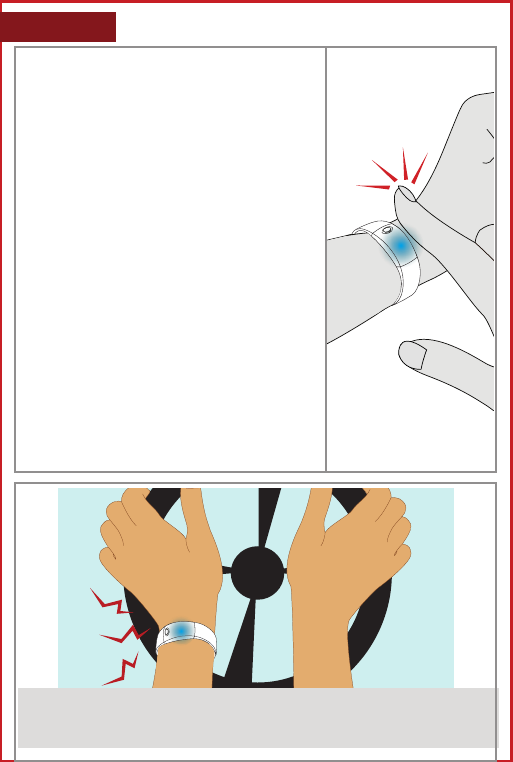
You must take your medication during
the assigned Confirmation time.
When you have taken the medication,
press the button on the wristband a
second time. The LED light will stop
flashing and the reminder will turn
off. The device indicates “Taken“ and 5
minutes later automatically turn to the
time screen. The app will record the
medication as taken and if you have an
assigned caregiver, he/she will receive
a taken notification.
The wristband and smartphone/device
must be in close proximity for the app
to record status.
If no action is taken during the
Confirmation time, the reminder will
turn off and a missed notif ication will
be sent to your assigned caregiver.
**Reminders cannot overlap one another (ie: If a reminder is set for
8:00am and the confirmation time is set for 30 min, the next reminder
cannot be set before 8:30am. A window will pop up alerting you of
this issue before finalizing the reminder.
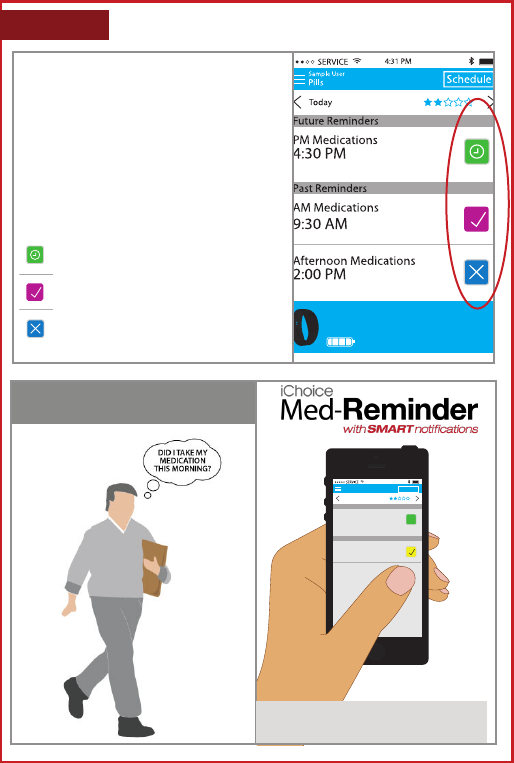
Oh no! I cannot take my medication while I’m driving!
Good thing I can turn the vibration off and still be reminded to take my medication by
the flashing LED. I will take the medication when I get home.
CONFIRM YOUR MEDICATION STATUSSTEP 2
20
1 minute waiting for conrmation
Last synced at 8:42 AM
Schedule updated 8:42 AM
100%
Every time your Med-Reminder
goes off and you press the button
on the wristband, information gets
transmitted to your App. (This is only
possible if the smartphone is within distance
for Bluetooth)
INSTANTLY LOG STATUS
WITHOUT Med-Reminder
Sample User
Pills
Today
Schedule
AM Medications
9:30 AM
9:31 AM
Future Reminders
Past Reminders
PM Medications
6:00 PM
9 hours from now
I know I took my medication this morning
and now I won’t accidentally take it twice.
LOG MISSED/TAKEN MEDICATIONS
STEP 3
1 minute waiting for conrmation
Last synced at 8:42 AM
Schedule updated 8:42 AM
100%
1 minute waiting for conrmation
Last synced at 8:42 AM
Schedule updated 8:42 AM
100%
1 minute waiting for conrmation
Last synced at 8:42 AM
Schedule updated 8:42 AM
100%
Waiting for Conf irm - Button was pressed
once to stop vibration
Medication Taken - Button pressed second
time to confirm medication taken
Medication Missed - Button Never Pressed or
Pressed & Never Conf irmed

21
Med-Reminder allows you to send out smart notifications
instantly. You can set up caregivers, family members and friends
to receive Smart Notif ications via email and/or push notifications
in the iChoice Meds App.
When a medication is taken, missed, unknown or currently
being taken, an email notification is sent out to the assigned
caregiver automatically.
Caregivers can also download the iChoice Meds App and
receive Push Notifications instantly.
SMART NOTIFICATIONS
Smart Notif ications is an optional feature and does not need to
be used for Med-Reminder to operate.
Assigned caregivers will need to sign up for a free account
with iChoice. Once an account is made, they will begin
receiving email notifications automatically.
If a caregiver wishes to add, edit or
view your medication reminders, they
must download the iChoice Meds App.
Caregivers using the iChoice Meds
app can navigate to “As a Caregiver”
and access your dashboard remotely.
They can edit your current and
future reminders as well as add new
reminders from their own iChoice Meds
App.
1. Taken
2. Missed
3. Unknown
4. Pending
Caregivers receive four types of notifications:
Assigned Caregivers
As a Caregiver
You As a Caregiver
JOHN SMITH
22
INVITE A CAREGIVER
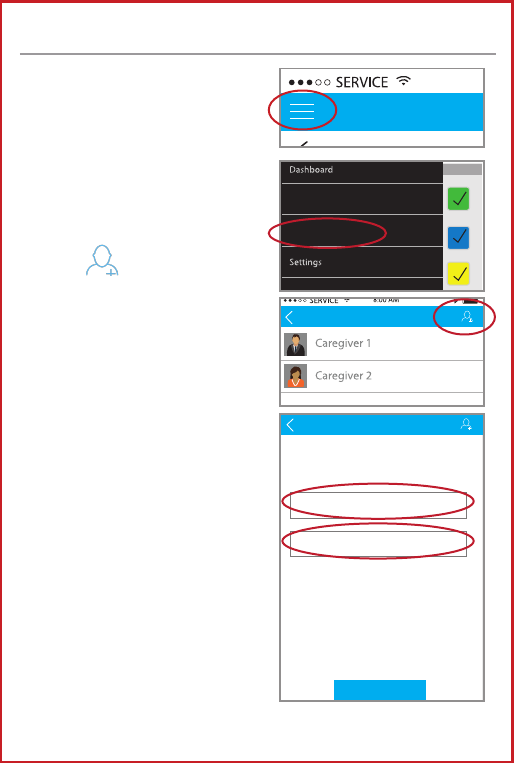
Click the Navigation tab to slide
out the main menu.
Sample User
Pills
Today
Schedule
AM Medications
9:30 AM
4:30
PM
Future Reminders
Past Reminders
Afternoon Medications
2:00 PM
PM Medications
6:00 PM
2 hours from now
Assigned Caregivers
As a Caregiver
Assigned Caregivers
Invite Caregivers
You should create a passcode and the email
recipient will need to enter it to accept this
invitation.
To protect your invitation, we do not email the
passcode. Use another way to tell the recipient.
For example by phone, SMS or personal email
message. If you forget the passcode, you’ll
need to resend the invitation with a new one.
Invite
Email
Passcode
*
*
Click Assigned Caregiver to see
a list of assigned caregivers or to
add a new caregiver.
Tap the icon in the upper
right hand corner to add a new
caregiver.
To send out the invitation, enter
the email address of the caregiver
you wish to receive Smart
Notifications.
You will also need to choose a
passcode. This passcode can be
anything you wish, however, the
caregiver will need this passcode
to accept your invitation.
(numbers only).
If the intended caregiver already
has the iChoice Meds app, they
will receive the invitation in the
“As a Caregiver” section of the
App.
If they do not have the iChoice
Meds App, they must sign up for
a free account with iChoice to complete the caregiver set up.
SET UP SMART NOTIFICATIONS
23
REMOVE A CAREGIVER
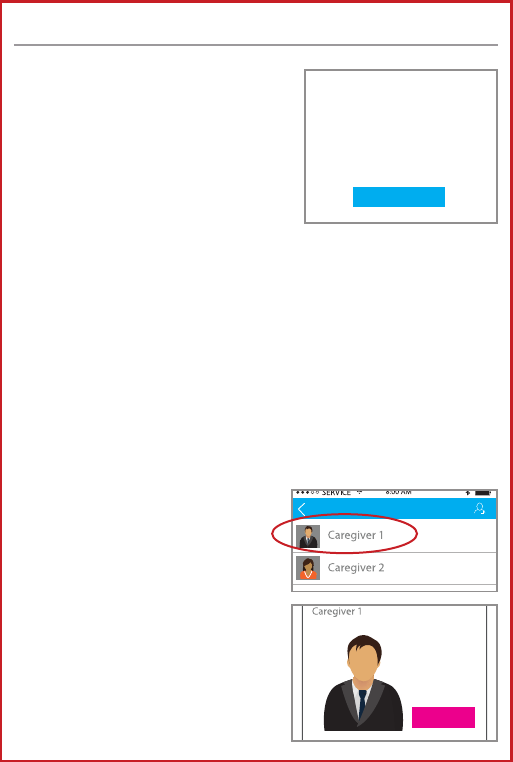
Tap the caregiver you wish to
remove.
Tap Revoke to remove this
caregiver.
This caregiver will no longer
receive notifications and
will be removed from the
Assigned Caregiver list.
Click the Invite button on the bottom
of the screen to send out
the Caregiver invitation email.
The email address that you entered
will receive an invitation with
information on how to receive
notifications of your medication
status’.
Caregivers can receive two types of notifications.
VIA EMAIL
To receive notifications via email, caregivers will need to sign up
for an account with iChoice by clicking the corresponding link
inside the email and entering the passcode you had chosen.
(see page 21)
VIA APP
To receive medication status’ via Push Notifications, caregivers
must download the iChoice Meds app by clicking on the link in
the email. They will be notified by alerts in the iChoice Meds app.
Assigned Caregivers
Assigned Caregivers
Caregiver is the person
to which you entrust
caring about yourself
Revoke
Invite Caregivers
You should create a passcode and the email
recipient will need to enter it to accept this
invitation.
To protect your invitation, we do not email the
passcode. Use another way to tell the recipient.
For example by phone, SMS or personal email
message. If you forget the passcode, you’ll
need to resend the invitation with a new one.
Invite
Email
Passcode
*
*
SET UP SMART NOTIFICATIONS (cont.)
24
The iChoice Meds app allows you to manually change the
status of medications as taken or missed.
1 minute waiting for conrmation
Last synced at 8:42 AM
Schedule updated 8:42 AM
100%
1 minute waiting for conrmation
Last synced at 8:42 AM
Schedule updated 8:42 AM
100%
Sample User
Manage Schedule
Medication set Archived
New Set
AM Medications
Take with 1 glass of water
VERY IMPORTANT!
Every day
9:30 AM
Starts at Jan 19, 2015
8:34 AM
Afternoon Medications
Every day
9:30 AM
Starts at Jan 19, 2015
PM Medications
Small Blue Pills
Every day
9:30 AM
Starts at Jan 19, 2015
Sample User
Manage Schedule
Medication set Archived
New Set
AM Medications
Take with 1 glass of water
VERY IMPORTANT!
Every day
9:30 AM
Starts at Jan 19, 2015
8:34 AM
Afternoon Medications
Every day
9:30 AM
Starts at Jan 19, 2015
PM Medications
Small Blue Pills
Every day
9:30 AM
Starts at Jan 19, 2015
ArchiveEdit
1 minute waiting for conrmation
Missed
Taken
Last synced at 8:42 AM
Schedule updated 8:42 AM
100%
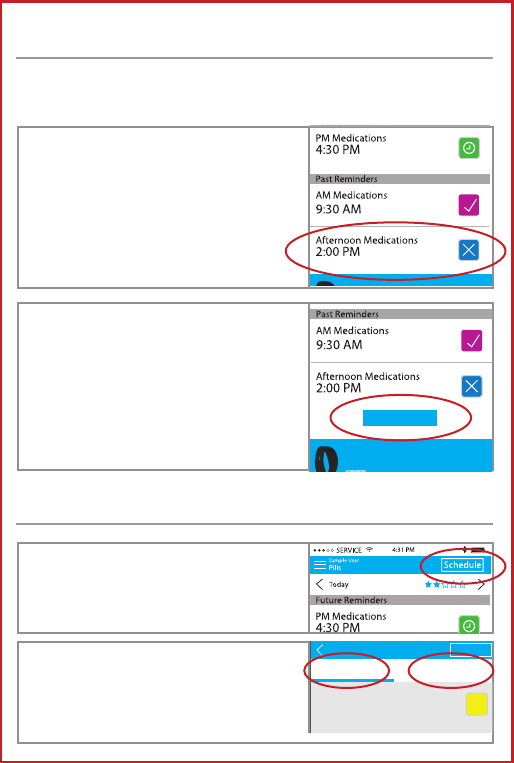
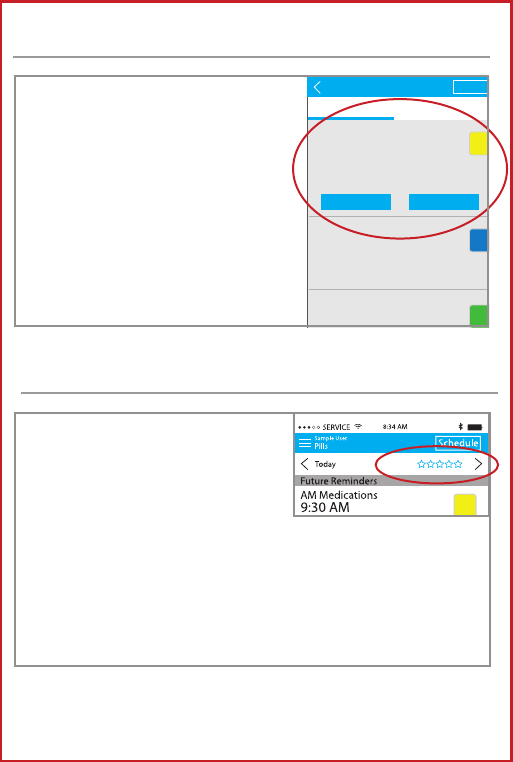
On your Dashboard, navigate to
Past Reminders.
Tap the corresponding reminder
you wish to change.
*Note: You can only change the status for a
reminder that has passed.
On your Dashboard, tap Schedule
in the top right hand corner.
Medication Set: Shows all medication
reminders currently active
Archived: Shows all medication reminders
that have been removed. Note: You cannot
edit or restore these reminders.
Tap the Taken or Missed button to
change status.
If the app logged the medication as
missed, a taken button will appear.
If the medication was logged as
taken, a missed button will appear.
CHANGE MEDICATION STATUS
EDIT A REMINDER
25
MEDICATION TRENDS
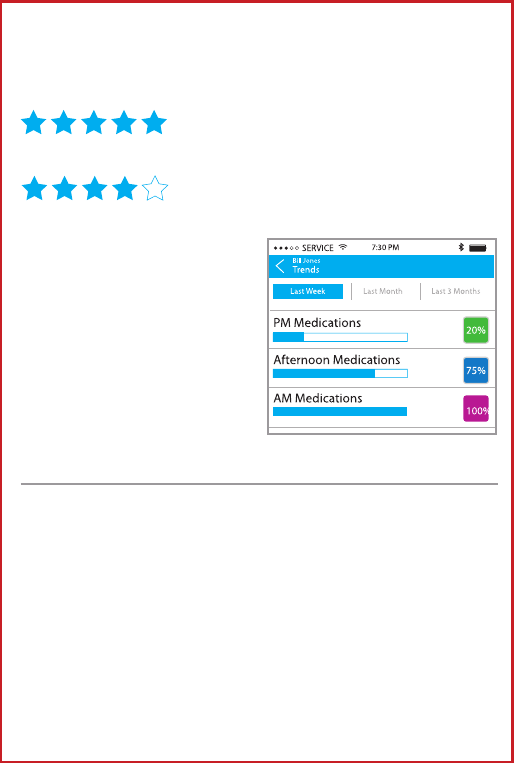
The iChoice Meds App allows you
to track your performance of
taken vs. missed medications.
This is indicated by the 5 stars
located in the upper right hand
corner on your dashboard.
You will start with 5 empty stars each day because there
are no past scheduled reminders. You are 100% compliant
when the 5 stars are filled.
The stars act as daily averages based on your ratio of taken
vs. missed reminders.
Sample User
Manage Schedule
Medication set Archived
New Set
AM Medications
Take with 1 glass of water
VERY IMPORTANT!
Every day
9:30 AM
Starts at Jan 19, 2015
8:34 AM
Afternoon Medications
Every day
9:30 AM
Starts at Jan 19, 2015
PM Medications
Small Blue Pills
Every day
9:30 AM
Starts at Jan 19, 2015
Sample User
Manage Schedule
Medication set Archived
New Se
t
AM Medications
Take with 1 glass of water
VERY IMPORTANT!
Every day
9:30 AM
Starts at Jan 19, 2015
8:34 AM
Afternoon Medications
Every day
9:30 AM
Starts at Jan 19, 2015
PM Medications
Small Blue Pills
Every day
9:30 AM
Starts at Jan 19, 2015
Archiv
eE
dit
Tap the medication reminder you
wish to edit.
Two buttons will appear.
Archive: will remove this medication
from all future instances. Note: Once you
archive a reminder you cannot restore it.
Edit: Will bring you back to the main
reminder screen where you can edit
name, date, time, etc. (See page 12)
EDIT A REMINDER (cont.)
26
Example:
You have 5 medication reminders scheduled (7am, 10am, 1pm,
5pm and 8pm)
It is now 2pm. I have taken my 7am, 10am
and 1pm medications. 3/3. I will have 5
stars.
It is now 8:30pm. I took all my
medications except the 8pm. 4/5. I will
have 4 stars.
TROUBLESHOOTING
If your Med-Reminder wristband does not work for unexpected
reasons try re-setting the wristband.
1. Charge the Med-Reminder wristband by plugging the
wristband into a USB port. (see page 4)
2. While the wristband is charging, hold down the button
on the wristband for more than 8 seconds to restart the
device.
Still having trouble?
Contact customer service: (215)-874-0458
If you click the 5 star graphic
in the upper right hand
corner of your dashboard you
can view your medication
compliance through easy to
read charts and graphics.
You can break down your
view by last week, last month
or last 3 months.
27
MEDICAL ID
WRISTBAND
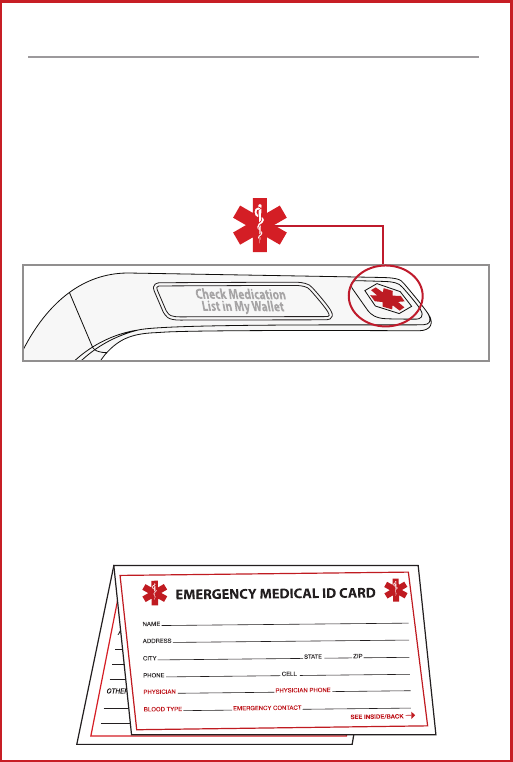
The Med-Reminder Wristband is specially designed with an
engraved Medical Identification emblem on the end.
It will inform others, in an emergency, that the user wearing the
wristband has a medical condition and may need special assistance.
We also included the statement “ Check Medication List in My
Wallet” on the side of the wristband.
EMERGENCY MEDICAL ID CARD
For your convenience, we have included a Wallet Card inside the
box. Please fill it out and keep in your wallet at all times.
28
BOX SYMBOLS
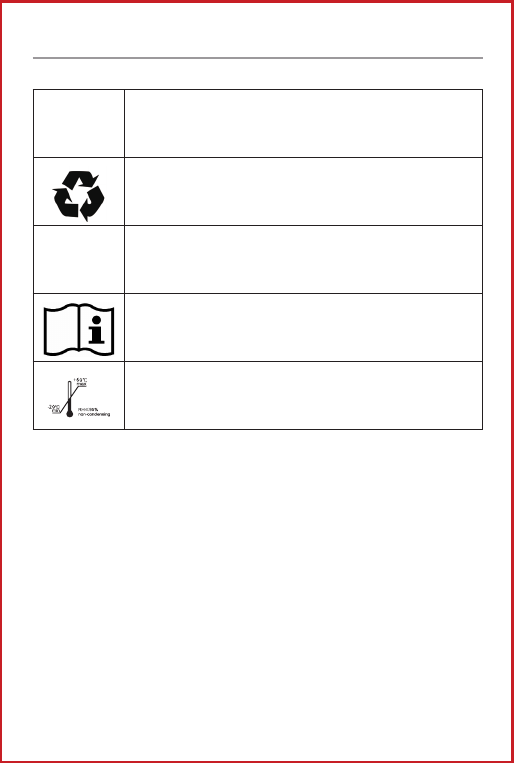
Symbol Definition
This package is recyclable
IPX5 The degrees of waterproof provided by enclosure
Follow instruction for use
Storage temperature and relative humidity
29
Med-Reminder Disclaimer
Content on this device including the app is for reference purposes and is not intended to
substitute for advice given by a physician, pharmacist, or other licensed health-care professional.
You should not use this information as self-diagnosis or for treating a health problem or disease.
Contact your health-care provider immediately if you suspect that you have a medical problem.
This product is only a supplement to any memory system that you currently use to remind
yourself to take medications. The user maintains full responsibility to administer medication at
the appropriate times. The user should be aware that when the location of the smart phone on
which the App is installed changes to a different time zone, the App will send out an automatic
time change reminder to the smart phone to alert the user to change the time of taking a
prescription. Furthermore, a user may initiate an invitation to a third party who can monitor
the status through the App and remind the user to take medication at the appropriate time. It
remains a user’s responsibility to take medication and a third party’s failure to remind in itself does
not absolve that responsibility.
The Product is not in the business of, and does not provide, monitoring services, medical care
or direct medical care for patients. Product does not provide medical advice and does
not prescribe or dispense medications. Only physicians, pharmacists, or other licensed and
authorized learned intermediaries may set or change the prescription drug taking instructions,
and information delivered to patients as determined by law and license protocols. Product shall
not be liable for any claim or demand against Product by the user and/or by any third party,
based on the provision, or lack of provision of, medical care to you or any other party.
Product shall not be responsible for any misplacement of medicine, removal of medicine, wrong
dosage, failure to rell or take medicine, or for drug interactions. It is the patient’s responsibility
to take his or her medicine. Product does not know if a patient actually took his or her medicine,
or if a patient lled the correct medicine in the relevant compartments and in the right dosage.
Although this product provides the ability for a user to enter medication names, dosages and
time, Product is not a decision support system and does not have the ability to check for drug
to drug interactions, drug to food interactions, drug dosages, drug frequencies or any way to
determine if the drug(s) are safe, effective or appropriate for any given patient.
Product shall not be liable for failures due to causes beyond its control, including, but not limited
to, acts of god, acts of government, re, ood, strikes, terrorism, war, or acts or omissions of
carriers.
Except as specically provided in this license, there are no other warranties, expressed or implied.
The App is intended for educational purposes only. You must not rely on this application alone
to remember to take medication or provide warnings including but not limited to overdose and
schedule warnings. This application does not provide medical advice, diagnosis and treatment.
We assume no responsibility for any incidental or consequential damages, including but without
limitation, damages or injuries resulting from dysfunction of the product due to loss of power,
water leakage, or change of time zone, or misuse by the user such as wrongful set-up, not
reading carefully or following the instruction manual, or improper use. In addition, discontinuation
of internet service or WIFI connection may cause data unable to be uploaded to the server
and to be transmitted to the remote third party supervising the use of the product. We assume
no responsibility for damages resulted from the above mentioned misuse. Our liability shall in no
circumstances exceed three times of the price paid by the user for the product.
Distributed by:
ChoiceMMed America Co.
2558 Pearl Buck Road, Suite 8A
Bristol, PA 19007
www.choicemmedamerica.com
Service Phone: (215) 874-0458
Customer Service Representatives are available
Monday through Friday - 9:30am to 4:30pm EST
(The above address is not for return purposes. For detailed warranty
information, visit www.choicemmedamerica.com/warranty)
Made in China
© 2015 ChoiceMMed America Co.
All Rights Reserved
Revised date: July, 22 2015
30
Distributed by:
ChoiceMMed America Co.
2558 Pearl Buck Road, Suite 8A
Bristol, PA 19007
www.choicemmedamerica.com
Service Phone: (215) 874-0458
Customer Service Representatives are available
Monday through Friday - 9:30am to 4:30pm EST
(The above address is not for return purposes. For detailed warranty
information, visit www.choicemmedamerica.com/warranty)
Made in China
© 2015 ChoiceMMed America Co.
All Rights Reserved
Revised date: July, 22 2015
SCS_07292015_v44
31
Warranty Registration Card
Model No. ___________________ LOT# _______________________
(LOT# - located at the bottom of the packaging)
Serial NO. (SN) ________________ Purchase Date ______________
(SN - located on the back on the unit)
Purchaser Name: M F _______________________________
Age: Under 18 18-34 35-49 Over 50
E-Mail: ____________________________________________________
Phone: ____________________________________________________
Address 1: _________________________________________________
Address 2 : ______________________________________________
City/State : ___________________ Zip: ________________________
Warranty Conditions
ChoiceMMed America Co. warrants to the original purchaser that this equipment
will be free from defects in materials and workmanship for a period of one year from
the date of purchase. This warranty shall be limited to the repair adjustment and/or
replacement at the manufacturer’s option of defective parts free of charge except
the cost of transportation to ChoiceMMed America Co. Manufacturer’s responsibility
is limited to actual cost of item. When returning equipment for warranty service, all
shipping and insurance charges must be prepaid and the proof of purchase must
be enclosed. Returns will only be shipped to locations within the USA. ChoiceMMed
America Co. will not be responsible for expenses or inconveniences, or consequential
damages occasioned by equipment or by breach of any expressed or implied
warranty with respect thereto.
Limitations
This warranty covers all defects encountered in normal use of the equipment and
does not apply in the following cases.
1. If the equipment has been serviced by other than a certied center.
2. Damage to the equipment due to mishandling, abuse, accident or failure to
follow the operating instructions.
3. INSTRUMENTS: Warranty does not extend to display face, batteries and other
accessories.
Customer Service Representatives are available
Monday through Friday - 9:30am to 4:30pm EST
Service Phone: (215)-874-0458
www.choicemmedamerica.com