Beijing InHand Networks Technology BOX Embedded Computer User Manual

Beijing InHand Networks Technology Co., Ltd. Embedded Computer

User Manual

        InBox300 Series  User Manual             InHand Networks   Version 1.1 April 2016
1Copyright © 2016 InHand Networks and its licensers. All Rights Reserved. Without the Company’s written permission, any entity or individual shall not extract or copy part of whole of any content of this book, or spread over such content by any means.      , Inhand, INHAND and Yinghantong are all trademarks of InHand Networks. Those trademarks, product identifications and product names of other companies in this Manual are owned by respective right holders.      Because of product version upgrade or other reasons, the content of this Manual may be changed. The actual product conditions shall prevail. InHand retains the right to modify any content of this Manual under the circumstance of no any notice or hint. This Manual is for guidance of use only. InHand will try its best to provide accurate information in this Manual. However, InHand will not make sure that there is no any false content in this Manual. All statements, information and suggestions in this Manual will not constitute a guarantee of any explicit instruction or implication.
2Preface  Welcome to use InBox300 series products! InBox300 Series User Manual will give detailed guidance to your use of this product.   The part of preface includes the following contents:    Readers;    Agreement of this Manual;    Mode of data acquisition;    Technical Support Contact Information   Readers  This Manual is mainly applicable to the following engineering personnel:    Network planners;    Onsite technical support and maintenance personnel;    Network configuration and administrative personnel   Agreement of this Manual   1. Agreement on graphical interface format   Format   Significance   <> Angle brackets “<>” indicate the name of button, such as “click the <YES> button”.   “” Double quotation marks indicate“” the name of window and menu, such as popping up the “NEW USER” window. >> A multilevel menu shall be isolated with “>>”. For instance, the multilevel menu of “file>>new>>folder” indicates the “folder” menu item under the submenu of “new” under the menu of “file”.  2. Various signs   In this Manual, different striking signs are used to indicate those places to which special attention shall be paid in the operating process. The significance of these signs is shown as follows:
3 Remind those matters needing attention in the operating process; improper operation may lead to data loss or equipment damage.      Give necessary supplementary descriptions on the operating content.    Mode of data acquisition   You may have access to the latest information about the product specification, user manual, common tools and quick reference handbook through the website of InHand Networks (www.inhandnetworks.com).
4I. Introduction to InBox300   1.1 Overview   By integrating Android OS with Freescale Cortex-A9 double-core 1.0 GHz processor i.MX6, the InBox300 brings to device manufacturers, especially advertisement & media player manufacturers who have been relying on X86 based computing platforms a solution of lower power consumption and less heating. With OpenGLES2.0 and OpenVG™1.1 hardware accelerators, and full HD 1080P video coding engine, the InBox300 enables media playback devices to deliver smooth and lively video experiences.     With 1000M Ethernet and 3Gcellular network support, the InBox300 is “always online” for media content update or remote network communication. It has rich peripheral ports including multiple serial ports, USB ports and HDMI port etc. to connect a wide range of peripherals, from scanner, printer, ID or traffic card reader, POS device, to infrared touchscreen, video camera, mouse, LED screen, etc.   The InBox is ruggedized to withstand harsh conditions, supporting 9-24V wide voltage inputs and wide operating temperatures. It also provides multiple APIs for reading of the hardware data to enable further development by device manufacturers.   Features and strengths:    Freescale Cortex-A9 double-core 1.0 GHz processor i.MX6, of high computing capability;   OpenGLES2.0 and OpenVG™1.1 hardware accelerators, supporting 2D and 3D graphics acceleration;    Full HD 1080P coding engine, enabling superior video experience;      1000M Ethernet and 3G cellular network support allows easy network connection;      Android OS, with open development resources and abundant applications available;    Optimized hardware base driver enables stable and fast network connection, smooth user experience and excellent performance of peripherals;    Rich of ports, support connection to a wide range of peripherals
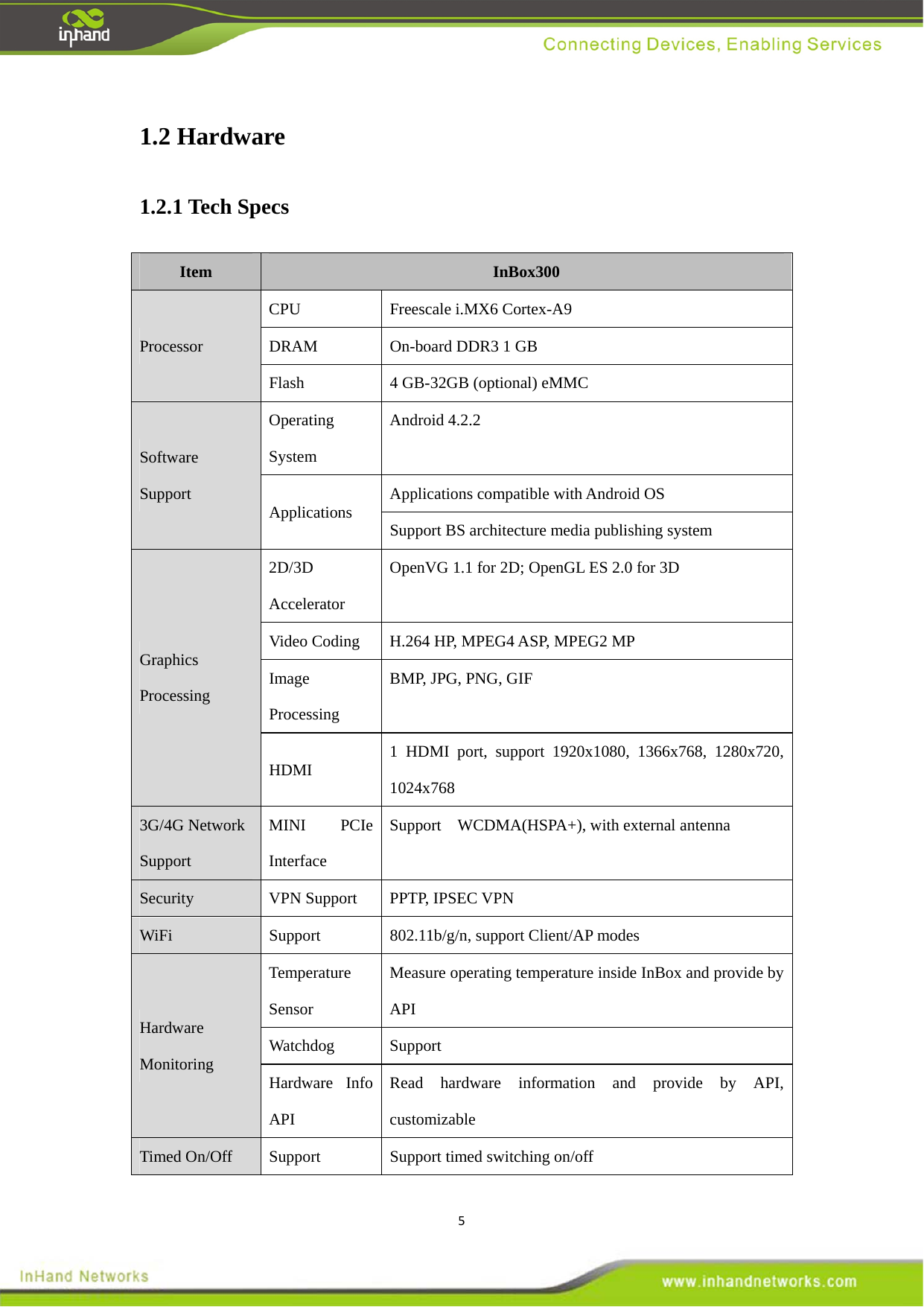
51.2 Hardware   1.2.1 Tech Specs Item   InBox300 Processor  CPU  Freescale i.MX6 Cortex-A9 DRAM  On-board DDR3 1 GB Flash  4 GB-32GB (optional) eMMC Software Support Operating System  Android 4.2.2 Applications   Applications compatible with Android OS   Support BS architecture media publishing system   Graphics Processing  2D/3D Accelerator OpenVG 1.1 for 2D; OpenGL ES 2.0 for 3D Video Coding  H.264 HP, MPEG4 ASP, MPEG2 MP Image Processing  BMP, JPG, PNG, GIF HDMI  1 HDMI port, support 1920x1080, 1366x768, 1280x720, 1024x768 3G/4G Network Support  MINI PCIe Interface  Support  WCDMA(HSPA+), with external antenna Security    VPN Support  PPTP, IPSEC VPN WiFi   Support   802.11b/g/n, support Client/AP modes Hardware Monitoring  Temperature Sensor Measure operating temperature inside InBox and provide by API Watchdog   Support  Hardware Info API Read hardware information and provide by API, customizable  Timed On/Off  Support    Support timed switching on/off
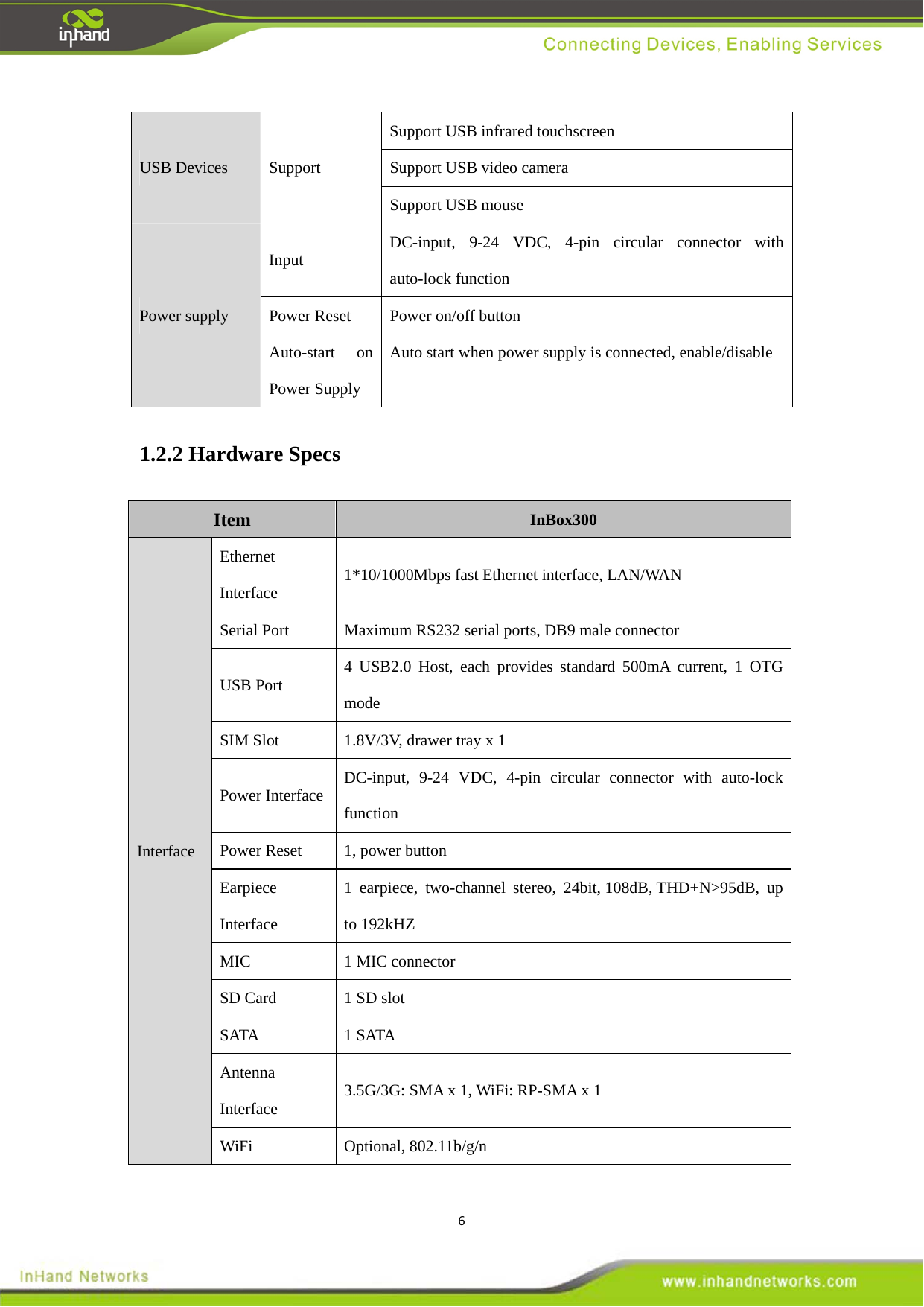
6USB Devices   Support  Support USB infrared touchscreen   Support USB video camera   Support USB mouse Power supply   Input   DC-input, 9-24 VDC, 4-pin circular connector with auto-lock function   Power Reset  Power on/off button Auto-start on Power Supply   Auto start when power supply is connected, enable/disable 1.2.2 Hardware Specs Item  InBox300 Interface  Ethernet Interface   1*10/1000Mbps fast Ethernet interface, LAN/WAN Serial Port    Maximum RS232 serial ports, DB9 male connector   USB Port    4 USB2.0 Host, each provides standard 500mA current, 1 OTG mode  SIM Slot    1.8V/3V, drawer tray x 1 Power Interface    DC-input, 9-24 VDC, 4-pin circular connector with auto-lock function  Power Reset  1, power button   Earpiece Interface  1 earpiece, two-channel stereo, 24bit, 108dB, THD+N>95dB, up to 192kHZ MIC 1 MIC connector  SD Card  1 SD slot SATA 1 SATA  Antenna Interface  3.5G/3G: SMA x 1, WiFi: RP-SMA x 1 WiFi Optional, 802.11b/g/n
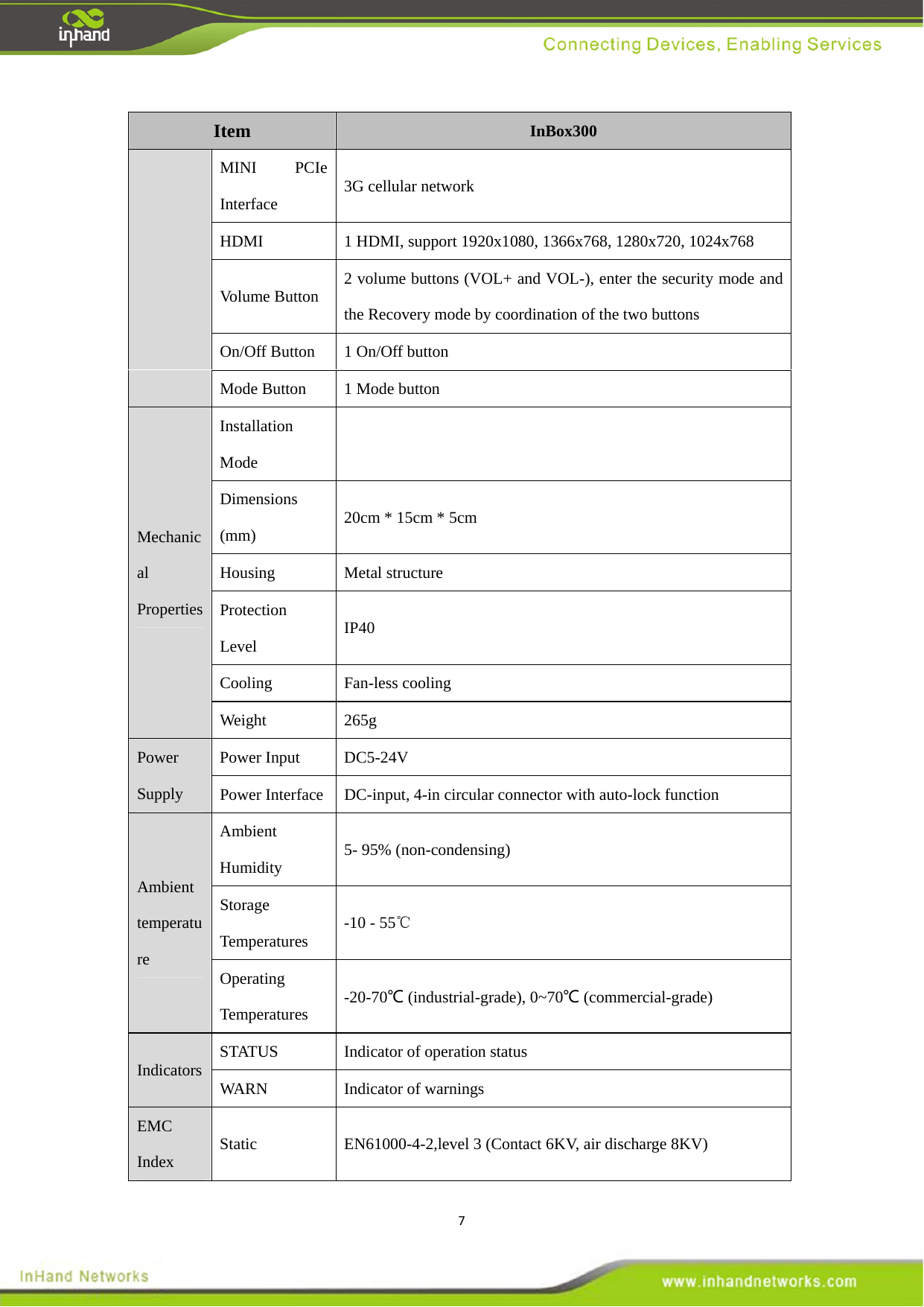
7Item  InBox300 MINI PCIe Interface  3G cellular network   HDMI  1 HDMI, support 1920x1080, 1366x768, 1280x720, 1024x768 Volume Button    2 volume buttons (VOL+ and VOL-), enter the security mode and the Recovery mode by coordination of the two buttons   On/Off Button    1 On/Off button Mode Button    1 Mode button Mechanical Properties Installation Mode   Dimensions (mm)   20cm * 15cm * 5cm Housing   Metal structure  Protection Level   IP40 Cooling   Fan-less cooling  Weight   265g Power Supply  Power Input  DC5-24V Power Interface  DC-input, 4-in circular connector with auto-lock function   Ambient temperature  Ambient Humidity  5- 95% (non-condensing) Storage Temperatures  -10 - 55℃ Operating Temperatures  -20-70℃ (industrial-grade), 0~70℃ (commercial-grade)   Indicators  STATUS  Indicator of operation status   WARN     Indicator of warnings  EMC Index   Static    EN61000-4-2,level 3 (Contact 6KV, air discharge 8KV)
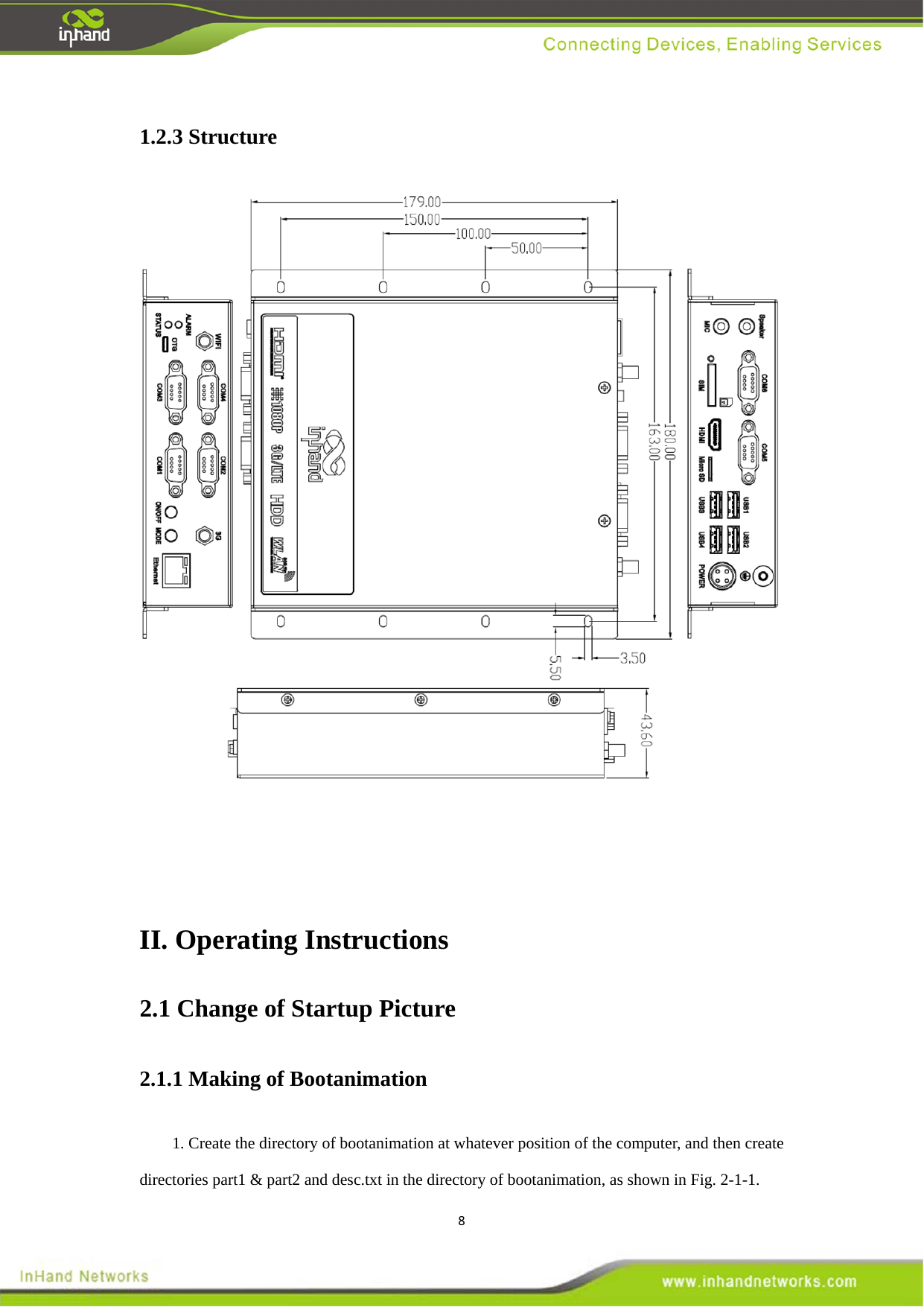
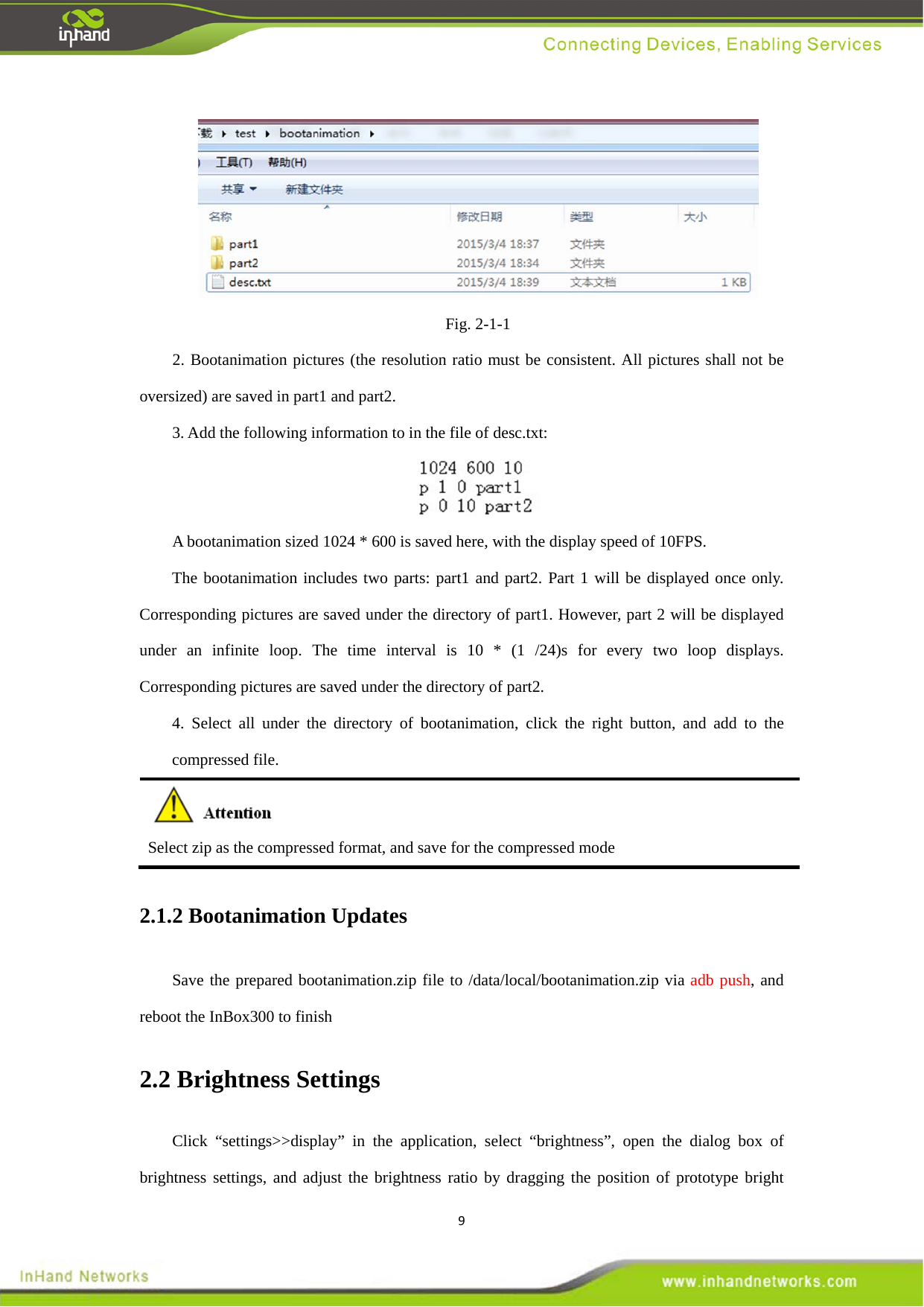
81.2.3 Structure       II. Operating Instructions   2.1 Change of Startup Picture   2.1.1 Making of Bootanimation   1. Create the directory of bootanimation at whatever position of the computer, and then create directories part1 & part2 and desc.txt in the directory of bootanimation, as shown in Fig. 2-1-1.
9 Fig. 2-1-1 2. Bootanimation pictures (the resolution ratio must be consistent. All pictures shall not be oversized) are saved in part1 and part2.   3. Add the following information to in the file of desc.txt:      A bootanimation sized 1024 * 600 is saved here, with the display speed of 10FPS.   The bootanimation includes two parts: part1 and part2. Part 1 will be displayed once only. Corresponding pictures are saved under the directory of part1. However, part 2 will be displayed under an infinite loop. The time interval is 10 * (1 /24)s for every two loop displays. Corresponding pictures are saved under the directory of part2.   4. Select all under the directory of bootanimation, click the right button, and add to the compressed file.    Select zip as the compressed format, and save for the compressed mode   2.1.2 Bootanimation Updates   Save the prepared bootanimation.zip file to /data/local/bootanimation.zip via adb push, and reboot the InBox300 to finish   2.2 Brightness Settings   Click “settings>>display” in the application, select “brightness”, open the dialog box of brightness settings, and adjust the brightness ratio by dragging the position of prototype bright
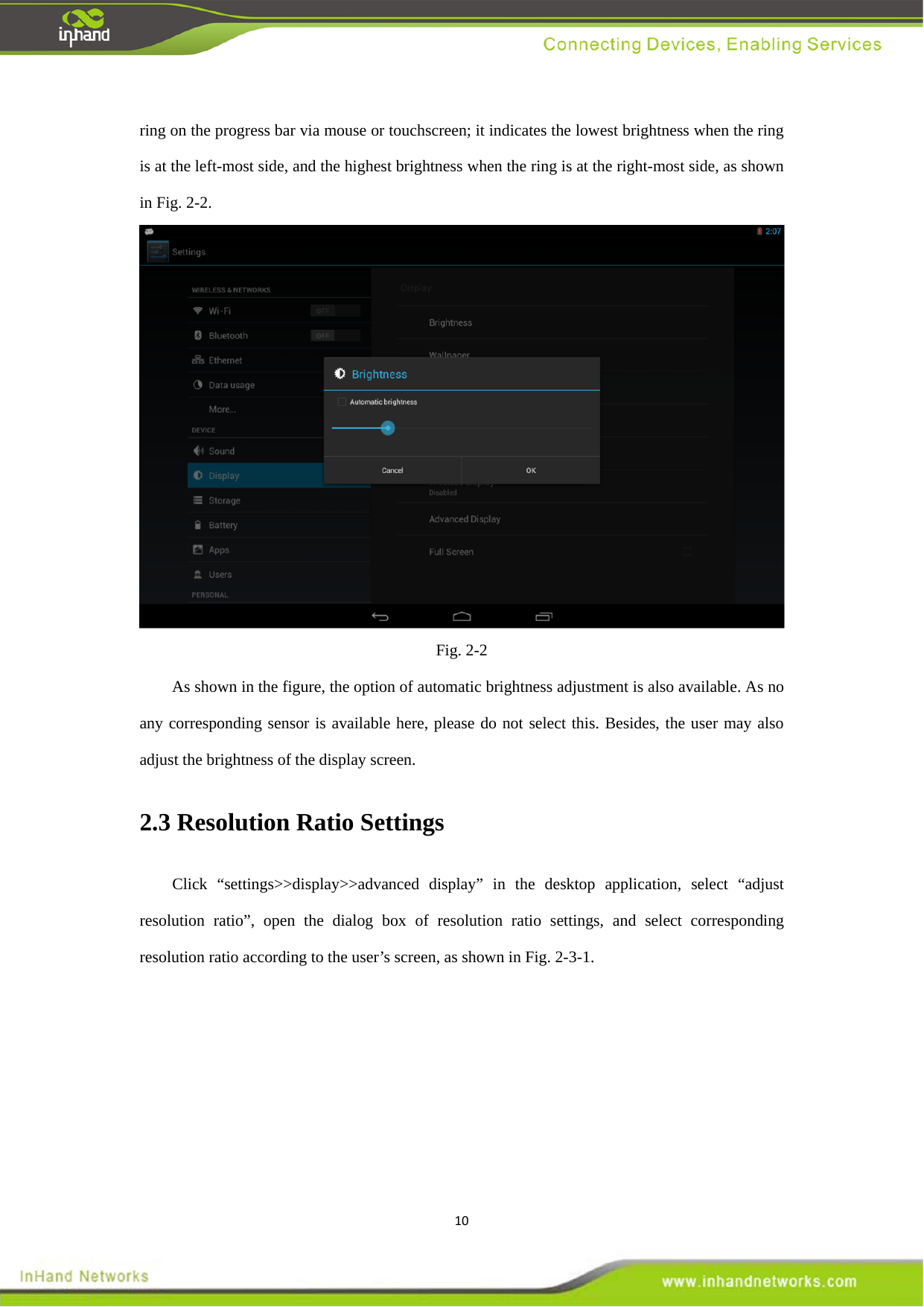
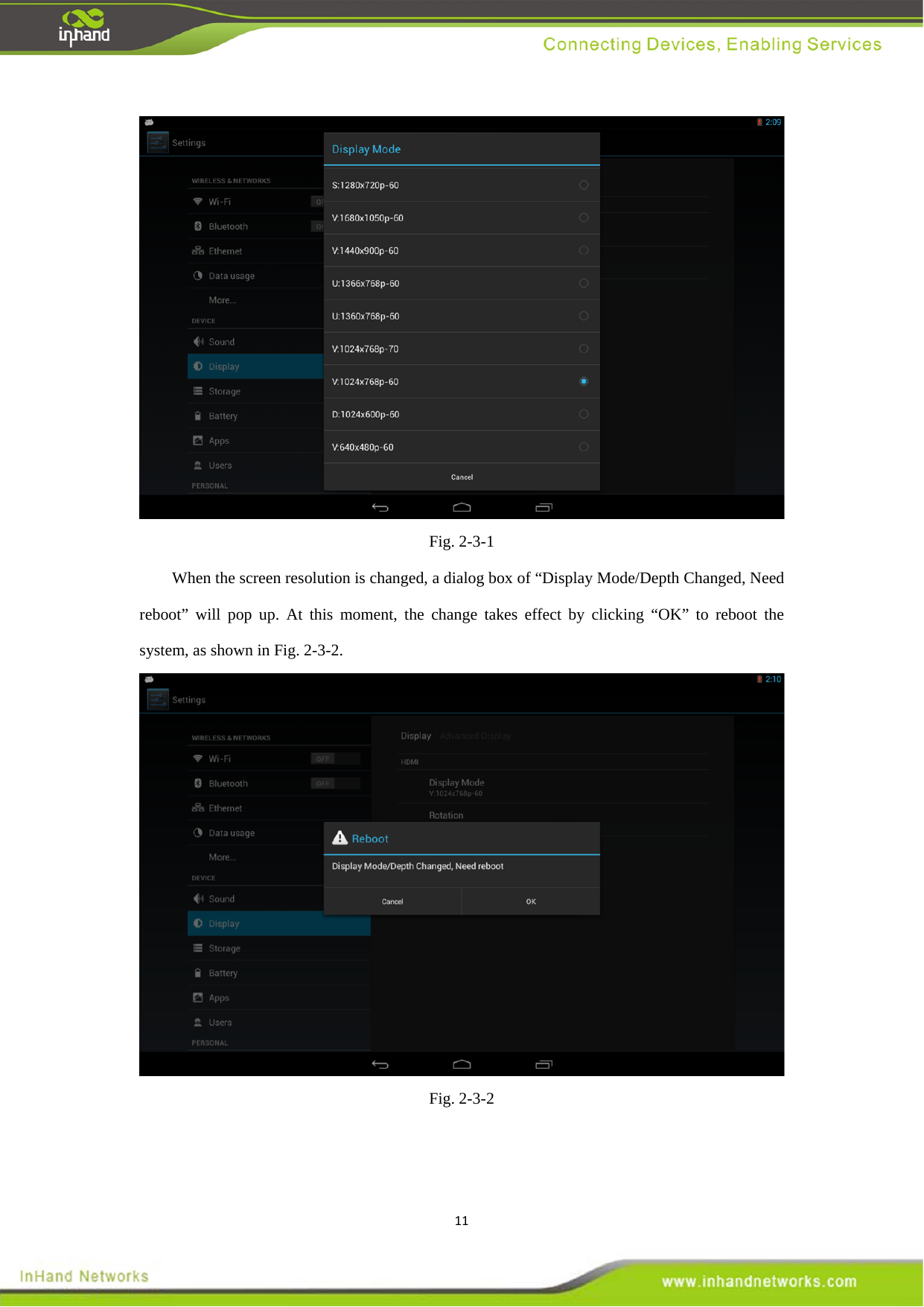
10ring on the progress bar via mouse or touchscreen; it indicates the lowest brightness when the ring is at the left-most side, and the highest brightness when the ring is at the right-most side, as shown in Fig. 2-2.    Fig. 2-2 As shown in the figure, the option of automatic brightness adjustment is also available. As no any corresponding sensor is available here, please do not select this. Besides, the user may also adjust the brightness of the display screen.   2.3 Resolution Ratio Settings   Click “settings>>display>>advanced display” in the desktop application, select “adjust resolution ratio”, open the dialog box of resolution ratio settings, and select corresponding resolution ratio according to the user’s screen, as shown in Fig. 2-3-1.
11 Fig. 2-3-1 When the screen resolution is changed, a dialog box of “Display Mode/Depth Changed, Need reboot” will pop up. At this moment, the change takes effect by clicking “OK” to reboot the system, as shown in Fig. 2-3-2.    Fig. 2-3-2
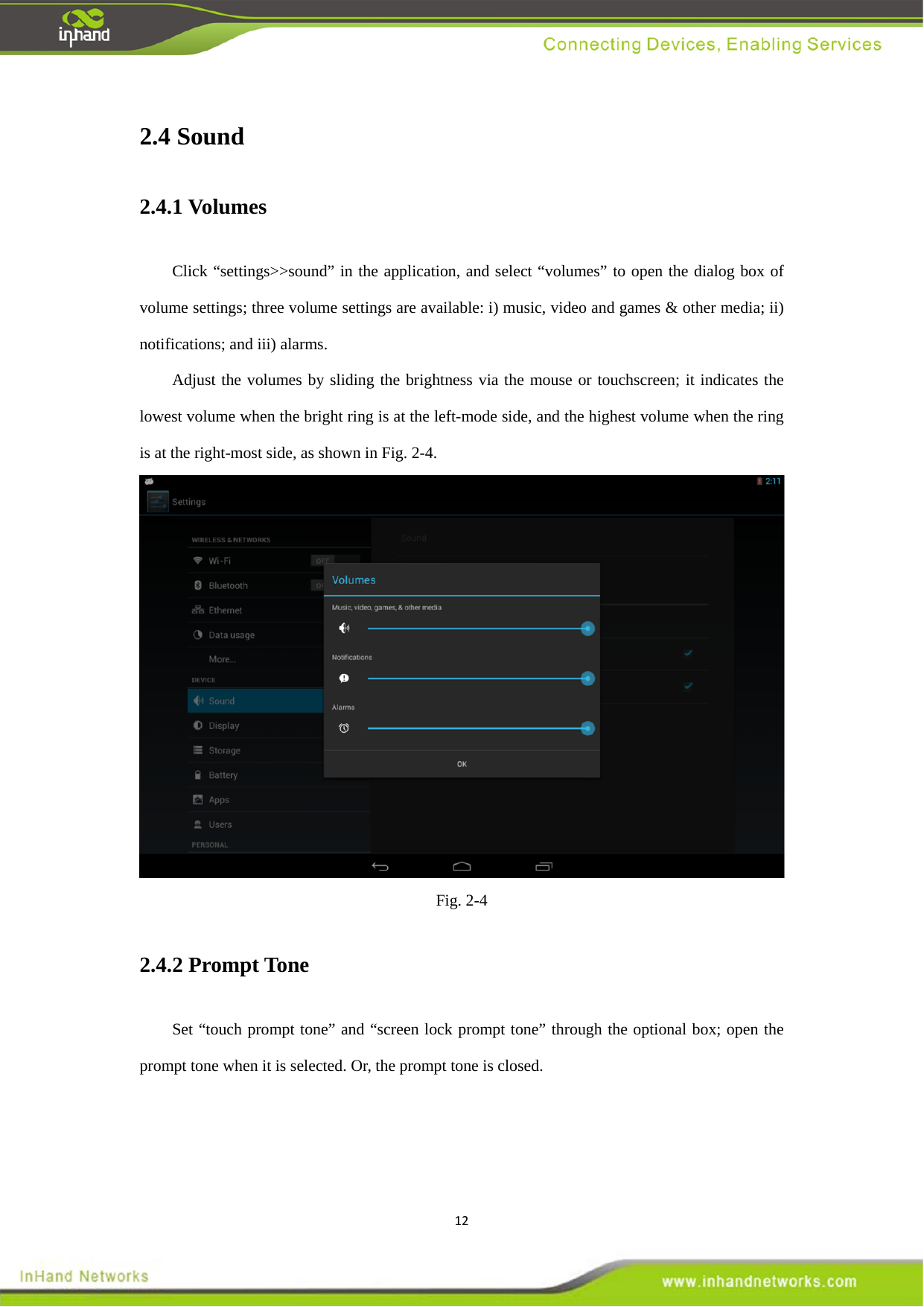
122.4 Sound   2.4.1 Volumes   Click “settings>>sound” in the application, and select “volumes” to open the dialog box of volume settings; three volume settings are available: i) music, video and games & other media; ii) notifications; and iii) alarms.     Adjust the volumes by sliding the brightness via the mouse or touchscreen; it indicates the lowest volume when the bright ring is at the left-mode side, and the highest volume when the ring is at the right-most side, as shown in Fig. 2-4.    Fig. 2-4 2.4.2 Prompt Tone   Set “touch prompt tone” and “screen lock prompt tone” through the optional box; open the prompt tone when it is selected. Or, the prompt tone is closed.
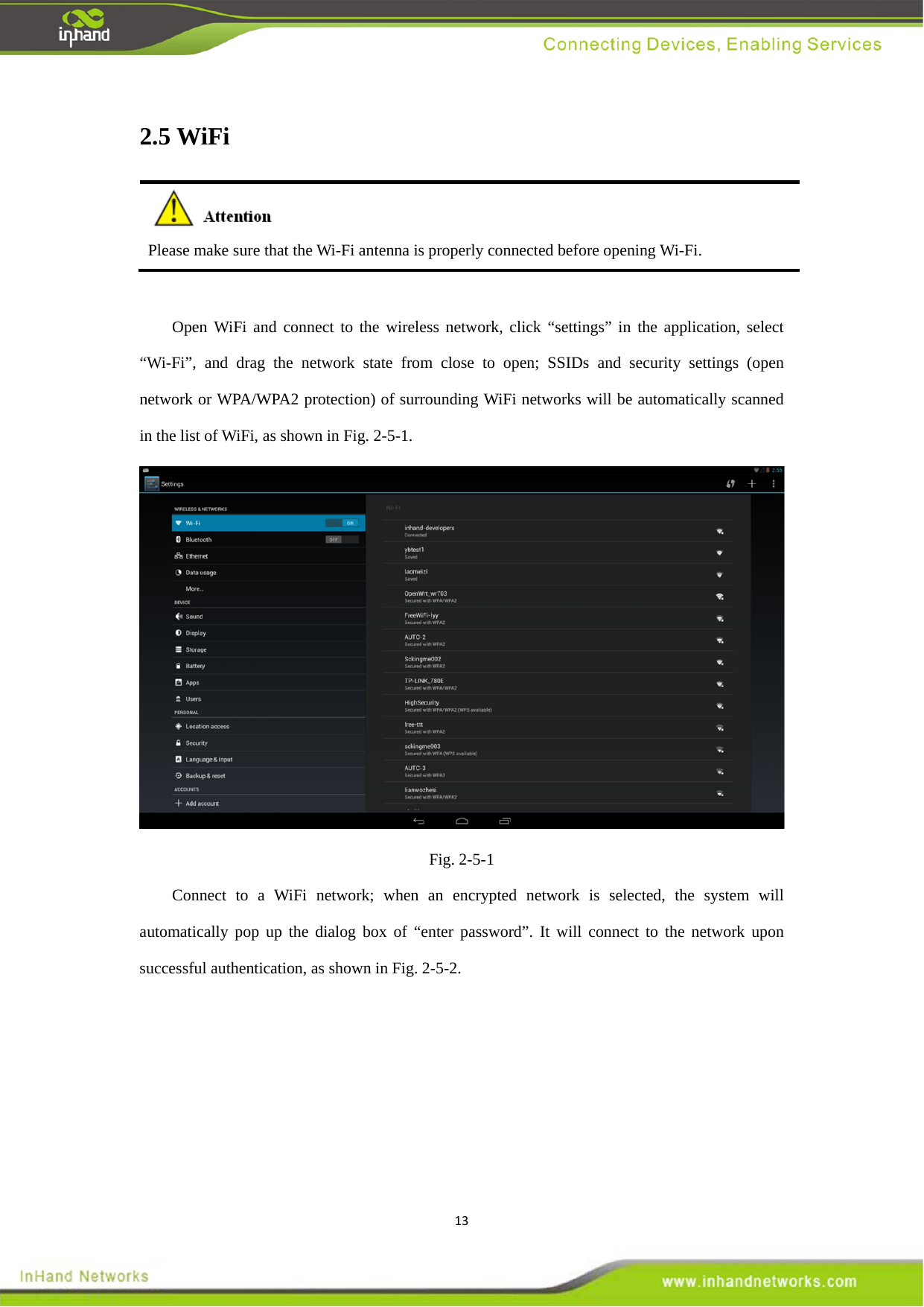
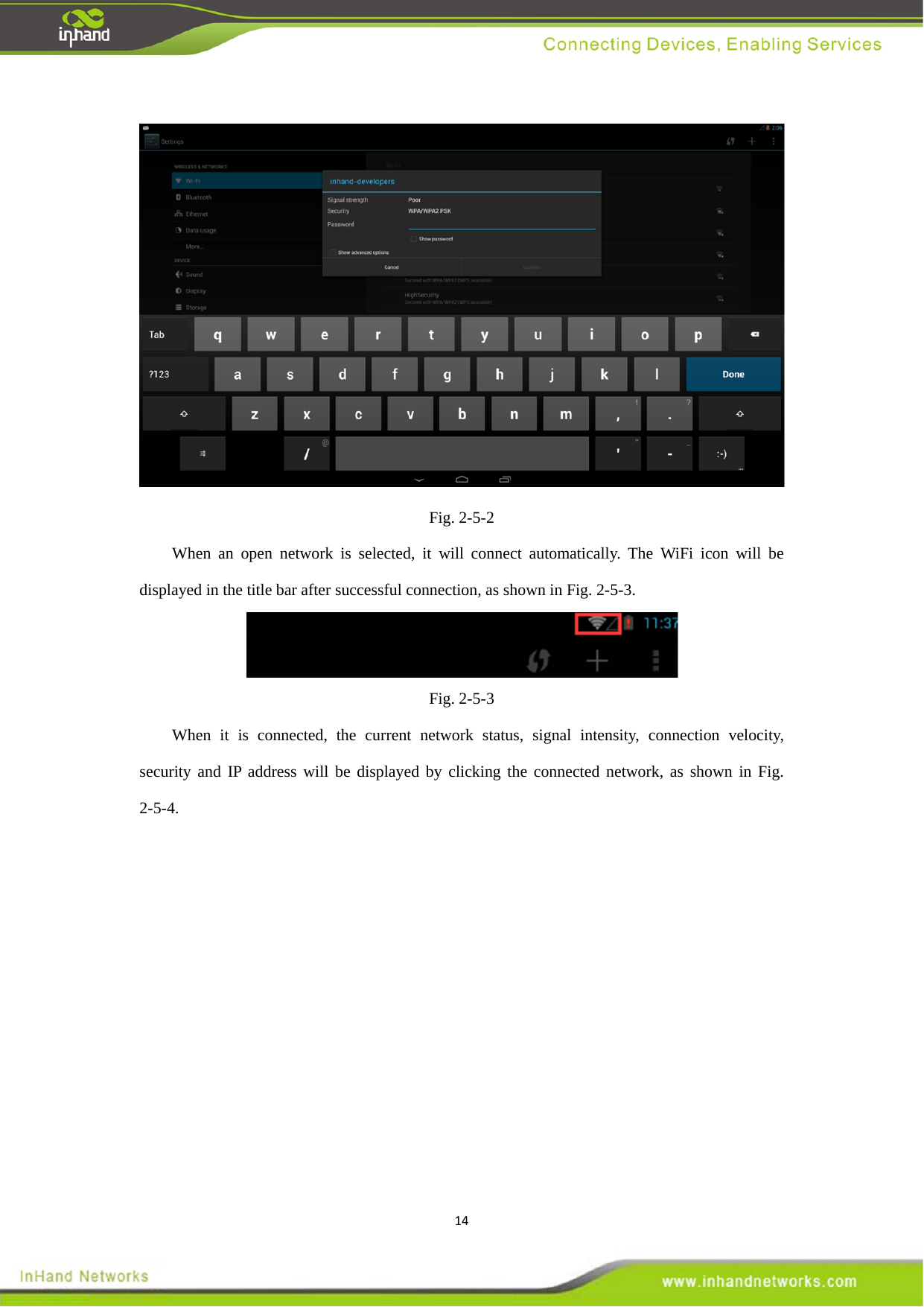
132.5 WiFi  Please make sure that the Wi-Fi antenna is properly connected before opening Wi-Fi.    Open WiFi and connect to the wireless network, click “settings” in the application, select “Wi-Fi”, and drag the network state from close to open; SSIDs and security settings (open network or WPA/WPA2 protection) of surrounding WiFi networks will be automatically scanned in the list of WiFi, as shown in Fig. 2-5-1.    Fig. 2-5-1 Connect to a WiFi network; when an encrypted network is selected, the system will automatically pop up the dialog box of “enter password”. It will connect to the network upon successful authentication, as shown in Fig. 2-5-2.
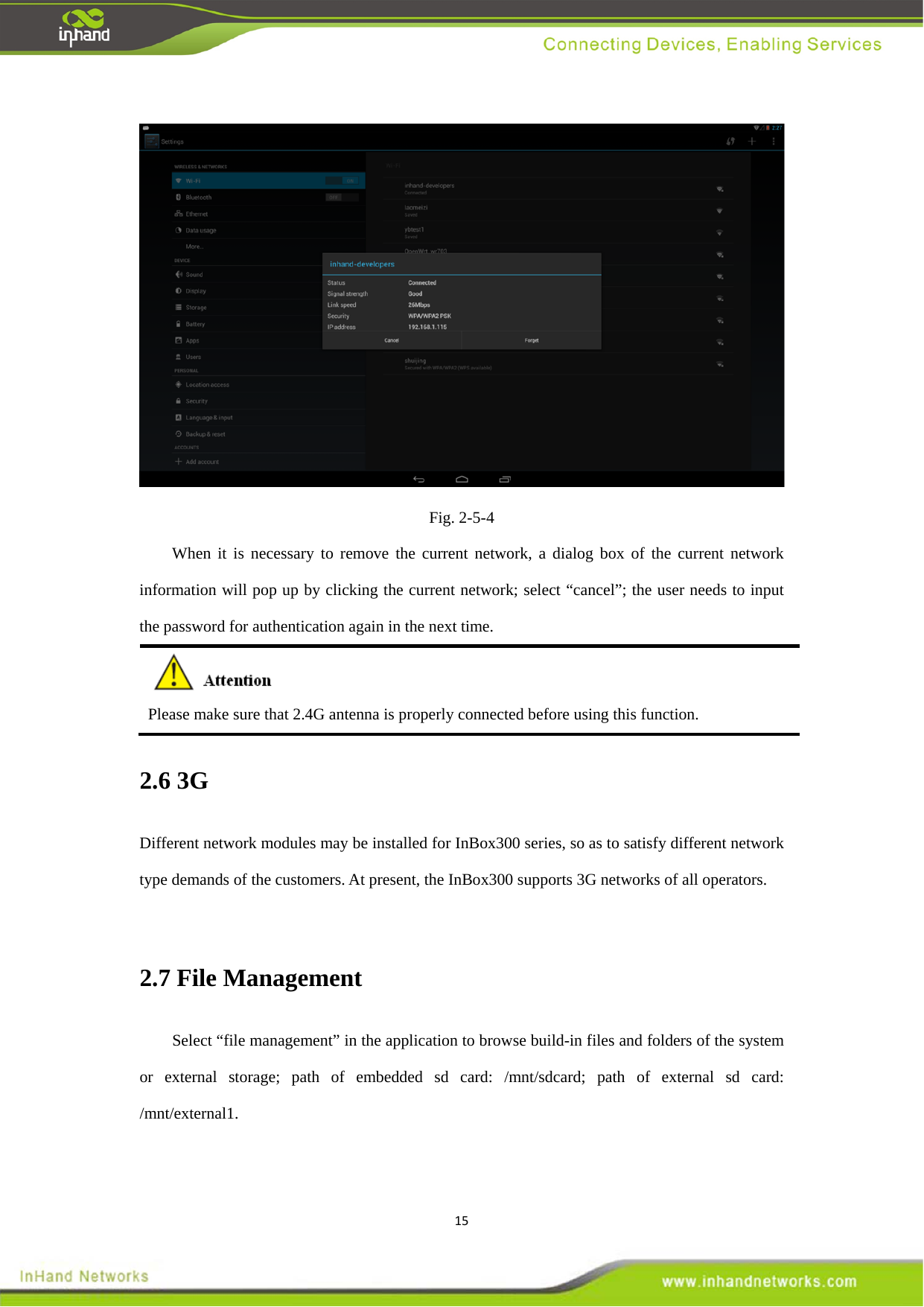
14 Fig. 2-5-2 When an open network is selected, it will connect automatically. The WiFi icon will be displayed in the title bar after successful connection, as shown in Fig. 2-5-3.    Fig. 2-5-3 When it is connected, the current network status, signal intensity, connection velocity, security and IP address will be displayed by clicking the connected network, as shown in Fig. 2-5-4.
15 Fig. 2-5-4 When it is necessary to remove the current network, a dialog box of the current network information will pop up by clicking the current network; select “cancel”; the user needs to input the password for authentication again in the next time.  Please make sure that 2.4G antenna is properly connected before using this function.   2.6 3G Different network modules may be installed for InBox300 series, so as to satisfy different network type demands of the customers. At present, the InBox300 supports 3G networks of all operators.    2.7 File Management   Select “file management” in the application to browse build-in files and folders of the system or external storage; path of embedded sd card: /mnt/sdcard; path of external sd card: /mnt/external1.
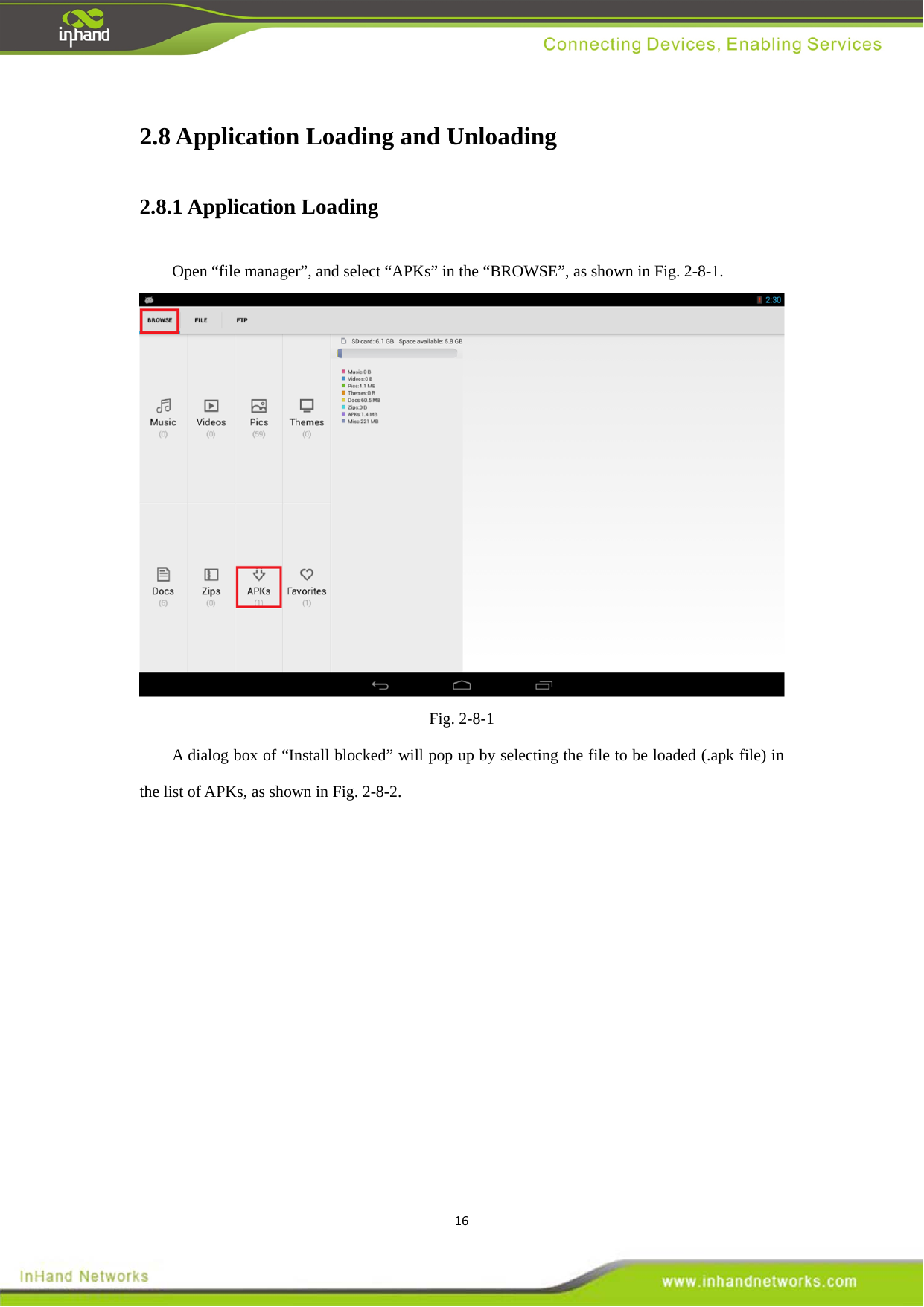
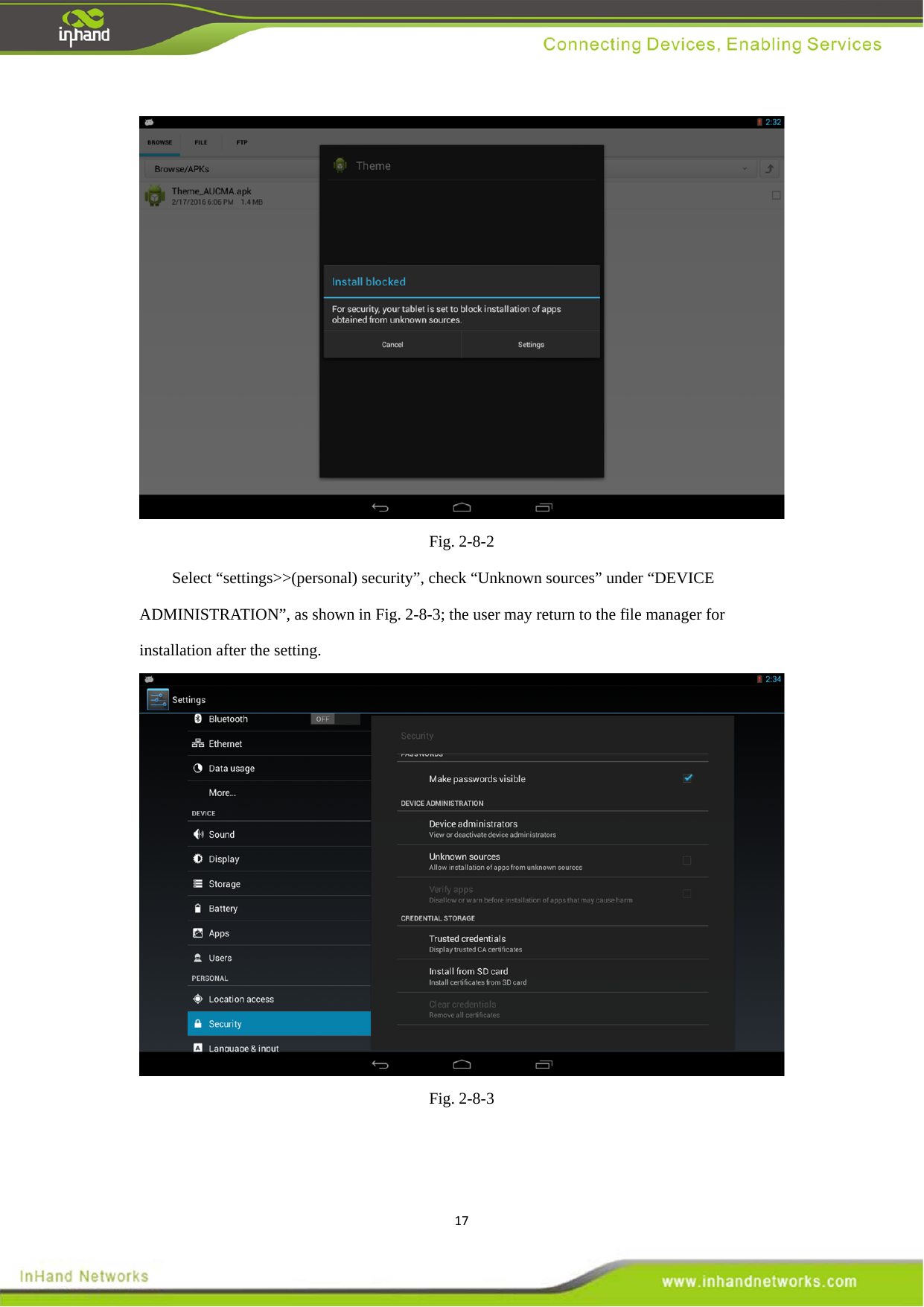
162.8 Application Loading and Unloading   2.8.1 Application Loading Open “file manager”, and select “APKs” in the “BROWSE”, as shown in Fig. 2-8-1.  Fig. 2-8-1 A dialog box of “Install blocked” will pop up by selecting the file to be loaded (.apk file) in the list of APKs, as shown in Fig. 2-8-2.
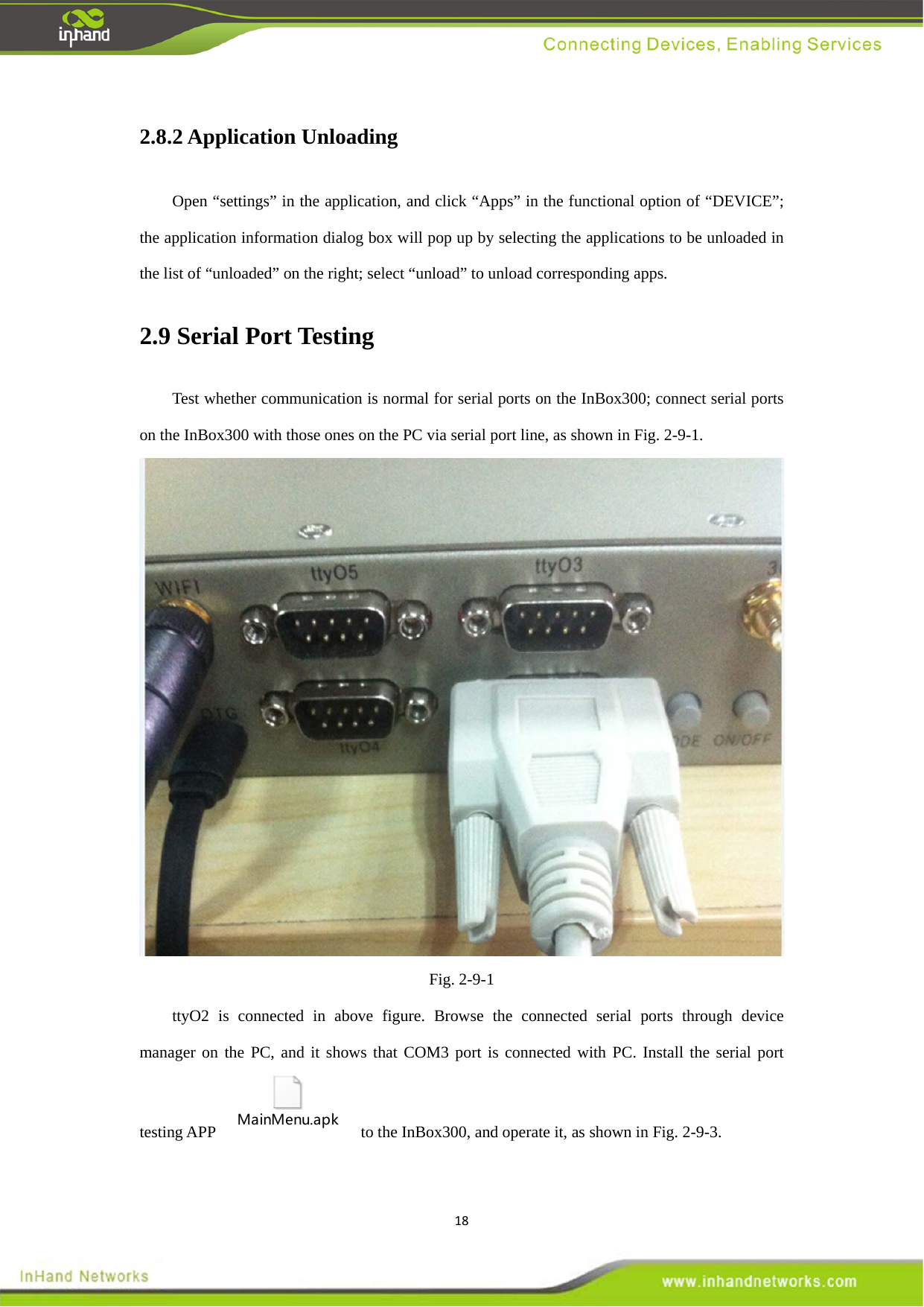
17 Fig. 2-8-2 Select “settings>>(personal) security”, check “Unknown sources” under “DEVICE ADMINISTRATION”, as shown in Fig. 2-8-3; the user may return to the file manager for installation after the setting.    Fig. 2-8-3
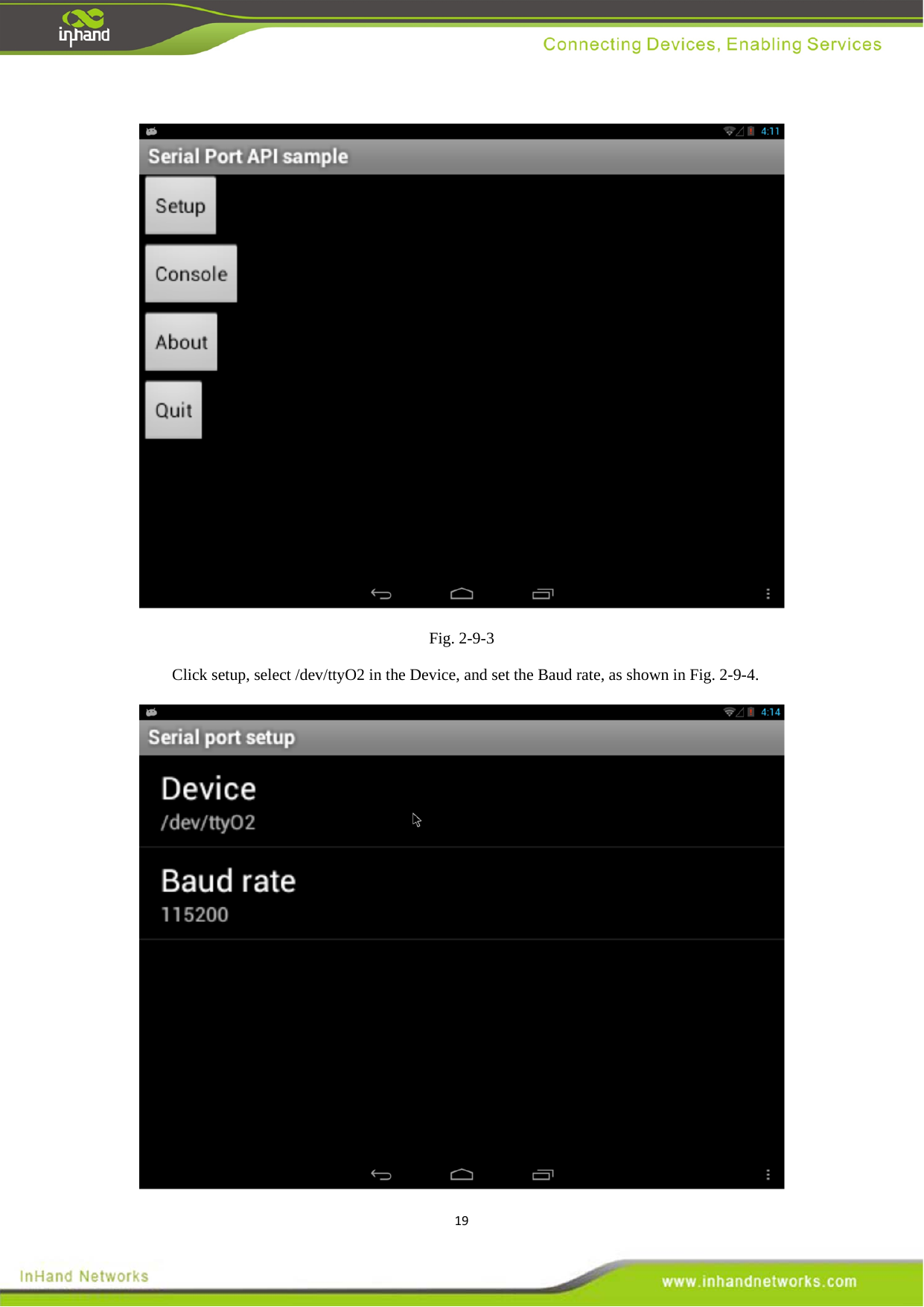
182.8.2 Application Unloading   Open “settings” in the application, and click “Apps” in the functional option of “DEVICE”; the application information dialog box will pop up by selecting the applications to be unloaded in the list of “unloaded” on the right; select “unload” to unload corresponding apps.   2.9 Serial Port Testing   Test whether communication is normal for serial ports on the InBox300; connect serial ports on the InBox300 with those ones on the PC via serial port line, as shown in Fig. 2-9-1.  Fig. 2-9-1 ttyO2 is connected in above figure. Browse the connected serial ports through device manager on the PC, and it shows that COM3 port is connected with PC. Install the serial port testing APP MainMenu.apk  to the InBox300, and operate it, as shown in Fig. 2-9-3.
19 Fig. 2-9-3 Click setup, select /dev/ttyO2 in the Device, and set the Baud rate, as shown in Fig. 2-9-4.
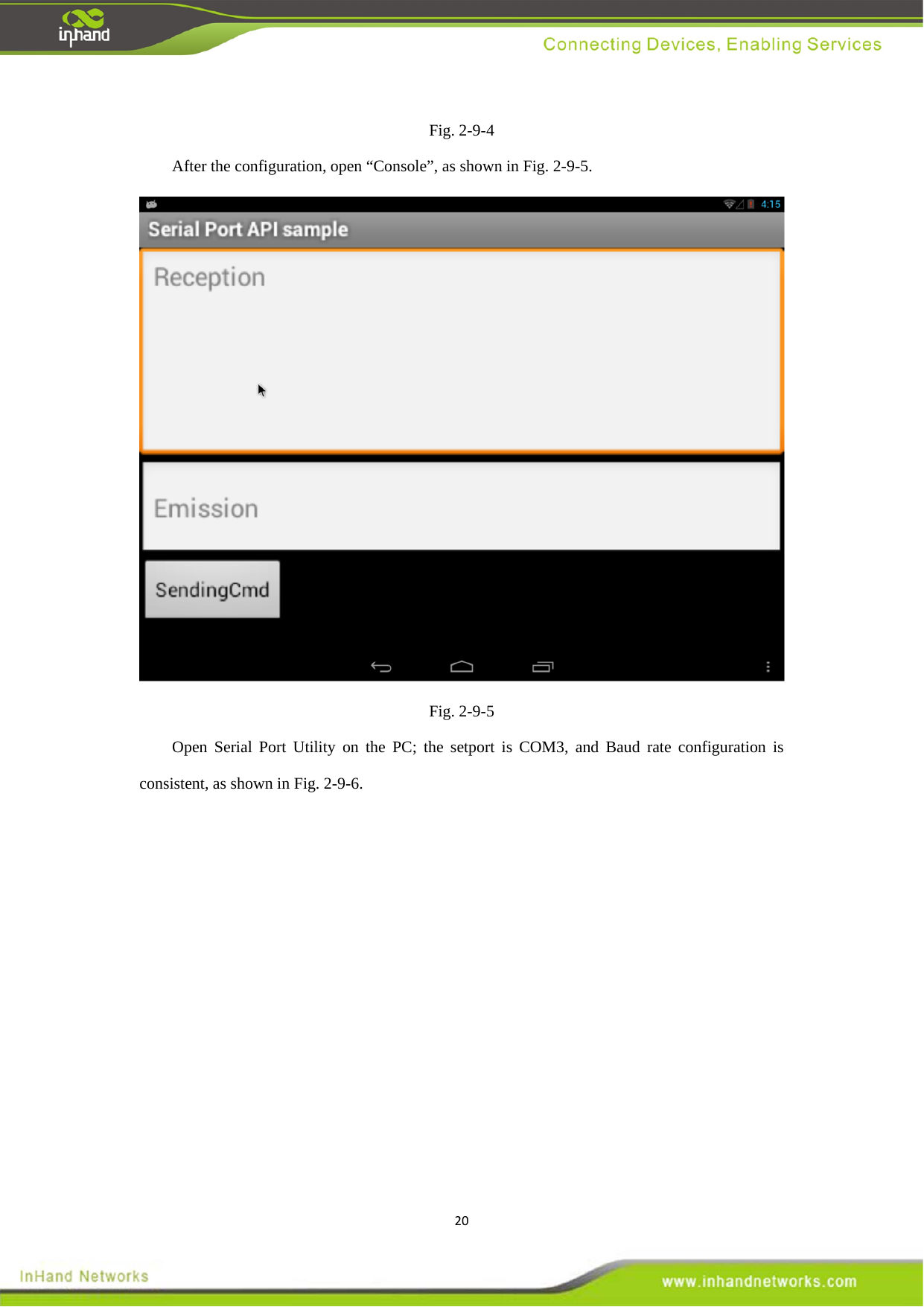
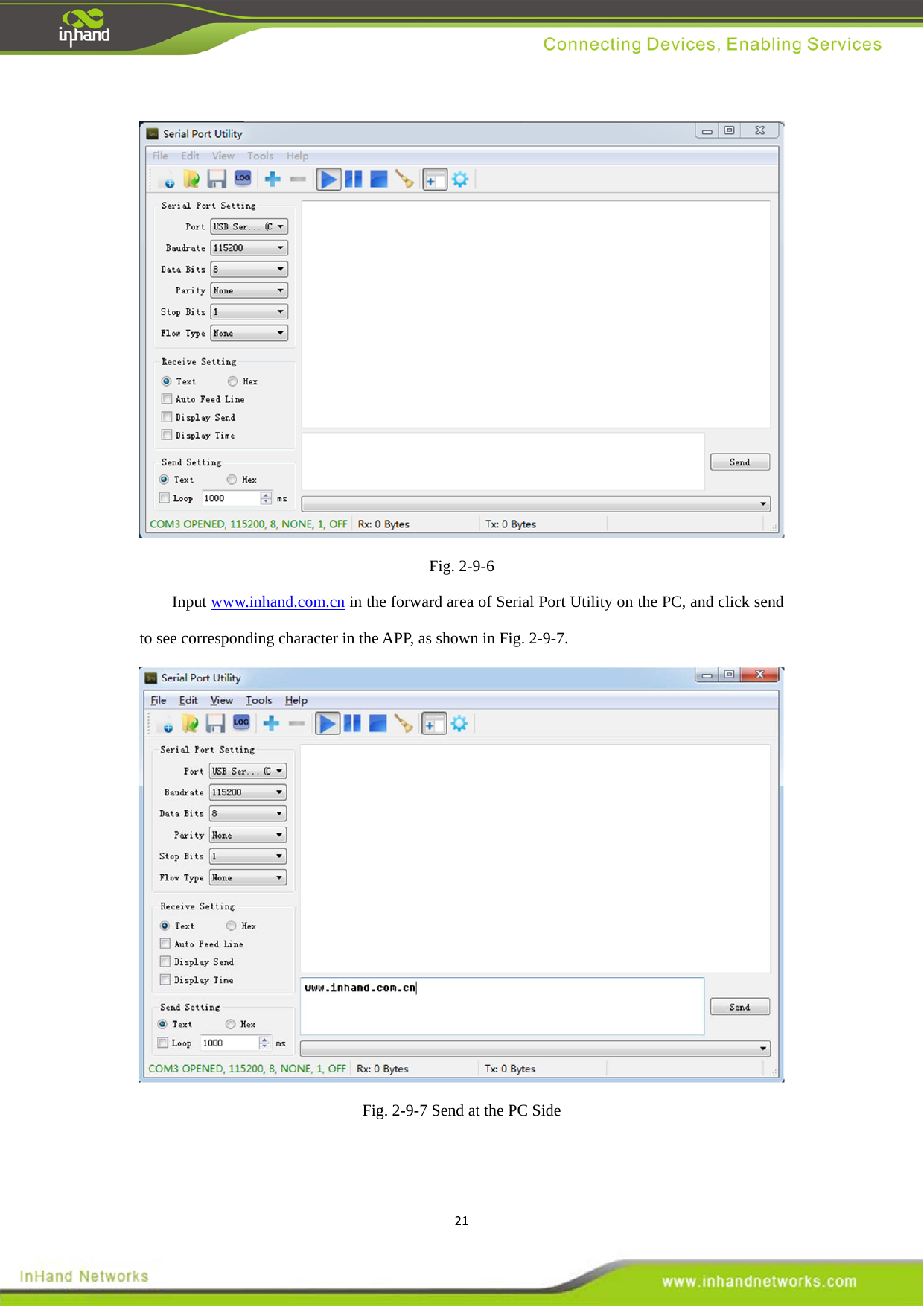
20Fig. 2-9-4 After the configuration, open “Console”, as shown in Fig. 2-9-5.  Fig. 2-9-5 Open Serial Port Utility on the PC; the setport is COM3, and Baud rate configuration is consistent, as shown in Fig. 2-9-6.
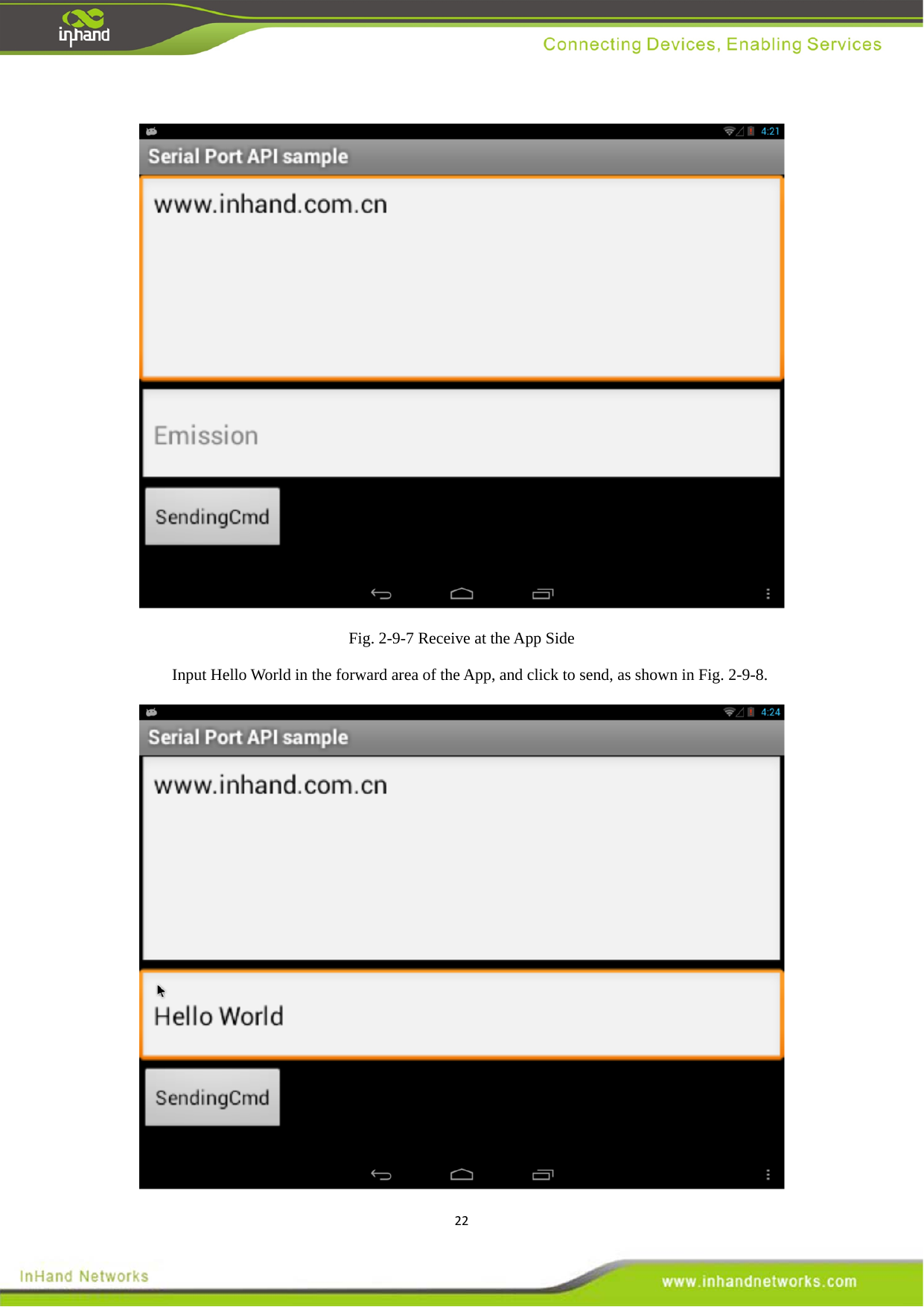
21 Fig. 2-9-6 Input www.inhand.com.cn in the forward area of Serial Port Utility on the PC, and click send to see corresponding character in the APP, as shown in Fig. 2-9-7.  Fig. 2-9-7 Send at the PC Side
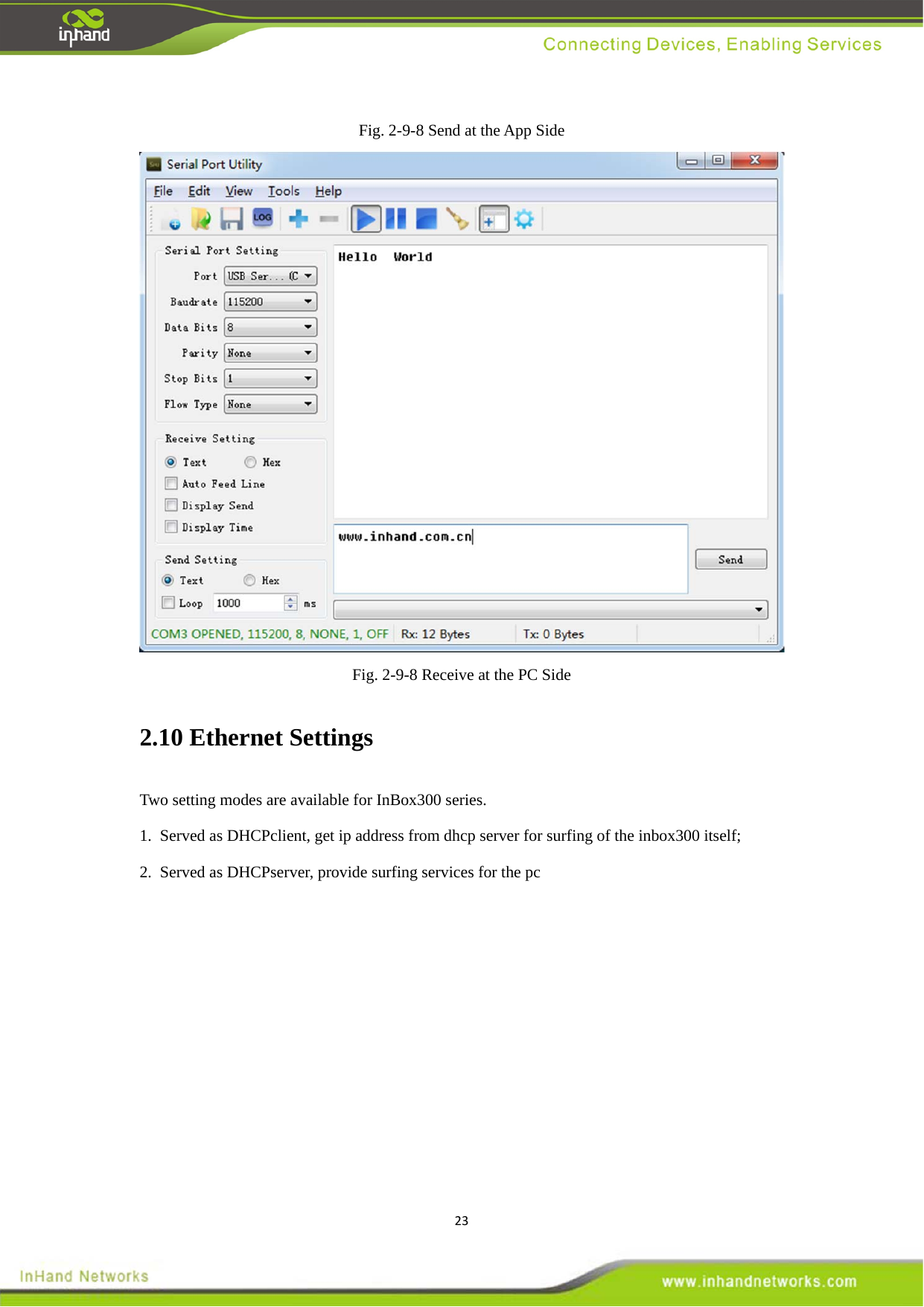
22 Fig. 2-9-7 Receive at the App Side   Input Hello World in the forward area of the App, and click to send, as shown in Fig. 2-9-8.
23Fig. 2-9-8 Send at the App Side    Fig. 2-9-8 Receive at the PC Side   2.10 Ethernet Settings  Two setting modes are available for InBox300 series.   1.  Served as DHCPclient, get ip address from dhcp server for surfing of the inbox300 itself; 2.  Served as DHCPserver, provide surfing services for the pc
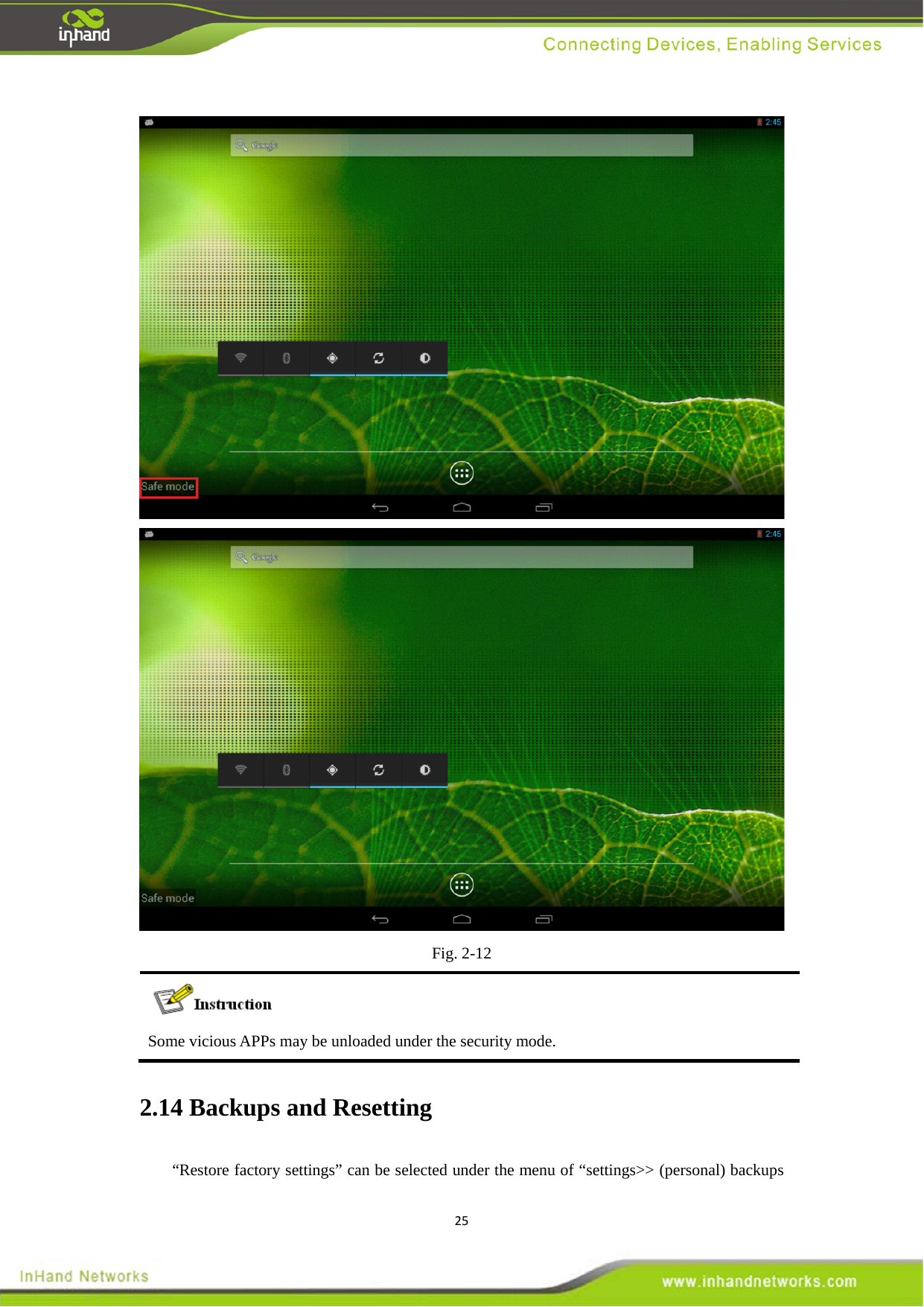
24 2.12 Security Mode   2.12.1 Description   The security mode of Android system is completely booted in a normal way. It shields all non-system programs, and will only start the programs of the original system. Under this mode, the system is booted under the most secure state. All functions are normal, free from any disturbance from other programs.     2.12.2 Usage Scenario When the system is made to crash, reboot or close by the user program or a vicious program, and when the entire device is made to be under circular startup & shutdown   2.12.3 Enter the Security Mode   Press on the ON/OFF button till the system is closed, press down the button of “VOL-” (don’t let go), and then press down the ON/OFF button a few seconds later till the system start is finished; at this moment, the security mode can be seen on the lower left corner of the screen, as shown in Fig. 2-12.
25Fig. 2-12  Some vicious APPs may be unloaded under the security mode.   2.14 Backups and Resetting   “Restore factory settings” can be selected under the menu of “settings>> (personal) backups
26and resettings”. Please use this function with great care. All product data will be cleared by selecting the factory settings. 2.15 System Upgrades   Automatic upgrades of Android Recovery mode:   1. Put update.zip under the directory of /cache via adb push;   2. Execute adb shell to enter the command line mode, mkdir /cache/recovery/;   3. echo "--update_package=/cache/update.zip"> /cache/recovery/command;   4. Reboot recovery. The system will upgrade automatically by such reboot.   Broadcast sending command upgrades:   1. Name the file to be upgraded as update.zip, and copy it to sdcard of the InBox300;   2. Open USB debug mode of the Inbox300; if there is no driver in the computer, the driver of attachment may be used. If the debug mode is not opened, please find this option in the developer option in settings; if there is no developer option, please click on “About this device>> version number” for at least five consecutive times. Then, the option will show up;  3. After the driver is installed, open cmd command line to enter the adb directory in the attachments, and execute this command: adb shell am broadcast -a com.ubox.upgraderom --include-stopped-packages;  4. If it is successfully executed, the system will reboot and install updates automatically.    2.20 On/Off Button   On/Off button: short press this button to enter the sleep mode or awaken from the sleep mode; long press this button by more than 10 seconds, the system will power off automatically.   2.21 Mode Button   Mode button: this button is programmable to realize some special functions.
27                             InHand Networks   7926 Jones Branch Dr. Suite 110 McLean, Virginia, 22102 USA T: +1-703-348-2988 F:+1-703-348-2988 info@inhandnetworks.com www.inhandnetworks.com InHand Networks InHand Networks provides reliable, secured and intelligent M2M solution for electric power, industrial automation, commercial and medical devices. Recognized by world class customers and partners. Proven by a large install base. Expanding with intensive investments in research and development.Enduring for long-term support.  InHand Networks has become leader in industrial grade network technology by providing industrial cellular routers, industrial Ethernet switches, wireless sensor network devices and cloud based M2M platforms.  Connecting devices, enabling services.
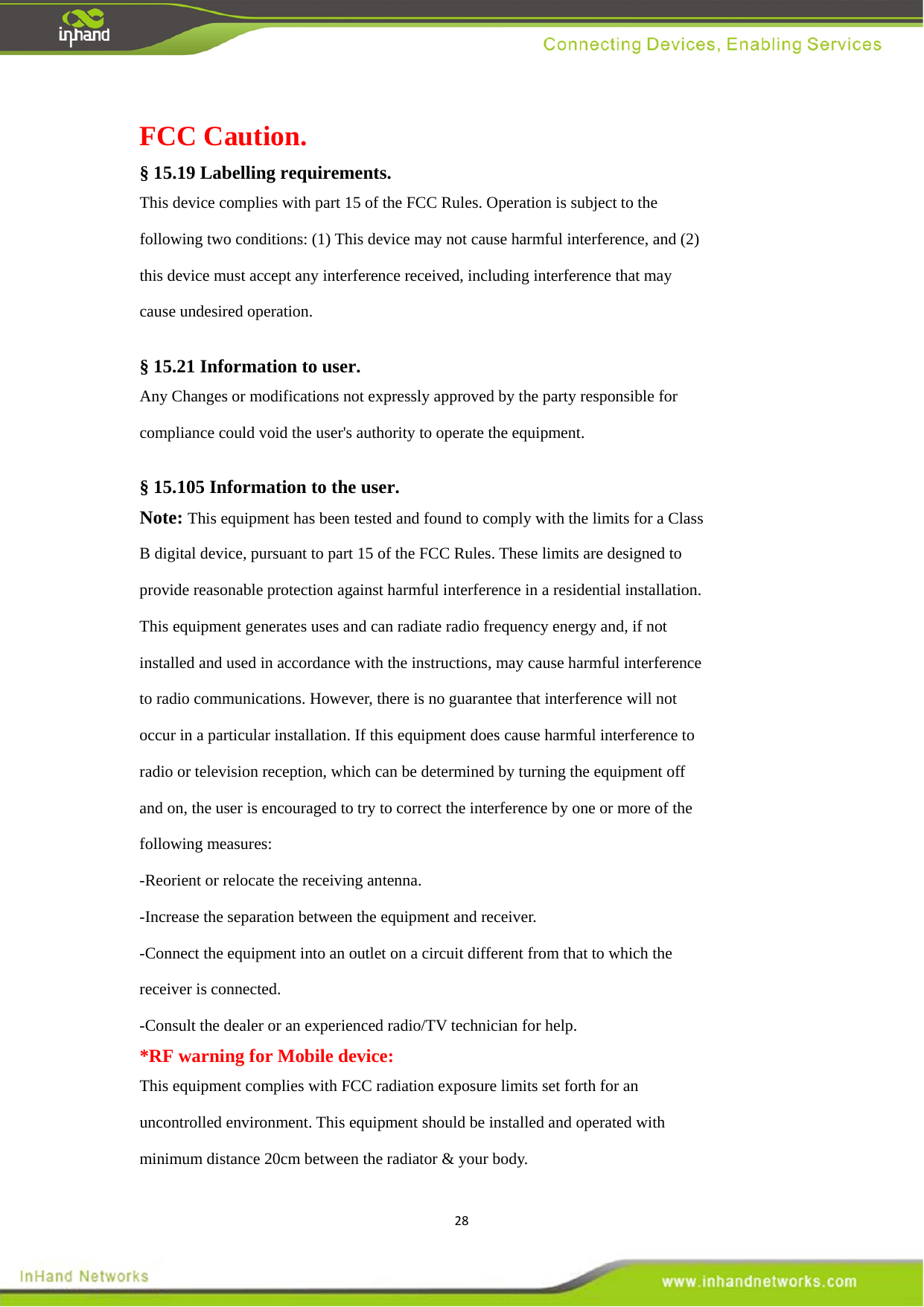
28FCC Caution. § 15.19 Labelling requirements. This device complies with part 15 of the FCC Rules. Operation is subject to the following two conditions: (1) This device may not cause harmful interference, and (2) this device must accept any interference received, including interference that may cause undesired operation.  § 15.21 Information to user. Any Changes or modifications not expressly approved by the party responsible for compliance could void the user's authority to operate the equipment.  § 15.105 Information to the user. Note: This equipment has been tested and found to comply with the limits for a Class B digital device, pursuant to part 15 of the FCC Rules. These limits are designed to provide reasonable protection against harmful interference in a residential installation. This equipment generates uses and can radiate radio frequency energy and, if not installed and used in accordance with the instructions, may cause harmful interference to radio communications. However, there is no guarantee that interference will not occur in a particular installation. If this equipment does cause harmful interference to radio or television reception, which can be determined by turning the equipment off and on, the user is encouraged to try to correct the interference by one or more of the following measures: -Reorient or relocate the receiving antenna. -Increase the separation between the equipment and receiver. -Connect the equipment into an outlet on a circuit different from that to which the receiver is connected. -Consult the dealer or an experienced radio/TV technician for help. *RF warning for Mobile device: This equipment complies with FCC radiation exposure limits set forth for an uncontrolled environment. This equipment should be installed and operated with minimum distance 20cm between the radiator & your body.

Navigation menu