Beijing TPCast Technologies TX001 PC Transmitter User Manual

Beijing TPCast Technologies Limited Company PC Transmitter

User Manual

1User Guide on installation of TPCAST Wireless Adaptor for VIVECE-01H-UG-EN-008新版印刷(无蓝牙)英文  2017-06-28-US.indd   1 2017/6/28   下午3:57
1Installation of Software Client1What's inside the box2Instructions of main components3Connection instructions4Operation instructions5Instructions on erection of PC transmitter6Safety and Note7Frequently asked questions8CONETENTS新版印刷(无蓝牙)英文  2017-06-28-US.indd   1 2017/6/28   下午3:57
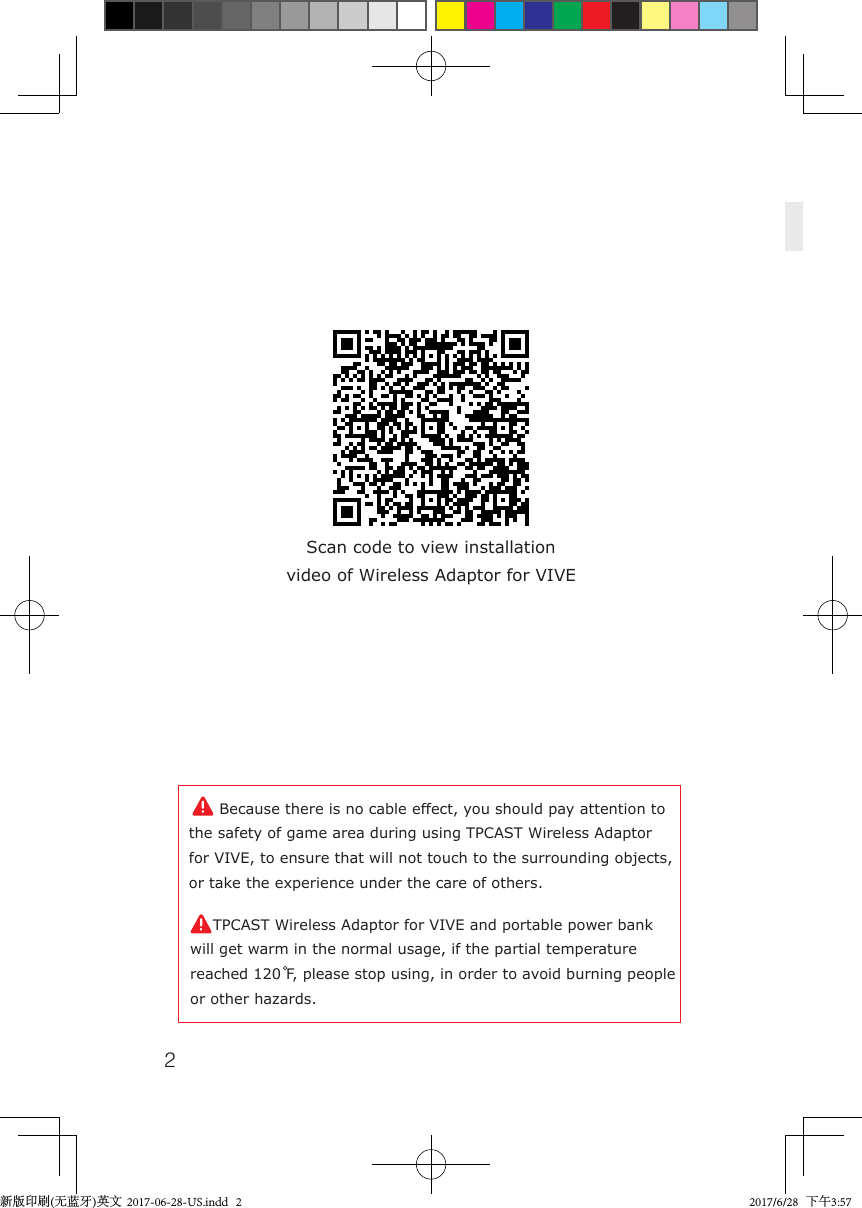
2Scan code to view installationvideo of Wireless Adaptor for VIVE    Because there is no cable effect, you should pay attention to the safety of game area during using TPCAST Wireless Adaptor for VIVE, to ensure that will not touch to the surrounding objects, or take the experience under the care of others.    TPCAST Wireless Adaptor for VIVE and portable power bank will get warm in the normal usage, if the partial temperature reached 120 F, please stop using, in order to avoid burning people or other hazards.新版印刷(无蓝牙)英文  2017-06-28-US.indd   2 2017/6/28   下午3:57
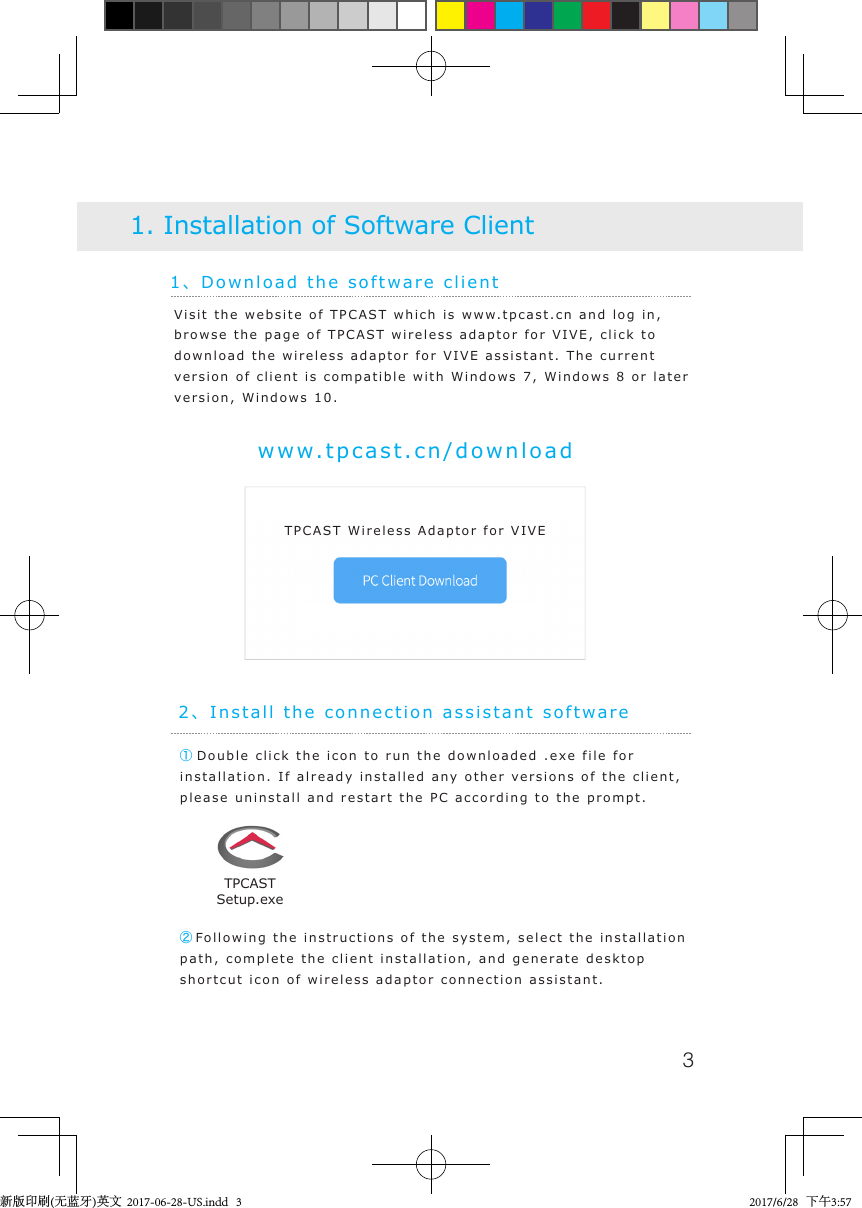
31、Download the software client1. Installation of Software Clientwww.tpcast.cn/downloadVisit the website of TPCAST which is www.tpcast.cn and log in, browse the page of TPCAST wireless adaptor for VIVE, click to download the wireless adaptor for VIVE assistant. The current version of client is compatible with Windows 7, Windows 8 or later version, Windows 10.① Double click the icon to run the downloaded .exe file for installation. If already installed any other versions of the client, please uninstall and restart the PC according to the prompt.2、Install the connection assistant software②Following the instructions of the system, select the installation path, complete the client installation, and generate desktop shortcut icon of wireless adaptor connection assistant.TPCASTSetup.exeTPCAST Wireless Adaptor for VIVETPCAST Wireless Adaptor for VIVE新版印刷(无蓝牙)英文  2017-06-28-US.indd   3 2017/6/28   下午3:57
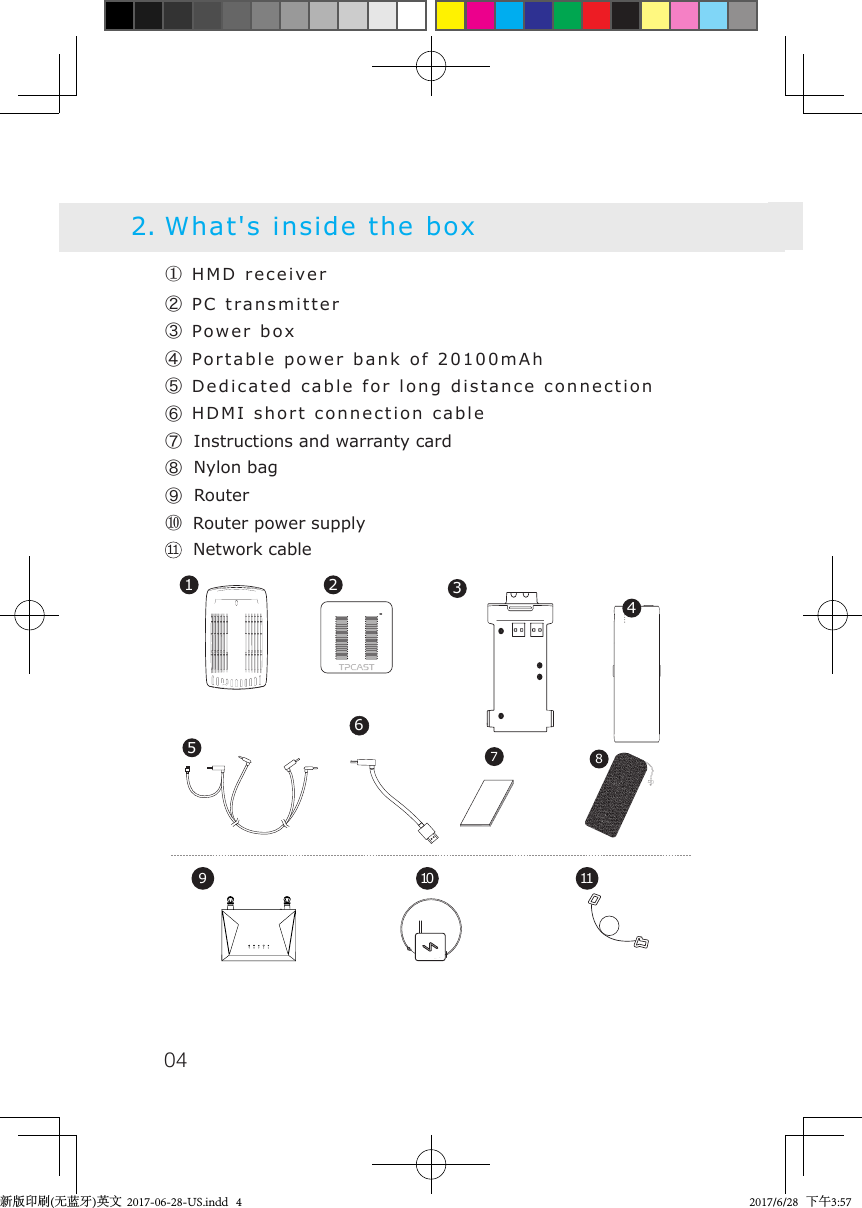
042. What's inside the box910 11② PC transmitter③ Power box⑦  Instructions and warranty card④ Portable power bank of 20100mAh⑤ Dedicated cable for long distance connection⑥ HDMI short connection cable⑧  Nylon bag① HMD receiver⑨  Router⑩Router power supply1 2 357846      Network cable11新版印刷(无蓝牙)英文  2017-06-28-US.indd   4 2017/6/28   下午3:57
053. Instructions of main components1、HMD Receiver2、PC transmitter①HDMI connection port②DCIN power port③Video link pairing button④Port for fixing the platform⑤Indicator for video signal connection1 2 3 4 5①HMD strap and cable  port     ②HDMI short connection port③Indicator for video signal connection④USB port    ⑤Video link pairing button51234新版印刷(无蓝牙)英文  2017-06-28-US.indd   5 2017/6/28   下午3:57
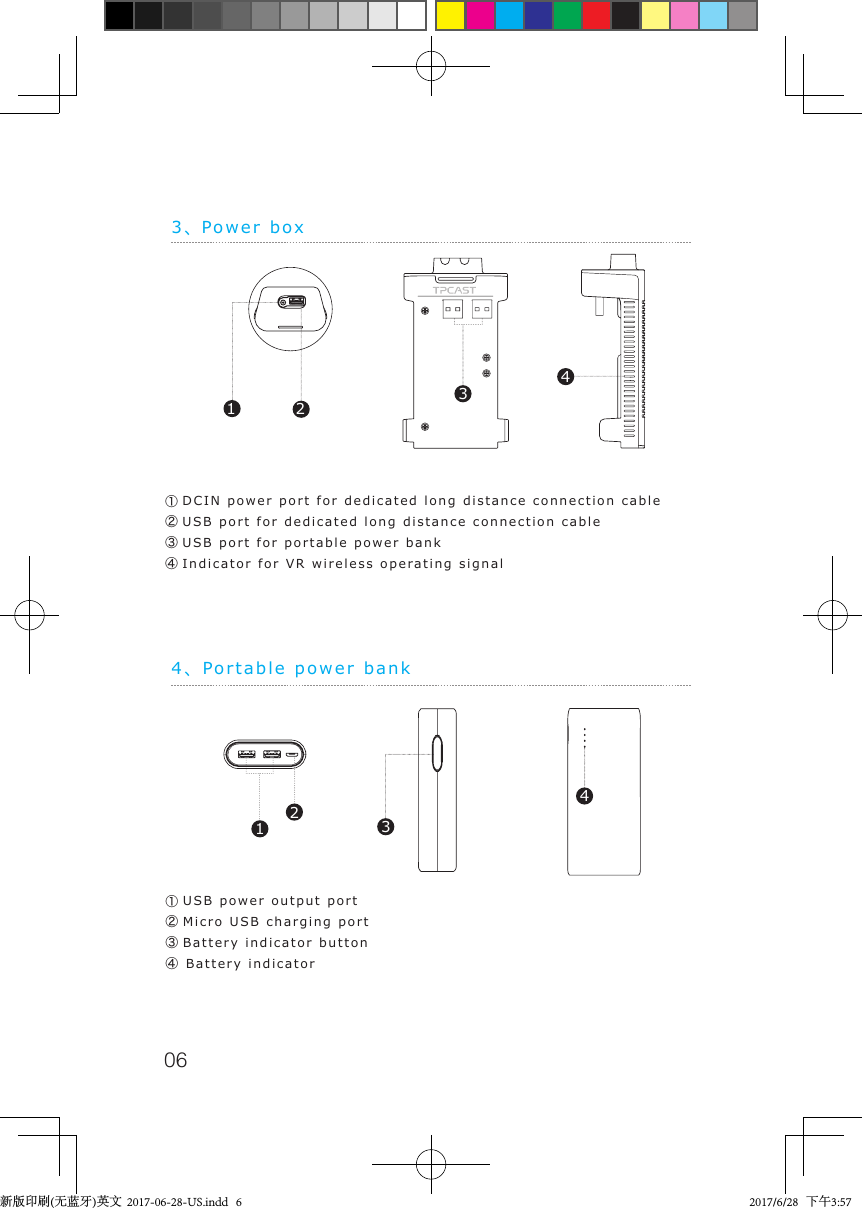
063、Power box4、Portable power bank①DCIN power port for dedicated long distance connection cable②USB port for dedicated long distance connection cable③USB port for portable power bank④Indicator for VR wireless operating signal1234①USB power output port②Micro USB charging port③Battery indicator button④Battery indicator1243新版印刷(无蓝牙)英文  2017-06-28-US.indd   6 2017/6/28   下午3:57
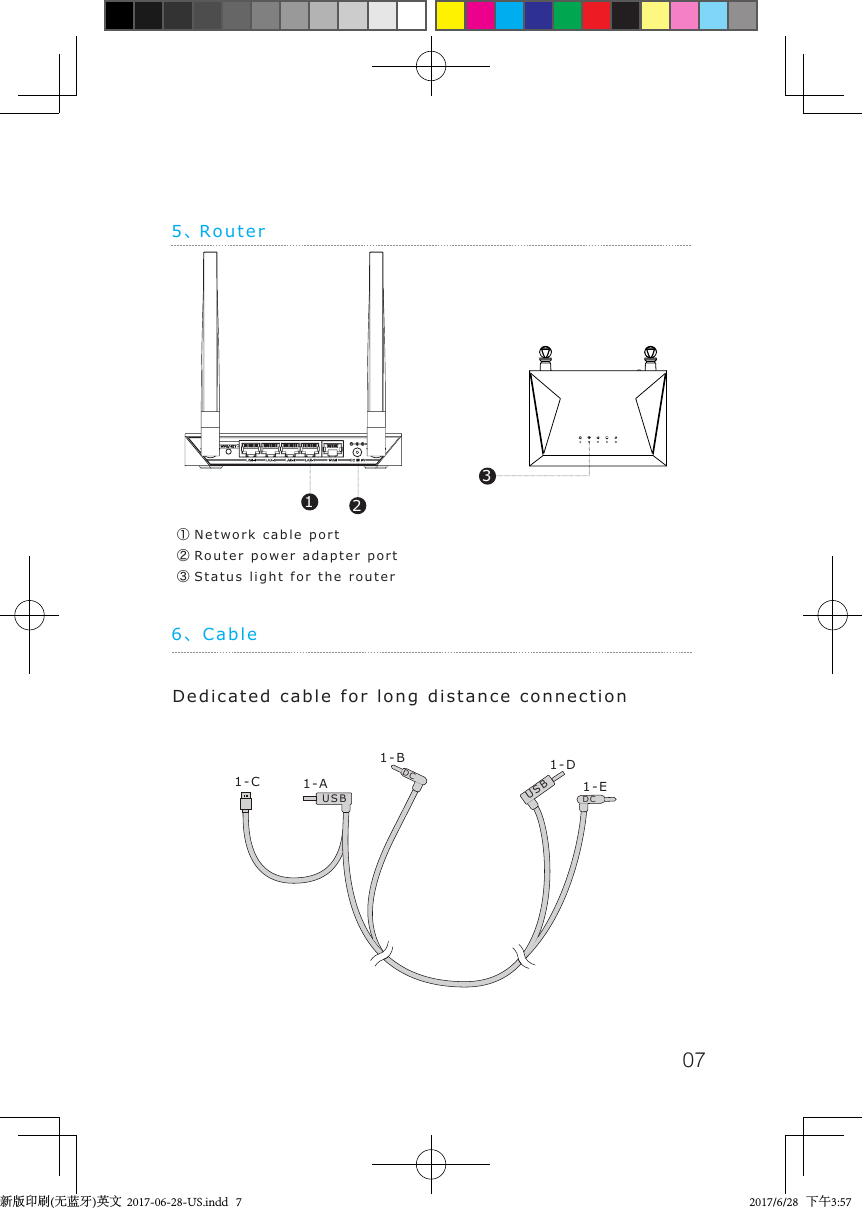
075、Router①Network cable port   ②Router power adapter port③Status light for the router 6、CableDedicated cable for long distance connection1-A1-C1-B 1-D1-EUSBUSBDCDC231新版印刷(无蓝牙)英文  2017-06-28-US.indd   7 2017/6/28   下午3:57
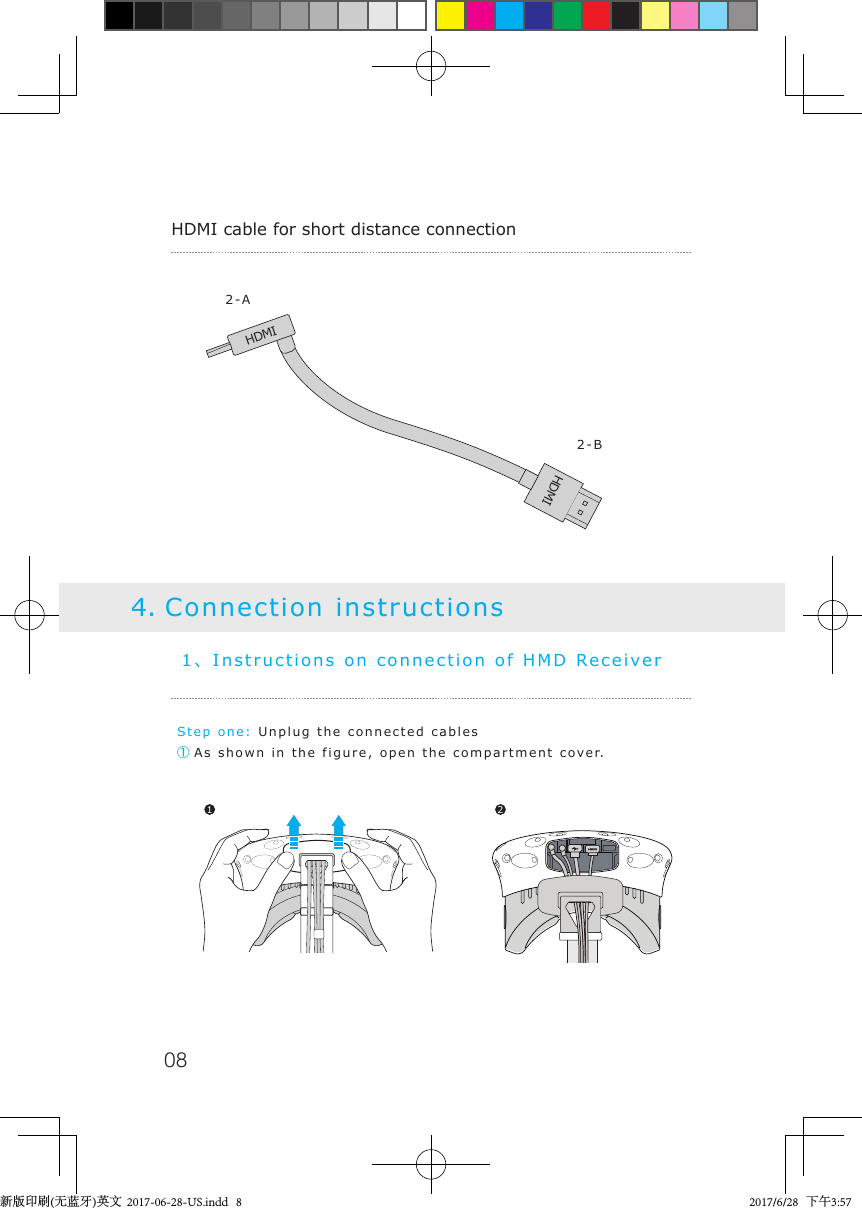
084. Connection instructionsHDMI cable for short distance connection2-A2-BStep one: Unplug the connected cables① As shown in the figure, open the compartment cover.1、Instructions on connection of HMD Receiver1 2HDMIHDMI新版印刷(无蓝牙)英文  2017-06-28-US.indd   8 2017/6/28   下午3:57
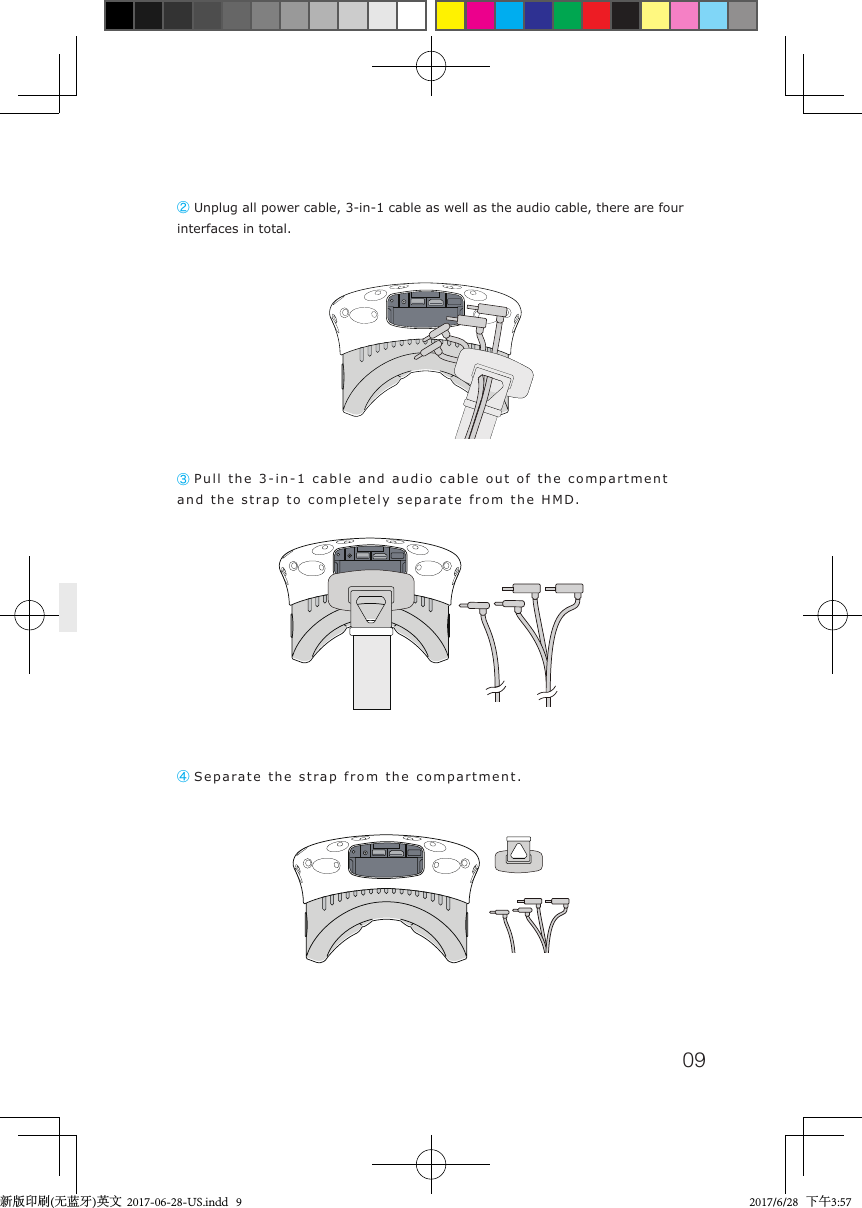
09② Unplug all power cable, 3-in-1 cable as well as the audio cable, there are four interfaces in total. ③ Pull the 3-in-1 cable and audio cable out of the compartment and the strap to completely separate from the HMD.④ Separate the strap from the compartment.新版印刷(无蓝牙)英文  2017-06-28-US.indd   9 2017/6/28   下午3:57
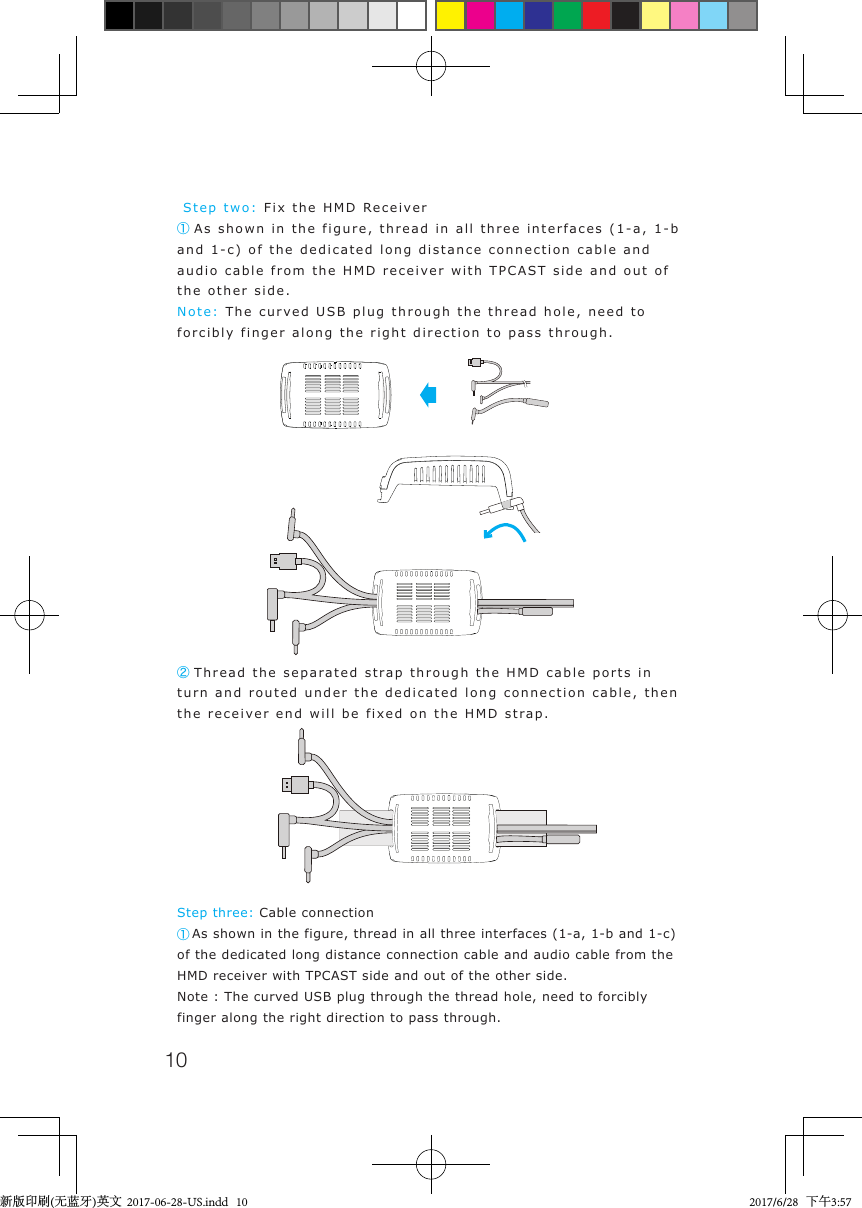
10 Step two: Fix the HMD Receiver① As shown in the figure, thread in all three interfaces (1-a, 1-b and 1-c) of the dedicated long distance connection cable and audio cable from the HMD receiver with TPCAST side and out of the other side.Note: The curved USB plug through the thread hole, need to forcibly finger along the right direction to pass through.Step three: Cable connection① As shown in the figure, thread in all three interfaces (1-a, 1-b and 1-c) of the dedicated long distance connection cable and audio cable from the HMD receiver with TPCAST side and out of the other side.Note : The curved USB plug through the thread hole, need to forcibly finger along the right direction to pass through.② Thread the separated strap through the HMD cable ports in turn and routed under the dedicated long connection cable, then the receiver end will be fixed on the HMD strap.新版印刷(无蓝牙)英文  2017-06-28-US.indd   10 2017/6/28   下午3:57
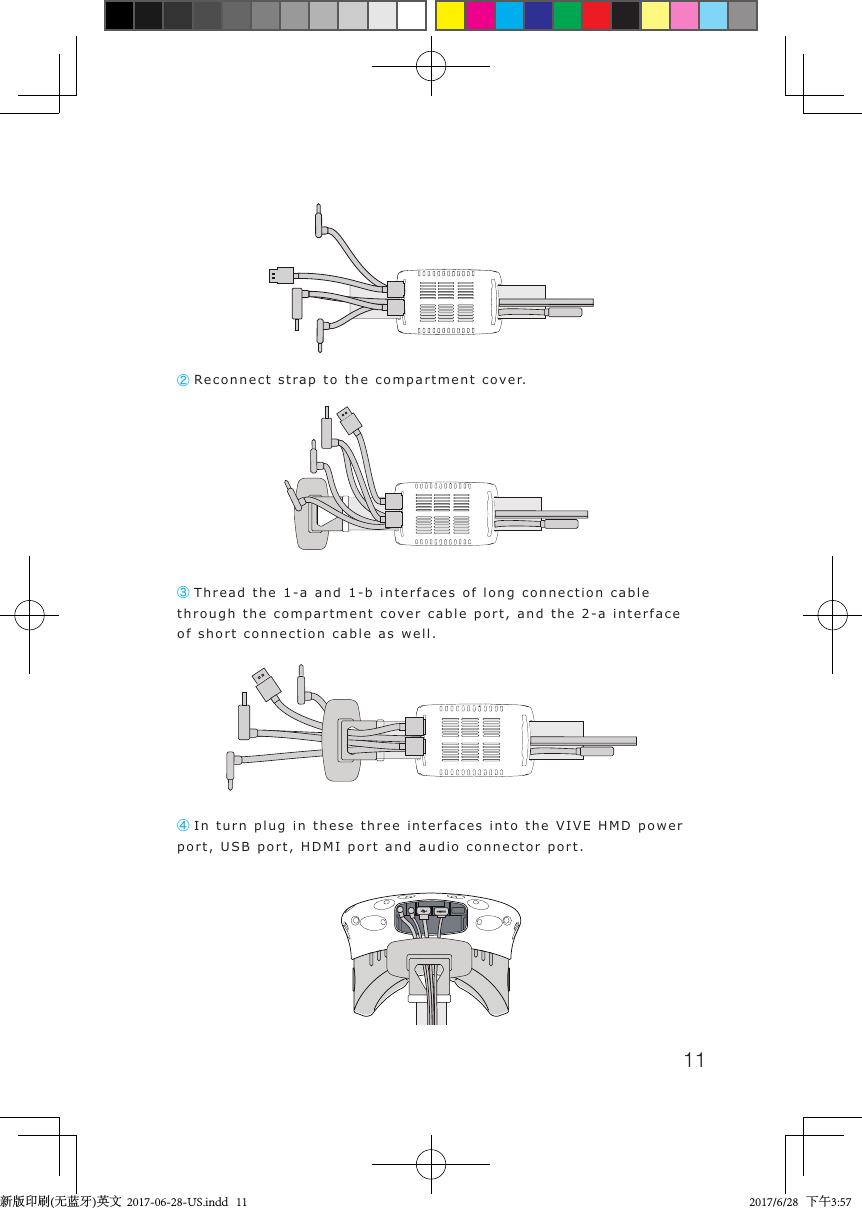
11② Reconnect strap to the compartment cover.③ Thread the 1-a and 1-b interfaces of long connection cable through the compartment cover cable port, and the 2-a interface of short connection cable as well. ④ In turn plug in these three interfaces into the VIVE HMD power port, USB port, HDMI port and audio connector port.新版印刷(无蓝牙)英文  2017-06-28-US.indd   11 2017/6/28   下午3:57
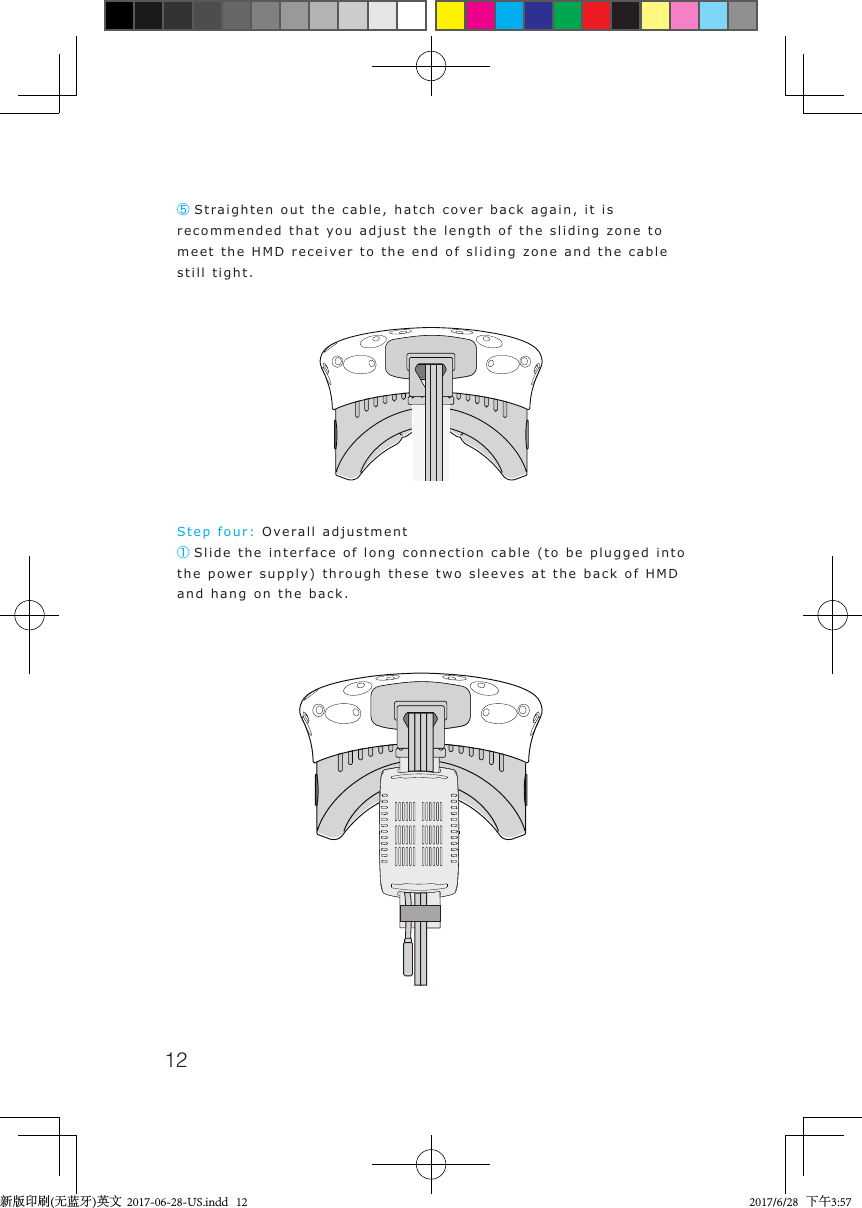
12⑤Straighten out the cable, hatch cover back again, it is recommended that you adjust the length of the sliding zone to meet the HMD receiver to the end of sliding zone and the cable still tight.Step four: Overall adjustment① Slide the interface of long connection cable (to be plugged into the power supply) through these two sleeves at the back of HMD and hang on the back.新版印刷(无蓝牙)英文  2017-06-28-US.indd   12 2017/6/28   下午3:57
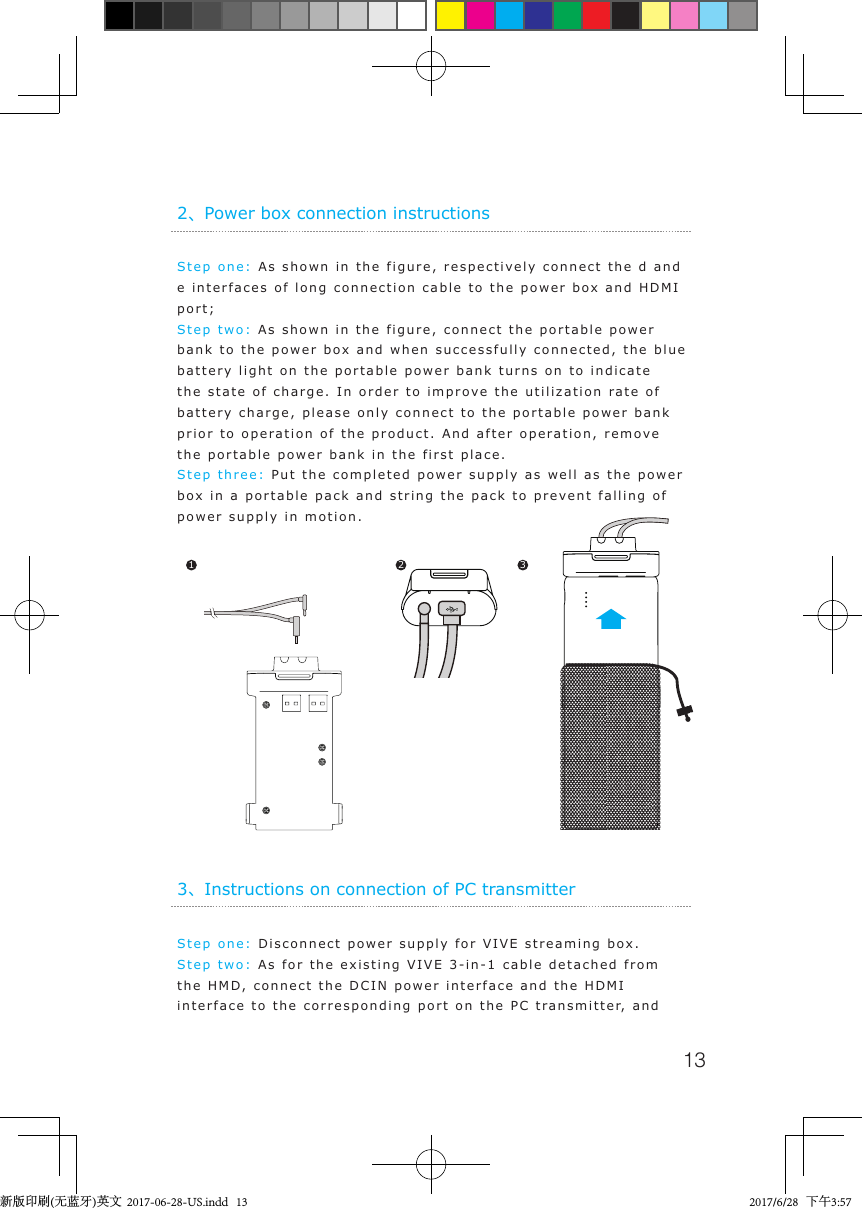
13Step one: As shown in the figure, respectively connect the d and e interfaces of long connection cable to the power box and HDMI port;Step two: As shown in the figure, connect the portable power bank to the power box and when successfully connected, the blue battery light on the portable power bank turns on to indicate the state of charge. In order to improve the utilization rate of battery charge, please only connect to the portable power bank prior to operation of the product. And after operation, remove the portable power bank in the first place.Step three: Put the completed power supply as well as the power box in a portable pack and string the pack to prevent falling of power supply in motion. 2、Power box connection instructions1 2 3Step one: Disconnect power supply for VIVE streaming box.Step two: As for the existing VIVE 3-in-1 cable detached from the HMD, connect the DCIN power interface and the HDMI interface to the corresponding port on the PC transmitter, and 3、Instructions on connection of PC transmitter新版印刷(无蓝牙)英文  2017-06-28-US.indd   13 2017/6/28   下午3:57
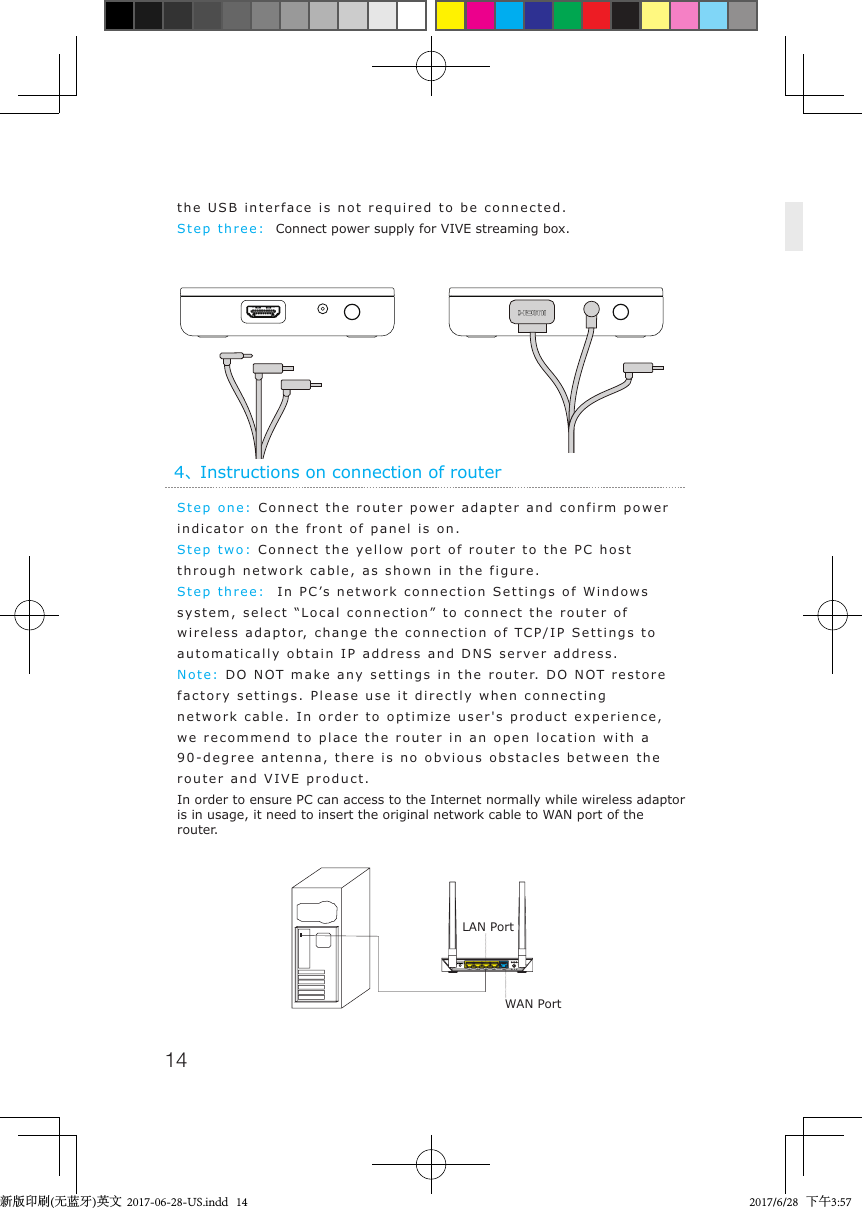
144、Instructions on connection of routerStep one: Connect the router power adapter and confirm power indicator on the front of panel is on.Step two: Connect the yellow port of router to the PC host through network cable, as shown in the figure.Step three:  In PC’s network connection Settings of Windows system, select “Local connection” to connect the router of wireless adaptor, change the connection of TCP/IP Settings to automatically obtain IP address and DNS server address.Note: DO NOT make any settings in the router. DO NOT restore factory settings. Please use it directly when connecting network cable. In order to optimize user's product experience, we recommend to place the router in an open location with a 90-degree antenna, there is no obvious obstacles between the router and VIVE product.In order to ensure PC can access to the Internet normally while wireless adaptor is in usage, it need to insert the original network cable to WAN port of the router.the USB interface is not required to be connected.Step three:  Connect power supply for VIVE streaming box.LAN PortWAN Port新版印刷(无蓝牙)英文  2017-06-28-US.indd   14 2017/6/28   下午3:57
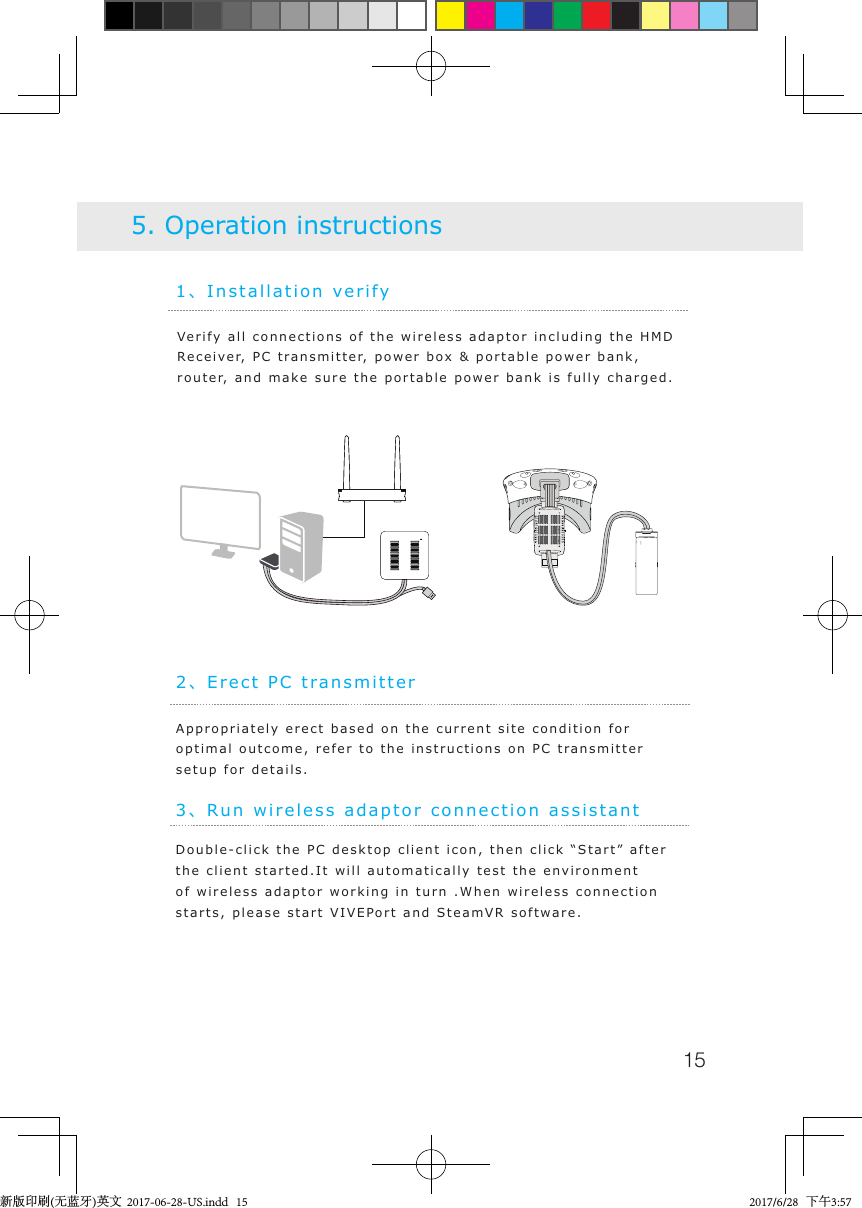
151、Installation verifyVerify all connections of the wireless adaptor including the HMD Receiver, PC transmitter, power box & portable power bank, router, and make sure the portable power bank is fully charged.5. Operation instructions2、Erect PC transmitterAppropriately erect based on the current site condition for optimal outcome, refer to the instructions on PC transmitter setup for details.3、Run wireless adaptor connection assistantDouble-click the PC desktop client icon, then click “Start” after the client started.It will automatically test the environment of wireless adaptor working in turn .When wireless connection starts, please start VIVEPort and SteamVR software.新版印刷(无蓝牙)英文  2017-06-28-US.indd   15 2017/6/28   下午3:57
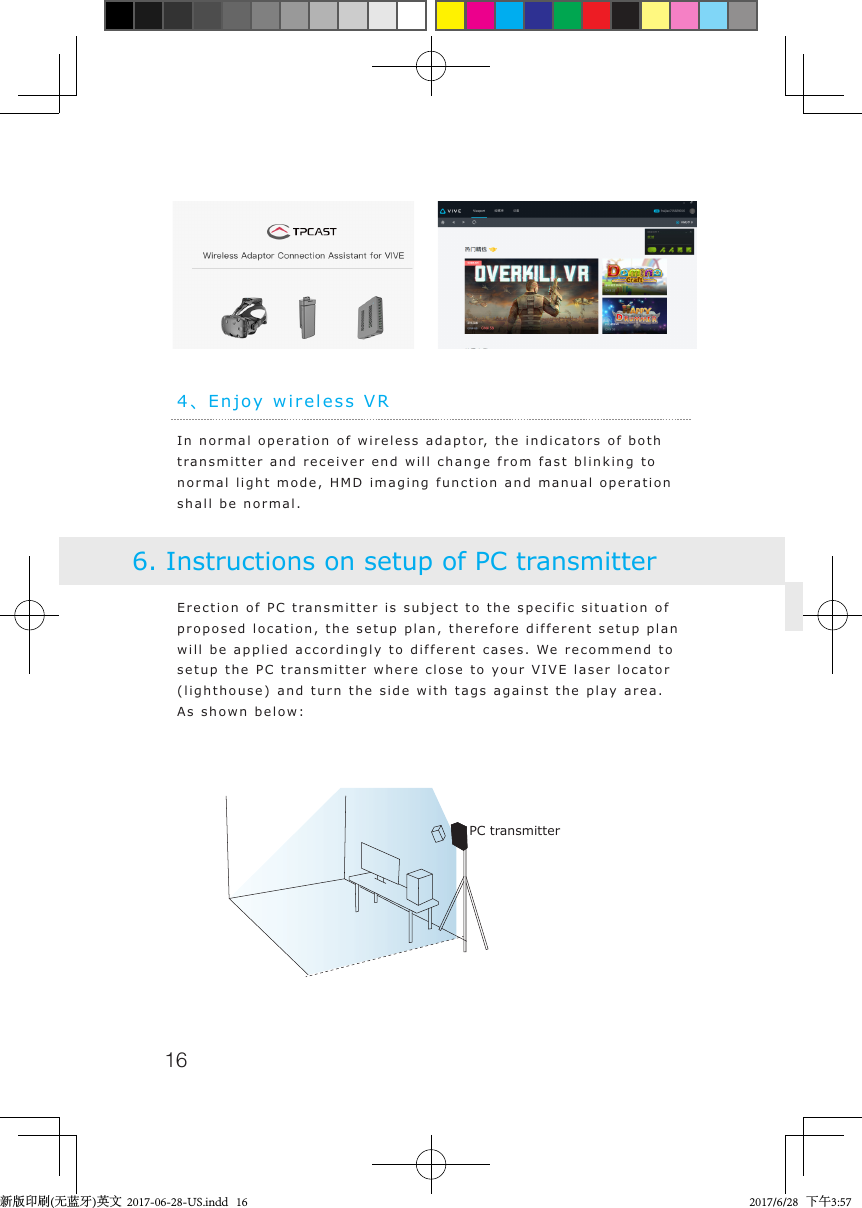
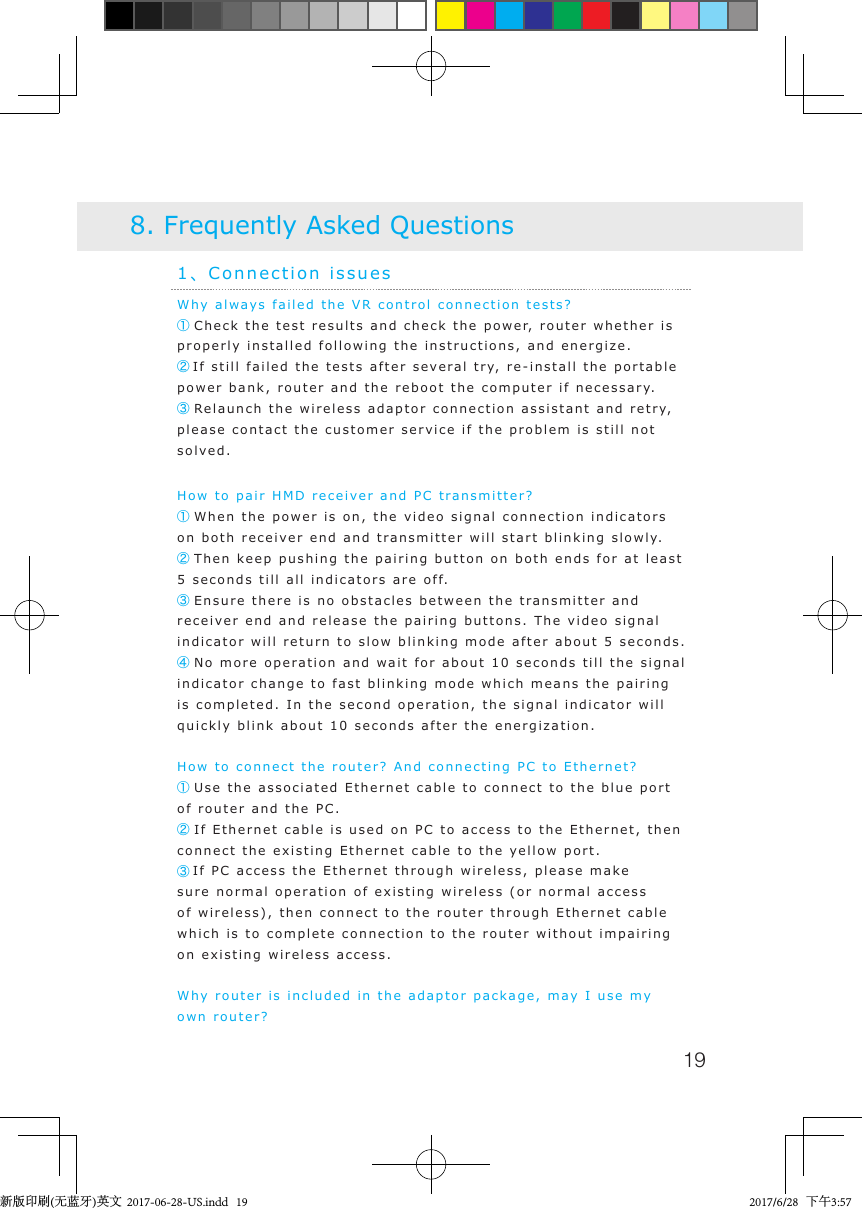
164、Enjoy wireless VRIn normal operation of wireless adaptor, the indicators of both transmitter and receiver end will change from fast blinking to normal light mode, HMD imaging function and manual operation shall be normal.Erection of PC transmitter is subject to the specific situation of proposed location, the setup plan, therefore different setup plan will be applied accordingly to different cases. We recommend to setup the PC transmitter where close to your VIVE laser locator (lighthouse) and turn the side with tags against the play area. As shown below:6. Instructions on setup of PC transmitterPC transmitter新版印刷(无蓝牙)英文  2017-06-28-US.indd   16 2017/6/28   下午3:57
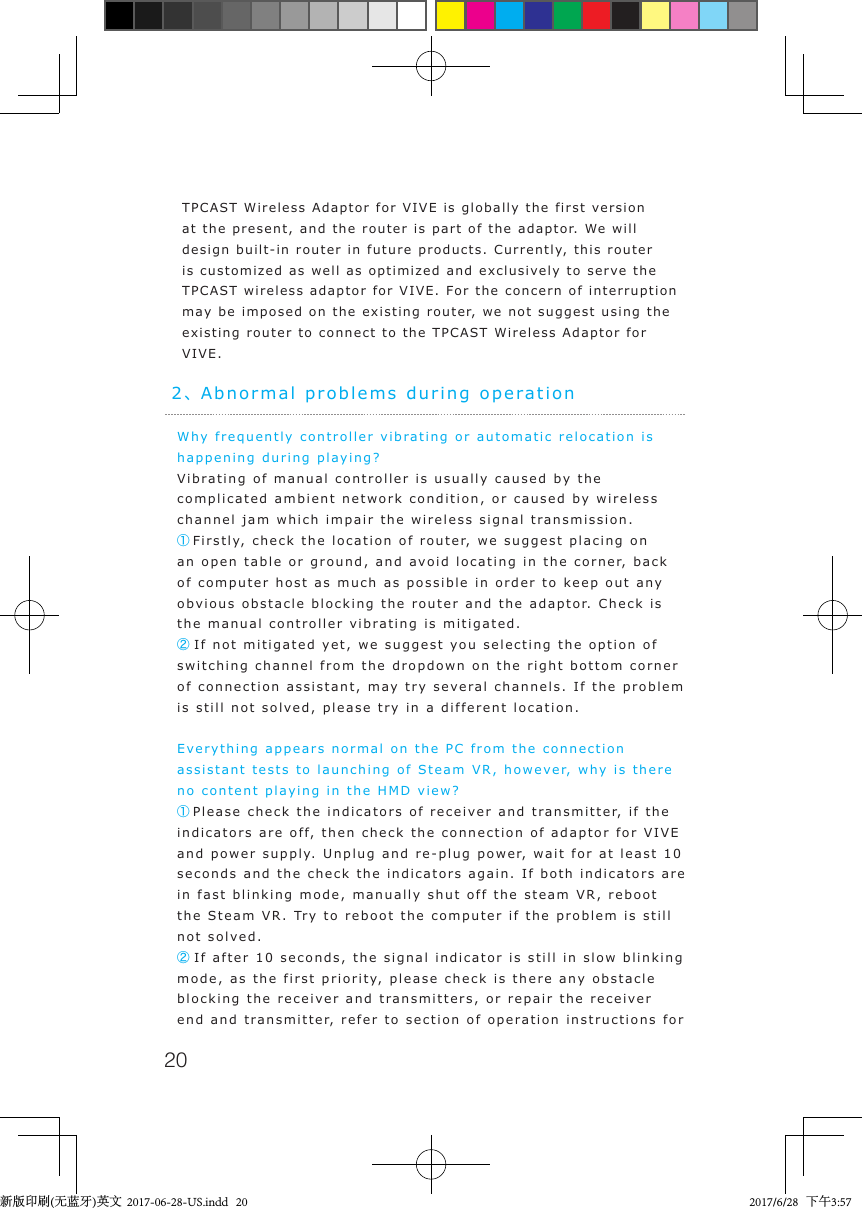
17If failure of connection still occurred, following the instructions from above, or you are experiencing sluggish video play or stopping in some angle, corner, we will suggest you placing the transmitter above the play area, as shown below:Safety: User need to pay attention to safety within the play area since it’s free of tangling by cables or wires. The user shall not bump into anything around the play area or the play is under watch. Cable: In order to contain the damage may cause to the cables, it’s suggested not pulling cable to fetch the adaptor or unplug any plugs or interfaces.Heat rejection: The adaptor will generate heat during normal operation and the temperature on the surface may rise up after long period operation. Please immediately stop operation and contact our customer service when abnormal heat generation occurred.Battery safety:The portable power bank as included in the adaptor package is 7. Safety and notePC transmitter新版印刷(无蓝牙)英文  2017-06-28-US.indd   17 2017/6/28   下午3:57
18power supply dedicated for this product, you must not replace with any non-TPCAST portable power bank, and any damage caused accordingly will waive the warranty of the adaptor. In order to mitigate the risk of fire hazard or combustion hazard, please do not disassemble, squeeze the portable power bank and shall not expose the power supply to environment exceeding 60℃, or toss into the fire or water.Children use: Children are not allowed to use this product, please keep this product in appropriate locations where beyond reach of children and please not grant access to children. If elder children are allowed to use this product, please do proceed under close watch of adults.Recharging: The portable power bank can be recharged through the household cell phone charged and charger greater than 2A is recommended in order to reduce the charging period. Nine to twelve hours will be needed to be fully charged. Charger greater than 2.4A shall not be used for recharging.Service and maintenanceThe adaptor is non-waterproof product, therefore attention shall be attached for proper protection including shall not use blower, air duct, etc. to dry the product when wet or the product may otherwise not be able to normally operating.Please do not disassemble this product and avoid any surprised collision, otherwise, risk of electric shock, short circuit and fire hazard would be involved.Please operate and maintain in an environment of temperature ranging from 14 to 104 degrees Fahrenheit.Please use the parts permitted only and shall not connect to any incompatible products or parts.Please refer the local regulations on disposal of electronic wastes for proper waste management.Please do not spread the small size objects the into the products through the surface vents.Please do not clean this product with any irritating chemical, detergent, liquid detergent or aerosol.新版印刷(无蓝牙)英文  2017-06-28-US.indd   18 2017/6/28   下午3:57
19Why always failed the VR control connection tests?     ① Check the test results and check the power, router whether is properly installed following the instructions, and energize.②If still failed the tests after several try, re-install the portable power bank, router and the reboot the computer if necessary.③ Relaunch the wireless adaptor connection assistant and retry, please contact the customer service if the problem is still not solved. How to pair HMD receiver and PC transmitter?① When the power is on, the video signal connection indicators on both receiver end and transmitter will start blinking slowly.② Then keep pushing the pairing button on both ends for at least 5 seconds till all indicators are off.③ Ensure there is no obstacles between the transmitter and receiver end and release the pairing buttons. The video signal indicator will return to slow blinking mode after about 5 seconds.④ No more operation and wait for about 10 seconds till the signal indicator change to fast blinking mode which means the pairing is completed. In the second operation, the signal indicator will quickly blink about 10 seconds after the energization.How to connect the router? And connecting PC to Ethernet?① Use the associated Ethernet cable to connect to the blue port of router and the PC.② If Ethernet cable is used on PC to access to the Ethernet, then connect the existing Ethernet cable to the yellow port.③If PC access the Ethernet through wireless, please make sure normal operation of existing wireless (or normal access of wireless), then connect to the router through Ethernet cable which is to complete connection to the router without impairing on existing wireless access.Why router is included in the adaptor package, may I use my own router? 1、Connection issues8. Frequently Asked Questions新版印刷(无蓝牙)英文  2017-06-28-US.indd   19 2017/6/28   下午3:57
20Why frequently controller vibrating or automatic relocation is happening during playing?Vibrating of manual controller is usually caused by the complicated ambient network condition, or caused by wireless channel jam which impair the wireless signal transmission.①Firstly, check the location of router, we suggest placing on an open table or ground, and avoid locating in the corner, back of computer host as much as possible in order to keep out any obvious obstacle blocking the router and the adaptor. Check is the manual controller vibrating is mitigated.② If not mitigated yet, we suggest you selecting the option of switching channel from the dropdown on the right bottom corner of connection assistant, may try several channels. If the problem is still not solved, please try in a different location.Everything appears normal on the PC from the connection assistant tests to launching of Steam VR, however, why is there no content playing in the HMD view?①Please check the indicators of receiver and transmitter, if the indicators are off, then check the connection of adaptor for VIVE and power supply. Unplug and re-plug power, wait for at least 10 seconds and the check the indicators again. If both indicators are in fast blinking mode, manually shut off the steam VR, reboot the Steam VR. Try to reboot the computer if the problem is still not solved.② If after 10 seconds, the signal indicator is still in slow blinking mode, as the first priority, please check is there any obstacle blocking the receiver and transmitters, or repair the receiver end and transmitter, refer to section of operation instructions for 2、Abnormal problems during operationTPCAST Wireless Adaptor for VIVE is globally the first version at the present, and the router is part of the adaptor. We will design built-in router in future products. Currently, this router is customized as well as optimized and exclusively to serve the TPCAST wireless adaptor for VIVE. For the concern of interruption may be imposed on the existing router, we not suggest using the existing router to connect to the TPCAST Wireless Adaptor for VIVE.新版印刷(无蓝牙)英文  2017-06-28-US.indd   20 2017/6/28   下午3:57
21details.③ If the indictor light is normally on, please check the receiver of HMD and the HMD short HDMI cable is loose fall off.   ④If problem still not solved, please contact the customer service.After wireless adaptor connection is successful, start Steam VR but it displays unready. Why does all device status icon in Steam VR display as gray?It can return normal state by restarting VIVE HMD. Operation as below: Unplug and replug power connector (1-B) of VIVE HMD, or unplug and replug power connector of power box (1 - E). If still can't repair, please try to restart the PC.Why view turn to black/screen turn off?Off of screen or black screen is caused by the interruption of video transmission, as the first priority, please check the battery charge. If the charge of battery is adequate, it may caused by obstacles between the receiver and transmitter. If the signal indicator is in fast blinking mode, then wait shortly till the reconnected. If still not connected, please disconnect and shut off the connection assistant, reboot the adaptor for VIVE.Why all of sudden the view turns to completely gray, there is no image at all?A gray screen view is usually caused by disconnection of VR wireless control, please verify the battery charge, router connection & power supply. Check the connection assistant for any warning information. If disconnection occurred, please retry following the instructions.System loading error or unable to load occurred in wireless connection assistant, how to handle?It may be caused by not restarting PC according to prompt after uninstalled wireless adaptor  connection assistant. Please uninstall the current client, restart PC, then reinstall client. The issue can be solved.The connection assistant is used and successfully launched the steam VR, what should I do if sudden disconnection occurred in the middle of gaming?    ①Check the connection assistant against any warning 新版印刷(无蓝牙)英文  2017-06-28-US.indd   21 2017/6/28   下午3:57
22information.② Reconnect as instructed.③ Waiting during testing procedure and a prompt box saying waiting to restore will pop out after certain period, click to confirm. Wait till the tests completed or click on the option of returning to home page and start testing from the first step. ④ If it still not operating after completion of step three, you may exit the connection assistant and unplug the portable power, reboot the system.After successful connection of adaptor, why does color disorder and distortion in imaging occur?  Color disorder, blurring and distortion are all cause by abnormal video transmission, please verify all cable/wires used for connection of VIVE and the adaptor for VIVE are original products of HTC and TPCAST. Verify all interfaces against any unstable or loose connection, try to unplug and plug all interfaces for next try. Please contact our customer service if the problem is still not solved.3、Other questionsWhy the camera of my HMD can't work normally?At present, TPCAST wireless adaptor for VIVE is the global first released version, the function is temporarily unavailable.Can multiple TPCAST wireless adaptor for VIVE be used in the same area at the same time?No. Currently, the version of TPCAST wireless adaptor for VIVE is for ordinary users, it temporarily does not support multiple users at the same time.For a full charge portable power bank, how long can it last?It can be continuously operating for about 5 hours.How long will it take to be fully charged?About nine to twelve hours through a 2A charger or longer with charger lower than 2A. Please do not use charger greater than 新版印刷(无蓝牙)英文  2017-06-28-US.indd   22 2017/6/28   下午3:57
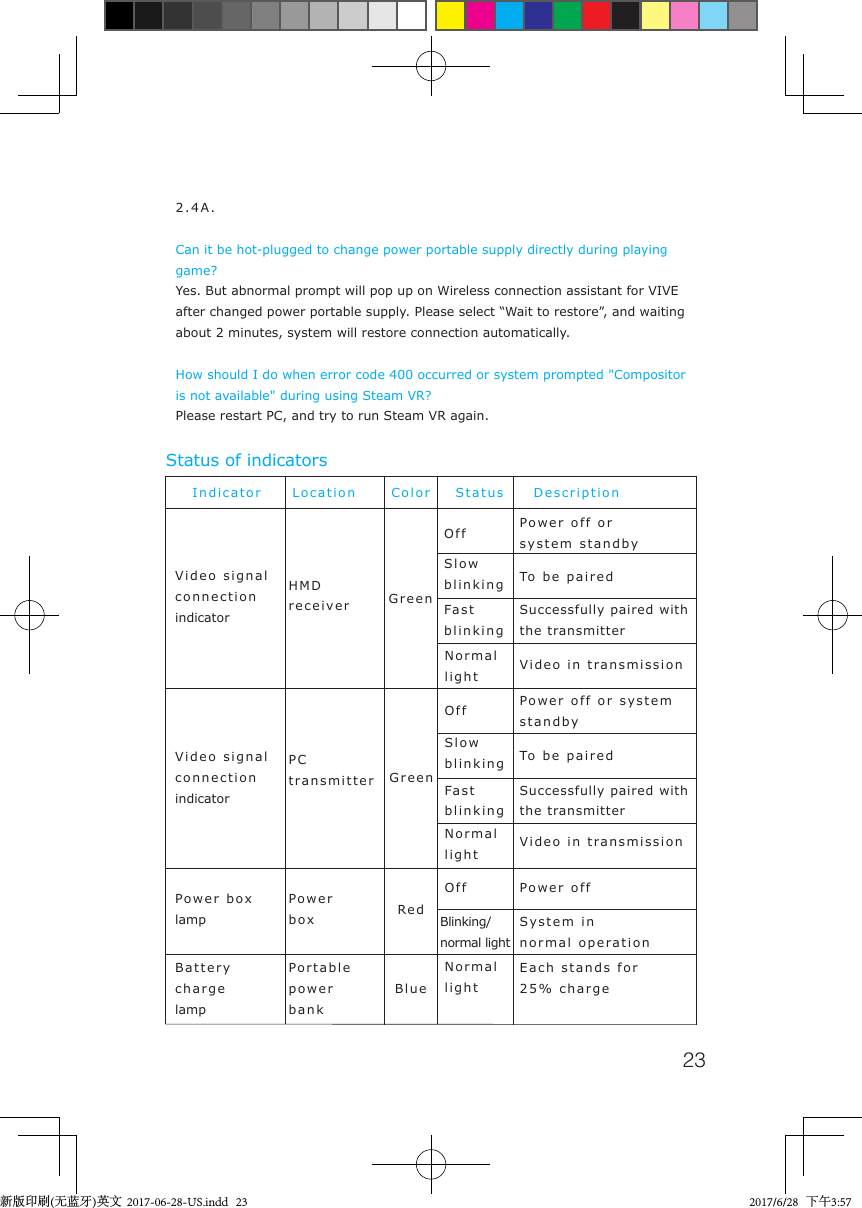
232.4A.Can it be hot-plugged to change power portable supply directly during playing game? Yes. But abnormal prompt will pop up on Wireless connection assistant for VIVE after changed power portable supply. Please select “Wait to restore”, and waiting about 2 minutes, system will restore connection automatically. How should I do when error code 400 occurred or system prompted "Compositor is not available" during using Steam VR?Please restart PC, and try to run Steam VR again.IndicatorVideo signal connectionindicatorVideo signalconnectionindicatorHMDreceiverPower boxPower boxlampPortable power bankBatterychargelampPCtransmitterGreenGreenRedBlueOffOffOffSlowblinkingSlowblinkingFastblinkingBlinking/normal lightNormal lightNormal lightNormal lightPower off orsystem standbyPower off or systemstandbyTo be pairedTo be pairedSuccessfully paired withthe transmitterSuccessfully paired withthe transmitterVideo in transmissionVideo in transmissionSystem innormal operationEach stands for25% chargePower offLocation Color Status DescriptionStatus of indicatorsFastblinking新版印刷(无蓝牙)英文  2017-06-28-US.indd   23 2017/6/28   下午3:57
24TPCAST WIRELESS ADAPTOR for VIVE  LIMITED WARRANTYPLEASE READ THIS LIMITED WARRANTY CAREFULLY TO UNDERSTAND YOUR RIGHTS AND OBLIGATIONS. THIS LIMITED WARRANTY CONTAINS A MANDATORY ARBITRATION CLAUSEWITH A CLASS ACTION WAIVER.BY USING YOUR TPCAST PRODUCT OR ACCESSORY, YOU AGREE TO THE LIMITED WARRANTY,INCLUDING THE MANDATORY ARBITRATION CLAUSE AND CLASS ACTION WAIVER BELOW.IF YOU DO NOT ACCEPT THIS LIMITED WARRANTY, DO NOT USE YOUR TPCAST PRODUCT.INSTEAD, PLEASE RETURN IT TO THE RETAILER FROM WHOM YOU PURCHASED IT WITHIN THE RETAILER’S RETURN PERIOD.THIS PRODUCT IS FOR PERSONAL, NON-COMMERCIAL USE ONLY. WARRANTY COVERAGE IS VOID IF USED FOR COMMERCIAL PURPOSES. DEFINITIONSThe following definitions apply to this Limited Warranty:1. “Product” means the TPCAST WIRELESS ADAPTOR FOR VIVE system, which includes PC Transmitter, HMD Receiver, Power Box, Portable power bank, Dedicated cable for long distance connection, HDMI short connection cable, router and power charger for router provided in the box at the time of original purchase from an authorized Retailer.2.  “Normal Use Conditions” means common end-user use under normal home conditions in accordance to the instructions provided with the Product or Accessory or posted online.3.  “Accessory” or “Accessories” means other secondary component(s) that are included in the box with theProduct at the time of sale, which includes: Portable power bank, Dedicated cable for long distance connection, HDMI short connection cable, router and power charger for router; provided that the component was manufactured by or for TPCAST and can be 新版印刷(无蓝牙)英文  2017-06-28-US.indd   24 2017/6/28   下午3:57
25identified by the “TPCAST” trademark, tradename, or logo affixed to the component as originally supplied.4. “Retailer” means a business that sells goods directly to end users, including those with a physical and/or online presence.5.  “State” means a State, the District of Columbia, and any other United States territory or possession.6.  “Warranty Period” means twelve (12) months from the date You purchased the Product from an authorized Retailer.7. “You” or “Your” means the original purchaser and/or original end-user of the Product.WHAT IS COVERED BY THIS LIMITED WARRANTY?During the Warranty Period TPCAST warrants that the Product or Accessory will be free from defects in material and workmanship if used under Normal Use Conditions.This Limited Warranty is given only to You, and may not be sold, assigned, transferred, or given in full or in part to any subsequent purchaser or acquirer of the Product or Accessory or any other person. This Limited Warranty gives You specific legal rights, and You may also have other rights which vary from State to State.WHAT IS NOT COVERED BY THIS LIMITED WARRANTY?This Limited Warranty does not apply other than to the Product or Accessory. It therefore does not apply to any non-TPCAST equipment or any software whatsoever, whether developed by TPCAST or a third party, even if intended or labelled as for use with the Product. Third party manufacturers, suppliers, or publishers may provide warranties for their own products and You may contact them directly for service.EVEN WITH RESPECT TO THE PRODUCT OR ACCESSORY YOU PURCHASED, THIS LIMITED WARRANTY SHALL NOT APPLY:新版印刷(无蓝牙)英文  2017-06-28-US.indd   25 2017/6/28   下午3:57
261. if the Product or Accessory serial number, the date code, the water indicator, or the warranty seal (voidlabel) has been removed, erased, defaced, or altered, or is illegible;2. to any deterioration of the cosmetic appearance of the Product or Accessory due to normal wear and tear;3. to consumable parts, such as batteries or protective coatings that are reasonably expected to diminish over time, unless failure has occurred due to a malfunction;4. to malfunctions caused by the battery, if improperly installed by You or another person, if the seals of the battery enclosure or the cells are broken or show evidence of tampering, or if used in equipment other than that for which it has been specified;5. to malfunctions caused by electrical surges or other electrical current problems that are not the fault of the Product or Accessory;6. to use not in accordance with the user manual or not under Normal Use Conditions;7. to rough handling; use outdoors; exposure to liquids; dampness or extreme thermal or environmental conditions or a rapid change in such conditions; corrosion; or oxidation;8. to use for commercial purposes, as the Product is intended only for personal entertainment purposes;9. to defects, conditions, or other issues caused by or resulting from unauthorized modifications or connections or unauthorized opening, repair by use of unauthorized spare parts, or repair by an unauthorized person or location;10. to accidents, forces of nature, or other actions beyond the reasonable control of TPCAST (including but not limited to deficiencies in consumable parts) unless the defect was caused directly by a malfunction;11. to physical damage to the surface of the Product or Accessory, including but not limited to cracks or scratches on the surfaces of the Product or Accessory, including any screen or lens; 新版印刷(无蓝牙)英文  2017-06-28-US.indd   26 2017/6/28   下午3:57
2712. to any computer or other product to which the Product may connect. TPCAST does not warrant that the operation of the Product or Accessory will be uninterrupted or error-free;13. where the software loaded on the Product, including but not limited to the operating system and/or firmware, needs to be upgraded, if such updates can be loaded by You;14. to any Product in which the operating system and/or firmware has been altered, including any failed attempts to alter the operating system, regardless of whether such modifications are authorized, approved,or otherwise sanctioned by TPCAST; or15. to malfunctions caused by unplugging any cable from or otherwise powering off the Product or your computer during a firmware update; or16. to malfunctions caused by the use of the Product or Accessory with or connection of the Product to an accessory not approved or provided by TPCAST or used in any way other than its intended use and where such defect is not the fault of the Product itself. Use of non-TPCAST accessories may void this Limited Warranty.This Limited Warranty is valid and enforceable only in the United States where the Product and Accessories are intended to be sold. A Product or Accessory can only be returned to be repaired under this Limited Warranty in the country where it was purchased. Warranty service availability and response times may vary from country to country.新版印刷(无蓝牙)英文  2017-06-28-US.indd   27 2017/6/28   下午3:57
28HOW DO I OBTAIN WARRANTY SERVICE? In the event of a perceived malfunction in the Product or Accessory, You should take the following actions: 1. Refer to the user manual and/or resources available at www.tpcast.cn/support in order to identify and correct the problem. Please note that opening the Product or Accessory may cause damage that is not covered under the Limited Warranty.   2. If the problem cannot be resolved by reference to the user manual and/or resources available at www.tpcast.cn, You should contact the Retailer from which You purchased the Product or Accessory or visit www.tpcast.cn/support for further information on contacting TPCAST customer service for assistance. Only TPCAST or a TPCAST authorized service center should perform service on the Product or Accessory.   3. When You contact the Retailer or TPCAST, please be sure to have the following information available: a. The model and serial number of the Product or Accessory. b. Your full address and contact information. c. A copy of the original invoice, receipt or bill of sale for the purchase of the Product. You must present a valid proof of purchase upon making any claims pursuant to this Limited Warranty.   Upon completion of these steps, TPCAST will provide You with instructions regarding how and when the Product or Accessory should be returned. You may be responsible for costs in connection with the return of the Product or Accessory to TPCAST. If You return the Product or Accessory during the Warranty Period and it satisfies the terms of this Limited Warranty, TPCAST or its authorized agent will, at its sole discretion, repair or replace it. Repair or replacement may involve the use of a functionally equivalent reconditioned Product or Accessory and/or parts. The Retailer or TPCAST will return the repaired or replacement Product or Accessory to You in good working condition. Any Product, Accessory, or parts or components thereof that are replaced under 新版印刷(无蓝牙)英文  2017-06-28-US.indd   28 2017/6/28   下午3:57
29the terms of this Limited Warranty become the property of TPCAST. If TPCAST repairs or replaces the Product, the repaired or replaced Product shall continue to be warranted for the remaining time of the original Warranty Period or for three (3) months from the date of repair or replacement, whichever is longer. Rather than ask You to return the Product or Accessory, TPCAST may instead elect to supply user-installable parts directly to You to fulfill its Limited Warranty obligations.  If requested by TPCAST, You in turn agree to return the replaced parts at Your cost. TPCAST reserves the right to restrict warranty service to the country where the Product or Accessory was intended to be sold.  TPCAST must be notified of a perceived malfunction during the applicable Warranty Period in order for You to be eligible for any remedy under the Limited Warranty.  Do not ship Your Product or Accessory directly to TPCAST unless You are asked to do so when following the steps above.  If You need to return the Product or Accessory for warranty service, the steps above must be followed.DISCLAIMER AND LIMITATION OF OTHER WARRANTIES AND RIGHTS To the extent permitted by law, this limited warranty and the remedies set forth are exclusive and in lieu of all other warranties, remedies and conditions. TPCAST limits the duration and remedies of all statutory and implied warranties or merchantability and fitness for a particular and warranties against hidden or latent defects to the duration of this limited warranty and at TPCAST option, the repair or replacement services described below. Some States do not allow limitations on how long an implied warranty lasts, so the above limitation may not apply to You.  LIMITATION OF LIABILITY Except as provided in this warranty and to the maximum extent permitted by law, TPCAST shall not be liable for incidental or consequential losses or damages of any nature whatsoever, 新版印刷(无蓝牙)英文  2017-06-28-US.indd   29 2017/6/28   下午3:57
30including but not limited to loss of data, loss of privacy, lost profits or commercial loss, business interruption, or loss of confidentiality. Notwithstanding the foregoing and even if any remedy fails of its essential purpose, the entire liability of TPCAST and its suppliers under any provision of this limited warranty shall be limited to the amount actually paid by the customer for the product. These exclusions apply even if TPCAST has been advised of the possibility of these damages. Some states do not allow the exclusion or limitation of incidental or consequential damages, so the above limitation or exclusion may not apply to you. 新版印刷(无蓝牙)英文  2017-06-28-US.indd   30 2017/6/28   下午3:57
31Please read the user guide prior to operating of the product.Update the soft copy of user guide on a regular basis to improve the accuracy and completeness.Please visit the website of www.tpcast.cn to get the up-to-date version.Contact Service: 18884662479新版印刷(无蓝牙)英文  2017-06-28-US.indd   31 2017/6/28   下午3:57
安全与法则注意事项-英 2017-06-28-US.indd   1 2017/6/28  下午 6:05   1      Safety and regulatory guide                               The health and safety warnings in this guide are periodically updated for accuracy and completeness. Check www.tpcast.cn for the latest version
安全与法则注意事项-英 2017-06-28-US.indd   1 2017/6/28  下午 6:05     Important Safety Information – Read Before Use Read the following warnings and information before use of the product and follow all product safety and operating instructions. Failure to do so may cause bodily injury, electric shock, fire, and other damage.  Ensure You Are Able to Safely Use the Product Consult  your  doctor  before  using  the  product  if  you  have  pre-existing  serious  medical  conditions  (such  as  a heartailment), conditions  that  affect  your  ability  to  safely  perform  physical  activities,  psychiatric  conditions  (such  as anxiety disorders or post-traumatic stress disorder), or if you are pregnant or elderly.  Do  not  use  the  product  if  you  are  sick,  fatigued,  under  the  influence  of  intoxicants/drugs,  or  are  not feelinggenerally well, as it may exacerbate your condition.  Ensure the Area Around You is Safe for Use of the Product While wearing the product’s headset you are blind to the world around you. The image displayed in the headset will not match the real world. Always use the product in a clear and safe area. Do not rely on the product’s chaperone system for protection. Do not use near stairways, large windows, heat sources, or outdoors. Clear the play area of people, furniture, and other things that may be obstacles or block you from freely moving around. For example, if a pet comes into the room while you are using the product, you likely will not be aware of the pet’s presence and you could trip over your pet while moving in the virtual reality environment.  It is recommended that the product be used only while under the supervision of another person who is ready to warn of hazards that may arise while the product is being used. Examples of hazards that could arise include, but are not limited to, tangling of a cable in a manner that presents a tripping hazard, pets entering the area where the product is being used, and the user walking too close to a wall or another hazard).  Be Aware of the Cable and Connections Keep in mind the location of the cable and connections running from the headset so that you are not likely to trip over or pull on them while moving around or walking around the play area. Move your feet slowly and carefully to avoid tripping, including on the cable. Make sure to maintain good footing. Tripping over the cable or contacting obstacles could cause injury or damage.  Photosensitive Seizures Like other products that produce visual effects (including light flashes), the product together with VIVE helmet may trigger epileptic seizures, seizures, fainting, or severe dizziness even in people who have no history of these conditions. If you have a previous history of epilepsy or seizures, loss of awareness, or other symptoms linked to an epileptic condition,consult your doctor before using the product. To reduce the likelihood of a seizure do not use the product if you are tired or need sleep.  Physical and Psychological Effects Content  viewed  using  the  product  can  be  intense,  immersive,  and  appear  very  life-like  and  may  cause  your brain  and  body  to  react  accordingly.  Certain  types  of  content  (e.g.  violent,  scary,  emotional,  or  adrenaline-based content) could trigger increased heart rate, spikes in blood pressure, panic attacks, anxiety, PTSD, fainting, and other adverse  effects.  If  you  have  a  history  of  negative  physical  or  psychological  reactions  to  certain  real  life circumstances, avoid using the product to view similar content.  Similarly, it is important to remember that simulated objects, such as furniture, that may be encountered while using the product do not exist in the real world, and injuries may result when interacting with those simulated objects as if they were real, for example, by attempting to sit down on a virtual chair.  Repetitive Stress Injuries Operate  the  product  in  a  comfortable  posture.  Do  not  grip  the  product  too  tightly.  Press  the  buttons  lightly. Ifyou  have  tingling,  numbness,  stiffness,  throbbing,  or  other  discomfort,  immediately  stop  using  the  product  and consult your doctor.  Physical and Psychological Effects Content viewed using the product together with VIVE helmet can be intense, immersive, and appear  very life-like and may cause your brain and body to react accordingly. Certain types of content (e.g. violent, scary, emotional, or adrenaline-based content) could trigger increased heart rate, spikes in blood pressure, panic attacks, anxiety, PTSD, fainting, and other adverse effects. If you have a history of negative physical or psychological reactions to certain real life circumstances, avoid using the product to view similar content.  Similarly, it is important to remember that simulated objects, such as furniture, that may be encountered 1
安全与法则注意事项-英 2017-06-28-US.indd   2 2017/6/28  下午 6:05     whileusing the product do not exist in the real world, and injuries may result when interacting with those simulatedobjects as if they were real, for example, by attempting to sit down on a virtual chair.  Hearing Loss Do not use the earphones at a high volume for prolonged periods of time, or permanent hearing loss may occur.  Radio Frequency Interference The product can emit radio waves that can interfere with the operation of nearby electronic devices. If you have a cardiac pacemaker or other implanted medical device, do not use the product until you have consulted with your doctor or the manufacturer of your medical device. To minimize radio frequency interference, use only original manufacturer-approved accessories, or accessories that do not contain any metal. Use of non-o riginal manufacturer-approved accessories may violate your local radio frequen cy exposure gu idelines and should be avoided.  Stop Using If You Experience Any Discomfort Stop using the product and consult your doctor if you experience any of the following symptoms: • Seizures, lo ss of awareness,  convulsion s, in voluntary mo vement s, dizzin ess, disorientation, n au sea,lightheadedness, dro wsiness, o r fatigue; • Eye pain or discomfort, eyestrain, eye twitching, or vision abn or malities (su ch as altered, blurred, or do ublevision); • Excessive sw eatin g increased  salivation, imp aired sen se of balan ce, impair ed hand-eye coor dination, or o th ersymptoms similar to motion si ckness. Until fully recovered from these symptoms, do not drive, operate machinery, or take part in activities that mayhave potentially serious consequences.  Before resuming use of the product, make sure that it is properly configured. The type of content you were using may cause your symptoms. Continuing to use such content may make youprone to experiencing the same symptoms.  Use by Children The product was not designed to be used by children. Do not leave the product within the reach of young children or allow them to use or play with it. They could hurt themselves or others, or could accidentally damage the product.  The product may contain small parts with sharp edges that may cause an injury or which could become detached and create a choking hazard for young children. Consult your doctor immediately if any parts of the product or accessories are swallowed.  If older children are permitted to use the product, then adults should monitor them closely for any negative effects during and after their use of the product. Do not allow older children to use the product if negative effects are observed. Adults should also ensure that older children avoid prolonged use of the product.  General Use and Maintenance Instructions Electrical safety This product is intended for use when supplied with power from the designated batteries or power supply units.  Other usage may be dangerous and will invalidate any approval given to this product. Safety precautions for proper grounding installation CAUTION: Connecting to improperly grounded equipment can result in electrical damage to the product. This product is equipped with cables for connecting with a desktop computer. Be sure your computer is properly grounded (earthed) before connecting the product to the computer. The power supply cord of a desktop computer has an equipment-grounding conductor and a grounding plug. The plug must be plugged into an appropriate outlet which is properly installed and grounded in accordance with all local codes and ordinances. Safety precautions for power supply unit • Use the corre ct external pow er source •A product should be operated only from the type of power source indicated on the electrical ratings label.  If you are not sure of the type of power source required, consult your authorized service provider or localpower company. For a product that operates from battery power or other sources, refer to the operatinginstructions that are included with the product. •This product should be operated only with the following designated power supply unit(s). PC Transmitter : HTC, Streaming Box, Model, 2PU6100 Power Box: Anker, Portable power bank, Model, A1271  • Handle battery packs c arefully The product controller contains a lithium-ion polymer or lithium-ion battery. There is a risk of fire and burns ifthe battery pack is handled improperly.  Battery WARNING: To reduce risk of fire or burns, do not disassemble, crush, 2
安全与法则注意事项-英 2017-06-28-US.indd   3 2017/6/28  下午 6:05     puncture, short external contacts or circuits, expose to temperature above 45° C (131° F), or dispose of in fire or water. Recycle or dispose of used batteries according to the local regulations or reference guide supplied with your product. CAUTION: Risk of explosion if battery is replaced by an incorrect type, Dispose of used batteries according to the instructions. • Do not expose to liquid. • Keep batteries out of the reach of children. • Avoid dropping the product headset, controllers, or base stations. If dropped, especially on a hard surface, and the user suspects damage, take it to a service center for inspection. • If the battery leaks: •Do not allow the leaking fluid to come in contact with skin or clothing. If already in contact, flush the affected area immediately with clean water and seek medical advice. •Do not allow the leaking fluid to come in contact with eyes. If already in contact, DO NOT rub; rinse with clean water immediately and seek medical advice. •Take extra precautions to keep a leaking battery away from fire as there is a danger of ignition or explosion.  Safety precautions for direct sunlight Keep  the product  away  from  excessive  moisture  and extreme temperatures.  Do not  leave the product in places such as on a car dashboard, window sill, or behind a glass that is exposed to direct  sunlight  or  strong  ultraviolet  light  for  extended  periods  of  time.  The  headset  contains lenses which may focus and intensify bright light sources, causing damage to the hardware.  General precautions • Protect the product.  •When installing base stations, avoid using unstable mounting accessories or surfaces that are prone tovibration, movement or chance of impact. •A secure structure must support the weight or load of the base stations. •Do not install near a heater, fireplace, direct sunlight, air conditioning unit or other source of direct energy. •Do not attempt to pry open the base stations as it could result in injury. •Use only approved accessories. •Do not connect with incompatible products or accessories. •Do not attempt to disassemble this product or its accessories. •Use only qualified personnel to service or repair this product and its accessories. •Always treat the product and its accessories with care and keep them in a clean and dust-free place. •Do not expose the product or its accessories to open flames or lit smoking products. •Do not drop, throw or try to bend the product or its accessories. •Do not use harsh chemicals, cleaning solvents, liquid cleansers or aerosols to clean the product or its accessories. •Do not paint the product or its accessories. •Store the product and its accessories at temperatures between 0°C(32° F) to 40°C(104° F). •Please check local regulations for disposal of electronic products.  • Damage requiring  service. Contact an authorized service technician or provider under the following conditions: •The product has been damaged by exposure to liquid, dropped, subject to impact or damaged. •There are noticeable signs of overheating. •The product does not operate normally when you follow the operating instructions.  • Avoid hot areas. The product should be placed away from heat sources such as radiators, heat registers, stoves,  3
安全与法则注意事项-英 2017-06-28-US.indd   4 2017/6/28  下午 6:05     or other products (including amplifiers) that produce heat.  • Avoid using the product after a dramatic change in temperature. When  you  move  the  product  between  environments  with  very  different  temperature  and/or humidity  ranges,condensation  may  form  on  or  within  the  product.  To  avoid  damaging  the  product, allow sufficient time for the moisture to evaporate before using the product.  NOTICE:  When  taking  the  product  from  low-temperature  conditions  into  a  warmer  environment  or from high-temperature conditions into a cooler environment, allow the product to acclimate to room temperature before turning on power.  • Avoid pushing objects into the product. Never push objects of any kind into cabinet slots or other openings in the product. Slots and openings areprovided for ventilation. These openings must not be blocked or covered.  • Adjust the volume. Turn down the volume before using headphones or other audio devices.  • Cleaning the product. Unplug the  product from  its power source  before  cleaning.  Use  a damp cloth  for cleaning,  but NEVER use water to clean the product. Clean and dry skin that regularly comes in contact with the headset. If there  is any  itching, eczema,  swelling,  irritation of the  skin, or  you  experience any discomfort, please discontinue use and consult your physician.  About PC Transmitter regulatory agency  identifications For regulatory identification purposes, your product is assigned a model number of TX-1. Your product’s FCC ID is 2AL8N-TX001. This FCC ID can also be found printed on thePC Transmitter.  To ensure continued reliable and safe operation of your device, use only the accessories listed below with your TX-1:  NOTE: This product is intended for use with a certified Class 2 Limited Power Source, rated 12 Volts DC, maximum1 Amp power supply unit. RF exposure: To comply with the IC RF exposure compliance requirements, this device and its antenna must not be co-located or operating in conjunction with any other antenna or transmitter.  This equipment should be installed and operated with a minimum distance of 20 centimeters between the radiator and your body.  About HMD Receiver regulatory agency identifications For regulatory identification purposes, your product is assigned a model number of RX-1. Your product’s FCC ID is 2AL8N-RX001. This FCC ID can also be found printed on the HMD Receiver.  NOTE: This product is intended for use with a certified Class 2 Limited Power Source, rated 5 Volts DC, maximum1.5 Amp power supply unit.  RF exposure: To comply with the IC RF exposure compliance requirements, this device and its antenna must not be co-locatedor operating in conjunction with any other antenna or transmitter.   FCC RF Radiation Exposure Statement: 1. This Transmitter must not be co-located or operating in conjunction with any other antenna or  transmitter. 2. This equipment complies with FCC RF radiation exposure limits set forth for an uncontrolled environment.  IC RF Radiation Exposure Statement: This equipment complies with IC radiation e xposure  l imits set forth for an u ncontrolle d environment.   4
安全与法则注意事项-英 2017-06-28-US.indd   5 2017/6/28  下午 6:05     This transmitter must not be co-located or operating in conjunction with any other antenna or transmitter.  If this product is not working properly, please call TPCAST customer service for instruction. CAUTION: The product is not intended to be serviced except by TPCAST or our authorized service providers.  About Power Box regulatory agency identifications For regulatory identification purposes, your product is assigned a model number of AD-1 Your product’s FCC ID is 2AL8N-AD001. This FCC ID can also be found printed on the Power Box.  To ensure continued reliable and safe operation of your device, use only the accessories listed below with your AD-1:The Battery Pack has been assigned a model number of A1271.  NOTE: This product is intended for use with a certified Class 2 Limited Power Source, rated 5 Volts DC, maximum3.1 Amp power supply unit.  FCC RF Radiation Exposure Statement:  1. This Transmitter must not be co-located or operating in conjunction with any other antenna or transmitter.  2. This equipment complies with FCC RF radiation exposure limits set forth for an uncontrolled environment.  IC RF Radiation Exposure Statement: This equipment complies with IC radiation e xposure  l imits set forth for an u ncontrolle d environment.  This transmitter must not be co-located or operating in conjunction with any other antenna or transmitter.  Federal Communication Commission Interference Statement This equipment has been tested and found to comply with the limits for a Class B digital device, pursuant to Part15 of the FCC Rules. These limits are designed to provide reasonable protection against  harmful  interference  in  a  residential  installation.  This  equipment  generates  uses  and  can radiate radio frequency energy and, if not installed and used in accordance with the instructions, may cause  harmful  interference  to  radio  communications.  However,  there  is  no  guarantee  that interference  will  not  occur  in  a  particular  installation.  If  this  equipment  does  cause  harmful interference to radio or television reception, which can be determined by turning the equipment off  and  on,  the  user  is  encouraged  to  try  to  correct  the  interference  by  one  of  the  following measures:  • Reorient or relocate the receiving antenna. • Increase the separation between the equipment and receiver. • Connect the equipment into an outlet on a circuit different from that to which the receiver is connected. • Consult the dealer or an experienced radio or television technician for help. FCC Caution: Any changes or modifications not expressly approved by the party responsible for compliance could void the user’s authority to operate this equipment.  This  device  complies  with  Part  15  of the  FCC  Rules.  Operation  is  subject  to  the  following  two conditions: (1) This device may not cause harmful interference, and (2) this device must accept any interference received, including interference that may cause undesired operation.  This transmitter must not be co-located or operating in conjunction with any other antenna or transmitter.  Industry Canada Statement Never push objects of any kind into cabinet slots or other openings in the product. Slots and openings are provided for ventilation. These openings must not be blocked or covered.  5
安全与法则注意事项-英 2017-06-28-US.indd   6 2017/6/28  下午 6:05     European Union notice This device complies  with the  R&TTE Directive  (2014/53/EU)  issued by the  Commission of the EuropeanCommunity. We  declare  under  our  sole  responsibility  that  our  product  and  in  combination  with  our accessories, to which thisdeclaration relates is in conformity with the appropriate standards EN 55032, , EN 301 489-1 -17, EN62471, EN60950-1, EN 62479 EN 300 328 following the provisions of, radio equipment and telecommunication terminalequipment directive 2014/53/EU.  WEEE notice The Directive on Waste Electrical and Electronic Equipment (WEEE), which entered into force as European law on 13th February 2003, resulted in a major change in the treatment of electrical equipment at end-of-life.  The purpose of this Directive is, as a first priority, the prevention of WEEE, and in addition, to promote the reuse,recycling and other forms of recovery of such wastes so as to reduce disposal.  The WEEE logo (shown at the left) on the product or on its box indicates that this product must not be disposed of or dumped with your other household waste. You are liable to dispose of all your electronic or electrical waste equipment by relocating over to the specified collection point for recycling of such hazardous waste. Isolated collection and proper recovery of your electronic and electrical  waste  equipment  at  the  time  of disposal  will allow  us to  help conserving natural resources.  Moreover,  proper  recycling  of  the  electronic  and  electrical  waste  equipment will  ensure safety  of human  health  and  environment.  For  more  information  about  electronic  and electrical waste  equipment  disposal,  recovery,  and  collection  points,please  contact  your  local  city  center, household  waste  disposal  service,  shop  from  where you  purchased  the equipment,  or  manufacturer of the equipment.   RoHS compliance This product is in compliance with Directive 2011/65/EU of the European Parliament and of the Council of 8 June 2011, on the restriction of the use of certain hazardous substances in electrical and electronic equipment (RoHS) and its amendments.  CEC Appliance Efficiency Compliance The BC logo (shown at the left) indicates that this product complies  with the California Energy Commission  (CEC)  energy  efficiency  standards  for  battery  charger  systems  set  forth  at  California Code of Regulations Title 20, Sections 1601 through 1608.  Proprietary Notice ©  2016  TPCAST  Corporation.  All  rights  reserved.  TPCAST,  the  TPCAST  logo,  and  all  other  TPCAST product and service names are the trademarks or registered trademarks in China. and/or other countries of TPCAST Corporation and its affiliates. 6

Navigation menu