Beijing iLeja Tech C2LITE Carrobot Smart HUD(Heads-Up Display) User Manual
Beijing iLeja Tech.Co.Ltd. Carrobot Smart HUD(Heads-Up Display)
User Manual

Carrobot Lite User Manual
Table of Contents
Introduction 01
Disclaimer 02
Carrobot components 03
Installation 04
Power supply instructions 05
Button descriptions 06
Screen cast instructions 07
Troubleshooting 26
Warranty 30

Carrobot Lite is your personal driving assistant which can project your phone's
screen on an HUD.It works both with Android phones and iPhones. It is designed
to keep you safe and make your journey more efficient and enjoyable.
01
Product Introduction

Looking away from the road can be dangerous. Watching display screens may
increase your risk of distraction and accident. Carrobot is not responsible for any
damage, injury, or death due to the use of this product. Users assume all liability
for all consequences, financial and otherwise while using this product.
02
Disclaimer
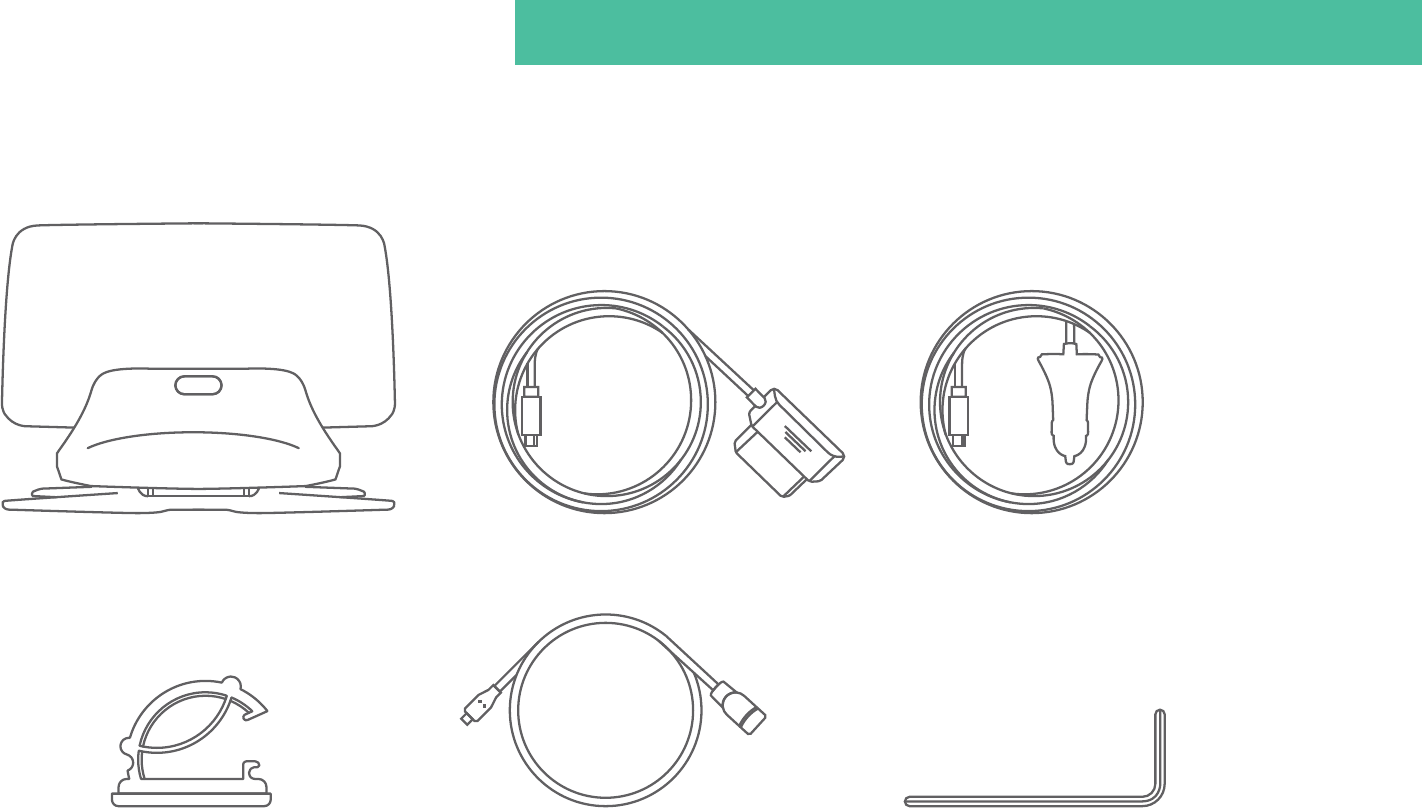
03
OBD-II
Cable Clamp Cable Connection Terminal
Carrobot
Standard components: Carrobot, Carrobot power cord
Hexagon Spanner
Carrobot components
Cigarette Lighter
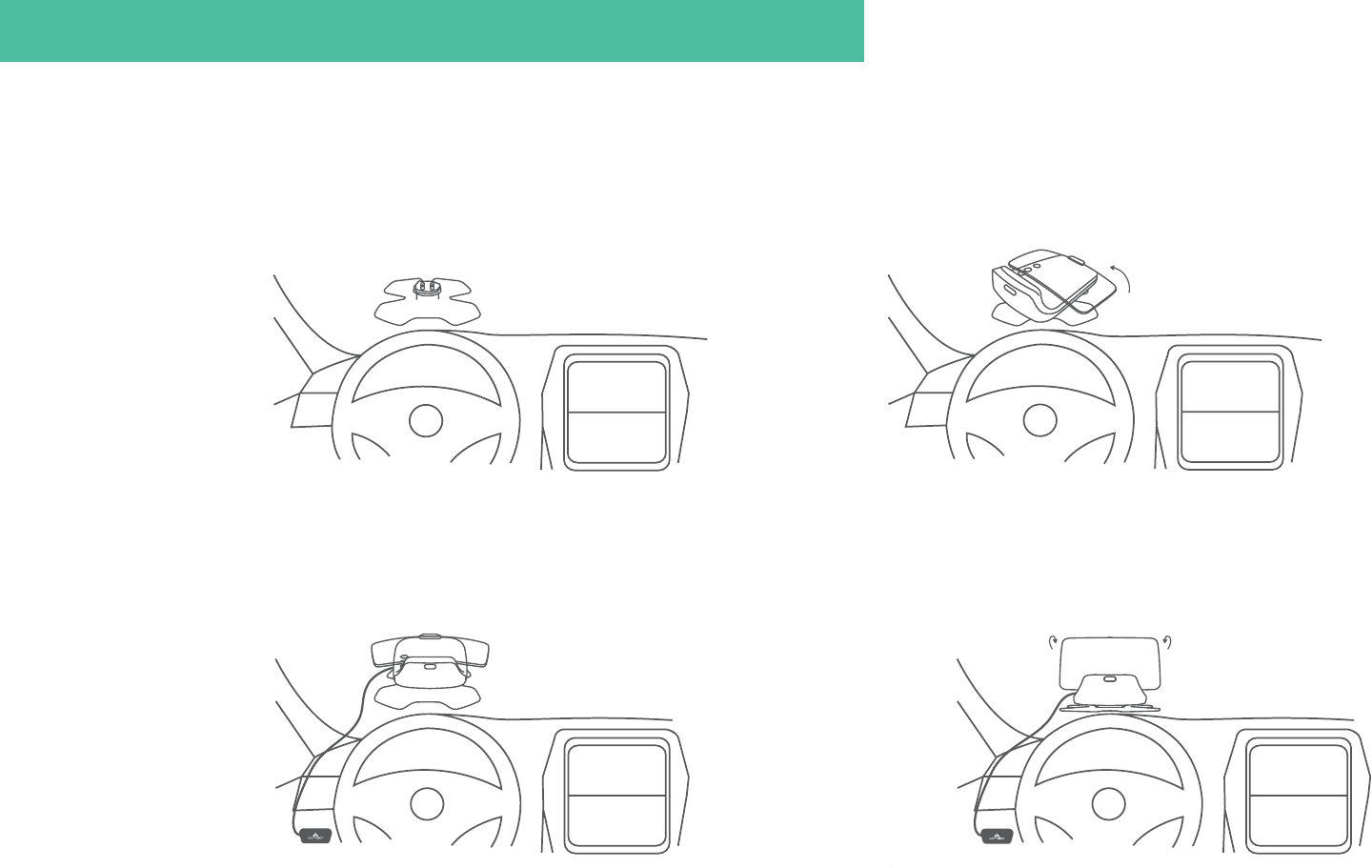
04
Install Carrobot on base
Adhere Carrobot base to
dashboard and adjust angle with
hexagon spanner
Connect Carrobot with Carrobot OBD-II
/Cigarette lighter (Carrobot power cord)
Open reflective screen and
adjust to appropriate angle
Installation
1. 2.
3. 4.
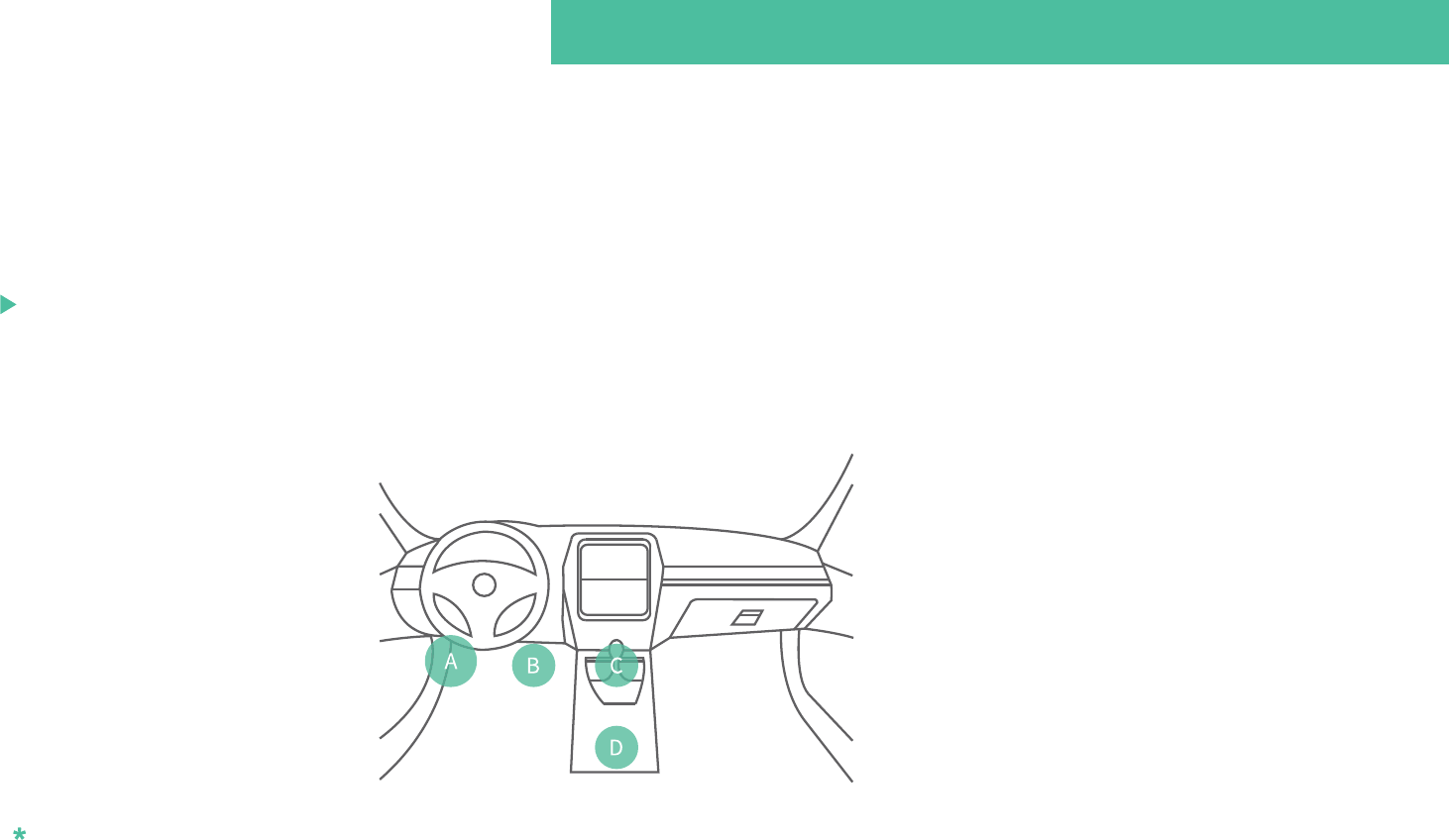
When Carrobot is connected with Carrobot OBD-II/Cigarette lighter(Carrobot
power cord), it will charge whenever you turn it on.
We recommend that you charge your Carrobot with the provided Carrobot OBD-II
/Cigarette lighter cable. While connected to your car with Carrobot
OBD-II/Cigarette lighter cable, the unit can be turned on or off automatically when
you operate your vehicle.
Note: Typically, OBD-II is installed in Area A, Cigarette lighter in Area D.
05
Power supply instructions
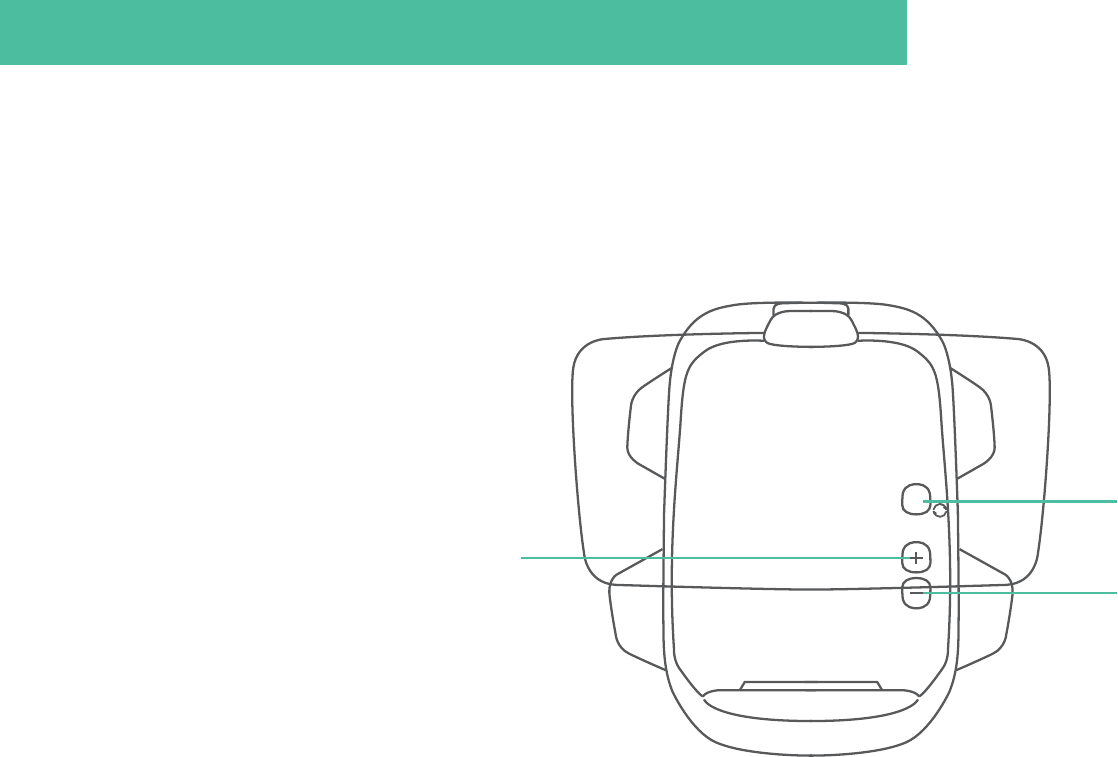
06
There are three buttons on Carrobot. You can switch between Android screen
cast or iPhone screen cast very easily with a short press on the “Model
adjustment button”.
Model adjustment button
Volume up button
Volume down button
Button descriptions

Android
You can choose either wired or wireless connections to mirror your phone screen
to the HUD. Please verify that the HUD is in the correct state to pair with the
device before connecting.
Wired connection method
07
Screen cast instructions
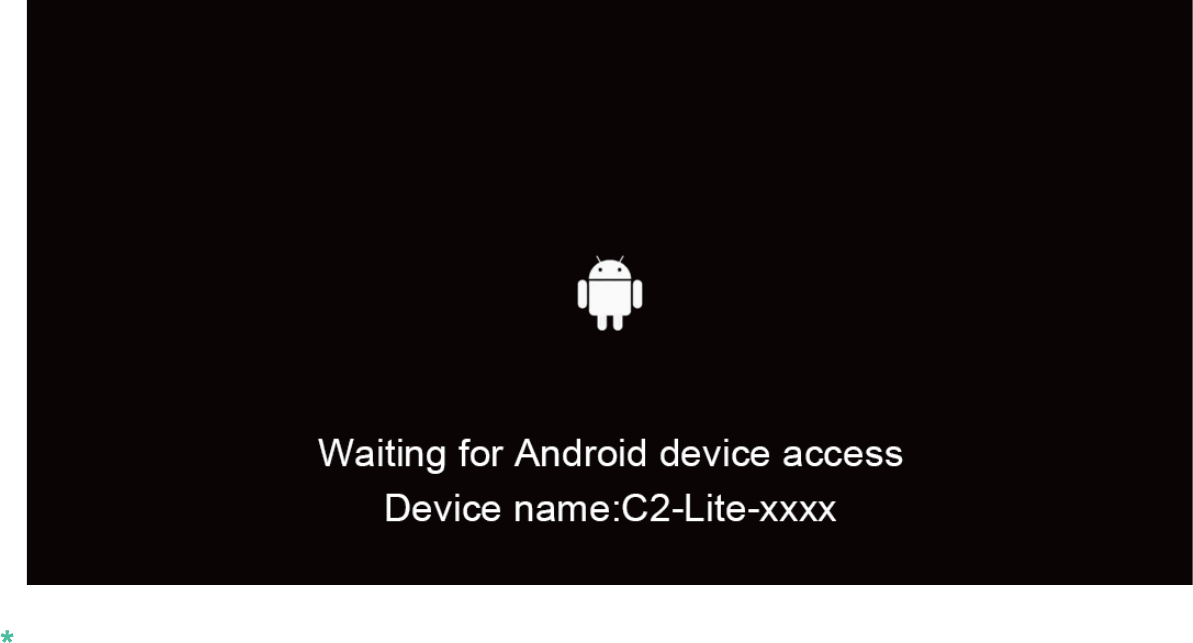
Switch Carrobot to Android screen cast mode
08
1.
Note: The Carrobot interface is inactive when the mobile phone is disconnected
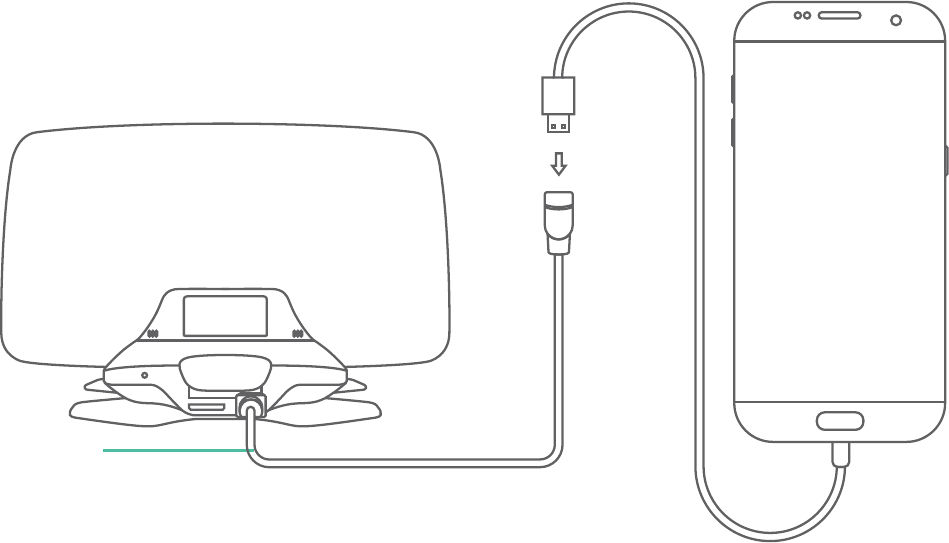
Connect the Charger Cable to the HUD
09
2.
OTG Cable
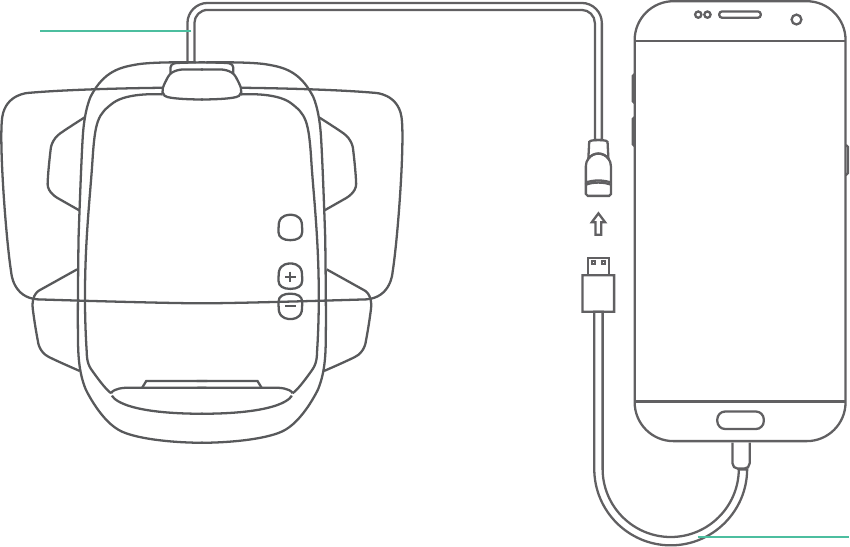
10
Use the charger cable to connect both the wired connection cable and the phone
3.
Charger Cable
OTG Cable
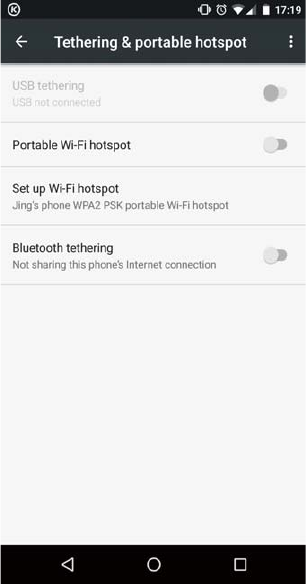
Turn on the phone settings and set the USB tethering mode (which is generally
located in the system settings - Tethering&portable hotspot)
11
4.
12
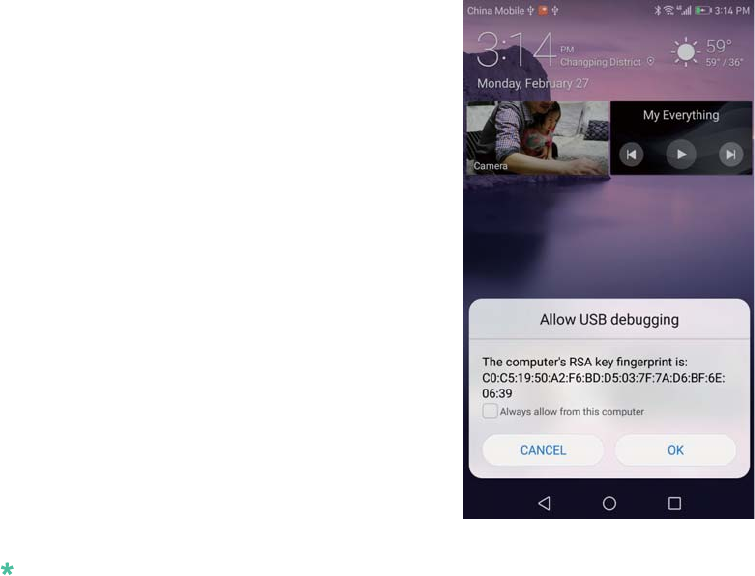
Please choose “allow the use of this computer debugging” in the pop-up prompt
box, then click OK and wait until the Carrobot connects, you can now screen
cast.
5.
Note:All sounds will play from phone
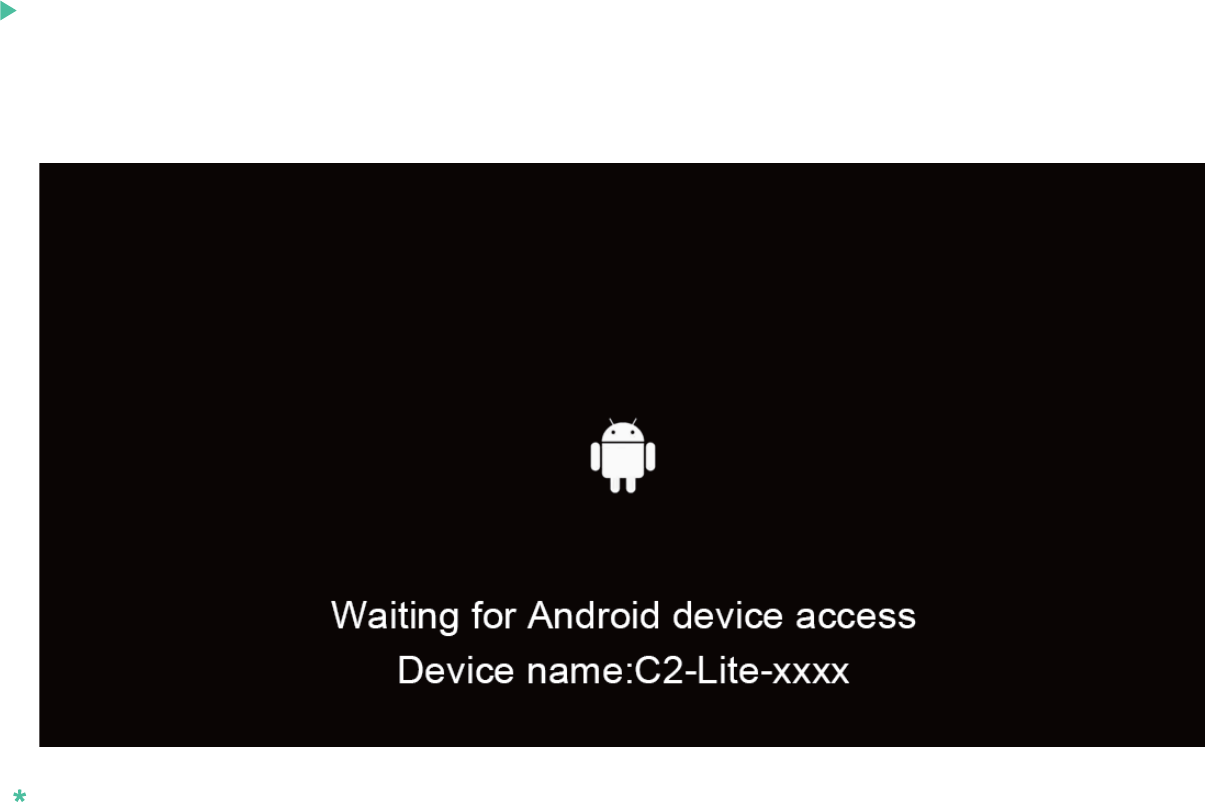
Wireless connection method
Switch Carrobot to Android screen cast mode
13
1.
Note: The interface is inactive when mobile phone is disconnected
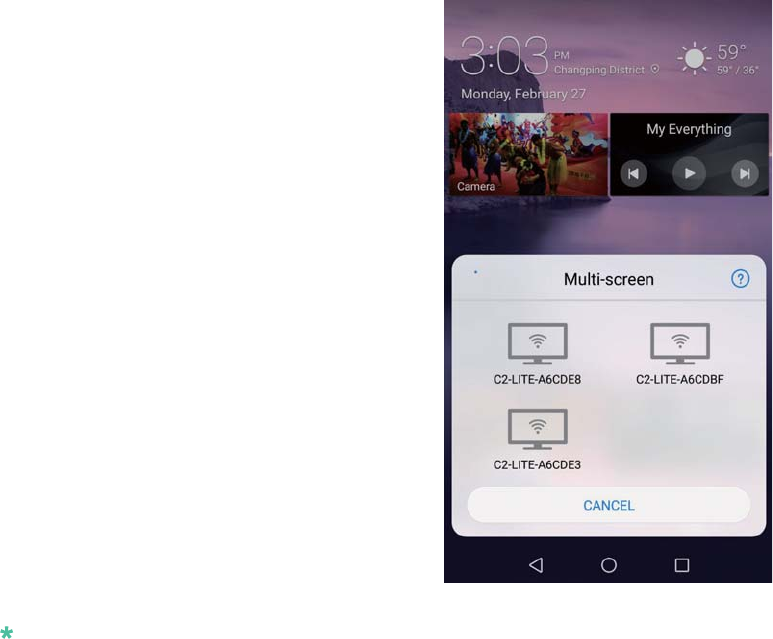
Please choose “Multi-cast” in your phone setting screen
14
2.
Note: It will display in different names for different brand phone, such as “Cast”, “Multi-cast”
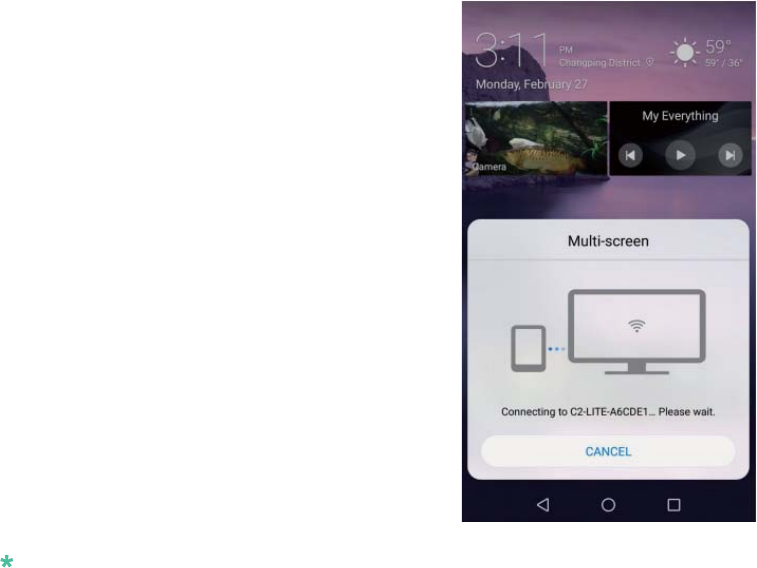
Connect your phone with "C2-Lite-xxxxxx" device, when the Carrobot receives
the signal, you can then begin the screen cast.
15
3.
Note: If the projection image is displaying vertically on Carrobot's HUD screen, attempt to rotate
phone into landscape position and check the phone's display settings if needed.

iPhone
You can choose either wired or wireless connections to mirror your phone screen to
the HUD. Please verify that the HUD is in the correct state to pair with the device
before connecting.
Wired connection method
16
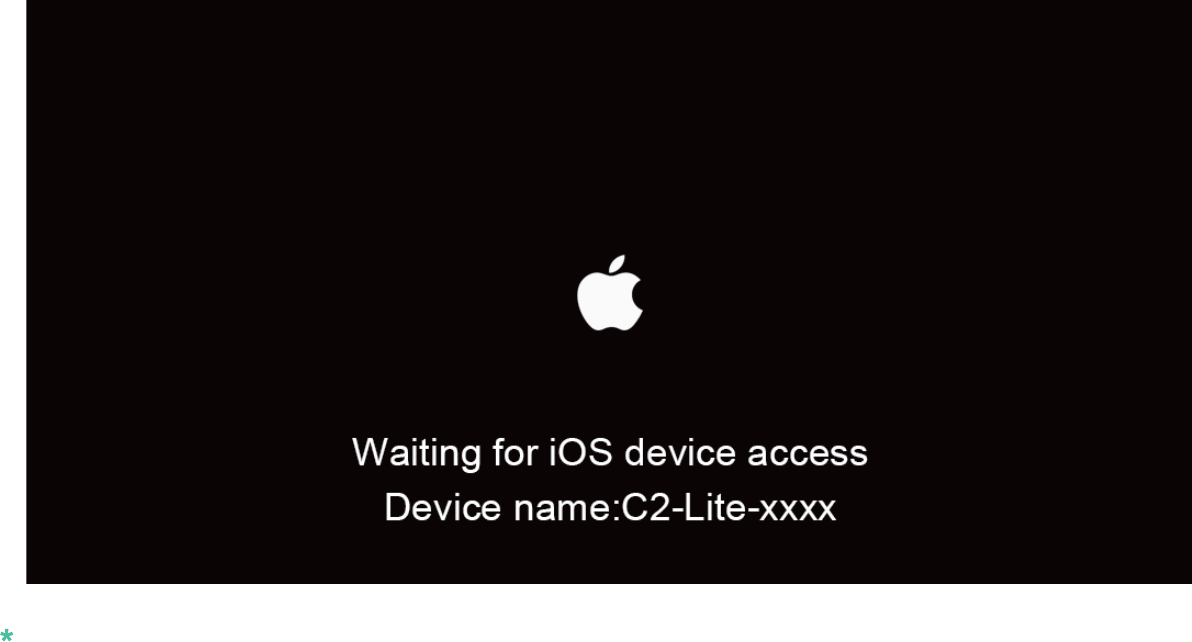
Switch Carrobot to iOS screen cast mode
17
1.
Note: The interface is inactive when the mobile phone is disconnected
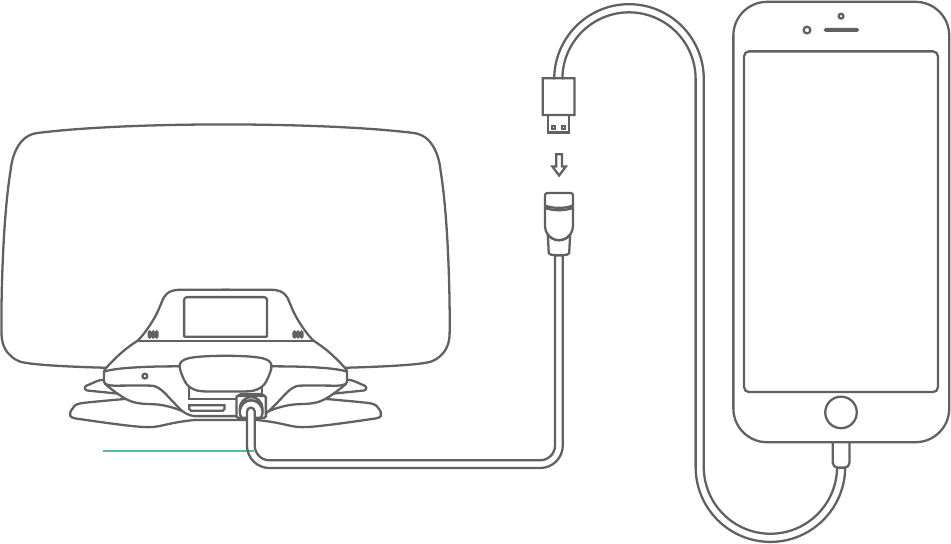
Connect Charger Cable to the HUD
18
2.
OTG Cable
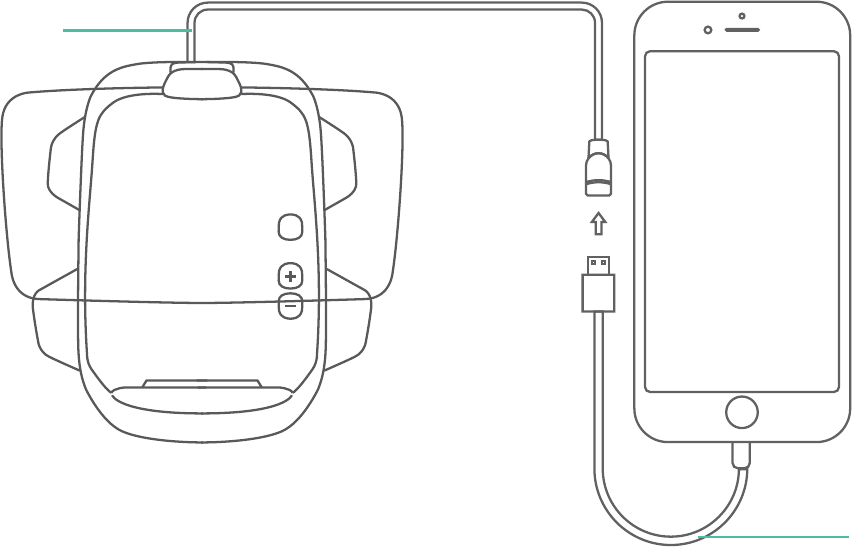
Use the Charger Cable to connect both OTG Cable and the phone
19
3.
Charger Cable
OTG Cable
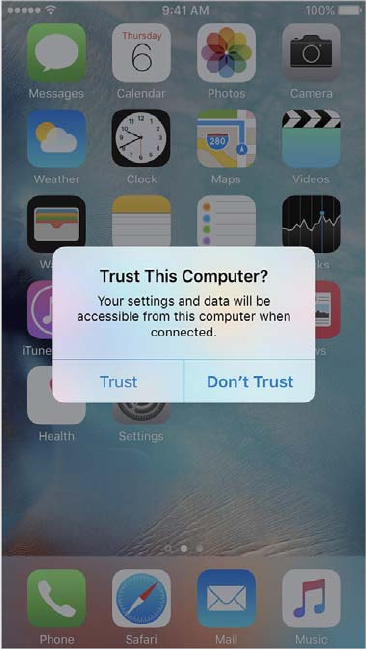
Choose “Trust” in the pop-up prompt box
20
4.
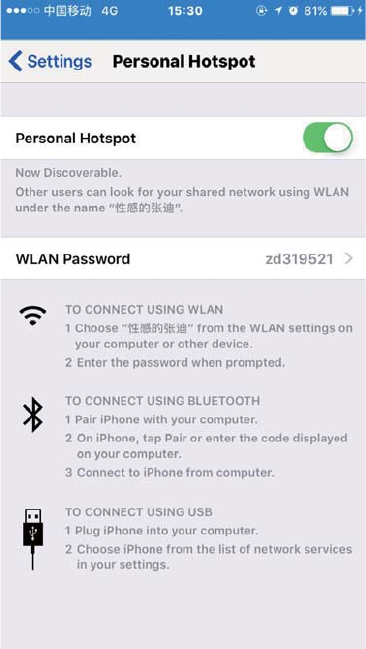
tip "personal hot spots: 1 connection"
21
5.
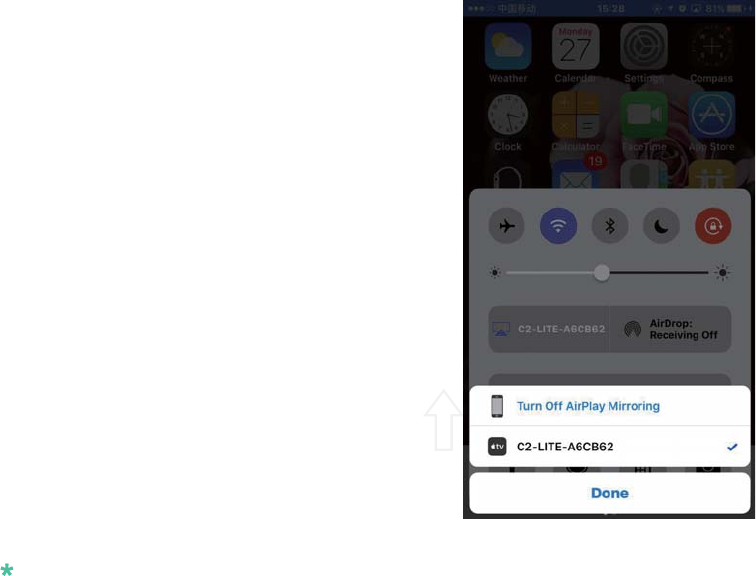
Turn on ”AirPlay mirroring", select the "C2-Lite-xxxxxx" device. Once the
Carrobot receives the signal, you can then begin to screen cast.
22
6.
Note:
If the projection image is displaying vertically on Carrobot's HUD screen, attempt to rotate phone
into landscape position and check the phone's display settings if needed.
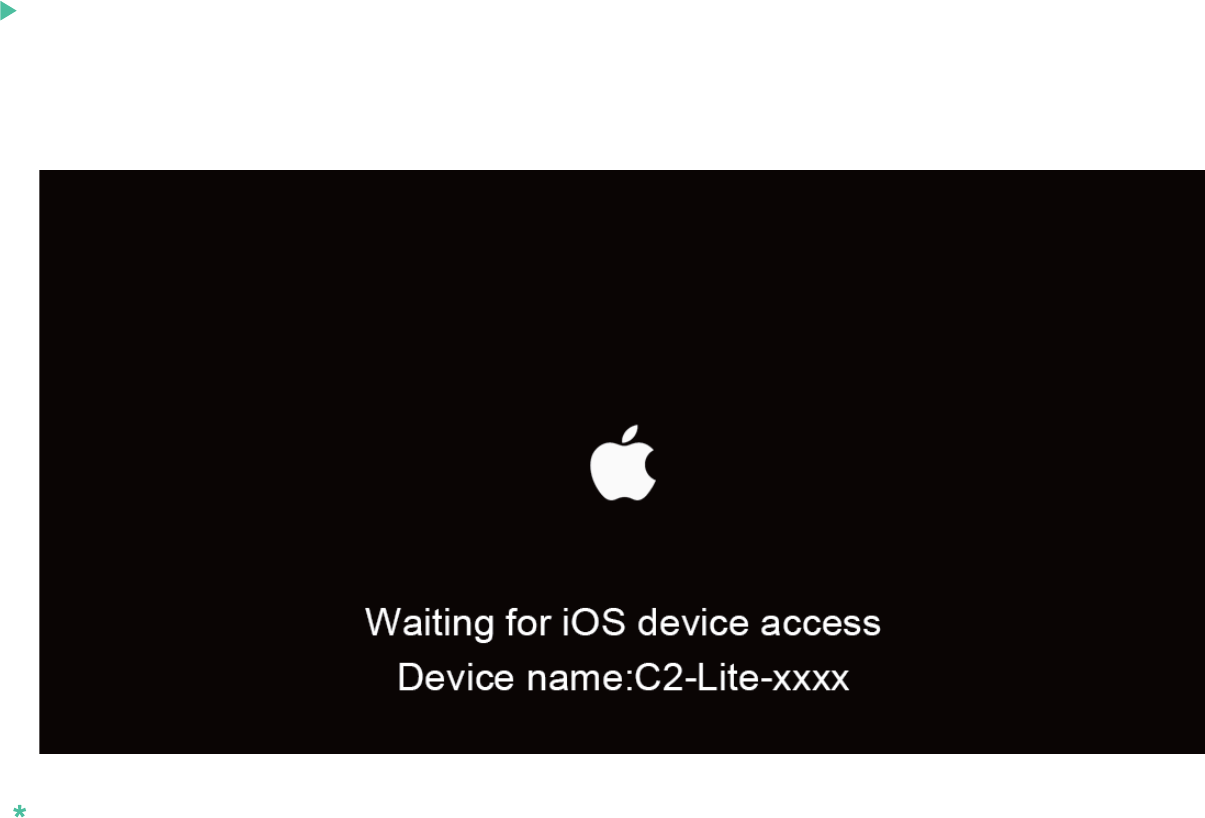
23
Wireless connection method
Switch Carrobot to iOS screen cast mode
1.
Note: This interface is inactive when the mobile phone is disconnected
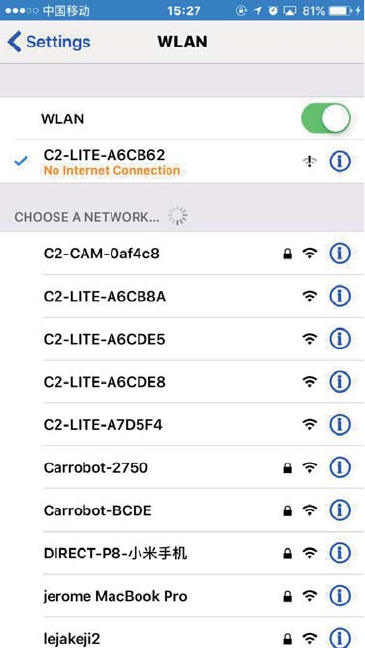
24
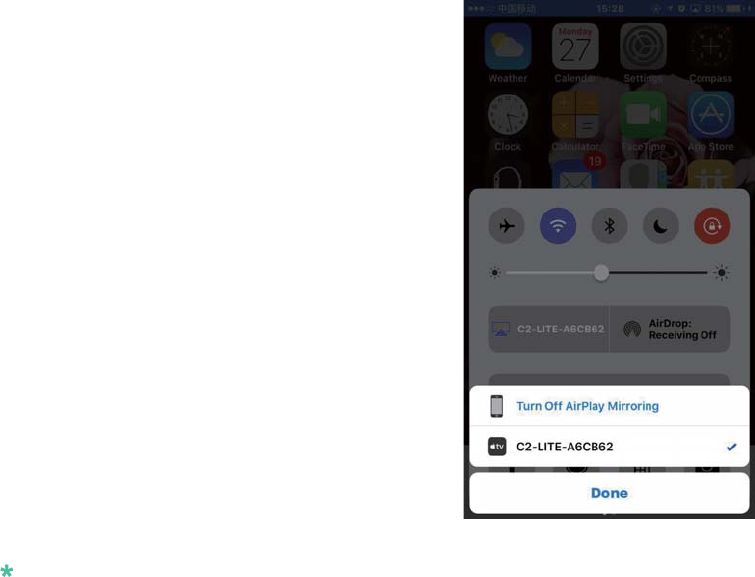
Turn on “Wi-Fi”,connect your phone with "C2-Lite-xxxxxx" device2.
25
Turn on ”AirPlay mirroring", select the "C2-Lite-xxxxxx" device. Once the
Carrobot receives the signal, you can then begin to screen cast.
Note:
If the projection image is vertical screen display screen, please try to cross screen phone rotation
state and check the settings if needed.
3.

26
A:
Q:
Can I insert a SIM card into Carrobot Lite for Internet?
Q:
A:
What is the difference between Carrobot Lite and Carrobot Pro?
Carrobot Lite must be operated with the Phone APP
on your mobile device while Carrobot Pro can
operate as a standalone device
Troubleshooting
27
Q:
A:
Will GPS navigation be interrupted when the phone is ringing?
Yes, it will, as the GPS navigation application
is installed on the phone.
Q:
A:
Can I cast any phone app to Carrobot?
Yes. (Note: For your safety, restrict screen
casting to GPS navigation app while driving.)

28
Q:
A:
Is that OK if I cast phone screen to Carrobot
with both wired and wireless method?
No, it may cause some unpredictable problems.
We recommend screen casting in 'Wired Mode'
for best results.
29
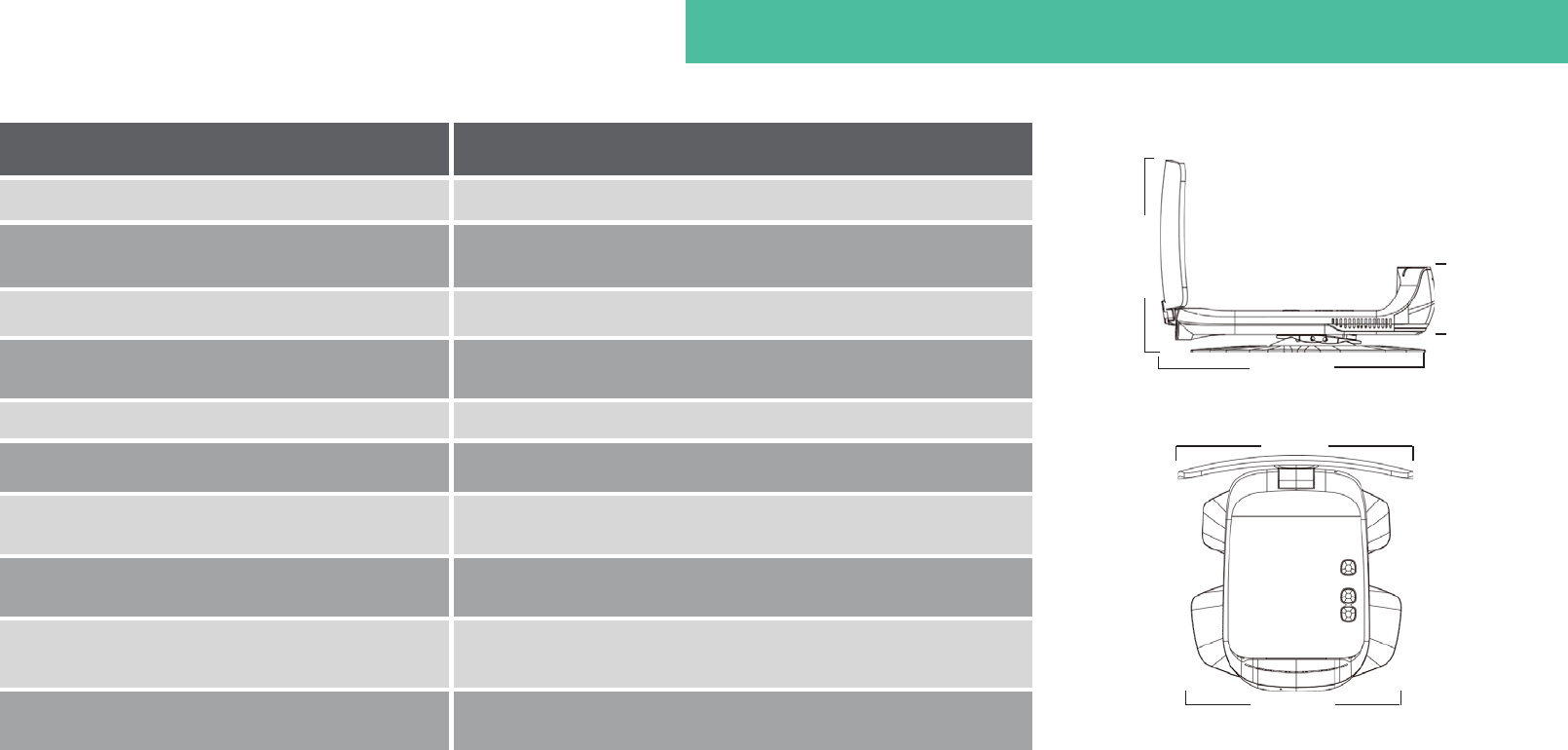
Carrobot Lite
Carrobot C2 Lite
Carrobot C2 Lite
Accessories OBD-II
Cigarette lighter adapter
CPU 1-core
Operating Mode Pair with Mobile App
Projected Distance about 8ft.
Virtual image size 18 inches
Display Automobile standard TFT LCD
Screen Type Multi-layer nanometer optical coated acrylic
Network 8o2.11 b/g/n,support WIFI connecting and hotspot
sharing
160.08mm
114.3mm
51.58mm
162mm
144.24mm
weight : 300g

30
This Warranty for Carrobot Lite (the "Device") is provided by Beijing iLeja Tech. Co., Ltd. The
provider of this warranty is sometimes referred to herein as "we."
We warrant the Device against defects in materials and workmanship under ordinary
consumer use for one year from the date of original retail purchase. During this warranty
period, if a defect arises in the Device, and you follow the instructions for returning the Device,
we will at our option, to the extent permitted by law, either (i) repair the Device using either
new or refurbished parts, (ii) replace the Device with a new or refurbished Device that is
equivalent to the Device to be replaced.This limited warranty applies only to hardware
components of the Device that are not subject to accident, misuse, neglect, fire or other
external causes, alterations, repair, or commercial use.This warranty is VOID if you purchased
this product as used, floor model sample, or refurbished; if the product has been altered or
modified in any way (including but not limited to attempted repair without authorization from
Carrobot®- Beijing iLeja Tech. Co., Ltd. and/or alteration/removal of the serial number).
1 YEAR LIMITED WARRANTY
31
This limited warranty does not cover the vehicle of any damages or liabilities in which this
product is installed or being installed. This product does not guarantee avoidance of vehicle
collision or accident.This warranty is invalid if the factory applied serial number has been altered
or removed from the Product.
A copy of the original proof of purchase from the user manual is required to receive warranty
service. For International customers residing out of China is responsible for freight charges
incurred both ways. If you are having trouble with the product, please contact our technical
support at email: carrobot@carrobot.com with your questions or comments. If your product is
eligible to receive warranty, request for warranty service online by visiting http://en.carrobot.com/.
IMPORTANT: TO SEND DEFECTIVE PRODUCT FOR WARRANTY SERVICE, YOU MUST
RECEIVE RMA (RETURN MATERIAL AUTHORIZATION) FROM
CARROBOT@CARROBOT.COM AND INCLUDE ORIGINAL PROOF OF PURCHASE.

We also provide warranty policy for Carrobot accessories which are purchased
from Carrobot or our licensed distributors.
Note: Gifts are not included
Accessories Warranty

Product warranty card
Product Name: Carrobot Lite
S/N:
EAN:
Purchasing date:
Product warranty card
Customer Name:
Customer address:
Customer phone number:
Customer information
FCC Radiation Exposure Statement:
This equipment complies with FCC radiation exposure limits set forth for an uncontrolled environment. This equipment should be installed and operated with
minimum distance 20cm between the radiator & your body.
FCC Warning
This device complies with Part 15 of the FCC Rules. Operation is subject to the following two conditions:
(1) This device may not cause harmful interference, and (2) this device must accept any interference received, including interference that may cause undesired
operation.
NOTE 1: This equipment has been tested and found to comply with the limits for a Class B digital device, pursuant to part 15 of the FCC Rules. These limits are
designed to provide reasonable protection against harmful interference in a residential installation. This equipment generates, uses and can radiate radio frequency
energy and, if not installed and used in accordance with the instructions, may cause harmful interference to radio communications. However, there is no guarantee that
interference will not occur in a particular installation. If this equipment does cause harmful interference to radio or television reception, which can be determined by
turning the equipment off and on, the user is encouraged to try to correct the interference by one or more of the following measures:
- Reorient or relocate the receiving antenna.
- Increase the separation between the equipment and receiver.
-Connect the equipment into an outlet on a circuit different from that to which the receiver is connected.
-Consult the dealer or an experienced radio/TV technician for help.
NOTE 2: Any changes or modifications to this unit not expressly approved by the party responsible for compliance could void the user's authority to operate the
equipment.
Beijing iLeja Tech Co.Ltd
Beijing iLeja Tech. Co., Ltd., Tencent Incubator, No. 338
Huilongguandong Street, Changping District, Beijing, China
Contact us:carrobot@carrobot.com