BenQ Mobile and OHG SL65 GSM 1900 Mobile Phone User Manual SL65
BenQ Mobile GmbH & Co. OHG GSM 1900 Mobile Phone SL65
Exhibit 8 User manual

© Siemens AG 2003, M:\Mobil\R65\SL65_Iris\am\fug\SL65IVZ.fm
Table of Contents 1
VAR Language: am; VAR issue date: 040317
See also Index and Menu tree at the end of this User Guide
left page (1) of SL65 Iris FUG us, A31008-H7700-A40-1-4A19 (24.05.2004, 17:17)
Safety precautions ..................... 3
Antenna care ........................... 5
Phone operation ...................... 5
Electronic devices .................... 6
Telephone list ............................ 9
Display symbols ....................... 12
Getting started ......................... 14
Inserting the SIM card/battery ....14
Charging the battery .............. 15
Switching phone on and off/
entering PIN ............................. 16
Enter PIN ............................... 16
Emergency number (SOS) ...... 16
General instructions ................ 17
Standby mode ....................... 17
Signal strength ...................... 17
Digital Rights Mgmt. (DRM) .... 17
Main menu ............................ 17
Standard functions .................. 19
Highlighting mode ................. 20
Menu speed dialling ............... 20
Security .................................... 21
Codes .................................... 21
Preventing accidental
activation ............................... 22
Text entry ................................. 23
My phone ................................. 27
Calling ...................................... 28
Default book ............................ 34
Address book ........................... 35
New entry .............................. 35
Change entry .........................37
Dialling an entry ..................... 37
Groups ...................................38
Phonebook ............................... 39
New entry ..............................39
Call (search for an entry) ........ 40
Change entry .........................40
<Special books> .....................41
Call records ............................... 42
Dur./charges ............................. 43
Camera ..................................... 44
Photo mode ........................... 45
Video mode ............................45
Main Inbox ............................... 47
SMS ........................................... 48
Write/send ..............................48
Read .......................................50
Setting ................................... 52
MMS .........................................54
Create ...................................54
Templates ..............................56
Sending an MMS ....................57
Receiving an MMS .................. 58
Reading an MMS .................... 59
Setting ................................... 60
E-mail ........................................ 62
Write ......................................62
Receive/read ........................... 63
Setting ................................... 64
Voice message/mailbox ............ 65
Inst. Msg. ..................................66
Start menu .............................66
Table of
Contents
See also
Index and
Menu tree at
the end of this
User Guide

© Siemens AG 2003, M:\Mobil\R65\SL65_Iris\am\fug\SL65IVZ.fm
2 Table of Contents
VAR Language: am; VAR issue date: 040317
See also Index and Menu tree at the end of this User Guide
left page (2) of SL65 Iris FUG us, A31008-H7700-A40-1-4A19 (24.05.2004, 17:17)
Login ..................................... 67
Contact lists ........................... 67
Starting to Inst. Message ........ 70
Msg. history ........................... 71
Setting ................................... 71
CB services ............................... 73
Zoom in ................................. 74
Surf & fun ................................. 75
Internet ................................. 75
Bookmarks ............................. 77
Games and Applications ......... 78
Download wiz. ....................... 78
Setup ........................................ 80
Profiles .................................. 80
Topics .................................... 82
Display ................................... 83
Ring tones ............................. 85
Call setup ............................... 87
Phone setup ........................... 89
Clock ..................................... 91
Connectivity .......................... 92
Security ................................. 95
Network ................................ 97
Accessories ............................ 99
ProSlide ............................... 100
My menu ................................ 101
Fast access key ....................... 102
Organizer ............................... 104
Calendar .............................. 104
Appointments ...................... 105
Tasks ................................... 106
Notes ................................... 107
Missed appts. .......................107
Dictation mac .......................108
Time zones ...........................109
Extras ......................................110
SIM services (optional) .........110
Alarm clock .......................... 110
Sound recorder .....................111
Calculator ............................. 112
Unit converter ......................112
Stopwatch ............................113
Countdown ..........................114
Remote synchronisation .......114
Media player ........................... 116
My stuff .................................. 117
Mobile Phone Manager .......... 119
Questions & Answers .............122
Customer Care ........................125
Care and maintenance ........... 127
Product data ........................... 128
U.S. FDA ..................................129
FCC/Industry Canada Notice ...135
Ten driving safety tips ............ 136
Intellectual property .............. 138
Accessories ............................. 139
Quality .................................... 141
Battery quality statement ...... 141
Display quality declaration .... 141
SAR (SL65) .............................. 142
Menu tree ............................... 144
Index ....................................... 150
© Siemens AG 2003, M:\Mobil\R65\SL65_Iris\am\fug\SL65_SecurityInfo.fm
3Safety precautions
VAR Language: am; VAR issue date: 040317
left page (3) of SL65 Iris FUG us, A31008-H7700-A40-1-4A19 (24.05.2004, 17:14)
Safety precautions
Information for parents
Please read the operating instructions and safety precautions carefully before use.
Explain the content and the hazards associated with using the phone to your children.
Remember to comply with legal
requirements and local restric-
tions when using the phone.
For example in aeroplanes,
petrol stations, hospitals or
while driving.
Mobile phones can interfere
with the functioning of medical
devices such as hearing aids or
pacemakers. Keep at least
20 cm/9 inches between phone
and pacemaker. When using
the mobile phone hold it to the
ear which is further away from
the pacemaker. For more infor-
mation consult your doctor.
The ringtone (p. 85), info tones
(p. 89) and handsfree talking
are reproduced through the
loudspeaker. Do not hold the
phone to your ear when it rings
or when you have switched on
the handsfree function (p. 30).
Otherwise you risk serious
permanent damage to your
hearing.
Do not use an optical magnifier
to look at the activated infrared
interface [Class 1 LED product
(classification as per
IEC 60825-1)].
Only use original Siemens bat-
teries (100 % mercury-free) and
charging devices. Otherwise
you risk serious damage to
health and property. The battery
could explode, for instance.
The SIM card may be removed.
Caution! Small parts like this
could be swallowed by young
children.
The mains voltage specified on
the power supply unit (V) must
not be exceeded. Otherwise
the charging device may be
destroyed.
You may only open the phone
to replace the battery (100 %
mercury-free) or SIM card. You
must not open the battery under
any circumstances. All other
changes to this device are
strictly prohibited and will
invalidate the guarantee.
© Siemens AG 2003, M:\Mobil\R65\SL65_Iris\am\fug\SL65_SecurityInfo.fm
Safety precautions4
VAR Language: am; VAR issue date: 040317
left page (4) of SL65 Iris FUG us, A31008-H7700-A40-1-4A19 (24.05.2004, 17:14)
Important
Please dispose of unwanted
batteries and phones as permit-
ted by the laws in your country.
The phone may cause interfer-
ence in the vicinity of TV sets,
radios and PCs.
Use only Siemens original ac-
cessories. This will avoid poten-
tial risks to health or property
and ensure compliance with all
relevant regulations.
Improper use will invalidate the guarantee!
These safety instructions also apply to
Siemens original accessories.
The phone may only be used if the keypad
is fully closed or fully opened; for optimum
audio quality, however, it is recommended
you open the keypad completely.

© Siemens AG 2003, M:\Mobil\R65\SL65_Iris\am\fug\SL65_SecurityInfo.fm
5Safety precautions
VAR Language: am; VAR issue date: 040317
left page (5) of SL65 Iris FUG us, A31008-H7700-A40-1-4A19 (24.05.2004, 17:14)
Antenna care
Use only the supplied or an approved
replacement antenna. Unauthorized
antennas, modifications, or attach-
ments could damage the phone and
may violate FCC regulations.
Phone operation
Normal position
Hold the phone as you would any
other telephone with the antenna
pointed up and over your shoulder.
Tips on efficient operation
For your phone to operate most
efficiently:
• Extend your antenna fully
(if applicable).
• Do not touch the antenna unnec-
essarily when the phone is in use.
Contact with the antenna affects
call quality and may cause the
phone to operate at a higher pow-
er level than otherwise needed.
Driving
Laws pertaining to the use of mobile
phones while driving vary signifi-
cantly from state to state and some-
times even from locality to locality
within states. For example, some ar-
eas may allow persons to use their
mobile phones only if they employ a
hands-free device, and some areas
may prohibit the use of cell phones
entirely. Accordingly, Siemens rec-
ommends that persons check the
laws for the areas in which they drive
or will be driving. For areas where
the use of mobile phones while driv-
ing is permitted, Siemens encourag-
es persons to use their phones re-
sponsibly and to employ hands-free
devices. Also, if using your phone
while driving, please:
• Give full attention to driving –
driving safely is your first
responsibility;
• Use hands-free operation, if
available;
• Pull off the road and park before
making or answering a call, if
driving conditions so require.
For vehicles equipped with
air bags
An air bag inflates with great force.
DO NOT place objects, including ei-
ther installed or portable wireless
equipment, in the area over the air
bag or in the air bag deployment ar-
ea. If in-vehicle wireless equipment
Important
Read this information before using
your wireless handheld phone.
As this mobile phone is equipped
with a fixed (non-retractable) an-
tenna, some paragraphs in the text
below may not be applicable.

© Siemens AG 2003, M:\Mobil\R65\SL65_Iris\am\fug\SL65_SecurityInfo.fm
Safety precautions6
VAR Language: am; VAR issue date: 040317
left page (6) of SL65 Iris FUG us, A31008-H7700-A40-1-4A19 (24.05.2004, 17:14)
is improperly installed and the air
bag inflates, serious injury could re-
sult.
Electronic devices
Most modern electronic equipment
is shielded from radio frequency (RF)
signals. However, certain electronic
equipment may not be shielded
against the RF signals from your
wireless phone.
Pacemakers
The Health Industry Manufacturers'
Association recommends that a min-
imum separation of six inches (6")
be maintained between a handheld
wireless phone and a pacemaker to
avoid potential interference with the
pacemaker. These recommenda-
tions are consistent with the inde-
pendent research by and recommen-
dations of Wireless Technology
Research.
Persons with pacemakers
• should ALWAYS keep the phone
more than six inches from their
pacemaker when the phone is
turned ON;
• should not carry the phone in a
breast pocket;
• should use the ear opposite the
pacemaker to minimize the poten-
tial for interference;
• should turn the phone OFF imme-
diately if there is any reason to
suspect that interference is taking
place.
Hearing aids
Some digital wireless phones may
interfere with some hearing aids. In
the event of such interference, you
may want to consult your service
provider or your hearing aid manu-
facturer to discuss alternatives.
Other medical devices
If you use any other personal medi-
cal devices, consult the manufactur-
ers of your devices to determine if
they are adequately shielded from
external RF energy. Your physician
may be able to assist you in obtain-
ing this information.
Turn your phone OFF in health care
facilities when any regulations post-
ed in these areas instruct you to do
so. Hospitals or health care facilities
may be using equipment that could
be sensitive to external RF energy.
Vehicles
RF signals may affect improperly
installed or inadequately shielded
electronic systems in motor vehicles.
Check with the manufacturer or its
representative regarding your vehi-
cle. You should also consult the
manufacturer of any equipment that
has been added to your vehicle.

© Siemens AG 2003, M:\Mobil\R65\SL65_Iris\am\fug\SL65_SecurityInfo.fm
7Safety precautions
VAR Language: am; VAR issue date: 040317
left page (7) of SL65 Iris FUG us, A31008-H7700-A40-1-4A19 (24.05.2004, 17:14)
Posted facilities
Turn your phone OFF in any facility
where posted notices so require.
Airplanes
FCC and Airline Regulations prohibit
using your phone while in the air.
Turn your phone OFF when request-
ed by the airline.
Check and comply with the policy of
your airline regarding the use of your
phone while the airplane is on the
ground.
Blasting areas
To avoid interfering with blasting op-
erations, turn your phone OFF when
in a “blasting area” or in areas post-
ed: “Turn off two-way radio.” Obey
all signs and instructions.
Potentially explosive
atmospheres
Turn your phone OFF when in any
area with a potentially explosive
atmosphere and obey all signs and
instructions. Sparks in such areas
could cause an explosion or fire
resulting in bodily injury or even
death.
Areas with a potentially explosive at-
mosphere are often but not always
clearly marked. They include: fueling
areas such as gasoline stations; be-
low deck on boats; fuel or chemical
transfer or storage facilities; vehicles
using liquefied petroleum gas (such
as propane or butane); areas where
the air contains chemicals or parti-
cles, such as grain, dust or metal
powders; and any other area where
you would normally be advised to
turn off your vehicle engine.

© Siemens AG 2003, M:\Mobil\R65\SL65_Iris\am\fug\SL65_SecurityInfo.fm
Safety precautions8
VAR Language: am; VAR issue date: 040317
left page (8) of SL65 Iris FUG us, A31008-H7700-A40-1-4A19 (24.05.2004, 17:14)
Emergency calls (SOS)
Your wireless phone can be used
to make emergency calls. You can
make an emergency call from the
main display screen. Enter the local
emergency number such as 911 and
then press the A key
This phone, like any wireless phone,
operates using radio signals, wire-
less and landline networks, and user-
programmed functions. Because of
this, connections in all conditions
cannot be guaranteed. Therefore,
you should never rely solely on any
wireless phone for essential commu-
nications (for example, medical
emergencies). Remember – to make
or receive any calls, the phone must
be switched on and be used in a ser-
vice area that has adequate signal
strength. Emergency calls might not
be possible on all wireless phone
networks or when certain network
services or phone features are in use.
Check with local service providers re-
garding their network features.
Always make certain that your
phone is properly charged before
attempting any emergency calls. If
you allow your battery to discharge,
you will be unable to receive or make
calls, including emergency calls. You
must then wait a few minutes after
the charging begins to place any
emergency calls.
When making an emergency call,
remember to give all of the neces-
sary information as accurately as
possible. Remember that your wire-
less phone might be the only means
of communication at the scene of an
accident, therefore you should not
terminate the call until given permis-
sion to do so.
© Siemens AG 2003, M:\Mobil\R65\SL65_Iris\am\fug\SL65_Overview.fm
9Telephone list
VAR Language: am; VAR issue date: 040317
left page (9) of SL65 Iris FUG us, A31008-H7700-A40-1-4A19 (24.05.2004, 17:17)
Telephone list
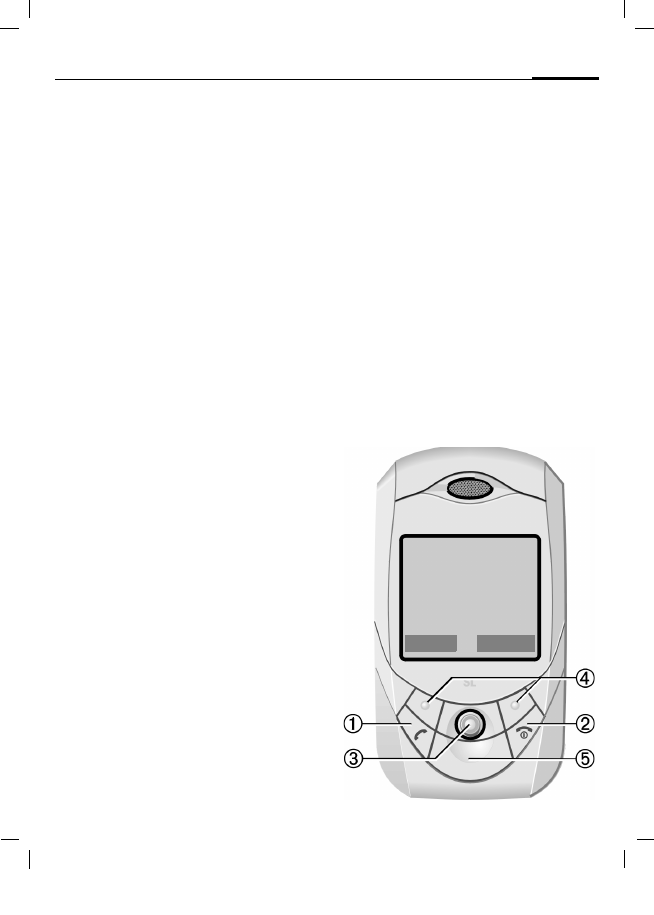
1 A Call key
Dial phone number/name displayed/
highlighted, take calls. Show last phone
numbers dialled in standby mode.
2 B On/Off/End key
• Switched off: Press and hold to
switch on.
• During a conversation or in an appli-
cation: press briefly to finish.
• In menus: Press briefly to go back
alevel.
Press and hold to go back to standby
mode.
• In standby mode: Press and hold
to switch off phone if the keypad
is closed.
• Keylock in standby mode, keypad
closed: Press briefly to lock keypad.
Press briefly and confirm with §OK§ to
unlock the keypad.
3 Joystick
C Press the joystick down vertical-
ly to start an application or func-
tion. The actual function is
shown between the soft keys .
In standby mode:
C Open main menu.
G Open user profiles.
H Open phonebook/addressbook.
E Main Inbox open
D Start the camera.
In lists, messages and menus:
I Scroll up and down.
D Back one level.
During a call:
I Set volume.
E Call options.
4 Soft keys
The current functions of this key are
shown in the bottom line of the display
as §Text§/symbol (e.g. p).
5 Internet access
Z£X
Service provider
01.05.2004 10:10
Inbox íNew SMS
© Siemens AG 2003, M:\Mobil\R65\SL65_Iris\am\fug\SL65_Overview.fm
Telephone list10
VAR Language: am; VAR issue date: 040317
left page (10) of SL65 Iris FUG us, A31008-H7700-A40-1-4A19 (24.05.2004, 17:17)
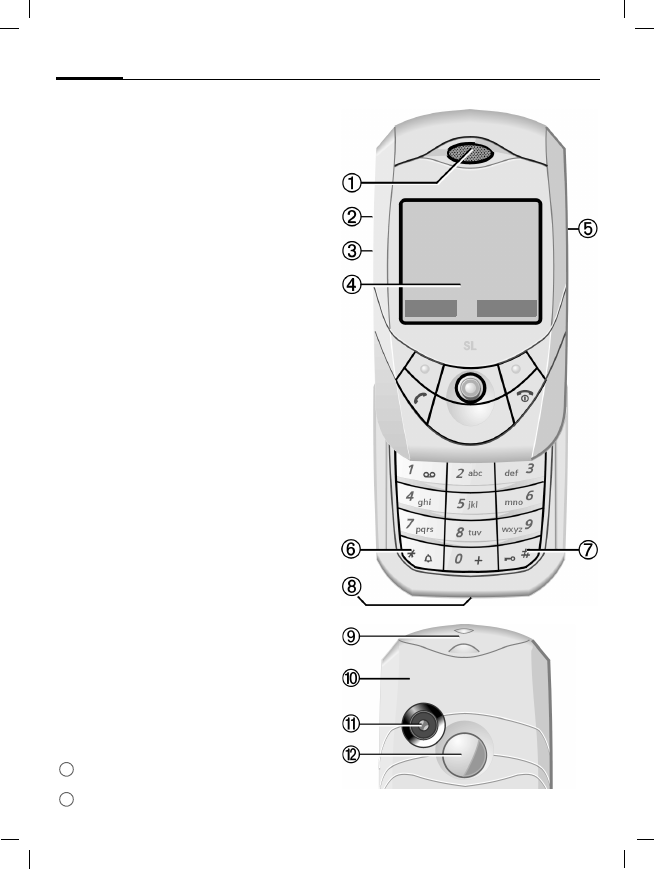
1 Loudspeaker
2 kl Plus/minus sidekey
• During a call: volume loud-quiet.
• In menus, lists and internet pages:
scroll up and down.
• In standby mode press side key:
Briefly at top: plays last memo.
Press and hold at bottom:
starts camera application.
3 Dictation key (in standby mode)
Press and hold: record.
Press briefly: play back.
4 Display
5 Infrared interface (IrDA)
6 * Ringtone
• Press and hold in standby mode:
Switch all audible signals on/off (ex-
cept alarm).
• Press and hold on incoming call:
Switch off ringtone for this call only.
7 # Key lock
Press and hold in standby mode:
Switch key lock on/off.
8 Connection socket
For charger, headset, flash, etc.
9 Car Kit support
: Integrated antenna
Do not obstruct the phone above the
battery cover unnecessarily. This re-
duces the signal quality.
Camera
Mirror for self portrait
11
12
Z£X
Service provider
01.05.2004 10:10
Inbox íNew SMS
© Siemens AG 2003, M:\Mobil\R65\SL65_Iris\am\fug\SL65_Overview.fm
11Telephone list
VAR Language: am; VAR issue date: 040317
left page (11) of SL65 Iris FUG us, A31008-H7700-A40-1-4A19 (24.05.2004, 17:17)
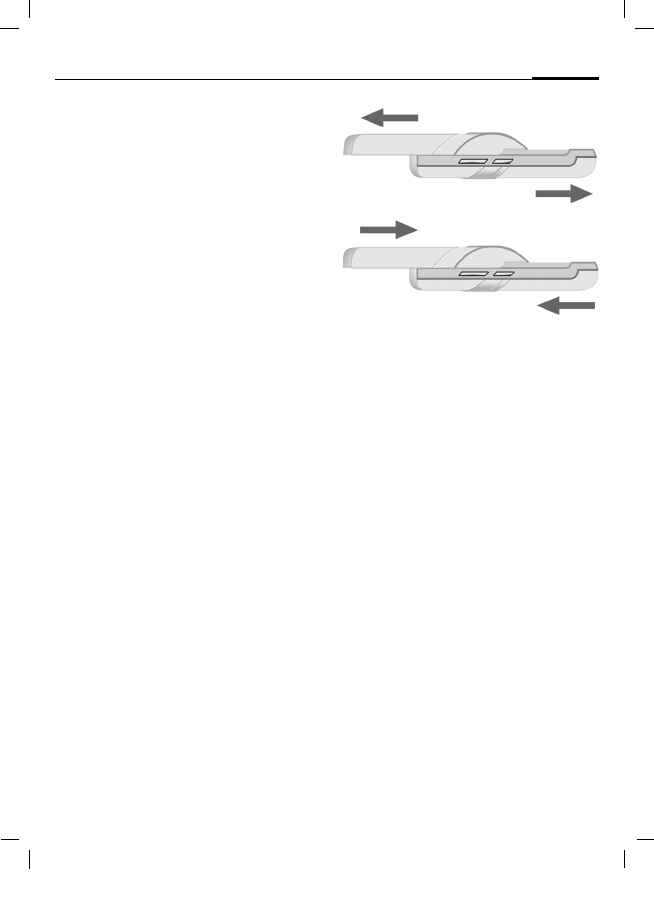
Open keypad completely
• Light on.
• Keypad unlocked.
• Opening melody on (if set).
• The call is accepted.
• Alarm sound off (appointment, alarm).
Close keypad completely
• Back to standby mode.
• Light off.
• Keypad locked (if set).
• Closing melody on (if set).
• The call is ended.
• The call is rejected.
• Alarm sound off (appointment, alarm).
© Siemens AG 2003, M:\Mobil\R65\SL65_Iris\am\fug\SL65_Displaysymbols.fm
Display symbols12
VAR Language: am; VAR issue date: 040317
left page (12) of SL65 Iris FUG us, A31008-H7700-A40-1-4A19 (24.05.2004, 17:14)
Display symbols
Display symbols (selection)
Z Signal strength
Y Charging
W Battery charge level,
e.g. 50 %
L Phonebook
P Records
O Surf & fun
Service supplier portal
Q Organiser
M Messages
R Camera
S Extras
N File management
T Settings
Ç All calls are diverted
¿ Ringing tone off
¾ Short ring (beep) only
¼ Ringer only if the caller is
stored in the Phonebook.
¹ Alarm set
Ä Keypad locked
Å Auto answer feature on
T9Abc Text input with T9
£ Activated and available
¢ Registered
¤ Temporarily interrupted
± Internet Offline
² Internet online
³ Internet via GPRS online
´ Internet no network
¯ IrDA activated
® IrDA transmission
Events (selection)
ã SIM memory full
ä MMS memory full
å Phone memory full
Æ No network access
 Missed call
Ê Memory assistant
© Siemens AG 2003, M:\Mobil\R65\SL65_Iris\am\fug\SL65_Displaysymbols.fm
13Display symbols
VAR Language: am; VAR issue date: 040317
left page (13) of SL65 Iris FUG us, A31008-H7700-A40-1-4A19 (24.05.2004, 17:14)
Message symbols (selection)
p Unread
q Read
r Draft
s Sent
t MMS not sent
w MMS received
x MMS read
y MMS with DRM contents
(p. 17)
z E-mail forwarded
{ E-mail with attachment
À Voice mail received
Camera symbols
È Photo mode
É Video mode
Ù Brightness
Ú Zoom factor
Û White balance
× Flash connected
© Siemens AG 2003, M:\Mobil\R65\SL65_Iris\am\fug\SL65_Startup.fm
Getting started14
VAR Language: am; VAR issue date: 040317
left page (14) of SL65 Iris FUG us, A31008-H7700-A40-1-4A19 (24.05.2004, 17:14)
Getting started
Inserting the SIM card/
battery
The service provider supplies you
with a SIM card on which all the im-
portant data for your line is stored. If
the SIM card has been delivered in
credit-card size, snap the smaller
segment out and remove any rough
edges.
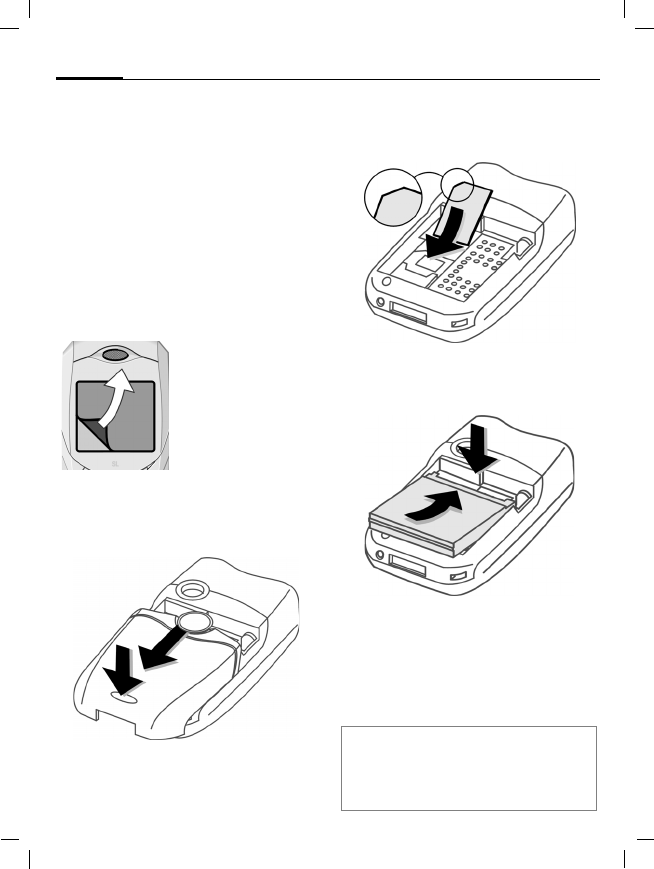
• Press the latch 1 and simulta-
neously push the cover towards
the front the direction indicated
by the arrow 2.
• Place the SIM card in front of the
slot with the contact surface fac-
ing downwards. Then press the
SIM card slightly to push it in 3
(ensure that the chamfered corner
is in the correct position).
• Insert the battery into the
phone 4, then press it down-
wards 5 until it engages.
• To remove, press the retaining tab
on the side of the battery, then lift
the battery out.
• Place the cover in position and
push it towards the front until it
latches into place.
Your phone's dis-
play is delivered
with a protective
film. Remove this
film before get-
ting started.
1
2
Additional information
Please switch off your phone before
removing the battery!
Only 3 V SIM cards are supported.
3
4
5
© Siemens AG 2003, M:\Mobil\R65\SL65_Iris\am\fug\SL65_Startup.fm
15Getting started
VAR Language: am; VAR issue date: 040317
left page (15) of SL65 Iris FUG us, A31008-H7700-A40-1-4A19 (24.05.2004, 17:14)
Charging the battery
Charging the battery
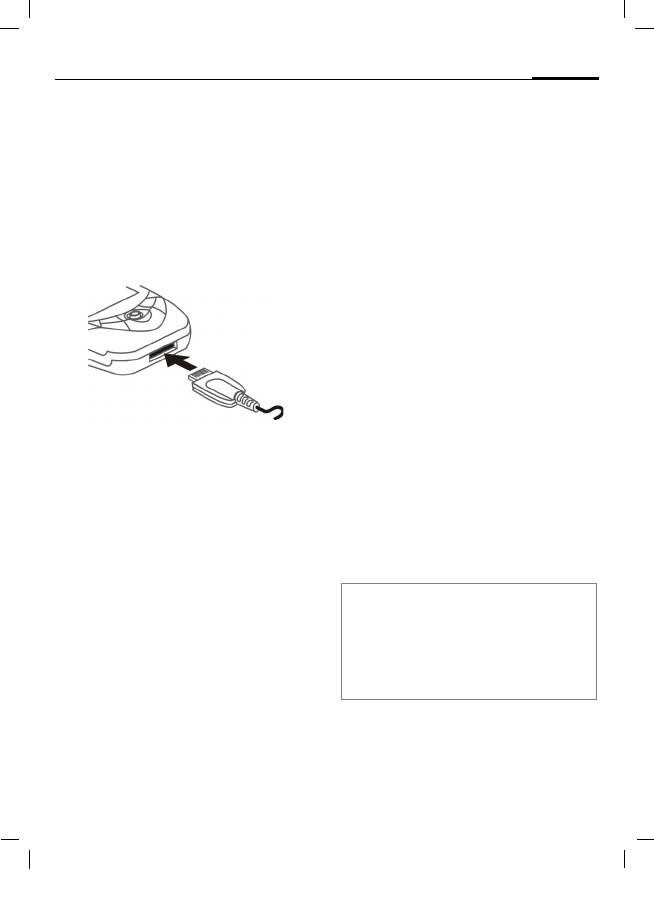
The battery is not fully charged
when delivered. Plug charger cable
into the bottom of the phone, plug
power supply unit into a mains pow-
er socket and charge for at least
two hours.
YDisplay during charging.
Charging time
An empty battery is fully charged af-
ter about 2 hours. Charging is only
possible within a temperature range
of +5 °C to 45 °C. If the temperature
rises/falls 5 °C above/below this, the
charge symbol flashes a warning.
The mains voltage specified on the
power supply unit must not be ex-
ceeded.
Operating time
The operating time depends upon
the respective conditions of use. Ex-
treme temperatures considerably re-
duce the phone’s standby time.
Avoid placing the phone in the sun
or on a heater.
Call time: 100 to 270 minutes
Stand-by time: 60 to 250 hours.
Charge icon not visible
If the battery has been discharged
fully, the charge icon is not immedi-
ately visible when the power supply
is plugged in. It will appear after up
to two hours. In this case the battery
is fully charged after 3 to 4 hours.
Only use the plug-in power supply in-
cluded in delivery!
Display while in service
Charge level display during opera-
tion (empty – full):
V W X
A beep sounds when the battery is
nearly empty. The charge level of
the battery is only displayed correct-
ly after an uninterrupted charging/
discharging cycle. You should there-
fore not remove the battery unnecessari-
ly and where possible not finish the
charging process prematurely.
Additional information
The power supply unit heats up when used
for long periods. This is normal and not
dangerous.
If the battery is removed for longer than
30 seconds, the clock must be reset.

© Siemens AG 2003, M:\Mobil\R65\SL65_Iris\am\fug\SL65_Startup.fm
Switching phone on and off/entering PIN16
VAR Language: am; VAR issue date: 040317
left page (16) of SL65 Iris FUG us, A31008-H7700-A40-1-4A19 (24.05.2004, 17:14)
Switching phone on and off/entering PIN
Switching phone on
and off
BPress and hold.
Enter PIN
The SIM card can be protected with
a4to 8-digit PIN.
JOpen keypad. Enter the
PIN using the number
keys. The characters ****
appear to ensure
nobody can read your
PIN on the display.
Correction with ].
CConfirm by pressing the
joystick. Logging on to
the network will take a
few seconds.
Emergency number
(SOS)
Only to be used in real emergencies!
By pressing the soft key §SOS§ you can
make an emergency call on any net-
work without a SIM card and without
entering a PIN (not available in all
countries).
Switching on your phone
for the first time
Time/date
During commissioning, set the clock
so that it displays the correct time.
You will not have to make this
setting again.
CPress this key, then select
§Change§.
JOpen keypad. First enter
the date (day/month/
year), then the time
(24 hours, including sec-
onds).
CPress this key. The time
and date are updated.
Time zones
Set the time zone for your area.
ISelect the city in the de-
sired time zone
§Set§ and specify this firmly.
Copying SIM addresses
The first time the SIM card is insert-
ed, the entries on it can be copied to
the Addressbook. Please do not inter-
rupt this procedure. During this time,
do not accept incoming calls. Follow
the instructions in the display.
You can also copy data from the SIM
card at a later time (p. 40).
© Siemens AG 2003, M:\Mobil\R65\SL65_Iris\am\fug\SL65_Startup.fm
17General instructions
VAR Language: am; VAR issue date: 040317
left page (17) of SL65 Iris FUG us, A31008-H7700-A40-1-4A19 (24.05.2004, 17:14)
General instructions
Standby mode
The phone is in standby mode and is
ready for use when the name of the
service provider appears on the dis-
play. If you now close the keypad,
the phone remains in standby mode.
BPress and hold the On/Off/
End key to return to
standby mode from any
situation.
Signal strength
ZStrong receive signal.
[A weak signal reduces the
call quality and may lead
to loss of the connection.
Change your location.
Digital Rights Mgmt.
(DRM)
Remember that your telephone has
digital rights management. The use
of downloaded pictures, sounds or
appliations can be restricted by the
suppliers, e.g. copy protection, use
for a limited period of time only,
number of times it can be used etc.
(see also p. 79).
Main menu
The main menu is displayed graphi-
cally with symbols:
CCall up from standby
mode.
F ISelect the application
symbols.
CStart an application.
Main menu options
§Options§ Open menu.
Different functions are available de-
pending on the context:
Large letters Selection between two
font sizes.
Illumination Set display light brighter/
darker.
Help Display of a help text.

© Siemens AG 2003, M:\Mobil\R65\SL65_Iris\am\fug\SL65_Startup.fm
General instructions18
VAR Language: am; VAR issue date: 040317
left page (18) of SL65 Iris FUG us, A31008-H7700-A40-1-4A19 (24.05.2004, 17:14)
User guide
Menu controls
The steps needed to reach a function
are shown in a condensed form in the
user guide, e. g. to display call list for
missed calls in condensed form:
C¢P¢Missed calls
This comprises the following steps:
COpen the main menu.
¢ Select P, then function
Missed calls.
CConfirm.
Symbols
The following symbols are used to
explain operation:
CPress joystick
The symbol in the centre of the low-
er line of the display shows the cur-
rent function when the joystick is
pressed down vertically.
íDisplay menu
îTake photos
ïZoom
ðCancel
ìSelect, Change, OK
ñCall, accept call
J Enter numbers/letters
B On/Off/End key
A Call key
< > Soft keys
§Menu§ Displays a soft-key
function.
C Press the joystick vertically,
e.g., to call up the menu.
D F E
H I G
Press the joystick in the
direction indicated.
= Function dependent on ser-
vice provider, special regis-
tration may be required.
© Siemens AG 2003, M:\Mobil\R65\SL65_Iris\am\fug\SL65_Startup.fm
19Standard functions
VAR Language: am; VAR issue date: 040317
left page (19) of SL65 Iris FUG us, A31008-H7700-A40-1-4A19 (24.05.2004, 17:14)
Standard functions
Option menus
Functions which appear repeatedly
in the options menu are listed here.
§Options§ Open menu.
Edit Open the entry to edit.
View Display entry.
Delete/
Delete all Delete entry/delete all en-
tries after confirmation.
New entry Create new entry.
Send... Select transmission service
and medium for sending.
Reply/
Reply to all The sender becomes the
recipient, "Re." is placed in
front of the subject matter
and the received text is
transferred into the new
message.
Save Store entry.
Save to 9Save recipients in the cur-
rent address directory.
Sort Set sort criteria (alphabeti-
cal, type, time).
Text input
(p. 23)
T9 preferred: Activate/de-
activate T9 input.
Input language: Select
language for text.
Rename Rename selected entry.
Capacity Display memory capacity.
Attributes Display properties of the
highlighted object.
Drive info Display name, free memo-
ry and size of actual drive.
Help Display help text.
© Siemens AG 2003, M:\Mobil\R65\SL65_Iris\am\fug\SL65_Startup.fm
Standard functions20
VAR Language: am; VAR issue date: 040317
left page (20) of SL65 Iris FUG us, A31008-H7700-A40-1-4A19 (24.05.2004, 17:14)
Highlighting mode
With some applications (e.g. Phone-
book/Addressbook) one or more en-
tries in a list can be highlighted to
carry out a function jointly.
§Options§ Open menu.
Mark Activate highlighting
mode.
If a non-highlighted entry is selected,
this can be highlighted:
§Mark§ The current entry is high-
lighted.
If a highlighted entry is selected, the
highlighting can be deleted:
§Unmark§ Dehighlight the current
entry.
Additional highlighting functions:
Menu speed dialling
All menu functions are numbered in-
ternally. A function may be selected
directly by entering these numbers
in sequence.
E.g., write new SMS (from standby
mode):
CPress this key to display
the main menu.
5Press this key for
Messages.
1Press this key to
Create new.
1Press this key for SMS.
Mark all Highlight all entries.
Deselect all Delete highlighting on all
marked entries.
Delete
marked All selected entries are
deleted.
Additional information
In lists use also the Dictation key to mark/
unmark entries.
© Siemens AG 2003, M:\Mobil\R65\SL65_Iris\am\fug\SL65_Startup.fm
21Security
VAR Language: am; VAR issue date: 040317
left page (21) of SL65 Iris FUG us, A31008-H7700-A40-1-4A19 (24.05.2004, 17:14)
Security
The phone and SIM card are protect-
ed against misuse by several security
codes.
Codes
C¢T¢Security¢Codes
¢Select function.
PIN control
The PIN is usually requested each
time the phone is switched on. You
can deactivate this feature but you
risk unauthorised use of the phone.
Some service providers do not per-
mit deactivation of the controls.
§Selection§ Press this key.
JEnter PIN.
CConfirm input.
§Change§ Press this key.
CConfirm.
Change PIN
You can change the PIN to any
4 to 8-digit number you find easier
to remember.
JEnter current PIN.
CPress this key.
J, CEnter new PIN.
J, CRe-enter new PIN.
Keep these confidential numbers in a
safe place where you can access them
again if required.
PIN Protects your SIM card (person-
al identification number).
PIN2 This is needed to set the charge
detail display and to access
additional functions on special
SIM cards.
PUK
PUK2 Key code. Used to unlock SIM
cards after the wrong PIN has
been entered repeatedly.
Phone
code Protects your phone. Must be
entered at the first security set-
ting.

© Siemens AG 2003, M:\Mobil\R65\SL65_Iris\am\fug\SL65_Startup.fm
Security22
VAR Language: am; VAR issue date: 040317
left page (22) of SL65 Iris FUG us, A31008-H7700-A40-1-4A19 (24.05.2004, 17:14)
C¢T¢Security¢Codes
¢Select function.
Change PIN2
(Display only if PIN2 is available).
Proceed as with Change PIN.
Chg.phonecode
(Change phone code)
You define the phone code (4–8 dig-
its) when you call up a phone-code
protected function for the first time
(e.g. Direct call, p. 33). It is then valid
for all phone-code protected func-
tions.
Following the third unsuccessful at-
tempt, access to the phone code and
the functions that use it is denied.
Contact the Siemens Service
(p. 125).
Clearing SIM card barring
If the PIN is entered incorrectly three
times, the SIM card is barred. Enter
the PUK (MASTER PIN) provided by
your service provider with the SIM
card in accordance with the instruc-
tions. If the PUK (MASTER PIN) has
been lost, please contact your ser-
vice provider.
Preventing accidental
activation
Even if PIN use is deactivated (p. 21)
confirmation is required to switch on
the phone.
This prevents accidental activation
of the phone, e.g. when you are
carrying it in a bag or when you are
travelling in an aircraft.
BPress down.
CPress. The phone switches
on.
§Cancel§ Press or take no action.
The phone does not
switch on.
© Siemens AG 2003, M:\Mobil\R65\SL65_Iris\am\fug\SL65_Text.fm
23Text entry
VAR Language: am; VAR issue date: 040317
left page (23) of SL65 Iris FUG us, A31008-H7700-A40-1-4A19 (24.05.2004, 17:14)
Text entry
Text entry without T9
Press number key repeatedly until
the required letter appears. After a
brief interval the cursor will advance.
Example:
2Press once briefly to type
the letter a, twice to
type b etc.
Press and hold to write the
number.
Ä, ä, 1–9 Umlauts and numbers are
displayed after the rele-
vant letters.
]Press briefly to delete the
letter before the cursor,
press and hold to erase the
whole word.
FMove the cursor
(forwards/back).
#Press briefly: Swap be-
tween abc, Abc, T9abc,
T9Abc, T9ABC, 123. Status
shown in top line of dis-
play.
Press and hold: All input-
variants are displayed.
*Press briefly: Special char-
acters are shown.
Press and hold: Open input
menu.
0Press once/repeatedly:
. , ? ! ’ " 0 + - ( ) @ / : _
Press and hold: Writes 0.
1Writes blank. Press twice
= jumps a line.
Special characters
*Press briefly. The symbols
chart is displayed
1) Line break
I, FNavigate to characters.
§Selection§ Confirm.
1)¿ ¡ _ ; ! ? , .
+-"’:()/*
¤¥$£€&#\@
[]{}%~<=>
|^§Γ ∆ Θ Λ Ξ Π
Σ Φ Ψ Ω

© Siemens AG 2003, M:\Mobil\R65\SL65_Iris\am\fug\SL65_Text.fm
Text entry24
VAR Language: am; VAR issue date: 040317
left page (24) of SL65 Iris FUG us, A31008-H7700-A40-1-4A19 (24.05.2004, 17:14)
Input menu
With text input:
*Press down: The input
menu is displayed:
Text format (SMS only)
Input language
Mark text
Copy/Paste
Text entry with T9
"T9" deduces the correct word from
the individual key entries by making
comparisons with an extensive dic-
tionary.
Activate, deactivate T9
§Options§ Open text menu.
Text input Select.
T9 preferred
Select.
§Change§ Activate T9.
Select input language
Select the language in which you
want to compose your message.
§Options§ Open text menu.
Text input Select.
Input language
Select.
§Selection§ Confirm, the new lan-
guage is set. Languages
with T9 support are
marked with the
T9 symbol.
Writing with T9
Since the display changes as you pro-
ceed,
it is best if you finish a word without
looking at the display.
Simply press the keys once only
where the relevant letter is located.
For "hotel", for example:
#Press briefly for T9Abc then
4 6 8 3 5
1A blank ends a word.
Do not use special characters such as
Ä but rather use the standard charac-
ters, e.g. A; T9 will do the rest for
you.
T9® Text Input is licensed under one or more of
the following:
U.S. Pat. Nos. 5,818,437, 5,953,541,
5,187,480, 5,945 928 and 6,011,554;
Canadian Pat. No. 1,331,057;
United Kingdom Pat. No. 2238414B;
Hong Kong Standard Pat. No. HK0940329;
Republic of Singapore Pat. No. 51383;
Euro.Pat. No. 0 842 463 (96927260.8)
DE/DK, FI, FR, IT, NL, PT, ES, SE, GB;
and additional patents are pending worldwide.

© Siemens AG 2003, M:\Mobil\R65\SL65_Iris\am\fug\SL65_Text.fm
25Text entry
VAR Language: am; VAR issue date: 040317
left page (25) of SL65 Iris FUG us, A31008-H7700-A40-1-4A19 (24.05.2004, 17:14)
T9 word suggestions
If several options are found in the
dictionary for a key sequence (a
word), the most probable is dis-
played first. If the word you want has
not been recognised, the next sug-
gestion from T9 may be correct.
The word must §highlighted§ be dis-
played. Then press
^again. The displayed word
is replaced with a differ-
ent word. If this word is
also incorrect, press
^again. press until the cor-
rect word is displayed.
If the word you want is not in the
dictionary, it can also be written
without T9.
To add a word to the dictionary:
§Learn§ Select.
The last suggestion is deleted and
the word may now be entered with-
out T9 support. Press §Save§ to add it
automatically to the dictionary.
Correct a word
FMove left or right,
word by word, until
the required word is
§highlighted§.
^Scroll through the T9
word suggestions again.
]Deletes the character to
the left of the cursor and
displays a new possible
word!
Additional information
Within a "T9-word", individual letters may
not be edited without first removing the
T9-status. In most cases it is better to re-
write the complete word.
0Set a full stop. The word is
concluded if it is followed by
a space. Within a word, a full
stop represents an apostro-
phe or hyphen:
e.g. §provider.s§ = provider’s.
EMoving the cursor to the right
ends the word.
#Press briefly: Switch be-
tween: abc, Abc, T9abc,
T9Abc, 123. Status shown in
top line of display.
Press and hold: All input
modes are displayed.
*Press briefly: Select special
characters (p. 23).
Press and hold: Open input
menu (p. 24).

© Siemens AG 2003, M:\Mobil\R65\SL65_Iris\am\fug\SL65_Text.fm
Text entry26
VAR Language: am; VAR issue date: 040317
left page (26) of SL65 Iris FUG us, A31008-H7700-A40-1-4A19 (24.05.2004, 17:14)
Text modules
Text modules can be stored in the
phone for adding to your messages
(SMS, MMS, e-mail).
Write text modules
C¢M¢Text modules
§Options§ Select New text.
JWrite text module.
§Options§ Open menu and select
Save. Accept the specified
name or allocate a
new one.
CSave.
Use text modules
JWrite message
(SMS, MMS, e-mail).
§Options§ Open text menu.
§Insert§ Select.
ISelect Text modules.
ISelect text module from
the list.
§Selection§ Confirm. The text module
is displayed.
CConfirm. The text module
is inserted in the message
to the right of the cursor.

© Siemens AG 2003, M:\Mobil\R65\SL65_Iris\am\fug\SL65_MyPhone.fm
27My phone
VAR Language: am; VAR issue date: 040317
left page (27) of SL65 Iris FUG us, A31008-H7700-A40-1-4A19 (24.05.2004, 17:14)
My phone
Adjust your phone according to your
own wishes in the following ways to
give it a personal touch:
Ringtones (p. 85)
Assign individual ringtones to caller
groups or special dates.
Pictures (p. 117)
Assign individual pictures or photos
to your Addressbook entries.
Animations (p. 84)
Choose a start-up and closing anima-
tion as well as a personal greeting.
Themes (p. 82)
Load a completely new graphical lay-
out for the display.
Screensaver (p. 83)
Choose an analogue or digital clock,
or a personal picture.
(Operator) Logo (p. 83)
Choose an individual picture (to be
displayed in standby mode).
Wallpaper (p. 83)
Choose your own permanent back-
ground image.
Colour scheme (p. 83)
Select a colour scheme for the user
interface.
Applications (p. 78)
Download your own applications
from the Internet.
Where do I get what?
You can purchase additional ring-
tones, logos, animations and Java
applications from your service pro-
vider or directly from Siemens.
Service supplier portal
Depending on your service provider,
you will find direct access to his por-
tal on your telephone via menu
items or bookmarks. Please contact
your service provider for more infor-
mation on these services.
Siemens Mobile Portal
You will find additional ringtones,
logos, animations and screensavers
as well as more application, games
and services in the Internet at this
address:
www.siemens-mobile.com
Or you can download them directly
via internet.
wap.siemens-mobile.com
You will also find a service for saving
data here as well as a list of the coun-
tries in which these services are
available.
My menu
Create your own menu with fre-
quently (p. 101) used functions,
phone numbers or internet pages.

© Siemens AG 2003, M:\Mobil\R65\SL65_Iris\am\fug\SL65_Phone.fm
Calling28
VAR Language: am; VAR issue date: 040317
left page (28) of SL65 Iris FUG us, A31008-H7700-A40-1-4A19 (24.05.2004, 17:14)
Calling
Dialling with number
keys
The phone must be switched on
(standby mode) and the keypad
must be open.
JEnter the number (always
with prefix/international
dialling code).
] A short press clears
the last digit, a long press
clears the entire phone
number.
APress the Call key. The dis-
played phone number is
dialled.
End call
BPress the End key briefly.
Press this key even if the
person on the other end
of the line has hung up
first.
Or Close keypad.
Set volume
IRegulate the volume
(only possible during a
call).
Or
kl Using the plus/minus side
key (press top/bottom).
If a Car Kit is used, its volume setting
will not affect the usual setting on
the phone.
Redial previous numbers
To redial the phone number last
called:
APress the Call key twice.
To redial other numbers that were
dialled previously:
APress the Call key once.
IPick out the phone num-
ber from the list.
APress this key to select the
phone number.

© Siemens AG 2003, M:\Mobil\R65\SL65_Iris\am\fug\SL65_Phone.fm
29Calling
VAR Language: am; VAR issue date: 040317
left page (29) of SL65 Iris FUG us, A31008-H7700-A40-1-4A19 (24.05.2004, 17:14)
If the number is busy
If the called number is busy or can-
not be reached because of network
problems several options are avail-
able (depending on the service pro-
vider). An incoming call or any other
use of the phone interrupts these
functions.
Either
Auto redial
§Auto dial§ The phone number is au-
tomatically dialled ten
times at increasing time
intervals. End with:
B End key.
Or
Call back b
§Call back§ Your phone rings when
the busy number is free.
Press the Call key to dial
the number.
Reminder
§Prompt§ A beep reminds you to re-
dial the displayed phone
number after 15 minutes.
Additional information
ÐStore phone number in the
Addressbook/Phonebook.
§Handsfr.§ Handsfree switch on (play-
back from loudspeaker).
Always switch off "handsfree
talking" before holding the
phone to your ear! Otherwise,
you will damage your hearing!
*Press and hold to switch
microphone off.
International dialling codes
0Press and hold until a "+" is
displayed.
§Country§ Press and select country.
Phone number memo
You can enter a phone number during the
call. The person to whom you are speaking
can hear these entries. When the connec-
tion has ended you can save or dial the
phone number.
Slider
Placing and accepting a call function only
with opened slider (excepetion: use of
headset).
© Siemens AG 2003, M:\Mobil\R65\SL65_Iris\am\fug\SL65_Phone.fm
Calling30
VAR Language: am; VAR issue date: 040317
left page (30) of SL65 Iris FUG us, A31008-H7700-A40-1-4A19 (24.05.2004, 17:14)
Accept call
The phone must be switched on. An
incoming call will interrupt any other
use of the phone.
CPress.
Or
APress.
A phone number and the name of
the caller transmitted by the net-
work will be displayed if the number
is saved in the Phonebook/Address-
book. A picture of the caller may also
be displayed (p. 36).
If the keypad is closed, press the soft
key §Mute§ to disable the ringer for the
current call.
Reject call
§Reject§ Press.
Or
BPress briefly.
Or Close keypad.
Handsfree
You can put the phone aside during
a call. You can then hear the caller
via the loudspeaker.
§Handsfr.§ Activate handsfree
talking.
CSwitch on.
IUse the joystick to adjust
the volume.
§Handsfr.§ Deactivate.
Warning!
Please make sure you have accepted the
call before holding the phone to your ear.
This will avoid damage to your hearing
from loud ringtones.
Additional information
*Press and hold to switch off
the ringing tone and vibration
temporarily.
ÂMissed call display.
Warning!
Always switch off "handsfree talking" be-
fore holding the phone to your ear! Other-
wise, you will damage your hearing!

© Siemens AG 2003, M:\Mobil\R65\SL65_Iris\am\fug\SL65_Phone.fm
31Calling
VAR Language: am; VAR issue date: 040317
left page (31) of SL65 Iris FUG us, A31008-H7700-A40-1-4A19 (24.05.2004, 17:14)
Swapping between
2 calls
Establish a second connection
You can call another number during
a call.
§Options§ Open call menu.
Hold The current call is put on
hold.
JNow dial the new phone
number or
§Options§, select the Phone-
book, Addressbook, or
phone number.
When the new connection is estab-
lished:
§Toggle§ Swapping between calls.
Incoming calls during a call
You may need to register for this ser-
vice with your service provider and
set your phone accordingly (p. 87).
During a call, you may be advised
that there is another call waiting.
You will hear a special tone during
the call. You have the following op-
tions:
Accept the waiting call in addition
to the first
§Toggle§ Accept the waiting call,
putting the current call on
hold to do so.
Always proceed as above to swap be-
tween the two calls.
Reject the waiting call
§Reject§ Press.
Or
§Divert§ The waiting call is divert-
ed, for example, to the
mailbox.
Accept the waiting call and end the
current call
BEnd the current call.
CAccept new call.
Ending call(s)
BPress the End key.
Or Close keypad.
After the Return to held call? display,
you have the following selection:
§Yes§ You accept the call on
hold.
§No§ You end the 2nd call.
© Siemens AG 2003, M:\Mobil\R65\SL65_Iris\am\fug\SL65_Phone.fm
Calling32
VAR Language: am; VAR issue date: 040317
left page (32) of SL65 Iris FUG us, A31008-H7700-A40-1-4A19 (24.05.2004, 17:14)
Conference
Call up to 5 parties one by one and
link them together in a multiparty
call. Some of the functions described
may not be supported by your ser-
vice provider or may have to be en-
abled specially.
A connection has already been
established:
§Options§ Open menu and select
Hold. The current connec-
tion is maintained.
JNow dial a new number.
When the new connec-
tion is established ...
§Options§ … open menu and select
Conference. The held call is
joined.
Repeat procedure until all partici-
pants are linked together (up to
5participants).
End
BAll calls in the multiparty
conversation are ended
when the End key is
pressed.
Or Close keypad.
Call options
The following functions are only
available during a call:
§Options§ Open menu.
Hold Maintain current call.
Microphone
on If switched off, the person
on the other end of the line
cannot hear you (muting).
Also: * Press and hold.
Handsfree Call via the loudspeaker.
Volume Adjust handset volume.
Default book Phonebook/Addressbook.
Conference (p. 32)
Time/
charges Display duration of call up
to now and (if set) the
charges incurred while the
call is in progress.
Send DTMF Enter tone sequences
(numbers) for remote in-
quiries to an answering
machine.
Call
transfer = Connect current call to a
second call. For you, both
calls are now ended.
Main menu Access to the main menu.
Call status List all held and active calls
(e.g. participants in a con-
ference).

© Siemens AG 2003, M:\Mobil\R65\SL65_Iris\am\fug\SL65_Phone.fm
33Calling
VAR Language: am; VAR issue date: 040317
left page (33) of SL65 Iris FUG us, A31008-H7700-A40-1-4A19 (24.05.2004, 17:14)
Direct call
If this is active, only one number can
be dialled.
Switch on
C¢T¢Security¢Direct call
CConfirm selection.
JEnter phone code.
When first prompted you define and
enter the phone code (4–8 digits).
CConfirm selection.
Please do not forget this code (p. 21)!
Ï/JSelect phone number
from the Phonebook/Ad-
dressbook or enter it.
CConfirm.
Apply
§Carola§ To dial the phone number
(e.g. Carol’s phone num-
ber), press and hold the
right display key.
Switch off
#Press down:
JEnter phone code.
CConfirm input.
Tone sequences (DTMF)
You can, for example, enter control
codes (numbers) for remote access
to an automatic answering machine
while another connection exists. These
entries are transmitted directly as
DTMFcodes (control codes).
§Options§ Open menu.
Send DTMF
Select.
Using the Phonebook/
Addressbook
Store phone numbers and control
codes (DTMF codes) in the Phone-
book/Addressbook in the same way
as a normal entry.
JEnter phone number.
0Press until a "+" appears in
the display (wait for the
connection to be estab-
lished).
JEnter DTMF codes
(numbers).
0If necessary, wait again
for three seconds at a
time for the receiver to
process the entries safely.
JEnter a name.
§Save§ Store entry.
You may also store just the DTMF
codes (numbers) and then send
them during the call.
© Siemens AG 2003, M:\Mobil\R65\SL65_Iris\am\fug\SL65_Pref_Book.fm
Default book34
VAR Language: am; VAR issue date: 040317
left page (34) of SL65 Iris FUG us, A31008-H7700-A40-1-4A19 (24.05.2004, 17:14)
Default book
C¢L¢Select function.
Show entries
The entries in the standard directory
(Addressbook or Phonebook) are
shown.
J/ISelect a name with the
first letter and/or scroll.
New entry
Create new entry.
Phonebook (see also p. 39)
Address book (see also p. 35)
Default book
You can set a particulary directory as
your preferred one to use.
The selected standard book is
opened in standby mode with the
joystick.
HOpen Phonebook or
Addressbook
Address book
In the Addressbook, a lot of data can
be recorded for each entry and addi-
tional functions such as pictures,
birthdays, chat can be used.
Phonebook
The Phonebook is located on the SIM
card. Only one phone number can be
entered per entry. The Phonebook
on the SIM card can easily be trans-
ferred into a different telephone.
Business card
Create your own business card to
sent to a different GSM-phone. If no
business card has been created yet,
you will be asked for your input.
HMove from field to field to
enter your details.
§Save§ Press.
Groups
See p. 38.
<Info numbers>
See p. 41.
Additional information
The content of the business card corre-
sponds to international standards (vCard).
ÏCopy numbers from Address-
book/Phonebook.
© Siemens AG 2003, M:\Mobil\R65\SL65_Iris\am\fug\SL65_Adressbook.fm
35Address book
VAR Language: am; VAR issue date: 040317
left page (35) of SL65 Iris FUG us, A31008-H7700-A40-1-4A19 (24.05.2004, 17:14)
Address book
The Addressbook can store up to
1000 entries, each with a variety of
telephone and fax numbers as well
as additional address details. These
entries are managed separately from
those in the Phonebook in the phone
memory. However, you can ex-
change data between the Address-
book and the Phonebook on the
SIM card.
New entry
The address book is set as standard:
HOpen Addressbook
(in standby mode)
CDisplay input fields.
ISelect requiredinput
fields.
JFill in input fields. The
maximum number of
characters available is
shown at the top of the
display.
At least one name must
be entered. Always enter
phone number with
prefix.
Possible input fields
Additional information
Group: Allocation to a group
(p. 38).
Address: Extension to enter the
complete address:
Street:, ZIP:, City:, Country:
Com. services
Information if the entry
is being used as a chat
contact (p. 66):
Nickname:, WV user ID:, ICQ
number:, AIM screen name:
Last name: URL:
First name: Inst. Msg. >>
Phone number: Group:
Phone/office: Company:
Phone/cell: Address: >>
Fax: Birthday: >>
Fax #2: Picture:
E-mail address:
Email #2: All fields
© Siemens AG 2003, M:\Mobil\R65\SL65_Iris\am\fug\SL65_Adressbook.fm
Address book36
VAR Language: am; VAR issue date: 040317
left page (36) of SL65 Iris FUG us, A31008-H7700-A40-1-4A19 (24.05.2004, 17:14)
Birthday: After activation, the date
of birth is entered.
Reminder: The telephone
reminds you one day be-
fore the birthday at the
time entered.
Picture: Assign a picture to the
entry:
From camera, In"My stuff",
No picture
It is displayed if you are
called by the correspond-
ing phone number.
All fields/Reduced fields
Display of number of
input fields.
§Save§ Save the entry.
Display/find entry
HOpen Addressbook
(in standby mode).
ISelect required entry.
CDisplay.
Display options
§Options§ The options menu only
ever offers the functions
for the currently selected
input field.
Additional information
ÎTemporary switch to
Phonebook.
Synchronisation
Siemens’s MPM (Mobile Phone Manager,
p. 119) supports Addressbook manage-
ment by Windows® PCs.
Using Remote sync. you can synchronise
your mobile with an organiser stored on the
Internet (see also p. 114).
Move to ... Allocate current or high-
lighted entries to a group.
View Display an allocated
picture.
Copy to SIM Copies name and one
phone number to the SIM
card (Phonebook).
New SMS,
New MMS,
New e-mail
Create a message with the
selected entry.
Browser Start internet browser
and visit URL.
Inst. Msg. Begin chat p. 66.
(For standard functions see p. 19)
© Siemens AG 2003, M:\Mobil\R65\SL65_Iris\am\fug\SL65_Adressbook.fm
37Address book
VAR Language: am; VAR issue date: 040317
left page (37) of SL65 Iris FUG us, A31008-H7700-A40-1-4A19 (24.05.2004, 17:14)
Change entry
HOpen Addressbook
(in standby mode).
ISelect required entry.
§Edit§ Press.
ISelect input field.
§Edit§ Open entry.
JMake changes.
§Save§ Save.
Dialling an entry
HOpen Addressbook
(in standby mode).
J/ISelect a name with the
first letter and/or scroll.
AThe number is dialled.
If there are several numbers in the
address book entry, these are of-
fered for selection.
ISelect phone number.
AThe number is dialled.
Address book options
Depending on the actual situation,
different functions will be offered.
These functions can be applied to
the entry currently selected as well
as to multiple selected entries:
§Options§ Open menu.
Move to ... Allocate current or high-
lighted entries to a group.
Copy to SIM Copies name and number
to the SIM card (Phone-
book).
Filter Only those entries which
match the filter criteria are
displayed.
Import Set up readiness to receive
for a Phonebook entry via
IrDA (p. 92) or SMS (p. 48).
Sort Specify sorting criteria for
output of the Addressbook
entries.
Search Enter search term.
(For standard functions see p. 19)
© Siemens AG 2003, M:\Mobil\R65\SL65_Iris\am\fug\SL65_Adressbook.fm
Address book38
VAR Language: am; VAR issue date: 040317
left page (38) of SL65 Iris FUG us, A31008-H7700-A40-1-4A19 (24.05.2004, 17:14)
Groups
Nine groups are specified in your
phone to enable you to arrange your
Addressbook entries clearly. You can
rename seven groups.
HOpen Addressbook
(in standby mode).
<Groups> Select (the number of en-
tries is listed behind the
group name).
ISelect group.
Groups menu
§Options§ Open menu.
Ringing tone for group
Assign a ringtone to a group that
plays when one of its members
calls you.
C¢T¢Ring tones
¢Group calls
ISelect group.
CConfirm. If a ringtone has
already been set, it will be
played. Otherwise, the
ringtone list will be dis-
played and you can
select one.
I If necessary, select a
ringtone.
CConfirm.
Rename
group Change name of group.
Group
symbol Assign a symbol to a group.
The symbol must then appear
in the display when one of the
group members calls.
Additional information
No group: Contains all Addressbook
entries that do not belong to a group
(name cannot be changed).
Received: Contains Addressbook entries
received by IrDA (p. 92) or SMS (p. 48)
(name cannot be changed).

© Siemens AG 2003, M:\Mobil\R65\SL65_Iris\am\fug\SL65_Phonebook.fm
39Phonebook
VAR Language: am; VAR issue date: 040317
left page (39) of SL65 Iris FUG us, A31008-H7700-A40-1-4A19 (24.05.2004, 17:14)
Phonebook
Entries in the Phonebook (on the SIM
card) are managed separately from
those in the Addressbook. You can,
however, exchange data between
the Phonebook and the Address-
book.
New entry
If the Phonebook has been selected
as standard:
HOpen Phonebook
(in standby mode).
HSelect <New entry>.
CDisplay input fields.
ISelect input field.
JFill in input fields. The
maximum number of
characters available is
shown at the top of the
display.
Phone number:
Always enter phone number with
prefix. An entry is not saved without
a phone number.
Name:
Enter first and/or last names.
Group:
Default: No group
Important phone numbers are com-
bined together in a group (VIP).
Note that group VIP is different from
same group in Addressbook.
Location:
Default SIM
Special SIM cards can save phone
numbers in a protected area (SIM pro-
tected) (PIN2 required).
Record #:
Each entry is automatically assigned
a record number. You can also dial
using the record number.
§Save§ Press to store the new
entry.
Additional information
ÎTemporary switch to Address-
book.
§Country§ International dialling code ....p. 29
Funktionen zur Text entry..................p. 23
Siemens’s MPM (Mobile Phone Manager,
p. 119) supports Addressbook manage-
ment by Windows® PCs.
© Siemens AG 2003, M:\Mobil\R65\SL65_Iris\am\fug\SL65_Phonebook.fm
Phonebook40
VAR Language: am; VAR issue date: 040317
left page (40) of SL65 Iris FUG us, A31008-H7700-A40-1-4A19 (24.05.2004, 17:14)
Call (search for an entry)
HOpen Phonebook.
J /ISelect a name with the
first letter and/or scroll.
ANumber is dialled.
Call using record no.
A record number is automatically
assigned to every new entry in
Phonebook.
JEnter record number.
#Press.
APress.
Change entry
ISelect entry in Phone-
book.
§Edit§ Press and select Edit.
ISelect desired input field.
JMake changes.
§Save§ Press.
Phonebook options
The following functions are
available, depending on the current
situation.
§Options§ Open menu.
Copy to 9Copy all highlighted en-
tries to the Address-
book.
Copy all to 9Copy all entries to the
Addressbook.
Delete all The entire Phonebook
is deleted.
PIN-protected
Import Set up readiness to re-
ceive for a Phonebook
entry via IrDA (p. 92) or
SMS (p. 48).
(For standard functions see p. 19)

© Siemens AG 2003, M:\Mobil\R65\SL65_Iris\am\fug\SL65_Phonebook.fm
41Phonebook
VAR Language: am; VAR issue date: 040317
left page (41) of SL65 Iris FUG us, A31008-H7700-A40-1-4A19 (24.05.2004, 17:14)
<Special books>
HOpen Addressbook
(in standby mode).
<Special books>
Select.
<Own numbers>
Enter "own" phone numbers in
Phonebook (e.g., fax) for informa-
tion. These numbers can be
changed, deleted and also sent as an
SMS message.
<VIP numbers>
Display the phone numbers saved in
the VIP group.
<SIM phonebook>
Entries stored in the Phonebook on
the SIM card can also be used on oth-
er GSM phones.
<Protected SIM> b
On special SIM cards, phone num-
bers can be stored in a protected lo-
cation. PIN2 is required for editing.
<Service nos.>/<Info numbers>
There might be phone numbers
saved in your Phonebook that have
been provided by your service pro-
vider. They may be used to call local
or national information services or to
use services offered by your service
provider.
Phone number extensions in the
Phonebook
Digits may be replaced by a "?" when
phone numbers are entered in the Phone-
book/Addressbook:
*Press down:
These wildcards must be replaced with
numbers before dialling (e.g., with the ex-
tension numbers in a phone system).
To make a call, select the phone number
from the Phonebook/Addressbook.
APress.
JReplace "?" with numbers.
ANumber is dialled.
© Siemens AG 2003, M:\Mobil\R65\SL65_Iris\am\fug\SL65_Records.fm
Call records42
VAR Language: am; VAR issue date: 040317
left page (42) of SL65 Iris FUG us, A31008-H7700-A40-1-4A19 (24.05.2004, 17:14)
Call records
The phone number of a caller is
displayed if
• the caller has switched off the
Incognito function and
• the network supports the
"Caller Identity" function.
Alternatively, a caller’s name is
displayed if it is stored in the Phone-
book/Addressbook.
Your phone stores the phone
numbers of calls for convenient
redialling.
C¢P
ISelect record.
COpen call list.
ISelect phone number.
ADial phone number.
Or
§View§ Display information on
the phone number.
Up to 500 entries are stored in
the records:
Missed calls b
The phone numbers of calls that you
have received but not answered are
stored for call back purposes.
ÂIcon for missed call
(in standby mode). Press
the display key beneath
the symbol to call up the
Main Inbox (p. 47).
Calls received
Accepted calls are listed.
Calls dialed
Access to the last numbers dialled by
you.
AFast access in standby
mode.
Delete records
The records are deleted.
Call list menu
The records menu can be called up if
an entry is highlighted.
§Options§ Open menu.
Copy to 9/
Copy to SIM Copy the currently se-
lected phone number in-
to the preferred
directory.
(For standard functions see p. 19)

© Siemens AG 2003, M:\Mobil\R65\SL65_Iris\am\fug\SL65_TimeCharge.fm
43Dur./charges
VAR Language: am; VAR issue date: 040317
left page (43) of SL65 Iris FUG us, A31008-H7700-A40-1-4A19 (24.05.2004, 17:17)
Dur./charges
You can display the charges and du-
ration during a call. You can set
a unit limitation for outgoing calls.
C¢P¢Dur./charges
ISelect.
Last call
All outg. calls
All incoming
Remain. units
Charge setting
COpen report or settings.
§Reset§ Reset the selected report.
Charge setting
COpen menu.
Currency
Edit your currency.
Charge/Unit
(PIN2 prompt)
Enter the currency as well as the
charge per unit and time.
Account limit
(PIN2 prompt)
Special SIM cards allow you or the
service provider to define a credit or
a period after which the phone is
barred for outgoing calls.
§Edit§ Press.
JEnter PIN2.
Charge limit
Switch on.
JEnter number of units.
§OK§ Confirm.
Then confirm the credit or reset the
counter. The status display for pre-
paid cards may vary depending on
the service provider.
Auto display
Call duration and charges are
automatically displayed.
© Siemens AG 2003, M:\Mobil\R65\SL65_Iris\am\fug\SL65_Camera.fm
Camera44
VAR Language: am; VAR issue date: 040317
left page (44) of SL65 Iris FUG us, A31008-H7700-A40-1-4A19 (24.05.2004, 17:14)
Camera
You can view photos/videos record-
ed on the integrated camera imme-
diately,
• use the photo as a background
image, logo, a switch on/off
animation or a screensaver.
• send the photo/video via MMS or
e-mail.
Switch on
C¢R
Or
DStarts camera in standby
mode.
ÈSwitch to photo mode.
ÉSwitch to video mode.
The current (preview) image is dis-
played. You will see the following in
the first line from left to right:
ÙBrightness
ÚZoom factor.
ÛWhite balance.
×Flash connected.
In the top right-hand corner of the
preview image, the number of pho-
tos which can still be taken in the se-
lected resolution is displayed. This
number varies considerably from
motif to motif (storage space re-
quired). Beneath the preview image,
you will find a reference to the se-
lected resolution. In video mode, the
recording time already used and the
maximum time for the current clip is
shown here.
è Camera
ÙÚ ×
Premium
Øî Options
24

© Siemens AG 2003, M:\Mobil\R65\SL65_Iris\am\fug\SL65_Camera.fm
45Camera
VAR Language: am; VAR issue date: 040317
left page (45) of SL65 Iris FUG us, A31008-H7700-A40-1-4A19 (24.05.2004, 17:14)
Photo mode
CTakes a photo.
CDisplays the preview im-
age of the next photo.
The photo is saved with a name, the
date and the time. To enter the
name, see Setup in the options
menu.
Settings prior to taking a photo:
FSetting the brightness.
ISets the zoom factor.
Image resolution
Four settings can be made for the
quality of the image regardless of
the preview image resolution. The
maximum resolution is 640 × 480
Pixel.
To produce an own wallpaper use
the resolution Wallpaper.
The resolution may decrease
depending on the selected digital
zoom.
Video mode
Two resolutions can be made for the
quality of the video. The standard
mode is equivalent to the preview
image resolution.
CStart the video recording.
CTerminate the video
recording.
A red point appears in the top right
in the display while the video record-
ing is being made.
§Play§ Plays the video recording.
Flash (Accessories)
If the flash is active, this is shown by
a symbol in the display. The flash is
constantly loaded while phone in
camera mode. This reduces the
stand-by time.
×This symbol appears
when the flash is being
loaded.
Settings, see options menu.
© Siemens AG 2003, M:\Mobil\R65\SL65_Iris\am\fug\SL65_Camera.fm
Camera46
VAR Language: am; VAR issue date: 040317
left page (46) of SL65 Iris FUG us, A31008-H7700-A40-1-4A19 (24.05.2004, 17:14)
Camera options
The following functions are avail-
able, depending on the current situ-
ation.
§Options§ Open menu.
Settings • Name for photos/record-
ings
• Image resolution.
• Colour mode: Normal,
sepia, grey tones.
Pictures Displays list of photos.
Other videos Display the video list.
Microphone
on Switches the microphone
on or off.
Flash Choose between:
Automatic, Off, Red-eye
Auto-timer The photo is taken approx.
15 seconds after trigger-
ing. For the last 5 seconds,
you will hear a signal tone
each second.
White
balance Choose between:
Automatic, Indoor,
Outdoor
(For standard functions see p. 19)
Additional information
ÊInsufficient memory available.
Start the memory assistant to
delete specific data (p. 89).
A mirror can be attached to the rearside of
the telephone depending on the telephone
variant. This makes it easier to make self
portraits.
Siemens’s MPM (Mobile Phone Manager,
p. 119) supports copying picture to
Windows® PCs.

© Siemens AG 2003, M:\Mobil\R65\SL65_Iris\am\fug\SL65_UnifiedInbox.fm
47Main Inbox
VAR Language: am; VAR issue date: 040317
left page (47) of SL65 Iris FUG us, A31008-H7700-A40-1-4A19 (24.05.2004, 17:14)
Main Inbox
The central input folder offers imme-
diate access to the messages cur-
rently received. This means that you
no longer have to look through all in-
put folders for the various message
types. The entries are marked with a
symbol to indicate their type and sta-
tus. You will find a list of the symbols
on p. 12.
To call up the central input folder,
e.g. if a new SMS has been received:
çPress the display key
beneath the symbol.
Or
EIn standby mode:
In the central input folder, you will
find the following message types:
SMS, MMS, E-mail
System messages
Message about MMS, Missed alarm,
Missed appts., Missed calls, WAP push,
Voice message
Data objects
Ring tones, Pictures and Video, calen-
dar entries, Notes and Business card.
CWhen you open an entry,
the relevant application
also starts.
After a set time span, entries which
have already been read and opened
are only displayed in the message-
related incoming lists (see Setup in
the options menu).
Main Inbox options
§Options§ Open menu.
Receive e-mail Select set access and
send all e-mails.
Setup If entries have been
read, remove them from
the Main Inbox:
Daily, Never,
Immediately
If Daily has been select-
ed, specify the time.
(For standard functions see p. 19)

© Siemens AG 2003, M:\Mobil\R65\SL65_Iris\am\fug\SL65_SMS.fm
SMS48
VAR Language: am; VAR issue date: 040317
left page (48) of SL65 Iris FUG us, A31008-H7700-A40-1-4A19 (24.05.2004, 17:14)
SMS
You can transmit and receive very
long messages (up to 760 charac-
ters) on your phone. They are auto-
matically composed of several "nor-
mal" SMS messages (note higher
charges).
Additionally you can insert pictures
and sounds in an SMS.
Write/send
C¢M¢Create new¢SMS
JEnter text.
You will find information-
en on writing texts with
and without T9 in the
chapter "Text entry"
(p. 23).
The following is displayed
in the top display line:
Text entry status, number
of SMS required, number
of characters still avail-
able.
AStart sending procedure.
Ï/JSelect phone number
from the Phonebook/
Addressbook or enter it.
§Group§ If necessary, select
a group.
CConfirm. The SMS is trans-
mitted to the service cen-
tre to be sent and saved in
the Sent list.
Text options
§Options§ Open menu.
Save Save composed text in
draft list.
Picture&sound Add pictures, anima-
tions and sounds into
message (see following
text).
Insert Insert text module
(p. 26).
Format Font size: Small font,
Medium font, Large
font
Underline
Alignment: Default
alignm., Left, Center,
Right
Mark (highlight text with
the joystick)
Delete text Delete the whole text.
Send with... Select SMS profile so
the SMS can be sent.
(For standard functions see p. 19)
© Siemens AG 2003, M:\Mobil\R65\SL65_Iris\am\fug\SL65_SMS.fm
49SMS
VAR Language: am; VAR issue date: 040317
left page (49) of SL65 Iris FUG us, A31008-H7700-A40-1-4A19 (24.05.2004, 17:14)
Picture&sound
Send the pictures and tones with
or without accompanying text.
Remember that these may be pro-
tected (DRM, p. 17).
The text input field is open:
§Options§ Open menu.
ISelect Picture&sound.
The menu contains:
Def animations
Def. sounds
Own anim.
Own pictures
Own sounds
ISelect area.
CConfirm. The first entry of
the selected section is dis-
played.
IScroll to entry required.
For Def animations/Def. sounds:
CThe selection is added to
the SMS.
For Own anim./Own pictures/
Own sounds:
CThe selection is dis-
played/played back.
CThe selection is added to
the SMS.
The pictures which have been added
are displayed, sounds are displayed
in the form of "wildcards".
SMS to group
You can send an SMS message as
a "circular" to a recipient group.
§Options§ Open menu.
Send Select.
§Group§ The list of groups is
displayed.
ISelect group.
COpen group and highlight
all/individual entries.
CA safety inquiry is made
and then sending is
started.
Additional Information
Siemens’s MPM (Mobile Phone Manager,
p. 119) supports SMS management by
Windows® PCs.
© Siemens AG 2003, M:\Mobil\R65\SL65_Iris\am\fug\SL65_SMS.fm
SMS50
VAR Language: am; VAR issue date: 040317
left page (50) of SL65 Iris FUG us, A31008-H7700-A40-1-4A19 (24.05.2004, 17:14)
Read
pArrival of a new SMS an-
nounced in the display.
Open it with the display
key beneath it Main Inbox
(p. 47).
CReading the SMS.
IScroll through message
line by line.
Reply
You can answer the SMS now open
immediately. The new additional
text is placed above the received
text.
CFunctions for a direct
reply.
Reply options
§Reply§ Open reply menu.
Read options
§Options§ Open reply menu.
çSMS
10.05.2004 19:42
+ 12398765431
SMS text ...
Delete ìOptions
Write message Create a new reply
text.
Edit Edit received SMS or
add new text.
Answer is YES Add Answer is YES to
the SMS.
Answer is NO Add Answer is NO to
the SMS.
Call back, Delay,
Thanks Add a standard text as
a reply to the SMS.
Reply See "Reply options"
above.
Picture&sound Save picture/sound
contained in the SMS.
Zoom in Enlarge/reduce text
display.
Archive Move SMS message
to archive.
(For standard functions see p. 19)
© Siemens AG 2003, M:\Mobil\R65\SL65_Iris\am\fug\SL65_SMS.fm
51SMS
VAR Language: am; VAR issue date: 040317
left page (51) of SL65 Iris FUG us, A31008-H7700-A40-1-4A19 (24.05.2004, 17:14)
Lists
All SMS messages are archived in dif-
ferent lists, according to their status.
(List of message symbols, see p. 12):
Inbox
C¢M¢Inbox¢SMS
The list of received SMS messages is
displayed.
Draft
C¢M¢Draft¢SMS
The list of not yet transmitted SMS
messages is displayed.
Unsent
C¢M¢Unsent¢SMS
The list of concatenated SMS mes-
sages not yet completely sent is dis-
played. Transmission can be restart-
ed.
Sent
C¢M¢Sent¢SMS
The list of sent SMS messages is
displayed.
SMS archive
C¢M¢SMS archive
The list of SMS messages stored in
the phone is displayed.
List options
Different functions are offered
depending on the list.
§Options§ Open menu.
Send Send or forward entry.
Send with... Select an SMS profile for
transmission.
Archive Move SMS message to
archive.
(For standard functions see p. 19)
© Siemens AG 2003, M:\Mobil\R65\SL65_Iris\am\fug\SL65_SMS.fm
SMS52
VAR Language: am; VAR issue date: 040317
left page (52) of SL65 Iris FUG us, A31008-H7700-A40-1-4A19 (24.05.2004, 17:14)
Setting
SMS signature
C¢M¢Msg settings
¢SMS¢SMS signature
You can enter a "signature" with a
maximum of 16 characters. This sig-
nature will then be attached to each
SMS except §Reply§ and when chang-
es are made to an existing SMS.
SMS profiles
C¢M¢Msg settings
¢SMS¢SMS profiles
Up to 5 SMS profiles can be set.
The transmission characteristics
of an SMS are defined in these. The
pre-setting depends on the SIM card
inserted.
Activate profile
ISelect profile.
CActivate.
Set profile
ISelect profile.
§Edit§ Open to edit the profile.
Service
centre Enter the phone numbers for
the service centre as provided
by the service provider.
Recipient Enter a standard recipient for
the profile.
Message
type •Manual: Inquiry for all mes-
sages.
•Standard text: Normal SMS
message.
•Fax: Transmission via SMS.
•E-mail: Transmission via
SMS.
•New: You may need to ob-
tain the required code num-
ber from your service
provider.
Validity
period Period in which the service
centre is to try to deliver the
message:
Manual, 1 hour, 3 hours,
6 hours, 1 day, 1 week,
Maximum*
* Maximum period that the ser-
vice provider permits.
Status
report
=
Receive confirmation of suc-
cessful/failed transimssion of a
message. This service may be
subject to a charge.
Direct
reply = If activated, the reply to your
SMS message is handled via
your service centre (for infor-
mation, please contact your
service provider).
SMS via
GPRS
=
Sent SMS automatically via
GPRS (p. 92).
Save aft.
send Sent SMS messages are
saved in the Sent list.

© Siemens AG 2003, M:\Mobil\R65\SL65_Iris\am\fug\SL65_SMS.fm
53SMS
VAR Language: am; VAR issue date: 040317
left page (53) of SL65 Iris FUG us, A31008-H7700-A40-1-4A19 (24.05.2004, 17:14)
More information on SMS
SMS status report
If the message cannot be transmit-
ted to the service centre you are of-
fered the chance to repeat the trans-
mission. If this also fails, contact
your service provider. The Message
sent. message only indicates trans-
mission to the service centre. This
will then attempt to relay the mes-
sage within a certain period.
See also Validity period (p. 52).
Phone number in SMS
Phone numbers displayed in the
§highlighted§ text can be dialled (A)
or saved in the Phonebook/Address-
book.
Downloading ringtones
and logos
You can receive links for download-
ing ringtones, logos, screensavers,
animations and information about
applications with an SMS. Please
highlight this link and, by pressing
the Call key A, start the download.
Please check that the dial-in access
(p. 93) is configured.
Remember that these may be
protected (DRM, p. 17).
ãSIM memory full
If the message icon flashes the SIM
memory is full. No more SMS mes-
sages can be received. Messages
must be deleted or archived.

© Siemens AG 2003, M:\Mobil\R65\SL65_Iris\am\fug\SL65_MMS.fm
MMS54
VAR Language: am; VAR issue date: 040317
left page (54) of SL65 Iris FUG us, A31008-H7700-A40-1-4A19 (24.05.2004, 17:15)
MMS
The Multimedia Messaging Service
enables you to send texts, pictures/
videos and sounds in a combined
message to another mobile phone or
to an e-mail address. All elements of
an MMS message are merged to
form a "slide show".
Depending on your phone's settings,
you will receive either the complete
message automatically or notifica-
tion that an MMS has been saved in
the network, giving sender and size
details. You may then download it to
your phone to read it.
Ask your service provider whether
this service is available. You may
need to register for this service sepa-
rately.
Create
C¢M¢Create new¢MMS
An MMS consists of the address
header and the content.
An MMS may consists of a series of
pages. Each page may contain a text,
a picture/video and a sound. Re-
member that pictures and sounds
may be protected (DRM, p. 17).
Write texts with the help of T9
(p. 23).
Pictures and videos can be recorded
with the integrated camera and/or
loaded from My stuff (p. 117).
You can record Sounds with the sound
recorder and/or load them from My
stuff (p. 117).
First select an object for processing
to be added to the first page of the
MMS:
Pictures/videos
Limits on picture size can be set in
the user settings.
<Picture> Select.
CDisplay picture/video
functions:
Insert image
Open list to select a picture.
Insert video
Open list to select a video.
Camera
Activate the camera to take a photo
or record a video for the MMS
(p. 44).
RAlso possible.

© Siemens AG 2003, M:\Mobil\R65\SL65_Iris\am\fug\SL65_MMS.fm
55MMS
VAR Language: am; VAR issue date: 040317
left page (55) of SL65 Iris FUG us, A31008-H7700-A40-1-4A19 (24.05.2004, 17:15)
Open
Display picture.
Delete
Delete inserted picture/video.
Save
Save picture/video for use later on.
Properties
Display properties, incl. any user
right restrictions (p. 17).
Sounds
<Sound> Select.
CDisplay sound functions:
Insert sound
Open list to select a tone.
Record
Activate tone recording in order to
record tones (p. 111).
mAlso possible.
Open
Play back the tone.
Delete
Delete inserted tone.
Save
Save tone for use later on.
Properties
Display properties, incl. any user
right restrictions (p. 17).
Text
<Text> Select and write the text.
CThe text functions are dis-
played (see also p. 23):
Insert from
Choose any of the following for in-
sertion: Text modules, Bookmark,
Insert from d
Delete text
Delete text on current page.
Save
Save text on the page as text
module.
Text input
T9 settings:
T9 preferred, Input language
Mark
Text processing together with
Copy and Insert.
© Siemens AG 2003, M:\Mobil\R65\SL65_Iris\am\fug\SL65_MMS.fm
MMS56
VAR Language: am; VAR issue date: 040317
left page (56) of SL65 Iris FUG us, A31008-H7700-A40-1-4A19 (24.05.2004, 17:15)
Generation options
§Options§ Open menu.
Templates
C¢M¢MMS template
MMS templates are saved MMS with
not address. They can be sent as new
MMS or used as part of a new MMS.
A maximum of 10 templates can be
saved.
Create templates by writing a new
MMS or using an MMS which you
have already received.
§Options§ Open menu and select
Save as templ..
Send MMS Send MMS.
Play Play entire MMS on the
display.
Picture... See above.
Sound... See above.
Text... See above.
Page Add page: Insert new page
behind current one.
Delete Page: Delete cur-
rent page.
Page list: Display available
pages.
Timing: Set the temporal
sequence of the MMS pre-
sentation:
•Page duration:
Automatic or Manual
•Show page:
Only if Manual is set in
front of it. Enter the
lifespan of a page.
Properties Enter sending parameters
(see next chapter).
Save as
templ. After creating MMS, save it
as a template. See also be-
low:
Layout Select one of four possible
layouts:
Text above, beneath, be-
side (on left or right) of pic-
ture.
Colors Select the colours for:
•Message
•Page
•Bitmap
•Text backgrd.
•Text color
(For standard functions see p. 19)
© Siemens AG 2003, M:\Mobil\R65\SL65_Iris\am\fug\SL65_MMS.fm
57MMS
VAR Language: am; VAR issue date: 040317
left page (57) of SL65 Iris FUG us, A31008-H7700-A40-1-4A19 (24.05.2004, 17:15)
Sending an MMS
The page(s) of the new MMS is (are)
already created and the MMS is dis-
played.
AOpen address entry.
Subject: Enter a brief description.
Send to: Enter one or more
phone number(s)/e-mail
address(es).
Ï Insert from
Addressbook.
Size: Display the size of the cur-
rent MMS in KB.
AStart sending procedure.
CThe MMS is sent after con-
firmation.
Expanded address fields
IScroll downwards.
More: Provide additional ad-
dress fields.
Cc: Address(es) of copy
recipient(s).
Bcc: Address(es) of copy
recipient(s) who are
not visible to the other
recipients.
Attachments:
Insert attachments.
Date: Creation date.
Use delivery time:
Usee specified send time.
If §Yes§:
Delivery date:
Send date.
Delivery time:
Send time.
Icons for status information
ÞPriority.
ßSend report.
áContains DRM (p. 17).
p MMS
Subject:
Greetings from Munich
Send to:
+1234567654321 |
Size:
85 KB
Þßá
]ìOptions
© Siemens AG 2003, M:\Mobil\R65\SL65_Iris\am\fug\SL65_MMS.fm
MMS58
VAR Language: am; VAR issue date: 040317
left page (58) of SL65 Iris FUG us, A31008-H7700-A40-1-4A19 (24.05.2004, 17:15)
Sending options
§Options§ Open menu.
Receiving an MMS
Depending on the setting, an MMS
can (p. 60) be received in two ways:
Complete transmission
The complete MMS is sent to your
telephone. This can take quite long if
the MMS is large.
çShown in the display.
<Start reception. The MMS
is sent.
Preliminary notification
You are notified that an MMS is
awaiting reception.
wShown in the display.
<Read the notification.
Display the size of the
MMS in KB.
§Accept§ The complete MMS is
sent.
§OK§ Display in Main Inbox.
Send MMS Send MMS.
Play Play entire MMS on the
display.
Edit Object selection to change
an object.
Add
addressee Add recipient from the cur-
rent address directory.
Del.
addressee Delete individual recipient.
Add
attchmnt. Add attachment:
•File
•Business card
•Appointment
Page list Display MMS pages for
viewing and/or changing.
Save as
templ. After creating MMS, save it
as a template.
(For standard functions see p. 19)
Additional Information
Siemens’s MPM (Mobile Phone Manager,
p. 119) supports MMS management by
Windows® PCs.

© Siemens AG 2003, M:\Mobil\R65\SL65_Iris\am\fug\SL65_MMS.fm
59MMS
VAR Language: am; VAR issue date: 040317
left page (59) of SL65 Iris FUG us, A31008-H7700-A40-1-4A19 (24.05.2004, 17:15)
Reading an MMS
An MMS has been fully received.
ISelect the MMS.
CStart automatic playing of
the MMS.
Key functions for playback:
ETo the next page.
DPress briefly once to re-
turn to the start of the
current page; press briefly
twice to return to the start
of the previous page.
ISet volume.
C / BTerminate.
When the MMS is complete, the
message details are displayed.
Subject: Description of the MMS.
From: Information about the
sender.
Size: Size of the MMS in KB.
Expanded address fields
IScroll downwards.
More: Additional input fields.
Cc: Copy recipient.
Attachments:
Save attachments.
Date: Reception date.
Symbols for status information
(see p. 57)
Lists
All MMS are saved in four different
lists (list of message icons, see
p. 12):
Inbox
C¢M¢Inbox¢MMS
The list of MMS messages and notifi-
cations received is displayed. To re-
ceive an MMS subsequently, open
notification and press §Accept§.
Draft
C¢M¢Draft¢MMS
The list of stored drafts is displayed.
Unsent
C¢M¢Unsent¢MMS
The list of the MMS messages not yet
completely transmitted is displayed.
Sent
C¢M¢Sent¢MMS
The list of sent MMS messages is
displayed.
© Siemens AG 2003, M:\Mobil\R65\SL65_Iris\am\fug\SL65_MMS.fm
MMS60
VAR Language: am; VAR issue date: 040317
left page (60) of SL65 Iris FUG us, A31008-H7700-A40-1-4A19 (24.05.2004, 17:15)
List options
Different functions are offered de-
pending on the list/situation.
§Options§ Open menu.
Setting
C¢M¢Msg settings¢MMS
¢Select unction.
MMS profile:
6 MMS profiles can be set (5 in the
telephone memory, one on the SIM
card). The send properties can be
specified in them. In most cases, the
setting has already been made. If
necessary, check with your service
provider for details.
Activate profile
ISelect profile.
§Options§ Open menu and select
Activate.
Set profile
ISelect profile.
§Options§ Open menu and select
Change sett..
Play Play MMS on the dis-
play.
Edit Display MMS for pro-
cessing.
View Display MMS for
viewing only (write-
protected).
Send MMS Send MMS.
Reply MMS Reply to MMS
immediately.
Forward MMS Enter recipient(s) for
forwarding.
Properties Display message
parameters.
Receiv.all MMS Send all new MMS
immediately.
(For standard functions see p. 19)

© Siemens AG 2003, M:\Mobil\R65\SL65_Iris\am\fug\SL65_MMS.fm
61MMS
VAR Language: am; VAR issue date: 040317
left page (61) of SL65 Iris FUG us, A31008-H7700-A40-1-4A19 (24.05.2004, 17:15)
User settings
Set the MMS dispatch to suit your
requirements:
Delivery
report: Request delivery confirma-
tion for sent messages.
Read reply: Request confirmation that
the MMS has been read.
Default
priority: Send priority:
Normal, High, Low
Validity: Select the period in which
the service centre is to try
to deliver the message:
Manual, 1 hour, 3 hours,
6 hours, 1 day, 1 week,
Maximum*
* Maximum period that the
service provider permits.
Earliest
deliv. time: Transmission from the ser-
vice centre to the recipient:
Immediate, Tomorrow
Default
duration: Length of display for an
MMS page (standard re-
quirement).
Retrieval: Receive complete MMS or
only notification of arrival.
Immediate
Receive complete MMS im-
mediately.
Auto.homenet
Receive complete MMS im-
mediately in home network
Manual
Only receive the notifica-
tion.
Spam filter: Settings for receipt of pro-
motional MMS.
Size indica-
tion: = Set max. message size and
message handling.
© Siemens AG 2003, M:\Mobil\R65\SL65_Iris\am\fug\SL65_Email.fm
E-mail62
VAR Language: am; VAR issue date: 040317
left page (62) of SL65 Iris FUG us, A31008-H7700-A40-1-4A19 (24.05.2004, 17:15)
E-mail
Your phone has an e-mail program
(client). You can use it to create and
receive e-mails.
Write
C¢M¢Create new¢E-mail
Enter the address data for the e-mail:
Send to: Enter one or more
E-mail address(es).
Ï Insert them from the
Addressbook.
Subject: Enter e-mail heading
(up to 255 characters).
Content Enter text.
To send:
§Options§ Open menu.
Send e-mail
Select.
Or
All fields Opens additional input
fields.
Cc: Address(es) of copy
recipient(s).
Bcc: Address(es) of copy
recipient(s) who are
not visible to the other
recipients.
Attachments:
Add attachments such as
images and sounds.
Options
Different functions are offered de-
pending on the position of the
cursor.
§Options§ Open menu.
Send e-mail Send e-mail.
Send later Transfer e-mail into the
Unsent list.
Save Save e-mail in the Draft
list.
Add addressee Add recipient from
the current address
directory.
Delete line Delete current line.
Insert from Text modules
Bookmark
Ï Insert them from
the Addressbook.
Add attchmnt. My stuff Open to make
a selection. Remember
that pictures and
sounds may be protect-
ed (DRM, p. 17).
Delete text Delete the whole text.
Text input •T9 preferred
•Input language

© Siemens AG 2003, M:\Mobil\R65\SL65_Iris\am\fug\SL65_Email.fm
63E-mail
VAR Language: am; VAR issue date: 040317
left page (63) of SL65 Iris FUG us, A31008-H7700-A40-1-4A19 (24.05.2004, 17:15)
Receive/read
C¢M¢Inbox
¢Select function.
Before an e-mail can be read, it must
be retrieved from the server. You
have two options:
Retrieve email
Only the message header in Main In-
box (p. 47) is sent. You can then de-
cide if you also want to receive the
contents:
§Options§ Open menu and select
Ret. content.
or want to delete the e-mail on the
server:
§Options§ Open menu and select
Del. on server.
Send/receive
The set access is selected and all
e-mails transferred into Main Inbox
(p. 47). At the same time, completed
e-mails are transferred from the
Unsent list.
Attachments
Contains the e-mail attachments,
these can be saved in My stuff
(p. 117).
§Options§ Open menu and select
Save attach.
Lists
All e-mails are saved in different lists
depending on their status (list of
message icons, see p. 12):
Inbox
C¢M¢Inbox¢E-mail
The list of received e-mails is
displayed.
Draft
C¢M¢Draft¢E-mail
The list of e-mails not yet transmit-
ted is displayed.
© Siemens AG 2003, M:\Mobil\R65\SL65_Iris\am\fug\SL65_Email.fm
E-mail64
VAR Language: am; VAR issue date: 040317
left page (64) of SL65 Iris FUG us, A31008-H7700-A40-1-4A19 (24.05.2004, 17:15)
Unsent
C¢M¢Unsent¢E-mail
The list of e-mails not yet transmit-
ted is displayed.
Sent
C¢M¢Sent¢E-mail
The list of transmitted e-mails is
displayed.
List options
Different functions are offered de-
pending on the list.
§Options§ Open menu.
Setting
C¢M¢Msg settings¢E-mail
Before using this service, you must
set the server access and your e-mail
options. Most of this data has al-
ready been entered. If not, you can
obtain this from your service provid-
er. See also on the Internet at:
www.siemens-mobile.com/sl65
Accounts
ISelect account.
COpen
Activating access
ISelect access.
CActivates access
Set access
ISelect access or <Empty>.
§Edit§ Start the processing and
fill in the data fields as
specified by the service
provider.
General sett.
Enter an e-mail address to which a
Bcc (blind carbon copy) is always
sent.
Retrieve
email Only transfer the message
header into Main Inbox
(p. 47).
Ret. content Fetch the contents from the
server if only the message
header was received.
Del. on
server Delete the contents on the
server if only the message
header was received.
(For standard functions see p. 19)

© Siemens AG 2003, M:\Mobil\R65\SL65_Iris\am\fug\SL65_Mailbox.fm
65Voice message/mailbox
VAR Language: am; VAR issue date: 040317
left page (65) of SL65 Iris FUG us, A31008-H7700-A40-1-4A19 (24.05.2004, 17:15)
Voice message/mailbox
C¢M¢Setup¢Voice message
Most service providers provide a
mailbox in which a caller can leave a
voice mail for you if
• if your phone is switched off or
not ready to receive,
• if you do not want to answer,
• if you are making a phone call
(and if Call waiting (p. 87) is not
activated).
If the voice mail service is not part of
your service provider's standard
package, you will need to register for
it, and possibly make the settings
manually. The following sequence
may vary from service provider to
service provider.
Setup b
The service provider supplies you
with two phone numbers:
Save mailbox number
You call this phone number to listen
to the voice mails left for you.
C¢M¢Setup¢Voice message
Ï/JSelect number from
Phonebook/Addressbook
or enter/change it.
§OK§ Confirm.
Save call divert number
Calls are diverted to this phone num-
ber.
C¢T¢Phone setup¢Divert
¢e. g. Unanswered¢Set
JEnter phone number.
§OK§ Registration with the net-
work is confirmed a few
seconds later.
Listening to message b
A new voice message can be an-
nounced as follows, depending on
the service provider:
ÀIcon plus beep.
Or
çNotification via SMS.
Or
You receive a call with an automatic
announcement.
Call your mailbox and play the mes-
sage(s) back.
1Press and hold (if neces-
sary enter mailbox num-
ber once only). Confirm
with §OK§ and §Mailbox§ de-
pending on your service
provider.

© Siemens AG 2003, M:\Mobil\R65\SL65_Iris\am\fug\SL65_Instantmsg.fm
66
VAR Language: am; VAR issue date: 040317
left page (66) of SL65 Iris FUG us, A31008-H7700-A40-1-4A19 (24.05.2004, 17:15)
Inst. Msg. b
With this function you can receive
text, audioclips, pictures and files
and send them to one or ore more
end devices (mobile telephone, PC).
This function is not offered by all ser-
vice providers (functionality could be
deactivated). Please ask your service
provider about this.
Your dialogue partners are entered
in contact lists. When a connection
has been established, these lists
show who is available, whether they
want to be disturbed and what mood
they are in.
GPRS must be switched on.
C¢M¢Inst. Message
Start menu
Login Select the access via
which the dialogue runs
or
Account: select (p. 71).
Msg. history
Read the messages from
the last meeting.
Setup Settings for your repre-
sentation, the applica-
tions and servers.
Exit Terminate application.
To the Chat immediately
Select the access (p. 71)
C¢M¢Inst. Msg.¢Login
The current contact list or the list is
displayed (if necessary, set access
first, p. 71)
Specify your own status (p. 72)
§Options§ Open menu.
My settings
Select and make entries.
BReturn to contact list.
Enter new contact (p. 66)
§Options§ Open menu.
Set Press, then:
Add contact
select and enter the user
ID at least.
BReturn to contact list.
Inst. Message with new contact
(p. 70)
ISelect the contact.
CStart Inst. Message.
COpen editor.
JWrite text
CSend text.
... etc.

© Siemens AG 2003, M:\Mobil\R65\SL65_Iris\am\fug\SL65_Instantmsg.fm
67
VAR Language: am; VAR issue date: 040317
left page (67) of SL65 Iris FUG us, A31008-H7700-A40-1-4A19 (24.05.2004, 17:15)
Login
C¢M¢Inst. Msg.¢Login
Select the last access to be used
(see also Automatic login: p. 72).
Contact lists
When the connection has been es-
tablished, the contact list or the list
of the contact lists is shown for se-
lection.
In the contact list, you will find a list
of the most recently used contacts.
The first time you log in, an "empty"
contact list will be generated by the
server if necessary.
Displays in the list:
-Conversation
Displays of the online contacts for
the messages are available.
-Online
Online contacts with whom no con-
versation is being held at the mo-
ment.
-Group b
Groups for Inst. Message with sever-
al contacts.
-Offline
Contacts which are not online at
present.
Managing the contacts
ISelect a contact.
§Options§ Open menu.
Set Select.
Contacts
Different functions are offered de-
pending on the selection:
Add contact User ID:
Enter a non-ambiguous
user (login) name.
Nickname:
Enter your own nick-
name for the contact.
Friend:
The contact receives the
status Friend: and
access to personal infor-
mation (p. 72).
Find contact Search for contact.
Delete contact Delete contact from the
list.
Block contact No more messages are
received from the con-
tact and the contact re-
ceives no status
information from you.
This function works for
all your lists.

© Siemens AG 2003, M:\Mobil\R65\SL65_Iris\am\fug\SL65_Instantmsg.fm
68
VAR Language: am; VAR issue date: 040317
left page (68) of SL65 Iris FUG us, A31008-H7700-A40-1-4A19 (24.05.2004, 17:15)
Managing the groups b
ISelect one of the groups
you set up yourself.
§Options§ Open menu.
Set Select.
Group settings
Different functions are offered de-
pending on the selection:
Add member Add a new group member,
see also Add contact
Find member Search for group member.
Invite Invitation to the contacts
in your own group to Inst.
Message.
Delete
member Delete contact from the
group member list.
Add group Add new group.
Find group Search for group on the
server (no longer in the
"administered groups"
list).
Create group Group ID:
Enter a non-ambiguous
group name.
Name:
Name of group.
Topic:
Topic of group.
Searchable:
Other people can look for
the group.
Welcome msg.:
Enter welcome text.
Create group Delete group.
© Siemens AG 2003, M:\Mobil\R65\SL65_Iris\am\fug\SL65_Instantmsg.fm
69
VAR Language: am; VAR issue date: 040317
left page (69) of SL65 Iris FUG us, A31008-H7700-A40-1-4A19 (24.05.2004, 17:15)
Creating a new contact list
The current contact list is displayed.
§Options§ Open menu.
Contact lists
Available contact lists are
displayed.
§Options§ Open menu.
Create Select.
Contact list ID:
Give the contact list its
own, specific name.
Name: Allocate self-explanatory
names.
CConfirm.
Contact list options
§Options§ Open menu.
Details = Additional information
about the contact or the
group.
My settings Information on your cur-
rent personal status
(p. 72).
Set Functions for managing
a contact or a group.
Contact lists Display contact lists for
selection.
Block list Display all blocked con-
tacts. Can be unblocked.
App. settings Set the application
(p. 72).
Exclude Terminate the applica-
tion, the server remains
connected.
Logout Log off from the server
and return to start menu.
Help Display help text.
© Siemens AG 2003, M:\Mobil\R65\SL65_Iris\am\fug\SL65_Instantmsg.fm
70
VAR Language: am; VAR issue date: 040317
left page (70) of SL65 Iris FUG us, A31008-H7700-A40-1-4A19 (24.05.2004, 17:15)
Starting to Inst. Message
A contact list must be displayed.
ISelect a contact or a
group.
CStart communication with
the contact.
The page with the Inst.
Message is displayed.
During Inst. Message with
a group, the name of the
sender is placed in front
of each contribution.
COpen editor.
JWrite text
CSend text. The text is dis-
played in the Inst. Mes-
sage room almost
immediately.
Naturally, you can also receive mes-
sages from contacts whom you do
not know. This will be pointed out
to you in the display, and you can
either switch to Inst. Message or
ignore/block the contact.
Options (individual contact)
§Options§ Open menu.
Send
sound = Select and send a melody/
tone from the list
(DRM p. 17).
Send
picture = Select and send a picture
from the list (DRM p. 17).
Send
other = Send any file.
Details Information about the con-
tact (if this is authorised by
him).
Clear all Delete all texts in the cur-
rent Inst. Message.
Block
contact No more messages are re-
ceived from the contact
and the contact receives
no status information from
you. This function works for
all your lists.
© Siemens AG 2003, M:\Mobil\R65\SL65_Iris\am\fug\SL65_Instantmsg.fm
71
VAR Language: am; VAR issue date: 040317
left page (71) of SL65 Iris FUG us, A31008-H7700-A40-1-4A19 (24.05.2004, 17:15)
Options (group contact) b
§Options§ Open menu.
Receiving objects b
If sounds or pictures are sent to you
during a Inst. Message, you will be
informed of such in the display.
§Accept§ Accept object.
Or
§Reject§ Reject object.
Msg. history
C¢M¢Inst. Msg.
¢Msg. history
The messages from the last meeting
are displayed. You can read and de-
lete the contributions.
Requirement: The server must be
disconnected, see Exclude (p. 69)
and Automatic login: (p. 72).
Setting
C¢M¢Inst. Msg.¢Setup
¢Select function.
Account
The list of available accesses is
displayed.
I / CSelect an access to estab-
lish a connection.
Or
<New entry>/Account sett. =
Set up an access or
change the settings as
specified by the service
provider. Depending on
the service provider, the
settings may not be
changeable.
Leave group Exit group.
Details Information about the
group:
Group ID:, Name:, Topic:,
Owner:
Clear all Delete all texts in the cur-
rent Inst. Message.
Name: Name of the access.
URL: Enter URL, e.g. http://
www.abc.com
User ID: Enter a non-ambiguous
user (login) name.
Password: Enter password (shown
as a series of asterisks).
© Siemens AG 2003, M:\Mobil\R65\SL65_Iris\am\fug\SL65_Instantmsg.fm
72
VAR Language: am; VAR issue date: 040317
left page (72) of SL65 Iris FUG us, A31008-H7700-A40-1-4A19 (24.05.2004, 17:15)
My settings
Information on your current person-
al status:
§Options§ For each setting, specify
who is allowed to view
your personal informa-
tion:
Public
All contacts.
Private
Contacts designated as
Friend: (p. 67).
Hide
Nobody.
App. settings
Settings for the application used:
Alias: Your own alias at which
you can be found on the
server.
AIM screen
name: Name to be displayed in
the group.
Mood: Information about your own
mood, e.g.
Happy, Sad, Tired, etc.
Status text: Random text information,
e.g. "am at home".
Availability: Availability:
Available, Not available,
Discreet
Cellphone: Enter the phone number
with internal extension
code.
Automatic
login: Auto-reconnect to the
last access to be used.
Timeout: Time without action after
which the application is
terminated. However, the
server remains connect-
ed.
Message info:/
Online info: Signal the receipt of mes-
sages: Yes/No
Signal given as:
•Sound
•Silent alert
•Pop-up
Popup windows autho-
rised: Yes/No

© Siemens AG 2003, M:\Mobil\R65\SL65_Iris\am\fug\SL65_CB.fm
73CB services
VAR Language: am; VAR issue date: 040317
left page (73) of SL65 Iris FUG us, A31008-H7700-A40-1-4A19 (24.05.2004, 17:17)
CB services
C¢M¢Setup¢CB services
Some service providers offer infor-
mation services (info channels, Cell
Broadcast). If reception is activated,
your Topic list will supply you with
messages on the activated topics.
CB messages are displayed in stand-
by mode, longer messages are
scrolled automatically.
Receive CB
You can activate and deactivate the
CB service. If the CB service is activat-
ed, standby time for the phone will
be reduced.
Read new CB
All unread CB messages are
displayed.
Topic list
You can add any topics to this per-
sonal list from the topic index. You
can preset 10 entries with their
channel numbers (ID) and, if applica-
ble, with their names.
New topic Select.
• If no topic index is available, enter
a topic with its channel number
and confirm with §OK§.
• If the topic index has already been
transmitted, select a topic and ac-
tivate it with §Options§.
Topic Select
§Options§ Open list menu.
If a topic is selected in the list you
can view it, activate/ deactivate it,
edit it or delete it.
Auto display
CB messages are displayed in stand-
by mode, longer messages are
scrolled automatically. This display
can be activated/deactivated for all
or only new messages.
For "full page view":
#Press, then press §View CB§.
© Siemens AG 2003, M:\Mobil\R65\SL65_Iris\am\fug\SL65_CB.fm
CB services74
VAR Language: am; VAR issue date: 040317
left page (74) of SL65 Iris FUG us, A31008-H7700-A40-1-4A19 (24.05.2004, 17:17)
Topic index b
The list of topics is displayed for you
to choose from. If nothing is dis-
played, you must enter the channel
numbers (ID) manually (Topic list).
Please contact your service provider
for details.
CB languages
Receive Cell Broadcast messages in
only one specific language or in all
languages.
Zoom in
The display texts for all messages
may be set to any of three sizes:
Standard Medium font size
Zoom + Large font
Zoom - Small font
Displays
Ö,ÕTopic activated/deactivated.
pNew messages received on
the topic.
qMessages already read.
© Siemens AG 2003, M:\Mobil\R65\SL65_Iris\am\fug\SL65_Internet.fm
75Surf & fun
VAR Language: am; VAR issue date: 040317
left page (75) of SL65 Iris FUG us, A31008-H7700-A40-1-4A19 (24.05.2004, 17:15)
Surf & fun
Get the latest information from the
Internet that is specifically adapted
to the display options of your phone.
In addition, you can download
games and applications to your
phone. Internet access may require
registration with the service
provider.
Access to the service
provider
Diret call-up of the browser with the
URL from your service provider.
Internet
C¢O¢Internet
The browser is activated with the
pre-set option as soon as you call up
the function (Browser settings,
p. 76; may be specified/pre-assigned
by service provider).
Browser menu
§Options§ Open menu.
Home Call the pre-set homep-
age for the current profile.
Bookmarks List bookmarks Display
list of bookmarks stored in
the phone.
Bookmark site The cur-
rent page is saved as a
bookmark.
Go to... Enter URL for direct dial
to an Internet address,
e.g. wap.siemens-
mobile.com
Reload Reload current page.
Show URL Display the URL of the
page currently loaded for
sending via
SMS/MMS/e-mail.
History Display last Internet sites
to be visited.
Disconnect Disconnect the Internet.
File Save object on the current
page or save the com-
plete page; display saved
pages.
Settings Set or reset browser
(p. 76).
Exit browser Close the browser.
© Siemens AG 2003, M:\Mobil\R65\SL65_Iris\am\fug\SL65_Internet.fm
Surf & fun76
VAR Language: am; VAR issue date: 040317
left page (76) of SL65 Iris FUG us, A31008-H7700-A40-1-4A19 (24.05.2004, 17:15)
Ending the connection
BPress and hold to clear
down the connection and
close the browser.
Navigation in the browser
Display symbols in the browser
Enter special characters
*, 0Select important special
characters.
Browser settings
C¢O¢Internet
§Options§ Open menu.
Setup Select.
C • Select a link
• Settings, status on/off.
B • Press briefly: back a page.
I • One input field/link forward/back
• Scroll one line
² Online ´ No network
± Offline ³ GPRS Online
Browser Set start option as well as
handling of pictures and
sounds plus send options.
Profiles The list of profiles is dis-
played for activation/setting.
For more information, con-
tact your service provider.
Protocol
parameters Set protocol parameters,
push messages and abort
time as well as handling of
cookies.
Security Set encryption.
Context Reset session; delete
cache, history and cookies.
Your Internet browser is licensed by:
© Siemens AG 2003, M:\Mobil\R65\SL65_Iris\am\fug\SL65_Internet.fm
77Surf & fun
VAR Language: am; VAR issue date: 040317
left page (77) of SL65 Iris FUG us, A31008-H7700-A40-1-4A19 (24.05.2004, 17:15)
Profiles
Preparation of the phone for Internet
access depends on the service pro-
vider concerned:
Profile pre-set
In most cases, access profiles have
already been created for one or more
service provider(s).
ISelect profile.
CActivate profile.
Set profile manually
If necessary, contact your service
provider.
§Options§ Open menu.
Bookmarks
C¢O¢Bookmarks
Display URL/call up page
List bookmarks
Display list of bookmarks
stored in the phone.
ISelect bookmark.
CCall up URL.
Save
Bookmark site
The current page is
saved in the phone as a
bookmark.
Bookmark options
§Options§ Open menu.
Here you will find functions for
changing and managing bookmarks
and their folders. This includes edit-
ing individual entries with the corre-
sponding URLs as well as deleting
and moving them to other folders.
Edit Start processing. For the
Internet-specific settings
below, please contact your
service provider.
Delete Delete selected profile.
Additional Information
Siemens’s MPM (Mobile Phone Manager,
p. 119) supports setting bookmarks by
Windows® PCs.

© Siemens AG 2003, M:\Mobil\R65\SL65_Iris\am\fug\SL65_Games&Apps.fm
Surf & fun78
VAR Language: am; VAR issue date: 040317
left page (78) of SL65 Iris FUG us, A31008-H7700-A40-1-4A19 (24.05.2004, 17:15)
Surf & fun Games and Applications
Games and applications are offered
on the Internet. Once downloaded,
these are available to you via the
telephone. Most applications in-
clude instructions. Some applica-
tions and games are already pre-
installed on your telephone. You will
find these listed here:
www.siemens-mobile.com/sl65
Requirements
Profile (p. 77) and the access (p. 93)
must be configured.
Download
Select the correct access depending
on whether you are loading games
or applications:
C¢O¢Games
or
C¢O¢Applications
In addition to URLs and service pro-
viders for the download, any avail-
able applications/games and folders
will be displayed.
Download new
ISelect a service provider
or URL.
CStart internet browser
and visit URL.
Only description file
ÌThe description file is
loaded for information
purposes only. The appli-
cation/game itself must
be loaded separately.
or complete download
ËThe application/game is
completely loaded.
Apply
Remember that applications/games
may be protected (DRM, p. 17).
ÍThe executable applica-
tion is saved on the tele-
phone and can be started
immediately.
Download wiz.
C¢O¢Download wiz.
You will not be left on your own
during the download!
© Siemens AG 2003, M:\Mobil\R65\SL65_Iris\am\fug\SL65_Games&Apps.fm
79Surf & fun
VAR Language: am; VAR issue date: 040317
left page (79) of SL65 Iris FUG us, A31008-H7700-A40-1-4A19 (24.05.2004, 17:15)
Games&More options
Processing and administering your
applications and folders:
Additional information
Normally use the joystick for playing
games. Alternatively following key control
is possible for many games (virtual joy-
stick):
Move Move applications between
folders.
New folder Create and name new
folder.
HTTP
profile Display profile list for
activation/setting
Reinstall Reinstall an application
(update) eg. in case of
corrupted document.
Security Select a safety level.
Attributes Show details of the applica-
tion/folder (name, version,
size, path, producer, date).
(For standard functions see p. 19)
2
864
13
79
5
Additional information
You can use internet to download applications
(e.g. ringtones, games, images, animations) from
the Internet. Downloading or running applications
will not affect or change the software already in-
stalled on your Java™-enabled mobile phone.
Siemens excludes all warranty and liability claims
in respect of or in connection with any applica-
tions subsequently installed by the customer and
any software not included in the original delivery
package. This also applies to functions enabled
subsequently at the customer's instigation. The
purchaser bears sole risk for the loss of, damage
to, and any defects arising in, this device or the
applications and for any direct damage or conse-
quential damage of whatever nature resulting
from the use of this application.
For technical reasons, such applications and sub-
sequent enabling of certain functions are lost in
the event of the device being replaced/re-sup-
plied and may be lost if it is repaired.
In such cases, the buyer is required to download
or release the application again. Please ensure
that your phone has Digital Rights Management
(DRM) so that individual applications downloaded
via internet are protected from unauthorised re-
production. These applications are then exclu-
sively intended for your phone and cannot be
transferred from this even to create a backup.
Siemens does not warranty, guarantee or accept
any liability for the customer's ability to download
or enable applications again or to do so free of
charge. If technically possible, secure your appli-
cations on the PC with the MPM (Mobile Phone
Manager, p. 119).
© Siemens AG 2003, M:\Mobil\R65\SL65_Iris\am\fug\SL65_Profiles.fm
Setup80
VAR Language: am; VAR issue date: 040317
left page (80) of SL65 Iris FUG us, A31008-H7700-A40-1-4A19 (24.05.2004, 17:17)
Setup
Profiles
C¢T¢Profiles
Several settings can be stored in a
phone profile in order, for example,
to adapt the phone to the surround-
ing level of noise.
• Five standard profiles are provided
with default settings. They can be
changed however:
Normal environment
Quiet environment
Noisy environment
Car Kit
Headset
• You can set two personal profiles
(<Name>).
• The special profile Airplane mode is
fixed and cannot be changed.
Switching on a profile
ISelect default profile or
personal profile.
CSwitch on profile.
Profile settings
Edit a default profile or create a new
personal profile:
ISelect profile.
§Options§ Open menu.
Change sett.
Select.
The list of available functions is
displayed.
When you have finished setting a
function, you return to the profile
menu where you can change a
further setting.
Additional information
• Calling up the list in standby mode:
GProfile list is displayed.
• The active profile is marked with ·.
© Siemens AG 2003, M:\Mobil\R65\SL65_Iris\am\fug\SL65_Profiles.fm
81Setup
VAR Language: am; VAR issue date: 040317
left page (81) of SL65 Iris FUG us, A31008-H7700-A40-1-4A19 (24.05.2004, 17:17)
Profile options
§Options§ Open menu.
Car Kit
If an original Siemens Car Kit is used,
the profile is switched on automati-
cally as soon as the phone is inserted
into the cradle (see accessories also).
Headset
The profile is only switched on
automatically if an original Siemens
headset is used (see accessories
also).
Airplane mode
Tone and vibration of all alarms (ap-
pointments, alarm clock) are deacti-
vated only, alarm display still occurs.
This profile cannot be modified.
Switch on
HScroll to Airplane mode.
CConfirm selection.
CConfirm safety inquiry
again in order to activate
the profile. The phone
switches itself off auto-
matically.
Normal mode
When you switch on your phone
again, the previously set profile will
be reactivated automatically.
Activate Activate selected profile.
Change sett. Change profile settings.
Copy from Copy settings from
another profile.
Rename Change personal profile
(except default profiles).

© Siemens AG 2003, M:\Mobil\R65\SL65_Iris\am\fug\SL65_Themes.fm
Setup82
VAR Language: am; VAR issue date: 040317
left page (82) of SL65 Iris FUG us, A31008-H7700-A40-1-4A19 (24.05.2004, 17:15)
Setup Topics
C¢T¢Topics
Load a completely new user inter-
face in your telephone. With the
press of a key, various functions are
re-organised on a topic basis, e.g.
switch on/off animation, back-
ground image, screensaver, switch
on/off melody, additional anima-
tions.
Topic files are compressed to save
memory space. After a download
(p. 78) or a call from My stuff, these
are automatically unzipped when
activated.
Activate new topic
ISelect topic.
CDisplay topic preview.
CActivate new topic.

© Siemens AG 2003, M:\Mobil\R65\SL65_Iris\am\fug\SL65_Display.fm
83Setup
VAR Language: am; VAR issue date: 040317
left page (83) of SL65 Iris FUG us, A31008-H7700-A40-1-4A19 (24.05.2004, 17:17)
Setup Display
C¢T¢Display
¢Select function.
Language
Set the language of the display text.
When "automatic" is set, the lan-
guage of your home service provider
is used.
If a language that you do not under-
stand happens to be set, the phone
can be reset to the language of your
home service provider with the fol-
lowing input (in standby mode):
* # 0 0 0 0 # A
Text input
T9 preferred
Activate/deactivate intelligent text
entry.
Input language
Select language for text entry. Lan-
guages with T9 support are marked
with the T9 symbol.
Wallpaper
Set wallpaper graphic for display.
Logo
Choose graphic to be displayed in-
stead of the provider logo.
Color setting
Select colour scheme, incl. back-
ground image for the entire user in-
terface
Screensaver
The screensaver shows a picture in
the display when a period set by you
has elapsed. An incoming call and
pressing any key will end the func-
tion except if the safety function is
activated.
Preview
Display the screensaver.
Style
Select Analog clock, Digital clock,
Picture, Energy saving
Picture
Select image in the My stuff.
© Siemens AG 2003, M:\Mobil\R65\SL65_Iris\am\fug\SL65_Display.fm
Setup84
VAR Language: am; VAR issue date: 040317
left page (84) of SL65 Iris FUG us, A31008-H7700-A40-1-4A19 (24.05.2004, 17:17)
Timeout
Set period after which the screen-
saver starts.
Security
To terminate the screensaver, the
telephone code is requested.
Auto key lock
Automatic keypad locking if no key
has been pressed for one minute in
standby mode.
Unlocking:
#Press down.
Start up anim.
Select animation to be shown when
phone is switched on.
Shutdn anim.
Select animation to be shown when
phone is switched off.
Greeting
Enter greeting to be displayed in-
stead of animation when phone is
switched on.
Large letters
You can choose between two font
sizes for the display.
Illumination
Set display light brighter/darker. The
darker the setting the longer the
standby time.
IPress the joystick repeat-
edly at the top/bottom to
adjust up or down.
Note
The Picture (animated) and Digital clock
screensavers reduce the stand-by time of
your telephone considerably.

© Siemens AG 2003, M:\Mobil\R65\SL65_Iris\am\fug\SL65_Ringtones.fm
85Setup
VAR Language: am; VAR issue date: 040317
left page (85) of SL65 Iris FUG us, A31008-H7700-A40-1-4A19 (24.05.2004, 17:15)
Setup Ring tones
C¢T¢Ring tones
¢Select function.
Set the tones on the telephone to
suit your requirements.
Ringer setting
On/off Activate/deactivate all
tones.
Beep Reduce ringtone to a
short signal (beep).
Silent alert
To avoid the disturbance caused by a
ringing phone, you can activate the
silent alert function as an alterna-
tive. The silent alert can also be acti-
vated in addition to the ringtone
(e.g. in noisy environments). This
function is deactivated when the
battery is being loaded and accesso-
ries are connected (except the head-
set).
ISelect one of several dif-
ferent silent alerts.
Volume
Set different volumes for types of
call/functions.
ISelect
Incoming call
Messages
Alarm clock
Organizer
System
Applications
CThe ringtone is sounded
again.
ISet volume.
CConfirm setting.
Additional information
Please make sure you have accepted the
call before holding the phone to your ear.
This will avoid damage to your hearing from
loud ringtones.
Siemens’s MPM (Mobile Phone Manager,
p. 119) supports ringtone and sound man-
agement by Windows® PCs.

© Siemens AG 2003, M:\Mobil\R65\SL65_Iris\am\fug\SL65_Ringtones.fm
Setup86
VAR Language: am; VAR issue date: 040317
left page (86) of SL65 Iris FUG us, A31008-H7700-A40-1-4A19 (24.05.2004, 17:15)
Allocating a ringtone
A ringtone which has already been
selected will be played or the list of
possible ringtones will be displayed
for selection.
d Calls
Allocate a single ringtone to all
phone numbers in the Addressbook.
Group calls
Allocate a different ringtone to each
group.
Other calls
Allocate one ringtone to the remain-
ing callers.
More melodies
Allocate further ringtones for:
Messages
Alarm clock
Organizer
Startup melody
Shutdown mel.
Open ProSlide
Close ProSlide
or record new ones with:
Sound recorder (p. 111)

© Siemens AG 2003, M:\Mobil\R65\SL65_Iris\am\fug\SL65_CallSetup.fm
87Setup
VAR Language: am; VAR issue date: 040317
left page (87) of SL65 Iris FUG us, A31008-H7700-A40-1-4A19 (24.05.2004, 17:15)
Setup Call setup
C¢T¢Call setup
¢Select function.
Hide ID b
When you make a call, your phone
number can be displayed on the re-
cipient's display (depending on the
service providers).
To suppress this display, you can en-
able the "Hide ID" mode for all subse-
quent calls or just for the next call.
You may need to register separately
with your service provider for these
functions.
Call waiting b
If you are registered for this service,
you can check whether it is set and
you can activate/deactivate it.
Divert
You can specify the conditions under
which calls should be diverted to
your mailbox or other numbers.
Status check
You can check the current divert sta-
tus for all conditions. After a short
pause, the current situation is trans-
mitted by the network and dis-
played.
ÖCondition set.
ÕNot set.
ÔDisplay if status is un-
known (e.g. with a new
SIM card).
Clear all b
All set diversions are cleared.
Set up call divert (example)
The most common condition for call
divert is, for example:
Unanswered b
ISelect Unanswered.
(Includes the conditions
Not reachable, No reply,
Busy, see below)
CConfirm.
Set Select.
CConfirm.
© Siemens AG 2003, M:\Mobil\R65\SL65_Iris\am\fug\SL65_CallSetup.fm
Setup88
VAR Language: am; VAR issue date: 040317
left page (88) of SL65 Iris FUG us, A31008-H7700-A40-1-4A19 (24.05.2004, 17:15)
Ï / JSelect or enter the phone
number to which the calls
are to be diverted.
§Mailbox§ Use existing mail-
box phonenumbers, or
enter them if necessary.
CConfirm. After a short
pause, the setting is con-
firmed by the network.
All calls b
All calls are diverted.
ÇIcon in the top line of the
display in standby mode.
Not reachable
Divert occurs if phone is switched off
or is out of range.
No reply
A call is only diverted after a delay
that is determined by the network.
The period can be set to a maximum
of 30 seconds in 5 second intervals.
Busy
Divert occurs if a call is in progress.
If Call waiting is activated (p. 29), you
will hear the call waiting tone during
a call.
Receiving fax b
Fax calls are diverted to a number
with a fax connection.
Receiving data b
Data calls are diverted to a phone
number with a PC connection.
Call screening b
Only calls from phone numbers that
are in the Phonebook/Addressbook
or in a group are signalled. Other
calls are only displayed.
Any key
Incoming calls can be accepted by
pressing any key (except for B).
Minute beep
During the call, you will hear a beep
after each minute as a reminder of
the time elapsed. The recipient does
not hear this beep.
Additional information
Note that the divert is stored in the network
and not in the phone (e.g., when the SIM
card is changed).
Reactivate divert
The last divert has been stored. Proceed
as with "Set divert". The stored phone num-
ber is displayed. Confirm number.
© Siemens AG 2003, M:\Mobil\R65\SL65_Iris\am\fug\SL65_PhoneSetup.fm
89Setup
VAR Language: am; VAR issue date: 040317
left page (89) of SL65 Iris FUG us, A31008-H7700-A40-1-4A19 (24.05.2004, 17:17)
Setup Phone setup
C¢T¢Phone setup
¢Select function.
Key tones
Set the type of acoustic key
acknowledgement.
Info tones
Set service and alarm tones:
On/off Activate/deactivate tones.
Extended If switched on, a wider
range of service tones is
available, e.g.: end of
menu reached, network
connection interrupted.
Automatic switch off
The phone switches off each day at
the set time.
Activate
§Time§ Press.
JEnter time
(24-hour clock).
CConfirm.
Deactivate
§Manual§ Press.
CConfirm.
Phone identity
The phone identity number (IMEI) is
displayed. This information may be
useful for customer service.
Alternatively enter in standby mode:
* # 0 6 #
§Info§ Display further informa-
tion about the appliance.
Device check
After the last information page, a
self-test as well as individual test are
offered. If you select Self test, all indi-
vidual test are carried out.
Memory assis.
The memory assistant will help you if
there is insufficient phone memory.
If necessary, it is automatically start-
ed by applications.
After the capacity has been checked,
all files and folders are displayed
with their size and you can view,
open or delete them as necessary.
Software version
Display the software version for your phone
in standby mode:
* # 0 6 #, then press §Info§.

© Siemens AG 2003, M:\Mobil\R65\SL65_Iris\am\fug\SL65_PhoneSetup.fm
Setup90
VAR Language: am; VAR issue date: 040317
left page (90) of SL65 Iris FUG us, A31008-H7700-A40-1-4A19 (24.05.2004, 17:17)
File system
Format
(Phone-code protected)
The telephone memory is formatted
and all saved data such as ringtones,
pictures, games, etc. is deleted. The
formatting process may last longer
than one minute.
Clean up
Creating more memory by deleting
temporary, non-requird files.
Master reset
Reset phone to default values (facto-
ry setting). This does not affect the
SIM card or the network settings.
Alternatively enter in standby mode:
* # 9 9 9 9 # A
© Siemens AG 2003, M:\Mobil\R65\SL65_Iris\am\fug\SL65_Clock.fm
91Setup
VAR Language: am; VAR issue date: 040317
left page (91) of SL65 Iris FUG us, A31008-H7700-A40-1-4A19 (24.05.2004, 17:17)
Setup Clock
C¢T¢Clock
¢Select function.
Time/date
The clock must be set correctly once
at start-up.
§Change§ Press.
JFirst enter the date
(day/month/year), then
the time
(hours/minutes/seconds).
Time zones
The time zone can be selected in the
world map or a city list:
World map
FSelect the desired time
zone.
City list
ISelect a city in the
selected time zone.
§Options§ Open menu.
Date format
Select the display format for the
date.
Time format
Select 24h or 12h.
Buddhist year
Switch to the Buddhist year (not on
all phone models).
Show clock
Activate/deactivate time display in
standby mode.
Auto time zone b
The time setting is made automati-
cally in the GSM network.
Additional information
If the battery is removed for longer than
30 seconds, the clock must be reset.
Set Set time zone.
Auto time
zone= Have the time zone auto-
matically set by the net-
work.
Search city Search for a city.
Help Operating instructions.
© Siemens AG 2003, M:\Mobil\R65\SL65_Iris\am\fug\SL65_Connectivity.fm
Setup92
VAR Language: am; VAR issue date: 040317
left page (92) of SL65 Iris FUG us, A31008-H7700-A40-1-4A19 (24.05.2004, 17:15)
Setup Connectivity
C¢T¢Connectivity
¢Select function.
GPRS b
(General Packet Radio Service)
CSwitch GPRS on/off
GPRS is a new method for transmit-
ting data faster in the mobile net-
work. Use GPRS and if the network
has sufficient capacity, you can be
connected to the Internet perma-
nently. Only the actual transmission
time is charged by the network oper-
ator. Some service providers do not
yet support this service.
Shown in the display
GPRS info
Display of information on connec-
tion status.
IrDA
Your phone has an infrared interface
(SIR (Serial Irda) up to 115,2kbps).
With this interface, you can ex-
change data such as pictures, ring-
tones, Addressbook entries, busi-
ness cards or organiser data with
other appliances which also have
an infrared interface.
The infrared interface is on the right
side of the phone. The distance
between the two devices must
not exceed 30 cm. The infrared win-
dows in both appliances must be
aligned as accurately as possible
with each other.
Shown on the display:
¯IrDA activated.
®During transmission.
£ Activated and available.
¢ Registered.
¤ Temporarily interrupted.
Additional information
Siemens’s MPM (Mobile Phone Manager,
p. 119) establishes GPRS internet connec-
tion for your Windows® PC or laptop.

© Siemens AG 2003, M:\Mobil\R65\SL65_Iris\am\fug\SL65_Connectivity.fm
93Setup
VAR Language: am; VAR issue date: 040317
left page (93) of SL65 Iris FUG us, A31008-H7700-A40-1-4A19 (24.05.2004, 17:15)
Data services
Basic setting and activation of the
connection profiles for data trans-
mission such as MMS, WAP.
The phone default setting varies
from service provider to service pro-
vider.
• The settings have already been
implemented by the provider. You
can start immediately.
• Access profiles have already been
created by your provider. Then se-
lect and activate profile.
• The access profiles must be con-
figured manually.
If necessary, check with your service
provider for details. You will find the
current settings for the service pro-
vider in the Internat at this address:
www.siemens-mobile.com/customercare
in the FAQ section.
Select profile
ISelect the profile.
CConfirm selection.
Set profile
ISelect the profile.
§Options§ Open menu.
§Edit§ Open the selection.
ISelect CSD settings, and/or
GPRS settings.
§Edit§ Make the settings as spec-
ified by your service pro-
vider.
HTTP profile
The phone default setting varies
from service provider to service pro-
vider.
• The settings have already been
implemented by the provider. You
can start immediately.
• Access profiles have already been
created by your provider. Then se-
lect and activate profile.
• The access profiles must be con-
figured manually.
If necessary, check with your service
provider for details. You will find the
current settings for the service pro-
vider in the Internat at this address:
www.siemens-mobile.com/customercare
in the FAQ section.
IMake the settings.
Authentication
Activate or deactivate encrypted
internet dial-up (CSD connections
only).

© Siemens AG 2003, M:\Mobil\R65\SL65_Iris\am\fug\SL65_Connectivity.fm
Setup94
VAR Language: am; VAR issue date: 040317
left page (94) of SL65 Iris FUG us, A31008-H7700-A40-1-4A19 (24.05.2004, 17:15)
Fax/data
Fax/data mode using a PC
With the phone and a connected PC,
you can transmit and receive faxes
and data. Appropriate software for
fax and data communication must
be available on your PC and there
must be a connection to the phone.
Fax and data services must be en-
abled by the service provider. There
are variations in fax and data recep-
tion, depending on the network.
Please ask your service provider
about this.
Send voice/fax b
Set this function on the phone before
transmission so that you can switch
from voice mode to fax mode.
Rec voice/fax b
(Only if no special fax or data number
is available).
Start the required communication
program on your PC and select the
function on the phone during the call
(the PC will take over the connec-
tion).
End transmission
End transmission with PC-software
and/or press B.
Rec fax/data b
Your service provider has given you a
number for telephoning and a
fax/data number.
The call is signalled by a special ring-
ing tone and the type of call (fax or
data) is displayed. Now start the
communication program in your PC
to receive the fax/data.
© Siemens AG 2003, M:\Mobil\R65\SL65_Iris\am\fug\SL65_Security.fm
95Setup
VAR Language: am; VAR issue date: 040317
left page (95) of SL65 Iris FUG us, A31008-H7700-A40-1-4A19 (24.05.2004, 17:15)
Setup Security
C¢T¢Security
¢Select function.
Auto key lock
If activated, the keypad is locked au-
tomatically if no key has been
pressed for one minute in standby
mode. This prevents the phone from
being used accidentally. However,
you can still be called and you can
still make an emergency call.
ProSlide lock
Enable/disable automatic keylock
when closing keypad. The keys are
always unlocked automatically when
opening the keypad.
Direct call
(Phone-code protected)
Only one phone number can be di-
alled (see also p. 33).
Only ‚b
(PIN2 or phone code protected)
Dialling options are restricted to SIM-
protected phone numbers in the
Phonebook. If only area codes are
entered, relevant phone numbers
can be added to these manually
before dialling.
If the SIM card does not support PIN2
input, the whole Phonebook can be
protected with the phone code.
This SIM only b
(Phone-code protected)
The phone can be connected to a
SIM card when the phone code is en-
tered. Unless the phone code is
known the phone will not operate
with a different SIM card.
If the phone is to be used with a dif-
ferent SIM card, enter the phone
code when requested.
Codes
Description, see p. 21:
PIN control, Change PIN, Change PIN2,
Chg.phonecode
Additional information
The keypad can also be directly locked and
unlocked in idle state.
In each case:
#Press and hold.

© Siemens AG 2003, M:\Mobil\R65\SL65_Iris\am\fug\SL65_Security.fm
Setup96
VAR Language: am; VAR issue date: 040317
left page (96) of SL65 Iris FUG us, A31008-H7700-A40-1-4A19 (24.05.2004, 17:15)
Barring b
Barring restricts the use of your SIM
card (not supported by all service
providers). You need a 4-digit net-
work password for network barring.
Your service provider will give you
this password. You may need to be
registered separately for each
barring.
All outgoing
All outgoing calls except emergency
numbers are barred.
Outgo internat
(International outgoing)
Only national calls can be made.
Out.int.x home
(International outgoing without
home country)
International calls are not permitted.
However you can make calls to your
home country when abroad.
All incoming
The phone is barred for all incoming
calls (forwarding of all calls to mail-
box provides a similar effect).
When roaming
You do not receive calls when you
are outside your home network. This
means that no charges are incurred
for incoming calls.
Status check
The following information can be
displayed after a status check:
ÖBarring set.
ÕBarring not set.
ÔStatus unknown
(e. g. new SIM card).
Clear all
All barrings are deleted. A password
which the service provider will give
you is necessary for this function.

© Siemens AG 2003, M:\Mobil\R65\SL65_Iris\am\fug\SL65_Network.fm
97Setup
VAR Language: am; VAR issue date: 040317
left page (97) of SL65 Iris FUG us, A31008-H7700-A40-1-4A19 (24.05.2004, 17:17)
Setup Network
C¢T¢Network
¢Select function.
Line b
This function is only displayed if it is
supported by the service provider.
Two separate phone numbers must be
registered on the phone.
Select line
Select the currently used phone
number.
\Display current phone
number.
Protected
(Phone-code protected)
You may limit usage to one phone
number.
Network info
The list of GSM networks currently
available is displayed.
ÆIndicates non-authorised
service providers (de-
pending on SIM card).
Choose netwrk
Network search is restarted. This is
useful if you are not on your home
network or want to register on a dif-
ferent network. The network list is re-
built when Auto network is set.
Auto network
Activate/deactivate, see also "Choose
netwrk" above. If "Automatic net-
work" is activated, the next network
on the list is dialled in ranking order
of your "preferred networks". Other-
wise a different network can be se-
lected manually from the list of the
available GSM networks.
Preferred net
Enter your preferred service provid-
ers here for when you leave your
home network (e.g. if there are dif-
ferences in price).
Additional information
Special settings may be made for each
phone number (e.g., melody, call divert
etc.) To do this, first switch to the required
phone number.
Switch from phone number/connection in
standby mode:
0Press.
§Line 1§ Press.

© Siemens AG 2003, M:\Mobil\R65\SL65_Iris\am\fug\SL65_Network.fm
Setup98
VAR Language: am; VAR issue date: 040317
left page (98) of SL65 Iris FUG us, A31008-H7700-A40-1-4A19 (24.05.2004, 17:17)
Your service provider is displayed:
§List§ Display list of preferred
networks.
Create/change entry:
<Empty> or select an existing entry,
then select a new service
provider in the list and
confirm.
Record new service provider
(last entry in the list):
Furth.network
Select, enter the provider data and
save it.
Band selection b
Select either GSM 900, GSM 1800
or GSM 1900.
Fast search
When this function is active, net-
work reconnection is speeded up
(standby time is reduced).
User group b
Depending on service provider, you
can create groups with this service.
These can have access to internal
(company) information, for exam-
ple, or special tariffs apply. The
details can be clarified with your ser-
vice provider.
Active
Activate/deactivate function. "User
group" must be deactivated for nor-
mal phone use.
Select group
You can select or add groups other
than preferred groups (see below).
Code numbers for the groups are ob-
tained from your service provider.
All outgoing
In addition to network control for a
user group, it is possible to set
whether outgoing calls outside the
group are permitted. If the function
is deactivated, only calls withinthe
group are permitted.
Pref. group
If activated, calls may only be
made within this standard user
group (depending on the network
configuration).
Additional information
If you are outside your home network, your
phone automatically dials another GSM
network.
If the signal strength of the preferred net-
work is inadequate when you switch on the
phone, the phone may register in a different
network. This can change when the tele-
phone is next switched on or if another net-
work is selected manually.

© Siemens AG 2003, M:\Mobil\R65\SL65_Iris\am\fug\SL65_SetupAccessory.fm
99Setup
VAR Language: am; VAR issue date: 040317
left page (99) of SL65 Iris FUG us, A31008-H7700-A40-1-4A19 (24.05.2004, 17:17)
Setup Accessories
C¢T¢Accessories
¢Select function.
Car Kit
Only in combination with an original
Siemens handsfree Car kit (see ac-
cessories). The car kit profile is acti-
vated automatically as soon as the
phone is inserted into the cradle.
Auto answer
(factory default: off)
Calls are accepted automatically
after a few seconds. Eavesdropping
is possible!
ÅShown on the display.
Auto off
(factory default: 2 hours)
The phone is powered by the car's
power supply. You can adjust the
time between switching off the igni-
tion and the automatic switching off
of the phone.
Car loudspk.
Improves playback in certain circum-
stances.
Automatic settings
• Permanent illumination:
switched on.
• Key lock: switched off.
• Charging the phone battery.
• Auto. activation of the Car Kit
profile when phone is inserted
in cradle.
Headset
Only in conjunction with an original
Siemens headset (see accessories). If
an original Siemens Headset is used
the profile is automatically activated
when the headset is plugged in.
Auto answer
(factory default: off)
Calls are accepted automatically af-
ter a few seconds (except where the
ringer is switched off or set to beep).
You should therefore be wearing the
headset.
Automatic setting
Accept call with Call key or PTT key
(Push To Talk), even when the auto
key lock is activated.
Auto answer
If you do not notice that you phone has ac-
cepted a call, there is the danger that the
caller may eavesdrop.

© Siemens AG 2003, M:\Mobil\R65\SL65_Iris\am\fug\SL65_ProSlide.fm
Setup100
VAR Language: am; VAR issue date: 040317
left page (100) of SL65 Iris FUG us, A31008-H7700-A40-1-4A19 (24.05.2004, 17:15)
Setup ProSlide
C¢T¢ProSlide
¢Select function.
ProSlide lock
Enable/disable automatic keylock
when closing keypad. The keys are
always unlocked automatically when
opening the keypad.
Open melody
Set the music to be played when the
keypad is opened.
Closing melody
Set the music to be played when the
keypad is closed.
§Swit. off§ Switch off melody.
§Change§ Set new melody (p. 85).

© Siemens AG 2003, M:\Mobil\R65\SL65_Iris\am\fug\SL65_MyMenu.fm
101My menu
VAR Language: am; VAR issue date: 040317
left page (101) of SL65 Iris FUG us, A31008-H7700-A40-1-4A19 (24.05.2004, 17:17)
My menu
CPress.
§My menu§ Press.
Create your own menu with fre-
quently used functions, phone num-
bers or internet pages.
The list of 10 entries is preset. You
can, however, change it as you
want.
Use
ISelect the required entry.
CConfirm.
Or
AIf the entry selected is a
phone number, you can
also call it with the Call
key.
Change menu
You can replace each entry (1–10)
with another entry from the selec-
tion list.
ISelect the required entry.
§Change§ The function list is opened
for selection.
ISelect the new entry from
the list.
CConfirm. The entry is
saved.
If Phonebook is selected,
the phone number must
also be selected; if Internet
is selected, the bookmark
must also be selected.
Reset all
(Telephone code required)
§Reset all§ Select. After a safety
query, the pre-assign-
ment is reset.
© Siemens AG 2003, M:\Mobil\R65\SL65_Iris\am\fug\SL65_FastDial.fm
Fast access key102
VAR Language: am; VAR issue date: 040317
left page (102) of SL65 Iris FUG us, A31008-H7700-A40-1-4A19 (24.05.2004, 17:15)
Fast access key
You can assign one important phone
number of a function to each one of
the two soft keys and number keys
2 to 9 (speed-dial numbers). The
phone number can then be dialled or
the function can be started at the
touch of a button.
Soft keys
Change
For example, the Internet function is
assigned to the soft key. To change
this (in standby mode):
§Internet§ Press briefly.
§Change§ Scroll to new assignment
in the list.
CConfirm.
•Special case Phone number. Pick
out a name from the Phone-
book/Addressbook for assignment
to the key.
•Special case Bookmark. Scroll to
a URL in the bookmark list for as-
signment to the key.
Apply
In standby mode:
Application
The "Internet" is just used as an
example here.
§Internet§ Press and hold, the appli-
cation is started.
Phone number:
The setting "Carola" is used here only
as an example.
§Carola§ Press and hold, the phone
number is dialled.
Additional information
The service provider may have already as-
signed functions to a soft key (e.g access to
"SIM services" or direct call-up of the Inter-
net portal). It may not be possible to modify
this key assignment.
The left soft key may sometimes be re-
placed automatically by p/À to access
a new message for example.
Z£X
Service provider
01.03.2004 10:10
Internet íHelp

© Siemens AG 2003, M:\Mobil\R65\SL65_Iris\am\fug\SL65_FastDial.fm
103Fast access key
VAR Language: am; VAR issue date: 040317
left page (103) of SL65 Iris FUG us, A31008-H7700-A40-1-4A19 (24.05.2004, 17:15)
Speed keys
Number keys 2 to 9 can be used as
speed dialling numbers for fast ac-
cess. Number key 1 is reserved for
the mailbox phone number (p. 65)
and number key 0 is reserved for
switching over two connections
during use (p. 97).
Change
In standby mode:
3number key briefly press
(e.g. 3).
This number is still free:
§Set§ Press.
Select a new function
from the list and confirm
with §OK§.
Or An assignment has al-
ready been made to this
key (assignment dis-
played above the right
soft key):
CPress briefly.
§Change§ Scroll to application in
the list.
CConfirm.
• Special case Phone number. Pick
out a name from the Phone-
book/Addressbook for assignment
to the key.
• Special case Bookmark. Scroll to a
URL in the bookmark list for as-
signment to the key.
Apply
Select a stored phone number
or start a stored application
(e. g. Internet).
In standby mode:
3Press briefly.
The assignment of the number key 3
is displayed above the right soft key
e.g.:
§Internet§ Press down.
Or simply
3Press and hold.
© Siemens AG 2003, M:\Mobil\R65\SL65_Iris\am\fug\SL65_Organizer.fm
Organizer104
VAR Language: am; VAR issue date: 040317
left page (104) of SL65 Iris FUG us, A31008-H7700-A40-1-4A19 (24.05.2004, 17:15)
Organizer
Calendar
C¢Q¢Calendar
You can enter appointments in the
calendar. Time and date must be set
for the Calendar to work correctly.
The calendar offers you three views:
Monthly view
Special colour coding:
Day with entries for appointments,
day-long appointments, weekend
Navigation:
FOne day forward/back.
IOne week forward/back.
CDaily view open.
Weekly view
Special displays:
Appointments are shown as a verti-
cale colour bar on the horizontal
hour division.
Navigation:
FOne day forward/back.
IForward/backward by the
hour through the day.
Daily view
Special displays:
Description of appointment.
Navigation:
FOne day forward/back.
ITo the start/end of the day
or next/last entry.
Calend. setup
C¢Q¢Calend. setup
Start of day:
Hour when the working day begins.
Start of week:
Weekday on which the monthly and
weekly view on the left starts
Weekend
Set the days for the weekend.
Show birthday:
Yes or No.
Additional information
You can use the plus/minus side key on the
phone to scroll between the months or
weeks depending on the current overview.
Synchronising with Microsoft Outlook®
With MPM (Mobile Phone Manager,
p. 119), you can synchronize your phone
contacts, appointments, tasks and memos
with Outlook®.

© Siemens AG 2003, M:\Mobil\R65\SL65_Iris\am\fug\SL65_Organizer.fm
105Organizer
VAR Language: am; VAR issue date: 040317
left page (105) of SL65 Iris FUG us, A31008-H7700-A40-1-4A19 (24.05.2004, 17:15)
Appointments
C¢Q¢Appointments
Appointments are displayed in chro-
nological order in a list.
Enter new appointment
<New entry>
Select.
Types:
cMemo
Text input for description
dVoice memo
Enter voice memo. Shown
with alarm.
eCall
Enter phone number to
be displayed with the
alarm.
fMeeting
Text input for description
gVacation
Enter start and end date.
hBirthday
Enter name and date.
Different input/selection fields are
displayed depending on the type.
The number of fields can be restrict-
ed, see Default at the end of the list.
Description:
Description of appointment.
Phone number:
Enter a phone number or select one
from the Addressbook.
Voice memo:
Enter a voice recording, see Dictation
mac, p. 108.
Location:
Location of appointment.
Whole day:
All-day appointment: Yes/No
Start date:
Date when appointment starts.
Start time:
Time when appointment starts.
End date:
Date when appointment ends.
End time:
Time when appointment ends.

© Siemens AG 2003, M:\Mobil\R65\SL65_Iris\am\fug\SL65_Organizer.fm
Organizer106
VAR Language: am; VAR issue date: 040317
left page (106) of SL65 Iris FUG us, A31008-H7700-A40-1-4A19 (24.05.2004, 17:15)
Alarm time:
On/off or Silent alert.
JEnter the timespan before
the appointment and se-
lect the time unit:
Minutes, Hours, Days
Recurrence:
Select a timeframe for repeating the
appointment:
No, Daily, Weekly, Monthly, Yearly.
Enter a parameter for repeating:
Forever, Until, Events (number)
If Weekly is selected, certain week-
days can be highlighted.
Default
In the list, select those fields which
are to be offered for future entries.
Information on the alarm
When the set date and time are
reached there is an audio and a visu-
al alarm. If an alarm is missed it ap-
pears in the list of missed appoint-
ments (p. 107).
Alarm type Memo:
Meeting: the text is shown in the
display.
Alarm type Call: The phone number
is displayed and can be dialled
immediately.
Alarm type Birthday: You can send
special birthday greetings by SMS,
MMS, e-mail or a call via §Options§.
With Snooze you can set a repetition
of the alarm.
Tasks
C¢Q¢Tasks
A task is displayed like an appoint-
ment in the agenda of the selected
day. However, unlike an appoint-
ment it does not require a time.
When no time is entered the task ap-
pears at the top of the list every day
until it is marked as completed.
The entries are made in the same
way as Appointments (see "Appoint-
ments").
Additional information
Display above set alarms:
¹Alarm clock.
»Appointment.
An alarm sounds even when the phone is
switched off (except in Airplane mode,
p. 81). The phone does not go to standby
mode. To deactivate it press any key or
close and open the keypad to disable it.
© Siemens AG 2003, M:\Mobil\R65\SL65_Iris\am\fug\SL65_Organizer.fm
107Organizer
VAR Language: am; VAR issue date: 040317
left page (107) of SL65 Iris FUG us, A31008-H7700-A40-1-4A19 (24.05.2004, 17:15)
Status:
Choose between: Done or Outstanding
Priority:
Selection in 5 levels of Lowest bis
Highest.
Use date
If activated with Yes, the following
time-input option is offered.
Due date:/Expiry time:
Enter the date and time by when the
task is to be completed.
Alarm: and Default as for Appointments.
Notes
C¢Q¢Notes
Write and administer brief text
memos.
Enter a new memo
<New entry>
Select.
JEnter text The first line is
displayed as "Title" in the
memo list. Total length:
max. 160 characters.
§Options§ Open menu.
Save Save memo. When Confi-
dential is selected, a memo
is protected with the tele-
phone code.
Missed appts.
C¢Q¢Missed appts.
Events with an alarm (Appointments,
Tasks) to which you have not reacted
are listed for reading.
Organiser options
Depending on the application used
(Calendar, Appointments, Tasks, Notes)
and the current situation, different
functions are offered.
§Options§ Open menu.
Delete Delete entry.
Delete until Delete all entries prior to a
certain date.
Delete all Delete all entries after
confirmation.
Delete
done Delete all completed tasks.
Activate/
Deactivate Switch alarm on/off.
Filter Display all entries with the
selected feature.
Confiden-
tial Protect note with phone
code. We recommend that
you do not store any pass-
words (PIN, TAN etc.) as
notes.
(For standard functions see p. 19)

© Siemens AG 2003, M:\Mobil\R65\SL65_Iris\am\fug\SL65_Organizer.fm
Organizer108
VAR Language: am; VAR issue date: 040317
left page (108) of SL65 Iris FUG us, A31008-H7700-A40-1-4A19 (24.05.2004, 17:15)
Dictation mac
C¢Q¢Dictation mac
Use the dictating machine to record
short voice memos.
• Use your phone as a dictating ma-
chine when on the move.
• Record a memo as a reminder or
as a note for others.
• Add a voice memo to an appoint-
ment in the Calendar.
• Record a call – useful for remem-
bering numbers or addresses.
New recording
<New entry>
Select.
The remaining time avail-
able as well as the record-
ing time are shown in the
display.
CA brief tone sounds when
the recording starts. Now
say the text.
CPause/recording
alternately.
DEnd recording.
The recording is automat-
ically saved with a time
stamp. Rename with
§Options§.
Playback
ISelect the desired
recording.
CPlayback/pause,
alternately.
D/EPress and hold rapid re-
wind and fast forward.
Warning!
The use of this feature may be subject to
restrictions under criminal law.
Please inform the other party to the conver-
sation in advance if you want to record the
conversation and please keep such record-
ings confidential.
You may only use this feature if the other
party to the conversation agrees.
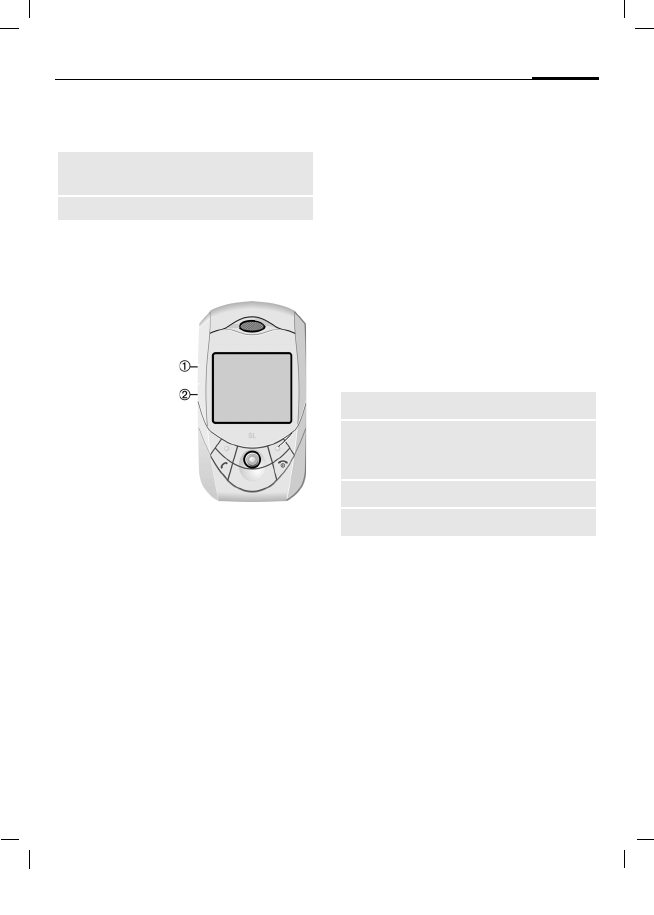
© Siemens AG 2003, M:\Mobil\R65\SL65_Iris\am\fug\SL65_Organizer.fm
109Organizer
VAR Language: am; VAR issue date: 040317
left page (109) of SL65 Iris FUG us, A31008-H7700-A40-1-4A19 (24.05.2004, 17:15)
Dictating machine options
§Options§ Open menu.
Control using the side key
Time zones
C¢Q¢Time zones
The time zone can be selected in the
world map or a city list:
World map
FSelect the desired
recording.
City list
ISelect a city in the
selected time zone.
Time zone options
§Options§ Open menu.
Loudspeaker Playback via the built-in
loudspeaker.
(For standard functions see p. 19)
(standby mode)
1 No function.
2 Dictation key
Press and
hold: record.
Press briefly:
play back Set Specify the time zone.
Auto time
zone = The time zone is switched
automatically to local time
by the network.
Search city Search for a city.
Help Operating instructions.
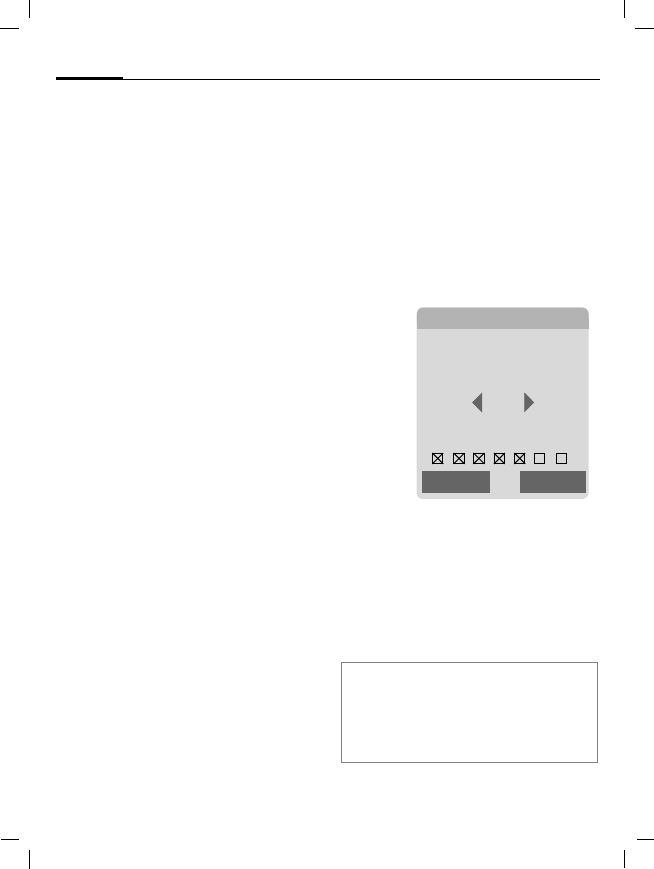
© Siemens AG 2003, M:\Mobil\R65\SL65_Iris\am\fug\SL65_Extras.fm
Extras110
VAR Language: am; VAR issue date: 040317
left page (110) of SL65 Iris FUG us, A31008-H7700-A40-1-4A19 (24.05.2004, 17:15)
Extras
SIM services (optional)
C¢S¢SIM services
Your service provider may offer spe-
cial applications such as mobile
banking, share prices, etc. via the
SIM card.
If you have such a SIM card, the SIM
services will appear in the main
menu under "Extras" or directly
above the soft key (on the left).
USymbol for SIM services.
Where there are several applications,
these are displayed in a SIM services
menu. With the SIM services menu,
your phone can support future addi-
tions in your service provider's user
package. For further information,
please contact your service provider.
Alarm clock
C¢S¢Alarm clock
The alarm will ring at the time set by
you, even when the phone is
switched off.
FActivate/deactivate the
alarm.
HSwitch to time setting.
JSet alarm call time
(hh:mm).
HSwitch to the week days.
FNavigate to the various
days.
CDisplay options: alarm call
time and days.
CSet days for alarm calls.
Press again to delete the
highlighting.
Press and hold to high-
light/unhighlight all the
days.
§OK§ Confirm setting.
Additional information
¹Screen display in standby
mode: alarm clock activated.
With Snooze you can set the alarm to
repeat.
éAlarm clock
¹
§On§
07:30
Mo Tu We Th Fr Sa Su
Edit ìOK
© Siemens AG 2003, M:\Mobil\R65\SL65_Iris\am\fug\SL65_Extras.fm
111Extras
VAR Language: am; VAR issue date: 040317
left page (111) of SL65 Iris FUG us, A31008-H7700-A40-1-4A19 (24.05.2004, 17:15)
Sound recorder
Use the sound recorder to record
noises and tones for use as ring
tones. The tone recording is normal-
ly started by other applications/ func-
tions such as "assign ring tone".
New recording
Start from main menu
C¢S¢Sound recorder
<New entry>
Select. The remaining
time available as well as
the recording time are
shown in the display.
Start it from another application
as follows
The recording display appears:
CA brief tone sounds when
the recording starts.
CPause/record alternately.
DEnd recording.
The recording is saved
with a timestamp in the
folder Sounds. Rename
with §Options§.
§Insert§ Transfer recording into
the application.
Playback
ISelect the desired
recording.
CPlayback/pause,
alternately.
D/EPress and hold rapid re-
wind and fast forward.
§Options§ Open menu.
Loudspeaker Playback via the built-in
loudspeaker.
Set as... Set the recording as a
ringtone.
(For standard functions see p. 19)
© Siemens AG 2003, M:\Mobil\R65\SL65_Iris\am\fug\SL65_Extras.fm
Extras112
VAR Language: am; VAR issue date: 040317
left page (112) of SL65 Iris FUG us, A31008-H7700-A40-1-4A19 (24.05.2004, 17:15)
Calculator
C¢S¢Calculator
The calculator can be used in a basic
version and with an advanced range
of functions. The input line and two
calculation lines (including the ma-
trice with the calculation functions)
are located in the top display half.
JEnter number(s).
F/INavigate functions.
CUse function. The result is
calculated and displayed
immediately.
Calculator options
§Options§ Open menu.
Unit converter
C¢S¢Unit converter
You can convert various measure-
ment units into other measurement
units.
The following types are offered with
various units:
Velocity
Energy
Mass
Pressure
Time
Volume
Area
Length
Power
Temperature
Currency
Basic functions
+, -, *, / Basic calculation types.
=Result.
1/x Conversion
%Convert to percentage.
.Decimal point.
±Sign change "+" / "–"
§Options§ Expansion of the range of
functions:
Square root
Square
eExponent.
MS save displayed number.
MR Call up saved number.
M+ Insert number from memory.
x
x2
Convert Call up the unit con-
verter with the current
result.
Clear all Delete all units.
Extended mode/
Basic mode Convert calculation
functions.
(For standard functions see p. 19)
© Siemens AG 2003, M:\Mobil\R65\SL65_Iris\am\fug\SL65_Extras.fm
113Extras
VAR Language: am; VAR issue date: 040317
left page (113) of SL65 Iris FUG us, A31008-H7700-A40-1-4A19 (24.05.2004, 17:15)
Example of type Velocity units:
Convert
FSelect the source unit/
currency.
HSwitch to the input field.
JEnter the quantity to be
converted.
HSwitch to the selection
field.
FSelect the target mea-
surement unit / currency
The result is displayed.
You can use both input fields alter-
nately.
Special key functions:
*Set decimal point.
#Change prefix.
Currency
When you call up the function, you
must enter a basic currency into
which the conversions are to be
made.
JEnter currency
(e. g. euro)
§Save§ Store entry.
Now enter the name and exchange
rate of the currency to be converted.
§Options§ Open menu.
Stopwatch
C¢S¢Stopwatch
Two intermediate times can be re-
corded and saved.
CStart/stop.
*Save intermediate time.
After a stop:
CReset to zero.
Stopwatch options
§Options§ Open menu.
Type Units
Velocity Kilometers/h, Miles/h,
Meters/sec, Miles/sec,
Knots, Mach
Add currency Enter new currency and
exchange rate.
Set as base Use entered currency as
basic currency.
Edit rate Change the exchange
rate of the basic currency.
Calc. Start calculator.
(For standard functions see p. 19)
Stopwatch
list Display saved entries.
(For standard functions see p. 19)

© Siemens AG 2003, M:\Mobil\R65\SL65_Iris\am\fug\SL65_Extras.fm
Extras114
VAR Language: am; VAR issue date: 040317
left page (114) of SL65 Iris FUG us, A31008-H7700-A40-1-4A19 (24.05.2004, 17:15)
Countdown
C¢S¢Countdown
A set time elapses. The last
3 seconds are indicated by a beep. At
the end a special beep sounds.
If no time has been enetered:
COpen input window
JSet period of time.
CConfirm.
If a countdown time is specified:
CStart countdown.
While the time is elapsing:
CInterrupt counter.
CLet counter continue
running.
§Reset§ Reset counter to starting
time.
Remote synchronisation
C¢S¢Remote sync.
You can use this function remotely
to access externally filed data (ad-
dresses, calendar, etc.) and synchro-
nise these with the data on your
phone. The data can, for example,
be saved on a company computer or
in the Internet.
www.siemens-mobile.com/syncml
Syncronise
§Sync§ The computer is selected
and synchronisation start-
ed. When completed, the
actions which have been
performed are displayed.
§Next§ Scroll through the various
displays.
Sync. setting
The following settings can be made
prior to synchronisation:
Sync. profile
You can choose between 5 profiles.
ISelect profile.
CActivate profile.
Or
§Edit§ Set profile.
© Siemens AG 2003, M:\Mobil\R65\SL65_Iris\am\fug\SL65_Extras.fm
115Extras
VAR Language: am; VAR issue date: 040317
left page (115) of SL65 Iris FUG us, A31008-H7700-A40-1-4A19 (24.05.2004, 17:15)
Server sett. Last sync:
Time of the last synchronisation.
Sync. mode
•Sync data: Modified data or All data
•Sync instruction: Two-way,
Device update or Server update
Date range
Select On/off
Enter the time in weeks in which en-
tries (past and future) are to be syn-
chronised.
Sync items:
Highlight database areas to be
synchronised:
Calendar
Address book
Notes
Tasks
CSave settings.
Providers Display the current service
provider.
Homepage: e.g. www.siemens-
mobile.com/syncml
Port: Enter port number, e.g. 80.
Login: Enter user name
(Login name).
Password: Enter password (shown as
a series of asterisks).
Calendar
path
Contacts
path
Notes path
Task path
e.g., events
e.g., contacts
e.g., notes
e.g.,tasks
HTTP au-
thentica-
tion.
Confirmation required; Yes/
No (if No, the input fields
are not visible).
HTTP name: Enter name.
HTTP
password: Enter password.
© Siemens AG 2003, M:\Mobil\R65\SL65_Iris\am\fug\SL65_MediaPlayer.fm
Media player116
VAR Language: am; VAR issue date: 040317
left page (116) of SL65 Iris FUG us, A31008-H7700-A40-1-4A19 (24.05.2004, 17:15)
Media player
When you are viewing a picture/vid-
eo or listening to a melody, the appli-
cation starts a media playback.
FScroll to the next media
file.
0–9Switch on display
lighting.
Pictures
The following functions can be ap-
plied to a displayed picture:
CZoom function if the dis-
played picture has a high-
er resolution than the
display. The two soft keys
(+/–) enlarge/reduce the
picture. The joystick
moves the picture detail.
5Centre the picture.
#Switch to full-picture
mode and back again.
Or Press briefly the Dictation
key (p. 10).
§Send§ e.g. send via EMS, MMS or
e-mail.
Melodies/video
The media playback offers the fol-
lowing functions for melody and
video playback:
CPlay or pause, depending
on the situation.
ISet volume.
Or Using the plus/minus side
key (press top/bottom).
*Mute.
§Stop§ Stop function.
BEnd playback.
Options
§Options§ Open menu.
Different functions are offered de-
pending on the starting situation
and the object.
Volume Set the volume with the
joystick.
Set as... Set picture as Wallpaper,
Logo for example, and
sounds for Incoming call,
Group calls, for example.
Slideshow Automatic run-through in
full-picture mode. Individu-
al picture connection with
joystick.
Edit Access to picture editing.
(For standard functions see p. 19)
© Siemens AG 2003, M:\Mobil\R65\SL65_Iris\am\fug\SL65_MediaFolder.fm
117My stuff
VAR Language: am; VAR issue date: 040317
left page (117) of SL65 Iris FUG us, A31008-H7700-A40-1-4A19 (24.05.2004, 17:15)
My stuff
To organise your files, you can use
the file system like a PC file manager.
There are some folders in My stuff
for the various data types for this
purpose.
C¢N
The list of the folders and files is
displayed.
Navigation
ISelect file/folder in lists.
F/ IThe cursor can be moved
freely in the preview.
COpen folder or start file
with related application
Take new pic./Rec. new
video/Rec.new sound
The application for the folder cur-
rently selected is loaded.
Download new
Show a list of links or start the
browser, and display the download
page.
Own file options
§Options§ Open menu.
Move Place highlighted file(s)
or folder in temporary
memory.
Copy Place highlighted file(s)
or folder in temporary
memory.
Paste Transfer content of tem-
porary memory into cur-
rent folder.
New folder Create a new folder and
name it.
Preview/List
view Toggle between minia-
ture view and list view.
Attributes Display information on
file or folder selected.
(For standard functions see p. 19)
© Siemens AG 2003, M:\Mobil\R65\SL65_Iris\am\fug\SL65_MediaFolder.fm
My stuff118
VAR Language: am; VAR issue date: 040317
left page (118) of SL65 Iris FUG us, A31008-H7700-A40-1-4A19 (24.05.2004, 17:15)
Index structure
Some folders have already been
created for different data types in
My stuff. These folders cannot be
changed.
Folder Description Format
Pictures Pictures bmp
bmx
jpg/jpeg
png
gif
Videos Videos 3gp
Anima-
tions Switch on/off ani-
mations
bmx
gif
Sounds Melodies mid
amr
wav
Themes Loaded theme
(zipped)
sdt
Theme configura-
tion (unzipped)
stc
Skins Loaded user inter-
faces.
scs
Games Java archive jar
Download info jad
Applica-
tions Applications. *
Misc. Text modules tmo
Voice recordings vmo
Depending on the service provider, the
structure, content and functionality of My
stuff may vary.
© Siemens AG 2003, M:\Mobil\R65\SL65_Iris\am\fug\SL65_PhoneManager.fm
119Mobile Phone Manager
VAR Language: am; VAR issue date: 040317
left page (119) of SL65 Iris FUG us, A31008-H7700-A40-1-4A19 (24.05.2004, 17:15)
Mobile Phone Manager
MPM is a Windows®-PC program
which enables you to use enhanced
mobile phone functions with any PC.
This includes the convenient mainte-
nance of your contacts, as well as
reading, writing and handling SMS
and MMS messages. You can also
synchronise your phone data with
Microsoft Outlook®. Your mobile
phone and the PC must be connect-
ed with a data cable, p. 139.
You can download the MPM
software from:
www.siemens-mobile.com
Contacts management
With MPM you can manage all your
personal contacts in your phone, in-
cluding adding, deleting, editing and
creating new contacts. You can also
use your PC to copy or move contacts
between your phone, Microsoft Out-
look® and other Siemens phones,
e.g. DECT phones like Gigaset.
SMS and MMS management
You will be able to read, write and
design your SMS and MMS messages
conveniently. Take advantage of all
the options that your PC offers to
create SMS and MMS easily using the
mouse, keyboard and PC screen and
your sounds and pictures. MMS and
SMS can be read, forwarded, print-
ed, deleted and archived as well.
Synchronisation (SmartSync)
With a single keystroke you can syn-
chronise the contacts, appoint-
ments, notes and tasks that are in
your mobile phone with Microsoft
Outlook®. If you have changed data
such as a contact on your mobile or
in Microsoft Outlook®, synchronis-
ing guarantees that both databases
stay updated, so you no longer need
to worry about data consistency.
© Siemens AG 2003, M:\Mobil\R65\SL65_Iris\am\fug\SL65_PhoneManager.fm
Mobile Phone Manager120
VAR Language: am; VAR issue date: 040317
left page (120) of SL65 Iris FUG us, A31008-H7700-A40-1-4A19 (24.05.2004, 17:15)
Backup and restore
Backup lets you regularly save a copy
of all your phone data to any PC. You
can then restore all your data quickly
and easily from your PC should you
lose your phone data or phone, or
buy a new phone.
Bookmarks management
Browse the Internet with your PC
and select your preferred Internet
pages. Save the locations as book-
marks on your mobile for quick ac-
cess.
Phone explorer
You can read your phone’s file sys-
tem with the phone explorer. Files
such as pictures and sounds etc. can
be easily copied between phone and
PC using the drag&drop function.
Files can also be deleted, created
and moved.
GPRS modem
Just one key stroke on your PC or
laptop opens a GPRS internet con-
nection with your mobile phone,
wherever you are. GPRS configura-
tions are available for almost all pro-
viders, so you don't have to worry
about parameters or settings any
more.
Image and photo processing
The image/photo processing func-
tion allows the user to create, pro-
cess and manage images and photos
easily. Filters and effects are avail-
able to create colourful and attrac-
tive graphics or improve your pho-
tos. The intuitive user interface
allows you to transfer images/photos
from and to your mobile easily. Fur-
ther you can define wallpapers and
other graphic configuration.
© Siemens AG 2003, M:\Mobil\R65\SL65_Iris\am\fug\SL65_PhoneManager.fm
121Mobile Phone Manager
VAR Language: am; VAR issue date: 040317
left page (121) of SL65 Iris FUG us, A31008-H7700-A40-1-4A19 (24.05.2004, 17:15)
Ringtone management
The sound module allows the user to
easily manage nearly all sound for-
mats and to save them on the
phone.
This phone does not support MP3
functionality.
© Siemens AG 2003, M:\Mobil\R65\SL65_Iris\am\fug\SL65_FAQ.fm
Questions & Answers122
VAR Language: am; VAR issue date: 040317
left page (122) of SL65 Iris FUG us, A31008-H7700-A40-1-4A19 (24.05.2004, 17:15)
Questions & Answers
If you have any questions on the use of your phone, you can contact us at
www.siemens-mobile.com/customercare around the clock. As further help we have listed
below some frequently asked questions and answers.
Problem Possible causes Possible solution
Phone cannot be
switched on.
On/Off key not pressed long
enough.
Press On/Off key for at least two seconds.
Flat battery. Charge battery. Check charging indicator in the
display.
Battery contacts dirty. Clean contacts.
See also below under "Charg-
ing error"
Too little standby
time.
Frequent use of organiser and
games.
Restrict use if necessary.
Fast search activated. Deactivate speed search(p. 98).
Display illumination on. Switch off display illumination (p. 84).
Unintentional keystrokes
(illumination!).
Activate key lock (p. 95).
Charging error
(charge icon not
displayed).
Battery totally discharged. 1) Plug in charger cable, battery is on charge.
2) Charge icon appears after approx. 2 hours.
3) Charge battery.
Temperature out of range:
+5 °C to +40 °C.
Make sure the ambient temperature is right, wait for
a while, then recharge.
Contact problem. Check power supply and connection to the phone.
Check battery contacts and telephone connection
socket, clean them if necessary, then insert battery
again.
No mains voltage. Use different mains power socket, check mains
voltage.
Wrong charger. Only use original Siemens accessories.
Battery faulty. Replace battery.
SIM error. SIM card not inserted correctly. Check that the SIM card is inserted correctly
(p. 14).
Dirty SIM card contacts. Clean SIM card with a dry cloth.
SIM card with wrong voltage. Use 3V SIM cards only.
SIM card damaged
(e.g. broken).
Carry out a visual check. Change SIM card at ser-
vice provider.
© Siemens AG 2003, M:\Mobil\R65\SL65_Iris\am\fug\SL65_FAQ.fm
123Questions & Answers
VAR Language: am; VAR issue date: 040317
left page (123) of SL65 Iris FUG us, A31008-H7700-A40-1-4A19 (24.05.2004, 17:15)
No network connec-
tion.
Weak signal. Move higher, to a window or an open space.
Outside GSM range. Check service provider's coverage area.
Invalid SIM card. Complain to the service provider.
New network not authorised. Try manual selection or select a different network
(p. 97).
Network call barring is set. Check network barrings (p. 96).
Network overloaded. Try again later.
Phone loses net-
work.
Signal too weak. Reconnection to another service provider is auto-
matic (p. 97). Switching phone off and on again can
speed this up.
Calls not possible. Second line set. Set first line \ (p. 98).
New SIM card inserted. Check for new barrings.
Charge limit reached. Reset limit with PIN 2 (p. 43).
Credit used up. Load credit.
Certain uses of
phone not possible.
Call restrictions are in place. Barrings can be set by service provider.
Check barrings (p. 96).
Impossible to make
entries in Phone-
book/Addressbook.
Phonebook/Addressbook is full. Delete entries in Phonebook /Addressbook (p. 19).
Voice message not
functioning.
Call divert to mailbox not set. Set call divert to mailbox (p. 65).
ã flashes to indi-
cate an SMS.
SMS memory is full. Delete or file SMS (p. 19).
ä flashes to indi-
cate an MMS.
MMS memory full. Delete MMS (p. 19).
å flashes to indi-
cate an MMS.
Phone memory full. Delete messages, pictures, videos, games or appli-
cations.
Function cannot be
set.
Not supported by service pro-
vider or registration required.
Contact your service provider.
Capacity problems
with, for example,
Games & More, ring-
tones, pictures, vid-
eos, SMS archive.
Phone memory full. Delete files in the relevant areas. You can use the
memory assistant to delete specific files (p. 89).
No internet access,
downloading not
possible.
Profile not activated, profile set-
tings wrong/incomplete.
Activate or set internet profile (p. 77). If necessary
ask your service provider.
Problem Possible causes Possible solution
© Siemens AG 2003, M:\Mobil\R65\SL65_Iris\am\fug\SL65_FAQ.fm
Questions & Answers124
VAR Language: am; VAR issue date: 040317
left page (124) of SL65 Iris FUG us, A31008-H7700-A40-1-4A19 (24.05.2004, 17:15)
Text message can-
not be sent.
Service provider does not sup-
port this service.
Contact your service provider.
Phone number for service cen-
tre not set or incorrectly set.
Set service centre (p. 52).
SIM card contract does not sup-
port this service.
Contact your service provider.
Service centre too busy. Repeat message.
Recipient does not have a com-
patible phone.
Check.
EMS pictures &
sounds are not dis-
played at the desti-
nation phone
Destination phone does not
support the EMS standard.
No Internet access
possible.
Incorrect internet profile set, or
wrong or incomplete settings.
Check internet settings; (p. 77) contact your ser-
vice provider if necessary.
PIN error/
PIN2 error.
Three wrong entries. Enter the PUK (MASTER PIN) supplied with the
SIM card according to the instructions. If the PUK
(MASTER PIN) has been lost, please contact your
service provider.
Phone code error. Three wrong entries. Contact Siemens Service (p. 125).
Service provider
Code error.
No authorisation for this ser-
vice.
Contact your service provider.
Too few/too many
menu entries.
Functions may have been add-
ed or deleted by the service
provider via the SIM card.
Check with your service provider.
No fax possible. Wrong settings in the PC. Check settings (p. 94).
No authorisation for this
service.
Contact your service provider.
Charge meter does
not work.
Charge pulse is not transmitted. Contact your service provider.
Damage
Severe shock. Remove battery and SIM and re-insert them. Do not dismantle the phone!
Phone became wet. Remove battery and SIM. Dry immediately with a cloth, but do not apply heat. Dry
connector contacts thoroughly. Stand mobile upright in an air current. Do not disman-
tle the phone!
Problem Possible causes Possible solution
Reset all settings to factory default p. 90: * # 9 9 9 9 # A

© Siemens AG 2003, M:\Mobil\R65\SL65_Iris\am\fug\Hotline.fm
125Customer Care
VAR Language: am; VAR issue date: 040317
left page (125) of SL65 Iris FUG us, A31008-H7700-A40-1-4A19 (24.05.2004, 17:17)
Customer Care
Qualified Siemens employees are waiting to
offer you expert information about our prod-
ucts and installation.
In some countries repair and replace servic-
es are impossible where the products are
not sold through our authorised dealers.
When calling customer service, please have
ready your receipt and the phone identity
number (IMEI, to display press * # 0 6 #), the
software version (to display, press * # 0 6 #,
then info) and if available, your Siemens
Service customer number.
If repair work is necessary, please contact
one of our service centres:
Abu Dhabi .........................................0 26 42 38 00
Argentina .....................................0 80 08 88 98 78
Australia..........................................13 00 66 53 66
Austria.............................................05 17 07 50 04
Bahrain .................................................... 40 42 34
Bangladesh.......................................0 17 52 74 47
Belgium.............................................0 78 15 22 21
Bolivia ...............................................0 21 21 41 14
Bosnia Herzegovina..........................0 33 27 66 49
Brazil............................................0 80 07 07 12 48
Brunei ................................................. 02 43 08 01
Bulgaria............................................... 02 73 94 88
Cambodia ........................................... 12 80 05 00
Canada ........................................1 88 87 77 02 11
China ...........................................0 21 38 98 47 77
Croatia ..............................................0 16 10 53 81
Czech Republic.................................2 33 03 27 27
Denmark ............................................. 35 25 86 00
Dubai ................................................0 43 96 64 33
Egypt.................................................0 23 33 41 11
Estonia................................................ 06 30 47 97
Finland............................................09 22 94 37 00
France.............................................01 56 38 42 00
Germany ......................................0 18 05 33 32 26
Greece .........................................0 80 11 11 11 16
Hong Kong.......................................... 28 61 11 18
Hungary ..........................................06 14 71 24 44
Iceland .................................................. 5 11 30 00
India.............................22 24 98 70 00 Extn: 70 40
Indonesia .....................................0 21 46 82 60 81
Ireland.............................................18 50 77 72 77
Italy ................................................02 24 36 44 00
Ivory Coast.......................................... 05 02 02 59
Jordan...............................................0 64 39 86 42
Kenya.................................................... 2 72 37 17
Kuwait................................................... 2 45 41 78
Latvia .................................................... 7 50 11 18
Lebanon.............................................. 01 44 30 43
Libya ...............................................02 13 50 28 82
Lithuania ...........................................8 52 74 20 10
Luxembourg........................................ 43 84 33 99
Macedonia .......................................... 02 13 14 84
Malaysia....................................+ 6 03 77 12 43 04
Malta.......................................+ 35 32 14 94 06 32
Mauritius ............................................... 2 11 62 13
Mexico .......................................01 80 07 11 00 03
Morocco.............................................. 22 66 92 09
Netherlands .................................0 90 03 33 31 00
New Zealand...................................08 00 27 43 63
Nigeria ..............................................0 14 50 05 00
Norway................................................ 22 70 84 00
Oman ....................................................... 79 10 12
Pakistan..........................................02 15 66 22 00
Paraguay ..........................................8 00 10 20 04
Philippines ........................................0 27 57 11 18
We offer fast, individual advice! You have
several options:
Our online support on the Internet:
www.siemens-mobile.com/customercare
We can be reached any time, any place.
You are given 24 hour support on all as-
pects of our products. Here you will find an
interactive fault-finding system, a compila-
tion of the most frequently asked ques-
tions and answers, plus user guides and
current software updates to download.

© Siemens AG 2003, M:\Mobil\R65\SL65_Iris\am\fug\Hotline.fm
Customer Care126
VAR Language: am; VAR issue date: 040317
left page (126) of SL65 Iris FUG us, A31008-H7700-A40-1-4A19 (24.05.2004, 17:17)
Poland.............................................08 01 30 00 30
Portugal ............................................8 08 20 15 21
Qatar....................................................04 32 20 10
Romania .........................................02 12 04 60 00
Russia..........................................8 80 02 00 10 10
Saudi Arabia .....................................0 22 26 00 43
Serbia .............................................01 13 80 95 50
Singapore ............................................62 27 11 18
Slovak Republic ..............................02 59 68 22 66
Slovenia............................................0 14 74 63 36
South Africa ....................................08 60 10 11 57
Spain.................................................9 02 11 50 61
Sweden.............................................0 87 50 99 11
Switzerland .....................................08 48 21 20 00
Taiwan ............................................02 23 96 10 06
Thailand............................................0 27 22 11 18
Tunisia .................................................71 86 19 02
Turkey..........................................0 21 65 79 71 00
Ukraine ........................................8 80 05 01 00 00
United Arab Emirates........................0 43 66 03 86
United Kingdom ...........................0 87 05 33 44 11
USA .............................................1 88 87 77 02 11
Vietnam...........................................84 89 30 01 21
Zimbabwe ............................................04 36 94 24

© Siemens AG 2003, M:\Mobil\R65\SL65_Iris\am\fug\Maintenance.fm
127Care and maintenance
VAR Language: am; VAR issue date: 040317
left page (127) of SL65 Iris FUG us, A31008-H7700-A40-1-4A19 (24.05.2004, 17:17)
Care and maintenance
Your phone has been designed and
manufactured to the highest of stan-
dards and should be treated with
great care. The suggestions below
will help you to enjoy your phone for
many years.
• Protect your phone from moisture
and humidity! Precipitation, hu-
midity and liquids contain miner-
als that will corrode electronic
circuits. Should your phone none-
theless become wet, disconnect it
immediately from any power sup-
ply, remove the battery and leave
the open phone to dry at room
temperature!
• Do not use or store the phone in
dusty, dirty areas. Its moving parts
may become damaged.
• Do not store your phone in hot ar-
eas. High temperatures can short-
en the life of electronic devices,
damage batteries and warp or
melt certain plastics.
• Do not store your phone in cold ar-
eas. When the phone warms up
again (to its normal ambient tem-
perature), moisture can form in-
side the phone, which may
damage electronic circuit boards.
• Do not drop, knock or shake your
phone. Rough handling can dam-
age internal circuit boards!
• Do not use harsh chemicals, clean-
ing solvents, or strong detergents
to clean the phone!
The suggestions given above apply
equally to your phone, battery,
charger and all accessories. If any of
these parts are not working properly,
take them to your nearest qualified
service outlet. The personnel there
will assist you and, if necessary, re-
pair the device.
© Siemens AG 2003, M:\Mobil\R65\SL65_Iris\am\fug\SL65_Data.fm
Product data128
VAR Language: am; VAR issue date: 040317
left page (128) of SL65 Iris FUG us, A31008-H7700-A40-1-4A19 (24.05.2004, 17:17)
Product data
Declaration of conformity
Siemens Information and Communi-
cation mobile hereby declares that
the phone described in this user
guide is in compliance with the es-
sential requirements and other rele-
vant provisions of European Direc-
tive 1999/5/EC (R&TTE). The
declaration of conformity (DoC) con-
cerned has been signed. Please call
the company hotline if you require a
copy of the original or
www.siemens-mobile.com/conformity
Technical data Operating time
The operating time depends upon
the respective conditions of use and
the network. Extreme temperatures
considerably reduce the phone’s
standby time. Avoid placing the
phone in the sun or on a heater.
Call time: 100 to 270 minutes
Standby time: 60 to 250 hours
GSM class: 4 (2 watt)
Frequency range: 880–960 MHz
GSM class: 1 (1 watt)
Frequency range: 1,710–1,880 MHz
GSM class: 1 (1 watt)
Frequency range: 1,850–1,990 MHz
Weight: 99 g
Size: 90×48×21 mm
(78 ccm)
Li-Ion battery: 700 mAh
Operating
temperature:
–10°C… +55°C
SIM card: 3.0 V
Phone ID
You will need the following details if you
lose your phone or SIM card:
the number of the SIM card (on the card):
..............................................................
15 digit serial number of the phone
(under the battery):
..............................................................
the customer service number of the service
provider:
..............................................................
Lost phone
If you lose your phone or SIM card contact
your service provider immediately to pre-
vent misuse.
Action taken Time
(min)
Reduction of stand-
by time by
Calling 1 30–90 minutes
Light * 1 40 minutes
Network
search
1 5–10 minutes
* Key input, games, organiser etc.

© Siemens AG 2003, M:\Mobil\R65\SL65_Iris\am\fug\FDA.fm
129U.S. FDA
VAR Language: am; VAR issue date: 040317
left page (129) of SL65 Iris FUG us, A31008-H7700-A40-1-4A19 (24.05.2004, 17:17)
U.S. FDA
The U.S. Food and Drug Admin-
istration's (FDA) Center for
Devices and Radiological Health
Consumer Update on Mobile
Phones
FDA has been receiving inquiries
about the safety of mobile phones,
including cellular phones and PCS
phones. The following summarizes
what is know – and what remains
unknown – about whether these
products can pose a hazard to
health, and what can be done to
minimize any potential risk. This
information may be used to
respond to questions.
Why the concern?
Mobile phones emit low levels of
radio frequency energy (i.e., radio
frequency radiation) in the micro-
wave range while being used. They
also emit very low levels of radio fre-
quency energy (RF), considered non-
significant, when in the stand-by
mode. It is well known that high lev-
els of RF can produce biological dam-
age through heating effects (this is
how your microwave oven is able to
cook food). However, it is not known
whether, to what extent, or through
what mechanism, lower levels of RF
might cause adverse health effects
as well. Although some research has
been done to address these ques-
tions, no clear picture of the biologi-
cal effects of this type of radiation
has emerged to date. Thus, the avail-
able science does not allow us to
conclude that mobile phones are
absolutely safe, or that they are
unsafe. However, the available sci-
entific evidence does not demon-
strate adverse health effects associ-
ated with the use of mobile phones.
What kinds of phones are in question?
Questions have been raised about
hand-held mobile phones, the kind
that have a built-in antenna that is
positioned close to the user's head
during normal telephone conversa-
tion. These types of mobile phones
are of concern because of the short
distance between the phone's
antenna – the primary source of the
RF – and the person's head. The
exposure to RF from mobile phones
in which the antenna is located at
greater distances from the user (on
the outside of a car, for example) is
drastically lower than that from
hand-held phones, because a per-
son's RF exposure decreases rapidly
with distance from the source. The
safety of so-called “cordless phones,”
which have a base unit connected to
the telephone wiring in a house and
which operate at far lower power
levels and frequencies, has not been
questioned.

© Siemens AG 2003, M:\Mobil\R65\SL65_Iris\am\fug\FDA.fm
U.S. FDA130
VAR Language: am; VAR issue date: 040317
left page (130) of SL65 Iris FUG us, A31008-H7700-A40-1-4A19 (24.05.2004, 17:17)
How much evidence is there that hand-
held mobile phones might be harmful?
Briefly, there is not enough evidence
to know for sure, either way; how-
ever, research efforts are on-going.
The existing scientific evidence is
conflicting and many of the studies
that have been done to date have
suffered from flaws in their research
methods. Animal experiments inves-
tigating the effects of RF exposures
characteristic of mobile phones have
yielded conflicting results. A few ani-
mal studies, however, have sug-
gested that low levels of RF could
accelerate the development of can-
cer in laboratory animals. In one
study, mice genetically altered to be
predisposed to developing one type
of cancer developed more than
twice as many such cancers when
they were exposed to RF energy
compared to controls. There is much
uncertainty among scientists about
whether results obtained from ani-
mal studies apply to the use of
mobile phones. First, it is uncertain
how to apply the results obtained in
rats and mice to humans. Second,
many of the studies showed
increased tumor development used
animals that had already been
treated with cancer-causing chemi-
cals, and other studies exposed the
animals to the RF virtually continu-
ously – up to 22 hours per day.
For the past five years in the United
States, the mobile phone industry
has supported research into the
safety of mobile phones. This
research has resulted in two findings
in particular that merit additional
study:
1. In a hospital-based, case-control
study, researchers looked for an
association between mobile phone
use and either glioma (a type of
brain cancer) or acoustic neuroma
(a benign tumor of the nerve
sheath). No statistically significant
association was found between
mobile phone use and acoustic neu-
roma. There was also no association
between mobile phone use and glio-
mas when all types of gliomas were
considered together. It should be
noted that the average length of
mobile phone exposure in this study
was less than three years.
When 20 types of glioma were con-
sidered separately, however, an
association was found between
mobile phone use and one rare type
of glioma, neuroepithelliomatous
tumors. It is possible with multiple
comparisons of the same sample
that this association occurred by
chance. Moreover, the risk did not
increase with how often the mobile
phone was used, or the length of the
calls. In fact, the risk actually
decreased with cumulative hours of
mobile phone use. Most cancer caus-
ing agents increase risk with
increased exposure. An ongoing
study of brain cancers by the

© Siemens AG 2003, M:\Mobil\R65\SL65_Iris\am\fug\FDA.fm
131U.S. FDA
VAR Language: am; VAR issue date: 040317
left page (131) of SL65 Iris FUG us, A31008-H7700-A40-1-4A19 (24.05.2004, 17:17)
National Cancer Institute is expected
to bear on the accuracy and repeat-
ability of these results.1
2. Researchers conducted a large
battery of laboratory tests to assess
the effects of exposure to mobile
phone RF on genetic material. These
included tests for several kinds of
abnormalities, including mutations,
chromosomal aberrations, DNA
strand breaks, and structural
changes in the genetic material of
blood cells called lymphocytes. None
of the tests showed any effect of the
RF except for the micronucleus
assay, which detects structural
effects on the genetic material.
The cells in this assay showed
changes after exposure to simulated
cell phone radiation, but only after
24 hours of exposure. It is possible
that exposing the test cells to radia-
tion for this long resulted in heating.
Since this assay is known to be sensi-
tive to heating, heat alone could
have caused the abnormalities to
occur. The data already in the litera-
ture on the response of the micronu-
cleus assay to RF are conflicting.
Thus follow-up research is neces-
sary. 2
FDA is currently working with gov-
ernment, industry, and academic
groups to ensure the proper follow-
up to these industry-funded research
findings. Collaboration with the Cel-
lular Telecommunications Industry
Association (CTIA) in particular is
expected to lead to FDA providing
research recommendations and sci-
entific oversight of new CTIA-funded
research based on such recommen-
dations.
Two other studies of interest have
been reported recently in the litera-
ture:
• Two groups of 18 people were
exposed to simulated mobile
phone signals under laboratory
conditions while they performed
cognitive function tests. There
were no changes in the subjects'
ability to recall words, numbers,
or pictures, or in their spatial
memory, but they were able to
make choices more quickly in one
visual test when they were
exposed to simulated mobile
phone signals. This was the only
change noted among more than
20 variables compared.3
• In a study of 209 brain tumor
cases and 425 matched controls,
there was no increased risk of
brain tumors associated with
mobile phone use. When tumors
did exist in certain locations, how-
ever, they were more likely to be
on the side of the head where the
mobile phone was used. Because
this occurred in only a small num-
ber of cases, the increased likeli-
hood was too small to be statisti-
cally significant.4
In summary, we do not have enough
information at this point to assure
the public that there are, or are not,

© Siemens AG 2003, M:\Mobil\R65\SL65_Iris\am\fug\FDA.fm
U.S. FDA132
VAR Language: am; VAR issue date: 040317
left page (132) of SL65 Iris FUG us, A31008-H7700-A40-1-4A19 (24.05.2004, 17:17)
any low incident health problems
associated with use of mobile
phones. FDA continues to work with
all parties, including other federal
agencies and industry, to assure that
research is undertaken to provide
the necessary answers to the out-
standing questions about the safety
of mobile phones.
What is known about cases of human
cancer that have been reported in users
of hand-held mobile phones?
Some people who have used mobile
phones have been diagnosed with
brain cancer. But it is important to
understand that this type of cancer
also occurs among people who have
not used mobile phones. In fact,
brain cancer occurs in the U.S. popu-
lation at a rate of about 6 new cases
per 100,000 people each year. At
that rate, assuming 80 million users
of mobile phones (a number increas-
ing at a rate of about 1 million per
month), about 4800 cases of brain
cancer would be expected each year
among those 80 million people,
whether or not they used their
phones. Thus it is not possible to tell
whether any individual's cancer
arose because of the phone, or
whether it would have happened
anyway. A key question is whether
the risk of getting a particular form
of cancer is greater among people
who use mobile phones than among
the rest of the population. One way
to answer that question is to com-
pare the usage of mobile phones
among people with brain cancer
with the use of mobile phones
among appropriately matched peo-
ple without brain cancer. This is
called a case-control study. The cur-
rent case-control study of brain can-
cers by the National Cancer Institute,
as well as the follow-up research to
be sponsored by industry, will begin
to generate this type of information.
What is FDA's role concerning the safety
of mobile phones?
Under the law, FDA does not review
the safety of radiation emitting con-
sumer products such as mobile
phones before marketing, as it does
with new drugs or medical devices.
However, the agency has authority
to take action if mobile phones are
shown to emit radiation at a level
that is hazardous to the user. In such
a case, FDA could require the manu-
facturers of mobile phones to notify
users of the health hazard and to
repair, replace or recall the phones
so that the hazard no longer exists.
Although the existing scientific data
do not justify FDA regulatory actions
at this time, FDA has urged the
mobile phone industry to take a
number of steps to assure public
safety. The agency has recom-
mended that the industry:
• Support needed research into pos-
sible biological effects of RF of the
type emitted by mobile phones;

© Siemens AG 2003, M:\Mobil\R65\SL65_Iris\am\fug\FDA.fm
133U.S. FDA
VAR Language: am; VAR issue date: 040317
left page (133) of SL65 Iris FUG us, A31008-H7700-A40-1-4A19 (24.05.2004, 17:17)
• Design mobile phones in a way
that minimizes any RF exposure
to the user that is not necessary
for device function; and
• Cooperate in providing mobile
phone users with the best possible
information on what is known
about possible effects of mobile
phone use on human health.
• At the same time, FDA belongs to
an interagency working group of
the federal agencies that have
responsibility for different aspects
of mobile phone safety to ensure
a coordinated effort at the federal
level. These agencies are:
• National Institute for Occupa-
tional Safety and Health
• Environmental Protection Agency
• Federal Communications Com-
mission
• Occupational Health and Safety
Administration
• National Telecommunications and
Information Administration
The National Institutes of Health also
participates in this group.
In the absence of conclusive information
about any possible risk, what can con-
cerned individuals do?
If there is a risk from these products
– and at this point we do not know
that there is – it is probably very
small. But if people are concerned
about avoiding even potential risks,
there are simple steps they can take
to do so. For example, time is a key
factor in how much exposure a per-
son receives. Those persons who
spend long periods of time on their
hand-held mobile phones could con-
sider holding lengthy conversations
on conventional phones and reserv-
ing the hand-held models for shorter
conversations or for situations when
other types of phones are not avail-
able.
People who must conduct extended
conversations in their cars every day
could switch to a type of mobile
phone that places more distance
between their bodies and the source
of the RF, since the exposure level
drops off dramatically with distance.
For example, they could switch to:
• a mobile phone in which the
antenna is located outside the
vehicle,
• a hand-held phone with a built-in
antenna connected to a different
antenna mounted on the outside
of the car or built into a separate
package, or
• a headset with a remote antenna
to a mobile phone carried at the
waist.
Where can I find additional information?
For additional information, see the
following websites:
• Federal Communications Com-
mission (FCC) RF Safety Program
(select “Information on Human

© Siemens AG 2003, M:\Mobil\R65\SL65_Iris\am\fug\FDA.fm
U.S. FDA134
VAR Language: am; VAR issue date: 040317
left page (134) of SL65 Iris FUG us, A31008-H7700-A40-1-4A19 (24.05.2004, 17:17)
Exposure to RF Fields from Cellular
and PCS Radio Transmitters”):
http://www.fcc.gov/oet/rfsafety
• World Health Organization (WHO)
International Commission on
Non-Ionizing Radiation Protection
(select Qs & As):
http://www.who.int/emf
• United Kingdom, National Radio-
logical Protection Board:
http://www.nrpb.org.uk
• Cellular Telecommunications
Industry Association (CTIA):
http://www.wow-com.com
• U.S. Food and Drug Administra-
tion (FDA) Center for devices and
Radiological Health:
http://www.fda.gov/cdhr/consumer/
1 Muscat et al. Epidemiological Study of
Cellular Telephone Use and Malignant Brain
Tumors. In: State of the Science Sympo-
sium; 1999 June 20; Long Beach, California.
2 Tice et al. Tests of mobile phone signals for
activity in genotoxicity and other laboratory
assays. In: Annual Meeting of the Environ-
mental Mutagen Society; March 29, 1999,
Washington, DC; and personal communica-
tion, unpublished results.
3 Preece, AW, Iwi, G, Davies-Smith, A,
Wesnes, K, Butler, S, Lim, E, and Varey, A.
Effect of a 915- MHz simulated mobile
phone signal on cognitive function in man.
Int. J. Radiat. Biol., April 8, 1999.
4 Hardell, L, Nasman, A, Pahlson, A,
Hallquist, A and Mild, KH. Use of cellular
telephones and the risk for brain tumors;
a case-control study. Int. J. Oncol, 15:
113-116, 1999.

© Siemens AG 2003, M:\Mobil\R65\SL65_Iris\am\fug\FDA.fm
135FCC/Industry Canada Notice
VAR Language: am; VAR issue date: 040317
left page (135) of SL65 Iris FUG us, A31008-H7700-A40-1-4A19 (24.05.2004, 17:17)
FCC/Industry
Canada
Notice
Your phone may cause TV or radio
interference (for example, when
using a telephone in close proximity
to receiving equipment). The FCC or
Industry Canada can require you to
stop using your telephone if such
interference cannot be eliminated.
If you require assistance, please con-
tact your local service facility.
© Siemens AG 2003, M:\Mobil\R65\SL65_Iris\am\fug\Driving_Tips.fm
Ten driving safety tips136
VAR Language: am; VAR issue date: 040317
left page (136) of SL65 Iris FUG us, A31008-H7700-A40-1-4A19 (24.05.2004, 17:17)
Ten driving
safety tips
Your Siemens wireless phone gives
you the power to communicate by
voice – almost anywhere, anytime.
But an important responsibility
accompanies the benefits of wireless
phones, one that every user must
uphold.
When driving a car, driving is your
first responsibility. When using your
wireless phone behind the wheel of
a car, practice good common sense
and remember the following tips:
Get to know your phone and its features
such as speed dial and redial.
Carefully read your instruction man-
ual and learn to take advantage of
valuable features most phones offer
including, automatic redial and
memory dial – most phones can
store up to 99 numbers in memory
dial. Also, work to memorize the
phone keypad so you can use the
speed dial function without taking
your attention off the road.
When available, use a hands-free device.
A number of hands-free wireless
phone accessories are readily avail-
able today. Whether you choose an
installed mounted device for your
phone or a speaker phone accessory,
take advantage of these devices if
they are available to you.
Position your phone within easy reach.
Make sure you place your wireless
phone within easy reach and where
you can grab it without removing
your eyes from the road. If you get
an incoming call at an inconvenient
time, let your voicemail answer it for
you.
Suspend conversations during hazard-
ous driving conditions or situations.
Let the person you are speaking to
know you are driving; if necessary,
suspend the call in heavy traffic or
hazardous weather conditions. Rain,
sleet, snow and ice can be hazard-
ous, but so is heavy traffic. As a
driver, your first responsibility is to
pay attention to the road.
Do not take notes or look up
phone numbers while driving.
If you are reading an address book or
business card while driving a car, or
writing a “to do” list, then you are not
watching where you are going. It’s
common sense. Don’t get caught in a
dangerous situation because you are
reading or writing and not paying
attention to the road or nearby vehi-
cles.
© Siemens AG 2003, M:\Mobil\R65\SL65_Iris\am\fug\Driving_Tips.fm
137Ten driving safety tips
VAR Language: am; VAR issue date: 040317
left page (137) of SL65 Iris FUG us, A31008-H7700-A40-1-4A19 (24.05.2004, 17:17)
Dial sensibly and assess the traffic.
If possible, place calls when you are
not moving or before pulling into
traffic. Try to plan your calls before
you begin your trip, or attempt to
coincide your calls with times you
may be stopped at a stop sign, red
light or otherwise stationary. But if
you need to dial while driving, follow
this simple tip – dial only a few num-
bers, check the road and your mir-
rors, then continue.
Do not engage in stressful or emotional
conversations that may be distracting.
Stressful or emotional conversations
and driving do not mix – they are dis-
tracting and even dangerous when
you are behind the wheel. Make peo-
ple you are talking with aware you
are driving and if necessary, suspend
phone conversations that have the
potential to divert your attention
from the road.
Use your phone to call for help.
Your wireless phone is one of the
greatest tools you can own to pro-
tect yourself and your family in dan-
gerous situations – with your phone
at your side, help is only three num-
bers away. Dial 9-1-1 in the case of
fire, traffic accident, road hazard, or
medical emergency. Remember, it is
a free call on your wireless phone.
Use your phone to help others in
emergencies.
Your wireless phone provides you a
perfect opportunity to be a “good
Samaritan” in your community. If
you see an auto accident, crime in
progress or other serious emergen-
cies where lives are in danger, call
9-1-1, as you would want others to
do for you.
Call roadside assistance or a special
wireless non-emergency assistance
number when necessary.
Certain situations you encounter
while driving may require attention,
but are not urgent enough to merit a
call to 9-1-1. But you can still use
your wireless phone to lend a hand.
If you see a broken-down vehicle
posing no serious hazard, a broken
traffic signal, a minor traffic accident
where no one appears injured, or a
vehicle you know to be stolen, call
roadside assistance or other special
non-emergency wireless numbers.
Provided by the Cellular Telecommunica-
tions Industry Association (CTIA)
“The wireless industry reminds you to
use your phone safely when driving.”
For more information, please call
1 (888) 901-SAFE, or visit our Web site
at: www.wow-com.com

© Siemens AG 2003, M:\Mobil\R65\SL65_Iris\am\fug\Intellectual_property.fm
Intellectual property138
VAR Language: am; VAR issue date: 040317
left page (138) of SL65 Iris FUG us, A31008-H7700-A40-1-4A19 (24.05.2004, 17:17)
Intellectual
property Intellectual Property Restrictions
All Intellectual Property, as defined
below, which is owned by or other-
wise the property of Siemens Infor-
mation and Communications
Mobile, LLC ("Siemens"), its affili-
ates, partners or suppliers, relating
to the Phone, including but not lim-
ited to accessories, parts or software
relating thereto (the “Phone Sys-
tem”), is proprietary under federal
laws, state laws and International
treaty provisions. Intellectual Prop-
erty includes, but is not limited to,
inventions (patentable or unpatent-
able), patents, trade secrets, copy-
rights, software, computer pro-
grams, and related documentation
and other works of authorship. You
may not infringe or otherwise violate
the rights secured by the Intellectual
Property. Moreover, you agree that
you will not (and will not attempt to)
disassemble, decompile, reverse
engineer, prepare derivative works
from, modify or make any other
effort to create source code from the
software. No title to ownership in
the Intellectual Property is trans-
ferred to you through purchase or
possession of the Phone or its com-
ponents. All applicable rights of the
Intellectual Property shall remain
with Siemens, its affiliates, partners
or suppliers.
Siemens will have no liability with
respect to any claim of patent
infringement which is based upon
the combination of the Product or
parts furnished hereunder with soft-
ware, apparatus or devices not fur-
nished by Siemens, nor will Siemens
have any liability for the use of ancil-
lary equipment or software not fur-
nished by Siemens which is attached
to or used in connection with the
Product, The foregoing states the
entire liability of Siemens with
respect to infringement of patents
by the Product or any parts thereof.
Laws in the United States and other
countries preserve for Siemens cer-
tain exclusive rights for copyrighted
Siemens software, such as the exclu-
sive rights to reproduce and distrib-
ute copies of such Siemens software.
Siemens software may be used only
in the Product in which the software
was originally embodied when pur-
chased, and such software in such
Product may not be replaced, cop-
ied, distributed. modified in any
way, or used to produce any deriva-
tive thereof. No other use including,
without limitation, alteration, modi-
fication, reproduction, distribution.
or reverse engineering of such
Siemens software or exercise of
rights in such Siemens software is
permitted. No license is granted by
implication, estoppel or otherwise
under Siemens patent rights or copy-
rights.

© Siemens AG 2003, M:\Mobil\R65\SL65_Iris\am\fug\SL65_Accessory.fm
139Accessories
VAR Language: am; VAR issue date: 040317
left page (139) of SL65 Iris FUG us, A31008-H7700-A40-1-4A19 (24.05.2004, 17:17)
Accessories
Fashion & Carry
Textile Case FCT600
Energy
Li-Ion Battery (700 mAh) EBA-650
Spare battery.
Travel Charger
Travel Charger ETC-500 (EU)
Travel Charger ETC-510 (UK)
Travel charger with an extended input volt-
age range of 100–240 V.
Car Charger Plus ECC-600
Charger for the cigarette lighter socket in
the car. It is possible to make telephone calls
during charging.
Handsfree Portable
Headset PTT HHS-510
Headset PTT HHS-610
Headset with PTT key to accept and end
calls.
Office
Data Cable DCA-500
For connecting the phone to the serial
RS232 port of the PC.
Data Cable USB DCA-540
For connecting the phone to the USB port of
the PC. With load function.
SyncStation DSC-600
Table support for the telephone to facilitate
simultaneous data exchange and telephone
charging. Contains a desktop stand and a
data cable USB.
Multitainment
Plug-in Flash IFL-600
Plug-in flash module for taking photos in ar-
eas with low ambient light.
© Siemens AG 2003, M:\Mobil\R65\SL65_Iris\am\fug\SL65_Accessory.fm
Accessories140
VAR Language: am; VAR issue date: 040317
left page (140) of SL65 Iris FUG us, A31008-H7700-A40-1-4A19 (24.05.2004, 17:17)
Car Solutions
Mobile Holder HMH-650
Cradle without antenna port.
Mobile Holder Antenna HMH-655
The cradle for connecting an external anten-
na. Ideal for use with headset PTT or car
kit portable.
Can also be used as cradle for retrofitting
your handsfree car kit (series 55).
Car Kit Comfort HKC-650
Handsfree kit with first-class digital call qual-
ity and supreme ease of use. Includes all
components needed for installation. The in-
dividual antenna solution is available in
specialist shops.
Car Kit Easy HKP-620
Facilitates convenient handsfree talking with
high call quality. With the integrated, rotating
cradle and the flexible microphone position-
ing, the telephone can be optimally adjusted
to suit any vehicle interior. The power is sup-
plied via the cigarette lighter socket.
Upgrade Kit HKO-620
The exchangeable holderof the Car Kit Easy
allows the usage with different phones.
Optional Car Kit accessories
Car Data Adapter HKO-690
Phone-in adapter HKO-570
Products can be obtained in specialist shops
or you can visit the Siemens Mobile Store
online:
Original Siemens Accessories
www.siemens-mobile.com/
shop

© Siemens AG 2003, M:\Mobil\R65\SL65_Iris\am\fug\Quality.fm
141Quality
VAR Language: am; VAR issue date: 040317
left page (141) of SL65 Iris FUG us, A31008-H7700-A40-1-4A19 (24.05.2004, 17:17)
Quality
Battery quality statement
The capacity of your mobile phone
battery will reduce each time it is
charged/emptied. Storage at too
high or low temperatures will also
result in a gradual capacity loss. As a
result the operating time of your mo-
bile phone may be considerably re-
duced, even after a full recharge of
the battery.
Regardless of this, the battery has
been designed and manufactured so
that it can be recharged and used for
six months after the purchase of
your mobile phone. After six
months, if the battery is clearly suf-
fering from loss of performance, we
recommend that you replace it.
Please buy only Siemens original
batteries.
Display quality
declaration
For technological reasons, a few
small dots with different colours
may appear in the display in
exceptional cases.
Just remember that the appearance
of brighter or darker dots generally
does not mean that a fault has
occurred.

© Siemens AG 2003, M:\Mobil\R65\SL65_Iris\am\fug\SAR.fm
SAR (SL65)142
VAR Language: am; VAR issue date: 040317
left page (142) of SL65 Iris FUG us, A31008-H7700-A40-1-4A19 (24.05.2004, 17:17)
SAR (SL65)
RF EXPOSURE /SPECIFIC ABSORPTION
RATE (SAR) INFORMATION
THIS SIEMENS SL65 PHONE MEETS
THE GOVERNMENT'S REQUIRE-
MENTS FOR EXPOSURE TO ELECTRO-
MAGNETIC FIELDS.
Your cell phone is a radio transmitter
and receiver. It is designed and man-
ufactured not to exceed the emis-
sion limits for exposure to radio fre-
quency (RF) energy established by
the Federal Communications Com-
mission (FCC) of the U.S. Govern-
ment and by Health Canada. These
limits are part of comprehensive
guidelines and establish permitted
levels of RF energy for the general
population. The guidelines were
developed and confirmed by inde-
pendent scientific organizations
through periodic and thorough eval-
uation of scientific studies*. The lim-
its include a substantial safety mar-
gin designed to assure the safety of
all persons, regardless of age and
health.
The exposure standard for cell
phones employs a unit of measure-
ment known as the Specific Absorp-
tion Rate, or SAR. The SAR limit
established by the FCC and by Health
Canada is 1.6 W/kg**. Tests for SAR
are conducted using standard oper-
ating positions accepted by the FCC
and by Industry Canada with the
phone transmitting at its highest cer-
tified power level in all tested fre-
quency bands. Although the SAR is
determined at the highest certified
power level, the actual SAR level of
the phone while operating can be
well below the maximum value. This
is because the phone is designed to
operate at multiple power levels so
as to use only the power required to
reach the network. In general, the
closer you are to a wireless base sta-
tion, the lower the power output.
Before a phone model is available for
sale to the public, it must be tested
and the manufacturer must certify to
the FCC and Industry Canada that it
does not exceed the limit estab-
lished by each government for safe
exposure. The tests are performed in
positions and locations (e.g., at the
ear and worn on the body), reported
to the FCC and available for review
by Industry Canada. The highest SAR
value for this Siemens SL65 when
tested for use at the ear is
.249 W/kg***
and when worn on the body+ is
.534 W/kg***
Additional information on Specific
Absorption Rates (SAR) can be found
on the Cellular Telecommunications
Internet Association (CTIA) web-site
at www.phonefacts.net or the Cana-
dian Wireless Telecommunications
Association (CWTA) website
www.cwta.ca

© Siemens AG 2003, M:\Mobil\R65\SL65_Iris\am\fug\SAR.fm
143SAR (SL65)
VAR Language: am; VAR issue date: 040317
left page (143) of SL65 Iris FUG us, A31008-H7700-A40-1-4A19 (24.05.2004, 17:17)
SAR information on this Siemens
SL65 phone is on file with the FCC
and can be found under the Display
Grant section of
http://www.fcc.gov/oet/fccid
after searching on FCC ID PWX-SL65.
While there may be differences
between the SAR levels of various
phones and at various positions, all
Siemens products meet the govern-
mental requirements for safe RF
exposure.
+ For body worn operation, this mobile
phone has been tested and meets FCC RF
exposure guidelines when used with a Sie-
mens accessory designated for this product,
where available, or when used with a carry
accessory that contains no metal and that
positions the handset at least 2.2 cm/0.87 in
from the body. Use of other carry accesso-
ries may not ensure compliance with FCC
RF exposure guidelines.
* The World Health Organization (WHO,
CH-1211 Geneva 27, Switzerland), on the
basis of the actual knowledge, does not see
any necessity for special precautionary mea-
sures when using cell phones.
Further information:
www.who.int/peh-emf
www.mmfai.org
www.siemens-mobile.com
** averaged over 1 g of tissue.
*** SAR values may vary depending on
national requirements and network bands.
SAR information for different regions can be
found at siemens-mobile.com
© Siemens AG 2003, M:\Mobil\R65\SL65_Iris\am\fug\SL65_MenuTree.fm
Menu tree144
VAR Language: am; VAR issue date: 040317
left page (144) of SL65 Iris FUG us, A31008-H7700-A40-1-4A19 (24.05.2004, 17:17)
Menu tree
Default book >Show entries
<New entry>
Business card
Groups
Default book >Address book
<Info numbers> Phonebook
Call records >Missed calls
Calls received
Calls dialed
Delete records
Dur./charges >All calls
All incom.calls
All outgoing
Remain. units
Charge setting >Currency
Charge/Unit
Surf & fun >URL/service provider Account limit
Games Auto display
Applications
Download wiz.
Bookmarks
Internet
Camera
Messages >Write message >SMS
MMS
E-mail
Inst. Msg.
© Siemens AG 2003, M:\Mobil\R65\SL65_Iris\am\fug\SL65_MenuTree.fm
145Menu tree
VAR Language: am; VAR issue date: 040317
left page (145) of SL65 Iris FUG us, A31008-H7700-A40-1-4A19 (24.05.2004, 17:17)
Messages >Inbox >SMS
MMS
E-mail
WAP push
Retrieve email
Send/receive
CB services
Draft >SMS
MMS
E-mail
Unsent >SMS
MMS
E-mail
Retrieve email
Send/receive
Sent >SMS
MMS
E-mail
MMS template
SMS archive
Text modules
Msg settings >Zoom in
SMS >SMS profiles
SMS signature
MMS >MMS profile:
User settings
Help
© Siemens AG 2003, M:\Mobil\R65\SL65_Iris\am\fug\SL65_MenuTree.fm
Menu tree146
VAR Language: am; VAR issue date: 040317
left page (146) of SL65 Iris FUG us, A31008-H7700-A40-1-4A19 (24.05.2004, 17:17)
Messages >Msg settings >E-mail >Accounts
General sett.
WAP push set. Help
Voice message
CB services >Receive CB
Organizer >Calendar Read new CB
Appointments Topic list
Tasks Auto display
Notes Topic index
Missed appts. CB languages
Dictation mac
Time zones
Calend. setup
Extras >SIM services
Alarm clock
Sound recorder
Calculator
Unit converter
Stopwatch
Countdown
Remote sync.
My stuff
Setup >Profiles
Topics
Display >Language
Text input >T9 preferred
Wallpaper Input language
Logo
Color setting
Screensaver
Start up anim.
Shutdn anim.
© Siemens AG 2003, M:\Mobil\R65\SL65_Iris\am\fug\SL65_MenuTree.fm
147Menu tree
VAR Language: am; VAR issue date: 040317
left page (147) of SL65 Iris FUG us, A31008-H7700-A40-1-4A19 (24.05.2004, 17:17)
Setup >Display >Greeting
Large letters
Illumination
Ring tones >Ringer setting
Silent alert
Volume >Incoming call
Messages
Alarm clock
Organizer
System
Applications
d Calls
Group calls
Other calls
More melodies >Messages
Alarm clock
Organizer
Startup melody
Shutdown mel.
Open ProSlide
Close ProSlide
Sound recorder
Call setup >Hide ID
Call waiting
Divert >All calls
Call screening Not reachable
Any key No reply
Minute beep Busy
Receiving fax
Receiving data
Status check
Clear all
© Siemens AG 2003, M:\Mobil\R65\SL65_Iris\am\fug\SL65_MenuTree.fm
Menu tree148
VAR Language: am; VAR issue date: 040317
left page (148) of SL65 Iris FUG us, A31008-H7700-A40-1-4A19 (24.05.2004, 17:17)
Setup >Phone setup >Key tones
Info tones
Automatic switch off
Phone identity
Memory assis.
File system >Format
Master reset Clean up
Clock >Time/date
Time zones
Date format
Time format
Buddhist year
Show clock
Auto time zone
Connectivity >GPRS
GPRS info
IrDA
Data services
HTTP profile
Authentication
Fax/data >Send voice/fax
Rec voice/fax
Security >Auto key lock Rec fax/data
ProSlide lock
Direct call
Only ‚
Codes >PIN control
This SIM only Change PIN
Change PIN2
Chg.phonecode
© Siemens AG 2003, M:\Mobil\R65\SL65_Iris\am\fug\SL65_MenuTree.fm
149Menu tree
VAR Language: am; VAR issue date: 040317
left page (149) of SL65 Iris FUG us, A31008-H7700-A40-1-4A19 (24.05.2004, 17:17)
Setup >Security >Barring >All outgoing
Outgo internat
Out.int.x home
All incoming
When roaming
Status check
Clear all
Network >Line >Select line
Network info Protected
Choose netwrk
Auto network
Preferred net
Band selection
Fast search
User group >Active
Select group
All outgoing
Pref. group
Accessories >Car Kit >Auto answer
Key assmnt. Auto off
Car loudspk.
Headset >Auto answer
ProSlide >ProSlide lock
Open melody
Closing melody

© Siemens AG 2003, M:\Mobil\R65\SL65_Iris\am\fug\SL65SIX.fm
Index150
VAR Language: am; VAR issue date: 040317
left page (150) of SL65 Iris FUG us, A31008-H7700-A40-1-4A19 (24.05.2004, 17:17)
Index
A
Accessories............................... 139
Additional books......................... 41
Addressbook
Dial entry................................ 37
Groups ................................... 38
New entry............................... 35
Read entry .............................. 37
Aircraft mode ............................. 81
Alarm
Alarm clock........................... 110
Type ..................................... 106
Alarm clock .............................. 110
All calls (call time/charge) ........... 43
All calls (diversion) ..................... 88
All incoming (barrings) ............... 96
Answering service (external)....... 65
Any to answer ............................ 88
Appointments .......................... 105
Authentication ........................... 94
Auto display
Clock ...................................... 91
Duration/charges .................... 43
Auto key lock.............................. 95
Auto time zone................... 91, 109
Auto. Network selection ............. 97
Auto. redial ................................ 29
Automobile accessories ............ 140
B
Band selection............................ 98
Battery
Charge.................................... 15
Insert...................................... 14
Operating time ............... 15, 128
quality declaration ................ 141
Big letters................................... 84
Bookmarks (Internet)............ 75, 77
Browser ...................................... 76
Buddh. Date................................91
Business card .............................. 34
Busy number............................... 29
C
Calculator ................................. 112
Calendar ................................... 104
Call
Accept/end..............................30
Barring....................................96
Charges................................... 43
Conference ............................. 32
Divert......................................87
End ......................................... 28
Hold........................................ 31
Menu ...................................... 32
Reject......................................30
Swap (change) ........................31
Call back .....................................29
Call divert ................................... 87
Call transfer ................................ 32
Call waiting........................... 31, 87
Calling ........................................28
Calls dialled (call list)...................42
Calls received (call list) ................42
Camera....................................... 44
Car Kit
Accessories ...........................140
Setting ....................................99
Car kit accessories.....................140
Care of phone ...........................127
Cell Broadcast (CB)......................73
Central input...............................47
Charge rate.................................43
Charges ...................................... 43
Charging the battery ................... 15
Clock ..........................................91

© Siemens AG 2003, M:\Mobil\R65\SL65_Iris\am\fug\SL65SIX.fm
151Index
VAR Language: am; VAR issue date: 040317
left page (151) of SL65 Iris FUG us, A31008-H7700-A40-1-4A19 (24.05.2004, 17:17)
Codes......................................... 21
Colour scheme ........................... 83
Conference................................. 32
Connection profiles .................... 93
Contact list ................................. 67
Control code (DTMF) .................. 33
Countdown .............................. 114
Credit limit ................................. 43
CSD settings ............................... 93
Customer care .......................... 125
D
Data connection ......................... 92
Date format................................ 91
Default book .............................. 34
Dialling code .............................. 28
Dialling with number keys .......... 28
Dictating machine .................... 108
Digital rights management ......... 17
Direct call ................................... 33
Direct reply (SMS)....................... 52
Display
Illumination ............................ 84
Language ............................... 83
Symbols.................................. 12
Divert ......................................... 87
Download .................................. 78
Driving safety ........................... 136
DTMF tones (tone sequences)..... 33
Duration/charges ........................ 43
E
E-mail
Lists........................................ 63
Receive/read ........................... 63
Settings .................................. 64
Write ...................................... 62
Emergency number .................... 16
Extras............................... 110, 127
F
Factory settings ..........................90
Fast access................................ 102
Fast search.................................. 98
Fax/data mode ............................94
Filter...........................................88
Formatting (SMS text)................. 48
Formatting
(telephone memory) ...............90
Forwarding (call).........................32
Frequency range ......................... 98
G
Games and applications .............. 78
GPRS........................................... 92
Groups........................................ 38
H
Handset volume..........................28
Handsfree talking........................30
Headset
Accessories ...........................139
Setting ....................................99
Hide ID .......................................87
Highlighting mode ...................... 20
Hold call ............................... 31, 32
Home network............................97
Hotline .....................................125
I
Identity number (IMEI) ................ 89
IMEI number ............................... 89
Info tones ...................................89
Information services (CB) ............73
Infrared ......................................92
Infrared (IrDA) ............................ 92
Input language (T9) ....................24
Inst. Message.............................. 66
International dialling code...........29
Internet ...................................... 75

© Siemens AG 2003, M:\Mobil\R65\SL65_Iris\am\fug\SL65SIX.fm
Index152
VAR Language: am; VAR issue date: 040317
left page (152) of SL65 Iris FUG us, A31008-H7700-A40-1-4A19 (24.05.2004, 17:17)
K
Key tones ................................... 89
L
Language ................................... 83
Limit (call time/charge)............... 43
Logo........................................... 83
Loss of phone, SIM card............ 128
M
Mailbox ...................................... 65
Maintenance of phone.............. 127
Media Player............................. 116
Menu
Controls.................................. 18
My menu .............................. 101
Speed dialling ......................... 21
Menu speed dialling ................... 20
Menu tree ................................ 144
Message
CB .......................................... 73
E-mail..................................... 62
MMS....................................... 54
SMS.................................. 48, 50
Message memory full. ................ 53
Message type ............................. 52
Microphone on/off................ 32, 46
Minute beep............................... 88
Missed appointments ............... 107
Missed calls (call list) .................. 42
MMS
Lists........................................ 59
Receive................................... 58
Send....................................... 57
Write ...................................... 54
Mobile Phone Manager............. 119
Muting (microphone) ........... 32, 46
My menu.................................. 101
My phone................................... 27
N
Network
Barring....................................96
Connection ............................. 97
Settings .................................. 97
Notes........................................ 107
O
Only ‚..................................... 95
Only this SIM .............................. 95
Operating times (battery).... 15, 128
Organiser..................................104
Own (phone) numbers................ 41
Own greeting..............................84
P
Phone (settings).......................... 89
Phone code.................................21
Phone data ...............................128
Phone identity number (IMEI)......89
Phone number transmission
on/off...................................... 87
Phonebook
Additional books ..................... 41
call an entry ............................ 40
New entry ...............................39
Protected SIM..........................41
VIP numbers............................41
Pictures & sounds (SMS)..............49
PIN
Change ...................................21
Control....................................21
Enter.......................................16
Error ..................................... 124
PIN2 ...........................................21
Preferred network ....................... 97
Press........................................... 16
Preventing accidental
activation................................ 22
Product data ............................. 128

© Siemens AG 2003, M:\Mobil\R65\SL65_Iris\am\fug\SL65SIX.fm
153Index
VAR Language: am; VAR issue date: 040317
left page (153) of SL65 Iris FUG us, A31008-H7700-A40-1-4A19 (24.05.2004, 17:17)
Profiles
Internet .................................. 77
MMS....................................... 60
Phone..................................... 80
SMS........................................ 52
Prompt....................................... 29
Provider logo.............................. 83
PUK, PUK2 .................................. 21
Q
Questions & Answers................ 122
R
Records ...................................... 42
Redial......................................... 28
Reminder ................................... 29
Remote synchronisation ........... 114
Ringtone setting ......................... 85
Ringtones............................. 38, 85
S
Safety precautions........................ 3
Screensaver................................ 83
Second phone number ............... 97
Security...................................... 21
Service centre (SMS)................... 52
Service supplier portal ................ 27
Service tones.............................. 89
Set time/date.............................. 91
Settings...................................... 80
Short message (SMS).................. 48
Shown in the display .................. 12
Shut down animation ................. 84
Siemens City Portal ..................... 27
Signal strength ........................... 17
Silent alert.................................. 85
SIM card
Clear barring........................... 22
Insert...................................... 14
Problems .............................. 122
SIM services (optional).............. 110
SMS
Archive ................................... 51
Lists ........................................51
Profiles....................................52
Read .......................................50
Settings .................................. 52
Signature ................................52
T9 input .................................. 24
To group .................................49
Write.......................................48
SMS push....................................47
SOS ........................................ 8, 16
Sound recorder ......................... 111
Special characters .......................23
Speech time (battery) ...............128
Speed dialling keys....................103
Standard functions...................... 19
Standby mode ............................ 18
Standby time ...................... 15, 128
Start up animation ...................... 84
Stopwatch ................................113
Storage location (Phonebook) .....39
Surf & fun ................................... 75
Swap .......................................... 31
Switch off phone
Automatic ............................... 89
Manually.................................16
Switch on phone.........................16
Symbols......................................12
Synchronisation ........................ 114
T
T9 text entry ...............................24
Tasks ........................................106
Technical data........................... 128
Text entry
With T9 ...................................24
Without T9 .............................. 23
Text module ............................... 24
Time zones ................... 16, 91, 109
Topics......................................... 82

© Siemens AG 2003, M:\Mobil\R65\SL65_Iris\am\fug\SL65SIX.fm
Index154
VAR Language: am; VAR issue date: 040317
left page (154) of SL65 Iris FUG us, A31008-H7700-A40-1-4A19 (24.05.2004, 17:17)
U
Unanswered............................... 87
Unit converter .......................... 112
Upper and lowercase letters........ 23
User group ................................. 98
V
Validity, SMS .............................. 52
Voice message (mailbox) ............ 65
Volume
Handset volume...................... 28
Profiles ................................... 80
Ringtone................................. 85
W
Wallpaper (display)..................... 83