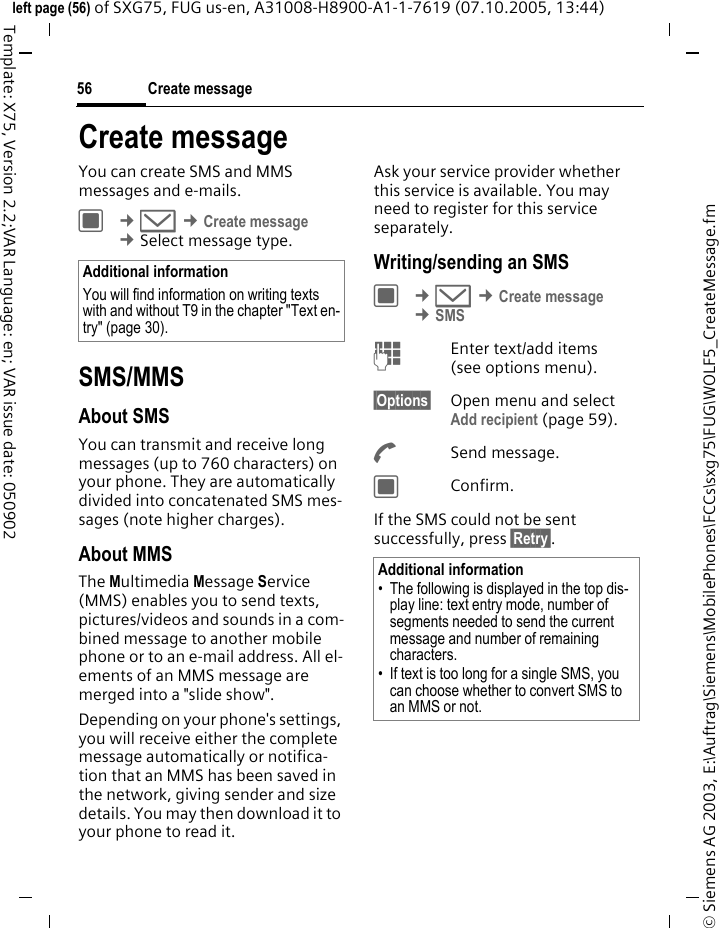
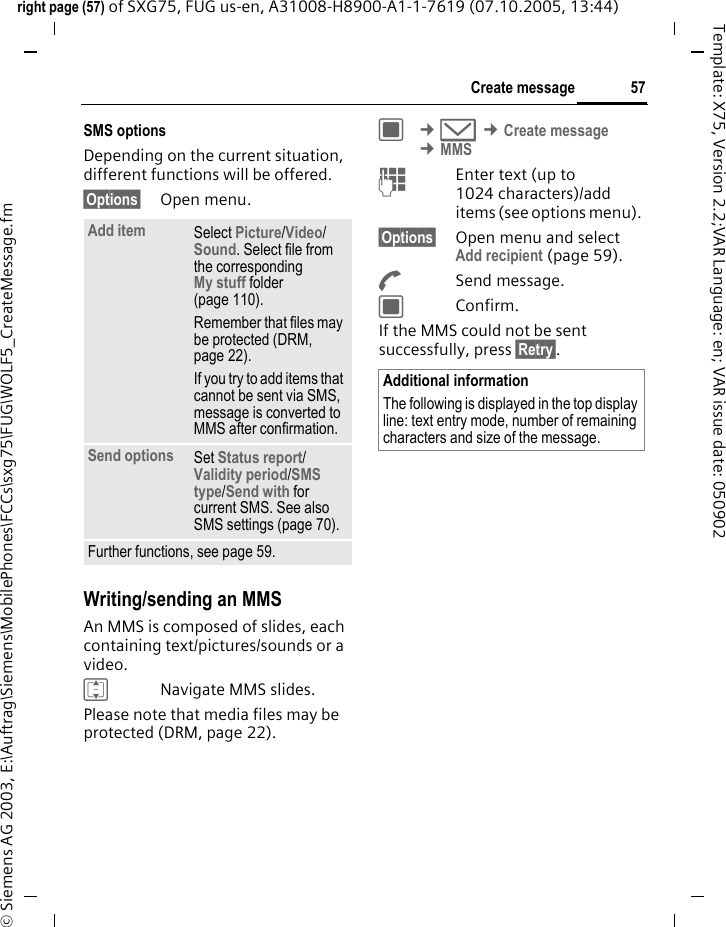
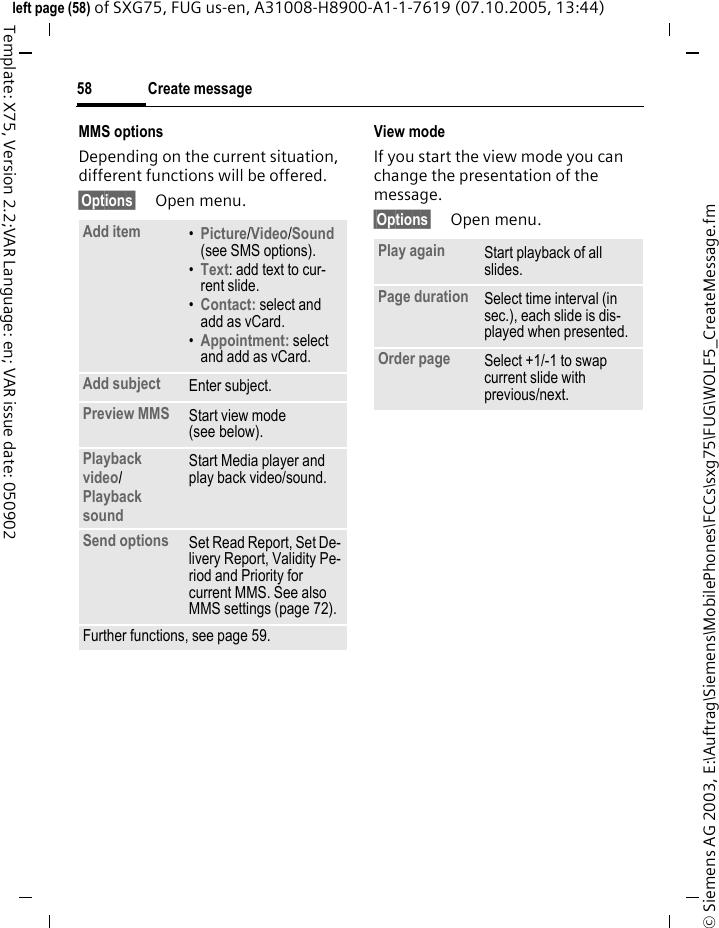
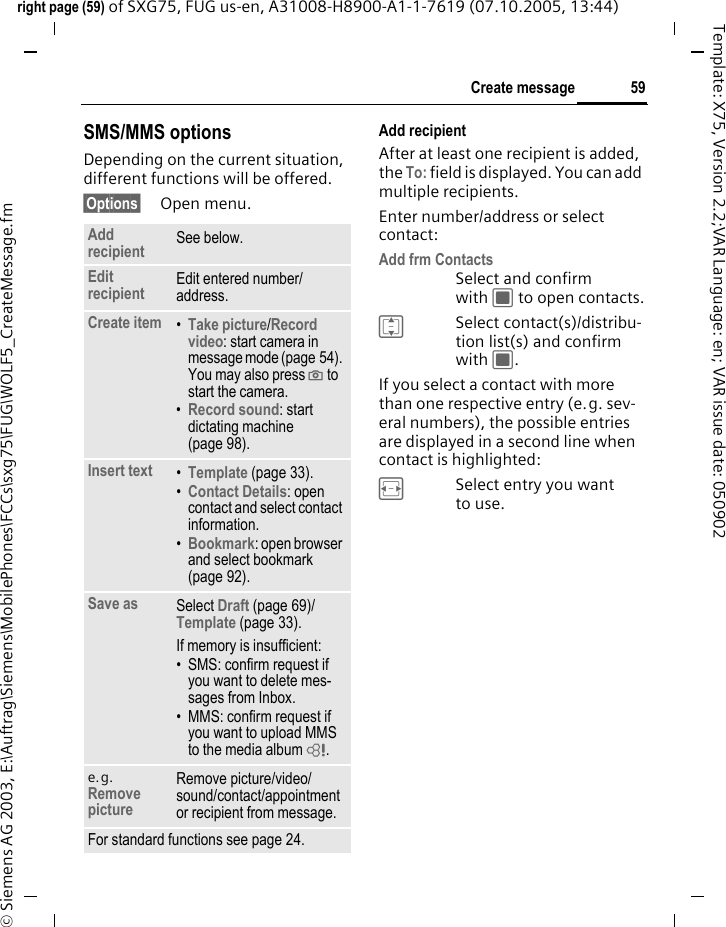
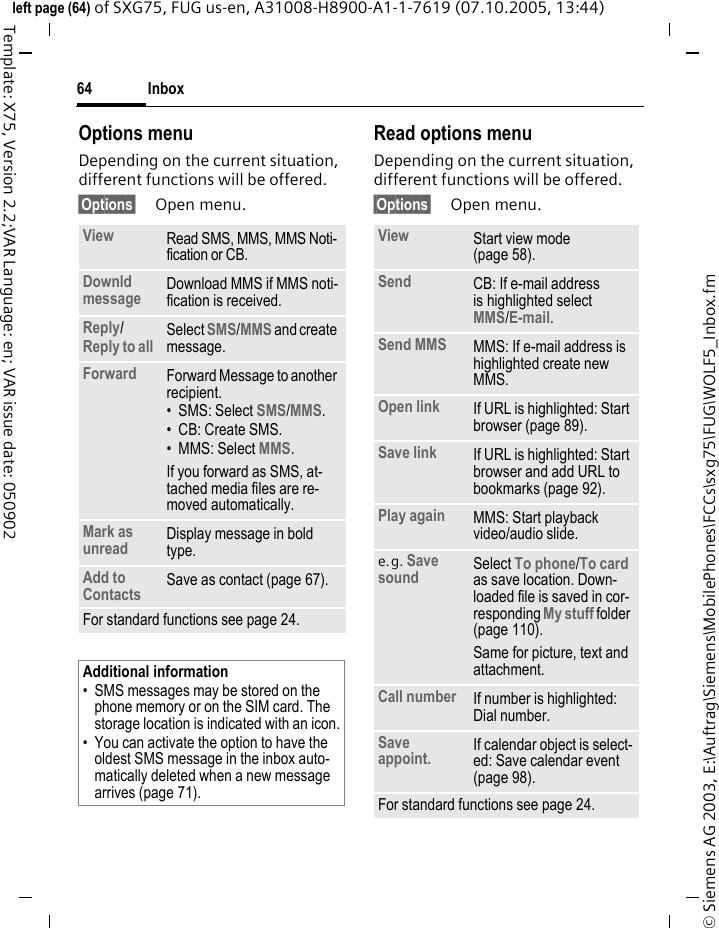
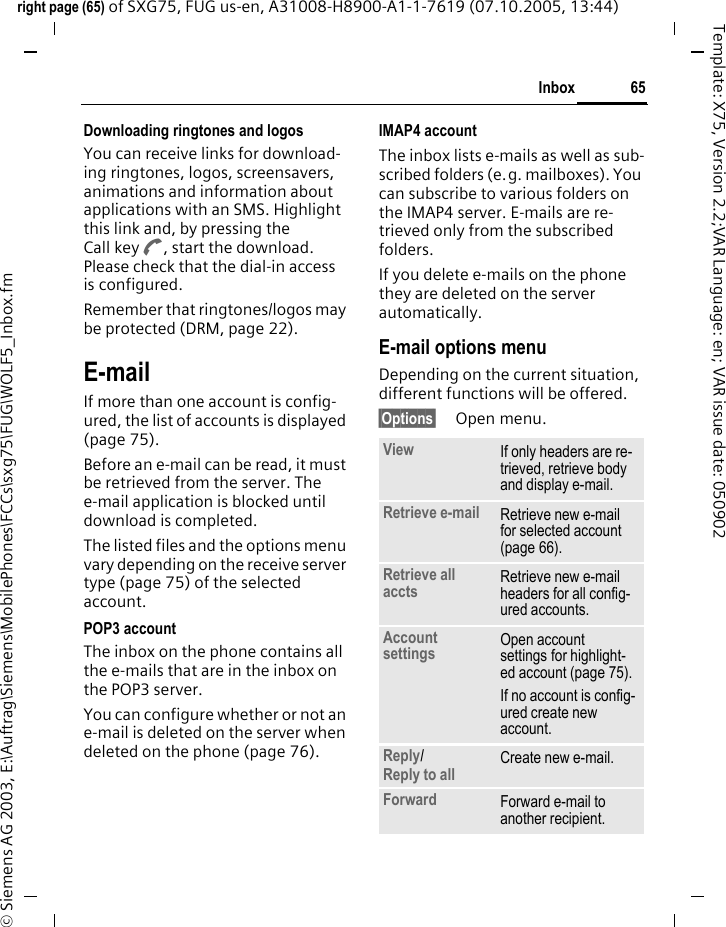
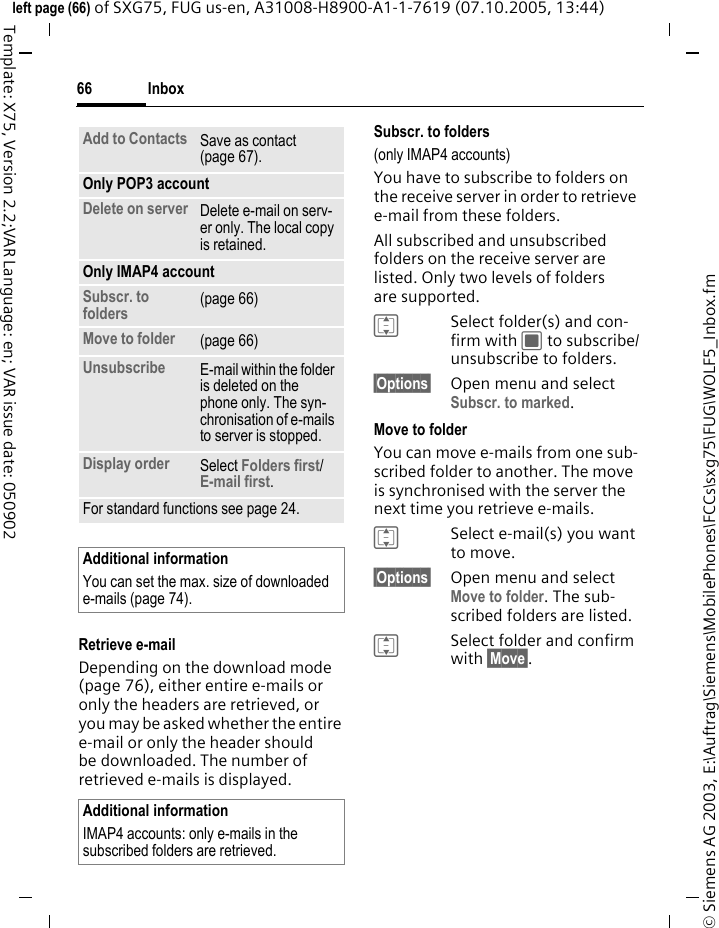
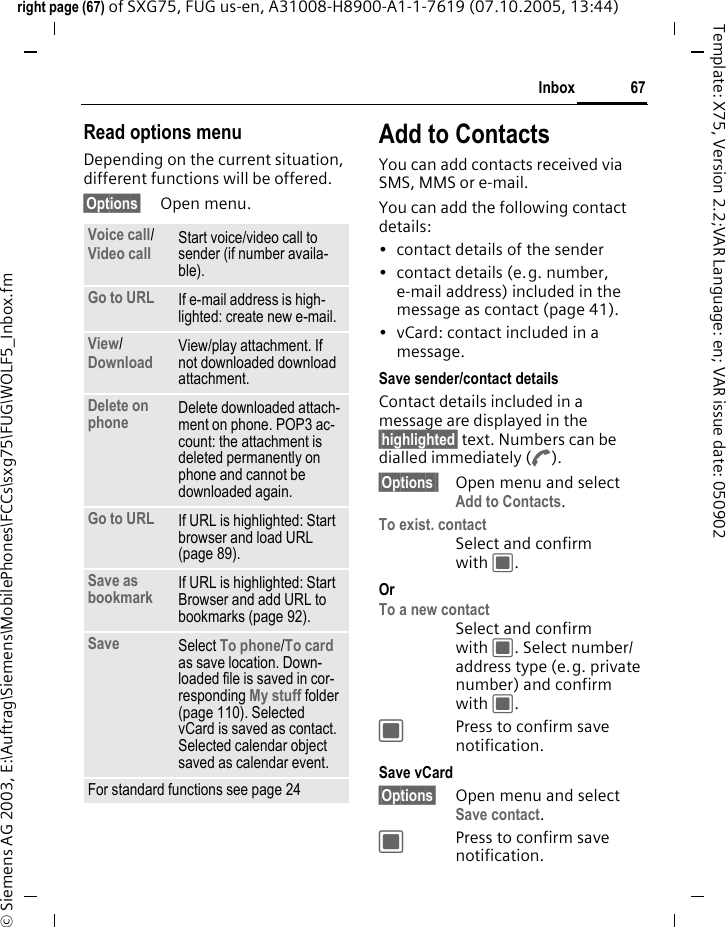
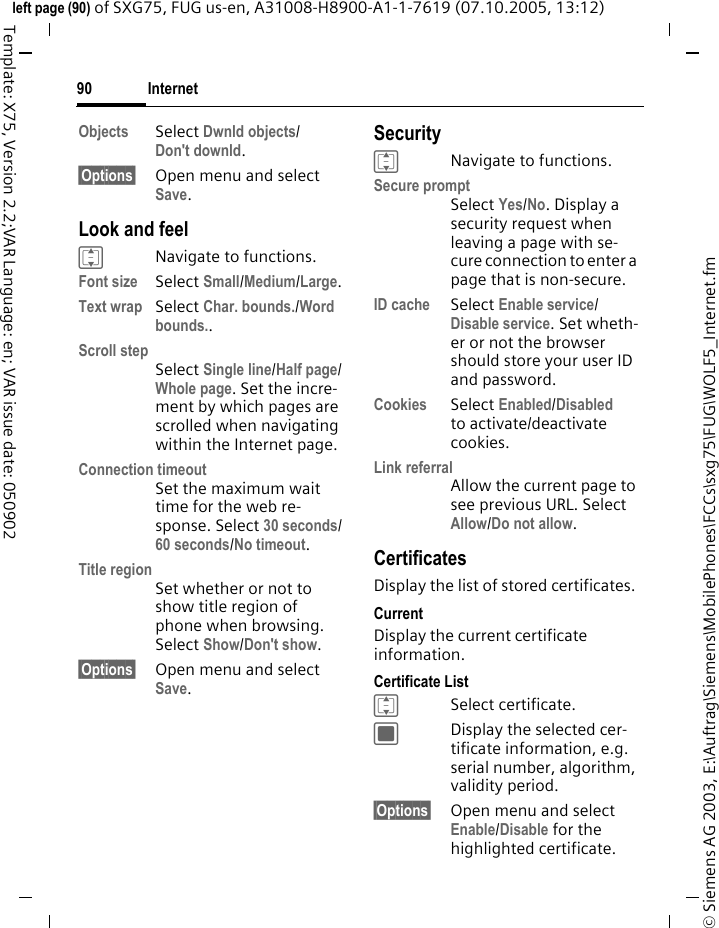
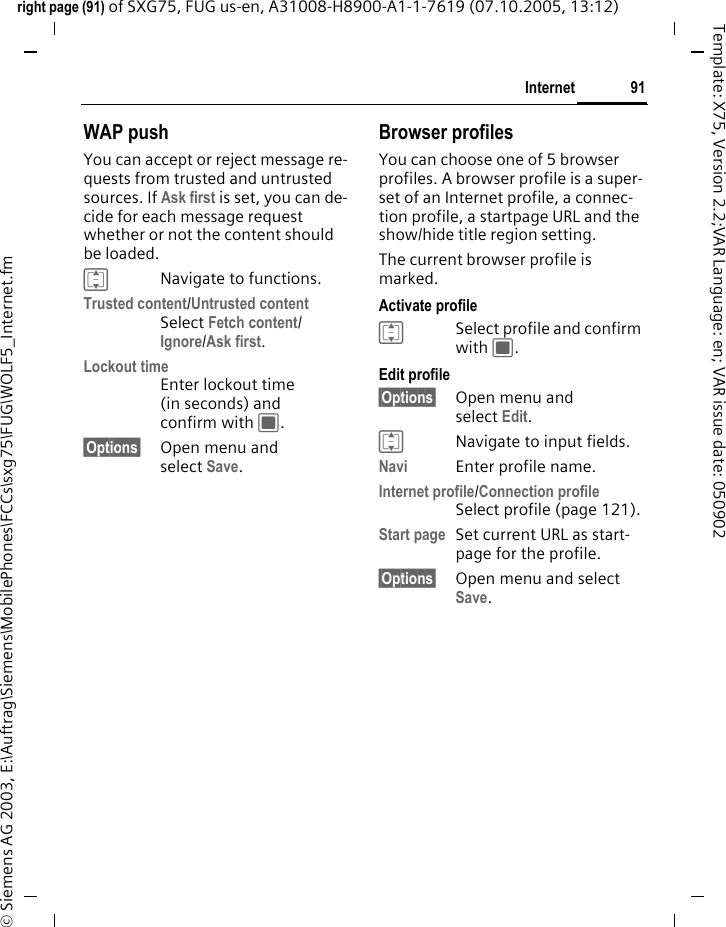
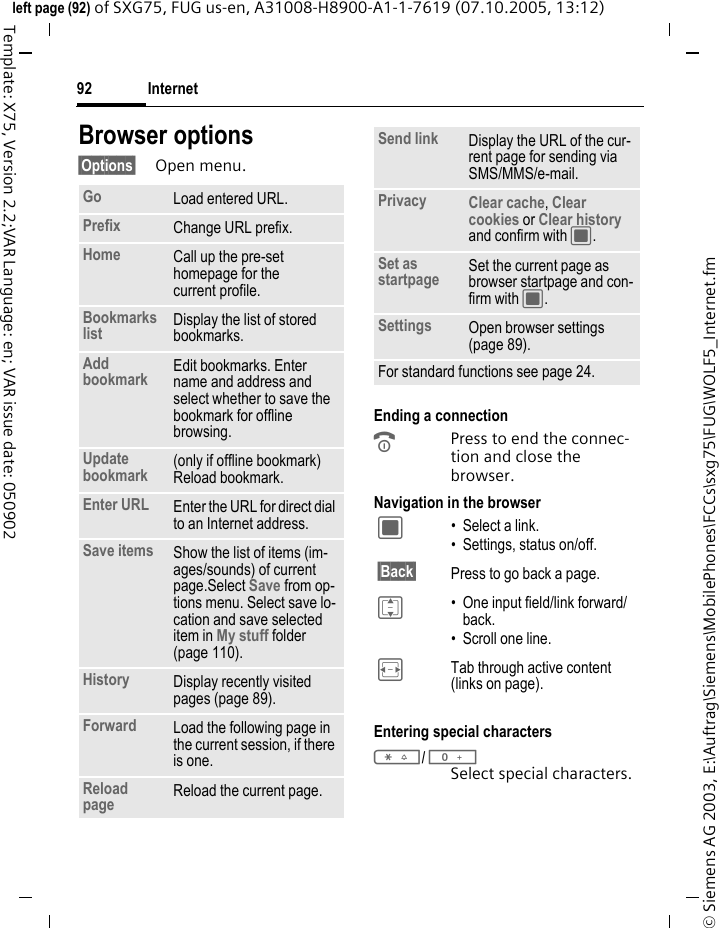
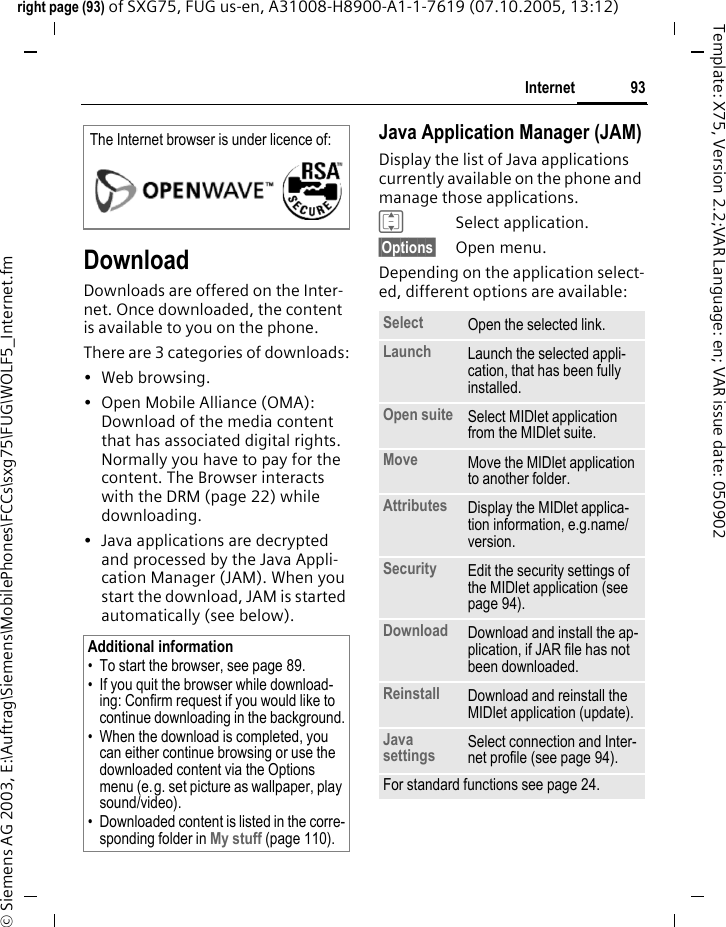
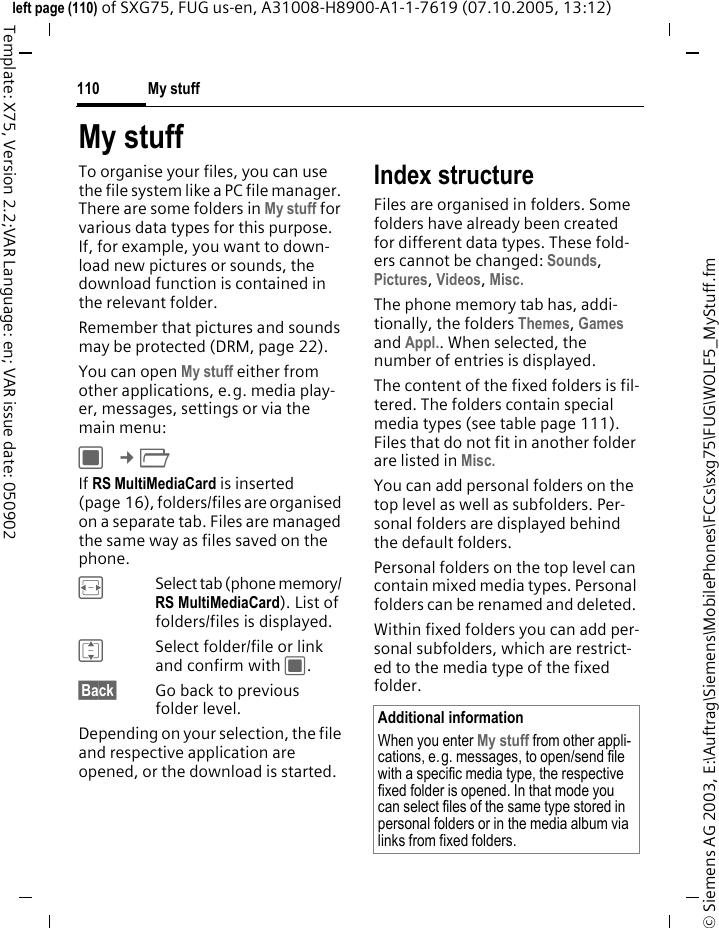
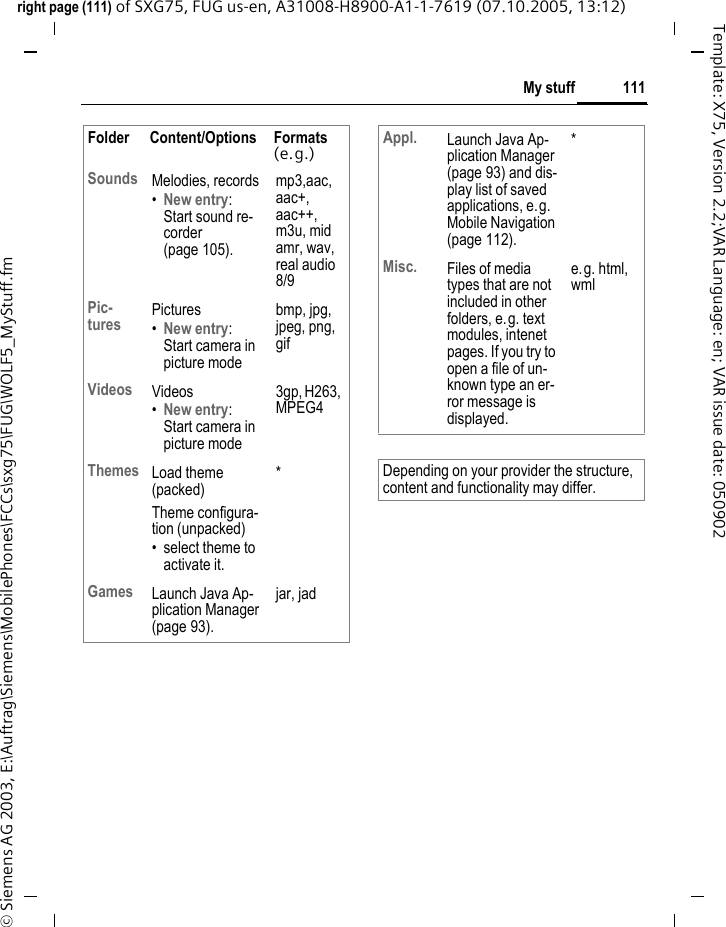
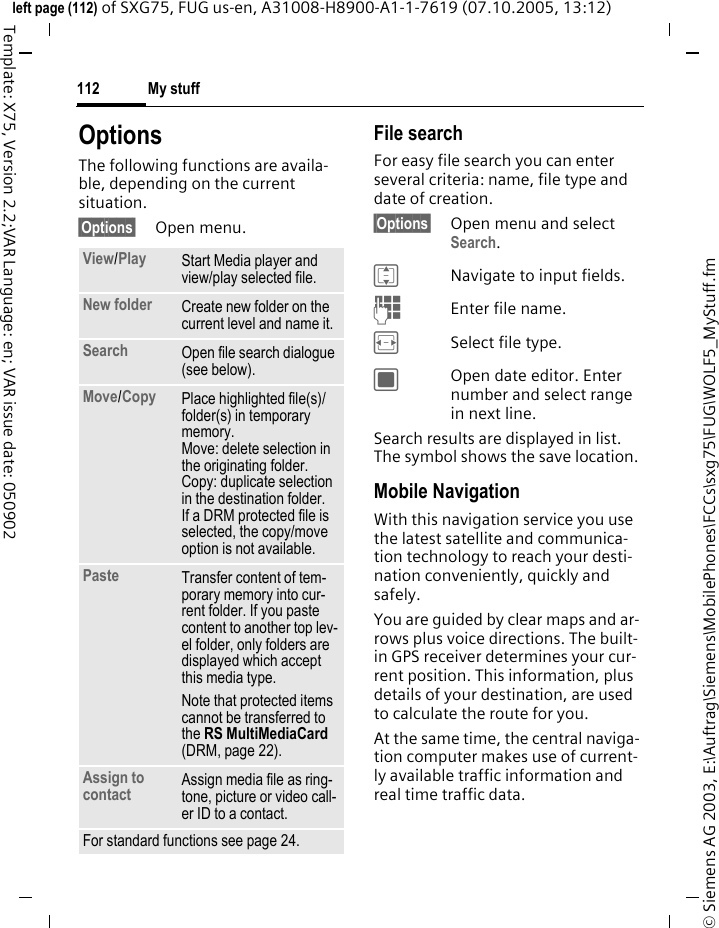
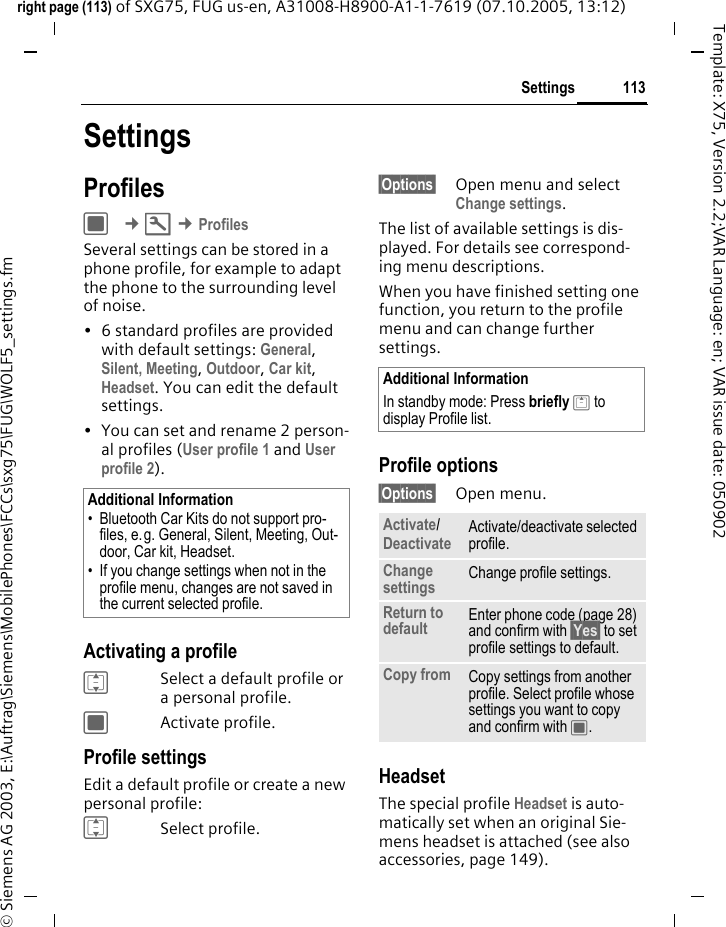
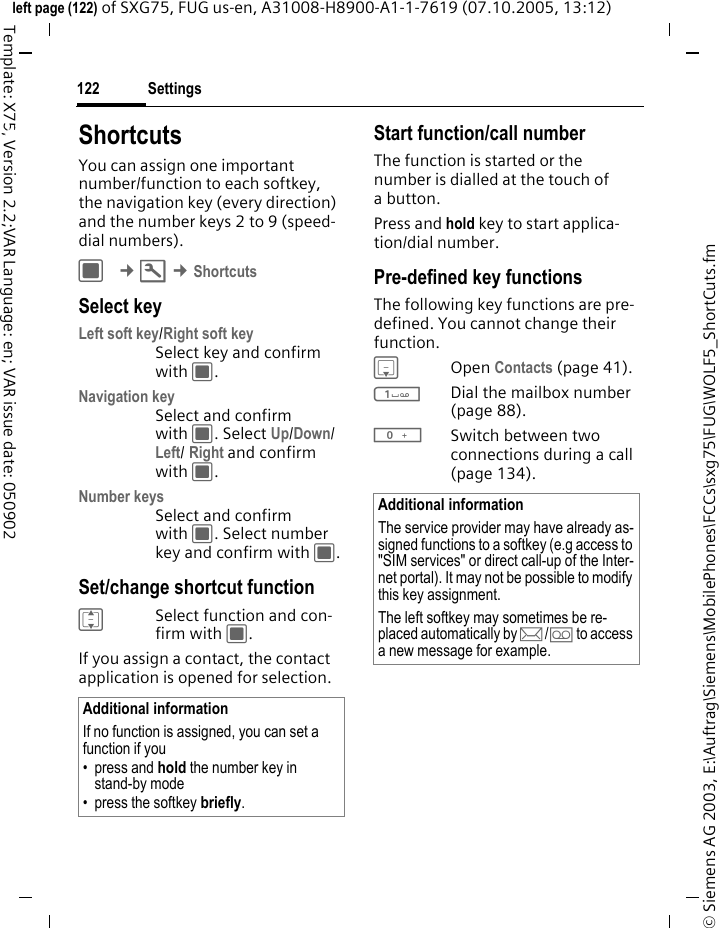
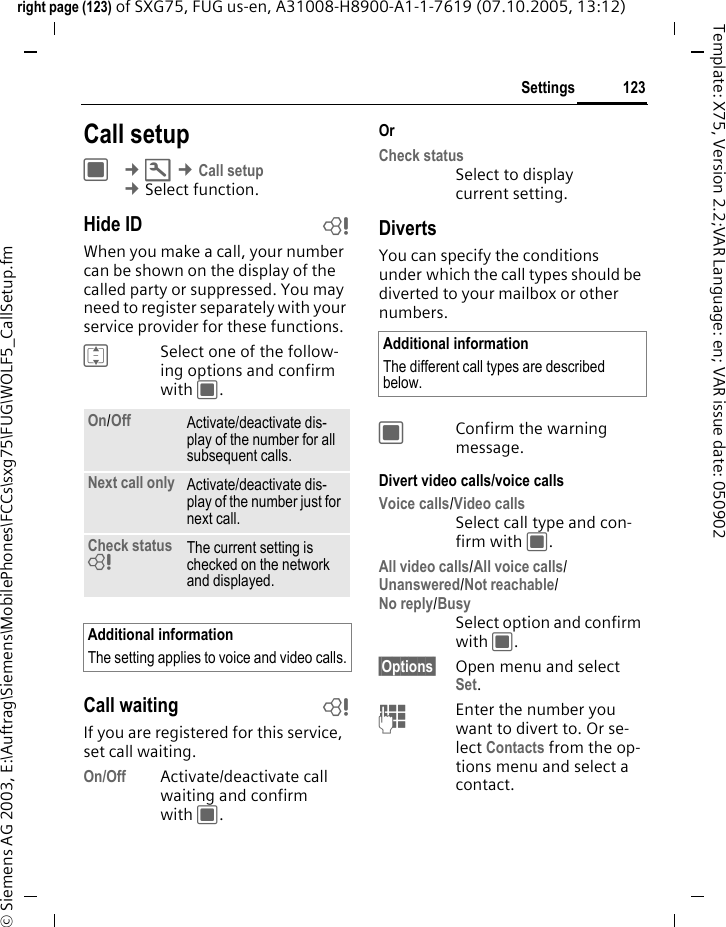
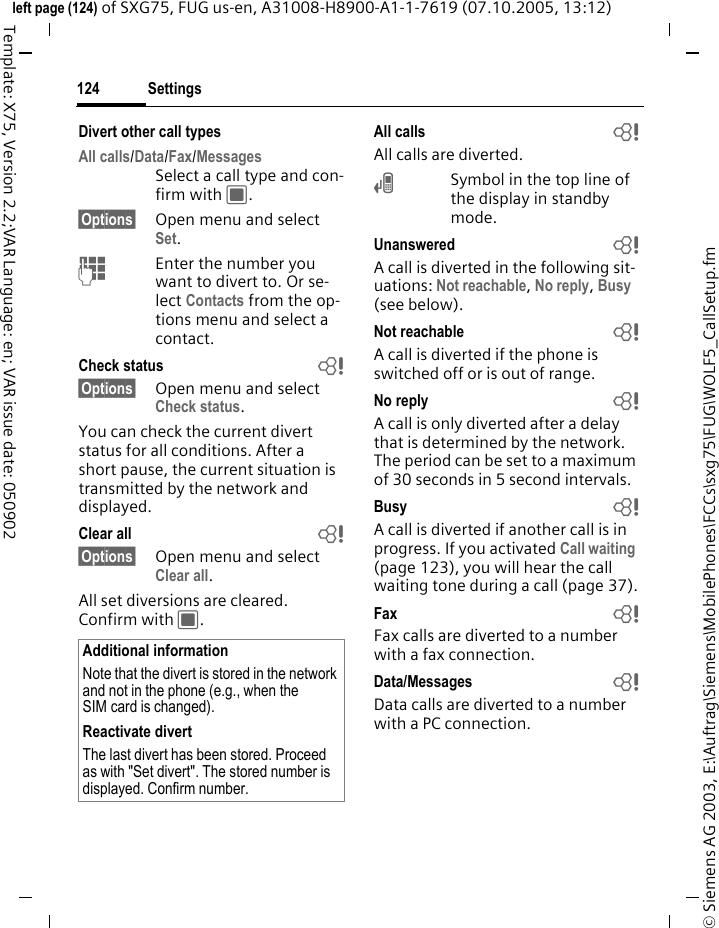
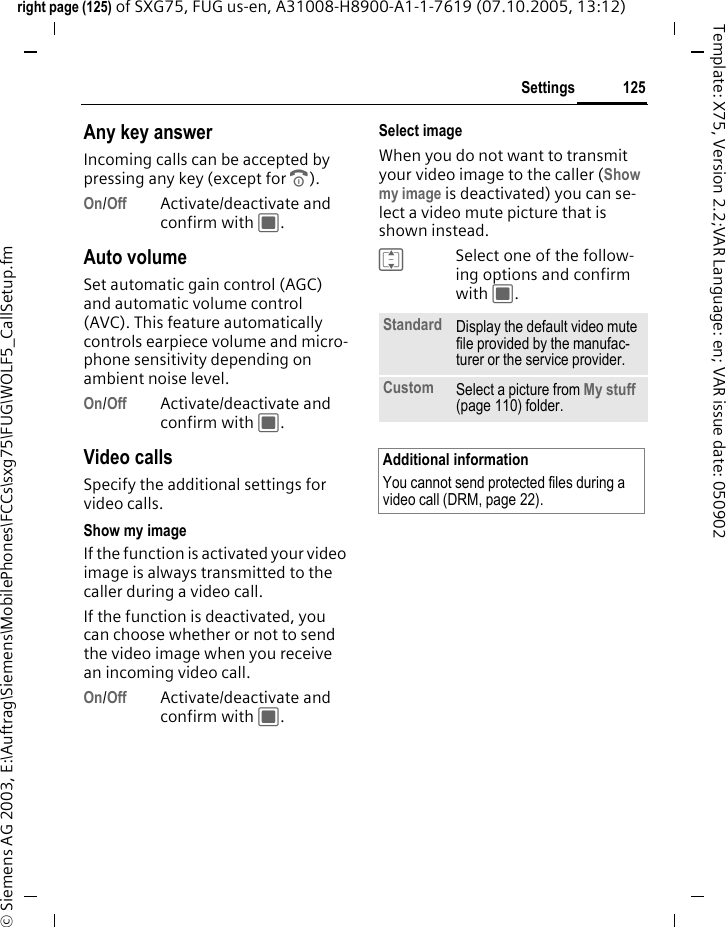
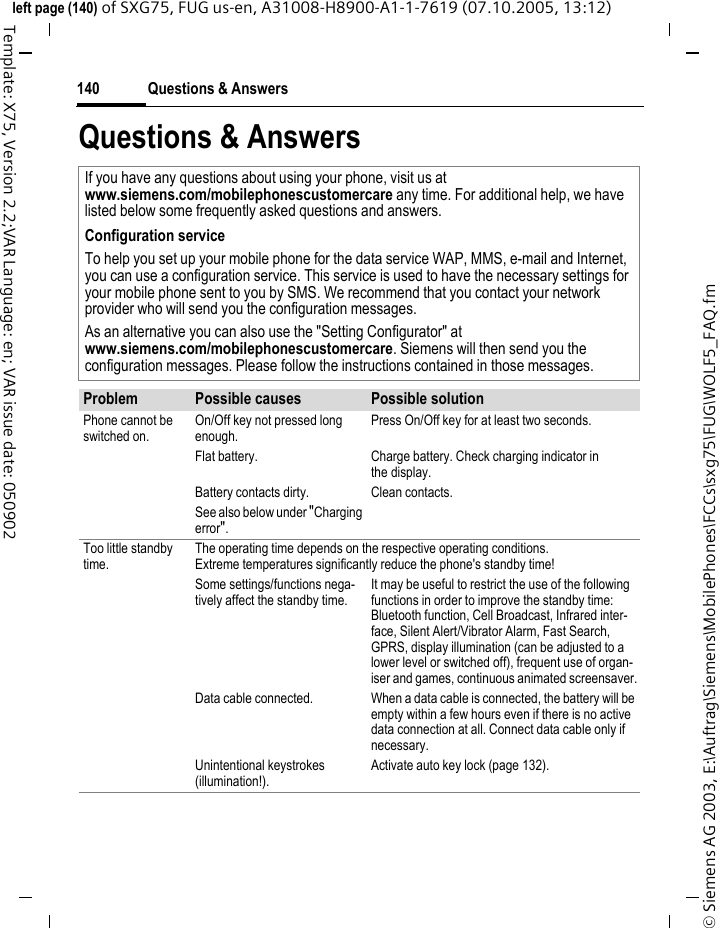
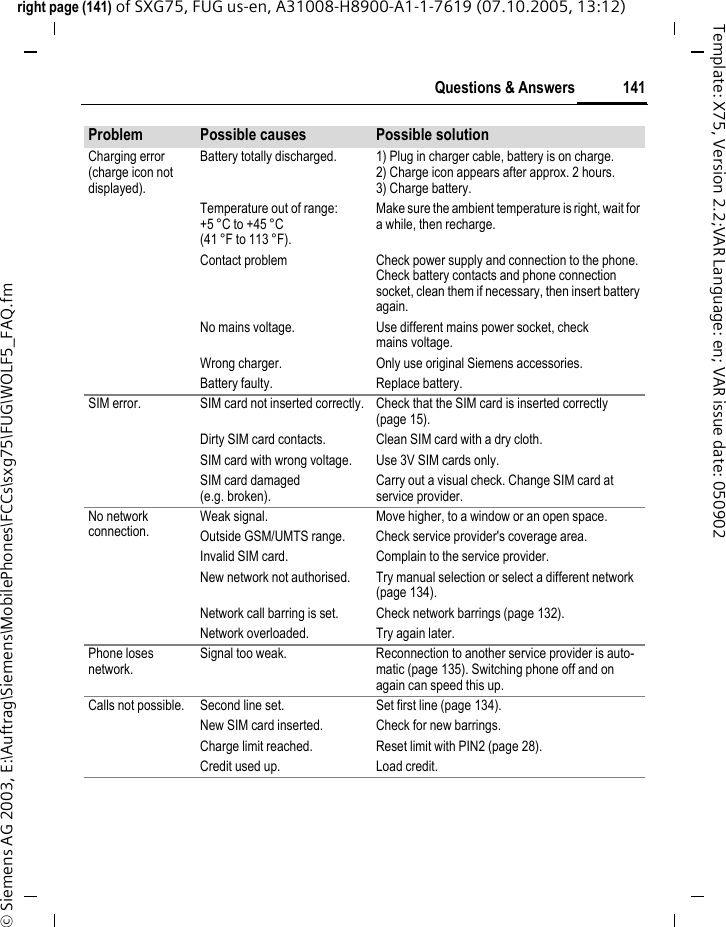
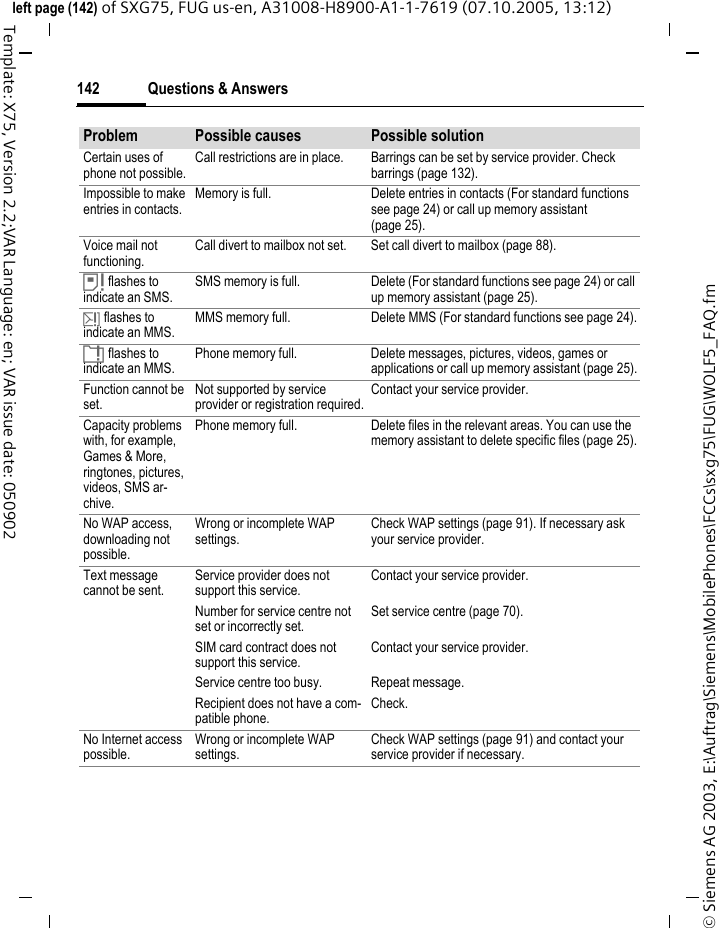
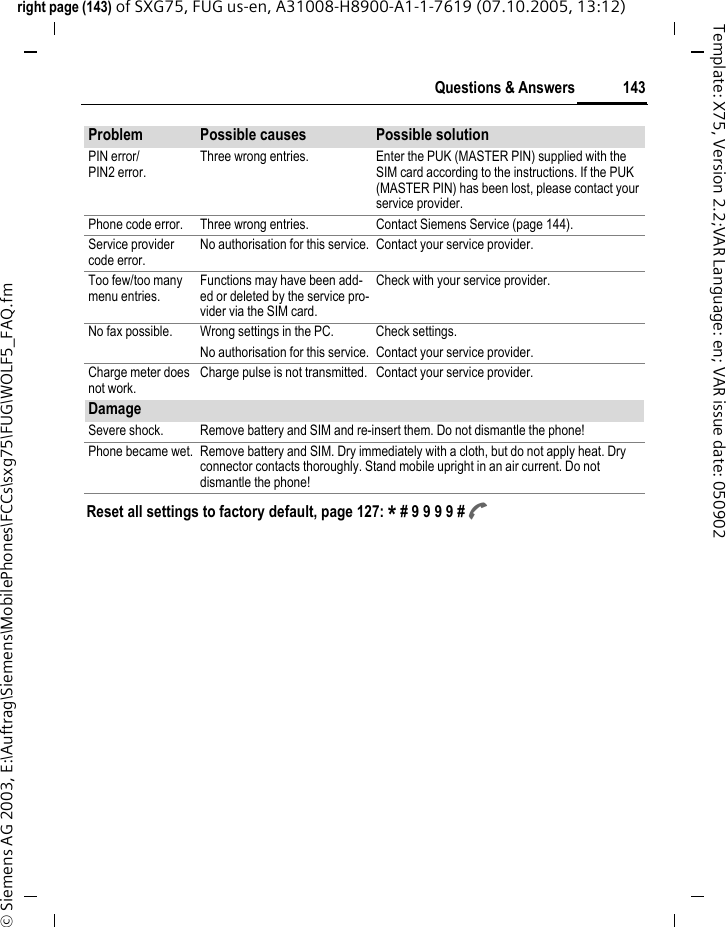
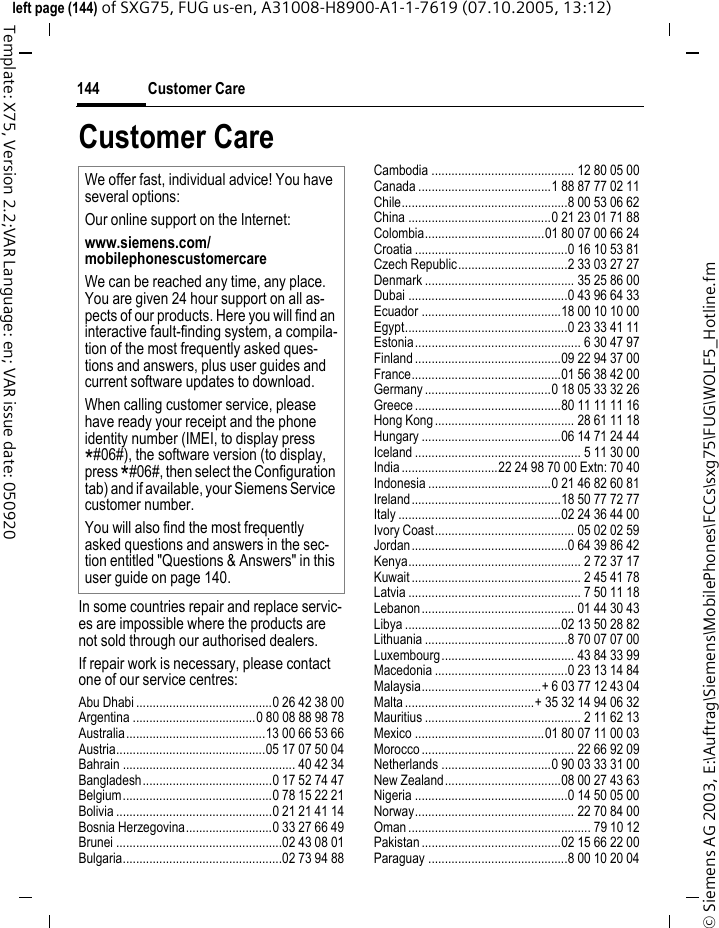
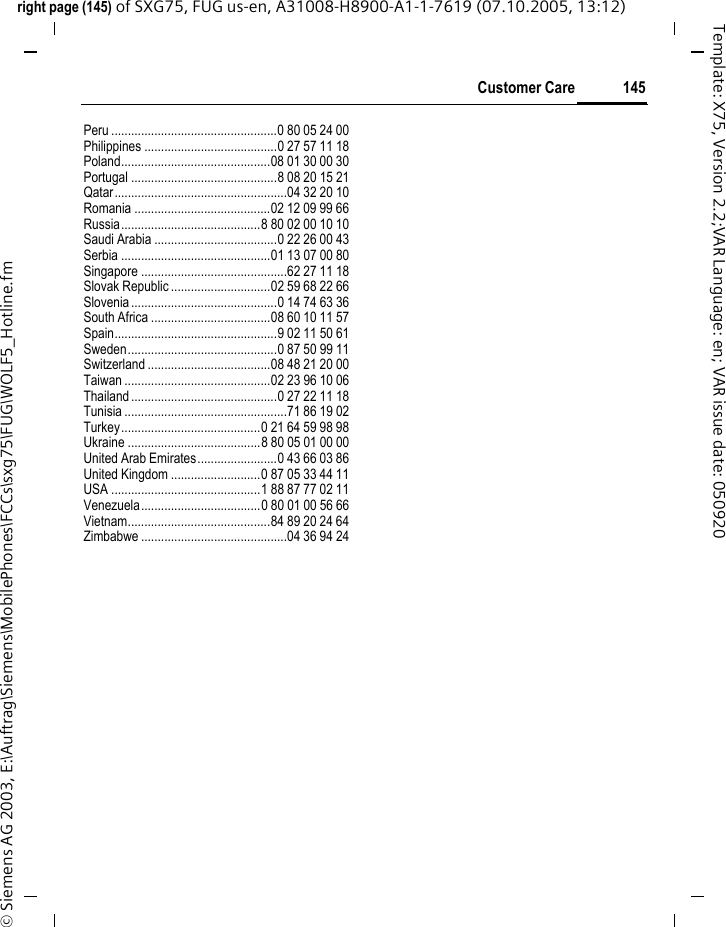
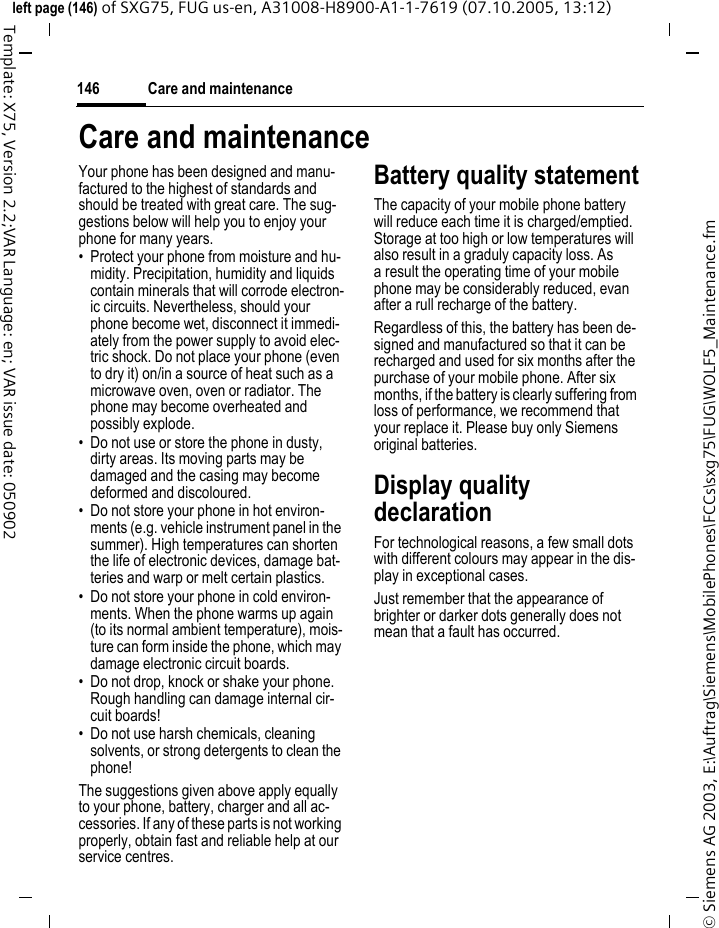
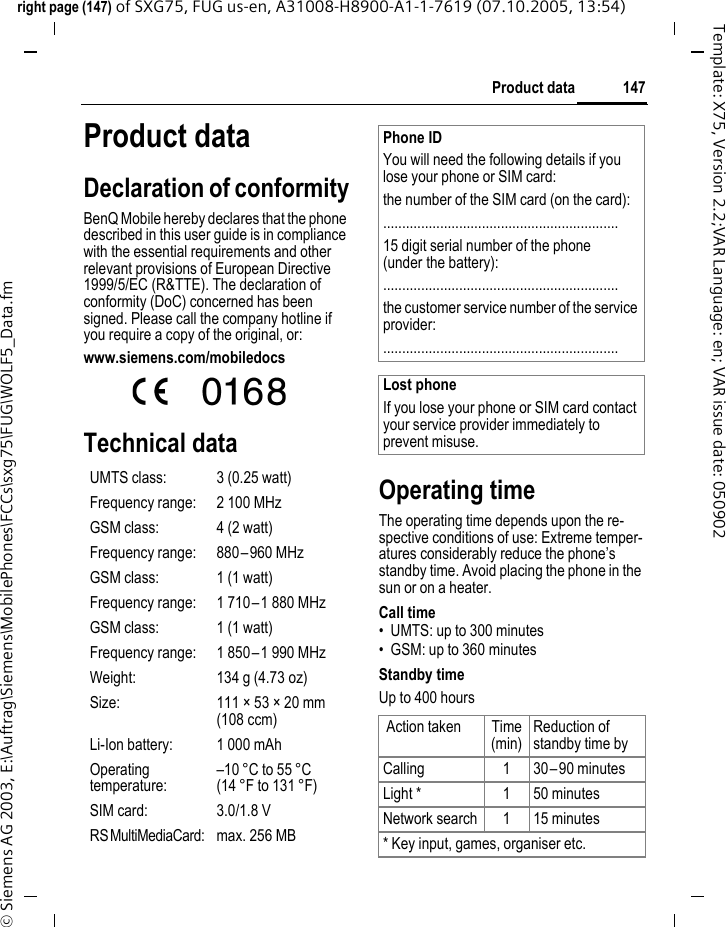
BenQ Mobile and OHG SXG75 GSM 1900 / UMTS Mobile Phone with Bluetooth User Manual WOLF5 FUG

BenQ Mobile GmbH & Co. OHG GSM 1900 / UMTS Mobile Phone with Bluetooth WOLF5 FUG

User Guide

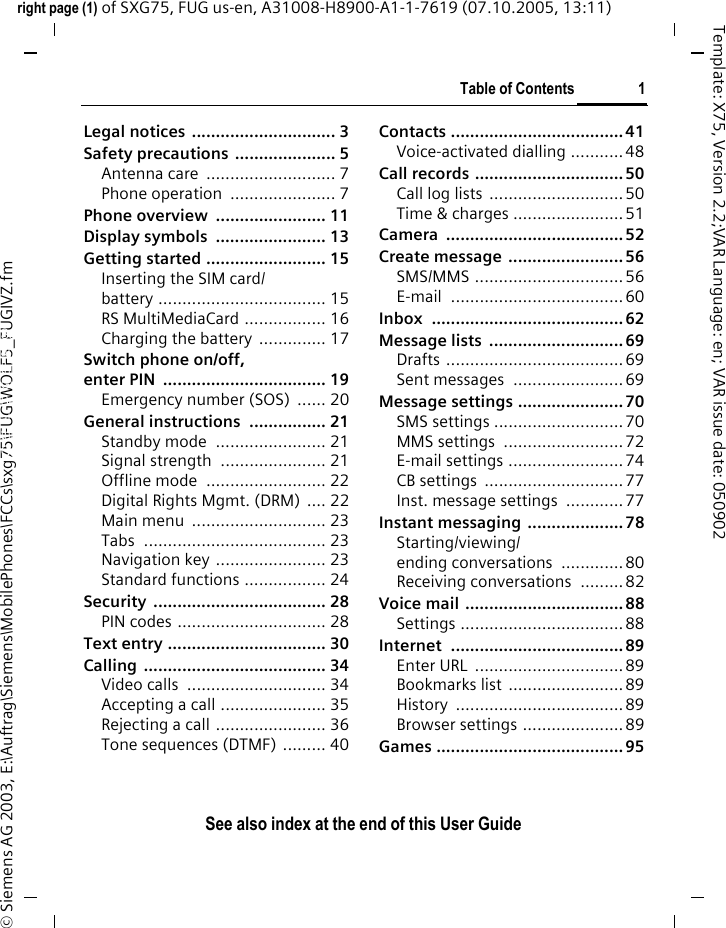
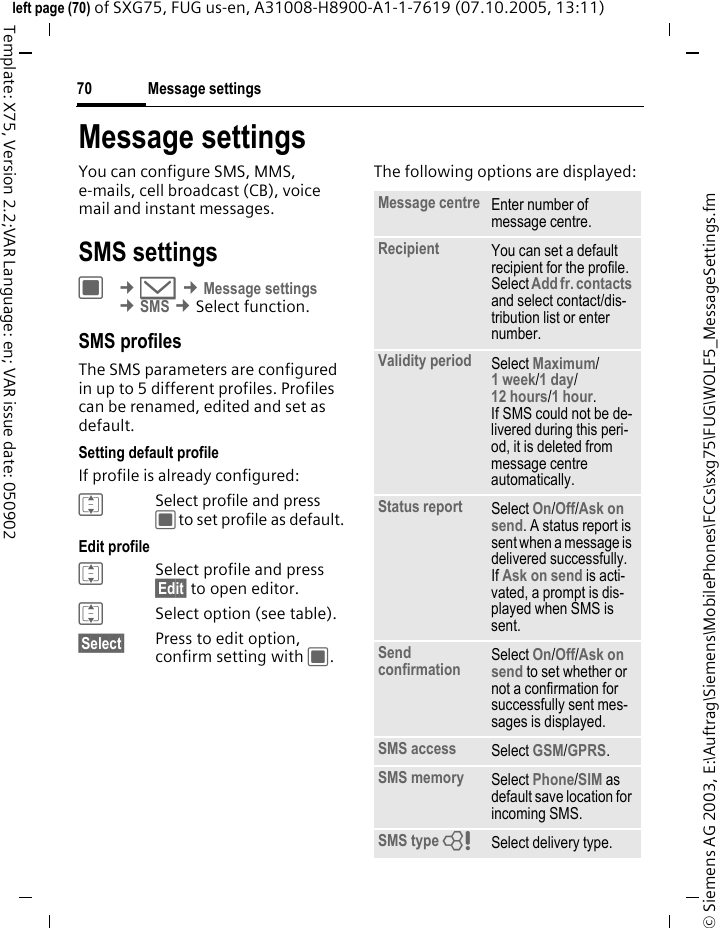
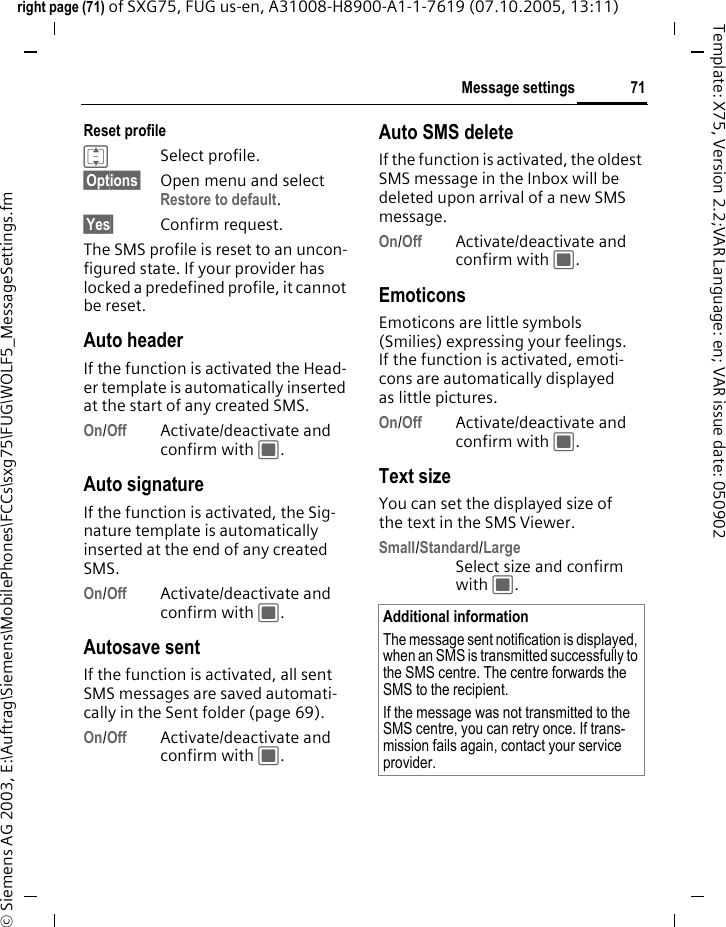
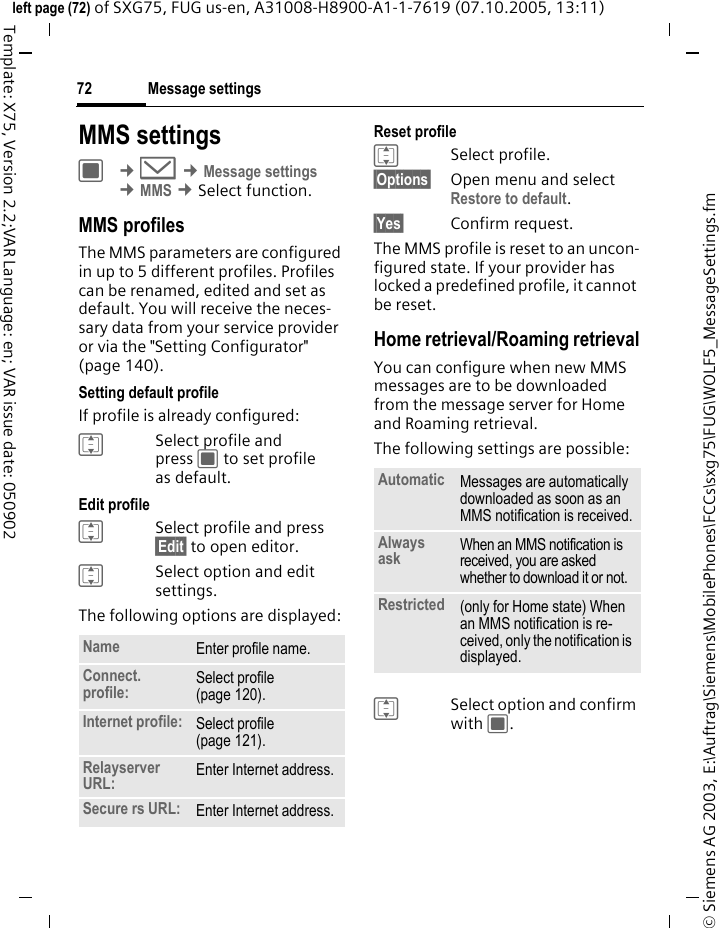
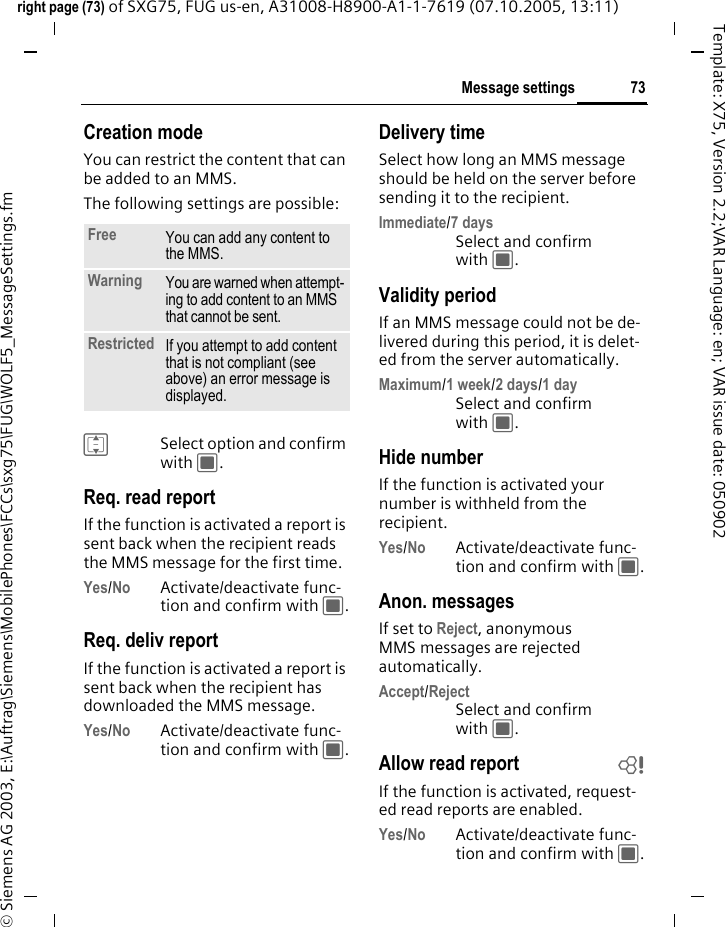
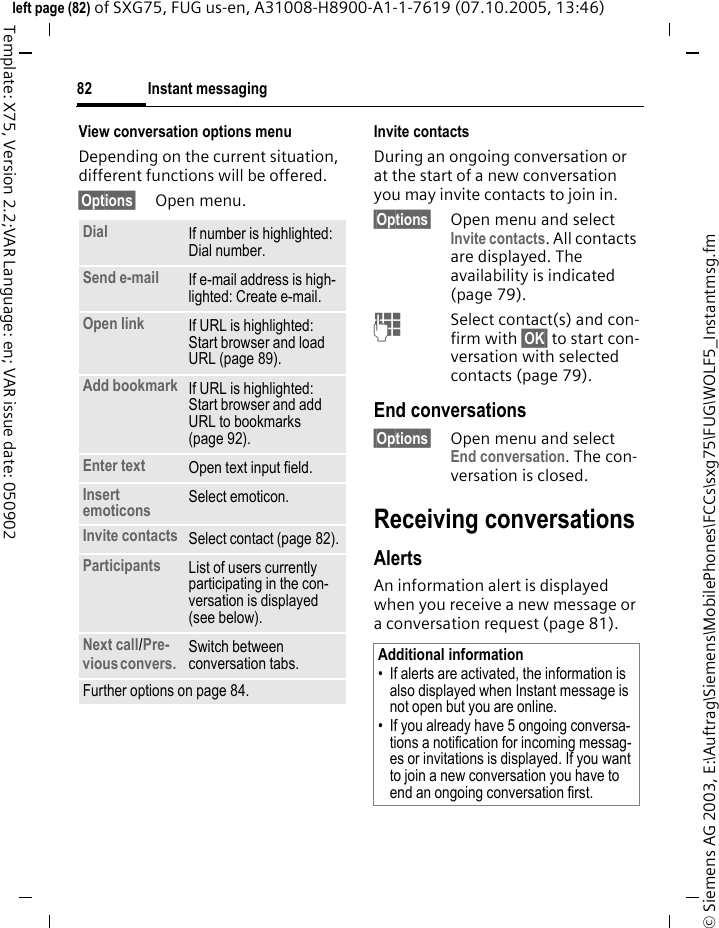
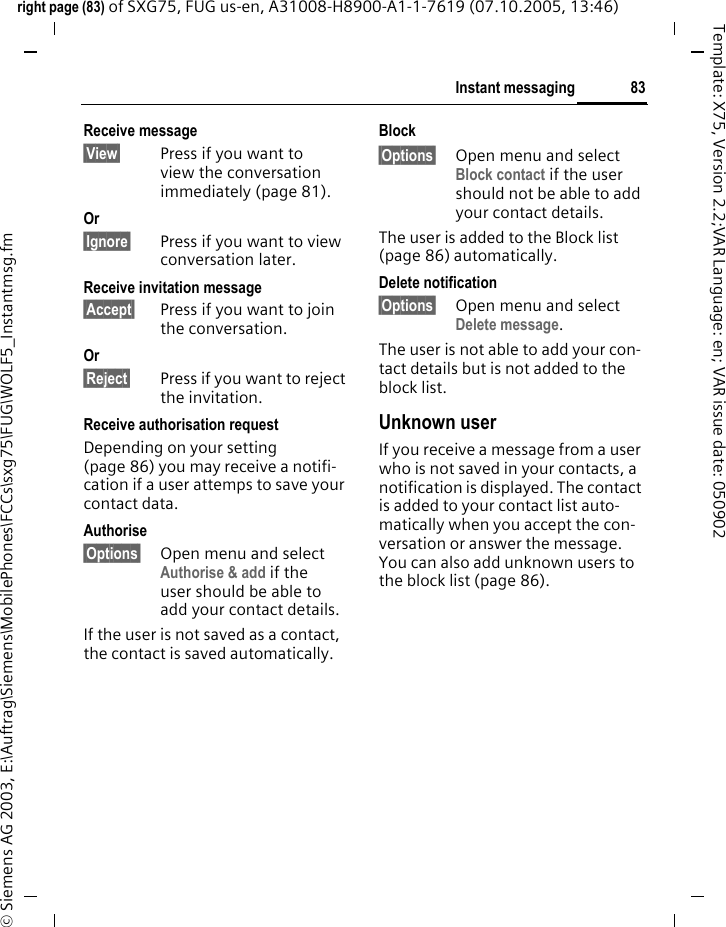
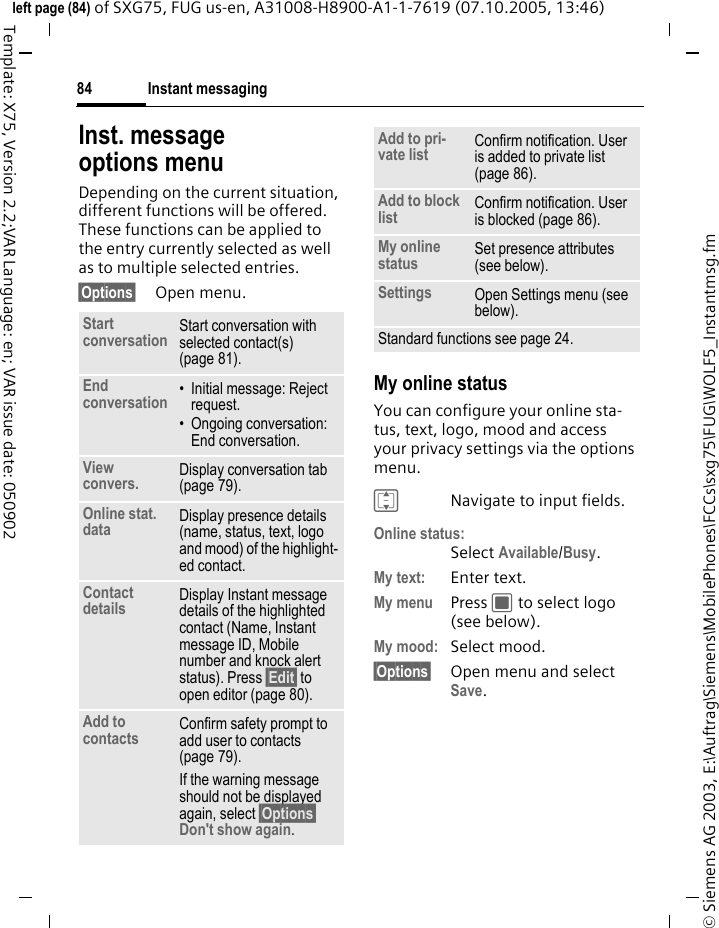
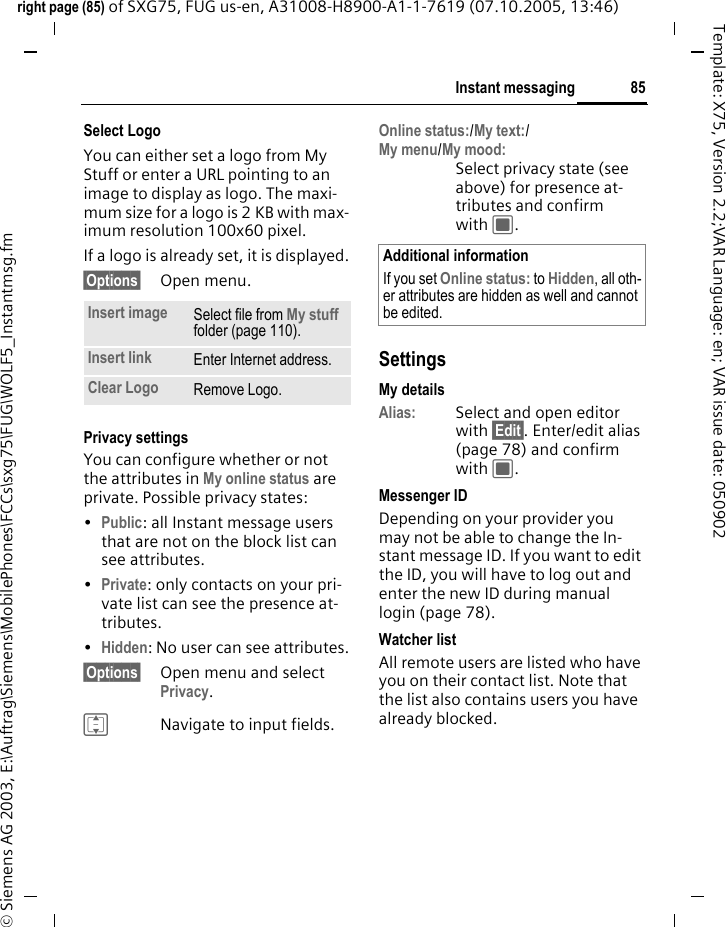
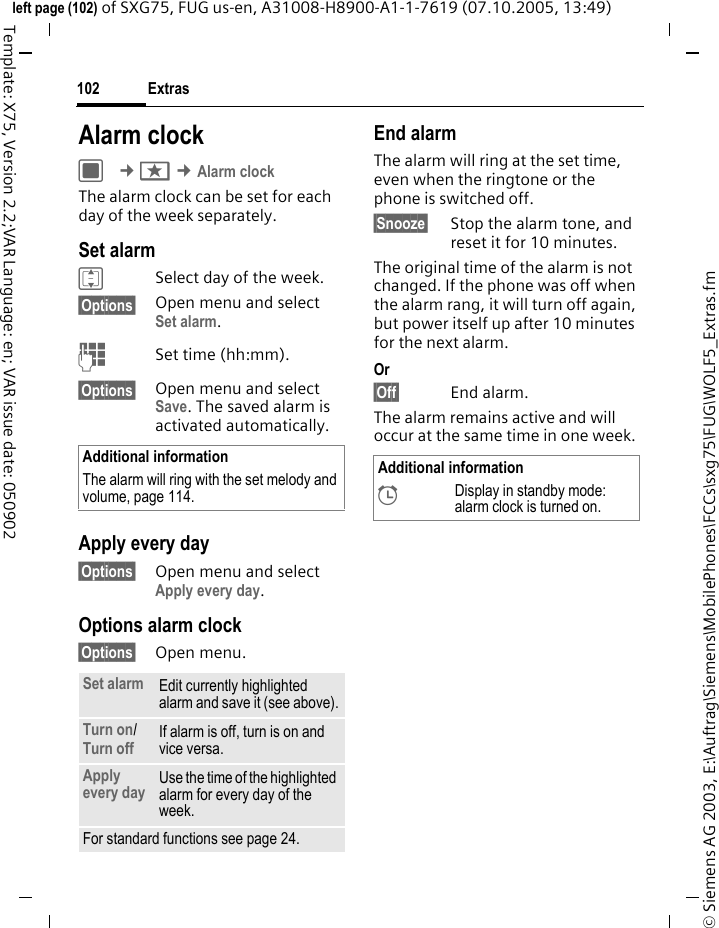
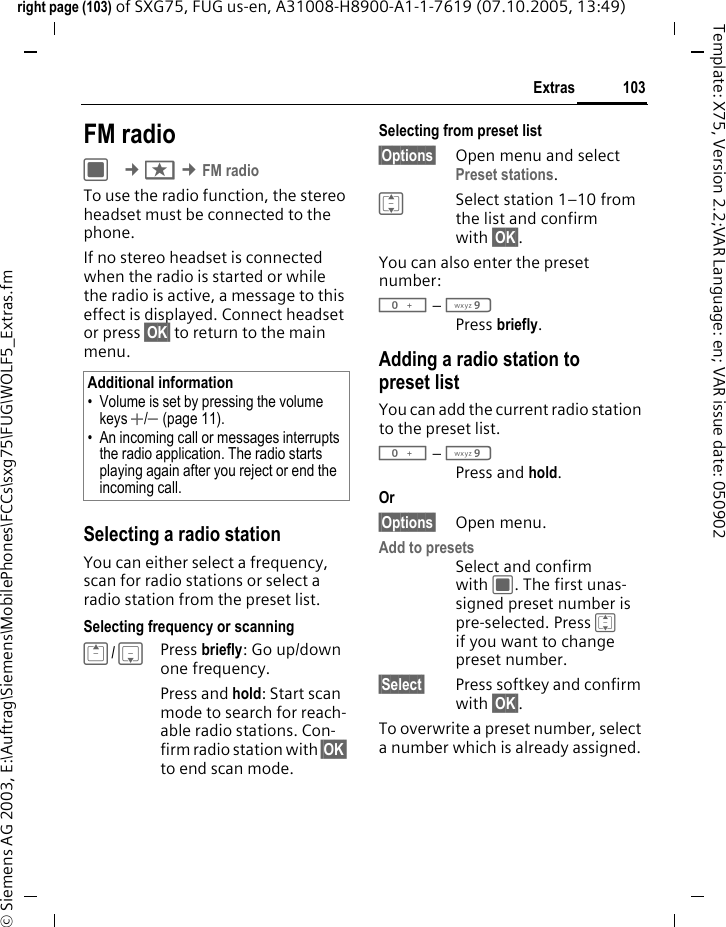
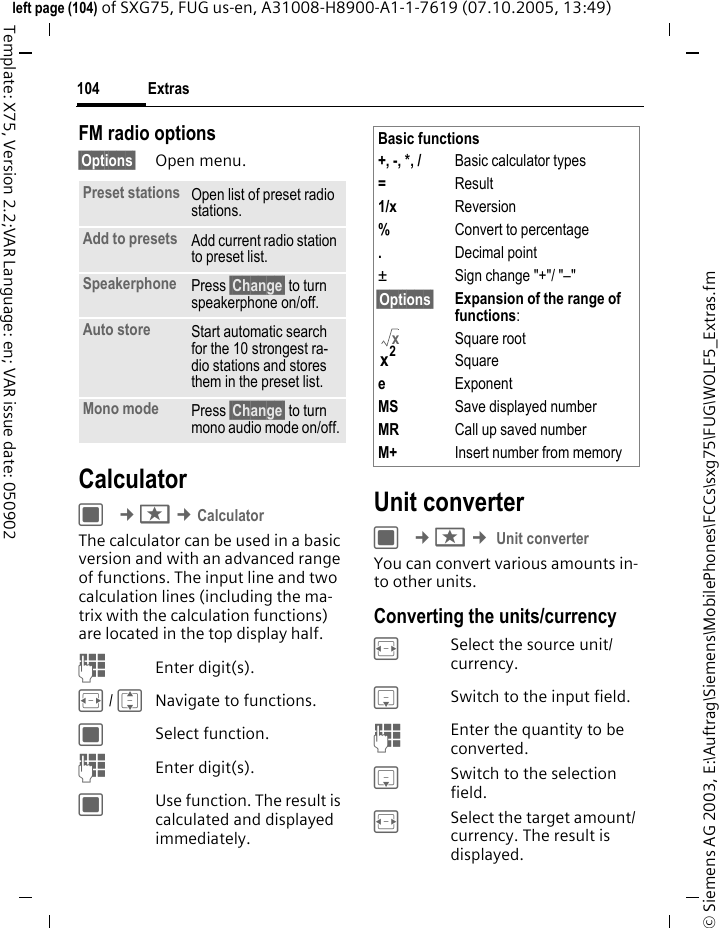
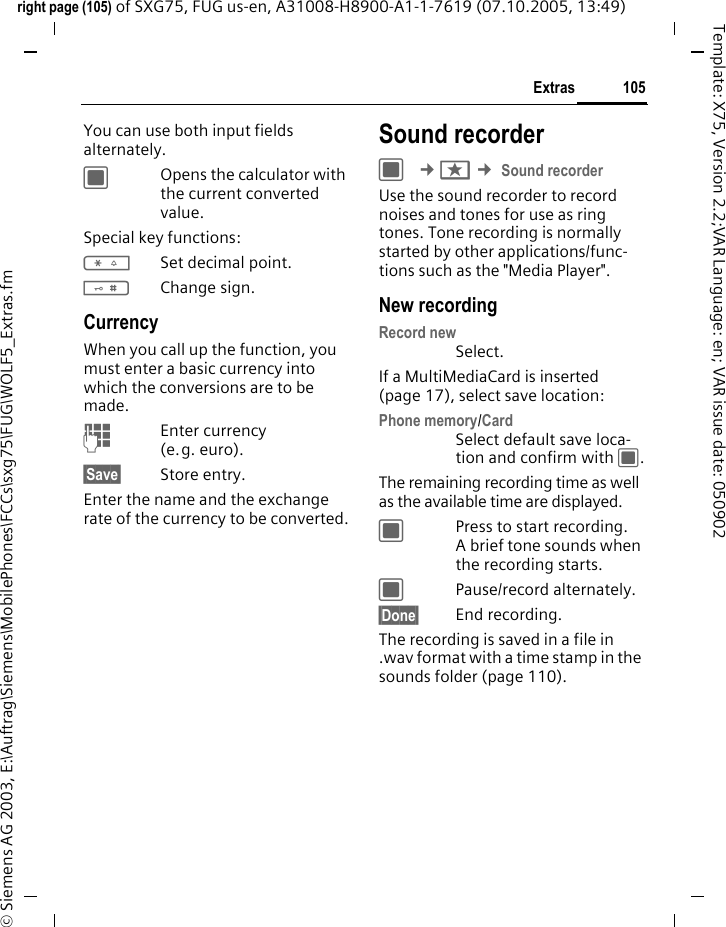
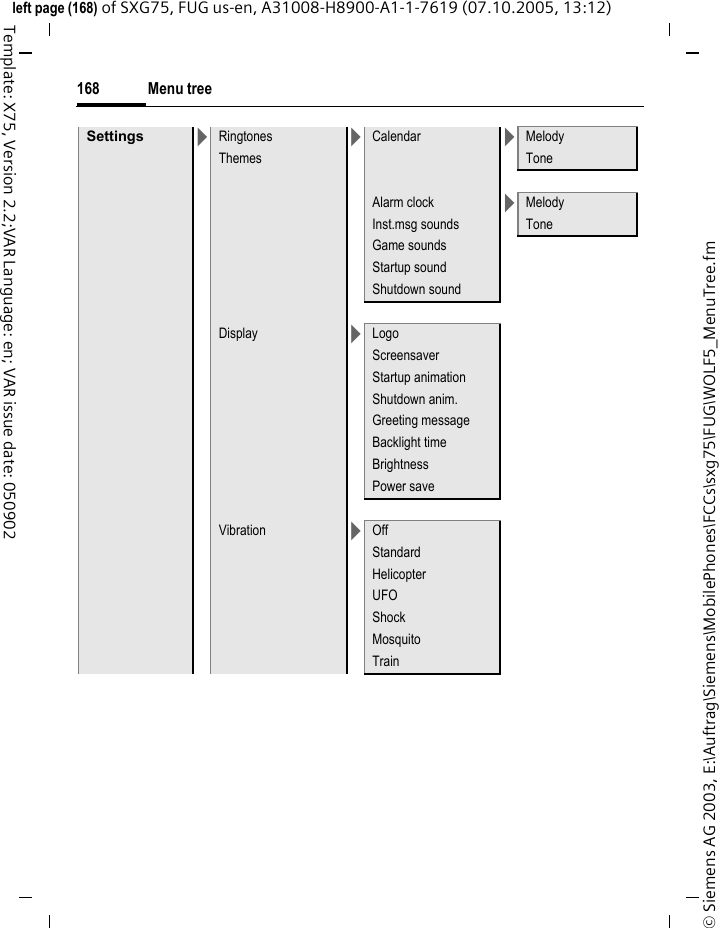
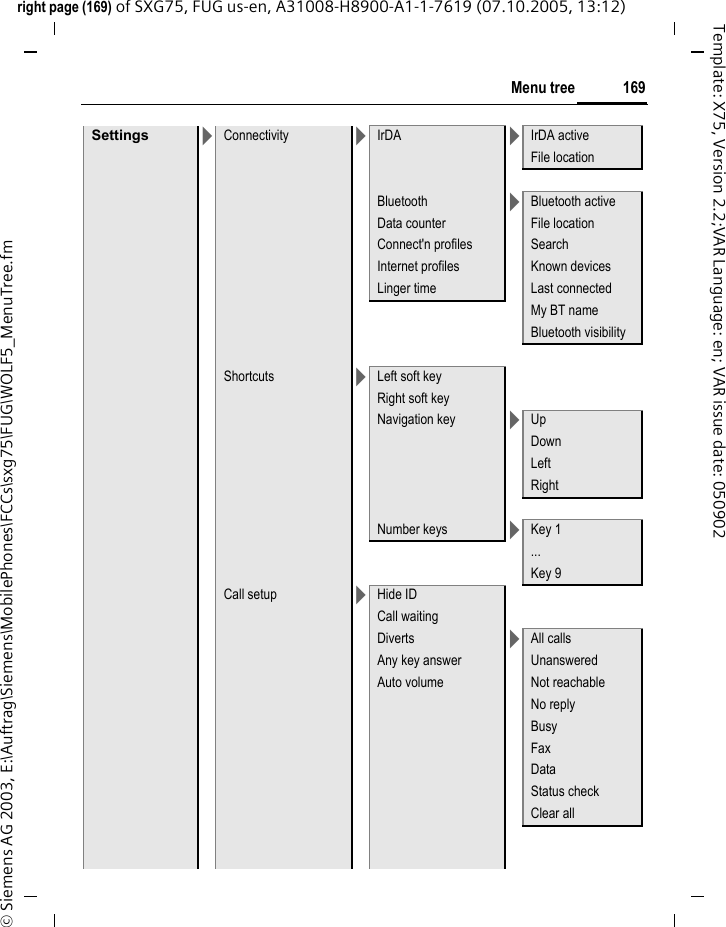
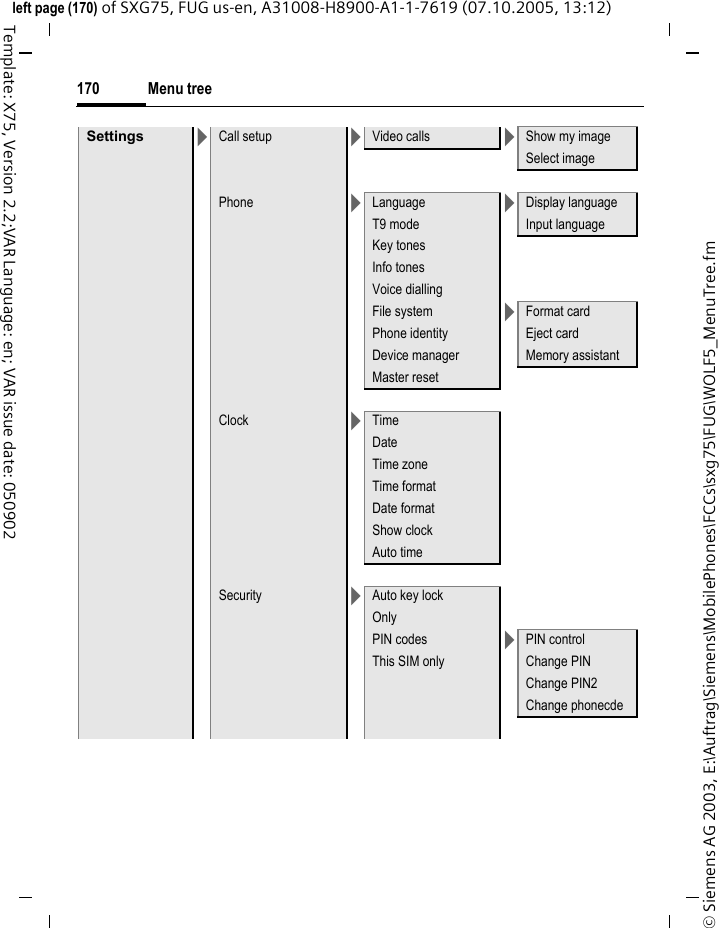
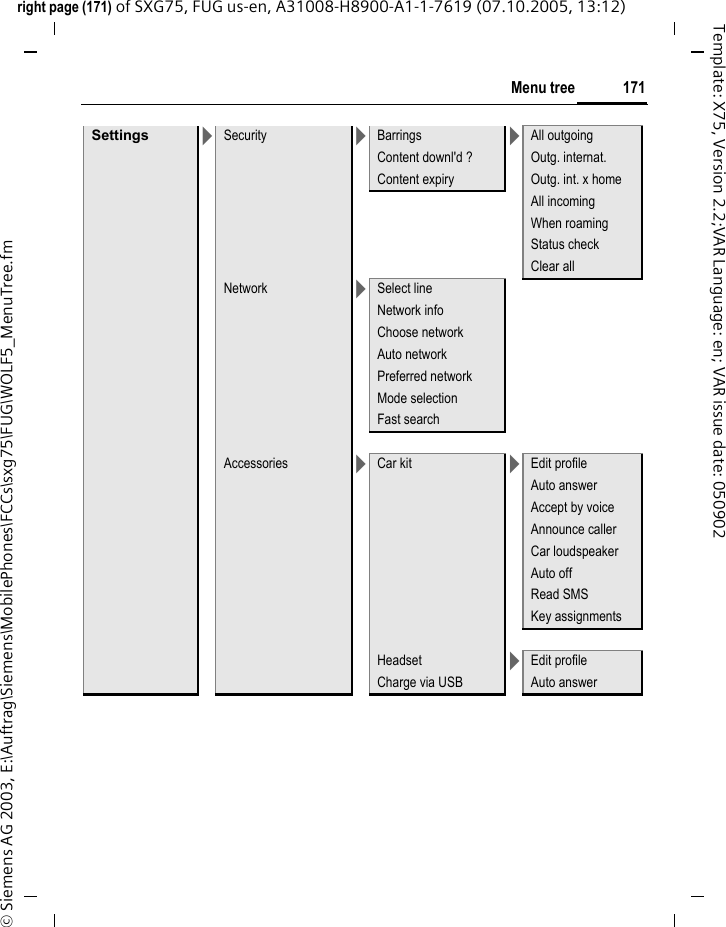
Table of Contents 1See also index at the end of this User Guideright page (1) of SXG75, FUG us-en, A31008-H8900-A1-1-7619 (07.10.2005, 13:11)© Siemens AG 2003, E:\Auftrag\Siemens\MobilePhones\FCCs\sxg75\FUG\WOLF5_FUGIVZ.fmTemplate: X75, Version 2.2;VAR Language: en; VAR issue date: 050902Legal notices  .............................. 3Safety precautions ..................... 5Antenna care  ........................... 7Phone operation  ...................... 7Phone overview  ....................... 11Display symbols  ....................... 13Getting started ......................... 15Inserting the SIM card/battery ................................... 15RS MultiMediaCard ................. 16Charging the battery  .............. 17Switch phone on/off,enter PIN  .................................. 19Emergency number (SOS)  ...... 20General instructions ................ 21Standby mode  ....................... 21Signal strength  ...................... 21Offline mode  ......................... 22Digital Rights Mgmt. (DRM) .... 22Main menu  ............................ 23Tabs ...................................... 23Navigation key ....................... 23Standard functions ................. 24Security .................................... 28PIN codes ............................... 28Text entry ................................. 30Calling ...................................... 34Video calls  ............................. 34Accepting a call ...................... 35Rejecting a call ....................... 36Tone sequences (DTMF) ......... 40Contacts ....................................41Voice-activated dialling ........... 48Call records ...............................50Call log lists  ............................50Time & charges .......................51Camera .....................................52Create message ........................56SMS/MMS ...............................56E-mail ....................................60Inbox ........................................62Message lists  ............................69Drafts .....................................69Sent messages  ....................... 69Message settings ...................... 70SMS settings ...........................70MMS settings  .........................72E-mail settings ........................74CB settings  .............................77Inst. message settings  ............77Instant messaging ....................78Starting/viewing/ending conversations  .............80Receiving conversations  ......... 82Voice mail ................................. 88Settings ..................................88Internet ....................................89Enter URL  ...............................89Bookmarks list ........................89History ...................................89Browser settings .....................89Games .......................................95Table of ContentsSee also index at the end of this User GuideSee also index at the end of this User Guide
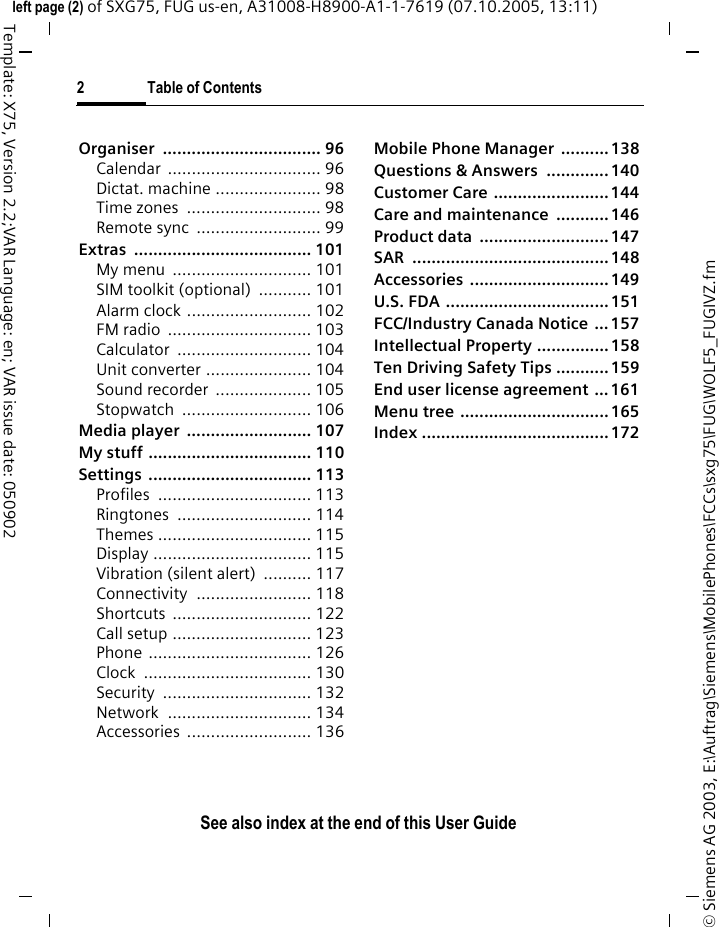
2 Table of ContentsSee also index at the end of this User Guide© Siemens AG 2003, E:\Auftrag\Siemens\MobilePhones\FCCs\sxg75\FUG\WOLF5_FUGIVZ.fmleft page (2) of SXG75, FUG us-en, A31008-H8900-A1-1-7619 (07.10.2005, 13:11)Template: X75, Version 2.2;VAR Language: en; VAR issue date: 050902Organiser ................................. 96Calendar ................................ 96Dictat. machine ...................... 98Time zones  ............................ 98Remote sync  .......................... 99Extras ..................................... 101My menu  ............................. 101SIM toolkit (optional) ........... 101Alarm clock .......................... 102FM radio  .............................. 103Calculator ............................ 104Unit converter ...................... 104Sound recorder  .................... 105Stopwatch ........................... 106Media player  .......................... 107My stuff .................................. 110Settings .................................. 113Profiles ................................ 113Ringtones ............................ 114Themes ................................ 115Display ................................. 115Vibration (silent alert)  .......... 117Connectivity ........................ 118Shortcuts ............................. 122Call setup ............................. 123Phone .................................. 126Clock ................................... 130Security ............................... 132Network .............................. 134Accessories .......................... 136Mobile Phone Manager  .......... 138Questions & Answers  ............. 140Customer Care ........................ 144Care and maintenance ...........146Product data  ...........................147SAR .........................................148Accessories .............................149U.S. FDA .................................. 151FCC/Industry Canada Notice ...157Intellectual Property ...............158Ten Driving Safety Tips ...........159End user license agreement ... 161Menu tree ............................... 165Index .......................................172
3Legal noticesright page (3) of SXG75, FUG us-en, A31008-H8900-A1-1-7619 (07.10.2005, 13:04)© Siemens AG 2003, E:\Auftrag\Siemens\MobilePhones\FCCs\sxg75\FUG\am_LegalNotices.fmTemplate: X75, Version 2.2;VAR Language: en; VAR issue date: 050902Legal noticesThe mobile phone described in this guide is approved for use on the GSM and GPRS net-works operating on the GSM 900, 1800 (DCS/PCN) and 1900 (PCS) bands. It is approved for use in the country where it was originally sold and may be approved for use in other countries.© 2005 Siemens Information and Communication Mobile, LLC.All rights reserved.Siemens and the SXG75 model phone are trademarks or registered trademarks of Siemens AG and/or its affiliates in the United States and/or other countries.T9® is a registered trademark of Amer-ica Online, Inc. in the United States. Java and all Java-based trademarks and logos are trademarks or registered trademarks of Sun Microsystems, Inc. in the U.S and other countries. The names of actual companies and prod-ucts mentioned herein may be the trademarks of their respective owners. DisclaimerTHE INFORMATION CONTAINED IN THE USER GUIDE IS WRITTEN FOR THE SXG75 PHONE. SIEMENS RE-SERVES THE RIGHT TO MAKE CHANG-ES AND IMPROVEMENTS TO THE PRODUCTS AND ANY OF THE FEA-TURES OF THE PRODUCTS DE-SCRIBED IN THIS DOCUMENT WITH-OUT PRIOR NOTICE. THE CONTENTS OF THE USER GUIDE ARE PROVIDED "AS IS". EXCEPT AS REQUIRED BY AP-PLICABLE LAW, NO WARRANTIES OF ANY KIND, EITHER EXPRESS OR IM-PLIED, INCLUDING, BUT NOT LIMITED TO, THE IMPLIED WARRANTIES OF MERCHANTABILITY AND FITNESS FOR A PARTICULAR PURPOSE, ARE MADE IN RELATION TO THE ACCURA-CY, RELIABILITY OR CONTENTS OF THIS DOCUMENT. SIEMENS RE-SERVES THE RIGHT TO REVISE THE USER GUIDE OR WITHDRAW IT AT ANY TIME WITHOUT PRIOR NOTICE. UNDER NO CIRCUMSTANCES SHALL SIEMENS BE RESPONSIBLE FOR ANY LOSS OF DATA OR INCOME OR ANY SPECIAL, INCIDENTAL, CONSEQUEN-TIAL OR INDIRECT DAMAGES HOW-SOEVER CAUSED.Export InformationThe mobile phone may be subject to export regulation of the United States and other countries. Diversion con-trary to law is prohibited. You must comply with all applicable export laws, restrictions and regulations of the United States foreign agencies or authorities, and may not export, or transfer for the purpose of re-export, the mobile phone or any part of the phone in violation of any applicable restrictions, laws or regulations, or without all necessary approvals.
Legal notices4© Siemens AG 2003, E:\Auftrag\Siemens\MobilePhones\FCCs\sxg75\FUG\am_LegalNotices.fmleft page (4) of SXG75, FUG us-en, A31008-H8900-A1-1-7619 (07.10.2005, 13:04)Template: X75, Version 2.2;VAR Language: en; VAR issue date: 050902Network ServicesA number of features included in this guide are called Network Services. They are special services provided by wireless service providers. In order to use any of these Network Servic-es, you must subscribe to these serv-ice(s) from your service provider and obtain instructions for their use. Some of these Network Services may not be available when roaming on a network other than your home net-work.Standby andTalk Time InformationThe mobile phone incorporates fea-tures that are new to the mobile phone world. These may include color displays and lighting, graphic games, music reproduction and browsing the Internet. The way you use the display and the features will affect the performance of the bat-tery and how long it lasts between charge cycles. The quoted standby times and talk times show the mini-mum and maximum performance that can be expected from the bat-tery under normal network condi-tions and with the default settings as set by the factory. However, playing games (particularly with the back-light continuously switched on) and listening to music will shorten the time available for standby and to make and receive telephone calls. Operation times also vary depending on network conditions, SIM settings, charging and battery condition, how you use your phone and other fac-tors. MemoryThe mobile phone contains an inter-nal memory device that stores the software required to operate the mobile phone, communicate with the GSM/GPRS network and provide the user interface. Some features in the internal memory run additional devices and some additional games and utilities. The amount of memory available in the mobile phone is fi-nite and may be insufficient to store large numbers of applications and files. Warning!Remember to back up your data and to do so frequently. Always back up all data and programs before sending the mobile phone in for repair.
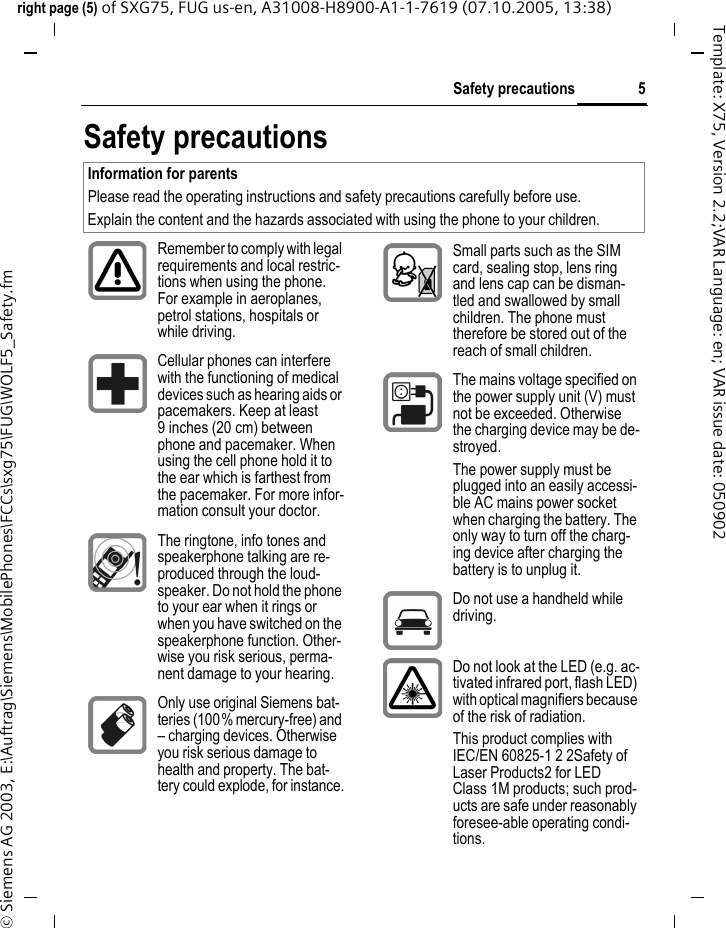
5Safety precautionsright page (5) of SXG75, FUG us-en, A31008-H8900-A1-1-7619 (07.10.2005, 13:38)© Siemens AG 2003, E:\Auftrag\Siemens\MobilePhones\FCCs\sxg75\FUG\WOLF5_Safety.fmTemplate: X75, Version 2.2;VAR Language: en; VAR issue date: 050902Safety precautionsInformation for parentsPlease read the operating instructions and safety precautions carefully before use.Explain the content and the hazards associated with using the phone to your children.Remember to comply with legal requirements and local restric-tions when using the phone. For example in aeroplanes, petrol stations, hospitals or while driving.Cellular phones can interfere with the functioning of medical devices such as hearing aids or pacemakers. Keep at least 9 inches (20 cm) between phone and pacemaker. When using the cell phone hold it to the ear which is farthest from the pacemaker. For more infor-mation consult your doctor.The ringtone, info tones and speakerphone talking are re-produced through the loud-speaker. Do not hold the phone to your ear when it rings or when you have switched on the speakerphone function. Other-wise you risk serious, perma-nent damage to your hearing.Only use original Siemens bat-teries (100% mercury-free) and – charging devices. Otherwise you risk serious damage to health and property. The bat-tery could explode, for instance.Small parts such as the SIM card, sealing stop, lens ring and lens cap can be disman-tled and swallowed by small children. The phone must therefore be stored out of the reach of small children.The mains voltage specified on the power supply unit (V) must not be exceeded. Otherwise the charging device may be de-stroyed.The power supply must be plugged into an easily accessi-ble AC mains power socket when charging the battery. The only way to turn off the charg-ing device after charging the battery is to unplug it. Do not use a handheld while driving.Do not look at the LED (e.g. ac-tivated infrared port, flash LED) with optical magnifiers because of the risk of radiation.This product complies with IEC/EN 60825-1 2 2Safety of Laser Products2 for LED Class 1M products; such prod-ucts are safe under reasonably foresee-able operating condi-tions.
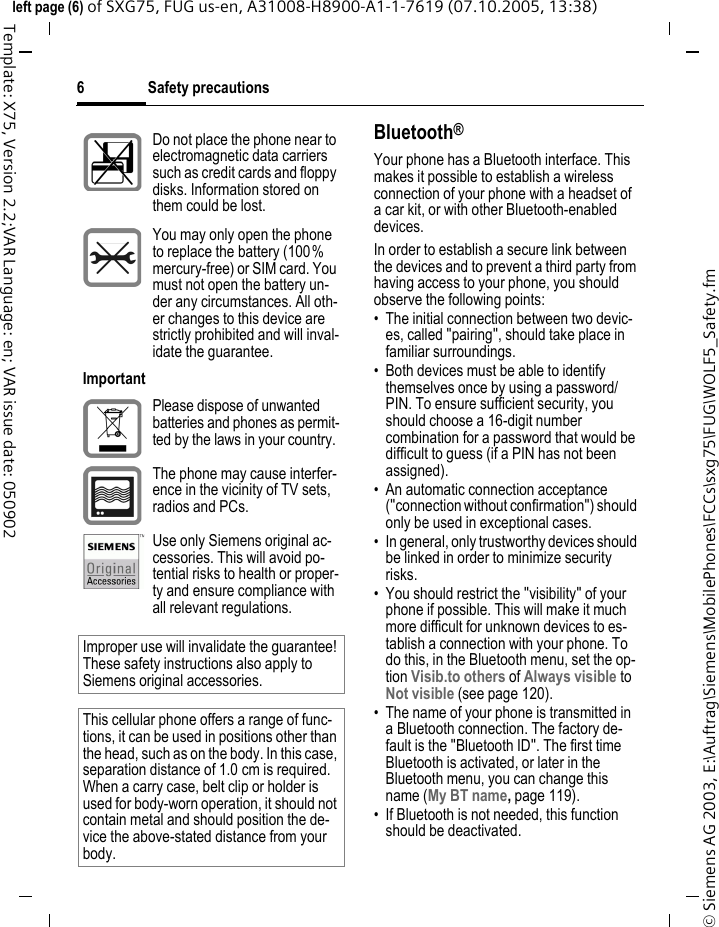
Safety precautions6© Siemens AG 2003, E:\Auftrag\Siemens\MobilePhones\FCCs\sxg75\FUG\WOLF5_Safety.fmleft page (6) of SXG75, FUG us-en, A31008-H8900-A1-1-7619 (07.10.2005, 13:38)Template: X75, Version 2.2;VAR Language: en; VAR issue date: 050902Bluetooth®Your phone has a Bluetooth interface. This makes it possible to establish a wireless connection of your phone with a headset of a car kit, or with other Bluetooth-enabled devices.In order to establish a secure link between the devices and to prevent a third party from having access to your phone, you should observe the following points:• The initial connection between two devic-es, called "pairing", should take place in familiar surroundings. • Both devices must be able to identify themselves once by using a password/PIN. To ensure sufficient security, you should choose a 16-digit number combination for a password that would be difficult to guess (if a PIN has not been assigned).• An automatic connection acceptance ("connection without confirmation") should only be used in exceptional cases. • In general, only trustworthy devices should be linked in order to minimize security risks. • You should restrict the "visibility" of your phone if possible. This will make it much more difficult for unknown devices to es-tablish a connection with your phone. To do this, in the Bluetooth menu, set the op-tion Visib.to others of Always visible to Not visible (see page 120).• The name of your phone is transmitted in a Bluetooth connection. The factory de-fault is the "Bluetooth ID". The first time Bluetooth is activated, or later in the Bluetooth menu, you can change this name (My BT name, page 119).• If Bluetooth is not needed, this function should be deactivated.Do not place the phone near to electromagnetic data carriers such as credit cards and floppy disks. Information stored on them could be lost.You may only open the phone to replace the battery (100% mercury-free) or SIM card. You must not open the battery un-der any circumstances. All oth-er changes to this device are strictly prohibited and will inval-idate the guarantee.ImportantPlease dispose of unwanted batteries and phones as permit-ted by the laws in your country.The phone may cause interfer-ence in the vicinity of TV sets, radios and PCs.Use only Siemens original ac-cessories. This will avoid po-tential risks to health or proper-ty and ensure compliance with all relevant regulations.Improper use will invalidate the guarantee! These safety instructions also apply to Siemens original accessories.This cellular phone offers a range of func-tions, it can be used in positions other than the head, such as on the body. In this case, separation distance of 1.0 cm is required. When a carry case, belt clip or holder is used for body-worn operation, it should not contain metal and should position the de-vice the above-stated distance from your body.
7Safety precautionsright page (7) of SXG75, FUG us-en, A31008-H8900-A1-1-7619 (07.10.2005, 13:38)© Siemens AG 2003, E:\Auftrag\Siemens\MobilePhones\FCCs\sxg75\FUG\WOLF5_Safety.fmTemplate: X75, Version 2.2;VAR Language: en; VAR issue date: 050902Before using Bluetooth accessories, or a mobile phone inside a vehicle, check the ve-hicle user guide for any limitations on the use of these products. Antenna careUse only the supplied or an approved replacement antenna. Unauthorized antennas, modifications, or attach-ments could damage the phone and may violate FCC regulations.Phone operationNormal positionHold the phone as you would any other telephone with the antenna pointed up and over your shoulder.Tips on efficient operationFor your phone to operate most efficiently:• Extend your antenna fully (if applicable).• Do not touch the antenna unnec-essarily when the phone is in use. Contact with the antenna affects call quality and may cause the phone to operate at a higher pow-er level than otherwise needed.DrivingLaws pertaining to the use of mobile phones while driving vary signifi-cantly from state to state and some-times even from locality to locality within states. For example, some ar-eas may allow persons to use their mobile phones only if they employ a hands-free device, and some areas may prohibit the use of cell phones entirely. Accordingly, Siemens rec-ommends that persons check the laws for the areas in which they drive or will be driving. For areas where the use of mobile phones while driv-ing is permitted, Siemens encourag-es persons to use their phones re-sponsibly and to employ hands-free devices. Also, if using your phone while driving, please:• Give full attention to driving – driving safely is your first responsibility;• Use hands-free operation, if available;• Pull off the road and park before making or answering a call, if driving conditions so require.For vehicles equipped with air bagsAn air bag inflates with great force. DO NOT place objects, including ei-ther installed or portable wireless equipment, in the area over the air bag or in the air bag deployment ar-ea. If in-vehicle wireless equipment is ImportantRead this information before using your wireless handheld phone.As this mobile phone is equipped with a fixed (non-retractable) an-tenna, some paragraphs in the text below may not be applicable.
Safety precautions8© Siemens AG 2003, E:\Auftrag\Siemens\MobilePhones\FCCs\sxg75\FUG\WOLF5_Safety.fmleft page (8) of SXG75, FUG us-en, A31008-H8900-A1-1-7619 (07.10.2005, 13:38)Template: X75, Version 2.2;VAR Language: en; VAR issue date: 050902improperly installed and the air bag inflates, serious injury could result.Electronic devicesMost modern electronic equipment is shielded from radio frequency (RF) signals. However, certain electronic equipment may not be shielded against the RF signals from your wireless phone.PacemakersThe Health Industry Manufacturers' Association recommends that a min-imum separation of six inches (6") be maintained between a handheld wireless phone and a pacemaker to avoid potential interference with the pacemaker. These recommenda-tions are consistent with the inde-pendent research by and recommen-dations of Wireless Technology Research.Persons with pacemakers• should ALWAYS keep the phone more than six inches from their pacemaker when the phone is turned ON;• should not carry the phone in a breast pocket;• should use the ear opposite the pacemaker to minimize the poten-tial for interference;• should turn the phone OFF imme-diately if there is any reason to suspect that interference is taking place.Hearing aids Some digital wireless phones may in-terfere with some hearing aids. In the event of such interference, you may want to consult your service provider or your hearing aid manu-facturer to discuss alternatives.Other medical devicesIf you use any other personal medi-cal devices, consult the manufactur-ers of your devices to determine if they are adequately shielded from external RF energy. Your physician may be able to assist you in obtain-ing this information.Turn your phone OFF in health care facilities when any regulations post-ed in these areas instruct you to do so. Hospitals or health care facilities may be using equipment that could be sensitive to external RF energy.VehiclesRF signals may affect improperly installed or inadequately shielded electronic systems in motor vehicles. Check with the manufacturer or its representative regarding your vehi-cle. You should also consult the manufacturer of any equipment that has been added to your vehicle.Posted facilitiesTurn your phone OFF in any facility where posted notices so require.
9Safety precautionsright page (9) of SXG75, FUG us-en, A31008-H8900-A1-1-7619 (07.10.2005, 13:38)© Siemens AG 2003, E:\Auftrag\Siemens\MobilePhones\FCCs\sxg75\FUG\WOLF5_Safety.fmTemplate: X75, Version 2.2;VAR Language: en; VAR issue date: 050902AirplanesFCC and Airline Regulations prohibit using your phone while in the air. Turn your phone OFF when request-ed by the airline.Check and comply with the policy of your airline regarding the use of your phone while the airplane is on the ground.Blasting areasTo avoid interfering with blasting op-erations, turn your phone OFF when in a “blasting area” or in areas post-ed: “Turn off two-way radio.” Obey all signs and instructions.Potentially explosive atmospheresTurn your phone OFF when in any area with a potentially explosive atmosphere and obey all signs and instructions. Sparks in such areas could cause an explosion or fire resulting in bodily injury or even death.Areas with a potentially explosive at-mosphere are often but not always clearly marked. They include: fueling areas such as gasoline stations; be-low deck on boats; fuel or chemical transfer or storage facilities; vehicles using liquefied petroleum gas (such as propane or butane); areas where the air contains chemicals or parti-cles, such as grain, dust or metal powders; and any other area where you would normally be advised to turn off your vehicle engine.Emergency calls (SOS)Your wireless phone can be used to make emergency calls. You can make an emergency call from the main display screen. Enter the local emergency number such as 911 and then press the A key.This phone, like any wireless phone, operates using radio signals, wire-less and landline networks, and user-programmed functions. Because of this, connections in all conditions cannot be guaranteed. Therefore, you should never rely solely on any wireless phone for essential commu-nications (for example, medical emergencies). Remember – to make or receive any calls, the phone must be switched on and be used in a serv-ice area that has adequate signal strength. Emergency calls might not be possible on all wireless phone networks or when certain network services or phone features are in use. Check with local service providers re-garding their network features. Always make certain that your phone is properly charged before attempting any emergency calls. If you allow your battery to discharge, you will be unable to receive or make calls, including emergency calls. You must then wait a few minutes after
Safety precautions10© Siemens AG 2003, E:\Auftrag\Siemens\MobilePhones\FCCs\sxg75\FUG\WOLF5_Safety.fmleft page (10) of SXG75, FUG us-en, A31008-H8900-A1-1-7619 (07.10.2005, 13:38)Template: X75, Version 2.2;VAR Language: en; VAR issue date: 050902the charging begins to place any emergency calls.When making an emergency call, re-member to give all of the necessary information as accurately as possi-ble. Remember that your wireless phone might be the only means of communication at the scene of an accident, therefore you should not terminate the call until given permis-sion to do so.Batteries and ChargersOnly use original Siemens batteries (100% mercury-free) and charging devices. Use of non-Siemens batter-ies and/or charging devices may cause explosion resulting in serious injury and/or property damage. Use original Siemens accessories in order to avoid possible injury and property damage and to ensure compliance with applicable laws and regula-tions. Improper use invalidates the warranty.Battery safety precautionsTo reduce the risk of fire, injury or electric shock, and to properly dis-pose of batteries, please read and understand the following instruc-tions. CONTAINS LITHIUM-ION OR NICKEL-METAL HYDRIDE BATTERY. BATTERY MUST BE RECYCLED OR DIS-POSED OF PROPERLY. DO NOT DIS-POSE IN MUNICIPAL WASTE.1. Only use the batteries specified for use with this mobile phone.2. Do not use batteries of different sizes or from different manufac-turers in this mobile phone.3. Do not dispose of the battery in a fire; it may explode. Dispose of used batteries and phones in accordance with applicable laws and safety regulations. Do not expose battery to water. Check with local codes for special dis-posal instructions. 4. Do not open or mutilate the bat-tery. Doing so may cause damage to the eyes or skin.5. Exercise care in handling the bat-tery in order not to short the bat-tery with conducting materials such as rings, bracelets, and keys. The battery or conducting mate-rial may overheat and cause burns or fire.6. Charge the battery provided with, or identified for use with, this product only in accordance with the instructions and limitations specified in the User's Guide. Do not attempt to charge the battery by any means other than those specified in the User's Guide.
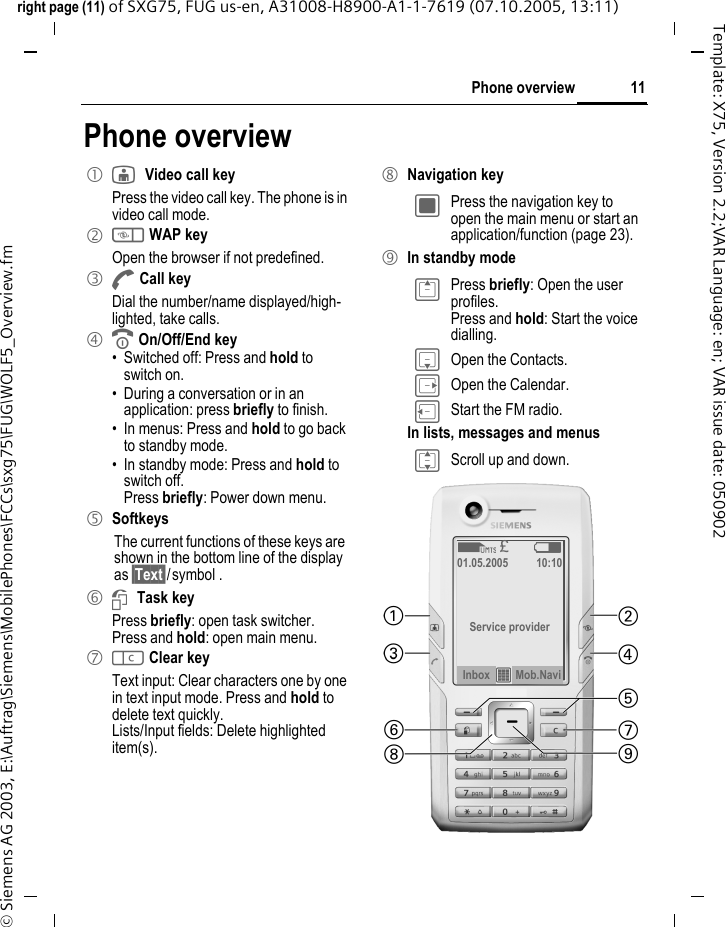
11Phone overviewright page (11) of SXG75, FUG us-en, A31008-H8900-A1-1-7619 (07.10.2005, 13:11)© Siemens AG 2003, E:\Auftrag\Siemens\MobilePhones\FCCs\sxg75\FUG\WOLF5_Overview.fmTemplate: X75, Version 2.2;VAR Language: en; VAR issue date: 050902Phone overview1 jVideo call keyPress the video call key. The phone is in video call mode. 2 k WAP key Open the browser if not predefined.3 A Call keyDial the number/name displayed/high-lighted, take calls. 4 B On/Off/End key• Switched off: Press and hold to switch on.• During a conversation or in an application: press briefly to finish. • In menus: Press and hold to go back to standby mode.• In standby mode: Press and hold to switch off.Press briefly: Power down menu.5 SoftkeysThe current functions of these keys are shown in the bottom line of the display as §Text§/symbol .6 iTask keyPress briefly: open task switcher.Press and hold: open main menu.7 l Clear keyText input: Clear characters one by one in text input mode. Press and hold to delete text quickly.Lists/Input fields: Delete highlighted item(s).8 Navigation keyC Press the navigation key to open the main menu or start an application/function (page 23).9 In standby modeG Press briefly: Open the user profiles.Press and hold: Start the voice dialling.H Open the Contacts.E Open the Calendar.D Start the FM radio.In lists, messages and menusI Scroll up and down.Z£ W01.05.2005 10:10Service providerInbox ƒMob.Navi
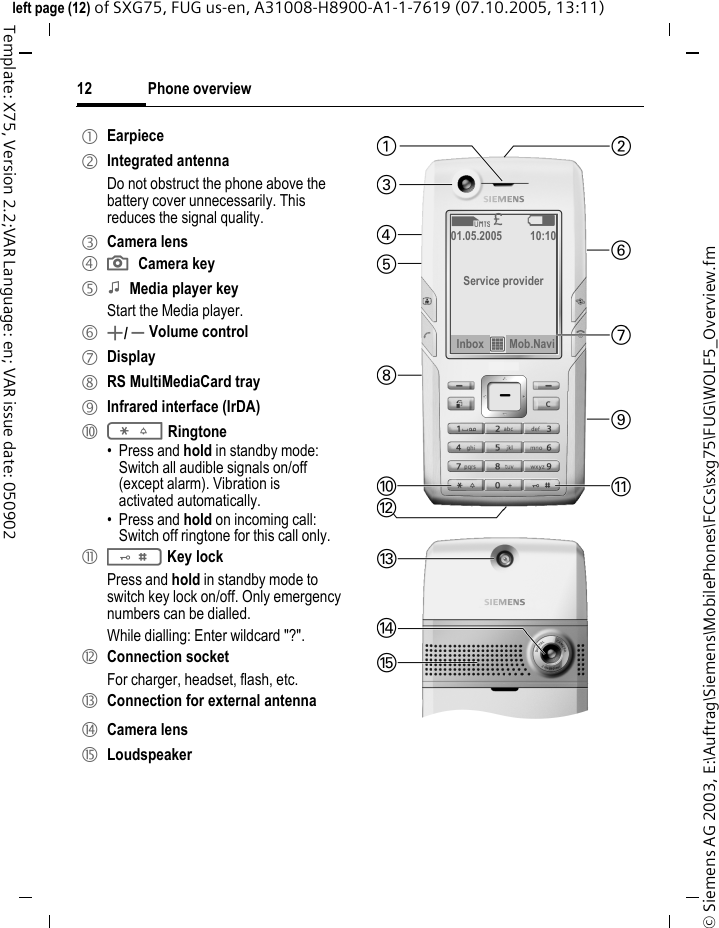
Phone overview12© Siemens AG 2003, E:\Auftrag\Siemens\MobilePhones\FCCs\sxg75\FUG\WOLF5_Overview.fmleft page (12) of SXG75, FUG us-en, A31008-H8900-A1-1-7619 (07.10.2005, 13:11)Template: X75, Version 2.2;VAR Language: en; VAR issue date: 0509021 Earpiece2 Integrated antennaDo not obstruct the phone above the battery cover unnecessarily. This reduces the signal quality.3 Camera lens4 ;Camera key5 :Media player keyStart the Media player. 6 +/ - Volume control7 Display8 RS MultiMediaCard tray9 Infrared interface (IrDA): * Ringtone• Press and hold in standby mode: Switch all audible signals on/off (except alarm). Vibration is activated automatically. • Press and hold on incoming call: Switch off ringtone for this call only.! # Key lock Press and hold in standby mode to switch key lock on/off. Only emergency numbers can be dialled.While dialling: Enter wildcard "?". " Connection socketFor charger, headset, flash, etc.§ Connection for external antenna$ Camera lens% LoudspeakerZ£ W01.05.2005 10:10Service providerInbox ƒMob.Navi
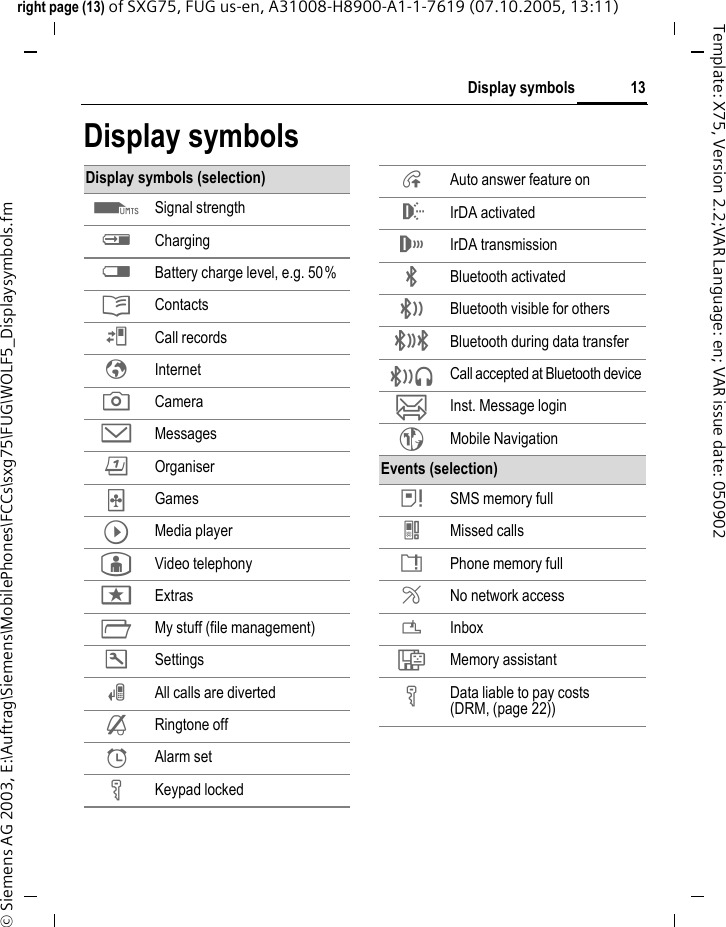
13Display symbolsright page (13) of SXG75, FUG us-en, A31008-H8900-A1-1-7619 (07.10.2005, 13:11)© Siemens AG 2003, E:\Auftrag\Siemens\MobilePhones\FCCs\sxg75\FUG\WOLF5_Displaysymbols.fmTemplate: X75, Version 2.2;VAR Language: en; VAR issue date: 050902Display symbolsDisplay symbols (selection)Z Signal strengthY ChargingW Battery charge level, e.g. 50%L ContactsP Call recordsO InternetR CameraM MessagesQ Organiser§ Games¦ Media player¥ Video telephonyS ExtrasN My stuff (file management)T SettingsÇ All calls are diverted¿ Ringtone off¹ Alarm setÄ Keypad lockedÅ Auto answer feature on ¯ IrDA activated® IrDA transmission¨ Bluetooth activated © Bluetooth visible for othersª Bluetooth during data transfer¬ Call accepted at Bluetooth deviceœ Inst. Message login~ Mobile NavigationEvents (selection) ã SMS memory full} Missed callså Phone memory fullÆ No network accessÁ InboxÊ Memory assistantÄ Data liable to pay costs(DRM, (page 22))
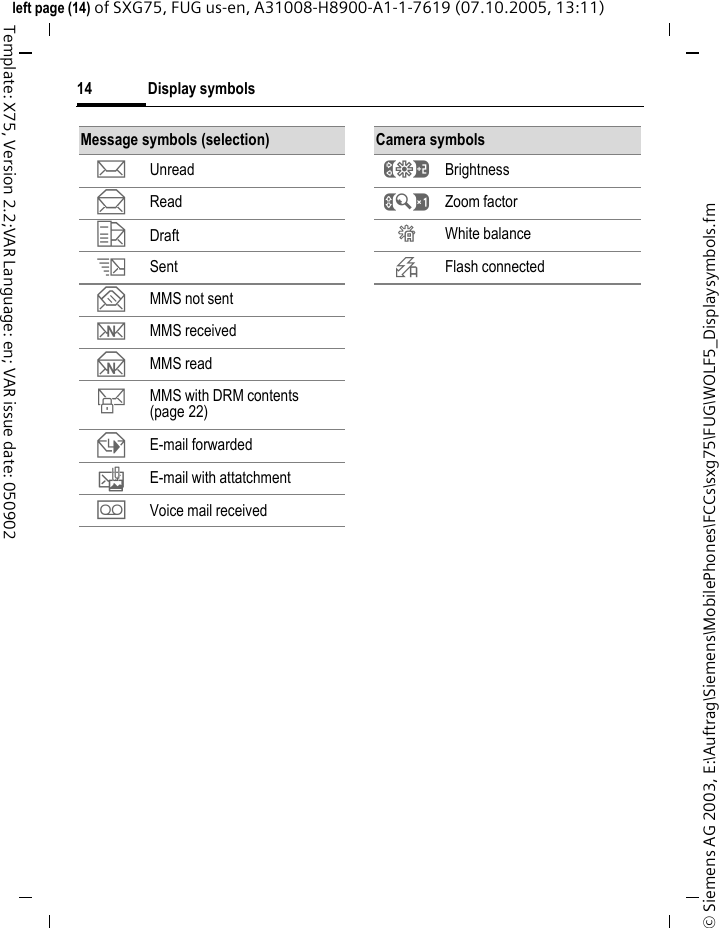
Display symbols14© Siemens AG 2003, E:\Auftrag\Siemens\MobilePhones\FCCs\sxg75\FUG\WOLF5_Displaysymbols.fmleft page (14) of SXG75, FUG us-en, A31008-H8900-A1-1-7619 (07.10.2005, 13:11)Template: X75, Version 2.2;VAR Language: en; VAR issue date: 050902Message symbols (selection)p Unreadq Readr Drafts Sentt MMS not sentw MMS receivedx MMS ready MMS with DRM contents (page 22)z E-mail forwarded{ E-mail with attatchmentÀ Voice mail receivedCamera symbolsÙ BrightnessÚ Zoom factorÛ White balance× Flash connected
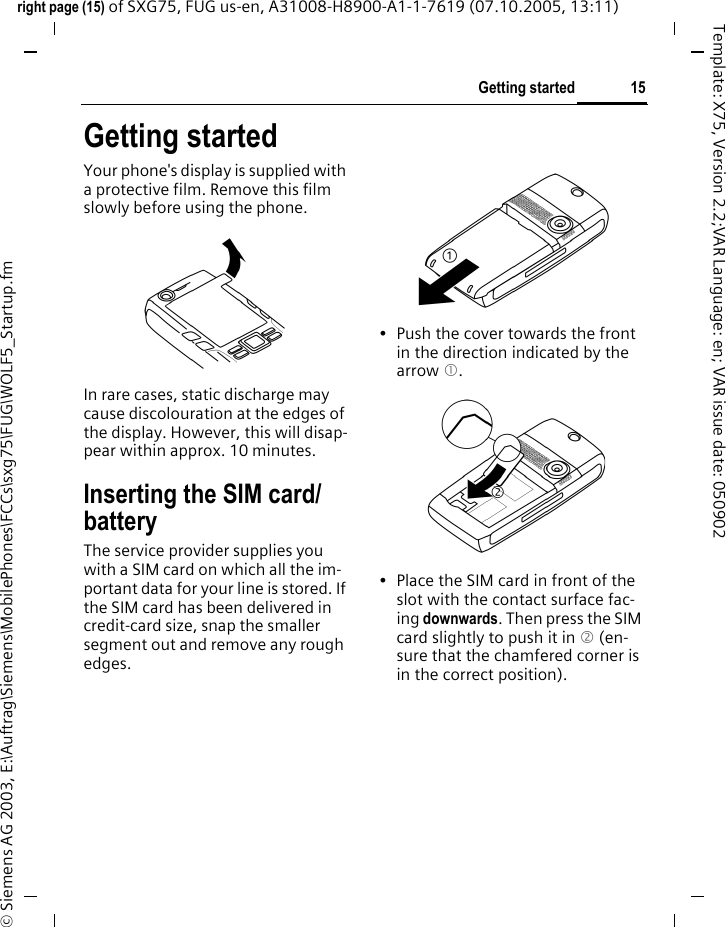
15Getting startedright page (15) of SXG75, FUG us-en, A31008-H8900-A1-1-7619 (07.10.2005, 13:11)© Siemens AG 2003, E:\Auftrag\Siemens\MobilePhones\FCCs\sxg75\FUG\WOLF5_Startup.fmTemplate: X75, Version 2.2;VAR Language: en; VAR issue date: 050902Getting startedYour phone's display is supplied with a protective film. Remove this film slowly before using the phone. In rare cases, static discharge may cause discolouration at the edges of the display. However, this will disap-pear within approx. 10 minutes. Inserting the SIM card/batteryThe service provider supplies you with a SIM card on which all the im-portant data for your line is stored. If the SIM card has been delivered in credit-card size, snap the smaller segment out and remove any rough edges.• Push the cover towards the front in the direction indicated by the arrow 1.• Place the SIM card in front of the slot with the contact surface fac-ing downwards. Then press the SIM card slightly to push it in 2 (en-sure that the chamfered corner is in the correct position).2
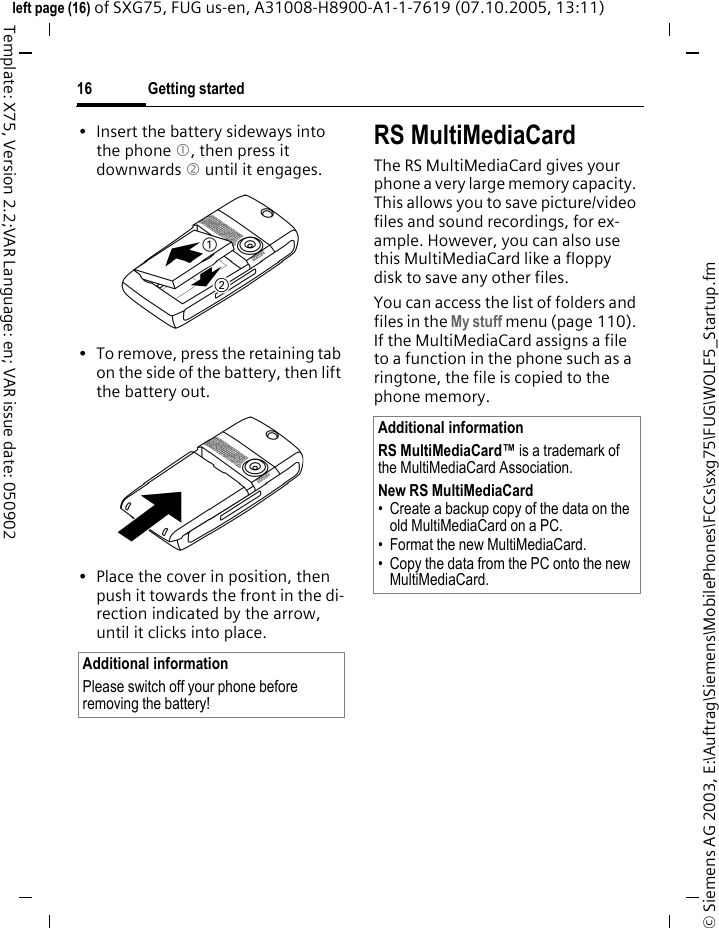
Getting started16© Siemens AG 2003, E:\Auftrag\Siemens\MobilePhones\FCCs\sxg75\FUG\WOLF5_Startup.fmleft page (16) of SXG75, FUG us-en, A31008-H8900-A1-1-7619 (07.10.2005, 13:11)Template: X75, Version 2.2;VAR Language: en; VAR issue date: 050902• Insert the battery sideways into the phone 1, then press it downwards 2 until it engages. • To remove, press the retaining tab on the side of the battery, then lift the battery out.• Place the cover in position, then push it towards the front in the di-rection indicated by the arrow, until it clicks into place.RS MultiMediaCardThe RS MultiMediaCard gives your phone a very large memory capacity. This allows you to save picture/video files and sound recordings, for ex-ample. However, you can also use this MultiMediaCard like a floppy disk to save any other files.You can access the list of folders and files in the My stuff menu (page 110). If the MultiMediaCard assigns a file to a function in the phone such as a ringtone, the file is copied to the phone memory.Additional informationPlease switch off your phone before removing the battery!Additional informationRS MultiMediaCard™ is a trademark of the MultiMediaCard Association.New RS MultiMediaCard • Create a backup copy of the data on the old MultiMediaCard on a PC.• Format the new MultiMediaCard.• Copy the data from the PC onto the new MultiMediaCard.
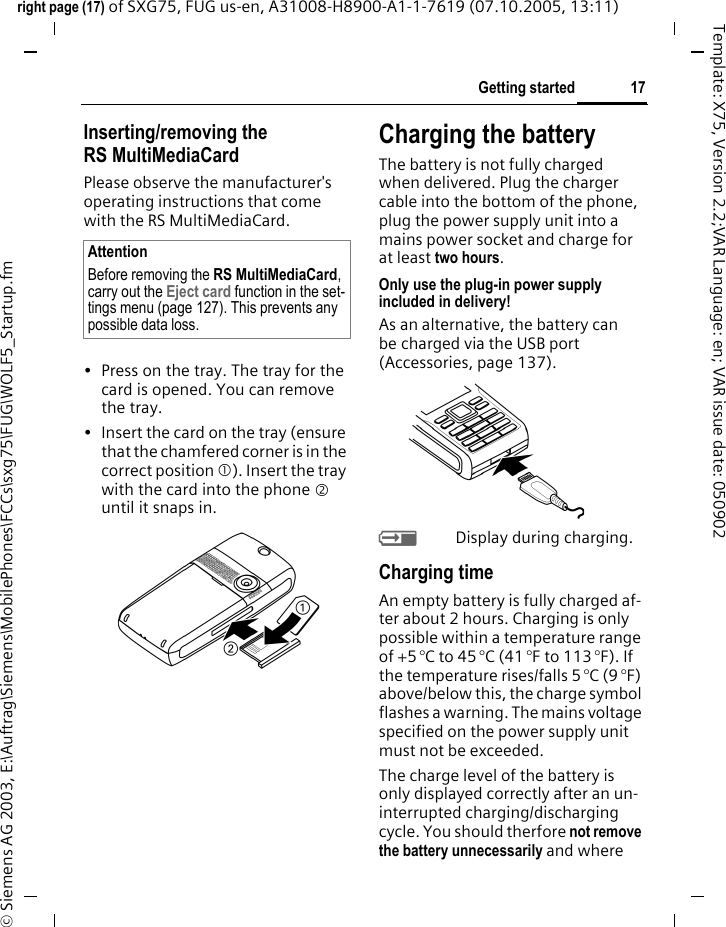
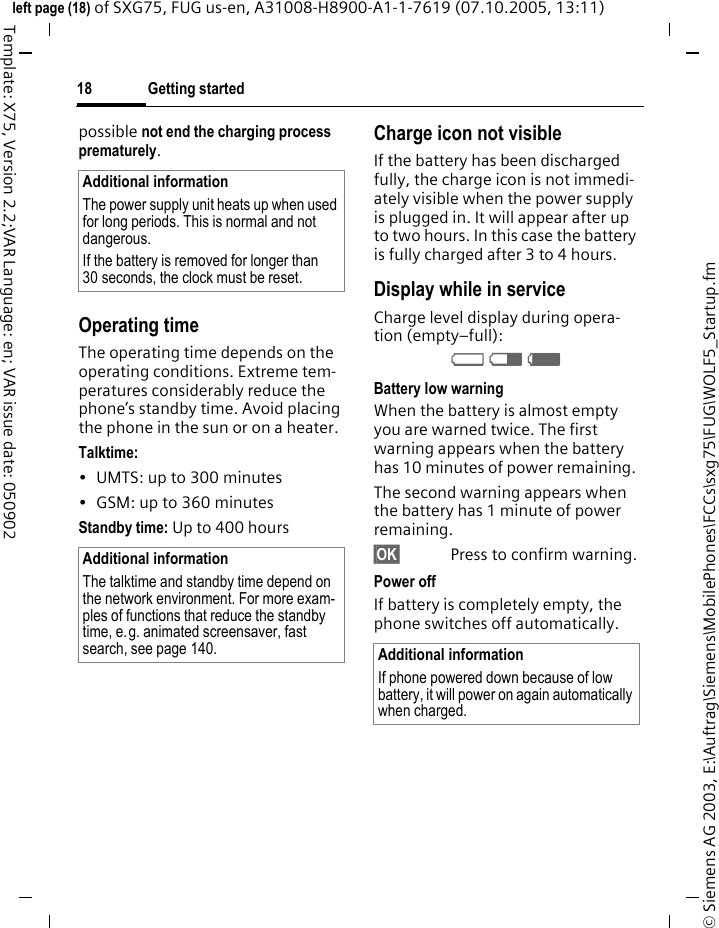
17Getting startedright page (17) of SXG75, FUG us-en, A31008-H8900-A1-1-7619 (07.10.2005, 13:11)© Siemens AG 2003, E:\Auftrag\Siemens\MobilePhones\FCCs\sxg75\FUG\WOLF5_Startup.fmTemplate: X75, Version 2.2;VAR Language: en; VAR issue date: 050902Inserting/removing the RS MultiMediaCardPlease observe the manufacturer's operating instructions that come with the RS MultiMediaCard.• Press on the tray. The tray for the card is opened. You can remove the tray. • Insert the card on the tray (ensure that the chamfered corner is in the correct position 1). Insert the tray with the card into the phone 2 until it snaps in.Charging the batteryThe battery is not fully charged when delivered. Plug the charger cable into the bottom of the phone, plug the power supply unit into a mains power socket and charge for at least two hours. Only use the plug-in power supply included in delivery!As an alternative, the battery can be charged via the USB port (Accessories, page 137).YDisplay during charging.Charging timeAn empty battery is fully charged af-ter about 2 hours. Charging is only possible within a temperature range of +5 °C to 45 °C (41 °F to 113 °F). If the temperature rises/falls 5 °C (9 °F) above/below this, the charge symbol flashes a warning. The mains voltage specified on the power supply unit must not be exceeded. The charge level of the battery is only displayed correctly after an un-interrupted charging/discharging cycle. You should therfore not remove the battery unnecessarily and where AttentionBefore removing the RS MultiMediaCard, carry out the Eject card function in the set-tings menu (page 127). This prevents any possible data loss.
Getting started18© Siemens AG 2003, E:\Auftrag\Siemens\MobilePhones\FCCs\sxg75\FUG\WOLF5_Startup.fmleft page (18) of SXG75, FUG us-en, A31008-H8900-A1-1-7619 (07.10.2005, 13:11)Template: X75, Version 2.2;VAR Language: en; VAR issue date: 050902possible not end the charging process prematurely. Operating timeThe operating time depends on the operating conditions. Extreme tem-peratures considerably reduce the phone’s standby time. Avoid placing the phone in the sun or on a heater.Talktime:• UMTS: up to 300 minutes• GSM: up to 360 minutesStandby time: Up to 400 hoursCharge icon not visibleIf the battery has been discharged fully, the charge icon is not immedi-ately visible when the power supply is plugged in. It will appear after up to two hours. In this case the battery is fully charged after 3 to 4 hours.Display while in serviceCharge level display during opera-tion (empty–full):VWX Battery low warningWhen the battery is almost empty you are warned twice. The first warning appears when the battery has 10 minutes of power remaining. The second warning appears when the battery has 1 minute of power remaining.§OK§ Press to confirm warning.Power off If battery is completely empty, the phone switches off automatically.Additional informationThe power supply unit heats up when used for long periods. This is normal and not dangerous.If the battery is removed for longer than 30 seconds, the clock must be reset. Additional informationThe talktime and standby time depend on the network environment. For more exam-ples of functions that reduce the standby time, e.g. animated screensaver, fast search, see page 140.  Additional informationIf phone powered down because of low battery, it will power on again automatically when charged.
19Switch phone on/off, enter PINright page (19) of SXG75, FUG us-en, A31008-H8900-A1-1-7619 (07.10.2005, 13:11)© Siemens AG 2003, E:\Auftrag\Siemens\MobilePhones\FCCs\sxg75\FUG\WOLF5_Startup.fmTemplate: X75, Version 2.2;VAR Language: en; VAR issue date: 050902Switch phone on/off, enter PINSwitching the phoneon/off Switching the phone onBPress and hold On/Off/End key to switch phone on.Enter PIN or confirm request (page 29).Your greeting message and the start-up animation are displayed if activat-ed (page 116). Press any key to end the animation.The phone switches on automatically when:• You charge the phone via USB or• an alert or calendar event appears. If you do not respond, the phone switches off again. If you respond to the alert, the PIN is required.§Yes§ Press to activate.Or §Offline§ Press to start in offline mode (page 22). Entering the PINThe SIM card can be protected with a 4 to 8-digit PIN.JEnter PIN using number keys. Asterisks appear to ensure nobody can read your PIN on the display. Correct with l. §OK§ Confirm. Logging on to the network will take a few seconds.Switching the phone offBPress and hold On/Off/End key. Or BPress briefly and select one of the following options.The shutdown animation (page 116) is displayed. Additional informationChange PIN..................................page 28Clear SIM card barring .................page 29Switch off Switch phone off. Phone switches on automatically if alarm or calendar event occurs.Offline mode Phone is not switched off, but has no connectivity (page 22).Additional informationThe shutdown is interrupted, if:• some files occur to be not saved or• the phone is receiving an MMS.A warning message is displayed. Press §Yes§ to continue shutdown. Files are not saved. Message is received when phone is switched on again.
Switch phone on/off, enter PIN20© Siemens AG 2003, E:\Auftrag\Siemens\MobilePhones\FCCs\sxg75\FUG\WOLF5_Startup.fmleft page (20) of SXG75, FUG us-en, A31008-H8900-A1-1-7619 (07.10.2005, 13:11)Template: X75, Version 2.2;VAR Language: en; VAR issue date: 050902Emergency number (SOS)Only to be used in real emergencies!By pressing the softkey §SOS§ you can make an emergency call on any net-work without a SIM card and without entering a PIN (not available in all countries).Switching on your phone for the first timeWhen you switch on the phone for the first time or after the battery has been removed, you are prompted to set the time/date.CSelect if you want to enter time/date.Time/DateWhen you first switch on, set the clock and date so that it displays the correct time. You will not have to make this setting again.JFirst enter date (day/month/year), then time (24 hours).CPress to update time and date.Time zonesFSelect the desired setting and change time zone in world map.ISelect a city in the selected time zone.§Options§ Open menu and select Set time zone to save.Further options and settings on page 130.Additional informationIf key lock is active (page 12) only emer-gency numbers can be dialled: Enter number and press §SOS§.Additional informationYou can activate Auto time mode (page 131) to display local time by network if the network supports this function.
21General instructionsright page (21) of SXG75, FUG us-en, A31008-H8900-A1-1-7619 (07.10.2005, 13:11)© Siemens AG 2003, E:\Auftrag\Siemens\MobilePhones\FCCs\sxg75\FUG\WOLF5_Startup.fmTemplate: X75, Version 2.2;VAR Language: en; VAR issue date: 050902General instructionsStandby modeThe phone is in standby mode and is ready for use when the name of the service provider appears on the dis-play.BPress and hold the On/Off/End key to return to standby mode from any situation.The following information might be displayed:LogoIf logo or wallpaper is enabled (page 115) logo is displayed.CB messagesIf CB display is enabled (page 77) a CB ticker with the latest CB message is displayed, scrolling horizontally if needed. The CB ticker is only availa-ble if the alert region is not used, i.e. there are no current events.Alert regionIn the alert region above the softkeys the following message types can be displayed: • New entries in missed calls list, voice mail or inbox. • New content via IrDA/Bluetooth.• Missed calendar events. The number of new entries is displayed (e.g. 1 Missed call).Signal strengthZStrong signal.[A weak signal reduces the call quality and may lead to loss of the connection. Change your location.If phone cannot obtain network serv-ice after 15 minutes the power save mode is used. The phone only attempts to acquire service in intervals.
General instructions22© Siemens AG 2003, E:\Auftrag\Siemens\MobilePhones\FCCs\sxg75\FUG\WOLF5_Startup.fmleft page (22) of SXG75, FUG us-en, A31008-H8900-A1-1-7619 (07.10.2005, 13:11)Template: X75, Version 2.2;VAR Language: en; VAR issue date: 050902Offline modeIn offline mode you can operate many phone functions but you are not connected to any network (you are not available for incoming calls and you cannot initiate a call). This is the mode to be used in aircrafts.Switching between offline and online mode:BPress briefly and select Offline mode/Online mode. CConfirm request. Digital Rights Mgmt. (DRM)Remember that your phone has dig-ital rights management. The use of downloaded pictures, sounds or ap-plications can be restricted by the suppliers, e.g. copy protection, use for a limited period of time only, number of times they can be used, etc. User guideSymbolsThe following symbols are used to explain operation:J Enter numbers or letters.B On/Off/End keyA Call key§Options§ Displays a softkey function.C Press the navigation key down, to call up the menu for example. D F E H I G Display navigation func-tion. Press navigation key in the direction indicated.= Function dependent on service provider, may re-quire special registration.
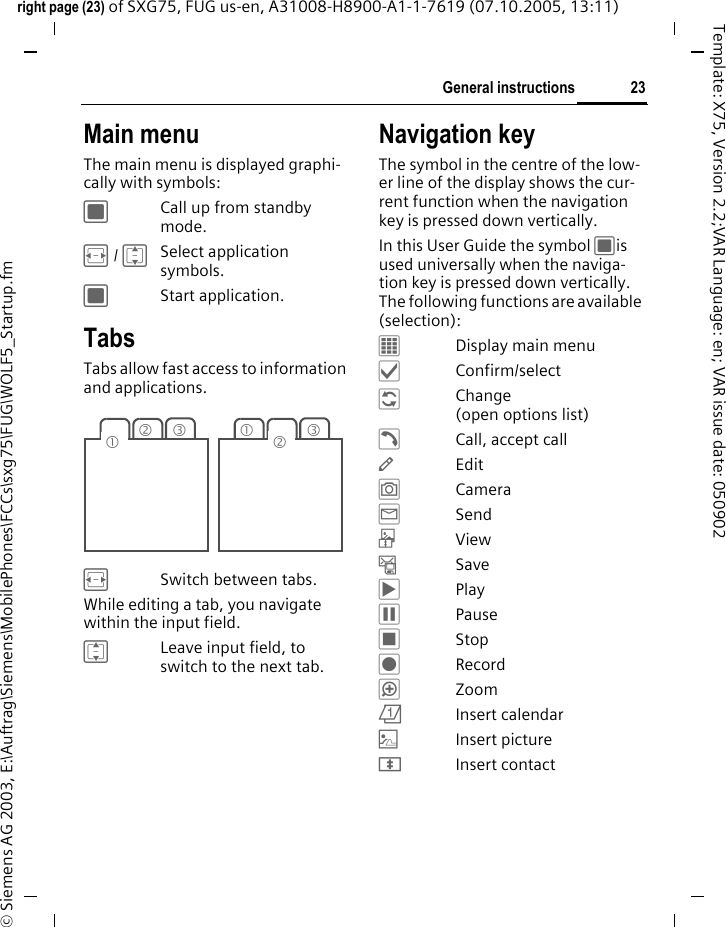
23General instructionsright page (23) of SXG75, FUG us-en, A31008-H8900-A1-1-7619 (07.10.2005, 13:11)© Siemens AG 2003, E:\Auftrag\Siemens\MobilePhones\FCCs\sxg75\FUG\WOLF5_Startup.fmTemplate: X75, Version 2.2;VAR Language: en; VAR issue date: 050902Main menuThe main menu is displayed graphi-cally with symbols:CCall up from standby mode.F / ISelect application symbols. CStart application.Tabs Tabs allow fast access to information and applications.FSwitch between tabs.While editing a tab, you navigate within the input field. ILeave input field, to switch to the next tab. Navigation keyThe symbol in the centre of the low-er line of the display shows the cur-rent function when the navigation key is pressed down vertically.In this User Guide the symbol Cis used universally when the naviga-tion key is pressed down vertically. The following functions are available (selection):ƒDisplay main menu‚Confirm/select‡Change (open options list)†Call, accept call—Edit”Camera˜SendôView–SaveˆPlay‰Pause‹StopŠRecord“ZoomöInsert calendar|Insert picture÷Insert contact23131 2
General instructions24© Siemens AG 2003, E:\Auftrag\Siemens\MobilePhones\FCCs\sxg75\FUG\WOLF5_Startup.fmleft page (24) of SXG75, FUG us-en, A31008-H8900-A1-1-7619 (07.10.2005, 13:11)Template: X75, Version 2.2;VAR Language: en; VAR issue date: 050902Menu controlThe steps needed to reach a function are shown in a condensed form in the user guide, e. g. to set ringtonesC ¢T ¢RingtonesThis comprises the following steps:COpen main menu.F / ISelect T to open Settings menu.CConfirm selection.ISelect Ringtones function.CConfirm selection.Standard functionsOptions menuThe list contains functions that are offered in several options menus.§Options§ Open menu.<New entry> Create new entry.Save Store entry.Change Open options list. Select option and confirm.View Display entry.Info Display properties of selected entry.Details Display additional informa-tion about message (eg. date, sender, save loca-tion, attached files, size)Delete/ Delete all Delete entry/delete all entries after confirmation.Exit Exit application.Confirm request with C if you want to save changes.Edit Open entry to edit/open input field to edit.Text input meth. Open input method menu (page 30).Text edit menu Open text edit menu (page 31). Sort by Select sort criterion (e.g. alphabetical, type, status, sender, date/time).
25General instructionsright page (25) of SXG75, FUG us-en, A31008-H8900-A1-1-7619 (07.10.2005, 13:11)© Siemens AG 2003, E:\Auftrag\Siemens\MobilePhones\FCCs\sxg75\FUG\WOLF5_Startup.fmTemplate: X75, Version 2.2;VAR Language: en; VAR issue date: 050902Fast list searchPressing number keys while you are in alphabetically ordered lists (e.g. Contacts, My Stuff) opens a fast search window. JEnter text to jump quickly to the entry that corre-sponds most closely with the entered text.Memory assistantThe memory assistant is launched automatically if memory is low. Start via main menu:C ¢T ¢Phone ¢File system ¢Memory assistantAll saved folders and files in phone memory and on RS MultiMediaCard (page 16) are listed. Display name and size of folders/files.If RS MultiMediaCard is inserted, folders/files are organised on a separate tab. FSelect tab (phone memory/ RS Multi-MediaCard). ISelect folder/file.§Options§ Open menu and select function (standard functions page 24).To free up required memory open file before deleting or delete files directly.Set as e.g. set picture as wallpa-per, logo, screensaver, melodies as ringtones.Rename Rename selected entry.Send Select transmission type (e.g. MMS, SMS, Instant Message, e-mail, IrDA or Bluetooth) and send entry. If you send via Bluetooth, select Search/Known devices/Last connected (page 119). If a DRM protected file is selected, the send option is not available. Create message Select transmission type (see above) and create message. If contact/call list entry is selected, it is used for receiver data.Reply/Reply to all The sender becomes the recipient, "Re." is placed in front of the subject matter and the received text is transferred into the new message.Capacity/ Memory status Display memory status for respective application, phone, SIM card or the RS MultiMediaCard.If memory is insufficient to save required data, a notifi-cation is displayed. Confirm with C to open Memory assistant (see below).
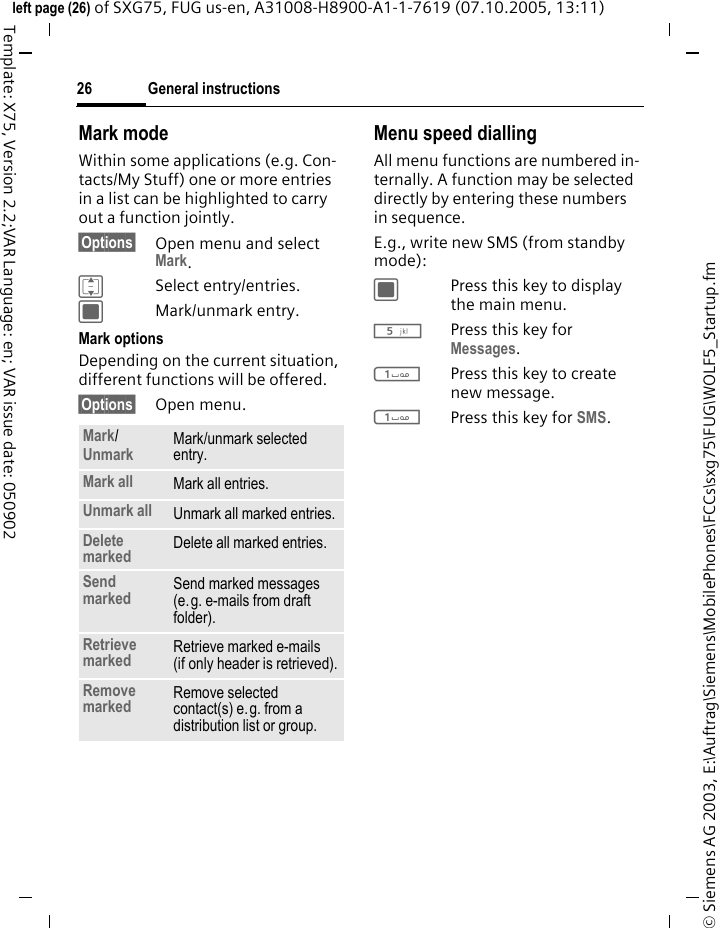
General instructions26© Siemens AG 2003, E:\Auftrag\Siemens\MobilePhones\FCCs\sxg75\FUG\WOLF5_Startup.fmleft page (26) of SXG75, FUG us-en, A31008-H8900-A1-1-7619 (07.10.2005, 13:11)Template: X75, Version 2.2;VAR Language: en; VAR issue date: 050902Mark modeWithin some applications (e.g. Con-tacts/My Stuff) one or more entries in a list can be highlighted to carry out a function jointly. §Options§ Open menu and select Mark.ISelect entry/entries.CMark/unmark entry.Mark optionsDepending on the current situation, different functions will be offered. §Options§ Open menu.Menu speed diallingAll menu functions are numbered in-ternally. A function may be selected directly by entering these numbers in sequence.E.g., write new SMS (from standby mode):CPress this key to display the main menu.5Press this key for Messages. 1Press this key to create new message.1Press this key for SMS.Mark/ Unmark Mark/unmark selected entry.Mark all Mark all entries.Unmark all Unmark all marked entries.Delete marked Delete all marked entries.Send marked  Send marked messages (e.g. e-mails from draft folder). Retrieve marked Retrieve marked e-mails (if only header is retrieved).Remove marked Remove selected contact(s) e.g. from a distribution list or group.
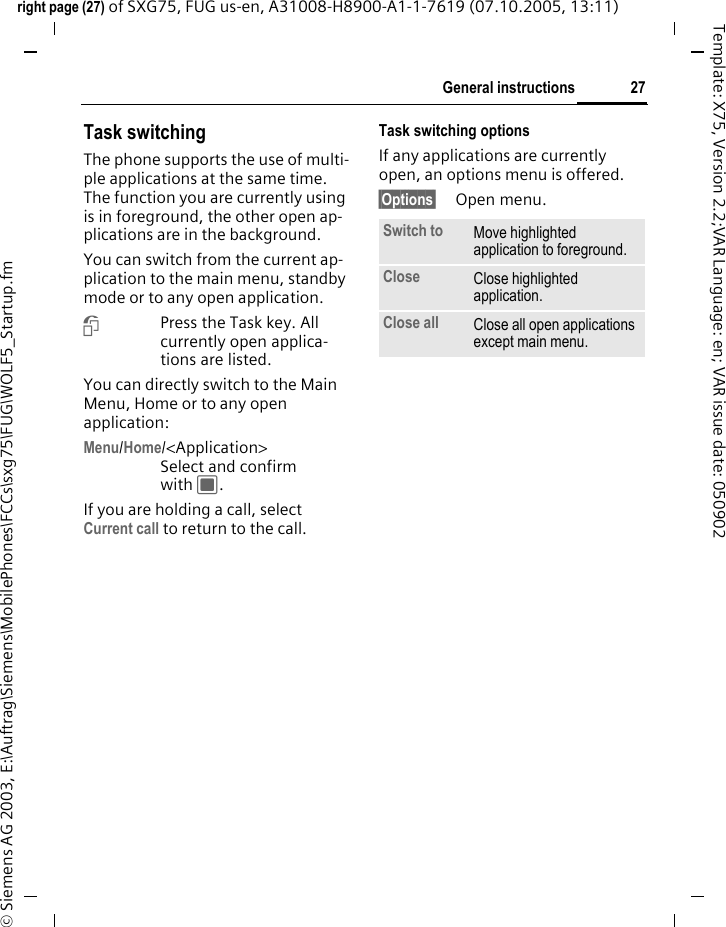
27General instructionsright page (27) of SXG75, FUG us-en, A31008-H8900-A1-1-7619 (07.10.2005, 13:11)© Siemens AG 2003, E:\Auftrag\Siemens\MobilePhones\FCCs\sxg75\FUG\WOLF5_Startup.fmTemplate: X75, Version 2.2;VAR Language: en; VAR issue date: 050902Task switching The phone supports the use of multi-ple applications at the same time. The function you are currently using is in foreground, the other open ap-plications are in the background. You can switch from the current ap-plication to the main menu, standby mode or to any open application.iPress the Task key. All currently open applica-tions are listed.You can directly switch to the Main Menu, Home or to any open application:Menu/Home/<Application> Select and confirm with C.If you are holding a call, select Current call to return to the call.Task switching optionsIf any applications are currently open, an options menu is offered.§Options§ Open menu.Switch to Move highlighted application to foreground.Close Close highlighted application.Close all Close all open applications except main menu.
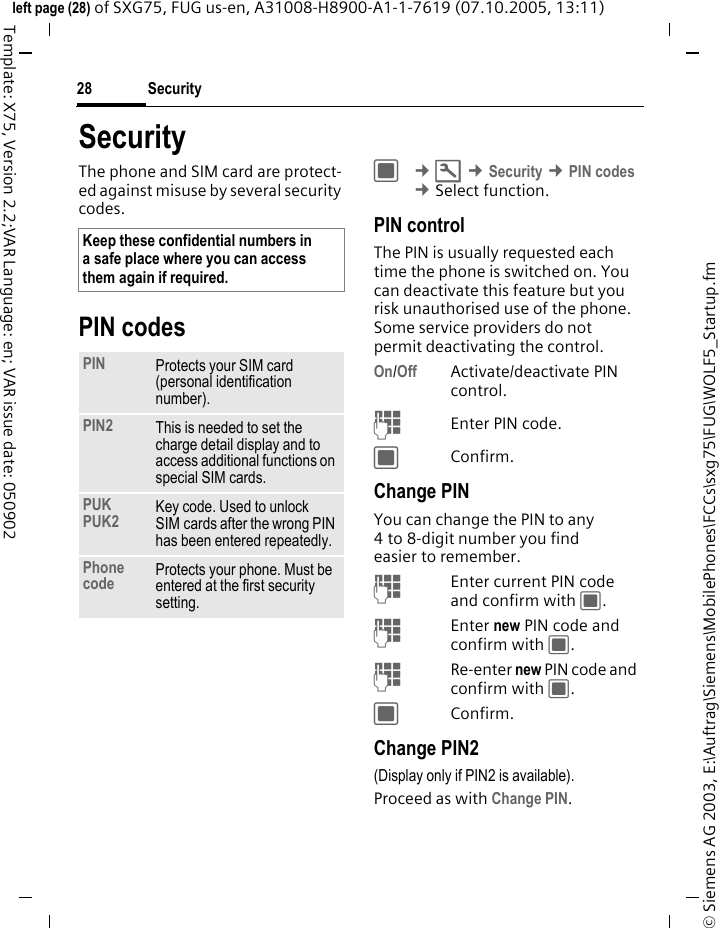
Security28© Siemens AG 2003, E:\Auftrag\Siemens\MobilePhones\FCCs\sxg75\FUG\WOLF5_Startup.fmleft page (28) of SXG75, FUG us-en, A31008-H8900-A1-1-7619 (07.10.2005, 13:11)Template: X75, Version 2.2;VAR Language: en; VAR issue date: 050902SecurityThe phone and SIM card are protect-ed against misuse by several security codes.PIN codesC ¢T ¢Security ¢PIN codes ¢Select function. PIN controlThe PIN is usually requested each time the phone is switched on. You can deactivate this feature but you risk unauthorised use of the phone. Some service providers do not permit deactivating the control.On/Off Activate/deactivate PIN control. JEnter PIN code.CConfirm.Change PINYou can change the PIN to any 4 to 8-digit number you find easier to remember.JEnter current PIN code and confirm with C.JEnter new PIN code and confirm with C.JRe-enter new PIN code and confirm with C.CConfirm.Change PIN2(Display only if PIN2 is available).Proceed as with Change PIN.Keep these confidential numbers in a safe place where you can access them again if required. PIN Protects your SIM card (personal identification number).PIN2 This is needed to set the charge detail display and to access additional functions on special SIM cards.PUKPUK2 Key code. Used to unlock SIM cards after the wrong PIN has been entered repeatedly.Phone code Protects your phone. Must be entered at the first security setting.
29Securityright page (29) of SXG75, FUG us-en, A31008-H8900-A1-1-7619 (07.10.2005, 13:11)© Siemens AG 2003, E:\Auftrag\Siemens\MobilePhones\FCCs\sxg75\FUG\WOLF5_Startup.fmTemplate: X75, Version 2.2;VAR Language: en; VAR issue date: 050902Change phonecdeYou define the phone code (4–8 dig-its) when you call up a phone-code protected function for the first time. It is then valid for all phone-code protected functions. To change phone code proceed as with Change PIN.Following the third unsuccessful attempt, access to the phone code and the functions that use it is de-nied. Contact the Siemens Service Centre (page 144).Clearing SIM card barringIf the PIN is entered incorrectly three times, the SIM card is barred. JEnter new PIN code and confirm with C.JEnter new PIN code again and confirm with C.JEnter PUK code (MASTER PIN) provided by your service provider with the SIM card in accordance with the instructions and confirm with C.CConfirm.Preventing accidental activationEven if PIN use is deactivated (page 19) confirmation is required to switch on the phone.This prevents accidental activation of the phone, e.g. when you are carrying it in a bag or when you are travelling in an aircraft.BPress and hold. §OK§ Press. The phone switches on.§Cancel§ Press or take no action. The phone does not switch on.Connecting to Windows® PCsYou can connect your phone to a Windows® PC using IrDA, Bluetooth or a data cable (accessories, page 149). The Windows® PC program MPM (Mobile Phone Manager, page 138) enables you to backup data on your Windows® PC and to synchronise the contacts with Outlook®, Lotus Notes™ and other Siemens phones (as well as some Gigasets). You can download the Mobile Phone Manager from the Internet at: www.siemens.com/sxg75 Additional informationIf the PUK (MASTER PIN) has been lost, please contact your service provider.
Text entry30© Siemens AG 2003, E:\Auftrag\Siemens\MobilePhones\FCCs\sxg75\FUG\WOLF5_Text.fmleft page (30) of SXG75, FUG us-en, A31008-H8900-A1-1-7619 (07.10.2005, 13:11)Template: X75, Version 2.2;VAR Language: en; VAR issue date: 050902Text entryText entry without T9Press number key repeatedly until the required letter appears. After a brief interval the cursor will advance. Example: 2Press once briefly to write the letter a, twice to write b etc. Press and hold to write the number.Ä, ä, 1–9 Unusual characters and numbers are displayed af-ter the relevant letters.lPress briefly to delete the letter left of the cursor or marked text. Press and hold to delete text quickly.FMove the cursor (forwards/back).#Press briefly: Swap between: abc, Abc, ABC, T9 abc, T9 Abc, T9 ABC, 123. Press and hold: Input method menu is displayed.The sequence of the input methods is language-dependent.*Press briefly: Special characters are shown.Press and hold: Open edit menu.0Press once/repeatedly:. , ? ! ’ " 0 + - ( ) @ / : _ Press and hold: inserts 0.1Press to insert space. Press twice to insert line feed.Special characters*Press briefly. The symbols chart is displayed:1) Line feed I, FNavigate to characters.CConfirm.1) ¿¡_; . ,?!+-"’:*/()¤¥$£€@\&#[ ] { }%~<=>|^`§ Γ ∆ Θ Λ Ξ Π Σ Φ Ψ Ω
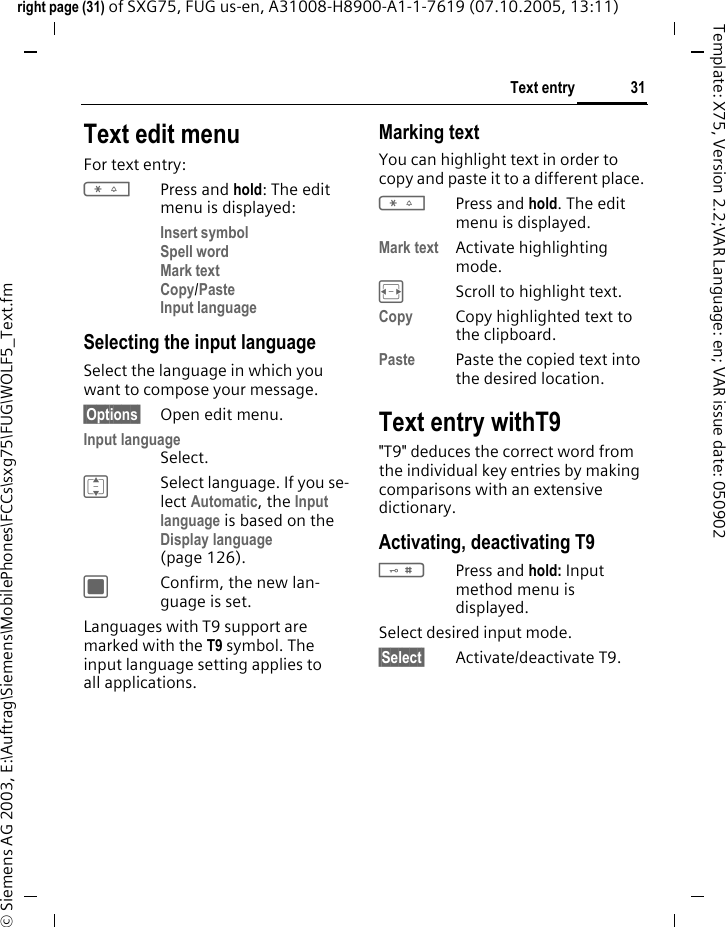
31Text entryright page (31) of SXG75, FUG us-en, A31008-H8900-A1-1-7619 (07.10.2005, 13:11)© Siemens AG 2003, E:\Auftrag\Siemens\MobilePhones\FCCs\sxg75\FUG\WOLF5_Text.fmTemplate: X75, Version 2.2;VAR Language: en; VAR issue date: 050902Text edit menuFor text entry:*Press and hold: The edit menu is displayed:Insert symbolSpell wordMark textCopy/PasteInput language Selecting the input languageSelect the language in which you want to compose your message.§Options§ Open edit menu.Input language Select.ISelect language. If you se-lect Automatic, the Input language is based on the Display language (page 126). CConfirm, the new lan-guage is set. Languages with T9 support are marked with the T9 symbol. The input language setting applies to all applications.Marking text You can highlight text in order to copy and paste it to a different place.*Press and hold. The edit menu is displayed. Mark text Activate highlighting mode.FScroll to highlight text.Copy Copy highlighted text to the clipboard. Paste Paste the copied text into the desired location. Text entry withT9"T9" deduces the correct word from the individual key entries by making comparisons with an extensive dictionary.Activating, deactivating T9#Press and hold: Input method menu is displayed.Select desired input mode.§Select§ Activate/deactivate T9.
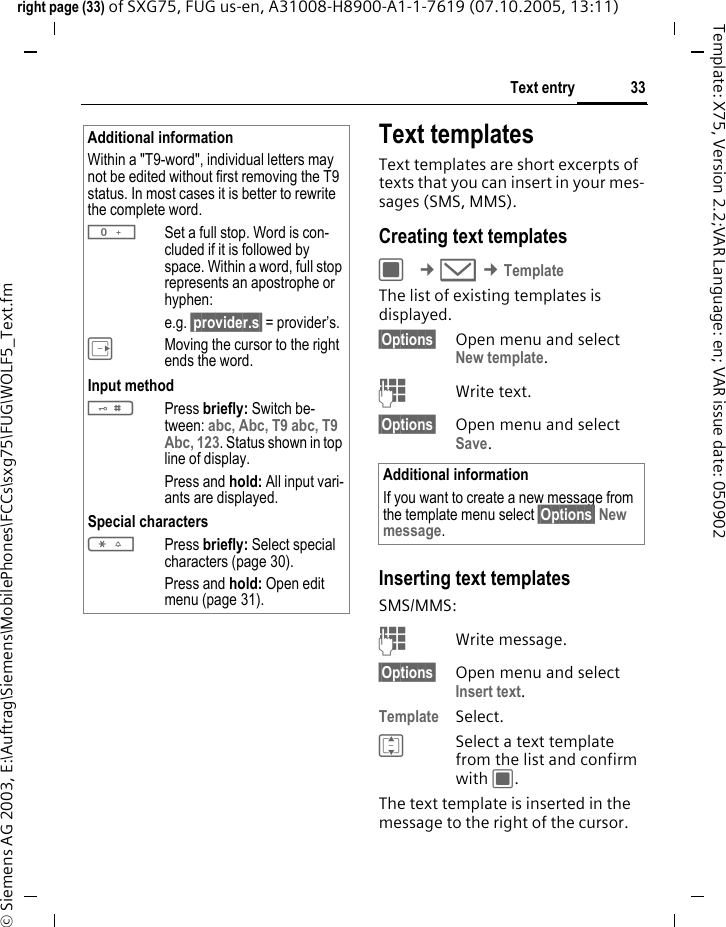
Text entry32© Siemens AG 2003, E:\Auftrag\Siemens\MobilePhones\FCCs\sxg75\FUG\WOLF5_Text.fmleft page (32) of SXG75, FUG us-en, A31008-H8900-A1-1-7619 (07.10.2005, 13:11)Template: X75, Version 2.2;VAR Language: en; VAR issue date: 050902Writing with T9The display changes as you proceed.It is best if you finish a word without looking at the display.Simply press the keys once where the relevant letter is located. For "hotel", for example:#Press briefly for T9 Abc then46835 1A blank ends a word.Do not use special characters such as Ä. Use standard characters instead, e.g. A; T9 will do the rest for you.T9-word suggestionsIf several options are found in the dictionary for a key sequence (a word), the most probable is dis-played first. If the word you want has not been recognised, the next suggestion from T9 may be correct.The word must be shown §highlighted§. Then press§<< T9 <<§ The displayed word is replaced with a different word. If this word is also incorrect, press again§<< T9 <<§ Repeat until the correct word is displayed.If the word you want is not in the dictionary, it can also be written without T9.To add a word to the dictionary:§Spell§ Select.The last suggestion is deleted and the word may now be entered with-out T9 support. Press §OK§ to add it automatically to the dictionary.Correcting a wordFMove left or right, word by word, until the re-quired word is §highlighted§.§<< T9 <<§ Scroll through the T9 word suggestions again.lDeletes the character to the left of cursor and displays a new possible word!T9® Text Input is licensed under one or more of the following: U.S. Pat. Nos. 5,187,480, 5,818,437, 5,945,928, 5,953,541, 6,011,554, 6,286,064, 6,307,548, 6,307,549, 6,636,162 and 6,646,573; Australian Pat. Nos. 727539, 746674 and 747901; Canadian Pat. Nos. 1,331,057, 2,302,595 and 2,227,904; Japan Pat. No. 3532780, 3492981; United Kingdom Pat. No. 2238414B; Hong Kong Standard Pat. No. HK1010924; Republic of Singapore Pat. No. 51383, 66959 and 71979; European Pat. Nos. 0 842 463 (96927260.8), 1 010 057 (98903671.0), 1 018 069 (98950708.2); Republic of Korea Pat. Nos. KR201211B1 and KR226206B1. People's Republic of China Pat. Application Nos. 98802801.8, 98809472.X and 96196739.0; Mexico Pat. No. 208141; Russian Federation Pat. No. 2206118; and additional pat-ents are pending worldwide.
33Text entryright page (33) of SXG75, FUG us-en, A31008-H8900-A1-1-7619 (07.10.2005, 13:11)© Siemens AG 2003, E:\Auftrag\Siemens\MobilePhones\FCCs\sxg75\FUG\WOLF5_Text.fmTemplate: X75, Version 2.2;VAR Language: en; VAR issue date: 050902Text templatesText templates are short excerpts of texts that you can insert in your mes-sages (SMS, MMS). Creating text templatesC ¢M ¢TemplateThe list of existing templates is displayed. §Options§ Open menu and select New template. JWrite text.§Options§ Open menu and select Save. Inserting text templatesSMS/MMS:JWrite message.§Options§ Open menu and select Insert text.Template Select. ISelect a text template from the list and confirm with C.The text template is inserted in the message to the right of the cursor.Additional informationWithin a "T9-word", individual letters may not be edited without first removing the T9 status. In most cases it is better to rewrite the complete word.0Set a full stop. Word is con-cluded if it is followed by space. Within a word, full stop represents an apostrophe or hyphen: e.g. §provider.s§ = provider’s.EMoving the cursor to the right ends the word.Input method#Press briefly: Switch be-tween: abc, Abc, T9 abc, T9 Abc, 123. Status shown in top line of display.Press and hold: All input vari-ants are displayed.Special characters*Press briefly: Select special characters (page 30).Press and hold: Open edit menu (page 31).Additional informationIf you want to create a new message from the template menu select §Options§ New message.
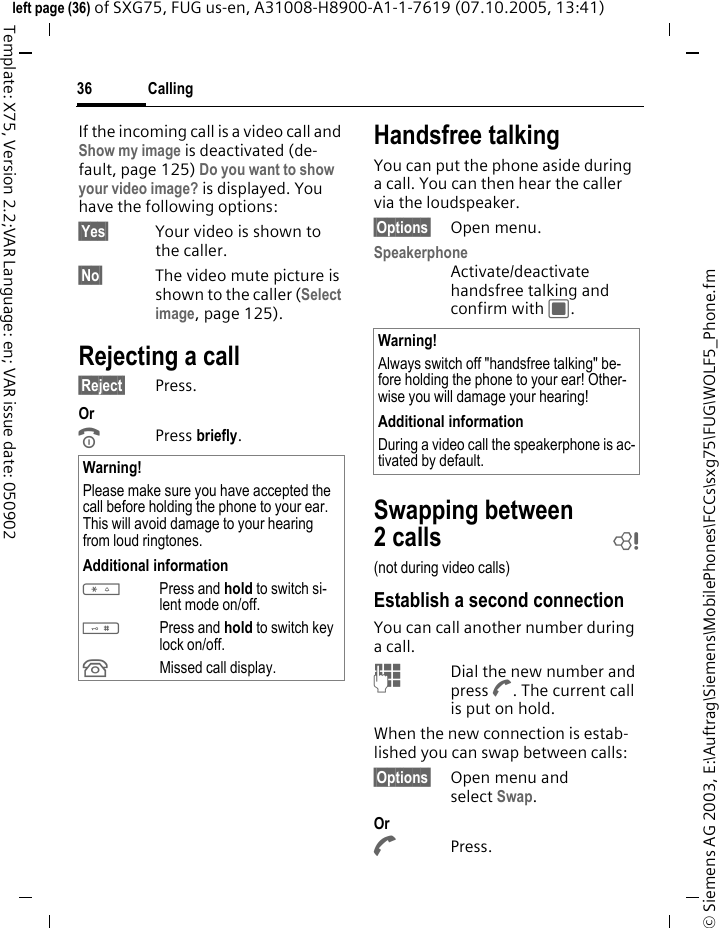
Calling34© Siemens AG 2003, E:\Auftrag\Siemens\MobilePhones\FCCs\sxg75\FUG\WOLF5_Phone.fmleft page (34) of SXG75, FUG us-en, A31008-H8900-A1-1-7619 (07.10.2005, 13:41)Template: X75, Version 2.2;VAR Language: en; VAR issue date: 050902CallingWith your phone you can make con-ventional (voice) calls as well as vid-eo calls. However, it is not possible to make a voice call and a video call at the same time.Video callsTo initiate a video call (in standby mode):C ¢¥ The phone switches to video call mode. A pre-view is displayed. You can enter a number (see Dial-ling with number keys).Or JEnter the number (always with prefix/international dialling code). jPress the video call key.The phone switches to video call mode.You can also decide to make a video call after you have already entered a number or selected a number from a call list.Dialling with number keysThe phone must be switched on (standby mode).JEnter the number (always with prefix/international dialling code). APress the Call key. Or CPress.Or jPress the video call key to make a video call. The displayed number is dialled.Ending a callBPress the End key briefly. Press this key even if the person on the other end of the line has hung up first.PrerequisiteThe called party as well as the network have to be capable of handling video calls. If you are calling a number that does not meet these requirements you will be of-fered the option of making a voice call instead.
35Callingright page (35) of SXG75, FUG us-en, A31008-H8900-A1-1-7619 (07.10.2005, 13:41)© Siemens AG 2003, E:\Auftrag\Siemens\MobilePhones\FCCs\sxg75\FUG\WOLF5_Phone.fmTemplate: X75, Version 2.2;VAR Language: en; VAR issue date: 050902Setting the volume+/ -Regulate the volume (on-ly possible during a call).If a Car Kit is used, its volume setting will not affect the usual setting on the phone.Redialling previous numbersTo enter the Dialled calls list (in stand-by mode):APress the Call key.To redial the number last called:APress the Call key again (not in video call mode).Or jPress the video call key to make a video call. To redial other numbers that were dialled previously:IPick out the number from the list.APress the Call key (not in video call mode).Or jPress the video call key to make a video call. Accepting a callThe phone must be switched on. An incoming call is indicated by a special screen:A number and the name of the caller transmitted by the network will be displayed if the number is saved in the contacts. A picture of the caller may also be displayed (page 42).If the incoming call is a video call a video of the caller is displayed. How-ever, the transmission of the video may be suppressed by the caller.APress.Or CPress.Or jPress to accept a video call. Additional information*Press and hold to switch microphone off.International dialling codes0Press and hold until a "+" is displayed.Number memoYou can enter a number during the call. The person to whom you are speaking can hear these entries. When the connection has ended you can save or dial the number.
Calling36© Siemens AG 2003, E:\Auftrag\Siemens\MobilePhones\FCCs\sxg75\FUG\WOLF5_Phone.fmleft page (36) of SXG75, FUG us-en, A31008-H8900-A1-1-7619 (07.10.2005, 13:41)Template: X75, Version 2.2;VAR Language: en; VAR issue date: 050902If the incoming call is a video call and Show my image is deactivated (de-fault, page 125) Do you want to show your video image? is displayed. You have the following options:§Yes§ Your video is shown to the caller.§No§ The video mute picture is shown to the caller (Select image, page 125).Rejecting a call§Reject§ Press.Or BPress briefly. Handsfree talkingYou can put the phone aside during a call. You can then hear the caller via the loudspeaker. §Options§ Open menu.Speakerphone Activate/deactivate handsfree talking and confirm with C.Swapping between 2calls b(not during video calls)Establish a second connectionYou can call another number during a call.JDial the new number and press A. The current call is put on hold.When the new connection is estab-lished you can swap between calls:§Options§ Open menu and select Swap. Or APress. Warning!Please make sure you have accepted the call before holding the phone to your ear. This will avoid damage to your hearing from loud ringtones.Additional information*Press and hold to switch si-lent mode on/off.#Press and hold to switch key lock on/off.ÂMissed call display.Warning!Always switch off "handsfree talking" be-fore holding the phone to your ear! Other-wise you will damage your hearing! Additional informationDuring a video call the speakerphone is ac-tivated by default.
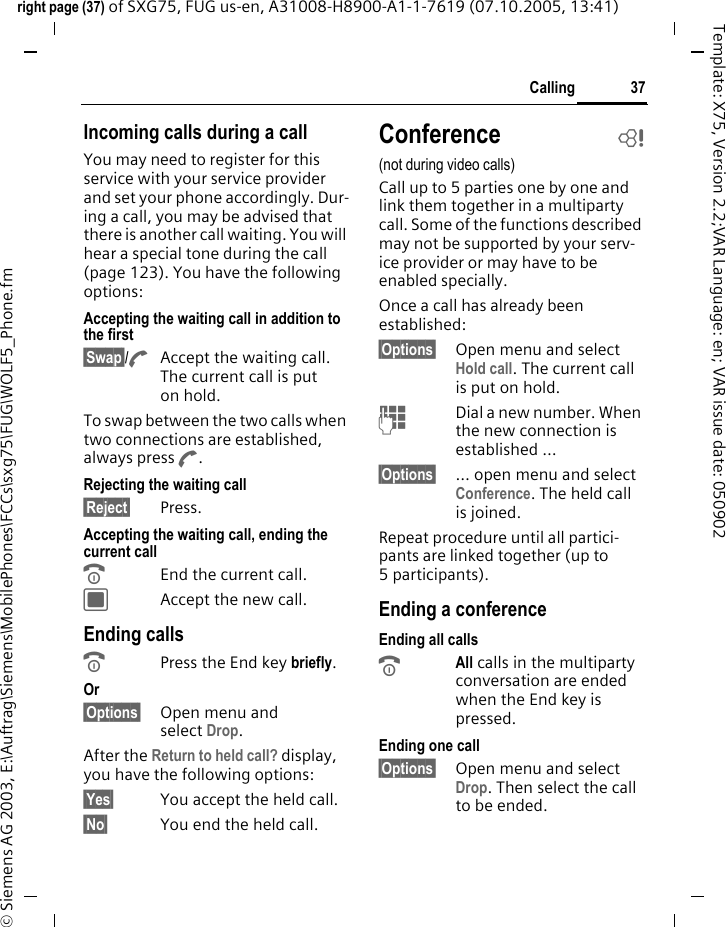
37Callingright page (37) of SXG75, FUG us-en, A31008-H8900-A1-1-7619 (07.10.2005, 13:41)© Siemens AG 2003, E:\Auftrag\Siemens\MobilePhones\FCCs\sxg75\FUG\WOLF5_Phone.fmTemplate: X75, Version 2.2;VAR Language: en; VAR issue date: 050902Incoming calls during a callYou may need to register for this service with your service provider and set your phone accordingly. Dur-ing a call, you may be advised that there is another call waiting. You will hear a special tone during the call (page 123). You have the following options:Accepting the waiting call in addition to the first§Swap§/AAccept the waiting call. The current call is put on hold. To swap between the two calls when two connections are established, always press A.Rejecting the waiting call §Reject§ Press. Accepting the waiting call, ending the current callBEnd the current call.CAccept the new call.Ending callsBPress the End key briefly. Or§Options§ Open menu and select Drop. After the Return to held call? display, you have the following options:§Yes§ You accept the held call.§No§ You end the held call.Conference b(not during video calls)Call up to 5 parties one by one and link them together in a multiparty call. Some of the functions described may not be supported by your serv-ice provider or may have to be enabled specially. Once a call has already been established: §Options§ Open menu and select Hold call. The current call is put on hold.JDial a new number. When the new connection is established …§Options§ … open menu and select Conference. The held call is joined.Repeat procedure until all partici-pants are linked together (up to 5participants).Ending a conferenceEnding all callsBAll calls in the multiparty conversation are ended when the End key is pressed. Ending one call§Options§ Open menu and select Drop. Then select the call to be ended.
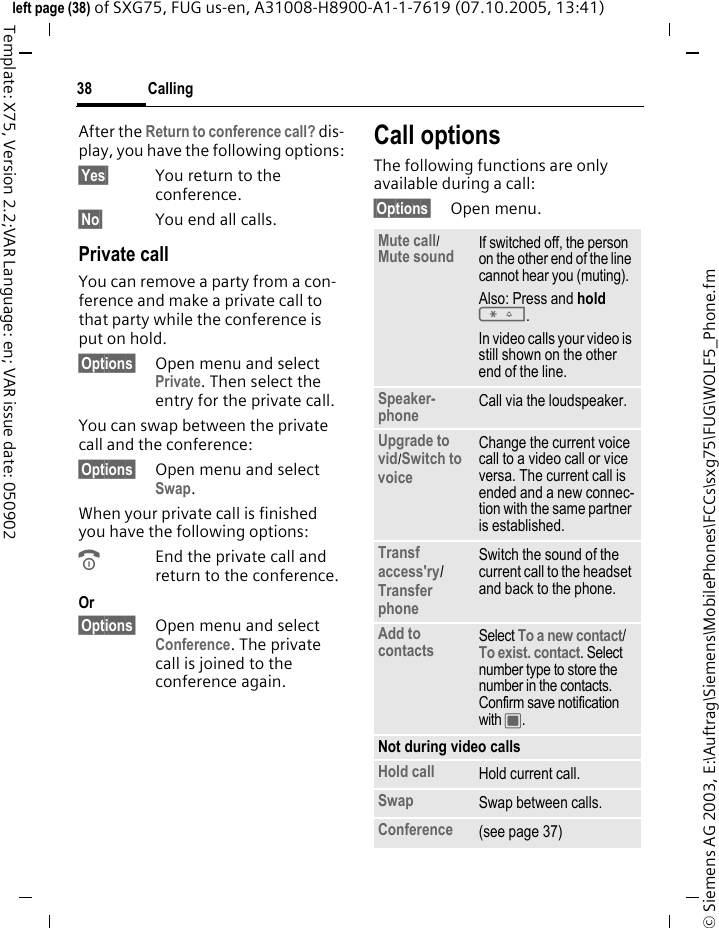
Calling38© Siemens AG 2003, E:\Auftrag\Siemens\MobilePhones\FCCs\sxg75\FUG\WOLF5_Phone.fmleft page (38) of SXG75, FUG us-en, A31008-H8900-A1-1-7619 (07.10.2005, 13:41)Template: X75, Version 2.2;VAR Language: en; VAR issue date: 050902After the Return to conference call? dis-play, you have the following options:§Yes§ You return to the conference.§No§ You end all calls.Private callYou can remove a party from a con-ference and make a private call to that party while the conference is put on hold.§Options§ Open menu and select Private. Then select the entry for the private call. You can swap between the private call and the conference:§Options§ Open menu and select Swap. When your private call is finished you have the following options:BEnd the private call and return to the conference.Or §Options§ Open menu and select Conference. The private call is joined to the conference again.Call optionsThe following functions are only available during a call:§Options§ Open menu.Mute call/ Mute sound If switched off, the person on the other end of the line cannot hear you (muting).Also: Press and hold *.In video calls your video is still shown on the other end of the line.Speaker-phone Call via the loudspeaker. Upgrade to vid/Switch to voice Change the current voice call to a video call or vice versa. The current call is ended and a new connec-tion with the same partner is established.Transf access'ry/ Transfer phone Switch the sound of the current call to the headset and back to the phone. Add to contacts Select To a new contact/ To exist. contact. Select number type to store the number in the contacts. Confirm save notification with C. Not during video callsHold call Hold current call.Swap Swap between calls.Conference (see page 37)
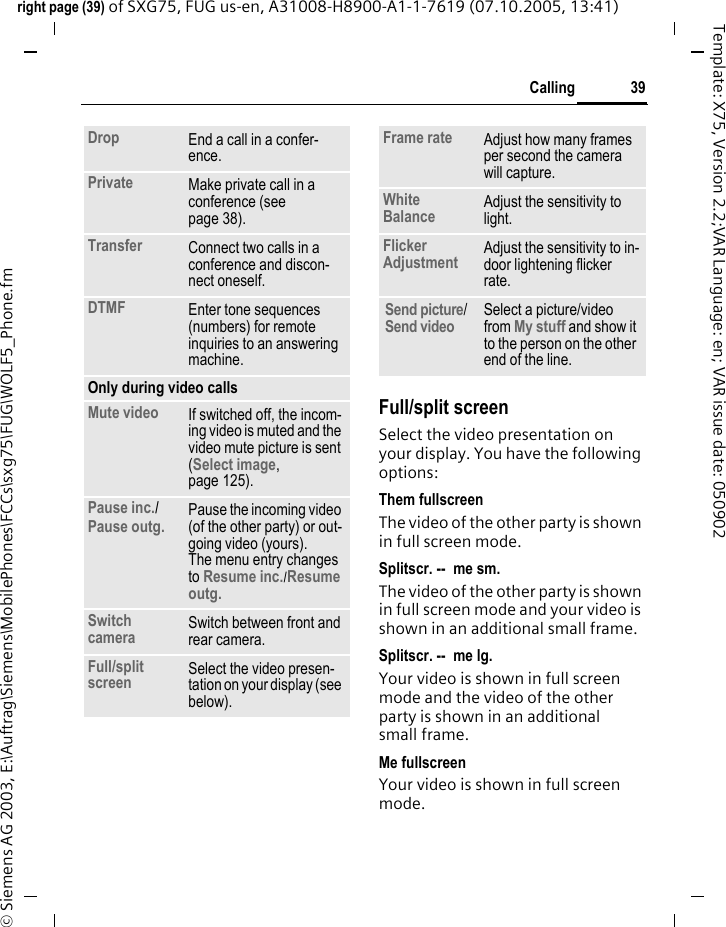
39Callingright page (39) of SXG75, FUG us-en, A31008-H8900-A1-1-7619 (07.10.2005, 13:41)© Siemens AG 2003, E:\Auftrag\Siemens\MobilePhones\FCCs\sxg75\FUG\WOLF5_Phone.fmTemplate: X75, Version 2.2;VAR Language: en; VAR issue date: 050902Full/split screenSelect the video presentation on your display. You have the following options:Them fullscreenThe video of the other party is shown in full screen mode.Splitscr. --  me sm.The video of the other party is shown in full screen mode and your video is shown in an additional small frame.Splitscr. --  me lg.Your video is shown in full screen mode and the video of the other party is shown in an additional small frame.Me fullscreenYour video is shown in full screen mode.Drop End a call in a confer-ence.Private Make private call in a conference (see page 38).Transfer Connect two calls in a conference and discon-nect oneself.DTMF Enter tone sequences (numbers) for remote inquiries to an answering machine.Only during video callsMute video If switched off, the incom-ing video is muted and the video mute picture is sent (Select image, page 125).Pause inc./ Pause outg. Pause the incoming video (of the other party) or out-going video (yours). The menu entry changes to Resume inc./Resume outg. Switch camera Switch between front and rear camera.Full/split screen Select the video presen-tation on your display (see below).Frame rate Adjust how many frames per second the camera will capture.White Balance Adjust the sensitivity to light.Flicker Adjustment Adjust the sensitivity to in-door lightening flicker rate.Send picture/ Send video Select a picture/video from My stuff and show it to the person on the other end of the line.
Calling40© Siemens AG 2003, E:\Auftrag\Siemens\MobilePhones\FCCs\sxg75\FUG\WOLF5_Phone.fmleft page (40) of SXG75, FUG us-en, A31008-H8900-A1-1-7619 (07.10.2005, 13:41)Template: X75, Version 2.2;VAR Language: en; VAR issue date: 050902Tone sequences (DTMF)You can enter control codes (num-bers) for remote access to an auto-matic answering machine while an-other connection exists. These inputs are transmitted directly as DTMFcodes (control codes).§Options§ Open menu.DTMF Select.JEnter digits and confirm with C.Using ContactsStore numbers and control codes (DTMF codes) in Contacts in the same way as a normal entry.JEnter number.0Press until a "+" appears in the display (wait for the connection to be estab-lished).JEnter DTMF codes (numbers).0If necessary, wait again for three seconds at a time for the receiver to process the entries safely.JEnter a name.§Save§ Store entry.You may also store just the DTMF codes (numbers) and then send them during the call.
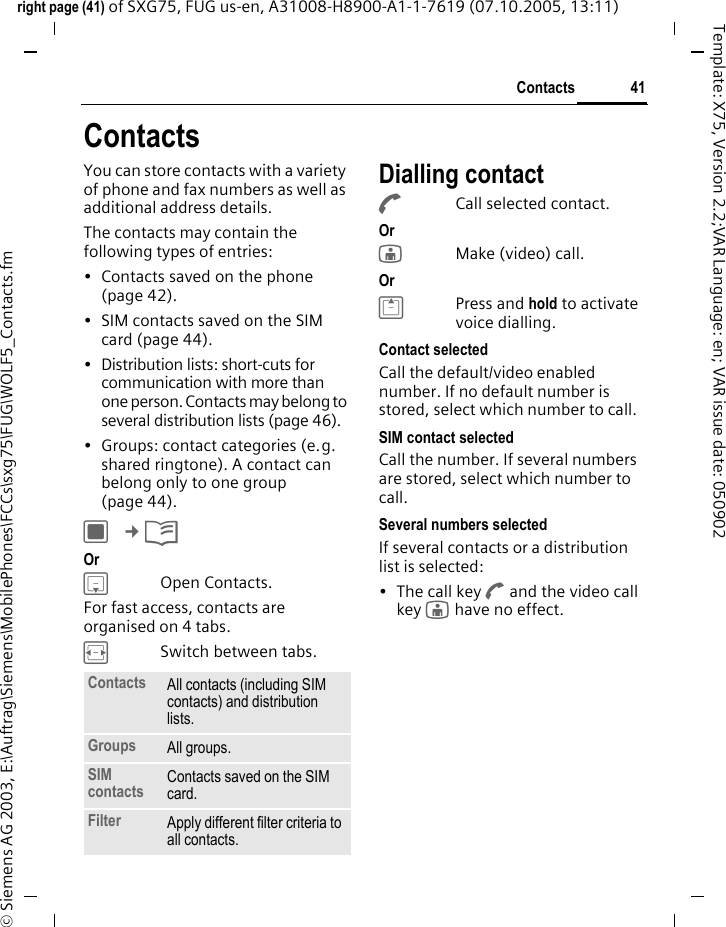
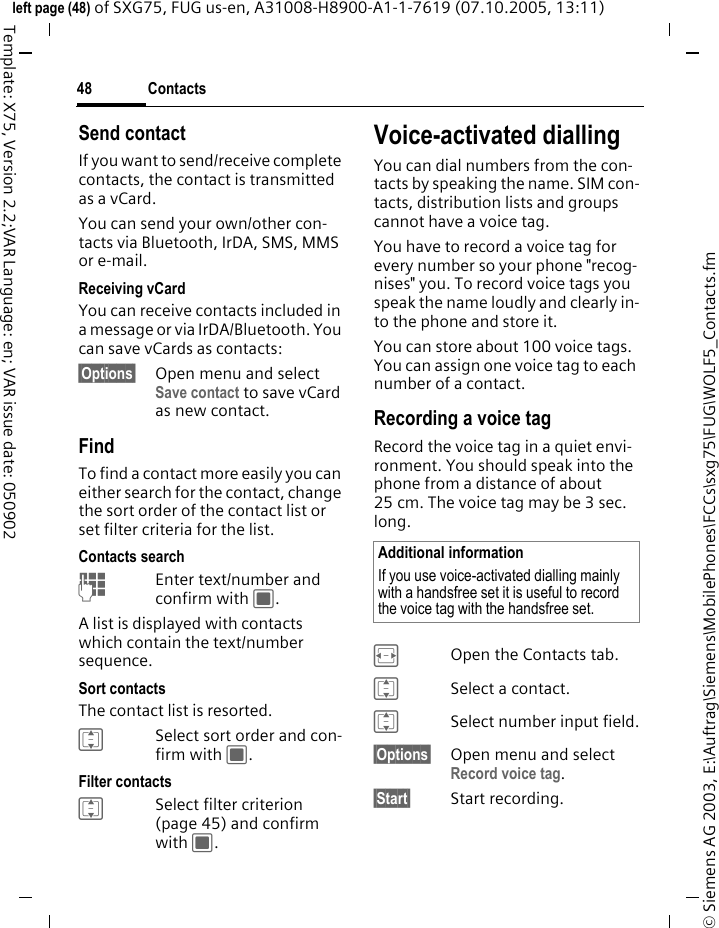
41Contactsright page (41) of SXG75, FUG us-en, A31008-H8900-A1-1-7619 (07.10.2005, 13:11)© Siemens AG 2003, E:\Auftrag\Siemens\MobilePhones\FCCs\sxg75\FUG\WOLF5_Contacts.fmTemplate: X75, Version 2.2;VAR Language: en; VAR issue date: 050902ContactsYou can store contacts with a variety of phone and fax numbers as well as additional address details. The contacts may contain the following types of entries:• Contacts saved on the phone (page 42). • SIM contacts saved on the SIM card (page 44).• Distribution lists: short-cuts for communication with more than one person. Contacts may belong to several distribution lists (page 46). • Groups: contact categories (e.g. shared ringtone). A contact can belong only to one group (page 44). C ¢L Or HOpen Contacts.For fast access, contacts are organised on 4 tabs. FSwitch between tabs.Dialling contactACall selected contact. Or jMake (video) call. Or GPress and hold to activate voice dialling.Contact selectedCall the default/video enabled number. If no default number is stored, select which number to call. SIM contact selectedCall the number. If several numbers are stored, select which number to call.Several numbers selectedIf several contacts or a distribution list is selected:• The call key A and the video call key j have no effect.Contacts All contacts (including SIM contacts) and distribution lists.Groups All groups.SIM contacts Contacts saved on the SIM card.Filter Apply different filter criteria to all contacts.
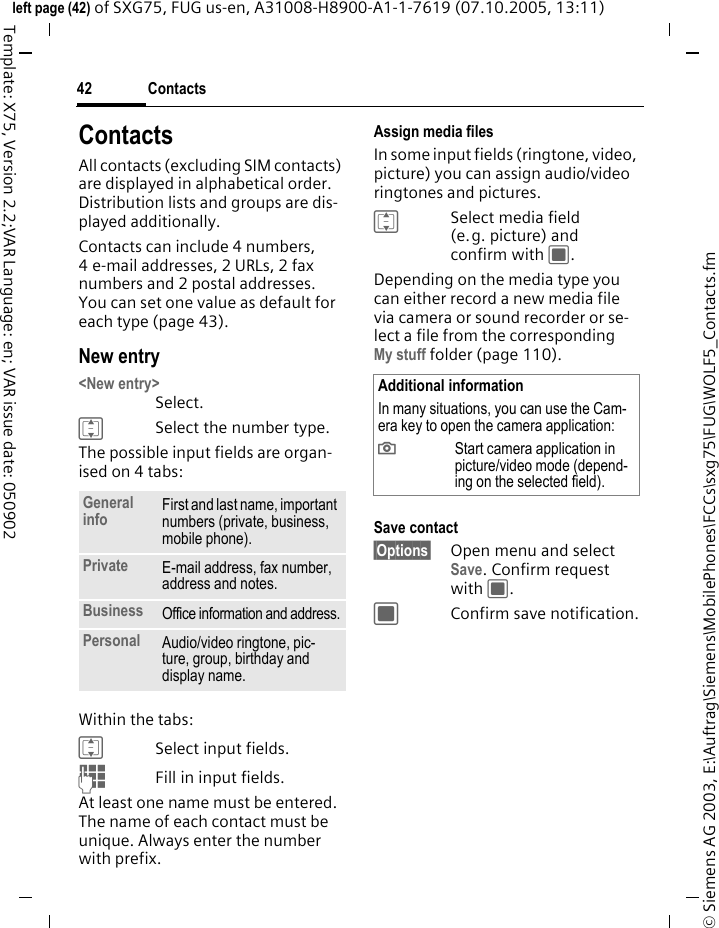
Contacts42© Siemens AG 2003, E:\Auftrag\Siemens\MobilePhones\FCCs\sxg75\FUG\WOLF5_Contacts.fmleft page (42) of SXG75, FUG us-en, A31008-H8900-A1-1-7619 (07.10.2005, 13:11)Template: X75, Version 2.2;VAR Language: en; VAR issue date: 050902ContactsAll contacts (excluding SIM contacts) are displayed in alphabetical order. Distribution lists and groups are dis-played additionally. Contacts can include 4 numbers, 4 e-mail addresses, 2 URLs, 2 fax numbers and 2 postal addresses. You can set one value as default for each type (page 43).New entry<New entry>Select. ISelect the number type.The possible input fields are organ-ised on 4 tabs:Within the tabs:ISelect input fields.JFill in input fields. At least one name must be entered. The name of each contact must be unique. Always enter the number with prefix. Assign media filesIn some input fields (ringtone, video, picture) you can assign audio/video ringtones and pictures. ISelect media field (e.g. picture) and confirm with C.Depending on the media type you can either record a new media file via camera or sound recorder or se-lect a file from the correspondingMy stuff folder (page 110). Save contact§Options§ Open menu and select Save. Confirm request with C.CConfirm save notification.General info First and last name, important numbers (private, business, mobile phone). Private E-mail address, fax number, address and notes. Business Office information and address.Personal Audio/video ringtone, pic-ture, group, birthday and display name. Additional informationIn many situations, you can use the Cam-era key to open the camera application:;Start camera application in picture/video mode (depend-ing on the selected field).
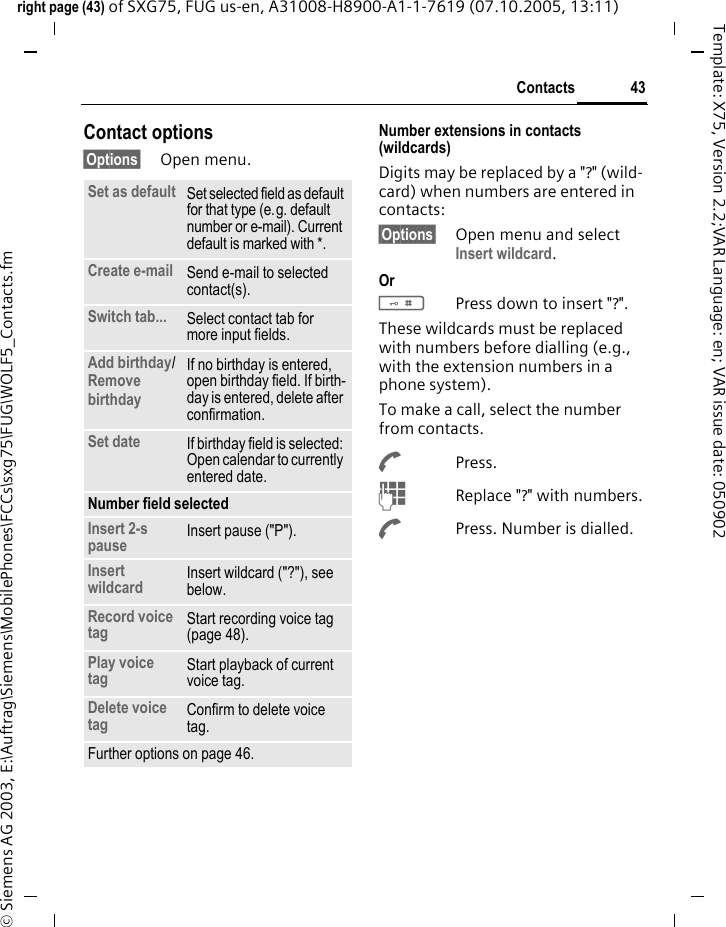
43Contactsright page (43) of SXG75, FUG us-en, A31008-H8900-A1-1-7619 (07.10.2005, 13:11)© Siemens AG 2003, E:\Auftrag\Siemens\MobilePhones\FCCs\sxg75\FUG\WOLF5_Contacts.fmTemplate: X75, Version 2.2;VAR Language: en; VAR issue date: 050902Contact options§Options§ Open menu.Number extensions in contacts (wildcards)Digits may be replaced by a "?" (wild-card) when numbers are entered in contacts: §Options§ Open menu and select Insert wildcard. Or #Press down to insert "?".These wildcards must be replaced with numbers before dialling (e.g., with the extension numbers in a phone system). To make a call, select the number from contacts.APress.JReplace "?" with numbers.APress. Number is dialled.Set as default Set selected field as default for that type (e.g. default number or e-mail). Current default is marked with *. Create e-mail Send e-mail to selected contact(s). Switch tab... Select contact tab for more input fields. Add birthday/Remove birthday If no birthday is entered, open birthday field. If birth-day is entered, delete after confirmation. Set date If birthday field is selected: Open calendar to currently entered date.Number field selectedInsert 2-s pause Insert pause ("P").Insert wildcard Insert wildcard ("?"), see below.Record voice tag Start recording voice tag (page 48).Play voice tag Start playback of current voice tag.Delete voice tag Confirm to delete voice tag.Further options on page 46.
Contacts44© Siemens AG 2003, E:\Auftrag\Siemens\MobilePhones\FCCs\sxg75\FUG\WOLF5_Contacts.fmleft page (44) of SXG75, FUG us-en, A31008-H8900-A1-1-7619 (07.10.2005, 13:11)Template: X75, Version 2.2;VAR Language: en; VAR issue date: 050902GroupsGroups are collections of contacts that can be used to categorise con-tacts. A group can have the same in-coming audio/video call alert. SIM contacts cannot belong to a group, you have to copy them to the phone contacts first.The following groups have already been created and can be renamed but not deleted: Family, Friends, Office, VIP. New groupYou can add personal groups.<New group>Select and enter the name of a new group.§Done§ Press to confirm.Add memberISelect a group. The number of entries is dis-played in the second line when highlighted.§Options§ Open menu and select Add new member. A list of all contacts that are not already in the group is dis-played. ISelect new members and confirm with C.§Add§ Confirm selection. Edit Group§Options§ Open menu and select Edit. You can rename the group and at-tach an audio ringtone and a picture (page 42). SIM contacts Contacts saved on SIM card are man-aged on this tab. SIM contacts con-tain less information than contacts saved on the phone. New entry<New entry>Select to create a new entry.INavigate to input fields.JFill in input fields: name and up to 3 numbers. Pro-tected SIM contacts pro-vide only one number field.SIM/Protected SIM Select storage location. Special SIM cards can save numbers in a protected area (protected SIM) (PIN2 required).FSelect available number.
45Contactsright page (45) of SXG75, FUG us-en, A31008-H8900-A1-1-7619 (07.10.2005, 13:11)© Siemens AG 2003, E:\Auftrag\Siemens\MobilePhones\FCCs\sxg75\FUG\WOLF5_Contacts.fmTemplate: X75, Version 2.2;VAR Language: en; VAR issue date: 050902§Options§ Open menu and select Save and confirm request with C.CConfirm save notification.Convert SIM contact§Options§ Open menu and select Add more fields.SIM contact is converted to regular contact. You cannot convert protect-ed SIM contacts. Further options on page 46.FilterDepending on the selected filter, all contact categories (contacts, SIM contacts, distritbution lists and groups) can be listed on the filter tab.§Options§ Open menu and select Filter and confirm with C.The following filter criteria are available:• Voice dialling: All contacts are list-ed that have a voice tag associat-ed with one or more of their numbers.• Video telephony: Contacts with a video allowed number (page 46) are listed.•E-mail•URL•Birthday• Stored on phone: all contacts (except SIM contacts)• Distribution listsISelect criterion and con-firm with C.A list is displayed with contacts that contain the chosen feature, e.g. all contacts including a birthday entry. Remove contact/reset filterSelect contact(s)/list.§Options§ Open menu and select Remove from list/Reset list and confirm with C.Additional informationIf you want to save/edit/delete contacts in the protected SIM area, the PIN2 is required.
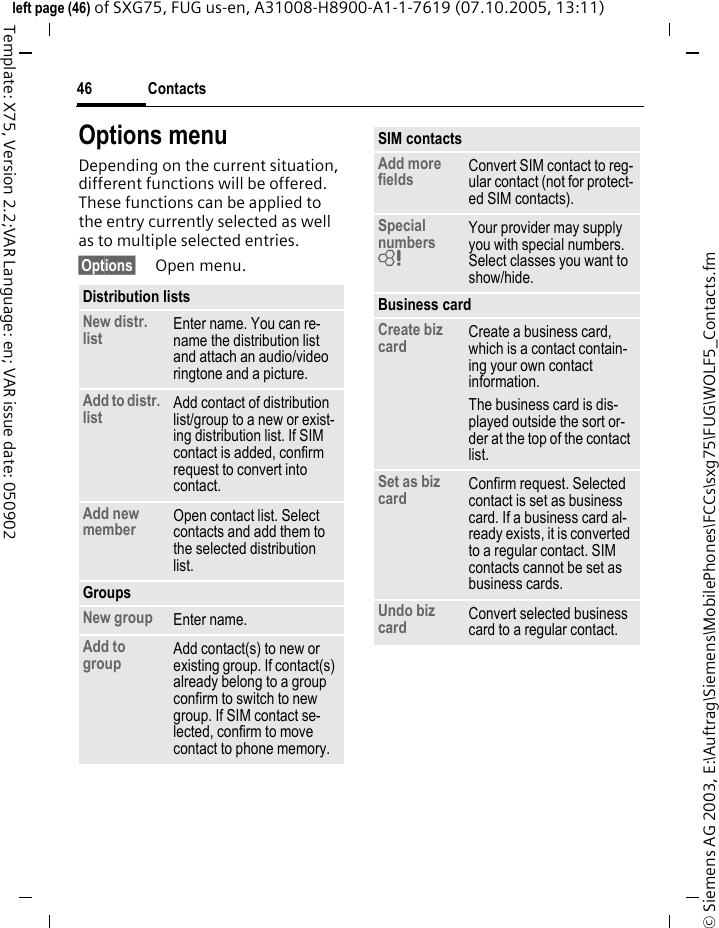
Contacts46© Siemens AG 2003, E:\Auftrag\Siemens\MobilePhones\FCCs\sxg75\FUG\WOLF5_Contacts.fmleft page (46) of SXG75, FUG us-en, A31008-H8900-A1-1-7619 (07.10.2005, 13:11)Template: X75, Version 2.2;VAR Language: en; VAR issue date: 050902Options menuDepending on the current situation, different functions will be offered. These functions can be applied to the entry currently selected as well as to multiple selected entries.§Options§ Open menu.Distribution listsNew distr. list Enter name. You can re-name the distribution list and attach an audio/video ringtone and a picture. Add to distr. list Add contact of distribution list/group to a new or exist-ing distribution list. If SIM contact is added, confirm request to convert into contact. Add new member Open contact list. Select contacts and add them to the selected distribution list. GroupsNew group Enter name. Add to group Add contact(s) to new or existing group. If contact(s) already belong to a group confirm to switch to new group. If SIM contact se-lected, confirm to move contact to phone memory. SIM contactsAdd more fields Convert SIM contact to reg-ular contact (not for protect-ed SIM contacts).Special numbers = Your provider may supply you with special numbers. Select classes you want to show/hide. Business card Create biz card Create a business card, which is a contact contain-ing your own contact information. The business card is dis-played outside the sort or-der at the top of the contact list.Set as biz card Confirm request. Selected contact is set as business card. If a business card al-ready exists, it is converted to a regular contact. SIM contacts cannot be set as business cards. Undo biz card Convert selected business card to a regular contact.
47Contactsright page (47) of SXG75, FUG us-en, A31008-H8900-A1-1-7619 (07.10.2005, 13:11)© Siemens AG 2003, E:\Auftrag\Siemens\MobilePhones\FCCs\sxg75\FUG\WOLF5_Contacts.fmTemplate: X75, Version 2.2;VAR Language: en; VAR issue date: 050902SynchroniseInitiate synchronisation of contacts (page 99).Media field selectede.g. Play ringtone Start playback of current ringtone. Same for video and picture.e.g. Replace ringtoneSelect new ringtone. Same for video and picture.e.g. Remove ringtoneConfirm to delete current ringtone from contacts. Same for video and picture.General optionsSynchro-nise Initiate synchronisation (see below).Open web site If contact information con-tains URL, start the brows-er and load URL.Send contact Send contact as vCard (see below).Set as vid. allow'd/Undo vid.allow'd Only one number of the contact can be set as video allowed. Option is set auto-matically if you get/initiate a video call from/to that number. Note that this op-tion is not available for SIM contacts.Save op-tions Depending on save loca-tion, select• copy/move to SIM: Only SIM information is saved. Extended version of the contact is kept. • copy/move to phone.Protected SIM contacts, special numbers and the business card cannot be copied or moved to another save location.Save location Select SIM/Phone as default save location. Duplicate Open new contact with duplicate information.Find Open menu (page 48).For standard functions see page 24.Additional informationWith the Siemens MPM (Mobile Phone Manager, page 138) you can hold your ad-dresses in a Windows® PC and synchro-nise with the contacts.
Contacts48© Siemens AG 2003, E:\Auftrag\Siemens\MobilePhones\FCCs\sxg75\FUG\WOLF5_Contacts.fmleft page (48) of SXG75, FUG us-en, A31008-H8900-A1-1-7619 (07.10.2005, 13:11)Template: X75, Version 2.2;VAR Language: en; VAR issue date: 050902Send contactIf you want to send/receive complete contacts, the contact is transmitted as a vCard. You can send your own/other con-tacts via Bluetooth, IrDA, SMS, MMS or e-mail.Receiving vCardYou can receive contacts included in a message or via IrDA/Bluetooth. You can save vCards as contacts: §Options§ Open menu and select Save contact to save vCard as new contact.FindTo find a contact more easily you can either search for the contact, change the sort order of the contact list or set filter criteria for the list.Contacts searchJEnter text/number and confirm with C.A list is displayed with contacts which contain the text/number sequence.Sort contactsThe contact list is resorted.ISelect sort order and con-firm with C.Filter contactsISelect filter criterion (page 45) and confirm with C.Voice-activated diallingYou can dial numbers from the con-tacts by speaking the name. SIM con-tacts, distribution lists and groups cannot have a voice tag.You have to record a voice tag for every number so your phone "recog-nises" you. To record voice tags you speak the name loudly and clearly in-to the phone and store it.You can store about 100 voice tags. You can assign one voice tag to each number of a contact.Recording a voice tagRecord the voice tag in a quiet envi-ronment. You should speak into the phone from a distance of about 25 cm. The voice tag may be 3 sec. long.FOpen the Contacts tab.ISelect a contact.ISelect number input field.§Options§ Open menu and select Record voice tag. §Start§ Start recording.Additional informationIf you use voice-activated dialling mainly with a handsfree set it is useful to record the voice tag with the handsfree set.
49Contactsright page (49) of SXG75, FUG us-en, A31008-H8900-A1-1-7619 (07.10.2005, 13:11)© Siemens AG 2003, E:\Auftrag\Siemens\MobilePhones\FCCs\sxg75\FUG\WOLF5_Contacts.fmTemplate: X75, Version 2.2;VAR Language: en; VAR issue date: 050902A short signal is sounded. An appro-priate prompt appears on the dis-play. Speak the name (max. 3 sec-onds). Repeat the name after playback. A second signal tone is sounded and you are prompted on the display.CConfirm completed recording.If your two recordings are too differ-ent or if they are too similar to an ex-isting voice tag, you will be prompt-ed to repeat recording.§Retry§/§Restart§Press to start recording again.If three attempts fail you have to start a new voice tag.Voice-activated diallingVoice dialling must be enabled (page 126).GPress and hold.Speak the name after the signal tone. If the name matches the saved voice tag the number is dialled.Additional informationIf there is not enough memory for a new voice tag, a notification is displayed. Con-firm notification, delete existing tags and try again.
Call records50© Siemens AG 2003, E:\Auftrag\Siemens\MobilePhones\FCCs\sxg75\FUG\WOLF5_Records.fmleft page (50) of SXG75, FUG us-en, A31008-H8900-A1-1-7619 (07.10.2005, 13:42)Template: X75, Version 2.2;VAR Language: en; VAR issue date: 050902Call recordsC ¢P ¢Call recordsThe different call information is listed on 5 tabs:All calls, Dialled calls, Missed calls, Received calls and Time & charges. FNavigate to tabs.Each list displays the 100 most recent calls.Call log listsThe number of a caller is displayed if • the caller has switched off the Hide ID function and • the network supports the Caller ID function. Alternatively, a caller’s name is dis-played if it is stored as a contact.If the number was not transmitted for the reasons above a message is displayed instead.Your phone stores the numbers of calls for convenient redialling. Audio and video calls are stored. Redial numberFSelect call log list (e.g. Missed calls).ISelect entry.A / C / jDial number (if available), make video call.All callsAccess all missed, dialled and received calls.Dialled callsAccess last numbers dialled by you.A / jFast access in standby mode.Missed calls bThe numbers of calls that you have received but not answered are stored for callback purposes.Missed calls are displayed in standby mode (page 21). Select entry and confirm with C to open missed calls list.Received callsAccepted calls are listed.
51Call recordsright page (51) of SXG75, FUG us-en, A31008-H8900-A1-1-7619 (07.10.2005, 13:42)© Siemens AG 2003, E:\Auftrag\Siemens\MobilePhones\FCCs\sxg75\FUG\WOLF5_Records.fmTemplate: X75, Version 2.2;VAR Language: en; VAR issue date: 050902Call log list menuDepending on the current situation, different functions will be offered. §Options§ Open menu. Time & chargesYou can display the call duration and currency and rate of a call. You can set the currency and rate for charge display. Last call/All incoming calls/All outgoing calls Select list and confirm with C.For the selected call type the follow-ing information is displayed: the date/time and the duration and charges. For all incoming and all out-going calls the number of recorded calls is displayed, too.Reset all incoming/outgoing calls listsView list (see above).§Reset§ Press to reset the current list. §Yes§ Confirm reset notification.Charge settingsSettings Select and confirm with C.Currency(PIN2 protected)JEnter currency (up to 3 characters).§Options§ Open menu and select Save. Rate (PIN2 protected)JEnter per minute rate.§Options§ Open menu and select Save. Display costsOn/Off Activate/deactivate cost display and confirm with C. Call Dial number (if number is available)View contact/ Add to Contacts If number is saved as contact, view contact. If number is not yet saved, create new contact.Details Display call type (video/voice call), number, name, time/date and duration of the call. For standard functions see page 24.NoteIf the display of costs is disabled or the cur-rency is not entered, cost information is not displayed.
Camera52© Siemens AG 2003, E:\Auftrag\Siemens\MobilePhones\FCCs\sxg75\FUG\WOLF5_Camera.fmleft page (52) of SXG75, FUG us-en, A31008-H8900-A1-1-7619 (07.10.2005, 13:43)Template: X75, Version 2.2;VAR Language: en; VAR issue date: 050902CameraThe phone has a front and rear camera (page 11). You can view photos/videos recorded with the integrated camera immediately:• Use a picture as background image, logo or screensaver.• Send picture/video via MMS or e-mail.• Save pictures/videos on the phone or on the RS MultiMediaCard (page 16).Start the camera via the main menu:C ¢R Or ;Press the side key to start the camera in standby mode and from other ap-plications.Picture mode/Video modeSelect mode and confirm with C / ;.The current (preview) image is displayed. You can also start the camera using the media player or MMS editor.Displayed informationThe following symbols are displayed over the preview:Ùcurrent brightness settingÚcurrent zoom levelOnly in picture mode and if active self timer and flash are indicated.The following memory information is displayed in the bottom right corner of the preview image:• Memory location: Pictures/videos can be saved either on the phone or on the RS MultiMediaCard. To change save location see page 54.• Remaining memory: Picture count/available record time on the current memory location. The re-maining memory depends mainly on the selected resolution and the motif.The selected resolution is displayed in the top line.Additional informationWhen video recording is started from the MMS application, the maximum length will be the time allocated for messaging (10 seconds).
53Cameraright page (53) of SXG75, FUG us-en, A31008-H8900-A1-1-7619 (07.10.2005, 13:43)© Siemens AG 2003, E:\Auftrag\Siemens\MobilePhones\FCCs\sxg75\FUG\WOLF5_Camera.fmTemplate: X75, Version 2.2;VAR Language: en; VAR issue date: 050902Taking pictures/videosSettings prior to taking pictures/recording videosFDecrease/increase bright-ness. Brightness can be set in 7 levels (–3 to +3).IZoom in/out in 7 levels.For further settings see options menu.Taking picturesStart the camera in picture mode.C/ ;Take picture. Recording videos Start the camera in video mode.C/ ;Start recording. You can record up to 5 minutes.§Pause§/§Resume§ Control recording.§Stop§ End recording.Reviewing pictures/videosCConfirm save notification. The picture/video is displayed.The picture/video is saved with a name, the date and the time in the Media player folder (page 107). C/ ;Open view finder to take another picture/record another video.Or §Discard§ Delete picture/video and open view finder.Additional information• If available memory is insufficient, con-firm warning with C and change save location.• If camera was launched from another ap-plication (contacts/messages), press C to add picture/video and return to the original application.
Camera54© Siemens AG 2003, E:\Auftrag\Siemens\MobilePhones\FCCs\sxg75\FUG\WOLF5_Camera.fmleft page (54) of SXG75, FUG us-en, A31008-H8900-A1-1-7619 (07.10.2005, 13:43)Template: X75, Version 2.2;VAR Language: en; VAR issue date: 050902Camera optionsThe following functions are availa-ble, depending on the current situation.§Options§ Open menu.Picture settings/Video settingsResolution front/Resolution back §Change§ Open settings.ISelect resolution and con-firm with C.A setting can be made for the quality of the picture/video regardless of the preview image resolution. The resolution setting concerns the current active camera mode. The resolution may decrease depending on the selected digital zoom.Record Start video recording.New picture/New video Open view finder to take another picture/record another video.Add Add picture/video to original application (contacts/messages).Play Play recorded video.View pictures/View videos Open correspondingMy stuff folder (page 110).Picture mode/Video mode Switch between picture and video mode.Switch camera Switch between front and rear camera.Message mode Switch to message mode after confirmation. Mes-sage mode is optimised for sending via MMS/Bluetooth:• record time 10 seconds•low resolutionMessage mode is activat-ed automatically if video mode is started from MMS application.Audio record Turn microphone on/off.Flash Turn flash auto/off (only in-cluded if flash accessory is plugged into phone). Self timer Picture is taken approx. 10 seconds after trigger-ing. For the last 3 seconds, you will hear a signal tone each second.Picture settings/Video settings Open settings (see below).For standard functions see page 24.
55Cameraright page (55) of SXG75, FUG us-en, A31008-H8900-A1-1-7619 (07.10.2005, 13:43)© Siemens AG 2003, E:\Auftrag\Siemens\MobilePhones\FCCs\sxg75\FUG\WOLF5_Camera.fmTemplate: X75, Version 2.2;VAR Language: en; VAR issue date: 050902Default name§Change§ Open settings.JEnter default file name (up to 4 digits).§Options§ Open menu and select Save.Save location§Change§ Open settings.Phone memory/CardSelect default save loca-tion and confirm with C. Frame rate (only for video settings)Set how many frames per second the video should capture.Low (7 fps)/High (15 fps)Select and confirm with C. White balance §Change§ Open settings.Auto/Indoor/OutdoorSelect and confirm with C. Flicker adjustmentAdjust the sensibility to indoor light-ening flicker rates.Off/50 Hz/60 Hz Select and confirm with C. Flash (Accessories)If the flash is active, this is shown by a symbol in the display. The flash is constantly charged while connected to the phone. This reduces the standby time.×While charging, the symbol blinks.Additional informationPress j to start video call with current camera and current settings.
Create message56© Siemens AG 2003, E:\Auftrag\Siemens\MobilePhones\FCCs\sxg75\FUG\WOLF5_CreateMessage.fmleft page (56) of SXG75, FUG us-en, A31008-H8900-A1-1-7619 (07.10.2005, 13:44)Template: X75, Version 2.2;VAR Language: en; VAR issue date: 050902Create messageYou can create SMS and MMS messages and e-mails.C ¢M ¢Create message ¢Select message type. SMS/MMSAbout SMSYou can transmit and receive long messages (up to 760 characters) on your phone. They are automatically divided into concatenated SMS mes-sages (note higher charges).About MMSThe Multimedia Message Service (MMS) enables you to send texts, pictures/videos and sounds in a com-bined message to another mobile phone or to an e-mail address. All el-ements of an MMS message are merged into a "slide show".Depending on your phone's settings, you will receive either the complete message automatically or notifica-tion that an MMS has been saved in the network, giving sender and size details. You may then download it to your phone to read it. Ask your service provider whether this service is available. You may need to register for this service separately.Writing/sending an SMSC ¢M ¢Create message ¢SMSJEnter text/add items (see options menu). §Options§ Open menu and select Add recipient (page 59).ASend message.CConfirm.If the SMS could not be sent successfully, press §Retry§.Additional informationYou will find information on writing texts with and without T9 in the chapter "Text en-try" (page 30).Additional information• The following is displayed in the top dis-play line: text entry mode, number of segments needed to send the current message and number of remaining characters.• If text is too long for a single SMS, you can choose whether to convert SMS to an MMS or not.
57Create messageright page (57) of SXG75, FUG us-en, A31008-H8900-A1-1-7619 (07.10.2005, 13:44)© Siemens AG 2003, E:\Auftrag\Siemens\MobilePhones\FCCs\sxg75\FUG\WOLF5_CreateMessage.fmTemplate: X75, Version 2.2;VAR Language: en; VAR issue date: 050902SMS optionsDepending on the current situation, different functions will be offered.§Options§ Open menu.Writing/sending an MMS An MMS is composed of slides, each containing text/pictures/sounds or a video. INavigate MMS slides.Please note that media files may be protected (DRM, page 22).C ¢M ¢Create message ¢MMSJEnter text (up to 1024 characters)/add items (see options menu). §Options§ Open menu and select Add recipient (page 59).ASend message.CConfirm.If the MMS could not be sent successfully, press §Retry§.Add item Select Picture/Video/ Sound. Select file from the correspondingMy stuff folder (page 110). Remember that files may be protected (DRM, page 22).If you try to add items that cannot be sent via SMS, message is converted to MMS after confirmation.Send options Set Status report/ Validity period/SMS type/Send with for current SMS. See also SMS settings (page 70).Further functions, see page 59.Additional informationThe following is displayed in the top display line: text entry mode, number of remaining characters and size of the message.
Create message58© Siemens AG 2003, E:\Auftrag\Siemens\MobilePhones\FCCs\sxg75\FUG\WOLF5_CreateMessage.fmleft page (58) of SXG75, FUG us-en, A31008-H8900-A1-1-7619 (07.10.2005, 13:44)Template: X75, Version 2.2;VAR Language: en; VAR issue date: 050902MMS optionsDepending on the current situation, different functions will be offered.§Options§ Open menu.View modeIf you start the view mode you can change the presentation of the message.§Options§ Open menu.Add item •Picture/Video/Sound (see SMS options).•Text: add text to cur-rent slide.•Contact: select and add as vCard.•Appointment: select and add as vCard.Add subject Enter subject.Preview MMS Start view mode (see below).Playback video/Playback sound Start Media player and play back video/sound.Send options Set Read Report, Set De-livery Report, Validity Pe-riod and Priority for current MMS. See also MMS settings (page 72).Further functions, see page 59.Play again Start playback of all slides.Page duration Select time interval (in sec.), each slide is dis-played when presented.Order page Select +1/-1 to swap current slide with previous/next.
59Create messageright page (59) of SXG75, FUG us-en, A31008-H8900-A1-1-7619 (07.10.2005, 13:44)© Siemens AG 2003, E:\Auftrag\Siemens\MobilePhones\FCCs\sxg75\FUG\WOLF5_CreateMessage.fmTemplate: X75, Version 2.2;VAR Language: en; VAR issue date: 050902SMS/MMS optionsDepending on the current situation, different functions will be offered.§Options§ Open menu.Add recipientAfter at least one recipient is added, the To: field is displayed. You can add multiple recipients. Enter number/address or select contact:Add frm Contacts Select and confirm with C to open contacts.ISelect contact(s)/distribu-tion list(s) and confirm with C.If you select a contact with more than one respective entry (e.g. sev-eral numbers), the possible entries are displayed in a second line when contact is highlighted: FSelect entry you want to use.Add recipient See below.Edit recipient Edit entered number/address.Create item •Take picture/Record video: start camera in message mode (page 54). You may also press ; to start the camera. •Record sound: start dictating machine (page 98).Insert text •Template (page 33).•Contact Details: open contact and select contact information.•Bookmark: open browser and select bookmark (page 92). Save as Select Draft (page 69)/ Template (page 33). If memory is insufficient:• SMS: confirm request if you want to delete mes-sages from Inbox.• MMS: confirm request if you want to upload MMS to the media album =.e.g. Remove pictureRemove picture/video/sound/contact/appointment or recipient from message.For standard functions see page 24.
Create message60© Siemens AG 2003, E:\Auftrag\Siemens\MobilePhones\FCCs\sxg75\FUG\WOLF5_CreateMessage.fmleft page (60) of SXG75, FUG us-en, A31008-H8900-A1-1-7619 (07.10.2005, 13:44)Template: X75, Version 2.2;VAR Language: en; VAR issue date: 050902E-mailYour phone has an e-mail program (client). You can use it to create and receive e-mails.If you enter the e-mail editor from another application, eg. the Inbox, all used input fields (To:, CC:, Bcc:, Subject:, Attachment) are displayed.Writing/sending e-mailsC ¢M ¢Create message ¢E-mailJEnter text/add items (see options menu). §Options§ Open menu and select Add recipient (see options menu).ASend message. The send-ing progress is displayed.Additional informationIf the cursor is at the top of the text entry, you can navigate the input fields with G/H.Additional informationIf you send a new e-mail, e-mails from the draft folder will be sent as well. The progress is displayed in terms of either the number of bytes or the number of e-mails.
61Create messageright page (61) of SXG75, FUG us-en, A31008-H8900-A1-1-7619 (07.10.2005, 13:44)© Siemens AG 2003, E:\Auftrag\Siemens\MobilePhones\FCCs\sxg75\FUG\WOLF5_CreateMessage.fmTemplate: X75, Version 2.2;VAR Language: en; VAR issue date: 050902E-mail optionsDepending on the current situation, different functions will be offered.§Options§ Open menu.Add recipient •Add frm Contacts: Open contacts (page 42). •Enter e-mail addr.: Enter address manually.Edit recipient Edit entered address.Add subject Enter subject.Edit subject Edit subject.Attach item •From My stuff: Select any file (also unknown type).•From Contacts: Select contact and add as vCard.•From Calendar: Select Appointment and add as vCard.Name and size of the attachment is displayed. Add Cc Add contact(s) of copy recipient(s). See also Add recipient. Add Bcc Add contact(s) of copy recipient(s) (See also Add recipient). Bcc recipients are not visible for other recipients. e.g. Remove item Remove highlighted attachment/recipient.Save as draft Confirm request to save e-mail in draft folder (page 69).Add signature Add signature at the end of the text.Send options Set Req. deliv. receipt:, Request read receipt:, Priority: for current e-mail. See also e-mail settings (page 73).For standard functions see page 24.
Inbox62© Siemens AG 2003, E:\Auftrag\Siemens\MobilePhones\FCCs\sxg75\FUG\WOLF5_Inbox.fmleft page (62) of SXG75, FUG us-en, A31008-H8900-A1-1-7619 (07.10.2005, 13:44)Template: X75, Version 2.2;VAR Language: en; VAR issue date: 050902InboxThe inbox contains all MMS, SMS, CB, e-mail and WAP push messages received on the phone.C ¢M ¢ InboxOr §Inbox§ Press and hold.Receiving messagesSMSIf a new SMS is received a notifica-tion is displayed. New messages are saved in the Inbox automatically.§View§ Press if you want to read new message immediately.Or §Ignore§ Press if you want to open message via the Inbox later.MMSAn MMS is received in two steps: First the MMS notification, then the MMS.If a new MMS message is available for downloading, the MMS notifica-tion is displayed including number/contact and subject of the MMS. You can download the MMS immediately or later:§Yes§ Press if you want to down-load MMS immediately. The download progress is displayed.Or §No§ Press if you want to down-load later. The notifica-tion is saved in the Inbox.When download is completed, a notification is displayed (see SMS section).CBSome service providers offer infor-mation services (Cell Broadcast Service). If reception is activated (page 77), your provider will supply you with messages on the activated topics. When the function is activated (page 77), CB messages are received automatically. Depending on the current setting, CB messages are dis-played in standby mode (page 21).Only one CB of the same type is saved. If another message is re-ceived, it overwrites the older one. E-mailE-mails are not received automati-cally. Before an e-mail can be read, it must be retrieved from the server (page 65).
63Inboxright page (63) of SXG75, FUG us-en, A31008-H8900-A1-1-7619 (07.10.2005, 13:44)© Siemens AG 2003, E:\Auftrag\Siemens\MobilePhones\FCCs\sxg75\FUG\WOLF5_Inbox.fmTemplate: X75, Version 2.2;VAR Language: en; VAR issue date: 050902WAP pushWAP push messages are provided by special service centres. Depending on the current setting (page 91) WAP push messages are received/re-jected automatically or you are prompted to accept/reject when WAP push is received. If you receive the message that a software update is available, you can start a DM session (page 127). Inbox structureFor fast access, the inbox is organised on three tabs: • MMS, SMS, CB•E-mail• WAP push messagesIf the inbox contains a new message a symbol is displayed in standby mode (page 21). If you open the in-box in this case, you directly access the message folder containing the new message. If the message is highlighted, two lines are displayed:• The first line contains the number or the respective contact and the time or date the message was re-ceived. An icon indicates the mes-sage type. • In the second line either the be-ginning of the message or the subject is displayed. SMS, MMS, CBAll new messages are shown in chronological order.ISelect message and confirm with C.Numbers, bookmarks, e-mail addresses, vCards and other saveable objects are highlighted automatically. Additional informationMake a call: Select SMS, MMS or e-mail and press A.Additional information+- Set volume.*Switch sound on/off.Only MMS:INavigate within a slide.E/DSwitch to next/previous slide. On first/last page switch to last/first page. CPlay media file.
Inbox64© Siemens AG 2003, E:\Auftrag\Siemens\MobilePhones\FCCs\sxg75\FUG\WOLF5_Inbox.fmleft page (64) of SXG75, FUG us-en, A31008-H8900-A1-1-7619 (07.10.2005, 13:44)Template: X75, Version 2.2;VAR Language: en; VAR issue date: 050902Options menuDepending on the current situation, different functions will be offered. §Options§ Open menu.Read options menuDepending on the current situation, different functions will be offered. §Options§ Open menu.View Read SMS, MMS, MMS Noti-fication or CB.Downld message Download MMS if MMS noti-fication is received.Reply/Reply to all Select SMS/MMS and create message.Forward Forward Message to another recipient.•SMS: Select SMS/MMS.• CB: Create SMS.• MMS: Select MMS. If you forward as SMS, at-tached media files are re-moved automatically. Mark as unread Display message in bold type.Add to Contacts Save as contact (page 67). For standard functions see page 24.Additional information• SMS messages may be stored on the phone memory or on the SIM card. The storage location is indicated with an icon.• You can activate the option to have the oldest SMS message in the inbox auto-matically deleted when a new message arrives (page 71). View Start view mode (page 58).Send CB: If e-mail address is highlighted selectMMS/E-mail.Send MMS MMS: If e-mail address is highlighted create new MMS. Open link If URL is highlighted: Start browser (page 89).Save link If URL is highlighted: Start browser and add URL to bookmarks (page 92).Play again MMS: Start playback video/audio slide.e.g. Save sound Select To phone/To card as save location. Down-loaded file is saved in cor-responding My stuff folder (page 110).Same for picture, text and attachment.Call number If number is highlighted: Dial number.Save appoint. If calendar object is select-ed: Save calendar event (page 98).For standard functions see page 24.
65Inboxright page (65) of SXG75, FUG us-en, A31008-H8900-A1-1-7619 (07.10.2005, 13:44)© Siemens AG 2003, E:\Auftrag\Siemens\MobilePhones\FCCs\sxg75\FUG\WOLF5_Inbox.fmTemplate: X75, Version 2.2;VAR Language: en; VAR issue date: 050902Downloading ringtones and logosYou can receive links for download-ing ringtones, logos, screensavers, animations and information about applications with an SMS. Highlight this link and, by pressing the Call key A, start the download. Please check that the dial-in access is configured.Remember that ringtones/logos may be protected (DRM, page 22).E-mailIf more than one account is config-ured, the list of accounts is displayed (page 75). Before an e-mail can be read, it must be retrieved from the server. The e-mail application is blocked until download is completed.The listed files and the options menu vary depending on the receive server type (page 75) of the selected account.POP3 accountThe inbox on the phone contains all the e-mails that are in the inbox on the POP3 server. You can configure whether or not an e-mail is deleted on the server when deleted on the phone (page 76).IMAP4 accountThe inbox lists e-mails as well as sub-scribed folders (e.g. mailboxes). You can subscribe to various folders on the IMAP4 server. E-mails are re-trieved only from the subscribed folders. If you delete e-mails on the phone they are deleted on the server automatically.E-mail options menuDepending on the current situation, different functions will be offered. §Options§ Open menu.View If only headers are re-trieved, retrieve body and display e-mail. Retrieve e-mail Retrieve new e-mail for selected account (page 66). Retrieve all accts Retrieve new e-mail headers for all config-ured accounts.Account settings Open account settings for highlight-ed account (page 75). If no account is config-ured create new account.Reply/Reply to all Create new e-mail.Forward Forward e-mail to another recipient.
Inbox66© Siemens AG 2003, E:\Auftrag\Siemens\MobilePhones\FCCs\sxg75\FUG\WOLF5_Inbox.fmleft page (66) of SXG75, FUG us-en, A31008-H8900-A1-1-7619 (07.10.2005, 13:44)Template: X75, Version 2.2;VAR Language: en; VAR issue date: 050902Retrieve e-mailDepending on the download mode (page 76), either entire e-mails or only the headers are retrieved, or you may be asked whether the entire e-mail or only the header should be downloaded. The number of retrieved e-mails is displayed. Subscr. to folders(only IMAP4 accounts)You have to subscribe to folders on the receive server in order to retrieve e-mail from these folders.All subscribed and unsubscribed folders on the receive server are listed. Only two levels of folders are supported.ISelect folder(s) and con-firm with C to subscribe/unsubscribe to folders.§Options§ Open menu and select Subscr. to marked.Move to folderYou can move e-mails from one sub-scribed folder to another. The move is synchronised with the server the next time you retrieve e-mails.ISelect e-mail(s) you want to move. §Options§ Open menu and select Move to folder. The sub-scribed folders are listed.ISelect folder and confirm with §Move§.Add to Contacts Save as contact (page 67). Only POP3 accountDelete on server Delete e-mail on serv-er only. The local copy is retained.Only IMAP4 accountSubscr. to folders (page 66)Move to folder  (page 66)Unsubscribe  E-mail within the folder is deleted on the phone only. The syn-chronisation of e-mails to server is stopped.Display order Select Folders first/E-mail first.For standard functions see page 24.Additional informationYou can set the max. size of downloaded e-mails (page 74).Additional informationIMAP4 accounts: only e-mails in the subscribed folders are retrieved.
67Inboxright page (67) of SXG75, FUG us-en, A31008-H8900-A1-1-7619 (07.10.2005, 13:44)© Siemens AG 2003, E:\Auftrag\Siemens\MobilePhones\FCCs\sxg75\FUG\WOLF5_Inbox.fmTemplate: X75, Version 2.2;VAR Language: en; VAR issue date: 050902Read options menuDepending on the current situation, different functions will be offered. §Options§ Open menu.Add to ContactsYou can add contacts received via SMS, MMS or e-mail. You can add the following contact details: • contact details of the sender • contact details (e.g. number, e-mail address) included in the message as contact (page 41).• vCard: contact included in a message.Save sender/contact detailsContact details included in a message are displayed in the §highlighted§ text. Numbers can be dialled immediately (A).§Options§§ Open menu and select Add to Contacts.To exist. contactSelect and confirm with C.Or To a new contactSelect and confirm with C. Select number/address type (e.g. private number) and confirm with C.CPress to confirm save notification. Save vCard§Options§ Open menu and select Save contact.CPress to confirm save notification. Voice call/Video call Start voice/video call to sender (if number availa-ble). Go to URL If e-mail address is high-lighted: create new e-mail. View/Download View/play attachment. If not downloaded download attachment.Delete on phone  Delete downloaded attach-ment on phone. POP3 ac-count: the attachment is deleted permanently on phone and cannot be downloaded again.Go to URL If URL is highlighted: Start browser and load URL (page 89).Save as bookmark If URL is highlighted: Start Browser and add URL to bookmarks (page 92).Save  Select To phone/To card as save location. Down-loaded file is saved in cor-responding My stuff folder (page 110). Selected vCard is saved as contact. Selected calendar object saved as calendar event.For standard functions see page 24
Inbox68© Siemens AG 2003, E:\Auftrag\Siemens\MobilePhones\FCCs\sxg75\FUG\WOLF5_Inbox.fmleft page (68) of SXG75, FUG us-en, A31008-H8900-A1-1-7619 (07.10.2005, 13:44)Template: X75, Version 2.2;VAR Language: en; VAR issue date: 050902WAP pushThe following messages are displayed:• Service Indication (SI)• Audio, video, image, text• Service loading Reading WAP push messageISelect desired message and confirm with C.Read messages/information about received data/software. Where re-quired start download.Service loading messageYou are connected to the browser and the service is downloaded auto-matically. Otherwise you are asked whether you want to download the service or not.§Connect§ Press to open server and load service.DM requestIf the pushed operation causes initial configuration of the handset and provisioning of application settings, the device manager is started (page 127). A notification is displayed:§Accept§ Press to carry out action.
69Message listsright page (69) of SXG75, FUG us-en, A31008-H8900-A1-1-7619 (07.10.2005, 13:11)© Siemens AG 2003, E:\Auftrag\Siemens\MobilePhones\FCCs\sxg75\FUG\WOLF5_DraftSent.fmTemplate: X75, Version 2.2;VAR Language: en; VAR issue date: 050902Message listsMessages are displayed the same as in the inbox (page 62). The most recently edited/sent message is displayed at the top of the list.DraftsC ¢M ¢DraftsThe list is organised on two tabs: SMS/MMS and e-mail. You can save a message as a draft while creating it. Messages are saved as drafts automatically• if transmission fails, or • you start another application while creating a message (e.g. you accept an incoming call).Draft optionsDepending on the current situation, different functions will be offered. ISelect message.§Options§ Open menu.Sent messages C ¢M ¢Sent messagesThe list contains all sent messages and is organised on two tabs: SMS/MMS and e-mail. Send optionsDepending on the current situation, different functions will be offered. ISelect message.§Options§ Open menu.Additional informationE-mails are not sorted by configured accounts. Draft e-mails are not synchronised with the server. Edit Edit Message.Send Send directly without editing (at least one recipient is added).For standard functions see page 24.View Read message.Voice call/ Video call Start voice/video call to send-er (if number available). Forward • E-mail: Create e-mail and send it. • SMS/MMS: Select SMS/MMS (menu depends on selected message type). Create message and send it. For standard functions see page 24.
Message settings70© Siemens AG 2003, E:\Auftrag\Siemens\MobilePhones\FCCs\sxg75\FUG\WOLF5_MessageSettings.fmleft page (70) of SXG75, FUG us-en, A31008-H8900-A1-1-7619 (07.10.2005, 13:11)Template: X75, Version 2.2;VAR Language: en; VAR issue date: 050902Message settingsYou can configure SMS, MMS, e-mails, cell broadcast (CB), voice mail and instant messages. SMS settingsC ¢M ¢Message settings ¢SMS ¢Select function. SMS profiles The SMS parameters are configured in up to 5 different profiles. Profiles can be renamed, edited and set as default.Setting default profileIf profile is already configured: ISelect profile and press Cto set profile as default.Edit profile ISelect profile and press §Edit§ to open editor.ISelect option (see table). §Select§ Press to edit option, confirm setting with C.The following options are displayed:Message centre Enter number of message centre.Recipient You can set a default recipient for the profile. Select Add fr. contacts and select contact/dis-tribution list or enter number. Validity period Select Maximum/ 1 week/1 day/12 hours/1 hour. If SMS could not be de-livered during this peri-od, it is deleted from message centre automatically.Status report Select On/Off/Ask on send. A status report is sent when a message is delivered successfully. If Ask on send is acti-vated, a prompt is dis-played when SMS is sent. Send confirmation Select On/Off/Ask on send to set whether or not a confirmation for successfully sent mes-sages is displayed.SMS access Select GSM/GPRS. SMS memory Select Phone/SIM as default save location for incoming SMS. SMS type = Select delivery type.
71Message settingsright page (71) of SXG75, FUG us-en, A31008-H8900-A1-1-7619 (07.10.2005, 13:11)© Siemens AG 2003, E:\Auftrag\Siemens\MobilePhones\FCCs\sxg75\FUG\WOLF5_MessageSettings.fmTemplate: X75, Version 2.2;VAR Language: en; VAR issue date: 050902Reset profile ISelect profile.§Options§ Open menu and select Restore to default. §Yes§ Confirm request.The SMS profile is reset to an uncon-figured state. If your provider has locked a predefined profile, it cannot be reset.Auto headerIf the function is activated the Head-er template is automatically inserted at the start of any created SMS.On/Off Activate/deactivate and confirm with C.Auto signatureIf the function is activated, the Sig-nature template is automatically inserted at the end of any created SMS.On/Off Activate/deactivate and confirm with C.Autosave sentIf the function is activated, all sent SMS messages are saved automati-cally in the Sent folder (page 69).On/Off Activate/deactivate and confirm with C.Auto SMS deleteIf the function is activated, the oldest SMS message in the Inbox will be deleted upon arrival of a new SMS message. On/Off Activate/deactivate and confirm with C.Emoticons Emoticons are little symbols (Smilies) expressing your feelings. If the function is activated, emoti-cons are automatically displayed as little pictures. On/Off Activate/deactivate and confirm with C.Text sizeYou can set the displayed size of the text in the SMS Viewer.Small/Standard/LargeSelect size and confirm with C.Additional informationThe message sent notification is displayed, when an SMS is transmitted successfully to the SMS centre. The centre forwards the SMS to the recipient. If the message was not transmitted to the SMS centre, you can retry once. If trans-mission fails again, contact your service provider.
Message settings72© Siemens AG 2003, E:\Auftrag\Siemens\MobilePhones\FCCs\sxg75\FUG\WOLF5_MessageSettings.fmleft page (72) of SXG75, FUG us-en, A31008-H8900-A1-1-7619 (07.10.2005, 13:11)Template: X75, Version 2.2;VAR Language: en; VAR issue date: 050902MMS settingsC ¢M ¢Message settings ¢MMS ¢Select function. MMS profilesThe MMS parameters are configured in up to 5 different profiles. Profiles can be renamed, edited and set as default. You will receive the neces-sary data from your service provider or via the "Setting Configurator" (page 140).Setting default profileIf profile is already configured: ISelect profile and press C to set profile as default.Edit profileISelect profile and press §Edit§ to open editor.ISelect option and edit settings. The following options are displayed:Reset profile ISelect profile.§Options§ Open menu and select Restore to default. §Yes§ Confirm request.The MMS profile is reset to an uncon-figured state. If your provider has locked a predefined profile, it cannot be reset.Home retrieval/Roaming retrievalYou can configure when new MMS messages are to be downloaded from the message server for Home and Roaming retrieval.The following settings are possible:ISelect option and confirm with C.Name Enter profile name.Connect. profile: Select profile (page 120). Internet profile: Select profile (page 121). Relayserver URL: Enter Internet address.Secure rs URL: Enter Internet address.Automatic Messages are automatically downloaded as soon as an MMS notification is received.Always ask When an MMS notification is received, you are asked whether to download it or not.Restricted (only for Home state) When an MMS notification is re-ceived, only the notification is displayed.
73Message settingsright page (73) of SXG75, FUG us-en, A31008-H8900-A1-1-7619 (07.10.2005, 13:11)© Siemens AG 2003, E:\Auftrag\Siemens\MobilePhones\FCCs\sxg75\FUG\WOLF5_MessageSettings.fmTemplate: X75, Version 2.2;VAR Language: en; VAR issue date: 050902Creation modeYou can restrict the content that can be added to an MMS.The following settings are possible:ISelect option and confirm with C.Req. read reportIf the function is activated a report is sent back when the recipient reads the MMS message for the first time.Yes/No Activate/deactivate func-tion and confirm with C.Req. deliv reportIf the function is activated a report is sent back when the recipient has downloaded the MMS message.Yes/No Activate/deactivate func-tion and confirm with C.Delivery timeSelect how long an MMS message should be held on the server before sending it to the recipient.Immediate/7 daysSelect and confirm with C.Validity periodIf an MMS message could not be de-livered during this period, it is delet-ed from the server automatically.Maximum/1 week/2 days/1 daySelect and confirm with C.Hide numberIf the function is activated your number is withheld from the recipient.Yes/No Activate/deactivate func-tion and confirm with C.Anon. messagesIf set to Reject, anonymous MMS messages are rejected automatically.Accept/RejectSelect and confirm with C.Allow read report bIf the function is activated, request-ed read reports are enabled.Yes/No Activate/deactivate func-tion and confirm with C.Free You can add any content to the MMS.Warning You are warned when attempt-ing to add content to an MMS that cannot be sent.Restricted If you attempt to add content that is not compliant (see above) an error message is displayed.
Message settings74© Siemens AG 2003, E:\Auftrag\Siemens\MobilePhones\FCCs\sxg75\FUG\WOLF5_MessageSettings.fmleft page (74) of SXG75, FUG us-en, A31008-H8900-A1-1-7619 (07.10.2005, 13:11)Template: X75, Version 2.2;VAR Language: en; VAR issue date: 050902Allow deliv reportIf the function is activated, request-ed delivery reports are enabled.Yes/No Activate/deactivate func-tion and confirm with C.Auto signatureSee SMS settings page 71.Autosave sentSee SMS settings page 71.Allow advertsIf the function is deactivated MMS-based advertisements are automati-cally rejected.Yes/No Activate/deactivate func-tion and confirm with C.EmoticonsSee SMS settings page 71.Text sizeSee SMS settings page 71.Max msg sizeThe size restriction affects down-loaded and created MMS messages.95 kb/195 kb/Network max Select and confirm with C.E-mail settingsBefore using this service you must set the server access and your e-mail parameters. You will receive the nec-essary data from the service provider or via the "Setting Configurator" (page 140). The e-mail parameters are config-ured in up to 5 different accounts. One account might be predefined by your provider. You cannot edit pre-defined accounts. You can activate, edit or rename accounts.C ¢M ¢Message settings ¢E-mail ¢Select function. Activating an accountIf account is already configured: ISelect account and press C to activate.Additional informationForwarded and answered e-mails use the account that was used to receive the origi-nal e-mail.
75Message settingsright page (75) of SXG75, FUG us-en, A31008-H8900-A1-1-7619 (07.10.2005, 13:11)© Siemens AG 2003, E:\Auftrag\Siemens\MobilePhones\FCCs\sxg75\FUG\WOLF5_MessageSettings.fmTemplate: X75, Version 2.2;VAR Language: en; VAR issue date: 050902Deleting an accountISelect account.§Options§ Open menu and select Delete. §Yes§ Confirm warning request.Editing an accountThe account settings are grouped in the following areas: User Info, Con-nection Info and Message prefer-ence. Additionally you can add/cre-ate a signature. Edit the account according to the information from your provider.ISelect account.§Options§ Open menu and select Edit. User info/Connection info/Msg preferences/Add signature/Create signature Select and press §Change§ (see below).INavigate to input fields.COpen/close input fields.User infoYou can edit the following fields:Connection infoYou can configure accounts with two different receive server types: POP3 and IMAP4. The configured accounts may have different server types.You can edit the following fields:Additional informationAll e-mails in the Inbox, the Drafts and the Sent folders and all attachments belonging to the deleted account are deleted.Your name: Your name.E-mail address: Your e-mail address (name@domain.abc)Reply-to address: Additional e-mail address to use for replies.User ID: Your login name for the e-mail server.Password: Your password for the e-mail server.Data service provider: Select connection profile (page 120).Receive server type: Select POP3/IMAP4. POP3 server: If you want to use a POP3 server, enter the Internet address of the receive server or leave the input field empty.POP3 server port: Enter the port number of the POP3 receive server (default: 110).
Message settings76© Siemens AG 2003, E:\Auftrag\Siemens\MobilePhones\FCCs\sxg75\FUG\WOLF5_MessageSettings.fmleft page (76) of SXG75, FUG us-en, A31008-H8900-A1-1-7619 (07.10.2005, 13:11)Template: X75, Version 2.2;VAR Language: en; VAR issue date: 050902Msg preferencesYou can edit the following fields:POP3 uses SSL/TLS: Select Yes/No to activate/deactivate encryption in communication with the POP3 server.IMAP4 server: If you want to use an IMAP4 server, enter the Internet address of the re-ceive server or leave the input field empty.IMAP4 server port: Enter the port number of the IMAP4 receive server (default: 143).IMAP4 uses SSL/TLS: Select Yes/No to activate/deactivate encryption for communication with the IMAP4 server.SMTP server:  Enter the Internet address of the send server.SMTP server port:  Enter port number of send server (default: 25).SMTP uses SSL/TLS: Select Yes/No to activate/deactivate encryption in communication with the send server.SMTP authenticate: Select Yes/No to activate/deactivate authentication on the send server. SMTP password: A user password will be required if "Authentica-tion" is set to Yes. Enter password.Download mode: Select Only headers/All e-mails/Ask user. Max msg size (KB):  Enter maximum e-mail size that is retrieved on the phone (in KB).Leave copy on server: (Only POP3 accounts) Se-lect Yes/No. If No is se-lected, the e-mail is deleted on the server when it has been down-loaded to the phone.When delete phone: (Only POP3 accounts) Se-lect Delete on serv./ Leave on srver. If Delete on serv. is selected, the e-mail is deleted on the server when it is deleted on the phone.IMAP4 accounts always delete e-mail on server when deleted on phone.Save sent message: Select Yes/No to save a copy of the sent e-mails in the local Sent folder (page 69). To save sent e-mails on server you should set your own address as CC. Include orig on reply: Select Yes/No to include the original text in the reply message or not.Req. deliv. receipt: Select Yes/No.Request read receipt: Select Yes/No.
77Message settingsright page (77) of SXG75, FUG us-en, A31008-H8900-A1-1-7619 (07.10.2005, 13:11)© Siemens AG 2003, E:\Auftrag\Siemens\MobilePhones\FCCs\sxg75\FUG\WOLF5_MessageSettings.fmTemplate: X75, Version 2.2;VAR Language: en; VAR issue date: 050902Add signatureFSelect No e-mail/New e-mail/All e-mails and confirm with C.Create signatureThe signature may span multiple lines.JEnter signature and confirm with C.CB settingsC ¢M ¢Message settings ¢Cell broadcast ¢Select function. Rec. broadcastsYou can activate and deactivate the CB service. If the CB service is activat-ed, the standby time for the phone will be reduced.On/Off Select and confirm with C.Cell info displayYou can select whether or not the local cell information should be displayed in standby mode.On/Off Select and confirm with C.Topic listYou can configure the types of broadcast messages you want to re-ceive. The list of configured topics is displayed. You can add/remove topics.§Options§ Open menu. Inst. message settingsC ¢M ¢Message settings ¢Instant messaging Open Inst. message settings (page 85).Topic status Select•Receive: New messag-es are received and stored in the Inbox. No notification is dis-played. •Receive and notify: New messages are re-ceived and stored in the Inbox. A notification is displayed in standby mode (page 62).•Do not receive: Messages on this topic are rejected. Add topic by list Select topic (e.g. News) from list. Add topic: index Enter topic index number.Remove topic Delete list entry.
Instant messaging78© Siemens AG 2003, E:\Auftrag\Siemens\MobilePhones\FCCs\sxg75\FUG\WOLF5_Instantmsg.fmleft page (78) of SXG75, FUG us-en, A31008-H8900-A1-1-7619 (07.10.2005, 13:46)Template: X75, Version 2.2;VAR Language: en; VAR issue date: 050902Instant messaging bC ¢M ¢Instant messagingThis function allows text-based con-versation with one or more users who are also registered for this serv-ice. This function is not offered by all service providers. Please refer to your service provider for further in-formation.Your dialogue partners are entered in the contact lists. When a connec-tion has been established, these lists show who is available, whether they want to be disturbed and what mood they are in. Logging in/outYou have to login to Instant message application. If you are logged in, you are online. œSymbol is displayed in top line of display if you are online. Symbol is changed to › if a new message or an invitation is received.Manual loginWhen you start Instant message and the phone is not connected to serv-er, you are asked to login. Your service provider supplies you with your account information.User ID: Enter your user name for Instant message service.HSwitch to next line.Password: Enter password for In-stant message service.CPress to establish a con-nection to server. The account information is saved.If connection is established success-fully and no Alias has been entered yet a notification is displayed. CConfirm to enter Alias.Alias: Enter name that should be displayed in the con-versation window for the other user to see, and confirm with C. Alias is saved automatically.Additional information• The saved account information is dis-played when you start Instant message again. You can edit information. • If you are already online, login and alias are not requested when you start Instant message.
79Instant messagingright page (79) of SXG75, FUG us-en, A31008-H8900-A1-1-7619 (07.10.2005, 13:46)© Siemens AG 2003, E:\Auftrag\Siemens\MobilePhones\FCCs\sxg75\FUG\WOLF5_Instantmsg.fmTemplate: X75, Version 2.2;VAR Language: en; VAR issue date: 050902Auto loginIf auto login is activated (page 87), the phone uses saved account infor-mation (see above) to establish a connection to the server when the phone is powered on.Log out§Options§ Open menu and select Exit.§Yes§ Press to confirm log off request.Instant message in offline stateIf you are offline, a new instant mes-sage or a conversation invitation is sent either via SMS or via WAP push message (page 62). The messages are stored on the server temporarily. If you want to join the conversation you have to start the Instant mes-sage application and log in. The info message is displayed as soon as you are online (page 82).Tabs overviewWhen you are online the following tabs are displayed:•Online contacts •Conversations •Contacts •Info messages Online contactsThis is a filtered list of all Instant message contacts that are currently online.The icon indicates the availability:• Green: Contact is available • Yellow: Contact is busy.When a contact is highlighted, the text of the user is displayed in the second line. An icon is displayed, if the user is added to the private list.ConversationsActive (group) conversations are listed. Up to 5 conversations can be active at the same time. New conversations are listed as soon as you receive an invitation message (page 81). To start, end and view conversations see page 81.ContactsInstant message contacts are stored within the Instant message applica-tion and on the Instant message server. To create a new Instant mes-sage contact you may browse the contacts application.Availability is indicated in the same way as in the online contacts list (see above).
Instant messaging80© Siemens AG 2003, E:\Auftrag\Siemens\MobilePhones\FCCs\sxg75\FUG\WOLF5_Instantmsg.fmleft page (80) of SXG75, FUG us-en, A31008-H8900-A1-1-7619 (07.10.2005, 13:46)Template: X75, Version 2.2;VAR Language: en; VAR issue date: 050902Add new contactYou can enter either a mobile number or the Instant message ID. <Add new contct> Select and confirm with C.INavigate to input fields.Nickname: Enter name (optional).Select: Select Phone number:/Messenger ID:. Entry: Enter number/ID.§Options§ Open menu and select Save. Find new users§Options§ Open menu and select Find new users.JEnter Screen name:/ Messenger ID:/Phone number: as search criteria. §Options§ Open menu and select Search.The results are listed by screen name.§Options§ Open menu and select New search to configure new search criteria.Authorisation messageIf the user you want to add to your contact list has privacy settings (page 86), the presence is not availa-ble immediately. A request is sent to the user. If the user confirms the re-quest an authorisation message is sent. Presence is displayed. As long as presence cannot be dis-played, the contact is not listed in the online contacts (page 79).Info messagesInfo messages can be authorisation messages or server messages (e.g. knock service messages if availability of a user changes, page 86).Info messages are stored automati-cally if you ignore an info message or if you are offline. Starting/viewing/ending conversationsInstant messages are exchanged be-tween users in ongoing conversa-tions. You can join up to 5 conversa-tions. Active conversations are listed on the Conversations tab (page 79). Additional informationTo browse the contacts application press §Options§ and select Contacts.
81Instant messagingright page (81) of SXG75, FUG us-en, A31008-H8900-A1-1-7619 (07.10.2005, 13:46)© Siemens AG 2003, E:\Auftrag\Siemens\MobilePhones\FCCs\sxg75\FUG\WOLF5_Instantmsg.fmTemplate: X75, Version 2.2;VAR Language: en; VAR issue date: 050902Start conversationYou can initiate a new conversation from any tab within the Instant mes-sage application.§Options§ Open menu and select Start conversation.JEnter text (up to 500 digits).§Options§ Open menu and select Send.• If a single contact is selected, mes-sage is sent directly. • If several contacts are selected or if you invite additional users to an ongoing conversation (page 82), a conversation request is sent to each user. The invited users have to accept the request in order to join the conversation. If user ac-cepts, message is sent. If user re-jects invitation, you receive a reject notification.• If no contact is selected, the Invite contact option is started automat-ically (page 82).A notification message is sent if the user is currently offline. Depending on your provider, sent messages may be stored on the server until the user logs in.Open text input fieldDuring a conversation you can open the input field by pressing C or any key 1 – 9. View convers.§Options§ Open menu and select View convers.Each ongoing conversation is dis-played on its own tab. The name of the contact/group the conversation is with is displayed as the conversa-tion title. The date/time of the conversation is displayed once at the top. The dia-logue is displayed including pictures/URLs. Numbers, Bookmarks, vCard and other saveable objects are high-lighted automatically. Sent messag-es are marked with <, incoming mes-sages are marked with >. IScroll conversation dialogue. Press and hold: Accelerate scrolling. FNavigate to conversation tabs.Additional information• If you do not enter text for about 3 seconds, the input field disappears. Al-ready entered text is saved and dis-played when you open the input field the next time.• You cannot switch between conversa-tions while the input field is open.
Instant messaging82© Siemens AG 2003, E:\Auftrag\Siemens\MobilePhones\FCCs\sxg75\FUG\WOLF5_Instantmsg.fmleft page (82) of SXG75, FUG us-en, A31008-H8900-A1-1-7619 (07.10.2005, 13:46)Template: X75, Version 2.2;VAR Language: en; VAR issue date: 050902View conversation options menu Depending on the current situation, different functions will be offered.§Options§ Open menu.Invite contactsDuring an ongoing conversation or at the start of a new conversation you may invite contacts to join in.§Options§ Open menu and select Invite contacts. All contacts are displayed. The availability is indicated (page 79).JSelect contact(s) and con-firm with §OK§ to start con-versation with selected contacts (page 79). End conversations§Options§ Open menu and select End conversation. The con-versation is closed.Receiving conversationsAlertsAn information alert is displayed when you receive a new message or a conversation request (page 81).Dial If number is highlighted: Dial number.Send e-mail If e-mail address is high-lighted: Create e-mail.Open link If URL is highlighted: Start browser and load URL (page 89).Add bookmark If URL is highlighted: Start browser and add URL to bookmarks (page 92).Enter text Open text input field.Insert emoticons Select emoticon.Invite contacts Select contact (page 82).Participants List of users currently participating in the con-versation is displayed (see below).Next call/Pre-vious convers. Switch between conversation tabs.Further options on page 84.Additional information• If alerts are activated, the information is also displayed when Instant message is not open but you are online.• If you already have 5 ongoing conversa-tions a notification for incoming messag-es or invitations is displayed. If you want to join a new conversation you have to end an ongoing conversation first.
83Instant messagingright page (83) of SXG75, FUG us-en, A31008-H8900-A1-1-7619 (07.10.2005, 13:46)© Siemens AG 2003, E:\Auftrag\Siemens\MobilePhones\FCCs\sxg75\FUG\WOLF5_Instantmsg.fmTemplate: X75, Version 2.2;VAR Language: en; VAR issue date: 050902Receive message §View§ Press if you want to view the conversation immediately (page 81).Or §Ignore§ Press if you want to view conversation later.Receive invitation message §Accept§ Press if you want to join the conversation.Or §Reject§ Press if you want to reject the invitation.Receive authorisation requestDepending on your setting (page 86) you may receive a notifi-cation if a user attemps to save your contact data.Authorise §Options§ Open menu and select Authorise & add if the user should be able to add your contact details. If the user is not saved as a contact, the contact is saved automatically.Block §Options§ Open menu and select Block contact if the user should not be able to add your contact details.The user is added to the Block list (page 86) automatically.Delete notification §Options§ Open menu and select Delete message. The user is not able to add your con-tact details but is not added to the block list.Unknown user If you receive a message from a user who is not saved in your contacts, a notification is displayed. The contact is added to your contact list auto-matically when you accept the con-versation or answer the message. You can also add unknown users to the block list (page 86).
Instant messaging84© Siemens AG 2003, E:\Auftrag\Siemens\MobilePhones\FCCs\sxg75\FUG\WOLF5_Instantmsg.fmleft page (84) of SXG75, FUG us-en, A31008-H8900-A1-1-7619 (07.10.2005, 13:46)Template: X75, Version 2.2;VAR Language: en; VAR issue date: 050902Inst. message options menuDepending on the current situation, different functions will be offered. These functions can be applied to the entry currently selected as well as to multiple selected entries.§Options§ Open menu.My online statusYou can configure your online sta-tus, text, logo, mood and access your privacy settings via the options menu.INavigate to input fields.Online status:Select Available/Busy.My text: Enter text.My menu Press C to select logo (see below). My mood: Select mood. §Options§ Open menu and select Save. Start conversation Start conversation with selected contact(s) (page 81). End conversation • Initial message: Reject request.• Ongoing conversation: End conversation.View convers. Display conversation tab (page 79).Online stat. data Display presence details (name, status, text, logo and mood) of the highlight-ed contact.Contact details Display Instant message details of the highlighted contact (Name, Instant message ID, Mobile number and knock alert status). Press §Edit§ to open editor (page 80). Add to contacts Confirm safety prompt to add user to contacts (page 79). If the warning message should not be displayed again, select §Options§ Don't show again.Add to pri-vate list Confirm notification. User is added to private list (page 86).Add to block list Confirm notification. User is blocked (page 86).My online status Set presence attributes (see below).Settings Open Settings menu (see below). Standard functions see page 24.
85Instant messagingright page (85) of SXG75, FUG us-en, A31008-H8900-A1-1-7619 (07.10.2005, 13:46)© Siemens AG 2003, E:\Auftrag\Siemens\MobilePhones\FCCs\sxg75\FUG\WOLF5_Instantmsg.fmTemplate: X75, Version 2.2;VAR Language: en; VAR issue date: 050902Select LogoYou can either set a logo from My Stuff or enter a URL pointing to an image to display as logo. The maxi-mum size for a logo is 2 KB with max-imum resolution 100x60 pixel.If a logo is already set, it is displayed.§Options§ Open menu.Privacy settingsYou can configure whether or not the attributes in My online status are private. Possible privacy states:•Public: all Instant message users that are not on the block list can see attributes.•Private: only contacts on your pri-vate list can see the presence at-tributes. •Hidden: No user can see attributes.§Options§ Open menu and select Privacy.INavigate to input fields.Online status:/My text:/My menu/My mood:Select privacy state (see above) for presence at-tributes and confirm with C. SettingsMy detailsAlias: Select and open editor with §Edit§. Enter/edit alias (page 78) and confirm with C.Messenger IDDepending on your provider you may not be able to change the In-stant message ID. If you want to edit the ID, you will have to log out and enter the new ID during manual login (page 78).Watcher listAll remote users are listed who have you on their contact list. Note that the list also contains users you have already blocked.Insert image Select file from My stuff folder (page 110).Insert link Enter Internet address. Clear Logo Remove Logo. Additional informationIf you set Online status: to Hidden, all oth-er attributes are hidden as well and cannot be edited.
Instant messaging86© Siemens AG 2003, E:\Auftrag\Siemens\MobilePhones\FCCs\sxg75\FUG\WOLF5_Instantmsg.fmleft page (86) of SXG75, FUG us-en, A31008-H8900-A1-1-7619 (07.10.2005, 13:46)Template: X75, Version 2.2;VAR Language: en; VAR issue date: 050902Private listAll remote users are listed who can see your private presence attributes (page 84).If you want notify the server that a contact no longer has access to your private presence attributes:§Options§ Open menu and select Del. from priv. list.Block listAll remote users are listed who are blocked from contacting you.Remove user from block list:§Options§ Open menu and select Unblock.Add notifications You can configure whether or not other users have open access to your presence information. Other users may need your authorisation to add your ID to their contact list.Receive notific'n/No notification/Auth. requiredSelect and confirm with C.AlertsYou can configure whether a notifi-cation is displayed when you receive new messages while Instant mes-sage is not open and you are online. When you are in the Instant message application, new message prompts are always displayed.If Knock service is enabled, you will be notified when a contact’s availa-bility status changes from offline or busy to available.INavigate to input fields.Convers. requestsSelect On/Off to activate/deactivate alert.Info messagesSelect On/Off to activate/deactivate alert.Knock serviceSelect On/Off to configure alert.§Options§ Open menu and select Save.
87Instant messagingright page (87) of SXG75, FUG us-en, A31008-H8900-A1-1-7619 (07.10.2005, 13:46)© Siemens AG 2003, E:\Auftrag\Siemens\MobilePhones\FCCs\sxg75\FUG\WOLF5_Instantmsg.fmTemplate: X75, Version 2.2;VAR Language: en; VAR issue date: 050902SoundsYou can switch sounds on/off. The settings directly correlate to the ring-tone settings (page 114).INavigate to input fields.Receiving msgsSelect On/Off to activate/deactivate alert for new received messages.Sending messagesSelect On/Off to activate/deactivate alert for sent messages.Alert messagesSelect On/Off to activate/deactivate alert for all no-tifications including knock alerts.§Options§ Open menu and select Save. Server You can configure the server you use for Instant Messages. Depending on your provider you may not be able to edit the server data.Changes will take effect after log-ging out and logging in again. INavigate to input fields.Server: Enter IP address or domain.Port: Enter number of the com-munication port, e.g. 80.Connect. profile:/Internet profile:Select profile (page 120). Auto login: Select On startup/Off to activate/deactivate auto login.§Options§ Open menu and select Save. Display data services:§Options§ Open menu and select Data services.
Voice mail88© Siemens AG 2003, E:\Auftrag\Siemens\MobilePhones\FCCs\sxg75\FUG\WOLF5_Mailbox.fmleft page (88) of SXG75, FUG us-en, A31008-H8900-A1-1-7619 (07.10.2005, 13:48)Template: X75, Version 2.2;VAR Language: en; VAR issue date: 050902Voice mail bMost service providers supply you with a mailbox in which a caller can leave a voice mail for you if• your phone is switched off or not ready to receive,• you do not want to answer,• you are making a phone call (and if Call waiting (page 123) is not activated).If the voice mail service is not part of your service provider's standard package, you will need to register for it, and possibly set the voice mail manually. The following sequence may vary from service provider to service provider.SettingsC ¢M ¢VoicemailIf number is not yet entered:§Yes§ Confirm request to open input field.Or open editor via main menu:C ¢M ¢Message settings ¢Voicemail Voicemail no.:JEnter number and con-firm with C.NotificationYou can activate and deactivate dis-play of a message notifying of new voice mail entries.On/Off Select and confirm with C.The service provider supplies you with two numbers:Save mailbox numberYou call this number to listen to the voice mails left for you. H / JSelect number from con-tacts or enter/change it and confirm with C. Save call divert numberCalls are diverted to this number. JEnter number.Or COpen menu and select Mailbox. Adopt number or enter if necessary.Listening to messagesA new voice message may be announced as: •Icon plus beep or• Notification via SMS or• You receive a call with an automatic announcement.Call your mailbox and play the message(s) back.1Press and hold (if neces-sary enter mailbox) and confirm.
89Internetright page (89) of SXG75, FUG us-en, A31008-H8900-A1-1-7619 (07.10.2005, 13:12)© Siemens AG 2003, E:\Auftrag\Siemens\MobilePhones\FCCs\sxg75\FUG\WOLF5_Internet.fmTemplate: X75, Version 2.2;VAR Language: en; VAR issue date: 050902Internet C¢O¢Select function. Or kPress the key to start the browser.Get the latest information from the Internet that is specifically adapted to the display options of your phone. In addition, you can download games and applications to your phone. Internet access may require registration with the service provider.The browser is activated with the preset option as soon as you call up the function. Browser settings (page 89) may be specified/pre-assigned by the service provider.Enter URLJEnter URL.§Options§ Open menu and select Go.Start the browser and display the en-tered Internet site.Changing the prefix§Options§ Open menu and select Prefix.JEnter URL prefix (e.g. http://).Bookmarks listDisplay the list of bookmarks stored in the phone.ISelect the bookmark and confirm with C to call up URL.HistoryDisplay the list of most recently visit-ed Internet domains and pages. Up to 10 domains and 30 pages per domain can be stored. ISelect the history entry.CCall up the URL.Standard functions see page 24.Browser settingsChange the settings of the browser.ISelect one of following functions:MultimediaChoose whether or not to download images, sounds or objects embed-ded on the Internet pages.INavigate to functions.Images Select Show images/Don't show.Sounds Select Play sounds/Don't play.
Internet90© Siemens AG 2003, E:\Auftrag\Siemens\MobilePhones\FCCs\sxg75\FUG\WOLF5_Internet.fmleft page (90) of SXG75, FUG us-en, A31008-H8900-A1-1-7619 (07.10.2005, 13:12)Template: X75, Version 2.2;VAR Language: en; VAR issue date: 050902Objects Select Dwnld objects/Don't downld.§Options§ Open menu and select Save.Look and feelINavigate to functions.Font size Select Small/Medium/Large.Text wrap Select Char. bounds./Word bounds..Scroll stepSelect Single line/Half page/Whole page. Set the incre-ment by which pages are scrolled when navigating within the Internet page.Connection timeoutSet the maximum wait time for the web re-sponse. Select 30 seconds/60 seconds/No timeout.Title regionSet whether or not to show title region of phone when browsing. Select Show/Don't show.§Options§ Open menu and select Save.SecurityINavigate to functions.Secure promptSelect Yes/No. Display a security request when leaving a page with se-cure connection to enter a page that is non-secure.ID cache Select Enable service/Disable service. Set wheth-er or not the browser should store your user ID and password.Cookies Select Enabled/Disabled to activate/deactivate cookies. Link referralAllow the current page to see previous URL. Select Allow/Do not allow. CertificatesDisplay the list of stored certificates.CurrentDisplay the current certificate information.Certificate ListISelect certificate.CDisplay the selected cer-tificate information, e.g. serial number, algorithm, validity period.§Options§ Open menu and select Enable/Disable for the highlighted certificate.
91Internetright page (91) of SXG75, FUG us-en, A31008-H8900-A1-1-7619 (07.10.2005, 13:12)© Siemens AG 2003, E:\Auftrag\Siemens\MobilePhones\FCCs\sxg75\FUG\WOLF5_Internet.fmTemplate: X75, Version 2.2;VAR Language: en; VAR issue date: 050902WAP pushYou can accept or reject message re-quests from trusted and untrusted sources. If Ask first is set, you can de-cide for each message request whether or not the content should be loaded. INavigate to functions.Trusted content/Untrusted contentSelect Fetch content/Ignore/Ask first.Lockout timeEnter lockout time (in seconds) and confirm with C.§Options§ Open menu and select Save.Browser profilesYou can choose one of 5 browser profiles. A browser profile is a super-set of an Internet profile, a connec-tion profile, a startpage URL and the show/hide title region setting. The current browser profile is marked. Activate profileISelect profile and confirm with C.Edit profile§Options§ Open menu and select Edit. INavigate to input fields.Navi Enter profile name.Internet profile/Connection profileSelect profile (page 121).Start page Set current URL as start-page for the profile.§Options§ Open menu and select Save.
Internet92© Siemens AG 2003, E:\Auftrag\Siemens\MobilePhones\FCCs\sxg75\FUG\WOLF5_Internet.fmleft page (92) of SXG75, FUG us-en, A31008-H8900-A1-1-7619 (07.10.2005, 13:12)Template: X75, Version 2.2;VAR Language: en; VAR issue date: 050902Browser options§Options§ Open menu.Ending a connectionBPress to end the connec-tion and close the browser.Navigation in the browserEntering special characters*/0Select special characters. Go Load entered URL.Prefix Change URL prefix.Home Call up the pre-set homepage for the current profile.Bookmarks list Display the list of stored bookmarks. Add bookmark Edit bookmarks. Enter name and address and select whether to save the bookmark for offline browsing. Update bookmark (only if offline bookmark) Reload bookmark.Enter URL Enter the URL for direct dial to an Internet address.Save items Show the list of items (im-ages/sounds) of current page.Select Save from op-tions menu. Select save lo-cation and save selected item in My stuff folder (page 110). History Display recently visited pages (page 89).Forward Load the following page in the current session, if there is one.Reload page Reload the current page.Send link Display the URL of the cur-rent page for sending via SMS/MMS/e-mail.Privacy Clear cache, Clear cookies or Clear history and confirm with C.Set as startpage Set the current page as browser startpage and con-firm with C.Settings Open browser settings (page 89).For standard functions see page 24.C • Select a link.• Settings, status on/off.§Back§ Press to go back a page.I • One input field/link forward/back.• Scroll one line.F Tab through active content (links on page).
93Internetright page (93) of SXG75, FUG us-en, A31008-H8900-A1-1-7619 (07.10.2005, 13:12)© Siemens AG 2003, E:\Auftrag\Siemens\MobilePhones\FCCs\sxg75\FUG\WOLF5_Internet.fmTemplate: X75, Version 2.2;VAR Language: en; VAR issue date: 050902DownloadDownloads are offered on the Inter-net. Once downloaded, the content is available to you on the phone. There are 3 categories of downloads:•Web browsing.• Open Mobile Alliance (OMA): Download of the media content that has associated digital rights. Normally you have to pay for the content. The Browser interacts with the DRM (page 22) while downloading.• Java applications are decrypted and processed by the Java Appli-cation Manager (JAM). When you start the download, JAM is started automatically (see below).Java Application Manager (JAM)Display the list of Java applications currently available on the phone and manage those applications.ISelect application.§Options§ Open menu.Depending on the application select-ed, different options are available:The Internet browser is under licence of:Additional information• To start the browser, see page 89. • If you quit the browser while download-ing: Confirm request if you would like to continue downloading in the background.• When the download is completed, you can either continue browsing or use the downloaded content via the Options menu (e.g. set picture as wallpaper, play sound/video). • Downloaded content is listed in the corre-sponding folder in My stuff (page 110). Select Open the selected link.Launch Launch the selected appli-cation, that has been fully installed.Open suite Select MIDlet application from the MIDlet suite.Move Move the MIDlet application to another folder. Attributes Display the MIDlet applica-tion information, e.g.name/ version.Security Edit the security settings of the MIDlet application (see page 94).Download Download and install the ap-plication, if JAR file has not been downloaded.Reinstall Download and reinstall the MIDlet application (update).Java settings Select connection and Inter-net profile (see page 94). For standard functions see page 24.
Internet94© Siemens AG 2003, E:\Auftrag\Siemens\MobilePhones\FCCs\sxg75\FUG\WOLF5_Internet.fmleft page (94) of SXG75, FUG us-en, A31008-H8900-A1-1-7619 (07.10.2005, 13:12)Template: X75, Version 2.2;VAR Language: en; VAR issue date: 050902SecurityINavigate to input fields.Application is:Select Trusted/Untrusted. Send/rec. message:/Internet access:Select the security permis-sion for the application. Available settings are: Allow always/Ask at start/Ask each time/Never Allow.Java settingsINavigate to input fields.Connection profile:Select profile (page 120). Proxy deactive:You can configure wheth-er or not the JAM should use the Internet profile when opening an http connection. Select Yes/No.Internet profile:(only if Proxy deactive: is No) Select profile (page 121). §Options§ Open menu and select Save.Additional informationYou can use the browser to download applica-tions (e.g. ringtones, games, pictures, anima-tions) from the Internet. Siemens excludes all warranty and liability claims in respect of or in connection with any applica-tions subsequently installed by the customer and any software not included in the original delivery package. This also applies to functions enabled subsequently at the customer's instigation. The purchaser bears sole risk for the loss of, damage to, and any defects arising in, this device or the applications and for any direct damage or conse-quential damage of whatever nature resulting from the use of this application. For technical rea-sons, such applications and subsequent enabling of certain functions are lost in the event of the de-vice being replaced/re-supplied and may be lost if it is repaired. In such cases, the buyer is required to download or enable the application again. Please ensure that your phone has Digital Rights Management (DRM) so that downloaded applica-tions are protected from unauthorised reproduc-tion. These applications are then exclusively intended for your phone and cannot be trans-ferred from this even to create a backup. Sie-mens offers no warranty or guarantee nor does it accept any liability for the customer's ability to download or enable applications again or to do so free of charge. We recommend that you carry out a backup from time to time of the applications on your Windows® PC using the "Mobile Phone Manager" (www.siemens.com/sxg75).
95Gamesright page (95) of SXG75, FUG us-en, A31008-H8900-A1-1-7619 (07.10.2005, 13:48)© Siemens AG 2003, E:\Auftrag\Siemens\MobilePhones\FCCs\sxg75\FUG\WOLF5_Games.fmTemplate: X75, Version 2.2;VAR Language: en; VAR issue date: 050902GamesC ¢§ Games are offered on the Internet. You can download games to the phone (page 93). Once download-ed, these are available to you via the phone. Some games are already pre-in-stalled on your phone. You will find these listed here:www.siemens.com/sxg75
Organiser96© Siemens AG 2003, E:\Auftrag\Siemens\MobilePhones\FCCs\sxg75\FUG\WOLF5_Organizer.fmleft page (96) of SXG75, FUG us-en, A31008-H8900-A1-1-7619 (07.10.2005, 13:12)Template: X75, Version 2.2;VAR Language: en; VAR issue date: 050902OrganiserCalendarC ¢Q ¢CalendarYou can enter events in the calendar. The time and date must be set for the calendar to work correctly.AM/PM or 24 h display depends on your settings (page 130).The calendar offers you 3 views: dai-ly, weekly and monthly. When you switch the view, the current hour/day/week is marked. Daily viewDisplay events of the current day. You can scroll from 12 AM to 11 PM. A vertical line indicates the event du-ration.FOne day forward/back.IOne hour forward/back.CEdit/New event (page 98).Weekly viewEvents are shown as vertical bars of different colours on the horizontal hour division. The first 2 upcoming events for the current day are dis-played below the calendar. FOne day forward/back or one week forward/back if Monday or Saturday is highlighted.IForward/back one hour through the day.CDisplay daily view for highlighted day.Monthly viewEvents are shown as a horizontal line at the bottom of the day slot. Week numbers are displayed in the first column. The first 2 upcoming events for the current day are displayed be-low the calendar. FOne day forward/back or one month forward/back if first or last day is high-lighted.IOne row up/down or one month forward/back if first or last row is high-lighted.CDisplay daily view for highlighted day.Additional informationBirthdays are displayed with subject "Birth-day" in a single hour slot at the day start time (page 97). If a birthday event is high-lighted, press C to open the contact.
97Organiserright page (97) of SXG75, FUG us-en, A31008-H8900-A1-1-7619 (07.10.2005, 13:12)© Siemens AG 2003, E:\Auftrag\Siemens\MobilePhones\FCCs\sxg75\FUG\WOLF5_Organizer.fmTemplate: X75, Version 2.2;VAR Language: en; VAR issue date: 050902Calendar optionsDepending on the current view dif-ferent functions are offered.§Options§ Open menu.Settings§Options§ Open menu and select Settings.INavigate to functions. Default repeatSet the default repeat state for newly created events.FSelect the required time frame and confirm with C.Possible settings are: Never, Daily, Weekly, Monthly, YearlyDefault alarm modeSet the default alarm state for newly created events.FSelect the required time span before the event and confirm with C. Possible settings are: 1 day before, 1 hour before, 30 mins before, 15 mins before, 5 mins before, 1 min before, Never.Day start timeSet the time displayed on the first line in the daily/weekly view.FSelect time and confirm with C.Delete event Non-repeating event: Confirm with §Yes§.Repeating event: Select §One§/§All§ occurrences.e.g. Daily view Switch to the daily/weekly/monthly view.Go to date Enter the date and confirm.Synchro-nise Initiate the synchronisation of the calendar (page 99).Settings Open the calendar settings (see below).Delete events Delete all events of the day/week/month.Confirm with §Yes§. If there are repeating events, only the current event is deleted.For standard functions see page 24.Additional informationTo set the ringtone see page 114.
Organiser98© Siemens AG 2003, E:\Auftrag\Siemens\MobilePhones\FCCs\sxg75\FUG\WOLF5_Organizer.fmleft page (98) of SXG75, FUG us-en, A31008-H8900-A1-1-7619 (07.10.2005, 13:12)Template: X75, Version 2.2;VAR Language: en; VAR issue date: 050902New event/Edit eventEvents are displayed in all calendar views. Overlapping events are dis-played in parallel as different vertical bars.§Options§ Open menu and select New event/Edit event.INavigate to input fields.Subject: Enter description of event (max. one line).Start date:/Start time:Select the date/time when event starts. End date:/End time:Select the date/time when event ends. Alarm:/Repeat:Default setting is selected (page 97). You can change the alarm/repeat for the current event. §Done§ Save the event.Information on the alarmWhen the set date and time of the event are reached an audio and a visual alarm occur. §Snooze§ Select the snooze option. Reset the alarm for 10 minutes.§Off§ Disable the alarm. CLaunch the calendar and display the event.Dictat. machine C ¢Q ¢Dictat. machineUse the function to record short memos. • Use your phone as a dictating machine when on the move.• Record a memo as a reminder or as a note for others.To start/play back recording see sound recorder (page 105). Memos are saved in .amr format in sound the folder (page 110).Time zonesC ¢Q ¢Time zonesYou can select the time zone in the world map or the city list (page 130).Additional informationIf you edit a repeating event, select wheth-er you want to save changes to the high-lighted event or to all occurrences: Press §One§ or §All§.  Additional informationAn alarm sounds even when the phone is switched off .The phone does not go to stand-by mode. To deactivate it press any key.
99Organiserright page (99) of SXG75, FUG us-en, A31008-H8900-A1-1-7619 (07.10.2005, 13:12)© Siemens AG 2003, E:\Auftrag\Siemens\MobilePhones\FCCs\sxg75\FUG\WOLF5_Organizer.fmTemplate: X75, Version 2.2;VAR Language: en; VAR issue date: 050902Remote syncC ¢Q ¢Remote sync  ¢Select function. You can use this function remotely to access externally filed data (ad-dresses, calendar) and synchronise these with the data on your phone. The data can, for example, be saved on a company computer or on the Internet. www.siemens-mobile.com/syncml Remote syncYou can configure up to 5 profiles for remote synchronisation. Before you start the synchronisation, check Active profile, Sync mode and Apps to synchronise (page 100). Initiate the synchronisation. The computer is selected and synchroni-sation started. When completed, the actions which have been performed are displayed.Active profileISelect profile you want to use for synchronisation and confirm with C.Edit profileISelect profile.§Options§ Open menu and select Edit profile.INavigate to input fields.Provider: Select a service provider. URL: Enter the URL that points to SyncML server, e.g.://path.to/syncmlserver Port: Enter the port number to connect with the SyncML server, e.g. 80.Username: Enter your login name.Password: Enter your password (shown as a series of asterisks).Cont.database:Enter the path to the con-tact database on the syn-chronisation server.Cal. database:Enter the path to the cal-endar database on the synchronisation server.HTTP authent.:Enable/disable HTTP authentication.Select No/Yes.Additional informationIf you receive a update request via WAP push (page 68), you have to confirm the update to initiate it. Additional informationIf an error message is displayed, correct respective settings.
Organiser100© Siemens AG 2003, E:\Auftrag\Siemens\MobilePhones\FCCs\sxg75\FUG\WOLF5_Organizer.fmleft page (100) of SXG75, FUG us-en, A31008-H8900-A1-1-7619 (07.10.2005, 13:12)Template: X75, Version 2.2;VAR Language: en; VAR issue date: 050902HTTP usrname:Enter your user name when HTTP authent.: is active.HTTP passwd:Enter your password when HTTP authent.: is ac-tive (shown as a series of asterisks).Restore defaults§Options§ Open menu and select Restore defaults.Sync modeINavigate to input fields.Data to sync:Select whether All data or only Modified data is to be transferred during synchronisation. Sync direction:Select the direction in which synchronisation is to occur. Possible settings: Two-way, Mob.overwrite, Serv.overwrite §Options§ Open menu and select Save to confirm.Apps to synchroniseCCheck/Uncheck highlight-ed item. Select the data type: Contacts, Calendar or both.§Done§ Press to confirm. Sync logDisplay a summary of the latest syn-chronisation. The log indicates whether the synchronisation at-tempt was successful, e.g. date, time and details about the synchronised application.Additional informationFor original Siemens Accessories, e.g. Data Cable, see page 149. During the syn-chronisation all applications are locked.
101Extrasright page (101) of SXG75, FUG us-en, A31008-H8900-A1-1-7619 (07.10.2005, 13:49)© Siemens AG 2003, E:\Auftrag\Siemens\MobilePhones\FCCs\sxg75\FUG\WOLF5_Extras.fmTemplate: X75, Version 2.2;VAR Language: en; VAR issue date: 050902ExtrasMy menuCreate your own menu with fre-quently used functions, phone num-bers from the contact list or applica-tions. The list of 10 entries is preset. You can, however, change it as you wish.UsingISelect an entry. CConfirm. Or AIf the selected entry is a phone number, you can also call it with the call key.Change menuYou can replace each entry with an-other entry from the selection list.ISelect an entry. §Change§ Press to open the function list.ISelect the new entry from the list.CConfirm to save the entry.If <None> is selected, the assignment is cleared from the list.If Assign shortcut is selected, the con-tacts list is opened. Select a contact. If the contacts list is empty, select In-itialising... to create a new contact.SIM toolkit (optional) bC ¢S ¢SIM toolkitYour service provider may offer spe-cial applications such as mobile banking, share prices, etc. via the SIM card.If you have such a SIM card, the SIM services will appear in the main menu under "Extras" or directly above the softkey (on the left).USymbol for SIM services.Where there are several applications, these are displayed in a SIM services menu. With the SIM services menu, your phone can support future addi-tions in your service provider's user package. For further information, please contact your service provider.
Extras102© Siemens AG 2003, E:\Auftrag\Siemens\MobilePhones\FCCs\sxg75\FUG\WOLF5_Extras.fmleft page (102) of SXG75, FUG us-en, A31008-H8900-A1-1-7619 (07.10.2005, 13:49)Template: X75, Version 2.2;VAR Language: en; VAR issue date: 050902Alarm clockC ¢S ¢Alarm clockThe alarm clock can be set for each day of the week separately. Set alarmISelect day of the week.§Options§ Open menu and selectSet alarm.JSet time (hh:mm).§Options§ Open menu and select Save. The saved alarm is activated automatically.Apply every day§Options§ Open menu and select Apply every day.Options alarm clock§Options§ Open menu.End alarmThe alarm will ring at the set time, even when the ringtone or the phone is switched off. §Snooze§ Stop the alarm tone, and reset it for 10 minutes.The original time of the alarm is not changed. If the phone was off when the alarm rang, it will turn off again, but power itself up after 10 minutes for the next alarm.Or §Off§ End alarm.The alarm remains active and will occur at the same time in one week.Additional informationThe alarm will ring with the set melody and volume, page 114.Set alarm Edit currently highlighted alarm and save it (see above).Turn on/ Turn off If alarm is off, turn is on and vice versa.Apply every day Use the time of the highlighted alarm for every day of the week.For standard functions see page 24.Additional information¹Display in standby mode: alarm clock is turned on.
103Extrasright page (103) of SXG75, FUG us-en, A31008-H8900-A1-1-7619 (07.10.2005, 13:49)© Siemens AG 2003, E:\Auftrag\Siemens\MobilePhones\FCCs\sxg75\FUG\WOLF5_Extras.fmTemplate: X75, Version 2.2;VAR Language: en; VAR issue date: 050902FM radioC ¢S ¢FM radioTo use the radio function, the stereo headset must be connected to the phone.If no stereo headset is connected when the radio is started or while the radio is active, a message to this effect is displayed. Connect headset or press §OK§ to return to the main menu.Selecting a radio stationYou can either select a frequency, scan for radio stations or select a radio station from the preset list.Selecting frequency or scanningG/ HPress briefly: Go up/down one frequency.Press and hold: Start scan mode to search for reach-able radio stations. Con-firm radio station with §OK§ to end scan mode.Selecting from preset list§Options§ Open menu and select Preset stations. ISelect station 1–10 from the list and confirm with §OK§.You can also enter the preset number: 0 – 9Press briefly.Adding a radio station to preset listYou can add the current radio station to the preset list.0 – 9Press and hold.Or §Options§ Open menu.Add to presetsSelect and confirm with C. The first unas-signed preset number is pre-selected. Press I if you want to change preset number. §Select§ Press softkey and confirm with §OK§.To overwrite a preset number, select a number which is already assigned.Additional information• Volume is set by pressing the volume keys +/- (page 11).• An incoming call or messages interrupts the radio application. The radio starts playing again after you reject or end the incoming call.
Extras104© Siemens AG 2003, E:\Auftrag\Siemens\MobilePhones\FCCs\sxg75\FUG\WOLF5_Extras.fmleft page (104) of SXG75, FUG us-en, A31008-H8900-A1-1-7619 (07.10.2005, 13:49)Template: X75, Version 2.2;VAR Language: en; VAR issue date: 050902FM radio options§Options§ Open menu.CalculatorC ¢S ¢CalculatorThe calculator can be used in a basic version and with an advanced range of functions. The input line and two calculation lines (including the ma-trix with the calculation functions) are located in the top display half.JEnter digit(s).F / INavigate to functions.CSelect function.JEnter digit(s).CUse function. The result is calculated and displayed immediately.Unit converterC ¢S ¢ Unit converterYou can convert various amounts in-to other units.Converting the units/currencyFSelect the source unit/ currency.HSwitch to the input field.JEnter the quantity to be converted. HSwitch to the selection field.FSelect the target amount/ currency. The result is displayed.Preset stations Open list of preset radio stations.Add to presets Add current radio station to preset list.Speakerphone Press §Change§ to turn speakerphone on/off.Auto store Start automatic search for the 10 strongest ra-dio stations and stores them in the preset list.Mono mode Press §Change§ to turn mono audio mode on/off.Basic functions+, -, *, / Basic calculator types=Result1/x Reversion%Convert to percentage.Decimal point± Sign change "+"/ "–"§Options§ Expansion of the range of functions:Square rootSquareeExponentMS Save displayed numberMR Call up saved numberM+ Insert number from memoryxx2
105Extrasright page (105) of SXG75, FUG us-en, A31008-H8900-A1-1-7619 (07.10.2005, 13:49)© Siemens AG 2003, E:\Auftrag\Siemens\MobilePhones\FCCs\sxg75\FUG\WOLF5_Extras.fmTemplate: X75, Version 2.2;VAR Language: en; VAR issue date: 050902You can use both input fields alternately. COpens the calculator with the current converted value.Special key functions:*Set decimal point.#Change sign. CurrencyWhen you call up the function, you must enter a basic currency into which the conversions are to be made. JEnter currency (e.g. euro).§Save§ Store entry.Enter the name and the exchange rate of the currency to be converted.Sound recorderC ¢S ¢ Sound recorderUse the sound recorder to record noises and tones for use as ring tones. Tone recording is normally started by other applications/func-tions such as the "Media Player".New recordingRecord new Select.If a MultiMediaCard is inserted (page 17), select save location:Phone memory/CardSelect default save loca-tion and confirm with C.The remaining recording time as well as the available time are displayed.CPress to start recording. A brief tone sounds when the recording starts. CPause/record alternately.§Done§ End recording. The recording is saved in a file in .wav format with a time stamp in the sounds folder (page 110).
Extras106© Siemens AG 2003, E:\Auftrag\Siemens\MobilePhones\FCCs\sxg75\FUG\WOLF5_Extras.fmleft page (106) of SXG75, FUG us-en, A31008-H8900-A1-1-7619 (07.10.2005, 13:49)Template: X75, Version 2.2;VAR Language: en; VAR issue date: 050902If the sound recorder was started from another application, e.g. Media Player, you return to that state auto-matically.PlaybackISelect recording.CPlayback/pause, alternately.§Stop§ Stop playback.For volume settings and additional options see media player (page 107).StopwatchC ¢S ¢StopwatchUse the stopwatch to measure time or to save intermediate times. CStart/Stop/Restart.§Lap§ When stopwatch is run-ning: Switch to lap mode.After a stop:§Reset§ Reset time to zero.Lap modeWhile the stopwatch is running, the lap mode is available (see above). In lap mode, a lap is counted as the time between subsequent key presses. The stopwatch continues to run and is displayed above the laps.§Lap§ Save lap time.CStart/Stop/Restart stopwatch.After a stop:§Reset§ Reset lap times to zero.99 laps can be saved. The last 6 laps are displayed.Additional information• A brief tone sounds when the remaining time available is less then 5 sec.• If available memory is insufficient, re-cording is not started. If phone runs out of memory during recording, recording stops. An corresponding message is displayed.Additional information§Exit§ Stop and exit application.iExit application, but stop-watch continues to run.
107Media playerright page (107) of SXG75, FUG us-en, A31008-H8900-A1-1-7619 (07.10.2005, 13:12)© Siemens AG 2003, E:\Auftrag\Siemens\MobilePhones\FCCs\sxg75\FUG\WOLF5_MediaPlayer.fmTemplate: X75, Version 2.2;VAR Language: en; VAR issue date: 050902Media playerC ¢¦ Or:Press to launch the Media player.When you view a picture/video or lis-ten to a melody, the application (e.g. Camera, Messages, My stuff) starts the media player automatically. The media player functions are ac-cessible via 4 tabs: Music, Pictures, Videos and Bookmarks. FSelect tab. The media player contains files stored on the phone memory as well as files stored on the RS MultiMediaCard (those files are marked). MusicThe music tab includes, for example, MP3 and AAC files. For fast access, the tracks are sorted by the follow-ing categories: •Playlists: Display configured/new playlists (page 108).•Recent: Display the 20 most recently played tracks (up to 25).•All: Display all saved tracks sorted by track name.PlaybackISelect track/playlist (page 108) and confirm with C. The playback is started. At the end of the track, the next track in the list/playlist is played automatically. The media player offers the follow-ing functions for music playback:CPlayback/Pause depend-ing on current state.FPress briefly: Skip to previous/next track.Press and hold: Rewind/ fast forward within the current track (not within live stream).I/ +/ - Press briefly: Raise/de-crease volume by one level.Press and hold: Set volume to maximum/minimum.Additional informationAn incoming call puts playback in the back-ground automatically (page 27).Additional informationIf playback was started from another appli-cation, e.g. My Stuff, playback stops at the end of the track.
Media player108© Siemens AG 2003, E:\Auftrag\Siemens\MobilePhones\FCCs\sxg75\FUG\WOLF5_MediaPlayer.fmleft page (108) of SXG75, FUG us-en, A31008-H8900-A1-1-7619 (07.10.2005, 13:12)Template: X75, Version 2.2;VAR Language: en; VAR issue date: 050902Create new playlistYou can order several tracks in playlists. Playlists Select category on the top level of the music tab and confirm with C. <New playlist>Select and confirm with C.JEnter name and confirm with C.Add files to playlist via the options menu (page 109).PicturesAll files are listed with thumbnail, file name and size.Display pictureISelect file and confirm with C.The following functions can be ap-plied to a displayed picture:CZoom picture (see be-low). F / I navigate within the picture in zoom modeISkip to previous/next pic-ture in the directory. If started from another application, e.g. MMS, skip to previous/next picture of that folder.#Switch full screen mode and normal view.VideosISelect file and confirm with C.The media player offers the follow-ing functions for video playback:CPlayback/Pause depend-ing on current state.F(Not within live stream.)Rewind/Fast forward if supported. For volume settings, see music playback (page 107).BookmarksThe Bookmarks tab shows a listing of up to 30 streaming content links on the phone and RS MultiMediaCard. Each URL must correspond to a sin-gle online audio/video file. These bookmarks are not listed as browser bookmarks. The first line of each item is the name of the bookmark. When select-ed, a second line with the URL/path to the online content is displayed.ISelect bookmark and con-firm with C. Start Play-back music/video directly from bookmark (live stream). Music/Video is downloaded. To en-sure a continuous playback, the data is buffered on the phone. The play-back starts about 5 seconds after the connection was established. The
109Media playerright page (109) of SXG75, FUG us-en, A31008-H8900-A1-1-7619 (07.10.2005, 13:12)© Siemens AG 2003, E:\Auftrag\Siemens\MobilePhones\FCCs\sxg75\FUG\WOLF5_MediaPlayer.fmTemplate: X75, Version 2.2;VAR Language: en; VAR issue date: 050902buffer progress is displayed before and during playback.For volume settings, see music playback (page 107).Media Player optionsDifferent functions are offered de-pending on the starting situation and the selected object. §Options§ Open menu.HistoryYou can access a history comprising the last 10 files opened regardless of their type and their storage location (e.g. RS MultiMediaCard, online). Streaming data is also included. If you try to open a file which has been deleted already, an error message is displayed.Music file selectedAdd to playlist Open list of all tracks. Se-lect track(s) you want to add, press §Options§ to open menu and select Done. Select new/existing playlist. The highlighted tracks are added.Remove tracks Delete track from playlist.Change or-der Select move option de-pending on current position of the track.Picture file selectedZoom in/ Zoom out Zoom picture.Fit to screen If picture is zoomed, return to original sizing.Slideshow Start automatic flow through pictures of current folder. Jump to next/previ-ous picture manually with navigation key. Slide show ends when all pictures in the folder are viewed. End manually with softkey.Further functionsPlay/Pause Playback/Pause current file.Full screen Enter full screen mode.Open from Select file from My stuff/ History (see below). Create new •Photo/Video: Start cam-era (page 54). You may also press ; to start the camera. •Sound: Start Sound recorder (page 105).Set as bookmark Add to bookmarks list.For standard functions see page 24.
My stuff110© Siemens AG 2003, E:\Auftrag\Siemens\MobilePhones\FCCs\sxg75\FUG\WOLF5_MyStuff.fmleft page (110) of SXG75, FUG us-en, A31008-H8900-A1-1-7619 (07.10.2005, 13:12)Template: X75, Version 2.2;VAR Language: en; VAR issue date: 050902My stuff To organise your files, you can use the file system like a PC file manager. There are some folders in My stuff for various data types for this purpose. If, for example, you want to down-load new pictures or sounds, the download function is contained in the relevant folder.Remember that pictures and sounds may be protected (DRM, page 22).You can open My stuff either from other applications, e.g. media play-er, messages, settings or via the main menu:C ¢N If RS MultiMediaCard is inserted (page 16), folders/files are organised on a separate tab. Files are managed the same way as files saved on the phone.FSelect tab (phone memory/ RS MultiMediaCard). List of folders/files is displayed. ISelect folder/file or link and confirm with C.§Back§ Go back to previous folder level.Depending on your selection, the file and respective application are opened, or the download is started. Index structureFiles are organised in folders. Some folders have already been created for different data types. These fold-ers cannot be changed: Sounds, Pictures, Videos, Misc.The phone memory tab has, addi-tionally, the folders Themes, Games and Appl.. When selected, the number of entries is displayed. The content of the fixed folders is fil-tered. The folders contain special media types (see table page 111). Files that do not fit in another folder are listed in Misc.You can add personal folders on the top level as well as subfolders. Per-sonal folders are displayed behind the default folders. Personal folders on the top level can contain mixed media types. Personal folders can be renamed and deleted. Within fixed folders you can add per-sonal subfolders, which are restrict-ed to the media type of the fixed folder.Additional informationWhen you enter My stuff from other appli-cations, e.g. messages, to open/send file with a specific media type, the respective fixed folder is opened. In that mode you can select files of the same type stored in personal folders or in the media album via links from fixed folders.
111My stuffright page (111) of SXG75, FUG us-en, A31008-H8900-A1-1-7619 (07.10.2005, 13:12)© Siemens AG 2003, E:\Auftrag\Siemens\MobilePhones\FCCs\sxg75\FUG\WOLF5_MyStuff.fmTemplate: X75, Version 2.2;VAR Language: en; VAR issue date: 050902Folder Content/Options Formats (e.g.) Sounds Melodies, records •New entry: Start sound re-corder (page 105).mp3,aac, aac+, aac++, m3u, mid amr, wav, real audio 8/9Pic-tures Pictures•New entry: Start camera in picture mode bmp, jpg, jpeg, png, gifVideos Videos•New entry: Start camera in picture mode 3gp, H263, MPEG4Themes Load theme (packed)Theme configura-tion (unpacked)• select theme to activate it.*Games Launch Java Ap-plication Manager (page 93).jar, jadAppl. Launch Java Ap-plication Manager (page 93) and dis-play list of saved applications, e.g. Mobile Navigation (page 112).*Misc. Files of media types that are not included in other folders, e.g. text modules, intenet pages. If you try to open a file of un-known type an er-ror message is displayed. e.g. html, wmlDepending on your provider the structure, content and functionality may differ.
My stuff112© Siemens AG 2003, E:\Auftrag\Siemens\MobilePhones\FCCs\sxg75\FUG\WOLF5_MyStuff.fmleft page (112) of SXG75, FUG us-en, A31008-H8900-A1-1-7619 (07.10.2005, 13:12)Template: X75, Version 2.2;VAR Language: en; VAR issue date: 050902OptionsThe following functions are availa-ble, depending on the current situation.§Options§ Open menu.File searchFor easy file search you can enter several criteria: name, file type and date of creation.§Options§ Open menu and select Search.INavigate to input fields.JEnter file name.FSelect file type.COpen date editor. Enter number and select range in next line.Search results are displayed in list. The symbol shows the save location.Mobile NavigationWith this navigation service you use the latest satellite and communica-tion technology to reach your desti-nation conveniently, quickly and safely. You are guided by clear maps and ar-rows plus voice directions. The built-in GPS receiver determines your cur-rent position. This information, plus details of your destination, are used to calculate the route for you. At the same time, the central naviga-tion computer makes use of current-ly available traffic information and real time traffic data.View/Play Start Media player and view/play selected file.New folder Create new folder on the current level and name it.Search Open file search dialogue (see below).Move/Copy Place highlighted file(s)/folder(s) in temporary memory. Move: delete selection in the originating folder. Copy: duplicate selection in the destination folder.If a DRM protected file is selected, the copy/move option is not available.Paste  Transfer content of tem-porary memory into cur-rent folder. If you paste content to another top lev-el folder, only folders are displayed which accept this media type.Note that protected items cannot be transferred to the RS MultiMediaCard (DRM, page 22).Assign to contact Assign media file as ring-tone, picture or video call-er ID to a contact. For standard functions see page 24.
113Settingsright page (113) of SXG75, FUG us-en, A31008-H8900-A1-1-7619 (07.10.2005, 13:12)© Siemens AG 2003, E:\Auftrag\Siemens\MobilePhones\FCCs\sxg75\FUG\WOLF5_settings.fmTemplate: X75, Version 2.2;VAR Language: en; VAR issue date: 050902SettingsProfilesC ¢T ¢ProfilesSeveral settings can be stored in a phone profile, for example to adapt the phone to the surrounding level of noise. • 6 standard profiles are provided with default settings: General, Silent, Meeting, Outdoor, Car kit, Headset. You can edit the default settings.• You can set and rename 2 person-al profiles (User profile 1 and User profile 2).Activating a profileISelect a default profile or a personal profile.CActivate profile.Profile settingsEdit a default profile or create a new personal profile:ISelect profile.§Options§ Open menu and select Change settings.The list of available settings is dis-played. For details see correspond-ing menu descriptions.When you have finished setting one function, you return to the profile menu and can change further settings.Profile options§Options§ Open menu.HeadsetThe special profile Headset is auto-matically set when an original Sie-mens headset is attached (see also accessories, page 149).Additional Information• Bluetooth Car Kits do not support pro-files, e.g. General, Silent, Meeting, Out-door, Car kit, Headset. • If you change settings when not in the profile menu, changes are not saved in the current selected profile.Additional InformationIn standby mode: Press briefly G to display Profile list.Activate/Deactivate Activate/deactivate selected profile.Change settings Change profile settings.Return to default Enter phone code (page 28) and confirm with §Yes§ to set profile settings to default.Copy from Copy settings from another profile. Select profile whose settings you want to copy and confirm with C.
Settings114© Siemens AG 2003, E:\Auftrag\Siemens\MobilePhones\FCCs\sxg75\FUG\WOLF5_settings.fmleft page (114) of SXG75, FUG us-en, A31008-H8900-A1-1-7619 (07.10.2005, 13:12)Template: X75, Version 2.2;VAR Language: en; VAR issue date: 050902RingtonesC ¢T ¢RingtonesVolumeSet the tones on the phone to suit your requirements. The volume set-ting controls the volume of the ring-tone as well as the general volume level of beeps and tones played by different applications. The volume setting does not affect the media player or the FM radio.You can set the volume in 5 Levels or switch ringtones off.ISet volume and confirm with C.While editing the volume level, the currently set level is played.Voice calls/Video calls/ Calendar/Alarm clock Select function and set melody and tone for each function separately.MelodySelect a sound file to use as ringtone.ISelect melody from My stuff folder (page 110) and confirm with §Select§.ToneDepending on the selected function, the following options will be offered:MessagingMelodyMelody settings on see above.SMS & MMS tone/CBS alert tone/E-mail tone Set alert tone used for the different types of messages.Tone settings on see above.Inst.msg sounds/Game sounds/ Startup sound/Shutdown sound Set pre-defined sound effect for the selected function.On/Off Activate/deactivate tone and confirm with C.On/Off Activate/deactivate melo-dy specified above. You cannot turn off the alarm clock tone. Beep Set ringtone to beep. Ascending Set ringtone to melody with ascending volume.Additional informationPlease make sure you have accepted the call before holding the phone to your ear. This will avoid damage to your hearing from loud ringtones.
115Settingsright page (115) of SXG75, FUG us-en, A31008-H8900-A1-1-7619 (07.10.2005, 13:12)© Siemens AG 2003, E:\Auftrag\Siemens\MobilePhones\FCCs\sxg75\FUG\WOLF5_settings.fmTemplate: X75, Version 2.2;VAR Language: en; VAR issue date: 050902ThemesC ¢T ¢ ThemesLoad a completely new user inter-face in your phone. With the press of a key, various functions are re-or-ganised based on a theme, e.g. • switch on/off animation • switch on/off melody • additional animationsTheme files are packed to save memory space. After a download (page 93) or a call from My stuff (page 110), themes are automatical-ly unzipped when activated. In addition to the automatic ex-change of theme parameters (e.g. switch on/off animation), you will have to manually set parameteres such as Logo, Screensaver. Activating a themeISelect theme and confirm with C.If you delete an active theme, some used elements are reset to default. DisplayC ¢T ¢DisplaySet Wallpaper/LogoYou can set pictures separately for following functions:WallpaperBackground image used on standby display.LogoGraphic to be displayed instead of the provider logo.Set Wallpaper/LogoWallpaper/Logo Select and confirm with C. ISelect file from corre-sponding folder in My stuff (page 110) and confirm with §Select§.Change Wallpaper/Logo§Options§ Open menu and select Change.ISelect file and confirm with §Select§.Additional informationWhen you select a theme all the compo-nents of the theme apply to the phone, e.g. ringtones, wallpaper. The existing settings might be overwritten.
Settings116© Siemens AG 2003, E:\Auftrag\Siemens\MobilePhones\FCCs\sxg75\FUG\WOLF5_settings.fmleft page (116) of SXG75, FUG us-en, A31008-H8900-A1-1-7619 (07.10.2005, 13:12)Template: X75, Version 2.2;VAR Language: en; VAR issue date: 050902ScreensaverPicture displayed when a time period specified by you has elapsed. An in-coming callor pressing any key will end the function unless the safety function is activated. INavigate to input fields.Style: Select style.Picture: If style Picture: is selected: Select file from corre-sponding folder in My stuff (page 110).Timeout: Select standby time be-fore screensaver is shown.Code protection:Activate/deactivate prompt to turn off an ac-tive screensaver. Select On/Off. If you activate the prompt, you must enter the phone code to turn off the screensaverAuto key lockActivate/deactivate func-tion to automatically lock the keys when screensav-er is active. Select On/Off. Set animationYou can set animations for startup and shutdown of the phone. The an-imation is determined by the cur-rently active theme (page 115).Startup animationAnimation displayed when phone is switched on.Shutdown anim.Animation displayed when phone is switched off.Activate/deactivate animationStartup animation/Shutdown anim.Select and confirm with C. On/Off Activate/deactivate animation and confirm with C.Warning!When the screensaver is manually set,• the talk/standby time is reduced dramatically• the screensaver can cause irreversible display burn-in effects. Additional informationThe screensaver is not activated during a voice call, IrDA or Bluetooth session, while the camera application is active or during video playback.
117Settingsright page (117) of SXG75, FUG us-en, A31008-H8900-A1-1-7619 (07.10.2005, 13:12)© Siemens AG 2003, E:\Auftrag\Siemens\MobilePhones\FCCs\sxg75\FUG\WOLF5_settings.fmTemplate: X75, Version 2.2;VAR Language: en; VAR issue date: 050902Greeting messageSet a message to be displayed in-stead of an animation when phone is switched on.JEnter greeting (up to 2 lines).Backlight timeSet the backlight duration for the display. ISelect time and confirm with C.BrightnessSet the brightness level for the dis-play. FDecrease/increase bright-ness and confirm with C.Power saveSet the time when the display goes into power save mode automatically.After 1 minute/After 5 minutes/After 10 minutes/NeverSelect time and confirm with C.Vibration (silent alert)C ¢T ¢VibrationTo avoid the disturbance caused by a ringing phone, you can activate the silent alert function as an alterna-tive. The silent alert can also be acti-vated in addition to the ringtone (e.g. in noisy environments). VibrationSelect the vibration pattern.Off/Standard/Helicopter/UFO/Shock/Mosquito/TrainSelect vibration and confirm with C.Additional informationVibration is deactivated when the battery is being charged and accessories are con-nected (except the headset).
Settings118© Siemens AG 2003, E:\Auftrag\Siemens\MobilePhones\FCCs\sxg75\FUG\WOLF5_Connectivity.fmleft page (118) of SXG75, FUG us-en, A31008-H8900-A1-1-7619 (07.10.2005, 13:12)Template: X75, Version 2.2;VAR Language: en; VAR issue date: 050902Settings ConnectivityC ¢T ¢ConnectivityIrDAYour phone has an infrared inter-face. With this interface, you can ex-change data such as pictures, ring-tones, contacts, business cards or organiser data with other appliances which also have an infrared interface. The infrared interface is on the left side of the phone. The distance be-tween the two devices must not ex-ceed 30 cm. The infrared windows in both appliances must be aligned as accurately as possible with each other.IrDA activeOn/Off Activate/deactivate the in-frared interface and con-firm with C.If IrDA (Infrared) is activated, Blue-tooth is deactivated and vice versa. Shown on display:¯IrDA activated.®During transmission.File locationSelect where the files are to be stored after being transferred via IrDA.Phone/MultiMediaCardSelect and confirm with C.Bluetooth® (BT)Bluetooth is a short-range radio con-nection by means of which a headset or car kit or such can be connected without the need for wires. Using the Send function in the op-tions menu for the application con-cerned you can also use this route to send data. Each Bluetooth device has its own specific address and can be given a self-explanatory name as an option. Password protection ensures the se-curity of a Bluetooth connection, as does including the BT partner in a list of "confidential" devices. To establish a Bluetooth connection between your phone and other Blue-tooth devices you must activate the function.The Bluetooth® word mark and logos are owned by the Bluetooth SIG, Inc. and any use of such marks by Siemens is under license. Other trademarks and trade names are those of their respective owners. Blue-tooth QDID (Qualified Design ID): B02421
119Settingsright page (119) of SXG75, FUG us-en, A31008-H8900-A1-1-7619 (07.10.2005, 13:12)© Siemens AG 2003, E:\Auftrag\Siemens\MobilePhones\FCCs\sxg75\FUG\WOLF5_Connectivity.fmTemplate: X75, Version 2.2;VAR Language: en; VAR issue date: 050902Bluetooth activeOn/Off Activate/deactivate Bluetooth and confirm with C.If Bluetooth is activated, IrDA (Infra-red) is deactivated and vice versa. Bluetooth reduces the phone’s standby time if it is activated.Shown on the display:¨Bluetooth activated.©Bluetooth visible to other users.ªDuring transmission.«Call on Bluetooth device accepted. File locationSelect where the files are to be stored after being tranferred via Bluetooth.Phone/MultiMediaCardSelect and confirm with C.SearchSearch for specific categories of de-vices or for all Bluetooth devices.All devices/Audio/Phone/PCSelect and confirm with C to start search.Found devices are displayed in a list (for list options see page 120). If Audio is selected Headsets, Car kit and audio or video devices are listed.Known devicesDisplay the list of known devices.Last connectedDisplay the list of last 10 connected devices, including those that are currently connected. My BT nameDisplay device address. Enter the de-vice name that is shown to other BT devices when they request this (see Bluetooth visibility). JEnter BT name for your phone (up to 16 charac-ters) and confirm with C.If no name is entered, the device ad-dress is shown to other BT users (the device address cannot be changed).
Settings120© Siemens AG 2003, E:\Auftrag\Siemens\MobilePhones\FCCs\sxg75\FUG\WOLF5_Connectivity.fmleft page (120) of SXG75, FUG us-en, A31008-H8900-A1-1-7619 (07.10.2005, 13:12)Template: X75, Version 2.2;VAR Language: en; VAR issue date: 050902Bluetooth visibilityThe device address/name is shown or not to other BT devices if they re-quest this in order to receive or send data.ISelect one of the follow-ing options and confirm with C.List optionsDepending on the current list (known or last connected), different functions will be offered. ISelect device from list.§Options§ Open menu.GPRS b(General Packet Radio Service)GPRS can be enabled or disabled de-pending on your service provider.Data counterDisplay the data transfer information for GPRS and UMTS.CReset the data counter and confirm with C.Connect'n profiles bDepending on your provider up to 25 profiles may be preset containing a collection of settings utilised by ap-plications. Depending on your pro-vider you may rename/edit/delete the profiles via the options menu.ISelect profile from list and confirm with C.The following information is dis-played and may be edited:Profile name:Default/changed name.APN: Access point name (URL).Login: Your login name.Password: Your password.Authentication:Select authentication mode: Normal/Secure/ <None>. On/Off Activate/deactivate visibility. Auto Set visibility for 5 minutes, then visibility is disabled automatically.Trust/ Do not trust Enter the password to trust the device or remove trust option of device. Trusted devices are added to the known list automatically and do not require the pass-word to connect.View details Display the device details: Name:, Device type: and Address:.Add to known list Add the device to the known list.New search Start a new search.
121Settingsright page (121) of SXG75, FUG us-en, A31008-H8900-A1-1-7619 (07.10.2005, 13:12)© Siemens AG 2003, E:\Auftrag\Siemens\MobilePhones\FCCs\sxg75\FUG\WOLF5_Connectivity.fmTemplate: X75, Version 2.2;VAR Language: en; VAR issue date: 050902DNS 1 (opt):, DNS 2 (opt):The IP addresses of the used primary/secondary DNS server. DNS servers are used on the Internet to translate IP addresses into domain names and vice versa. Your provider will supply you with your login and password. Internet profiles bDepending on your provider up to 25 profiles are preset containing a collection of settings utilised by ap-plications. Dependig on your provid-er you may rename/edit/delete the profiles via the options menu.ISelect profile from list and confirm with C.The following information is dis-played and may be edited:Profile name:Default/changed name.Type: Select profile type: HTTP/ WAP.Security: Select security mode. Proxy server:IP address or domain of the server used for Inter-net access. Proxy port:Communication port of the server. Login: Your login name.Password: Your password.Your provider will supply you with your login and password. Linger time bDepending on your provider you may be able to specify the linger time which will apply to all applications.JEnter time(1–999 seconds).
Settings122© Siemens AG 2003, E:\Auftrag\Siemens\MobilePhones\FCCs\sxg75\FUG\WOLF5_ShortCuts.fmleft page (122) of SXG75, FUG us-en, A31008-H8900-A1-1-7619 (07.10.2005, 13:12)Template: X75, Version 2.2;VAR Language: en; VAR issue date: 050902Settings ShortcutsYou can assign one important number/function to each softkey, the navigation key (every direction) and the number keys 2 to 9 (speed-dial numbers). C ¢T ¢ShortcutsSelect keyLeft soft key/Right soft keySelect key and confirm with C.Navigation keySelect and confirm with C. Select Up/Down/Left/ Right and confirm with C.Number keysSelect and confirm with C. Select number key and confirm with C.Set/change shortcut functionISelect function and con-firm with C.If you assign a contact, the contact application is opened for selection.Start function/call numberThe function is started or the number is dialled at the touch of abutton.Press and hold key to start applica-tion/dial number. Pre-defined key functionsThe following key functions are pre-defined. You cannot change their function.HOpen Contacts (page 41).1Dial the mailbox number (page 88).0Switch between two connections during a call (page 134).Additional informationIf no function is assigned, you can set a function if you • press and hold the number key in stand-by mode• press the softkey briefly.Additional informationThe service provider may have already as-signed functions to a softkey (e.g access to "SIM services" or direct call-up of the Inter-net portal). It may not be possible to modify this key assignment.The left softkey may sometimes be re-placed automatically by p/À to access a new message for example.
123Settingsright page (123) of SXG75, FUG us-en, A31008-H8900-A1-1-7619 (07.10.2005, 13:12)© Siemens AG 2003, E:\Auftrag\Siemens\MobilePhones\FCCs\sxg75\FUG\WOLF5_CallSetup.fmTemplate: X75, Version 2.2;VAR Language: en; VAR issue date: 050902Settings Call setupC ¢T ¢Call setup ¢Select function. Hide ID bWhen you make a call, your number can be shown on the display of the called party or suppressed. You may need to register separately with your service provider for these functions.ISelect one of the follow-ing options and confirm with C.Call waiting bIf you are registered for this service, set call waiting.On/Off Activate/deactivate call waiting and confirm with C.Or Check status Select to display current setting.DivertsYou can specify the conditions under which the call types should be diverted to your mailbox or other numbers.CConfirm the warning message.Divert video calls/voice callsVoice calls/Video callsSelect call type and con-firm with C.All video calls/All voice calls/Unanswered/Not reachable/No reply/BusySelect option and confirm with C.§Options§ Open menu and select Set.JEnter the number you want to divert to. Or se-lect Contacts from the op-tions menu and select a contact.On/Off Activate/deactivate dis-play of the number for all subsequent calls. Next call only Activate/deactivate dis-play of the number just for next call.Check status = The current setting is checked on the network and displayed.Additional informationThe setting applies to voice and video calls.Additional informationThe different call types are described below.
Settings124© Siemens AG 2003, E:\Auftrag\Siemens\MobilePhones\FCCs\sxg75\FUG\WOLF5_CallSetup.fmleft page (124) of SXG75, FUG us-en, A31008-H8900-A1-1-7619 (07.10.2005, 13:12)Template: X75, Version 2.2;VAR Language: en; VAR issue date: 050902Divert other call typesAll calls/Data/Fax/Messages Select a call type and con-firm with C.§Options§ Open menu and select Set.JEnter the number you want to divert to. Or se-lect Contacts from the op-tions menu and select a contact.Check status b§Options§ Open menu and select Check status.You can check the current divert status for all conditions. After a short pause, the current situation is transmitted by the network and displayed.Clear all b§Options§ Open menu and select Clear all.All set diversions are cleared. Confirm with C.All calls bAll calls are diverted.ÇSymbol in the top line of the display in standby mode.Unanswered bA call is diverted in the following sit-uations: Not reachable, No reply, Busy (see below).Not reachable bA call is diverted if the phone is switched off or is out of range.No reply bA call is only diverted after a delay that is determined by the network. The period can be set to a maximum of 30 seconds in 5 second intervals.Busy bA call is diverted if another call is in progress. If you activated Call waiting (page 123), you will hear the call waiting tone during a call (page 37).Fax  bFax calls are diverted to a number with a fax connection.Data/Messages bData calls are diverted to a number with a PC connection. Additional informationNote that the divert is stored in the network and not in the phone (e.g., when the SIM card is changed).Reactivate divertThe last divert has been stored. Proceed as with "Set divert". The stored number is displayed. Confirm number.
125Settingsright page (125) of SXG75, FUG us-en, A31008-H8900-A1-1-7619 (07.10.2005, 13:12)© Siemens AG 2003, E:\Auftrag\Siemens\MobilePhones\FCCs\sxg75\FUG\WOLF5_CallSetup.fmTemplate: X75, Version 2.2;VAR Language: en; VAR issue date: 050902Any key answerIncoming calls can be accepted by pressing any key (except for B).On/Off Activate/deactivate and confirm with C.Auto volumeSet automatic gain control (AGC) and automatic volume control (AVC). This feature automatically controls earpiece volume and micro-phone sensitivity depending on ambient noise level.On/Off Activate/deactivate and confirm with C.Video callsSpecify the additional settings for video calls.Show my imageIf the function is activated your video image is always transmitted to the caller during a video call.If the function is deactivated, you can choose whether or not to send the video image when you receive an incoming video call. On/Off Activate/deactivate and confirm with C.Select imageWhen you do not want to transmit your video image to the caller (Show my image is deactivated) you can se-lect a video mute picture that is shown instead.ISelect one of the follow-ing options and confirm with C.Standard Display the default video mute file provided by the manufac-turer or the service provider.Custom Select a picture from My stuff (page 110) folder.Additional informationYou cannot send protected files during a video call (DRM, page 22).
Settings126© Siemens AG 2003, E:\Auftrag\Siemens\MobilePhones\FCCs\sxg75\FUG\WOLF5_PhoneSetup.fmleft page (126) of SXG75, FUG us-en, A31008-H8900-A1-1-7619 (07.10.2005, 13:12)Template: X75, Version 2.2;VAR Language: en; VAR issue date: 050902Settings PhoneC ¢T ¢Phone ¢Select function. LanguageSet the language of the display text.Display languageShow the currently set display lan-guage. When Automatic is set, the language of your home service pro-vider is used. Input languageSelect a language for text entry. Lan-guages with T9 support are marked with the T9 symbol. When Automatic is set, the input language is based on the display language. If a language that you do not under-stand happens to be set, the phone can be reset to the language of your home service provider with the fol-lowing input (in standby mode):* # 0 0 0 0 # A T9 modeSet T9 (intelligent text entry) or the multi-tap as default text entry meth-od for most of the text entry items.On/Off Activate/deactivate T9 and confirm with C.Key tonesSet the tone that is played when pressing keys.C ¢T ¢Shortcuts ¢Key tonesTone/SilentSelect and confirm with C.Info tonesSet the service and alarm tones.On/Off Activate/deactivate T9 and confirm with C.Voice diallingIf this function is enabled, you can enter voice-activated dialling when you press and hold G the navigation key.On/Off Activate/deactivate and confirm with C.File systemFormat cardFormat the RS MultiMediaCard and de-lete all saved data. Formatting can last longer than one minute. CPress to confirm request.
127Settingsright page (127) of SXG75, FUG us-en, A31008-H8900-A1-1-7619 (07.10.2005, 13:12)© Siemens AG 2003, E:\Auftrag\Siemens\MobilePhones\FCCs\sxg75\FUG\WOLF5_PhoneSetup.fmTemplate: X75, Version 2.2;VAR Language: en; VAR issue date: 050902Eject cardEject the RS MultiMediaCard from the phone safely without losing data that is still being transmitted to the card.CPress to confirm request.If card is still busy, confirm the error message with C and try again later.Memory assistantStart the memory assistant (page 25).Phone identityThe phone identity number (IMEI) is displayed. This information may be useful for customer service. FSwitch between tabs to display additional infor-mation about the device.Device checkAfter the last information page, a self-test as well as the individual test are offered. If you select Self test, all individual tests are carried out.Device manager (DM)Sessions can be initiated in different ways.• Manual session: You start the DM session via this menu option. • WAP push: Your service provider initiates a DM session via WAP push (page 68). You receive an Over The Air Provisioning (OTAP) message. The message is dis-played. Confirm the request to start the DM session. The OTAP message can be protect-ed and you may need a PIN to open it. Contact your provider for further information.• Software update: The phone checks the software status each time it is switched on. If an update is available a request is displayed. Confirm the requests to start the software update and to re-boot your phone. Software versionTo display the software version for your phone in standby mode:* # 0 6 #, and select the Configuration tab.Additional informationIf you want to start a session the battery must be charged at least 50%.
Settings128© Siemens AG 2003, E:\Auftrag\Siemens\MobilePhones\FCCs\sxg75\FUG\WOLF5_PhoneSetup.fmleft page (128) of SXG75, FUG us-en, A31008-H8900-A1-1-7619 (07.10.2005, 13:12)Template: X75, Version 2.2;VAR Language: en; VAR issue date: 050902The phone default settings vary from service provider to service provider and can be as follows:• The settings have already been implemented by the provider. You can start immediately.• Access profiles have already been created by your provider. Select and activate a profile.• The access profiles must be con-figured manually. If necessary, check with your service provider for details. You will find the cur-rent settings for the service pro-vider on the Internet at www.siemens.com/mobilephonescustomercareunder "FAQ".Manual sessionDisplay the currently active profile and summary results of the last session.§Options§ Open menu.Profile options §Options§ Open menu. Edit profile INavigate to input fields.Address: Enter the server address.Port: Enter the port number to connect with the server, e.g. 80.Provider: Select a service provider.User name:Enter your login name.Password: Enter your password (shown as a series of asterisks).Server ID: Enter the server ID.Server password:Enter your password (shown as a series of asterisks).HTTP authent. Enable/disable HTTP authentication.Select No/Yes.Start Start the DM session. Select profile Select a profile (profile options see below).Last session Show the details of the last session (e.g. date, time, additional info). Resume session If the last session can be re-sumed: resume last session.For standard functions see page 24.Activate Activate the highlighted profile.Edit profile Edit the highlighted profile (see below).Restore defaults Restore the profile to the default values. For standard functions see page 24.
129Settingsright page (129) of SXG75, FUG us-en, A31008-H8900-A1-1-7619 (07.10.2005, 13:12)© Siemens AG 2003, E:\Auftrag\Siemens\MobilePhones\FCCs\sxg75\FUG\WOLF5_PhoneSetup.fmTemplate: X75, Version 2.2;VAR Language: en; VAR issue date: 050902HTTP name:Enter your user name when HTTP authent. is active.HTTP password:Enter your password when HTTP authent. is ac-tive (shown as a series of asterisks).Master resetReset the phone to default values (factory setting). This does not affect the SIM card or the network settings.Alternatively enter in standby mode:* # 9 9 9 9 # A JEnter the phone code (page 28) and confirm with C.
Settings130© Siemens AG 2003, E:\Auftrag\Siemens\MobilePhones\FCCs\sxg75\FUG\WOLF5_Clock.fmleft page (130) of SXG75, FUG us-en, A31008-H8900-A1-1-7619 (07.10.2005, 13:12)Template: X75, Version 2.2;VAR Language: en; VAR issue date: 050902Settings ClockC ¢T ¢Clock The clock must be set correctly once at start-up (page 20).Setting the time and dateTime/Date Select and confirm with C.J / IEnter time (hours/minutes) or date (day/month/year) and confirm with C. If Auto time is activated (page 131), the network time is displayed.Time zoneThe world clock shows the current system time, the time zone (grey vertical bar on the map), the time zone name and the time in the se-lected city.The time zone can be changed:FSelect the desired setting and change the time zone in the world map.ISelect a city in the select-ed time zone.CDisplay set time zone.§Options§§ Open menu and select option.Time formatSet the display format for time used in various applications.24-hour/12-hour am/pmSelect and confirm with C.Additional information• Press l to reset time/date.• If the battery is removed for longer than 30 seconds, the clock is reset automati-cally.Set time zone Set a new time zone for the selected city. Confirm with §Yes§.Auto time Enable/disable automatic update of the time and the time zone. Search city Open the city list and select a city.For standard functions see page 24.Additional informationIf you changed the time zone:• Alarm clock is changed to the current time zone.• Calendar events are not affected by time zone changes.
131Settingsright page (131) of SXG75, FUG us-en, A31008-H8900-A1-1-7619 (07.10.2005, 13:12)© Siemens AG 2003, E:\Auftrag\Siemens\MobilePhones\FCCs\sxg75\FUG\WOLF5_Clock.fmTemplate: X75, Version 2.2;VAR Language: en; VAR issue date: 050902Date formatSet the display format for date.ISelect date format and confirm with C.Show clockSet the time and date display in standby mode.On/Off Activate/deactivate and confirm with C.Auto time bIf you activate auto time, the time zone is switched automatically to local time by the network.On/Off Activate/deactivate and confirm with C.
Settings132© Siemens AG 2003, E:\Auftrag\Siemens\MobilePhones\FCCs\sxg75\FUG\WOLF5_Security.fmleft page (132) of SXG75, FUG us-en, A31008-H8900-A1-1-7619 (07.10.2005, 13:12)Template: X75, Version 2.2;VAR Language: en; VAR issue date: 050902Settings SecurityC ¢T ¢Security ¢Select function. Auto key lockIf activated, the keypad is locked au-tomatically if no key has been pressed for one minute in standby mode. This prevents the phone from being used accidentally. However, you can still be called and you can still make an emergency call.On/Off Activate/deactivate and confirm with C.Only b(PIN2 or phone-code protected)Dialling options are restricted to the SIM protected numbers in the con-tacts. If only area codes are entered, relevant numbers can be added to these manually before dialling.If the SIM card does not support PIN2 input, all the contacts can be protect-ed with the phone code.On/Off Activate/deactivate and confirm with C.PIN codesDescription on page 28:PIN control, Change PIN, Change PIN2, Change phonecdeThis SIM only b(PIN2 or phone-code protected)The phone can be linked to a SIM card when the phone code is en-tered. Unless the phone code is known the phone will not operate with a different SIM card.If the phone is to be used with a different SIM card, enter the phone code when requested.On/Off Activate/deactivate and confirm with C.Barrings bBarring restricts the use of your SIM card (not supported by all service providers). You need a 4-digit net-work password for network barring. Your service provider will supply you with this password. You may need to register separately for each barring.Activate/deactivate BarringsCConfirm warning message.ISelect call type described below and confirm with C.Additional informationThe keypad can also be directly locked and unlocked in standby mode. In each case:#Press and hold.
133Settingsright page (133) of SXG75, FUG us-en, A31008-H8900-A1-1-7619 (07.10.2005, 13:12)© Siemens AG 2003, E:\Auftrag\Siemens\MobilePhones\FCCs\sxg75\FUG\WOLF5_Security.fmTemplate: X75, Version 2.2;VAR Language: en; VAR issue date: 050902Activate/DeactivateSelect and confirm with C. JEnter the network pass-word and confirm with C to activate/deac-tivate barring for selected call type.CConfirm barring message.All outgoingAll outgoing calls except emergency numbers are barred.Outg. internat. (International outgoing)Only national calls can be made.Outg. int. x home (International outgoing without home country)International calls are not permitted. However you can make calls to your home country when abroad.All incomingThe phone is barred for all incoming calls (forwarding of all calls to mail-box provides a similar effect).When roamingYou do not receive calls when you are outside your home network. This means that no charges are incurred for incoming calls.Check status of selected call type or of all call types.Status checkCheck the status of selected or all call type(s). JEnter the network pass-word.CConfirm barring message.Clear allAll barrings are deleted. JEnter the network pass-word.CConfirm to clear all barrings.Content downl'd ?Enable or disable a content down-load notification (page 22). On/Off Activate/deactivate and confirm with C.Content expiryEnable/disable warning message when a license is about to expire (page 22).Warn of expiry/Don't warnSelect and confirm with C.
Settings134© Siemens AG 2003, E:\Auftrag\Siemens\MobilePhones\FCCs\sxg75\FUG\WOLF5_Network.fmleft page (134) of SXG75, FUG us-en, A31008-H8900-A1-1-7619 (07.10.2005, 13:12)Template: X75, Version 2.2;VAR Language: en; VAR issue date: 050902Settings NetworkC ¢T ¢Network ¢Select function. Select line bThis function is only displayed if it is supported by the service provider. Two separate numbers must be regis-tered on the phone.ISelect the currently used line and confirm with C.Lock/unlock lines(PIN2-code protected, see page 28)You may limit the usage to one number. If you lock a line, you can-not select this line until it is un-locked. You can lock only one of the lines at once.ISelect line.§Options§ Open menu and select Lock/Unlock.JEnter PIN2 and confirm with C to lock or unlock selected line.Network infoRetrieve information about the net-work operator currently set. Infor-mation is displayed.CConfirm network info.Choose networkStart network search. This is useful if you are not in your home network or want to register in a different network. If Auto network is activated (page 134), confirm request to deac-tivate the auto network function. The list of networks currently availa-ble is displayed.ISelect network.§Options§ Open menu.Auto networkIf you activate this function, the phone searches automatically and selects the next network on the pre-ferred network list. Otherwise you can select a different network manually from the network list.On/Off Activate/deactivate func-tion and confirm with C.When function is deactivated, the Choose network function is started au-tomatically (page 134).Additional informationThis setting affects only outgoing calls. You may still receive calls on the other line.Additional informationSpecial settings may be made for each number (e.g. melody, call divert etc.) To do this, first switch to the required number.Info Display network information. Select Set as current network operator.
135Settingsright page (135) of SXG75, FUG us-en, A31008-H8900-A1-1-7619 (07.10.2005, 13:12)© Siemens AG 2003, E:\Auftrag\Siemens\MobilePhones\FCCs\sxg75\FUG\WOLF5_Network.fmTemplate: X75, Version 2.2;VAR Language: en; VAR issue date: 050902Preferred networkDisplay a list of preferred networks. Customise the list by changing entries. ISelect entry.§Options§ Open menu and select Change.ISelect network and con-firm with C.Mode selection bMake sure that your service provider supports the selected mode.ISelect Automatic/GSM only/ UMTS only and confirm with C.§Options§ Open menu and select Save.Fast searchIf you activate this function, the phone searches for a network faster (standby time is reduced).On/Off Activate/deactivate func-tion and confirm with C.Additional informationIf you are outside your home network, your phone automatically dials another network.If the signal strength of the preferred net-work is inadequate when you switch on the phone, the phone may register in a differ-ent network. Additional informationCombinations of several modes may be prohibited. Confirm the error message and change selection.
Settings136© Siemens AG 2003, E:\Auftrag\Siemens\MobilePhones\FCCs\sxg75\FUG\WOLF5_SetAccessory.fmleft page (136) of SXG75, FUG us-en, A31008-H8900-A1-1-7619 (07.10.2005, 13:12)Template: X75, Version 2.2;VAR Language: en; VAR issue date: 050902Settings AccessoriesC ¢T ¢Accessories ¢Select function. Car kitThe Car kit profile is activated auto-matically as soon as the phone is connected to the car kit.Edit profileTo edit the Car kit profile see page 113.Auto answerVoice and video calls are accepted automatically after a few seconds.On/Off Activate/deactivate and confirm with C.Accept by voiceVoice and video calls may be accept-ed by voice command.On/Off Activate/deactivate and confirm with C.Announce callerCaller ID of an incoming call is an-nounced to user.On/Off Activate/deactivate and confirm with C.Car loudspeakerUse the car loudspeaker as default for each new call made while con-nected to the car kit. This may im-prove the playback quality. On/Off Activate/deactivate and confirm with C.Auto offThe phone is powered by the power supply of the car. You can adjust the time between switching off the igni-tion and the automatic switching off of the phone.J/ IEnter time when phone should switch off.§Enable§ Enable function.Or §Disable§ Disable function.Additional information•Auto answer does not apply if you are already in a call. • If you do not notice that your phone has accepted a call, there is the danger that the caller may eavesdrop.Additional informationThis setting is not available (hidden) if Bluetooth portable or Car Kit portable is attached to phone.Additional informationThis setting is not available (hidden) if Bluetooth portable or Car Kit portable is attached to phone.
137Settingsright page (137) of SXG75, FUG us-en, A31008-H8900-A1-1-7619 (07.10.2005, 13:12)© Siemens AG 2003, E:\Auftrag\Siemens\MobilePhones\FCCs\sxg75\FUG\WOLF5_SetAccessory.fmTemplate: X75, Version 2.2;VAR Language: en; VAR issue date: 050902Read SMS(only for Car Kit Bluetooth)SMS messages received on the phone are read via TTS when the phone is attached to the car kit.On/Off Activate/deactivate and confirm with C.Key assignments(only for Car Kit Comfort)You can assign new functions to keys on the car kit. Key 1/Key 2/Key 3Select the key and con-firm with C.ISelect function and con-firm with C.HeadsetOnly in combination with an original Siemens handsfree headset (page 149). If an original Siemens headset is used the Headset profile is automatically activated when the headset is plugged in. Edit profileTo edit Headset profile see page 113.Auto answerVoice and video calls are accepted automatically after a few seconds.On/Off Activate/deactivate and confirm with C.Charge via USBPhone is charged via USB when con-nected to a computer via USB cable.On/Off Activate/deactivate and confirm with C.Additional information•Auto answer does not apply if you are already in a call. • If you do not notice that your phone has accepted a call, there is the danger that the caller may eavesdrop.
Mobile Phone Manager138© Siemens AG 2003, E:\Auftrag\Siemens\MobilePhones\FCCs\sxg75\FUG\WOLF5_PhoneManager.fmleft page (138) of SXG75, FUG us-en, A31008-H8900-A1-1-7619 (07.10.2005, 13:12)Template: X75, Version 2.2;VAR Language: en; VAR issue date: 050902Mobile Phone ManagerMPM (Mobile Phone Manager) ena-bles you to use extended phone functions from your PC. The phone and PC communicate via IrDA, Blue-tooth or a data cable (see Accesso-ries, page 149). You can download the newest ver-sion of MPM from the Internet:www.siemens.com/sxg75 Please consult the help files and the readme file for further information on the functions and use of MPM.OrganiserWith the Organiser you can adminis-ter the contacts of your phone, Outlook® and other Siemens phones (including Gigaset).Backup and restoreWith the backup function, you can regularly make a copy of your phone data on the PC. If you ever lose the data on your phone or replace the phone, you can quickly retrieve all data with the restore function. Please observe all applicable restric-tions for DRM protected data.Bookmark ManagementUse your PC to browse the Internet and define your preferred Internet sites. Save the Internet addresses as bookmarks on your phone so that you can quickly call them up at a lat-er time when you are on the move.
139Mobile Phone Managerright page (139) of SXG75, FUG us-en, A31008-H8900-A1-1-7619 (07.10.2005, 13:12)© Siemens AG 2003, E:\Auftrag\Siemens\MobilePhones\FCCs\sxg75\FUG\WOLF5_PhoneManager.fmTemplate: X75, Version 2.2;VAR Language: en; VAR issue date: 050902Phone ExplorerWith Phone Explorer you can access your phone's data fast and comforta-bly. The phone is simply added to your PC's file structure as if it was just another folder on your PC.Mobile Modem AssistantMobile Modem Assistant quickly and effortlessly sets up an Internet con-nection over your mobile phone so that you can at once surf the Internet at home or abroad without difficulty. Media PoolMedia Pool offers you a convenient way of managing ringtones, music, playlists and videos. You can move music files to your phone and auto-matically convert them into a suita-ble format in the process.Plug & SyncPlug & Sync can relieve you of rou-tine tasks. With "Music > Phone" you can always transfer your up-to-date music files and playlists to the phone automatically. With "Photos > PC" you can transfer your newly taken pictures to the PC.SmartSyncWith SmartSync you can synchronise your data with Outlook®, Outlook Express® or Lotus Notes™ as soon as your phone is connected to the PC. New and edited contacts are syn-chronised automatically as are mes-sages and appointments.
Questions & Answers140© Siemens AG 2003, E:\Auftrag\Siemens\MobilePhones\FCCs\sxg75\FUG\WOLF5_FAQ.fmleft page (140) of SXG75, FUG us-en, A31008-H8900-A1-1-7619 (07.10.2005, 13:12)Template: X75, Version 2.2;VAR Language: en; VAR issue date: 050902Questions & Answers If you have any questions about using your phone, visit us atwww.siemens.com/mobilephonescustomercare any time. For additional help, we have listed below some frequently asked questions and answers.Configuration serviceTo help you set up your mobile phone for the data service WAP, MMS, e-mail and Internet, you can use a configuration service. This service is used to have the necessary settings for your mobile phone sent to you by SMS. We recommend that you contact your network provider who will send you the configuration messages.As an alternative you can also use the "Setting Configurator" atwww.siemens.com/mobilephonescustomercare. Siemens will then send you the configuration messages. Please follow the instructions contained in those messages.Problem Possible causes Possible solutionPhone cannot be switched on.On/Off key not pressed long enough.Press On/Off key for at least two seconds.Flat battery. Charge battery. Check charging indicator in the display.Battery contacts dirty. Clean contacts.See also below under "Charging error".Too little standby time.The operating time depends on the respective operating conditions.Extreme temperatures significantly reduce the phone's standby time!Some settings/functions nega-tively affect the standby time. It may be useful to restrict the use of the following functions in order to improve the standby time: Bluetooth function, Cell Broadcast, Infrared inter-face, Silent Alert/Vibrator Alarm, Fast Search, GPRS, display illumination (can be adjusted to a lower level or switched off), frequent use of organ-iser and games, continuous animated screensaver.Data cable connected.  When a data cable is connected, the battery will be empty within a few hours even if there is no active data connection at all. Connect data cable only if necessary. Unintentional keystrokes (illumination!).Activate auto key lock (page 132).
141Questions & Answersright page (141) of SXG75, FUG us-en, A31008-H8900-A1-1-7619 (07.10.2005, 13:12)© Siemens AG 2003, E:\Auftrag\Siemens\MobilePhones\FCCs\sxg75\FUG\WOLF5_FAQ.fmTemplate: X75, Version 2.2;VAR Language: en; VAR issue date: 050902Charging error(charge icon not displayed).Battery totally discharged. 1) Plug in charger cable, battery is on charge. 2) Charge icon appears after approx. 2 hours.3) Charge battery.Temperature out of range: +5 °C to +45 °C(41 °F to 113 °F).Make sure the ambient temperature is right, wait for a while, then recharge.Contact problem Check power supply and connection to the phone. Check battery contacts and phone connection socket, clean them if necessary, then insert battery again.No mains voltage. Use different mains power socket, check mains voltage.Wrong charger. Only use original Siemens accessories.Battery faulty. Replace battery.SIM error.  SIM card not inserted correctly. Check that the SIM card is inserted correctly (page 15).Dirty SIM card contacts. Clean SIM card with a dry cloth.SIM card with wrong voltage. Use 3V SIM cards only.SIM card damaged (e.g. broken).Carry out a visual check. Change SIM card at service provider.No network connection.Weak signal. Move higher, to a window or an open space.Outside GSM/UMTS range. Check service provider's coverage area.Invalid SIM card. Complain to the service provider.New network not authorised. Try manual selection or select a different network (page 134).Network call barring is set. Check network barrings (page 132).Network overloaded. Try again later.Phone loses network.Signal too weak. Reconnection to another service provider is auto-matic (page 135). Switching phone off and on again can speed this up.Calls not possible. Second line set. Set first line (page 134).New SIM card inserted. Check for new barrings.Charge limit reached. Reset limit with PIN2 (page 28).Credit used up. Load credit.Problem Possible causes Possible solution
Questions & Answers142© Siemens AG 2003, E:\Auftrag\Siemens\MobilePhones\FCCs\sxg75\FUG\WOLF5_FAQ.fmleft page (142) of SXG75, FUG us-en, A31008-H8900-A1-1-7619 (07.10.2005, 13:12)Template: X75, Version 2.2;VAR Language: en; VAR issue date: 050902Certain uses of phone not possible.Call restrictions are in place. Barrings can be set by service provider. Check barrings (page 132).Impossible to make entries in contacts.Memory is full. Delete entries in contacts (For standard functions see page 24) or call up memory assistant (page 25).Voice mail not functioning.Call divert to mailbox not set. Set call divert to mailbox (page 88).ã flashes to indicate an SMS.SMS memory is full. Delete (For standard functions see page 24) or call up memory assistant (page 25).ä flashes to indicate an MMS.MMS memory full. Delete MMS (For standard functions see page 24).å flashes to indicate an MMS.Phone memory full. Delete messages, pictures, videos, games or applications or call up memory assistant (page 25).Function cannot be set.Not supported by service provider or registration required.Contact your service provider.Capacity problems with, for example, Games & More, ringtones, pictures, videos, SMS ar-chive.Phone memory full. Delete files in the relevant areas. You can use the memory assistant to delete specific files (page 25).No WAP access, downloading not possible.Wrong or incomplete WAP settings.Check WAP settings (page 91). If necessary ask your service provider.Text message cannot be sent.Service provider does not support this service.Contact your service provider.Number for service centre not set or incorrectly set.Set service centre (page 70).SIM card contract does not support this service.Contact your service provider.Service centre too busy. Repeat message.Recipient does not have a com-patible phone.Check.No Internet access possible.Wrong or incomplete WAP settings.Check WAP settings (page 91) and contact your service provider if necessary.Problem Possible causes Possible solution
143Questions & Answersright page (143) of SXG75, FUG us-en, A31008-H8900-A1-1-7619 (07.10.2005, 13:12)© Siemens AG 2003, E:\Auftrag\Siemens\MobilePhones\FCCs\sxg75\FUG\WOLF5_FAQ.fmTemplate: X75, Version 2.2;VAR Language: en; VAR issue date: 050902PIN error/PIN2 error.Three wrong entries. Enter the PUK (MASTER PIN) supplied with the SIM card according to the instructions. If the PUK (MASTER PIN) has been lost, please contact your service provider.Phone code error. Three wrong entries. Contact Siemens Service (page 144).Service provider code error.No authorisation for this service. Contact your service provider.Too few/too many menu entries.Functions may have been add-ed or deleted by the service pro-vider via the SIM card.Check with your service provider.No fax possible. Wrong settings in the PC. Check settings.No authorisation for this service. Contact your service provider. Charge meter does not work.Charge pulse is not transmitted. Contact your service provider.DamageSevere shock. Remove battery and SIM and re-insert them. Do not dismantle the phone! Phone became wet. Remove battery and SIM. Dry immediately with a cloth, but do not apply heat. Dry connector contacts thoroughly. Stand mobile upright in an air current. Do not dismantle the phone!Problem Possible causes Possible solutionReset all settings to factory default, page 127: * # 9 9 9 9 # A
Customer Care144© Siemens AG 2003, E:\Auftrag\Siemens\MobilePhones\FCCs\sxg75\FUG\WOLF5_Hotline.fmleft page (144) of SXG75, FUG us-en, A31008-H8900-A1-1-7619 (07.10.2005, 13:12)Template: X75, Version 2.2;VAR Language: en; VAR issue date: 050920Customer CareIn some countries repair and replace servic-es are impossible where the products are not sold through our authorised dealers.If repair work is necessary, please contact one of our service centres:Abu Dhabi .........................................0 26 42 38 00Argentina .....................................0 80 08 88 98 78Australia..........................................13 00 66 53 66Austria.............................................05 17 07 50 04Bahrain .................................................... 40 42 34Bangladesh.......................................0 17 52 74 47Belgium.............................................0 78 15 22 21Bolivia ...............................................0 21 21 41 14Bosnia Herzegovina..........................0 33 27 66 49Brunei ..................................................02 43 08 01Bulgaria................................................02 73 94 88Cambodia ........................................... 12 80 05 00Canada ........................................1 88 87 77 02 11Chile..................................................8 00 53 06 62China ...........................................0 21 23 01 71 88Colombia....................................01 80 07 00 66 24Croatia ..............................................0 16 10 53 81Czech Republic.................................2 33 03 27 27Denmark ............................................. 35 25 86 00Dubai ................................................0 43 96 64 33Ecuador ..........................................18 00 10 10 00Egypt.................................................0 23 33 41 11Estonia.................................................. 6 30 47 97Finland ............................................09 22 94 37 00France.............................................01 56 38 42 00Germany ......................................0 18 05 33 32 26Greece ............................................80 11 11 11 16Hong Kong.......................................... 28 61 11 18Hungary ..........................................06 14 71 24 44Iceland .................................................. 5 11 30 00India .............................22 24 98 70 00 Extn: 70 40Indonesia .....................................0 21 46 82 60 81Ireland.............................................18 50 77 72 77Italy .................................................02 24 36 44 00Ivory Coast.......................................... 05 02 02 59Jordan...............................................0 64 39 86 42Kenya.................................................... 2 72 37 17Kuwait ................................................... 2 45 41 78Latvia .................................................... 7 50 11 18Lebanon.............................................. 01 44 30 43Libya ...............................................02 13 50 28 82Lithuania ...........................................8 70 07 07 00Luxembourg........................................ 43 84 33 99Macedonia ........................................0 23 13 14 84Malaysia....................................+ 6 03 77 12 43 04Malta .......................................+ 35 32 14 94 06 32Mauritius ............................................... 2 11 62 13Mexico .......................................01 80 07 11 00 03Morocco .............................................. 22 66 92 09Netherlands .................................0 90 03 33 31 00New Zealand...................................08 00 27 43 63Nigeria ..............................................0 14 50 05 00Norway................................................ 22 70 84 00Oman ....................................................... 79 10 12Pakistan ..........................................02 15 66 22 00Paraguay ..........................................8 00 10 20 04We offer fast, individual advice! You have several options:Our online support on the Internet:www.siemens.com/mobilephonescustomercare We can be reached any time, any place. You are given 24 hour support on all as-pects of our products. Here you will find an interactive fault-finding system, a compila-tion of the most frequently asked ques-tions and answers, plus user guides and current software updates to download.When calling customer service, please have ready your receipt and the phone identity number (IMEI, to display press *#06#), the software version (to display, press *#06#, then select the Configuration tab) and if available, your Siemens Service customer number.You will also find the most frequently asked questions and answers in the sec-tion entitled "Questions & Answers" in this user guide on page 140.
145Customer Careright page (145) of SXG75, FUG us-en, A31008-H8900-A1-1-7619 (07.10.2005, 13:12)© Siemens AG 2003, E:\Auftrag\Siemens\MobilePhones\FCCs\sxg75\FUG\WOLF5_Hotline.fmTemplate: X75, Version 2.2;VAR Language: en; VAR issue date: 050920Peru ..................................................0 80 05 24 00Philippines ........................................0 27 57 11 18Poland.............................................08 01 30 00 30Portugal ............................................8 08 20 15 21Qatar....................................................04 32 20 10Romania .........................................02 12 09 99 66Russia..........................................8 80 02 00 10 10Saudi Arabia .....................................0 22 26 00 43Serbia .............................................01 13 07 00 80Singapore ............................................62 27 11 18Slovak Republic ..............................02 59 68 22 66Slovenia............................................0 14 74 63 36South Africa ....................................08 60 10 11 57Spain.................................................9 02 11 50 61Sweden.............................................0 87 50 99 11Switzerland .....................................08 48 21 20 00Taiwan ............................................02 23 96 10 06Thailand............................................0 27 22 11 18Tunisia .................................................71 86 19 02Turkey..........................................0 21 64 59 98 98Ukraine ........................................8 80 05 01 00 00United Arab Emirates........................0 43 66 03 86United Kingdom ...........................0 87 05 33 44 11USA .............................................1 88 87 77 02 11Venezuela....................................0 80 01 00 56 66Vietnam...........................................84 89 20 24 64Zimbabwe ............................................04 36 94 24
Care and maintenance146© Siemens AG 2003, E:\Auftrag\Siemens\MobilePhones\FCCs\sxg75\FUG\WOLF5_Maintenance.fmleft page (146) of SXG75, FUG us-en, A31008-H8900-A1-1-7619 (07.10.2005, 13:12)Template: X75, Version 2.2;VAR Language: en; VAR issue date: 050902Care and maintenanceYour phone has been designed and manu-factured to the highest of standards and should be treated with great care. The sug-gestions below will help you to enjoy your phone for many years.• Protect your phone from moisture and hu-midity. Precipitation, humidity and liquids contain minerals that will corrode electron-ic circuits. Nevertheless, should your phone become wet, disconnect it immedi-ately from the power supply to avoid elec-tric shock. Do not place your phone (even to dry it) on/in a source of heat such as a microwave oven, oven or radiator. The phone may become overheated and possibly explode.• Do not use or store the phone in dusty, dirty areas. Its moving parts may be damaged and the casing may become deformed and discoloured.• Do not store your phone in hot environ-ments (e.g. vehicle instrument panel in the summer). High temperatures can shorten the life of electronic devices, damage bat-teries and warp or melt certain plastics. • Do not store your phone in cold environ-ments. When the phone warms up again (to its normal ambient temperature), mois-ture can form inside the phone, which may damage electronic circuit boards. • Do not drop, knock or shake your phone. Rough handling can damage internal cir-cuit boards!• Do not use harsh chemicals, cleaning solvents, or strong detergents to clean the phone!The suggestions given above apply equally to your phone, battery, charger and all ac-cessories. If any of these parts is not working properly, obtain fast and reliable help at our service centres.Battery quality statementThe capacity of your mobile phone battery will reduce each time it is charged/emptied. Storage at too high or low temperatures will also result in a graduly capacity loss. As a result the operating time of your mobile phone may be considerably reduced, evan after a rull recharge of the battery.Regardless of this, the battery has been de-signed and manufactured so that it can be recharged and used for six months after the purchase of your mobile phone. After six months, if the battery is clearly suffering from loss of performance, we recommend that your replace it. Please buy only Siemens original batteries.Display quality declarationFor technological reasons, a few small dots with different colours may appear in the dis-play in exceptional cases.Just remember that the appearance of brighter or darker dots generally does not mean that a fault has occurred.
147Product dataright page (147) of SXG75, FUG us-en, A31008-H8900-A1-1-7619 (07.10.2005, 13:54)© Siemens AG 2003, E:\Auftrag\Siemens\MobilePhones\FCCs\sxg75\FUG\WOLF5_Data.fmTemplate: X75, Version 2.2;VAR Language: en; VAR issue date: 050902Product dataDeclaration of conformityBenQ Mobile hereby declares that the phone described in this user guide is in compliance with the essential requirements and other relevant provisions of European Directive 1999/5/EC (R&TTE). The declaration of conformity (DoC) concerned has been signed. Please call the company hotline if you require a copy of the original, or: www.siemens.com/mobiledocs  Technical dataOperating timeThe operating time depends upon the re-spective conditions of use: Extreme temper-atures considerably reduce the phone’s standby time. Avoid placing the phone in the sun or on a heater.Call time• UMTS: up to 300 minutes• GSM: up to 360 minutesStandby timeUp to 400 hoursUMTS class: 3 (0.25 watt) Frequency range: 2 100 MHzGSM class: 4 (2 watt)Frequency range: 880–960 MHzGSM class: 1 (1 watt)Frequency range: 1 710–1 880 MHzGSM class: 1 (1 watt)Frequency range: 1 850–1 990 MHzWeight: 134 g (4.73 oz)Size: 111 × 53 × 20 mm (108 ccm)Li-Ion battery: 1 000 mAhOperating temperature:–10 °C to 55 °C(14 °F to 131 °F)SIM card: 3.0/1.8 VRS MultiMediaCard: max. 256 MBPhone IDYou will need the following details if you lose your phone or SIM card: the number of the SIM card (on the card):..............................................................15 digit serial number of the phone (under the battery):..............................................................the customer service number of the service provider:..............................................................Lost phoneIf you lose your phone or SIM card contact your service provider immediately to prevent misuse. Action taken Time (min)Reduction of standby time byCalling 1 30–90 minutesLight * 1 50 minutesNetwork search 1 15 minutes* Key input, games, organiser etc.
SAR148© Siemens AG 2003, E:\Auftrag\Siemens\MobilePhones\FCCs\sxg75\FUG\WOLF5_SAR.fmleft page (148) of SXG75, FUG us-en, A31008-H8900-A1-1-7619 (07.10.2005, 13:12)Template: X75, Version 2.2;VAR Language: en; VAR issue date: 050902SARINFORMATION ON RF EXPOSURE/SPECIFIC ABSORPTION RATE (SAR)THIS MODEL MEETS THE GOVERN-MENT’S REQUIREMENTS FOR EXPO-SURE TO RADIO WAVESYour cellular phone is a radio transmitter and receiver. It is designed to meet the require-ments for exposure to radio waves estab-lished by the Federal Communications Commission (FCC, USA) and by Health Canada. These requirements include safety margins designed to assure the protection of all persons, regardless of age and health. They use a unit of measurement known as the Specific Absorption Rate (SAR). The SAR limit is 1.6 W/kg averaged over one gram of tissue. The highest SAR value for this device when tested at the ear was 0.27 W/kg. In positions other than the head, such as on the body, a separation distance of 1.0 cm is required. The highest SAR value in this case was 0.92 W/kg.Information about this device model can be found at http://www.fcc.gov/oet/fccid by searching the equipment authorization sys-tem using FCC ID: PWX-SXG75As SAR is measured utilizing the device’s highest transmitting power, the actual SAR of this device while operating is typically be-low that indicated above. This is due to auto-matic changes to the power level of the device to ensure it only uses the minimum level required to reach the network. Additional Information can be found on the websites of the World Health Organization http://www.who.int/emfthe Cellular Telecommunications Industry Association (CTIA) web-site atwww.phonefacts.net, the Canadian Wireless Telecommunications Association (CWTA) website www.cwta.ca or Siemens www.siemens.com/mobilephones
149Accessoriesright page (149) of SXG75, FUG us-en, A31008-H8900-A1-1-7619 (07.10.2005, 13:12)© Siemens AG 2003, E:\Auftrag\Siemens\MobilePhones\FCCs\sxg75\FUG\WOLF5_Accessory.fmTemplate: X75, Version 2.2;VAR Language: en; VAR issue date: 050902AccessoriesFashion & CarryCarrying CasesA range of carry cases is available at spe-cialist shops or you can visit the our online shop at:EnergyLi-Ion Battery EBA-750 (1000 mAh)Spare battery.Travel ChargerTravel Charger EU ETC-500 Travel Charger UK ETC-510 Travel charger with an extended input voltage range of 100–240 V.Car Charger Plus ECC-600Charger for the cigarette lighter socket in the car. It is possible to make phone calls during charging.Handsfree PortableHeadset Basic HHS-500Simple headset without key to accept calls.Headset HHS-510Headset with key to accept and end calls.Headset Purestyle HHS-610High quality headset with removable ear-piece and key to accept calls.Headset Stereo HHS-700Stereo headset with key for listening to music and making calls.Headset Bluetooth® HHB-700 with EU power supply unitHHB-710 with UK power supply unitHHB-720 with Australian power supply unitElegant, small, easy to wear Bluetooth headset.OfficeData Cable USB DCA-540For connecting the phone to the USB port of the PC. With charging capacity.Siemens Original Accessorieswww.siemens.com/shop
Accessories150© Siemens AG 2003, E:\Auftrag\Siemens\MobilePhones\FCCs\sxg75\FUG\WOLF5_Accessory.fmleft page (150) of SXG75, FUG us-en, A31008-H8900-A1-1-7619 (07.10.2005, 13:12)Template: X75, Version 2.2;VAR Language: en; VAR issue date: 050902MultitainmentFlash IFL-600Plug-in flash module for taking photos in are-as with low ambient light.Mobile Music Set IMS-700The portable Mobile Music Set allows users to listen to music on the mobile phone in ex-cellent sound quality anywhere and share it with others via active loudspeakers.Car SolutionsCar Kit Portable HKP-500The portable handsfree car kit can easily be moved from one car to another. Simply plug into the cigarette lighter socket, connect and talk.Car Kit Bluetooth® Portable HKW-700Bluetooth high-tech handsfree kit without ca-ble connection to the mobile phone. Plugs into cigarette lighter socket - no installation effort required.Car Kit Bluetooth® 75 HKW-710 Innovative Bluetooth handsfree kit with external display for safe and comfortable calling in the car.The products are available at specialist shops or you may visit our online shop at:Siemens Original Accessorieswww.siemens.com/shop
151U.S. FDAright page (151) of SXG75, FUG us-en, A31008-H8900-A1-1-7619 (07.10.2005, 09:55)© Siemens AG 2003, E:\Auftrag\Siemens\MobilePhones\FCCs\sxg75\FUG\am_FDA.FMTemplate: X75, Version 2.2;VAR Language: en; VAR issue date: 050902U.S. FDAThe U.S. Food and Drug Administration's (FDA) Center for Devices and Radiological Health Consumer Update on Mobile PhonesFDA has been receiving inquiries about the safety of mobile phones, including cellular phones and PCS phones. The following summarizes what is know – and what remains unknown – about whether these products can pose a hazard to health, and what can be done to minimize any potential risk. This in-formation may be used to respond to questions.Why the concern?Mobile phones emit low levels of ra-dio frequency energy (i.e., radio fre-quency radiation) in the microwave range while being used. They also emit very low levels of radio frequen-cy energy (RF), considered non-sig-nificant, when in the stand-by mode. It is well known that high levels of RF can produce biological damage through heating effects (this is how your microwave oven is able to cook food). However, it is not known whether, to what extent, or through what mechanism, lower levels of RF might cause adverse health effects as well. Although some research has been done to address these ques-tions, no clear picture of the biologi-cal effects of this type of radiation has emerged to date. Thus, the avail-able science does not allow us to conclude that mobile phones are ab-solutely safe, or that they are unsafe. However, the available scientific evi-dence does not demonstrate ad-verse health effects associated with the use of mobile phones.What kinds of phones are in question?Questions have been raised about hand-held mobile phones, the kind that have a built-in antenna that is positioned close to the user's head during normal telephone conversa-tion. These types of mobile phones are of concern because of the short distance between the phone's an-tenna – the primary source of the RF – and the person's head. The expo-sure to RF from mobile phones in which the antenna is located at greater distances from the user (on the outside of a car, for example) is drastically lower than that from hand-held phones, because a per-son's RF exposure decreases rapidly with distance from the source. The safety of so-called “cordless phones,” which have a base unit connected to the telephone wiring in a house and which operate at far lower power levels and frequencies, has not been questioned.
U.S. FDA152© Siemens AG 2003, E:\Auftrag\Siemens\MobilePhones\FCCs\sxg75\FUG\am_FDA.FMleft page (152) of SXG75, FUG us-en, A31008-H8900-A1-1-7619 (07.10.2005, 09:55)Template: X75, Version 2.2;VAR Language: en; VAR issue date: 050902How much evidence is there that hand-held mobile phones might be harmful?Briefly, there is not enough evidence to know for sure, either way; howev-er, research efforts are on-going. The existing scientific evidence is conflicting and many of the studies that have been done to date have suffered from flaws in their research methods. Animal experiments inves-tigating the effects of RF exposures characteristic of mobile phones have yielded conflicting results. A few ani-mal studies, however, have suggest-ed that low levels of RF could accel-erate the development of cancer in laboratory animals. In one study, mice genetically altered to be predis-posed to developing one type of can-cer developed more than twice as many such cancers when they were exposed to RF energy compared to controls. There is much uncertainty among scientists about whether re-sults obtained from animal studies apply to the use of mobile phones. First, it is uncertain how to apply the results obtained in rats and mice to humans. Second, many of the stud-ies showed increased tumor development used animals that had already been treated with cancer-causing chemicals, and other studies exposed the animals to the RF virtu-ally continuously – up to 22 hours per day.For the past five years in the United States, the mobile phone industry has supported research into the safe-ty of mobile phones. This research has resulted in two findings in partic-ular that merit additional study:1. In a hospital-based, case-control study, researchers looked for an as-sociation between mobile phone use and either glioma (a type of brain cancer) or acoustic neuroma (a be-nign tumor of the nerve sheath). No statistically significant association was found between mobile phone use and acoustic neuroma. There was also no association between mobile phone use and gliomas when all types of gliomas were considered together. It should be noted that the average length of mobile phone ex-posure in this study was less than three years.When 20 types of glioma were con-sidered separately, however, an as-sociation was found between mobile phone use and one rare type of glio-ma, neuroepithelliomatous tumors. It is possible with multiple compari-sons of the same sample that this as-sociation occurred by chance. More-over, the risk did not increase with how often the mobile phone was used, or the length of the calls. In fact, the risk actually decreased with cumulative hours of mobile phone use. Most cancer causing agents in-crease risk with increased exposure. An ongoing study of brain cancers by the National Cancer Institute is ex-pected to bear on the accuracy and repeatability of these results.1
153U.S. FDAright page (153) of SXG75, FUG us-en, A31008-H8900-A1-1-7619 (07.10.2005, 09:55)© Siemens AG 2003, E:\Auftrag\Siemens\MobilePhones\FCCs\sxg75\FUG\am_FDA.FMTemplate: X75, Version 2.2;VAR Language: en; VAR issue date: 0509022. Researchers conducted a large battery of laboratory tests to assess the effects of exposure to mobile phone RF on genetic material. These included tests for several kinds of ab-normalities, including mutations, chromosomal aberrations, DNA strand breaks, and structural chang-es in the genetic material of blood cells called lymphocytes. None of the tests showed any effect of the RF except for the micronucleus assay, which detects structural effects on the genetic material. The cells in this assay showed changes after expo-sure to simulated cell phone radia-tion, but only after 24 hours of expo-sure. It is possible that exposing the test cells to radiation for this long re-sulted in heating. Since this assay is known to be sensitive to heating, heat alone could have caused the ab-normalities to occur. The data al-ready in the literature on the re-sponse of the micronucleus assay to RF are conflicting. Thus follow-up re-search is necessary. 2FDA is currently working with gov-ernment, industry, and academic groups to ensure the proper follow-up to these industry-funded research findings. Collaboration with the Cel-lular Telecommunications Industry Association (CTIA) in particular is ex-pected to lead to FDA providing re-search recommendations and scien-tific oversight of new CTIA-funded research based on such recommen-dations.Two other studies of interest have been reported recently in the litera-ture:• Two groups of 18 people were ex-posed to simulated mobile phone signals under laboratory condi-tions while they performed cogni-tive function tests. There were no changes in the subjects' ability to recall words, numbers, or pic-tures, or in their spatial memory, but they were able to make choic-es more quickly in one visual test when they were exposed to simu-lated mobile phone signals. This was the only change noted among more than 20 variables com-pared.3• In a study of 209 brain tumor cas-es and 425 matched controls, there was no increased risk of brain tumors associated with mo-bile phone use. When tumors did exist in certain locations, howev-er, they were more likely to be on the side of the head where the mobile phone was used. Because this occurred in only a small number of cases, the increased likelihood was too small to be sta-tistically significant.4In summary, we do not have enough information at this point to assure the public that there are, or are not, any low incident health problems as-sociated with use of mobile phones. FDA continues to work with all par-ties, including other federal agencies
U.S. FDA154© Siemens AG 2003, E:\Auftrag\Siemens\MobilePhones\FCCs\sxg75\FUG\am_FDA.FMleft page (154) of SXG75, FUG us-en, A31008-H8900-A1-1-7619 (07.10.2005, 09:55)Template: X75, Version 2.2;VAR Language: en; VAR issue date: 050902and industry, to assure that research is undertaken to provide the neces-sary answers to the outstanding questions about the safety of mobile phones.What is known about cases of human cancer that have been reported in users of hand-held mobile phones?Some people who have used mobile phones have been diagnosed with brain cancer. But it is important to understand that this type of cancer also occurs among people who have not used mobile phones. In fact, brain cancer occurs in the U.S. popu-lation at a rate of about 6 new cases per 100,000 people each year. At that rate, assuming 80 million users of mobile phones (a number increas-ing at a rate of about 1 million per month), about 4800 cases of brain cancer would be expected each year among those 80 million people, whether or not they used their phones. Thus it is not possible to tell whether any individual's cancer arose because of the phone, or whether it would have happened an-yway. A key question is whether the risk of getting a particular form of cancer is greater among people who use mobile phones than among the rest of the population. One way to answer that question is to compare the usage of mobile phones among people with brain cancer with the use of mobile phones among appro-priately matched people without brain cancer. This is called a case-control study. The current case-con-trol study of brain cancers by the Na-tional Cancer Institute, as well as the follow-up research to be sponsored by industry, will begin to generate this type of information.What is FDA's role concerning the safety of mobile phones?Under the law, FDA does not review the safety of radiation emitting con-sumer products such as mobile phones before marketing, as it does with new drugs or medical devices. However, the agency has authority to take action if mobile phones are shown to emit radiation at a level that is hazardous to the user. In such a case, FDA could require the manu-facturers of mobile phones to notify users of the health hazard and to re-pair, replace or recall the phones so that the hazard no longer exists. Although the existing scientific data do not justify FDA regulatory actions at this time, FDA has urged the mo-bile phone industry to take a number of steps to assure public safety. The agency has recommended that the industry:• Support needed research into pos-sible biological effects of RF of the type emitted by mobile phones;• Design mobile phones in a way that minimizes any RF exposure to the user that is not necessary for device function; and
155U.S. FDAright page (155) of SXG75, FUG us-en, A31008-H8900-A1-1-7619 (07.10.2005, 09:55)© Siemens AG 2003, E:\Auftrag\Siemens\MobilePhones\FCCs\sxg75\FUG\am_FDA.FMTemplate: X75, Version 2.2;VAR Language: en; VAR issue date: 050902• Cooperate in providing mobile phone users with the best possible information on what is known about possible effects of mobile phone use on human health.At the same time, FDA belongs to an interagency working group of the federal agencies that have responsi-bility for different aspects of mobile phone safety to ensure a coordinat-ed effort at the federal level. These agencies are:• National Institute for Occupation-al Safety and Health• Environmental Protection Agency• Federal Communications Com-mission• Occupational Health and Safety Administration• National Telecommunications and Information AdministrationThe National Institutes of Health also participates in this group.In the absence of conclusive information about any possible risk, what can con-cerned individuals do?If there is a risk from these products – and at this point we do not know that there is – it is probably very small. But if people are concerned about avoiding even potential risks, there are simple steps they can take to do so. For example, time is a key factor in how much exposure a per-son receives. Those persons who spend long periods of time on their hand-held mobile phones could con-sider holding lengthy conversations on conventional phones and reserv-ing the hand-held models for shorter conversations or for situations when other types of phones are not availa-ble.People who must conduct extended conversations in their cars every day could switch to a type of mobile phone that places more distance be-tween their bodies and the source of the RF, since the exposure level drops off dramatically with distance. For example, they could switch to:• a mobile phone in which the an-tenna is located outside the vehi-cle,• a hand-held phone with a built-in antenna connected to a different antenna mounted on the outside of the car or built into a separate package, or• a headset with a remote antenna to a mobile phone carried at the waist.Where can I find additional information?For additional information, see the following websites:• Federal Communications Com-mission (FCC) RF Safety Program (select “Information on Human Ex-posure to RF Fields from Cellular and PCS Radio Transmitters”): http://www.fcc.gov/oet/rfsafety
U.S. FDA156© Siemens AG 2003, E:\Auftrag\Siemens\MobilePhones\FCCs\sxg75\FUG\am_FDA.FMleft page (156) of SXG75, FUG us-en, A31008-H8900-A1-1-7619 (07.10.2005, 09:55)Template: X75, Version 2.2;VAR Language: en; VAR issue date: 050902• World Health Organization (WHO) International Commission on Non-Ionizing Radiation Protection (select Qs & As): http://www.who.int/emf• United Kingdom, National Radio-logical Protection Board: http://www.nrpb.org.uk• Cellular Telecommunications In-dustry Association (CTIA): http://www.wow-com.com• U.S. Food and Drug Administra-tion (FDA) Center for devices and Radiological Health: http://www.fda.gov/cdhr/consumer/1 Muscat et al. Epidemiological Study of Cel-lular Telephone Use and Malignant Brain Tumors. In: State of the Science Symposi-um; 1999 June 20; Long Beach, California.2 Tice et al. Tests of mobile phone signals for activity in genotoxicity and other laboratory assays. In: Annual Meeting of the Environ-mental Mutagen Society; March 29, 1999, Washington, DC; and personal communica-tion, unpublished results.3 Preece, AW, Iwi, G, Davies-Smith, A, Wesnes, K, Butler, S, Lim, E, and Varey, A. Effect of a 915- MHz simulated mobile phone signal on cognitive function in man. Int. J. Radiat. Biol., April 8, 1999.4 Hardell, L, Nasman, A, Pahlson, A, Hal-lquist, A and Mild, KH. Use of cellular tele-phones and the risk for brain tumors; a case-control study. Int. J. Oncol, 15: 113-116, 1999.
157FCC/Industry Canada Noticeright page (157) of SXG75, FUG us-en, A31008-H8900-A1-1-7619 (07.10.2005, 09:55)© Siemens AG 2003, E:\Auftrag\Siemens\MobilePhones\FCCs\sxg75\FUG\am_FDA.FMTemplate: X75, Version 2.2;VAR Language: en; VAR issue date: 050902FCC/Industry Canada NoticeYour phone may cause TV or radio in-terference (for example, when using a telephone in close proximity to re-ceiving equipment). The FCC or In-dustry Canada can require you to stop using your telephone if such in-terference cannot be eliminated. If you require assistance, please con-tact your local service facility.This device complies with part 15 of the FCC rules. Operation is subject to the condition that this device does not cause harmful interference.
Intellectual Property158© Siemens AG 2003, E:\Auftrag\Siemens\MobilePhones\FCCs\sxg75\FUG\am_intellectual_property.fmleft page (158) of SXG75, FUG us-en, A31008-H8900-A1-1-7619 (07.10.2005, 09:54)Template: X75, Version 2.2;VAR Language: en; VAR issue date: 050902Intellectual PropertyIntellectual Property RestrictionsAll Intellectual Property, as defined below, which is owned by or other-wise the property of Siemens Infor-mation and Communications Mo-bile, LLC (“Siemens”), its affiliates, partners or suppliers, relating to the Phone, including but not limited to accessories, parts or software relat-ing thereto (the “Phone System”), is proprietary under federal laws, state laws and International treaty provi-sions. Intellectual Property includes, but is not limited to, inventions (pat-entable or unpatentable), patents, trade secrets, copyrights, software, computer programs, and related documentation and other works of authorship. You may not infringe or otherwise violate the rights secured by the Intellectual Property. Moreo-ver, you agree that you will not (and will not attempt to) disassemble, de-compile, reverse engineer, prepare derivative works from, modify or make any other effort to create source code from the software. No title to ownership in the Intellectual Property is transferred to you through purchase or possession of the Phone or its components. All ap-plicable rights of the Intellectual Property shall remain with Siemens, its affiliates, partners or suppliers.Siemens will have no liability with re-spect to any claim of patent infringe-ment which is based upon the com-bination of the Product or parts furnished hereunder with software, apparatus or devices not furnished by Siemens, nor will Siemens have any liability for the use of ancillary equipment or software not fur-nished by Siemens which is attached to or used in connection with the Product, The foregoing states the en-tire liability of Siemens with respect to infringement of patents by the Product or any parts thereof.Laws in the United States and other countries preserve for Siemens cer-tain exclusive rights for copyrighted Siemens software, such as the exclu-sive rights to reproduce and distrib-ute copies of such Siemens software. Siemens software may be used only in the Product in which the software was originally embodied when pur-chased, and such software in such Product may not be replaced, copied, distributed. modified in any way, or used to produce any derivative there-of. No other use including, without limitation, alteration, modification, reproduction, distribution. or reverse engineering of such Siemens soft-ware or exercise of rights in such Sie-mens software is permitted. No li-cense is granted by implication, estoppel or otherwise under Siemens patent rights or copyrights.
159Ten Driving Safety Tipsright page (159) of SXG75, FUG us-en, A31008-H8900-A1-1-7619 (07.10.2005, 12:58)© Siemens AG 2003, E:\Auftrag\Siemens\MobilePhones\FCCs\sxg75\FUG\am_Driving_Tips.fmTemplate: X75, Version 2.2;VAR Language: en; VAR issue date: 050902Ten Driving Safety TipsYour Siemens wireless phone gives you the power to communicate by voice – almost anywhere, anytime. But an important responsibility ac-companies the benefits of wireless phones, one that every user must uphold.When driving a car, driving is your first responsibility. When using your wireless phone behind the wheel of a car, practice good common sense and remember the following tips:Get to know your phone and its features such as speed dial and redial.Carefully read your instruction man-ual and learn to take advantage of valuable features most phones offer including, automatic redial and memory dial – most phones can store up to 99 numbers in memory dial. Also, work to memorize the phone keypad so you can use the speed dial function without taking your attention off the road.When available, use a hands-free device. bA number of hands-free wireless phone accessories  are readily availa-ble today. Whether you choose an installed mounted device for your phone or a speaker phone accessory, take advantage of these devices if they are available to you.Position your phone within easy reach.Make sure you place your wireless phone within easy reach and where you can grab it without removing your eyes from the road. If you get an incoming call at an inconvenient time, let your voicemail answer it for you.Suspend conversations during hazard-ous driving conditions or situations.Let the person you are speaking to know you are driving; if necessary, suspend the call in heavy traffic or hazardous weather conditions. Rain, sleet, snow and ice can be hazard-ous, but so is heavy traffic. As a driv-er, your first responsibility is to pay attention to the road.Do not take notes or look up phone numbers while driving.If you are reading an address book or business card while driving a car, or writing a “to do” list, then you are not watching where you are going. It’s common sense. Don’t get caught in a dangerous situation because you are reading or writing and not paying attention to the road or nearby vehicles.
Ten Driving Safety Tips160© Siemens AG 2003, E:\Auftrag\Siemens\MobilePhones\FCCs\sxg75\FUG\am_Driving_Tips.fmleft page (160) of SXG75, FUG us-en, A31008-H8900-A1-1-7619 (07.10.2005, 12:58)Template: X75, Version 2.2;VAR Language: en; VAR issue date: 050902Dial sensibly and assess the traffic.If possible, place calls when you are not moving or before pulling into traffic. Try to plan your calls before you begin your trip, or attempt to co-incide your calls with times you may be stopped at a stop sign, red light or otherwise stationary. But if you need to dial while driving, follow this sim-ple tip – dial only a few numbers, check the road and your mirrors, then continue.Do not engage in stressful or emotional conversations that may be distracting.Stressful or emotional conversations and driving do not mix – they are dis-tracting and even dangerous when you are behind the wheel. Make peo-ple you are talking with aware you are driving and if necessary, suspend phone conversations that have the potential to divert your attention from the road.Use your phone to call for help.Your wireless phone is one of the greatest tools you can own to pro-tect yourself and your family in dan-gerous situations – with your phone at your side, help is only three num-bers away. Dial 9-1-1 in the case of fire, traffic accident, road hazard, or medical emergency. Remember, it is a free call on your wireless phone.Use your phone to help others in emergencies.Your wireless phone provides you a perfect opportunity to be a “good Sa-maritan” in your community. If you see an auto accident, crime in progress or other serious emergen-cies where lives are in danger, call 9-1-1, as you would want others to do for you.Call roadside assistance or a special wireless non-emergency assistance number when necessary.Certain situations you encounter while driving may require attention, but are not urgent enough to merit a call to 9-1-1. But you can still use your wireless phone to lend a hand. If you see a broken-down vehicle posing no serious hazard, a broken traffic signal, a minor traffic accident where no one appears injured, or a vehicle you know to be stolen, call roadside assistance or other special non-emergency wireless numbers.Provided by the Cellular Telecommunica-tions Industry Association (CTIA)“The wireless industry reminds you to use your phone safely when driving.”For more information, please call 1 (888) 901-SAFE, or visit our Web site at: www.wow-com.com
161End user license agreementright page (161) of SXG75, FUG us-en, A31008-H8900-A1-1-7619 (07.10.2005, 13:05)© Siemens AG 2003, E:\Auftrag\Siemens\MobilePhones\FCCs\sxg75\FUG\am_EndUserLic.fmTemplate: X75, Version 2.2;VAR Language: en; VAR issue date: 050902End user license agreementThis Software License Agreement ("Agreement") is between You and Siemens Information and Communi-cation Mobile, LLC and/or one of its affiliates ("Licensor"). The Agree-ment authorizes You to use the Soft-ware specified in Clause 1 below, which may be included on Your phone, stored on a CD-ROM, sent to You by electronic mail, downloaded from Licensor's Web pages or servers or from other sources under the terms and conditions set forth be-low. This is an agreement on end us-er rights and not an agreement for sale. Licensor continues to own the copy of the Software and any other copy that You are authorized to make pursuant to this Agreement. Read this Agreement carefully be-fore installing, downloading or using the Software. Further, by installing, downloading and/or using the Soft-ware, You agree to the terms and conditions of this Agreement.1. Software.As used in this Agreement, the term "Software" means, collectively: (i) all the software in Your phone, all of the contents of the disk(s), CD-ROM(s), electronic mail and its file attach-ments, or other media with which this Agreement is provided; (ii) relat-ed Licensor or third party software; (iii) digital images, stock photo-graphs, clip art or other artistic works ("Stock Files") (iv) related explanato-ry written materials ("Documenta-tion"); (v) fonts (vi) upgrades, modi-fied versions, updates, additions and copies of the Software, if any, li-censed to You by Licensor (collective-ly "Updates") and (vii) any other pos-sible documentation related thereto.2. End user rights and use.Licensor grants to You a non-exclu-sive, non-transferable end user right to install the Software or use the Software installed on the phone. The Software is licensed with the phone as a single integrated product and may be used with the phone only as set forth in these licensing terms.3. Limitations on end user rights.(a) You may not copy, distribute, or make derivative works of the Soft-ware.(b) You may not use, modify, trans-late, reproduce or transfer the right to use the Software or copy the Soft-ware except as expressly provided in this Agreement.(c) You may not resell, sublicense, rent, lease or lend the Software; ex-cept You may permanently transfer all of Your rights as set forth in the Agreement only as part of a perma-nent sale or transfer of the phone, provided the recipient agrees to the terms of this Agreement.
End user license agreement162© Siemens AG 2003, E:\Auftrag\Siemens\MobilePhones\FCCs\sxg75\FUG\am_EndUserLic.fmleft page (162) of SXG75, FUG us-en, A31008-H8900-A1-1-7619 (07.10.2005, 13:05)Template: X75, Version 2.2;VAR Language: en; VAR issue date: 050902(d) You may not reverse engineer, reverse compile, disassemble or oth-erwise attempt to discover the source code of the Software (except to the extent that this restriction is expressly prohibited by law) or cre-ate derivative works based on the Software.(e) You shall not display, modify, reproduce or distribute any of the Stock Files included with the Software.(f) You shall not display, modify, re-produce or distribute any of the pre-loaded content included with the software unless permitted as stated in the User Guide or in the prompts in the Software. In the event that You are allowed to display, modify, reproduce or distribute certain parts of the pre-loaded content, You shall review the "Readme" files associated with the pre-loaded content (con-tained on the CD) to ascertain what rights You have with respect to such materials. Pre-loaded content may not be used in the production of li-belous, defamatory, fraudulent, in-fringing, lewd, obscene or porno-graphic material or in any otherwise illegal manner. You agree that You shall only use the pre-loaded content in a manner that complies with all applicable laws, including, but not limited to, applicable restrictions concerning copyright and other in-tellectual property rights. You may not register or claim any rights in the pre-loaded content or derivative works thereof.(g) You agree that You shall only use the Software in a manner that com-plies with all applicable laws in the jurisdiction in which You use the Software, including, but not limited to, applicable restrictions concern-ing copyright and other intellectual property rights.4. Copyright.Licensor and/or its software suppli-ers and their respective affiliates own the Software and all rights, in-cluding without limitation including proprietary rights therein, are pro-tected by international treaty provi-sions and other applicable national laws of the country in which it is be-ing used. The structure, organization and code of the Software are the val-uable trade secrets and confidential information.5. Multiple copies/updates.If the Software supports multiple platforms or languages, if You re-ceive the Software on multiple me-dia, of if You otherwise receive mul-tiple copies of the Software, the number of phones on which all ver-sions of the Software are installed shall be one phone. If the Software is an Update to a previous version of the Software, You must possess a valid end user right to such previous version in order to use the Update and You may use the previous ver-sion for ninety (90) days after You receive the Update in order to assist You in the transition to the Update.
163End user license agreementright page (163) of SXG75, FUG us-en, A31008-H8900-A1-1-7619 (07.10.2005, 13:05)© Siemens AG 2003, E:\Auftrag\Siemens\MobilePhones\FCCs\sxg75\FUG\am_EndUserLic.fmTemplate: X75, Version 2.2;VAR Language: en; VAR issue date: 050902After such time You no longer have a right to use the previous version, ex-cept for the sole purpose of enabling You to install the Update.6. Commencement & termination.This Agreement is effective from the first date You use or install the Soft-ware. Your end user rights automati-cally and immediately terminate without notice from Licensor if You fail to comply with any provision of this Agreement. In such event, You must immediately delete, destroy or return at Your own cost and ex-pense, and without entitlement to any refund of the purchase price, the phone and the Software, and all re-lated material to Licensor.7. Except as expressly provided in the limited warranty for the phone, you acknowledge the Software is provid-ed "as is" without warranty of any kind express or implied. To the maxi-mum extent permitted by applicable law neither Licensor, Licensor's Soft-ware suppliers or their respective af-filiates, nor the copyright holders make any representations or warran-ties, express or implied, including but not limited to the warranties of merchantability or fitness for a par-ticular purpose or that the Software will not infringe any third party pat-ents, copyrights, trademarks or oth-er rights. There is no warranty by Li-censor or by any other party that the functions contained in the Software will meet your requirements or that the operation of the Software will be uninterrupted or error free.8. Not fault tolerant. The Software may contain technoloy that is not fault tolerant and is not designed, manufactured, or intended for use in environments or applications in which the failure of the licensed Software could lead direclty to death, personal injury, or severe physical or environmental damage or financial loss.9. Limitation of liability.To the maximum extent permitted by applicable law, in no event shall Licensor or Licensor's Software sup-pliers or their respecitve affiliates and employees be liable for any lost profits, revenue, sales, data or costs of procurement of substitute goods or services, property damage, per-sonal injury, interruption of busi-ness, loss of business information or for any special, direct, indirect, inci-dental, economic, cover, punitive, special or consequential damages, however caused and whether arising under contract, tort, negligence, or other theory of liability arising out of the use of or inability to use the Soft-ware, even if Licensor or its Software suppliers are advised of the possibili-ty of such damages. Because some countries/states/jurisdictions do not allow the exclusion or limitation of li-ability, but may allow liability to be limited, in such cases, the liability of Licensor, its Software suppliers and
End user license agreement164© Siemens AG 2003, E:\Auftrag\Siemens\MobilePhones\FCCs\sxg75\FUG\am_EndUserLic.fmleft page (164) of SXG75, FUG us-en, A31008-H8900-A1-1-7619 (07.10.2005, 13:05)Template: X75, Version 2.2;VAR Language: en; VAR issue date: 050902their respective affiliates and em-ployees shall be limited to, at Licen-sor's option, either (a) return of the price paid less a reasonable amount for usage, or (b) repair or replacment of the Software that does not meet the limited warranty provided with the phone and which is returned in accordance with the requirements of the limited warranty.Nothing contained in this Agree-ment shall prejudice the statutory rights of any party dealing as a con-sumer. Nothing contained in this Agreement limits Licensor's liability to You in the event of death or per-sonal injury resulting from Licensor's negligence if law prohibits such a limitation. Licensor is acting on be-half of its software suppliers and their respective employees and affili-ates for the purpose of disclaiming, excluding and/or restricting obliga-tions, warranties and liability as pro-vided in this clause 9, but in no other respects and for no other purpose.10. Technical support.Licensor has no obligation to furnish You with technical support except as agreed in writing between You and Licensor in the Limited Warranty pro-vided with the phone.11. Export control.The Software may be subject to ex-port regulations of the United States and other countries. You agree that You shall comply with all applicable export laws, restrictions and regula-tions of the United States or foreign agencies or authorities, and shall not export, or transfer for the purpose of re-export, any Software, product or technical data received under this Agreement or any Software or prod-uct produced by use of such techni-cal data, including processes and services, in violation of any applica-ble restrictions, laws or regulations, or without all necessary approvals.12. Applicable law & general provisions.This Agreement shall be governed by and construed in accordance with the laws of the State of California without regard to its conflicts of laws rules. This is the entire agreement between Licensor and You relating to the Software and it supersedes any prior representations, discus-sions, undertakings, end user agree-ments, communications or advertis-ing relating to the Software.
165Menu treeright page (165) of SXG75, FUG us-en, A31008-H8900-A1-1-7619 (07.10.2005, 13:12)© Siemens AG 2003, E:\Auftrag\Siemens\MobilePhones\FCCs\sxg75\FUG\WOLF5_MenuTree.fmTemplate: X75, Version 2.2;VAR Language: en; VAR issue date: 050902Menu treeContactsCall recordsInternet >Enter URLBookmarks listHistoryBrowser settings >MultimediaCamera Look and feelSecurityCertificatesWAP pushBrowser profilesMessages >Create message >SMSInbox MMSDrafts E-mailSent messagesInstant messaging >My online status >Privacy settingsVoicemail Settings >My detailsWatcher listTemplates >Text templates Private listMMS templates Block listAdd notificationsAlertsSoundsServer
Menu tree166© Siemens AG 2003, E:\Auftrag\Siemens\MobilePhones\FCCs\sxg75\FUG\WOLF5_MenuTree.fmleft page (166) of SXG75, FUG us-en, A31008-H8900-A1-1-7619 (07.10.2005, 13:12)Template: X75, Version 2.2;VAR Language: en; VAR issue date: 050902Messages >Message settings >SMS settings >SMS profilesAuto headerAuto signatureAutosave sentAuto SMS deleteEmoticonsText sizeMMS settings >MMS profilesE-mail Retrieval modeValidity periodHide numberAnon. messagesReq. read reportReq. deliv reportAllow read reportAllow deliv reportDelivery timeCreation modeAuto signatureAutosave sentAllow advertsEmoticonsText sizeMax msg size
167Menu treeright page (167) of SXG75, FUG us-en, A31008-H8900-A1-1-7619 (07.10.2005, 13:12)© Siemens AG 2003, E:\Auftrag\Siemens\MobilePhones\FCCs\sxg75\FUG\WOLF5_MenuTree.fmTemplate: X75, Version 2.2;VAR Language: en; VAR issue date: 050902Messages >Message settings >Cell broadcast >Rec. broadcastsMedia album Cell info displayTopic listVoicemail >Voicemail no.:Instant messaging Vmail notific.Organiser >CalendarDictat. machineTime zonesSynchronisationGamesMedia playerVideo telephonyExtras >SIM toolkitAlarm clockFM radioCalculatorUnit converterSound recorderStopwatchMy stuffSettings >ProfilesRingtones >VolumeVoice calls >MelodyToneVideo calls >MelodyToneMessaging >MelodySMS & MMS toneCBS alert toneE-mail tone
Menu tree168© Siemens AG 2003, E:\Auftrag\Siemens\MobilePhones\FCCs\sxg75\FUG\WOLF5_MenuTree.fmleft page (168) of SXG75, FUG us-en, A31008-H8900-A1-1-7619 (07.10.2005, 13:12)Template: X75, Version 2.2;VAR Language: en; VAR issue date: 050902Settings >Ringtones >Calendar >MelodyThemes ToneAlarm clock >MelodyInst.msg sounds ToneGame soundsStartup soundShutdown soundDisplay >LogoScreensaverStartup animationShutdown anim.Greeting messageBacklight timeBrightnessPower saveVibration >OffStandardHelicopterUFOShockMosquitoTrain
169Menu treeright page (169) of SXG75, FUG us-en, A31008-H8900-A1-1-7619 (07.10.2005, 13:12)© Siemens AG 2003, E:\Auftrag\Siemens\MobilePhones\FCCs\sxg75\FUG\WOLF5_MenuTree.fmTemplate: X75, Version 2.2;VAR Language: en; VAR issue date: 050902Settings >Connectivity >IrDA >IrDA activeFile locationBluetooth >Bluetooth activeData counter File locationConnect'n profiles SearchInternet profiles Known devicesLinger time Last connectedMy BT nameBluetooth visibilityShortcuts >Left soft keyRight soft keyNavigation key >UpDownLeft RightNumber keys >Key 1...Key 9Call setup >Hide IDCall waitingDiverts >All callsAny key answer UnansweredAuto volume Not reachableNo replyBusyFaxDataStatus checkClear all
Menu tree170© Siemens AG 2003, E:\Auftrag\Siemens\MobilePhones\FCCs\sxg75\FUG\WOLF5_MenuTree.fmleft page (170) of SXG75, FUG us-en, A31008-H8900-A1-1-7619 (07.10.2005, 13:12)Template: X75, Version 2.2;VAR Language: en; VAR issue date: 050902Settings >Call setup >Video calls >Show my imageSelect image Phone >Language >Display languageT9 mode Input languageKey tones  Info tones  Voice diallingFile system >Format cardPhone identity Eject cardDevice manager Memory assistantMaster reset Clock >TimeDateTime zoneTime formatDate formatShow clockAuto time Security >Auto key lockOnly PIN codes >PIN controlThis SIM only Change PINChange PIN2Change phonecde
171Menu treeright page (171) of SXG75, FUG us-en, A31008-H8900-A1-1-7619 (07.10.2005, 13:12)© Siemens AG 2003, E:\Auftrag\Siemens\MobilePhones\FCCs\sxg75\FUG\WOLF5_MenuTree.fmTemplate: X75, Version 2.2;VAR Language: en; VAR issue date: 050902Settings >Security >Barrings >All outgoingContent downl'd ? Outg. internat.Content expiry Outg. int. x homeAll incomingWhen roamingStatus checkClear allNetwork >Select lineNetwork infoChoose networkAuto networkPreferred networkMode selectionFast search Accessories >Car kit >Edit profileAuto answerAccept by voiceAnnounce callerCar loudspeakerAuto offRead SMSKey assignments Headset >Edit profileCharge via USB Auto answer
Index172© Siemens AG 2003, E:\Auftrag\Siemens\MobilePhones\FCCs\sxg75\FUG\WOLF5_FUGSIX.fmleft page (172) of SXG75, FUG us-en, A31008-H8900-A1-1-7619 (07.10.2005, 13:12)Template: X75, Version 2.2;VAR Language: en; VAR issue date: 050902IndexAAccessories....................................... 149Car solutions ................................ 150Energy.......................................... 149Handsfree..................................... 149Multitainment .............................. 150Office ........................................... 149Settings........................................ 136Alarm clock....................................... 102Answering service (external)...............88Any key answer................................. 125Auto key lock .................................... 132Auto time ......................................... 131Auto volume..................................... 125BBacklight time................................... 117Band selection .................................. 135Barrings............................................ 132BatteryCharge ........................................... 17Insert.............................................. 15Operating time .......................18, 147quality declaration........................ 146Bluetooth® ....................................... 118BookmarkMedia player................................. 108WAP ............................................... 89Browser .............................................. 89Profiles ........................................... 91Settings.......................................... 89CCalculator ......................................... 104Calendar ............................................. 96Alarm ............................................. 98Receive Appointment................64, 67CallAccept/end ..................................... 35Charges/Duration............................ 51Conference..................................... 37Divert ........................................... 123End ................................................ 34Hold ............................................... 36Menu ............................................. 38Mute .............................................. 38Reject ............................................. 36Swap (change)............................... 36Video ............................................. 34Waiting .................................. 37, 123Call log lists ........................................ 50Call setup ......................................... 123Call waiting on/off ............................ 123Calling................................................ 34Camera .............................................. 52Key ................................................ 12Lens front/back .............................. 12Options.......................................... 54Settings ......................................... 54Take picture/video.......................... 53Car kit settings ................................. 136Car solutions .................................... 150Care and maintenance...................... 146Case sensitivity (T9)............................ 30Cell broadcast (CB)Receive .......................................... 62Settings ......................................... 77Charge via USB ................................. 137Charges.............................................. 51Charging time .................................... 17Choose network ............................... 134Clock................................................ 130Codes................................................. 28Conference call .................................. 37Connection profiles .......................... 120Connectivity..................................... 118Contacts............................................. 41Distribution list............................... 41Filter .............................................. 45Groups........................................... 44Inst. Message ................................. 79New entry...................................... 42Options.......................................... 46Receive/save................................... 67Send .............................................. 48SIM Contacts.................................. 44Synchronise ................................... 47Content download prompt ............... 133Content expiration warning .............. 133Control code (DTMF) .......................... 40Create messages ................................ 56Currency converter........................... 104Customer Care.................................. 144
173Indexright page (173) of SXG75, FUG us-en, A31008-H8900-A1-1-7619 (07.10.2005, 13:12)© Siemens AG 2003, E:\Auftrag\Siemens\MobilePhones\FCCs\sxg75\FUG\WOLF5_FUGSIX.fmTemplate: X75, Version 2.2;VAR Language: en; VAR issue date: 050902DData counter..................................... 120Date format ...................................... 131Declaration of conformity ................. 147Device manager................................ 127Dialled calls (call log) .......................... 50Dialling code....................................... 34Dialling with number keys................... 34Dictating machine............................... 98Digital Rights Management ................. 22Display ............................................. 115Backlight time .............................. 117Brightness .................................... 117Duration/charges ............................ 51Greeting message......................... 117Language ..................................... 126Logo............................................. 115Power save ................................... 117Screensaver.................................. 116Symbols ......................................... 13Wallpaper ..................................... 115Distribution list ................................... 41Divert calls........................................ 123Download........................................... 93Driving safety ................................... 159DTMF tones (tone sequences) ............. 40Duration/charges ................................ 51EE-mailAccount.......................................... 75Create ............................................ 60Retrieve/read .................................. 65Settings.......................................... 74Emergency number ............................ 20End user license agreement .............. 161Extras ............................................... 101FFast access........................................ 122Fast list search .................................... 25Fast network search.......................... 135File system........................................ 126Flash .................................................. 55FM radio ........................................... 103GGames ................................................ 95My Stuff ....................................... 111GPRS................................................. 120Greeting message.............................117HHandset volume ................................. 35Handsfree talking ............................... 36HeadsetAccessories .................................. 149Settings ....................................... 137Hide ID on/off................................... 123Hold call....................................... 36, 38Hotline............................................. 144IIMEI number .................................... 127Inbox ................................................. 62Info tones......................................... 126Input language........................... 31, 126Inst. Message ..................................... 78Contacts ........................................ 79End conversation ........................... 82Login/logout .................................. 78My presence .................................. 84Options.......................................... 84Receive conversation...................... 82Settings ......................................... 85Start conversation .......................... 80View conversation.......................... 81International dialling code .................. 35Internet.............................................. 89Games ........................................... 95Profiles......................................... 121IrDA ................................................. 118JJava Application Manager (JAM) ......... 93KKey lock ............................................. 12Automatically............................... 132Key tones ......................................... 126LLanguage ......................................... 126Legal notices ........................................ 3Line.................................................. 134Linger time....................................... 121Logo ................................................ 115Lost of phone, SIM card .................... 147
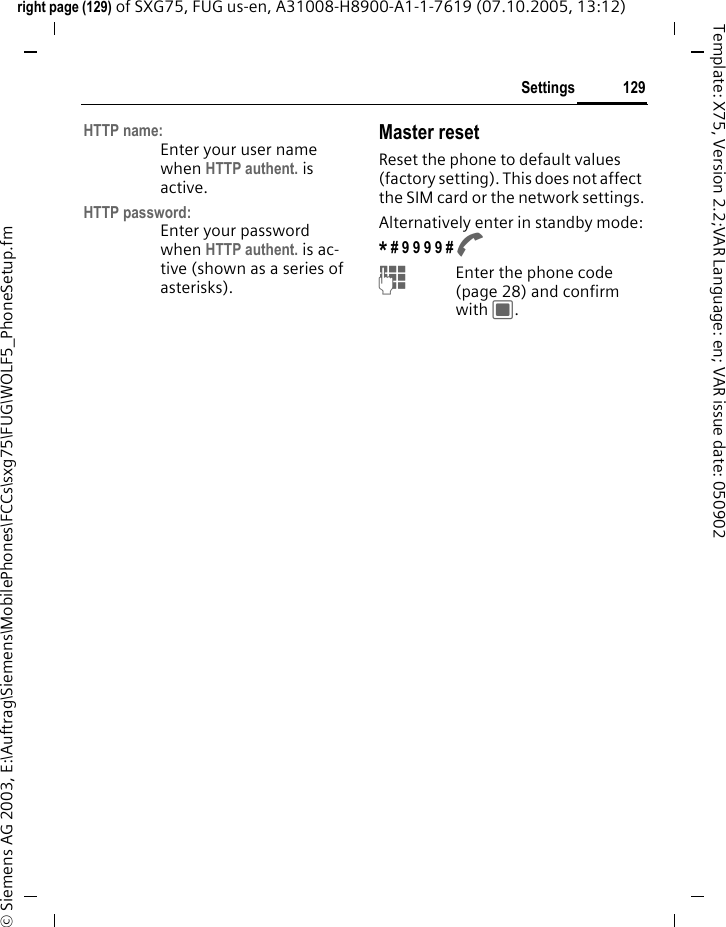
Index174© Siemens AG 2003, E:\Auftrag\Siemens\MobilePhones\FCCs\sxg75\FUG\WOLF5_FUGSIX.fmleft page (174) of SXG75, FUG us-en, A31008-H8900-A1-1-7619 (07.10.2005, 13:12)Template: X75, Version 2.2;VAR Language: en; VAR issue date: 050902MMailbox .............................................. 88Main menu ......................................... 23Maintenance of phone...................... 146Mark mode ......................................... 26Master reset...................................... 129Media player..................................... 107Bookmarks ................................... 108Music ........................................... 107Options ........................................ 109Pictures ........................................ 108Videos .......................................... 108Memory assistent................................ 25Menu speed dialling............................ 26Menu tree......................................... 165MessageCell broadcast................................. 62Drafts ............................................. 69E-mail............................................. 60Inbox.............................................. 62Inst. Message ................................. 78MMS .............................................. 56Sent ............................................... 69Settings.......................................... 70SMS................................................ 56WAP push.......................................63Microphone on/off..............................38Missed calls (log list) ........................... 50MMSCreate ............................................ 56Receive........................................... 62Settings.......................................... 72Mobile Navigation............................. 112Mobile Phone Manager ..................... 138MultiMediaCard .................................. 16Eject............................................. 127Multitainment................................... 150Music ............................................... 107Muting (microphone).......................... 38My Stuff............................................ 110NNavigation key.................................... 23Network ........................................... 134Choose ......................................... 134Fast search ................................... 135Info .............................................. 134Line.............................................. 134No connection.............................. 141Preferred ...................................... 135Select band .................................. 135OOffline mode...................................... 22Only protected SIM........................... 132Operating time................................... 18Battery......................................... 147Organiser ........................................... 96Overview phone................................. 11PPC connection .................................... 29PhoneOperating time............................. 147Overview ....................................... 11Security settings........................... 132Technical data.............................. 147Phone code ........................................ 28Phone identity number (IMEI) ........... 127PictureMy Stuff....................................... 111Take picture ................................... 53PINChange .......................................... 28Control .......................................... 28Enter.............................................. 19Error ............................................ 143Phone code.................................... 28PIN2................................................... 28Power save....................................... 117Preferred network ............................ 135Preventing accidental activation ......... 29Product data..................................... 147Profiles............................................. 113PUK, PUK2.......................................... 28QQuestions & Answers........................ 140RRadio................................................ 103Received calls (call log)....................... 50Redial................................................. 35Remote sync....................................... 99Ringtones......................................... 114SSafety precautions................................ 5Screensaver...................................... 116SecurityCodes ............................................ 28Settings ....................................... 132Settings............................................ 113Short cuts......................................... 122
175Indexright page (175) of SXG75, FUG us-en, A31008-H8900-A1-1-7619 (07.10.2005, 13:12)© Siemens AG 2003, E:\Auftrag\Siemens\MobilePhones\FCCs\sxg75\FUG\WOLF5_FUGSIX.fmTemplate: X75, Version 2.2;VAR Language: en; VAR issue date: 050902Short message (SMS) .......................... 56Show clock on/off ............................. 131Shutdown animation ........................116Signal strength ...................................21Silent Alert........................................ 117SIM cardClear barring................................... 29Insert.............................................. 15Problems ...................................... 141Toolkit.......................................... 101SMSCreate ............................................ 56Receive........................................... 62Settings.......................................... 70SOS ................................................9, 20Sound recorder.................................105SoundsMy Stuff ....................................... 111Playback ....................................... 106Record.......................................... 105Special characters ............................... 30Standard functions.............................. 24Standby mode .................................... 21Standby time ..............................18, 147Startup animation............................. 116Stopwatch ........................................ 106Swap calls........................................... 36Switch on/off phone ........................... 19Symbols.............................................. 13TT9On/off .......................................... 126Text entry....................................... 31Tabs ................................................... 23Talk time (battery) ............................ 147Task switching .................................... 27Key................................................. 11Technical data .................................. 147Templates........................................... 33Text entryEdit menu....................................... 31Input language ............................... 31T9 on/off ......................................126With T9 .......................................... 31Without T9 .....................................30Text module ....................................... 33Themes ............................................ 115This SIM only on/off.......................... 132Time format ..................................... 130Time zones........................... 20, 98, 130Time/Date .................................. 20, 130UUser guide symbols ............................ 22VVibration .......................................... 117VideoMedia player ................................ 108My Stuff....................................... 111Take video ..................................... 53Video callEnd................................................ 34Key ................................................ 11Options.......................................... 38Settings ....................................... 125Voice dialling...................................... 48Activate ......................................... 49On/off .......................................... 126Record voice tag............................. 48Voice message (mailbox).................... 88VolumeHandset volume............................. 35Keys............................................... 12WWallpaper......................................... 115Wallpaper (display)........................... 115WAP ................................................... 89WAP pushRead/load....................................... 68Receive .......................................... 63Settings ......................................... 91Wildcard............................................. 43

Navigation menu