Benq W6000 Users Manual En
W6000 to the manual af753627-df53-4668-9c9d-79644fdd12f8
2015-02-03
: Benq Benq-W6000-Users-Manual-467582 benq-w6000-users-manual-467582 benq pdf
Open the PDF directly: View PDF  .
.
Page Count: 56
- Table of contents
- Important safety instructions
- Overview
- Positioning your projector
- Connecting with video equipment
- Using the projector
- Turning the projector on
- Selecting an input source
- Fine-tuning the image size and clarity
- Using the menus
- Securing the projector
- Adjusting the projected image
- Using the preset and user modes
- Fine-tuning the picture quality
- Advanced picture quality controls
- Selecting the aspect ratio
- Operating in a high altitude environment
- Displaying more than one image source simultaneously
- Personalizing the projector menu display
- Locking control keys
- Turning the projector off
- On-Screen Display (OSD) menus
- Additional information
- Warranty and Copyright information
- Regulation statements

W6000 Digital Projector
Home Cinema Series
User Manual
Welcome

2 Table of contents
English
Table of contents
Important safety
instructions .................................. 3
Overview ...................................... 6
Shipping contents ..................................6
Remote control batteries .......................7
Remote control operation.....................7
Projector features...................................8
Projector exterior view ..........................9
Controls and functions........................10
Control panel ............................................10
Remote control .........................................11
Positioning your projector........ 12
Choosing a location.............................12
Obtaining a preferred projected
image size .............................................13
How to determine the position of the
projector for a given screen size ...............13
How to determine the recommended
screen size for a given distance.................13
Projection dimensions..............................14
Shifting the projection lens ......................16
Connecting with video
equipment.................................. 17
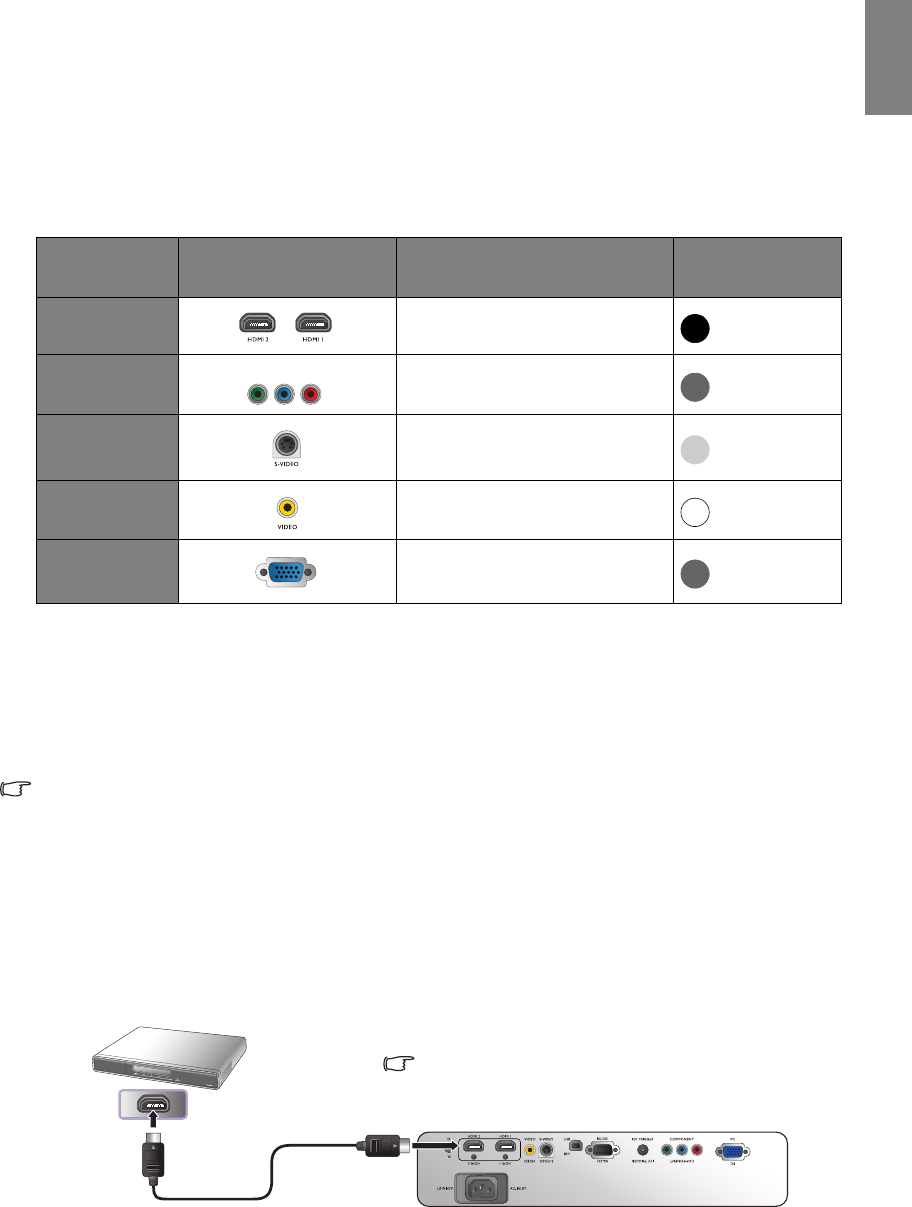
Preparations ..............................................17
Connecting HDMI devices.......................17
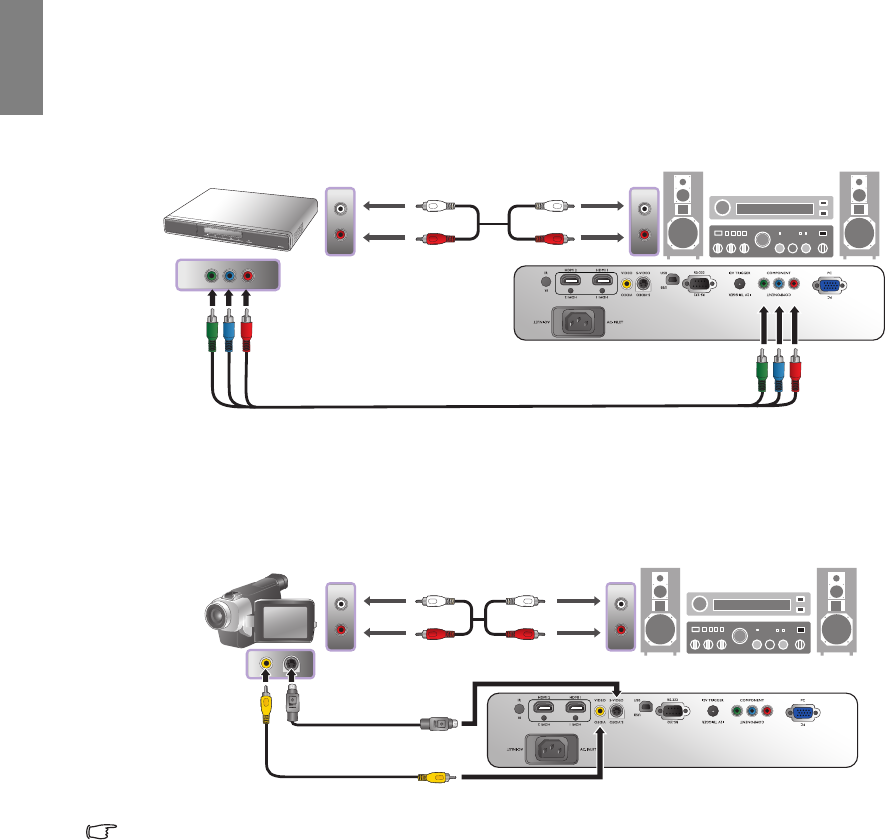
Connecting component-video devices ....18
Connecting S-Video or video devices......18
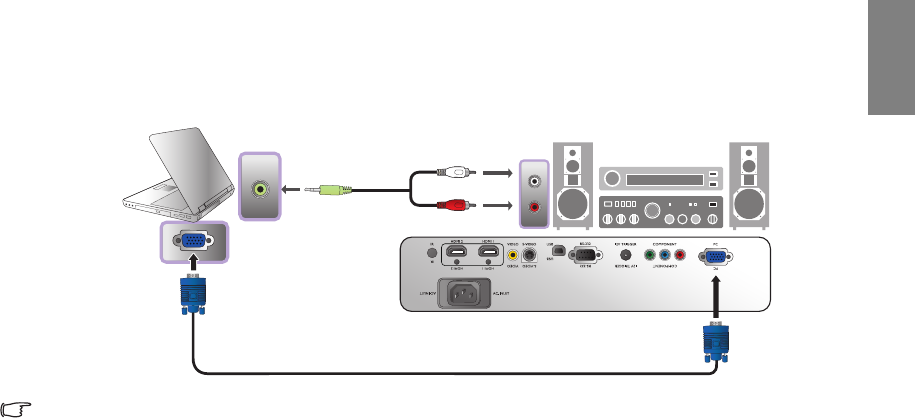
Connecting a computer............................19
Using the projector.................... 20
Turning the projector on ....................20
Selecting an input source ....................21
Fine-tuning the image size and
clarity....................................................21
Using the menus ..................................22
Securing the projector .........................22
Using a security cable lock........................22
Utilizing the password function...............23
Adjusting the projected image ............25
Adjusting the projection angle ................ 25
Correcting picture distortion................... 25
Using the preset and user modes........26
Fine-tuning the picture quality...........28
Advanced picture quality controls......29
Selecting the aspect ratio.....................32
Operating in a high altitude
environment ........................................34
Displaying more than one image
source simultaneously .........................35
Personalizing the projector menu
display ..................................................36
Locking control keys ...........................36
Turning the projector off ....................36
On-Screen Display (OSD) menus ......37
Additional information .............43
Care of the projector ...........................43
Lamp information ...............................44
Getting to know the lamp hour ............... 44
Extending lamp life .................................. 44
Timing of replacing the lamp .................. 45
Replacing the lamp................................... 45
Indicators .............................................48
Troubleshooting ..................................49
Specifications .......................................50
Warranty and Copyright
information................................ 54
Regulation statements ...............55
3
Important safety instructions
English
Thank you for your purchase of this quality BenQ video projector! It has been designed to provide you
with an enjoyable home theater viewing experience. For the best results, please read this manual through
carefully as it is your guide through the control menus and operation.
Important safety instructions
Your projector is designed and tested to meet the latest standards for safety of information technology
equipment. However, to ensure safe use of this product, it is important that you follow the instructions
mentioned in this manual and marked on the product.
1. Please read this user manual before you operate
your projector. Keep this manual in a safe place
for future reference.
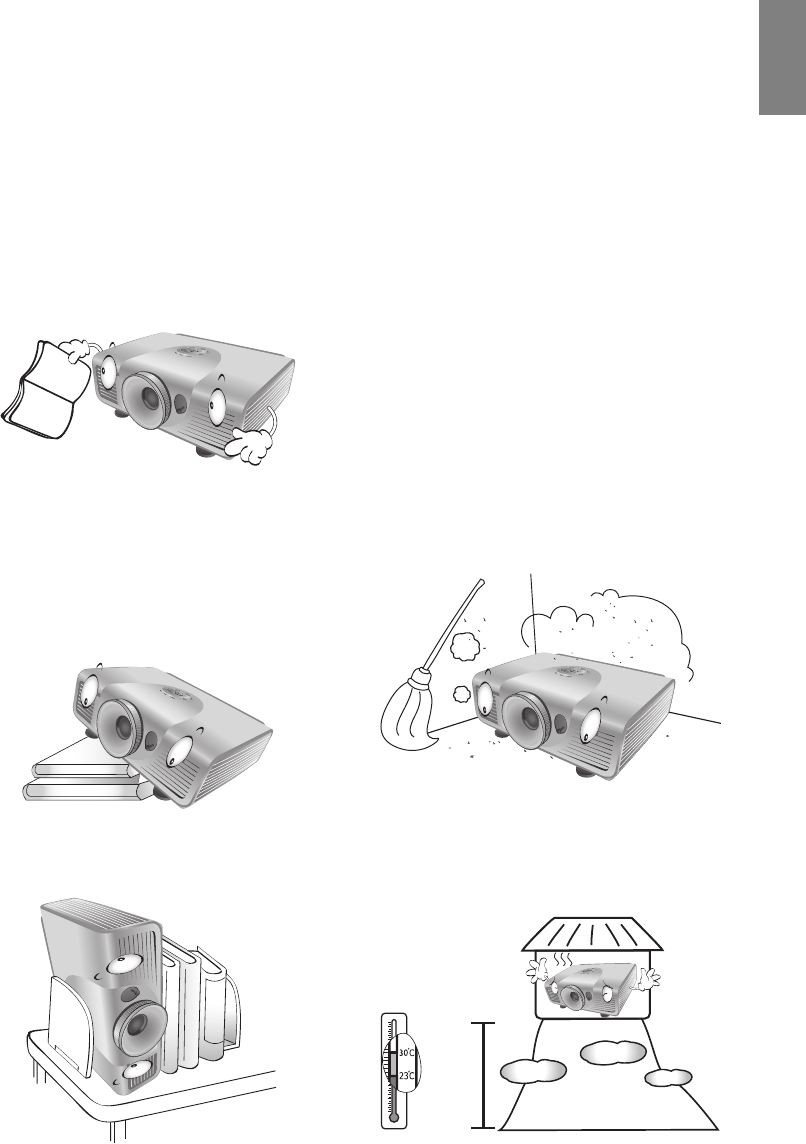
2. Always place the projector on a level, horizontal
surface during operation.
- Do not place the projector on an unstable cart,
stand, or table as it may fall and be damaged;
- Do not place inflammables near the projector;
- Do not use if tilted at an angle of more than 10
degrees left to right, nor at angle of more than 15
degrees front to back.
3. Do not store the projector on end vertically. Doing
so may cause the projector to fall over, causing
injury or resulting in damage.
4. Do not place the projector in any of the
following environments:
- space that is poorly ventilated or
confined. Allow at least 50 cm
clearance from walls and free flow of air
around the projector;
- locations where temperatures may
become excessively high, such as the
inside of a car with all windows closed;
- locations where excessive humidity,
dust, or cigarette smoke may
contaminate optical components,
shorten the projector’s lifespan and
darken the screen;
- locations near fire alarms;
- locations with an ambient temperature
above 35°C/95°F;
- locations where altitude is higher than
1500 meters/4920 feet above sea level.
4920-
9840
feet
4 Important safety instructions
English
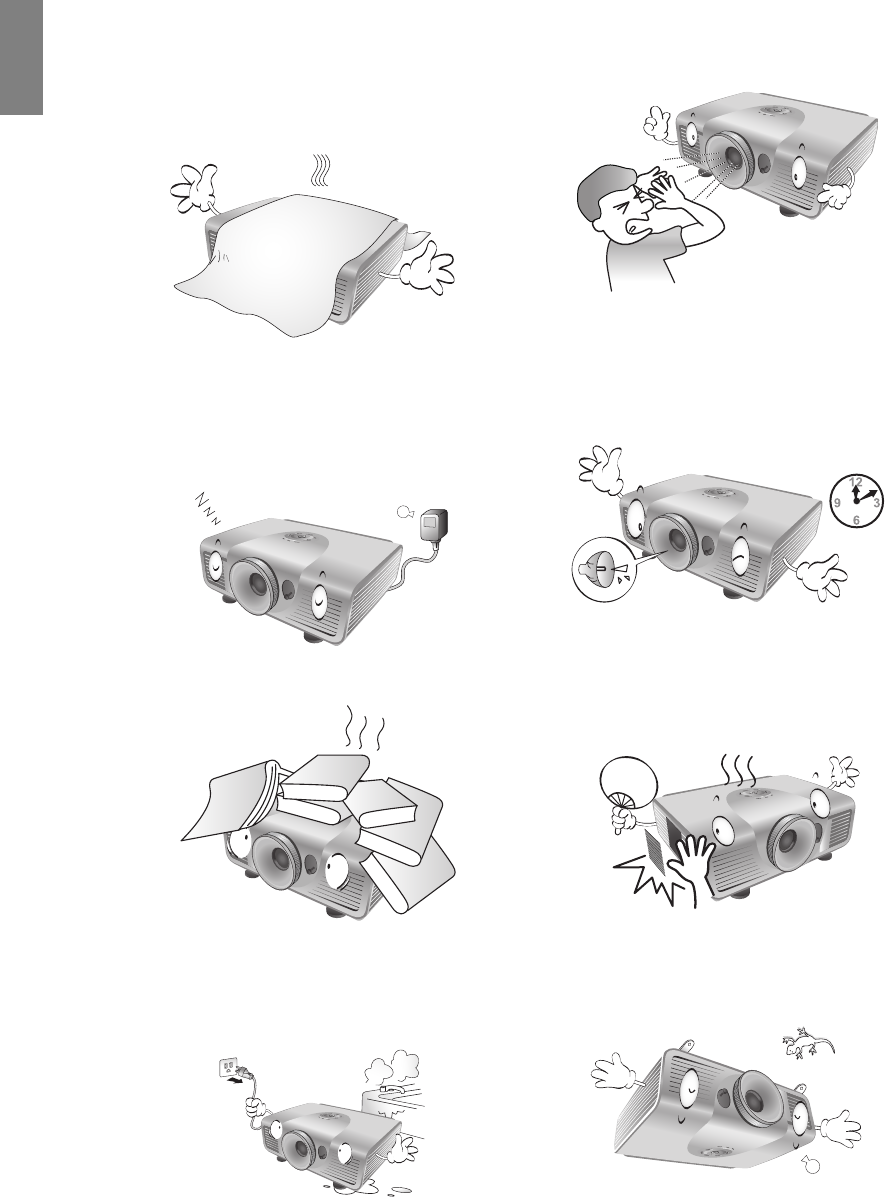
5. Do not block the vents holes while the
projector is on (even in standby mode):
- Do not cover the projector with any item;
- Do not place the projector on a blanket,
bedding or any other soft surface.
9. Do not look straight into the projector lens
during operation. It may harm your sight.
6. In areas where the mains power supply
voltage may fluctuate by ±10 volts, it is
recommended that you connect your
projector through a power stabilizer, surge
protector or uninterruptible power supply
(UPS) as appropriate to your situation.
10. Do not operate the projector lamp beyond the
rated lamp life. Excessive operation of lamps
beyond the rated life could cause a lamp to
break on rare occasions.
7. Do not step on the projector or place any
objects upon it.
11. The lamp becomes extremely hot during
operation. Allow the projector to cool for
approximately 45 minutes prior to removing
the lamp assembly for replacement.
8. Do not place liquids near or on the projector.
Liquids spilled into the projector will void your
warranty. If the projector does become wet,
disconnect it from the power point and call
BenQ to have the projector repaired.
12. This projector is capable of displaying
inverted images for ceiling mount installation.
Use only BenQ's Ceiling Mount Kit for
mounting.
5
Important safety instructions
English
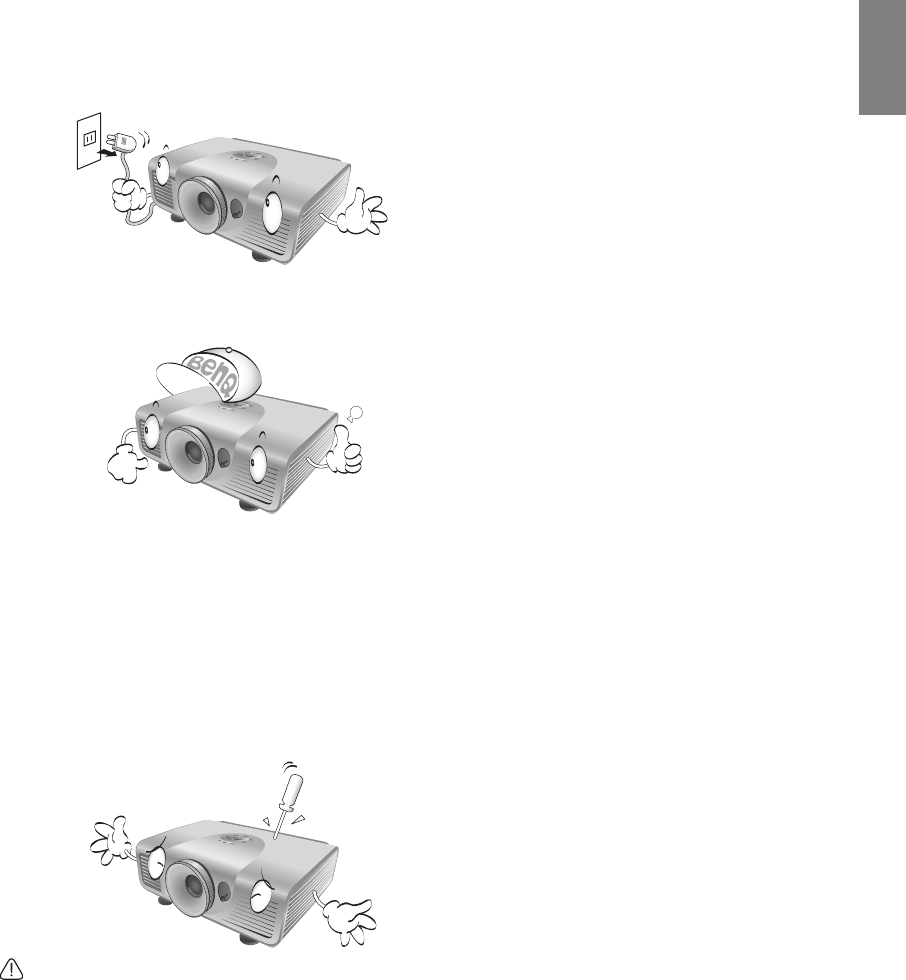
13. Never attempt to replace the lamp assembly
until the projector has cooled down and is
unplugged from the power supply.
14. When you think service or repair is required,
take the projector only to a suitably qualified
technician.
15. Do not attempt to disassemble this projector.
There are dangerous high voltages inside
which may cause death if you should come
into contact with live parts. The only user
serviceable part is the lamp which has its own
removable cover. See page 45.
Under no circumstances should you ever
undo or remove any other covers. Refer
servicing only to suitably qualified
professional service personnel.
Notice
Please keep the original packing for possible future
shipment. If you need to pack your projector after
use, adjust the projection lens to an appropriate
position, put the lens cushion around the lens, and
fit the lens cushion and projector cushion together
to prevent damage during transportation.
Moisture condensation
Never operate the projector immediately after
moving it from a cold location to a hot location.
When the projector is exposed to such a change in
temperature, moisture may condense on the crucial
internal parts. To prevent the projector from
possible damage, do not use the projector for at
least 2 hours when there is a sudden change in
temperature.
Avoid volatile liquids
Do not use volatile liquids, such as insecticide or
certain types of cleaner, near the projector. Do not
have rubber or plastic products touching the
projector for a long time. They will leave marks on
the finish. If cleaning with a chemically treated
cloth, be sure to follow the cleaning product’s safety
instructions.
Disposal
This product contains the following materials
which are harmful to human bodies and
environment.
• Lead, which is contained in solder.
• Mercury, which is used in the lamp.
To dispose of the product or used lamps, consult
your local environment authorities for regulations.
6 Overview
English
Overview
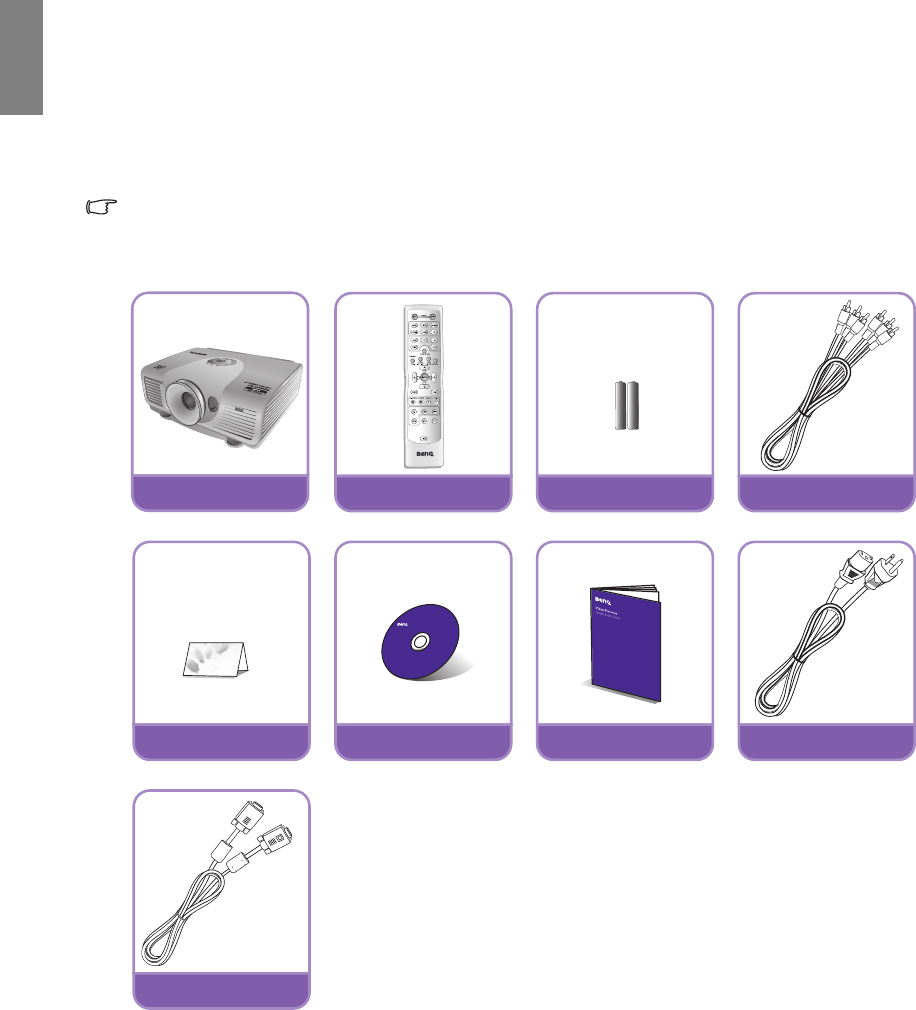
Shipping contents
Carefully unpack and verify that you have the items below. Some of the items may not be available
depending on your region of purchase. Please check with your place of purchase.
Some of the accessories may vary from region to region.
The warranty card is only supplied in some specific regions. Please consult your dealer for detailed
information.
Projector Remote control Batteries Component Video cable
Warranty card User manual CD Quick start guide Power cable
VGA cable
7
Overview
English
Remote control batteries
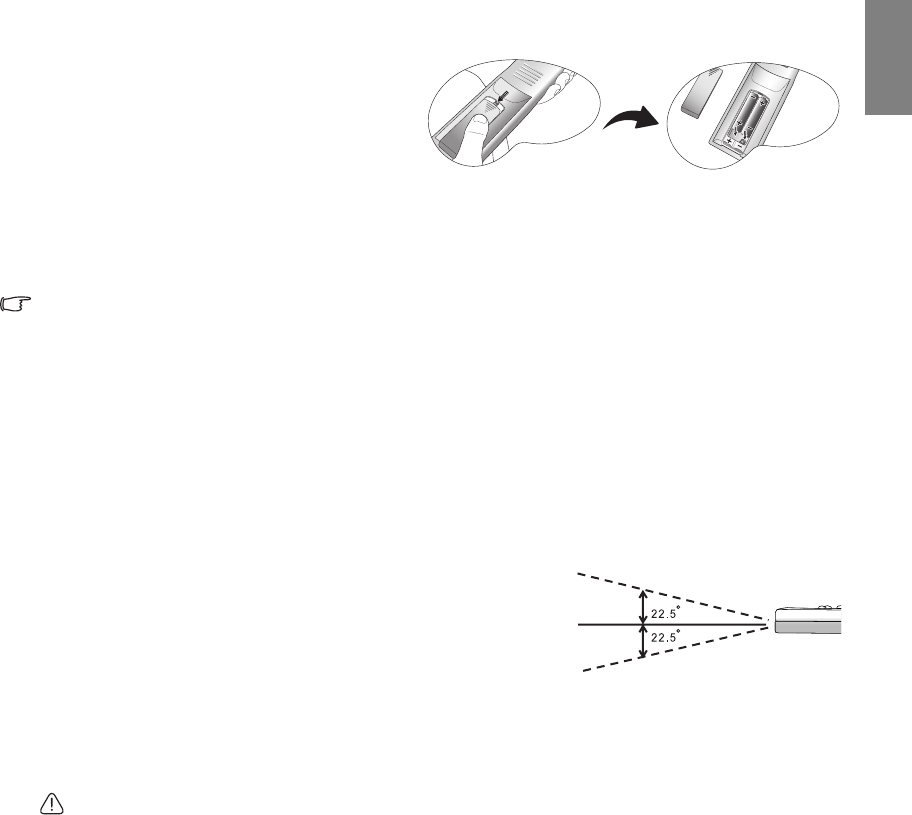
1. To open the battery cover, turn the remote
control over to view its back, push on the
finger grip on the cover and slide it down in
the direction of the arrow as illustrated. The
cover will slide off.
2. Remove any existing batteries (if necessary)
and install two new AAA batteries observing the battery polarities as indicated in the base of the battery
compartment. Positive (+) goes to positive and negative (-) goes to negative.
3. Refit the cover by aligning it with the case and sliding it back up into position. Stop when it clicks into
place.
Notes on handling batteries
• Do not mix old batteries with new ones, or mix different types of batteries.
• Avoid leaving the remote control and batteries in an excessive hot or humid environment like the
kitchen, bathroom, sauna, sunroom, or in a closed car.
• Dispose of used batteries according to the battery manufacturer’s instructions and local environment
regulations for your region.
• If the remote control will not be used for an extended period of time, remove the batteries to avoid
damage to the control from possible battery leakage.
Remote control operation
• Make sure that there is nothing positioned between
the remote control and the infrared (IR) sensors on
the projector that might obstruct the IR beam from
the remote control reaching the projector.
• The effective range of the remote control is up to 8
meters, and at an angle within 45 degrees of the IR
beam. Always aim straight at the projector, however
most screens will also reflect the IR beam to the
projector.
Ceiling mounting the projector
We want you to have a pleasant experience using your BenQ projector, so we need to bring this safety
matter to your attention to prevent damage to person and property.
If you intend to mount your projector on the ceiling, we strongly recommend that you use a proper fitting
BenQ projector ceiling mount kit and that you ensure it is securely and safely installed.
If you use a non-BenQ brand projector ceiling mount kit, there is a safety risk that the projector may fall
from the ceiling due to an improper attachment through the use of the wrong gauge or length screws.
You can purchase a BenQ projector ceiling mount kit from the place you purchased your BenQ projector.
BenQ recommends that you also purchase a separate Kensington lock compatible security cable and attach
it securely to both the Kensington lock slot on the projector and the base of the ceiling mount bracket. This
will perform the secondary role of restraining the projector should its attachment to the mounting bracket
become loose.
up to 8 m

8 Overview
English
Projector features
• Full HD compatible
The projector is compatible with Standard Definition TV (SDTV) 480i, 480p, 576i, 576p, and High
Definition TV (HDTV) 720p, 1080i and 1080p formats, with the 1080p format providing a true 1:1
image reproduction.
• High picture quality
The projector provides excellent picture quality due to its high resolution, excellent home theater
brightness, super high contrast ratio, vivid color and rich gray-scale reproduction.
• High brightness
The projector features super high brightness to achieve excellent picture quality in ambient light
conditions, outperforming ordinary projectors.
• Super-high contrast ratio
The projector features a dynamic black control to achieve a super-high contrast ratio.
• Vivid color reproduction
The projector features a 6-segment color wheel to produce realistic color depth and range unattainable
with lesser segment color wheels.
• Rich gray-scale
When viewed in a darkened environment, the automatic gamma control provides excellent gray-scale
display which reveals details in shadows and in night or darkened scenes.
• Extra-low noise operation
The projector’s unique cooling system design prevents unnecessary fan noise, and is rated at less than
32 dB in normal mode and a low 29 dB in Economic mode.
• Intuitive lens shift
The intuitive control over lens shift lever provides flexibility in setting-up your projector.
• Wide variety of inputs and video formats
The projector supports a wide variety of inputs for connection to your video and PC equipment,
including component video, S-Video, and composite video, as well as dual HDMI, PC, and an output
trigger for connection to automated screen and environment lighting systems.
• ISF certified calibration control
To reach a higher standard of performance, the projector incorporates ISF NIGHT and ISF DAY mode
settings in its OSD menus, which requires professional calibration service from authorized ISF
installers.
• Panamorph lenses compatible
The projector is compatible with Panamorph lenses that allow you to convert 16:9 projectors to 2.35:1
aspect ratio.
9
Overview
English
Projector exterior view
Front and upper side view
Rear view
Under view
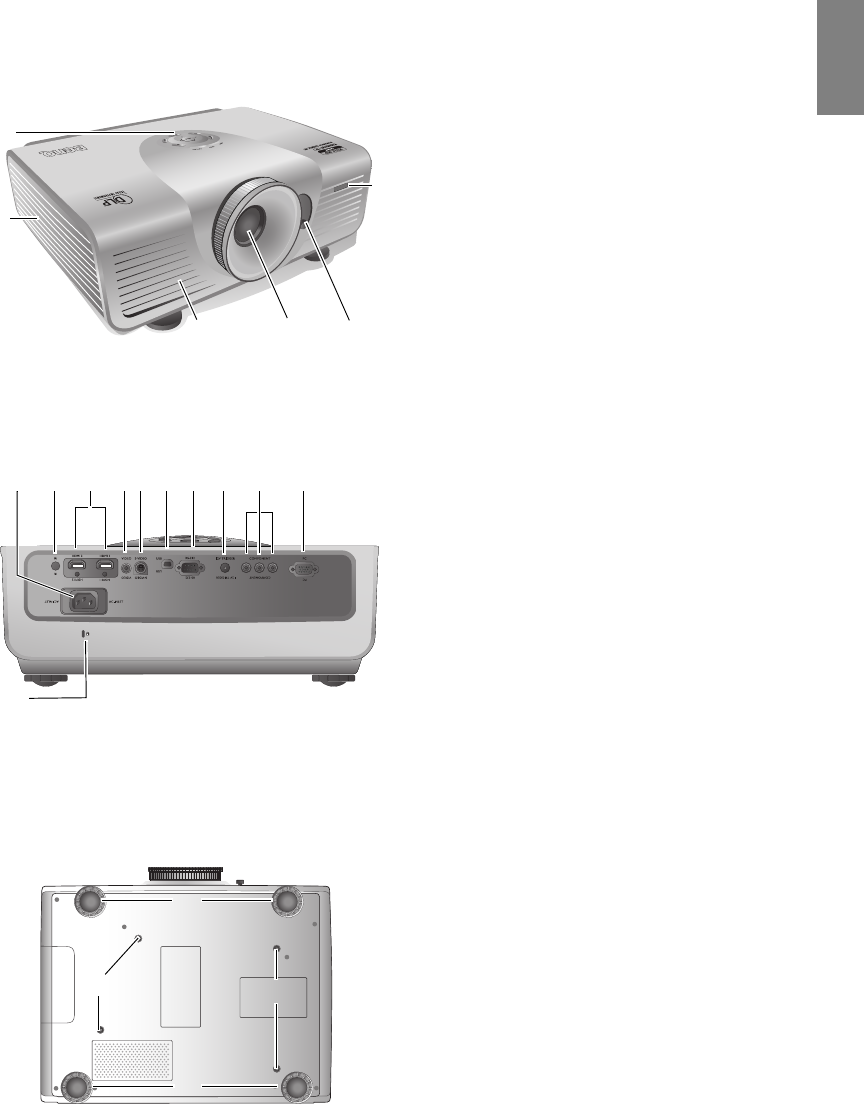
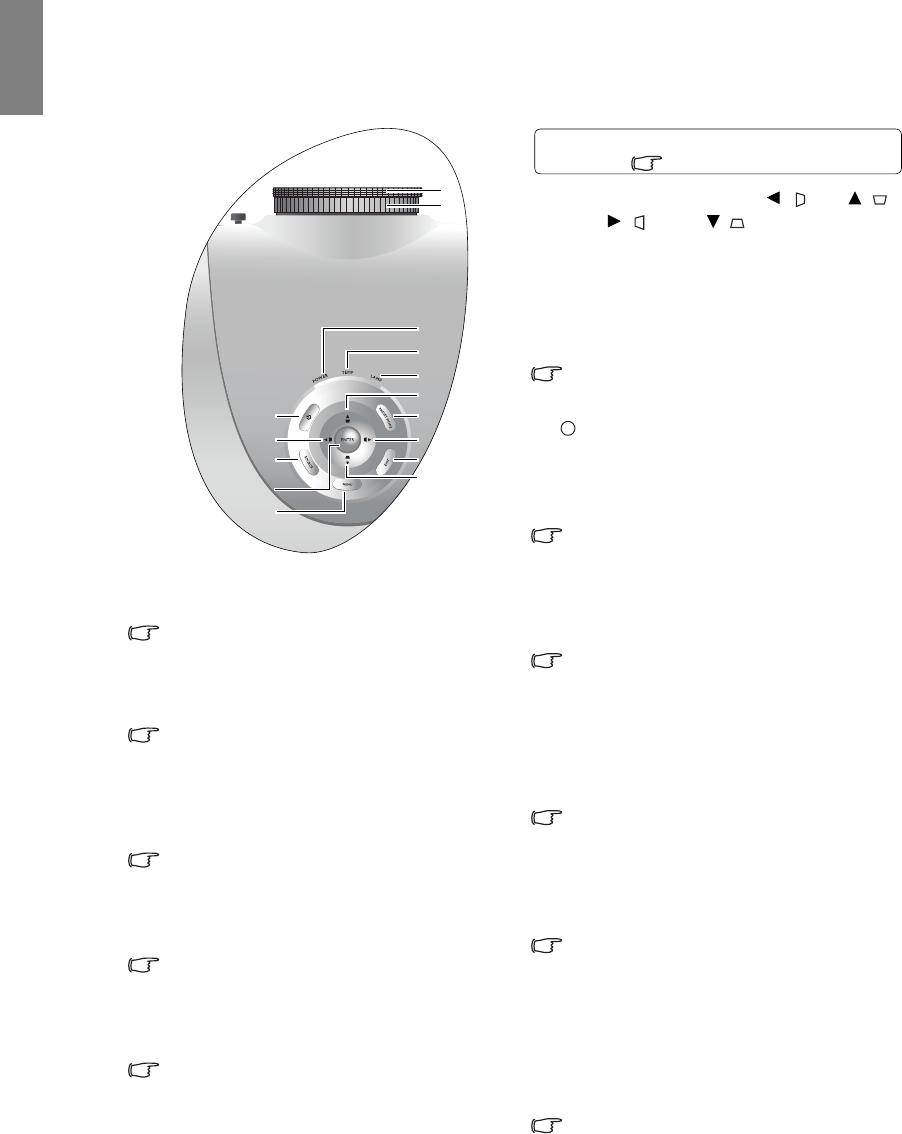
1. Control panel (See "Control panel" on page 10
for details.)
2. Lamp cover
3. Front IR sensor
4. Vent (heated air exhaust)
5. Projection lens
6. Lens shift lever
7. AC Power cable inlet
8. Rear IR sensor
9. HDMI ports
10. Composite Video input (RCA)
11. S-Video input (mini 4-pin DIN)
12. USB port
13. RS-232 control port
Used to interface with a PC or home theater
control/automation system.
14. 12VDC output terminal
Used to trigger external devices such as an
electric screen or light control, etc. Consult
your dealer for how to connect these devices.
15. Component Video inputs (RCA)
support Y/PB/PR or Y/CB/CR video signal
16. RGB (PC)/Component video (YPbPr/YCbCr)
signal input jack
17. Kensington lock slot
18. Adjustable feet
19. Ceiling mount holes
1
2
3
546
789
17
1011 12 13 14 15 16
See "Connecting with video equipment" on
page 17 for connection details.
18
18
19
19
10 Overview
English
Controls and functions
Control panel
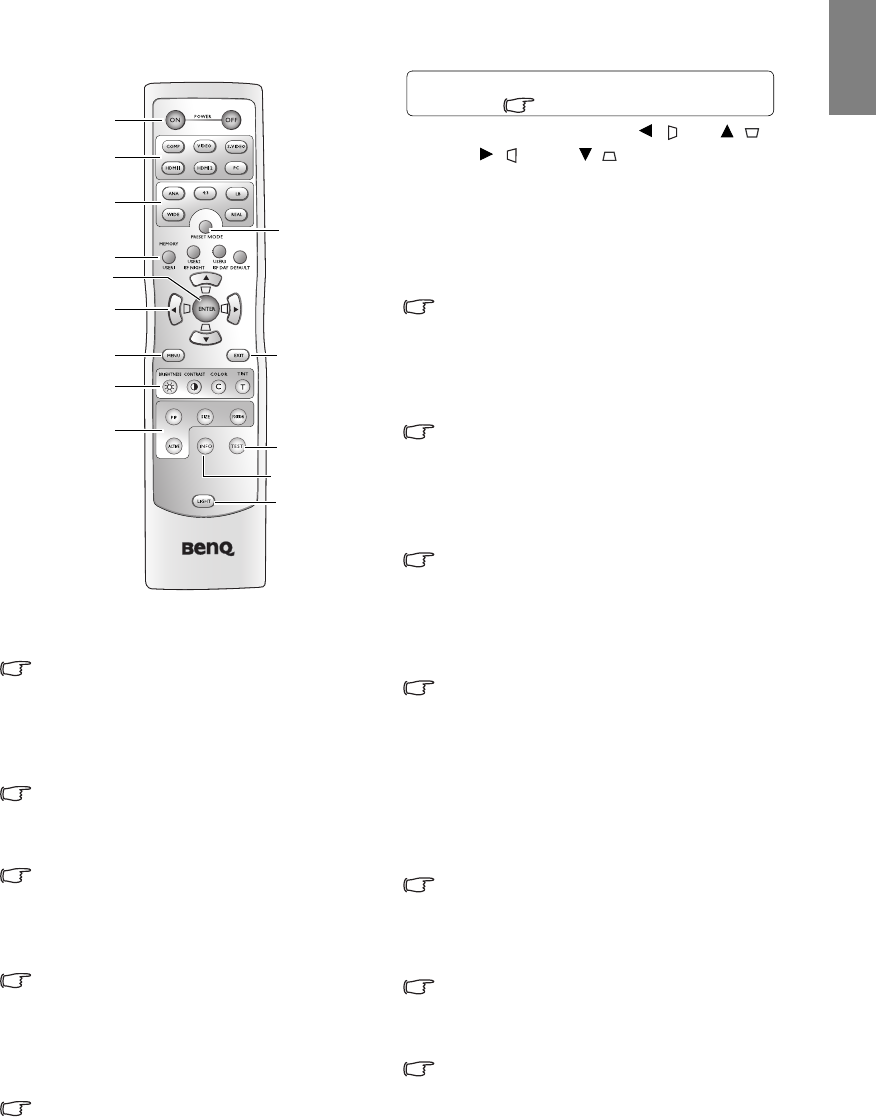
6. Arrow/Keystone keys (Left / , Up /,
Right / , Down / )
Moves the current On-Screen Display (OSD)
menu selection in the direction of the arrow
being pressed when the OSD menu is activated.
Manually corrects distorted pictures resulting
from an angled projection.
"Using the menus" on page 22, "Correcting
picture distortion" on page 25
7. POWER
Performs the same action as POWER ON/OFF
on the remote control.
Toggles the projector between standby and on.
"Turning the projector on" on page 20,
"Turning the projector off" on page 36
8. PRESET MODE
Sequentially selects a predefined picture setting
available for each input.
"Selecting a preset mode" on page 26
9. SOURCE
Performs the same action as the source selection
keys (COMP, VIDEO, S-VIDEO, HDMI1,
HDMI2, PC) on the remote control.
Switches sequentially through input sources.
"Selecting an input source" on page 21
10. EXIT
Goes back to previous OSD menus, exits and
saves any changes made using the On-Screen
Display (OSD) menu.
"Using the menus" on page 22
11. ENTER
Enacts the selected On-Screen Display (OSD)
menu item.
12. MENU
Toggles the On-Screen Display (OSD) menu on
and off.
"Using the menus" on page 22
1. Focus ring
Adjusts the focus of the projected image.
"Fine-tuning the image size and clarity" on
page 21
2. Zoom ring
Adjusts the size of the projected image.
"Fine-tuning the image size and clarity" on
page 21
3. POWER indicator light
Lights up or flashes when the projector is
operating.
"Indicators" on page 48
4. TEMPerature warning light
Lights up or flashes if the projector's
temperature becomes too high.
"Indicators" on page 48
5. LAMP indicator light
Lights up or flashes when the projector lamp
has developed a problem.
"Indicators" on page 48
1
2
3
4
5
76
910
6
12
11
6
8
6
For details, see the info provided behind the
hand sign .
I
I
11
Overview
English
Remote control
1. POWER ON/OFF
Toggles the projector between standby and on.
"Turning the projector on" on page 20,
"Turning the projector off" on page 36
2. Source selection keys (COMP, VIDEO, S-
VIDEO, HDMI1, HDMI2, PC)
Selects an input source for display.
"Selecting an input source" on page 21
3. Aspect keys (ANA, 4:3, LB, WIDE, REAL)
Selects the display aspect ratio.
"Selecting the aspect ratio" on page 32
4. PRESET MODE
Sequentially selects a predefined picture setting
available for each input.
"Selecting a preset mode" on page 26
5. MEMORY keys (USER 1, USER 2/ISF NIGHT,
USER 3/ISF DAY, and DEFAULT)
Restores picture settings for the current input
source.
"Setting the User 1/User 2/User 3 mode" on
page 27
6. ENTER
Enacts the selected On-Screen Display (OSD)
menu item.
7. Arrow/Keystone keys (Left / , Up /,
Right / , Down / )
Moves the current On-Screen Display (OSD)
menu selection in the direction of the arrow
being pressed when the OSD menu is activated.
Manually corrects distorted pictures resulting
from an angled projection.
"Using the menus" on page 22, "Correcting
picture distortion" on page 25
8. MENU
Toggles the On-Screen Display (OSD) menu on
and off.
"Using the menus" on page 22
9. EXIT
Goes back to previous OSD menus, exits and
saves any changes made using the On-Screen
Display (OSD) menu.
"Using the menus" on page 22
10. Picture quality adjustment keys (BRIGHTNESS,
CONTRAST, COLOR, TINT)
Displays the setting bars for adjustment of the
appropriate picture quality values.
"Fine-tuning the picture quality" on page 28
11. Picture window control keys (PIP, SIZE,
POSITION, ACTIVE)
Displays the Picture In Picture (PIP) windows,
toggles between the main window and sub-
window with ACTIVE, and adjusts the size and
position of the currently active window with
SIZE and POSITION.
"Displaying more than one image source
simultaneously" on page 35
12. TEST
Displays the test pattern.
"Test Pattern" on page 41
13. INFO
Displays the Information menu.
"Information menu" on page 42
14. LIGHT
Turns on the remote control backlight for about
10 seconds. Pressing any other key while the
backlight is on keeps the backlight on for a
further 10 seconds. Press the key again to turn
the backlight off.
1
2
3
4
5
7
6
9
12
14
8
10
11
13
For details, see the info provided behind the
hand sign .
12 Positioning your projector
English
Positioning your projector
Choosing a location
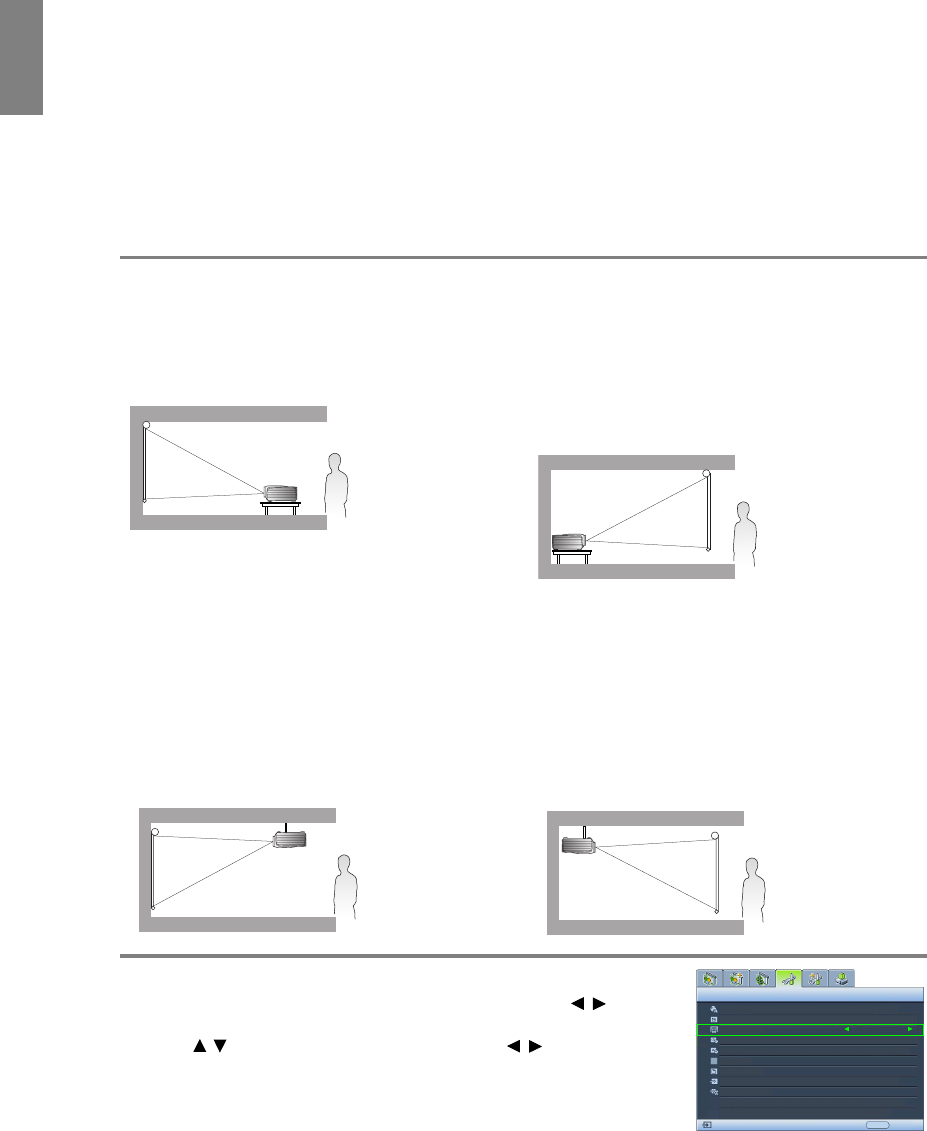
Your projector is designed to be installed in one of four possible installation locations.
Your room layout or personal preference will dictate which installation location you select. Take into
consideration the size and position of your screen, the location of a suitable power outlet, as well as the
location and distance between the projector and the rest of your equipment.
*To set the projector position:
1. Press MENU on the projector or remote control and then press / until the
System Setup menu is highlighted.
2. Press / to highlight Projector Position and press / until the correct
position is selected.
1. Floor Front:
Select this location with the projector placed near
the floor in front of the screen. This is the most
common way to position the projector for quick
setup and portability.
3. Floor Rear:
Select this location with the projector placed near
the floor behind the screen.
Note that a special rear projection screen is
required.
*Set Floor Rear after you turn the projector on.
2. Ceiling Front:
Select this location with the projector suspended
from the ceiling in front of the screen.
Purchase the BenQ Projector Ceiling Mount Kit
from your dealer to mount your projector on the
ceiling.
*Set Ceiling Front after you turn the projector on.
4. Ceiling Rear:
Select this location with the projector suspended
from the ceiling behind the screen.
Note that a special rear projection screen and the
BenQ Projector Ceiling Mount Kit are required for
this installation location.
*Set Ceiling Rear after you turn the projector on.
Language
Splash Screen
Projector Position
Auto Off
Sleep Timer
Background Color
Menu Settings
Input Source
System Setup
S-Video
English
BenQ
Auto Source Search
EXIT Back
Disable
Disable
Blue
Off
Floor Front

13
Positioning your projector
English
Obtaining a preferred projected image size
The distance from the projector lens to the screen, the zoom setting, and the video format each factors in
the projected image size.
The projector should always be placed horizontally level (like flat on a table), and positioned directly
perpendicular 90° right-angle square) to the screen. This prevents image distortion caused by angled
projections (or projecting onto angled surfaces). If the projector is mounted on a ceiling, it must be
mounted upside-down.
If the projector is positioned further away from the screen, the projected image size increases, and the
vertical offset also increases proportionately.
When determining the positions of the screen and projector, you will need to account for both the
projected image size and the vertical offset dimension, which are directly proportional to the projection
distance.
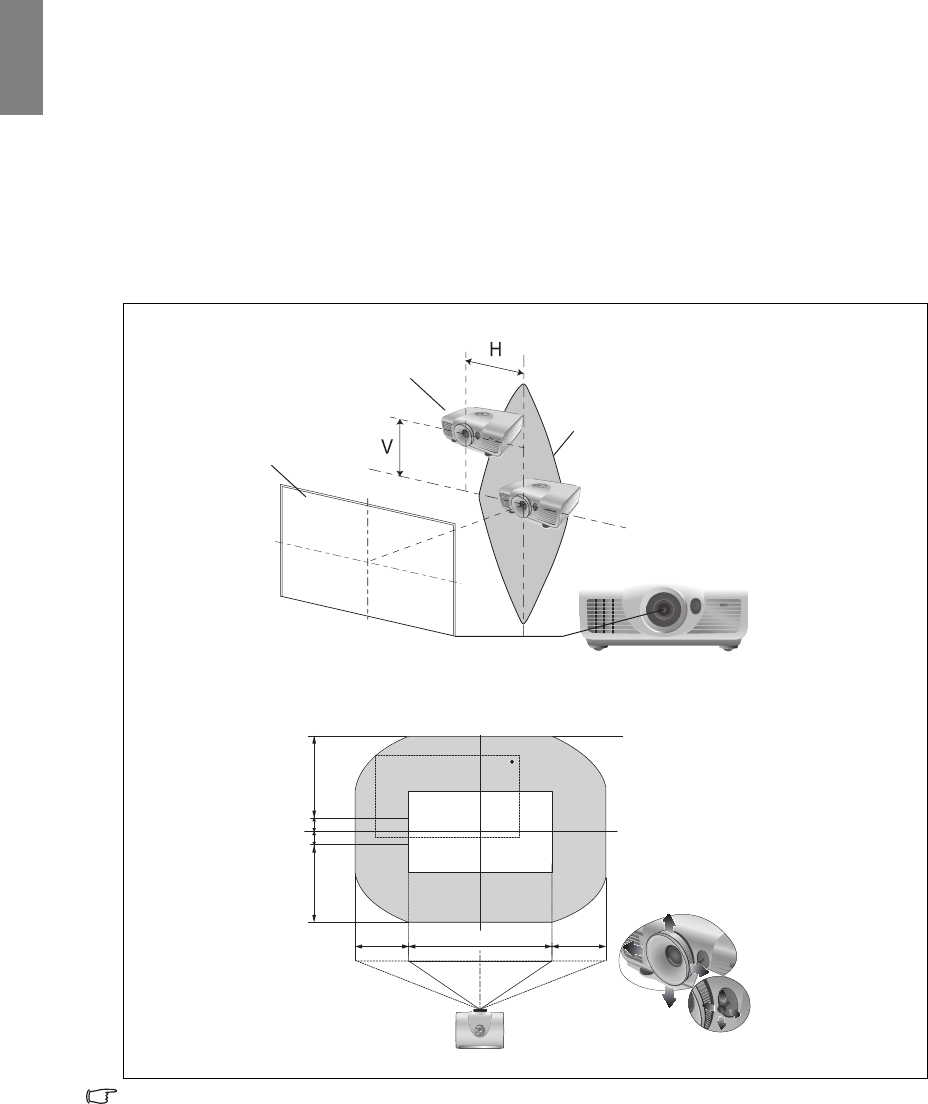
This projector is equipped with a movable lens. See "Shifting the projection lens" on page 16 for details.
You can see the diagrams on pages 14 and 15 for the vertical offset values in the dimension tables that are
measured when the lens is shifted fully up or down.
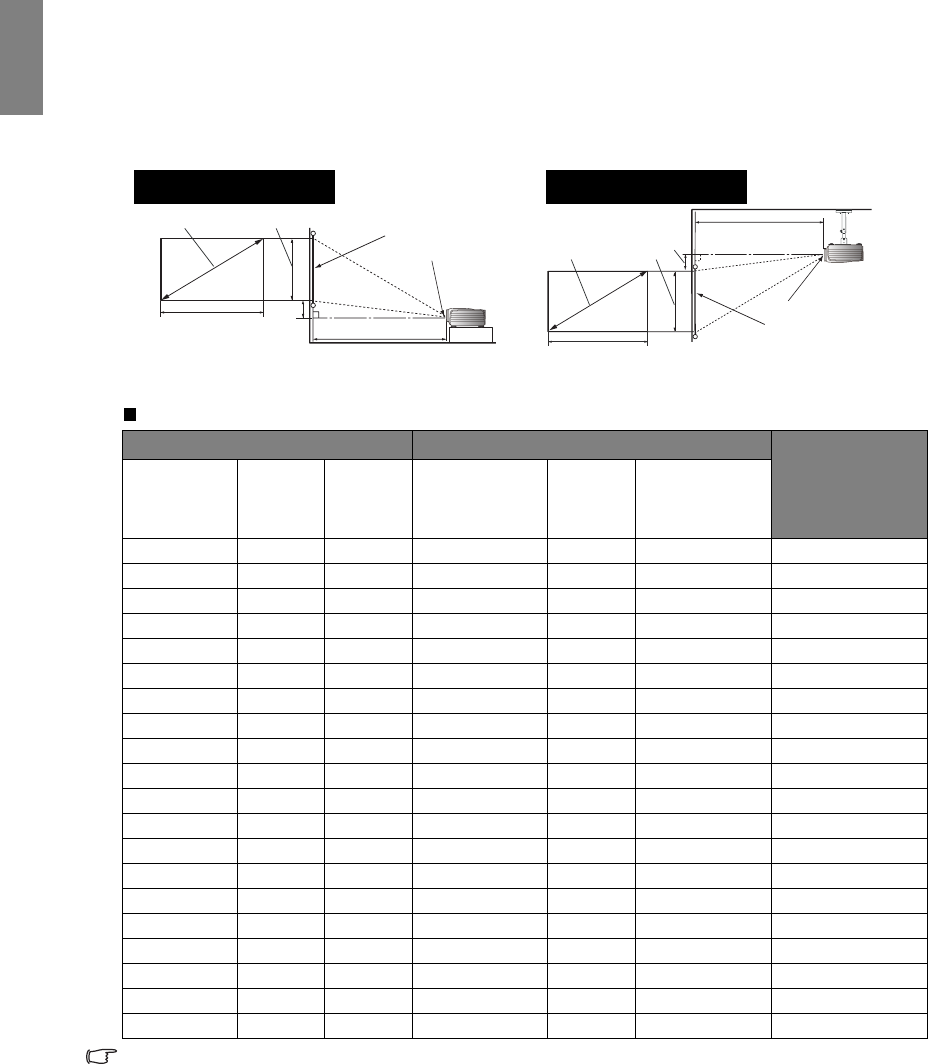
How to determine the position of the projector for a given screen size
1. Determine the aspect ratio of your screen, 16:9 or 4:3?
2. Refer to the table and find the closest match to your screen size in the left columns labelled "Screen
dimensions". Using this value, look across this row to the right to find the corresponding average
distance from screen value in the column labelled "Average". This is the projection distance.
3. Decide the exact position of your projector according to the position of your screen and the adjustable
lens shift range.
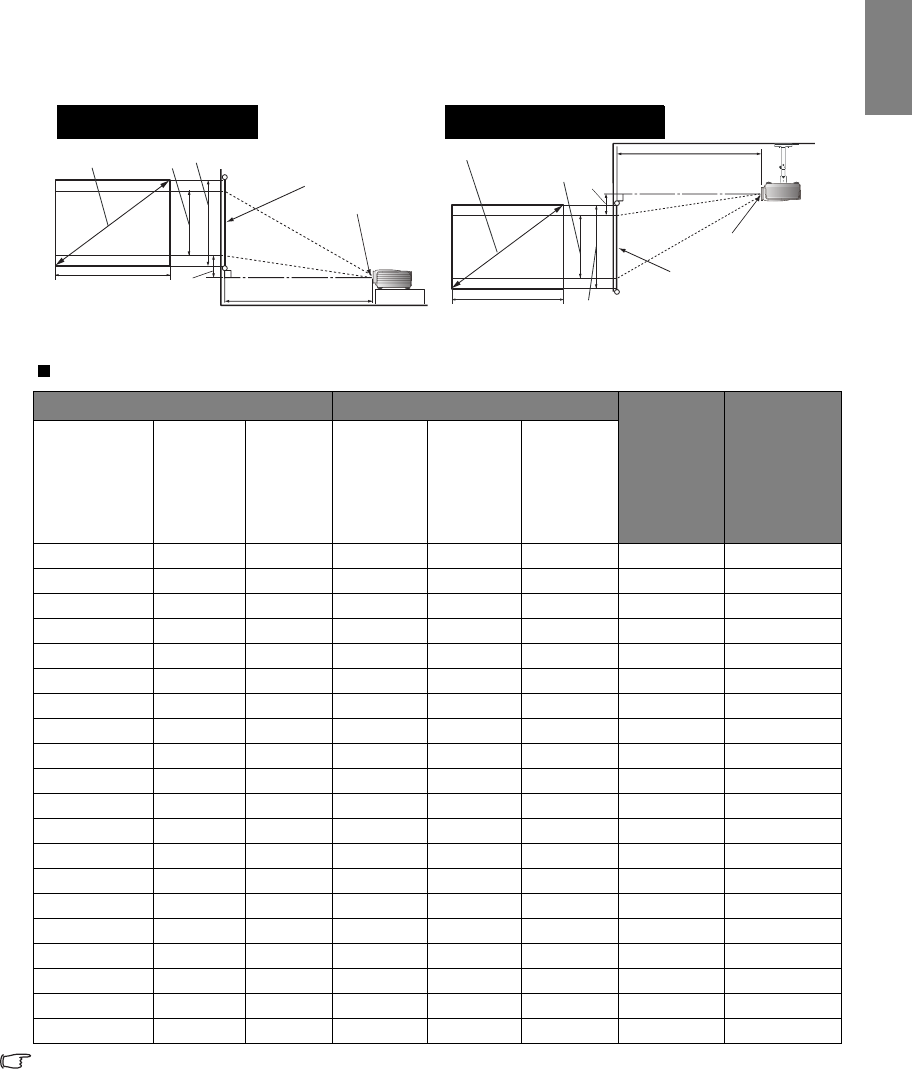
For example, if you are using a 120-inch, 4:3-aspect-ratio screen, please refer to "The screen aspect ratio is
4:3 and the projected picture is 16:9". The average projection distance is 668 cm.
How to determine the recommended screen size for a given distance
This method can be used for situations where you have purchased this projector and would like to know
what screen size will fit in your room.
The maximum screen size is limited by the physical space available in your room.
1. Determine the aspect ratio of your screen, 16:9 or 4:3?
2. Measure the distance between the projector and where you want to position the screen. This is the
projection distance.
3. Refer to the table and find the closest match to your measurement in the average distance from screen
column labelled "Average". Check that your measured distance is between the min and max distances
listed on either side of the average distance value.
4. Using this value, look across that row to the left to find the corresponding screen diagonal listed in that
row. That is the projected image size of the projector at that projection distance.
For example, if you have a 16:9-aspect-ratio screen and your measured projection distance was 4.5 m (450
cm), please refer to "The screen aspect ratio is 16:9 and the projected picture is 16:9". The closest match in
the "Average" column is 455 cm. Looking across this row shows that a 100-inch screen is required.
Checking the min and max projection distance values in the columns of "Projection distance <D> [cm]"
on page 14 indicates that the 4.5 m measured projection distance will also fit the 90 and 110-inch size
screens. The projector can be adjusted (using the zoom control) to display on these different screen sizes at
the projection distance. Be aware that these different screens have different vertical offset values.
14 Positioning your projector
English
If you place the projector in a different position (to that recommended), you will have to tilt it down or up
to center the image on the screen. In these situations, some image distortion will occur. Use the Keystone
function to correct the distortion. See "Correcting picture distortion" on page 25 for details.
Projection dimensions
Installation for a 16:9 ratio screen
The screen aspect ratio is 16:9 and the projected picture is 16:9
The above numbers are approximate and may be slightly different from the actual measurements. Only the
recommended screen sizes are listed. If your screen size is not in the table above, please contact your
dealer for assistance.
Screen dimensions Projection distance <D> [cm] Lowest/
Highest lens
position <E>
[cm]
Diagonal
<A>
[inch (cm)]
Height
<B>
[cm]
Width
<C>
[cm]
Min distance
(with max
zoom)
Average
Max distance
(with min
zoom)
30 (76) 37 66 109 136 164 4.7
40 (102) 50 89 145 182 218 6
50 (127) 62 111 182 227 273 8
60 (152) 75 133 218 273 327 9
70 (178) 87 155 255 318 382 11
80 (203) 100 177 291 364 436 12
90 (229) 112 199 327 409 491 14
100 (254) 125 221 364 455 545 16
110 (279) 137 243 400 500 600 17
120 (305) 149 266 436 545 655 19
130 (330) 162 288 473 591 709 20
140 (356) 174 310 509 636 764 22
150 (381) 187 332 545 682 818 23
160 (406) 199 354 582 727 873 25
170 (432) 212 376 618 773 927 26
180 (457) 224 398 655 818 982 28
190 (483) 237 421 691 864 1036 30
200 (508) 249 443 727 909 1091 31
250 (635) 311 553 909 1136 1364 39
300 (762) 374 664 1091 1364 1636 47
<A> <B>
<C>
<E>
<D>
<F>
<G>
Floor Installation
<F>: Screen <G>: Center of lens
<B>
<A>
<C>
<F>
<G>
<D>
<E>
Ceiling Installation
<F>: Screen <G>: Center of lens
15
Positioning your projector
English
Installation for a 4:3 ratio screen
The illustrations and table below are provided for those users who already have 4:3 aspect ratio screens or
intend to purchase 4:3 aspect ratio screens to view 16:9 ratio projected images.
The screen aspect ratio is 4:3 and the projected picture is 16:9
The above numbers are approximate and may be slightly different from the actual measurements. Only the
recommended screen sizes are listed. If your screen size is not in the table above, please contact your
dealer for assistance.
<A> <B>
<H>
<C> <E> <D>
<F>
<G>
Floor Installation
<F>: Screen <G>: Center of lens
<A>
<B>
<H>
<C>
<E>
<D>
<F>
<G>
Ceiling Installation
<F>: Screen <G>: Center of lens
Screen dimensions Projection distance <D> [cm] Lowest/
Highest
lens
position
<E>
[cm]
Image
height <H>
[cm]
Diagonal
<A>
[inch (cm)]
Height
<B>
[cm]
Width
<C>
[cm]
Min
distance
(with
max
zoom)
Average
Max
distance
(with min
zoom)
30 (76) 46 61 134 167 200 4.3 34
40 (102) 61 81 178 223 267 5.7 46
50 (127) 76 102 223 278 334 7.1 57
60 (152) 91 122 267 334 401 8.6 69
70 (178) 107 142 312 389 467 10.0 80
80 (203) 122 163 356 445 534 11.4 91
90 (229) 137 183 401 501 601 12.9 103
100 (254) 152 203 445 556 668 14.3 114
110 (279) 168 224 490 612 734 15.7 126
120 (305) 183 244 534 668 801 17.1 137
130 (330) 198 264 579 723 868 18.6 149
140 (356) 213 284 623 779 935 20.0 160
150 (381) 229 305 668 835 1001 21.4 171
160 (406) 244 325 712 890 1068 22.9 183
170 (432) 259 345 757 946 1135 24.3 194
180 (457) 274 366 801 1001 1202 25.7 206
190 (483) 290 386 846 1057 1269 27.1 217
200 (508) 305 406 890 1113 1335 28.6 229
250 (635) 381 508 1113 1391 1669 35.7 286
300 (762) 457 610 1335 1669 2003 42.9 343
16 Positioning your projector
English
Shifting the projection lens
The lens shift control provides flexibility for installing your projector. It allows the projector to be
positioned off the center of the screen.
The lens shift is expressed as a percentage of the projected image height or width. It is measured as an offset
from the projected image’s vertical or horizontal center. You can use the lever to shift the projection lens in
any direction within the allowable range depending on your desired image position.
To use the lens shift lever:
1. Release the lever by turning it counterclockwise.
2. Move the lever to adjust the projected image position.
3. Lock the lever by turning it clockwise.
• Please do not over-tighten the lever.
• Lens shift adjustment will not result in a degraded picture quality. In the unlikely event that the image
distortion is produced, see "Adjusting the projected image" on page 25 for details.
• When the screen position is fixed
• When the projector position is fixed
Screen
Range of
placement
Center of lens
Projector
-100%
100%
-25%
25%
41.3% 41.3%
17
Connecting with video equipment
English
Connecting with video equipment
You can connect the projector to any type of video equipment, such as a VCR, DVD player, digital tuner,
cable or satellite decoder, video game console or digital camera. You can also connect it to a desktop or
laptop PC or Apple Macintosh system. You need only connect the projector to a source device using just
one of the connecting methods, however each provides a different level of video quality. The method you
choose will most likely depend upon the availability of matching terminals on both the projector and the
Video source device as described below:
Preparations
When connecting a signal source to the projector, be sure to:
1. Turn off all equipment before making any connections.
2. Use only the correct type cables for each source with proper type plugs.
3. Ensure that all cable plugs are firmly fitted to the equipment jacks.
Note that all cables shown in the following connection diagrams may not be supplied with the projector
(See "Shipping contents" on page 6 for details). Most cables are commercially available from electronics
stores.
Connecting HDMI devices
HDMI (High-Definition Multimedia Interface) supports uncompressed video data transmission between
compatible devices like DTV tuners, DVD players and displays over a single cable. It provides pure digital
viewing and listening experience. You should use an HDMI cable when making connection between the
projector and HDMI devices.
Terminal
name Terminal appearance Reference Picture quality
HDMI "Connecting HDMI devices" on
page 17 Best
Component
Video
"Connecting component-video
devices" on page 18 Better
S-Video "Connecting S-Video or video
devices" on page 18 Good
Video "Connecting S-Video or video
devices" on page 18 Normal
PC (D-SUB) "Connecting a computer" on
page 19 Better
COMPONENT
PC
HDMI cable
HDMI device: DVD player, digital tuner, etc.
To make sure you select a correct input source
type for the HDMI signal, see "HDMI Settings" on
page 41 for details.
18 Connecting with video equipment
English
Connecting component-video devices
Be sure to match the corresponding colors between the cables and the terminals. The RCA type component
video jacks are provided for connection to video output devices. You should also connect the separate
audio cable to a suitable audio amplifier.
Connecting S-Video or video devices
You need only connect S-Video or composite Video cable from the same device, never both at the same
time. You should also connect the separate audio cable to a suitable audio amplifier.
• If you have already made a Component Video connection between the projector and the video source
device, you need not connect to this device again using an S-Video or composite Video connection as
this makes an unnecessary second connection of poorer picture quality. You need only connect using
a composite Video connection if both Component Video and S-Video are not supplied on the video
source device (for example, with some analog video cameras).
• If the selected video image is not displayed after the projector is turned on and the correct video
source has been selected, please check that the video source device is turned on and operating
correctly. Also check that the signal cables have been connected correctly.
AV equipment: DVD player,
digital tuner, etc. From audio output
terminals
To audio input
terminals
Component video cable
From audio
output terminals
To audio input
terminals
S-Video cable
Video cable
or
AV equipment
19
Connecting with video equipment
English
Connecting a computer
Connect the projector to a computer with a VGA cable.
Many laptops do not turn on their external video ports when connected to a projector. Usually a key
combination like Fn + F3 or CRT/LCD key turns the external display on/off. Locate a function key labeled
CRT/LCD or a function key with a monitor symbol on the laptop. Press Fn and the labeled function key
simultaneously. Refer to your laptop's documentation to discover your laptop's key combination.
VGA cable
From audio
output terminal
To audio input
terminals
Laptop or desktop
computer
20 Using the projector
English
Using the projector
Preparations
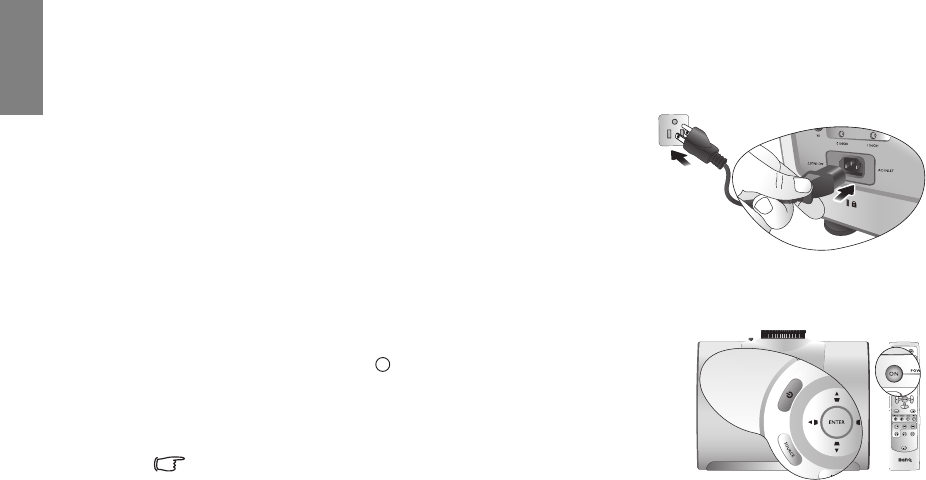
1. Plug in and turn all of the connected equipment on.
2. If not already in, plug the supplied power cable into the AC inlet
on the rear of the projector.
3. Plug the power cable into a wall power outlet and turn the wall
switch on.
Turning the projector on
Follow the steps below.
1. Make sure the Power light is orange after power has been applied.
2. Press and hold POWER ON ( ) on the projector or remote control
to turn the projector on.
3. The fans will start operating, and a start-up image displays on the
screen for a few seconds while it warms up.
The projector will not respond to further commands while it is
warming up.
4. If you are prompted for a password, press the arrow keys to enter a six-digit password. See "Utilizing the
password function" on page 23 for details.
5. "Source Searching..." will be displayed on the screen before the projector identifies the input source.
This message will remain on the screen until a valid signal is detected. See "Selecting an input source"
on page 21 for details.
6. If the horizontal frequency of the input source exceeds the range of the projector, the message "No
Signal" will be displayed on the screen. This message will remain on-screen until you change the input
source to an appropriate one.
I
I
21
Using the projector
English
Selecting an input source
The projector can be connected to multiple equipment at the same time.
When the projector is first turned on, it will attempt to reconnect with the
input source which was in use when the projector was last shut down.
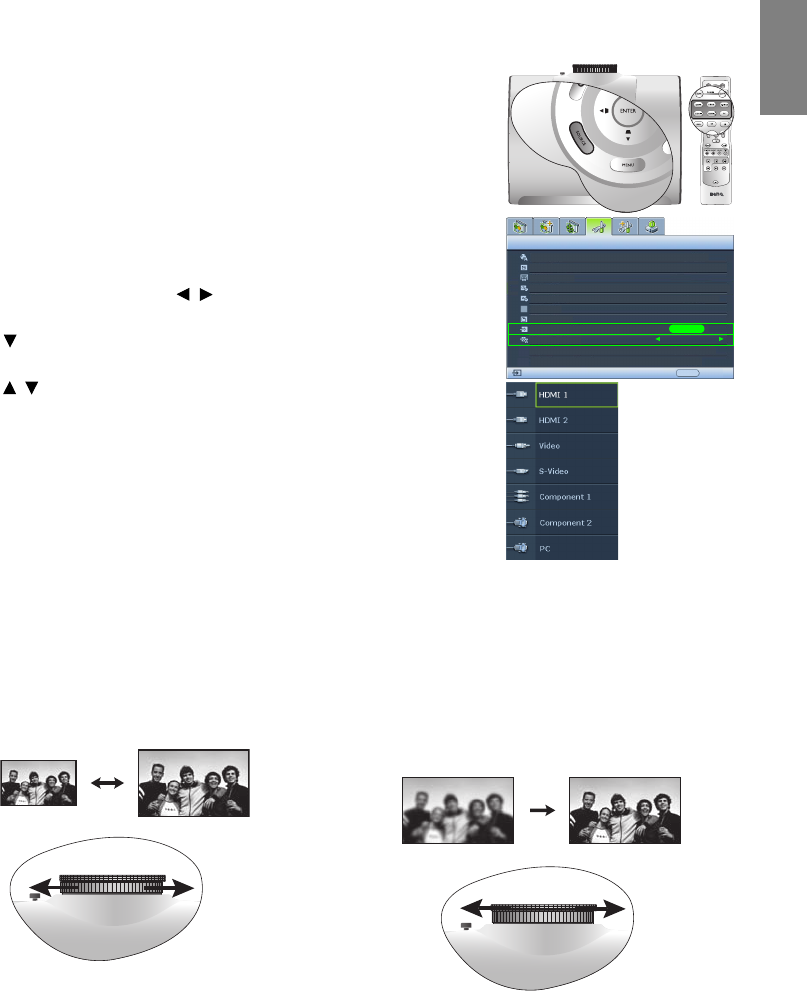
To s el e c t th e v i d e o so ur c e :
• Using the remote control or projector
Press one of the Source keys on the remote control, or press SOURCE on
the projector repeatedly until your desired signal is selected.
• Using the OSD menu
1. Press MENU and then press / until the System Setup menu is
highlighted.
2. Press to highlight Input Source and press ENTER. The source
selection bar displays.
3. Press / repeatedly until your desired signal is selected and press
ENTER.
Once detected, the selected source information will display on the
screen for seconds. If there are multiple pieces of equipment
connected to the projector, you can go back to the source selection bar
again to search for other signals.
• If you want the projector to automatically search for the signals, select
On in the System Setup > Auto Source Search menu.
• If you want to use the PIP function, see "Displaying more than one
image source simultaneously" on page 35 for details.
Fine-tuning the image size and clarity
Language
Splash Screen
Projector Position
Auto Off
Sleep Timer
Background Color
Menu Settings
Input Source
System Setup
S-Video
English
BenQ
Auto Source Search
EXIT Back
Disable
Disable
Blue
On
Floor Front
ENTER
NOTE: When
automatically
searching for a
valid input
source, the
projector cycles
through the
available signals
following the
sequence from
top to bottom as
the source
selection bar
shows.
1. Adjust the projected picture to the size that
you need using the zoom ring.
2. Sharpen the picture by rotating the focus
ring.
22 Using the projector
English
Using the menus
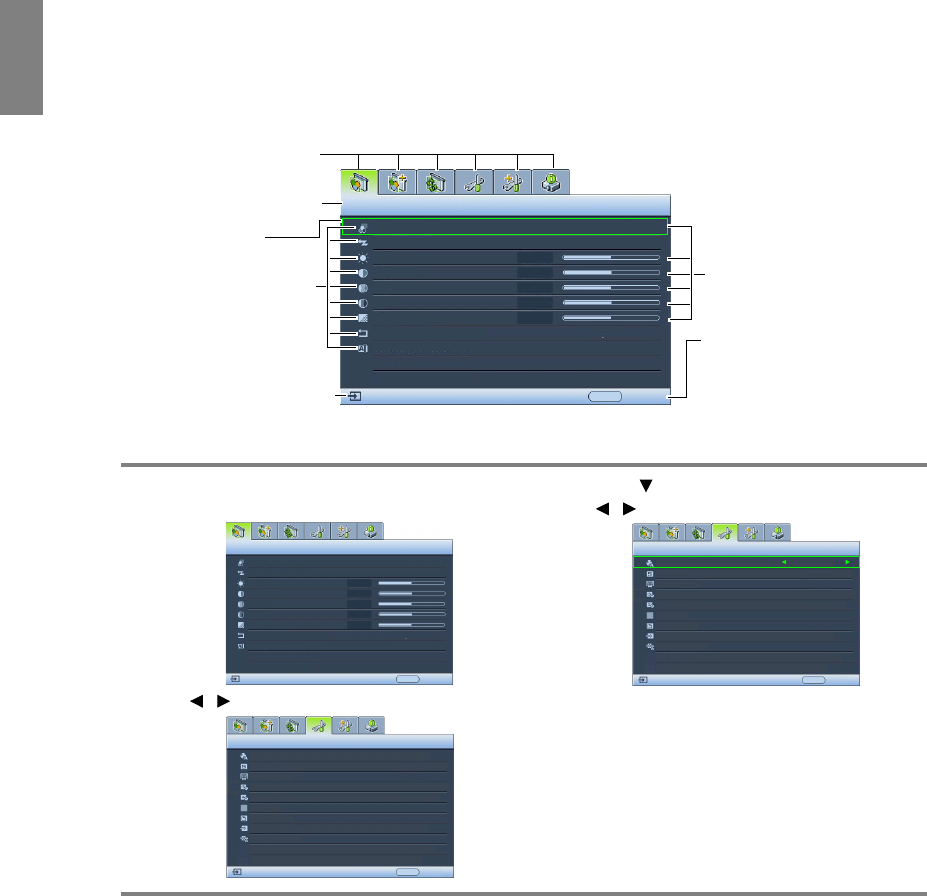
The projector is equipped with multilingual On-Screen Display (OSD) menus for making various
adjustments and settings.
Below is the overview of the OSD menu.
To use the OSD menus, please set the OSD menu to your familiar language.
Securing the projector
Using a security cable lock
The projector has to be installed in a safe place to prevent theft. Otherwise, purchase a lock, such as the
Kensington lock, to secure the projector. You can locate a Kensington lock slot on the projector. See item 17
on page 9 for details.
A Kensington security cable lock is usually a combination of key(s) and the lock. Refer to the lock's
documentation for finding out how to use it.
Picture Mode
Load Settings From
Brightness
Contrast
Tint
Sharpness
Reset Picture Settings
Rename User Mode
Picture -- Basic
+ 3
S-Video
Cinema
EXIT Back
Current input source
Main menu icon
Main menu
Sub-menu
Highlight
Press EXIT to go back to
the previous page or to
exit.
Status
+ 50
+ 50
+ 50
0
Color
1. Press MENU on the projector or remote control to
turn the OSD menu on.
2. Use / to highlight the System Setup menu.
3. Press to highlight Language and press
/ to select a preferred language.
4. Press MENU once or EXIT twice* on the
projector or remote control to leave and
save the settings.
*The first press leads you back to the main
menu and the second press closes the OSD
menu.
Picture Mode
Load Settings From
Brightness
Contrast
Tint
Sharpness
Reset Picture Settings
Rename User Mode
Picture -- Basic
S-Video
Cinema
EXIT Back
Color
+ 3
+ 50
+ 50
+ 50
0
Language
Splash Screen
Projector Position
Auto Off
Sleep Timer
Background Color
Menu Settings
Input Source
System Setup
S-Video
English
BenQ
Auto Source Search
EXIT Back
Disable
Disable
Blue
Off
Floor Front
Language
Splash Screen
Projector Position
Auto Off
Sleep Timer
Background Color
Menu Settings
Input Source
System Setup
S-Video
English
BenQ
Auto Source Search
EXIT Back
Disable
Disable
Blue
Off
Floor Front
23
Using the projector
English
Utilizing the password function
For security purposes and to help prevent unauthorized use, the projector includes an option for setting up
password security. The password can be set through the On-Screen Display (OSD) menu. Once the
password is set and this function is selected, the projector is password-protected. Users who do not know
the correct password can not use the projector.
You will be inconvenienced if you activate the password functionality and subsequently forget the
password. Print out this manual (if necessary) and write the password you used in this manual, and keep
the manual in a safe place for later recall.
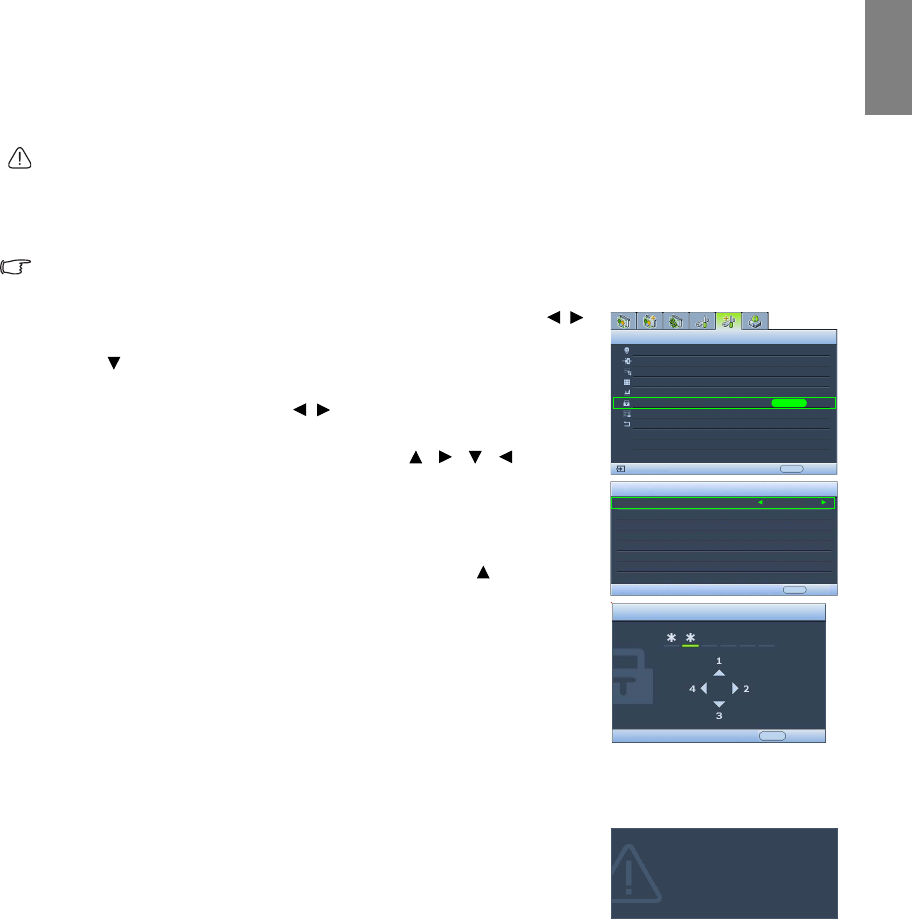
Setting a password
Once a password has been set and activated, the projector cannot be used unless the correct password is
entered every time the projector is started.
1. Press MENU on the projector or remote control and then press /
until the Advanced Setup menu is highlighted.
2. Press to highlight Password and press ENTER. The Password page
displays.
3. Highlight Password and press / to select On. The Input Password
page displays.
4. As the picture indicates, the four arrow keys ( , , , )
respectively represent 4 digits (1, 2, 3, 4). According to the password
you desire to set, press the arrow keys on the remote control or
projector to enter six digits for the password.
If the function is used for the first time, enter the default password (1,
1, 1, 1, 1, 1) of the projector by pressing the arrow key six times.
Once the password is set, the OSD menu returns to the Password
page.
IMPORTANT: The digits being input will display as asterisks on-
screen. Write your selected password down here in this manual in
advance or right after the password is entered so that it is available to
you should you ever forget it.
Password: __ __ __ __ __ __
5. To leave the OSD menu, press MENU.
If you forget the password
If the password function is activated, you will be asked to enter the six-
digit password every time you turn on the projector. If you enter the
wrong password, the password error message as pictured to the right
displays lasting for three seconds, and the Input Password page follows.
You can retry by entering another six-digit password, or if you did not
record the password in this manual, and you absolutely do not remember
it, you can use the password recall procedure. See "Entering the password
recall procedure" on page 24 for details.
If you enter an incorrect password 5 times in succession, the projector will
automatically shut down in a short time.
Lamp Settings
HDMI Settings
Test Pattern
High Altitude Mode
Password
Key Lock
Reset All Settings
Advanced Setup
EXIT Back
S-Video
ENTER
Off
Input Password
Password
Password
Change Password
On
EXIT Clear
EXIT Back
ISF
Baud Rate 115200
Password Error
Please try again.

24 Using the projector
English
Entering the password recall procedure
1. Make sure the Input Password page displays on screen. Press and hold
PRESET MODE on the projector or remote control for 3 seconds. The
projector will display a coded number on the screen.
2. Write down the number and turn off your projector.
3. Seek help from the local BenQ service center to decode the number.
You may be required to provide proof of purchase documentation to
verify that you are an authorized user of the projector.
Changing the password
1. Press MENU on the projector or remote control and then press / until the Advanced Setup menu is
highlighted.
2. Press / to highlight Password and press ENTER. The Password page displays.
3. Highlight Change Password and press ENTER. The Input Current Password page displays.
4. Enter the old password.
• If the password is correct, the message "Input New Password" displays.
• If the password is incorrect, the password error message displays lasting for three seconds, and the
message "Input Current Password" displays for your retry. You can either press MENU to cancel
the change or try another password.
5. Enter a new password.
IMPORTANT: The digits being input will display as asterisks on-screen. Write your selected password
down here in this manual in advance or right after the password is entered so that it is available to you
should you ever forget it.
Password: __ __ __ __ __ __
Keep this manual in a safe place.
6. Confirm the new password by re-entering the new password.
7. You have successfully assigned a new password to the projector. Remember to enter the new password
next time the projector is started.
8. To leave the OSD menu, press MENU.
Disabling the password function
To disable password protection, go back to the Advanced Setup >
Password > Password menu. Highlight Password and select Off by
pressing / . The message "Input Password" displays. Enter the current
password.
• If the password is correct, the OSD menu returns to the Password
page with "Off" shown in the row of Password. You will not have
to enter the password next time when turning on the projector.
• If the password is incorrect, the password error message displays
lasting for three seconds, and the message "Input Password"
displays for your retry. You can either press MENU to cancel the
change or try another password.
Note that though the password function is disabled, you need to keep the old password in hand should you
ever need to re-activate the password function by entering the old password.
Please write down the recall code, and
contact your nearest BenQ Customer
Center.
Recall code: 0 2 1 2
Recall Password
EXIT Back
Password
Password
Change Password
Off
EXIT Back
25
Using the projector
English
Adjusting the projected image
Adjusting the projection angle
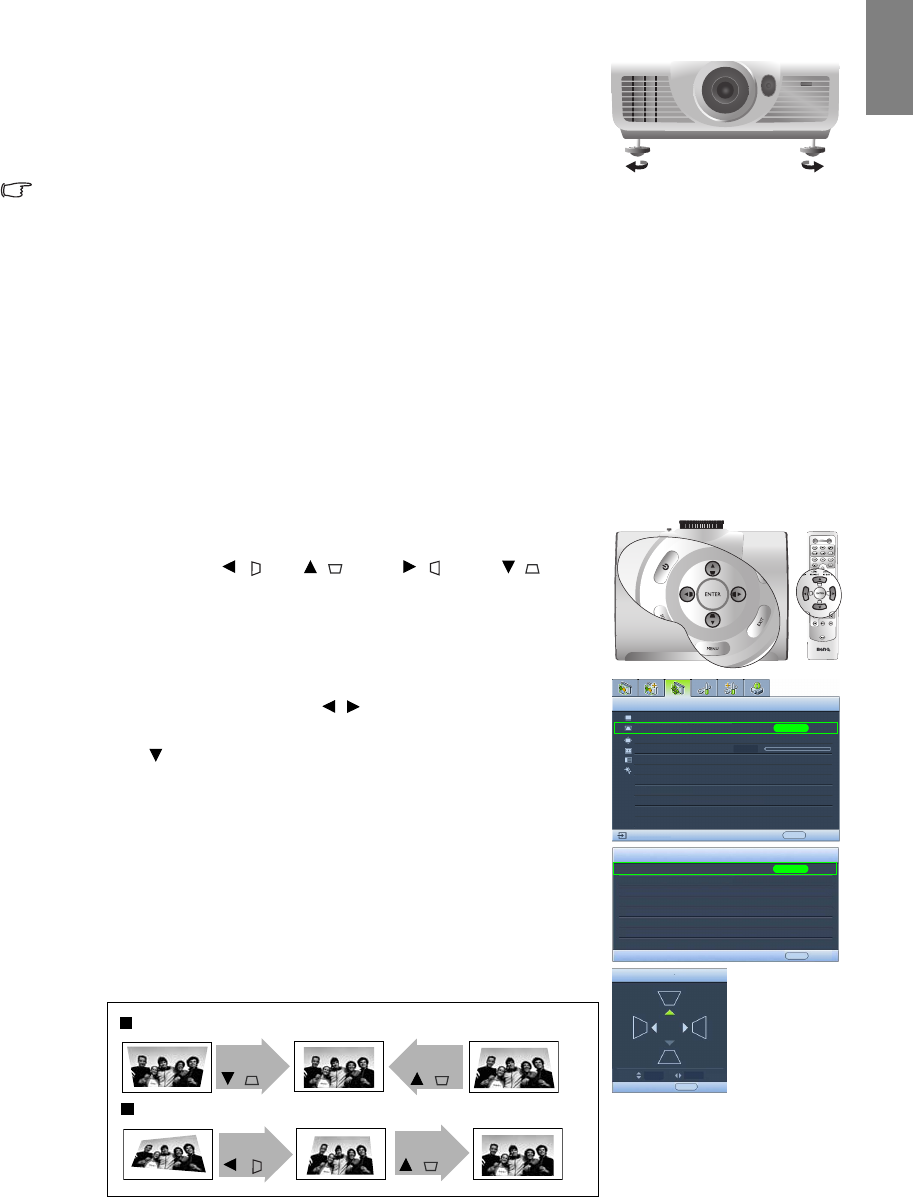
There are four adjuster feet on the bottom of the projector. These can be
used if necessary to change the projection angle. Screw the feet in or out as
appropriate to aim and level the projection angle.
If the screen and the projector are not perpendicular to each other, the projected image becomes vertical
trapezoidal. To correct this problem, see "Correcting picture distortion" on page 25 for details.
Correcting picture distortion
Keystoning occurs when the projector is not perpendicular to the screen and is where the projected picture
displays visible as a trapezoid shape like either of the following:
• Two parallel sides (left and right, or top and bottom) but is noticeably wider on either side.
• No parallel sides.
To correct the picture’s shape, you can perform the following steps.
1. Adjust the projection angle. Move the projector to be in front of the center of the screen with the center
of the lens level with the screen.
2. If the picture is stilled distorted, or the projector is unable to be positioned as described above, you will
need to manually correct the picture.
• Using the remote control or projector
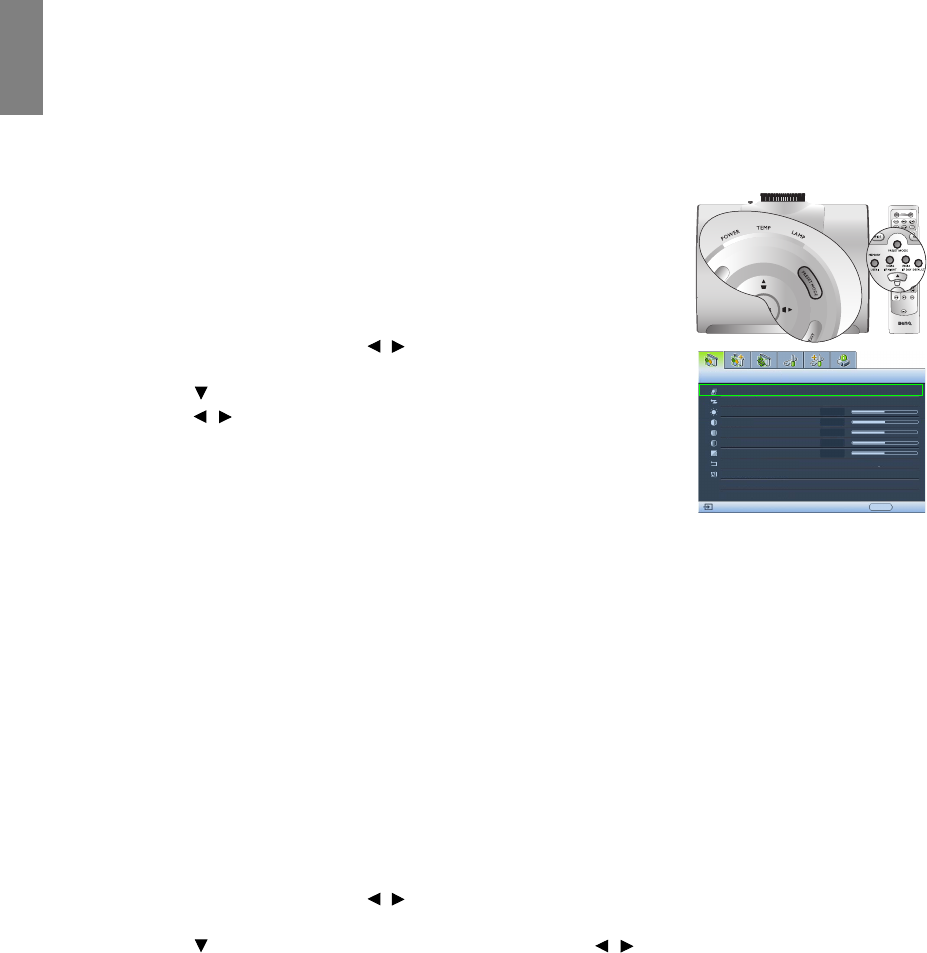
i. Press one of the Arrow/Keystone keys on the remote control or
projector (Left /, Up /, Right /, Down/) to
display the Keystone page.
ii. See step iv below for further operation.
• Using the OSD menu
i. Press MENU and then press / until the Display menu is
highlighted.
ii. Press to highlight Keystone and press ENTER. The Keystone
page displays.
iii. Highlight 2D Keystone and press ENTER. The keystone
correction page displays.
iv. Press the key whose keystone icon is opposite to the shape of the
projected picture. Continue pressing the same key or press the
other keys until you are satisfied with the shape.
The values on the lower portion of the page change while
pressing. When the values reach their maximum or minimum
with repeated key presses, the picture’s shape will stop changing.
You will not be able to change the picture further in that
direction.
Aspect Ratio
Keystone
Position
Overscan Adjustment
PIP
PC & Component YPbPr Tuning
Display
EXIT Back
0
S-Video
ENTER
Keystone
2D Keystone ENTER
EXIT Back
Keystone
EXIT Back
Anamorphic
10
Two parallel sides
No parallel sides
Press
/.
Press
/.
Press
/.
Press
/.
26 Using the projector
English
Using the preset and user modes
Selecting a preset mode
The projector is preset with several pre-defined picture modes so that you can choose one to suit your
operating environment and input source picture type.
To select a picture mode that suits your need:
• Using the remote control
1. Press PRESET MODE repeatedly or USER 1, USER 2/ISF NIGHT,
USER 3/ISF DAY, DEFAULT on the remote control, or PRESET
MODE on the projector repeatedly until your desired mode is
selected.
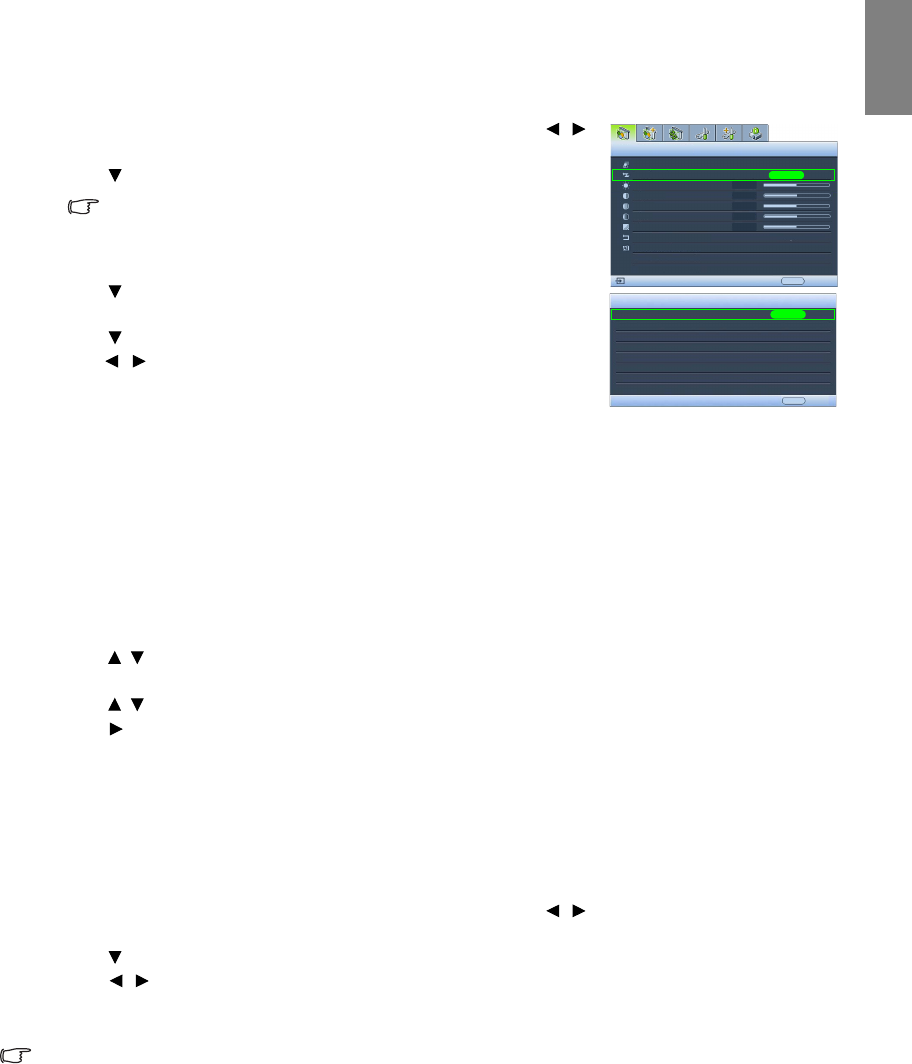
• Using the OSD menu
1. Press MENU and then press / until the Picture -- Basic menu is
highlighted.
2. Press to highlight Picture Mode.
3. Press / until your desired mode is selected.
These modes consist of preset values suitable for various projection
situations as described below:
• Cinema: With well-balanced color saturation and contrast with a low
brightness level, this is most suitable for enjoying movies in a totally dark environment (as you would
find in a commercial cinema).
• Dynamic: Maximizes the brightness of the projected image. This mode is suitable for environments
where extra-high brightness is required, such as using the projector in well lit rooms.
• Standard: It is slightly brighter than Cinema mode, and suitable for use in rooms where there is a small
amount of ambient light.
• User 1/User 2/User 3: Recalls the customized settings. See "Setting the User 1/User 2/User 3 mode" on
page 27 for details.
Fine-tuning the selected picture mode
The pre-defined picture mode settings can be altered via the available items shown in the Picture -- Basic
and Picture -- Advanced menus.
To fine-tune the picture mode:
1. Press MENU and then press / until the Picture -- Basic or Picture -- Advanced menu is
highlighted.
2. Press to highlight the item you want to adjust and press / to set your desired value. Your
selection is automatically stored in the projector and associated with that input source.
See "Fine-tuning the picture quality" on page 28 and "Advanced picture quality controls" on page 29 for
details.
Each time you change the picture mode, the projector also changes the setting to the one which was last set
for that particular picture mode on that particular input. If you change the input source, the most recently
used picture mode and settings for that input and resolution will be restored.
Picture Mode
Load Settings From
Brightness
Contrast
Tint
Sharpness
Reset Picture Settings
Rename User Mode
Picture -- Basic
+50
0
S-Video
Cinema
EXIT Back
Color
+50
+50
+ 3
27
Using the projector
English
Setting the User 1/User 2/User 3 mode
There are three user-definable modes if the current available picture modes are not suitable for your need.
You can use one of the picture modes (except the selected User mode) as a starting point and customize the
settings.
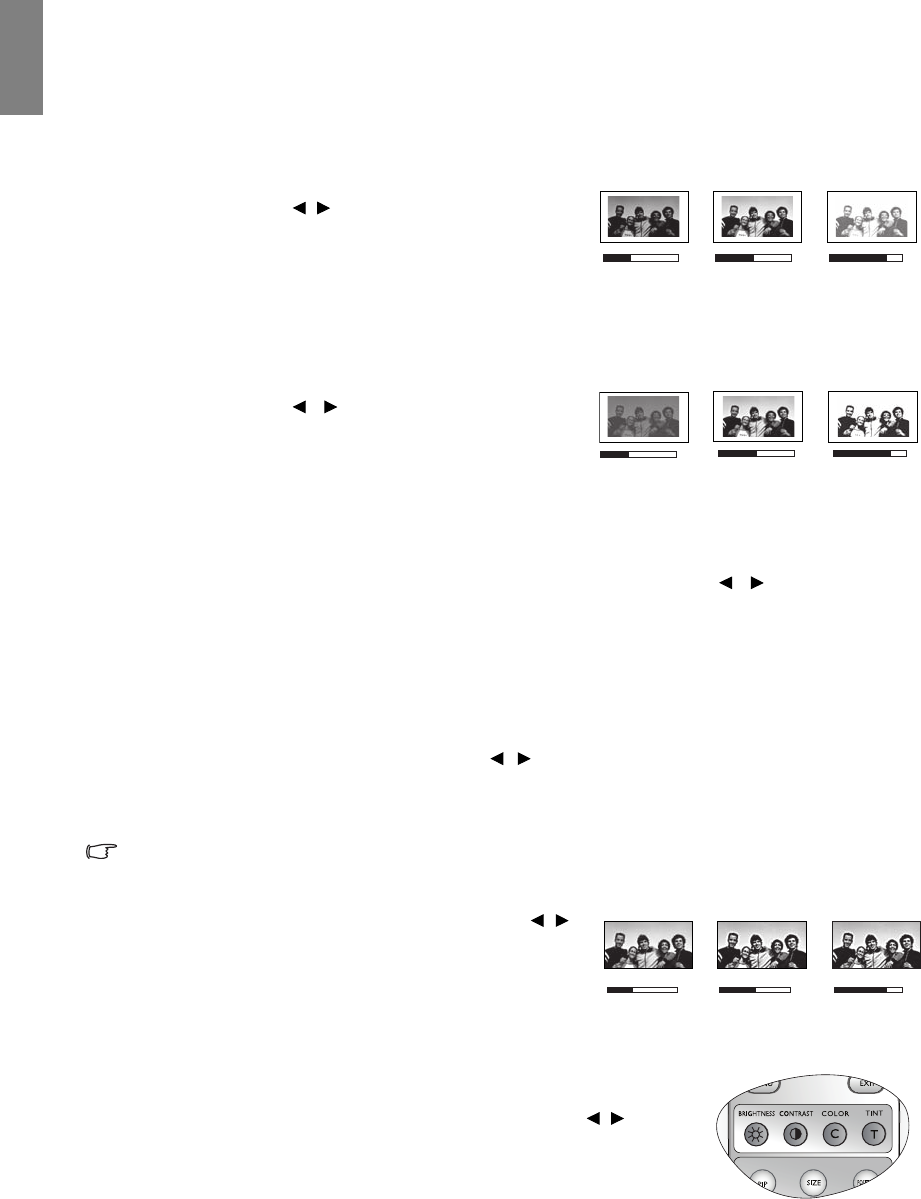
1. In the Picture -- Basic menu, highlight Picture Mode and press /
to select User 1, User 2, or User 3 mode.
2. Press to highlight Load Settings From.
This function is only available when User 1, User 2, or User 3
mode is selected up in the Picture Mode sub-menu item.
3. Press ENTER to display the Load Settings From page.
4. Press to highlight a picture mode that is closest to your need and
press ENTER and EXIT.
5. Press to select a sub-menu item to be changed and adjust the value
with /. See "Fine-tuning the picture quality" on page 28 and
"Advanced picture quality controls" on page 29 for details.
6. When all settings have been done, press MENU to save and leave the
settings.
Renaming user modes
You can change User 1, User 2, and User 3 to the names easy to be identified or understood by the users of
this projector. The new name can be up to 12 characters including English letters (A-Z, a-z), digits (0-9),
and space (_).
To rename user modes:
1. In the Picture -- Basic menu, highlight Rename User Mode and press ENTER to display the Rename
User Mode page.
2. Press / to highlight the item you want to rename and press ENTER. The first letter will be
highlighted by a white box.
3. Press / to select the first character.
4. Press to move along until the new name is set and press ENTER to confirm.
5. Repeat steps 2-4 if you want to change the other names.
Resetting the picture mode
All of the adjustments you’ve done in the Picture -- Basic and Picture -- Advanced menus can be returned
to the factory preset values with a key press on the highlight of Reset.
To reset the picture mode to the preset factory values:
1. In the Picture -- Basic menu, highlight Picture Mode and press / to select the picture mode
(including User 1, User 2, or User 3) you want to reset.
2. Press to highlight Reset Picture Settings and press ENTER. The confirmation message displays.
3. Press / to highlight Reset and press ENTER. The picture mode will return to the factory preset
settings.
4. Repeat steps 1-3 if you want to reset other picture modes.
Do not to be confused with the Reset Picture Settings function here with the Reset All Settings in the
Advanced Setup menu. The Reset All Settings function returns most of the settings to the factory preset
values system wide. See "Reset All Settings" on page 42 for details.
Picture Mode
Load Settings From
Brightness
Contrast
Tint
Sharpness
Reset Picture Settings
Rename User Mode
Picture -- Basic
S-Video
User 1
EXIT Back
ENTER
ENTER
EXIT Back
Load Settings From
Cinema Mode
Dynamic Mode
Standard Mode
User 1
User 2
User 3
+50
0
Color
+50
+50
+ 3
28 Using the projector
English
Fine-tuning the picture quality
No matter what picture mode you have selected, you are able to fine-tune those settings to fit every
presentation purpose. Those adjustments will be saved to the preset mode you are at when you exit the
OSD menu.
Adjusting Brightness
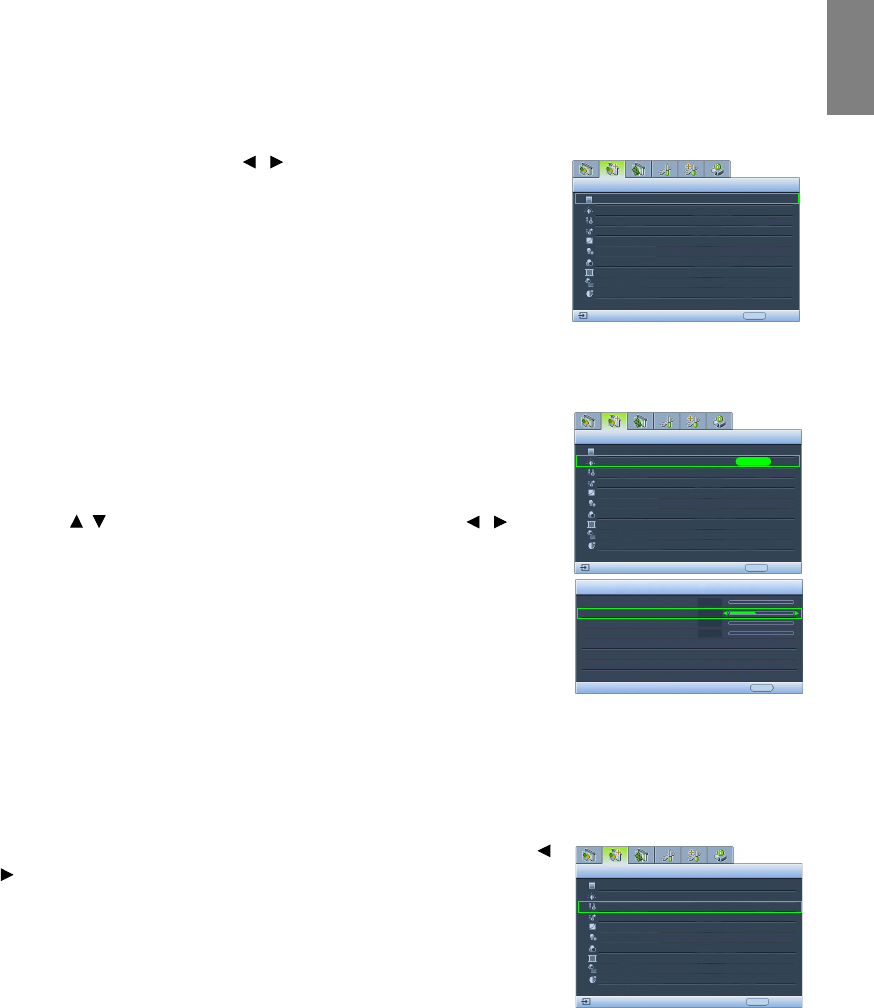
Highlight Brightness in the Picture -- Basic menu and adjust
the values by pressing / on the projector or remote
control.
The higher the value, the brighter the picture. And the lower
the setting, the darker the picture. Adjust this control so the
black areas of the picture appear just as black and that detail in the dark areas is visible.
Adjusting Contrast
Highlight Contrast in the Picture -- Basic menu and adjust
the values by pressing / on the projector or remote
control.
The higher the value, the greater the contrast. Use this to set
the peak white level after you have previously adjusted the
Brightness setting to suit your selected input and viewing environment.
Adjusting Color
Highlight Color in the Picture -- Basic menu and adjust the values by pressing / on the projector or
remote control.
Lower setting produces less saturated colors; setting to the minimum value makes the image black and
white. If the setting is too high, colors on the image will be overpowering, which makes the image
unrealistic.
Adjusting Tint
Highlight Tint and adjust the values by pressing / on the projector or remote control.
The higher the value, the more reddish the picture becomes. The lower the value, the more greenish the
picture becomes.
This function is not available when the Picture Mode is ISF Night or ISF Day.
Adjusting Sharpness
Highlight Sharpness and adjust the values by pressing /
on the projector or remote control.
The higher the value, the sharper the picture becomes. The
lower the value, the softer the picture becomes.
The Brightness, Color, Contrast, Tint functions can also be accessible by
pressing BRIGHTNESS, COLOR, CONTRAST, TINT on the remote
control to display the adjustment bar and then you can press / to
adjust the values.
30 50 70
30 50 70
357
29
Using the projector
English
Advanced picture quality controls
There are more advanced functions in the Picture -- Advanced menu to be adjusted to your preference. To
save the settings, just press MENU to leave the OSD menu.
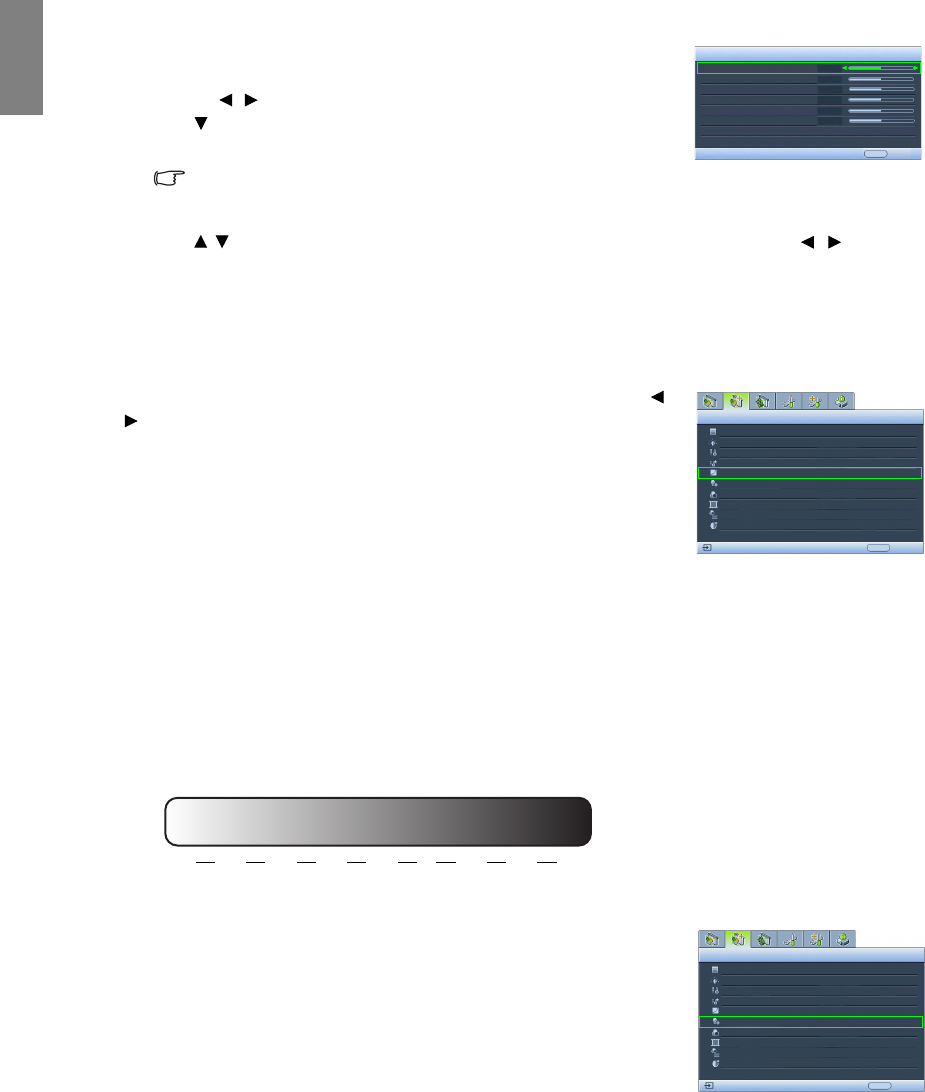
Setting Black Level
Highlight Black Level and press / on the projector or remote control
to select 0 IRE or 7.5 IRE.
The grayscale video signal is measured in IRE units. In some areas which
use NTSC TV standard, the grayscale is measured from 7.5 IRE (black) to
100 IRE (white); however, in other areas where PAL equipment or
Japanese NTSC standards are used, the grayscale is measured from 0 IRE
(black) to 100 IRE (white). We suggest that you check the input source to
see if it is with 0 IRE or 7.5 IRE, then select accordingly.
Controlling image clarity
You may have static or noisy projected pictures.
To achieve better picture clarity:
1. Highlight Clarity Control and press ENTER on the projector or remote
control to display the Clarity Control page.
2. Press / to select the item you want to adjust and press / to set
the desired value.
• Noise Reduction: Reduces electrical image noise caused by
different media players. The higher the setting, the less the noise.
• Detail Enhancement: Sharpens the image. The higher the setting,
the more details the image reveals.
• Luma Transmission (Luminance Transmission Improvement):
Enhances picture brightness. The higher the setting, the more
distinct the effect.
• Chroma Transmission (Chroma Transmission Improvement):
Reduces color smear. The higher the setting, the more distinct the
effect.
Selecting a color temperature*
Highlight Color Temperature and select a preferred setting by pressing /
on the projector or remote control.
There are several color temperature settings available.
1. Lamp Native: With the lamp’s original color temperature and higher
brightness. This setting is suitable for environments where high
brightness is required, such as projecting pictures in well lit rooms.
2. Warm: Makes pictures appear reddish white.
3. Normal: Maintains normal colorings for white.
4. Cool: Makes pictures appear bluish white.
5. User 1/User 2/User 3: Recalls the settings customized in the Color Temperature User_ Fine Tuning
menu. See "Setting a preferred color temperature" on page 30 for details.
*About color temperatures:
There are many different shades that are considered to be "white" for various purposes. One of the common methods of
representing white color is known as the “color temperature”. A white color with a low color temperature appears to be
reddish white. A white color with a high color temperature appears to have more blue in it.
Black Level
Clarity Control
Color Temperature
Picture -- Advanced
S-Video
0 IRE
EXIT Back
Normal
Color Temperature User_ Fine Tuning
Gamma Selection
Color Management
Brilliant Color
2.4
Dynamic Black
3D Comb Filter
Film Mode On
On
On
Black Level
Clarity Control
Color Temperature
Picture -- Advanced
S-Video
0 IRE
EXIT Back
Normal
Color Temperature User_ Fine Tuning
Gamma Selection
Color Management
Brilliant Color
ENTER
Clarity Control
Noise Reduction
Detail Enhancement
Luma Transmission
Chroma Transmission
0
3
0
0
2.4
EXIT Back
On
Dynamic Black On
3D Comb Filter
Film Mode On
On
Black Level
Clarity Control
Color Temperature
Picture -- Advanced
S-Video
0 IRE
EXIT Back
Normal
Color Temperature User_ Fine Tuning
Gamma Selection
Color Management
2.4
Brilliant Color On
Dynamic Black On
3D Comb Filter
Film Mode On
On
30 Using the projector
English
Setting a preferred color temperature
To set a preferred color temperature:
1. Highlight Color Temperature and select User 1, User 2, or User 3 by
pressing / on the projector or remote control.
2. Press to highlight Color Temperature User_ Fine Tuning and press
ENTER. The Color Temperature User_ Fine Tuning page displays.
The menu name "User_" corresponds with the setting selected
in Color Temperature.
3. Press / to highlight the item you want to change and adjust the values by pressing / .
• Red Gain/Green Gain/Blue Gain: Adjusts the contrast levels of Red, Green, and Blue.
• Red Offset/Green Offset/Blue Offset: Adjusts the brightness levels of Red, Green, and Blue.
4. To save and leave the settings, press MENU once or EXIT twice.
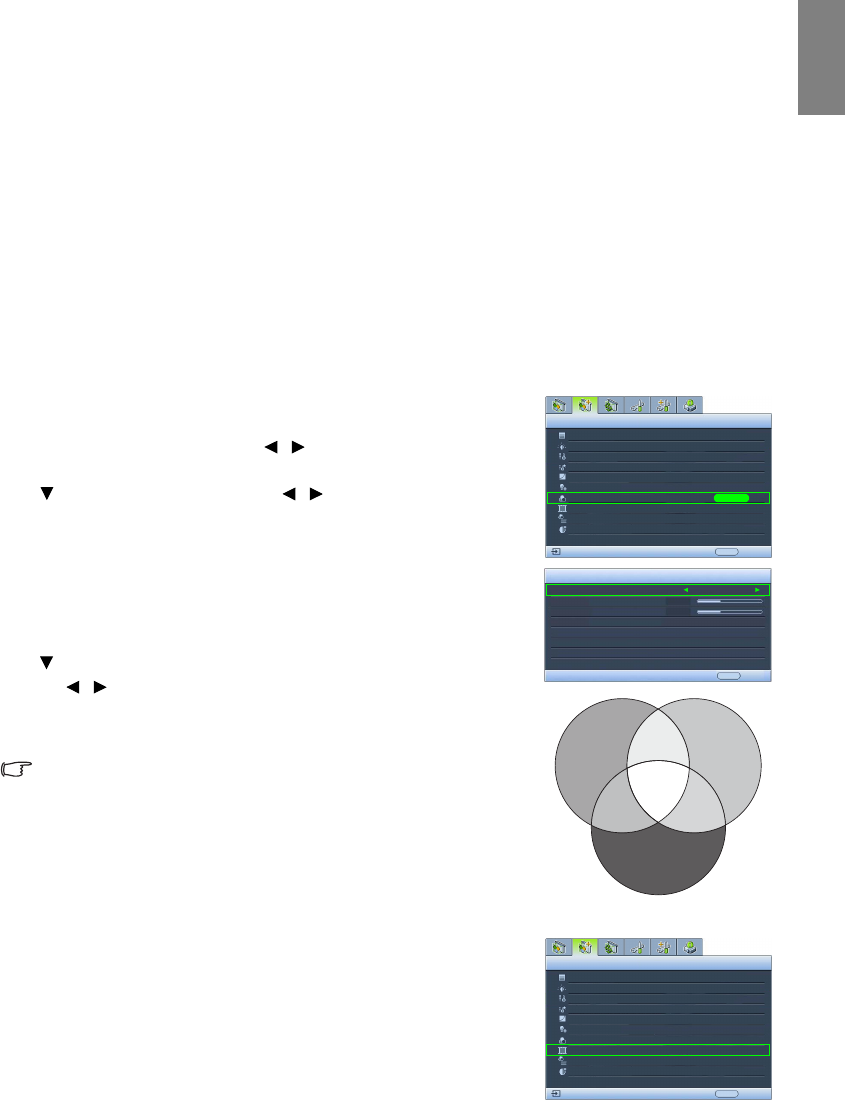
Selecting a Gamma setting
Highlight Gamma Selection and select a preferred setting by pressing /
on the projector or remote control.
Gamma refers to the relationship between input source and picture
brightness.
• Gamma 1.6/1.8/2.0/BenQ1/BenQ2
Select these values according to your preference.
• Gamma 2.2
Increases the average brightness of the picture. Best for a lit
environment, meeting room or family room.
• Gamma 2.4/2.5
Best for viewing movies in a darkened environment.
• Gamma 2.6/2.8
Best for viewing movies which are mostly composed of dark scenes.
Adjusting Brilliant Color
This feature utilizes a new color-processing algorithm and system level
enhancements to enable higher brightness while providing truer, more
vibrant colors in picture. When set to "Off", Brilliant Color is disabled.
Color Temp User 1 Fine Tuning
Red Gain
EXIT Back
Green Gain
Blue Gain
Red Offset
Green Offset
Blue Offset
+50
+50
+50
+50
+50
+50
Black Level
Clarity Control
Color Temperature
Picture -- Advanced
S-Video
0 IRE
EXIT Back
Normal
Color Temperature User_ Fine Tuning
Gamma Selection
Color Management
Brilliant Color
2.4
On
Dynamic Black On
3D Comb Filter
Film Mode On
On
High Brightness
Low Contrast
Low Brightness
High Contrast
1.6 1.8 2.0 2.2 2.4 2.5 2.6 2.8
Black Level
Clarity Control
Color Temperature
Picture -- Advanced
S-Video
0 IRE
EXIT Back
Normal
Color Temperature User_ Fine Tuning
Gamma Selection
Color Management
Brilliant Color
2.4
On
Dynamic Black On
3D Comb Filter
Film Mode On
On
31
Using the projector
English
Color Management
In most installation situations, color management will not be necessary, such as in classroom, meeting
room, or lounge room situations where lights remain on, or where building external windows allow
daylight into the room.
Only in permanent installations with controlled lighting levels such as boardrooms, lecture theaters, or
home theaters, should color management be considered. Color management provides fine color control
adjustment to allow for more accurate color reproduction, should you require it.
Proper color management can only be achieved under controlled and reproducible viewing conditions.
You will need to use a colorimeter (color light meter), and provide a set of suitable source images to
measure color reproduction. These tools are not provided with the projector, however, your projector
supplier should be able to provide you with suitable guidance, or even an experienced professional installer.
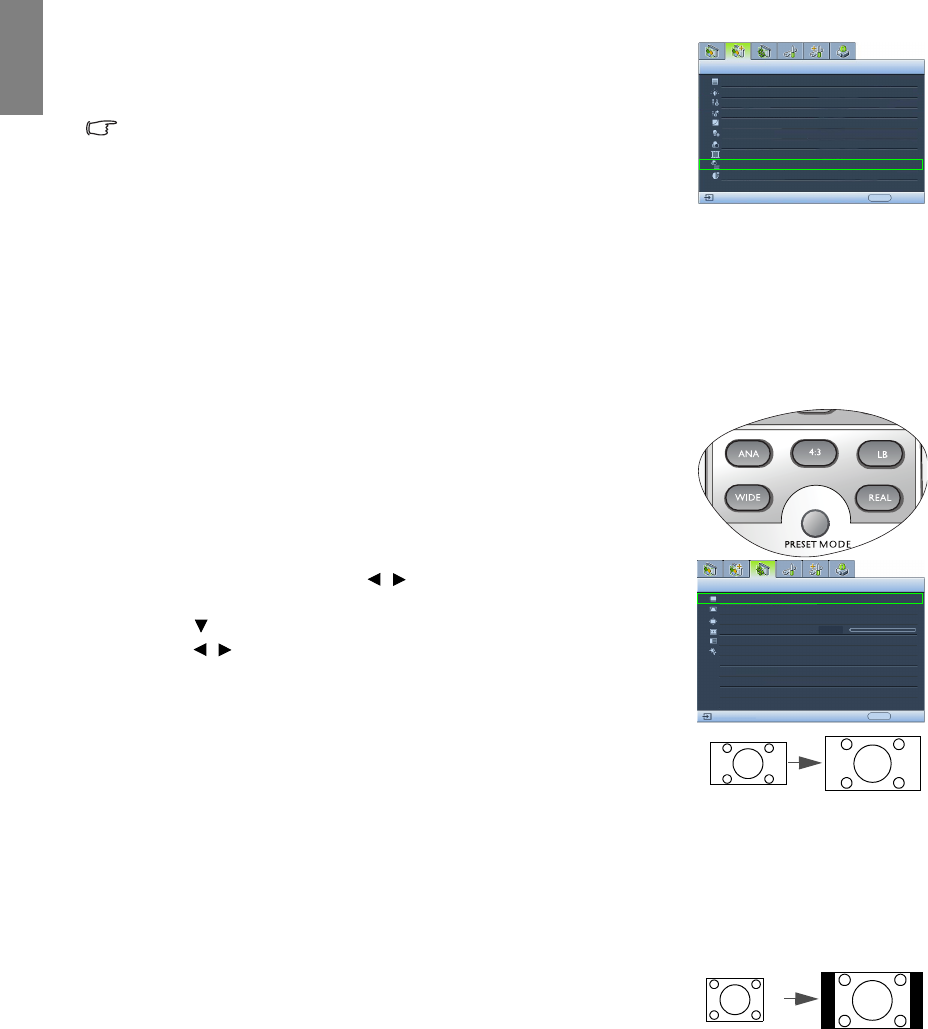
The Color Management provides six sets (RGBCMY) of colors to be adjusted to favorite colors. When you
select each color, you can independently adjust its color range and saturation according to your preference.
To adjust and store the settings:
1. In the Picture -- Advanced menu, highlight Color Management and
press ENTER. The Color Management page displays.
2. Highlight Primary Color and press / to select a color from among
Red, Ye l l o w , Green, Cyan, Blue, and Magenta.
3. Press to highlight Range and press / to select the color range
you wish to make adjustment. The bigger the range, the more
proportions of its two adjacent colors the color contains.
Please refer to the illustration to the right for how the colors relate to
each other. For example, if you select Red and set its range at 0, only
pure red is selected. Increasing its range will include both the red color
close to yellow and red color close to magenta.
Press to highlight Saturation and adjust the color saturation level by
pressing / .
If you select Red and set its range at 0, only the saturation of the pure
red will be affected.
Saturation is the amount of that color in a video picture. Lower
settings produce less saturated colors; a setting of “0” removes that
color from the image entirely. If the saturation is too high, that color
will be overpowering and unrealistic.
4. To leave and save the settings, press MENU once or EXIT twice.
Setting Film Mode
This feature helps improve picture quality when projecting video image
from a film-sourced DVD.
Black Level
Clarity Control
Color Temperature
Picture -- Advanced
S-Video
0 IRE
EXIT Back
Normal
Color Temperature User_ Fine Tuning
Gamma Selection
Color Management
2.4
Color Management
Primary Color
Range
Saturation
+15
+15
Magenta
ENTER
EXIT Back
Brilliant Color On
Dynamic Black On
3D Comb Filter
Film Mode On
On
Red Yellow Green
Cyan
Magenta
Blue
Black Level
Clarity Control
Color Temperature
Picture -- Advanced
S-Video
0 IRE
EXIT Back
Normal
Color Temperature User_ Fine Tuning
Gamma Selection
Color Management
Brilliant Color
2.4
On
Dynamic Black On
3D Comb Filter
Film Mode On
On
32 Using the projector
English
Setting 3D Comb Filter
This feature separates composite signal to Y (brightness) signal and C
(color) signal, and can help produce clearer and sharper images with
correct colors in place.
This function is only available when a Video signal is selected
Selecting the aspect ratio
The "aspect ratio" is the ratio of the image width to the image height. Digital TV is usually in 16:9 ratio,
which is the default for this projector, and most analog TV signals and DVDs are in 4:3 ratio.
With the advent of digital signal processing, digital display devices like this projector can dynamically
stretch and scale the image output to a different aspect than that of the image input source. Images can be
stretched in a linear manner so the whole of the image is stretched equally, or non-linearly, which distorts
the image.
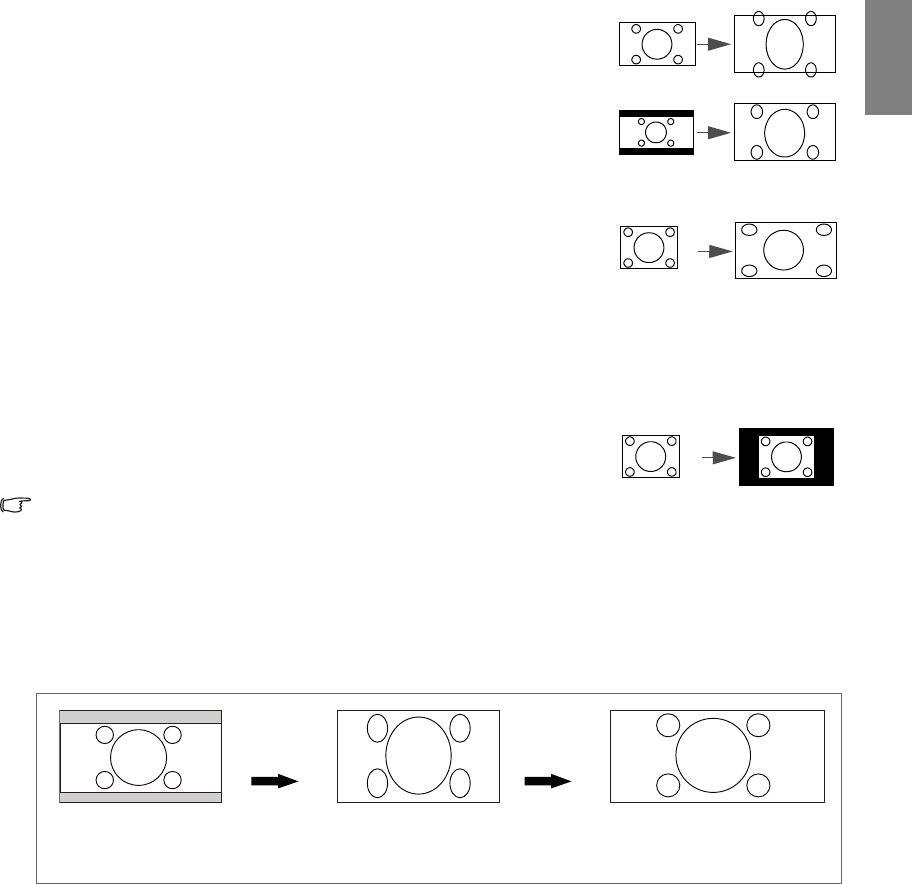
To change the projected picture ratio (no matter what aspect the source
is):
• Using the remote control
Press one of the aspect ratio keys to suit the format of the video signal and
your display requirements.
• Using the OSD menu
1. Press MENU and then press / until the Display menu is
highlighted.
2. Press to highlight Aspect Ratio.
3. Press / to select an aspect ratio to suit the format of the video
signal and your display requirements.
About the aspect ratio
1. Anamorphic (ANA): Scales an image so that it is displayed in the
center of the screen with a 16:9 aspect ratio. This setting stretches and
resizes linearly, except that it treats the vertical and horizontal
dimensions independently. It stretches the height of the source image
until it reaches the full projected height, and stretches the width of the
source image until it reaches the full projected width. This may alter the
projected aspect, depending upon the original aspect of the source
image. Anamorphic is most suitable for images which are already in a
16:9 aspect, like high definition TV, as it displays them without aspect
alteration.
2. 4:3: Scales a picture so that it is displayed in the center of the screen with
a 4:3 aspect ratio. This is most suitable for 4:3 pictures like computer
monitors, standard definition TV and 4:3 aspect DVD movies, as it
displays them without aspect alteration.
Black Level
Clarity Control
Color Temperature
Picture -- Advanced
S-Video
0 IRE
EXIT Back
Normal
Color Temperature User_ Fine Tuning
Gamma Selection
Color Management
Brilliant Color
2.4
On
Dynamic Black On
3D Comb Filter
Film Mode On
On
Aspect Ratio
Keystone
Position
Overscan Adjustment
PIP
PC & Component YPbPr Tuning
Display
EXIT Back
0
S-Video
Anamorphic
16:9 picture
4:3 picture
33
Using the projector
English
3. Letter Box (LB): Scales a picture to fit the projector’s native resolution
in its horizontal width and resize the picture’s height to the 3/4 of the
projection width. This may produce a picture greater in height than
can be displayed, so part of the picture is lost (not displayed) along the
top and bottom edges of the projection. This is suitable for the display
of movies which are presented in letter box format (with black bars on
the top and bottom).
4. Wide: Stretches the picture horizontally in a non-linear manner, that
is, the edges of the picture are stretched more than the center of the
picture to prevent distortion of the central part of the picture. This is
suitable for occasions where you want to stretch the width of a 4:3 aspect
picture to the width of a 16:9 aspect screen. It does not alter the height.
Some widescreen movies have been produced with their width squashed
down to the width of a 4:3 aspect, and are best viewed when restretched
back to their original width using this setting.
5. Real: This setting displays the image in a one-to-one pixel mapping
without alteration or resize in the center of the projection. This is most
suitable for use with PC source inputs.
• The black portions are inactive areas and the white portions are active
areas.
• OSD menus can be displayed on those unused black areas.
Using Panamorph lenses (optional)
Panamorph lenses allow you to convert 16:9 projectors to the full 2.35:1 aspect ratio of most motion
pictures, showing the best movies without letterbox bars at top and bottom of images while increasing
resolution by 33% and brightness by 20%.
You may need a 2.35:1 screen to display the 2.35:1 images. For more information, please go to
www.panamorph.com or contact the place you purchased the projector.
16:9 picture
Letter Box
format picture
4:3 picture
4:3 picture
2.35:1 aspect ratio
image
2.35:1 aspect ratio image
using the entire resolution of
the 16:9 display
2.35:1 aspect ratio image
in a 2.35:1 display area
Pressing LB on
the remote
control
Using
Panamorph
lens
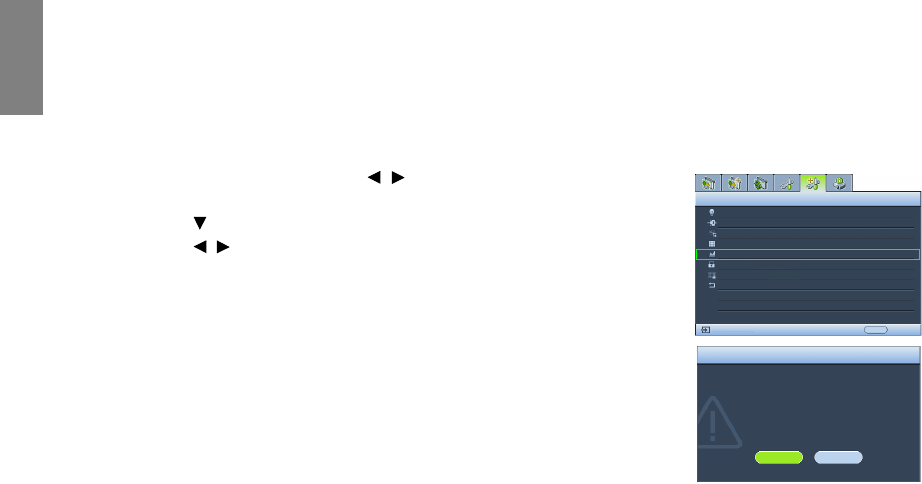
34 Using the projector
English
Operating in a high altitude environment
We recommend that you activate High Altitude Mode when your environment is higher than 1500 meters
(around 4920 feet) above sea level, or whenever the projector will be used for extended periods of time
(>10 hours) without shutdown.
To activate High Altitude Mode:
1. Press MENU and then press / until the Advanced Setup menu is
highlighted.
2. Press to highlight High Altitude Mode.
3. Press / to select On. A confirmation message displays.
4. Highlight Yes and press ENTER.
Operation under High Altitude Mode may cause a higher decibel
operating noise level because of increased fan speed necessary to improve
overall system cooling and performance.
If you use this projector under other extreme conditions excluding the
above, it may display auto shut-down symptoms, which is designed to
protect your projector from over-heating. In cases like this, you should
switch to High Altitude Mode to solve these symptoms. However, this is
not to state that this projector can operate under any and all harsh or
extreme conditions.
High Altitude Mode is used when the
environment is higher than 1500m.
Do you want to turn the High Altitude
Mode on?
Yes No
WARNING
Lamp Settings
Baud Rate
High Altitude Mode
Password
Key Lock
Reset All Settings
Advanced Setup
EXIT Back
S-Video
On
Test Pattern
ISF
HDMI Settings
115200
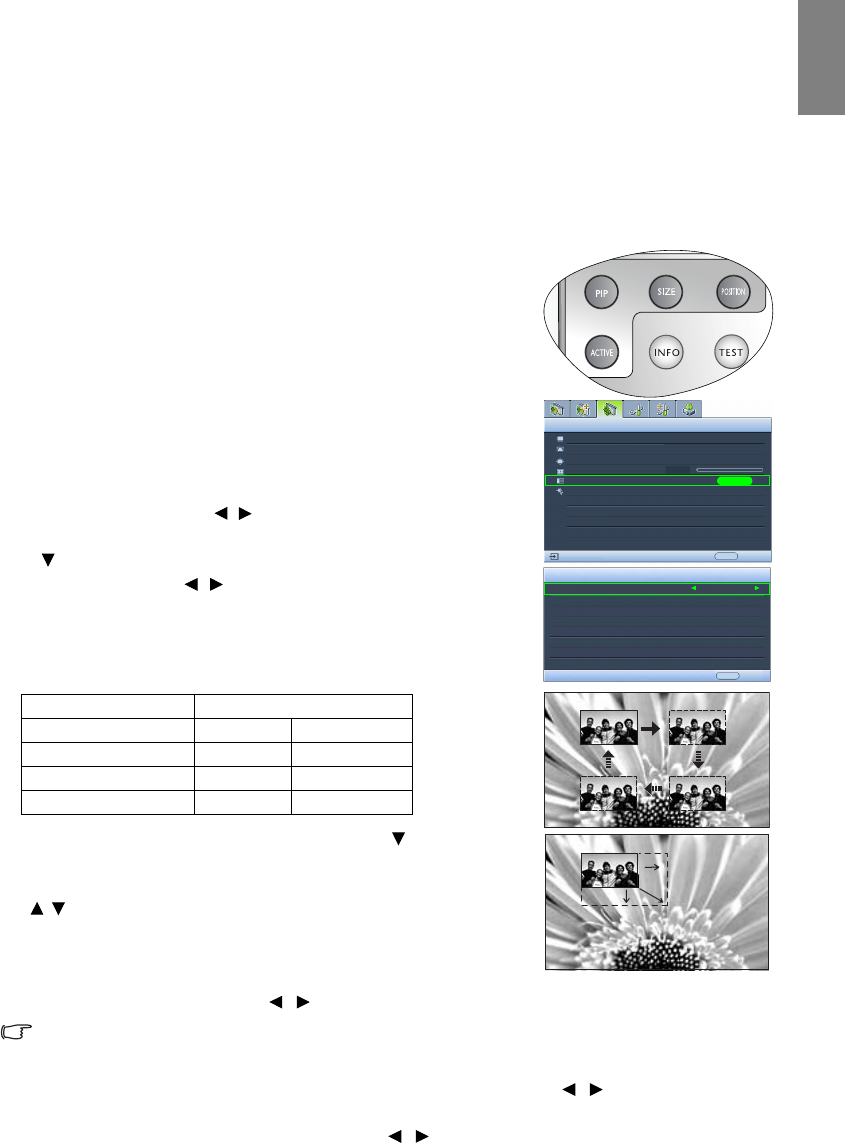
35
Using the projector
English
Displaying more than one image source
simultaneously
Your projector is capable of displaying pictures simultaneously from two input sources, which can be used
to enhance your presentation in an interesting way. Ensure the signals you want to display are correctly
connected to the projector.
To di s p lay t h e PIP w i n dow :
• Using the remote control
Press PIP to display the PIP page and make adjustments by following the
steps starting from step 3 in the section "Using the OSD menu" below.
When the PIP window is on, to change the PIP window size, press SIZE
repeatedly until a desired size is selected.
When the PIP window is on, to change the PIP window position, press
POSITION repeatedly until a desired position is selected.
When the PIP window is on, to highlight one of the sources to make
adjustments, press ACTIVE repeatedly until the source is selected.
• Using the OSD menu
1. Press MENU and then press / until the Display menu is
highlighted.
2. Press to highlight PIP and press ENTER. The PIP page displays.
3. Highlight PIP and press / to select On.
The projector will select two currently active signals to display and the last
viewed picture will be displayed on the big screen as a main source.
The PIP function is effective at below source combinations.
4. To change the Main Source or Second Source, press to highlight
Main Source or Second Source and press ENTER. The source selection
bar displays.
5. Use / to highlight the source you want to display for the main
(bigger) or second (smaller) window, and press ENTER to save the
setting and go back to the PIP page.
6. To make OSD settings to one of the two sources (main or second),
highlight Active Window and press / to select the source you want to make adjustments.
The settings made on the OSD menus will only take effect on the active window. The following
OSD menu function cannot work on the active windows for the PIP: Auto Source Search.
7. To change the position of the smaller picture, highlight Position and press / repeatedly until a
suitable position is selected.
8. To resize the small picture, highlight Size and press / to set the PIP size among Small or Large.
9. To save the settings and leave the OSD menu, press MENU once or EXIT repeatedly until the menu
disappears.
Source 2
Source 1 CVBS S-Video
HDMI 1/2 V V
Component 1/2 V V
PC V V
PIP
PIP
Main Source
Second Source
Active Window
Position
Size
On
Main
Top-Right
Large
EXIT Back
ENTER
Aspect Ratio
Keystone
Position
Overscan Adjustment
PIP
PC & Component YPbPr Tuning
Display
EXIT Back
0
S-Video
Anamorphic
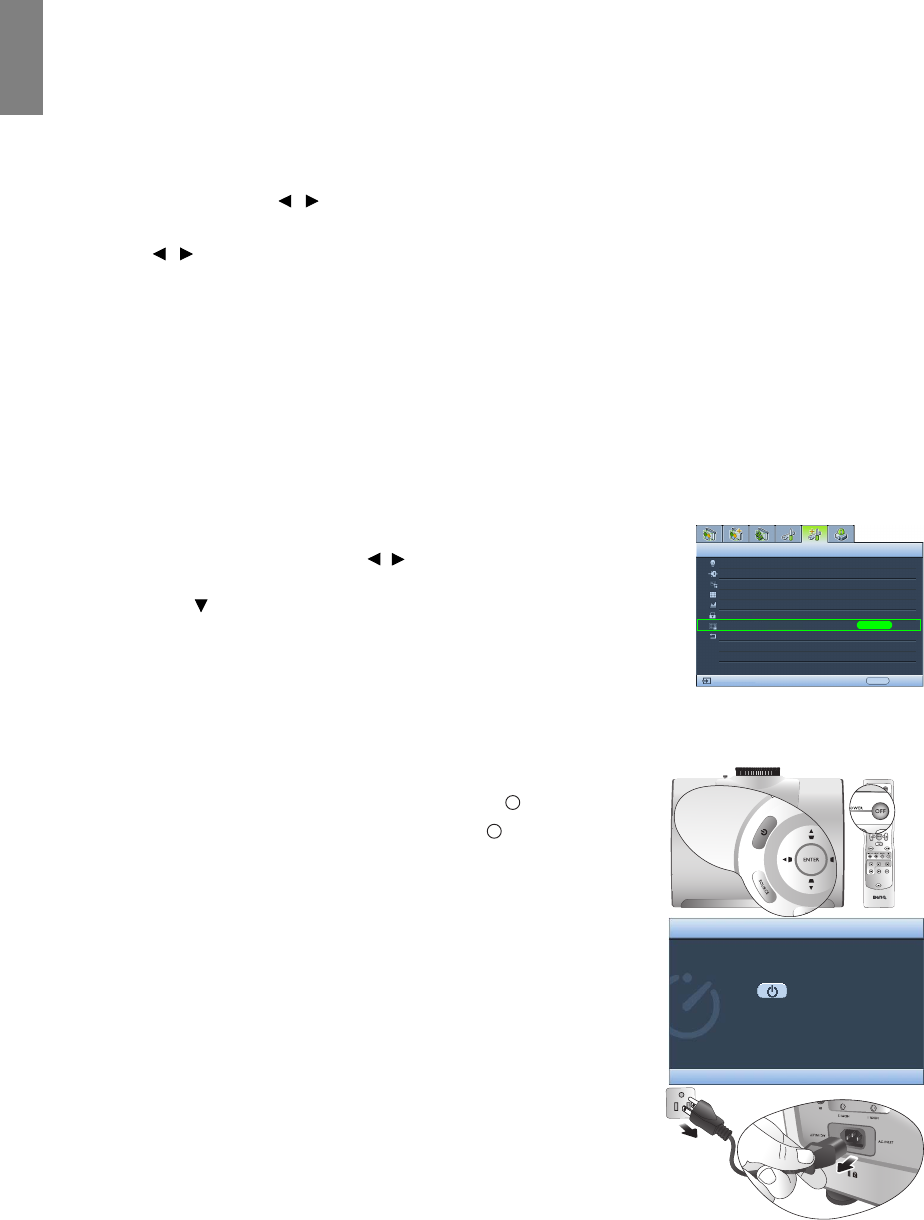
36 Using the projector
English
Personalizing the projector menu display
The On-Screen Display (OSD) menus can be set according to your preferences. The following settings do
not affect the projection settings, operation, or performance.
• Rename User Mode: See "Renaming user modes" on page 27 for details.
• Menu Display Time in the System Setup > Menu Settings menu sets the length of time the OSD will
remain active after your last key press. The time length ranges from 5 to 30 seconds in 5-second
increments. Use / to select a suitable time length.
• Menu Position in the System Setup > Menu Settings menu sets the OSD position in five locations. Use
/ to select a preferred position.
• Language in the System Setup menu sets your familiar language for the On-Screen (OSD) Menus. See
"Using the menus" on page 22 for details.
• Splash Screen in the System Setup menu sets a preferred logo screen to be displayed during projector
start-up.
Locking control keys
With the control keys on the remote control and projector locked, you can prevent your projector settings
from being changed accidentally (by children, for example). When Key Lock is on, no control keys on the
remote control and projector will operate except POWER ON/OFF and EXIT.
To lo c k t h e ke y s:
1. Press MENU and then press / until the Advanced Setup menu is
highlighted.
2. Press to highlight Key Lock, and press ENTER. The control keys
lock.
To unlock the keys, press and hold EXIT on the projector or remote
control for 5 seconds.
Turning the projector off
To turn the projector off, press POWER OFF on the remote control
to turn the projector off directly. Or you can press on the
projector and a warning message appears. Press again.
• The Power indicator light flashes orange and the fans run for
about two minutes to cool the lamp. The projector will not
respond to any commands until the cooling process is complete.
• Then, the Power indicator light is a steady orange once the
cooling process has finished and fans stop.
• If the projector will not be used for an extended period, unplug
the power cable from the power outlet.
• To protect the lamp, the projector will not respond to any
commands during the cooling process.
Lamp Settings
Test Pattern
High Altitude Mode
Password
Key Lock
Reset All Settings
Advanced Setup
EXIT Back
S-Video
ENTER
Off
HDMI Settings
ISF
Baud Rate 115200
Press button again to power off.
Power Off
Press any other button to cancel
I
I
I
I

37
Using the projector
English
On-Screen Display (OSD) menus
On-Screen Display (OSD) structure
Please note that the on-screen display (OSD) menus vary according to the signal type selected.
Main menu Sub-menu Options
Picture --
Basic
Picture Mode Cinema/Dynamic/Standard/User 1/User 2/User 3
Load Settings From
Brightness 0–100
Contrast 0–100
Color 0–100
Tint -20–+20
Sharpness 0–8
Reset Picture Settings
Rename User Mode
Picture --
Advanced
Black Level 0 IRE/7.5 IRE
Clarity Control
Noise Reduction 0/1/2/3
Detail Enhancement 0-5
Luma Transmission 0/1/2
Chroma Transmission 0/1/2
Color Temperature Normal/Cool/Lamp Native/Warm/User 1/User
2/User 3
Color Temperature
User_ Fine Tuning
Red Gain 0–100
Green Gain 0–100
Blue Gain 0–100
Red Offset 0–100
Green Offset 0–100
Blue Offset 0–100
Gamma Selection 1.6/1.8/2.0/2.2/2.4/2.5/2.6/2.8/BenQ1/BenQ2
Brilliant Color On/Off
Color Management
Primary Color Red/Yellow/Green/Cyan/Blue/Magenta
Range 0–100
Saturation 0–100
Film Mode On/Off
3D Comb Filter On/Off
Dynamic Black On/Off
Display
Aspect Ratio Anamorphic/4:3/Letter Box/Wide/Real
Keystone 2D Keystone
Position
Overscan Adjustment 0/1/2/3
PIP
PIP On/Off
Main Source HDMI 1/HDMI 2/Video/S-Video/Component 1/
Component 2/PC
Second Source
Active Window Main/PIP
Position Top-Right/Bottom-Left/Bottom-Right/Top-
Left
Size Large/Small
PC & Component
YPbPr Tuning
H.Size -15–+15
Phase -15–+15
Auto
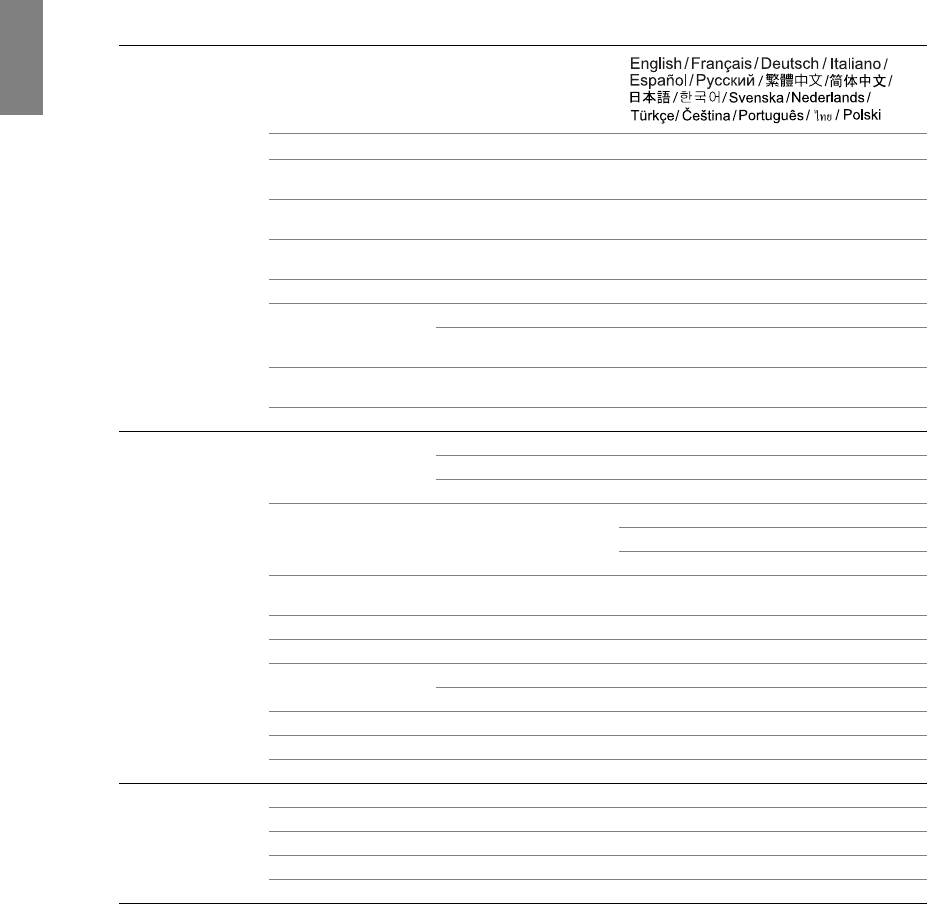
38 Using the projector
English
Note that the menu items are available when the projector detects at least one valid signal. If there is no
equipment connected to the projector or no signal detected, limited menu items are accessible.
The default values listed in this manual, especially on pages 39-41, are for reference only. They may vary
between the projectors due to the continuous improvement to the products.
System Setup
Language
Splash Screen BenQ/Blue/Black
Projector Position Floor Front/Ceiling Front/Floor Rear/Ceiling
Rear
Auto Off Disable/5 min/10 min/15 min/20 min/25 min/
30 min
Sleep Timer Disable/30 min/60 min/90 min/120 min/150
min/180 min
Background Color Black/Purple/Blue
Menu Settings
Menu Display Time 5 sec/10 sec/15 sec/20 sec/25 sec/30 sec
Menu Position Center/Top-Left/Top-Right/Bottom-Right/
Bottom-Left
Input Source HDMI 1/HDMI 2/Video/S-Video/Component 1/
Component 2/PC
Auto Source Search On/Off
Advanced
Setup
Lamp Settings
Lamp Power Normal/Economic
Reset Lamp Timer
Equivalent Lamp Hour
HDMI Settings HDMI Format
Auto
PC Signal
Video Signal
Baud Rate 2400/4800/9600/14400/19200/38400/57600/
115200
Test Pattern
High Altitude Mode On/Off
Password Password On/Off
Change Password (inputs current password)
Key Lock
Reset All Settings
ISF (inputs current password)
Information
Source
Picture Mode
Resolution
Equivalent Lamp Hour
Firmware Version
39
Using the projector
English
Picture -- Basic menu
Picture -- Advanced menu
Function
(default setting/value) Description
Picture Mode
(Standard)
Pre-defined picture modes are provided so you can optimize your projector
picture set-up to suit your program type. See "Selecting a preset mode" on
page 26 for details.
Load Settings From
Selects a preset mode that most suits your need for the picture quality and
further fine-tune the picture based on the selections listed below. See "Setting the
User 1/User 2/User 3 mode" on page 27 for details.
Brightness
(50)
Adjusts the brightness of the picture. See "Adjusting Brightness" on page 28 for
details.
Contrast
(50)
Adjusts the degree of difference between dark and light in the picture. See
"Adjusting Contrast" on page 28 for details.
Color
(50)
Adjusts the color saturation level -- the amount of each color in a video picture.
See "Adjusting Color" on page 28 for details.
Tint
(0)
Adjusts the red and green color tones of the picture. See "Adjusting Tint" on
page 28 for details.
Sharpness
(depends on the selected
input source)
Adjusts the picture to make it look sharper or softer. See "Adjusting Sharpness"
on page 28 for details.
Reset Picture
Settings
Returns all settings in the Picture -- Basic and Picture -- Advanced menus to the
factory preset values. See "Resetting the picture mode" on page 27 for details.
Rename User Mode Renames User 1, User 2, or User 3. See "Renaming user modes" on page 27 for
details.
Function
(default setting/value) Description
Black Level
(0 IRE)
Sets the picture grayscale as 0 IRE or 7.5 IRE. See "Setting Black Level" on
page 29 for details.
Clarity Control Adjusts the picture clarity. See "Controlling image clarity" on page 29 for details.
Color Temperature
(depends on the selected
Picture Mode)
There are several color temperature settings available. See "Selecting a color
temperature*" on page 29 for details.
Color Temperature
User_ Fine Tuning See "Setting a preferred color temperature" on page 30 for details.
Gamma Selection
(depends on the selected
Picture Mode)
See "Selecting a Gamma setting" on page 30 for details.
Brilliant Color
(On)See "Adjusting Brilliant Color" on page 30 for details.
Color Management See "Color Management" on page 31 for details.
Film Mode
(On)See "Setting Film Mode" on page 31 for details.
40 Using the projector
English
Display menu
System Setup menu
3D Comb Filter
(On)See "Setting 3D Comb Filter" on page 32 for details.
Dynamic Black
(On)
Automatically changes the black level of the projected pictures to enhance the
effect of contrast ratio.
Function
(Default setting/value) Description
Aspect Ratio
(Anamorphic)
There are several options to set the picture’s aspect ratio depending on your
input source. See "Selecting the aspect ratio" on page 32 for details.
Keystone
(0)
Corrects any keystoning of the picture. See "Correcting picture distortion" on
page 25 for details.
Position
(0)
Displays the position adjustment page. To move the projected picture, use the
directional arrow keys. The values shown on the lower position of the page
change with every key press you made until they reach their maximum or
minimum.
This function is only available when the Component 1, Component 2,
or PC signal is selected.
Overscan Adjustment
(depends on the selected
input source)
Conceals the poor picture quality in the four edges. You can also manually press
/ to decide how much to be concealed. Setting 0 means the picture is 100%
displayed. The greater the value, the more portion of the picture is concealed
while the screen remains filled and geometrically accurate.
PIP Turns the PIP window on or off and makes related adjustments. See "Displaying
more than one image source simultaneously" on page 35 for details.
PC & Component
YPbPr Tuning
H.Size (0)
Adjusts the horizontal width of the picture.
Phase (0)
Adjusts the clock phase to reduce picture distortion.
Auto
Adjusts the phase, and frequency automatically
These functions are only available when the
Component 1, Component 2, or PC signal is selected.
Function
(Default setting/value) Description
Language
()
Sets the language for the On-Screen Display (OSD) menus. See "Using the
menus" on page 22 for details.
Splash Screen
(BenQ logo)
Allows you to select which logo screen will display during projector start-up. You
can choose BenQ logo screen, Blue screen or Black screen.
Projector Position
(Floor Front)
The projector can be installed on a ceiling or behind a screen, or with one or
more mirrors. See "Choosing a location" on page 12 for details.
Auto Off
(Disable)
Prevents unnecessary projection when no signal is detected for a long time. See
"Setting Auto Off" on page 44 for details.
Sleep Timer
(Disable)
Sets the auto-shutdown timer. The timer can be set to a value between 30
minutes and 3 hours.
41
Using the projector
English
Advanced Setup menu
Background Color
(Blue)
Allows you to choose the color of the background screen that will be displayed
when there is no input source detected.
Menu Settings
Menu Display Time (10 sec)
Sets the length of time the OSD will remain active after your last key press. The
range is from 5 to 30 seconds in 5-second increments.
Menu Position (Center)
Sets the On-Screen Display (OSD) menu position.
Input Source Selects an input source to be projected. See "Selecting an input source" on
page 21 for details.
Auto Source Search
(Off)
Sets whether the projector searches automatically for input sources. If the source
scan is On, the projector will scan for input sources until it acquires a signal. If
the function is not activated, the projector selects the last used input source.
Function
(Default setting/value) Description
Lamp Settings
Lamp Power (Normal)
Selects the projector lamp power between Normal and Economic modes.
Reset Lamp Timer
Once the lamp is renewed, select Reset to return the lamp timer to "0". See
"Resetting the lamp timer" on page 47 for details.
Equivalent Lamp Hour
Shows the lamp hour information. See "Getting to know the lamp hour" on
page 44 for details.
HDMI Settings
(Auto)
Selects an input source type for the HDMI signal. Auto is the default and
recommended setting. You can also manually select the source type. The
different source types carry different standards for the brightness level.
This function is only available when the HDMI signal is selected.
Baud Rate
(115200)
Selects a baud rate that is identical with your computer’s so that you can connect
the projector using a suitable RS-232 cable and update or download the
projector’s firmware. This function is intended for qualified service personnel.
Test Pattern
Press ENTER to display the grid test pattern. It helps you adjust the image size
and focus and check that the projected image is free of distortion.
The function is only available when the projector detects no input
signal.
High Altitude Mode
(Off)
A mode for operation in areas like high altitude or high temperature. See
"Operating in a high altitude environment" on page 34 for details.
Password
Password (Off)
Limits use of the projector to only those who know the correct password. See
"Utilizing the password function" on page 23 for details.
Change Password
You will be asked to enter the current password before changing to a new one.
See "Utilizing the password function" on page 23 for details.
Key Lock Locks the keys on the projector and remote control except POWER ON/OFF
() and EXIT. See "Locking control keys" on page 36 for details.
I
I
42 Using the projector
English
Information menu
This menu shows you the current operating status of the projector.
Some picture adjustments are available only when certain input sources are in use. Unavailable
adjustments are not shown on the screen.
Reset All Settings
Returns all settings to the factory preset values.
The following settings will still remain: names of user modes,
Keystone, Language, Projector Position, High Altitude Mode,
Password, Key Lock, and ISF.
ISF
The ISF calibration menu is password protected and only accessible by
authorized ISF calibrators. The ISF (Imaging Science Foundation) has developed
carefully crafted, industry-recognized standards for optimal video performance
and has implemented a training program for technicians and installers to use
these standards to obtain optimal picture quality from BenQ video display
devices. Accordingly, we recommend that setup and calibration be performed by
an ISF certified installation technician.
For more information, please go to www.imagingscience.com or
contact the place you purchased the projector.
Function Description
Source Shows the current signal source.
Picture Mode Shows the selected mode in the Picture -- Basic > Picture Mode menu.
Resolution Shows the native resolution of the input source.
Equivalent Lamp
Hour Shows the total lamp time used.
Firmware Version Shows the firmware version of your projector.

43
Additional information
English
Additional information
Care of the projector
Your projector needs little maintenance. The only thing you have to do on a regular basis is keep the lens
clean. Never remove any parts of the projector except the lamp. Contact your dealer or local customer
service center if the projector fails to operate as expected.
Cleaning the lens
Clean the lens whenever you notice dirt or dust on the surface. Before you attempt to clean the lens, turn
the projector off, unplug the power cable, and leave it several minutes to cool completely.
1. Use a canister of compressed air to remove dust. (Available from building hardware or photographic
suppliers.)
2. If there is stubborn dirt or smudge marks, use a proper photographic lens brush or moisten a clean soft
lens cloth with lens cleaner to gently wipe the lens surface.
3. Never use any type of abrasive pad, alkaline/acid cleaner, scouring powder, or volatile solvent, such as
alcohol, benzene, thinner or insecticide. Using such materials or maintaining prolonged contact with
rubber or vinyl materials may result in damage to the projector surface and cabinet material.
Never touch the lens with your finger or rub the lens with abrasive materials. Even paper towels can
damage the lens coating. Only ever use a proper photographic lens brush, cloth, and cleaning solution. Do
not attempt to clean the lens while the projector is switched on or is still hot from previous use.
Cleaning the projector case
Before you attempt to clean the case, turn the projector off, unplug the power cable, and leave it several
minutes to cool completely.
1. To remove dirt or dust, wipe the case with a soft, dry, lint-free cloth.
2. To remove stubborn dirt or stains, moisten a soft cloth with water and a neutral detergent. Then wipe
the case.
Never use wax, alcohol, benzene, thinner or other chemical detergents. These can damage the case.
Storing the projector
If you need to store the projector for an extended time, please:
1. Make sure the temperature and humidity of the storage area are within the recommended range for the
projector. Please refer to the Spec. page in this manual or consult your dealer about the range.
2. Retract the adjuster feet.
3. Remove the batteries from the remote control.
4. Pack the projector in its original packing or equivalent.
Transporting the projector
It is recommended that you ship the projector with its original packing or equivalent.
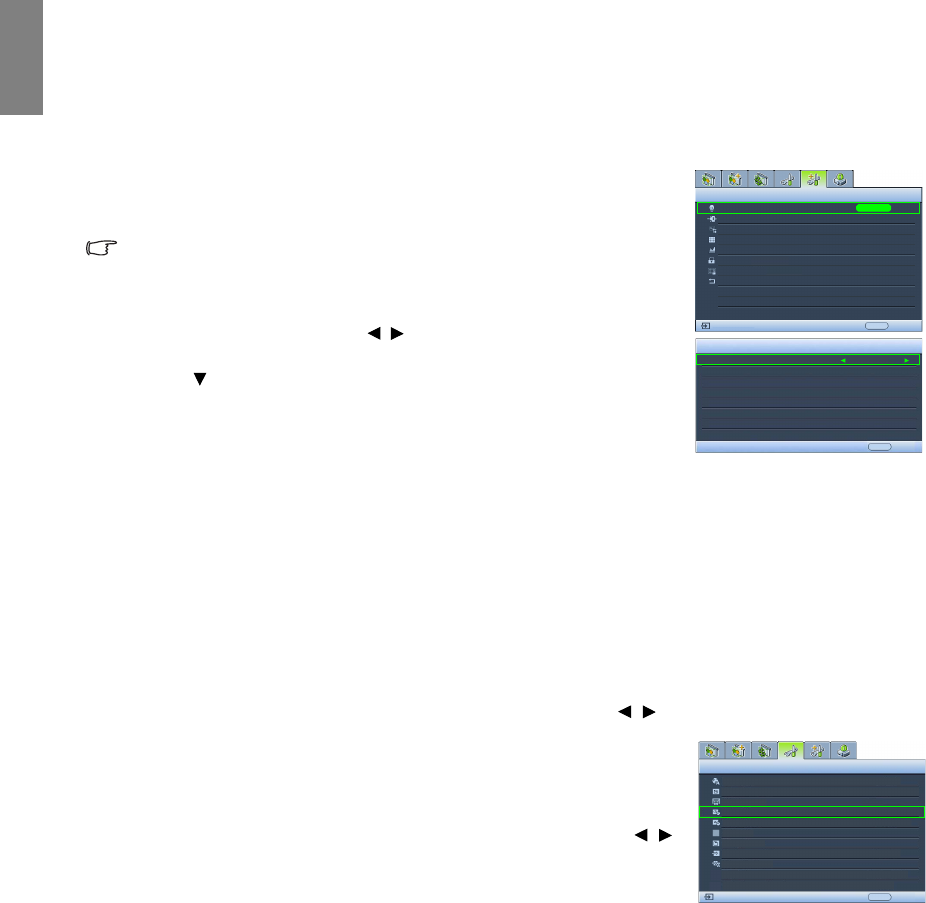
44 Additional information
English
Lamp information
Getting to know the lamp hour
When the projector is in operation, the duration (in hours) of lamp usage
is automatically calculated by the built-in timer. The method of
calculating the equivalent lamp hour is as follows:
Equivalent lamp hour
= 1 (hours used in Economic mode) + 3/2 (hours used in Normal mode)
See "Setting Lamp Power as Economic" below for more information on
Economic mode.
To obtain the lamp hour information:
1. Press MENU and then press / until the Advanced Setup menu is
highlighted.
2. Press to highlight Lamp Settings and press ENTER. The Lamp
Settings page displays.
3. The lamp hour information is shown in the row of Equivalent Lamp
Hour.
4. To leave the menu, press MENU.
Extending lamp life
The projection lamp is a consumable item that normally can last up to 2000-3000 hours with proper usage.
To keep the lamp life as long as possible, you can do the following settings via the OSD menu.
• Setting Lamp Power as Economic
Using Economic mode reduces system noise and power consumption. If the Economic mode is selected,
the light output will be reduced and result in darker projected pictures.
Setting the projector in Economic mode also extends the lamp life. To set Economic mode, go to the
Advanced Setup > Lamp Settings > Lamp Power menu and press / .
• Setting Auto Off
This function allows the projector to turn off automatically if no input
source is detected after a set period of time.
To s e t Auto Off, go to the System Setup > Auto Off menu and press /
to select a time period. The time period can be set from 5 to 30 minutes in
5-minute increments. If the preset time lengths are not suitable for your
presentation, select Disable. The projector will not automatically shut
down in a certain time period.
Lamp Settings
Test Pattern
High Altitude Mode
Password
Key Lock
Reset All Settings
Advanced Setup
EXIT BackS-Video
ENTER
Off
Lamp Settings
Lamp Power
Equivalent Lamp Hour
EXIT Back
Reset Lamp Timer
Economic
HDMI Settings
ISF
Baud Rate 115200
50 hours
Language
Splash Screen
Projector Position
Auto Off
Sleep Timer
Background Color
Menu Settings
Input Source
System Setup
S-Video
English
BenQ
Auto Source Search
EXIT Back
Disable
Disable
Blue
On
Floor Front
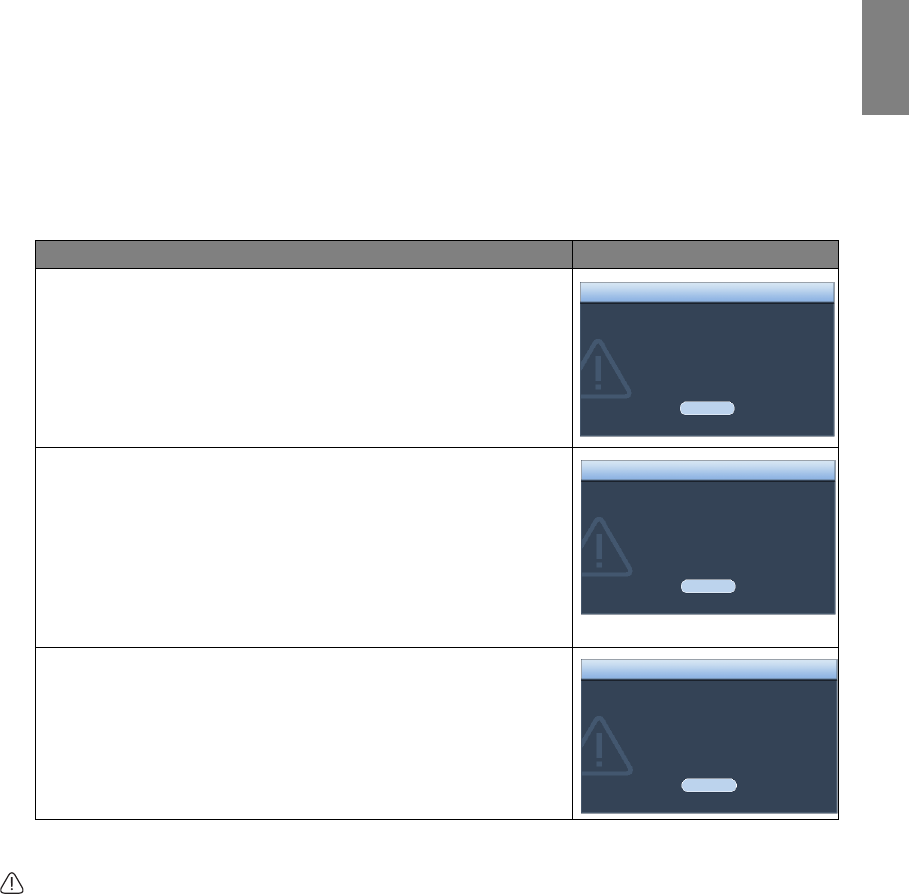
45
Additional information
English
Timing of replacing the lamp
When the Lamp indicator lights up red or a message appears suggesting it is time to replace the lamp,
please install a new lamp or consult your dealer. An old lamp may cause a malfunction in the projector and
in some instances the lamp may explode. Go to http://lamp.BenQ.com for a replacement lamp.
The Lamp indicator light and Temperature warning light will light up if the lamp becomes too hot. Turn
the power off and let the projector cool for 45 minutes. If the Lamp or Temp indicator still lights up after
turning the power back on, please contact your dealer. See "Indicators" on page 48 for details.
The following Lamp warning displays will remind you to change the lamp.
Replacing the lamp
• To reduce the risk of electrical shock, always turn the projector off and disconnect the power cable
before changing the lamp.
• To reduce the risk of severe burns, allow the projector to cool for at least 45 minutes before replacing
the lamp.
• To reduce the risk of injuries to fingers and damage to internal components, use caution when
removing lamp glass that has shattered into sharp pieces.
• To reduce the risk of injuries to fingers and/or compromising image quality by touching the lens, do
not touch the empty lamp compartment when the lamp is removed.
• This lamp contains mercury. Consult your local hazardous waste regulations to dispose of this lamp in
a proper manner.
Status Message
The lamp has been in operation for 2000 hours. Install a new lamp
for optimal performance. If the projector is normally run with
Economic selected (See "Getting to know the lamp hour" on page 44),
you may continue to operate the projector until the 2980 hour lamp
warning appears.
Press ENTER to dismiss the message.
The lamp has been in operation for 2980 hours. It is strongly
recommended that you replace the lamp at this age. The lamp is a
consumable item. The lamp brightness diminishes with use. This is
normal lamp behavior. You can replace the lamp whenever you notice
that the brightness level has significantly diminished. If the lamp is
not replaced beforehand, it should be replaced after 2980 hours
usage.
Press ENTER to dismiss the message.
The lamp has been in operation for 3000 hours. The lamp MUST be
replaced before the projector will operate normally.
Press ENTER to dismiss the message.
OK
NOTICE: Order replacement lamp
Lamp > 2000hrs
Order a new lamp at
lamp.benq.com
WARNING
OK
NOTICE: Replace lamp soon
Lamp > 2980hrs
Order a new lamp at
lamp.benq.com
WARNING
NOTICE: Replace lamp now
Lamp > 3000hrs
Lamp-usage time exceeded
Replace lamp (refer to User’s Manual)
then reset lamp timer.
Order a new lamp at
lamp.benq.com
OK
WARNING
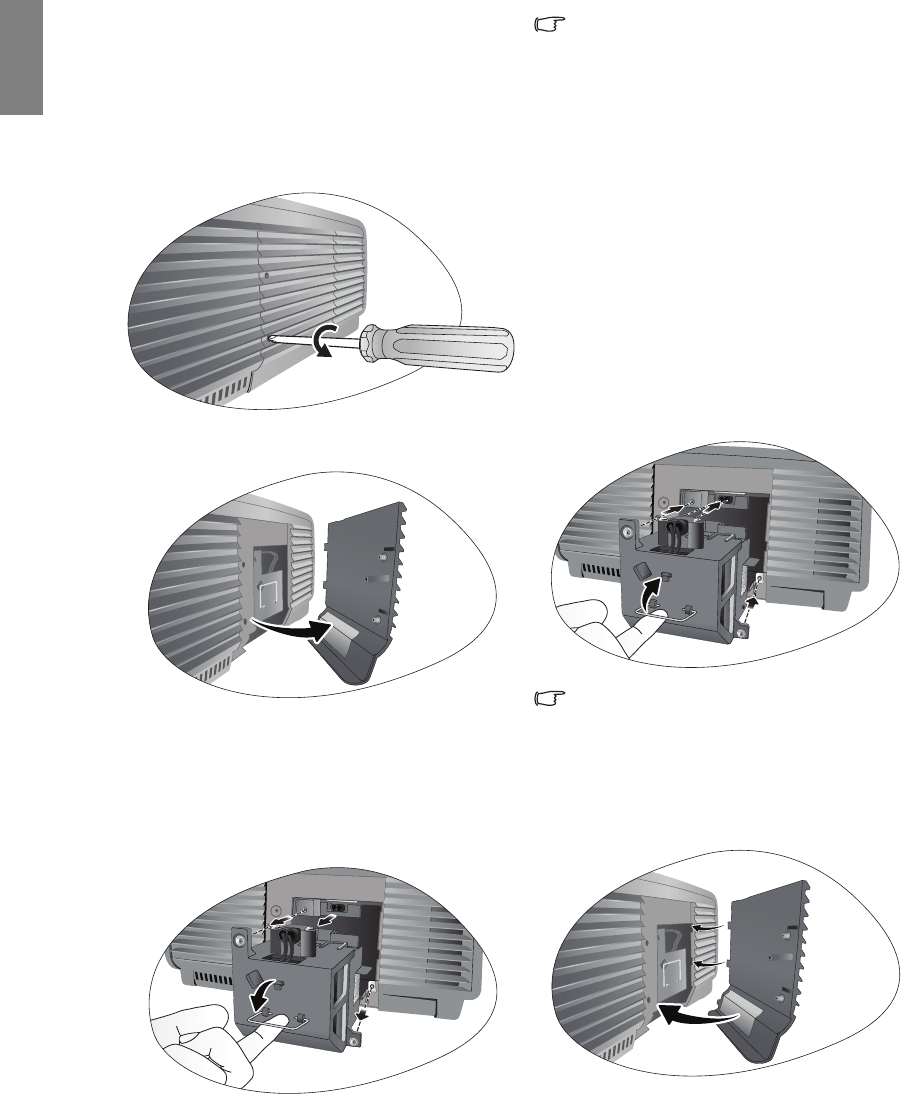
46 Additional information
English
1. Turn the power off and disconnect the
projector from the power outlet. Turn off all
connected equipment and disconnect all other
cables. See "Turning the projector off " on
page 36 for details.
2. Slightly lift the projector up. Loosen the screws
on the lamp cover (located on the left side).
3. Remove the lamp cover.
4. Loosen the screws that hold the lamp to the
projector. If the screws are not loosened
completely, they could injure your fingers.
5. Lift the handle so that it is perpendicular to the
lamp. Use the handle to slowly pull the lamp
out of the projector.
Notes
• Pulling it too quickly may cause the lamp to
break and scatter broken glass in the projector.
To reduce the risk of injuries to fingers and
damage to internal components, use caution
when removing lamp glass that has shattered.
• Do not place the lamp in locations where water
might splash on it, children can reach it, near or
above heat sources, or near flammable
materials.
• Do not insert your hand into the projector when
the lamp is removed. If you touch the optical
components inside, it could cause blurred
images.
6. Insert the replacement lamp. Make sure it is
pushed fully and firmly in place.
7. Tighten the screws securing the lamp box.
8. Ensure the handle is fully locked in place.
Notes
• Please be careful to not over-tighten the
screws.
• Loose screws may cause a bad connection,
which could result in malfunction.
9. Re-install the lamp cover.
10. Tighten the screws on the lamp cover.
11. Reapply power and turn the projector back on.
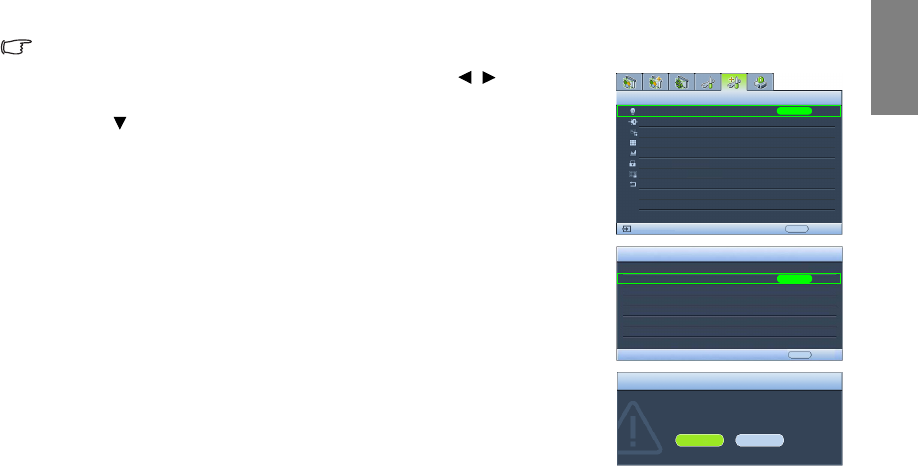
47
Additional information
English
Resetting the lamp timer
Do not reset the lamp timer if the lamp has not been replaced as this could cause damage.
1. After the start-up logo, press MENU and then press / until the
Advanced Setup menu is highlighted.
2. Press to highlight Lamp Settings and press ENTER. The Lamp
Settings page displays.
3. Highlight Reset Lamp Timer and press ENTER. A warning message
displays asking if you want to reset the lamp timer. Highlight Reset
and press ENTER. The lamp time will be reset to "0".
Lamp Settings
HDMI Settings
High Altitude Mode
Password
Key Lock
Reset All Settings
Advanced Setup
EXIT BackS-Video
ENTER
Off
Lamp Settings
Lamp Power
Equivalent Lamp Hour
ENTER
EXIT Back
Reset Lamp Timer
Reset Lamp Timer?
Reset Cancel
WARNING
Normal
Test Pattern
ISF
Baud Rate 115200
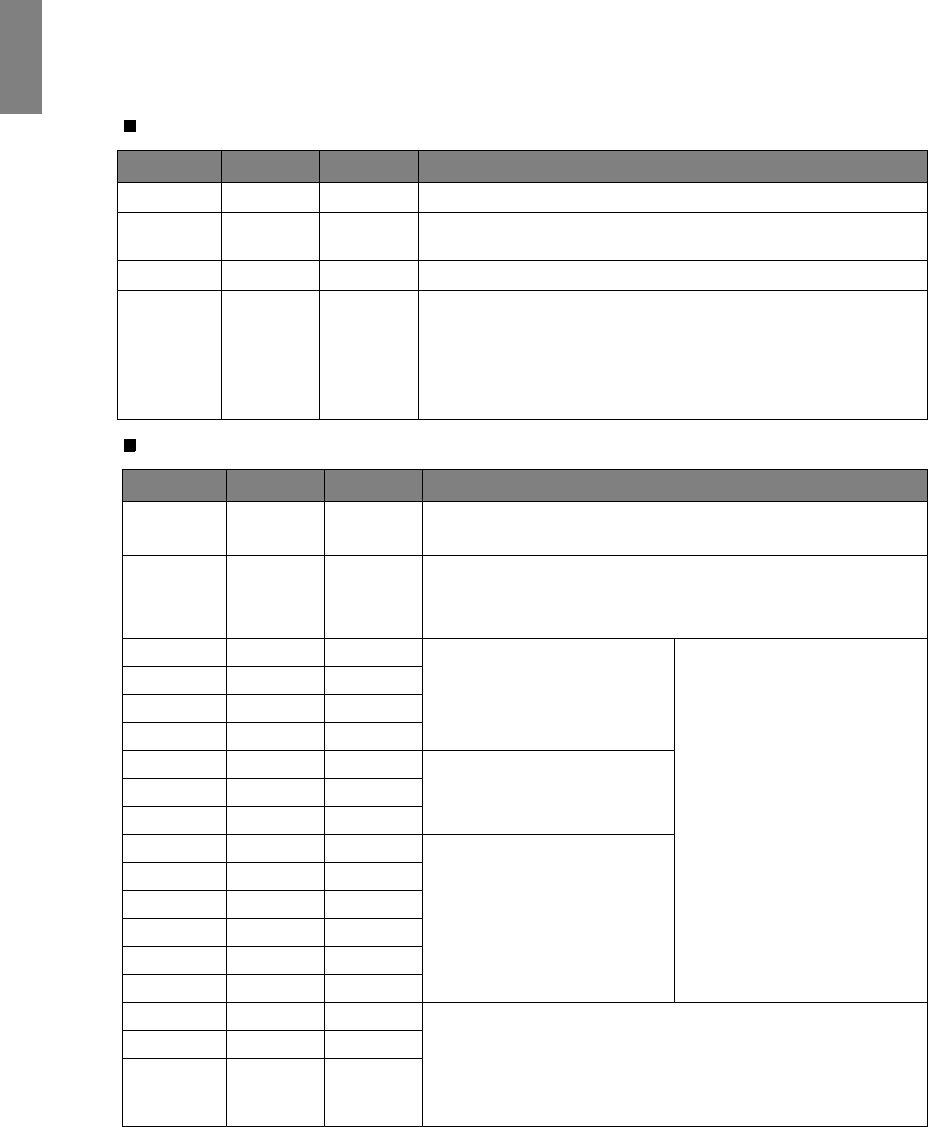
48 Additional information
English
Indicators
There are three indicators which show the status of the projector. Check the following for information
about the indicator lights. If there is anything wrong, turn the projector off and contact your dealer.
When the projector is in a normal state
When the projector is in an abnormal state
Power Temp Lamp Status & Description
Orange Off Off Stand-by mode
Green
Flashing Off Off Powering up
Green Off Off Normal operation
Orange
Flashing Off Off
• The projector needs 90 seconds to cool down as it was
abnormally shut down without the normal cooling down
process.
• The projector needs to cool for 90 seconds after the power is
turned off.
Power Temp Lamp Status & Description
Off Off Red • The lamp has been damaged. Please contact your local BenQ
customer center for purchasing a new lamp.
Orange Off Red
• The lamp is not properly attached.
• The lamp has been damaged. Please contact your local BenQ
customer center for purchasing a new lamp.
Off Red Off
The fans are not working.
The projector has shut down
automatically. If you try to re-
start the projector, it will shut
down again. Please contact your
dealer for assistance.
Off Red Red
Off Red Green
Off Red Orange
Off Green Red Fan sensors error
Fans do not rotate during
powering up.
Off Green Orange
Off Orange Red
Red Red Red
Thermal condition error
Red Red Green
Red Red Orange
Green Red Red
Green Red Green
Green Red Orange
Orange Red Red The internal temperature is too high.
• The intake ventilation or the exhaust ventilation is blocked.
• The projector may be in a poorly ventilated location.
• The ambient temperature may be too high.
Orange Red Green
Orange Red Orange
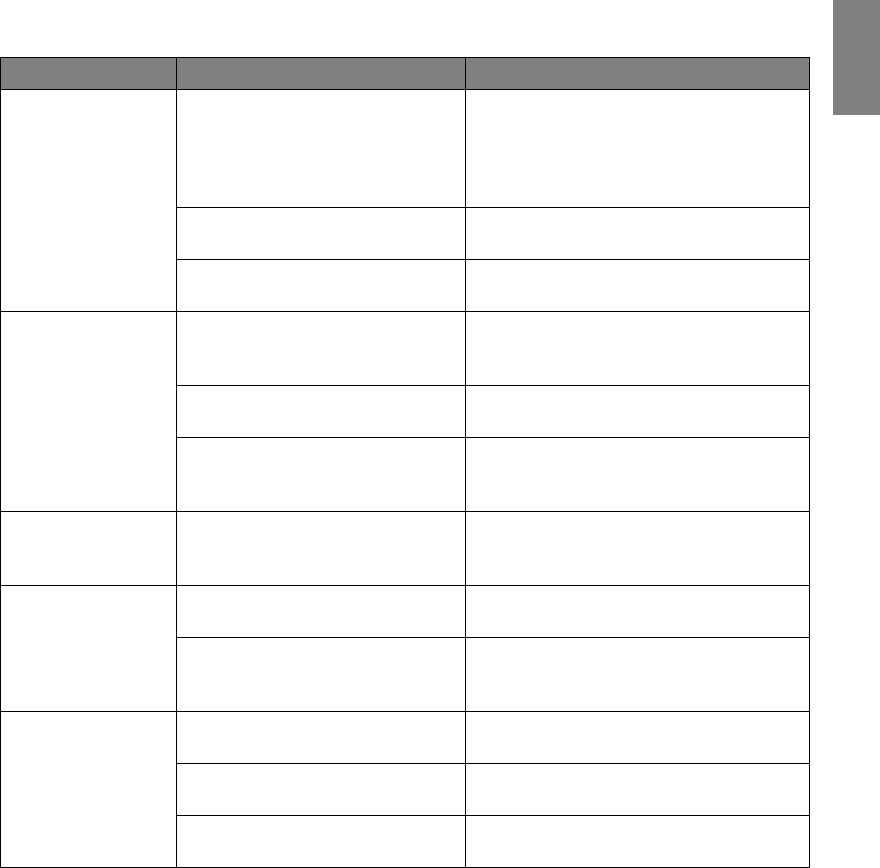
49
Additional information
English
Troubleshooting
Problem Cause Remedy
The projector does not
turn on.
There is no power from the power
cable.
Plug the power cable into the AC inlet on the
rear of the projector, and plug the power cable
into to the power outlet. If the power outlet
has a switch, make sure that it is switched on.
(See page 20.)
Attempting to turn the projector on
again during the cooling process.
Wait until the cooling down process has
completed.
The lamp cover is not securely
attached. Correctly attach the lamp cover. (See page 45.)
No picture.
The video source is not turned on or
connected correctly.
Turn the video source on and check that the
signal cable is connected correctly. (See page
17.)
The projector is not correctly
connected to the input source device. Check the connection. (See page 17.)
The input source has not been
correctly selected.
Select the correct input source with the Source
keys on the remote control or SOURCE on the
projector. (See page 21.)
Image is unstable.
The connection cables are not securely
connected to the projector or the
signal source.
Correctly connect the cables to the
appropriate terminals. (See page 17.)
Picture is blurred.
The projection lens is not correctly
focused.
Adjust the focus of the lens using the focus
ring. (See page 21.)
The projector and the screen are not
aligned properly.
Adjust the projection angle and direction as
well as the height of this projector if necessary.
(See page 25.)
Remote control does
not work correctly.
The batteries are out of power. Replace both of the batteries with new ones.
(See page 7.)
There is an obstacle between the
remote control and the projector. Remove the obstacle. (See page 7.)
You are too far away from the
projector.
Stand within 8 meters (26.2 feet) of the
projector. (See page 7.)

50 Additional information
English
Specifications
All specifications are subject to change without notice.
Optical
Projection system Single-chip DLPTM system.
DMD chip 0.65" DLP (1920 x 1080)
Lens F = 2.48 to 2.83, f = 24.1 to 36.14 mm
Projection screen size 28" to 300"
Lamp 280W
Electrical
Compatibility PC: 640 x 400 to 1920 x 1200
Video: NTSC, PAL, SECAM, YPbPr (480i/480p/576i/576p), HDTV
(720p/1080i/1080p)
DDC 2B
Color Space Typ. = 70% NTSC (Target Color Gamut = HDTV Rec. 709)
Terminals
Input Analog RGB: D-Sub 15-pin (female) x 1
HDMI (V. 1.3) x 2
Component Video (Y/CB/CR, Y/PB/PR) x 1
Component Video (Y/CB/CR, Y/PB/PR) x 1 (shared with RGB input)
Composite Video x 1
S-Video x 1
Output
Control
12VDC (Max. 0.5 A)
Serial Connector: RS232 9 pin (male)
Mini B type USB x 1
IR receiver x 2
General characteristics
Projector weight 6.7 kg (14.8 lbs)
Power VAC 100-240V, 3.9A, 50-60Hz (Automatic)
Power consumption Max. 430W; Standby < 1 W
Operating temperature 0 °C to 35 °C at sea level
Operating humidity 10% - 90% (without condensation)
Operating altitude 0-1499 m at 0°C-35°C
1500-3000 m at 23°C-30°C (with High Altitude Mode on)
Storage temperature -20°C- 60°C/-4°F to 140°F
Storage humidity 10% - 90%
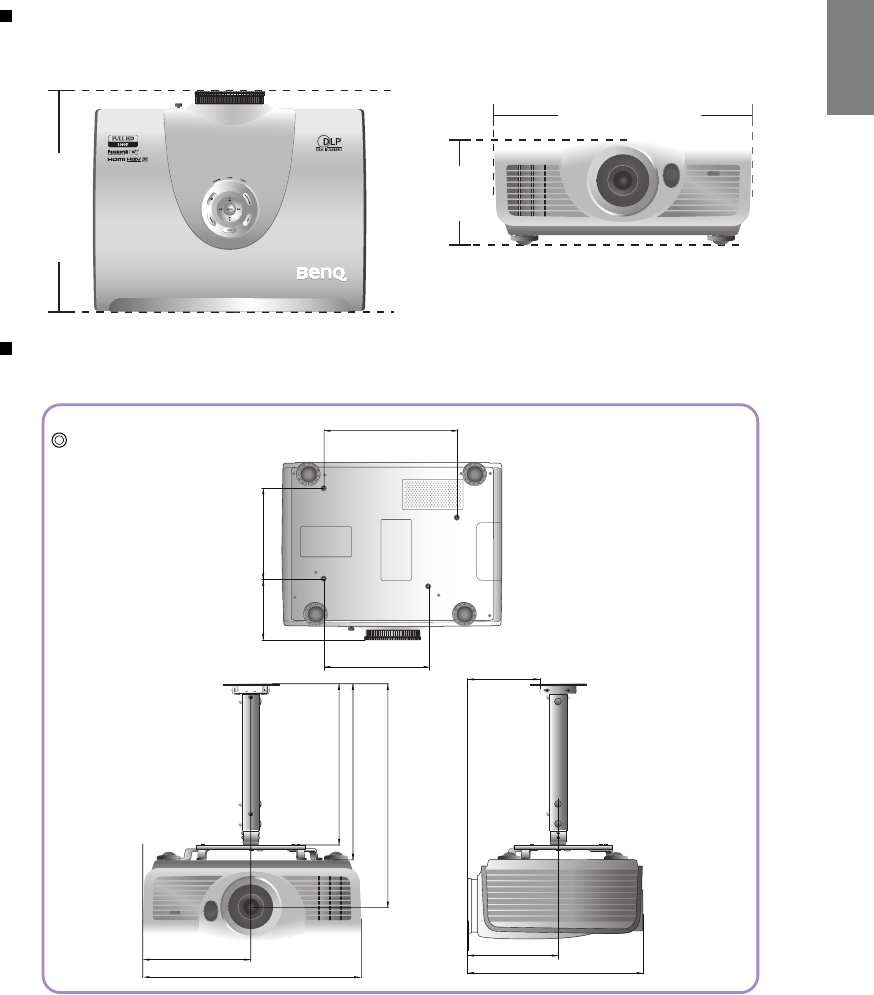
51
Additional information
English
Dimensions
428 mm x 317 mm x 145 mm (W x D x H)
Ceiling mount installation
428
317 145
178.98
221.98
239.89
492
502.87
395.4
362.4
422.49
284
225
235101.49
Ceiling mount screws:
M4 x 8 (Max. L = 8 mm)
Unit: mm
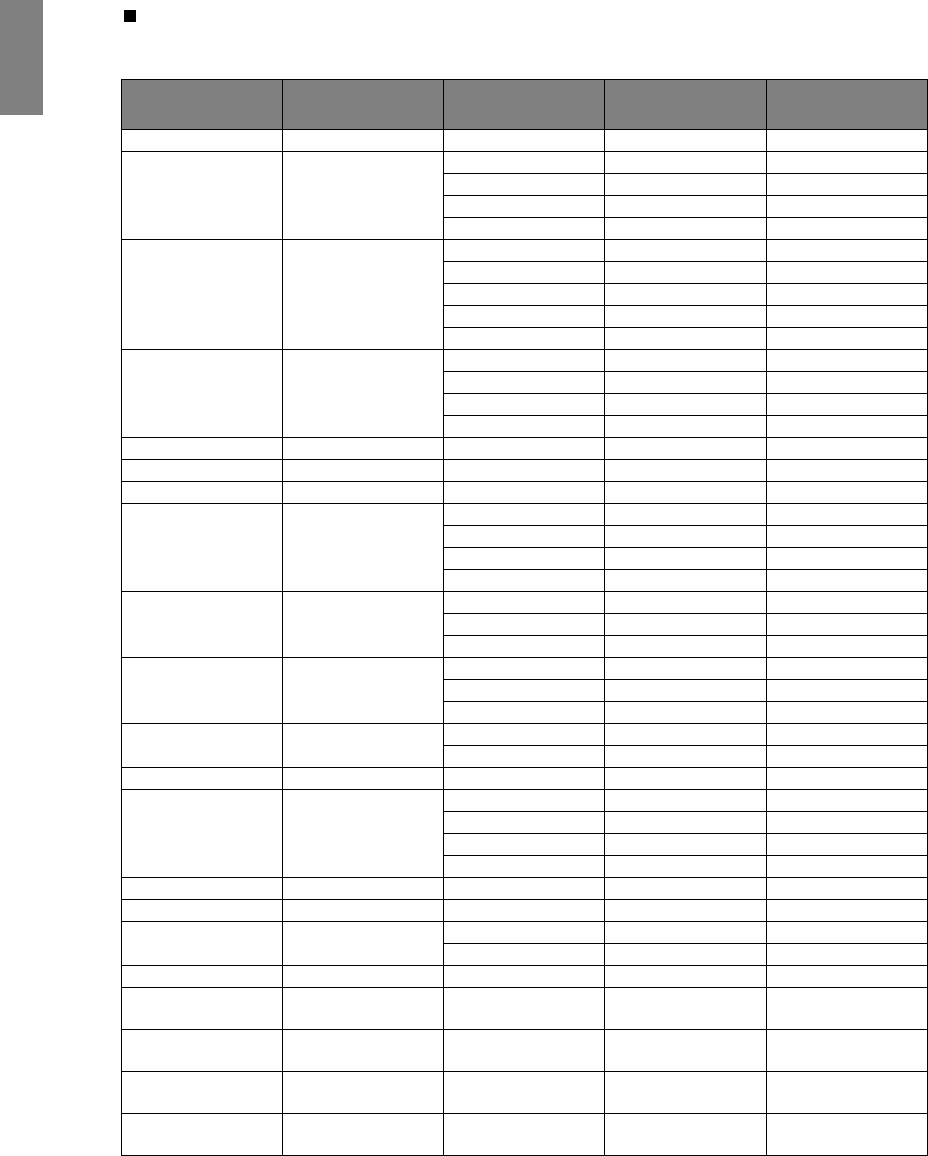
52 Additional information
English
Timing chart
Supported timing for PC input
Format Resolution Refresh rate
(Hz)
H. Frequency
(KHz)
Pixel Frequency
(MHz)
720 x 400 720 x 400 70.087 31.469 28.3221
640 x 480 640 x 480
59.94 31.469 25.175
72.809 37.861 31.5
75 37.5 31.5
85.008 43.269 36
800 x 600 800 x 600
56.25 35.156 36
60.317 37.879 40
72.188 48.077 50
75 46.875 49.5
85.061 53.674 56.25
1024 x 768 1024 x 768
60.004 48.363 65
70.069 56.476 75
75.029 60.023 78.75
84.997 68.667 94.5
1024 x 576 1024 x 576 60 35.82 46.996
1024 x 600 1024 x 600 64.995 41.467 51.419
1152 x 864 1152 x 864 75 67.5 108
1280 x 768 1280 x 768
60 47.396 68.25
59.87 47.776 79.5
74.893 60.289 102.25
84.837 68.633 117.5
1280 x 800 1280 x 800
59.81 49.702 83.5
74.934 62.795 106.5
84.88 71.554 122.5
1280 x 1024 1280 x 1024
60.02 63.981 108
75.025 79.976 135
85.024 91.146 157.5
1280 x 960 1280 x 960 60 60 108
85.002 85.938 148.5
1360 x 768 1360 x 768 60.015 47.712 85.5
1440 x 900 1440 x 900
60 55.469 88.75
59.887 55.935 106.5
74.984 70.635 136.75
84.842 80.43 157
1400 x 1050 1400 x 1050 59.978 65.317 121.75
1600 x 1200 1600 x 1200 60 75 162
1680 x 1050 1680 x 1050 59.883 64.674 119
59.954 65.29 146.25
1920 x 1200 1920 x 1200 59.95 74.038 154
640 x 480@67Hz
(MAC13) 640 x 480@67Hz 66.667 35 30.24
832 x 624@75Hz
(MAC16) 832 x 624@75Hz 74.546 49.722 57.28
1024 x 768@75Hz
(MAC19) 1024 x 768@75Hz 75.02 60.241 80
1152 x 870@75Hz
(MAC21) 1152 x 870@75Hz 75.06 68.68 100
53
Additional information
English
Supported timing for HDMI (HDCP) input
Supported timing for EDTV and HDTV (via Component inputs)
Supported timing for Video and S-Video inputs
Format Resolution Refresh rate (Hz) H. Freq. (KHz) Pixel Freq. (MHz) Aspect
480i 720 x 480 59.94/60 15.734/15.75 27/27.027 16:9
480p 720 x 480 59.94/60 31.469/31.5 27/27.027 16:9
576i 720 x 576 50 15.625 27 16:9
576p 720 x 576 50 31.25 27 16:9
720/50p 1280 x 720 50 37.5 74.25 16:9
720/60p 1280 x 720 59.939/60 44.955/45 74.175/74.25 16:9
1080/50i 1920 x 1080 50 28.125 74.25 16:9
1080/60i 1920 x 1080 59.939/60 33.716/33.75 74.175/74.25 16:9
1080/24P 1920 x 1080 23.976/24 26.973/27 74.175/74.25 16:9
1080/25P 1920 x 1080 25 28.125 74.25 16:9
1080/30P 1920 x 1080 29.97/30 33.716/33.75 74.175/74.25 16:9
1080/50P 1920 x 1080 50 56.25 148.5 16:9
1080/60P 1920 x 1080 59.939/60 67.432/67.5 148.35/148.5 16:9
Format Resolution Refresh rate (Hz) H. Freq. (KHz) Pixel Freq. (MHz)
480i 720 x 480 59.94/60 15.734/15.75 13.5
480p 720 x 480 59.94/60 31.469/31.5 13.5
576i 720 x 576 50 15.625 27
576p 720 x 576 50 31.25 27
720/50p 1280 x 720 50 37.5 74.25
720/60p 1280 x 720 59.939/60 44.955/45 74.175/74.25
1080/50i 1920 x 1080 50 28.125 74.25
1080/60i 1920 x 1080 59.939/60 33.716/33.75 74.175/74.25
1080/24P 1920 x 1080 23.976/24 26.973/27 74.175/74.25
1080/25P 1920 x 1080 25 28.125 74.25
1080/30P 1920 x 1080 29.97/30 33.716/33.75 74.175/74.25
1080/50P 1920 x 1080 50 56.25 148.5
1080/60P 1920 x 1080 59.939/60 67.432/67.5 148.35/148.5
Format Resolution Refresh rate
(Hz) H. Freq. (KHz) Pixel Freq.
(MHz)
NTSC 3.58 - 59.94/60 15.734/15.75 3.58
NTSC 4.43 - 59.94/60 15.734/15.75 4.43
PAL-B/G - 50 15.625 4.43
PAL M - 59.94/60 15.734/15.75 3.58
PAL N - 50 15.625 3.58
PAL 60 - 59.94/60 15.734/15.75 4.43
SECAM - 50 15.625 4.25/4.41

54 Warranty and Copyright information
English
Warranty and Copyright information
Warranty
BenQ warrants this product against any defects in material and workmanship, under normal usage and
storage.
Proof of purchase date will be required with any warranty claim. In the event this product is found to be
defective within the warranty period, BenQ’s only obligation and your exclusive remedy shall be
replacement of any defective parts (labor included). To obtain warranty service, immediately notify the
dealer from which you purchased the product of any defects.
Important: The above warranty shall be void if the customer fails to operate the product in accordance
with BenQ’s written instructions, especially the ambient humidity must be in-between 10% and 90%,
temperature in-between 0°C and 35°C, altitude lower than 3000 meters, and avoiding to operate the projector in a
dusty environment. This warranty gives you specific legal rights, and you may have other rights which vary
from country to country.
For other information, please visit www.BenQ.com.
Copyright
Copyright © 2009 by BenQ Corporation. All rights reserved. No part of this publication may be
reproduced, transmitted, transcribed, stored in a retrieval system or translated into any language or
computer language, in any form or by any means, electronic, mechanical, magnetic, optical, chemical,
manual or otherwise, without the prior written permission of BenQ Corporation.
All trademarks and registered trademarks are the property of their respective owners.
Disclaimer
BenQ Corporation makes no representations or warranties, either expressed or implied, with respect to the
contents hereof and specifically disclaims any warranties, merchantability or fitness for any particular
purpose. Further, BenQ Corporation reserves the right to revise this publication and to make changes from
time to time in the contents hereof without obligation of BenQ Corporation to notify any person of such
revision or changes.

55
Regulation statements
English
Regulation statements
FCC statement (for United States users)
This equipment has been tested and found to comply with the limits for a Class B digital device, pursuant
to Part 15 of the FCC Rules. These limits are designed to provide reasonable protection against harmful
interference in a residential installation.
CLASS B: This equipment generates, uses and can radiate radio frequency energy and, if not installed and
used in accordance with the instructions, may cause harmful interference to radio communications.
However, there is no guarantee that interference will not occur in a particular installation. If this
equipment does cause harmful interference to radio or television reception, which can be determined by
turning the equipment off and on, the user is encouraged to try to correct the interference by one or more
of the following measures:
—Reorient or relocate the receiving antenna.
—Increase the distance between the equipment and receiver.
—Connect the equipment into an outlet on a circuit different from that to which the receiver is
connected.
—Consult the dealer or an experienced radio/TV technician for help.
EEC statement (for European users)
This machine was tested against the 89/336/EEC (European Economic Community) for EMC (Electro
Magnetic Compatibility) and fulfills these requirements.
MIC statement
B class equipment (Household purpose info/telecommunications equipment)
As this equipment has undergone EMC registration for household purpose, this product can be used in any
area including residential areas.
WEEE directive
Disposal of Waste Electrical and Electronic Equipment by users in private households in the European
Union.
This symbol on the product or on the packaging indicates that this can not be disposed of as
household waste. You must dispose of your waste equipment by handling it over to the
applicable take-back scheme for the recycling of electrical and electronic equipment. For
more information about recycling of this equipment, please contact your city office, the
shop where you purchased the equipment or your household waste disposal service. The
recycling of materials will help to conserve natural resources and ensure that it is recycled in
a manner that protects human health and environment.

56 Regulation statements
English
Accessibility Requirements for Rehabilitation Act of 1973, Section 508
BenQ's commitment to accessible products allows us to support government in making accessible
technology choices BenQ's LCD monitors and projectors are compliant with Section 508 guidelines by
including the assistive features as below:
• BenQ's monitors have colored "Power" indicators. While the indicator shows green, it means that the
monitor is using the full power. While the indicator shows yellow or amber, it means that the monitor
is in suspend or sleep mode and is using less than 2 watts of electricity.
• BenQ's monitors have a variety of settings of pre-programmed flicker-free timing to make the screen
shown on the monitor readily accessible. The default timing setting is automatically turned on every
time the monitor is powered up, and thus reduces the hassle of user intervention.
• BenQ's monitors and projectors have options for brightness and contrast adjustments that text and
images could be displayed differently to meet the demands of the visually impaired. Other similar
adjustments are also available by using the On-Screen Display (OSD) controls on the products.
• BenQ's monitors and projectors include user-selectable color controls, such as color temperature
selections (Monitor: 5800K, 6500K and 9300K, Projector: 5500K, 6500K, 7500K and 9300K), with a
wide range of contrast levels.
• BenQ's multimedia monitors and projectors usually have one or two speakers for audio performance
which allow users (including hearing impaired) to interact with the computer systems connected.
Speaker controls are typically located on the front-panel.
• Firmware of BenQ's monitors and projectors contain unique product information that helps computer
systems to identify BenQ products and activate their Plug-and-Play function when connected.
• All BenQ's monitors and projectors are compatible with the PC99 standard. For example, connectors
are color-coded to help users easily connecting products to computer systems correctly.
• Some models of BenQ's monitors and projectors contain additional USB and DVI ports for connection
to more devices such as a special headphone to assist the hearing impaired.
• All BenQ monitors and projectors come with user manuals on compact discs which could be easily read
by commercial software such as Adobe Reader via a connected computer system. These documents are
also available on the BenQ's web site (www.BenQ.com). Other types of documents may be available
upon requests.
• BenQ's customer service provides answers and assistance to all our customers through phone calls,
facsimiles, e-mails, or web sites.
